
Running an HVAC business with Odoo
Can Odoo send reminders for overdue invoices?
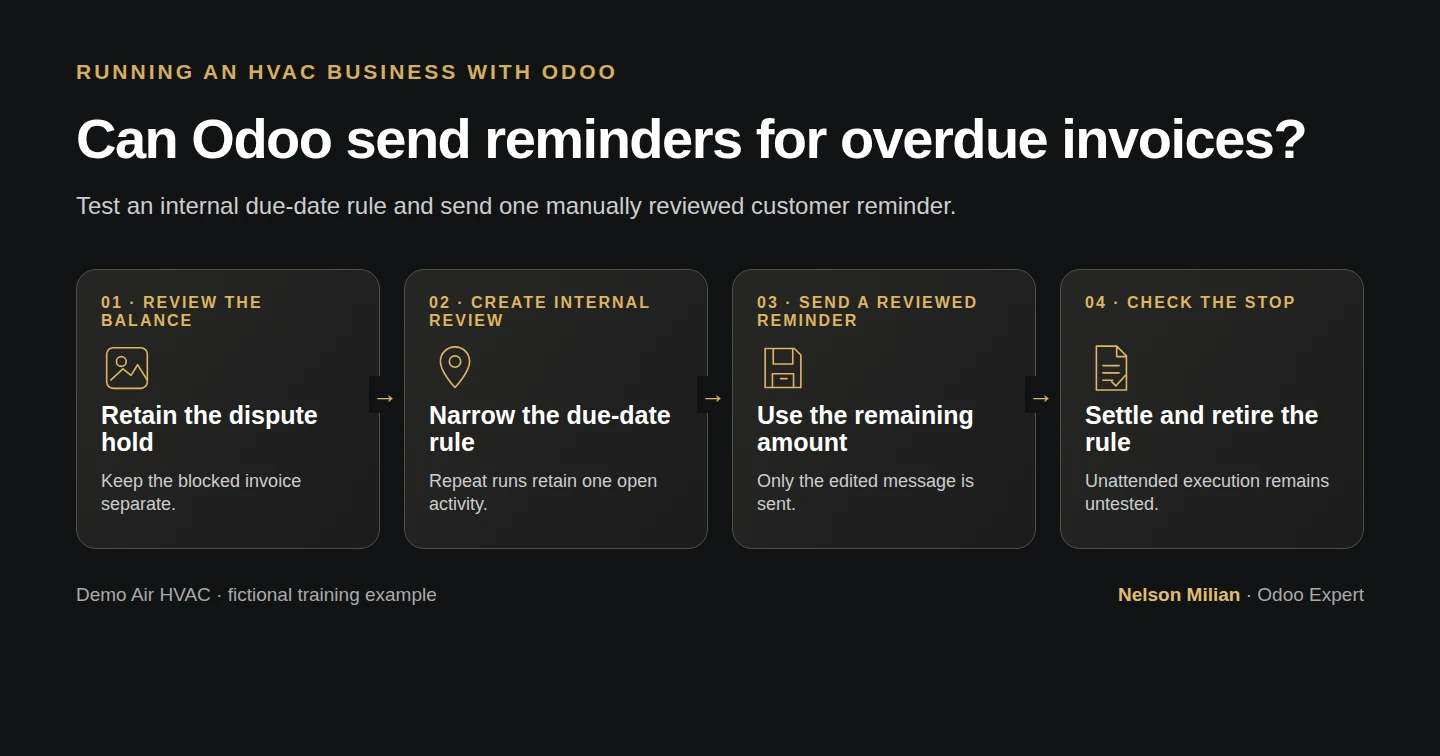
Review overdue Odoo invoices, create a native due-date activity, exclude a blocked dispute and send one manually reviewed balance reminder.
Yes: Alex can send a reviewed invoice reminder from the native invoice screen. The verified automation in this guide creates an internal review activity when a due-date condition is reached. The owner then checks receipts, the remaining balance and any dispute before sending. Our test follows one $31.80 invoice through a partial receipt, a $21.80 reminder and final settlement, while a separate $42.40 disputed invoice stays blocked for review.
Alex Rivera and Demo Air HVAC are fictional training examples. Prices, dates, quantities and business situations in this guide are illustrative.
Before you begin
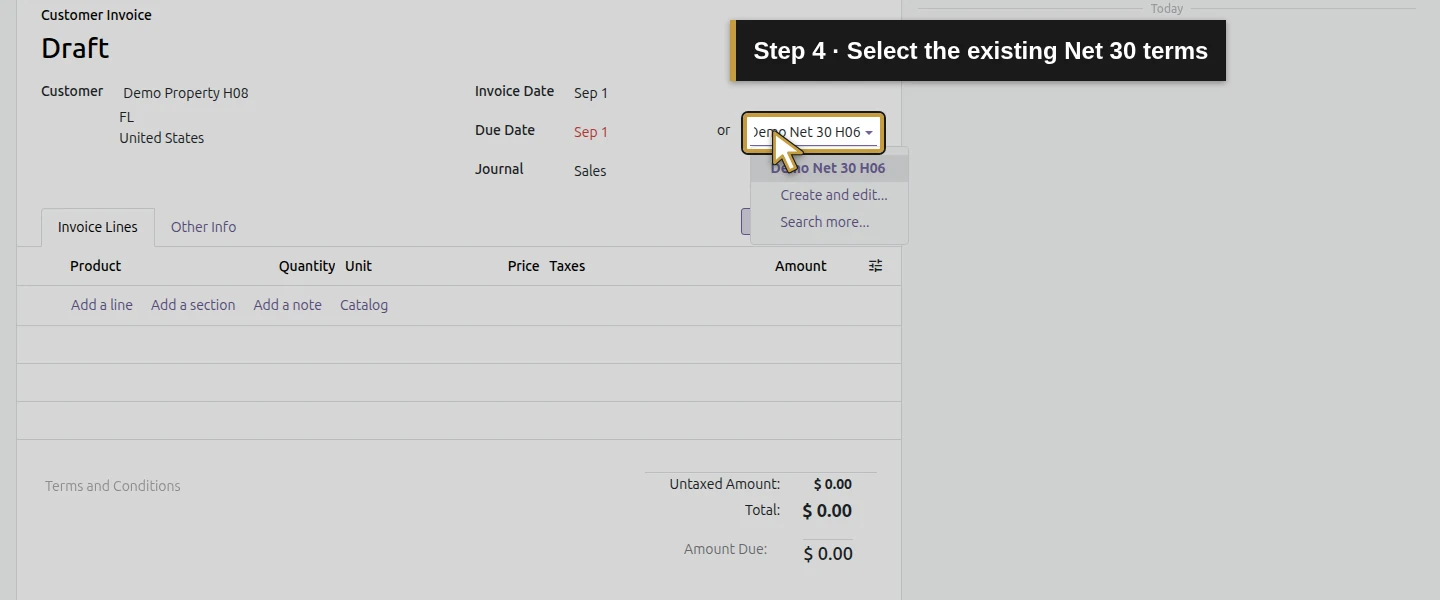
Tested in stock Odoo 20.0-20260926 Community as the demo owner administrator, with official modules and standard configuration. Use the invoice and receipt procedures from How do I invoice job time and materials in Odoo? and How do I record full or partial customer payments in Odoo?, the local-only outgoing route from How do I set up email for Odoo quotations and invoices? and the official Automation Rules setup from How do I set up a no-code reminder rule in Odoo?. All delivery here goes to Mailpit; receipts and business events are synthetic. The previously paid invoices remain unchanged. Prepare the two fictional invoices in the isolated training company before Step 1:
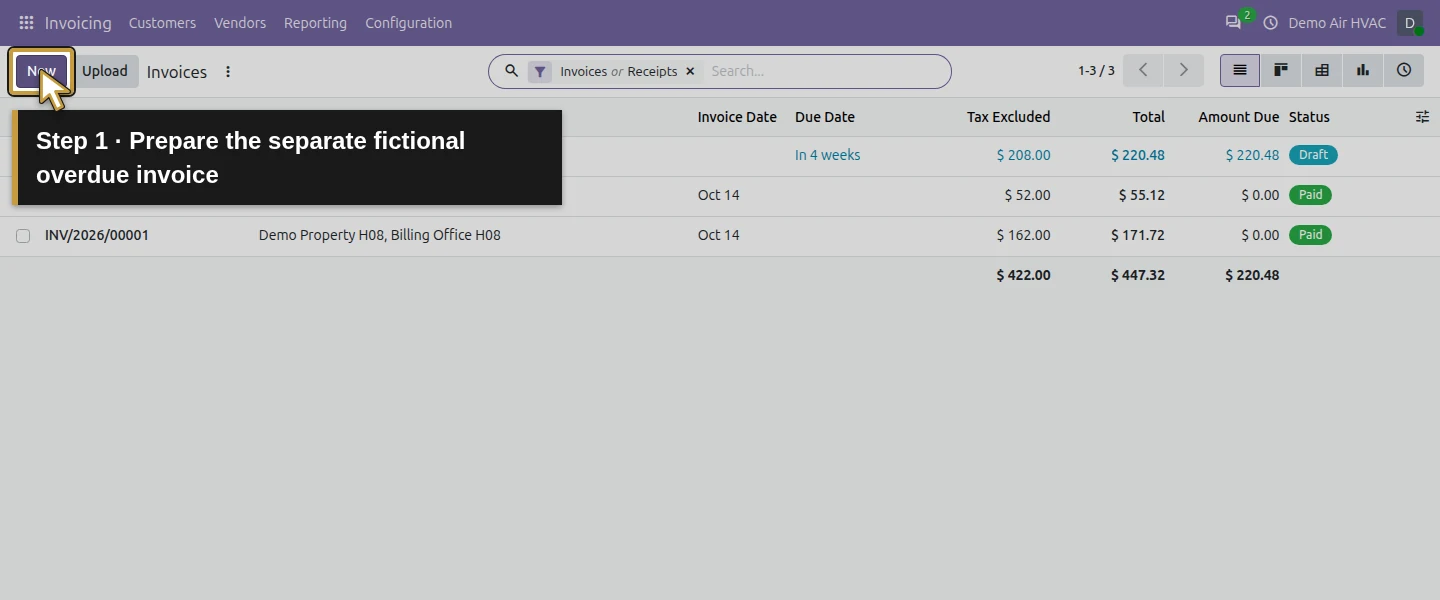
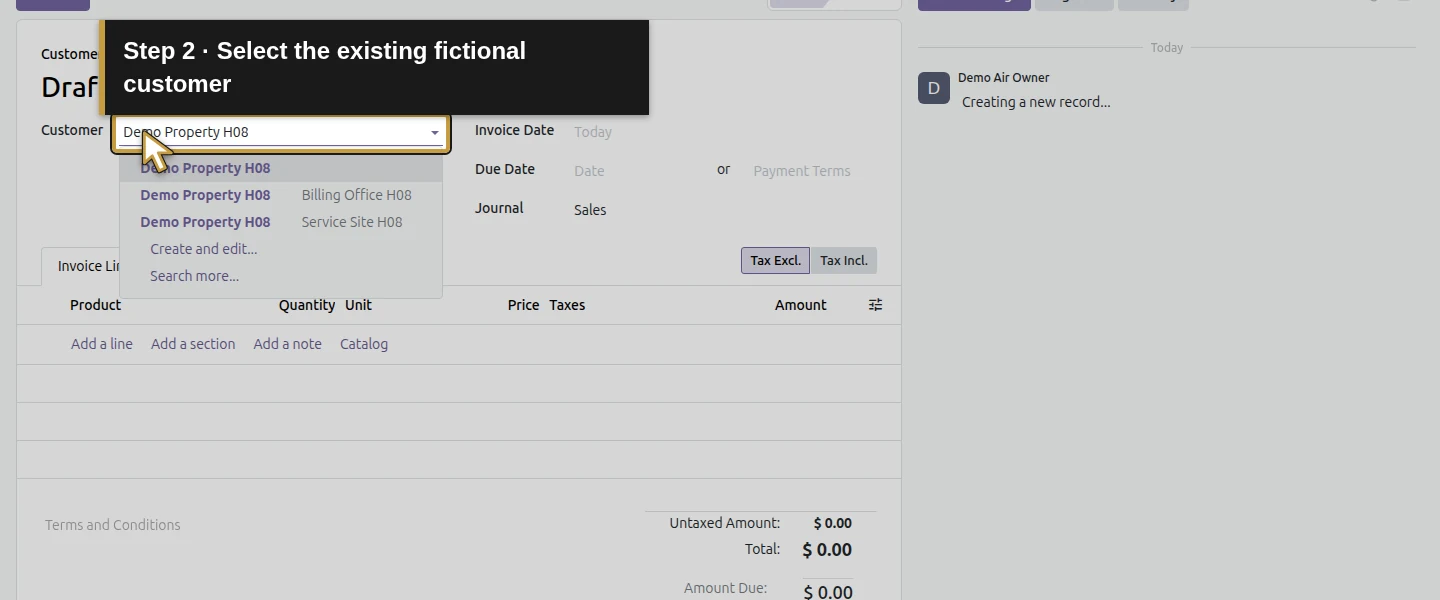
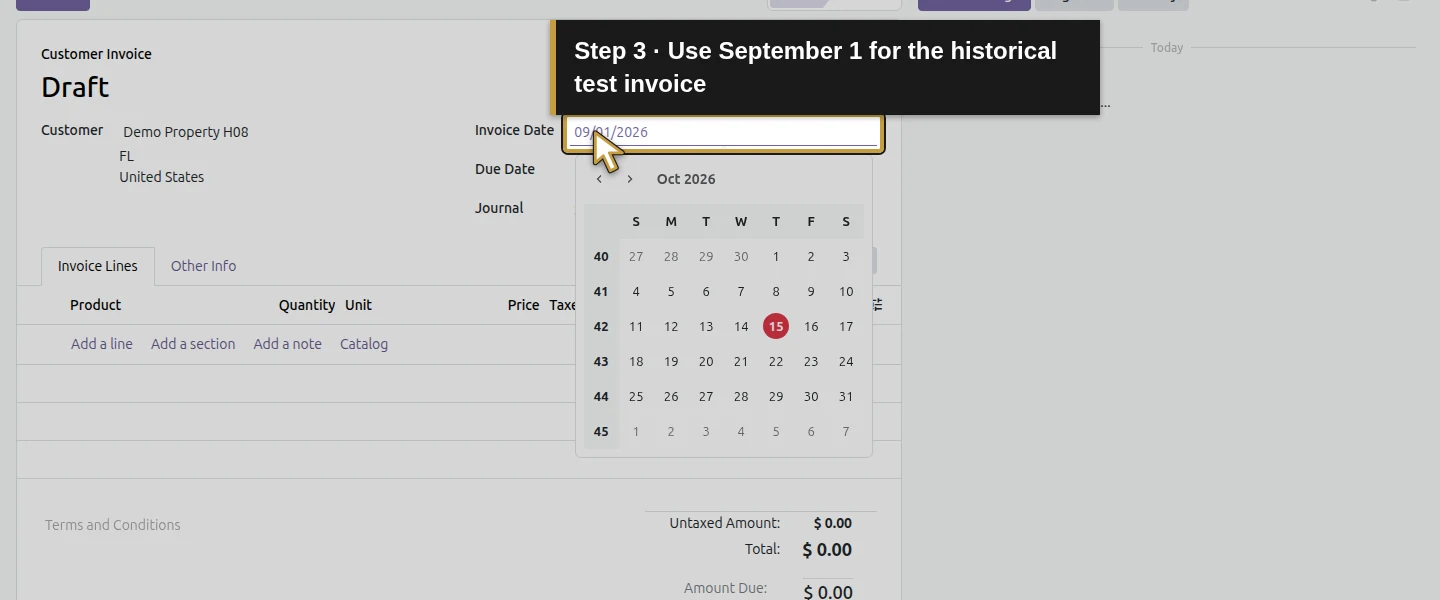
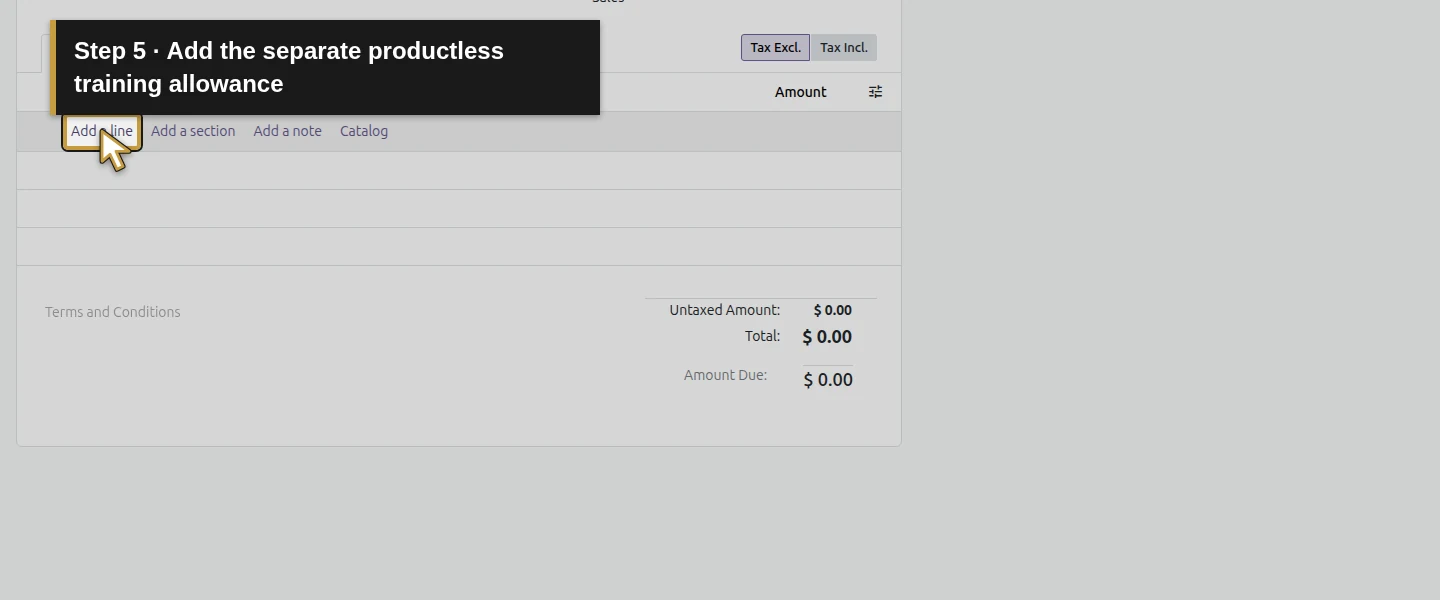
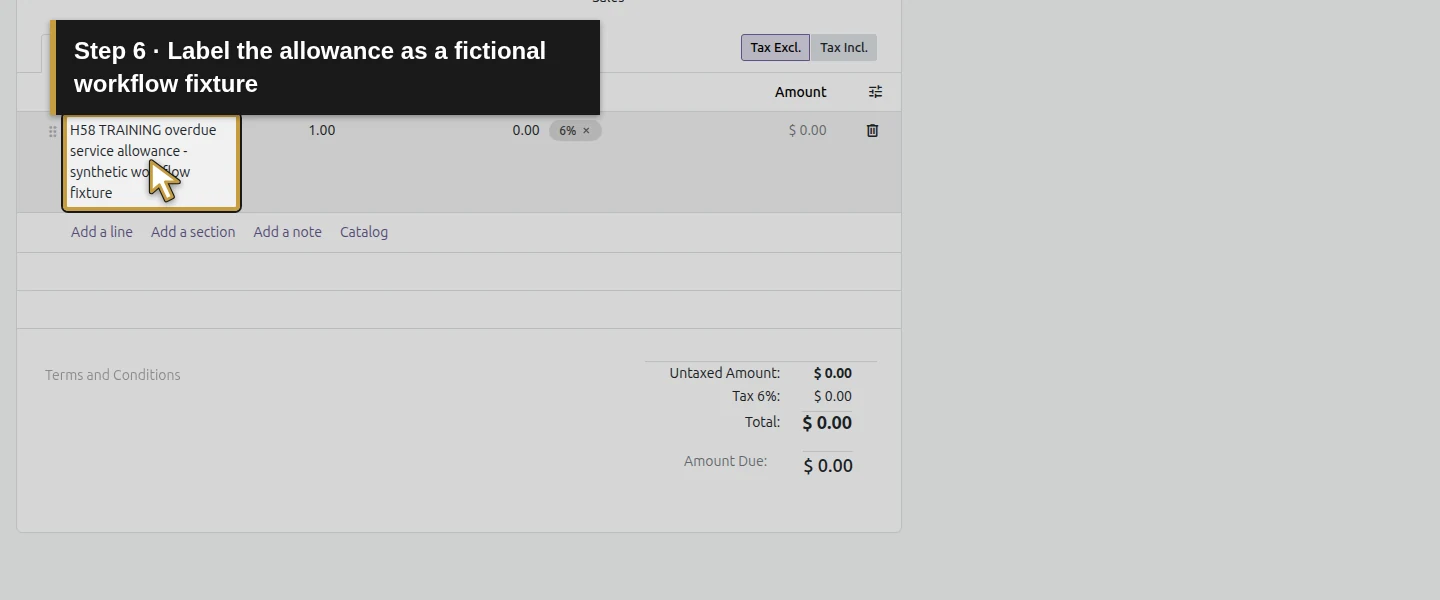
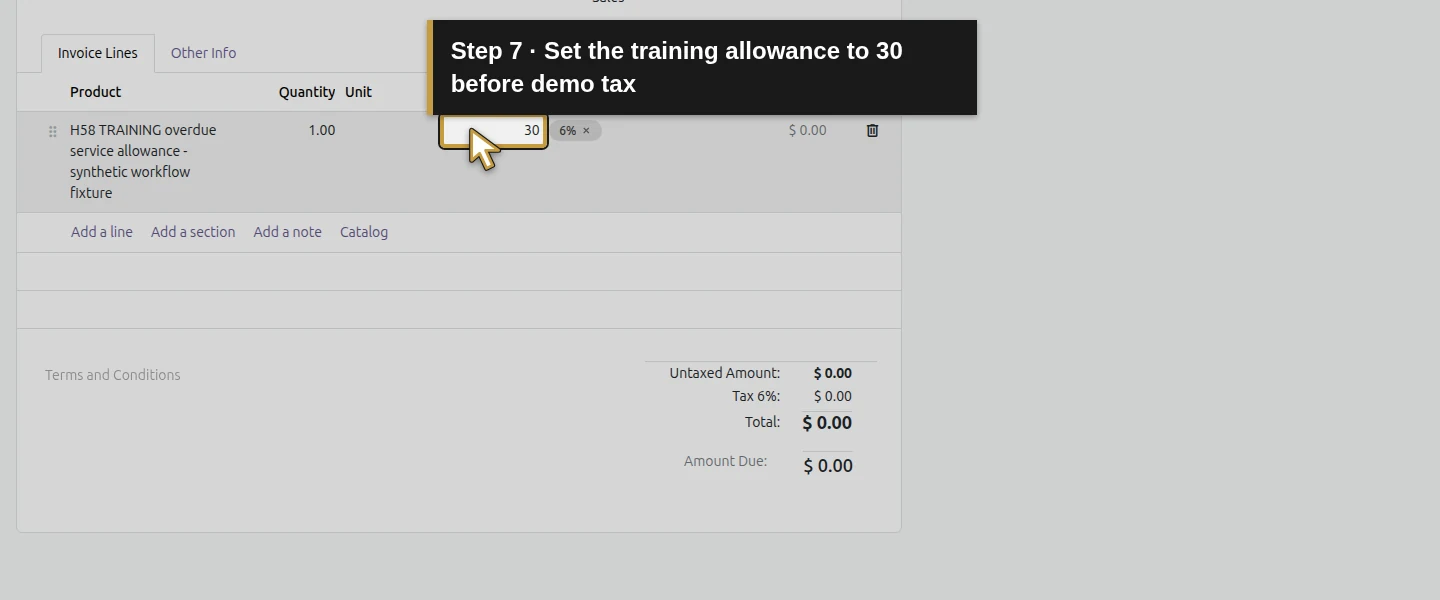
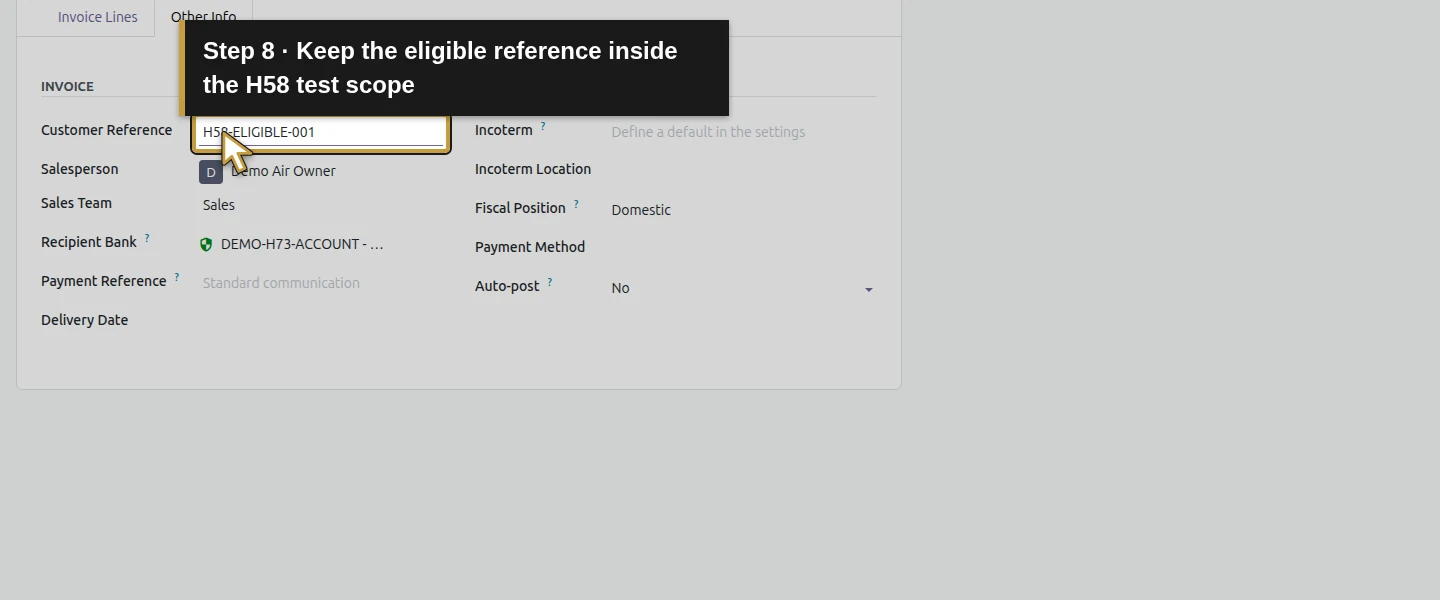
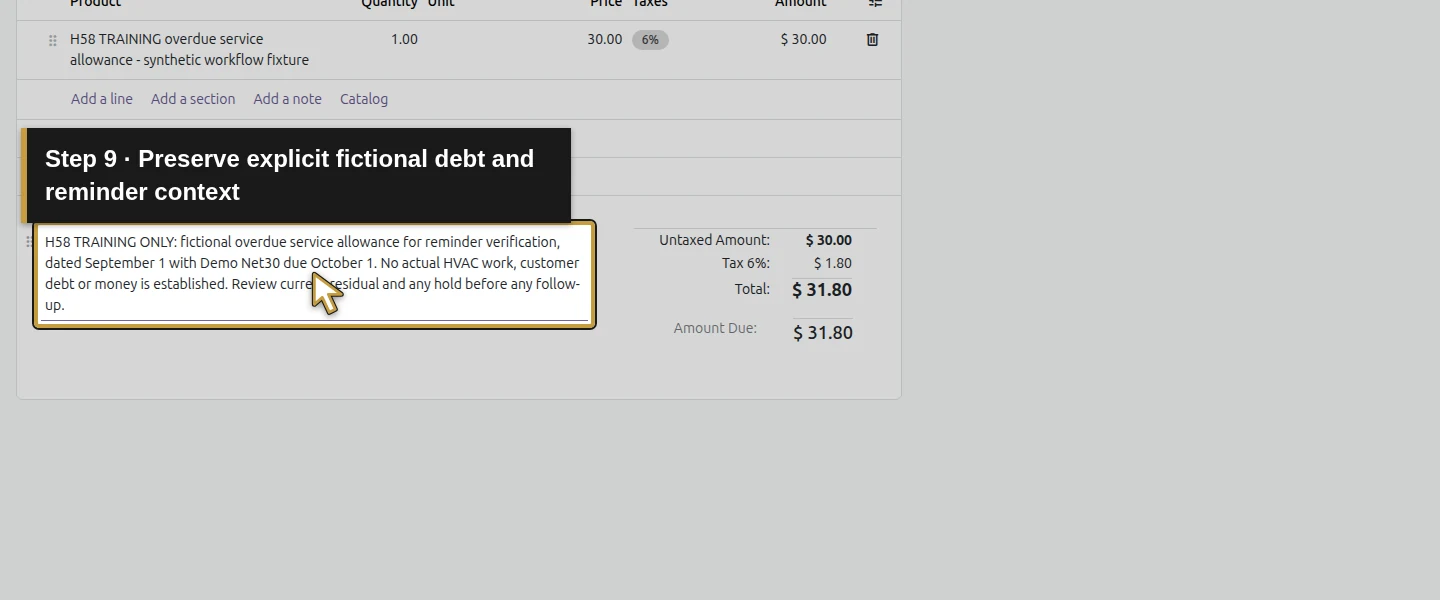
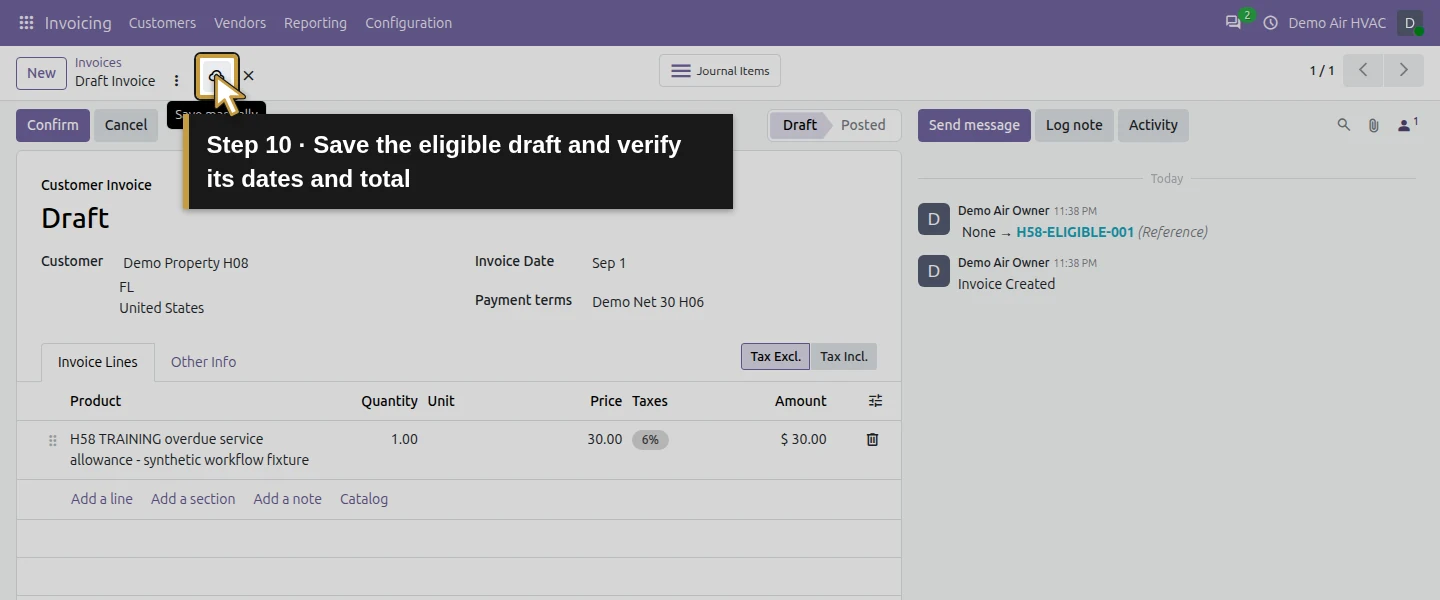
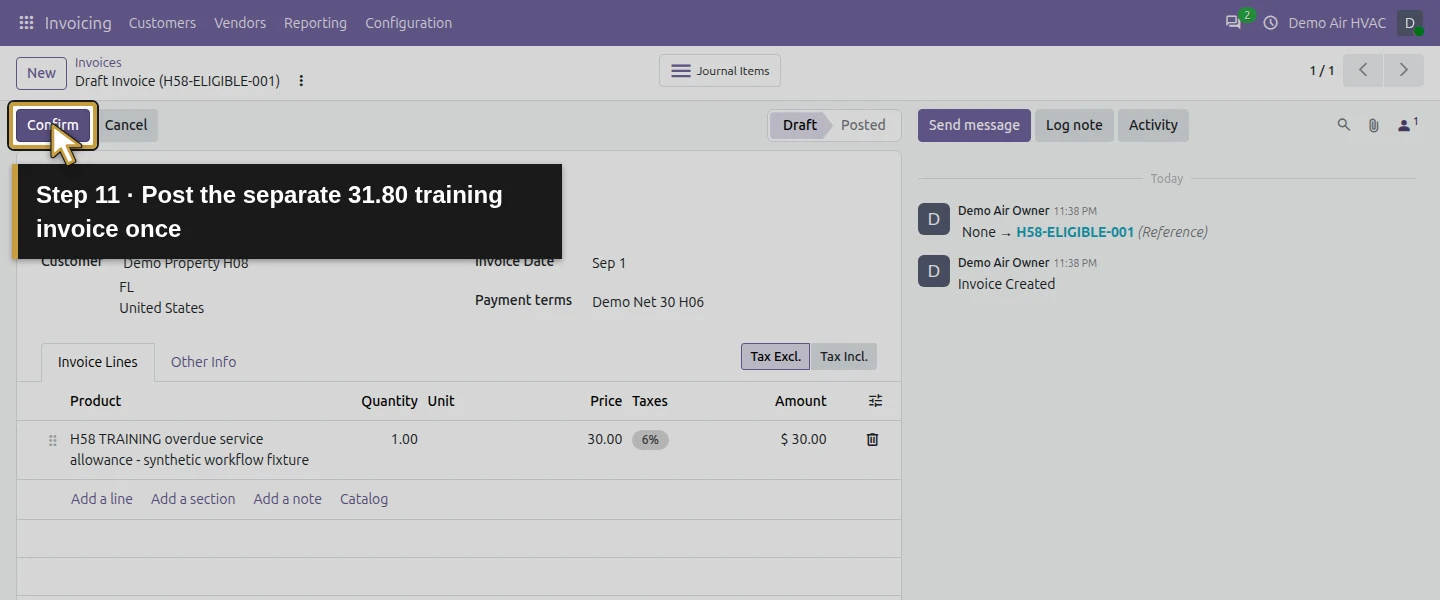
- Open Invoicing → Customers → Invoices → New. Choose Demo Property H08, set Invoice Date September 1 and Payment terms Demo Net 30 H06, and enter Reference H58-ELIGIBLE-001. Add one productless training allowance at $30 with the existing 6% demo tax. Save, check the $31.80 total, then Confirm once. This example posts as INV/2026/00003, due October 1.
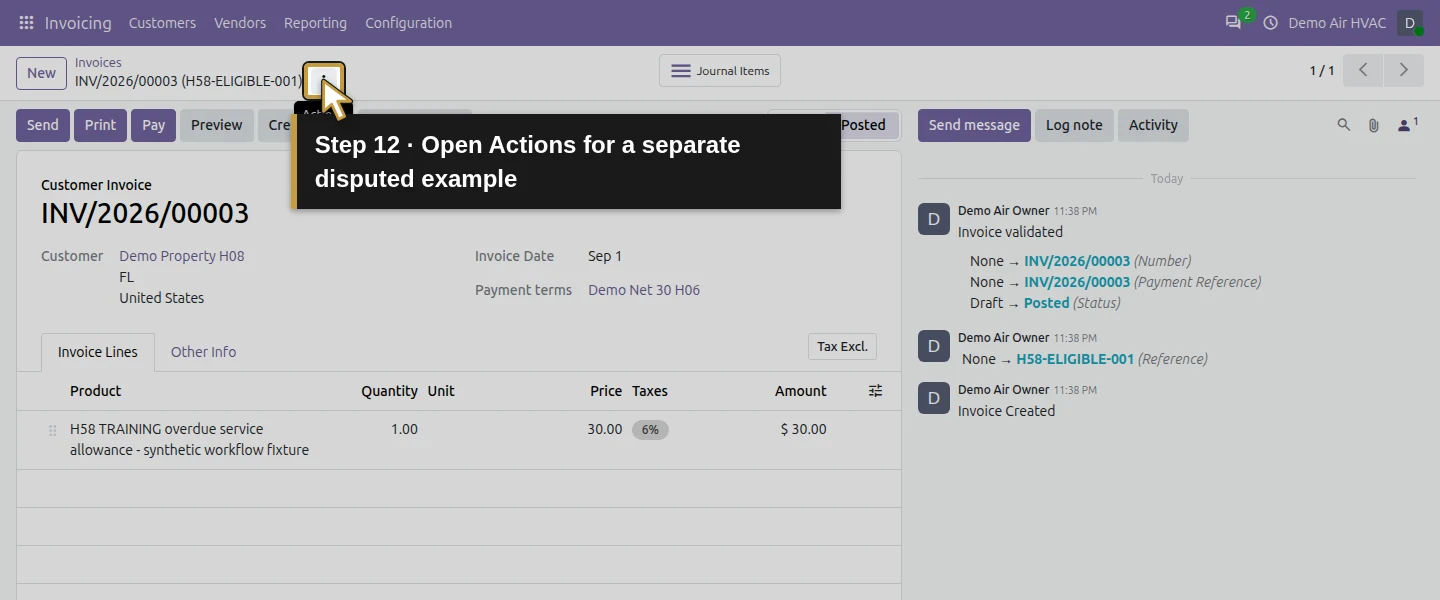
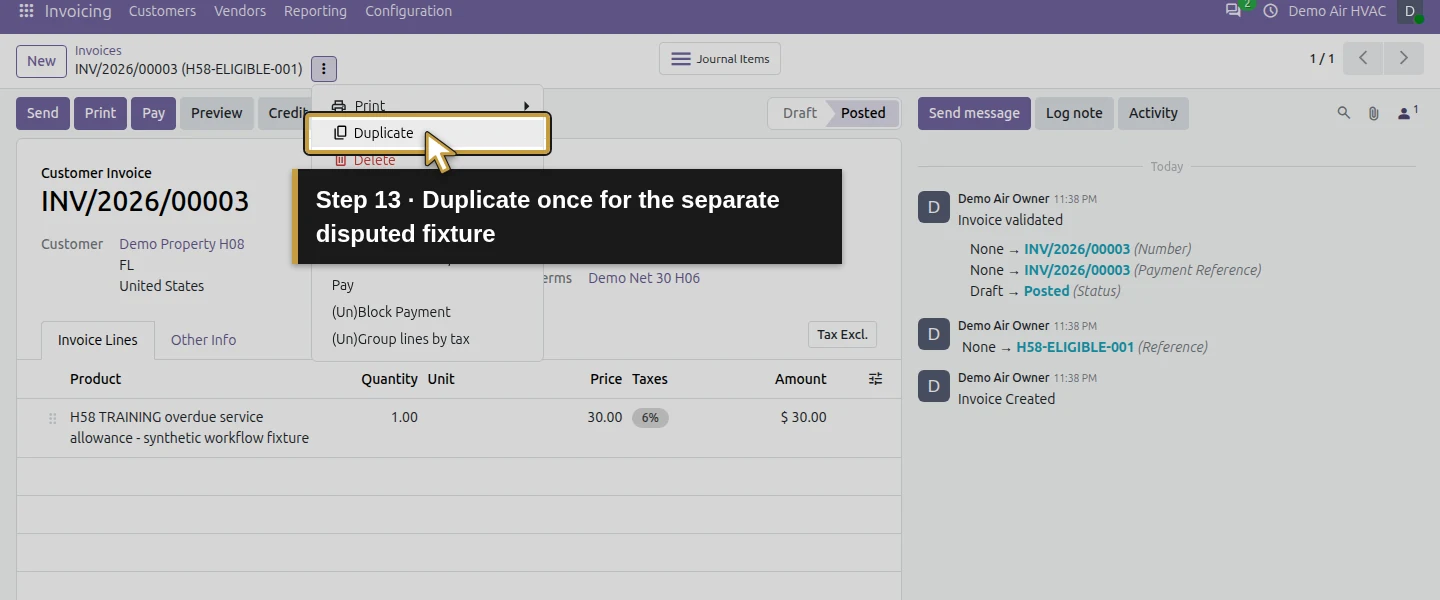
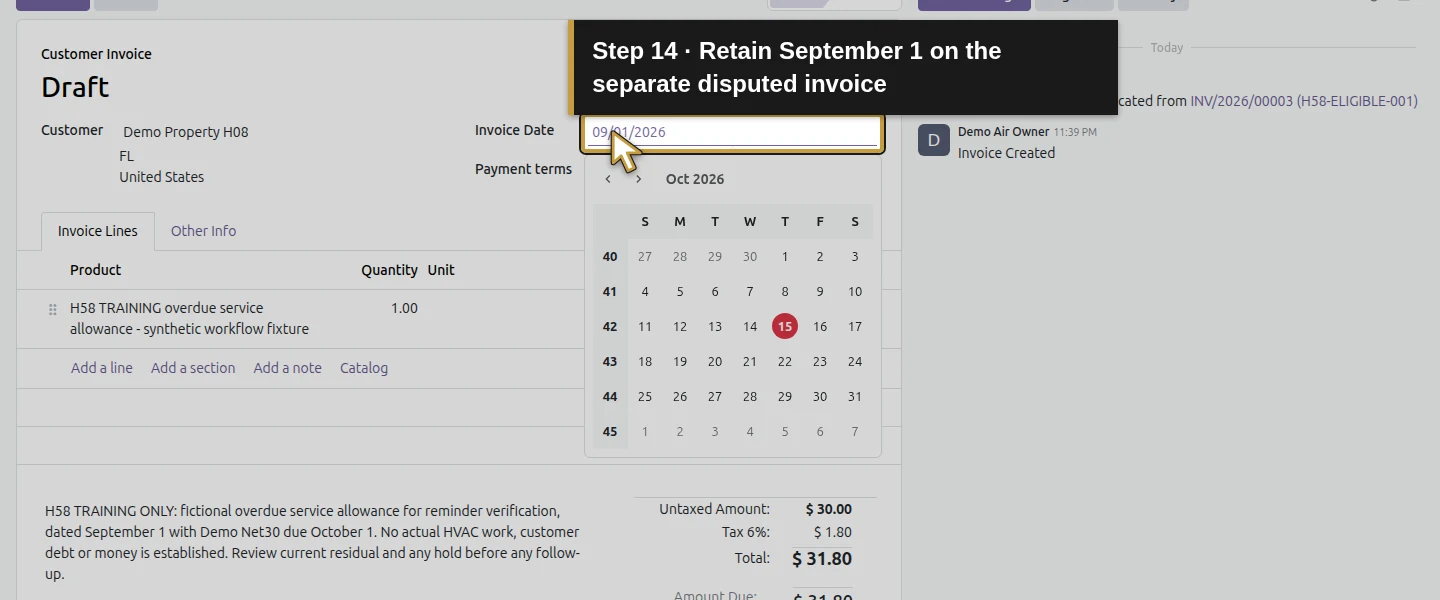
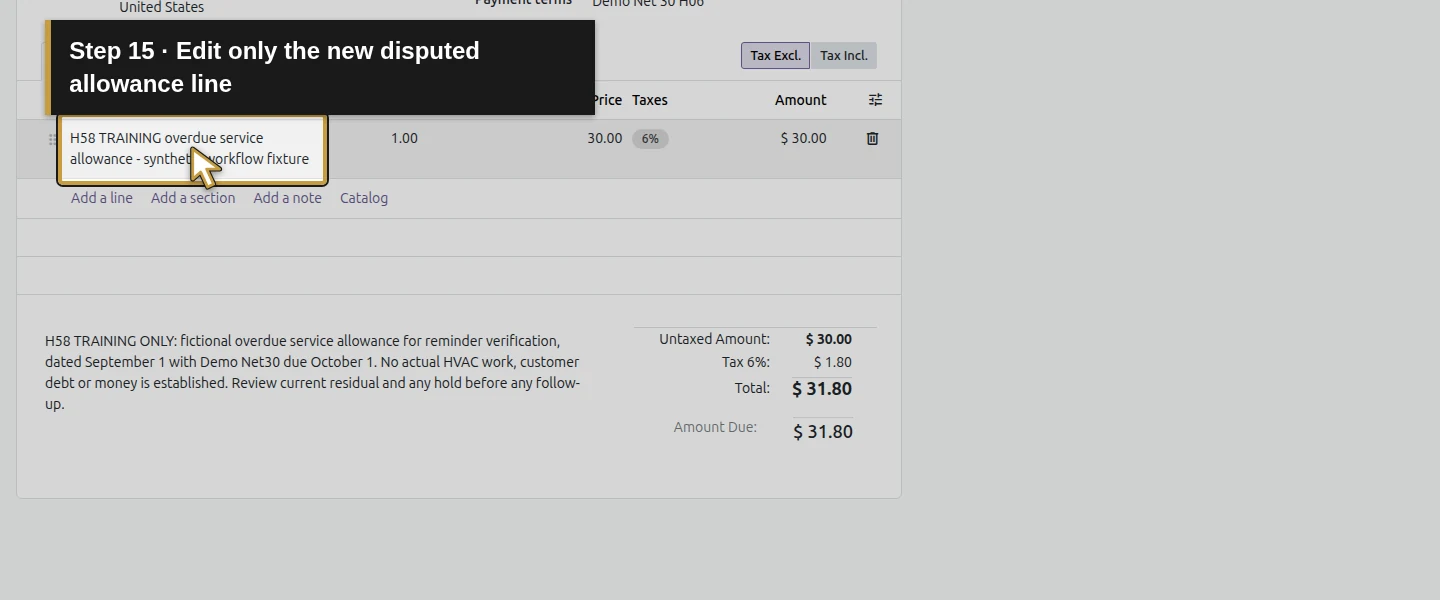
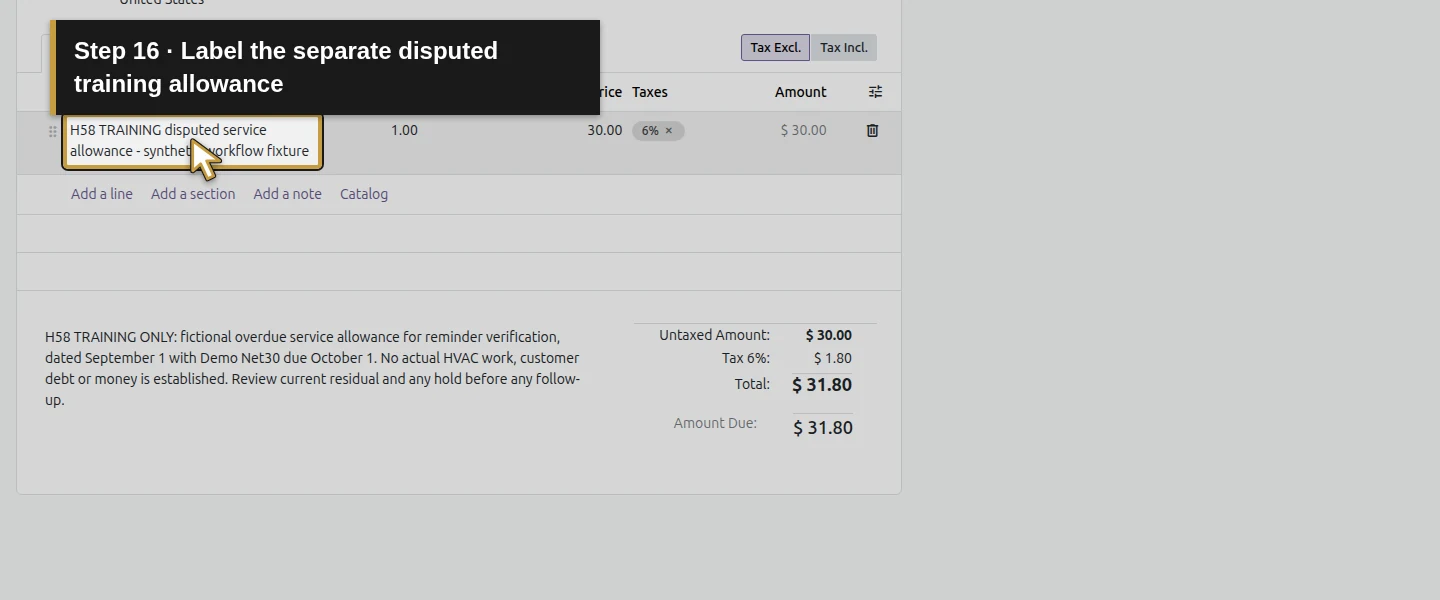
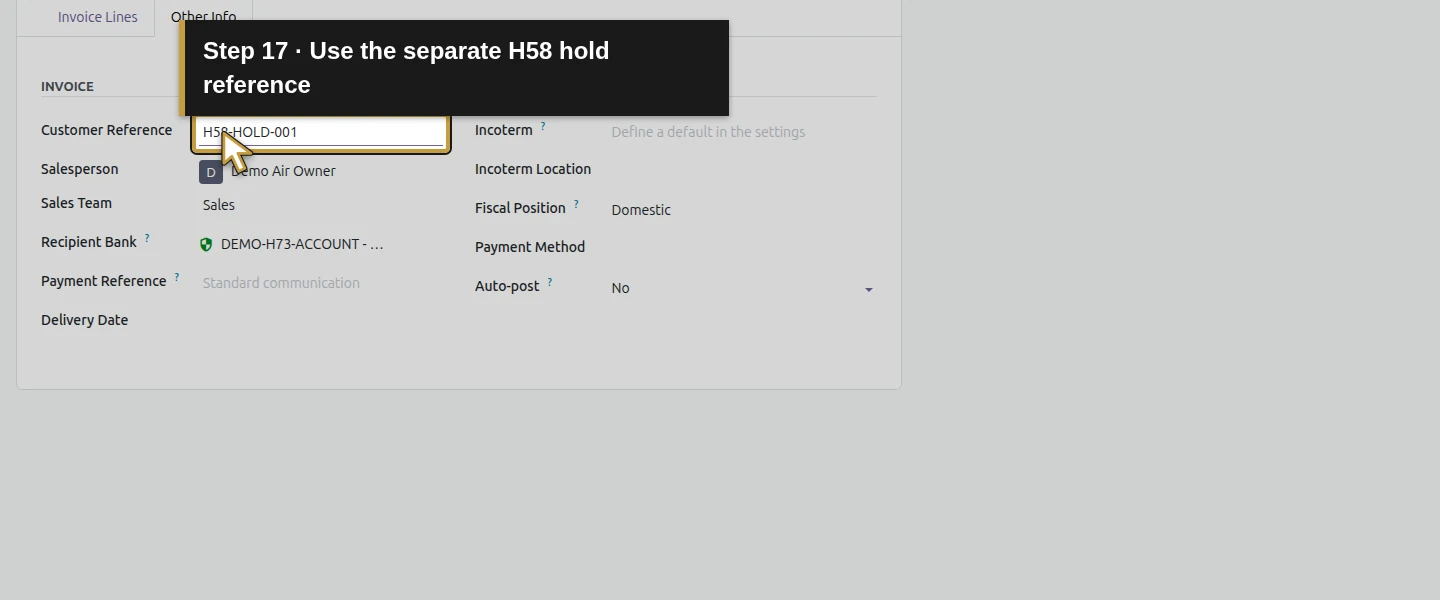
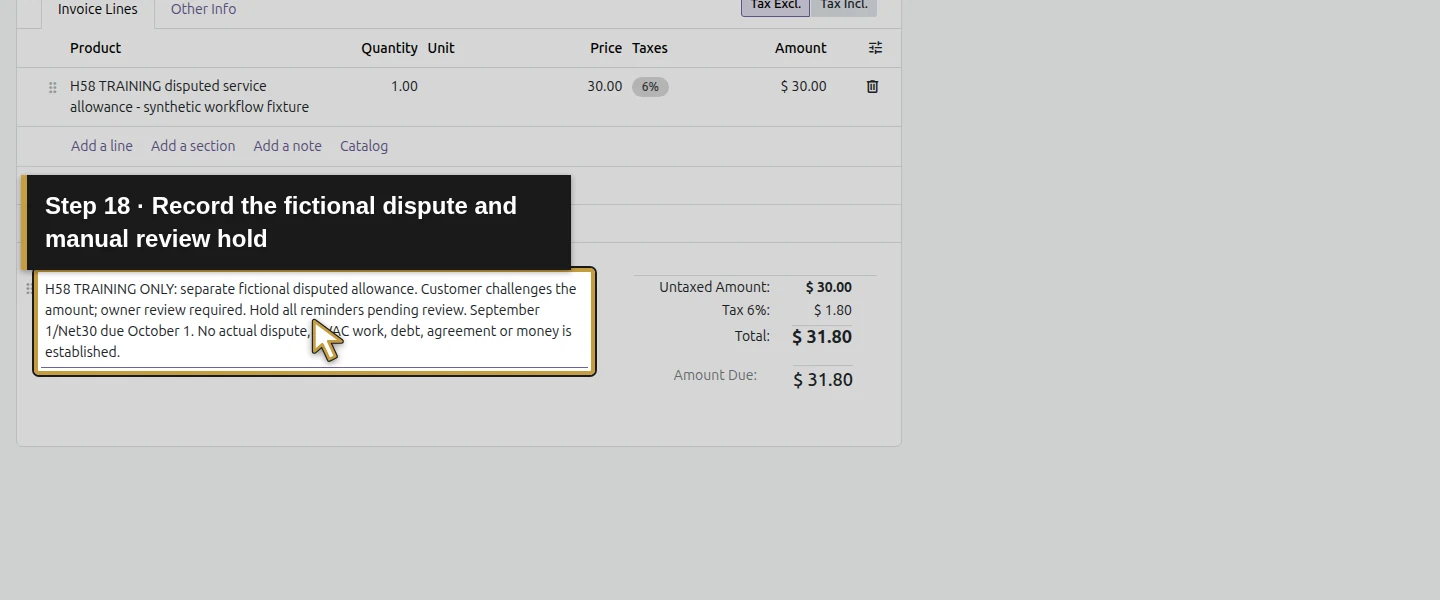
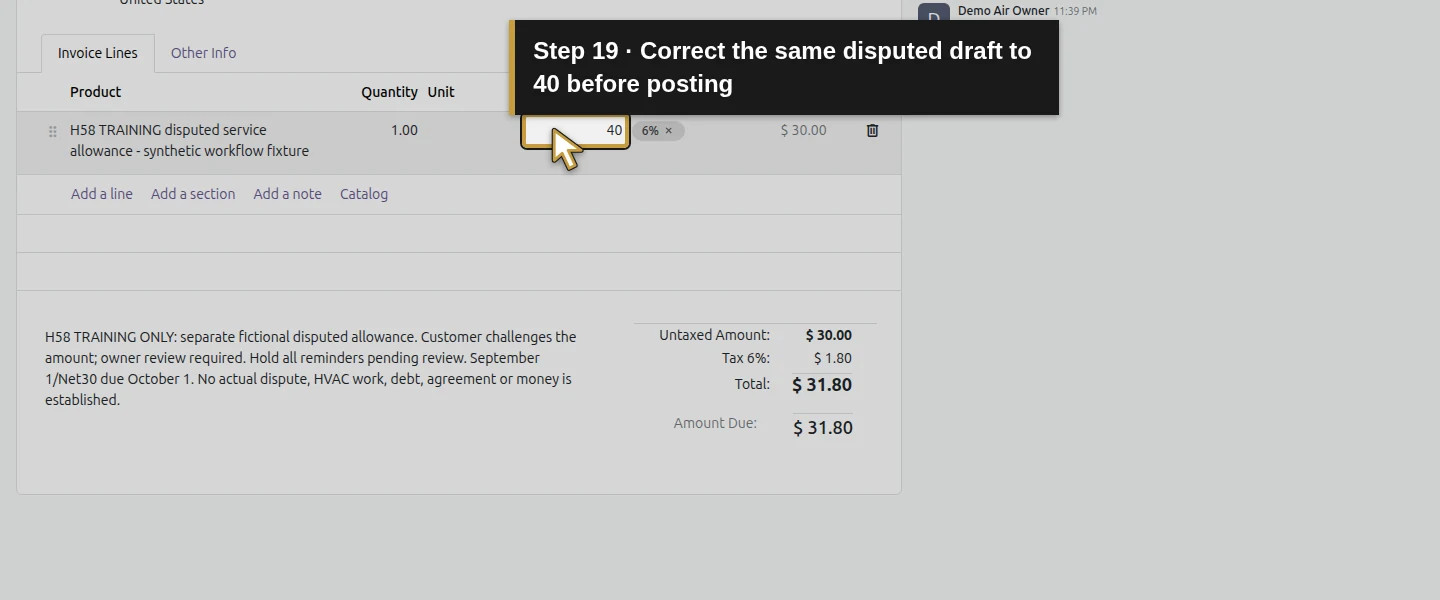
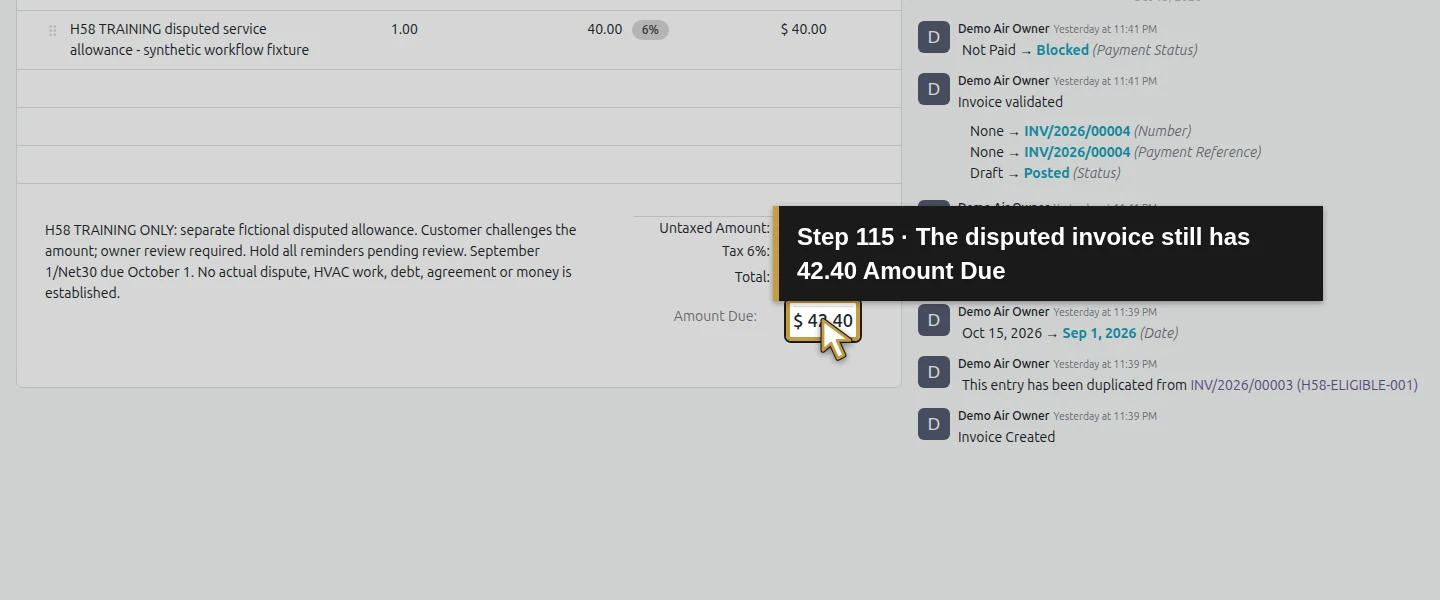
- On that invoice, use Actions menu → Duplicate. In the separate draft, enter Reference H58-HOLD-001, retain September 1 and Demo Net 30 H06, and add the training dispute note. Change the copied line price to 40.00, click another field to commit it, and check that the line still shows 40.00. Use Save manually and verify the saved total is $42.40 before Confirm once. This example posts as INV/2026/00004.
These are fictional test balances using existing synthetic account/tax defaults. In a real business, use its own confirmed records and reviewed accounting treatment.
Step-by-step workflow
Step 1. Review the invoice and put the dispute on hold
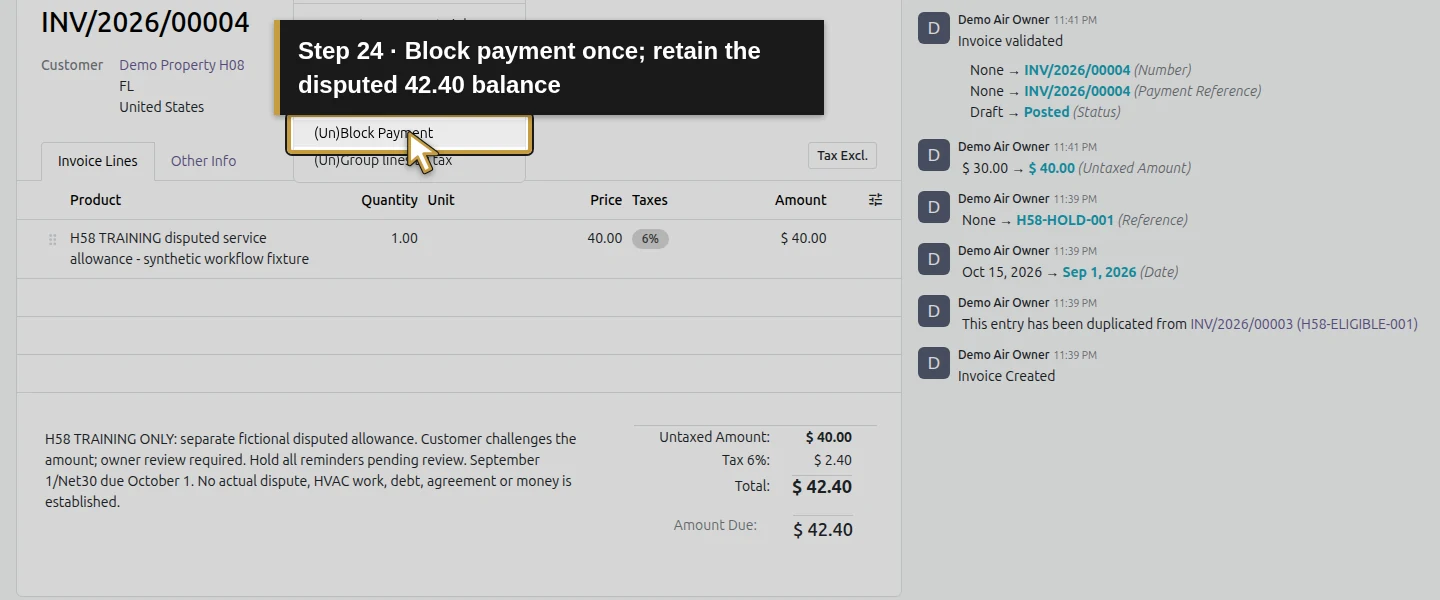
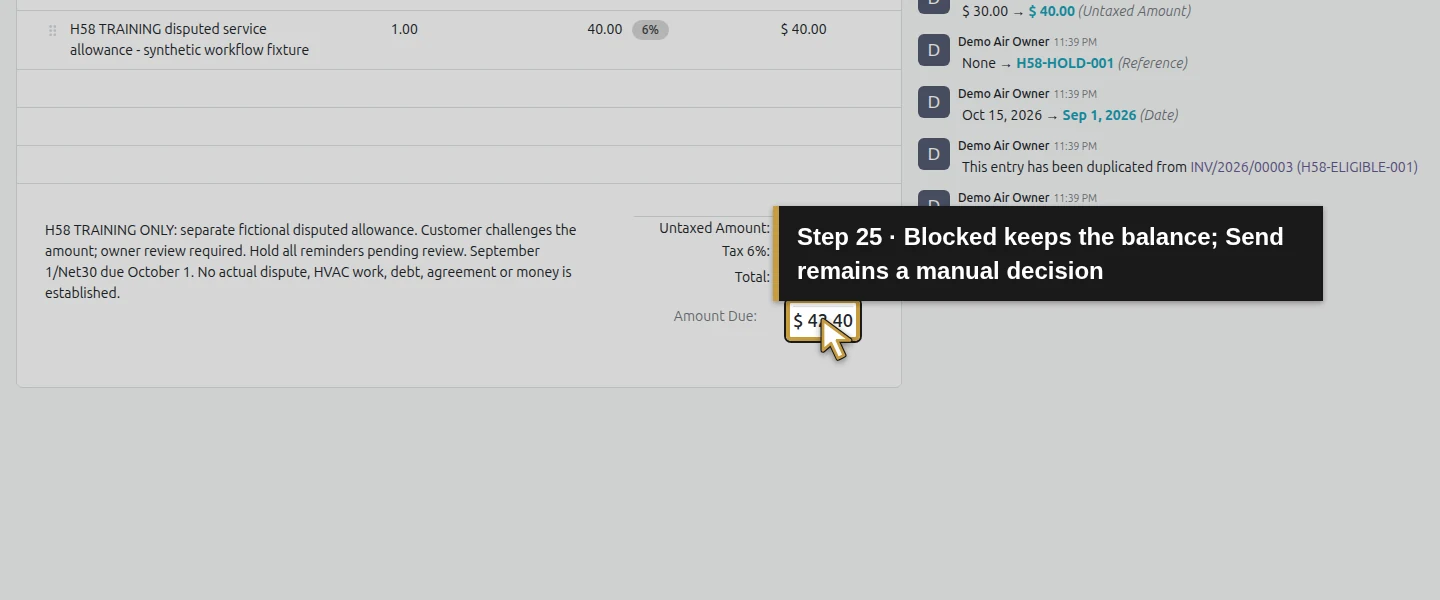
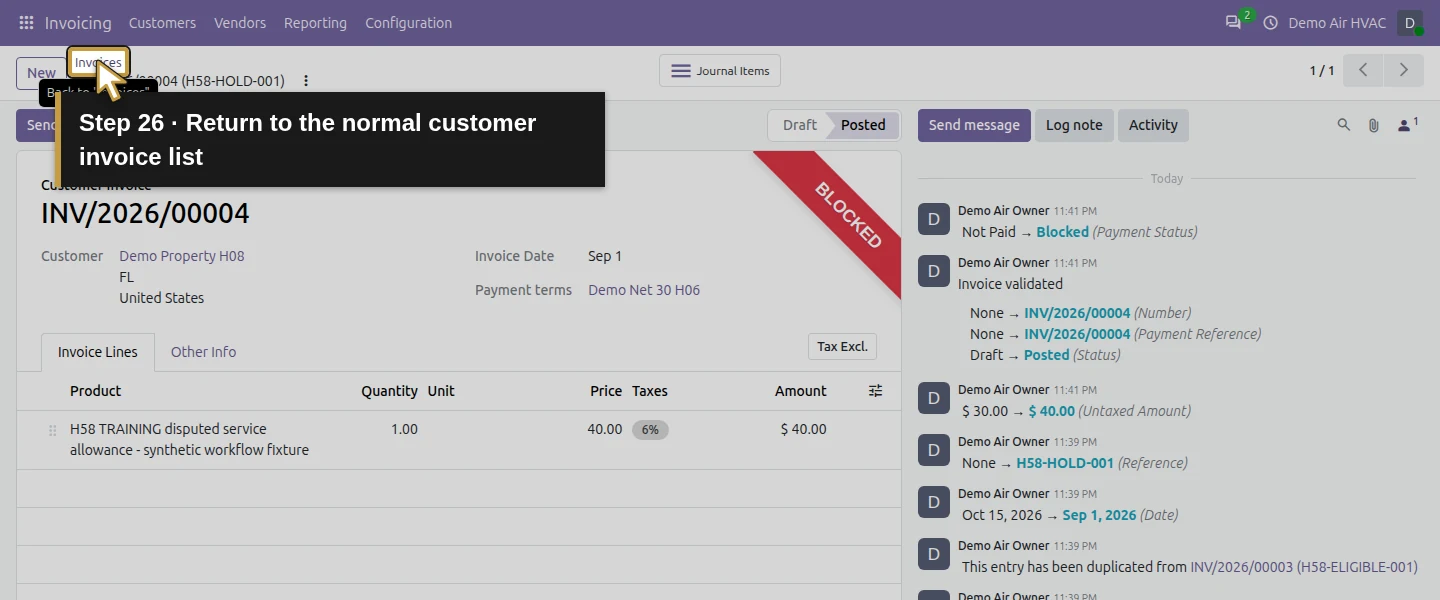
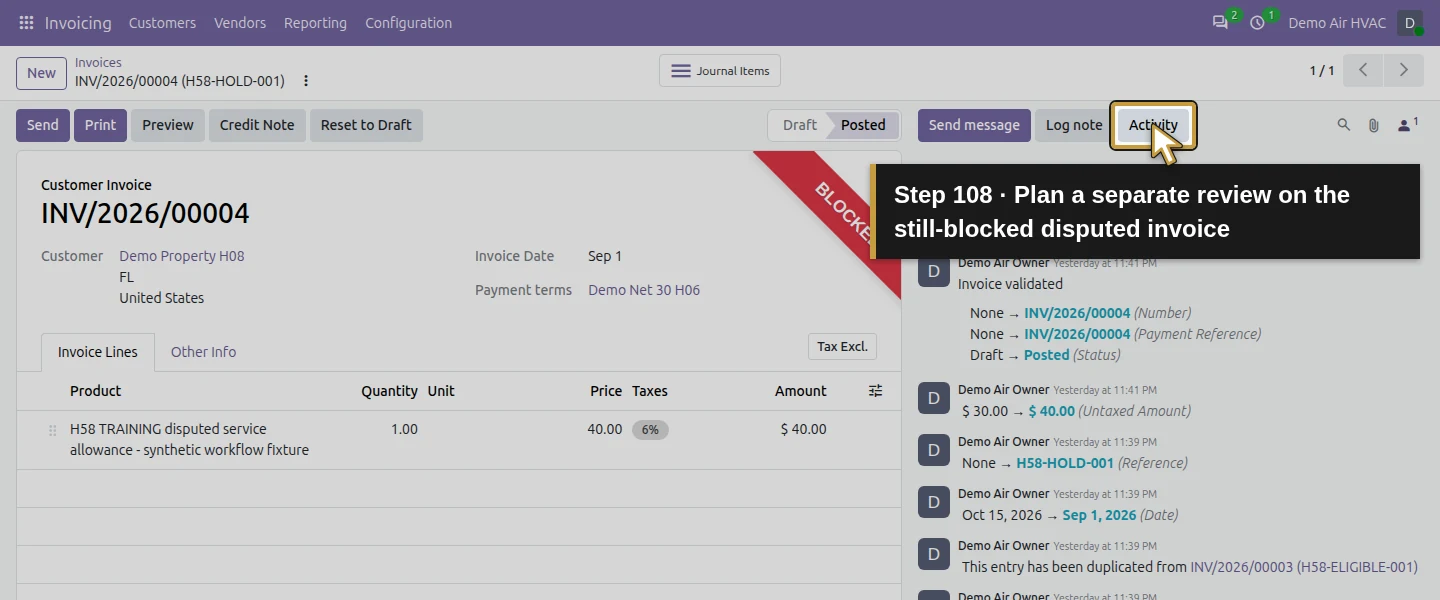
Open INV/2026/00004, the separate $42.40 disputed example. Check its customer, Invoice Date, Payment terms, Amount Due and training dispute note. The captured posted form displays Payment terms; the actual invoice PDF in Step 8 shows the calculated due date. Open Actions menu → (Un)Block Payment once. The saved invoice becomes Blocked without changing its $42.40 balance. Send remains available, so this control does not prevent every manual email. Review the hold before contacting anyone. This test leaves the dispute unresolved; no credit, payment or unblock is entered for it.
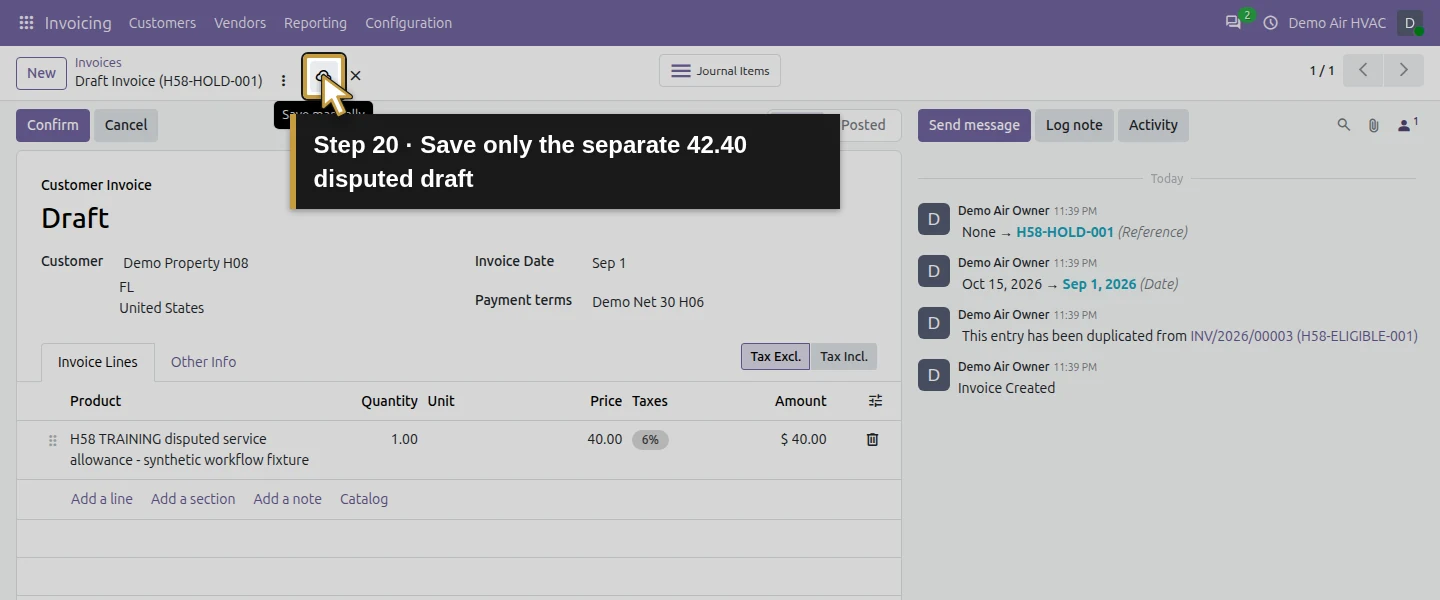
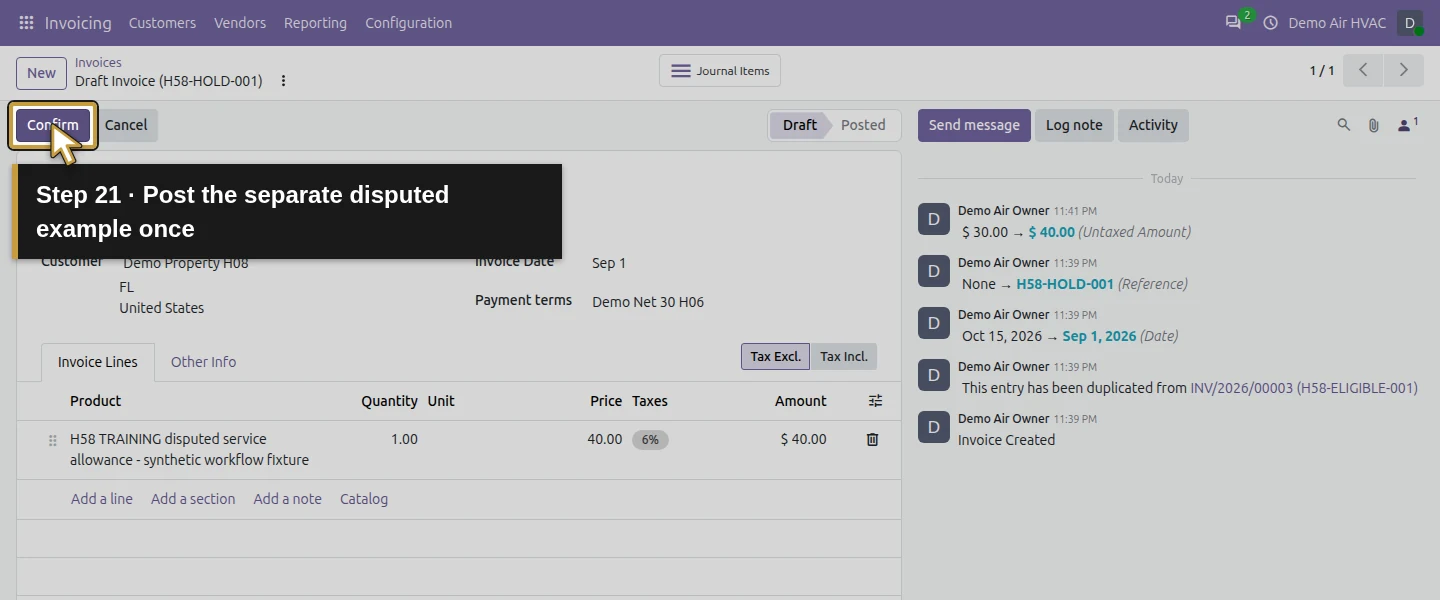
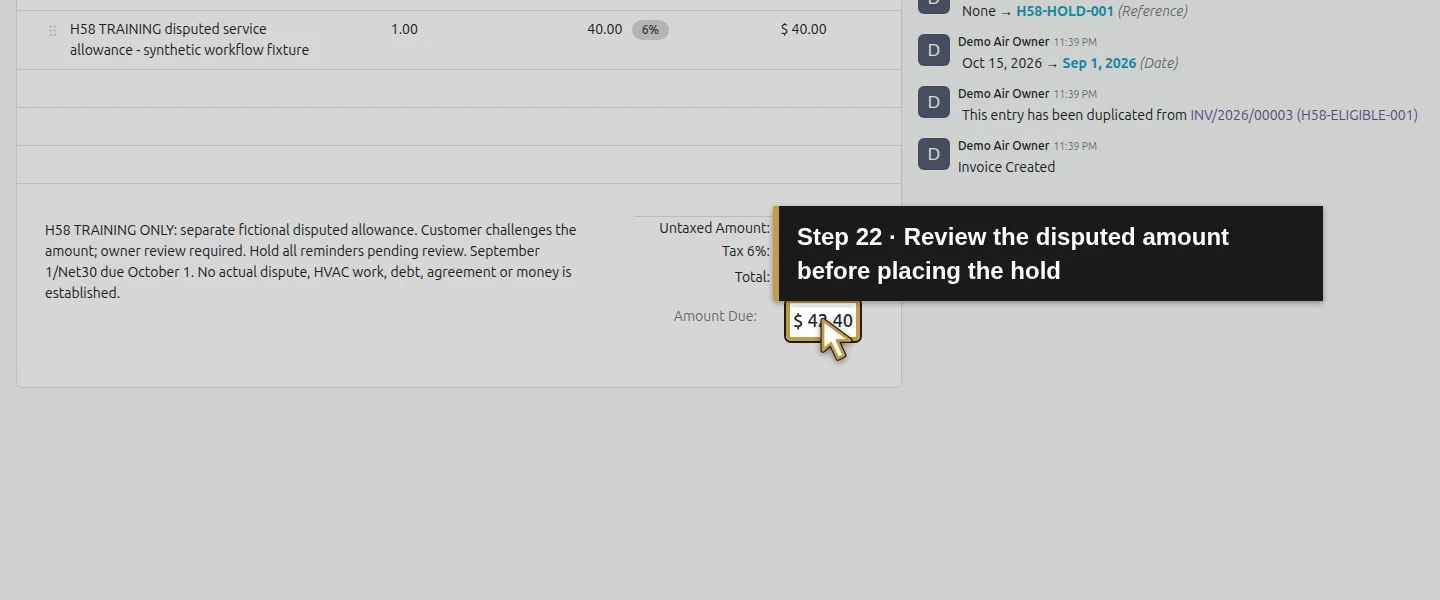
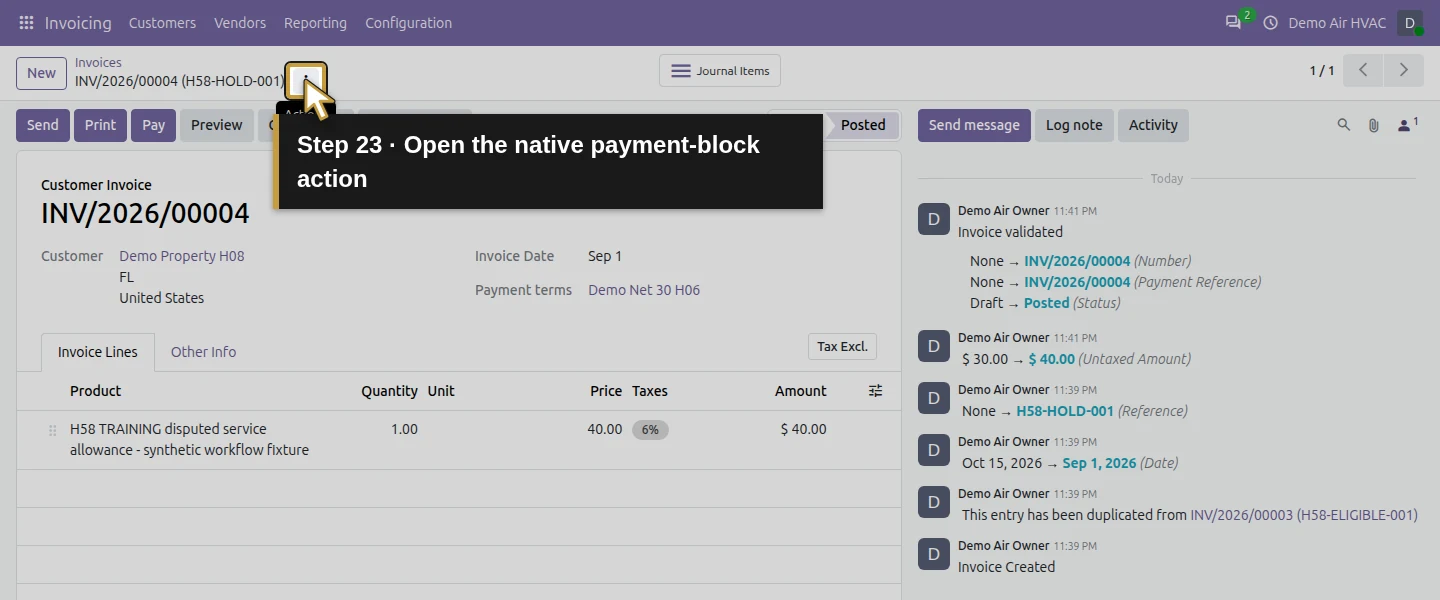
Step 2. Inspect the actual Overdue list
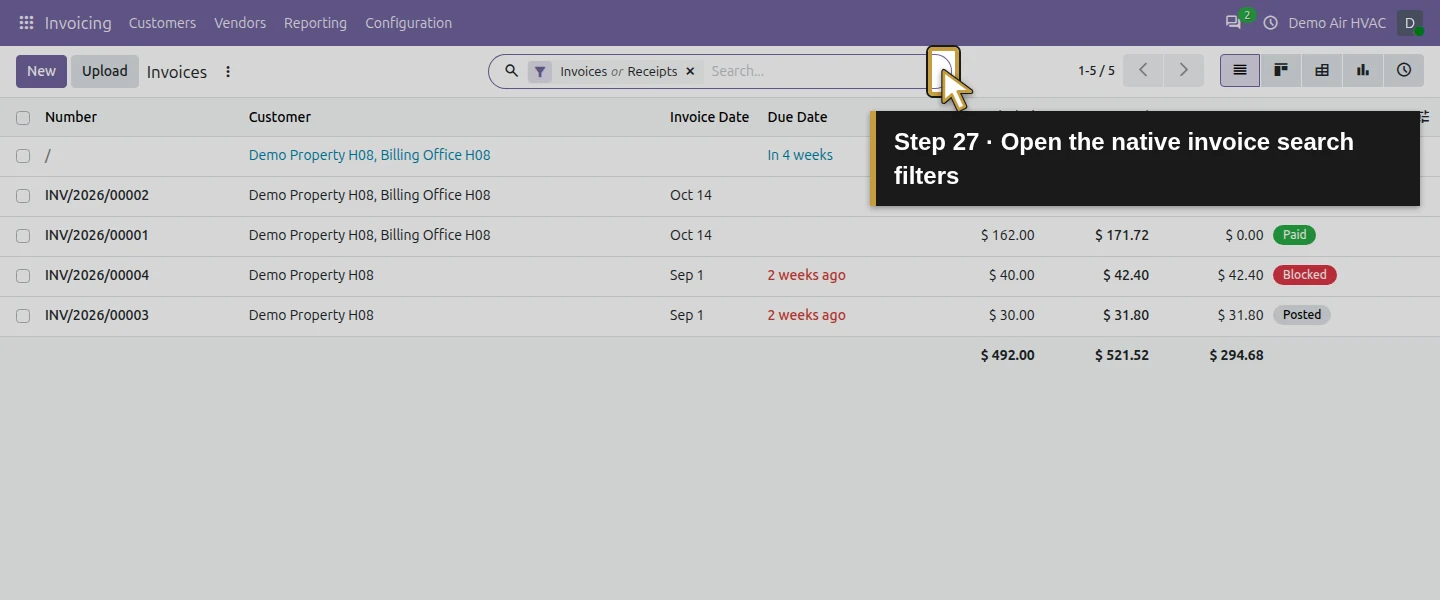
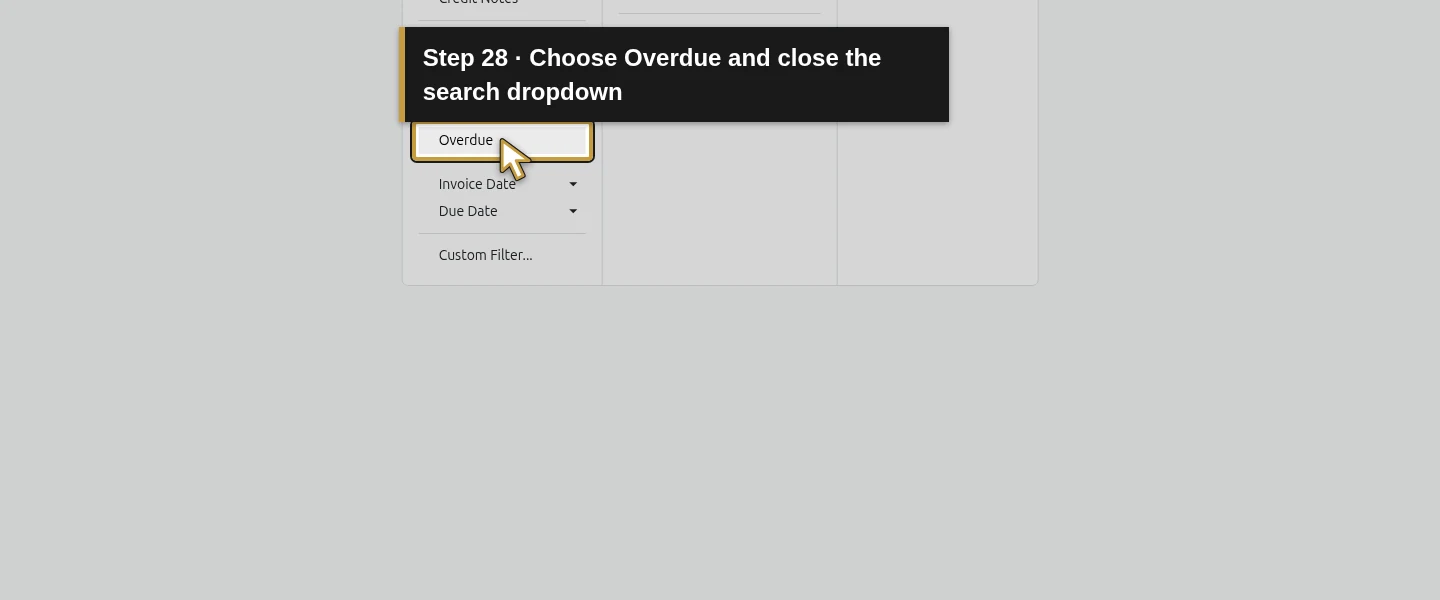
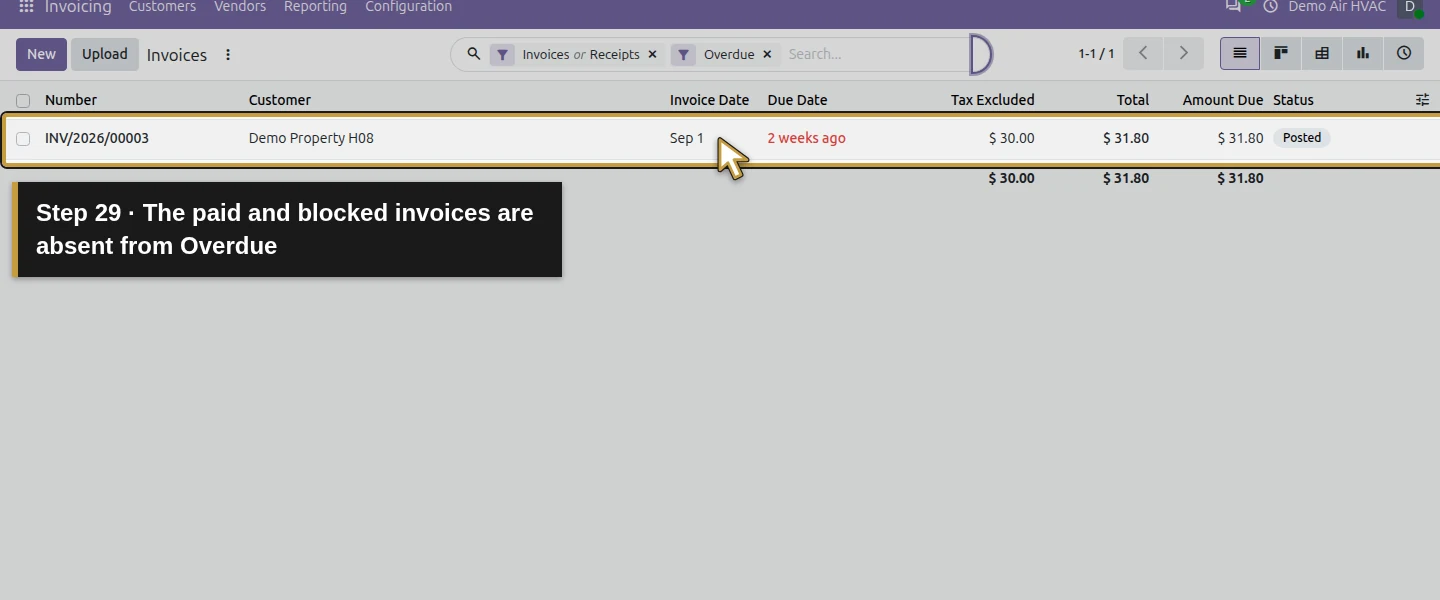
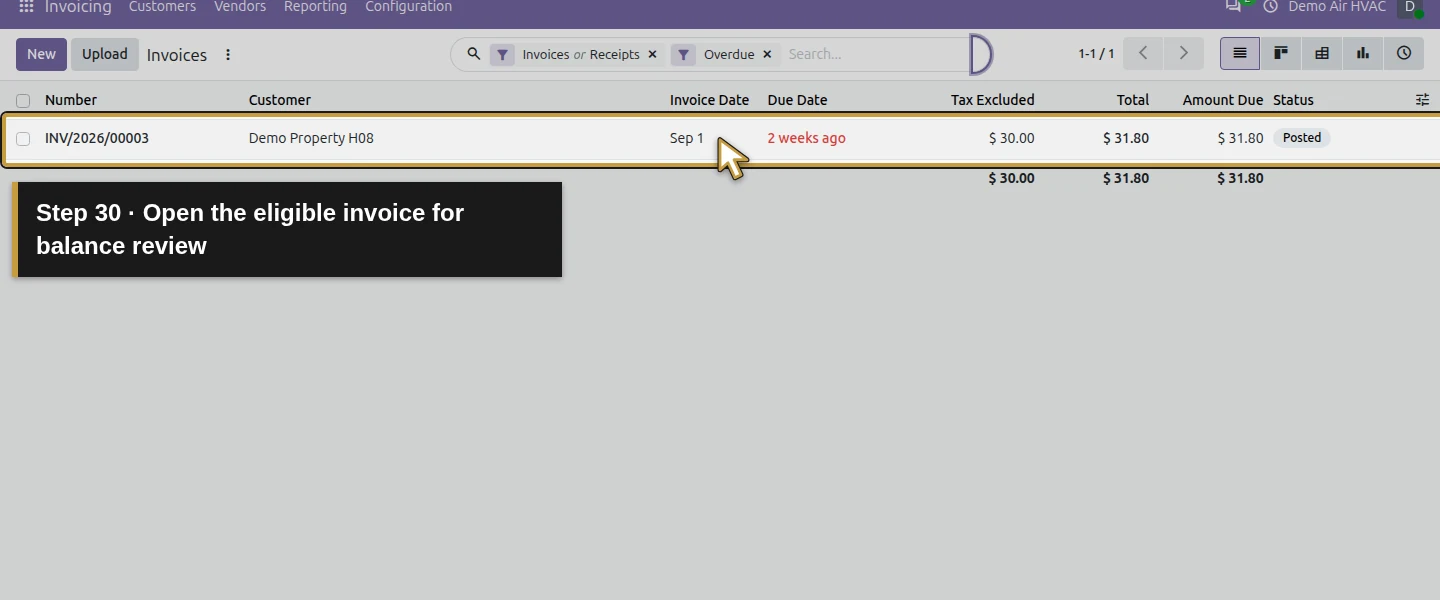
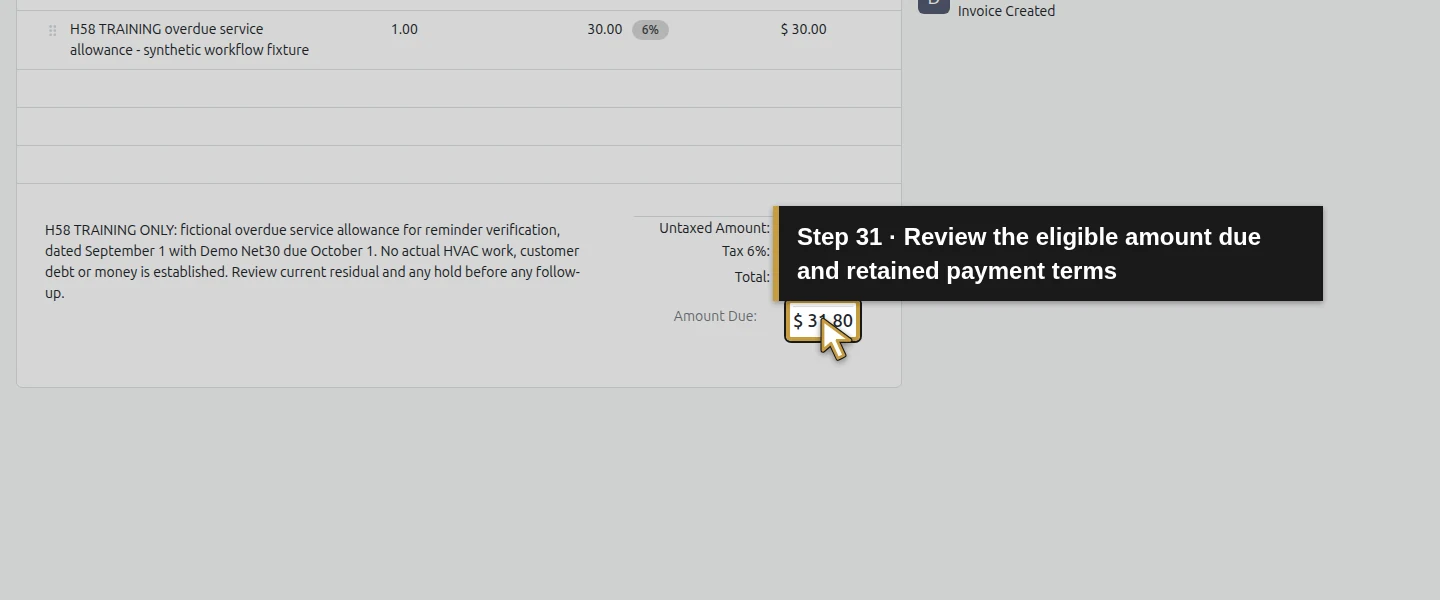
Return to Invoicing → Customers → Invoices. Open Toggle Search Panel and select Overdue, then close the search dropdown. The initial result is the one eligible $31.80 invoice. The paid examples and blocked $42.40 invoice are absent. Open the eligible invoice and check Invoice Date, Payment terms, payment history and Amount Due. The test terms calculate October 1; verify the printed due date in Step 8. The Overdue list is a work view, not a complete list of every receivable requiring attention. Keep disputed holds under separate review.
Step 3. Create a narrowly scoped due-date rule
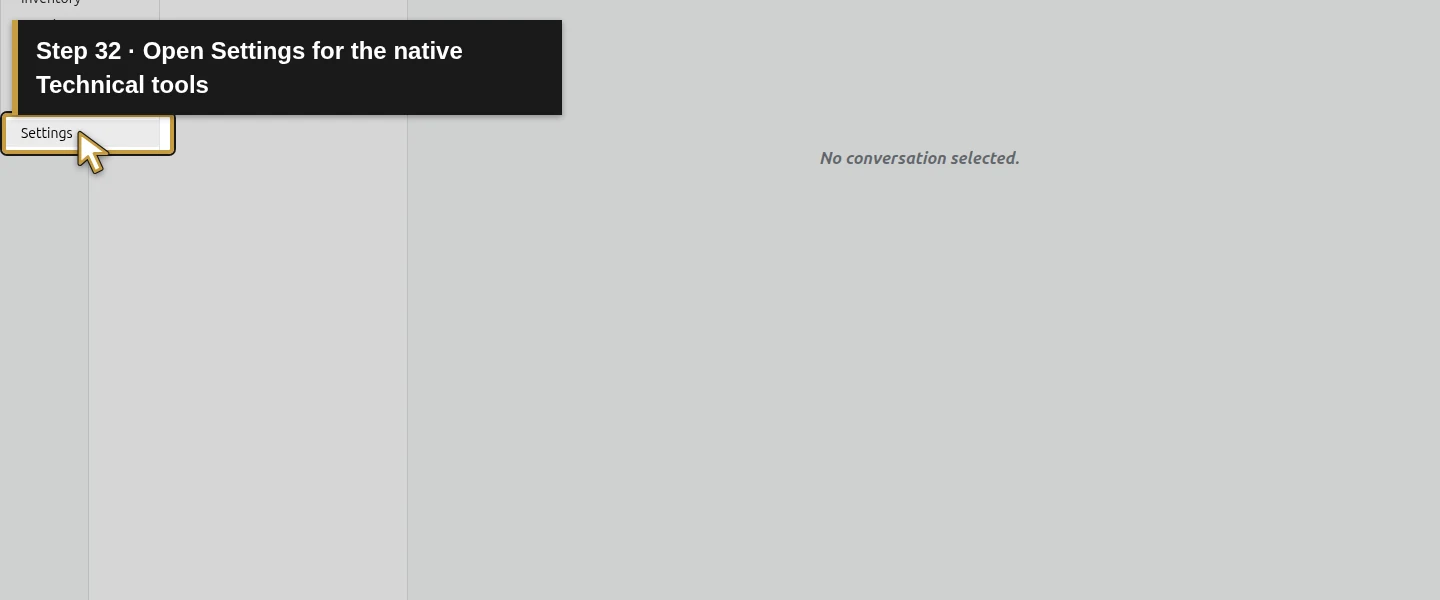
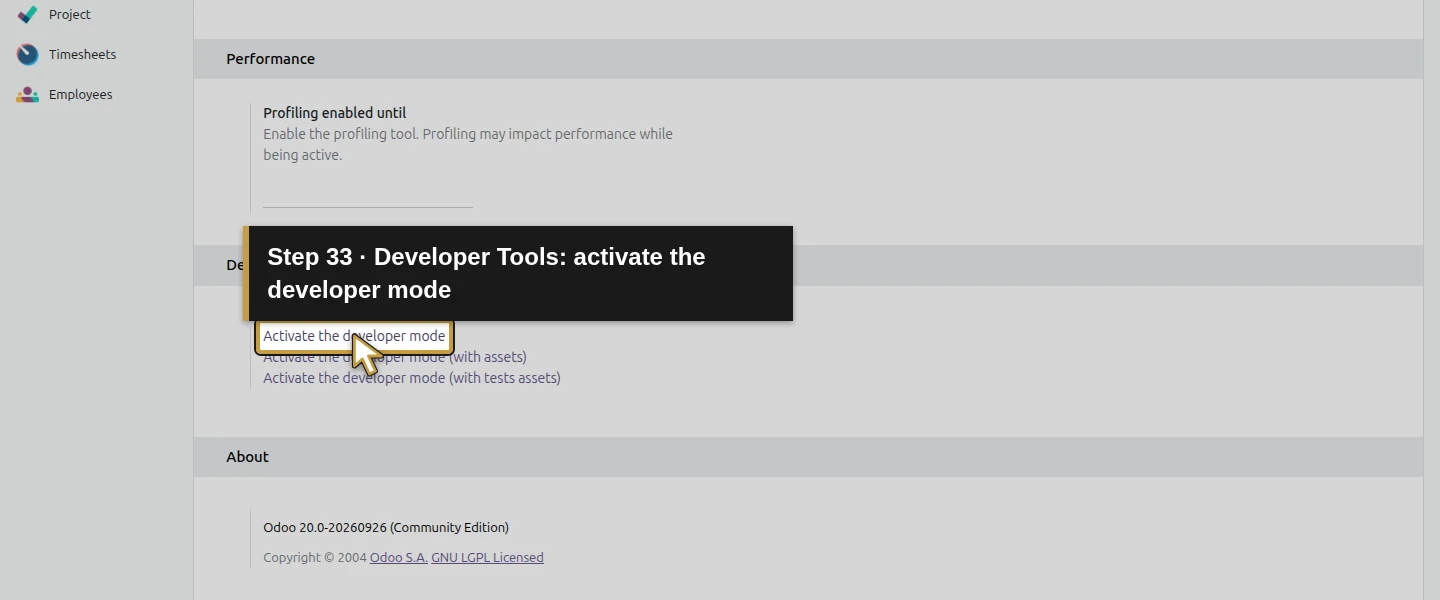
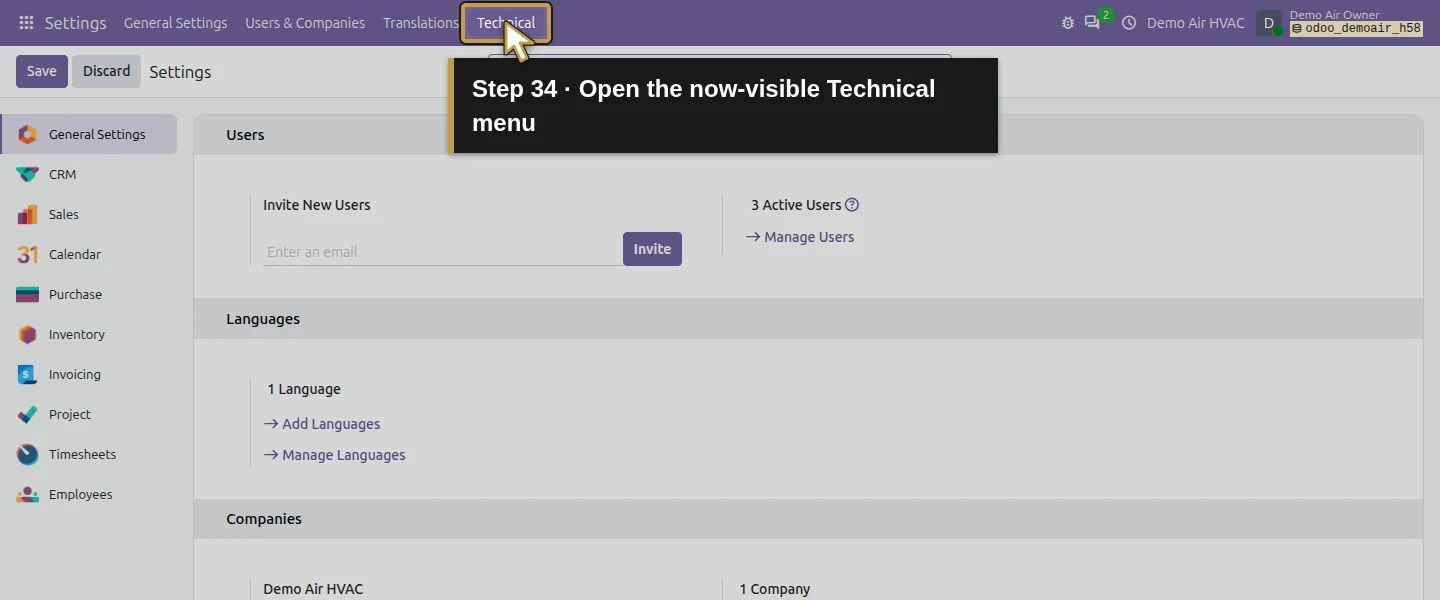
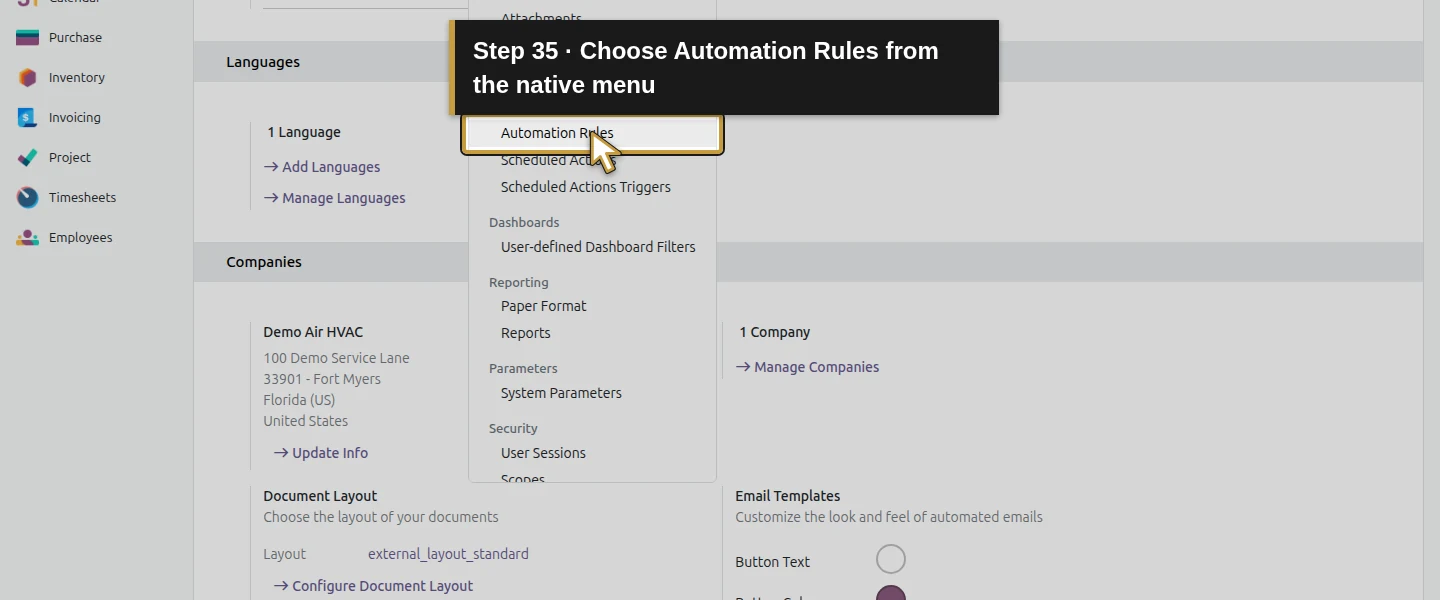
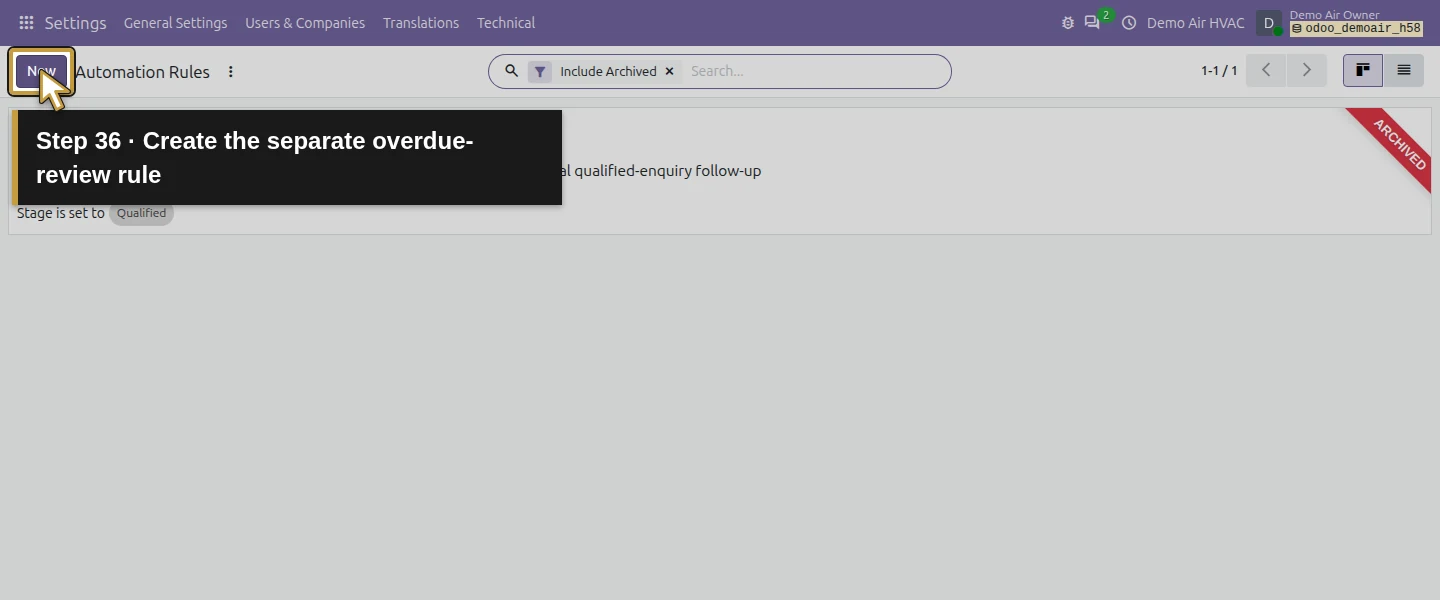
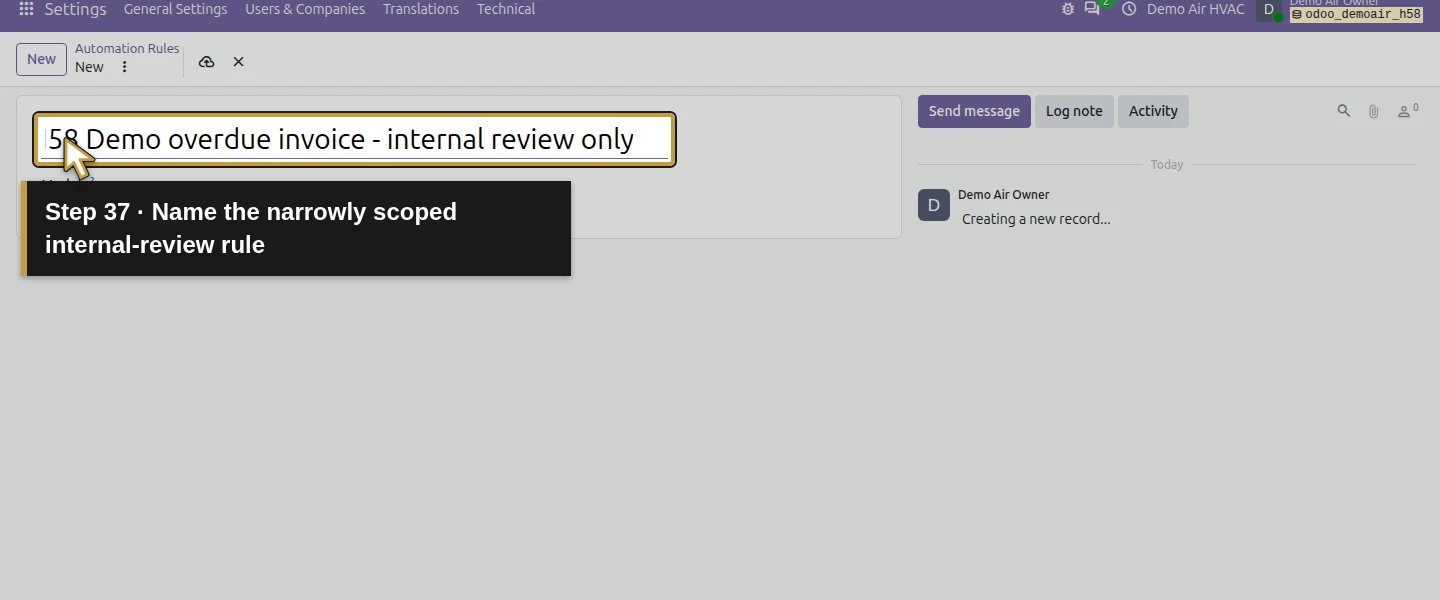
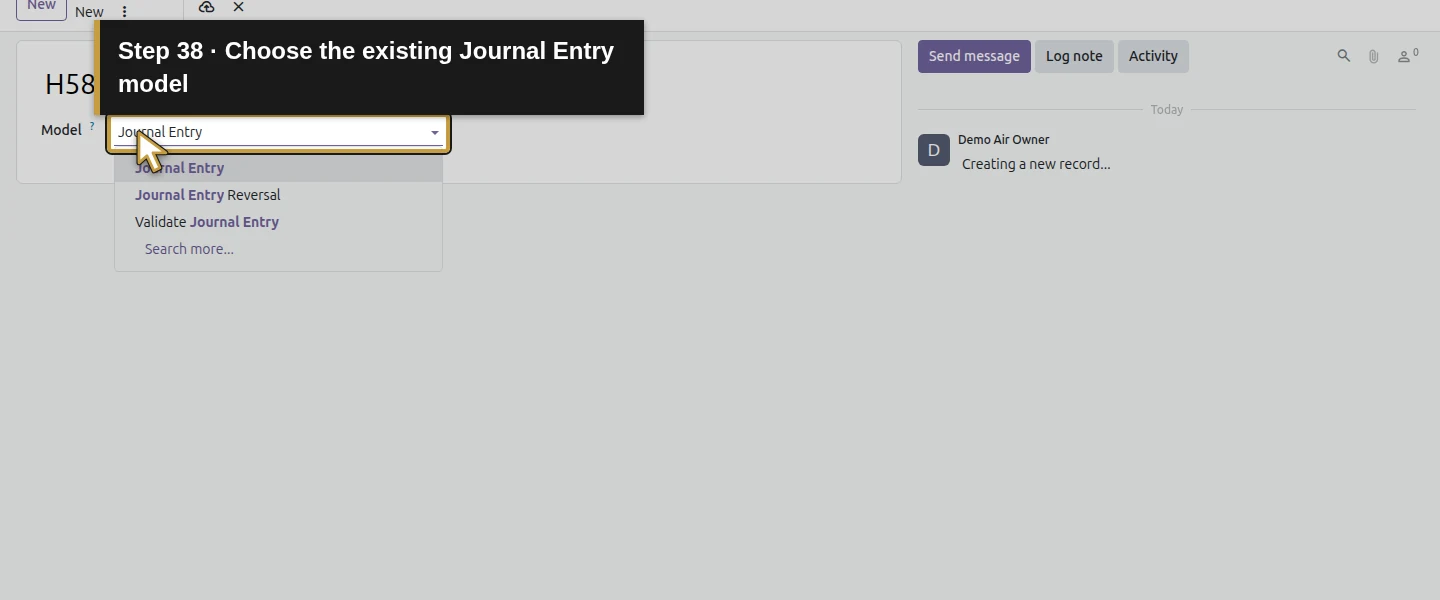
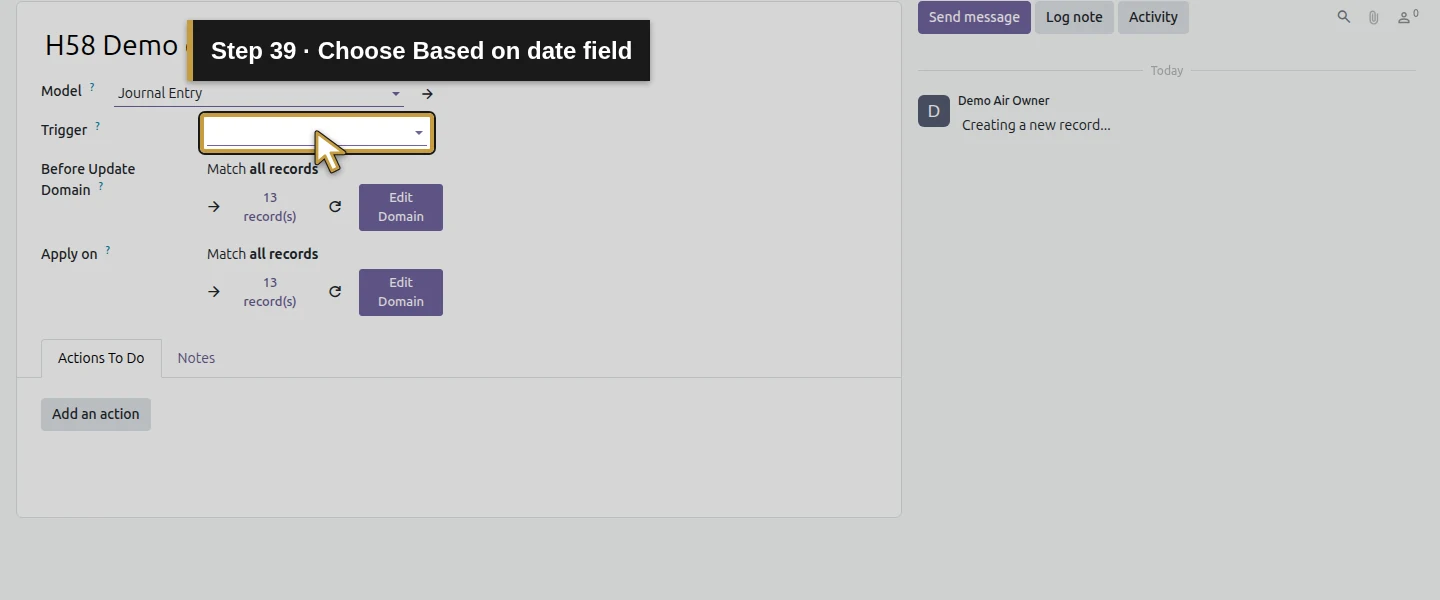
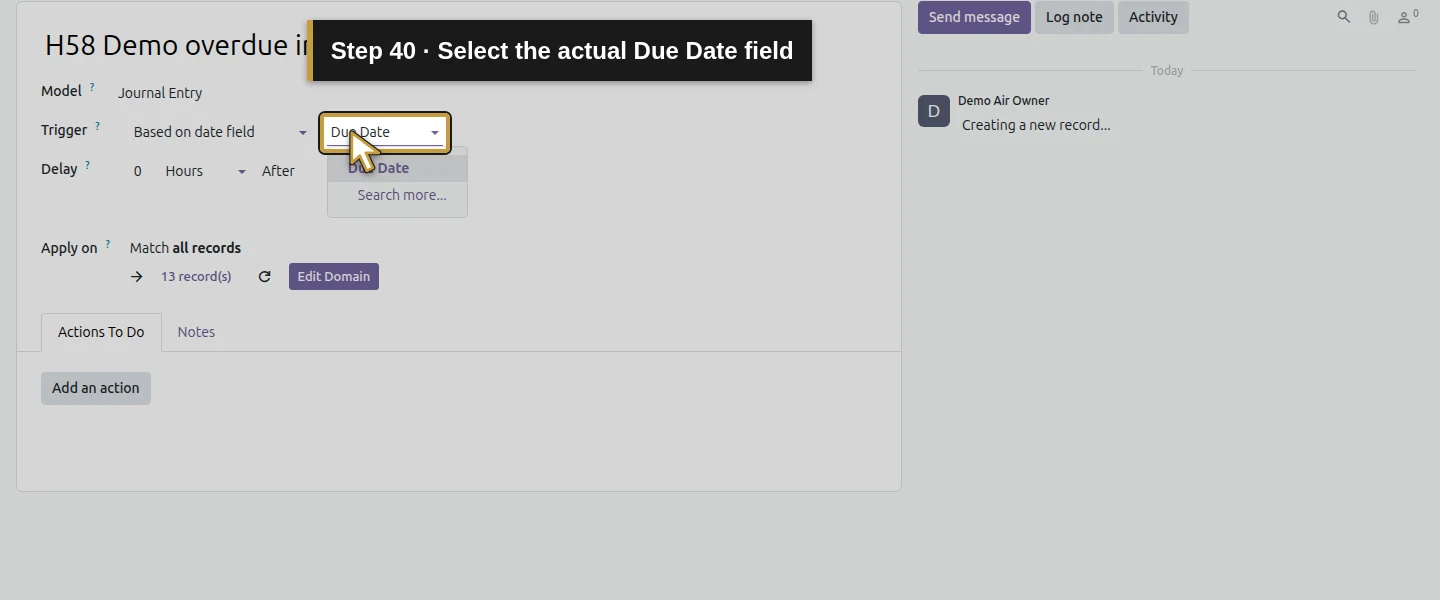
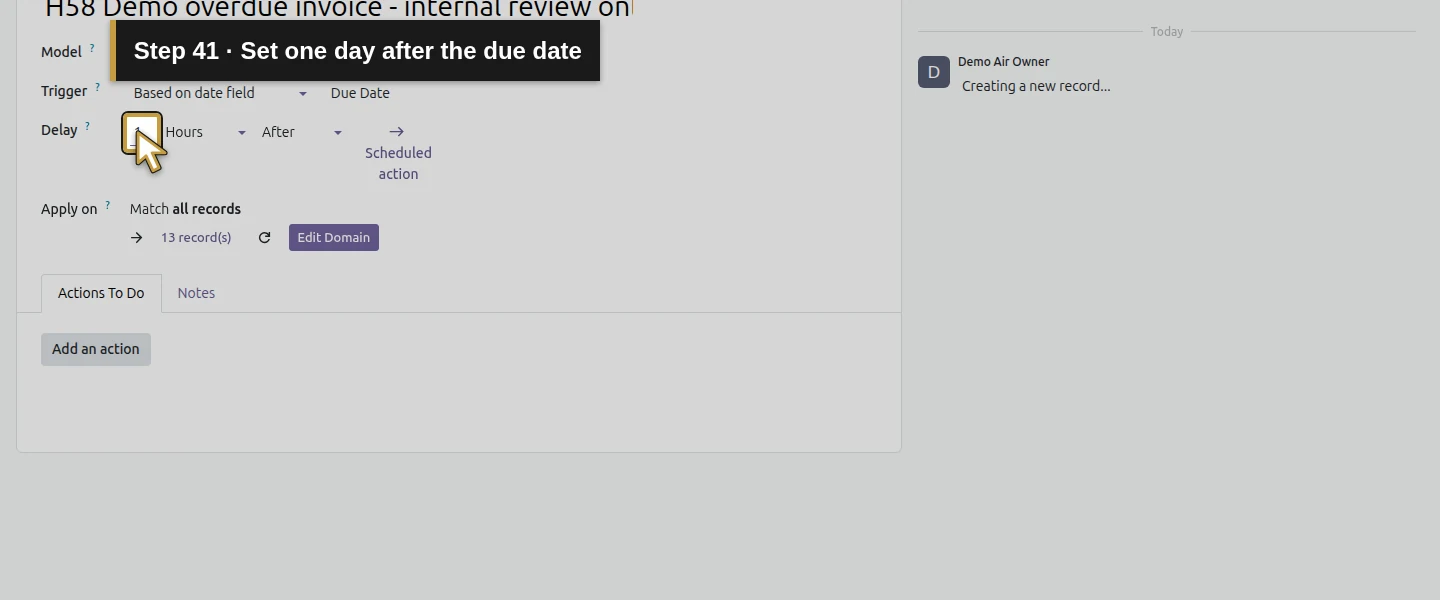
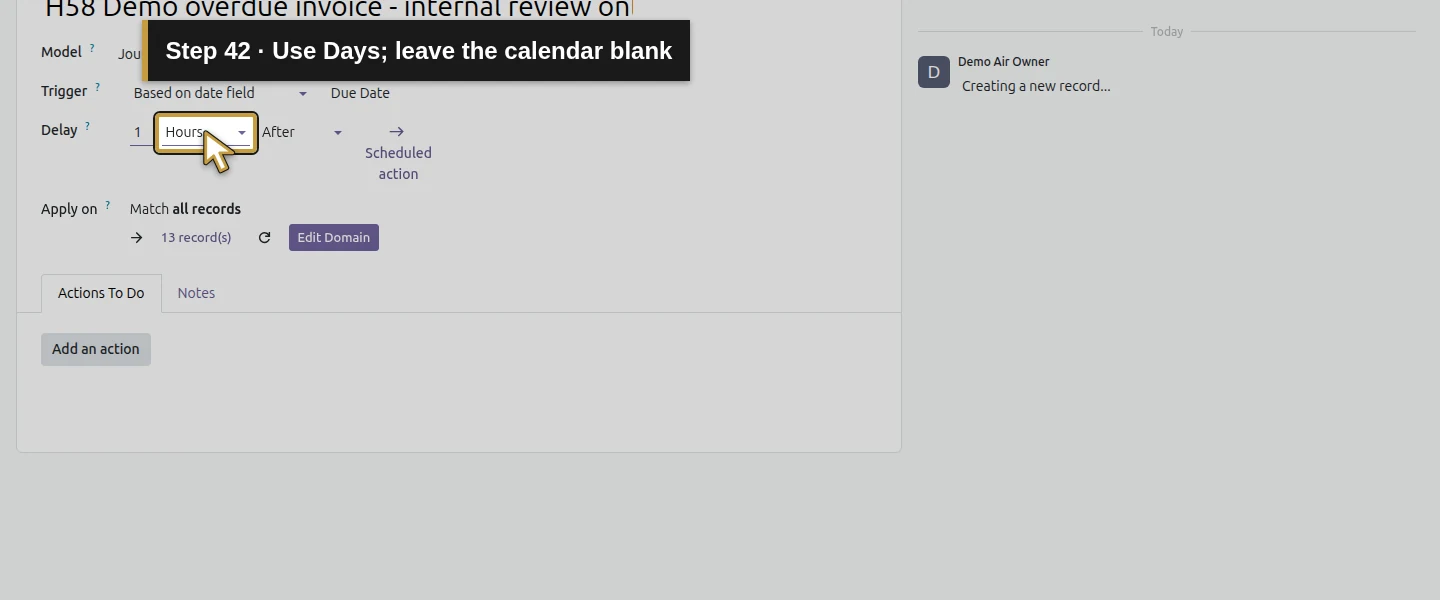
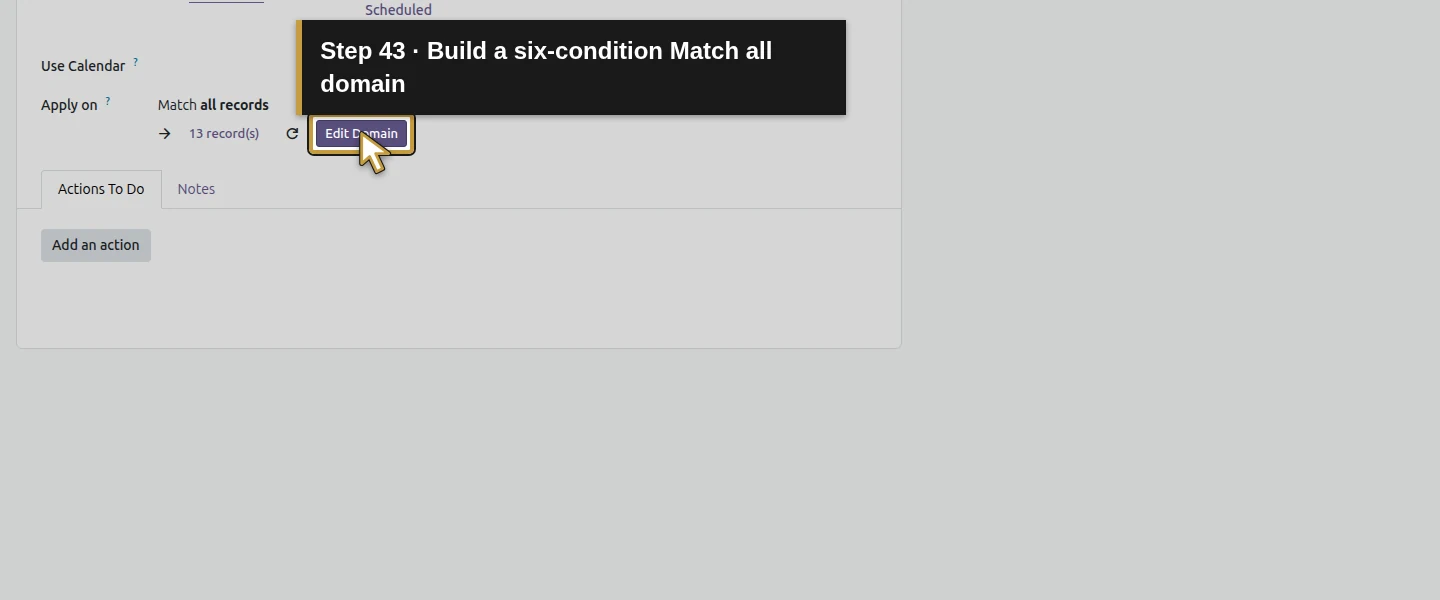
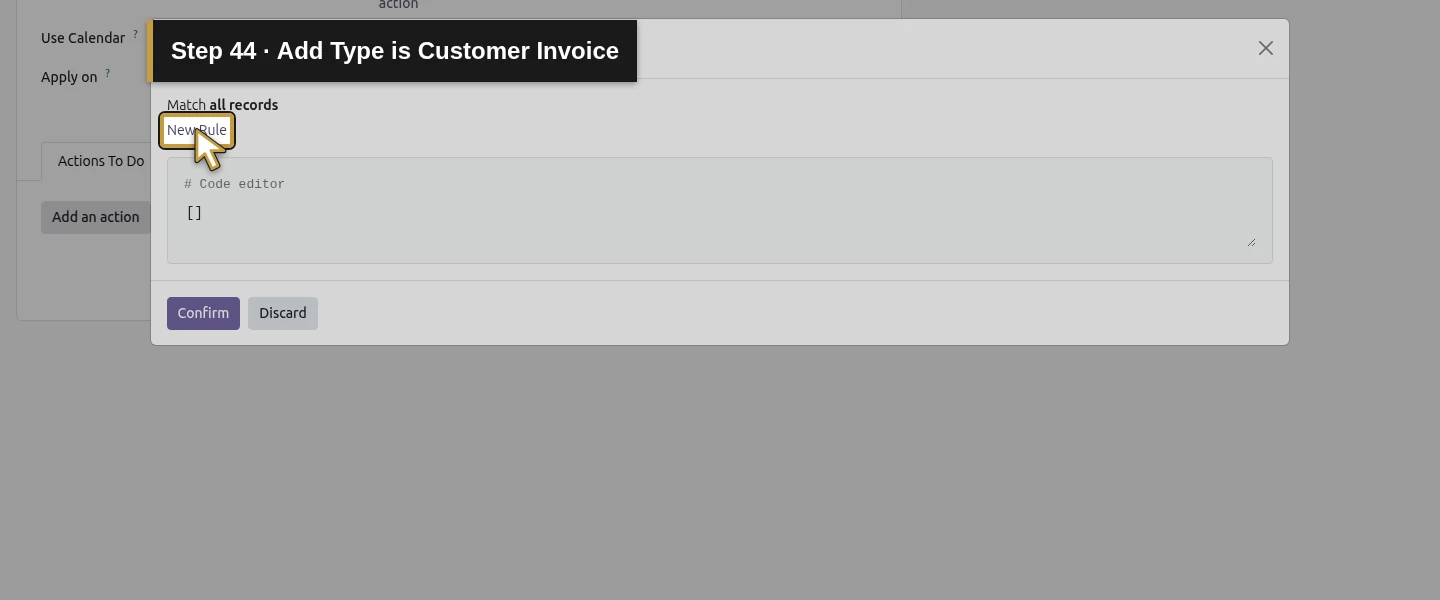
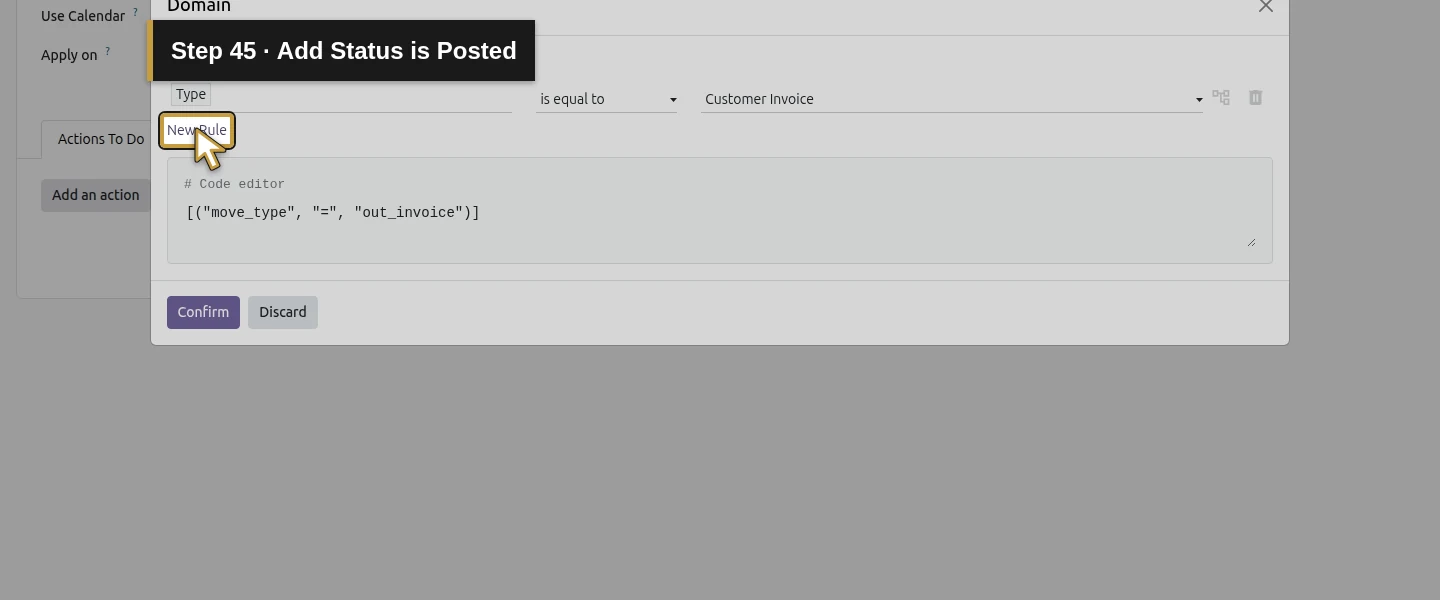
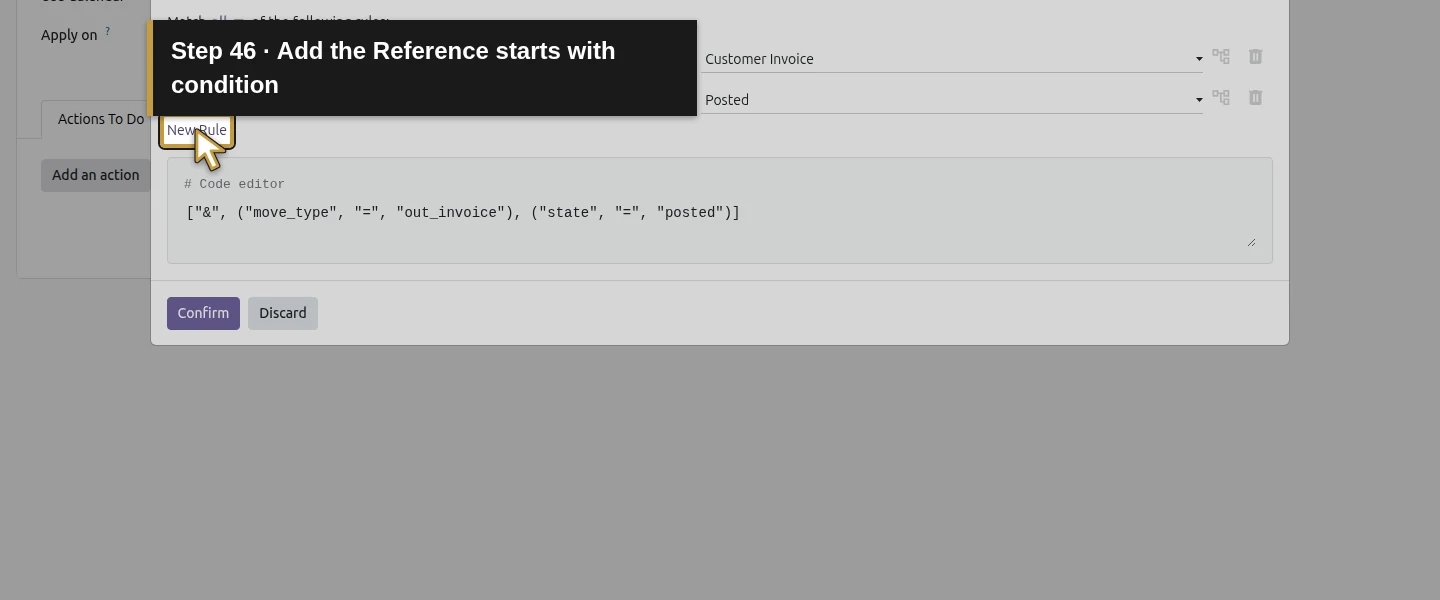
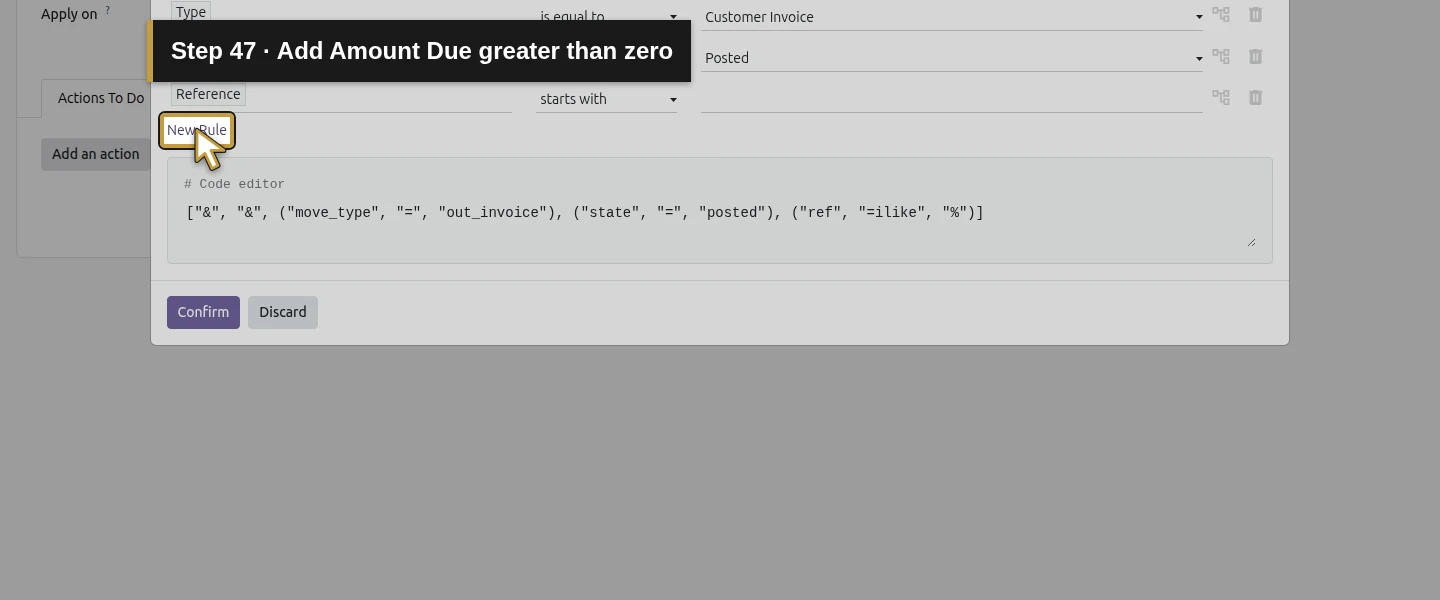
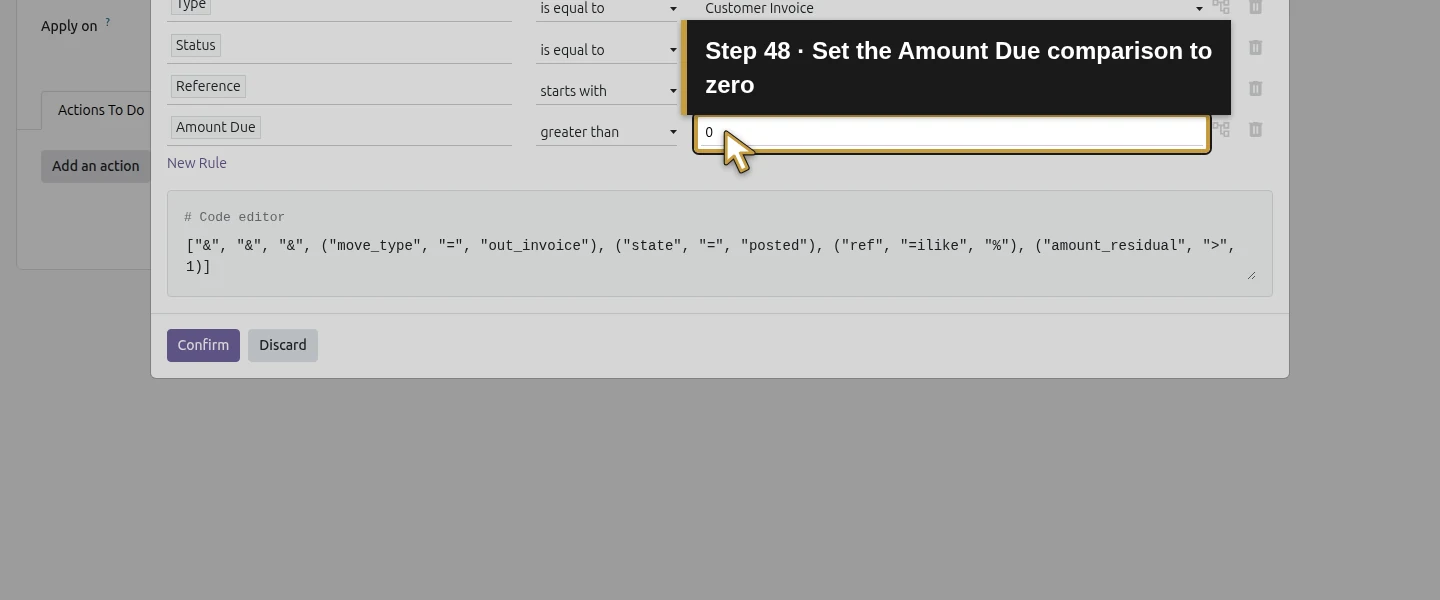
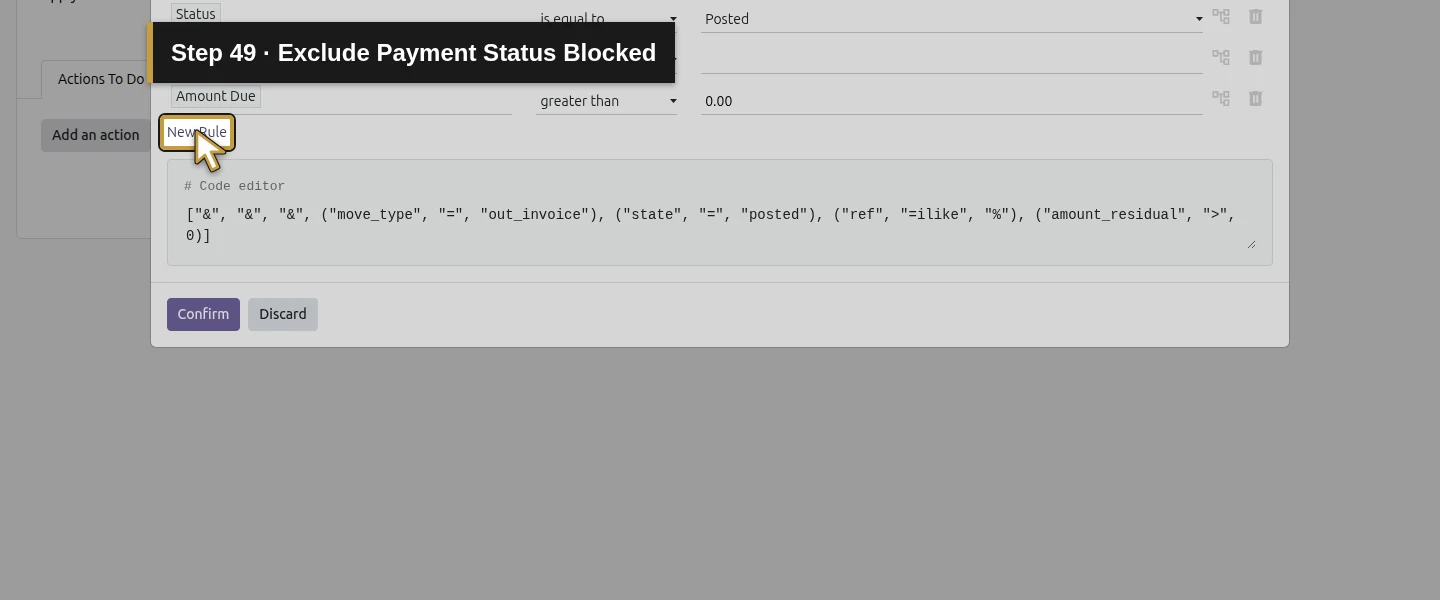
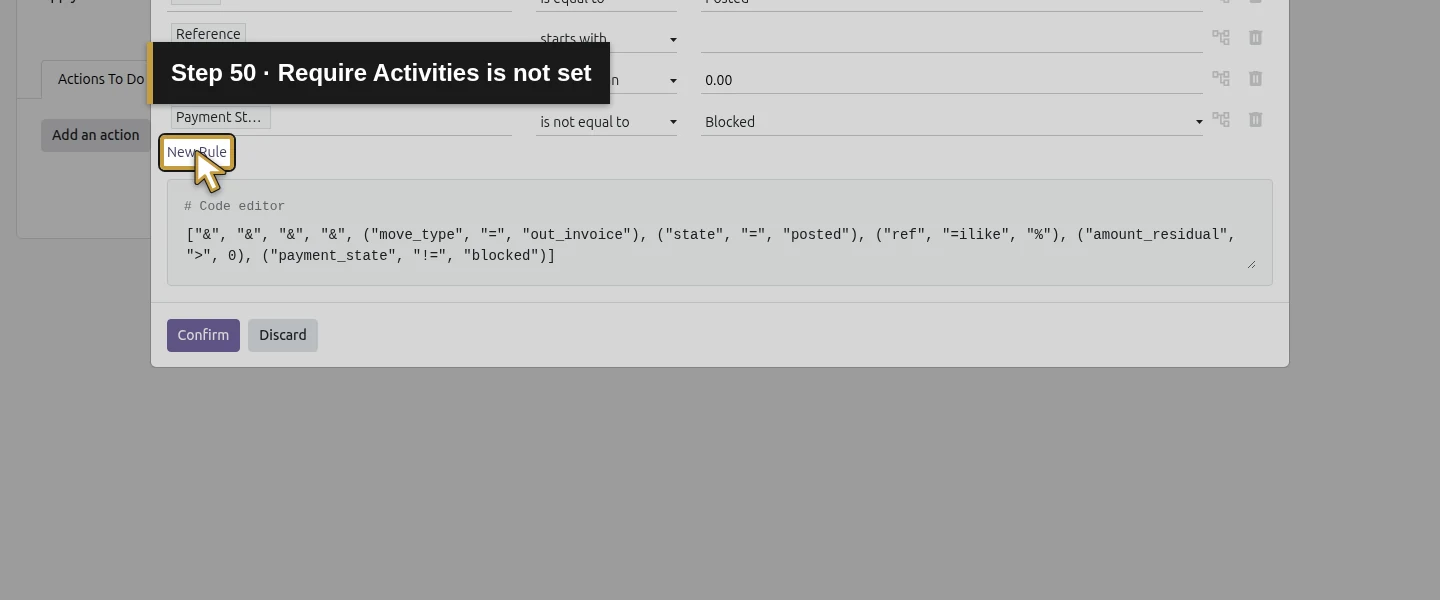
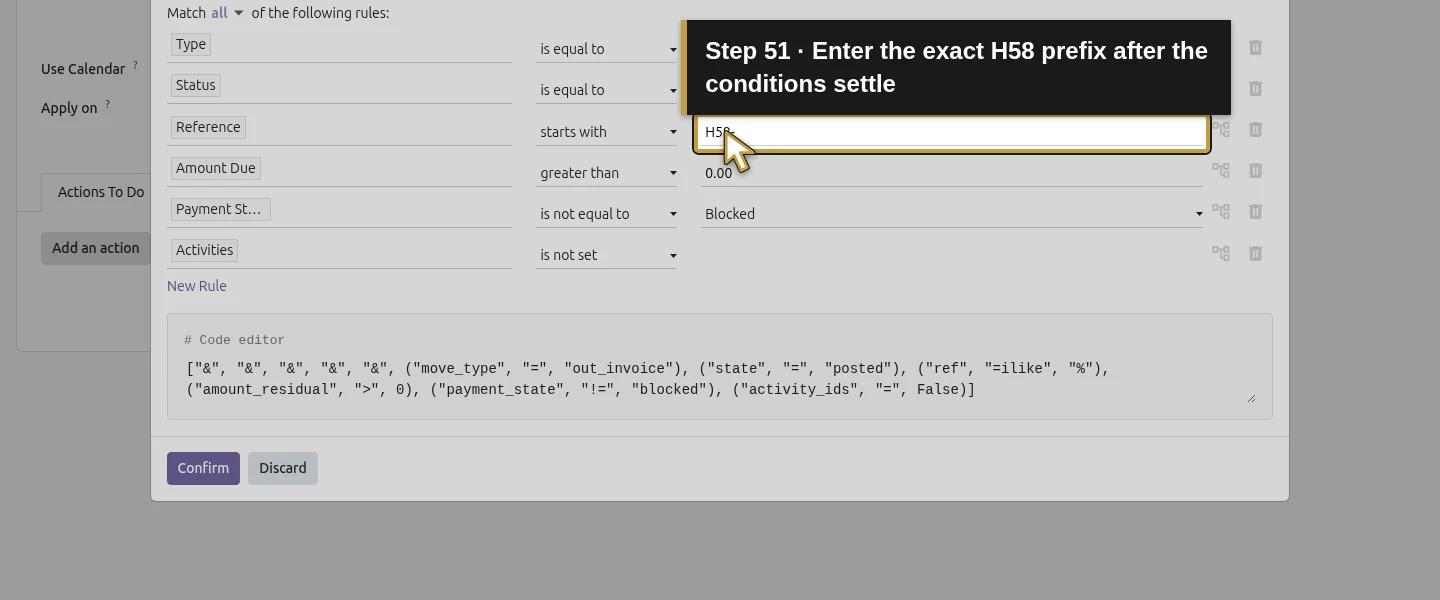
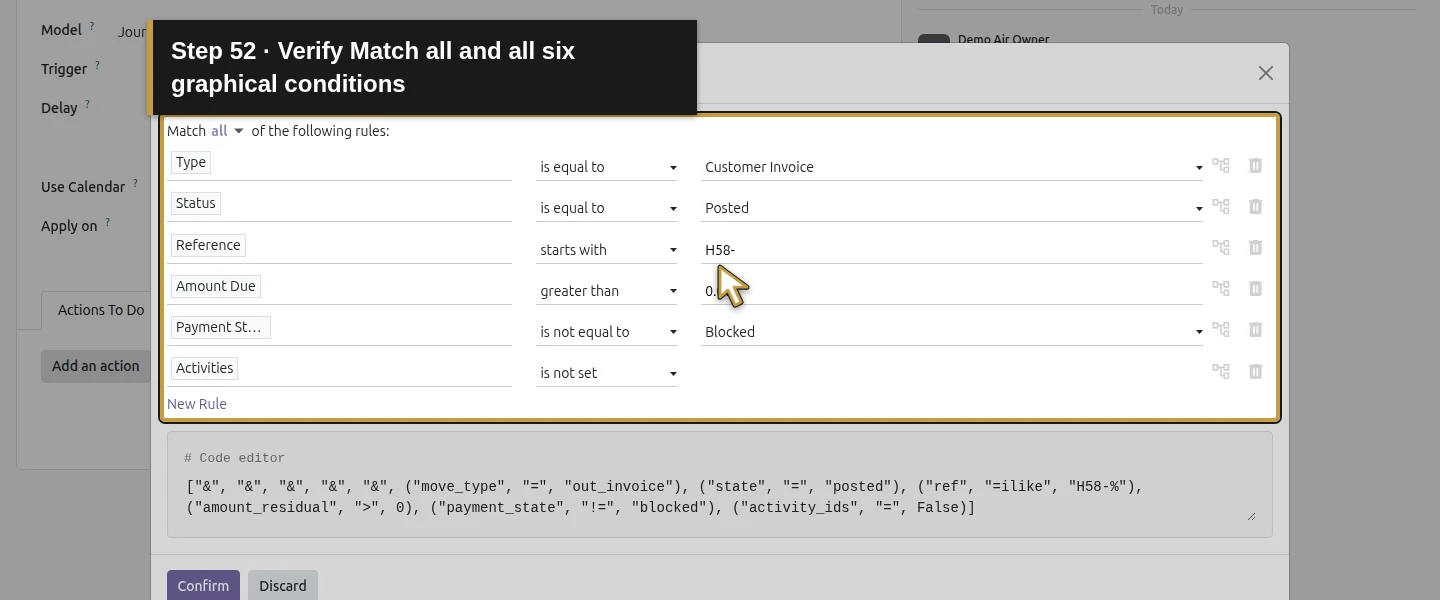
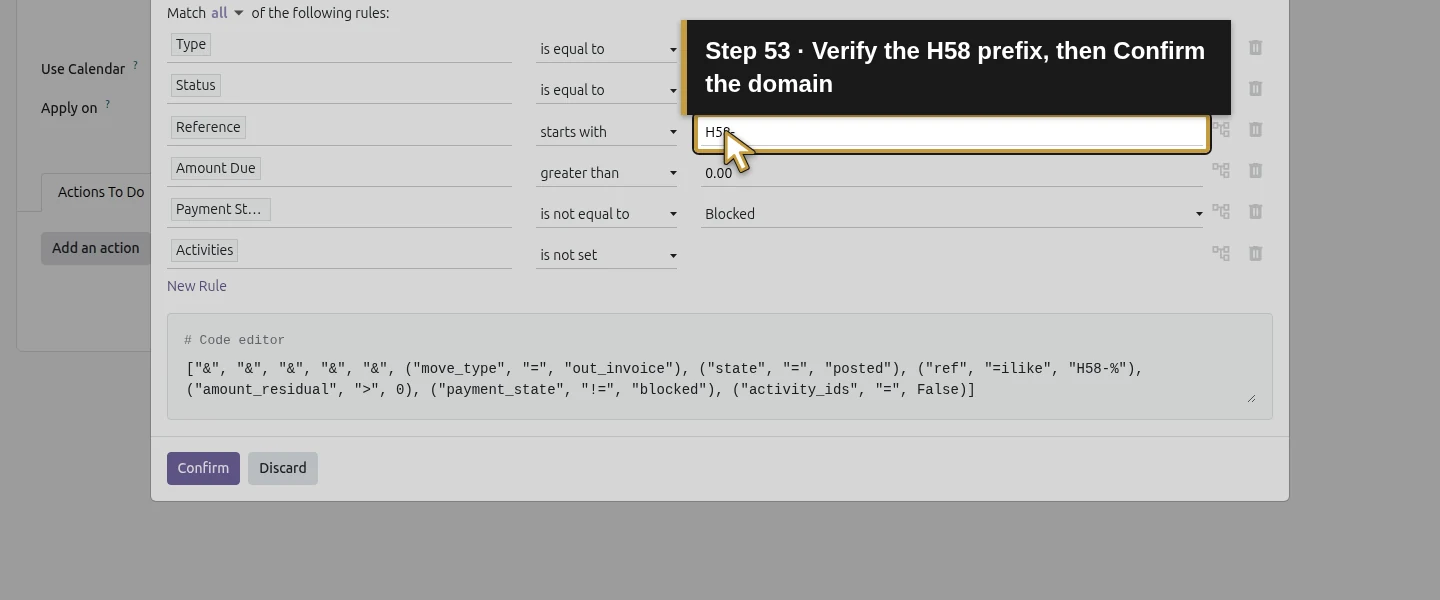
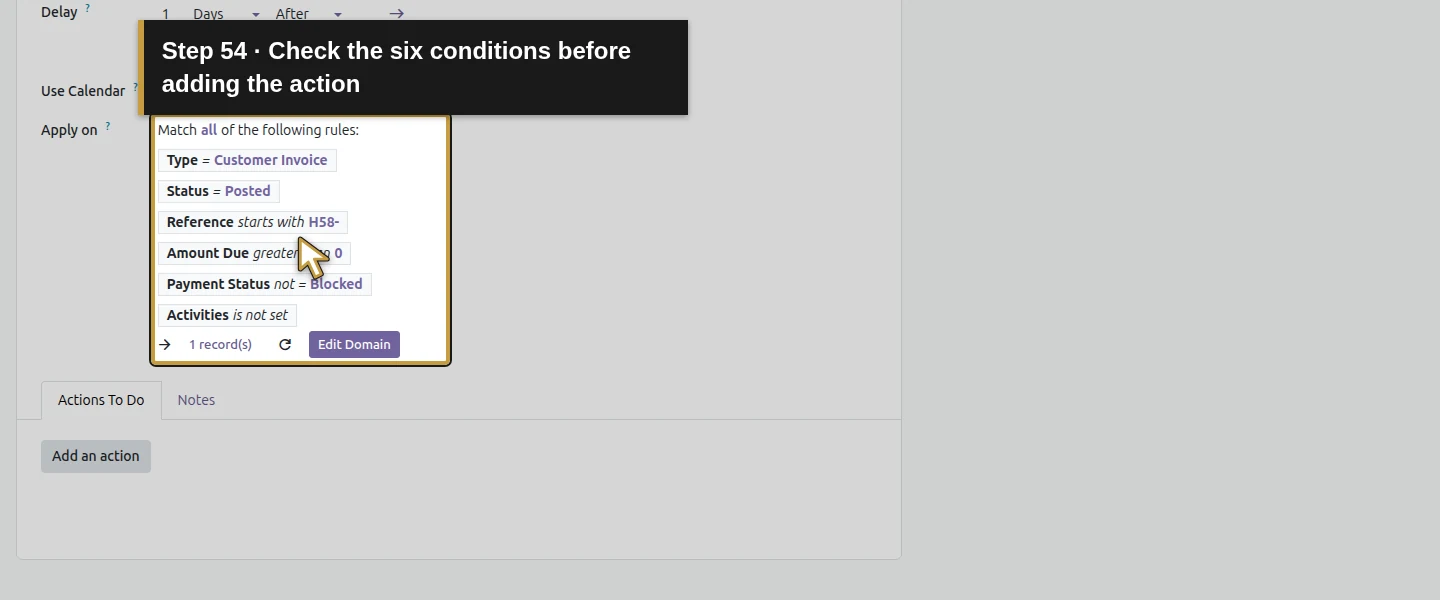
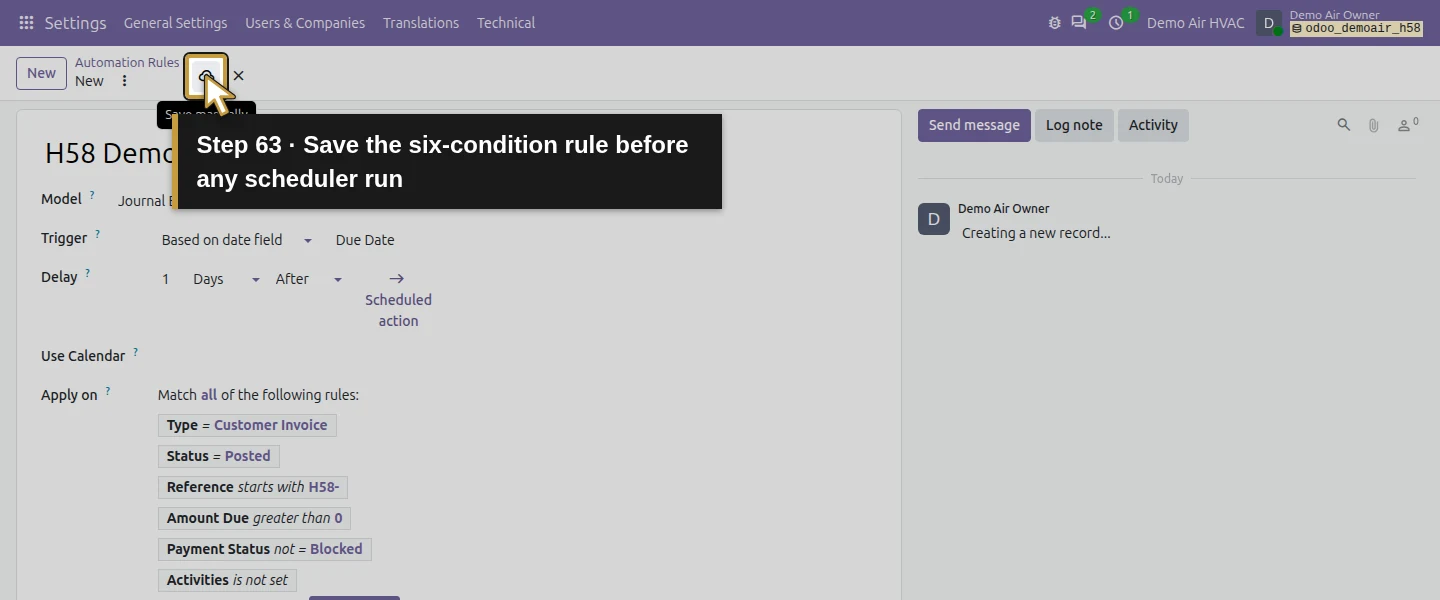
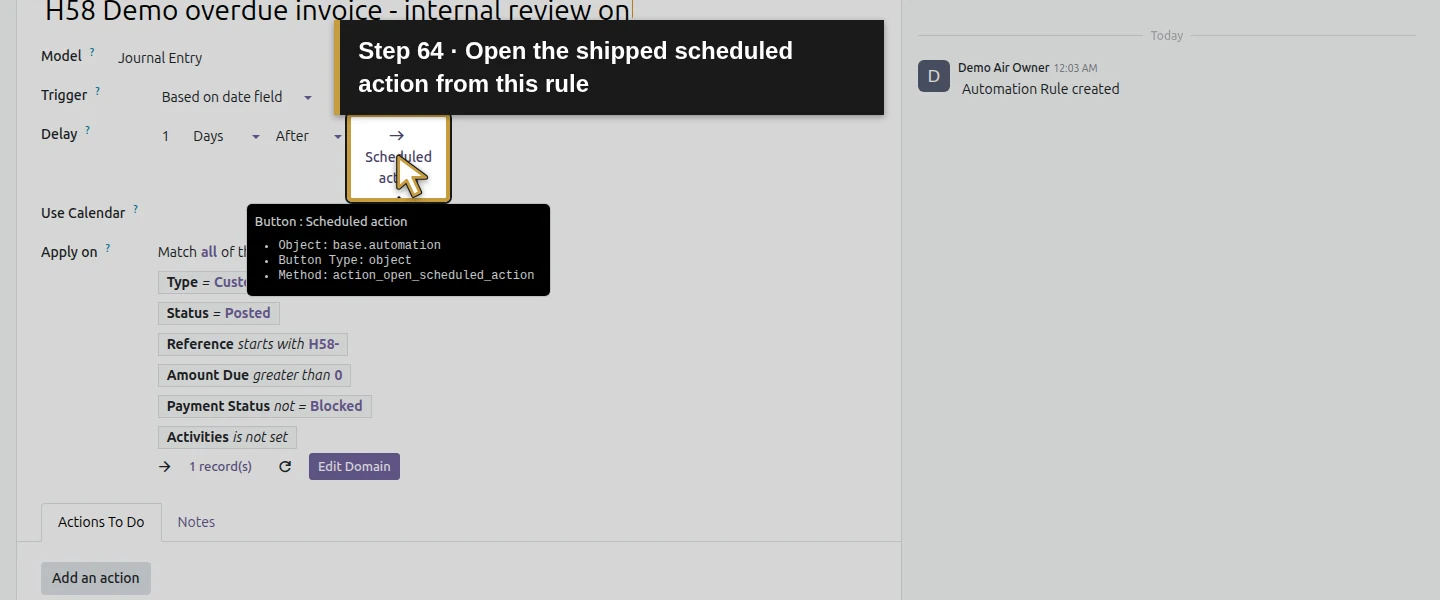
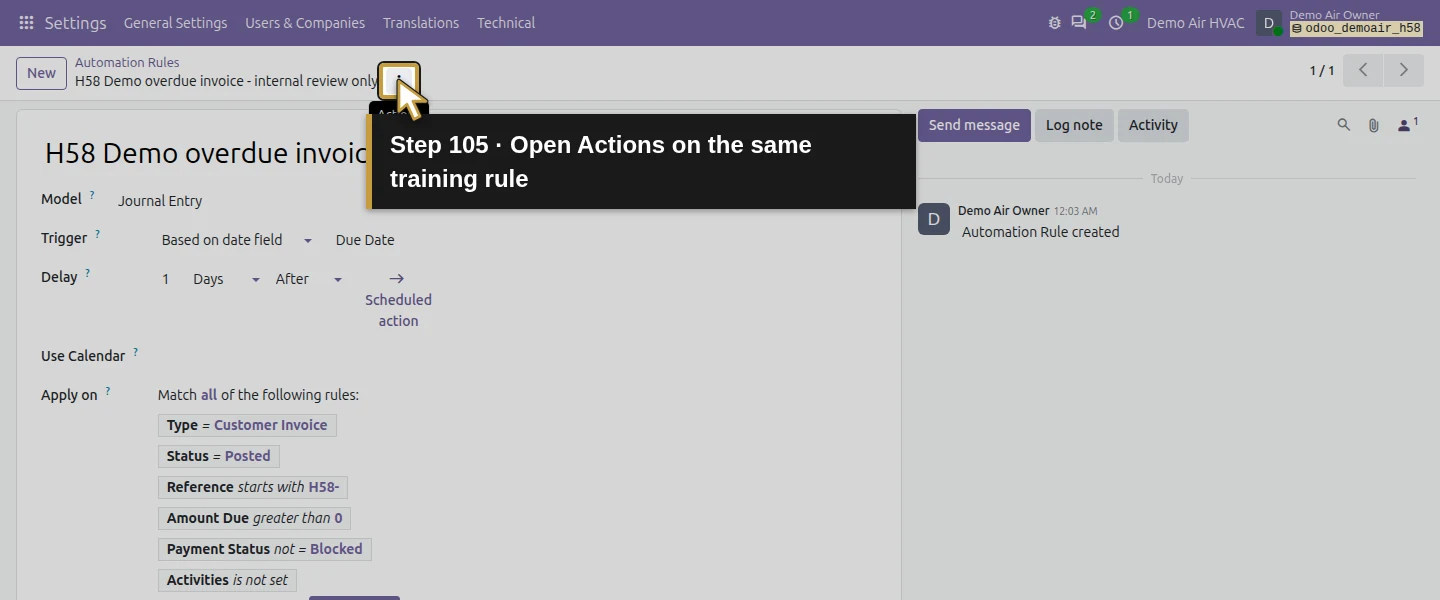
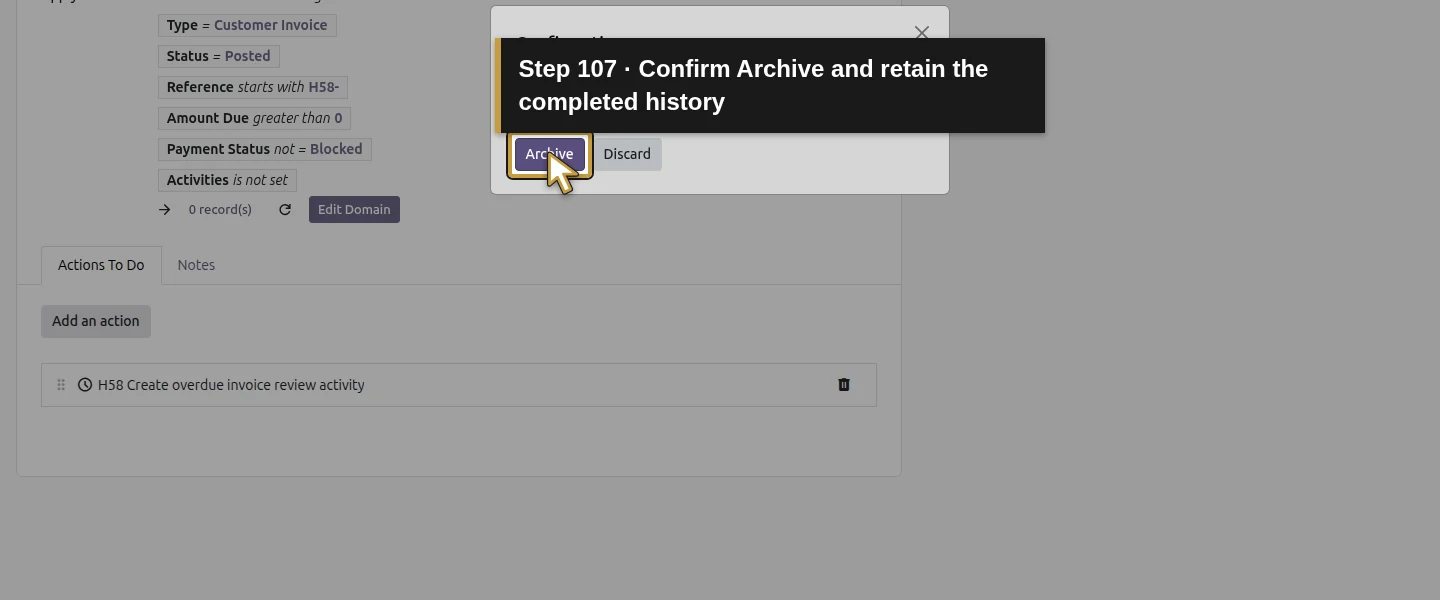
Open Settings → General Settings, scroll to Developer Tools and click Activate the developer mode if Technical is not yet visible. Then open Technical → Automation Rules → New. Name it H58 Demo overdue invoice - internal review only, choose Journal Entry as Model, and select Based on date field as Trigger. Choose Due Date, set Delay 1 Days After, and leave Use Calendar blank. In Apply on → Edit Domain, use the graphical builder with Match all: Type is Customer Invoice; Status is Posted; Reference starts with H58-; Amount Due is greater than 0; Payment Status is not equal to Blocked; Activities is not set. Confirm and check all six conditions. The H58 prefix is deliberately limited to the two training invoices; the saved matching count is one. Do not widen it during this test.
Step 4. Add the predefined internal review action
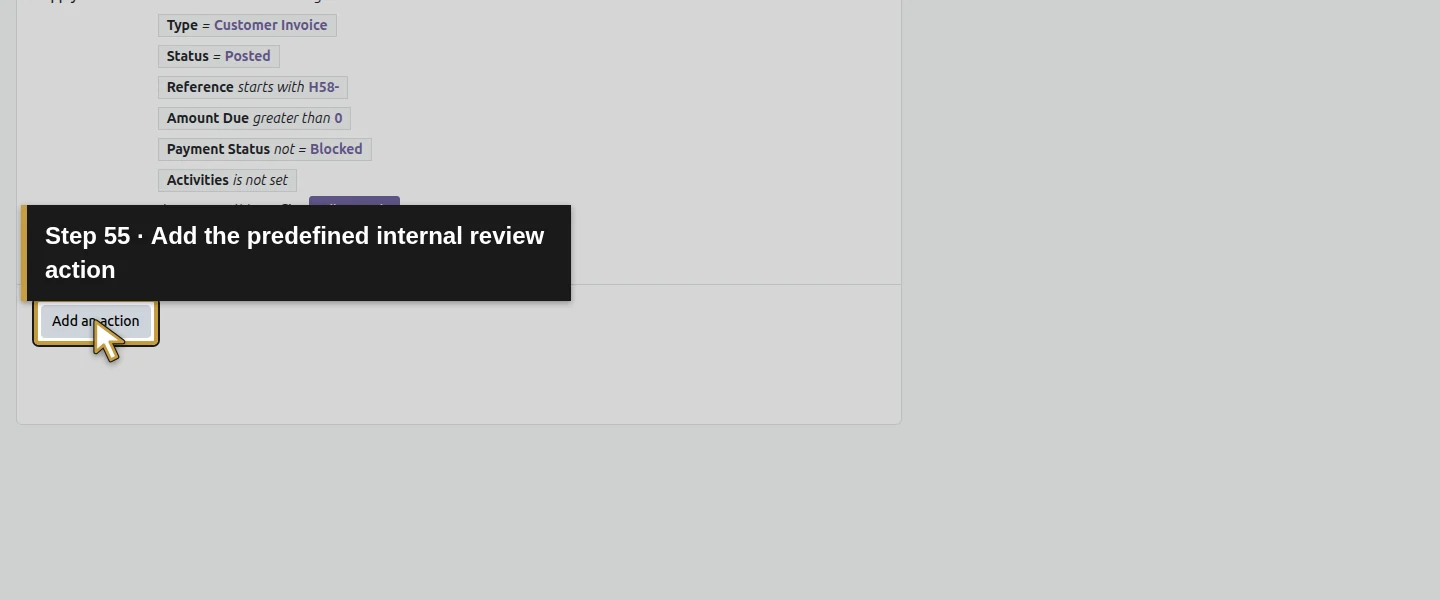
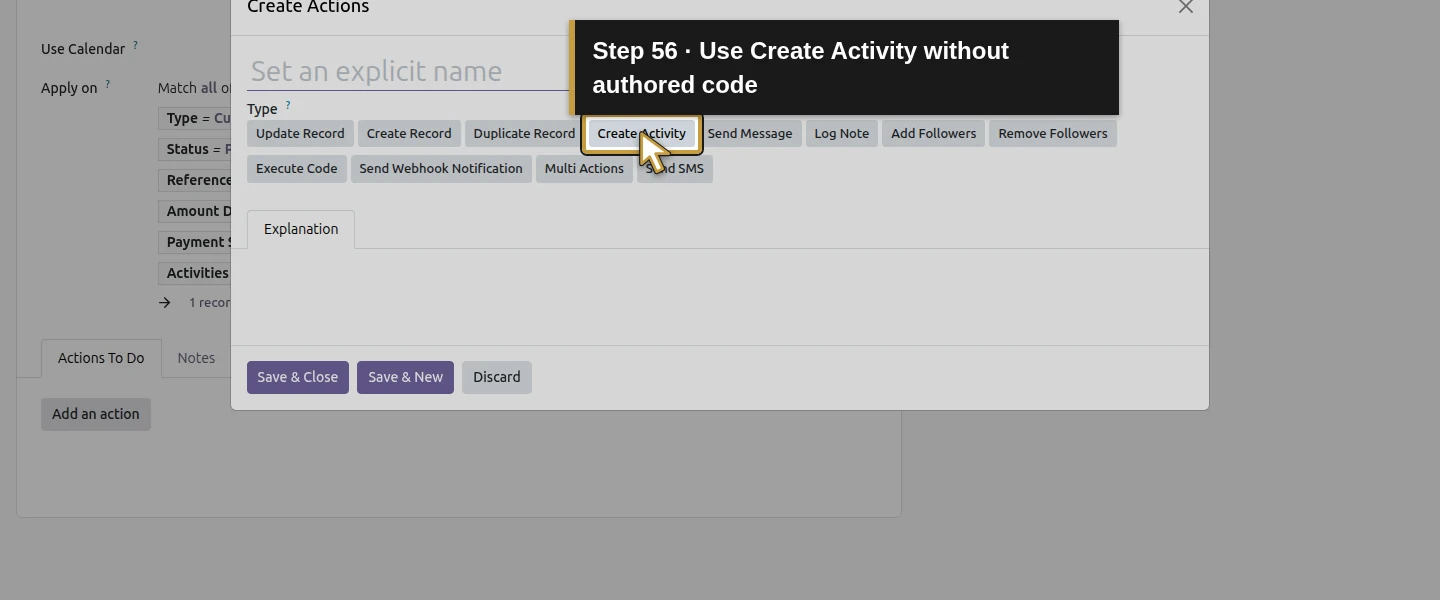
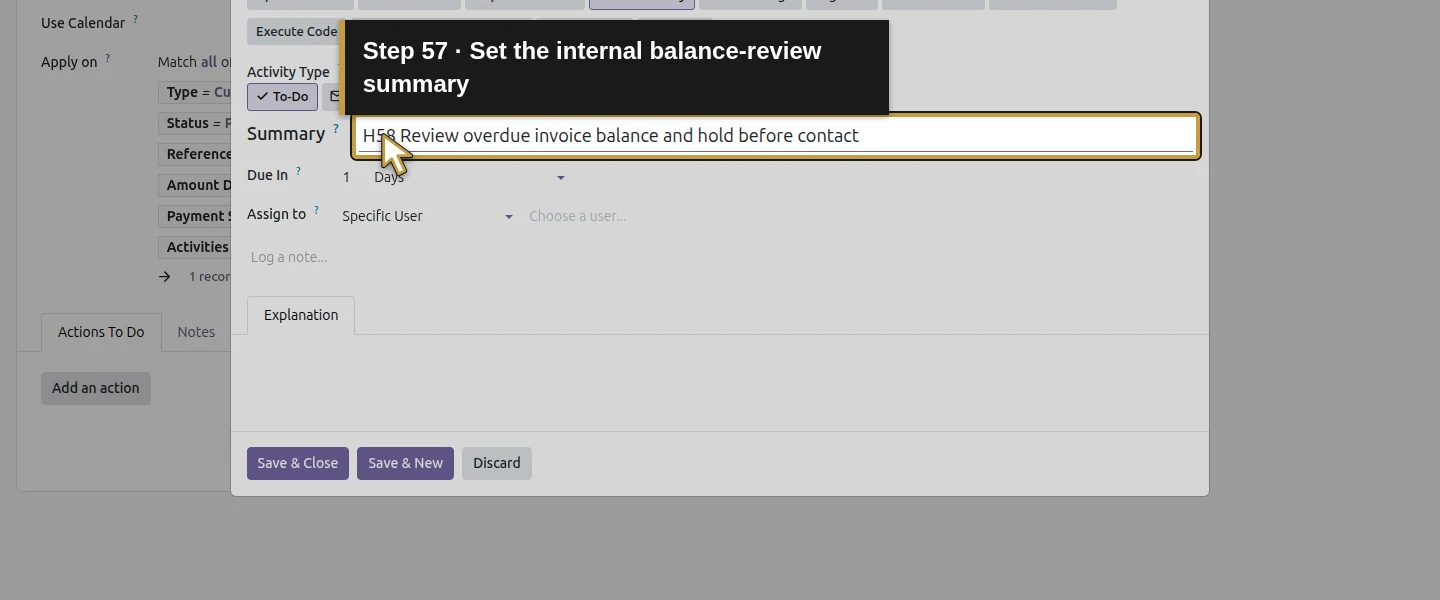
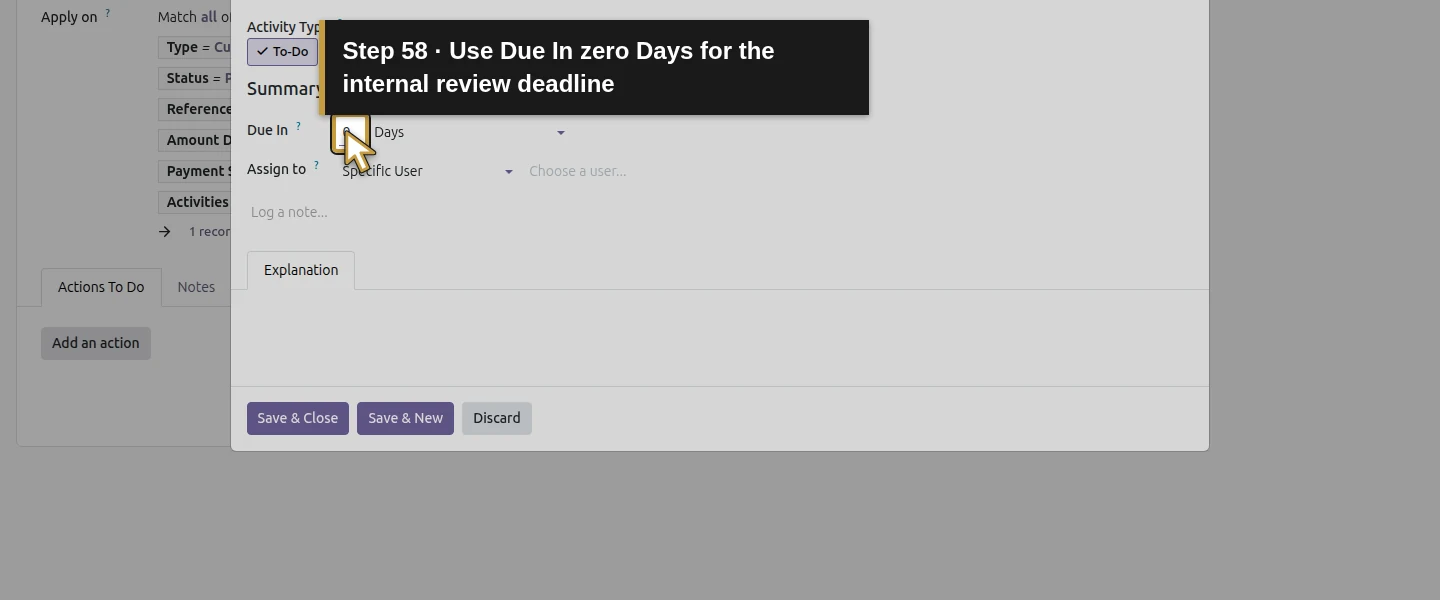
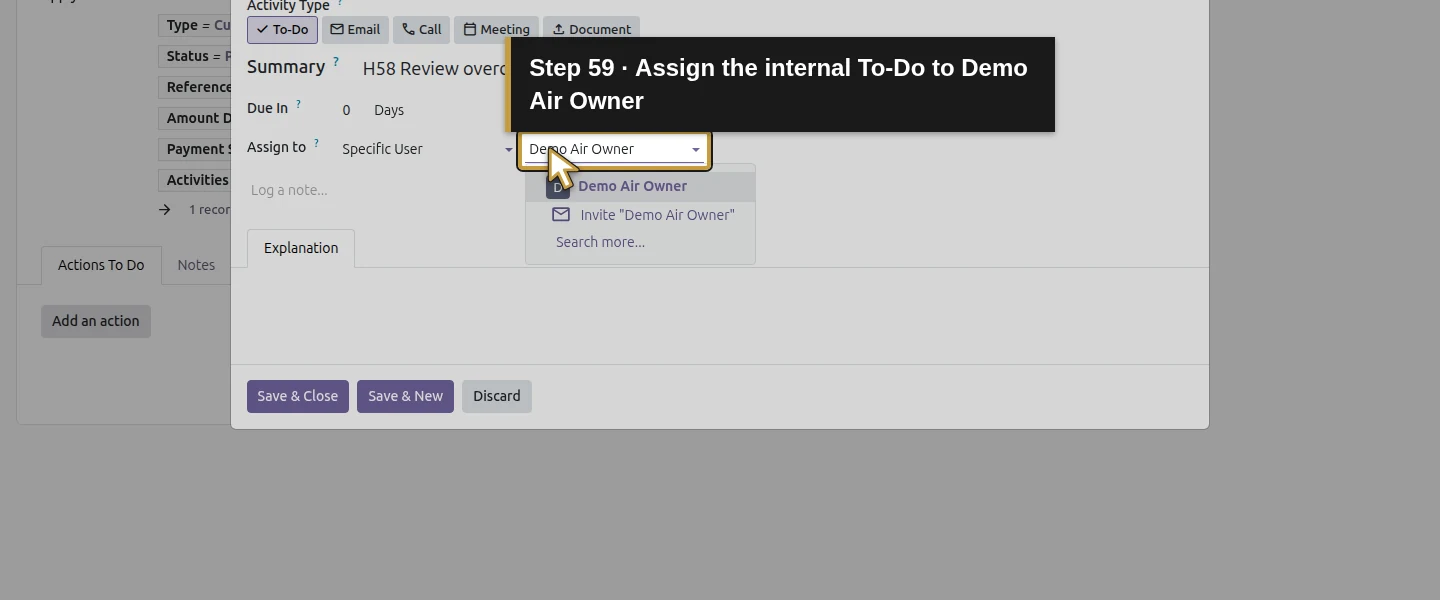
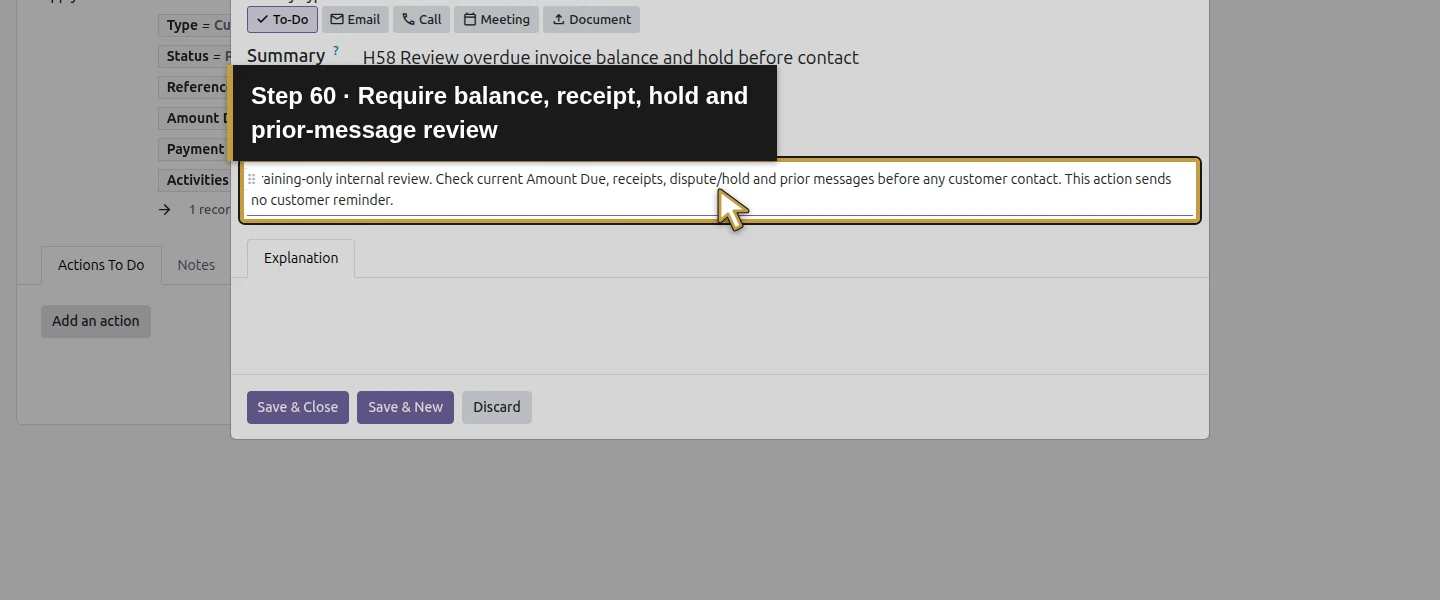
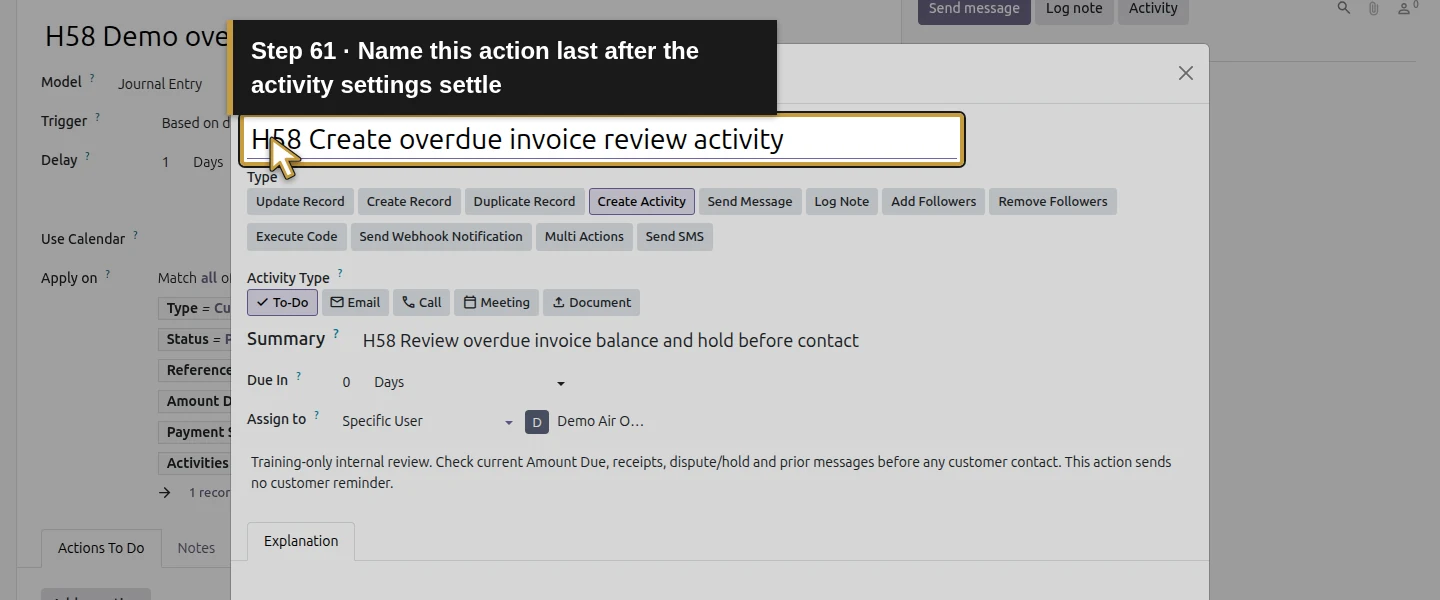
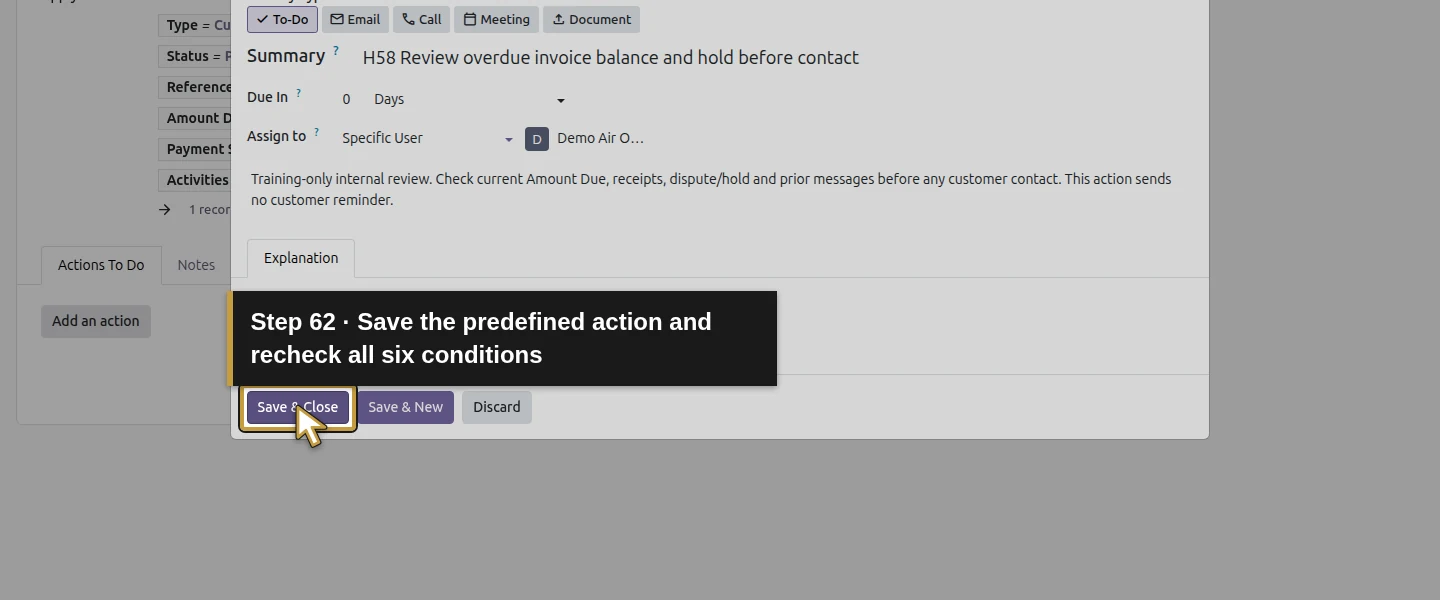
Click Add an action and select Create Activity. Retain To-Do, enter Summary H58 Review overdue invoice balance and hold before contact, set Due In 0 Days, and assign Specific User → Demo Air Owner. Add a note to check current balance, receipts, dispute/hold and prior messages before contact. After the activity settings settle, enter Name: H58 Create overdue invoice review activity last. Check that this exact name remains visible, then use Save & Close and Save manually on the rule. This uses existing fields and Odoo’s predefined activity action. No authored code, custom field or customer-email action is entered.
Step 5. Run and inspect the shipped scheduler in the training setup
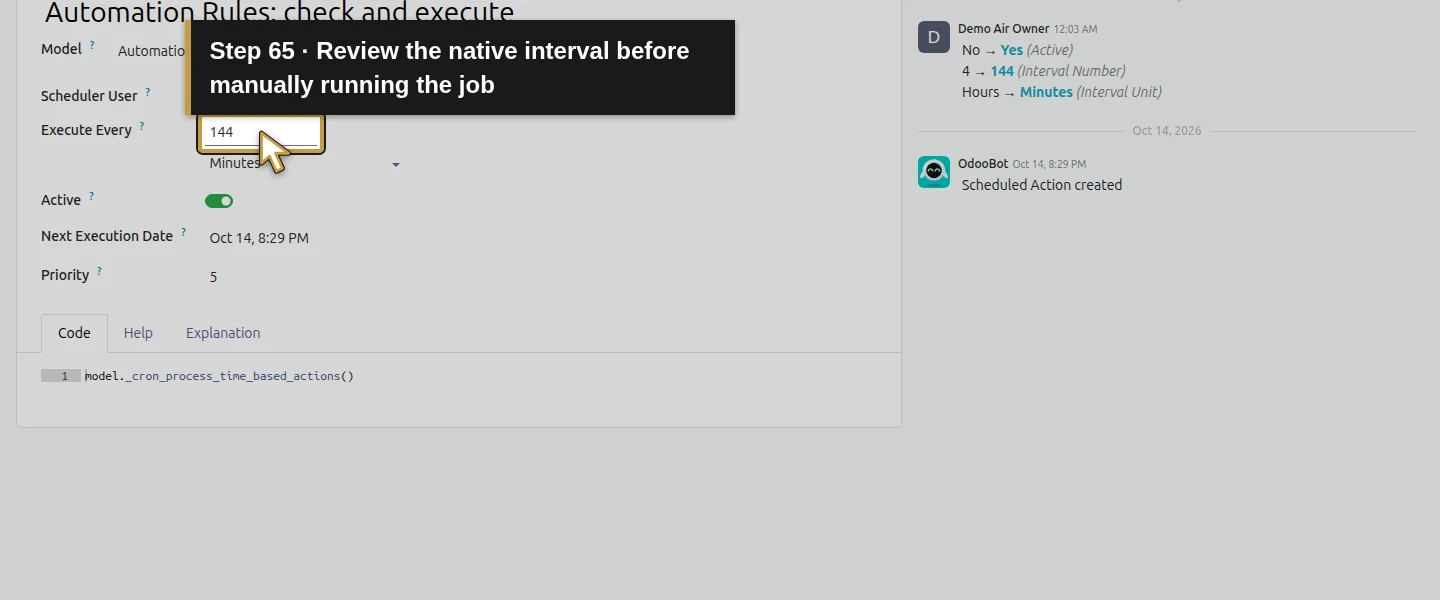
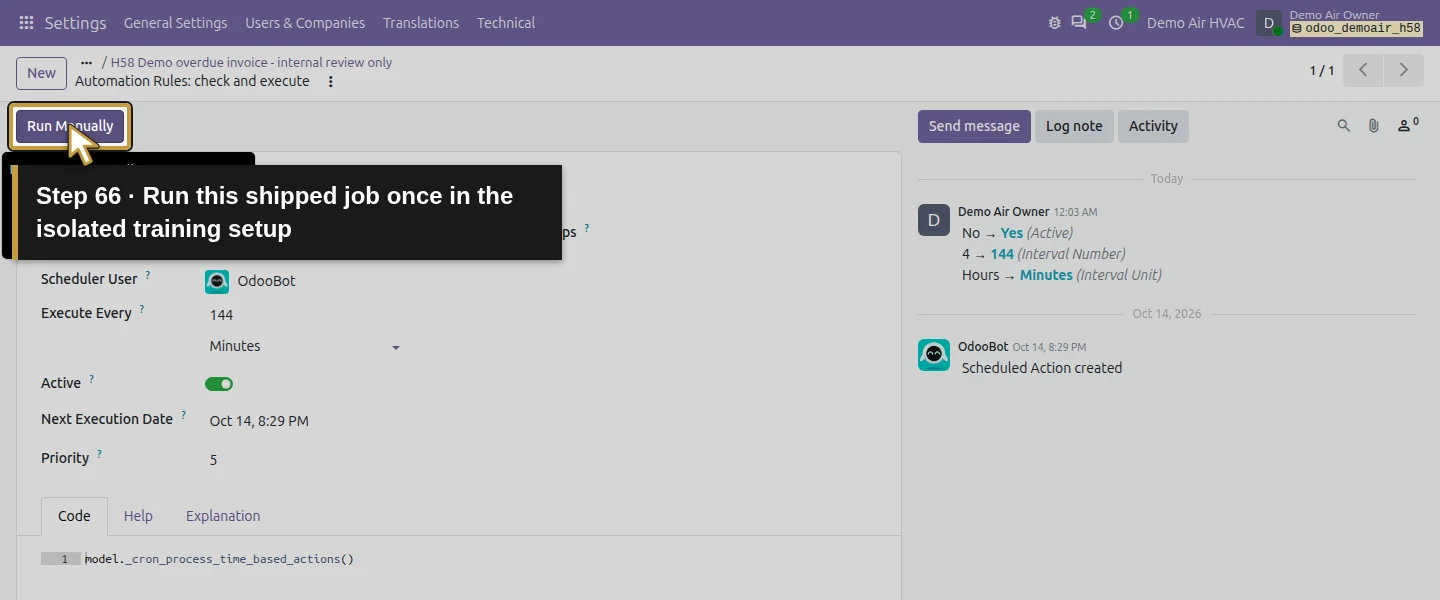
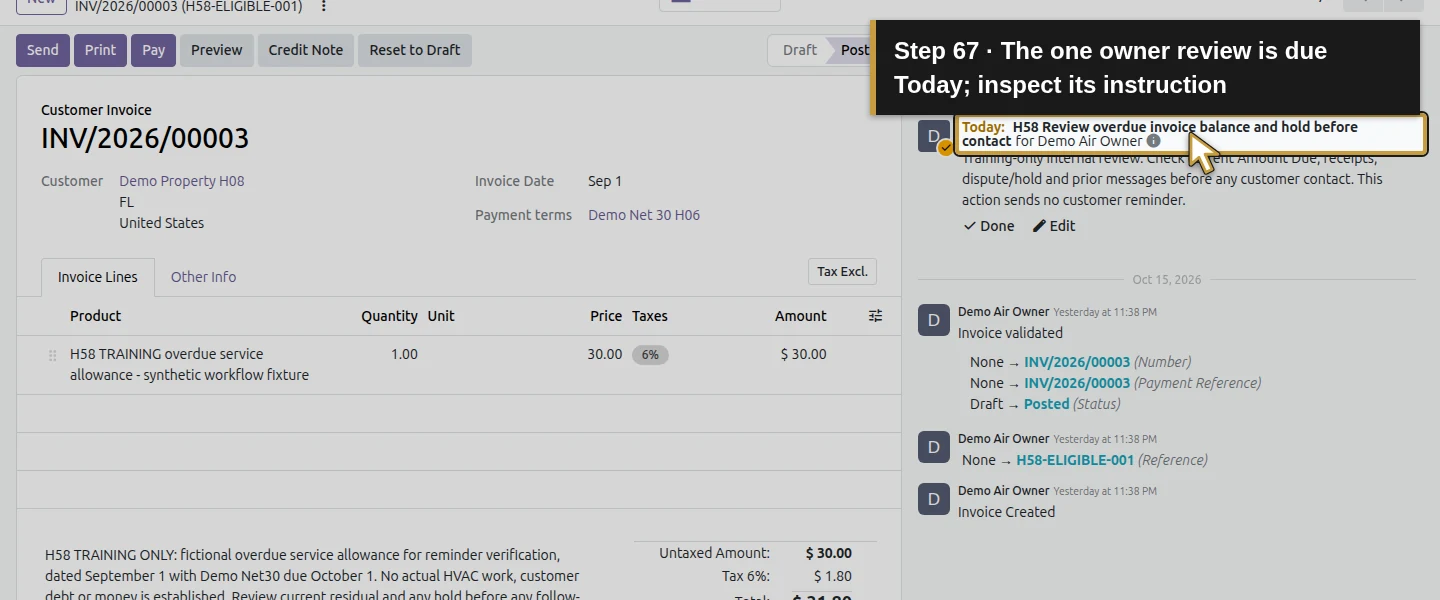
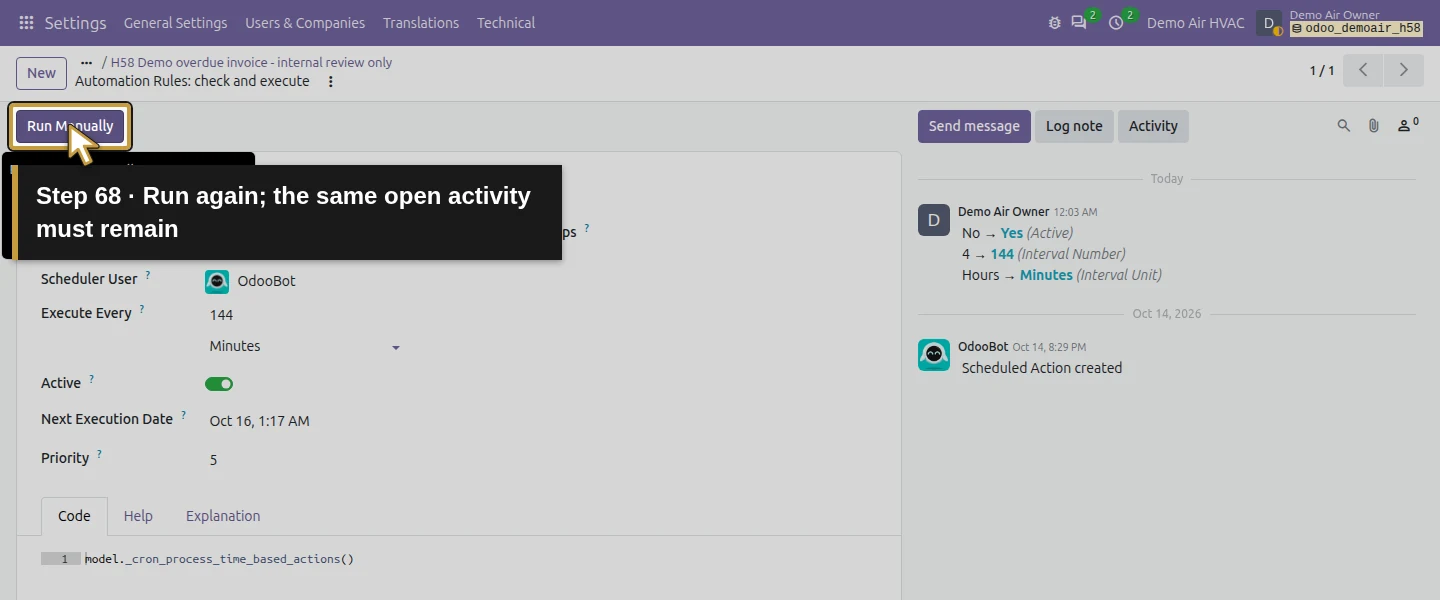
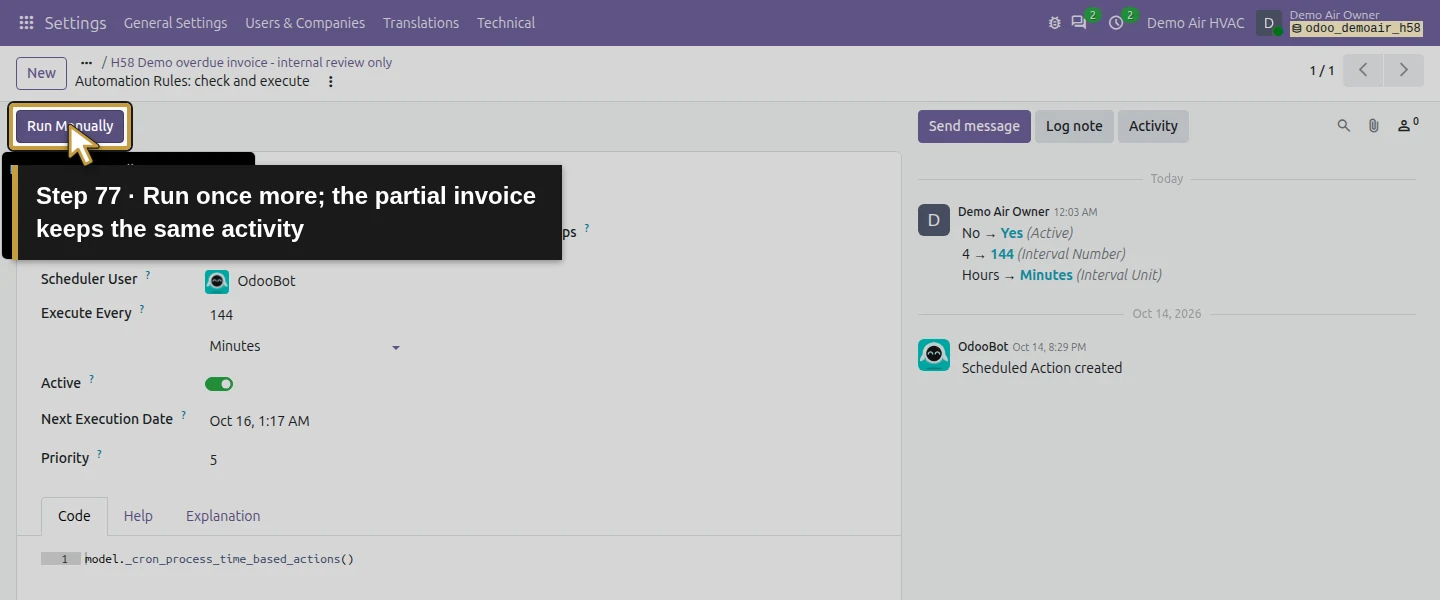
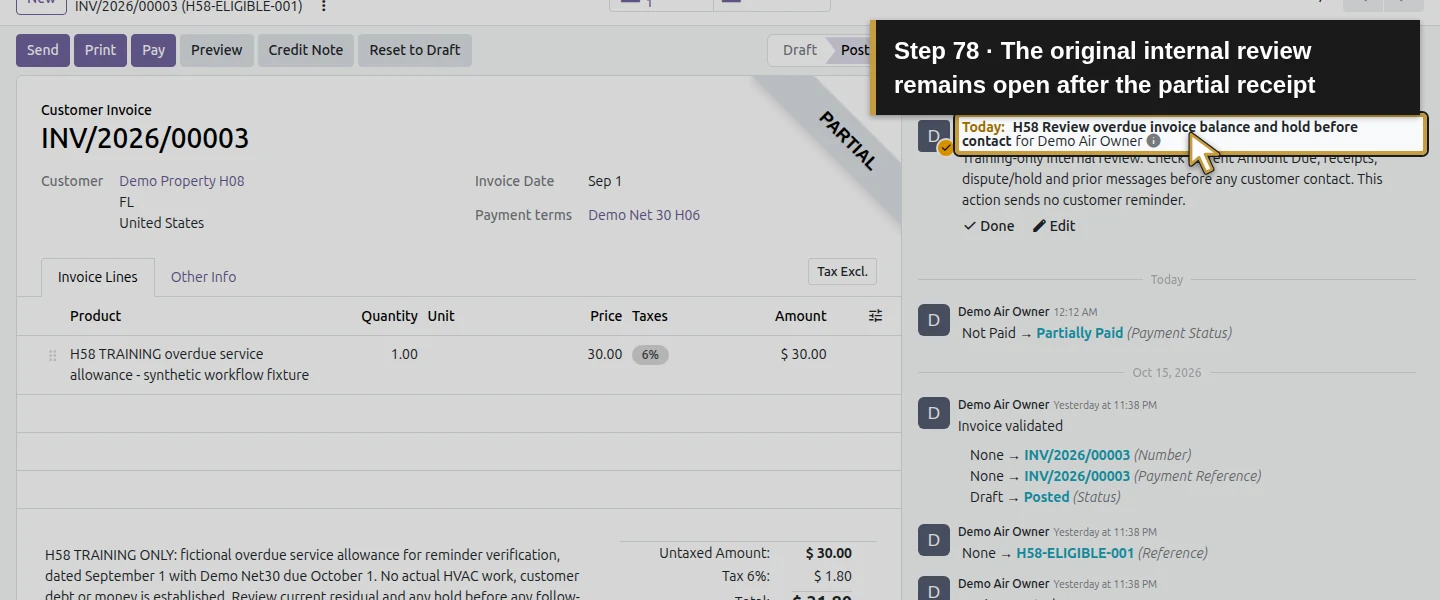
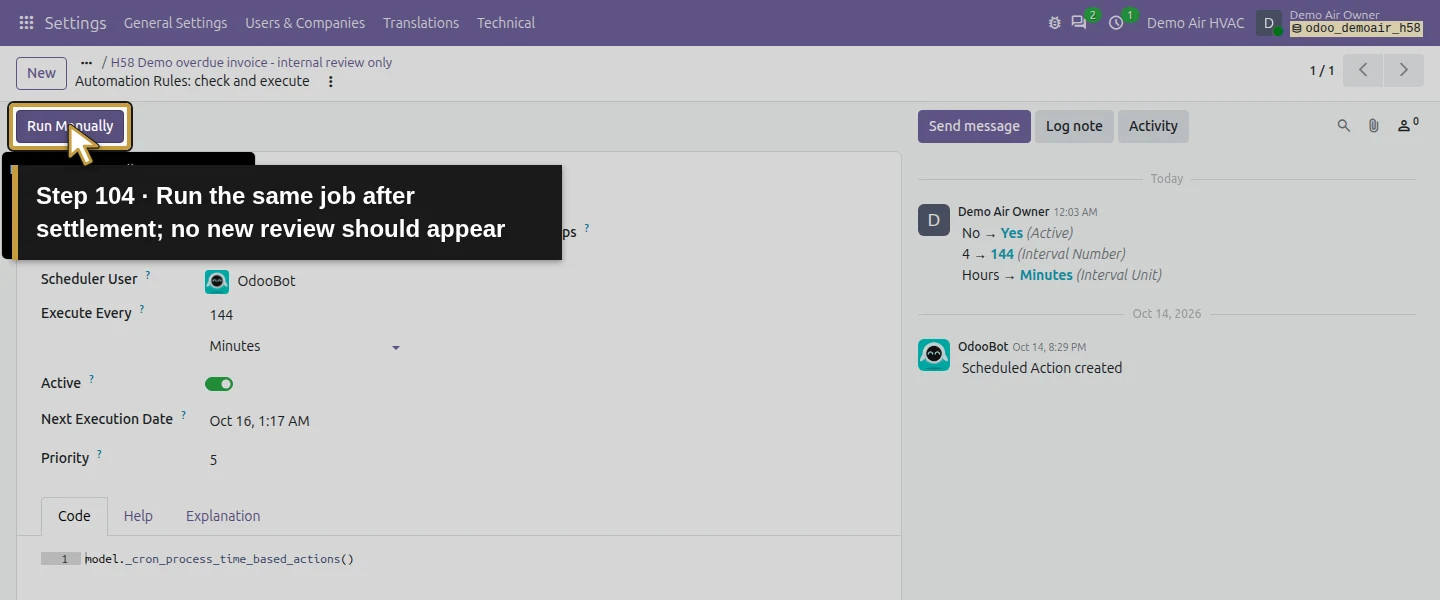
From the rule, click Scheduled action. Saving the date-based rule activates Odoo’s existing Automation Rules: check and execute job. Review its saved interval and execution user, then use Run Manually once. It creates one linked owner To-Do on INV/2026/00003 and none on the blocked invoice. In the original verification its saved deadline was October 15. Read the displayed deadline in your run rather than assuming an exact elapsed number of hours from Due In; a later capture can show a different current date. Run the same job again: the same one open activity remains. The scheduler uses its existing OdooBot user and also queues an internal assignment email to the owner. That email remains outgoing in this setup; it is not a customer reminder. The runtime background executor stays disabled, so this proves selected manual scheduler execution, not unattended timing.
Step 6. Record the confirmed partial receipt and recheck the balance
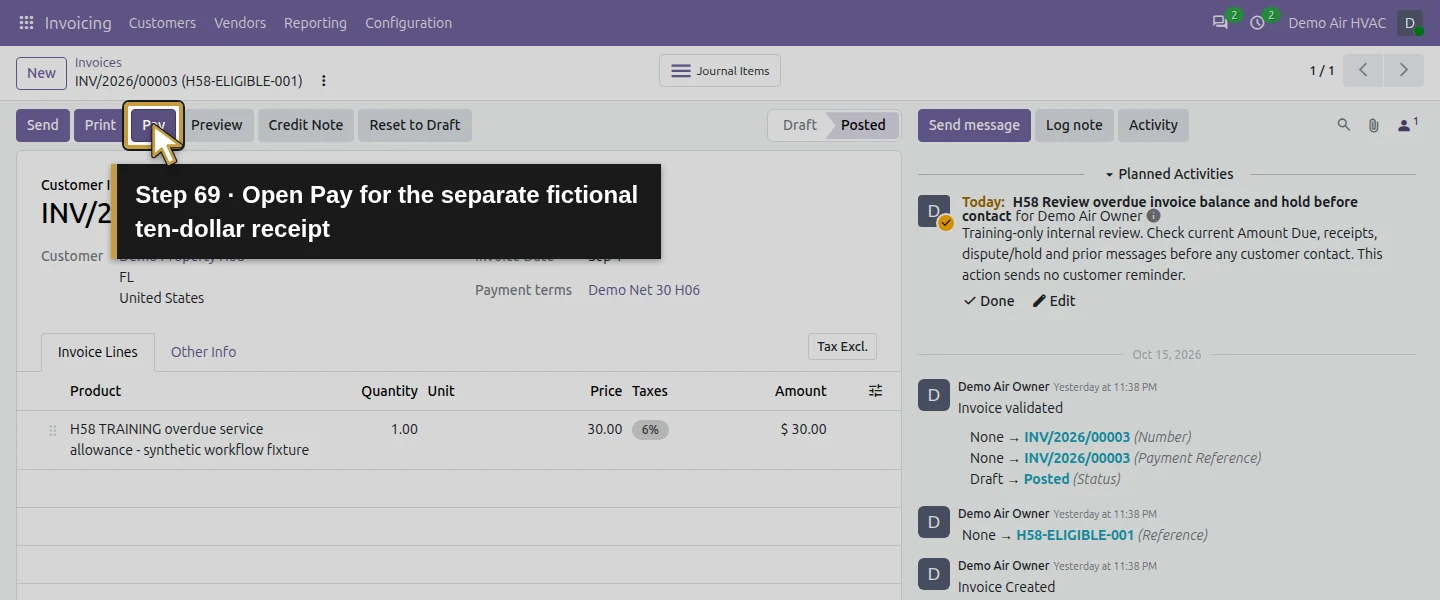
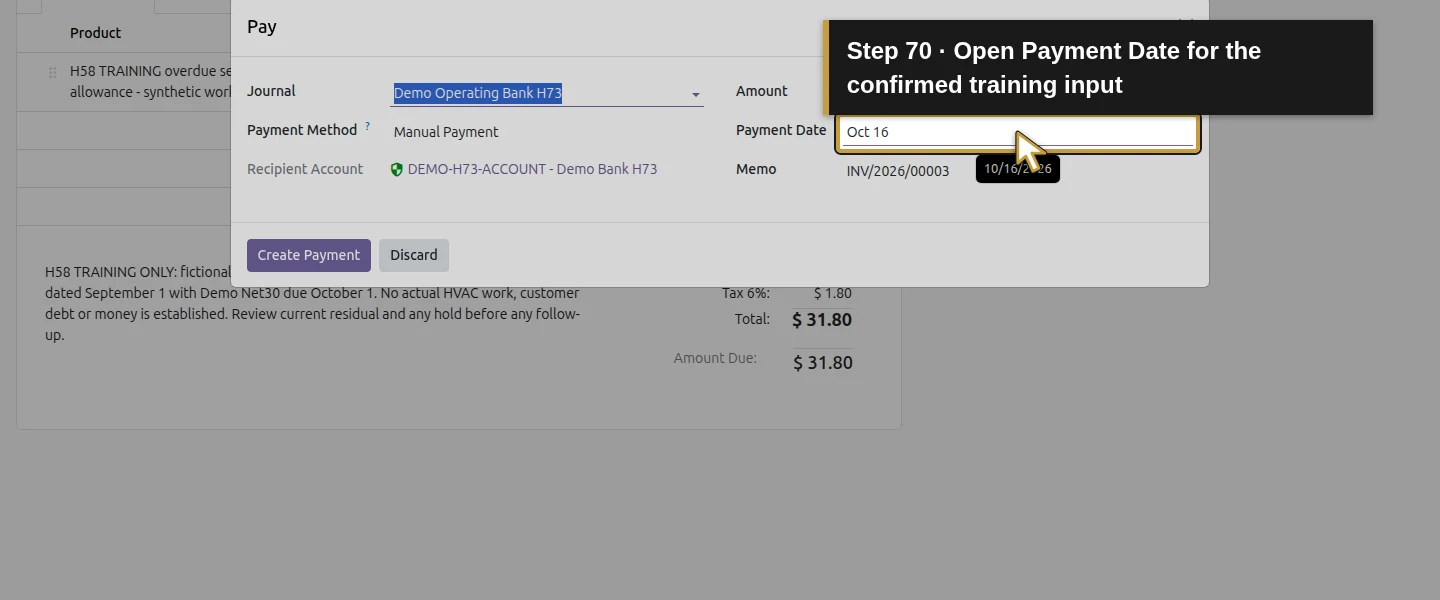
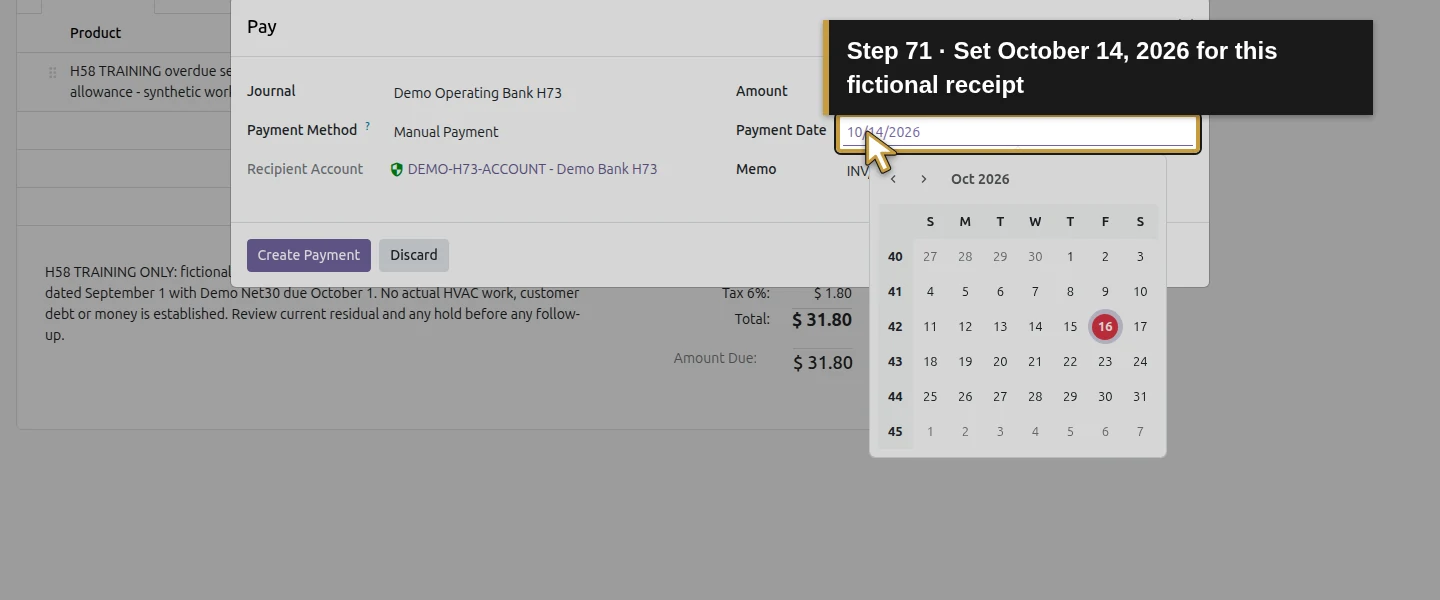
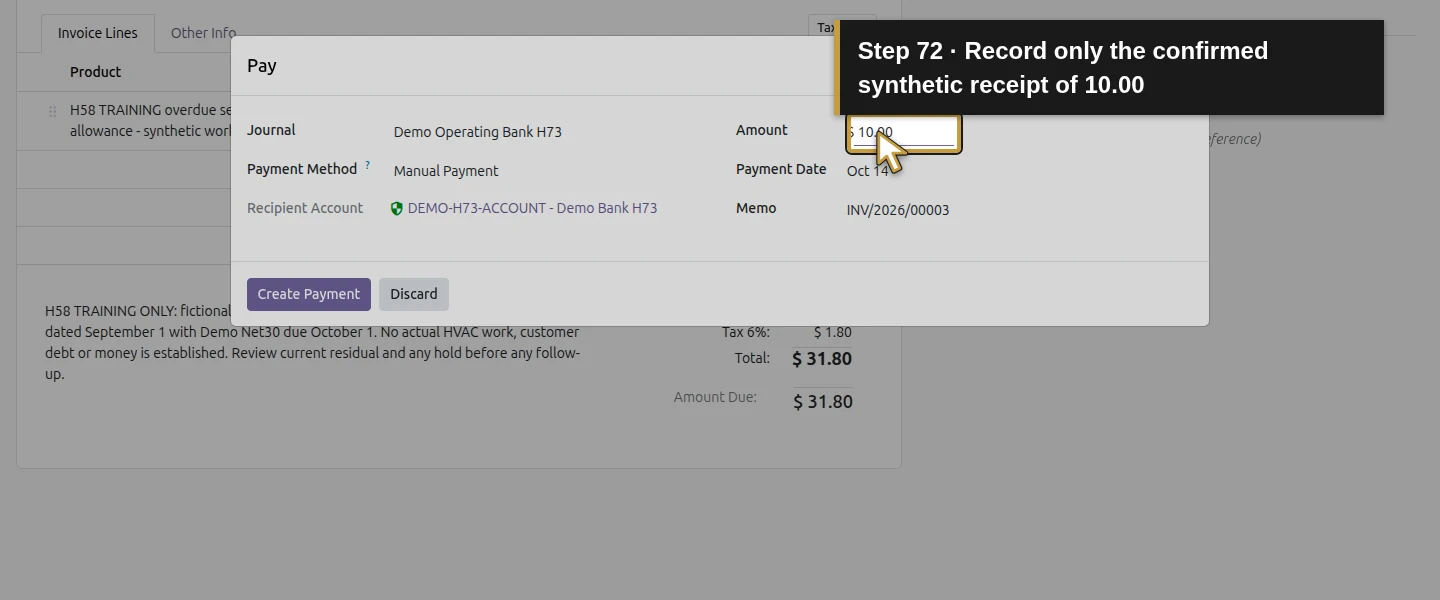
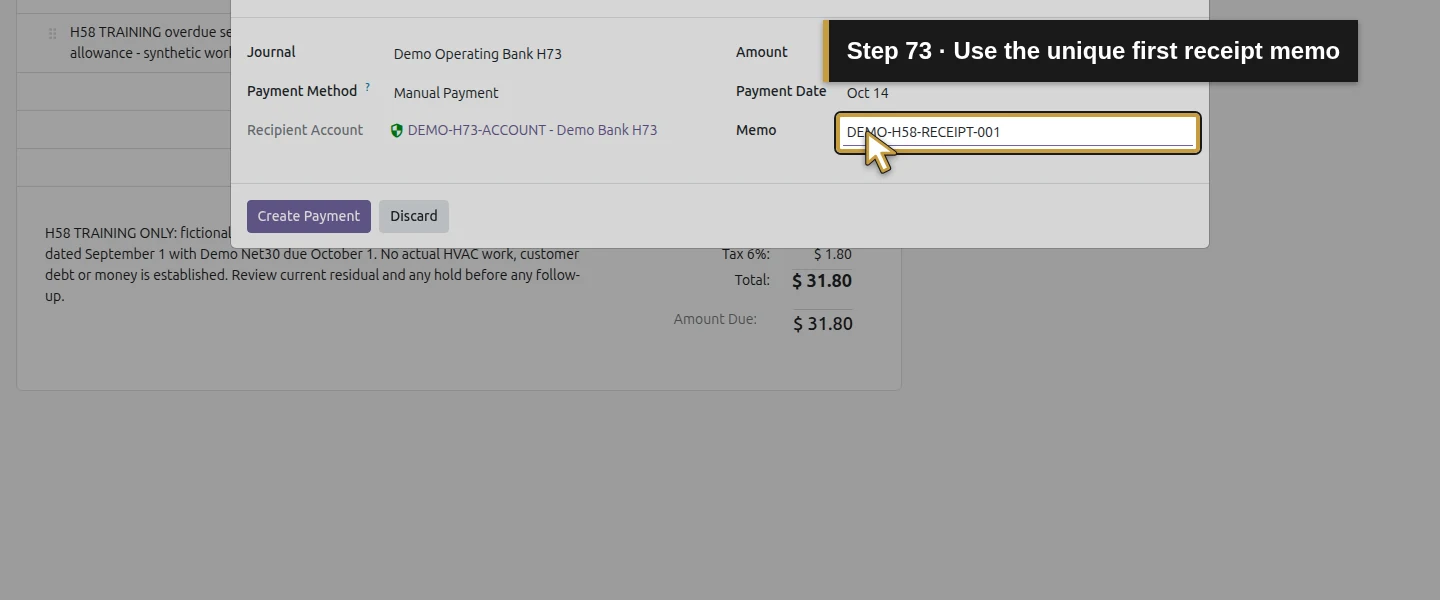
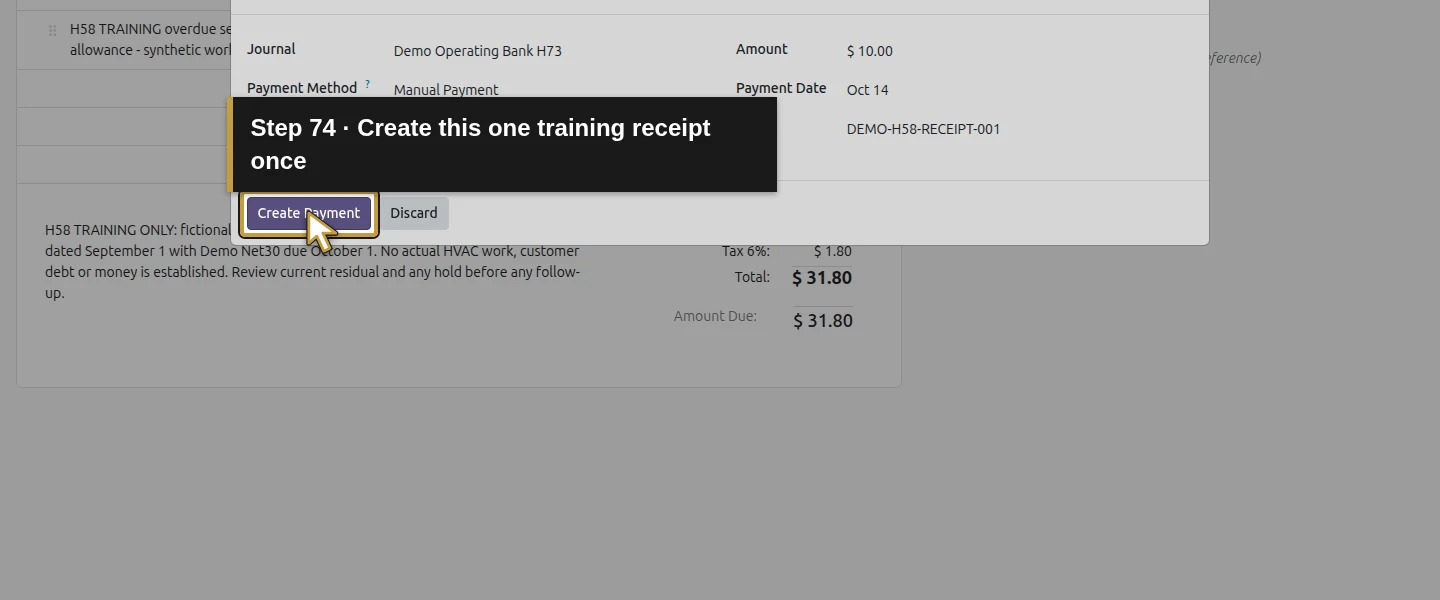
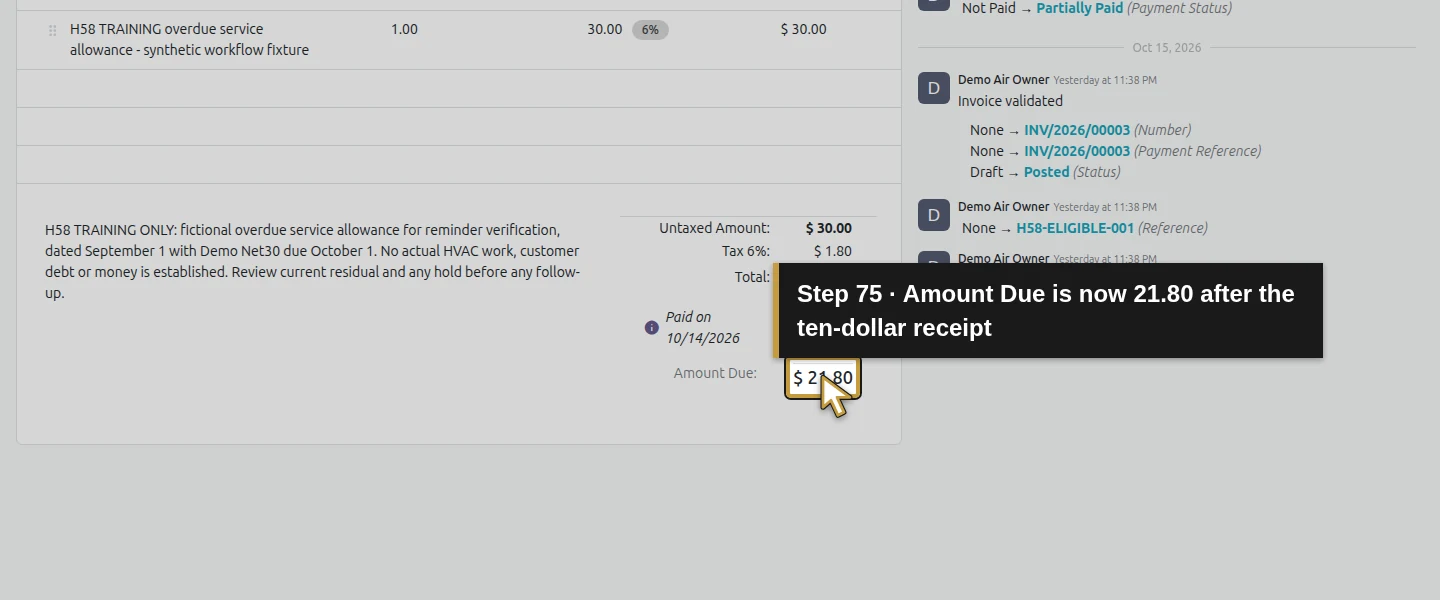
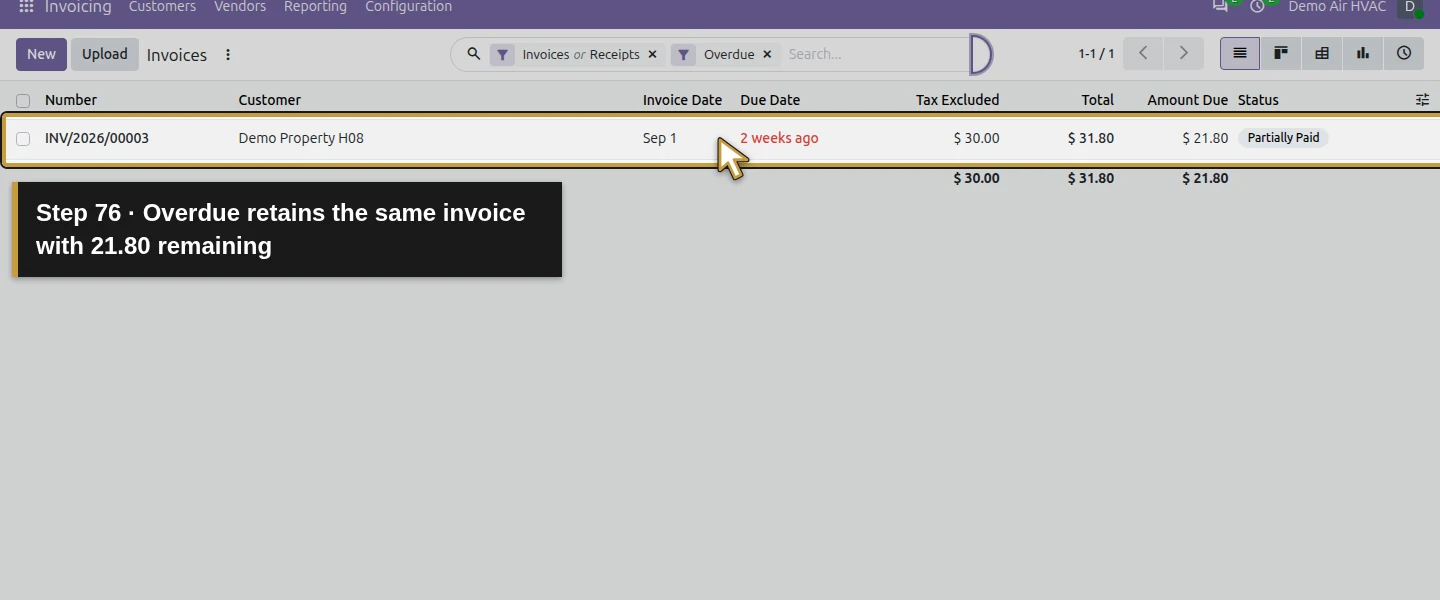
Using How do I record full or partial customer payments in Odoo?, independently confirm the actual receipt before recording it. The synthetic input here is $10 dated October 14, reference DEMO-H58-RECEIPT-001. On the eligible invoice click Pay, verify Demo Operating Bank H73, Manual Payment and the date, set Amount 10.00, enter the memo and use Create Payment once. The invoice becomes Partially Paid, with $10 recorded and $21.80 Amount Due. The Overdue list retains it with that remaining balance. A further native scheduler run retains the same open review activity.
Step 7. Review the actual email composer before sending
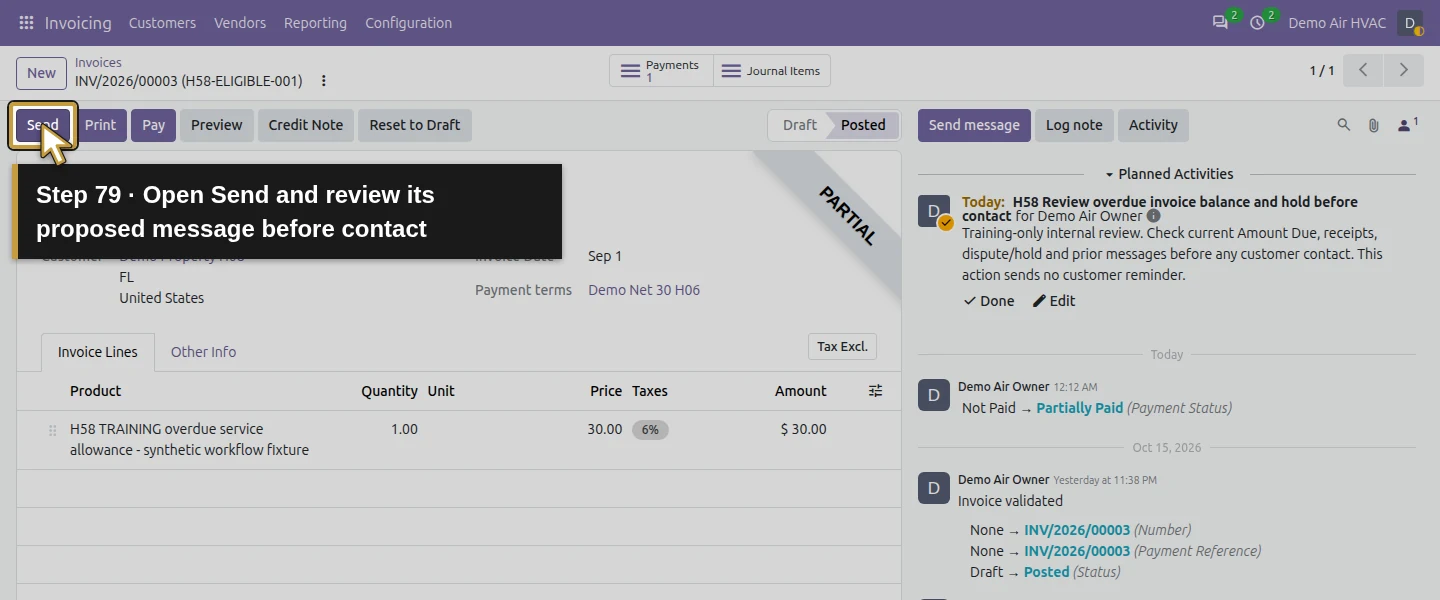
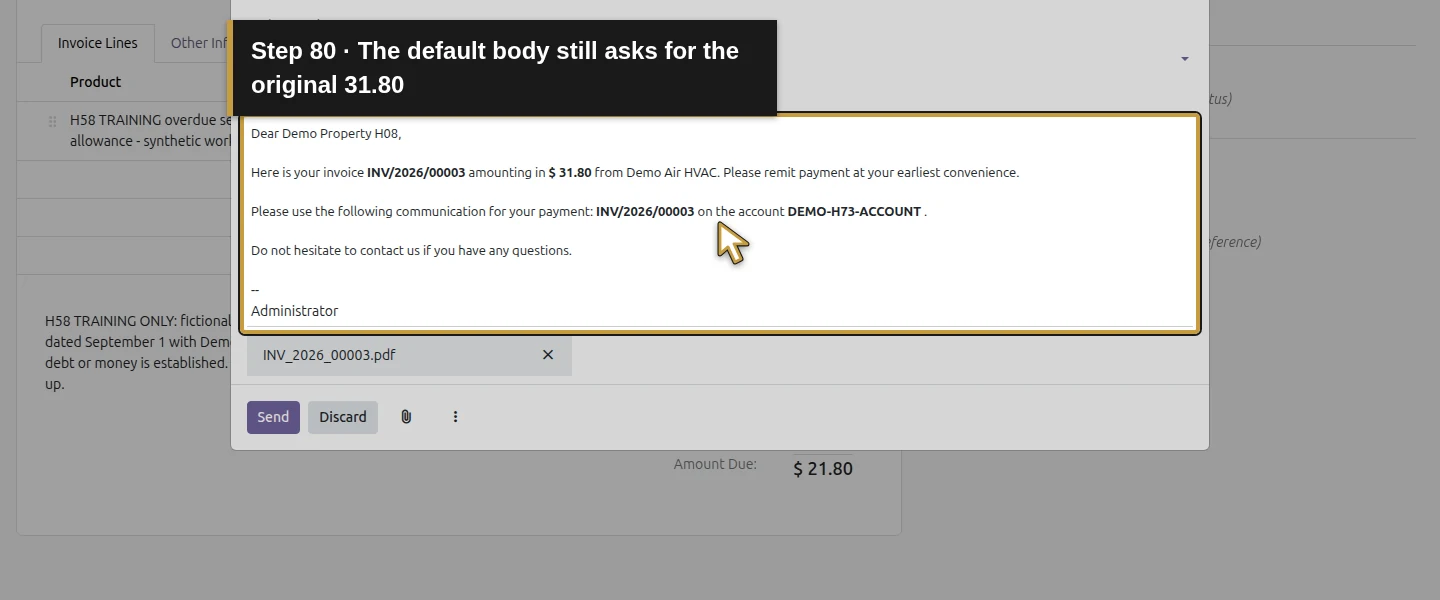
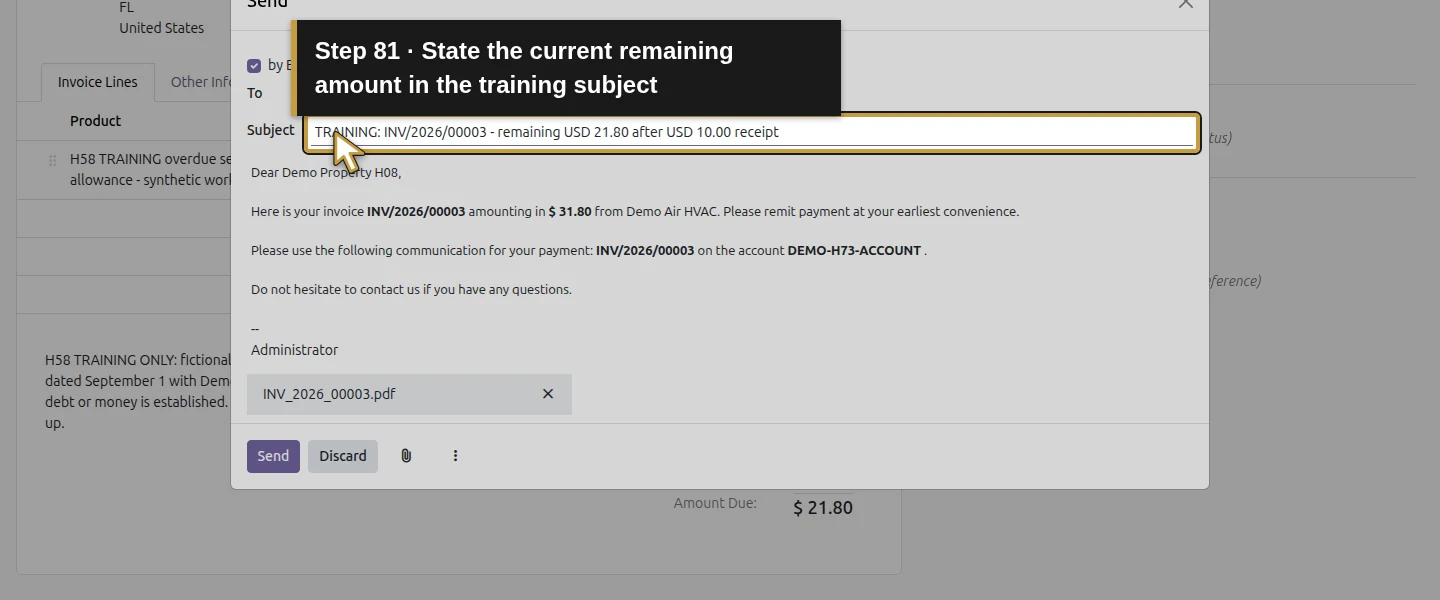
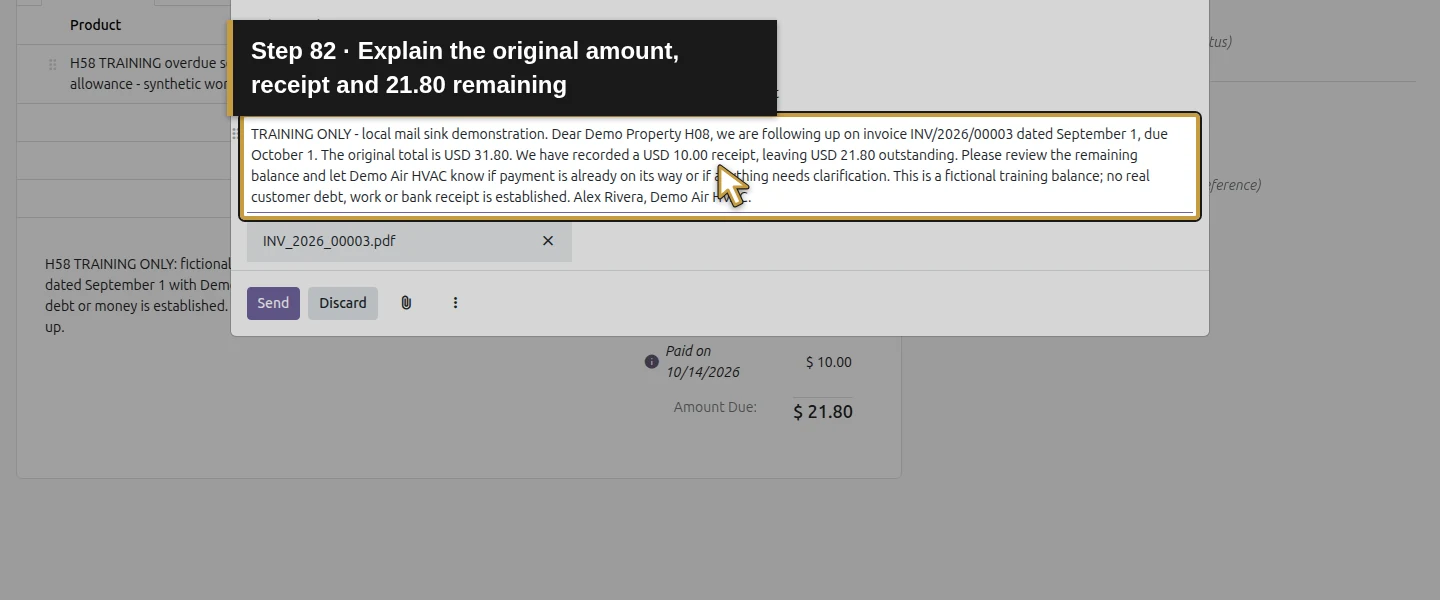
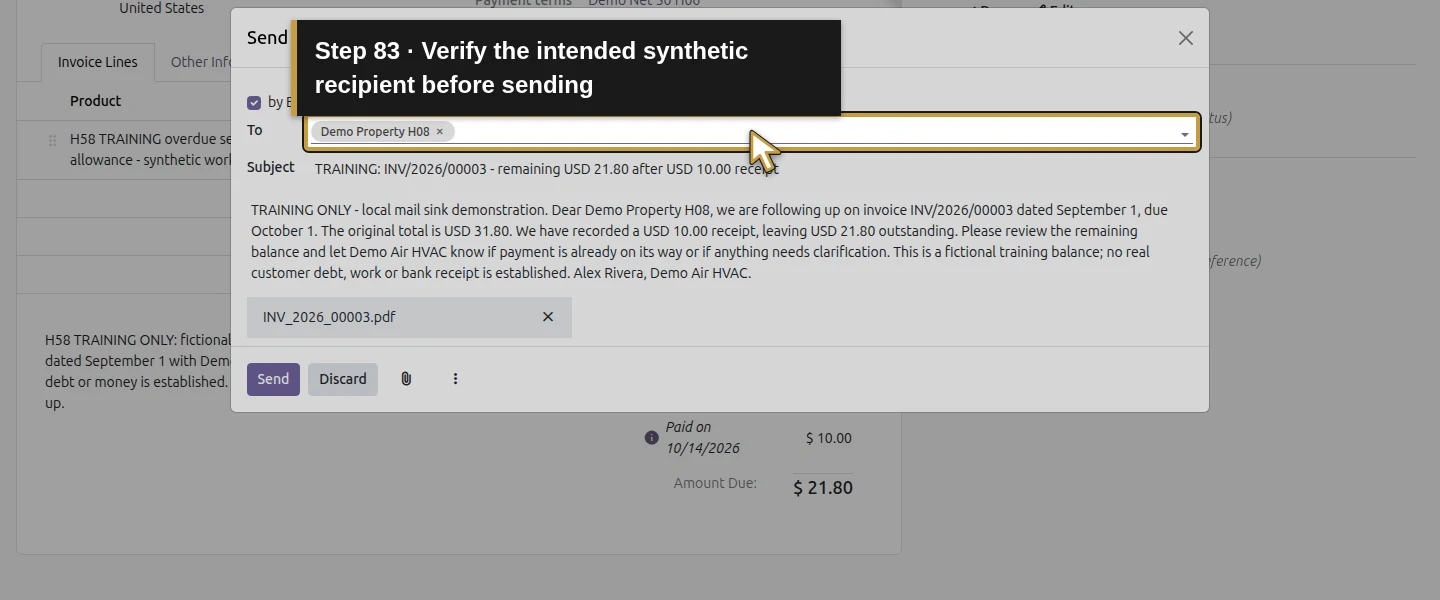
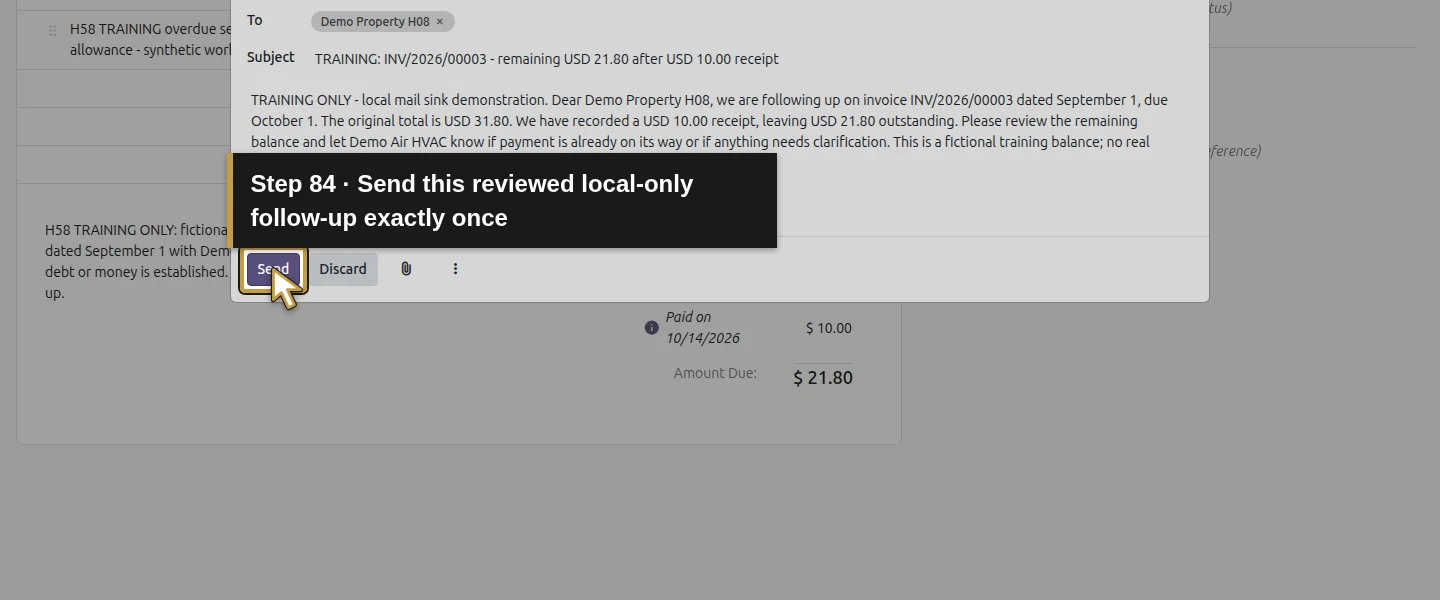
On this partially paid invoice, click Send. The dialog has by Email checked, the existing Demo Property H08 recipient, Subject and an invoice PDF attachment placeholder. Its default body still describes the original $31.80 invoice and requests payment. Edit the Subject and body to state the correct current facts: invoice INV/2026/00003, September 1 date, October 1 due date, $31.80 original total, $10 received and $21.80 remaining. Ask the customer to clarify any payment in transit or question. Verify recipient and balance again. The training message is explicitly labelled TRAINING and uses the local sink.
Step 8. Send once and verify the received message and attachment
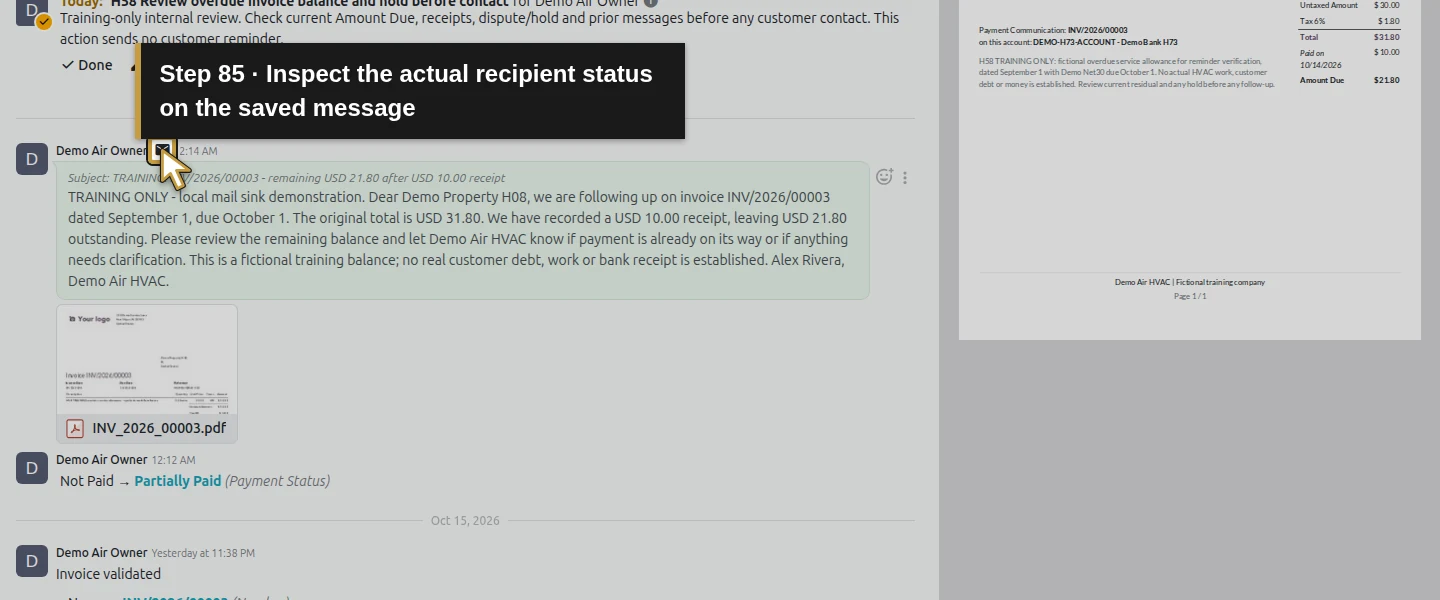
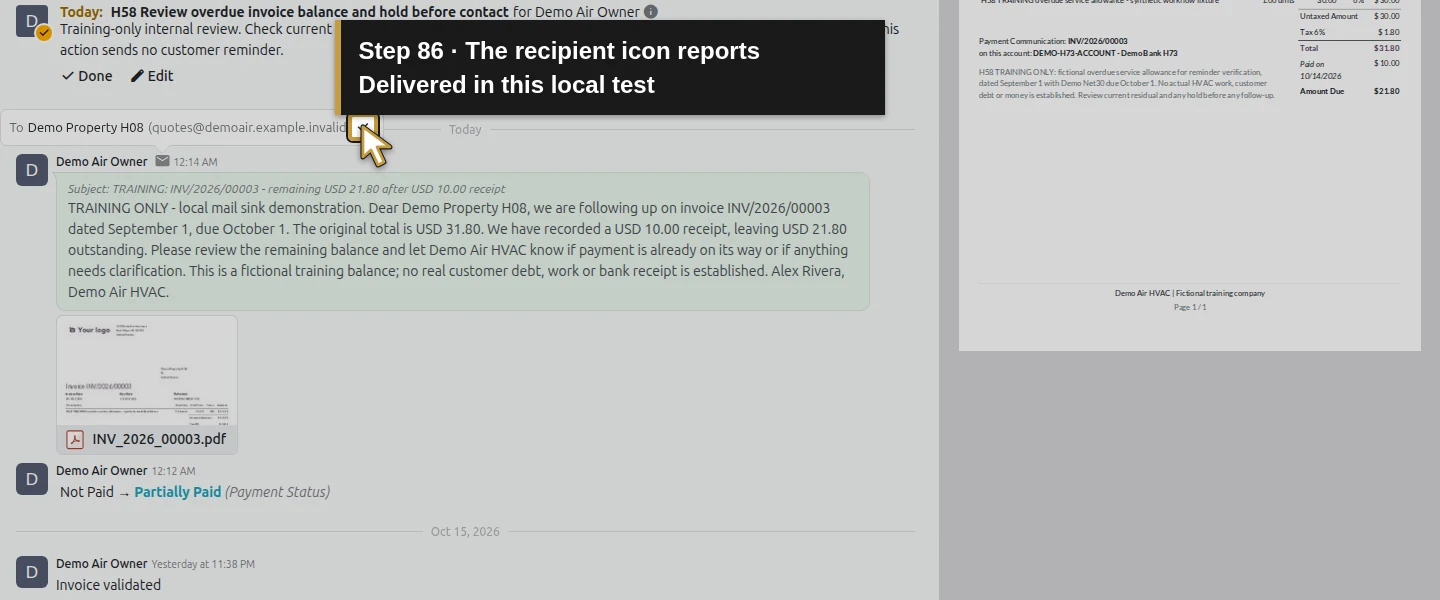
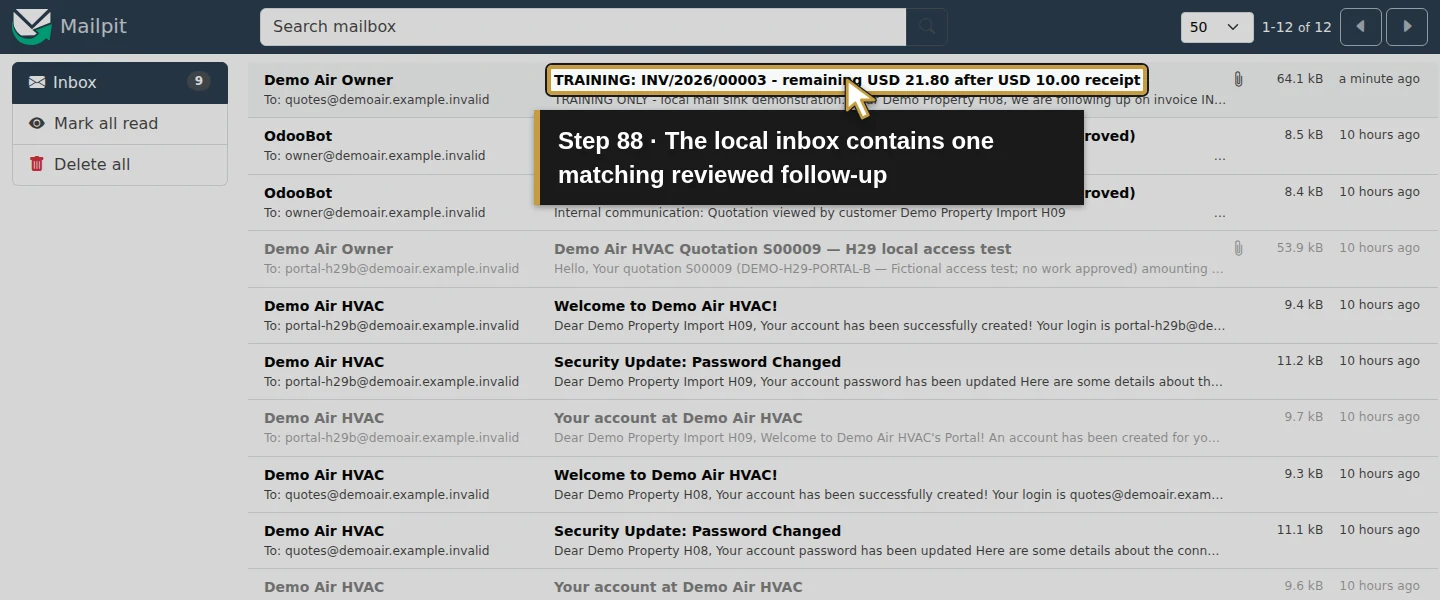
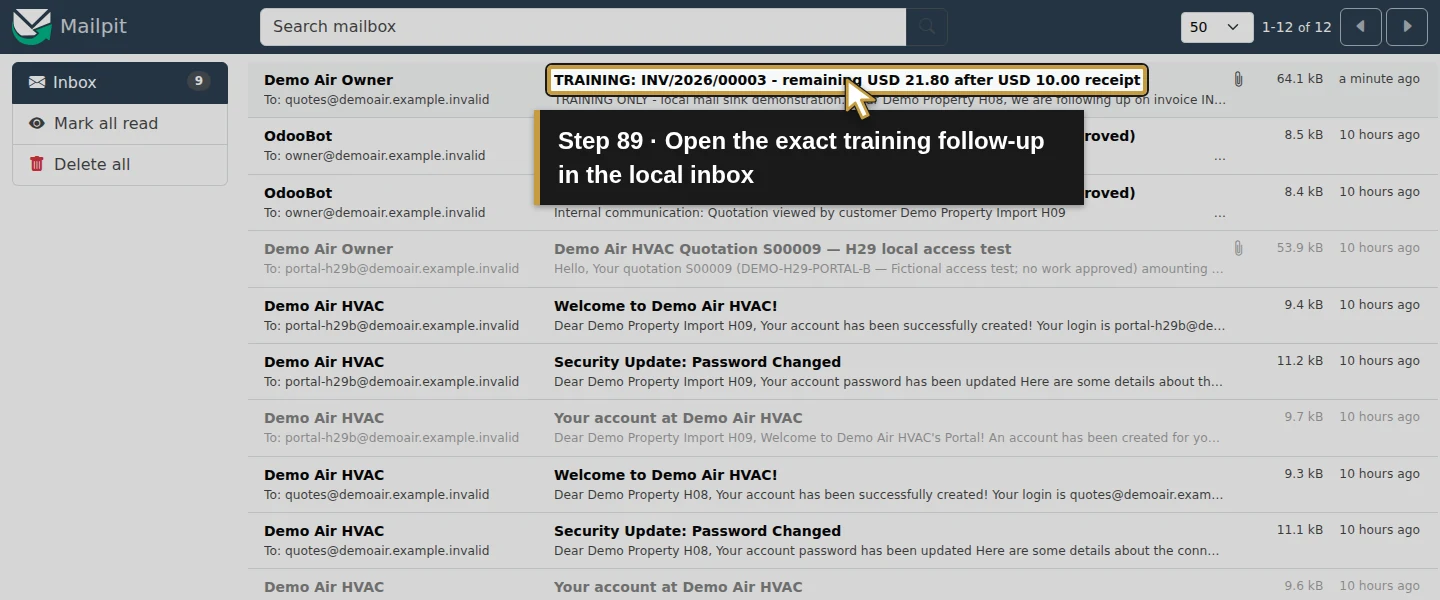
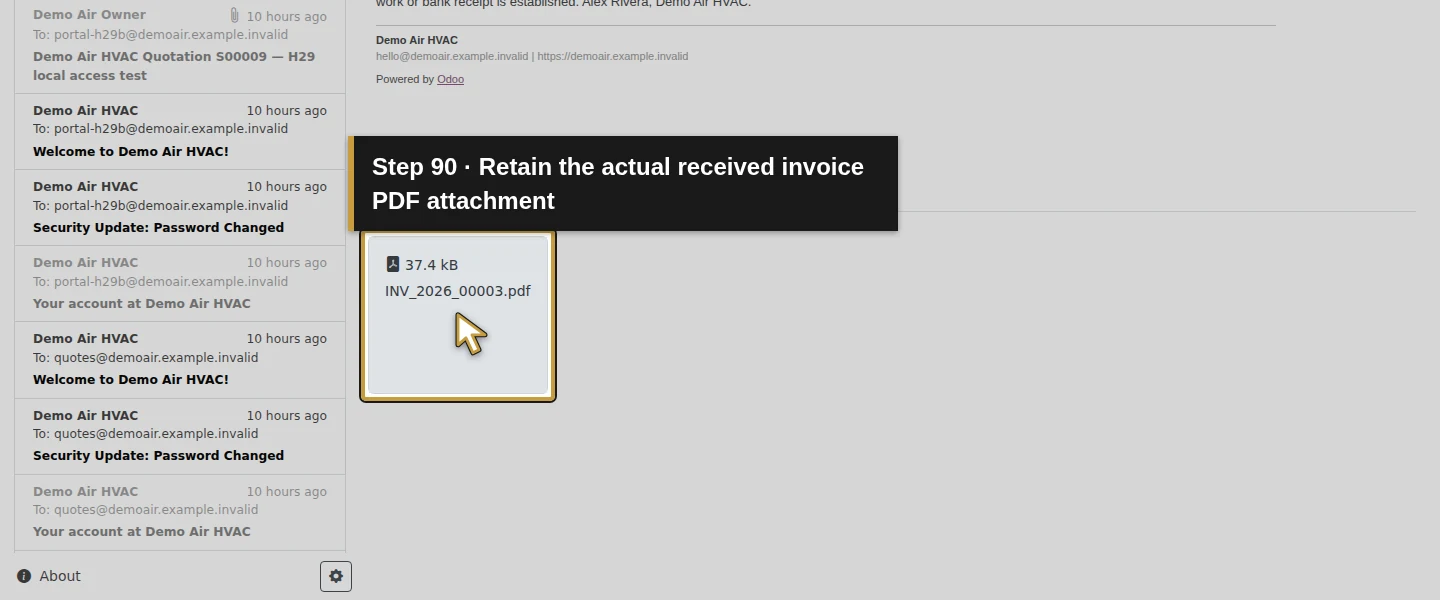
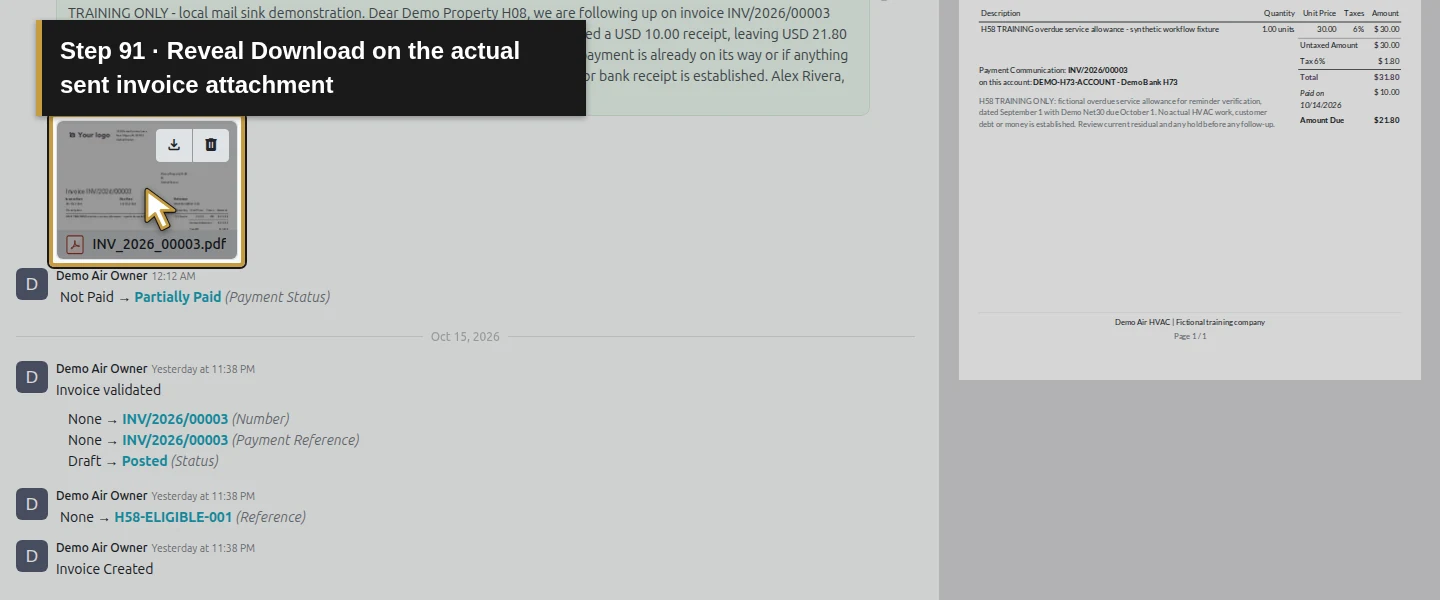
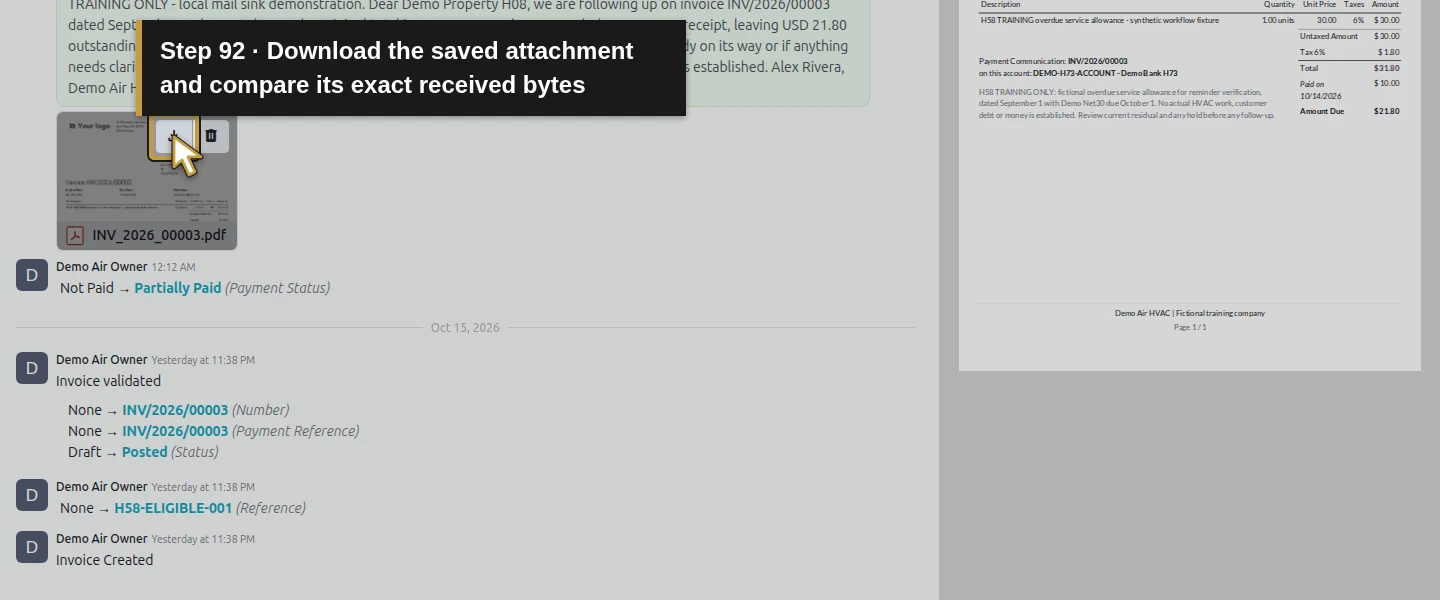
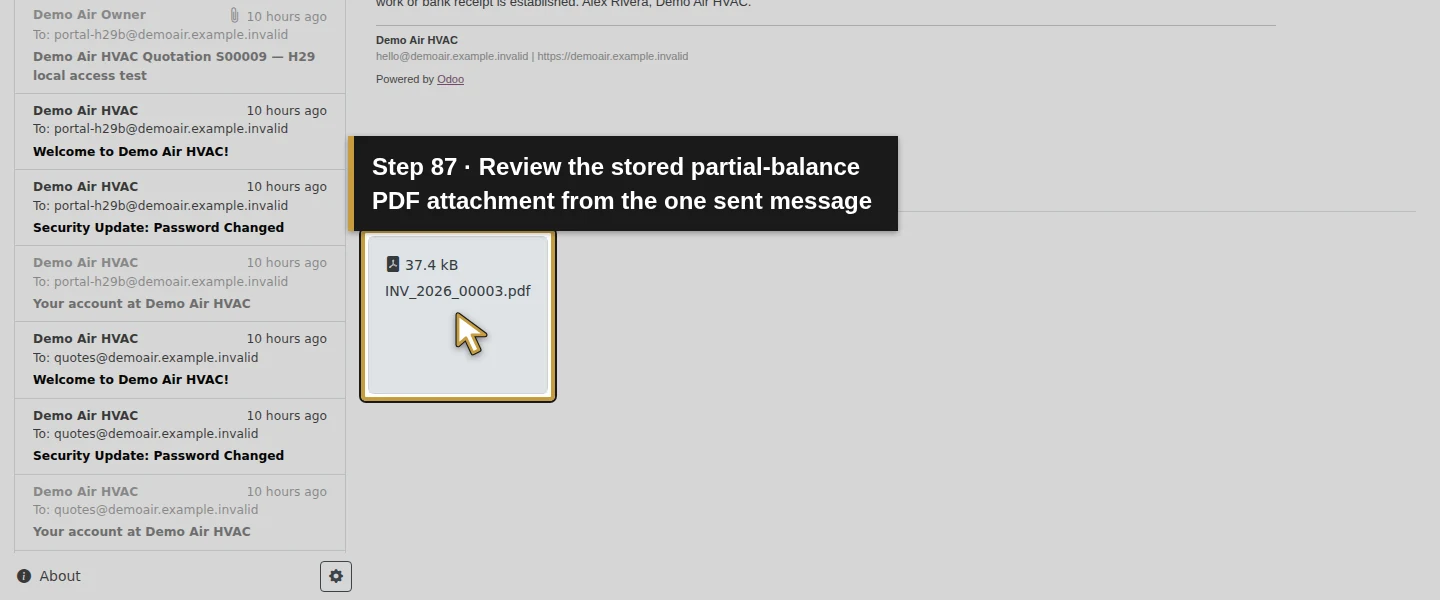
Click the dialog’s Send once and wait for it to close. Check the linked chatter message and recipient details; this test shows Delivered in the recipient popover and a sent notification. The envelope control’s accessible label says Delivery failure even here, so inspect the actual recipient status. Mailpit receives exactly one customer follow-up. Open the actual attached INV_2026_00003.pdf or use its Download control. The received and native-downloaded copies match; the one-page invoice shows September 1, October 1, $31.80 total, a $10 paid row and $21.80 Amount Due, with the configured placeholder logo and fictional-company footer. The sent PDF is a snapshot of that partial balance.
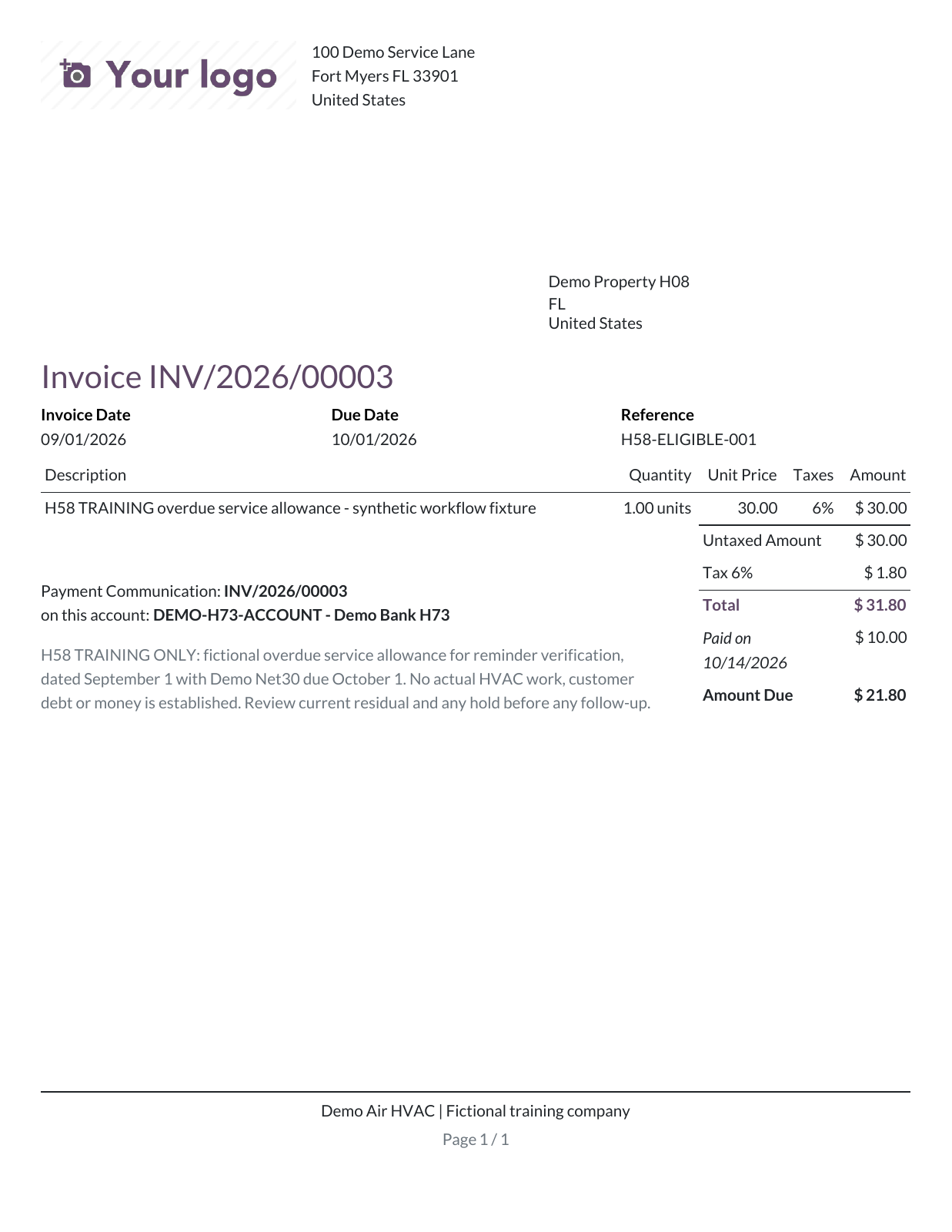
Example invoice after a partial payment
This fictional example is the one-page invoice PDF attached to the reminder in Step 8. It shows the original $31.80 total, the $10 payment recorded on October 14, and $21.80 still due. Its invoice due date is October 1. This saved attachment is a snapshot of the partial balance; the later final payment in Step 9 does not rewrite it.
Download the example invoice (PDF, 1 page)
Step 9. Stop follow-up after final settlement and close the review
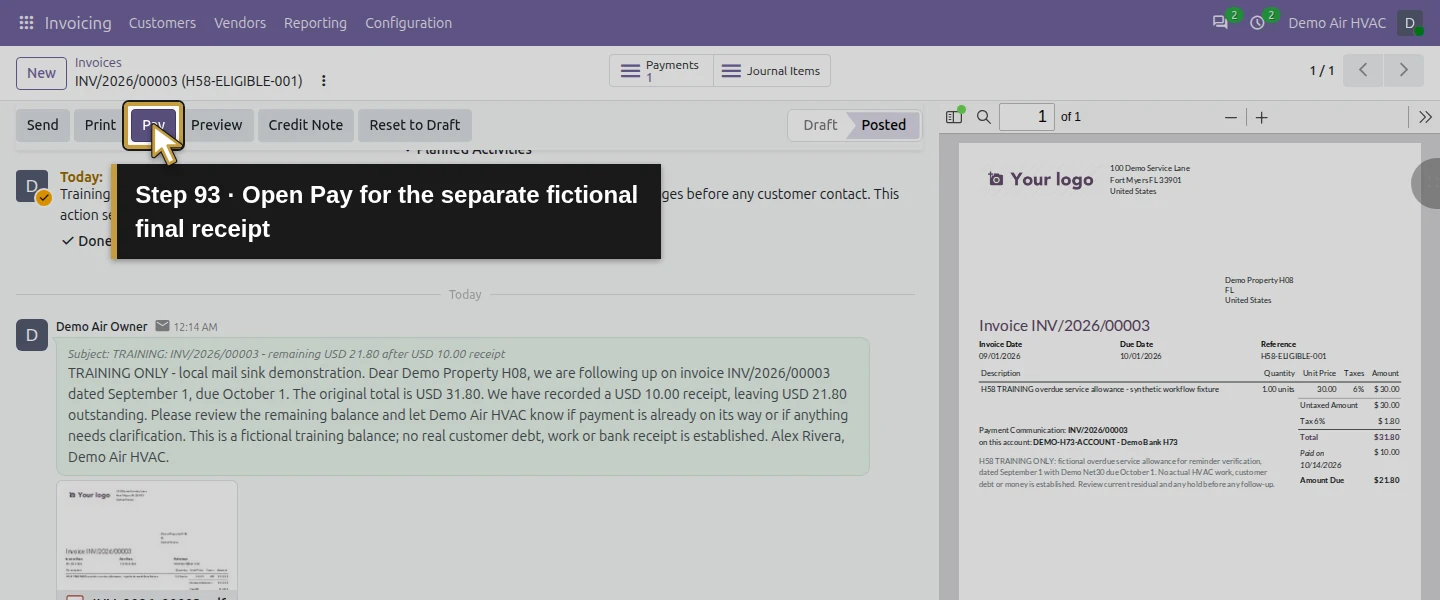
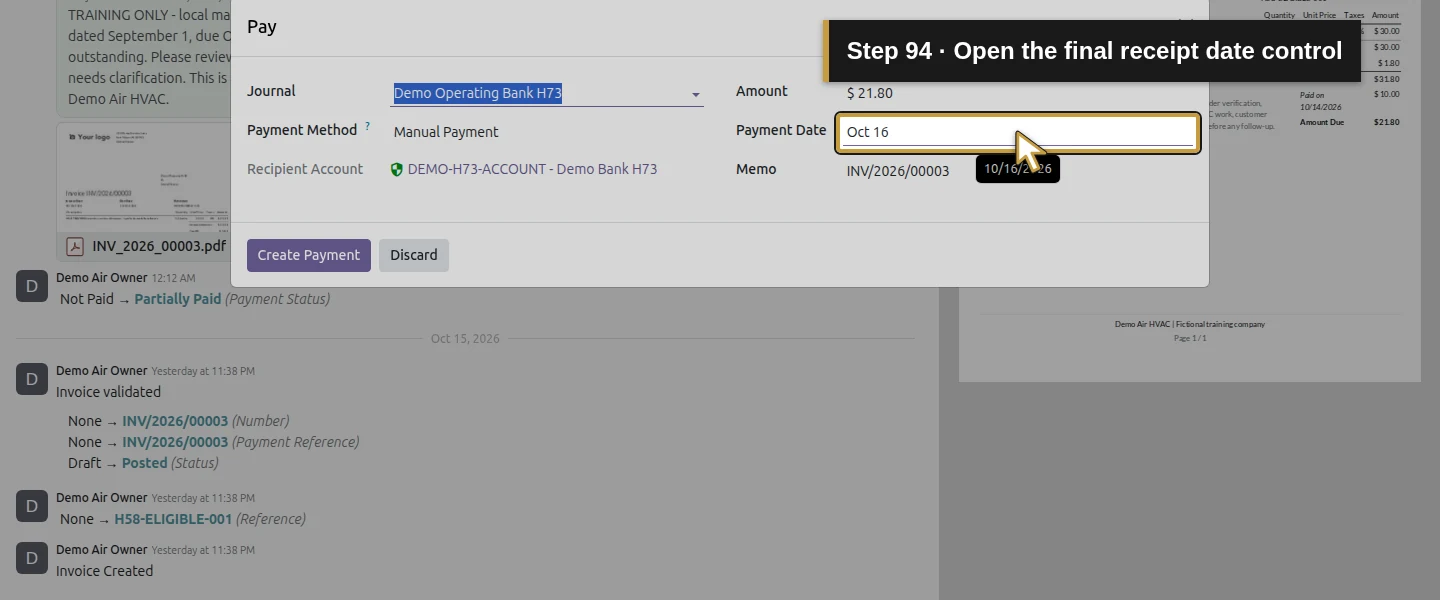
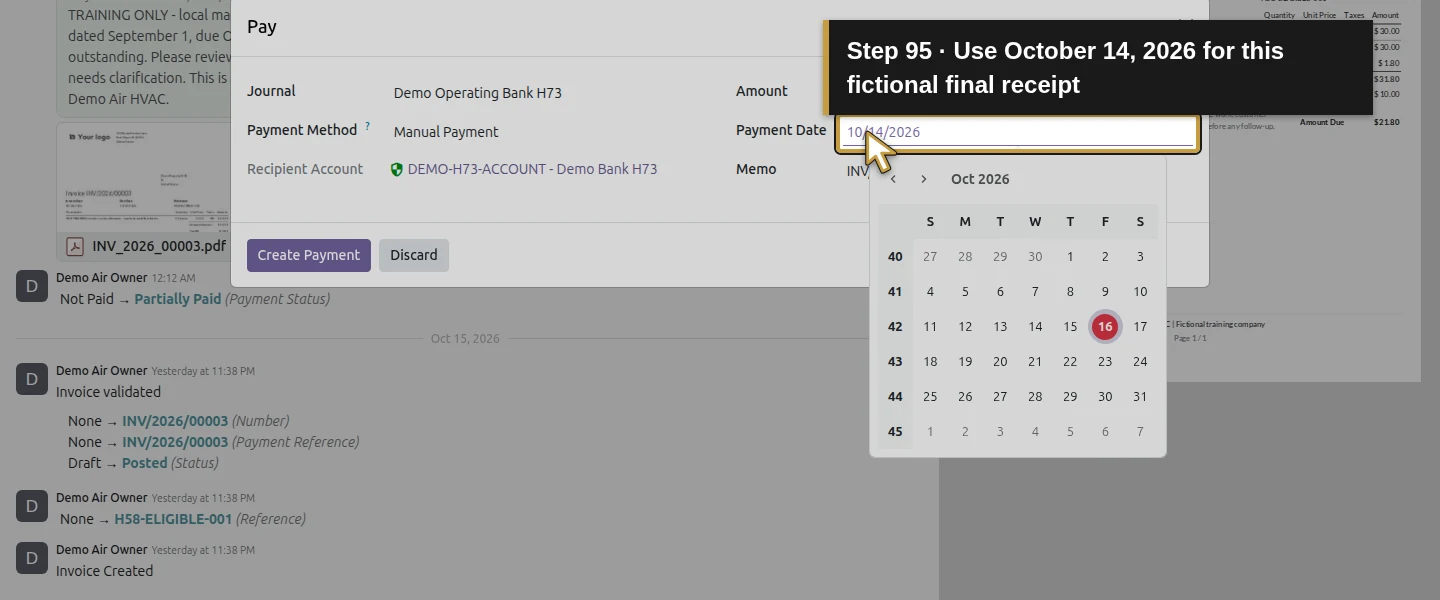
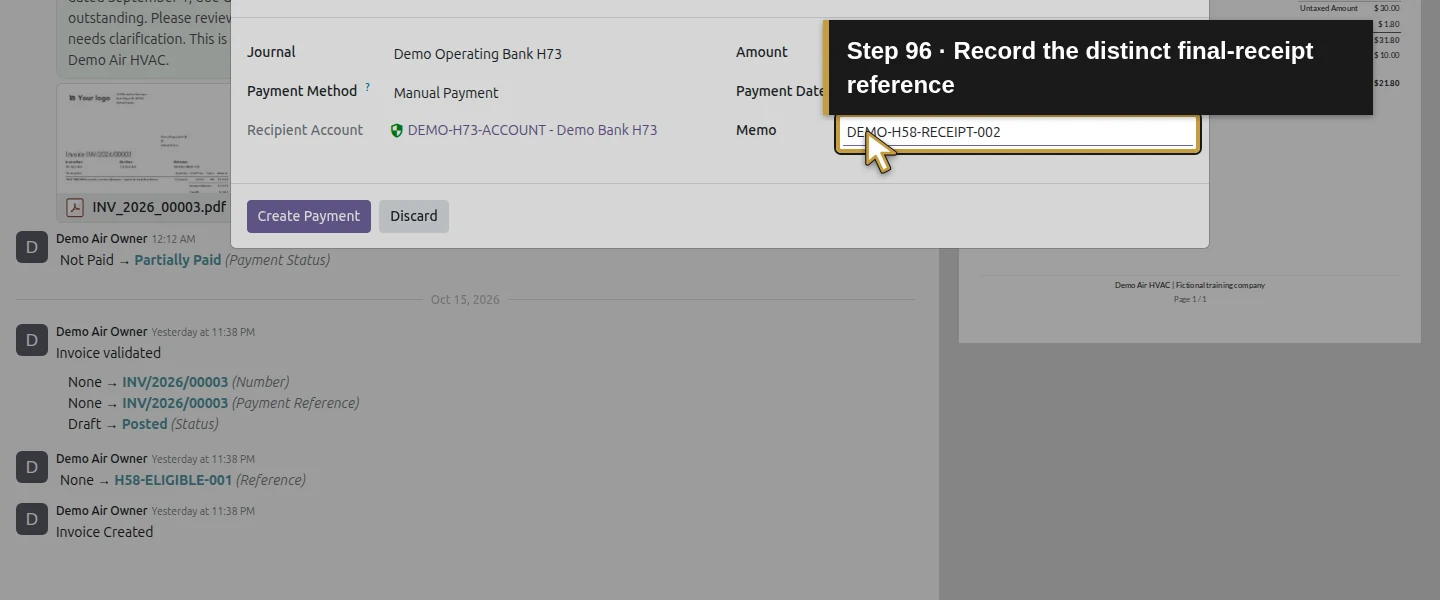
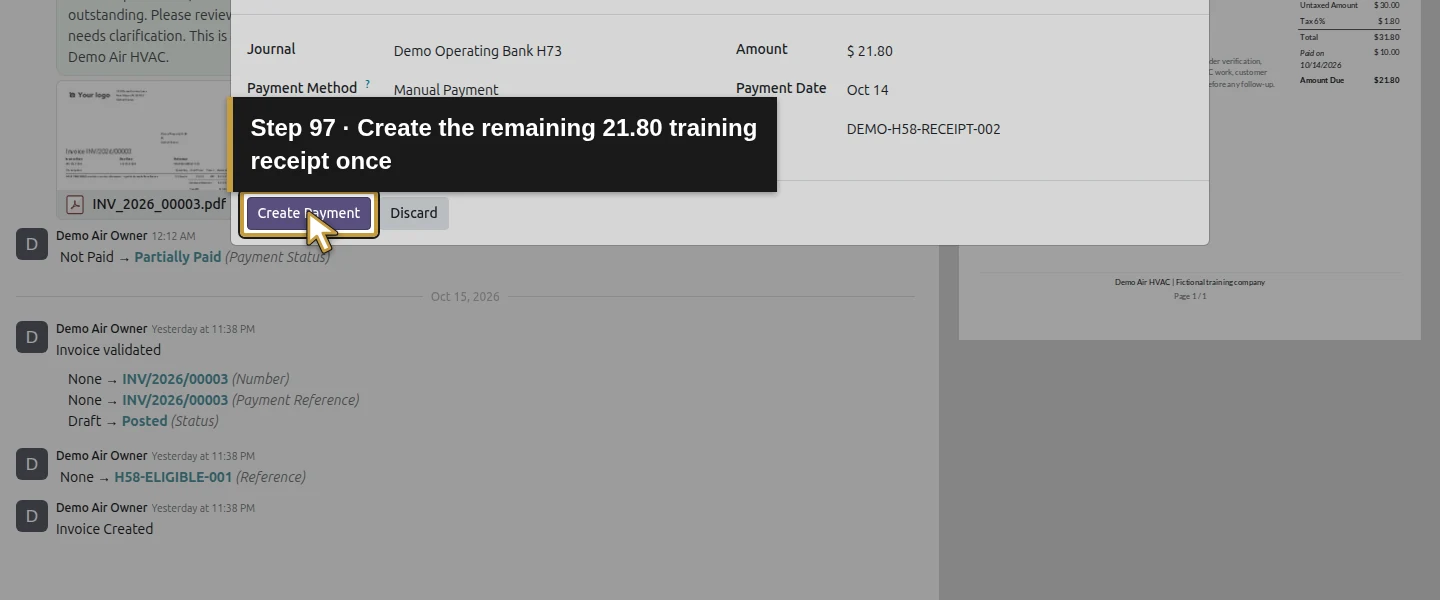
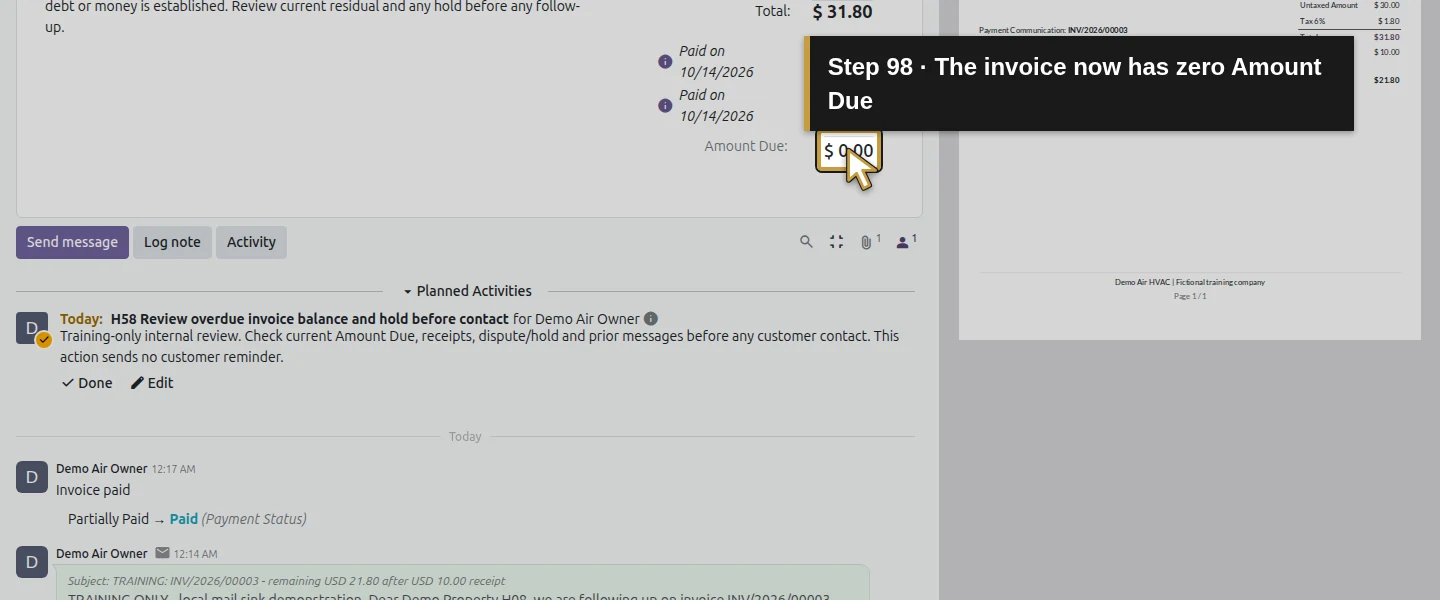
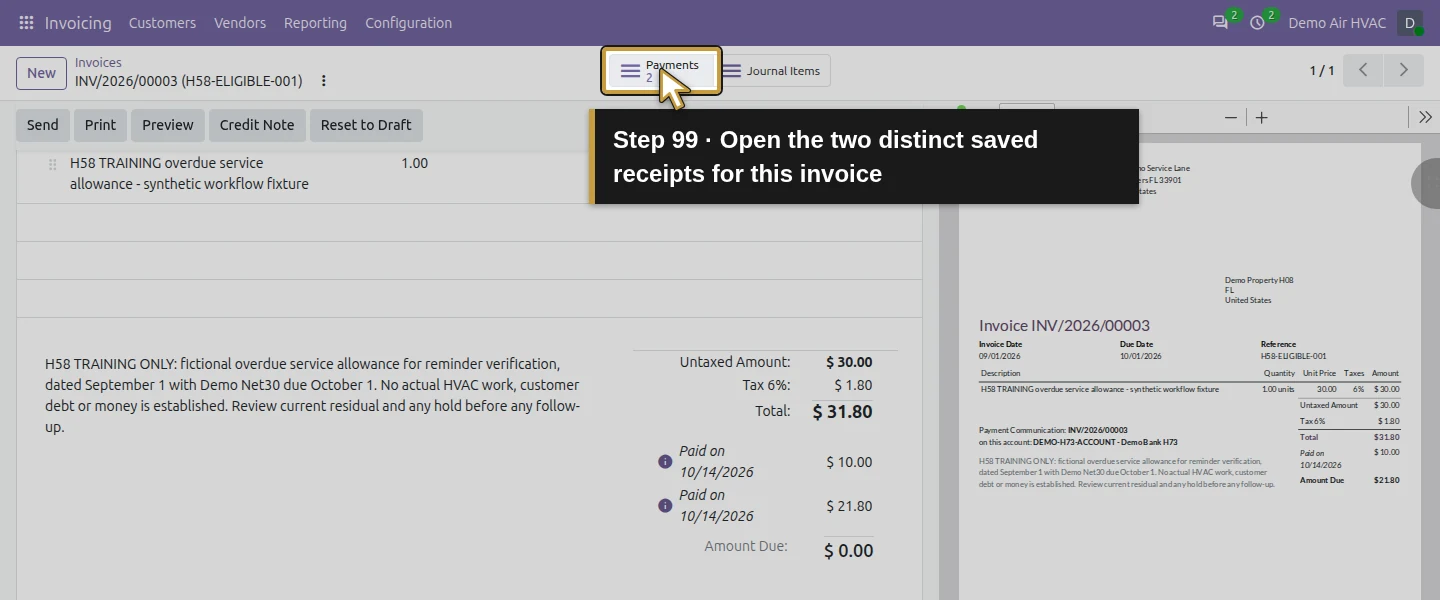
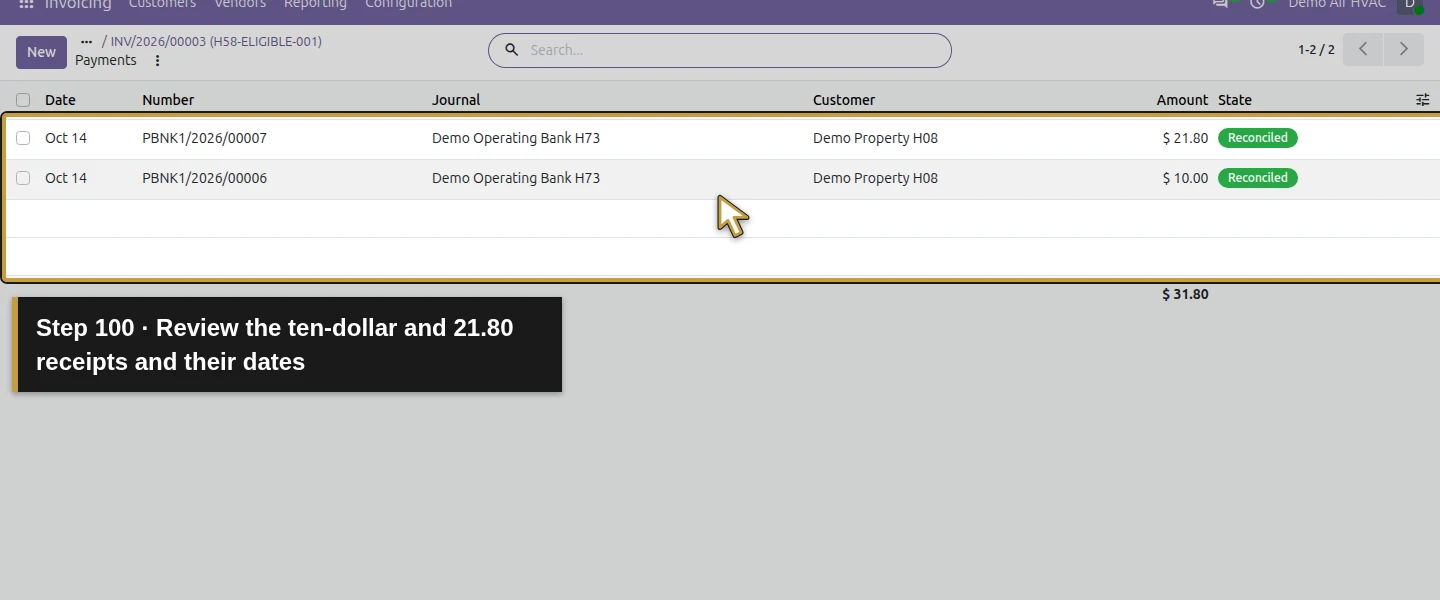
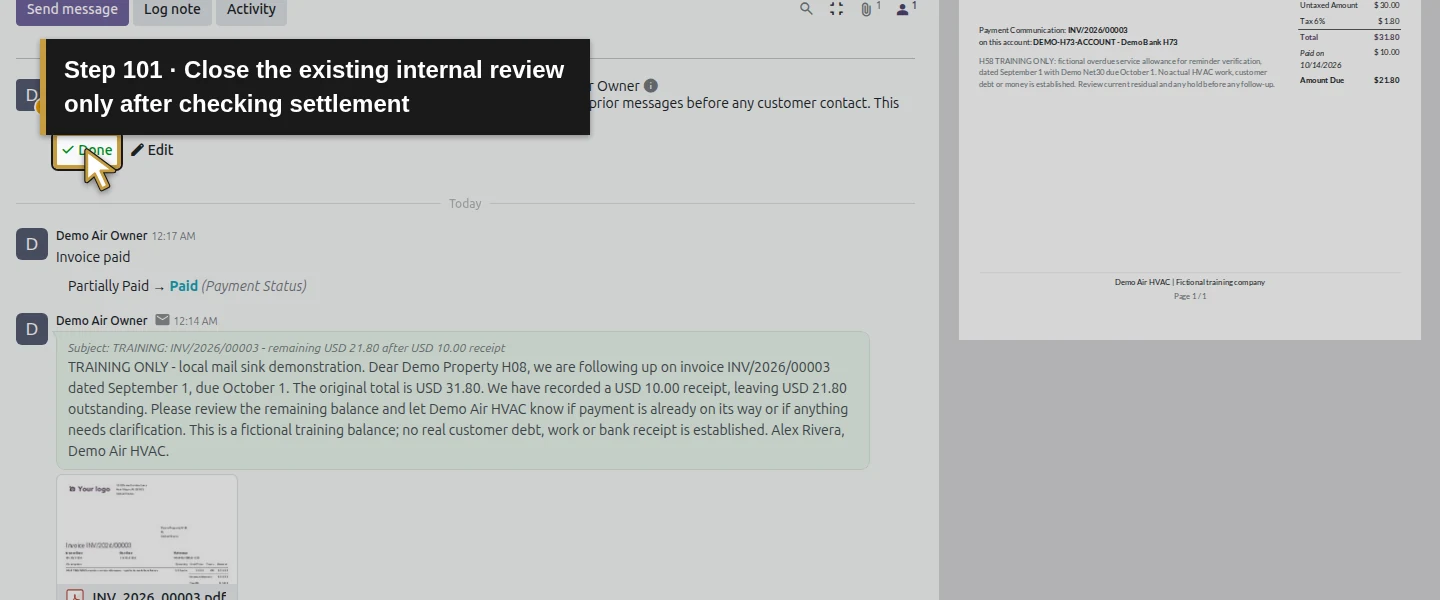
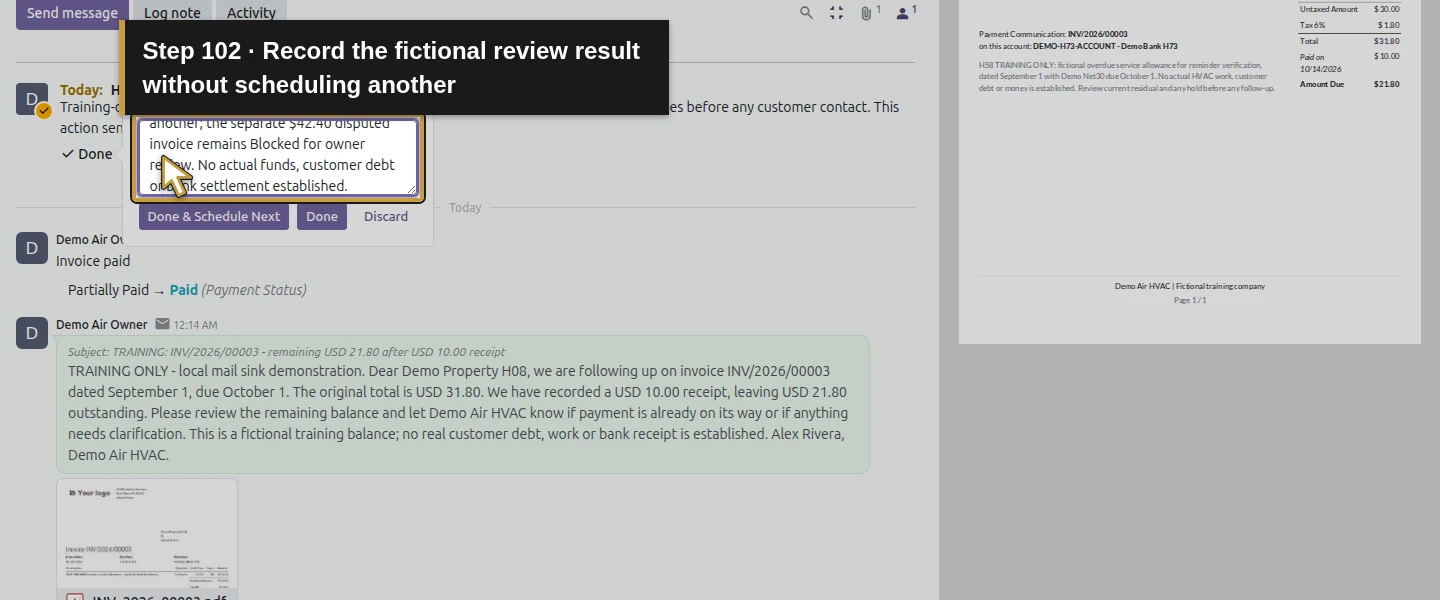
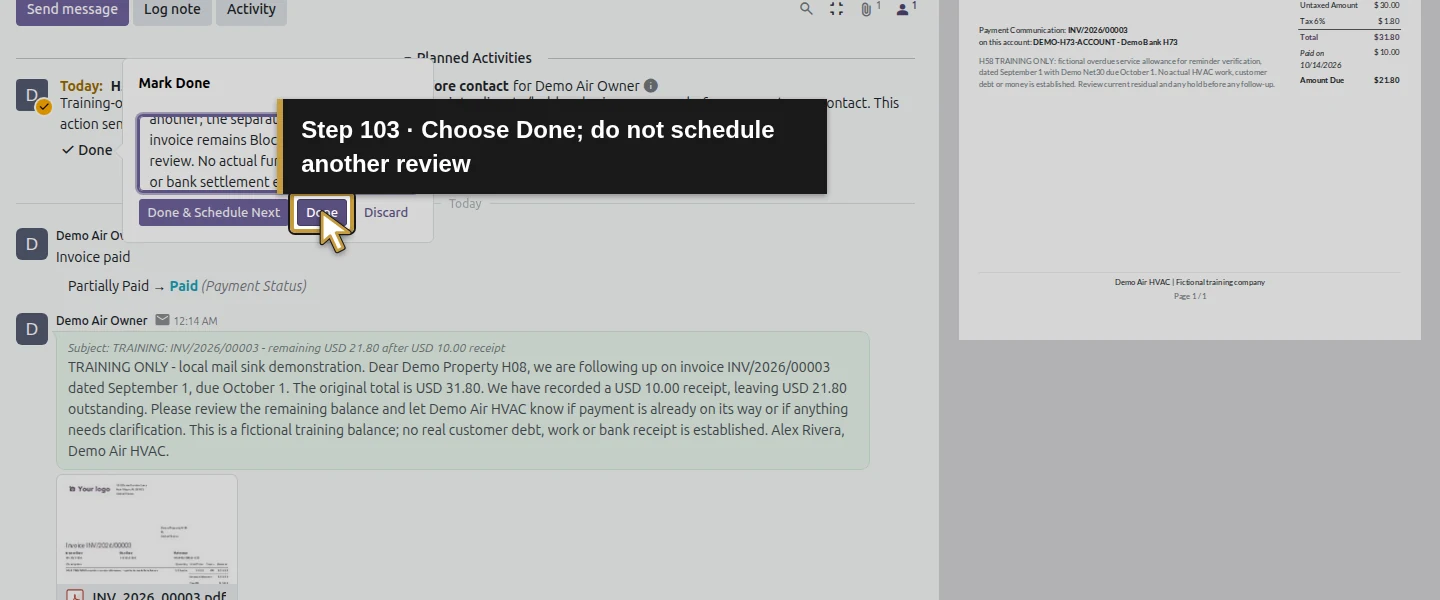
The separate synthetic final receipt is $21.80, October 14, memo DEMO-H58-RECEIPT-002. After actual confirmation in a real case, use Pay → Create Payment with the remaining amount once. Reopen the invoice: it is Paid, Amount Due is $0, and 2 Payments links to the two receipts. Its review activity remains open until the owner reviews it and clicks Done, enters Write Feedback, and chooses Done rather than Done and Schedule Next. Another selected scheduler run creates no new invoice activity. This is a checked stop case, not proof of every future schedule or simultaneous event.
Step 10. Retain the disputed review and retire the test rule
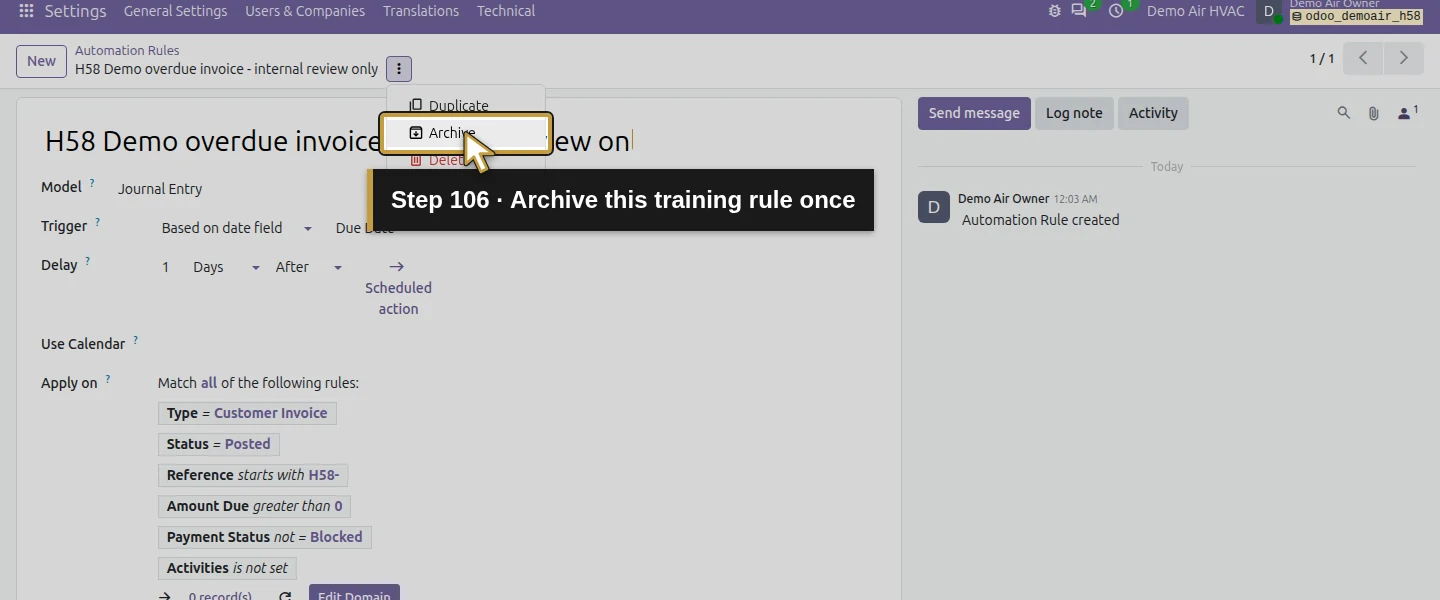
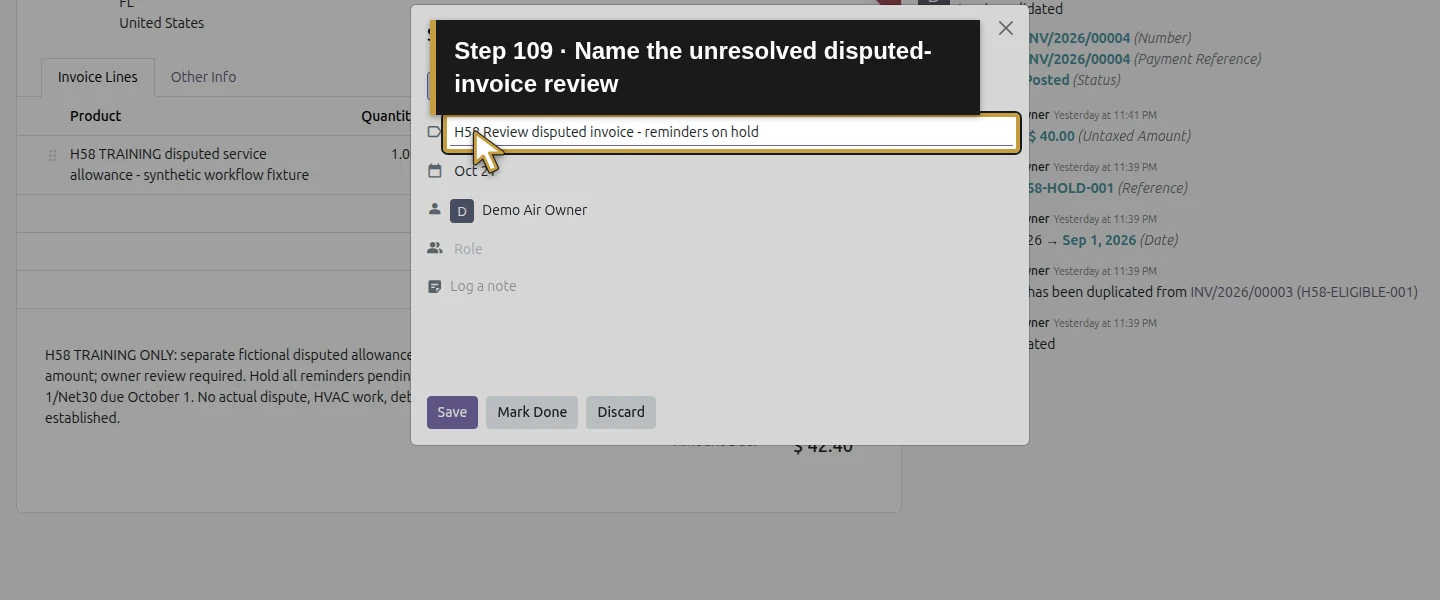
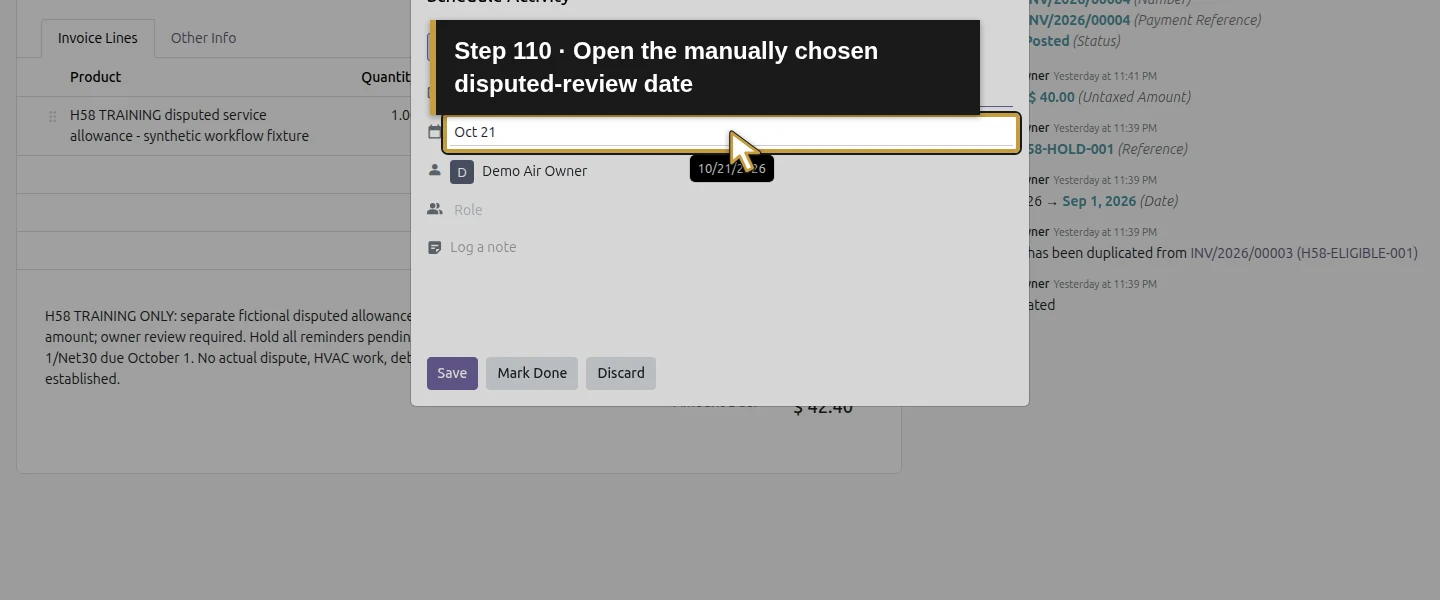
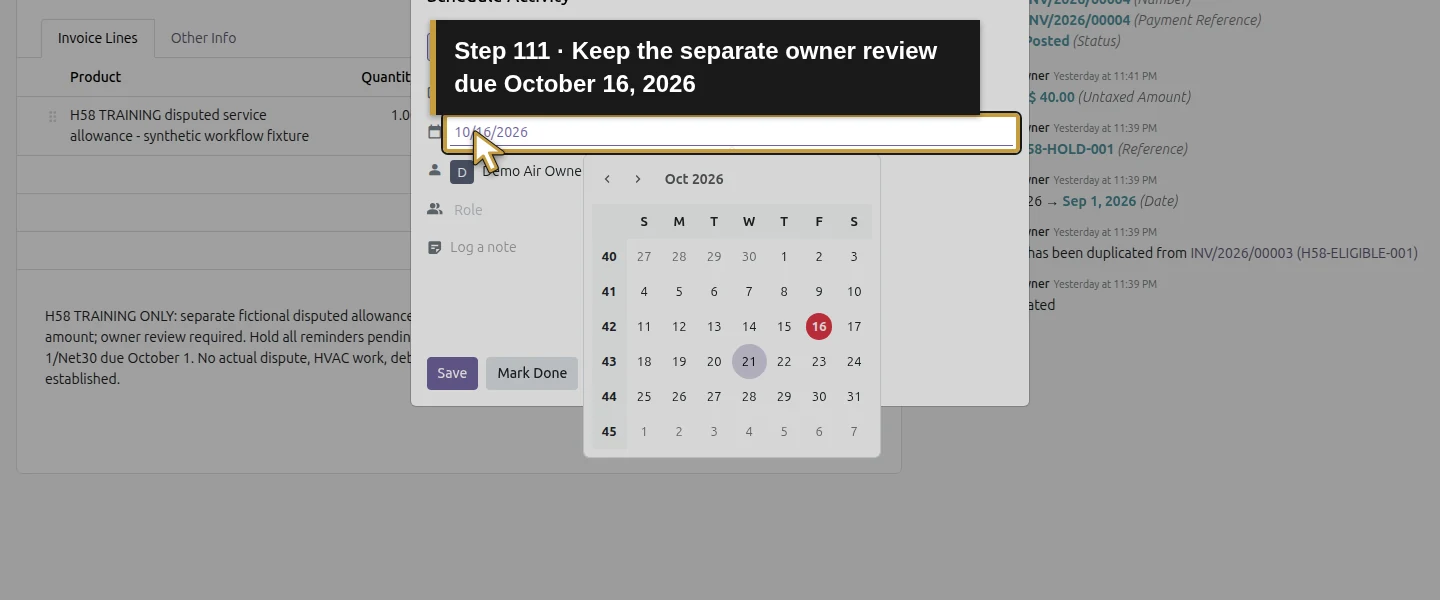
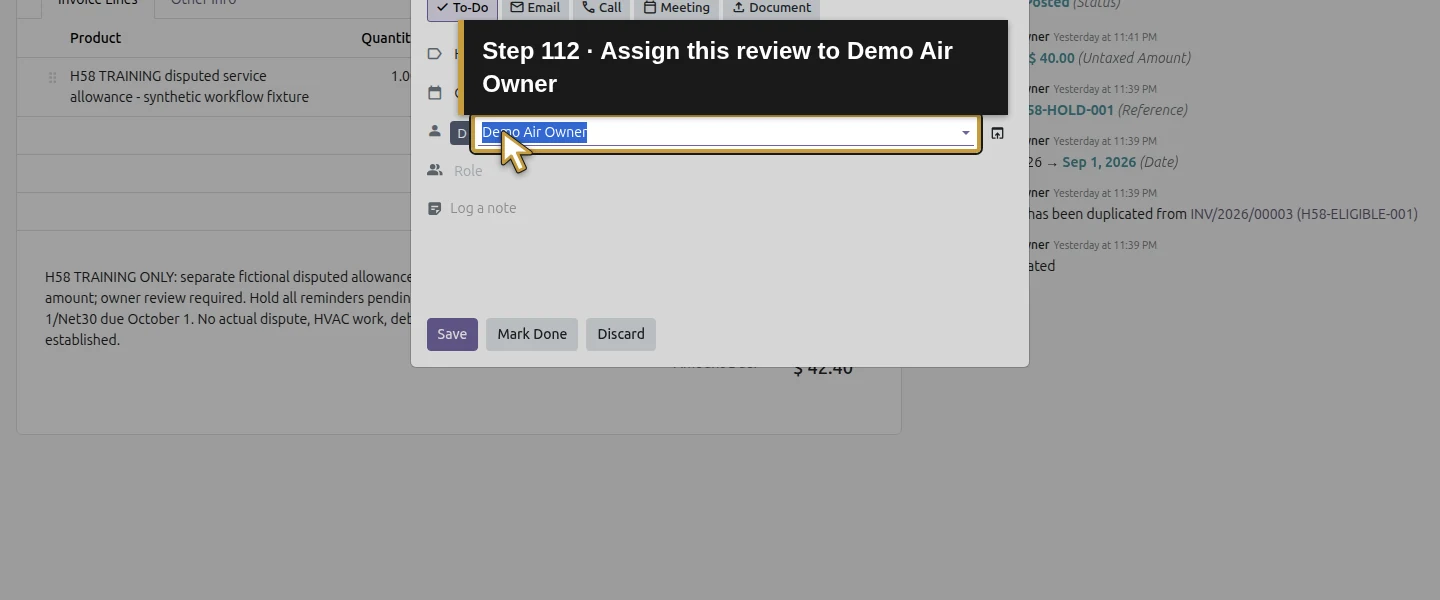
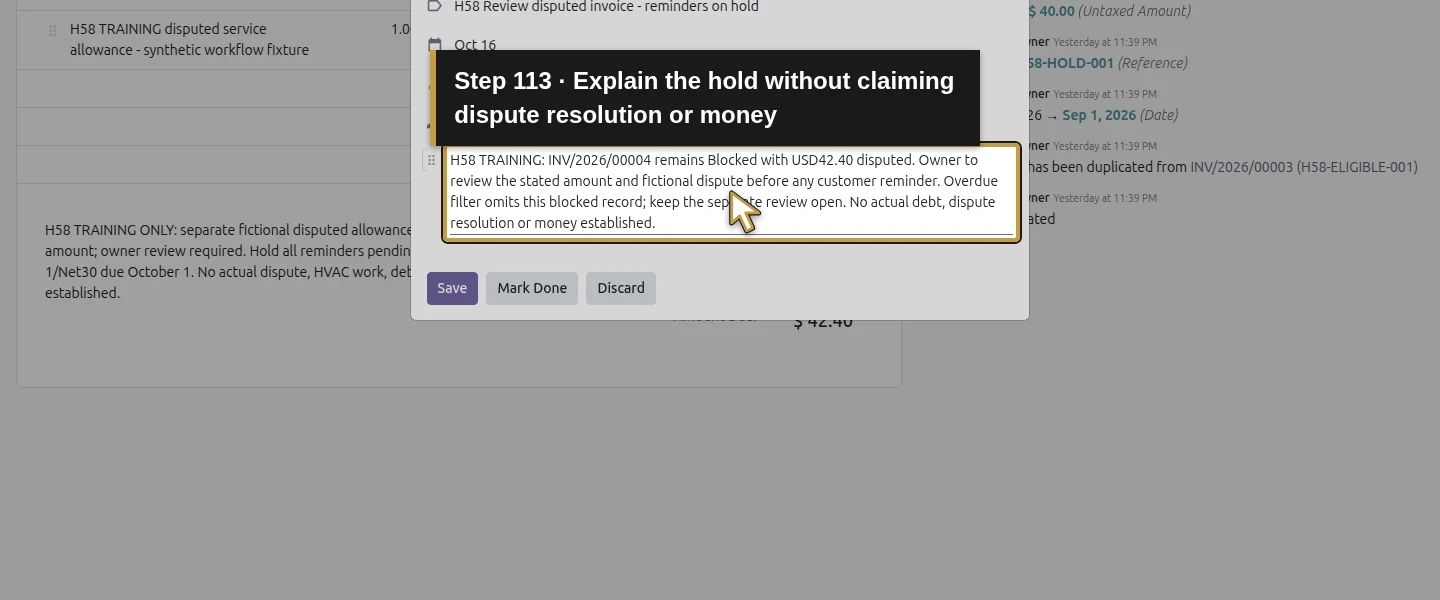
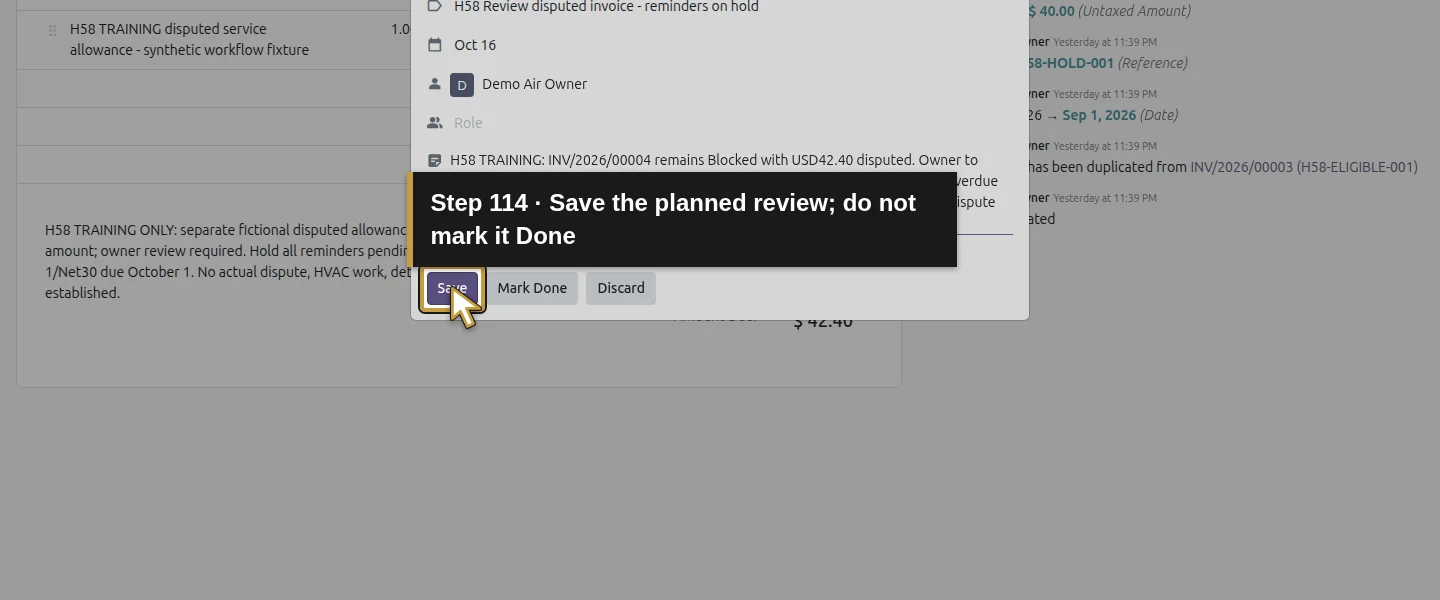
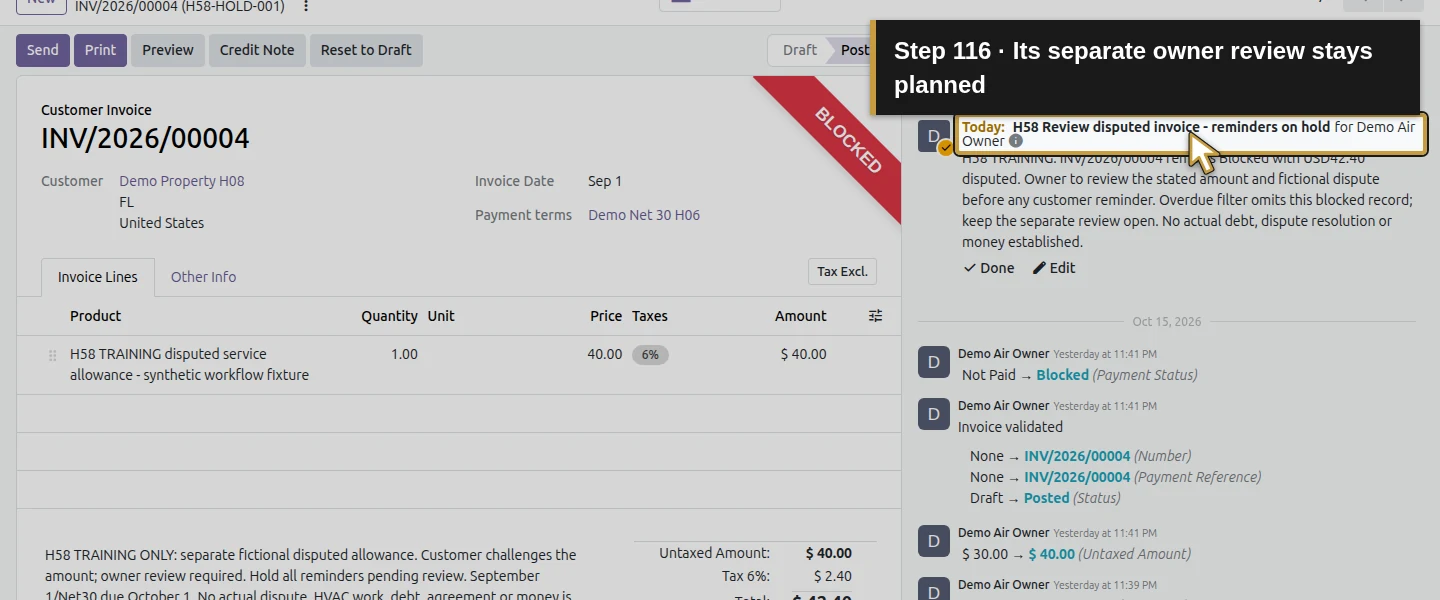
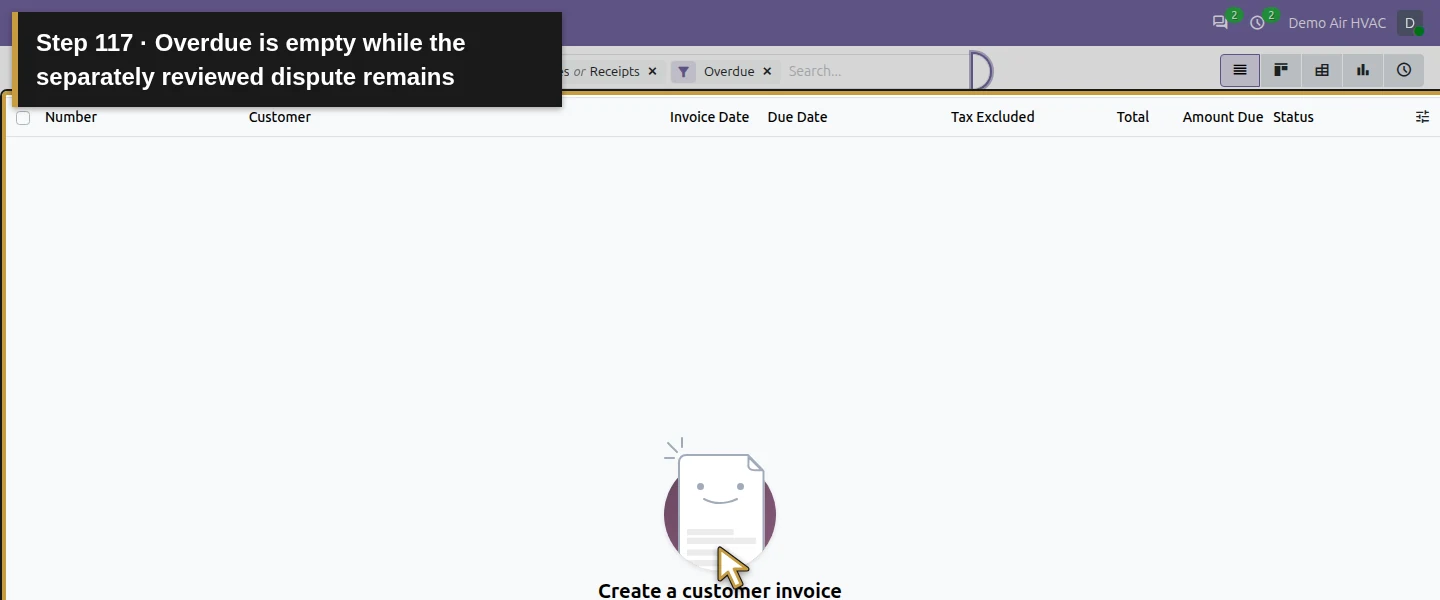
Return to the same Automation Rule and use Actions menu → Archive, confirming Archive. The rule becomes inactive; with no other active timed rule, its shipped scheduler also becomes inactive in this runtime. On the blocked INV/2026/00004, click Activity, retain To-Do, enter H58 Review disputed invoice - reminders on hold, choose owner Demo Air Owner and Due on October 16, add the hold context and click Save. Reopen to verify the planned review and unchanged $42.40 blocked balance. Finally apply Overdue again: it is empty, while the blocked invoice remains in the general invoice list with its review task. Empty Overdue does not mean all disputes are resolved.
Check the result
One native due-date rule created one internal review activity for the eligible overdue invoice and excluded the blocked dispute. Two repeat runs, including a partial-balance run, retained the same open activity. One manually edited customer follow-up reached the local sink at the correct $21.80 remaining balance; its actual PDF matched the native download and showed the partial receipt. Final synthetic settlement cleared the invoice to Paid/$0, manual Done retained feedback, and another scheduler run created none. The rule is archived. The $42.40 disputed invoice stays Blocked with a separate planned owner review due October 16. Earlier payments/invoice balances and the existing bank-review task are preserved.
If your screen differs
This installation did not demonstrate an installed automatic customer-dunning workflow. Its native invoice sending job is not proof of overdue follow-up. This guide verifies a predefined internal activity rule through four selected Run Manually executions and one reviewed customer email; unattended scheduling, automatic reminder emails and repeated daily/weekly campaigns remain untested. The due-date window, any-open-activity guard and blocked status all affect eligibility. A later unblock, changed due date, missed window, unrelated open activity or simultaneous event needs separate checking; no retrospective catch-up or permanent duplicate guarantee is established. The internal owner assignment email remains queued even after activity completion; settlement/Done does not retract it. Blocked still exposes Send. Two manual receipts match the invoice receivable, while $10 and $21.80 remain unmatched in Outstanding Receipts, with no Bank entry or actual money established. The earlier sent PDF retains its historical $21.80 balance after final settlement. Tax, account and dispute treatment require the business’s own review.
Frequently asked questions
Can Odoo automatically send overdue invoice reminders?
The verified native automation here creates an internal review activity from a Due Date condition. The owner checks balance and holds, edits the invoice Send dialog and sends the customer follow-up manually. Automatic customer dunning and unattended scheduler delivery were not demonstrated in this installation.How do I remind a customer about a partially paid invoice in Odoo?
Open the posted invoice and check its recorded receipts and current Amount Due. Review disputes and prior messages, then use Send and edit the subject/body to state the remaining amount. The default composer in this test still described the original $31.80; the reviewed follow-up correctly stated $10 received and $21.80 remaining. Check the actual recipient status and attachment.Why is a blocked invoice missing from Odoo overdue invoices?
The native Overdue filter in this test excluded the Blocked $42.40 invoice. It remained visible in the general invoice list, with its balance unchanged and a separate owner review activity. Keep a review path for disputed holds. The Send button remained available, so review the hold explicitly before customer contact.Continue building the business
Continue with How do I submit and approve employee expenses in Odoo?. Keep the disputed invoice review and the separate What can I do for bank reconciliation in Odoo? open until their actual evidence and decisions resolve them.
Talk about your Odoo setup
Bring your current process and the result you need to Onward to plan your Odoo workflow. Talk about your Odoo setup.