
Running an HVAC business with Odoo
How do I set up a no-code reminder rule in Odoo?
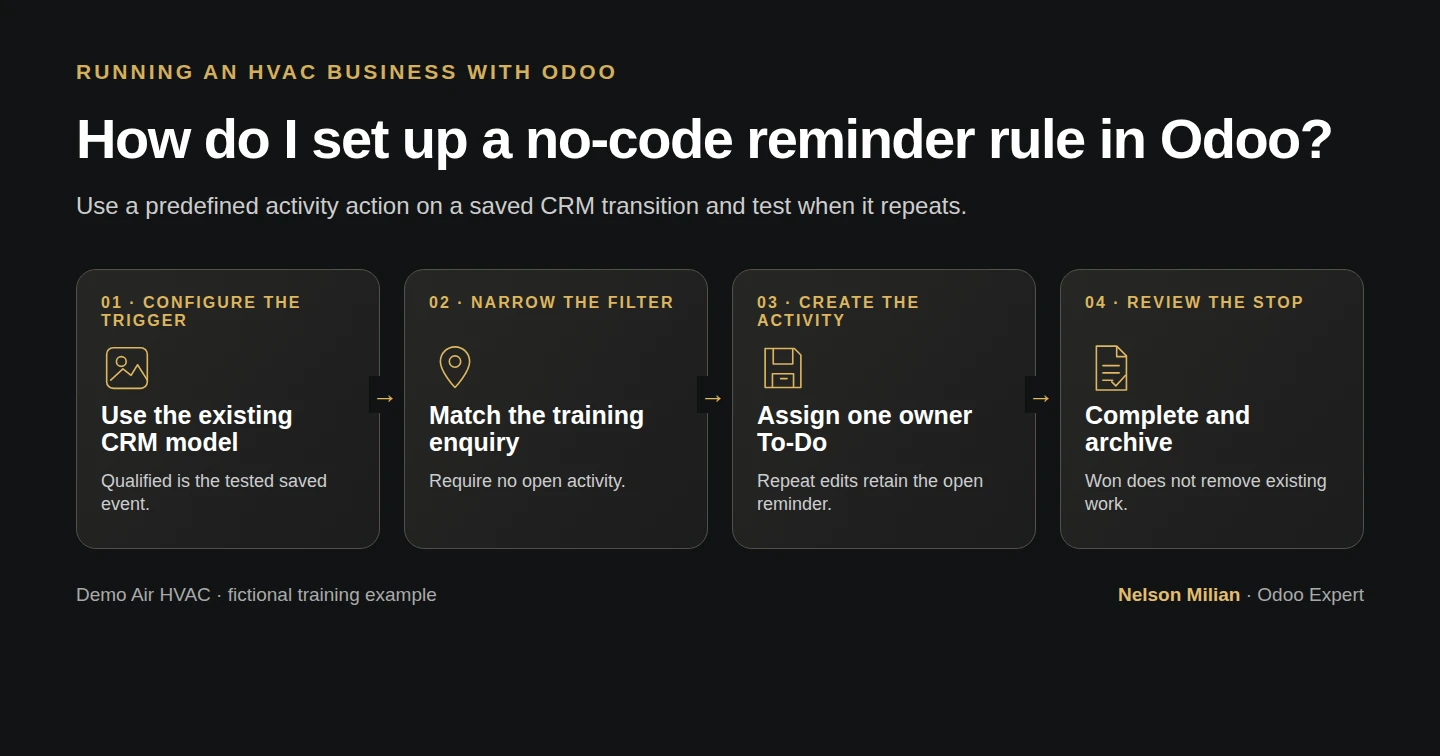
Create an Odoo internal follow-up activity from a stock stage trigger, then verify saved conditions, repeat behavior and manual closure.
When a new HVAC enquiry becomes qualified, Alex wants a reminder to review its site details and agree the next step. The official Automation Rules module can create that internal activity using existing fields and a predefined action. This example creates one To-Do on a separate training enquiry, checks a repeated stage transition and closes the reminder after the enquiry becomes Won.
Alex Rivera and Demo Air HVAC are fictional training examples. Prices, dates, quantities and business situations in this guide are illustrative.
Before you begin
Tested in stock Odoo 20.0-20260926 Community as the demo owner administrator, with official modules and standard configuration. Use the CRM stages from How do I set up a sales pipeline for my HVAC business in Odoo? and the activity procedure from How do I schedule and complete follow-up activities in Odoo?. Work as an administrator in a training database. The official Automation Rules, technical name base_automation, is required; it was initially absent in this installation. Prepare one separate opportunity named Demo Internal Reminder Enquiry H70, customer Demo Property H08, owner Demo Air Owner, initially in New. The name is an exact training filter, not a unique-record guarantee. All stages and outcomes in this fixture are synthetic; they establish no actual new sale or HVAC work.
Step-by-step workflow
Step 1. Activate the official Automation Rules module
Open Apps, remove the default Apps search filter if it hides technical modules, and search base_automation. On the Automation Rules card, click Activate once and wait for installation. Verify the official Odoo S.A. module. The nearby Test - Base Automation card is a different module and is not needed. This test installed only the official Automation Rules module, without a custom add-on.
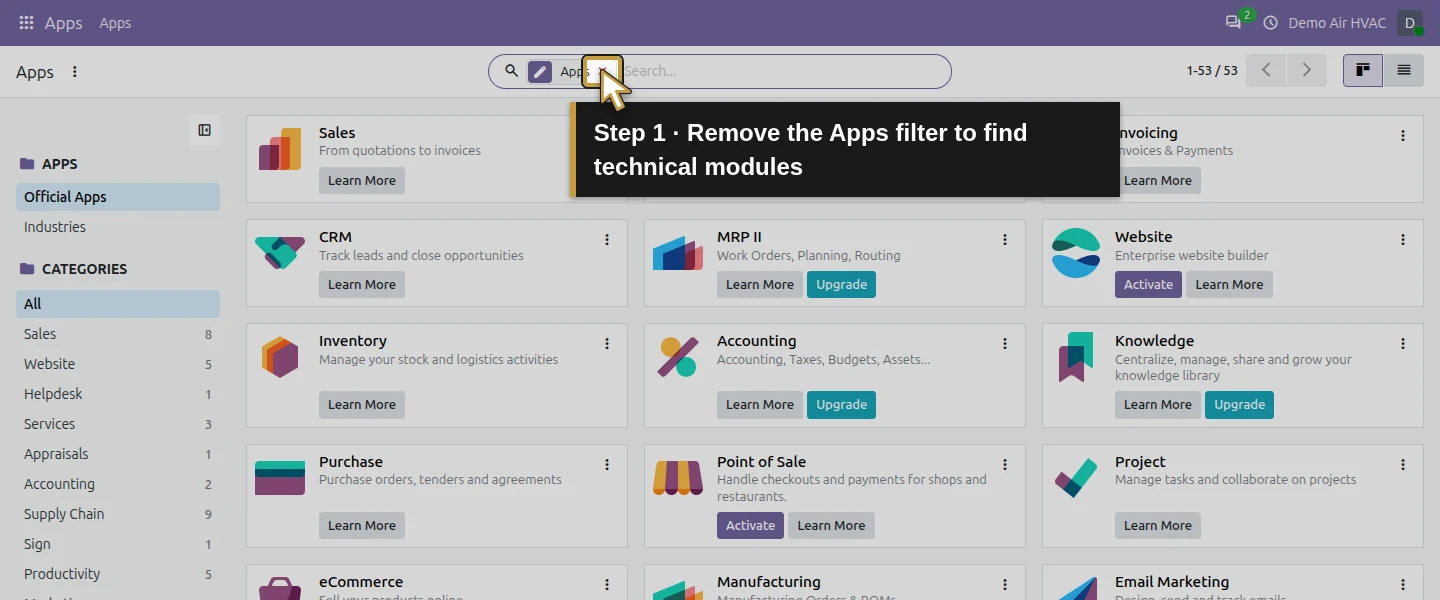
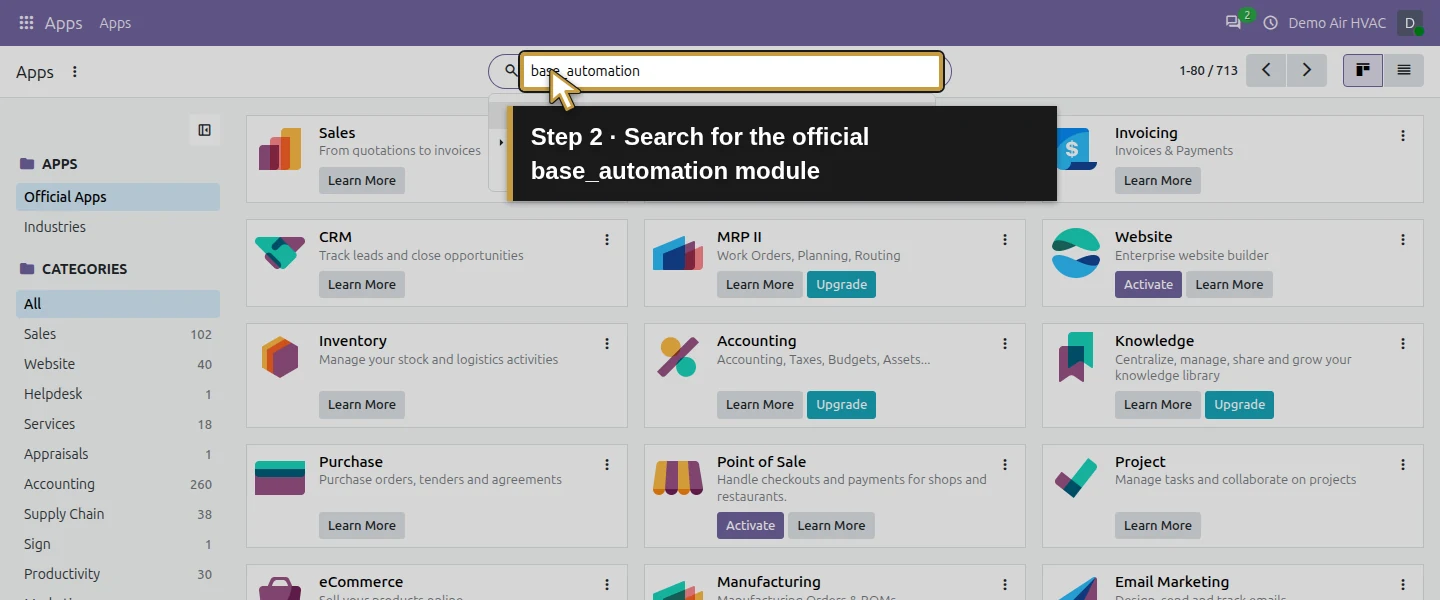
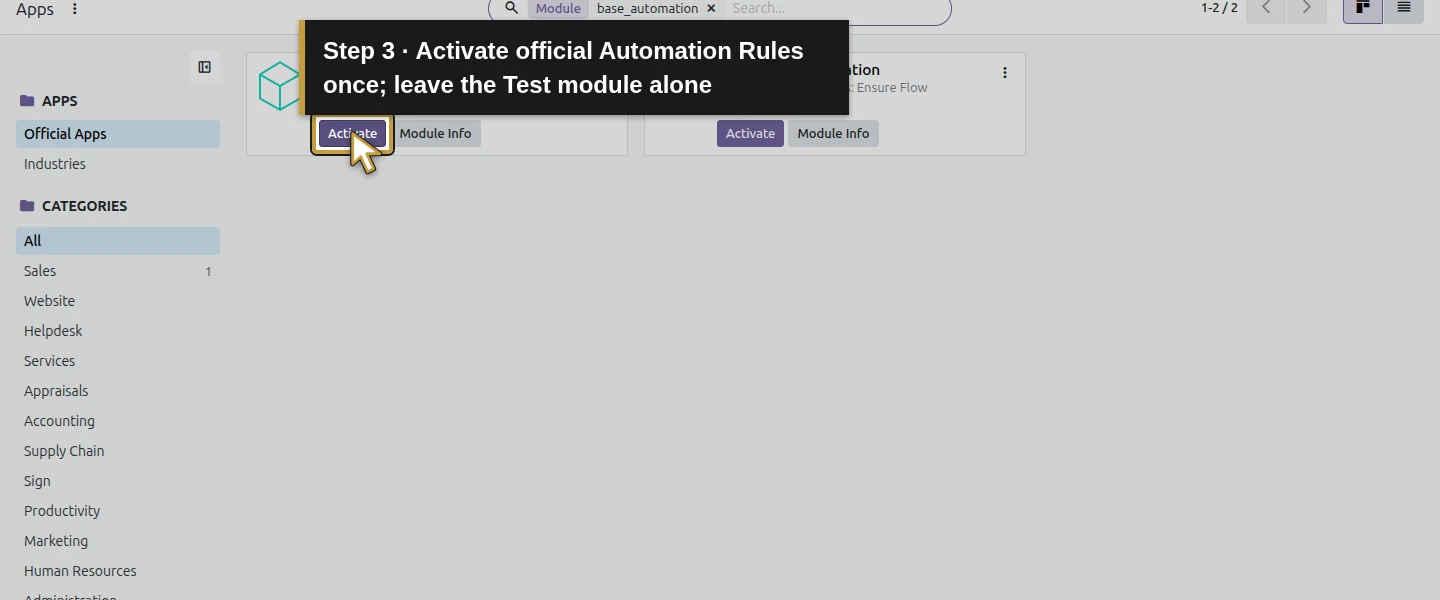
Step 2. Open a rule and choose the existing CRM model
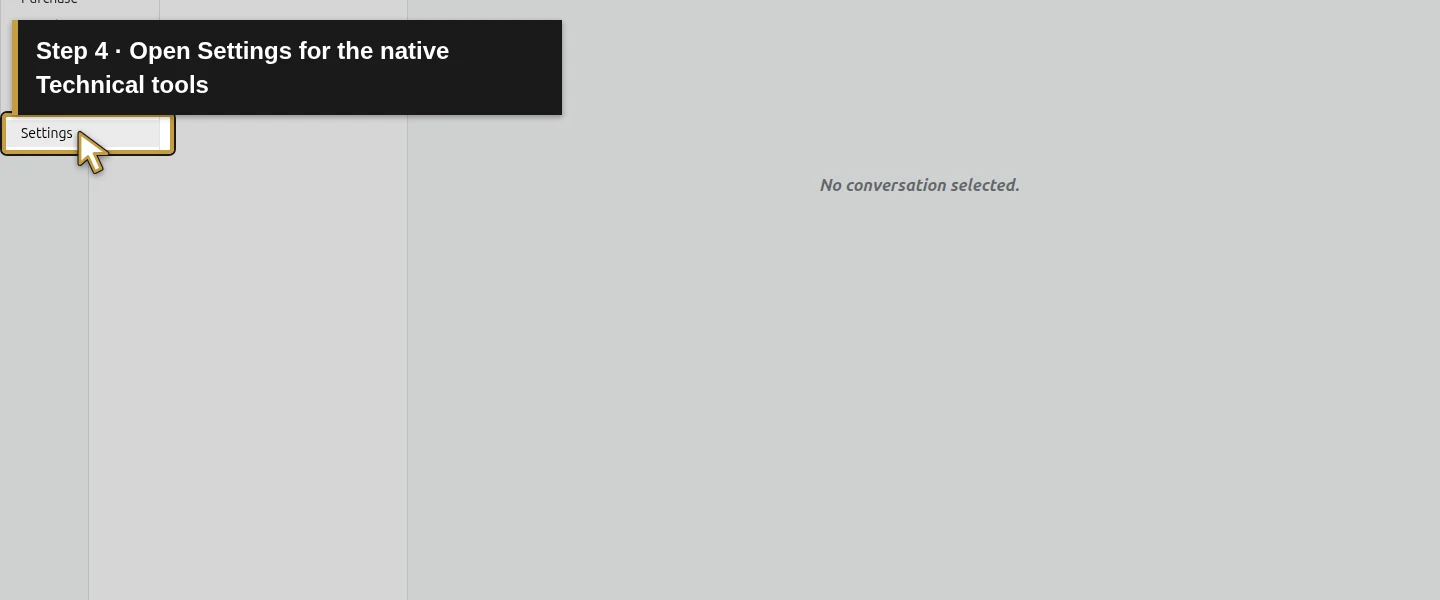
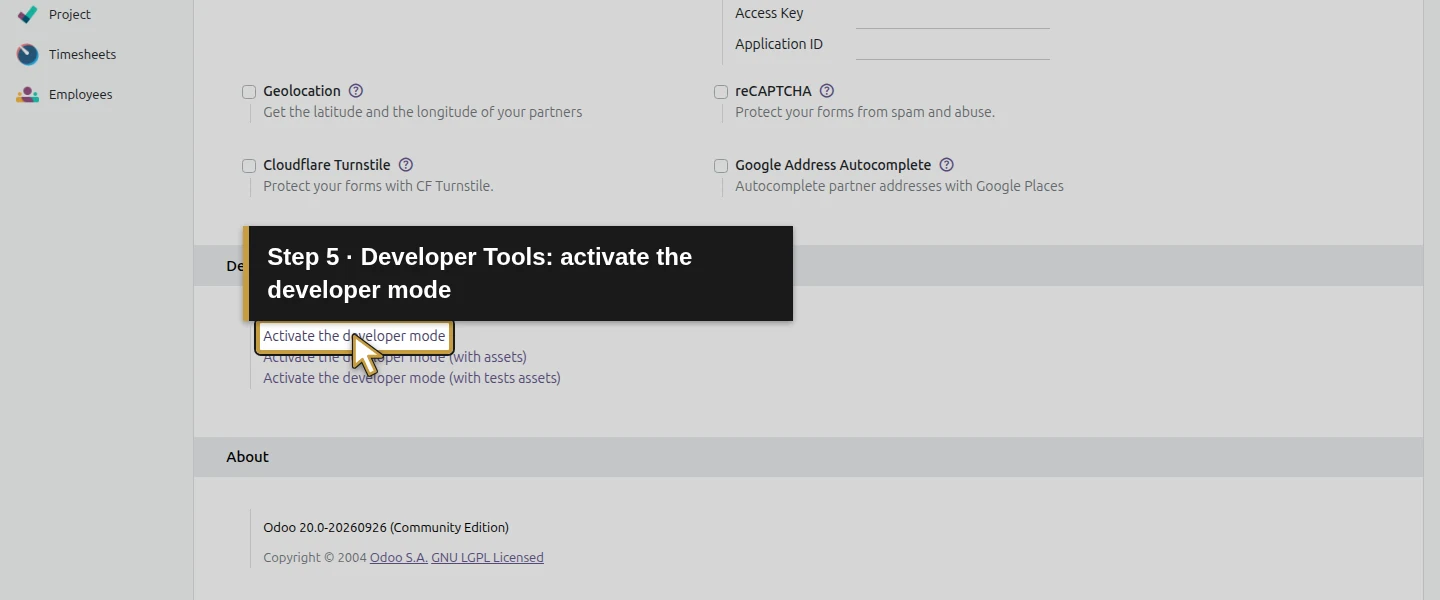
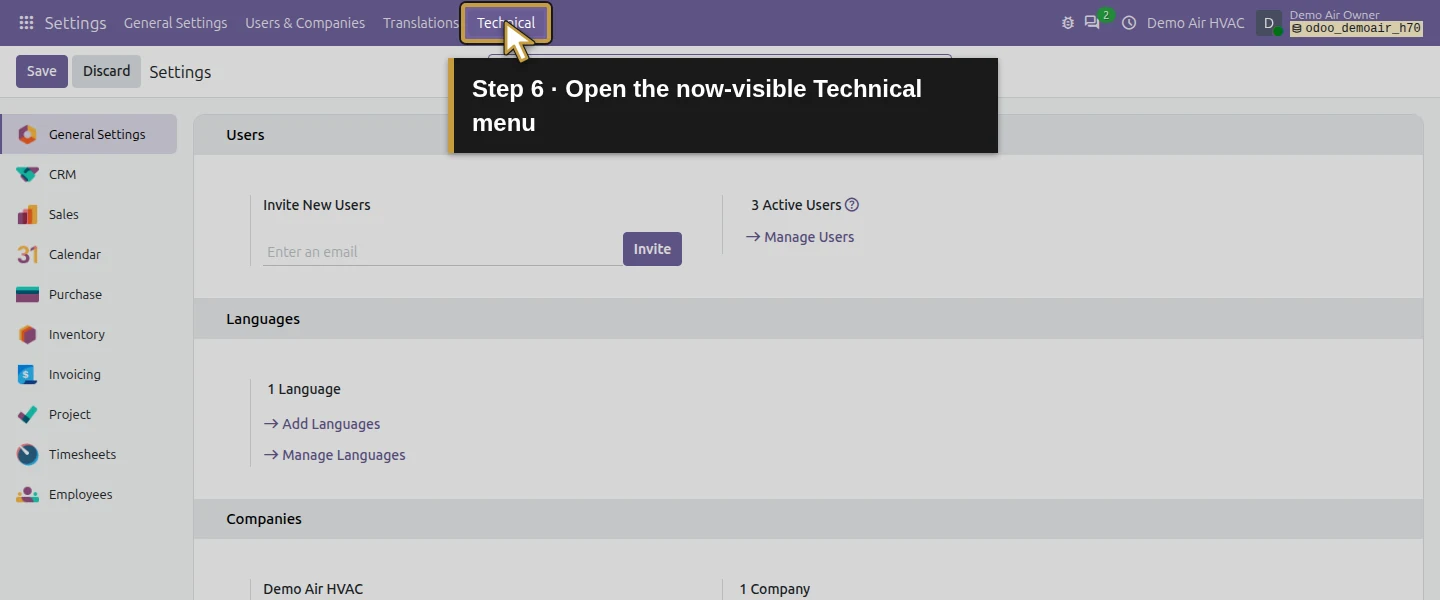
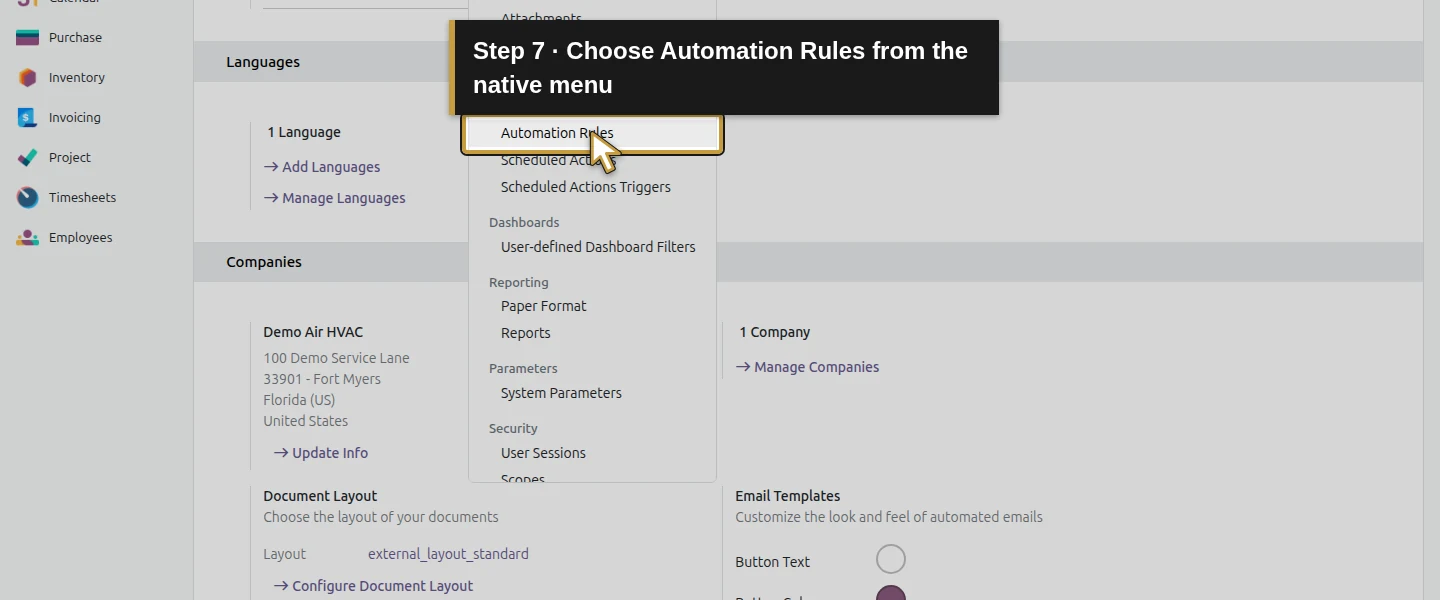
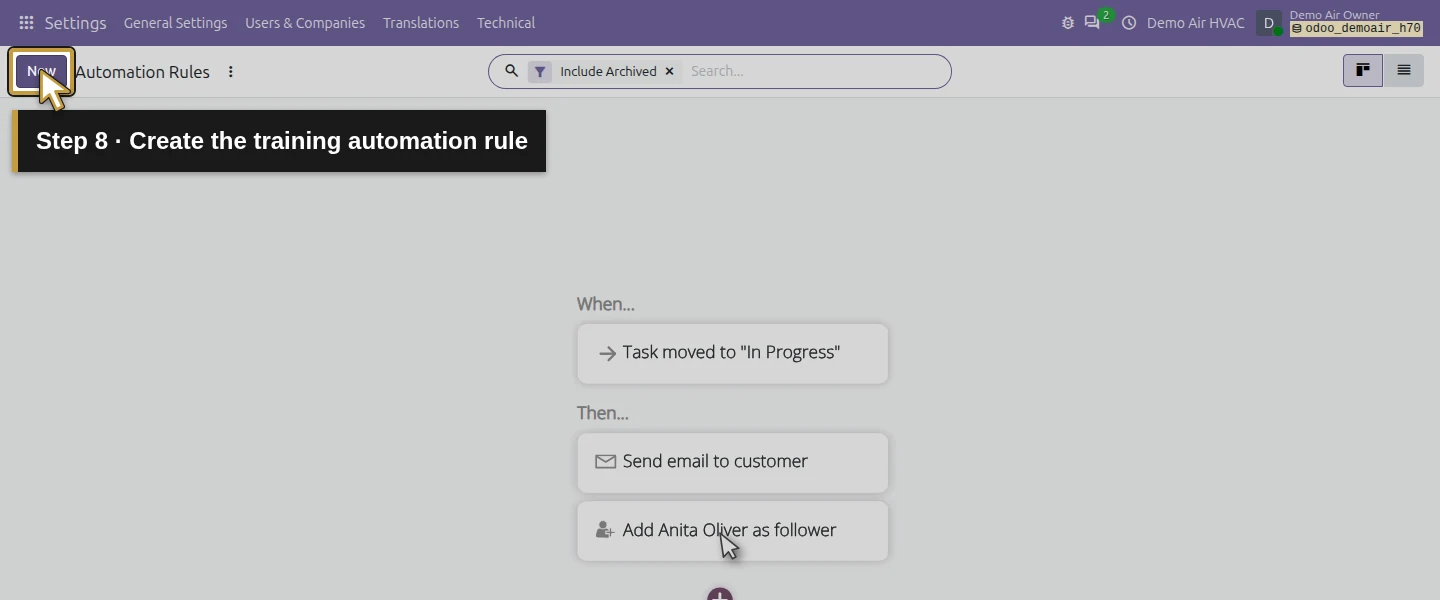
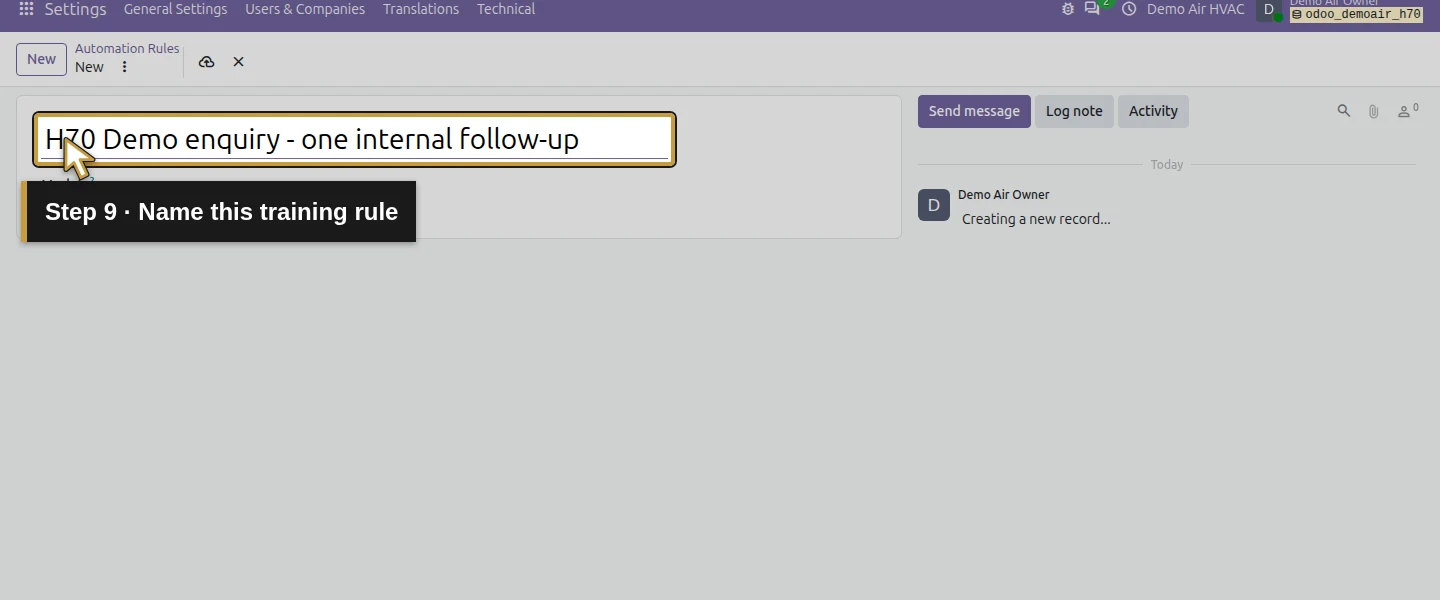
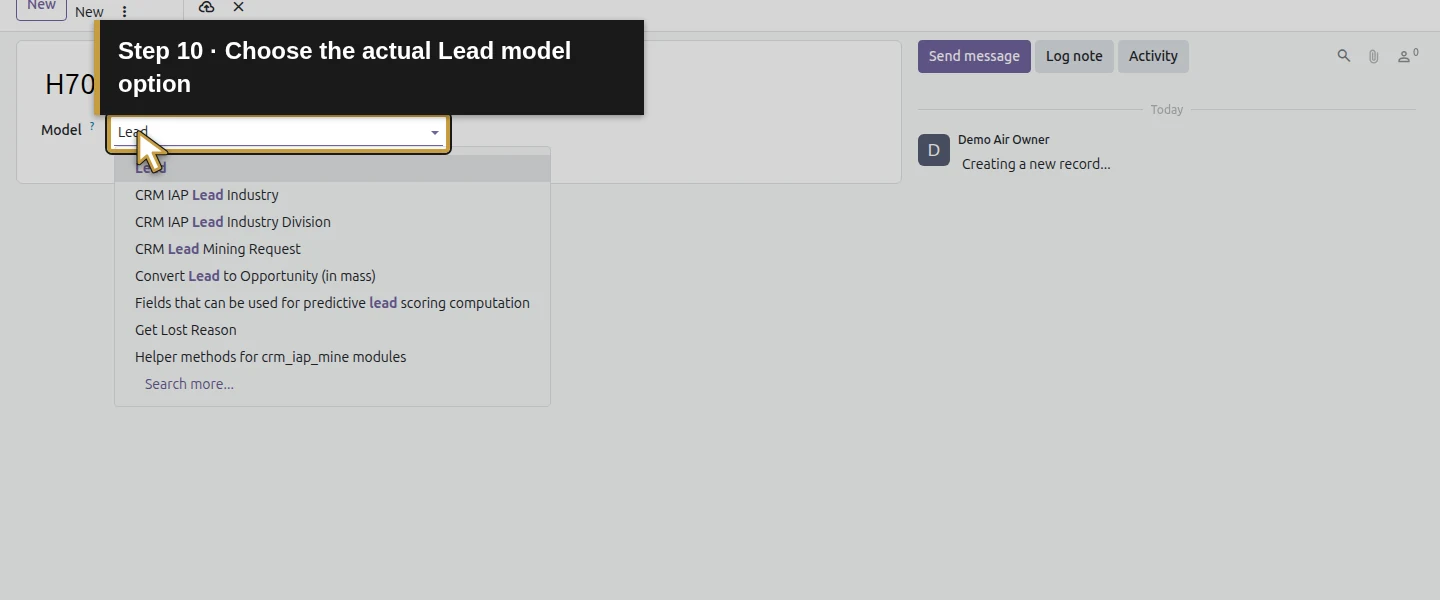
Open Settings. If Technical is not visible, find Developer Tools at the bottom of General Settings and click Activate the developer mode. Then open Technical → Automation Rules. Click New, enter H70 Demo enquiry - one internal follow-up and select Lead in Model. Despite that model label, this test uses an ordinary CRM opportunity. Choose the actual model option from the dropdown rather than leaving unconfirmed search text. Other user roles and menu access were not tested.
Step 3. Set the event that creates the reminder
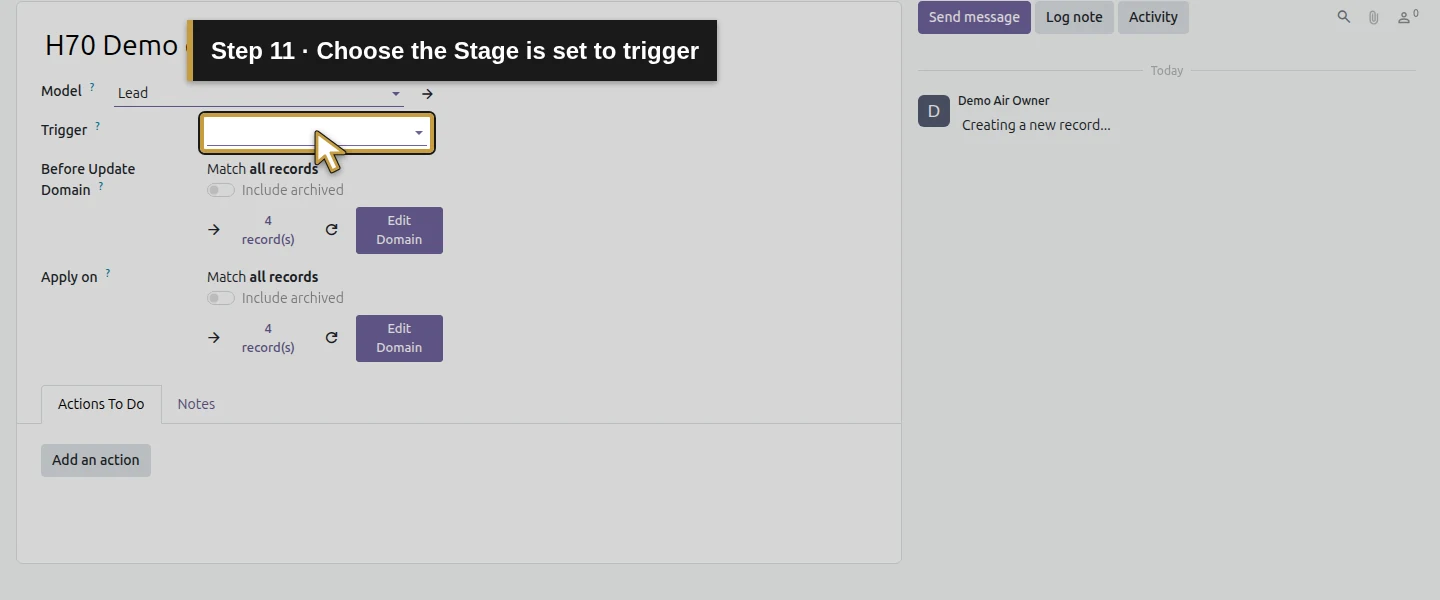
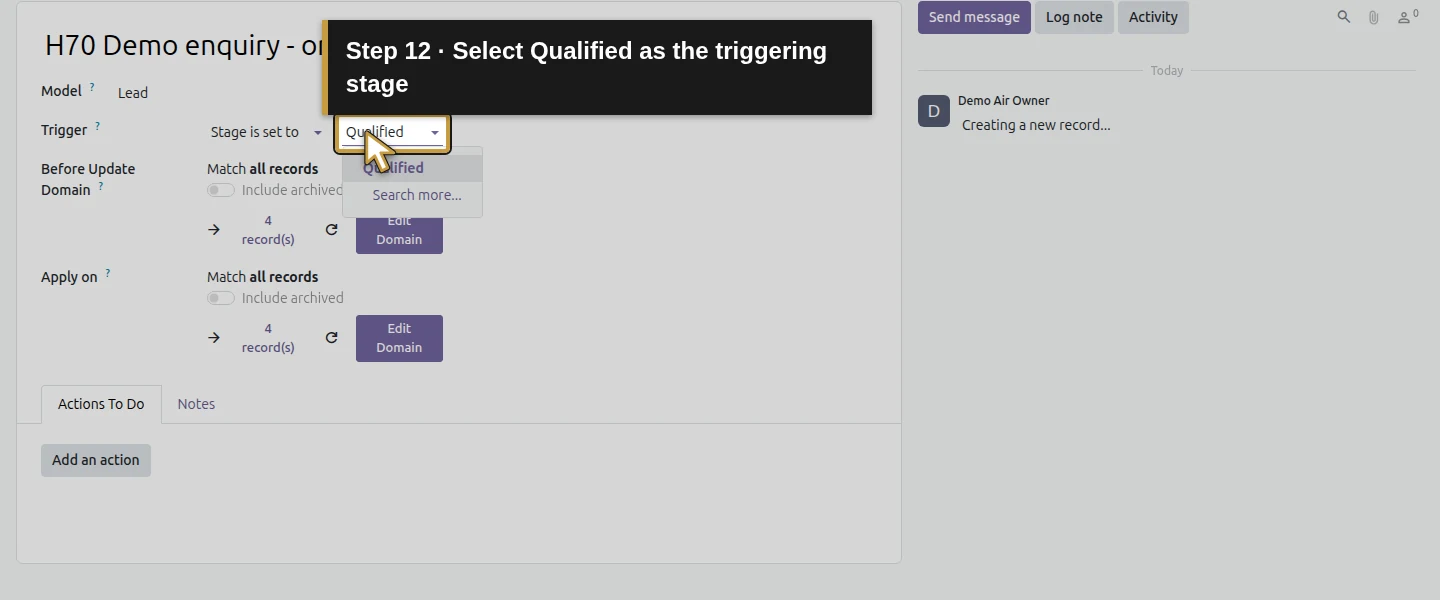
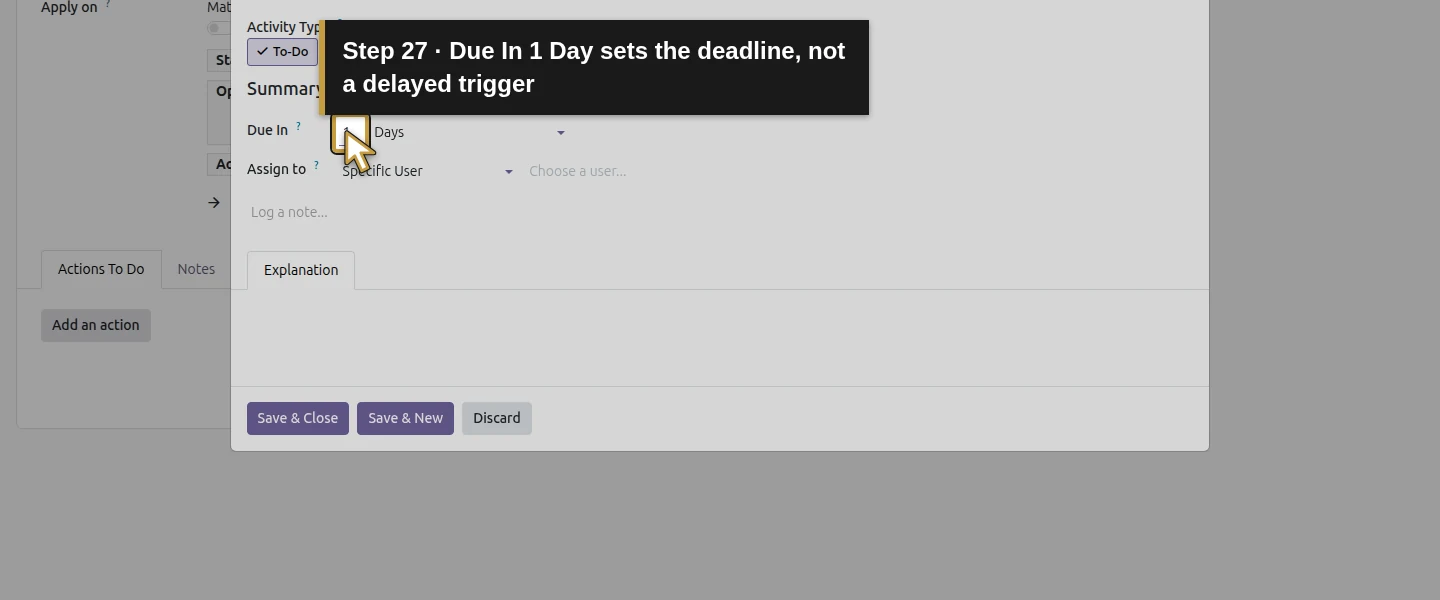
In Trigger, choose Stage is set to and select Qualified. Odoo adds Stage = Qualified to Apply on. Keep Before Update Domain at its default all-records setting for this specific test. The rule will evaluate the saved stage event. It does not wait a day to create the activity; the separate Due In setting will determine the activity deadline.
Step 4. Narrow Apply on using the graphical domain builder
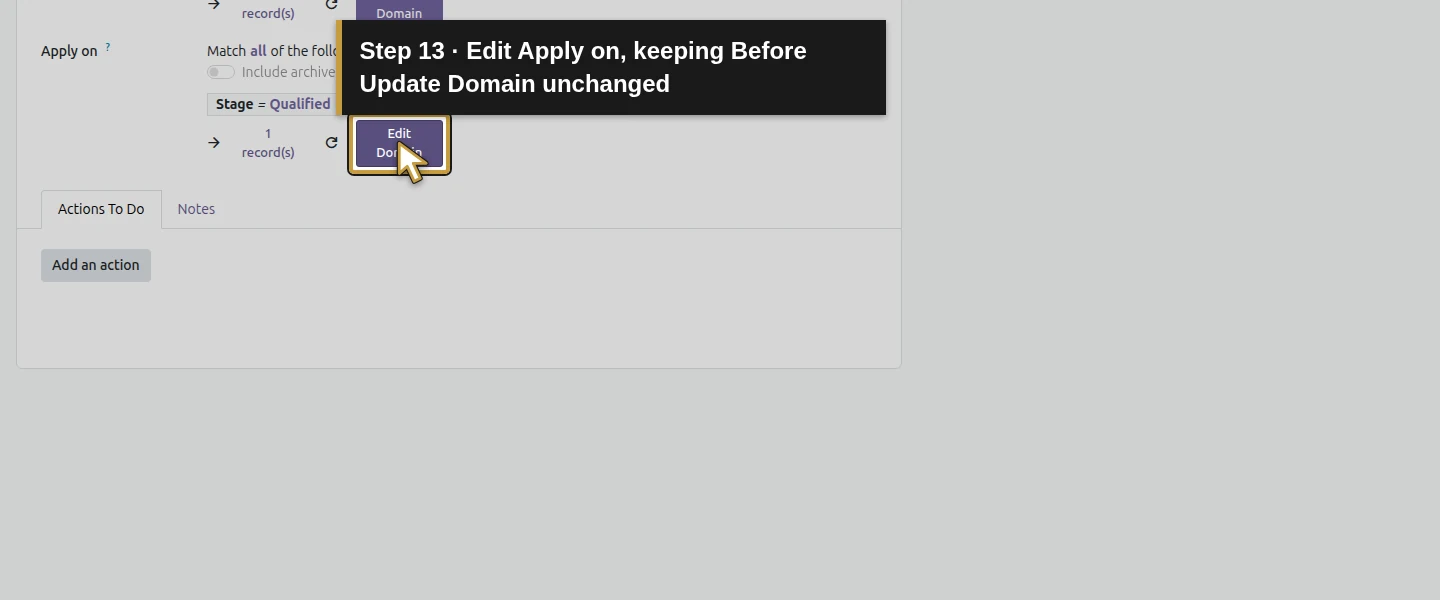
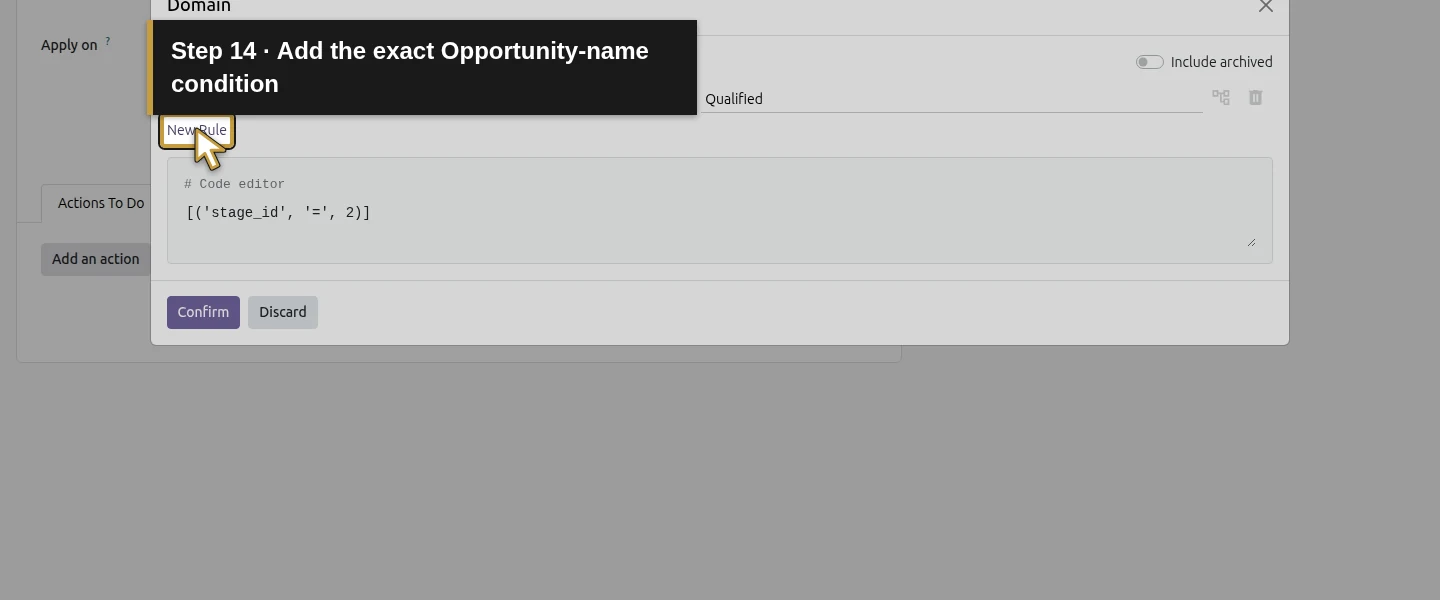
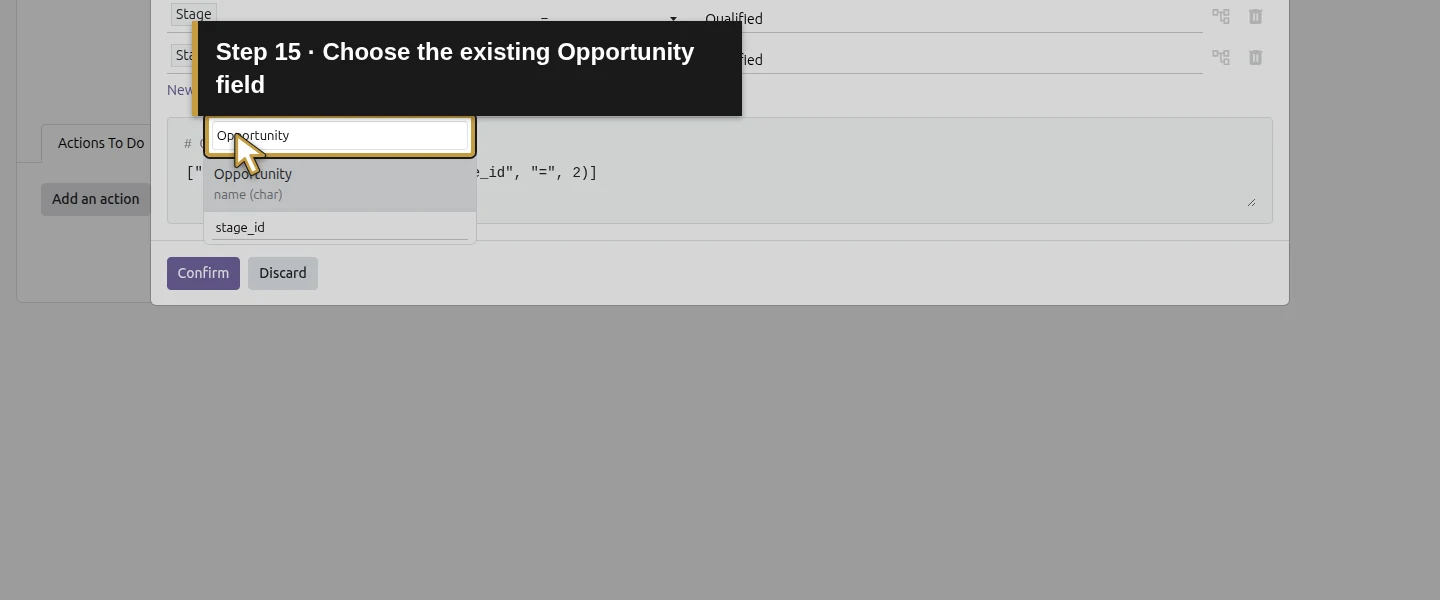
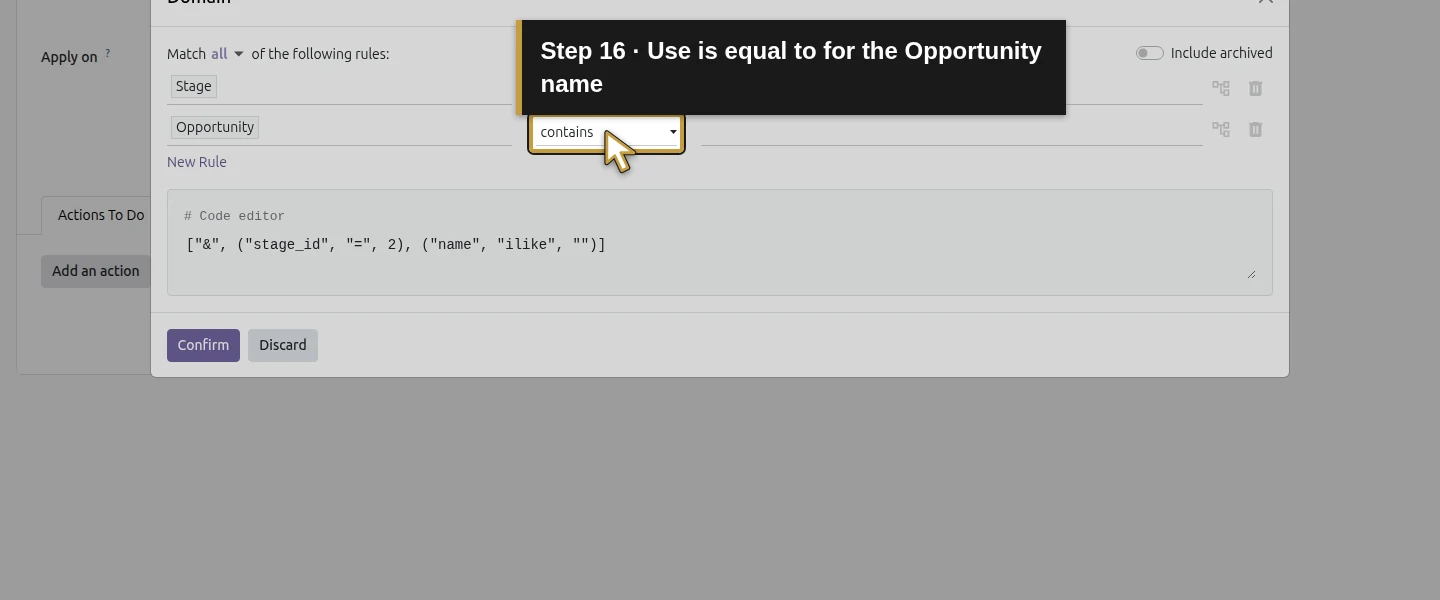
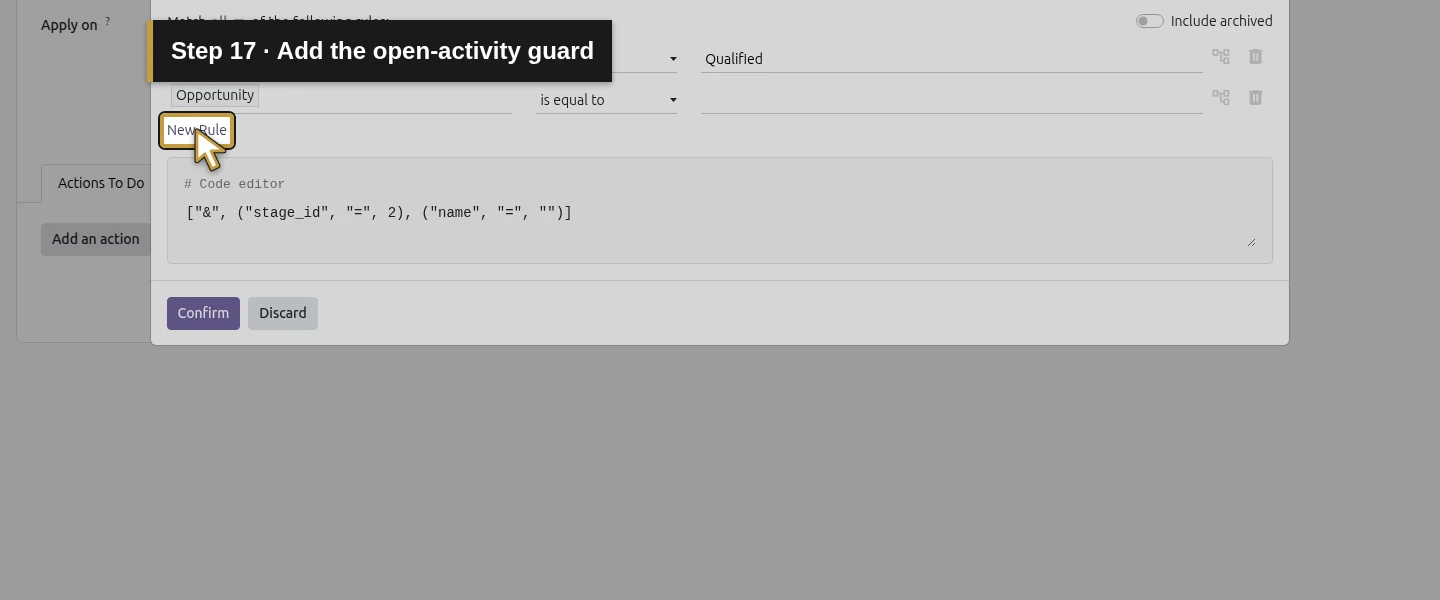
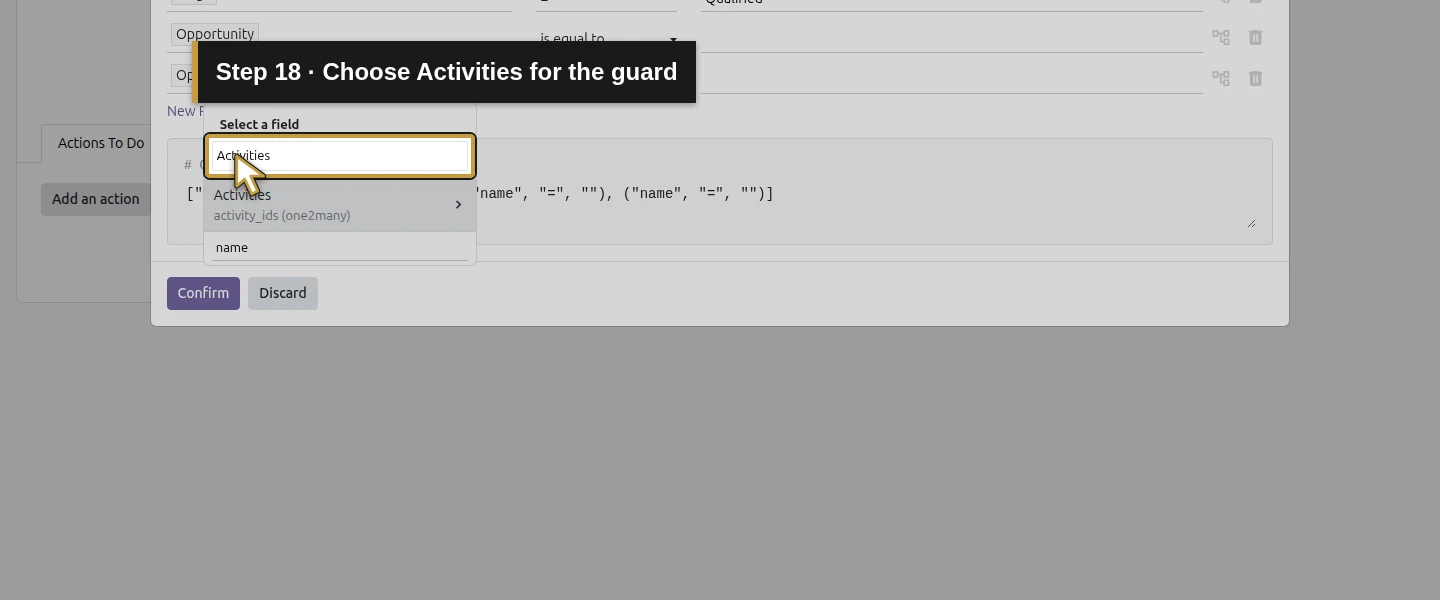
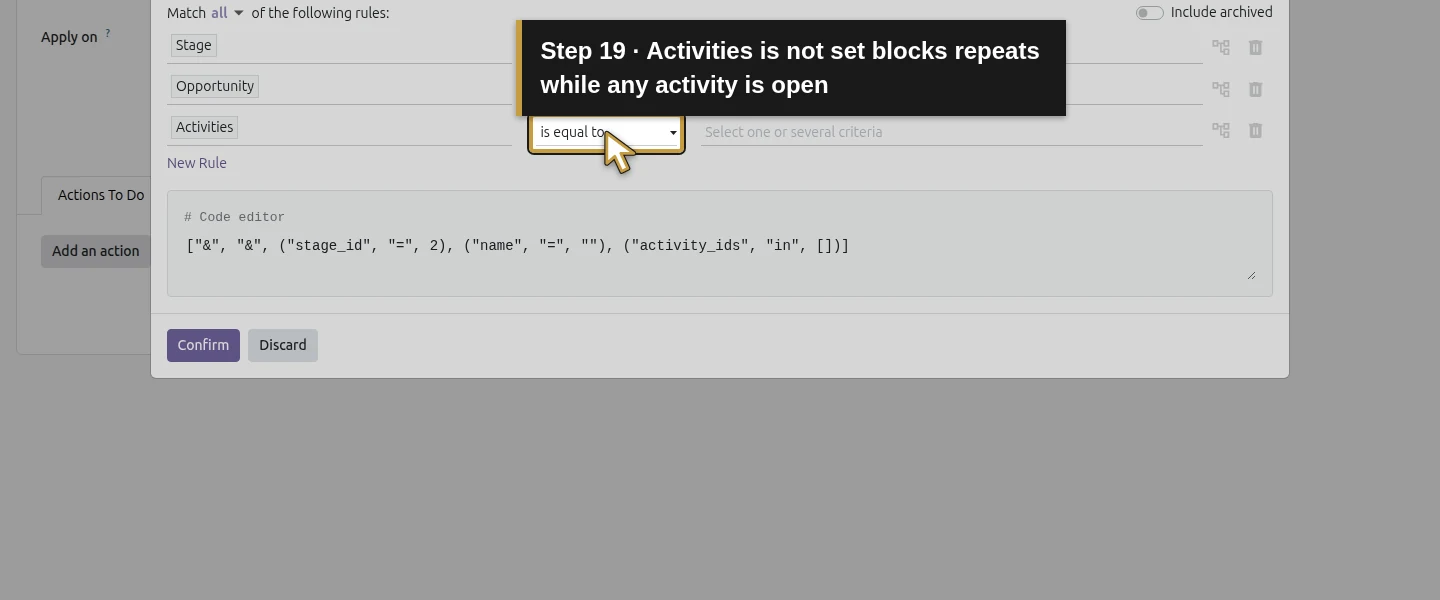
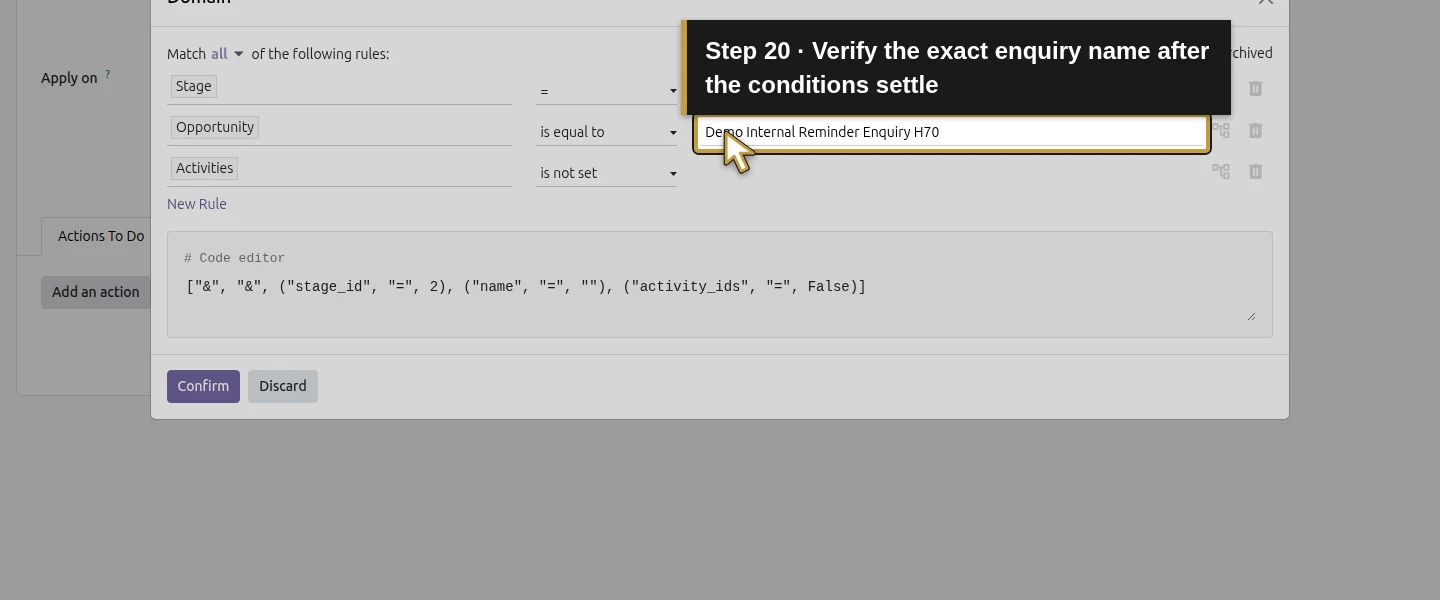
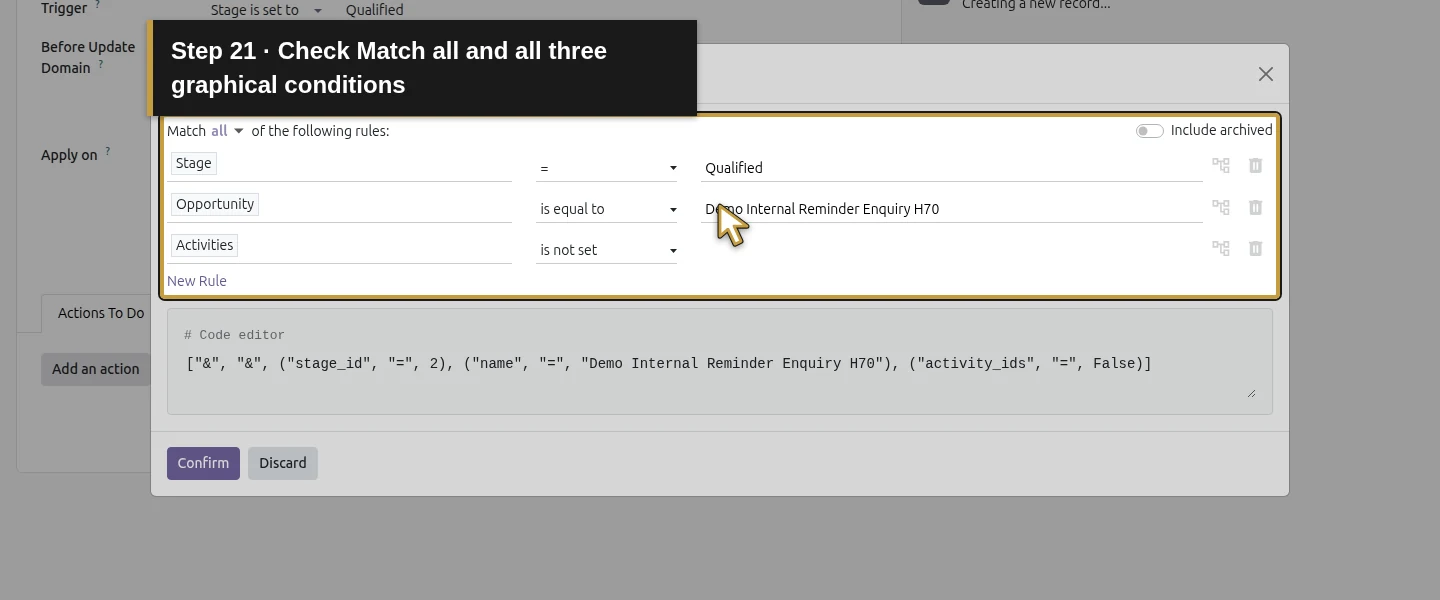
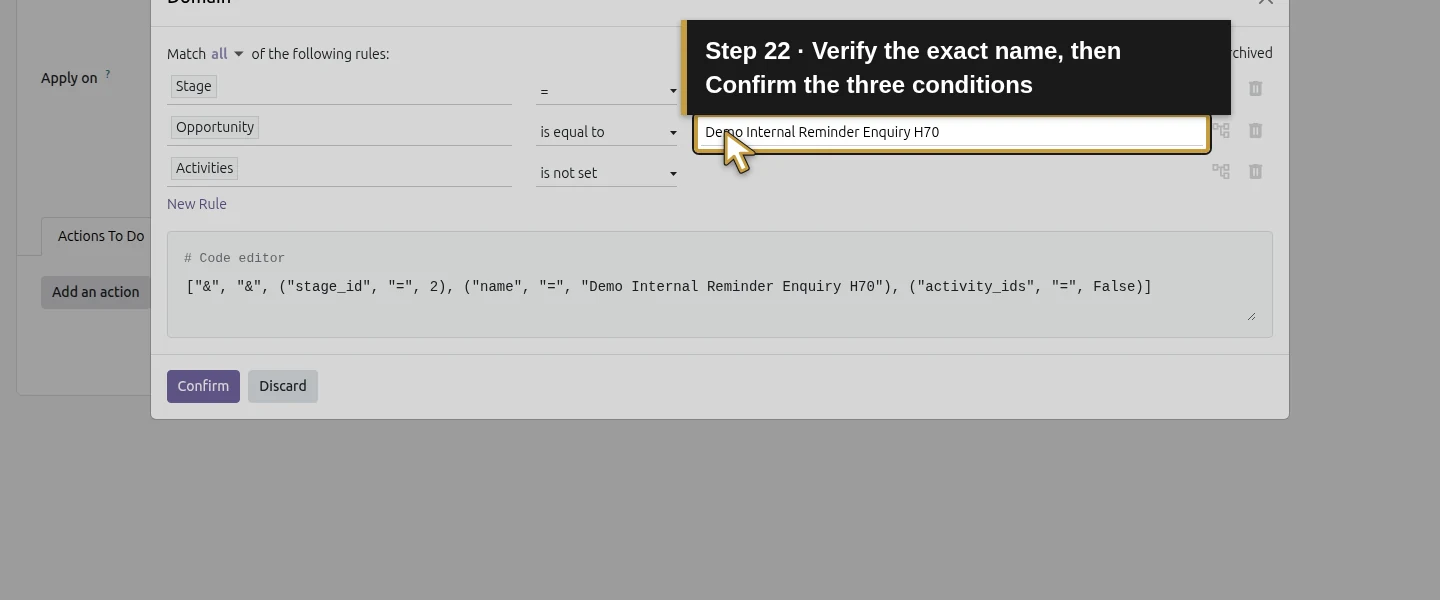
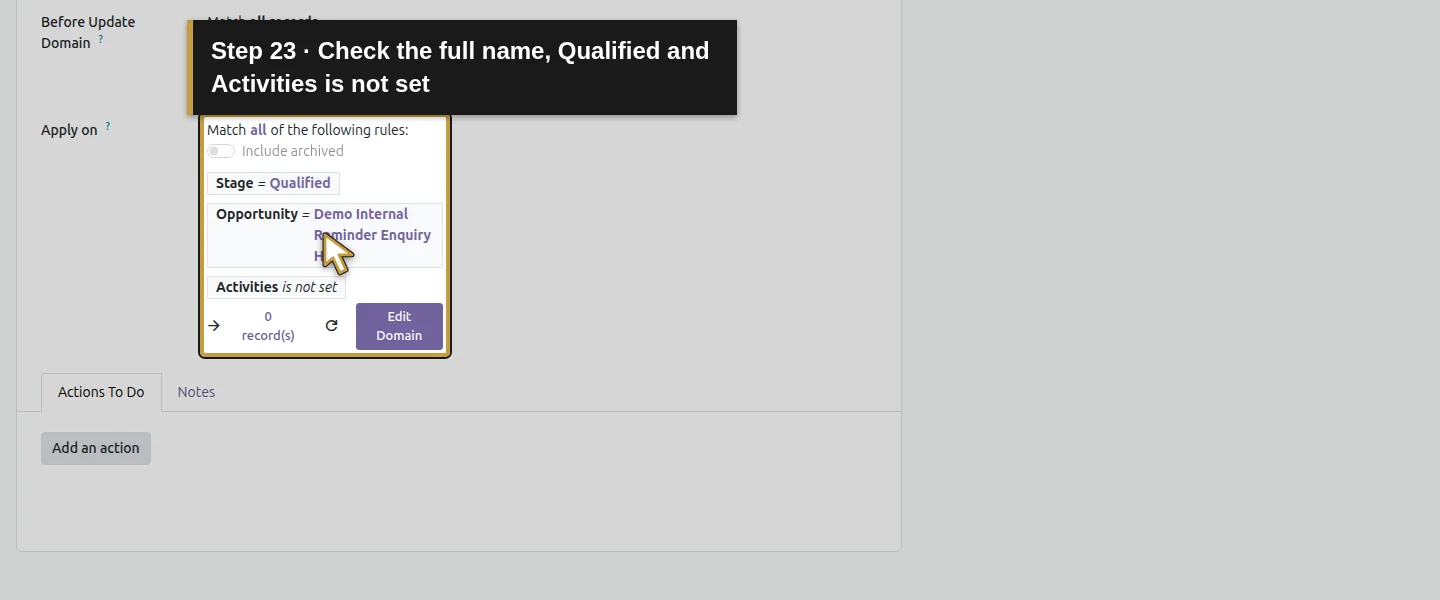
Click the Edit Domain button beside Apply on, rather than the separate Before Update Domain button. Keep Match all. Retain Stage = Qualified. Use New Rule, select the existing Opportunity field and choose is equal to. Add another rule for Activities, operator is not set. After the fields and operators settle, enter Demo Internal Reminder Enquiry H70 in the Opportunity value. Commit that text field and check all three conditions and the full name before clicking Confirm. Check them again on the rule form before saving. Before the training enquiry exists, the matching count is zero. No domain code needs to be typed.
Step 5. Choose the predefined Create Activity action
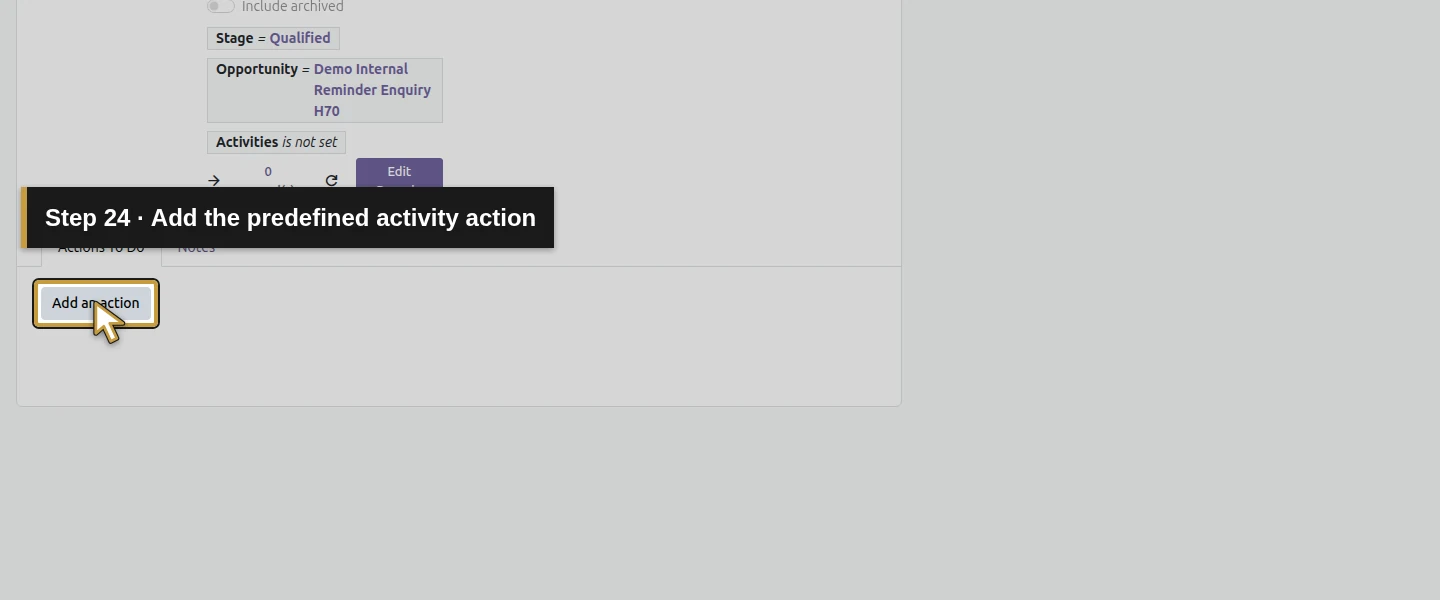
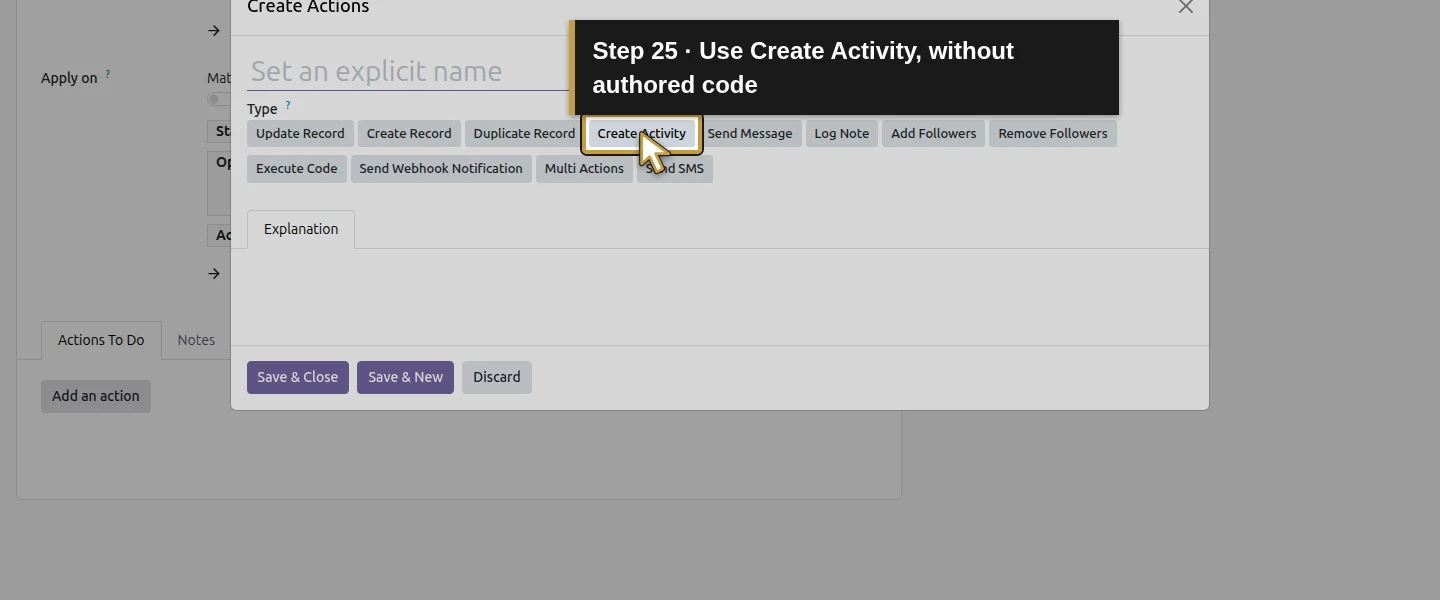
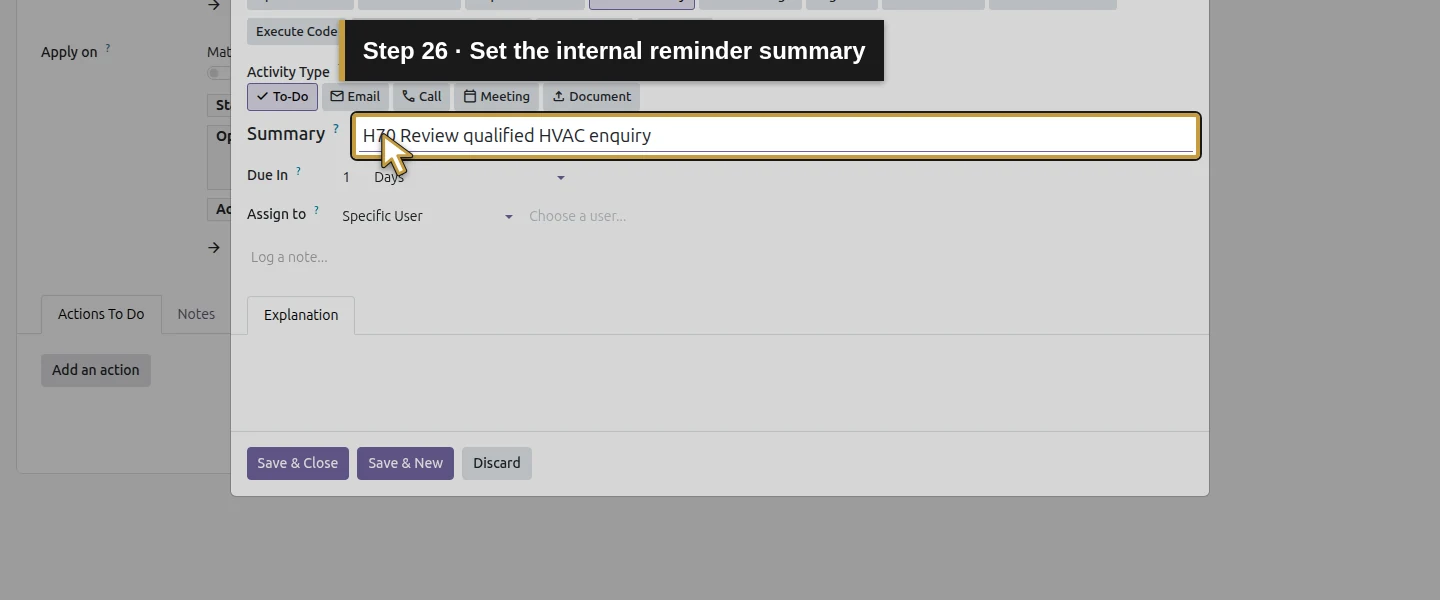
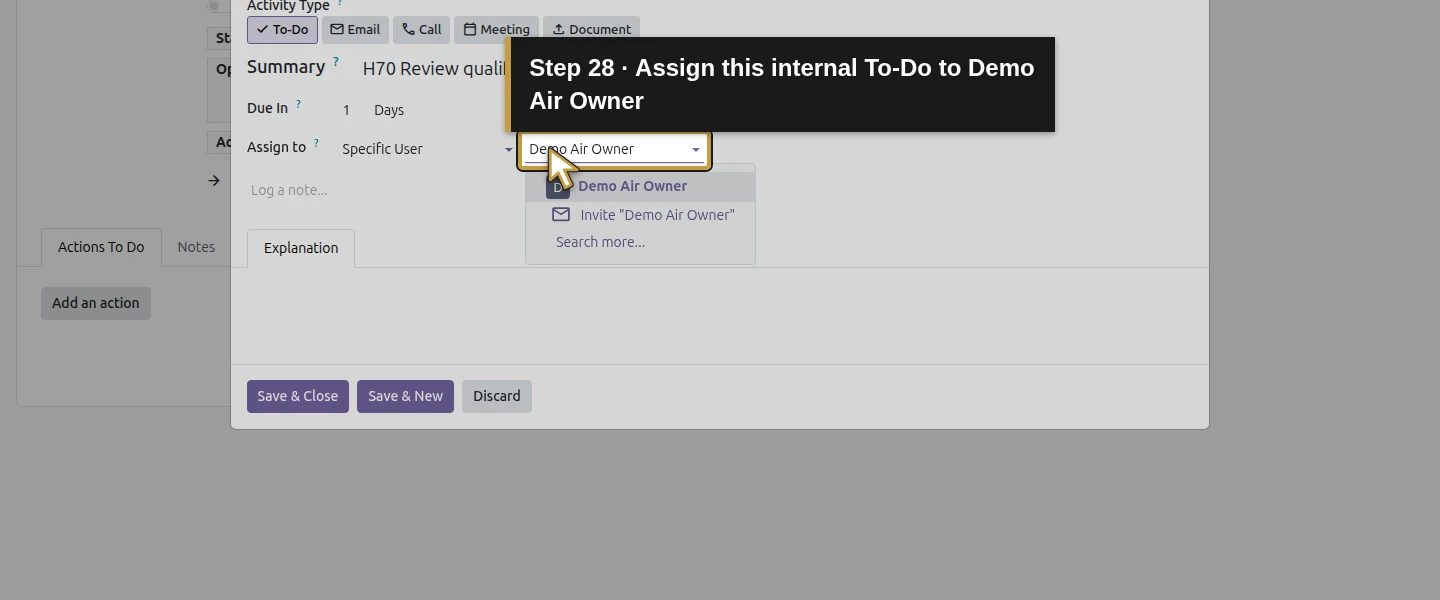
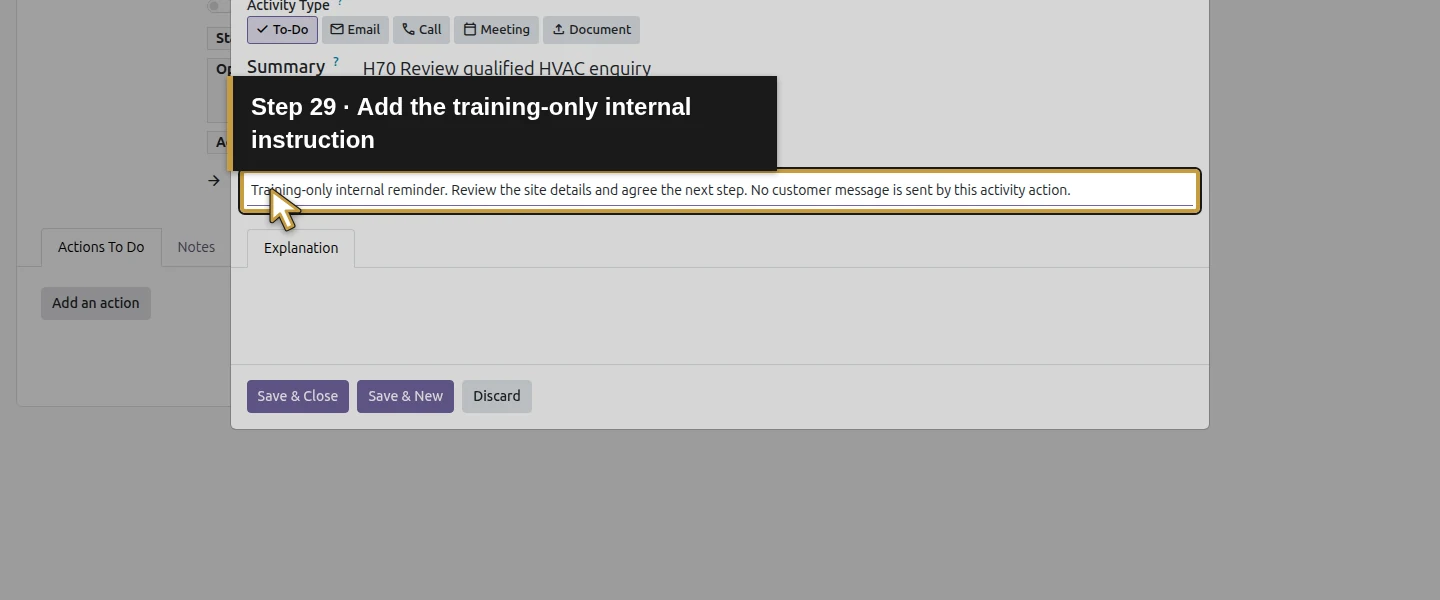
Under Actions To Do, click Add an action. Choose the Create Activity Type and retain To-Do as Activity Type. Set Summary to H70 Review qualified HVAC enquiry, Due In to 1 Days, Assign to? to Specific User, and select Demo Air Owner in the user picker. Enter a short internal note asking the owner to review site details and agree the next step.
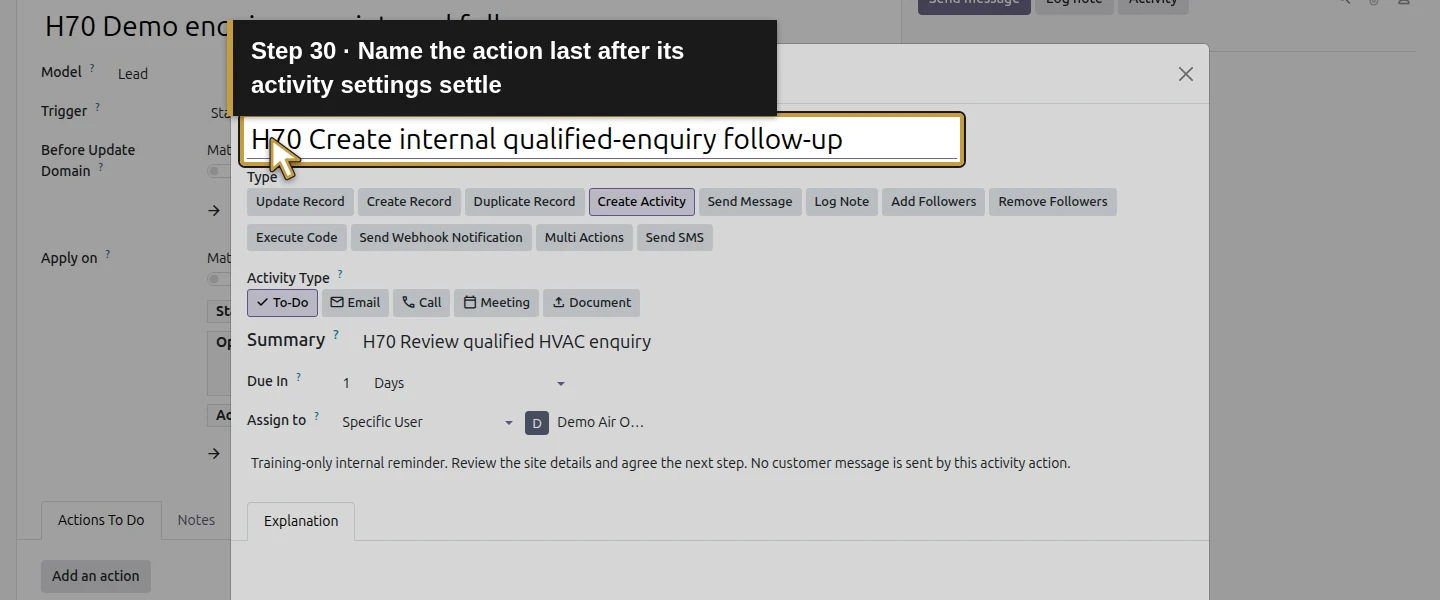
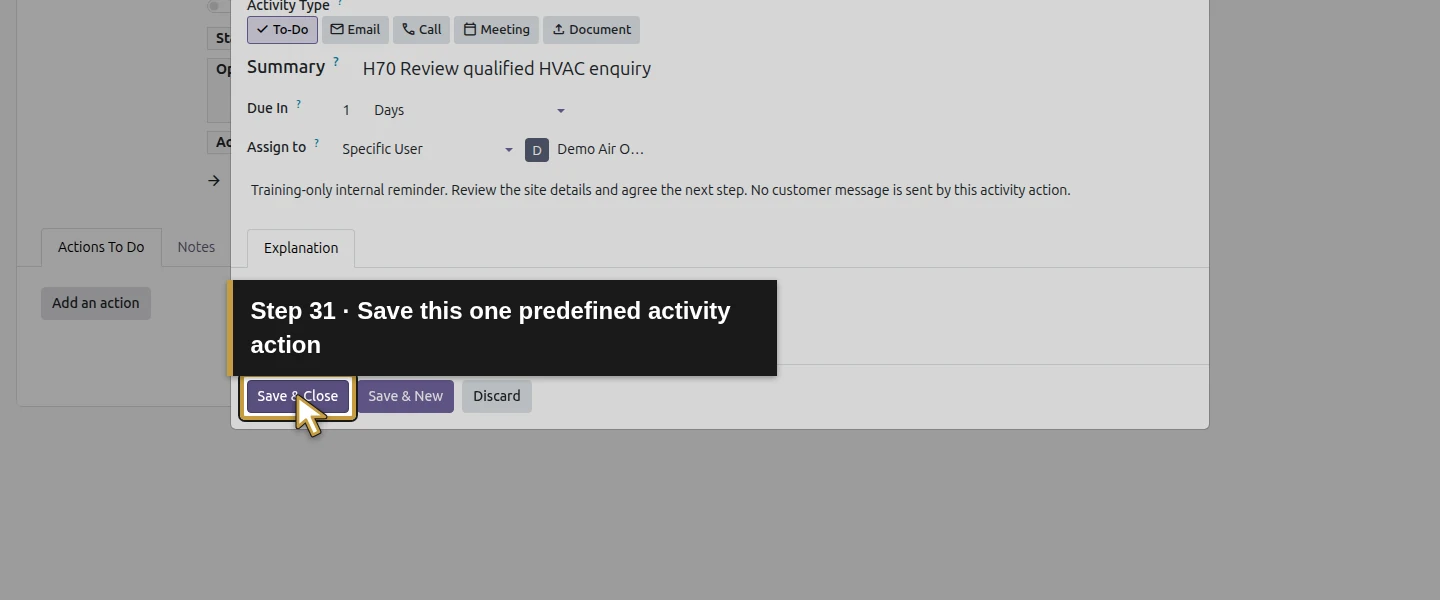
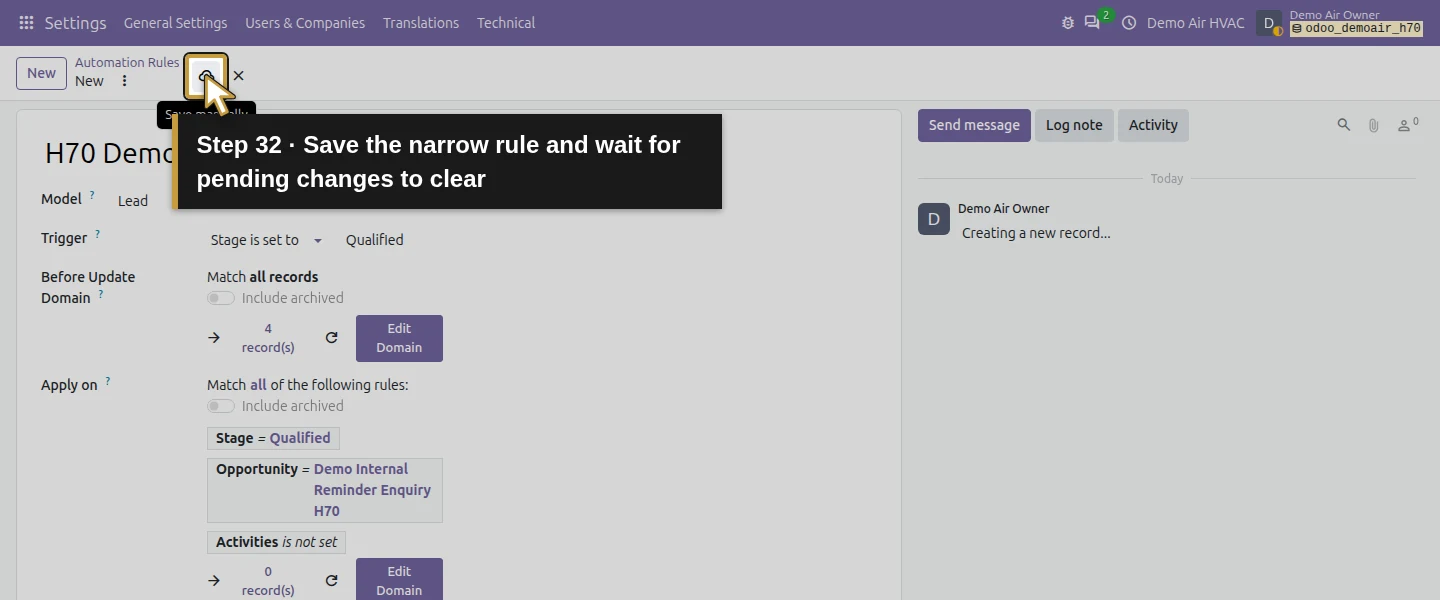
After those settings settle, name the action H70 Create internal qualified-enquiry follow-up. Odoo fills the action name when the activity type changes, so enter your name last and check it before clicking Save & Close. Back on the rule, check that all three Apply on conditions and the full opportunity name remain visible, then click Save manually. Wait for pending changes to clear. The saved action is the predefined activity action; no Python, webhook or custom scheduled job is entered.
Step 6. Create the separate enquiry and exercise the first saved transition
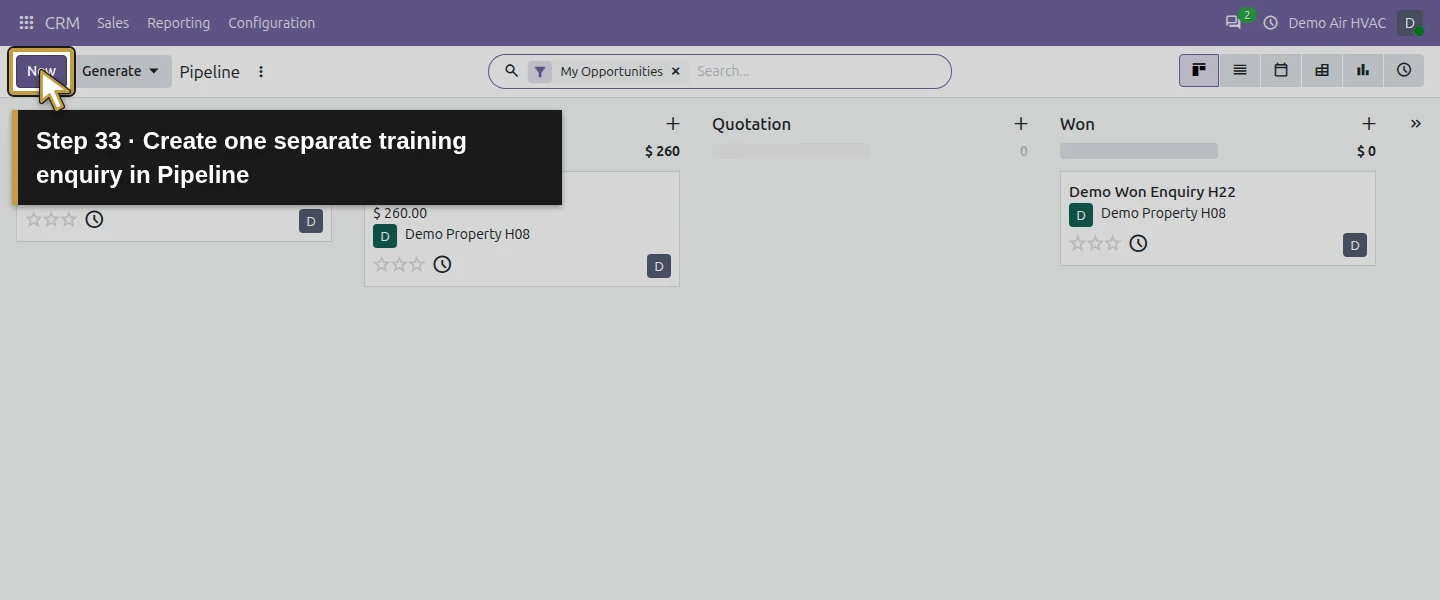
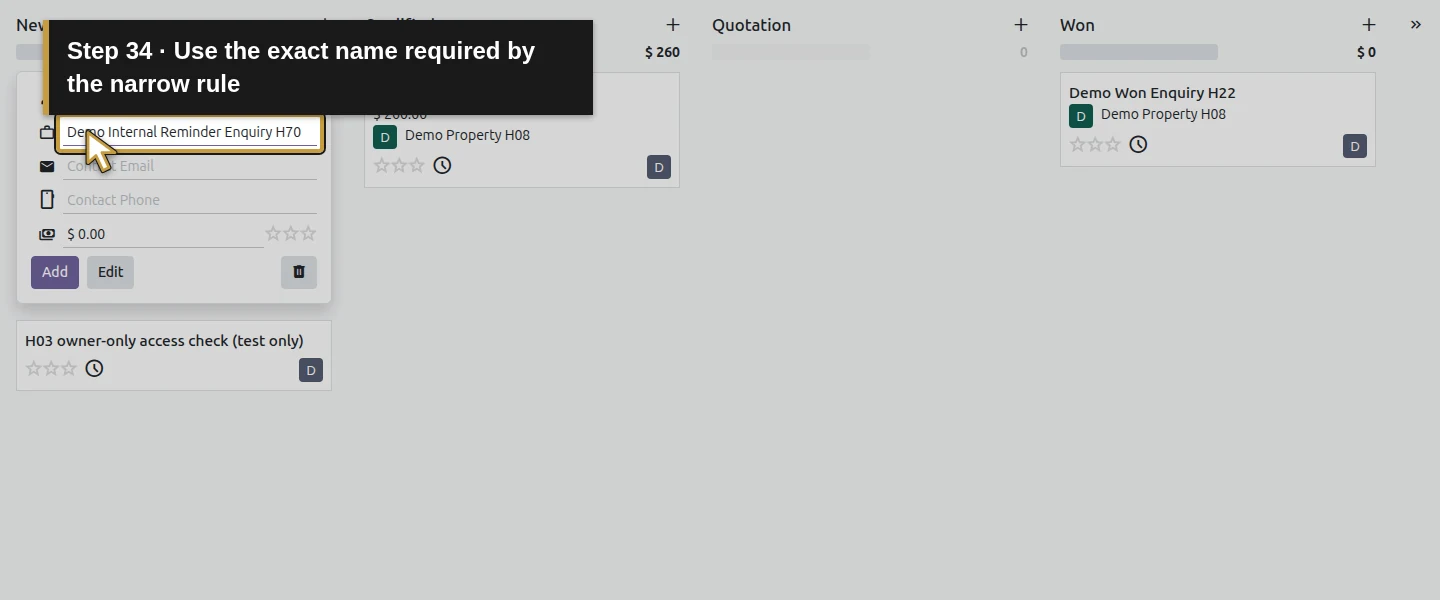
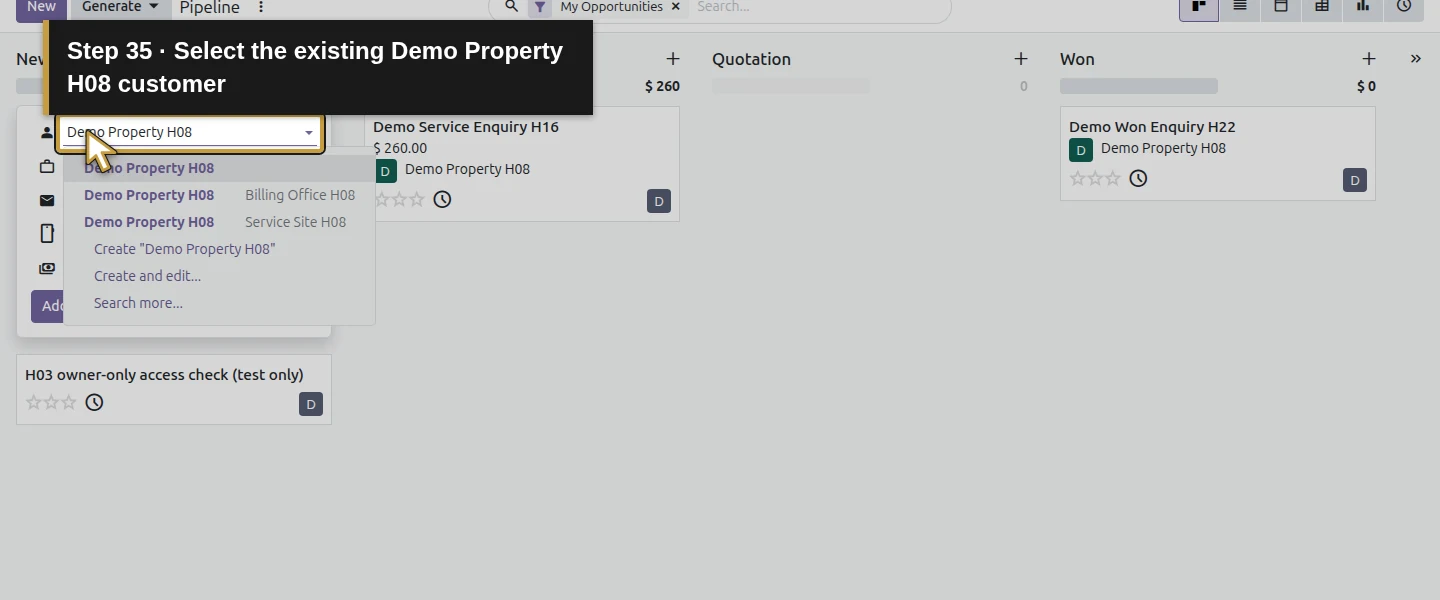
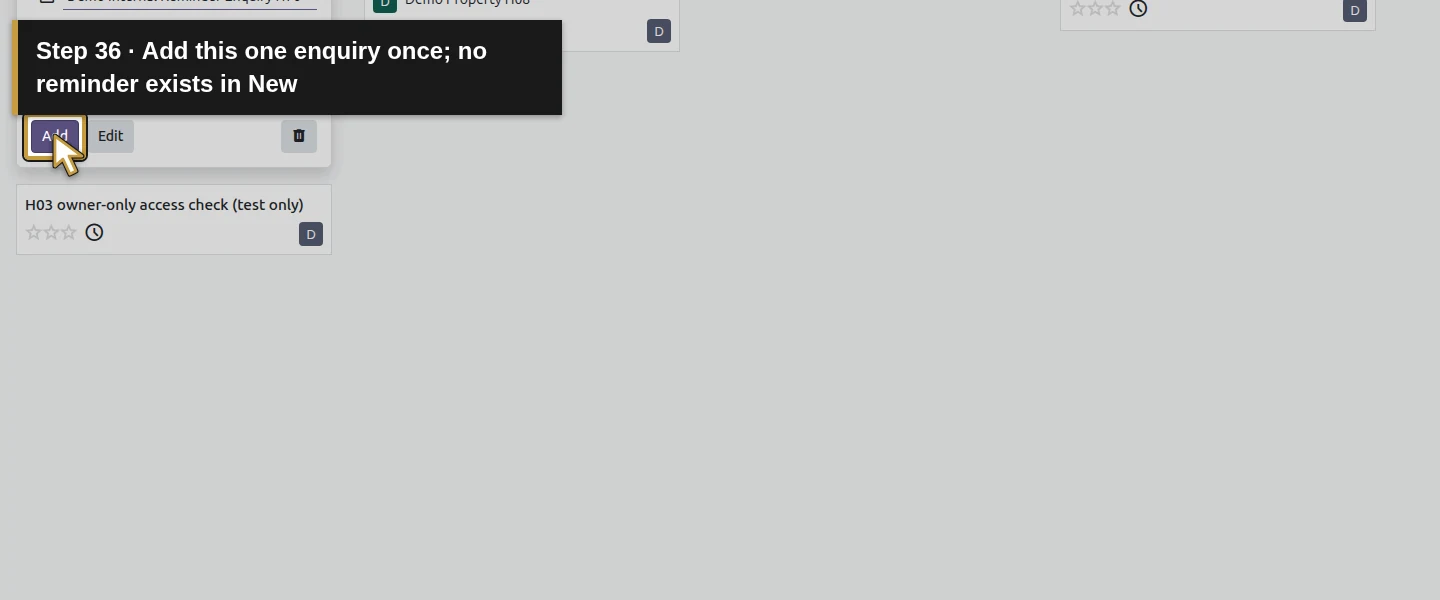
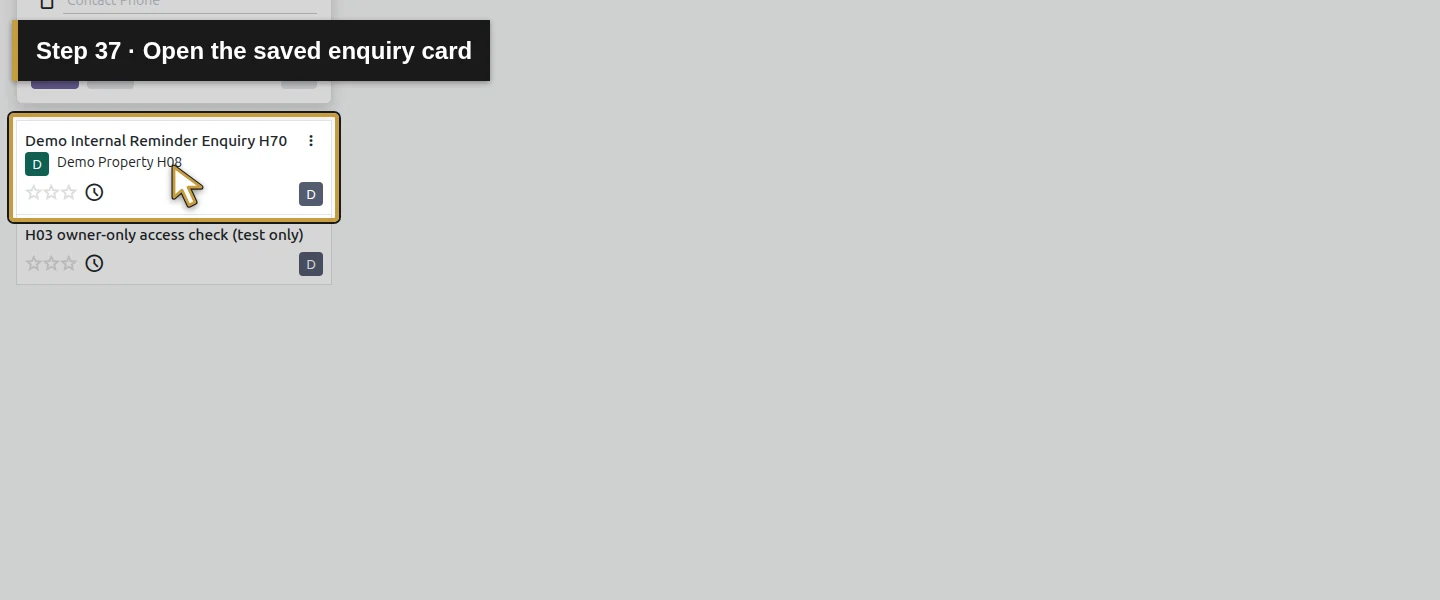
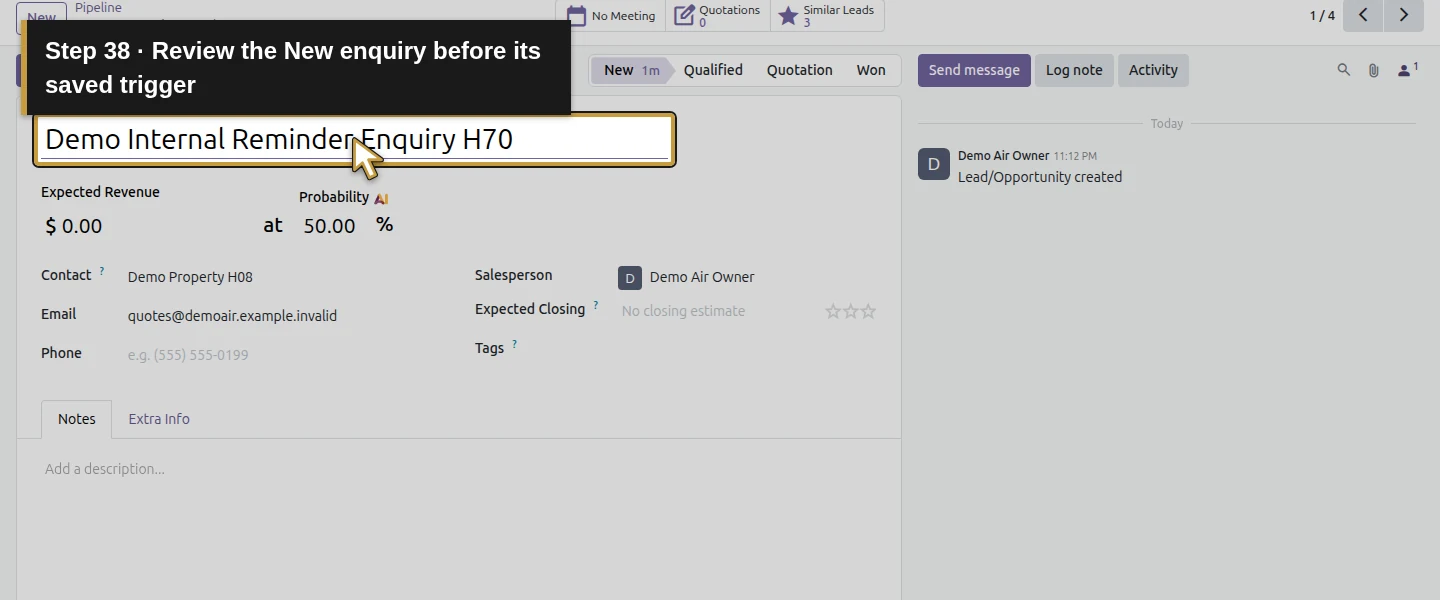
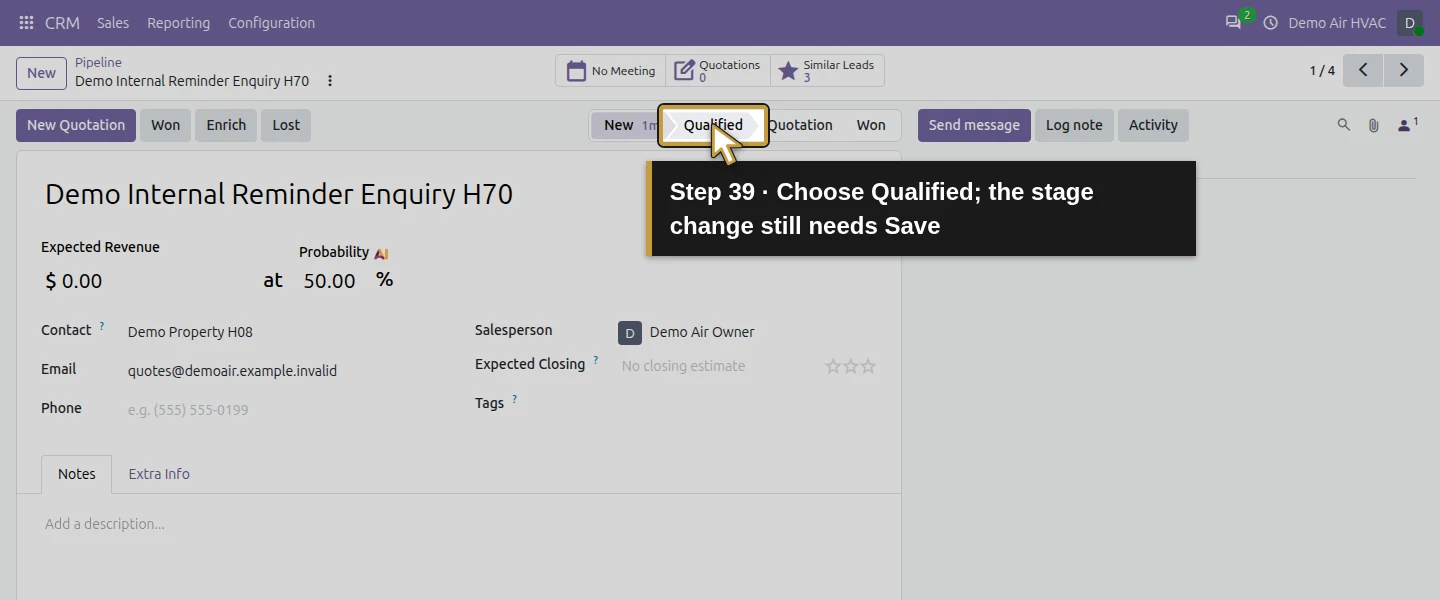
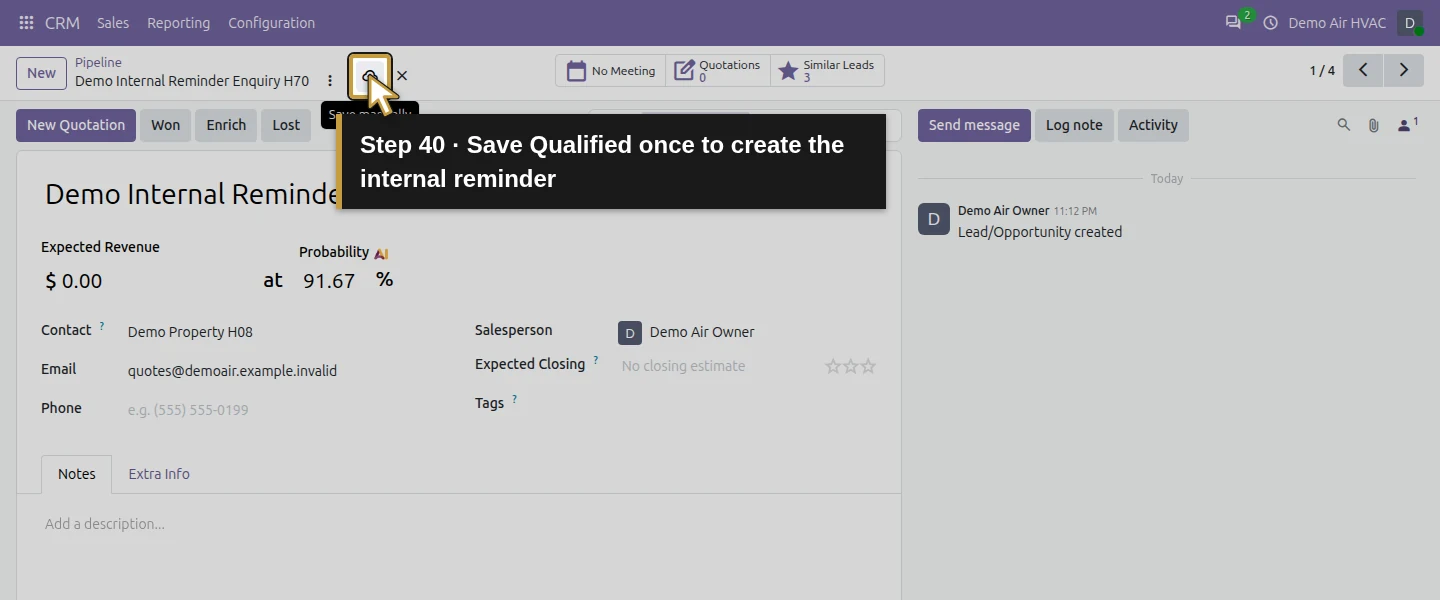
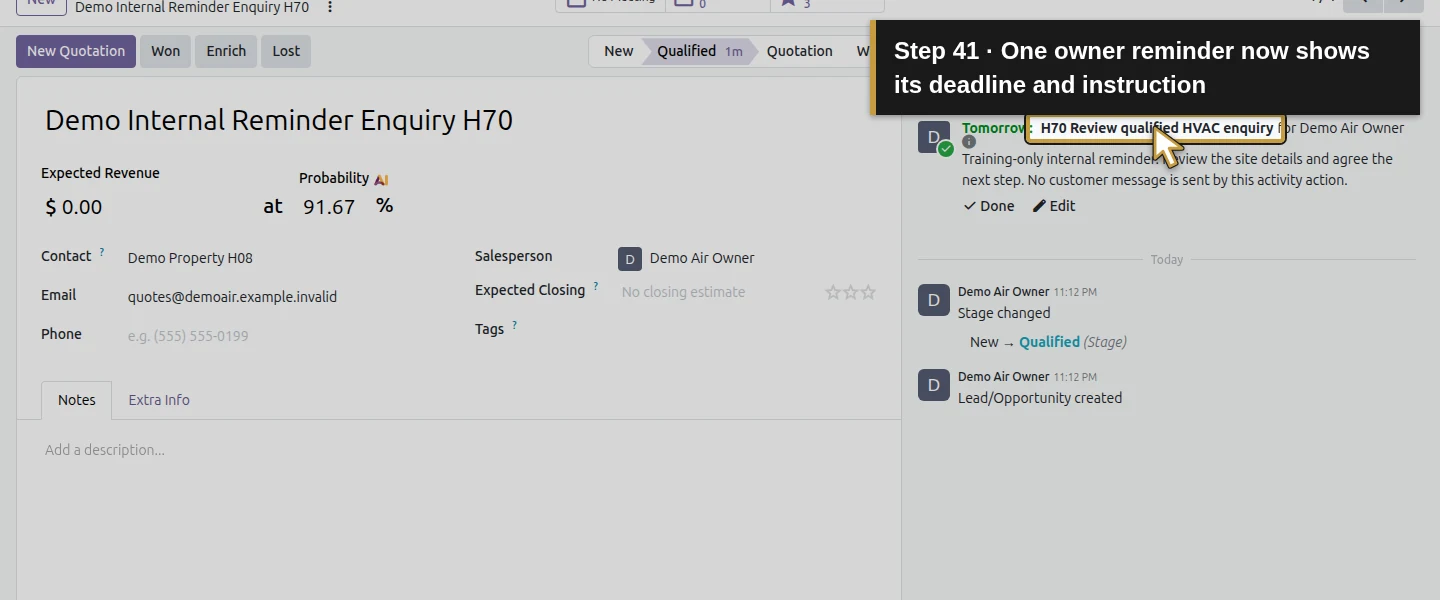
In CRM → Pipeline, click New, enter the exact training opportunity name and choose the existing Demo Property H08 contact. Click Add once and open its card. Verify New, the intended customer/owner and no planned activity. Click the Qualified stage, then Save manually. Choosing the stage initially leaves an unsaved form; in this test the first read still showed New until Save. After the saved transition, the chatter shows one planned H70 Review qualified HVAC enquiry, assigned to the owner, with the instruction note and Tomorrow deadline. On the local October 14 test, that deadline was October 15.
Step 7. Check repetition while the activity remains open
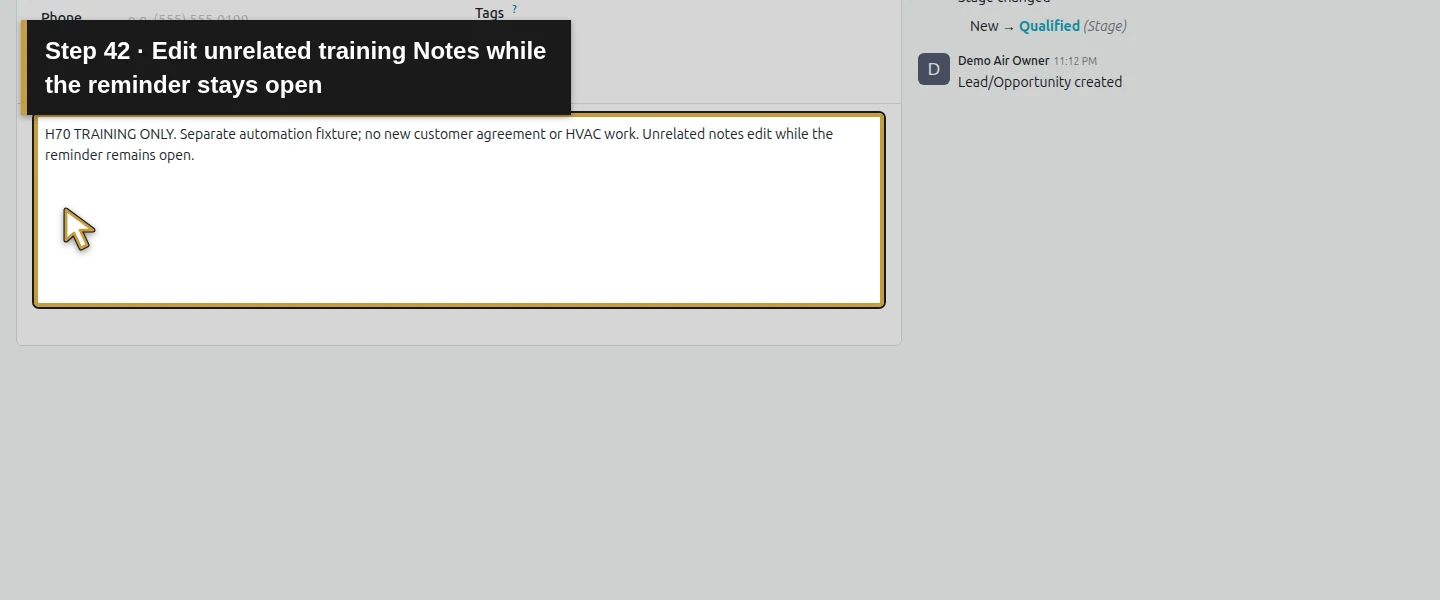
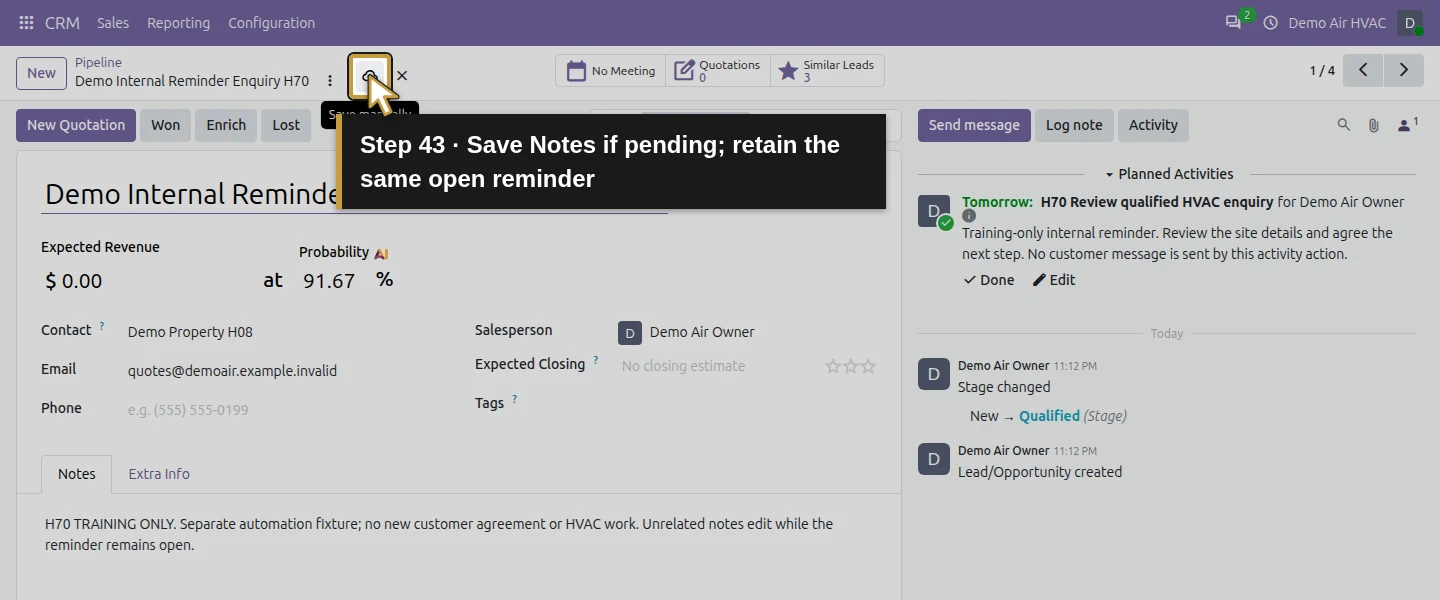
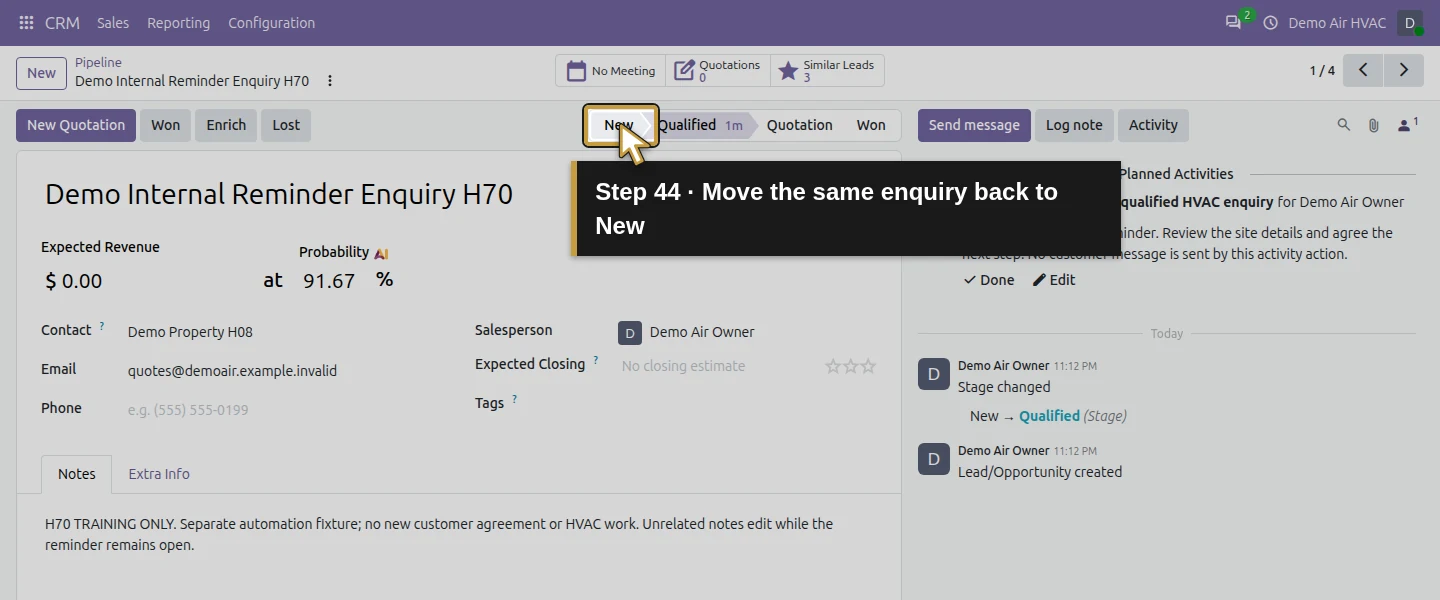
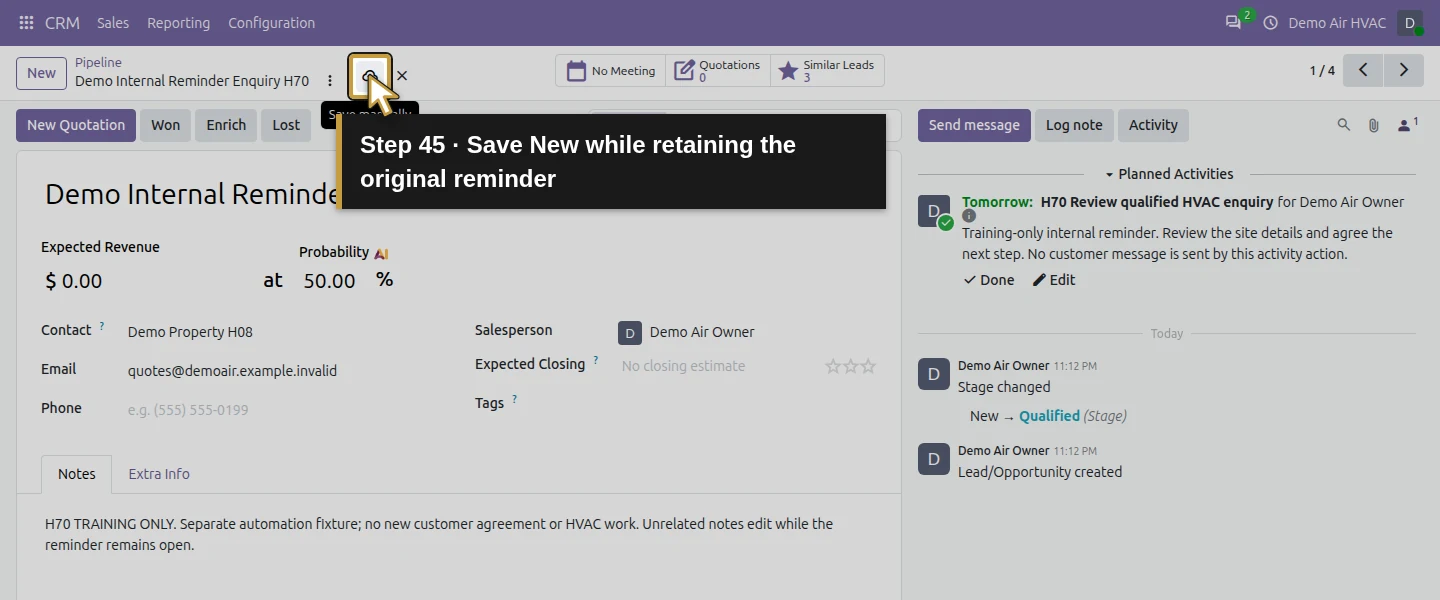
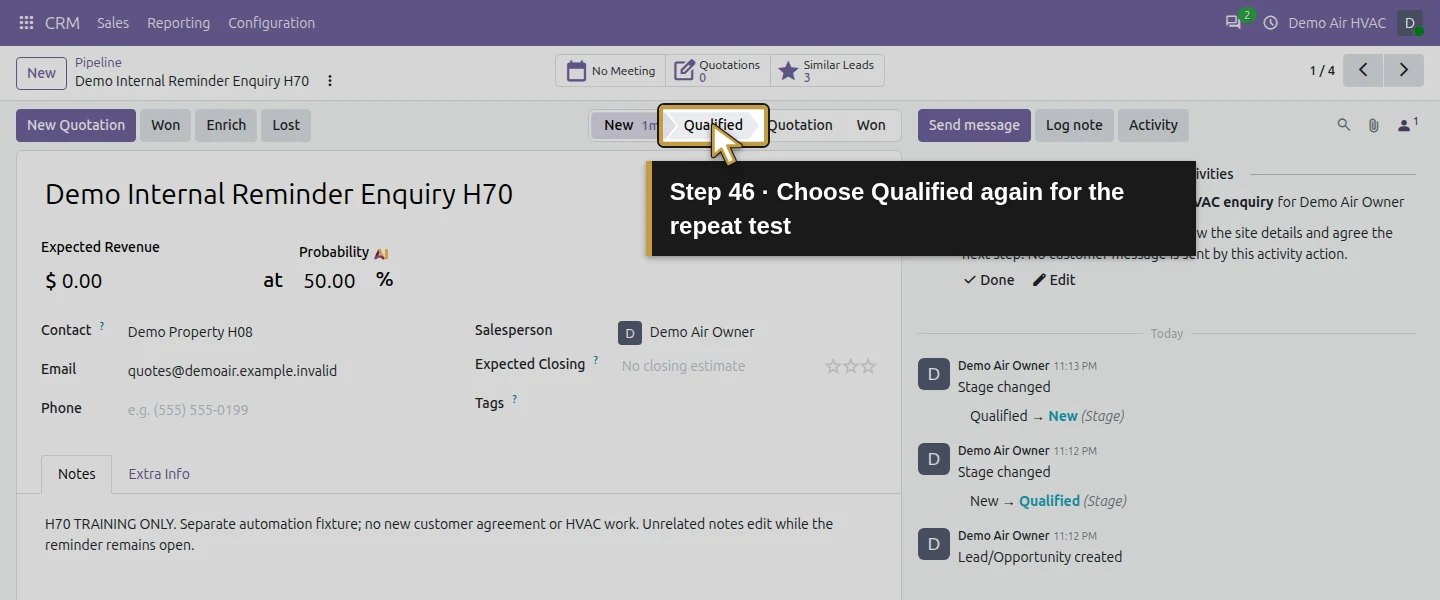
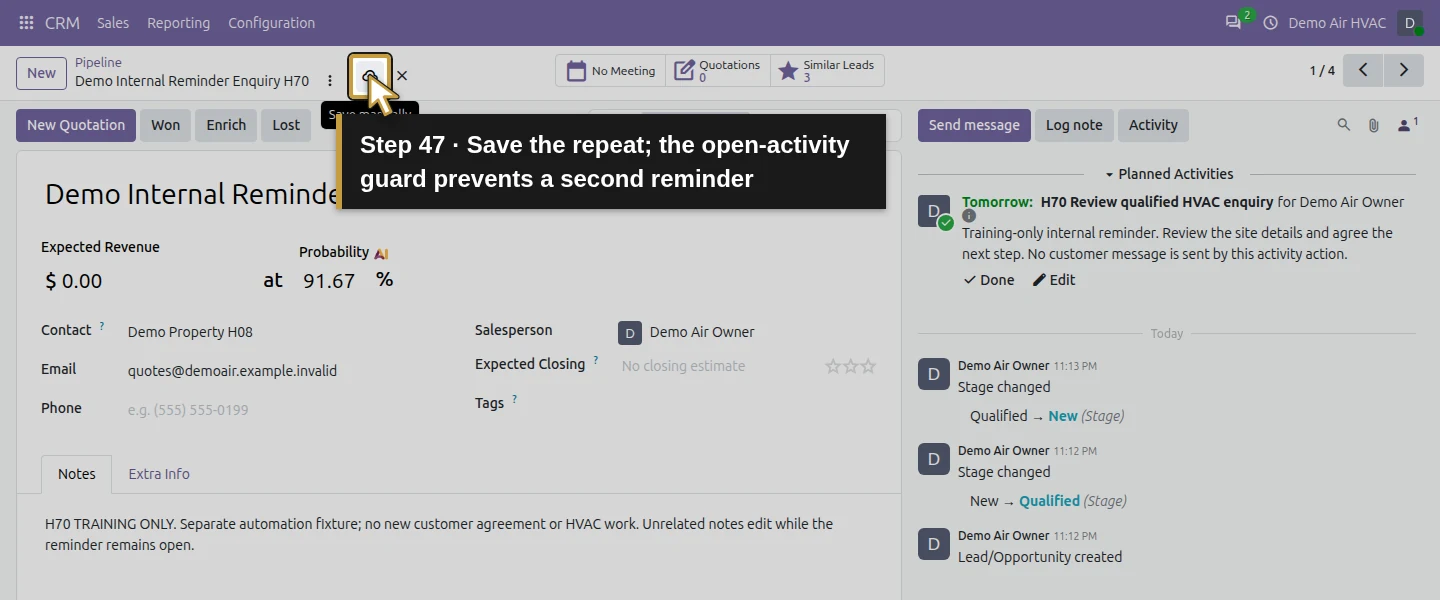
Leave that To-Do open. Add a clearly labelled training note under Notes and save; the same one activity remains. Move the same enquiry back to New, save, then move it to Qualified and save again. This repeated qualifying event still leaves the original one activity, with no second reminder. The Activities-is-not-set condition blocks the action while any open activity exists on this enquiry. It is broader than a check for this reminder summary: another open activity would also make the record ineligible.
Step 8. Review the reminder when the enquiry becomes Won
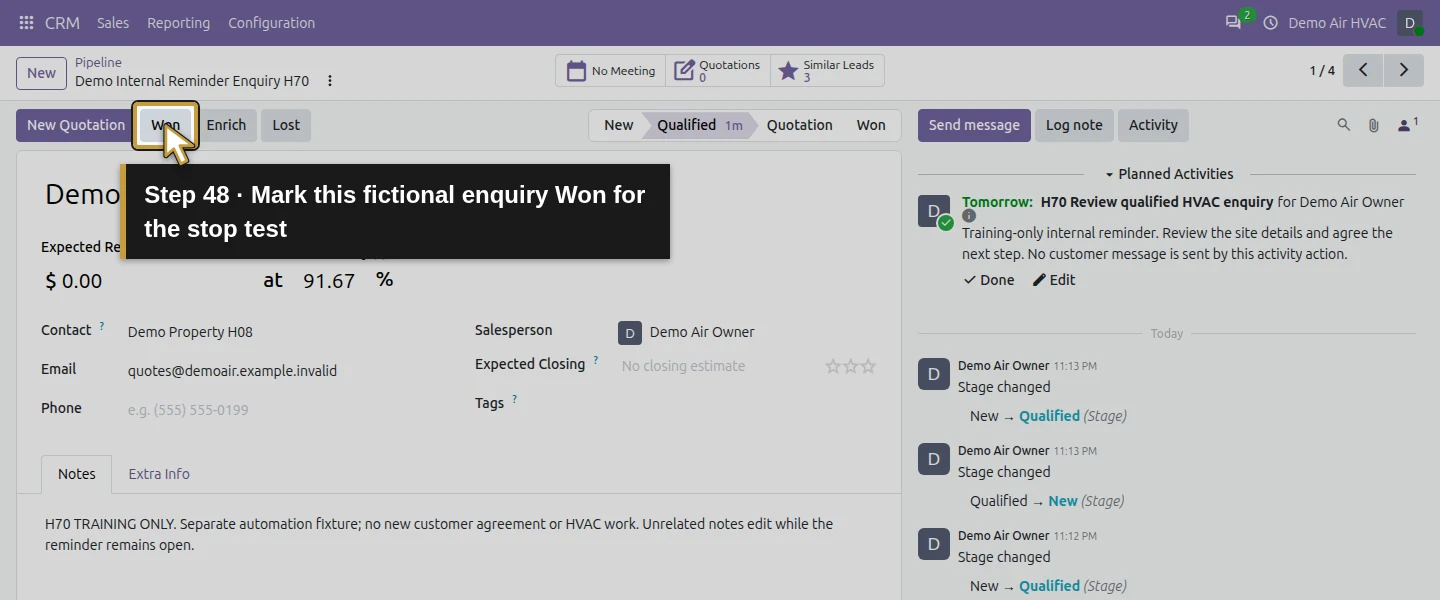
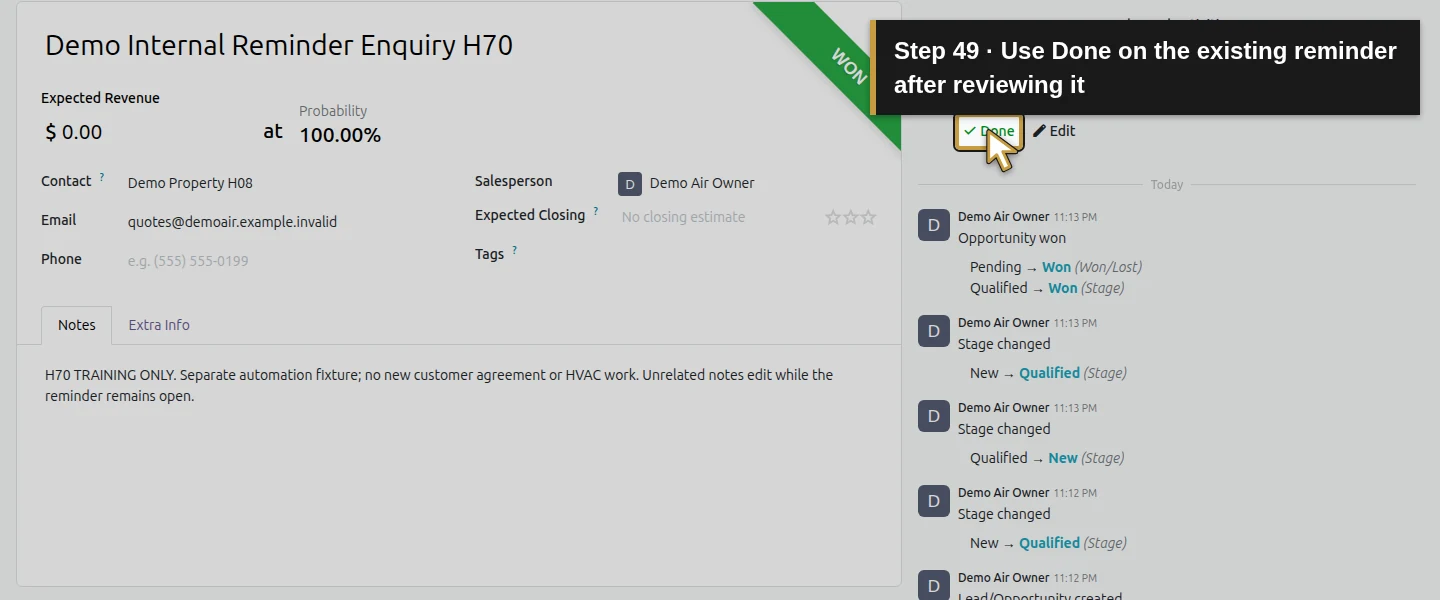
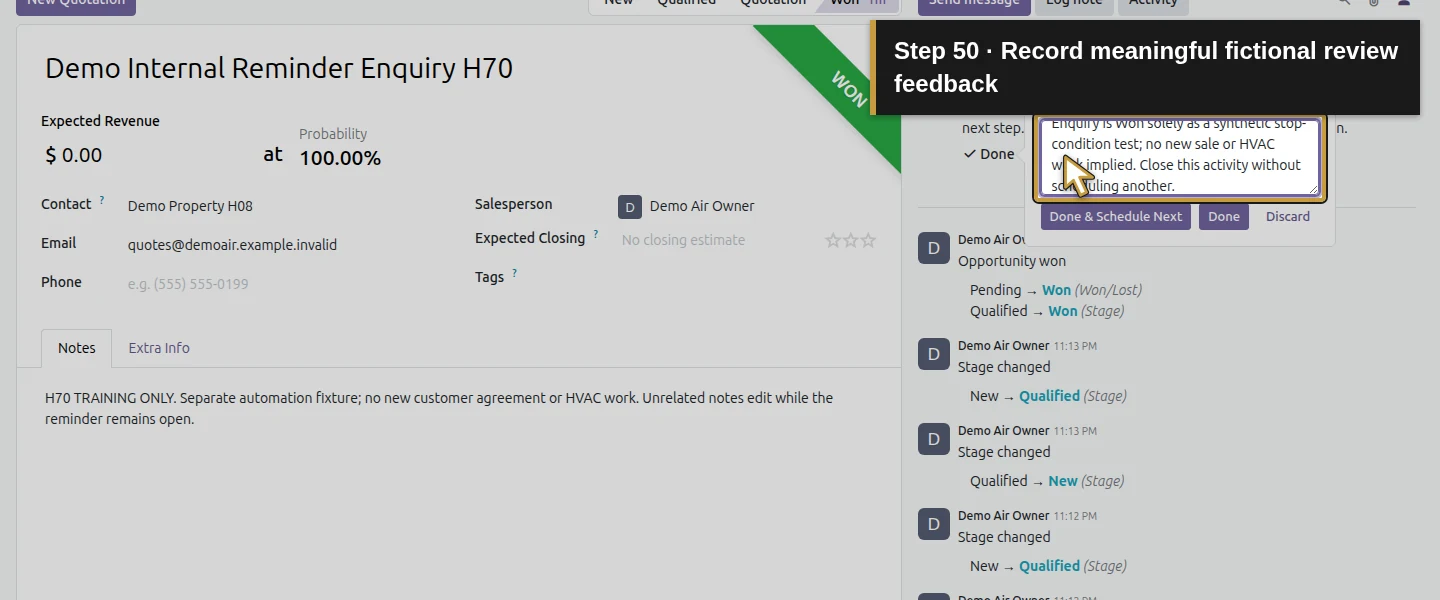
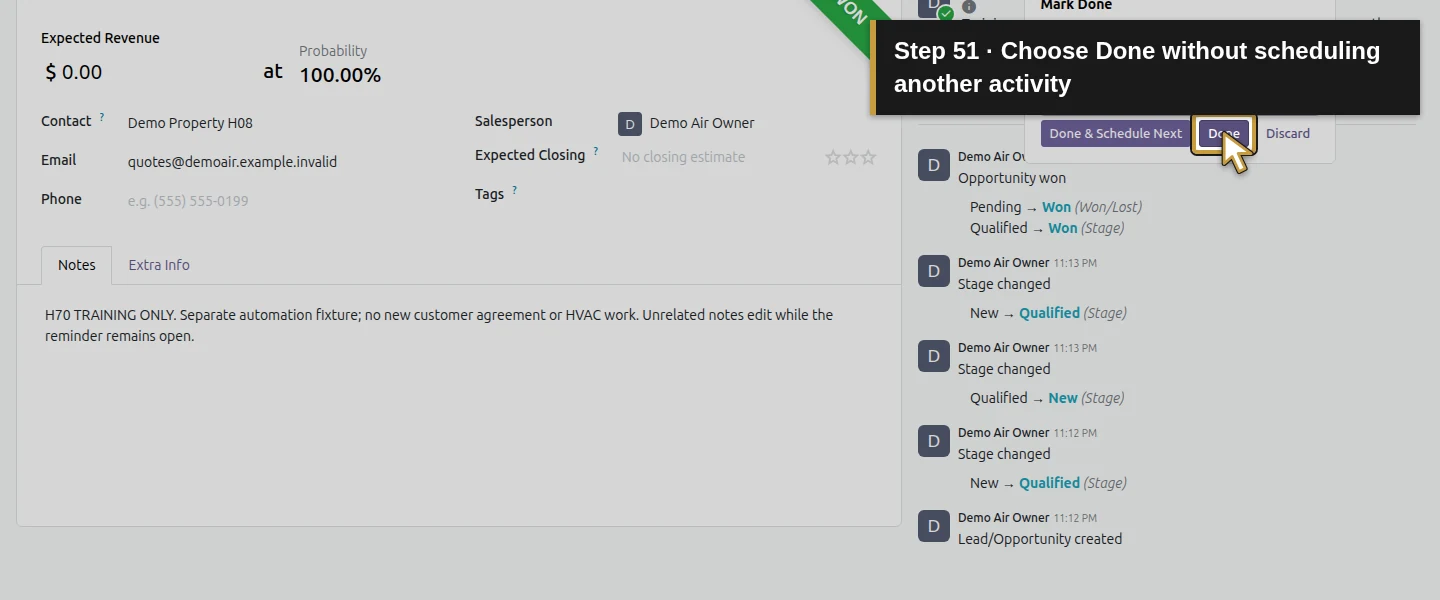
Use the enquiry’s Won button for this synthetic stop-condition test. The stage becomes Won and the existing activity remains planned. A stage filter does not automatically complete an already created activity. After the internal task has actually been reviewed, click its Done control, enter meaningful Write Feedback, and choose Done. The separate Done and Schedule Next control would request another activity; it is not used here. The completed reminder and feedback stay in the chatter.
Step 9. Verify the stop condition and retire the training rule
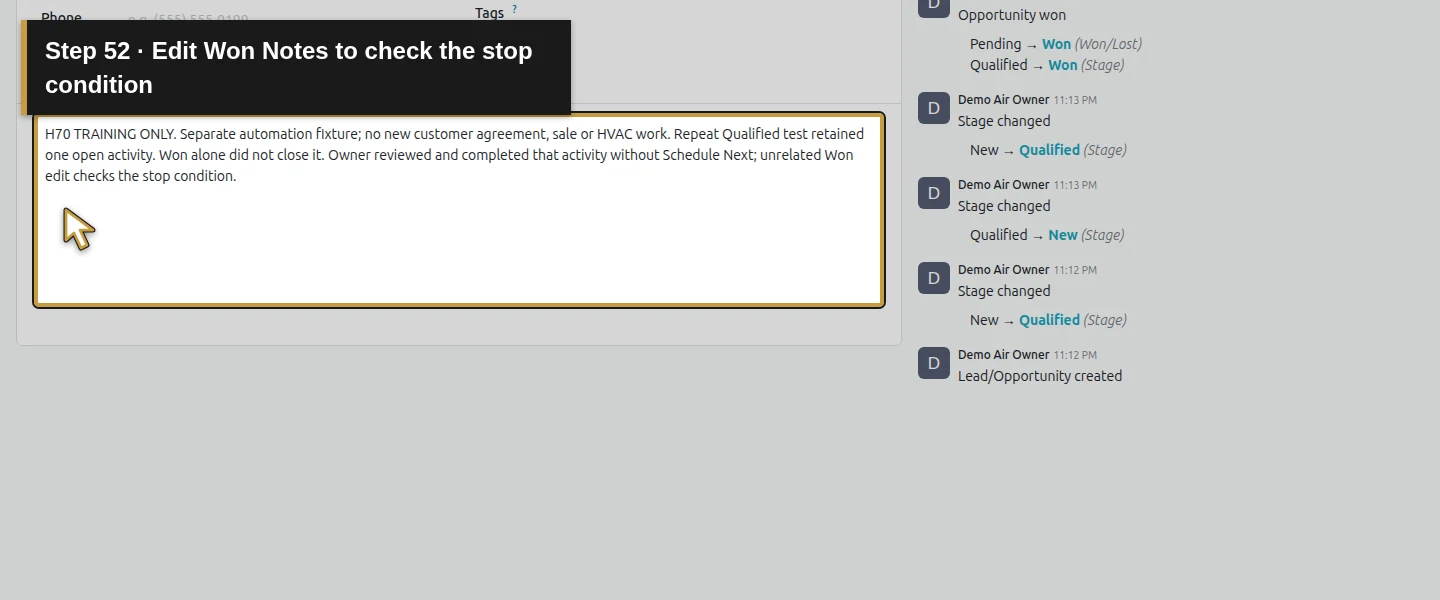
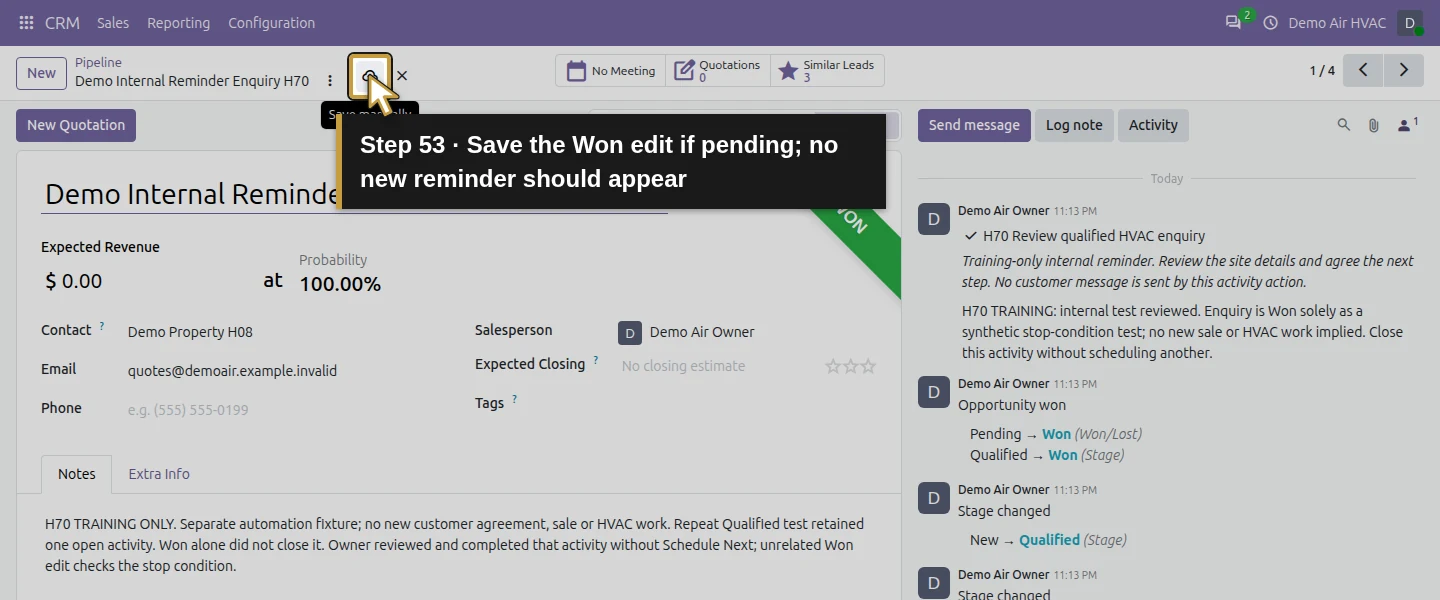
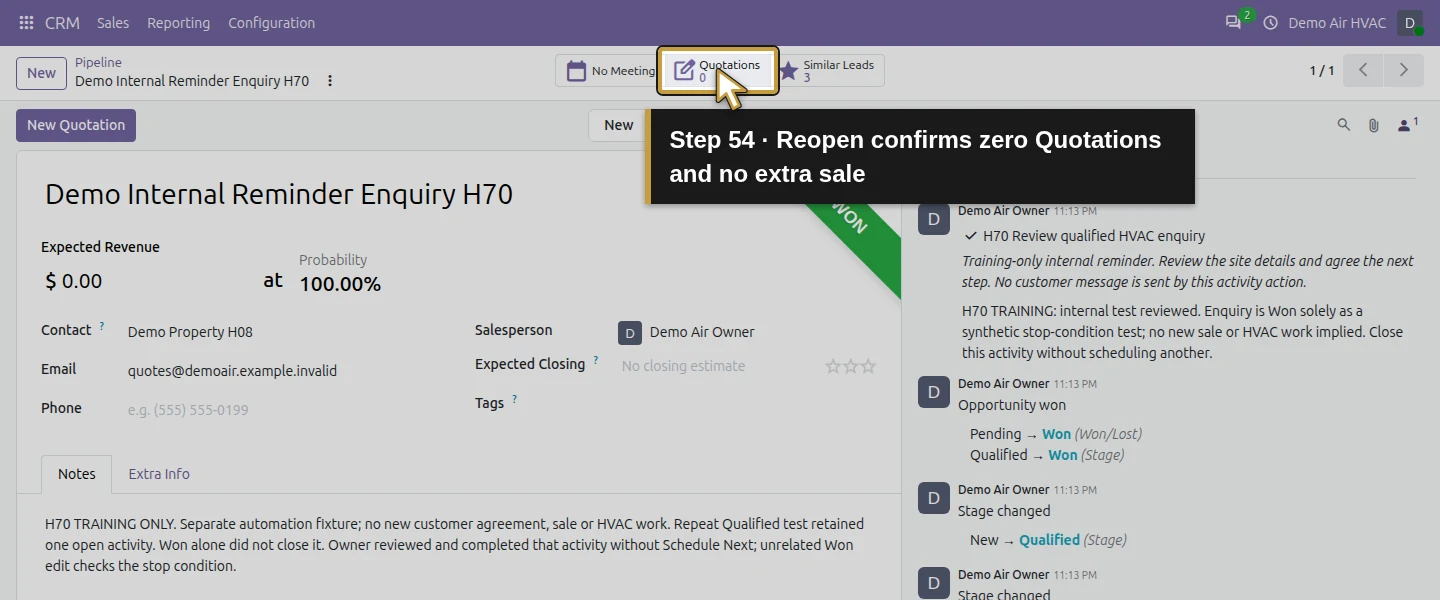
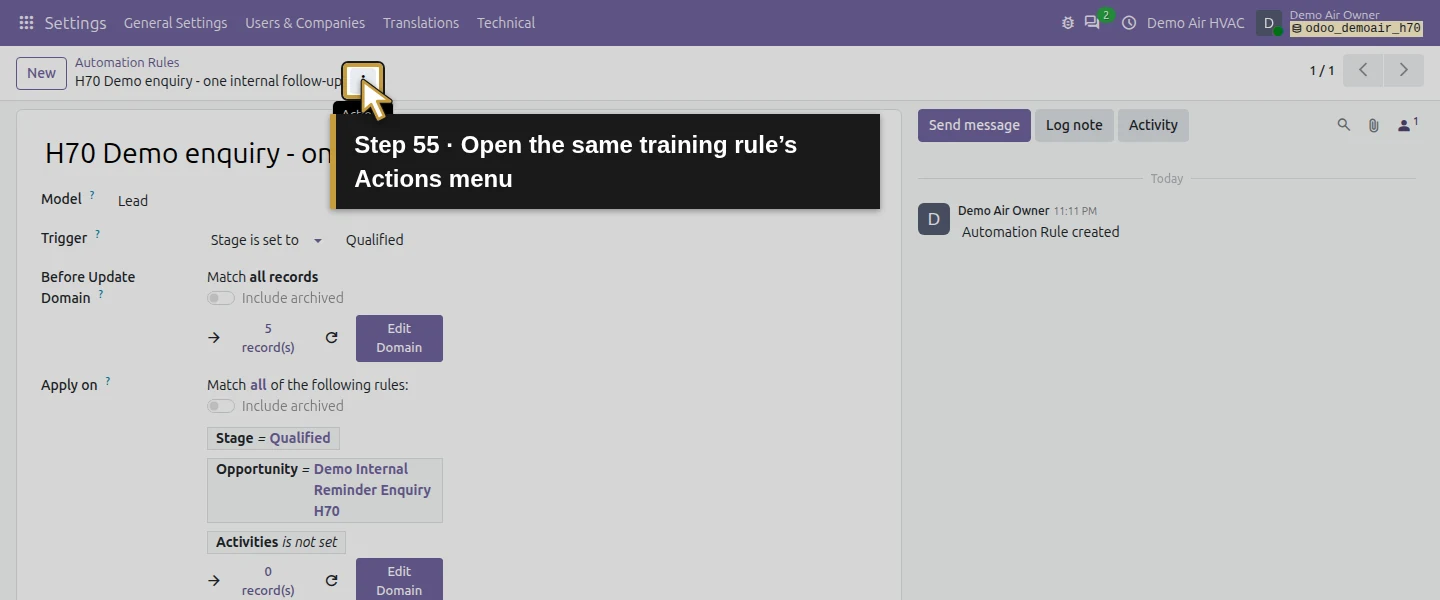
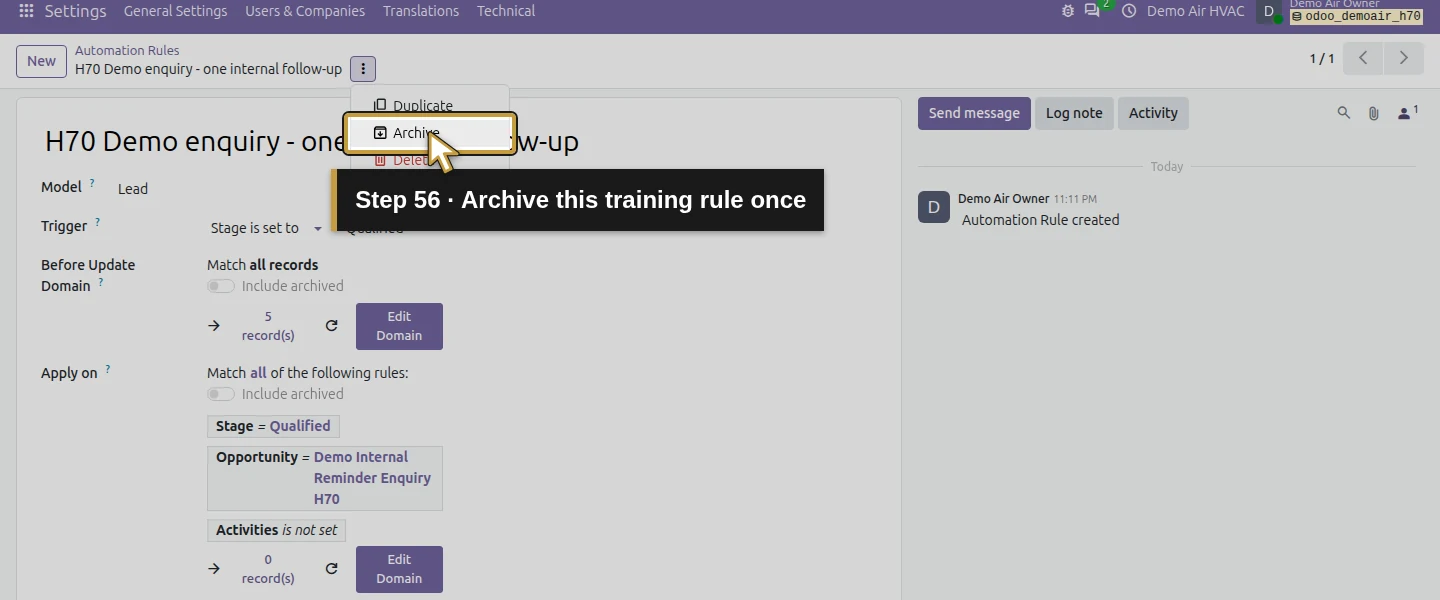
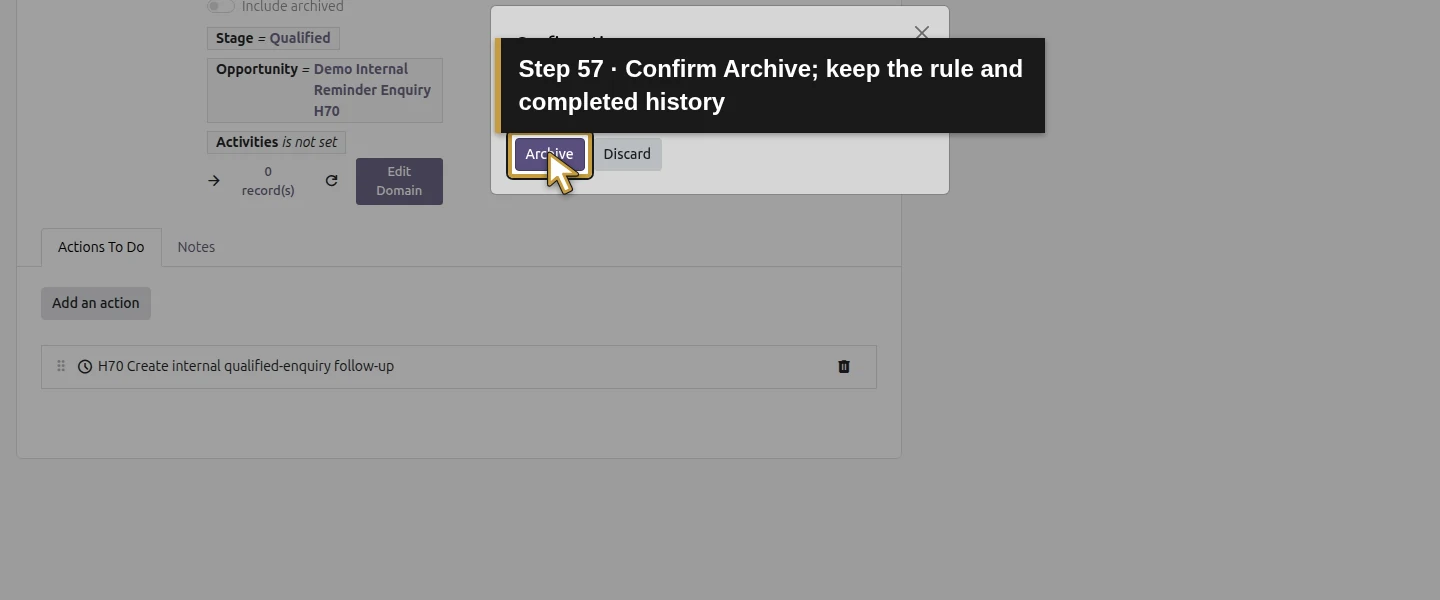
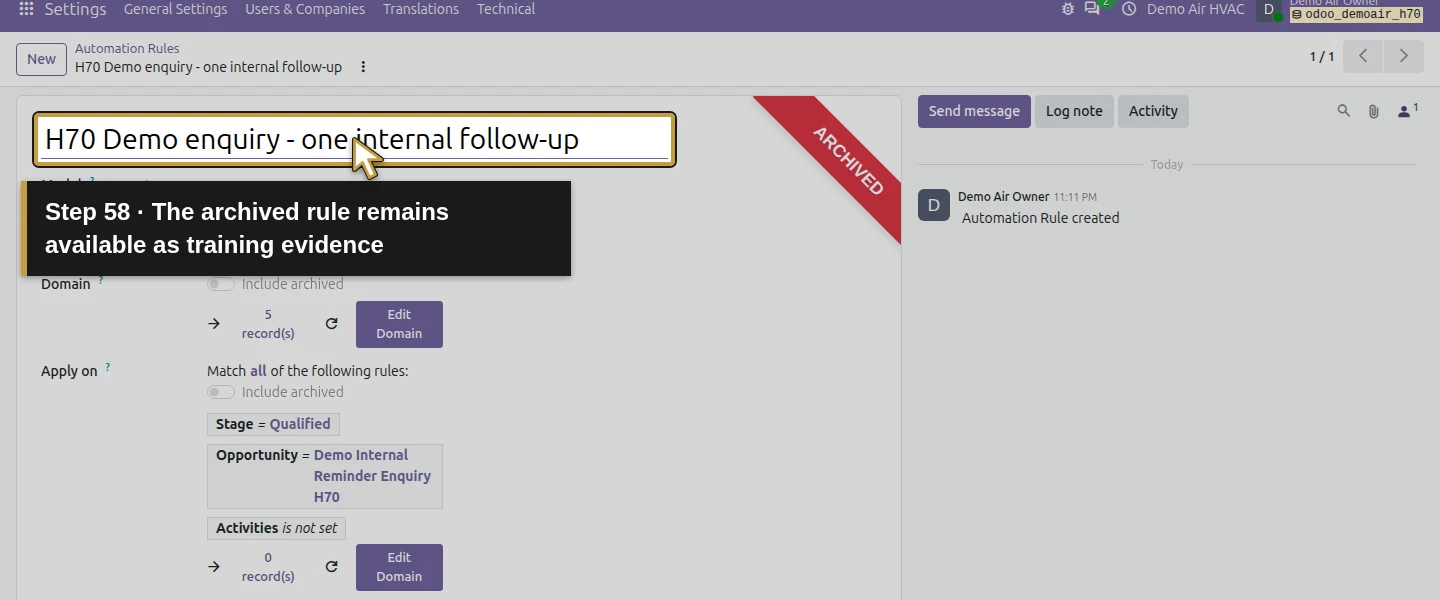
Edit and save the training Notes while the enquiry is Won. Reopen it: there are no open H70 activities, one retained completed-activity entry and zero quotations. The earlier Qualified enquiry remains untouched. Return to the same Automation Rule, open Actions menu → Archive, and confirm Archive in the dialog. Its saved Active state is now false; the rule and predefined action remain available as evidence. Archiving the rule does not erase its completed activity history.
Check the result
One new CRM enquiry saved in New without a reminder. Its first saved Qualified transition created one owner To-Do with a next-day deadline. An unrelated edit and a New → Qualified repeat retained that same open activity. Won made the record ineligible but retained the activity until the owner used Done; a later Won edit and reopen retained zero open reminders and one completed entry with feedback. The training rule is archived. The five earlier enquiries, open bank-review activity, five payments and existing invoice balances are preserved. No new outgoing mail was created.
If your screen differs
This is one immediate stage-triggered internal activity, with a deadline one day later. Unattended date-based execution and automatic customer emails were not tested, and background jobs stayed disabled. The saved filter requires the exact opportunity name, Qualified and no open activity; any open activity blocks it, while another record with the same name could also match. After completion, a future qualifying transition could become eligible again; this is not a permanent once-per-record flag or a concurrency guarantee. Won does not remove an existing reminder. The test archived the rule at the end. Wider filters, a different assignee, scheduled triggers, other roles and email-delivery behavior need their own controlled checks.
Frequently asked questions
How do I create an automatic follow-up activity in Odoo?
Use the official Automation Rules module, the intended model and a supported trigger. Add a narrow graphical Apply on filter and the predefined Create Activity action with type, summary, deadline and user. Save the rule, exercise the saved event and inspect the actual linked activity. This example used a Qualified-stage event on one training opportunity.
How do I stop duplicate automated activities in Odoo?
This test added Activities is not set to the rule’s Match all conditions. A repeated qualifying transition retained the same one open reminder. The condition blocks on any open activity, so choose it only when that broader behavior fits. Completion can make a record eligible for a later qualifying event; wider duplicate and concurrent-event cases were not tested.
Does an Odoo automated action send an email when it creates an activity?
This verified action created an internal owner To-Do and no new outgoing mail. The action picker also displayed Send Message, but automated-email delivery was not exercised. Email needs a separately checked action, template, recipient, outgoing route and repeat/stop test.
Continue building the business
Continue with How do I export Odoo business records to a spreadsheet?. For money still owed, the Can Odoo send reminders for overdue invoices? has its own eligibility, review and delivery checks; this CRM activity test does not establish automated invoice dunning.
Talk about your Odoo setup
Bring your current process and the result you need to Onward to plan your Odoo workflow. Talk about your Odoo setup.