Running an HVAC business with Odoo

How do I invoice job time and materials in Odoo?
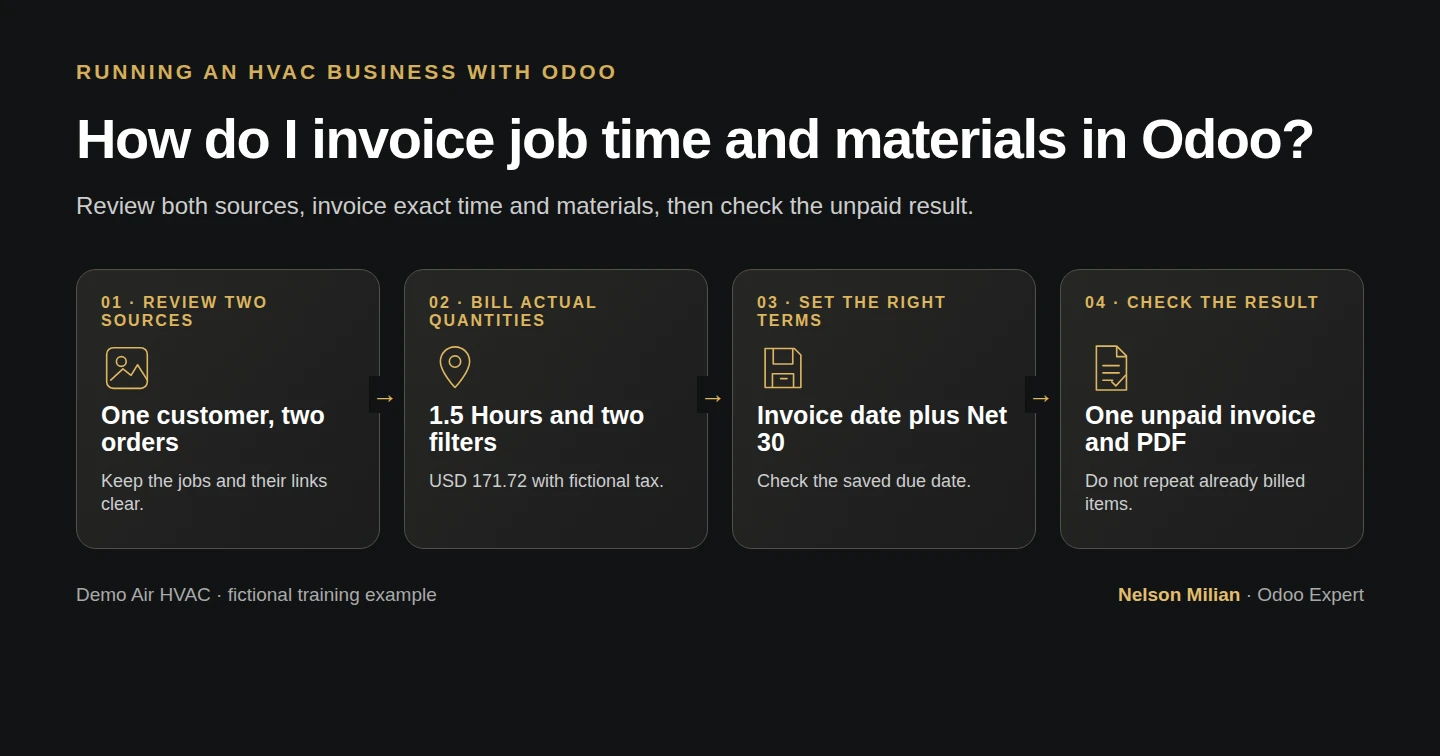
Workflow overview: How do I invoice job time and materials in Odoo?
Workflow overview. Instructional screenshots show the actual demo interface.

Create one Odoo invoice from reviewed technician time and delivered materials, verify its order links, Net 30 due date, posted balance and duplicate stop.

Alex wants one customer invoice that agrees with the time and materials records. This example completes the existing reviewed parts delivery, combines its amended order with the separate hourly order and verifies one posted invoice for $171.72. The invoice retains the exact source lines; it does not bill the unused half-hour of the estimate.

Alex Rivera and Demo Air HVAC are fictional training examples. Prices, dates, quantities and business situations in this guide are illustrative.

Before you begin

Tested in stock Odoo 20.0-20260926 Community as the demo owner administrator, with official modules and standard configuration. Complete the review in the reviewed job closeout, US invoicing setup, the the agreed order amendment and the saved payment term. Reuse the existing parts backorder. S00007 now orders two filters at $21 each; S00008 has one eligible 1.5-hour entry at $80 per Hour. Both use Demo Property H08, Billing Office H08, Service Site H08, the same company and USD. This lesson deliberately combines two reviewed orders for one customer; it does not assume Project automatically links their materials. The fictional invoice uses the saved Demo Net 30 H06 term. All prices, 6% demo tax, agreement and delivery/work records are synthetic. Select the actual commercial terms and tax treatment for your business.

Step-by-step workflow

Complete the reviewed delivery, combine the two eligible orders, check the exact time and materials, and post one unpaid invoice. The native PDF and refused duplicate attempt are checked; payment and sending the invoice remain separate.

Step 1. Complete the existing reviewed parts backorder

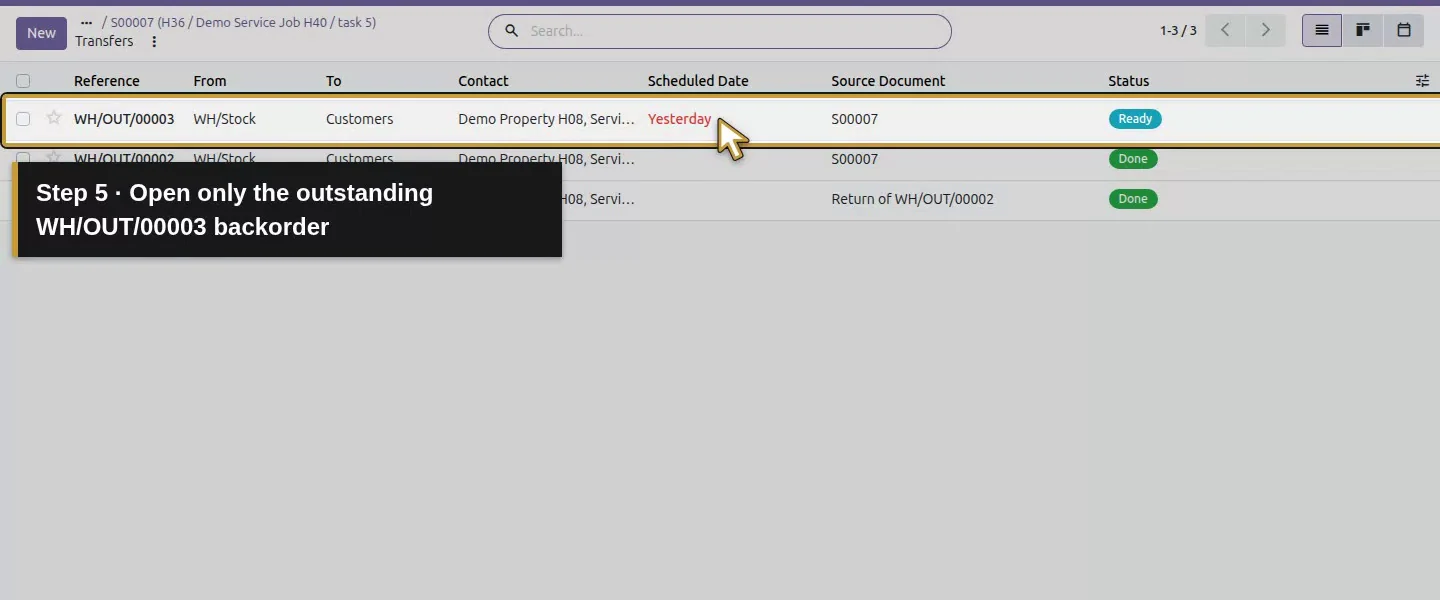
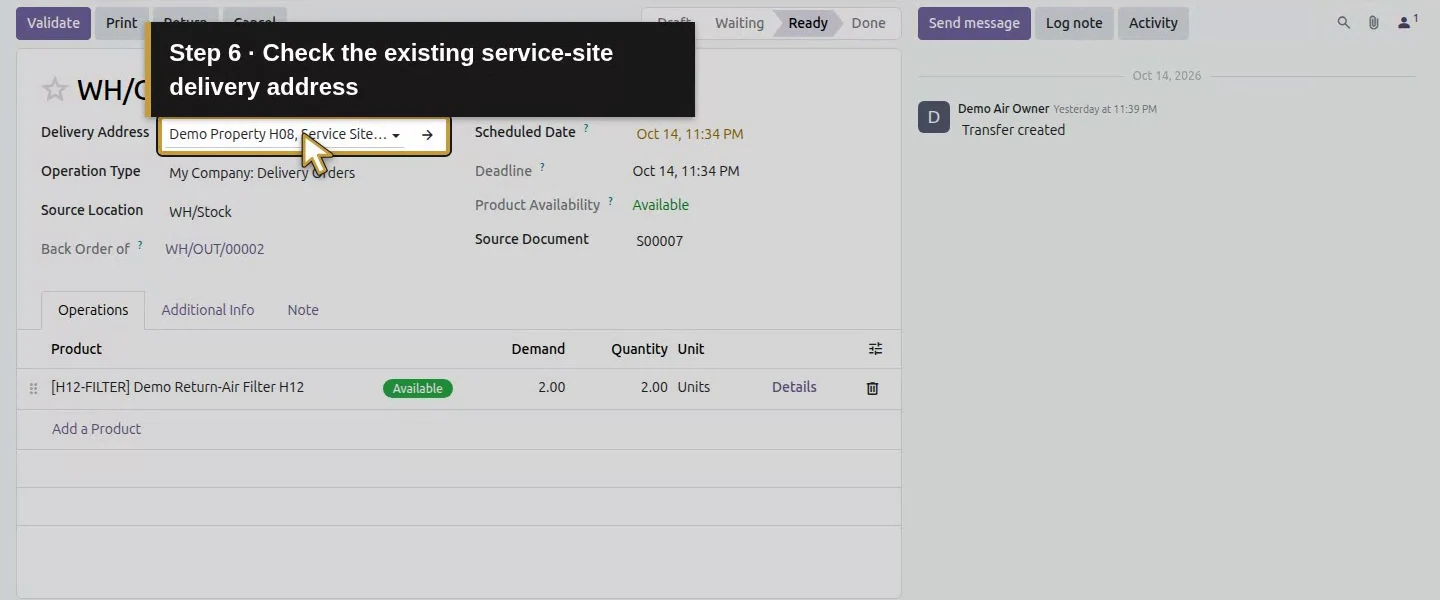
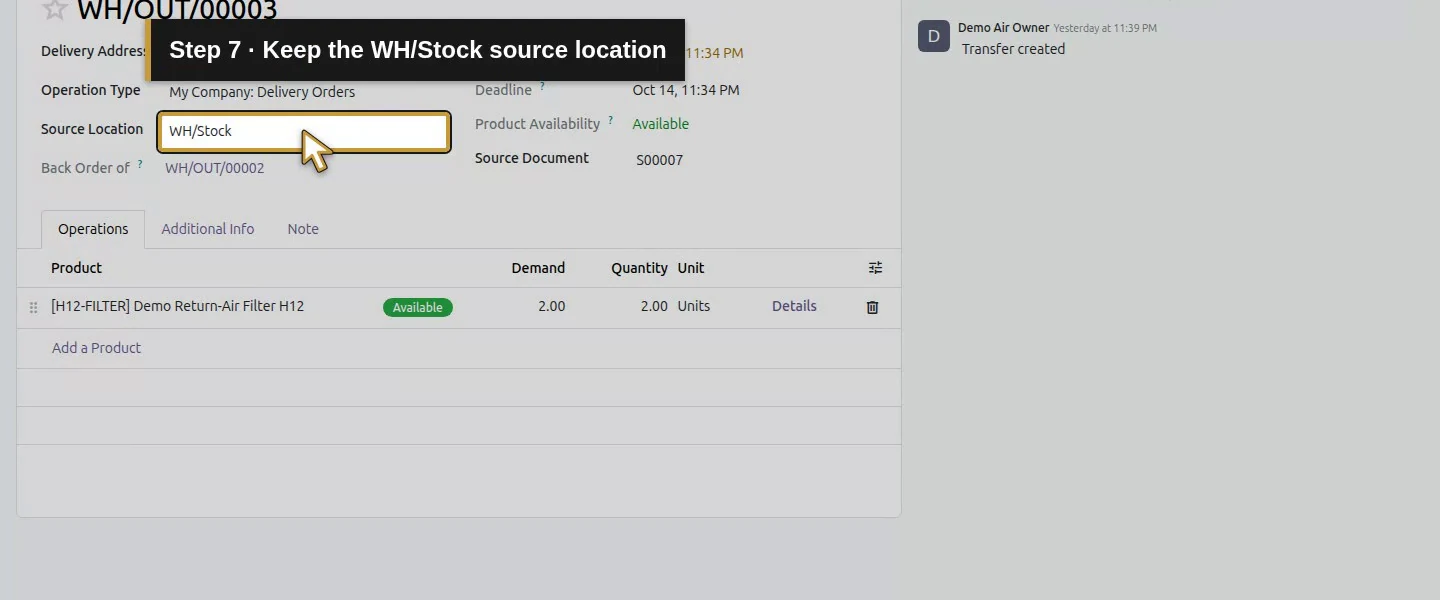
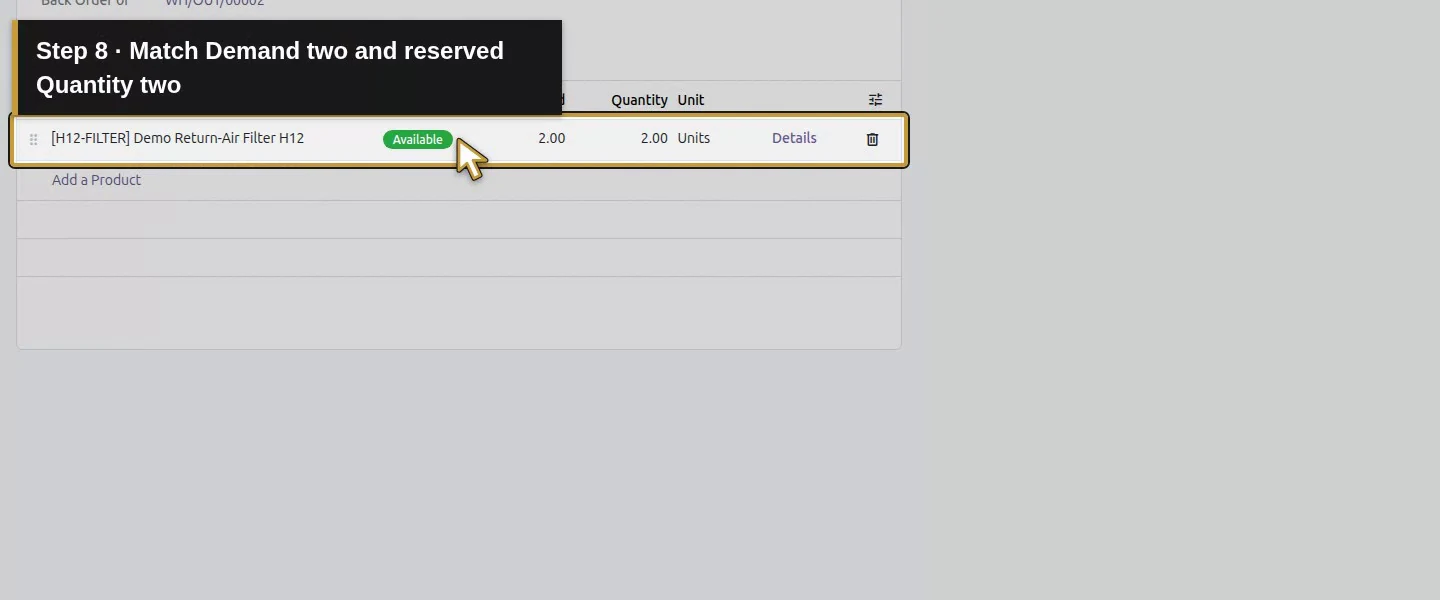
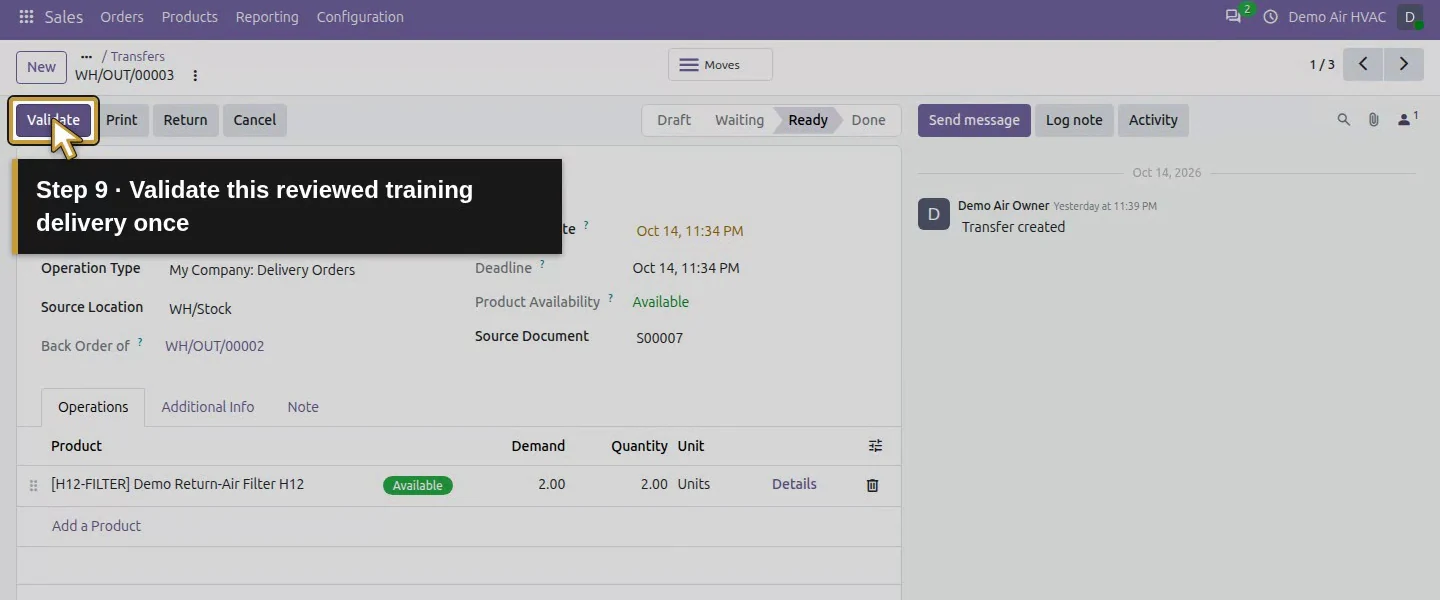
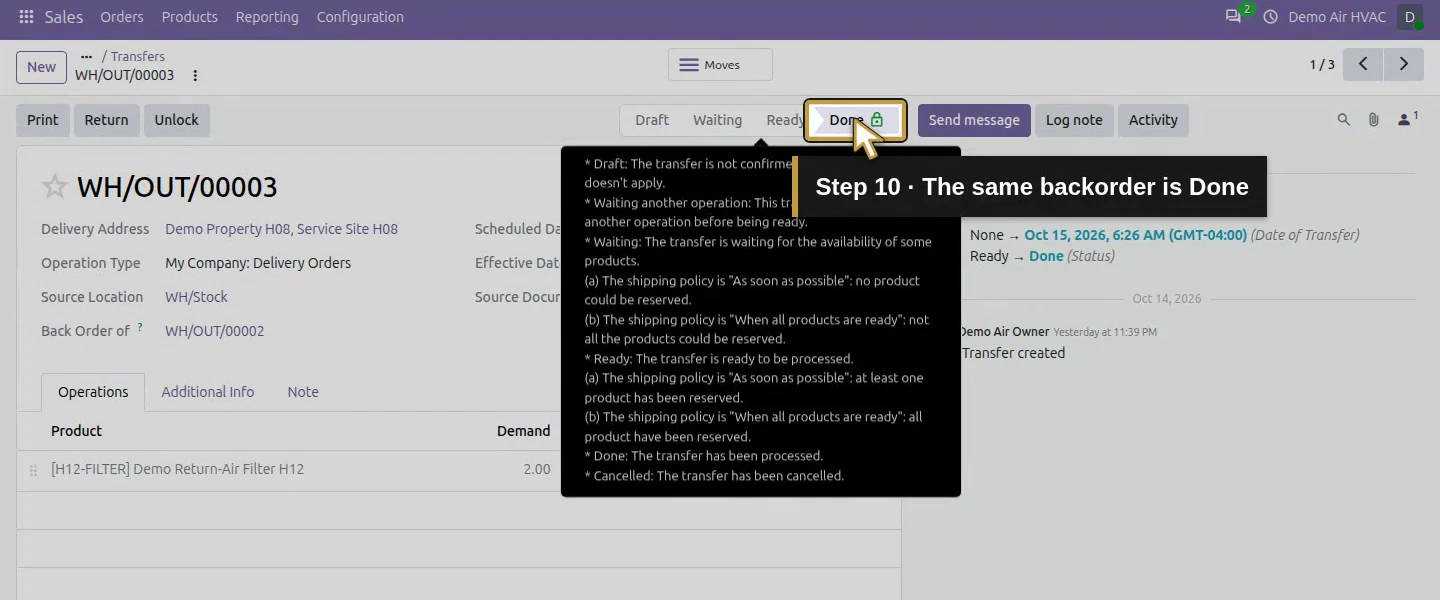
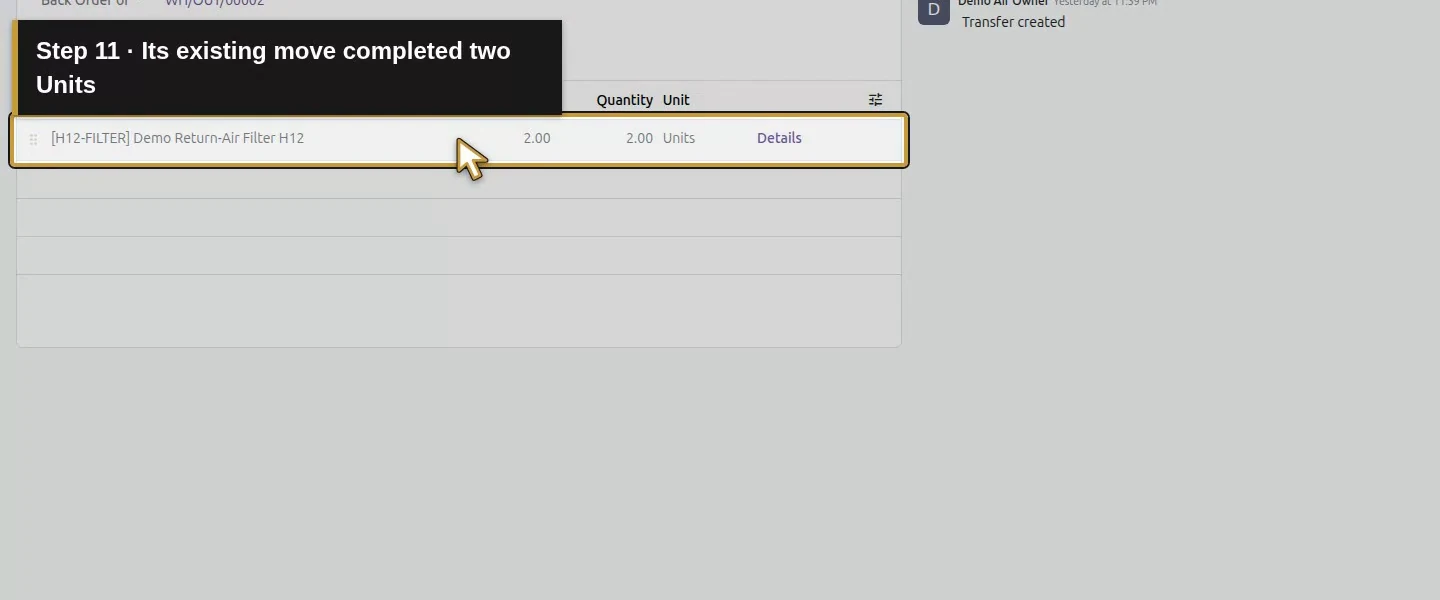
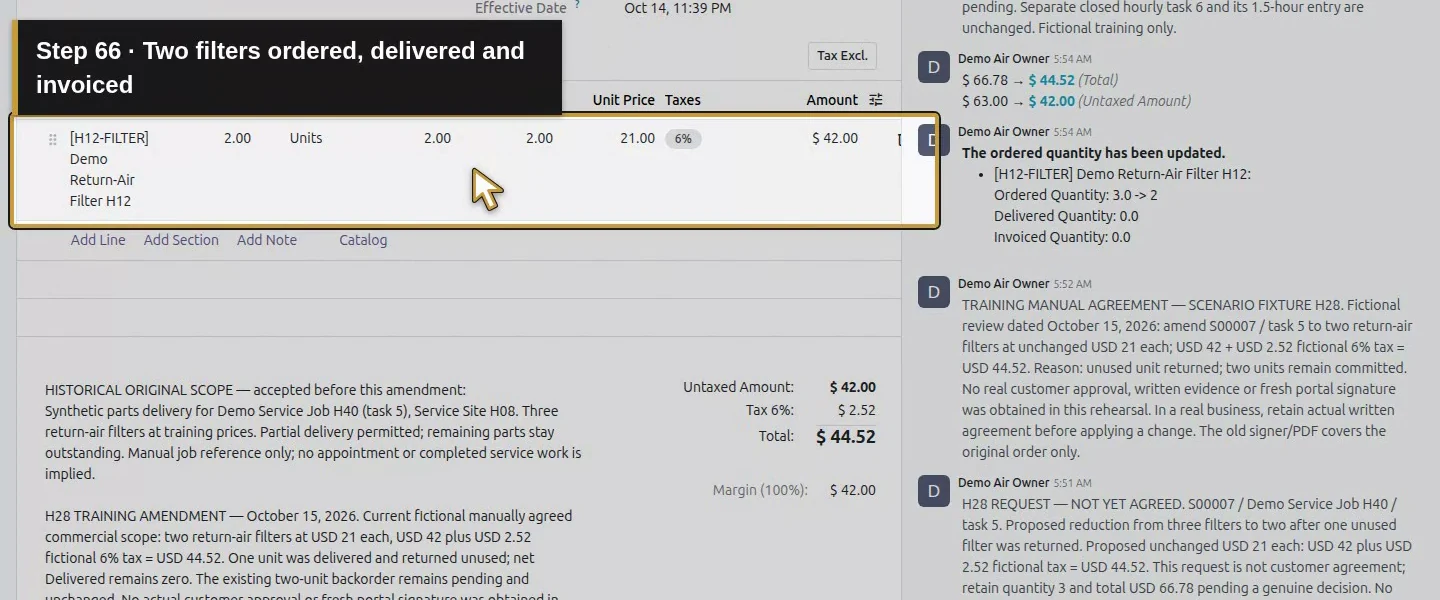
Open WH/OUT/00003 from S00007’s Delivery list. Check the amended order, service-site address, WH/Stock source and Demand: 2.00 / Quantity: 2.00 filters. After the office’s delivery review, click Validate once and wait for Done. This advances the existing backorder; no replacement transfer is created. Original one out, one returned and this two-unit completion leave S00007 net Delivered 2.00. Warehouse stock becomes zero and the van retains two unreserved filters.
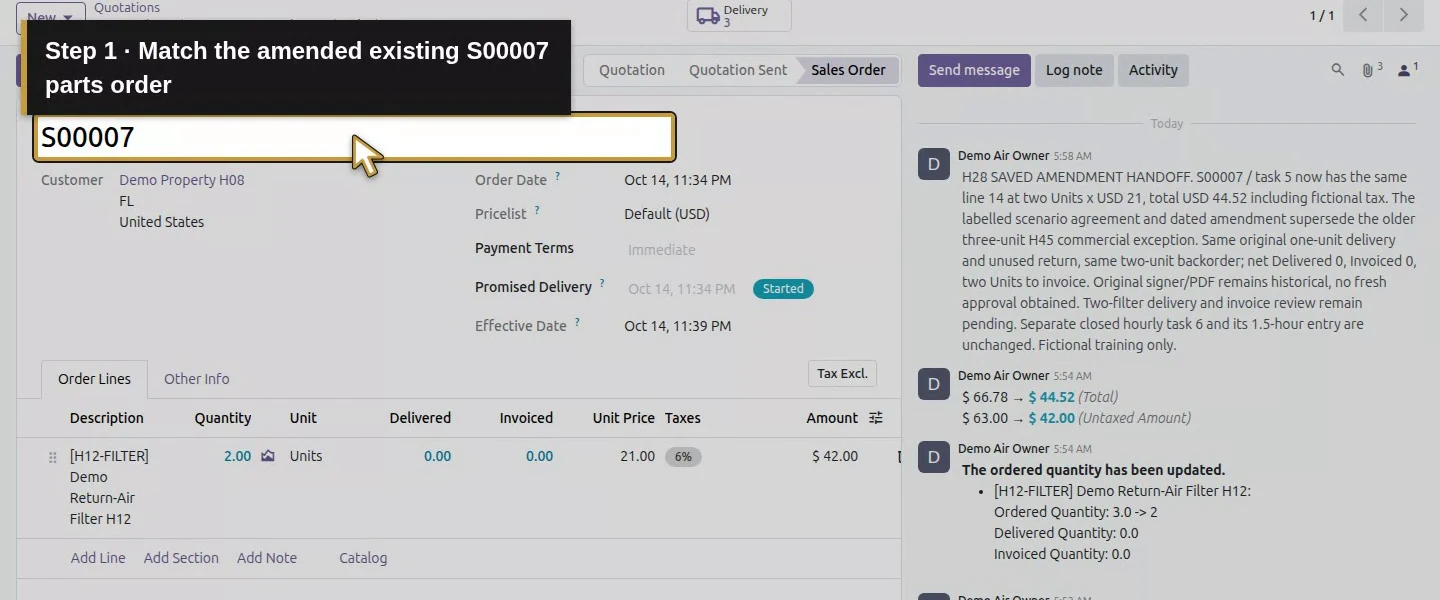
Action 1: Match the amended existing S00007 parts order. The actual target is highlighted in gold.
Match the amended existing S00007 parts order.
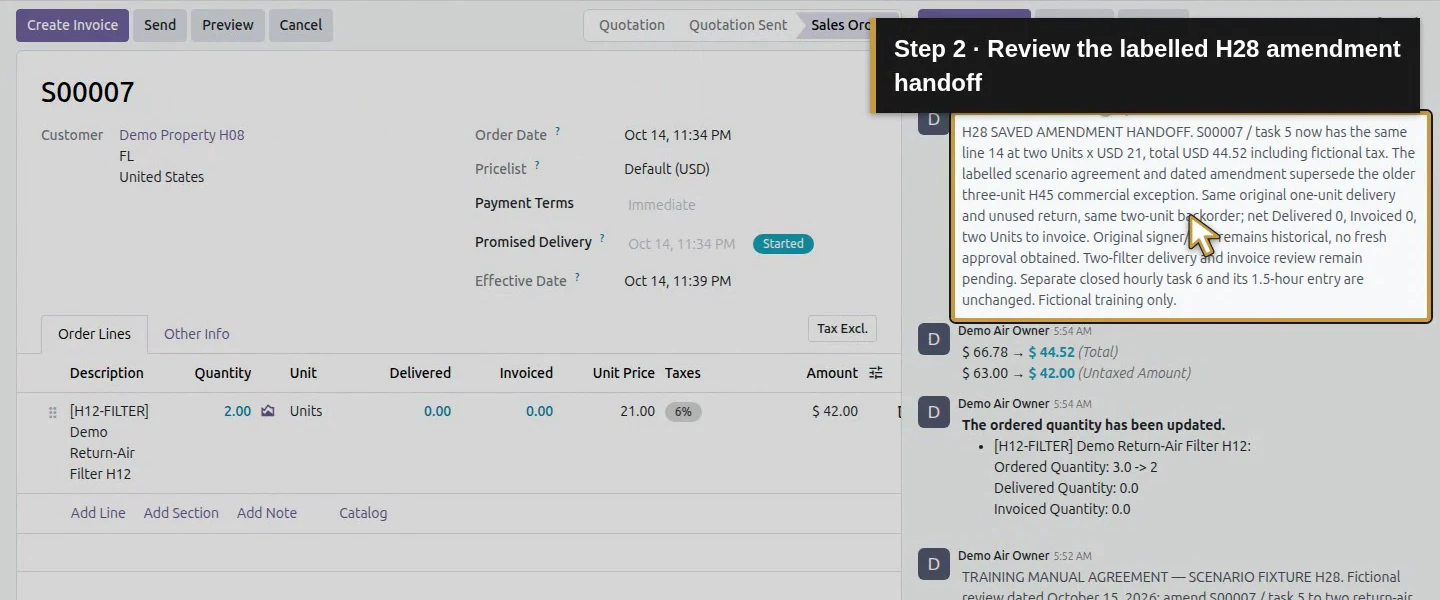
Action 2: Review the labelled H28 amendment handoff. The actual target is highlighted in gold.
Review the labelled H28 amendment handoff.
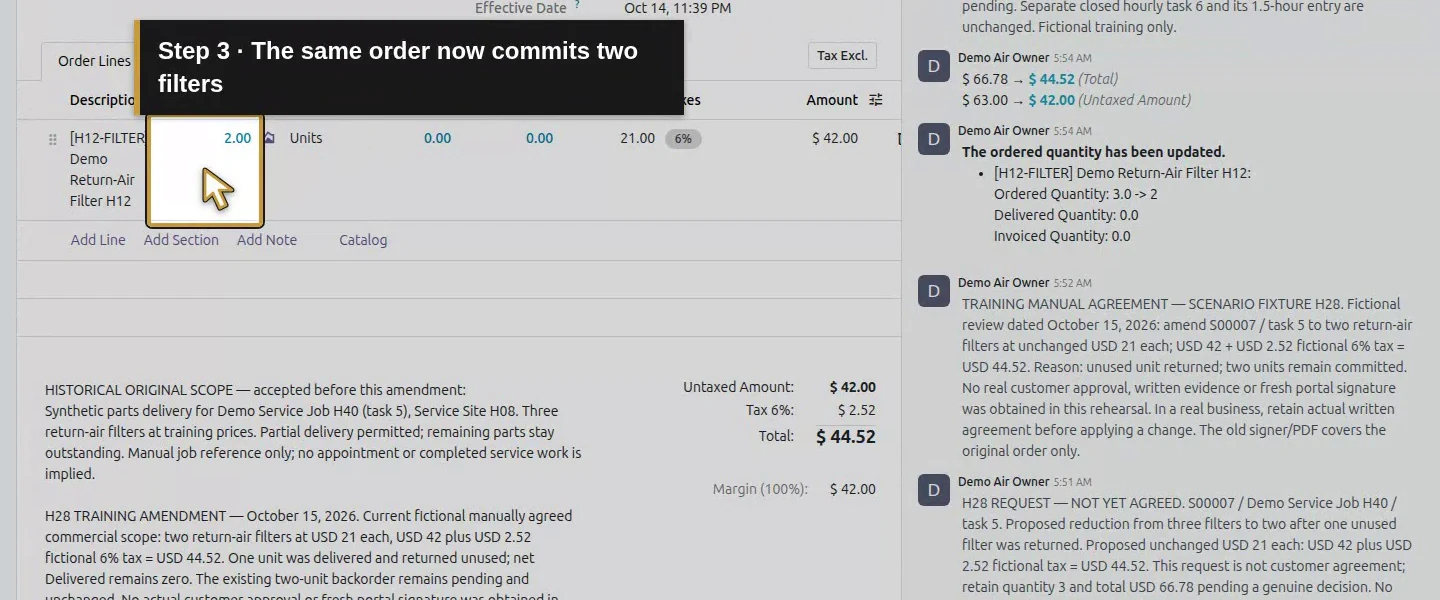
Action 3: The same order now commits two filters. The actual target is highlighted in gold.
The same order now commits two filters.
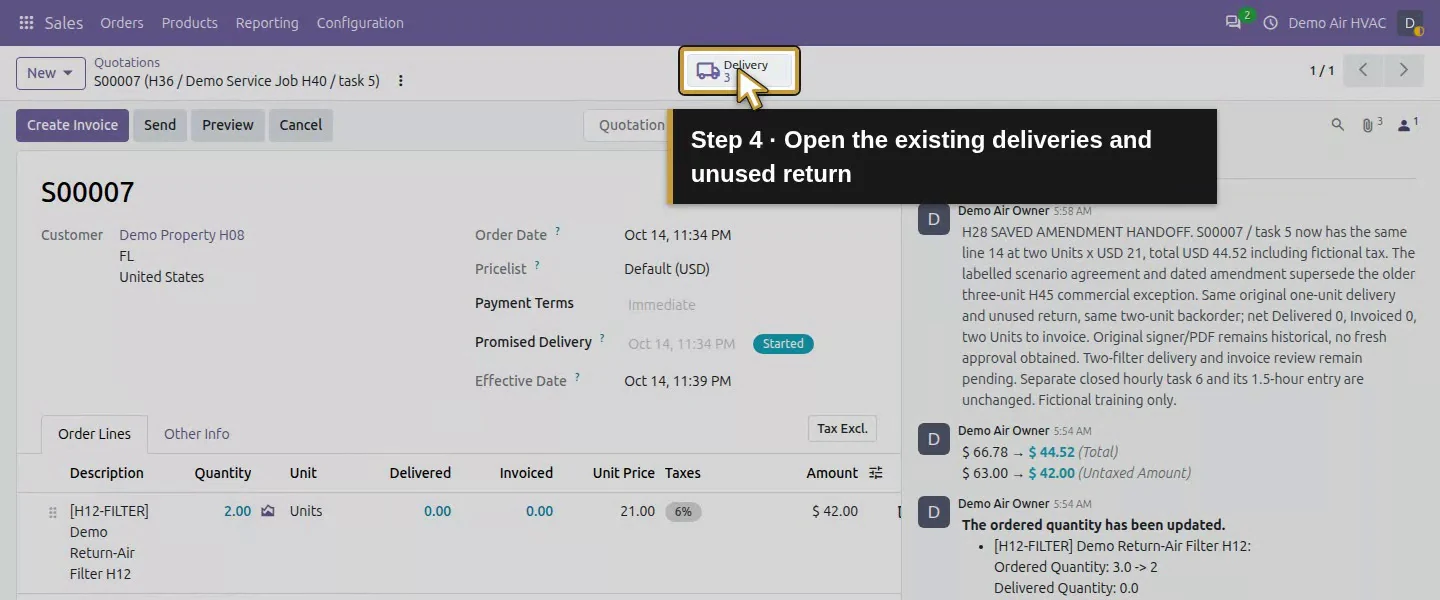
Action 4: Open the existing deliveries and unused return. The actual target is highlighted in gold.
Open the existing deliveries and unused return.
Action 5: Open only the outstanding WH/OUT/00003 backorder. The actual target is highlighted in gold.
Open only the outstanding WH/OUT/00003 backorder.
Action 6: Check the existing service-site delivery address. The actual target is highlighted in gold.
Check the existing service-site delivery address.
Action 7: Keep the WH/Stock source location. The actual target is highlighted in gold.
Keep the WH/Stock source location.
Action 8: Match Demand two and reserved Quantity two. The actual target is highlighted in gold.
Match Demand two and reserved Quantity two.
Action 9: Validate this reviewed training delivery once. The actual target is highlighted in gold.
Validate this reviewed training delivery once.
Action 10: The same backorder is Done. The actual target is highlighted in gold.
The same backorder is Done.
Action 11: Its existing move completed two Units. The actual target is highlighted in gold.
Its existing move completed two Units.

Step 2. Review the two billing sources separately

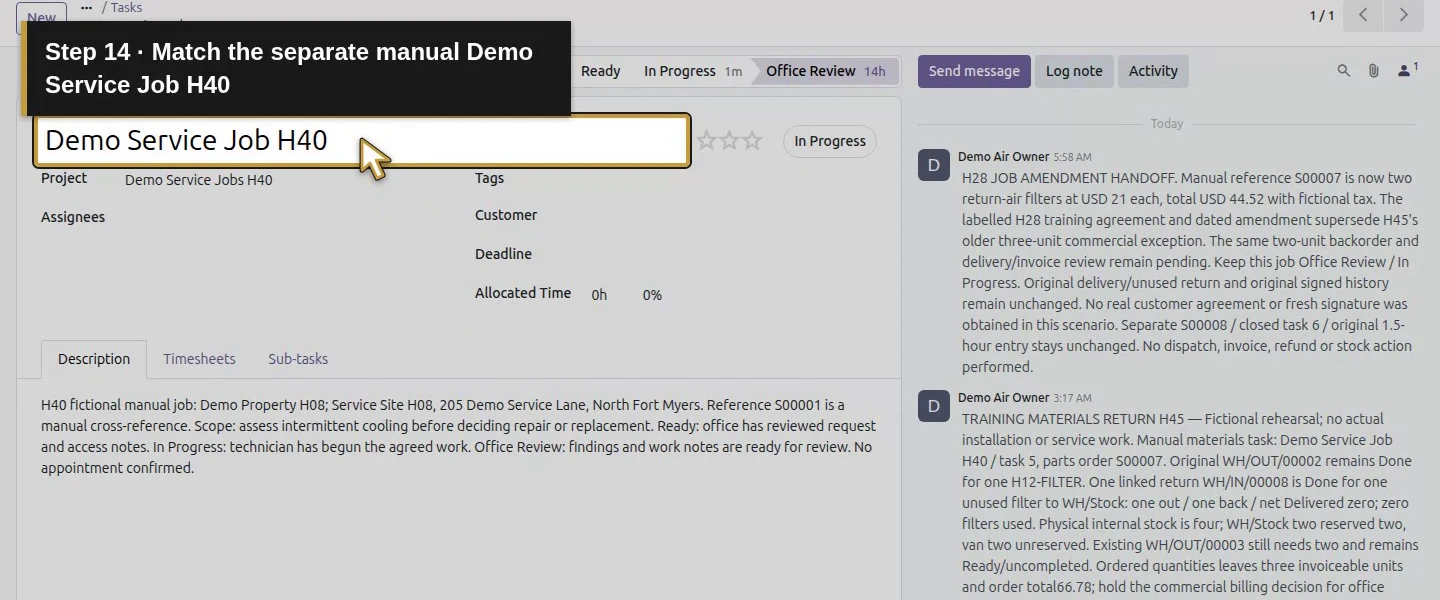
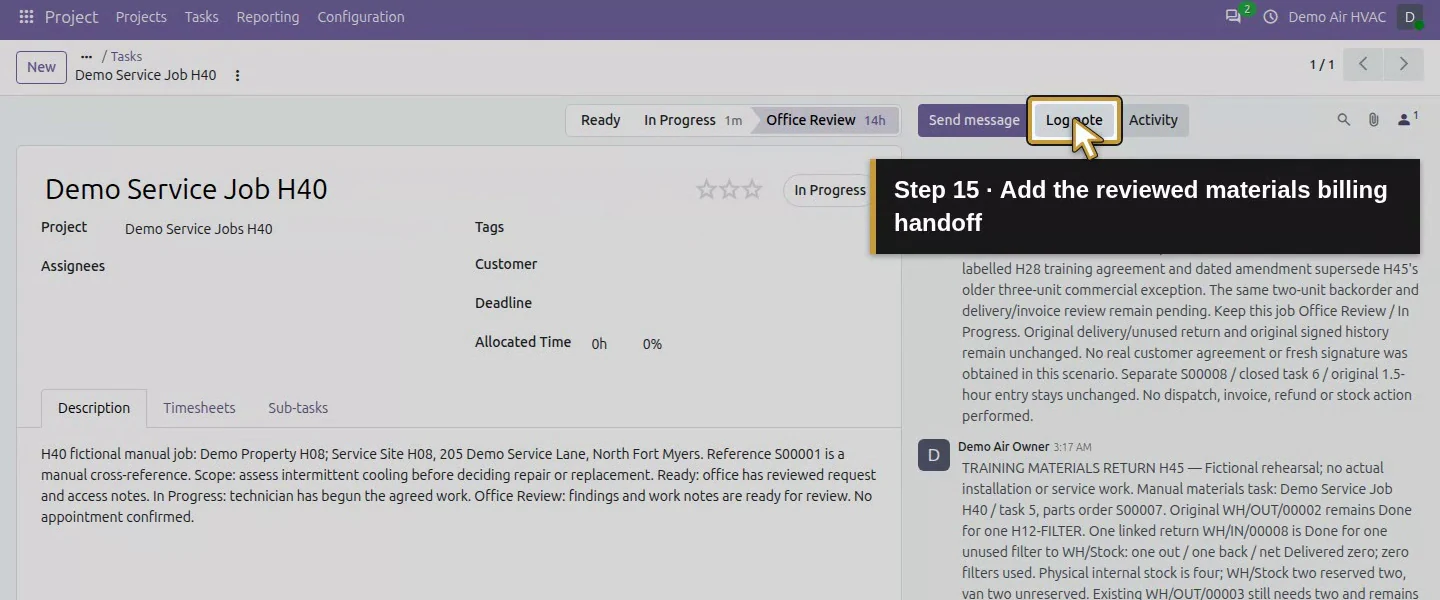
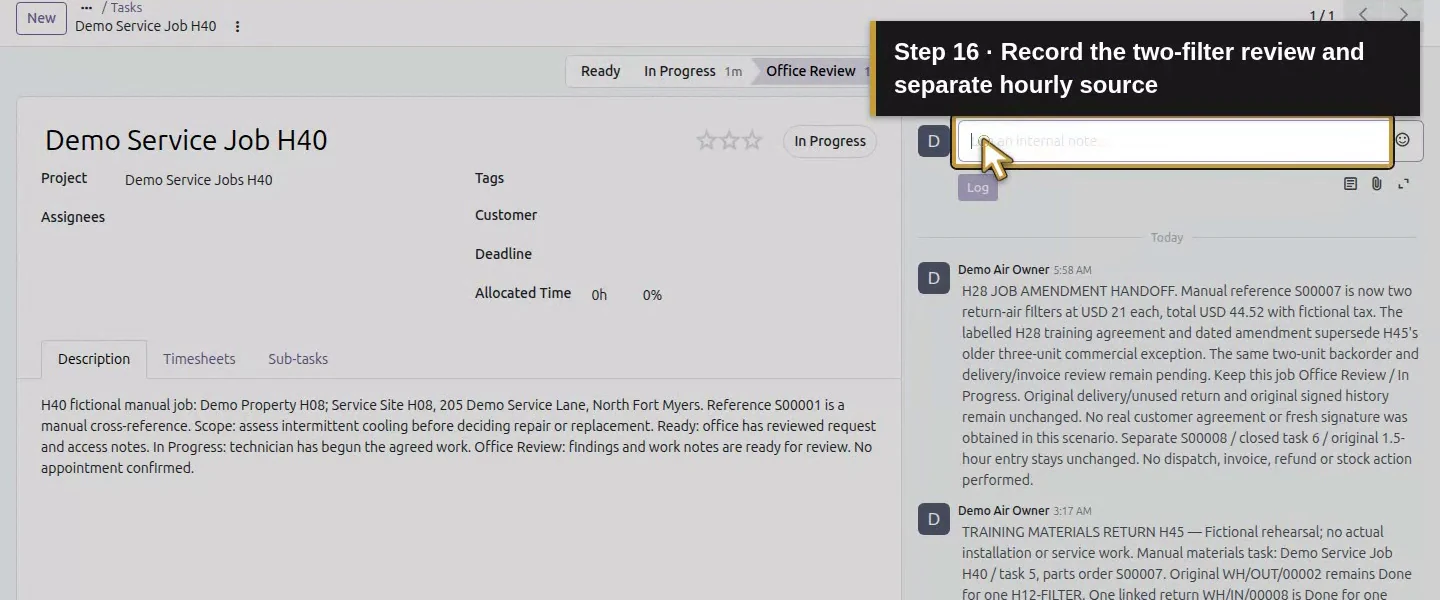
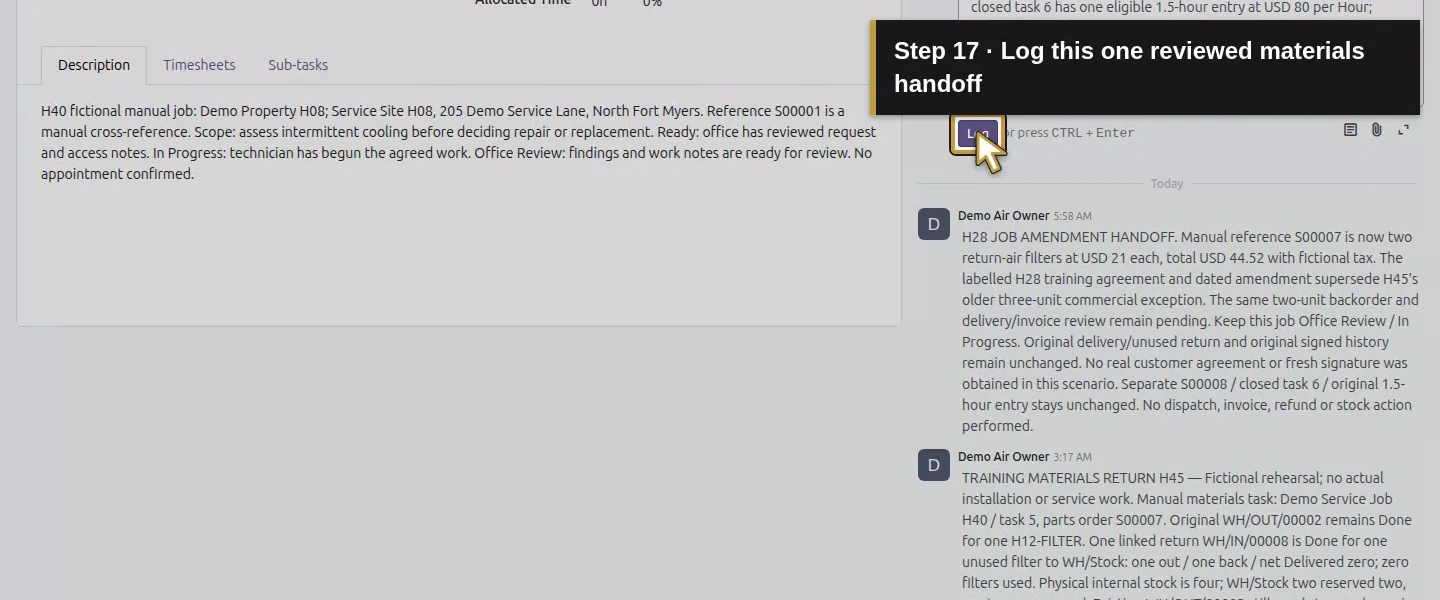
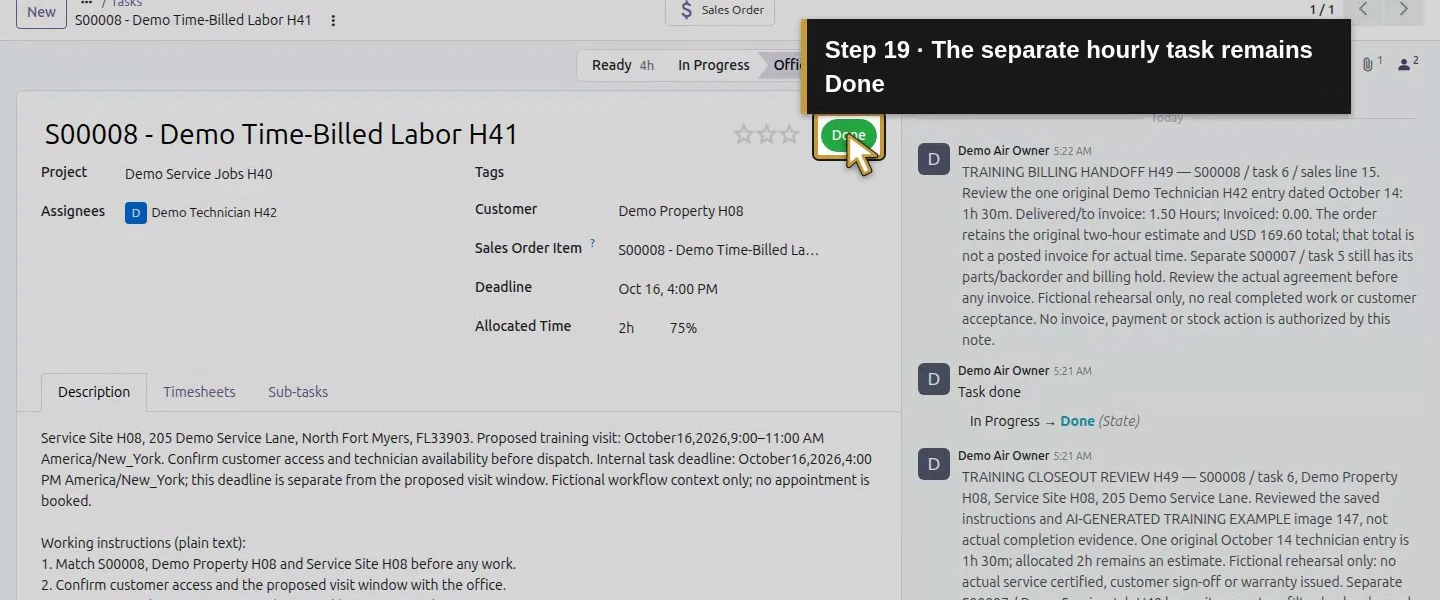
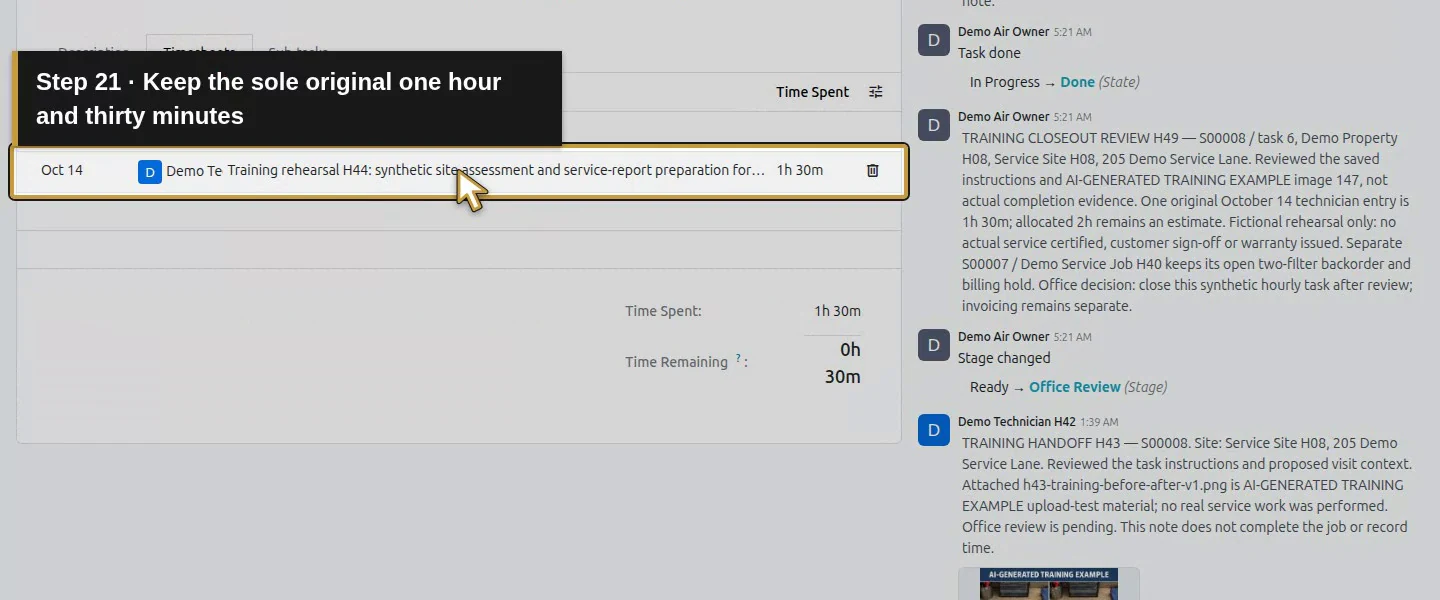
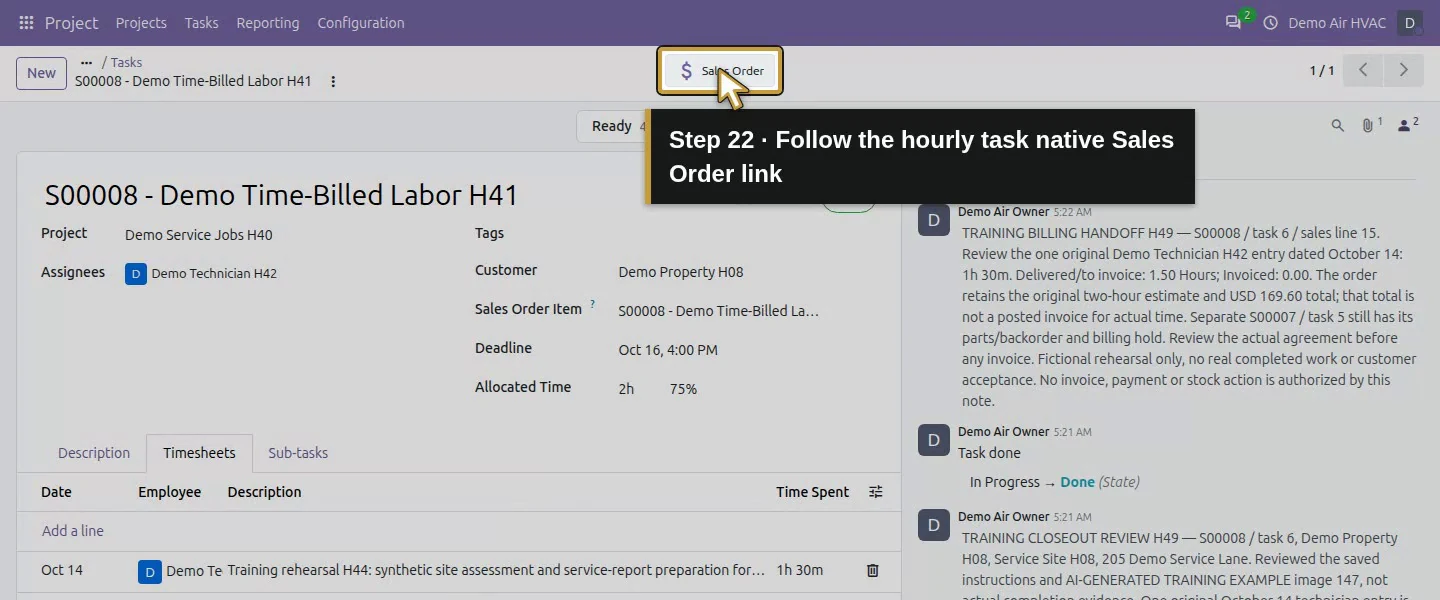
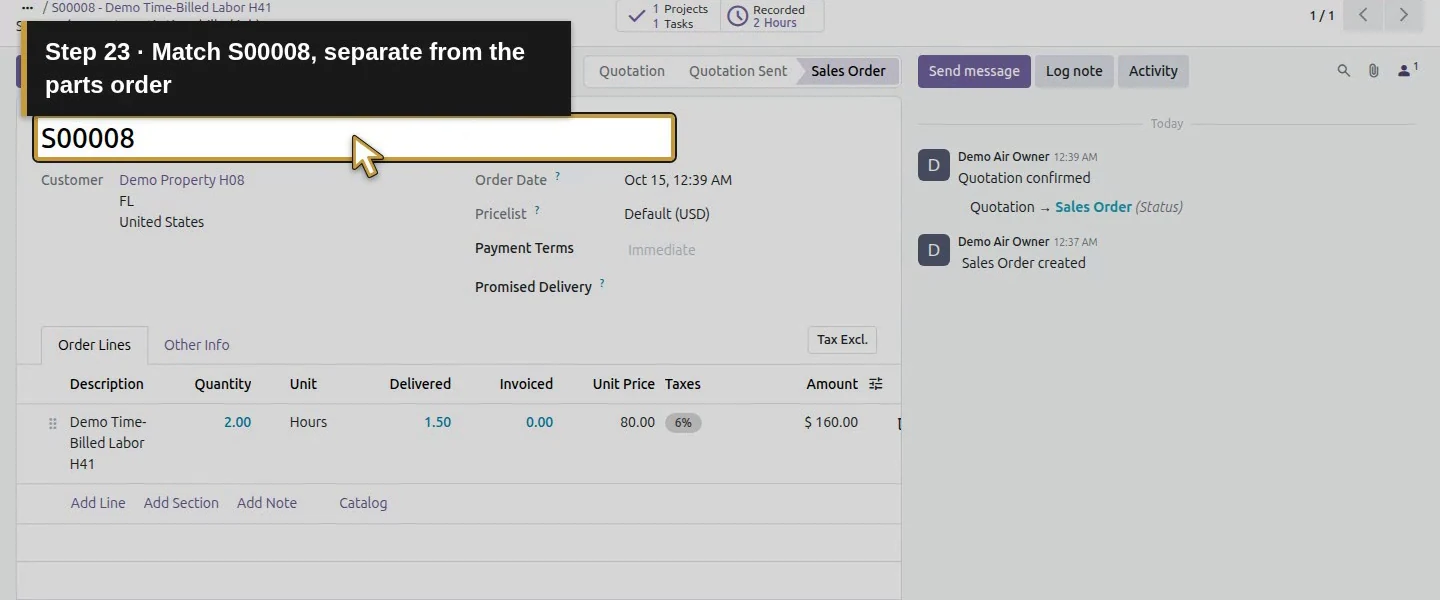
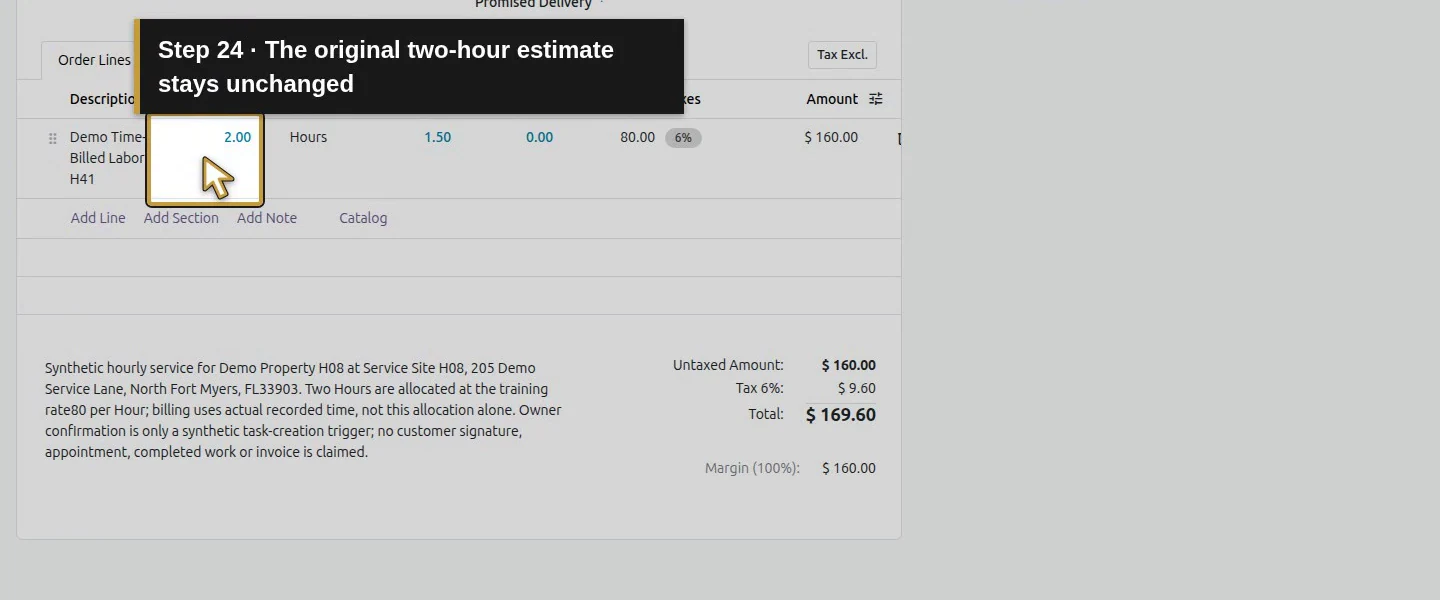
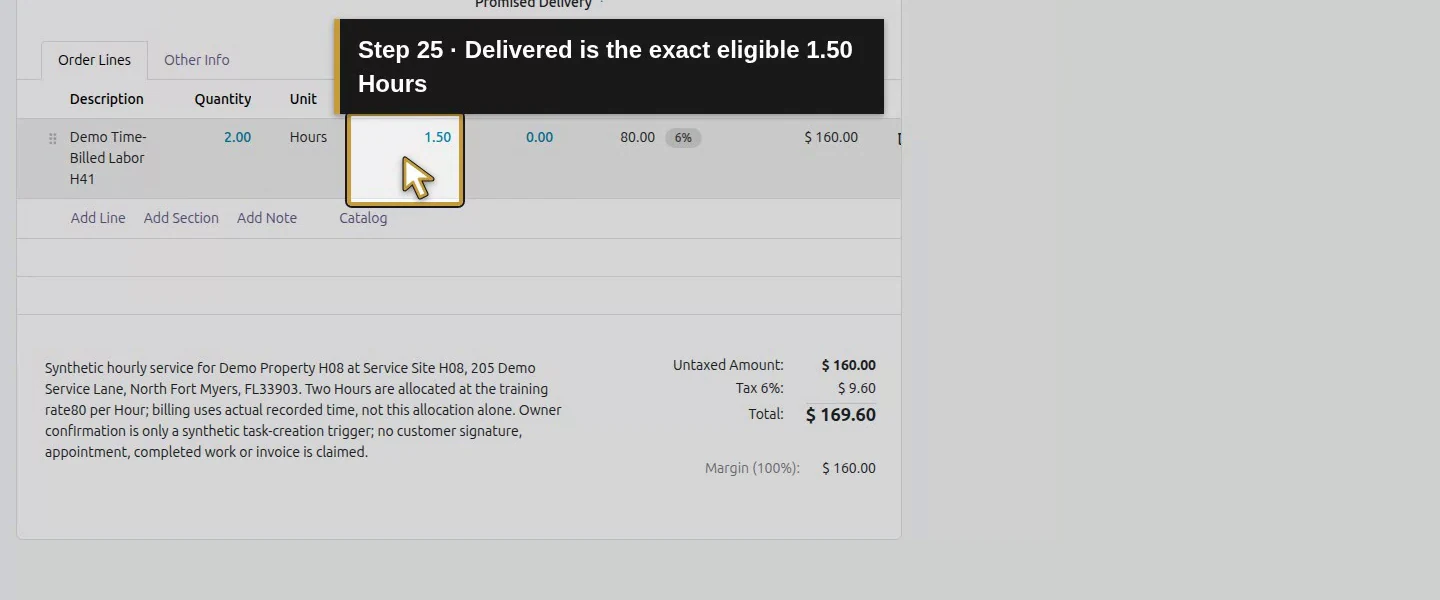
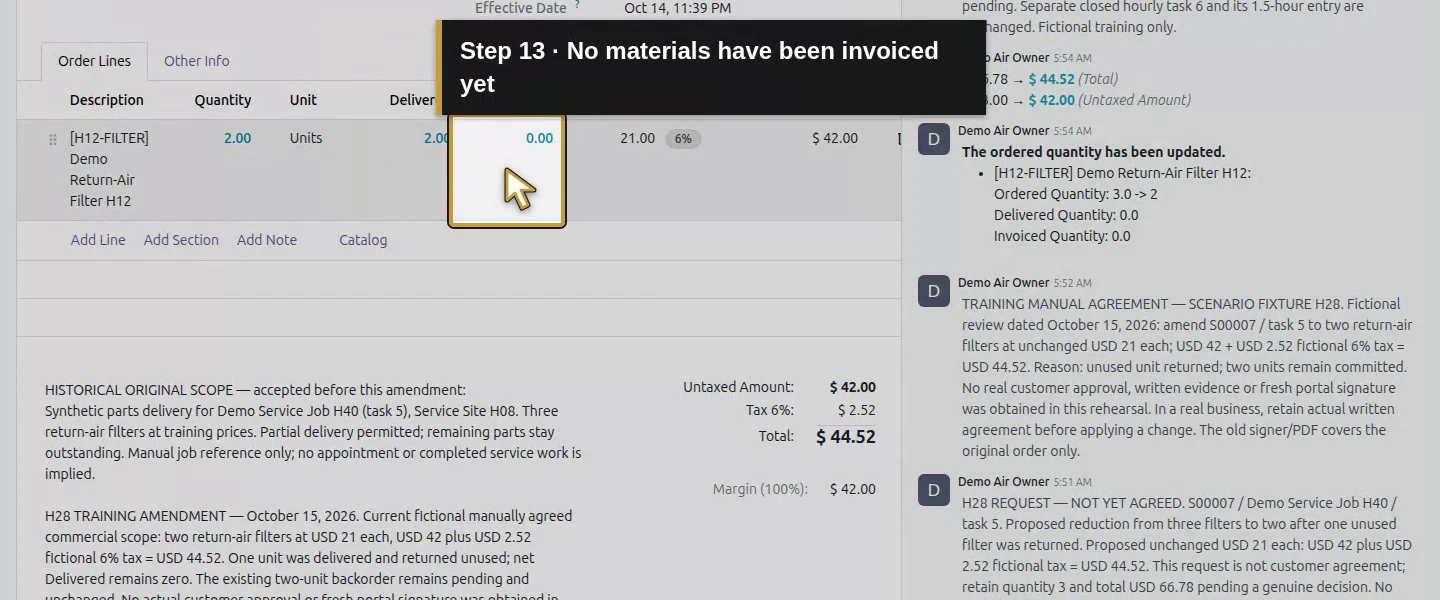
On the parts job, record the resolved quantity/delivery review with Log note → Log. Keep its wider service-completion decision separate. On the hourly task, verify the sole dated employee entry of 1h 30m, the correct sales link and H49 handoff. S00008’s line has 1.50 to invoice despite its original 2.00 Hours estimate. S00007 has 2.00 filters to invoice under Ordered quantities. Exclude S00001 and every unrelated quotation or order.
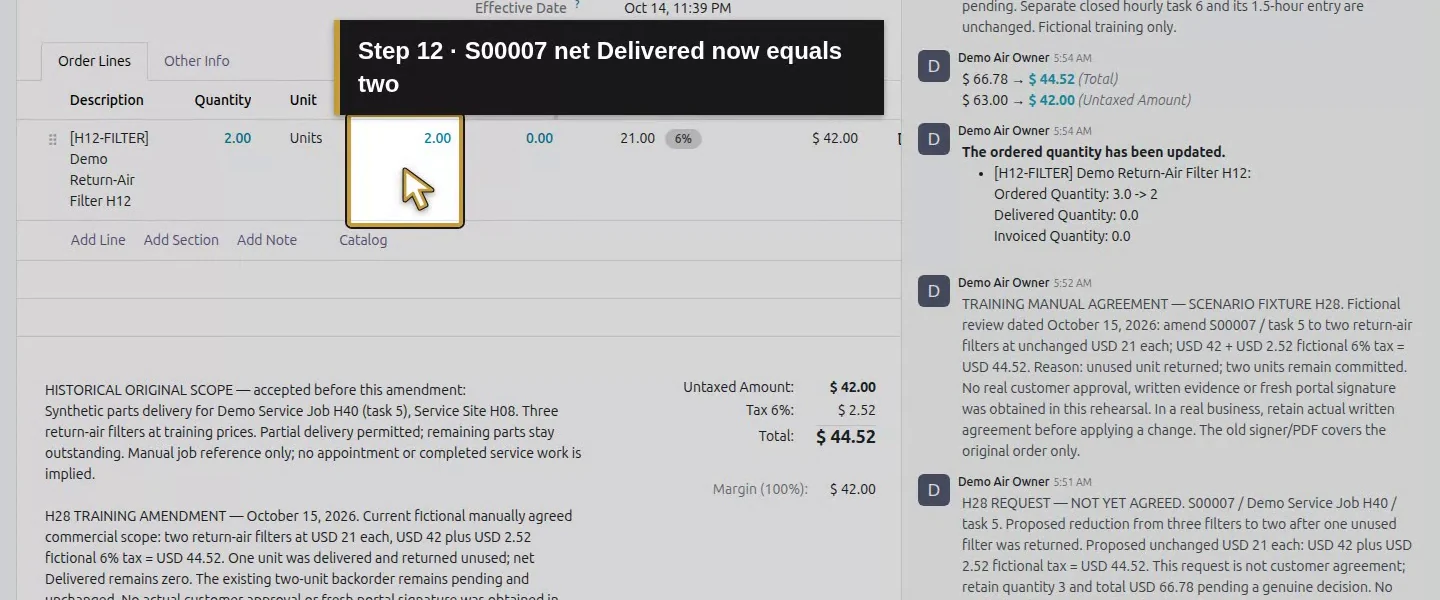
Action 12: S00007 net Delivered now equals two. The actual target is highlighted in gold.
S00007 net Delivered now equals two.
Action 13: No materials have been invoiced yet. The actual target is highlighted in gold.
No materials have been invoiced yet.
Action 14: Match the separate manual Demo Service Job H40. The actual target is highlighted in gold.
Match the separate manual Demo Service Job H40.
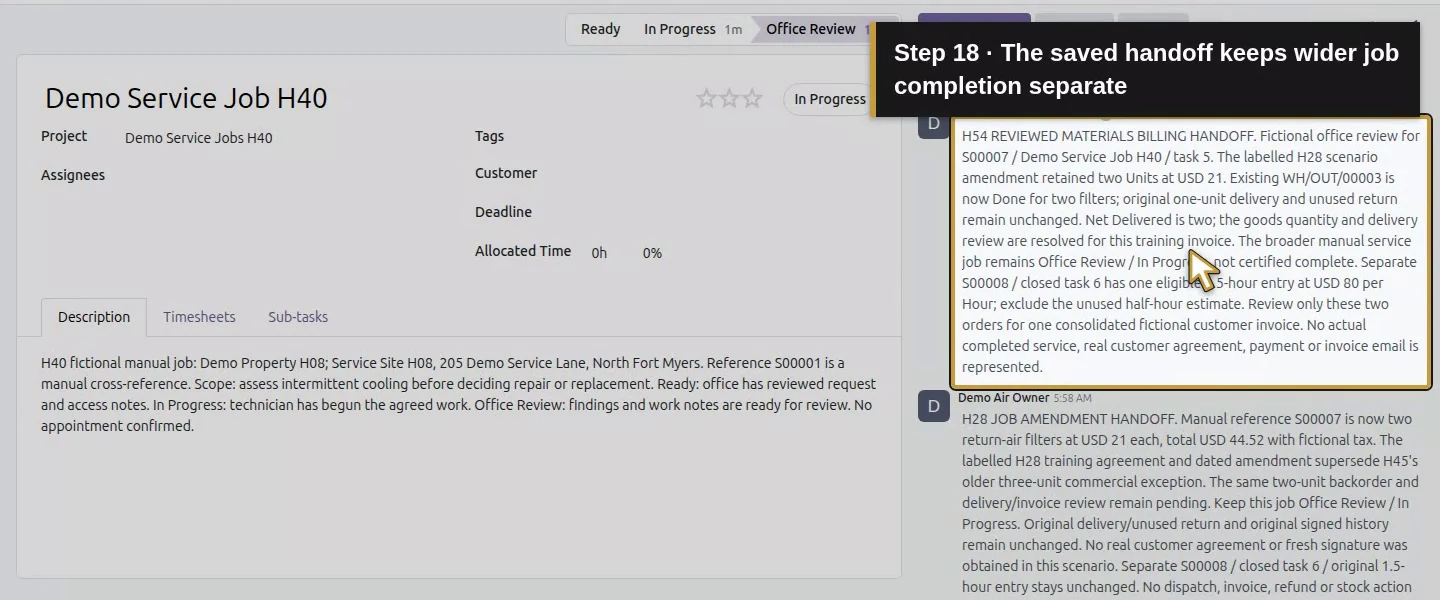
Action 15: Add the reviewed materials billing handoff. The actual target is highlighted in gold.
Add the reviewed materials billing handoff.
Action 16: Record the two-filter review and separate hourly source. The actual target is highlighted in gold.
Record the two-filter review and separate hourly source.
Action 17: Log this one reviewed materials handoff. The actual target is highlighted in gold.
Log this one reviewed materials handoff.
Action 18: The saved handoff keeps wider job completion separate. The actual target is highlighted in gold.
The saved handoff keeps wider job completion separate.
Action 19: The separate hourly task remains Done. The actual target is highlighted in gold.
The separate hourly task remains Done.
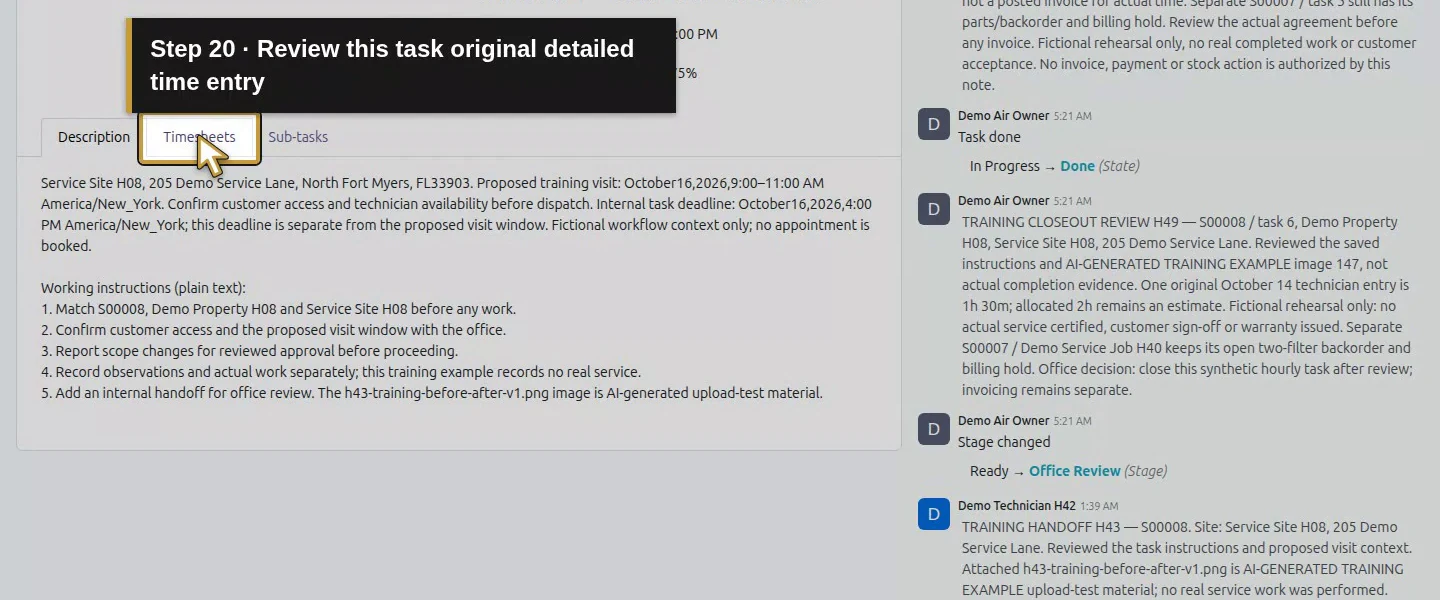
Action 20: Review this task original detailed time entry. The actual target is highlighted in gold.
Review this task original detailed time entry.
Action 21: Keep the sole original one hour and thirty minutes. The actual target is highlighted in gold.
Keep the sole original one hour and thirty minutes.
Action 22: Follow the hourly task native Sales Order link. The actual target is highlighted in gold.
Follow the hourly task native Sales Order link.
Action 23: Match S00008, separate from the parts order. The actual target is highlighted in gold.
Match S00008, separate from the parts order.
Action 24: The original two-hour estimate stays unchanged. The actual target is highlighted in gold.
The original two-hour estimate stays unchanged.
Action 25: Delivered is the exact eligible 1.50 Hours. The actual target is highlighted in gold.
Delivered is the exact eligible 1.50 Hours.
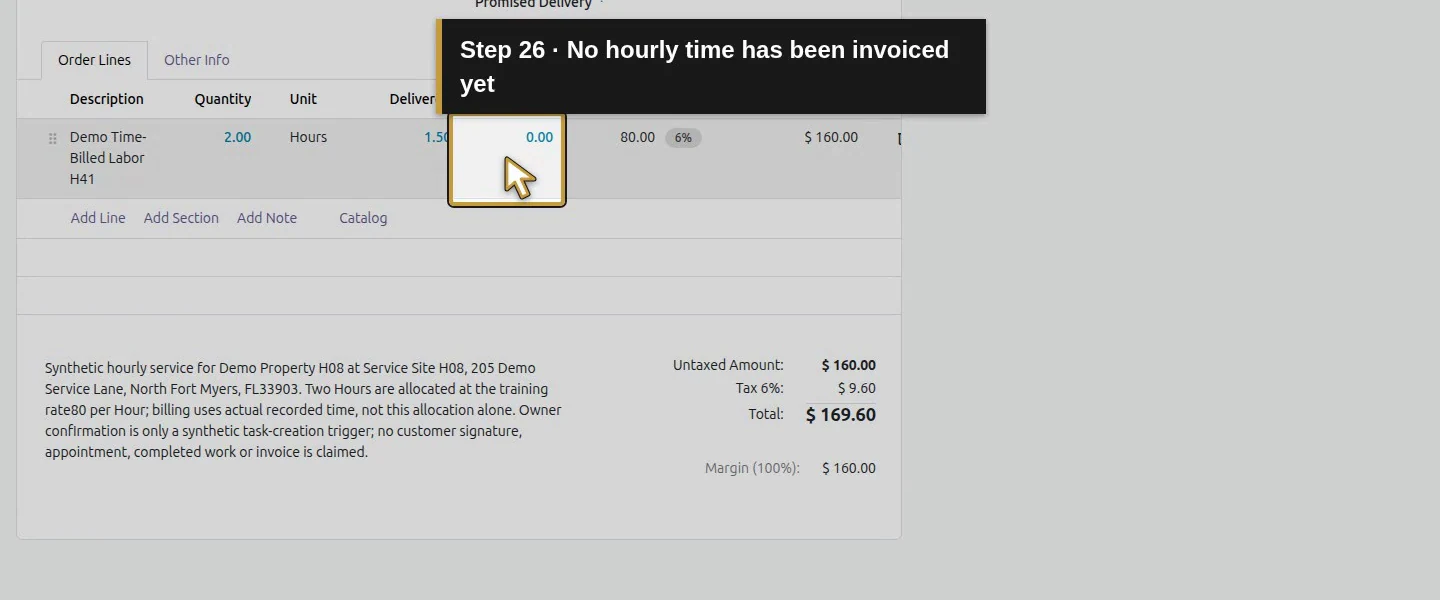
Action 26: No hourly time has been invoiced yet. The actual target is highlighted in gold.
No hourly time has been invoiced yet.

Step 3. Select only the two reviewed sales orders

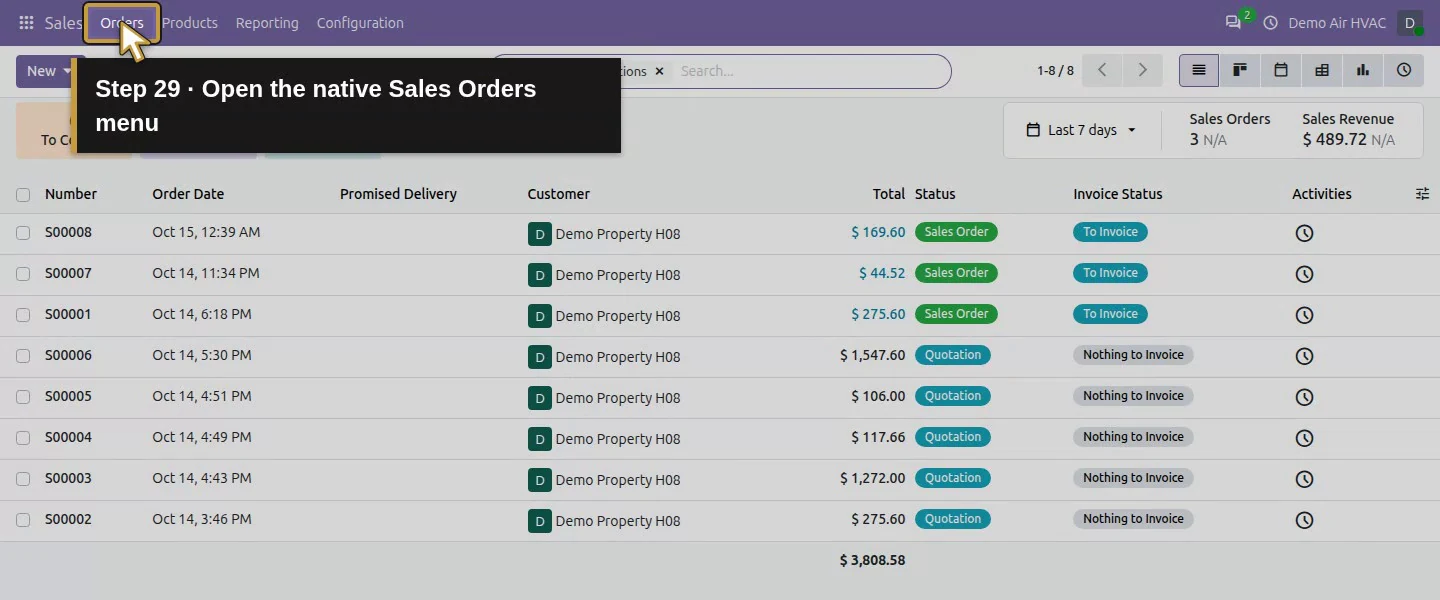
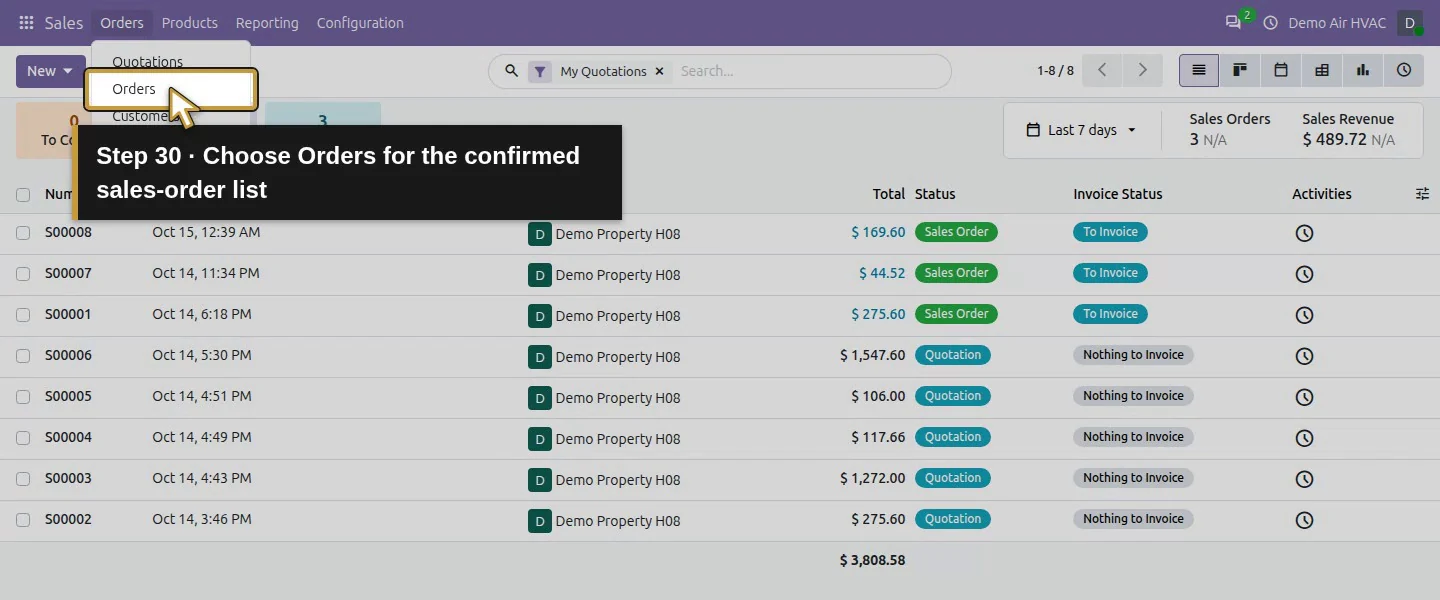
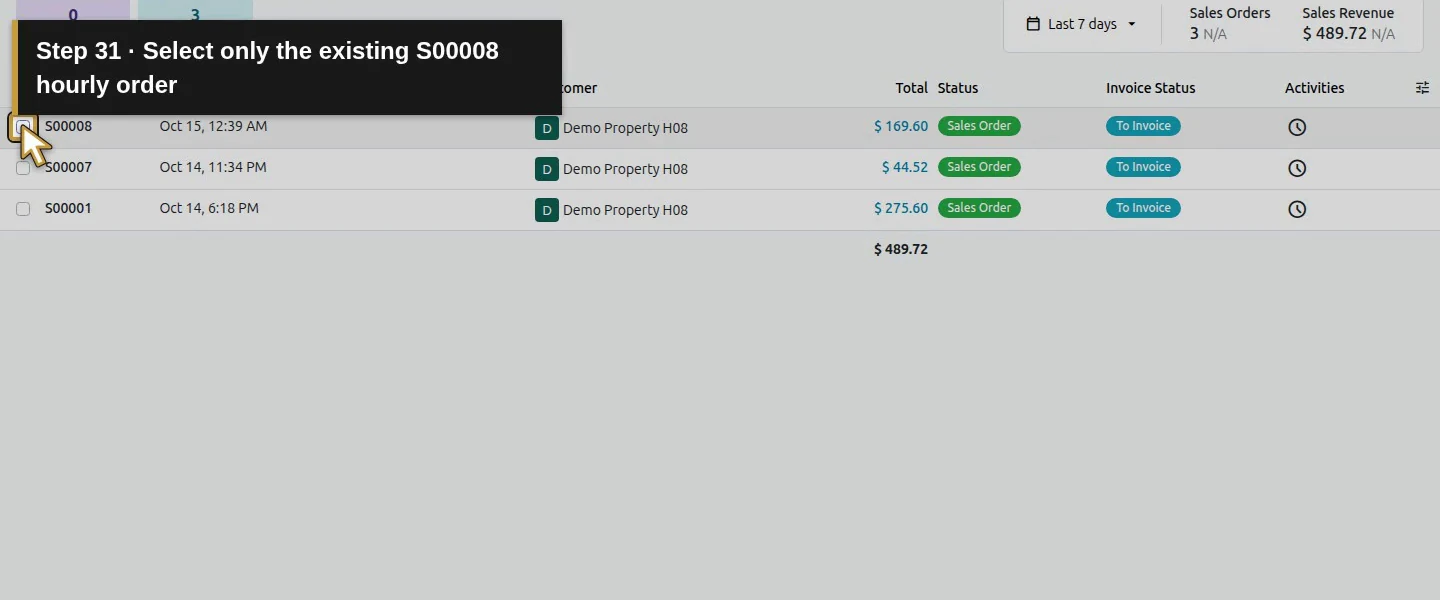
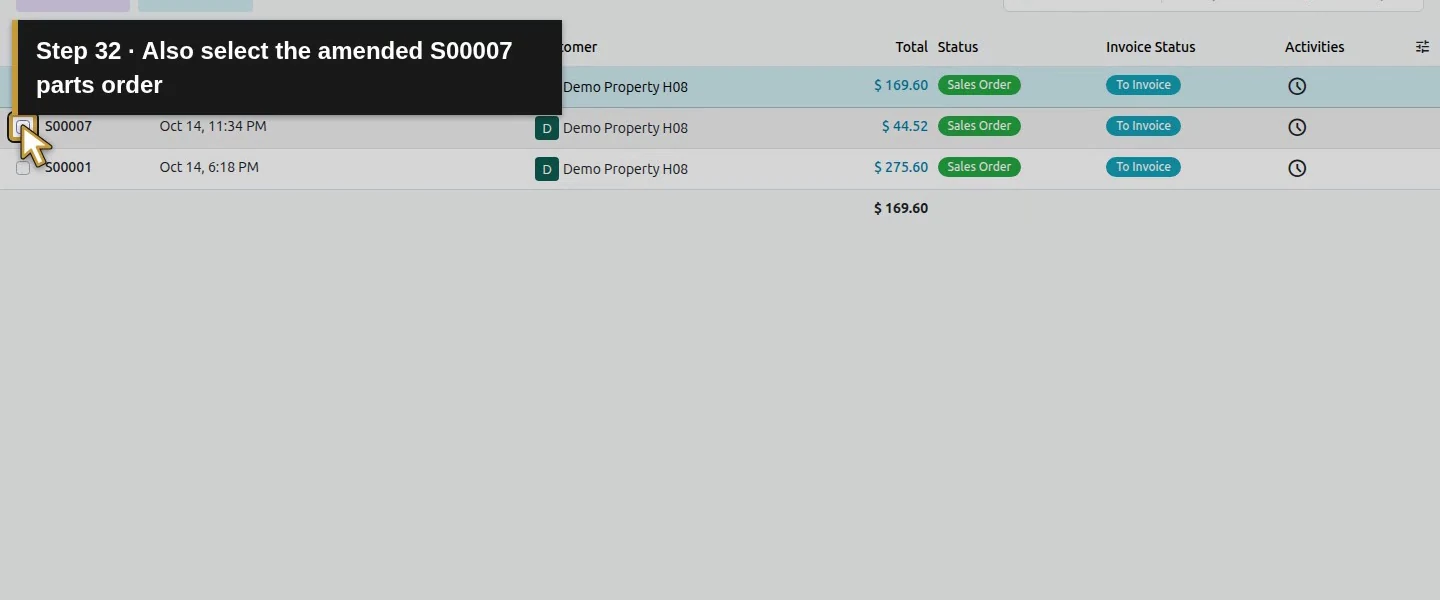
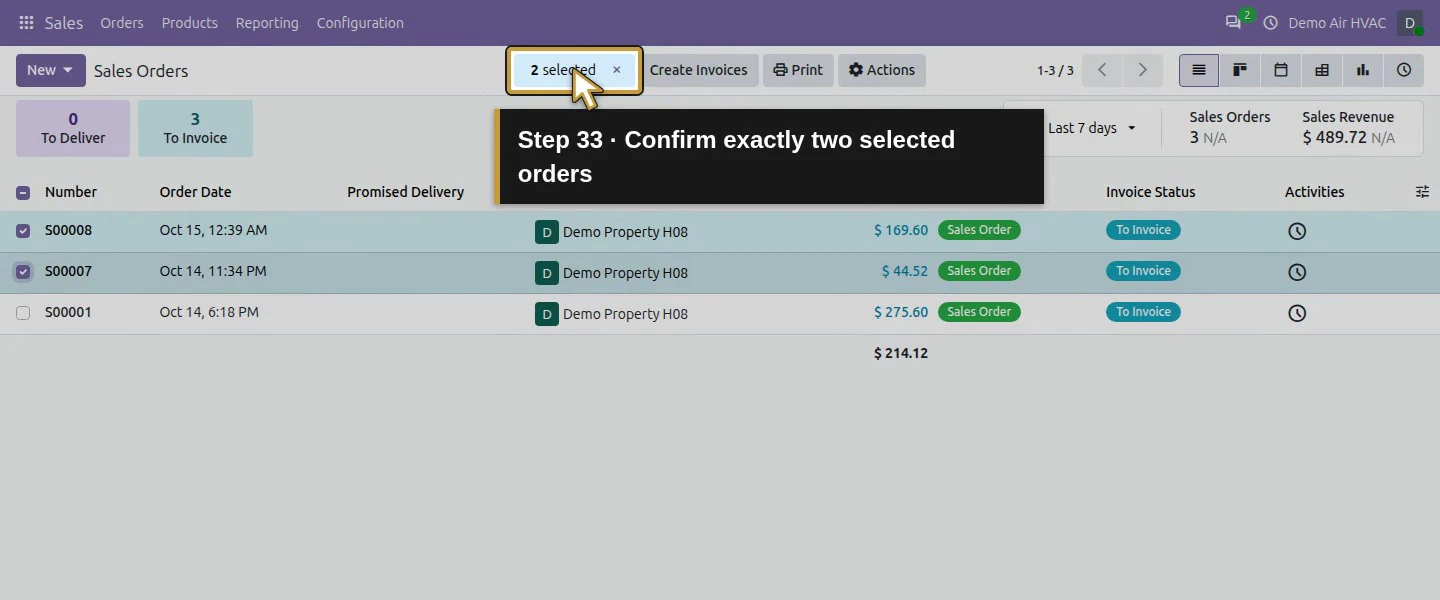
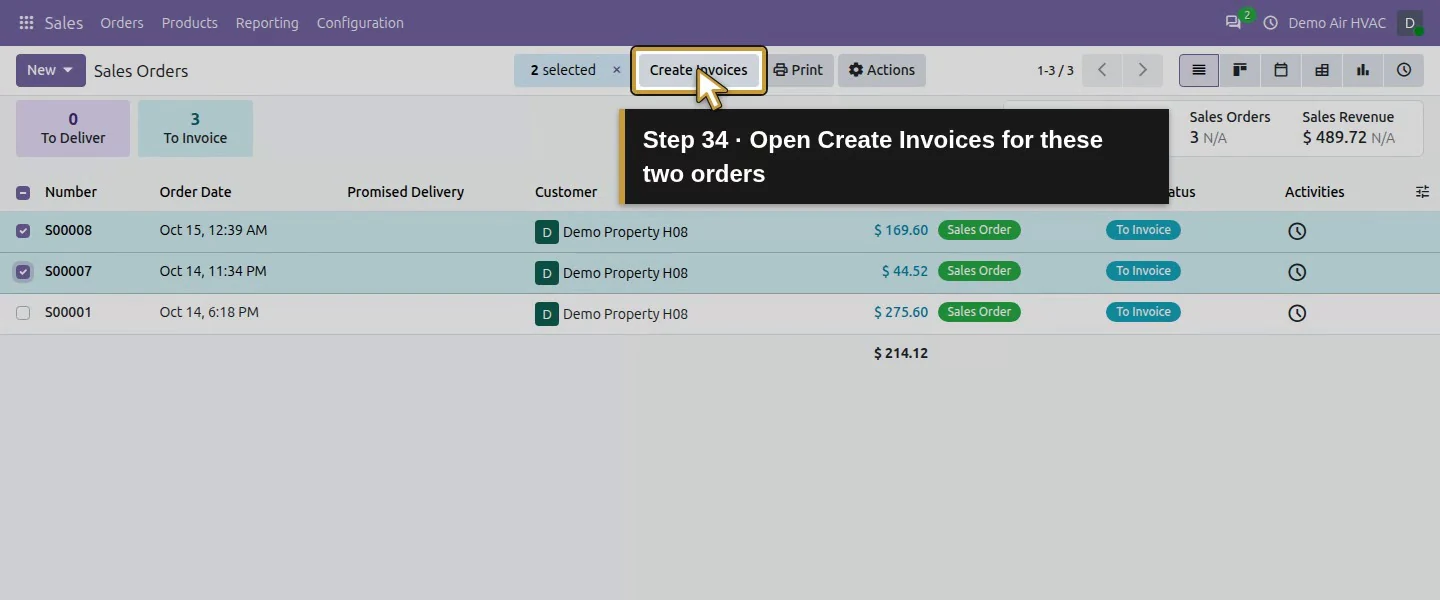
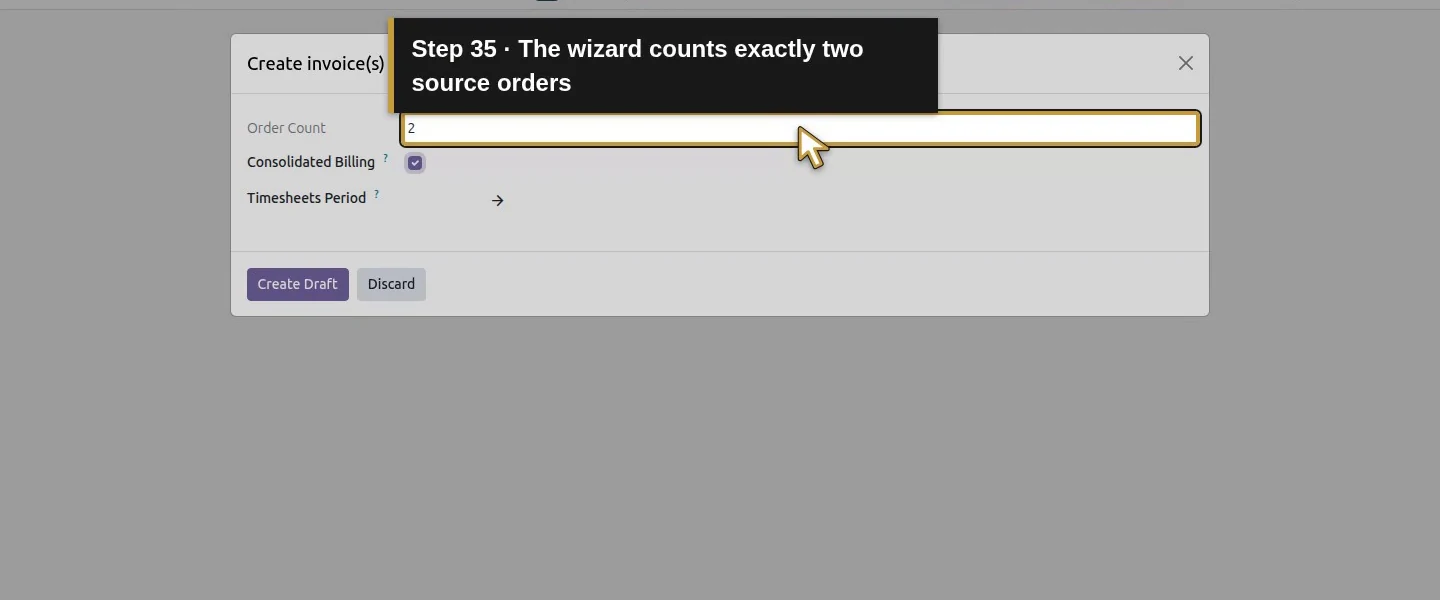
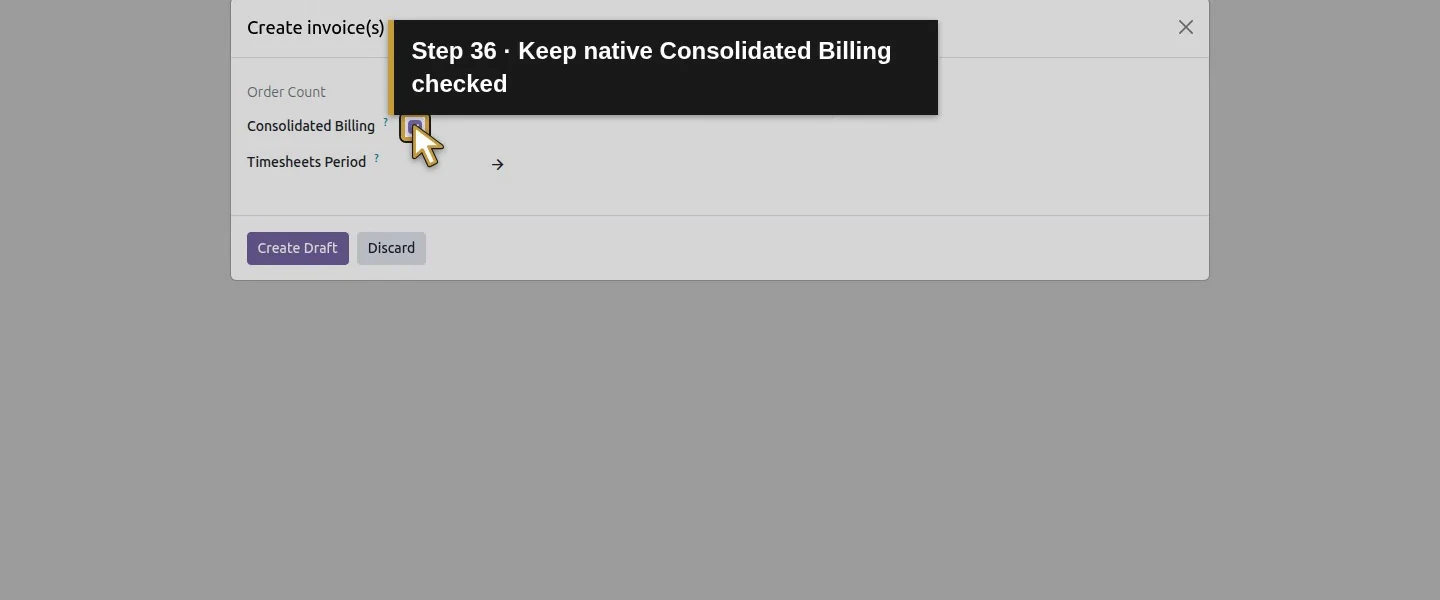
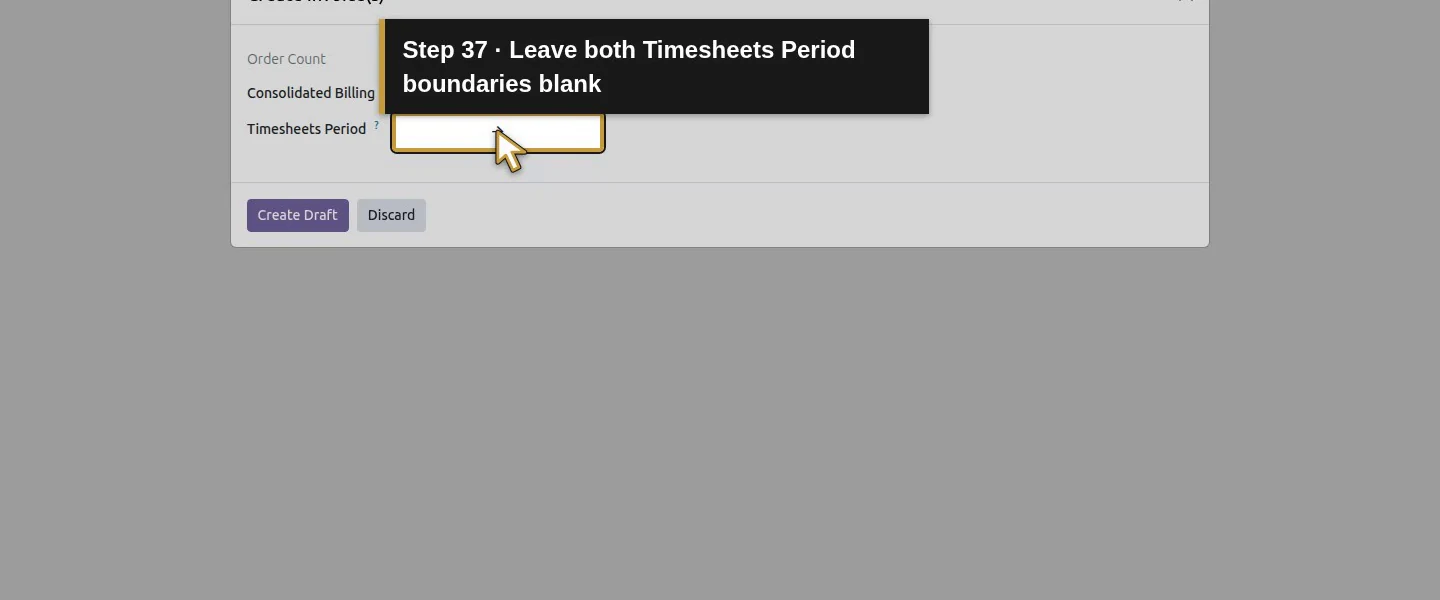
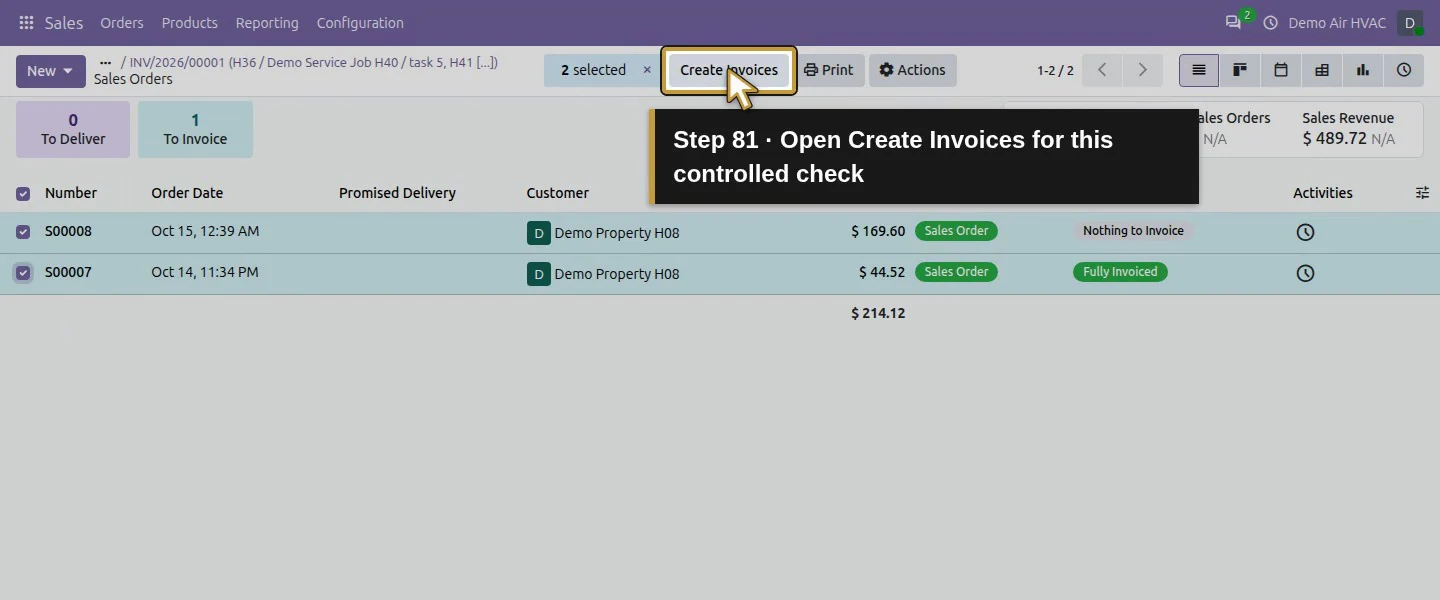
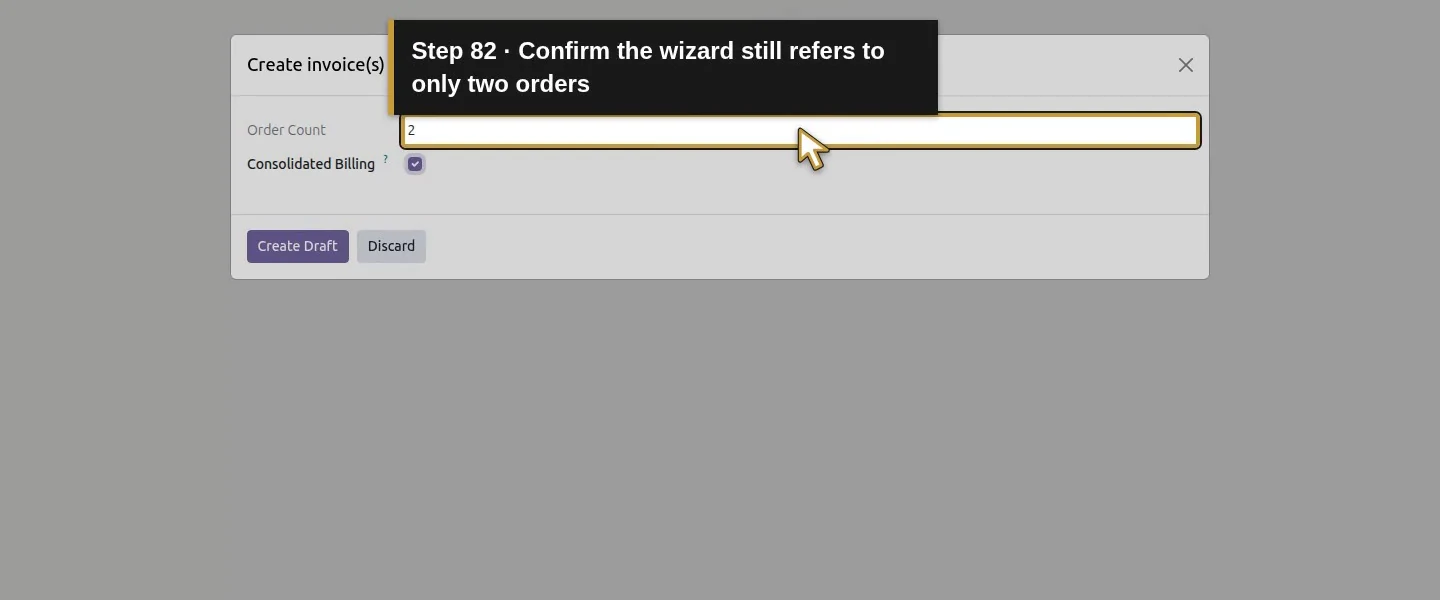
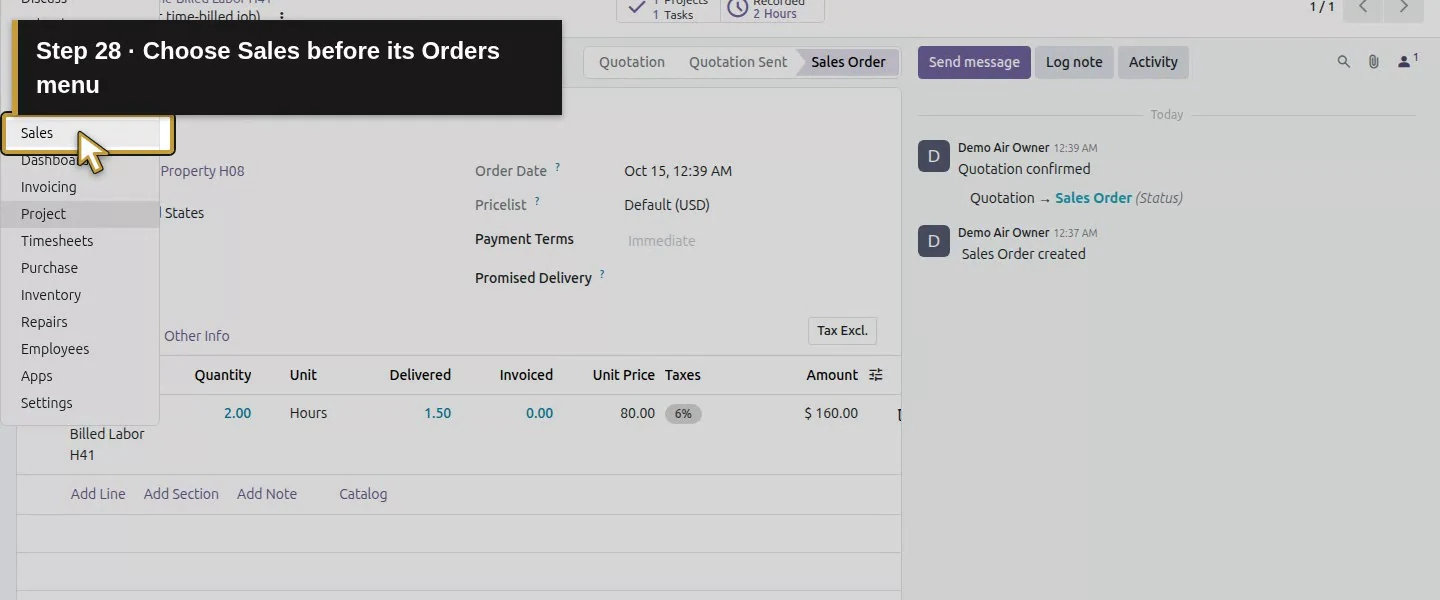
Open Sales and its order list. Tick the rows S00007 and S00008, confirming 2 selected and the right customer. Click Create Invoices. In Create invoice(s), check Order Count: 2 and the checked Consolidated Billing option. The initial dialog also exposes Timesheets Period; we left both date boundaries blank and included the sole eligible entry. A date-restricted period was not tested.
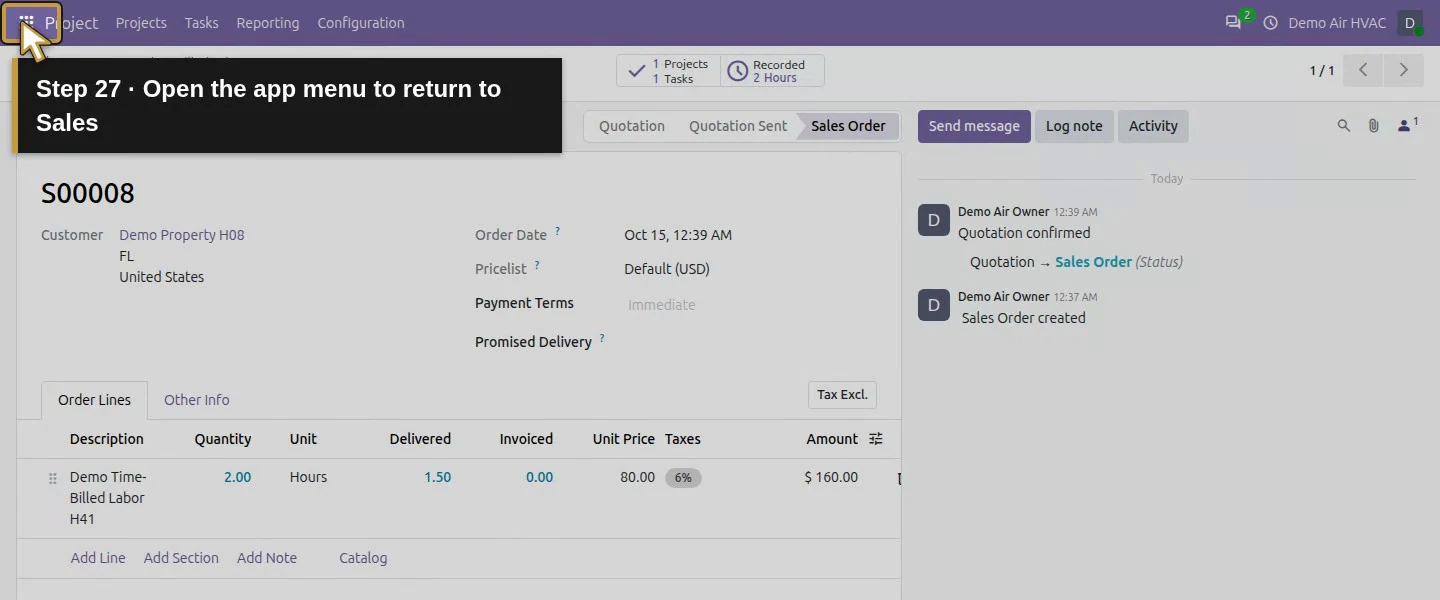
Action 27: Open the app menu to return to Sales. The actual target is highlighted in gold.
Open the app menu to return to Sales.
Action 28: Choose Sales before its Orders menu. The actual target is highlighted in gold.
Choose Sales before its Orders menu.
Action 29: Open the native Sales Orders menu. The actual target is highlighted in gold.
Open the native Sales Orders menu.
Action 30: Choose Orders for the confirmed sales-order list. The actual target is highlighted in gold.
Choose Orders for the confirmed sales-order list.
Action 31: Select only the existing S00008 hourly order. The actual target is highlighted in gold.
Select only the existing S00008 hourly order.
Action 32: Also select the amended S00007 parts order. The actual target is highlighted in gold.
Also select the amended S00007 parts order.
Action 33: Confirm exactly two selected orders. The actual target is highlighted in gold.
Confirm exactly two selected orders.
Action 34: Open Create Invoices for these two orders. The actual target is highlighted in gold.
Open Create Invoices for these two orders.
Action 35: The wizard counts exactly two source orders. The actual target is highlighted in gold.
The wizard counts exactly two source orders.
Action 36: Keep native Consolidated Billing checked. The actual target is highlighted in gold.
Keep native Consolidated Billing checked.
Action 37: Leave both Timesheets Period boundaries blank. The actual target is highlighted in gold.
Leave both Timesheets Period boundaries blank.

Step 4. Create one draft and match its exact lines

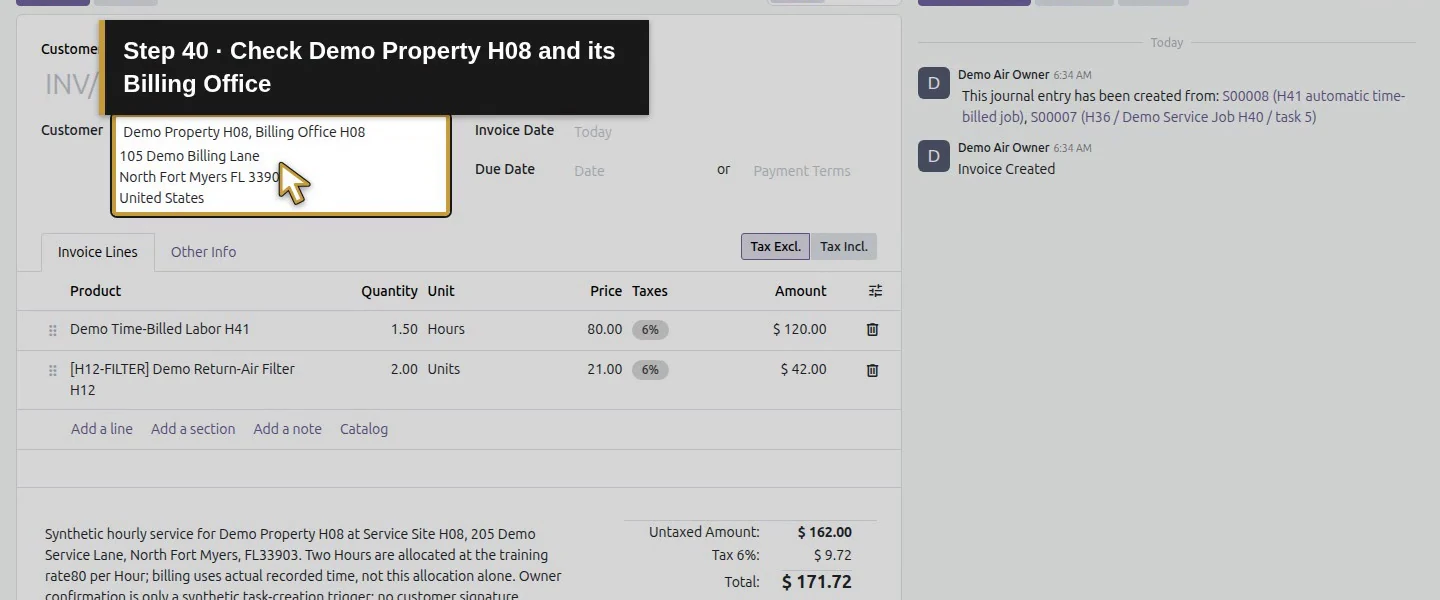
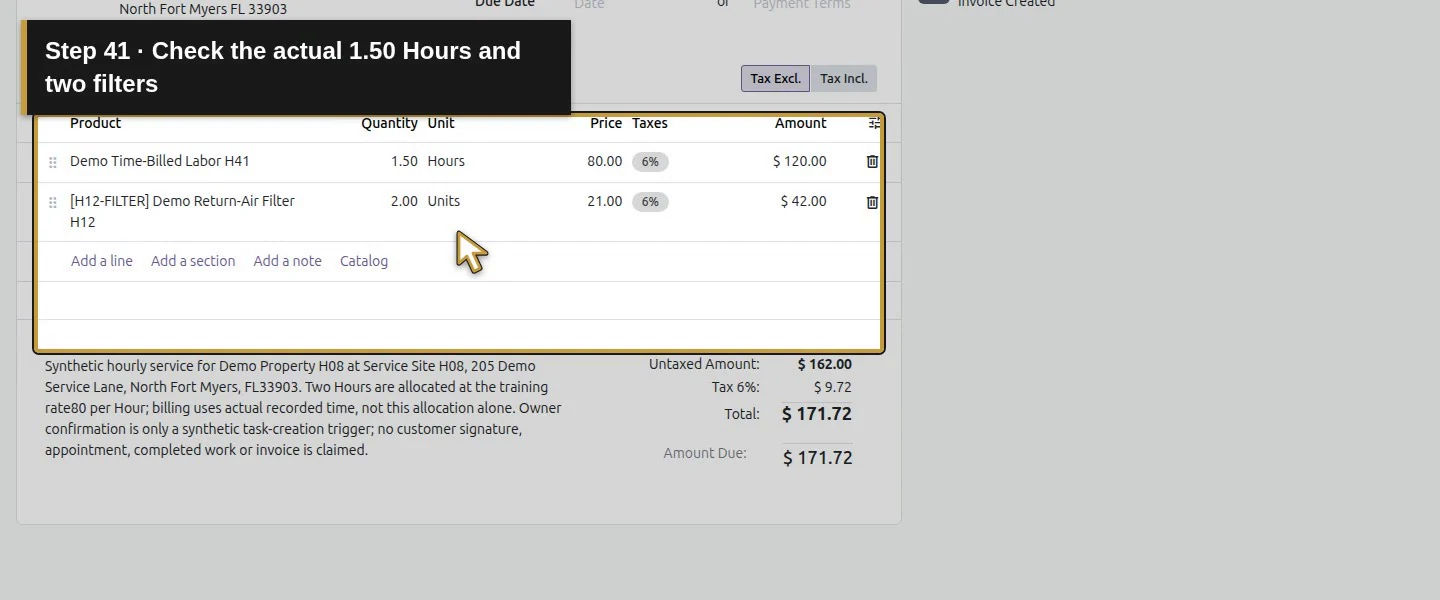
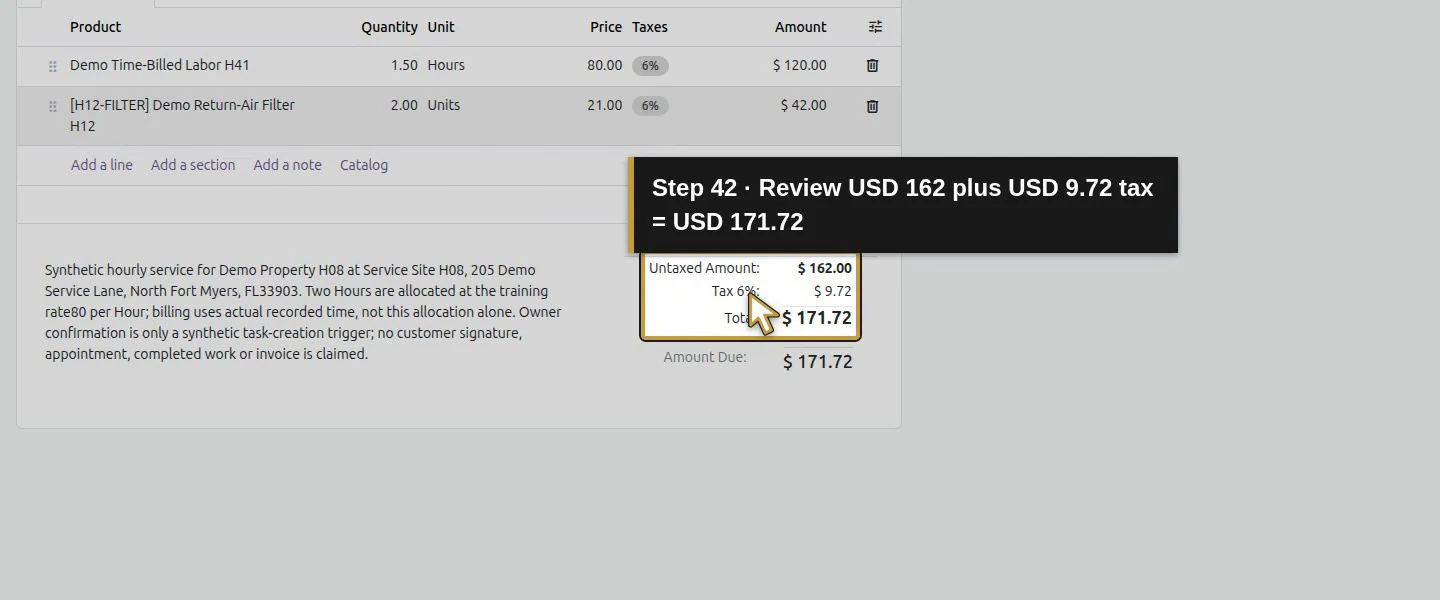
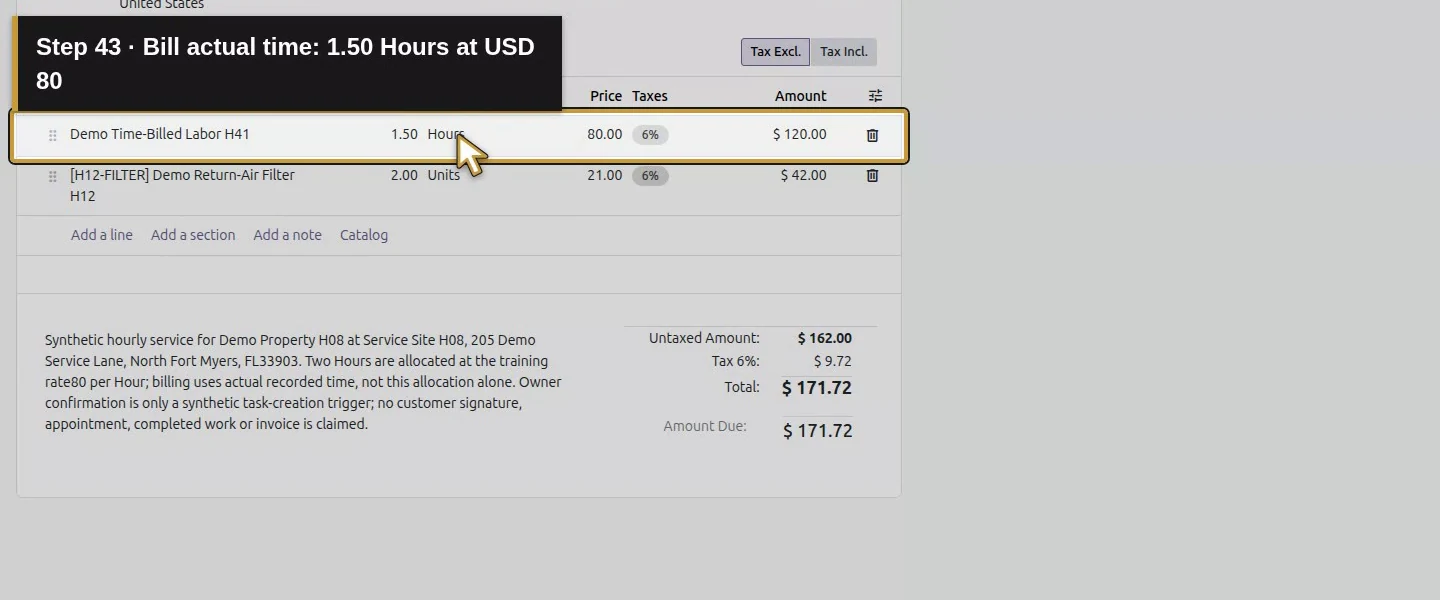
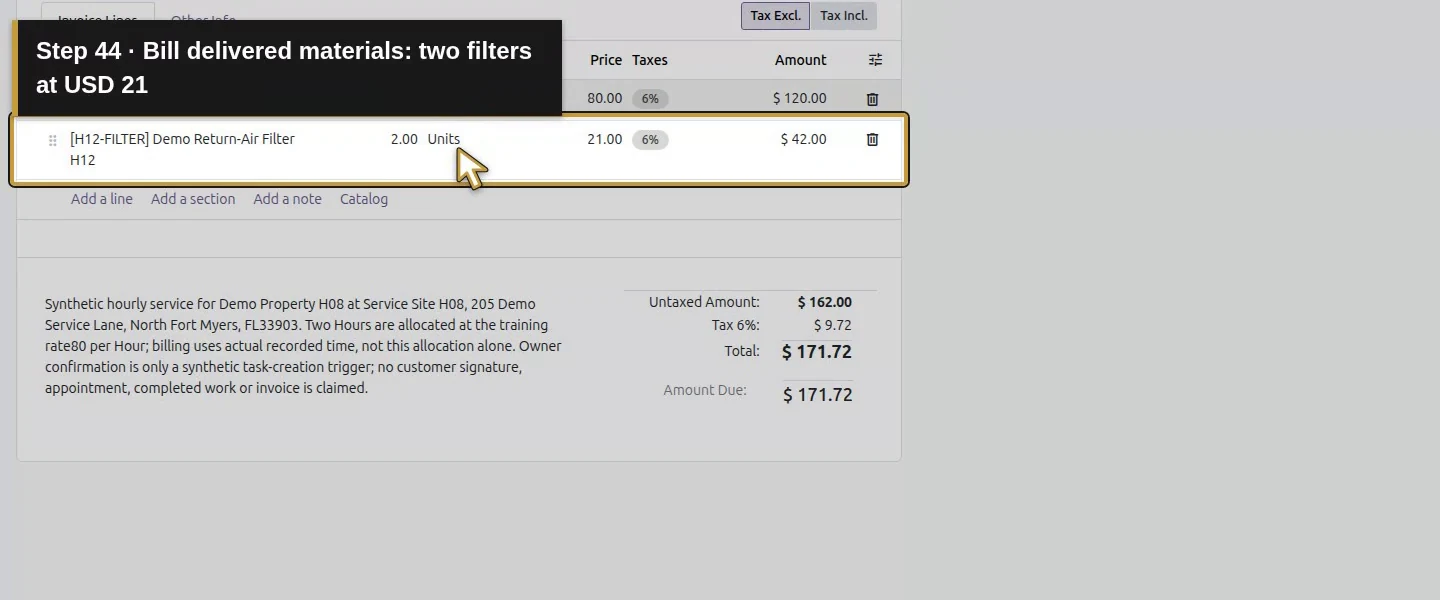
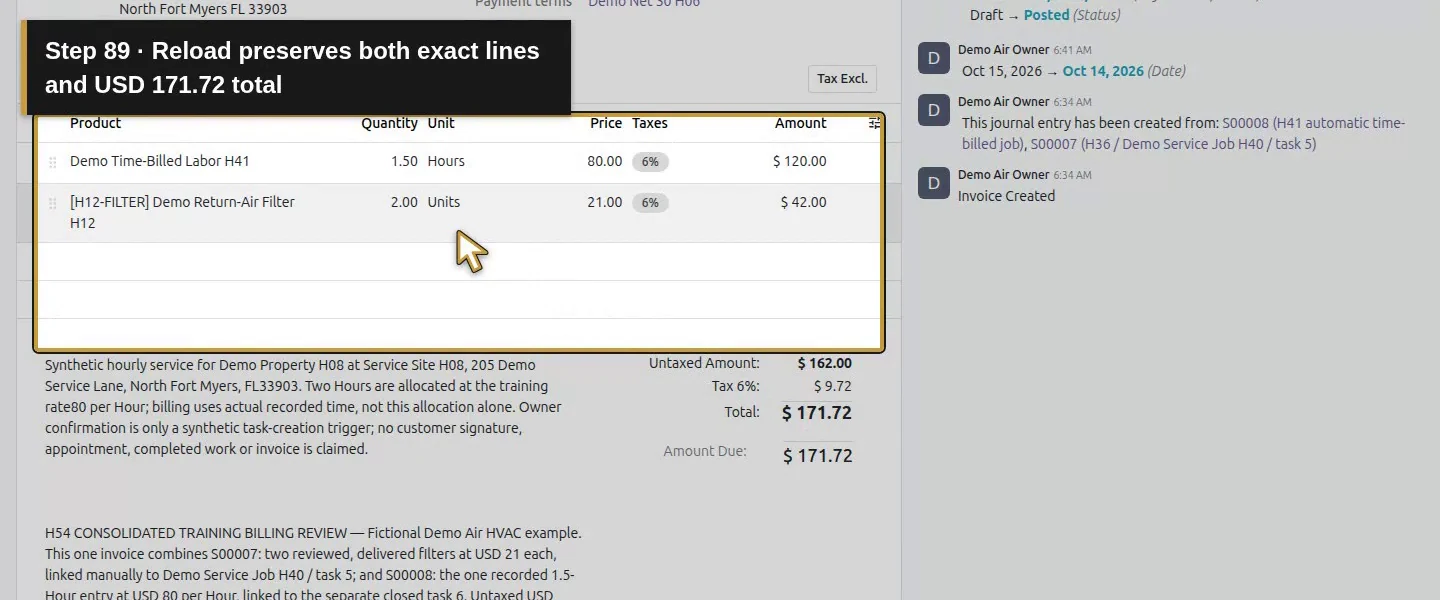
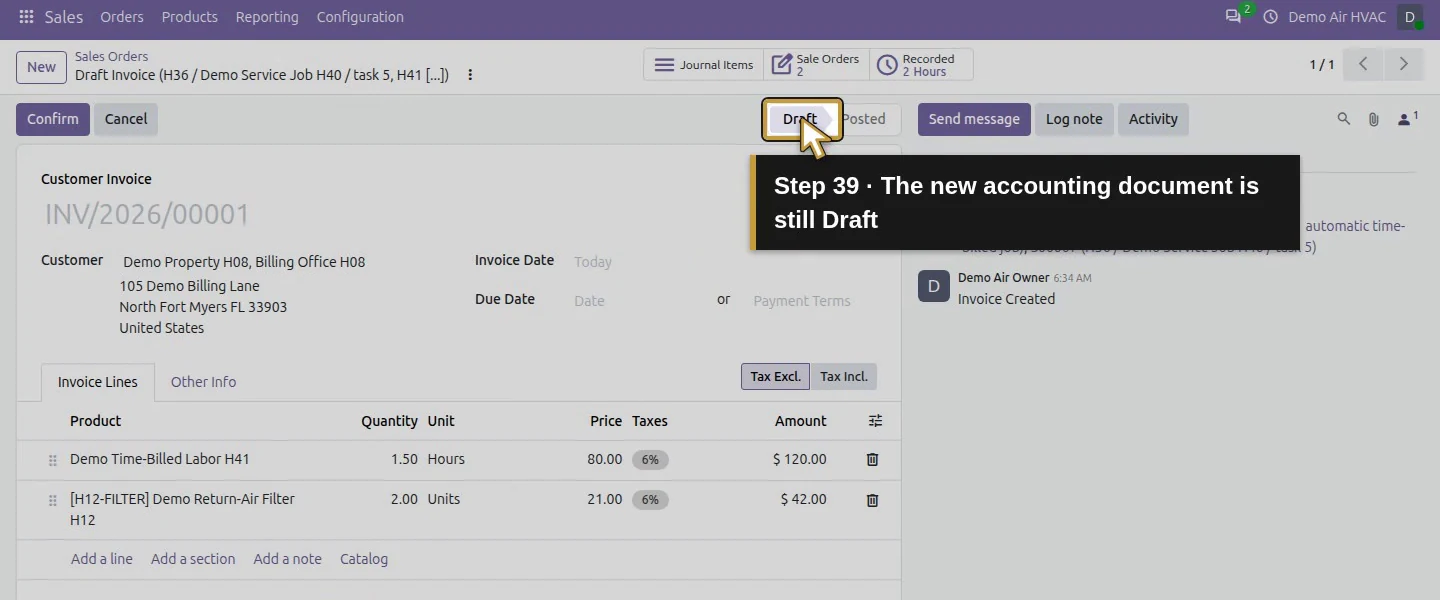
Click Create Draft once. The native result is one draft Customer Invoice addressed to Demo Property H08, Billing Office H08, with 2 Sale Orders linked. Check exactly two product lines: Demo Time-Billed Labor H41 — 1.50 Hours × $80 = $120 and Demo Return-Air Filter H12 — 2.00 Units × $21 = $42. The totals are $162 untaxed + $9.72 demo tax = $171.72. Both invoice lines retain their intended sales-line links. Do not replace the time quantity with the estimate.
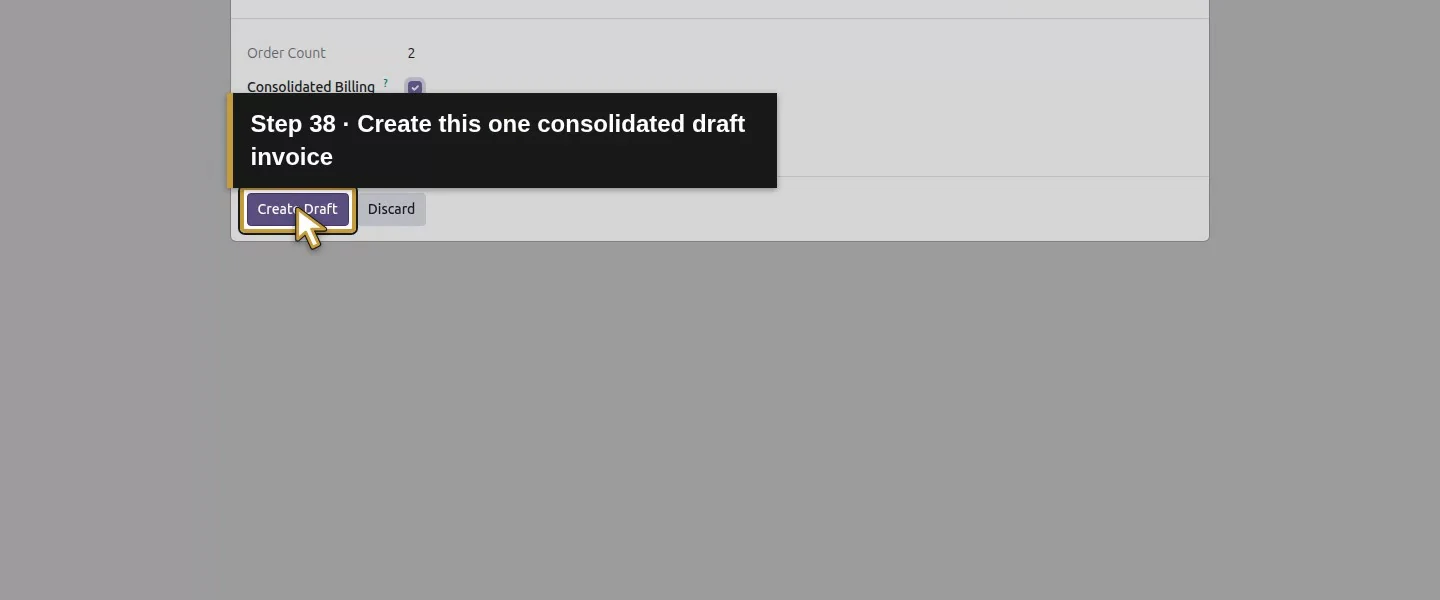
Action 38: Create this one consolidated draft invoice. The actual target is highlighted in gold.
Create this one consolidated draft invoice.
Action 39: The new accounting document is still Draft. The actual target is highlighted in gold.
The new accounting document is still Draft.
Action 40: Check Demo Property H08 and its Billing Office. The actual target is highlighted in gold.
Check Demo Property H08 and its Billing Office.
Action 41: Check the actual 1.50 Hours and two filters. The actual target is highlighted in gold.
Check the actual 1.50 Hours and two filters.
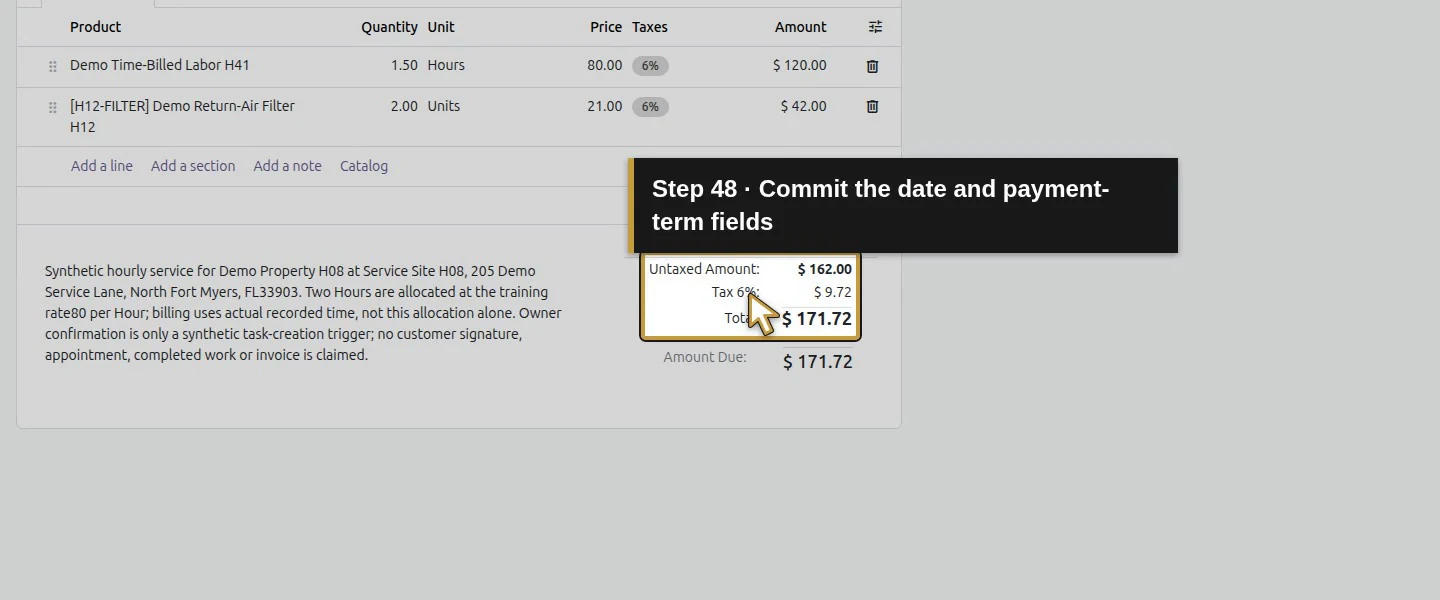
Action 42: Review USD 162 plus USD 9.72 tax = USD 171.72. The actual target is highlighted in gold.
Review USD 162 plus USD 9.72 tax = USD 171.72.
Action 43: Bill actual time: 1.50 Hours at USD 80. The actual target is highlighted in gold.
Bill actual time: 1.50 Hours at USD 80.
Action 44: Bill delivered materials: two filters at USD 21. The actual target is highlighted in gold.
Bill delivered materials: two filters at USD 21.

Step 5. Set the actual invoice date and existing term

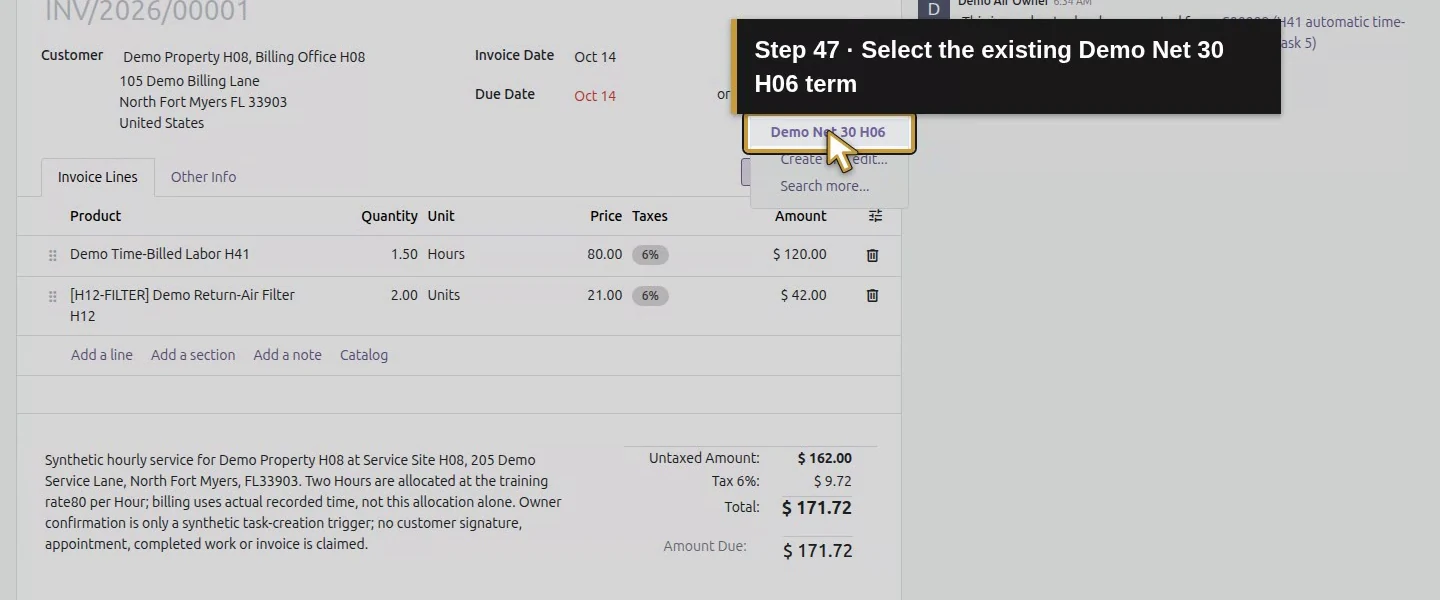
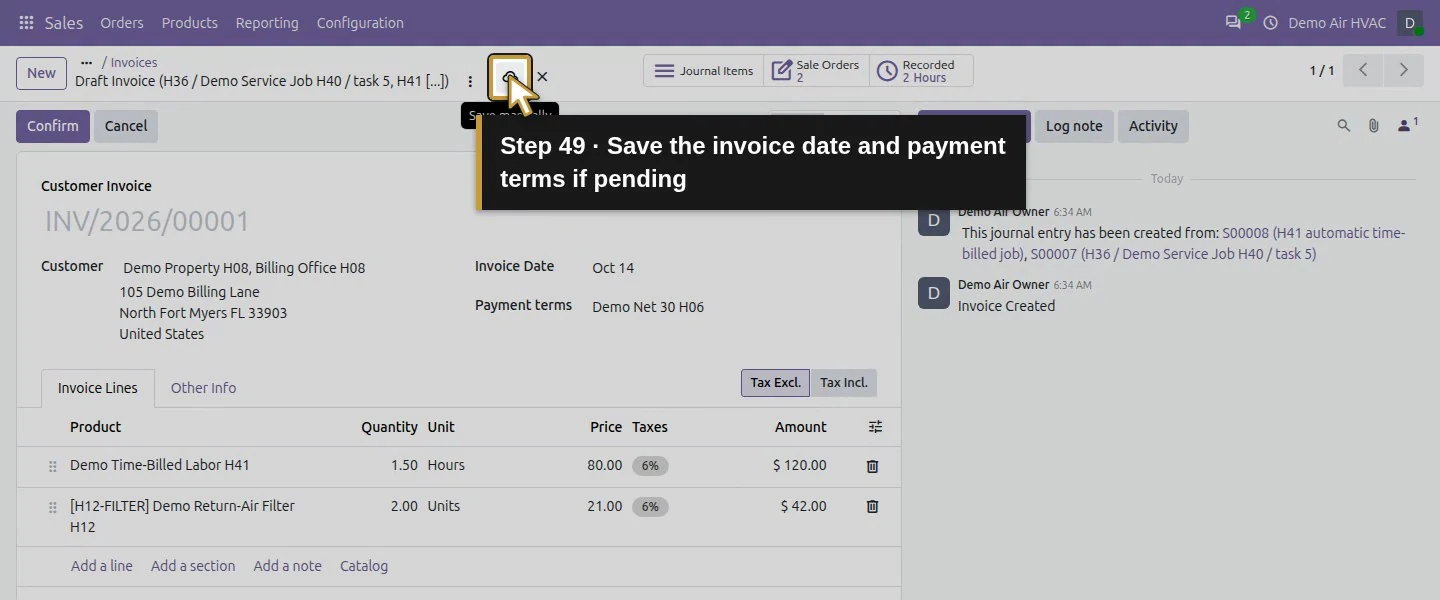
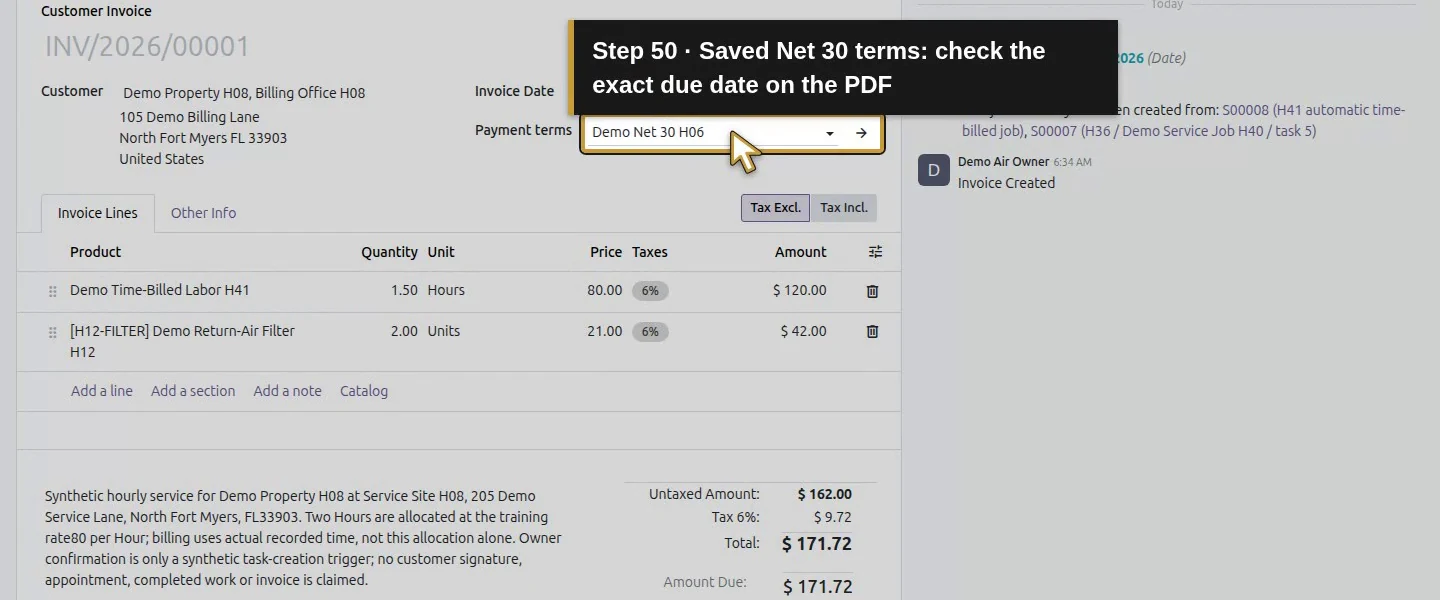
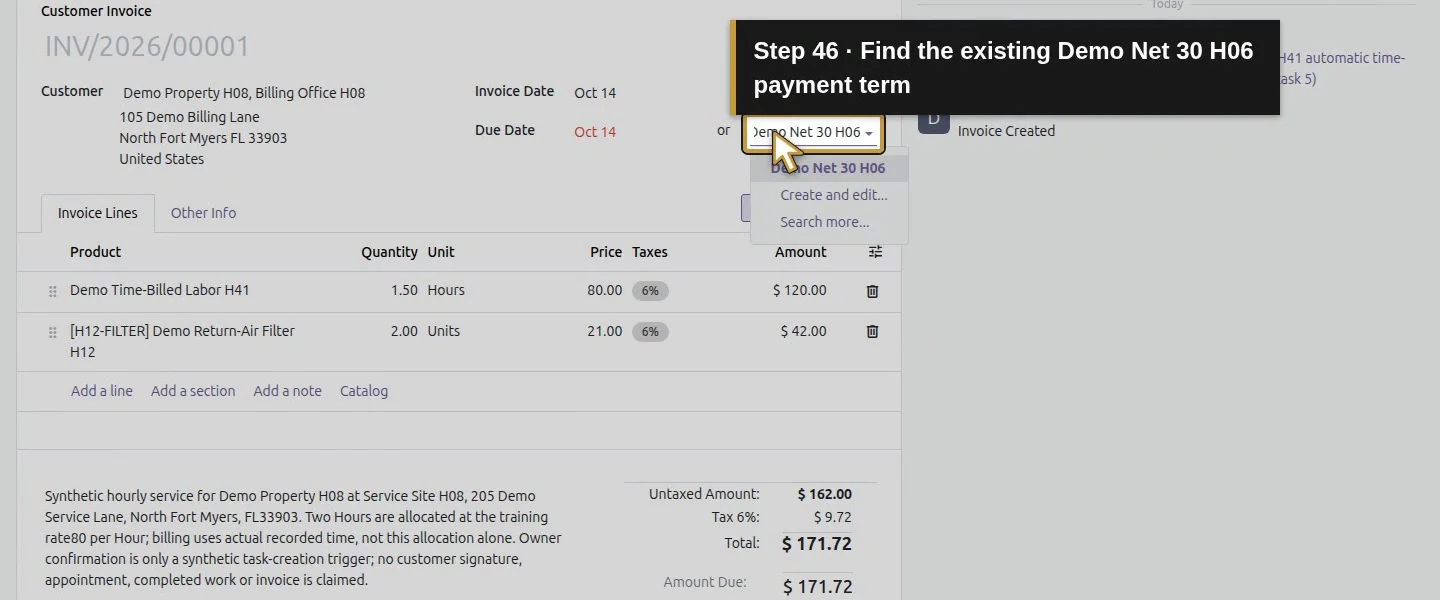
Enter 10/14/2026 in Invoice Date and finish the field. In Payment Terms, search and select the existing Demo Net 30 H06 option; do not merely leave typed search text or create another rule. Wait for pending changes to clear and use Save manually if that control remains visible. In this native invoice form the date/term had already persisted before a later manual-save attempt. Saved values are October 14, 2026, term Demo Net 30 H06 and calculated due date November 13, 2026. The source orders had no selected term, so the invoice choice was deliberate.
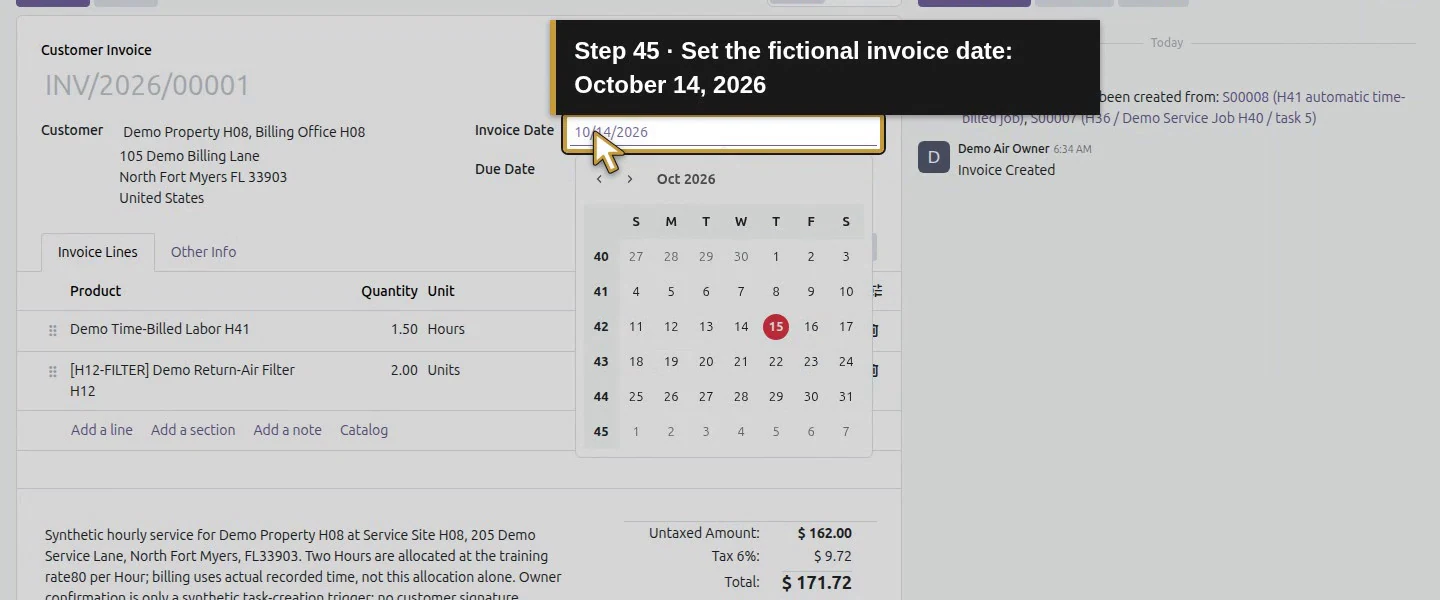
Action 45: Set the fictional invoice date: October 14, 2026. The actual target is highlighted in gold.
Set the fictional invoice date: October 14, 2026.
Action 46: Find the existing Demo Net 30 H06 payment term. The actual target is highlighted in gold.
Find the existing Demo Net 30 H06 payment term.
Action 47: Select the existing Demo Net 30 H06 term. The actual target is highlighted in gold.
Select the existing Demo Net 30 H06 term.
Action 48: Commit the date and payment-term fields. The actual target is highlighted in gold.
Commit the date and payment-term fields.
Action 49: Save the invoice date and payment terms if pending. The actual target is highlighted in gold.
Save the invoice date and payment terms if pending.
Action 50: Saved Net 30 terms: check the exact due date on the PDF. The actual target is highlighted in gold.
Saved Net 30 terms: check the exact due date on the PDF.

Step 6. Review address, terms and commercial context

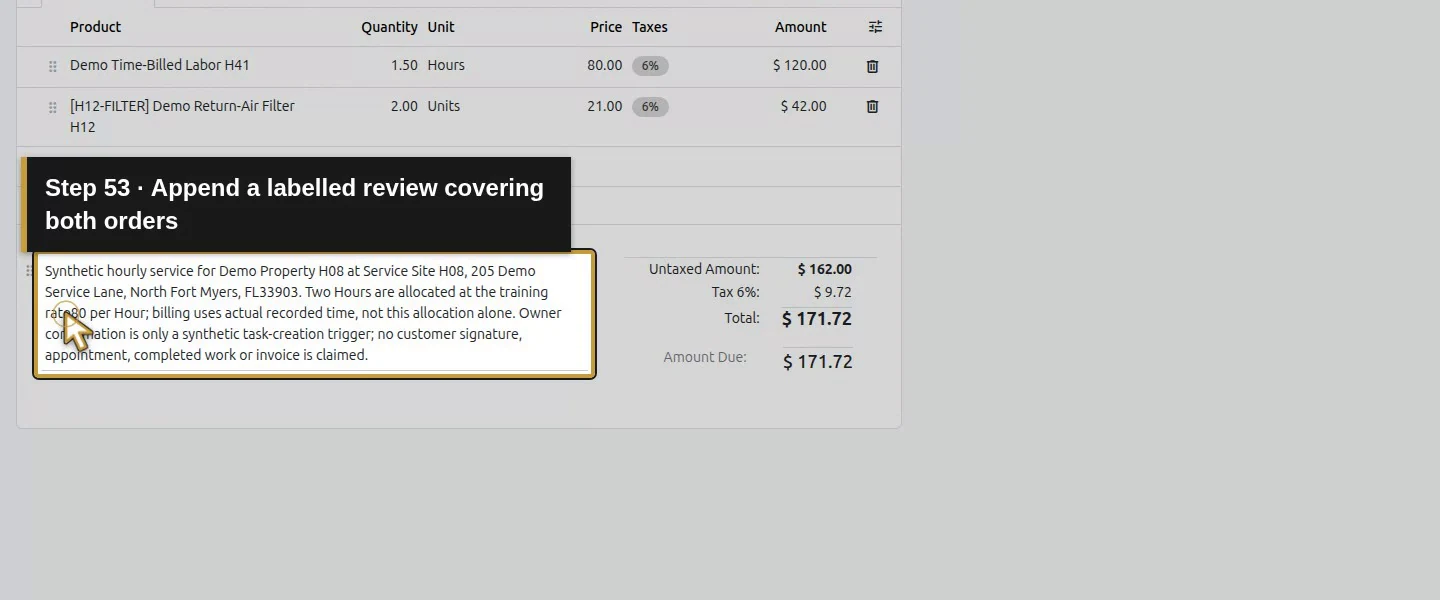
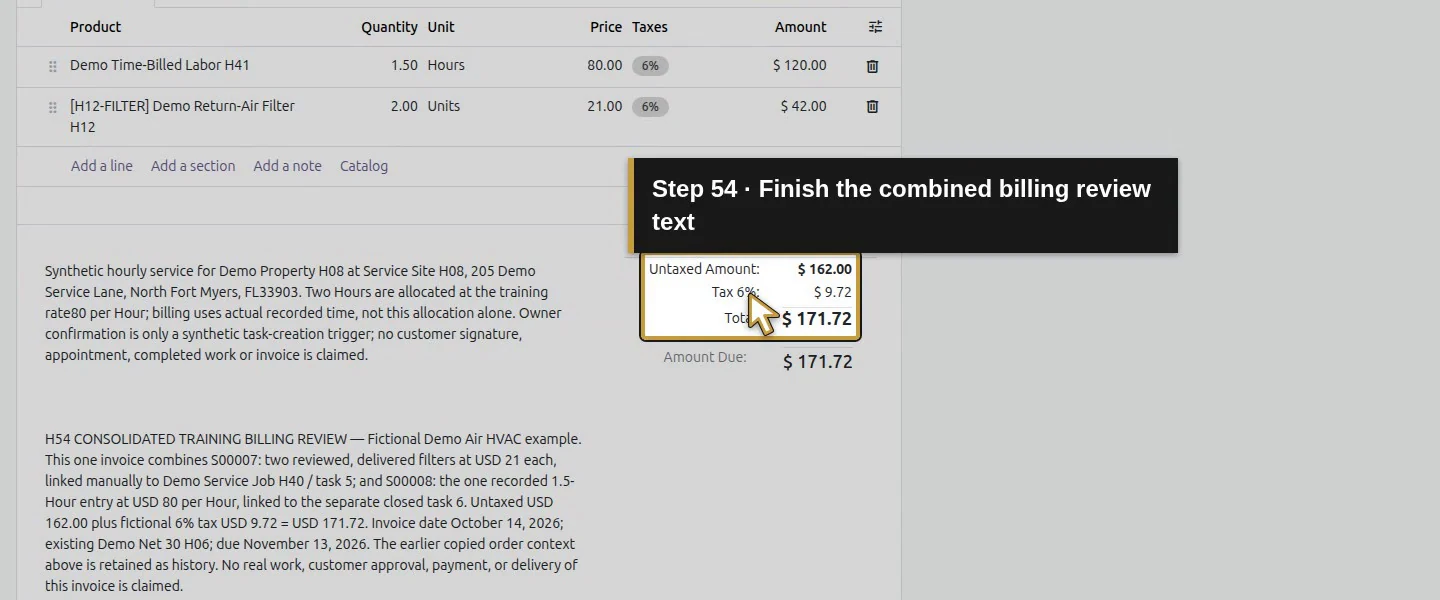
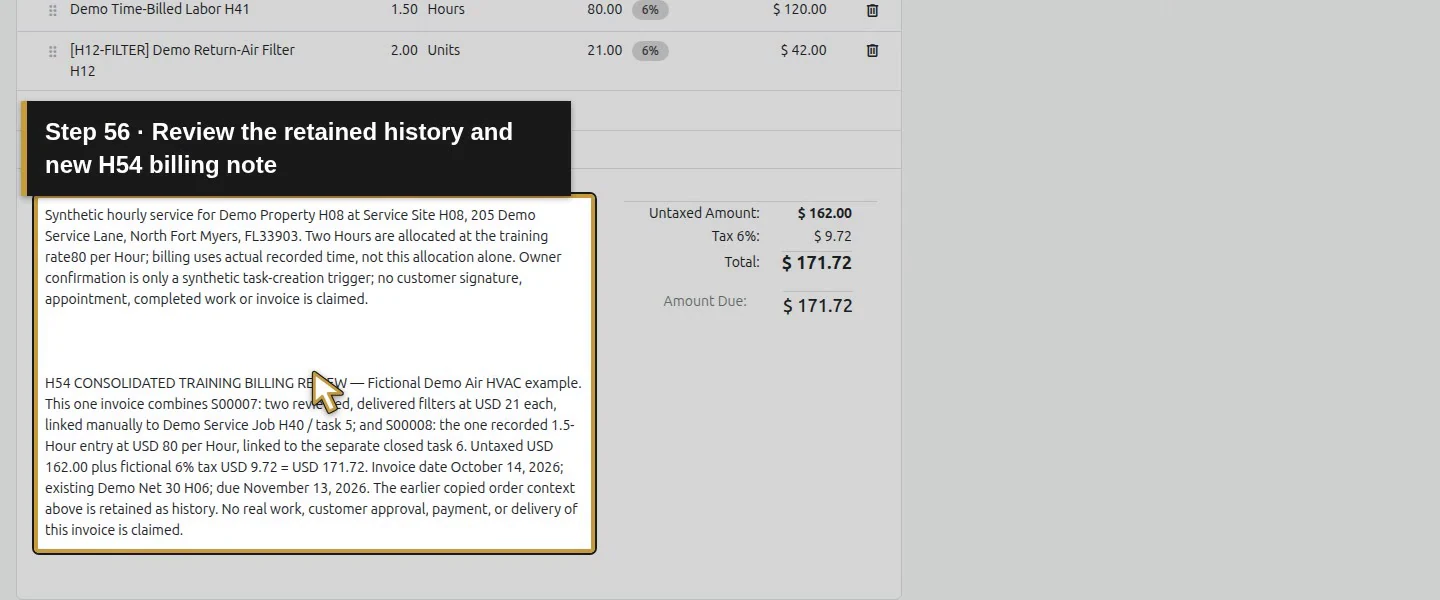
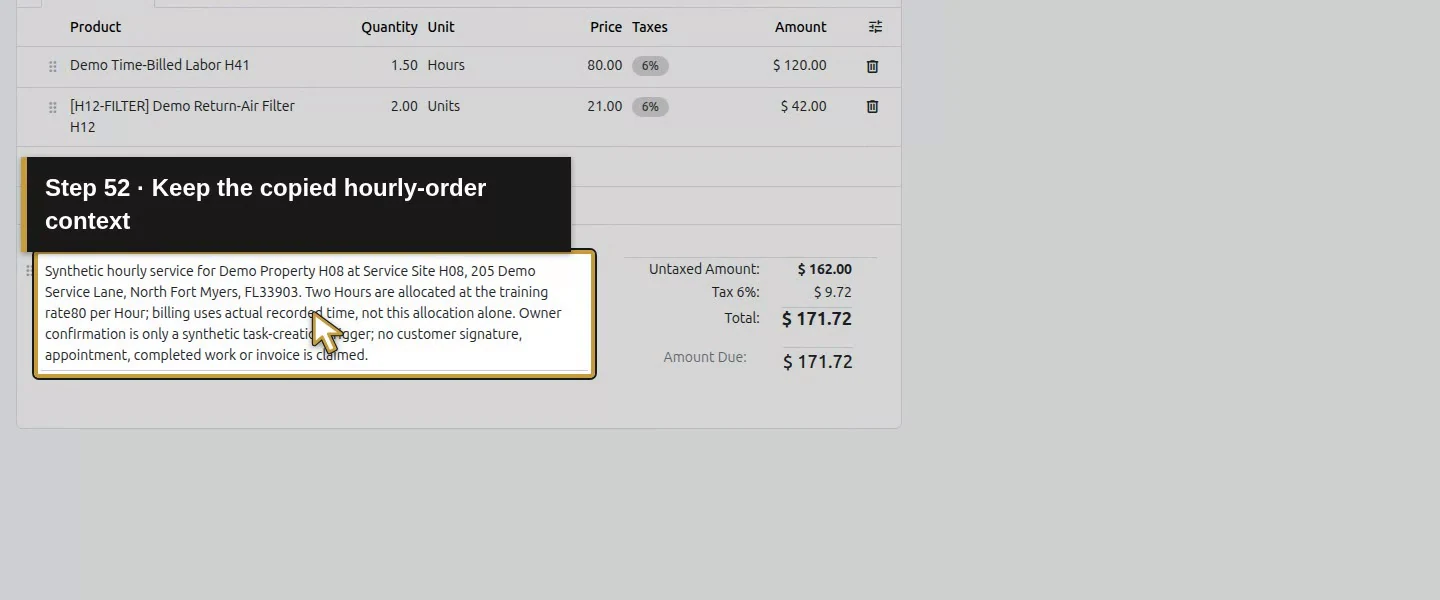
Check Billing Office H08, 105 Demo Billing Lane, currency, quantities, unit prices, demo tax and source-order links. Consolidation initially copied the hourly order’s narration; it did not automatically combine both orders’ written scopes. Preserve that context and append a clear training billing note identifying amended S00007’s two filters and S00008’s 1.5 hours, the selected term and the fictional nature of the example. Review the appropriate details before posting.
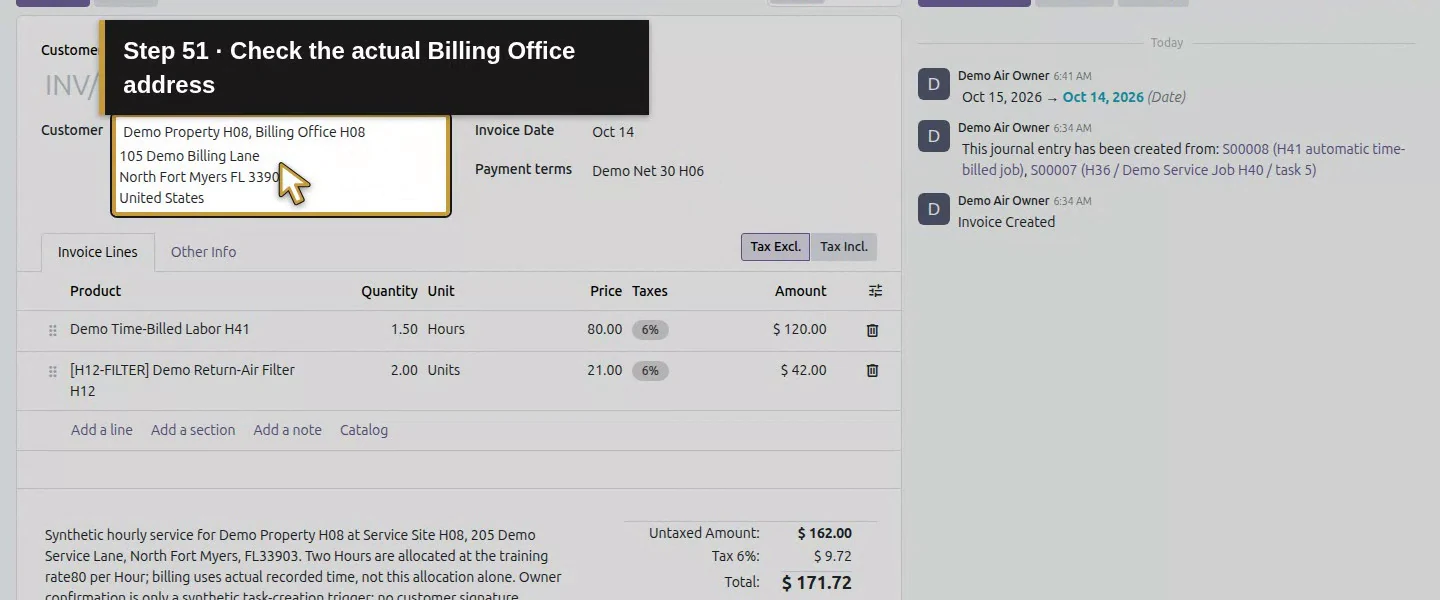
Action 51: Check the actual Billing Office address. The actual target is highlighted in gold.
Check the actual Billing Office address.
Action 52: Keep the copied hourly-order context. The actual target is highlighted in gold.
Keep the copied hourly-order context.
Action 53: Append a labelled review covering both orders. The actual target is highlighted in gold.
Append a labelled review covering both orders.
Action 54: Finish the combined billing review text. The actual target is highlighted in gold.
Finish the combined billing review text.
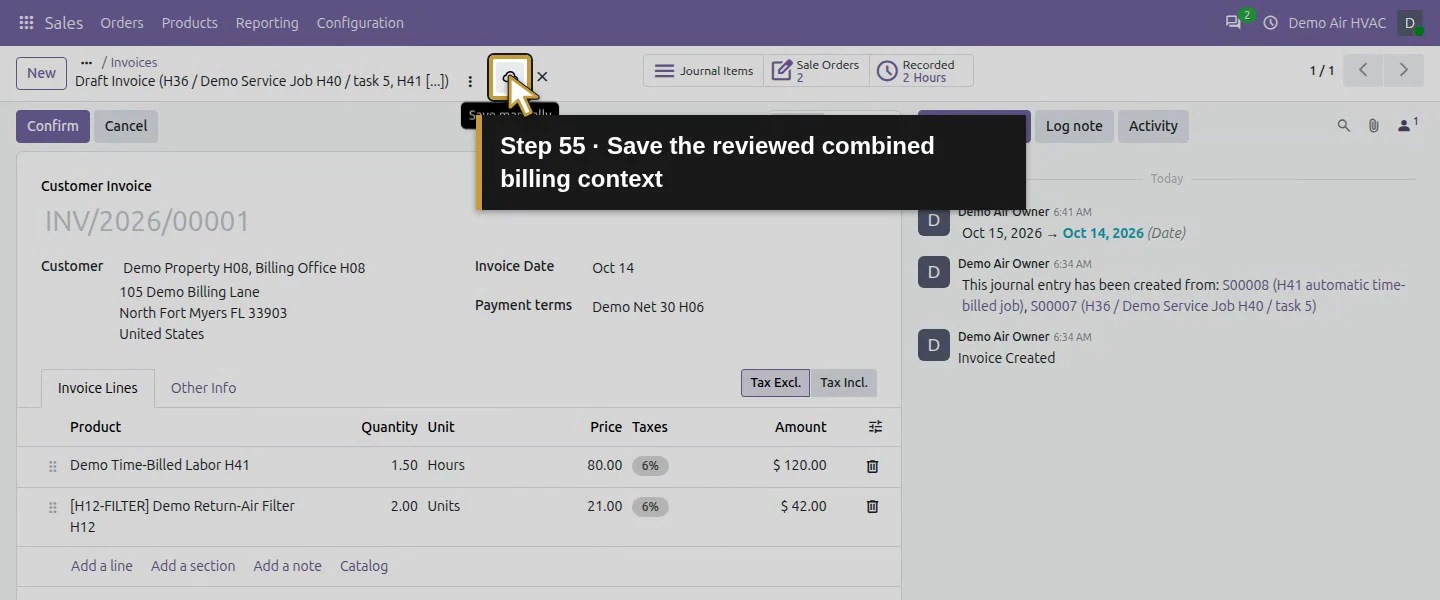
Action 55: Save the reviewed combined billing context. The actual target is highlighted in gold.
Save the reviewed combined billing context.
Action 56: Review the retained history and new H54 billing note. The actual target is highlighted in gold.
Review the retained history and new H54 billing note.

Step 7. Post the reviewed training invoice

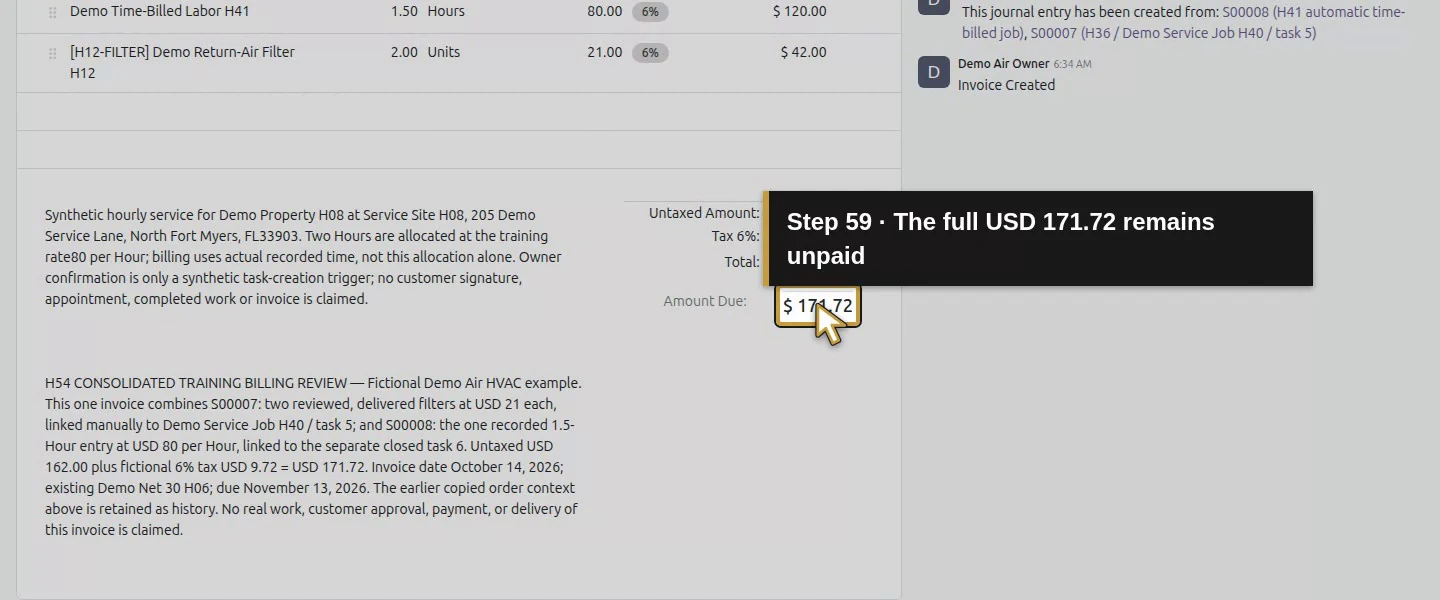
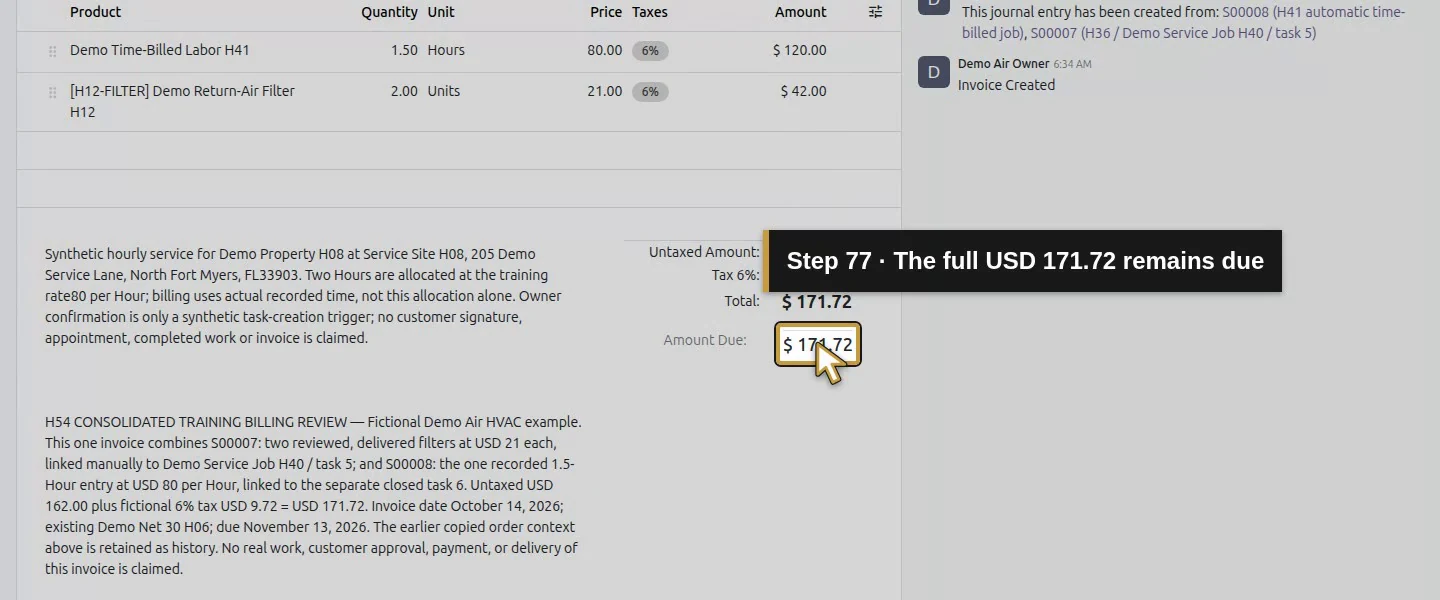
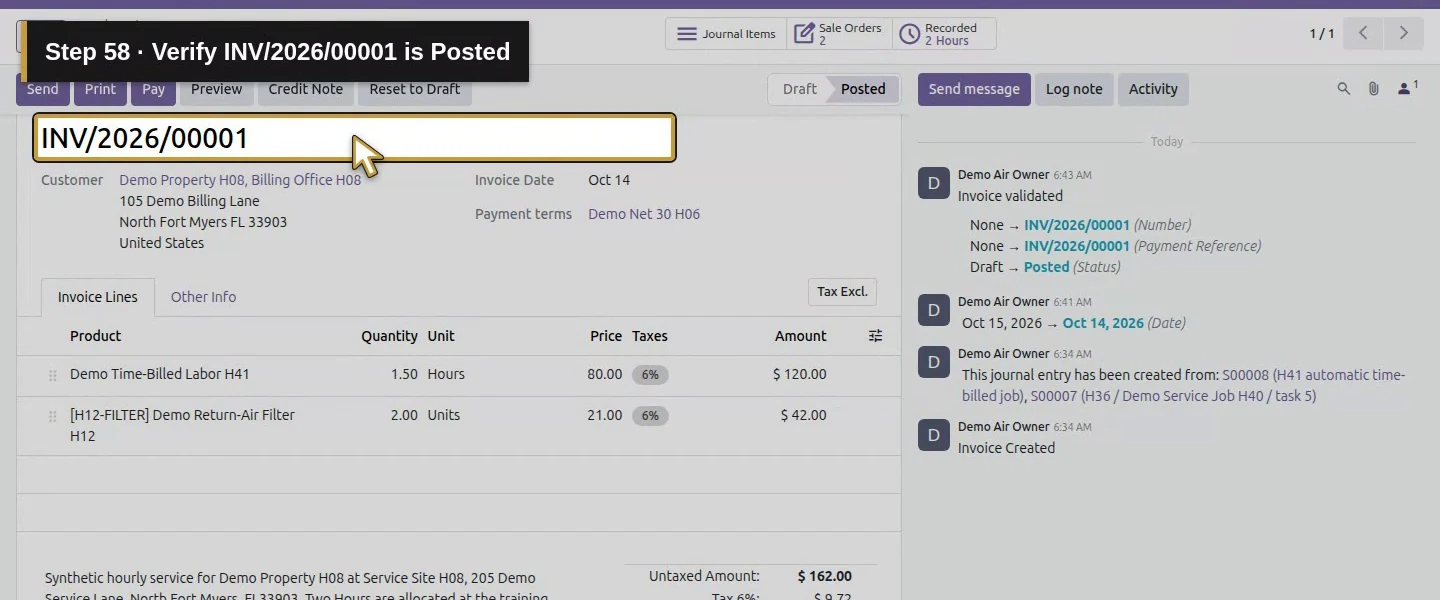
Click Confirm, the posting control on this draft. Wait for Posted and invoice number INV/2026/00001. The form shows Total: $171.72 and Amount Due: $171.72. Its saved payment state is unpaid; the journal entry balances with $171.72 debit and credit totals. Posting creates the accounting document. It did not collect a payment or send this invoice to the customer.
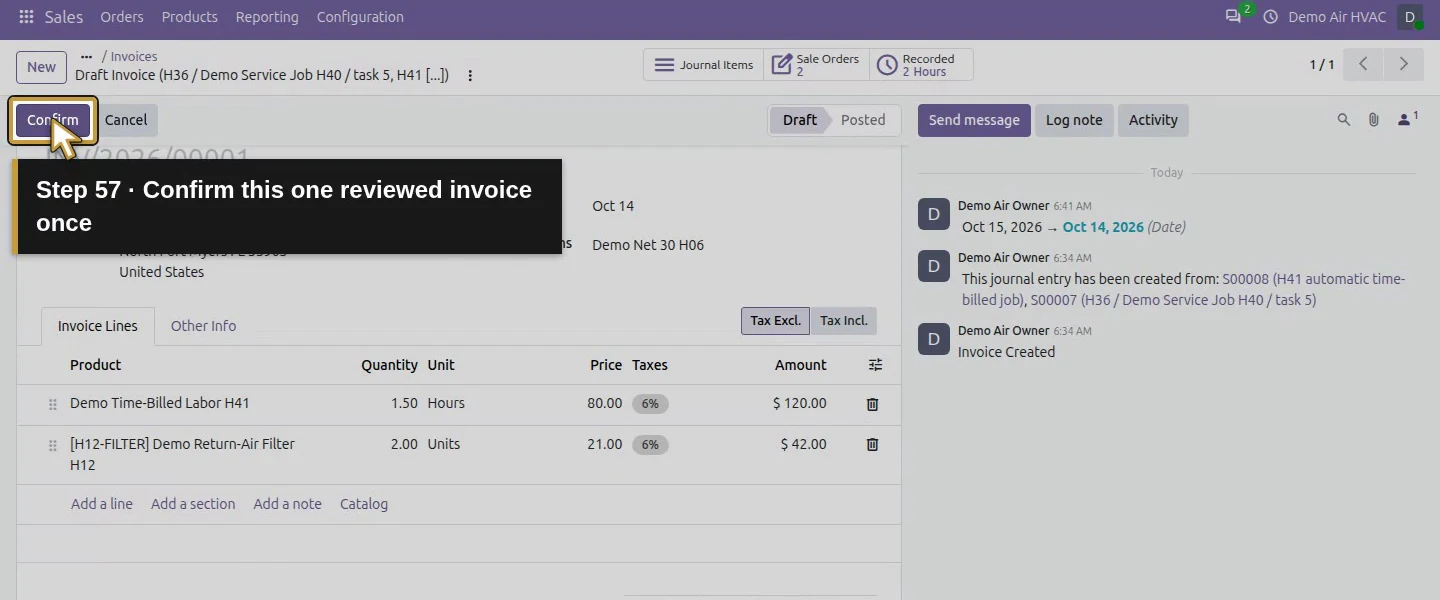
Action 57: Confirm this one reviewed invoice once. The actual target is highlighted in gold.
Confirm this one reviewed invoice once.
Action 58: Verify INV/2026/00001 is Posted. The actual target is highlighted in gold.
Verify INV/2026/00001 is Posted.
Action 59: The full USD 171.72 remains unpaid. The actual target is highlighted in gold.
The full USD 171.72 remains unpaid.

Step 8. Download and inspect the native invoice PDF

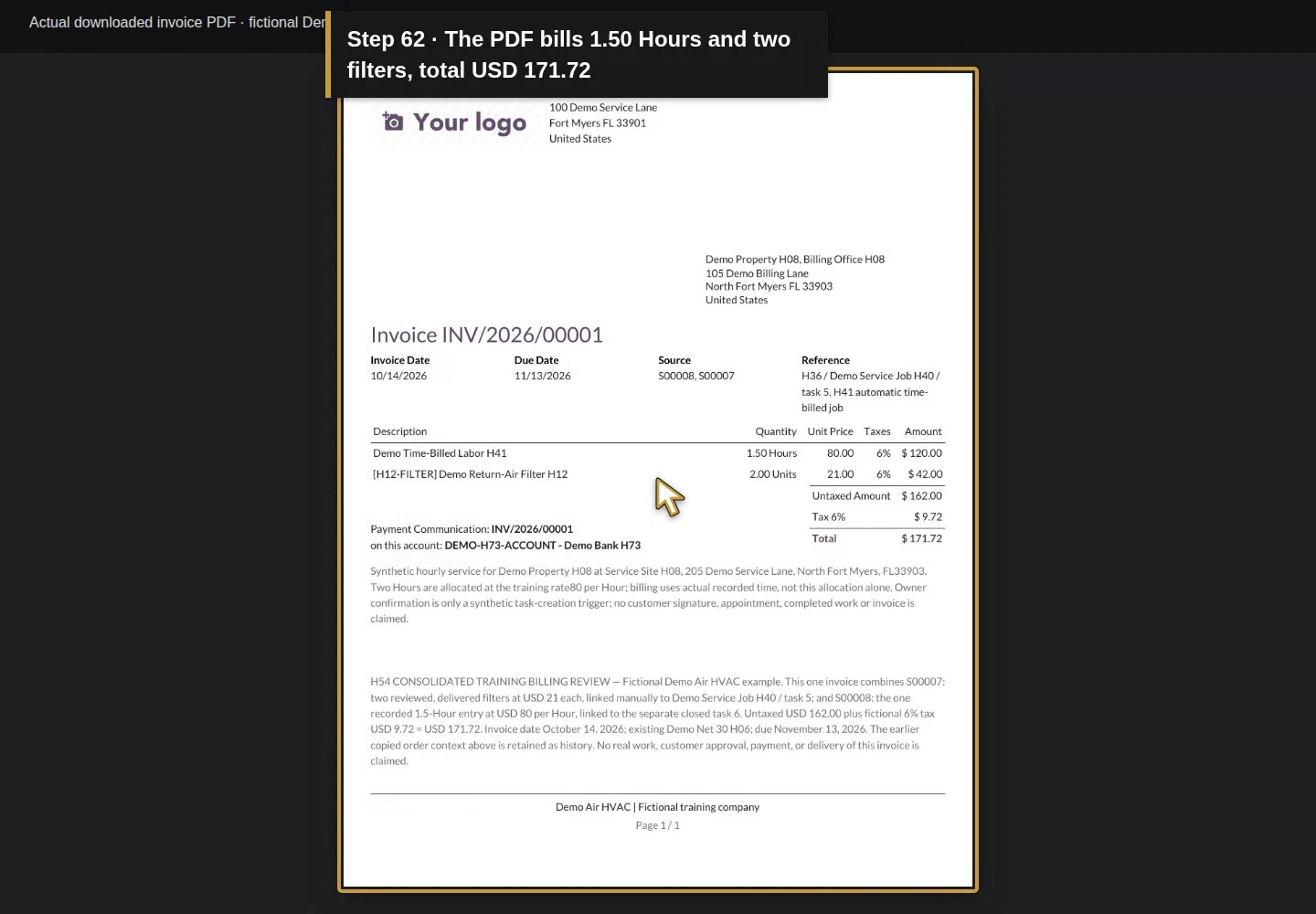
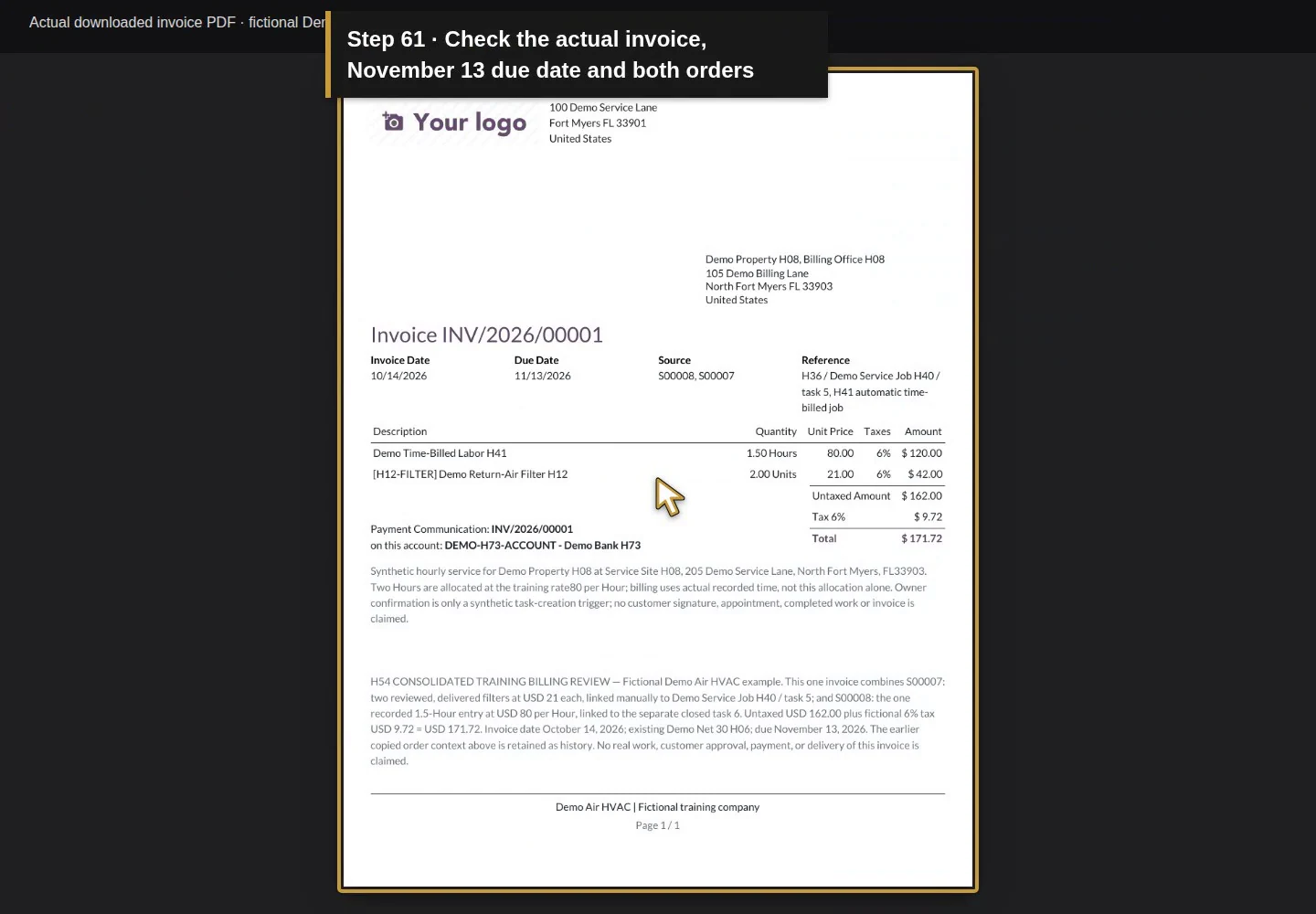
Click Print and open the actual PDF download. Check invoice number, both source orders, billing address, 10/14/2026, 11/13/2026, the exact two line quantities, totals and footer. The one-page file retains H05’s configured placeholder logo and Demo Air HVAC | Fictional training company footer; no layout change was needed. This also supplies the actual invoice-output check deferred by the document-layout guide. It is a training document, with an explicitly fictional payment account.
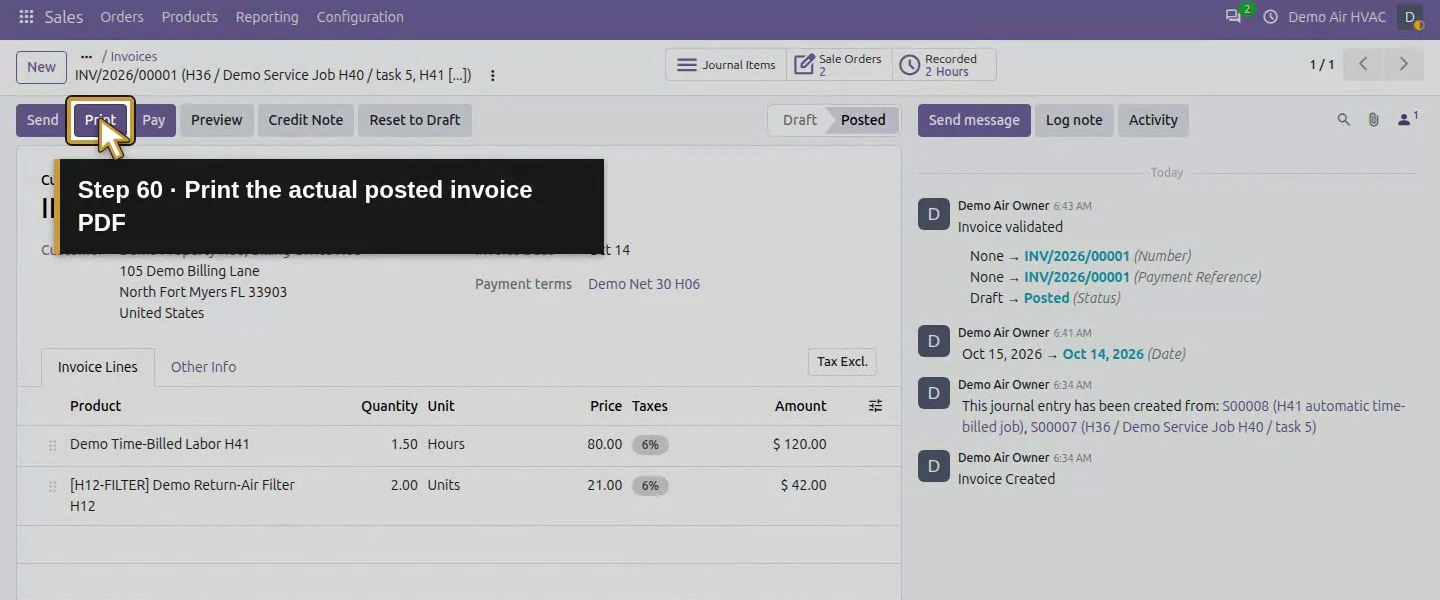
Action 60: Print the actual posted invoice PDF. The actual target is highlighted in gold.
Print the actual posted invoice PDF.
Action 61: Check the actual invoice, November 13 due date and both orders. The actual target is highlighted in gold.
Check the actual invoice, November 13 due date and both orders.
Action 62: The PDF bills 1.50 Hours and two filters, total USD 171.72. The actual target is highlighted in gold.
The PDF bills 1.50 Hours and two filters, total USD 171.72.

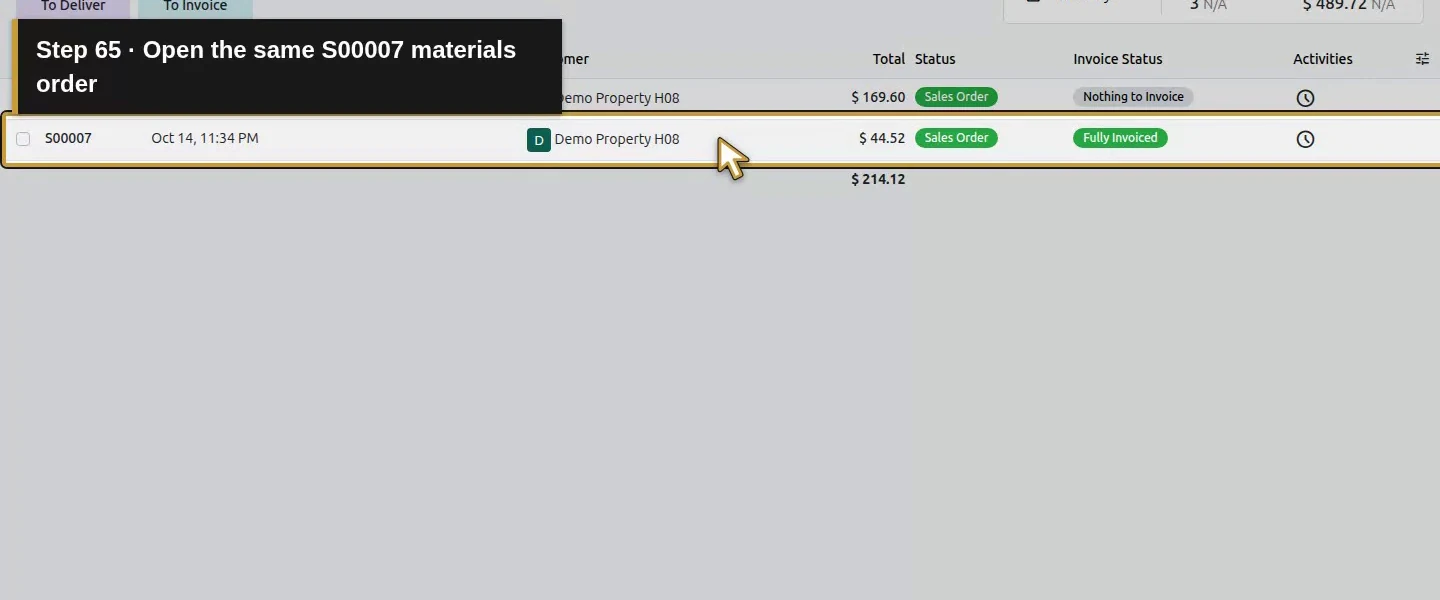
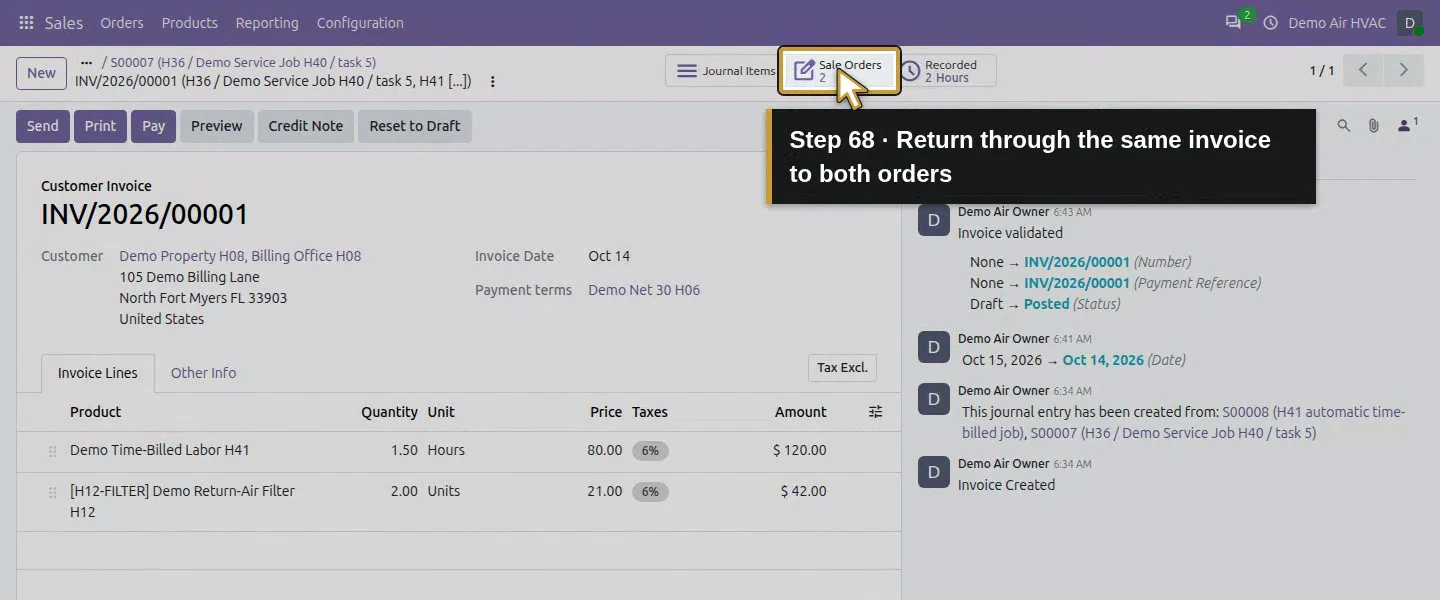
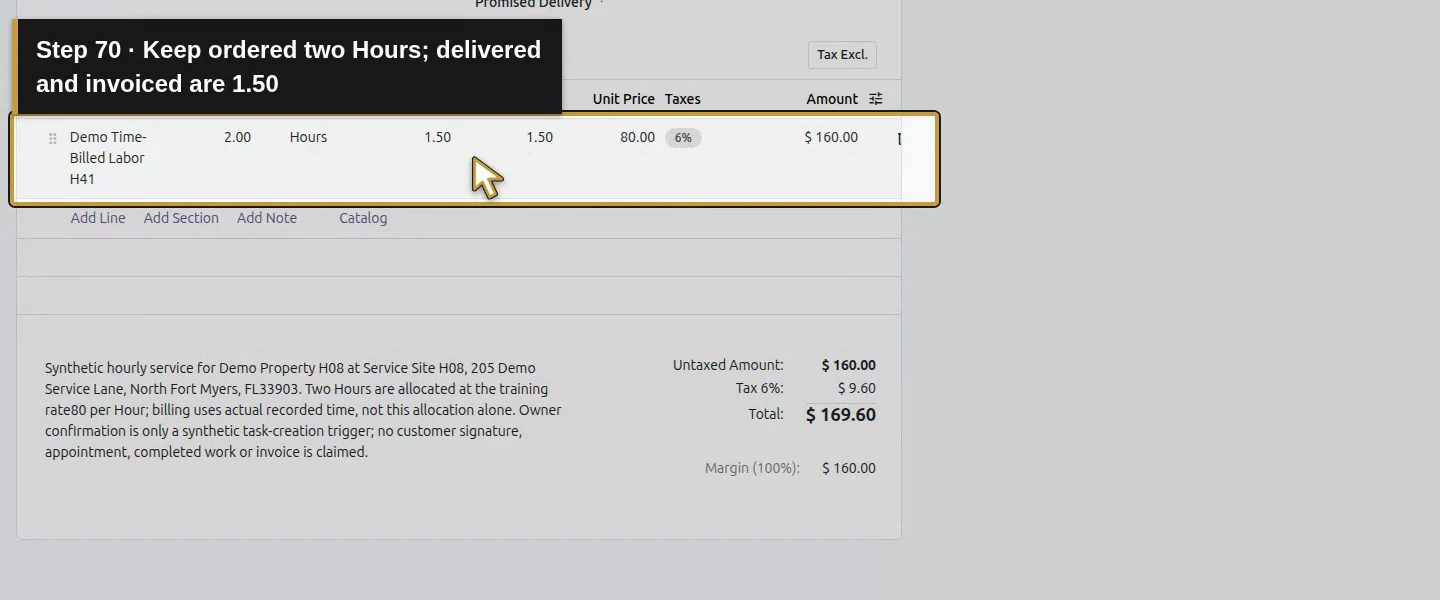
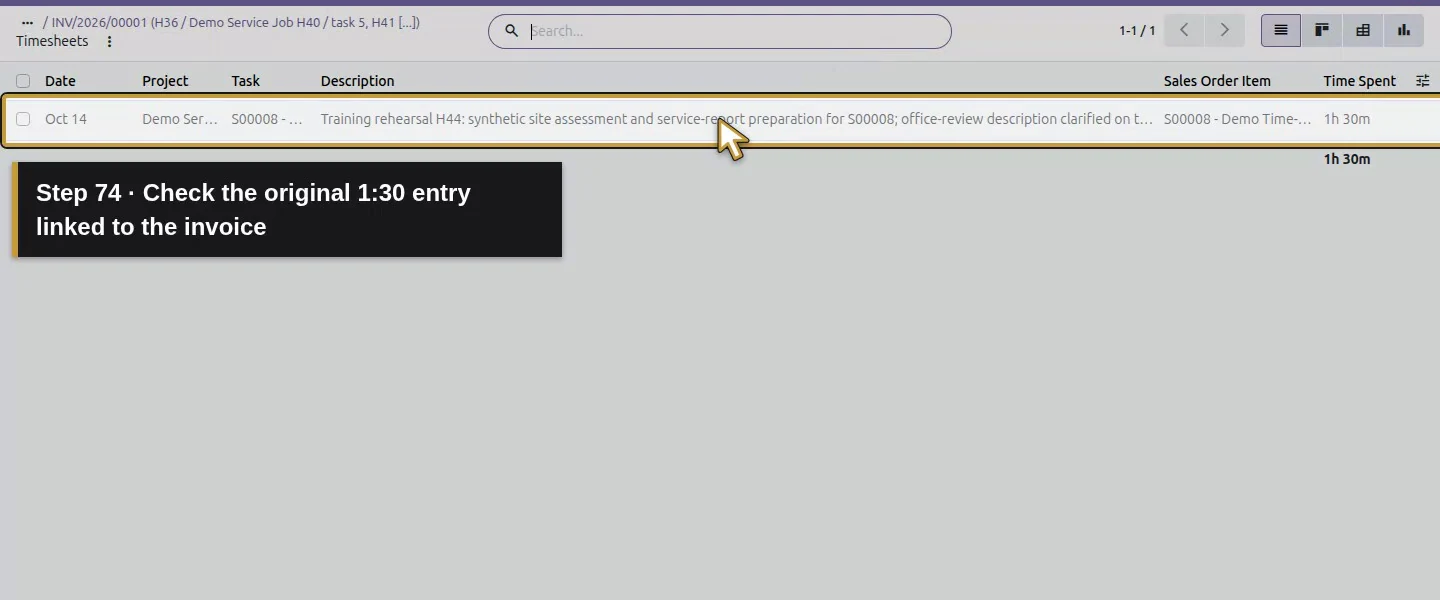
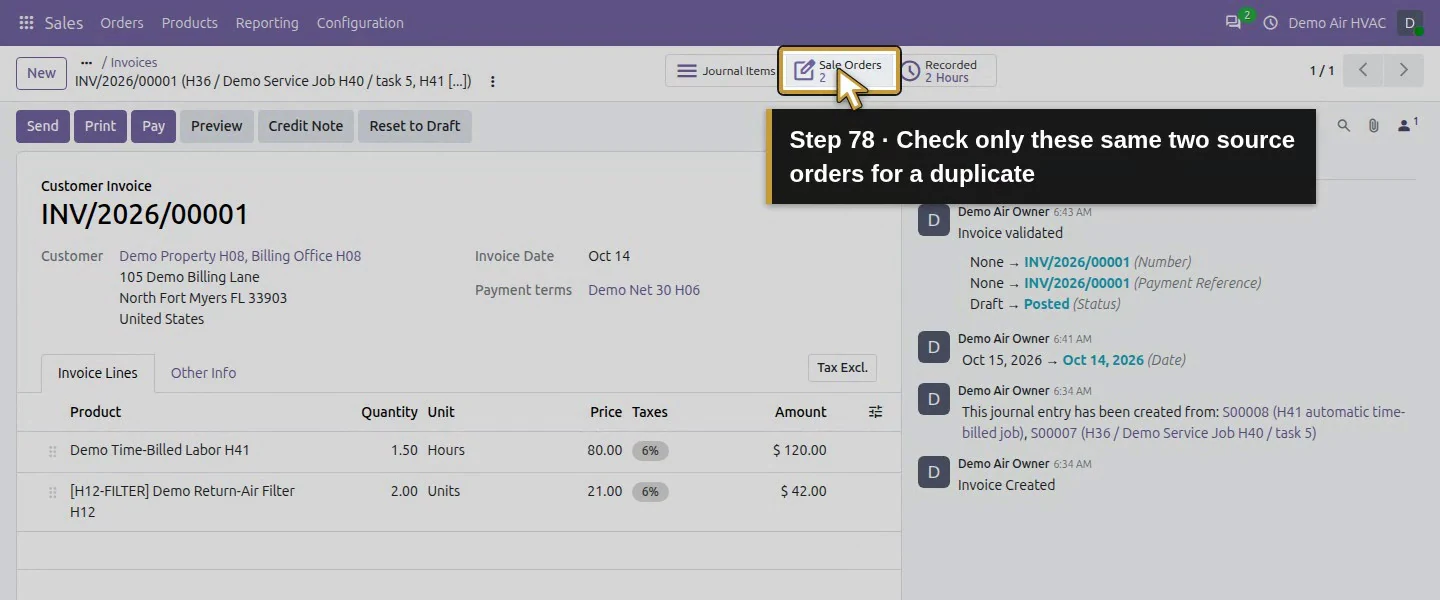
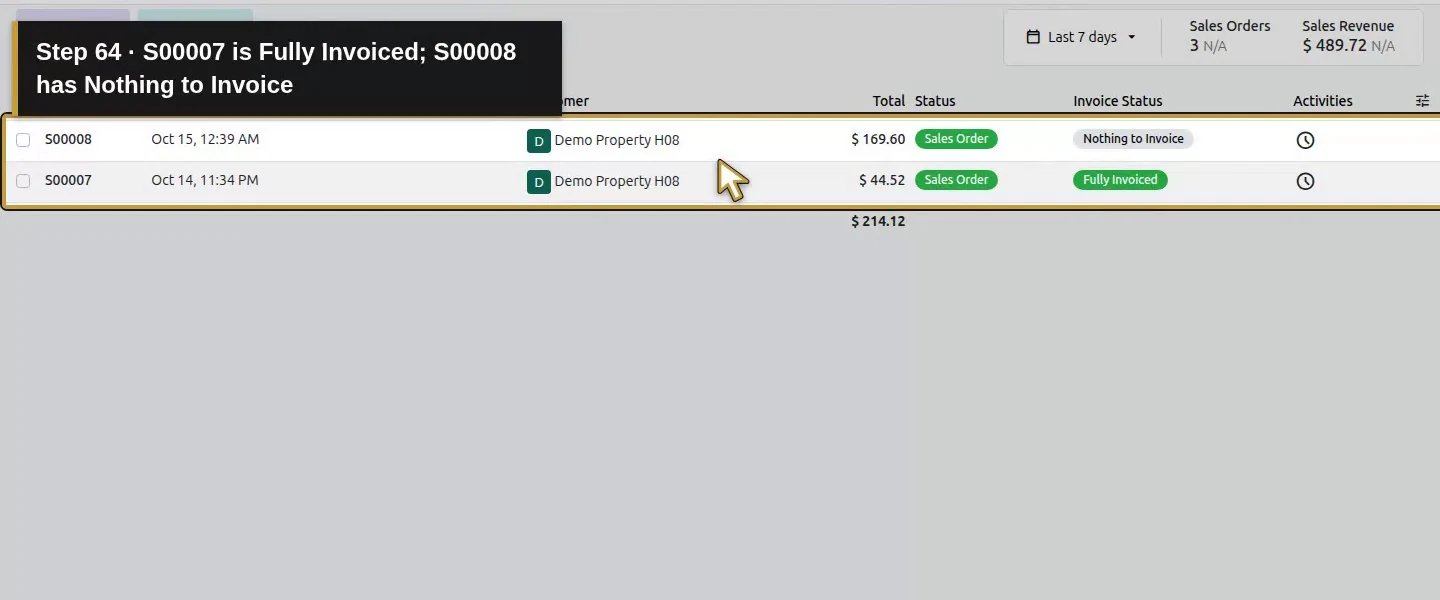
Use 2 Sale Orders to inspect the two source records. Both link to the same invoice. The goods line has Delivered/Invoiced 2.00/2.00, zero left to invoice and Fully Invoiced status. The time line has Delivered/Invoiced 1.50/1.50, zero left to invoice and Nothing to Invoice status in this runtime. The original two-hour estimate remains. The same time entry now links to the posted invoice; no duplicate timesheet was created.
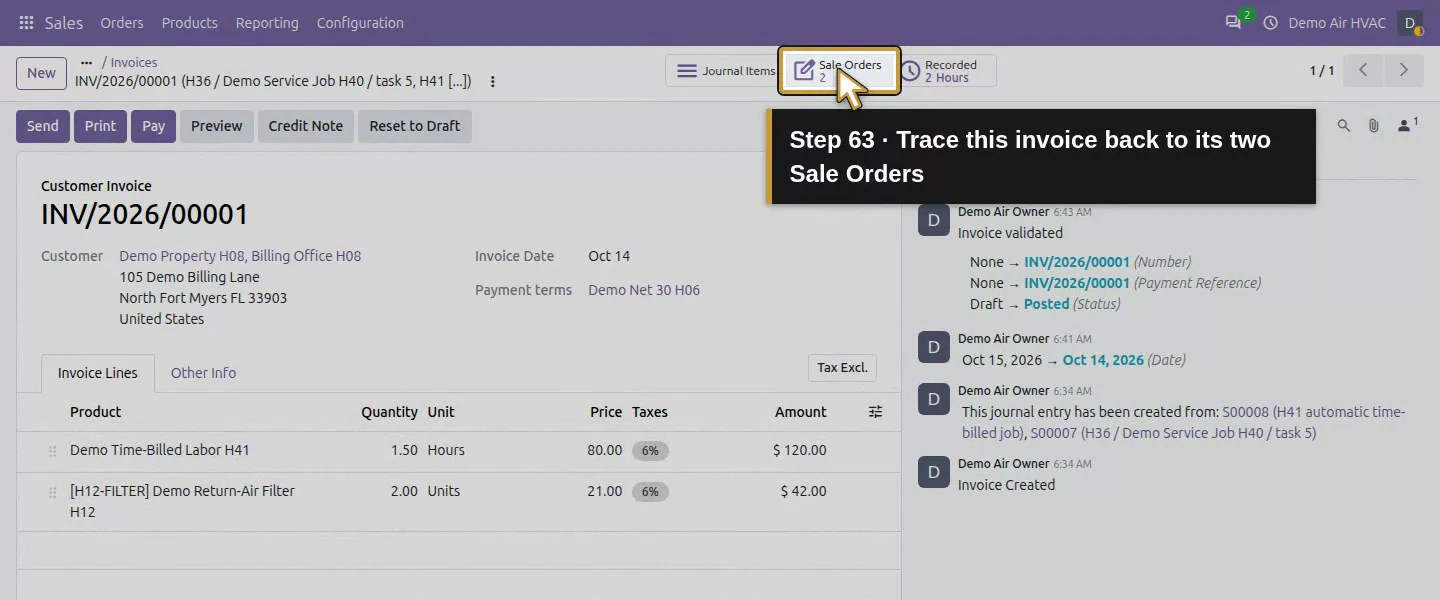
Action 63: Trace this invoice back to its two Sale Orders. The actual target is highlighted in gold.
Trace this invoice back to its two Sale Orders.
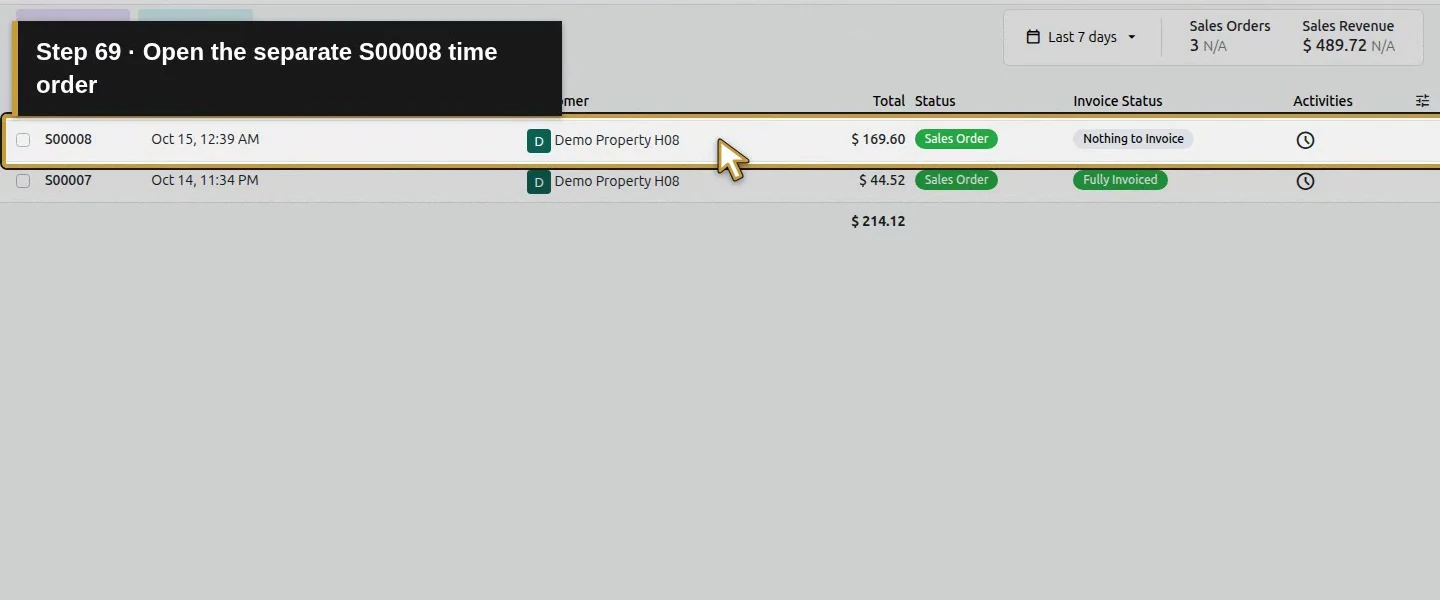
Action 64: S00007 is Fully Invoiced; S00008 has Nothing to Invoice. The actual target is highlighted in gold.
S00007 is Fully Invoiced; S00008 has Nothing to Invoice.
Action 65: Open the same S00007 materials order. The actual target is highlighted in gold.
Open the same S00007 materials order.
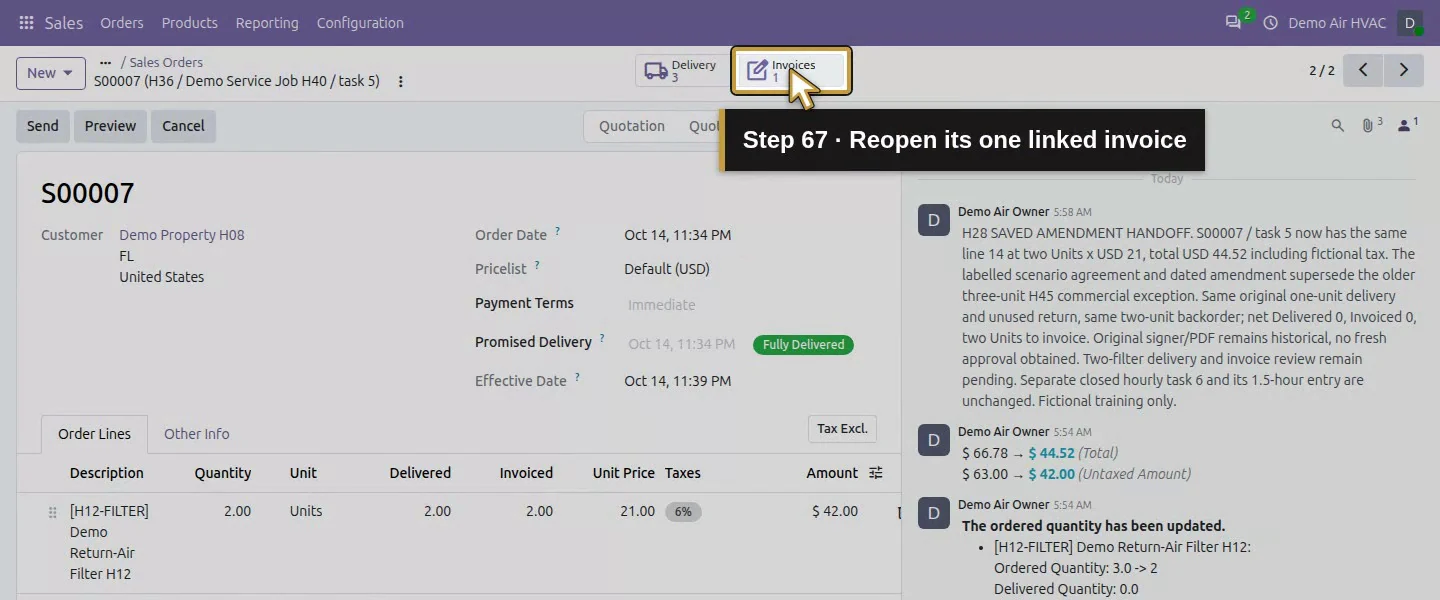
Action 66: Two filters ordered, delivered and invoiced. The actual target is highlighted in gold.
Two filters ordered, delivered and invoiced.
Action 67: Reopen its one linked invoice. The actual target is highlighted in gold.
Reopen its one linked invoice.
Action 68: Return through the same invoice to both orders. The actual target is highlighted in gold.
Return through the same invoice to both orders.
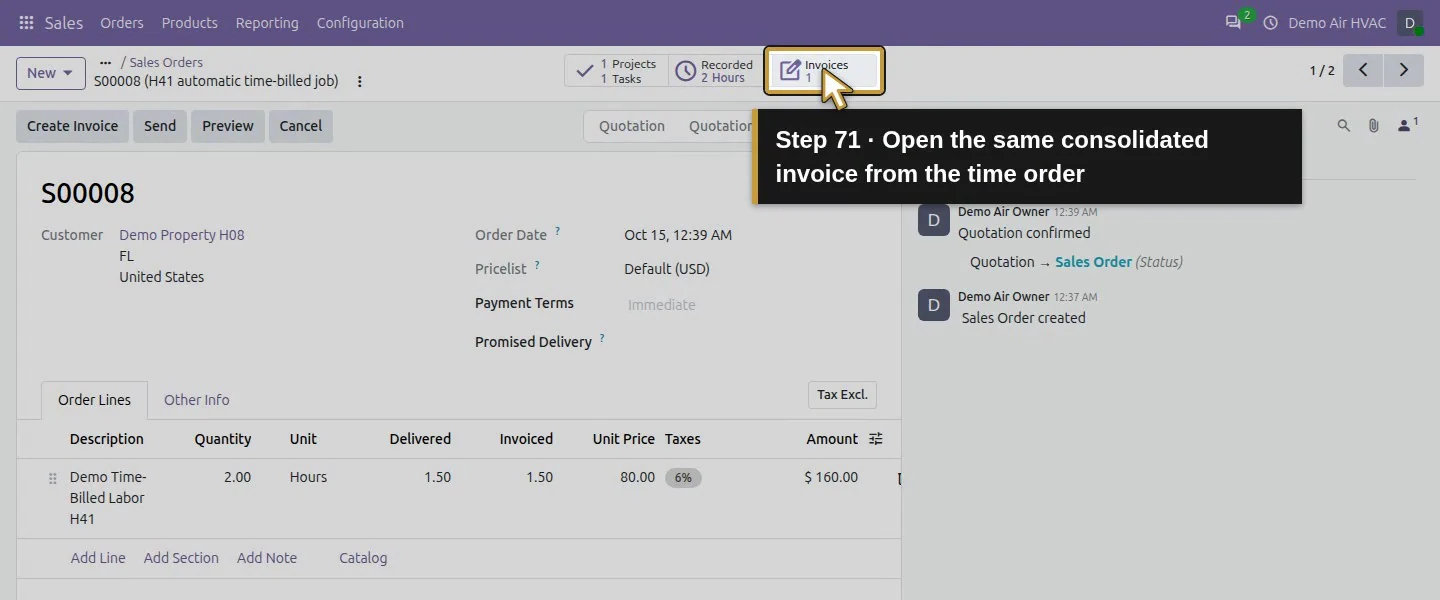
Action 69: Open the separate S00008 time order. The actual target is highlighted in gold.
Open the separate S00008 time order.
Action 70: Keep ordered two Hours; delivered and invoiced are 1.50. The actual target is highlighted in gold.
Keep ordered two Hours; delivered and invoiced are 1.50.
Action 71: Open the same consolidated invoice from the time order. The actual target is highlighted in gold.
Open the same consolidated invoice from the time order.
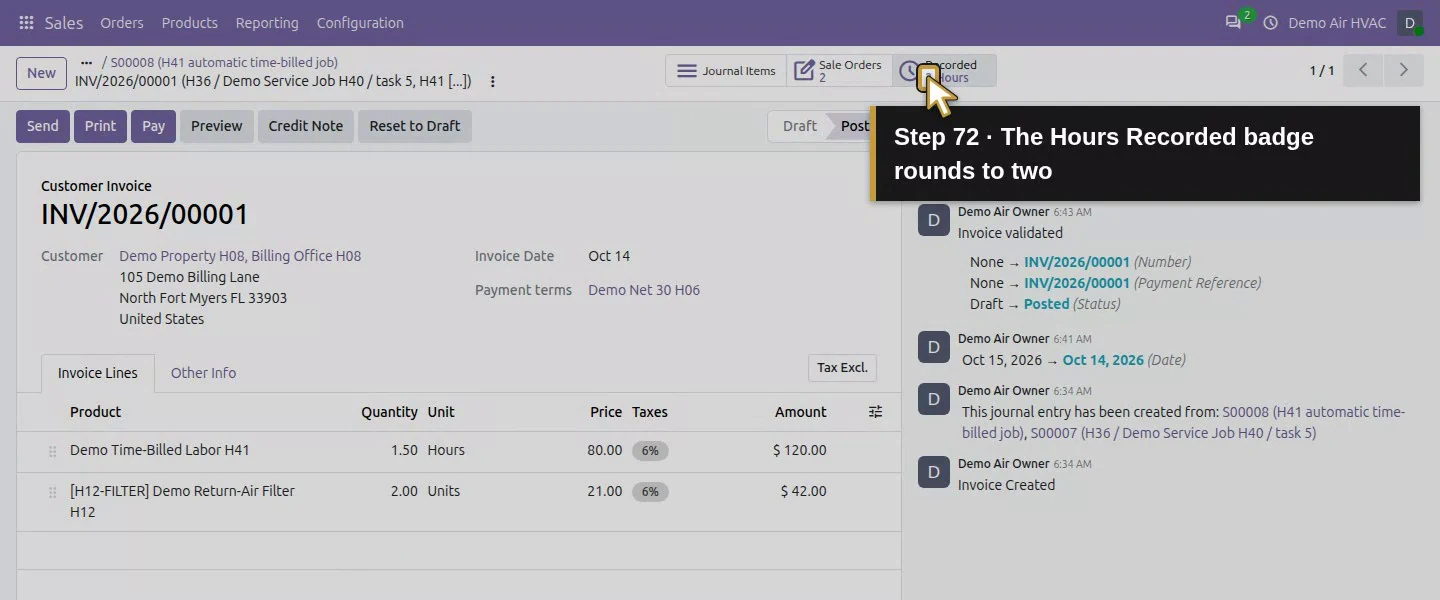
Action 72: The Hours Recorded badge rounds to two. The actual target is highlighted in gold.
The Hours Recorded badge rounds to two.
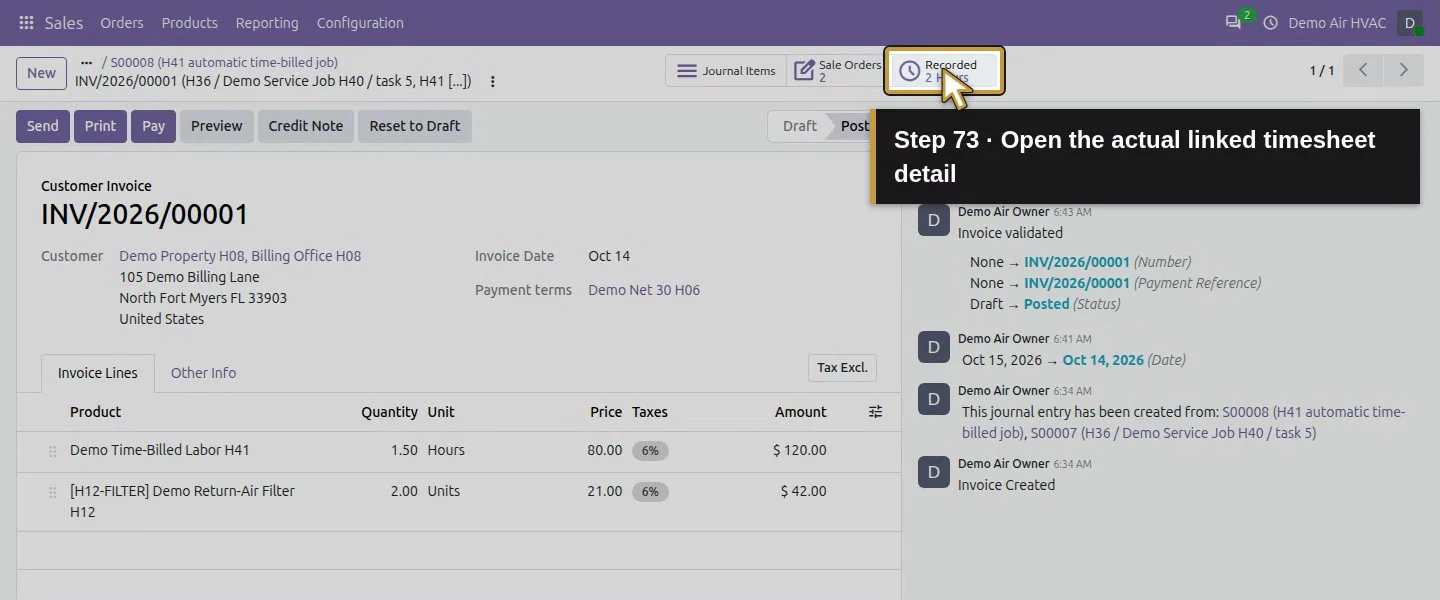
Action 73: Open the actual linked timesheet detail. The actual target is highlighted in gold.
Open the actual linked timesheet detail.
Action 74: Check the original 1:30 entry linked to the invoice. The actual target is highlighted in gold.
Check the original 1:30 entry linked to the invoice.

Step 10. Reopen the invoice and preserve its unpaid boundary

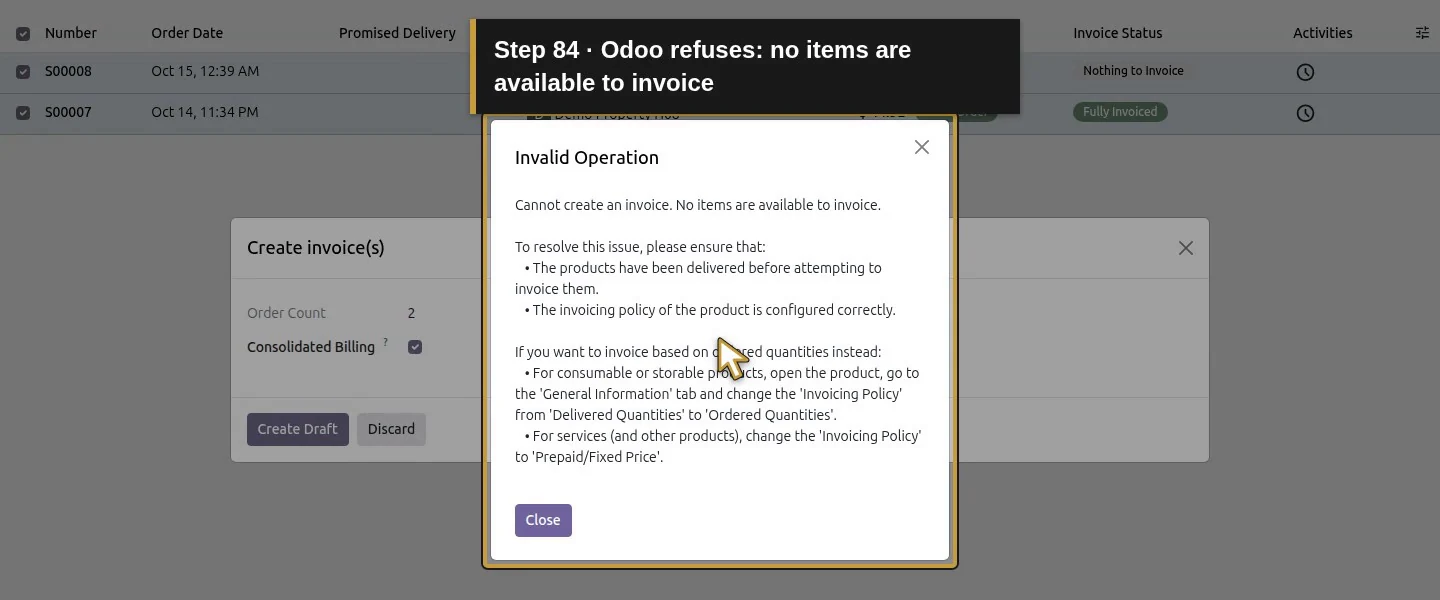
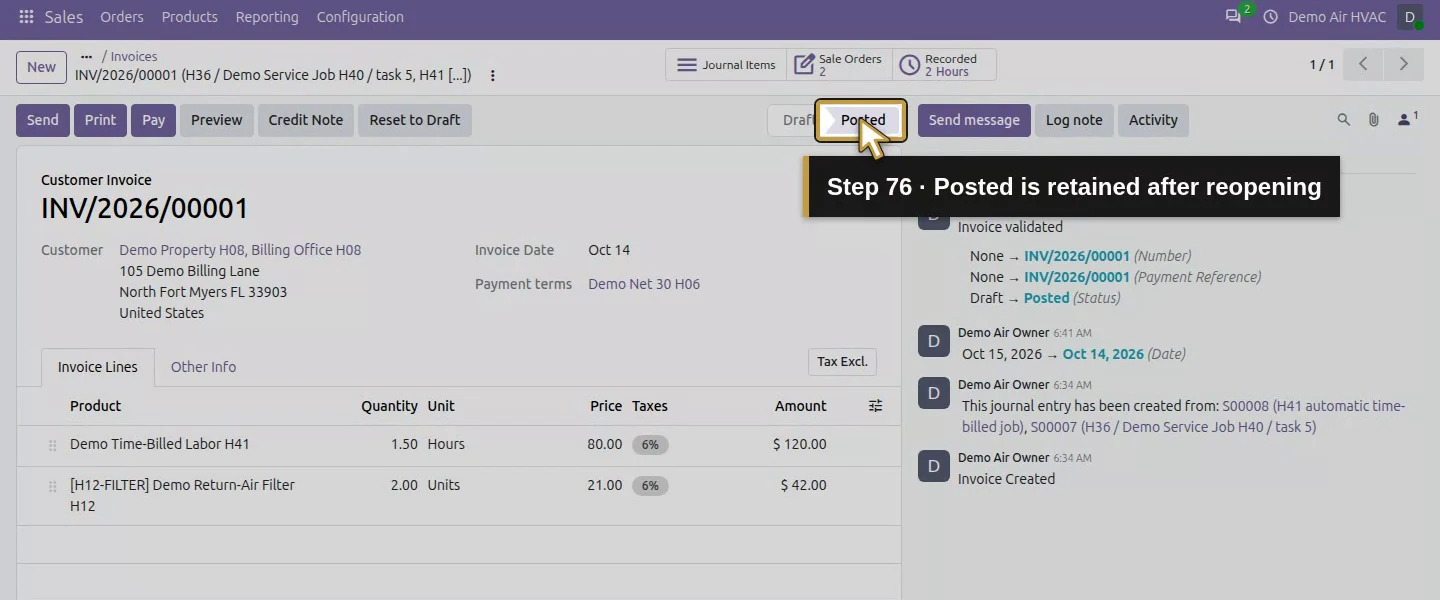
Return to INV/2026/00001 and reload. Check the same two lines, source links, due date and full unpaid balance. A controlled native repeat of Create Draft for those same billed orders was refused with No items are available to invoice; the invoice count stayed one and its original line IDs remained. Reopening also kept one invoice. Pay, Send and Credit Note are separate actions; this lesson used none of them.
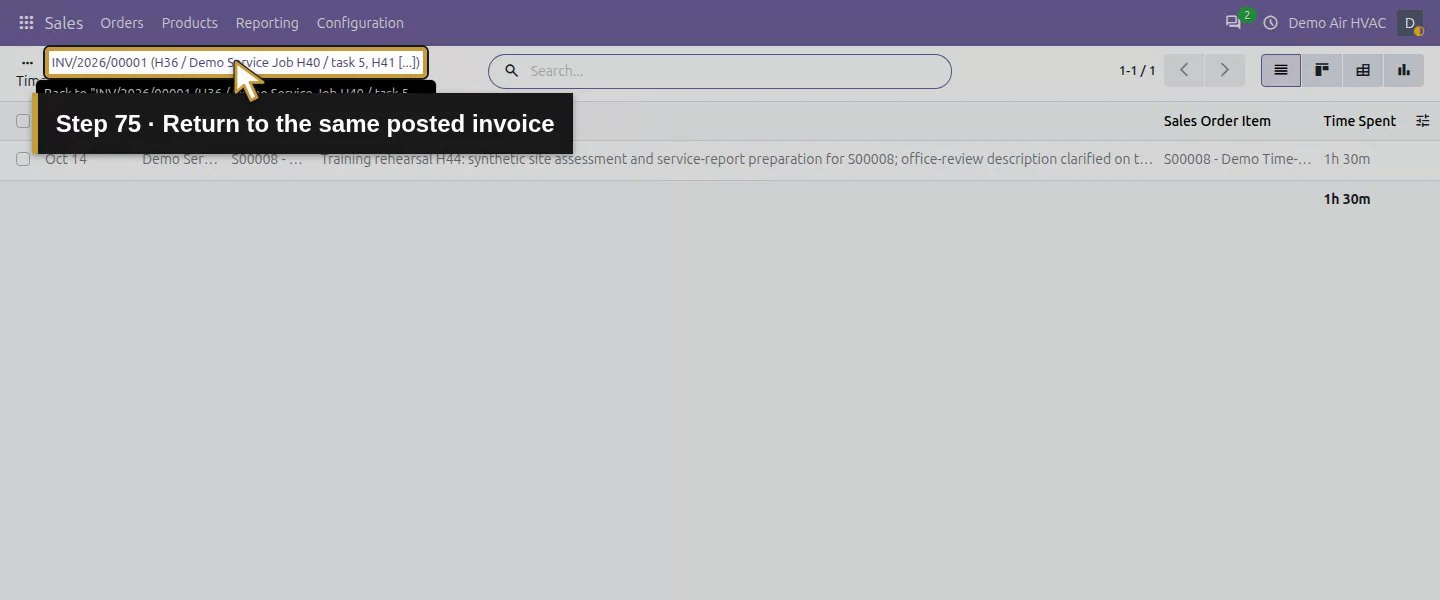
Action 75: Return to the same posted invoice. The actual target is highlighted in gold.
Return to the same posted invoice.
Action 76: Posted is retained after reopening. The actual target is highlighted in gold.
Posted is retained after reopening.
Action 77: The full USD 171.72 remains due. The actual target is highlighted in gold.
The full USD 171.72 remains due.
Action 78: Check only these same two source orders for a duplicate. The actual target is highlighted in gold.
Check only these same two source orders for a duplicate.
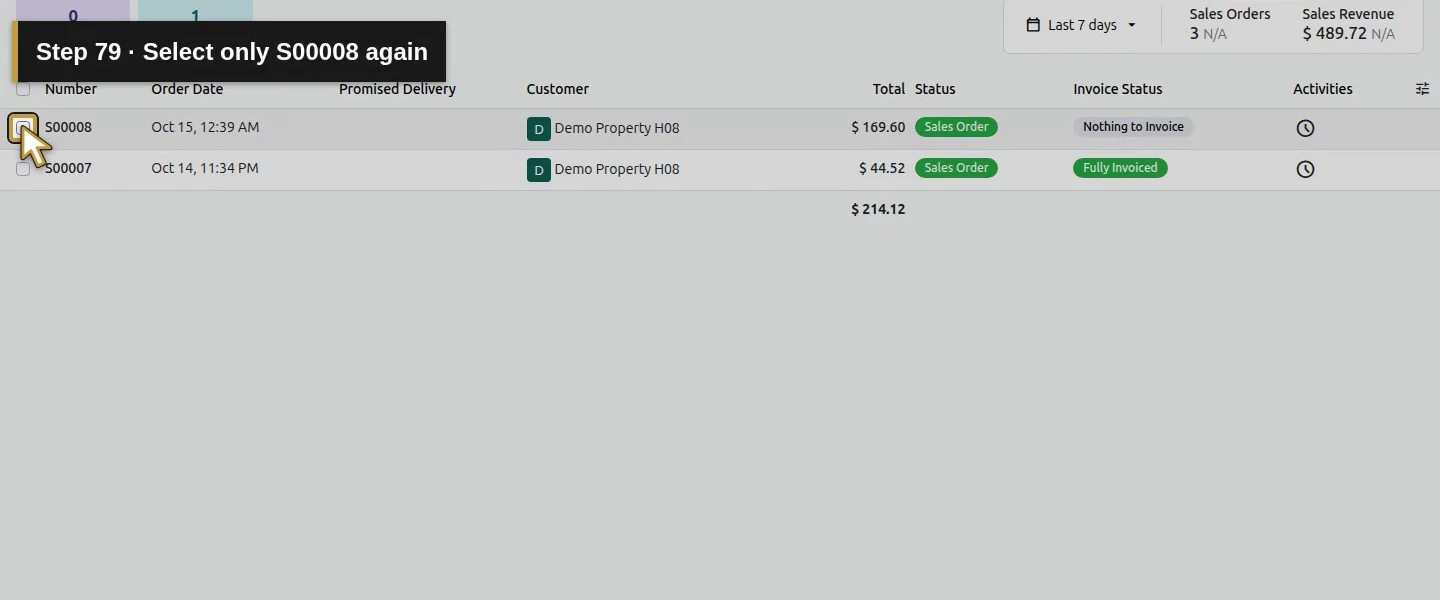
Action 79: Select only S00008 again. The actual target is highlighted in gold.
Select only S00008 again.
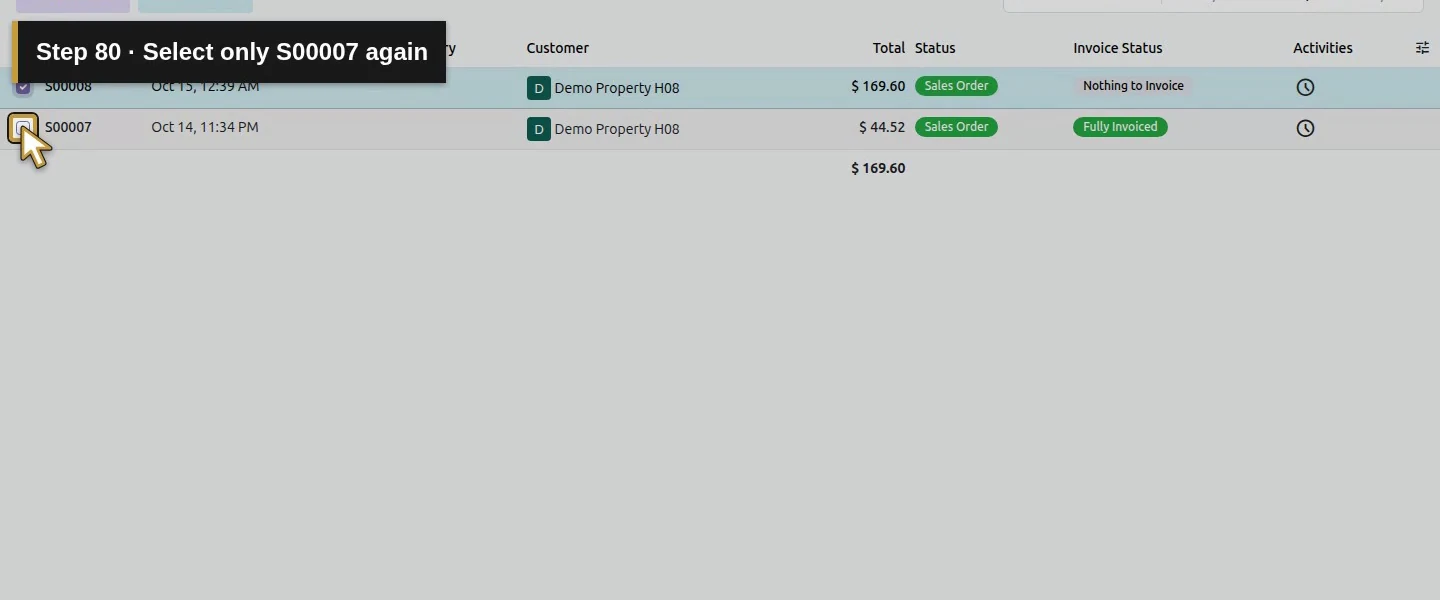
Action 80: Select only S00007 again. The actual target is highlighted in gold.
Select only S00007 again.
Action 81: Open Create Invoices for this controlled check. The actual target is highlighted in gold.
Open Create Invoices for this controlled check.
Action 82: Confirm the wizard still refers to only two orders. The actual target is highlighted in gold.
Confirm the wizard still refers to only two orders.
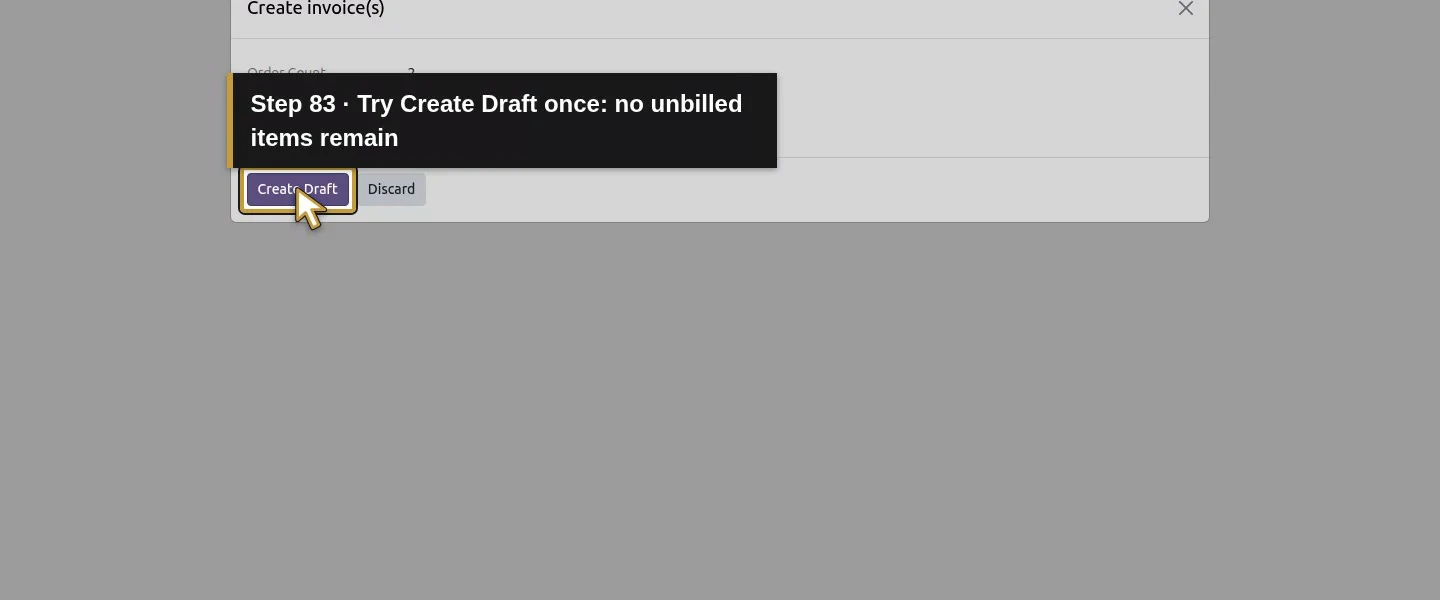
Action 83: Try Create Draft once: no unbilled items remain. The actual target is highlighted in gold.
Try Create Draft once: no unbilled items remain.
Action 84: Odoo refuses: no items are available to invoice. The actual target is highlighted in gold.
Odoo refuses: no items are available to invoice.
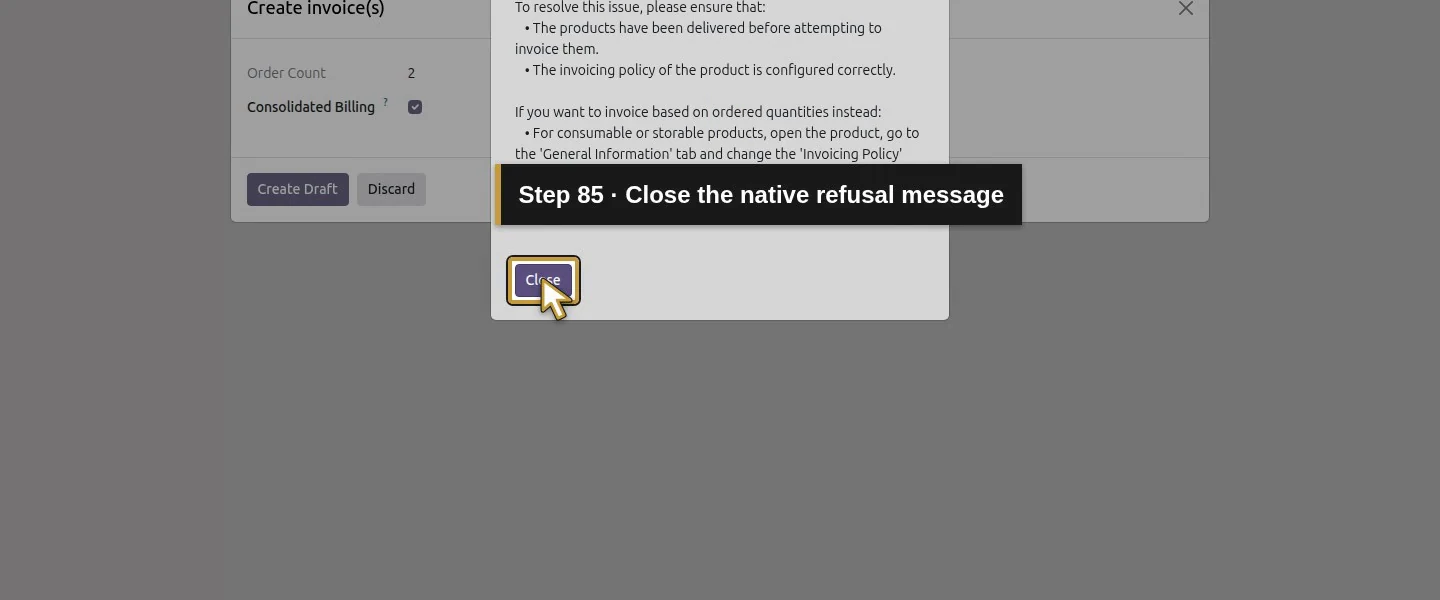
Action 85: Close the native refusal message. The actual target is highlighted in gold.
Close the native refusal message.
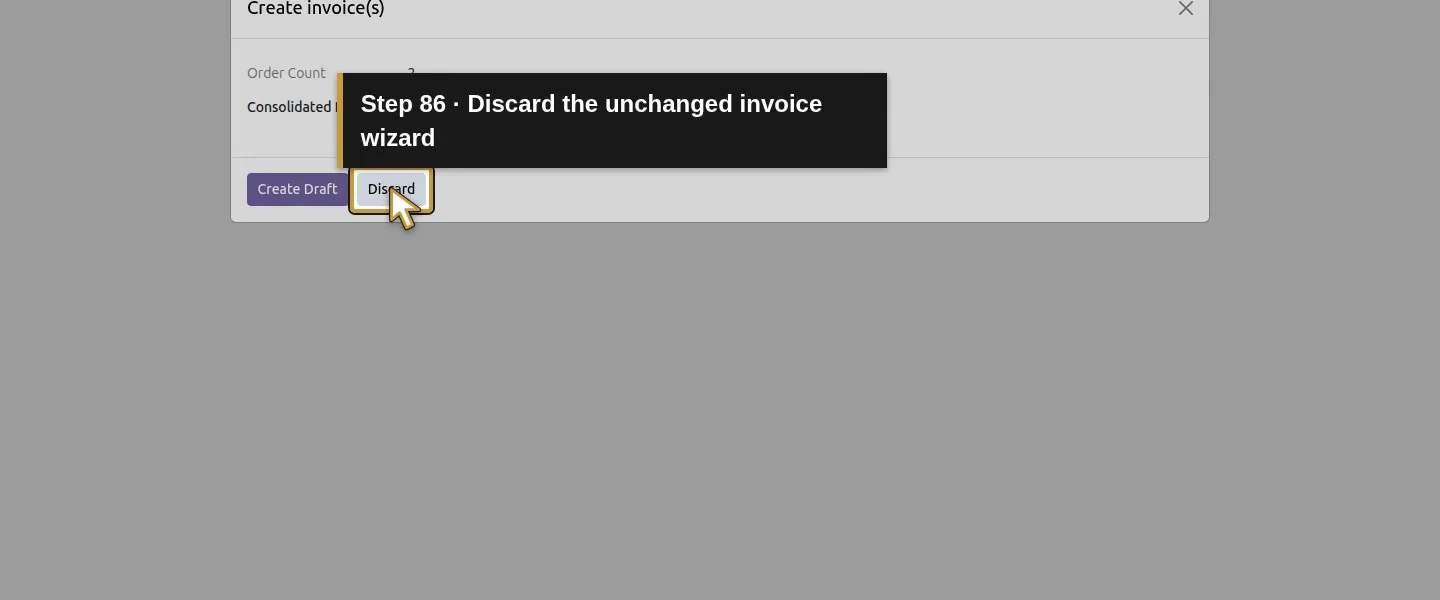
Action 86: Discard the unchanged invoice wizard. The actual target is highlighted in gold.
Discard the unchanged invoice wizard.
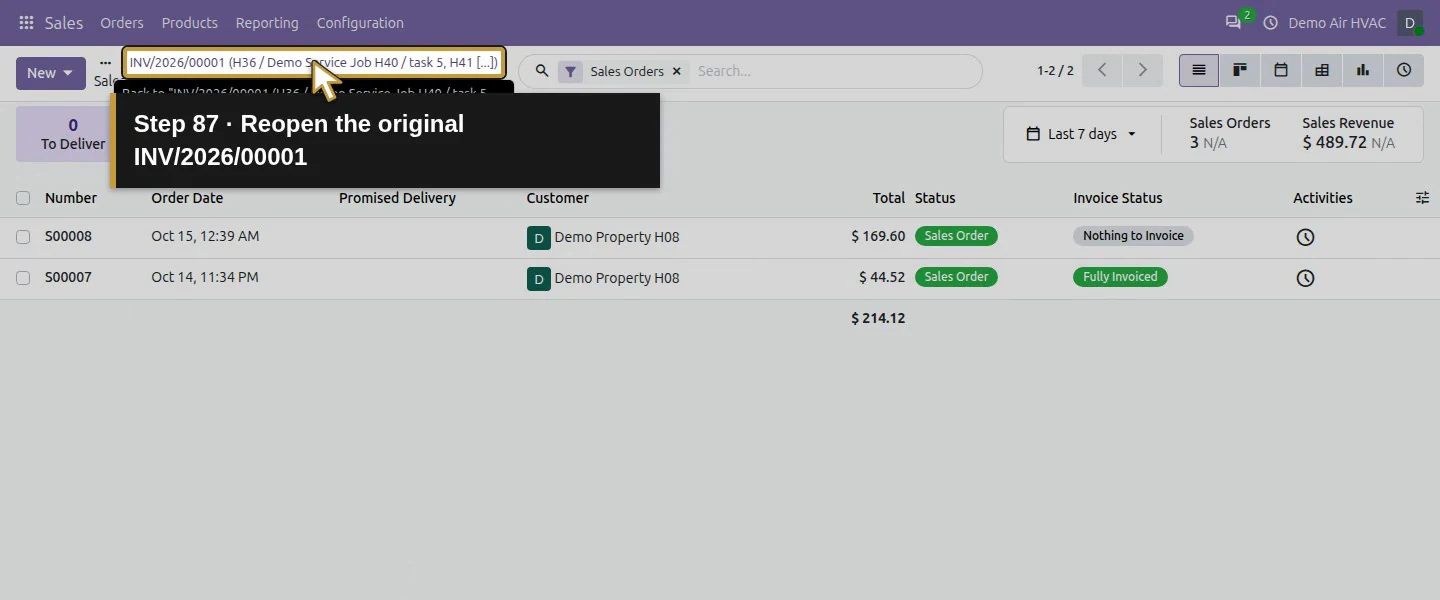
Action 87: Reopen the original INV/2026/00001. The actual target is highlighted in gold.
Reopen the original INV/2026/00001.
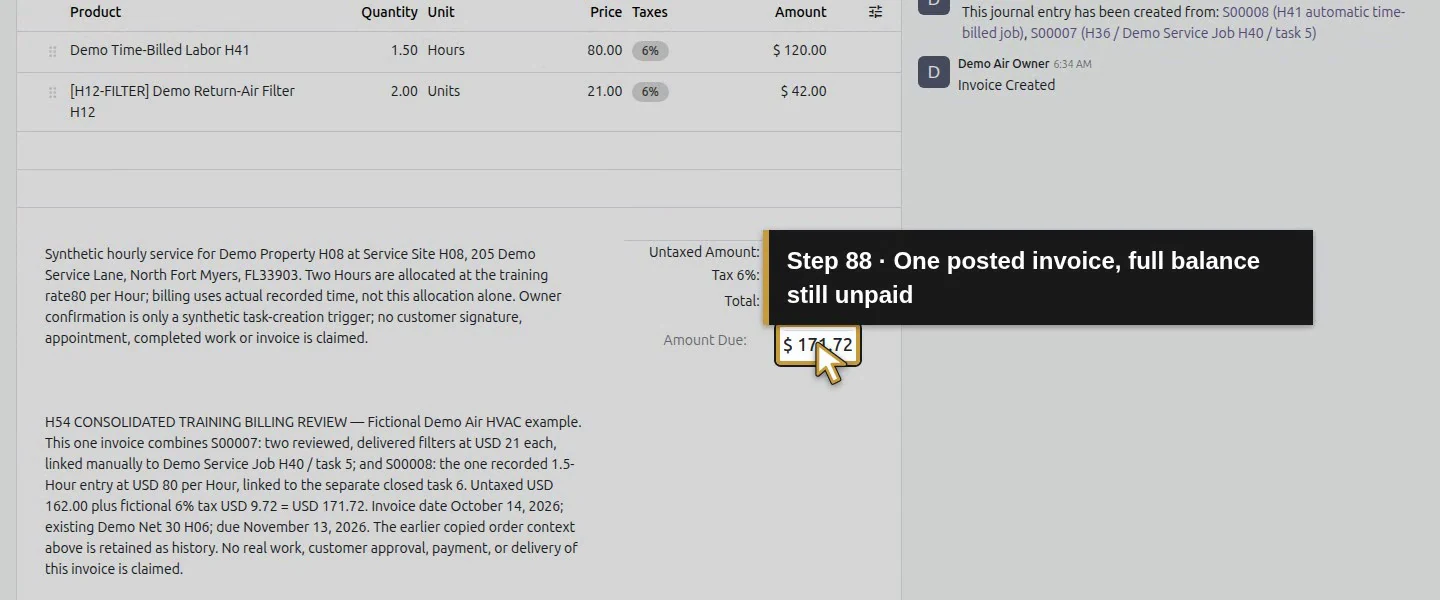
Action 88: One posted invoice, full balance still unpaid. The actual target is highlighted in gold.
One posted invoice, full balance still unpaid.
Action 89: Reload preserves both exact lines and USD 171.72 total. The actual target is highlighted in gold.
Reload preserves both exact lines and USD 171.72 total.

Check the result

One posted Customer Invoice, INV/2026/00001, contains 1.5 Hours at $80 and two filters at $21, with $162 untaxed, $9.72 demo tax and $171.72 total/residual unpaid. It retains both order and exact sale-line links, Billing Office H08 and Service Site H08, invoice date October 14 and Net 30 due date November 13. Both source lines have zero quantity currently left to invoice. The original time record links to this invoice, and a duplicate attempt was refused without creating another invoice. The actual one-page PDF was downloaded and visually checked. The goods backorder is completed; the broader manual service task remains under review, the hourly task stays Done, and prior finance/order records are preserved.

If your screen differs

This consolidated result was tested for two eligible orders with the same company, customer/billing address and USD. Different customers, currencies or grouping cases were not tested. The material product uses Ordered quantities: it was already invoiceable before delivery, and we deliberately completed/reviewed the actual remaining delivery first. The hourly product uses Based on Timesheets; its two-hour estimate did not become two billed hours. The Hours Recorded badge rounds to 2, so check detailed time and the invoice’s 1.50 quantity. The time order showed Nothing to Invoice after billing its current hours; the goods order showed Fully Invoiced. If the no-items error occurs, check already billed quantities and source links before changing product policy. Date-period filtering, invoice email delivery, payment collection, bank settlement, credits and refunds remain separate workflows. The 6% rate, prices, agreement, account and work evidence are fictional examples.

Frequently asked questions

How do I invoice timesheets and materials in Odoo? Review the correct time-based sales line, actual employee time, material order, delivery/returns and invoicing policies. Select only the eligible orders and compare the native draft with those records. This test posted one invoice with 1.5 actual-time Hours and two reviewed filters, exact source links and a $171.72 unpaid balance.
Can I combine Odoo sales orders into one invoice?

This native test selected two reviewed orders for the same customer, billing contact, company and USD, then used Create Invoices → Consolidated Billing → Create Draft. Odoo created one invoice retaining both order references and the intended sale-line links. Other customer/currency/grouping combinations were not tested, and consolidation did not automatically merge all written scope notes.

Why are my Odoo timesheet hours missing from an invoice? Check the service policy, confirmed order and correct task/sales-line link, actual eligible time, any Timesheets Period selection and quantities already invoiced. Here the Based on Timesheets line supplied 1.5 hours; the two-hour estimate and rounded hours badge were not the exact billable quantity. After posting, those hours had zero left to invoice and a repeated draft attempt was refused. A restricted period was not exercised.

Continue building the business

Continue with How do I record full or partial customer payments in Odoo?. The posted $171.72 balance is still unpaid. Invoice-email delivery also needs its own test; printing this PDF did not establish that delivery.

Talk to an Odoo partner

Bring your current process and the result you need to Onward to plan your Odoo workflow. Talk to an Odoo partner.