Running an HVAC business with Odoo

How do I match a supplier bill to its purchase order in Odoo?
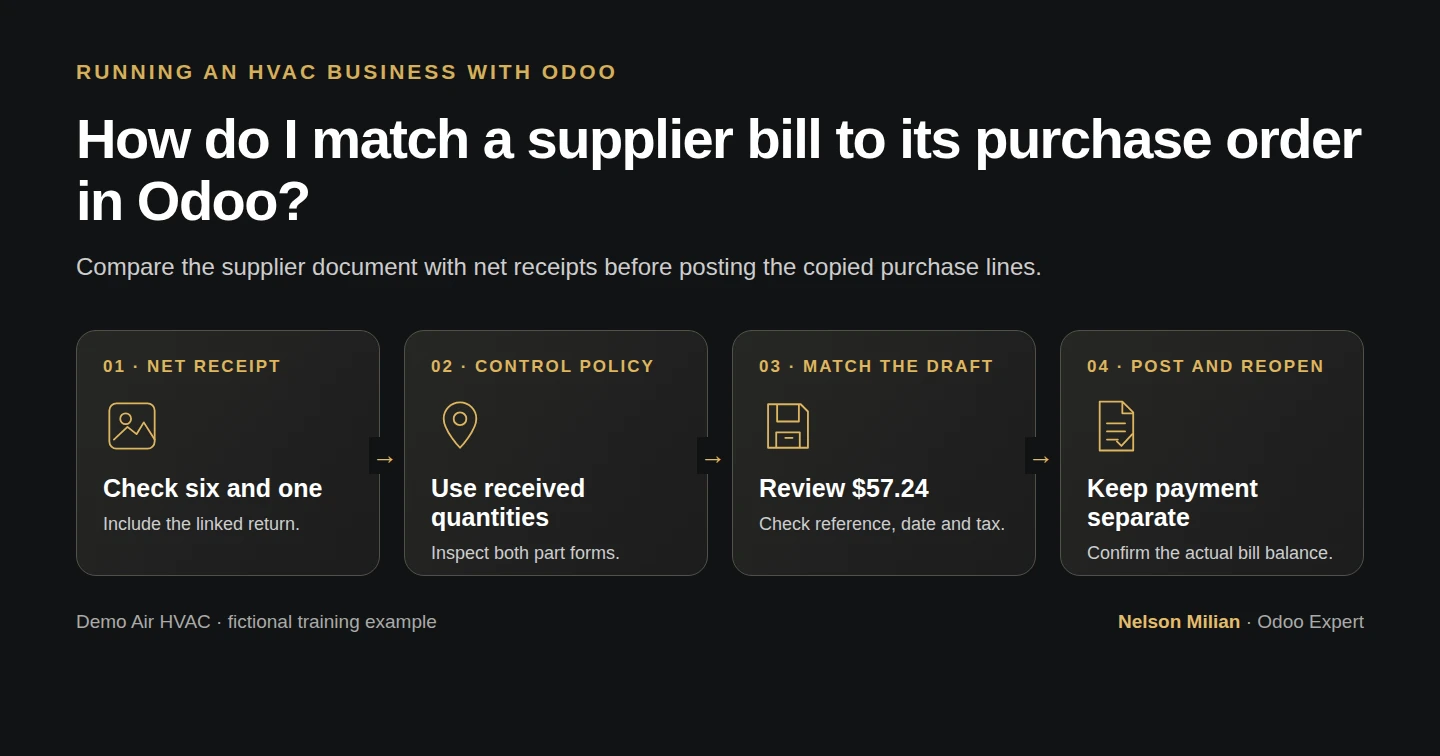
Workflow overview: How do I match a supplier bill to its purchase order in Odoo?
Workflow overview. Instructional screenshots show the actual demo interface.

Create a supplier bill from the Odoo purchase-order list and compare its quantities, purchase links and unpaid balance.

Match a supplier bill to the order and receipt before posting. Alex's fictional invoice charges for six filters and one capacitor remaining after a return; Odoo copies the reviewed purchase lines, but the office still checks the supplier's document.

Alex Rivera and Demo Air HVAC are fictional training examples. Prices, dates, quantities and business situations in this guide are illustrative.

Before you begin

Tested in stock Odoo 20.0-20260926 Community as the demo owner administrator, with official modules and standard configuration. Complete partial receipt, supplier return and US invoicing. P00001 ordered ten filters and two capacitors; net Received is six filters and one capacitor after H38. The fictional invoice DEMO-H59-001 matches those net quantities at $7 and $12. Its 6% demo tax is illustrative.

Step-by-step workflow

Stock Odoo 20 Community, owner role. Create one native bill from P00001 after its linked return: six filters and one capacitor. Both existing parts use On received quantities. Compare the fictional supplier reference, date, rates and illustrative 6% tax for a $57.24 total. Save, post and reopen the same bill, then check Billed quantities and the unpaid balance. This media replay records no payment or repeated zero-value bill probe; the matching badge does not establish automatic approval or duplicate prevention.

Step 1. Review the order, receipts and existing bills

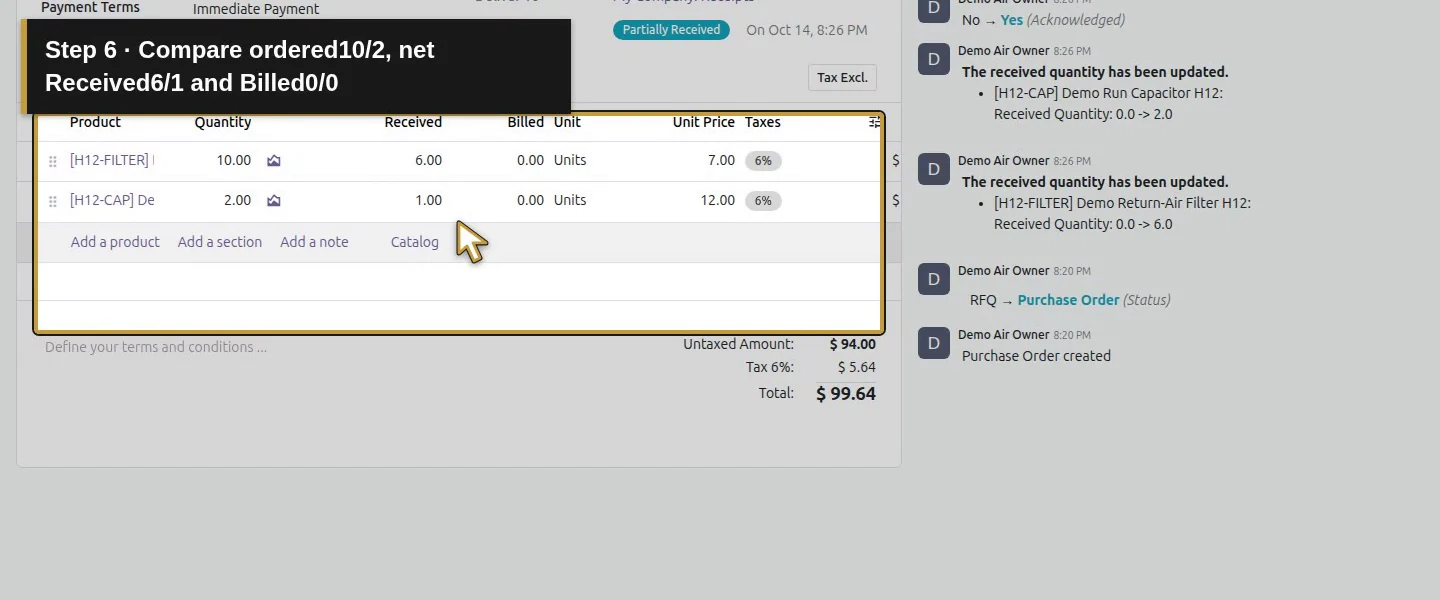
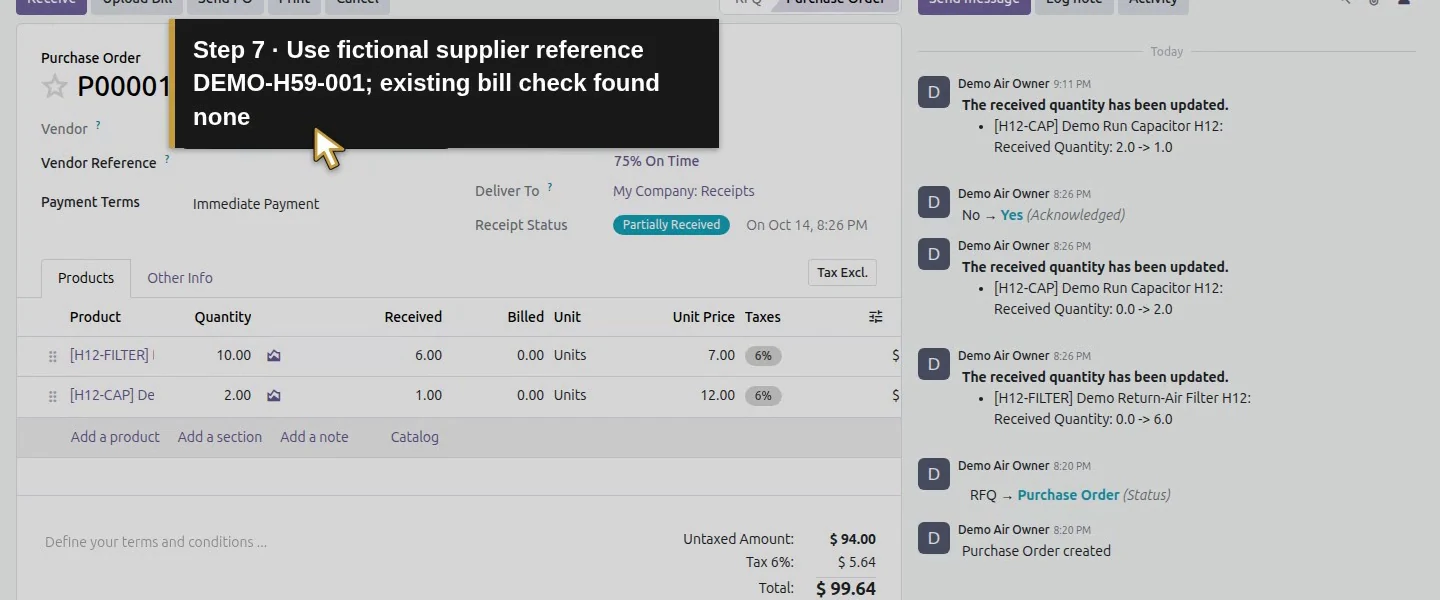
Open P00001 and compare ordered, Received and Billed quantities. Check the linked return as well as WH/IN/00001 and pending WH/IN/00002. Confirm the fictional supplier reference DEMO-H59-001 has not already been entered; do not assume the PO-matching badge detects duplicate supplier documents.
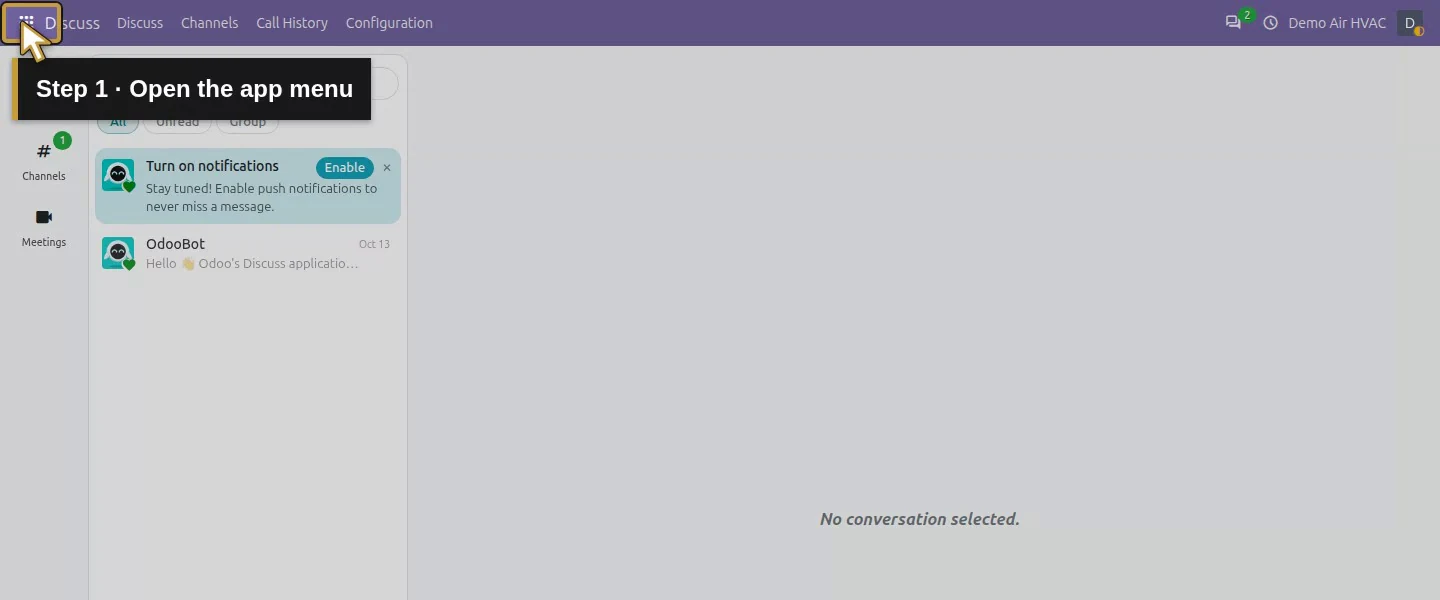
Action 1: Open the app menu. The actual target is highlighted in gold.
Open the app menu.
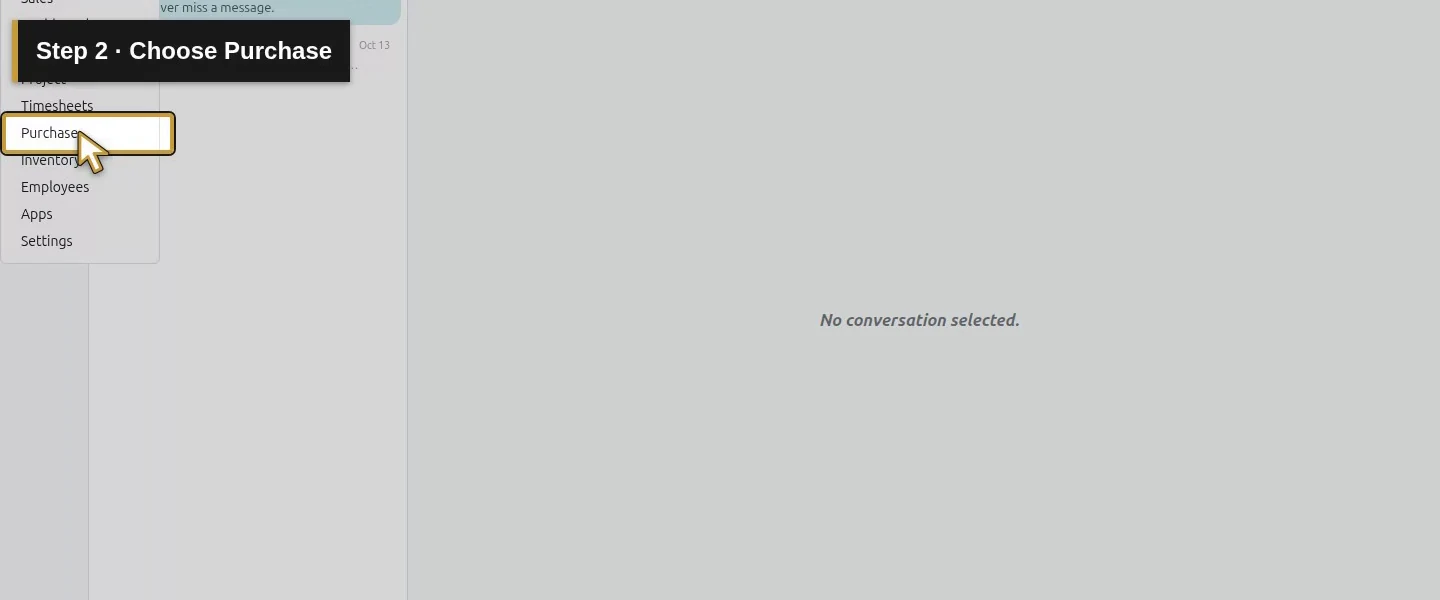
Action 2: Choose Purchase. The actual target is highlighted in gold.
Choose Purchase.
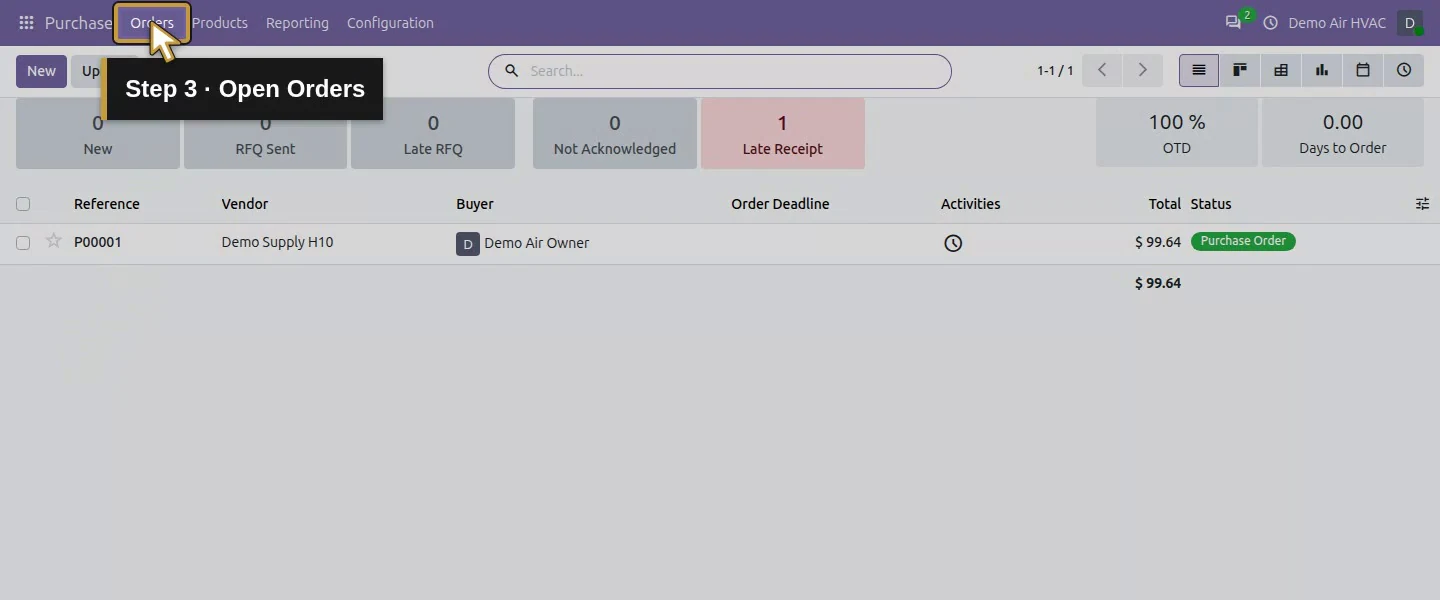
Action 3: Open Orders. The actual target is highlighted in gold.
Open Orders.
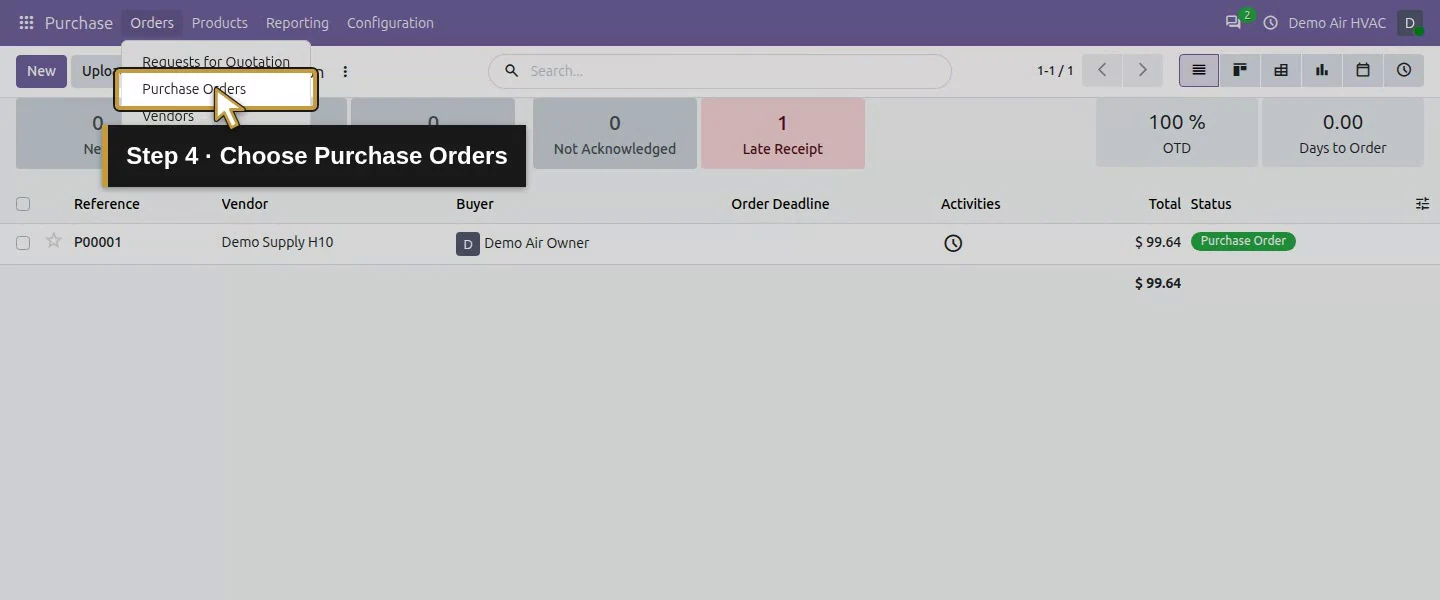
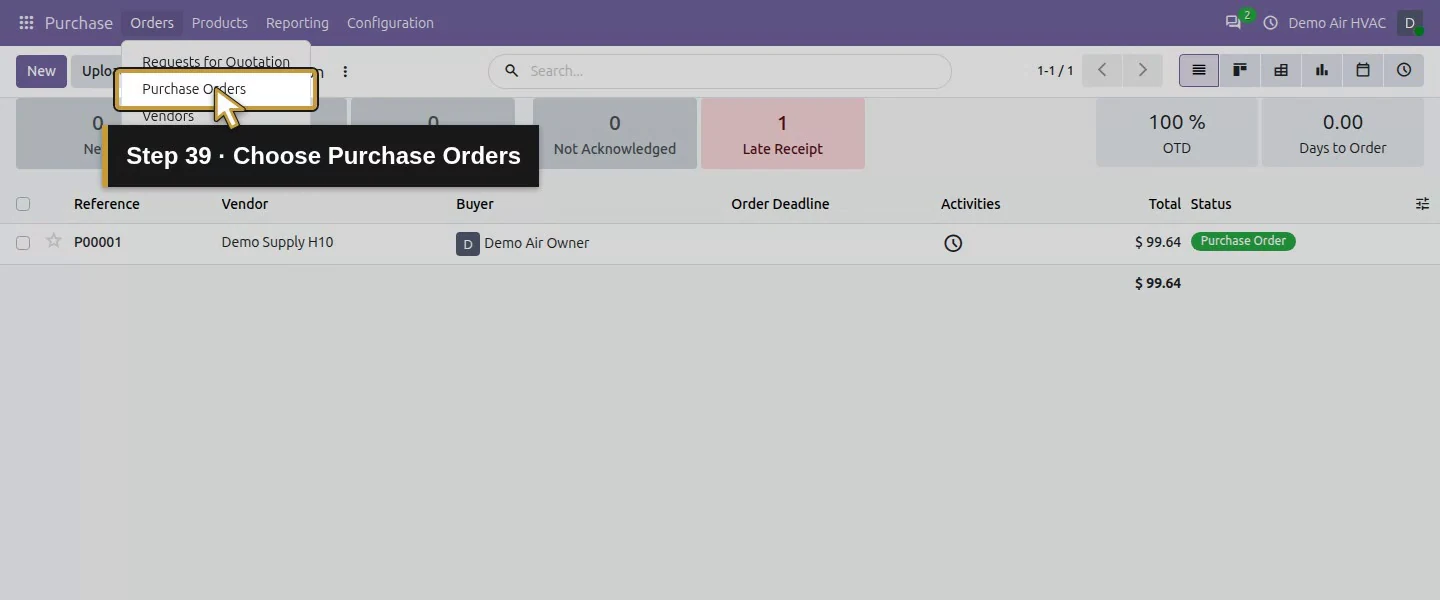
Action 4: Choose Purchase Orders. The actual target is highlighted in gold.
Choose Purchase Orders.
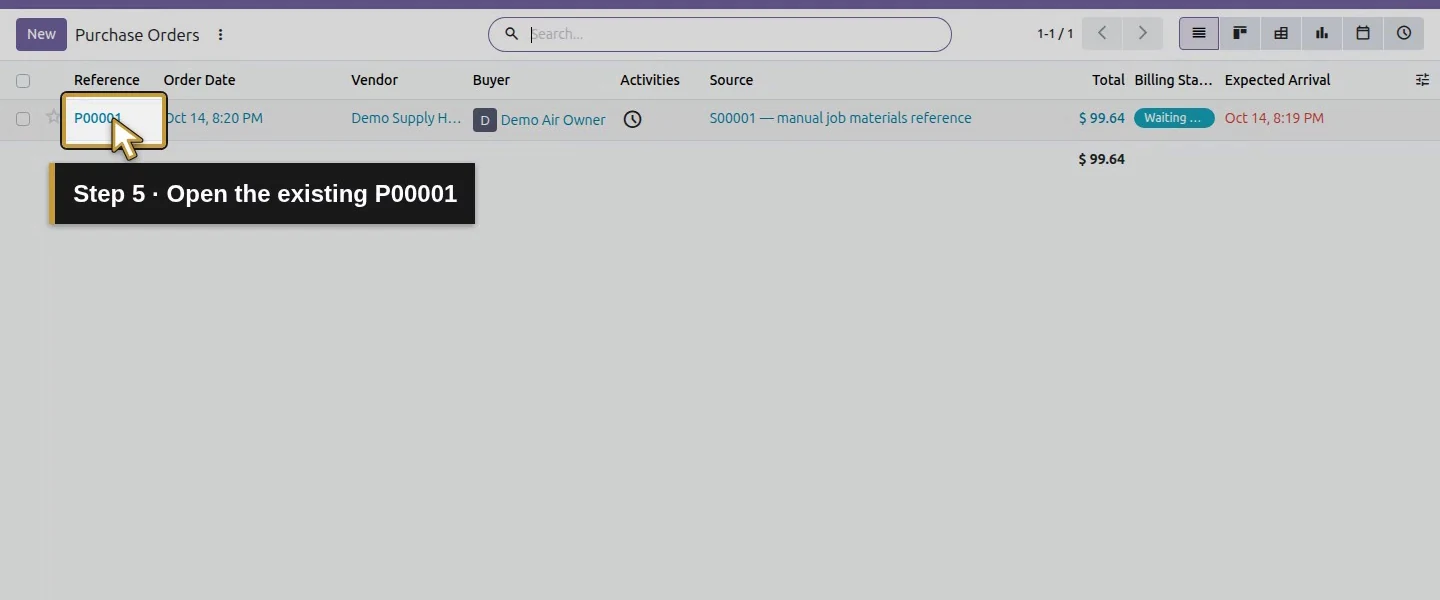
Action 5: Open the existing P00001. The actual target is highlighted in gold.
Open the existing P00001.
Action 6: Compare ordered10/2, net Received6/1 and Billed0/0. The actual target is highlighted in gold.
Compare ordered10/2, net Received6/1 and Billed0/0.
Action 7: Use fictional supplier reference DEMO-H59-001; existing bill check found none. The actual target is highlighted in gold.
Use fictional supplier reference DEMO-H59-001; existing bill check found none.

Step 2. Check the billing basis

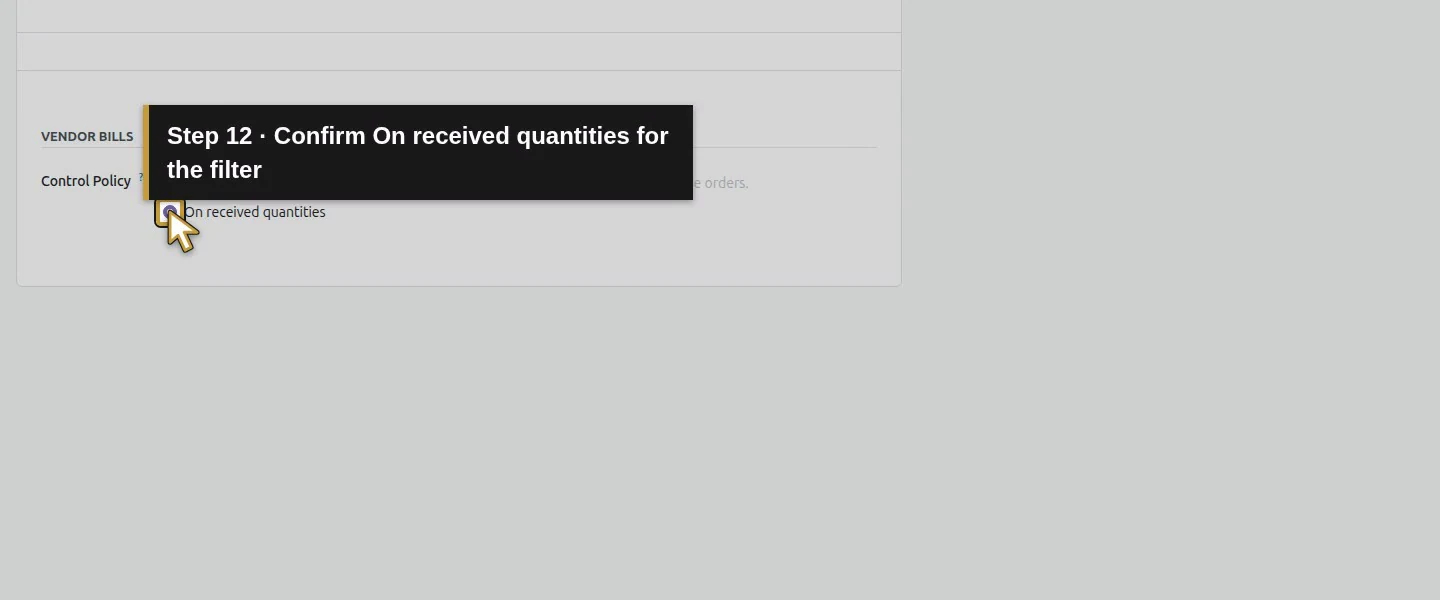
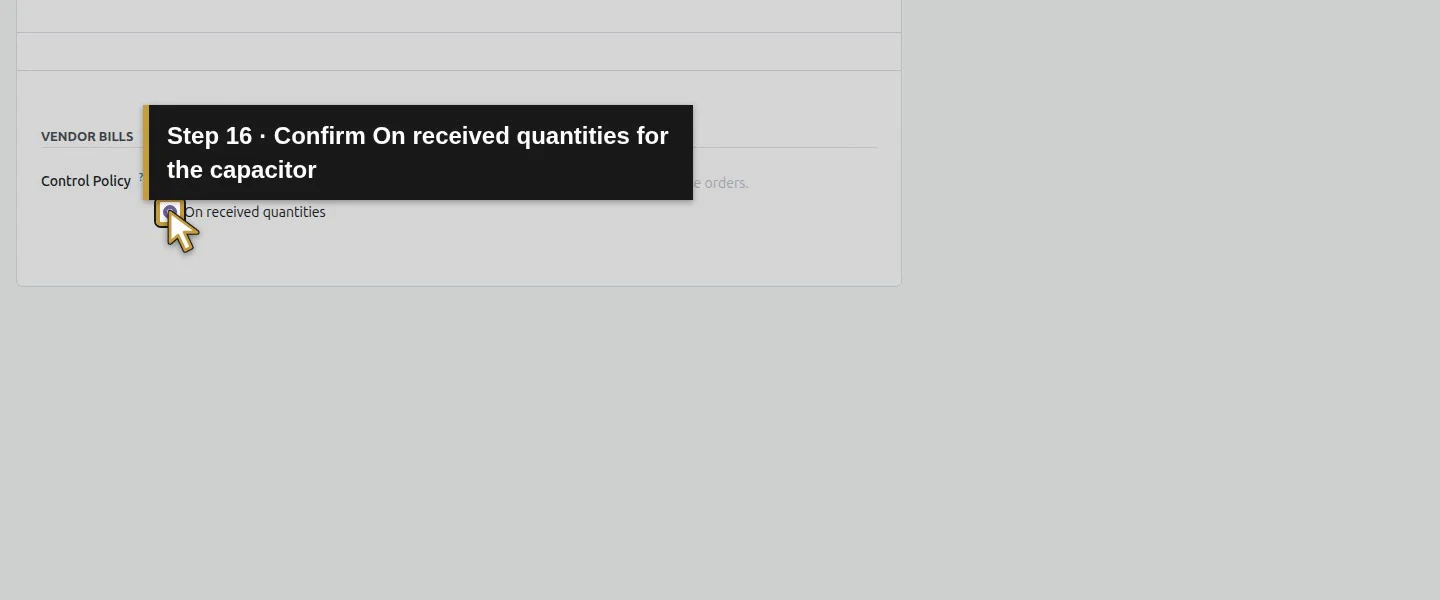
Open each part's product form and review Purchase → Control Policy. Both tested H12 products use On received quantities. This explains the proposal of six filters and one capacitor instead of all ten and two ordered. Review the supplier invoice independently.
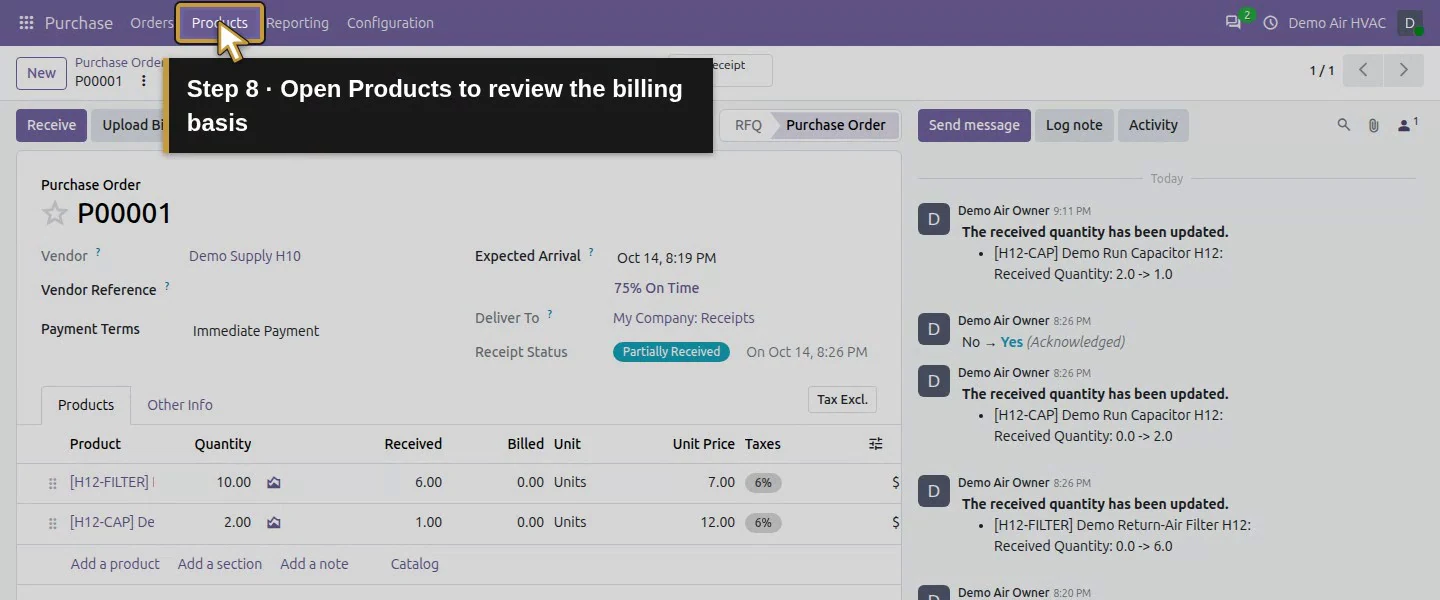
Action 8: Open Products to review the billing basis. The actual target is highlighted in gold.
Open Products to review the billing basis.
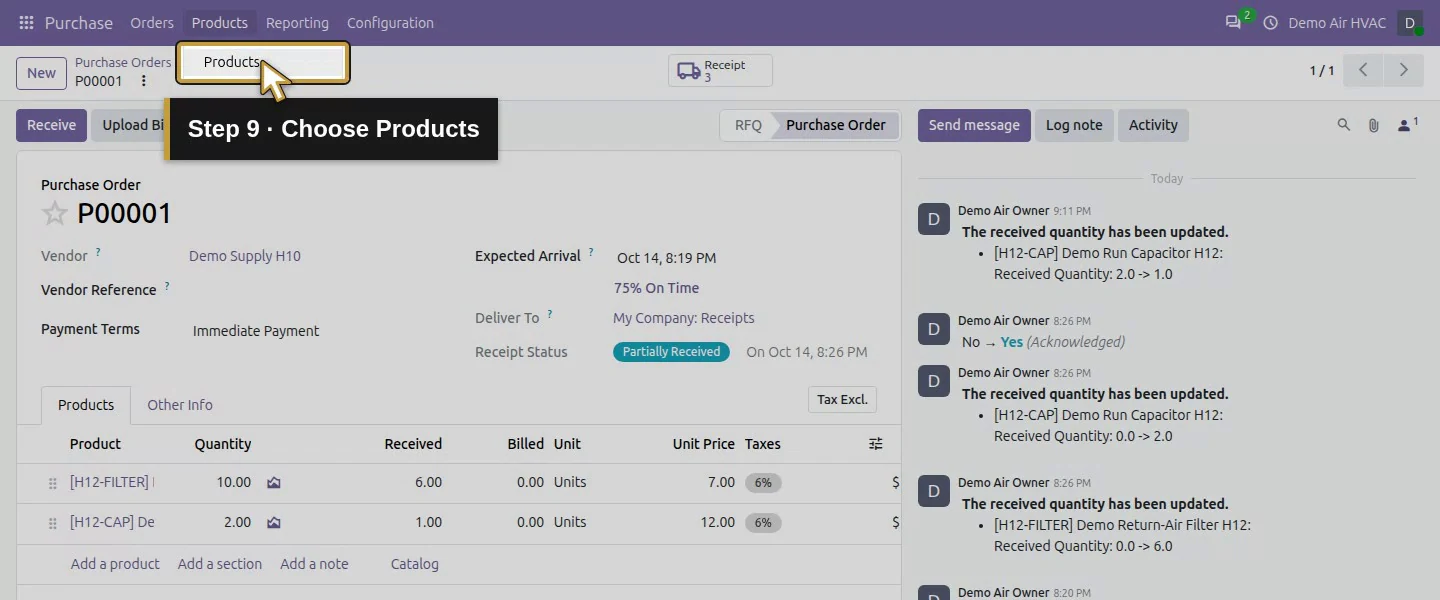
Action 9: Choose Products. The actual target is highlighted in gold.
Choose Products.
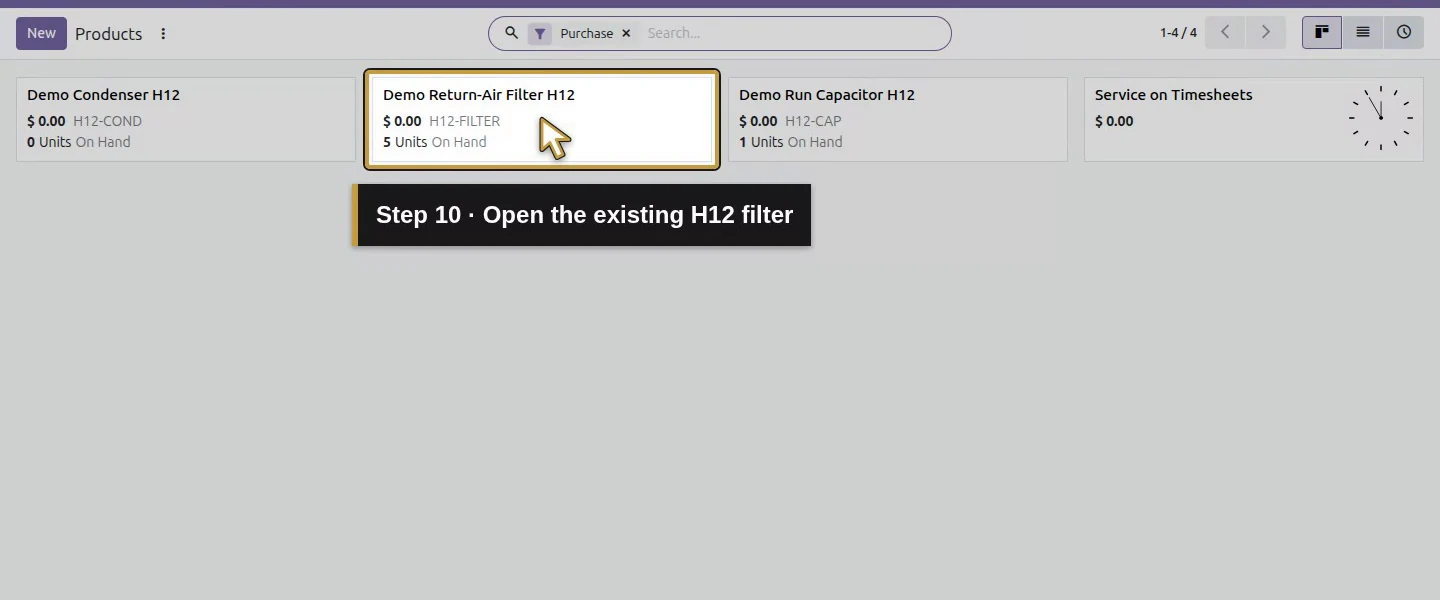
Action 10: Open the existing H12 filter. The actual target is highlighted in gold.
Open the existing H12 filter.
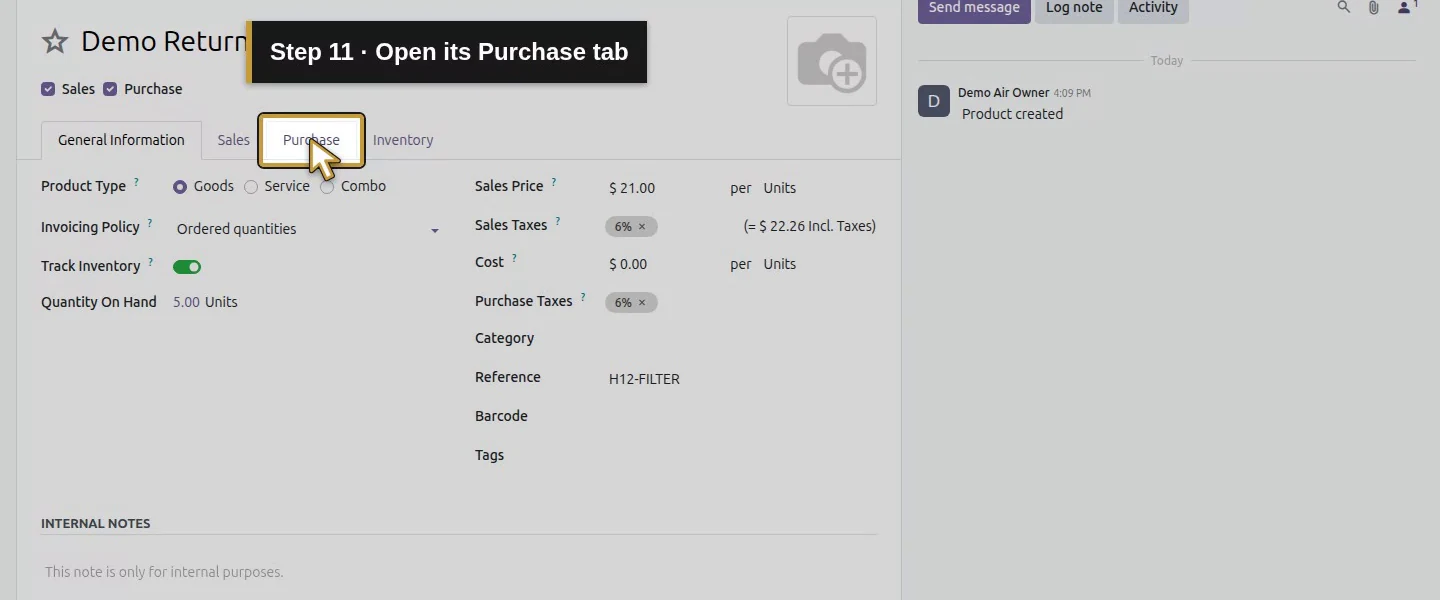
Action 11: Open its Purchase tab. The actual target is highlighted in gold.
Open its Purchase tab.
Action 12: Confirm On received quantities for the filter. The actual target is highlighted in gold.
Confirm On received quantities for the filter.
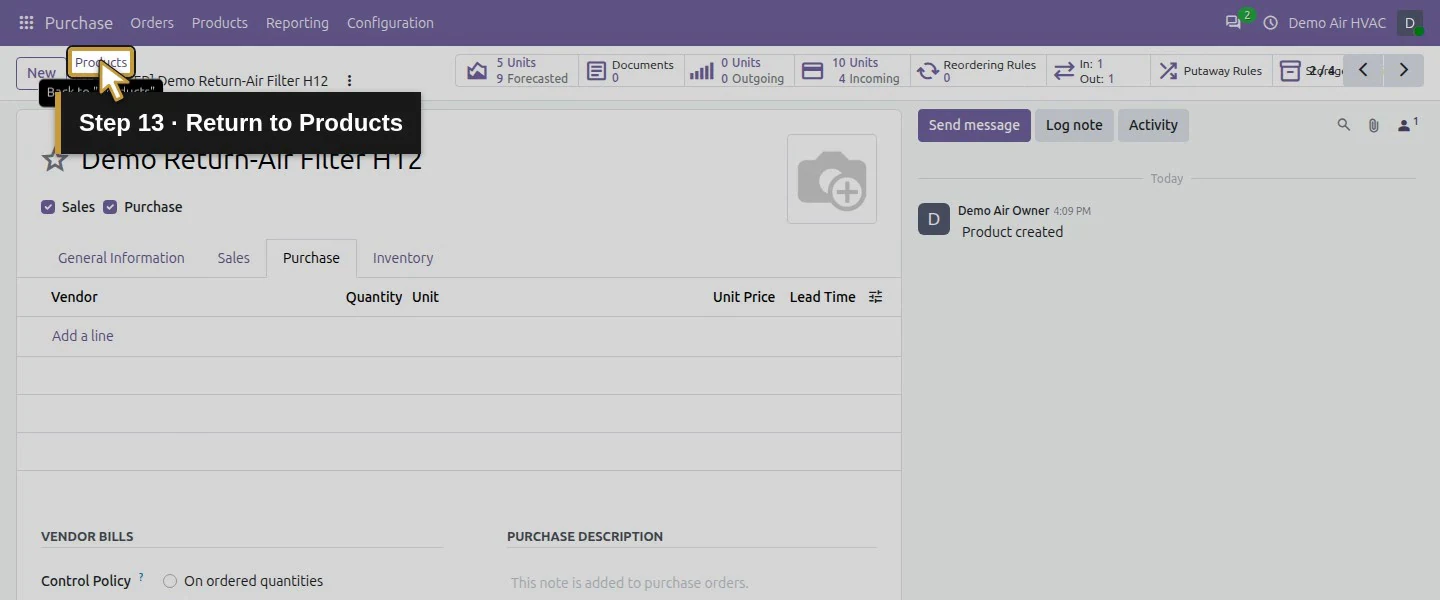
Action 13: Return to Products. The actual target is highlighted in gold.
Return to Products.
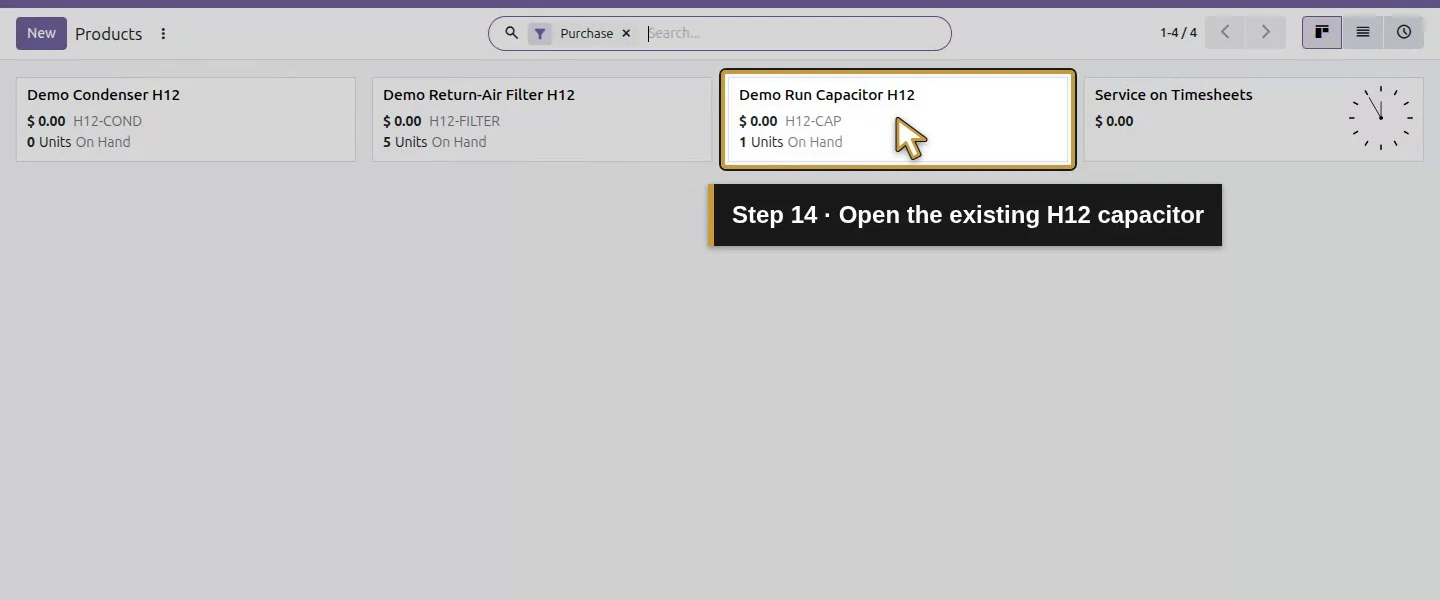
Action 14: Open the existing H12 capacitor. The actual target is highlighted in gold.
Open the existing H12 capacitor.
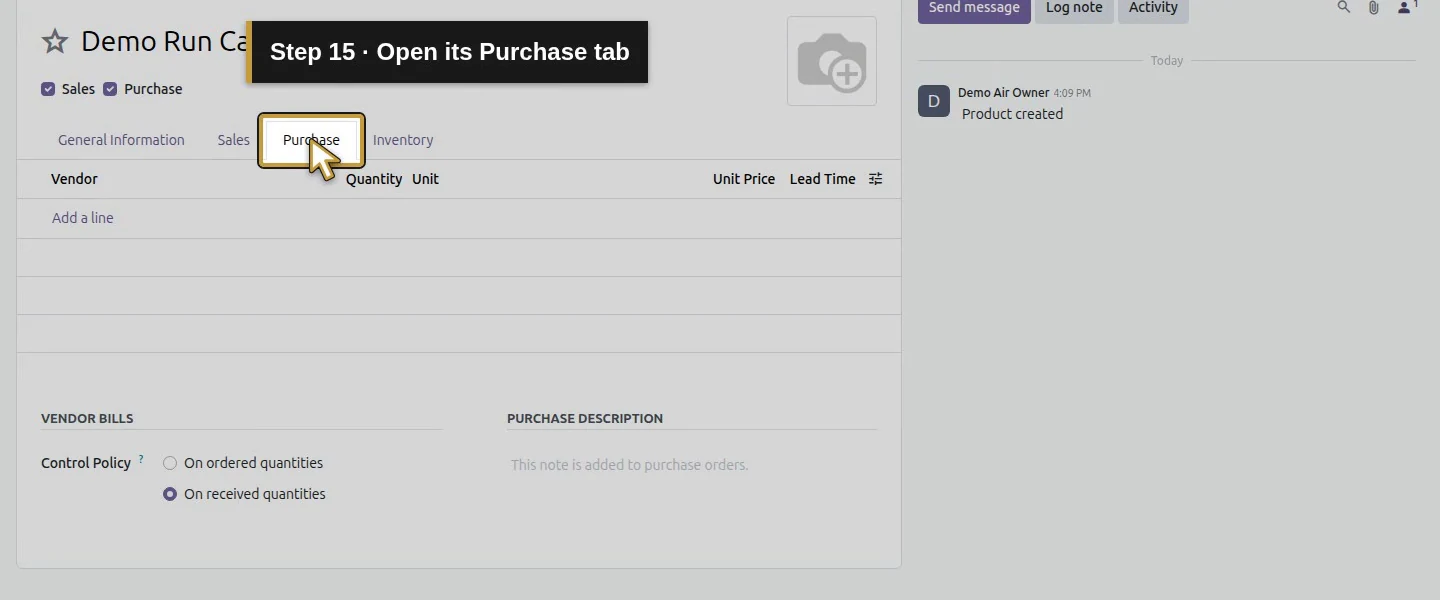
Action 15: Open its Purchase tab. The actual target is highlighted in gold.
Open its Purchase tab.
Action 16: Confirm On received quantities for the capacitor. The actual target is highlighted in gold.
Confirm On received quantities for the capacitor.

Step 3. Create the bill from the selected purchase-order row

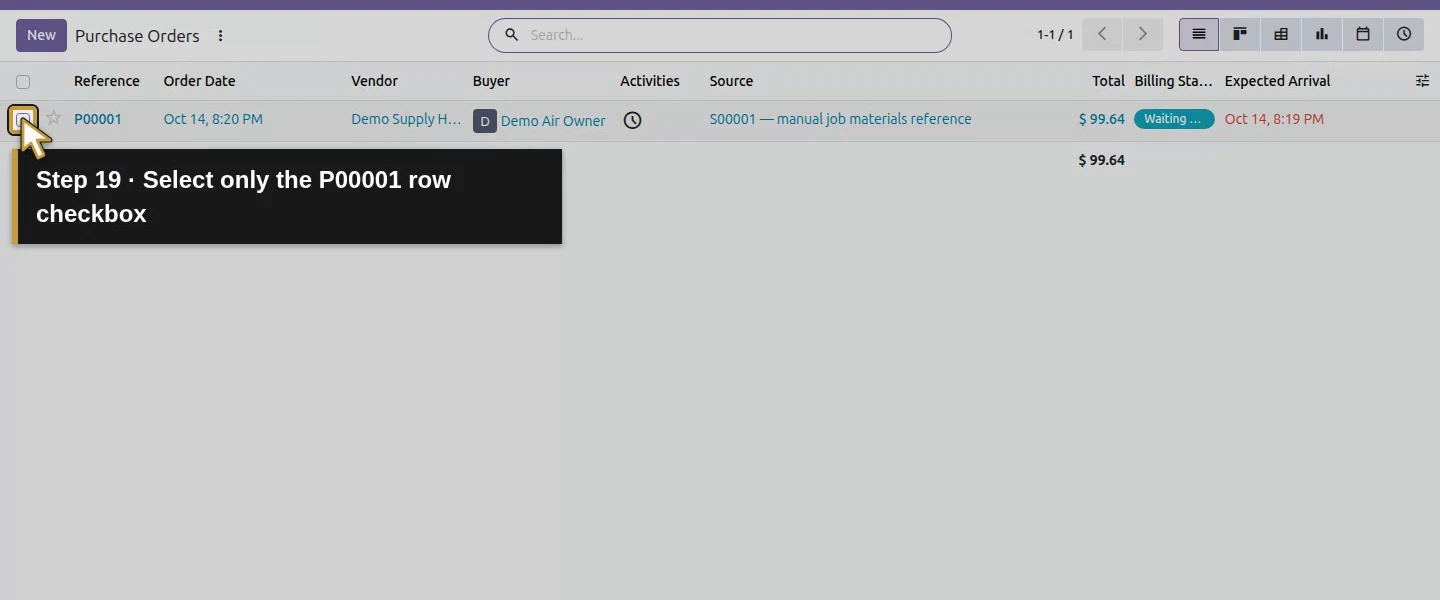
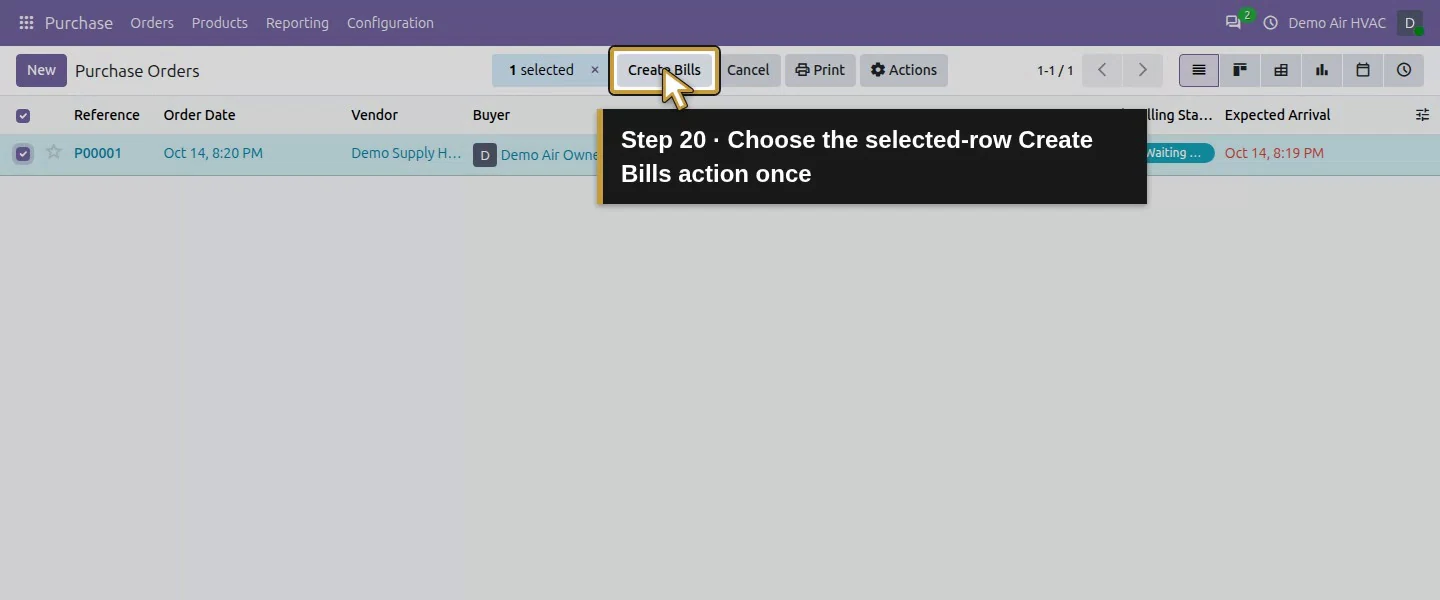
Open Purchase → Orders → Purchase Orders. Select the checkbox for P00001 and choose the toolbar's Create Bills. The tested PO form itself offered Upload Bill, while Create Bills appeared after list selection. Open the resulting Draft Bill.
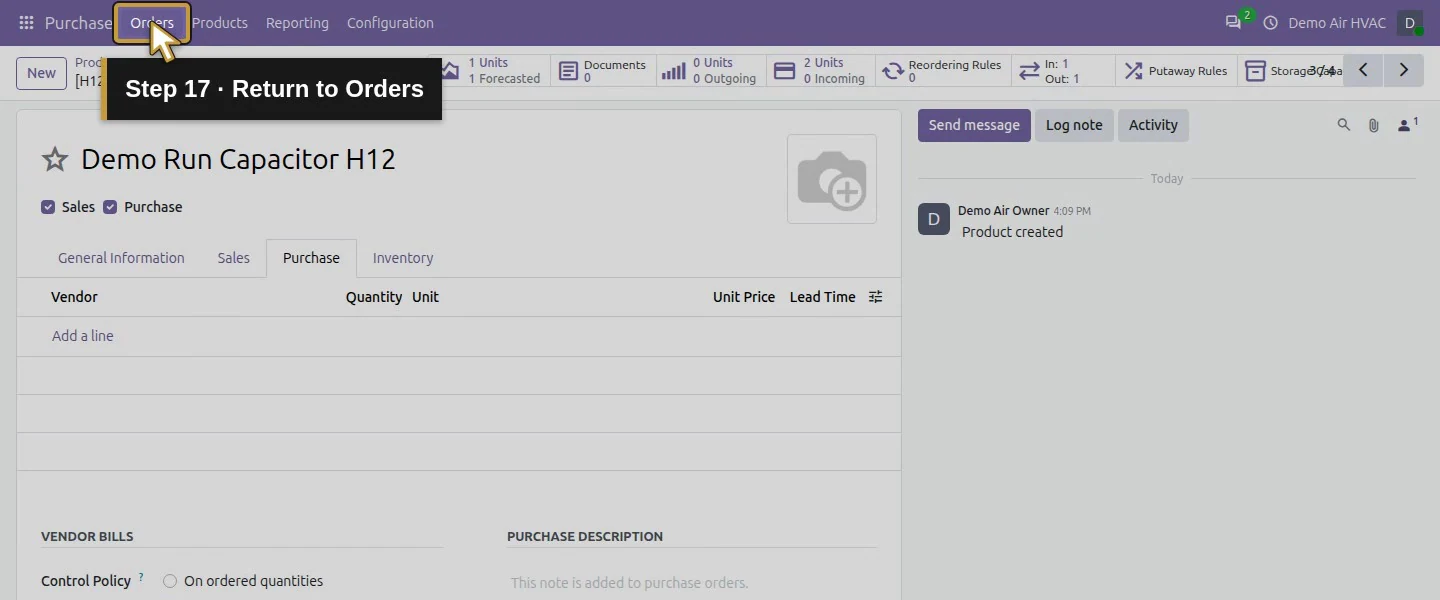
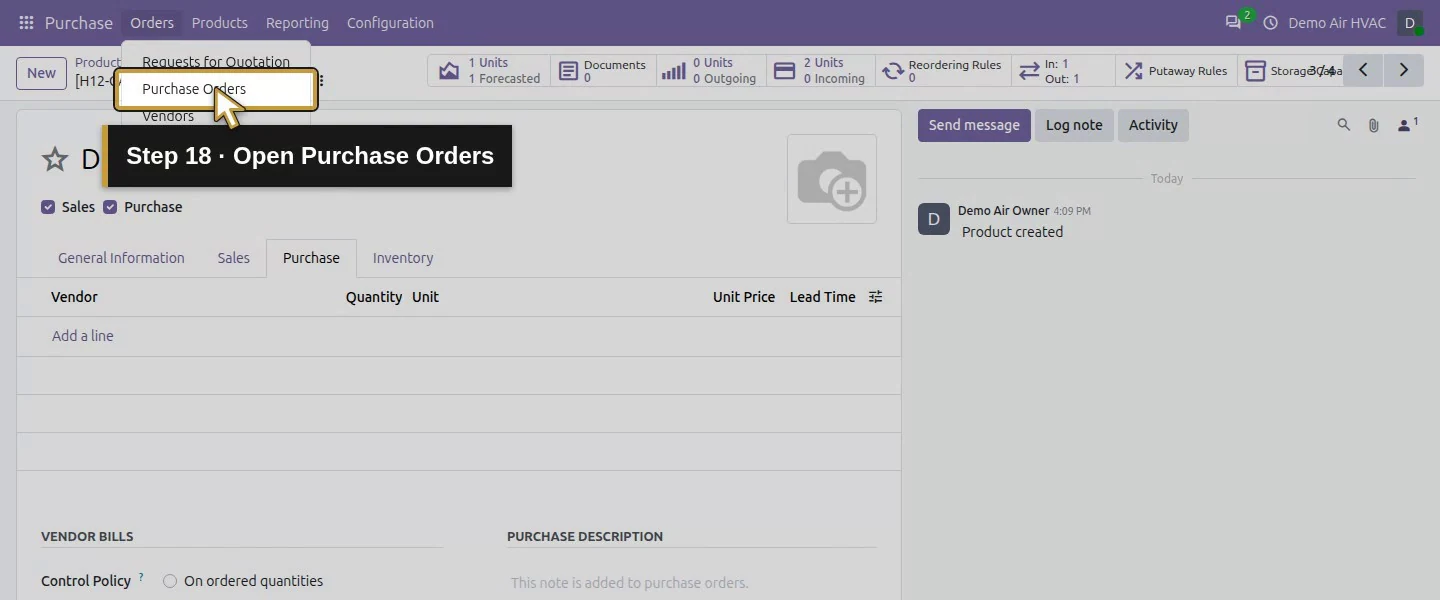
Action 17: Return to Orders. The actual target is highlighted in gold.
Return to Orders.
Action 18: Open Purchase Orders. The actual target is highlighted in gold.
Open Purchase Orders.
Action 19: Select only the P00001 row checkbox. The actual target is highlighted in gold.
Select only the P00001 row checkbox.
Action 20: Choose the selected-row Create Bills action once. The actual target is highlighted in gold.
Choose the selected-row Create Bills action once.

Step 4. Compare the draft with the supplier invoice

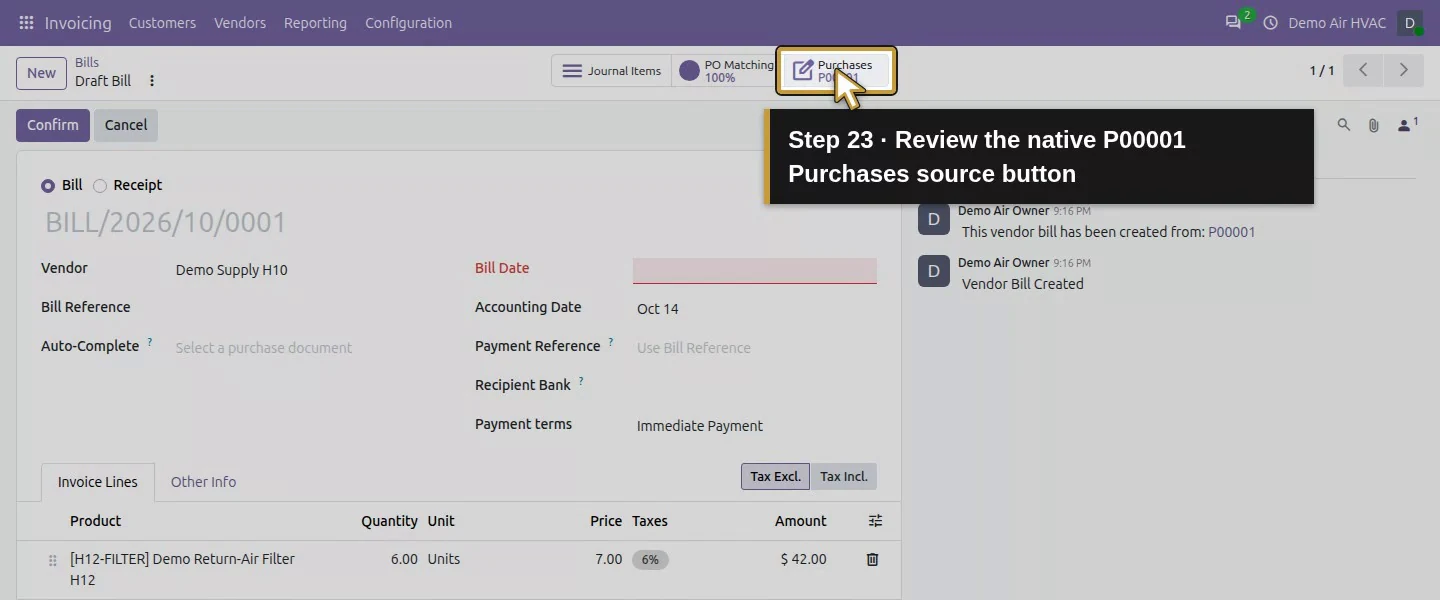
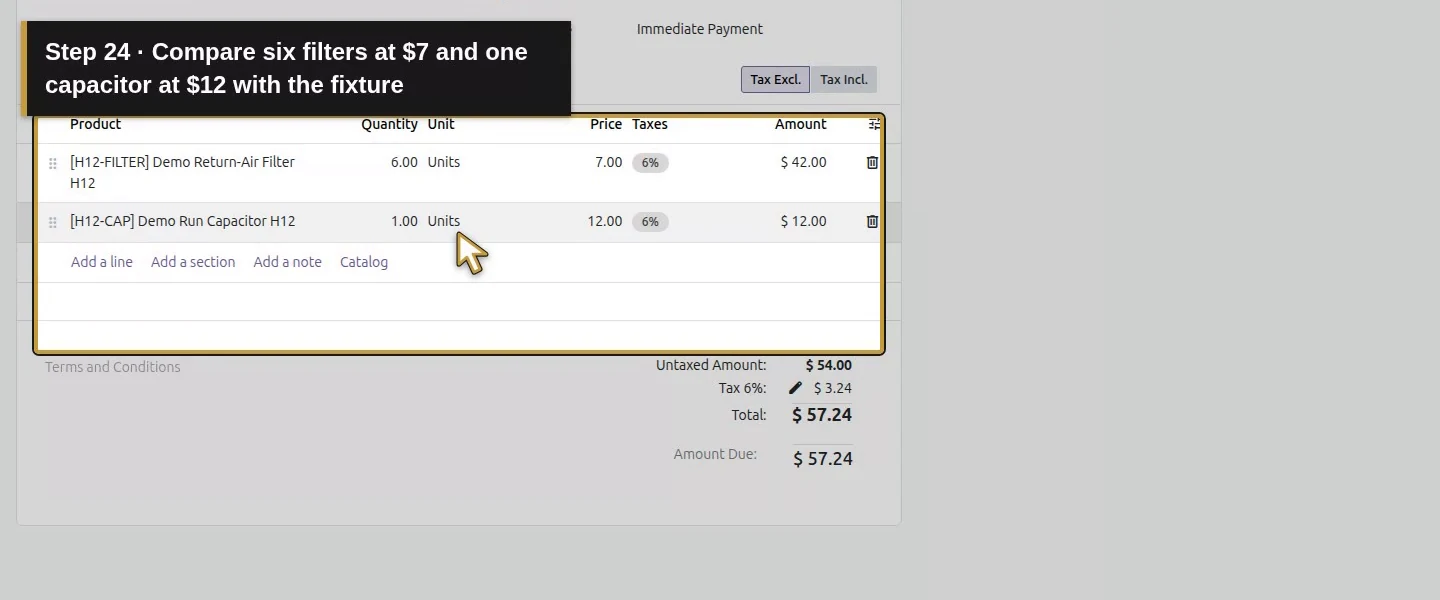
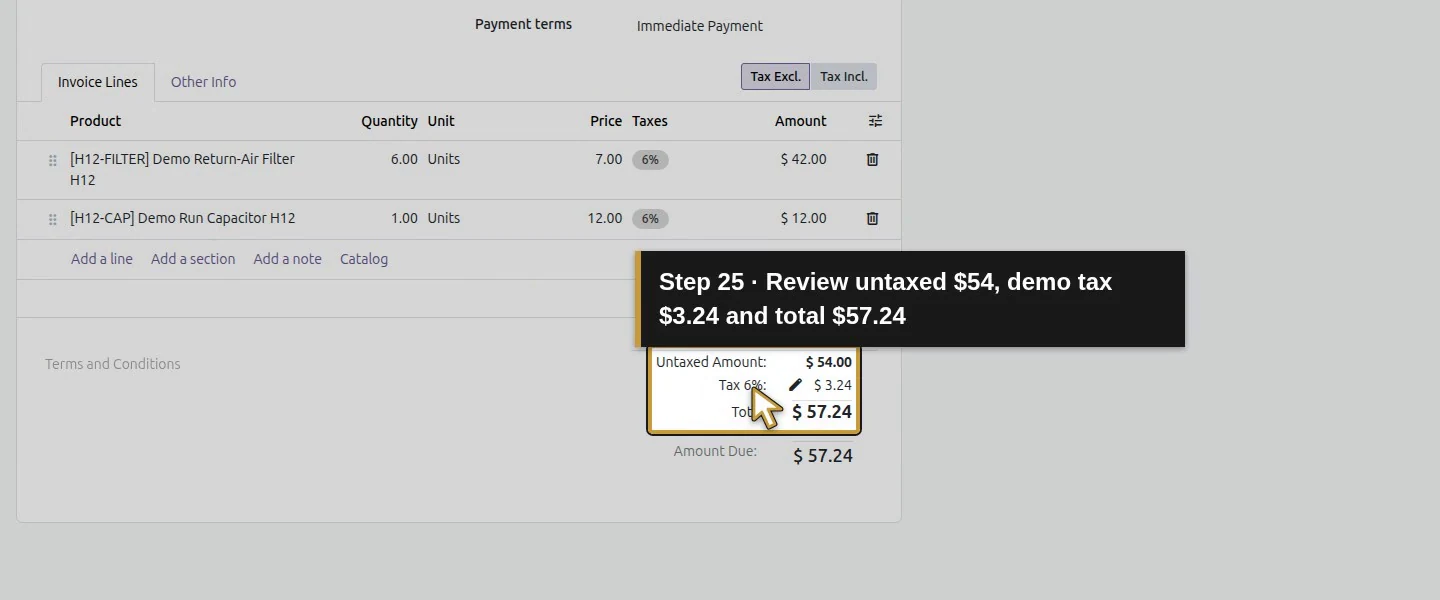
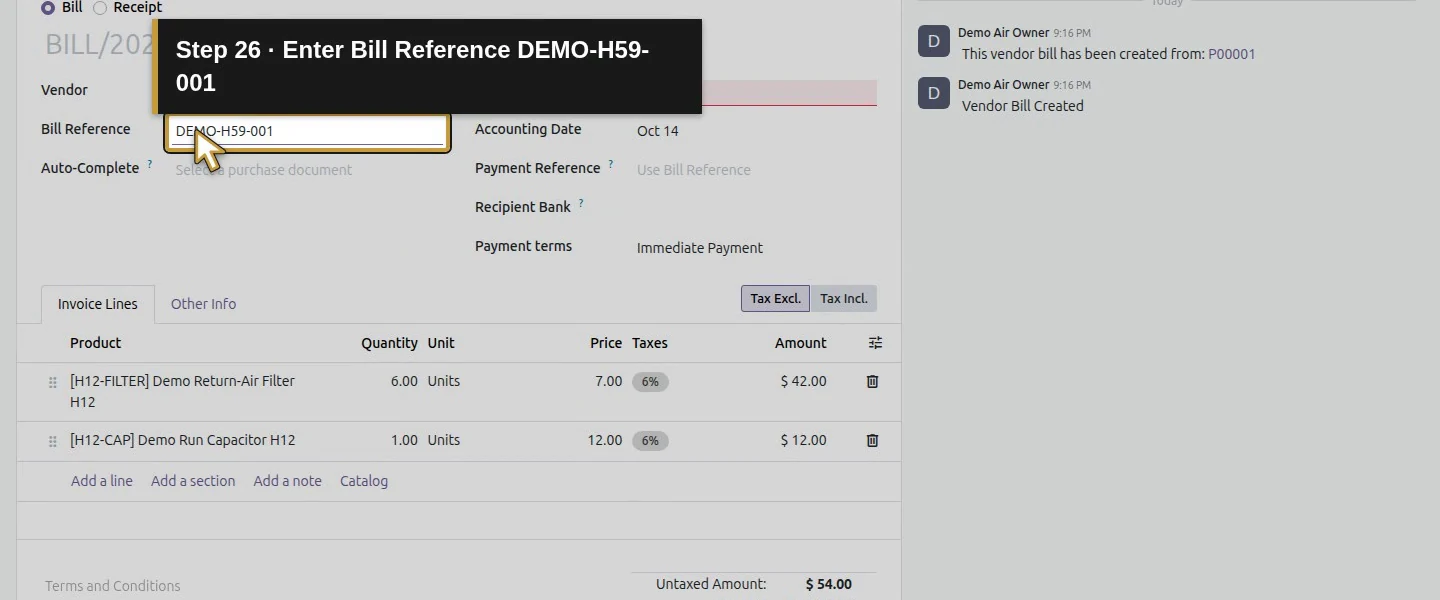
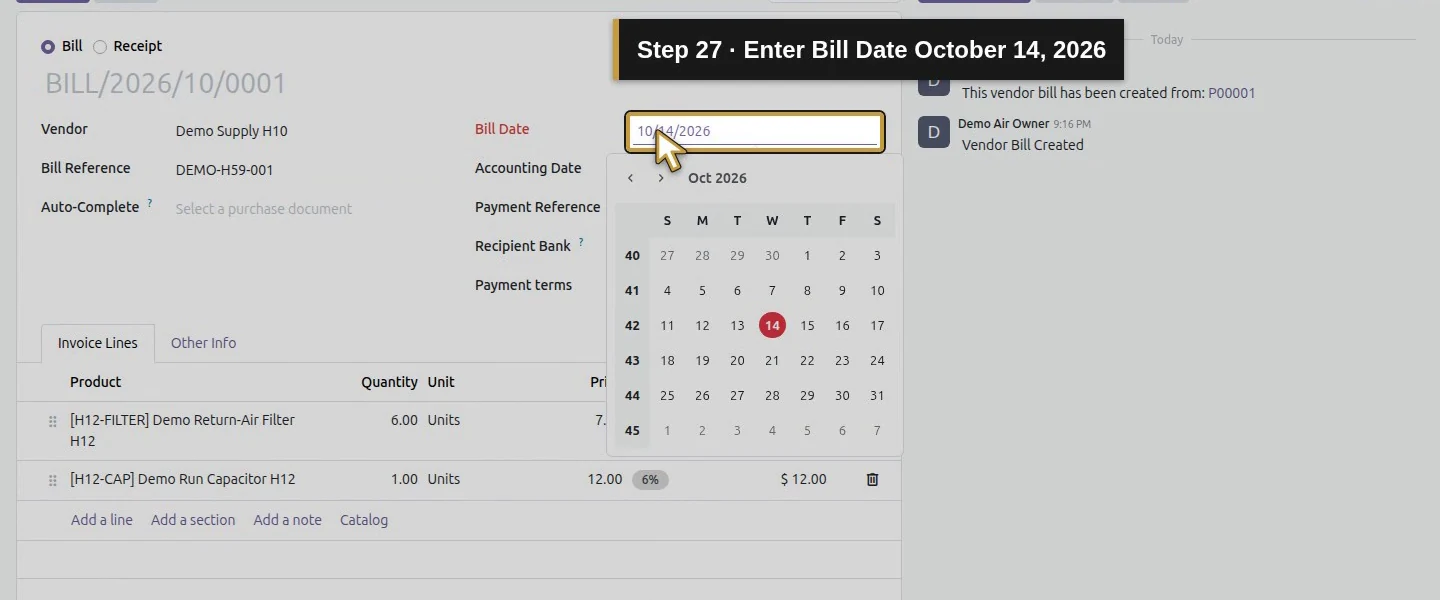
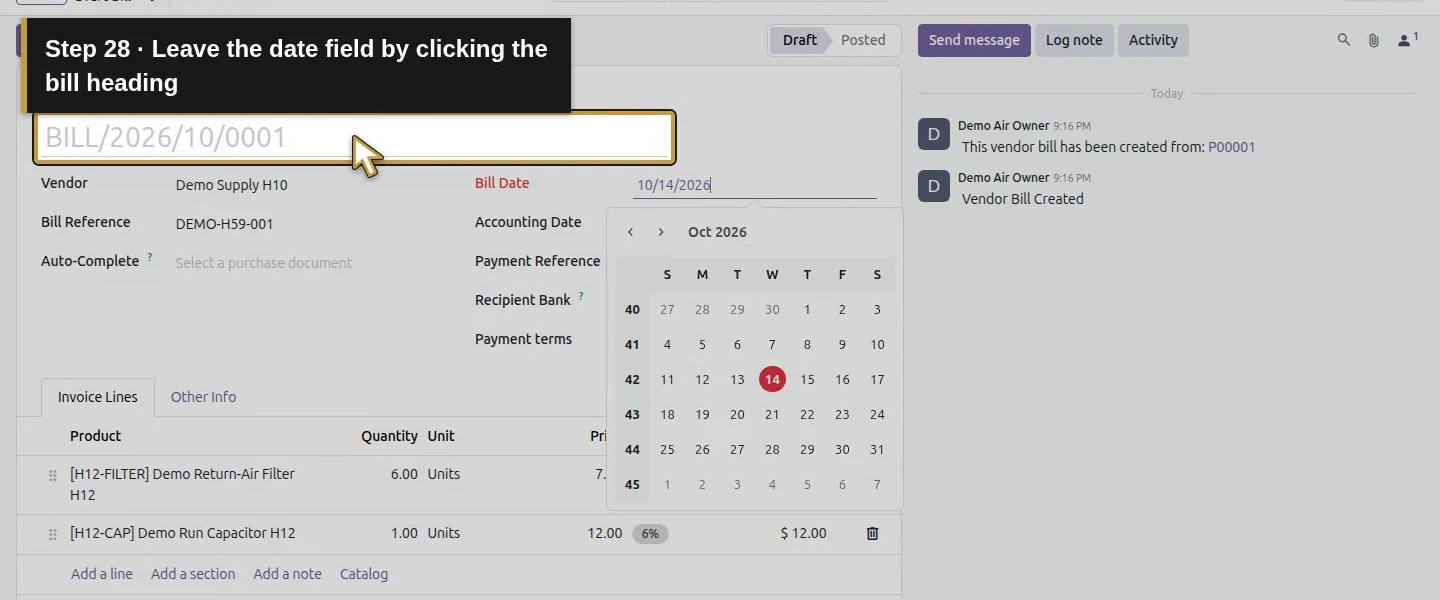
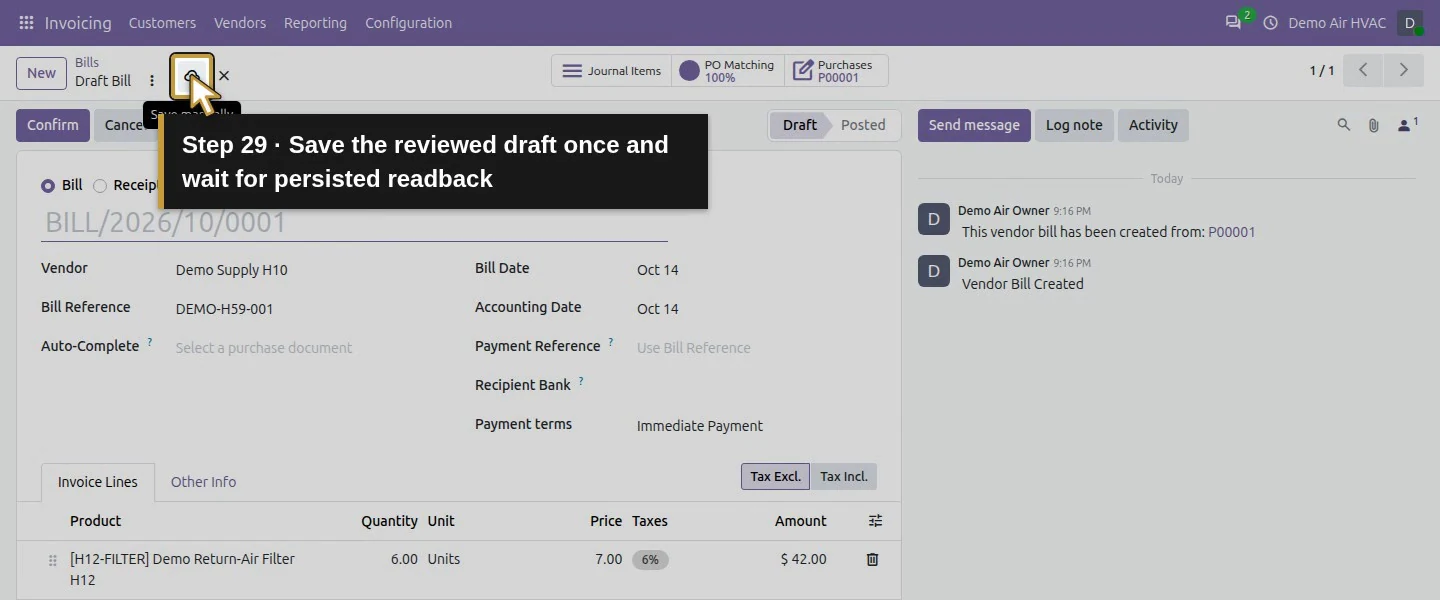
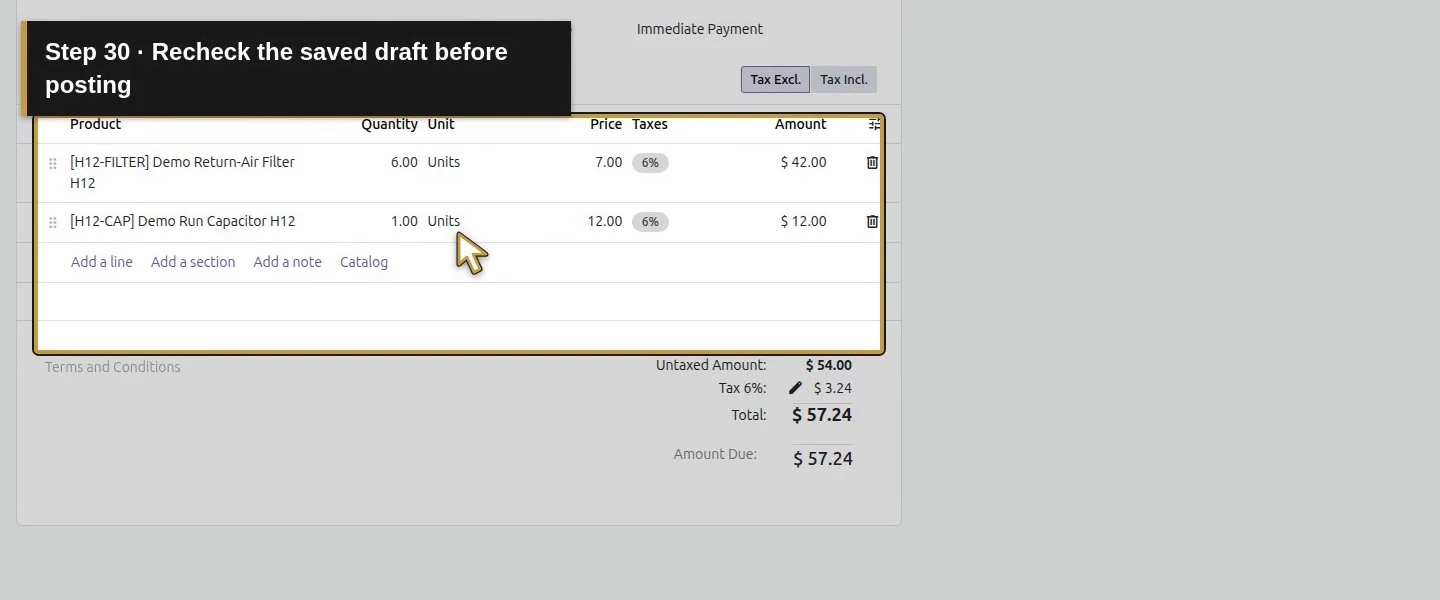
Check Vendor Demo Supply H10, Immediate Payment, purchase reference P00001, and lines six filters at $7 and one capacitor at $12. The tested total is $54 untaxed + $3.24 demo tax = $57.24. Enter Bill Reference DEMO-H59-001 and Bill Date October 14, 2026. Leave the date field, save the edits and recheck the draft before posting.
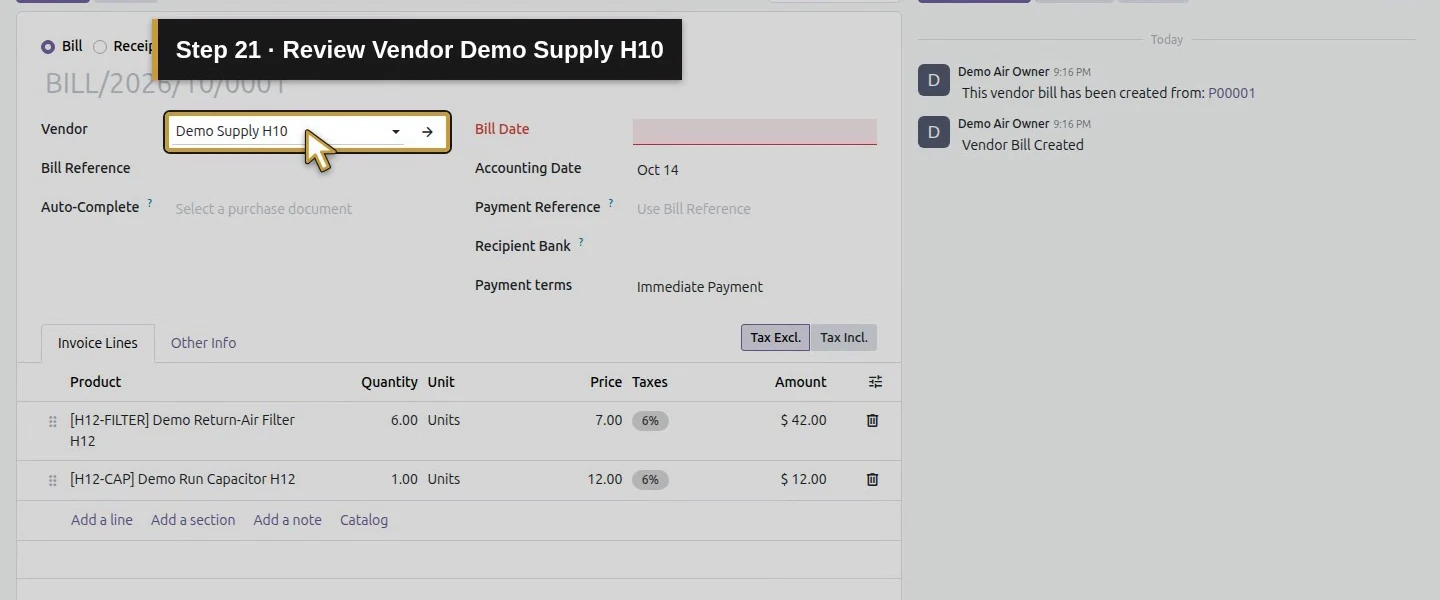
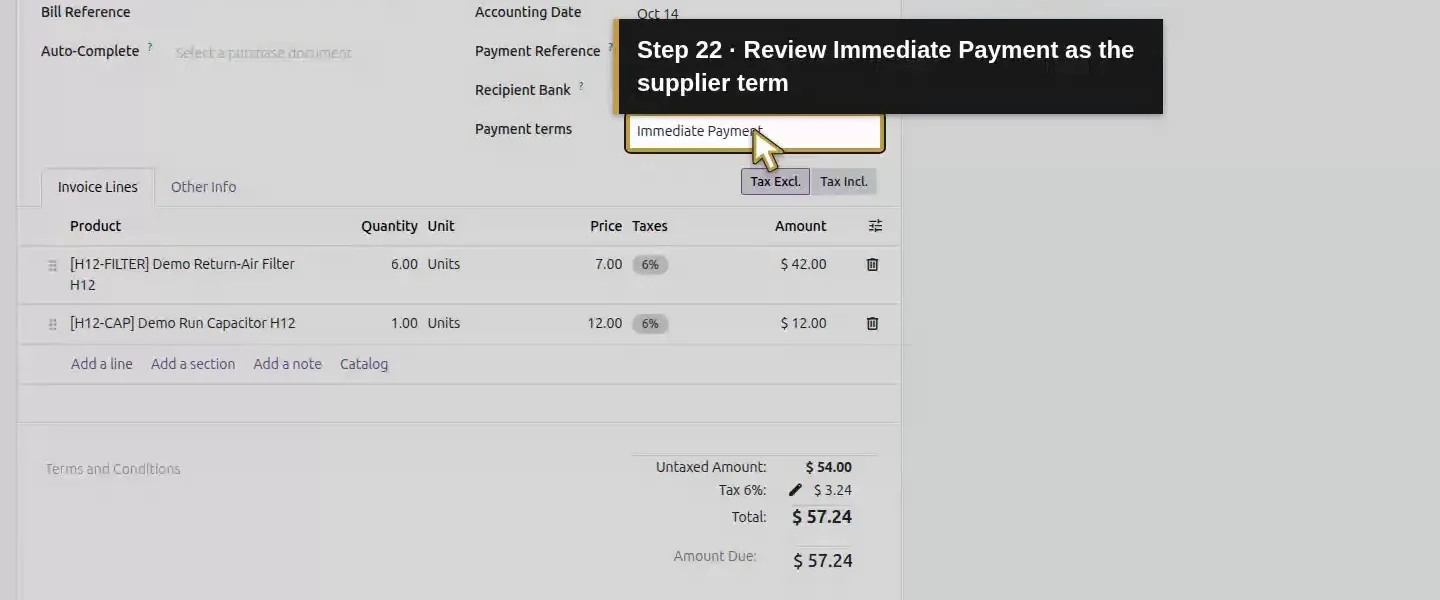
Action 21: Review Vendor Demo Supply H10. The actual target is highlighted in gold.
Review Vendor Demo Supply H10.
Action 22: Review Immediate Payment as the supplier term. The actual target is highlighted in gold.
Review Immediate Payment as the supplier term.
Action 23: Review the native P00001 Purchases source button. The actual target is highlighted in gold.
Review the native P00001 Purchases source button.
Action 24: Compare six filters at $7 and one capacitor at $12 with the fixture. The actual target is highlighted in gold.
Compare six filters at $7 and one capacitor at $12 with the fixture.
Action 25: Review untaxed $54, demo tax $3.24 and total $57.24. The actual target is highlighted in gold.
Review untaxed $54, demo tax $3.24 and total $57.24.
Action 26: Enter Bill Reference DEMO-H59-001. The actual target is highlighted in gold.
Enter Bill Reference DEMO-H59-001.
Action 27: Enter Bill Date October 14, 2026. The actual target is highlighted in gold.
Enter Bill Date October 14, 2026.
Action 28: Leave the date field by clicking the bill heading. The actual target is highlighted in gold.
Leave the date field by clicking the bill heading.
Action 29: Save the reviewed draft once and wait for persisted readback. The actual target is highlighted in gold.
Save the reviewed draft once and wait for persisted readback.
Action 30: Recheck the saved draft before posting. The actual target is highlighted in gold.
Recheck the saved draft before posting.

Step 5. Confirm and reopen the saved bill

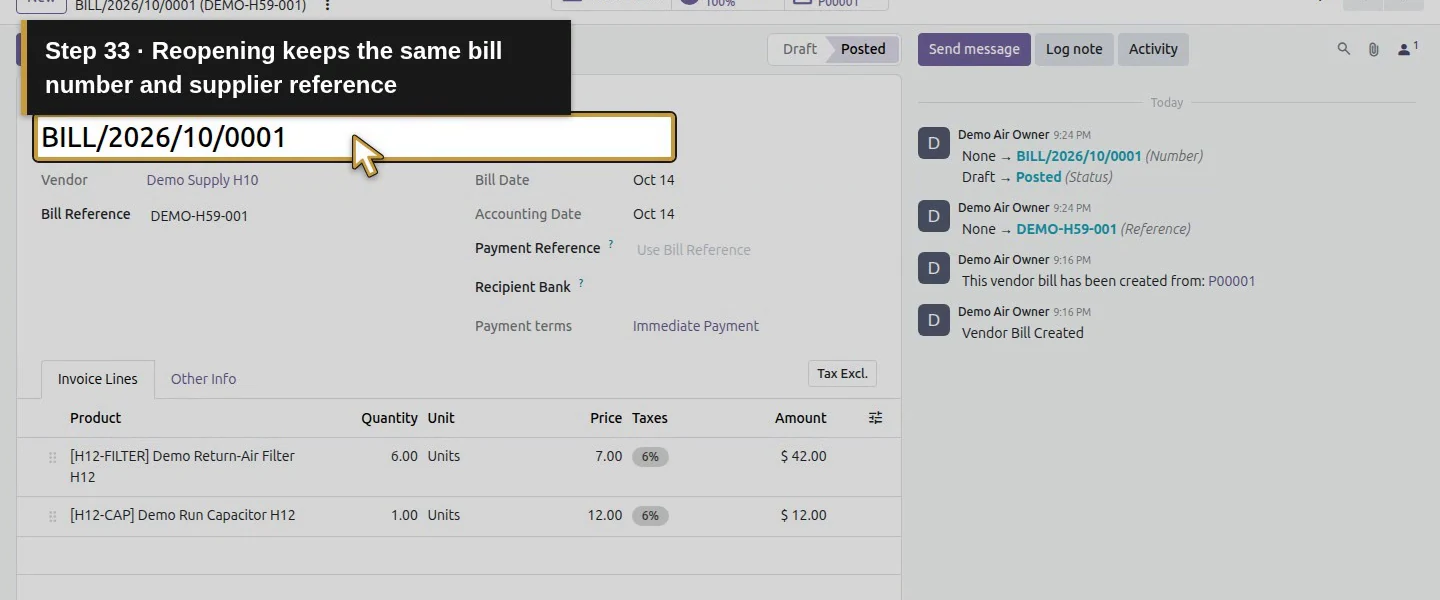
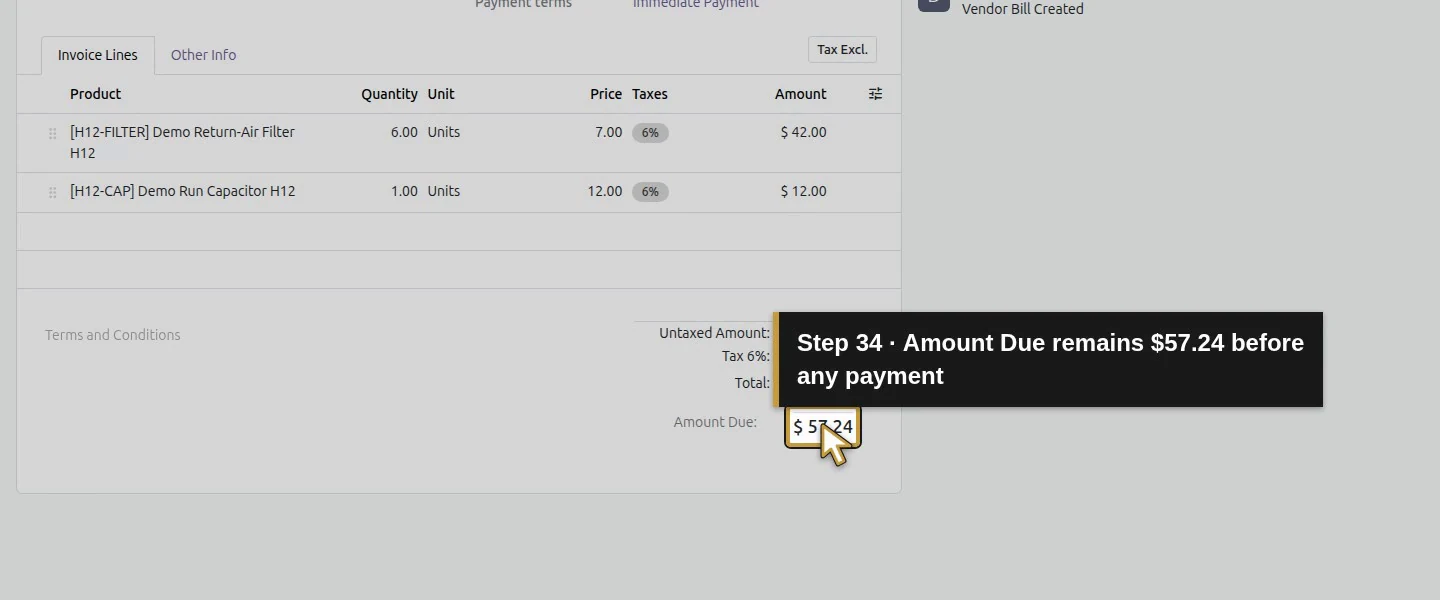
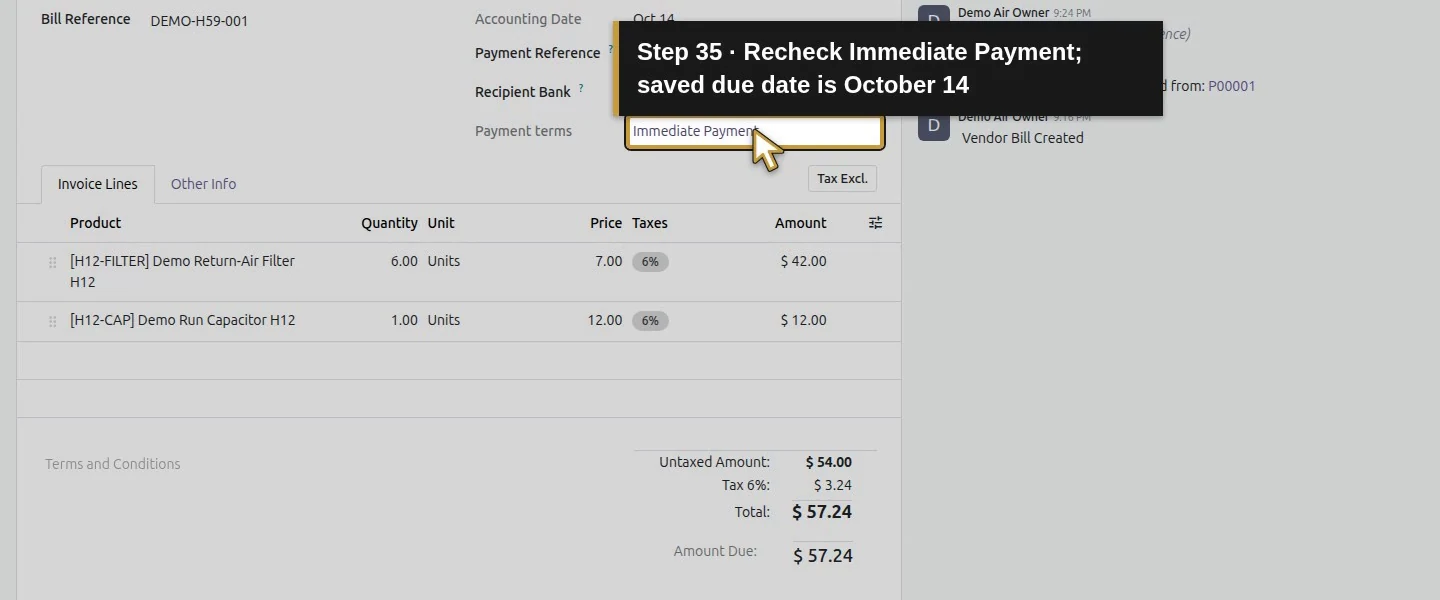
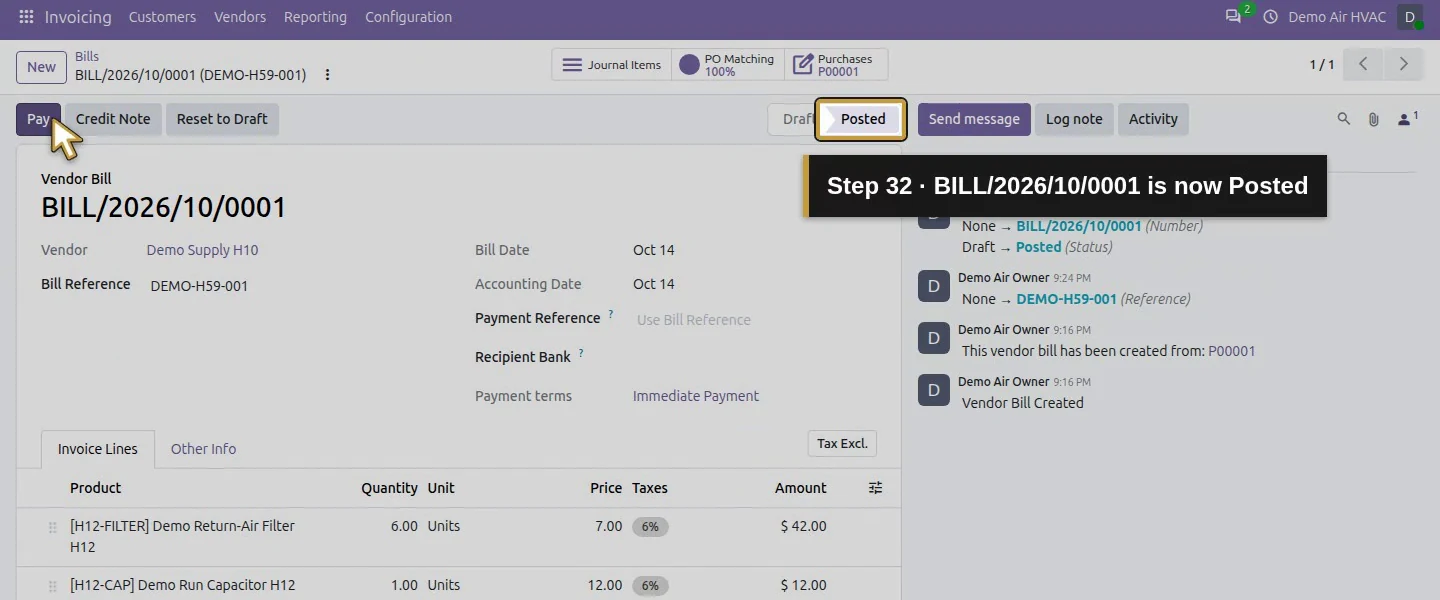
Choose Confirm, wait until the bill shows Posted, and reopen BILL/2026/10/0001. Check the purchase link, copied quantities, totals, due date and Amount Due $57.24 at this checkpoint. Immediate Payment made its due date October 14. Record payment only after independent payment confirmation.
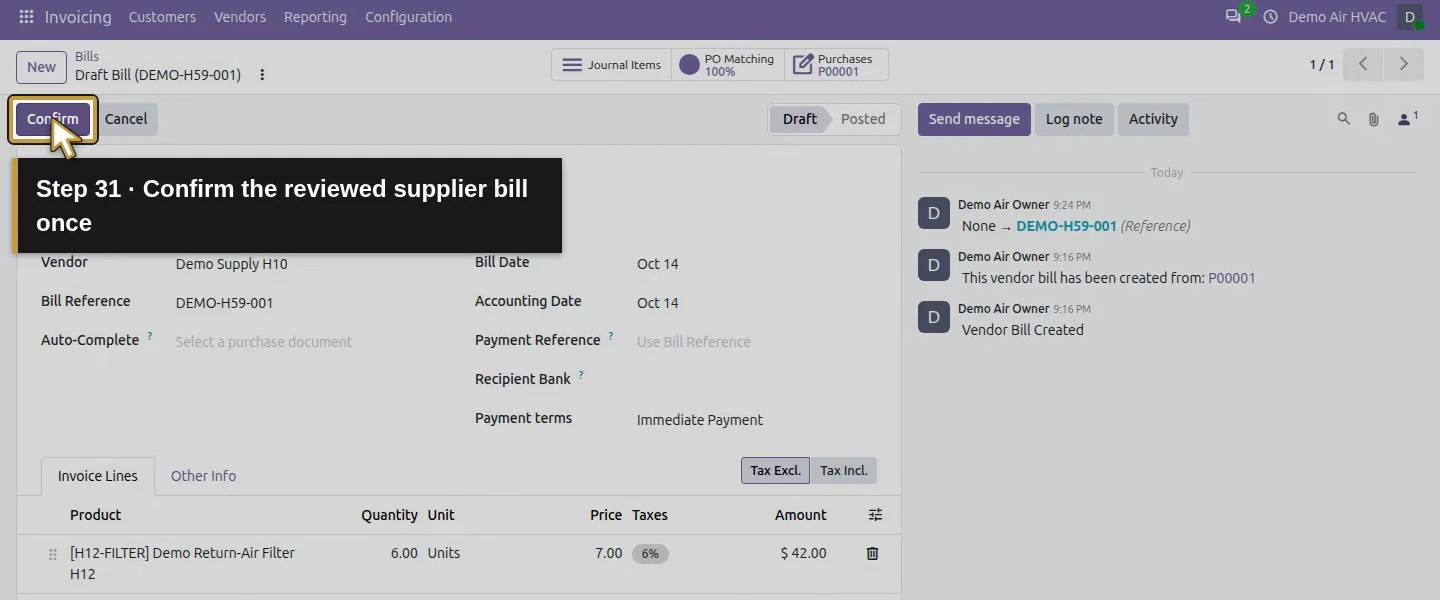
Action 31: Confirm the reviewed supplier bill once. The actual target is highlighted in gold.
Confirm the reviewed supplier bill once.
Action 32: BILL/2026/10/0001 is now Posted. The actual target is highlighted in gold.
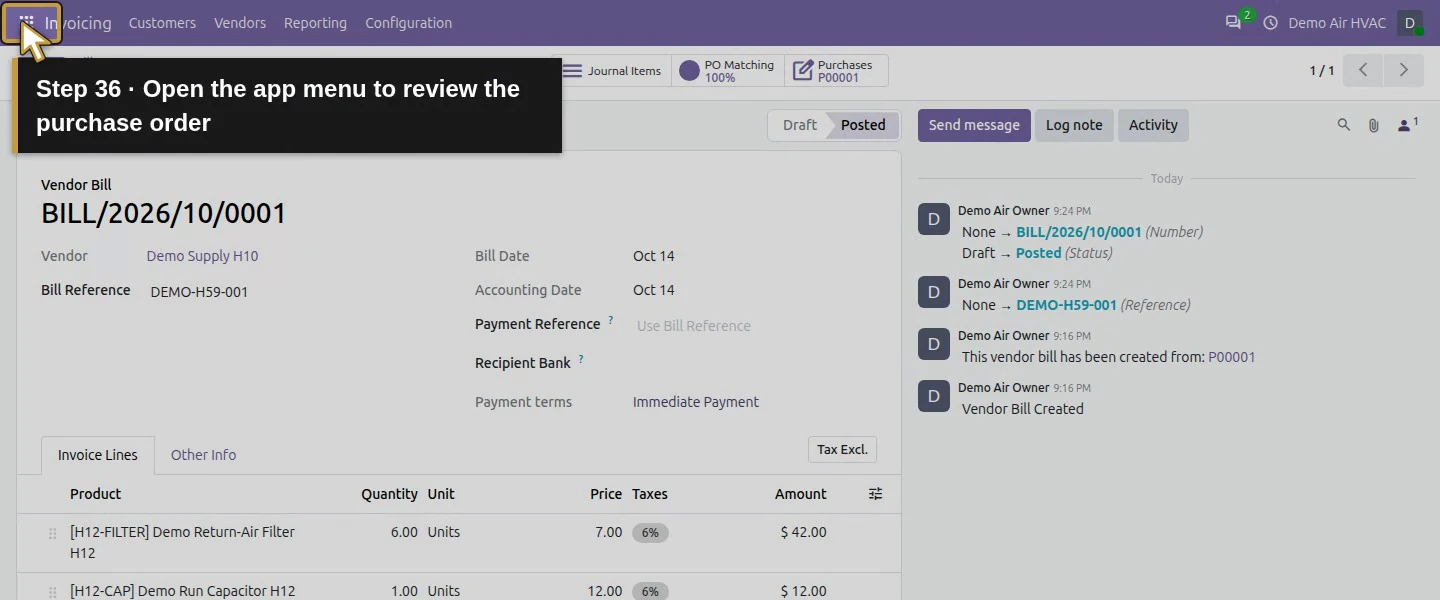
BILL/2026/10/0001 is now Posted.
Action 33: Reopening keeps the same bill number and supplier reference. The actual target is highlighted in gold.
Reopening keeps the same bill number and supplier reference.
Action 34: Amount Due remains $57.24 before any payment. The actual target is highlighted in gold.
Amount Due remains $57.24 before any payment.
Action 35: Recheck Immediate Payment; saved due date is October 14. The actual target is highlighted in gold.
Recheck Immediate Payment; saved due date is October 14.
Action 36: Open the app menu to review the purchase order. The actual target is highlighted in gold.
Open the app menu to review the purchase order.
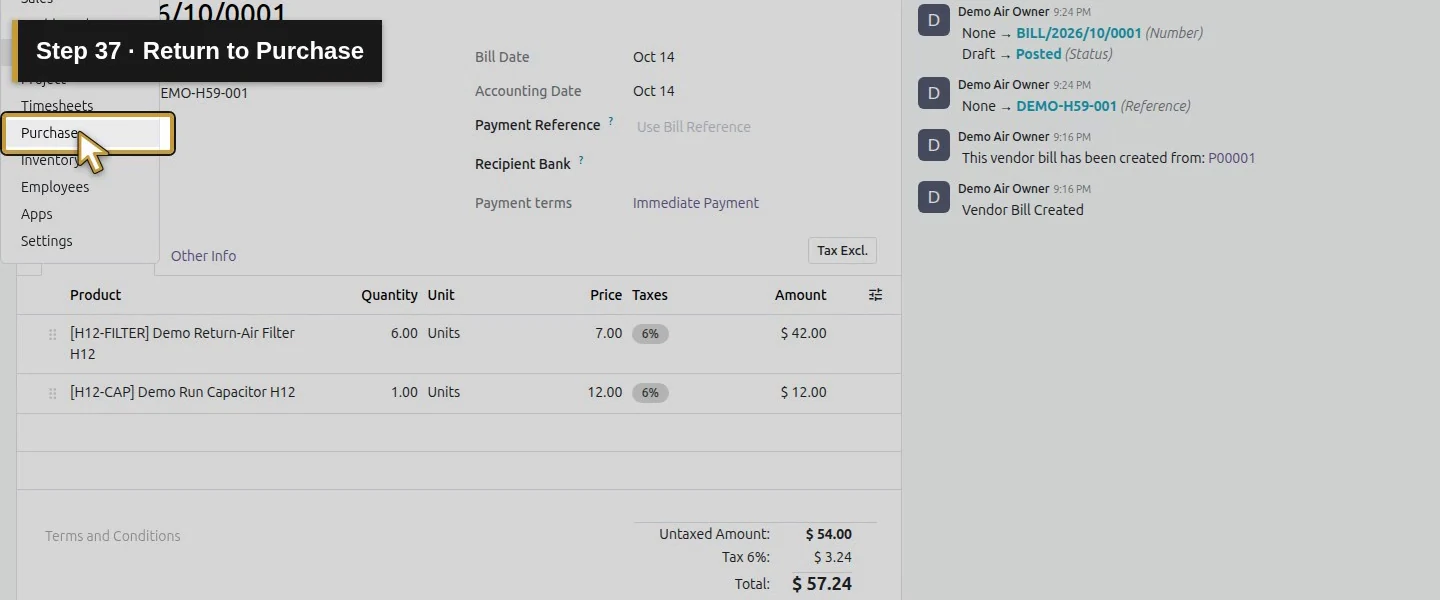
Action 37: Return to Purchase. The actual target is highlighted in gold.
Return to Purchase.
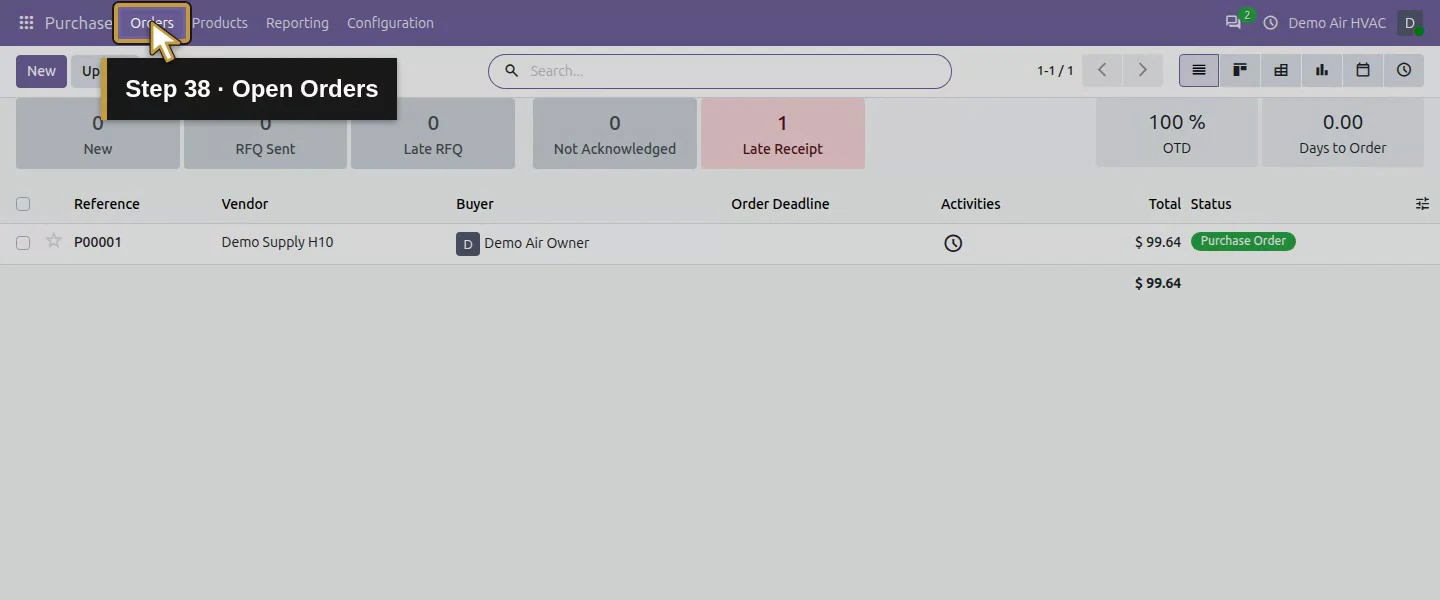
Action 38: Open Orders. The actual target is highlighted in gold.
Open Orders.
Action 39: Choose Purchase Orders. The actual target is highlighted in gold.
Choose Purchase Orders.
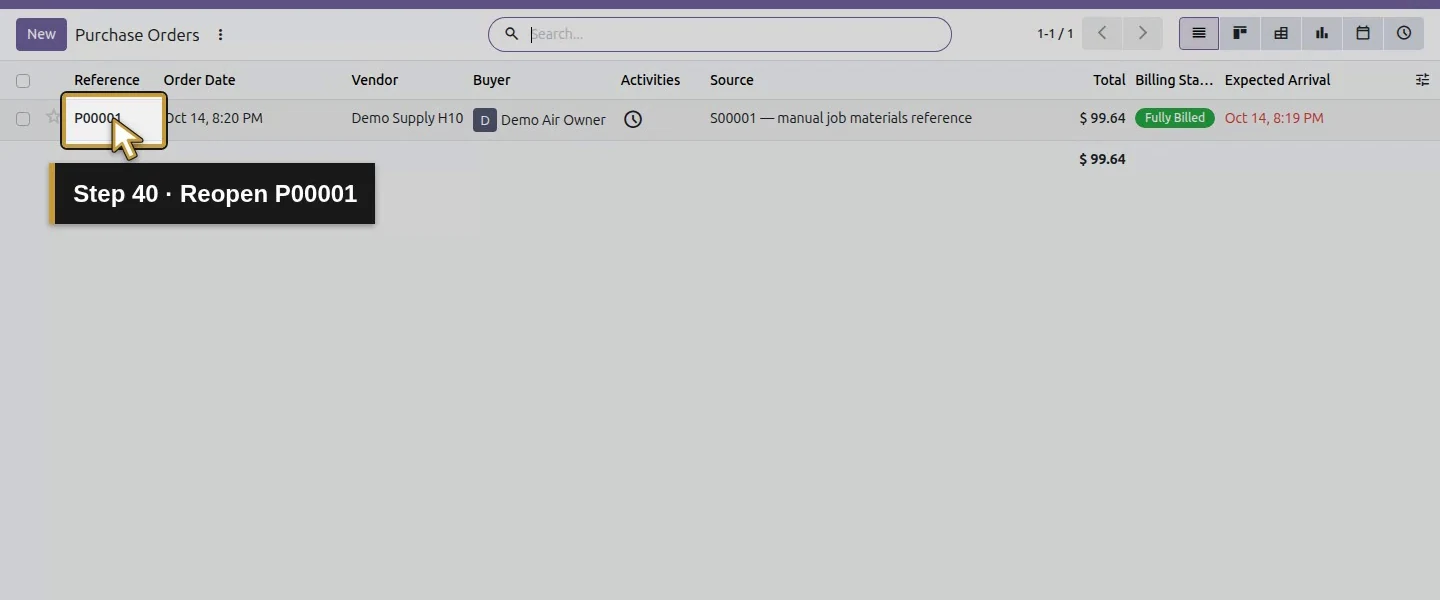
Action 40: Reopen P00001. The actual target is highlighted in gold.
Reopen P00001.
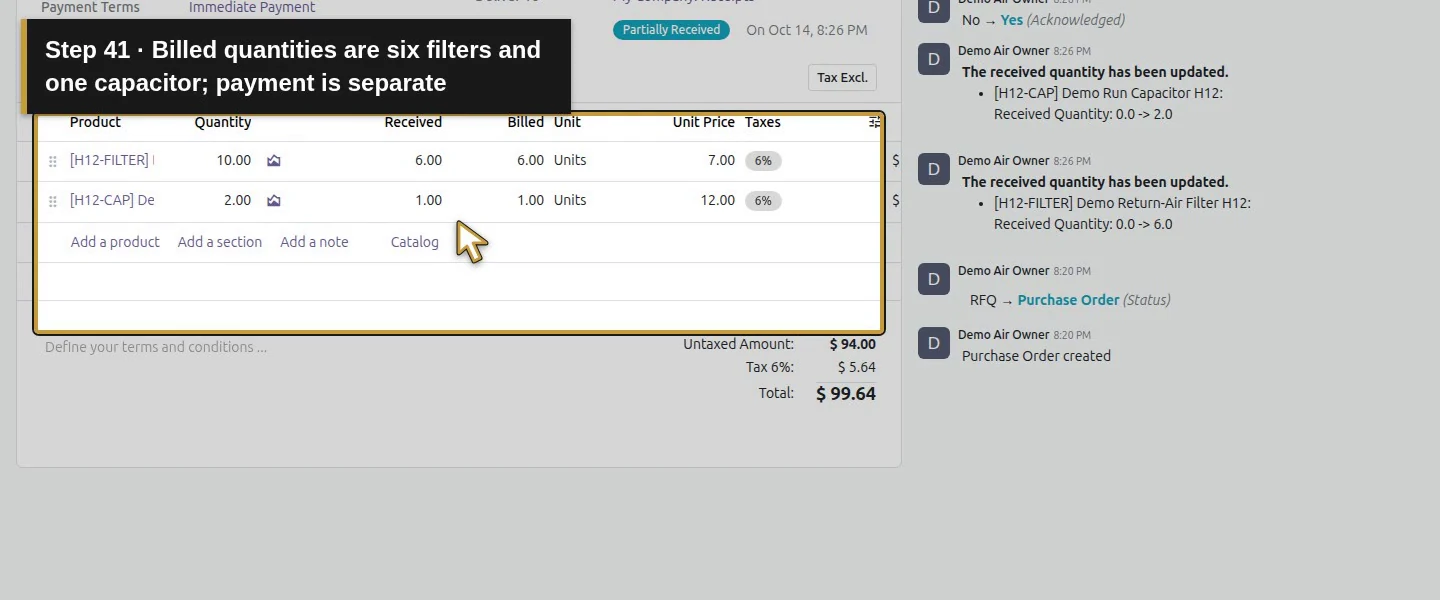
Action 41: Billed quantities are six filters and one capacitor; payment is separate. The actual target is highlighted in gold.
Billed quantities are six filters and one capacitor; payment is separate.

Check the result

BILL/2026/10/0001 is a posted $57.24 vendor bill with reference DEMO-H59-001, origin P00001 and native purchase-line links for six filters and one capacitor. It was initially unpaid with $57.24 residual. P00001's Billed quantities became six and one. A later payment changes the remaining balance.

If your screen differs

The 100% PO Matching badge did not establish a complete approval or duplicate-prevention system. After those received quantities were billed, repeating Create Bills created a zero-value draft with zero-quantity product lines; the UI warned about empty lines. The test draft DEMO-H59-ZERO-RETRY was canceled, not posted. Inspect existing bills and unbilled quantities before creating another. Different control policies, mismatch approvals and real tax handling were not tested.

Frequently asked questions

How do I create a supplier bill from an Odoo purchase order? In this version, select the order's checkbox in Purchase → Orders → Purchase Orders and choose Create Bills. Review the resulting draft against the supplier invoice and actual receipts before Confirm.
Why is Odoo billing ordered rather than received quantities? Review the product's Purchase Control Policy. These tested parts used On received quantities and proposed the net received six filters and one capacitor. Other policies need their own review.
Does Odoo automatically approve every matched supplier bill? This procedure required a manual invoice, quantity, price, tax and duplicate check. A matching badge did not prevent a retry from creating a zero-value draft; it is not a complete approval guarantee.

Continue building the business

Record a confirmed partial payment in How do I record a supplier payment in Odoo?.

Talk to an Odoo partner

Bring your current process and the result you need to Onward to plan your Odoo workflow. Talk to an Odoo partner.