
Running an HVAC business with Odoo
What can I do for bank reconciliation in Odoo?
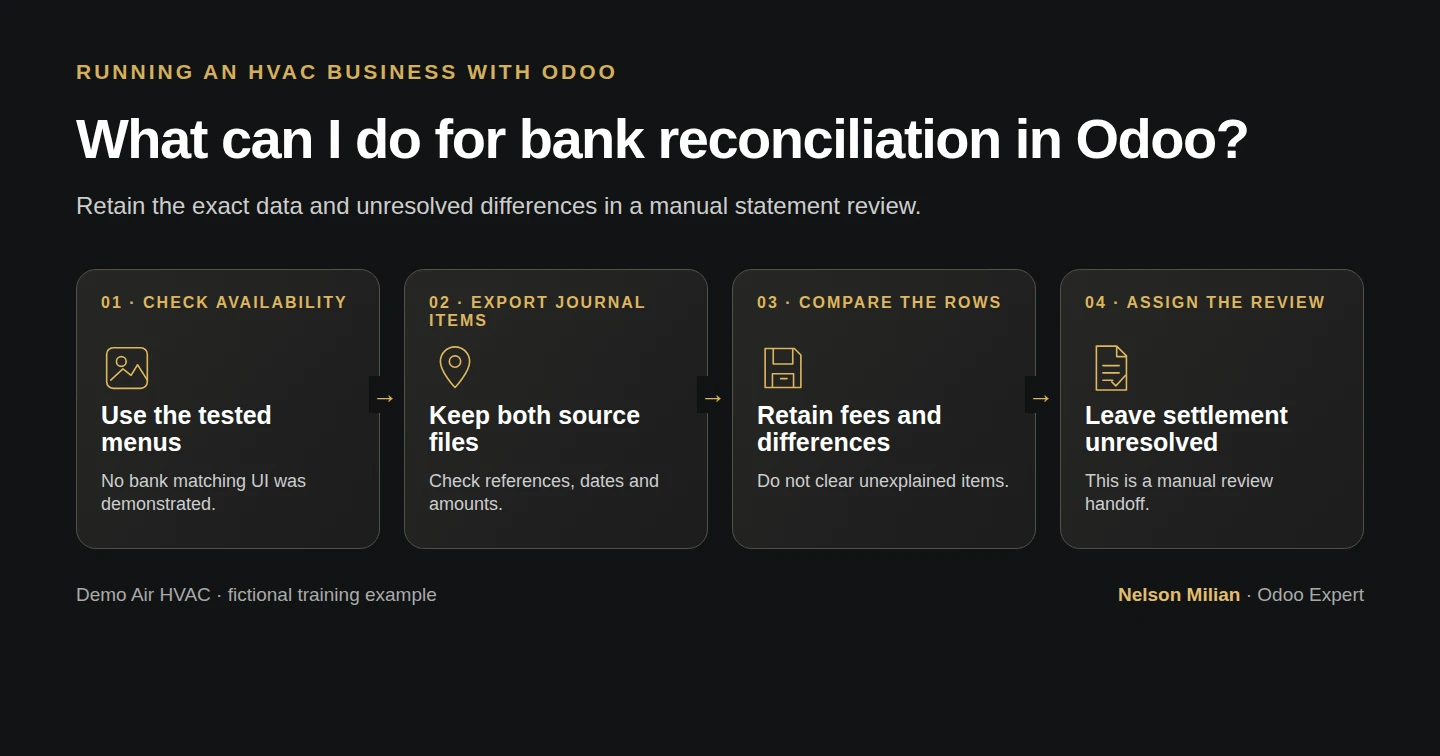
Review a fictional bank statement against native Odoo payment and journal-item exports, retain discrepancies and assign follow-up without claiming bank reconciliation.
Alex uses a native Odoo journal-item export to compare recorded customer and supplier payments with statement evidence, save the review on the bank journal and assign discrepancies for follow-up. With the stock full-accounting permission enabled, this Community setup also exposes Bank Statements, Models and Matching Rules. The inspected controls did not demonstrate a usable bank feed, statement import or statement-matching execution. This walkthrough completes a manual review; the outstanding ledger entries remain unmatched.
Alex Rivera and Demo Air HVAC are fictional training examples. Prices, dates, quantities and business situations in this guide are illustrative.
Before you begin
Tested in stock Odoo 20.0-20260926 Community as the demo owner administrator, with official modules and standard configuration. Complete How do I record full or partial customer payments in Odoo?, How do I record a supplier payment in Odoo? and How do I set up bank accounts and payment journals in Odoo?. This checkpoint also preserves Can I accept online invoice payments in Odoo?. Use Demo Operating Bank H73, the same fictional company and USD. Prepare a four-row synthetic statement input, explicitly labelled as invented training data: October 14 receipts +$50 and +$121.72, a supplier row -$19 and an unrecorded fee row -$3. These are not actual bank evidence. In a real review, obtain the independent statement and confirm account, currency, dates and references. Keep banking credentials and actual personal details out of a public tutorial.
The administrator has granted the existing stock Show Full Accounting Features permission to the demo owner. That standard permission exposes the accounting Dashboard and review menus used below; no extra app or module was installed. If those menus are missing, have your administrator check this permission before continuing. The screenshots use the ordinary business interface.
For this exercise, download the fictional four-row statement CSV and, optionally, the eight-row Odoo journal-item CSV from this walkthrough. The first file is invented training input. The second is the actual export described in Step 4; exporting your own selected records produces your own file.
Step-by-step workflow
Step 1. Check the native workflow actually available
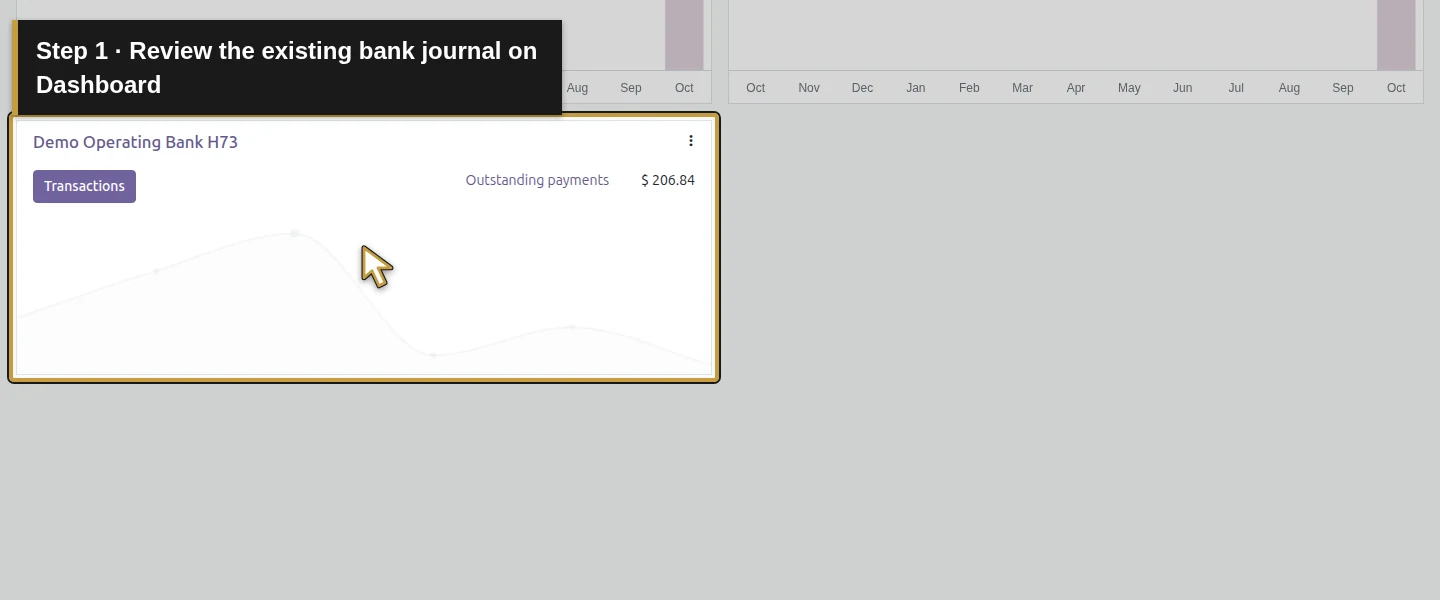
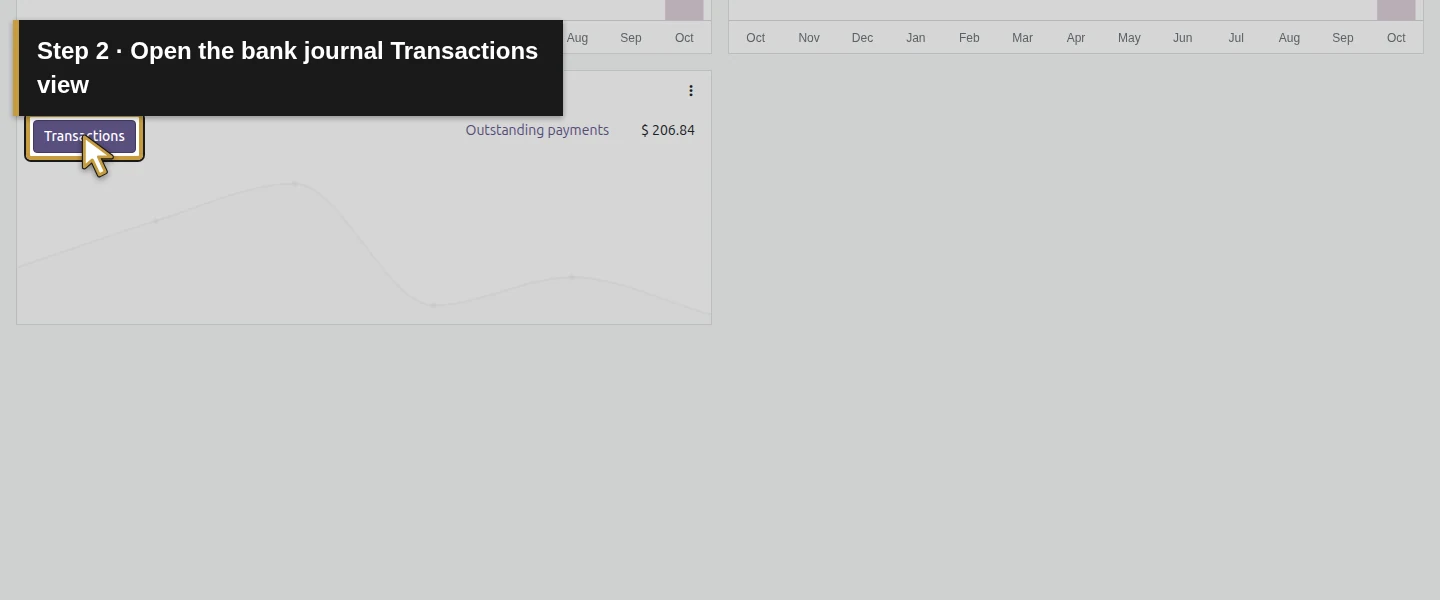
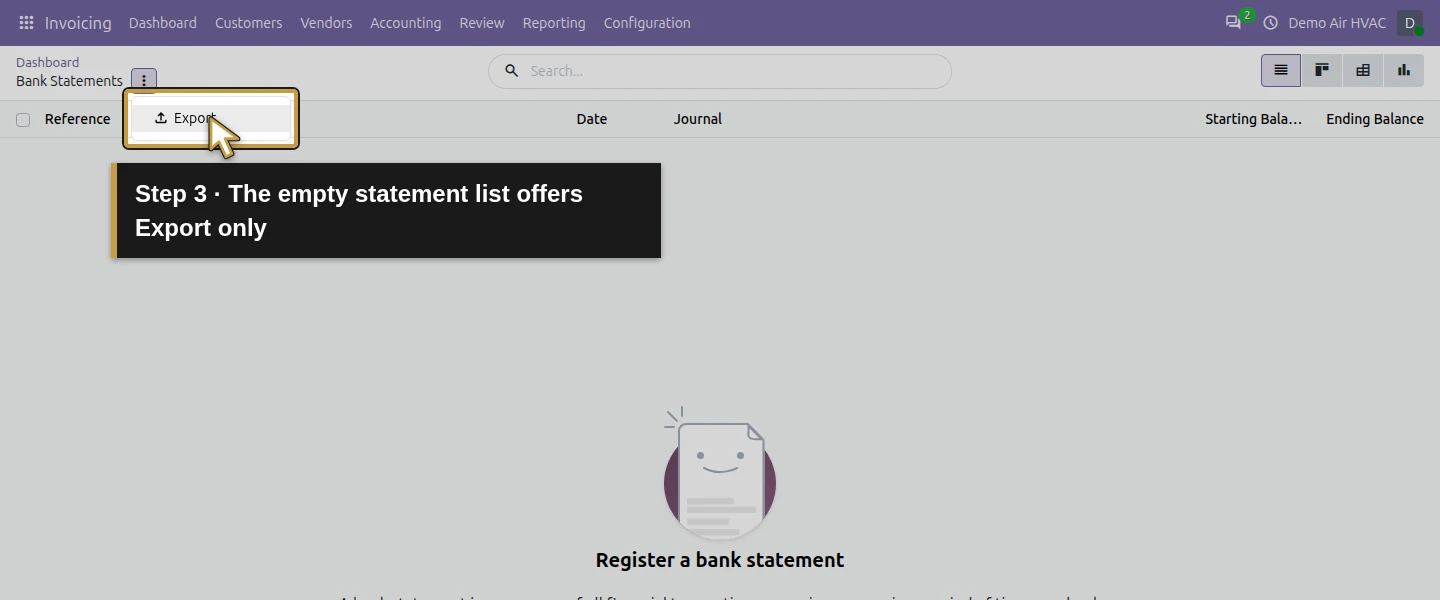
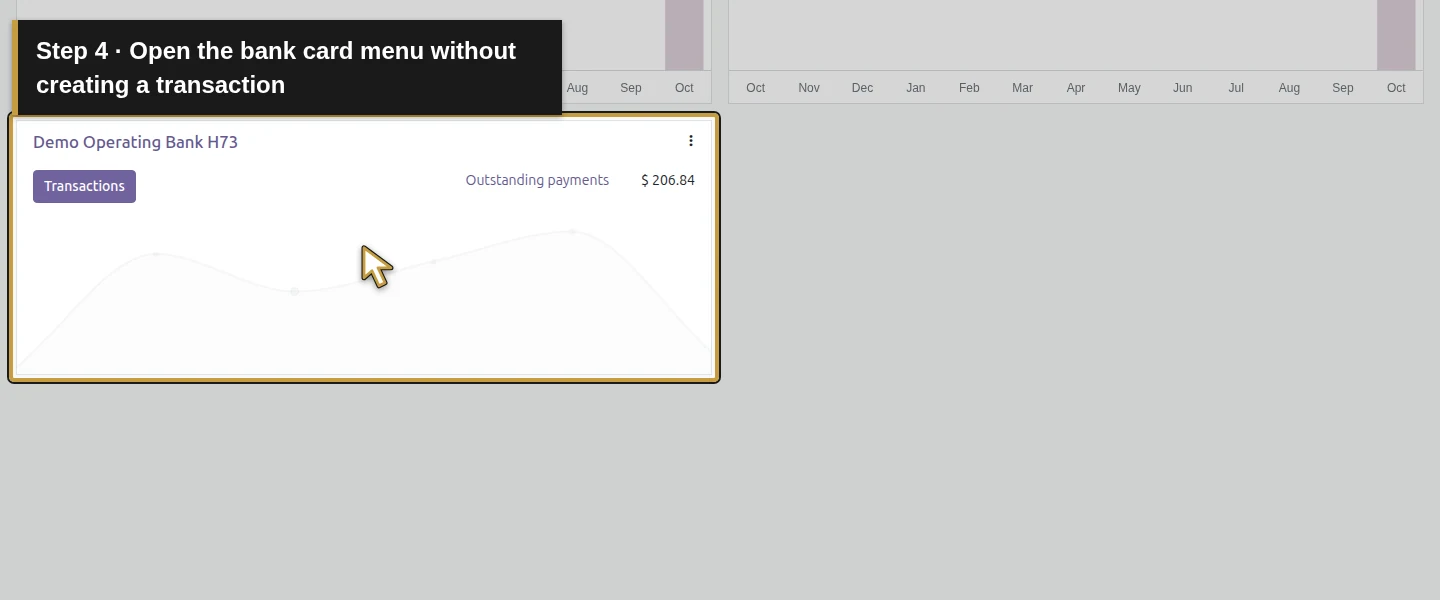
In Invoicing, open Dashboard and find Demo Operating Bank H73. Click Transactions to inspect Bank Statements. The tested list is empty and its Actions menu offers Export; no New, Upload, Import or Reconcile control appears in that view.
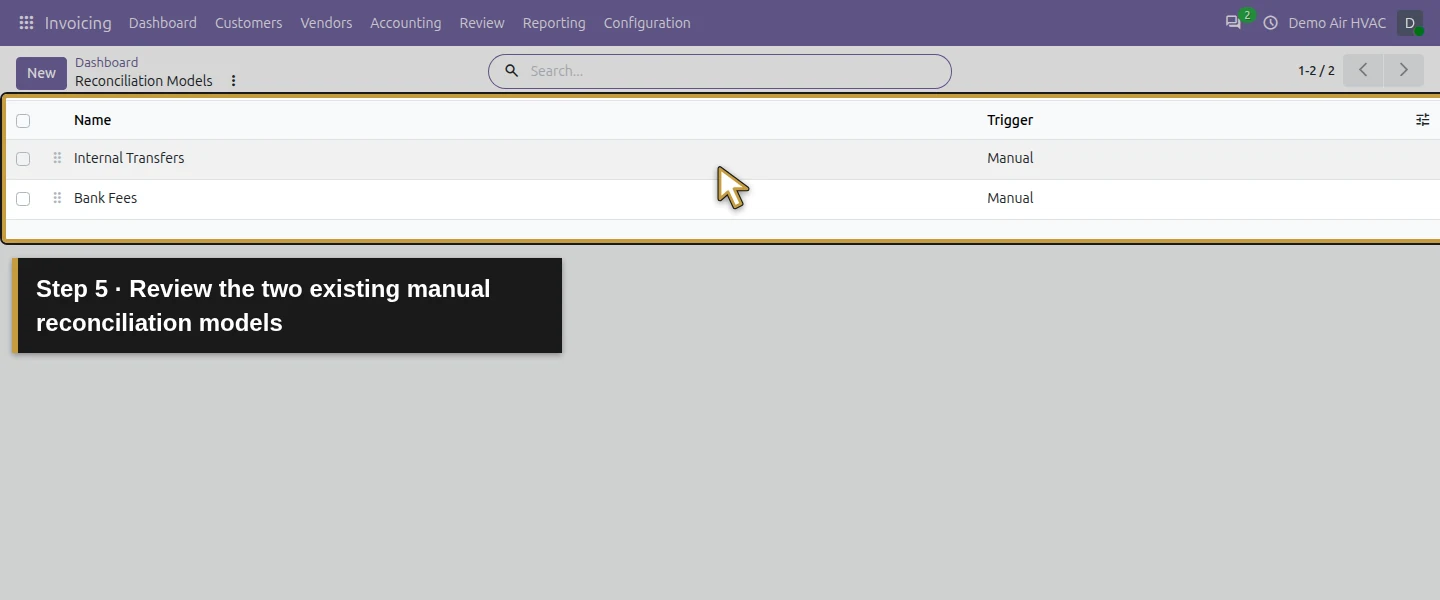
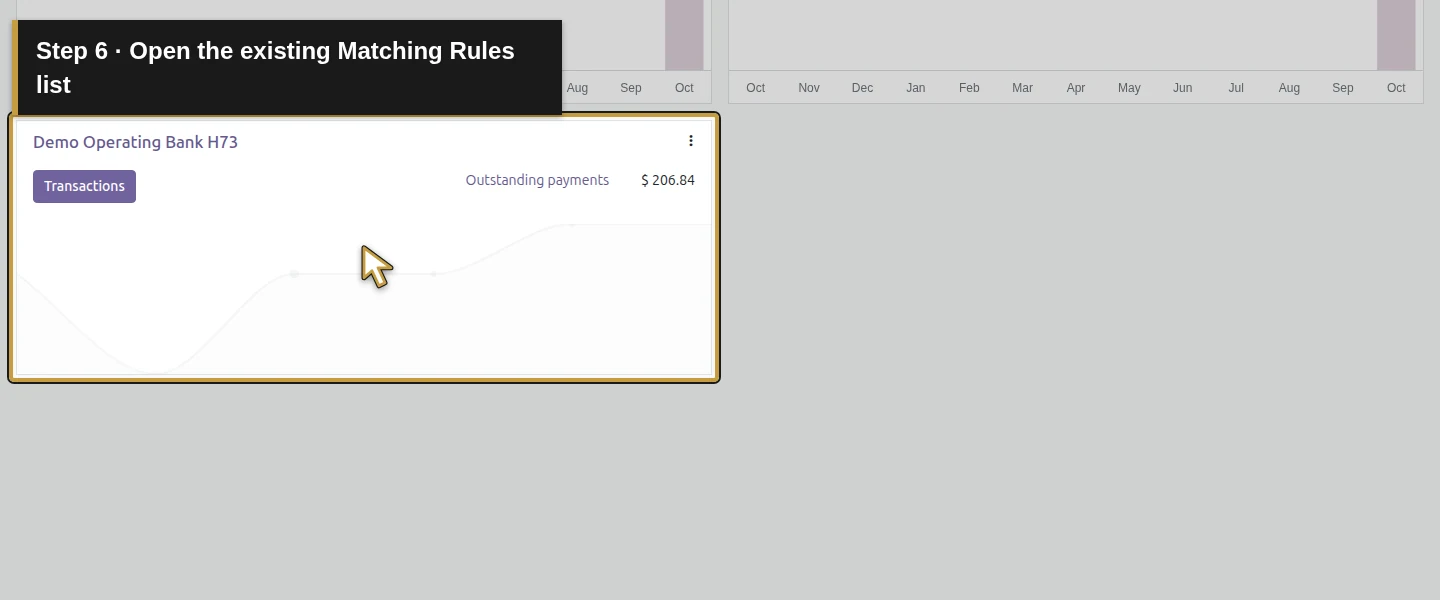
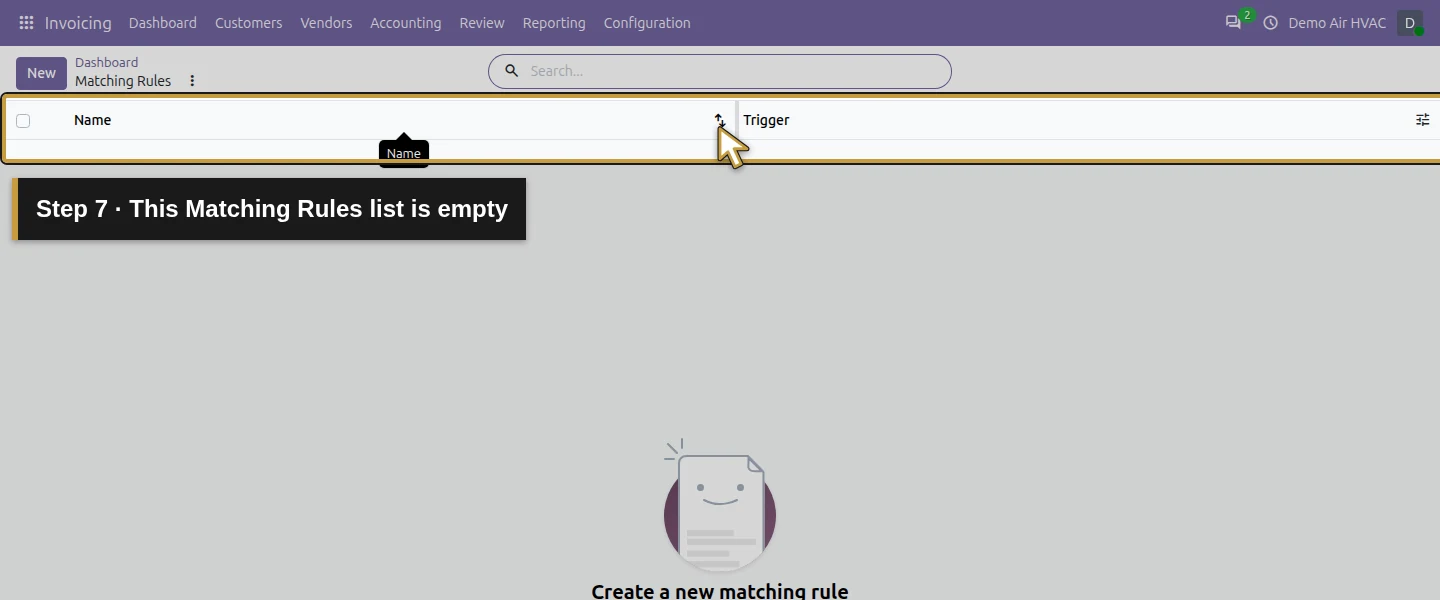
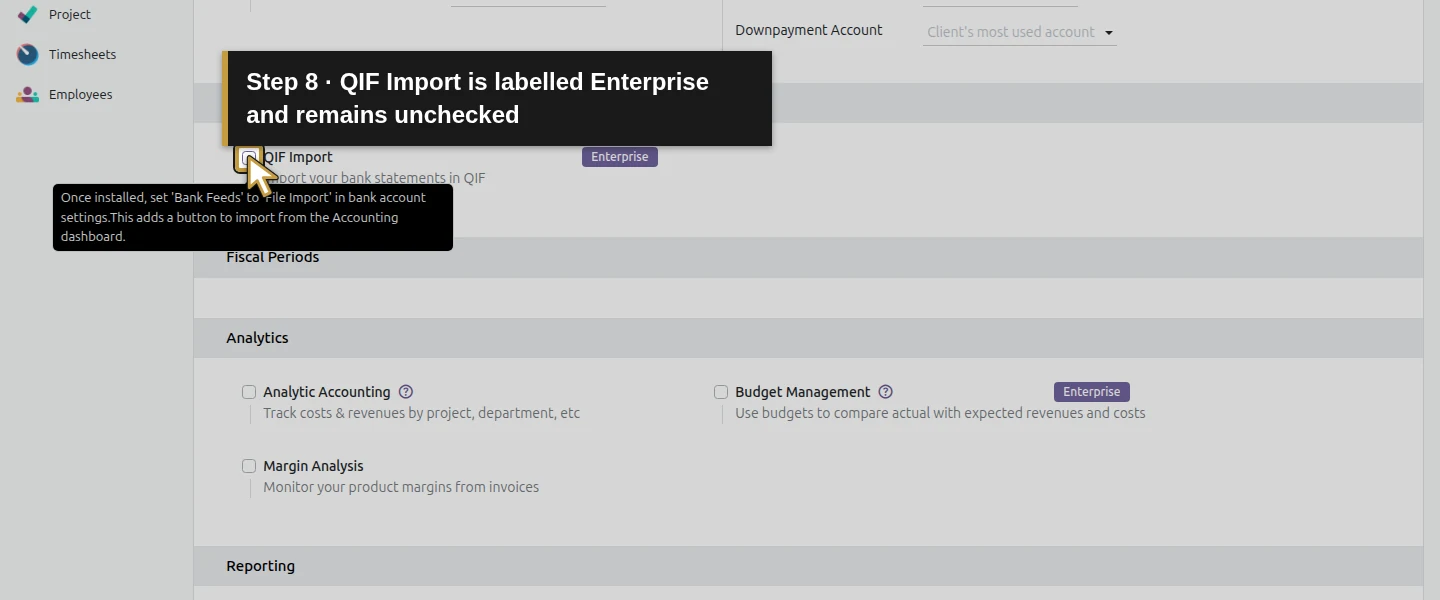
Return to the bank card and open its three-dot menu. Under reconciliation, inspect Models and Matching Rules. The existing Internal Transfers and Bank Fees models both show Manual; Matching Rules is empty. Both configuration lists offer New, which this review leaves unused. In Configuration → Settings, the inspected bank-import option is QIF Import Enterprise, unchecked. Leave it unchanged. These visible lists and settings do not establish a working statement-import or matching procedure.
Step 2. Open the existing bank journal and its items
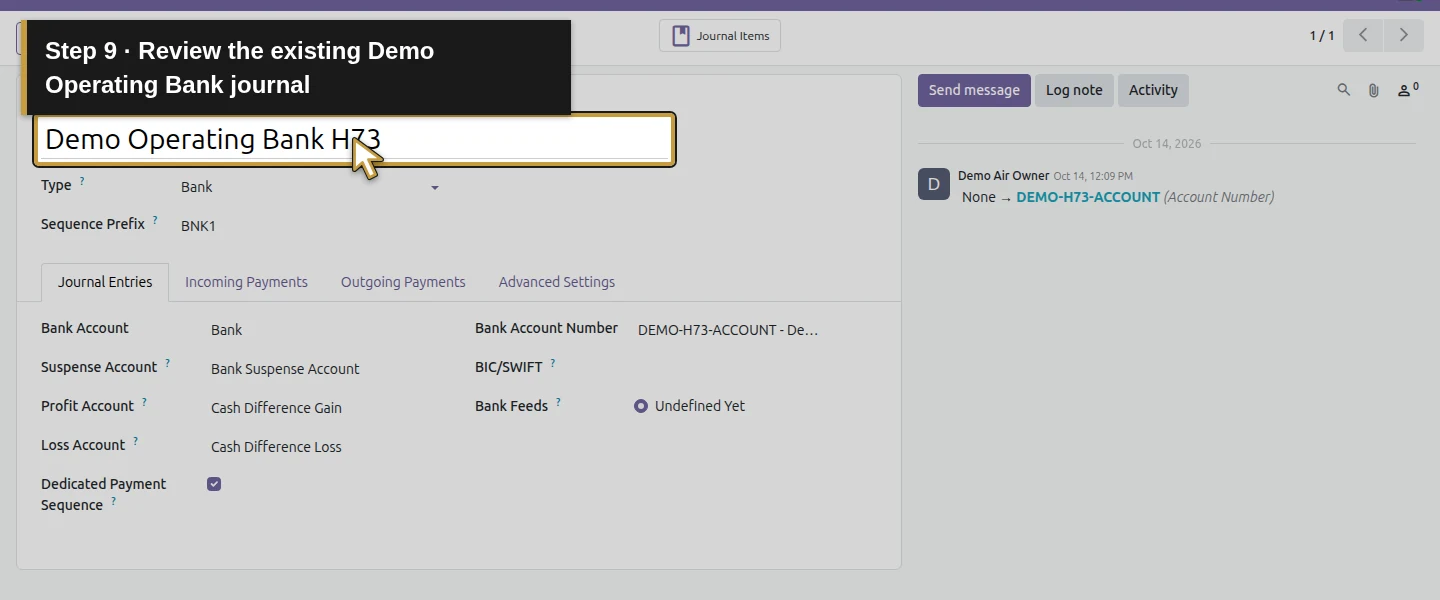
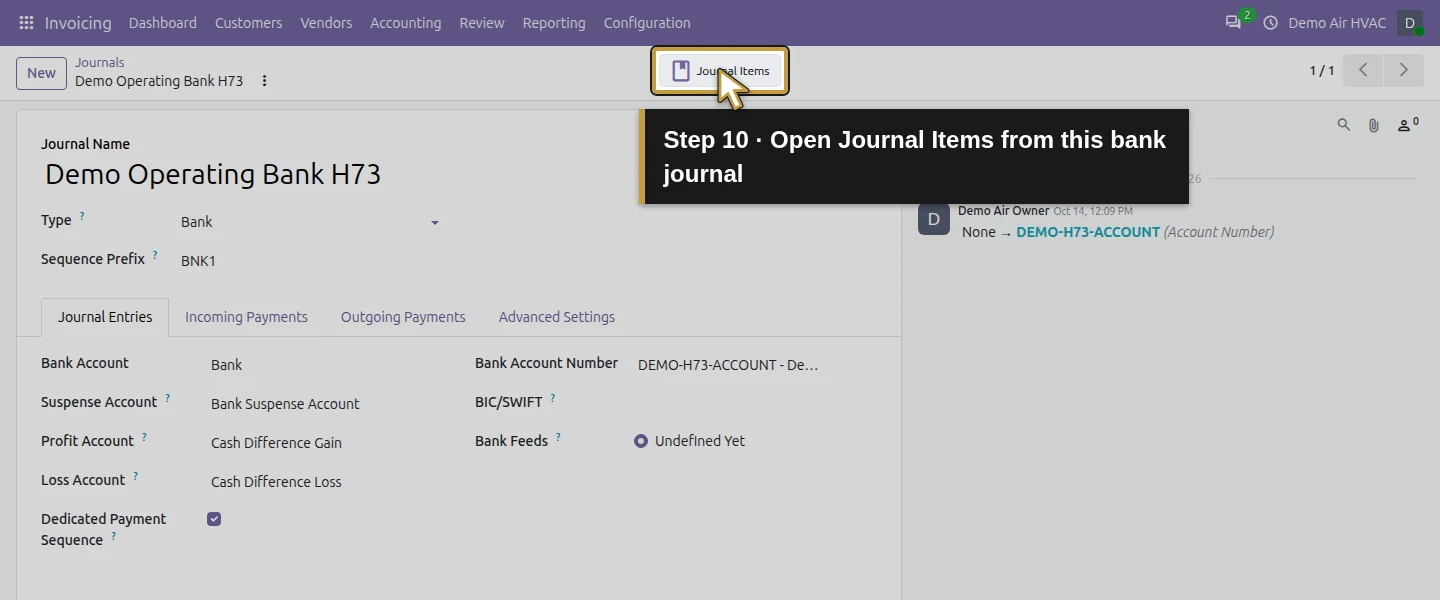
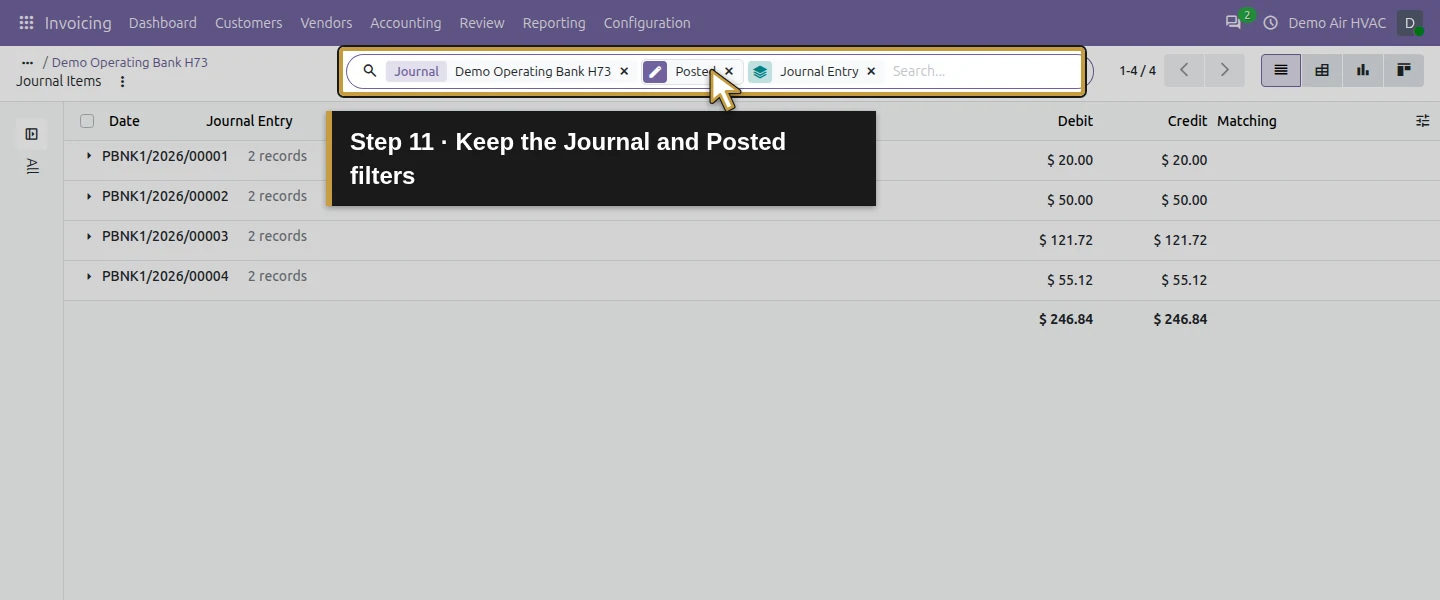
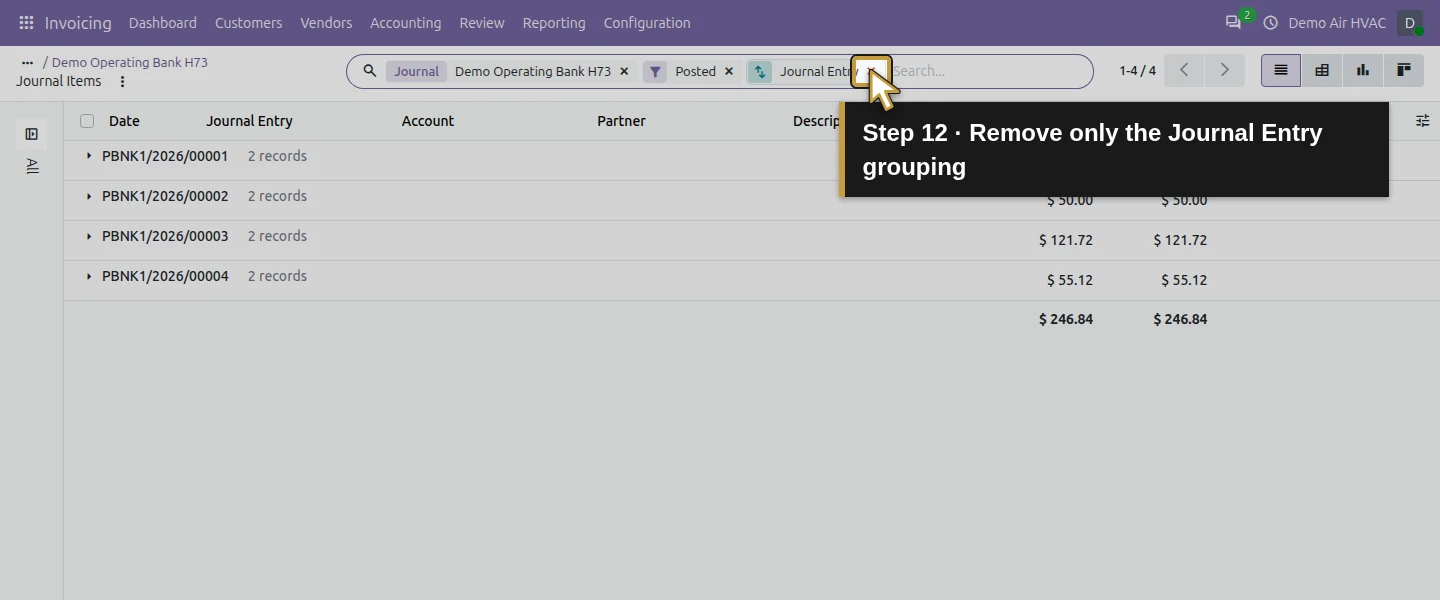
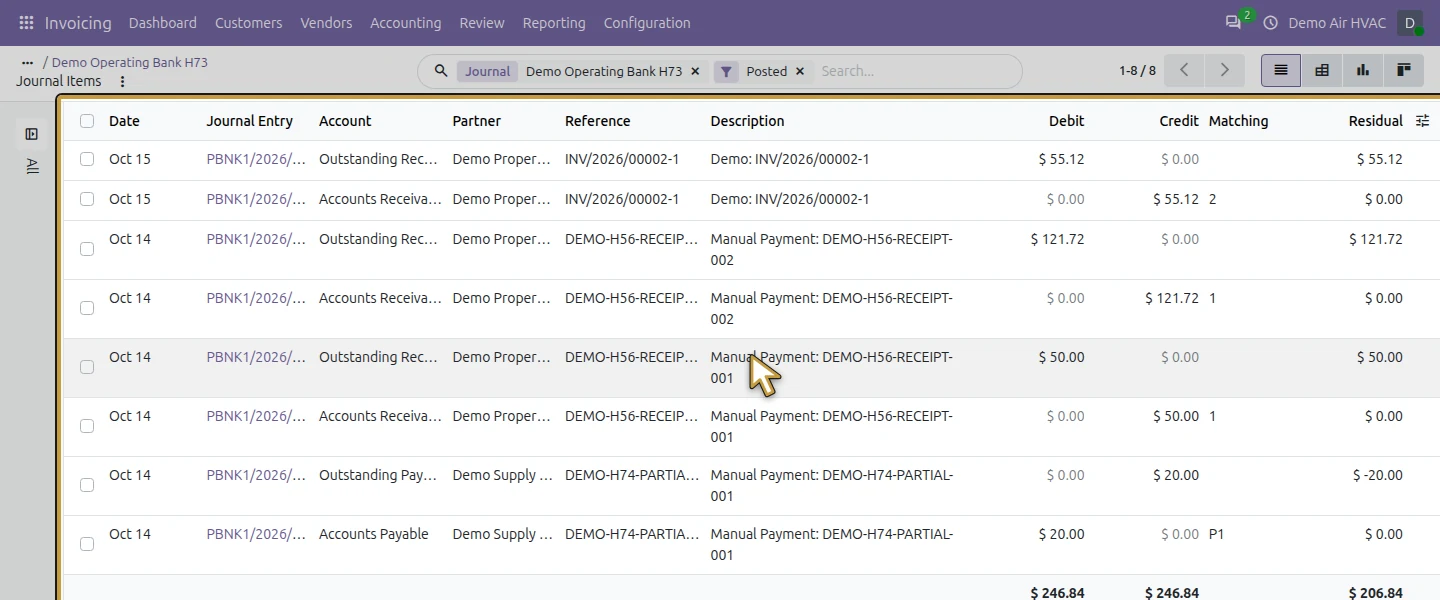
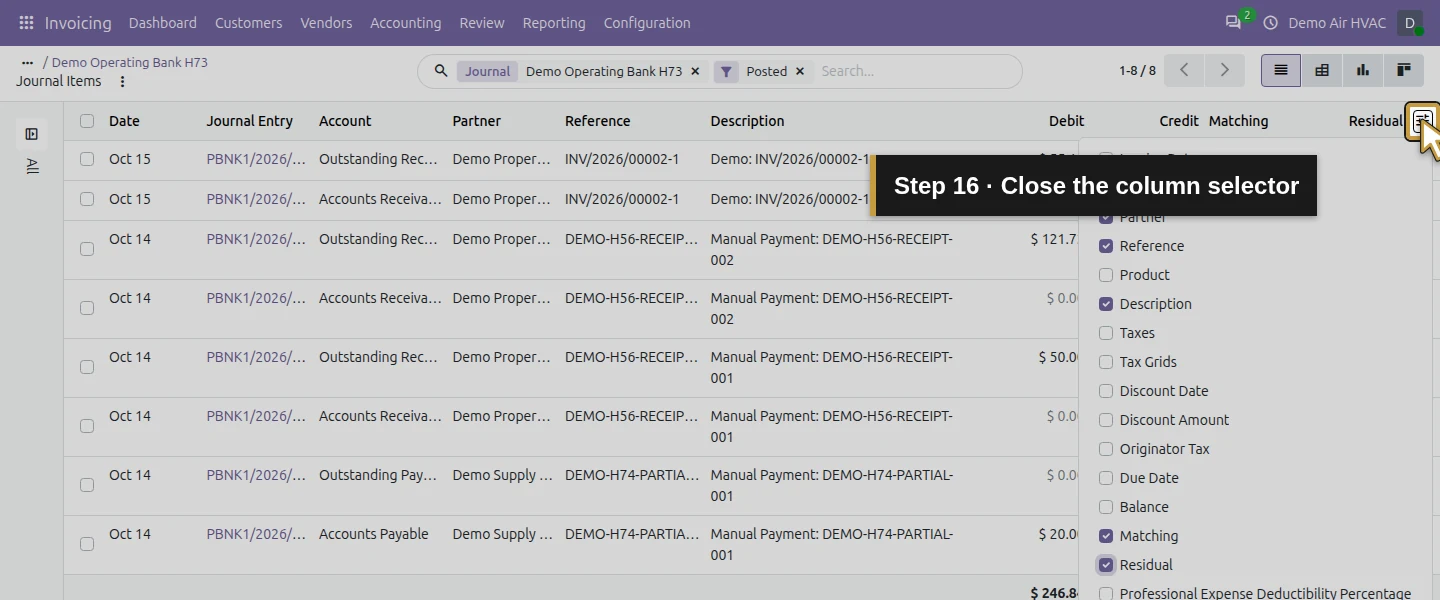
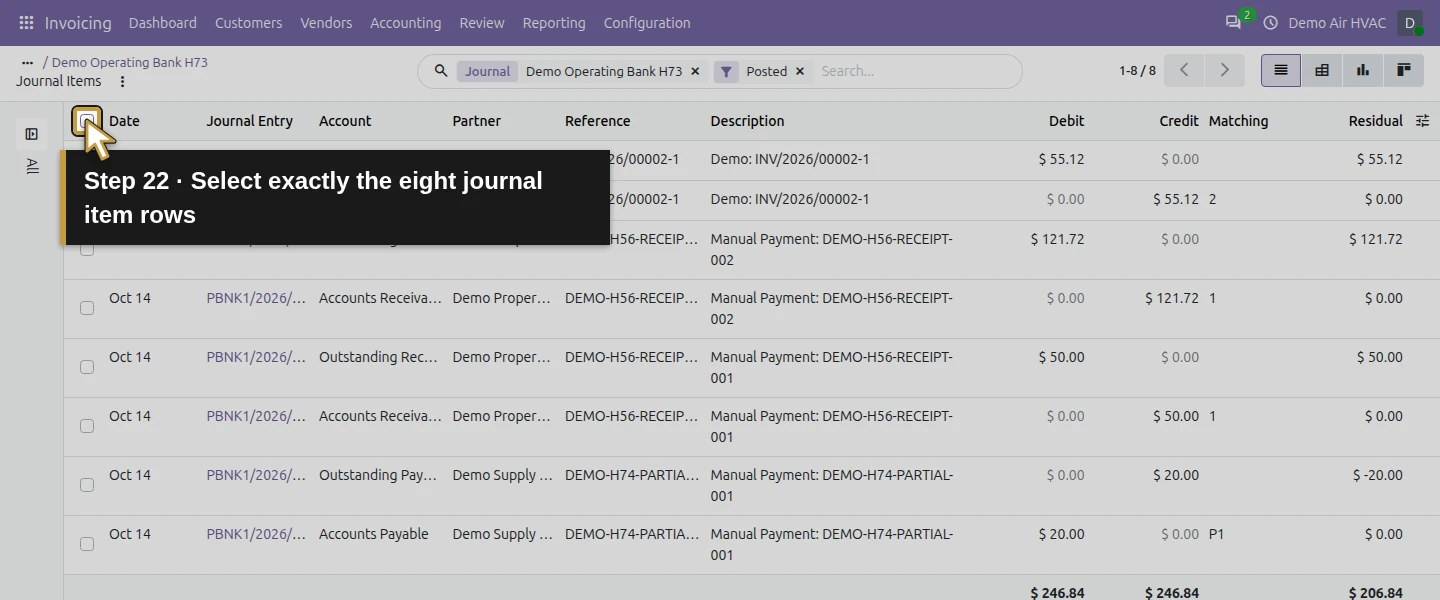
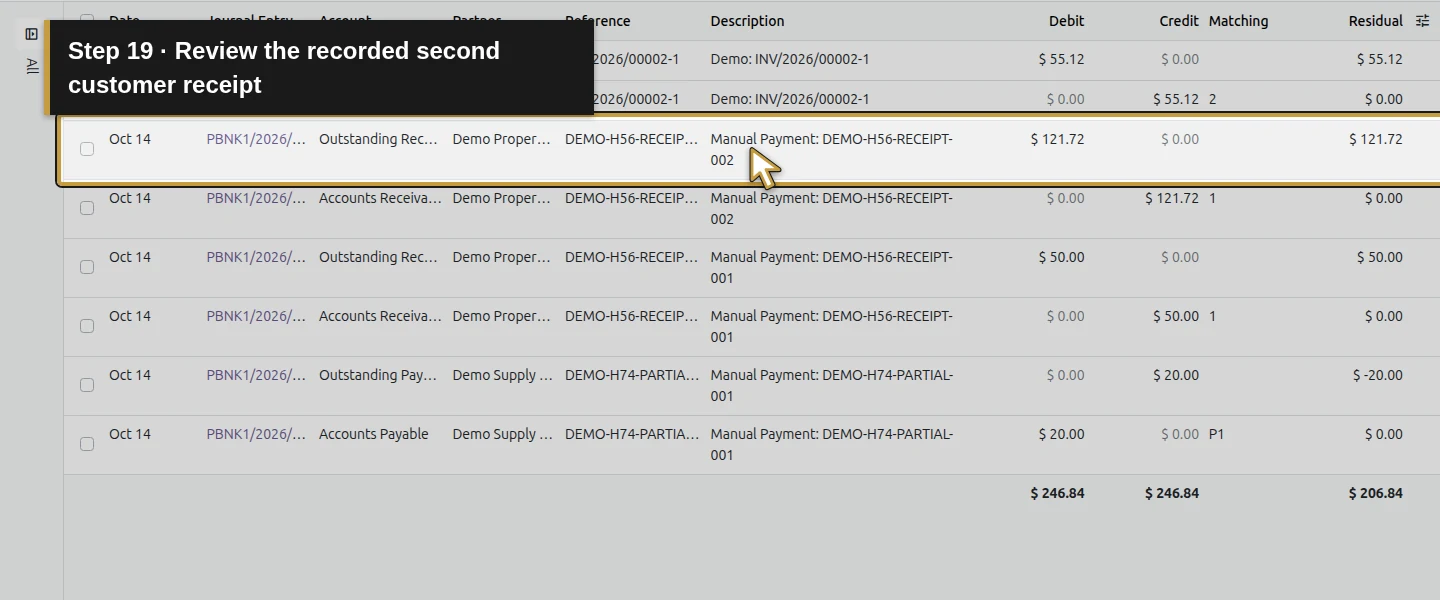
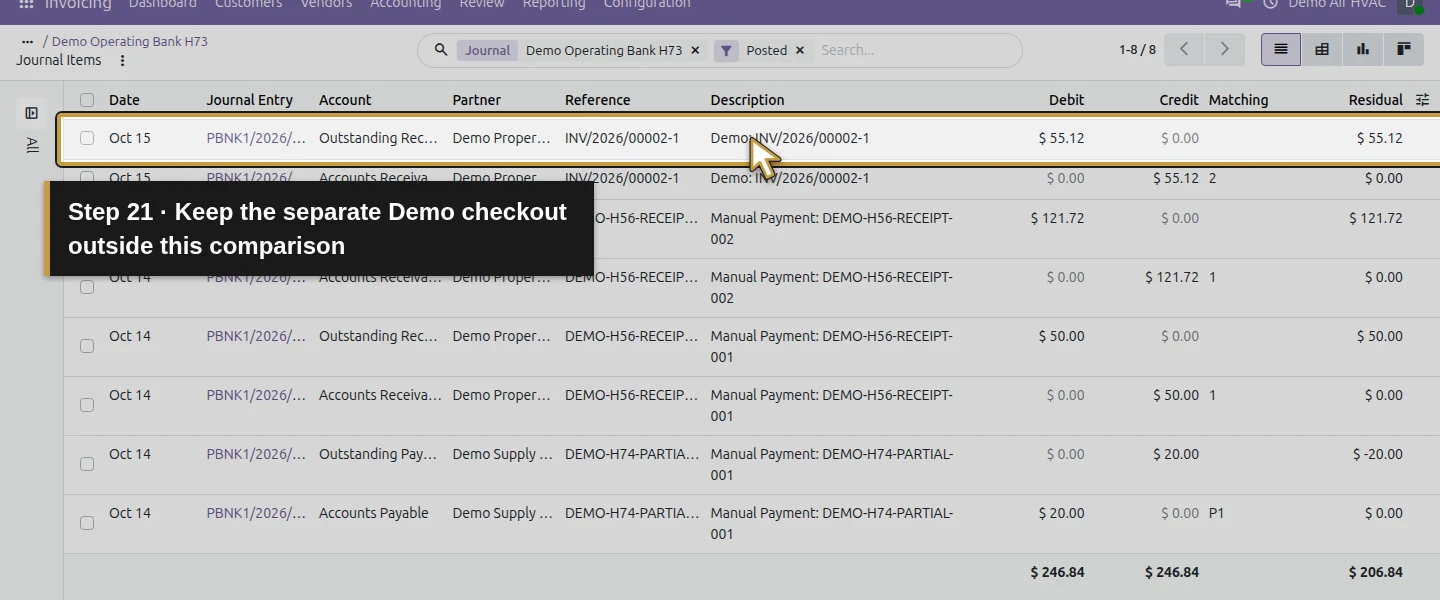
Open Demo Operating Bank H73 through Configuration → Journals and verify its existing Bank type and fictional account. Click that journal’s Journal Items button so the list retains its journal context. Keep the Journal: Demo Operating Bank H73 and Posted filters. Remove only the Journal Entry grouping to see the eight underlying lines. There are four payment entries with two accounting lines each, not eight separate cash movements. The inspected list has no New button.
Check the journal filter and eight-line count before selecting records. Opening a saved child-view address directly did not retain this journal scope in the test; return to the parent journal and use Journal Items if that filter is missing.
Step 3. Expose the reference and residual columns
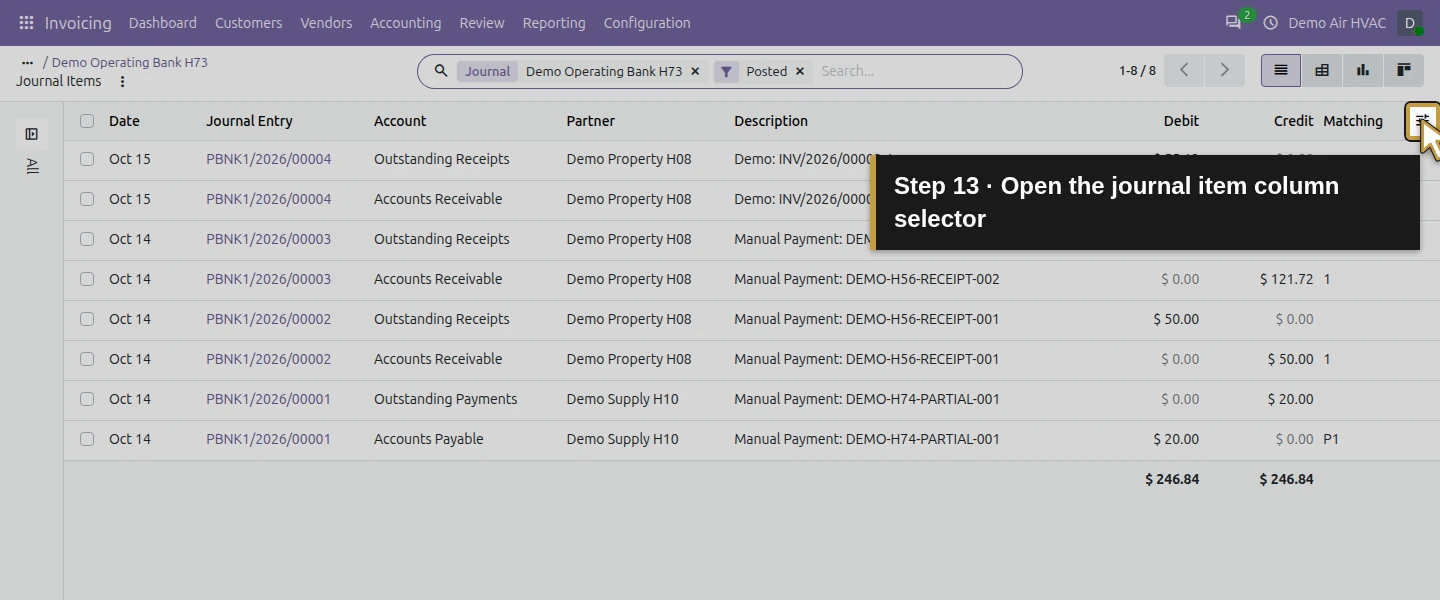
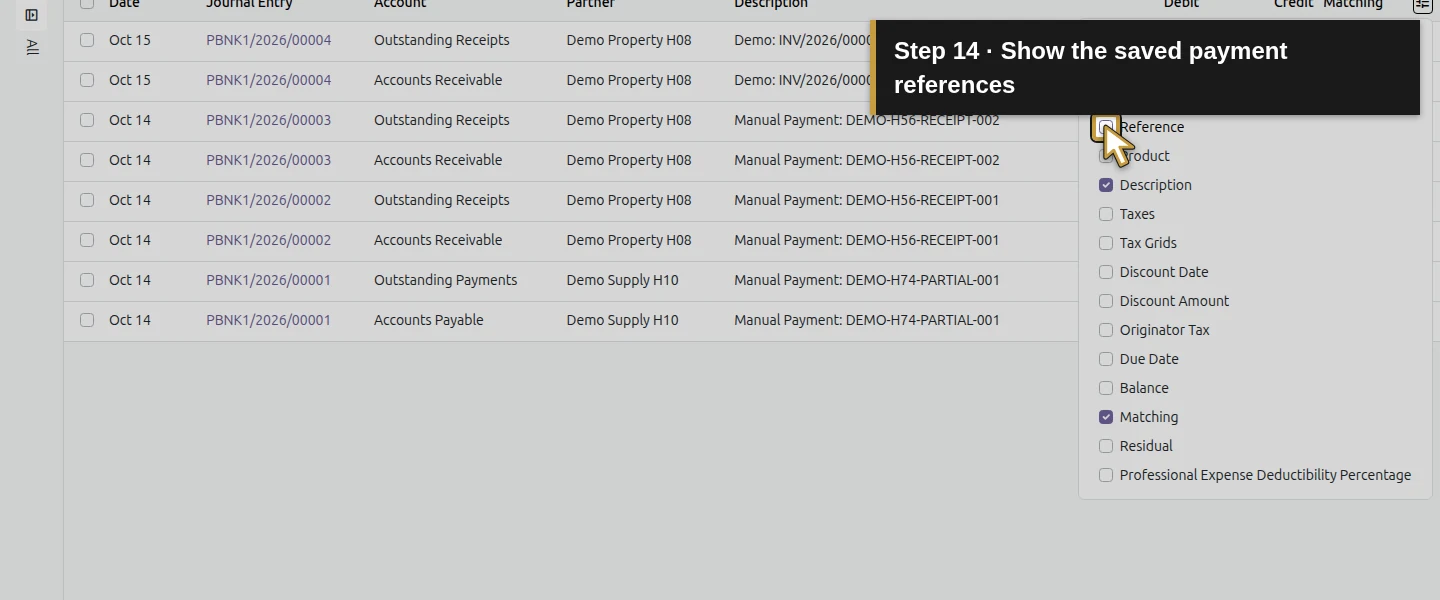
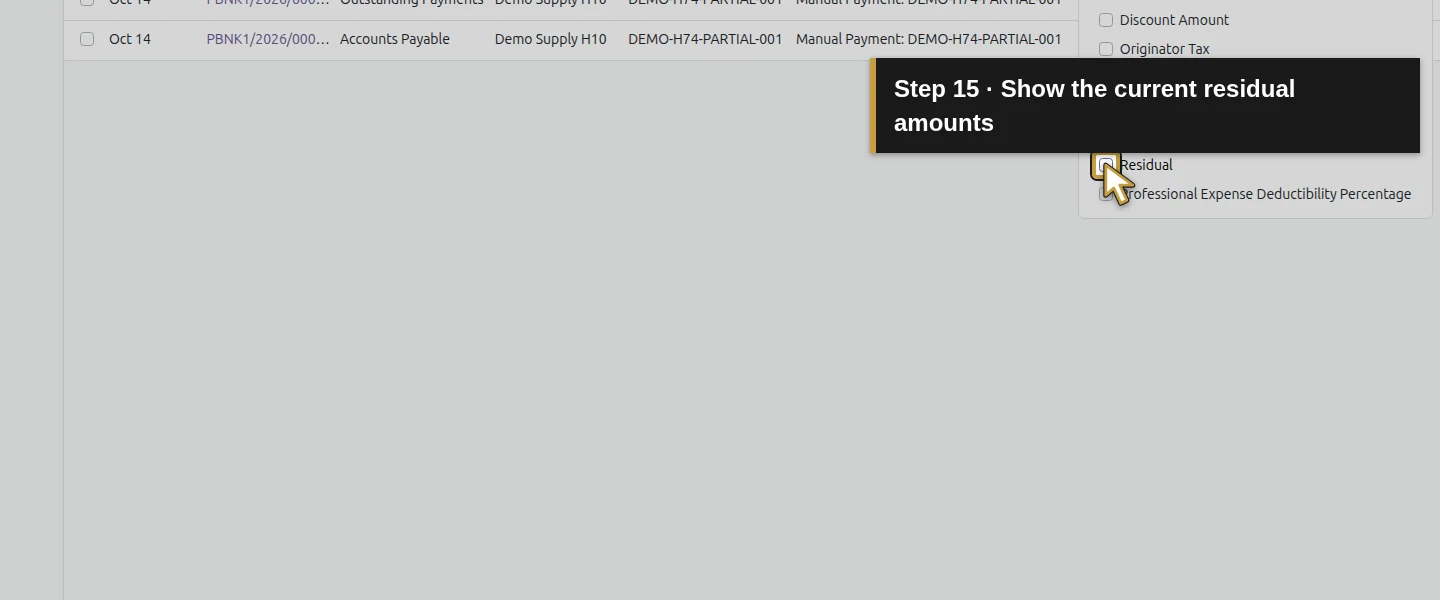
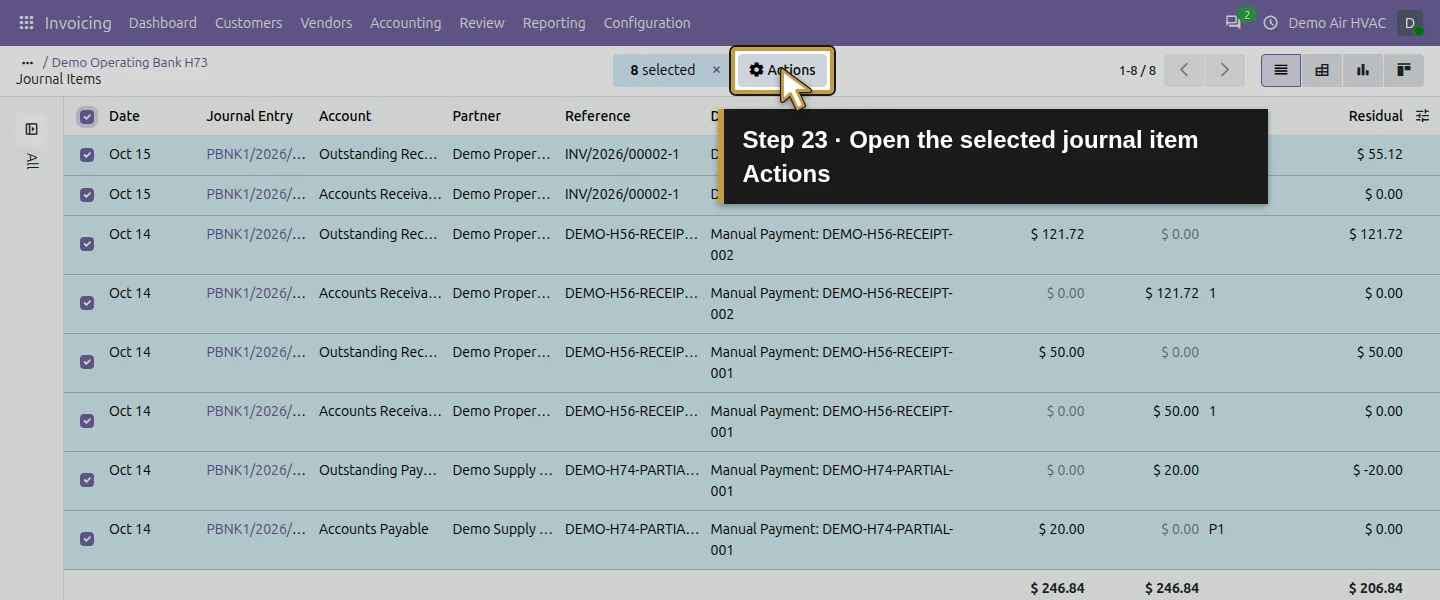
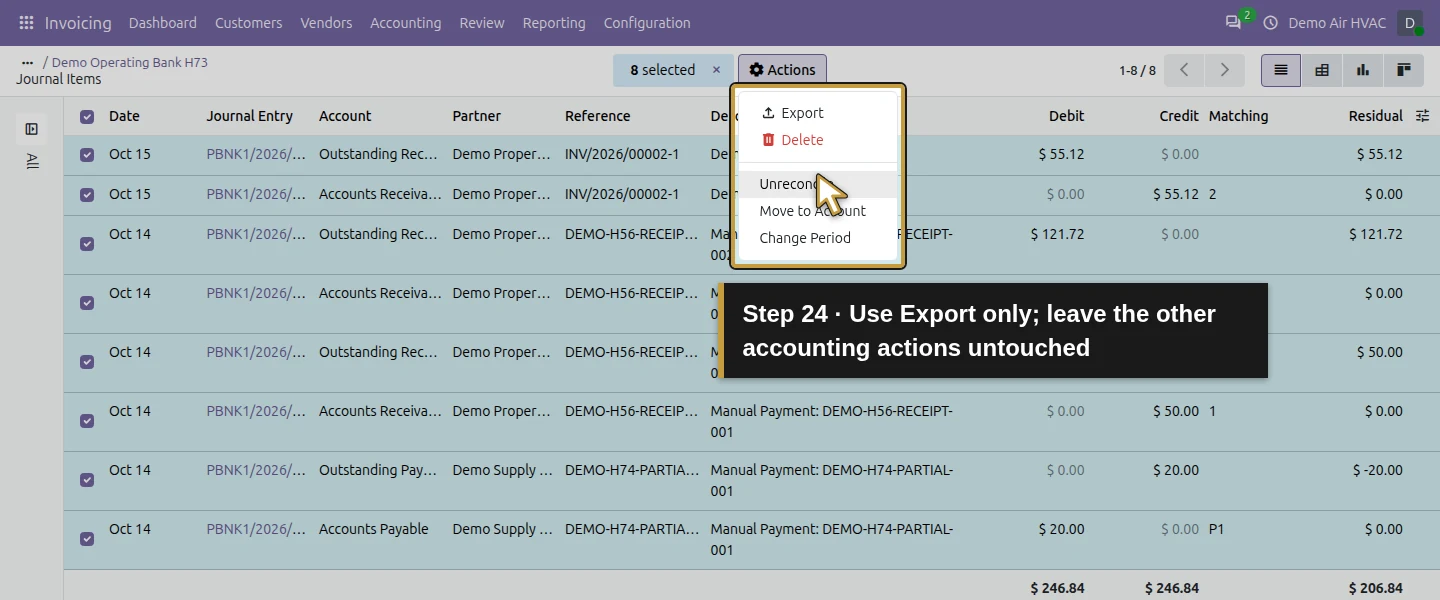
Open the column selector tune, check Reference and Residual, then close the selector. Inspect the existing manual-payment references and the separate Demo checkout entry. Selecting the eight rows and opening Actions offered Export, Delete, Unreconcile, Move to Account and Change Period, with no Reconcile action. Choose Export for this lesson and leave the other actions unused. An available model or field named Statement or Reconciliation Model does not establish a complete statement-processing screen.
Step 4. Export the actual journal items as CSV
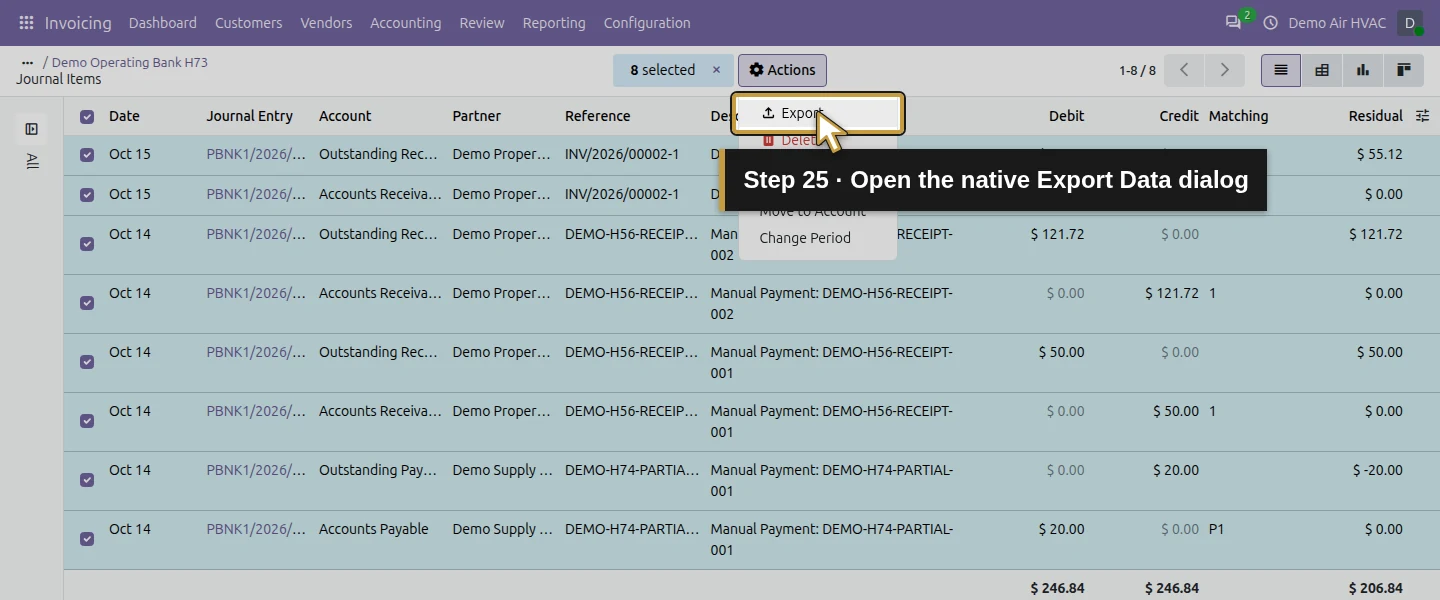
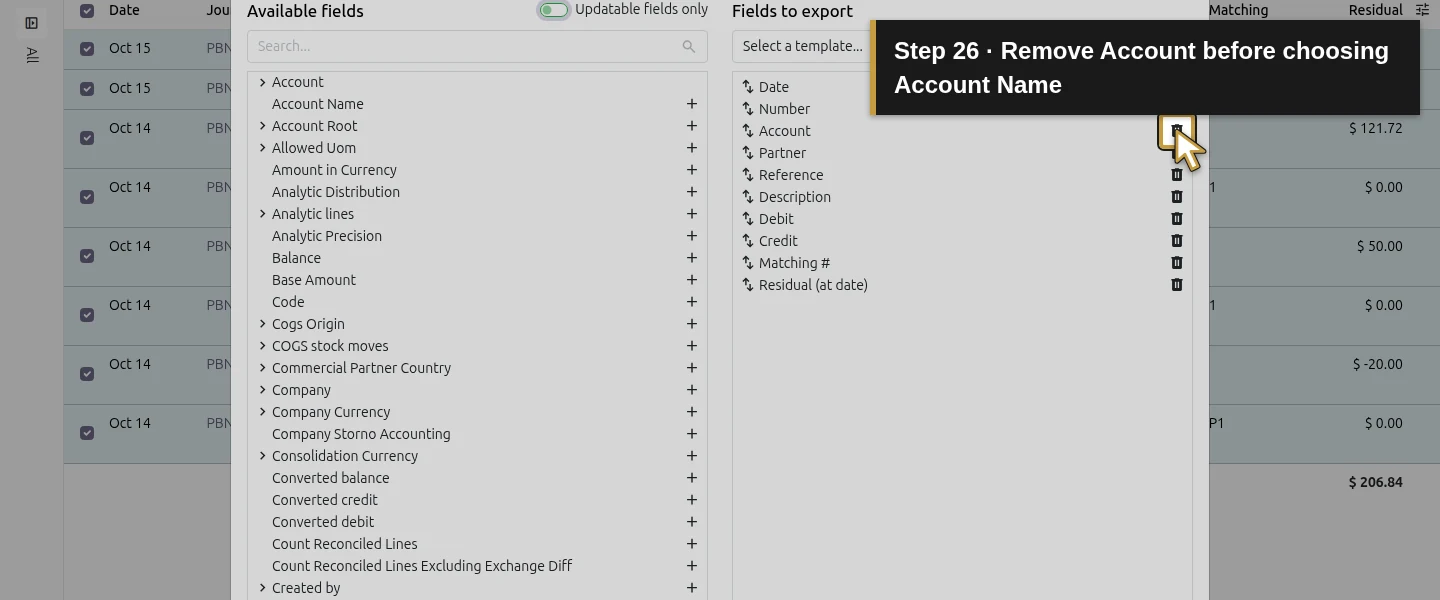
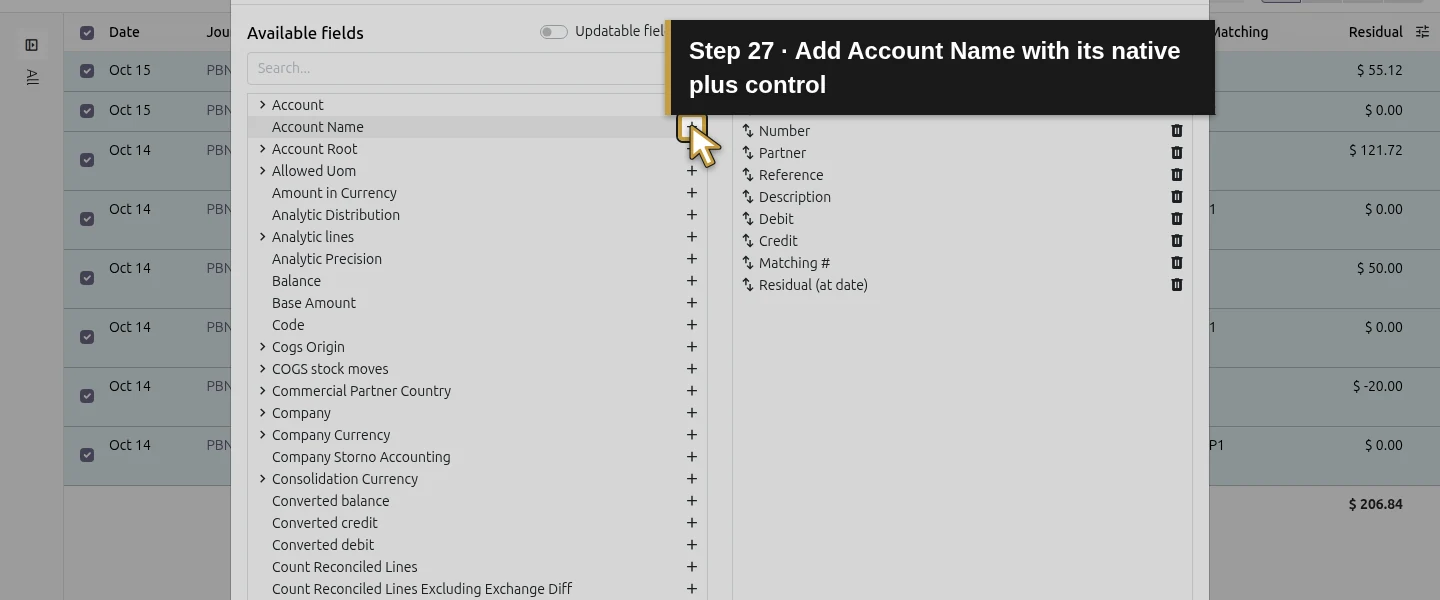
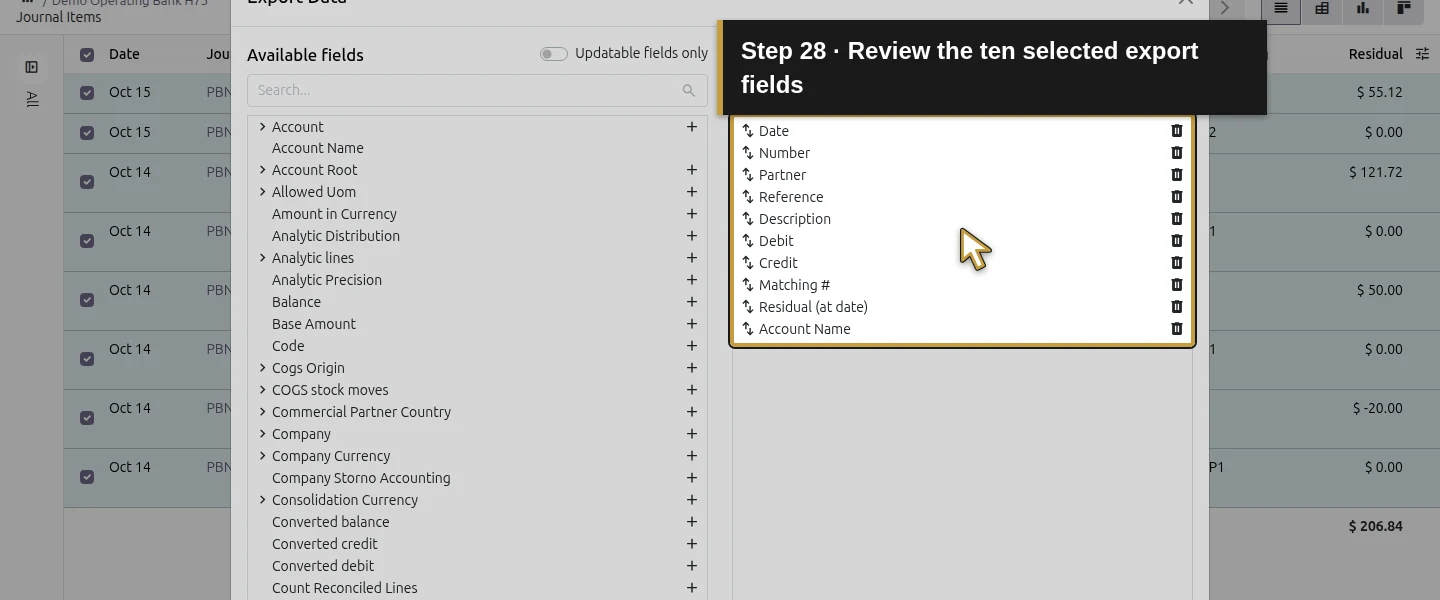
Select the eight rows and choose Actions → Export. In Export Data, retain Date, Number, Partner, Reference, Description, Debit, Credit, Matching # and Residual (at date). Remove the default Account field from Fields to export. Find Account Name in Available fields and click its + control to add it. Check that the ten fields appear in the order listed, with Account Name last.
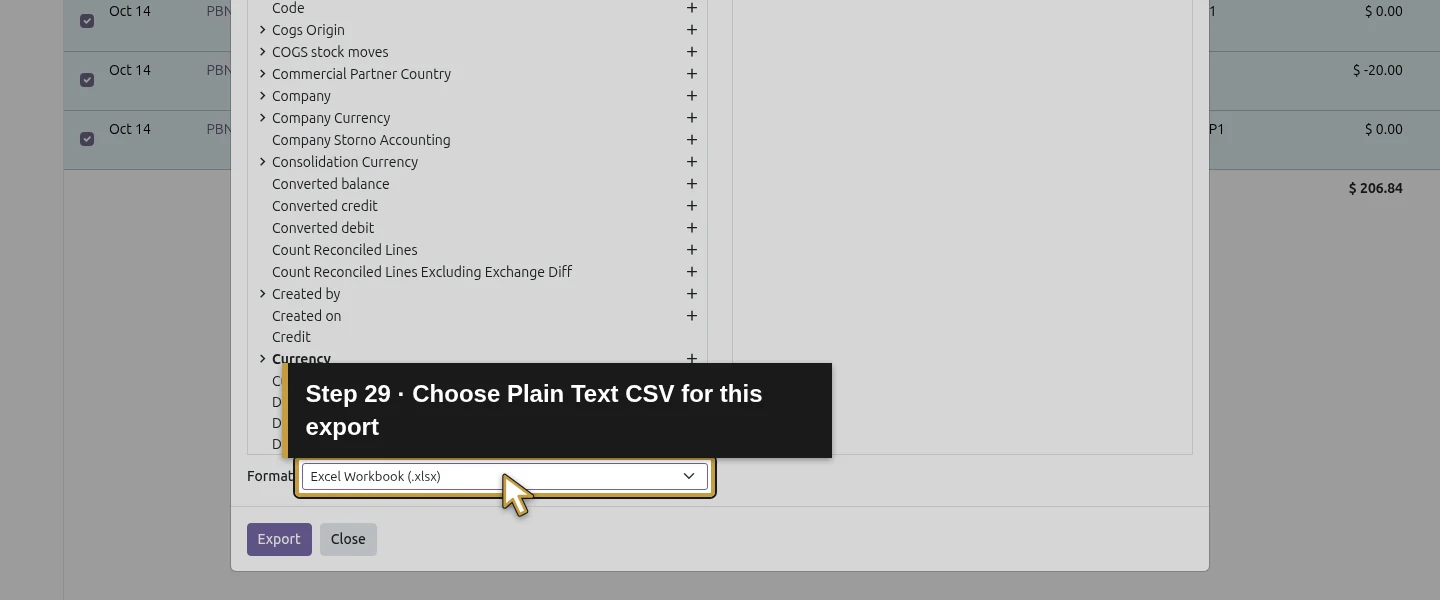
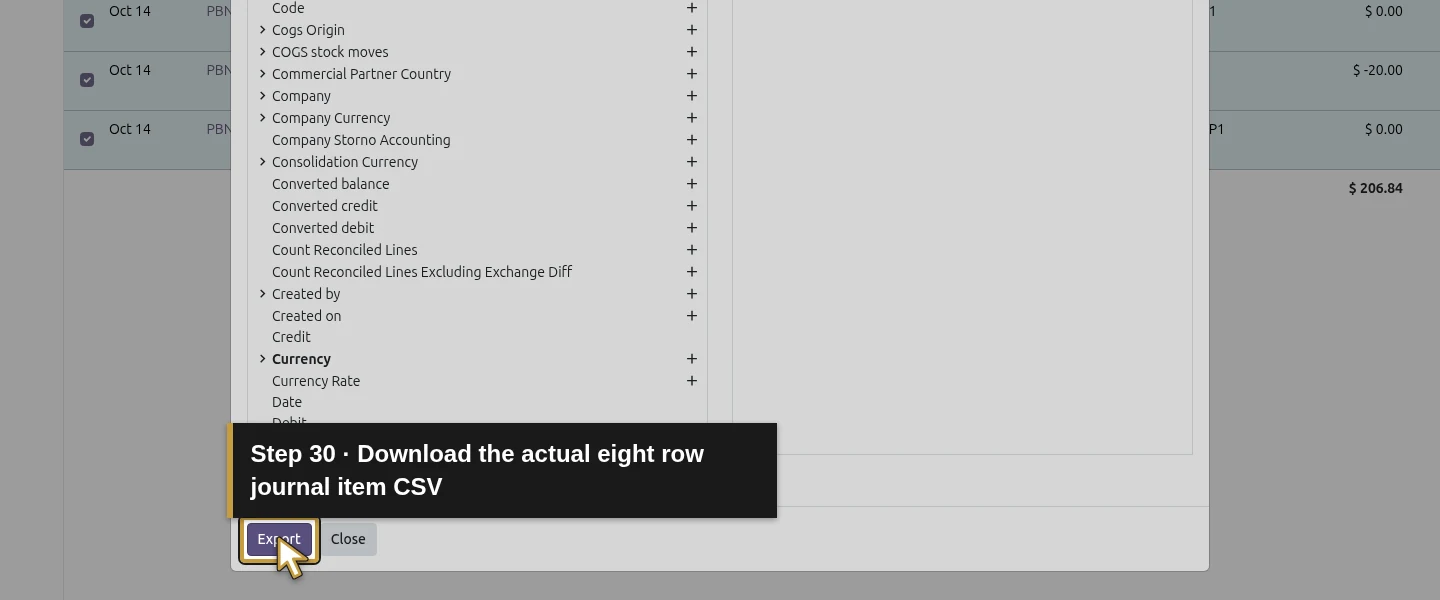
Choose Plain Text (.csv) in Format, then click Export once and save the actual download. The verified file contains eight records and ten unique columns, totalling 1,371 bytes in this example. Export reads existing records; it does not import or match a bank statement. Close the export dialog after downloading. The example Odoo export preserves the exact downloaded bytes.
Step 5. Compare the two customer receipt rows
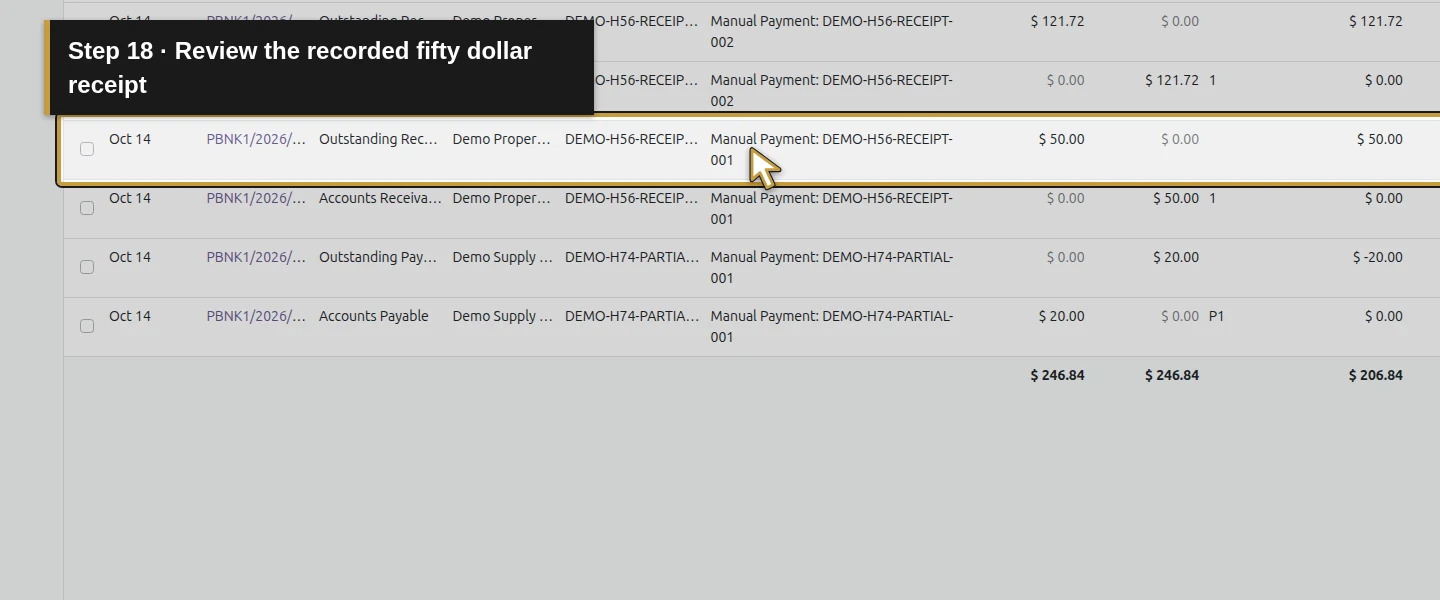
Compare the synthetic statement by reference, date, direction and amount, using the Outstanding Receipts row for each receipt rather than counting both accounting lines. DEMO-H56-RECEIPT-001 on October 14 is +$50 and agrees with PBNK1/2026/00002. DEMO-H56-RECEIPT-002 is +$121.72 and agrees with PBNK1/2026/00003. Their receivable counterparts have zero residual and matching number 1; the Outstanding Receipts rows still have residuals $50 and $121.72 with blank matching numbers. Agreement of the evidence does not change those ledger states.
Step 6. Retain the supplier difference and missing fee
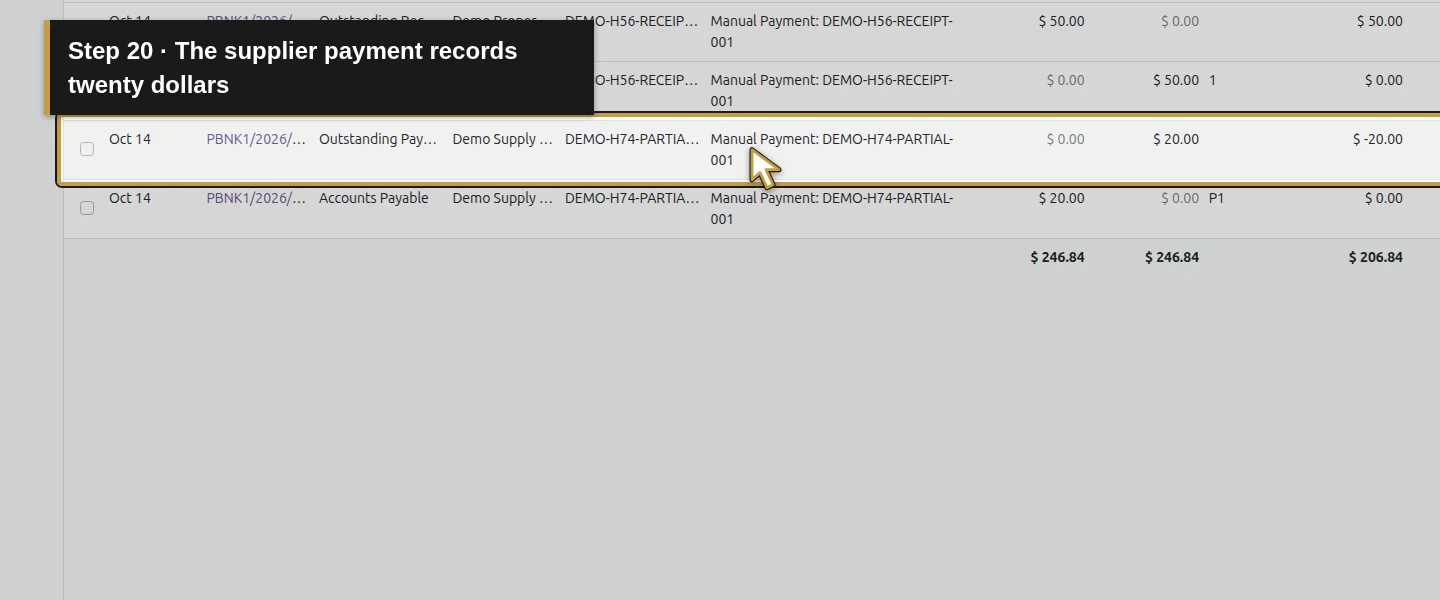
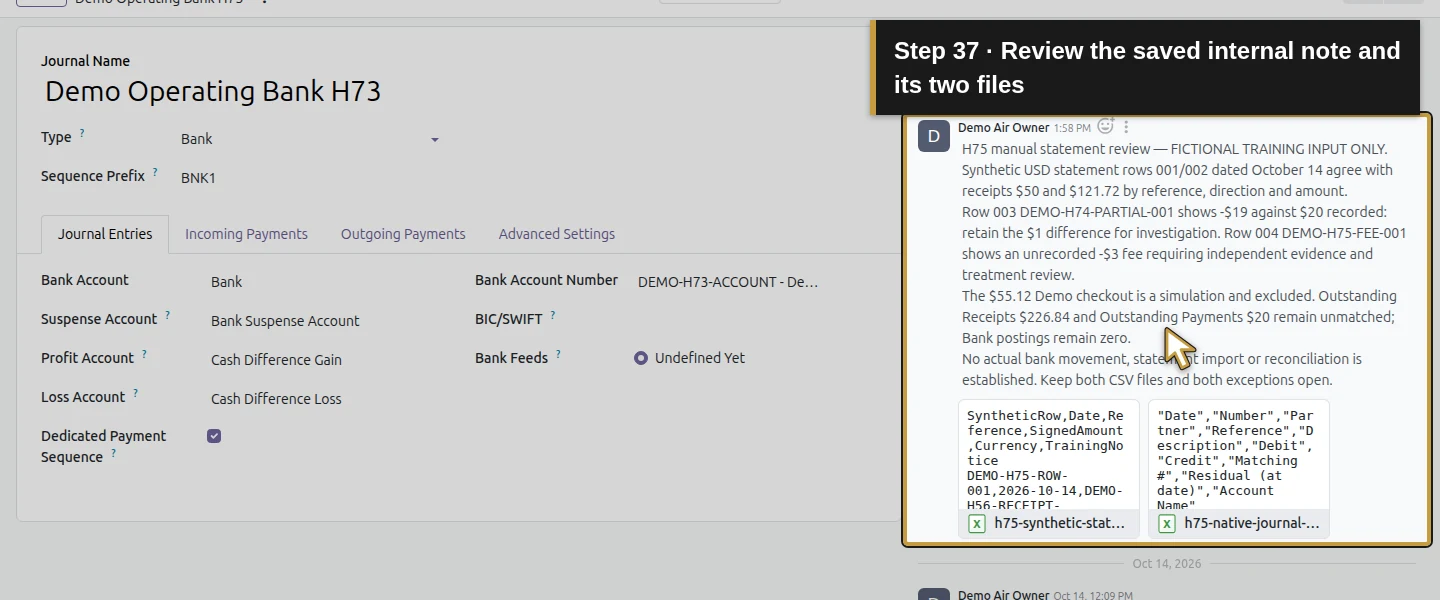
The synthetic row DEMO-H74-PARTIAL-001 shows -$19, while PBNK1/2026/00001 records $20 sent on the same date/reference. Record the $1 amount difference for investigation; do not silently change either source. DEMO-H75-FEE-001, -$3 has no corresponding recorded payment and needs separate evidence/treatment review. The $55.12 Demo checkout is a simulation and is excluded from this statement exercise. Do not infer bank receipt from its Paid/Reconciled labels.
Step 7. Save the review and both files on the journal
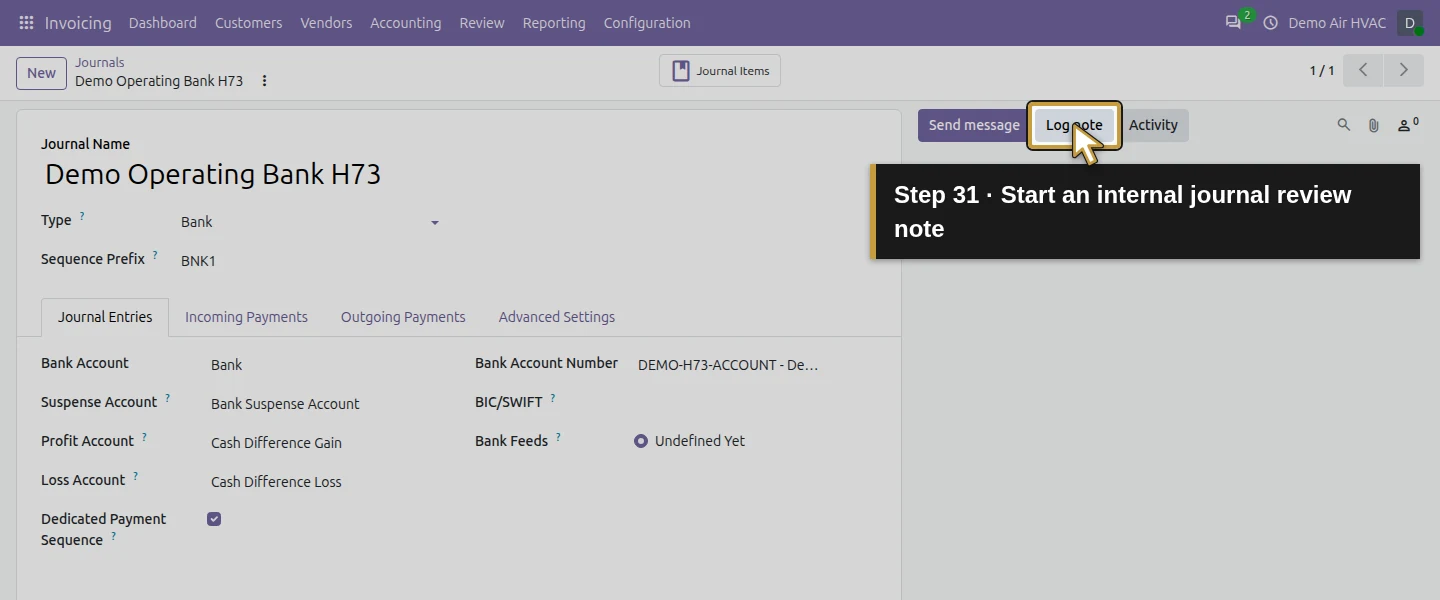
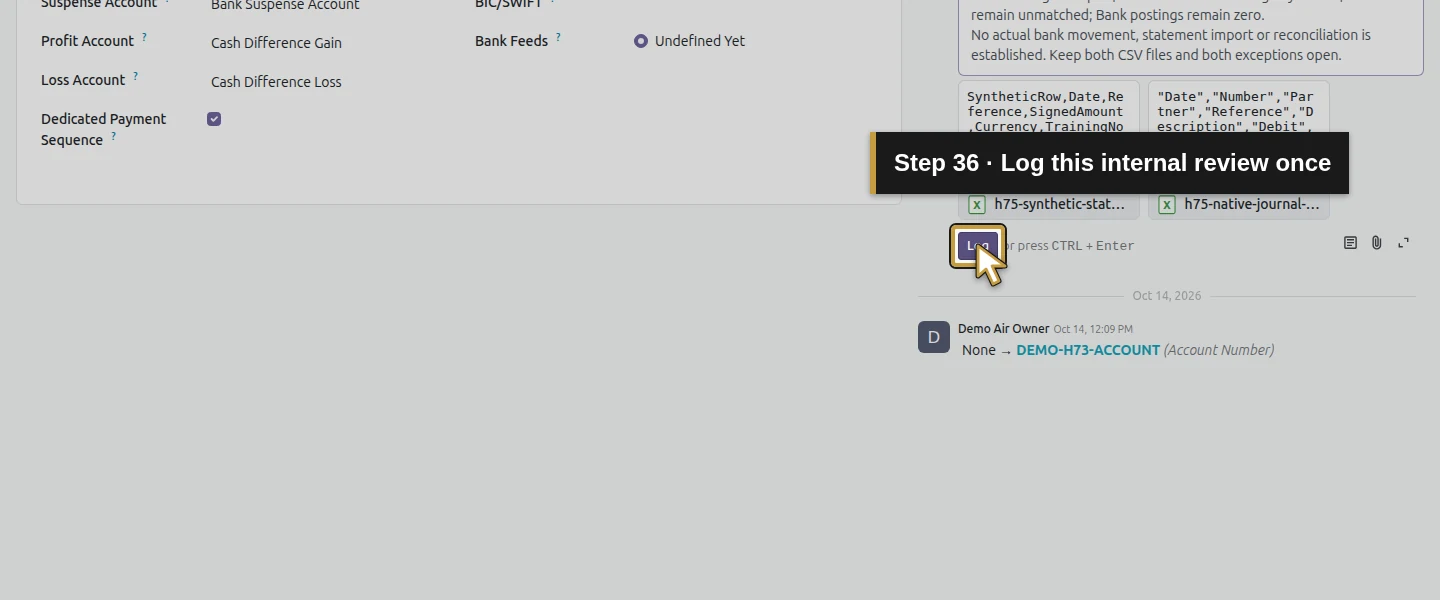
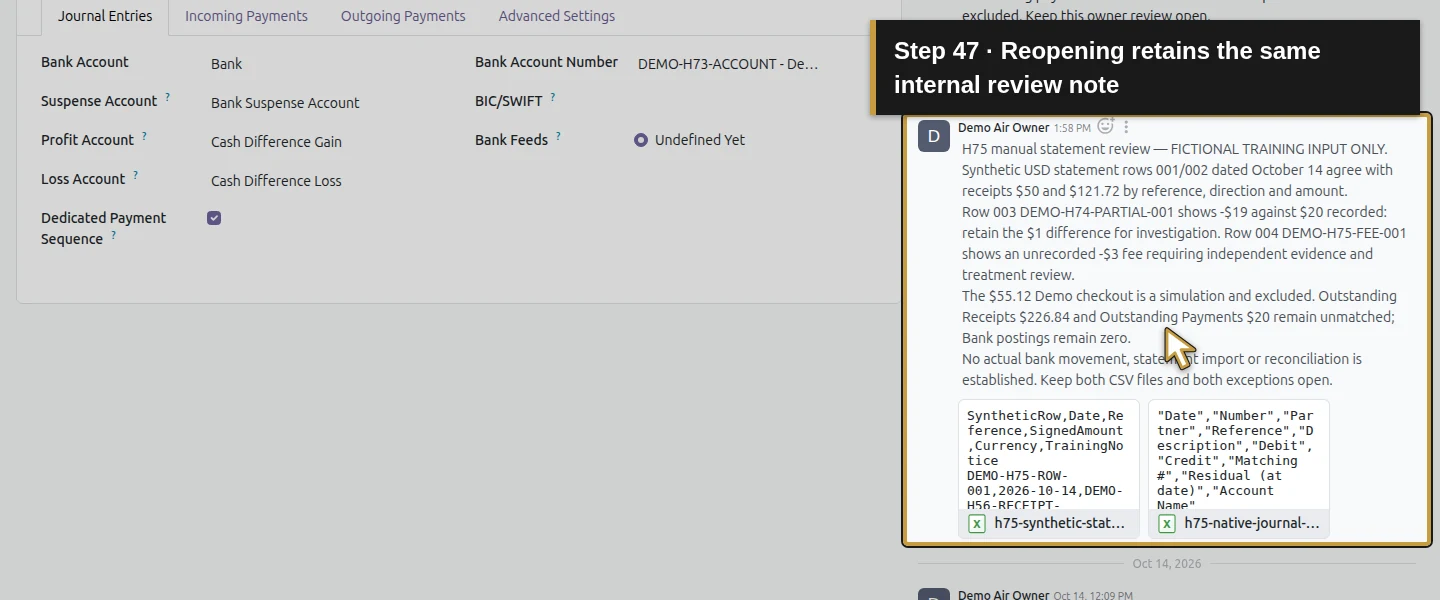
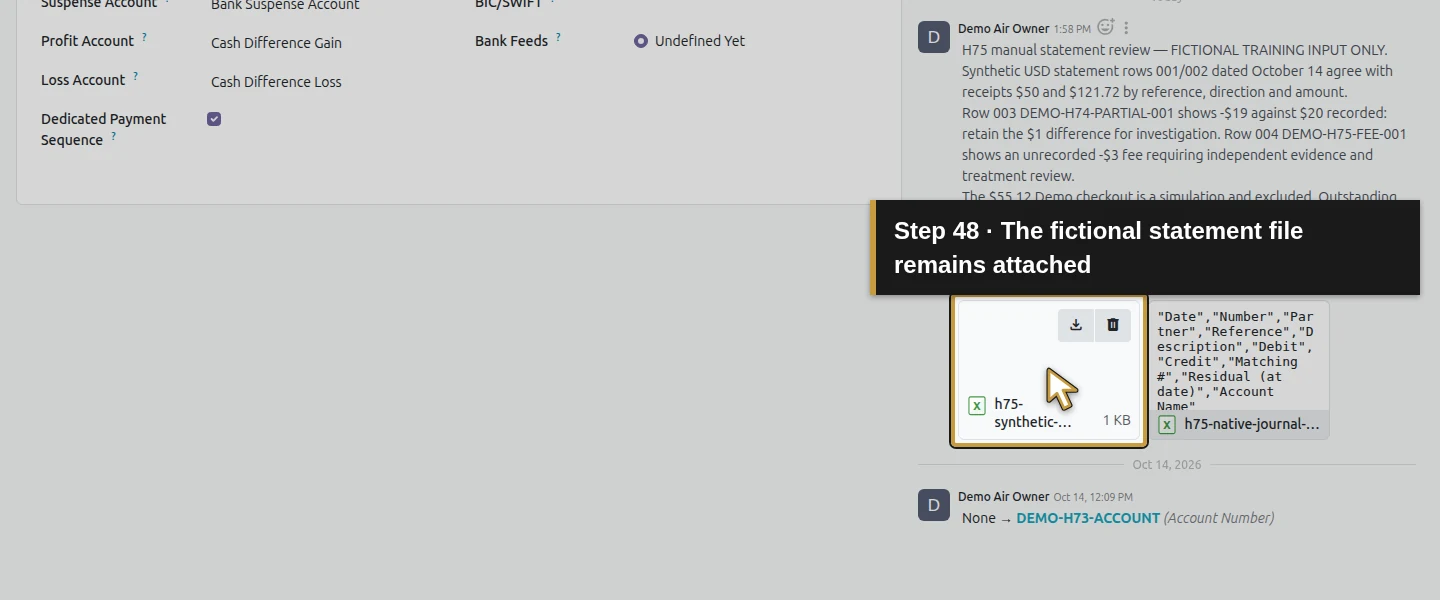
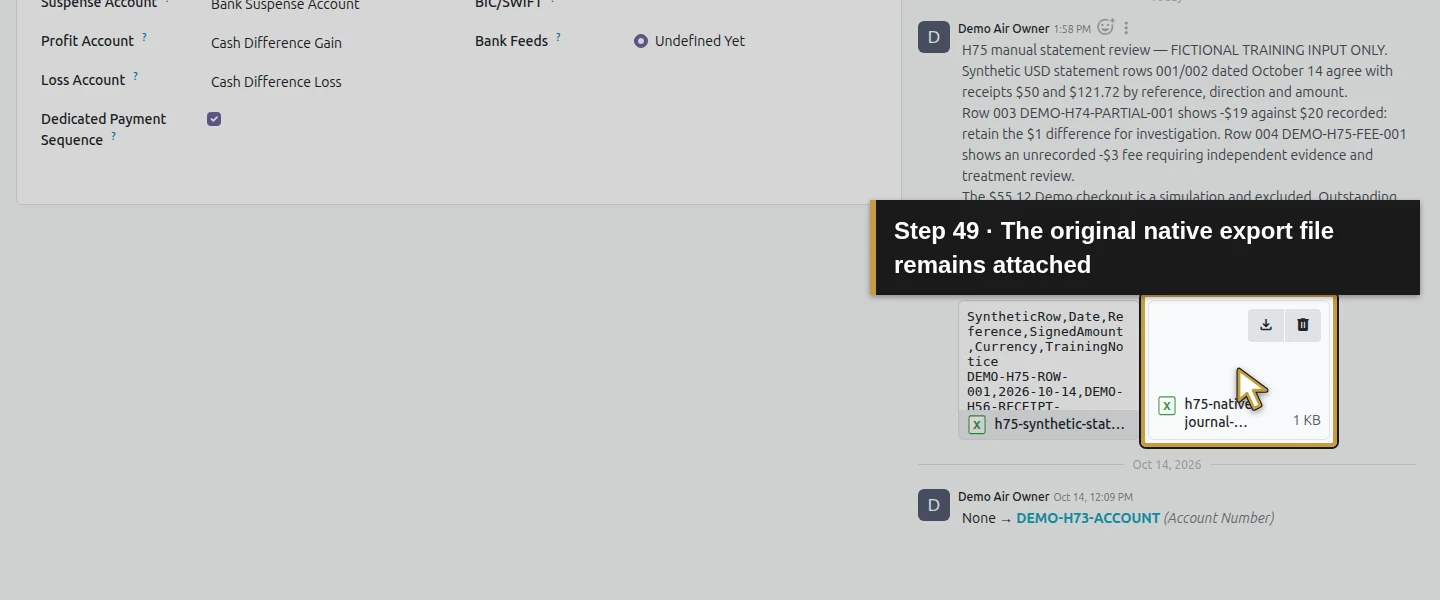
Return to the same bank journal. Click Log note, write the two agreeing rows, the $1 supplier discrepancy, the unrecorded $3 fee and the explicit statement/ledger limits. Use Attach Files to attach the labelled synthetic statement CSV and actual Odoo export. Wait for both filenames, then click Log. The saved internal note retains both files on this journal. The test checked them as the owner; it does not establish access for another role or safe public sharing.
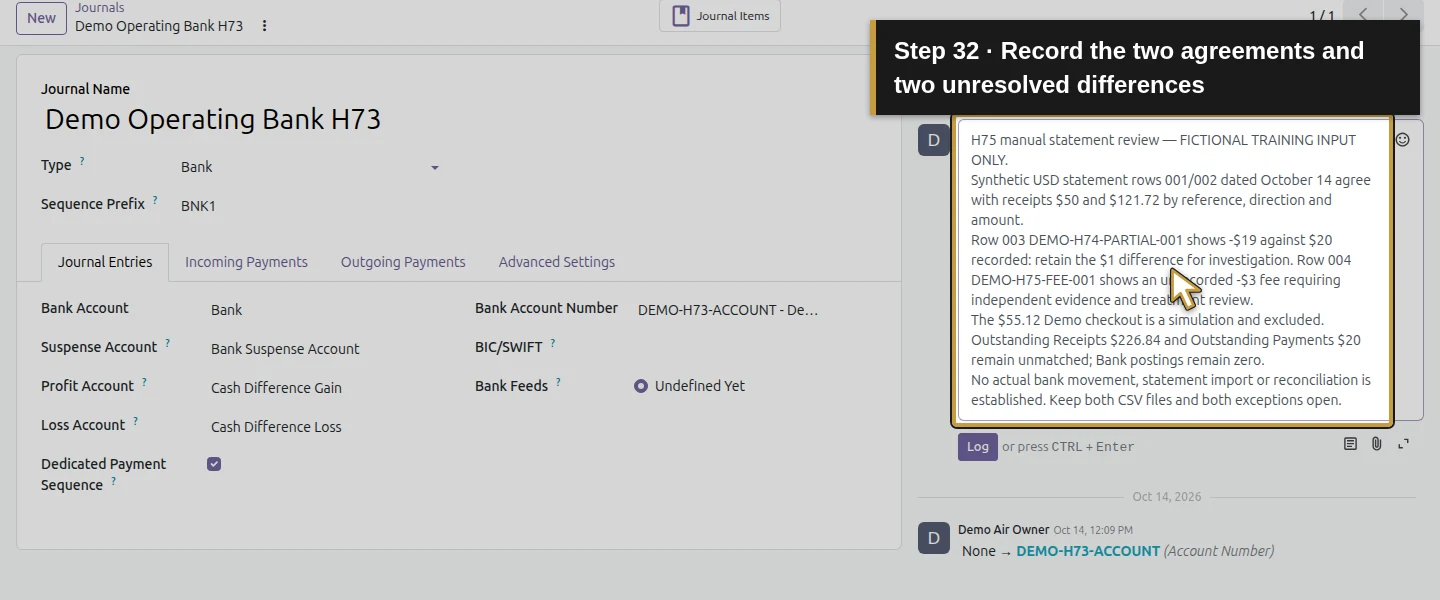
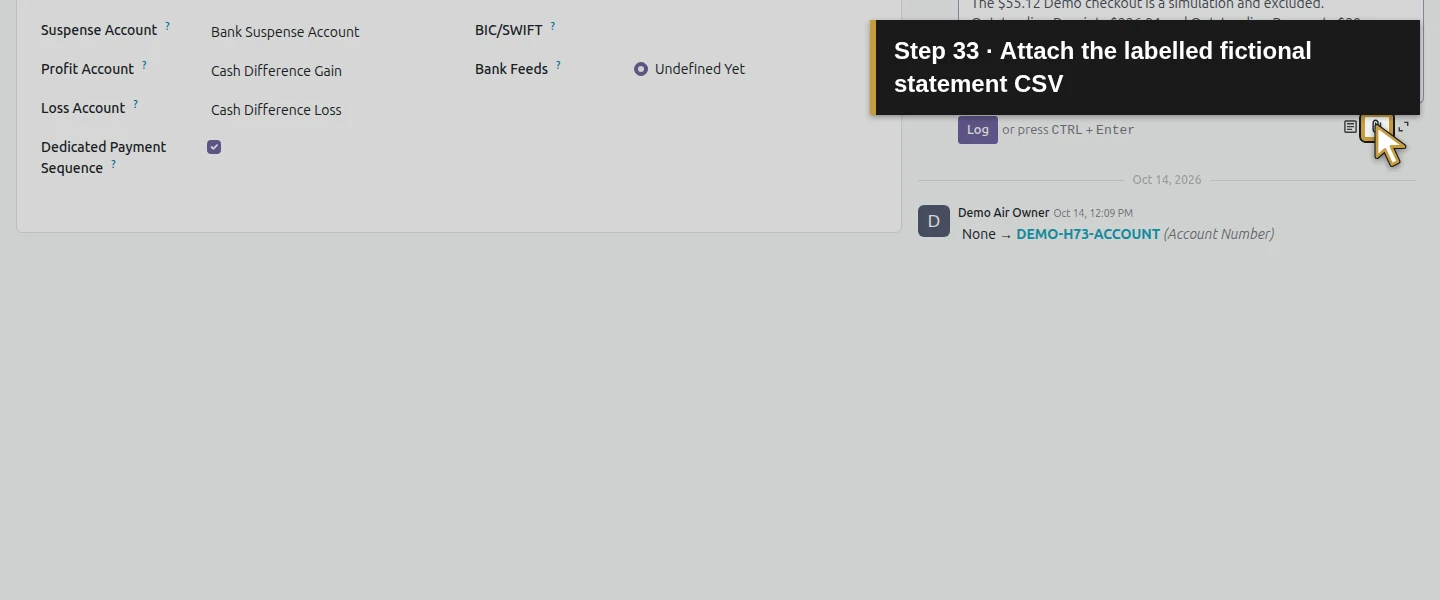
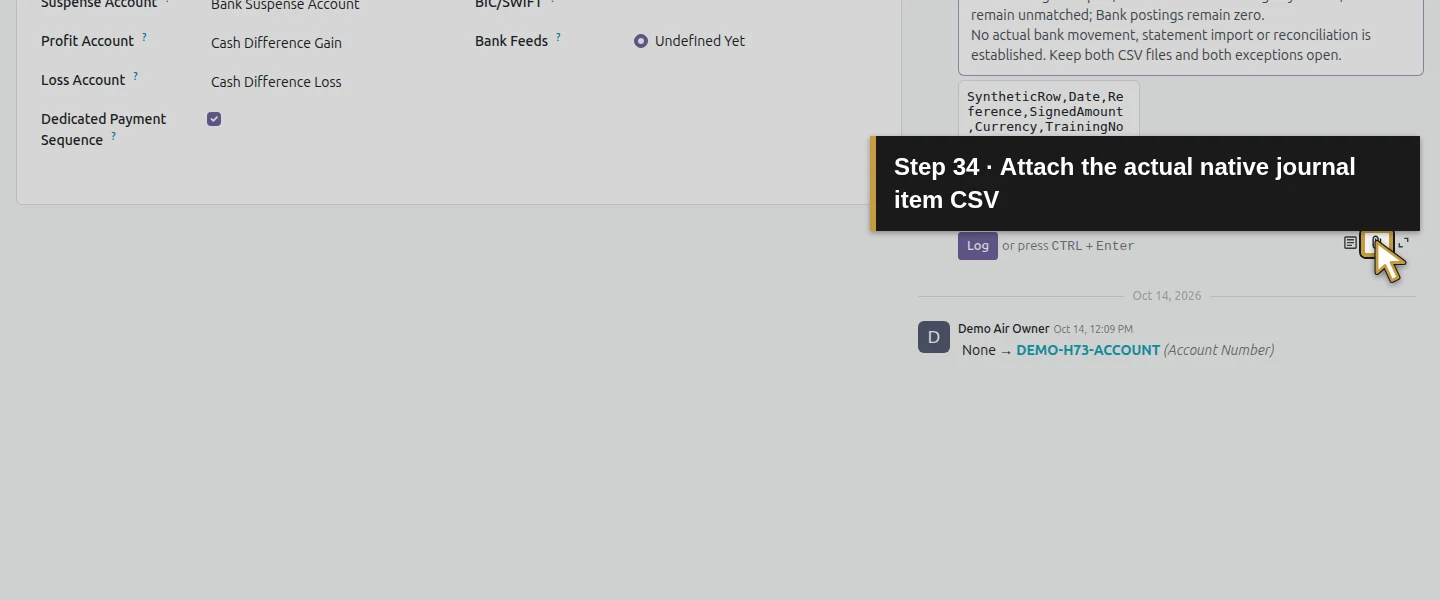
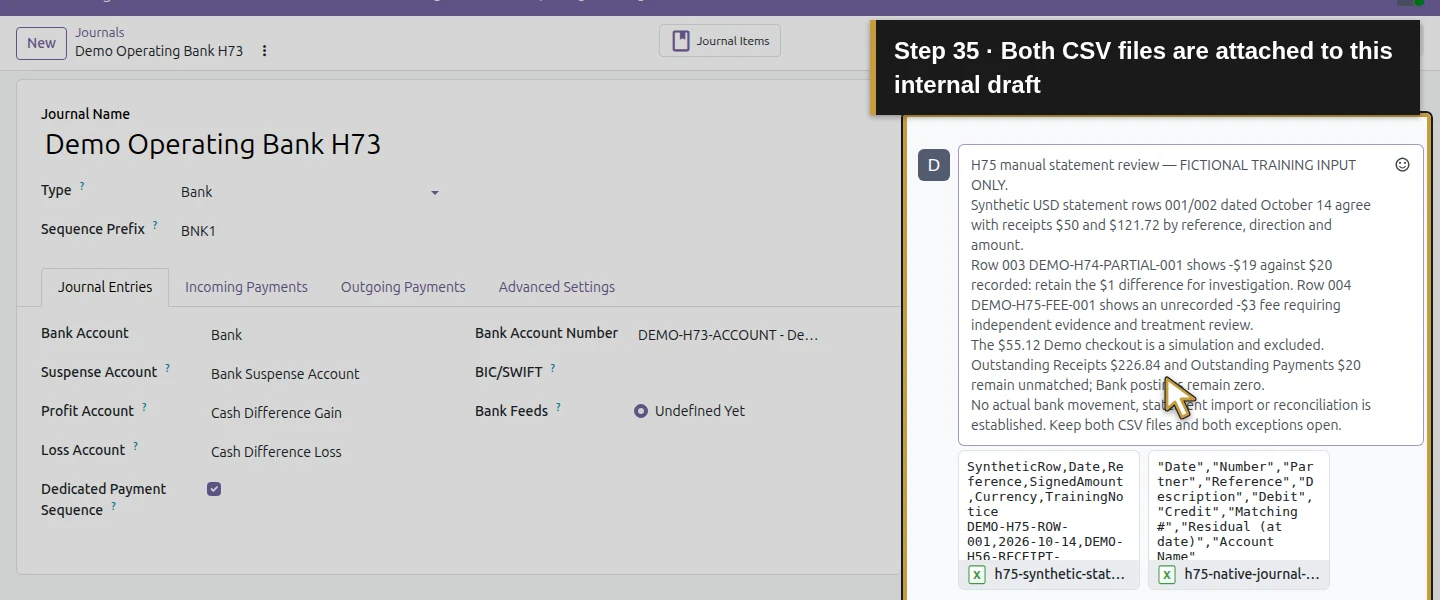
Step 8. Assign the unresolved review instead of clearing it
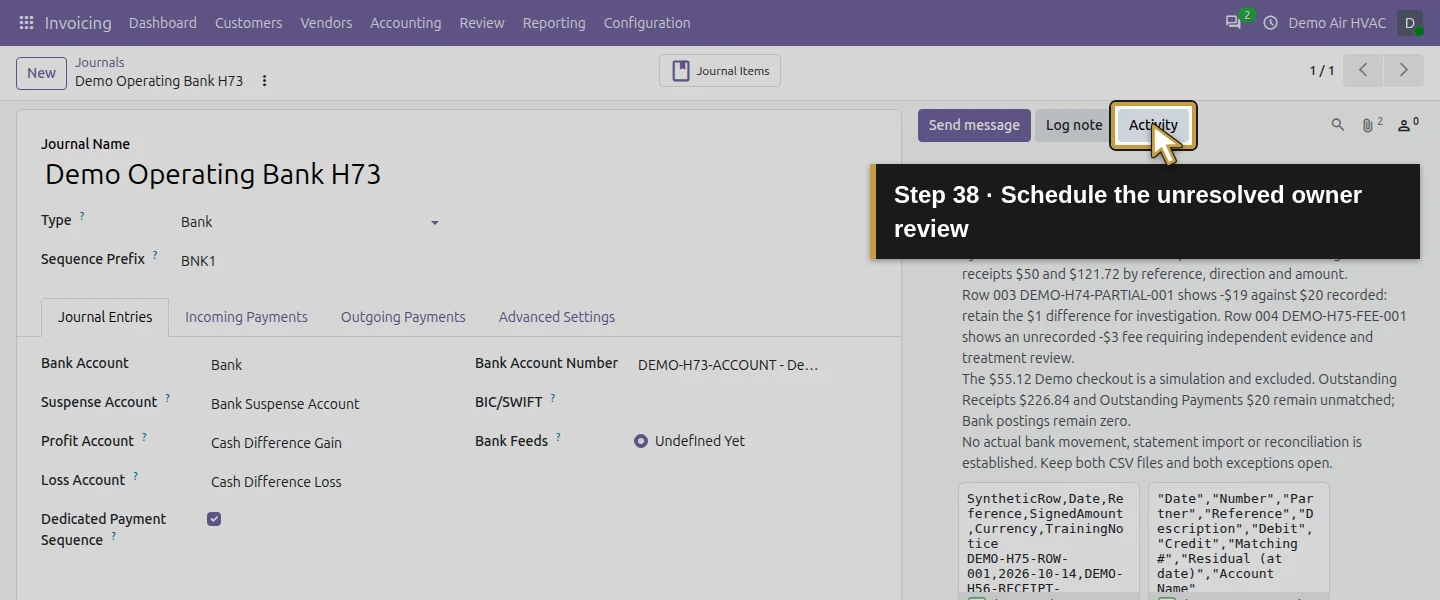
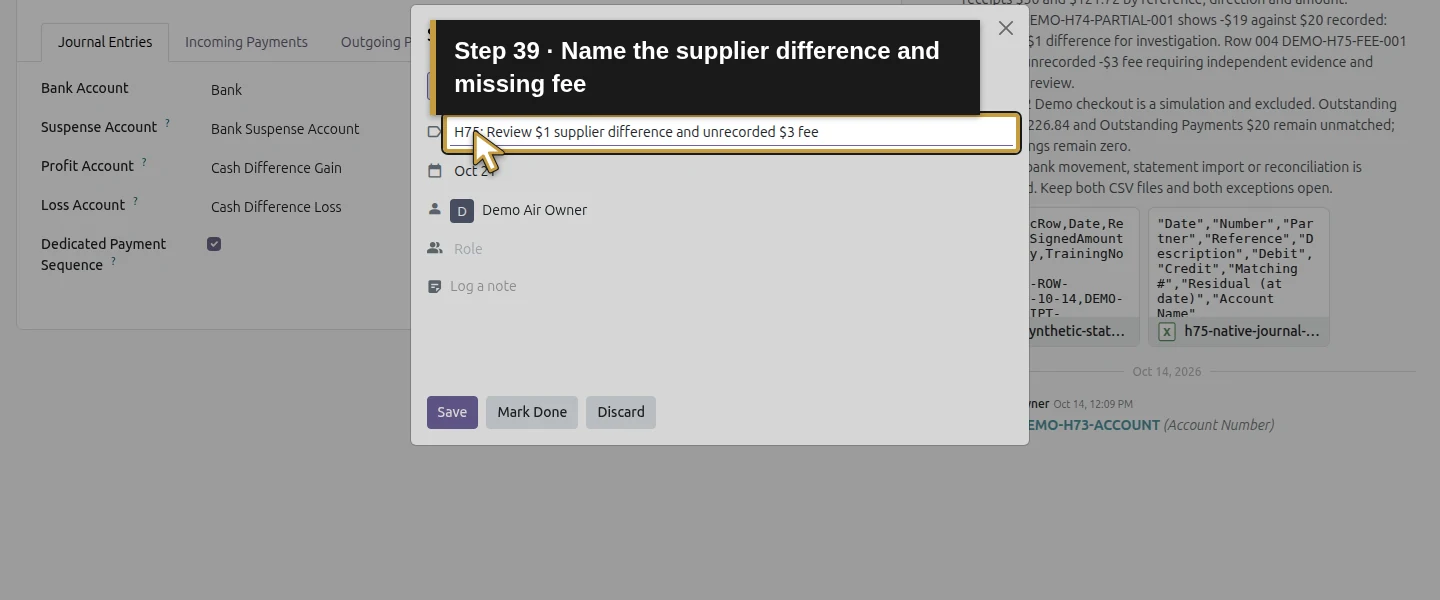
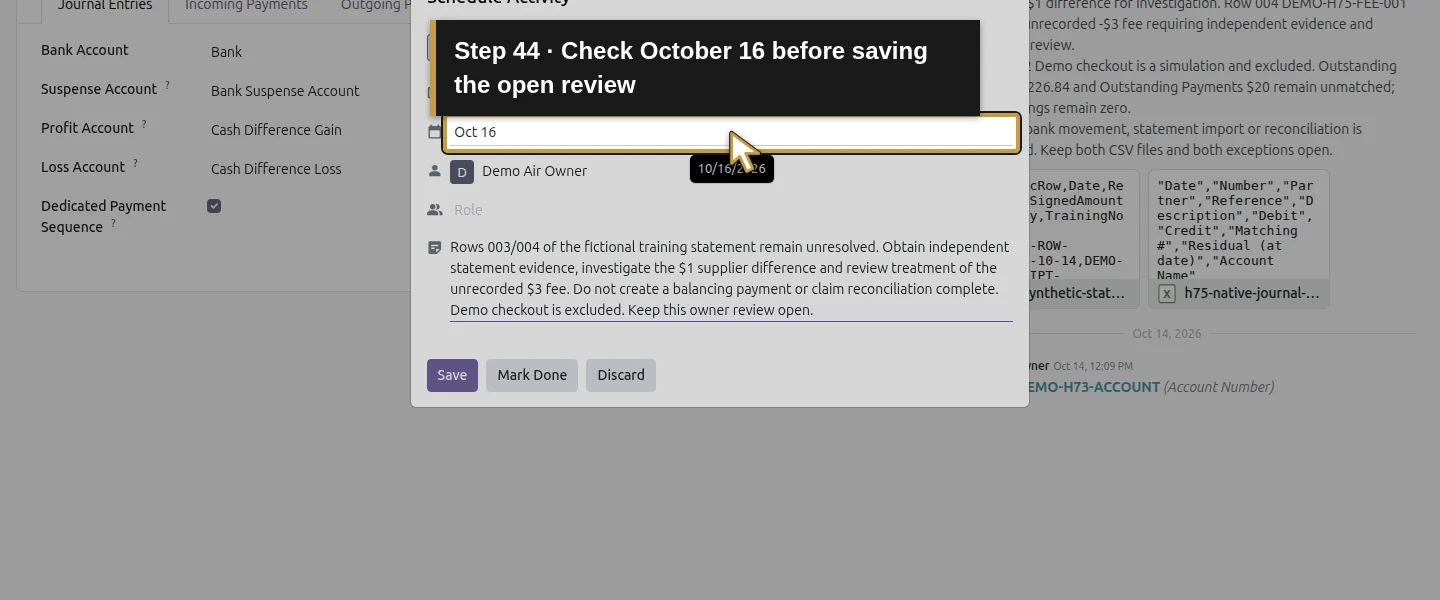
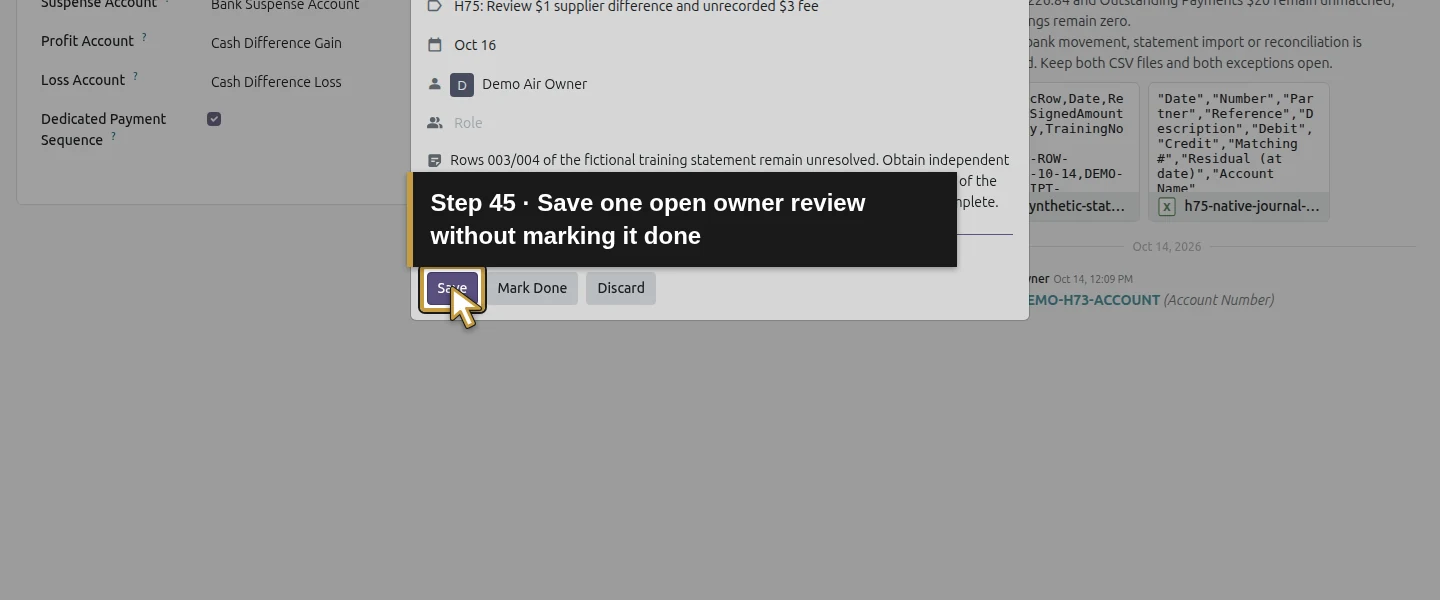
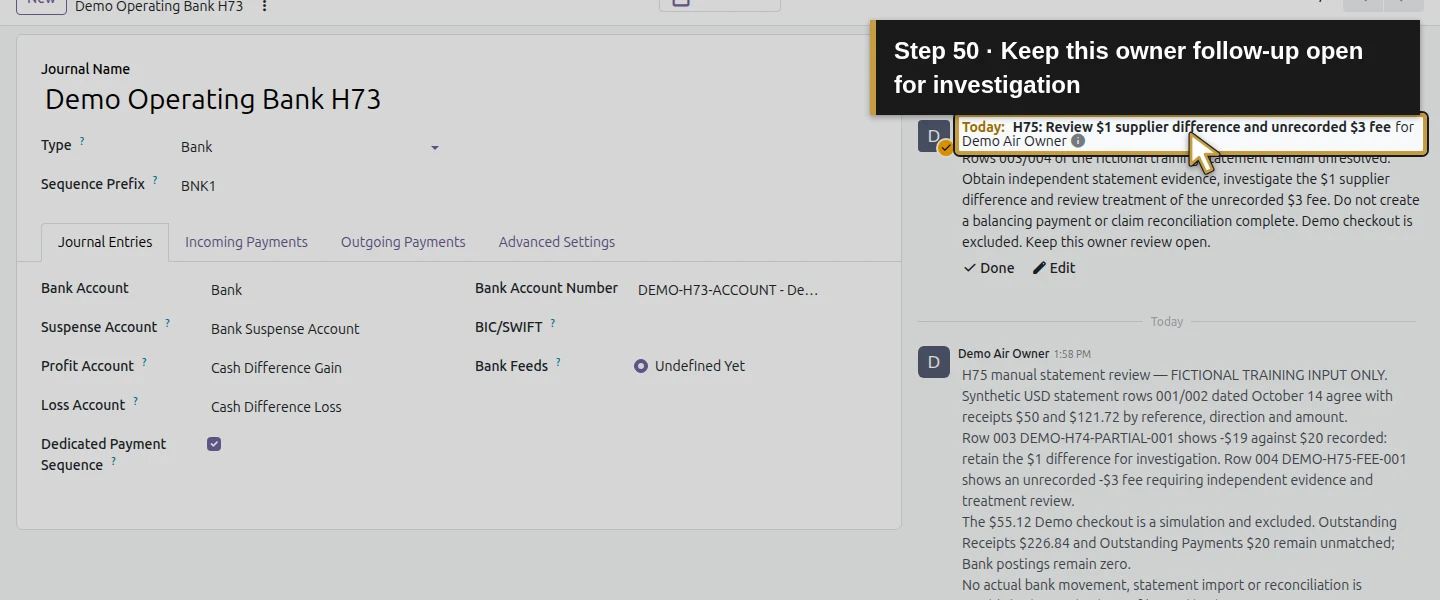
Click Activity. Keep To-Do, enter H75: Review $1 supplier difference and unrecorded $3 fee in Summary and retain Assigned to: Demo Air Owner. Click the displayed due date to edit Due on, set 10/16/2026, and commit the date. In the note, identify rows 003/004, require independent evidence and retain the instruction against a balancing payment or a reconciliation-complete claim. Click Save, not Mark Done. This creates an open owner follow-up; it does not fix the amounts or schedule a bank import.
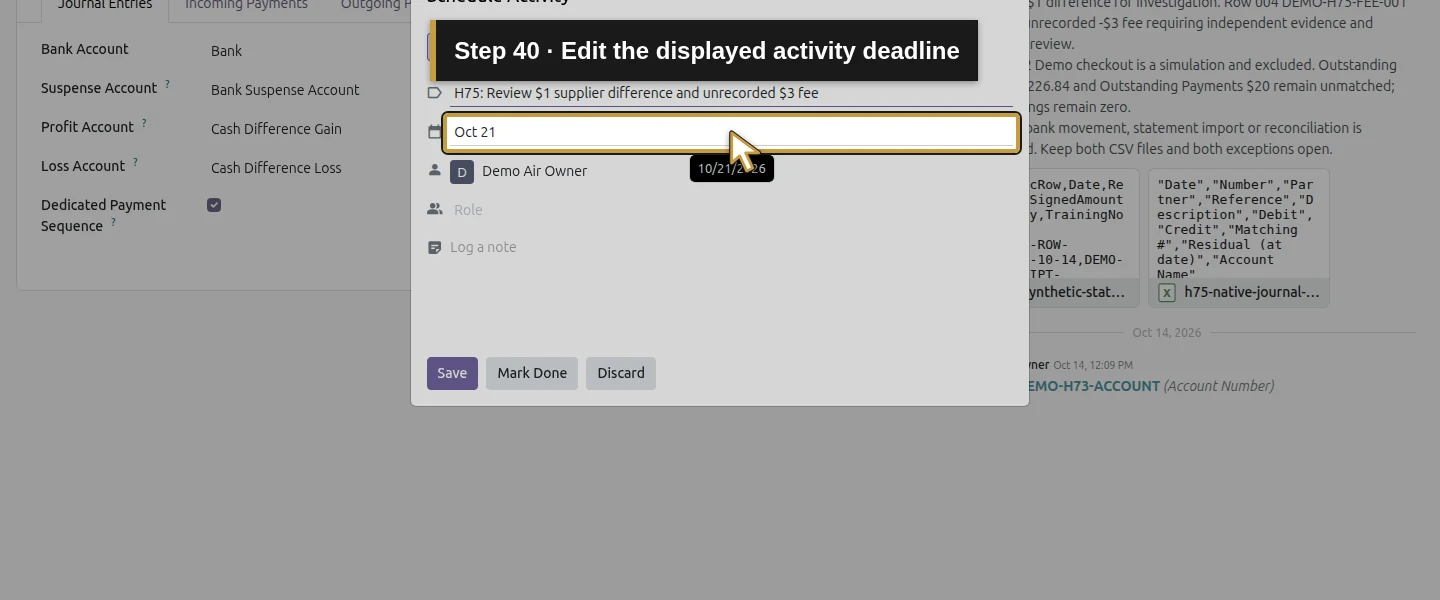
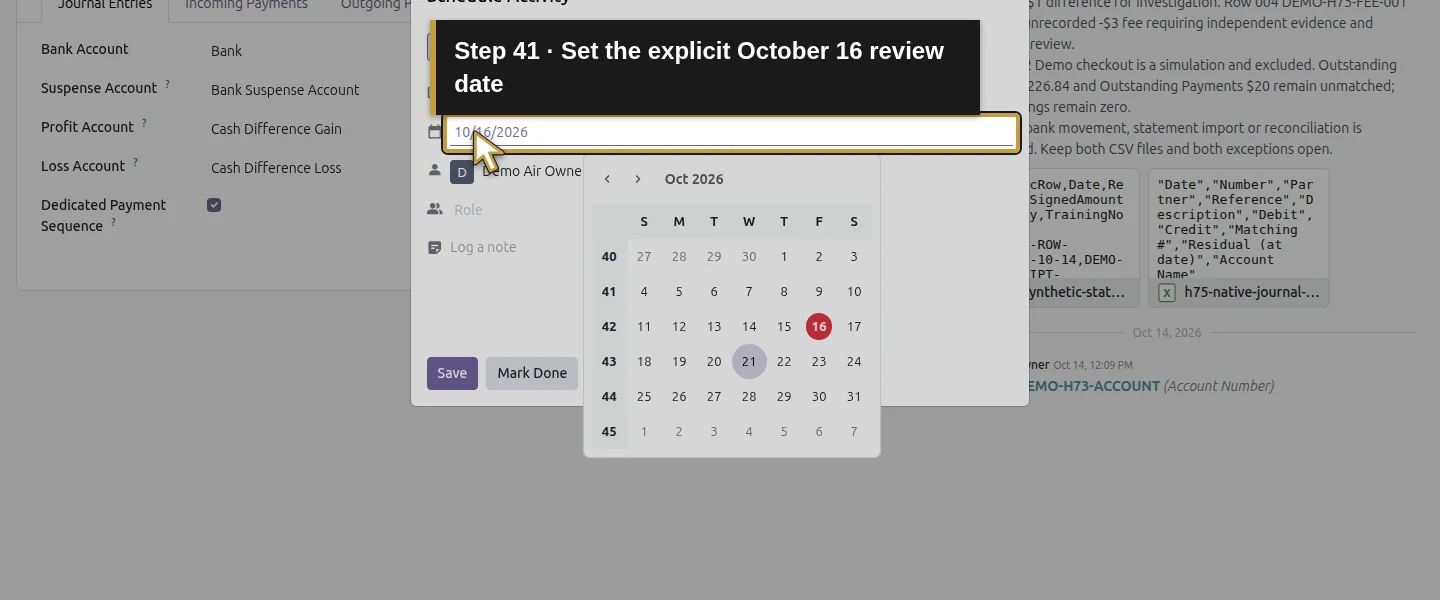
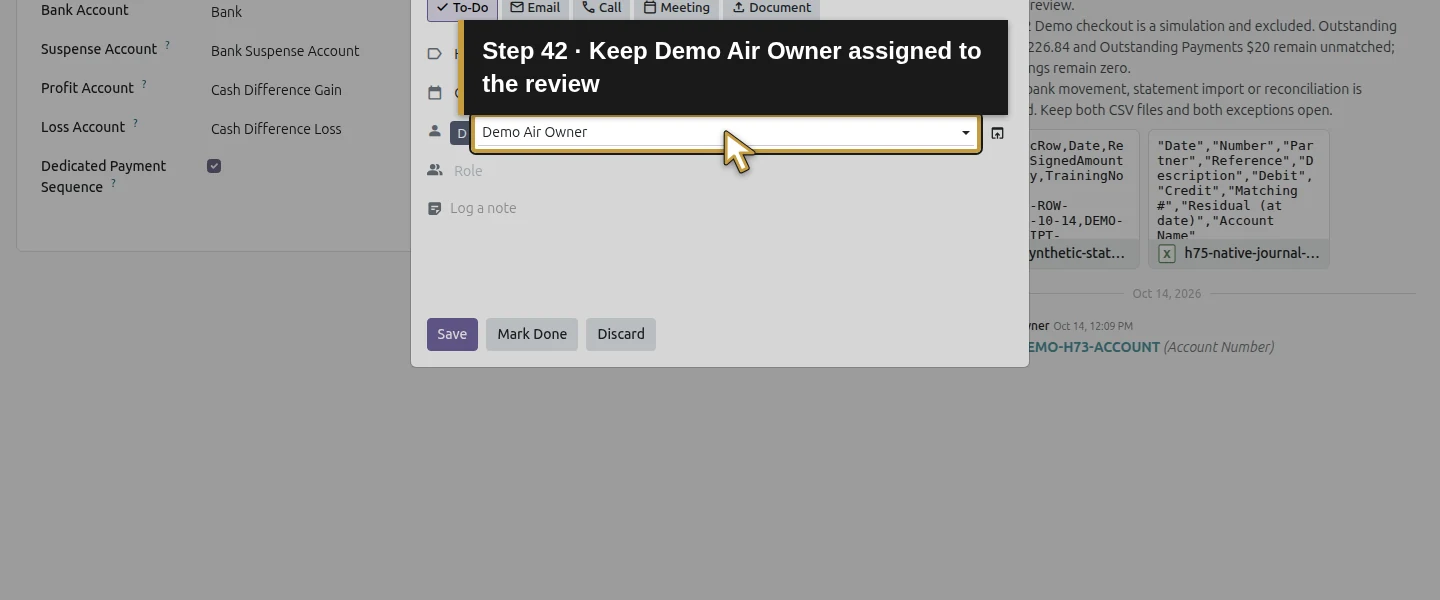
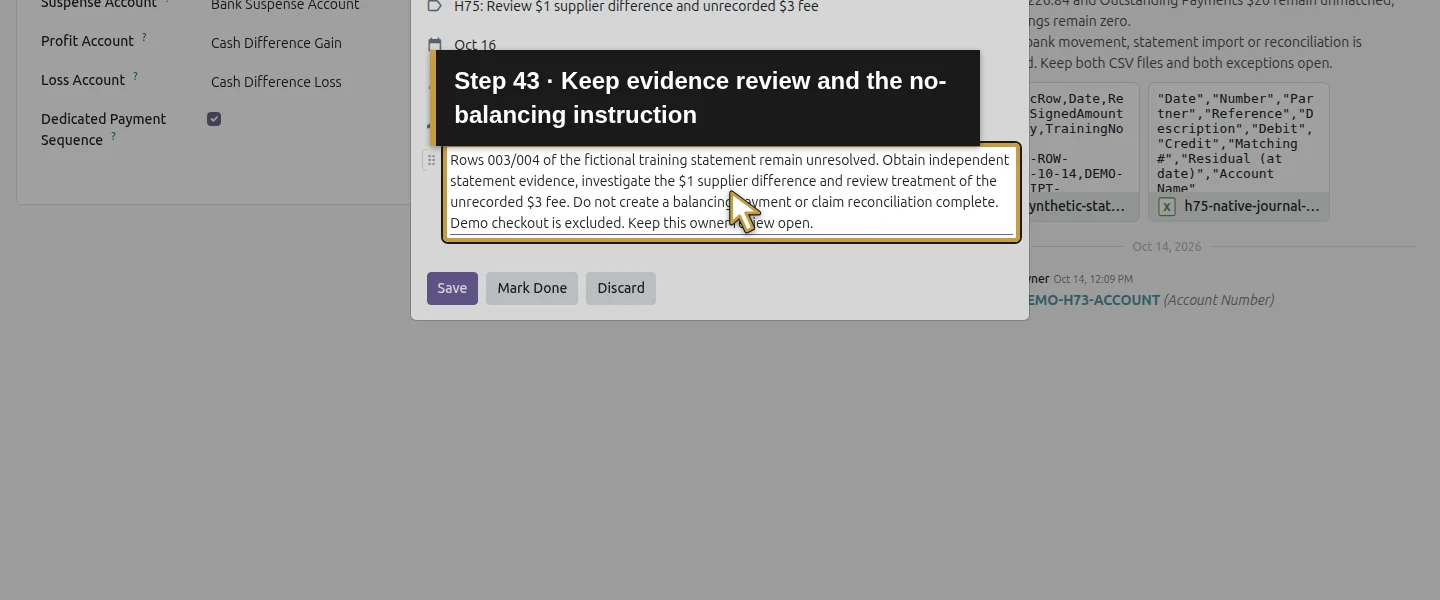
Step 9. Reopen the review and confirm the financial boundary
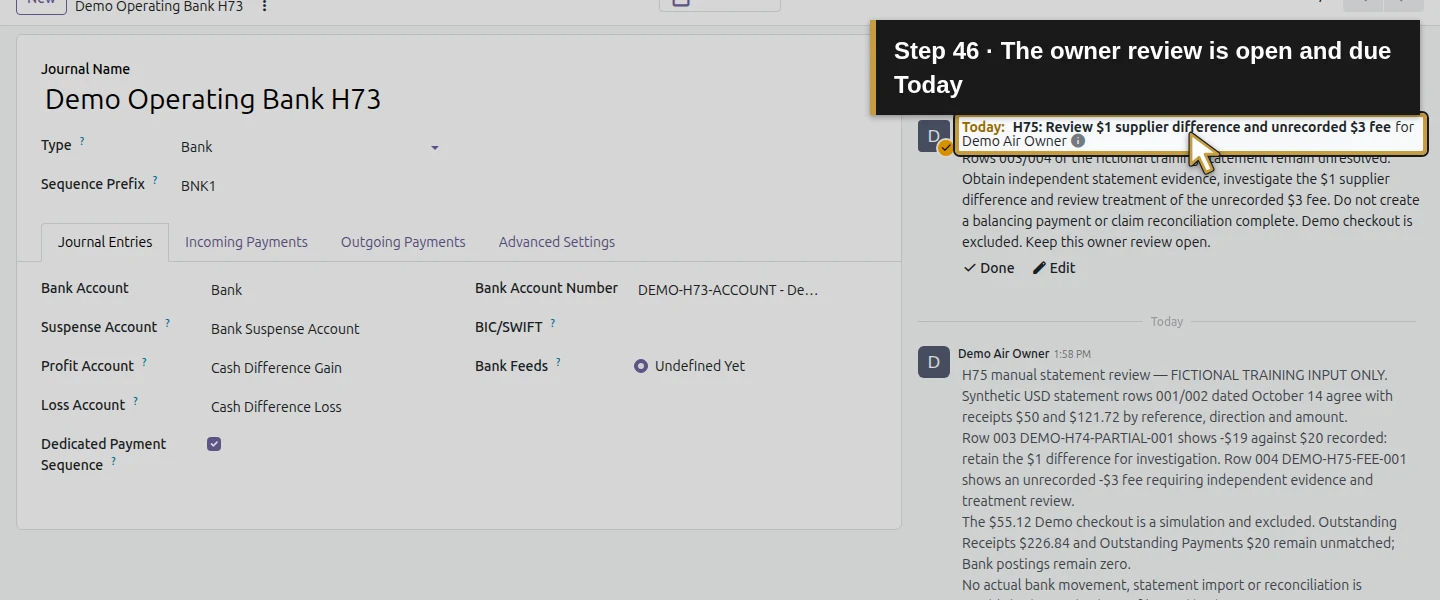
Reload the same journal. Check one review note, both CSV attachments and the open To-Do due October 16. On the October 16 capture date, the activity is labelled Today. The saved files match the uploaded bytes. Reopening retained one activity and did not duplicate the review or payment records. Existing four payments and their ledger entries are unchanged, with no Bank-account entry. There are still zero bank statements/statement lines and nine accounting moves. Outstanding Receipts totals $226.84 including the separate Demo $55.12, and Outstanding Payments remains $20 unmatched. Keep the two review exceptions open until the evidence and required corrections are resolved.
Check the result
A native eight-row journal-item CSV supports four synthetic statement-row comparisons: two customer references/dates/amounts agree, the supplier row differs by $1 and a $3 fee has no recorded payment. The bank journal retains one internal review note, two checksum-matching CSV attachments and one open owner To-Do due October 16. Existing payment/ledger records and invoice balances are unchanged. No payment, Bank-account posting, statement/line or ledger reconciliation was created. This is a verified manual review and handoff, not completed bank reconciliation.
If your screen differs
This availability check covers stock Odoo 20.0-20260926 Community, the owner with Show Full Accounting Features enabled, and the inspected Dashboard, bank journal, statements, model/rule lists, settings and selected-line actions. It does not establish a blanket limitation for every edition, version or permission configuration. The separate Accounting catalogue entry and the QIF Import setting were Enterprise-labelled and left unused. The existing models and the New controls on their configuration lists do not prove working statement import or matching.
Matching # and zero residual on invoice receivable/payable counterparts are distinct from settlement of the outstanding lines. The invented statement excludes the Demo checkout. Fee classification, corrections, independent bank evidence and future activity completion remain unresolved. Background jobs remain disabled; no unattended bank synchronization or reminder delivery was tested.
Frequently asked questions
What can I do for bank reconciliation in Odoo?
In this tested Community setup, use the recorded payments and native journal-item CSV to compare independent statement evidence, then retain a note/files and assign discrepancies for review. The demonstrated result is manual evidence comparison. Its Outstanding Receipts/Payments remained unmatched, and no bank feed, statement import or full reconciliation action was demonstrated.Can Odoo automatically import bank statements in this setup?
The inspected menus/settings and journal-item actions did not provide a usable bank-feed or statement-import/matching workflow in this setup. The CSV procedure here exports existing journal items; it does not import a statement. Existing bank-statement models or export fields do not prove a supported working screen. No Enterprise or third-party add-on was introduced.Should I create a payment to make a bank difference disappear?
Investigate the independent evidence and actual record first. The synthetic example retained a $19 statement row against a $20 recorded supplier payment, plus an unrecorded $3 fee, and assigned both for owner review. It created no balancing payment and did not mark the To-Do done or claim bank reconciliation.Continue building the business
Continue with How do I submit and approve employee expenses in Odoo?. Keep the bank-review To-Do open while investigating its two exceptions; the reviewed statement and accounting records have not been reconciled by this lesson.
Talk about your Odoo setup
Bring your current process and the result you need to Onward to plan your Odoo workflow. Talk about your Odoo setup.