Running an HVAC business with Odoo

How do I record full or partial customer payments in Odoo?
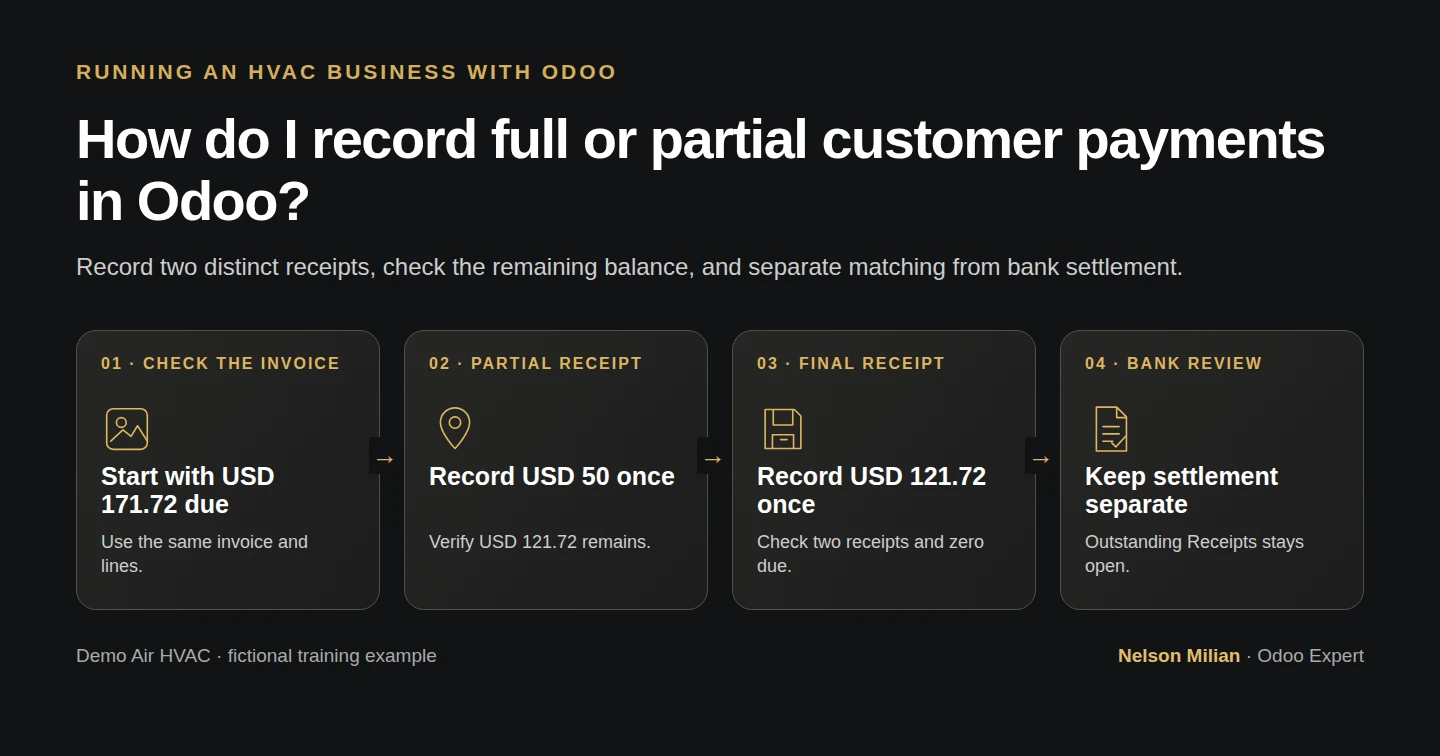
Workflow overview: How do I record full or partial customer payments in Odoo?
Workflow overview. Instructional screenshots show the actual demo interface.

Record partial and final Odoo customer receipts, verify the invoice balance and distinguish Paid/Reconciled labels from outstanding bank settlement.

Alex records two fictional receipts against the HVAC invoice from the previous lesson. A $50 partial payment leaves $121.72 due; recording the remaining $121.72 changes the invoice to Paid. We also check what those labels mean: the invoice receivable is matched, while both amounts remain in Outstanding Receipts awaiting separate bank review.

Alex Rivera and Demo Air HVAC are fictional training examples. Prices, dates, quantities and business situations in this guide are illustrative.

Before you begin

Tested in stock Odoo 20.0-20260926 Community as the demo owner administrator, with official modules and standard configuration. Use the posted $171.72 invoice from the posted time-and-materials invoice and the existing bank journal from the existing bank journal. The tested invoice is INV/2026/00001, billed to Demo Property H08, Billing Office H08, in USD. Its initial Amount Due is $171.72 and it has no customer payments. Demo Operating Bank H73 uses the existing Manual Payment method and fictional DEMO-H73-ACCOUNT - Demo Bank H73 company account. Prepare two explicitly synthetic receipt inputs for October 14, 2026: $50/reference DEMO-H56-RECEIPT-001 and $121.72/reference DEMO-H56-RECEIPT-002. They are scenario data, not evidence that real money arrived. In your business, independently confirm each actual receipt and use its real amount, date and reference before recording it.

Step-by-step workflow

Record two distinct synthetic receipts, verify the partial and final invoice balances, and review what remains outstanding. Recording these amounts initiates no bank transfer and completes no bank-statement reconciliation.

Step 1. Check the invoice and existing receipts

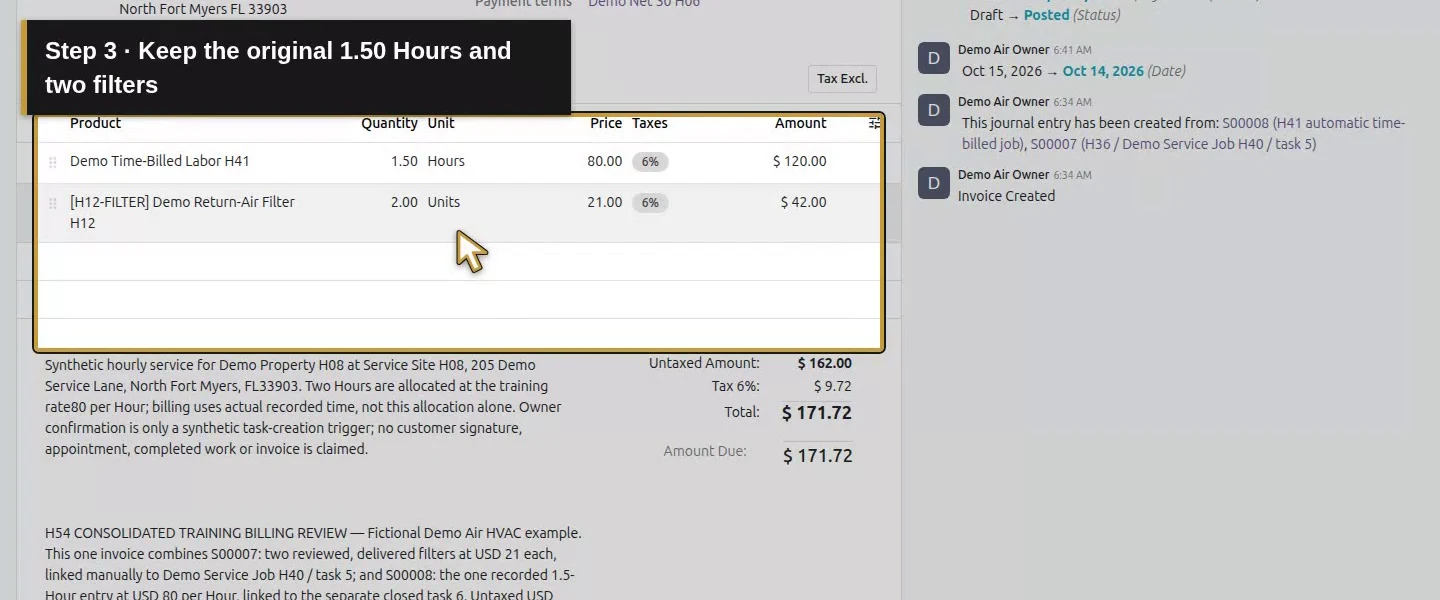
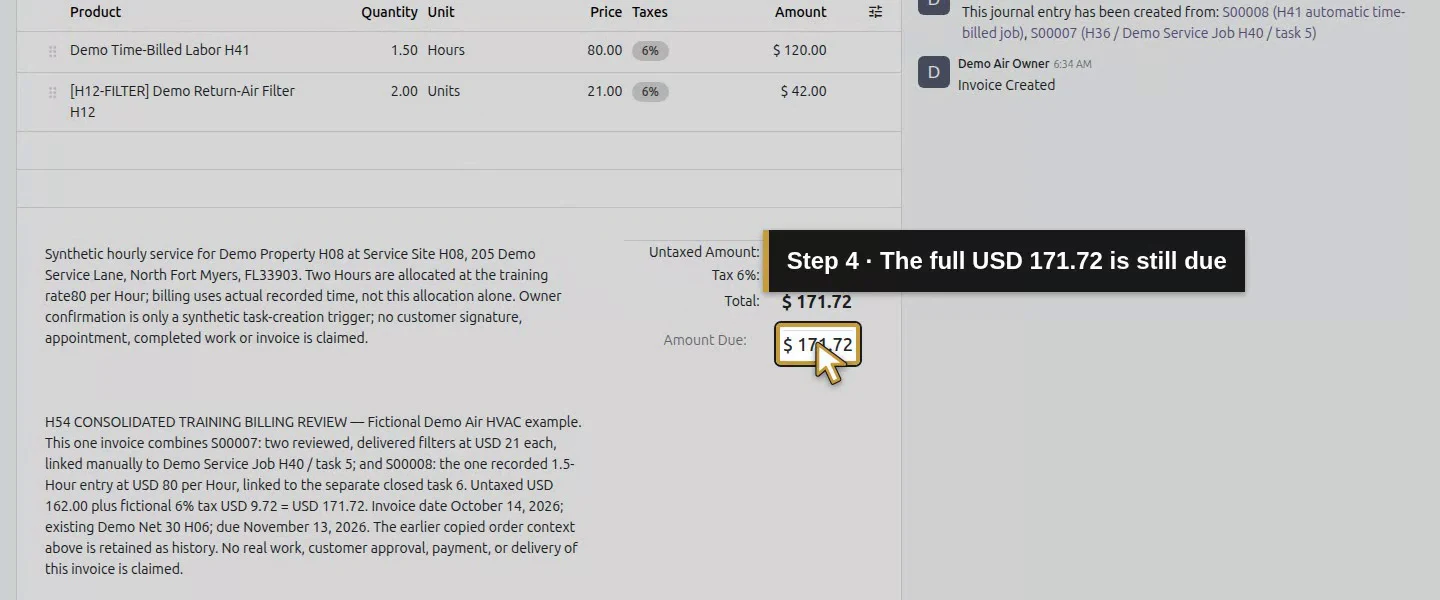
Continue from H54’s posted invoice. Check INV/2026/00001, the billing customer, USD, Total: $171.72 and Amount Due: $171.72. Its original 1.50 Hours and two filters remain unchanged. Inspect any existing payment links before entering a receipt; a reminder, screenshot or promise to pay is not confirmation of money received.
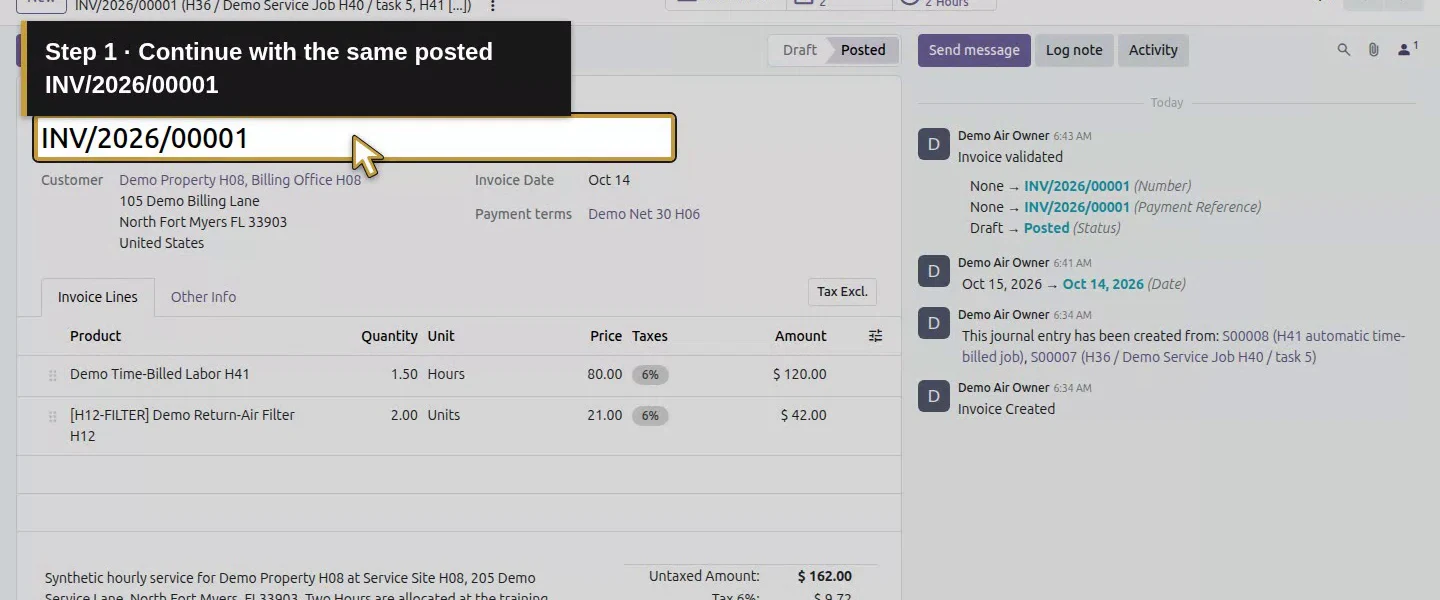
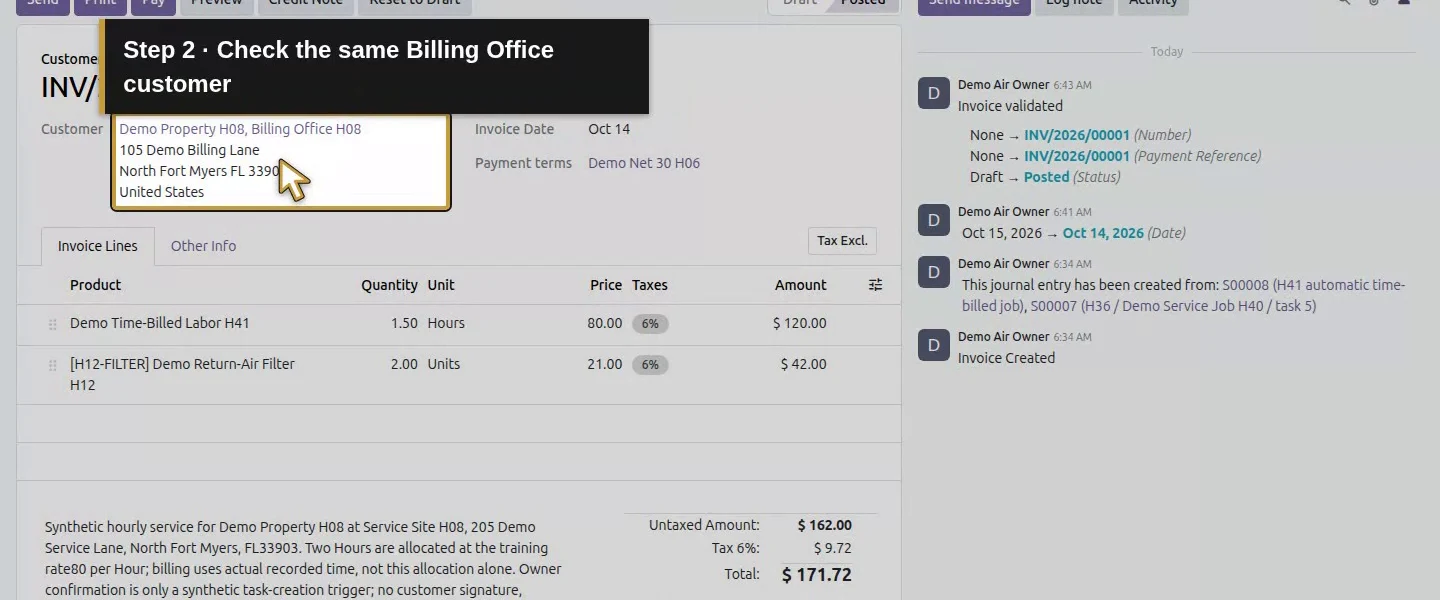
Action 1: Continue with the same posted INV/2026/00001. The actual target is highlighted in gold.
Continue with the same posted INV/2026/00001.
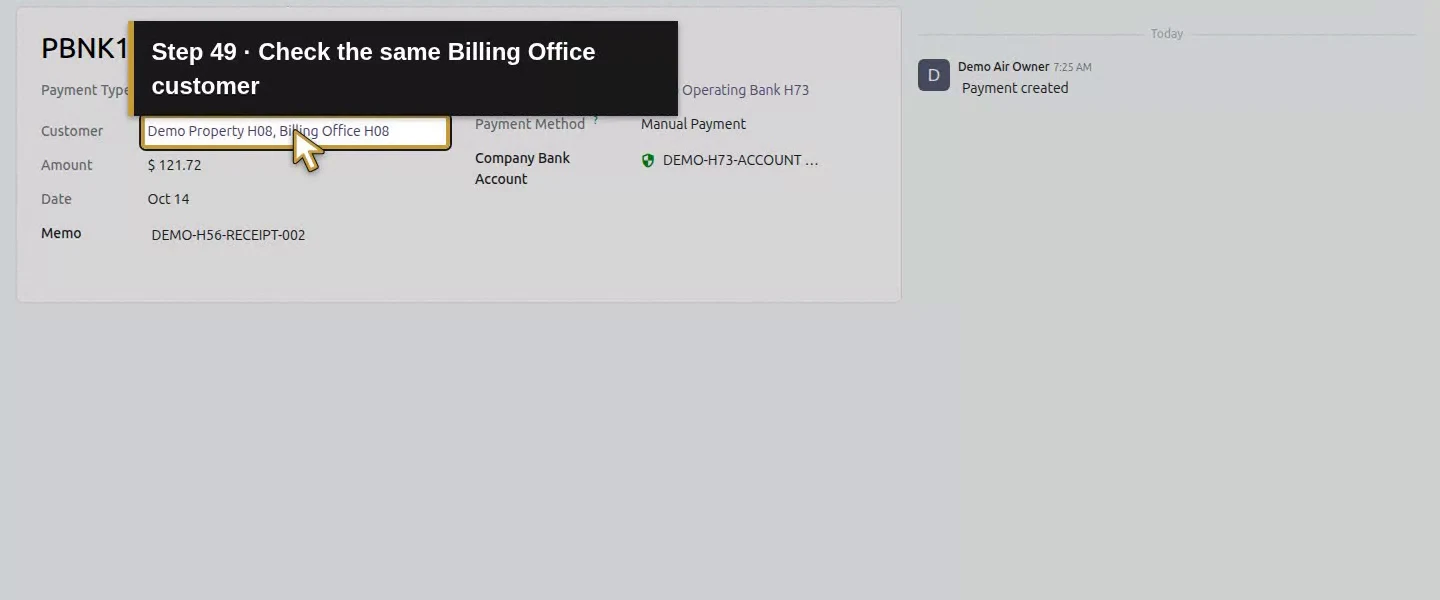
Action 2: Check the same Billing Office customer. The actual target is highlighted in gold.
Check the same Billing Office customer.
Action 3: Keep the original 1.50 Hours and two filters. The actual target is highlighted in gold.
Keep the original 1.50 Hours and two filters.
Action 4: The full USD 171.72 is still due. The actual target is highlighted in gold.
The full USD 171.72 is still due.

Step 2. Open the native payment dialog

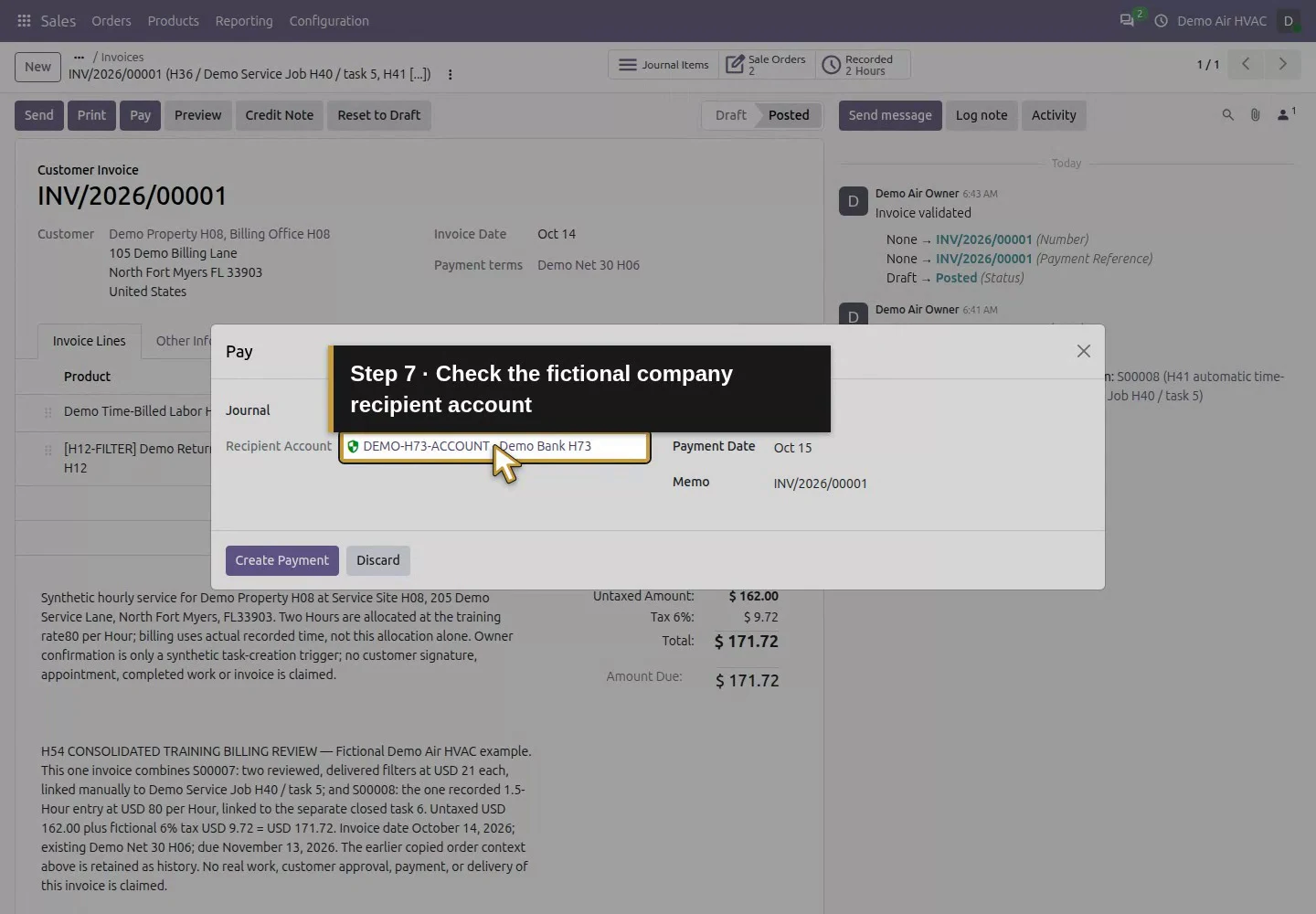
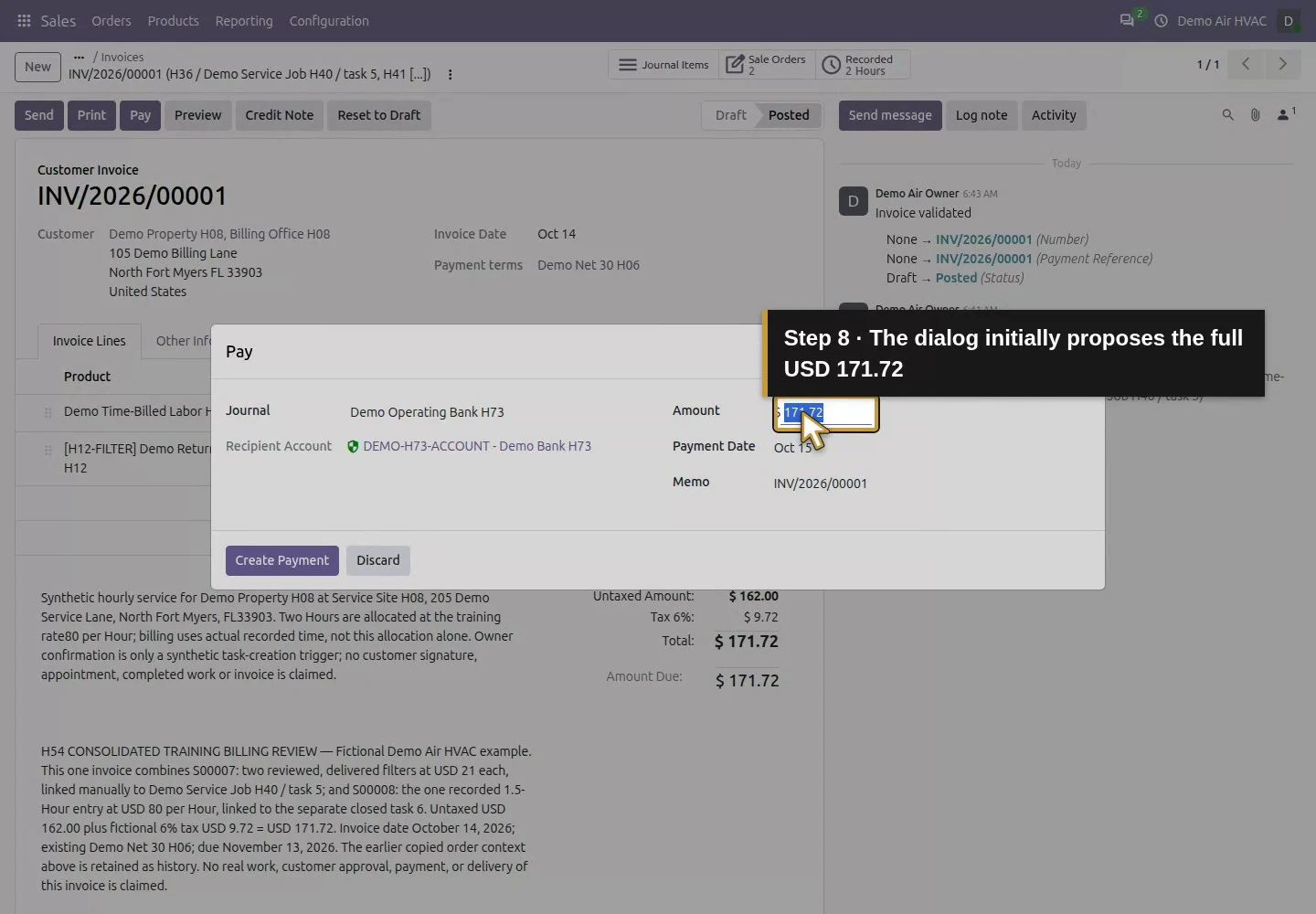
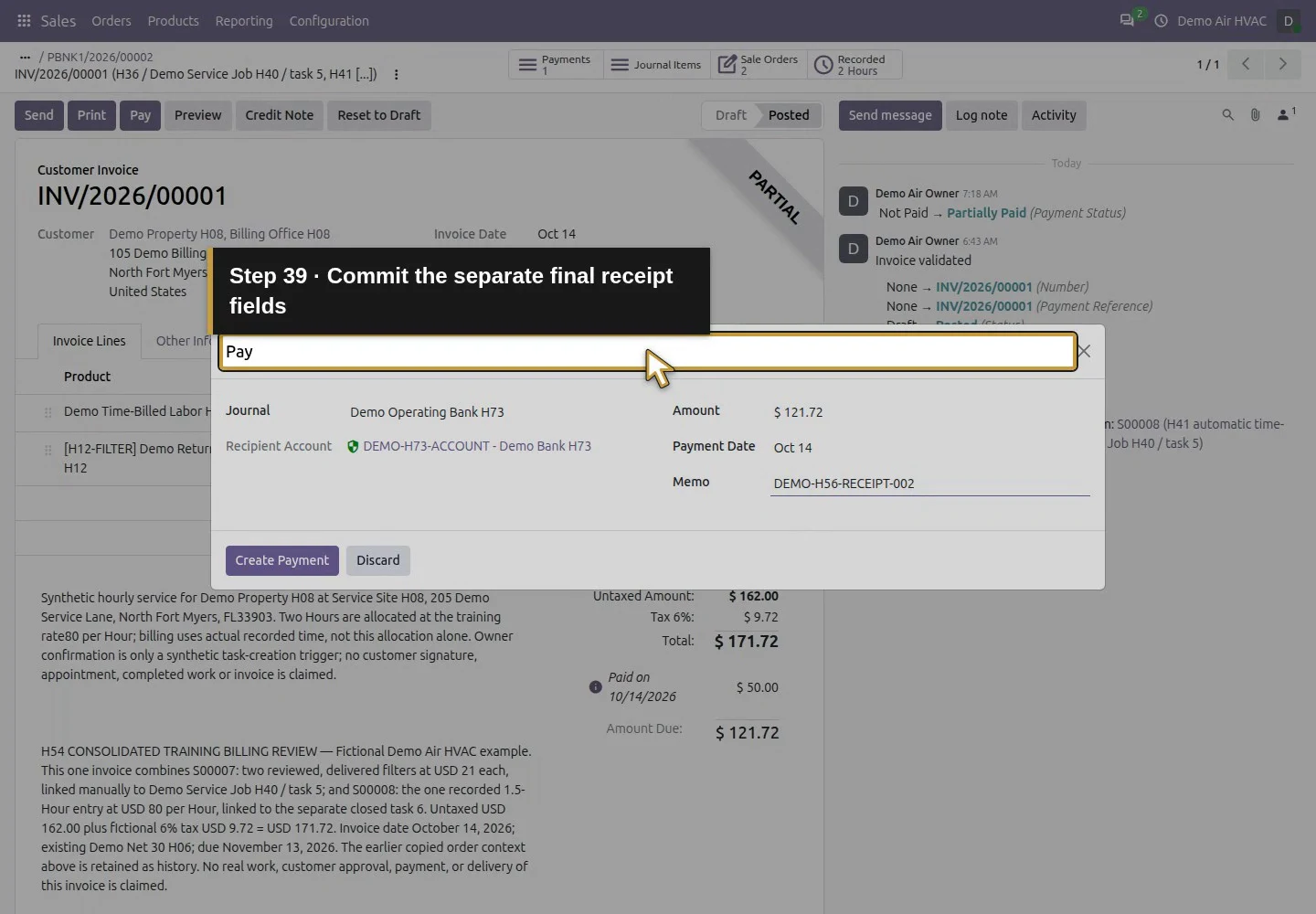
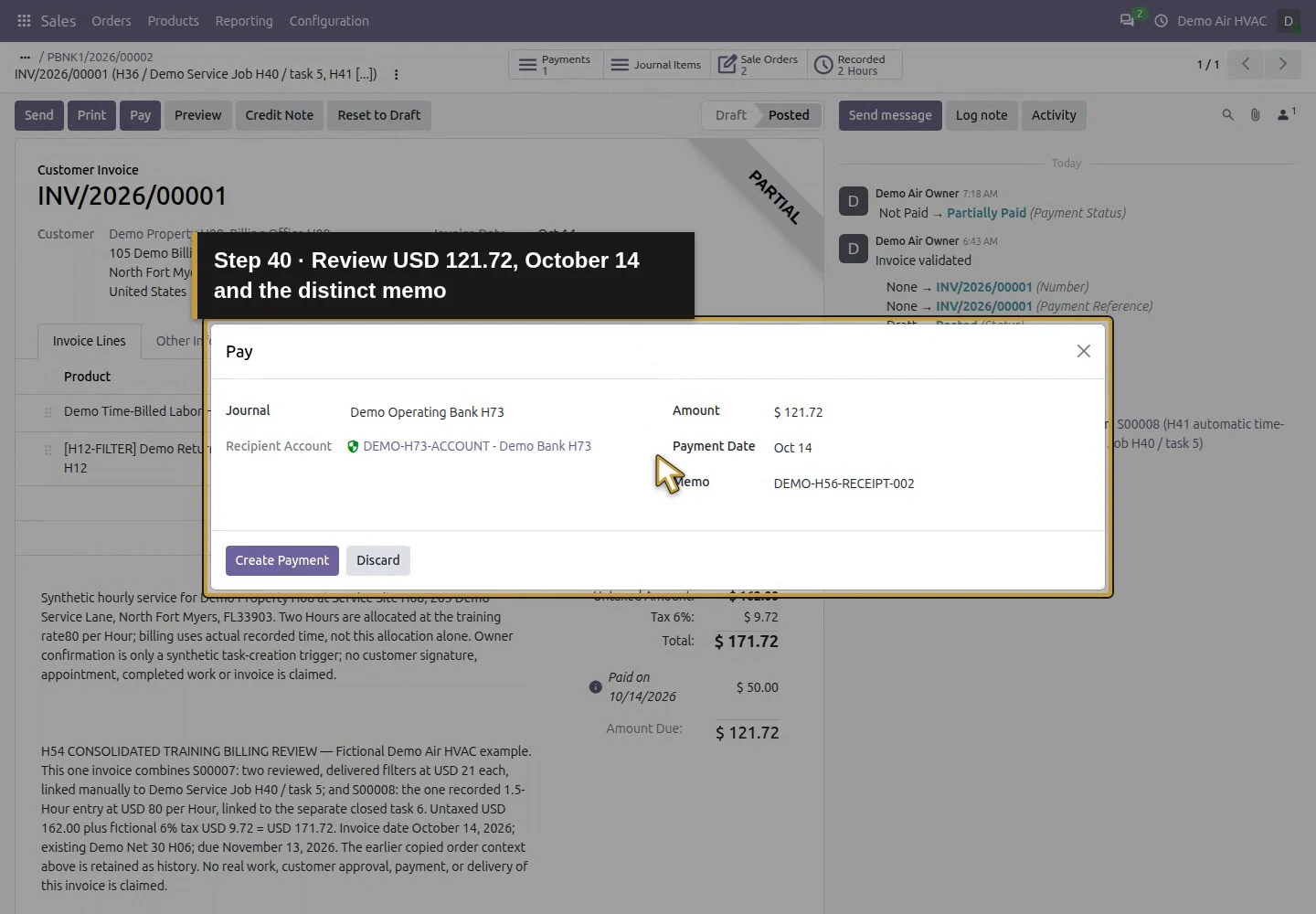
Click Pay. In the Pay dialog, check Journal: Demo Operating Bank H73, the fictional Recipient Account, Amount, Payment Date and Memo. This dialog initially proposes the full $171.72 balance. The tested setup has one inbound method, Manual Payment, which is visible on the resulting payment record; it did not show a separate method picker in this dialog.
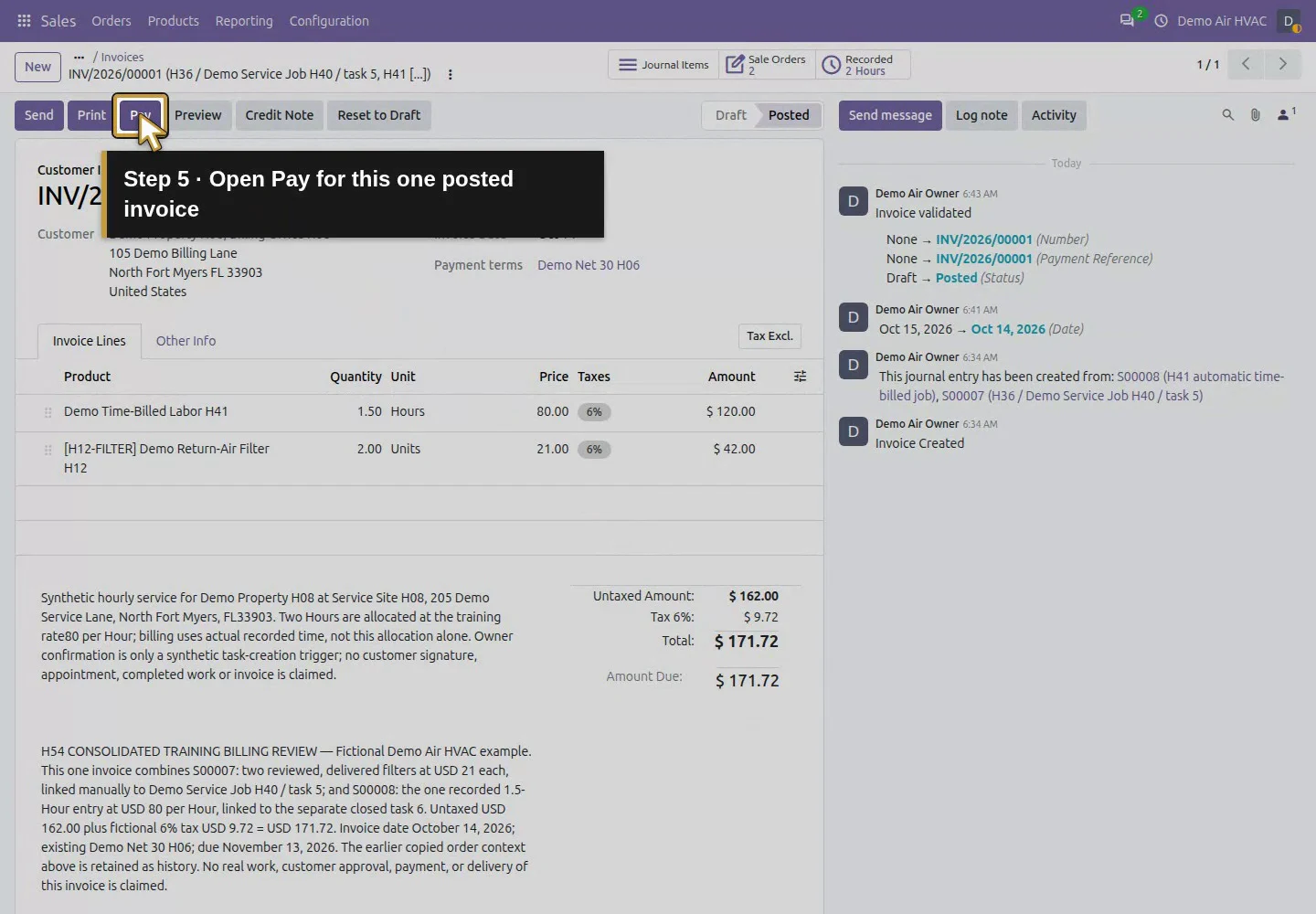
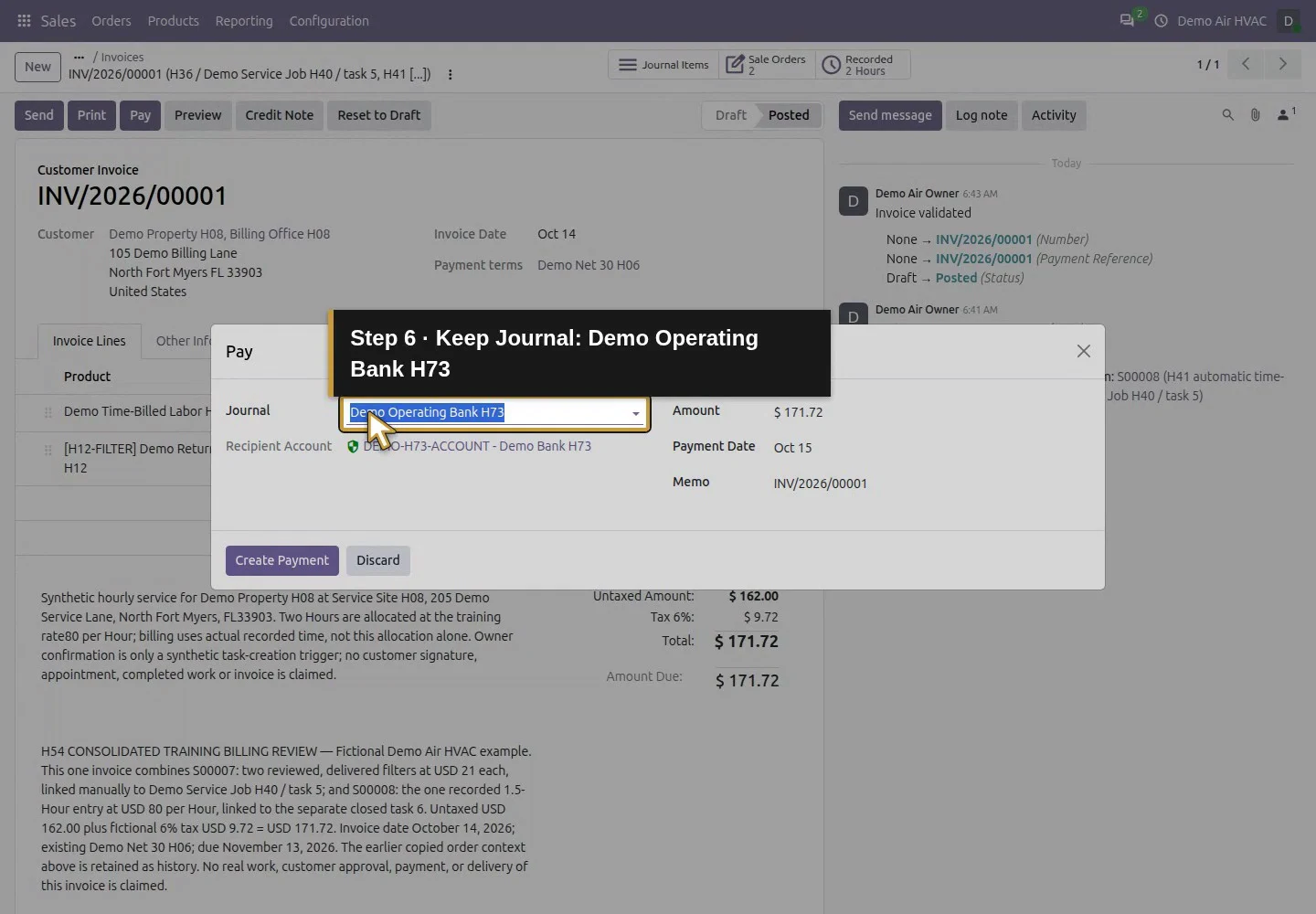
Action 5: Open Pay for this one posted invoice. The actual target is highlighted in gold.
Open Pay for this one posted invoice.
Action 6: Keep Journal: Demo Operating Bank H73. The actual target is highlighted in gold.
Keep Journal: Demo Operating Bank H73.
Action 7: Check the fictional company recipient account. The actual target is highlighted in gold.
Check the fictional company recipient account.
Action 8: The dialog initially proposes the full USD 171.72. The actual target is highlighted in gold.
The dialog initially proposes the full USD 171.72.

Step 3. Record the first confirmed amount once

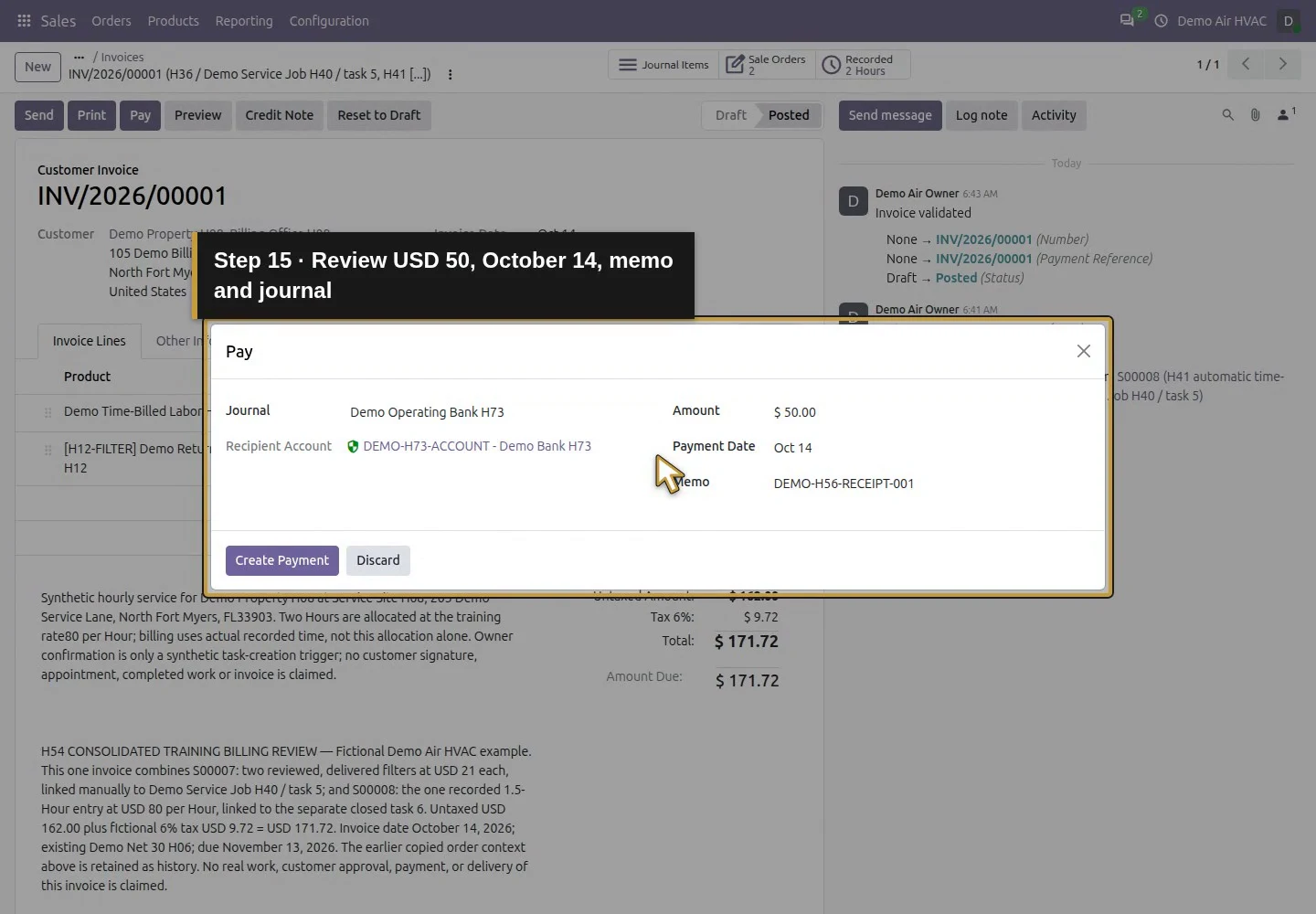
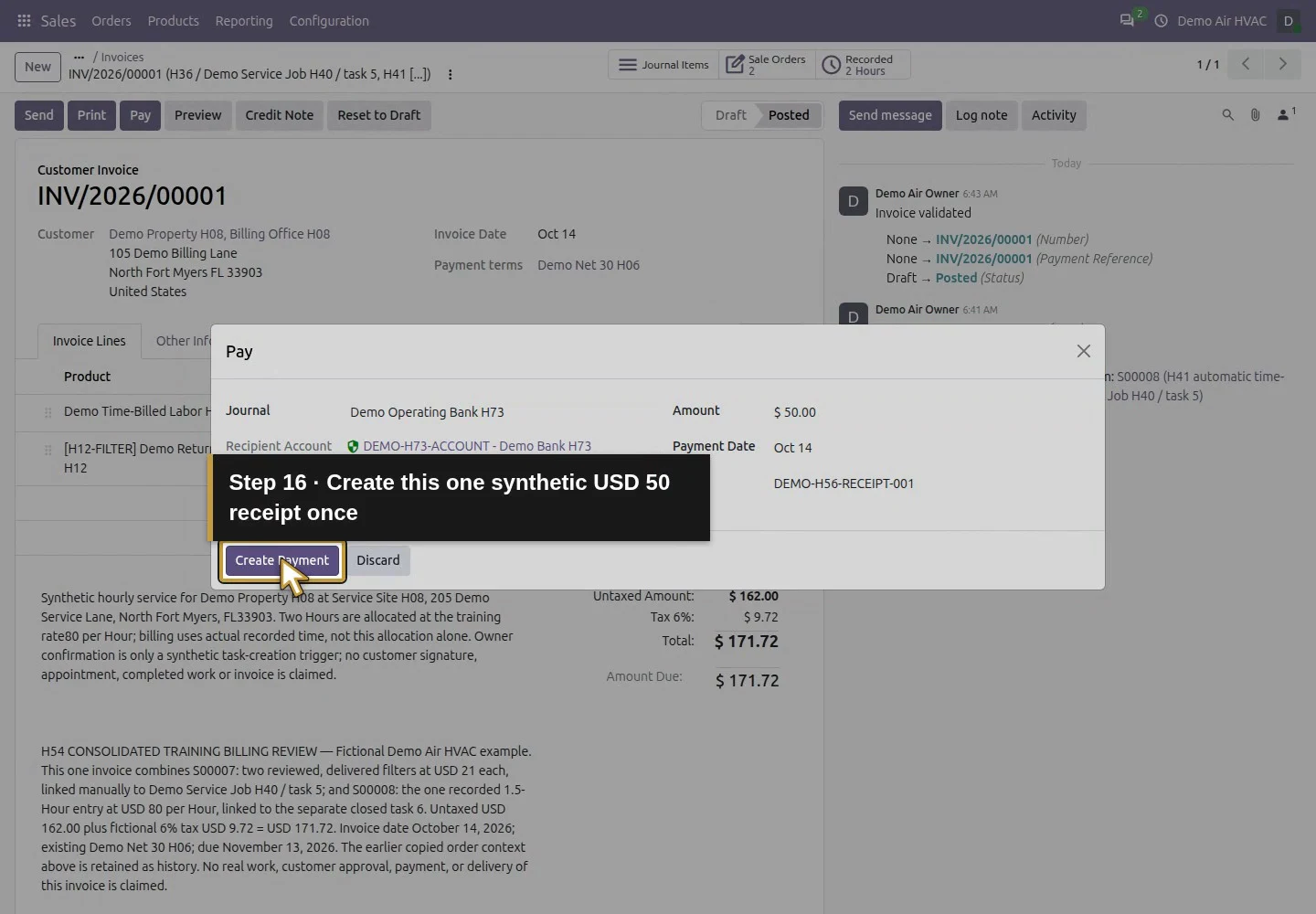
Change Amount to 50.00 and Memo to DEMO-H56-RECEIPT-001. Verify Payment Date: Oct 14 (October 14, 2026). The example retained that displayed date; a different receipt date must use its actual value. Click Create Payment once and wait for the dialog to close and the invoice to update. Do not click again while it is processing.
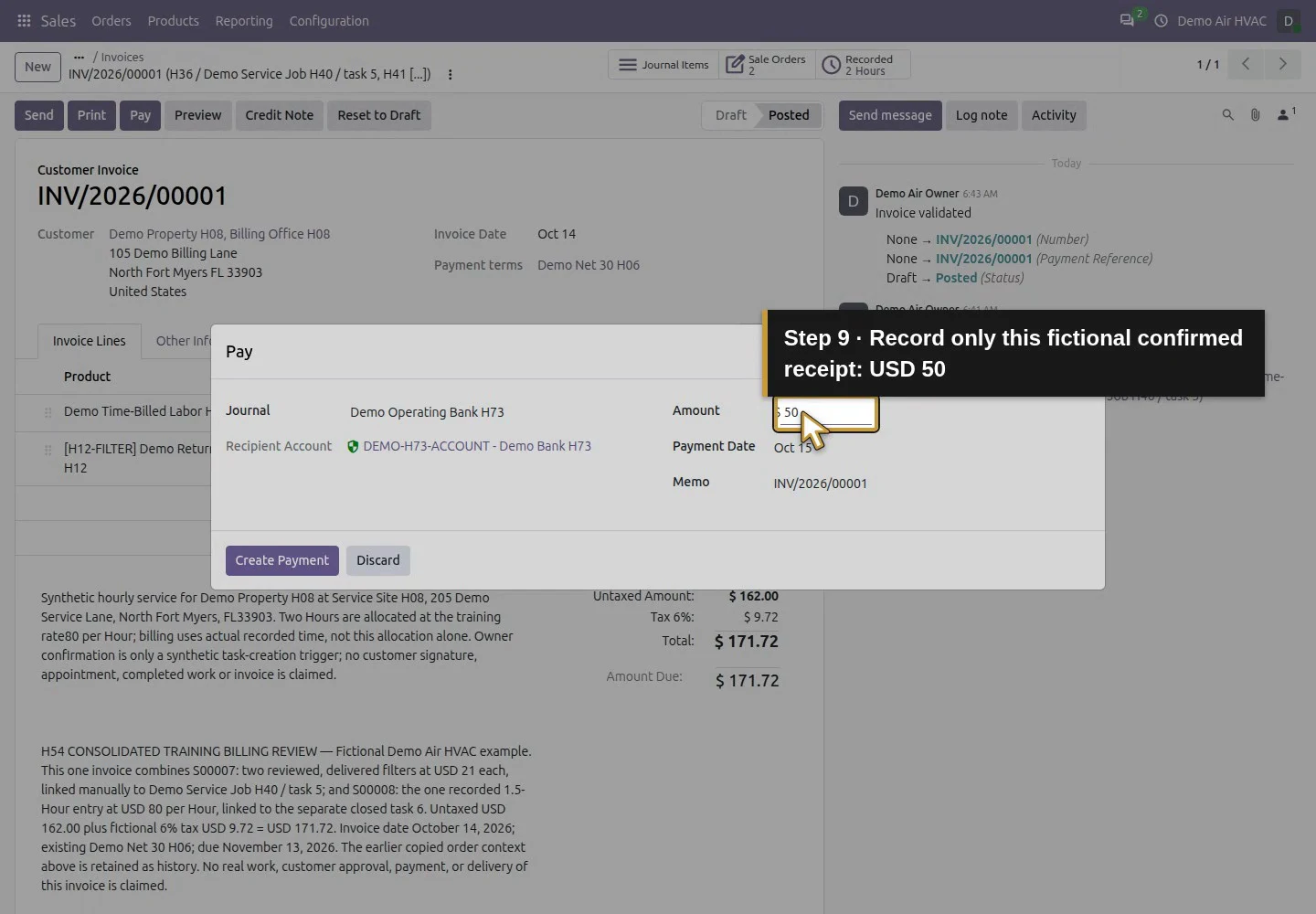
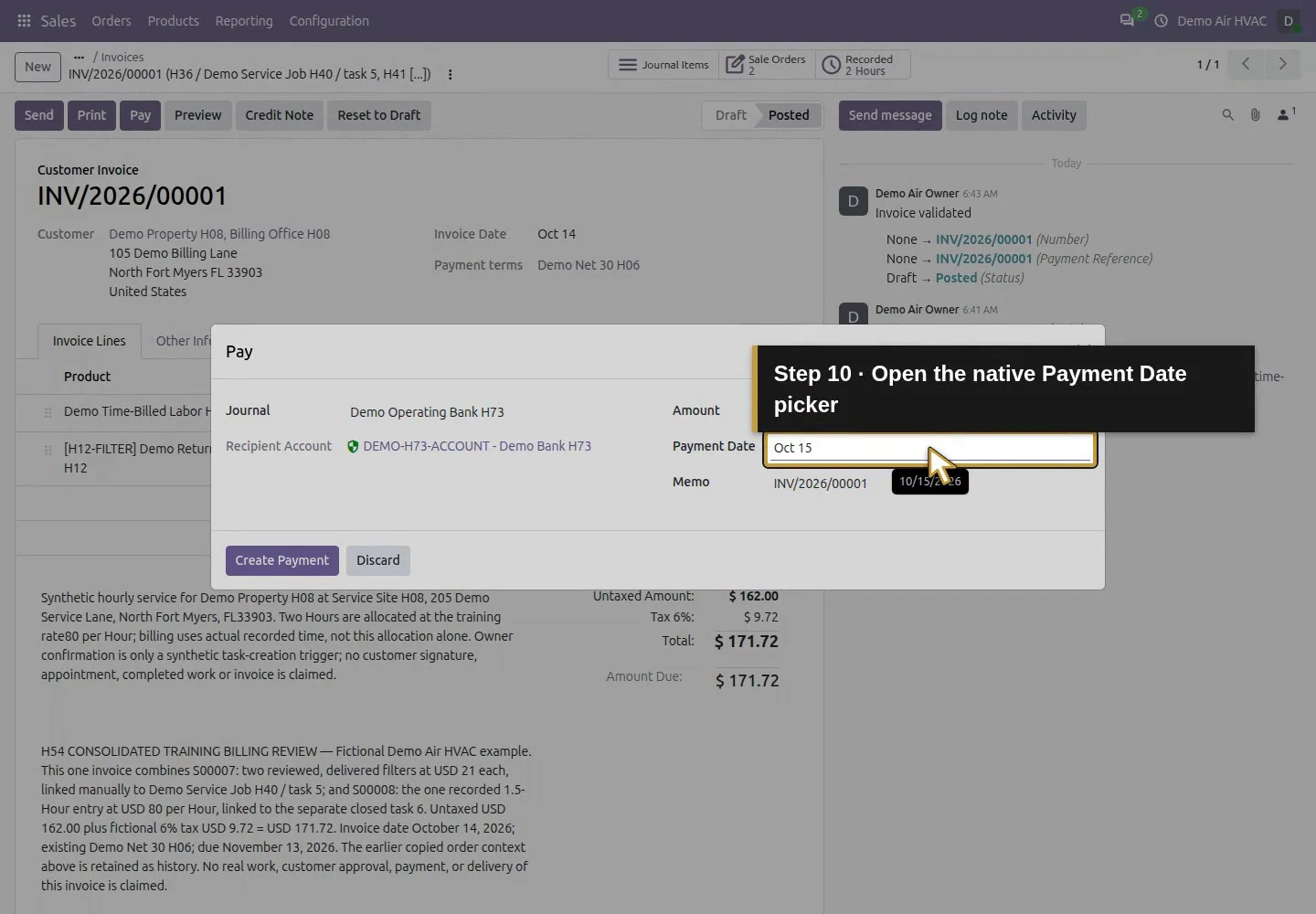
Action 9: Record only this fictional confirmed receipt: USD 50. The actual target is highlighted in gold.
Record only this fictional confirmed receipt: USD 50.
Action 10: Open the native Payment Date picker. The actual target is highlighted in gold.
Open the native Payment Date picker.
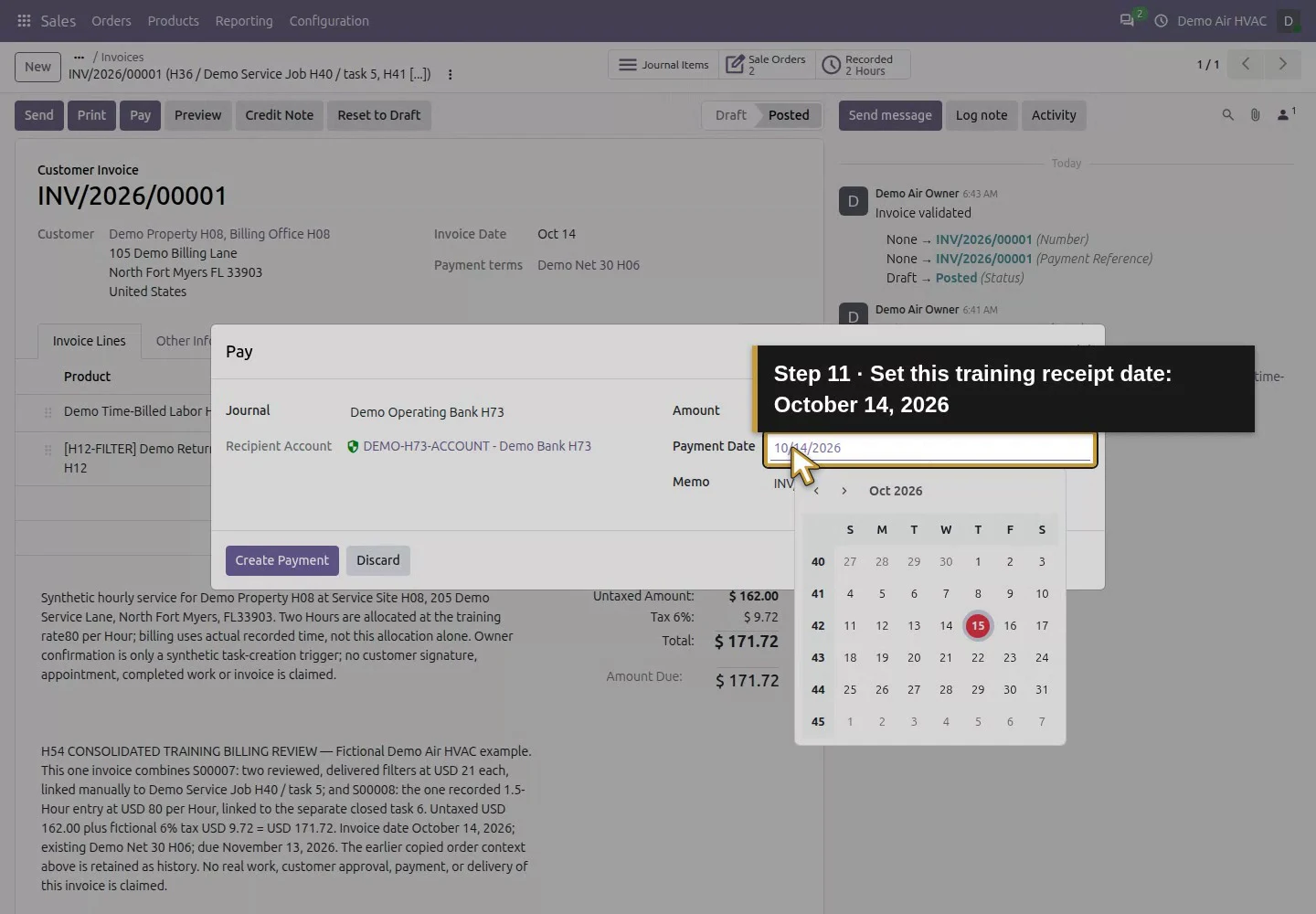
Action 11: Set this training receipt date: October 14, 2026. The actual target is highlighted in gold.
Set this training receipt date: October 14, 2026.
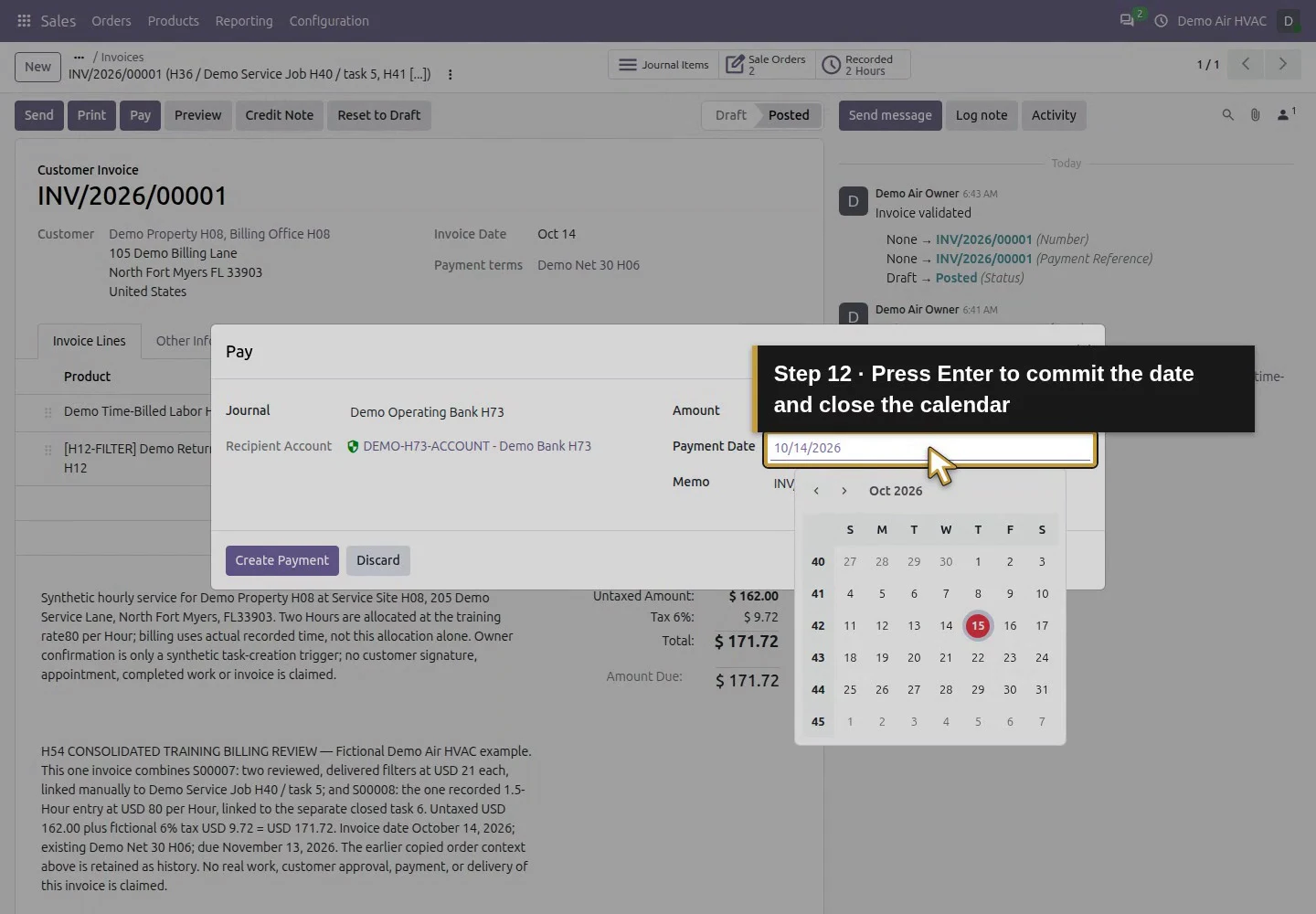
Action 12: Press Enter to commit the date and close the calendar. The actual target is highlighted in gold.
Press Enter to commit the date and close the calendar.
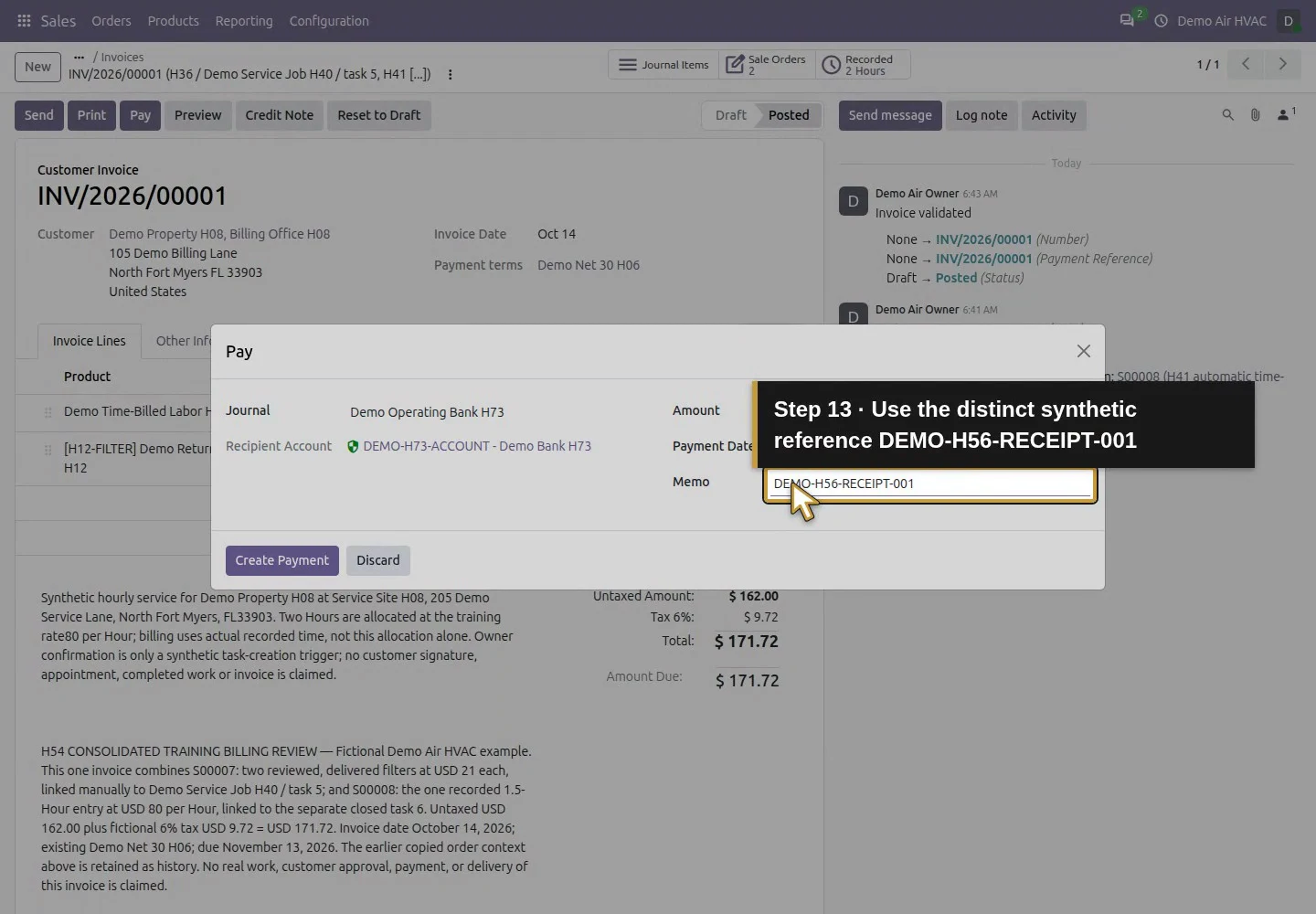
Action 13: Use the distinct synthetic reference DEMO-H56-RECEIPT-001. The actual target is highlighted in gold.
Use the distinct synthetic reference DEMO-H56-RECEIPT-001.
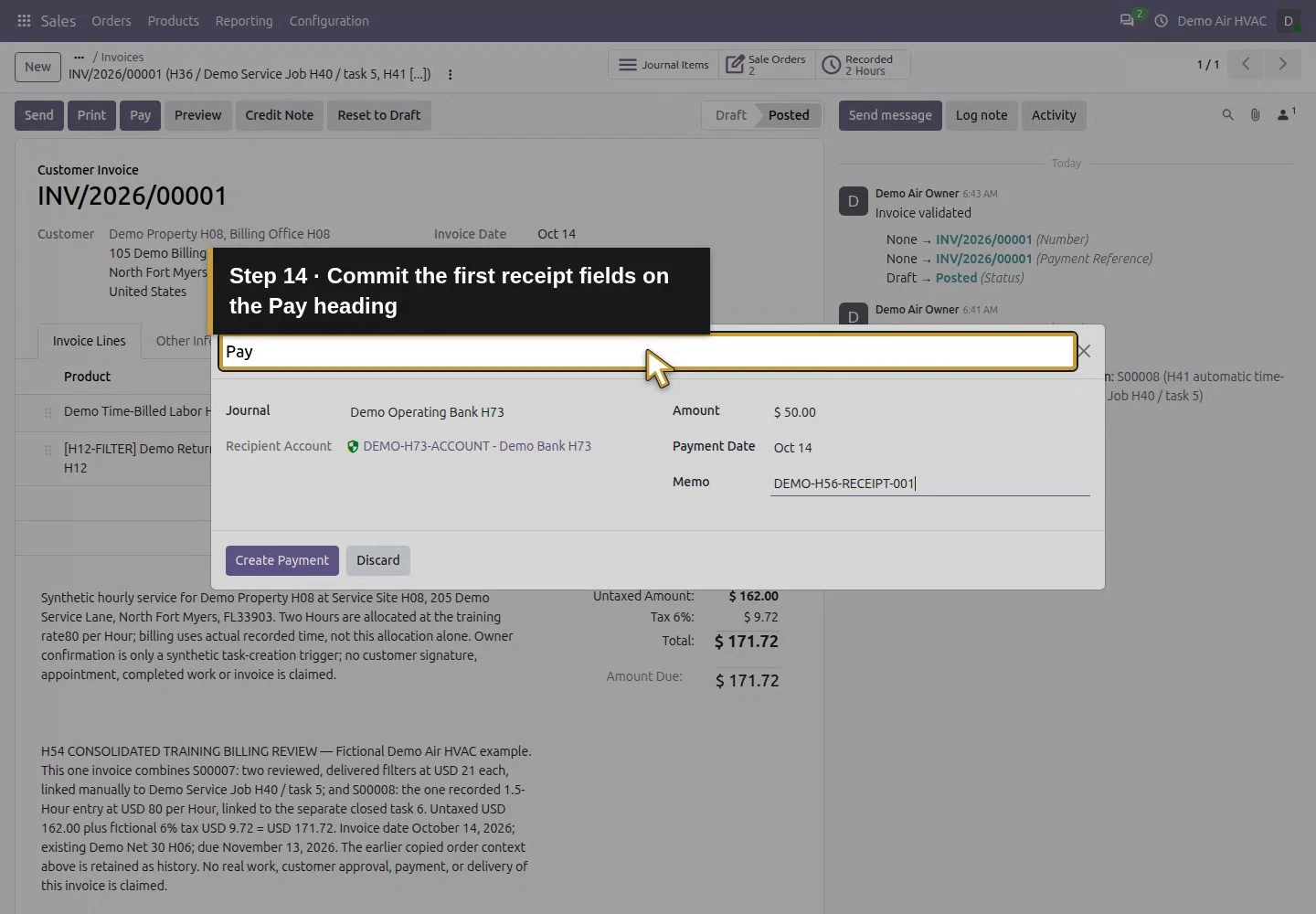
Action 14: Commit the first receipt fields on the Pay heading. The actual target is highlighted in gold.
Commit the first receipt fields on the Pay heading.
Action 15: Review USD 50, October 14, memo and journal. The actual target is highlighted in gold.
Review USD 50, October 14, memo and journal.
Action 16: Create this one synthetic USD 50 receipt once. The actual target is highlighted in gold.
Create this one synthetic USD 50 receipt once.

Step 4. Verify the partial balance and linked payment

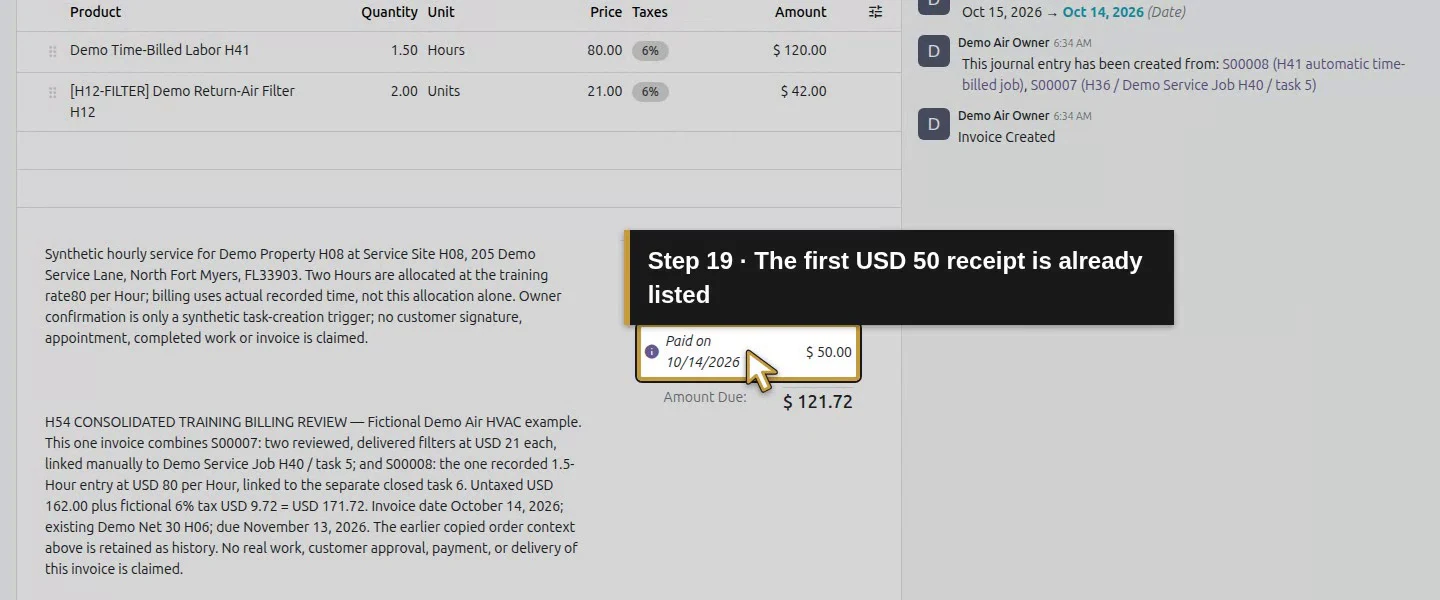
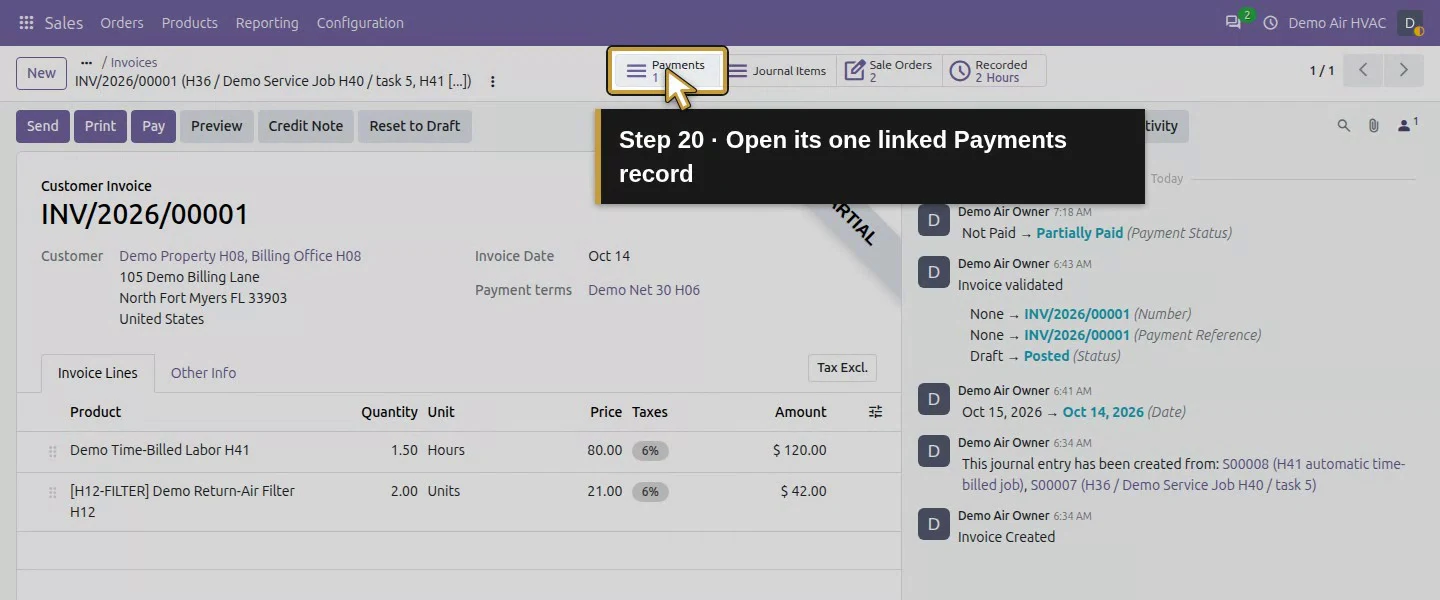
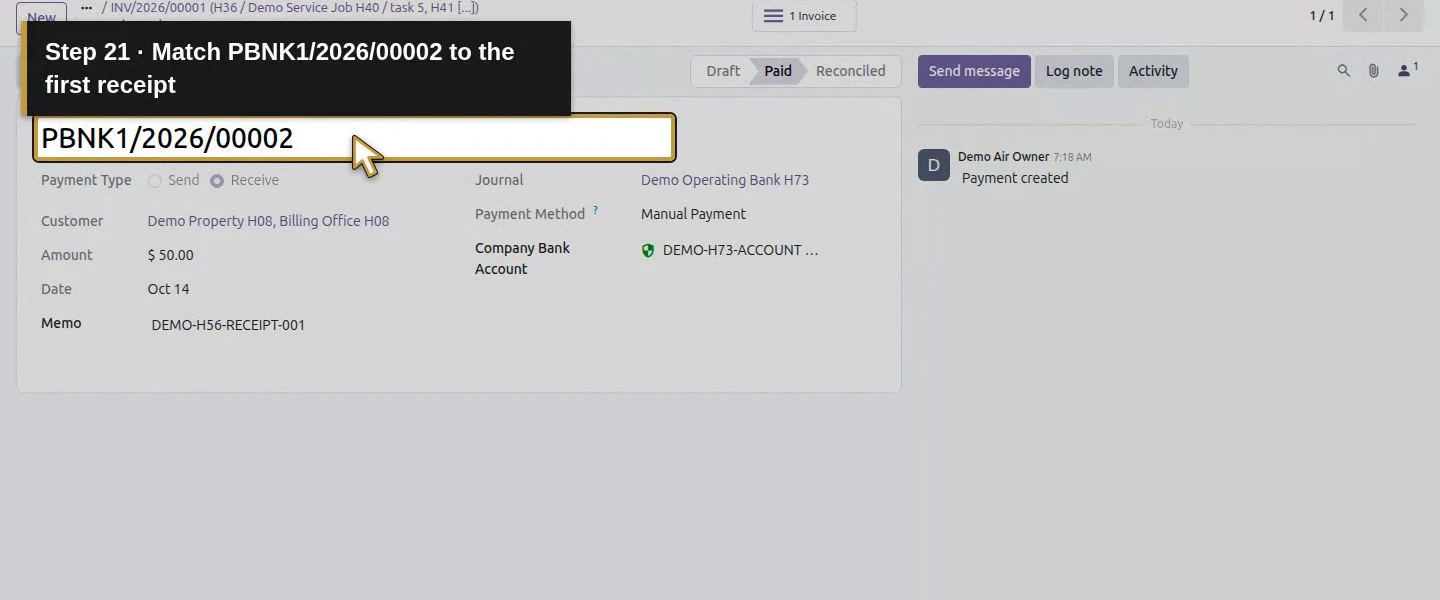
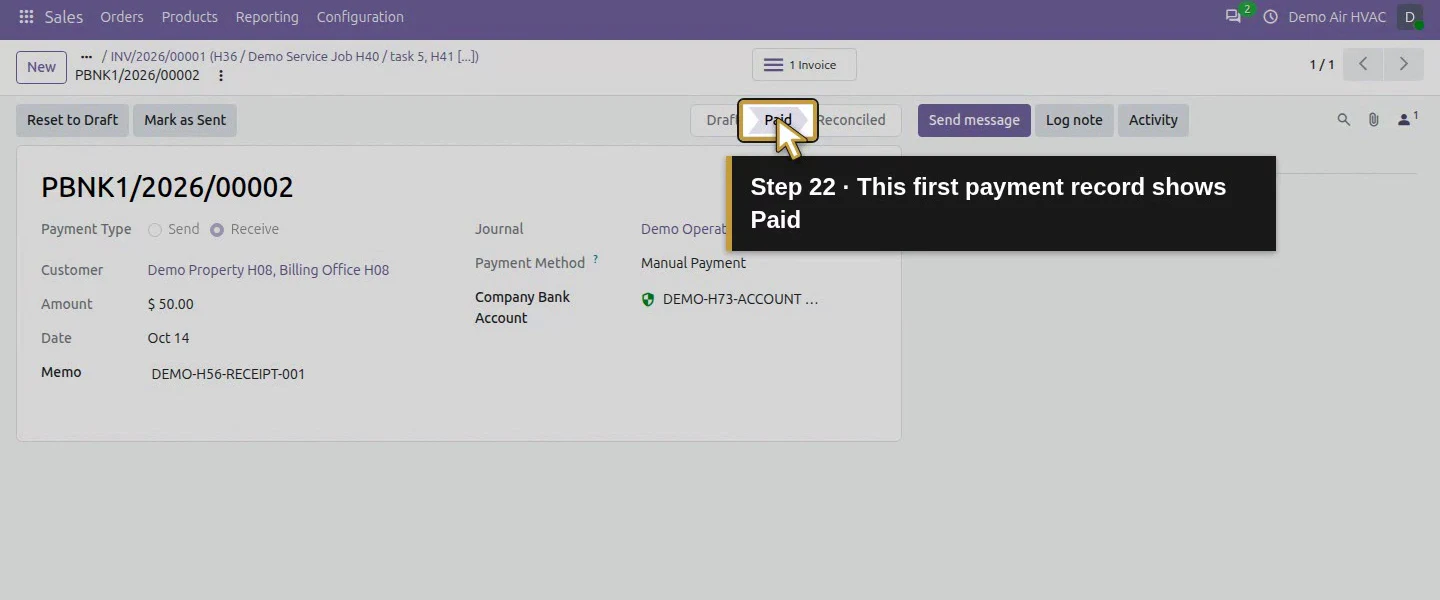
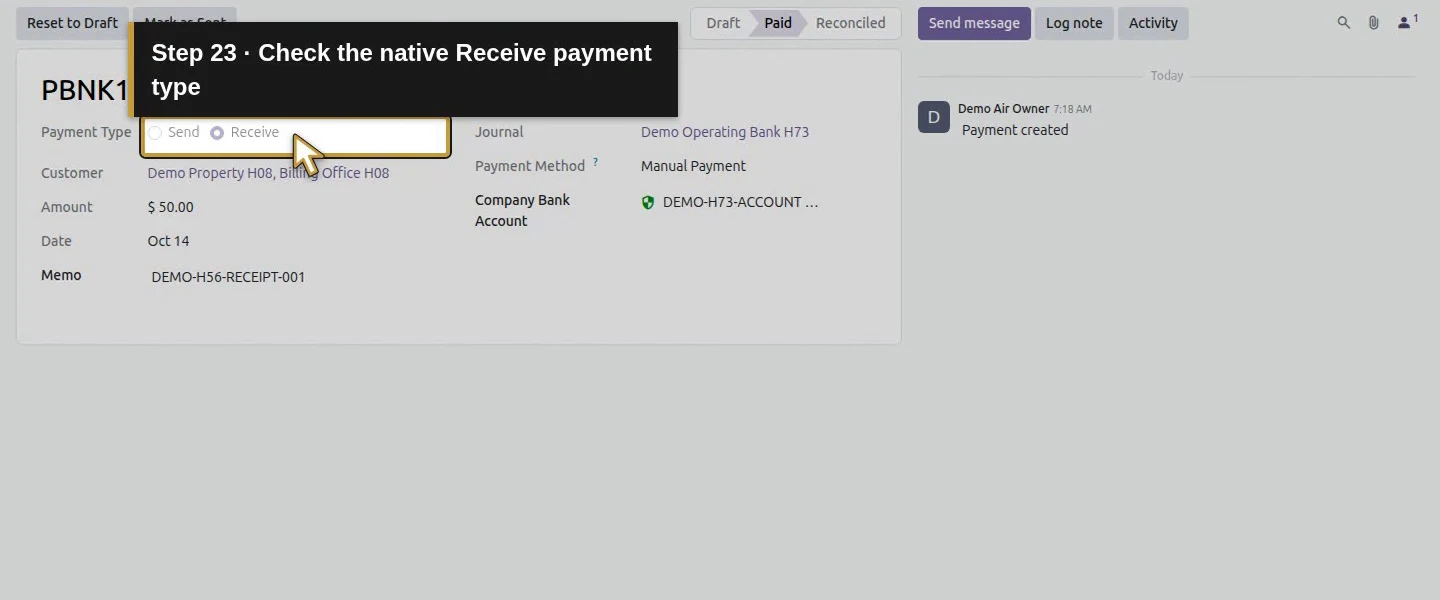
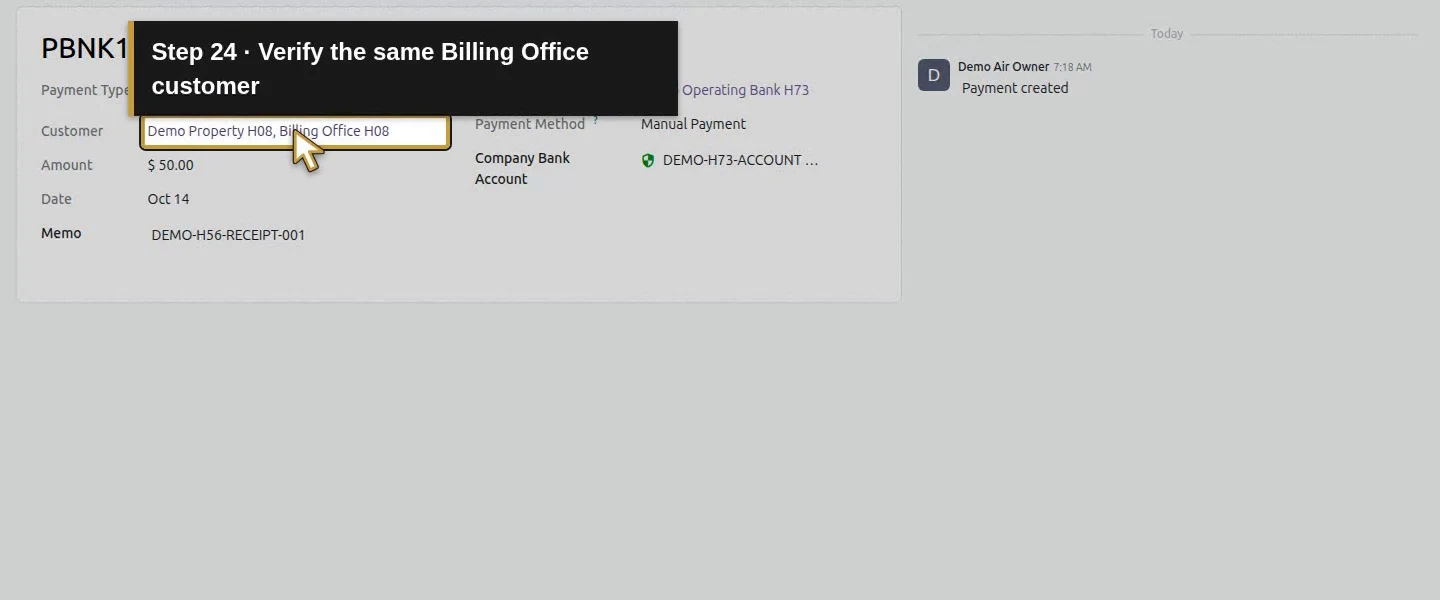
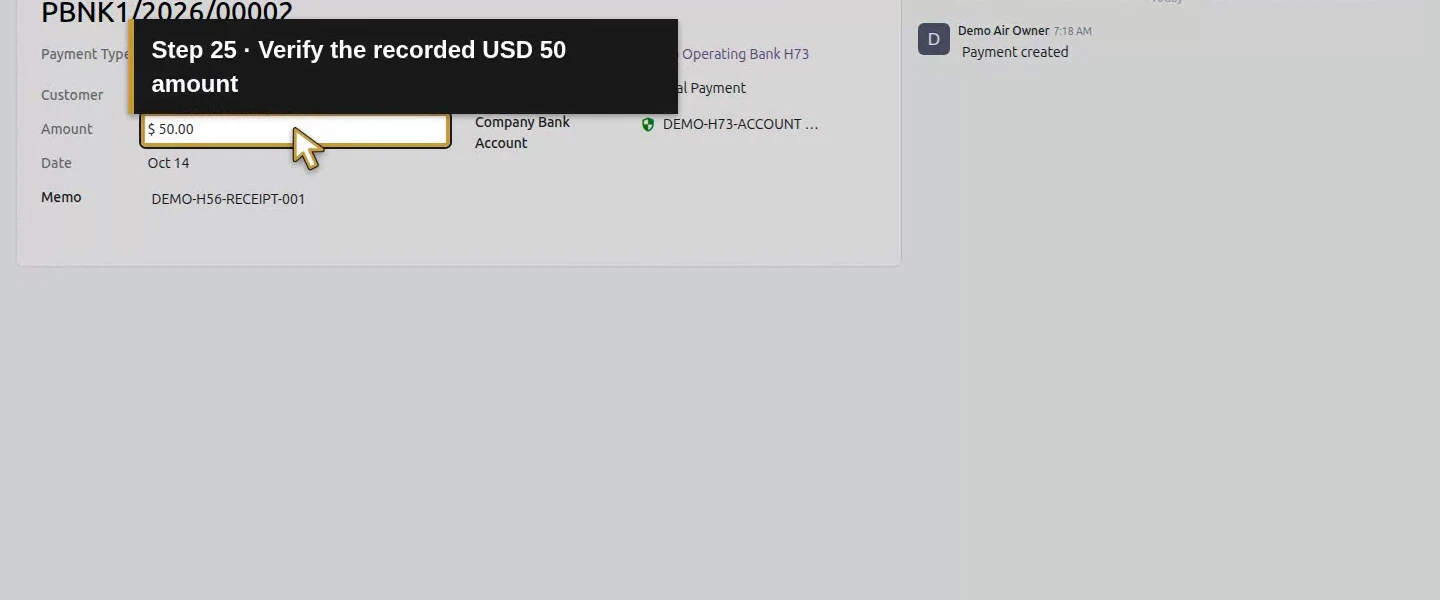
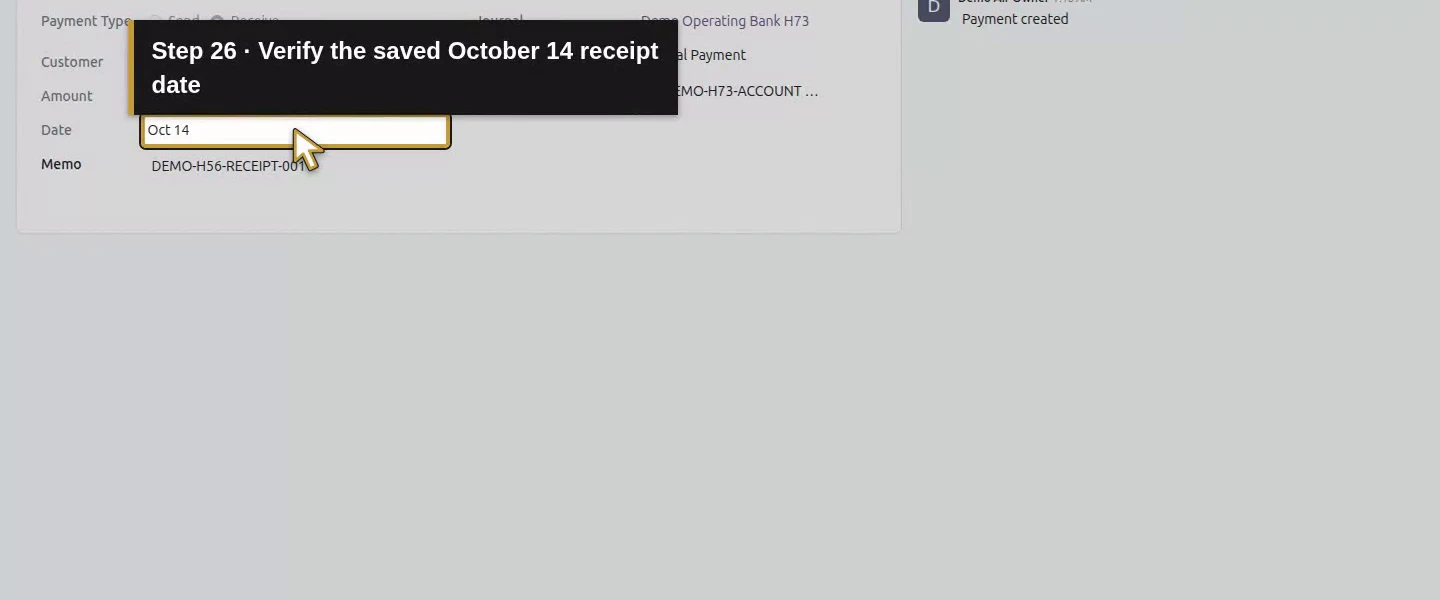
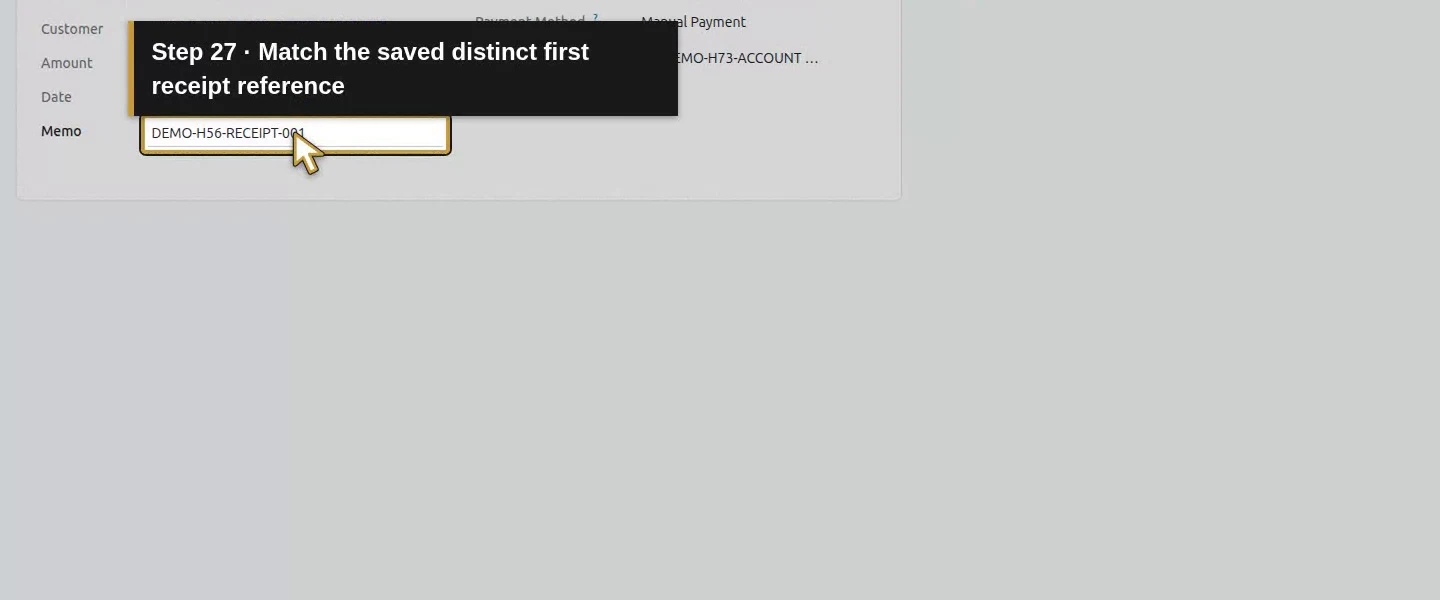
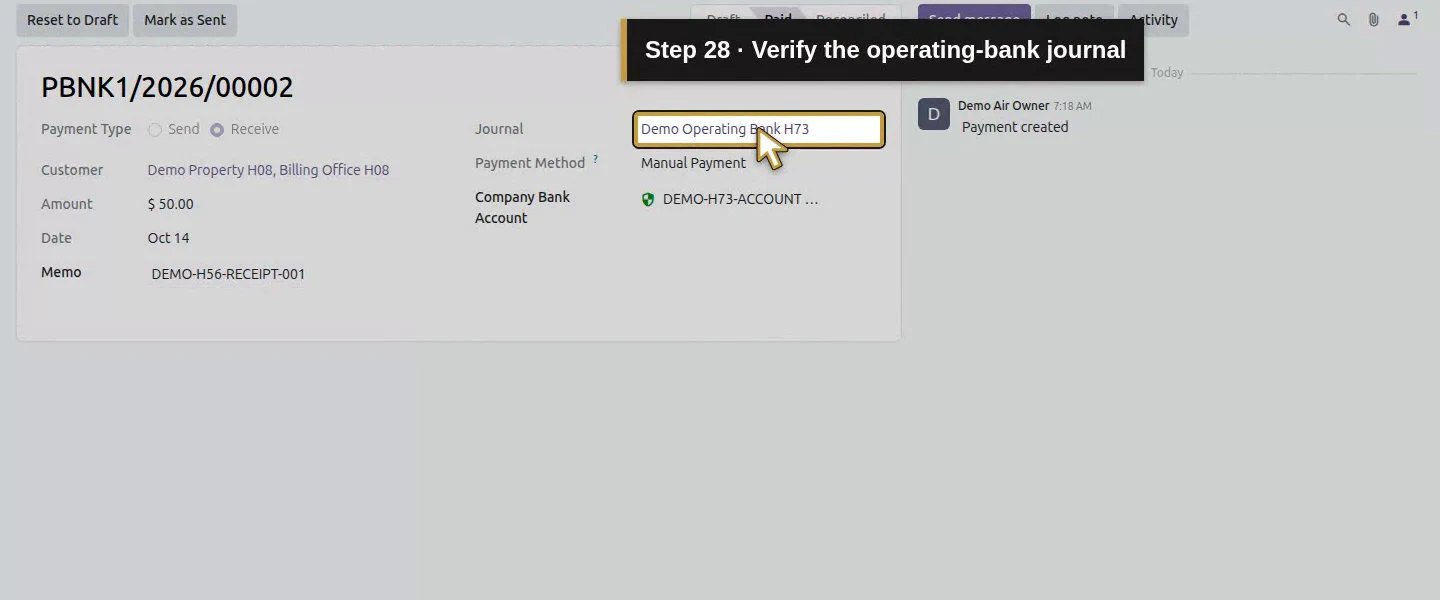
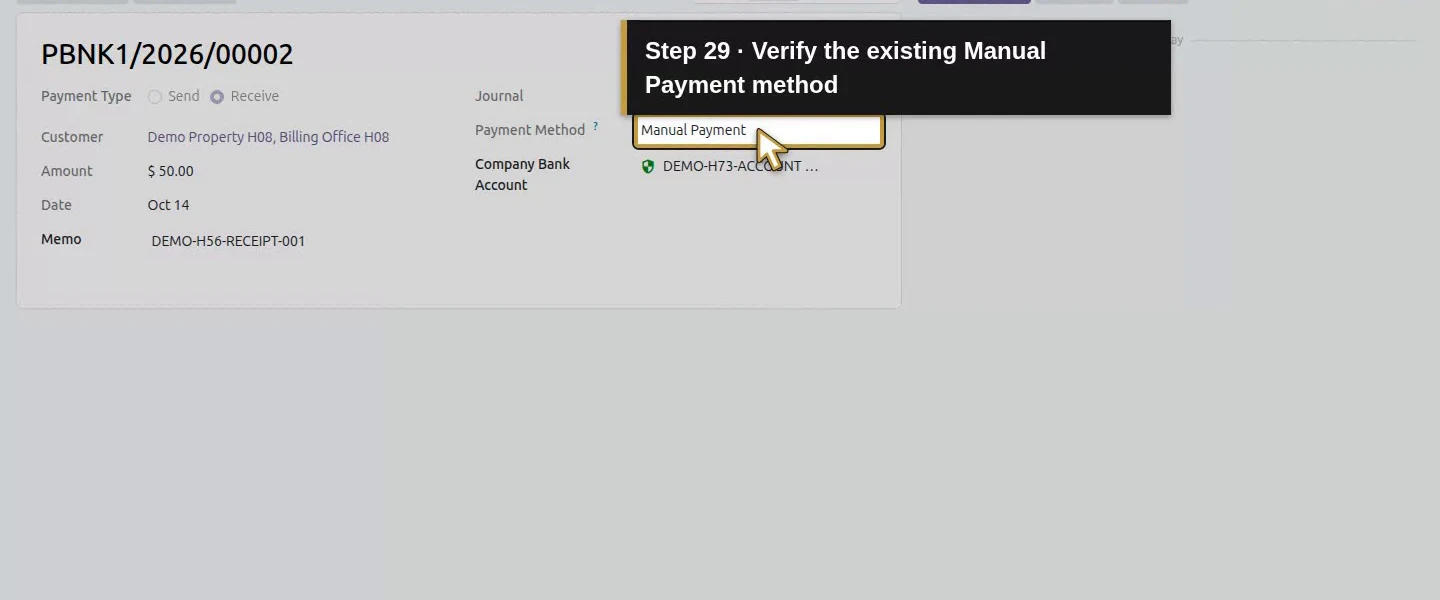
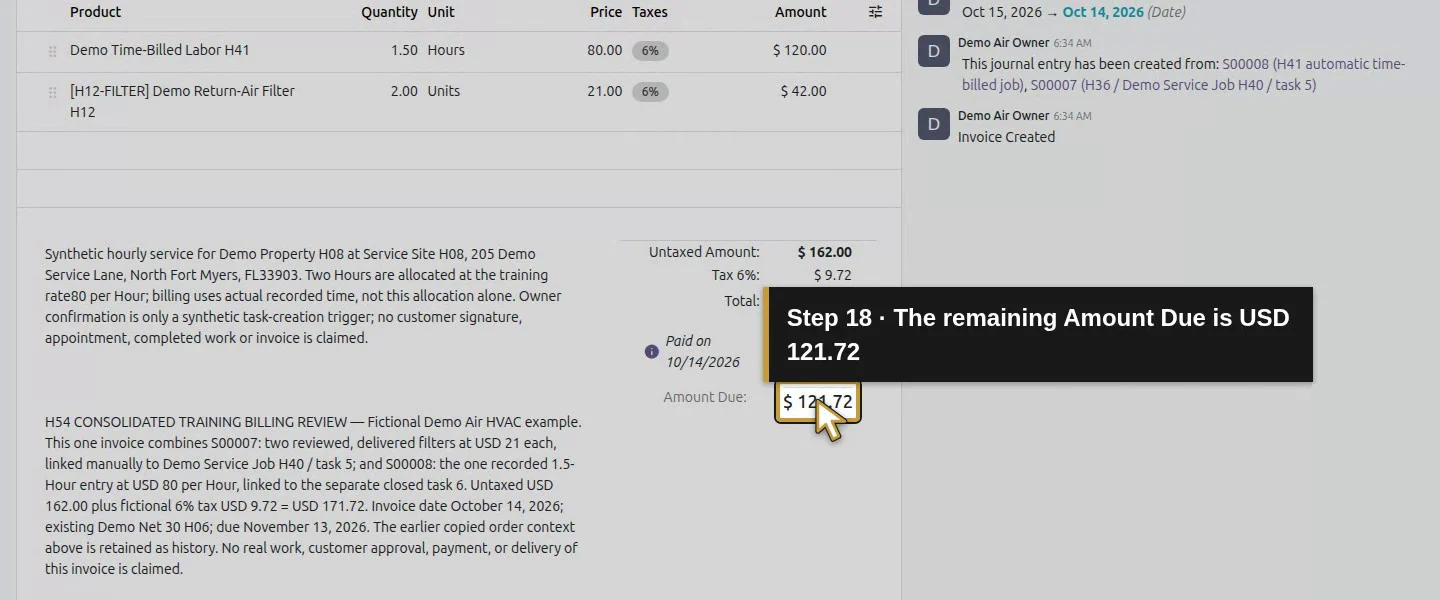
The invoice now shows Partial Customer Invoice, a Paid on 10/14/2026 $50.00 row and Amount Due: $121.72. Open 1 Payments. The native record is PBNK1/2026/00002, type Receive, customer Billing Office H08, amount $50, date Oct 14, the chosen memo, journal and Manual Payment method. At this partial checkpoint its payment status was Paid, while the invoice remained Partially Paid. These are different records.
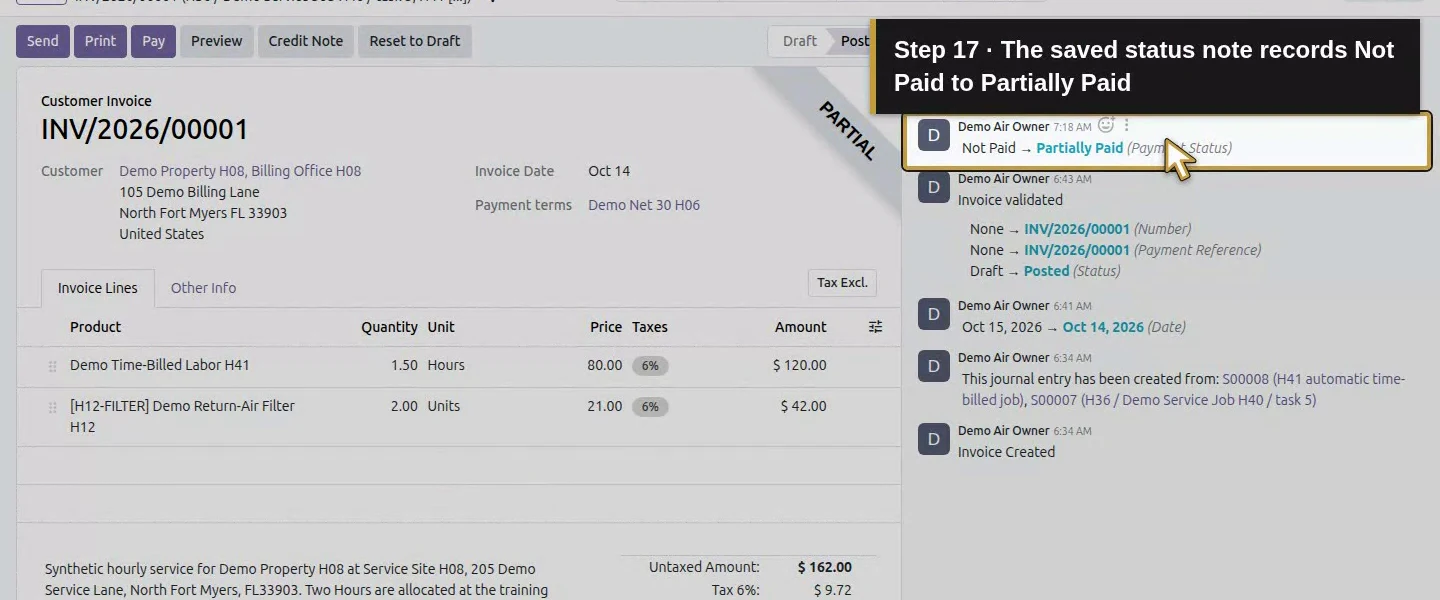
Action 17: The saved status note records Not Paid to Partially Paid. The actual target is highlighted in gold.
The saved status note records Not Paid to Partially Paid.
Action 18: The remaining Amount Due is USD 121.72. The actual target is highlighted in gold.
The remaining Amount Due is USD 121.72.
Action 19: The first USD 50 receipt is already listed. The actual target is highlighted in gold.
The first USD 50 receipt is already listed.
Action 20: Open its one linked Payments record. The actual target is highlighted in gold.
Open its one linked Payments record.
Action 21: Match PBNK1/2026/00002 to the first receipt. The actual target is highlighted in gold.
Match PBNK1/2026/00002 to the first receipt.
Action 22: This first payment record shows Paid. The actual target is highlighted in gold.
This first payment record shows Paid.
Action 23: Check the native Receive payment type. The actual target is highlighted in gold.
Check the native Receive payment type.
Action 24: Verify the same Billing Office customer. The actual target is highlighted in gold.
Verify the same Billing Office customer.
Action 25: Verify the recorded USD 50 amount. The actual target is highlighted in gold.
Verify the recorded USD 50 amount.
Action 26: Verify the saved October 14 receipt date. The actual target is highlighted in gold.
Verify the saved October 14 receipt date.
Action 27: Match the saved distinct first receipt reference. The actual target is highlighted in gold.
Match the saved distinct first receipt reference.
Action 28: Verify the operating-bank journal. The actual target is highlighted in gold.
Verify the operating-bank journal.
Action 29: Verify the existing Manual Payment method. The actual target is highlighted in gold.
Verify the existing Manual Payment method.
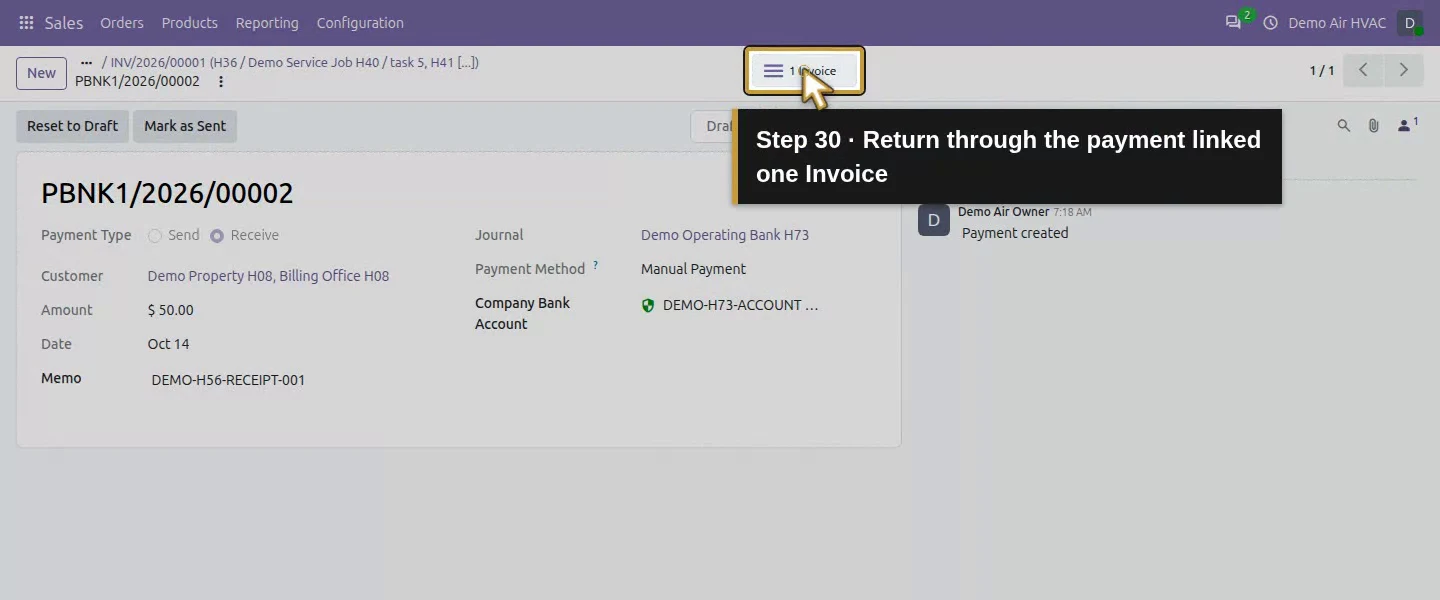
Action 30: Return through the payment linked one Invoice. The actual target is highlighted in gold.
Return through the payment linked one Invoice.

Step 5. Return to the same invoice for the separate remaining receipt

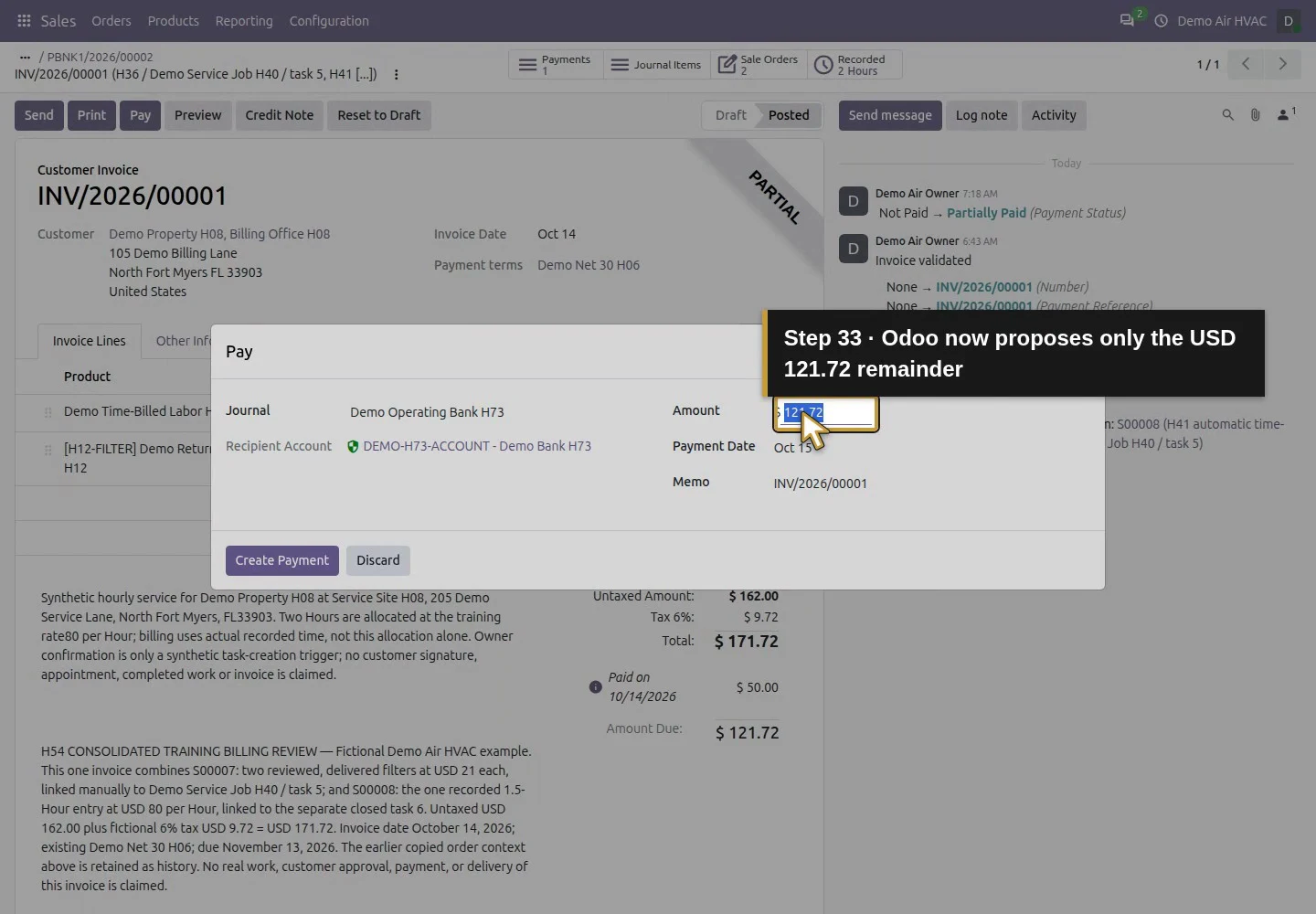
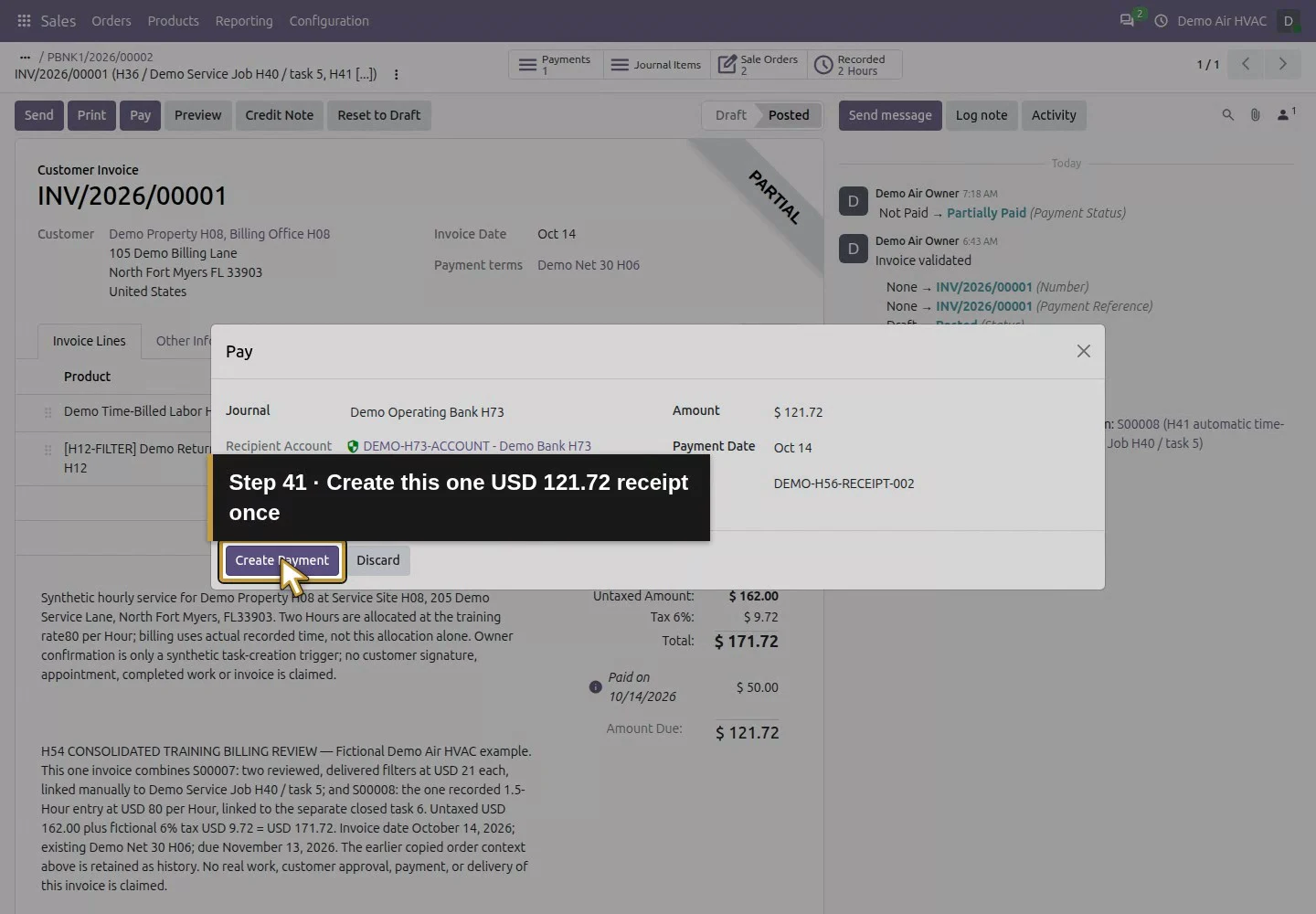
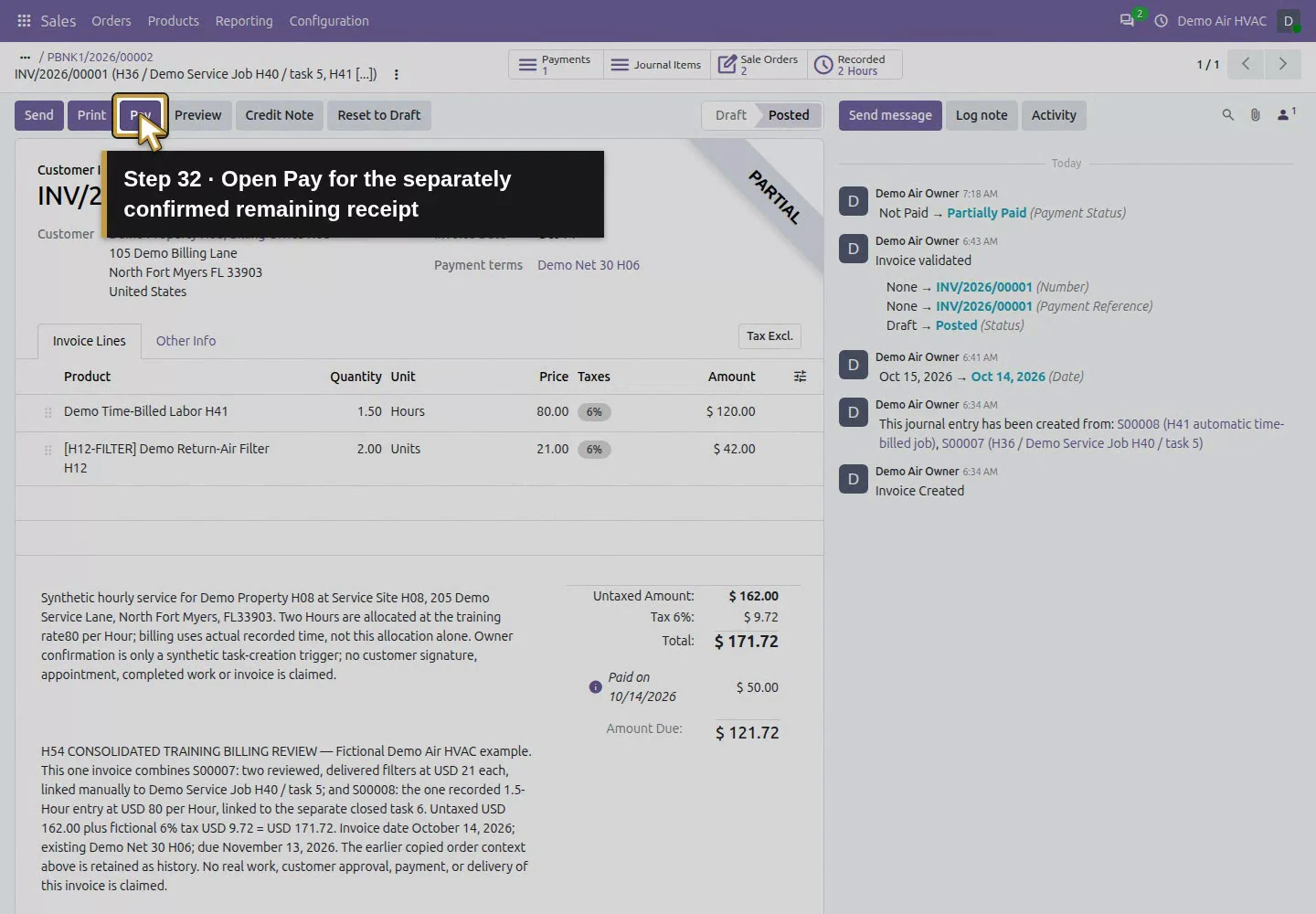
Use the payment’s 1 Invoice button to return to the original invoice. Check that its balance is still $121.72 and the $50 receipt is already listed. After the second independently confirmed receipt, click Pay again. The dialog now proposes 121.72, the remaining balance. Retain the correct journal/date, enter DEMO-H56-RECEIPT-002 in Memo, and click Create Payment once. This creates a separate receipt, not an edit or replacement of the first one.
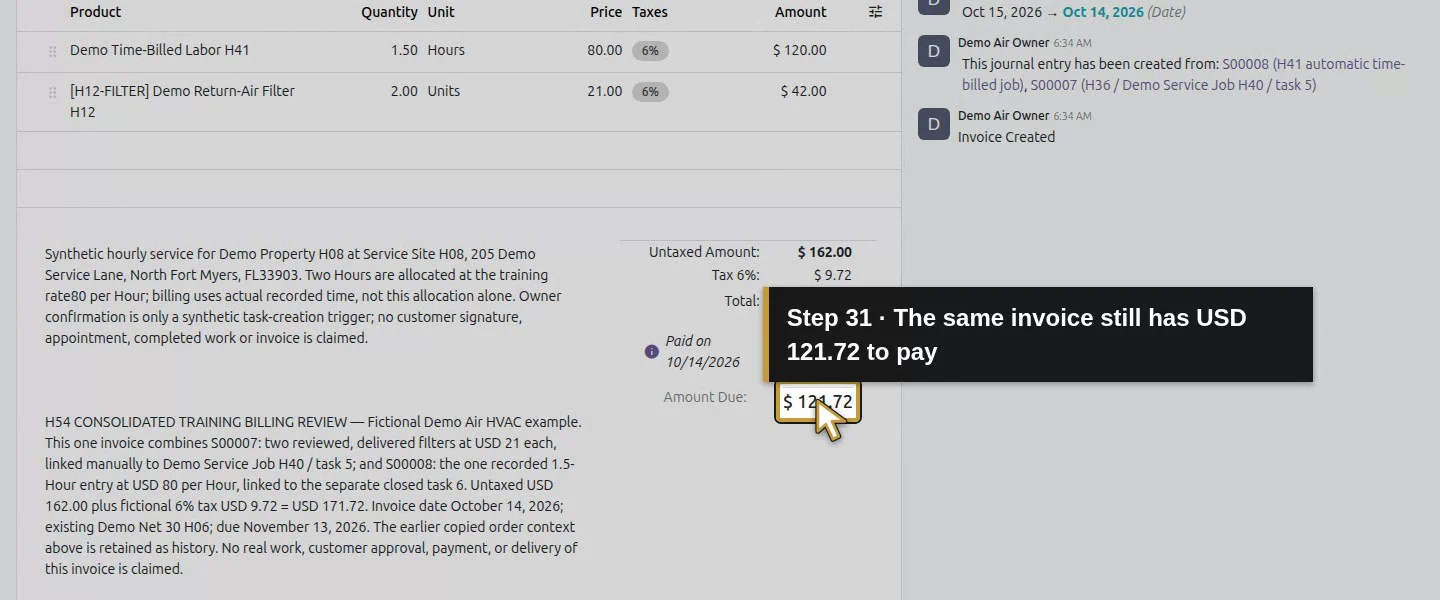
Action 31: The same invoice still has USD 121.72 to pay. The actual target is highlighted in gold.
The same invoice still has USD 121.72 to pay.
Action 32: Open Pay for the separately confirmed remaining receipt. The actual target is highlighted in gold.
Open Pay for the separately confirmed remaining receipt.
Action 33: Odoo now proposes only the USD 121.72 remainder. The actual target is highlighted in gold.
Odoo now proposes only the USD 121.72 remainder.
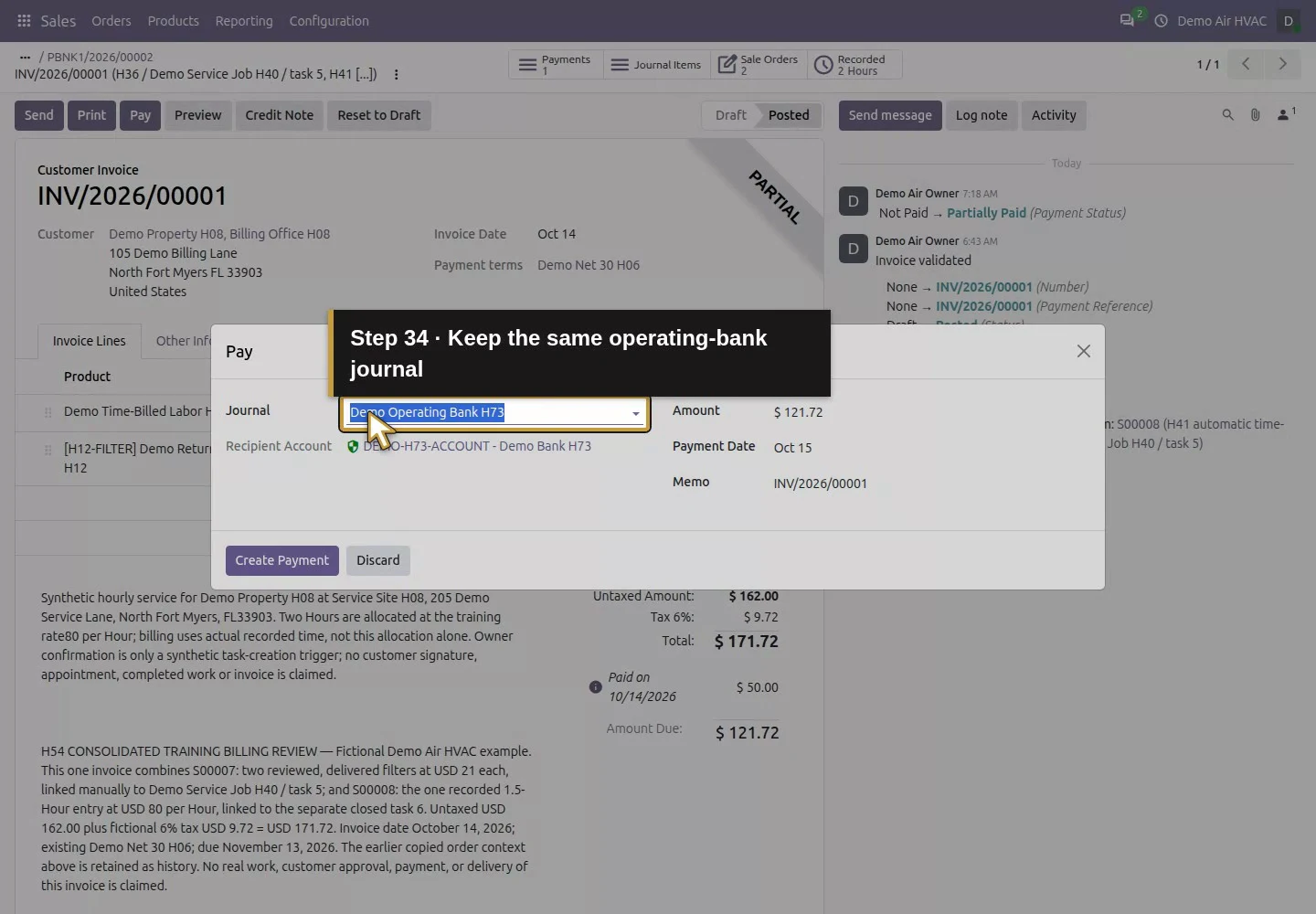
Action 34: Keep the same operating-bank journal. The actual target is highlighted in gold.
Keep the same operating-bank journal.
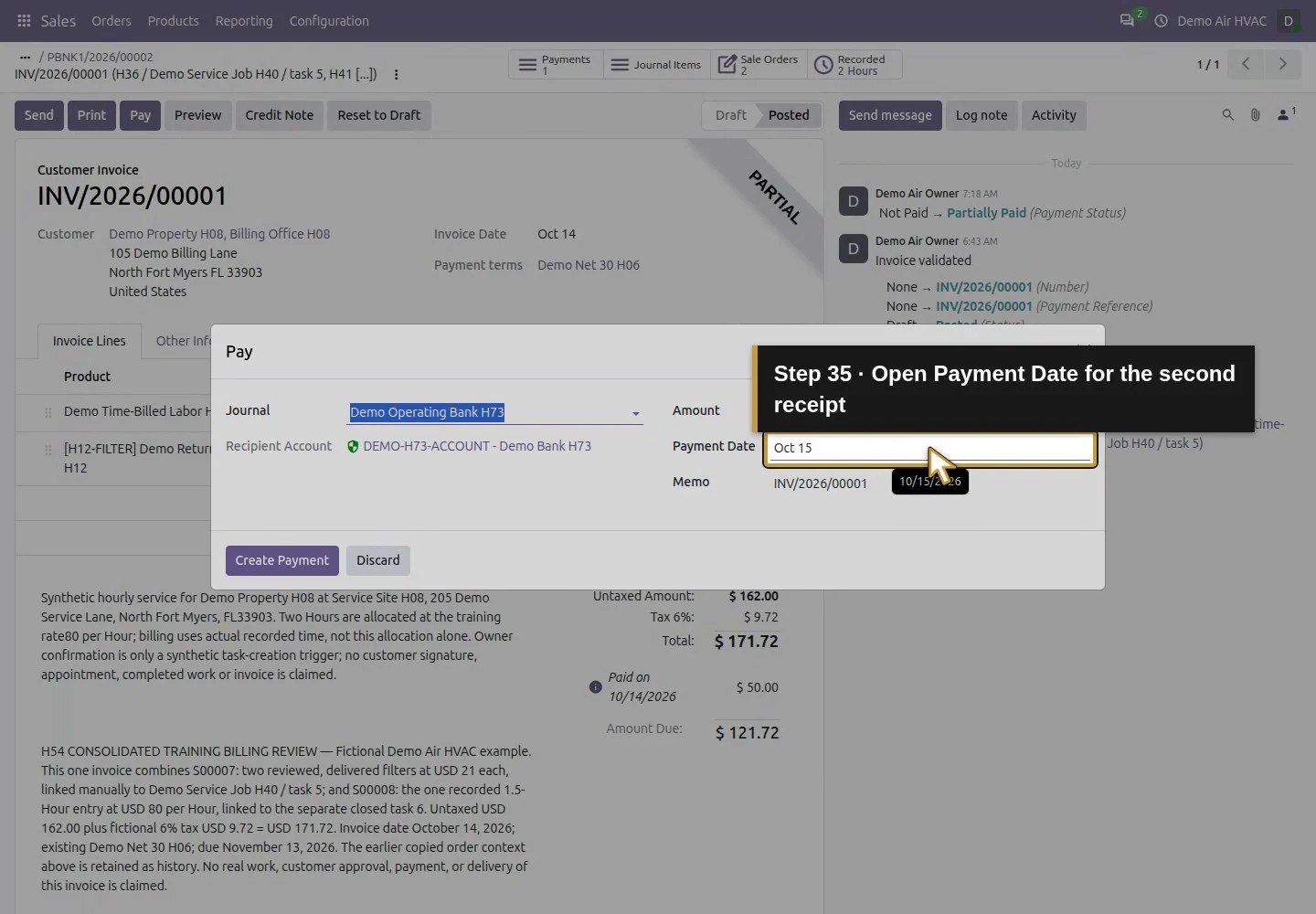
Action 35: Open Payment Date for the second receipt. The actual target is highlighted in gold.
Open Payment Date for the second receipt.
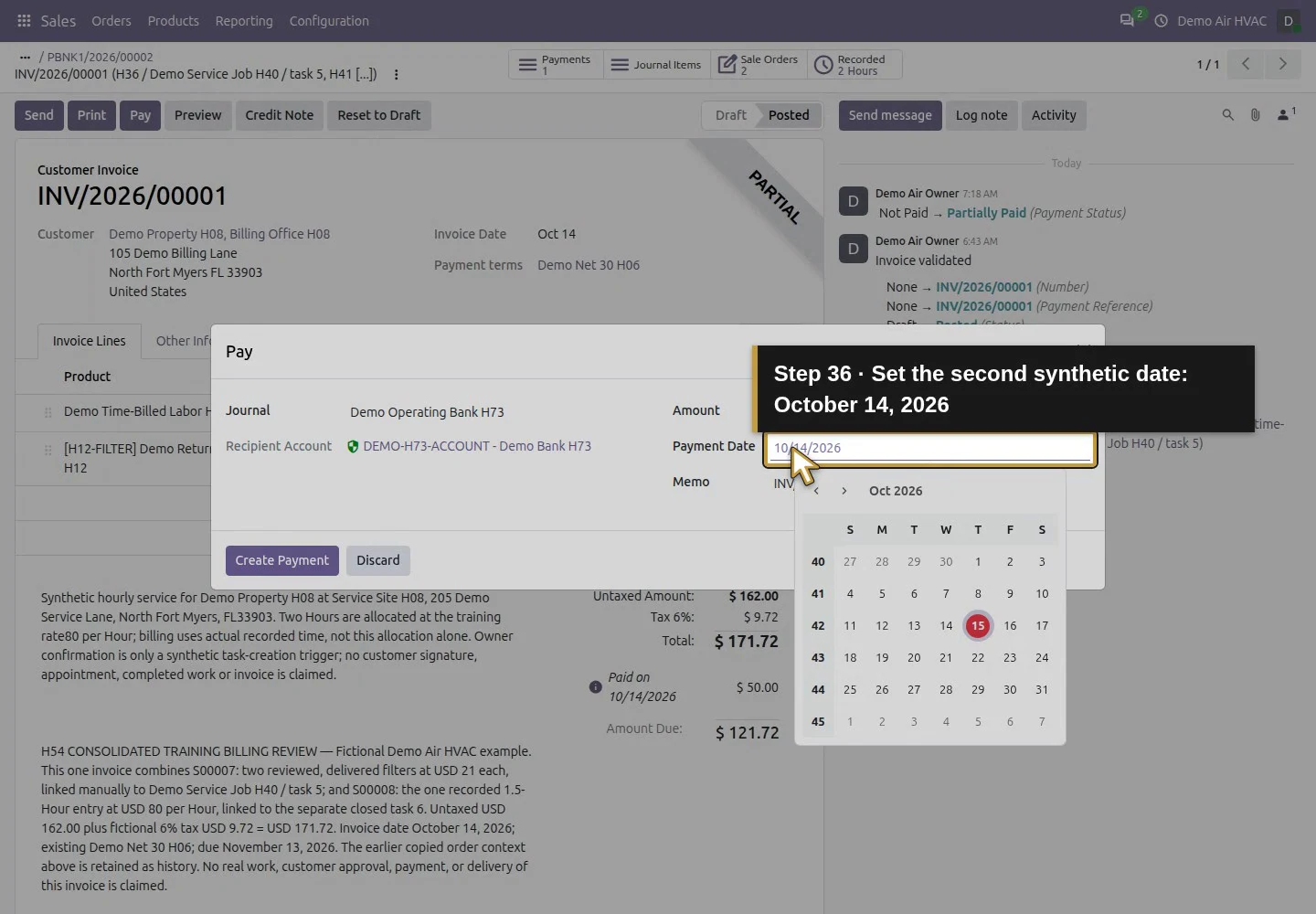
Action 36: Set the second synthetic date: October 14, 2026. The actual target is highlighted in gold.
Set the second synthetic date: October 14, 2026.
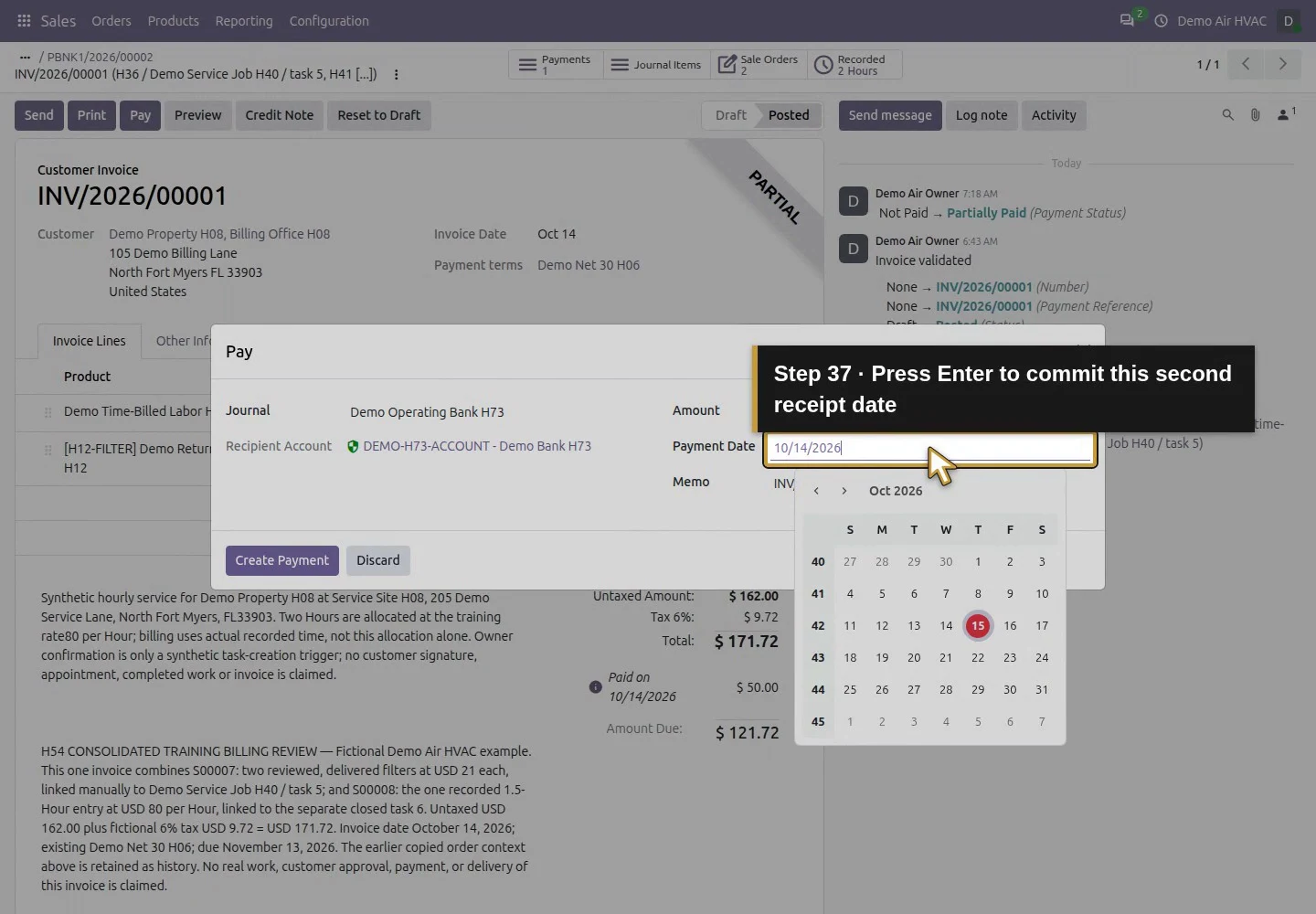
Action 37: Press Enter to commit this second receipt date. The actual target is highlighted in gold.
Press Enter to commit this second receipt date.
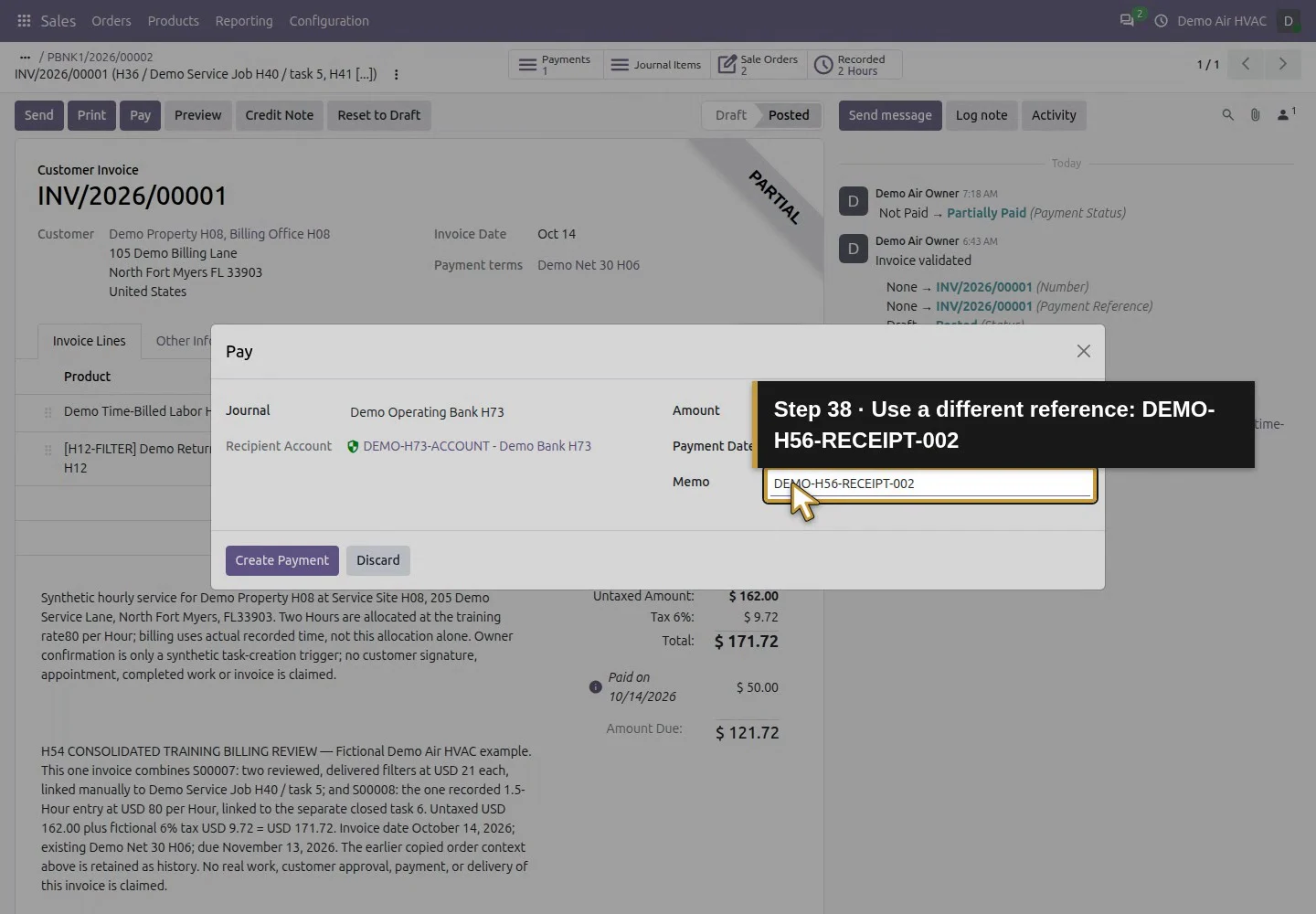
Action 38: Use a different reference: DEMO-H56-RECEIPT-002. The actual target is highlighted in gold.
Use a different reference: DEMO-H56-RECEIPT-002.
Action 39: Commit the separate final receipt fields. The actual target is highlighted in gold.
Commit the separate final receipt fields.
Action 40: Review USD 121.72, October 14 and the distinct memo. The actual target is highlighted in gold.
Review USD 121.72, October 14 and the distinct memo.
Action 41: Create this one USD 121.72 receipt once. The actual target is highlighted in gold.
Create this one USD 121.72 receipt once.

Step 6. Compare the final invoice and both payments

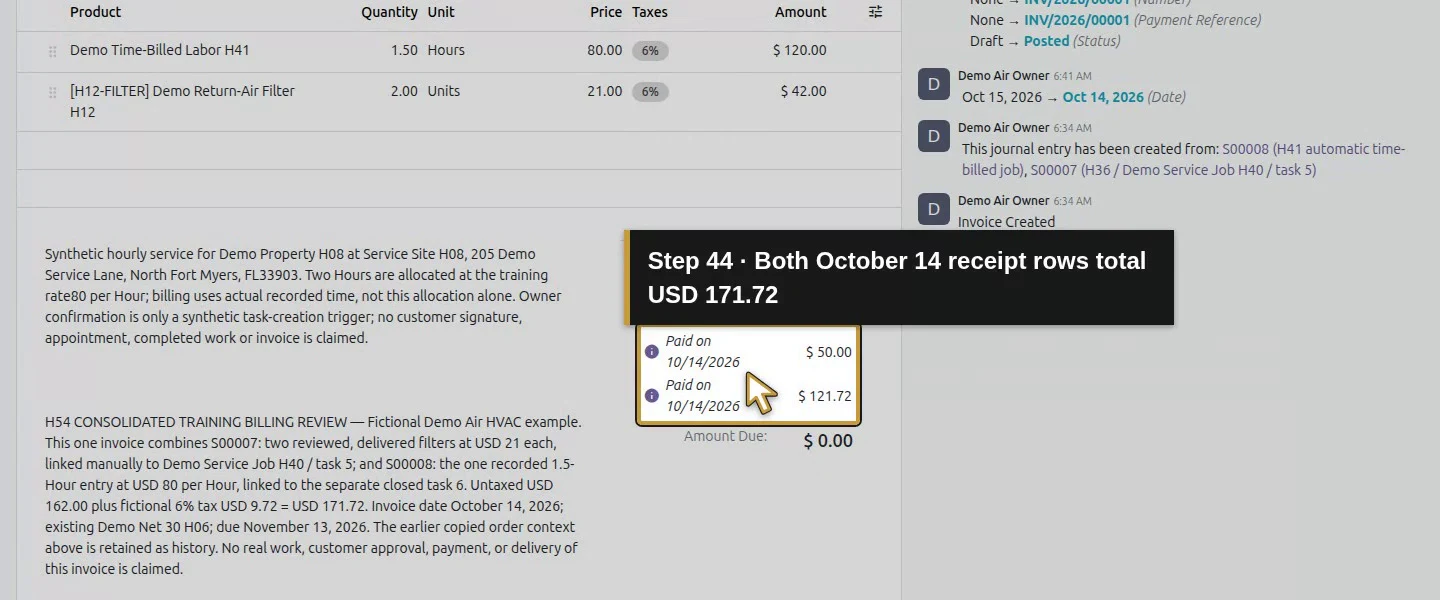
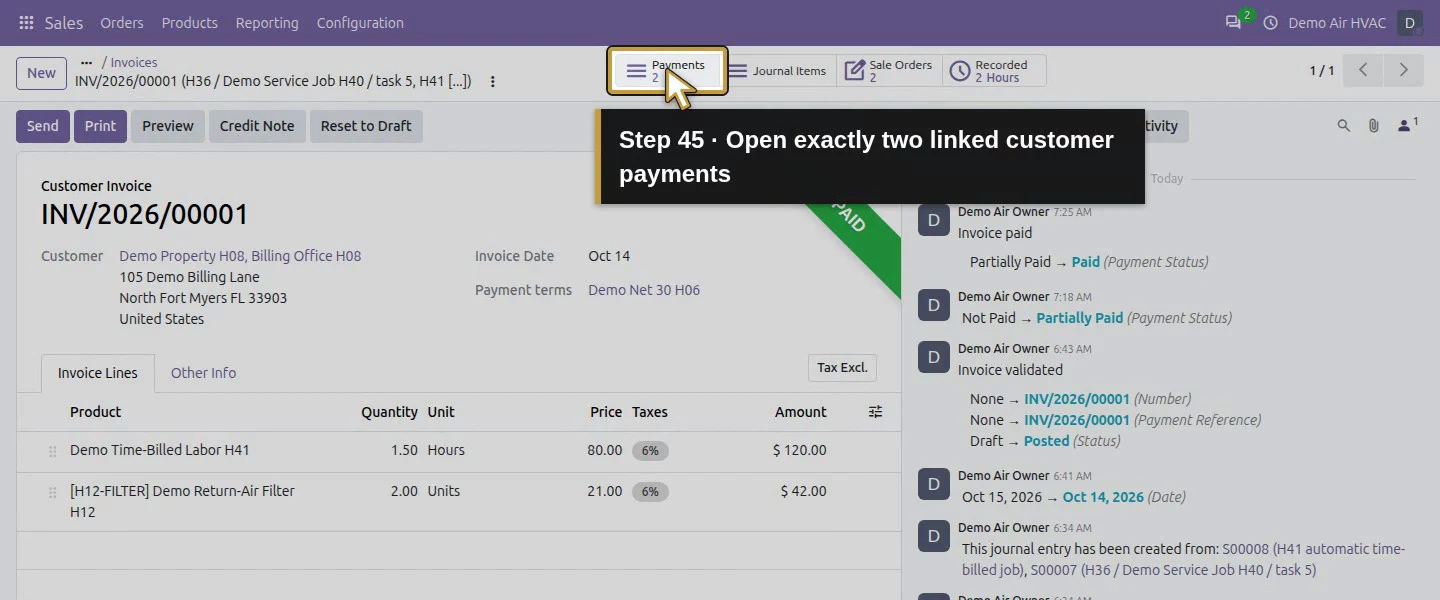
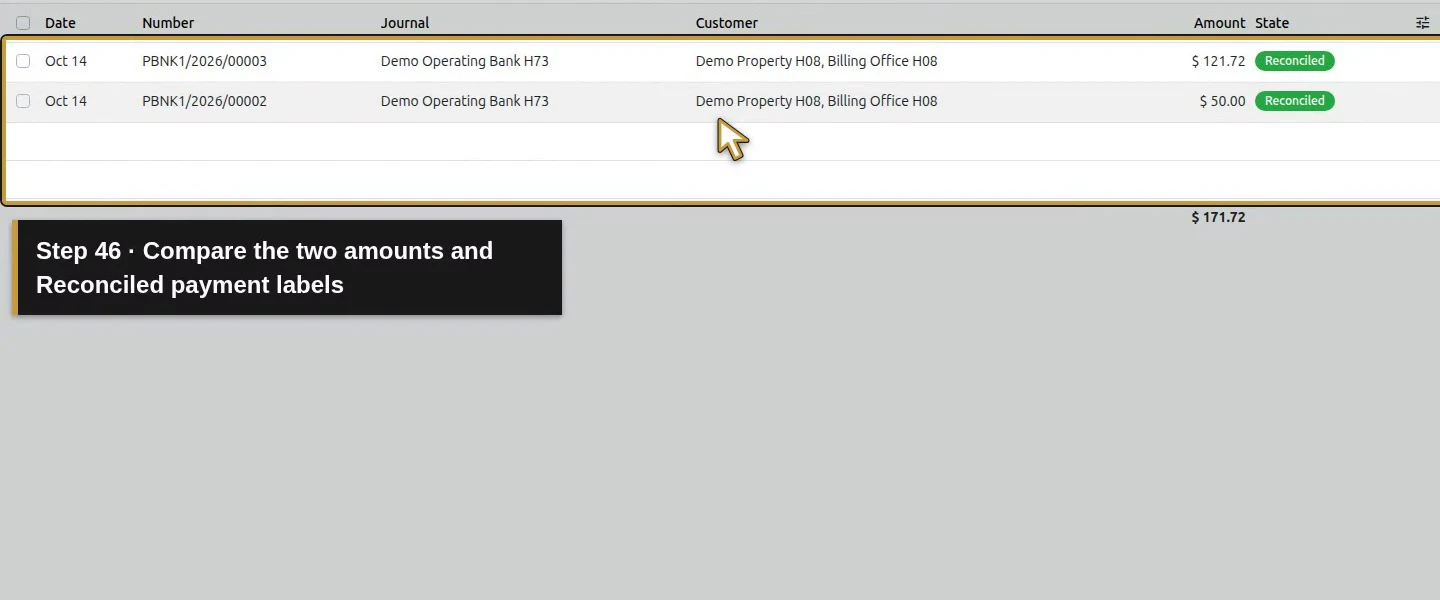
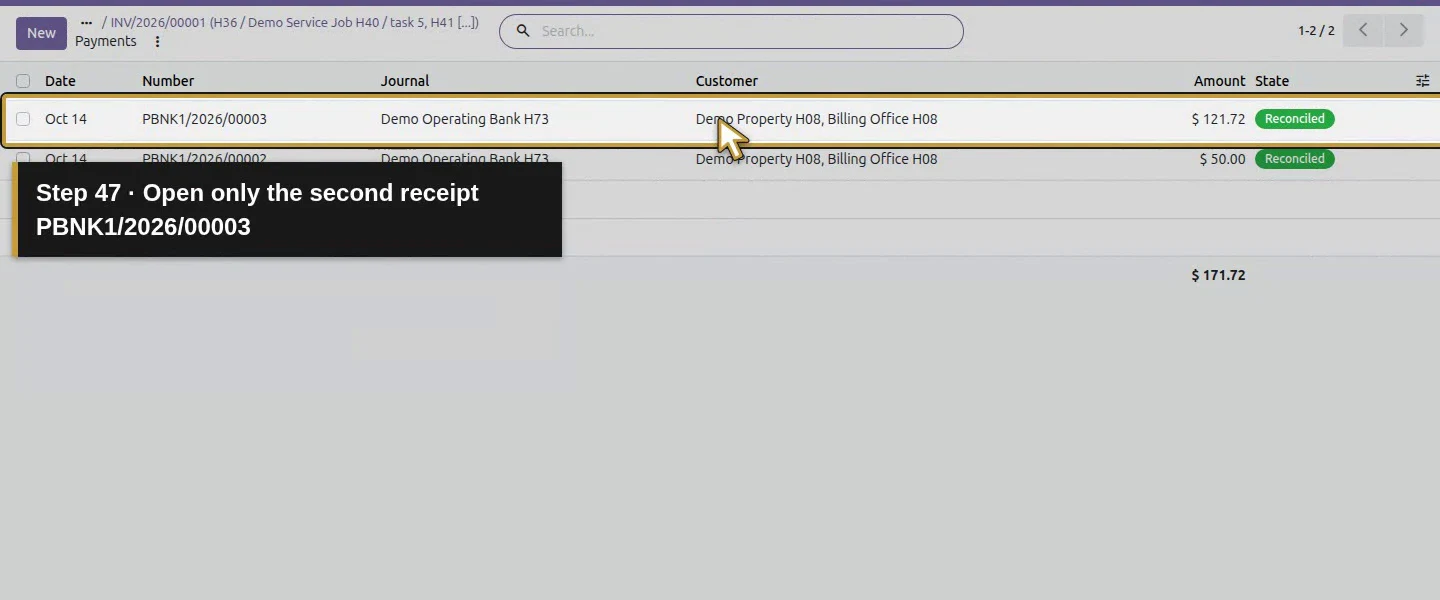
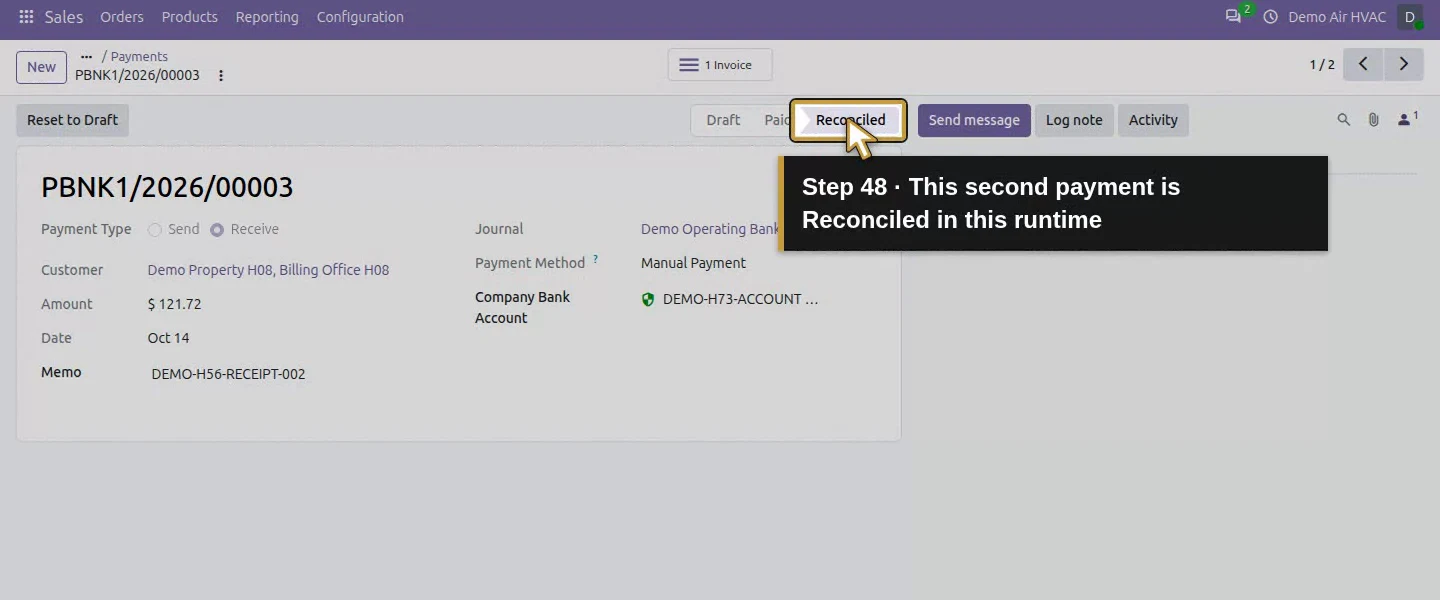
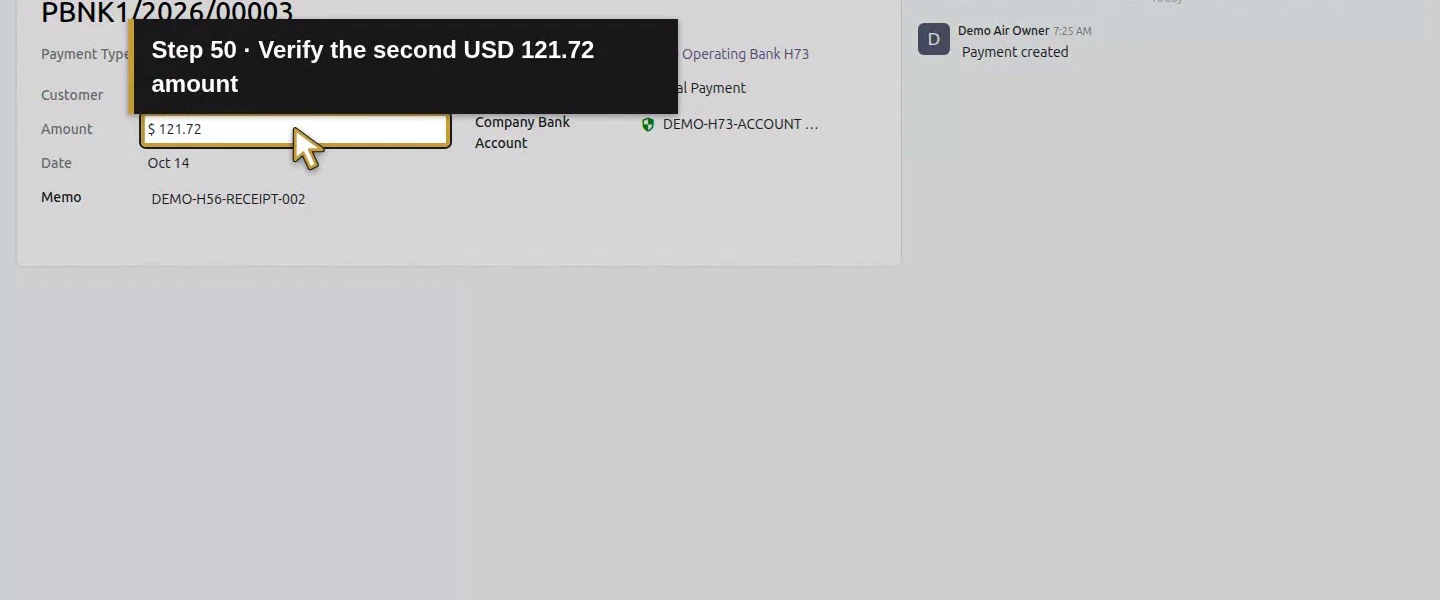
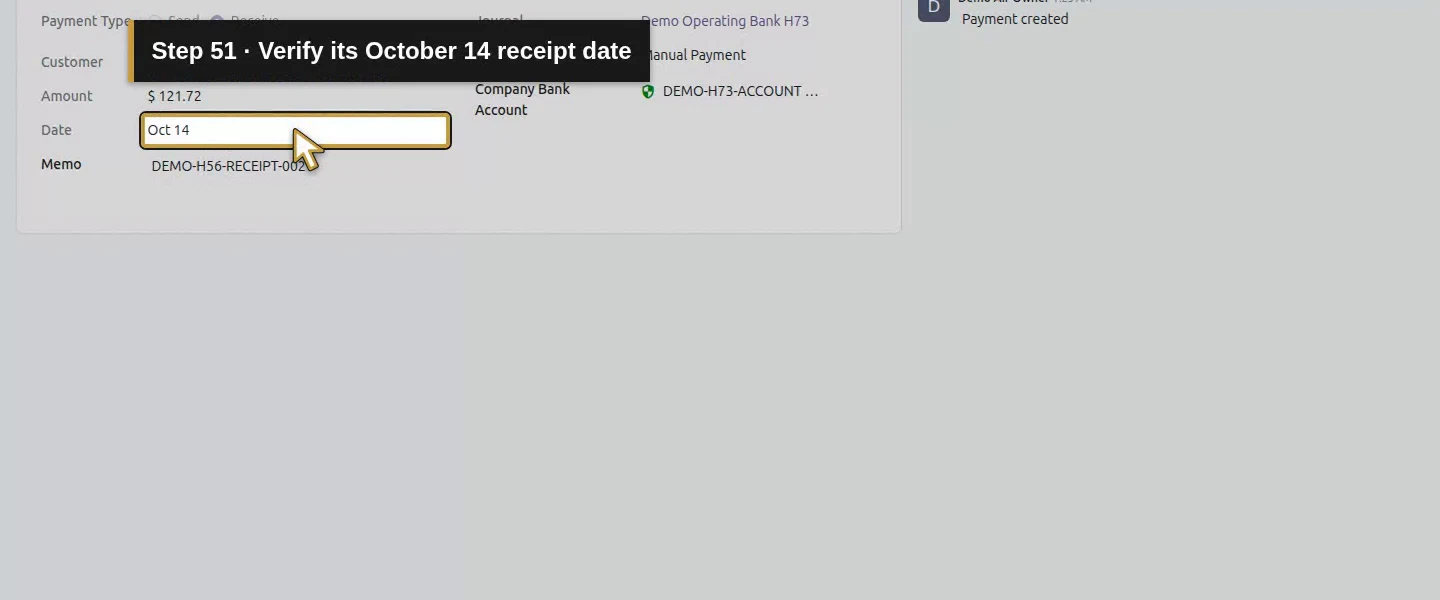
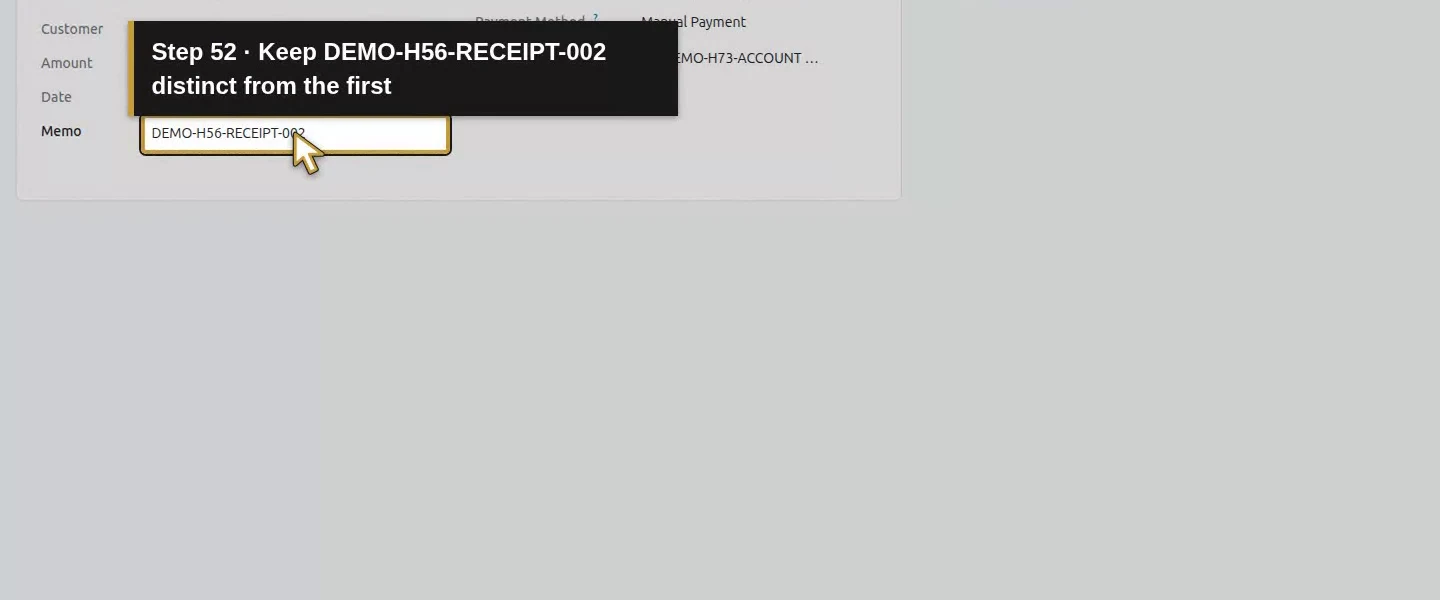
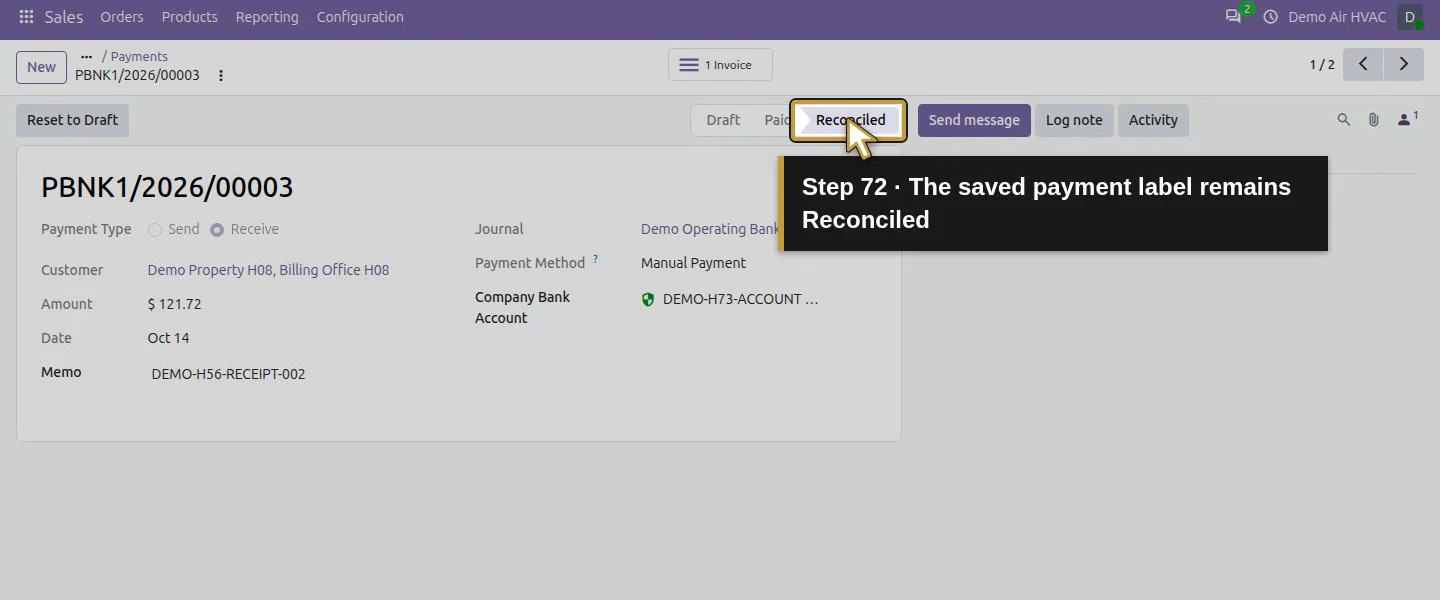
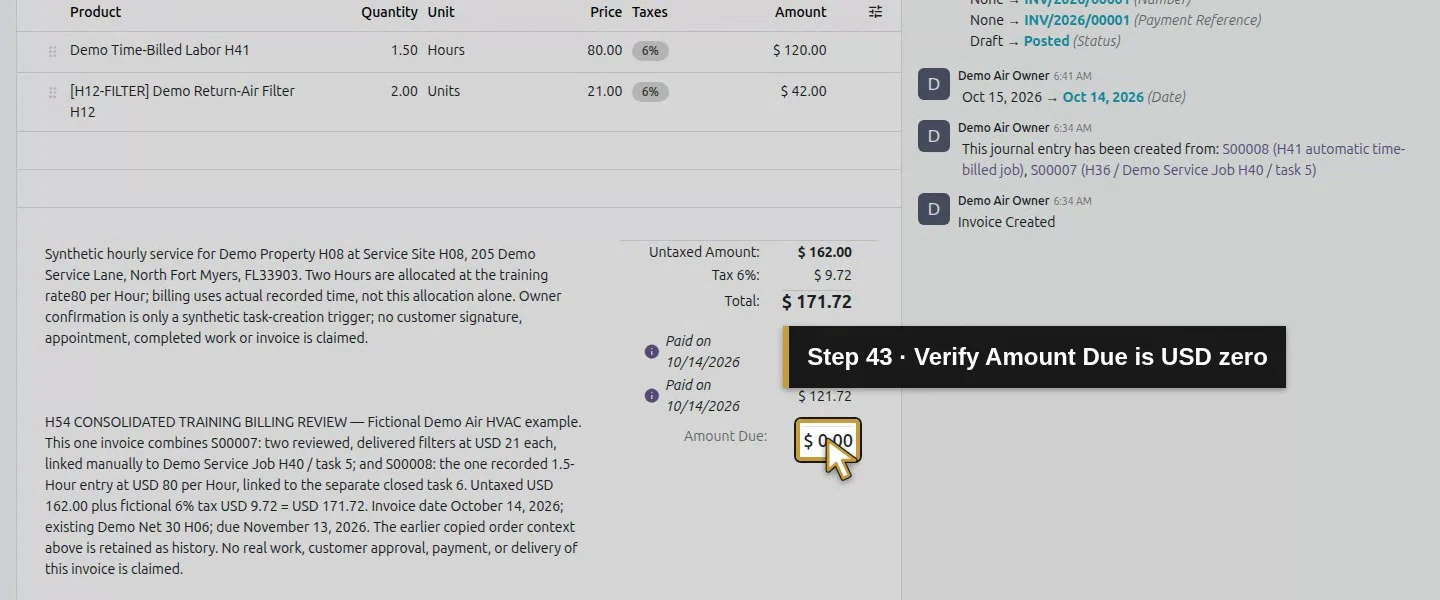
Wait for the refreshed invoice, then reload it. It shows Paid Customer Invoice, two paid rows ($50 and $121.72) and Amount Due: $0.00. 2 Payments opens exactly two customer receipts totalling $171.72: PBNK1/2026/00002 and PBNK1/2026/00003. Open the second record and check its $121.72 amount, date, memo and same journal. Both payment records now show Reconciled in this runtime. The zero-balance invoice no longer shows Pay.
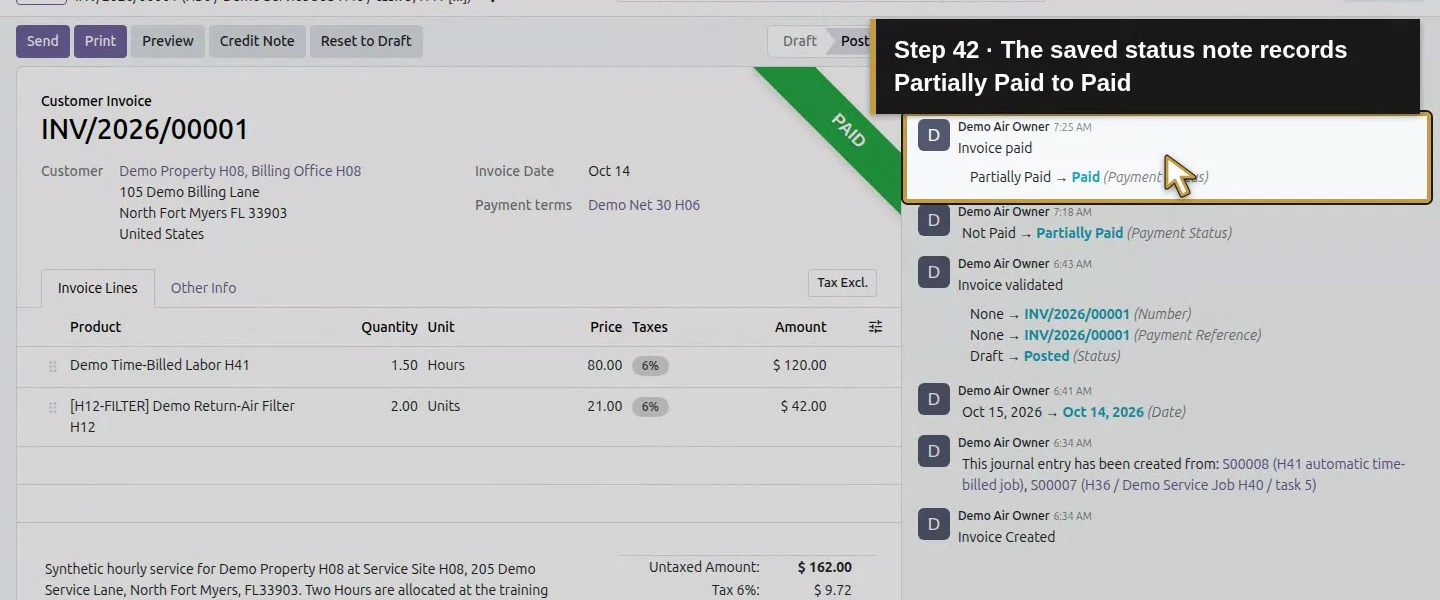
Action 42: The saved status note records Partially Paid to Paid. The actual target is highlighted in gold.
The saved status note records Partially Paid to Paid.
Action 43: Verify Amount Due is USD zero. The actual target is highlighted in gold.
Verify Amount Due is USD zero.
Action 44: Both October 14 receipt rows total USD 171.72. The actual target is highlighted in gold.
Both October 14 receipt rows total USD 171.72.
Action 45: Open exactly two linked customer payments. The actual target is highlighted in gold.
Open exactly two linked customer payments.
Action 46: Compare the two amounts and Reconciled payment labels. The actual target is highlighted in gold.
Compare the two amounts and Reconciled payment labels.
Action 47: Open only the second receipt PBNK1/2026/00003. The actual target is highlighted in gold.
Open only the second receipt PBNK1/2026/00003.
Action 48: This second payment is Reconciled in this runtime. The actual target is highlighted in gold.
This second payment is Reconciled in this runtime.
Action 49: Check the same Billing Office customer. The actual target is highlighted in gold.
Check the same Billing Office customer.
Action 50: Verify the second USD 121.72 amount. The actual target is highlighted in gold.
Verify the second USD 121.72 amount.
Action 51: Verify its October 14 receipt date. The actual target is highlighted in gold.
Verify its October 14 receipt date.
Action 52: Keep DEMO-H56-RECEIPT-002 distinct from the first. The actual target is highlighted in gold.
Keep DEMO-H56-RECEIPT-002 distinct from the first.
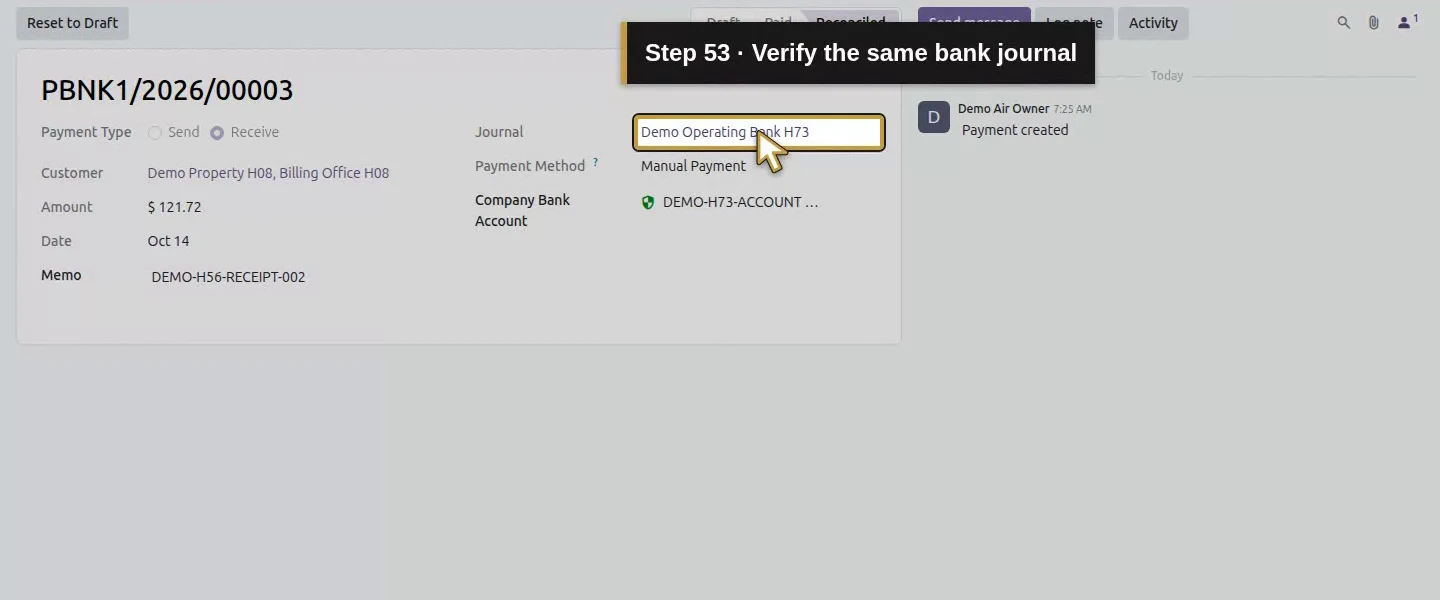
Action 53: Verify the same bank journal. The actual target is highlighted in gold.
Verify the same bank journal.
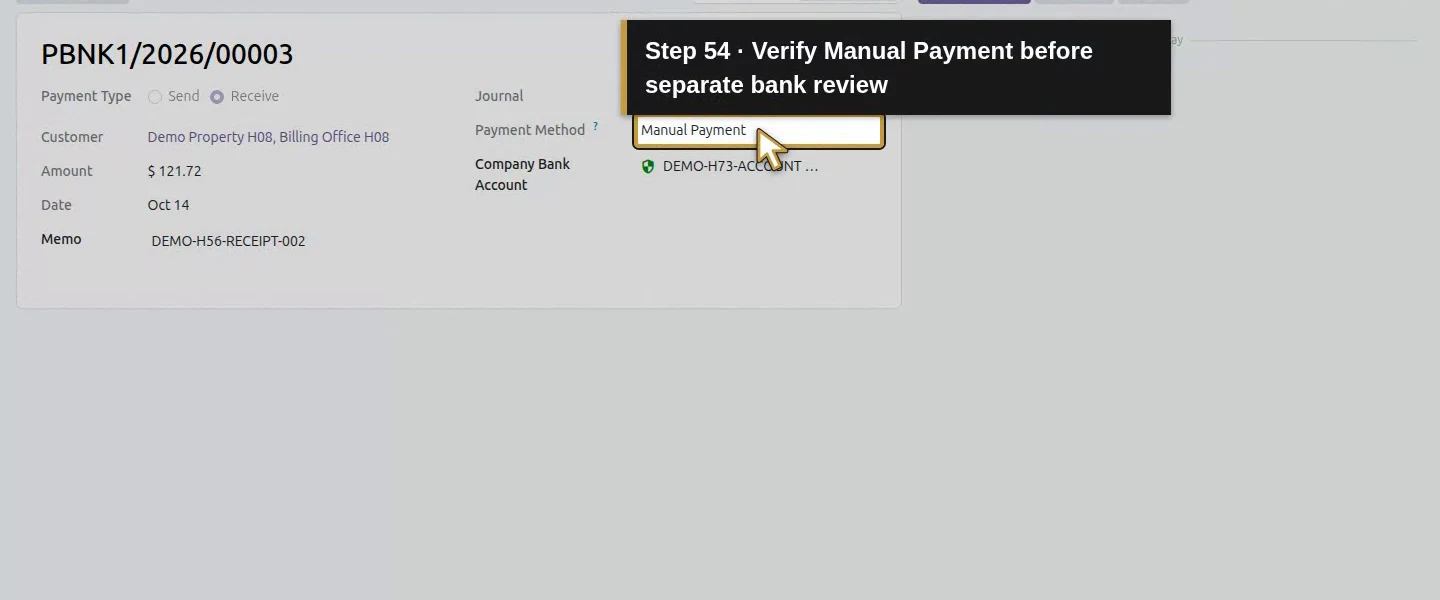
Action 54: Verify Manual Payment before separate bank review. The actual target is highlighted in gold.
Verify Manual Payment before separate bank review.

Step 7. Keep invoice matching and bank settlement separate

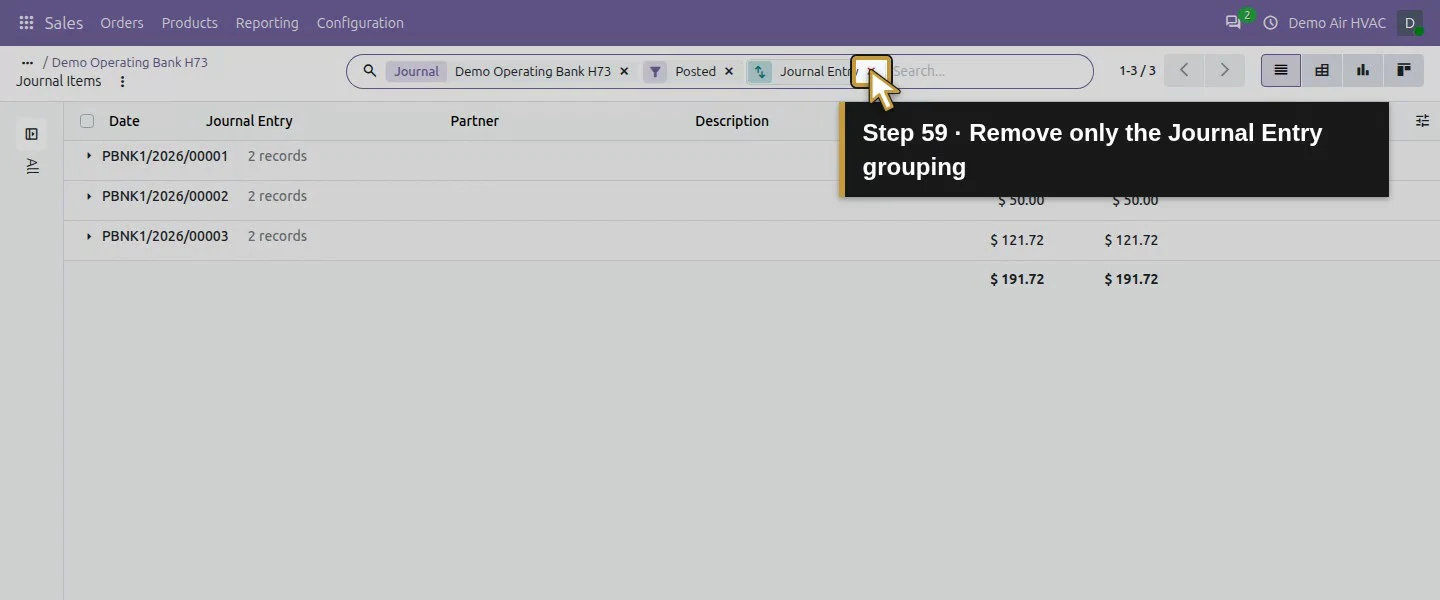
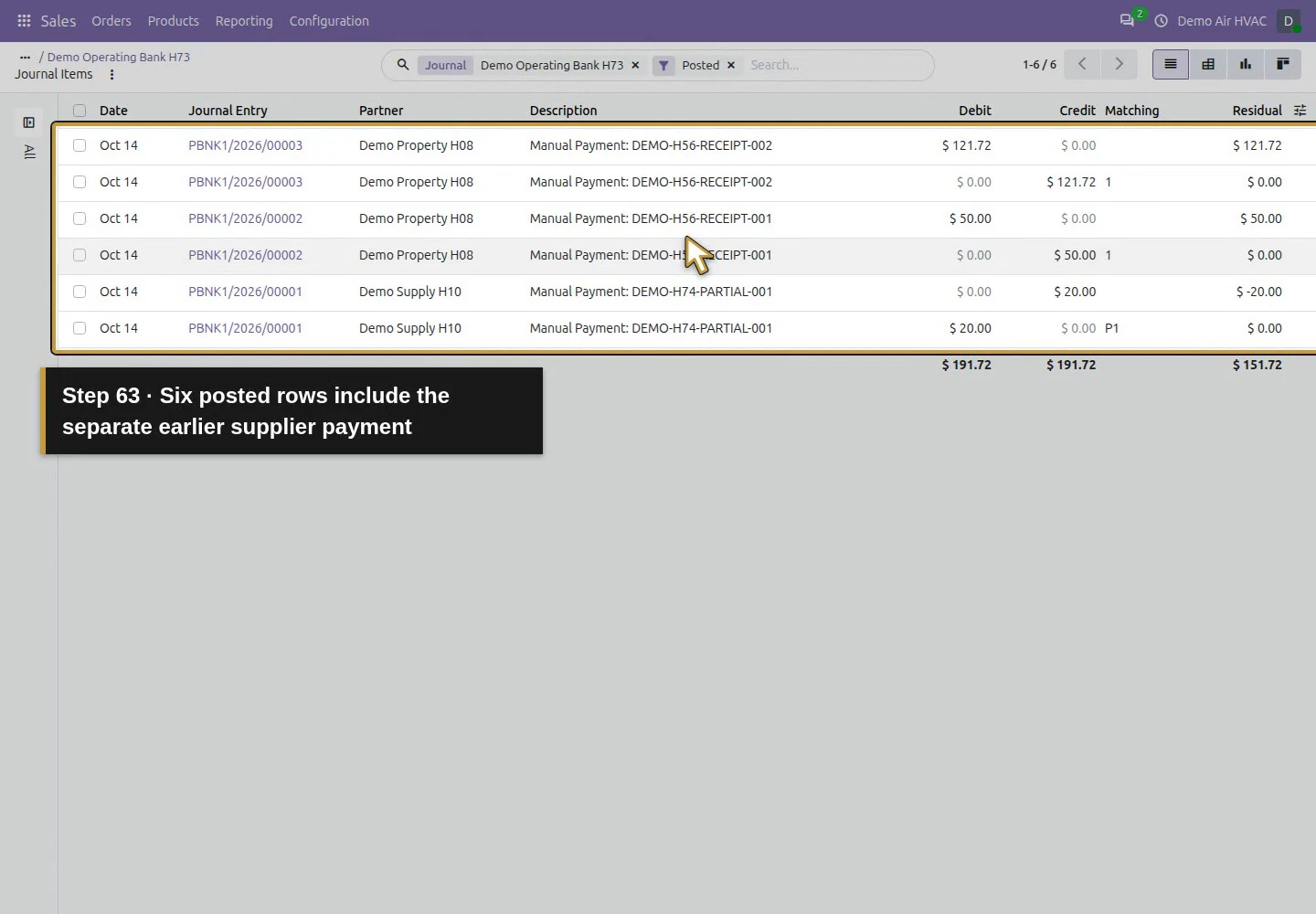
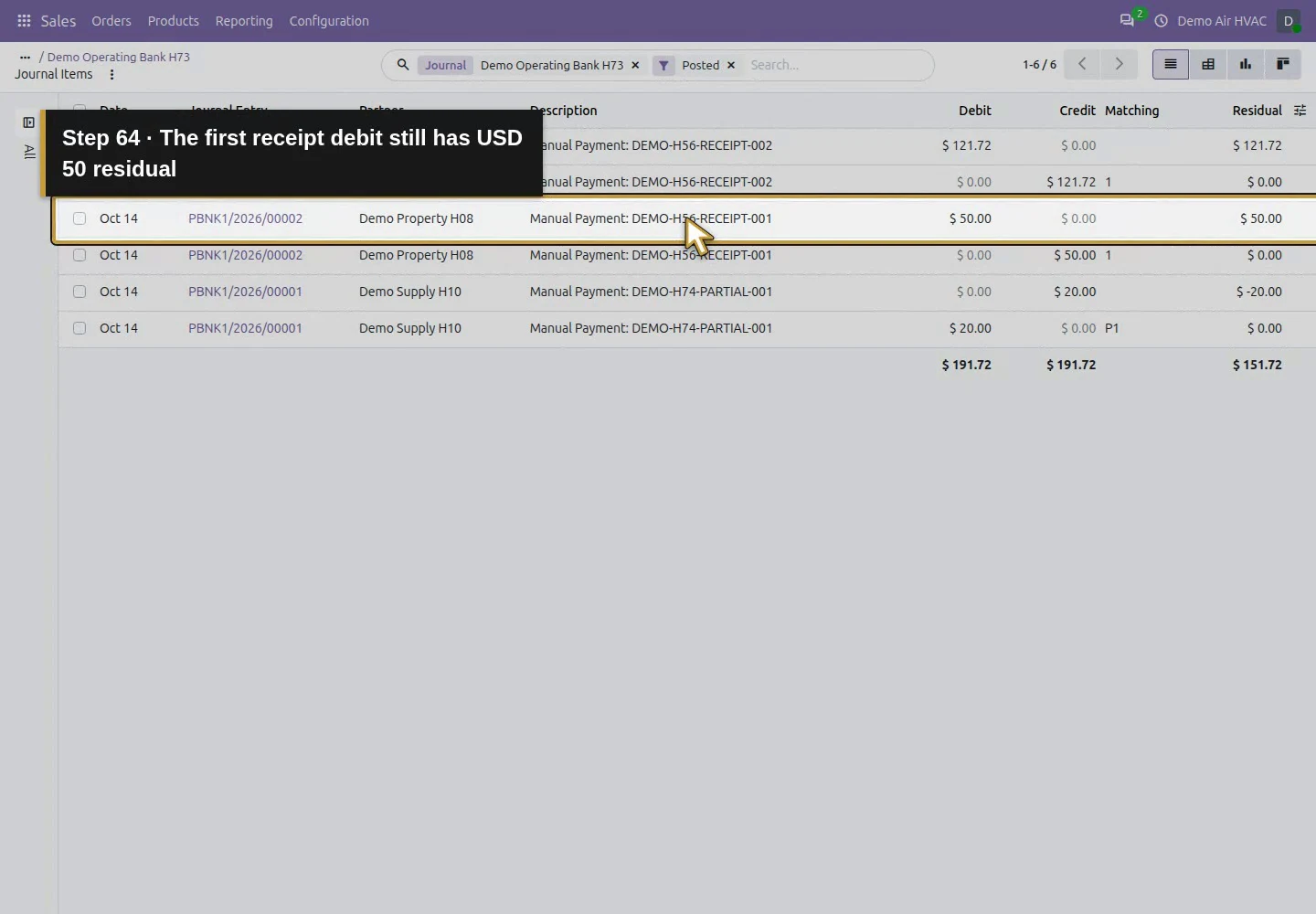
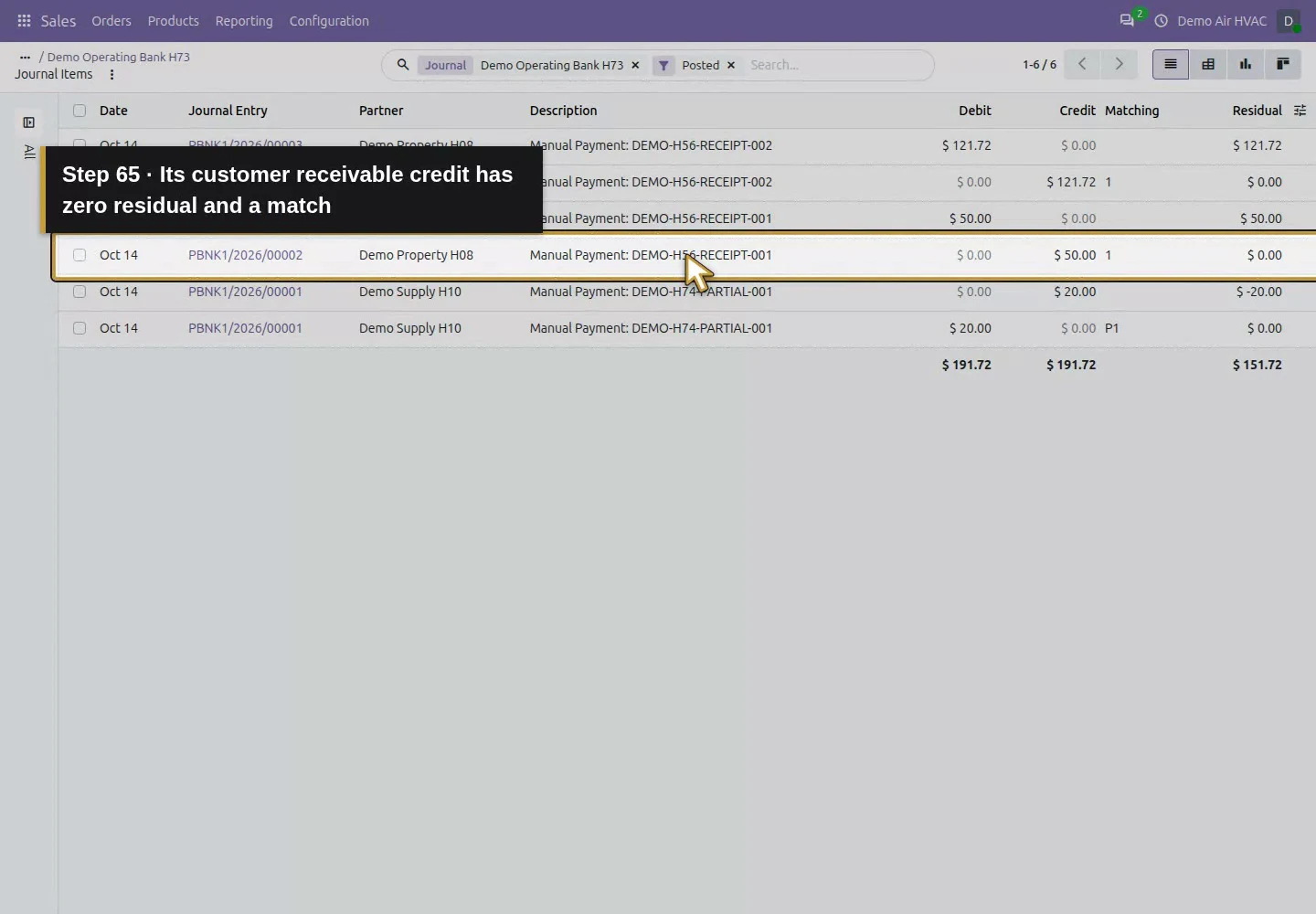
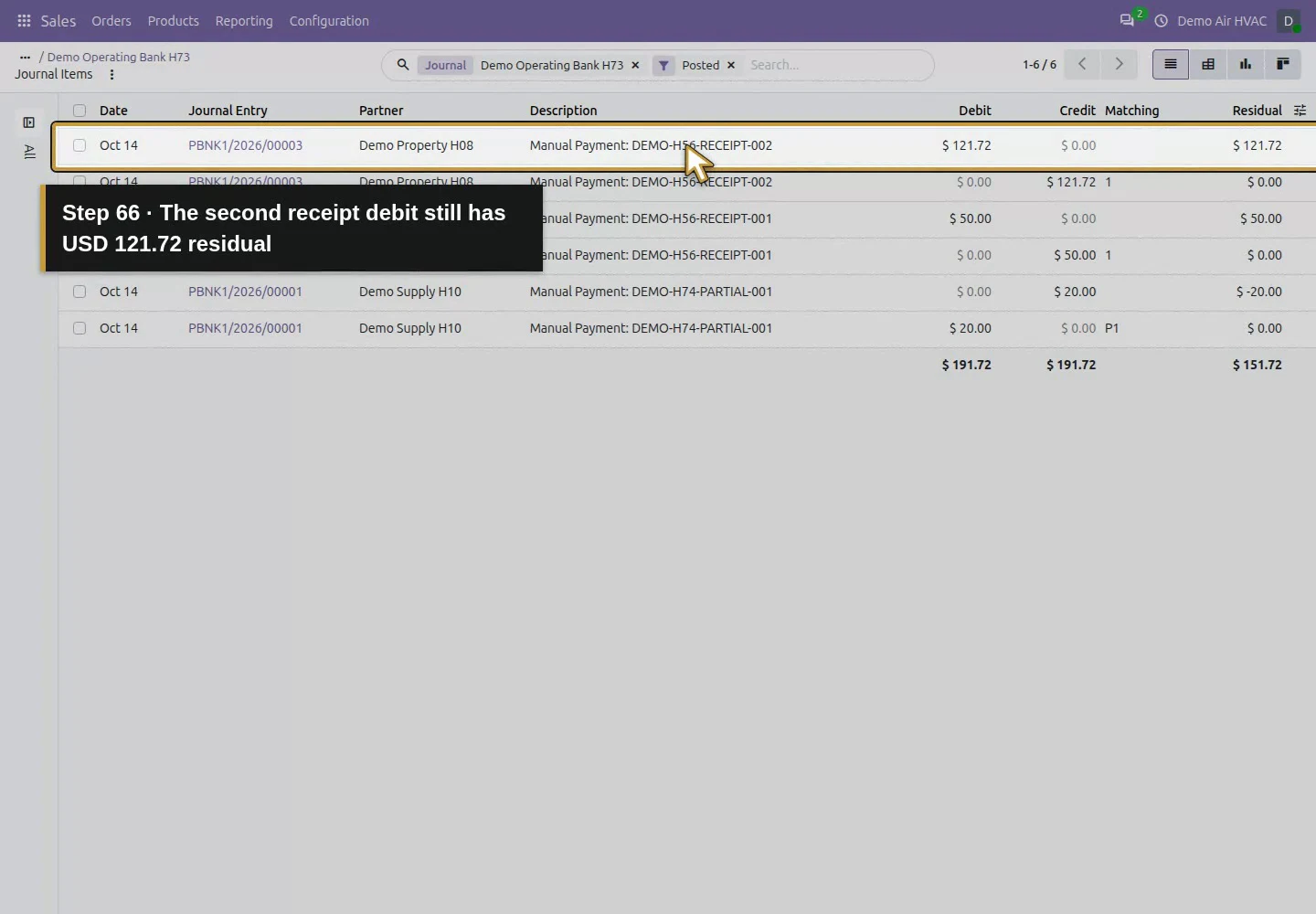
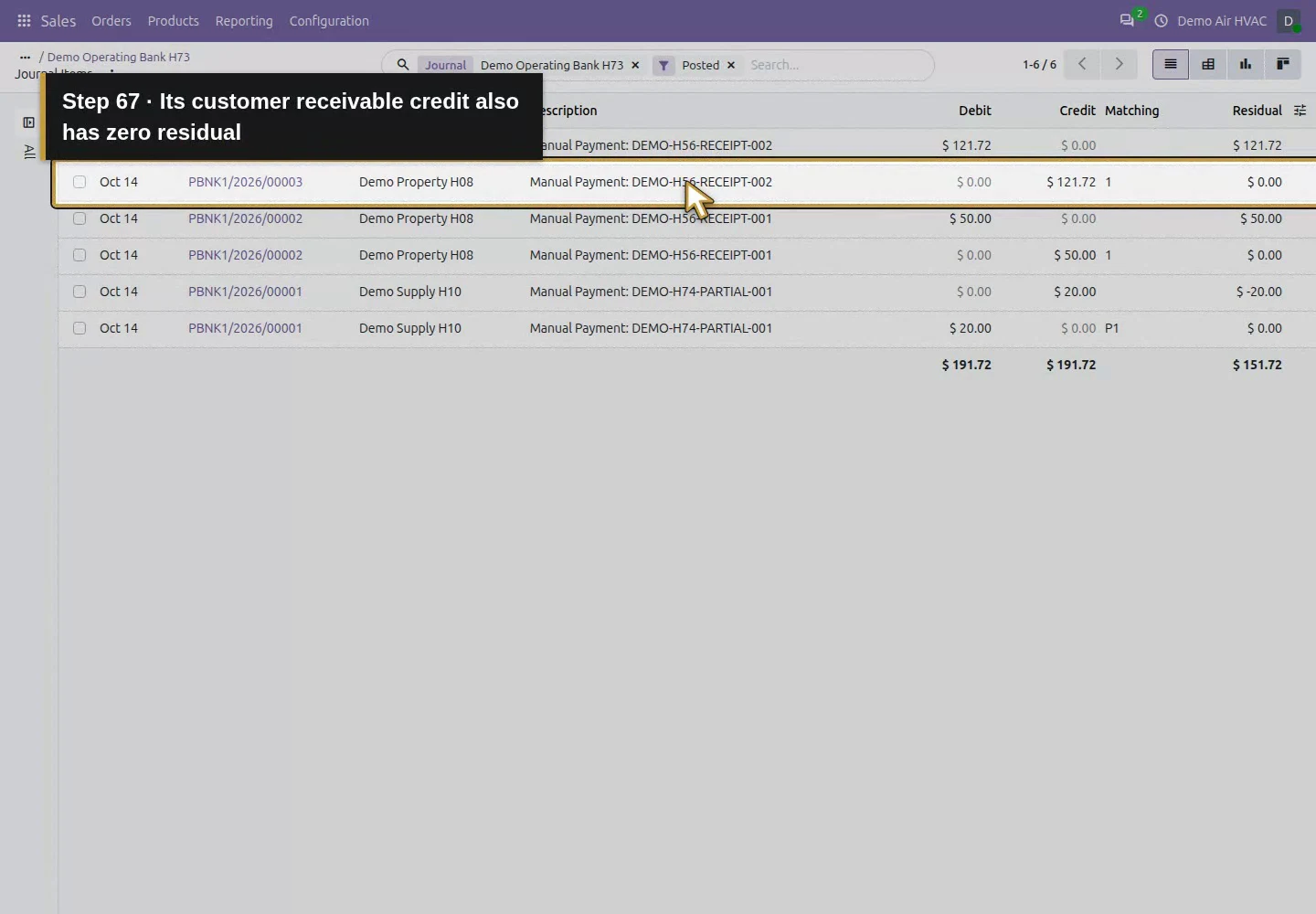
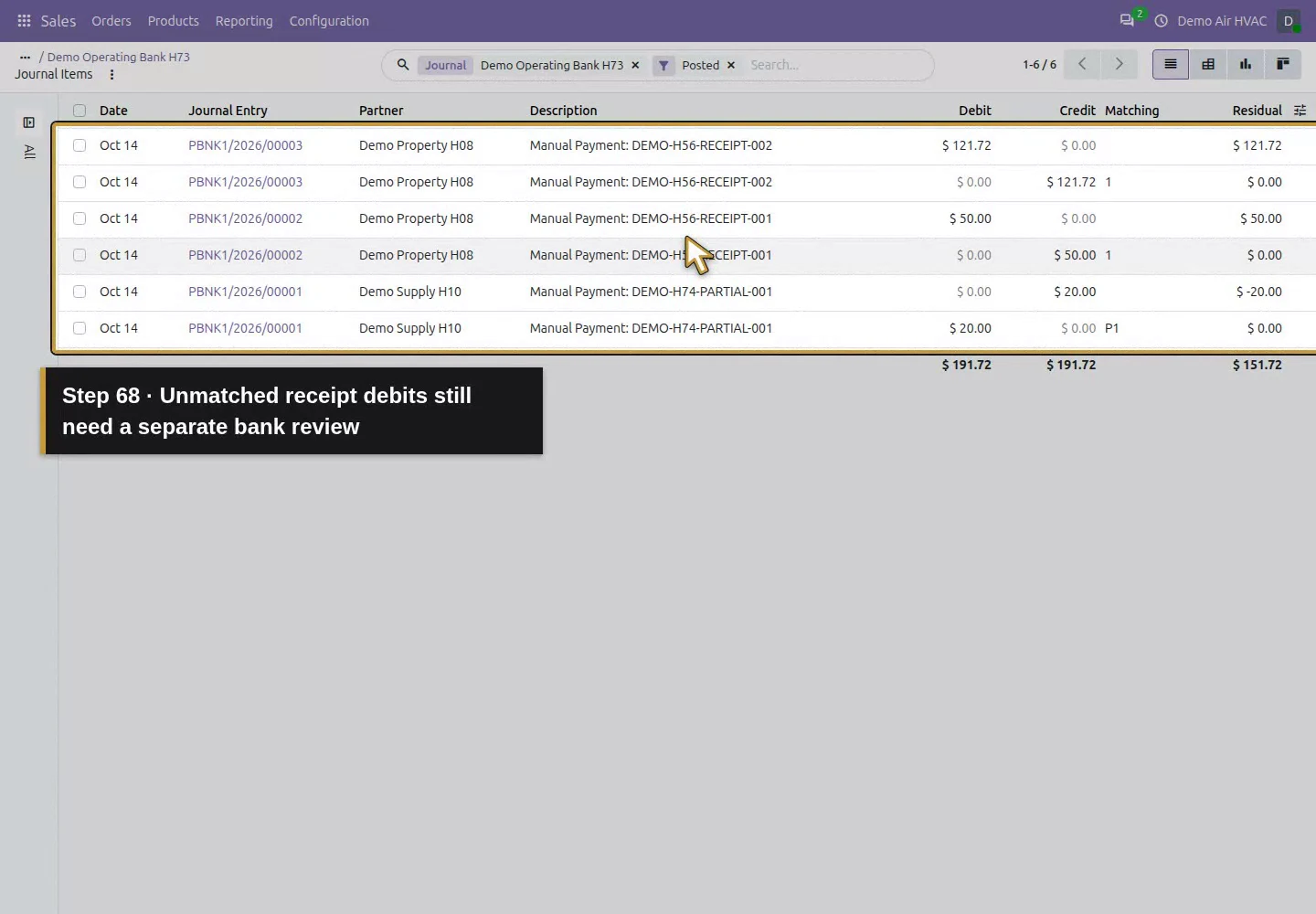
The saved accounting check found the $171.72 invoice receivable fully matched by the two receipt credits. It also found separate Outstanding Receipts debits of $50 and $121.72 still unmatched, with no entry on the Bank account from these registrations. No bank statement, bank feed or settlement matching was performed. Therefore this guide’s Paid invoice and Reconciled payment labels establish the demonstrated invoice matching, not confirmation that a bank statement has been reconciled. Carry the unmatched amounts into your separate bank-review process.
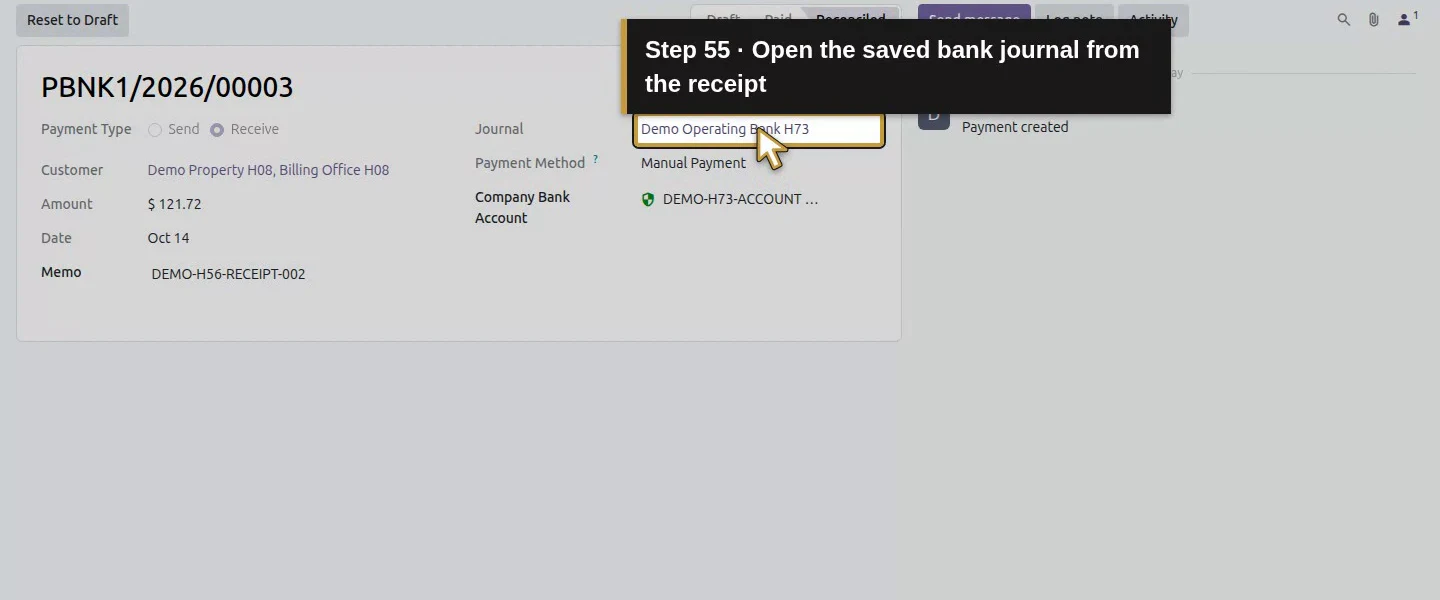
Action 55: Open the saved bank journal from the receipt. The actual target is highlighted in gold.
Open the saved bank journal from the receipt.
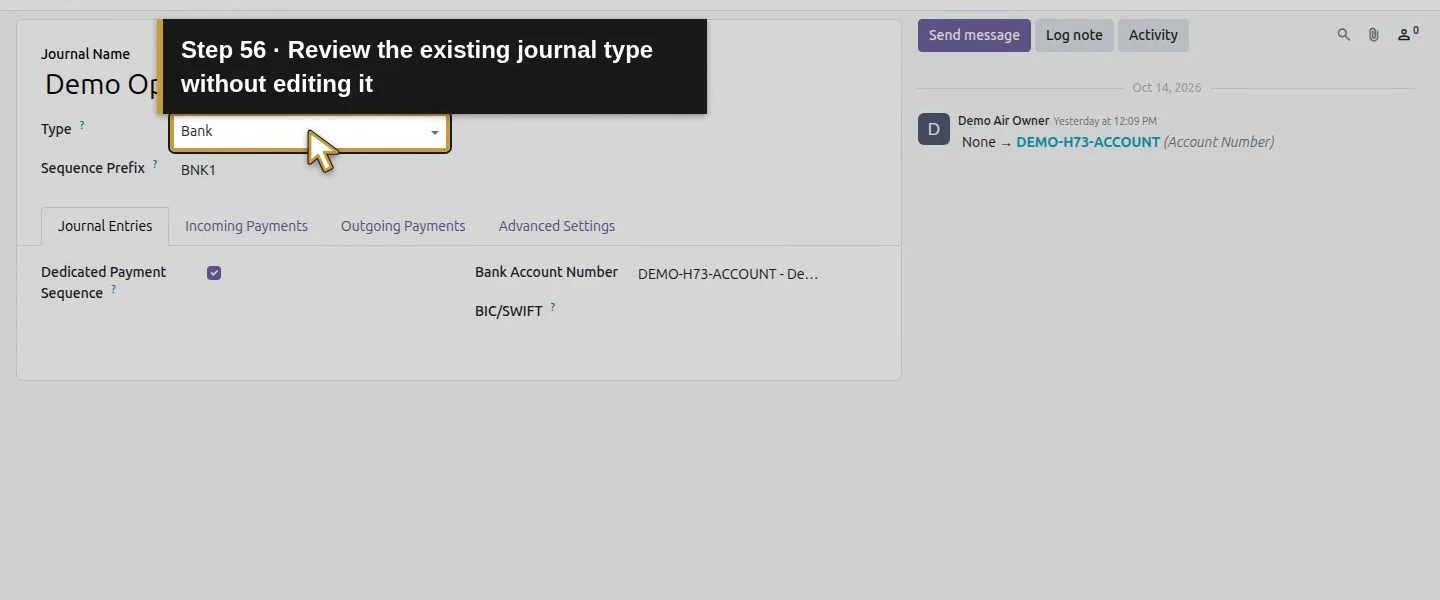
Action 56: Review the existing journal type without editing it. The actual target is highlighted in gold.
Review the existing journal type without editing it.
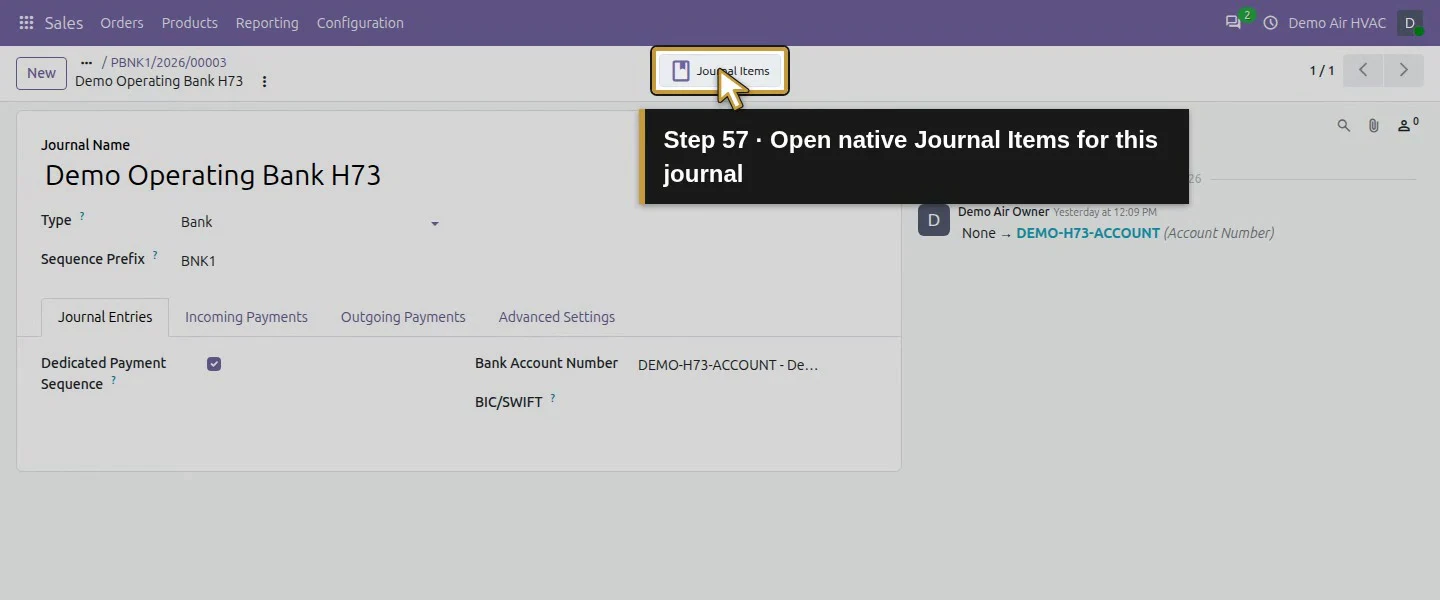
Action 57: Open native Journal Items for this journal. The actual target is highlighted in gold.
Open native Journal Items for this journal.
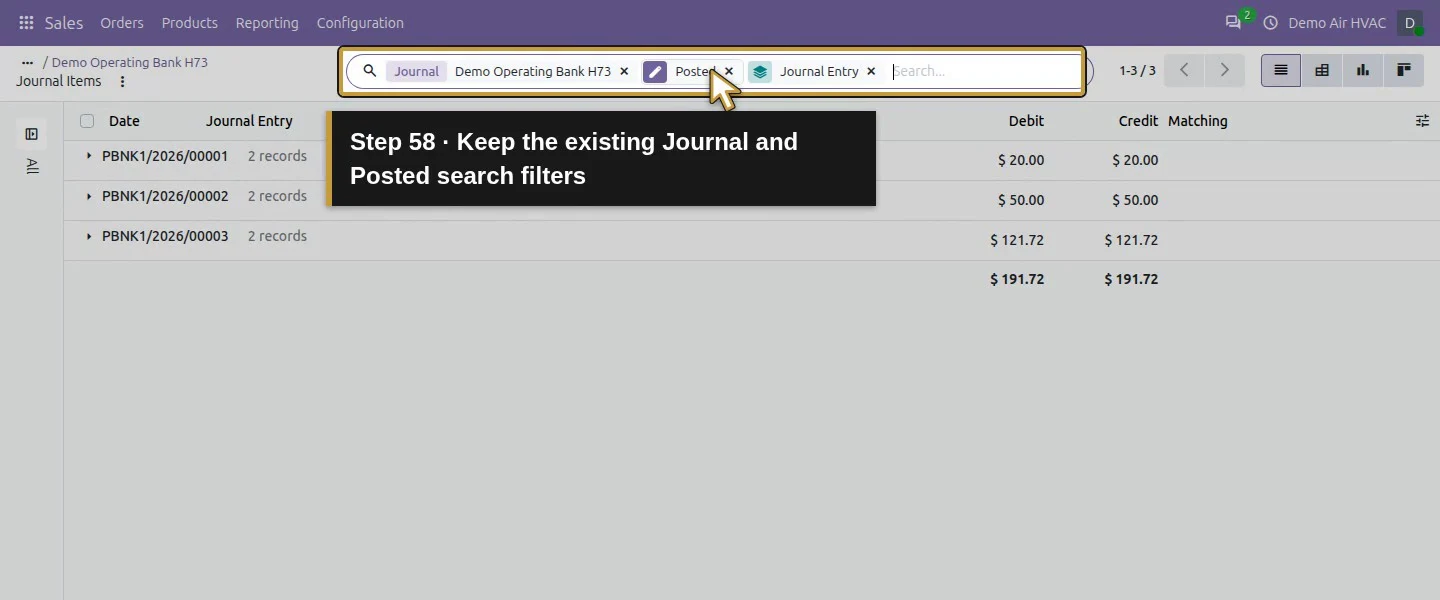
Action 58: Keep the existing Journal and Posted search filters. The actual target is highlighted in gold.
Keep the existing Journal and Posted search filters.
Action 59: Remove only the Journal Entry grouping. The actual target is highlighted in gold.
Remove only the Journal Entry grouping.
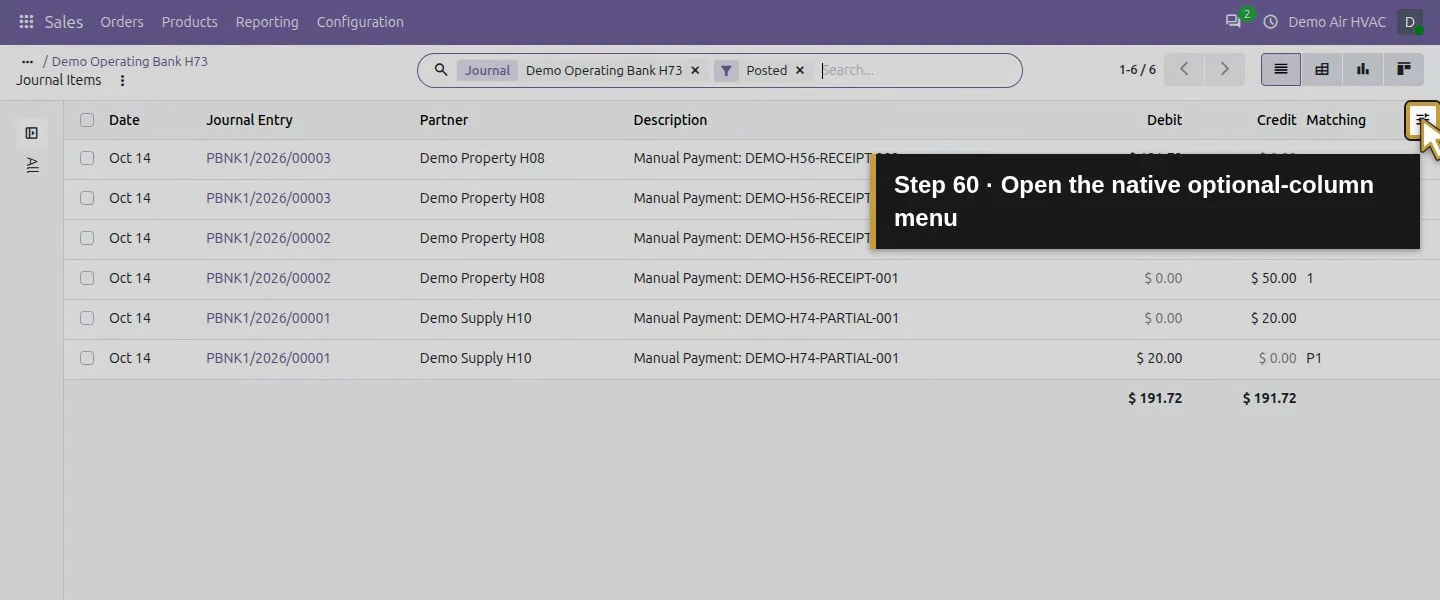
Action 60: Open the native optional-column menu. The actual target is highlighted in gold.
Open the native optional-column menu.
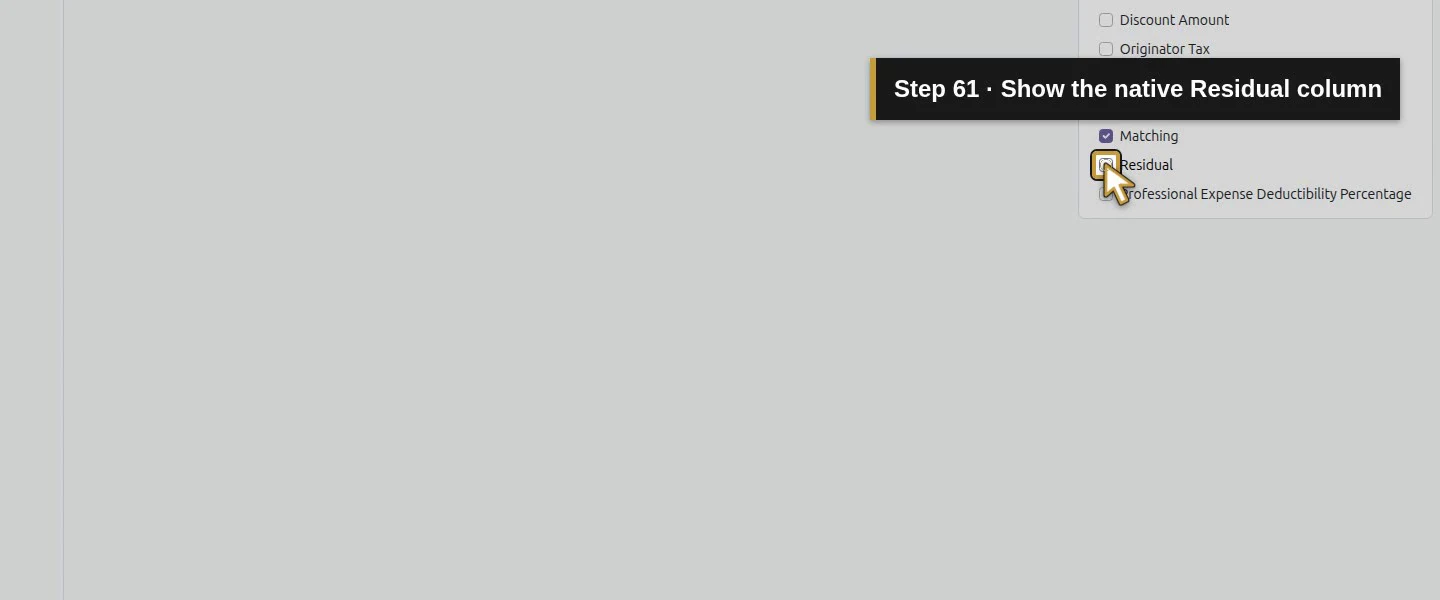
Action 61: Show the native Residual column. The actual target is highlighted in gold.
Show the native Residual column.
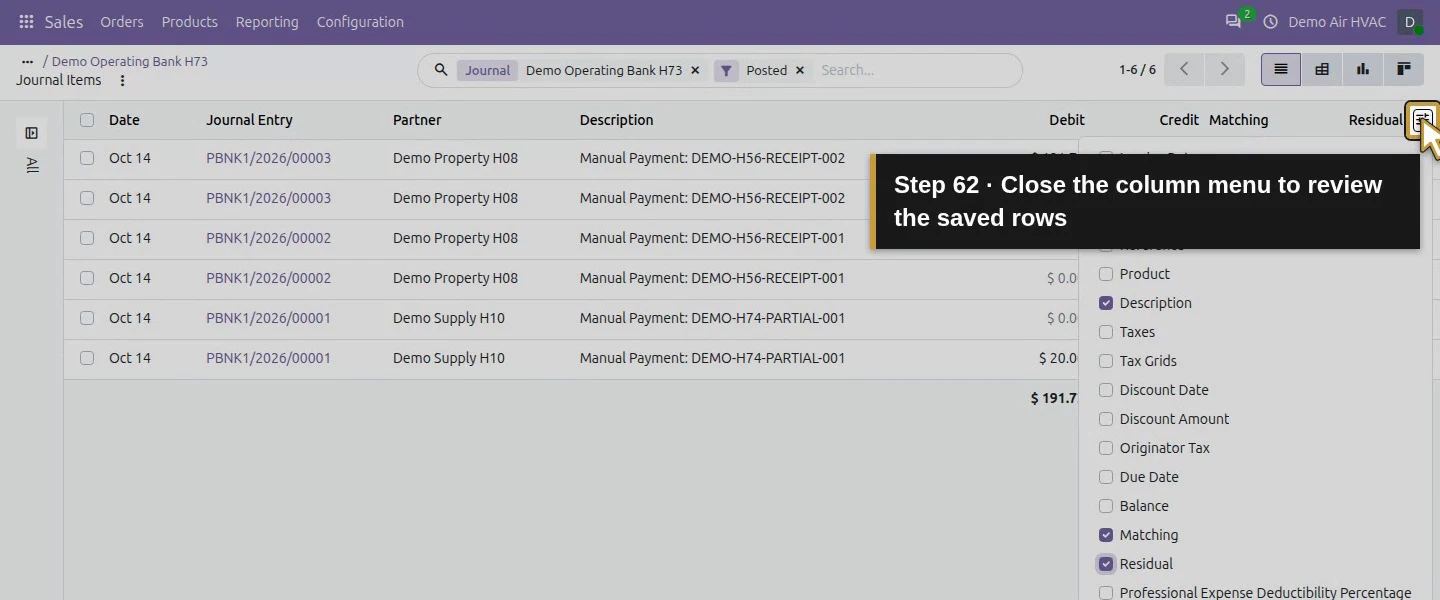
Action 62: Close the column menu to review the saved rows. The actual target is highlighted in gold.
Close the column menu to review the saved rows.
Action 63: Six posted rows include the separate earlier supplier payment. The actual target is highlighted in gold.
Six posted rows include the separate earlier supplier payment.
Action 64: The first receipt debit still has USD 50 residual. The actual target is highlighted in gold.
The first receipt debit still has USD 50 residual.
Action 65: Its customer receivable credit has zero residual and a match. The actual target is highlighted in gold.
Its customer receivable credit has zero residual and a match.
Action 66: The second receipt debit still has USD 121.72 residual. The actual target is highlighted in gold.
The second receipt debit still has USD 121.72 residual.
Action 67: Its customer receivable credit also has zero residual. The actual target is highlighted in gold.
Its customer receivable credit also has zero residual.
Action 68: Unmatched receipt debits still need a separate bank review. The actual target is highlighted in gold.
Unmatched receipt debits still need a separate bank review.

Step 8. Reopen before leaving the receipt workflow

Reopen the payment and invoice and compare the same two receipts, $171.72 total and zero invoice balance. Check the references against your receipt records before entering anything else. Reopening retained the original invoice lines and two payments; it did not add a third receipt. A standalone duplicate-payment attempt was not tested. The earlier supplier bill/payment and the source time, orders and stock remain separate records.
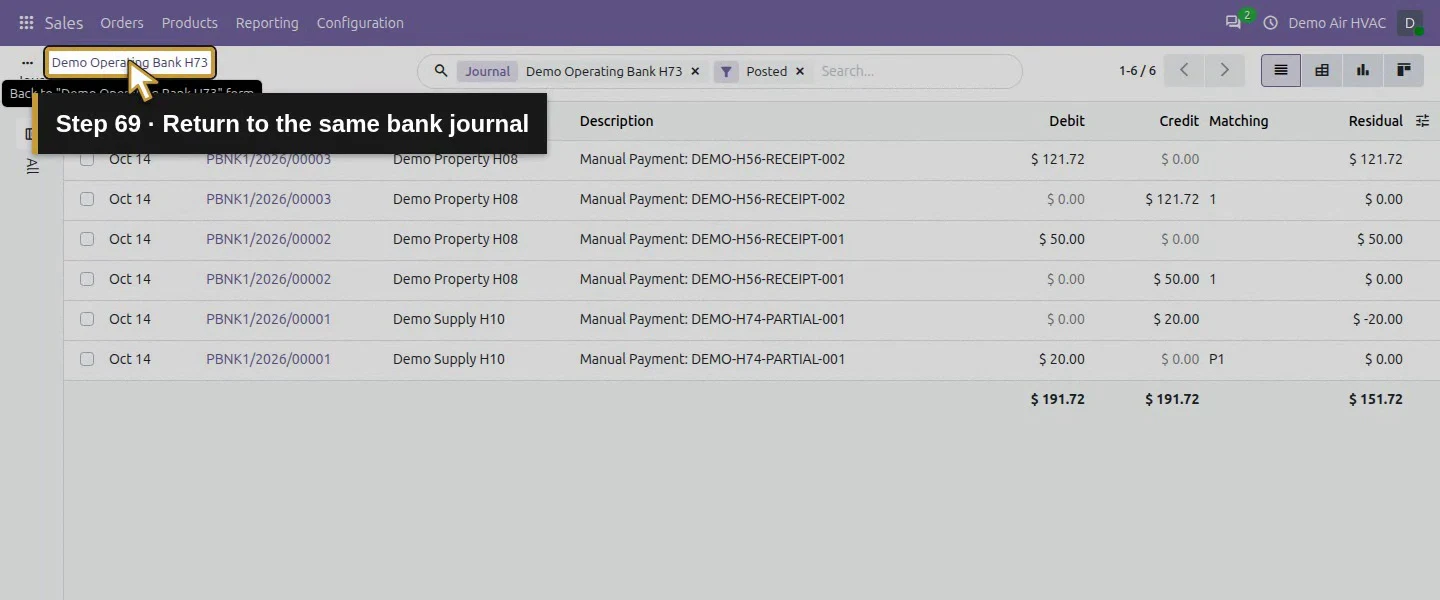
Action 69: Return to the same bank journal. The actual target is highlighted in gold.
Return to the same bank journal.
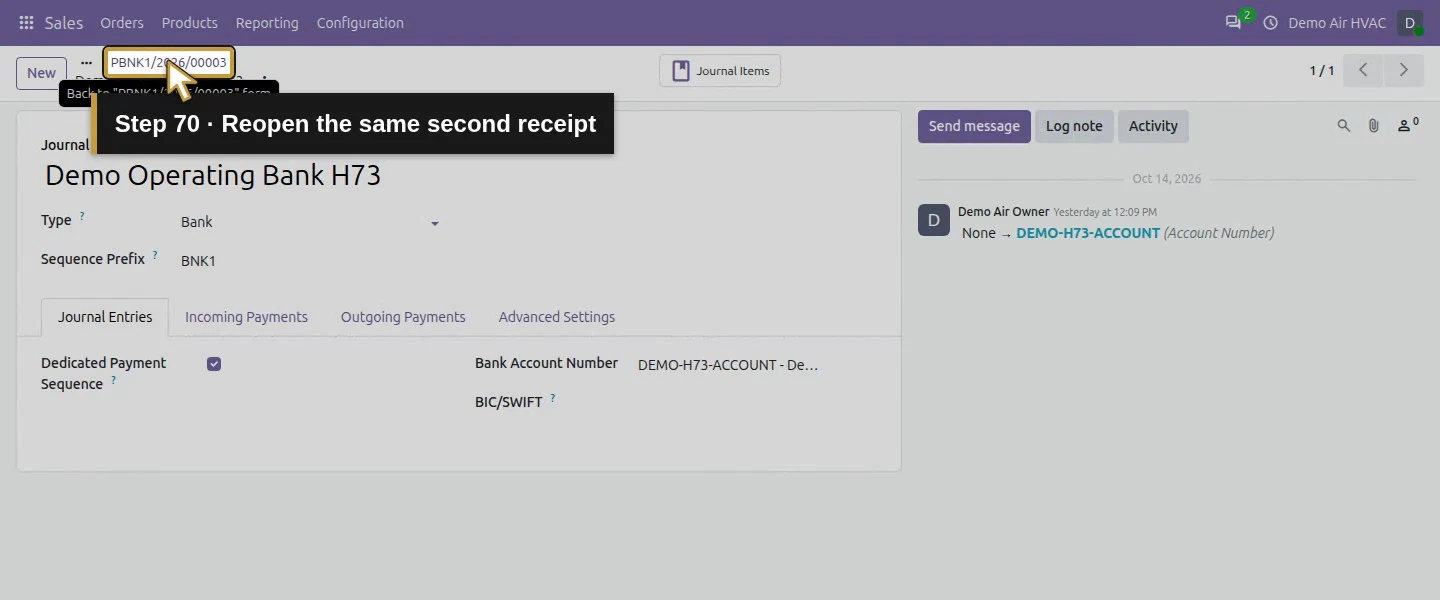
Action 70: Reopen the same second receipt. The actual target is highlighted in gold.
Reopen the same second receipt.
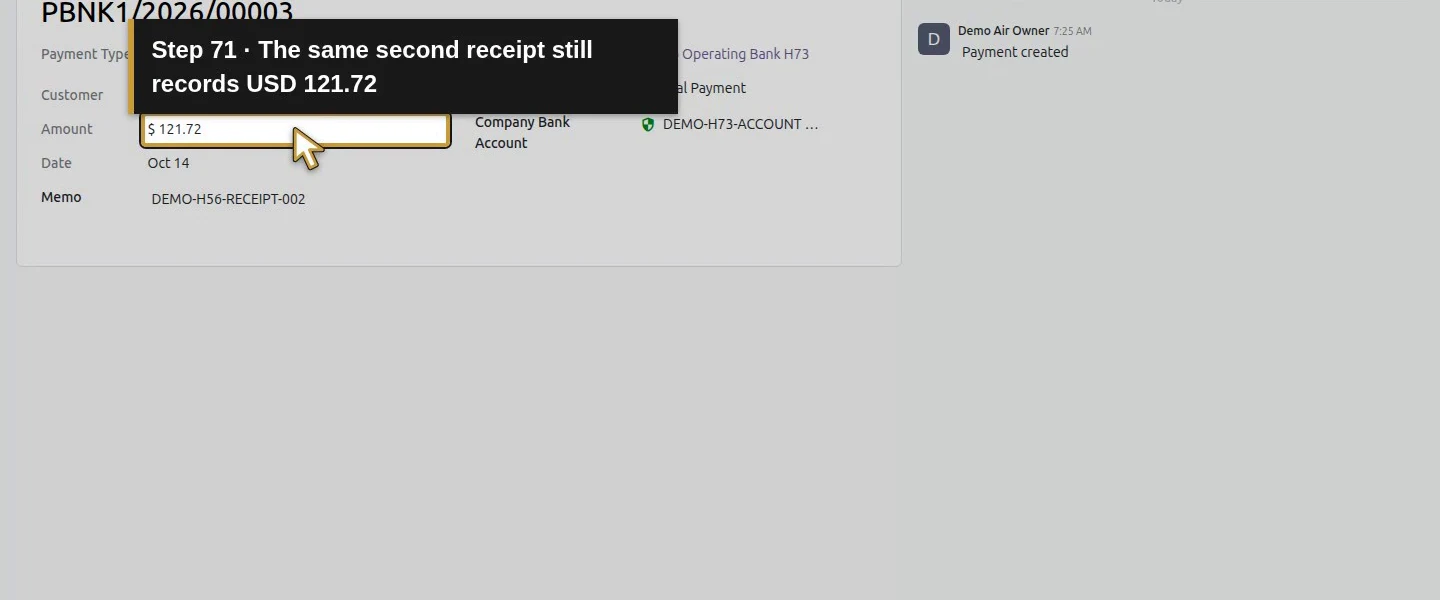
Action 71: The same second receipt still records USD 121.72. The actual target is highlighted in gold.
The same second receipt still records USD 121.72.
Action 72: The saved payment label remains Reconciled. The actual target is highlighted in gold.
The saved payment label remains Reconciled.
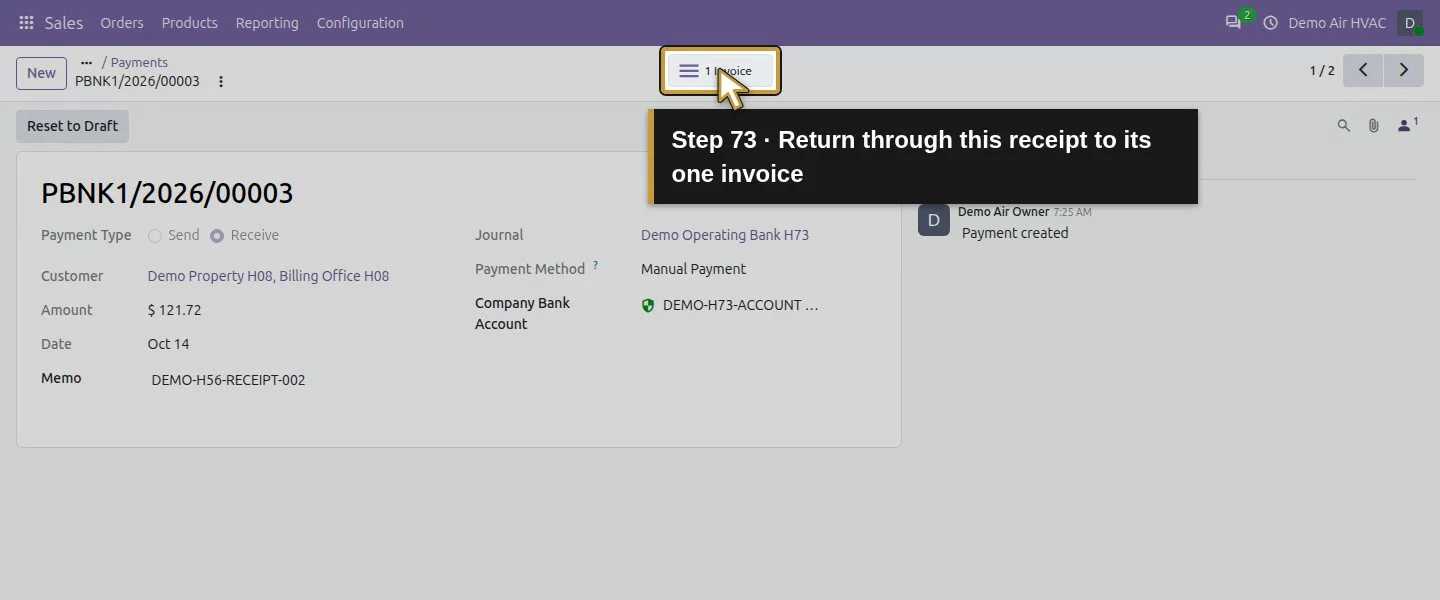
Action 73: Return through this receipt to its one invoice. The actual target is highlighted in gold.
Return through this receipt to its one invoice.
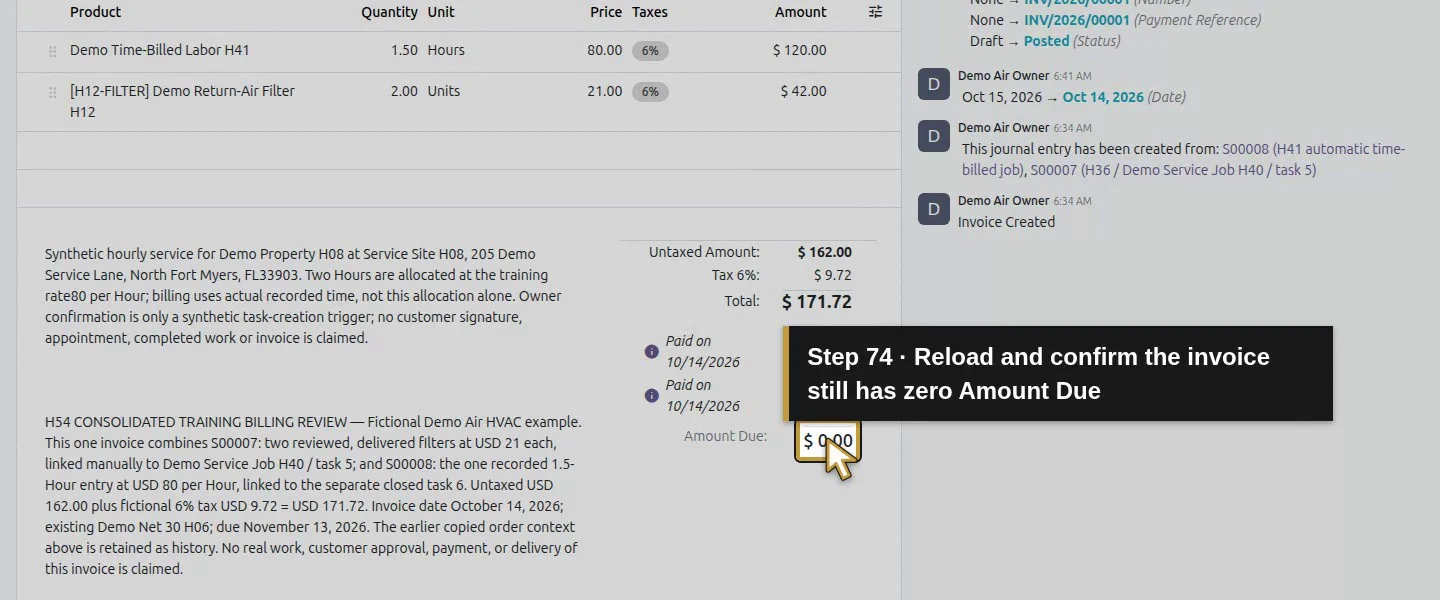
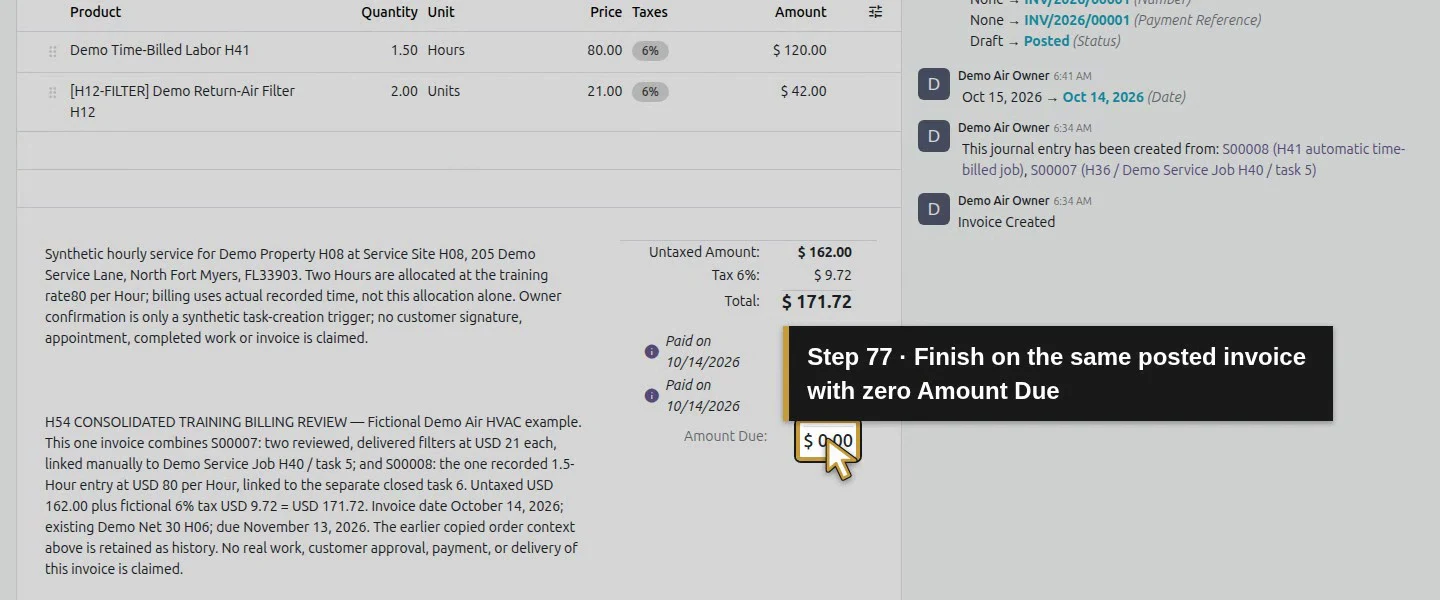
Action 74: Reload and confirm the invoice still has zero Amount Due. The actual target is highlighted in gold.
Reload and confirm the invoice still has zero Amount Due.
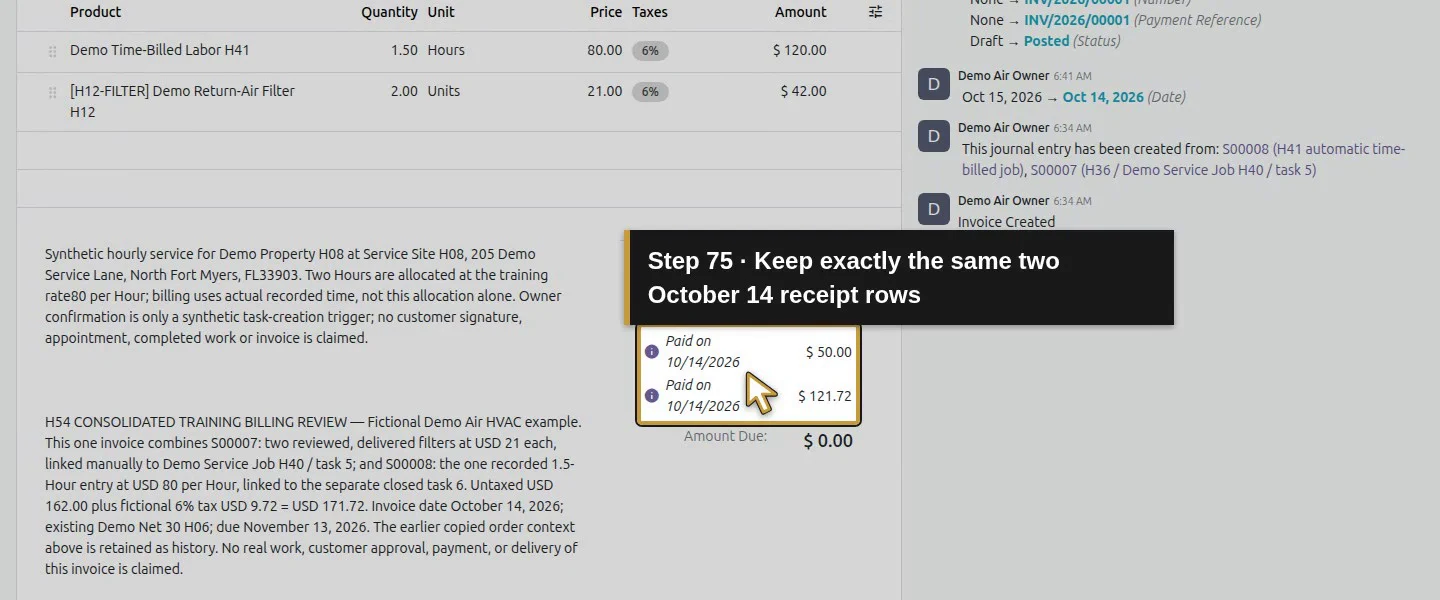
Action 75: Keep exactly the same two October 14 receipt rows. The actual target is highlighted in gold.
Keep exactly the same two October 14 receipt rows.
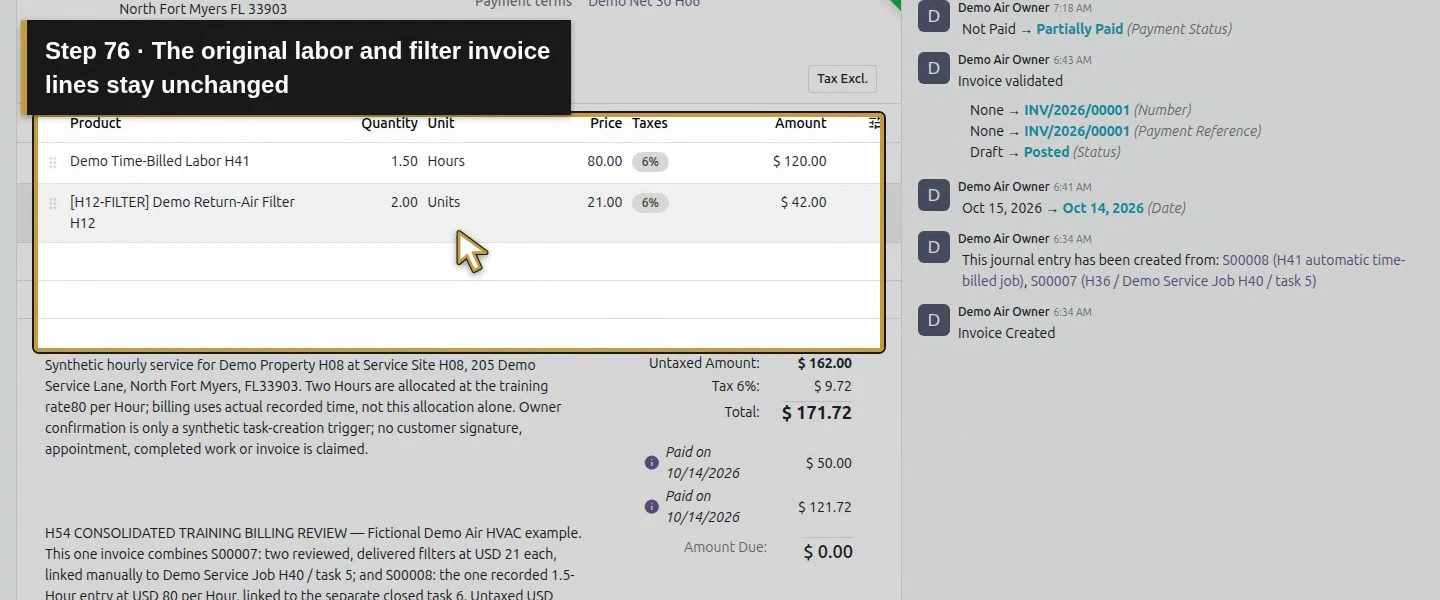
Action 76: The original labor and filter invoice lines stay unchanged. The actual target is highlighted in gold.
The original labor and filter invoice lines stay unchanged.
Action 77: Finish on the same posted invoice with zero Amount Due. The actual target is highlighted in gold.
Finish on the same posted invoice with zero Amount Due.

Check the result

The same posted $171.72 invoice progresses from unpaid to Partially Paid with $121.72 due, then Paid with $0 due. Two October 14 Receive payments retain their $50/$121.72 amounts, distinct references and the existing Manual Payment journal. Their credits fully match the invoice receivable; both final payment records show Reconciled. The $171.72 in Outstanding Receipts remains unmatched, and no Bank-account entry or bank reconciliation was created. Reopen checks retained exactly two customer receipts, the original invoice lines and the earlier supplier balance of $37.24.

If your screen differs

The journal’s inbound method had no explicit payment-account mapping, but the stock configuration selected Outstanding Receipts for both entries. Do not assume an empty mapping prevents recording or change accounts solely to force a status. The tested final invoice state is Paid and payment states are Reconciled despite the unmatched outstanding entries. Another configuration may behave differently; investigate its actual entries and residuals. This test did not exercise write-offs, overpayments, refunds, a different payment date, another user role or standalone duplicate creation. It made no external charge or transfer. For an incorrect receipt, review the posted records and correction process before changing anything; the full reversal procedure belongs to a separate verified workflow.

Frequently asked questions

How do I record a partial customer payment in Odoo?

Open the posted invoice, verify the customer and current amount due, then use Pay. Select the correct journal, enter the independently confirmed receipt amount/date/reference and click Create Payment once. In this test, $50 against $171.72 left $121.72 due and one linked receipt. Record the later remaining receipt separately.

Why does Odoo show Paid before I reconcile the bank? In this tested setup, the two receipt credits fully matched the invoice receivable, so the invoice showed Paid and both payment records showed Reconciled. Their $50 and $121.72 Outstanding Receipts debits were still unmatched, with no Bank-account entry from payment registration. Check the actual ledger and bank evidence; these labels alone do not establish completed bank-statement reconciliation.
Does registering a payment in Odoo transfer money? The native Manual Payment procedure demonstrated here records the receipt and its invoice matching. It did not initiate a bank transfer, collect a card payment or connect to a bank. Confirm actual receipt independently and complete bank review separately. The example amounts and references are wholly fictional training inputs.

Continue building the business

Continue with Can I accept online invoice payments in Odoo?. Online checkout and provider settlement are separate from manually recording an independently confirmed receipt. Bank reconciliation is also a separate workflow; the remaining outstanding entries are deliberately visible here.

Talk to an Odoo partner

Bring your current process and the result you need to Onward to plan your Odoo workflow. Talk to an Odoo partner.