
Running an HVAC business with Odoo
How do I set up email for Odoo quotations and invoices?
Set up an Odoo outgoing mail server and verify a quotation email, recipient and PDF in a local training mailbox.
Alex wants to know that his quotation reaches the intended recipient with the correct PDF. This guide configures Odoo's outgoing mail server, tests the connection and verifies one actual quotation message in a local training mailbox.
Alex Rivera and Demo Air HVAC are fictional training examples. Prices, dates, quantities and business situations in this guide are illustrative.
Before you begin
Tested in stock Odoo 20.0-20260926 Community as the demo owner administrator, with official modules and standard configuration. Use an administrator account with access to Settings → Technical, and the official Mail and Sales modules from H02. For the document check, use the customer from H08, saved quotation S00001 from H23, and reviewed document layout from H05. A local Mailpit sink is already running: Odoo can reach demoair-mailpit:1025, and its inbox is at http://127.0.0.1:8025. Its SMTP defaults are documented by Mailpit. This guide verifies quotation delivery; sending an actual customer invoice remains a later check. Provider accounts, production-domain authentication and external inbox delivery are outside this local test.
Step-by-step workflow
Stock Odoo 20.0-20260926 Community; one local SMTP route, refused/successful connection tests and one actual quotation email in an isolated Mailpit inbox. Blank credentials/None encryption belong to this local sink. Invoice email, external providers, public deliverability and timed queue processing remain unverified.
Step 1. Check the training mailbox and current queue
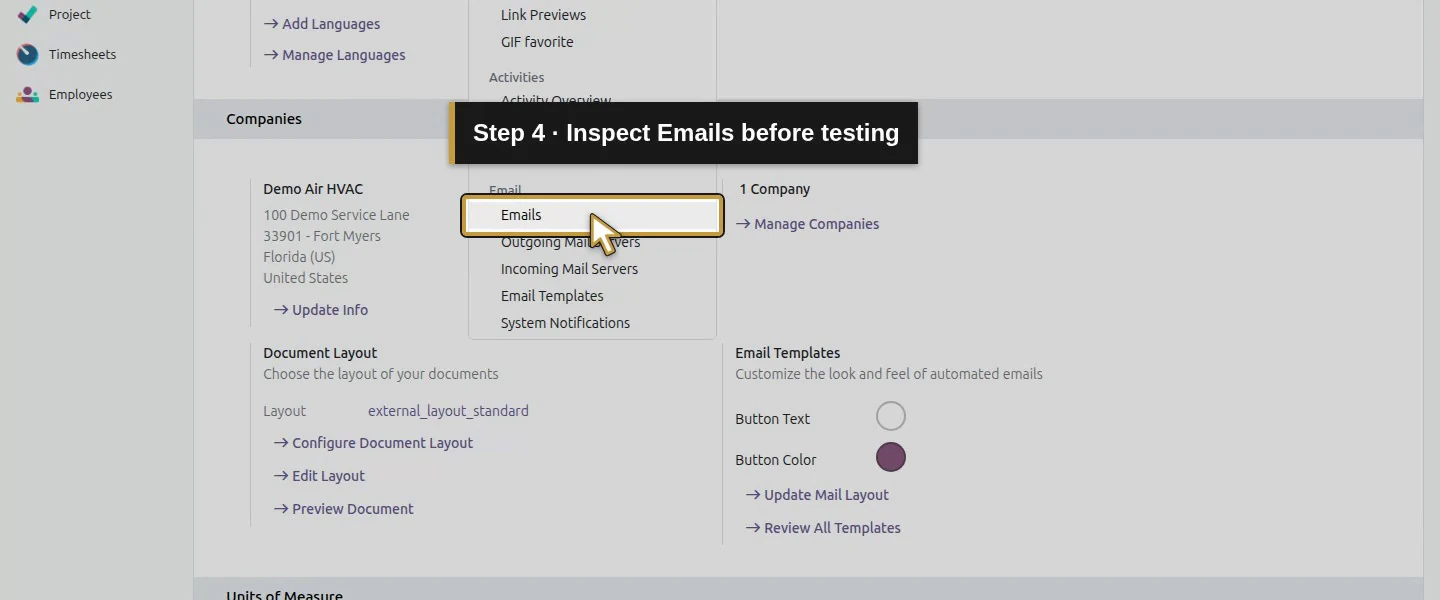
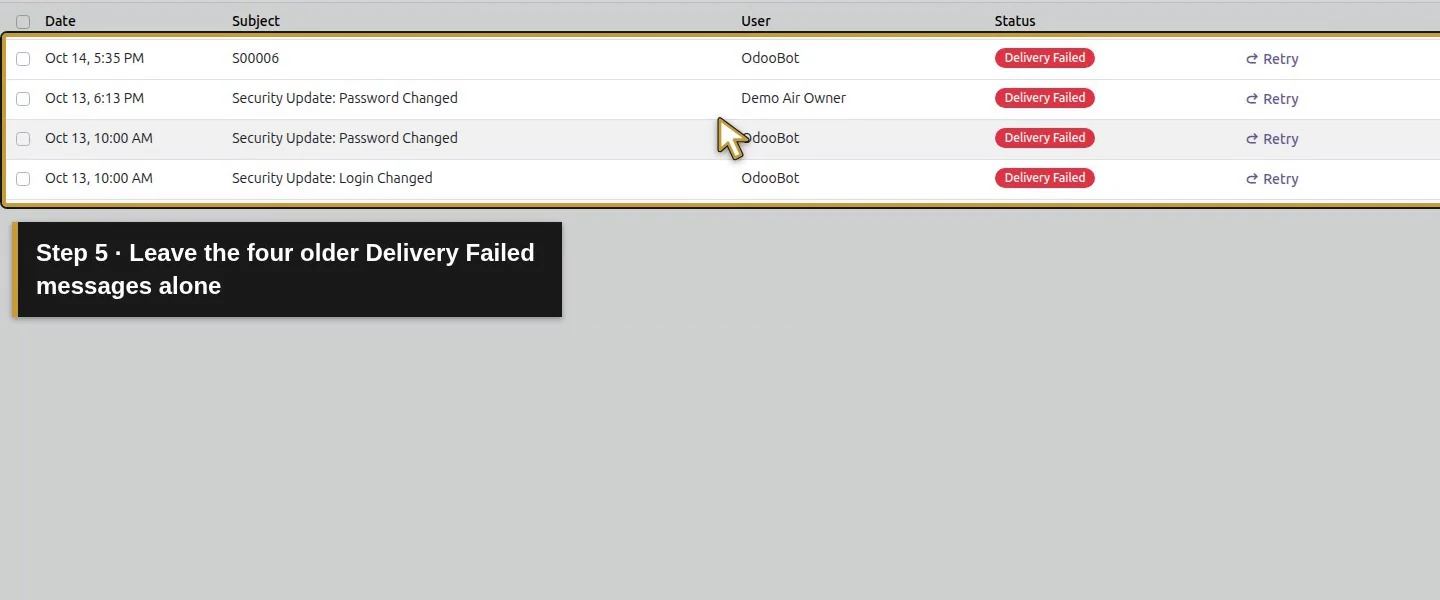
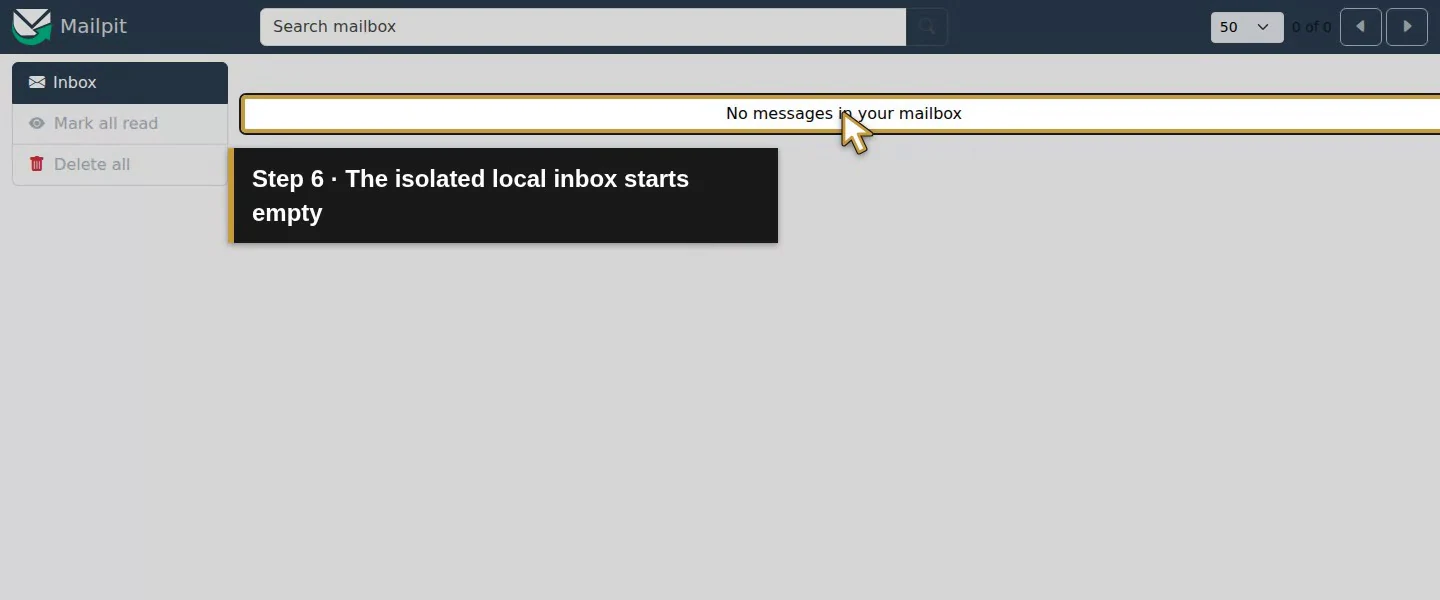
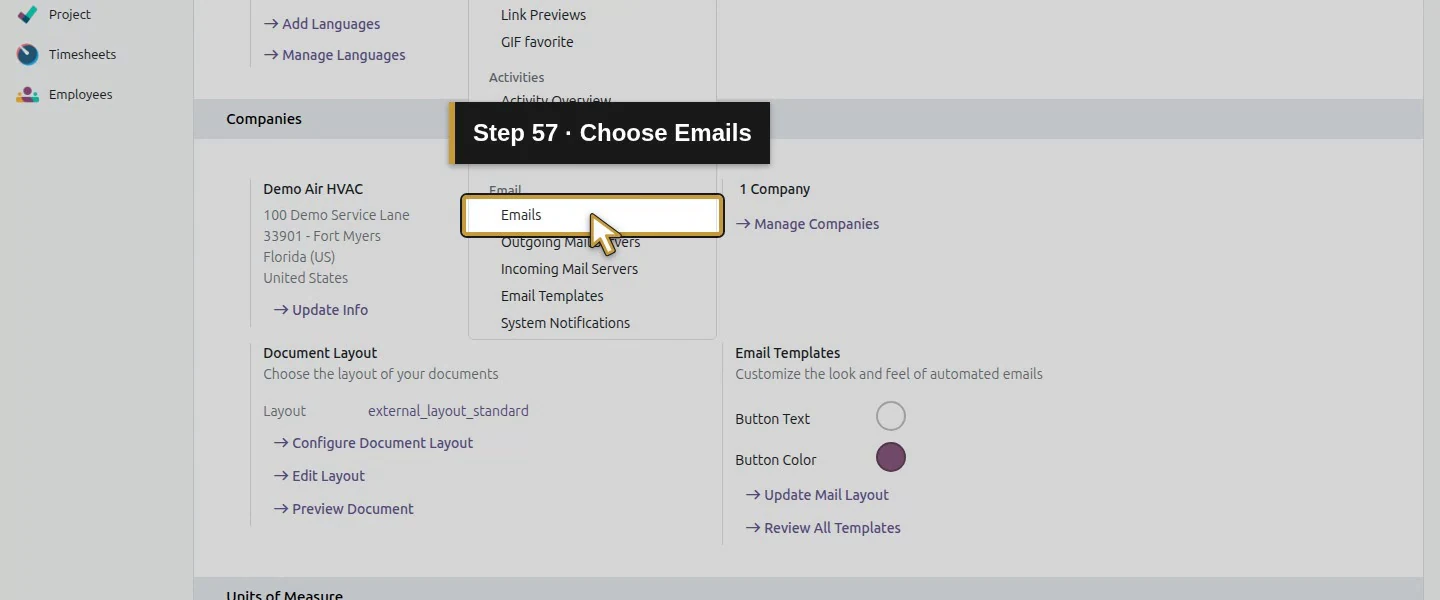
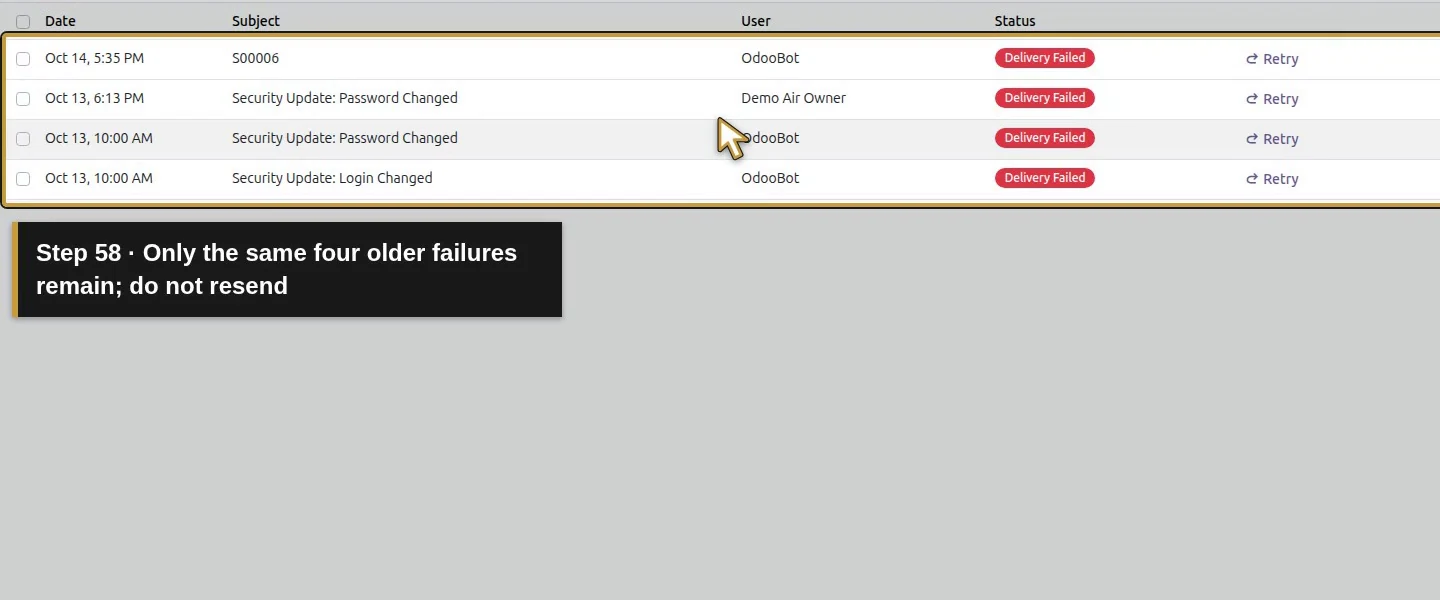
Open the local Mailpit Inbox and check its starting message count; ours was zero. The sink runs on the internal training network with its web UI bound to the local machine. Scheduled background jobs remain disabled in this demo. In Odoo, Settings → Technical → Emails shows four older Delivery Failed records at this checkpoint. Leave those records alone while testing the intended quotation.
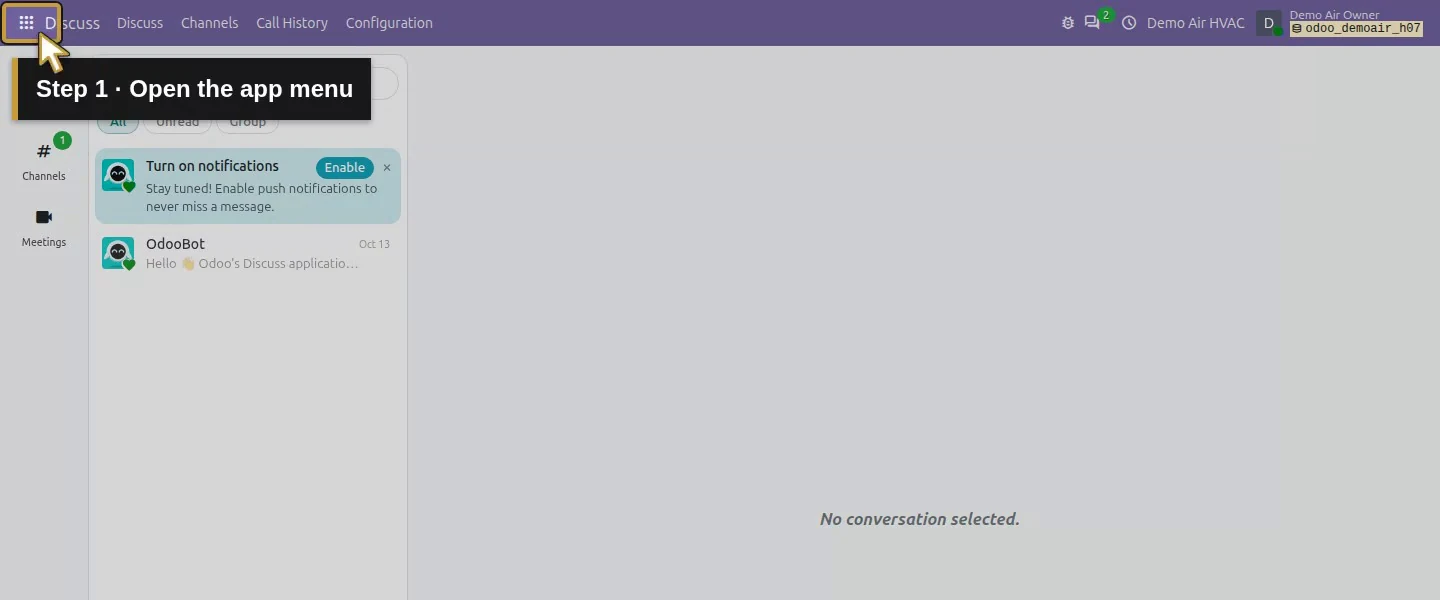
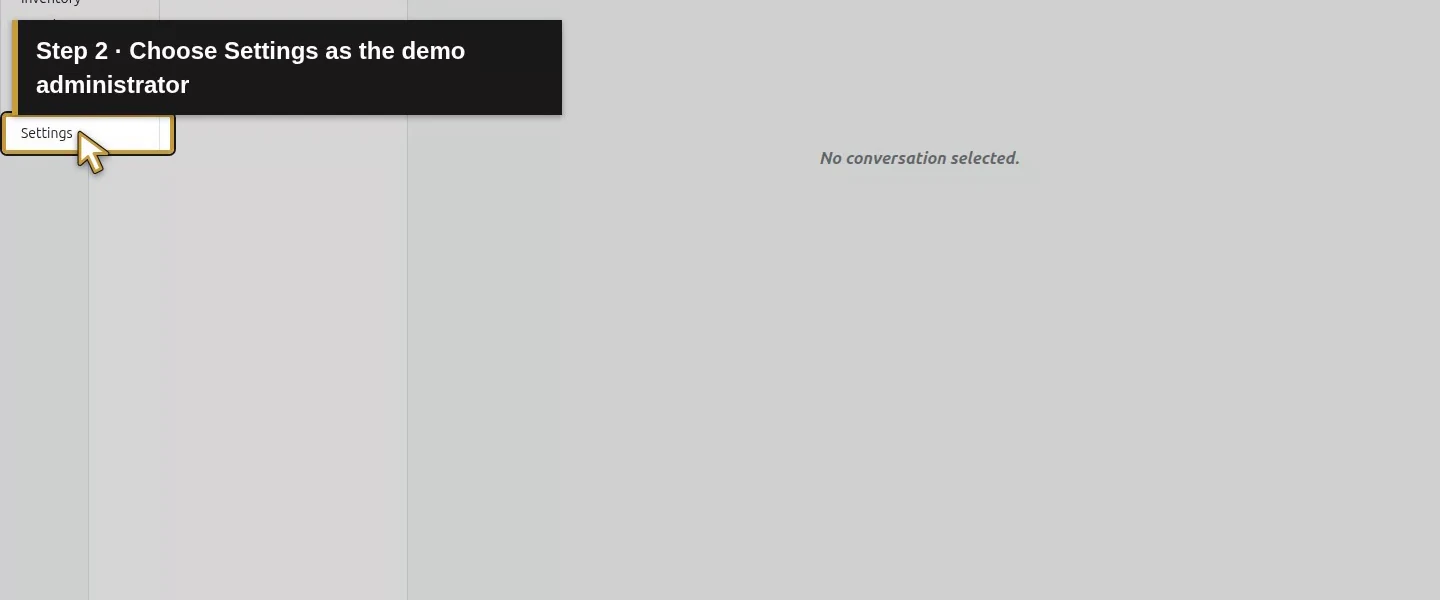
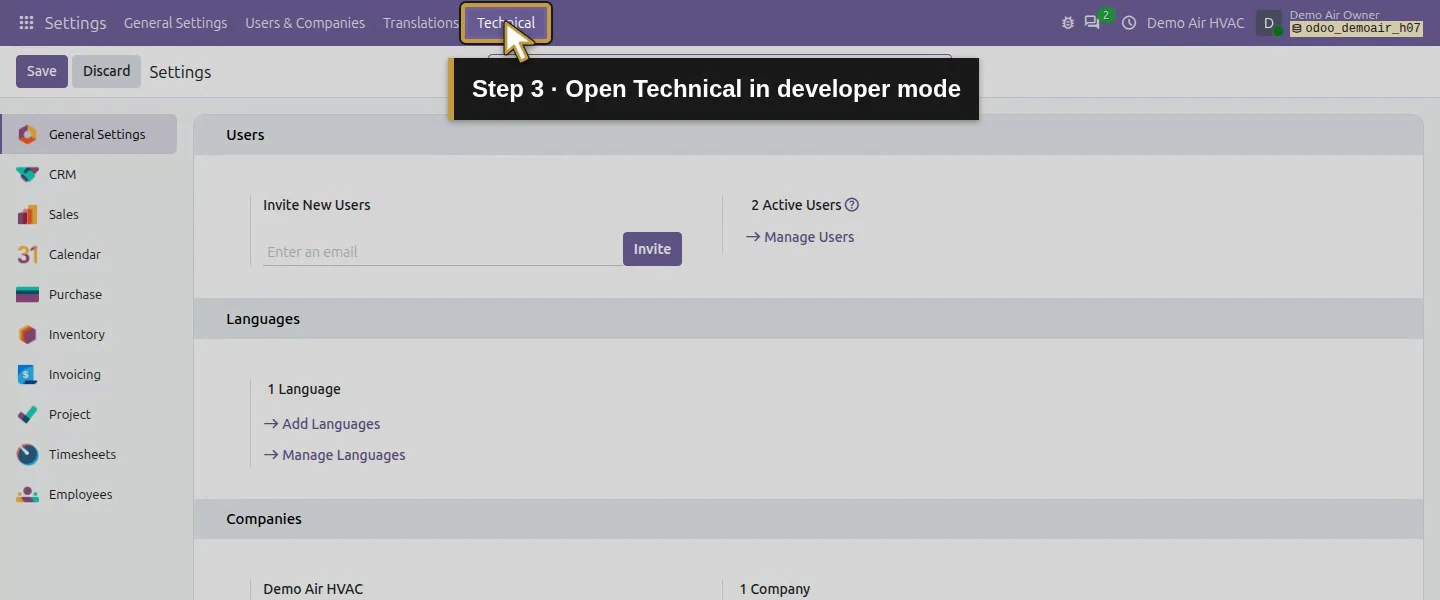
Step 2. Open outgoing mail servers
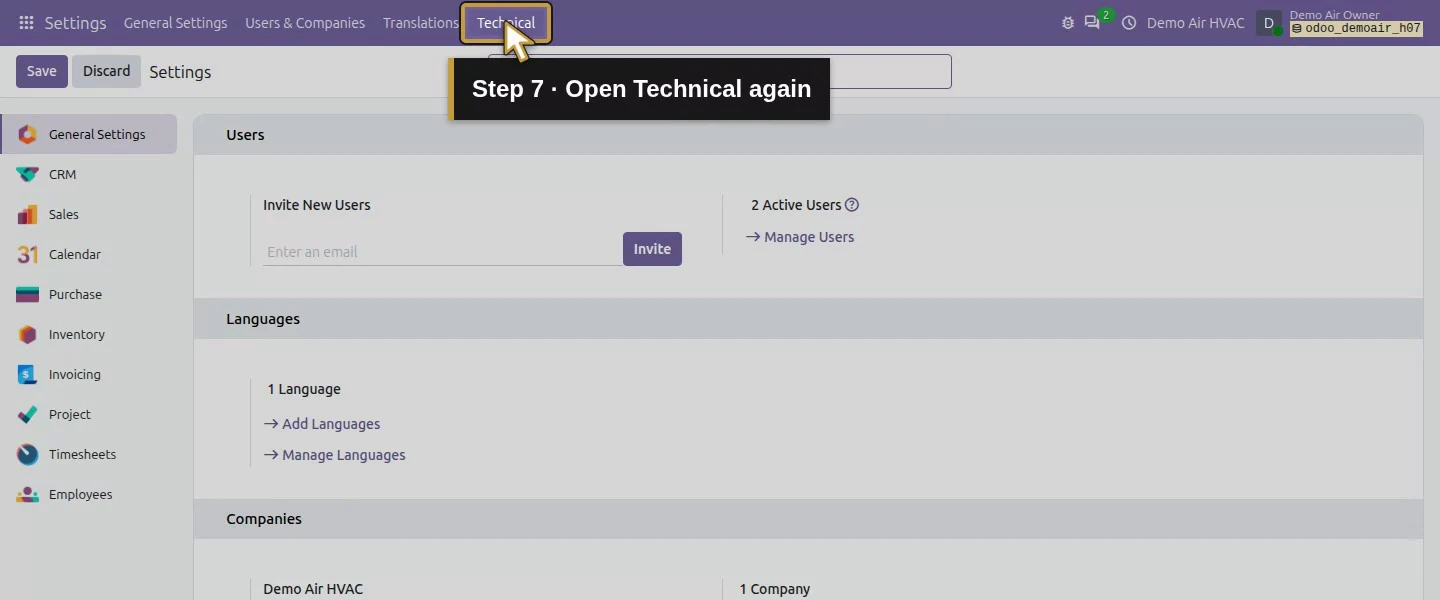
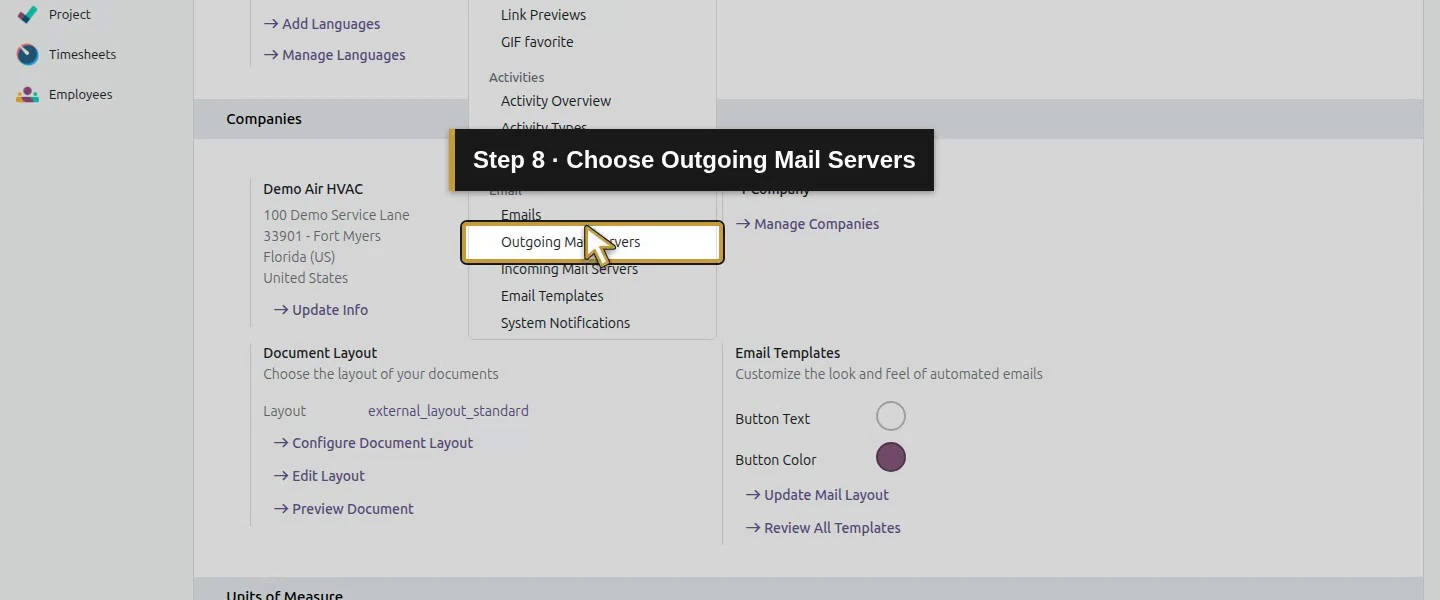
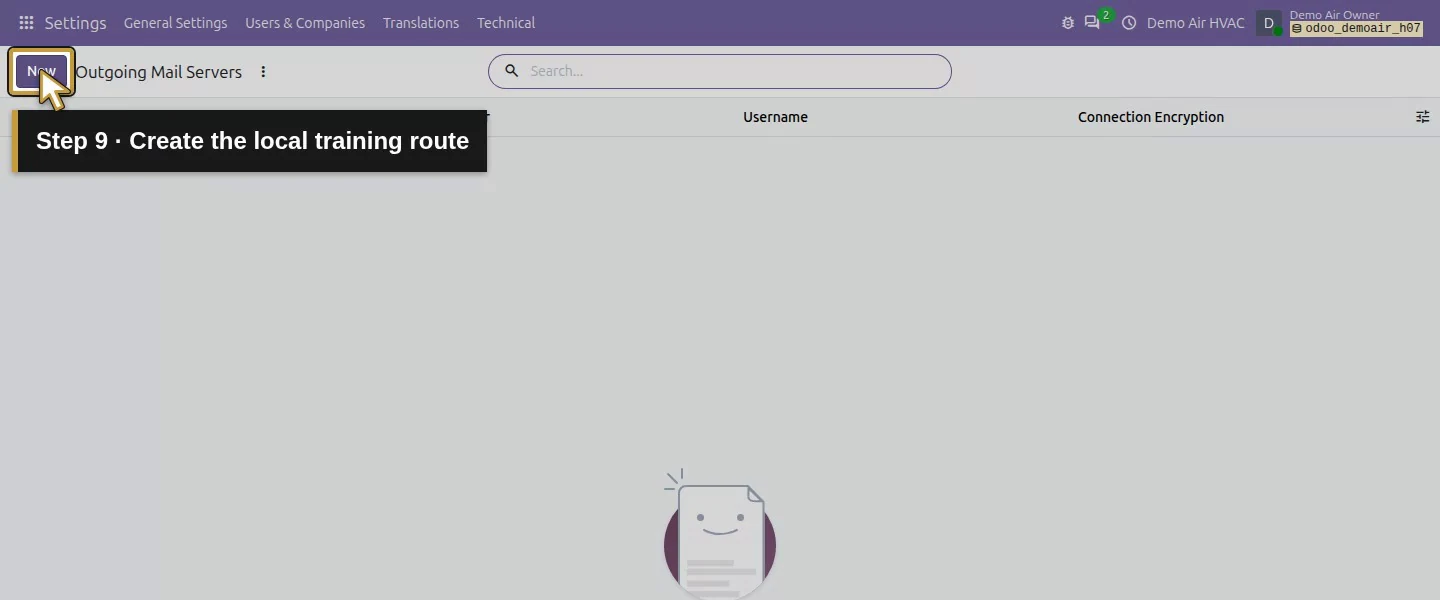
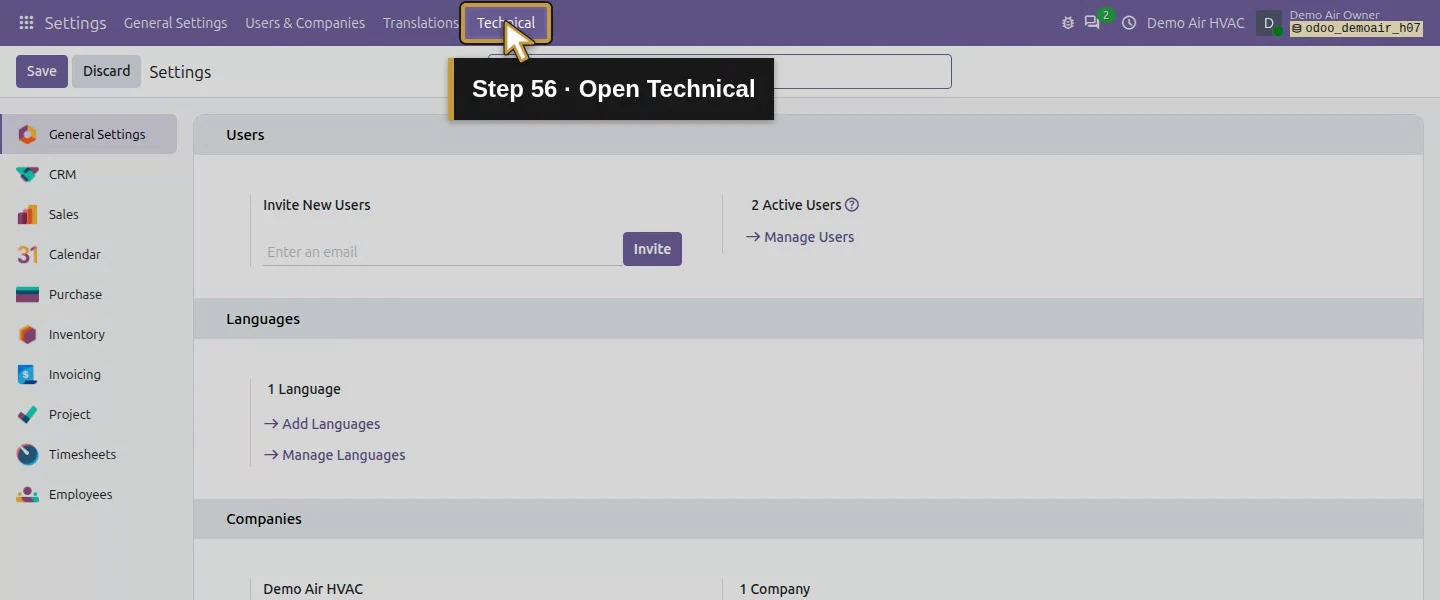
Open Settings → Technical → Outgoing Mail Servers and click New. The tested administrator already had the Technical menu. If yours is hidden, use Activate the developer mode in General Settings, then return to Technical. There were no outgoing-server records before this lesson.
Step 3. Enter the local SMTP route
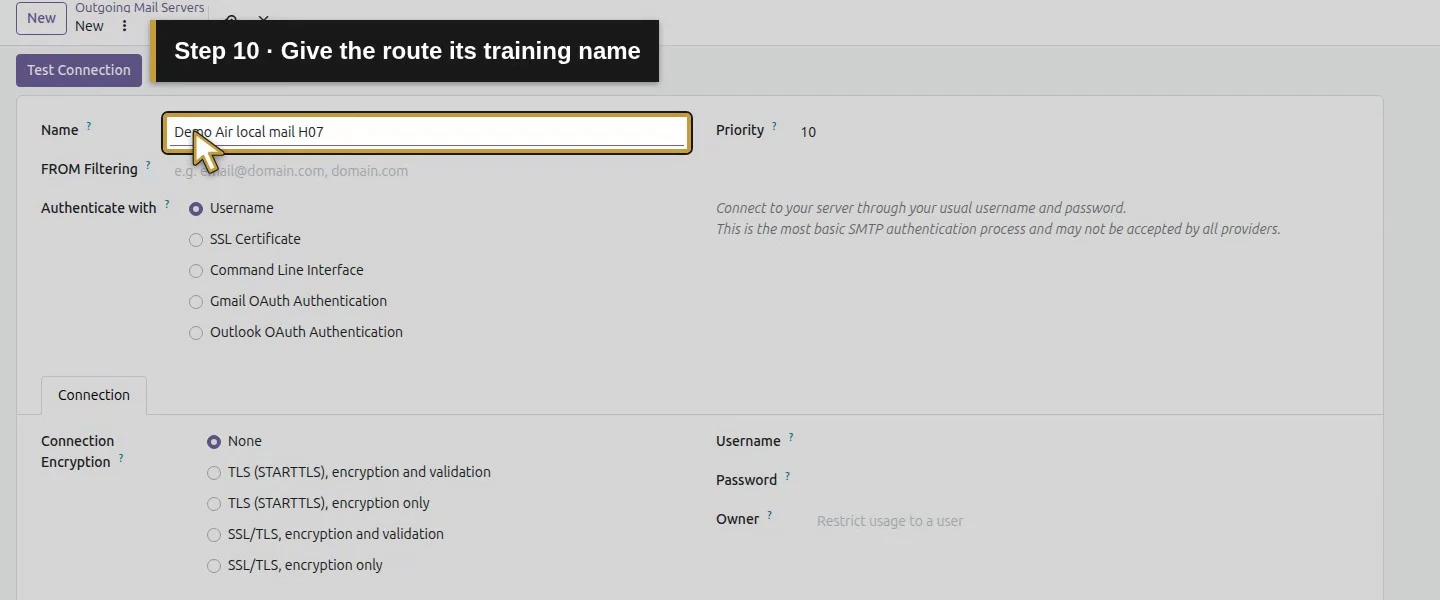
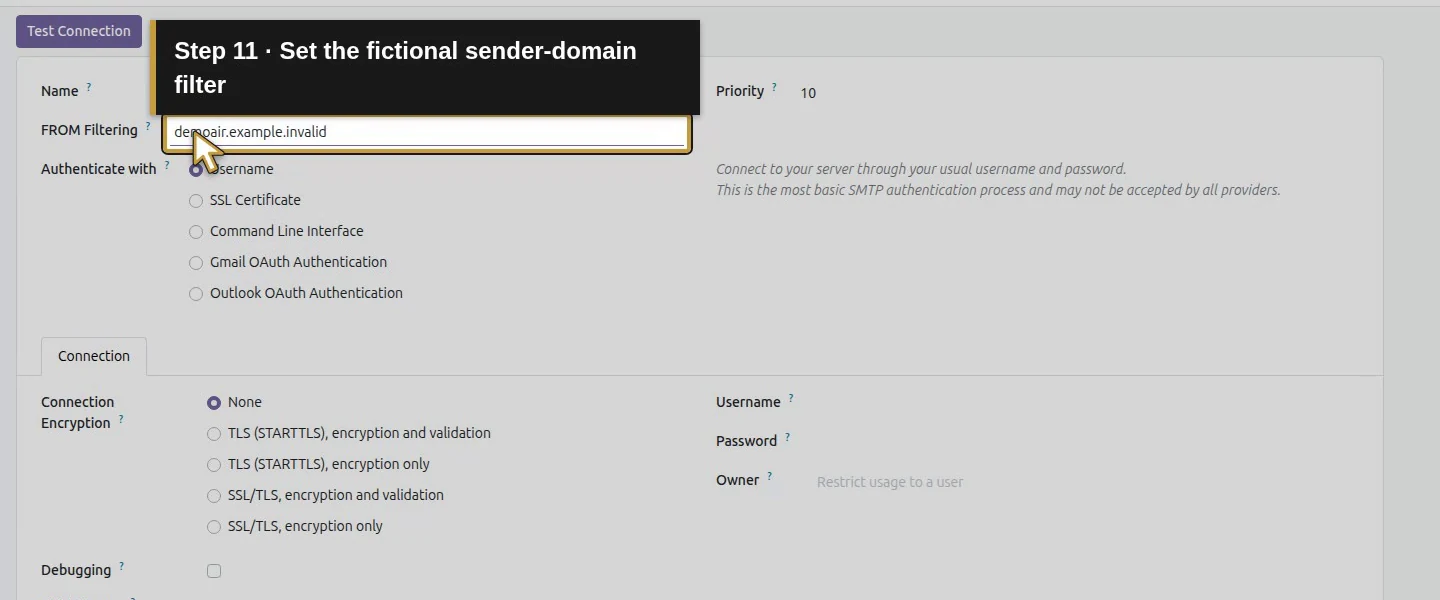
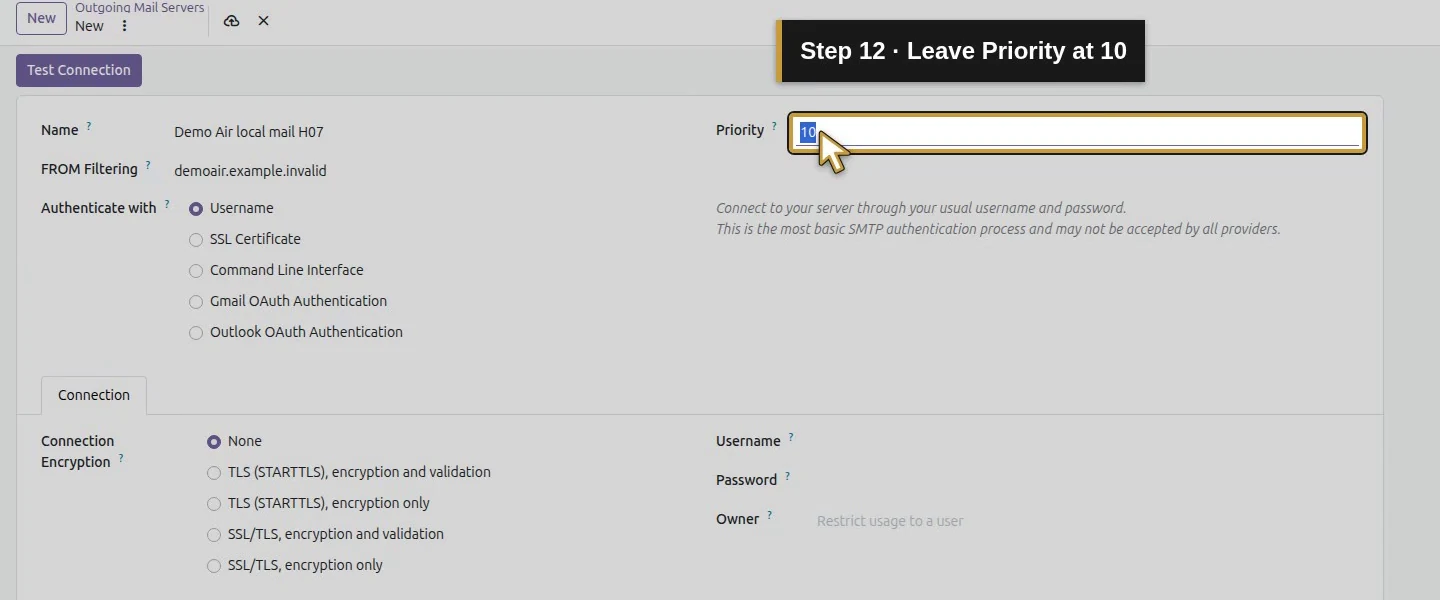
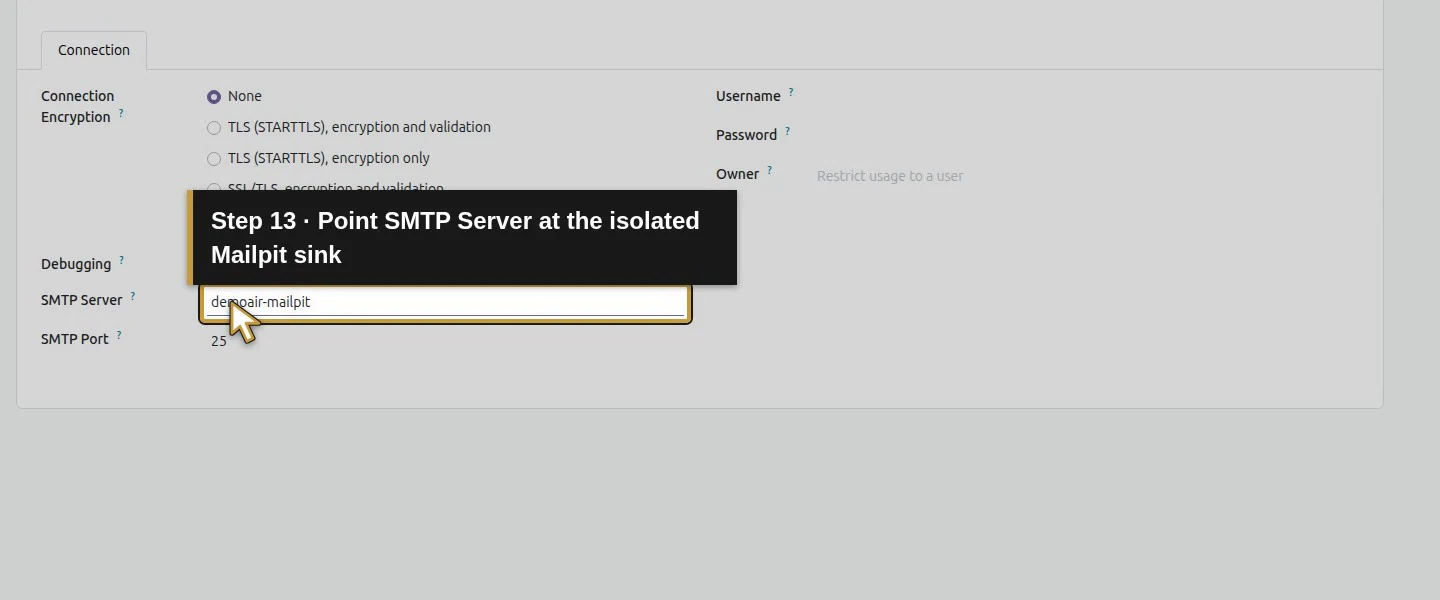
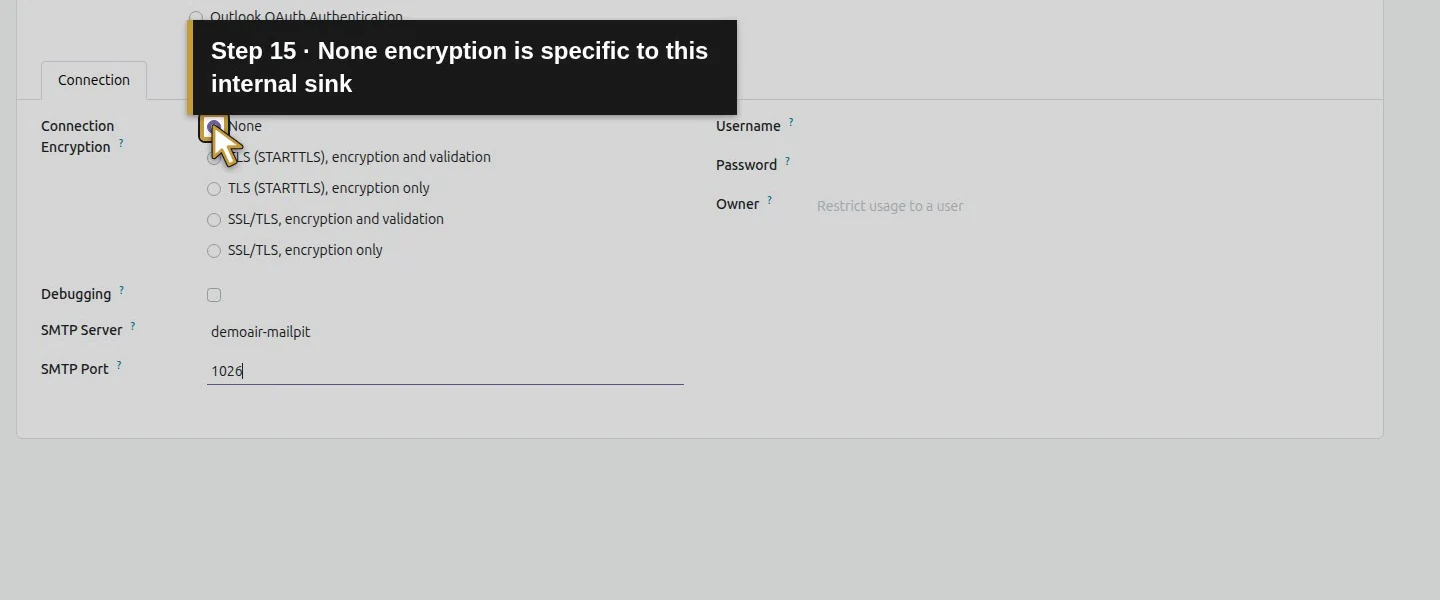
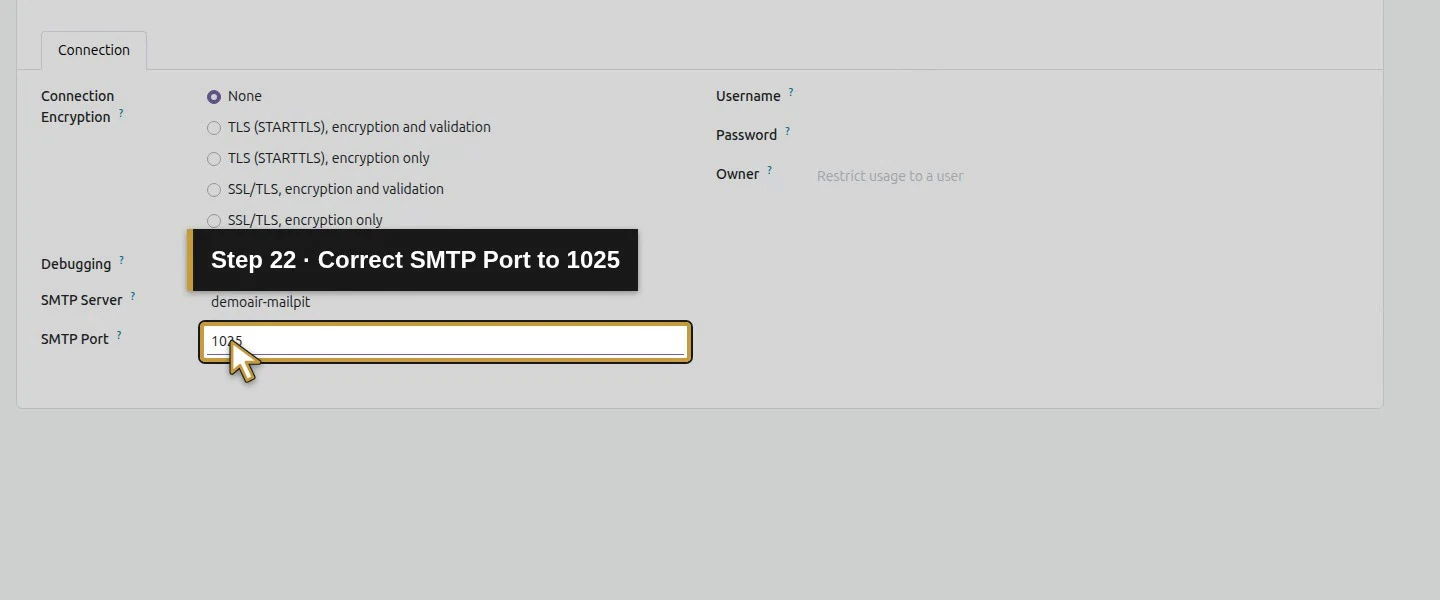
Enter Demo Air local mail H07 as Name, demoair.example.invalid as FROM Filtering, and leave Priority at 10. Set SMTP Server to demoair-mailpit and SMTP Port to 1025. Keep Connection Encryption: None. The Authenticate with: Username option stays selected, with both Username and Password empty for this sink. Leave Owner empty. These settings belong to the isolated test destination; use your provider's own requirements for a production account.
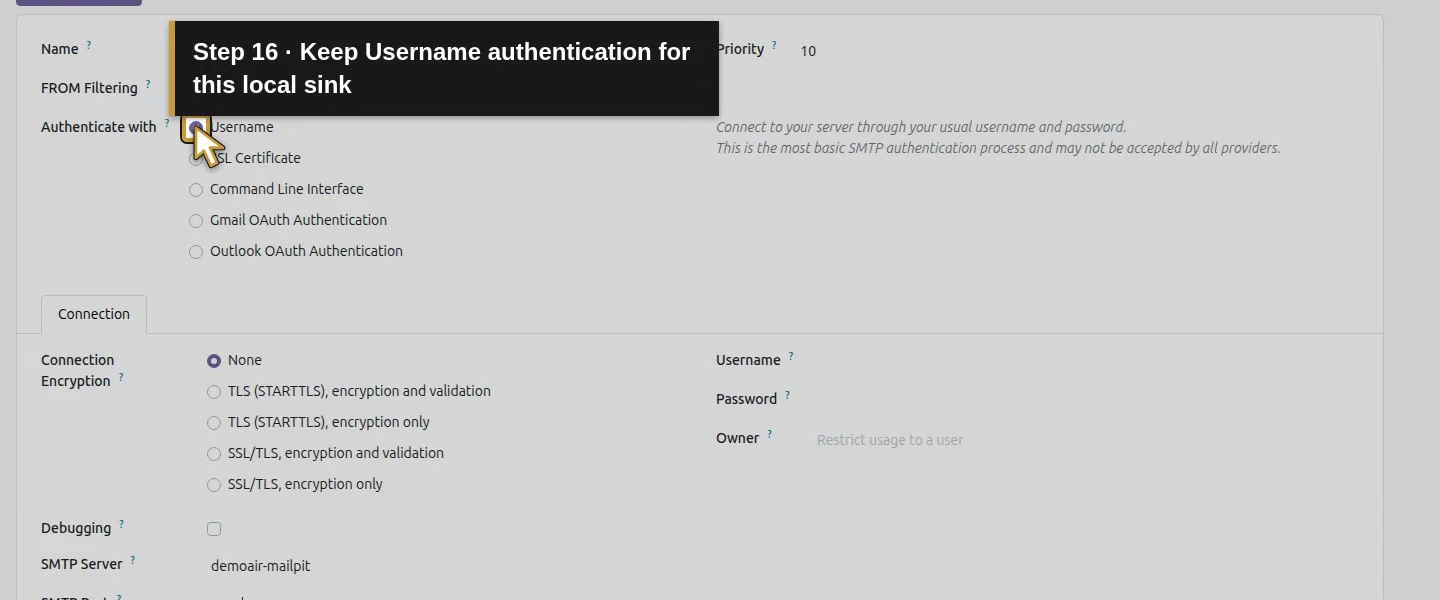
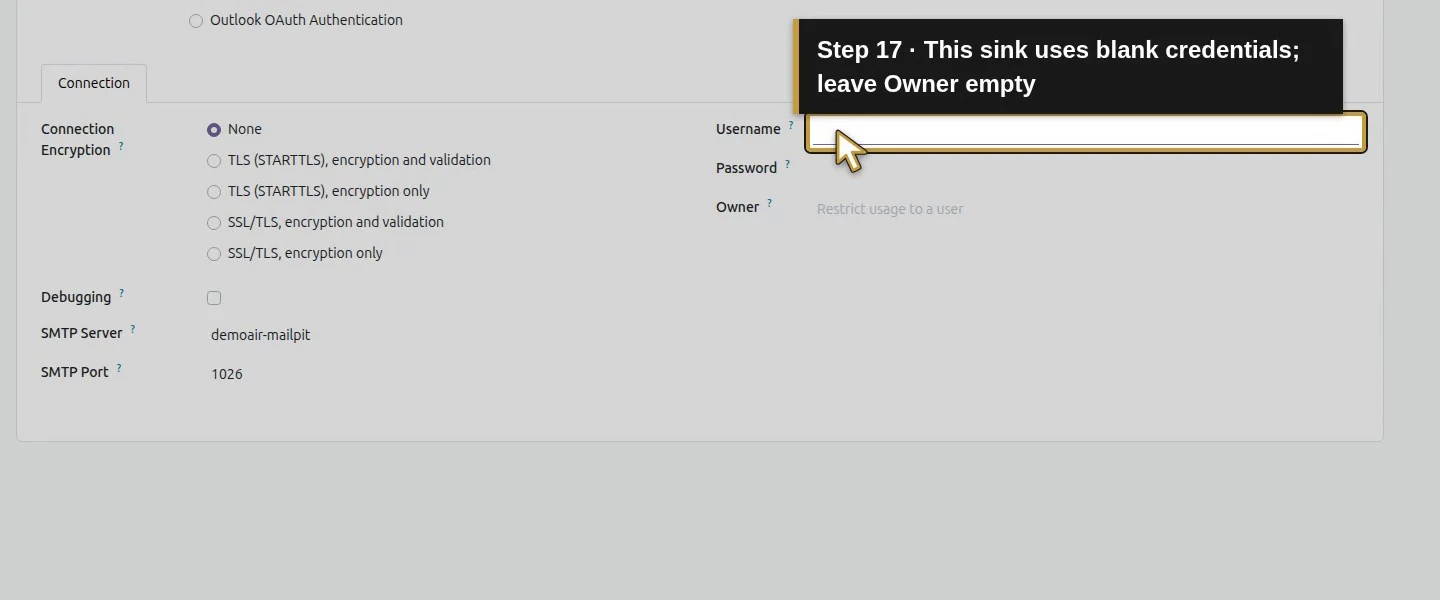
Step 4. Save and test the connection
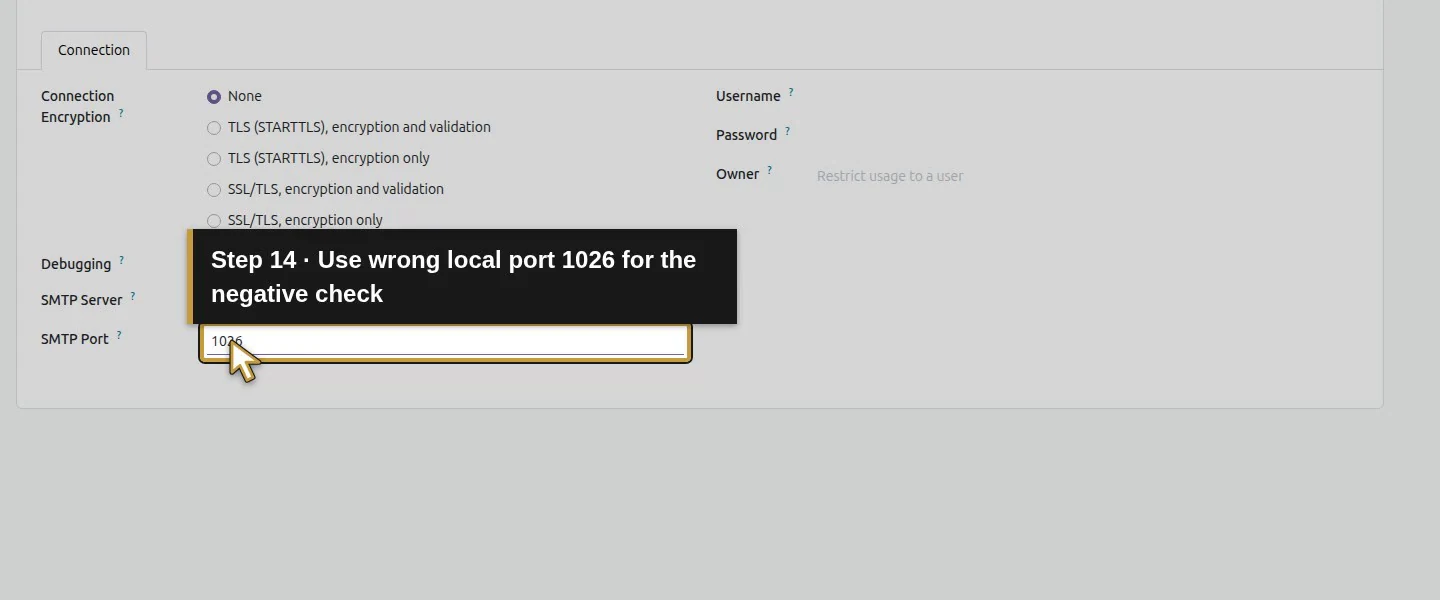
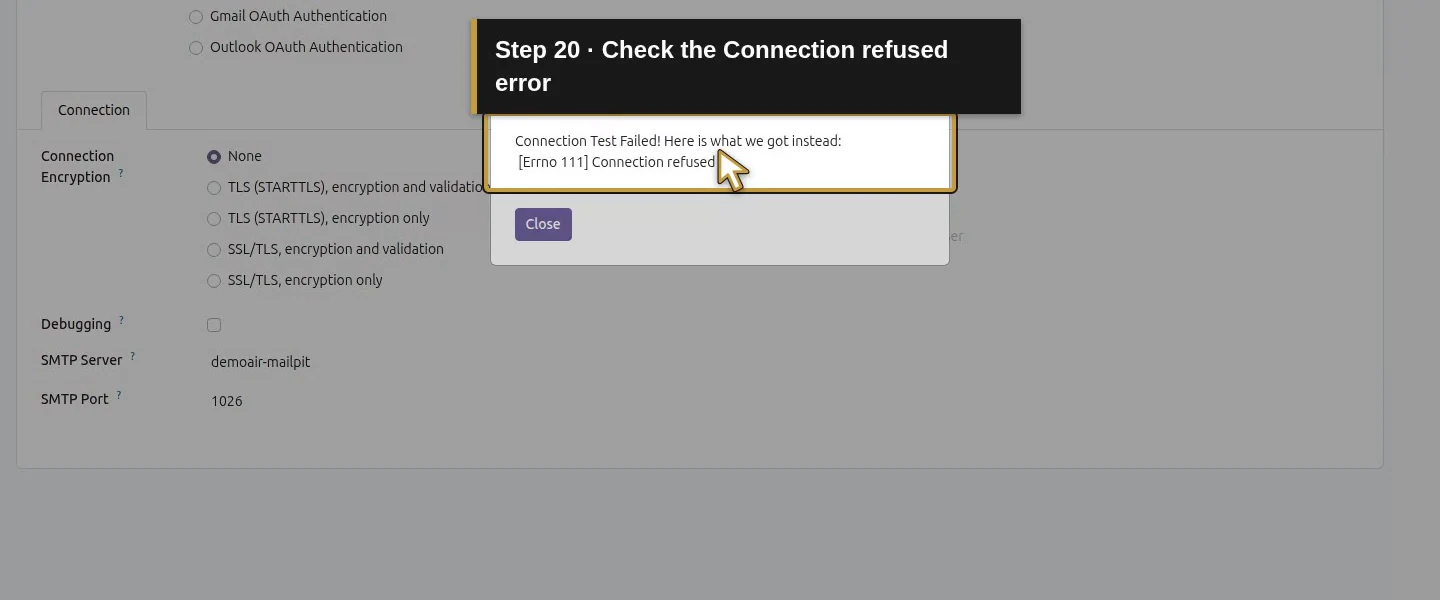
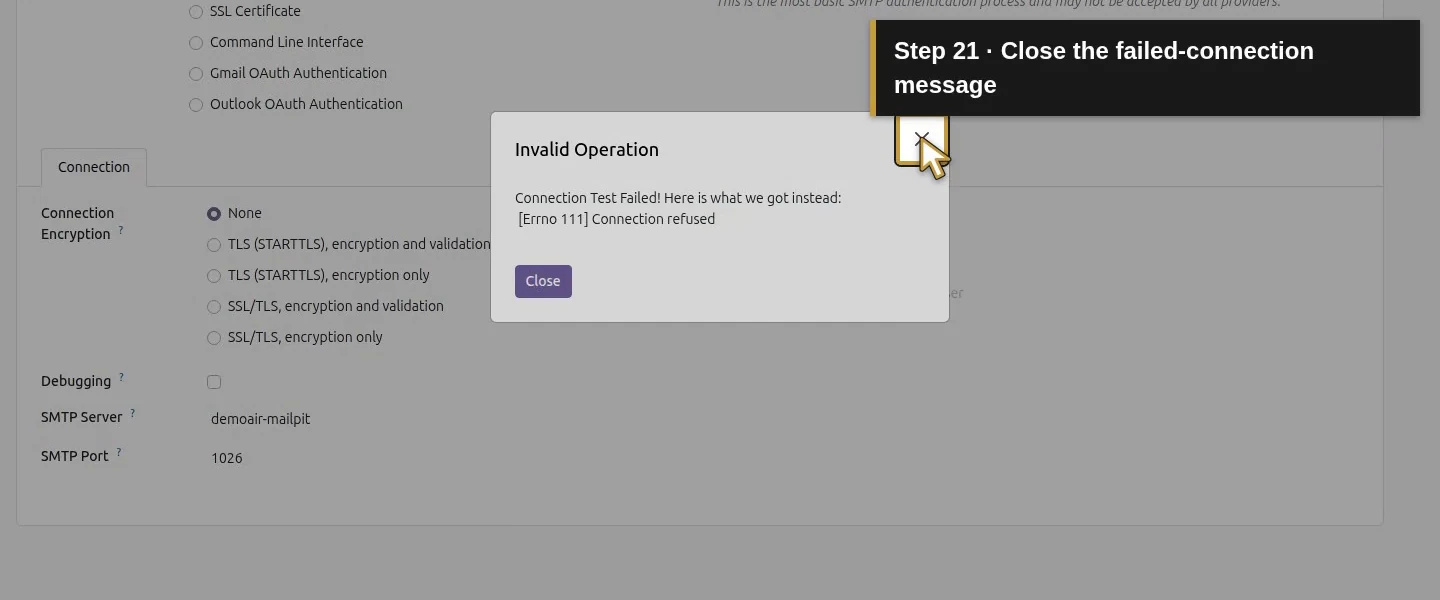
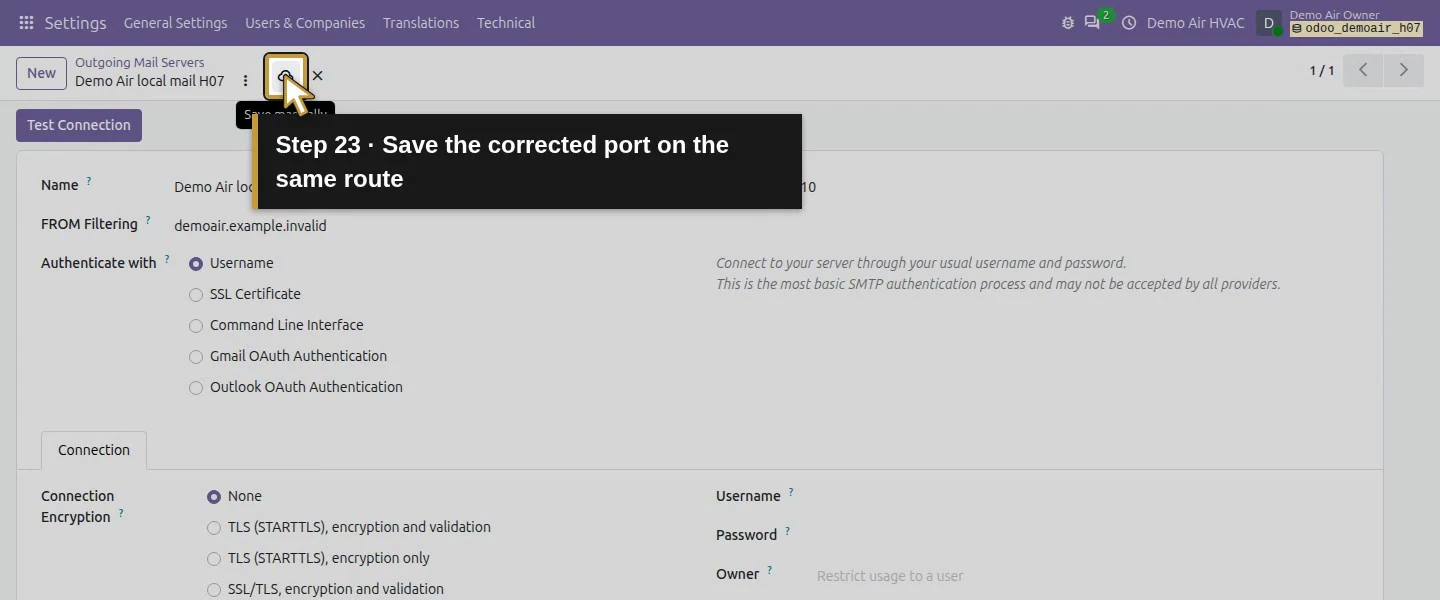
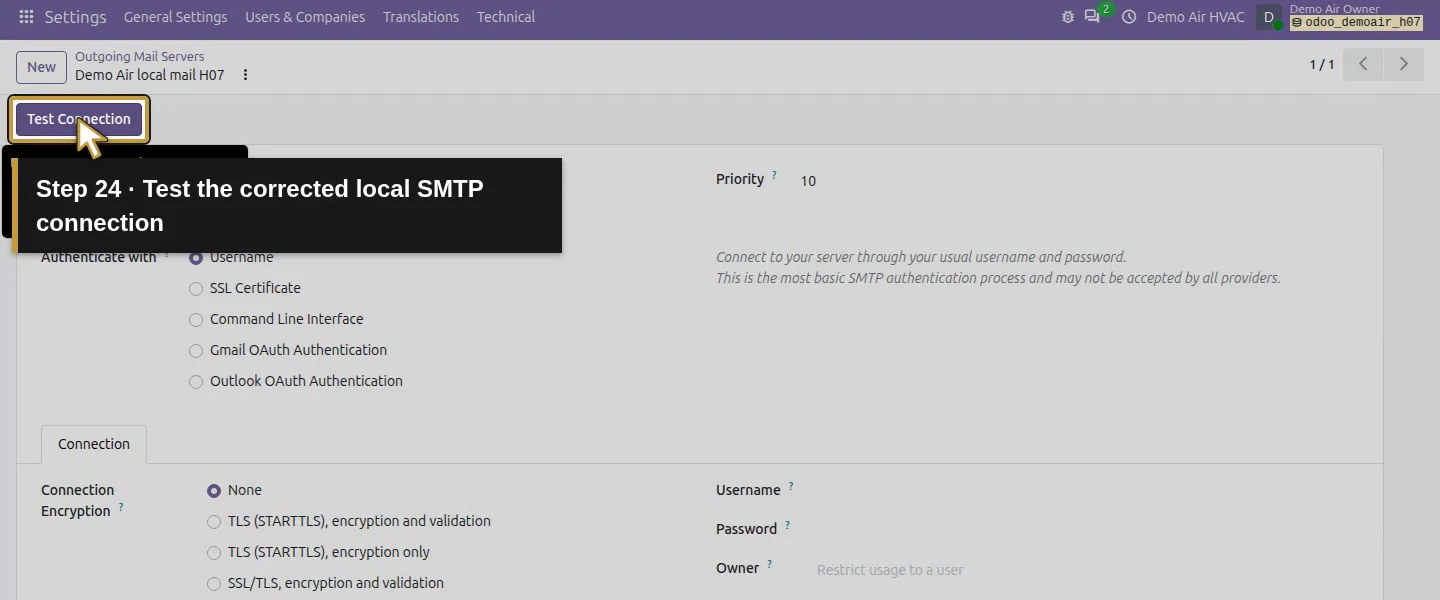
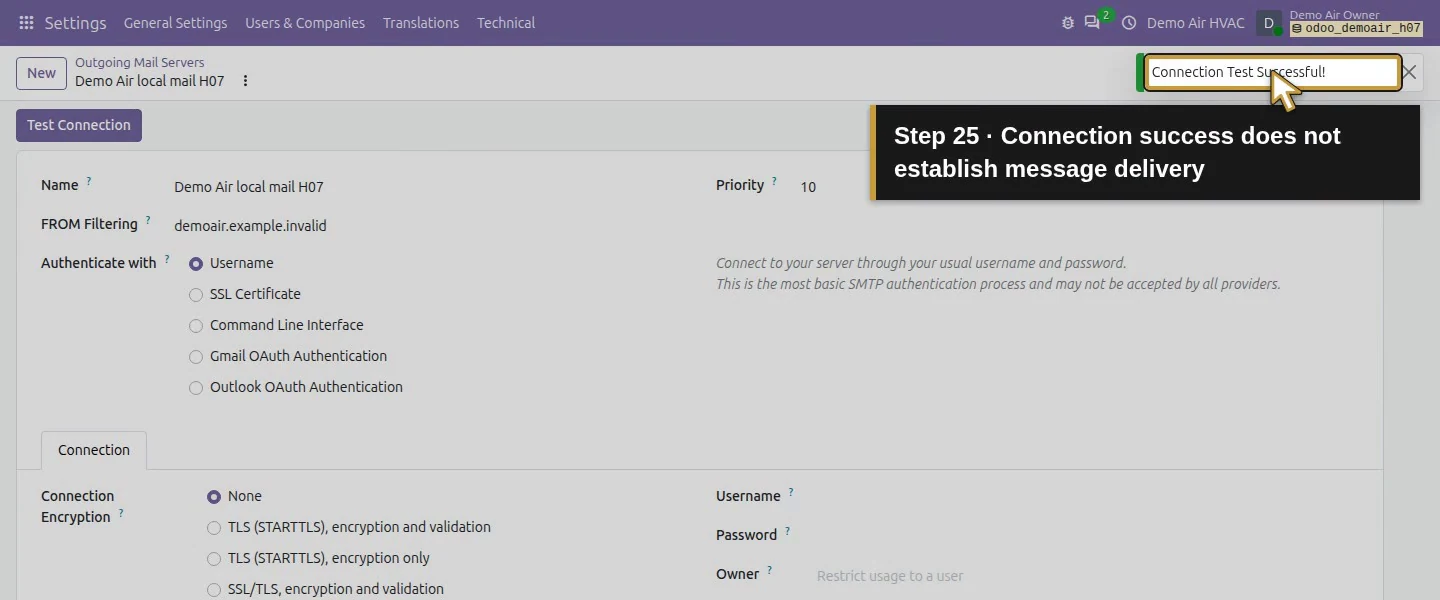
Click Save manually, then Test Connection. Check for Connection Test Successful!. Our negative check using port 1026 produced Connection refused; restoring 1025 succeeded. The inbox still contained zero messages after connection testing. A working connection is one check; it does not establish delivery of your quotation.
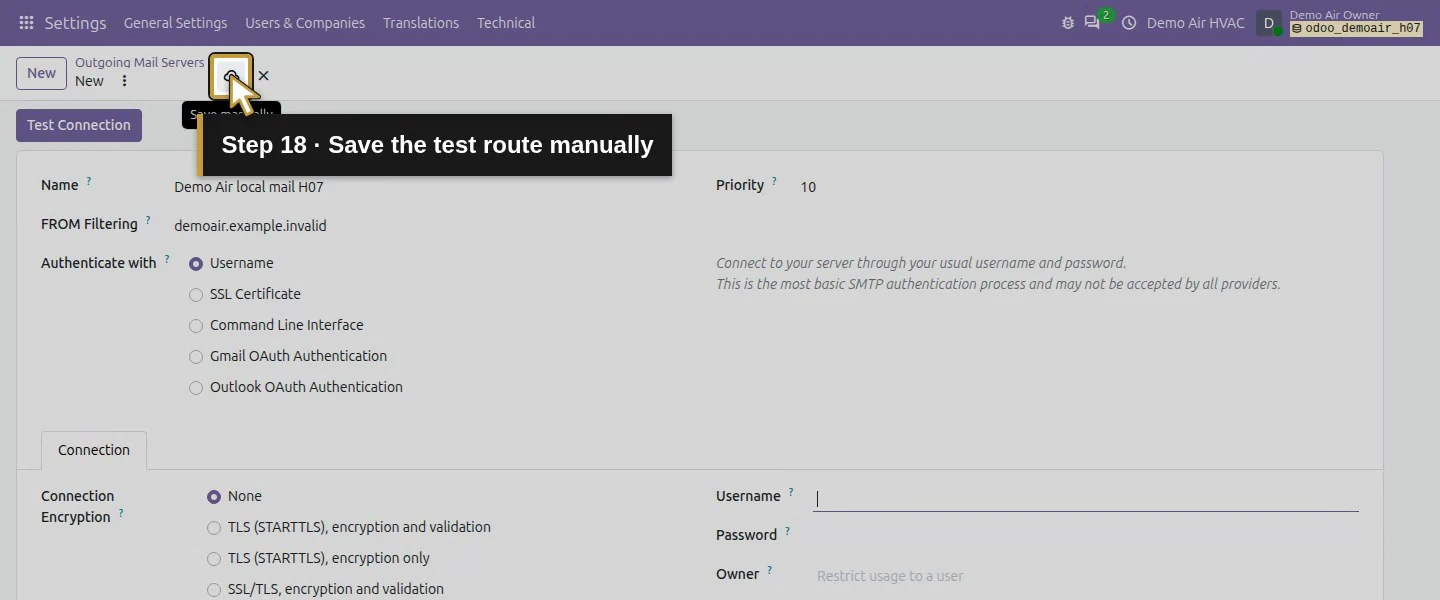
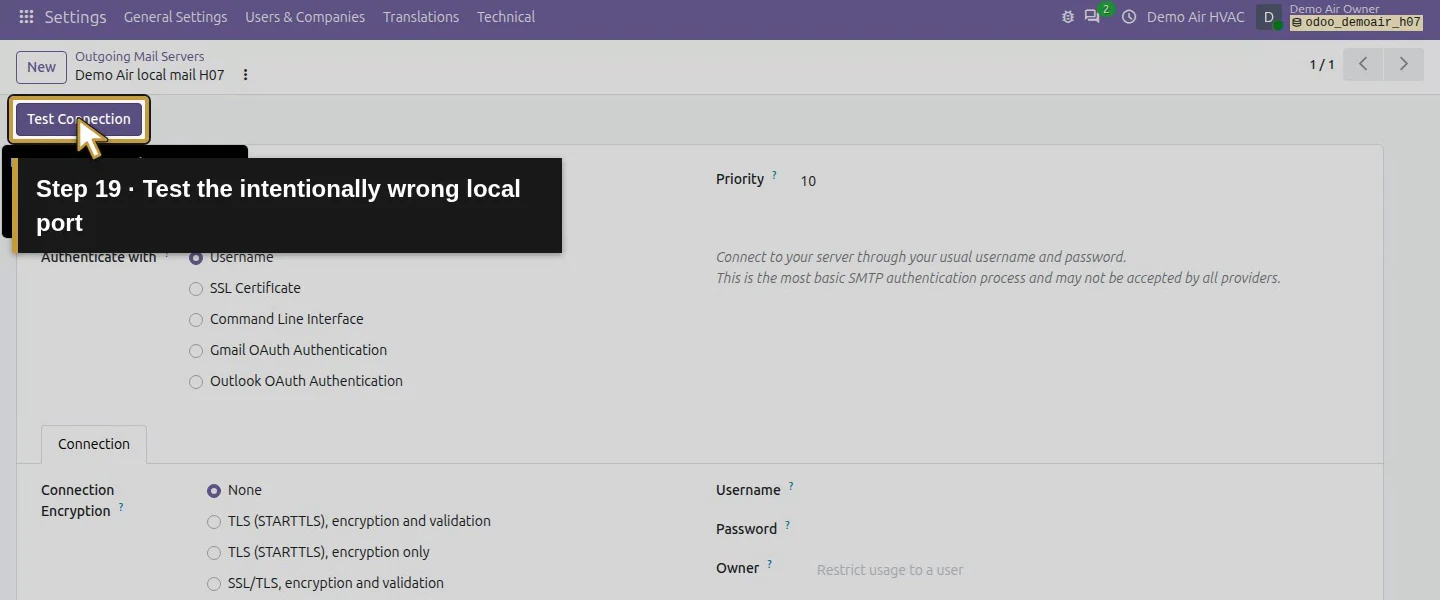
Step 5. Give the training customer an email address
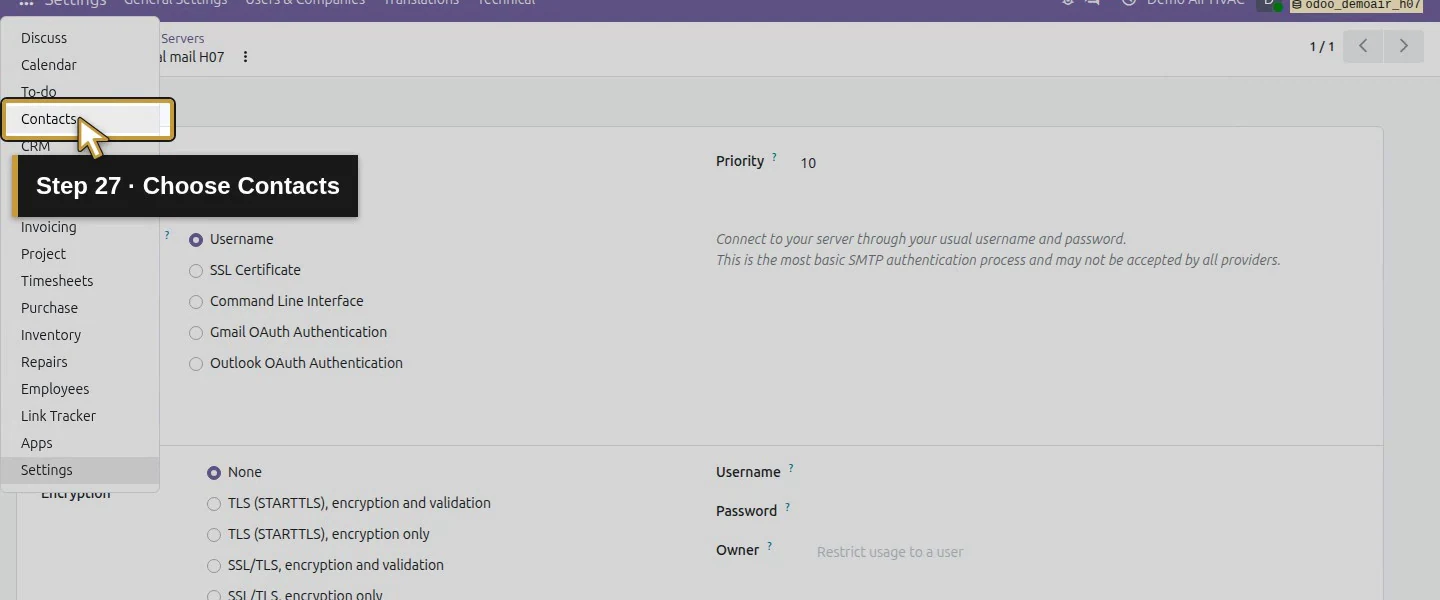
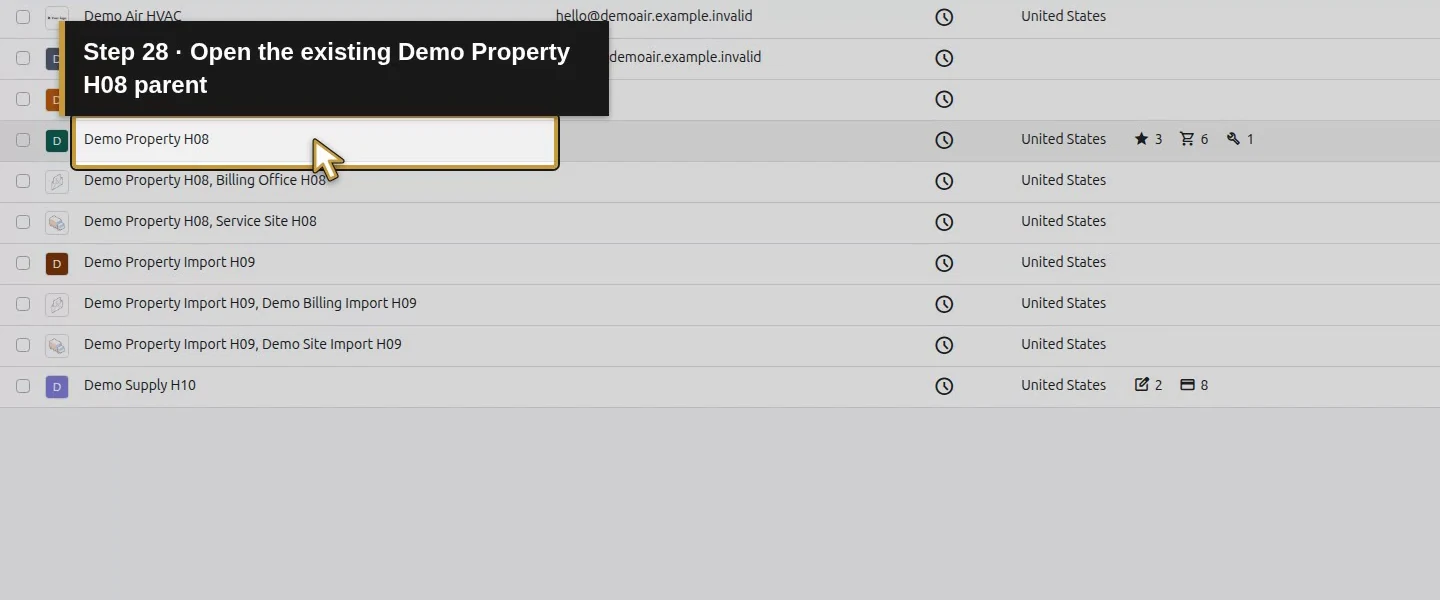
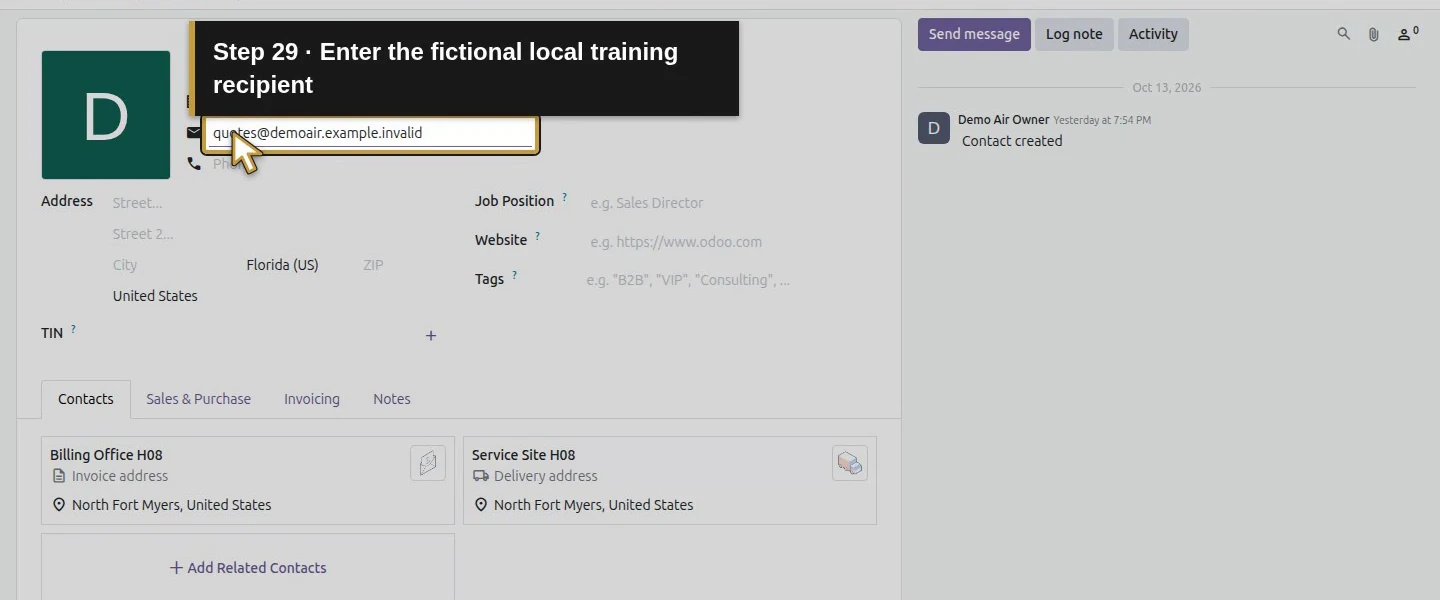
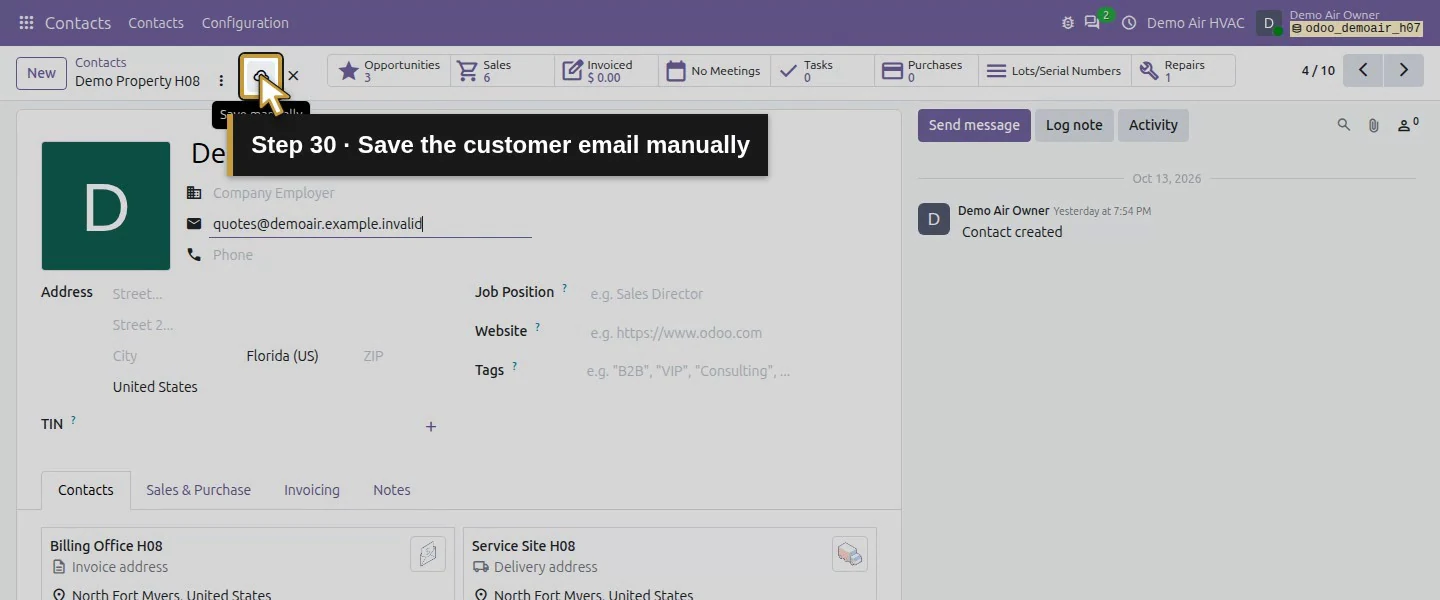
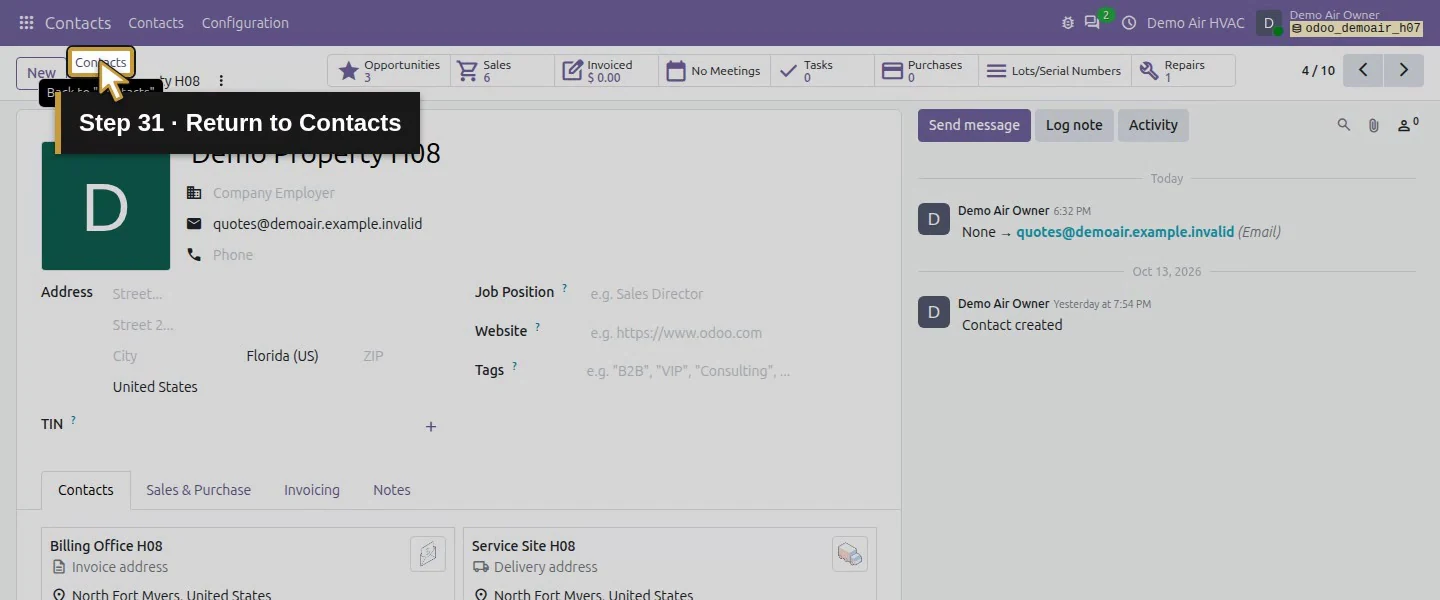
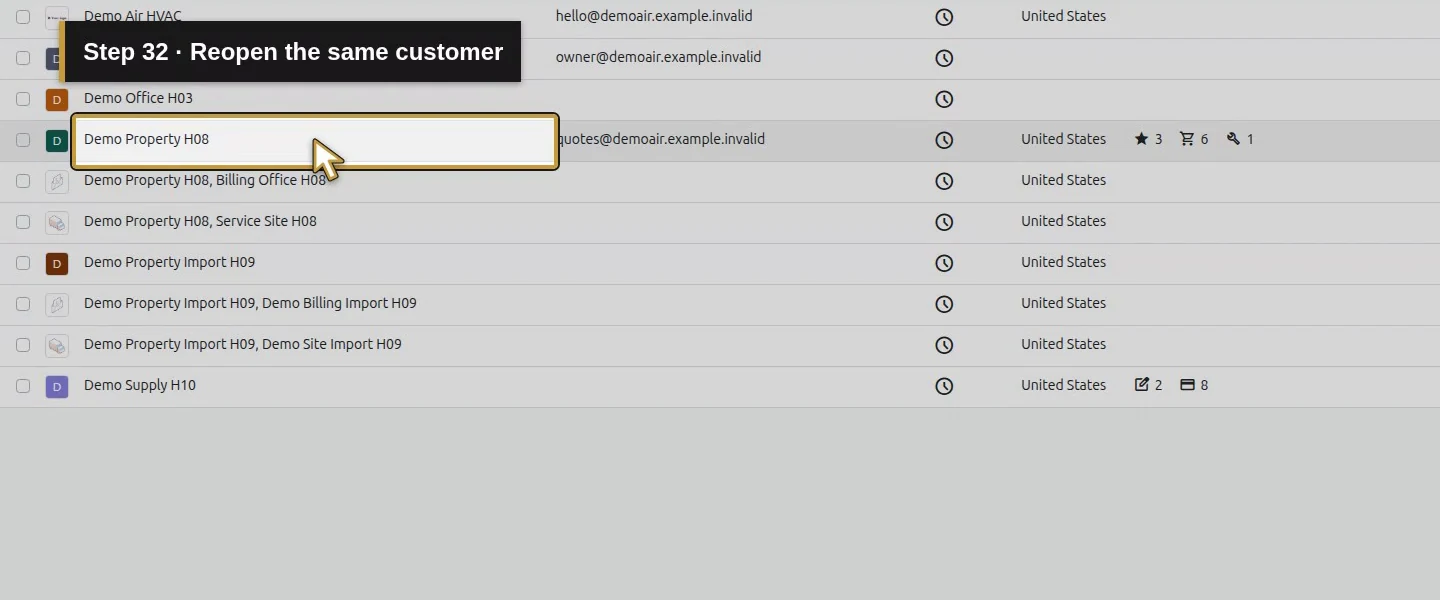
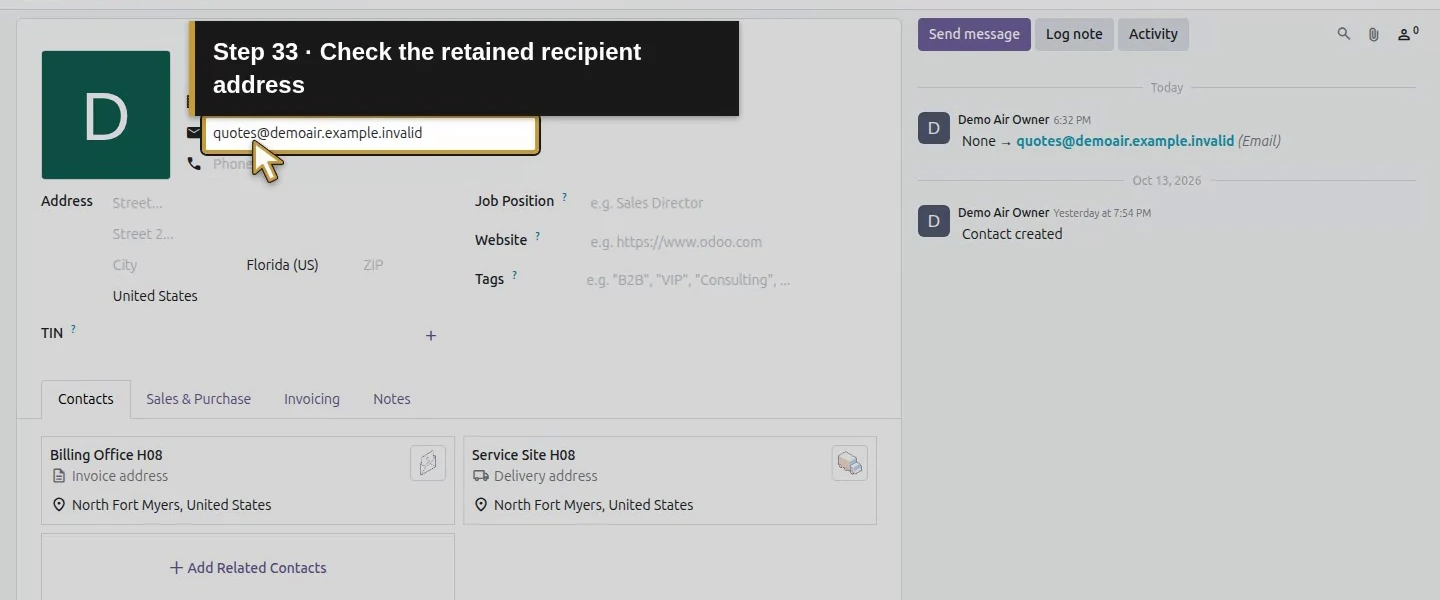
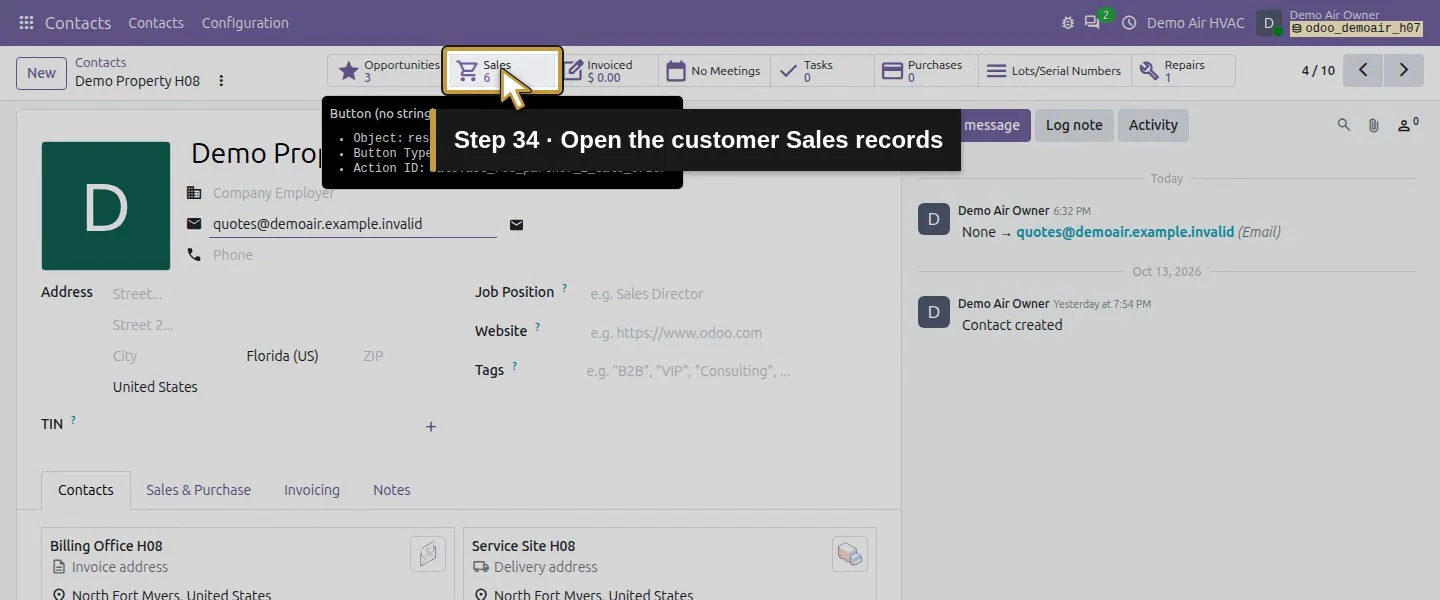
Open Contacts → Demo Property H08. Enter quotes@demoair.example.invalid in Email, then Save manually. Reopen to check the saved value. Leave the separate billing and service-address records unchanged. The demo sender is owner@demoair.example.invalid, which matches the server's FROM Filtering domain.
Step 6. Send the reviewed quotation once
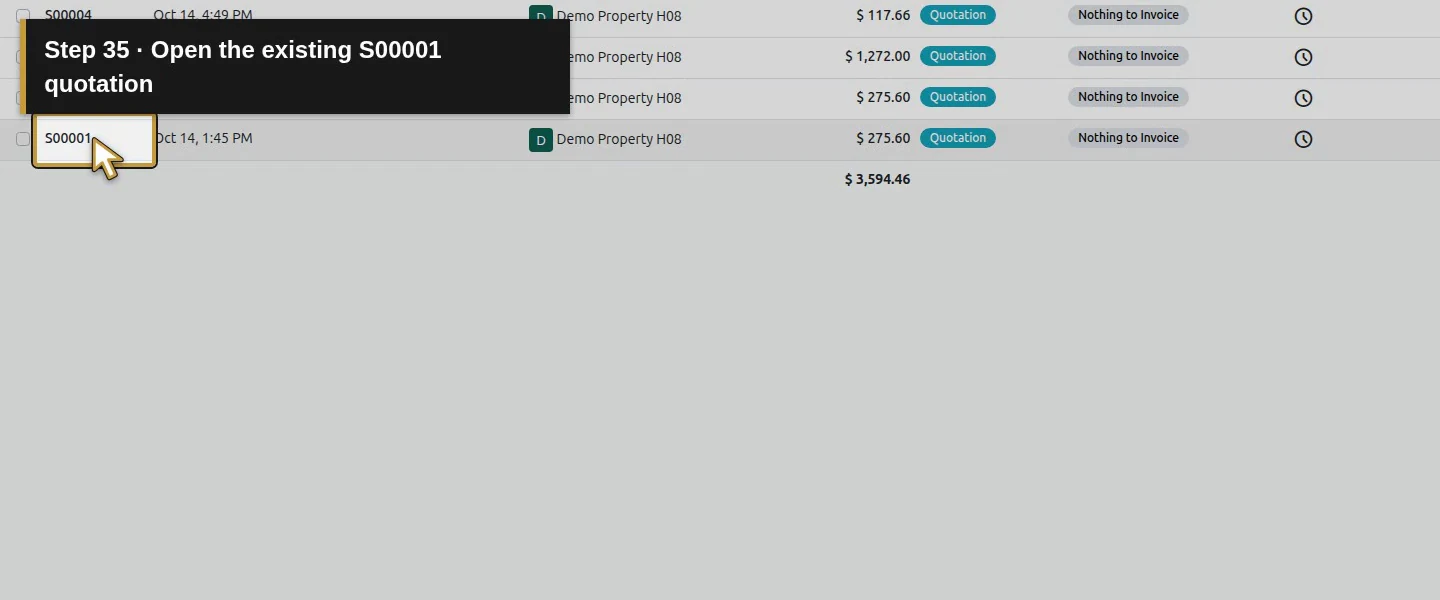
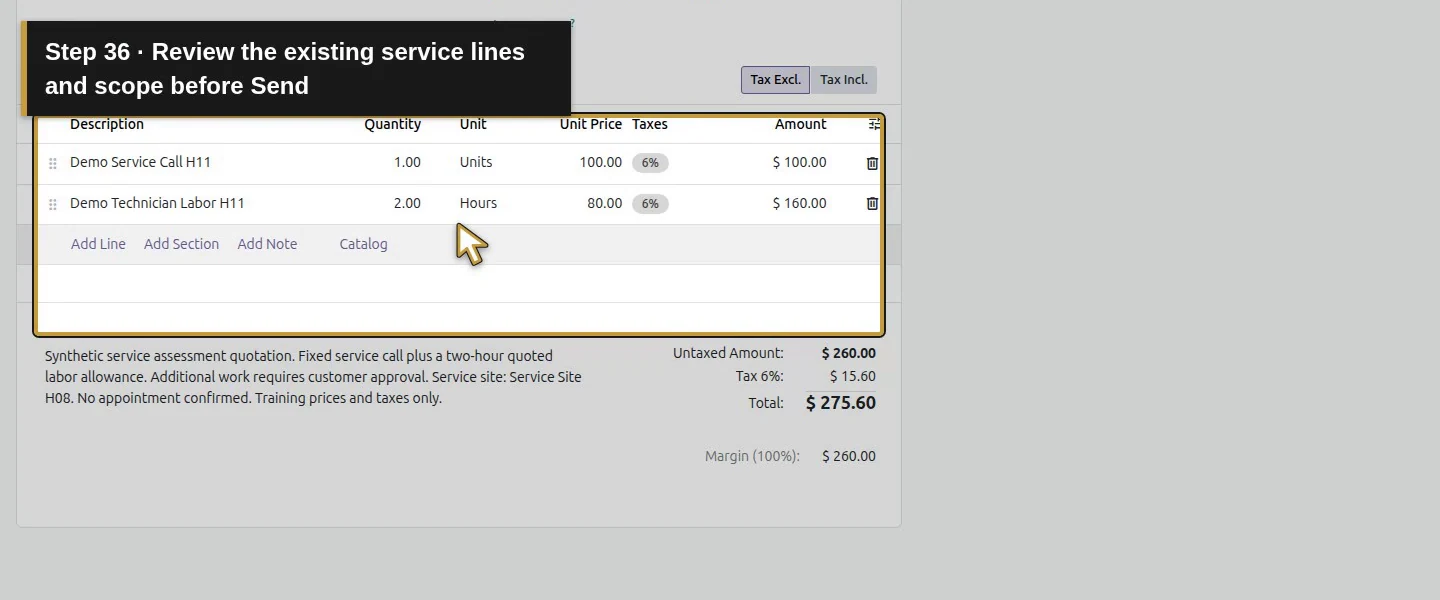
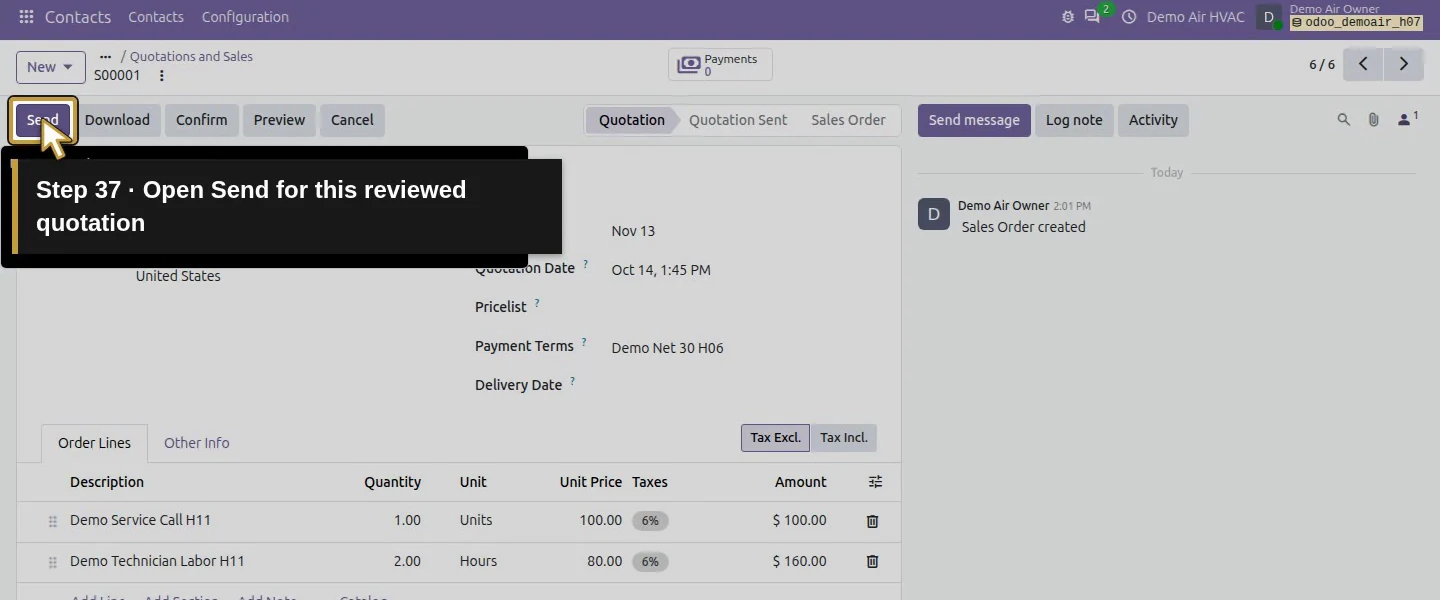
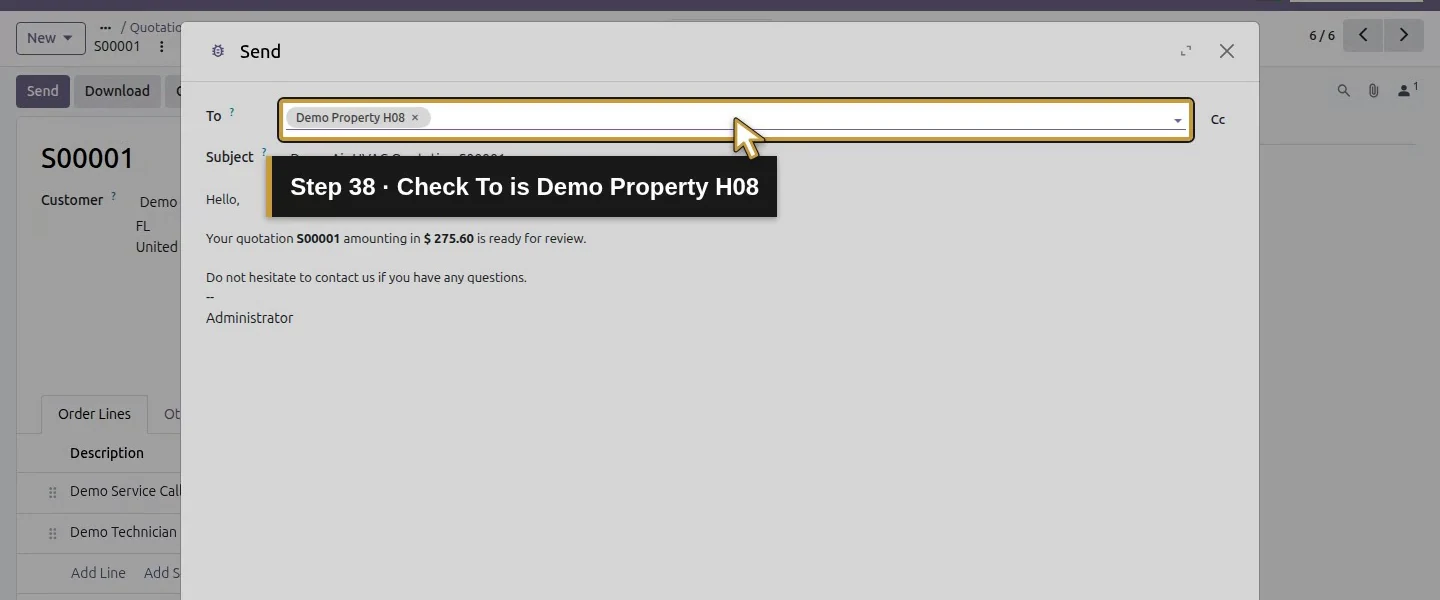
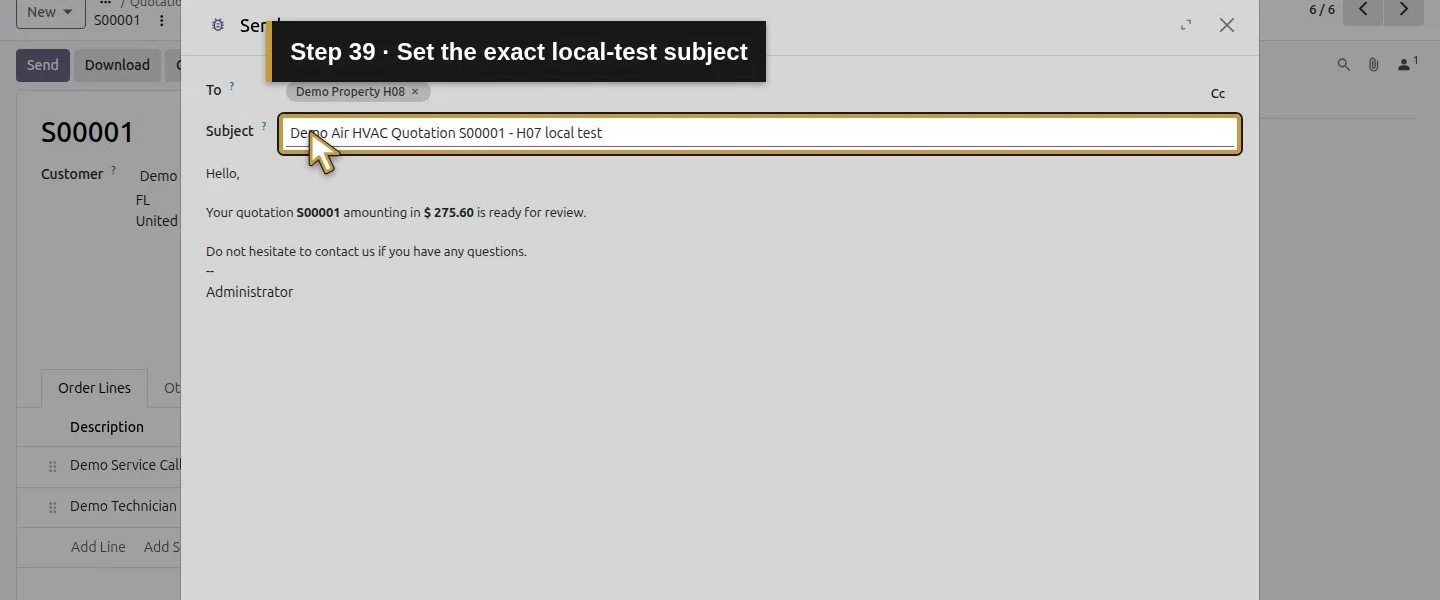
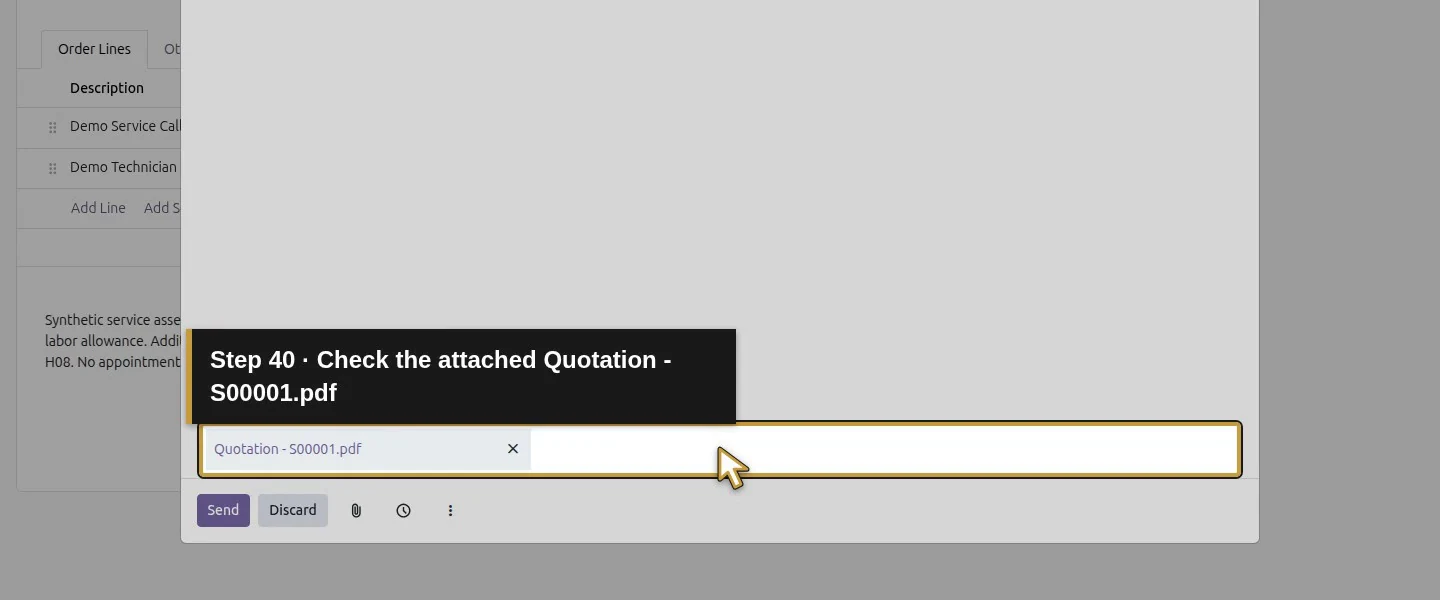
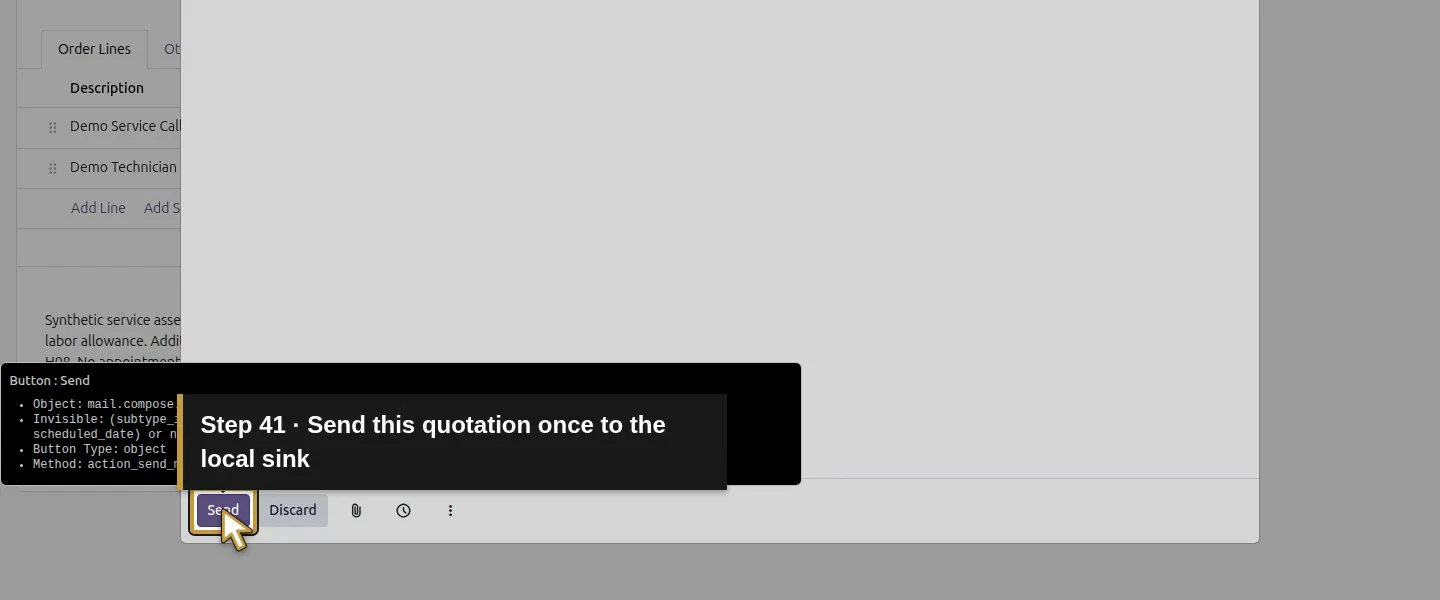
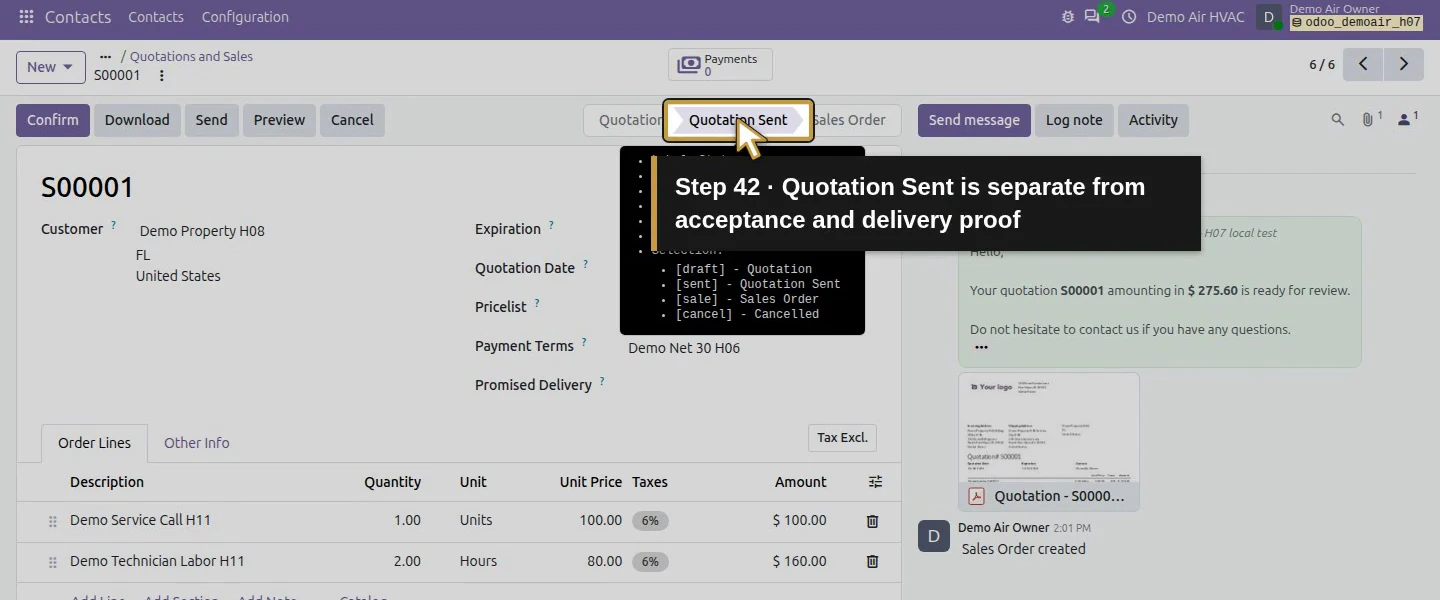
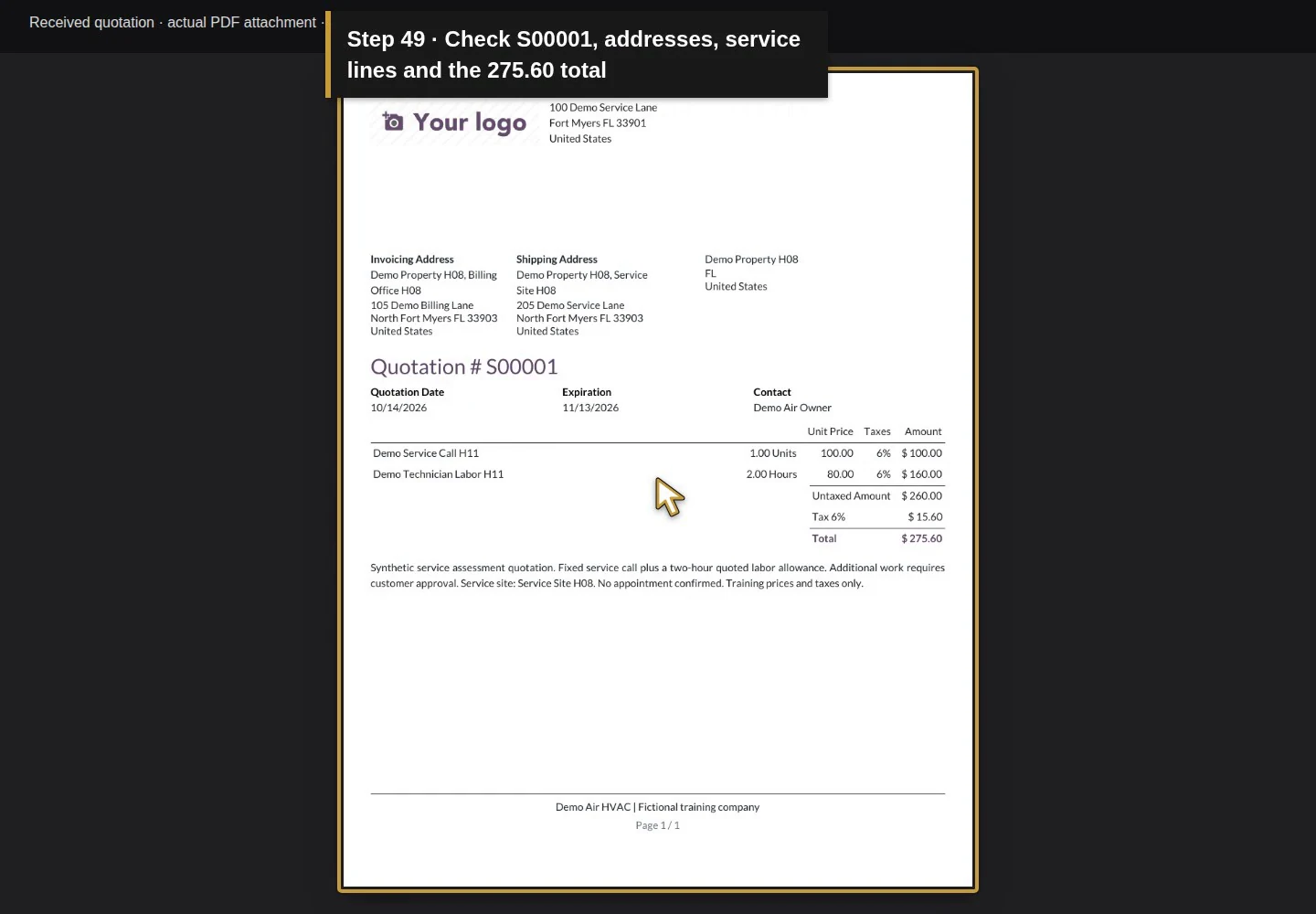
From the customer's Sales button, open S00001. Check the two service/labor lines, $275.60 total, addresses and scope. Click Send. In the dialog, confirm To: Demo Property H08, inspect the message and attached Quotation - S00001.pdf, and set Subject to Demo Air HVAC Quotation S00001 - H07 local test. Click the dialog's Send once. The quotation changes to Quotation Sent; it has not been accepted or invoiced.
Step 7. Inspect the received email and PDF
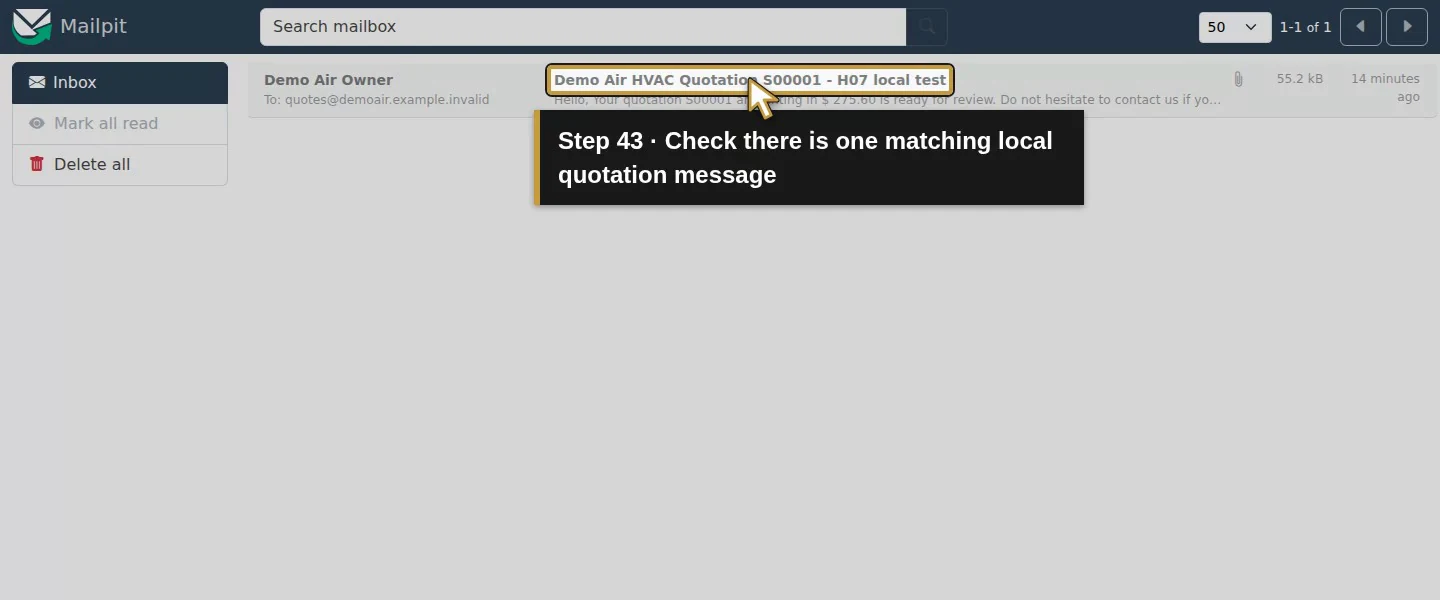
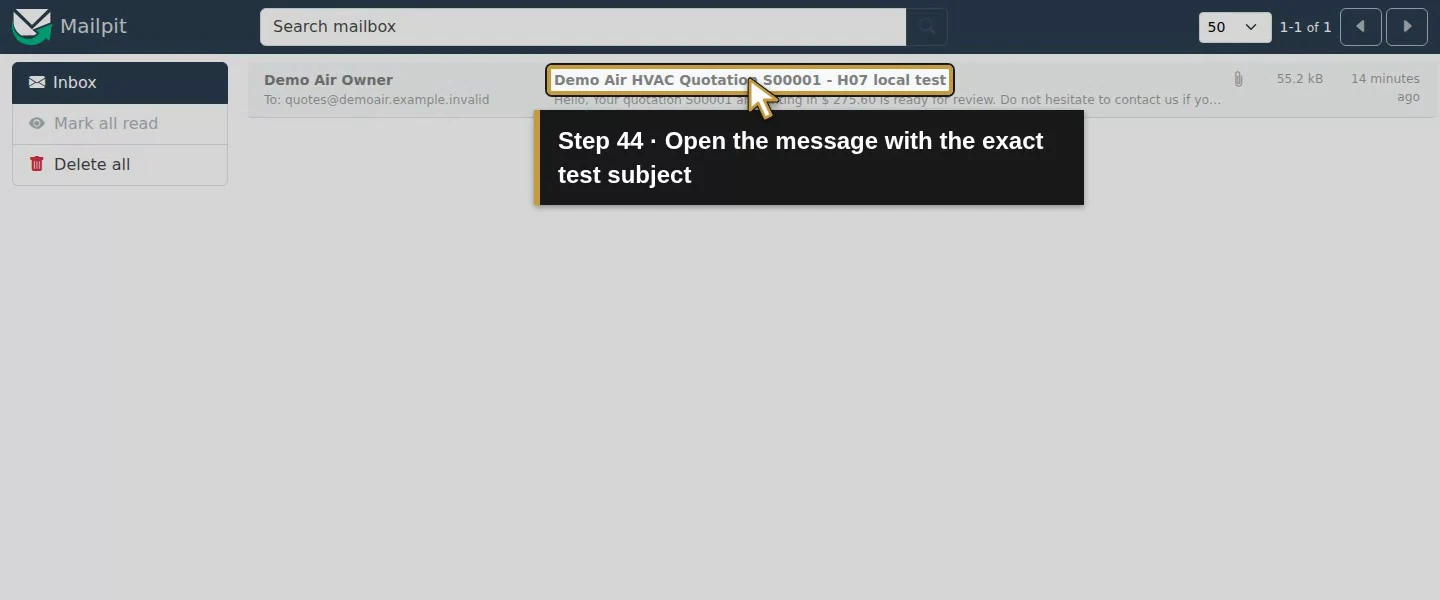
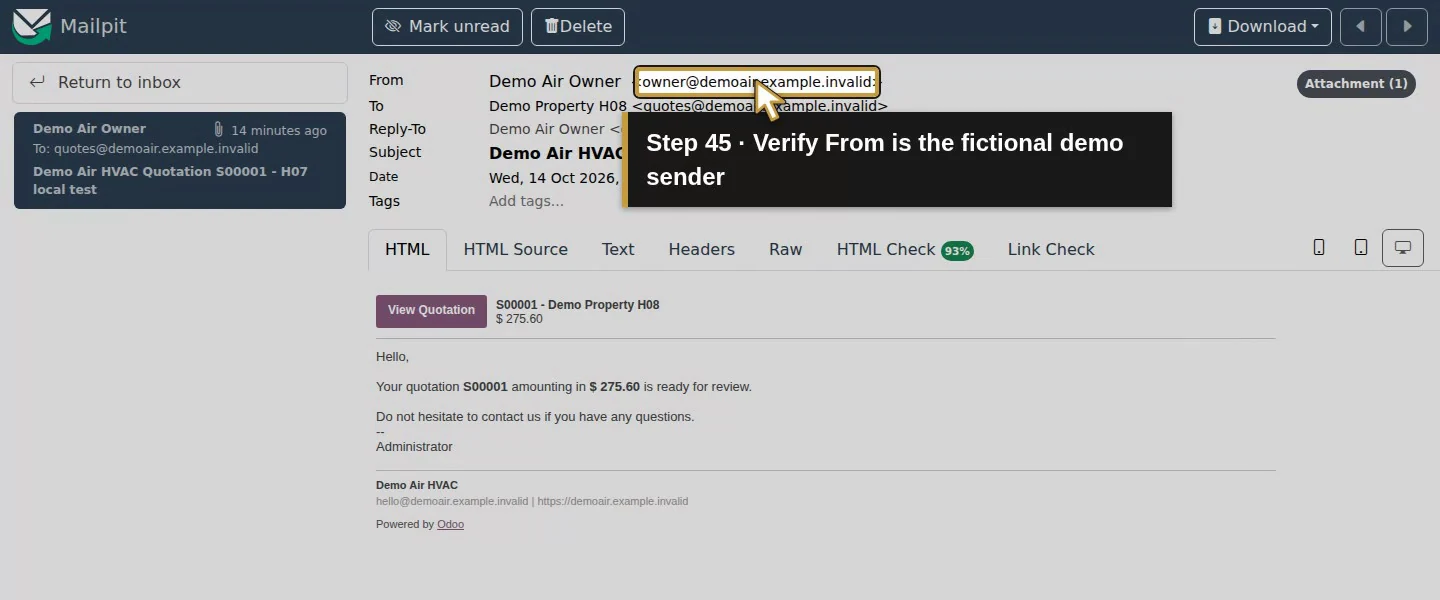
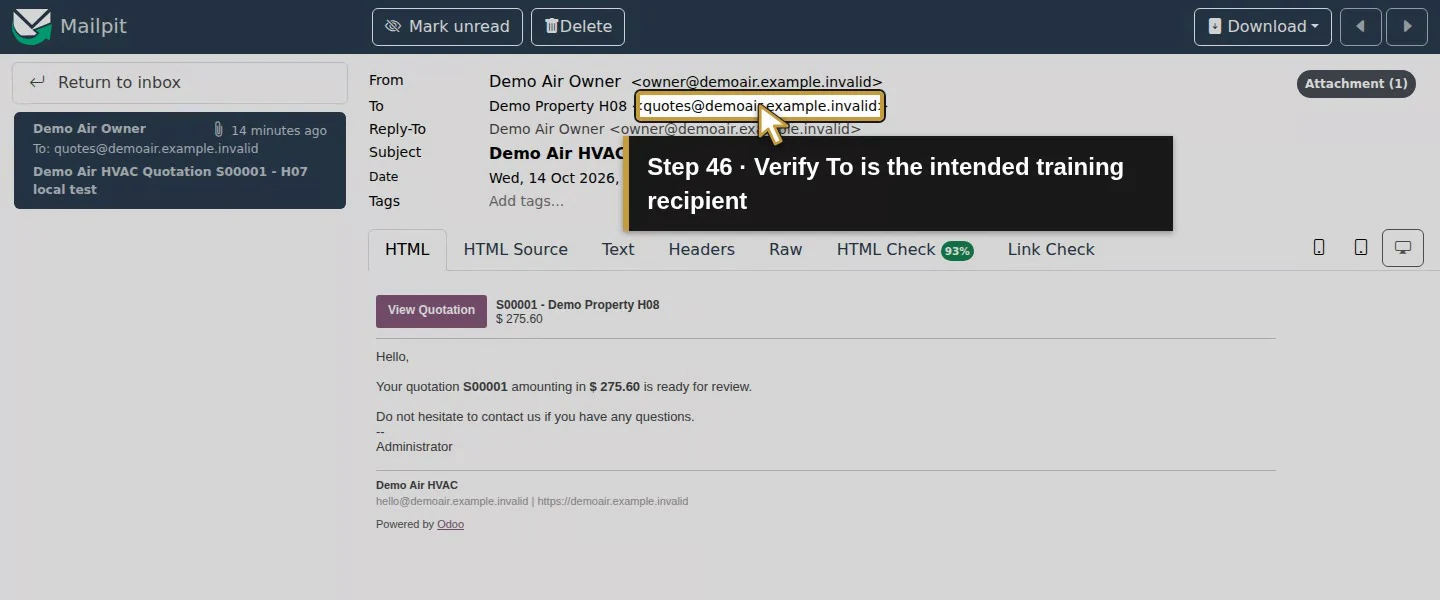
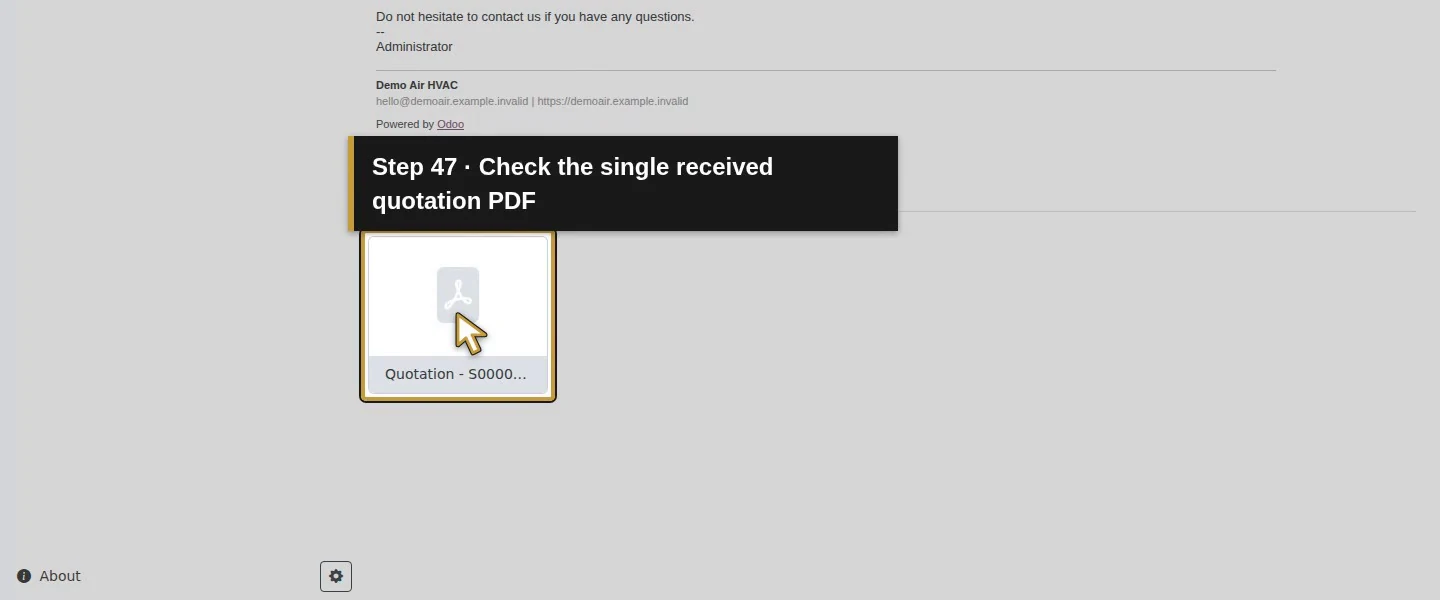
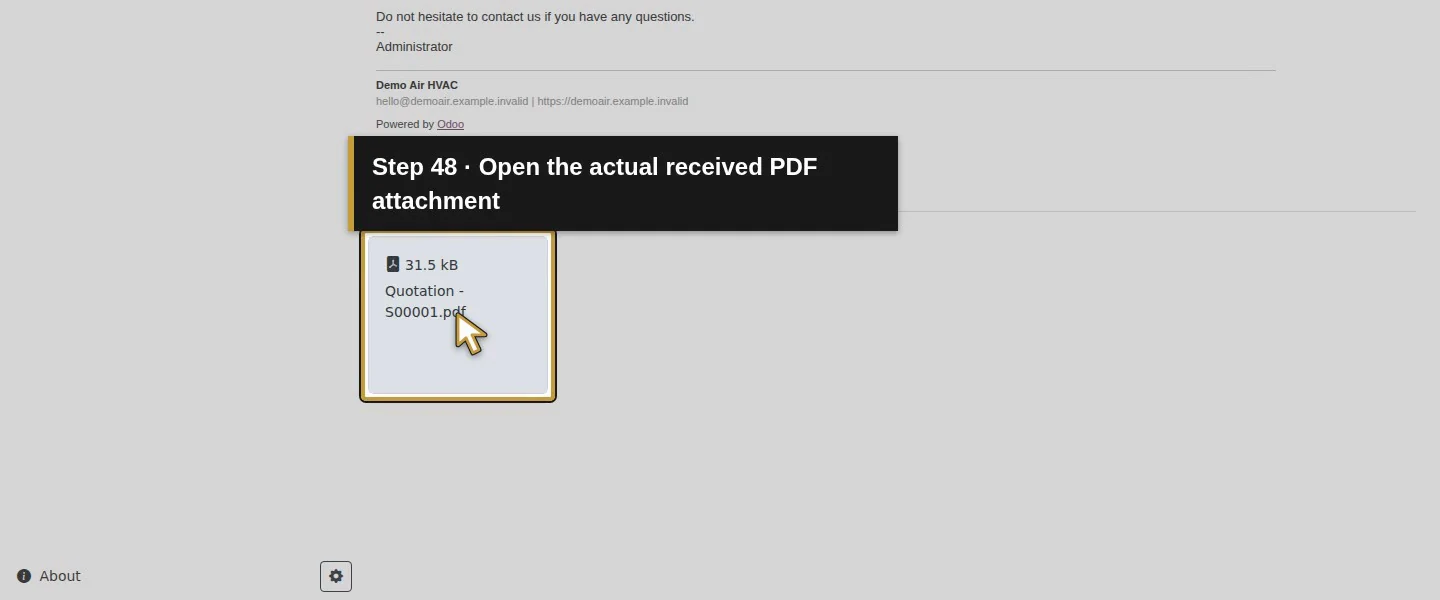
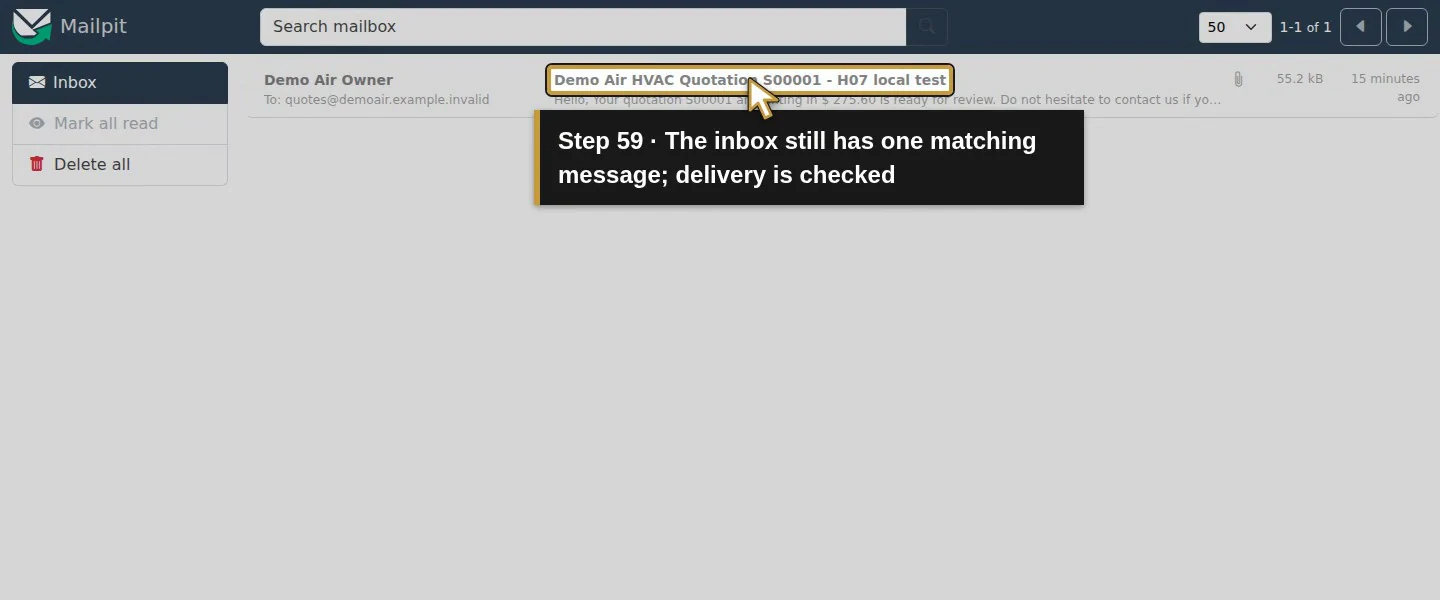
Return to Mailpit. Open the one new message with that exact subject. Check From: owner@demoair.example.invalid, To: quotes@demoair.example.invalid, and the single PDF attachment. Open/download the PDF and check S00001, the service/labor lines, billing/service addresses and $275.60 total. Our received file had the same bytes and checksum as Odoo's saved attachment, confirming that the intended PDF arrived.
Step 8. Check the recipient's delivery details
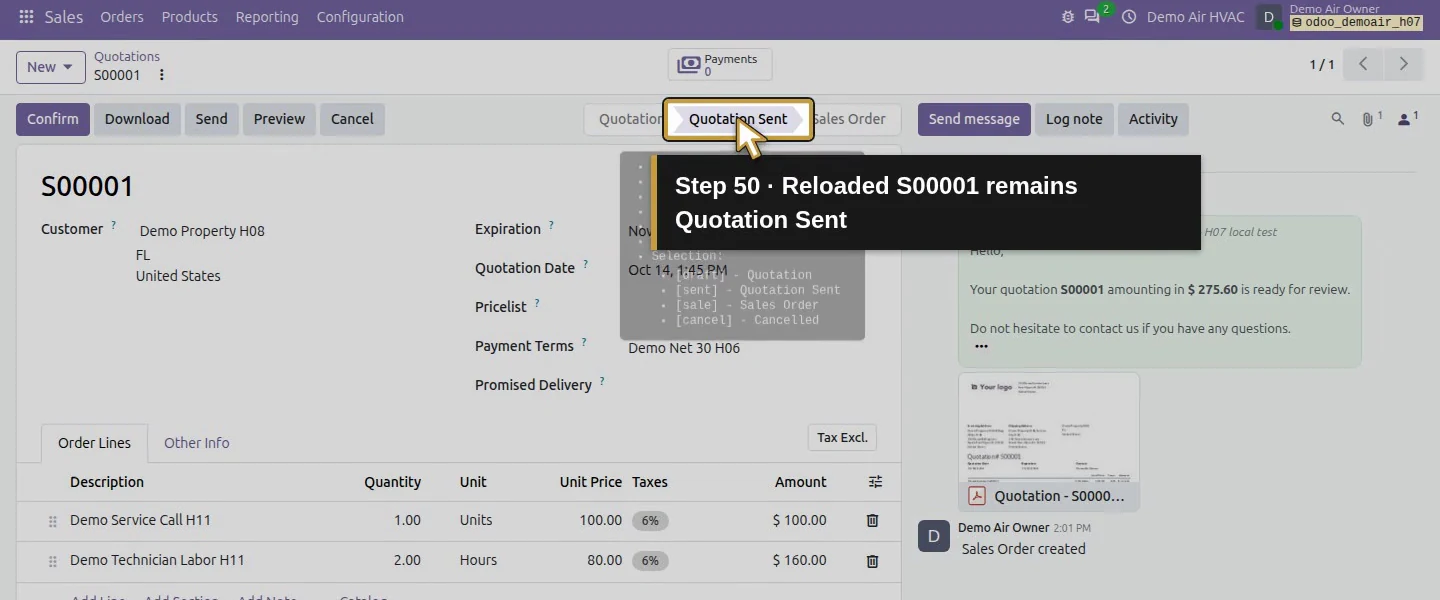
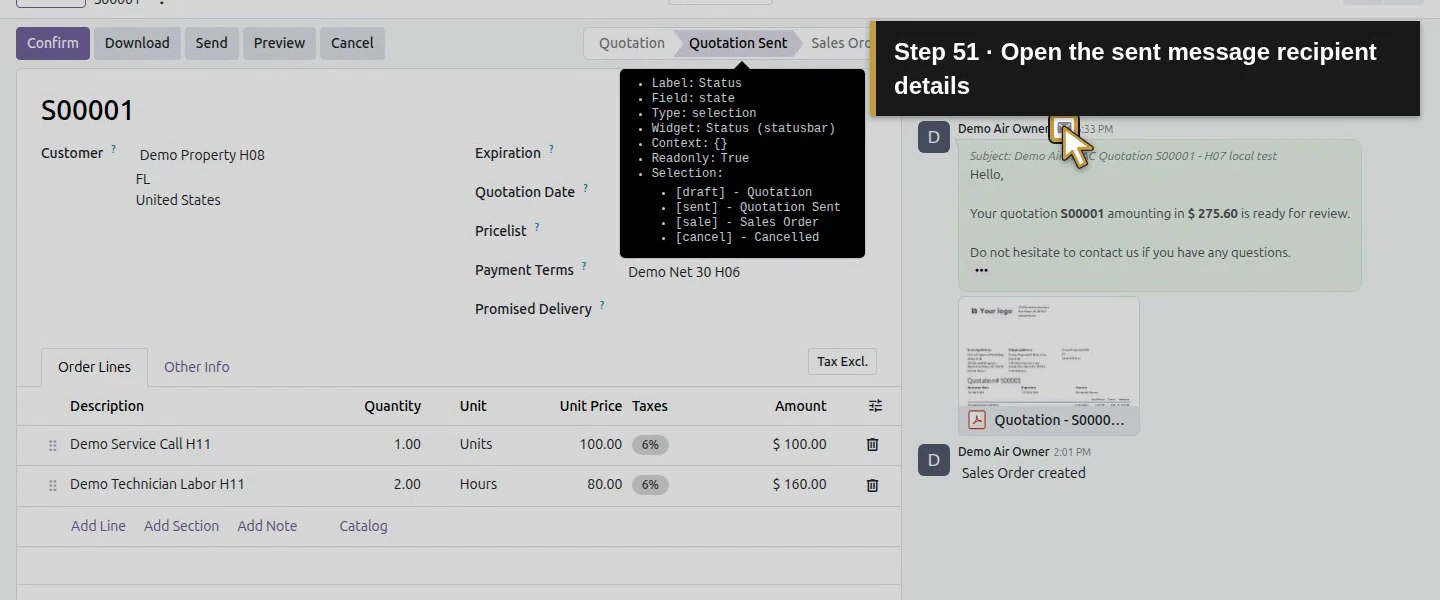
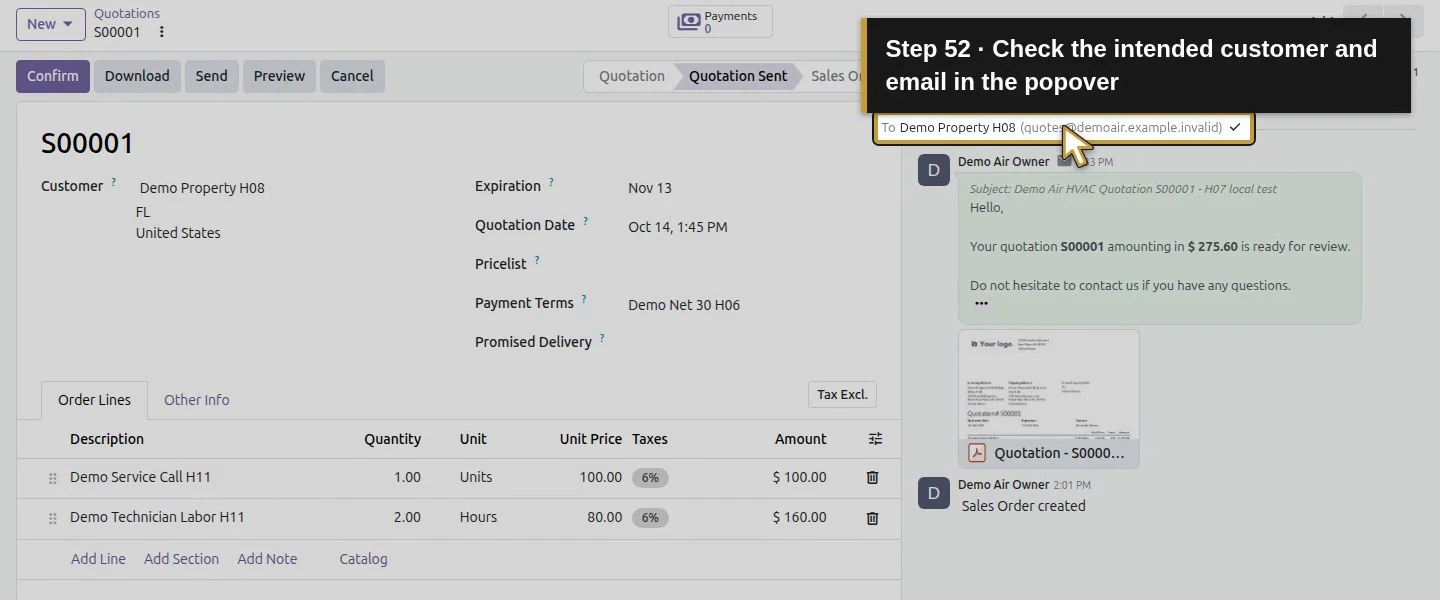
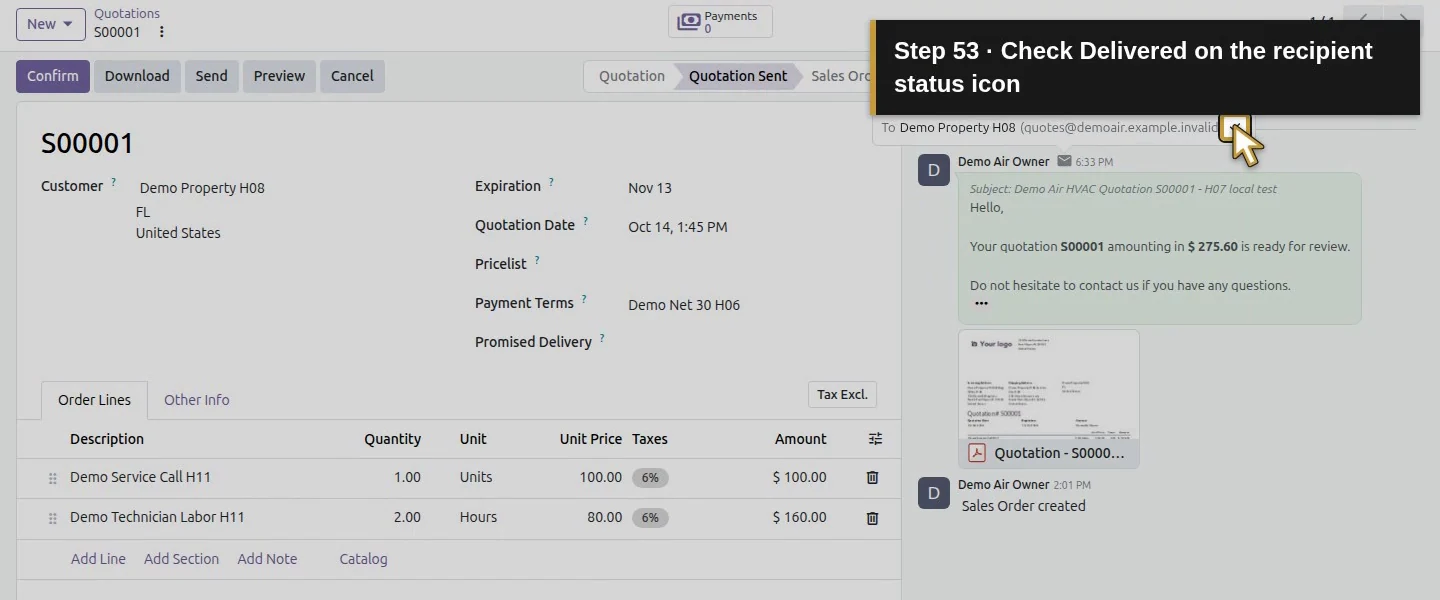
Reload S00001 and find the sent message in its chatter. Click the envelope icon beside the author. The recipient details showed Demo Property H08 (quotes@demoair.example.invalid) with Delivered. The saved email notification also had status sent. That status and the received message are the delivery checks; the quotation's Sent status alone is insufficient.
Step 9. Check the queue before considering a retry
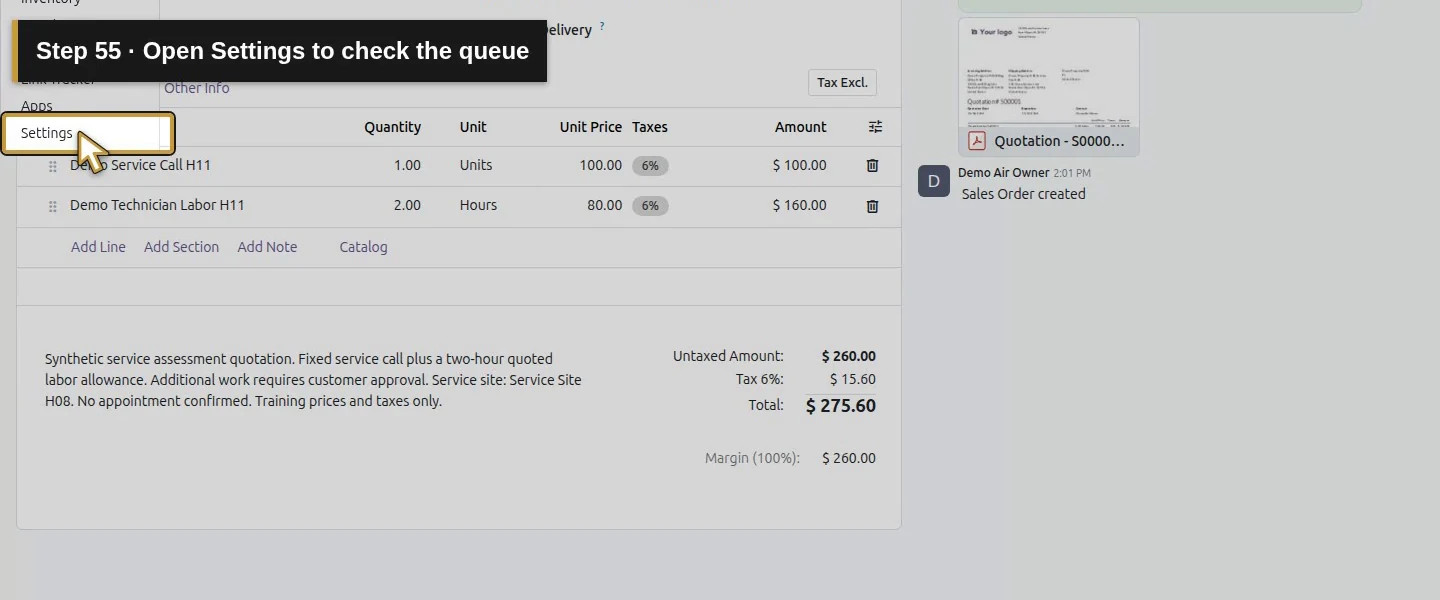
Open Settings → Technical → Emails again. In this case only the same four older failures remained; the successful quotation message was retained in the document's chatter and recipient notification, rather than as a sent row in this list. Recheck the local inbox: there is still one matching message. Do not resend a successful message simply because its outgoing queue row is absent. For an actual failure, inspect the relevant recipient, server and error before retrying that specific message.
Check the result
One S00001 quotation email reached the local sink with the intended sender, recipient, subject and one matching PDF. S00001 is Quotation Sent at $275.60, with no sales-order acceptance, delivery or invoice. The recipient details show Delivered and the saved notification is sent. The four pre-existing failed emails retain the same identities and states. Other quotation totals, stock balances and finance records are preserved.
If your screen differs
The envelope button's accessible label read Delivery failure even though its recipient popover showed Delivered and the saved notification was sent. Use the recipient details and actual mailbox evidence when assessing this case. The successful message did not remain as a sent row in Emails; absence there was not a reason to retry. Only this local quotation route was exercised. Invoice emailing, Microsoft/Google authentication, domain policies, public deliverability, queued scheduling and automatic retry timing remain unverified. Blank credentials and None encryption are specific to this internal sink.
Frequently asked questions
How do I configure an outgoing mail server in Odoo?
As an administrator, open Settings → Technical → Outgoing Mail Servers → New. Enter the server, port, sender filter and the authentication/encryption required by the selected destination. Save and use Test Connection, then verify a real document message. Our local sink used demoair-mailpit:1025, None encryption and empty credentials; those are training settings, not a production-provider configuration.
Why are Odoo quotations not sending by email?
Check the customer's saved email, the Send dialog recipient, the outgoing server and the relevant entry under Settings → Technical → Emails. This test's wrong port produced Connection refused. After correcting it, we verified one message in the sink and a sent recipient notification. A missing sent queue row did not mean failure, so check the chatter's recipient details and mailbox before retrying.
Does an Odoo mail server connection test prove email delivery?
No. Our successful connection test left the local inbox empty. The separate Send action produced one quotation email with the expected recipient and PDF; Odoo's recipient details showed Delivered. The file's checksum matched the saved quotation attachment. This proves the stated local delivery case, while actual invoice delivery and external inbox placement remain untested.
Continue building the business
For the next mail-dependent workflow, see H26: How can customers view and accept an Odoo quotation online?. It has its own customer-access and acceptance checks; sending the email did not confirm the job.
Talk about your Odoo setup
Bring your current process and the result you need to Onward to plan your Odoo workflow. Talk about your Odoo setup.