
Running an HVAC business with Odoo
How do I issue a credit note and record a refund in Odoo?
Create a partial Odoo price-allowance credit note, preserve billed quantities and stock, then record a separate synthetic customer refund and verify its residual.
Alex needs to record a partial commercial allowance against an already paid HVAC invoice. This example credits $20 plus $1.20 demo tax, then records a separate $21.20 repayment. We replace the copied reversal lines with a standalone allowance, so the final credit does not reverse billed material or time quantities. The original invoice and its receipts remain intact.
Alex Rivera and Demo Air HVAC are fictional training examples. Prices, dates, quantities and business situations in this guide are illustrative.
Before you begin
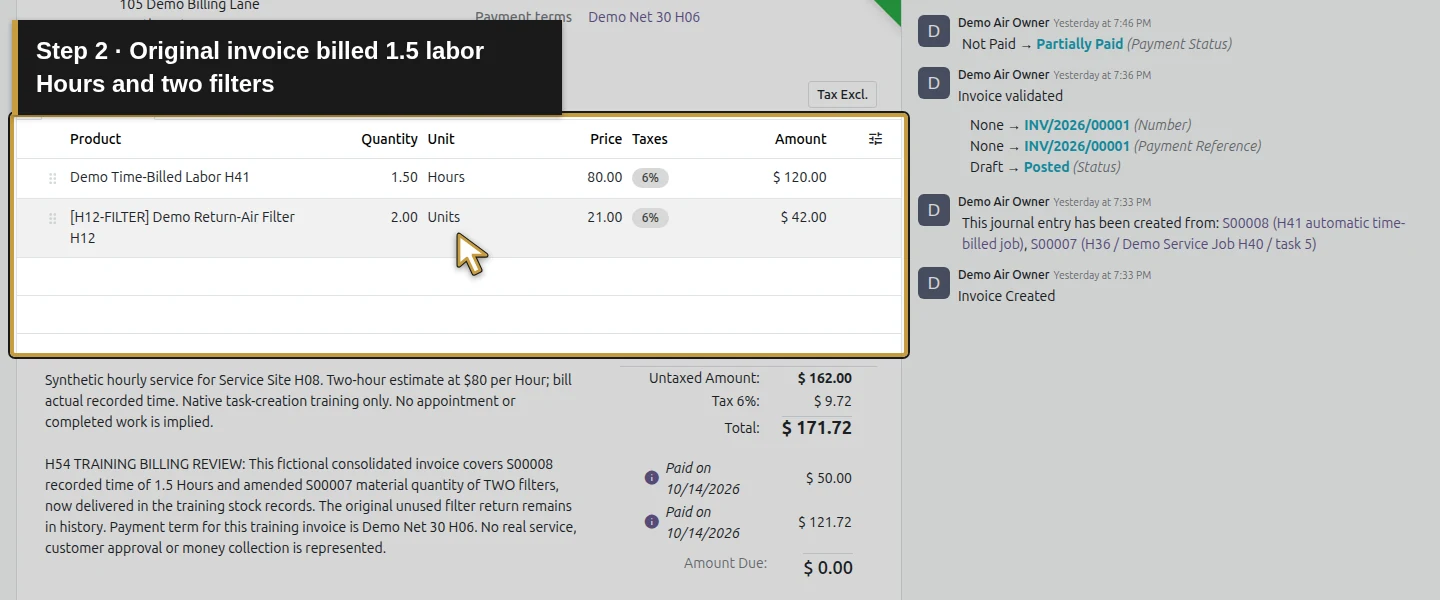
Tested in stock Odoo 20.0-20260926 Community as the demo owner administrator, with official modules and standard configuration. Use INV/2026/00001 from the time-and-materials invoice guide, paid by the two manual receipts in the customer payments guide, and the existing Demo Operating Bank H73 journal. Original total is $171.72 and Amount Due is $0. S00007 has two filters invoiced; S00008 has 1.5 Hours invoiced, with zero quantity currently left to bill. The training input explicitly assumes a $20 commercial allowance plus the same 6% demo tax and a separate fictional $21.20 repayment dated October 14, reference DEMO-H57-REFUND-001. These inputs are not actual customer approval or bank evidence. In a real case, establish the actual correction, tax/account treatment and independently confirmed repayment. A physical goods return uses a separate stock-return procedure.
Step-by-step workflow
Step 1. Review the original invoice and correction type
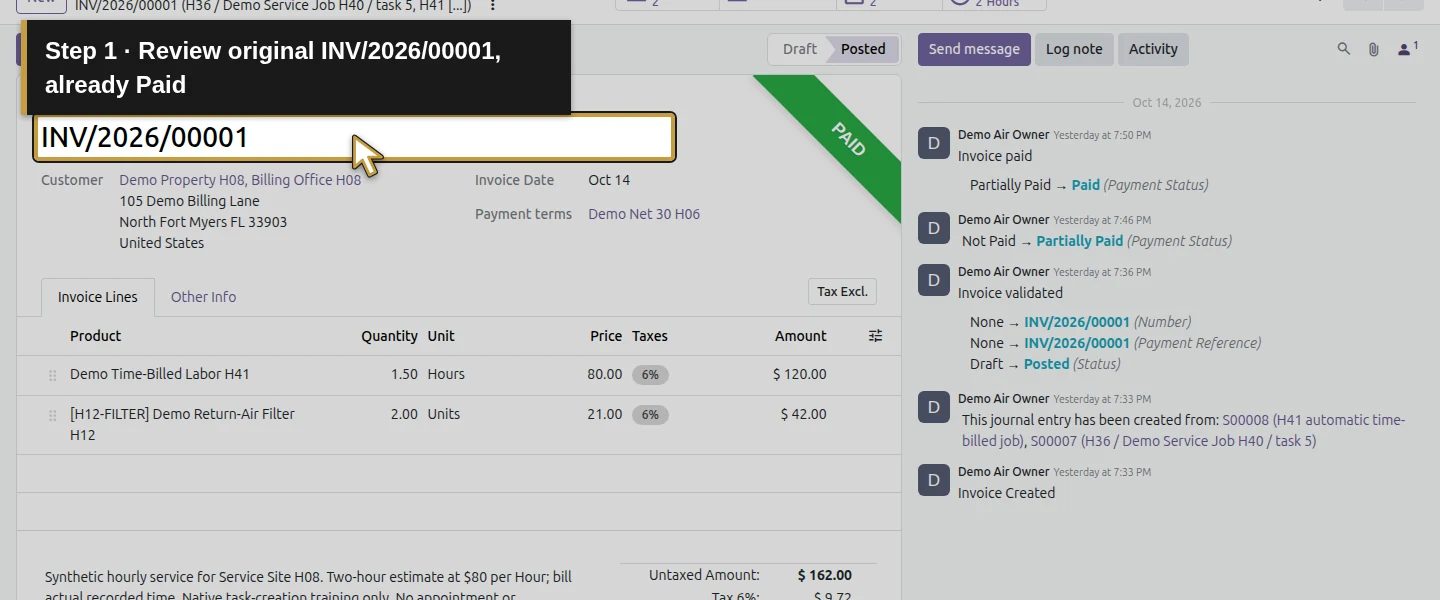
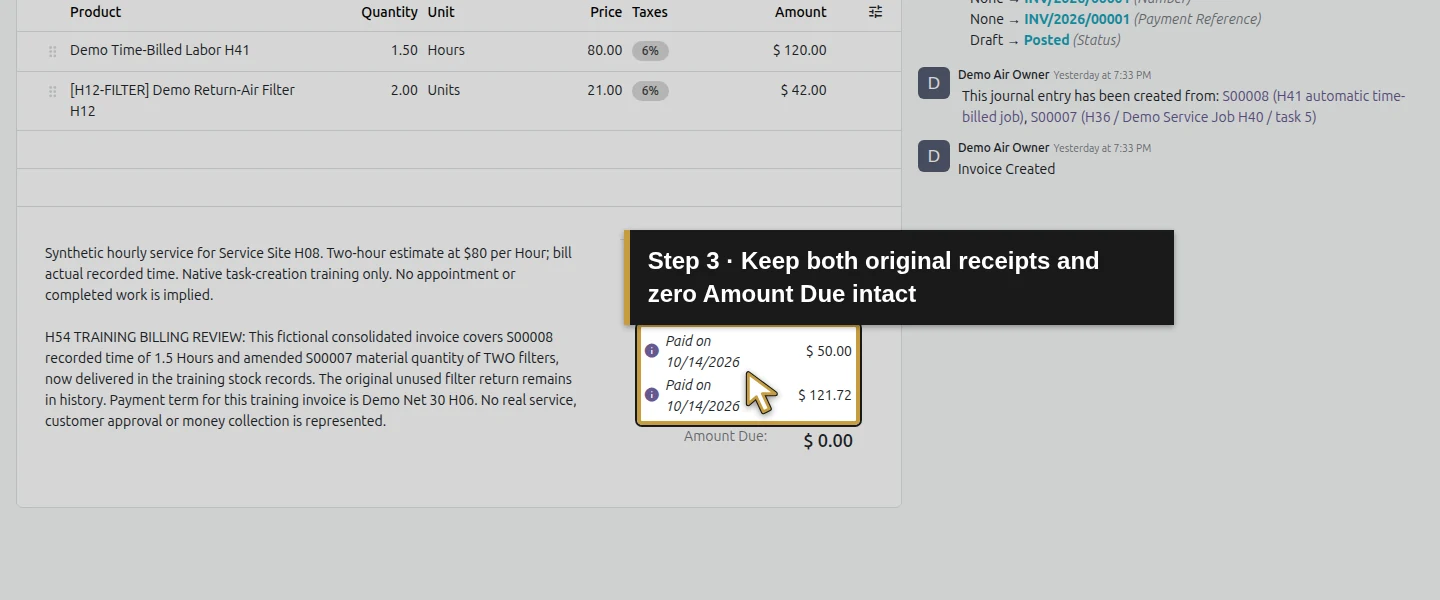
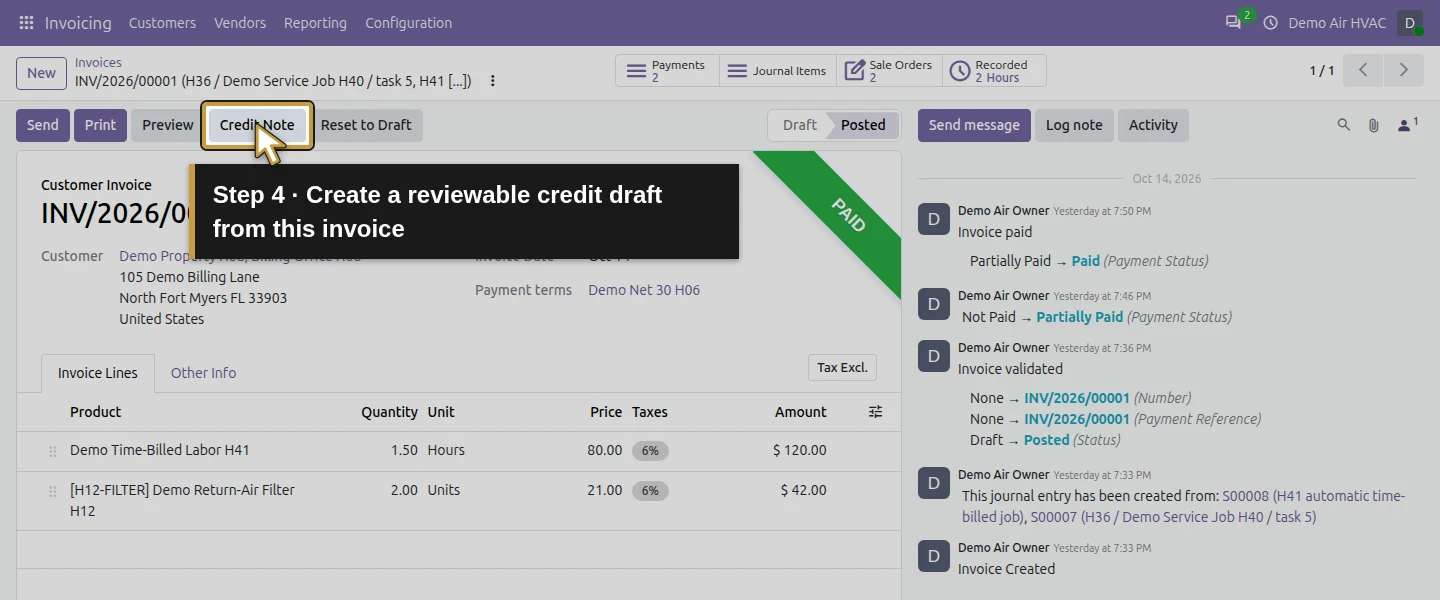
Open the original Posted invoice. Check number, customer Demo Property H08, Billing Office H08, $171.72 total, two linked receipts and $0 due. Distinguish a commercial price allowance from a return of two filters or 1.5 Hours. This lesson uses the allowance only; it does not undo actual stock movements, recorded time or the original receipts.
Step 2. Create a reviewable reversal draft
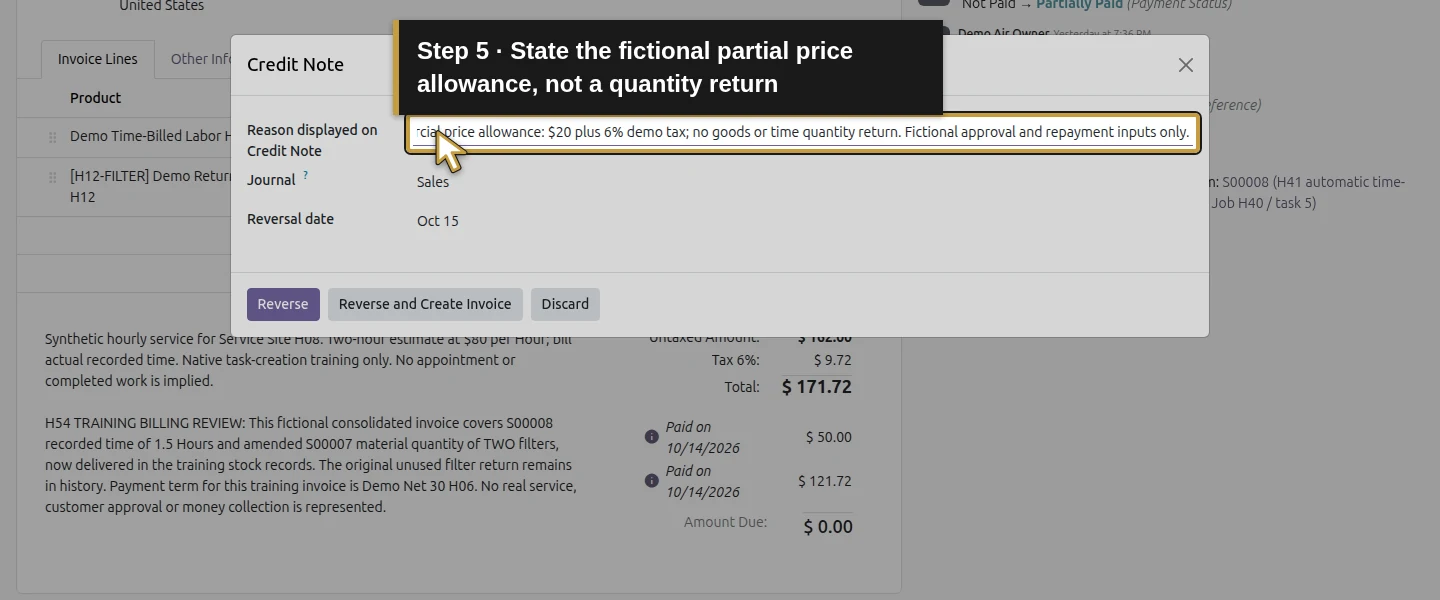
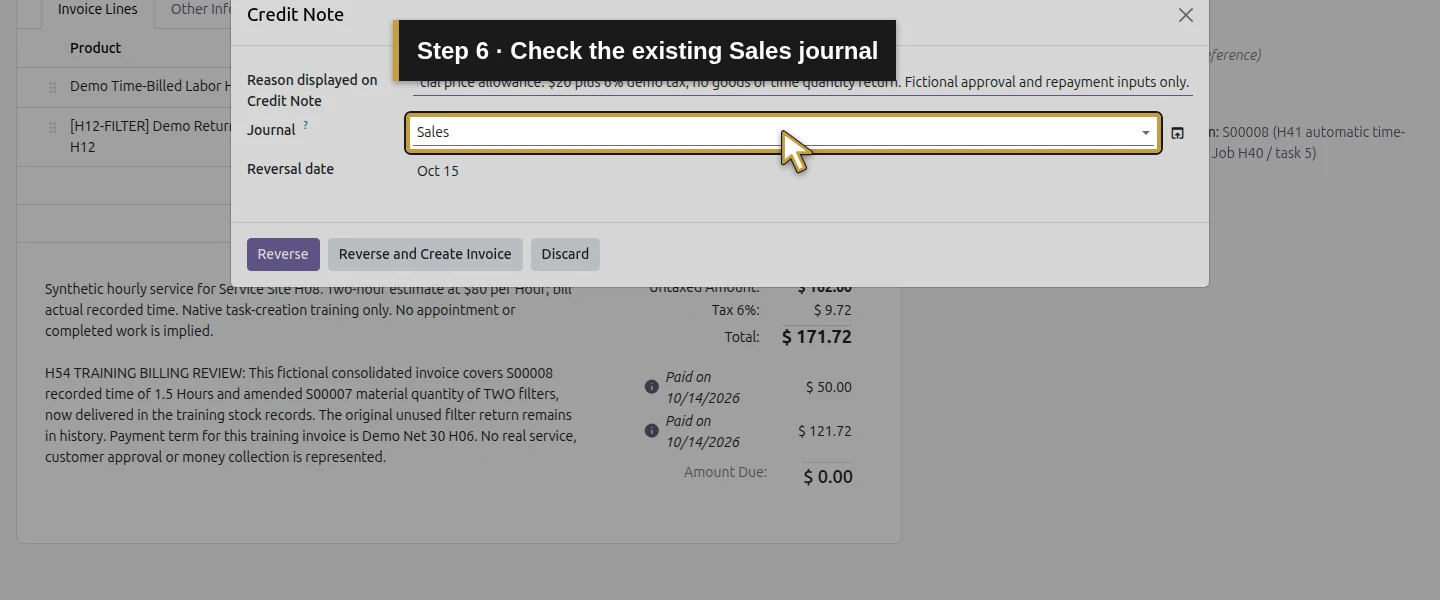
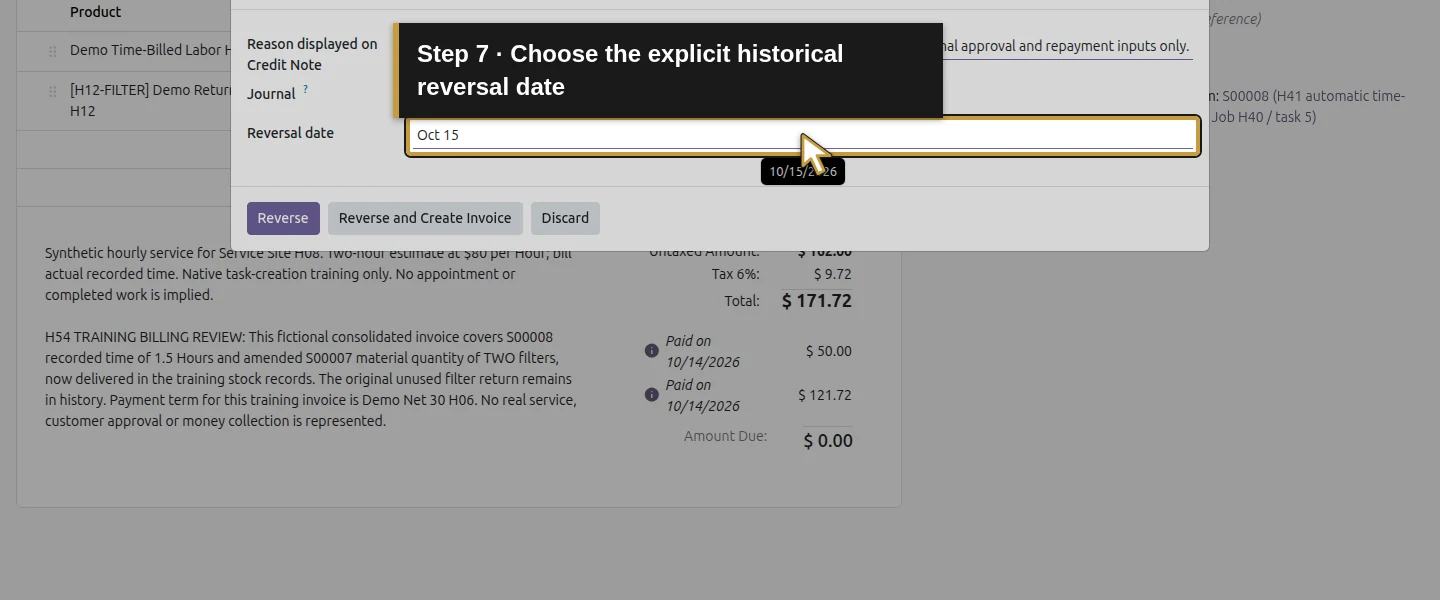
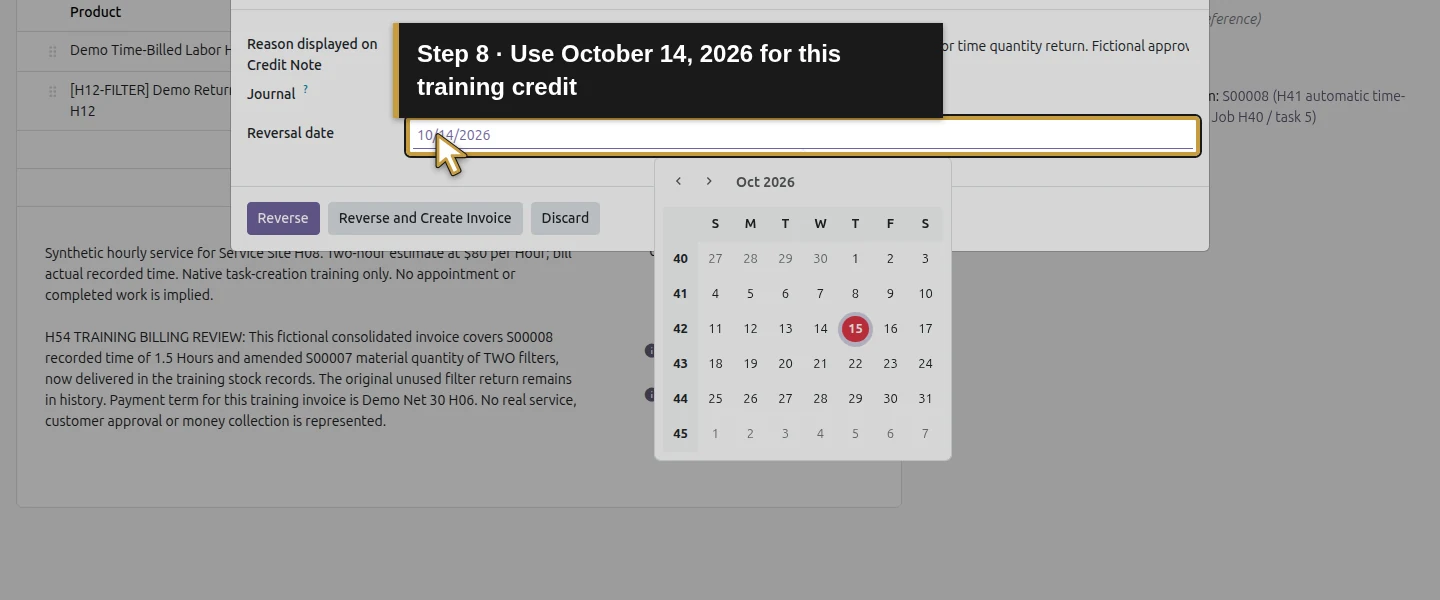
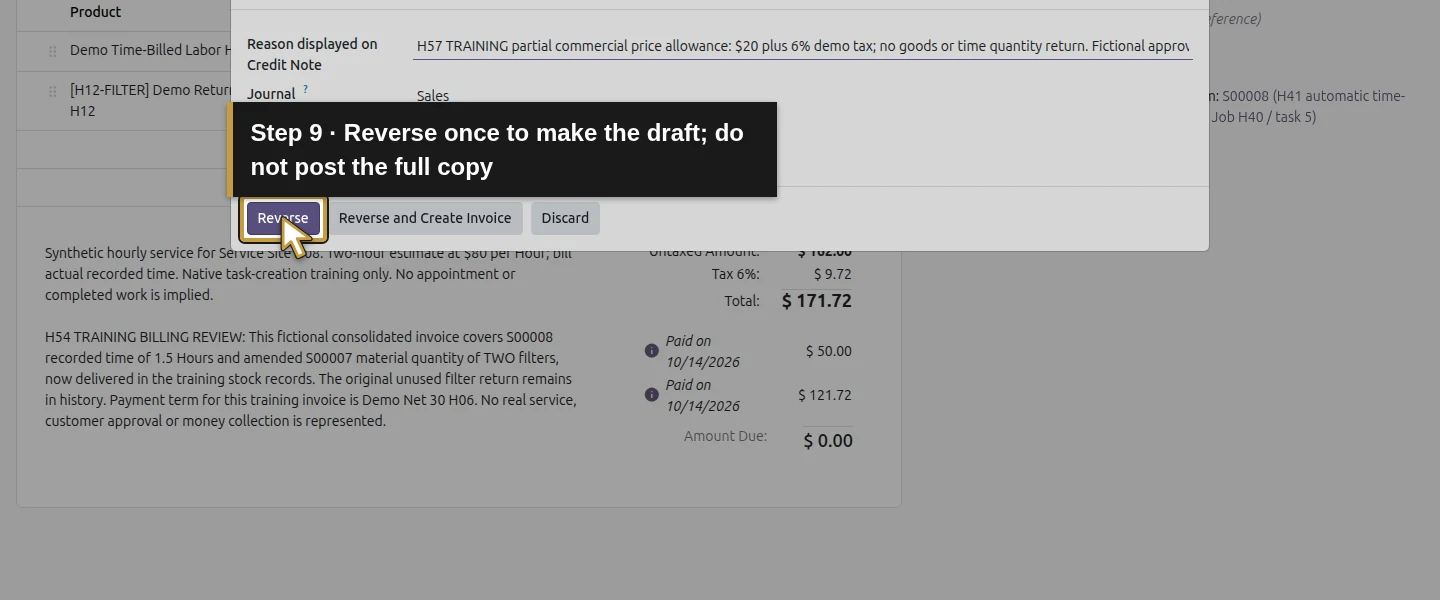
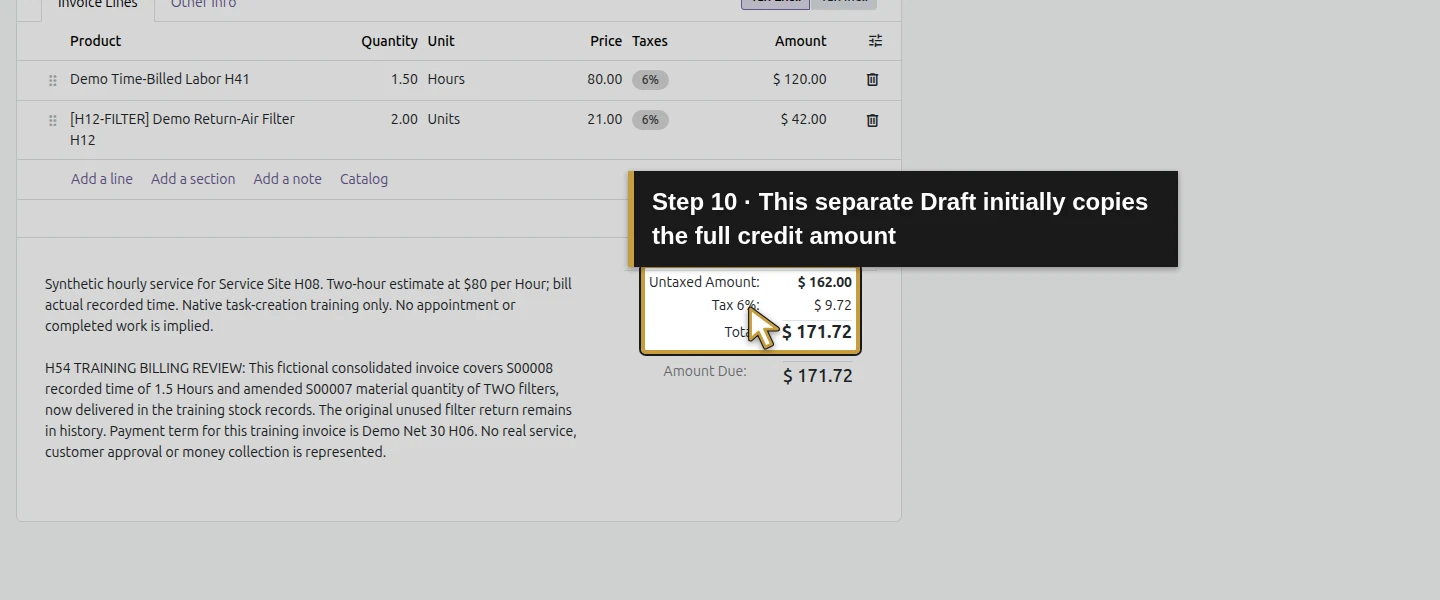
Click Credit Note. In the Credit Note dialog, enter the clear training allowance reason in Reason displayed on Credit Note, check Journal: Sales and Reversal date: Oct 14. Click Reverse once. The separate Reverse and Create Invoice option is not used. The result is one Draft Customer Credit Note linked to INV/2026/00001. It initially copies the full $171.72 and both original sales-linked product lines. Do not post this full copy for a $21.20 allowance.
Step 3. Replace the copied quantity reversals with one allowance line
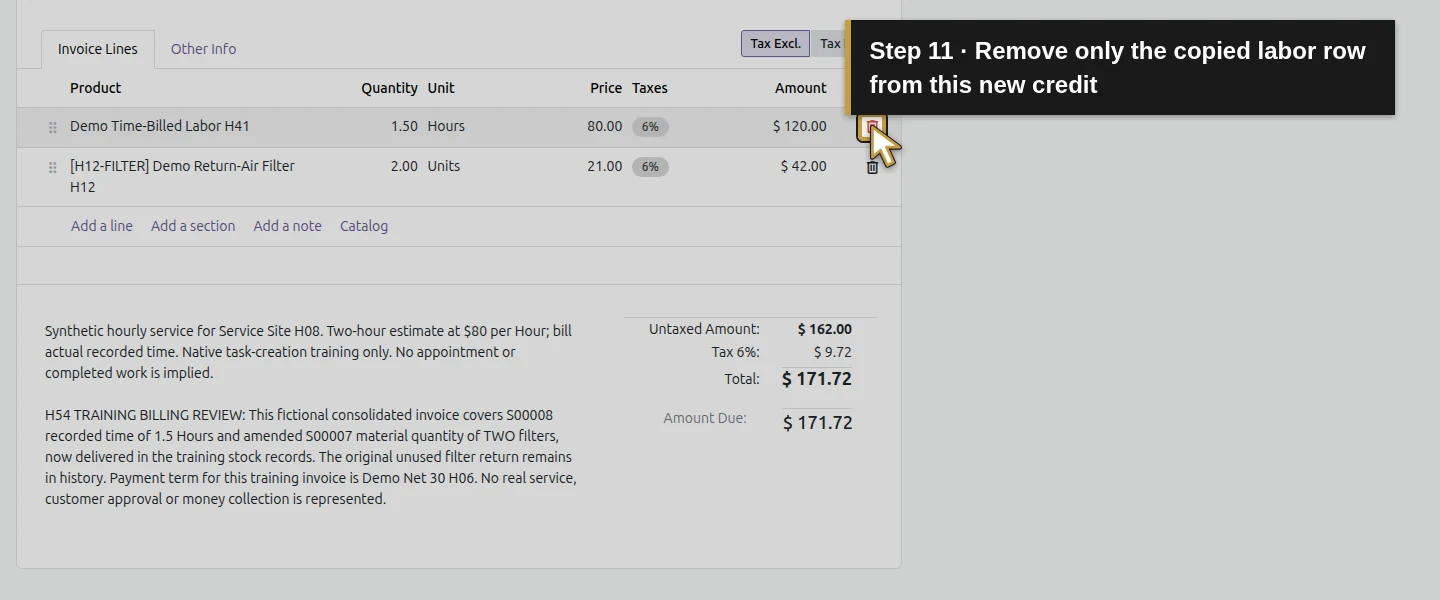
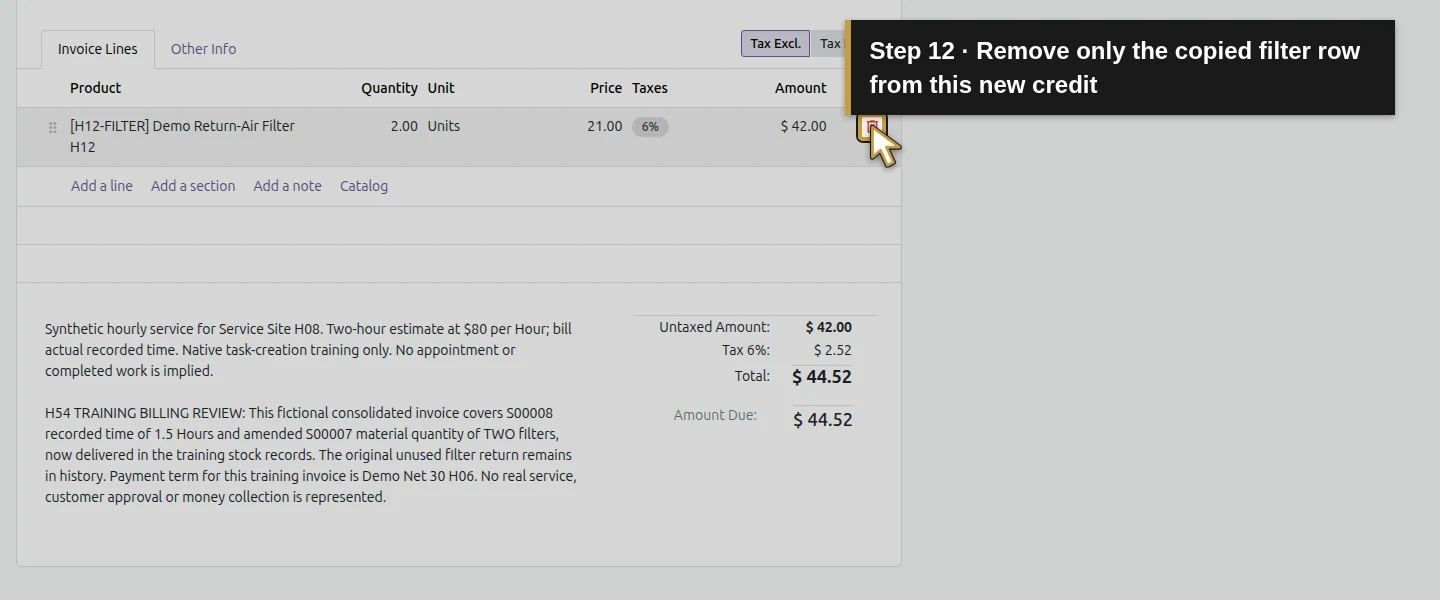
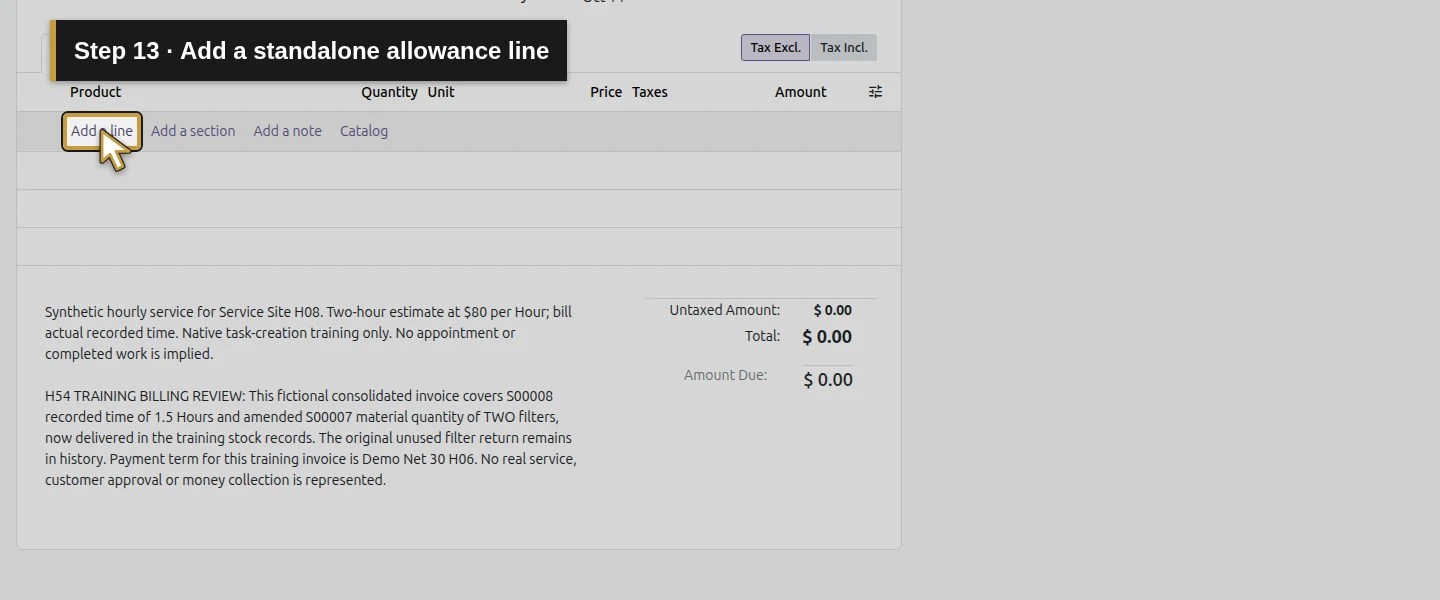
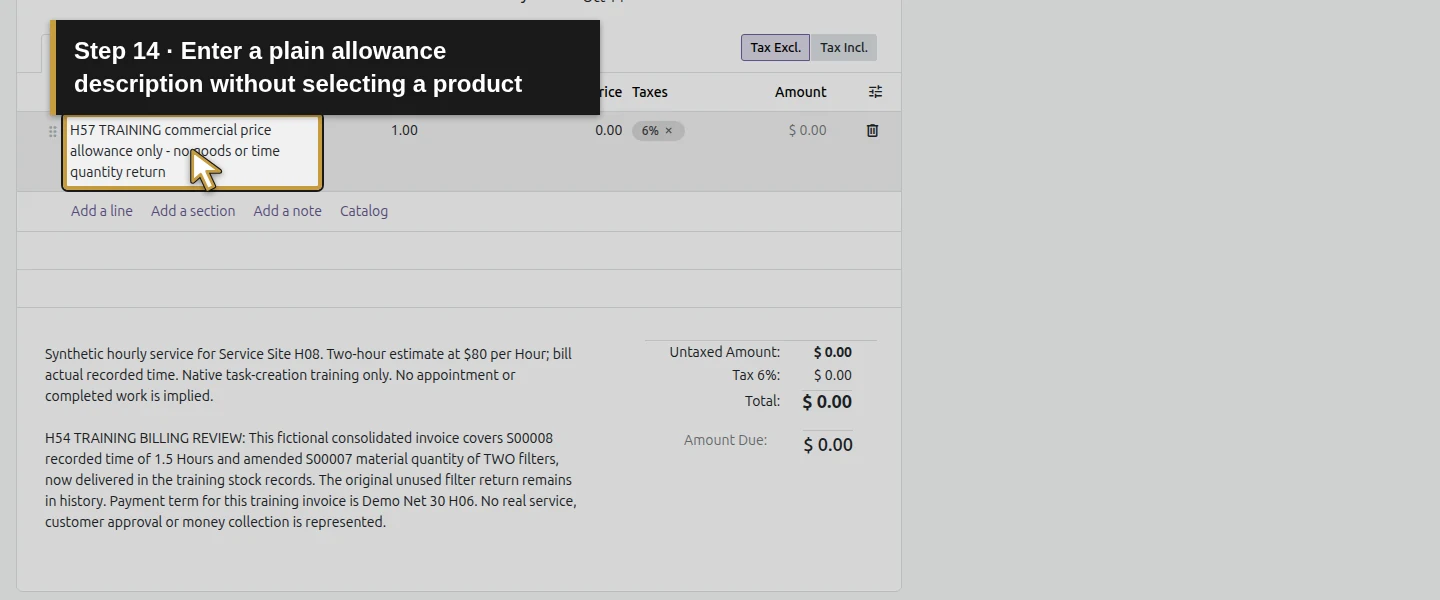
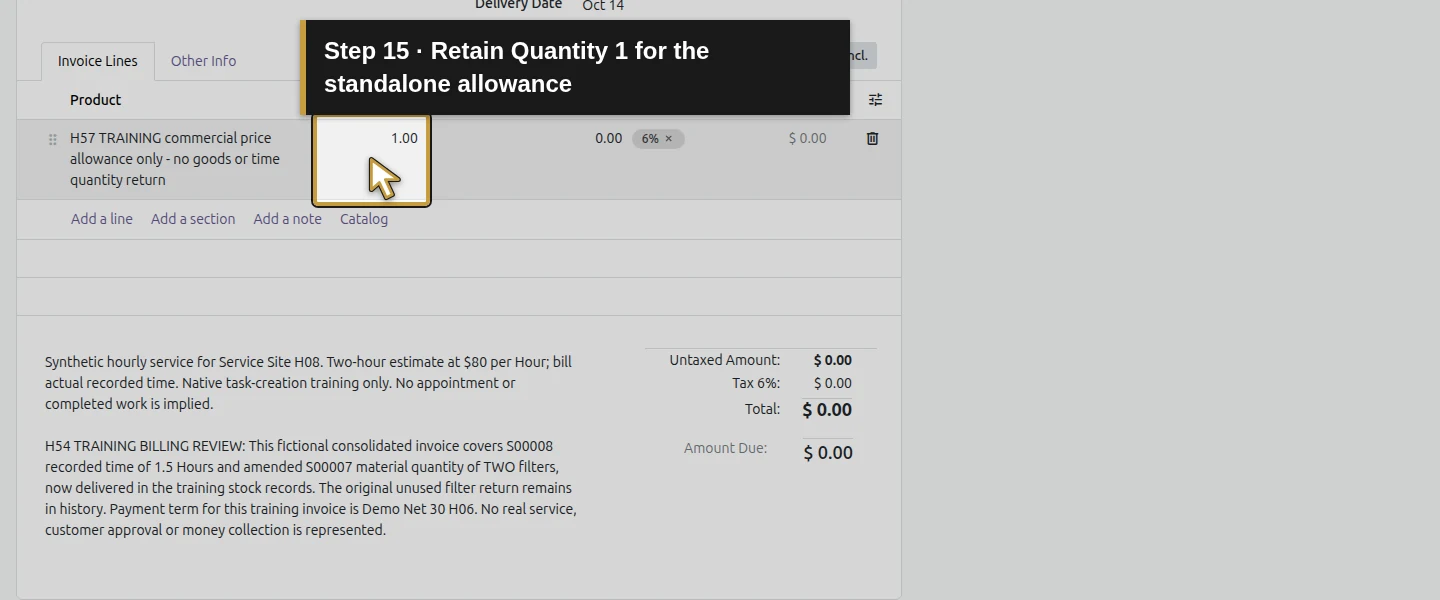
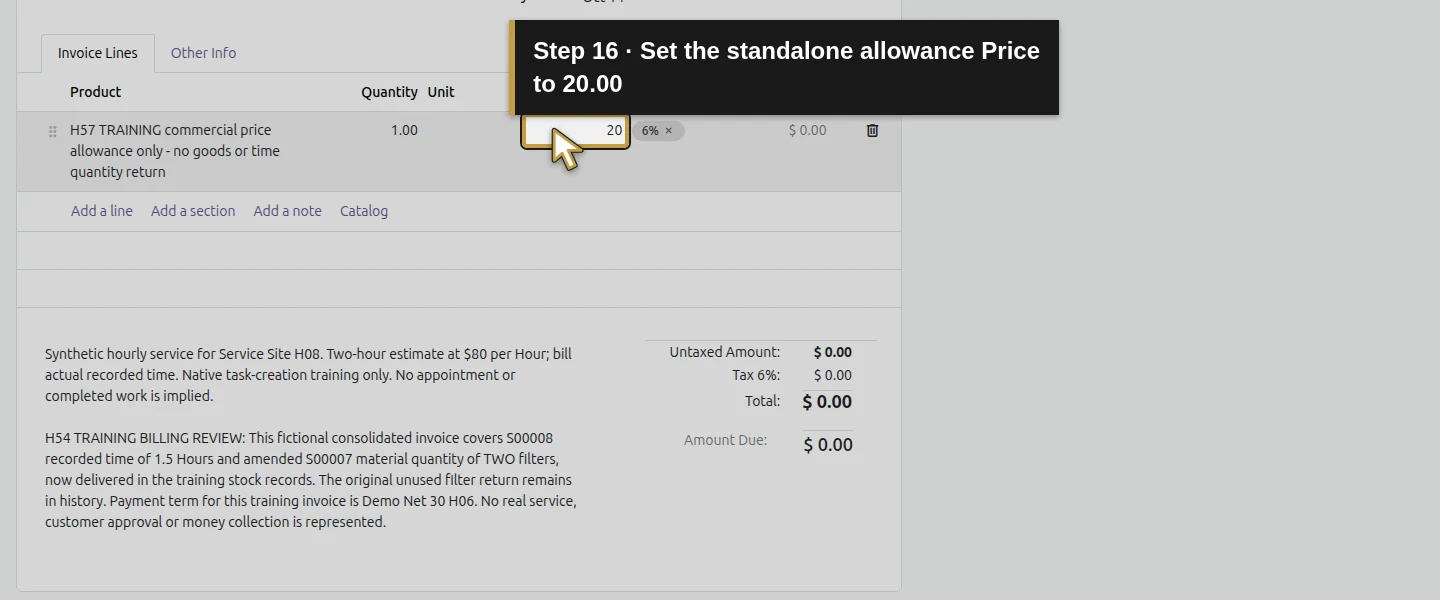
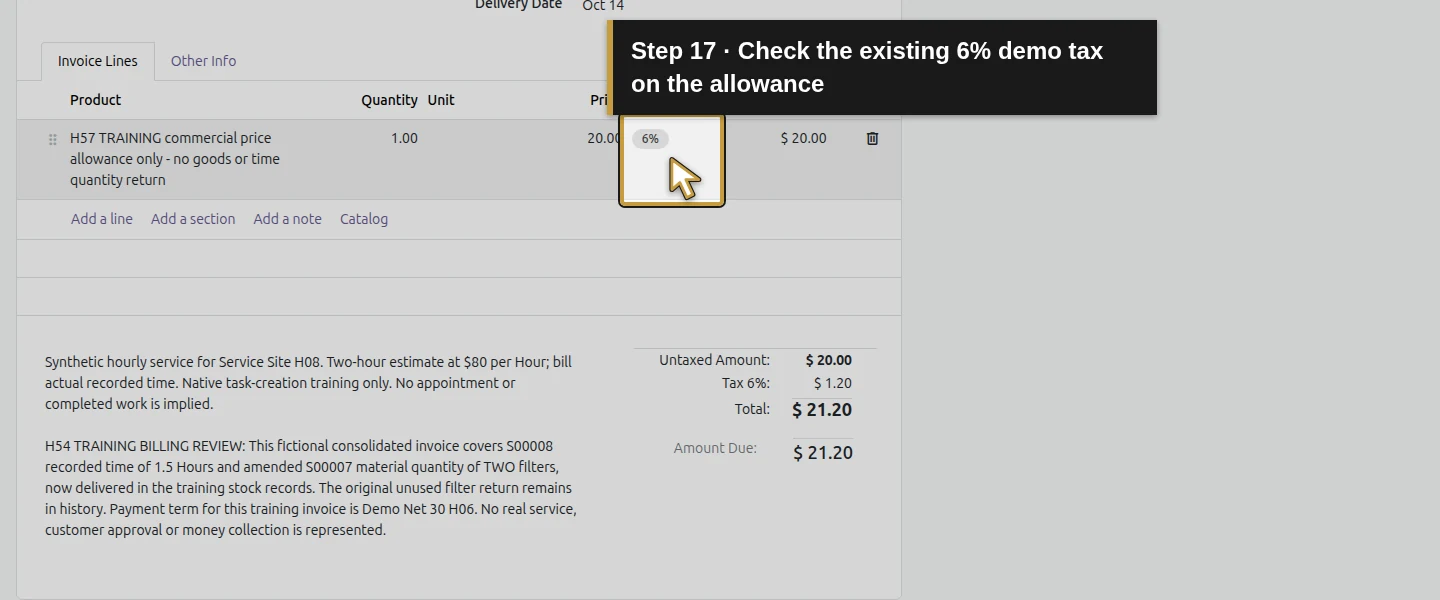
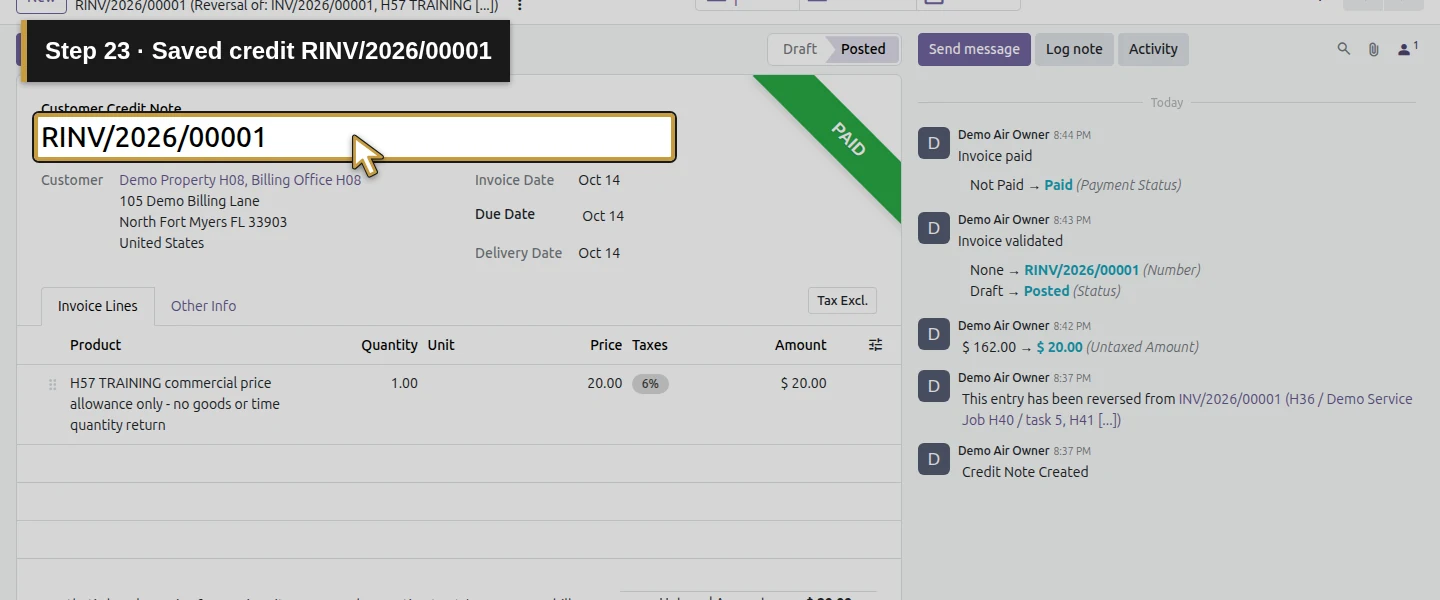
In this credit draft’s Invoice Lines, use Delete row to remove its copied labor and filter lines. These are the new credit lines, not the original invoice. Click Add a line. Enter H57 TRAINING commercial price allowance only - no goods or time quantity return as the plain line description, retain Quantity 1.00 and set Price 20.00. The native line accepts this description without selecting or creating a product. Its existing default tax is 6%. This creates a separate amount line for the allowance.
Step 4. Save and verify the partial draft before posting
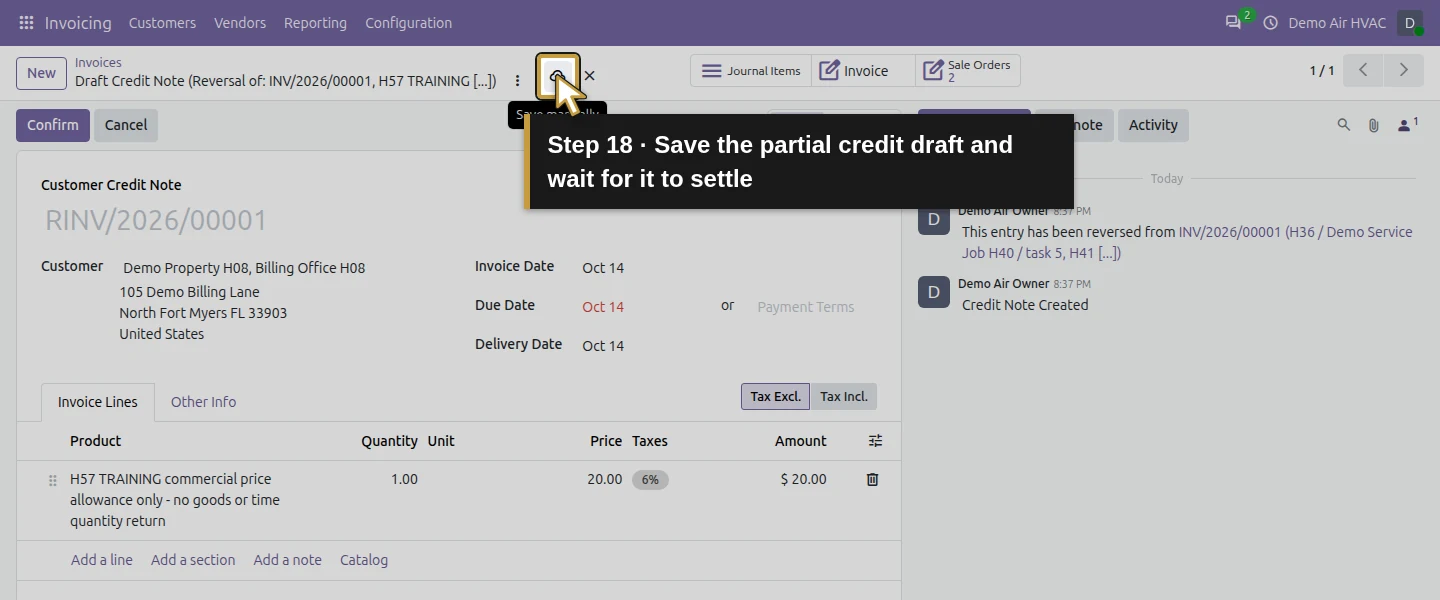
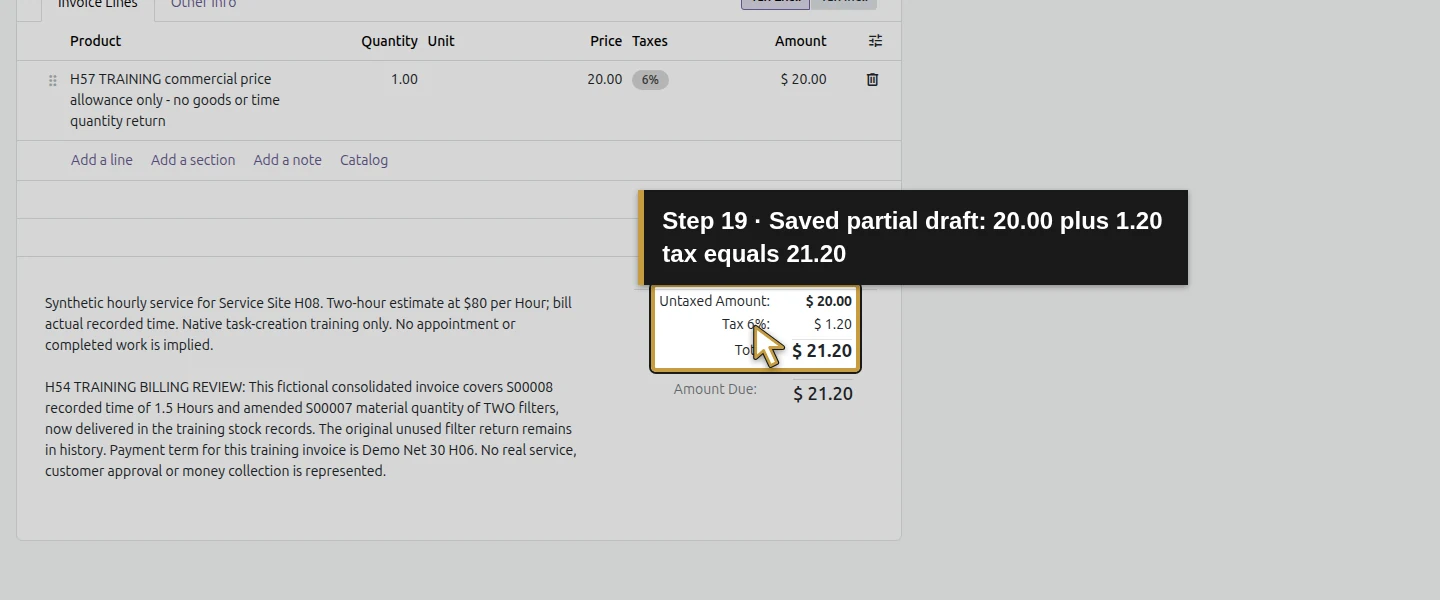
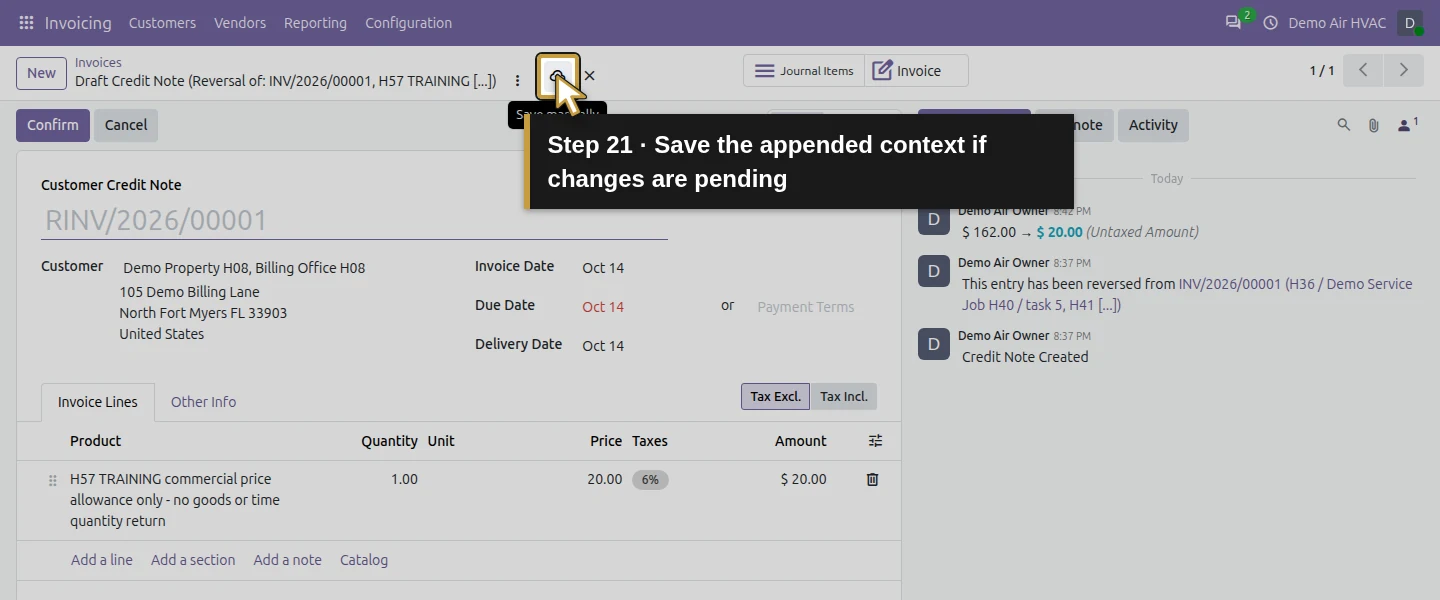
Commit the last cell by clicking the heading, then use Save manually and wait for pending changes to clear. Check one allowance line and $20 untaxed + $1.20 tax = $21.20. The saved line uses existing Product Sales in this demo, with no product or sales-line quantity link. Select appropriate real account/tax treatment with your accounting process. The saved check restores the original orders to two filters/1.5 Hours invoiced and zero left to invoice. The initial copied credit draft had temporarily made those original quantities invoiceable again; review credit drafts before any further billing.
Step 5. Retain context and post the reviewed credit
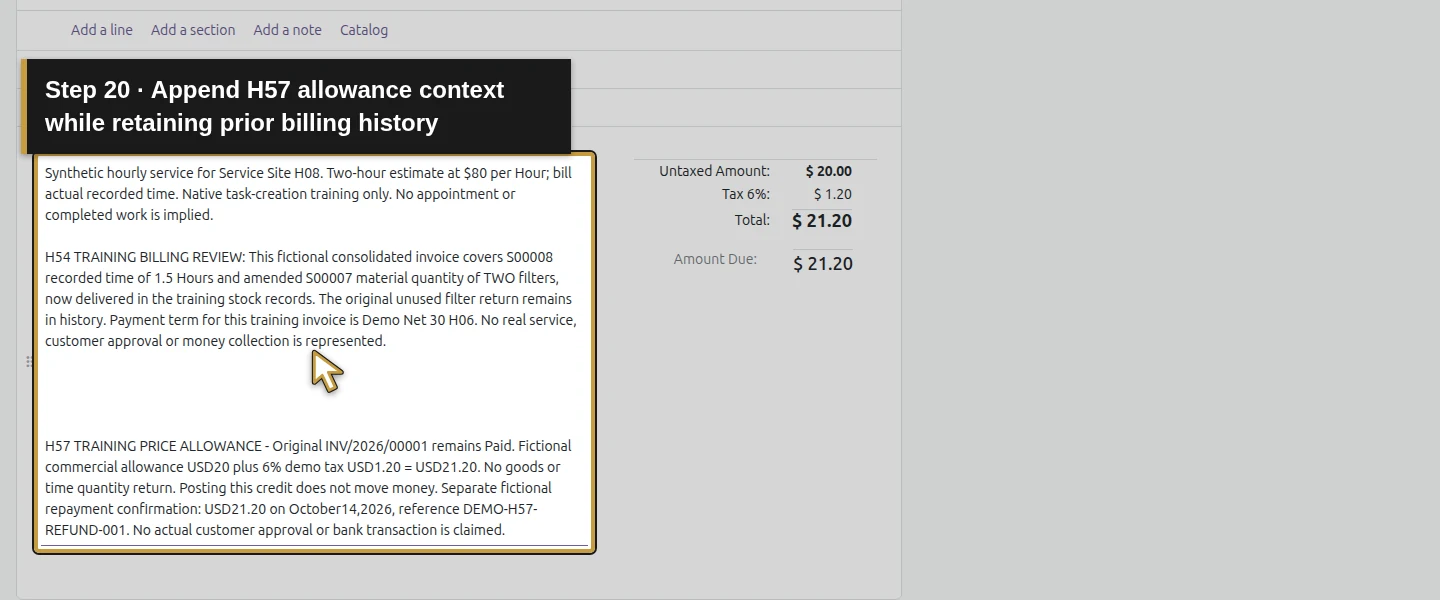
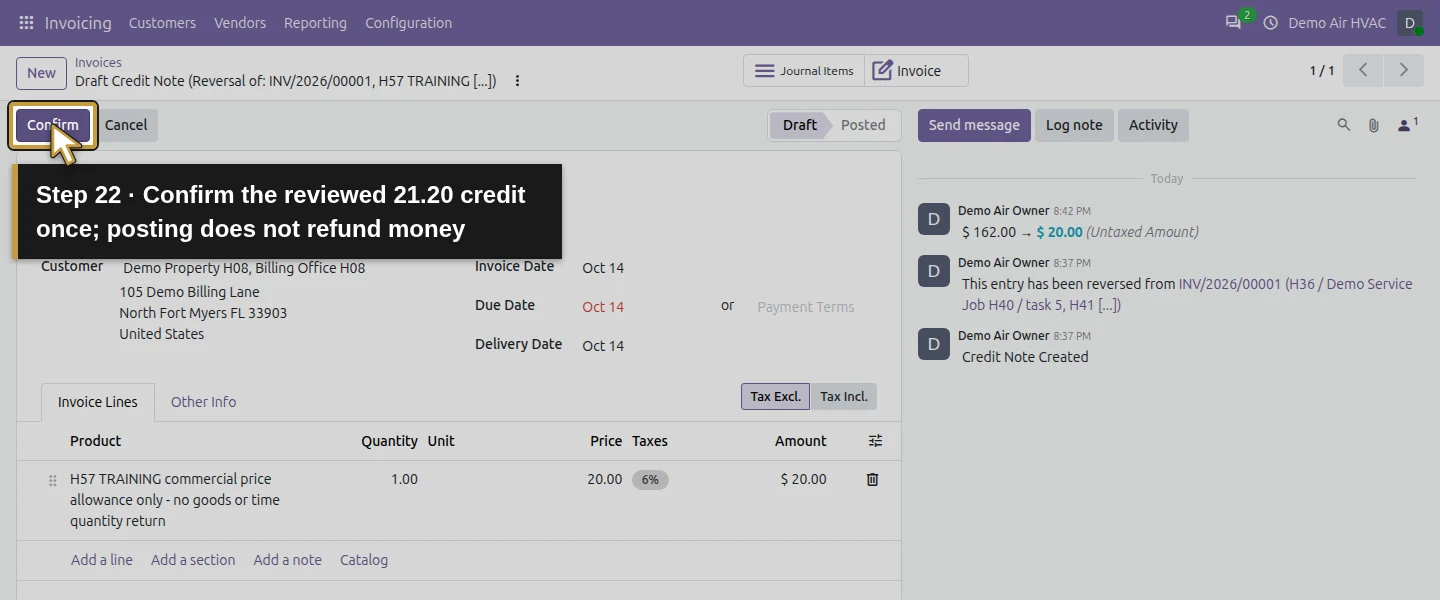
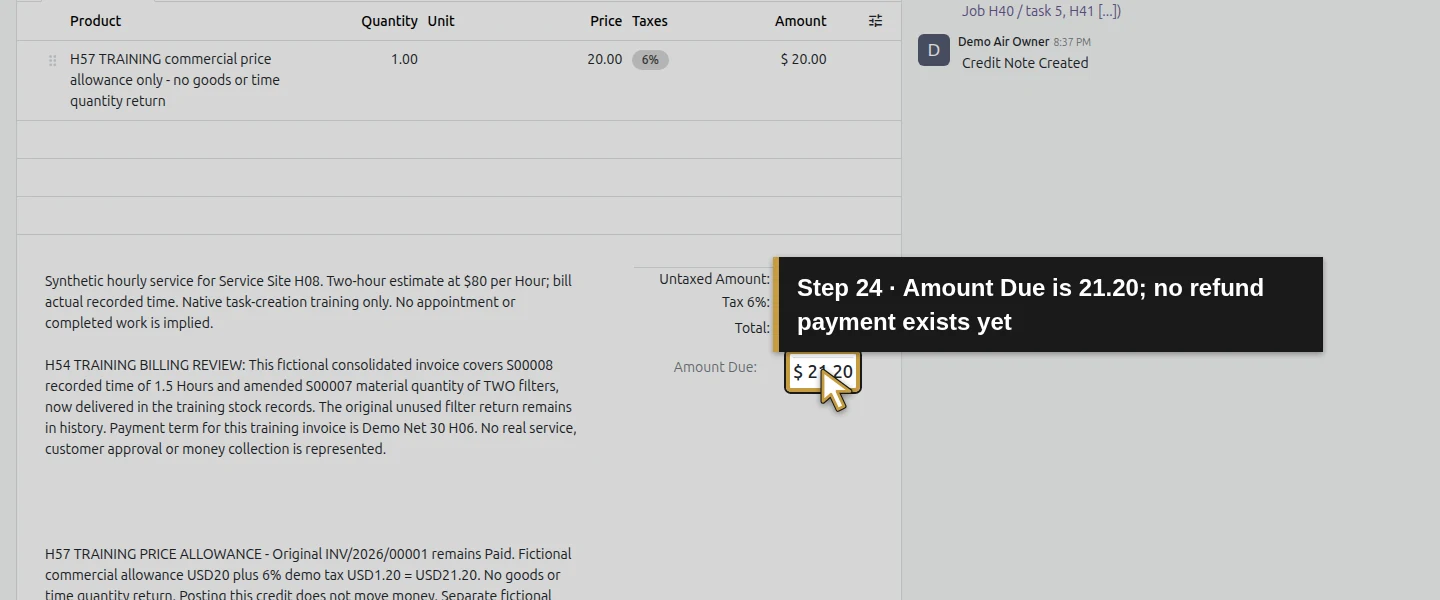
Preserve the copied historical billing context and append a clear H57 allowance note: amount, original invoice, no quantity/physical return and no money movement from posting. Save pending changes and use Confirm. The credit becomes Posted, number RINV/2026/00001, dated October 14, with $21.20 Amount Due and unpaid payment state. The original invoice remains Posted/Paid at $0 due. Creating/posting this credit has not created a refund payment.
Step 6. Record the separate confirmed repayment
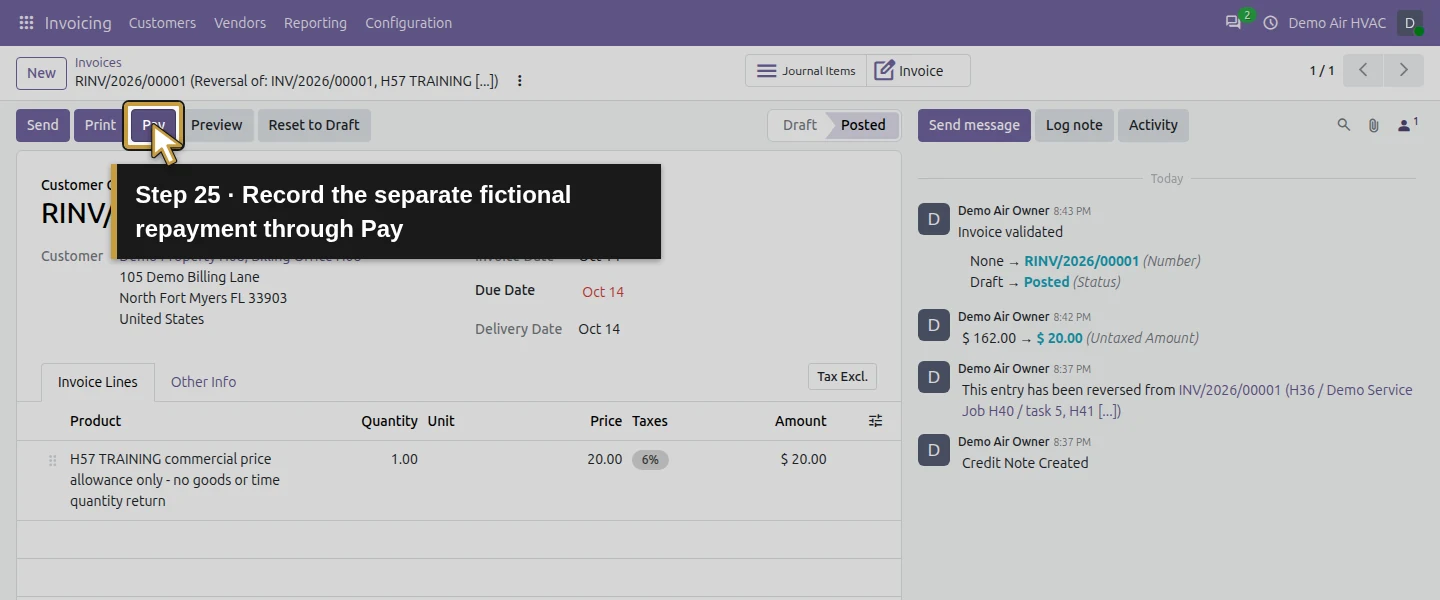
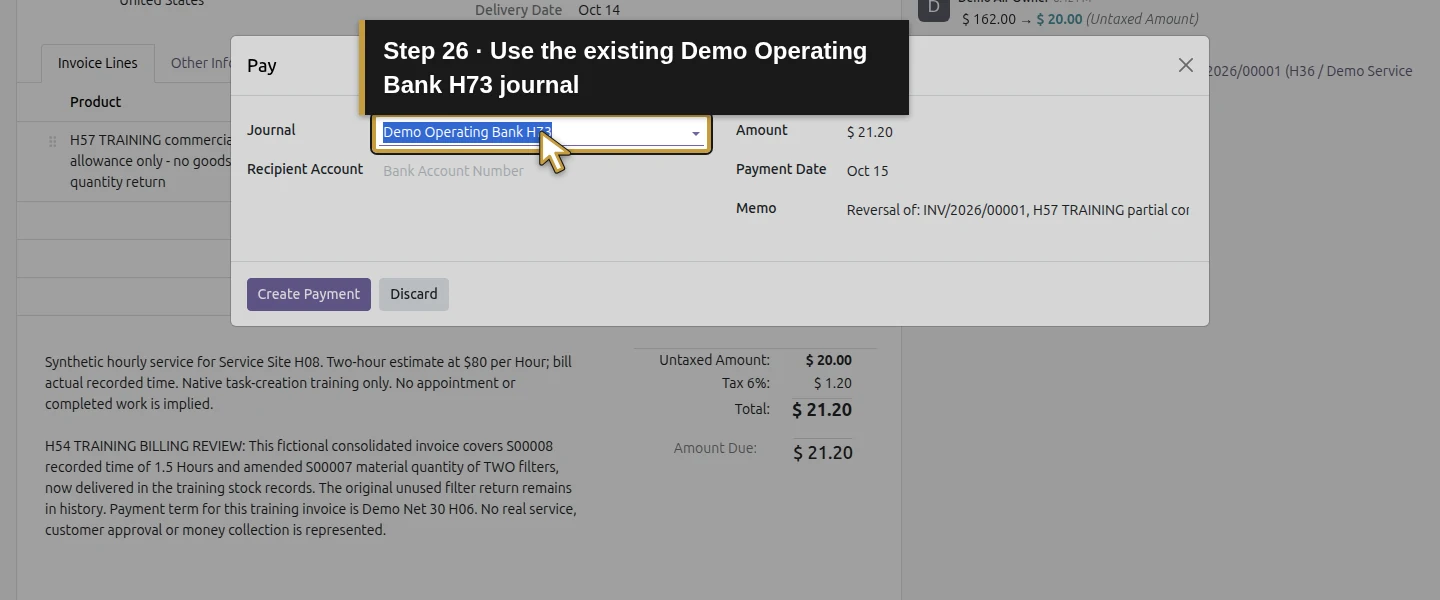
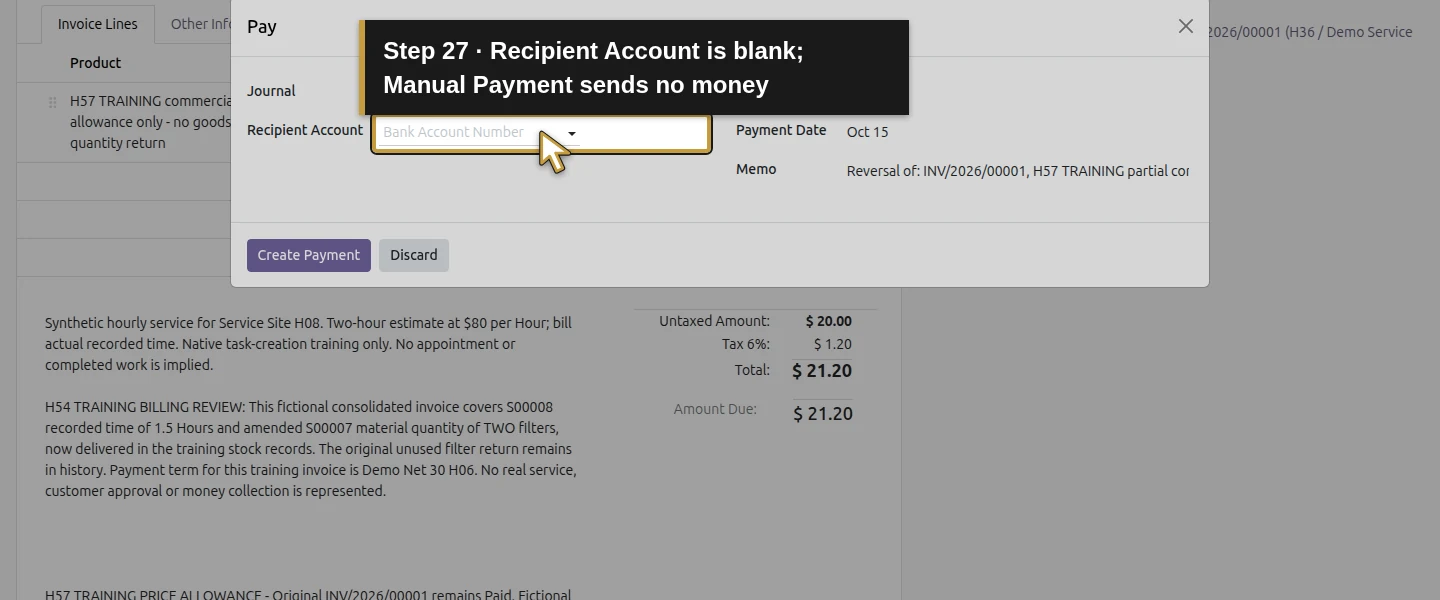
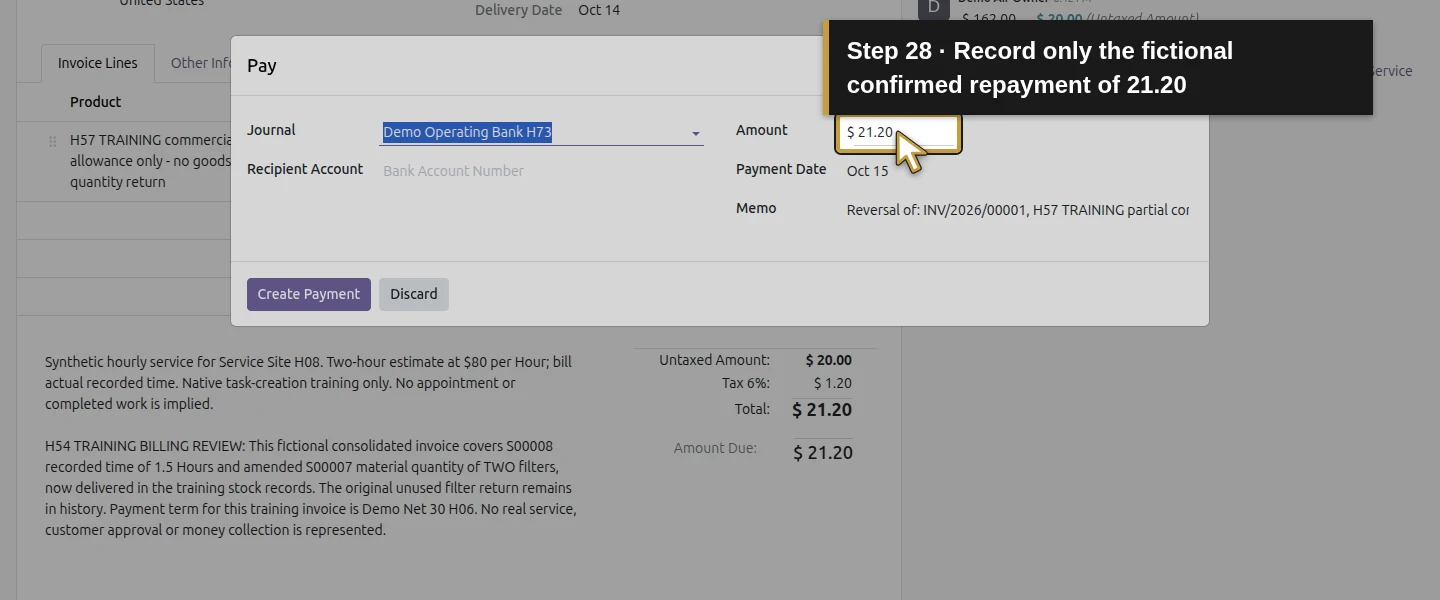
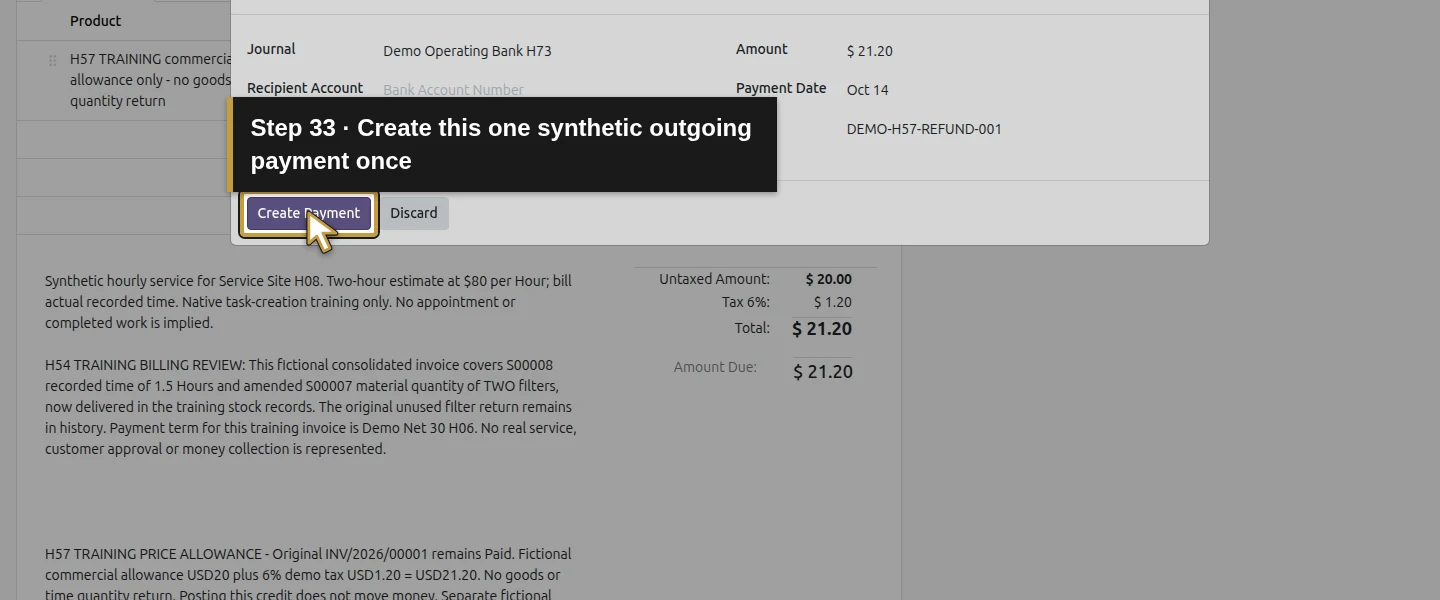
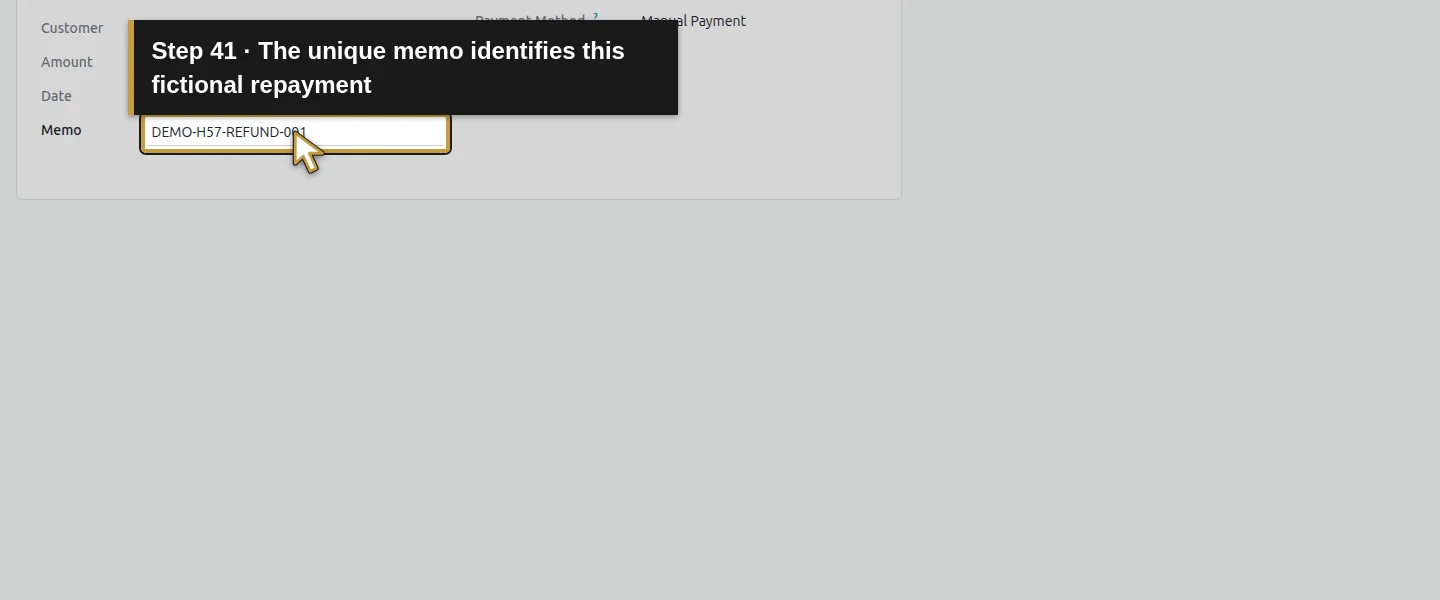
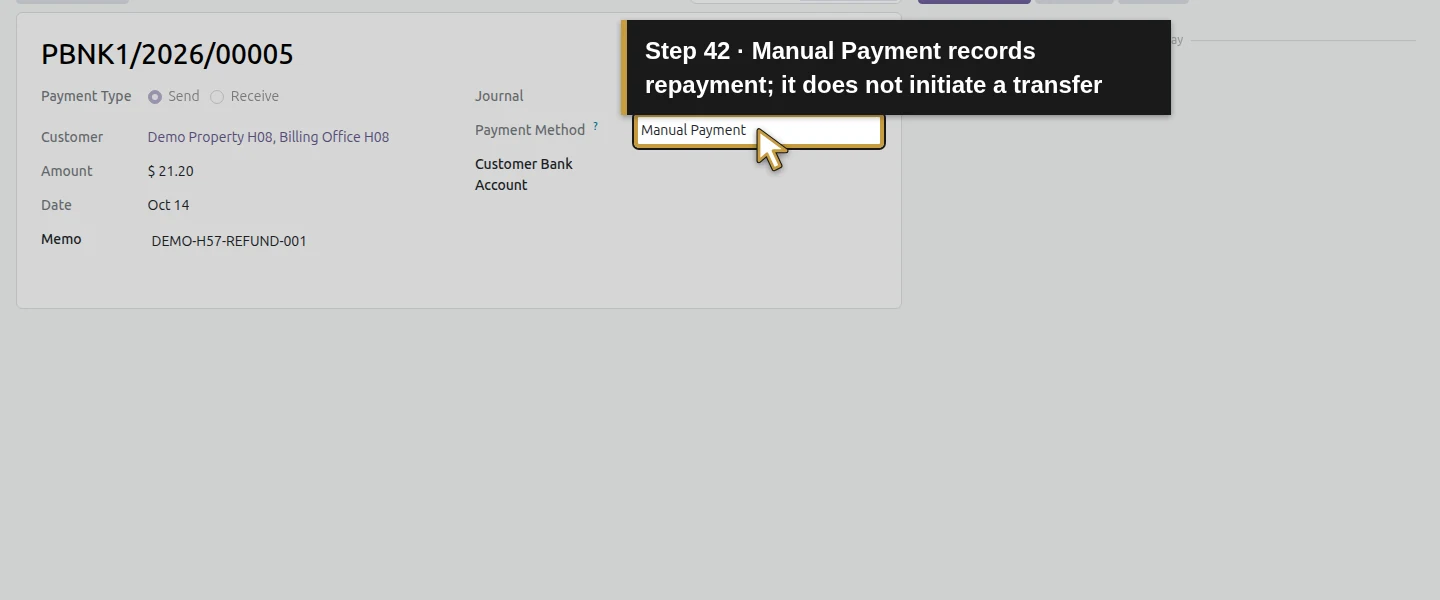
After independently confirming the actual repayment (the training case supplies only fictional confirmation), click the credit’s Pay button. Verify Journal: Demo Operating Bank H73, Amount 21.20 and Payment Date: Oct 14. Enter DEMO-H57-REFUND-001 in Memo. Recipient Account is blank in this Manual Payment example; no electronic disbursement is initiated. Click Create Payment once and wait for the credit to update. Do not enter another payment for the same repayment.
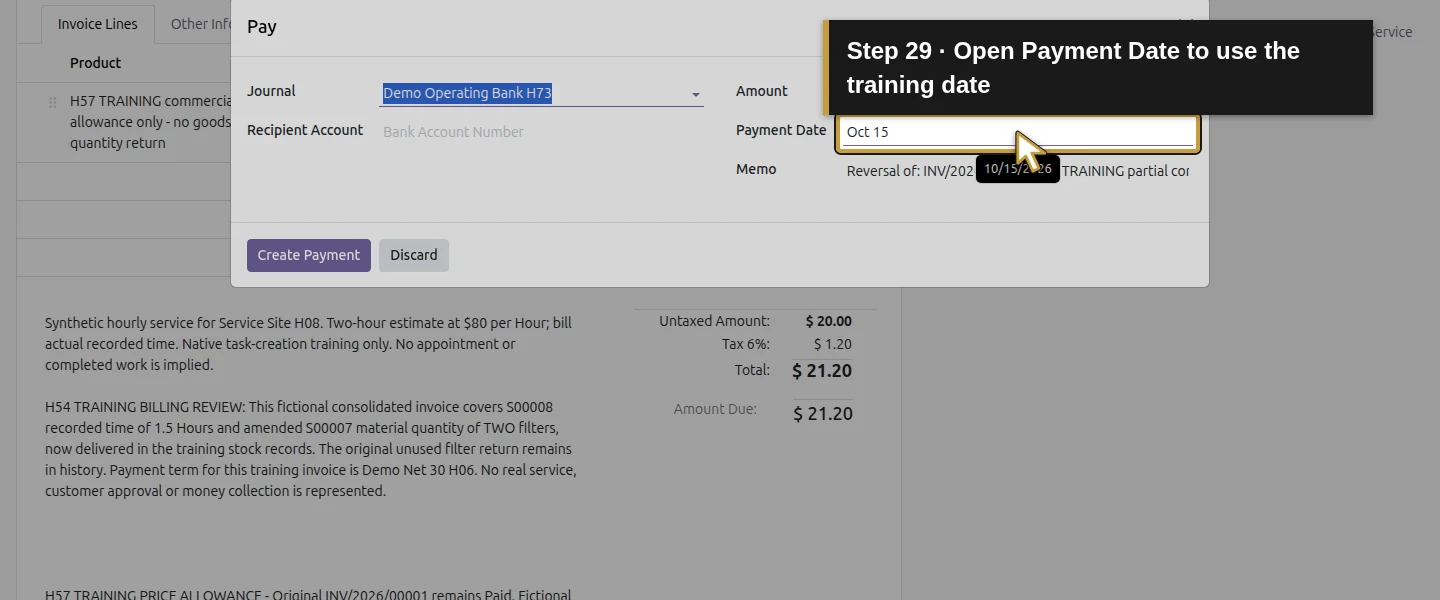
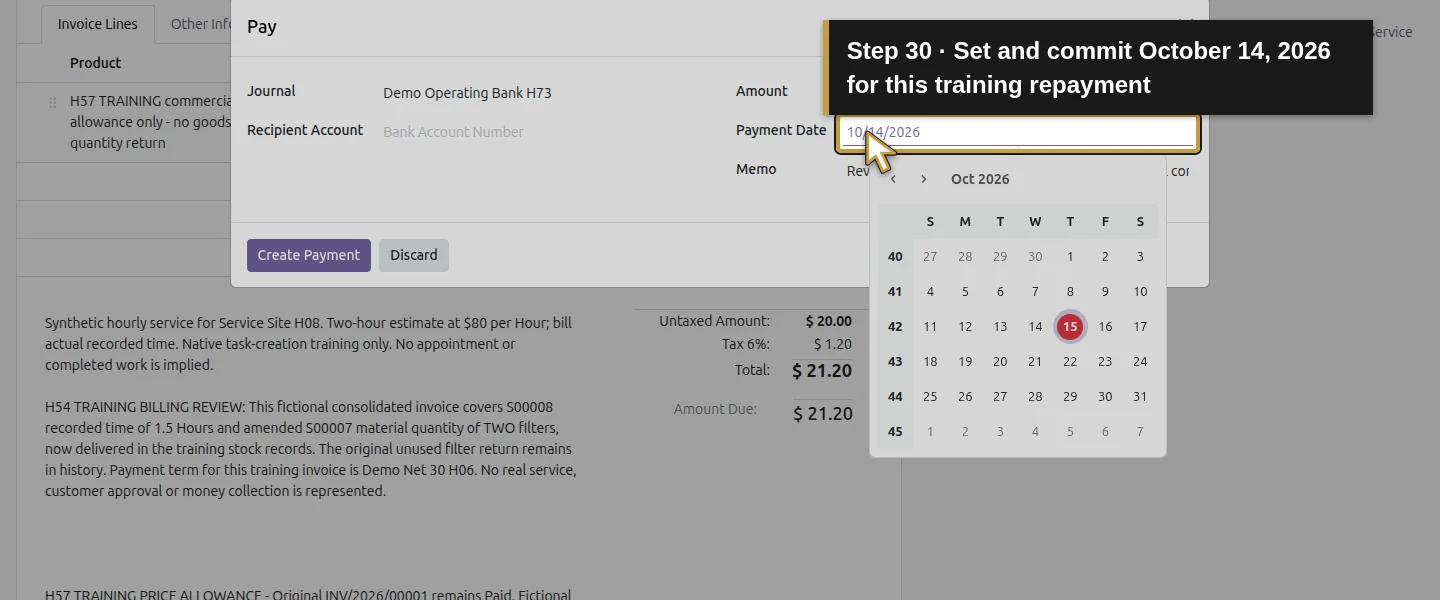
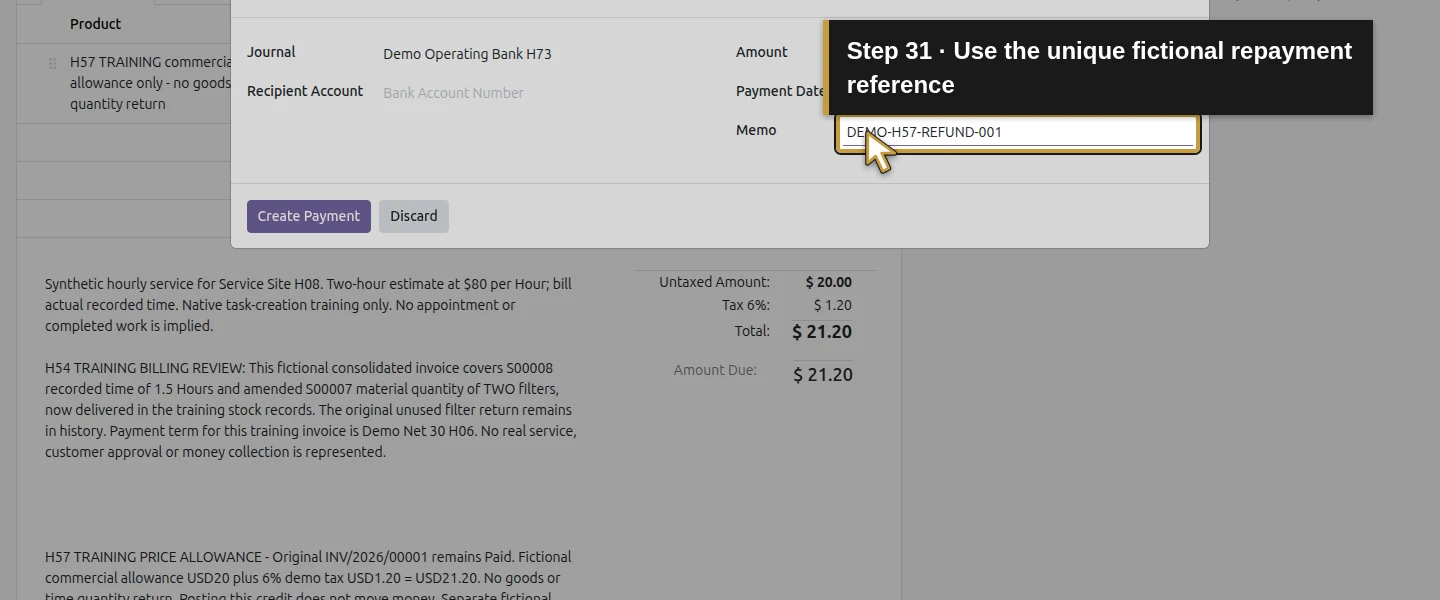
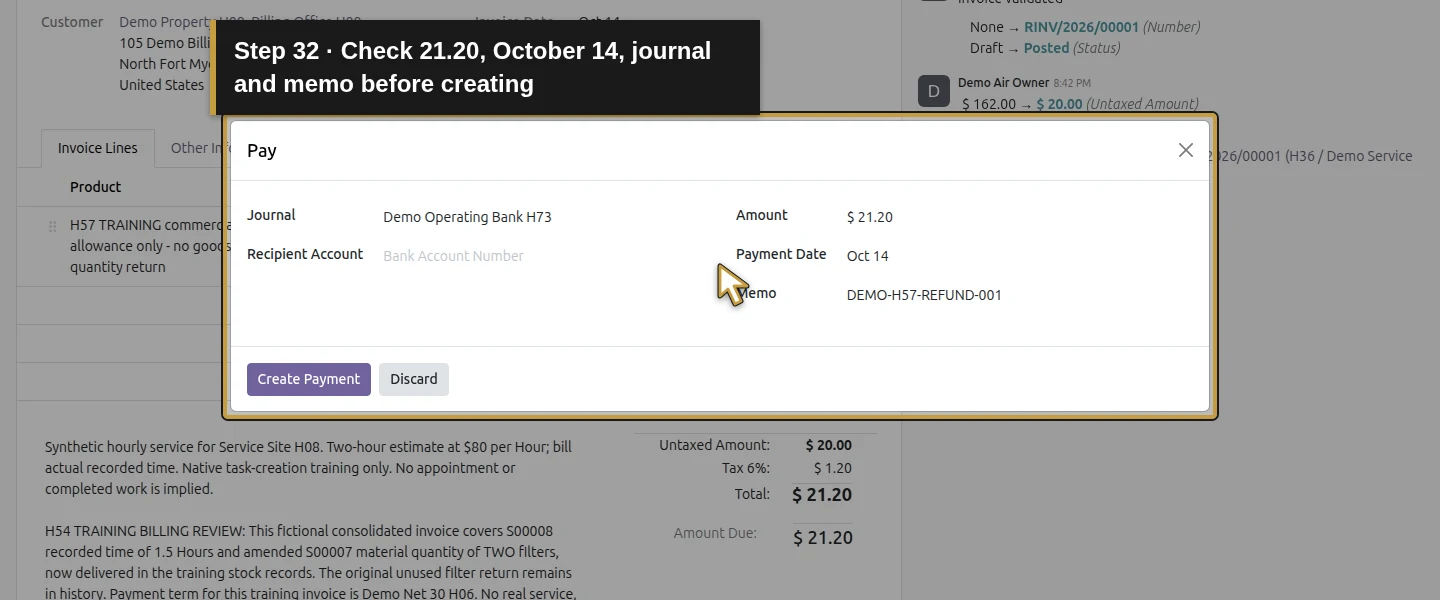
Step 7. Check the credit and outgoing customer payment
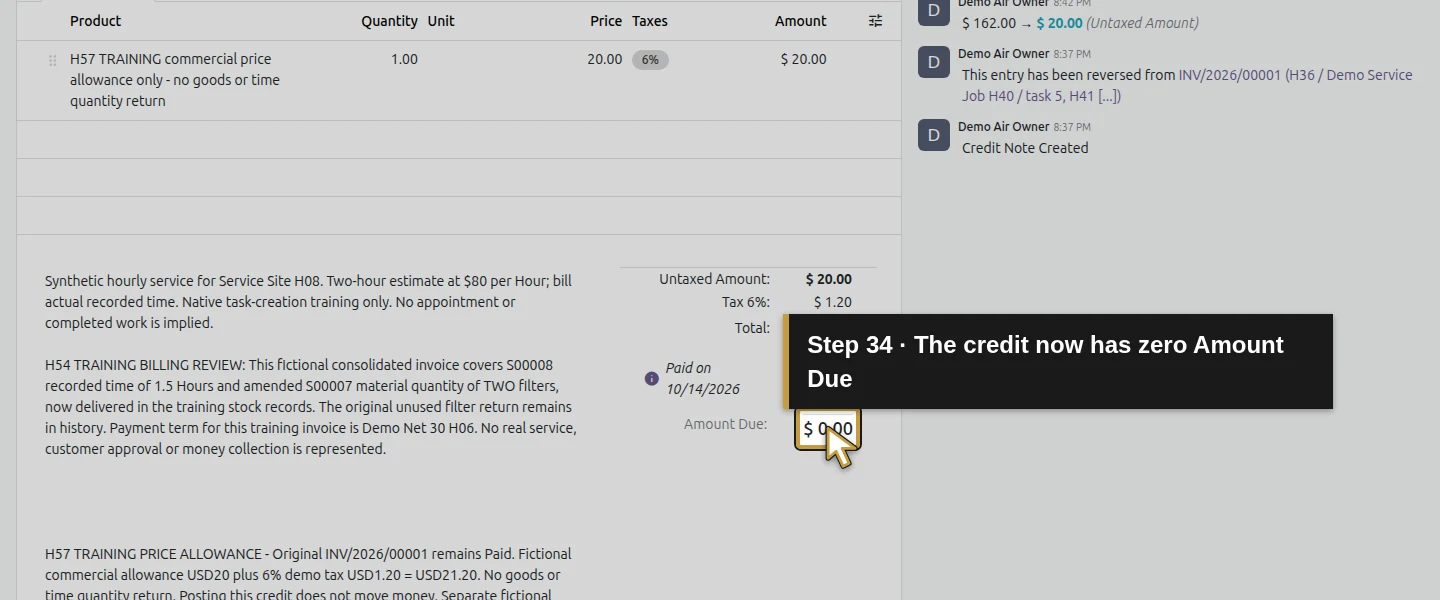
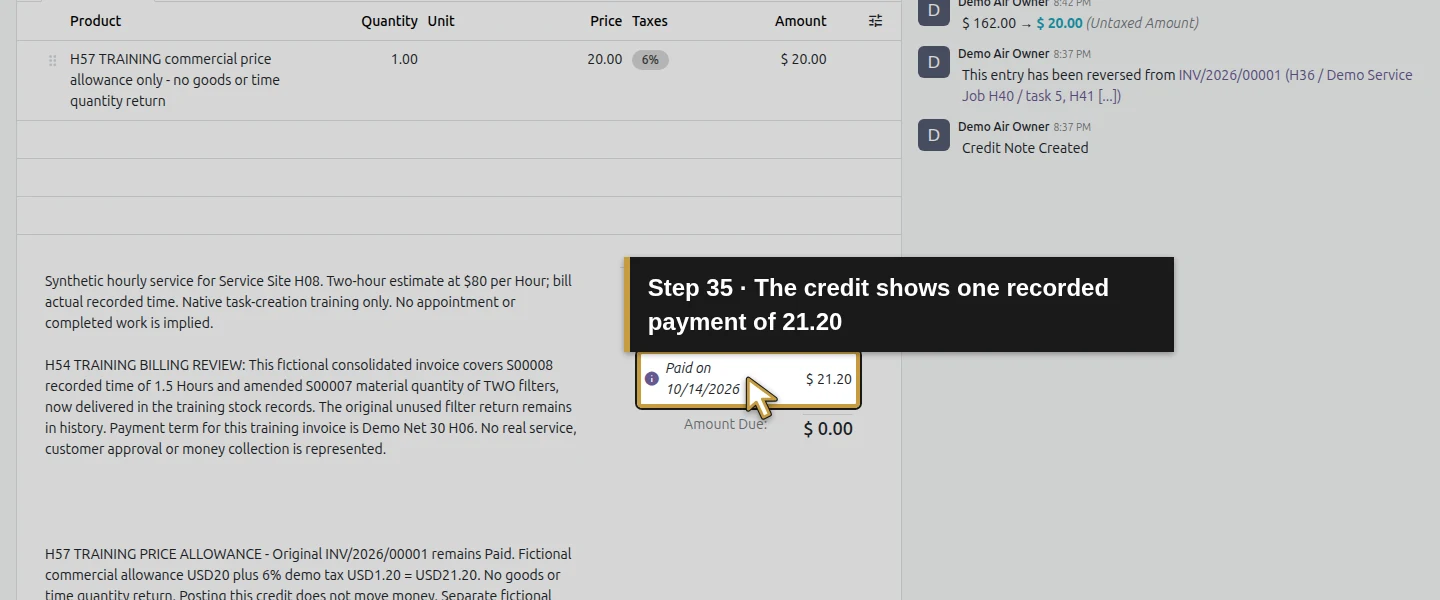
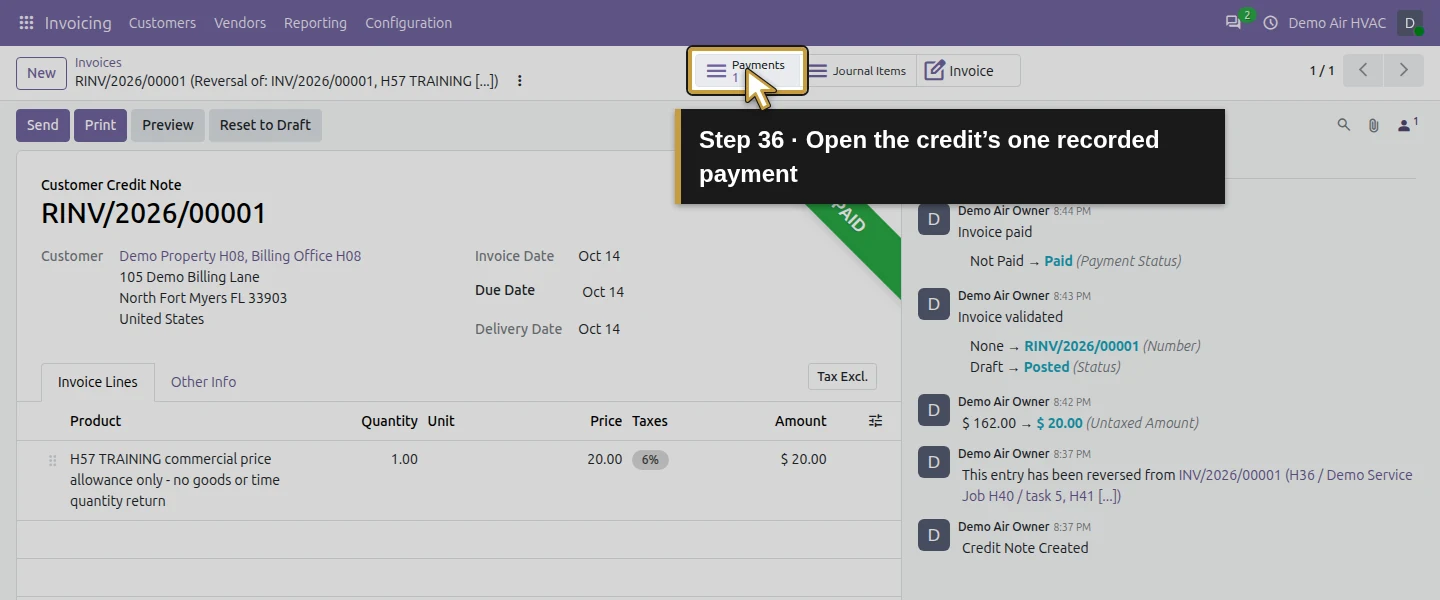
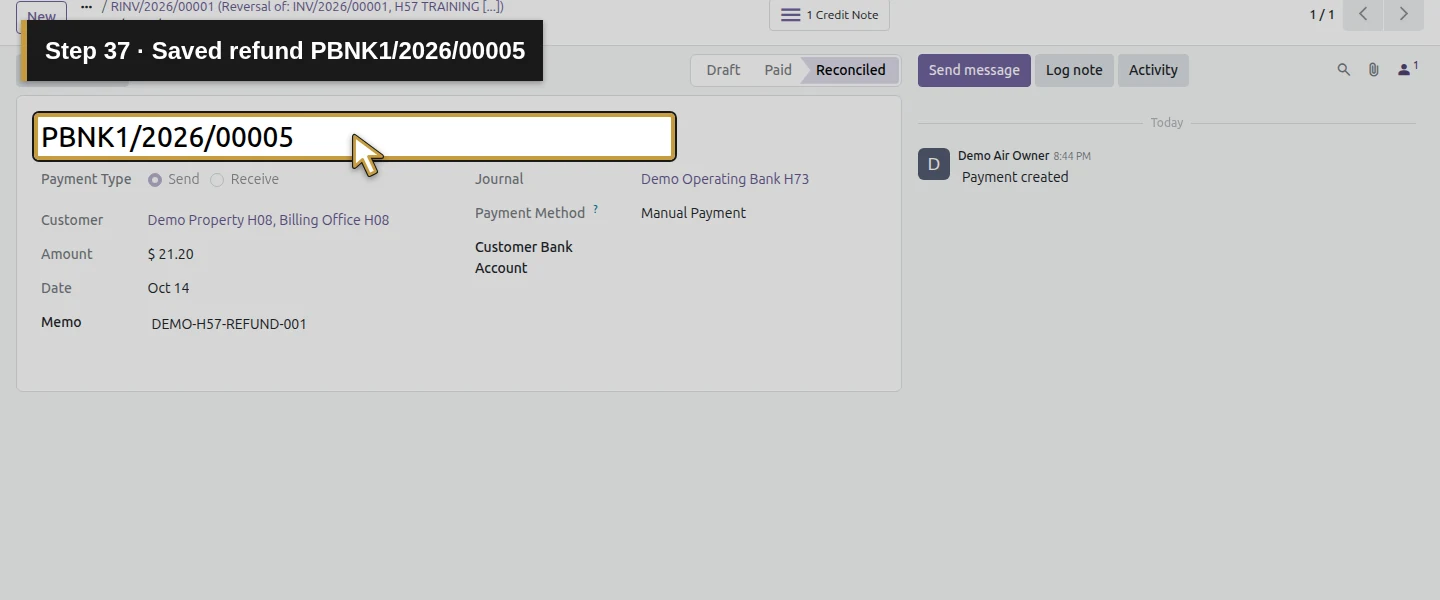
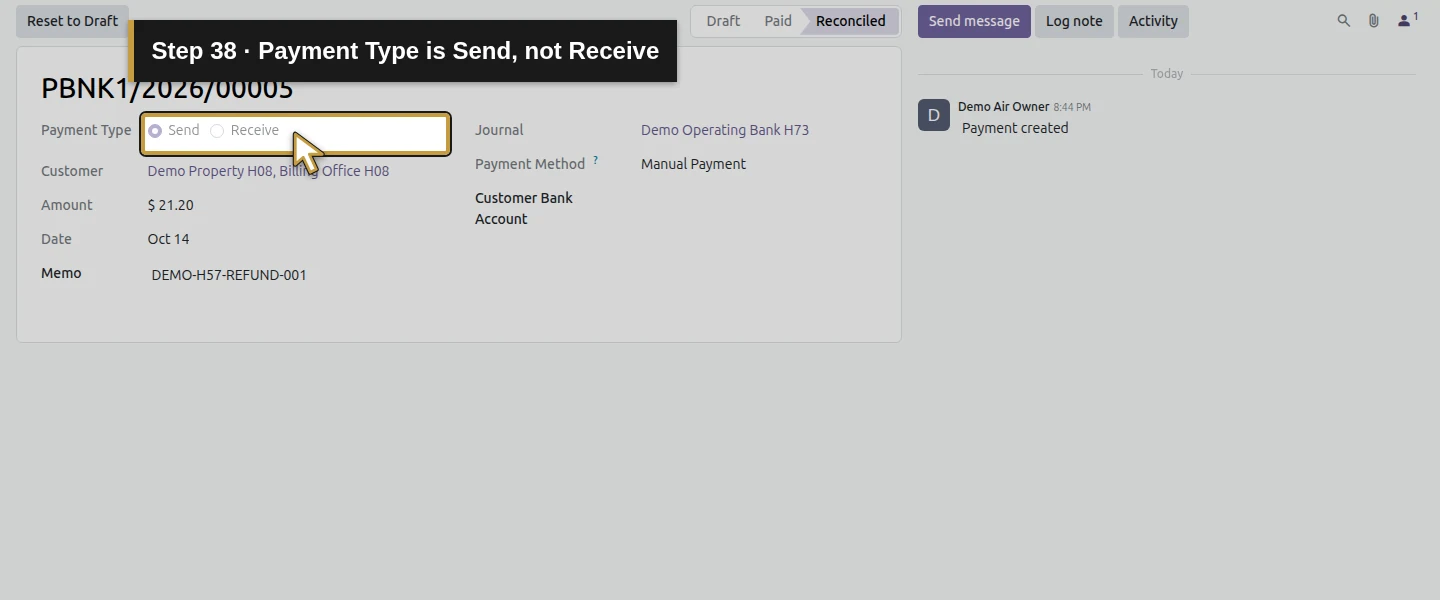
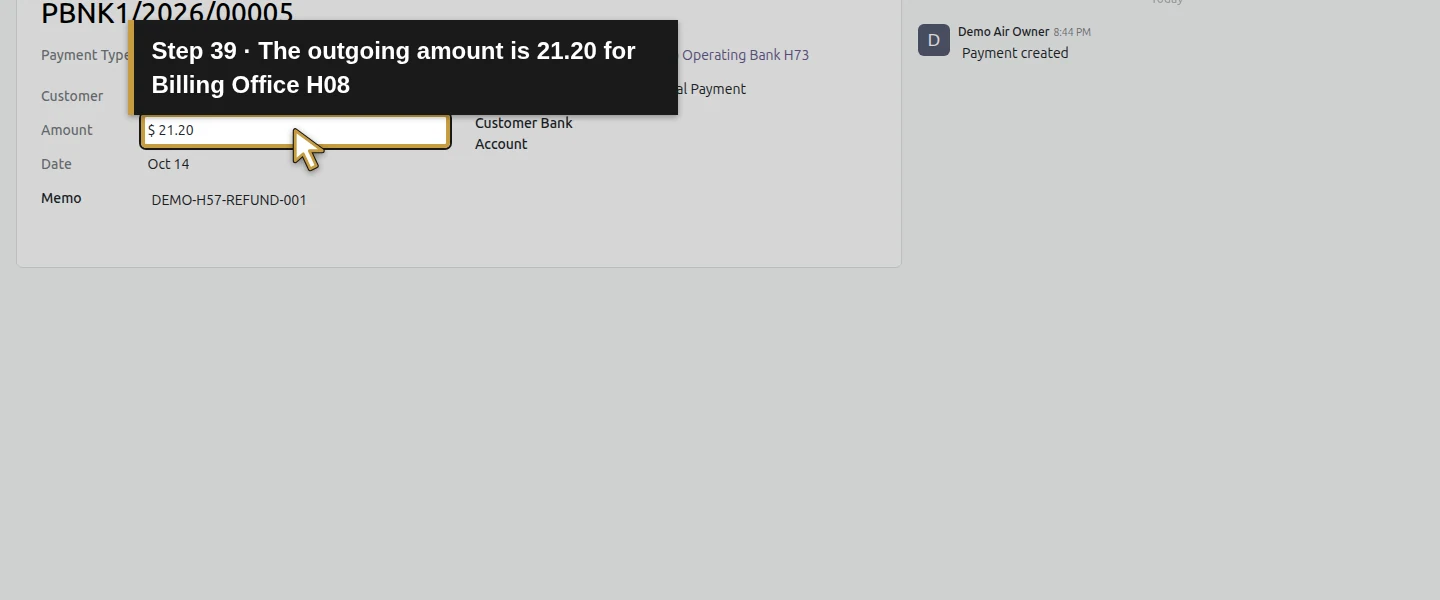
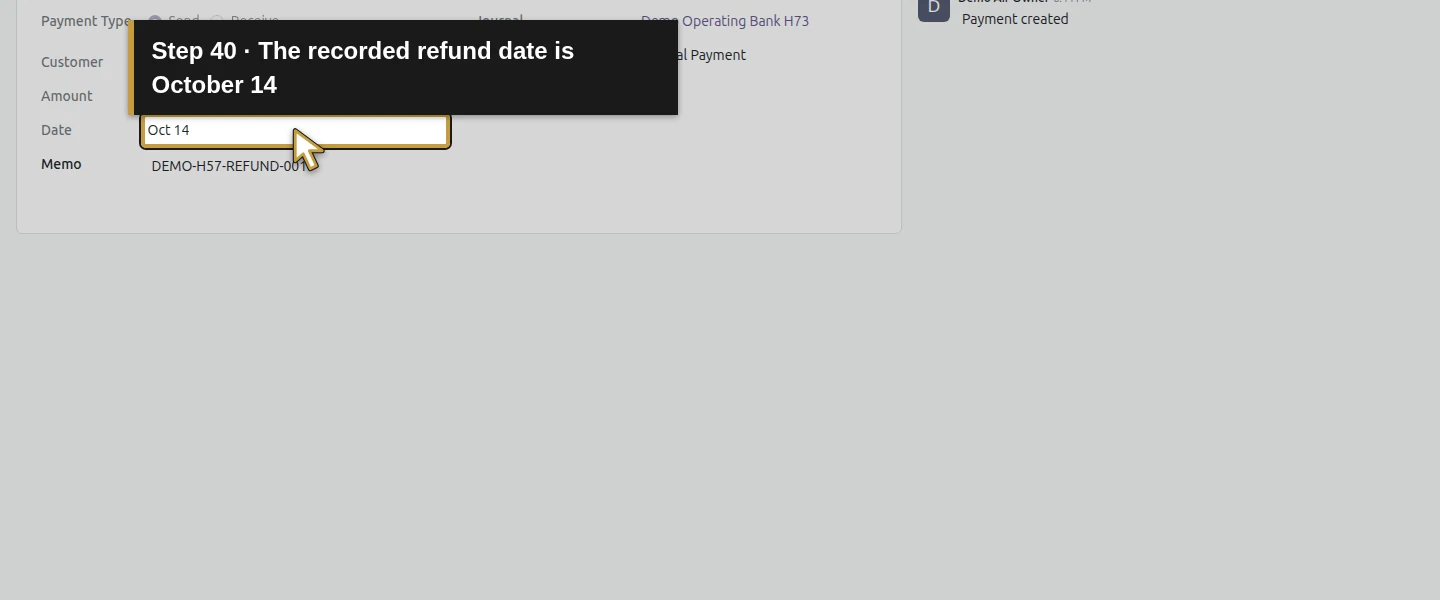
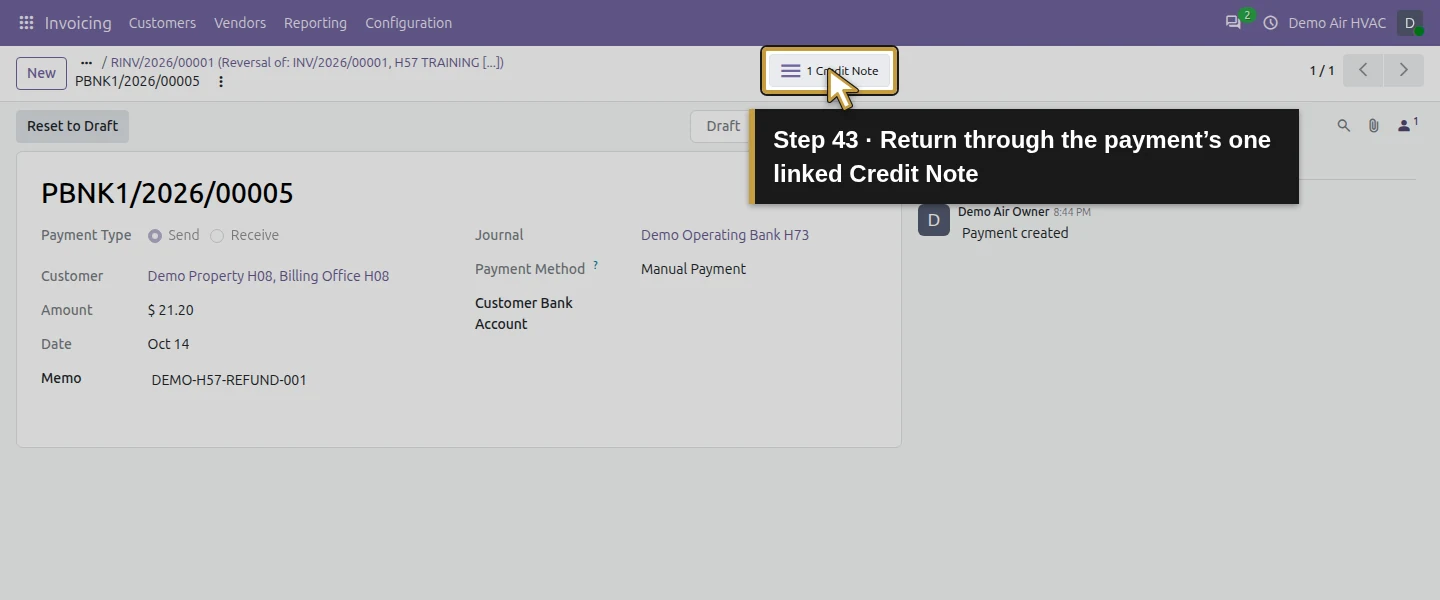
The credit now shows Paid Customer Credit Note, a paid row of $21.20 and Amount Due: $0.00, with Pay hidden. Open 1 Payments. Verify PBNK1/2026/00005, type Send (not Receive), customer Billing Office H08, $21.20, October 14, the unique memo, the chosen journal and Manual Payment method. Its status is Reconciled and 1 Credit Note links back to this credit. This is the recorded refund, separate from the original two inbound receipts.
Step 8. Inspect the actual credit-note PDF
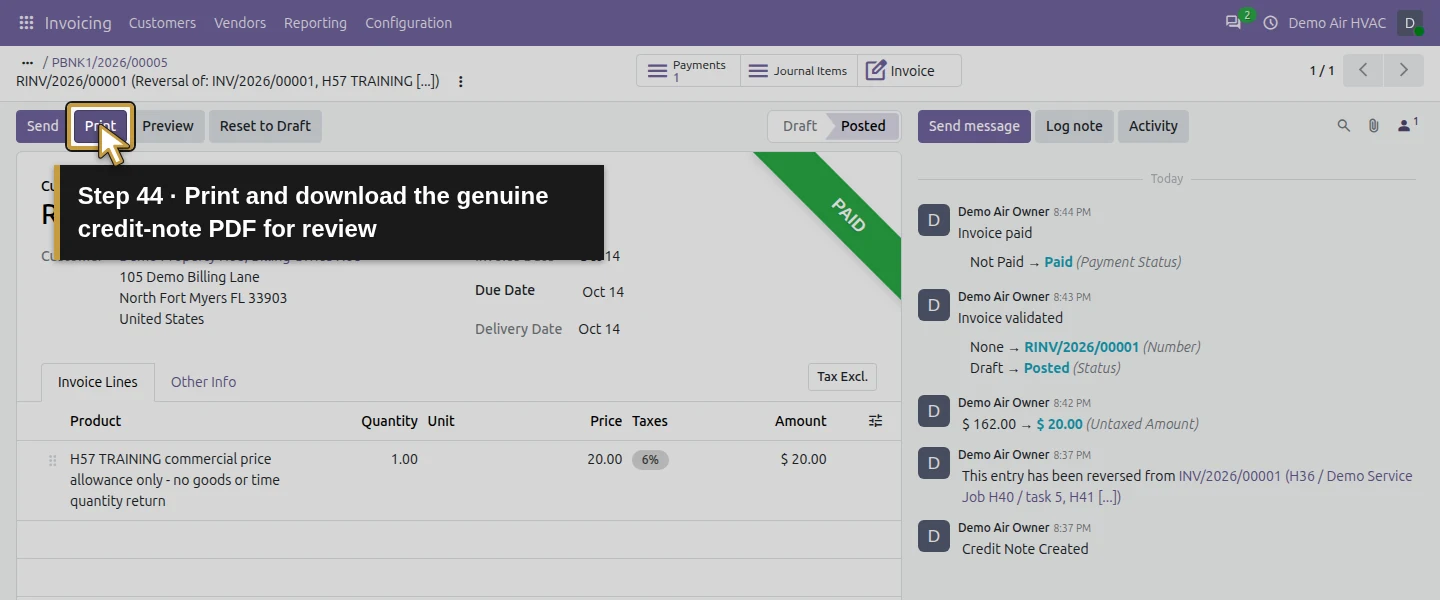
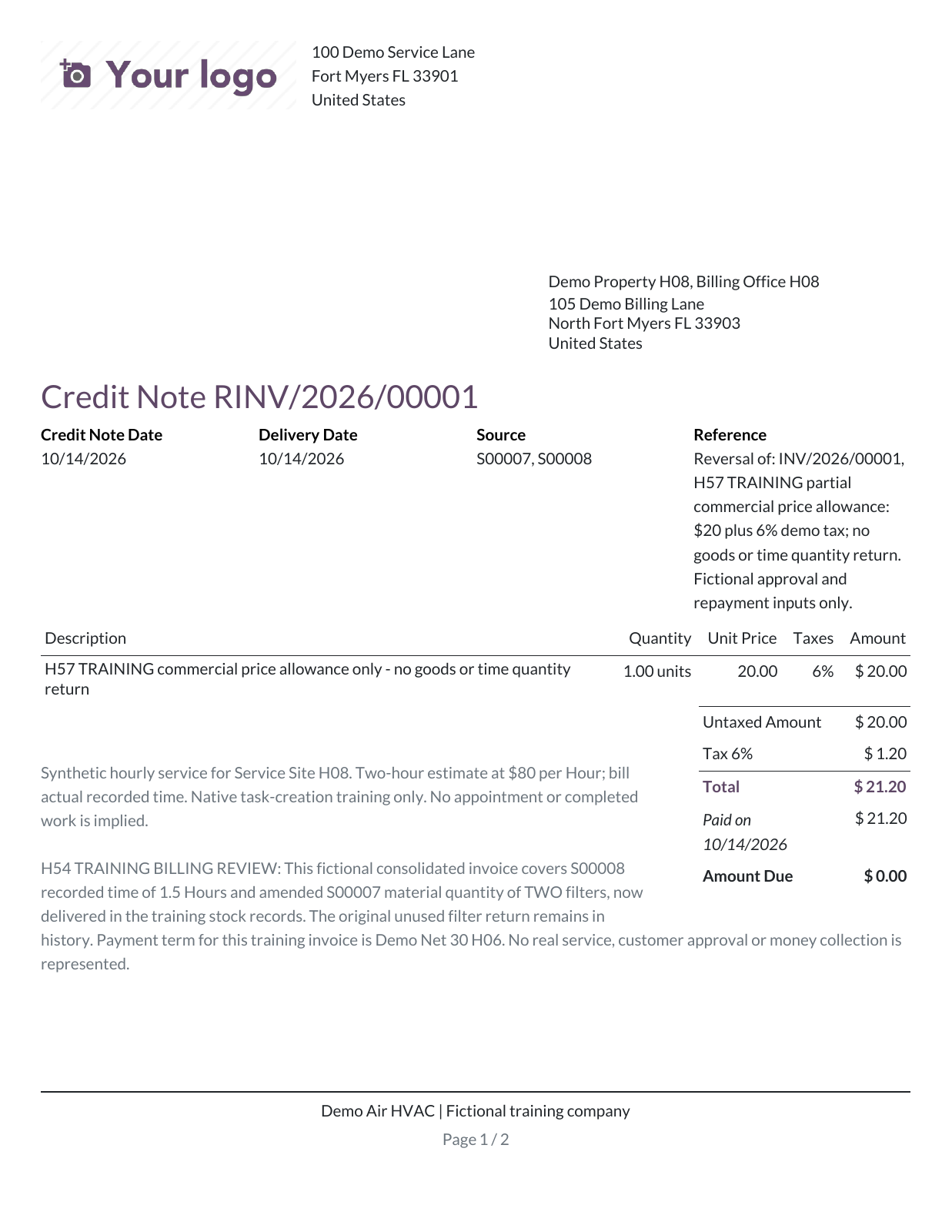
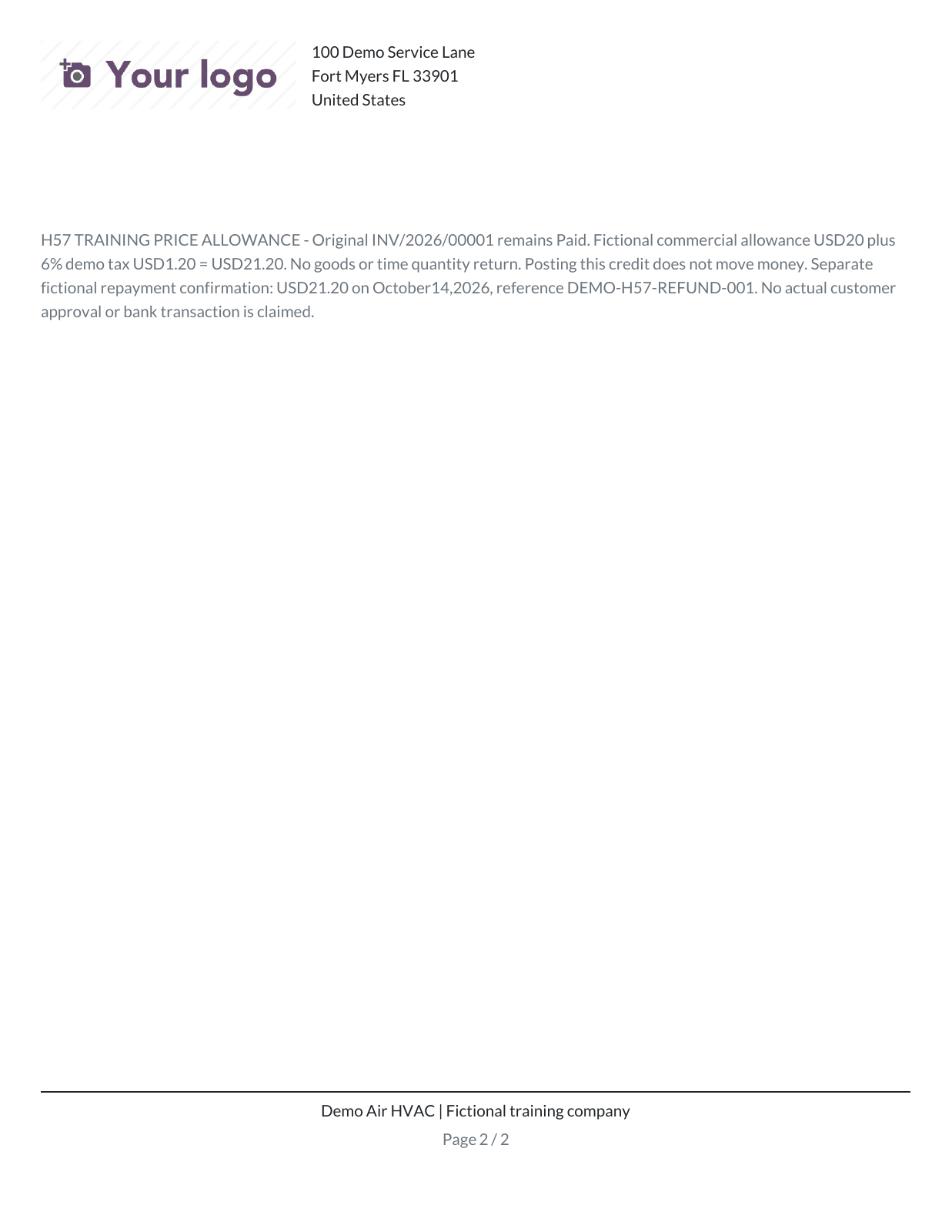
Return to the credit and click Print. Open the genuine downloaded PDF and check Credit Note RINV/2026/00001, billing contact, date, original invoice/reversal reference, the single allowance description, 1.00 units at $20, $1.20 demo tax, $21.20 total and $0 due. The captured output spans two pages and retains the configured placeholder logo and fictional-company footer; review both pages. Its Source field retains S00007/S00008 as historical references; those references do not mean this new allowance line reverses their billed quantities.
Example credit note
This fictional example is the two-page PDF downloaded from Odoo. The first page shows the allowance, tax, recorded repayment and zero amount due. The second page continues the allowance note and company footer.
Download the example credit note (PDF, 2 pages)
Step 9. Reopen the original and verify the accounting boundary
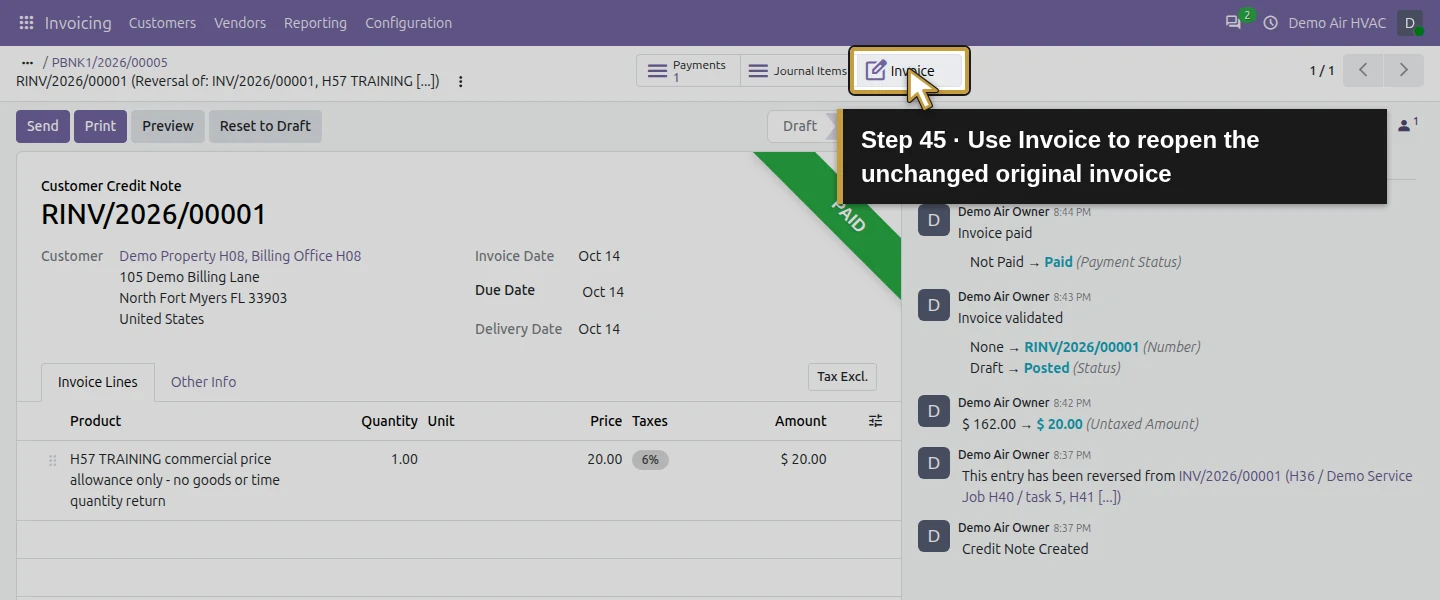
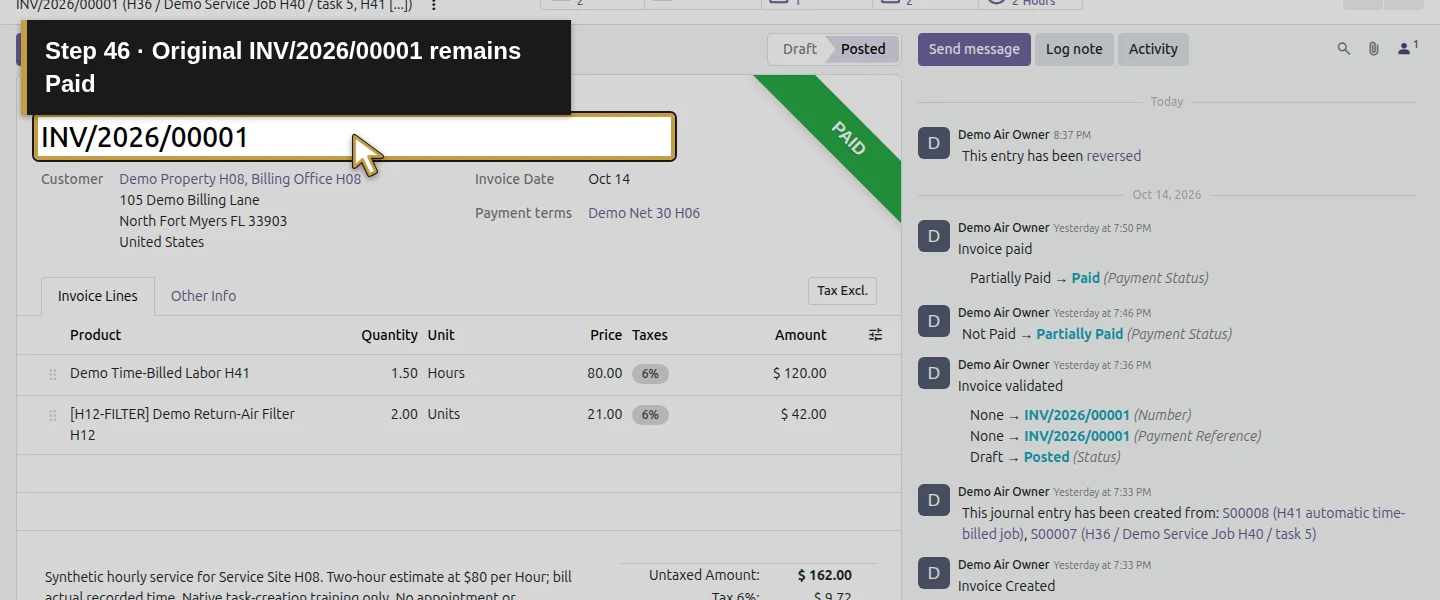
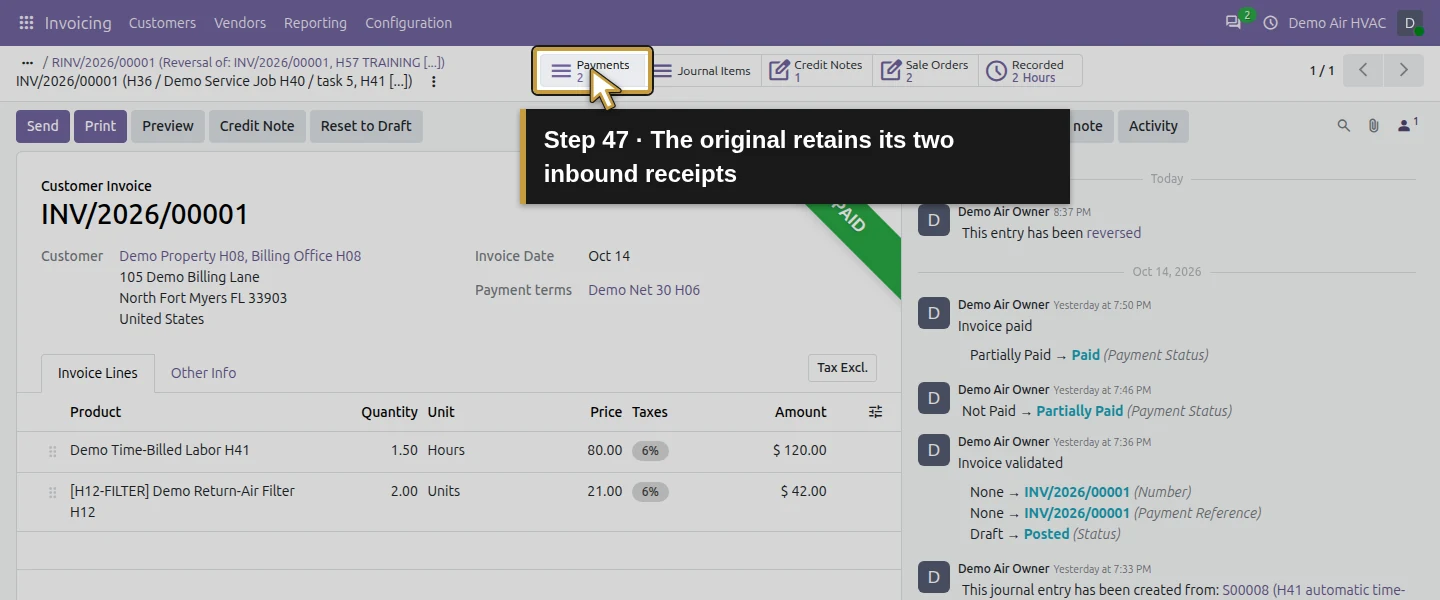
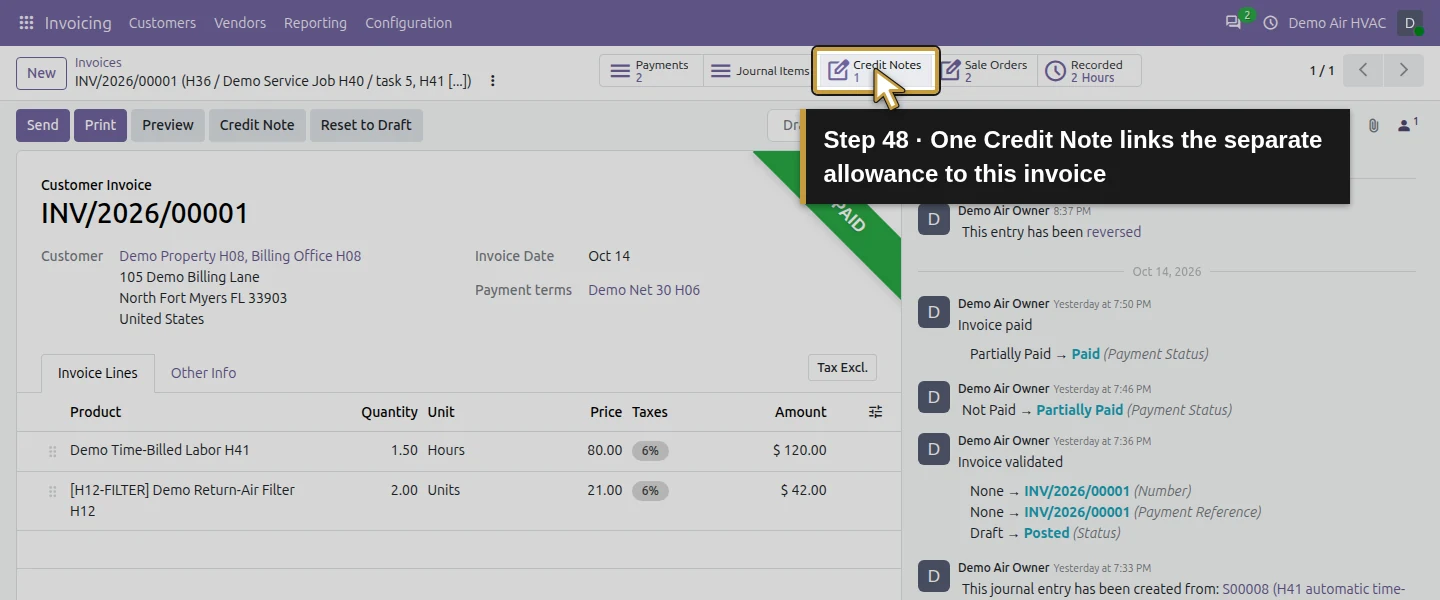
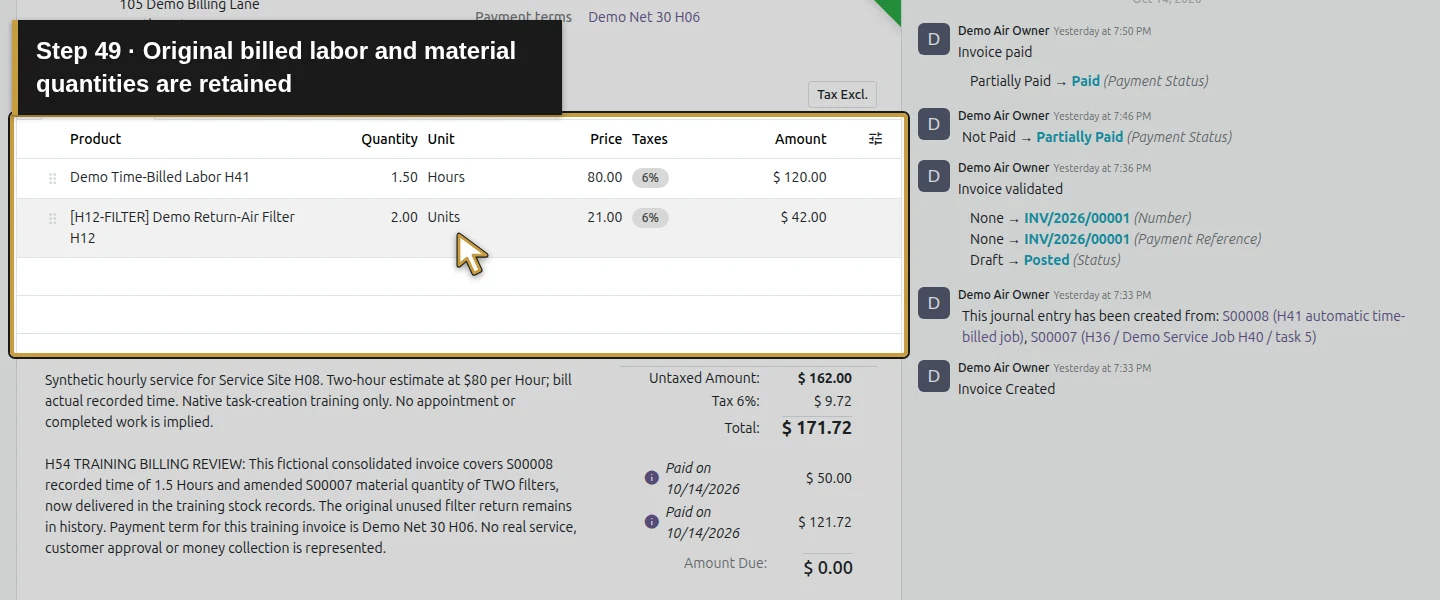
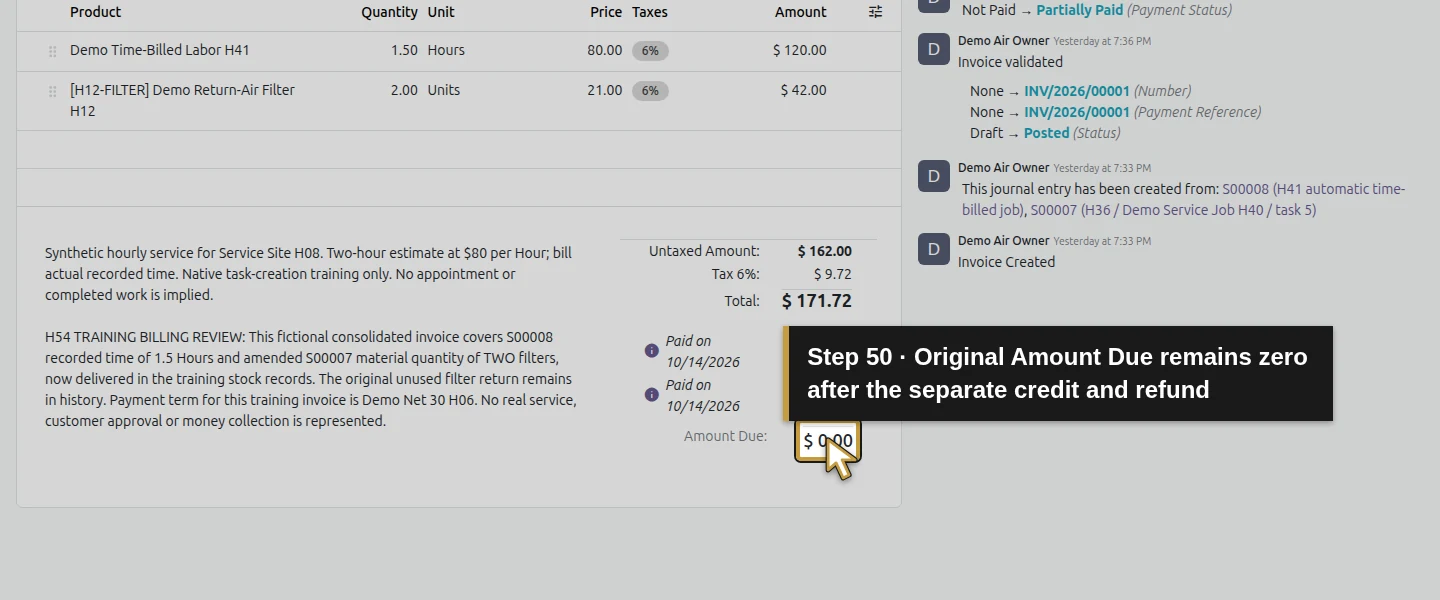
Use the payment’s 1 Credit Note and the credit’s Invoice button to return to the original. It retains 2 Payments, 1 Credit Notes, its original product lines and $0 due. The saved credit/payment receivable match is $21.20, while the refund’s Outstanding Payments credit remains unmatched at $21.20. No Bank-account entry, bank transfer or statement reconciliation occurred. Source quantities, the original 1.5-hour time entry/invoice link and two filters in the van remain unchanged. Reopen retained exactly one credit and one new outgoing payment; broader duplicate/refund cases were not tested.
Check the result
One posted $21.20 Customer Credit Note references the original paid invoice and contains one productless, sales-unlinked $20 allowance with $1.20 demo tax. One separate October 14 Send payment for $21.20 clears the credit to Paid/residual zero and shows Reconciled. The original $171.72 invoice stays Paid with its two receipts and a link to this credit. Its original billed quantities and stock/time records are preserved, with zero quantity left to invoice. The native two-page credit PDF was downloaded, text-checked and visually inspected. The refund remains unmatched in Outstanding Payments; no Bank posting or actual transfer is established.
If your screen differs
The native Reverse draft copied every original line and temporarily reduced their net invoiced quantities even before posting. Removing those copied credit lines and saving a new standalone allowance restored the source quantities; this is a price-allowance case, not a product/time quantity return. Different correction types need their own review. The line’s account and 6% tax are existing synthetic defaults, not a tax/accounting recommendation. Reverse and Create Invoice, full cancellation, unpaid-invoice offsets, provider/card refunds, different roles and reversal of this refund were not exercised. Manual Payment records separately confirmed repayment; it does not send money. Reconciled here describes the credit/payment receivable match, while its outgoing outstanding entry remains unmatched. No general duplicate-proof guarantee is made.
Frequently asked questions
How do I issue a credit note in Odoo?
Open the intended posted invoice, use Credit Note, enter the reason/journal/date and choose Reverse to create a reviewable draft. Inspect every copied line and the partial amount before Confirm. This test replaced the full copied quantity reversals with one standalone $20 allowance plus $1.20 demo tax, retaining the original invoice link.
Does an Odoo credit note automatically refund money?
No. Posting the $21.20 credit left it unpaid and created no payment. A separate Pay → Create Payment step recorded the independently confirmed synthetic repayment. That matched the credit receivable, but left Outstanding Payments unmatched and created no Bank entry or actual transfer.
How do I record a partial customer refund in Odoo?
Review the partial credit and original receipts, independently confirm repayment, then use the credit’s Pay dialog with the actual journal, amount/date and unique memo. Verify an outgoing Send customer payment linked to the correct credit and its final residual. Here one $21.20 Manual Payment cleared a $21.20 allowance without changing the original billed filter/time quantities.
Continue building the business
Continue with H58: Can Odoo send reminders for overdue invoices?. This original invoice and its partial credit are both settled in the training records, so neither should be treated as an overdue unpaid balance. The bank review remains a separate process with its open exceptions.
Talk about your Odoo setup
Bring your current process and the result you need to Onward to plan your Odoo workflow. Talk about your Odoo setup.