
Running an HVAC business with Odoo
Which computers and tablets does my HVAC business need?
Plan computers and tablets for an HVAC office and field team with role requirements, device ownership, application checks and a pilot worksheet.
Planning document checked on October 15, 2026. The supplied example, blank worksheet and cited source passages have been checked. Candidate devices and their office/field tests remain unselected and unexercised.
Choose computers for your business by listing the work each person needs to complete. An HVAC office may need to prepare quotations, review invoices and print documents. A technician may need to read job instructions, add photos and enter time. Use those tasks to compare an office computer, business laptop or tablet before buying several of the same device.
Alex Rivera and Demo Air HVAC are fictional training examples. Alex is planning equipment for a shop and office. The roles and device categories below are proposals, not new staff, purchased equipment or approved company policies.
This guide produces a device-shortlist worksheet and a pilot plan. The filled example records requirements; it does not select a model or establish that a physical device works with Odoo.
Before you begin
Start with the office-opening requirements and internet and Wi-Fi plan. Have the expected tasks, simultaneous users, work locations and peripherals available. Keep unknown quantities and platform choices unresolved.
Download the blank device worksheet and filled Demo Air example. Each contains eight labelled rows and the same columns. Open the CSV in your preferred spreadsheet application and save your working copy privately. These downloads contain no passwords, personal identifiers, customer records or real asset serial numbers.
The Odoo task references use the series' stock Odoo 20 Community environment, without Enterprise apps or customization. This companion adds no Odoo integration. The document checks do not test a spreadsheet UI, physical computer, tablet, printer, browser installation or management service.
Build the shortlist and pilot plan
Step 1. List roles and the tasks each device must support
Use Requirement ID, Role, Workload and Candidate category to separate office work, owner review and field work. The example has eight rows: DEVICE-OFFICE, DEVICE-PRINT, DEVICE-OWNER, DEVICE-JOB, DEVICE-PHOTO, DEVICE-TIME, DEVICE-CONNECTION and DEVICE-LIFECYCLE.
An office quotation and a field photo are different requirements even when one device could handle both. Record simultaneous use before deciding quantities. A row is a requirement, not an instruction to buy eight devices.
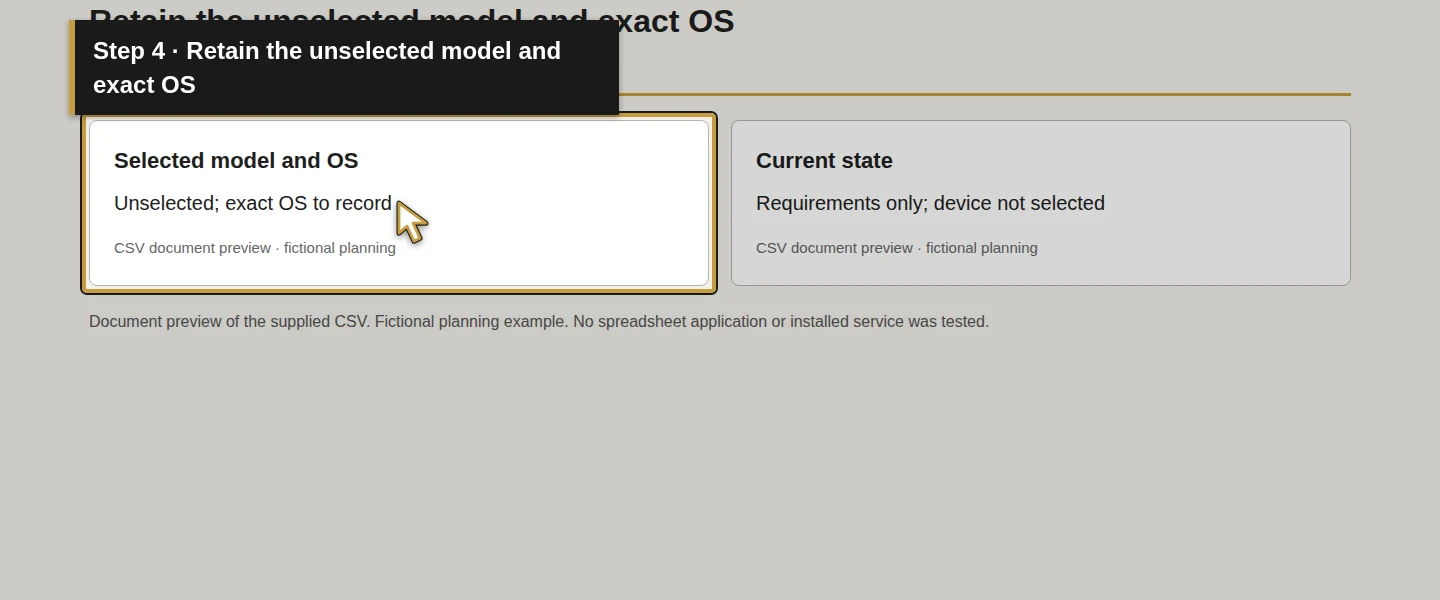
Keep Selected model and OS as Unselected; exact OS to record until you have an actual candidate. Describe how and where the work will be done before choosing the form factor.
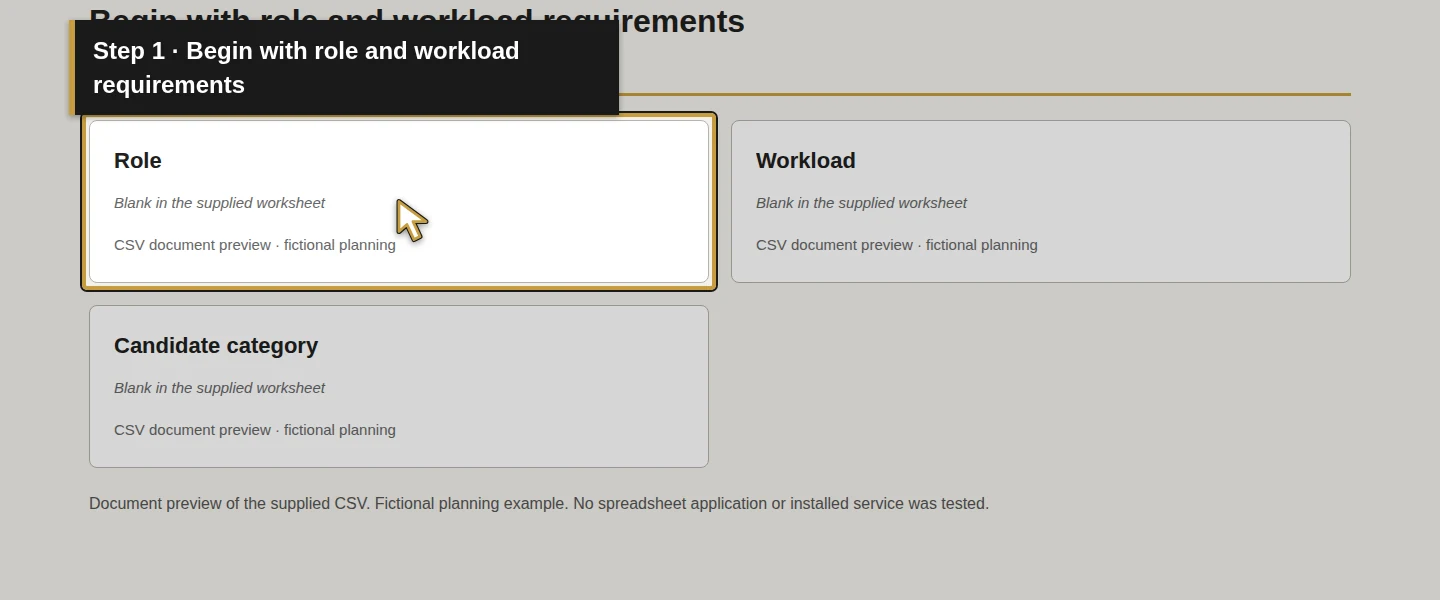
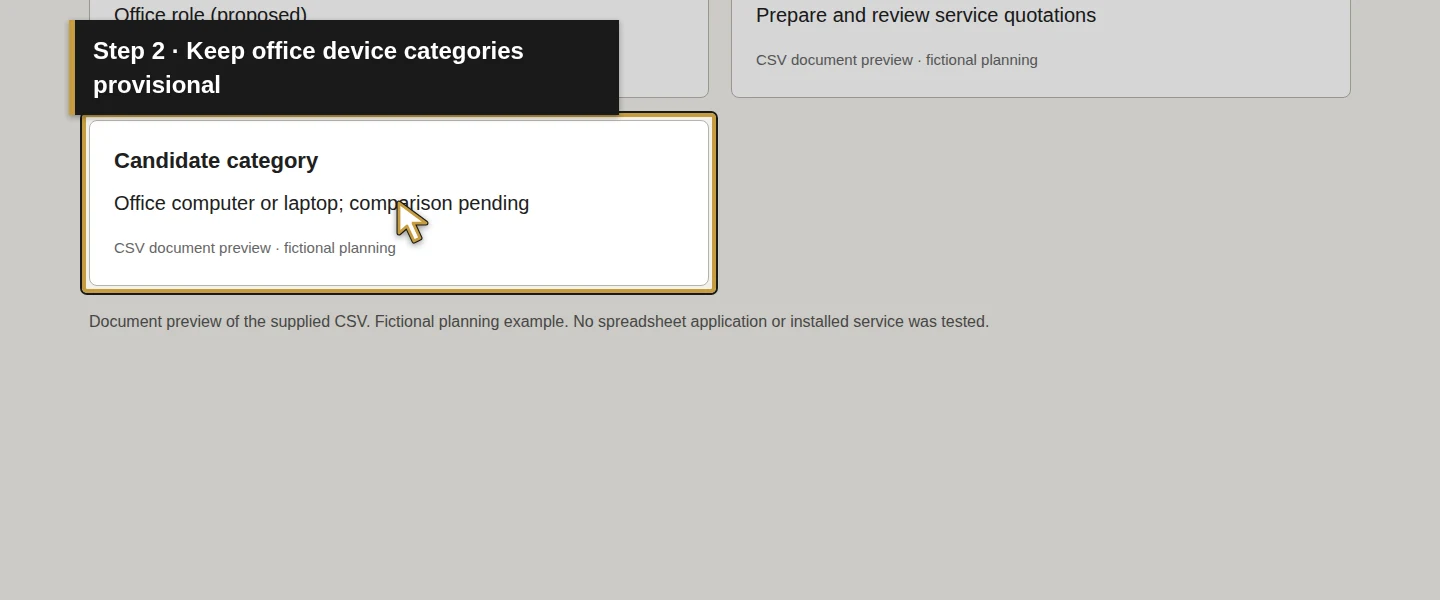
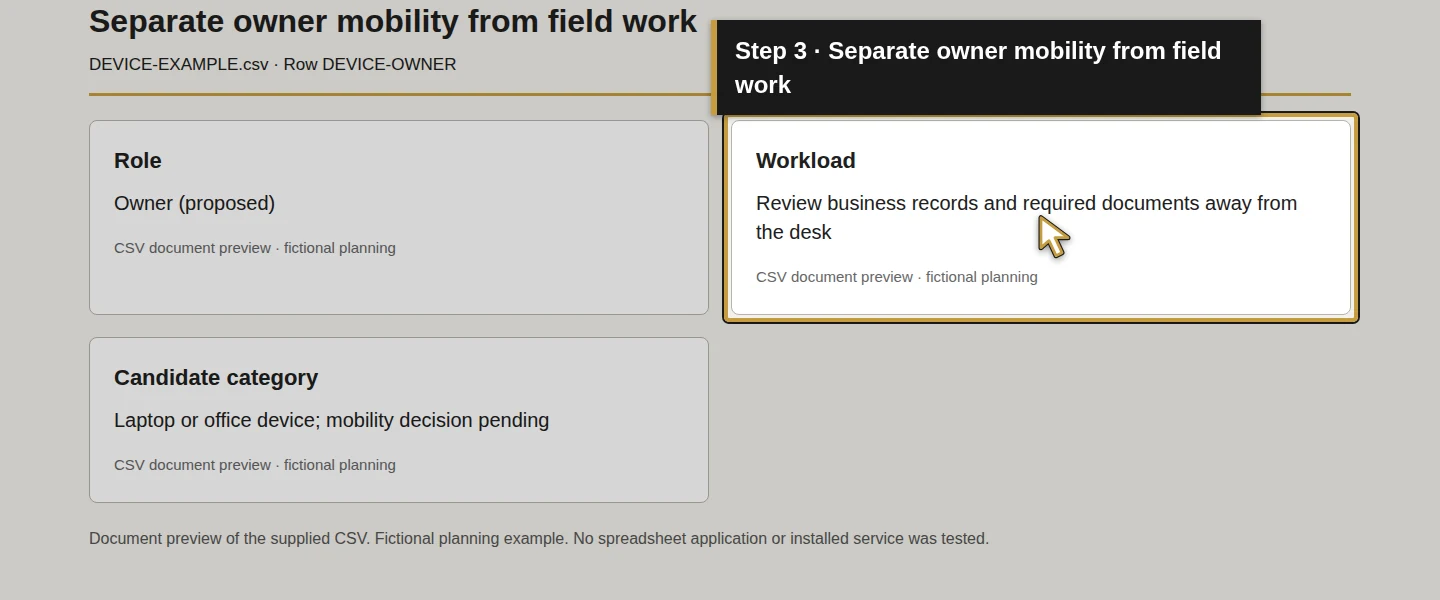
Step 2. Describe office typing, documents and peripherals
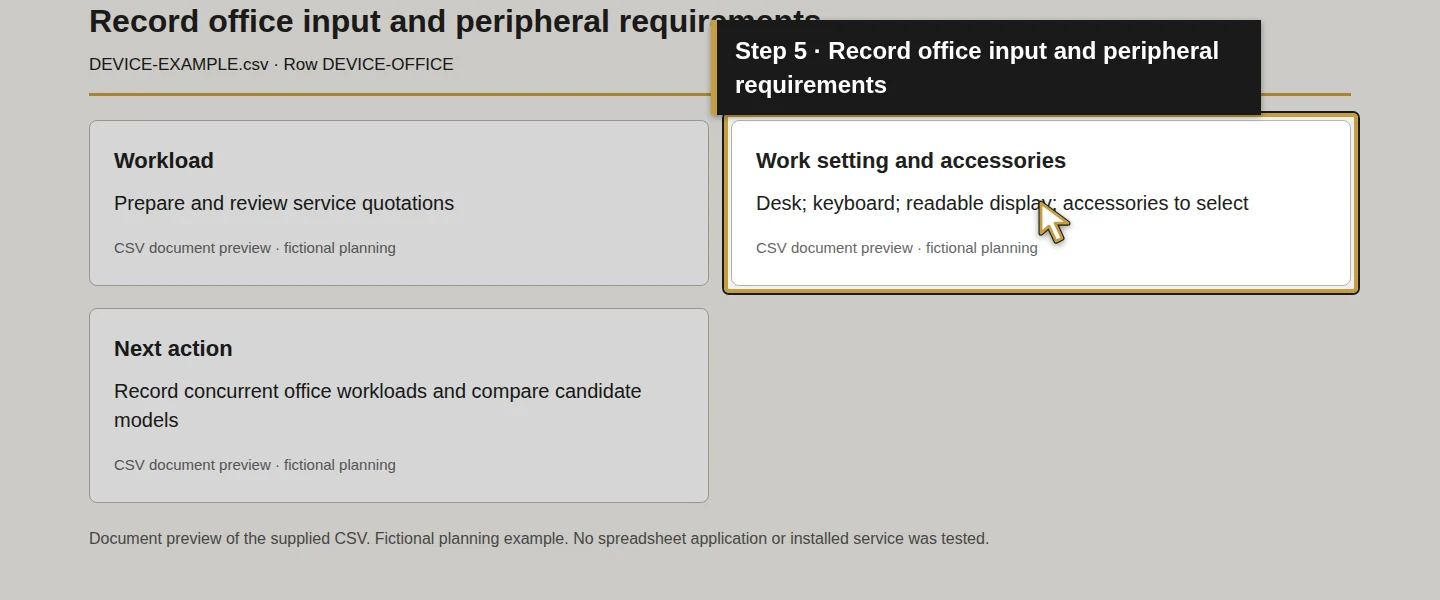
In DEVICE-OFFICE, record preparing and reviewing a service quotation. In DEVICE-PRINT, record the document and output device the office actually needs. Use Work setting and accessories for a keyboard, display, dock, printer or other required connection, with each item still subject to selection.
Plan a test with the real quotation form and an invoice PDF. Check reading the complete totals, entering text, switching between required applications and producing the intended document output. Record problems such as an unreadable layout or unsupported peripheral in Next action. The separate quotation and time-and-materials invoice guides supply the native task context; they do not prove candidate hardware compatibility.
Do not choose a universal processor, memory or storage figure from this worksheet. Record the selected applications' requirements and use the pilot to evaluate the intended workload.
Step 3. Describe field use and the working environment
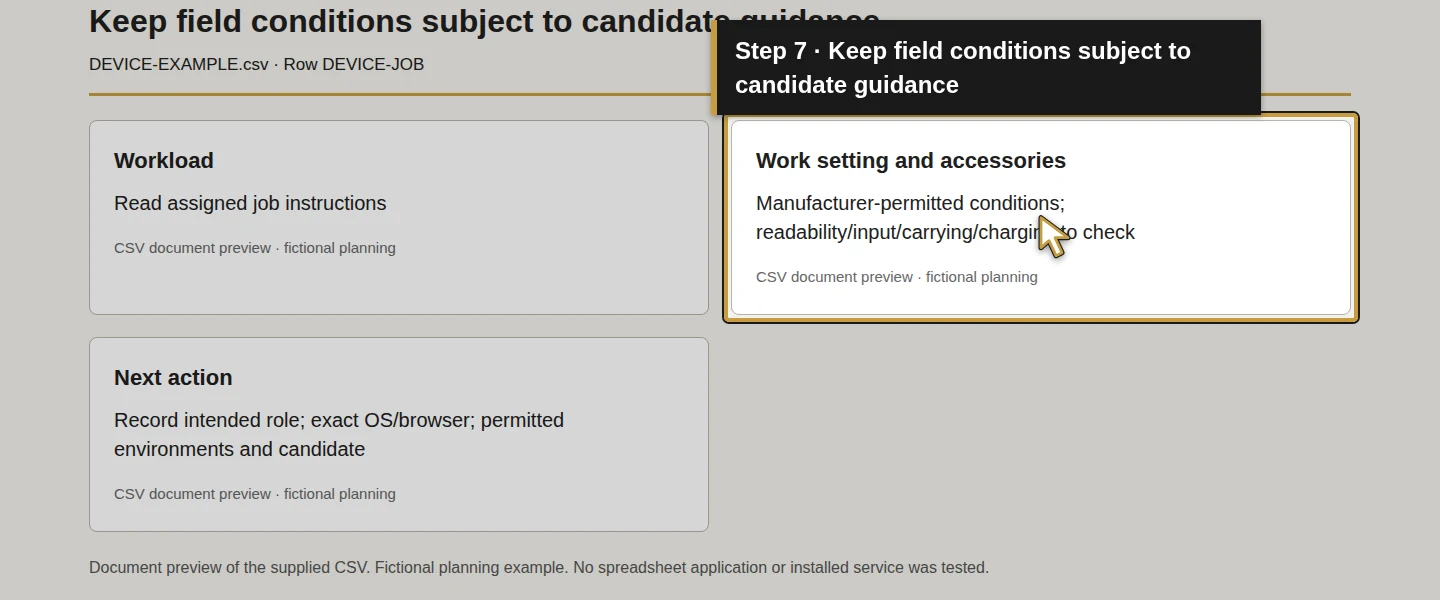
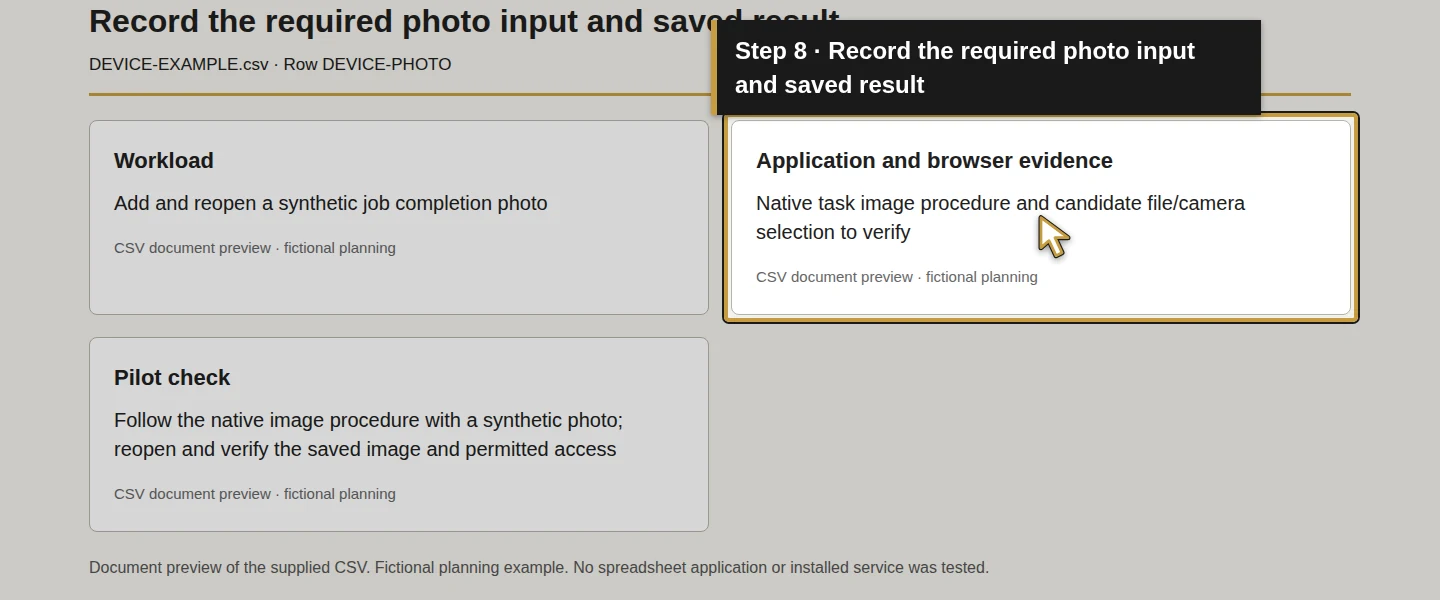
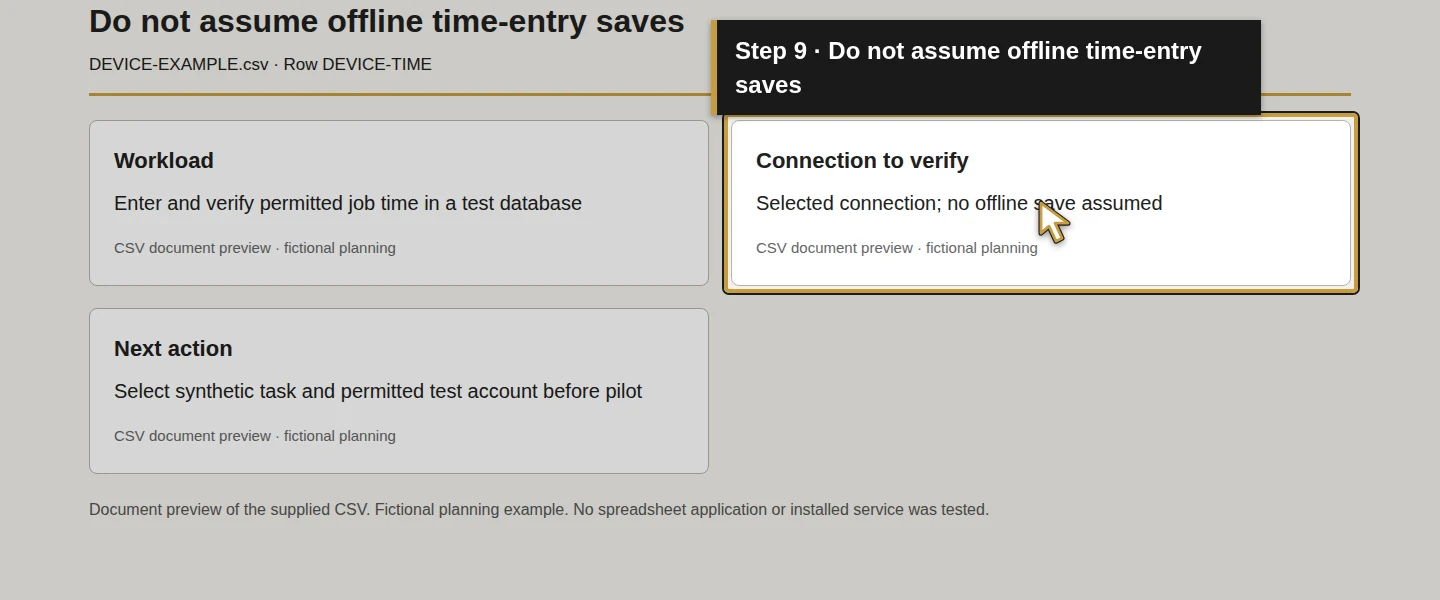
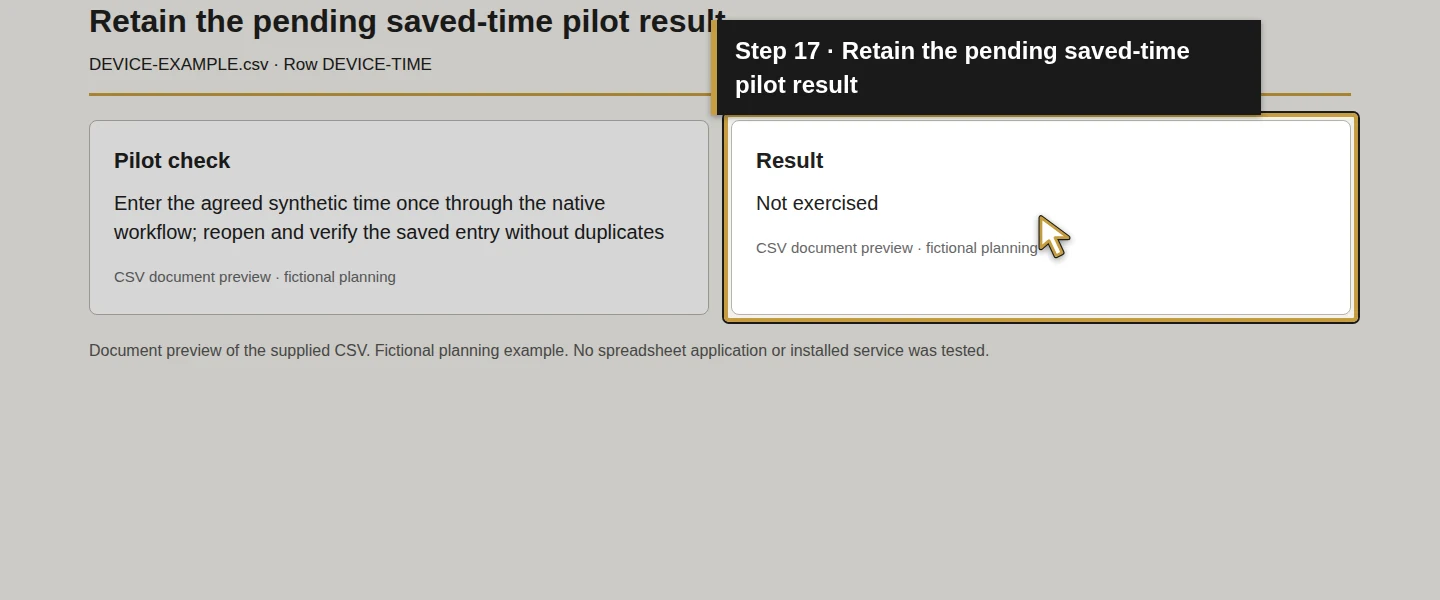
Use DEVICE-JOB, DEVICE-PHOTO and DEVICE-TIME for reading instructions, adding a synthetic completion photo and entering test time. Record screen readability, required input method, carrying or mounting arrangements, charging and permitted work conditions under Work setting and accessories. A larger screen or protective case does not complete these checks.
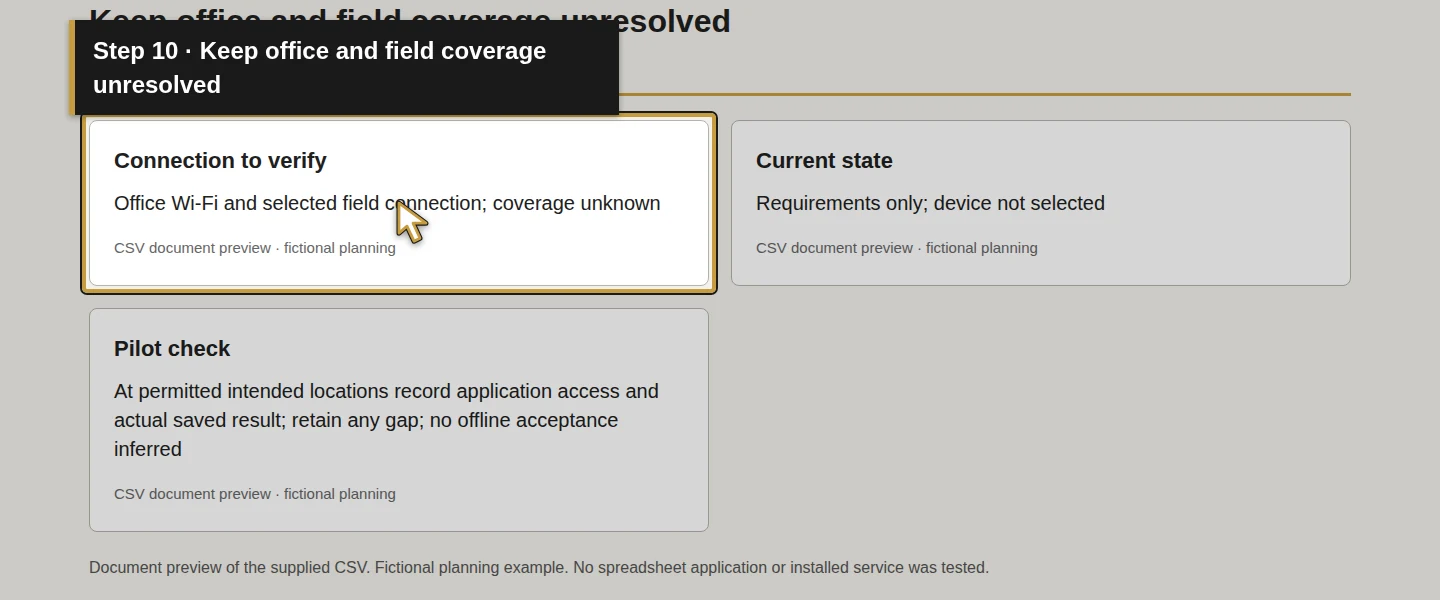
DEVICE-CONNECTION asks how the candidate will reach the business application from the office and field. Put the planned connection and known gaps in Connection to verify. A tablet with a home-screen icon has no demonstrated offline save or synchronization result in this guide.
Check the chosen manufacturer's current use, storage and charging limits. For example, Apple warns about parked-car temperatures for its own mobile devices. That is a reason to check the actual candidate's guidance; it does not select an iPad or extend its limits to another product. Keep the pilot within the manufacturer's permitted conditions.
Step 4. Record application, operating-system and browser evidence
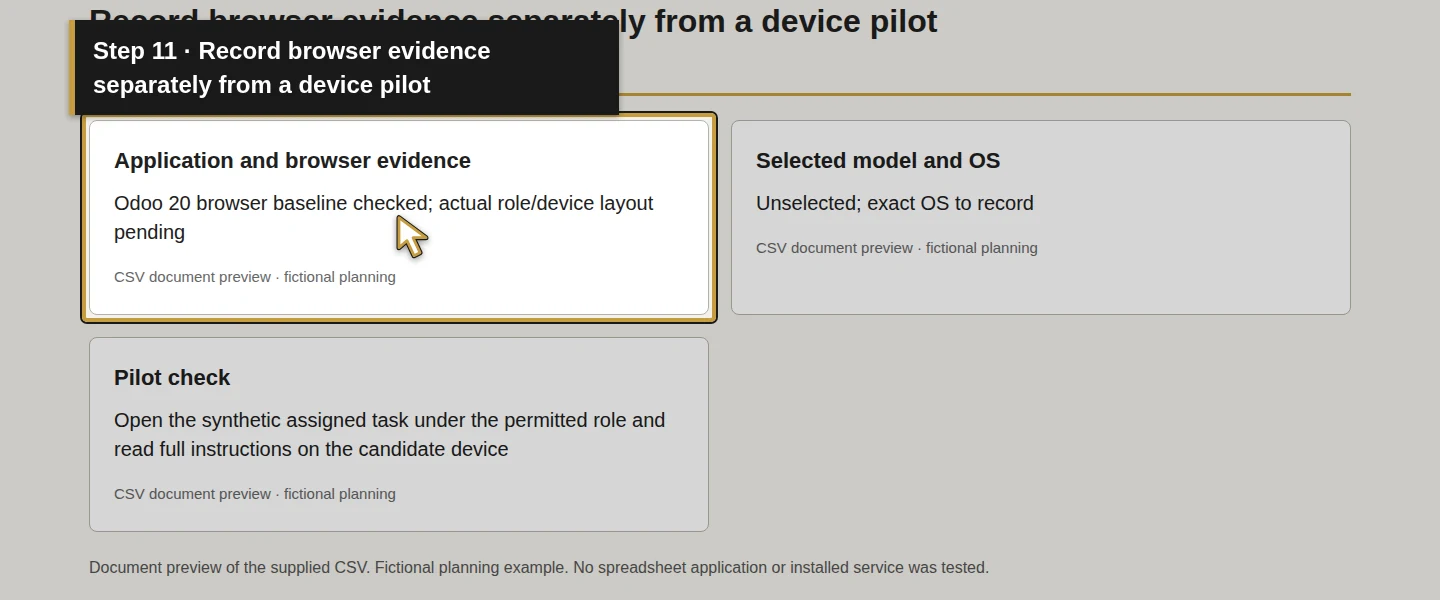
Use Application and browser evidence to name each required application, its current requirements page and the exact candidate OS/browser version to check. Odoo's official 20.0 documentation lists current Chrome, Firefox, Edge and Safari versions as its browser baseline. Confirm the selected browser remains supported when you evaluate the device.
Then plan the actual role's task: reading instructions is different from saving time, selecting a photo or printing a PDF. Check the intended account permissions as well as the screen. The job instructions and photos and technician time guides explain the separate native workflows and their limits.
Leave compatibility unresolved until the candidate completes the required tasks. A supported browser name, published documentation or desktop preview is not a physical-device pilot result.
Step 5. Assign ownership, administration and replacement decisions
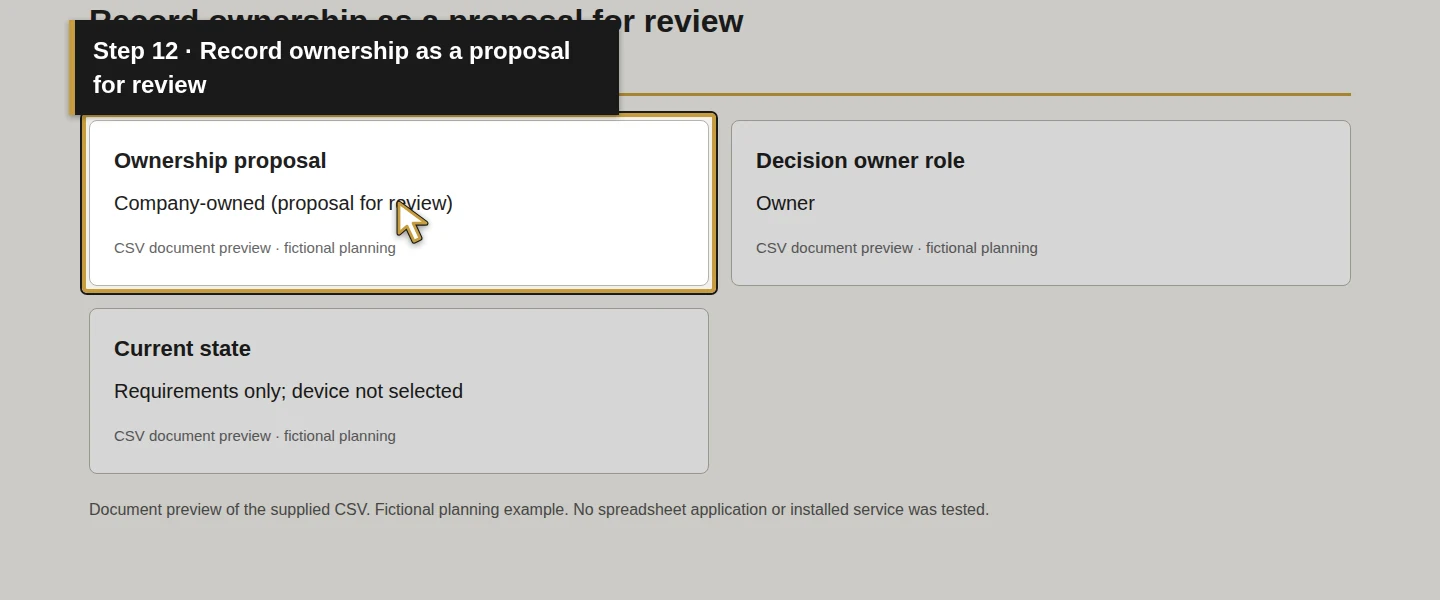
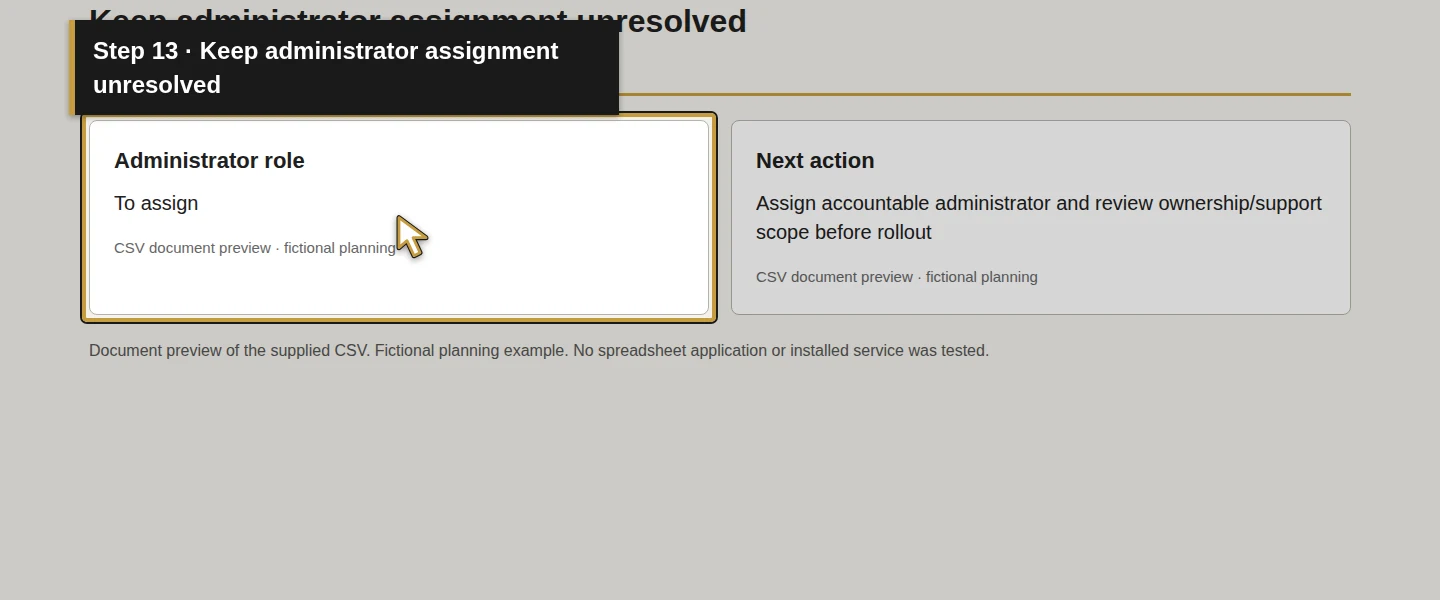
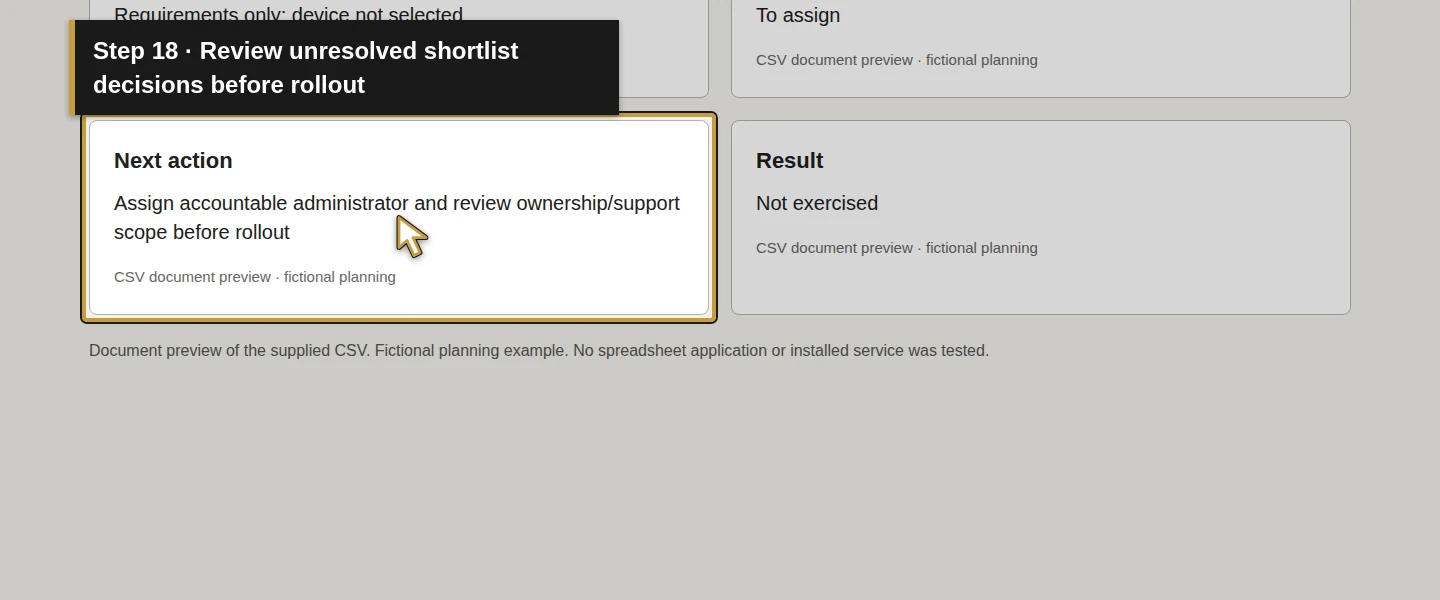
Complete Ownership proposal, Administrator role and Replacement plan to agree. The example proposes company ownership for review; it records To assign for every administrator. In Decision owner role, Owner means the proposed role that must resolve the decision, not a decision Alex has already approved.
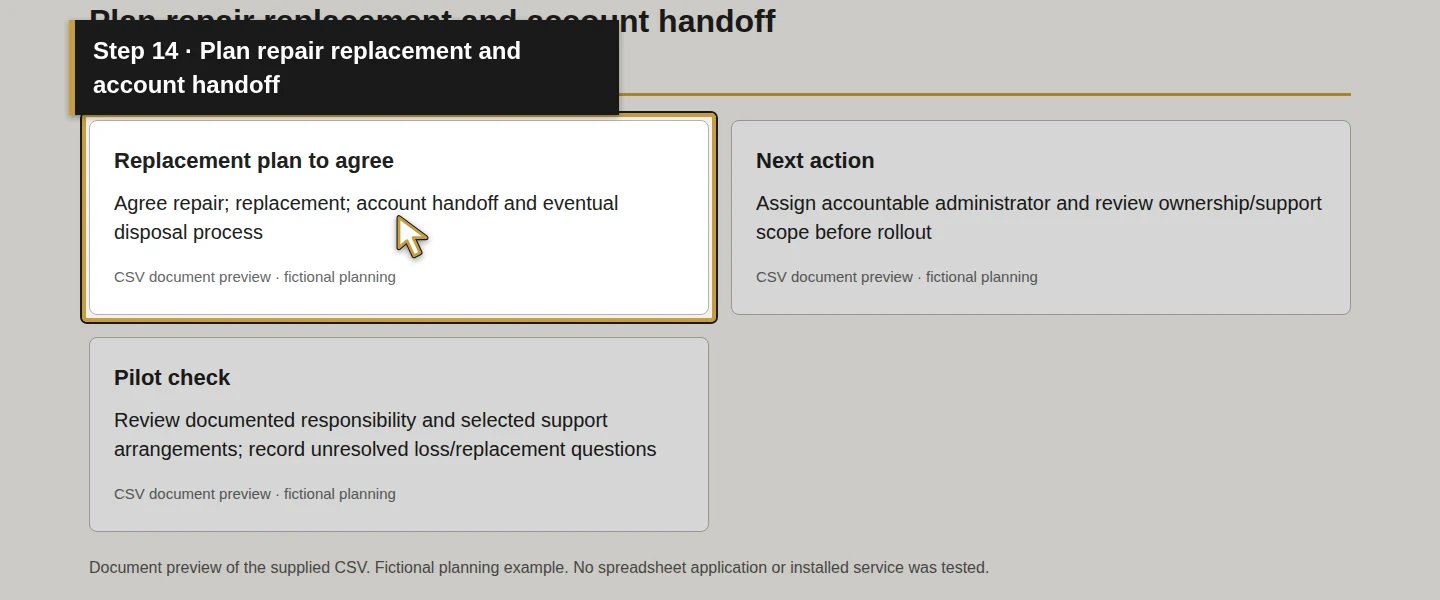
For a personal device, agree the business's access, update, loss and departure arrangements before using it for company work. For a company device, agree those responsibilities and how the person keeps working during repair or replacement. DEVICE-LIFECYCLE keeps these unresolved actions visible.
NIST's mobile-device guidance covers device deployment through disposal and distinguishes company-provided and personally owned scenarios. This worksheet records those questions; it does not enroll, secure, remotely erase or retire a device.
Step 6. Write the pilot checks before approving a fleet
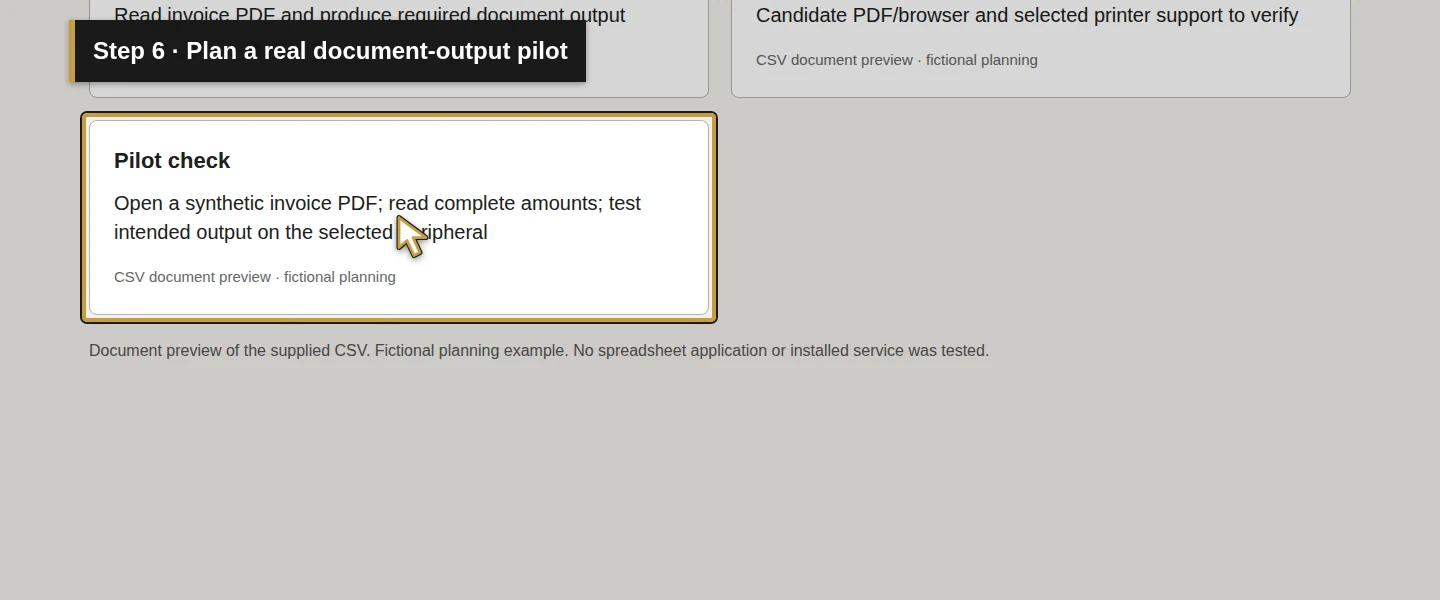
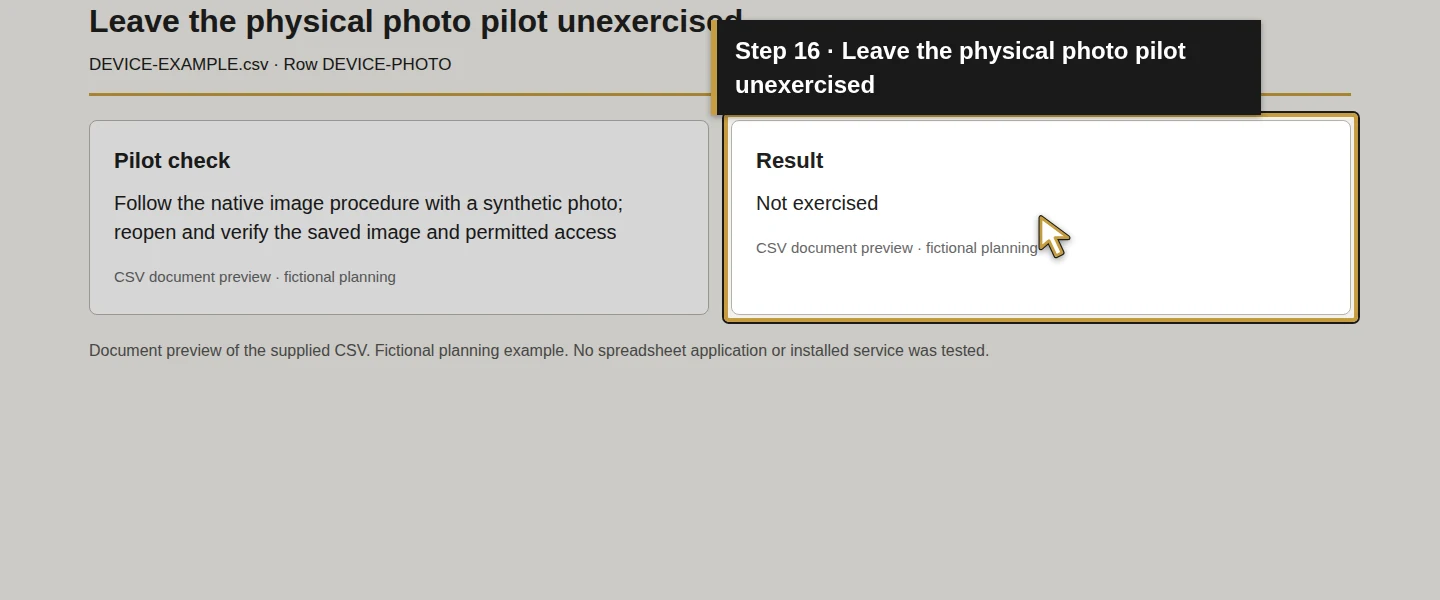
Use Pilot check, Next action and Result to describe the evidence you need from a representative candidate. Use synthetic records in a test database for saves, photos and time entries. Keep actual customer information and private sign-in details out of any recording.
The office pilot should cover quotation entry, document review and required output. The field pilot should cover instructions, an allowed photo upload, the permitted time-entry workflow, the intended connection and ordinary charging. Test the real account role. Record the actual outcome and any failed control, missing permission, unsuitable accessory or connection gap before expanding the order.
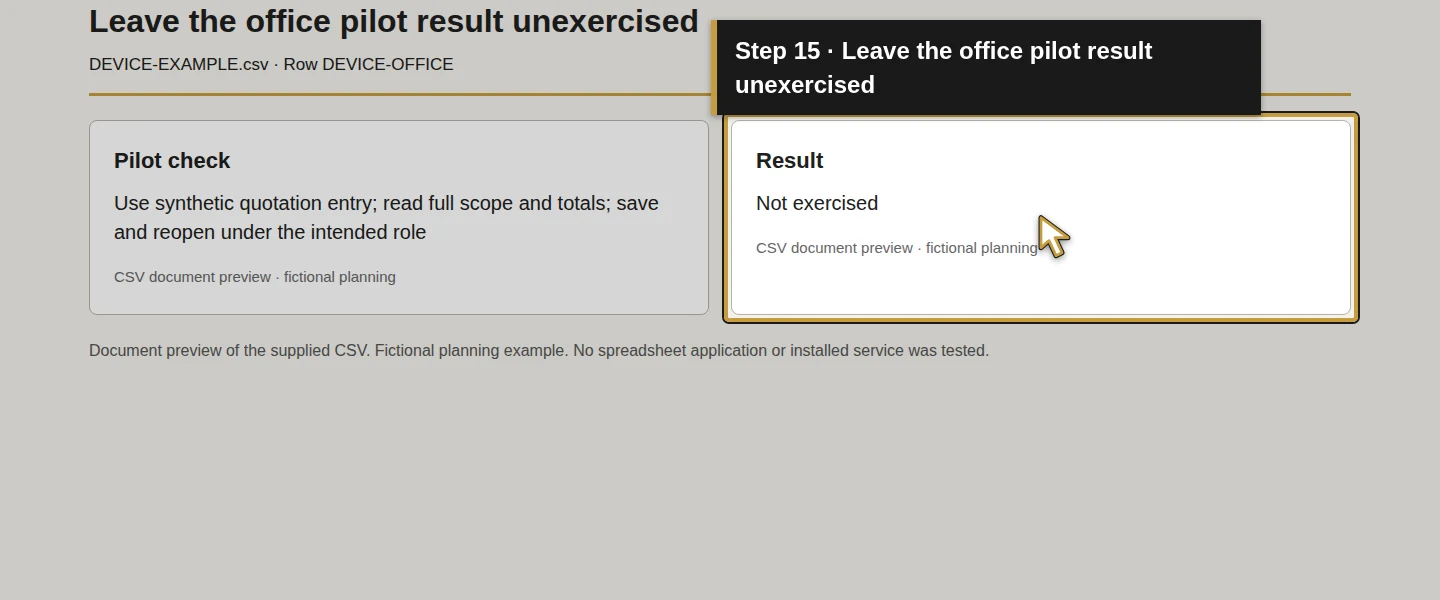
In the supplied example every Result is Not exercised and every Current state is Requirements only; device not selected. Leave those values unchanged until you have real evidence. Phone behavior, email/file access and security configuration also depend on their selected platforms; this worksheet does not complete those companions.
Step 7. Save, reopen and review the shortlist
Save your working copy and reopen it. Review the required role, workload, candidate, application evidence, connection, ownership, administrator, replacement plan, next action and pilot check together. Preserve unresolved choices and failed pilot results when comparing candidates. Related guide identifies the separate series lesson behind a requirement; it is not a passed device test.
For the supplied Demo Air example, confirm that all eight requirements remain, no model is selected and every result still says Not exercised. The blank download contains only the same requirement IDs; its other cells are empty.
The next business decision is to agree candidate models, quantities and responsibilities, then carry out the pilot. This article's document verification has not performed that work.
Check the result
You have a role-based shortlist worksheet with task-fit checks, ownership and replacement questions for the office and field. The proposed categories can now guide an actual device comparison. The sample is ready for planning discussion; procurement and device acceptance remain pending.
If something does not match
If a browser opens Odoo but a required task fails, record the exact device, OS/browser, account role, connection and failed action. Compare the application requirements and the relevant native guide before accepting the candidate. Keep the purchasing decision open while a required task remains unresolved.
If connectivity is missing, do not infer that an unsaved change will synchronize later. Agree how the business records work during an outage and confirms the saved result after reconnection. An offline field workflow has not been demonstrated here.
Frequently asked questions
Which tablet should HVAC technicians use for Odoo?
Compare candidates using the actual instructions, photo and time-entry tasks your technicians are allowed to perform. Record the OS/browser, connection, readability, charging and manufacturer limits, then pilot the intended role. This example selects no tablet model and records no completed device test.Do HVAC office staff need separate computers?
Start with simultaneous workloads, required peripherals and who needs access at the same time. Keep each person's sign-in responsibilities separate from device sharing, and compare the practical office workflow before choosing quantities. The eight example rows are requirements, not a device count.Will Odoo work offline on a technician tablet?
No offline field workflow is demonstrated in this guide. Record connectivity as a requirement, and require a specific supported save-and-reconnection test before relying on an offline claim. A home-screen icon, loaded page or previously viewed record does not prove that a new photo or time entry has been saved.Continue building the business
Next, plan business email and shared files (guide coming later), then account and device security. Their configuration and acceptance checks remain separate.
Plan your office technology
Bring your office and field tasks, candidate-device questions and opening priorities to Onward to discuss procurement, configuration and maintenance in a written scope. Plan your office technology.