
Running an HVAC business with Odoo
How do I set up business phones for my HVAC office and field team?
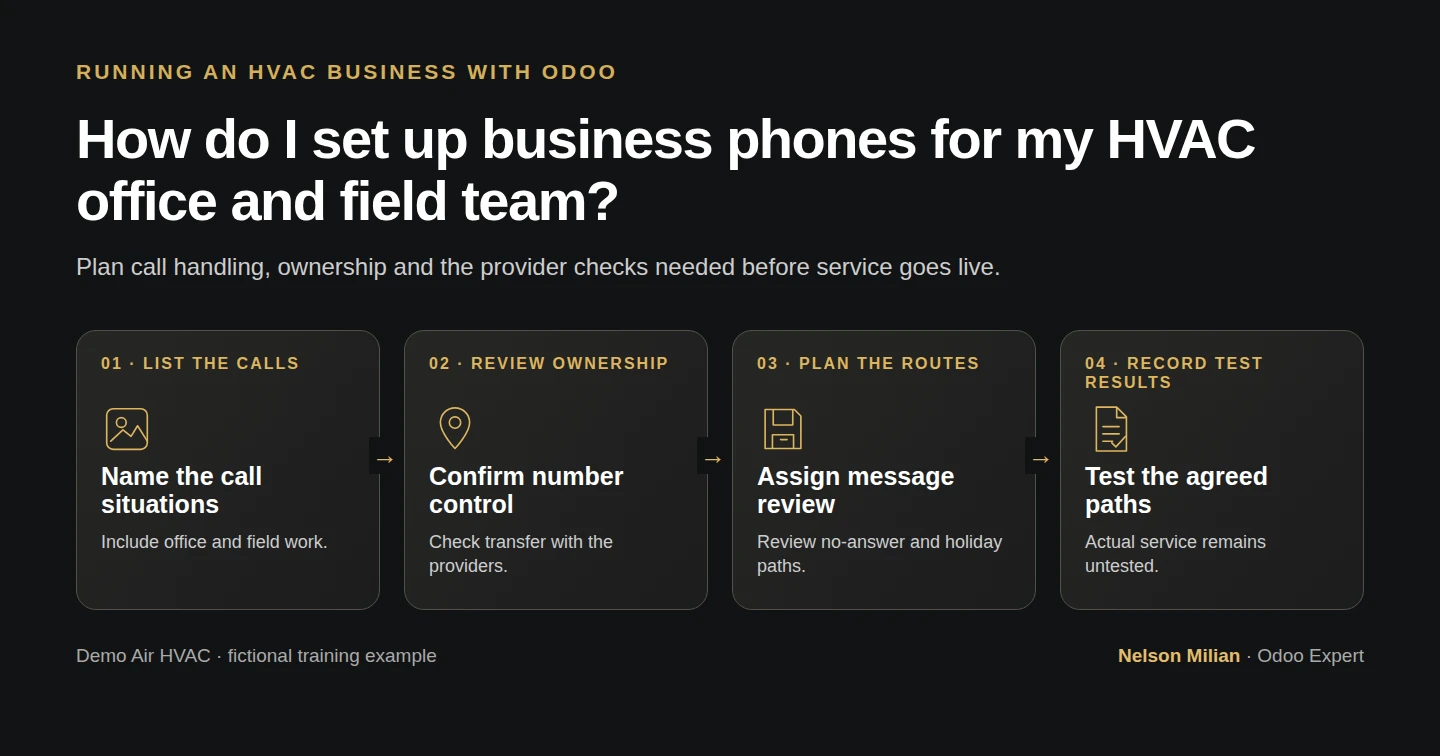
Plan an HVAC business phone system around number ownership, office and field calls, voicemail, provider requirements and acceptance tests.
Set up a business phone system by deciding who answers, what happens when nobody answers and how the company keeps control of its number. Then choose a service that supports the agreed call paths, configure it and test those paths before relying on it.
Alex is planning phones for Demo Air’s first office and its field work. He wants customers to reach the business while the office and technicians have clear responsibilities for answering and following up. Alex Rivera and Demo Air HVAC are fictional teaching examples. No phone service, number, employee, operating schedule or provider account is created in this guide.
Before you begin
Start with the office-opening requirements and the internet and Wi-Fi plan. Have the intended office and field roles, proposed work locations and call-handling responsibilities available.
The checked result here is a call-handling and acceptance plan. A selected provider and administrator must still configure and test the actual service. Microsoft documentation below supplies examples of decisions to verify; no platform is selected for Demo Air.
Open the blank phone worksheet in a spreadsheet application you already have. The filled example contains proposed requirements with every result marked Not exercised. Keep actual account, number-transfer and credential details in your private business records.
Build the call-handling plan
Step 1. Record the people and situations the service must support
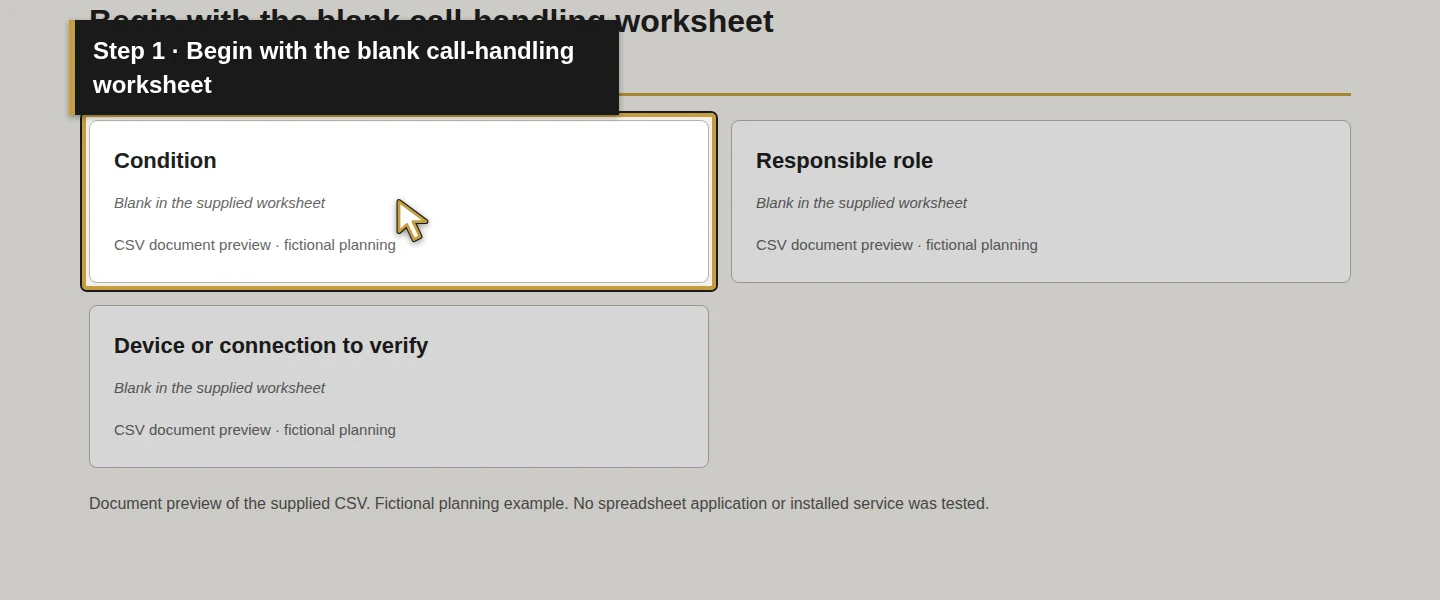
Save a working copy of the blank worksheet. Fill Condition, Responsible role and Device or connection to verify for the calls you expect.
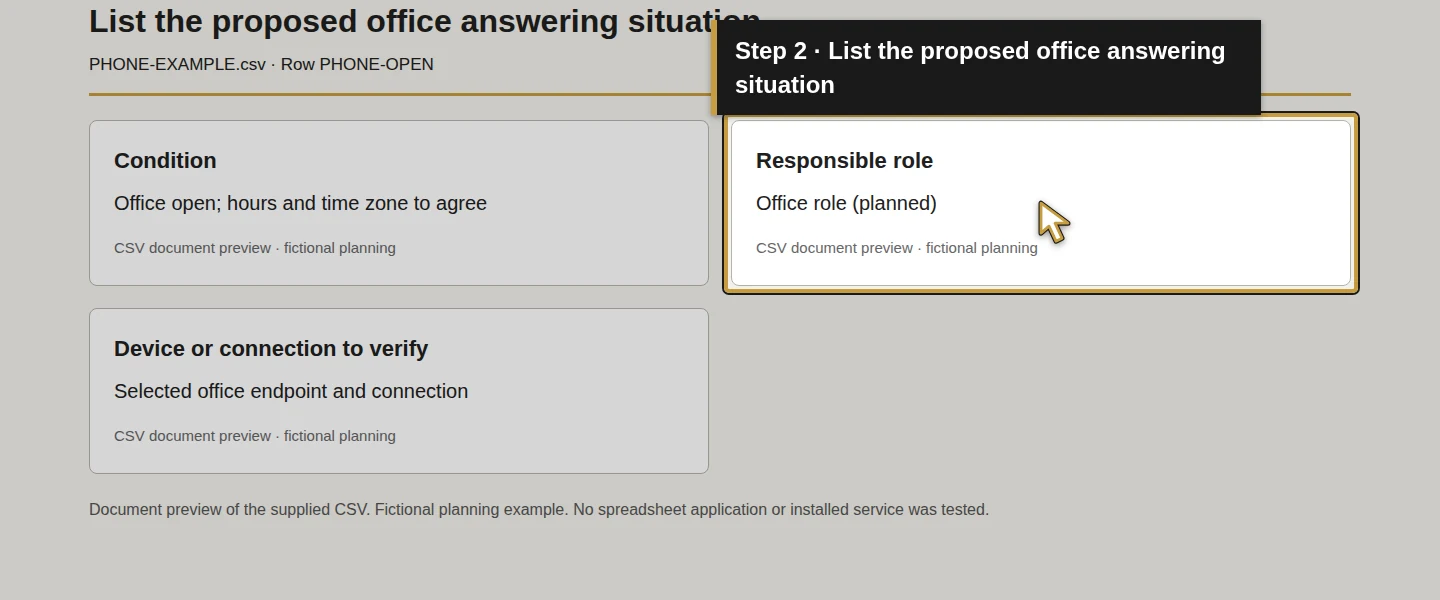
List office answering, a busy or unanswered office, after-hours and holiday calls, a transfer to a technician, outgoing business calls and an office connection outage. Include the ownership/possible-transfer and emergency-location review rows as administration work.
Record the business hours and time zone that the responsible person actually agrees. The example leaves that schedule unresolved. A phone-system setting cannot decide when your company offers service or who is responsible for a message.
Step 2. Confirm number ownership and possible transfer
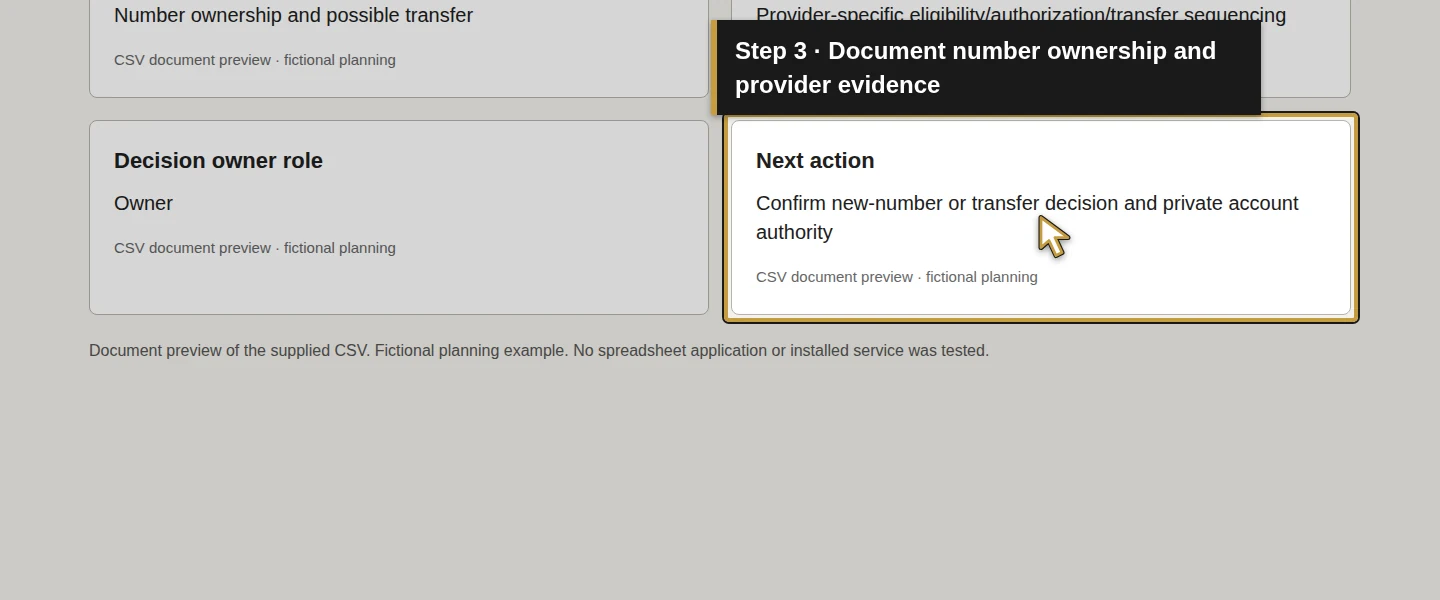
In the Number ownership and possible transfer row, identify who is authorized to manage the business account and whether the company needs a new number or wants to transfer an existing one.
Have the current and proposed provider confirm eligibility, required records, authorization, transfer sequencing and what happens to the existing service. Microsoft’s published porting process illustrates the need for matching provider records and authorized-user information. Use the actual providers’ confirmed process and completion status before changing the old service. Number-transfer guidance.
The example contains no telephone number, provider account, transfer date or eligibility result. Record the decision and private evidence when available; the worksheet is not a submitted transfer request.
Step 3. Define office answering, busy and no-answer paths
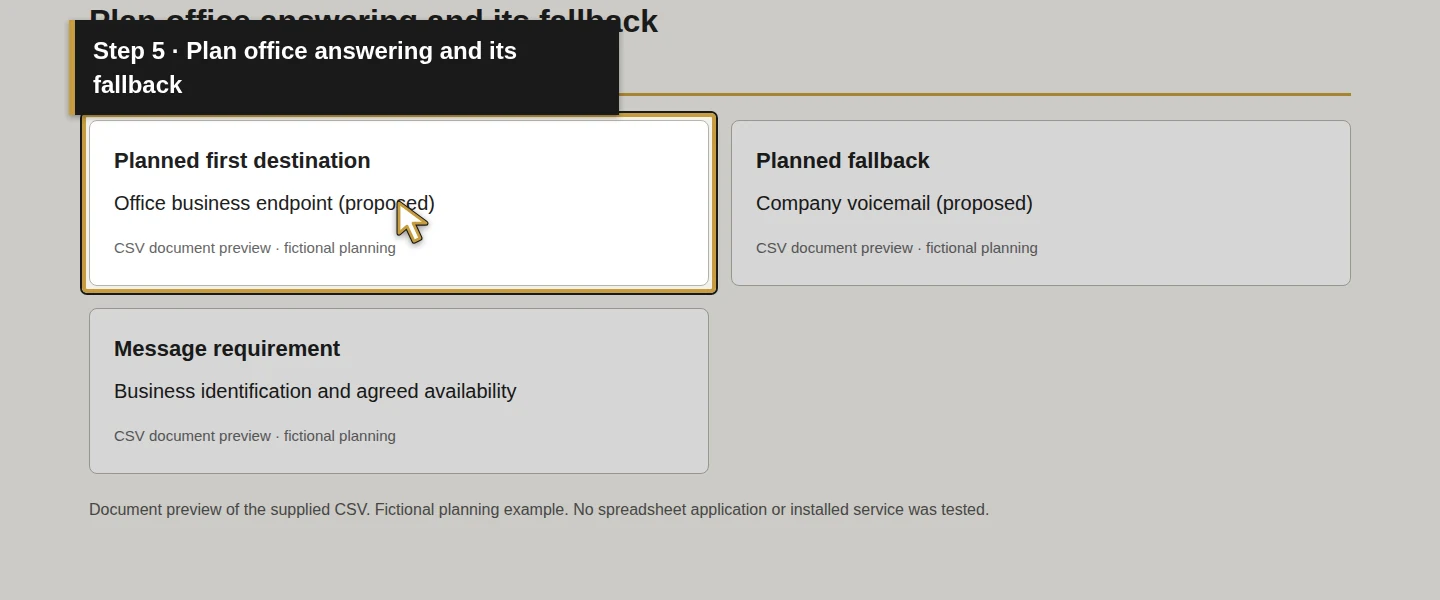
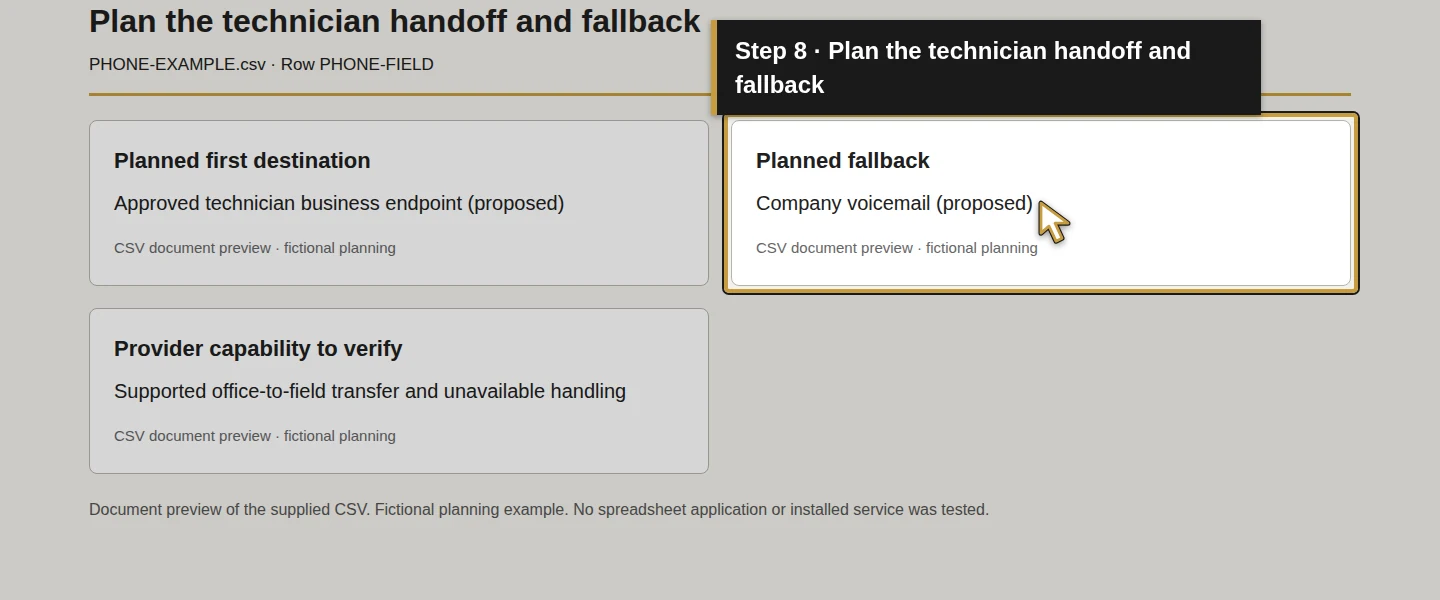
Fill Planned first destination, Planned fallback and Message requirement for each situation. Use a destination that the business will control and a role that will review the result.
Scroll the table to view all columns on a small screen.
| Situation | Demo Air’s proposed first destination | Proposed fallback or follow-up |
|---|---|---|
| Office open | Office business endpoint | Company voicemail if unanswered |
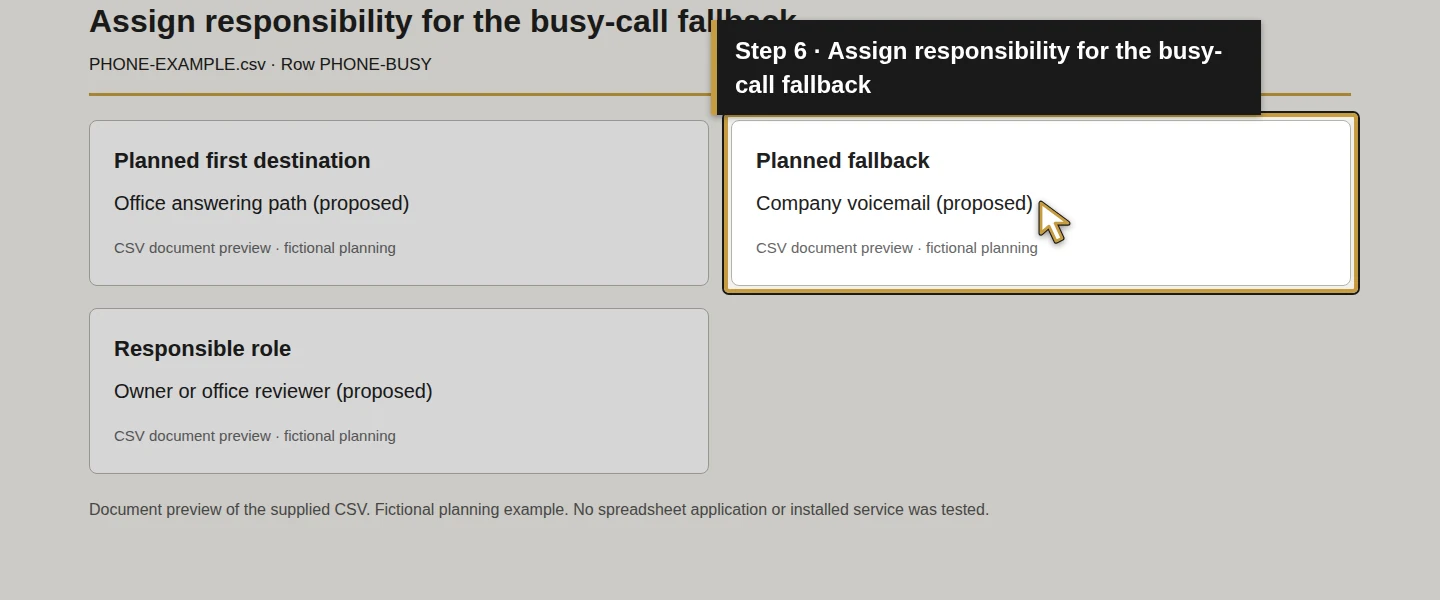
| Office busy or unavailable | Agreed office answering path | Company voicemail with an assigned reviewer |
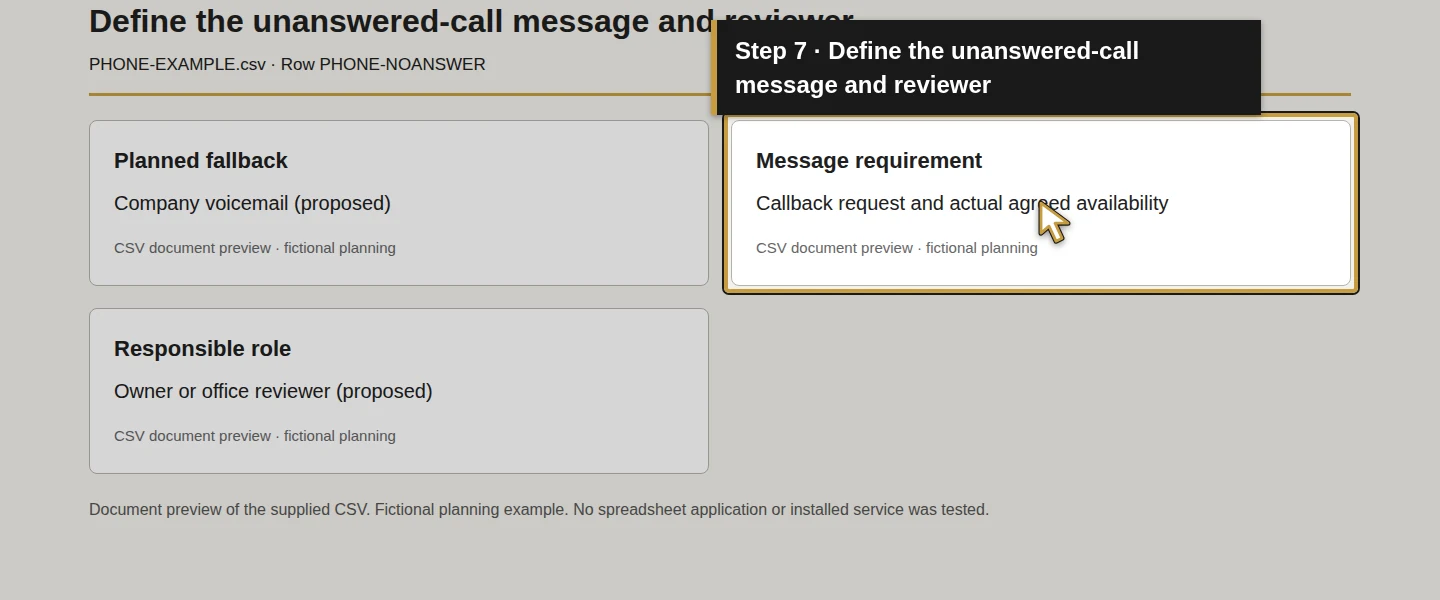
| No answer | Intended office endpoint | Company voicemail with an assigned reviewer |
| Technician handoff | Approved business endpoint for the technician | Company voicemail if the handoff cannot be completed |
These are proposed paths, not configured routes. The sample chooses company voicemail as its proposed fallback while the actual service decision remains open. Define how a colleague gets the customer’s request as well as how the call reaches a device.
Microsoft’s call-design guidance distinguishes business-hours routing, queue overflow, timeout and unavailable-agent handling. These are useful questions for a provider comparison; your business may need a simpler service rather than those particular product features. Call-flow planning.
Step 4. Assign voicemail, after-hours and holiday responsibility
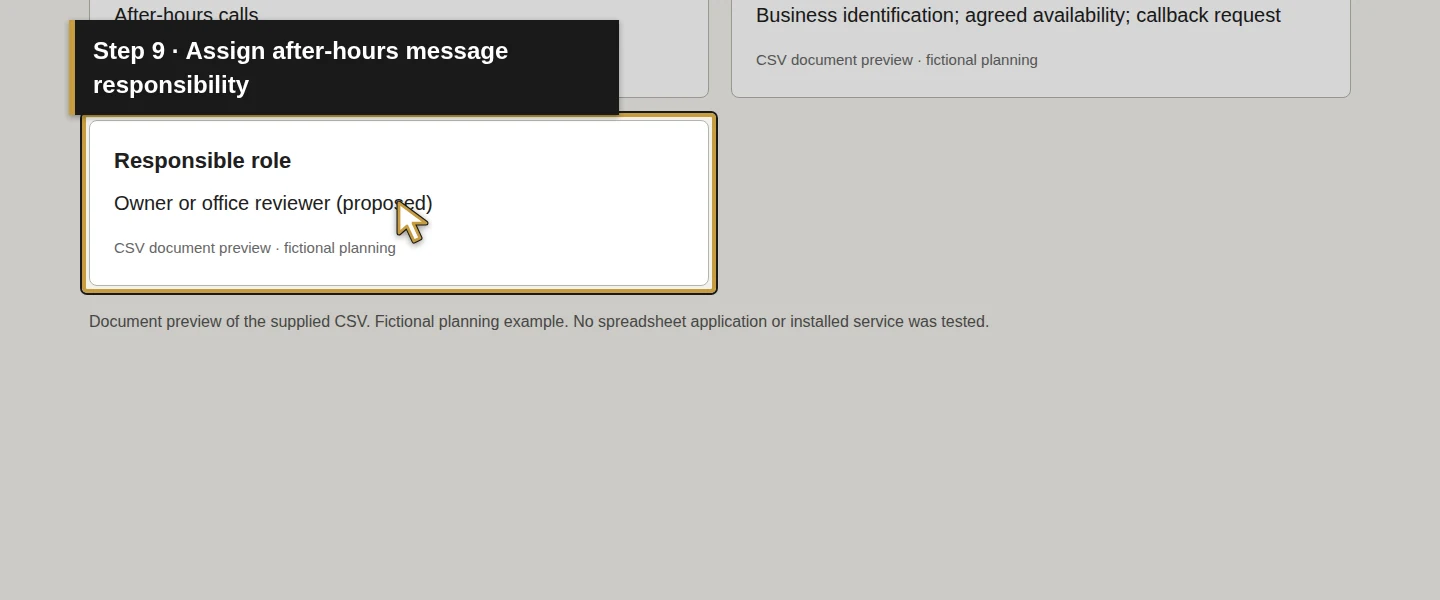
Review the After-hours calls and Holiday calls rows. Specify the proposed message and destination, who may access the mailbox and who will review it. Agree the actual review arrangements before making a response promise.
Use a greeting consistent with the company’s actual hours and service scope. The sample records only a message requirement—business identification, agreed availability and a callback request. It records no emergency-response or round-the-clock service commitment.
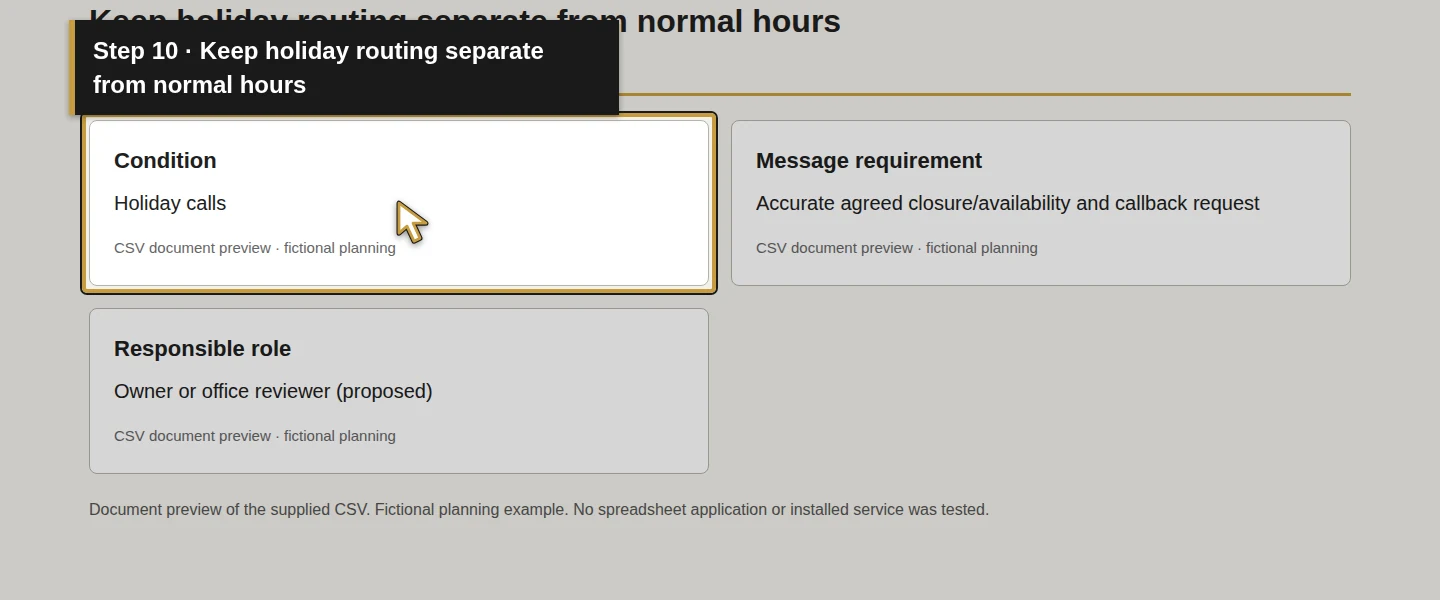
Review holiday dates separately from the ordinary schedule. Microsoft documents distinct after-hours and holiday routing in its platform; confirm the equivalent behavior and licensing in the service you choose. Call-flow planning.
Step 5. Check devices, outbound identity and service limits
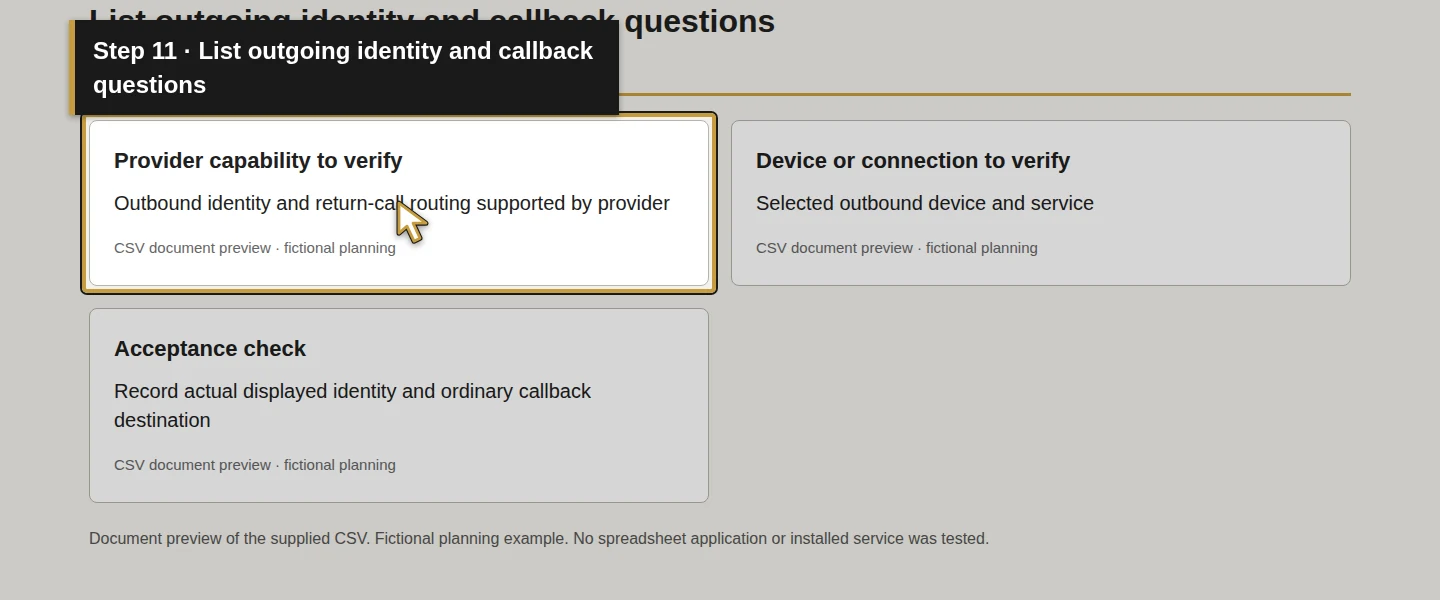
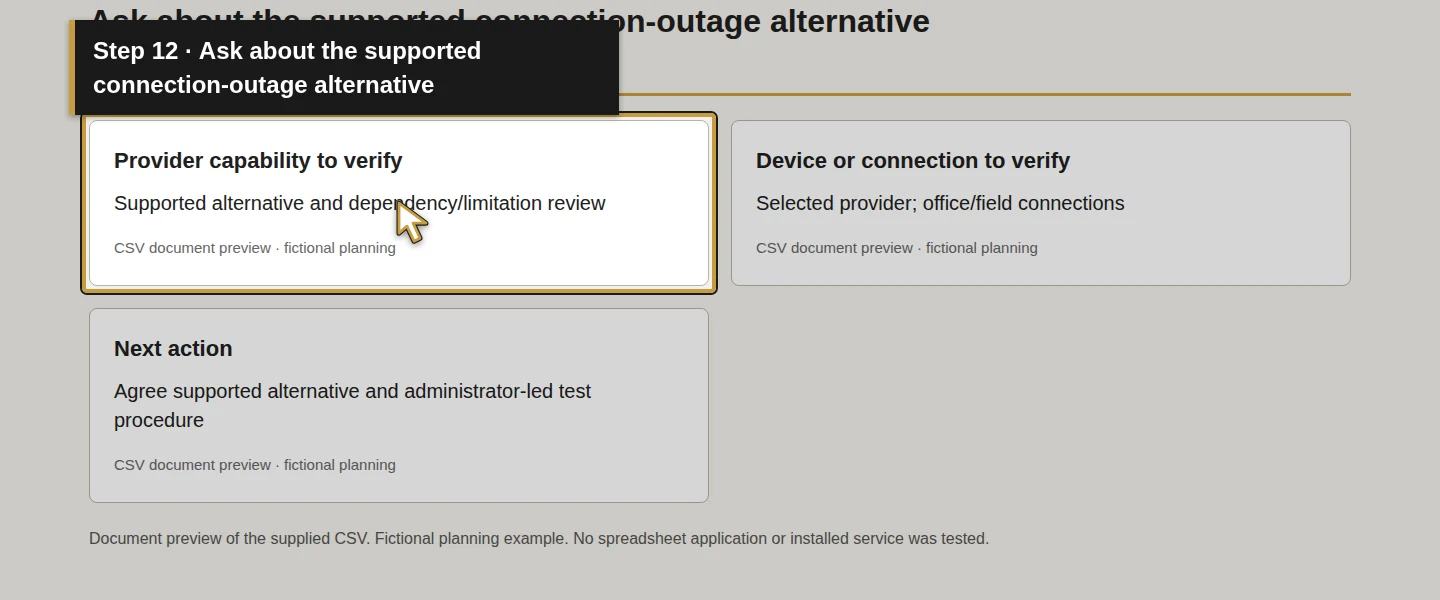
In Provider capability to verify, write what the selected plan must support. Include the agreed office/field destinations, transfers, voicemail access, outgoing business identity, compatible devices and connection requirements. Record included features and charges from the actual proposal.
For Outgoing business calls and callbacks, ask what number is presented and what happens when the customer calls back. For Office connection outage, ask which alternative is supported and under what conditions. An app, desk phone or forwarding option is a product choice; no device count or feature is assumed here.
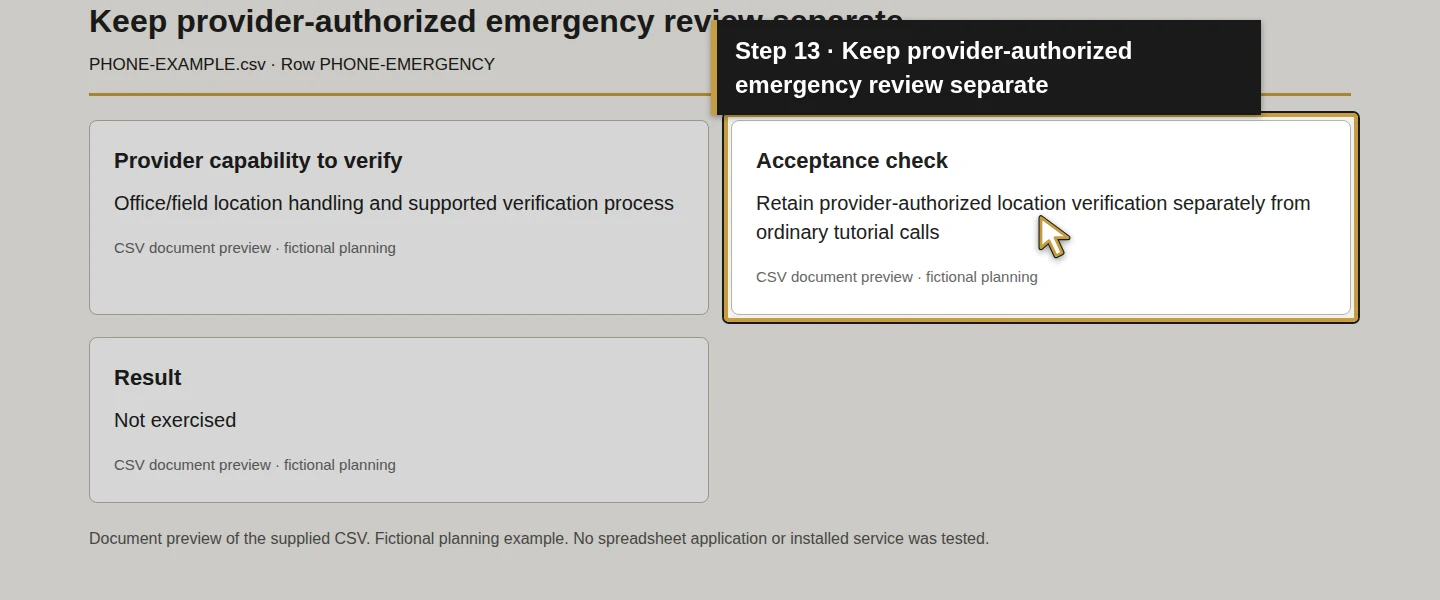
Use the Emergency-calling location review row to ask the selected provider how office and field locations are handled and which supported verification process applies. Microsoft’s documentation illustrates that location and calling arrangement can affect that configuration. Follow the selected provider’s authorized verification procedure; ordinary tutorial calls do not establish emergency routing. Emergency-location planning.
Step 6. Review the scope, configuration and handover
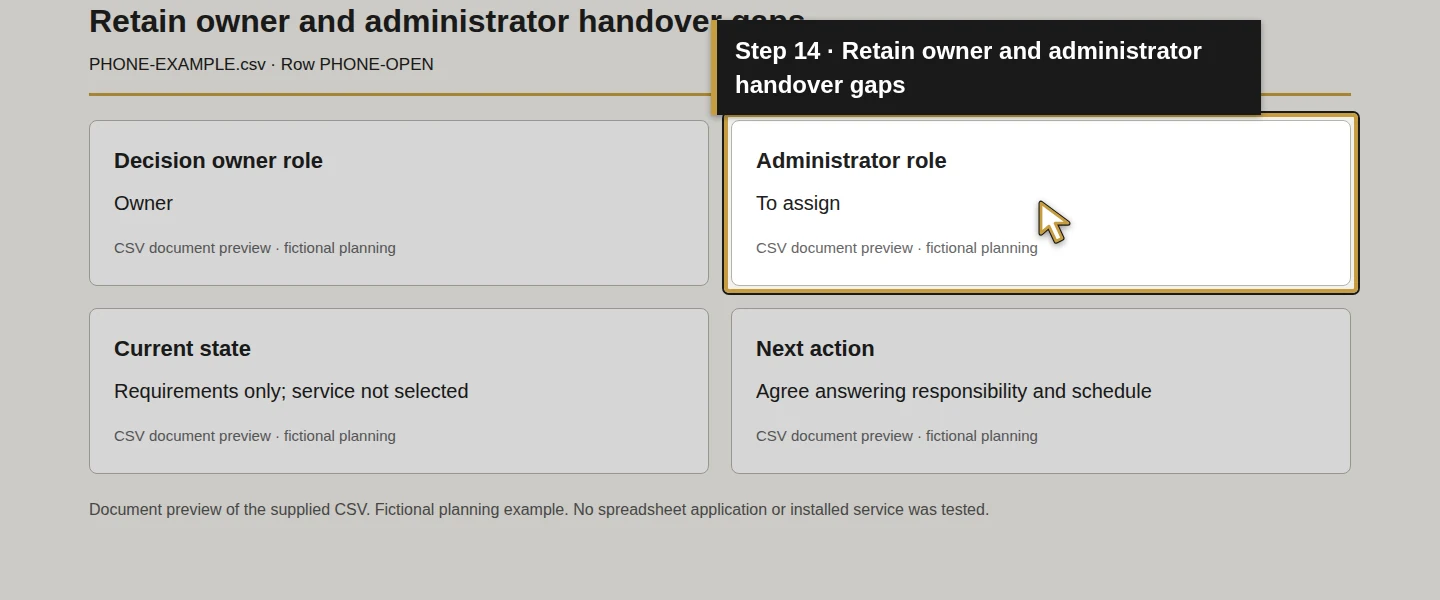
Fill Decision owner role, Administrator role, Current state and Next action. Have the responsible person review the number, service, devices, call paths, permissions, charges, support and transfer arrangements before authorizing the work.
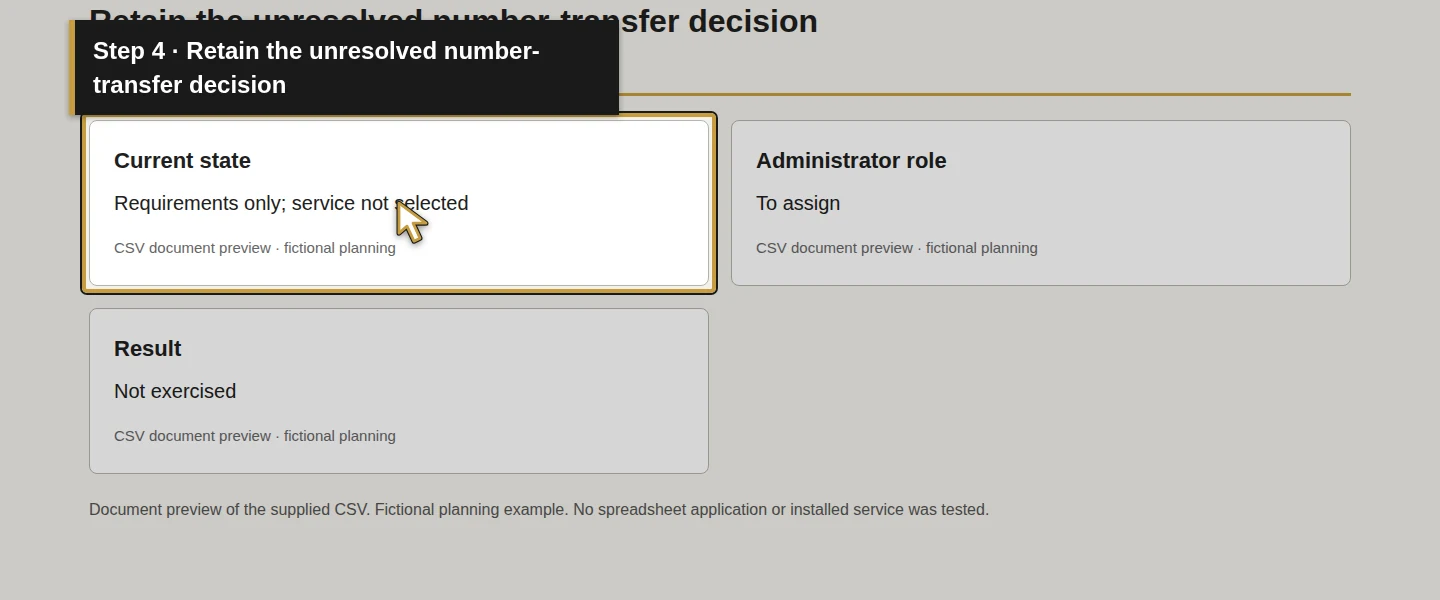
The selected administrator then applies the agreed configuration and records the private handover information. Keep business ownership, administrator access and staff use distinct. The example leaves the administrator To assign and state Requirements only; service not selected.
Confirm how access will be removed when responsibilities change, who reviews voicemail and who handles failed calls. No provider setup, purchase, account change or number transfer has occurred in this tutorial.
Step 7. Exercise the agreed paths and record actual results
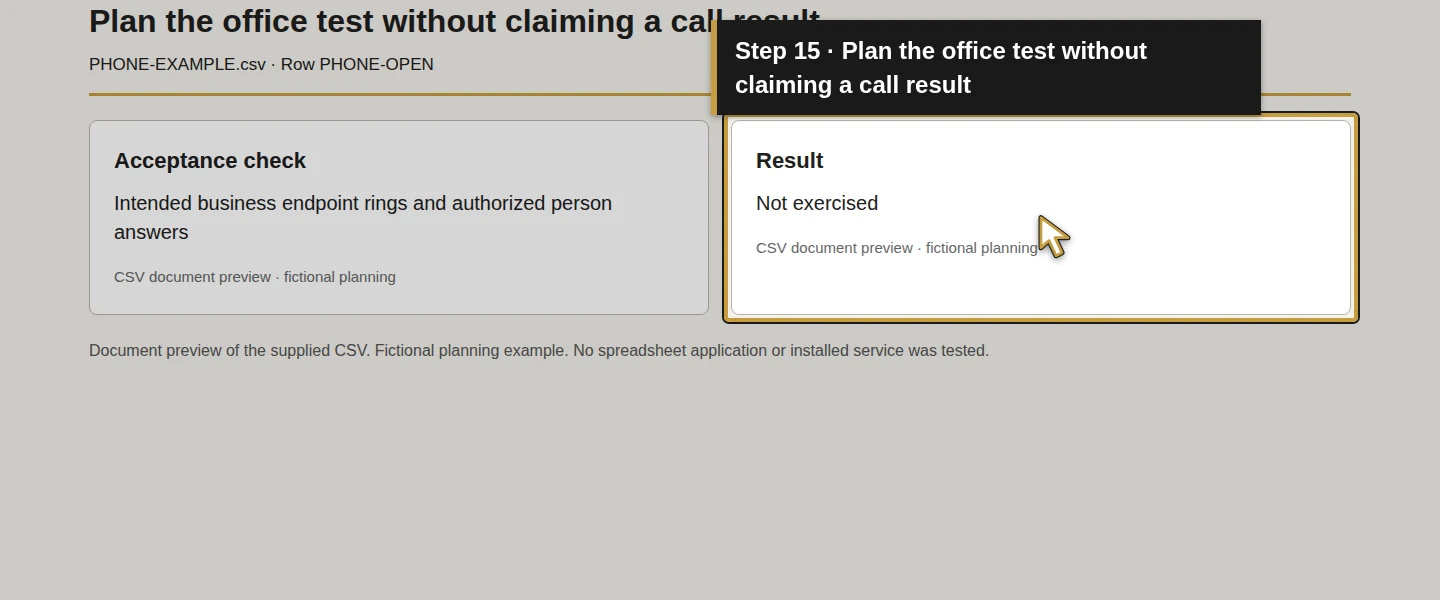
After a service is configured, use Acceptance check and Result to record approved ordinary test calls. Keep synthetic caller details and business information in the exercise.
Scroll the table to view all columns on a small screen.
| Test situation | Result to observe after setup |
|---|---|
| Office open | The intended business endpoint rings and an authorized person can answer. |
| Busy and no answer | The caller reaches the agreed fallback, and the assigned reviewer can retrieve the test message. |
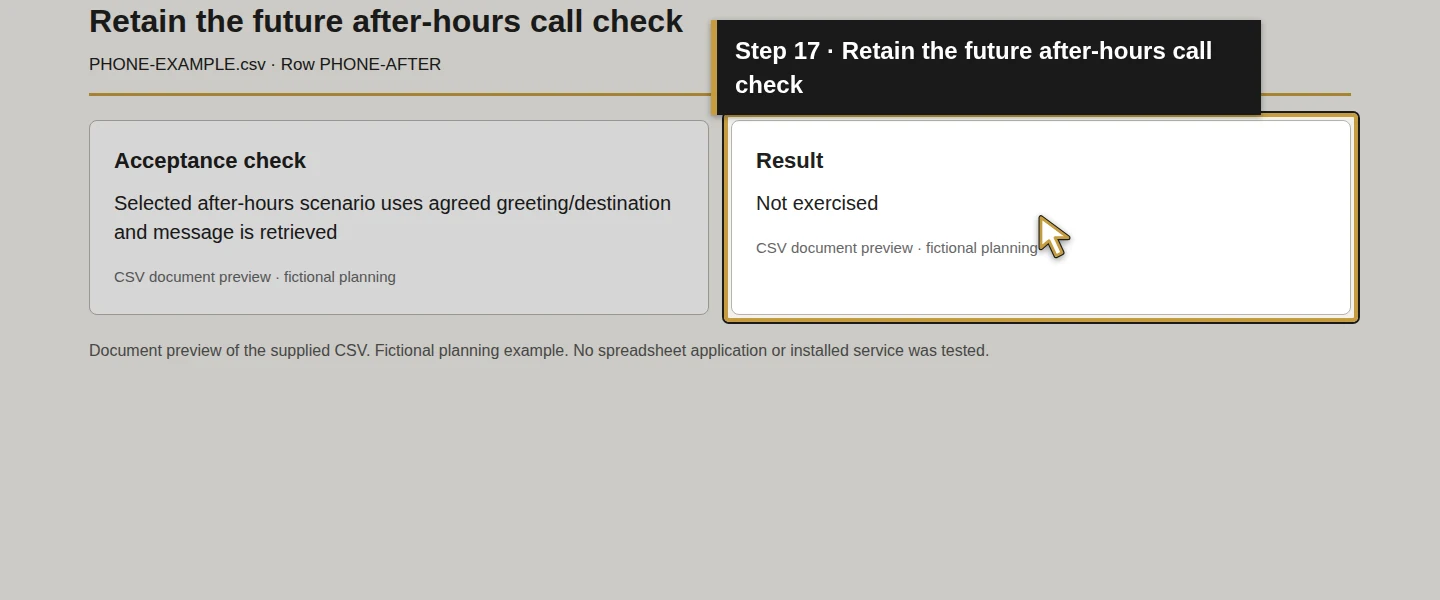
| After-hours and holiday | Each selected schedule uses the intended greeting and destination. |
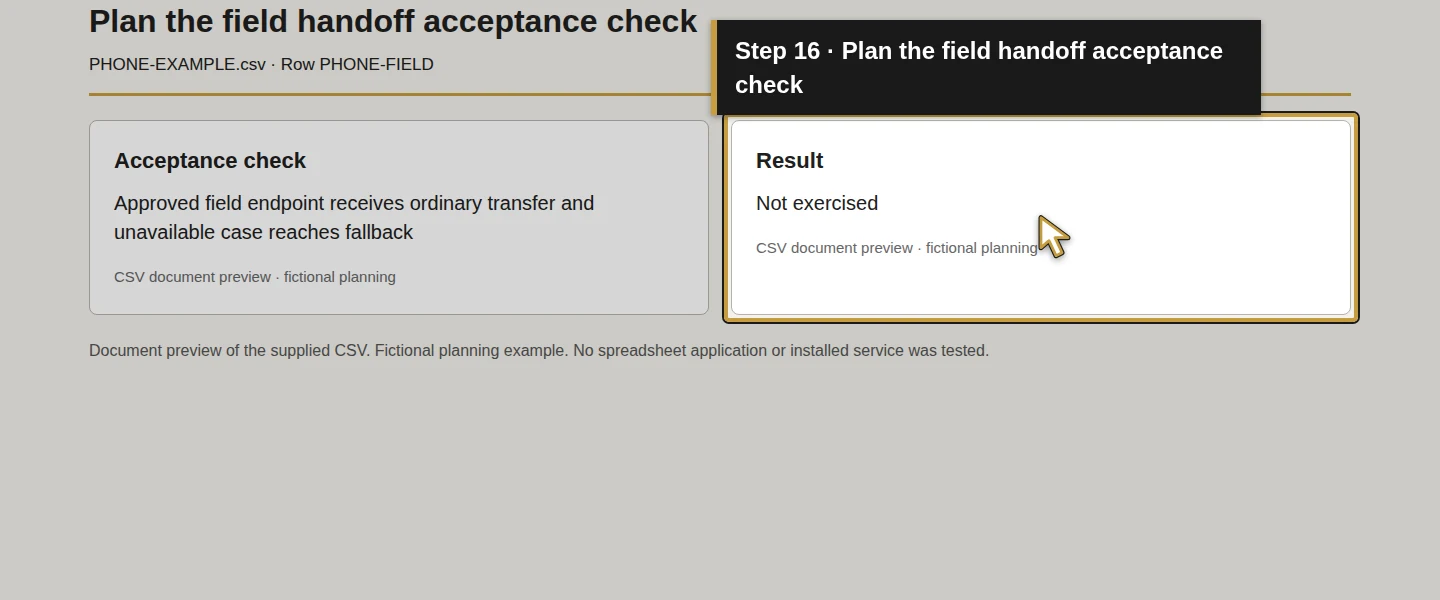
| Technician handoff | The approved field endpoint receives the transfer; an unavailable endpoint follows the agreed fallback. |
| Outgoing identity | Record what the test recipient actually sees and whether a callback reaches the intended business path. |
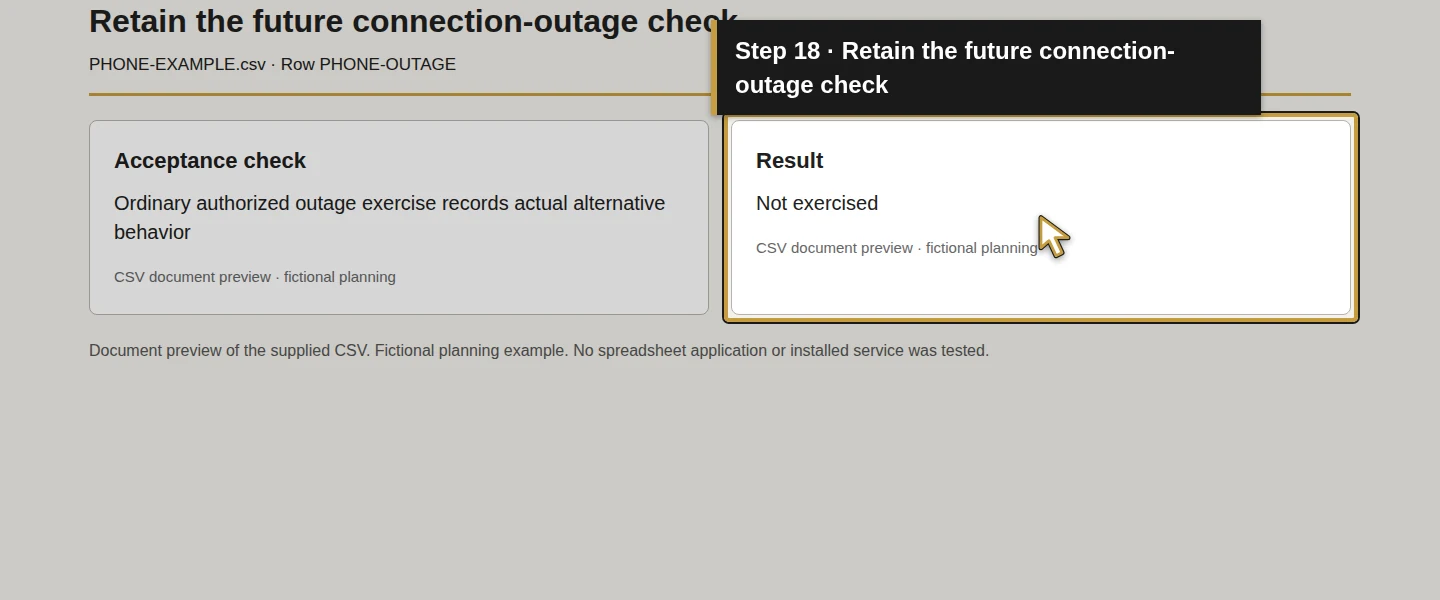
| Connection outage | Follow the administrator’s agreed test procedure and record the provider-supported alternative’s actual behavior. |
Keep provider-authorized emergency-location verification separate from these ordinary calls. This guide performs neither kind of test and makes no emergency-routing claim.
All ten sample worksheet results remain Not exercised. Record an actual failure or unresolved destination with its owner and next action. A completed planning sheet or provider feature list does not supply a successful call result.
Check the plan
Save and reopen the sheet. Each situation should have a condition, proposed destination/fallback, responsible role, provider/device questions, next action and a future acceptance check.
The supplied example has been checked for those fields, valid related-guide references and agreement with the seven written steps. It contains no actual phone number, configured account, completed transfer or call result.
Keep the phone process connected to office work
Agree how a customer’s request reaches the person handling the enquiry and how a message is followed up. Use the existing Odoo qualification workflow where a manual record is appropriate. This phone plan establishes no automatic Odoo record creation, call logging or phone integration.
Frequently asked questions
Can I keep my existing HVAC business phone number?
Ask the current and proposed provider to confirm eligibility, account authorization, required records and transfer sequencing. Follow their confirmed process before changing the existing service. The example has no selected number or transfer result, and a provider’s documented porting process is not a guarantee that your number is eligible.Can one business number ring the office and field team?
Make the intended office/field call path a requirement, then verify the selected service, plan, devices and connection support it. Specify who answers first, when a technician receives a handoff and what happens if nobody answers. Test the configured result; this planning guide has not exercised simultaneous ringing, forwarding or transfers.Will my business phone system integrate with Odoo?
Phone-to-Odoo integration is outside this stock Odoo tutorial series. Buying phone service does not establish a working integration. The demonstrated Odoo workflows remain separate; record the enquiry manually when appropriate and keep any proposed integration outside this guide’s claims.Continue building the business
Next, review Which computers and tablets does my HVAC business need? against the office and field tasks.
Plan your office technology
Bring your call-handling requirements, device needs and number-ownership questions to Onward to discuss the selected work and written scope. Plan your office technology.