
Running an HVAC business with Odoo
How do I set up internet and Wi-Fi for an HVAC shop?
Plan an HVAC shop's internet and Wi-Fi around work areas, devices, account ownership and the checks needed before opening.
For an HVAC shop, business network setup starts with the work areas and devices that need a connection. Check internet service at the premises, plan wired and wireless access, document who manages it, then test the installed result where staff will actually work.
Alex is planning an office, parts area and workbench for Demo Air HVAC. He wants the office to prepare quotations while shop staff can look up parts and upload a training job photo. Alex Rivera and Demo Air HVAC are fictional examples. The areas and requirements below are proposed teaching examples, with no measured premises, selected provider or installed network.
Before you begin
Start with the office-opening checklist, a proposed floor plan and a list of the devices and applications you expect to use.
This guide’s checked result is a network requirements and acceptance plan. It does not demonstrate router settings, install internet service or test physical Wi-Fi coverage. Exact configuration belongs to the selected equipment, administrator and agreed scope. All sample acceptance results remain Not exercised.
Use the blank network worksheet in a spreadsheet application you already have. The filled Demo Air example shows how to record the requirements. Keep network credentials and private configuration in your authorized administration records.
Plan the network and its acceptance checks
Step 1. Mark the places where work needs a connection
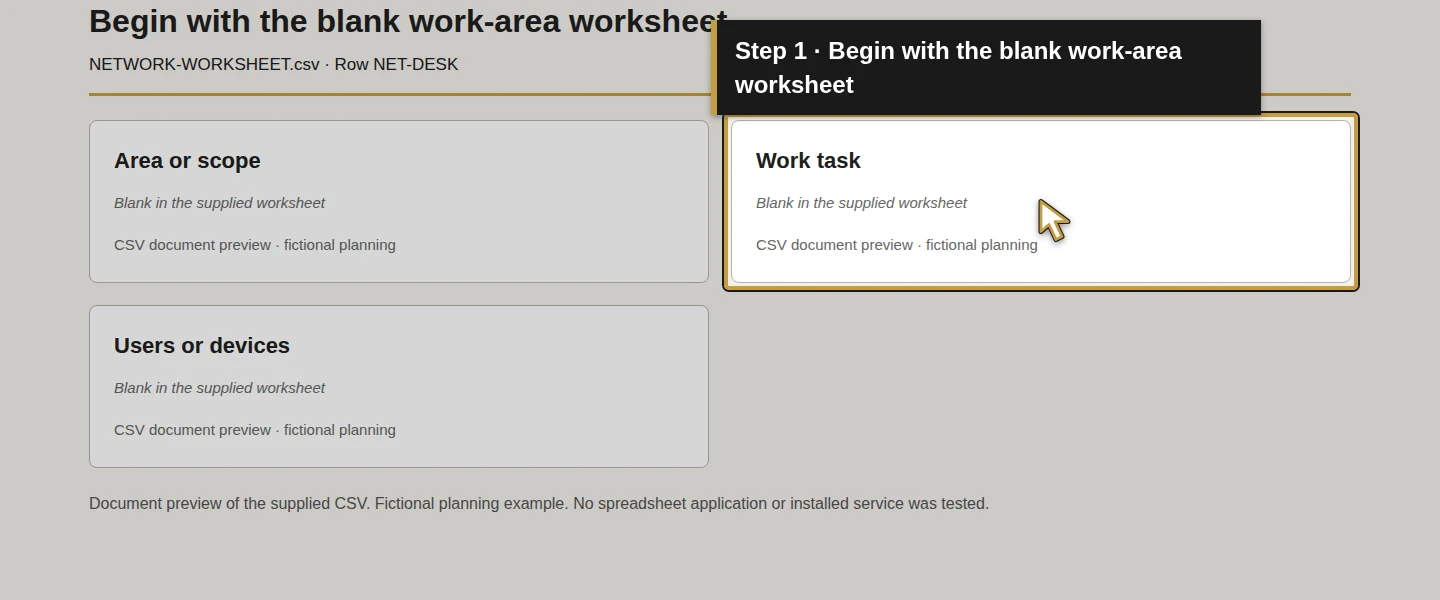
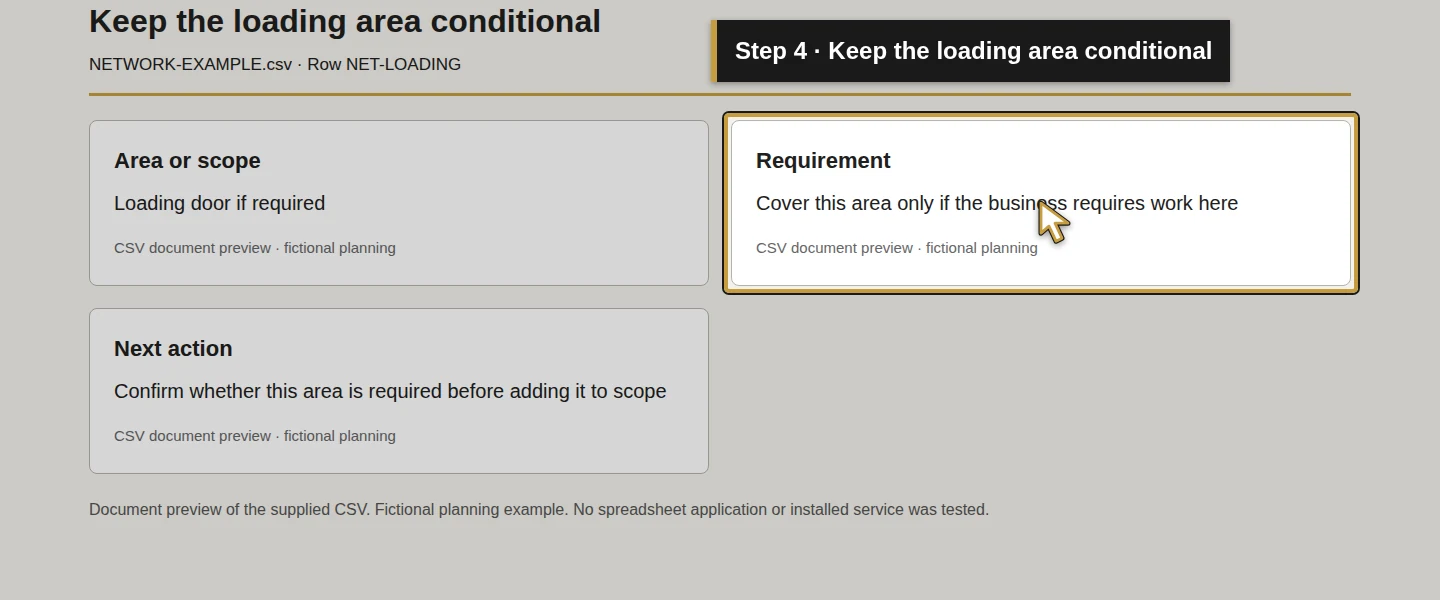
Open the blank worksheet. Fill Area or scope, Work task and Users or devices against your actual floor plan. Include the internet handoff, desk locations, parts shelves and workbench. Add loading or outdoor areas only when business work genuinely needs connectivity there.
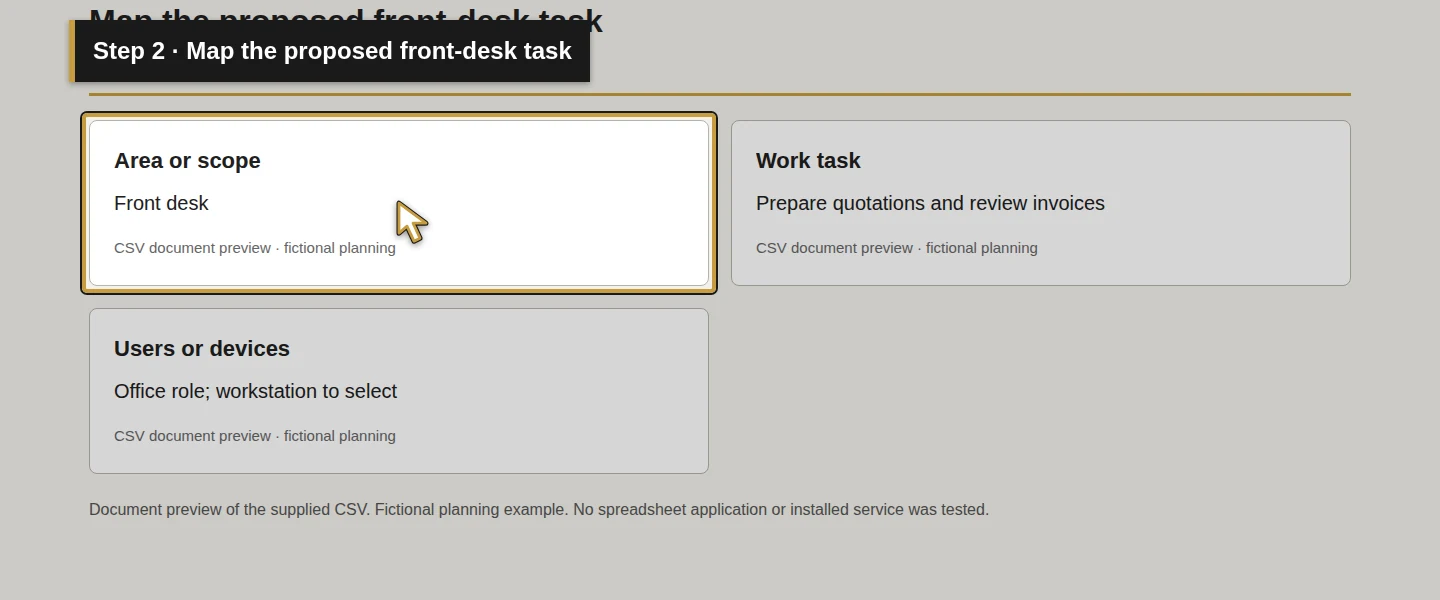
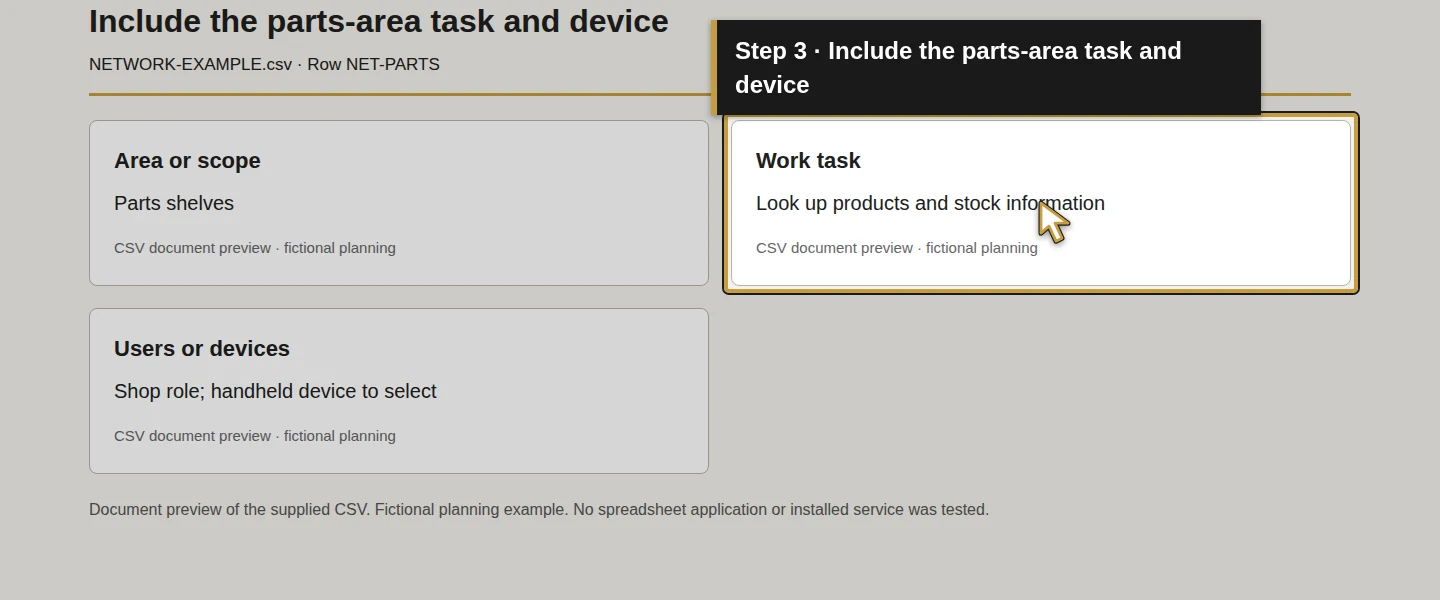
Alex’s example starts with these areas:
Scroll the table to view all columns on a small screen.
| Area | Proposed work | Connection to assess |
|---|---|---|
| Front desk | Prepare quotations and review invoices | Wired connection for the fixed workstation; Wi-Fi requirements reviewed separately |
| Parts shelves | Look up products and stock information | Wi-Fi with the intended handheld device |
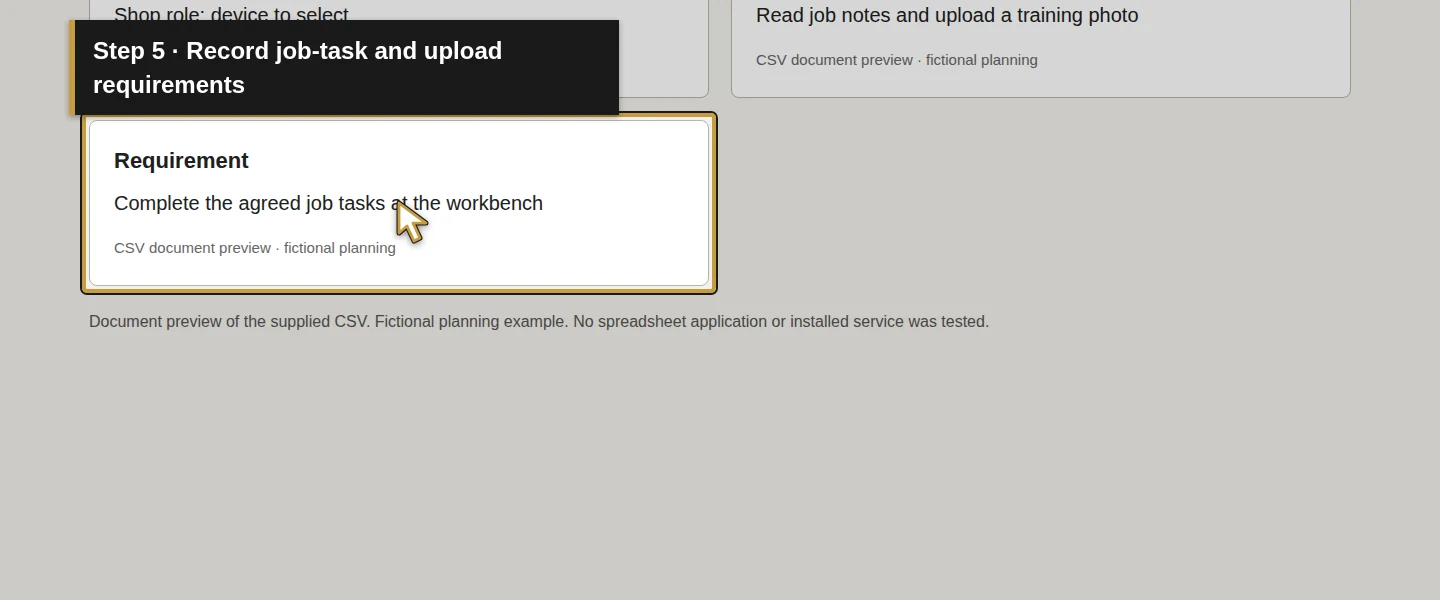
| Workbench | Read job notes and upload a training photo | Wi-Fi or a suitable wired workstation |
| Loading door | Update a job before leaving, if this work area is included | Coverage assessment at the actual required location |
| Visitor area, if offered | Visitor internet access | Separately controlled guest access |
| Network equipment location | Connect and administer the chosen equipment | Provider handoff, cabling, power and authorized management access |
Do not infer access-point positions or quantities from this list. The sample contains no room dimensions or measured building materials.
Step 2. Record what must work at the same time
Fill Requirement with the business tasks and the devices that will use the connection. Include office browser work, job-photo uploads and any proposed business-phone use. Note which tasks happen together so the designer can assess the combined requirement.
For a real shop, record actual device counts and the relevant application requirements. The sample leaves capacity, internet speed, access-point models and quantities undecided. A plan should show what needs to work before it proposes equipment.
Step 3. Confirm internet options for the exact premises
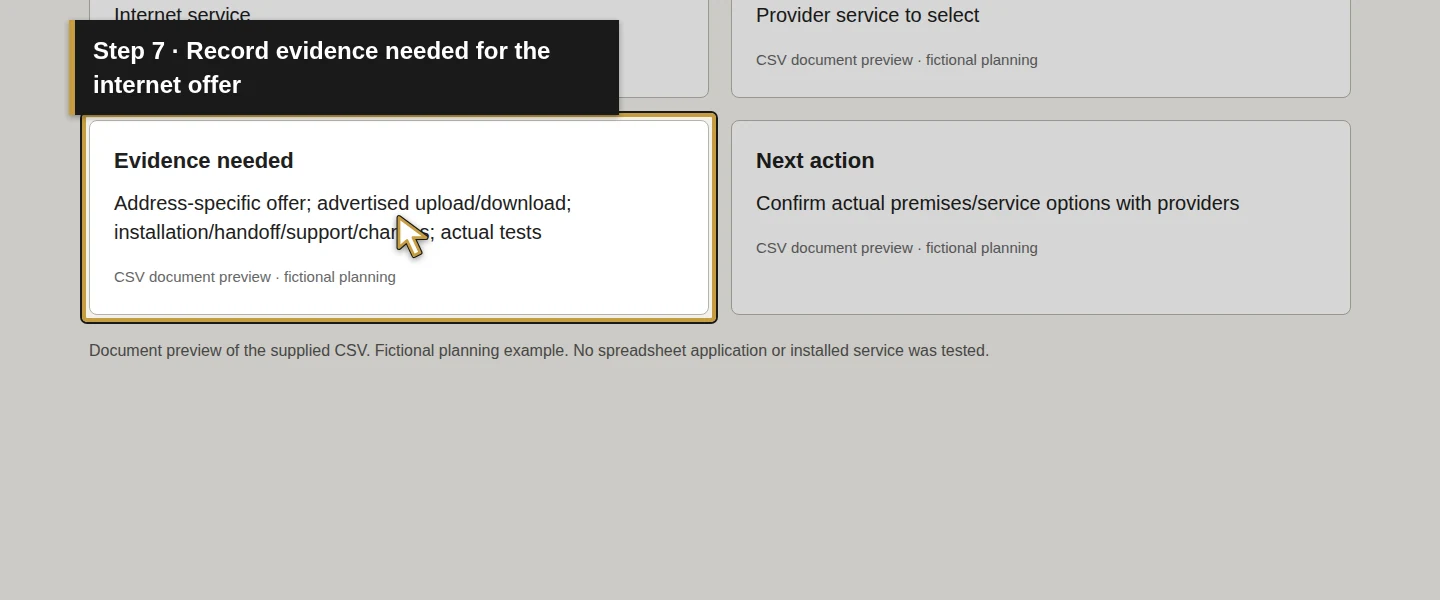
In the Internet service row, record the address that the provider must assess and the evidence still needed. Compare the offered connection type, advertised download and upload rates, installation work, handoff equipment, support arrangements and written charges.
The FCC’s National Broadband Map can help identify provider-reported options. The FCC explicitly distinguishes its availability data from measured network performance. Confirm the offer for the actual unit or premises with the provider before treating it as available. The fictional Demo Air sample makes no address lookup or provider claim. FCC availability guidance.
Keep the agreed service information separate from later test results. An advertised internet rate does not establish Wi-Fi performance at the parts shelves; Ubiquiti’s wireless guidance makes that distinction as well. Wireless performance guidance.
Step 4. Review the cabling and Wi-Fi design
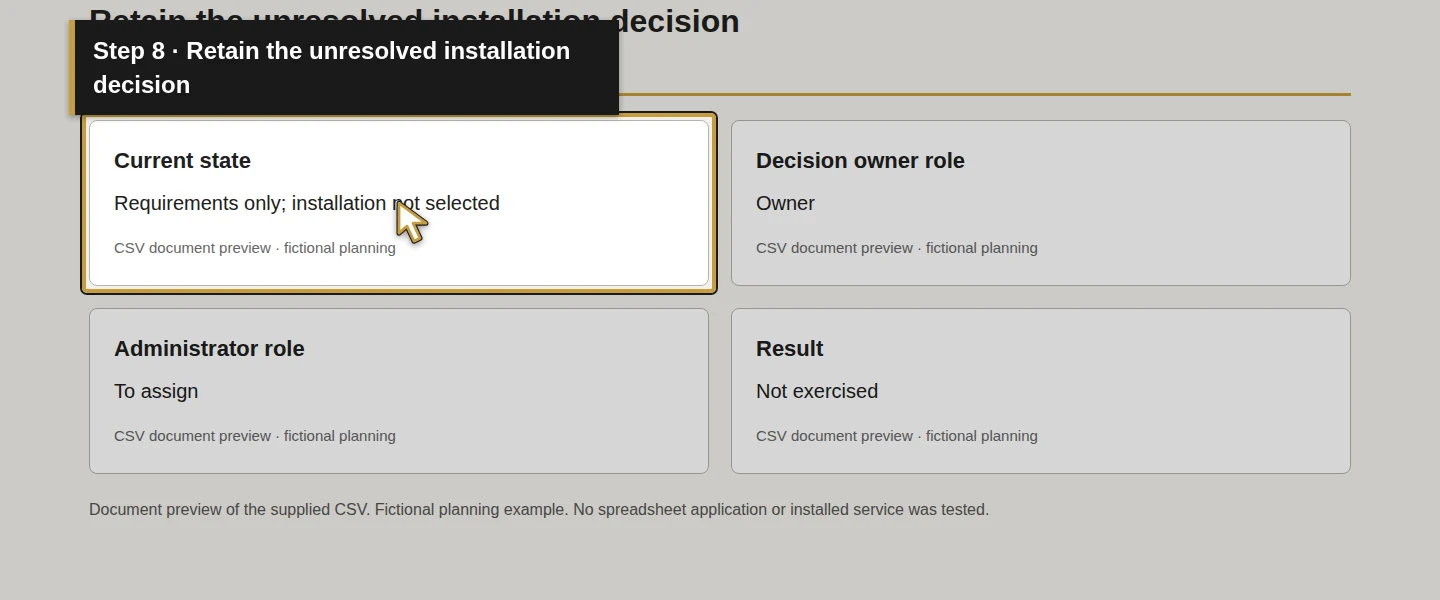
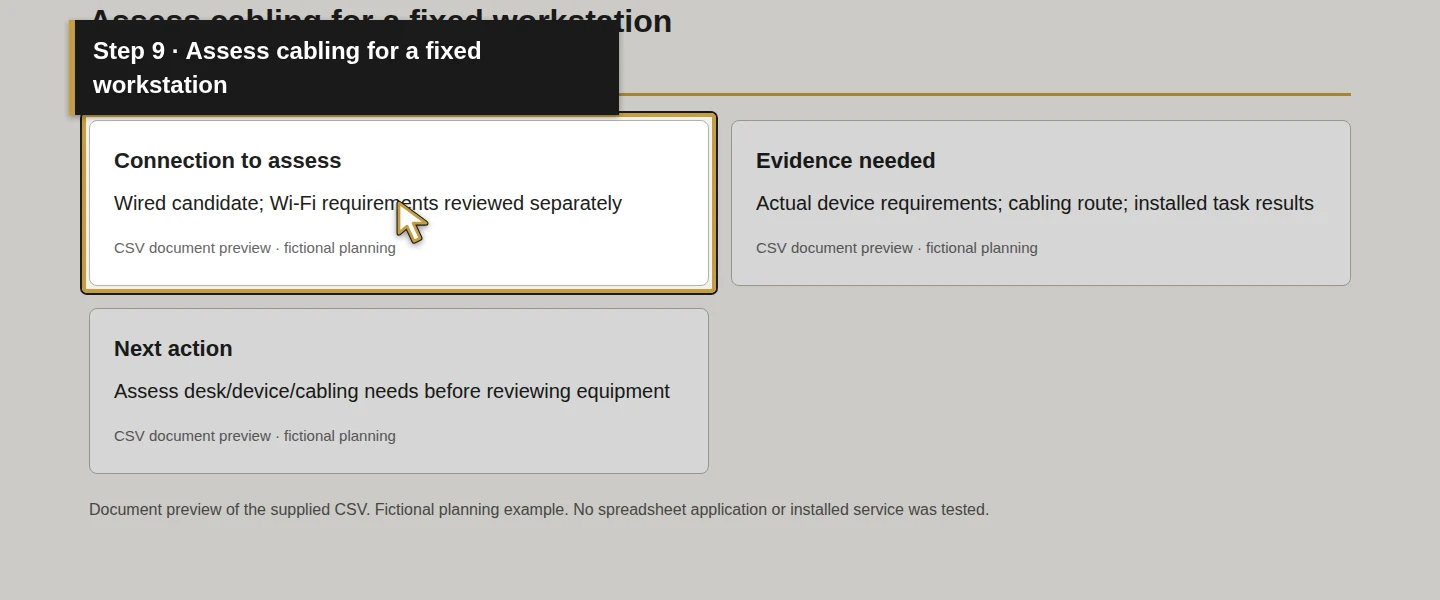
In Connection to assess and Evidence needed, identify fixed devices that could use cabling and mobile work areas that need Wi-Fi. Have the installer assess cable routes, equipment location, access-point placement and the intended client devices.
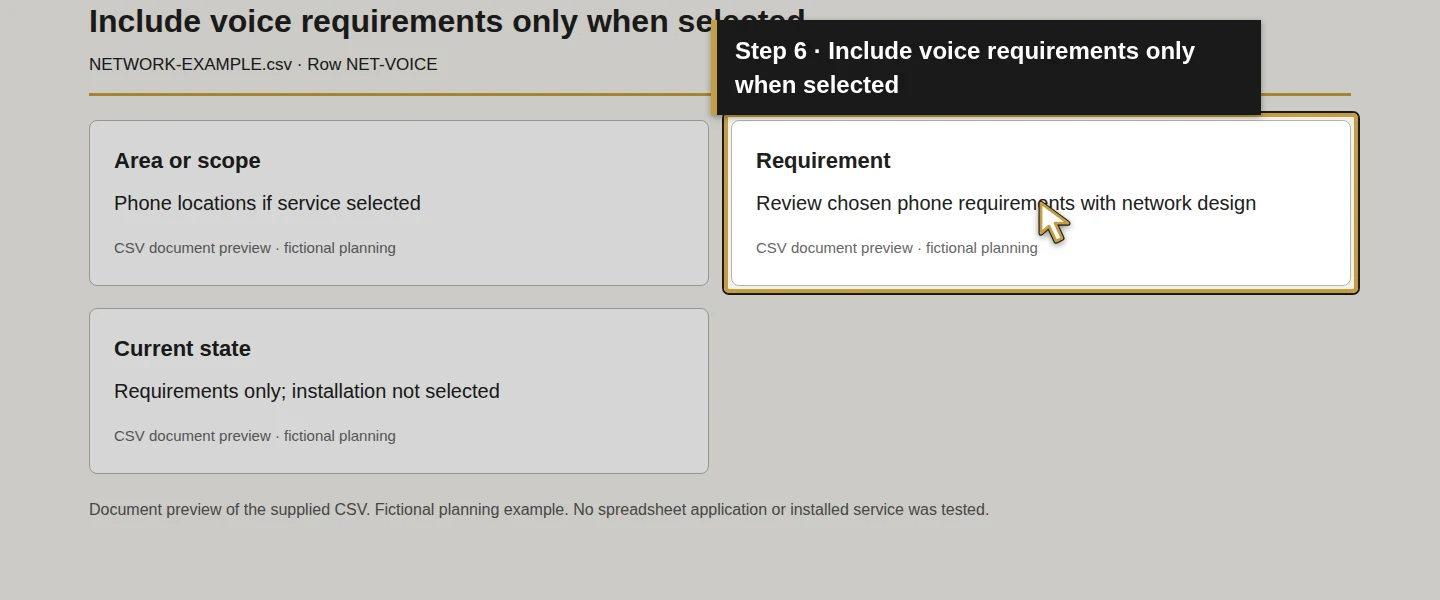
For the example, the desk is a wired candidate and the parts area needs a handheld-device assessment. Neither choice establishes a purchased device or completed cable run. Review voice equipment with the phone requirements rather than assuming every business phone will use the same connection.
Use a site assessment and the selected platform’s documentation to choose the design. Ubiquiti’s connectivity guidance calls for a site survey; its radio recommendations vary with the environment. This guide prescribes no universal channel, transmit power, signal threshold or access-point count. Site-survey guidance.
Step 5. Define staff, guest and administrator access
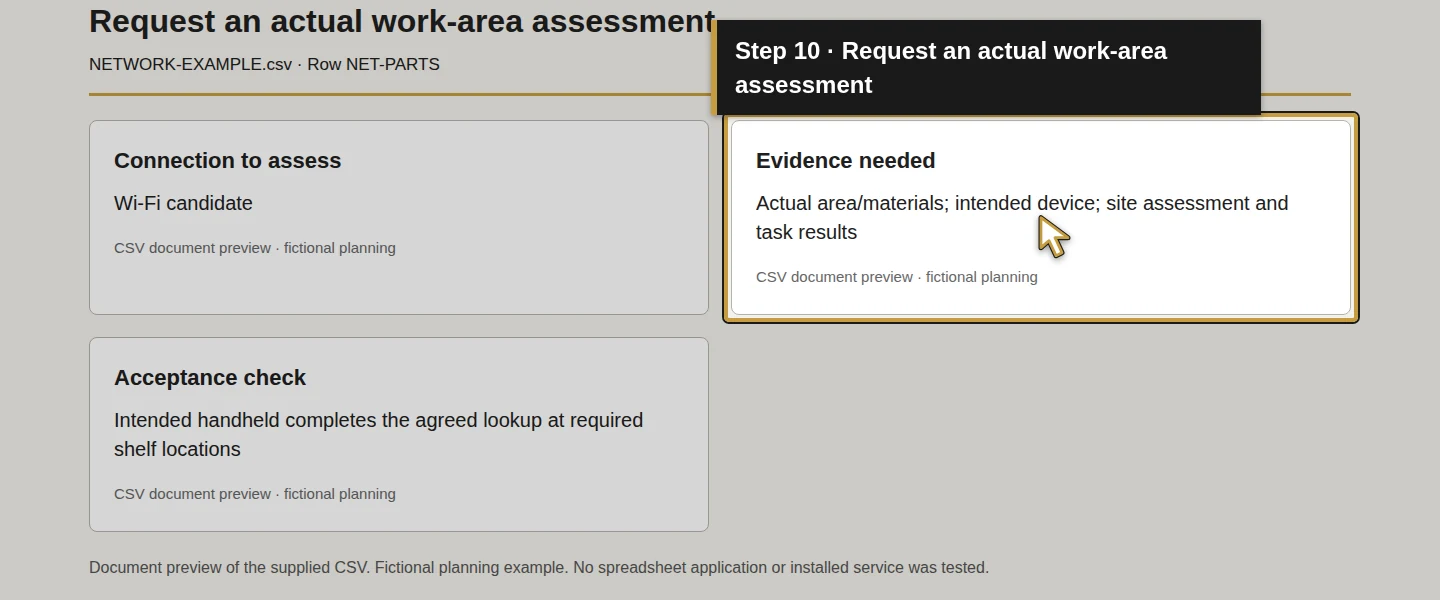
Fill the Visitor area if offered and Network equipment location and administration rows. State who may use business connections, whether guest access is required, which private systems guests must not reach and who may manage the network.
A different Wi-Fi name is not the acceptance result. As one documented product example, UniFi’s guest guidance separates network isolation from client and switch-level isolation. The chosen designer must select controls supported by the actual gateway, switches and access points, then check the required traffic paths. UniFi is a documentation example here; no platform is selected or configured. Guest-network guidance.
Write separate checks for guest internet access and prohibited access to private office devices or management interfaces. Public cloud applications still need their own account permissions; a LAN boundary alone does not establish that a guest cannot reach a public application’s sign-in page.
Step 6. Give the installer a clear configuration and handover brief
Save the requirements with the proposed layout and have the responsible person review the selected service, network design and installation scope. Record the agreed equipment and platform only after that choice is made.
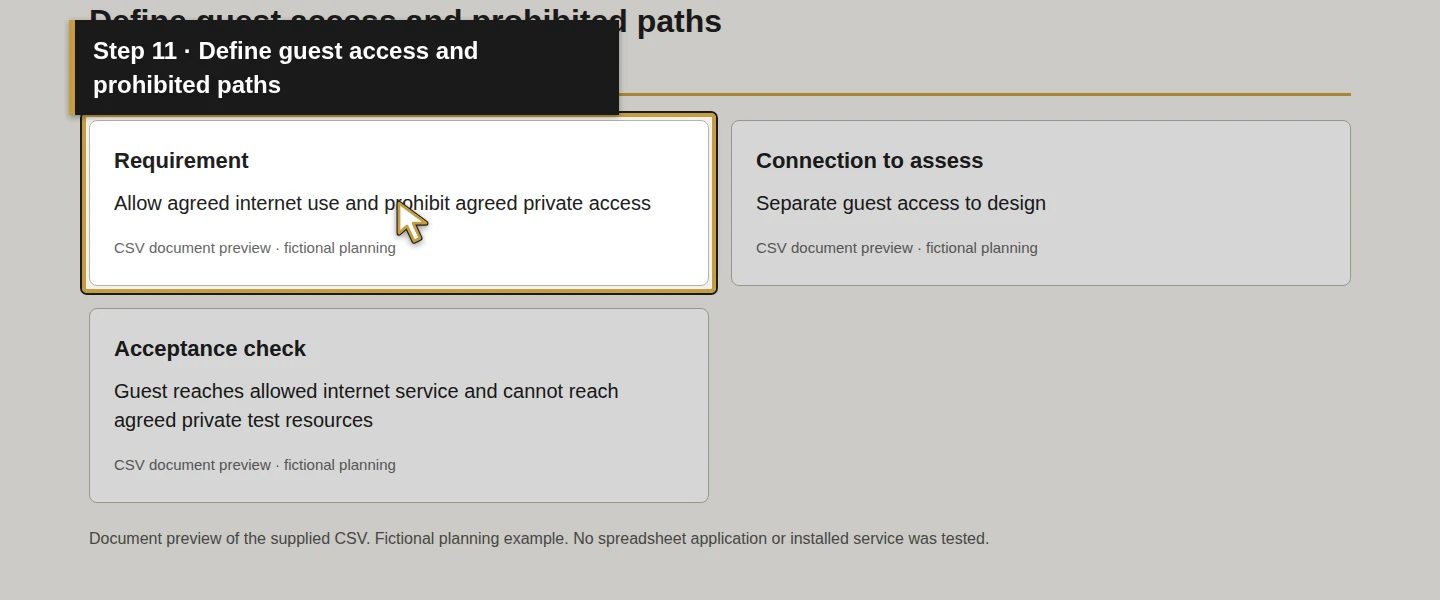
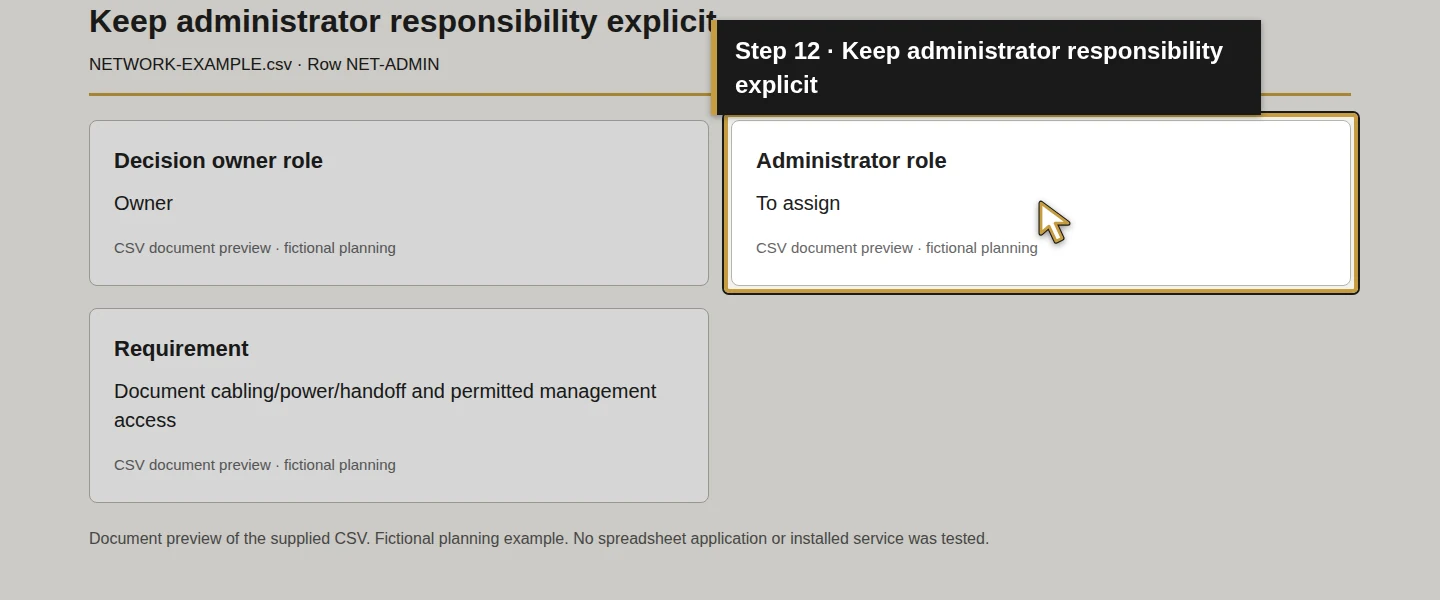
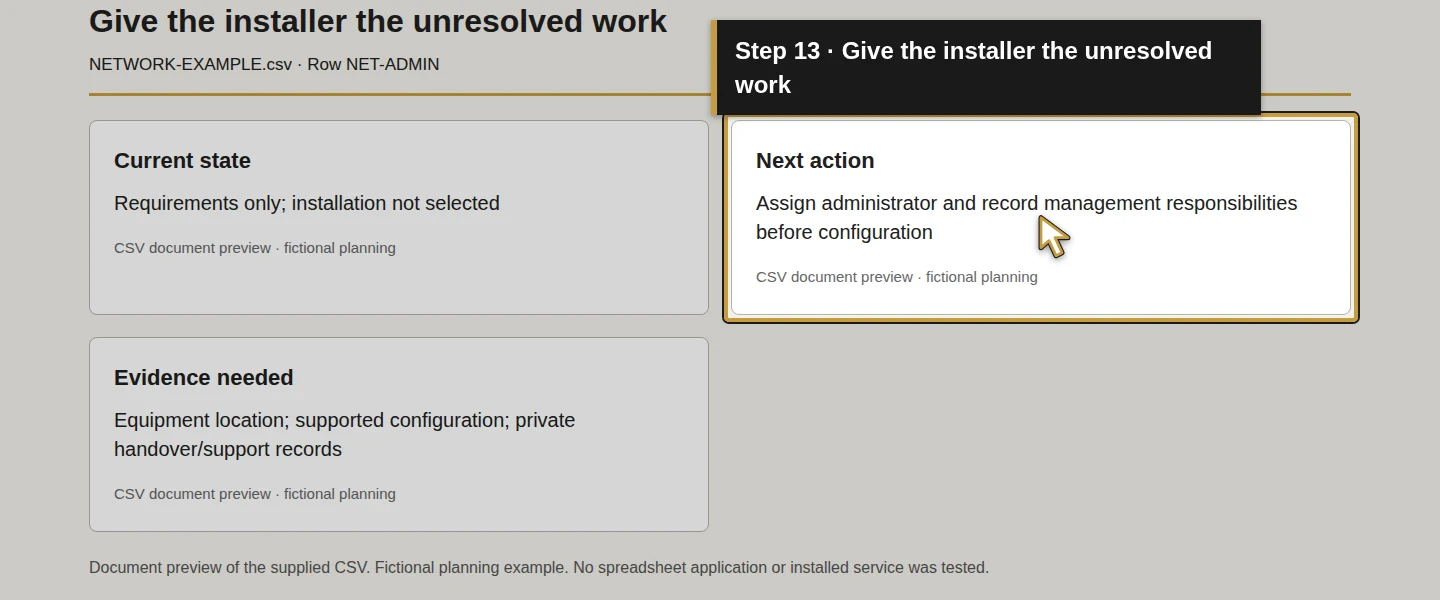
In Decision owner role, Administrator role and Next action, state who authorizes the decision, who applies the configuration and what remains unresolved. Ask the installer to document the service handoff, network/access boundaries, authorized administration, private configuration backup and support route.
The example leaves the administrator To assign and the state Requirements only; installation not selected. It records no purchase, installation approval, enabled security setting or automatic Odoo integration. Applying and checking the actual configuration remains later work.
Step 7. Test the installed result and retain the outcome
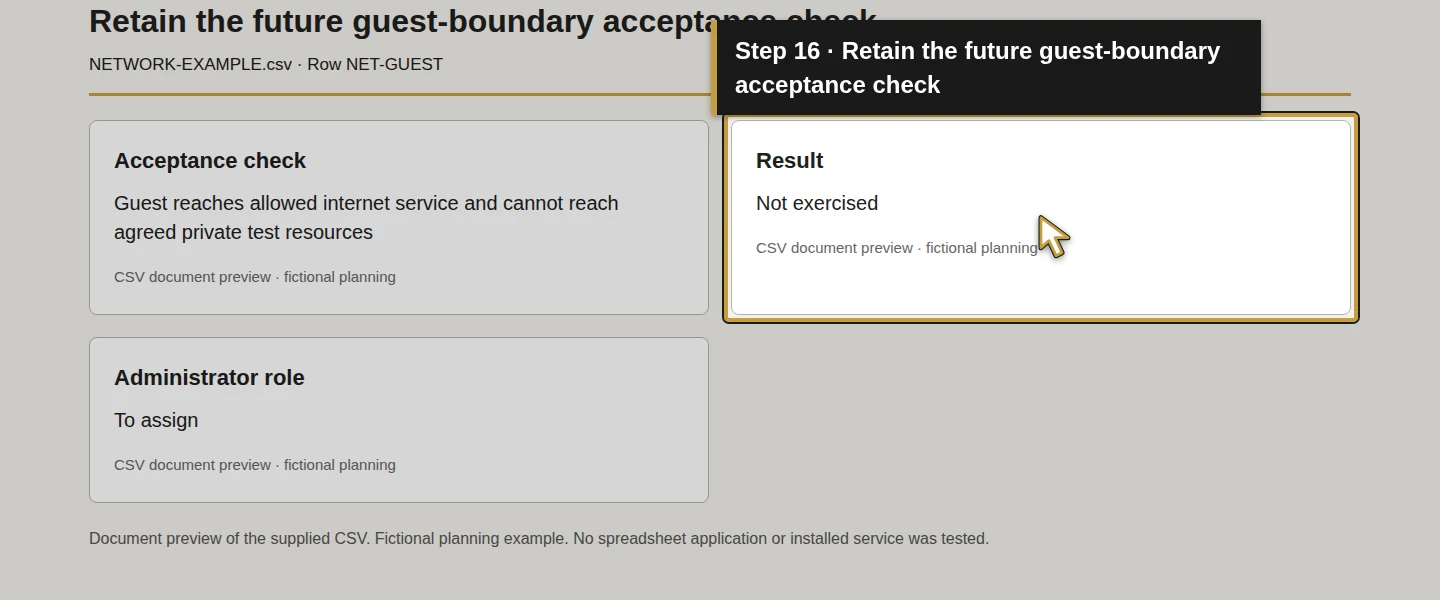
Use Acceptance check and Result to record what must be exercised after installation. Agree the test conditions with the administrator and use synthetic business data.
Scroll the table to view all columns on a small screen.
| Check | Future demonstration to record |
|---|---|
| Internet service | Compare the installed service with the agreed provider handoff and record the actual test method and results. |
| Desk work | Open the required business application and complete a synthetic quotation/document check on the intended workstation. |
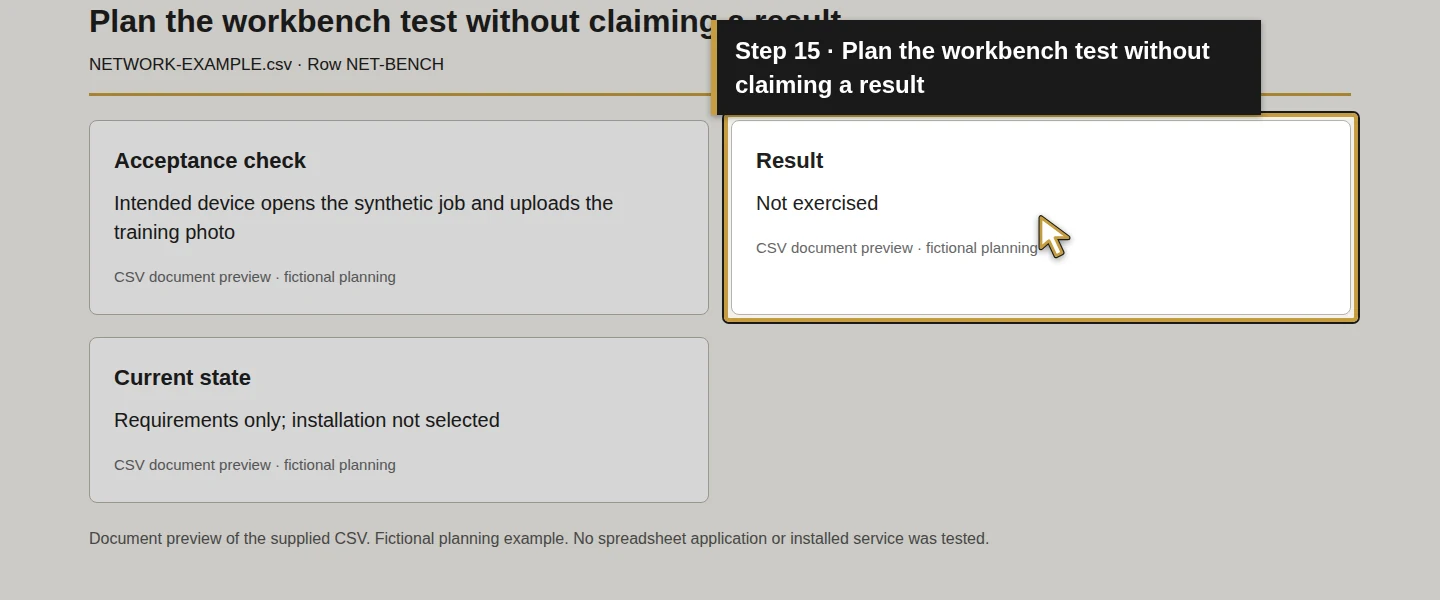
| Parts and workbench | Perform the required lookup and photo-upload tasks using the intended devices at each required location. |
| Guest access | Confirm allowed internet access and attempted prohibited access to agreed private test resources. |
| Management access | Check that the authorized administrator can manage the equipment and an unprivileged test role cannot. |
| Voice, if selected | Exercise the agreed call scenarios with the selected phone service and devices. |
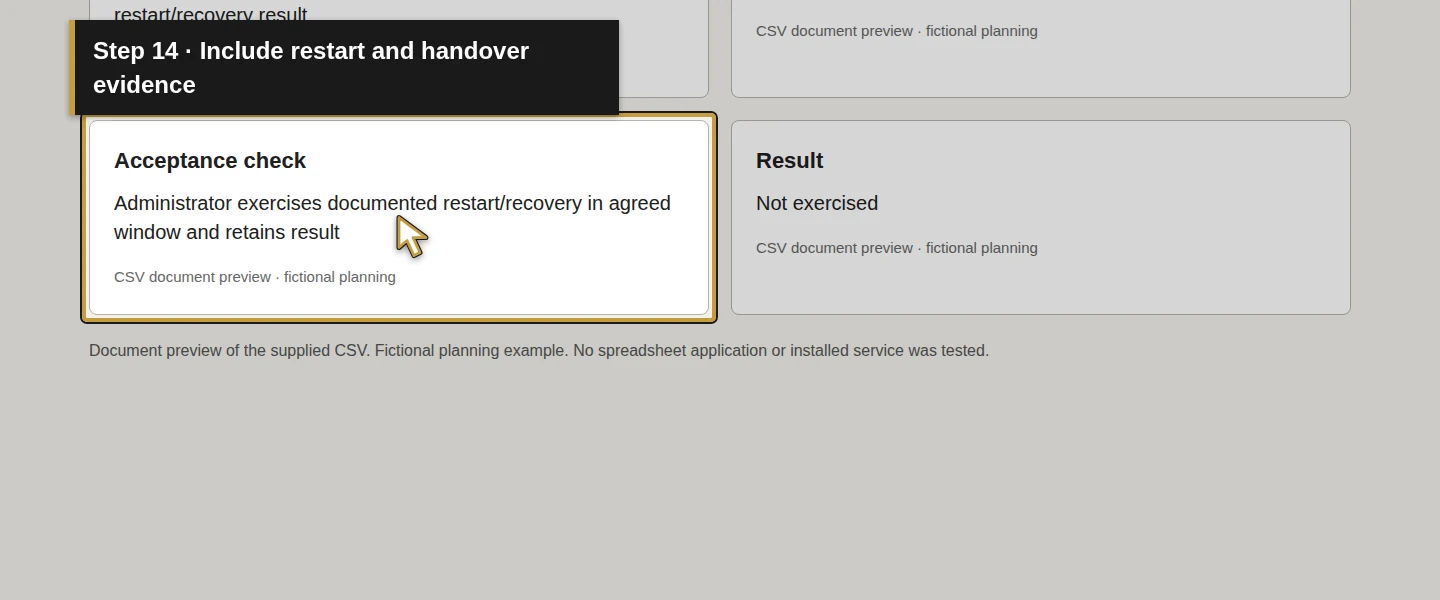
| Restart and handover | In an agreed maintenance window, have the administrator check the documented restart/recovery procedure and retain the result. |
In the supplied worksheet, every result remains Not exercised. Do not mark the network ready because its diagram looks complete or a device displays a Wi-Fi symbol. Record failed or unresolved checks with an owner and next action. This tutorial has not run these physical or provider tests.
Check the plan
Save and reopen your worksheet. Each required area or service should have a task, connection to assess, evidence needed, decision role, next action and future acceptance check. Missing provider availability, administrator assignments and coverage results should remain easy to find.
The supplied example’s fields and references have been checked for consistency with this guide. It is a requirements document, with no measured speed, completed survey, guest-isolation result or installation claim.
If something does not match
When the premises or devices differ, update their requirements before choosing equipment. For a real problem, keep internet-service evidence, wired-device results and Wi-Fi-location results separate so the administrator can investigate the relevant part.
If a phone, printer or application needs access across a proposed boundary, document that requirement for the selected design. Resolve the requirement and retest; do not mark isolation successful because a setting exists in documentation.
Frequently asked questions
How many Wi-Fi access points do I need for my HVAC shop?
Assess the actual work areas, construction, devices and radio environment, then check the installed coverage with the intended devices and tasks. The example supplies no measured premises or access-point count. Its parts shelves and workbench are areas to assess, not evidence that a particular model or quantity will cover your shop.Why is my office Wi-Fi slow even with fast internet?
The internet offer and the wireless connection are different parts of the setup. Client capabilities, radio conditions and upstream connections can affect the result. Record wired and location-specific wireless tests so the administrator can investigate. This guide makes no diagnosis or promised speed for an untested site.How do I keep guest Wi-Fi separate from office computers?
Specify the private devices and management interfaces guests must not reach, then have the selected administrator apply compatible network and client-access controls. Test allowed internet access and prohibited private access from an actual guest device. A separate name, captive portal or untested configuration does not prove that boundary works.Continue building the business
Use the network requirements alongside How do I set up business phones for my HVAC office and field team?.
Plan your office technology
Bring your layout, device list and network requirements to Onward to discuss the design and work to include in a written scope. Plan your office technology.