
Running an HVAC business with Odoo
How do I protect my HVAC business accounts and devices?
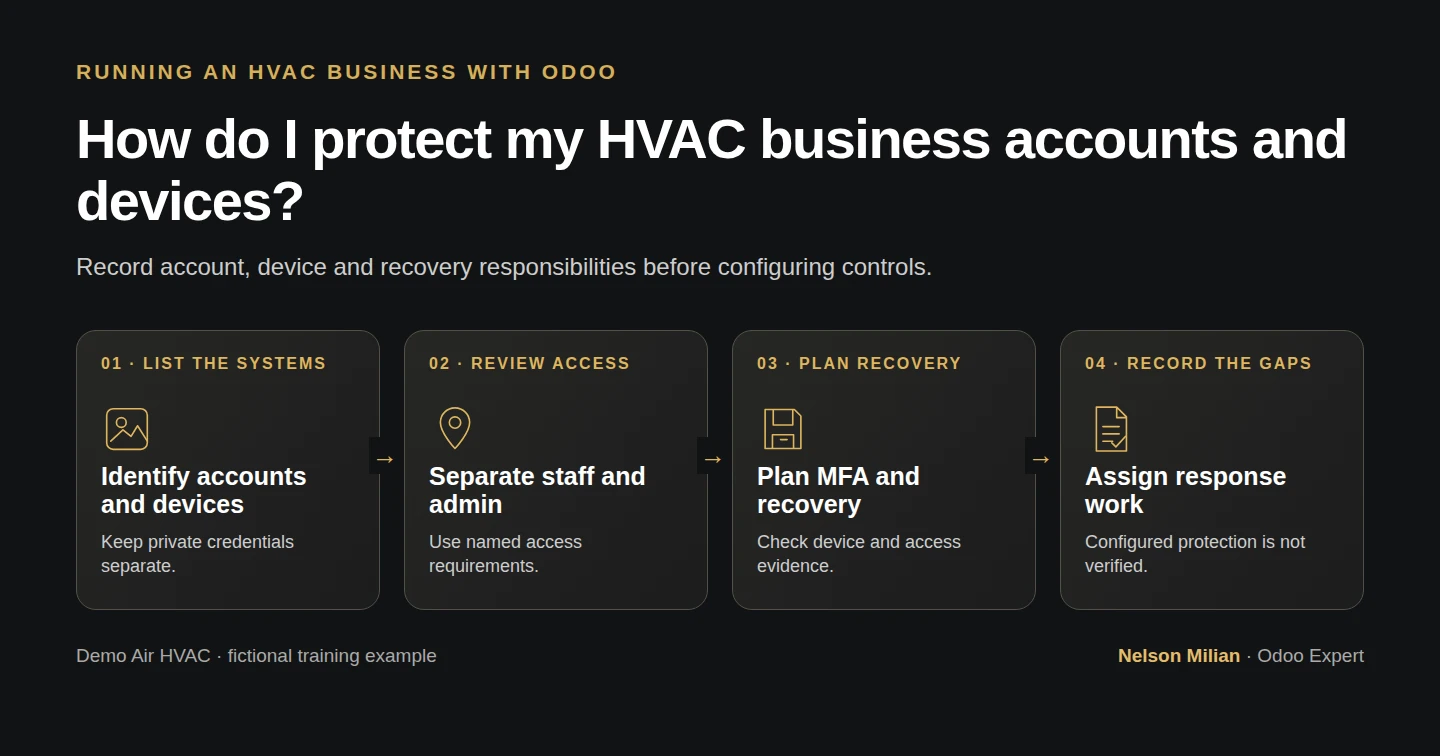
Plan account access, MFA, recovery, device protection and lost-device reporting for an HVAC business, with responsibilities and acceptance checks.
Planning document checked on October 15, 2026. The supplied worksheets and cited passages have been checked. Protection settings, access/recovery tests and the incident handoff remain unconfigured or unexercised.
Cybersecurity for a small business starts with knowing which accounts and devices matter, who may use them and who handles a problem. An HVAC office and field team need these responsibilities to stay clear when a phone is lost, an account is inaccessible or a suspicious message arrives.
Alex Rivera and Demo Air HVAC are fictional training examples. Alex is preparing a protection and response plan for the proposed office and field devices. No employee, platform subscription, security policy or configured protection is created by this lesson.
The output is a security requirements worksheet with proposed controls, responsible roles and future checks. It does not establish that the business is protected, compliant or ready to recover from an incident.
Before you begin
Have the office-opening requirements, device shortlist and email/file access plan (guide coming later) available. The email guide's actual business platform decision remains open; do not assume Microsoft 365, a device-management service or a license is selected here.
Download the blank security worksheet and filled Demo Air example. Both have eight matching requirement IDs and 17 columns. Open the CSV in your preferred spreadsheet application and save a private working copy. Keep passwords, recovery codes/keys, personal identifiers, actual admin contacts and sensitive asset details outside the tutorial.
The source and file checks do not exercise a spreadsheet UI, an account, a device or a security console. This companion adds no Odoo customization or integration. Separate Odoo references retain their stock Odoo 20 Community scope.
Prepare the account and device protection plan
Step 1. List the accounts and devices the business relies on
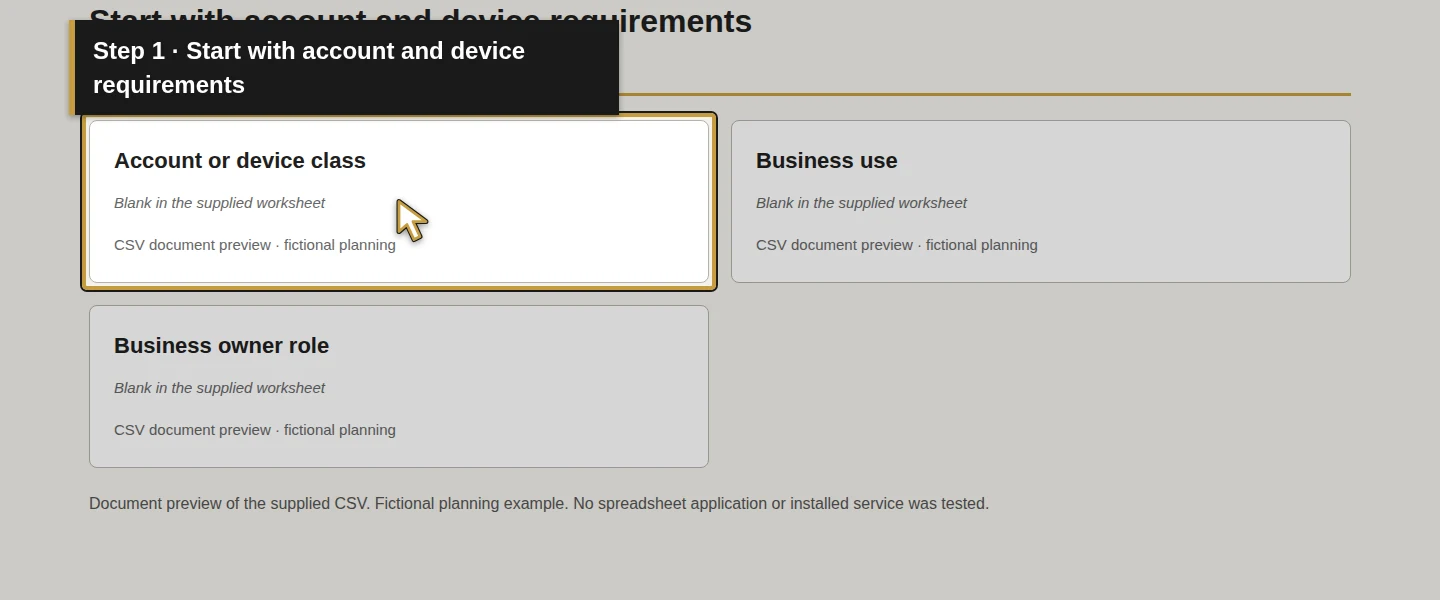
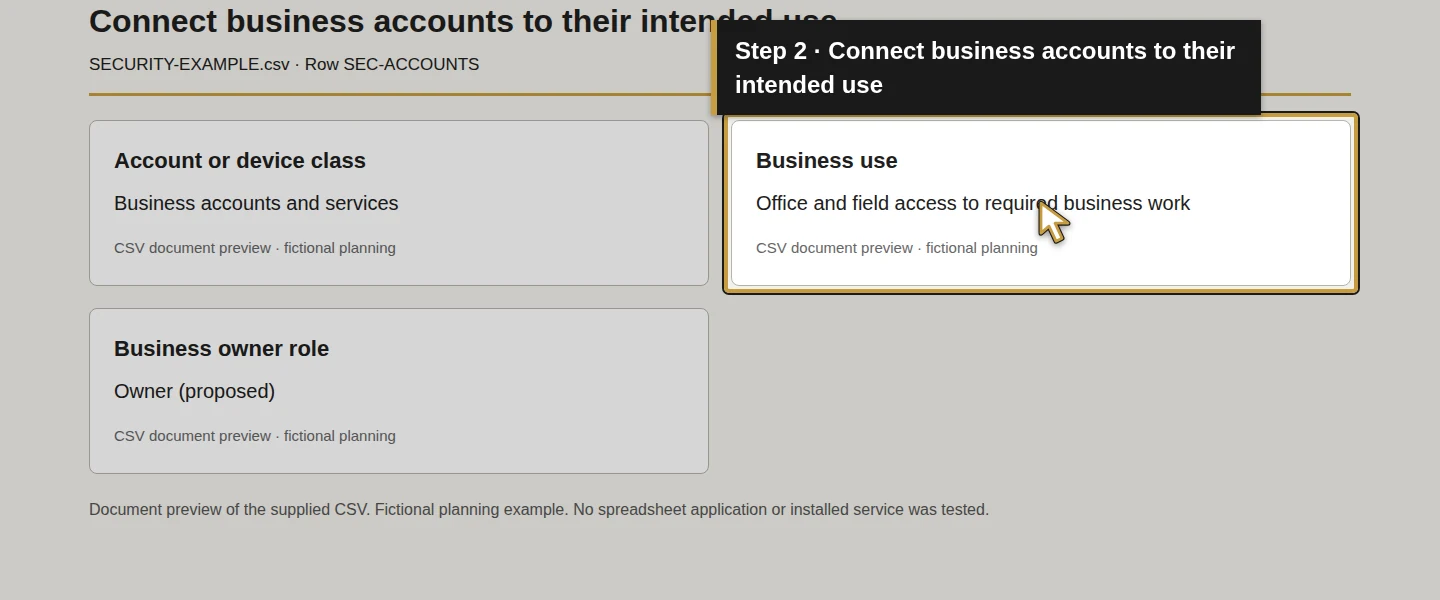
Use Requirement ID, Account or device class and Business use to connect each requirement to real work. The example contains SEC-ACCOUNTS, SEC-ADMIN, SEC-MFA, SEC-RECOVERY, SEC-DEVICE, SEC-ACCESS, SEC-LOST and SEC-REPORT. Rows are protection requirements, not eight new accounts or devices.
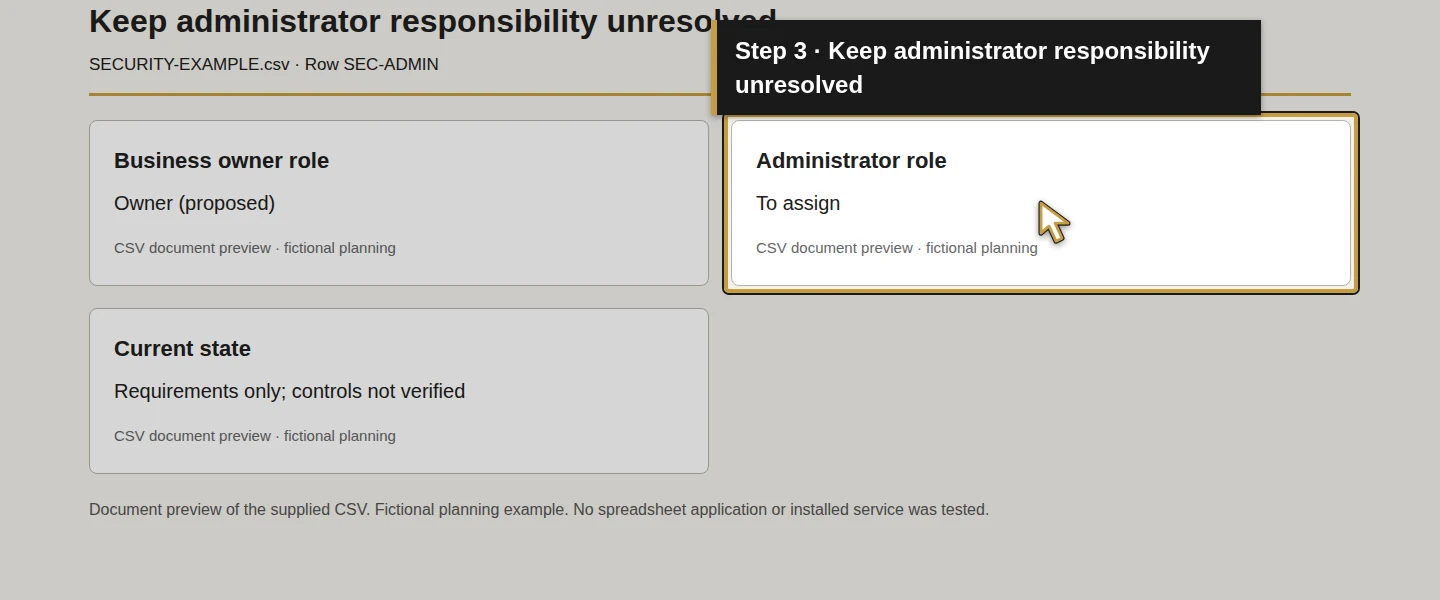
Complete Business owner role and Administrator role. Owner is a proposed decision role; every example administrator remains To assign. NIST's small-business guide starts from an inventory with use, responsibility and access consequences. Record missing systems and who must confirm the private inventory before accepting it as complete.
Step 2. Define named access and administrator boundaries
Use SEC-ACCOUNTS and SEC-ADMIN to record Permitted role, Access to deny and Sign-in requirement. Separate everyday work from administration. For each selected system, agree who needs to read, change, approve or administer its information, then plan a check with the intended role and a separate denied role.
Record unique staff sign-in and password-management requirements without putting a password in the worksheet. A proposed password manager still needs its own platform, access, recovery and handover review. A shared service address does not require staff to share one sign-in.
The separate Odoo user-access guide demonstrates its specific native role checks. It does not prove permissions in email, shared files or device-management tools.
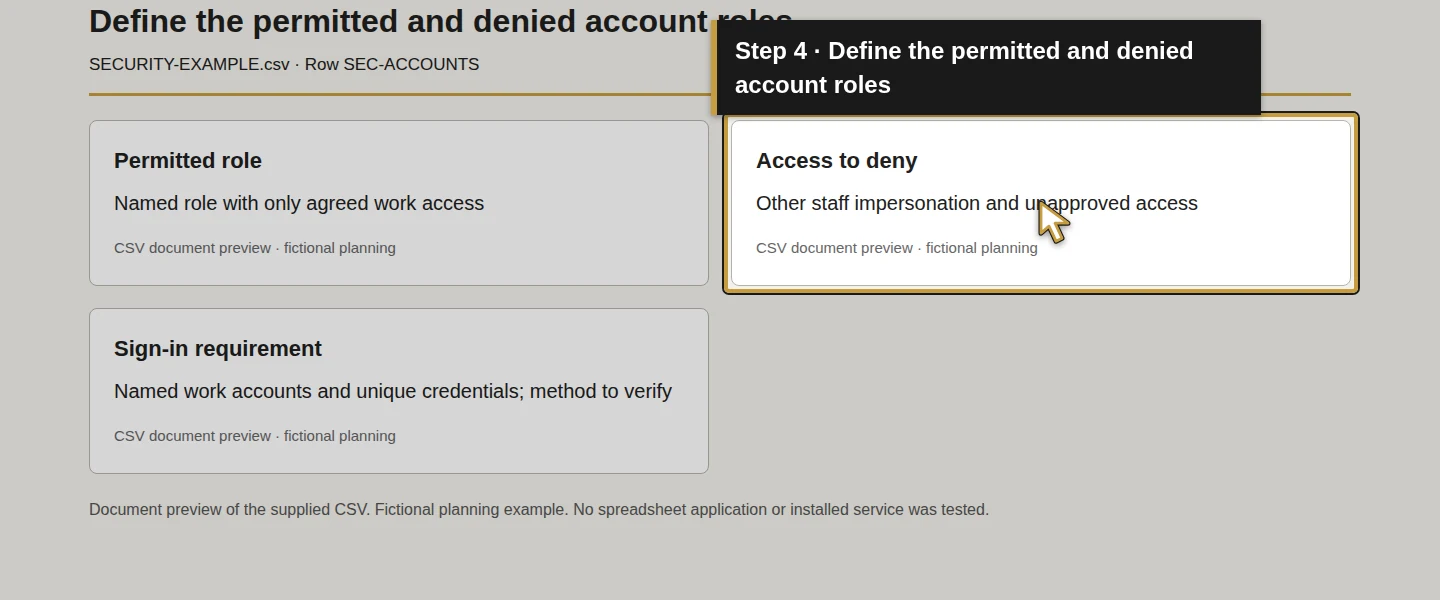
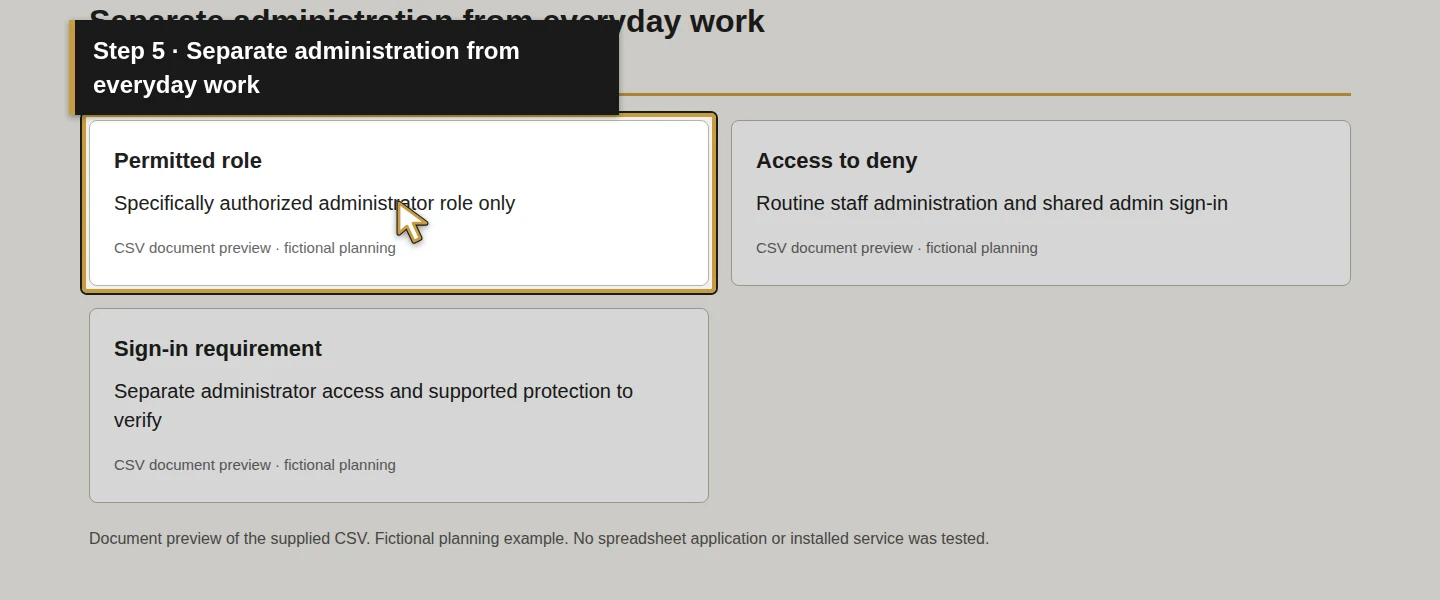
Step 3. Plan MFA and account recovery together
Use SEC-MFA for each selected application's supported authentication methods and SEC-RECOVERY for loss of the usual authenticator or administrator access. Record the actual method to evaluate and the protected recovery responsibility. In Reference or evidence to obtain, name the current provider procedure and the sign-in/recovery result you need.
NIST's MFA guidance distinguishes phishing-resistant options from methods that remain susceptible to phishing. Check what the actual application and account support. Do not infer that every MFA method gives the same protection.
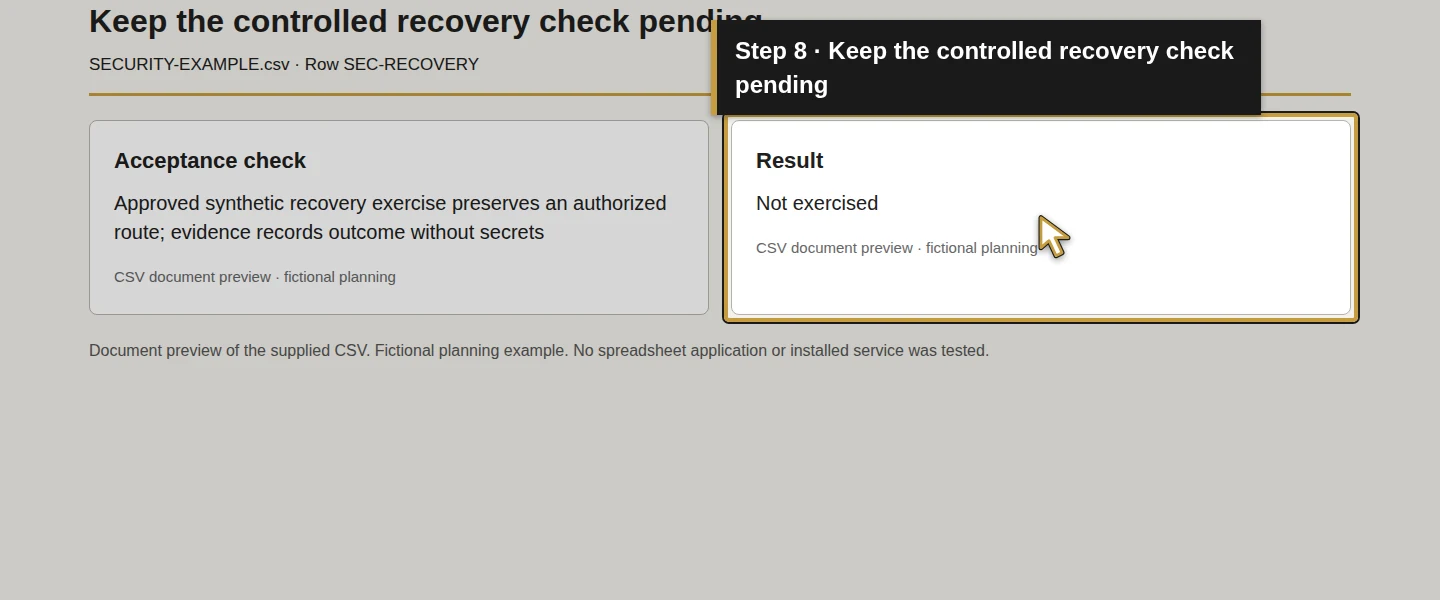
Complete Recovery responsibility before treating sign-in as accepted. Plan a controlled test account and recovery exercise that preserve an authorized route back in. This lesson enrolls no authenticator, changes no password and tests no recovery code. Keep those results pending until the selected system is configured and checked.
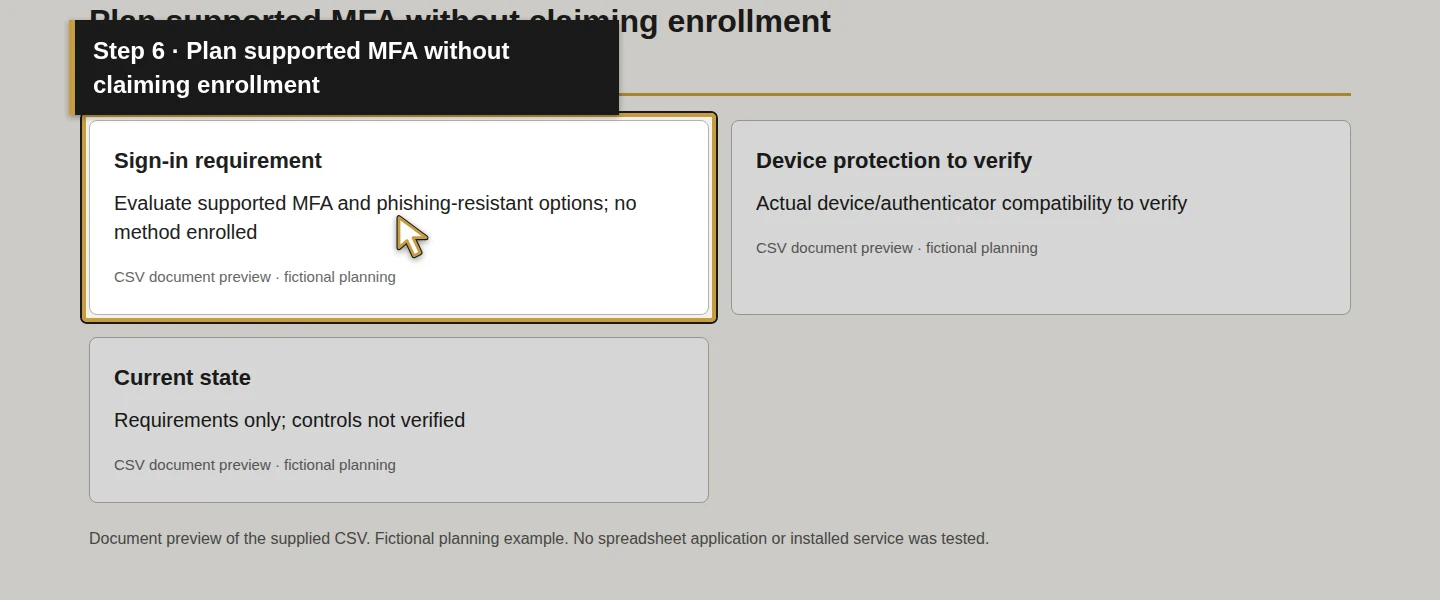
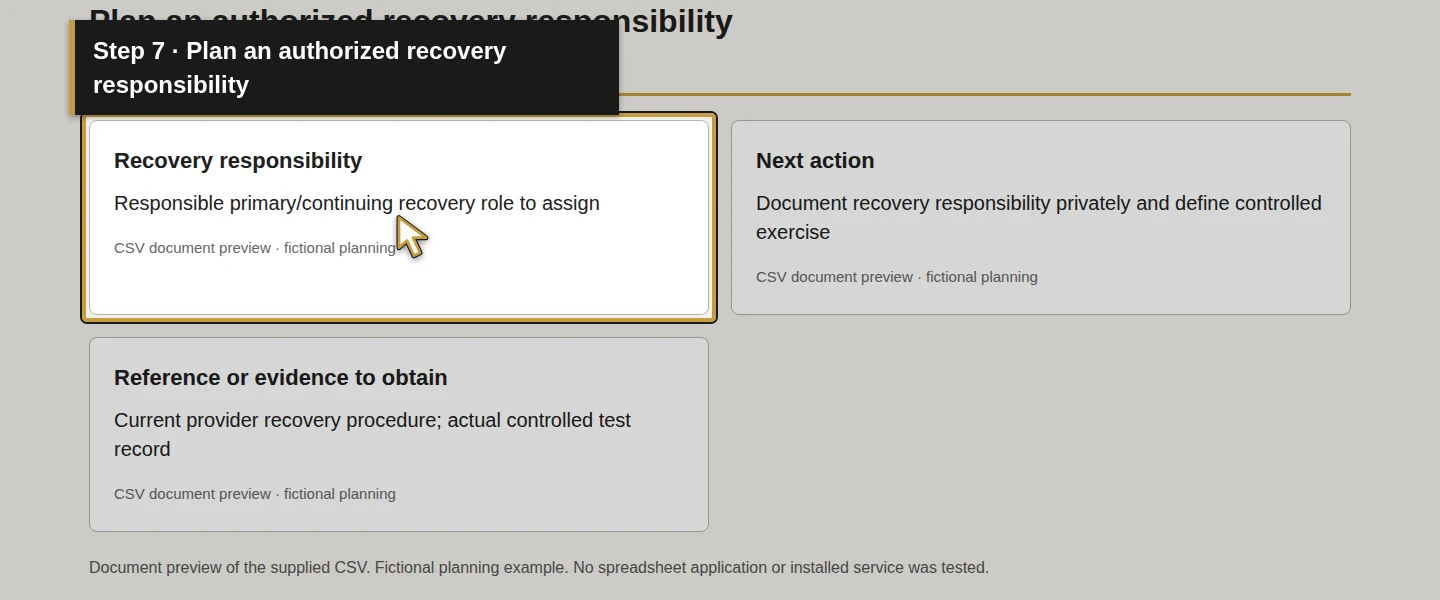
Step 4. Record device protection and its evidence
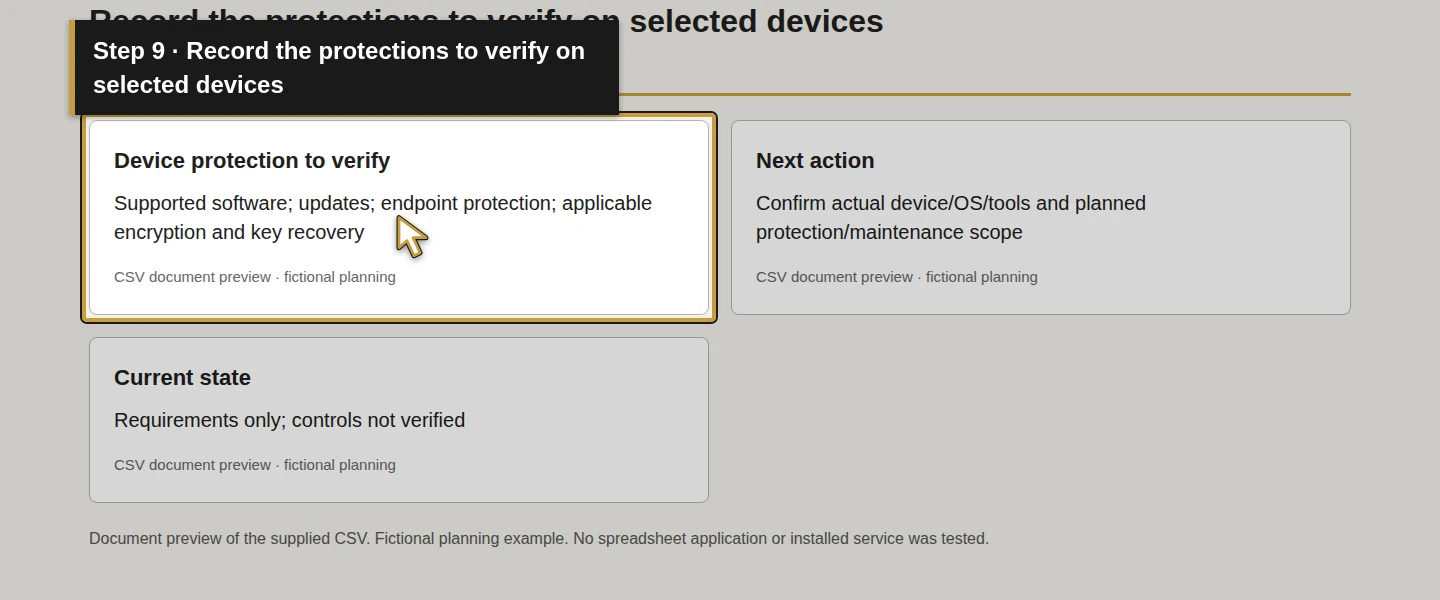
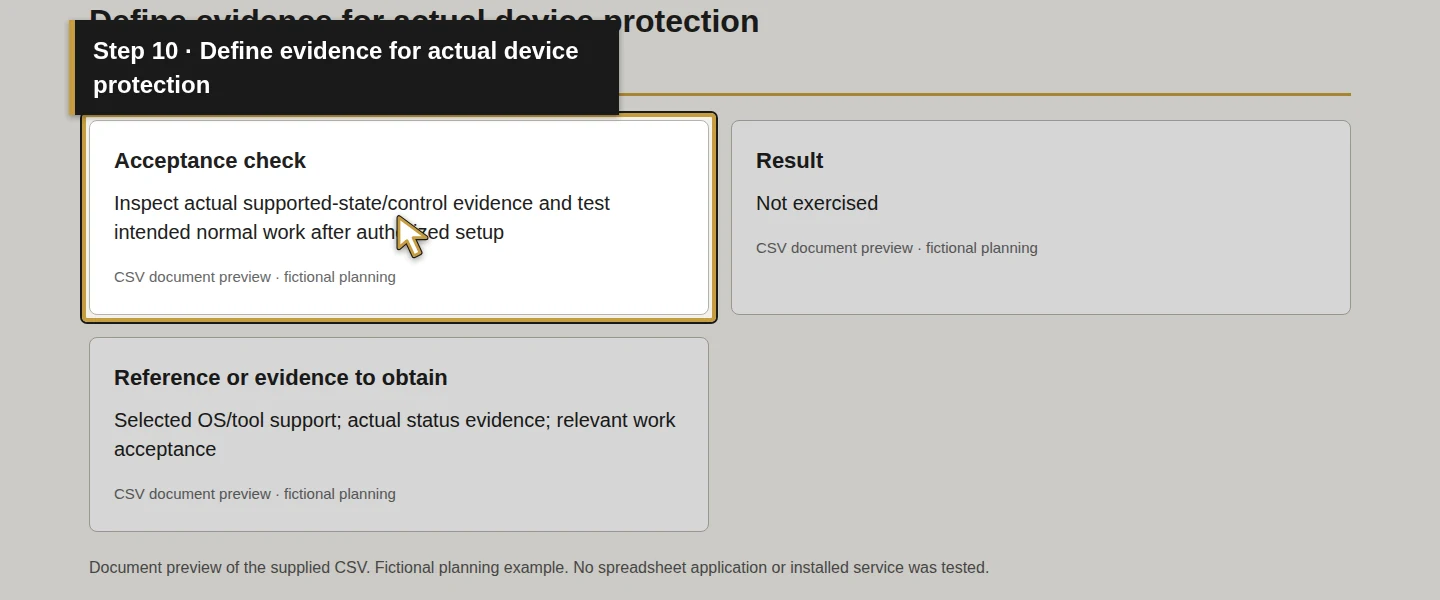
Use SEC-DEVICE and Device protection to verify for supported software, update arrangements, available endpoint protection, screen locking and applicable encryption/recovery requirements. NIST's Protect and Detect guidance makes patching, device protection and backup testing part of the broader work. This worksheet is not a substitute for that implementation.
Have the administrator confirm the actual hardware, OS, tools, capabilities and responsibility. Plan how to inspect the relevant status and test normal work after the agreed configuration. A license name or an antivirus icon is not the acceptance evidence for every protection on every device.
For personally owned devices, resolve the business's allowed access, management and departure arrangements before applying controls. Do not assume company ownership, enrollment or permission to erase personal information.
Step 5. Define access review and staff-change checks
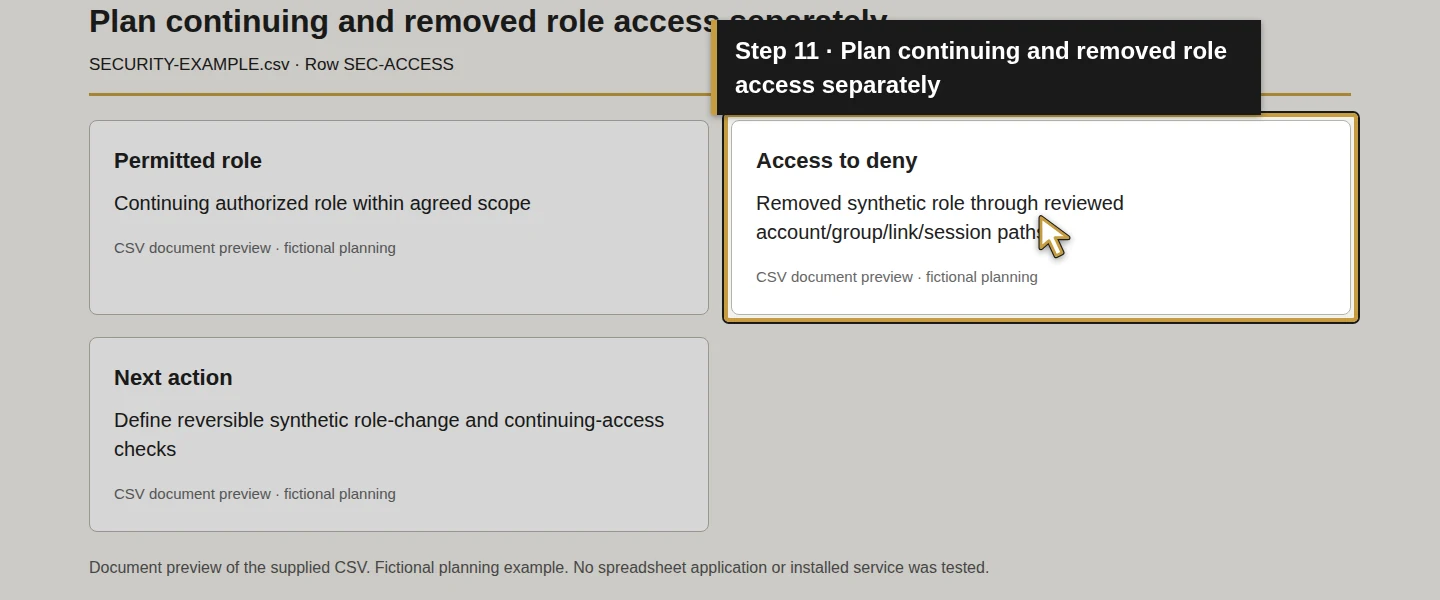
Use SEC-ACCESS to plan who reviews permissions and how changes in responsibility are handled. NIST's access guidance includes removing access when it is no longer needed. Record the selected system's actual group, account, sharing and session paths to review.
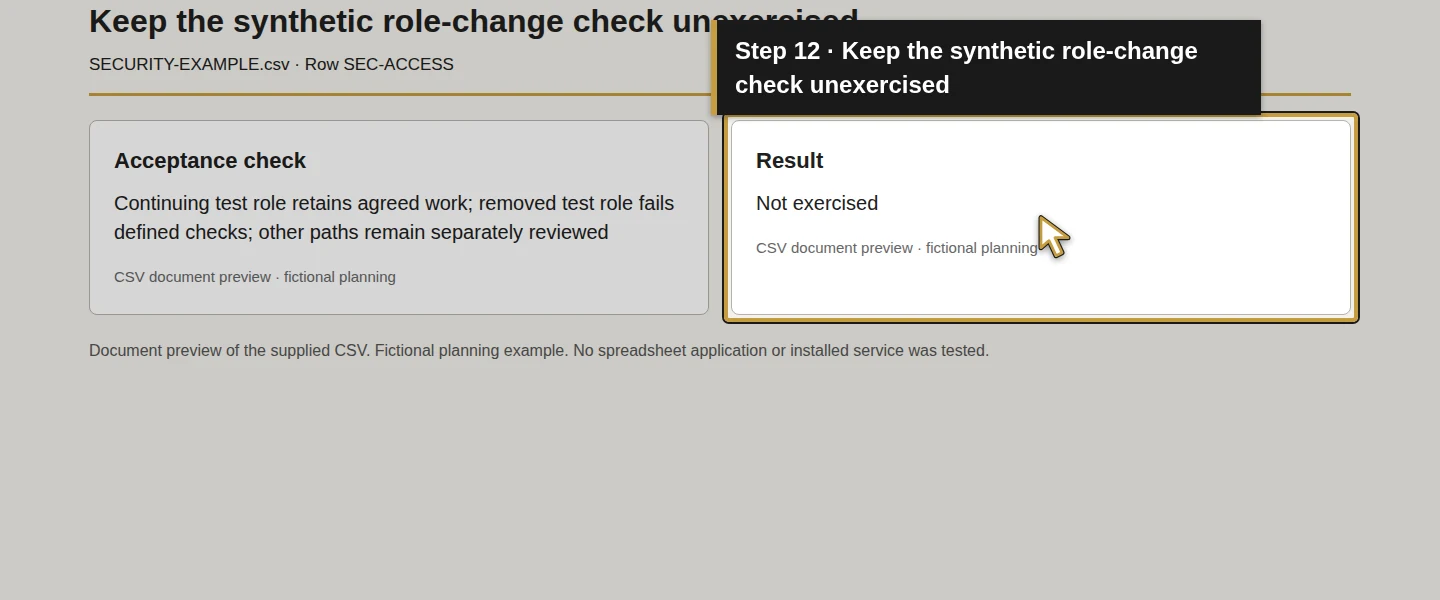
Under Acceptance check, plan a synthetic role-change exercise: confirm the continuing authorized role can work and the removed test role fails the expected access checks. Record other permission paths and downloaded files as separate questions. A disabled sign-in alone does not record a completed end-to-end handover.
Use Next action to keep unresolved controls visible. The example contains no actual employee removal, account disabling, token revocation or device retirement.
Step 6. Prepare the lost-device and suspicious-message handoff
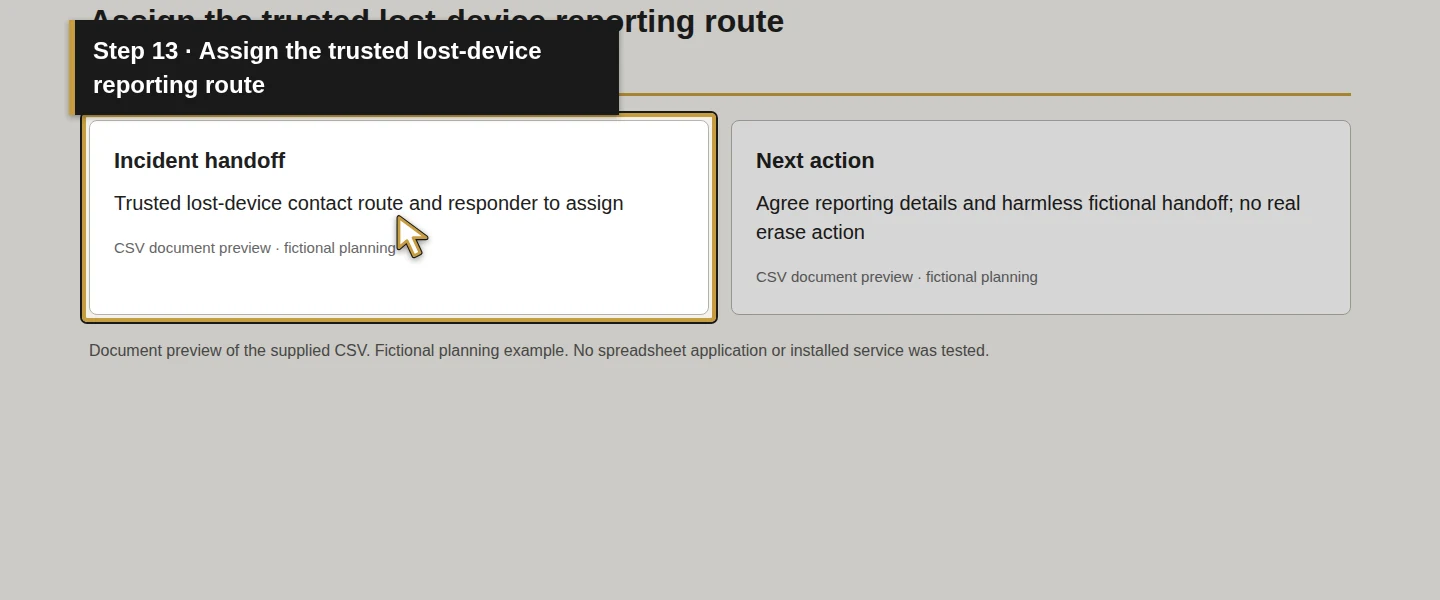
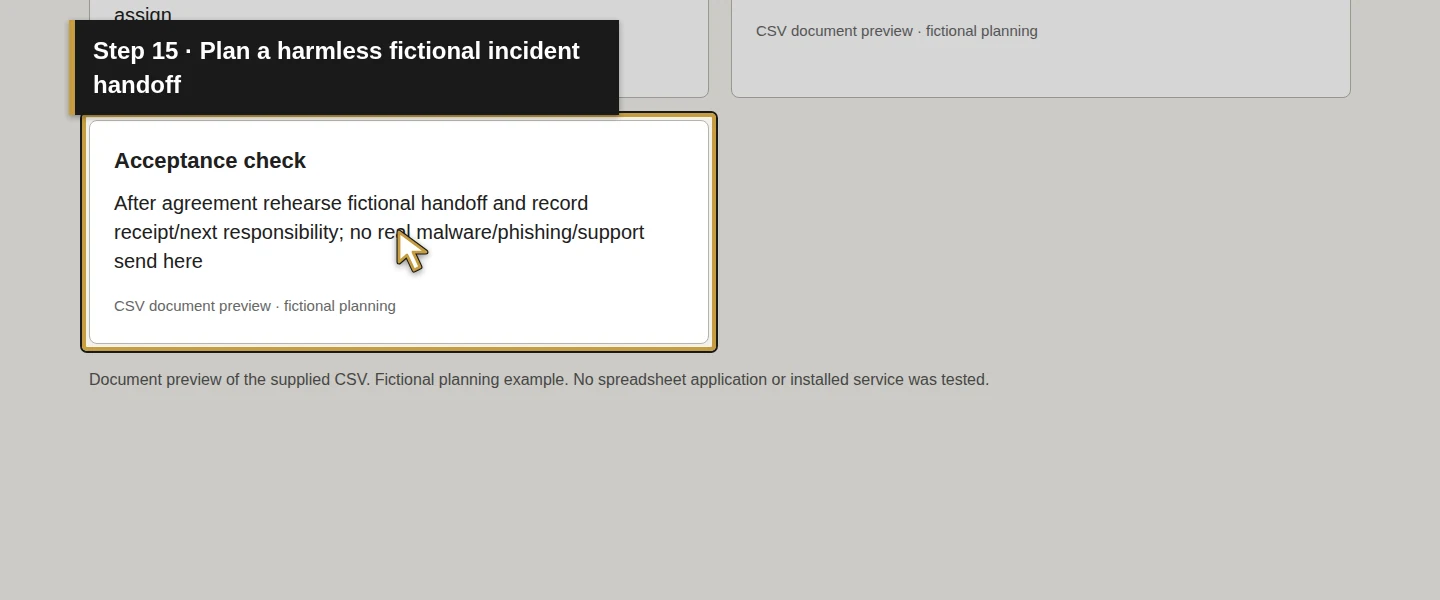
Use SEC-LOST and SEC-REPORT for Incident handoff. Agree a trusted contact route, a responsible responder and the information to report privately. NIST's incident-response publication treats preparation as part of risk management. Plan a harmless fictional handoff after those responsibilities are agreed; no real alert, phishing message or support request is sent here.
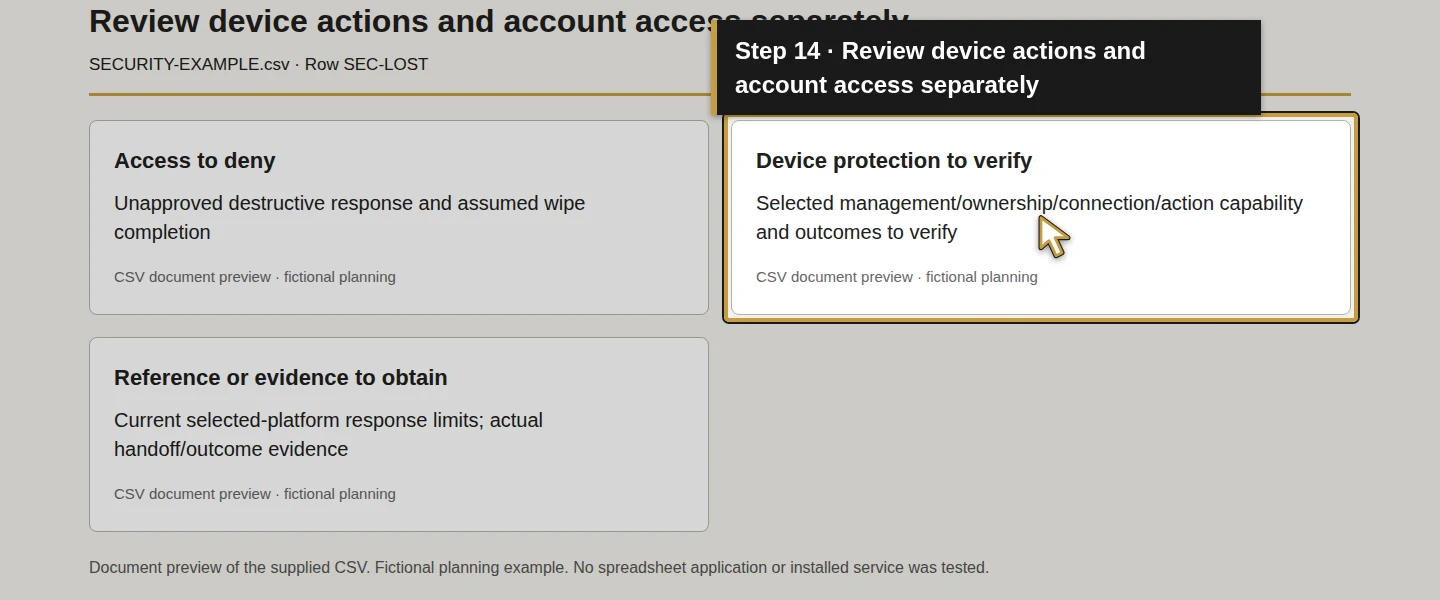
Record account/session access and device actions separately. For one product-specific example, Microsoft documents that Intune retirement does not itself revoke access tokens and that an offline-device action can remain pending. That does not select Intune or establish another platform's behavior. Requesting an action is not proof that access was removed or data erased.
This tutorial issues no remote wipe and tests no destructive action. The selected administrator must follow the actual provider's applicable response procedure and verify outcomes. Recovery remains separate work in the office backup guide.
Step 7. Save, reopen and review responsibilities and gaps
Save and reopen your working copy. Review the account/device classes, allowed/denied roles, sign-in and device requirements, recovery and incident handoff together. Confirm that Current state, Next action, Acceptance check, Result and Related guide accurately distinguish the plan from performed checks.
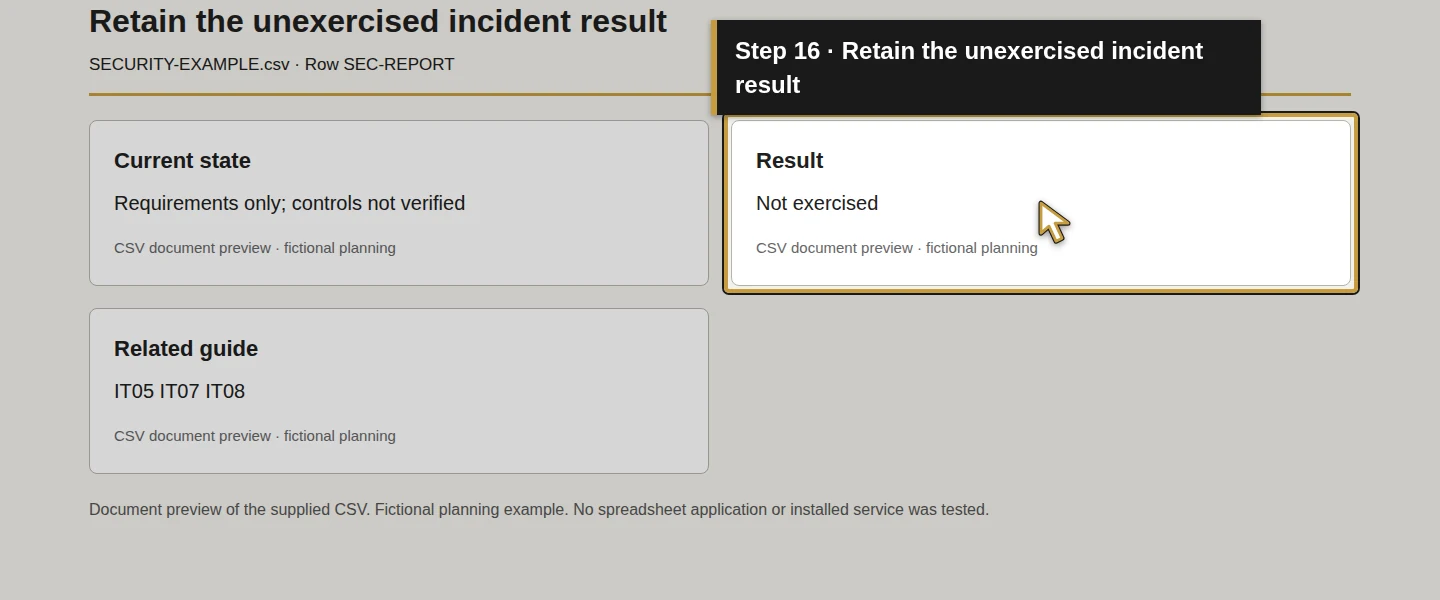
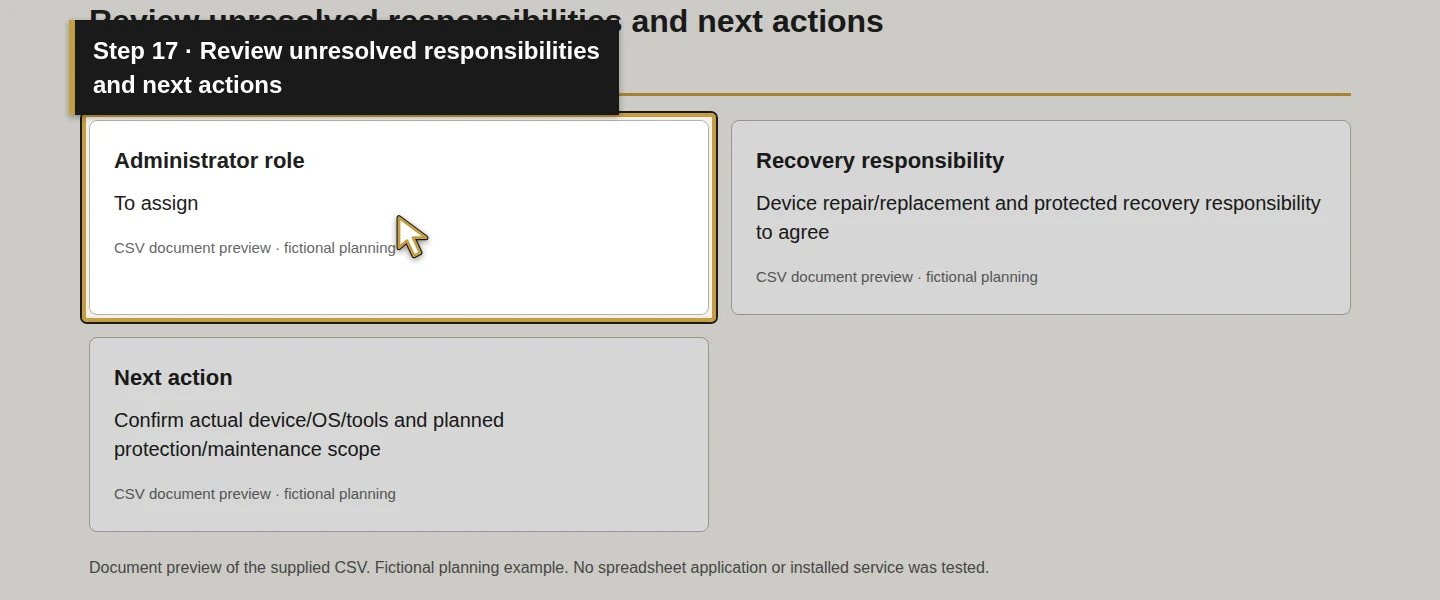
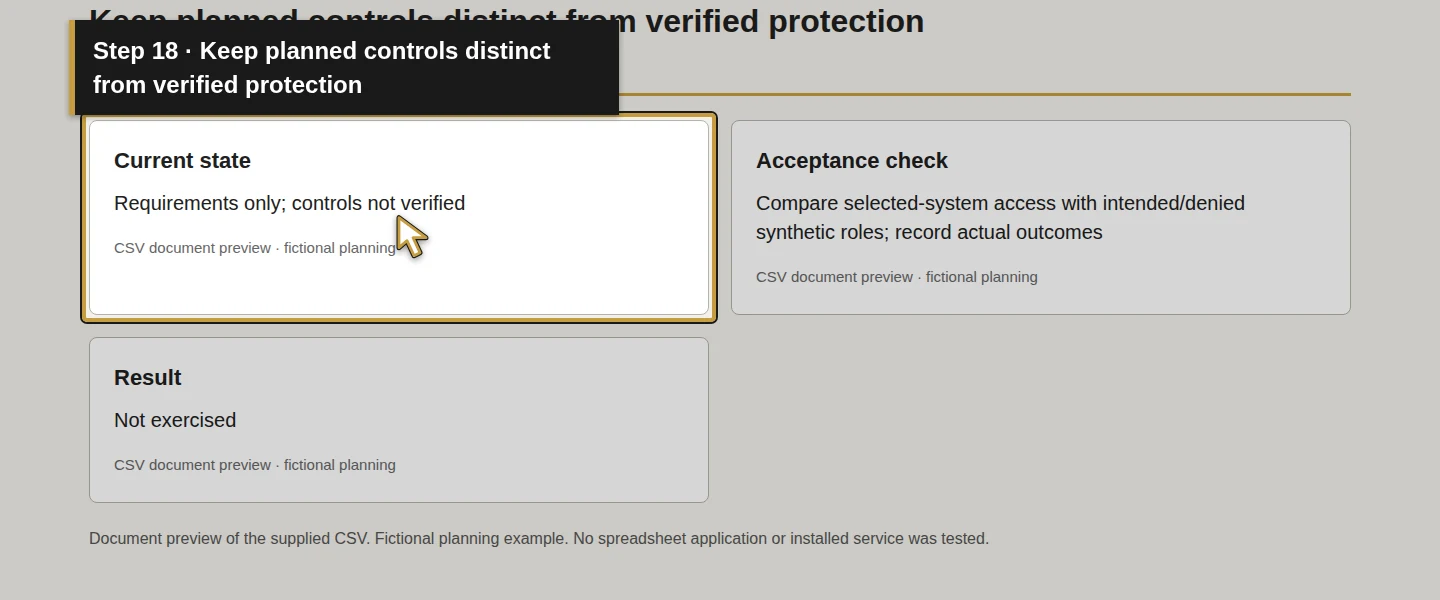
Every example Current state is Requirements only; controls not verified, every Result is Not exercised, and administrators remain To assign. The filled worksheet has eight complete requirements; the blank copy keeps only their IDs. No provider configuration, sign-in, device protection, staff change or response exercise is demonstrated.
The next business decisions are to assign responsibility, select the applicable tools/platform and perform the agreed checks. Keep failures and untested items visible instead of marking the system protected from its written plan.
Check the result
The worksheet identifies proposed business ownership, sign-in/access requirements, device checks and incident/recovery responsibility for the example. Actual responsibility assignment, configuration and acceptance remain unresolved. The original requirement for reviewed controls and an incident/recovery responsibility is a planning criterion here; no protection or response effectiveness has been verified.
If something does not match
If a required feature is unavailable, keep the requirement open and verify the selected system's actual capability and entitlement. If recovery depends on an unavailable person or device, resolve that route before accepting sign-in protection. Use the provider's supported recovery process; this plan supplies no bypass.
If a device action is pending, keep the device outcome and account/session checks separate. Do not report the data erased from a submitted request or infer that every access path is closed from one status screen.
Frequently asked questions
How do I protect HVAC business accounts?
Inventory the systems, agree named access and limited administration, then record the selected services' sign-in and recovery requirements. Assign who handles changes and suspicious activity, and verify the actual controls before treating them as accepted. This lesson supplies proposed requirements; no protection is configured or tested.Should HVAC technicians use MFA on business accounts?
Include supported MFA and secure recovery in the account requirements, and check phishing-resistant options for the selected service. Test the actual permitted role and recovery procedure after configuration. The worksheet enables no MFA and does not assume identical methods across applications.What should I do when an HVAC employee loses a company tablet?
Use the agreed trusted contact route to reach the responsible administrator and follow the selected system's response procedure. Review account/session access separately from any supported device action and verify the actual outcome. This guide demonstrates no remote wipe, recovered device or successful access removal.Continue building the business
Next, plan file and email recovery, then IT support responsibilities. These have separate evidence and acceptance requirements.
Plan your office technology
Bring your account/device inventory, access gaps and responsibility questions to Onward to discuss the protection and maintenance work to include in a written scope. Plan your office technology.