
Running an HVAC business with Odoo
How do I create an HVAC service quotation in Odoo?
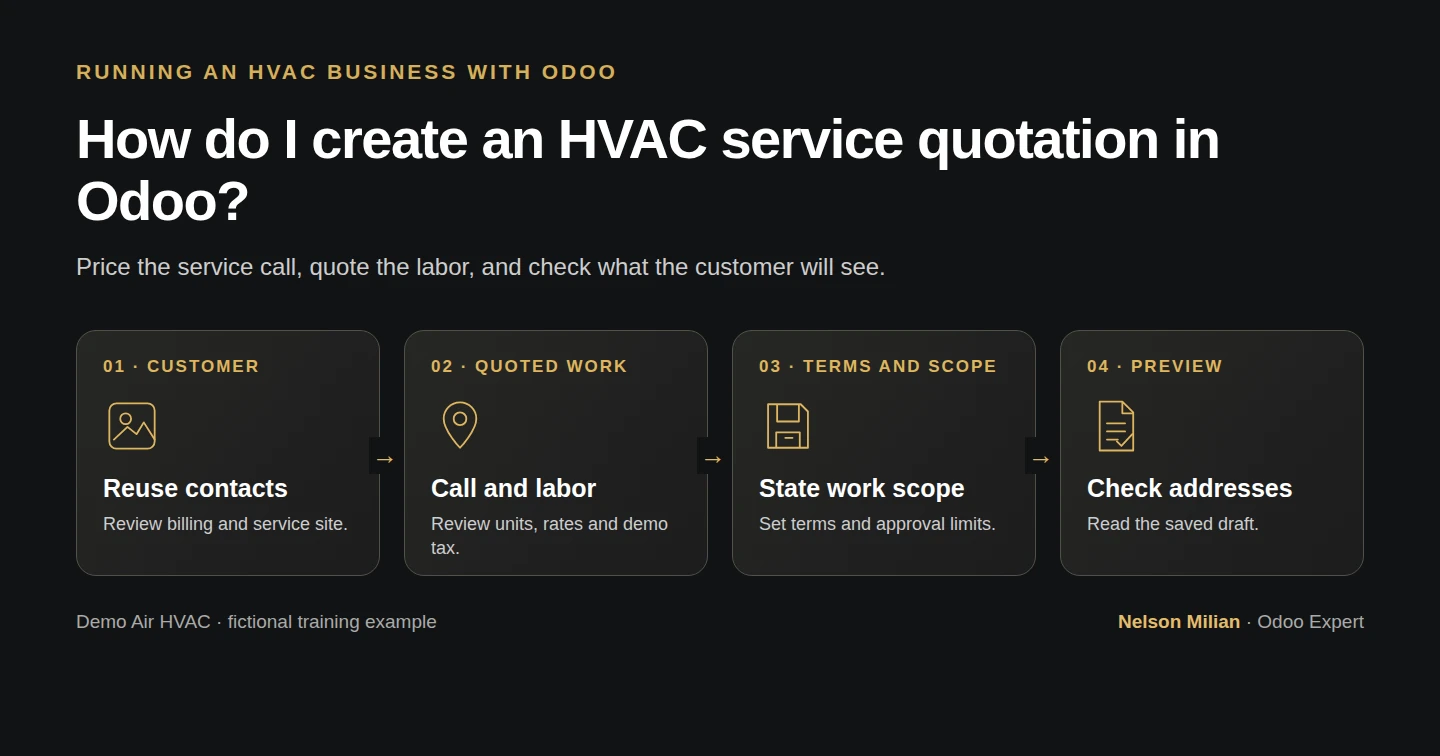
Create and preview an Odoo HVAC quotation with a fixed service call, quoted labor, payment terms and the existing customer addresses.
Alex needs a priced proposal before committing to a visit. This quotation combines a fixed service call with a two-hour labor allowance; it does not bill recorded timesheets.
Alex Rivera and Demo Air HVAC are fictional training examples. Prices, dates, quantities and business situations in this guide are illustrative.
Before you begin
Tested in stock Odoo 20.0-20260926 Community as the demo owner administrator, with official modules and standard configuration. Complete the customer/address guide, service-product guide, payment-term guide and CRM pipeline guide. Reuse Demo Property H08, its existing billing/service addresses, the two H11 services, Demo Net 30 H06 and Demo Service Enquiry H16.
Step-by-step workflow
Step 1. Start the quotation
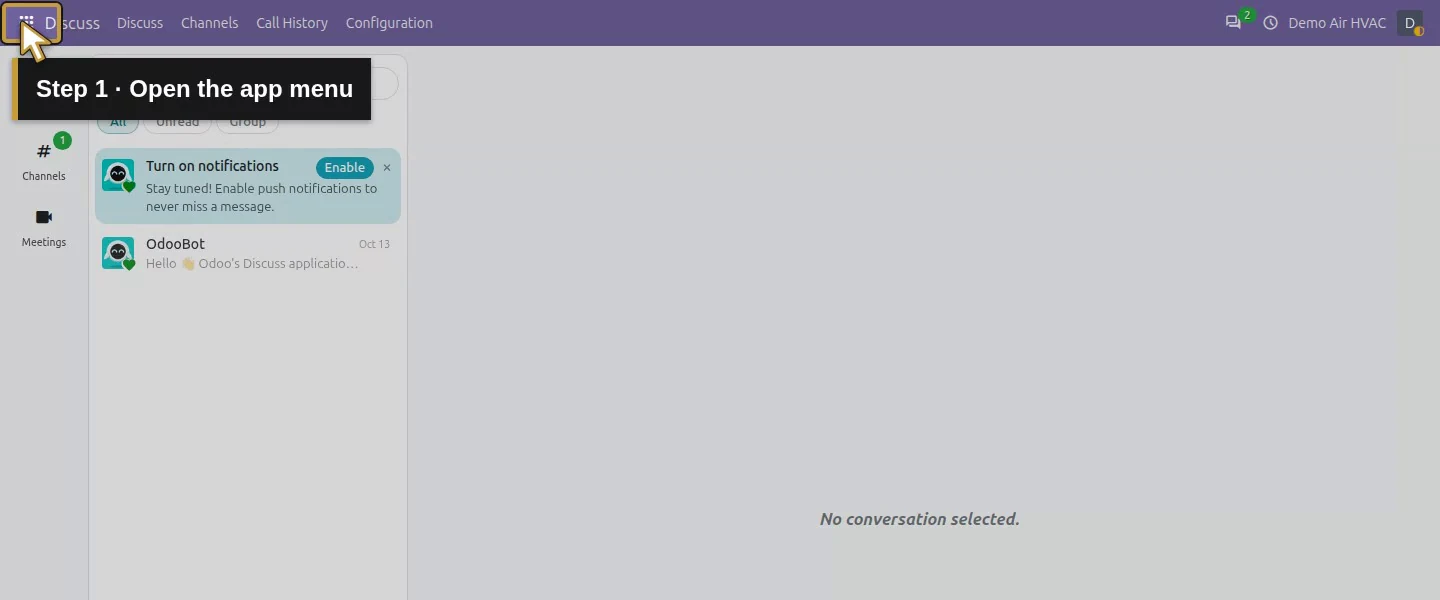
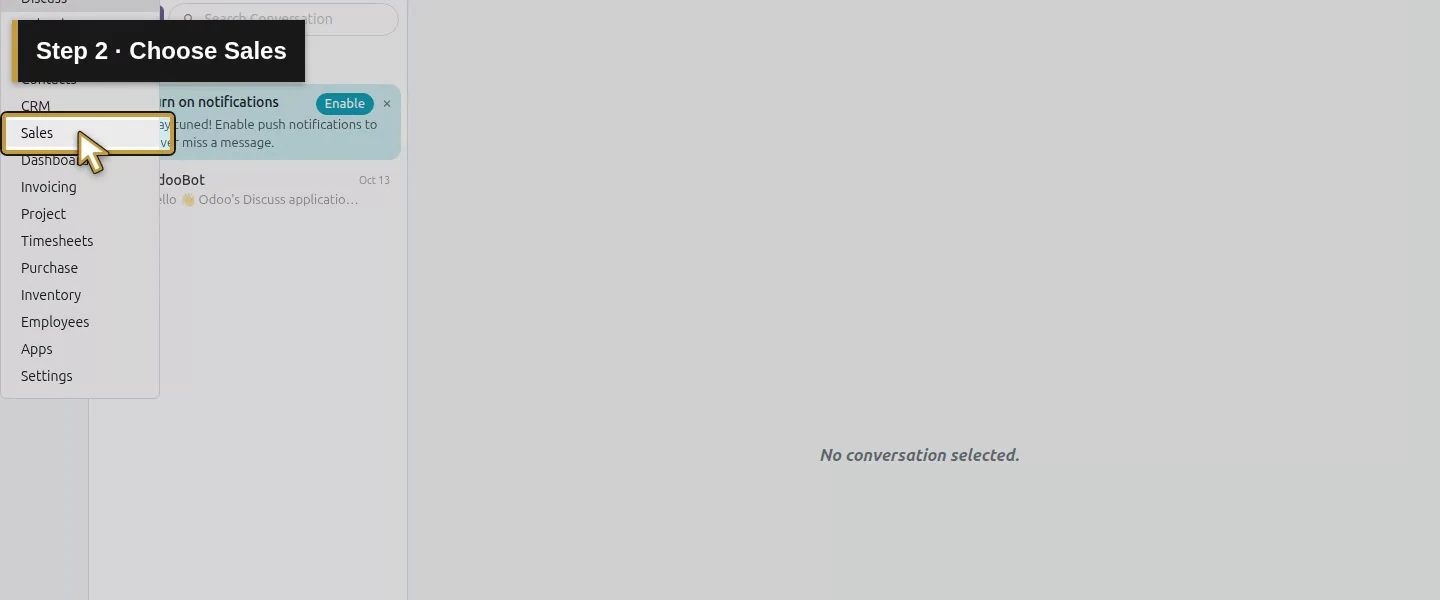
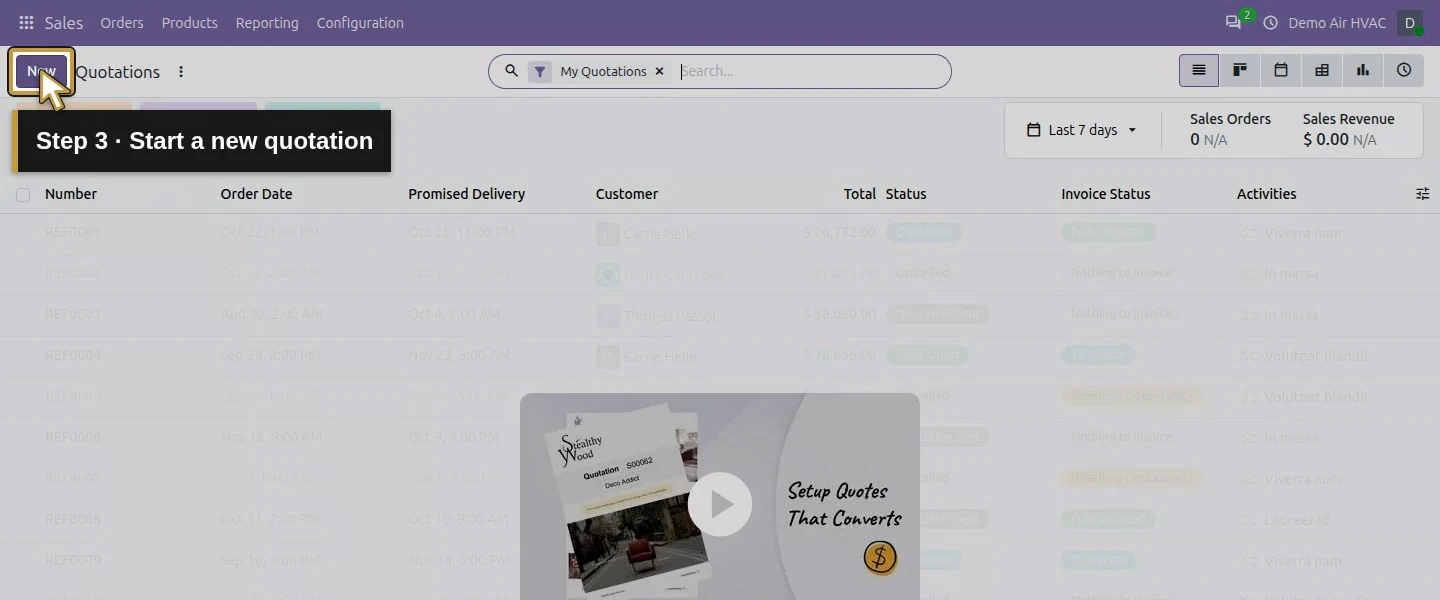
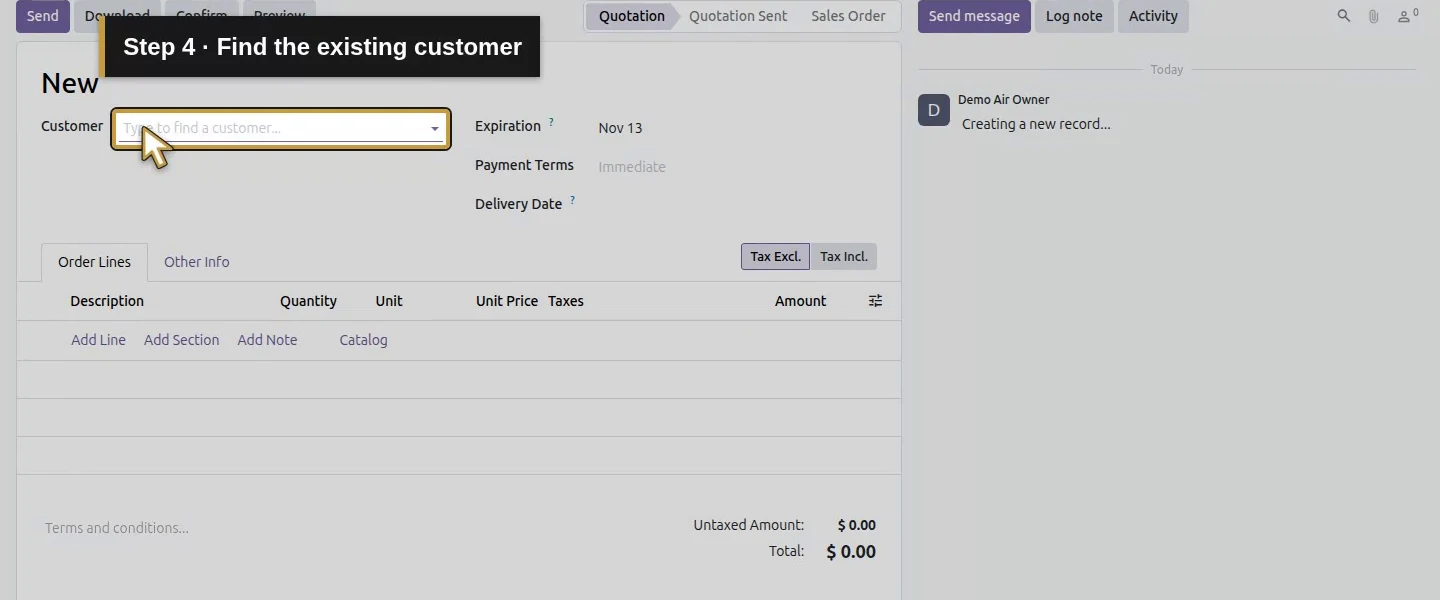
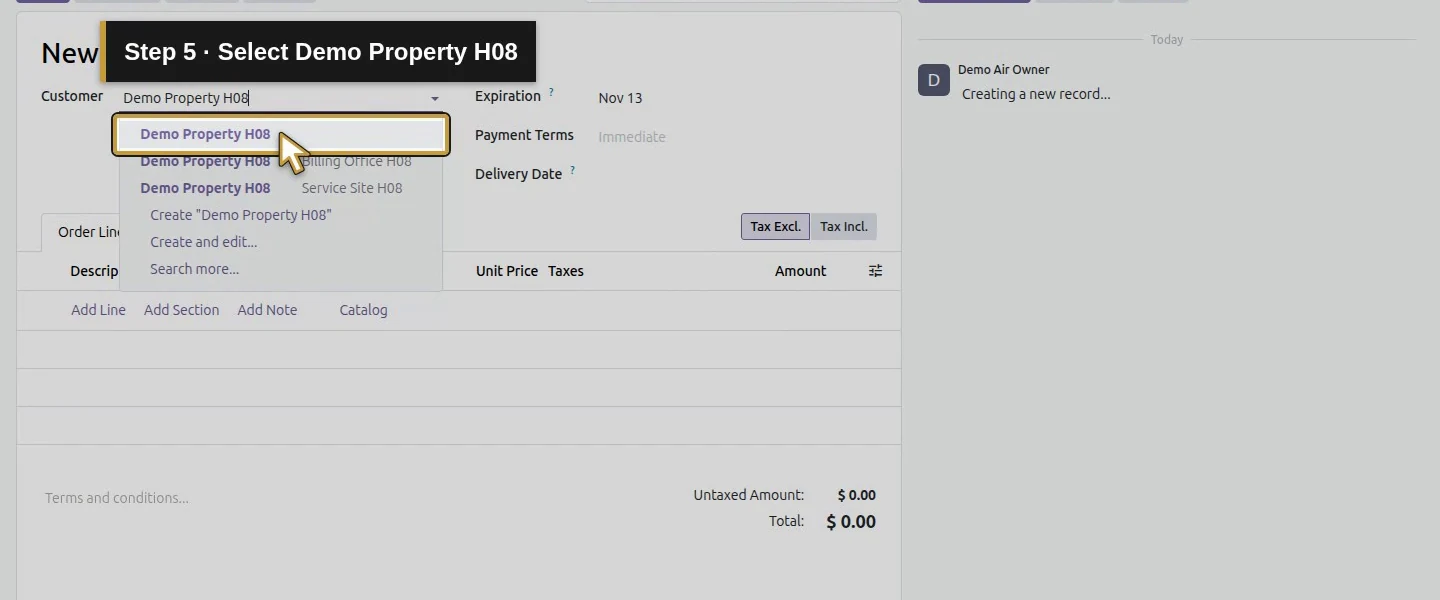
Open the app menu, select Sales and click New on Quotations. In Customer, choose the existing Demo Property H08 result.
Step 2. Add the service-call line
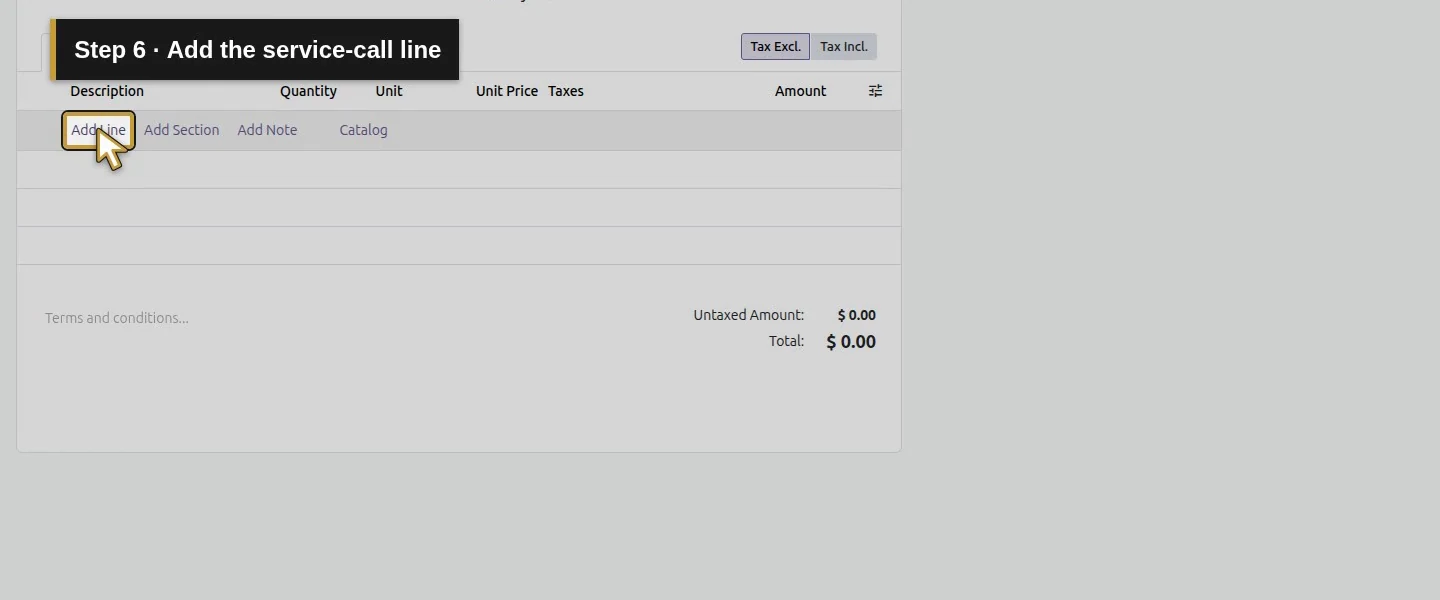
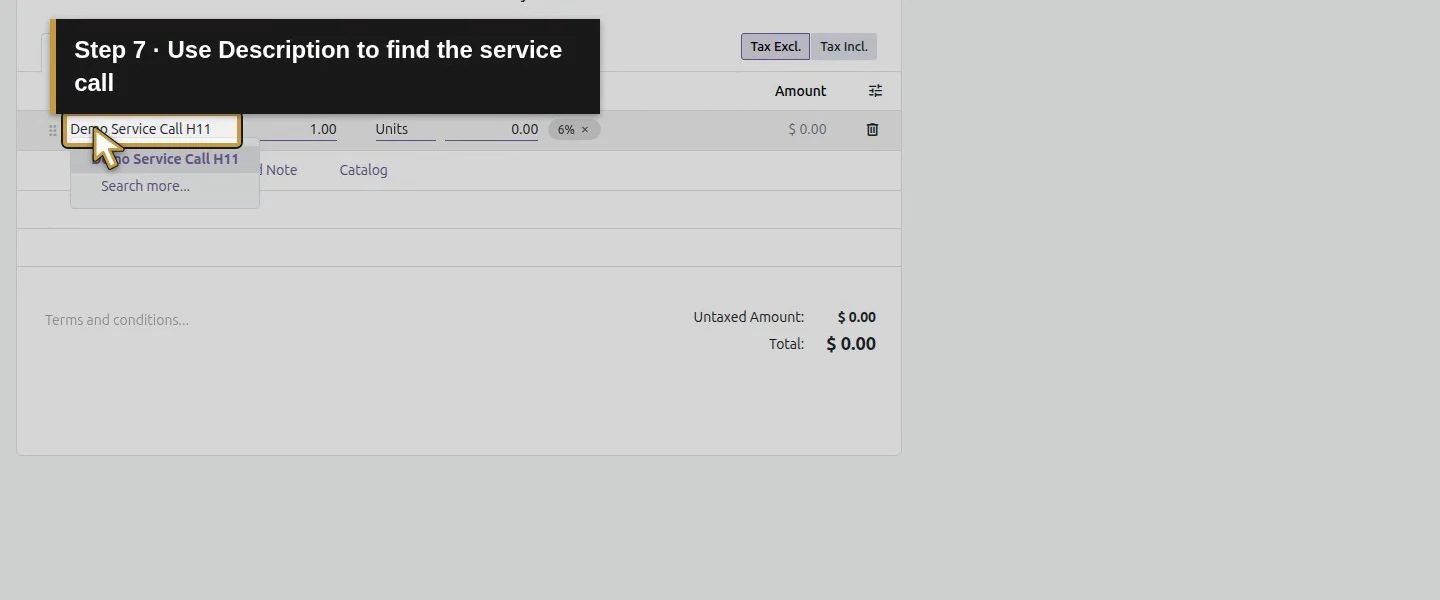
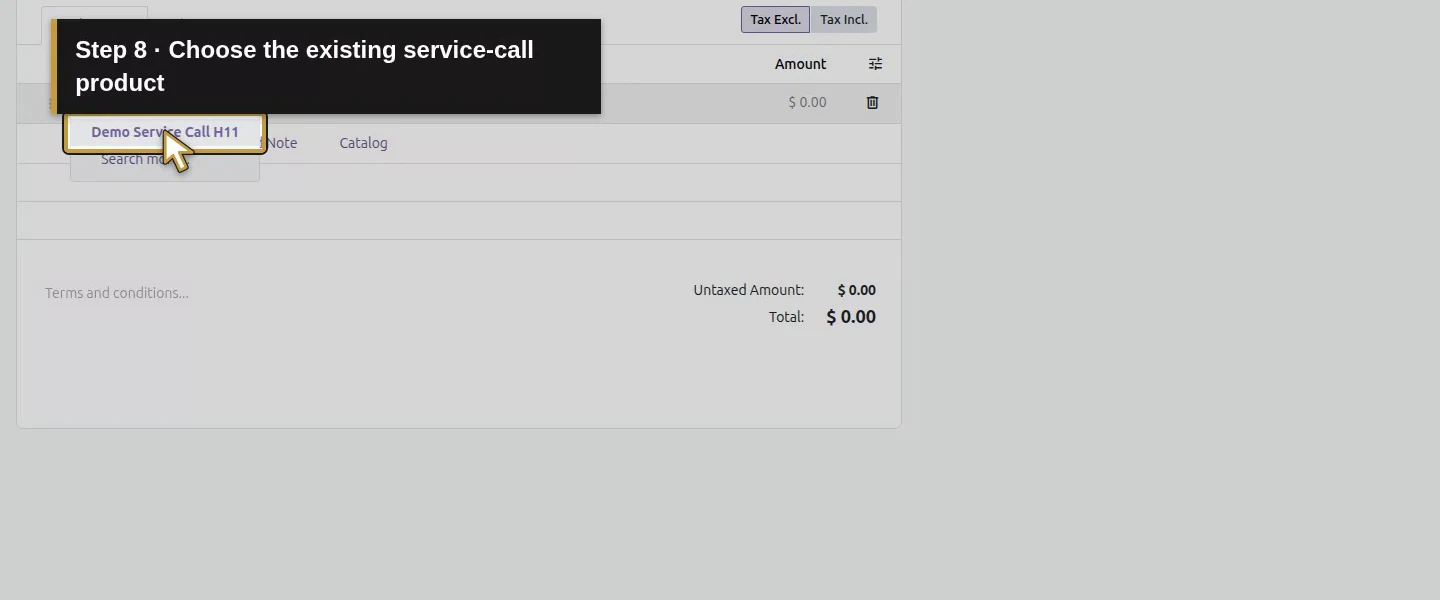
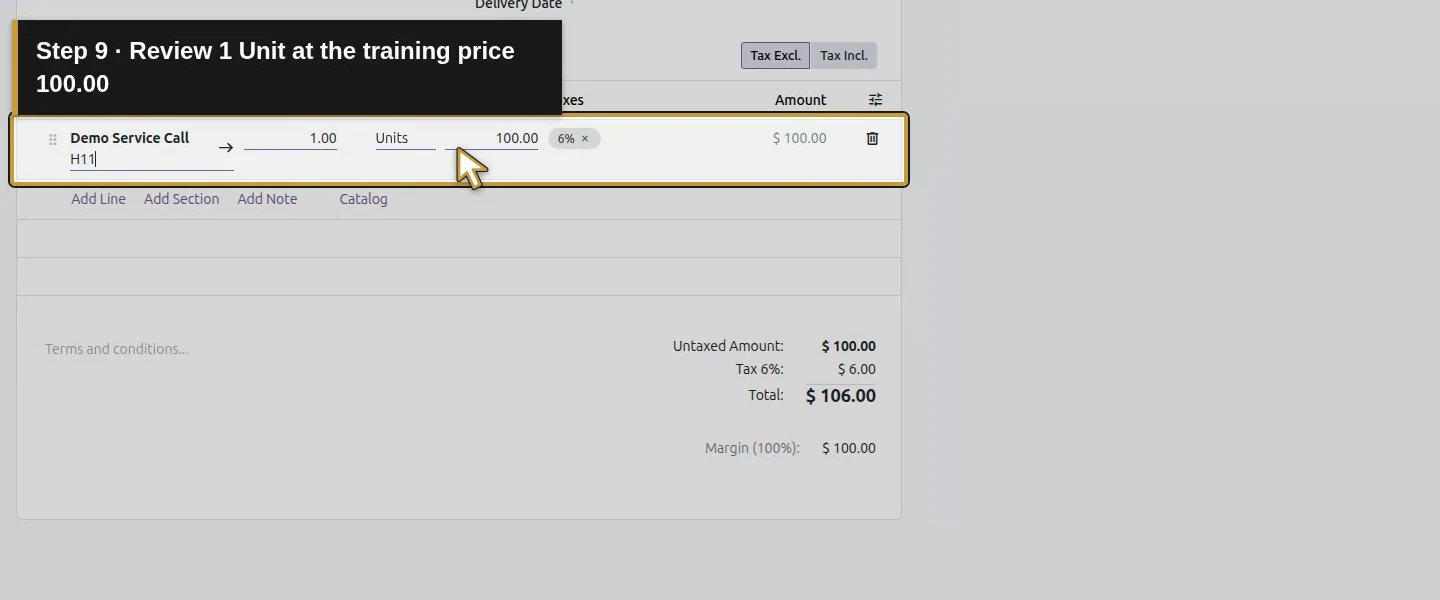
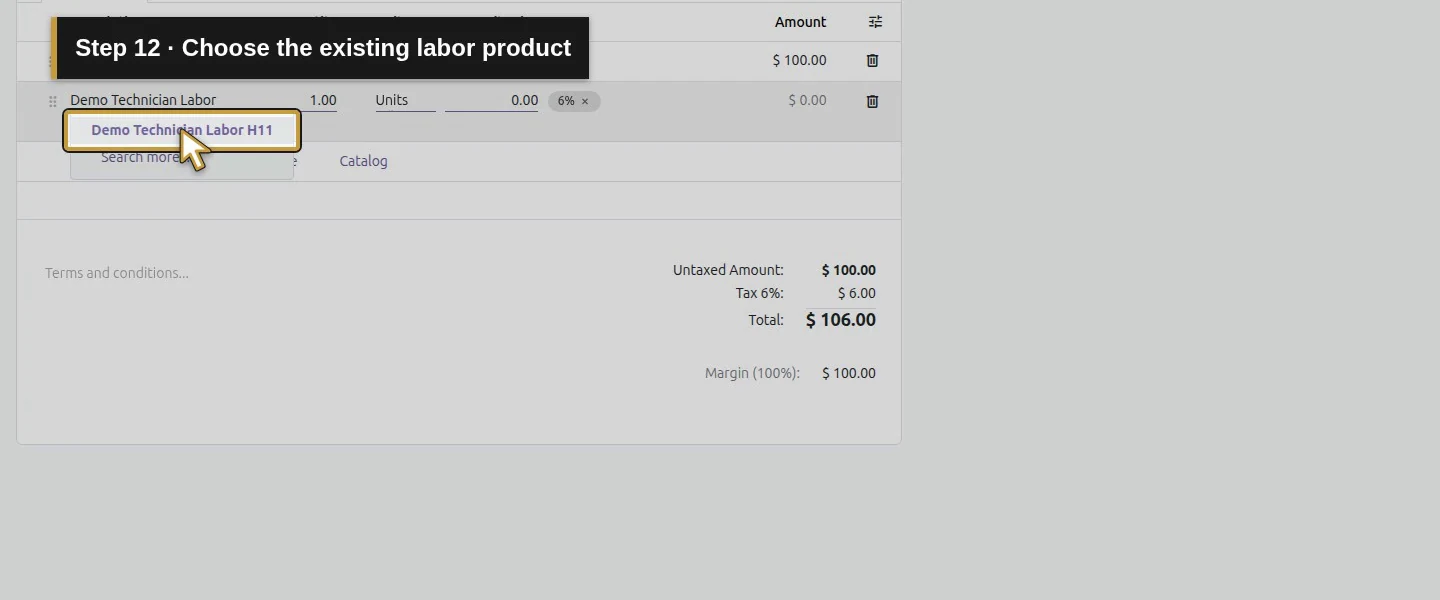
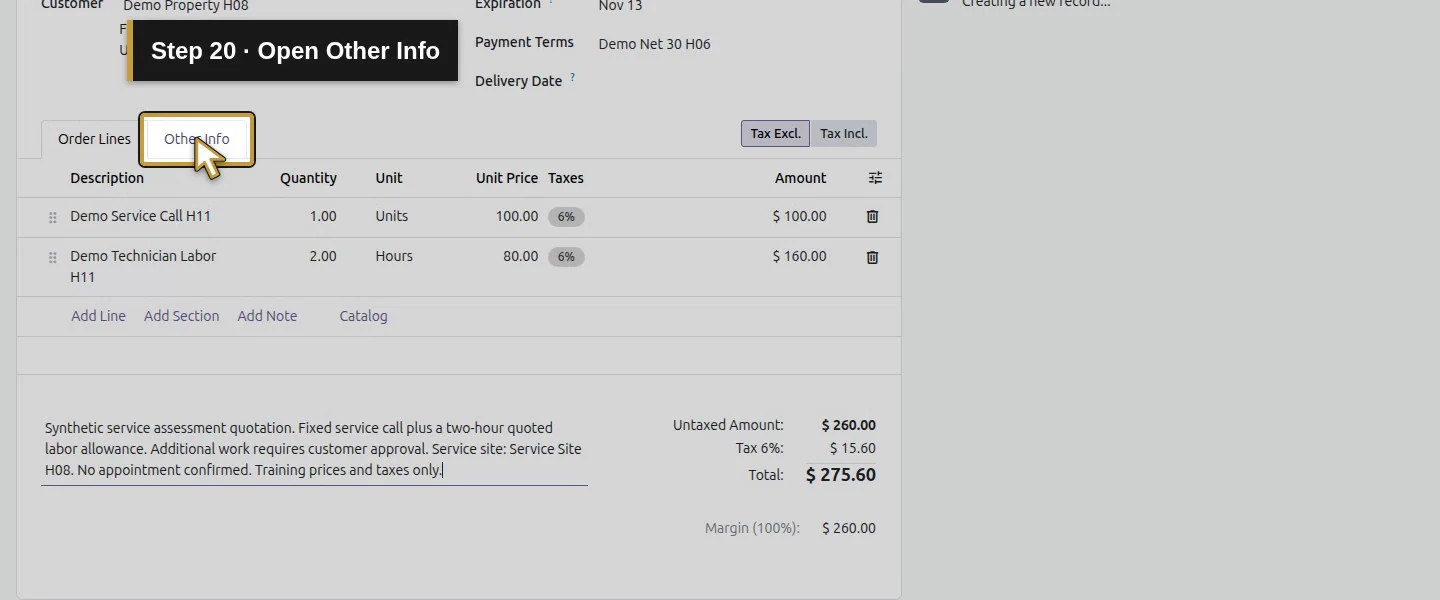
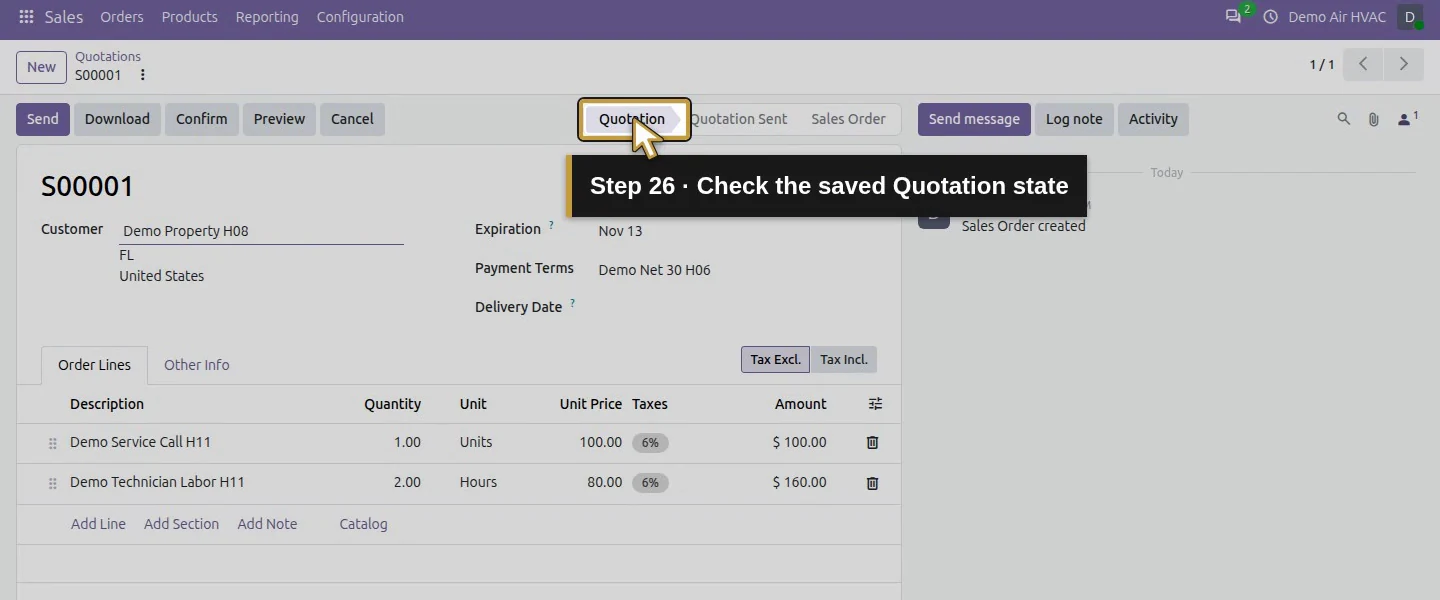
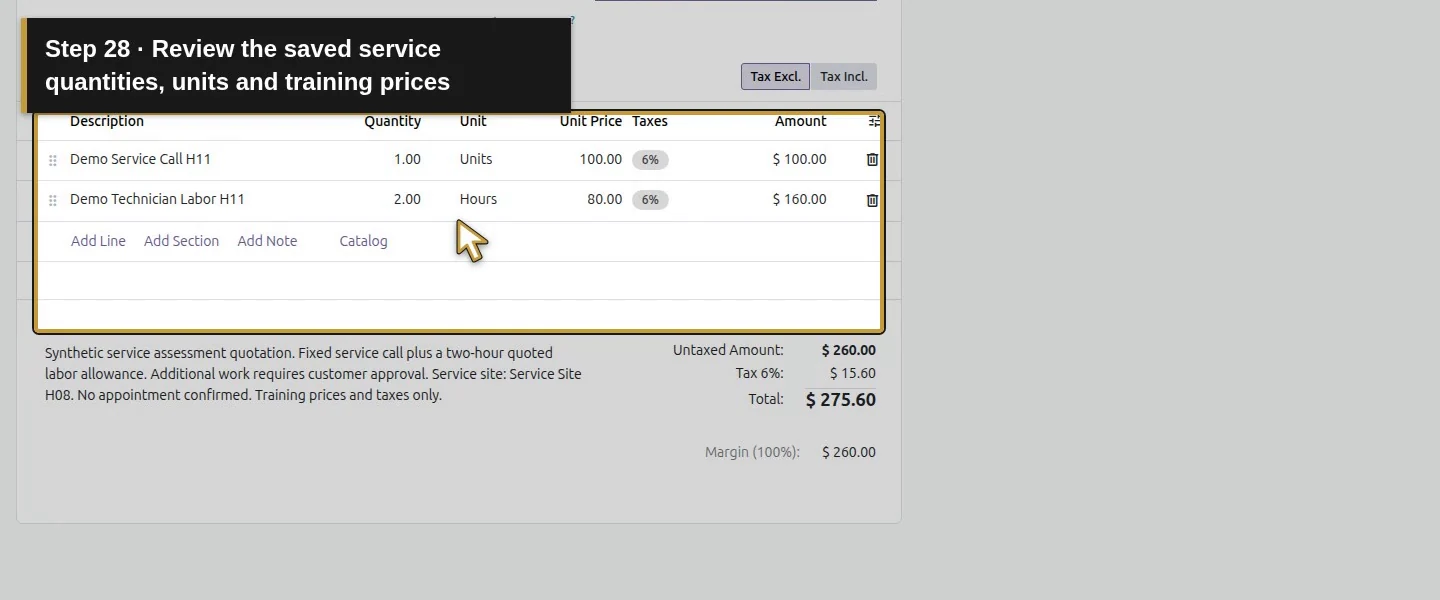
In Order Lines, click Add Line. Use the Description picker to choose Demo Service Call H11. Review quantity 1, unit Units and the illustrative unit price 100.00.
Step 3. Add the quoted labor
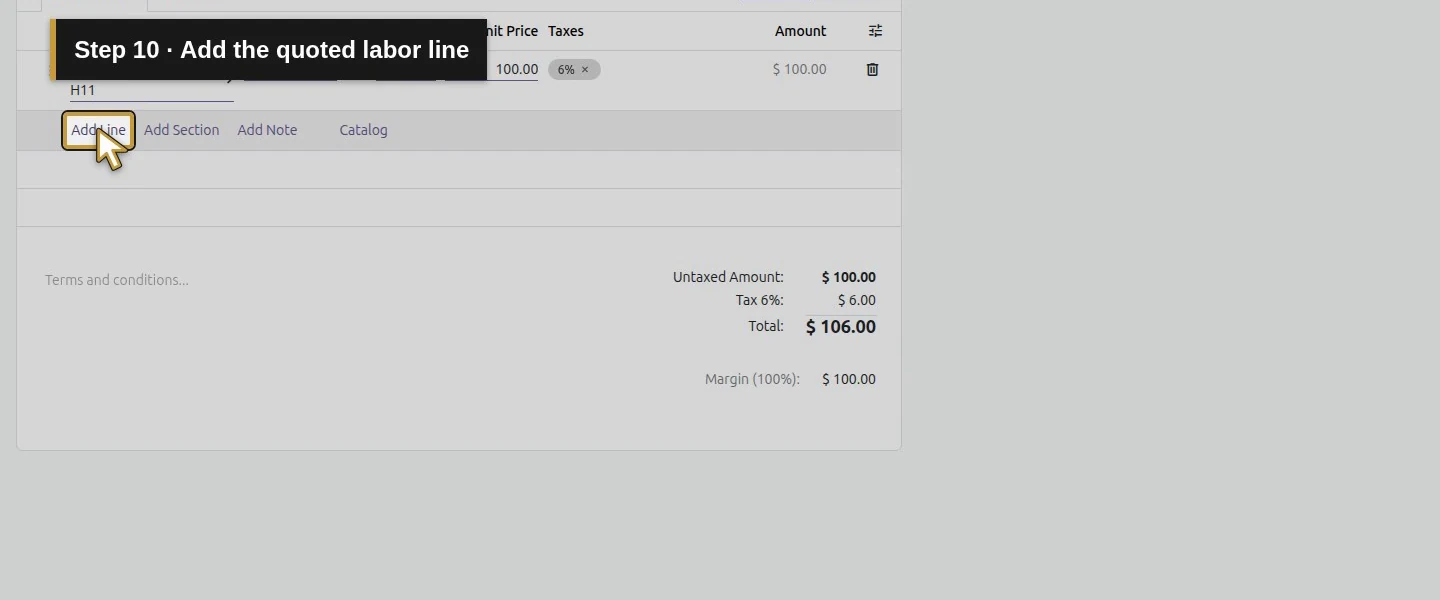
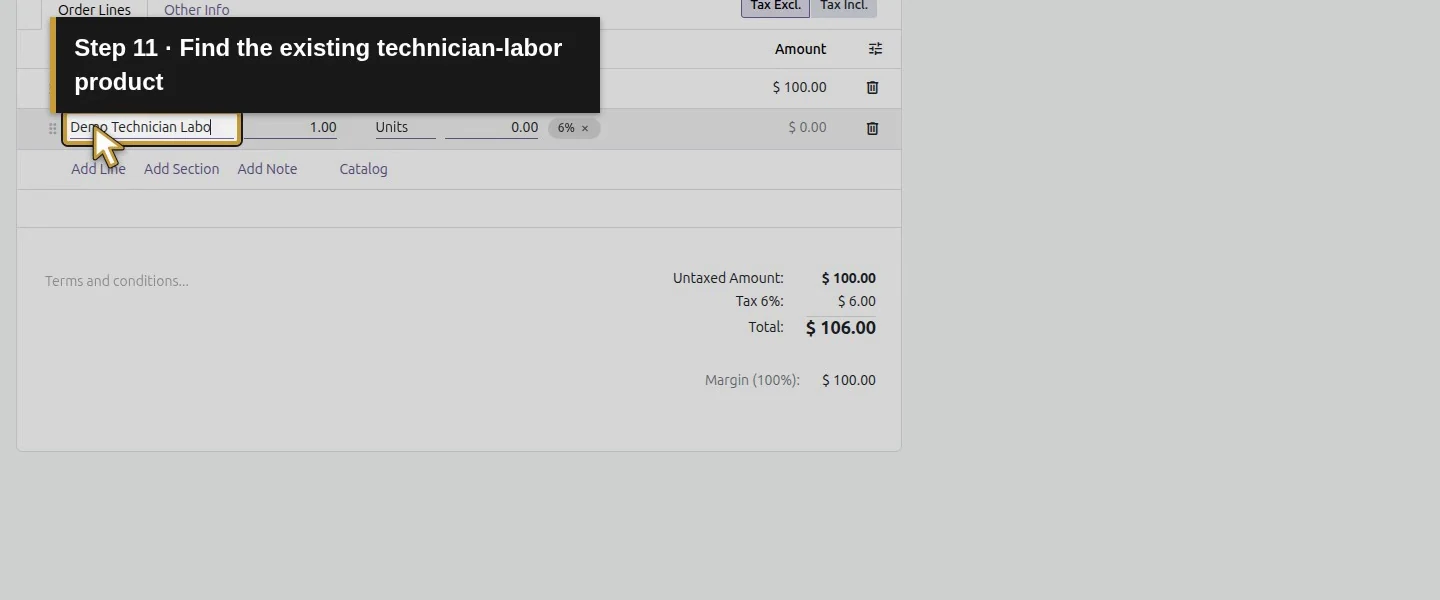
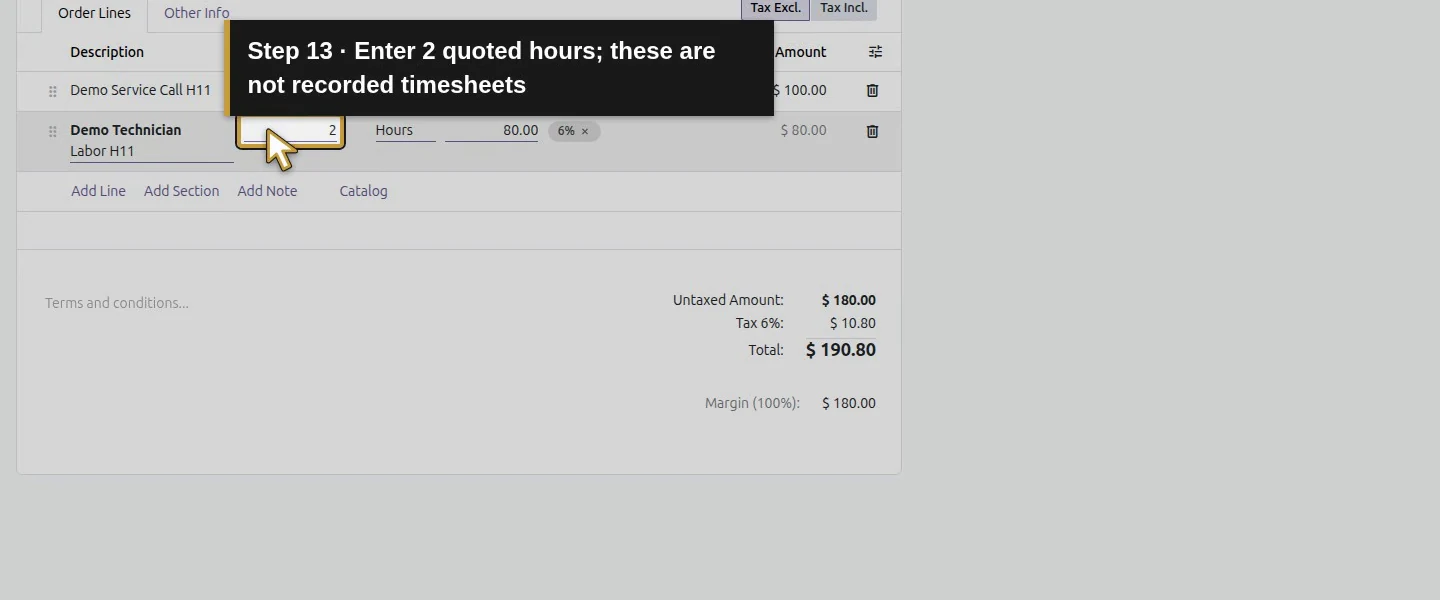
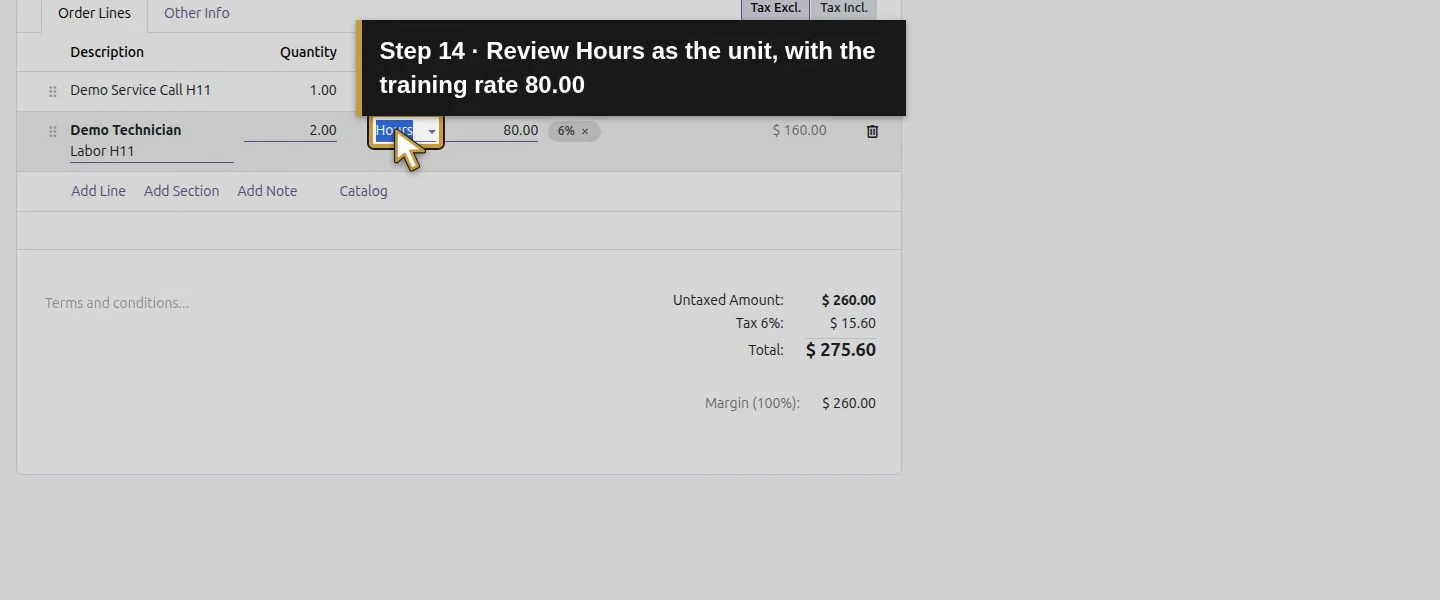
Click Add Line again and select Demo Technician Labor H11. Enter quantity 2 and review Hours at the illustrative 80.00 rate.
Step 4. Review tax and price
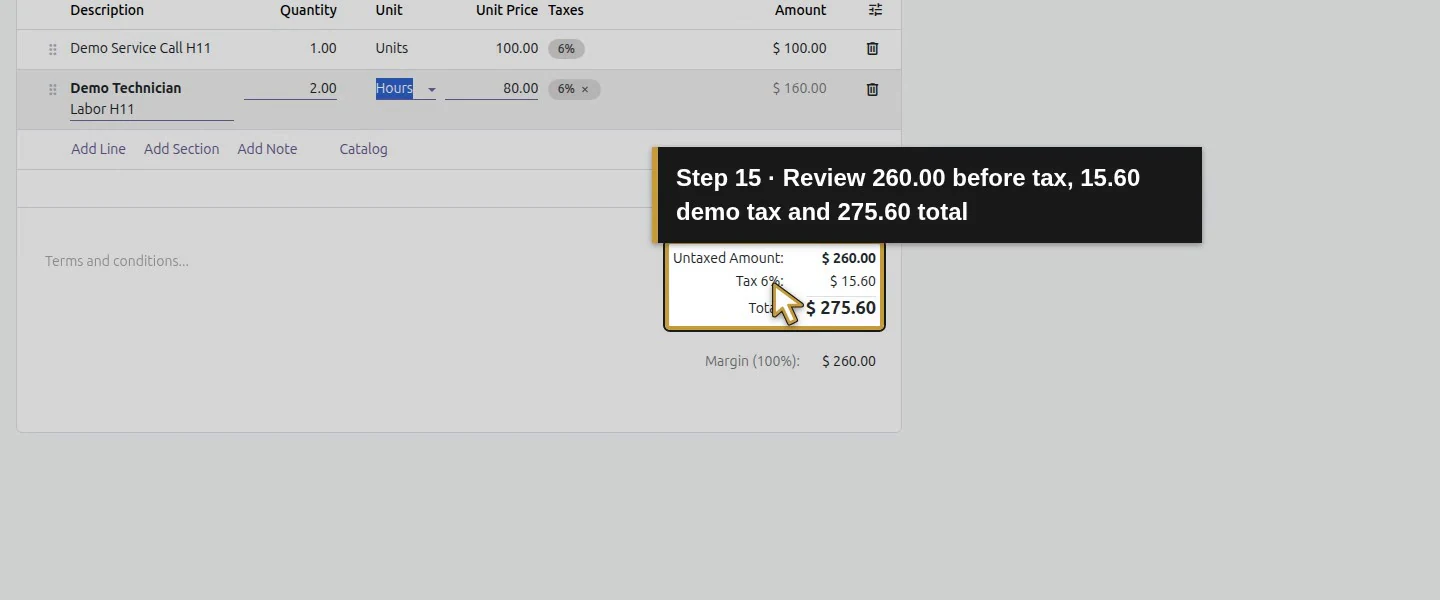
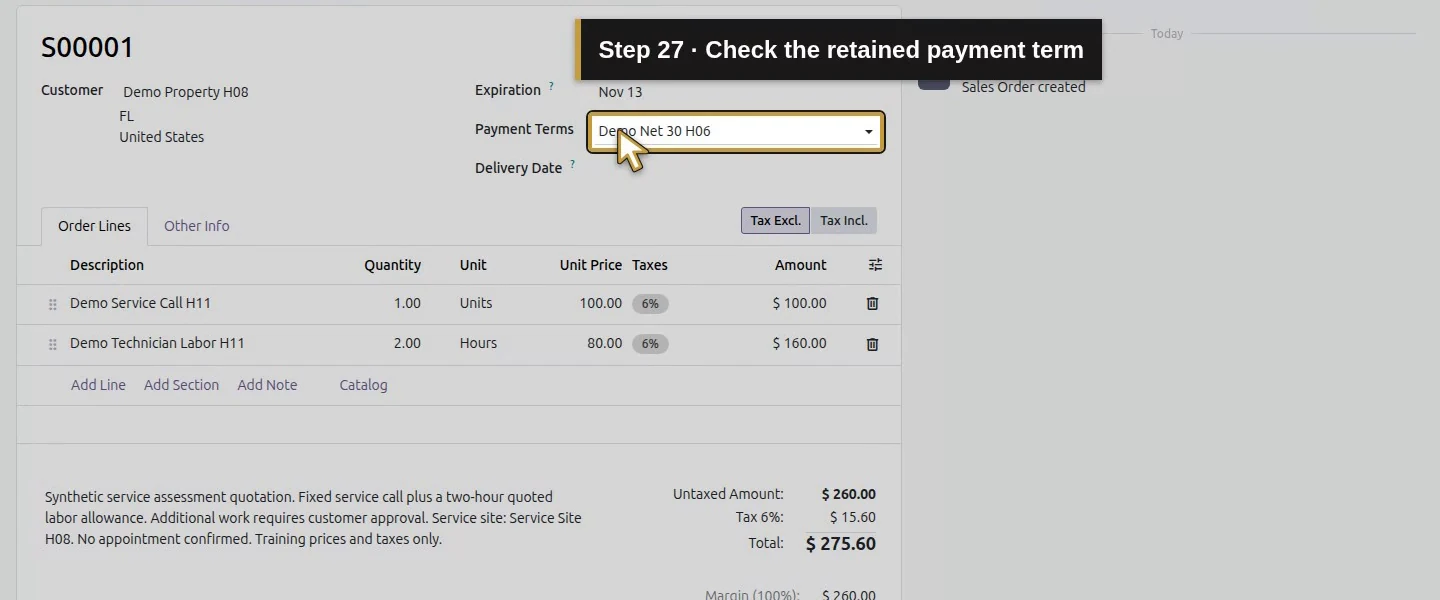
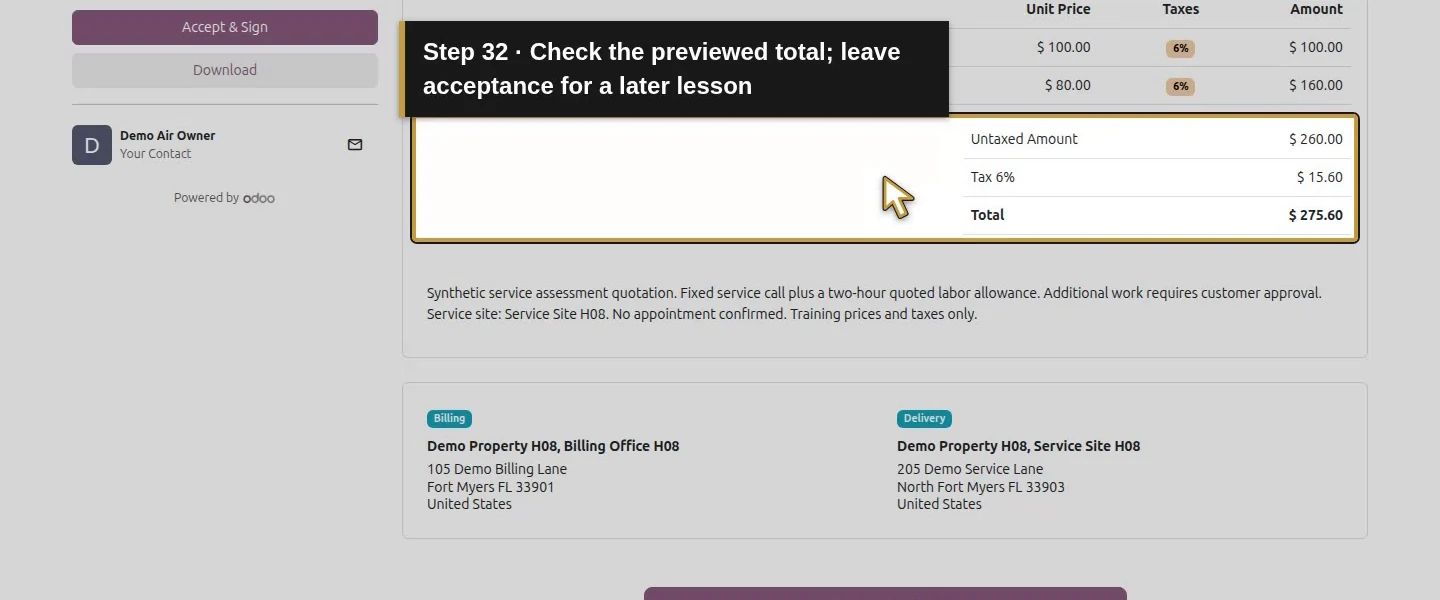
The two lines total USD 260.00 before tax. This demo inherits the generated 6% training tax, producing tax 15.60 and total 275.60. Review your actual tax treatment; these defaults are not a universal HVAC policy.
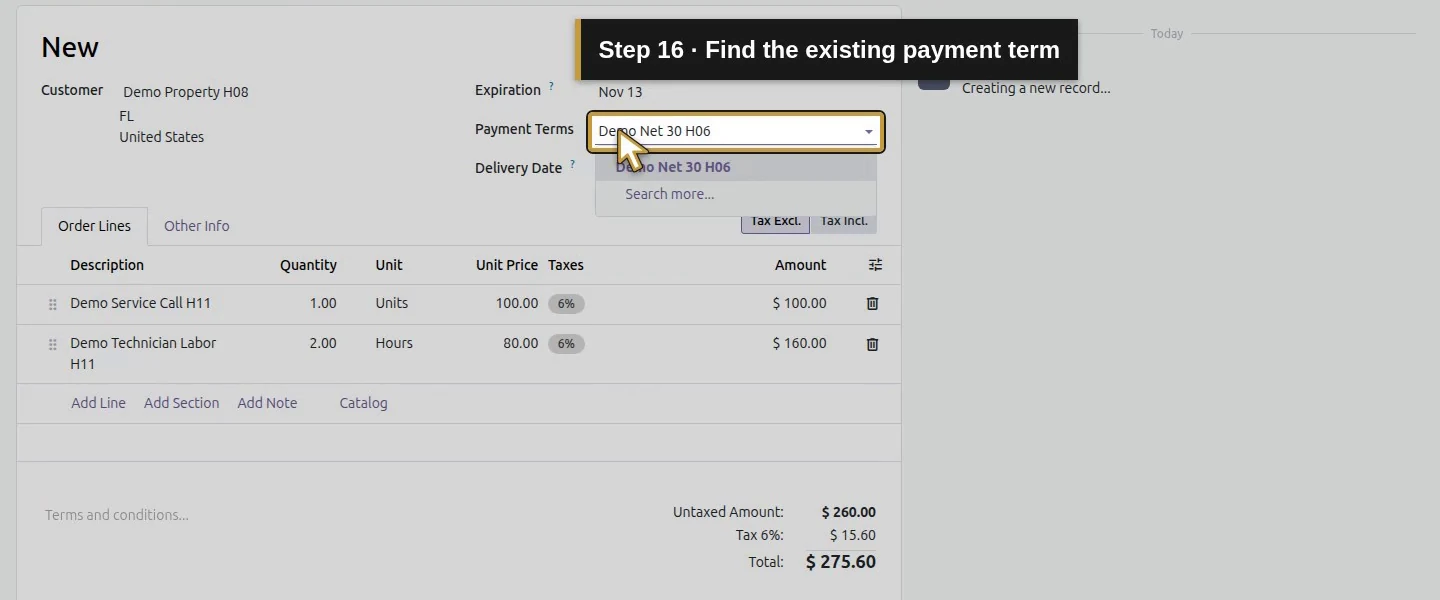
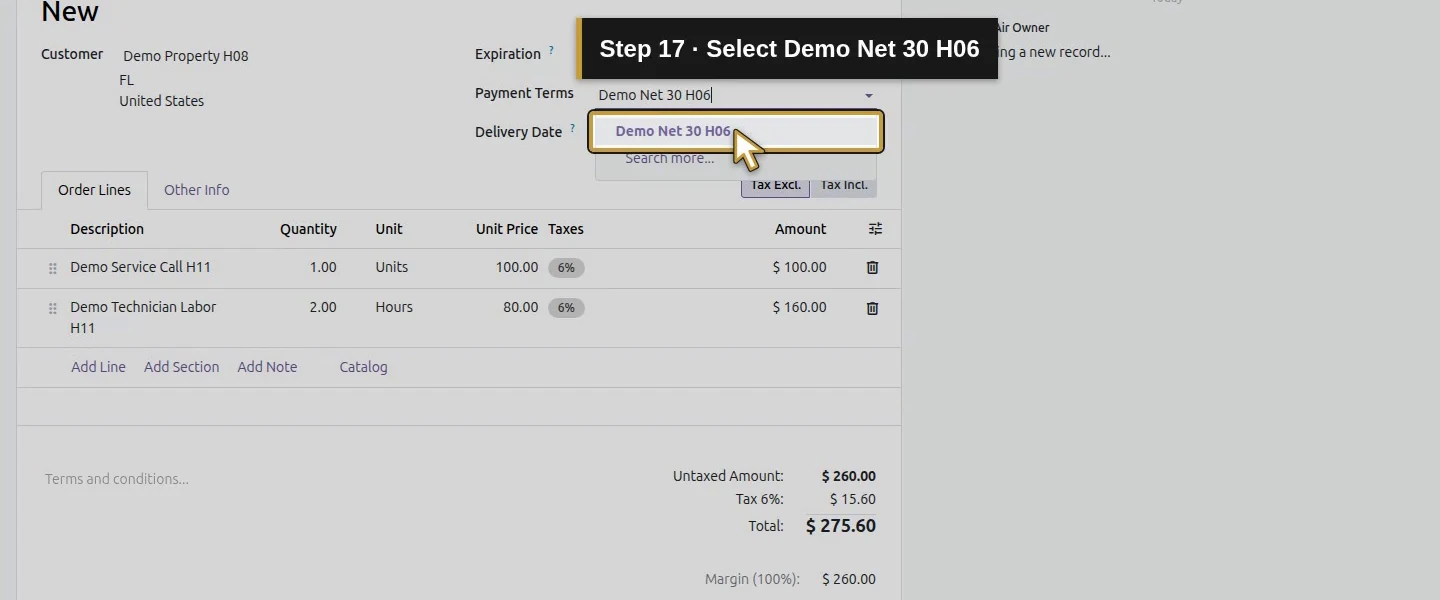
Step 5. Choose the payment term
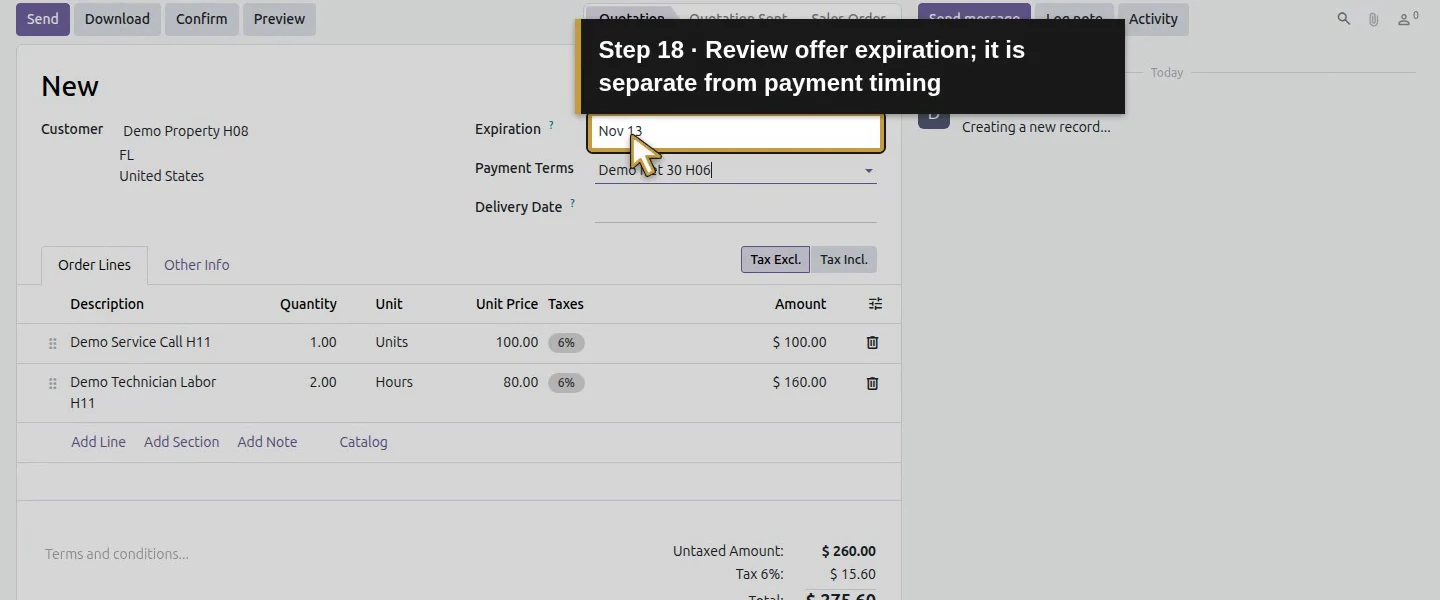
In Payment Terms, select existing Demo Net 30 H06. Review Expiration, which defaults to November 13, 2026 in this example. Offer expiration and invoice payment timing are separate.
Step 6. Write the scope
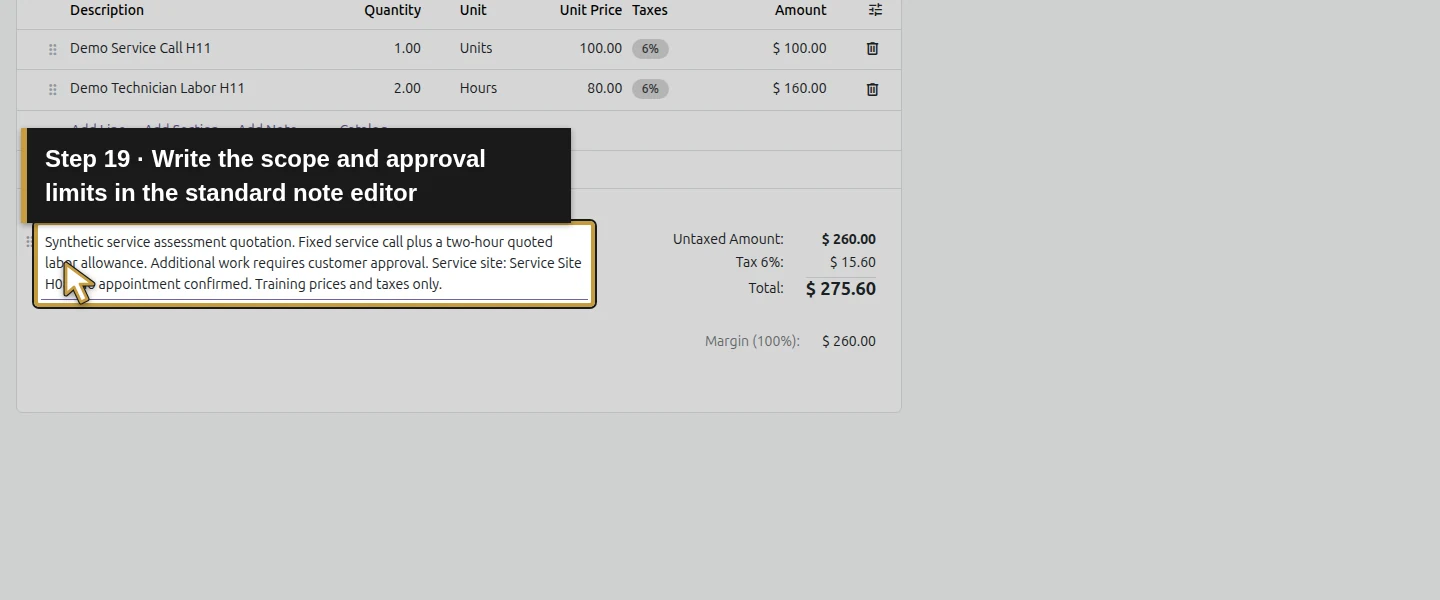
Use the standard note editor below the lines. The example states: Synthetic service assessment quotation. Fixed service call plus a two-hour quoted labor allowance. Additional work requires customer approval. Service site: Service Site H08. No appointment confirmed. Training prices and taxes only.
Step 7. Link the enquiry
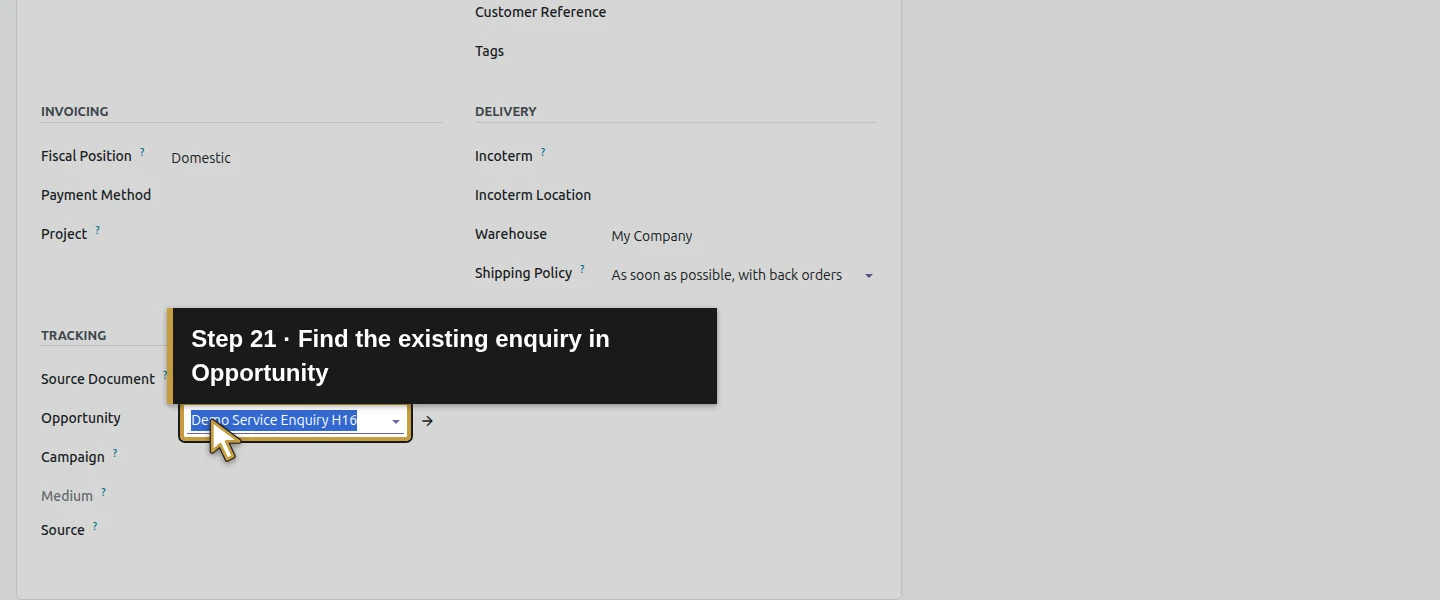
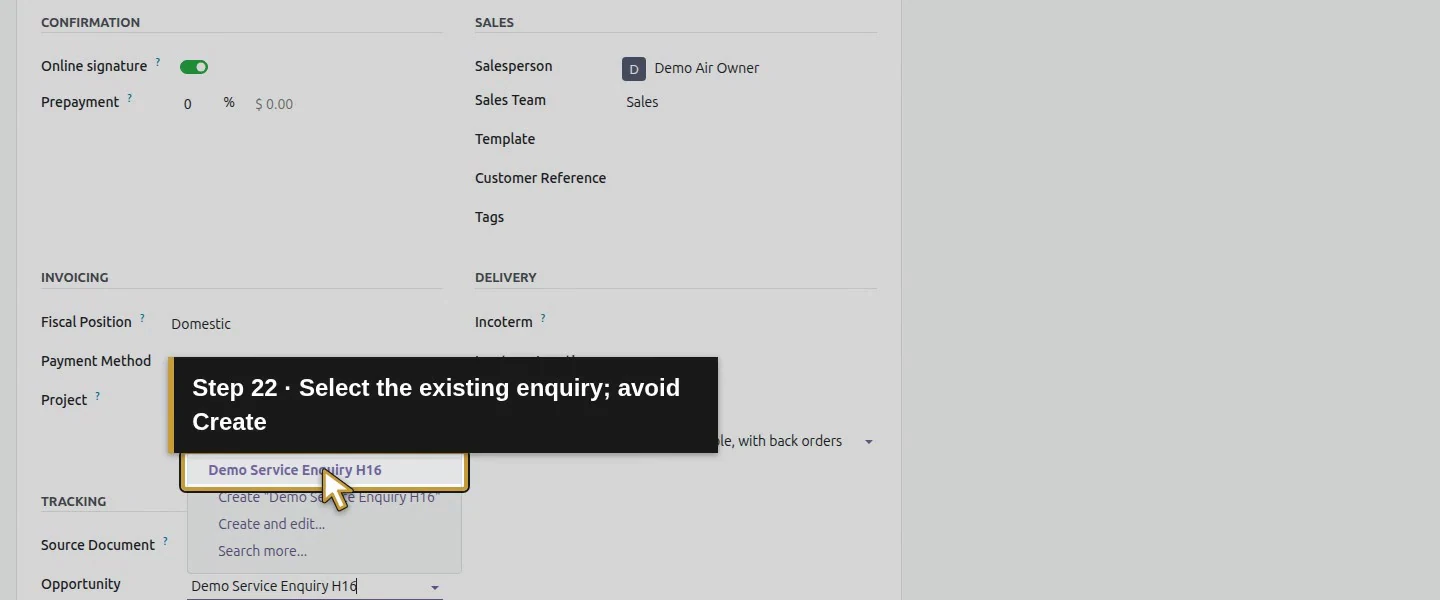
Open Other Info. In the native opportunity field, choose existing Demo Service Enquiry H16. Choose the existing record rather than Create; no second enquiry is needed.
Step 8. Save and reopen
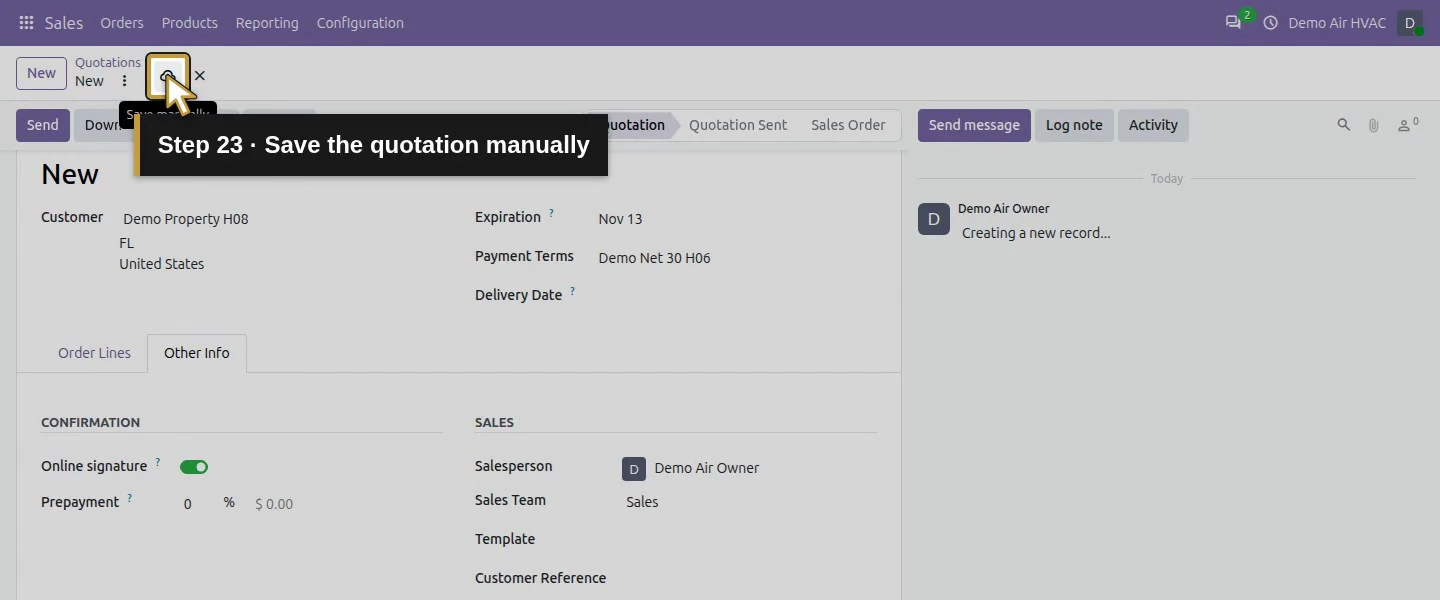
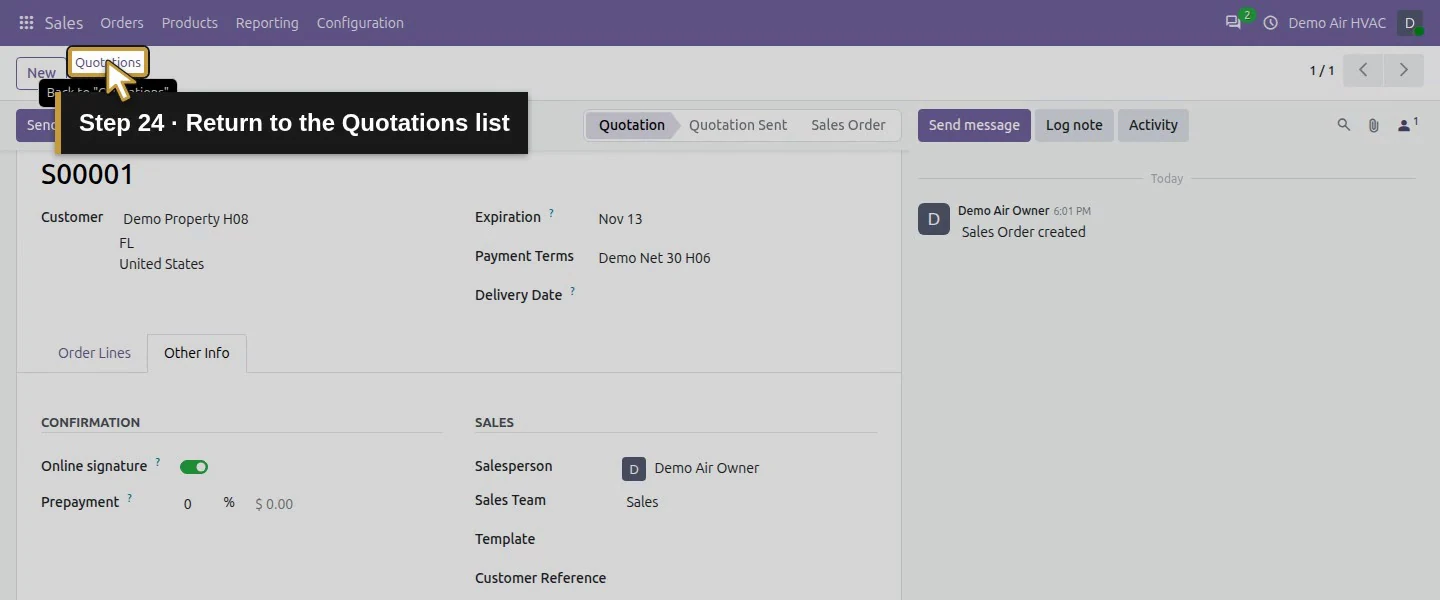
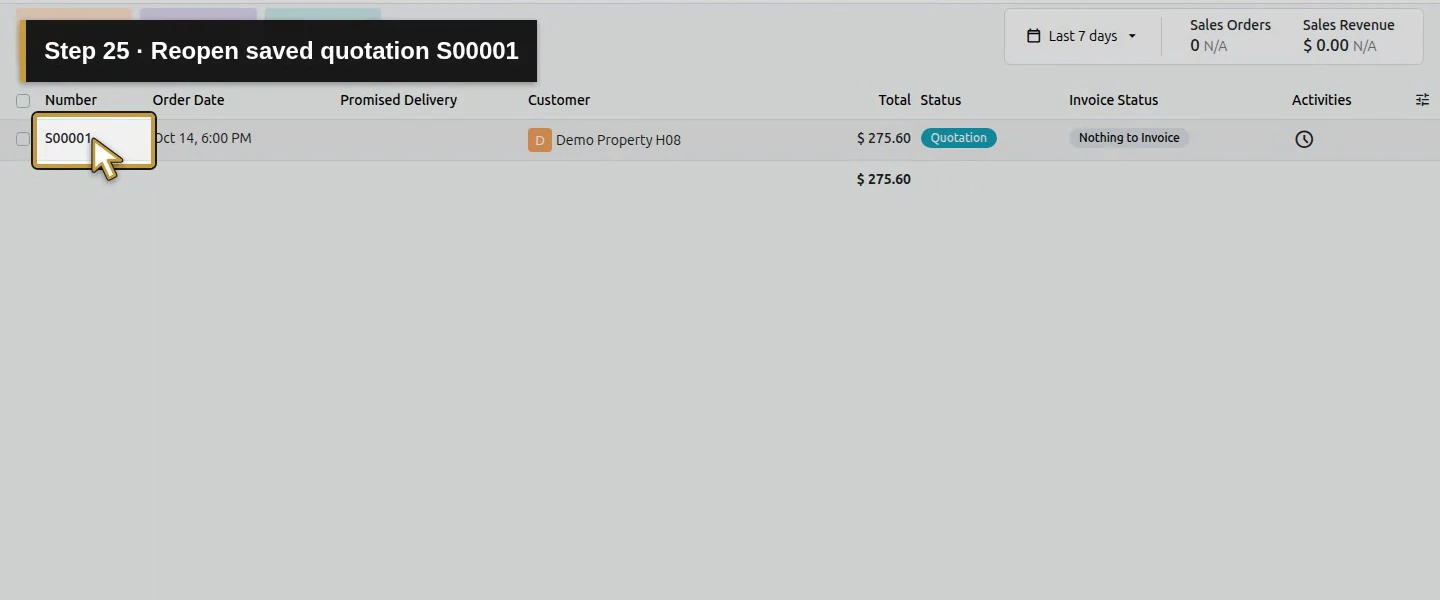
Click Save manually. Record the generated quotation number, S00001 in this demo, and reopen it. Confirm the two products, quantities, units, prices, term, scope and Quotation state.
Step 9. Review the customer-facing preview
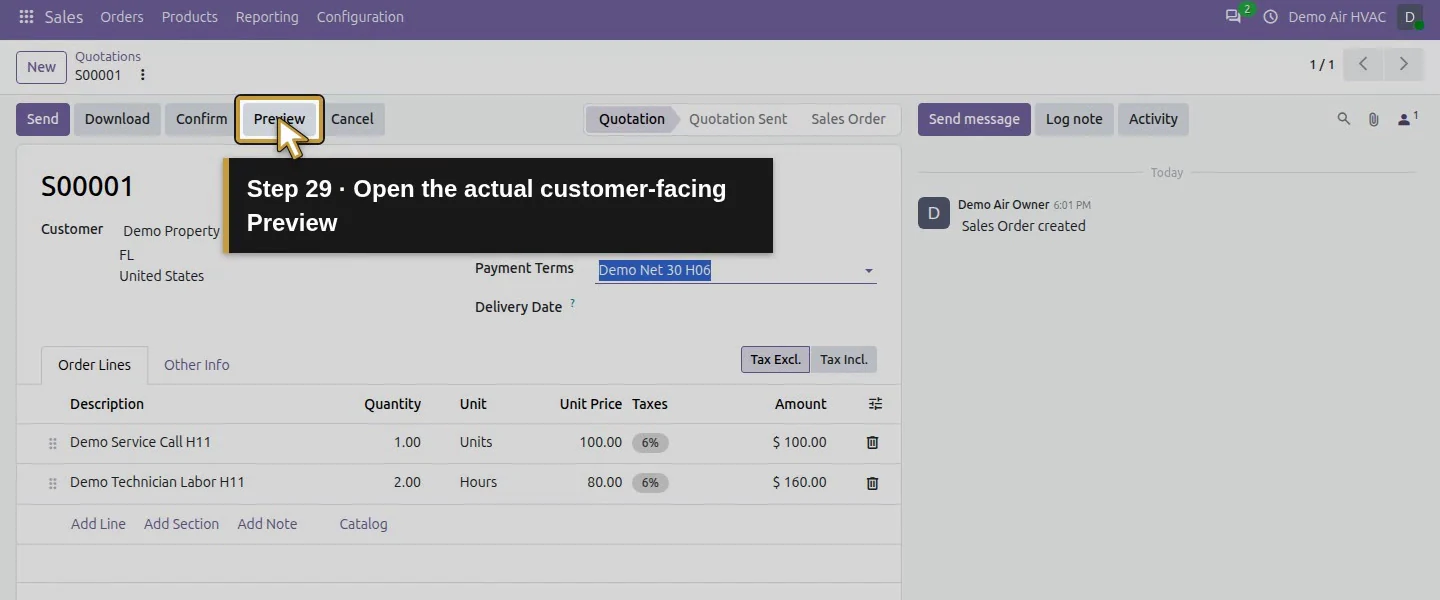
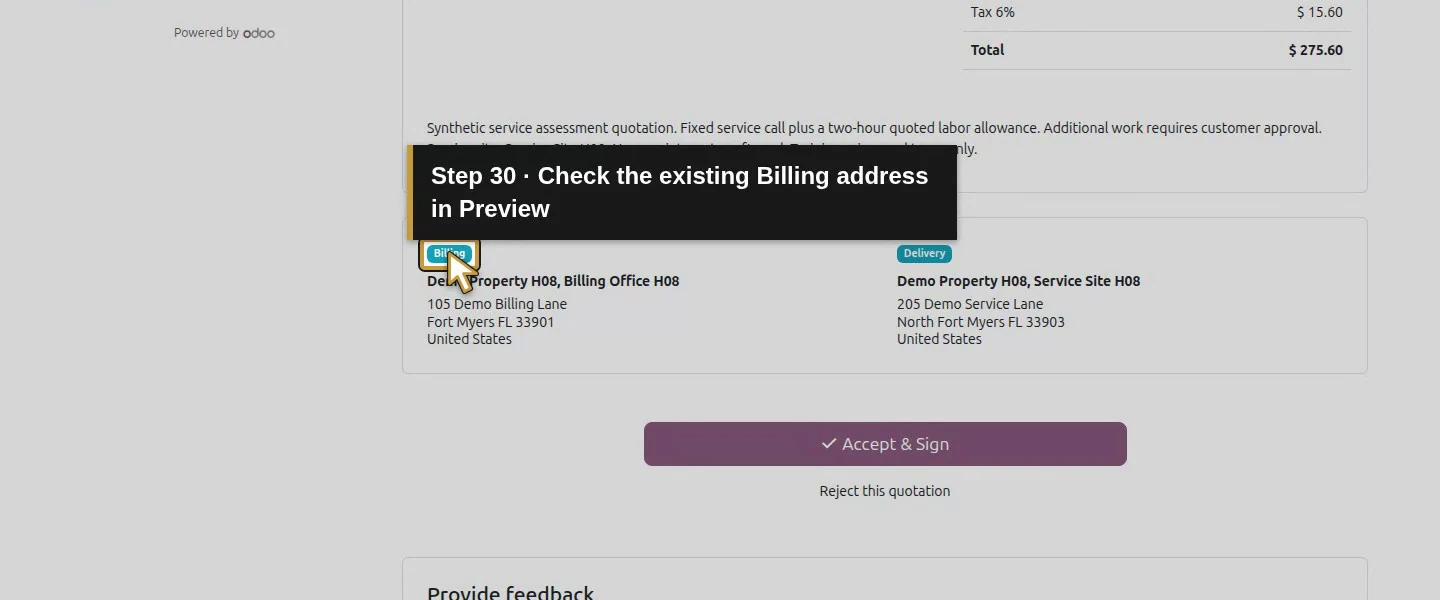
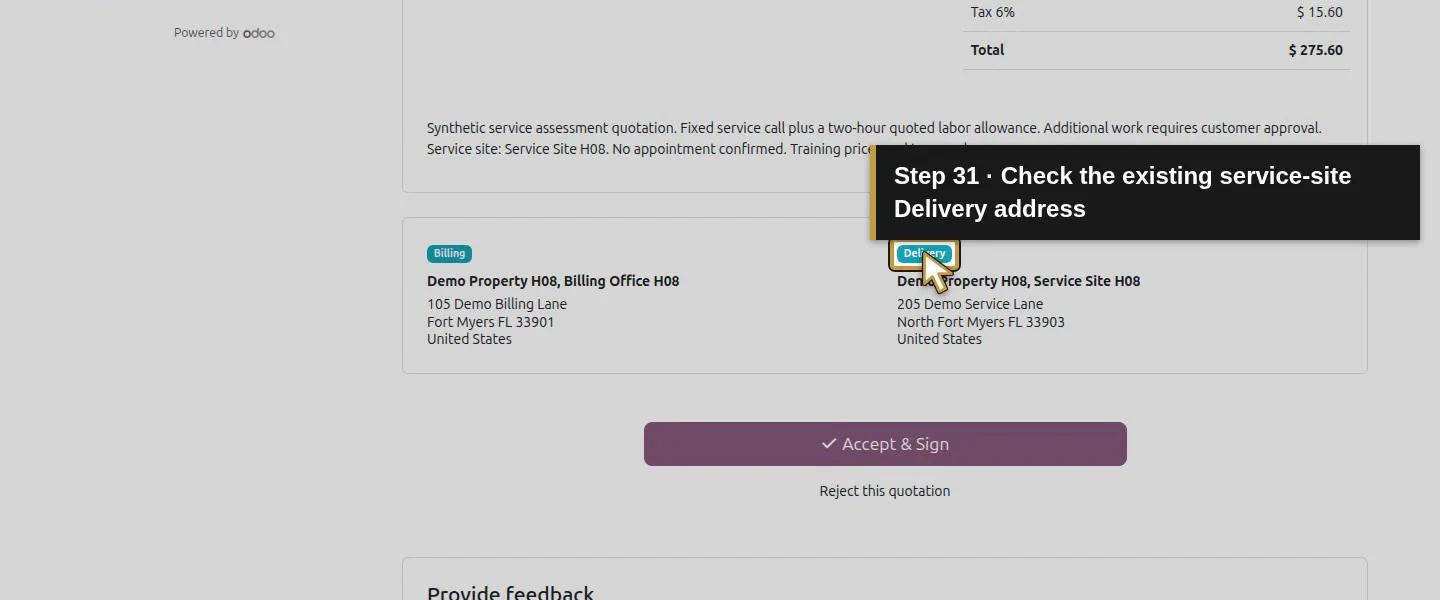
Click Preview. It opens the quotation in another browser tab. Check the lines, total, validity and the Billing and Delivery address sections. Do not accept or send the quotation as part of this lesson.
Check the result
Quotation 1/S00001 saved in draft with lines 1/2 for the existing services. It retained USD 260 untaxed, USD 15.60 demo tax and USD 275.60 total, term 11 and enquiry 3. The customer selection copied billing address 8 and delivery/service address 9, and both appeared in Preview. Products remain six and partners seven; no invoice/accounting move or stock picking was created.
If your screen differs
This Odoo 20 form uses Add Line and a Description picker. It did not show separate billing/delivery selectors; the existing typed customer addresses were copied and checked in the saved record and preview. The Hours unit does not alter H11's ordered-quantity invoicing policy. These lines remain fixed quoted quantities; UI margin based on default costs is not actual job profit.
Frequently asked questions
How do I create a service quotation in Odoo?
Choose the customer, use Add Line and the Description picker for reviewed services, set quantities/terms/scope, save and inspect Preview.Can Odoo quotations use different invoice and service addresses?
The tested customer selection copied the existing billing and delivery records, and Preview showed both. Separate on-form address selection was not exposed in this configuration.Does a labor line in Odoo automatically bill actual hours?
The H11 labor product still uses ordered-quantity invoicing. Its Hours unit quotes an allowance; actual-time billing requires the separately verified service policy and time linkage.Continue building the business
Customer quotation acceptance is a separate verification step. The saved quotation also supplies the document fixture for logo and document layout.
Talk about your Odoo setup
Bring your current process and the result you need to Onward to plan your Odoo workflow. Talk about your Odoo setup.