By Nelson Milian, Odoo Expert & Agentic AI Developer
Published
Running an HVAC business with Odoo
How do I add job instructions and completion photos in Odoo?
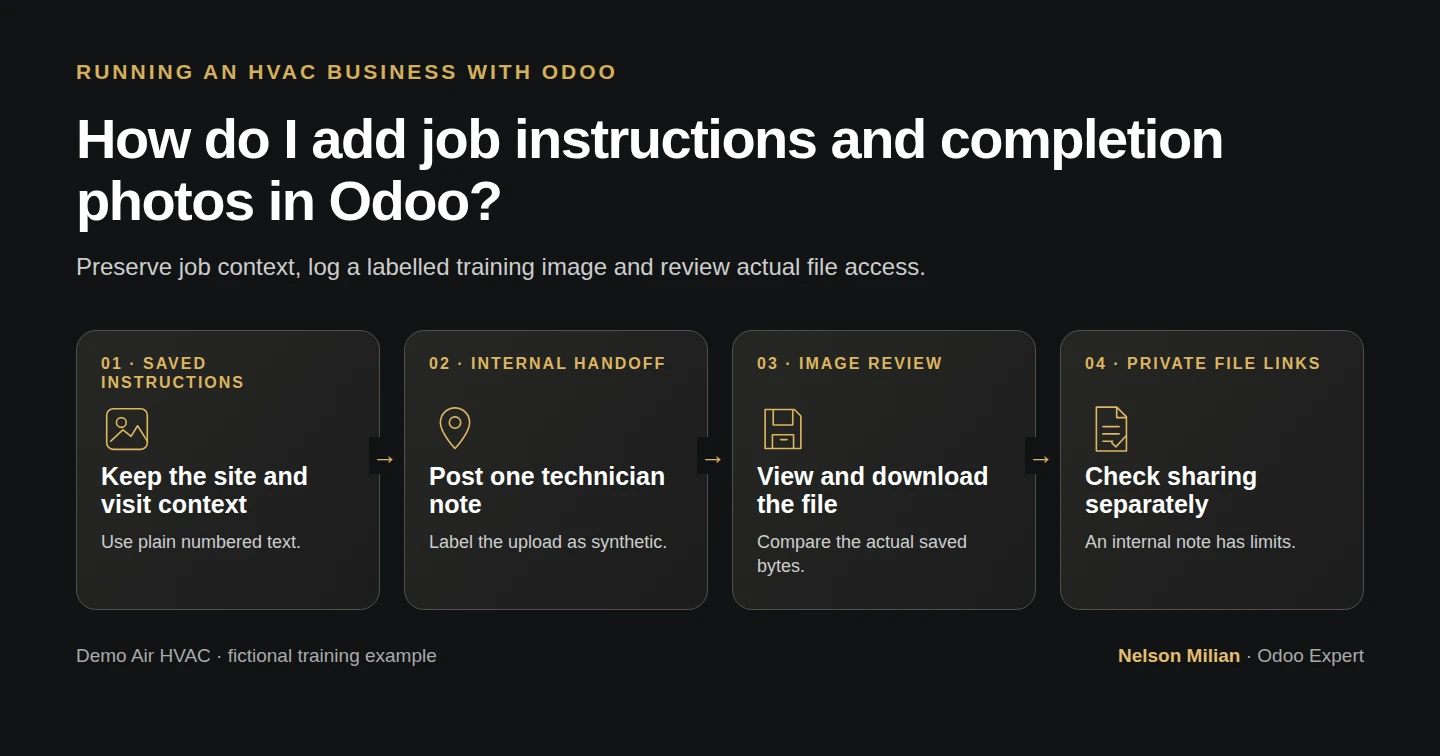
Workflow overview. Instructional screenshots show the actual demo interface.
Add Odoo task instructions and a labelled training photo, then verify the internal note, saved file and file-link access boundary.
Alex needs the technician's task to hold usable instructions and a clear handoff for office review. This guide preserves the job context, adds a labelled image through an internal note and checks the saved result from both the technician and owner sessions.
Alex Rivera and Demo Air HVAC are fictional training examples. Prices, dates, quantities and business situations in this guide are illustrative.
Before you begin
Tested in stock Odoo 20.0-20260926 Community as the demo owner administrator, with official modules and standard configuration. Use the generated job from create a task from a sales order and the technician/access setup from assign a technician and deadline. The target is S00008 - Demo Time-Billed Labor H41, with Demo Property H08, Service Site H08 context and its saved assignee/deadline. Keep the existing site/window description. Our upload input is one PNG with two before/after panels, prominently labelled AI-GENERATED TRAINING EXAMPLE. It demonstrates file handling and is not proof of actual work. The standard Project User technician can upload/post this note; portal-customer permissions remain a separate check.
Step-by-step workflow
55 highlighted video actions with a white pointer, gold border and English captions, without narration. Each written step groups its smaller video actions. Stock Odoo20 Community; preserve the existing job/technician/deadline/context, save a plain instruction list, one actual technician internal note and synthetic labelled image, native owner/technician viewer and exact download, scoped anonymous link boundary. No actual work, required checklist, portal visibility, time, stock, completion, invoice or email delivery claim. Private file tokens excluded from selected media/metadata.
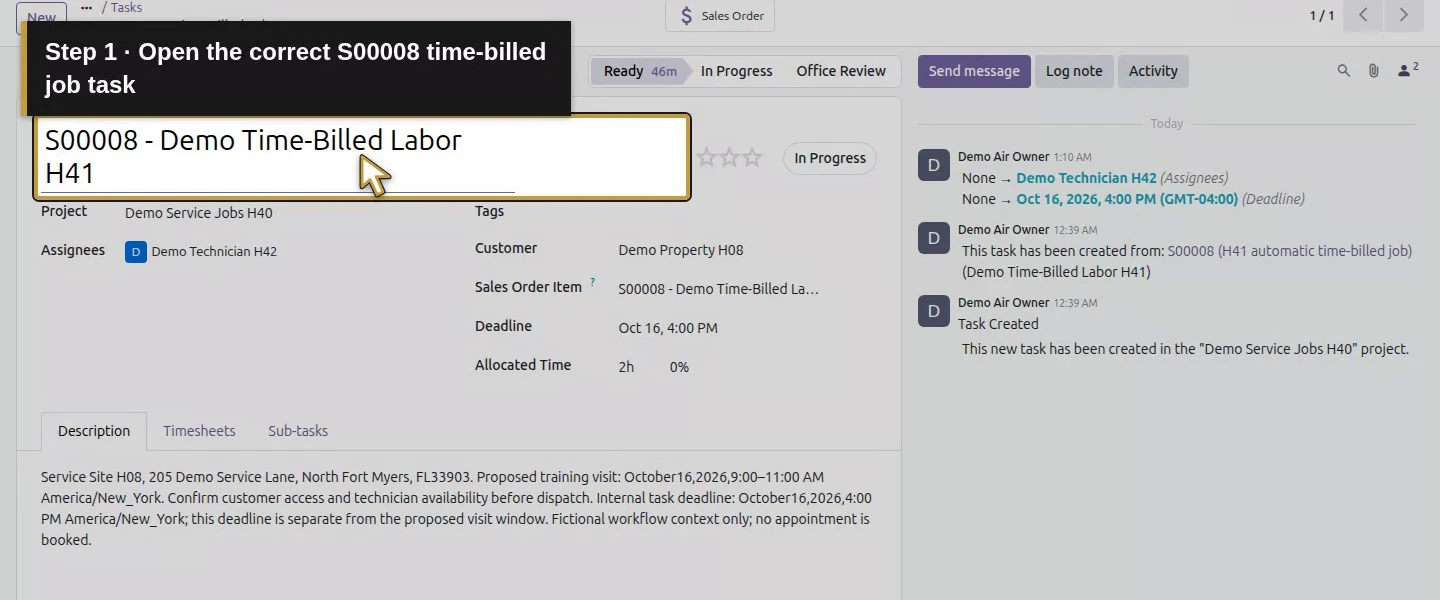
Step 1. Review the task identity and existing context
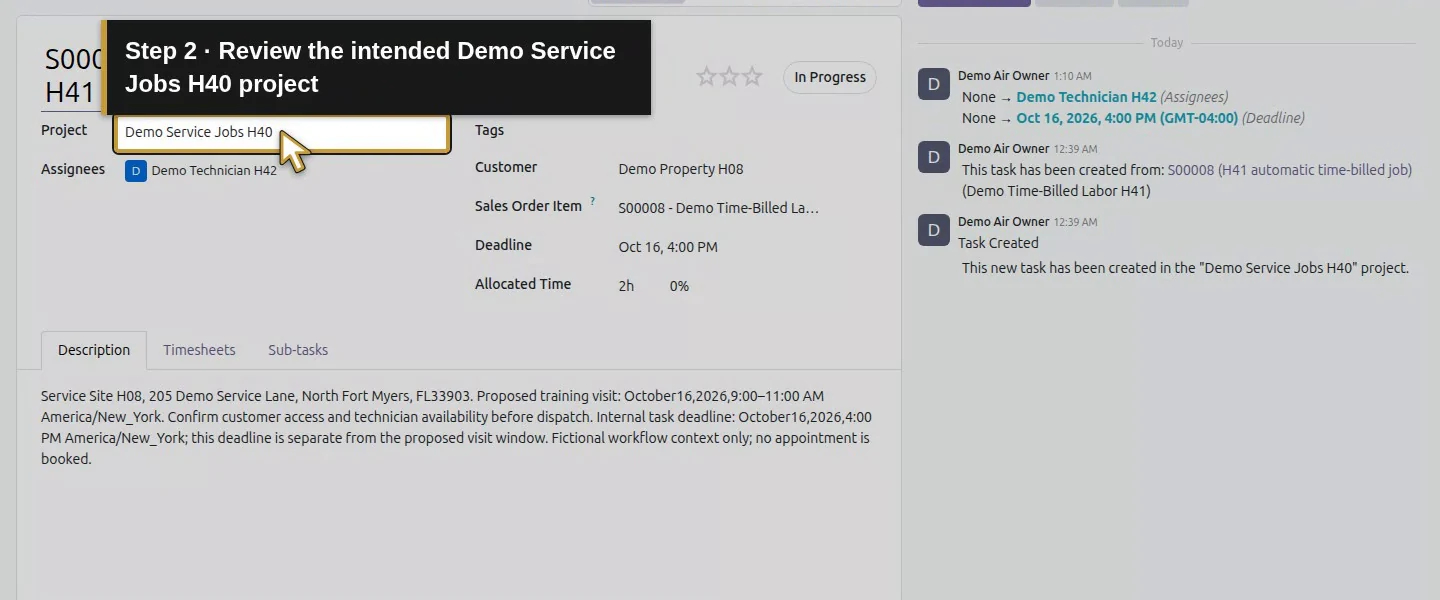
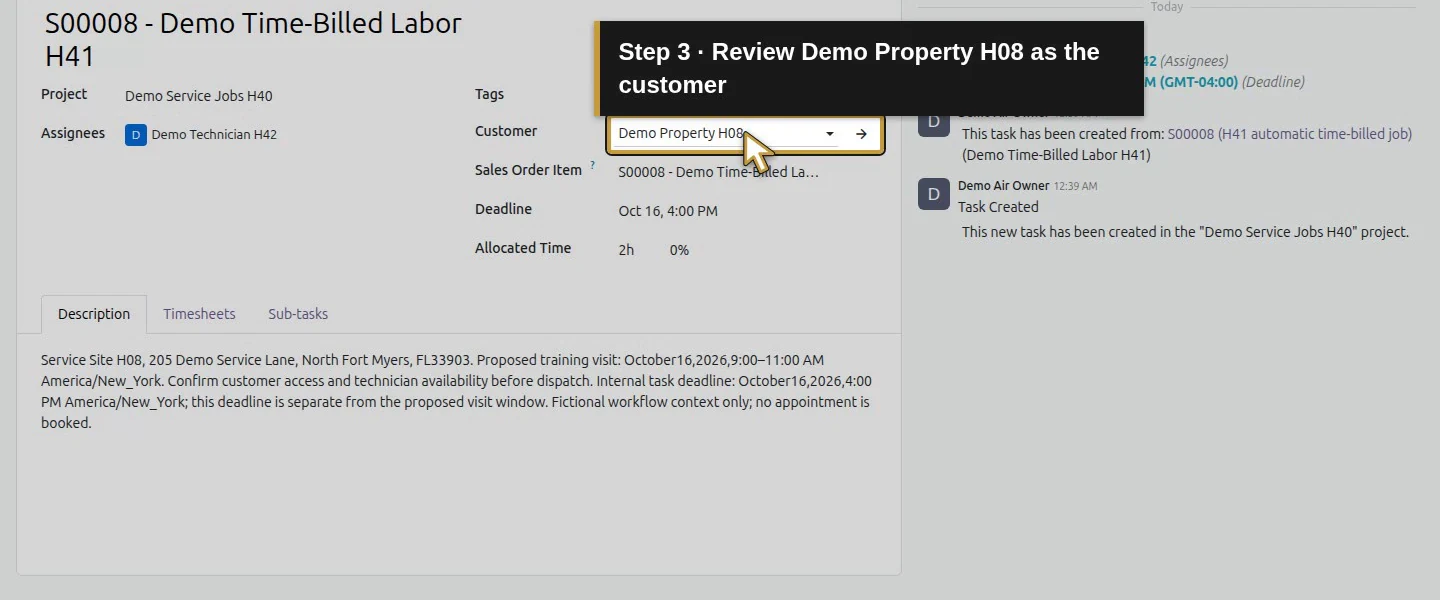
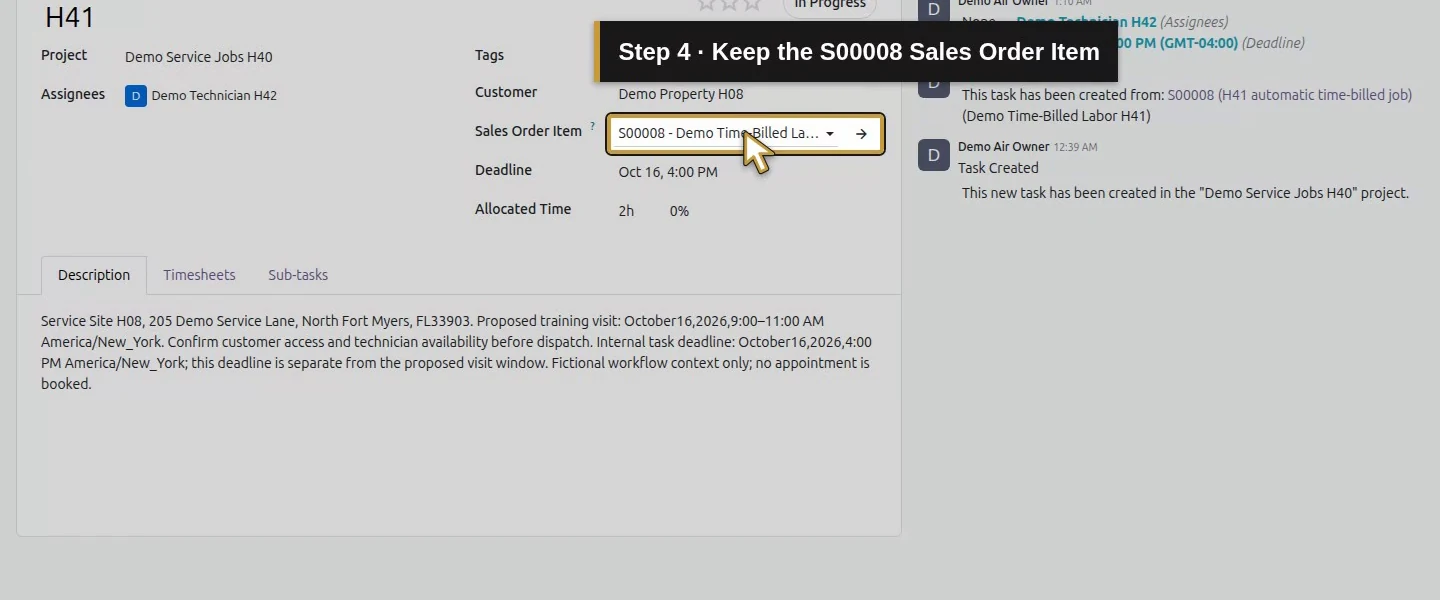
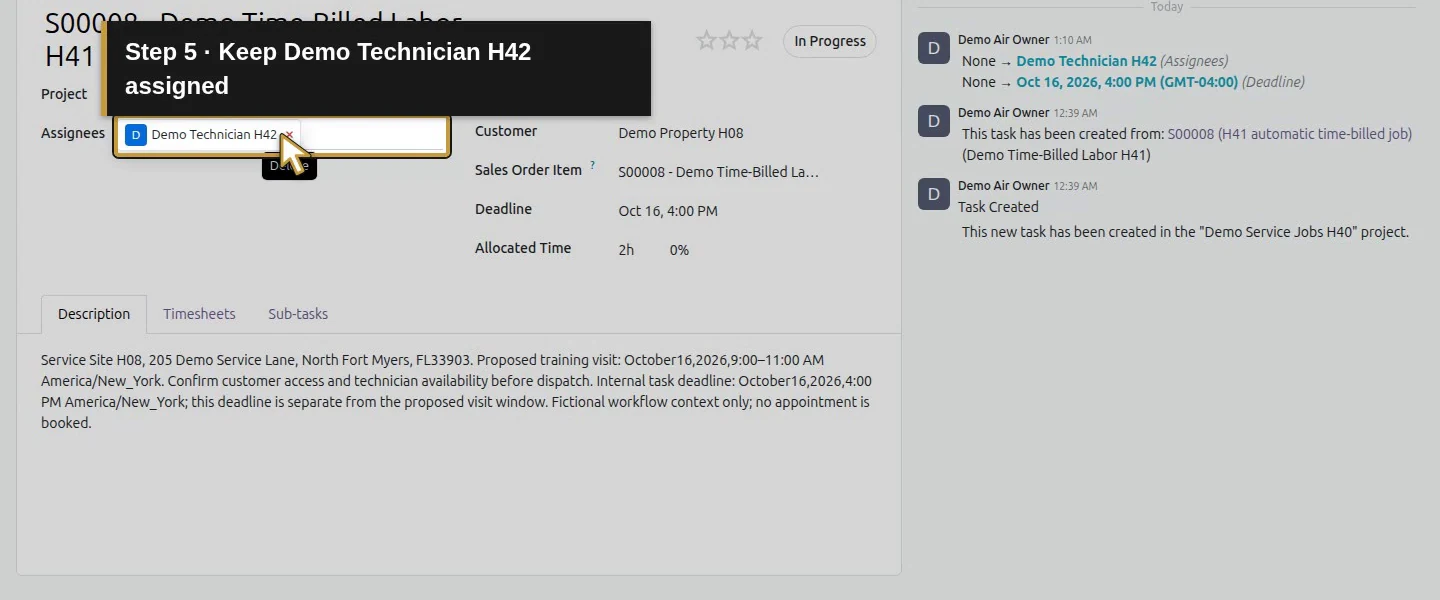
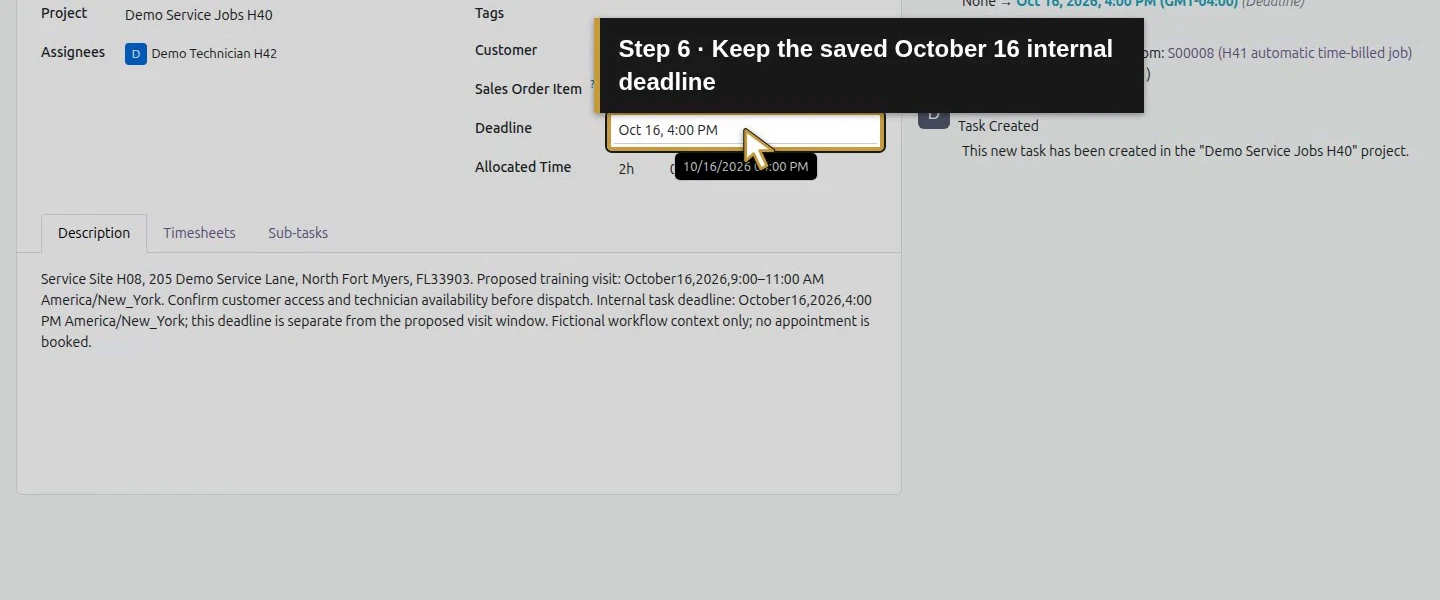
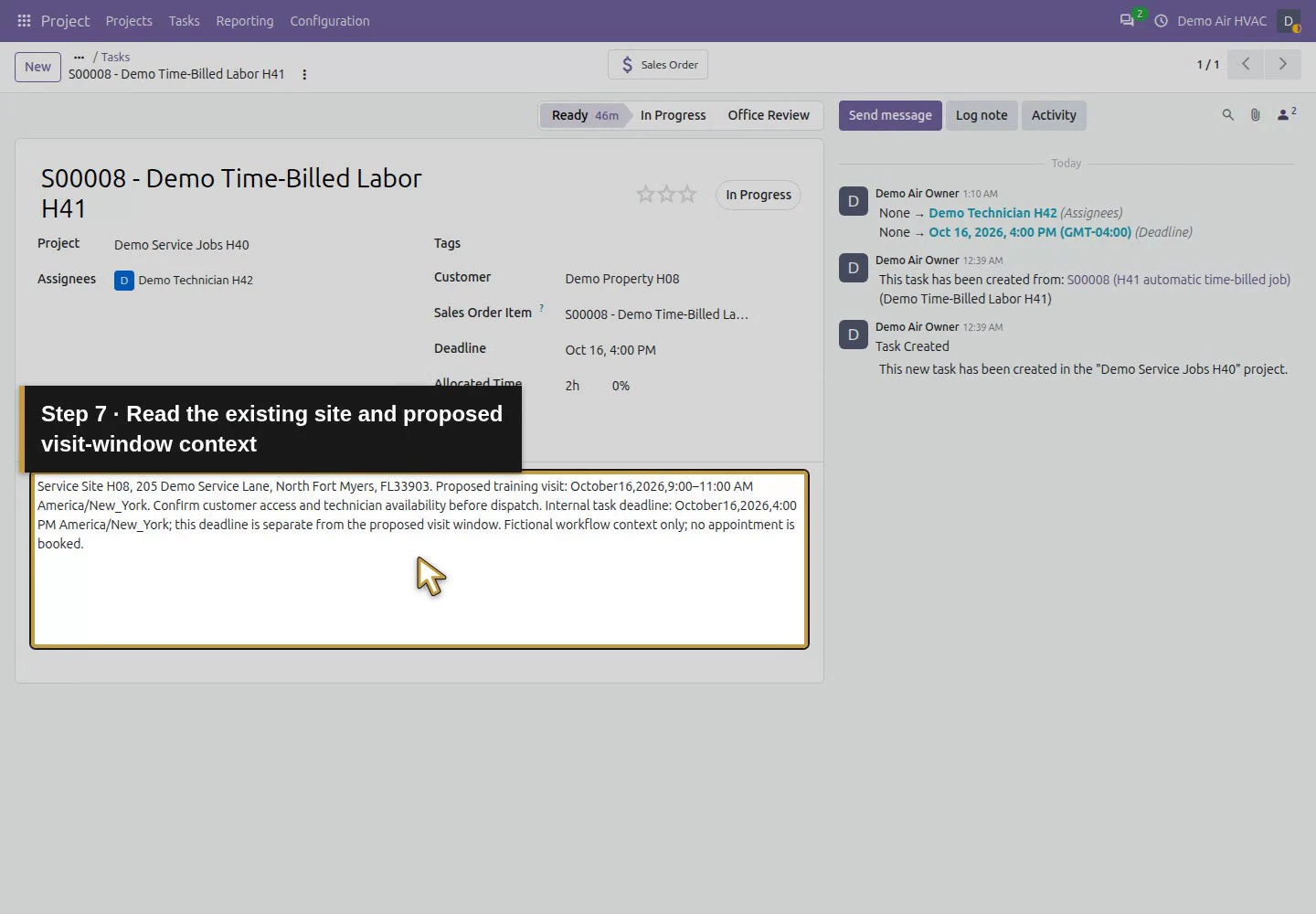
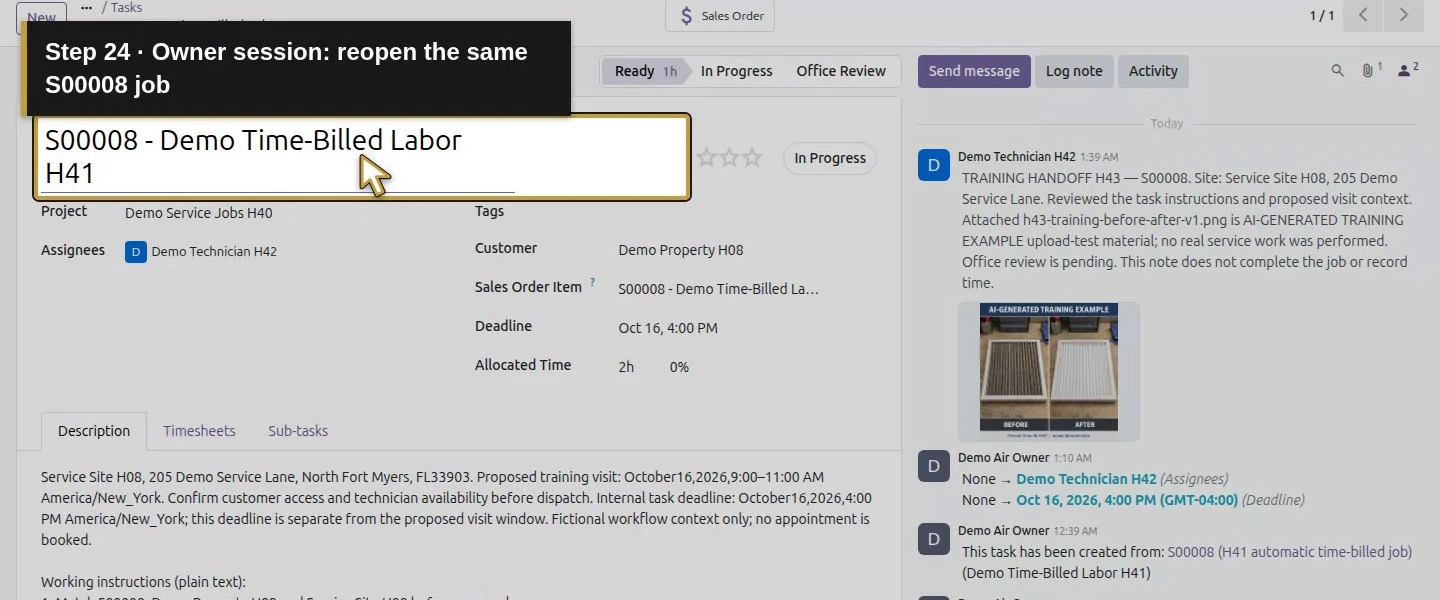
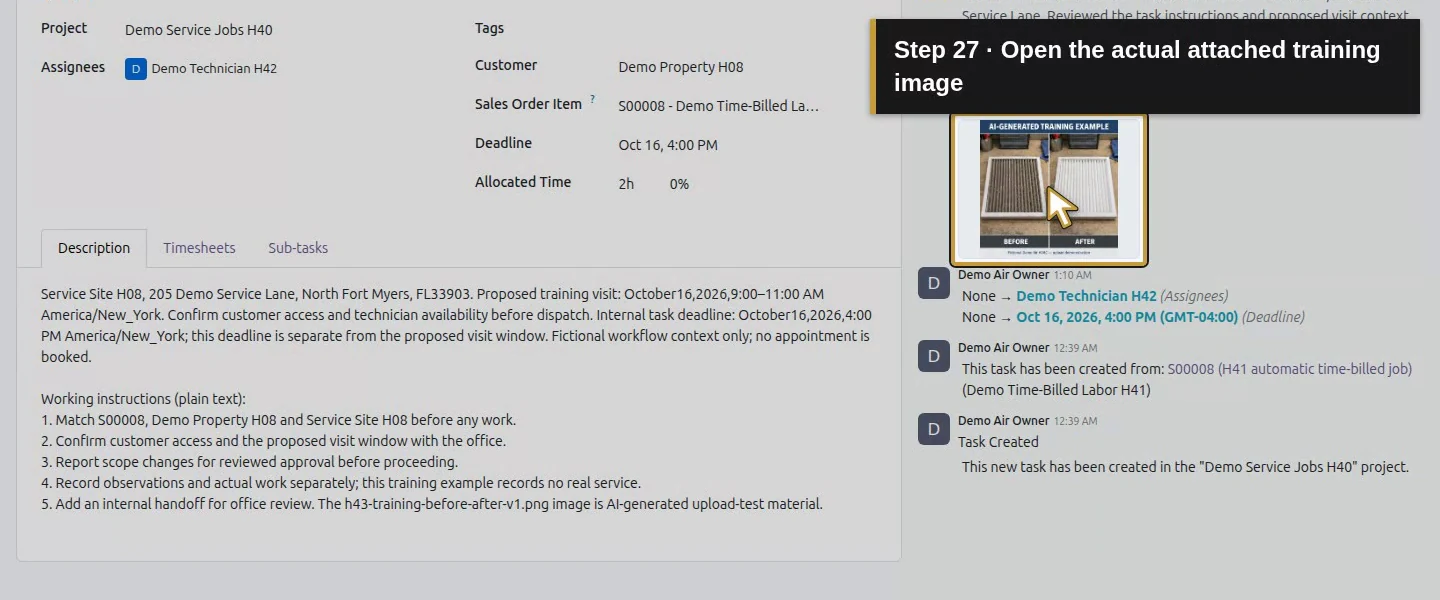
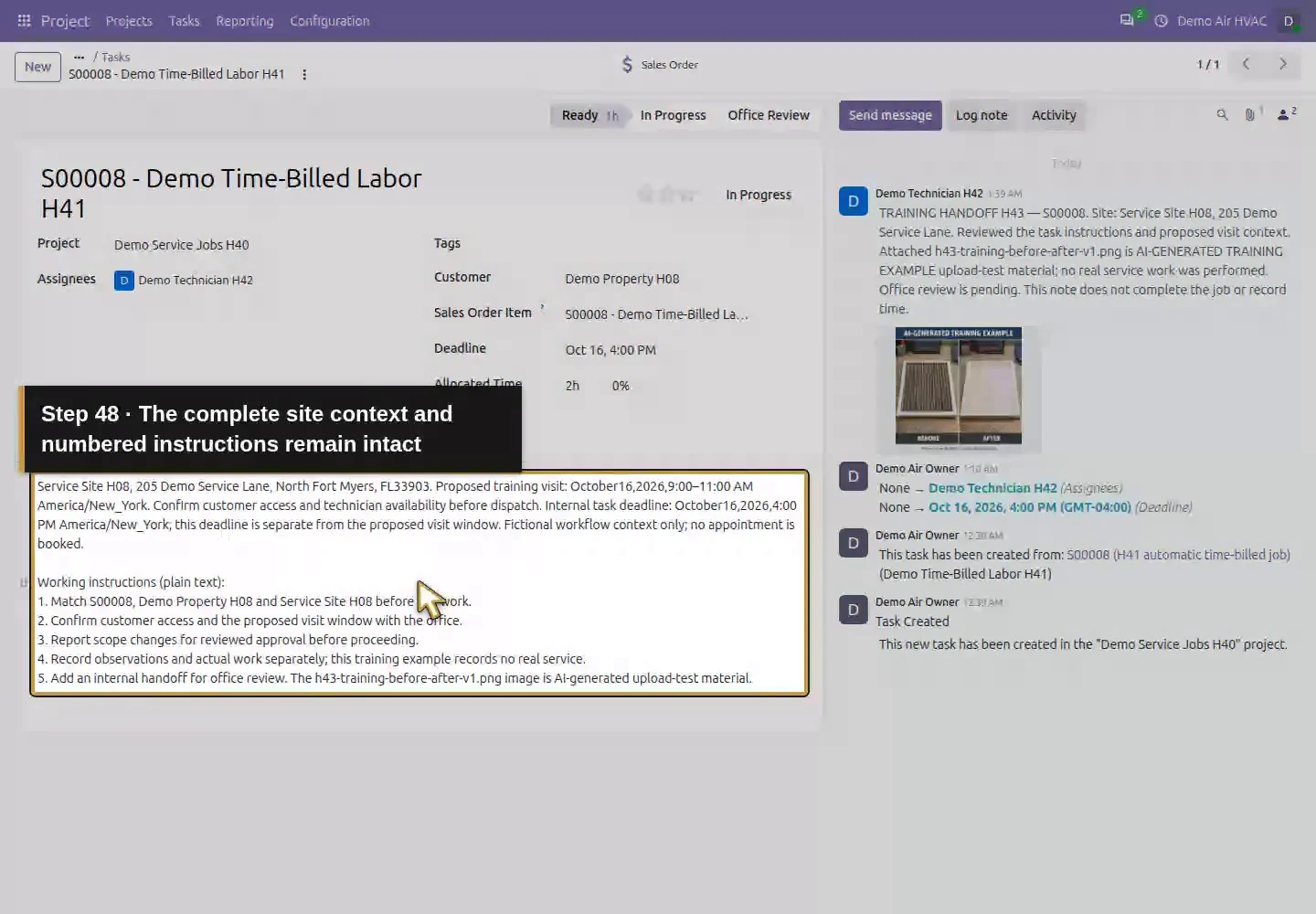
Open S00008 - Demo Time-Billed Labor H41. Check Project: Demo Service Jobs H40, Customer: Demo Property H08, the S00008 Sales Order Item, Assignees: Demo Technician H42 and the saved deadline. Read the existing Service Site H08 and proposed visit-window context in Description before adding anything. Avoid attaching evidence to the earlier manual job with a similar service purpose.
Open the correct S00008 time-billed job task.Review the intended Demo Service Jobs H40 project.Review Demo Property H08 as the customer.Keep the S00008 Sales Order Item.Keep Demo Technician H42 assigned.Keep the saved October 16 internal deadline.Read the existing site and proposed visit-window context.
Step 2. Write a plain instruction list in Description
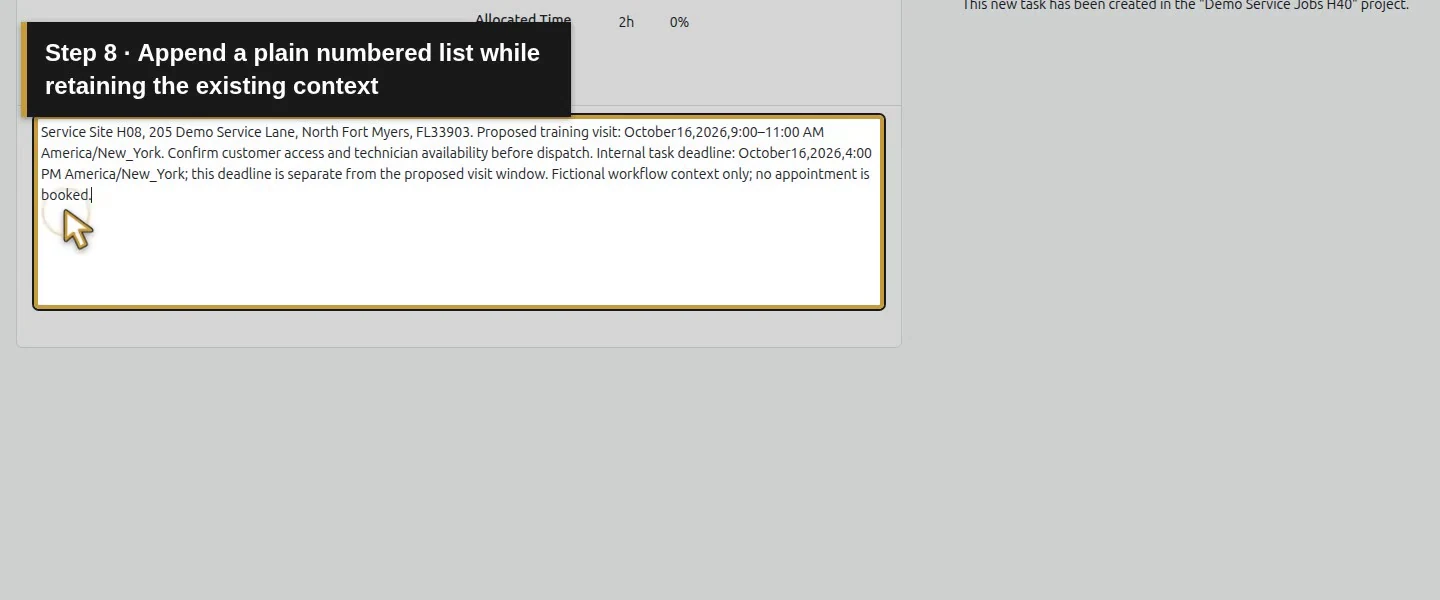
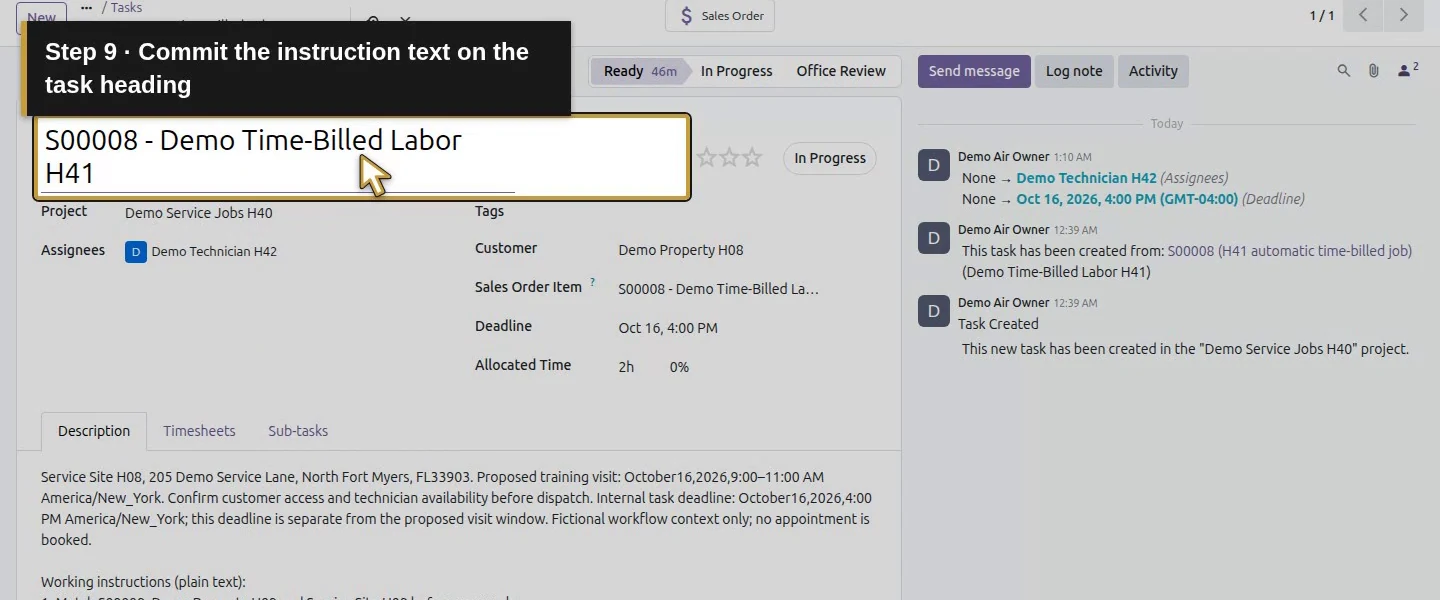
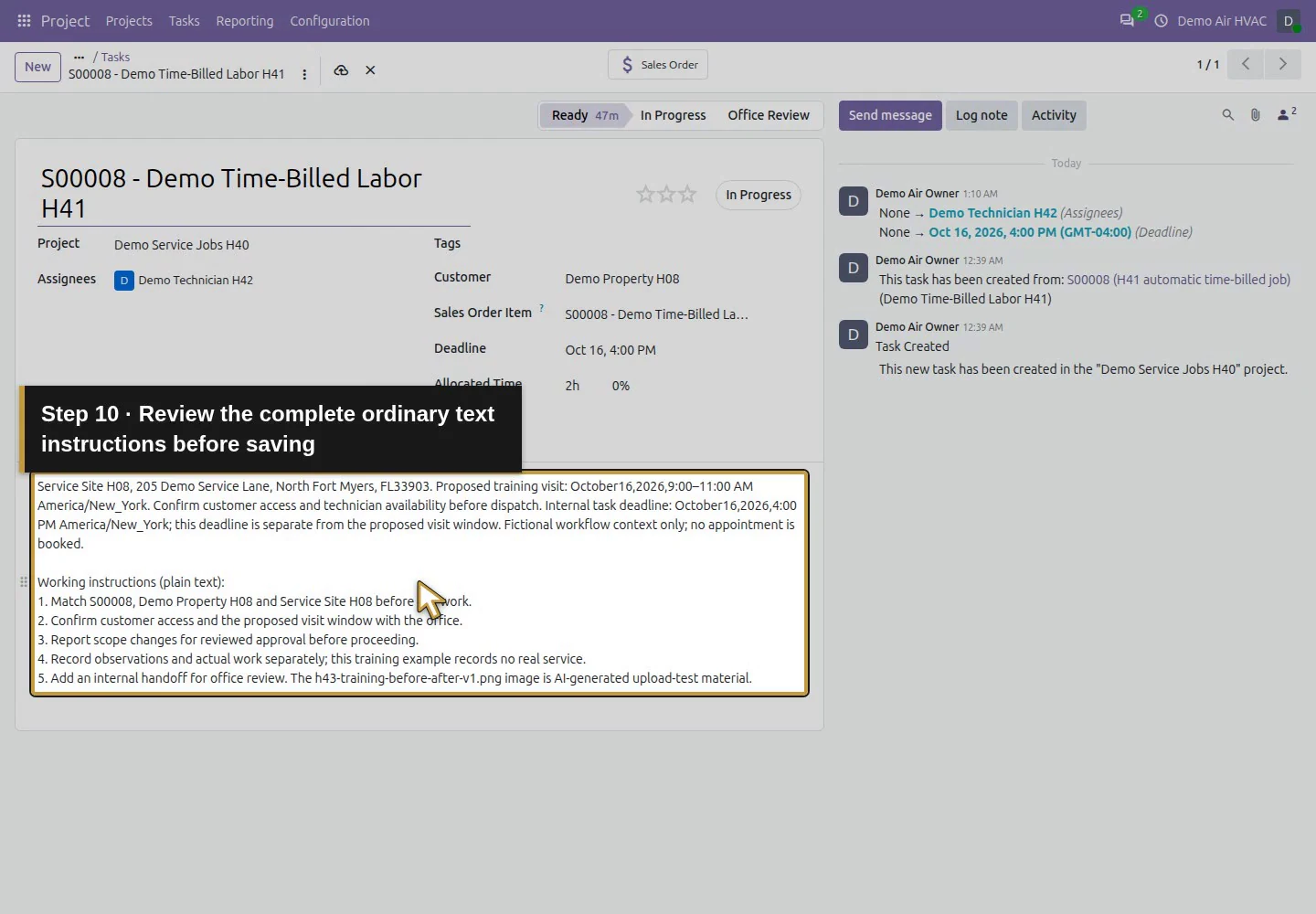
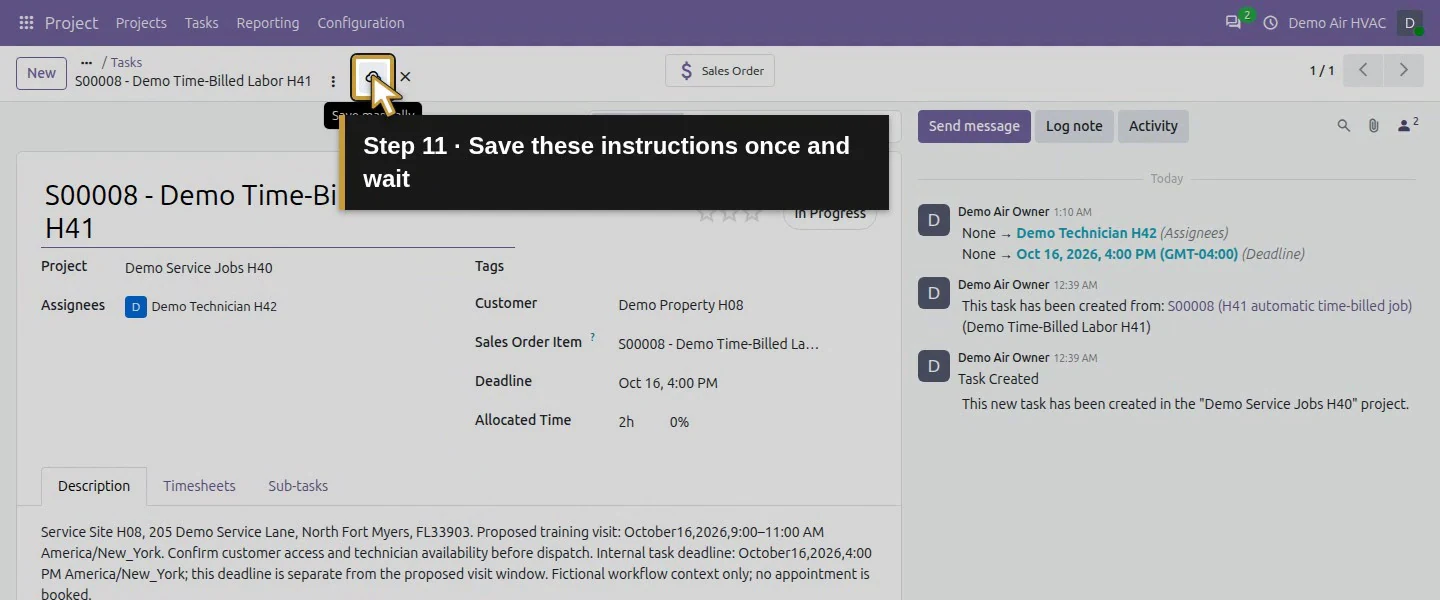
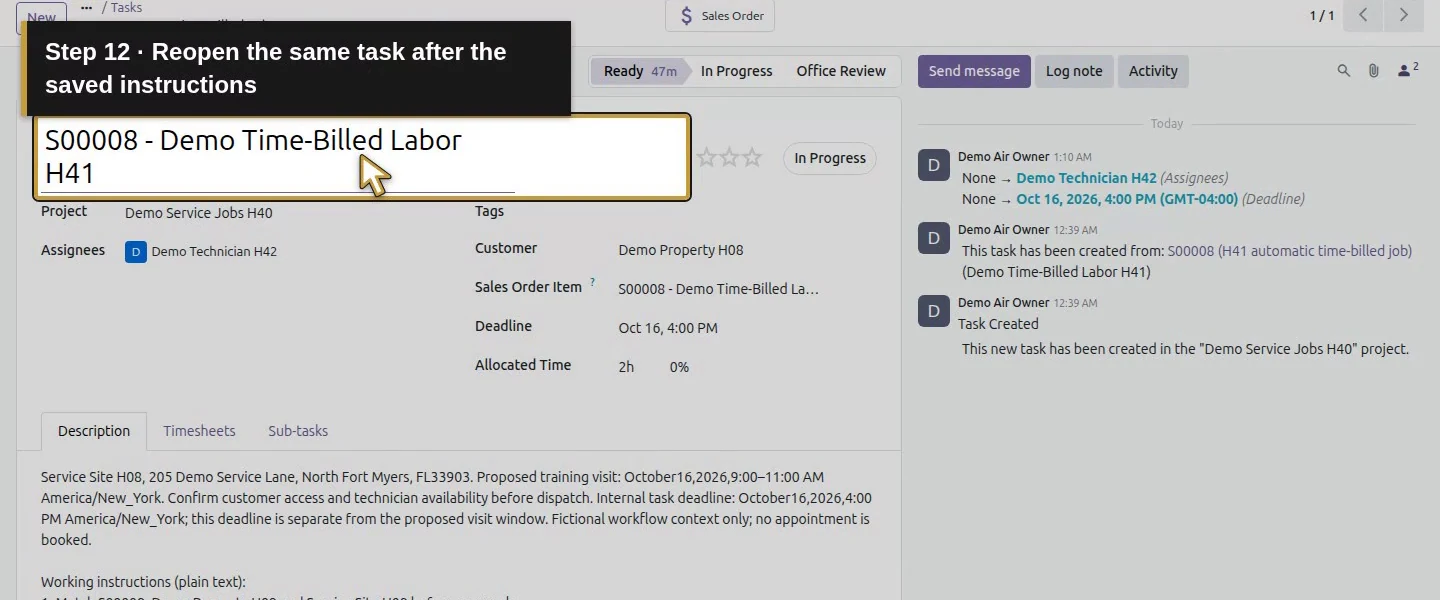
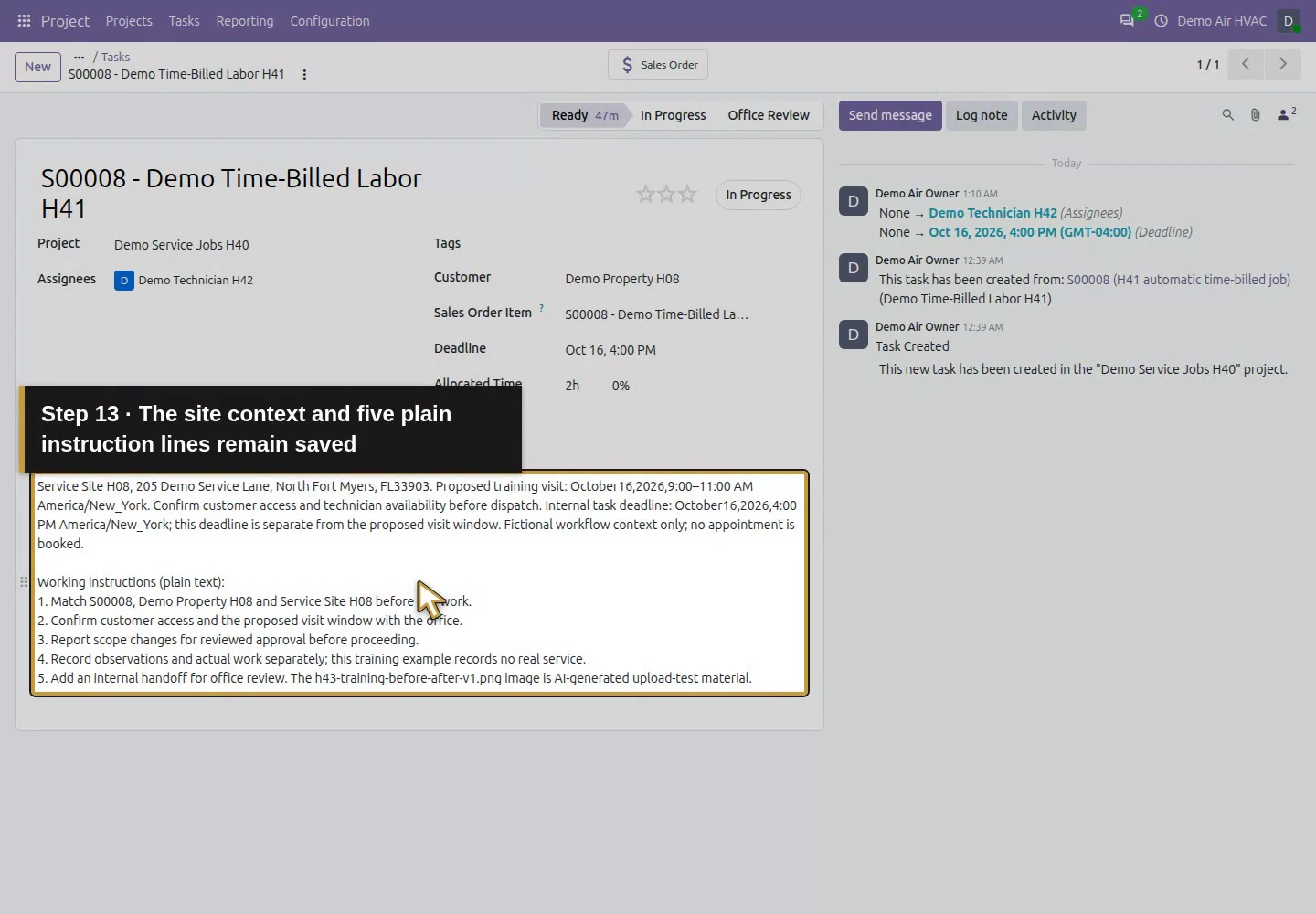
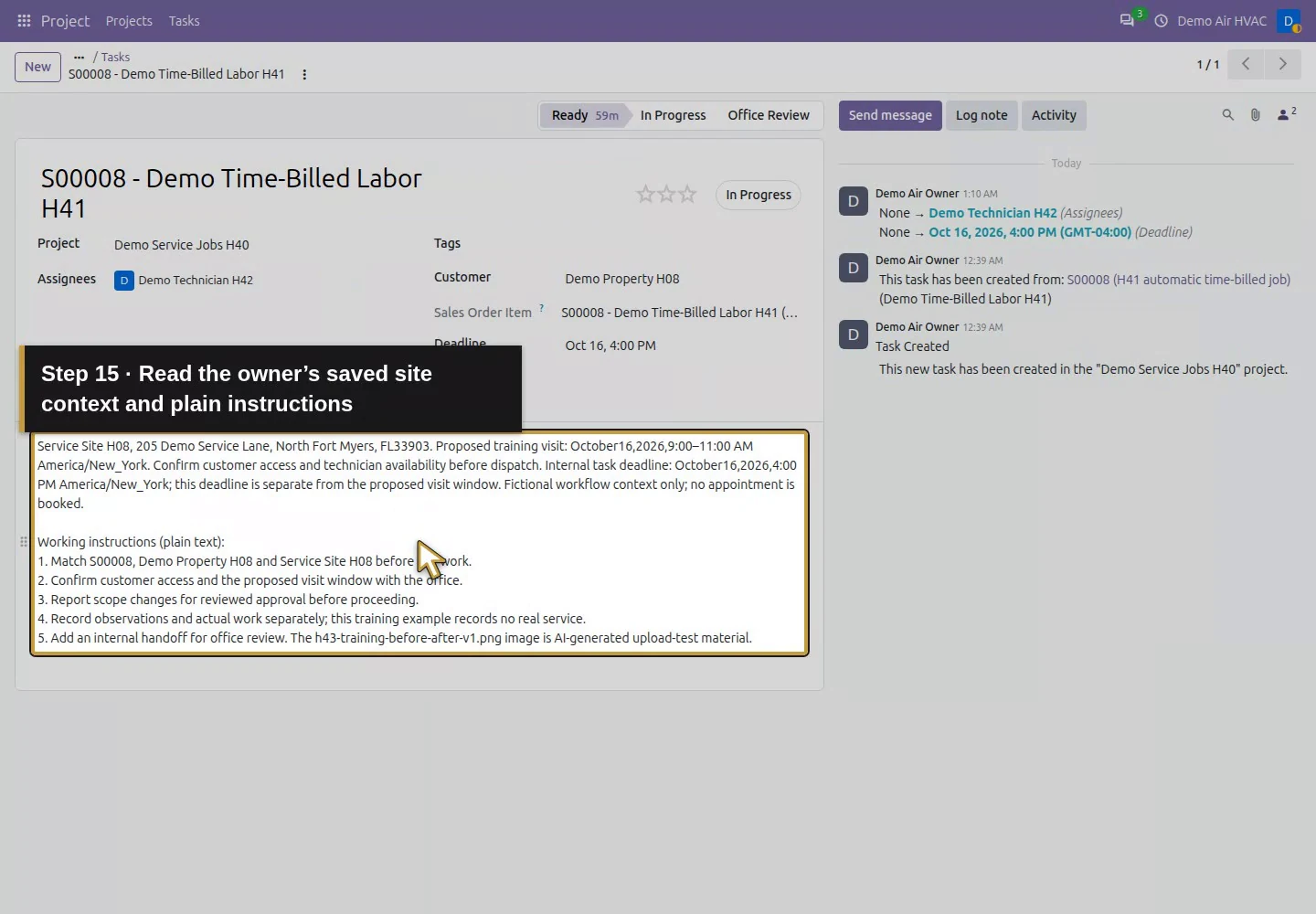
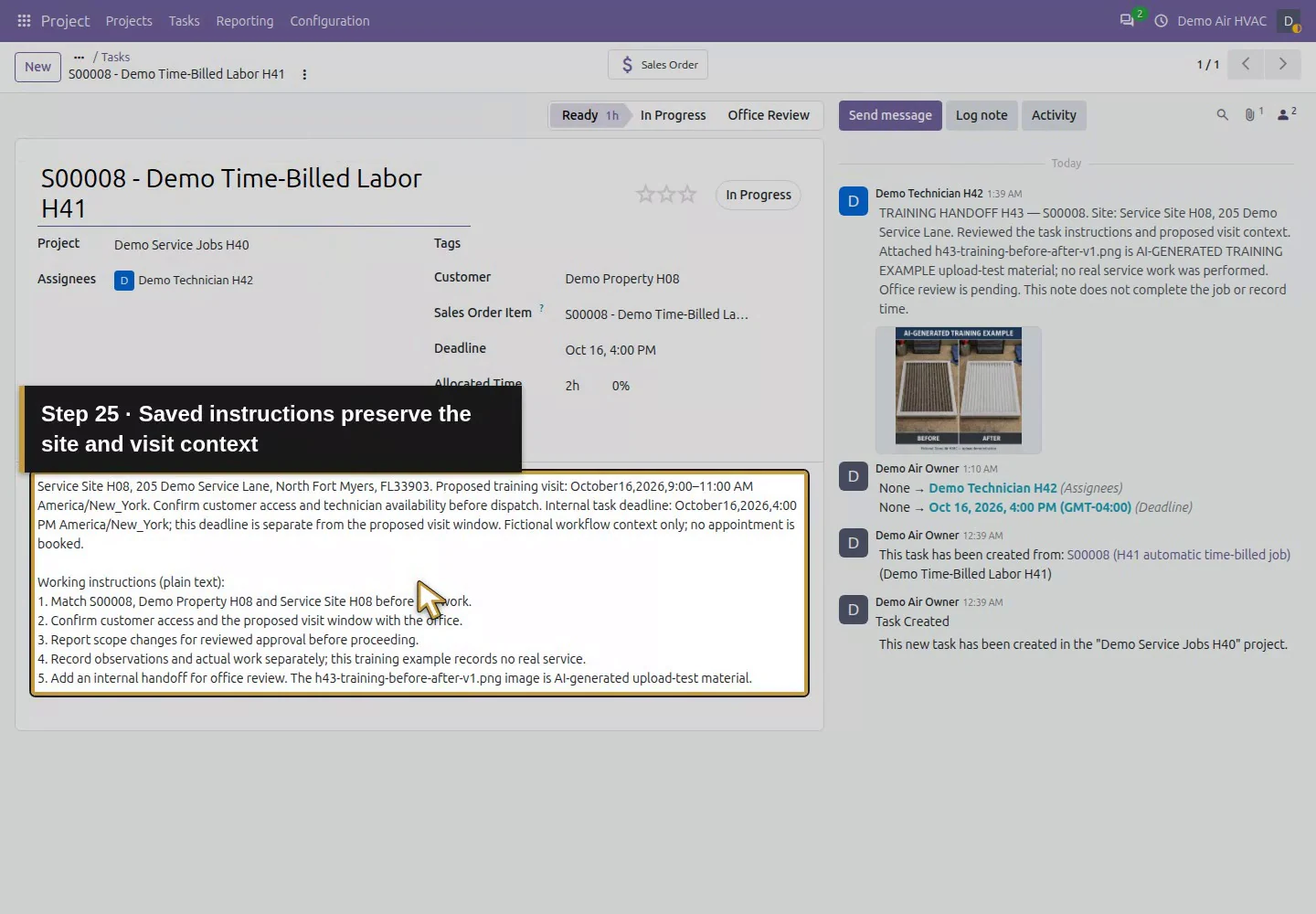
As the owner, retain the H42 description and append a short numbered list: match the order/customer/site; confirm access and the proposed window with the office; report scope changes for approval; record observations and actual work separately; add an internal handoff for review. State which files are illustrative. Click Save manually. Our list is ordinary description text; no required checklist, inspection worksheet or step-completion rule was created.
Append a plain numbered list while retaining the existing context.Commit the instruction text on the task heading.Review the complete ordinary text instructions before saving.Save these instructions once and wait.Reopen the same task after the saved instructions.The site context and five plain instruction lines remain saved.
Step 3. Prepare a clearly named image
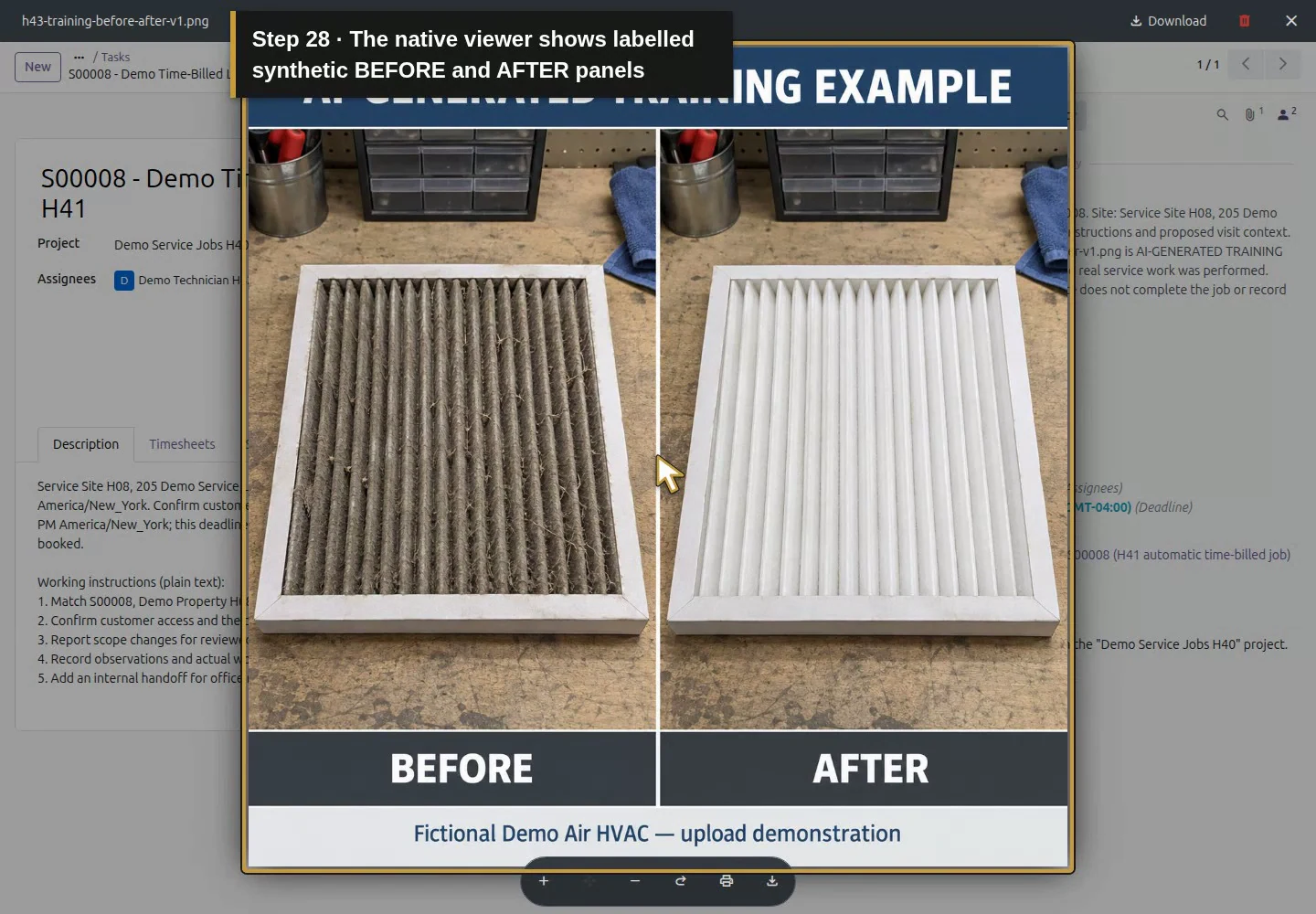
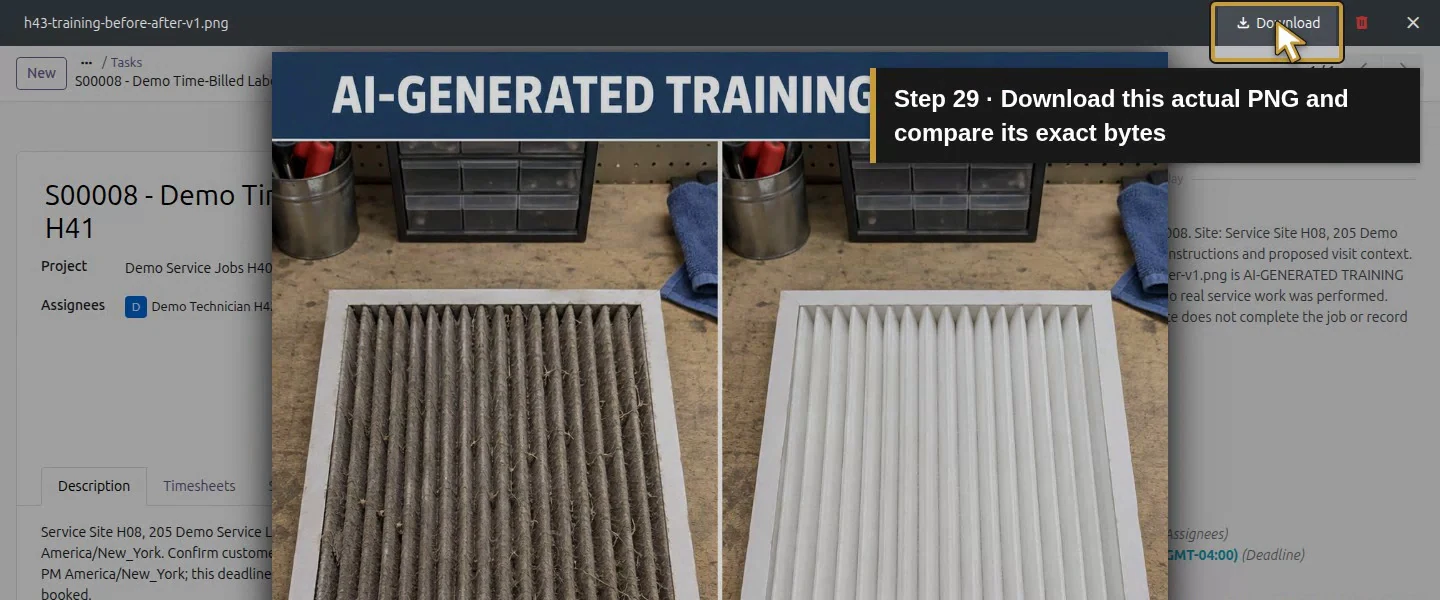
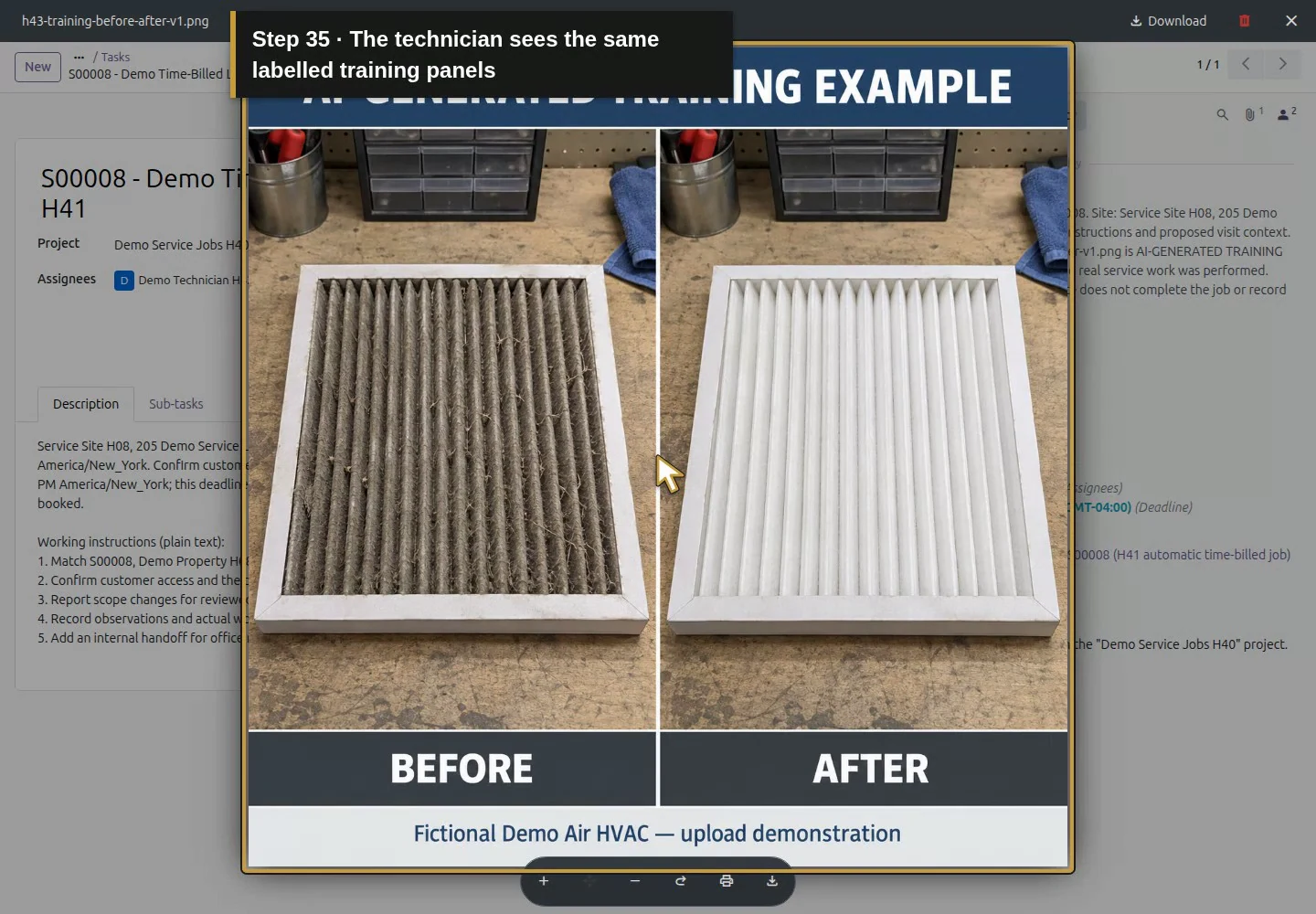
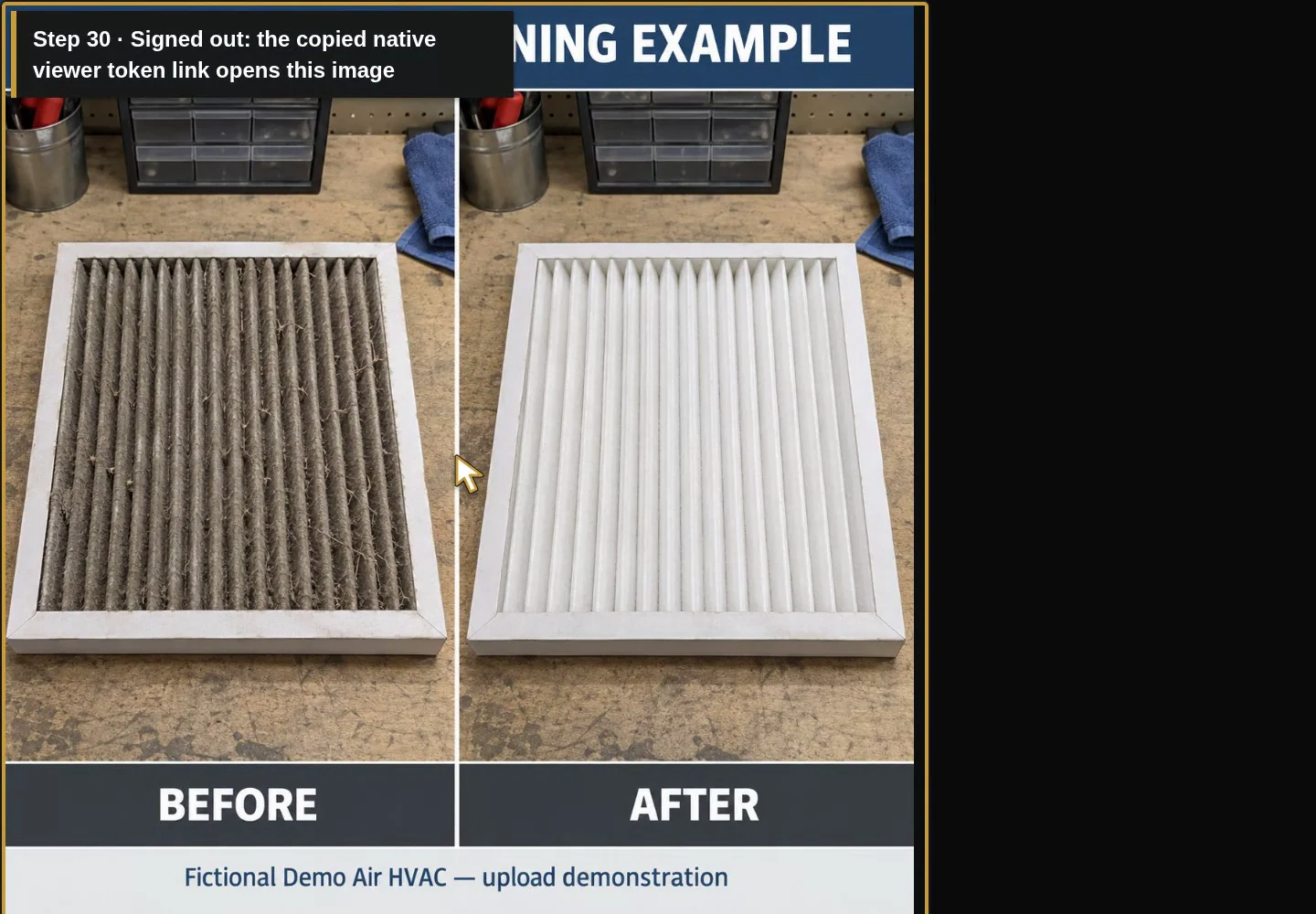
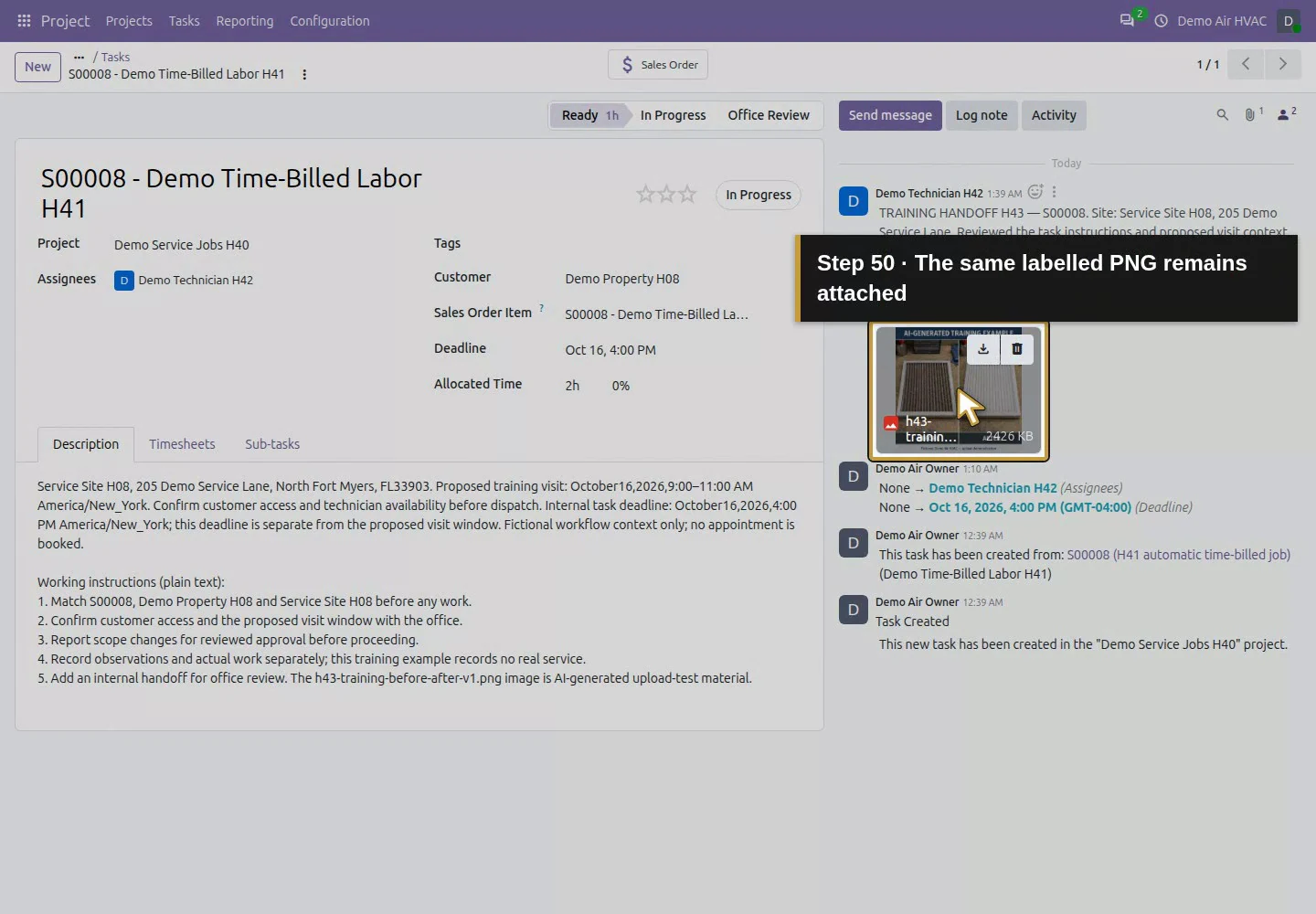
Use job-specific filenames so the office can identify the site and purpose. The training file is h43-training-before-after-v1.png, a single image containing labelled BEFORE/AFTER panels and an AI-generated disclosure. It contains no real people, customer details or actual completed work. For a real job, use the genuine reviewed job photographs and factual notes; this demonstration does not establish technical diagnosis or commissioning results.
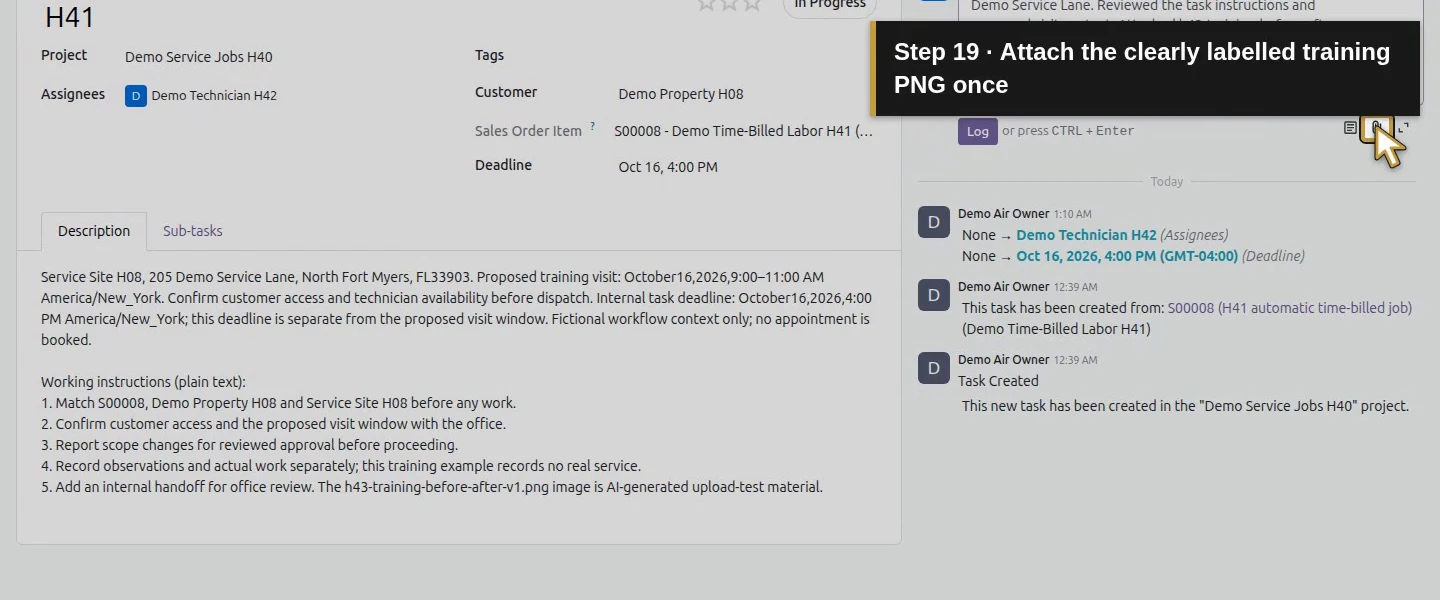
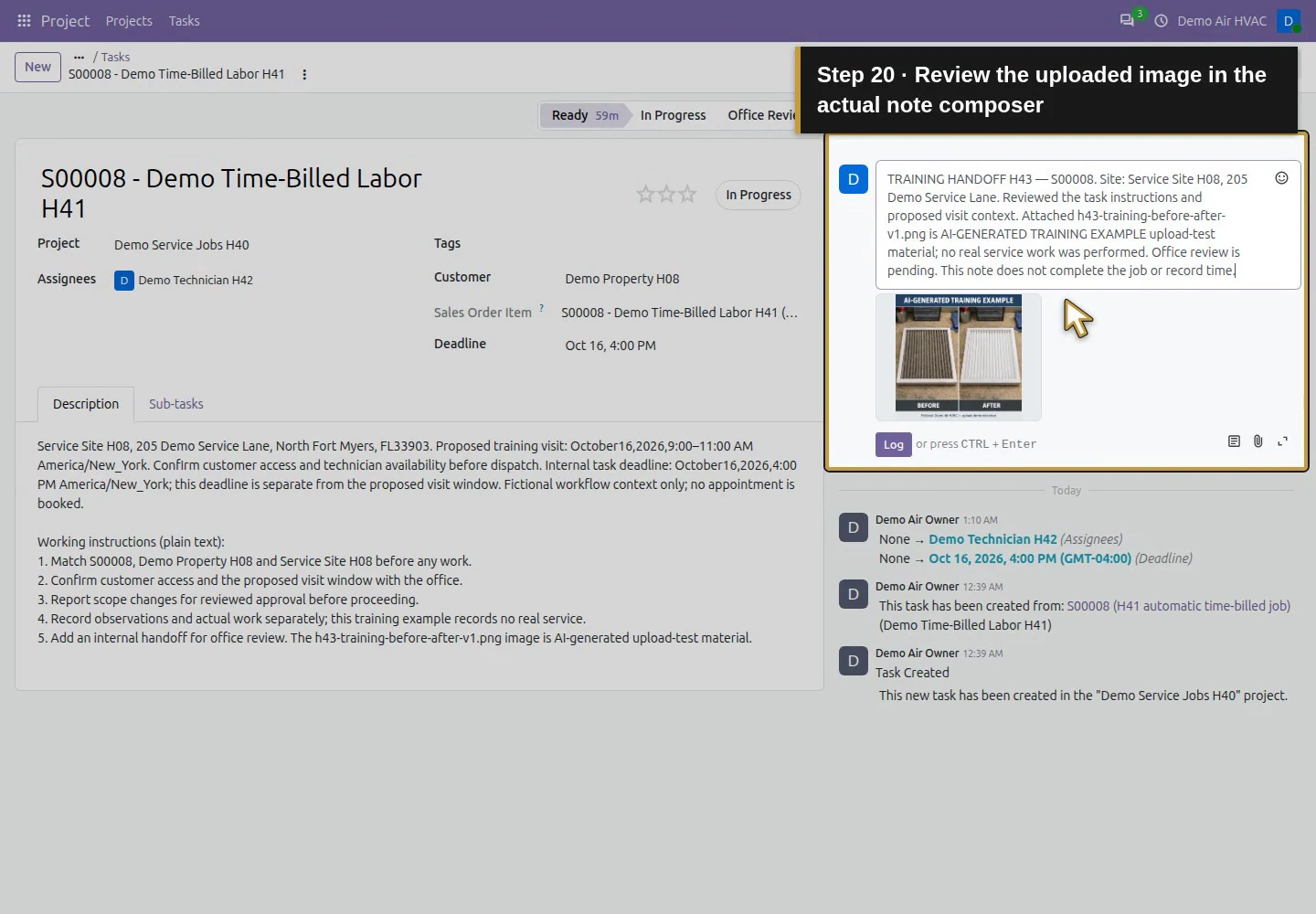
Attach the clearly labelled training PNG once.Review the uploaded image in the actual note composer.The native viewer shows labelled synthetic BEFORE and AFTER panels.
Step 4. Open an internal note as the technician
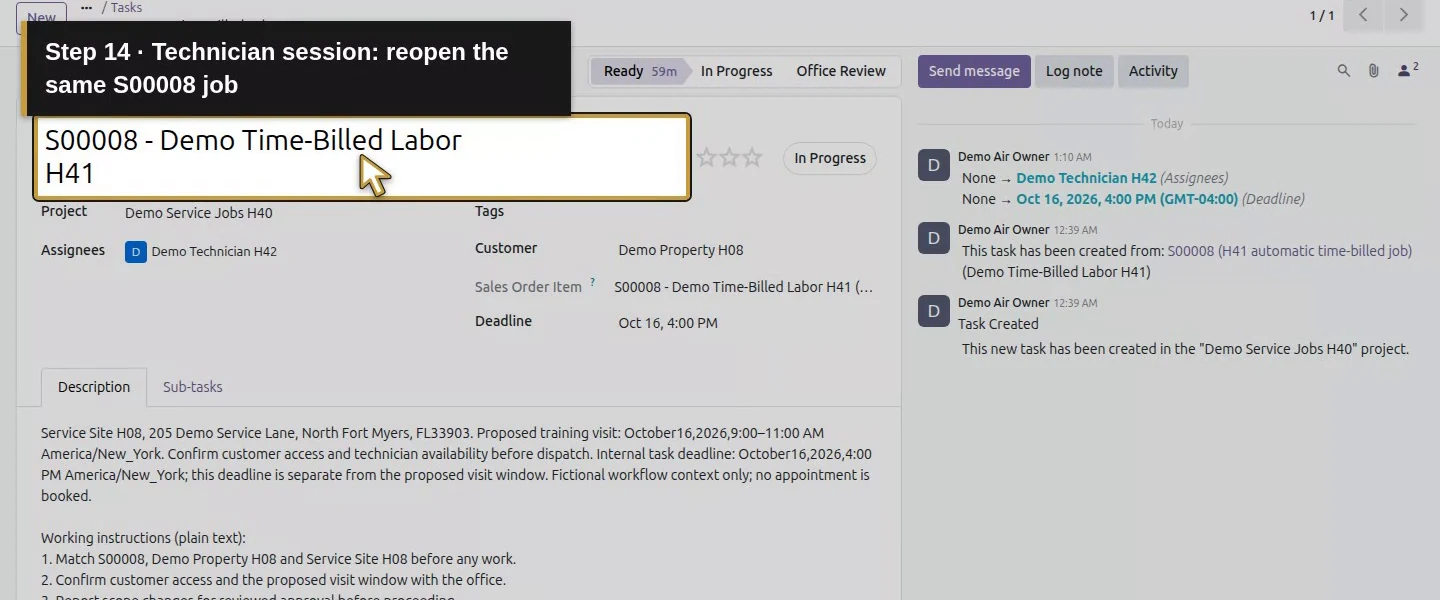
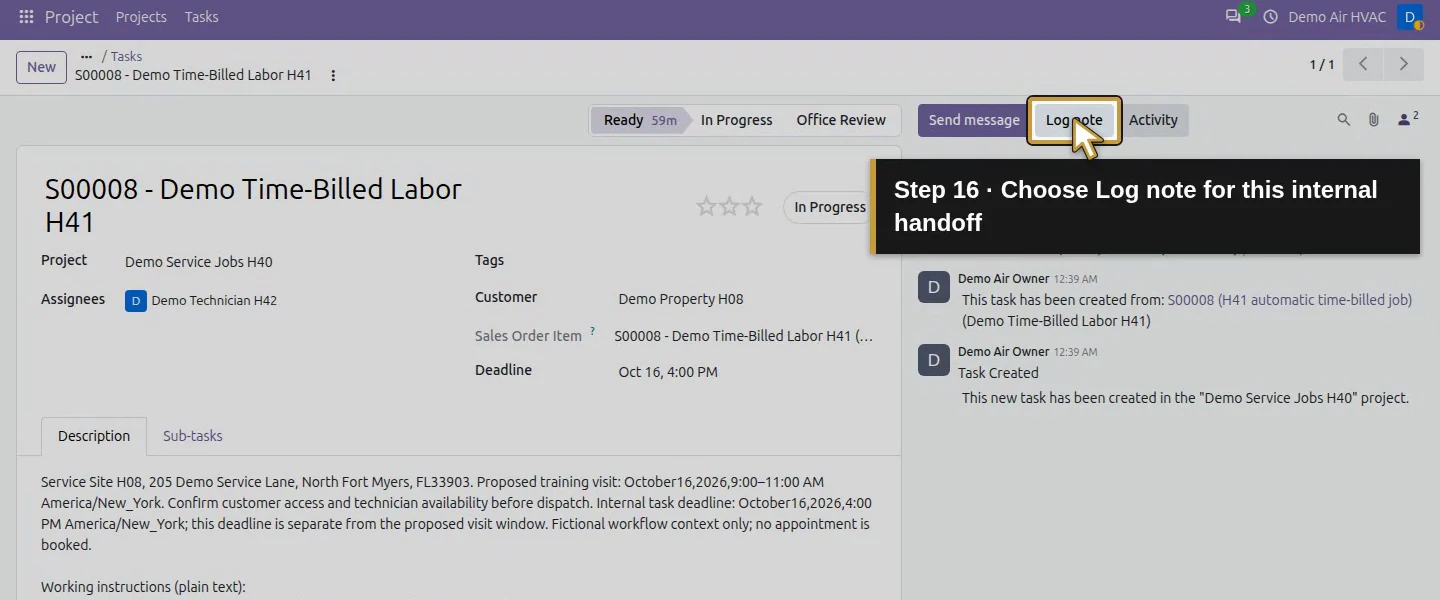
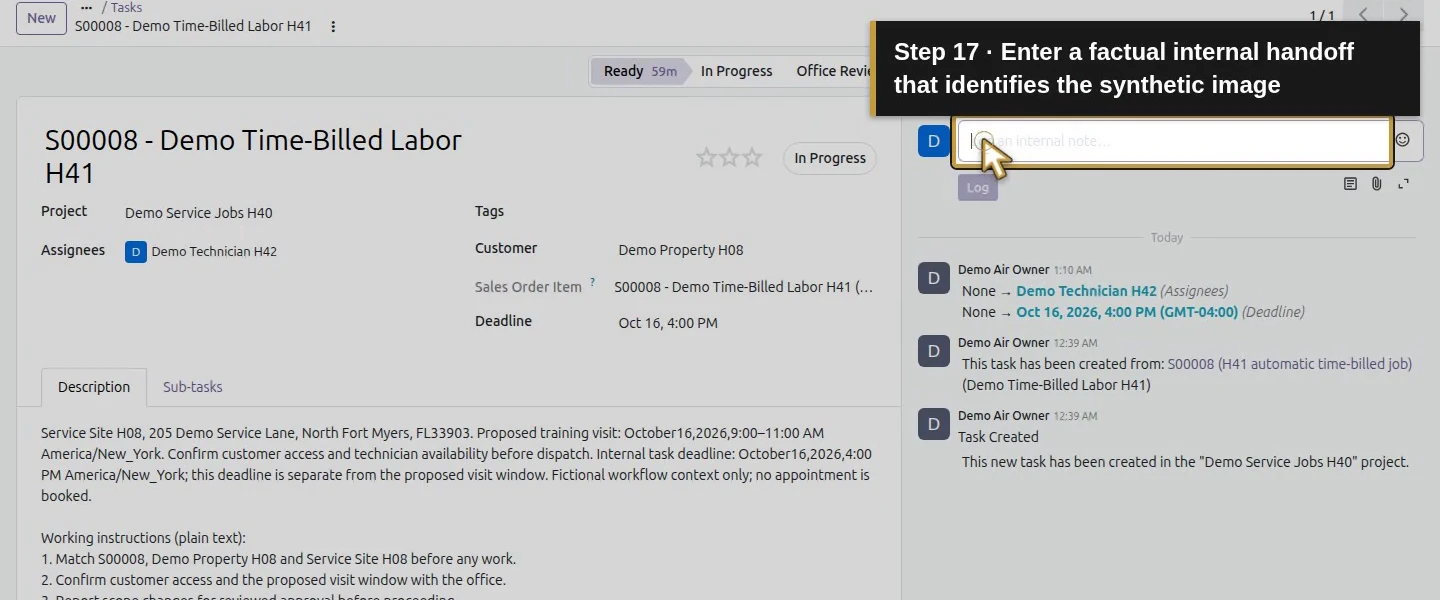
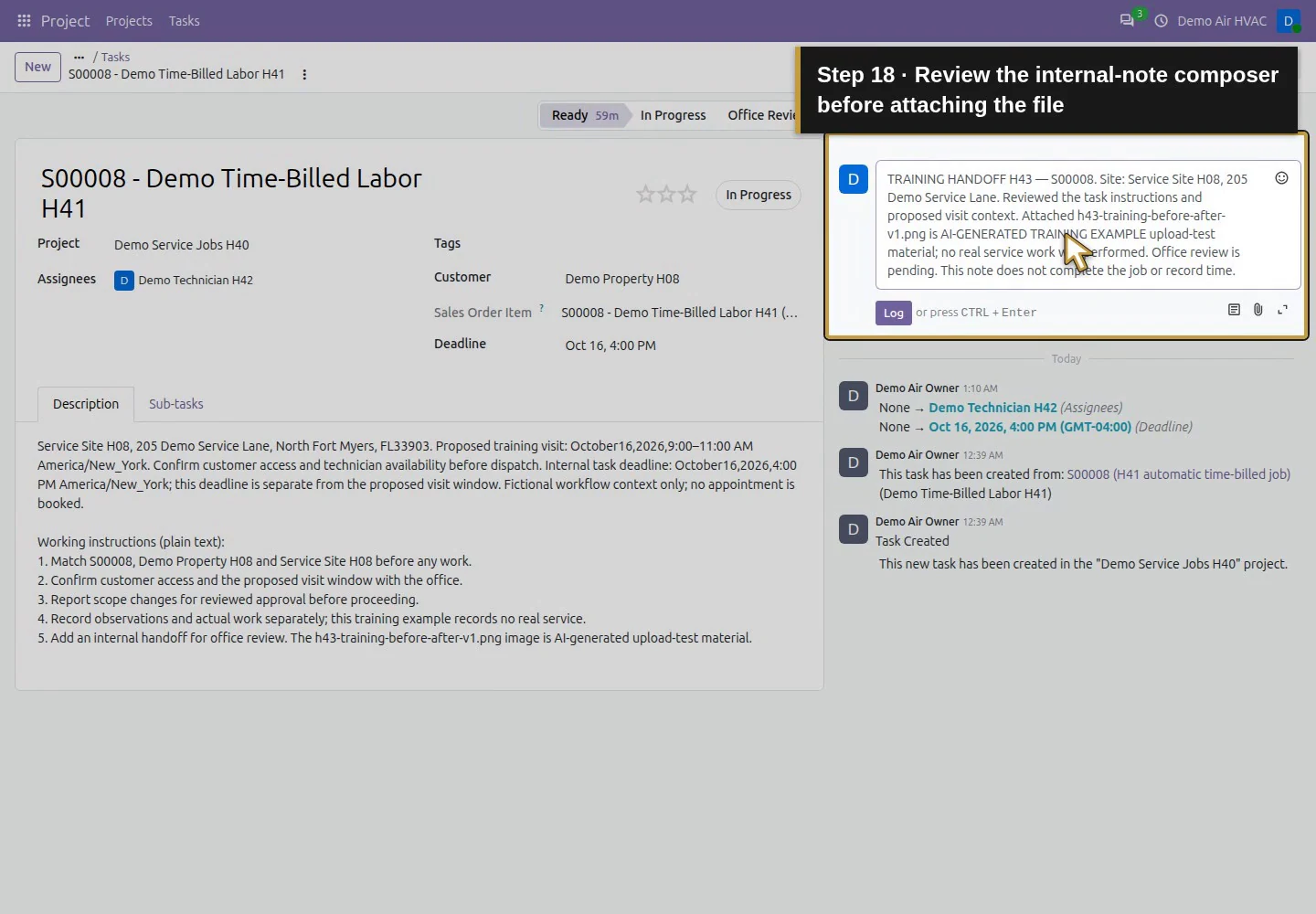
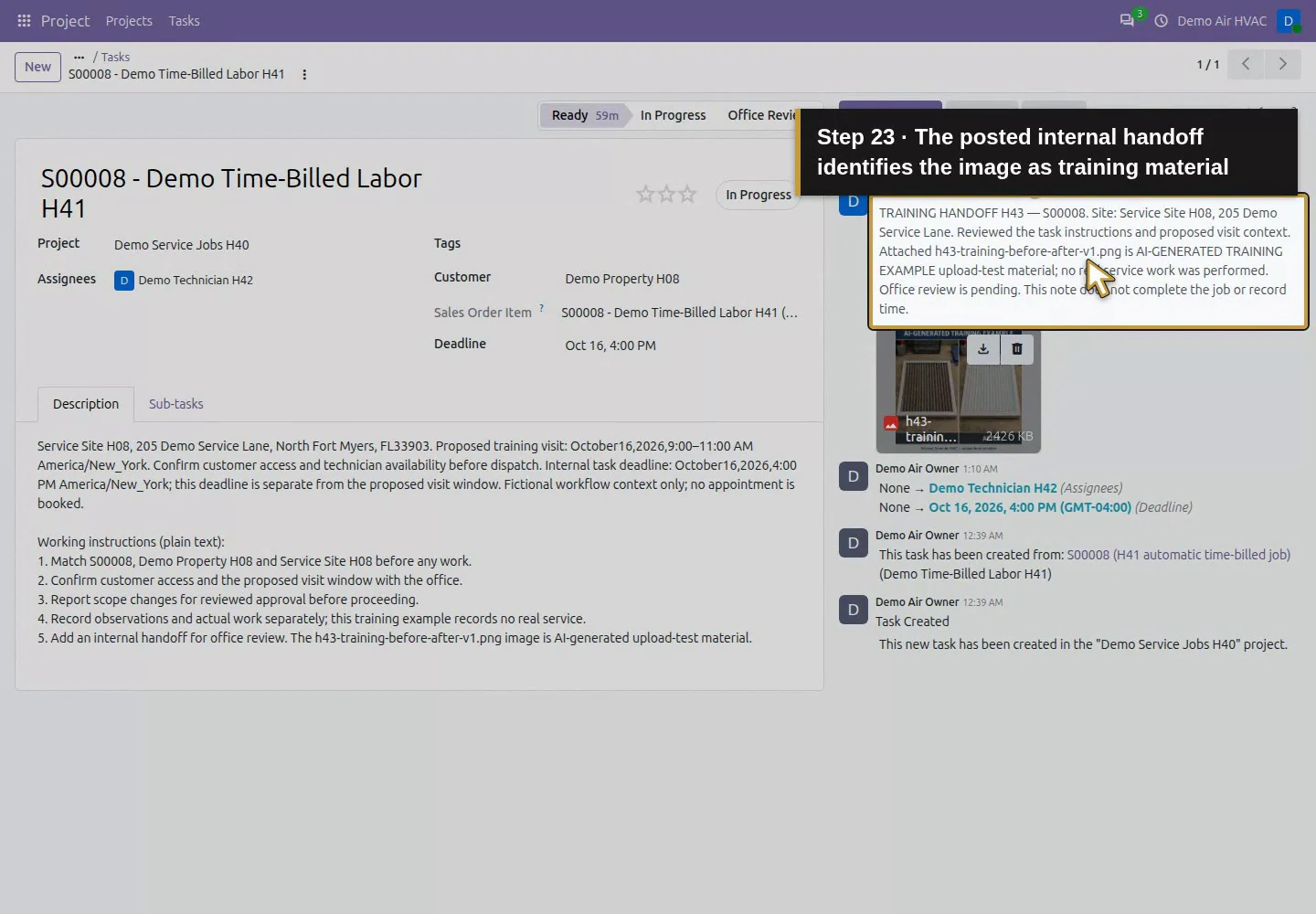
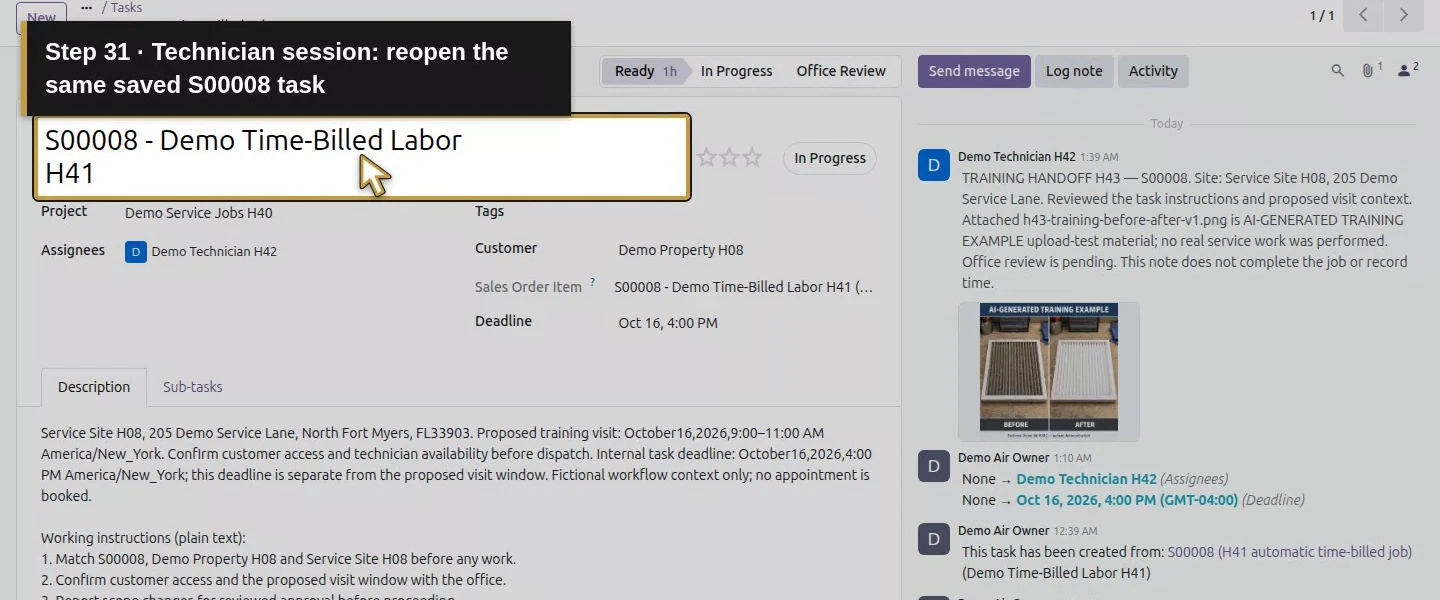
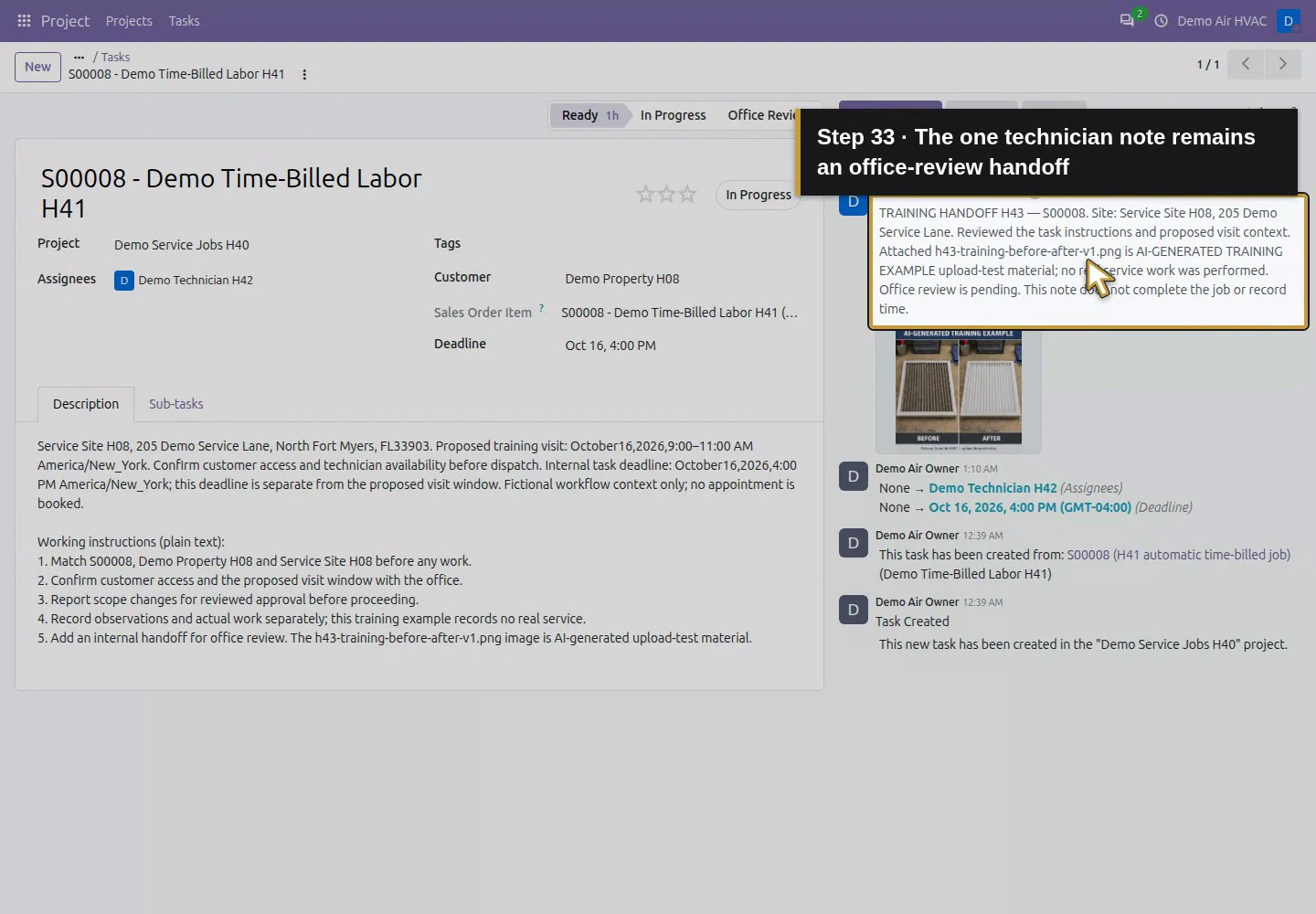
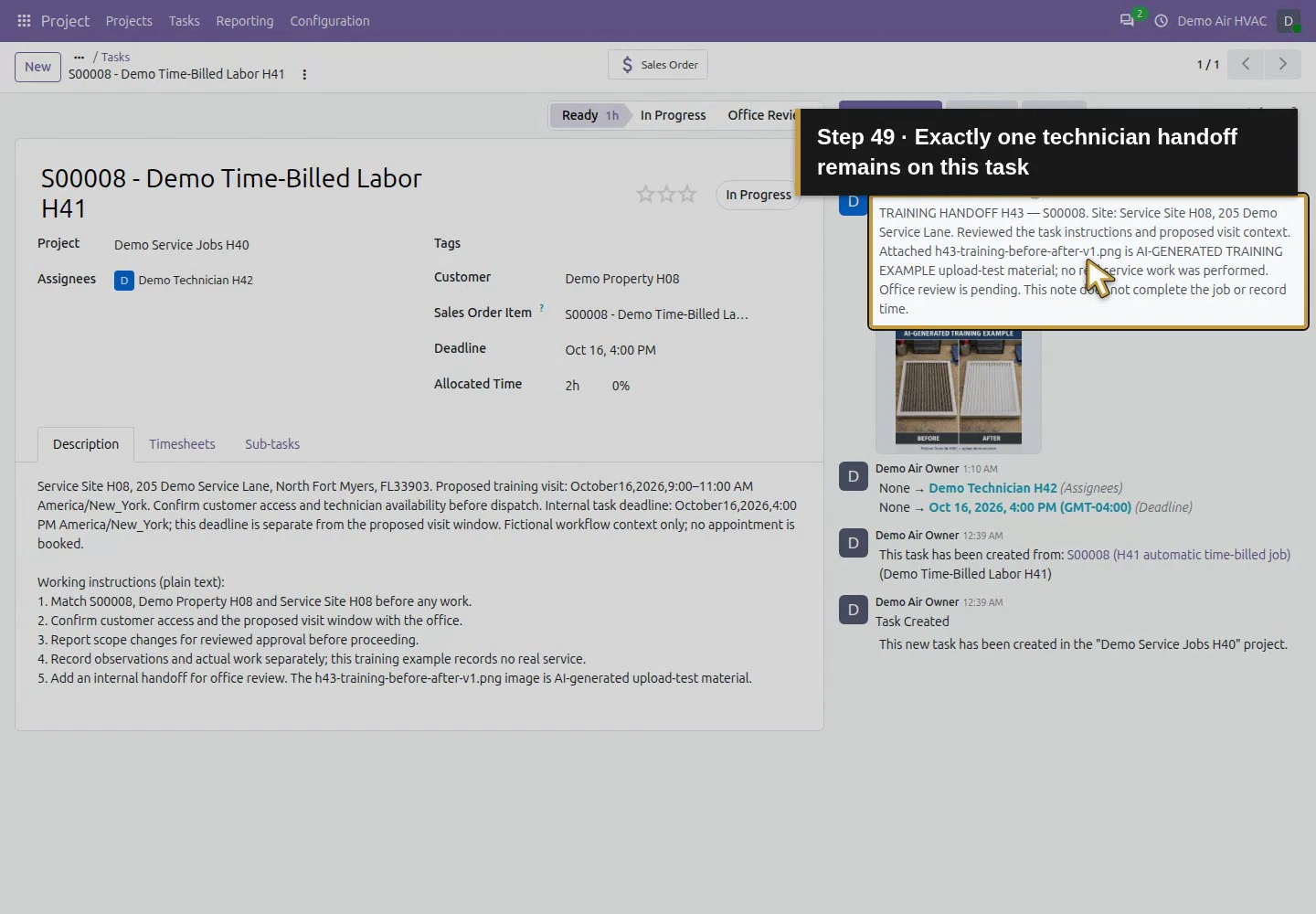
In the technician's own session, reopen the same task and check that the owner’s instructions are visible. Click Log note. The composer says Log an internal note… and its action is Log. Enter a handoff identifying S00008, the reviewed context, the attached filename and the office-review status. Our note explicitly says the image is AI-generated upload-test material and no real service work was performed.
Technician session: reopen the same S00008 job.Read the owner’s saved site context and plain instructions.Choose Log note for this internal handoff.Enter a factual internal handoff that identifies the synthetic image.Review the internal-note composer before attaching the file.
Step 5. Attach the image and log the note once
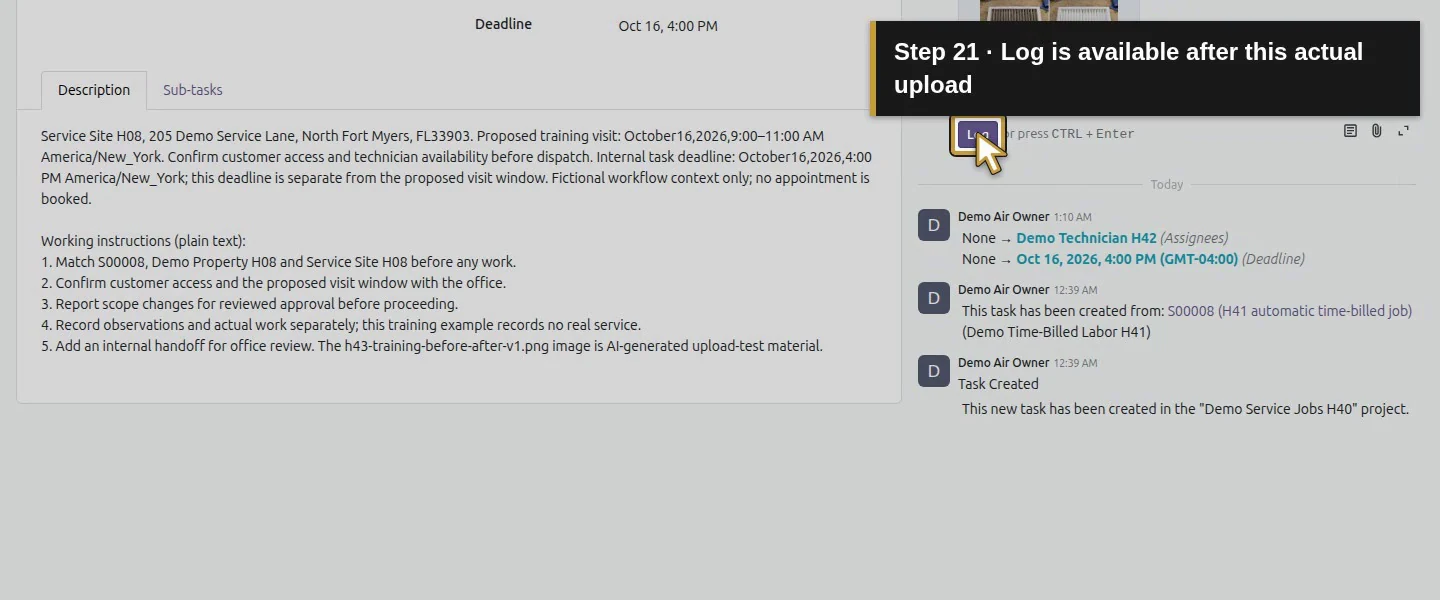
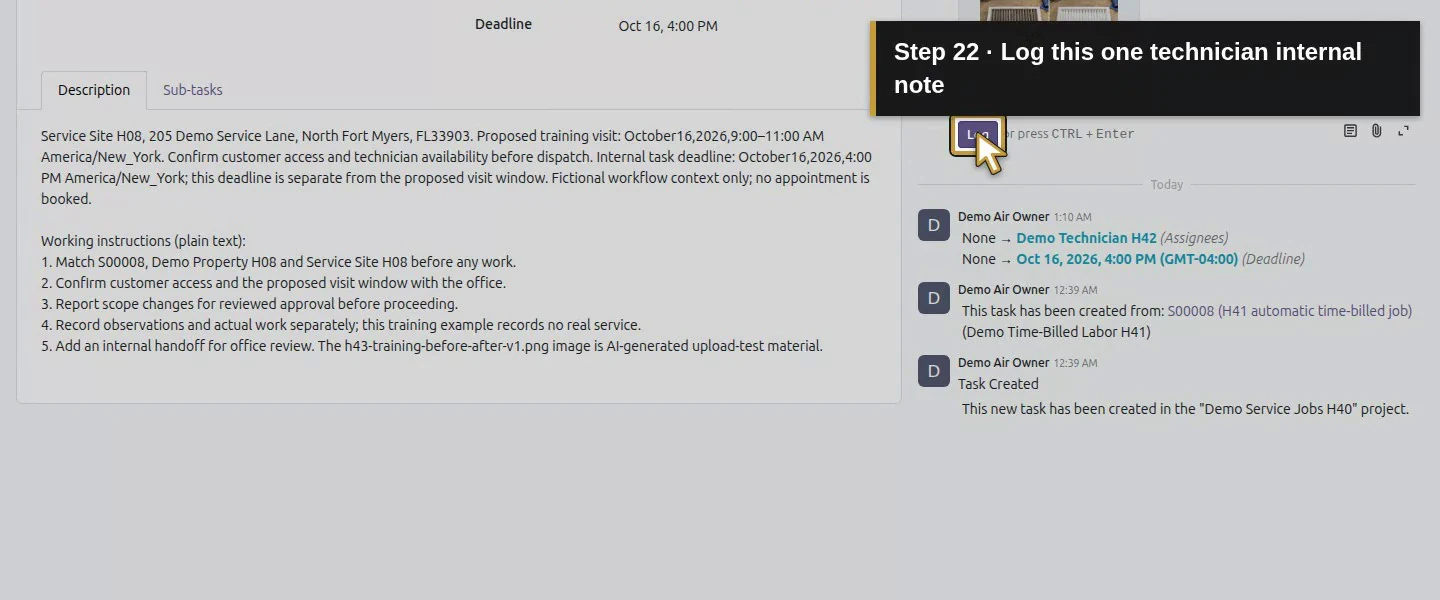
In that note composer, click Attach Files and choose h43-training-before-after-v1.png. Check the filename in the composer before clicking Log once. The note appears under the technician's name with the image attached to this task. The saved message uses the native internal Notes subtype. It generated no recipient notification in this tested case; no delivered-email claim follows from posting it.
Attach the clearly labelled training PNG once.Review the uploaded image in the actual note composer.Log is available after this actual upload.Log this one technician internal note.The posted internal handoff identifies the image as training material.
Step 6. Review the photo from the office session
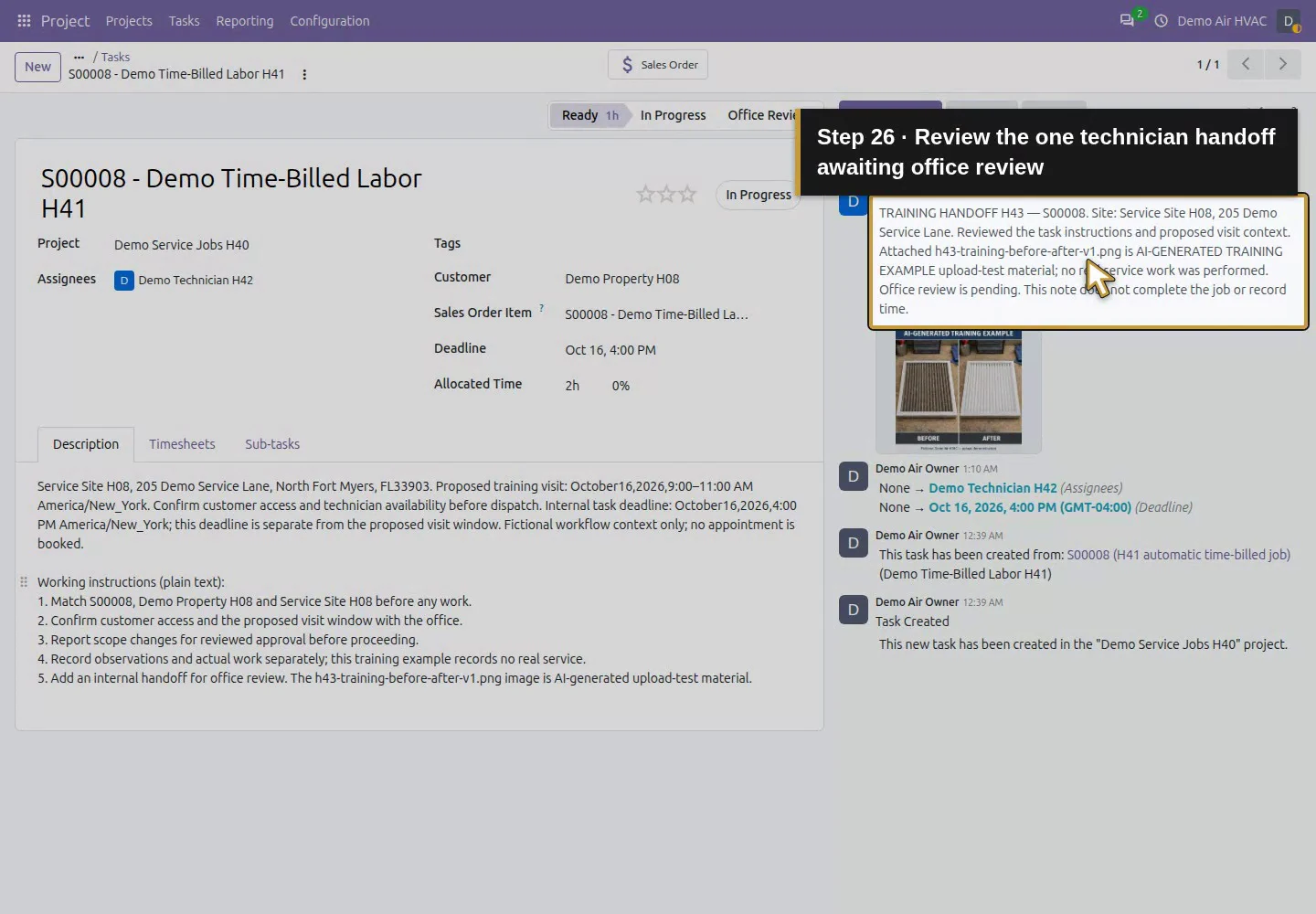
As the owner, reload the task and find TRAINING HANDOFF H43. Open the image attachment to view it in the native viewer. Check its labels and intended content, then use Download and reopen/check the downloaded file. Our download matched the original 2,484,499-byte PNG exactly. The technician also reopened the same task and image viewer successfully; both showed the 1254 × 1254 image.
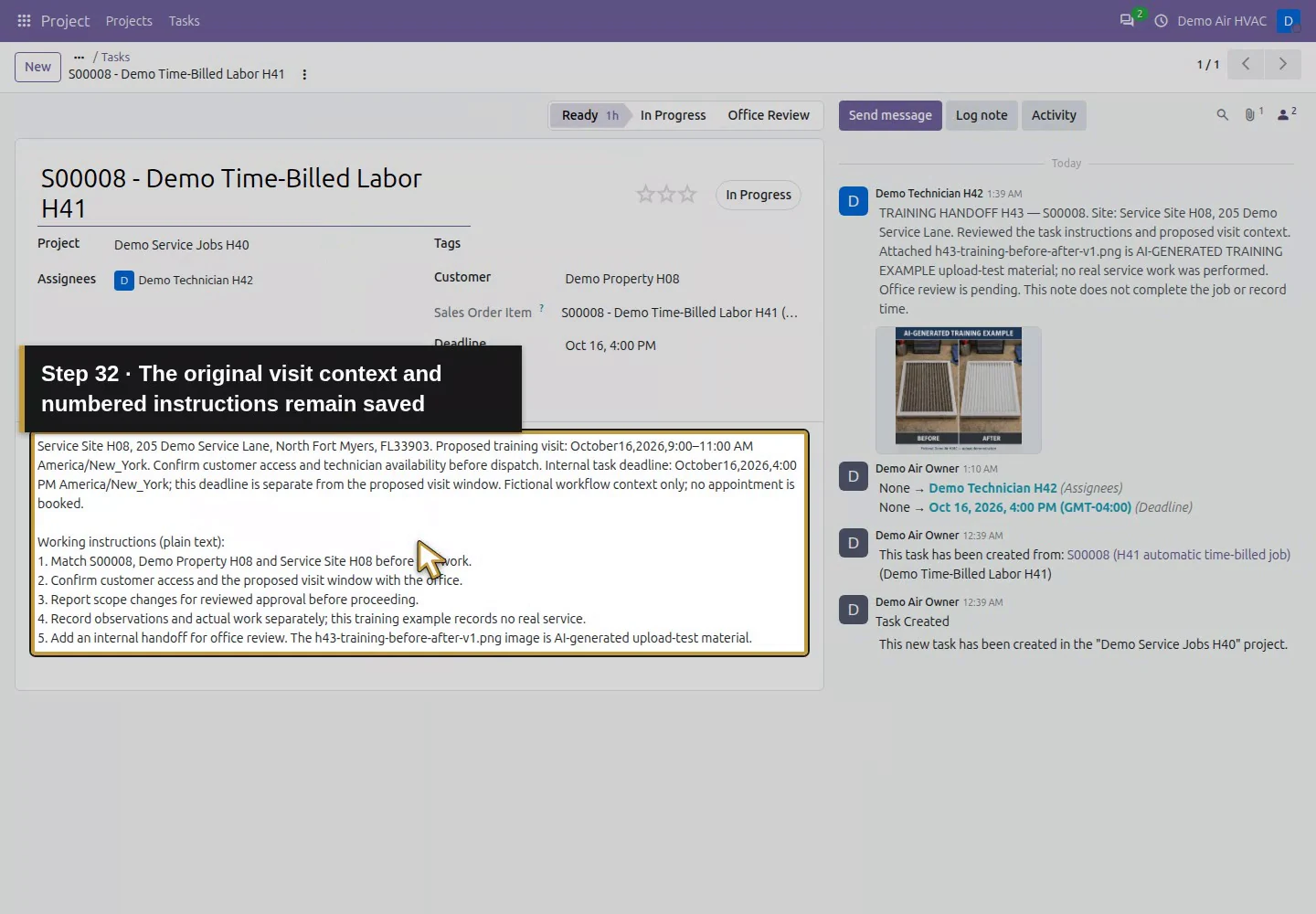
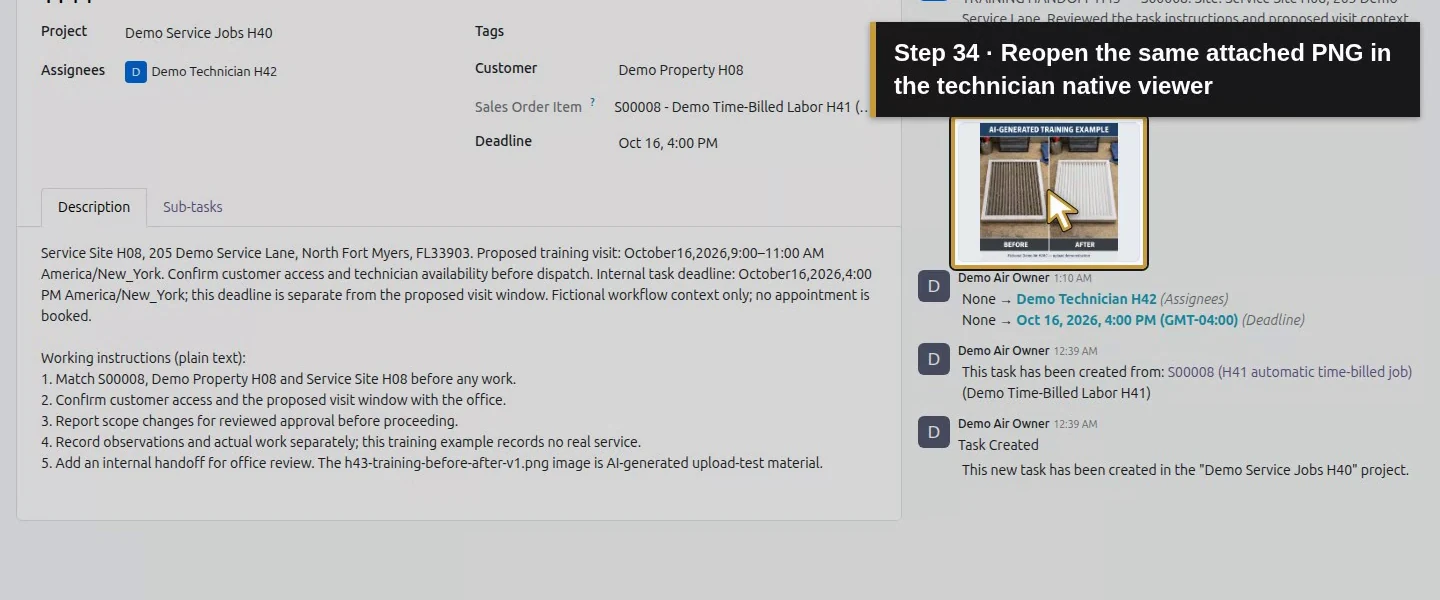
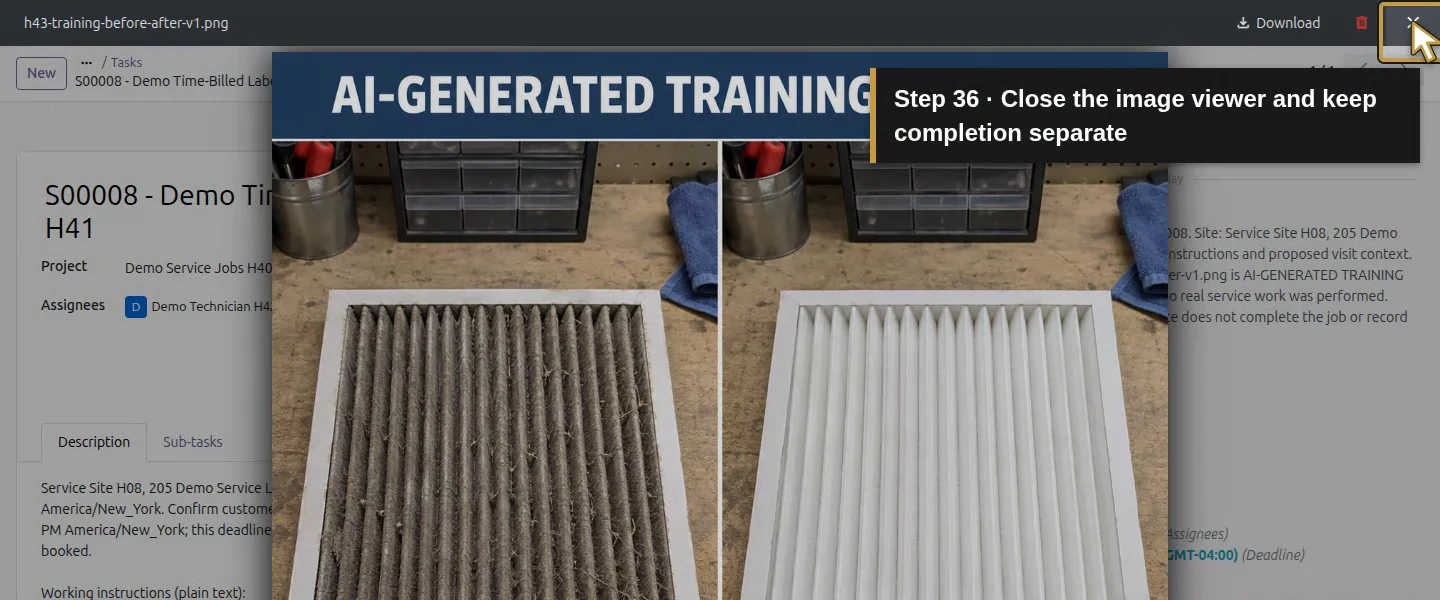
Owner session: reopen the same S00008 job.Saved instructions preserve the site and visit context.Review the one technician handoff awaiting office review.Open the actual attached training image.The native viewer shows labelled synthetic BEFORE and AFTER panels.Download this actual PNG and compare its exact bytes.Technician session: reopen the same saved S00008 task.The original visit context and numbered instructions remain saved.The one technician note remains an office-review handoff.Reopen the same attached PNG in the technician native viewer.The technician sees the same labelled training panels.Close the image viewer and keep completion separate.
Step 7. Review file links separately from note visibility
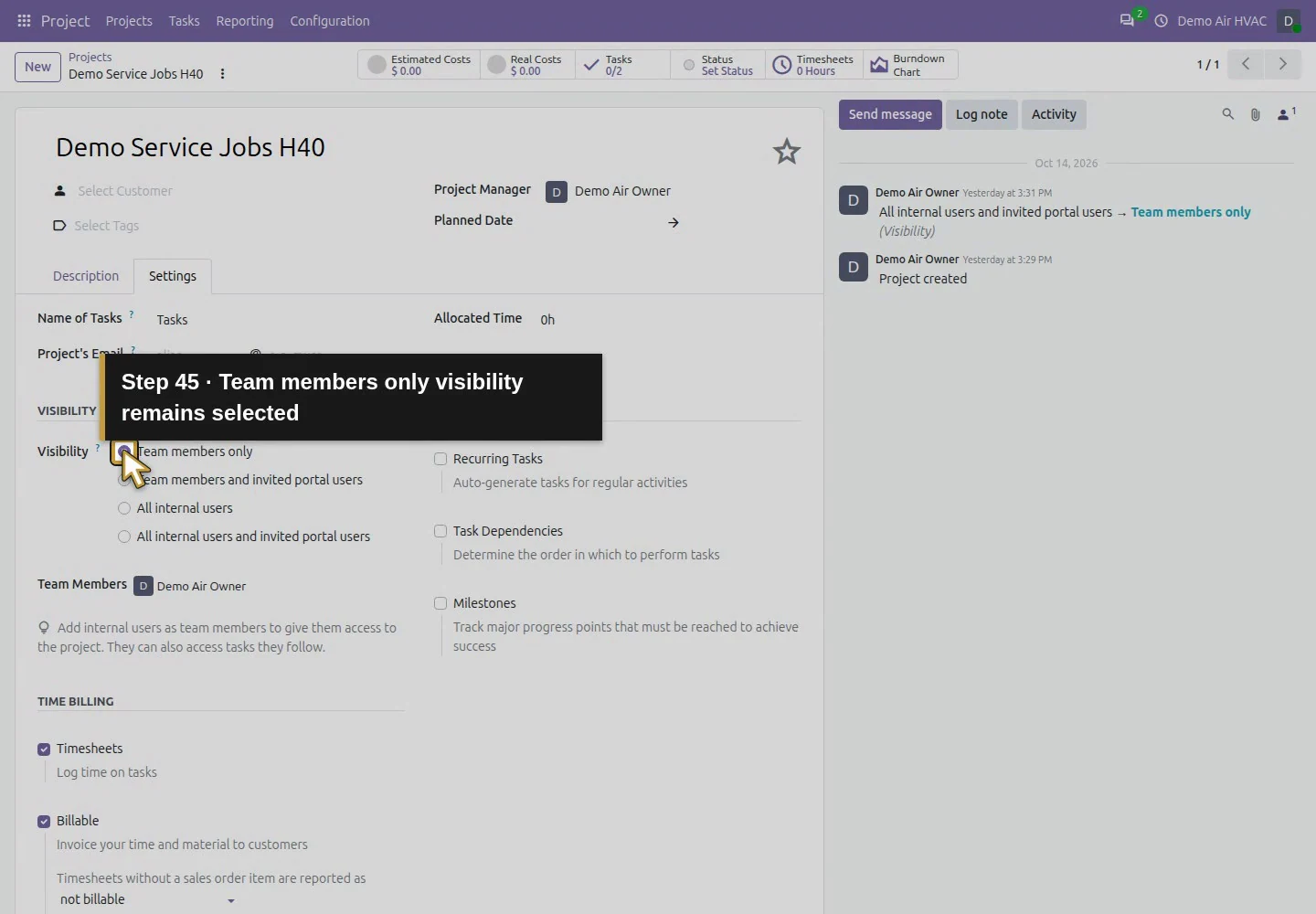
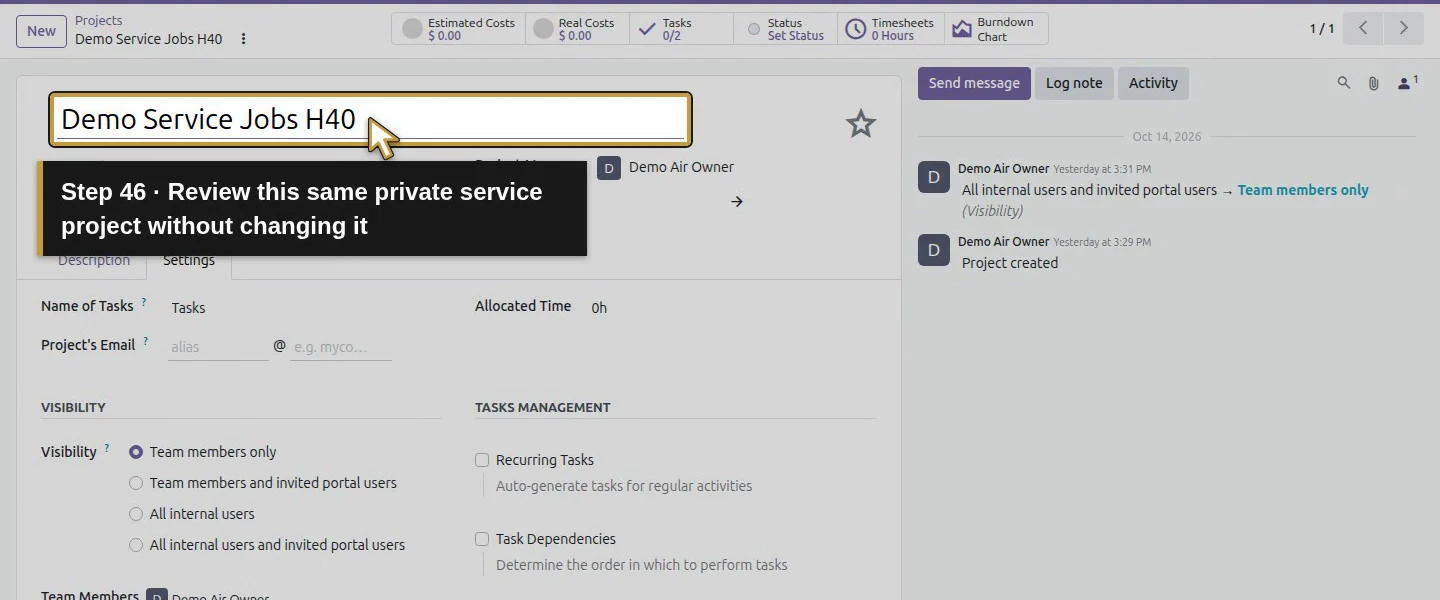
Keep the project’s existing Team members only visibility and review intended recipients before sharing. In a signed-out test, the bare attachment download address returned Not Found. However, copying the native image viewer’s token link opened the actual image in the signed-out browser. Treat that copied file link as private access information. An internal note and a non-public attachment flag do not justify publishing its token URL. This test did not establish invited portal-user visibility.
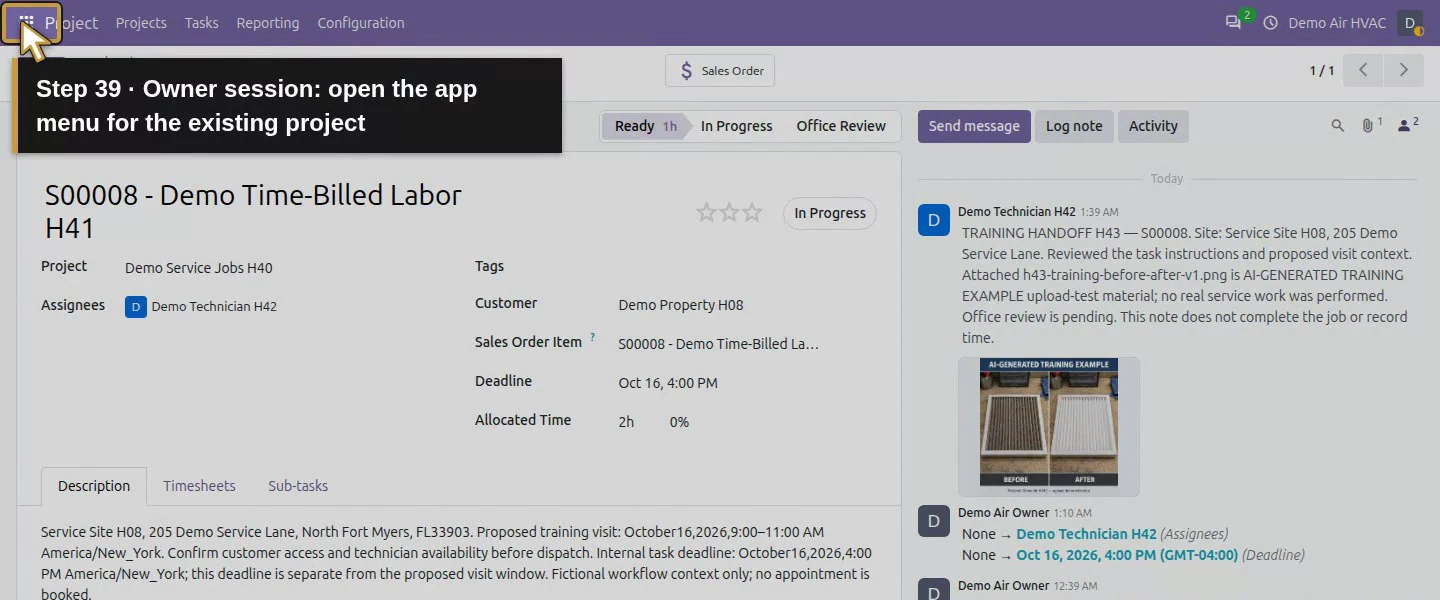
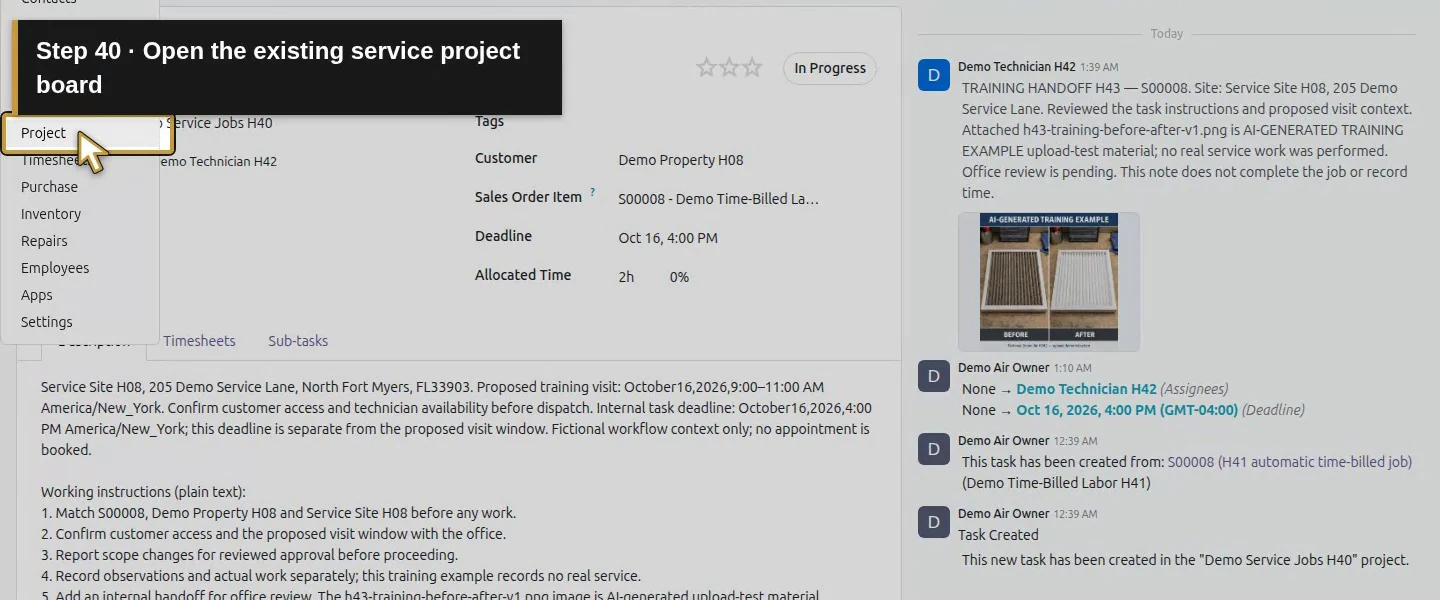
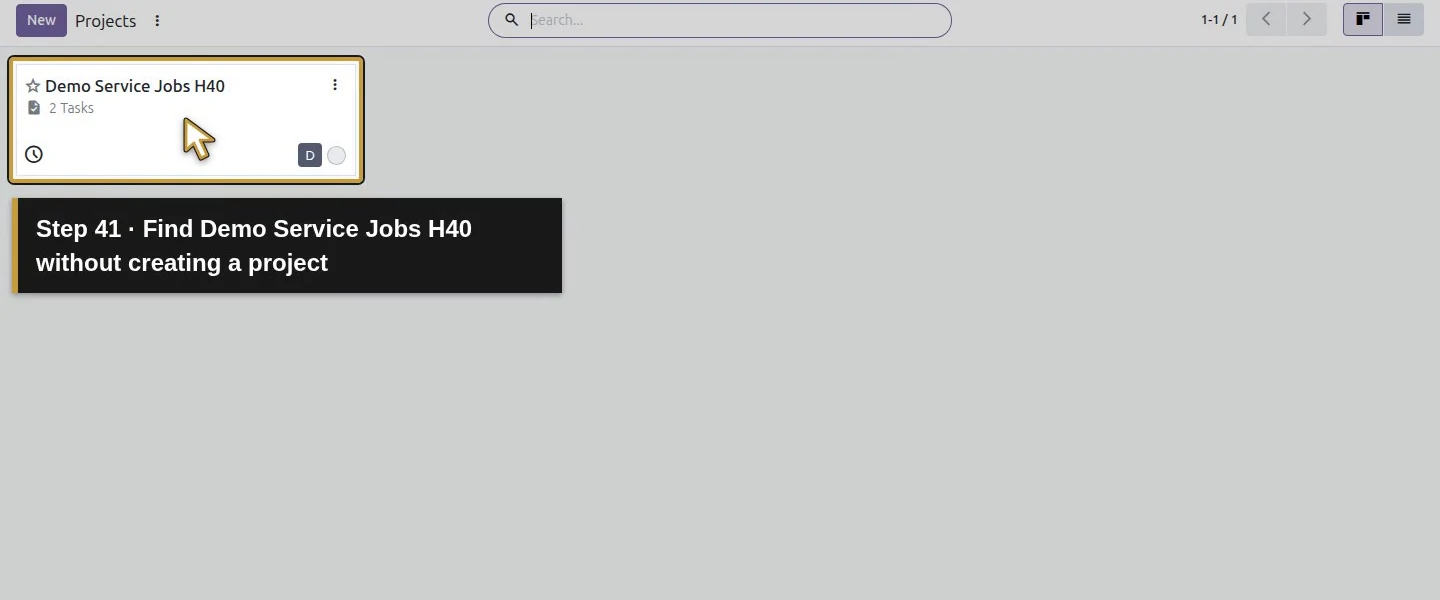
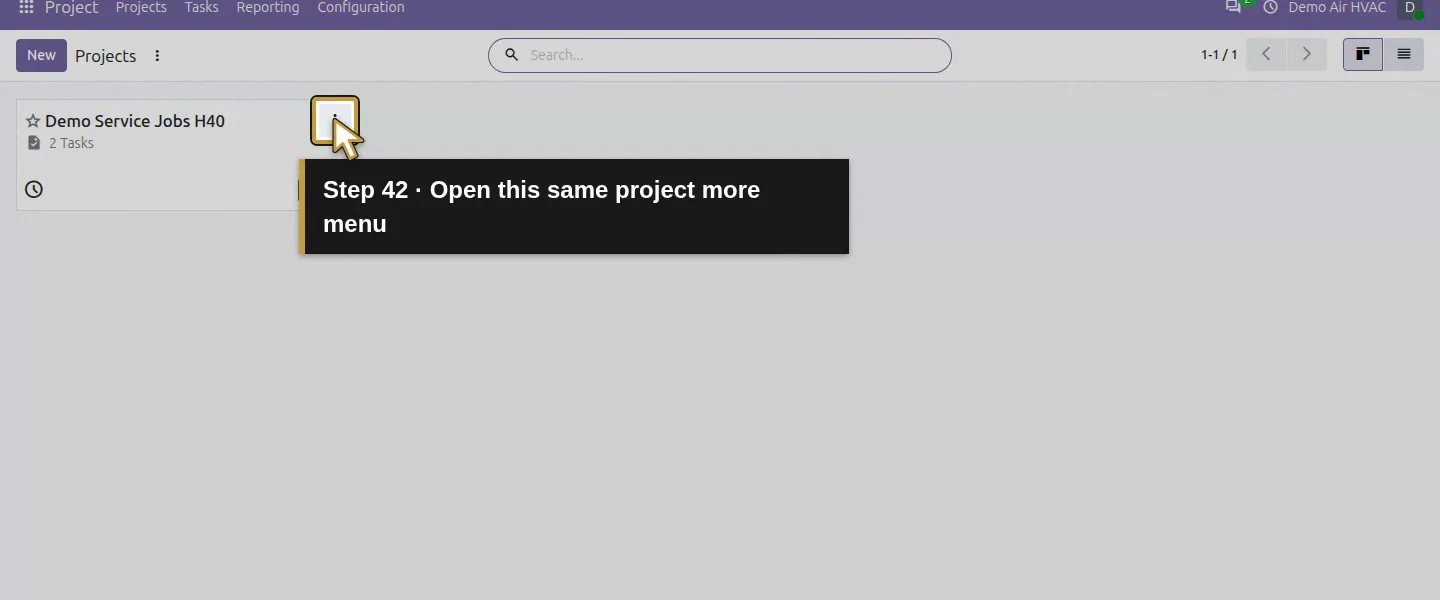
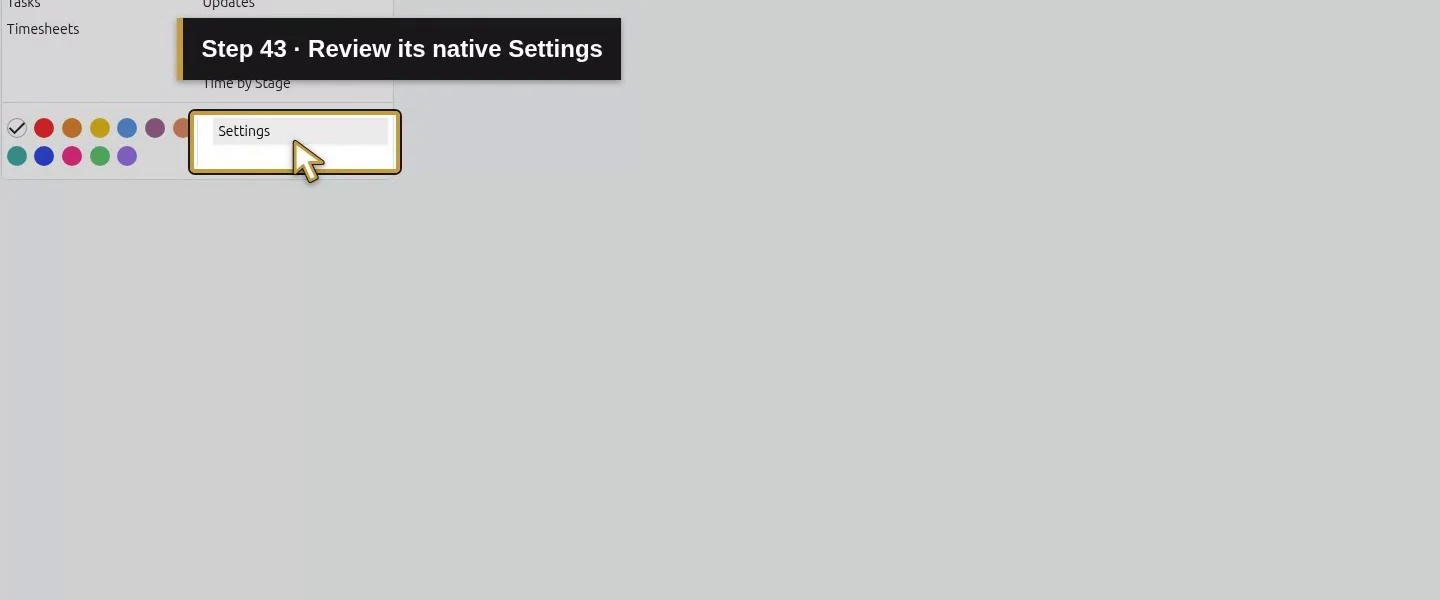
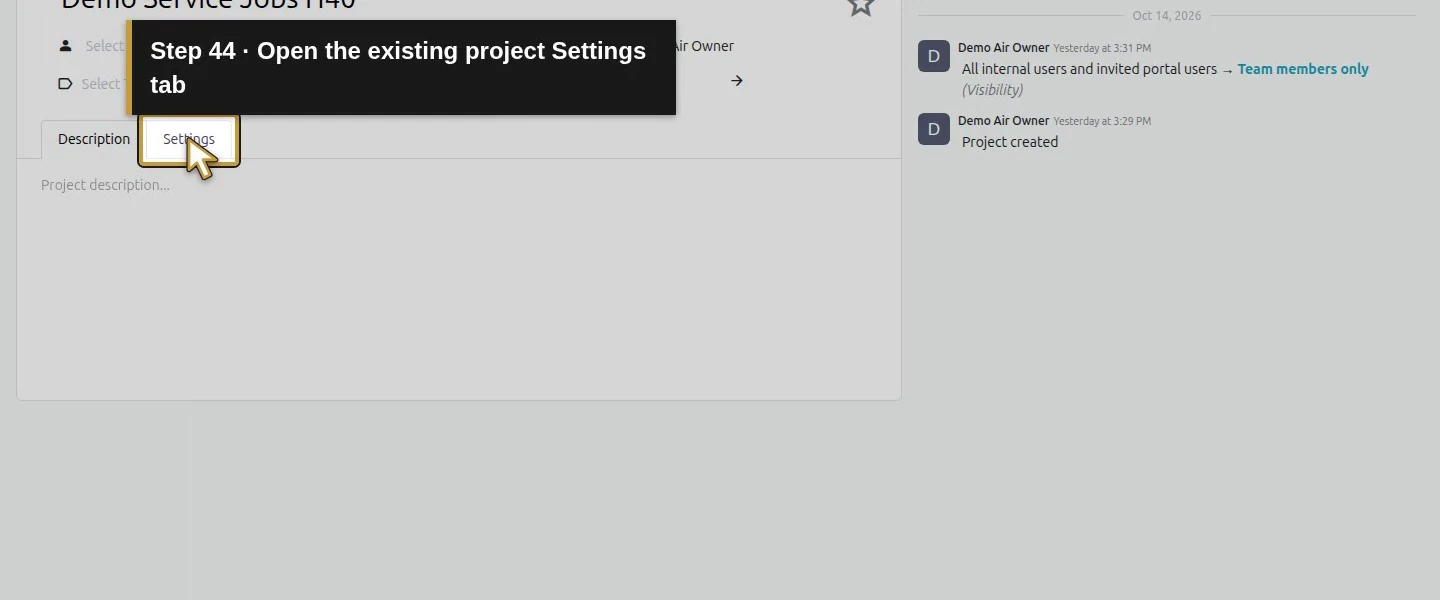
Signed out: the copied native viewer token link opens this image.Owner session: open the app menu for the existing project.Open the existing service project board.Find Demo Service Jobs H40 without creating a project.Open this same project more menu.Review its native Settings.Open the existing project Settings tab.Team members only visibility remains selected.Review this same private service project without changing it.
Step 8. Reopen the saved handoff and keep completion separate
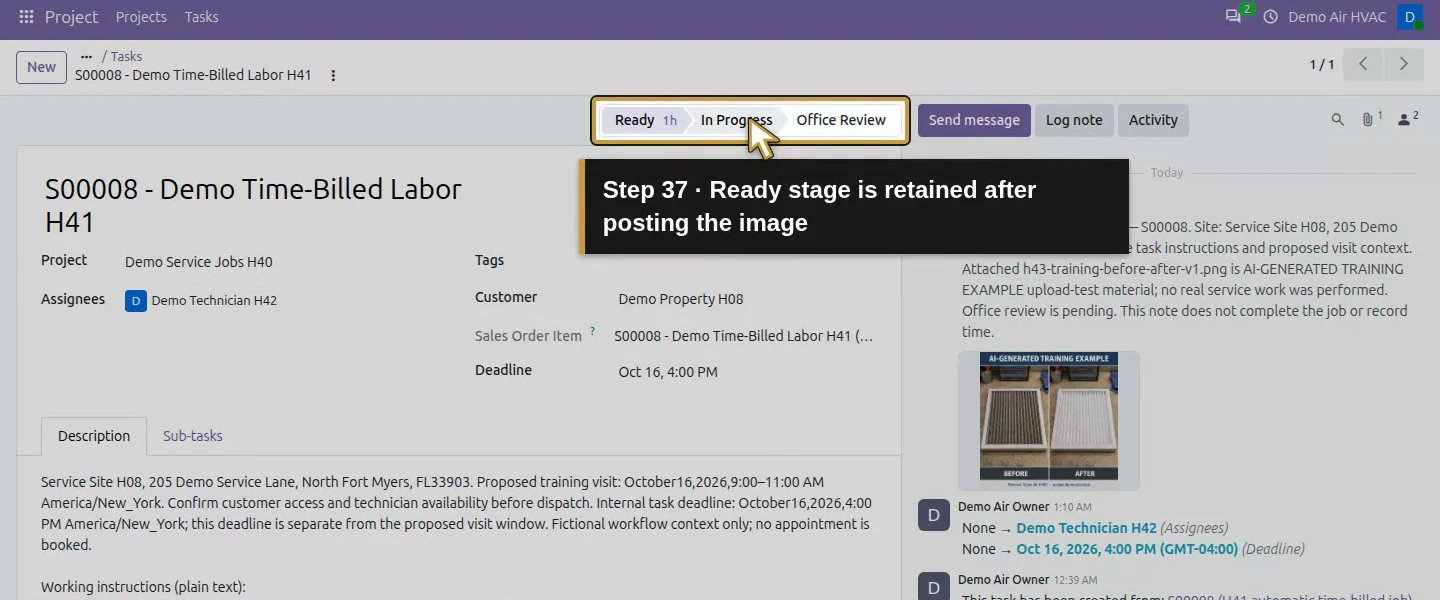
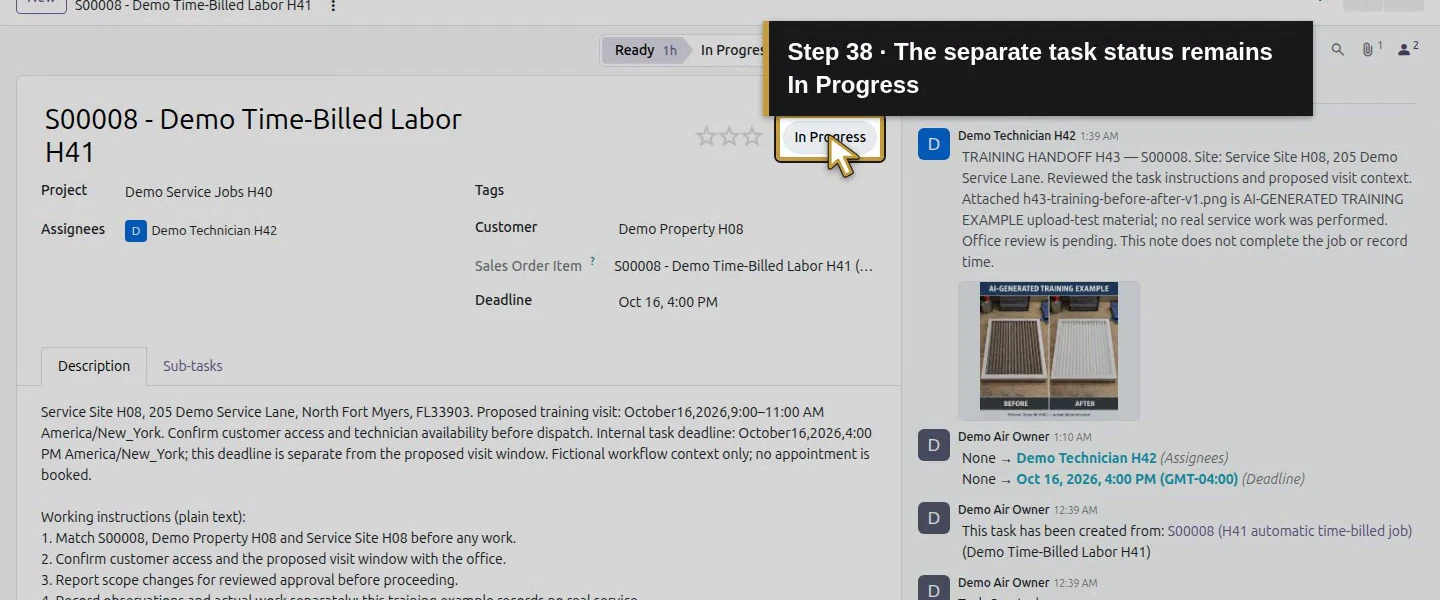
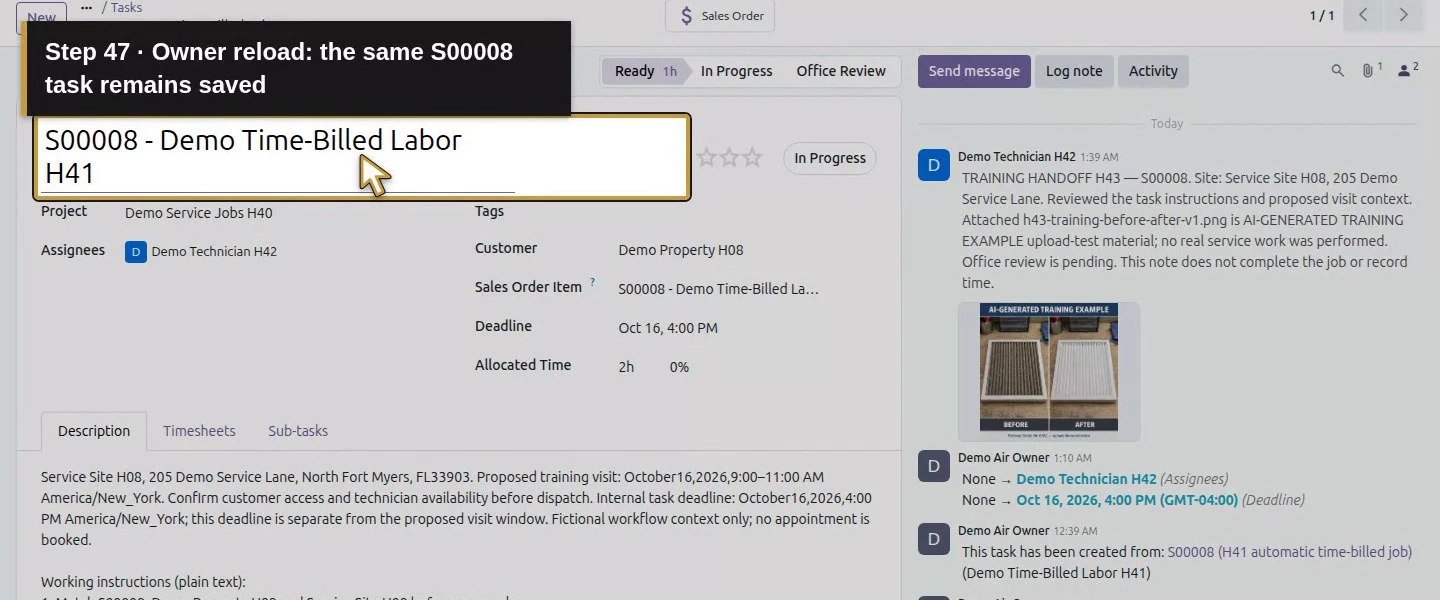
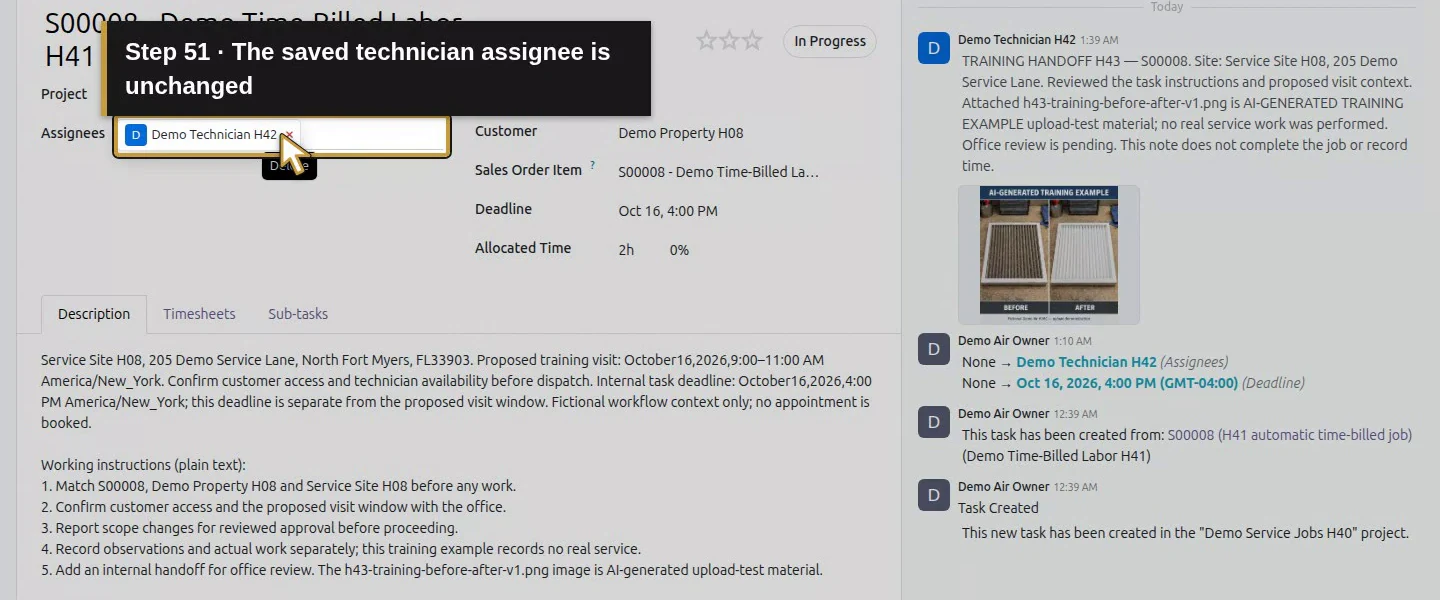
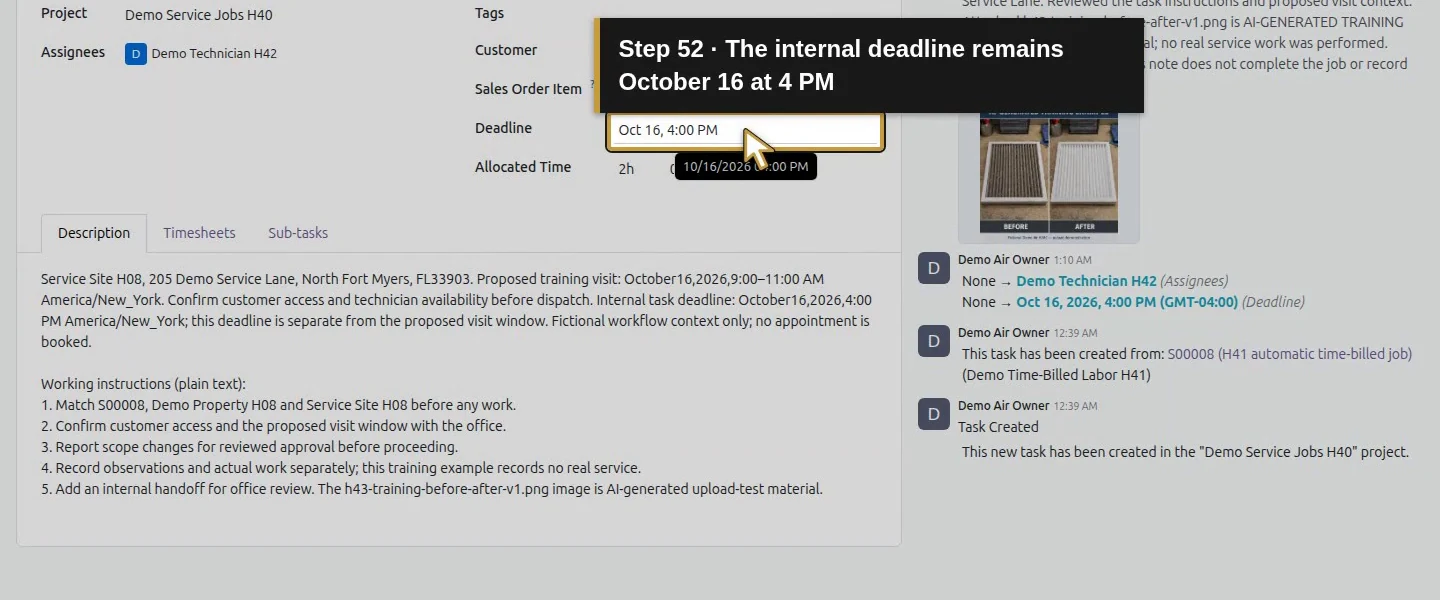
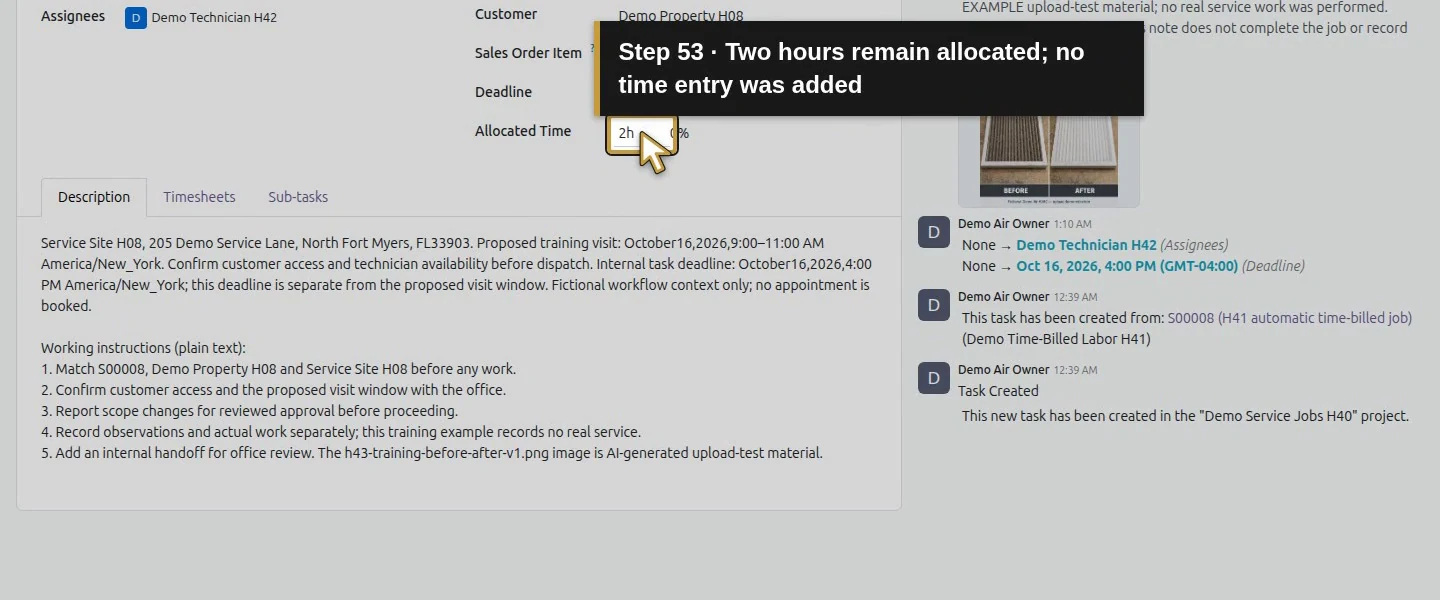
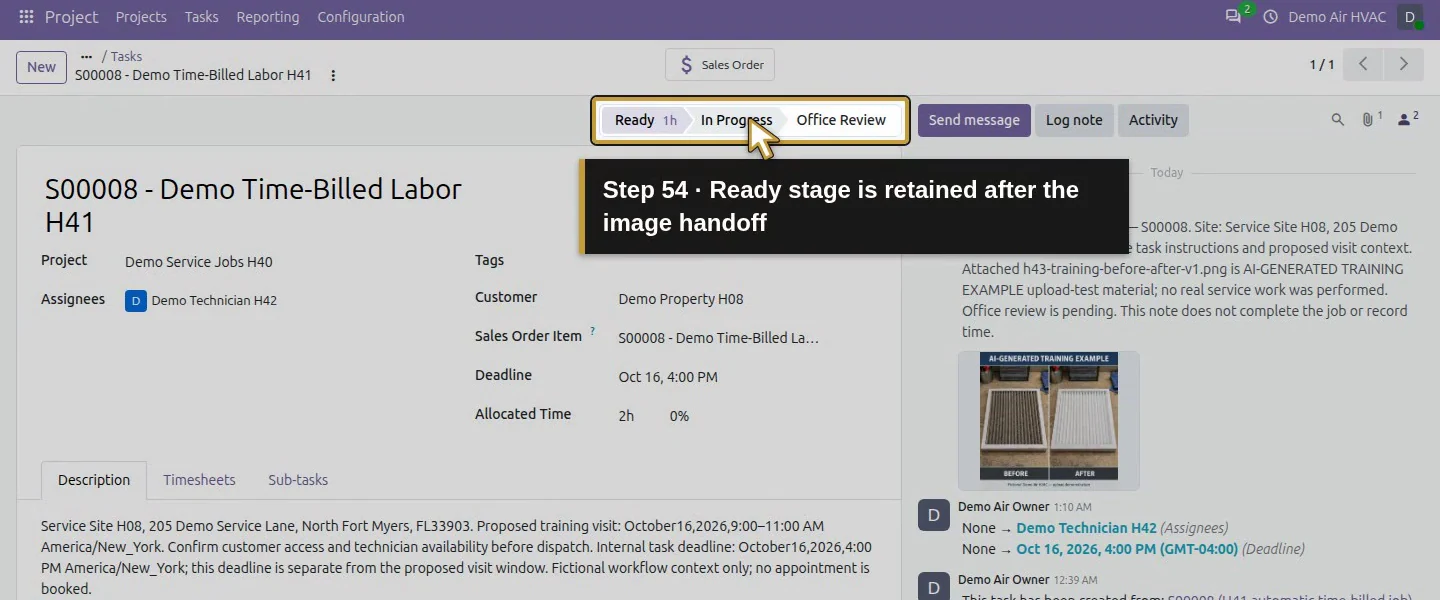
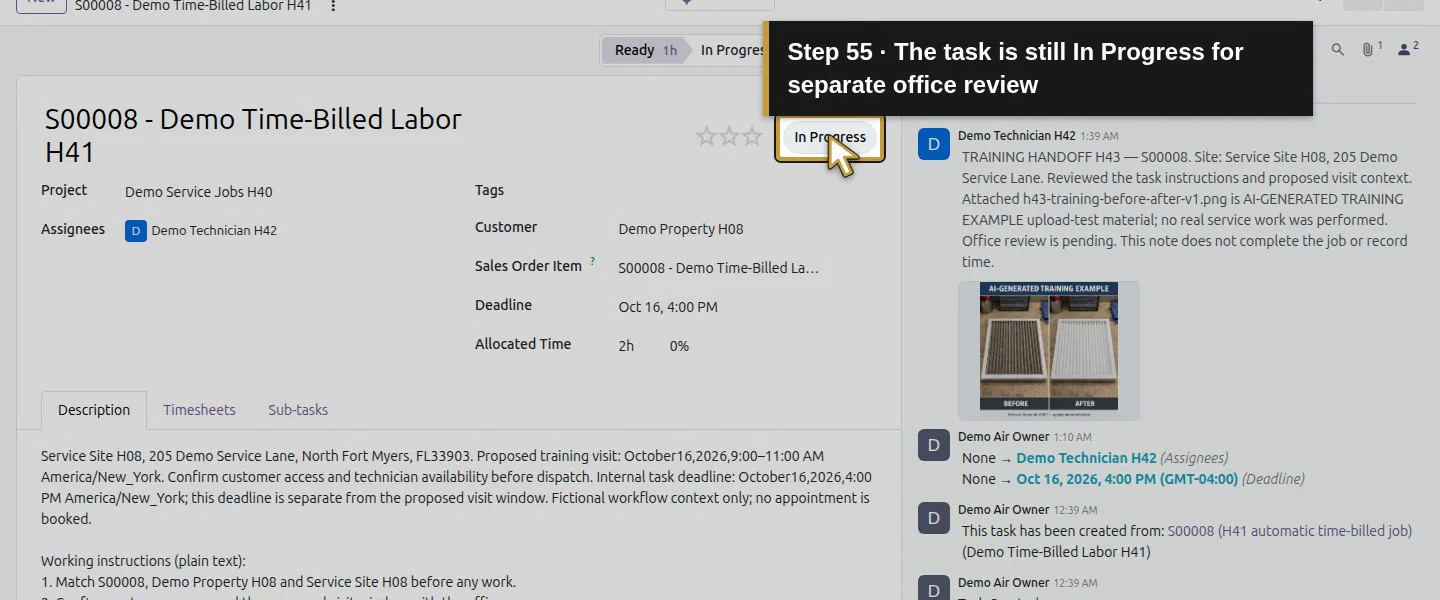
Reload the task in both owner and technician sessions. Check the preserved instructions, assignee/deadline, one H43 note and the same attached file. The task remains in Ready stage with In Progress status and zero recorded time. Adding a note or image did not complete the task, deliver stock or create an invoice. Continue the review and completion workflow separately.
Technician session: reopen the same saved S00008 task.The original visit context and numbered instructions remain saved.The one technician note remains an office-review handoff.Reopen the same attached PNG in the technician native viewer.The technician sees the same labelled training panels.Close the image viewer and keep completion separate.Ready stage is retained after posting the image.The separate task status remains In Progress.Owner reload: the same S00008 task remains saved.The complete site context and numbered instructions remain intact.Exactly one technician handoff remains on this task.The same labelled PNG remains attached.The saved technician assignee is unchanged.The internal deadline remains October 16 at 4 PM.Two hours remain allocated; no time entry was added.Ready stage is retained after the image handoff.The task is still In Progress for separate office review.
Check the result
Task 6 retains the original site/window context plus the instruction list, and one internal H43 note authored by the technician with image attachment 146. Owner and technician can reopen the note and image; the owner's downloaded bytes match the upload. The native Notes subtype is internal and the attachment is non-public, while its viewer token link still grants file access to a signed-out browser. No token is included in source or public examples. Task state, time, sales links and earlier business balances remain unchanged.
If your screen differs
Use Log note for this demonstrated internal handoff; do not assume every chatter message has the same visibility. The saved Notes subtype was internal, but copied token links allowed anonymous access to the image, so review note permissions and file sharing separately. An image endpoint can return a placeholder with HTTP 200; our tokenless image response was not the uploaded file, whereas the token link returned matching bytes. Portal accounts, invited customer access and other project settings were not exercised. This guide demonstrates one PNG containing two synthetic panels, not multiple-file sequencing, actual completion evidence, a structured worksheet or a commissioning certificate.
Frequently asked questions
How do I attach job photos to an Odoo task?
Open the correct task, choose Log note, enter a factual handoff, then use the composer's Attach Files and Log. Reopen the note and image from the task. Our technician uploaded one labelled PNG; the owner viewed/downloaded it and the bytes matched. The sample is AI-generated training material, not proof of real completed work.
Can I create a job checklist without customizing Odoo?
This stock workflow saved a plain numbered instruction list in Description while preserving site and visit context. It required no custom field or module. The list did not enforce required steps, record checkbox completion or generate an inspection certificate. Those features were not demonstrated here.
Can customers see internal Odoo job notes?
Check the message type, project/task permissions and attachment sharing separately. We used Log note and verified its internal Notes subtype with owner/assigned-technician access. The bare file download failed while signed out, but its native viewer token link opened the image anonymously. Actual portal-customer note visibility was not tested, so this is not a blanket privacy claim.