
Running an HVAC business with Odoo
How do I track service vans and vehicle costs in Odoo?
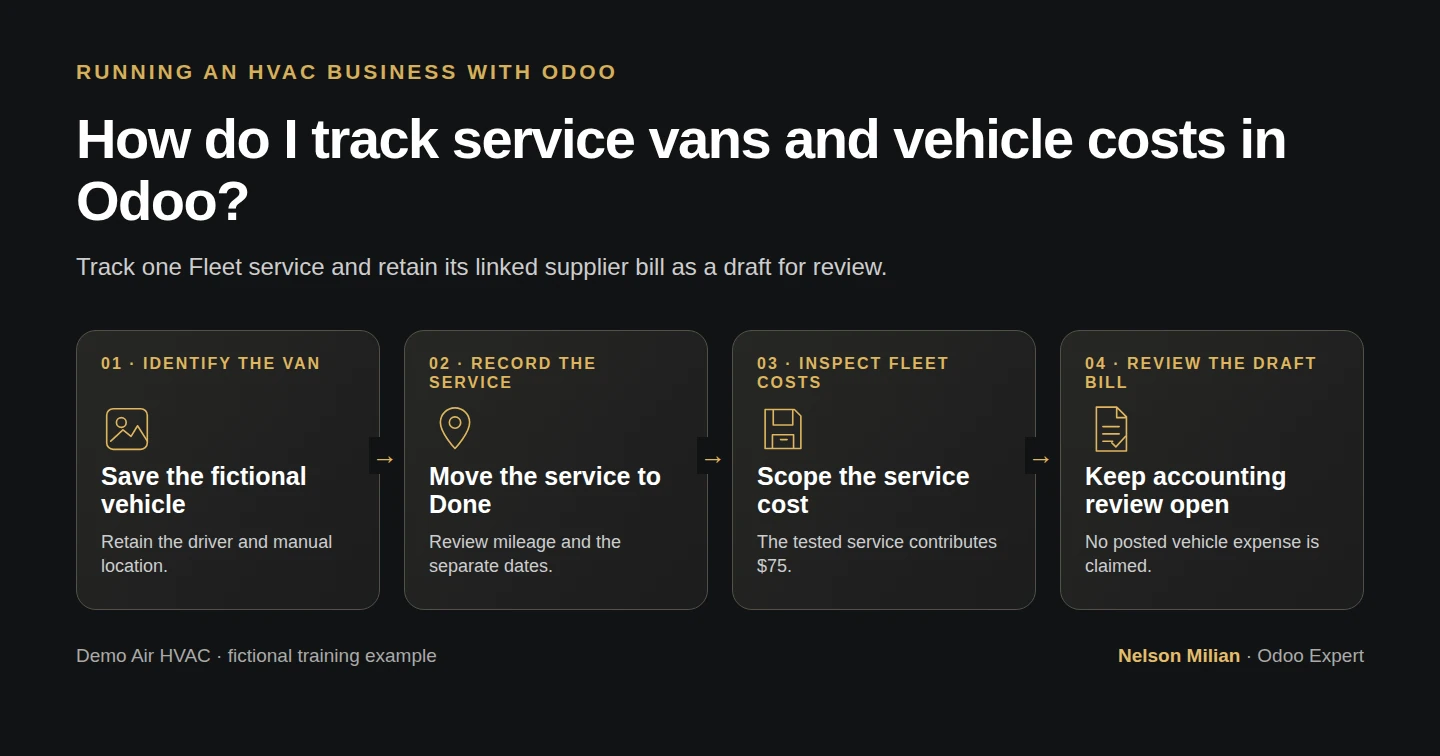
Create a service van and driver record, track a fictional inspection cost and review its linked draft supplier bill in Odoo Fleet.
Alex wants to know which technician has the van and what its maintenance costs. We create a clearly fictional Fleet vehicle, assign the existing technician and record one $75 inspection. We follow that same service through its stages, inspect Fleet Costs and use the native supplier-bill handoff. The bill remains a labelled draft for review.
Alex Rivera and Demo Air HVAC are fictional training examples. Prices, dates, quantities and business situations in this guide are illustrative.
Before you begin
Tested in stock Odoo 20.0-20260926 Community as the demo owner administrator, with official modules and standard configuration. Complete How do I create an employee record in Odoo?, How do I assign a technician and deadline to an Odoo task?, How do I set up warehouse and service-van stock locations in Odoo?, How do I add suppliers and purchase terms in Odoo? and How do I match a supplier bill to its purchase order in Odoo?. Reuse the Demo Technician H42 contact, Demo Supply H10 supplier and WH/Demo Van 01 Inventory location. The owner performs this lesson. Activate the official Fleet app; the installed official hr_fleet and account_fleet integrations supply employee and accounting links. These are Odoo-authored LGPL-3 modules. Installation adds the owner's stock Fleet administration access; the technician's permissions are unchanged. Model specifications, plate, registration status, mileage, supplier service and cost are invented training data. No actual vehicle or supplier service is supplied.
Step-by-step workflow
Step 1. Activate Fleet and check the starting records
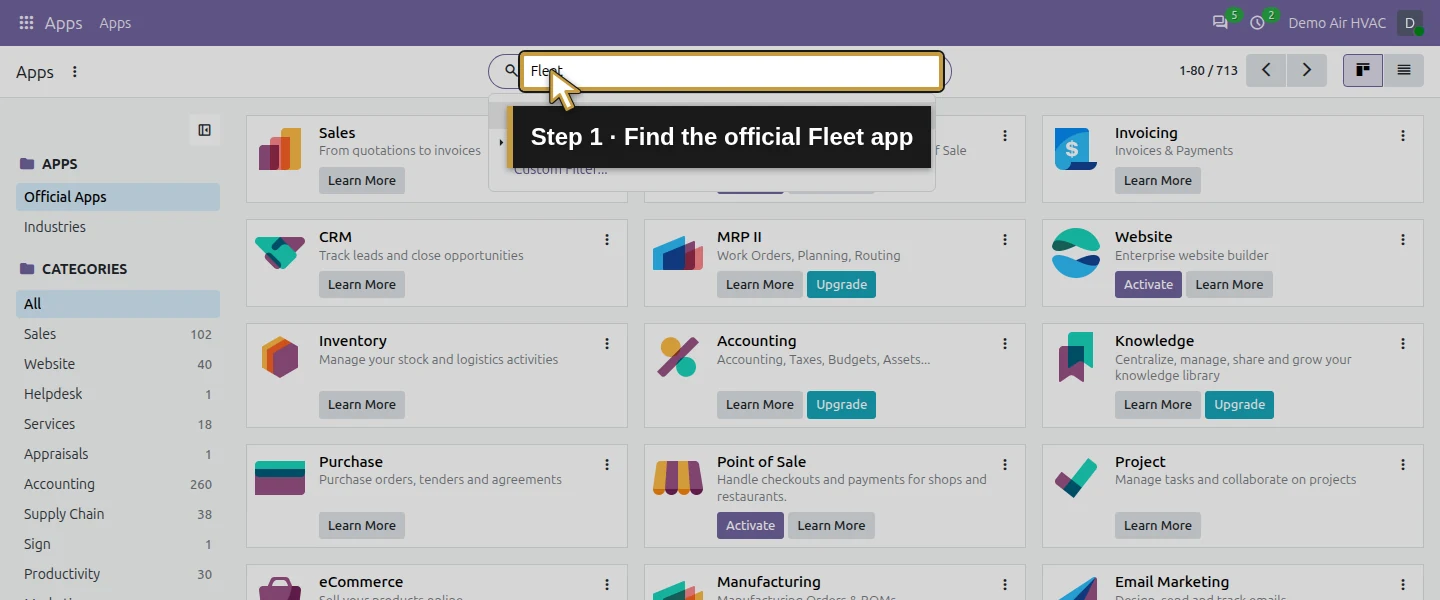
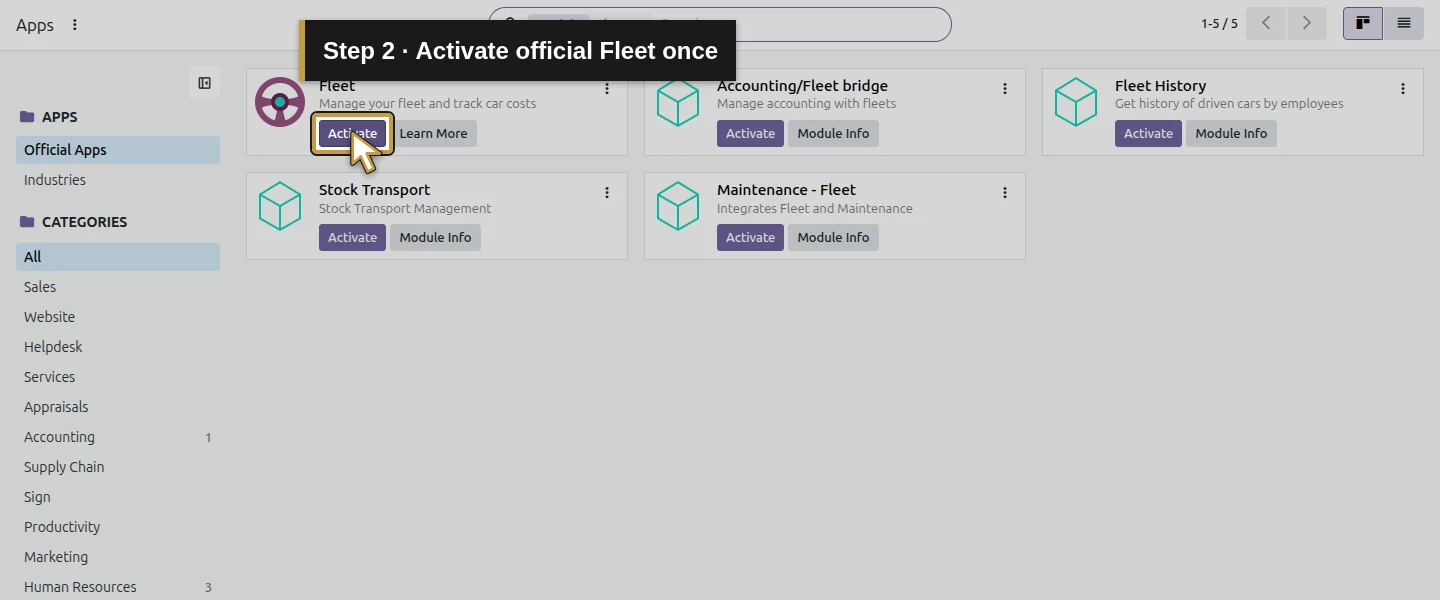
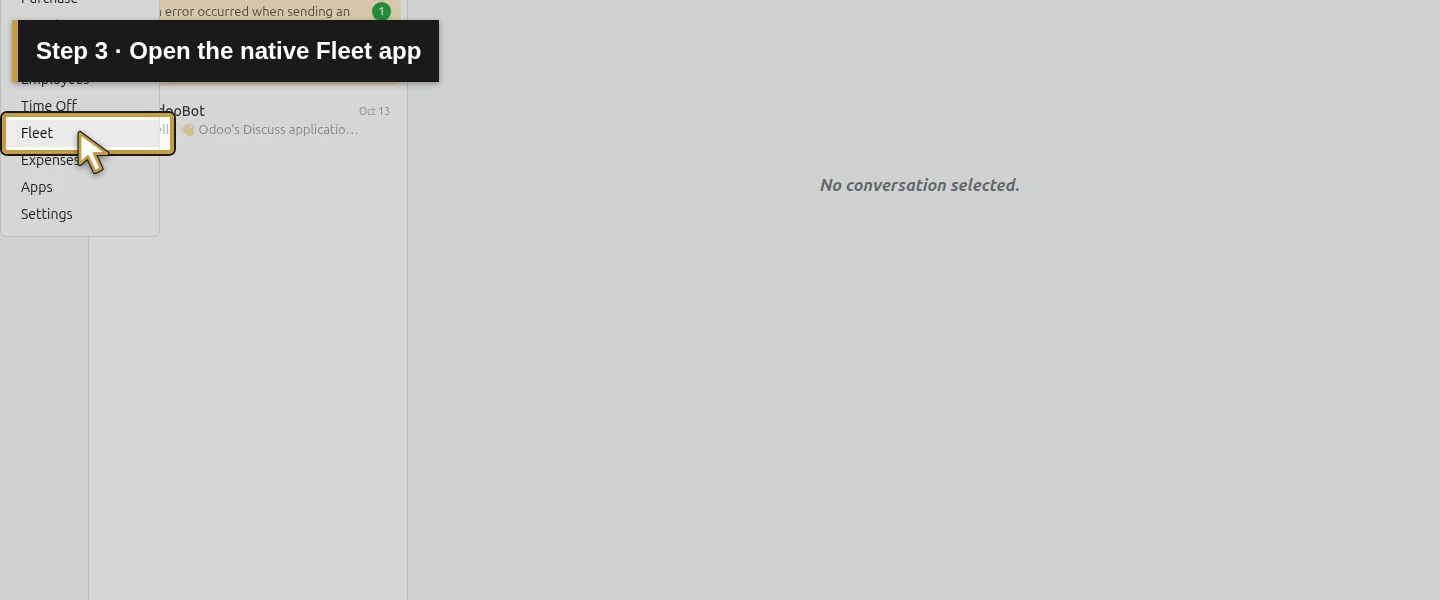
Open Apps, search Fleet, choose the actual module search suggestion and activate the Odoo-authored app once. Wait for installation, then open Fleet. The tested database has no vehicle or model yet. Empty-view sample cards are not saved business records. Search your own existing records before adding another van.
Step 2. Create the training vehicle model
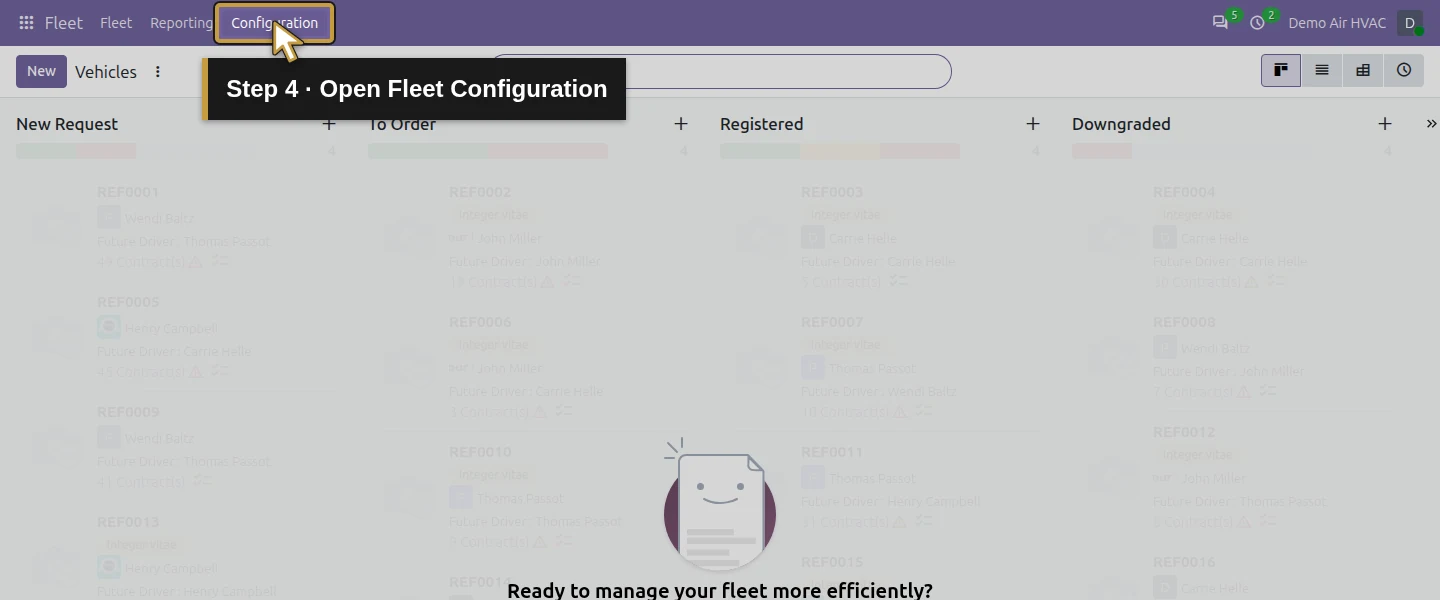
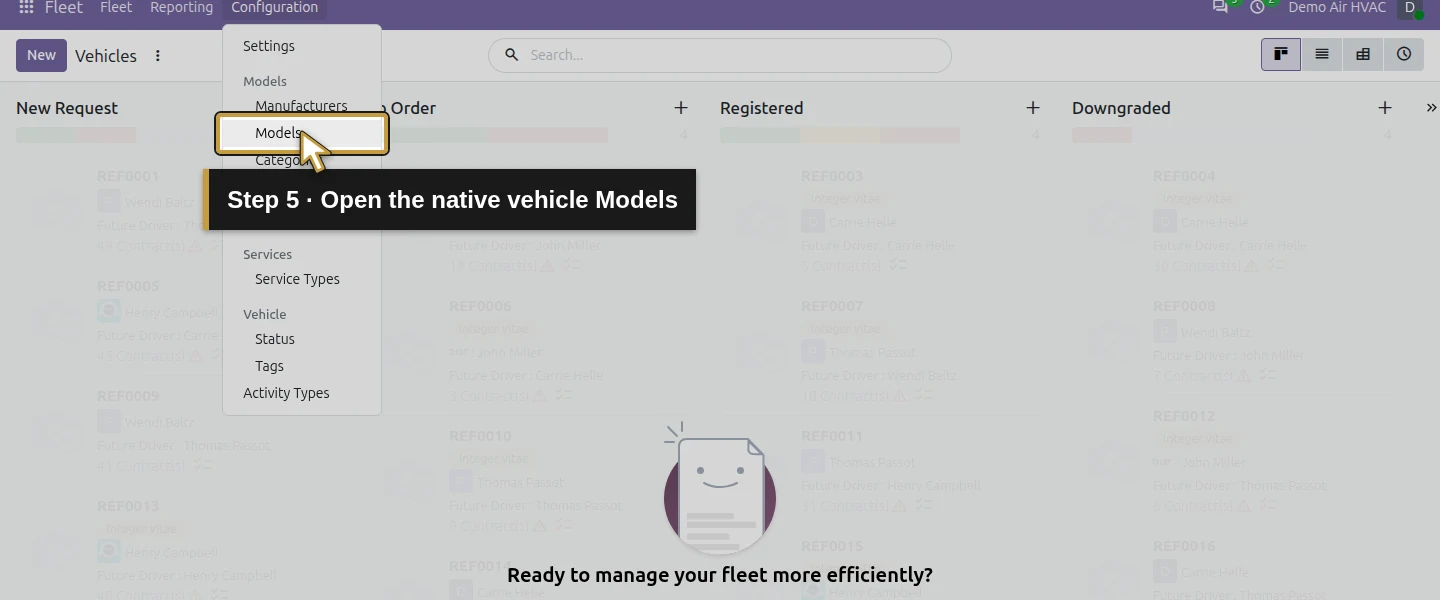
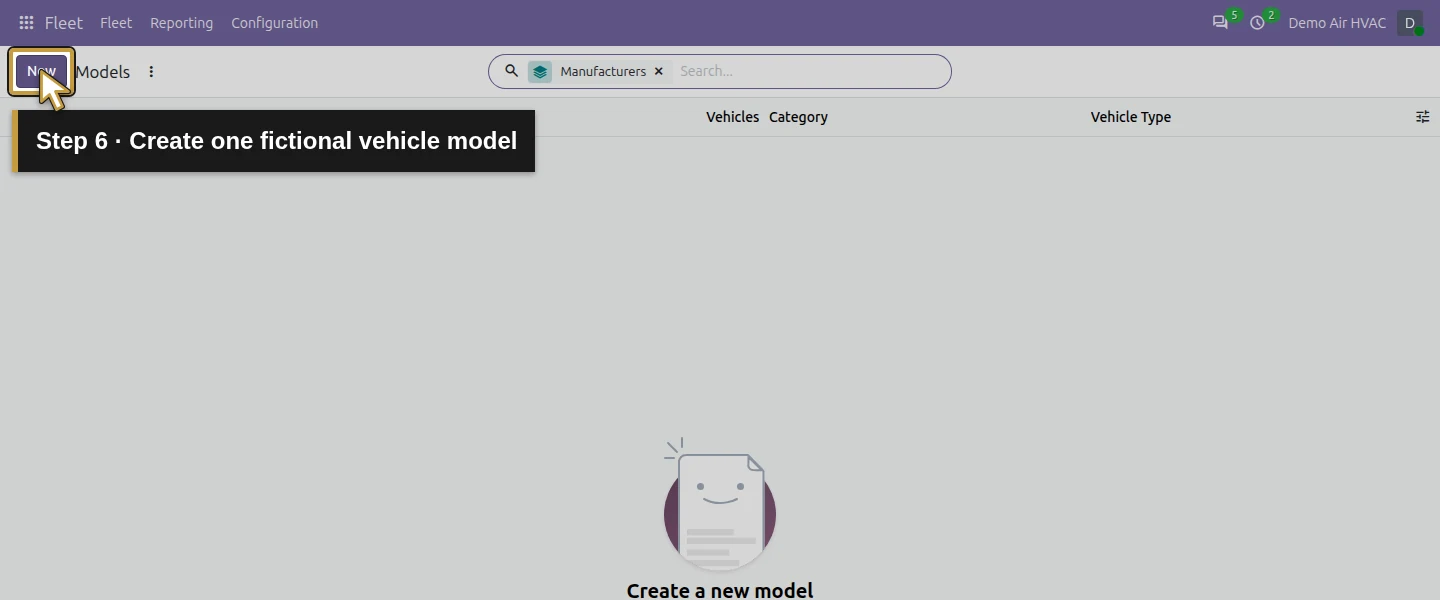
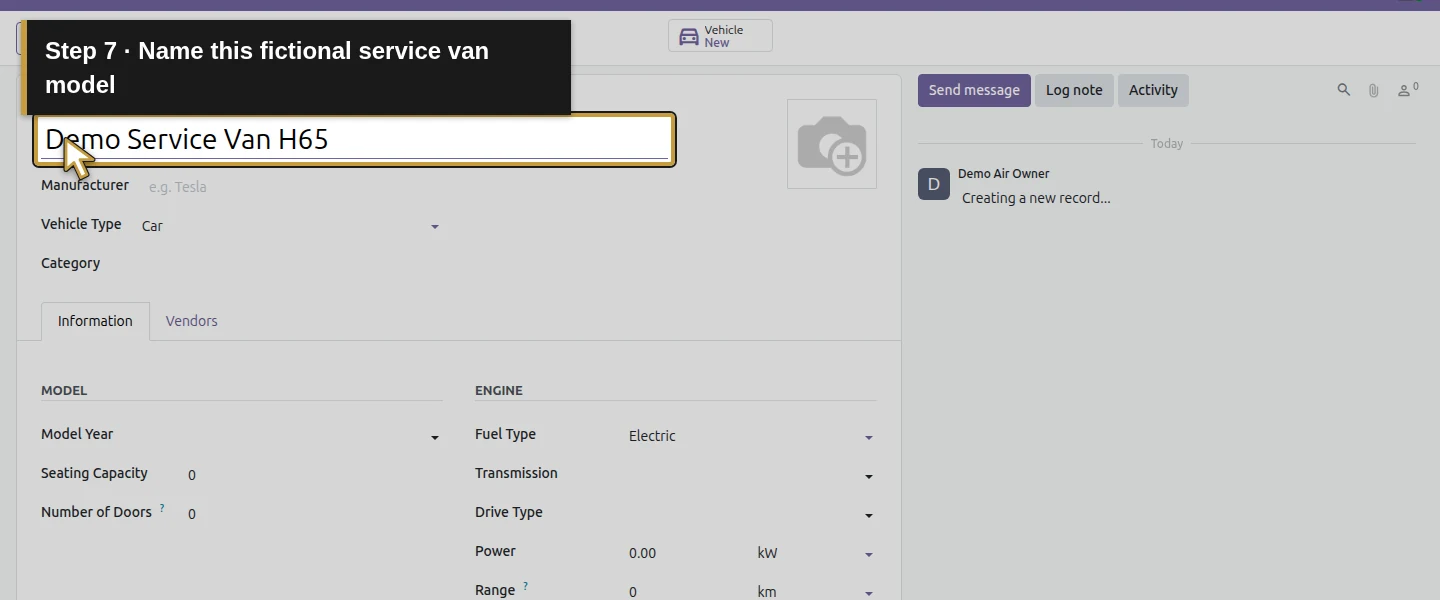
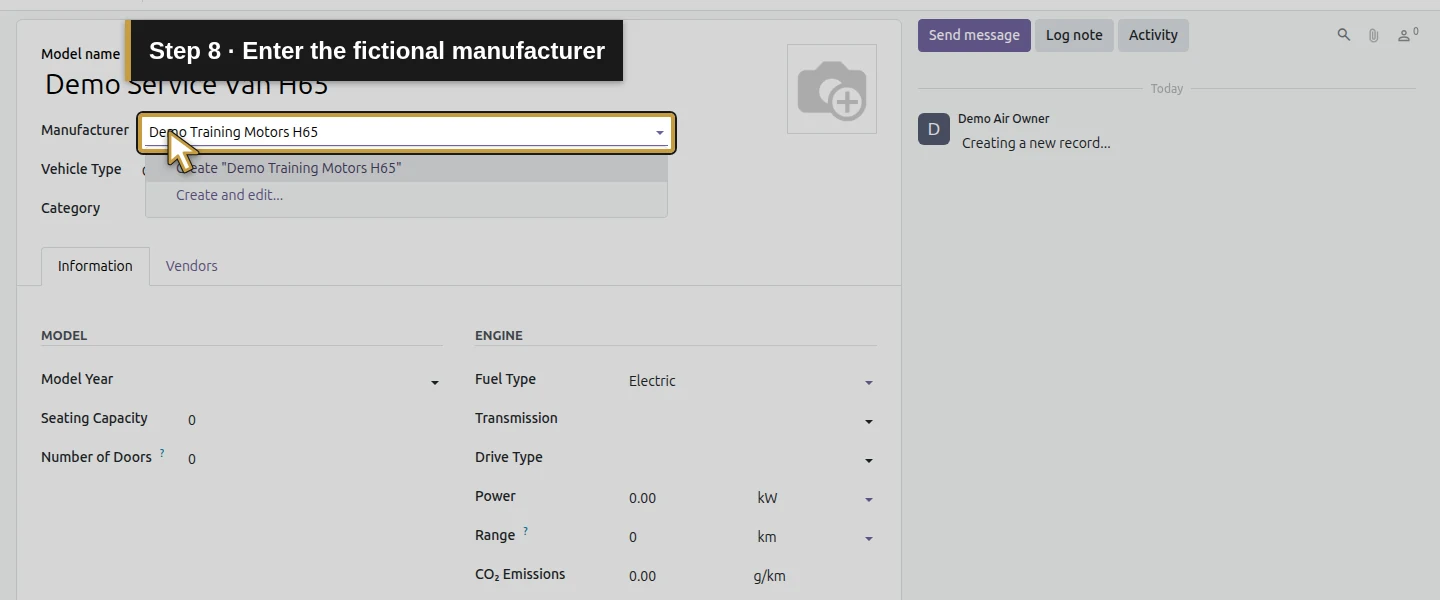
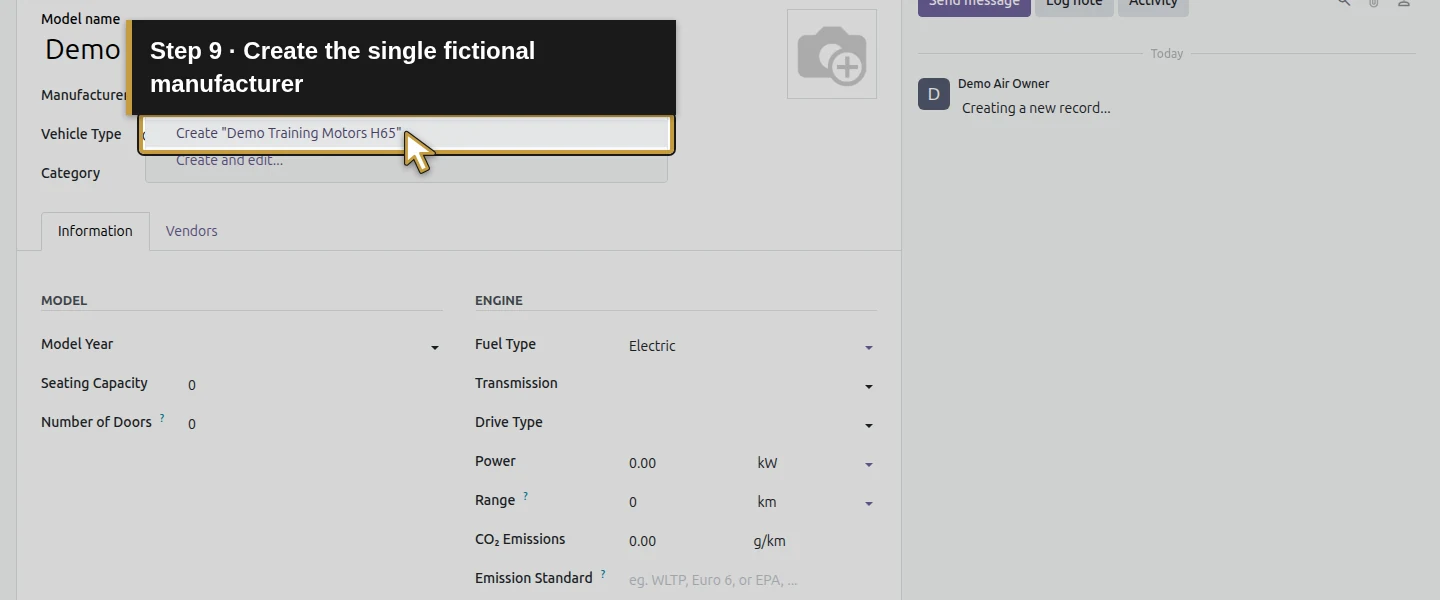
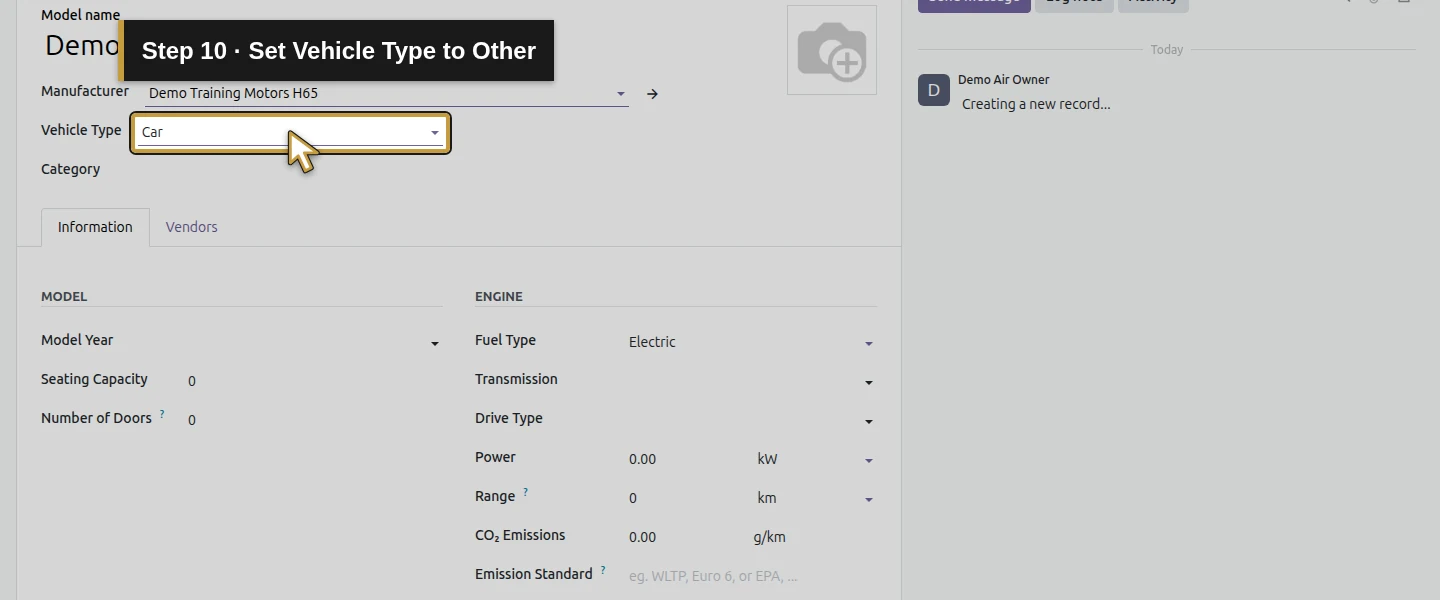
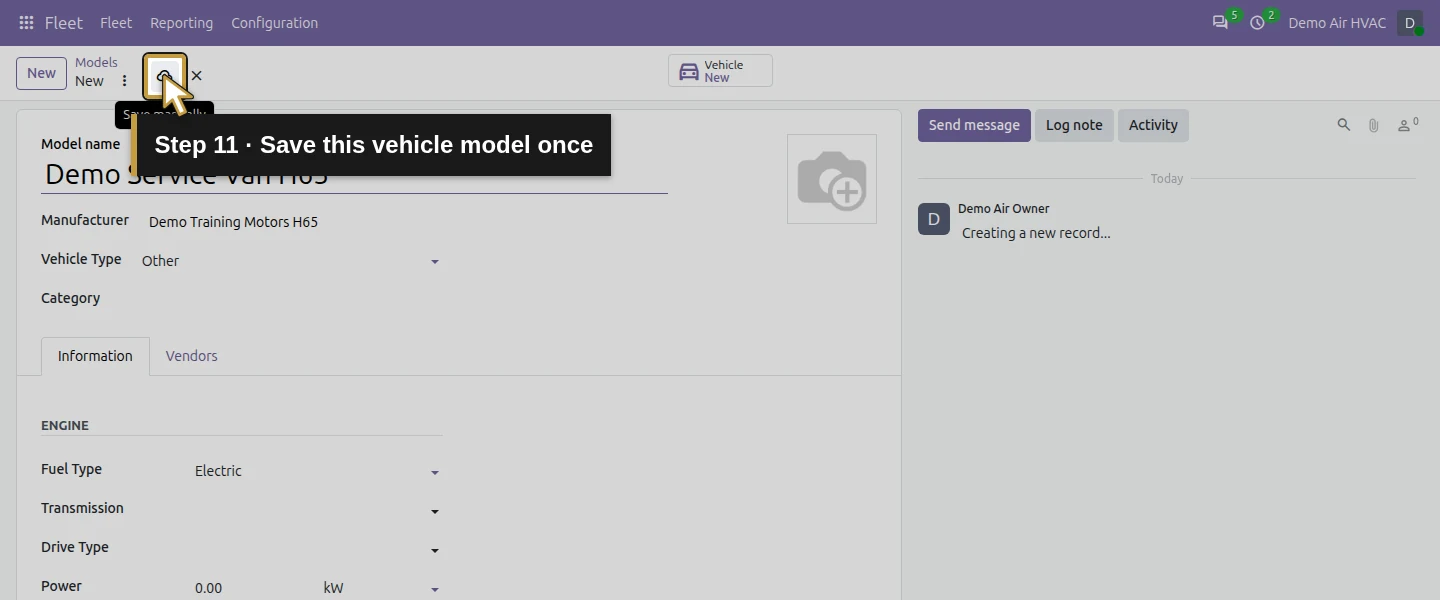
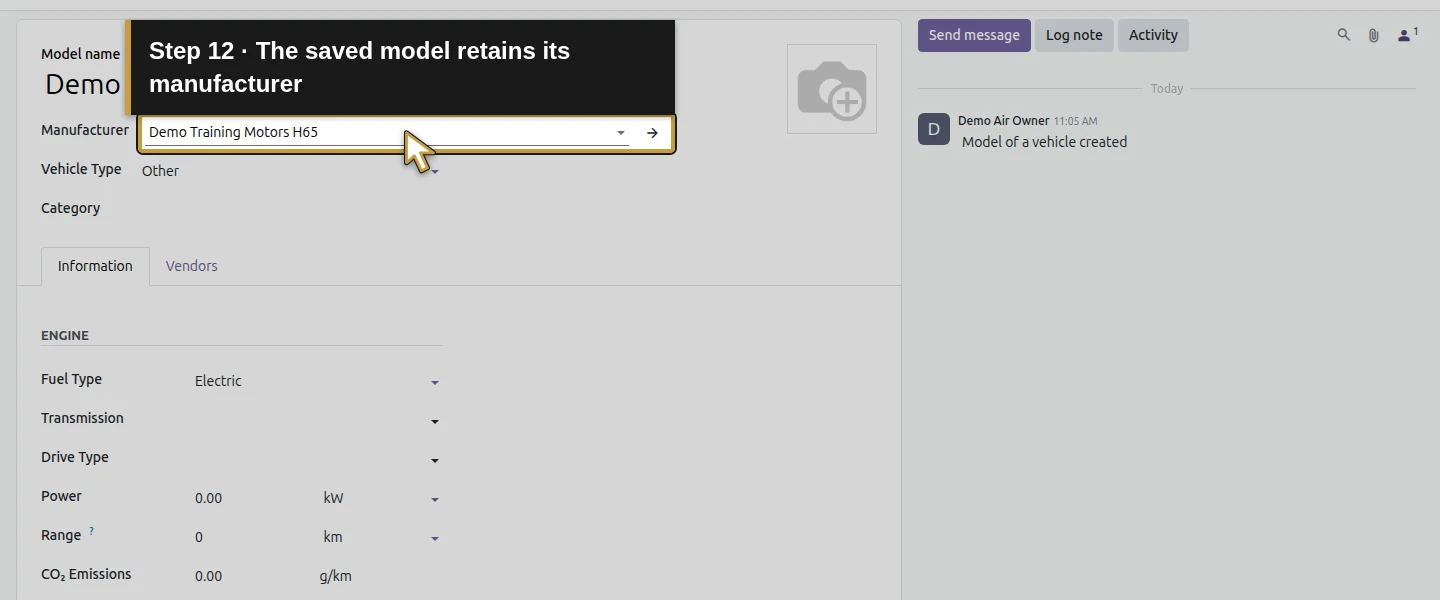
Open Fleet → Configuration → Models → New. Enter Demo Service Van H65 in Model name. In Manufacturer, enter Demo Training Motors H65 and choose its native Create option. Set Vehicle Type → Other, leave Category empty and save the model. Reopen it to check the manufacturer and type. Keep the other technical defaults unchanged; they are not verified vehicle specifications. This is ordinary Fleet configuration data.
Step 3. Create the vehicle with the existing technician
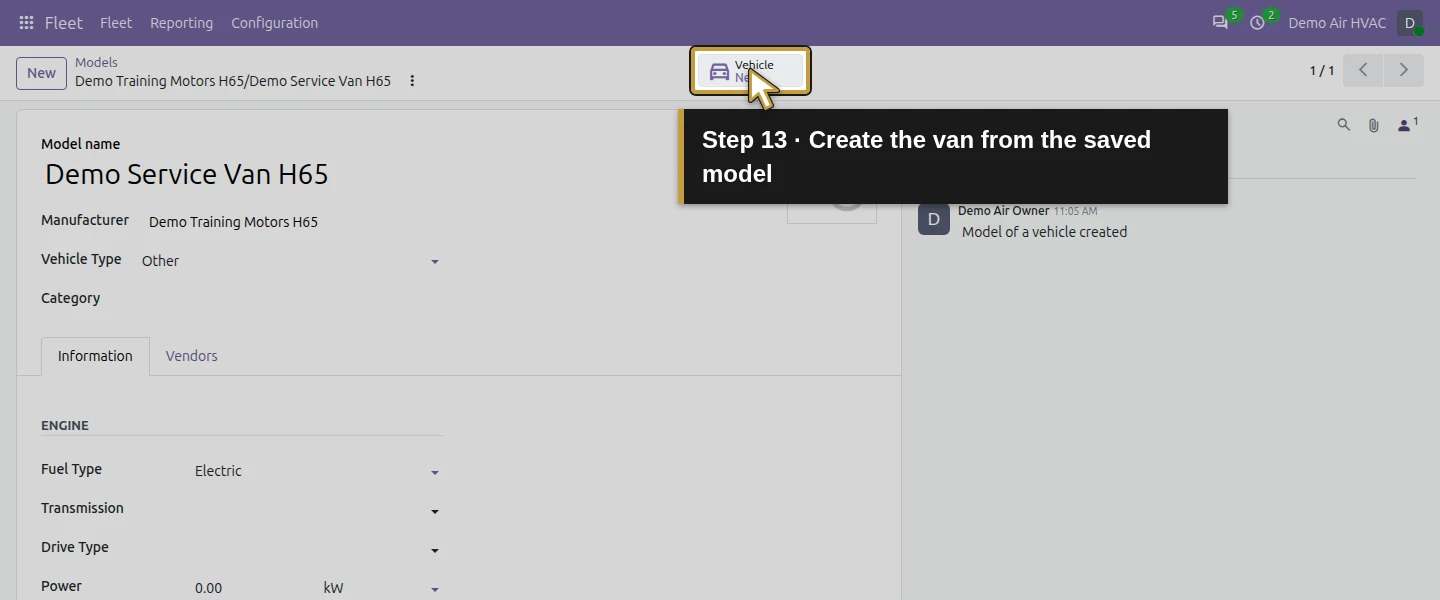
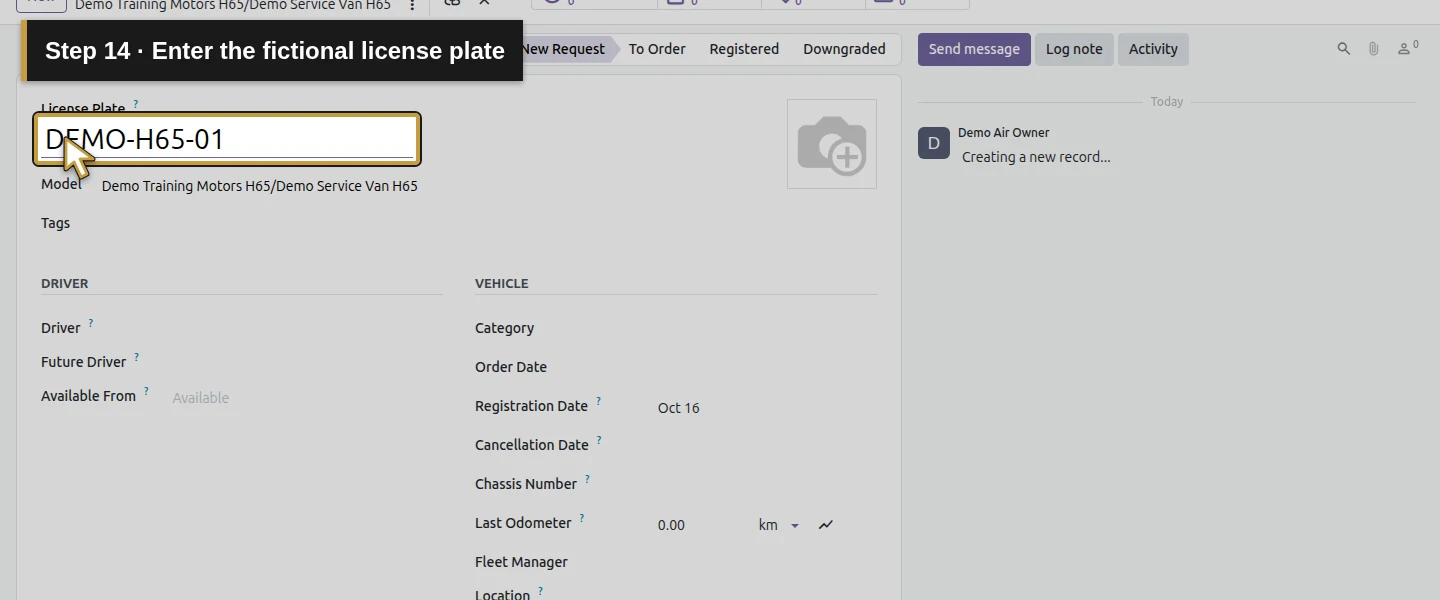
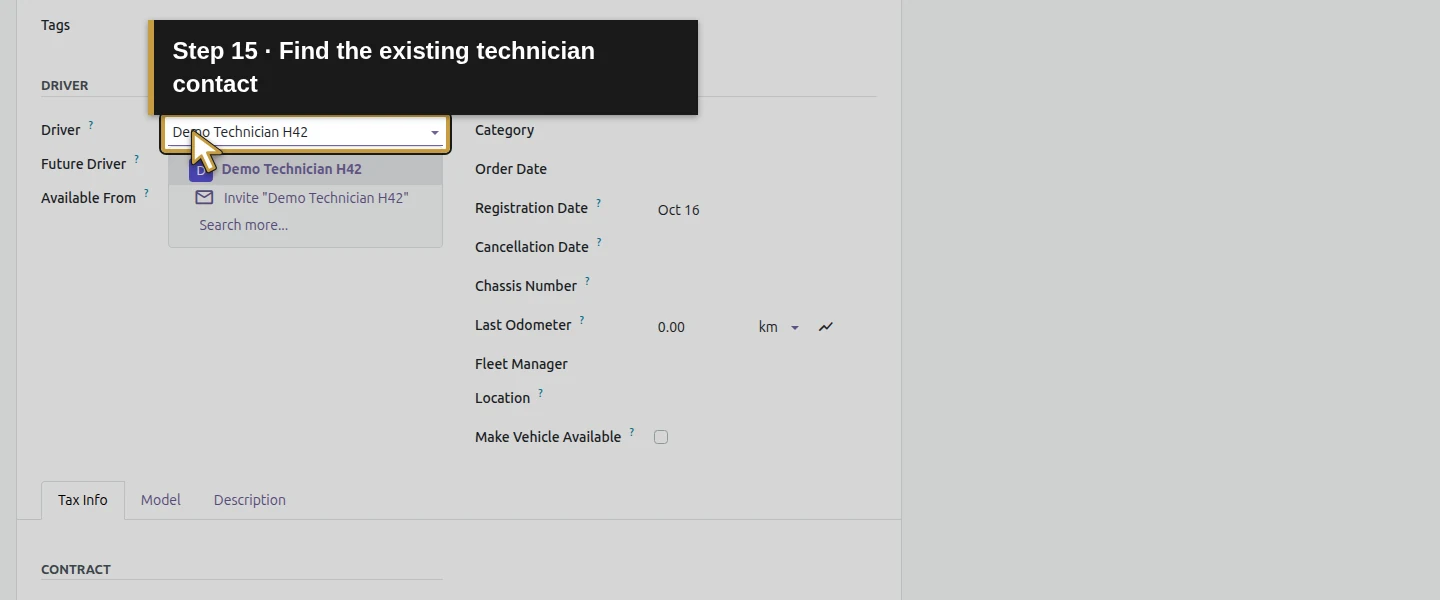
On the saved model, click New Vehicle. The model is preselected. Enter DEMO-H65-01 as License Plate and select the existing Demo Technician H42 contact in Driver. Set Last Odometer 1000, then explicitly change its unit from km to mi. The Driver field uses the contact linked to the technician; do not create another employee or person for this example.
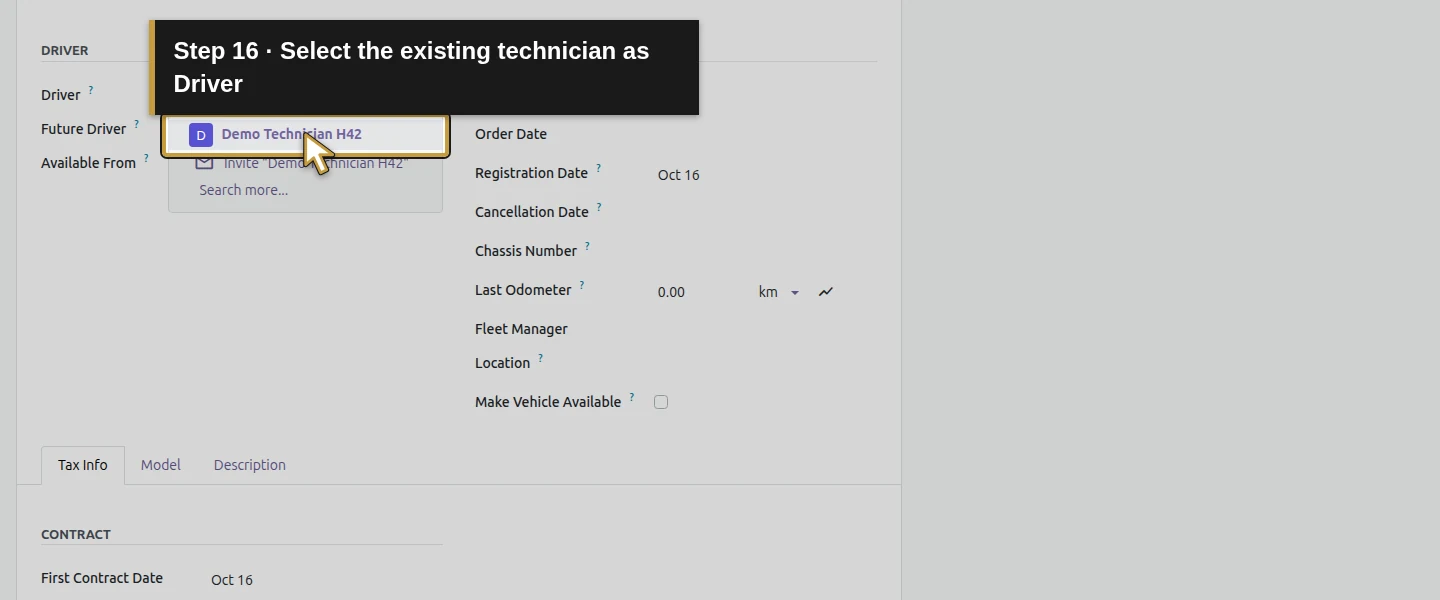
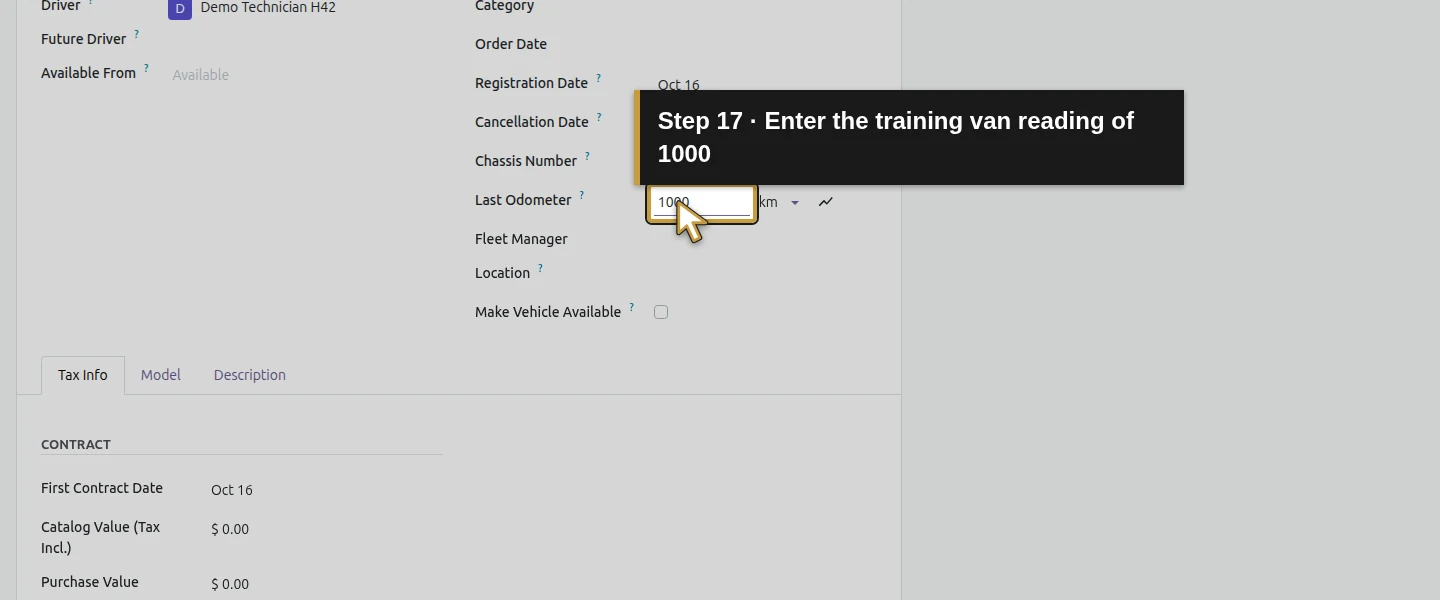
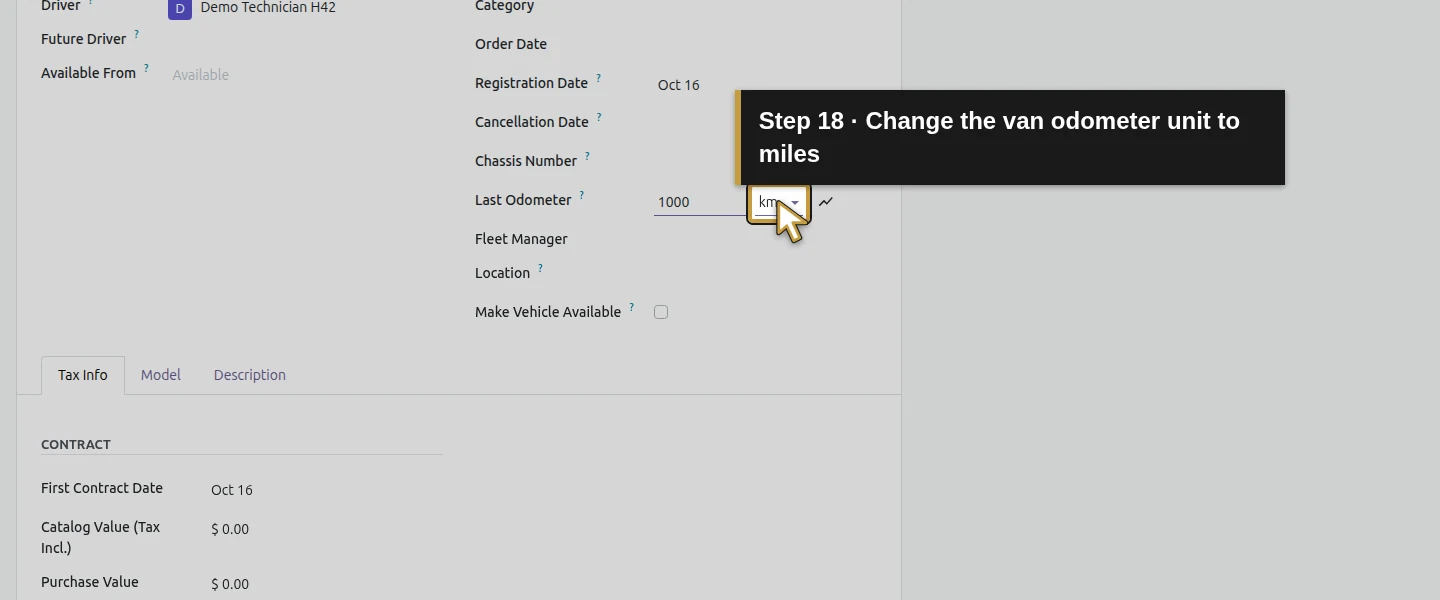
Step 4. Save the fictional vehicle and its manual stock reference
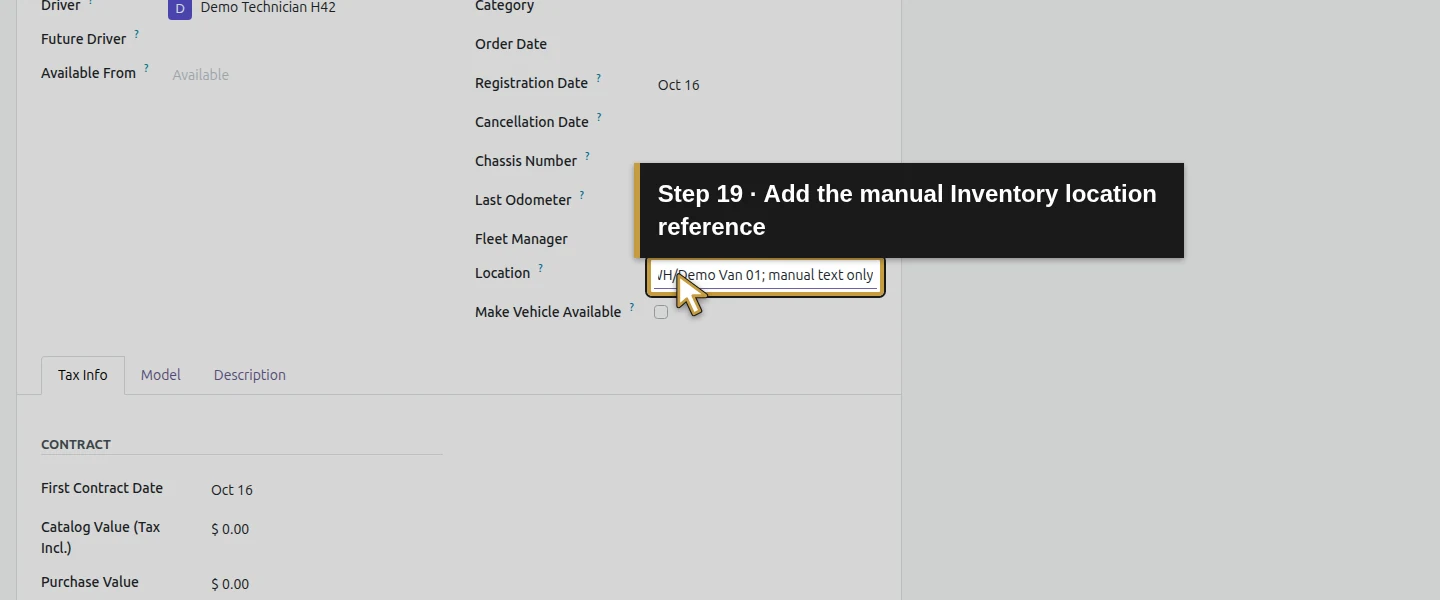
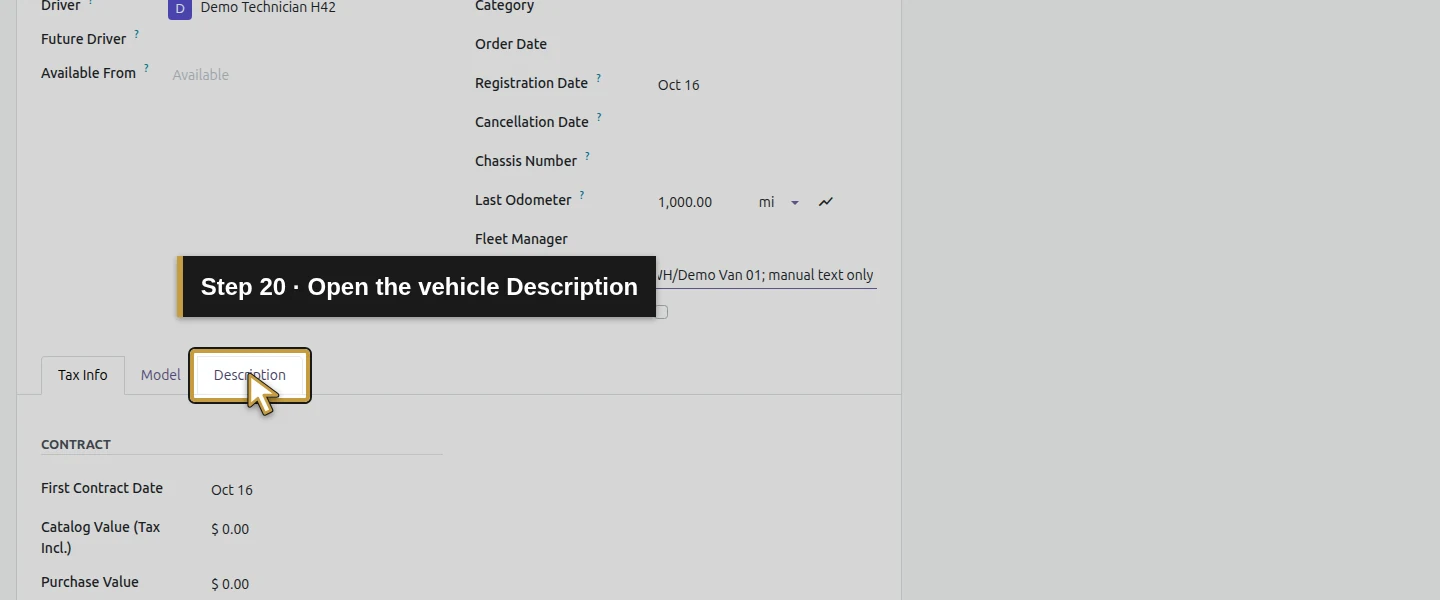
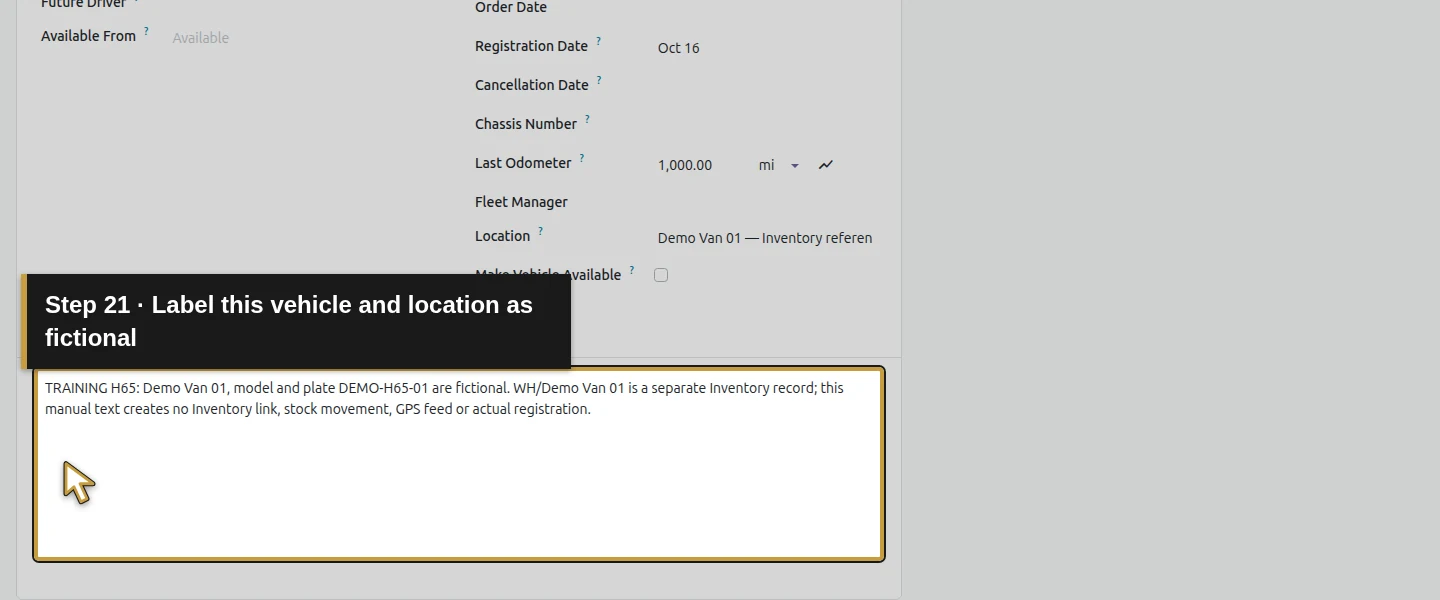
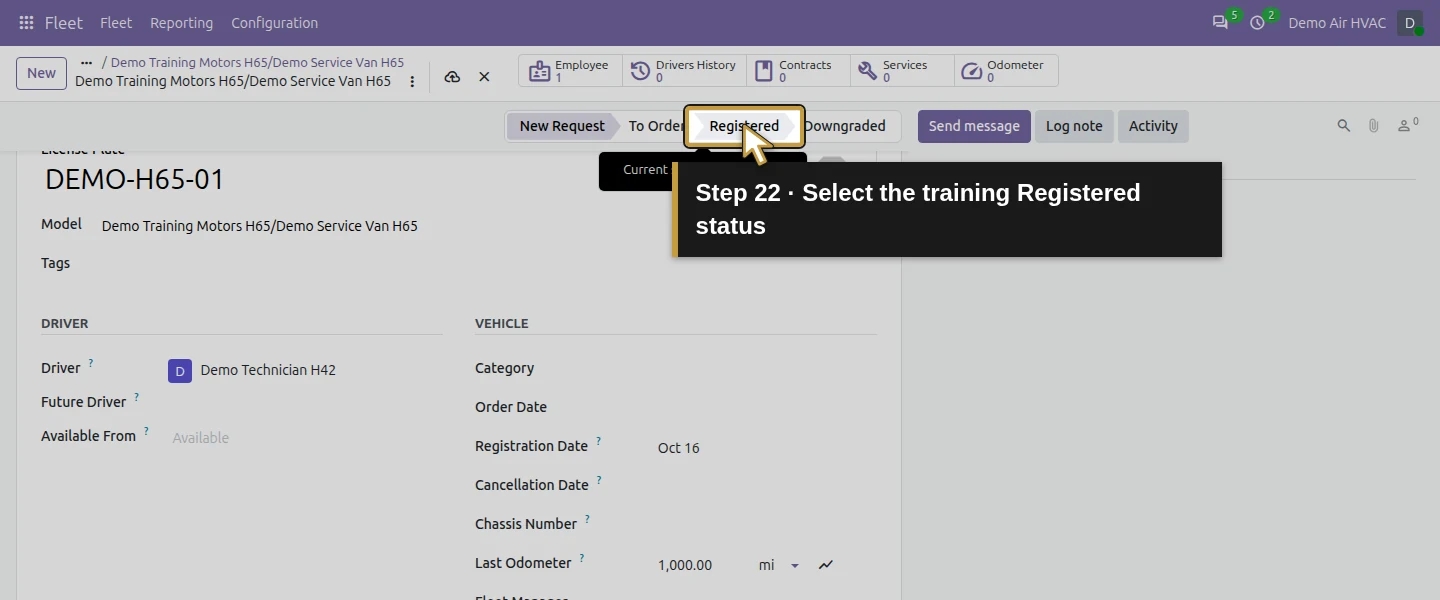
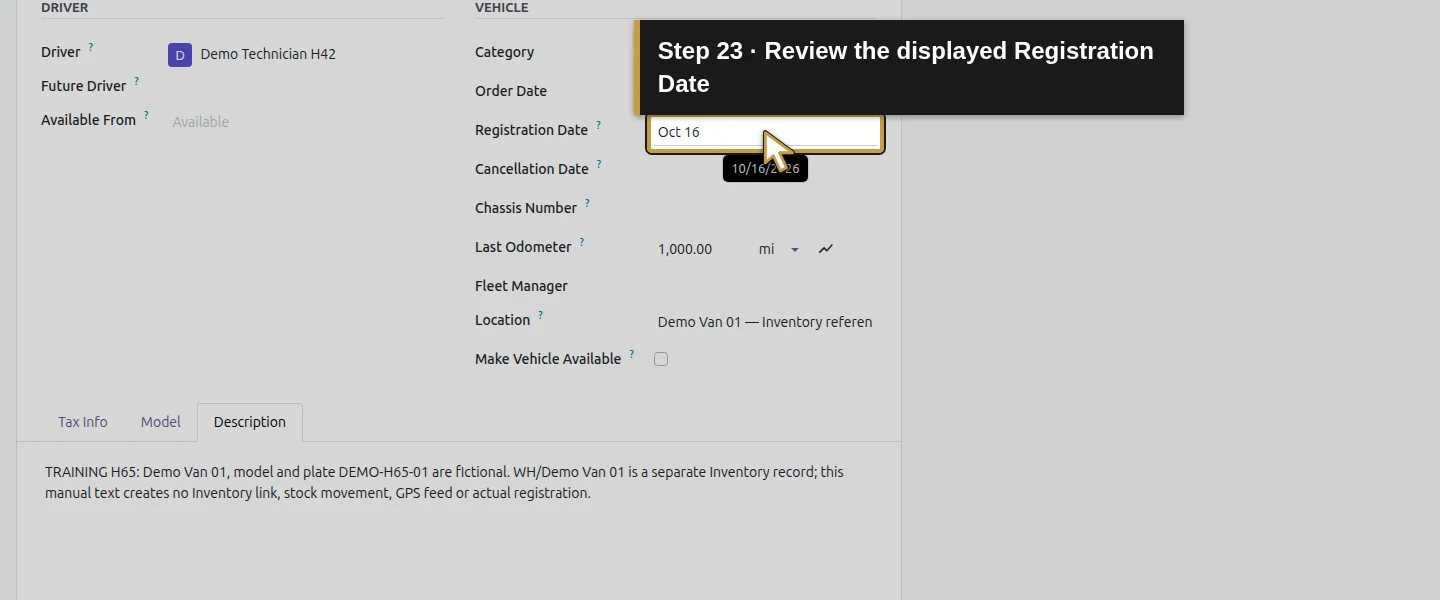
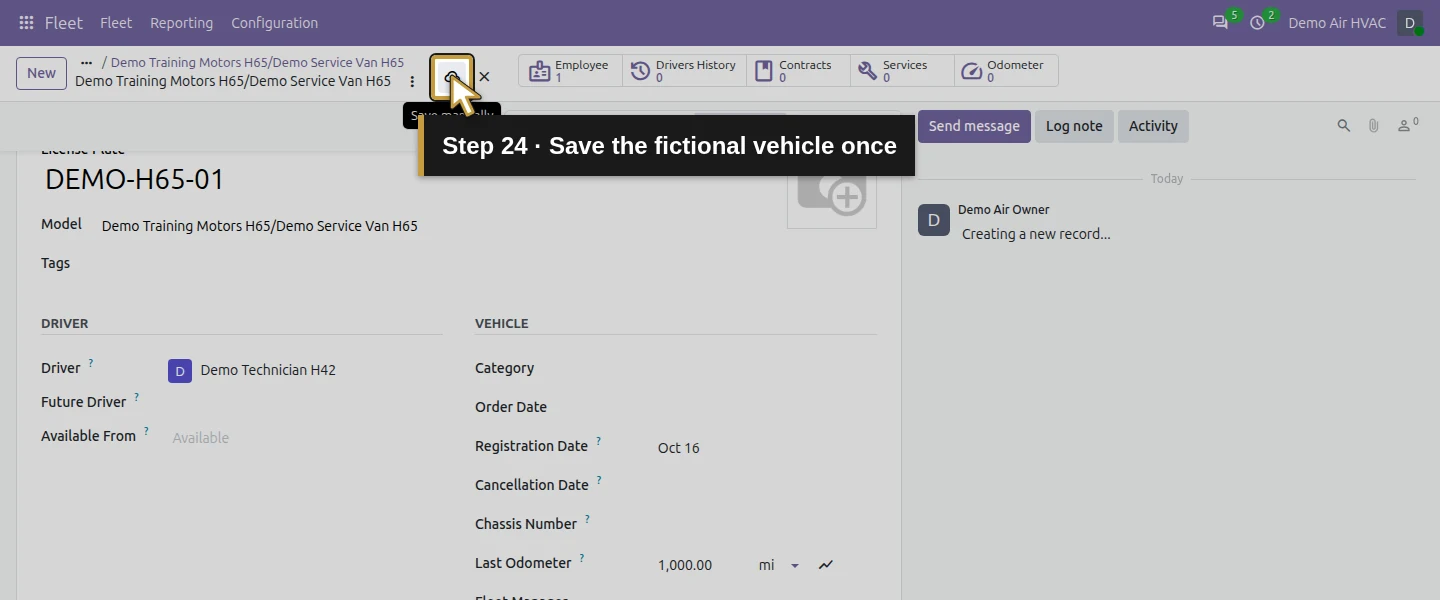
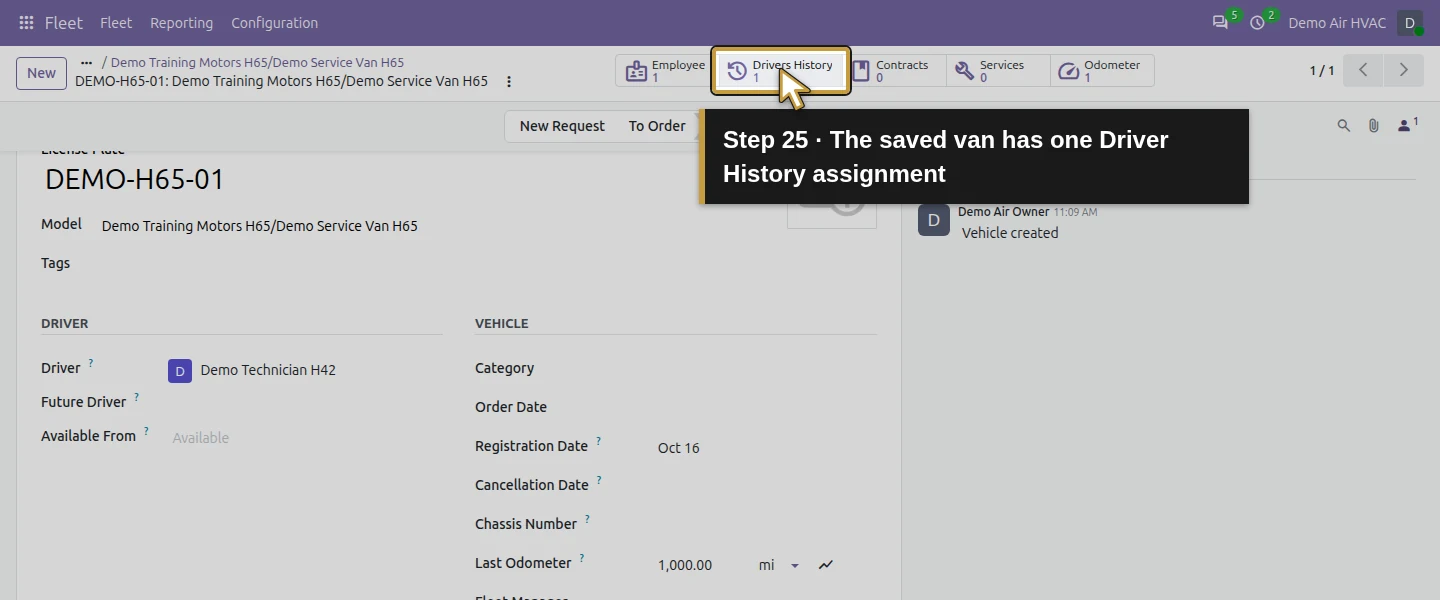
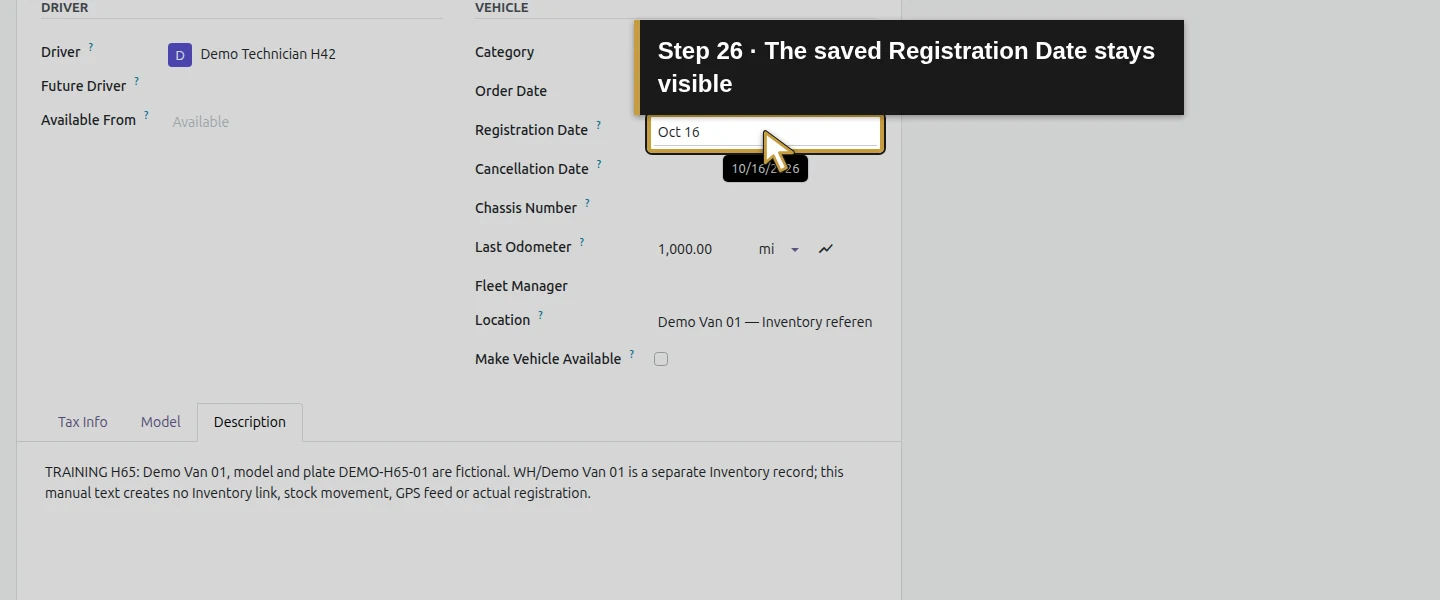
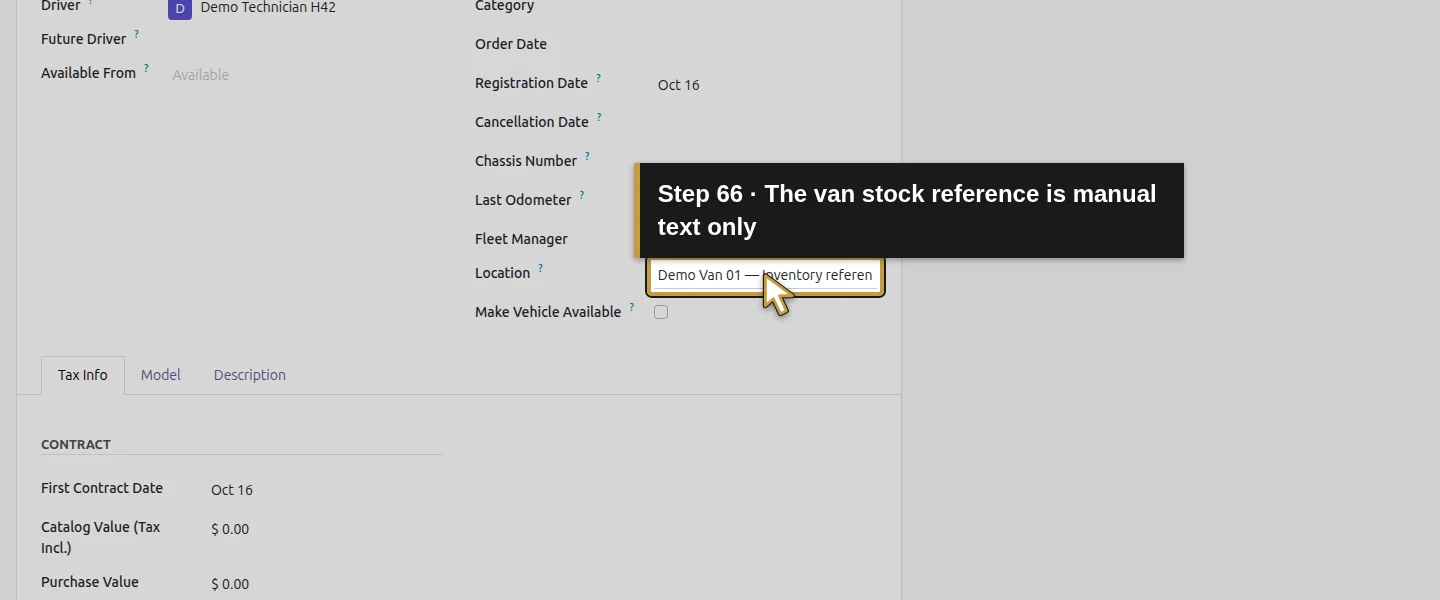
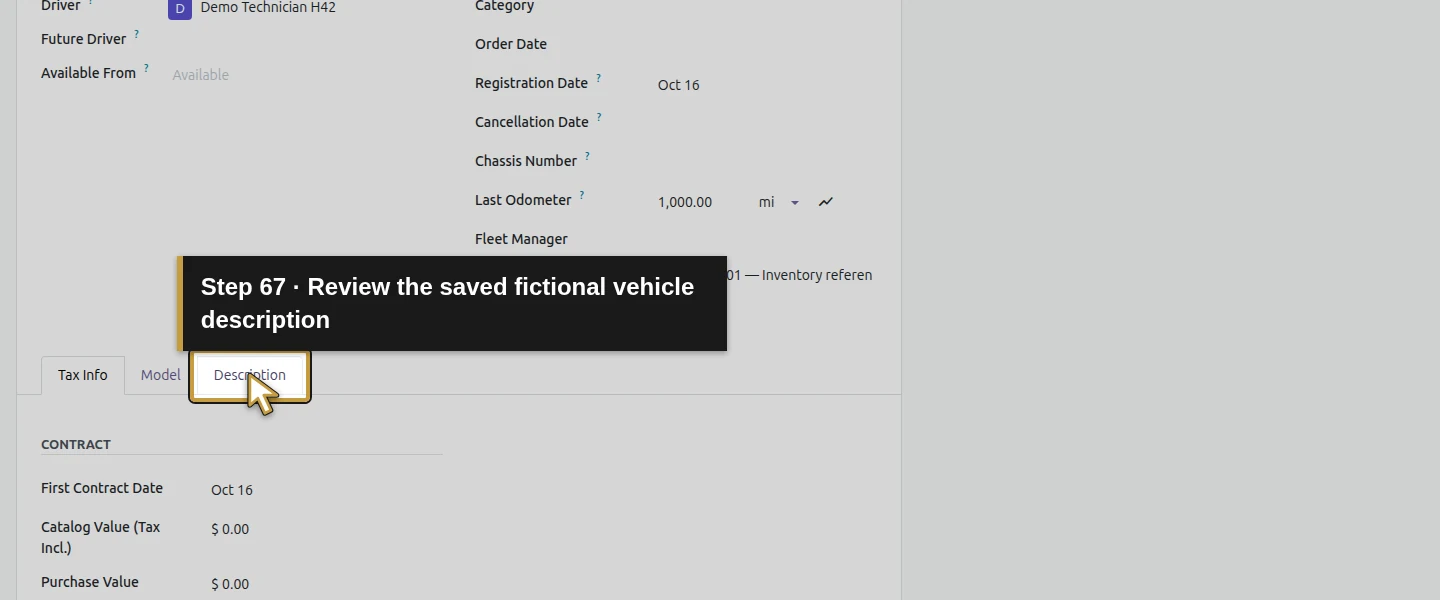
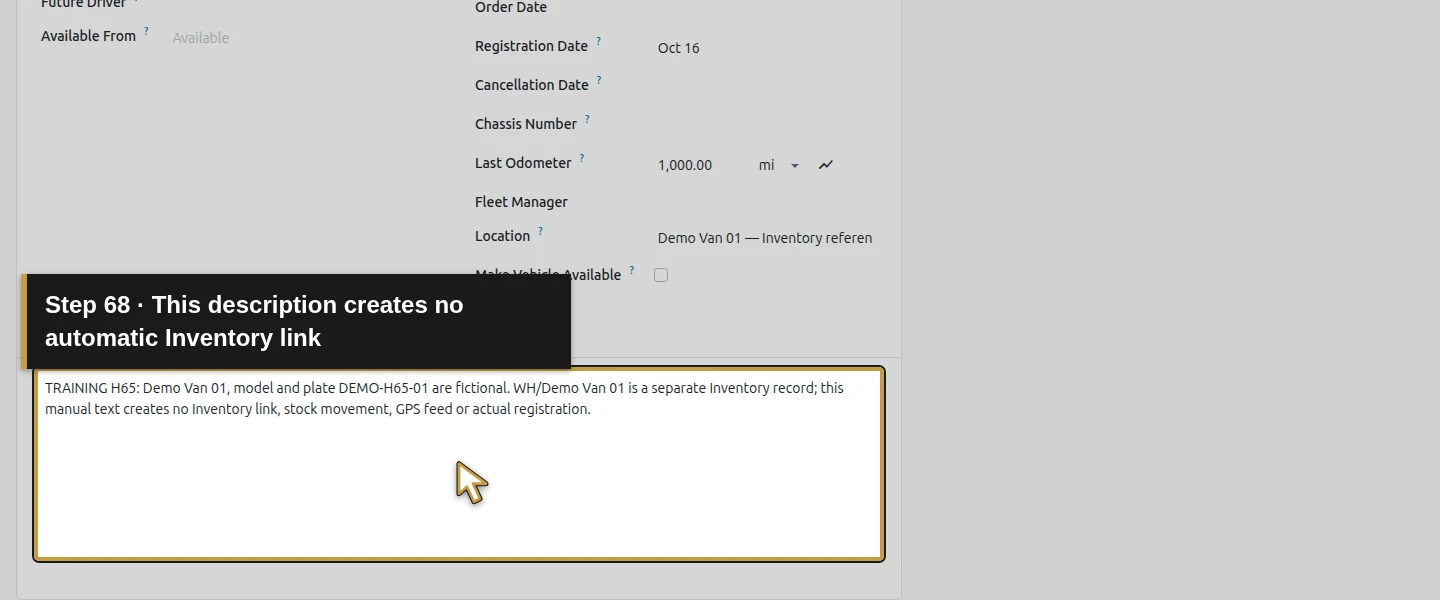
Set Location to Demo Van 01 — Inventory reference WH/Demo Van 01; manual text only. On Description, identify the vehicle and plate as fictional and explain that its Inventory location is a separate record. Select Registered, retain the displayed registration date October 16, 2026, and click Save manually. This is the current-date default shown during capture; use a reviewed registration date for an actual vehicle. Reopen the vehicle. Its native name is computed from plate and model: DEMO-H65-01: Demo Training Motors H65/Demo Service Van H65. Driver, 1000 mi and Registered persist; Drivers History has one assignment. The chassis number stays blank. The story alias Demo Van 01 is retained in the text, not entered into a separate vehicle-name field.
Step 5. Open Services and define the inspection type
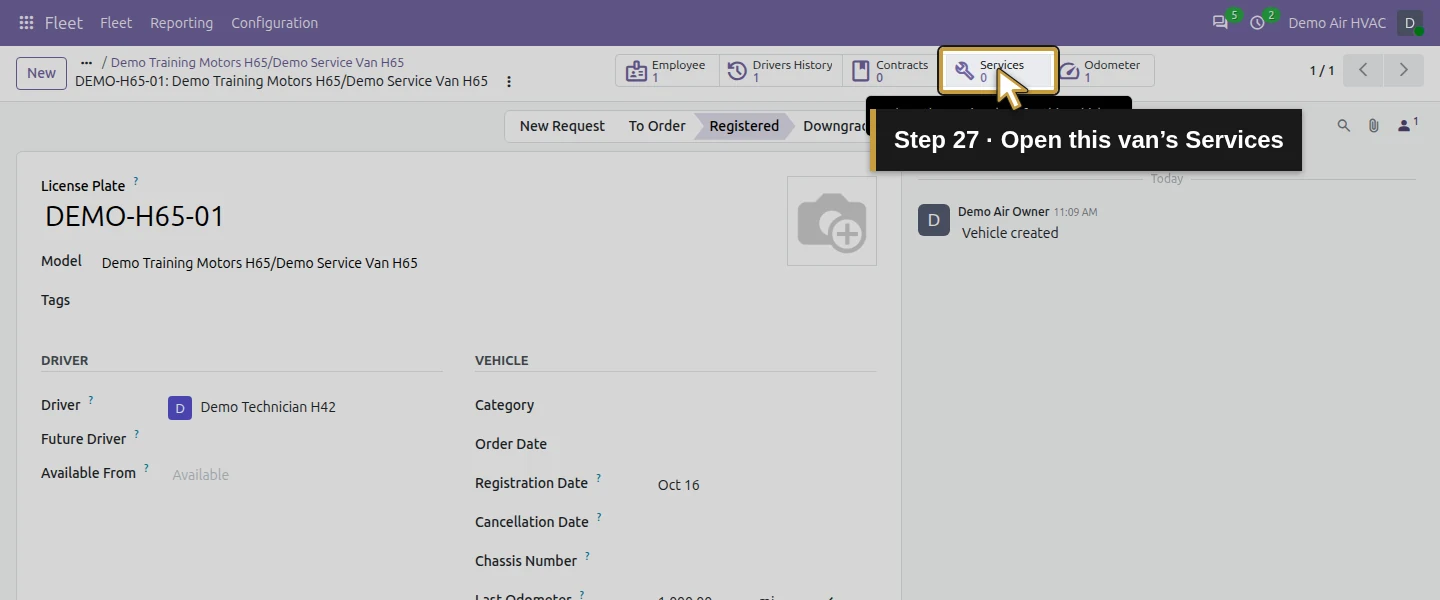
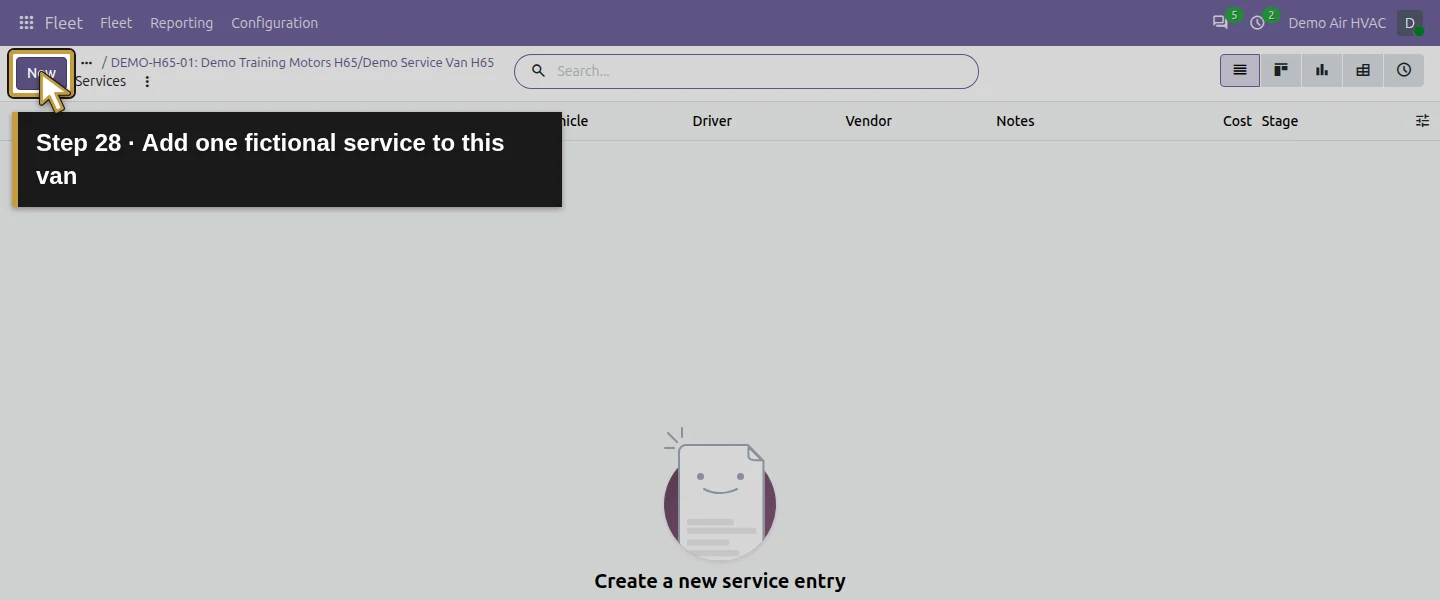
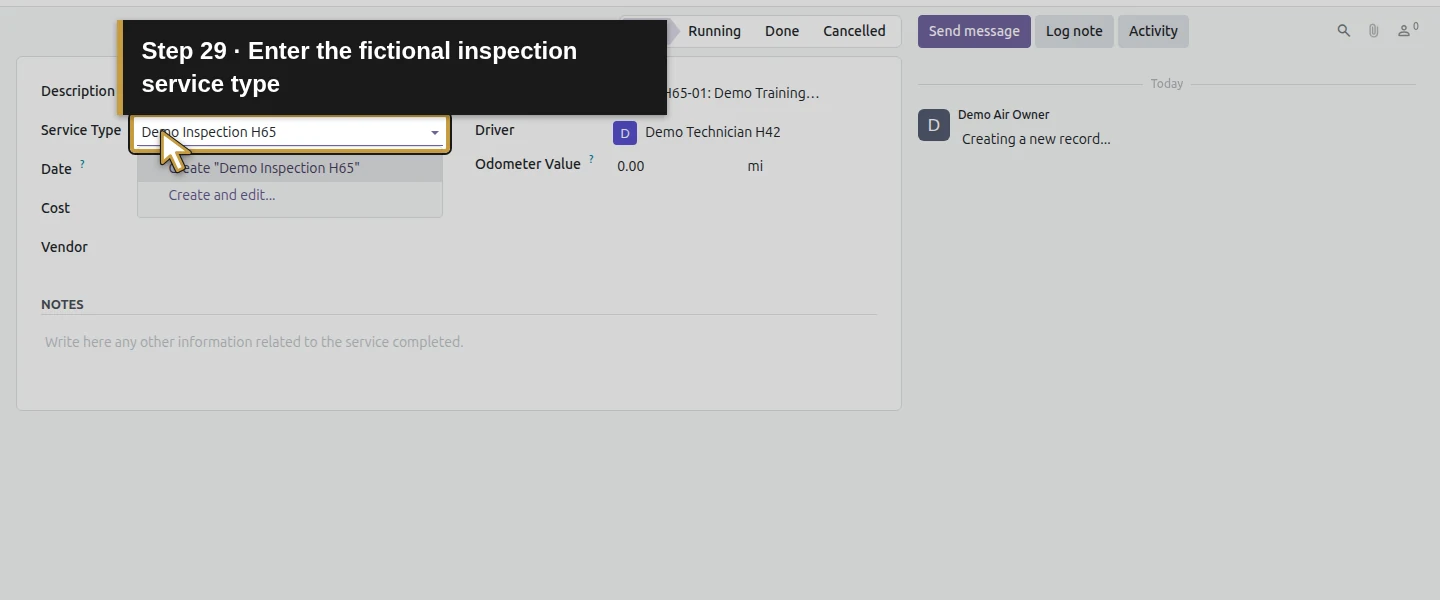
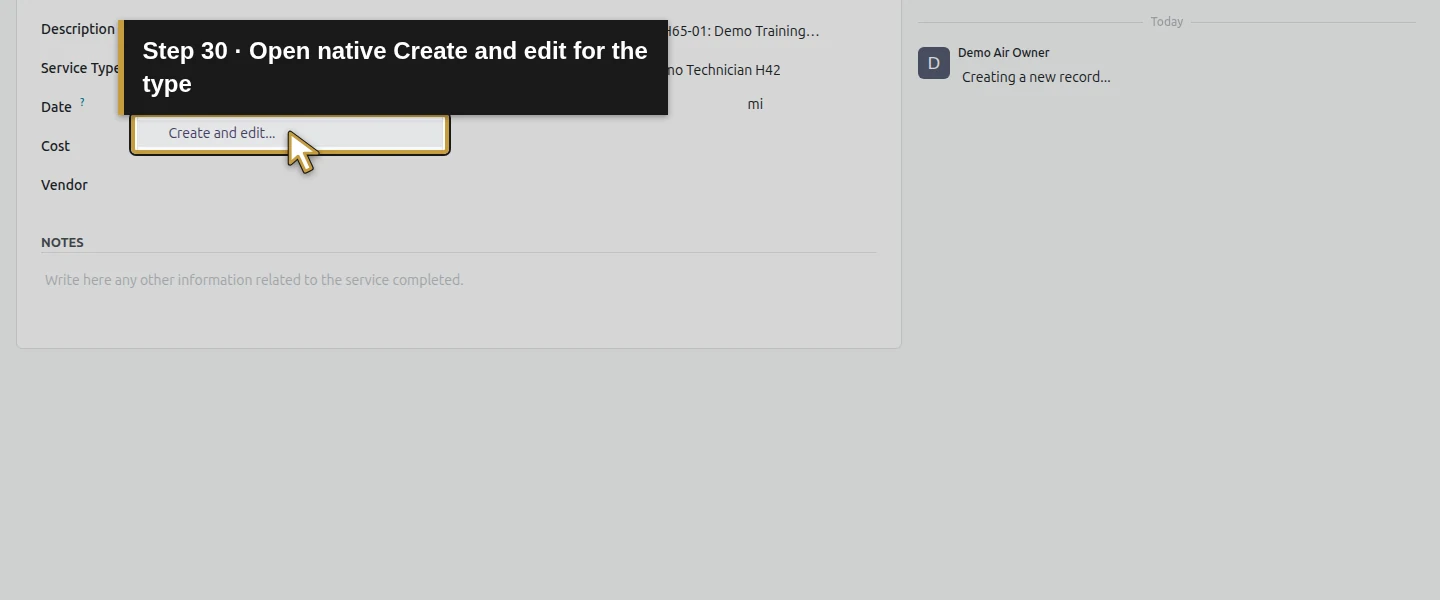
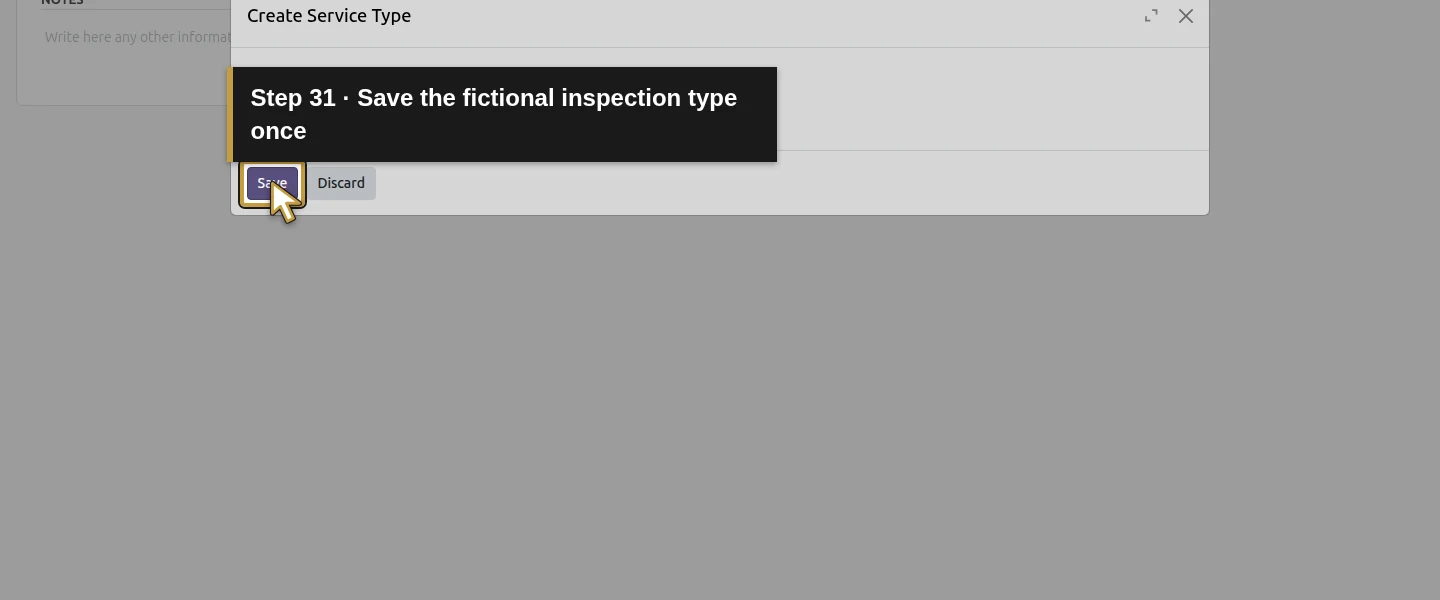
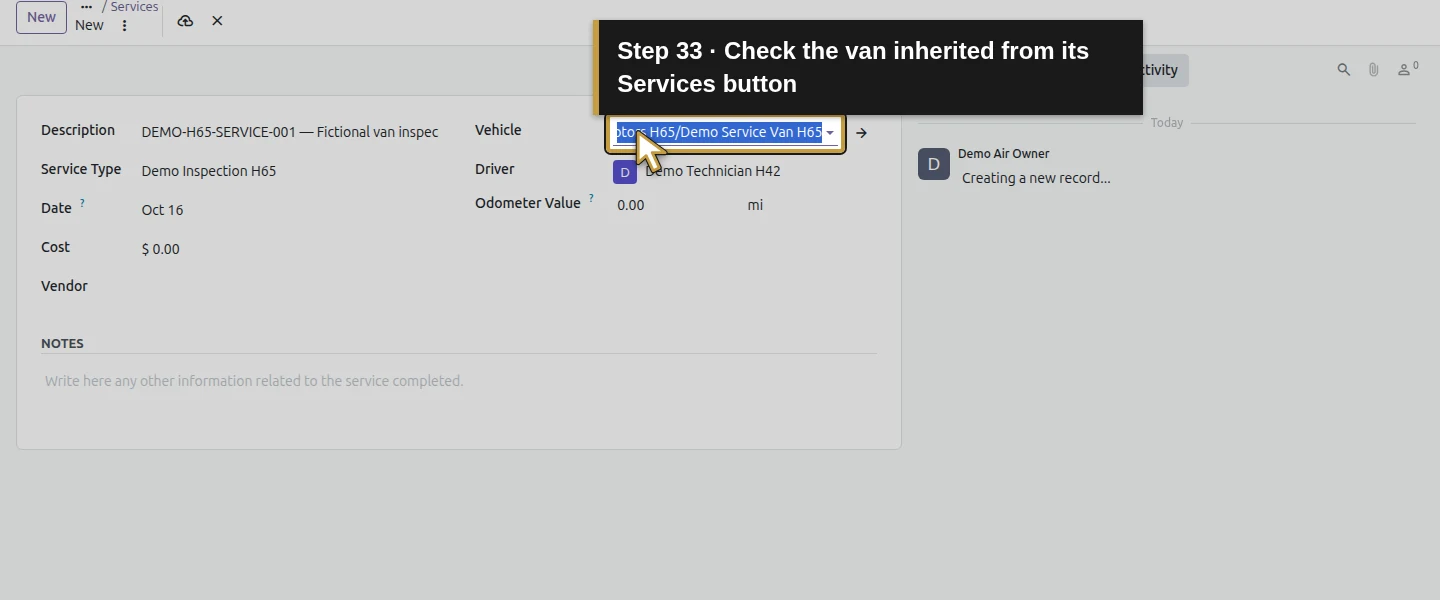
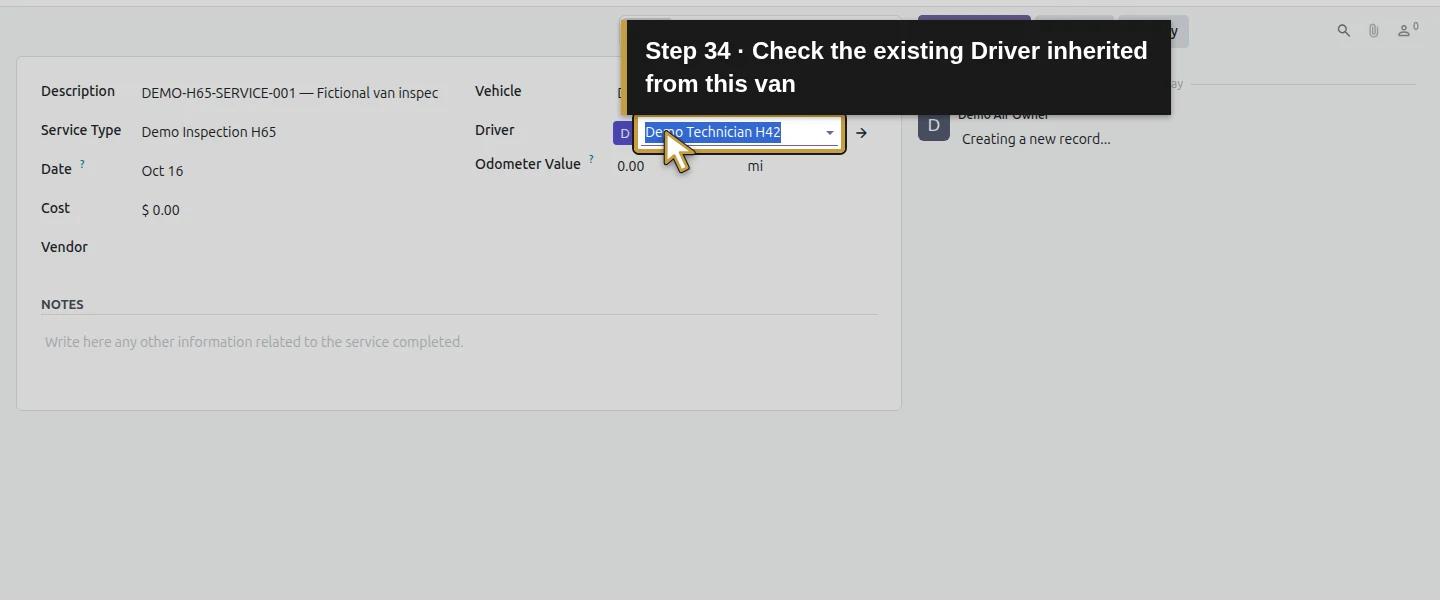
Click the vehicle's 0 Services smart button, then New. Vehicle and Driver are already filled from the van. In Service Type, enter Demo Inspection H65 and choose Create and edit…. The native dialog shows Name and Company. Keep Demo Air HVAC and click Save. The created type is in the service category through the form's standard defaults. The original Vendor Bill service type remains unchanged.
Step 6. Enter the labelled service and mileage
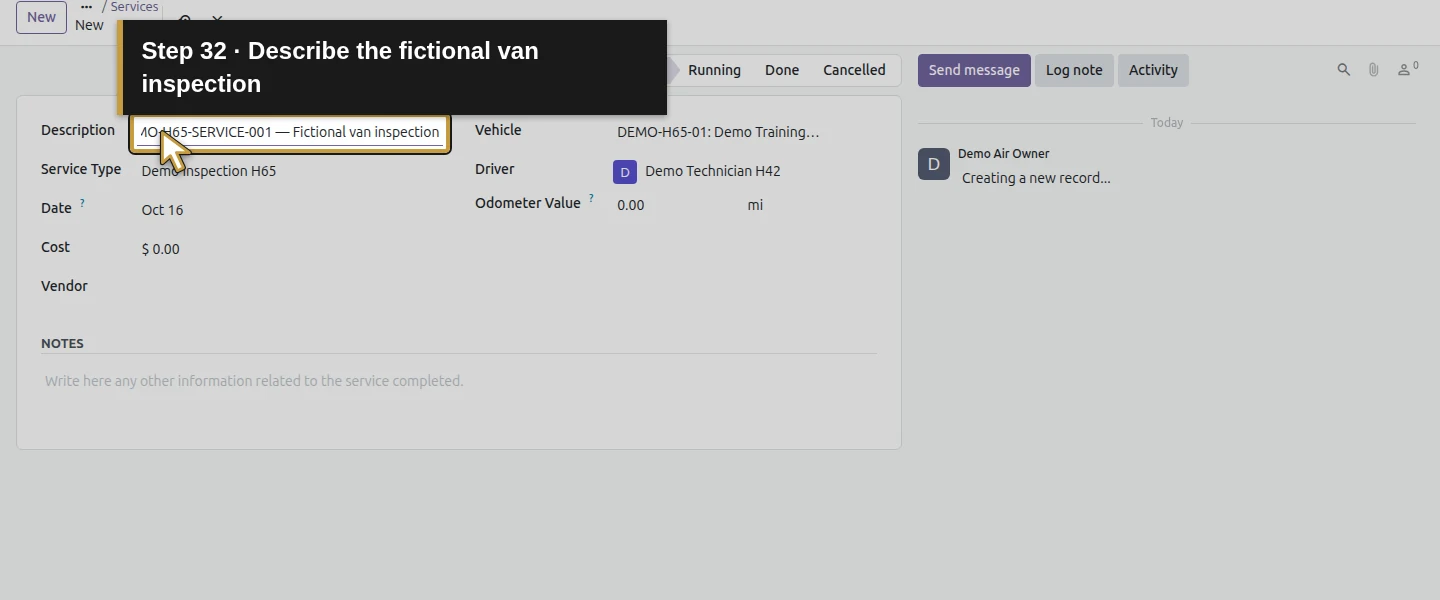
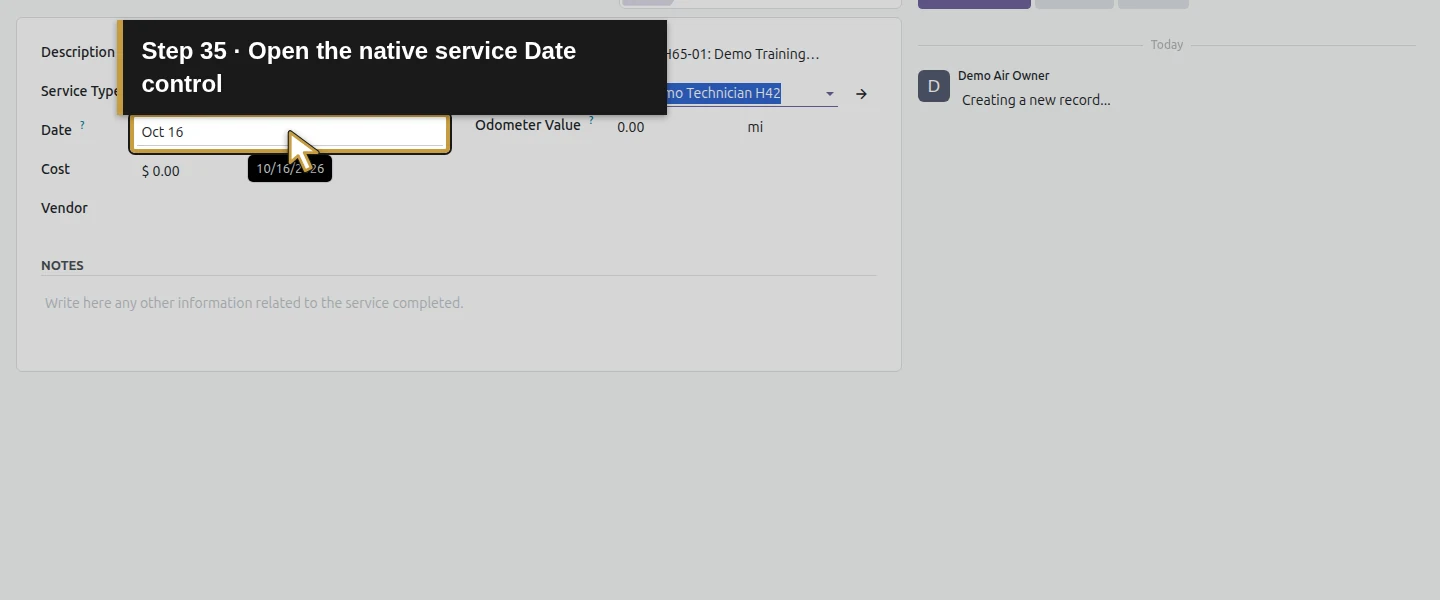
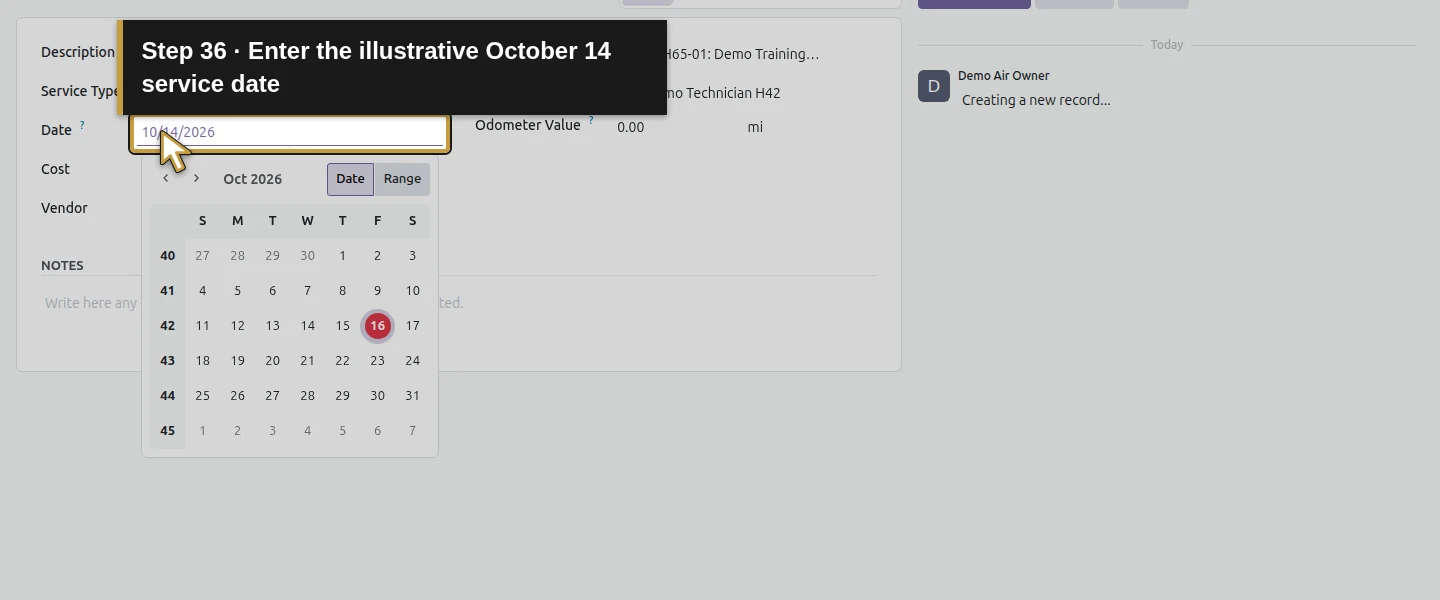
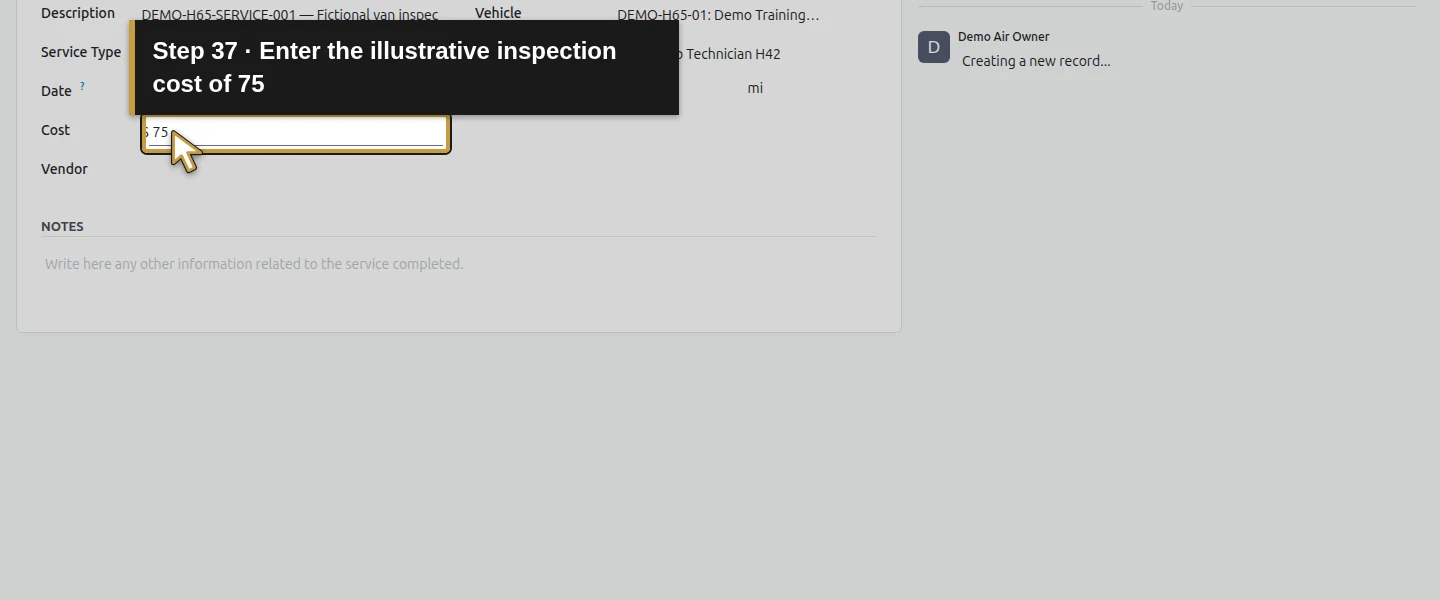
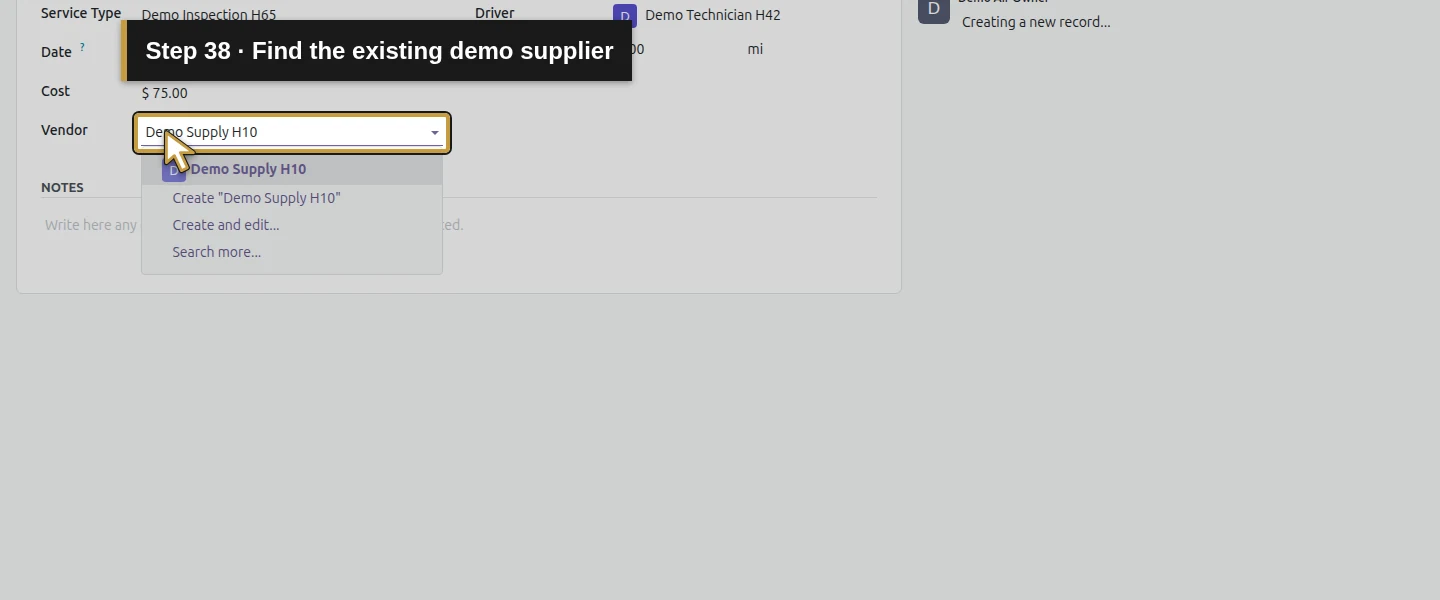
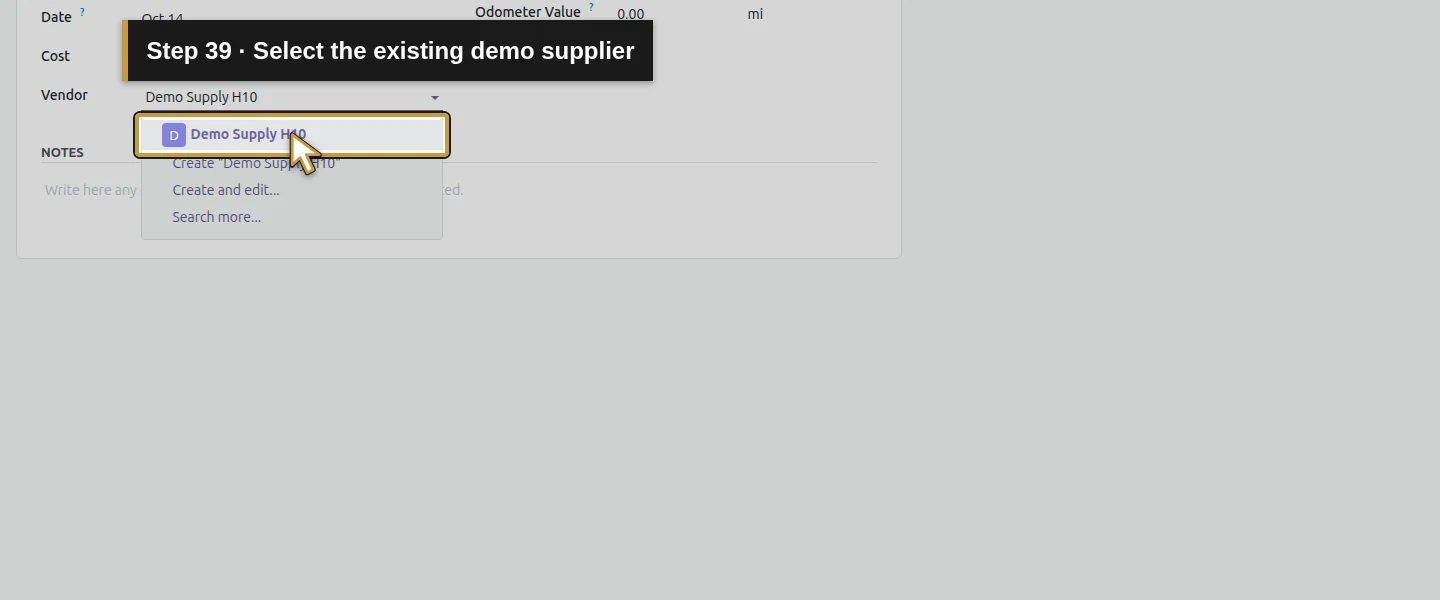
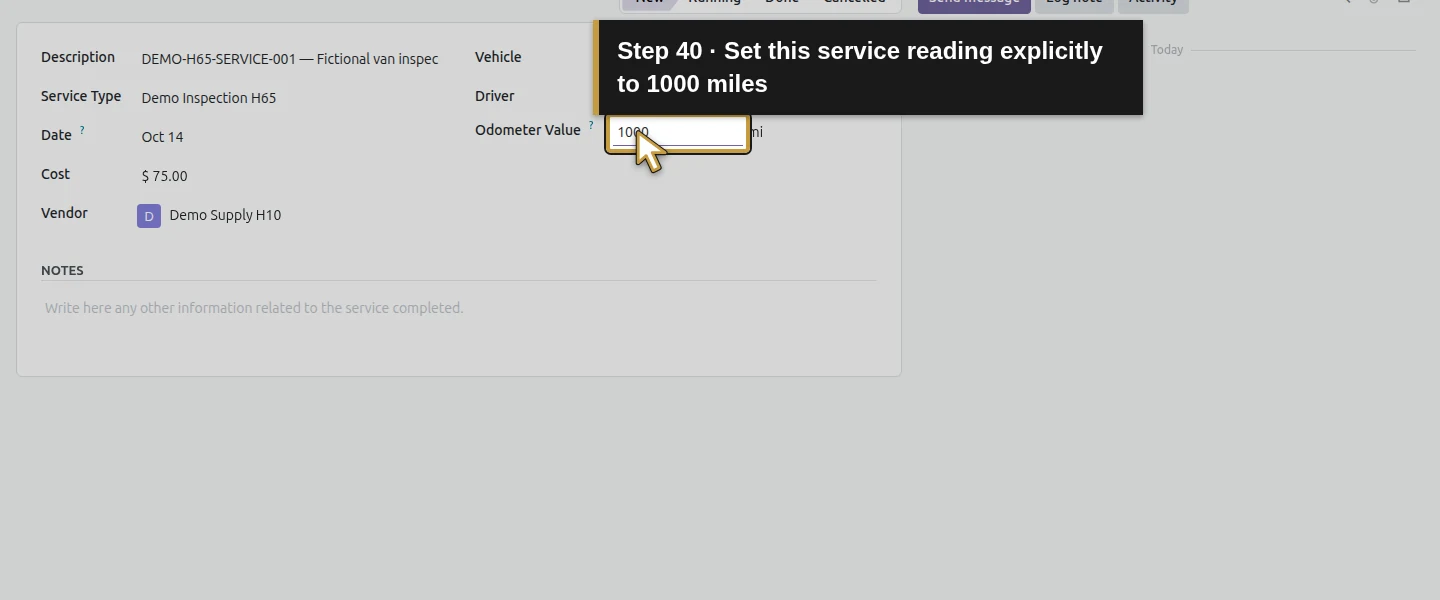
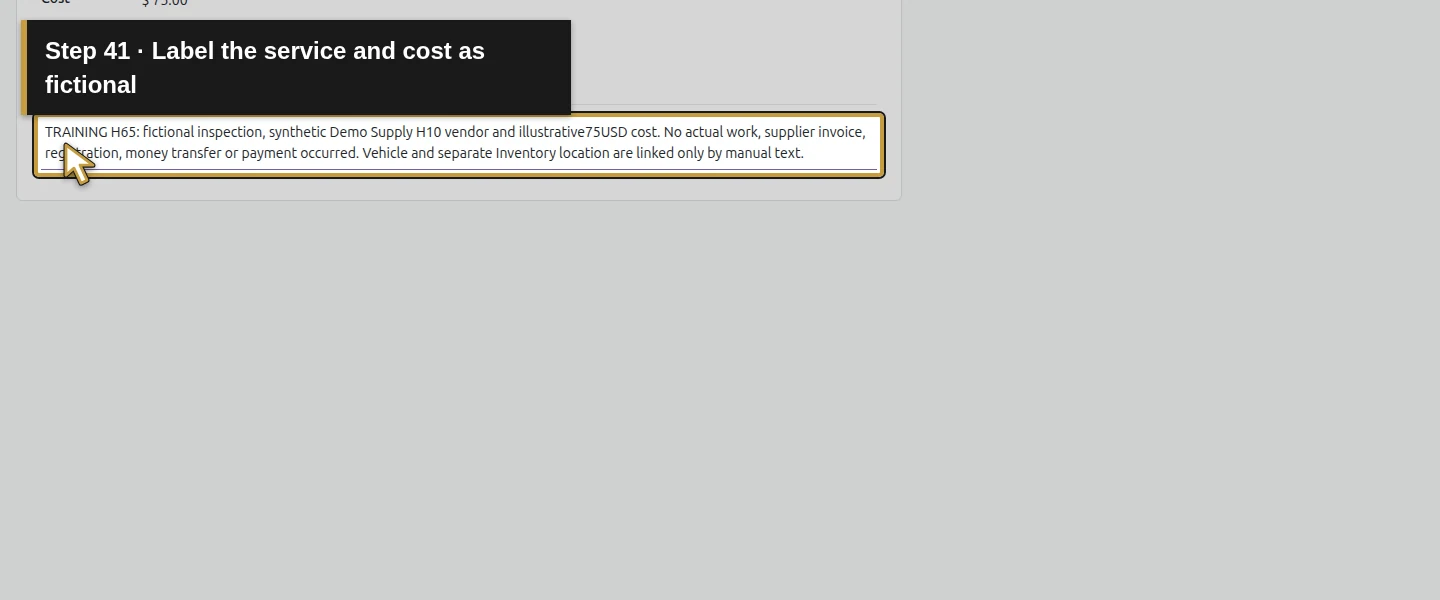
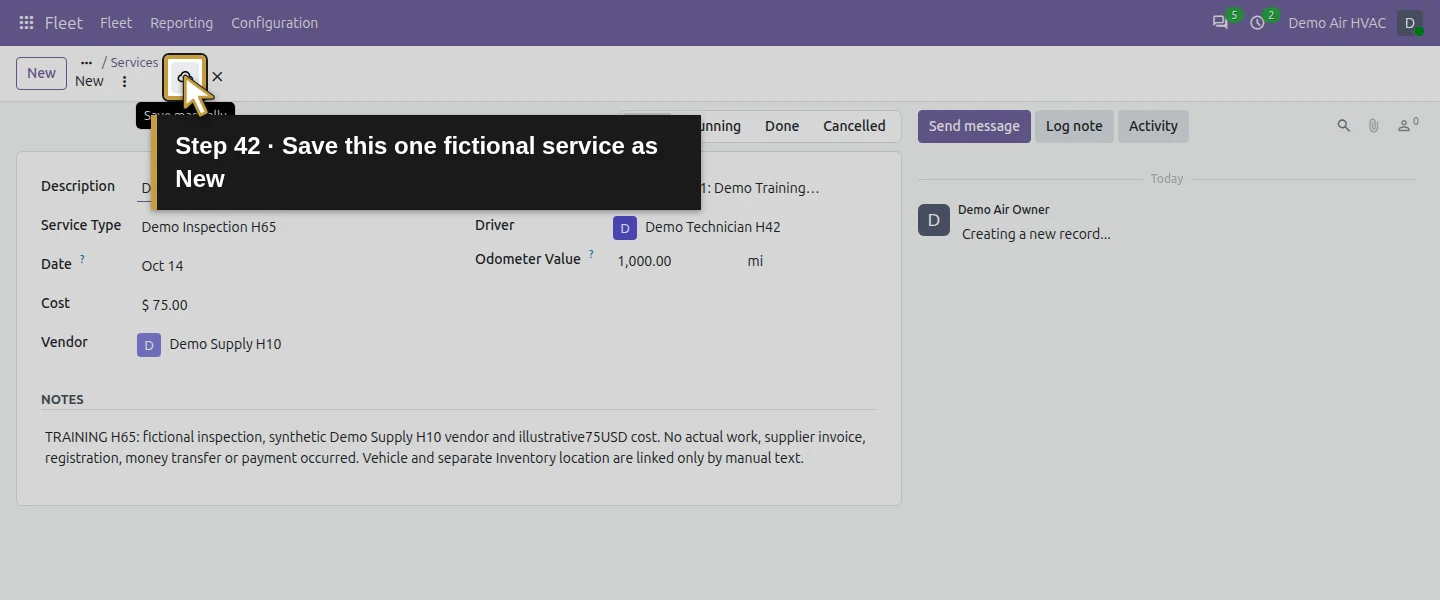
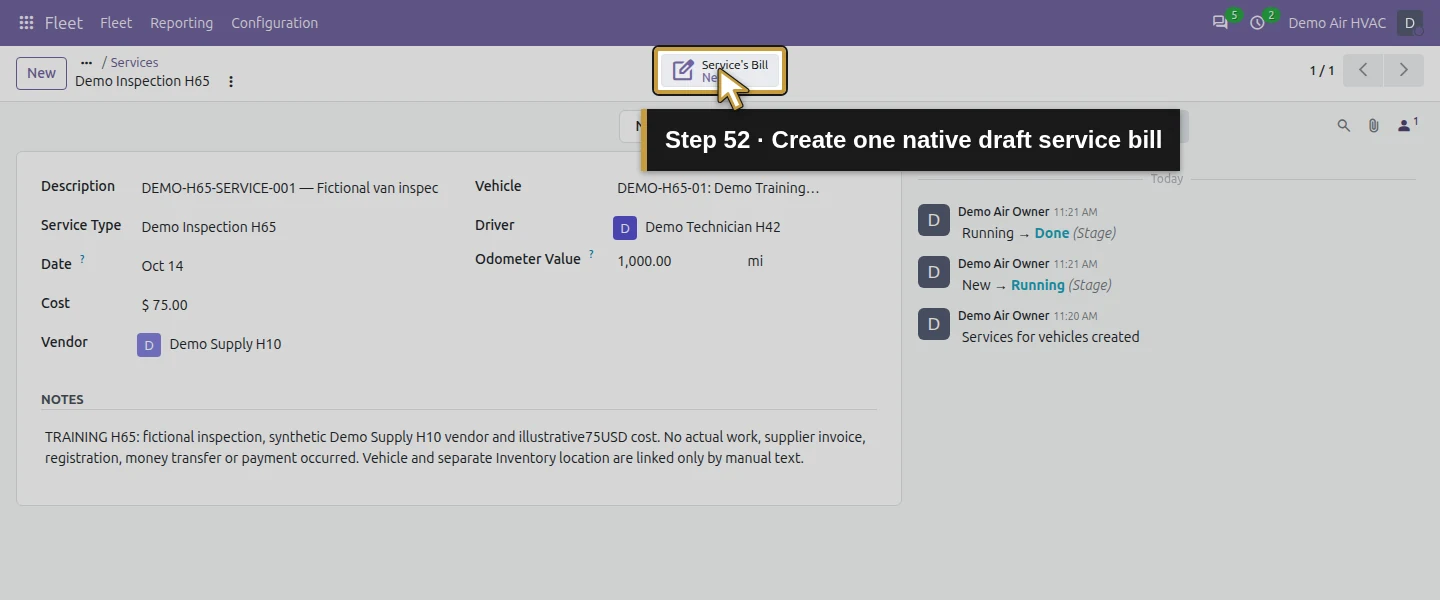
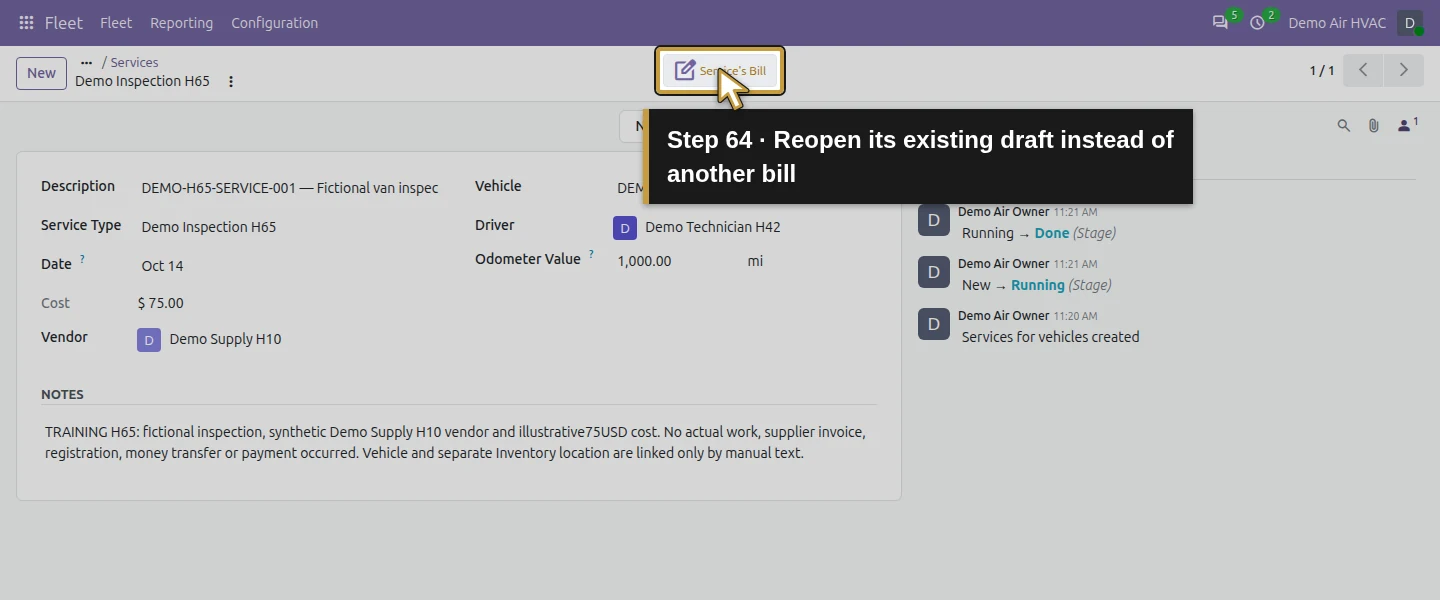
Use Description DEMO-H65-SERVICE-001 — Fictional van inspection, Date October 14, 2026, Cost 75.00 USD, and the existing Vendor Demo Supply H10. Explicitly set Odometer Value 1000 mi: this service form initially showed zero despite the vehicle's 1000-mile reading. In Notes, say this is a fictional inspection, synthetic supplier and illustrative cost, with no actual work, invoice or payment. Verify the preselected van/driver, then save. The record starts at New.
Step 7. Track the same service through Running and Done
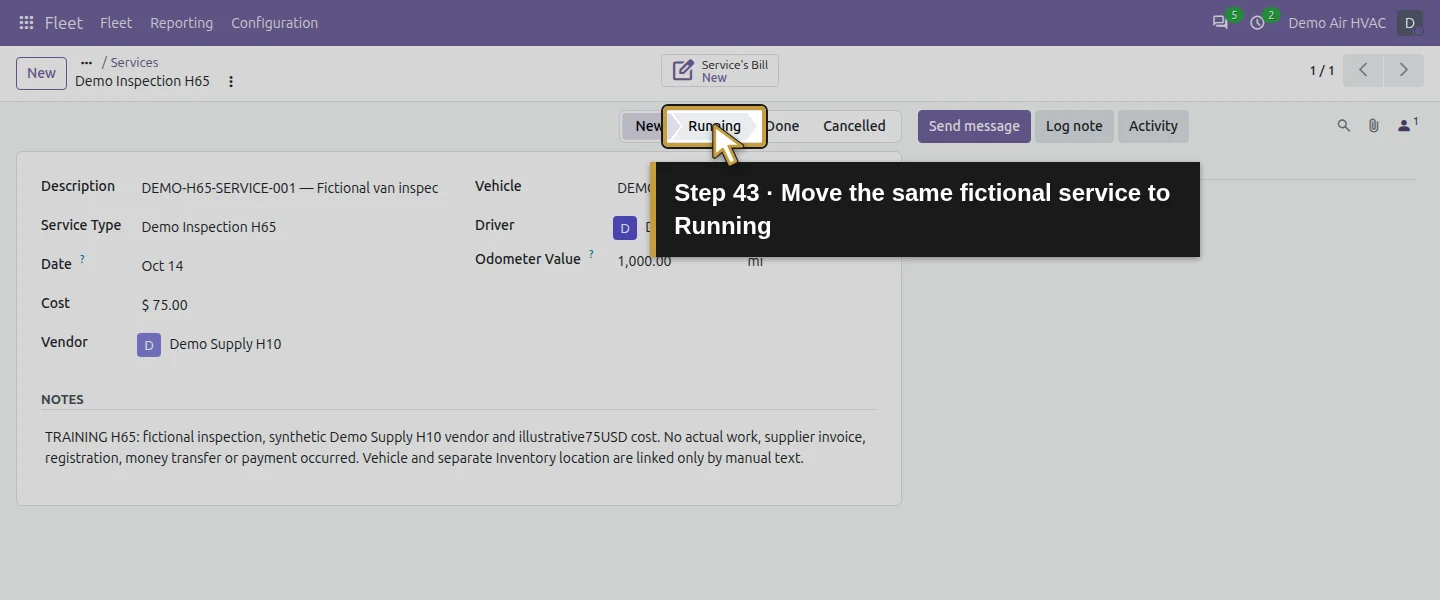
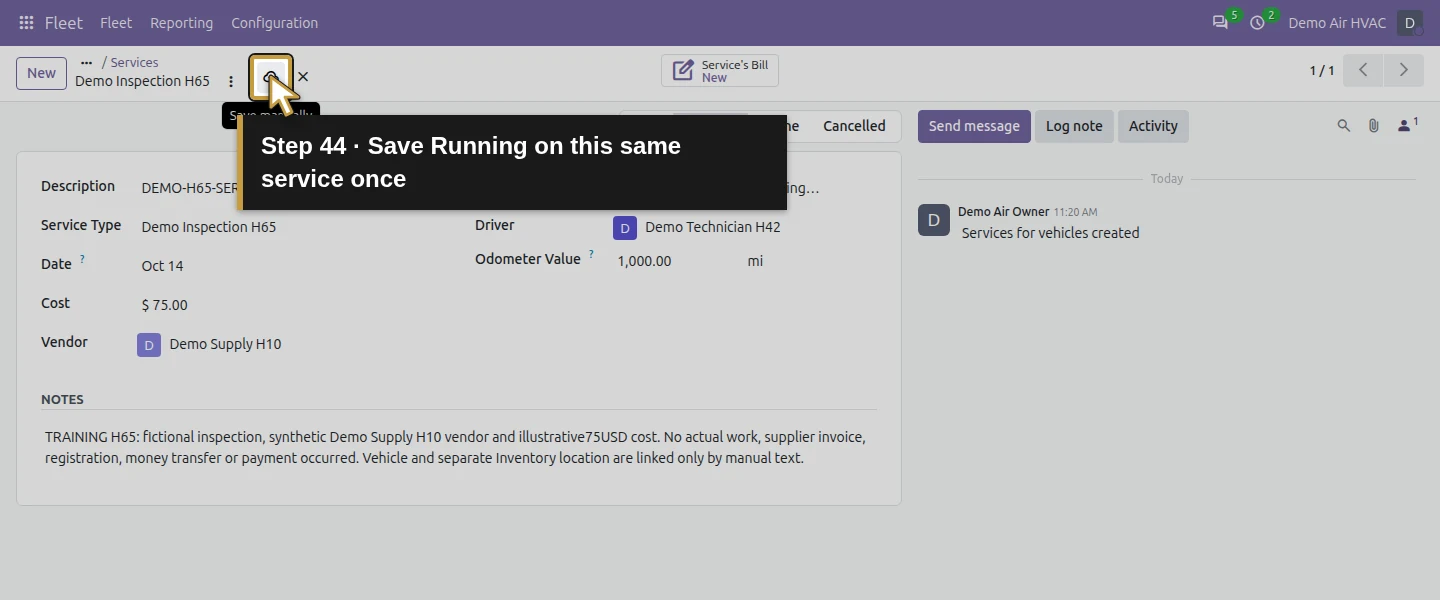
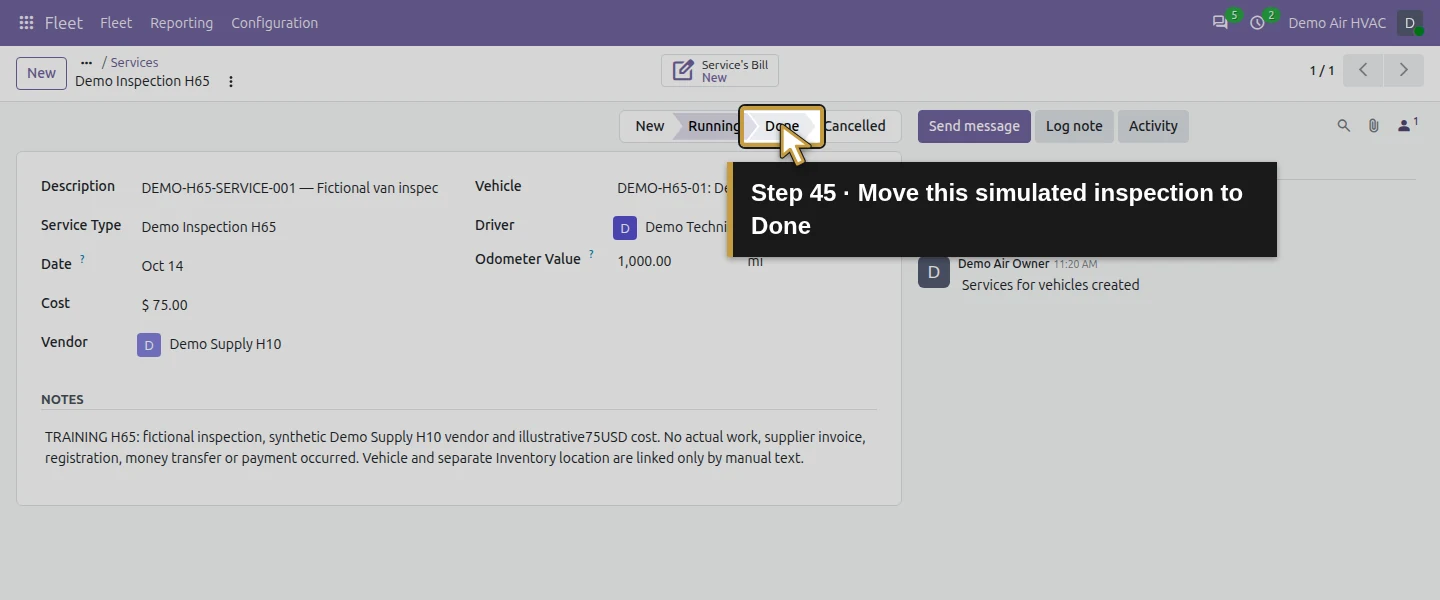
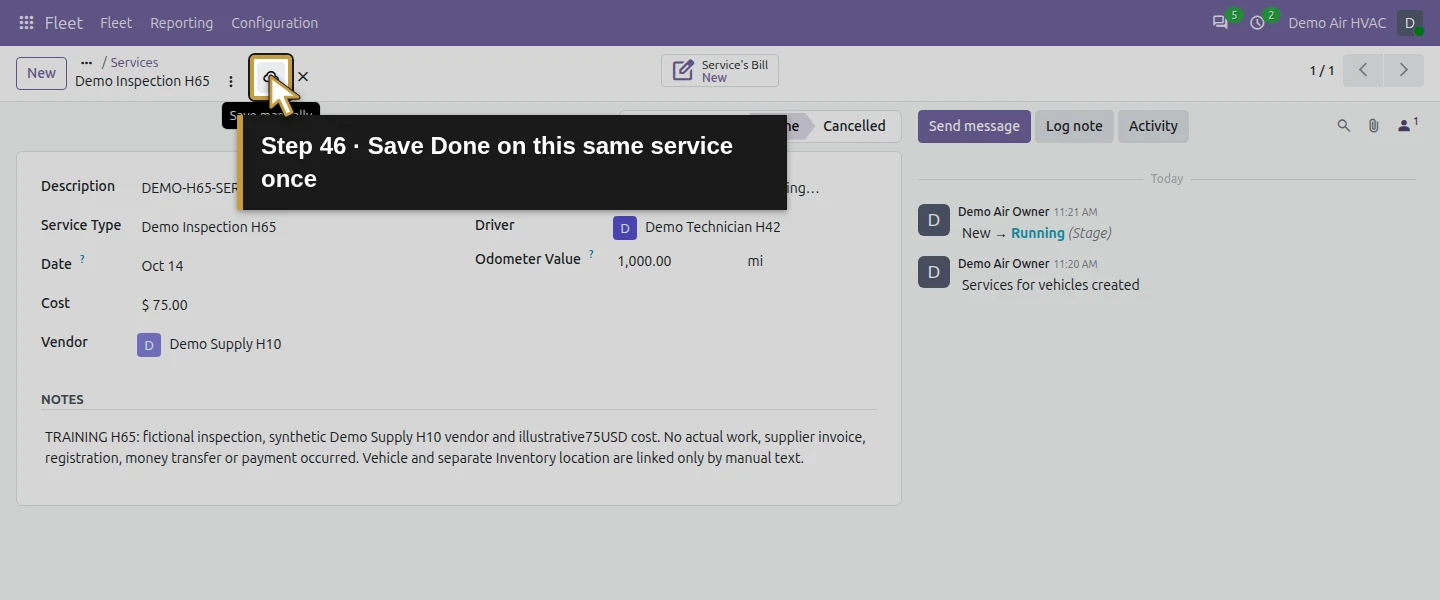
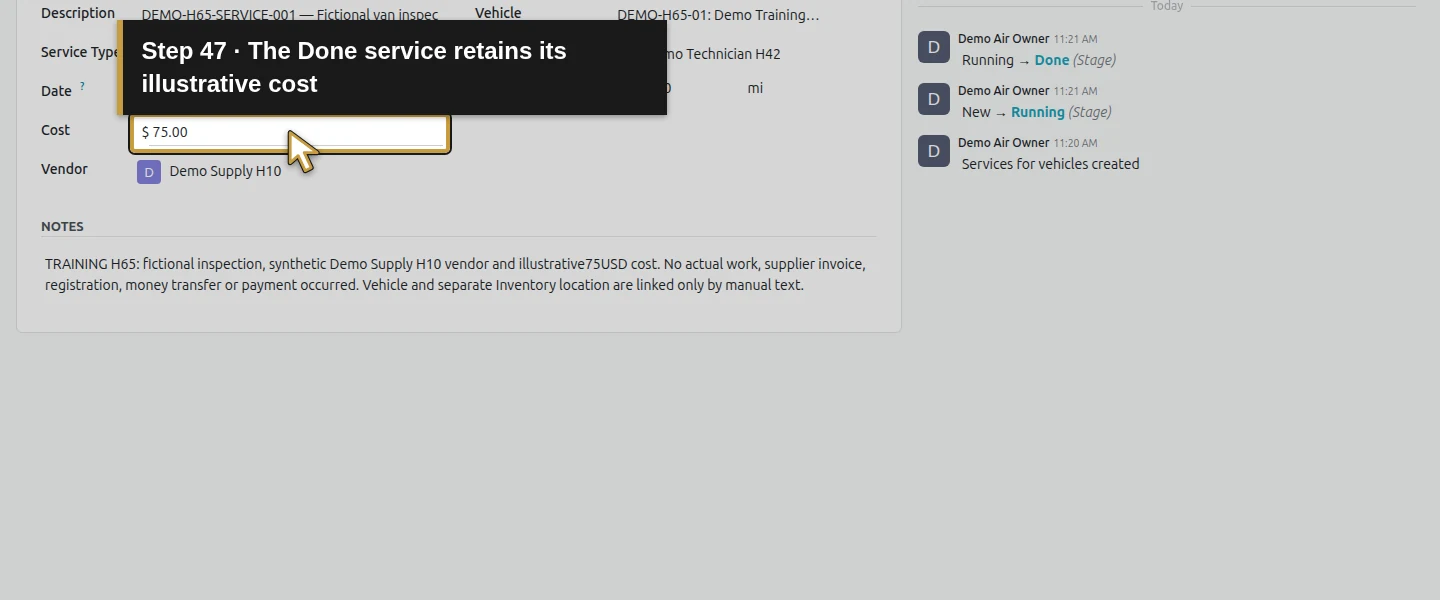
For this simulated inspection, select Running and save the same record. Then select Done, save and reload. Description, vendor, driver, $75 cost and 1000-mile service reading persist on one service. Its start date remains October 14. The End of Service value remains empty in this test; Done did not fill it automatically. No actual inspection was performed. The vehicle reading and service reading produce two odometer-log rows at the same 1000 miles, each belonging to its respective entry.
Step 8. Review Fleet Costs with its actual scope
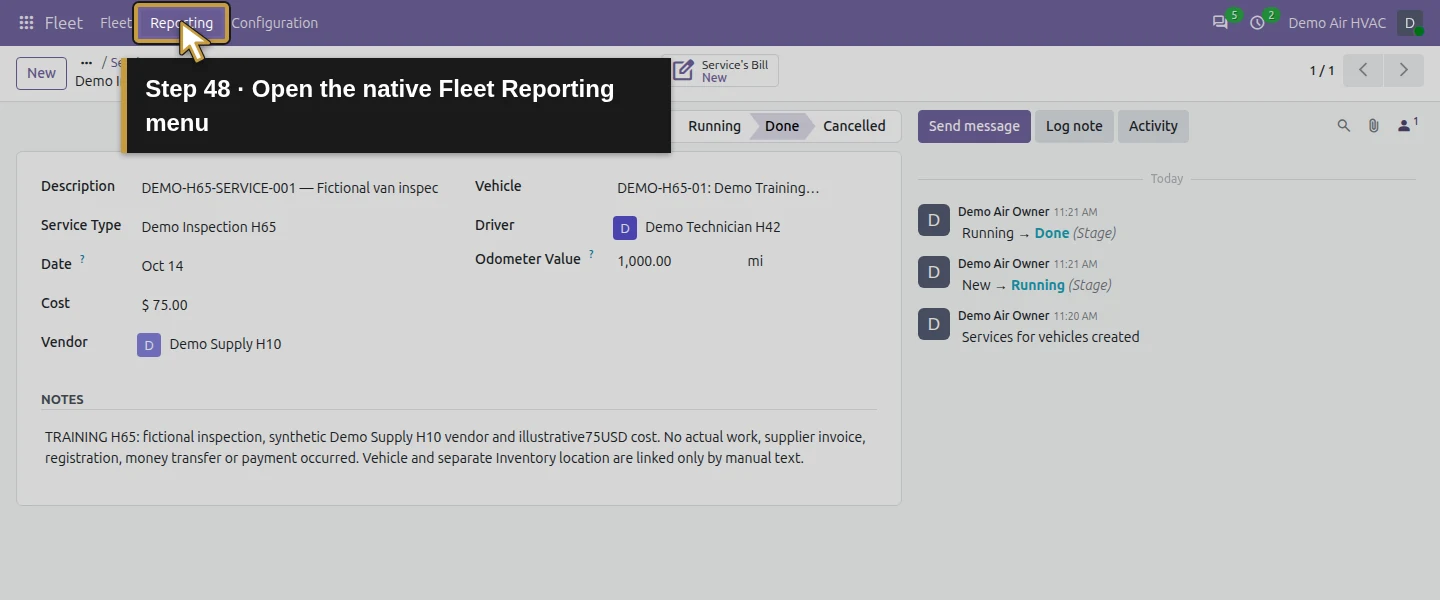
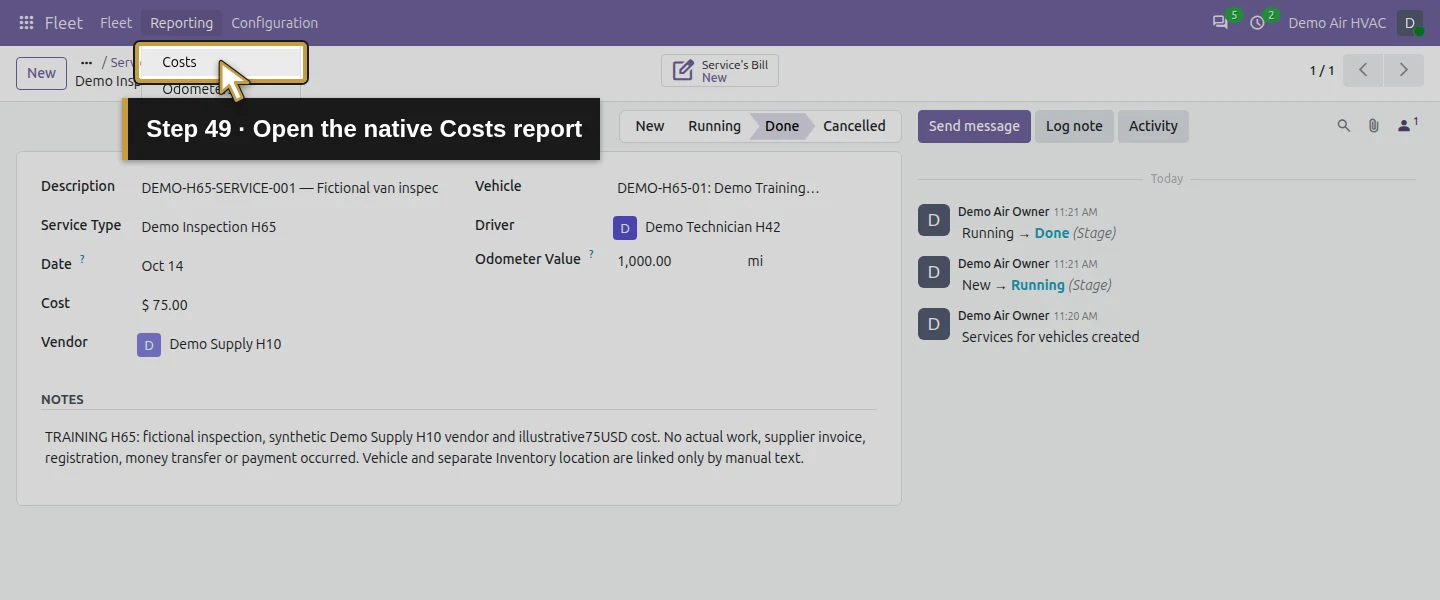
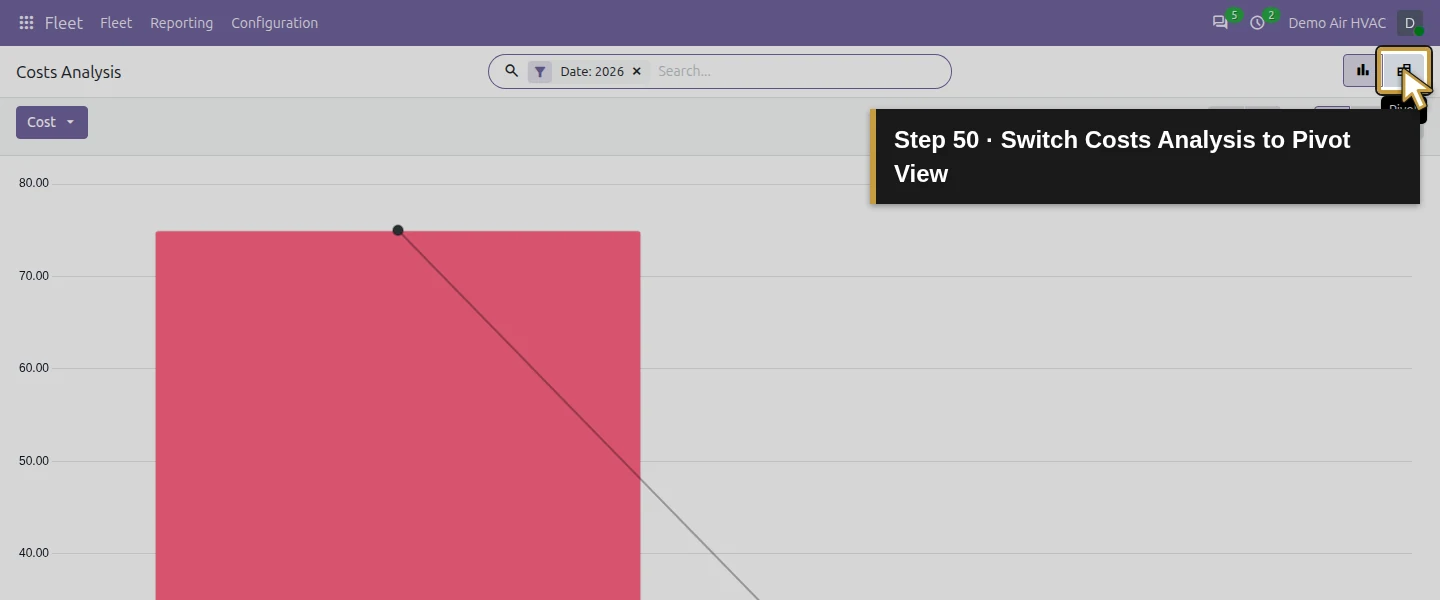
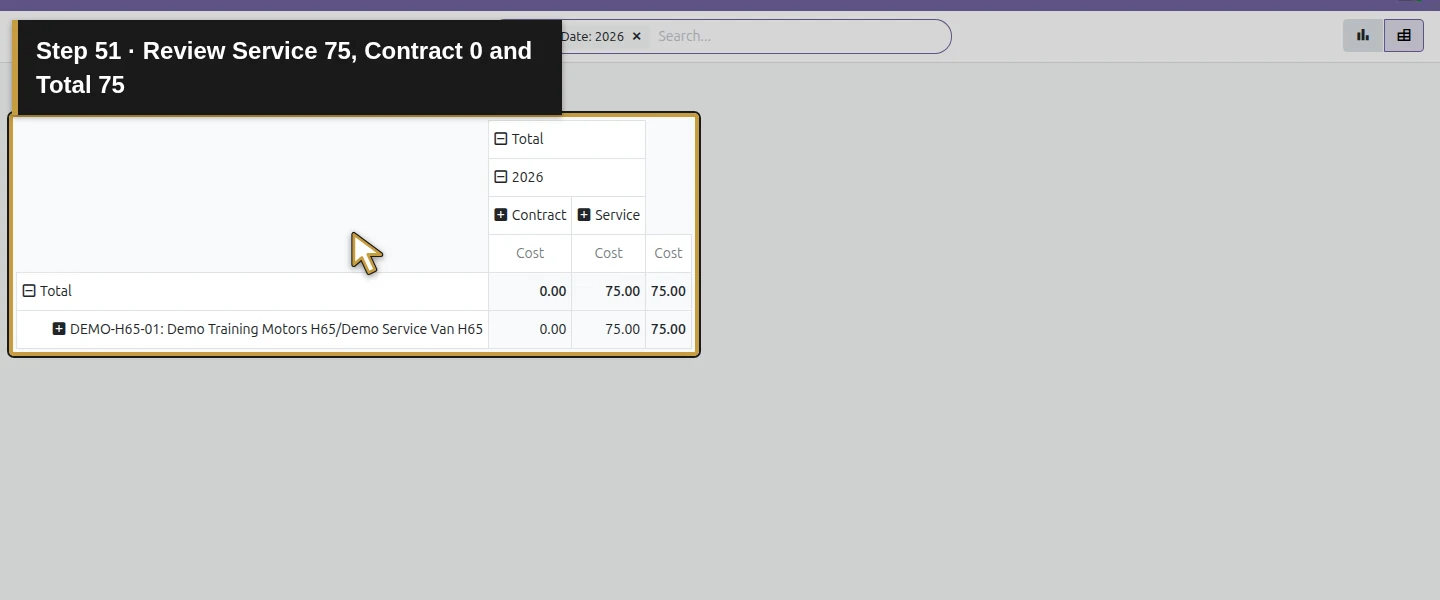
Open Reporting → Costs, then Pivot View. With the native Date: 2026 filter, the van and total show Service 75.00 / Contract 0.00 / Cost 75.00. There is no vehicle contract. This same $75 was already included while the service was New, so check the service stage separately. A Fleet Costs total alone is not proof that work is complete, an invoice is posted or money has been paid.
Step 9. Create the native draft-bill handoff once
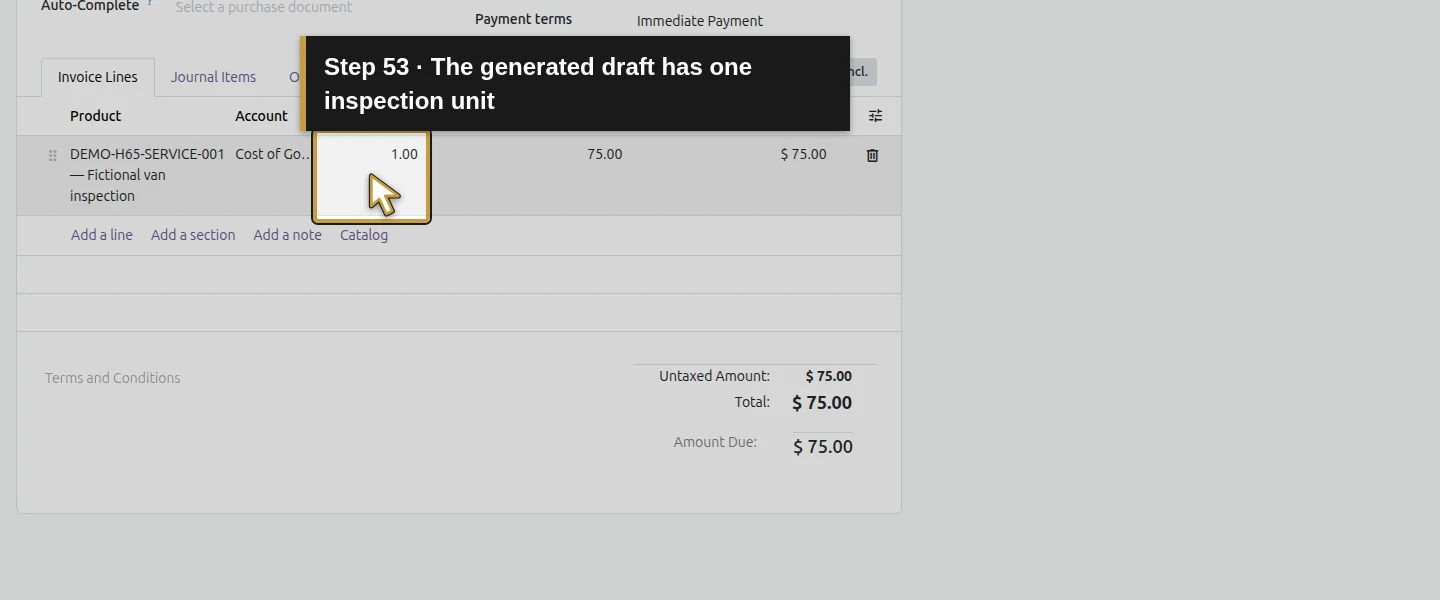
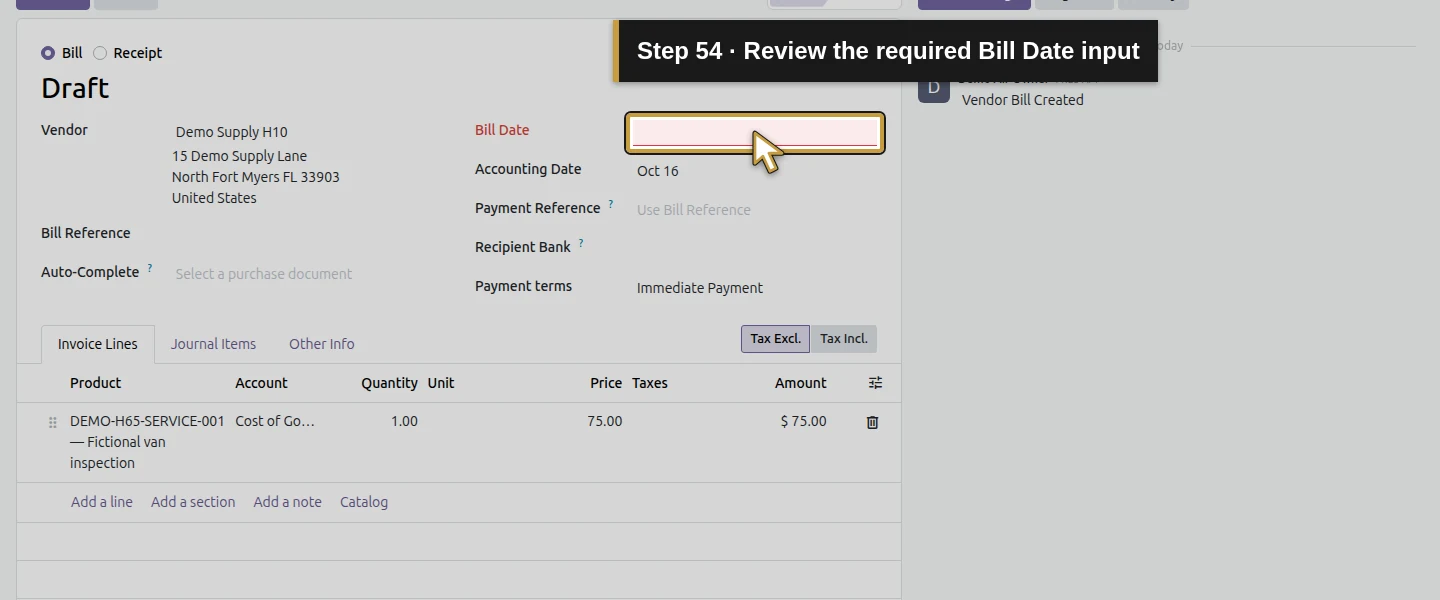
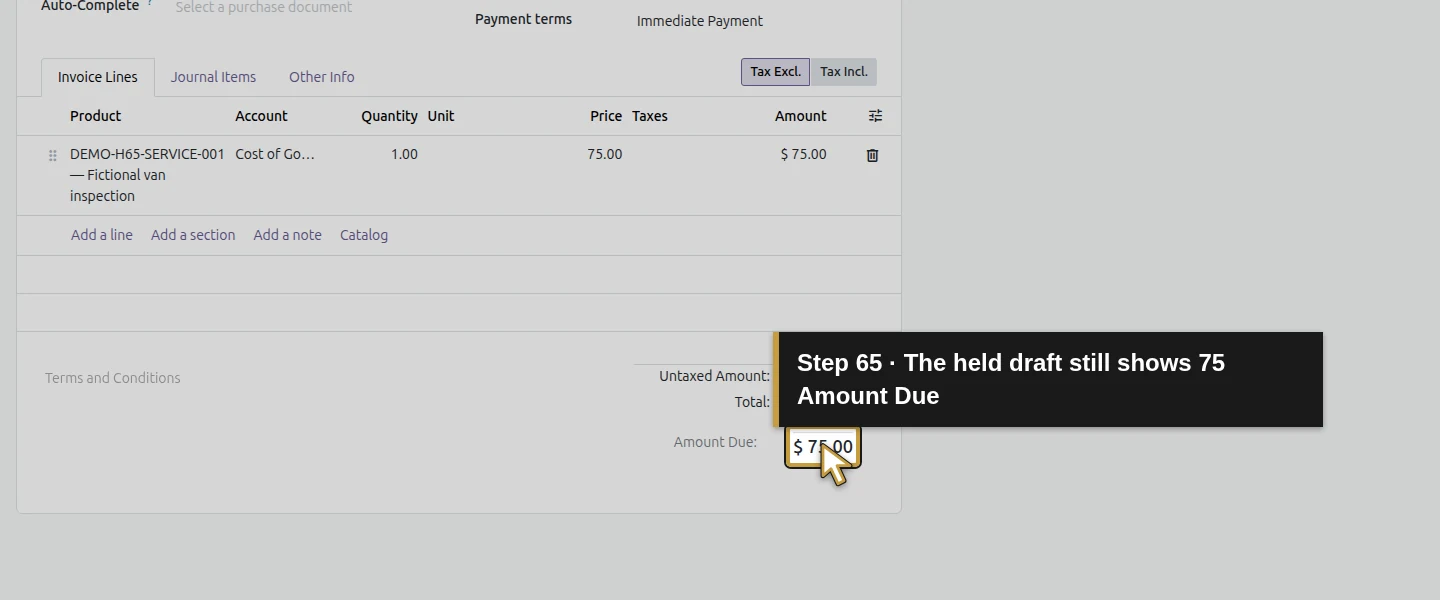
Return to the existing service and click New Service's Bill. The installed accounting integration creates one linked Draft Bill for Demo Supply H10, with one quantity-one inspection line at $75. It does not create another service. In this test, tax is empty and Total is $75, while Bill Date and Bill Reference initially are blank. The line defaults to Cost of Goods Sold. Review those defaults before any confirmation; the handoff has not supplied a reviewed supplier invoice or accounting decision.
Step 10. Label and save the draft for review
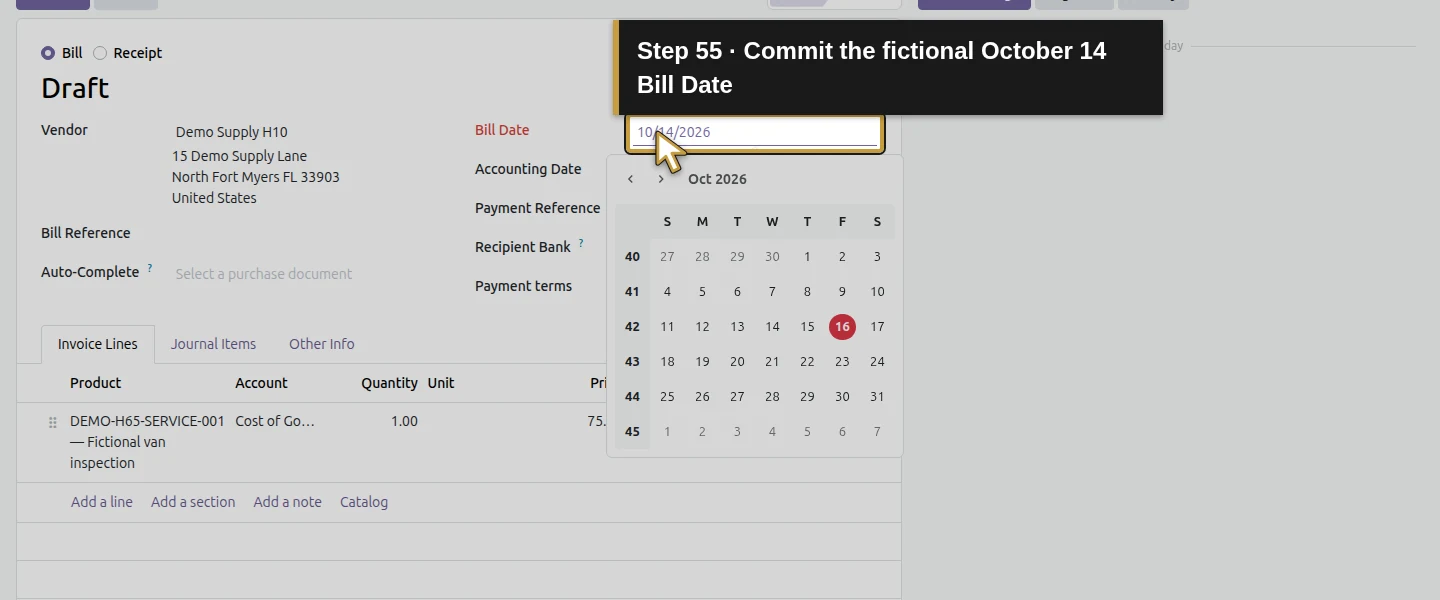
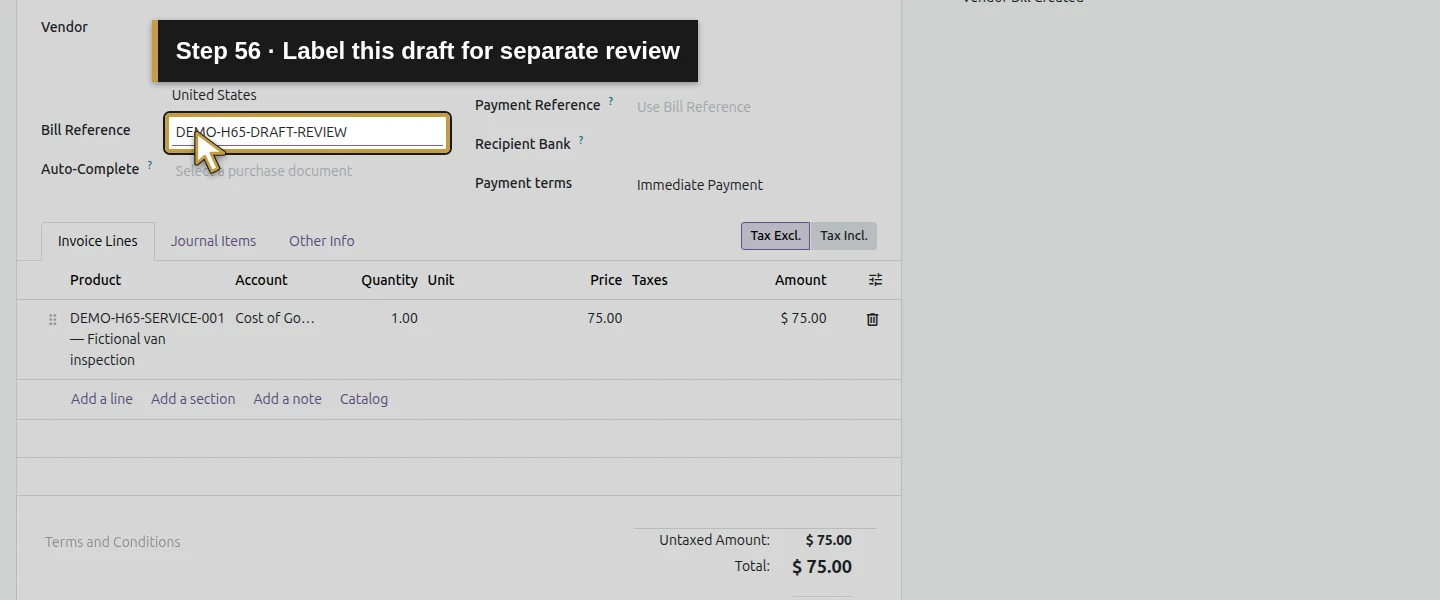
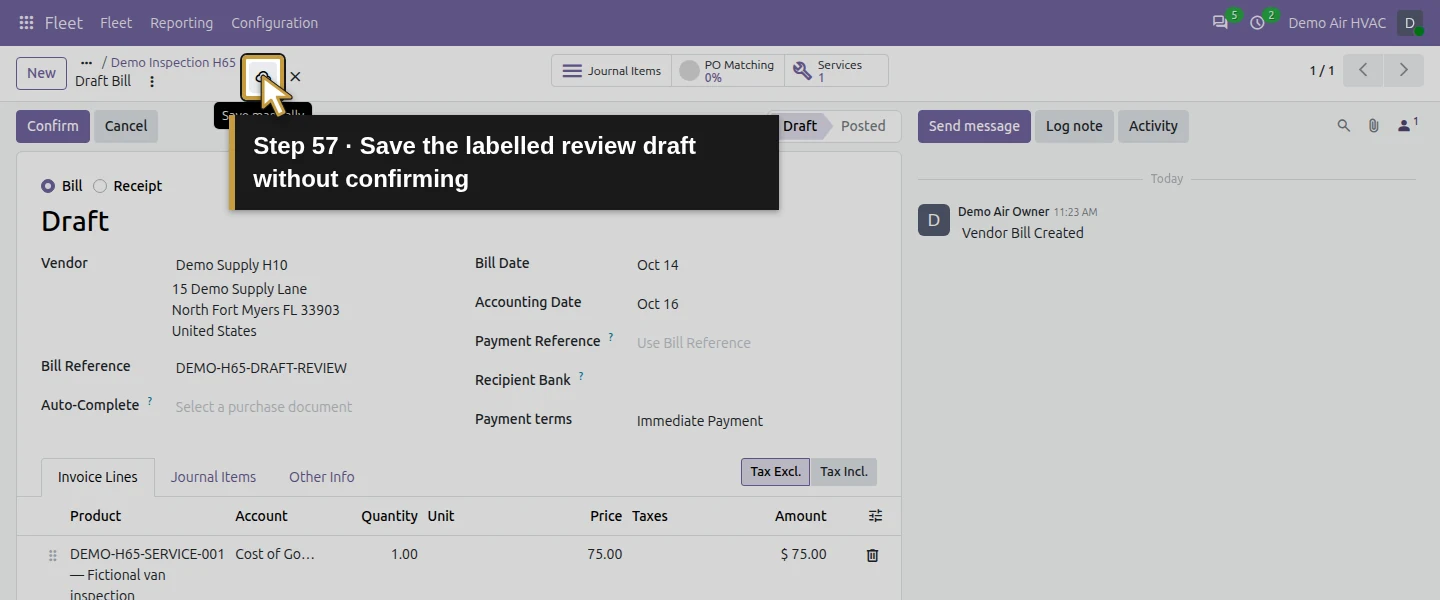
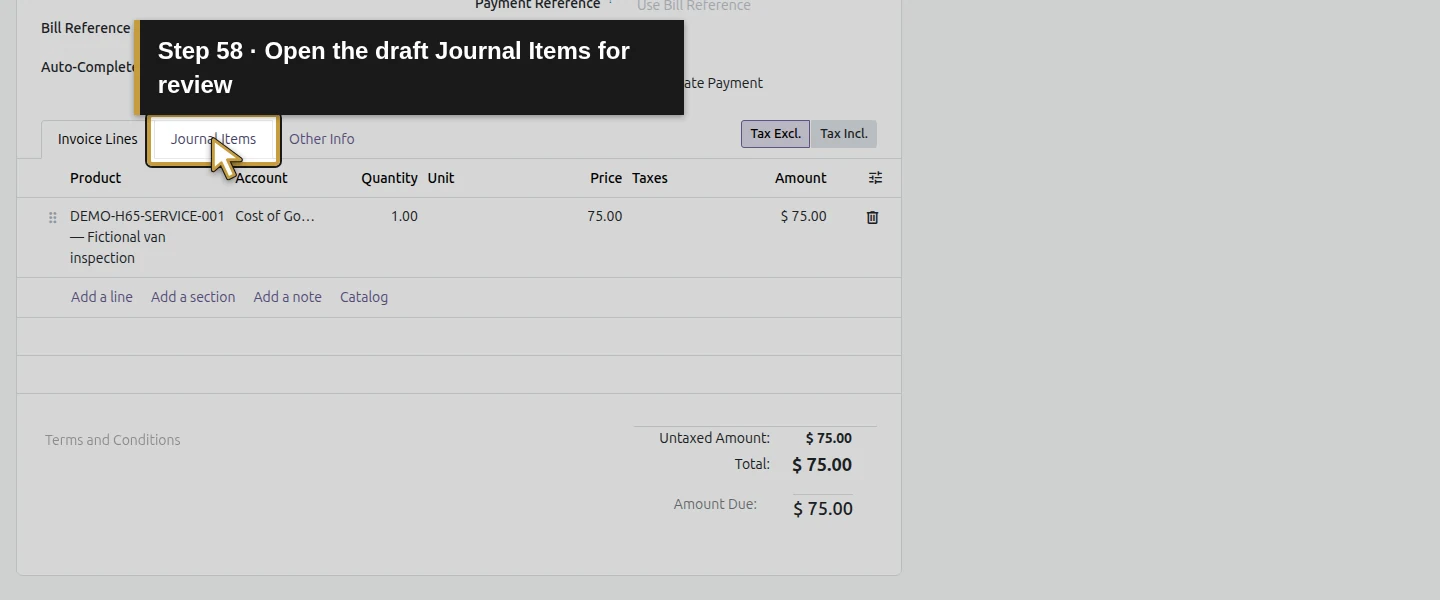
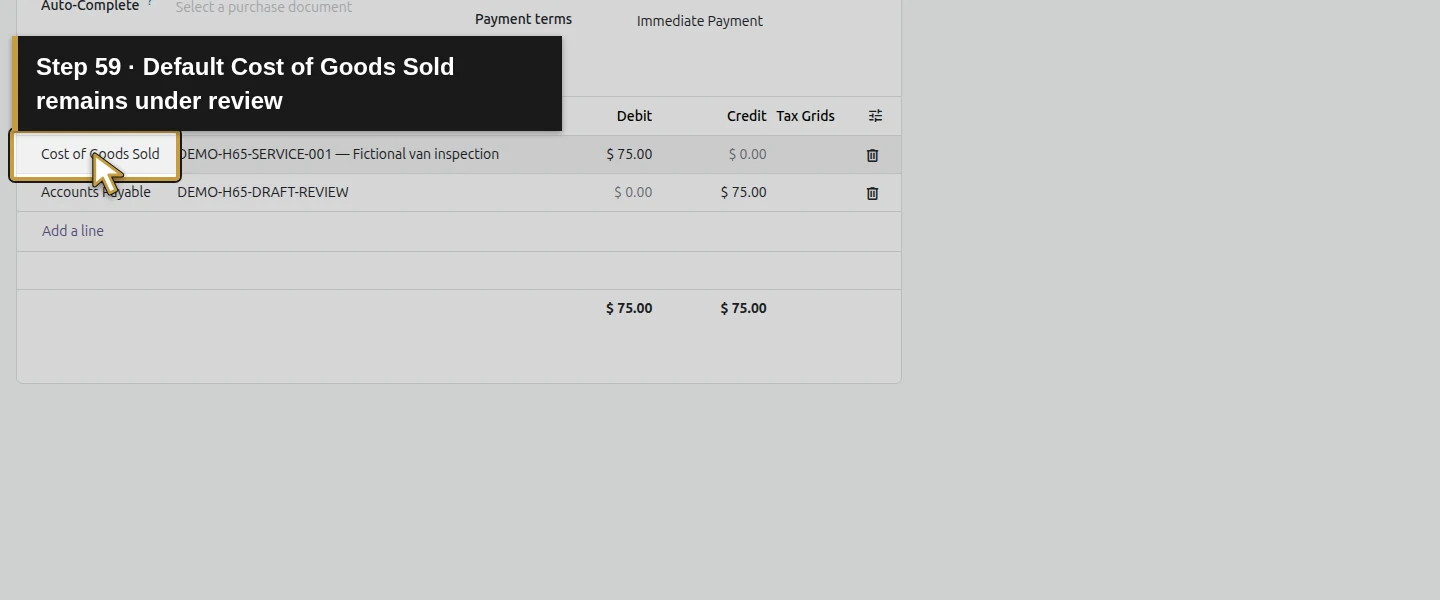
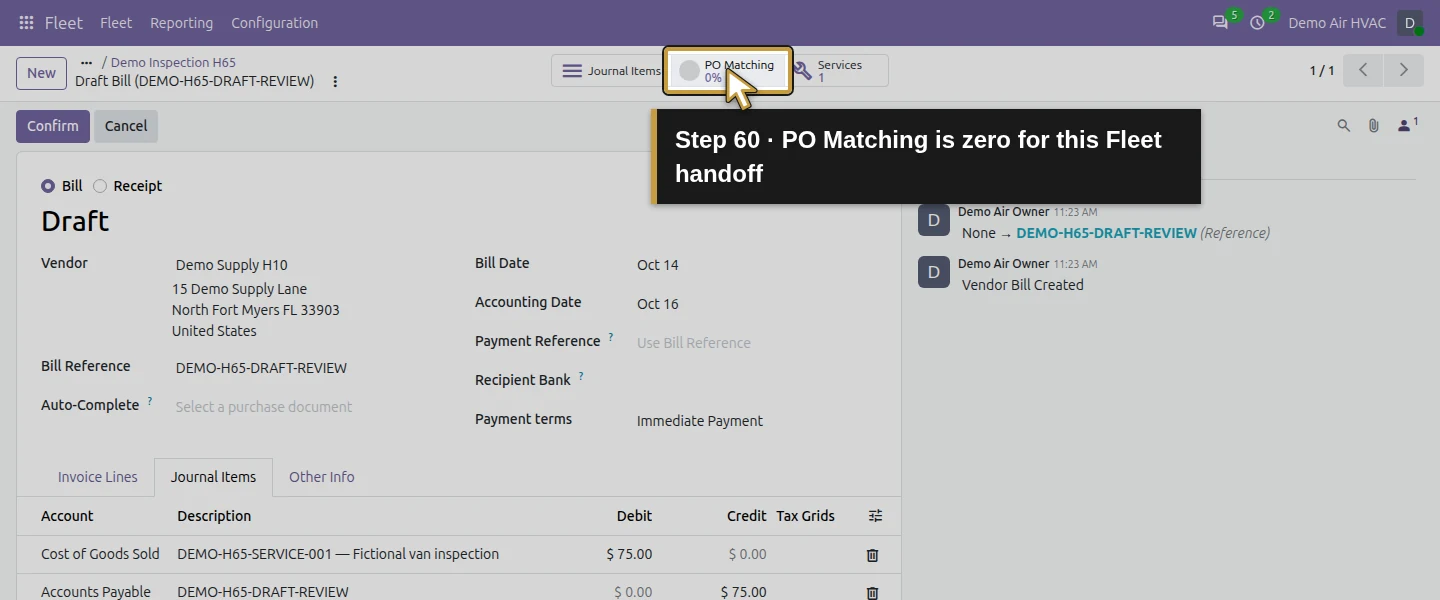
Enter the fictional Bill Date October 14, 2026, commit it with Enter, and enter Bill Reference DEMO-H65-DRAFT-REVIEW. Click Save manually. Editing the generated draft's reference initially left Save disabled because Bill Date was required by the form; filling that date resolved it. Inspect Journal Items and the line's Cost of Goods Sold account. Retain the bill as Draft for account, tax and supporting-invoice review. Leave Confirm unused. PO Matching is 0%: this handoff came from a Fleet service, without linking a purchase order.
Step 11. Reopen the existing service and its bill
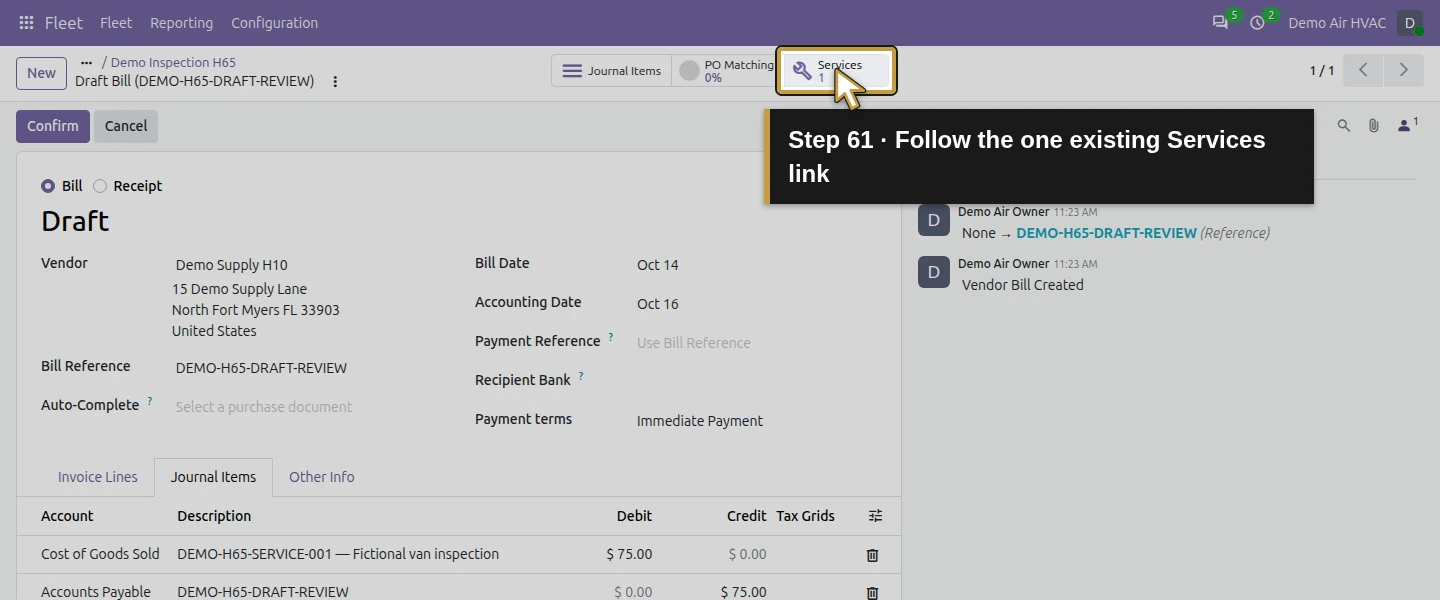
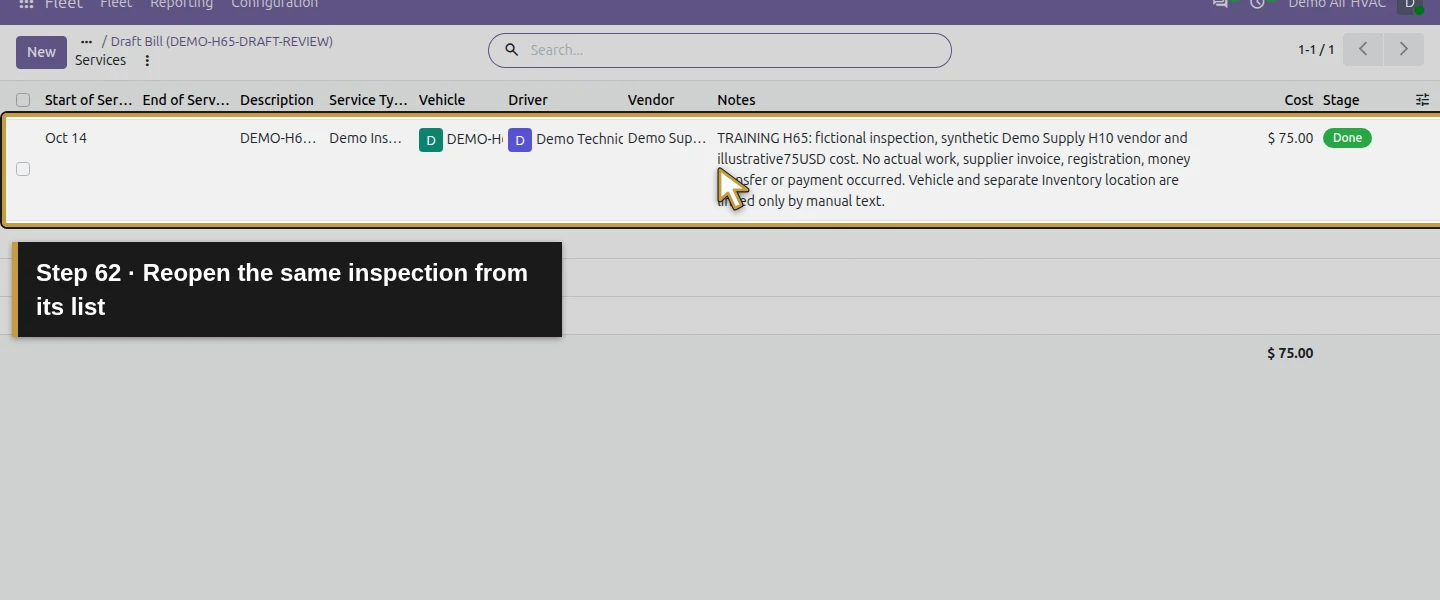
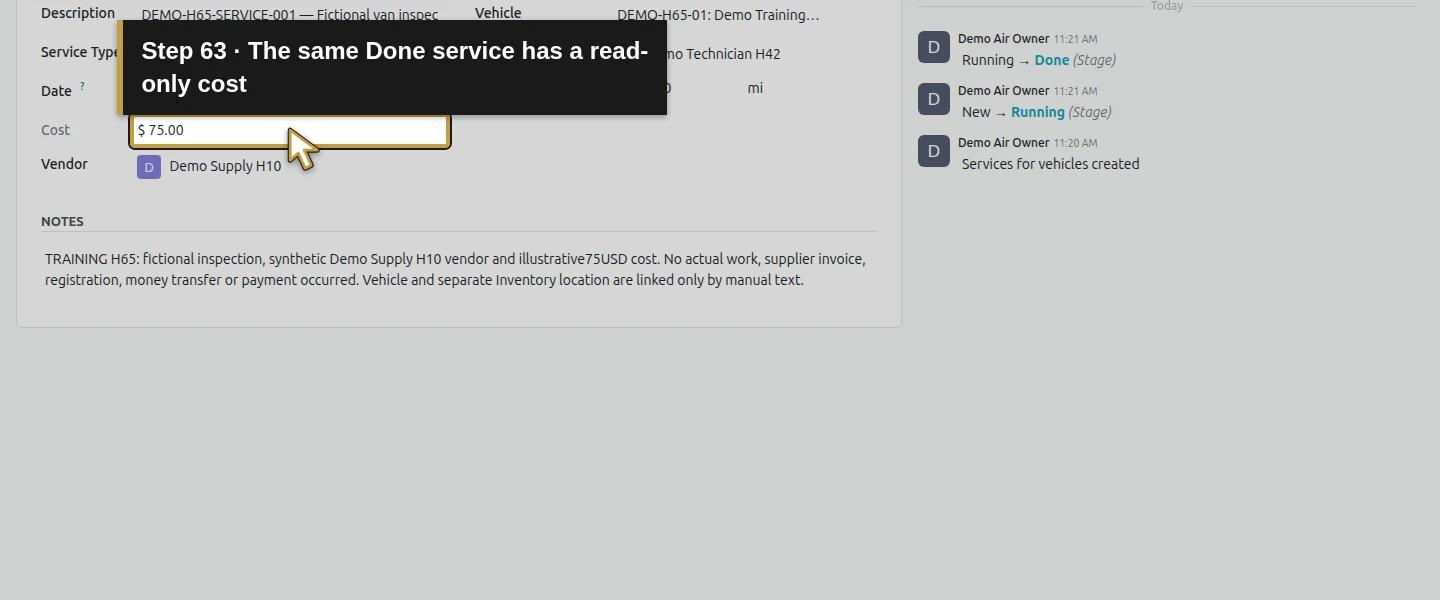
On the draft bill, click 1 Services. This opens the service list; open the existing DEMO-H65-SERVICE-001 — Fictional van inspection row. The service remains Done, its Cost displays $75 without an editable cost input, and its smart button is now Service's Bill. Click that button to reopen the same draft with the saved date and review reference. Reuse the link instead of starting a second bill. The saved result remains one vehicle, one service and one linked draft bill, with $75 Fleet costs.
Step 12. Keep van stock and accounting review distinct
The Location and Description entries are manual references to WH/Demo Van 01. This Fleet procedure did not move its filters, create an Inventory location or demonstrate a GPS feed. Earlier stock, service-job time, leave, skills and posted financial records are preserved. The new financial record is the unposted $75 draft; payments remain at eight and no Bank entry is added. Review the supporting invoice and intended coding/tax treatment separately before continuing any bill-posting or payment workflow.
Check the result
One Fleet vehicle retains its fictional plate/model, existing technician driver, Registered status and 1000-mile reading. One inspection service passes New → Running → Done at $75, with a separate 1000-mile service reading and the original start date. Fleet Costs shows Service75/Contract0/Total75. The native accounting handoff creates one linked $75 draft supplier bill; its required date and review reference are saved, while Cost of Goods Sold/no-tax defaults remain for separate review. Reopening Service's Bill retains the same bill and service. Prior stock, service tasks/time, leave, skills and financial records are preserved; the accounting-move count increases only from17 to18 for the new draft, with eight payments and zero Bank entries.
If your screen differs
This is an owner-administrator test with one fictional vehicle and service. Driver/other-role access, live GPS, automated Inventory links, recurring maintenance alerts and dispatch were not exercised. Location is manually entered text. Technical defaults and Registered status are training values, not proof of actual specifications or external registration. Costs included the service while New; Done did not set End of Service. The bill handoff retained no tax and a default Cost of Goods Sold account; it was deliberately held as a draft for review. Entering a fictional Bill Date allows this training draft to save but does not provide a real invoice or validate its coding. No posted vehicle expense or payment is claimed.
Frequently asked questions
How do I track vehicle maintenance costs in Odoo?
Create the Fleet model and vehicle, assign the existing driver and record a labelled service with its date, vendor, cost and explicit odometer reading. Save and track the same service through its stages, then inspect Reporting → Costs. The tested report included the $75 while New, so review stage and accounting status separately from the total.Can I create a vendor bill from an Odoo Fleet service?
The installed official account_fleet integration exposed New Service's Bill on this service. It created one linked $75 Draft Bill with the existing vendor and service line. The form needed Bill Date before the review reference could save. Default Cost of Goods Sold/no-tax values stayed under review; no confirmation or payment was performed. The service then offered Service's Bill to reopen that same draft.Is an Odoo Fleet vehicle the same as a van stock location?
They are separate records in this example. The Fleet vehicle has the driver, mileage and service cost; WH/Demo Van 01 is the existing Internal Inventory location for parts. A manual Location/Description reference did not transfer stock or establish an automatic link. This lesson also does not demonstrate GPS tracking from a typed location.Continue building the business
Continue with How do I schedule maintenance for company tools in Odoo?. Keep company-owned equipment requests, vehicle service records and customer service jobs clear in the office process.
Talk about your Odoo setup
Bring your current process and the result you need to Onward to plan your Odoo workflow. Talk about your Odoo setup.