By Nelson Milian, Odoo Expert & Agentic AI Developer
Published
Running an HVAC business with Odoo
How do I assign a technician and deadline to an Odoo task?
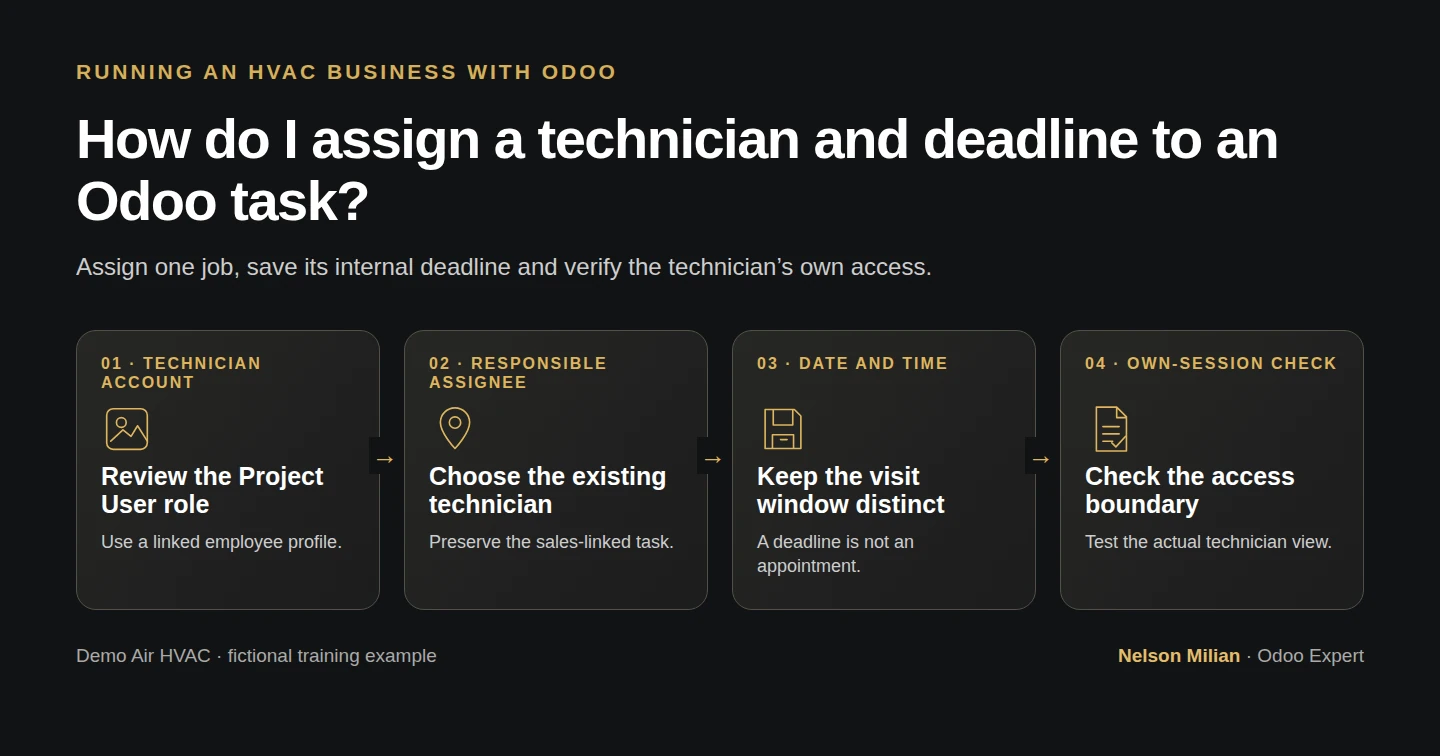
Workflow overview. Instructional screenshots show the actual demo interface.
Assign an Odoo job task to a technician, set its date and time deadline, and verify task access in the technician's own session.
Alex has a sales-linked job task, but it still needs a responsible technician and an internal deadline. This guide assigns that task, records its service-site context and checks what the technician can actually see under the standard Project User role.
Alex Rivera and Demo Air HVAC are fictional training examples. Prices, dates, quantities and business situations in this guide are illustrative.
Before you begin
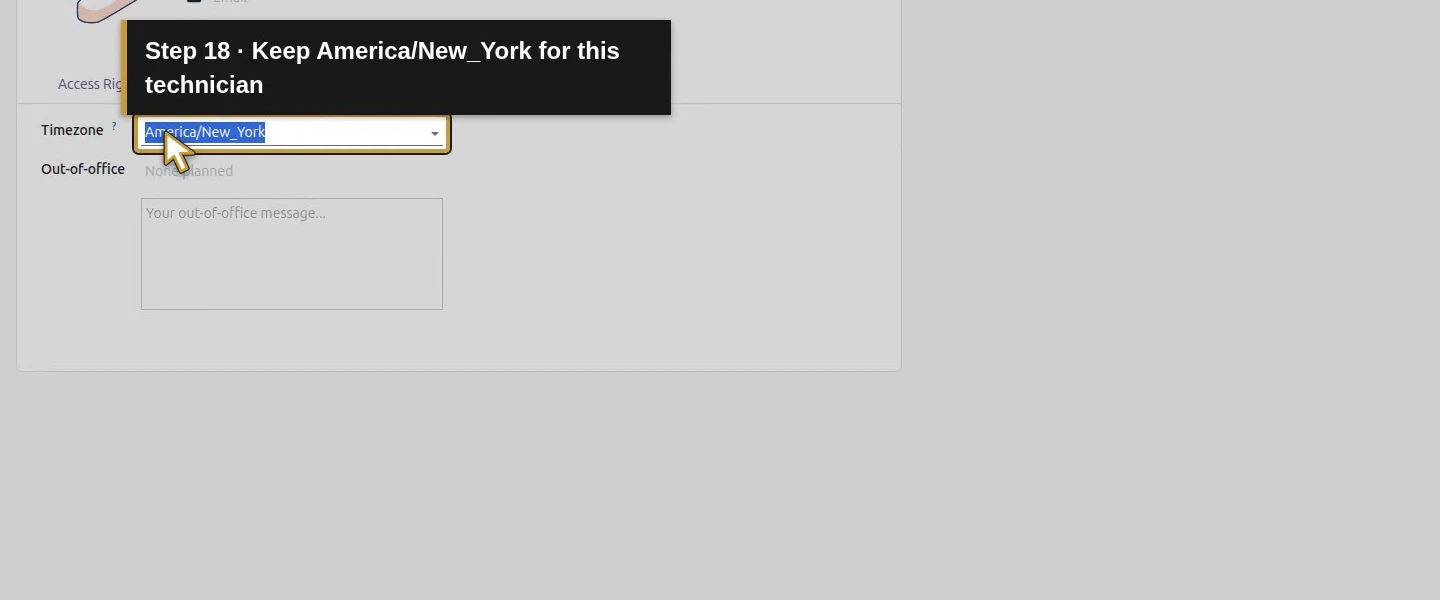
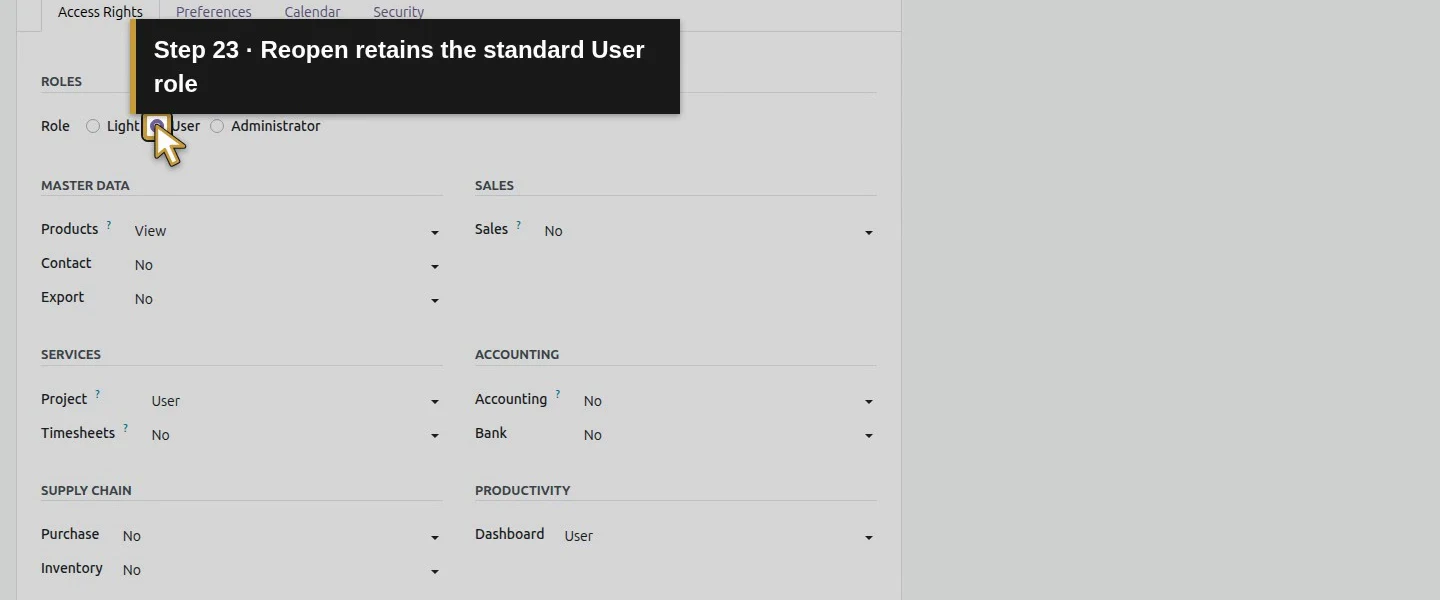
Tested in stock Odoo 20.0-20260926 Community as the demo owner administrator, with official modules and standard configuration. Use the generated task from create a task from a sales order. Prepare the technician's internal account using set user access rights and its employee link using link an employee to a user. Our new fictional account is Demo Technician H42, linked to an HVAC Technician employee profile. It has Role: User, Project: User, and no Sales, Accounting, Purchase or Inventory role. Its non-email login and blank work email are local training choices; email delivery is not established by this account. Owner and technician use America/New_York. The project keeps Team members only visibility.
Step-by-step workflow
101 highlighted video actions with a white pointer, gold border and English captions, without narration. Each written step groups its smaller video actions. Stock Odoo20 Community; native limited Project User plus employee link, assignment/deadline/context on existing task6, actual own-session before/after and unrelated-task boundary. Blank training email failure retained; no appointment/time-entry/real email delivery. Private password and login preparation excluded from all media.
Step 1. Prepare and review the technician account
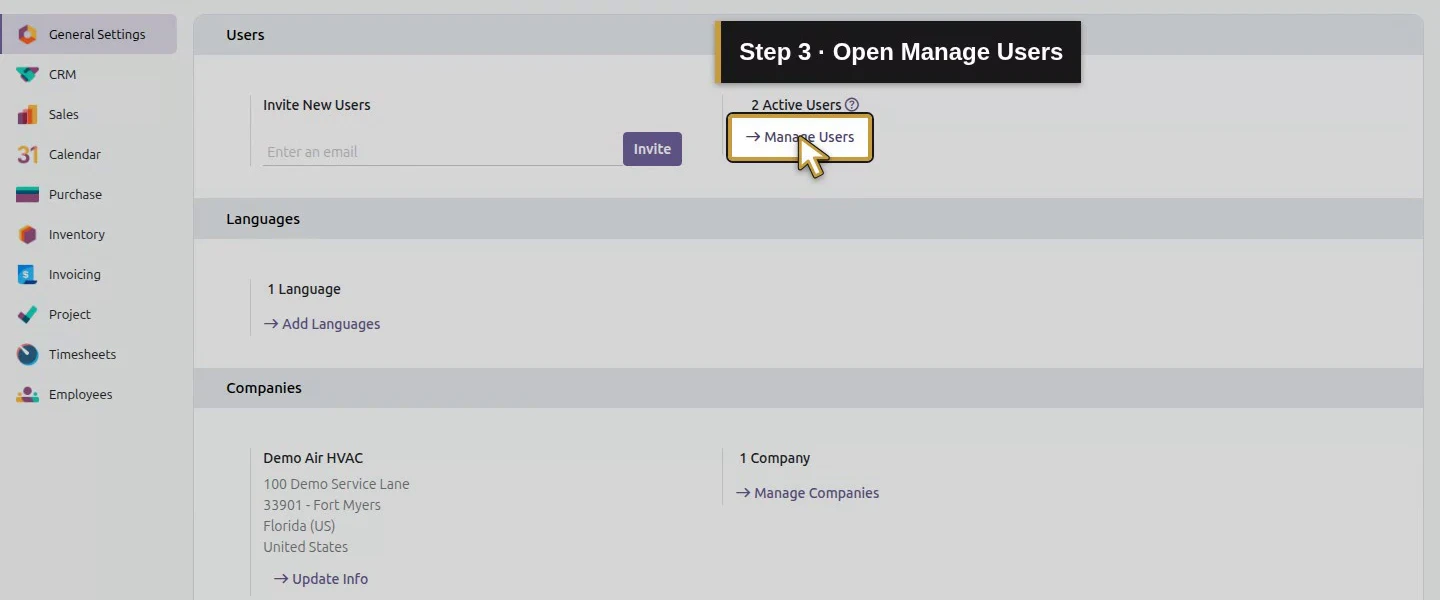
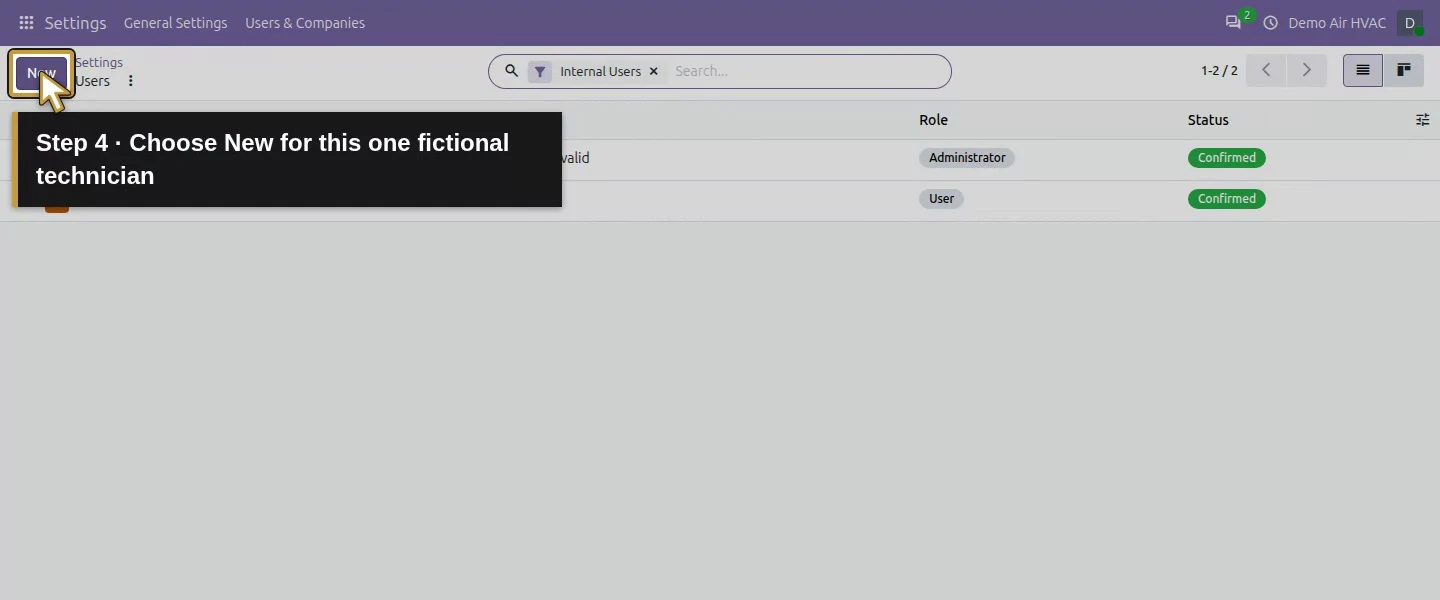
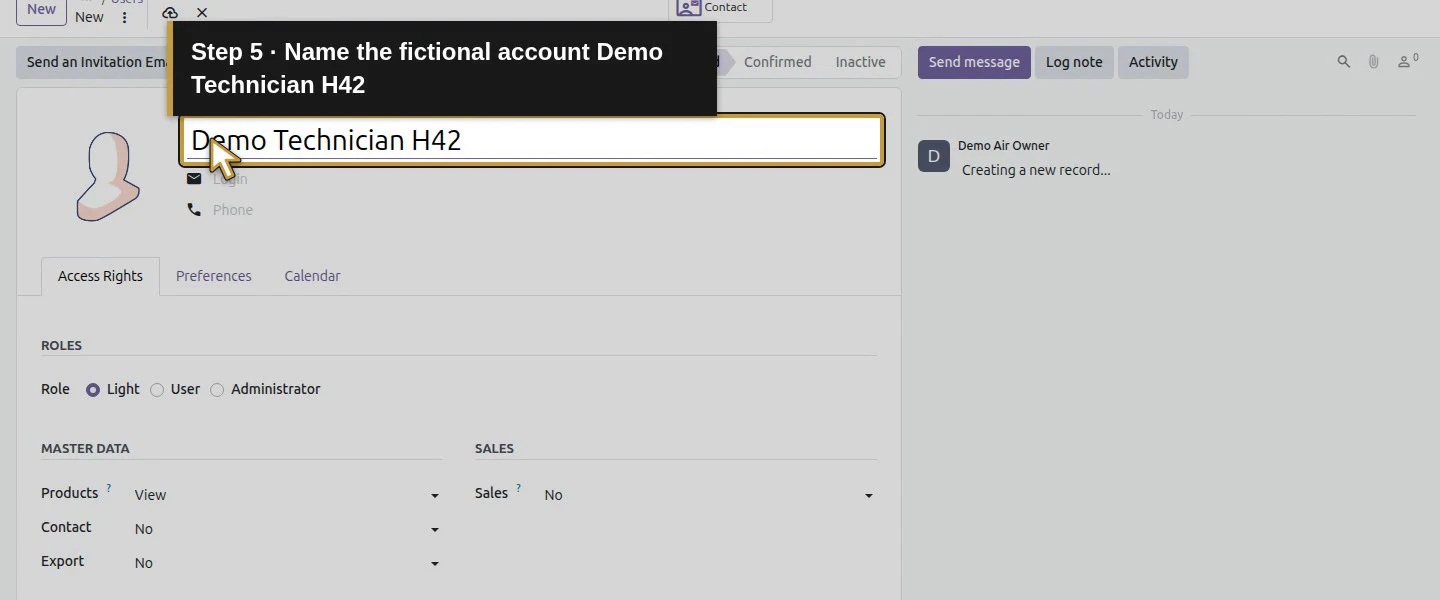
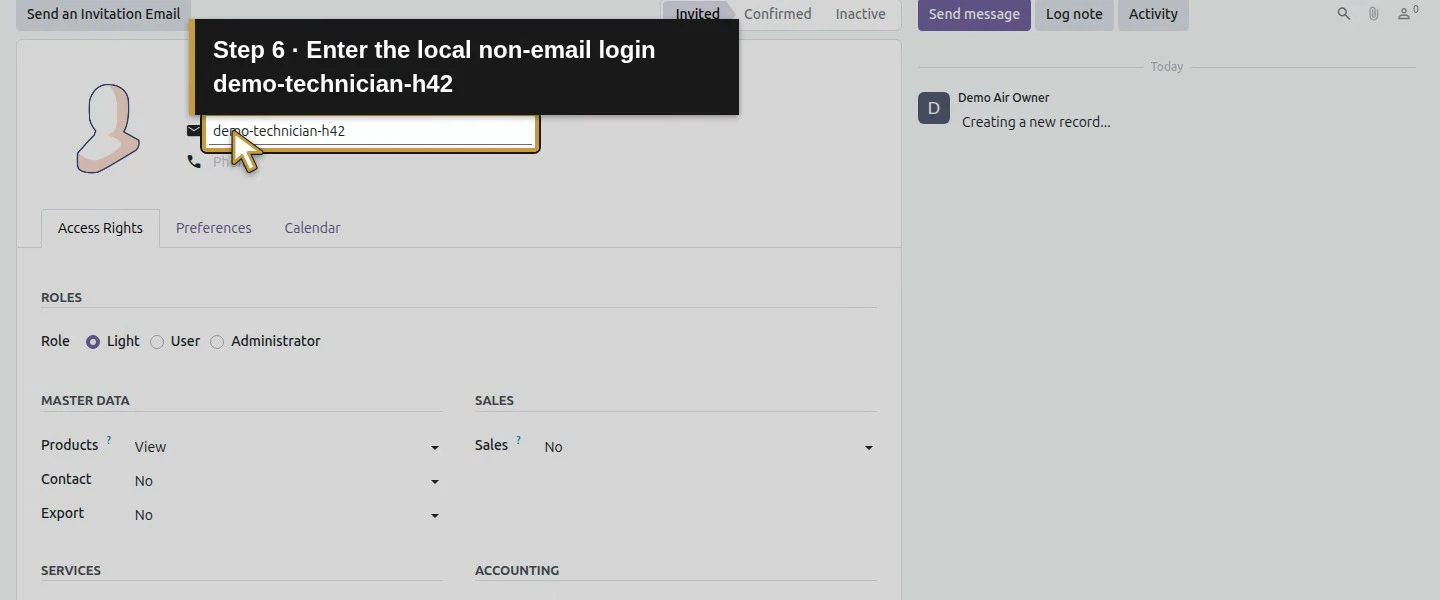
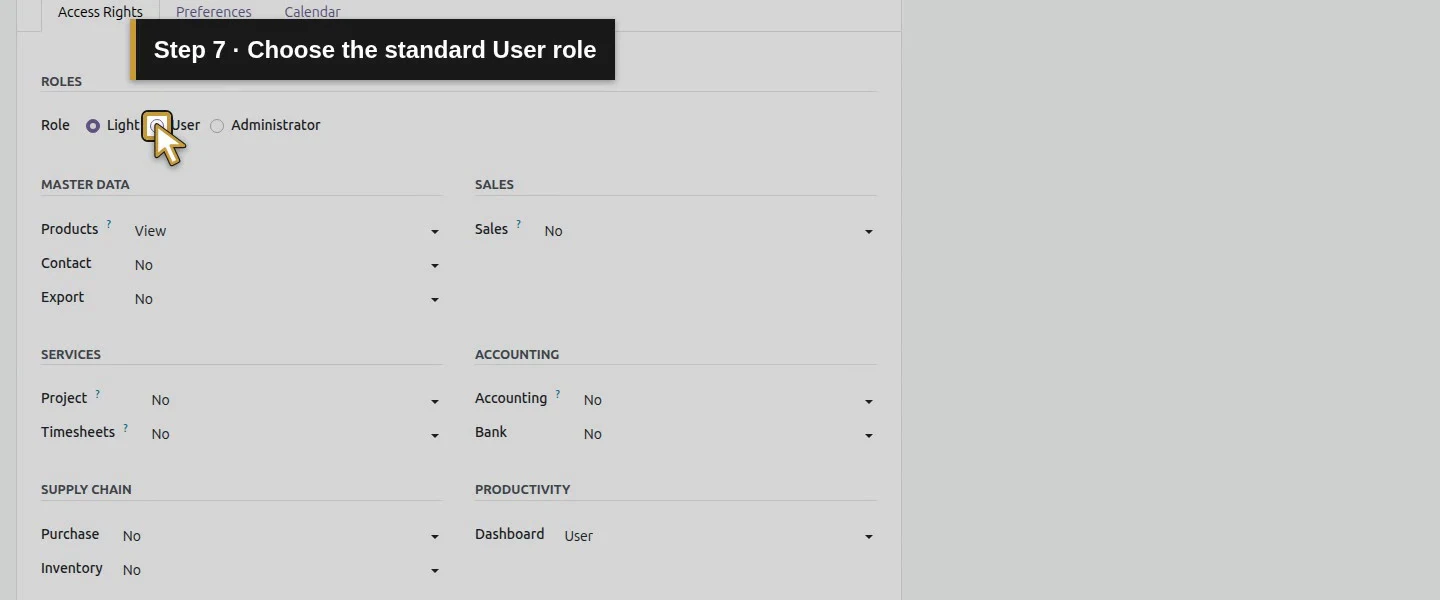
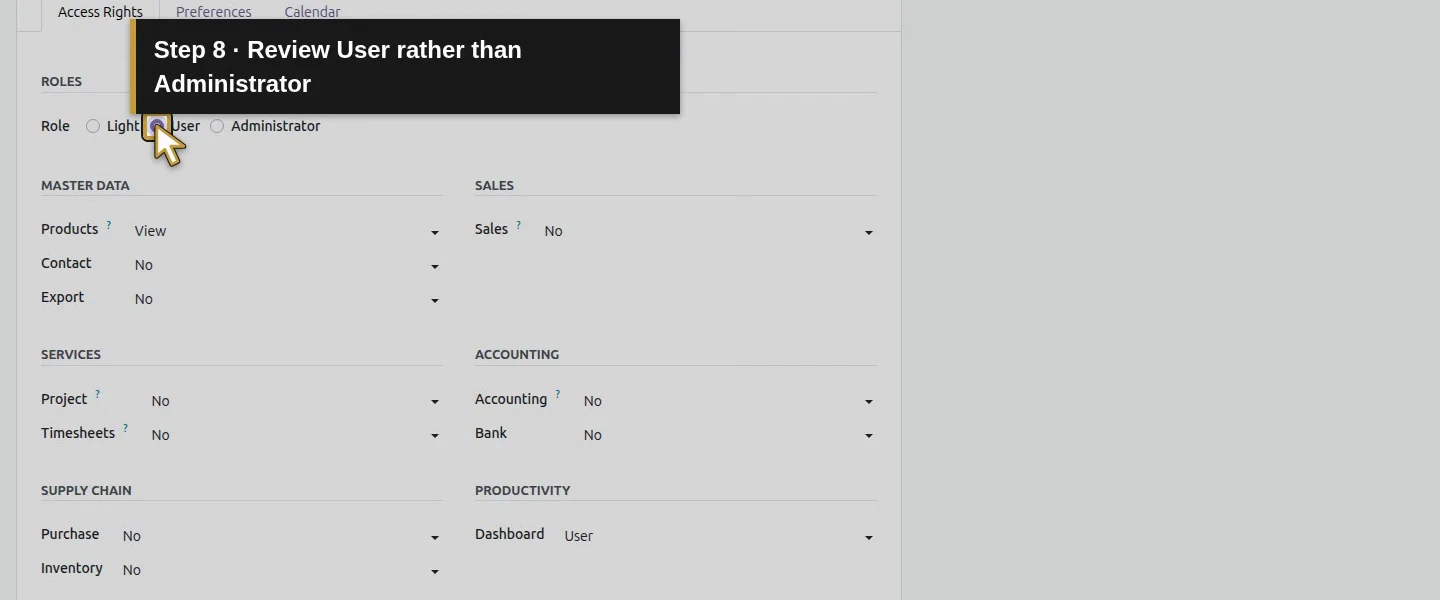
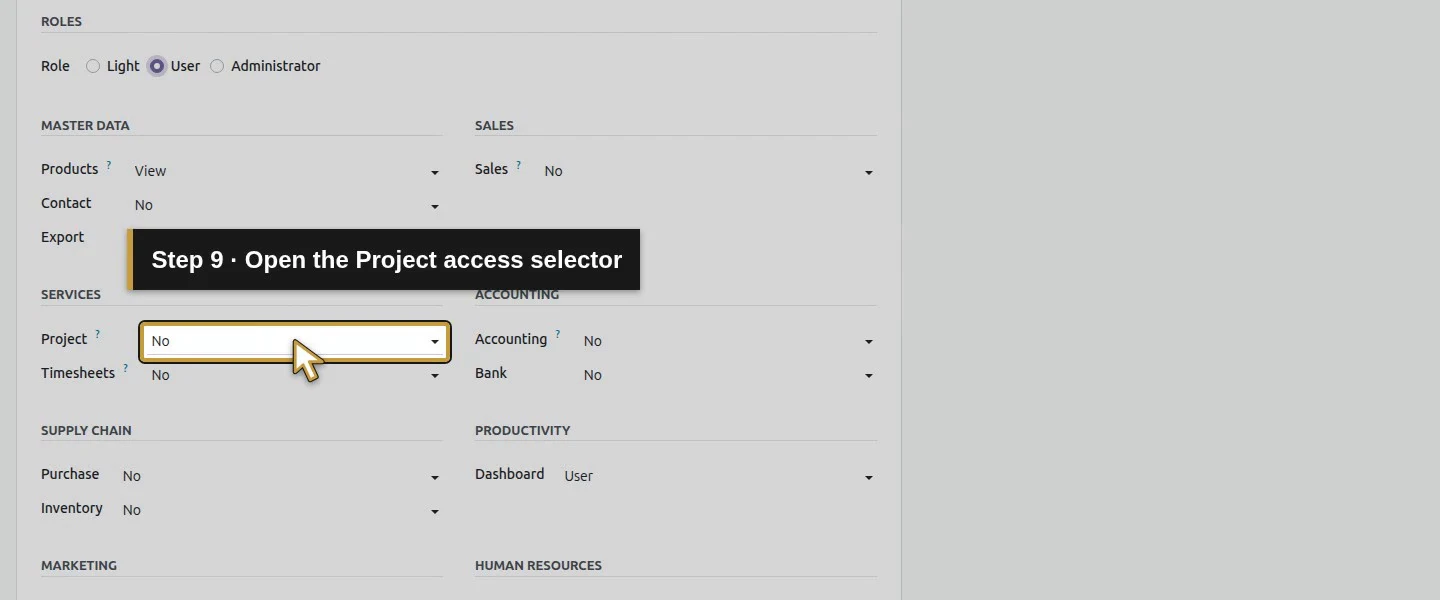
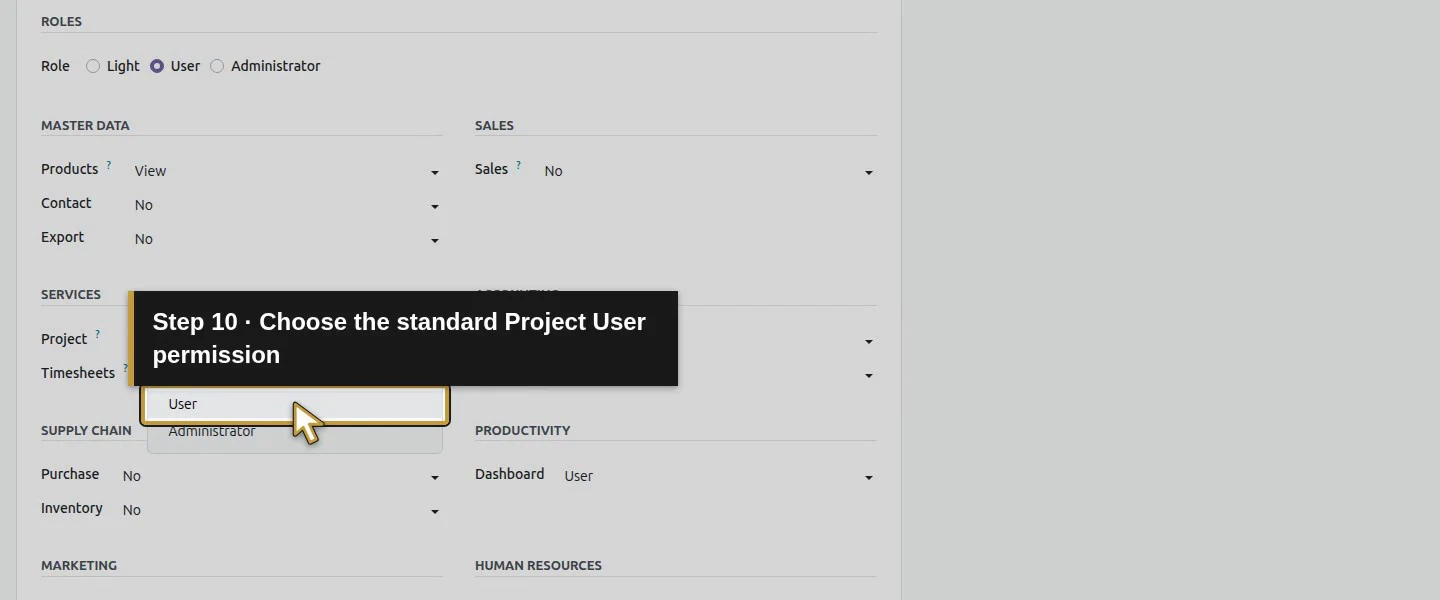
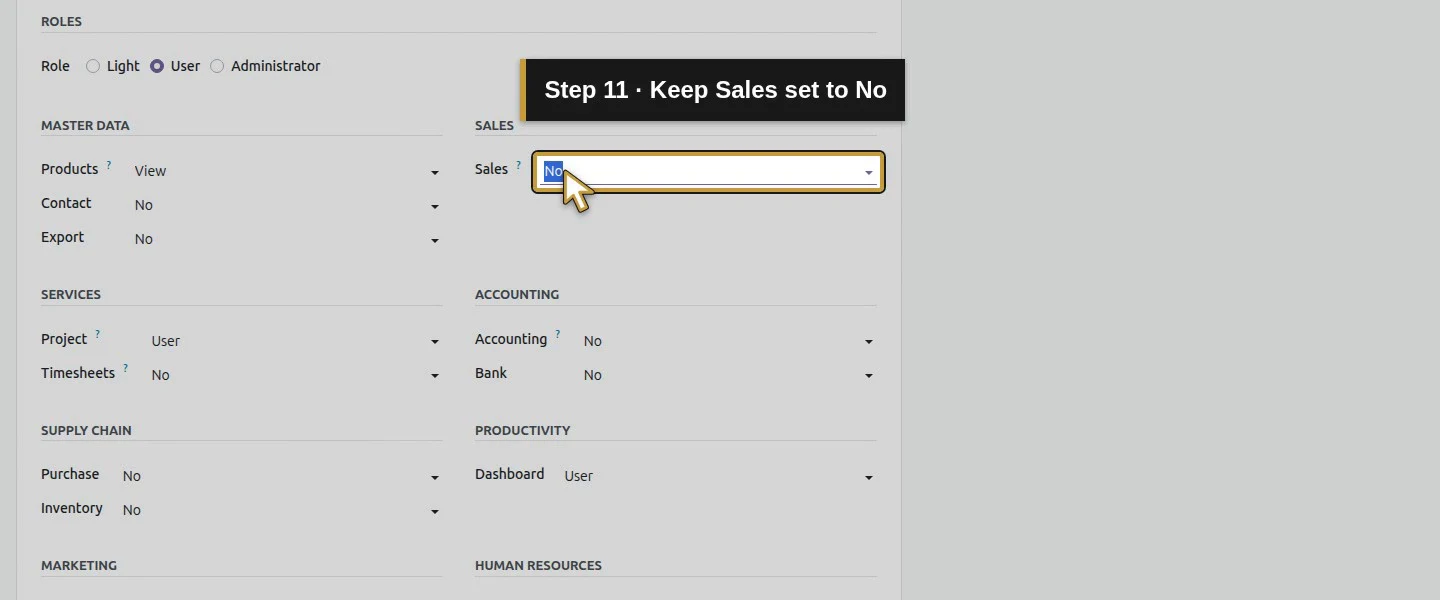
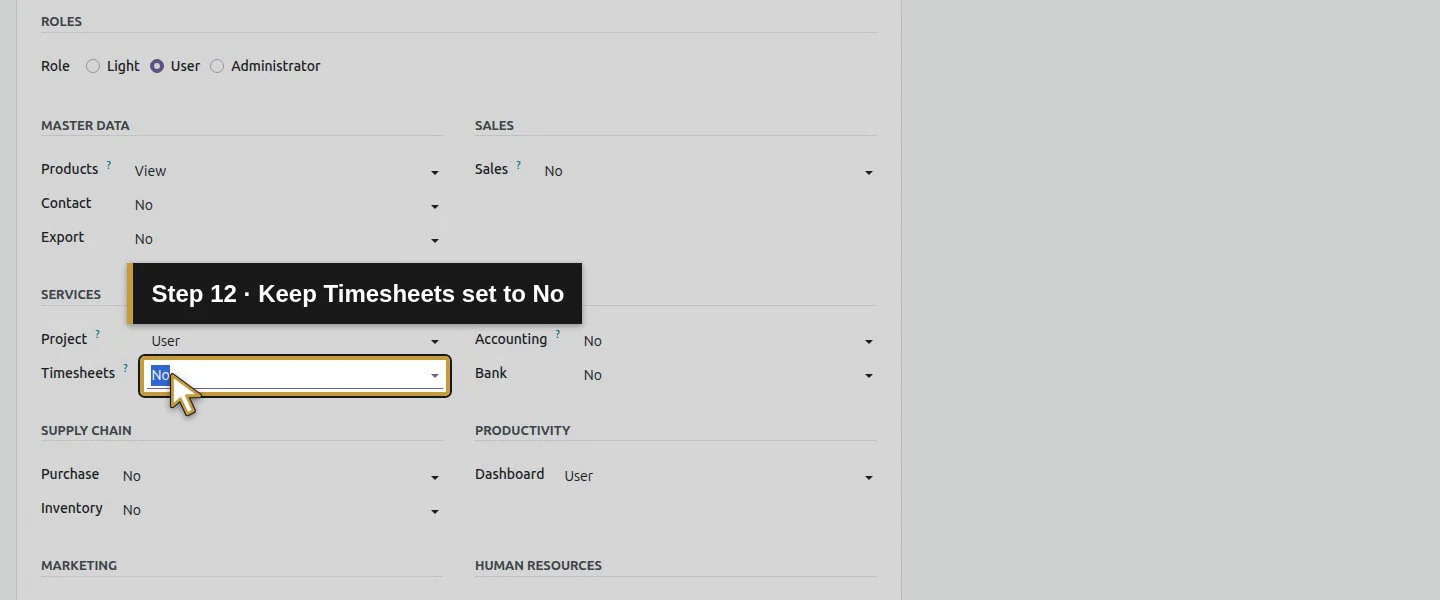
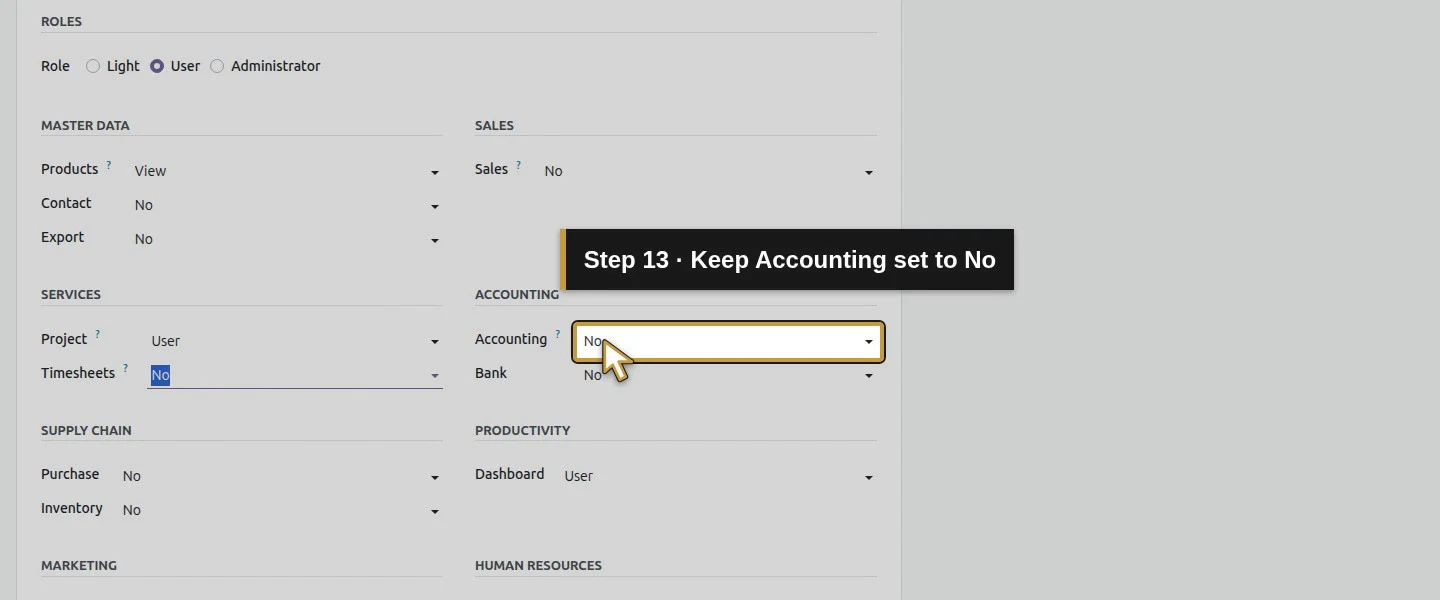
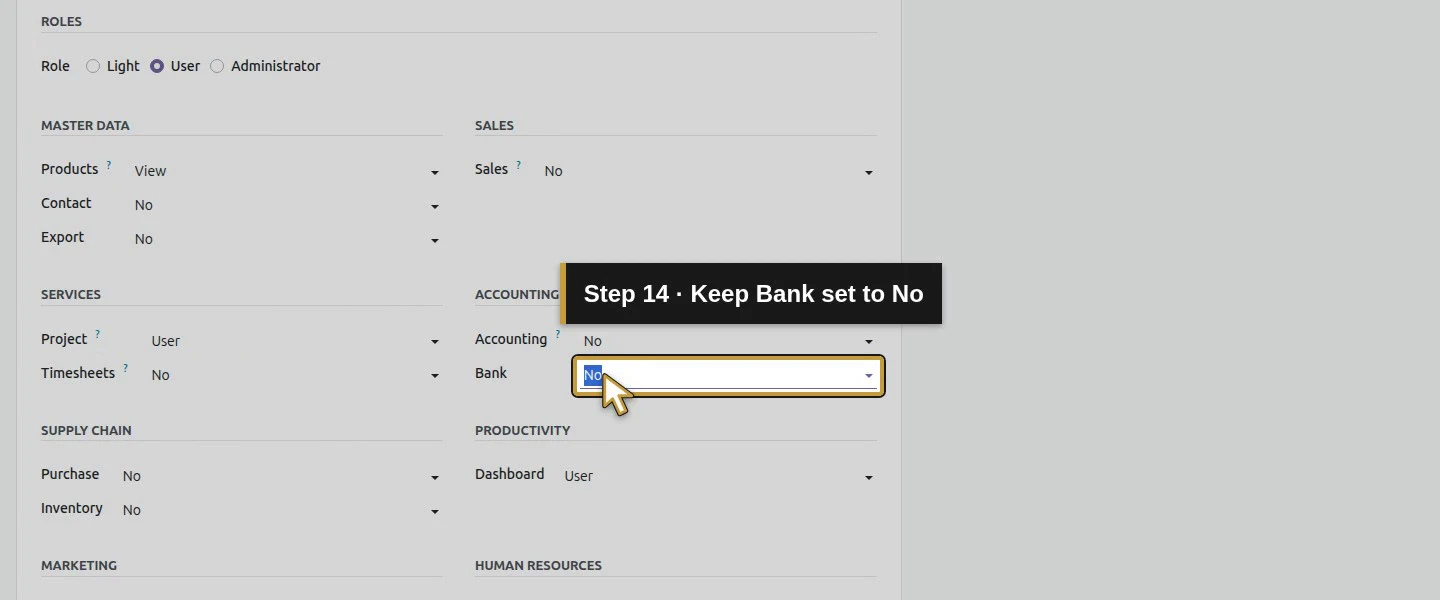
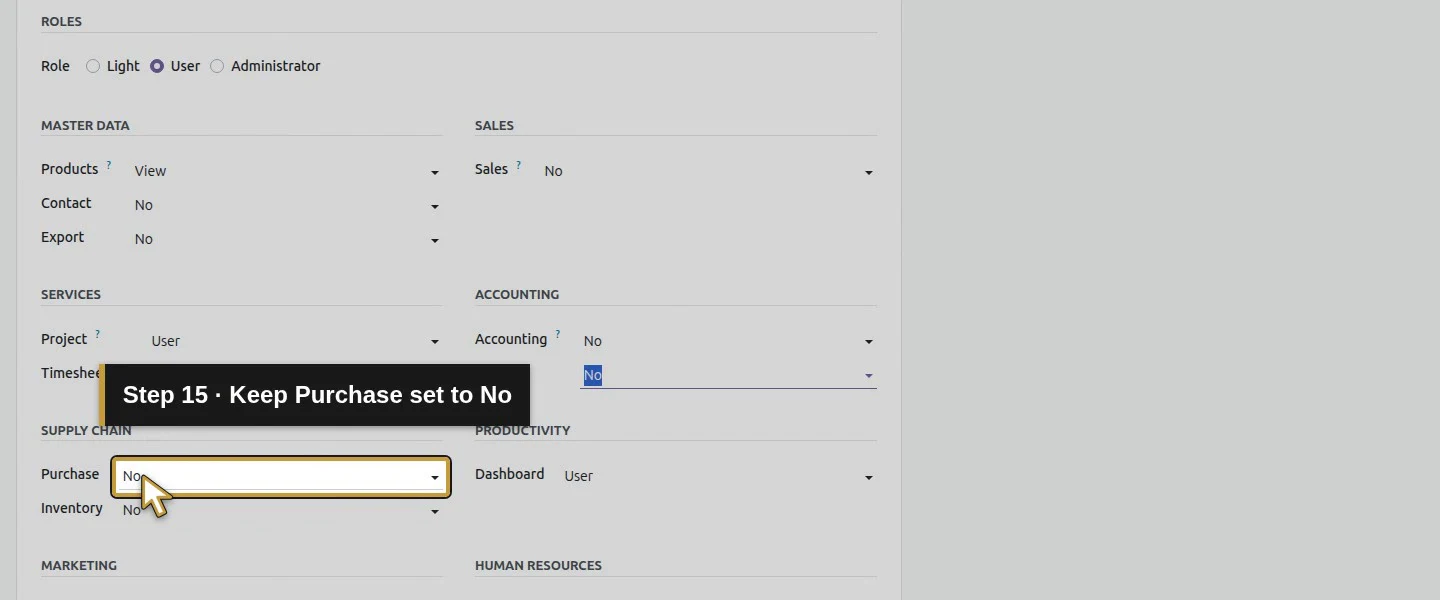
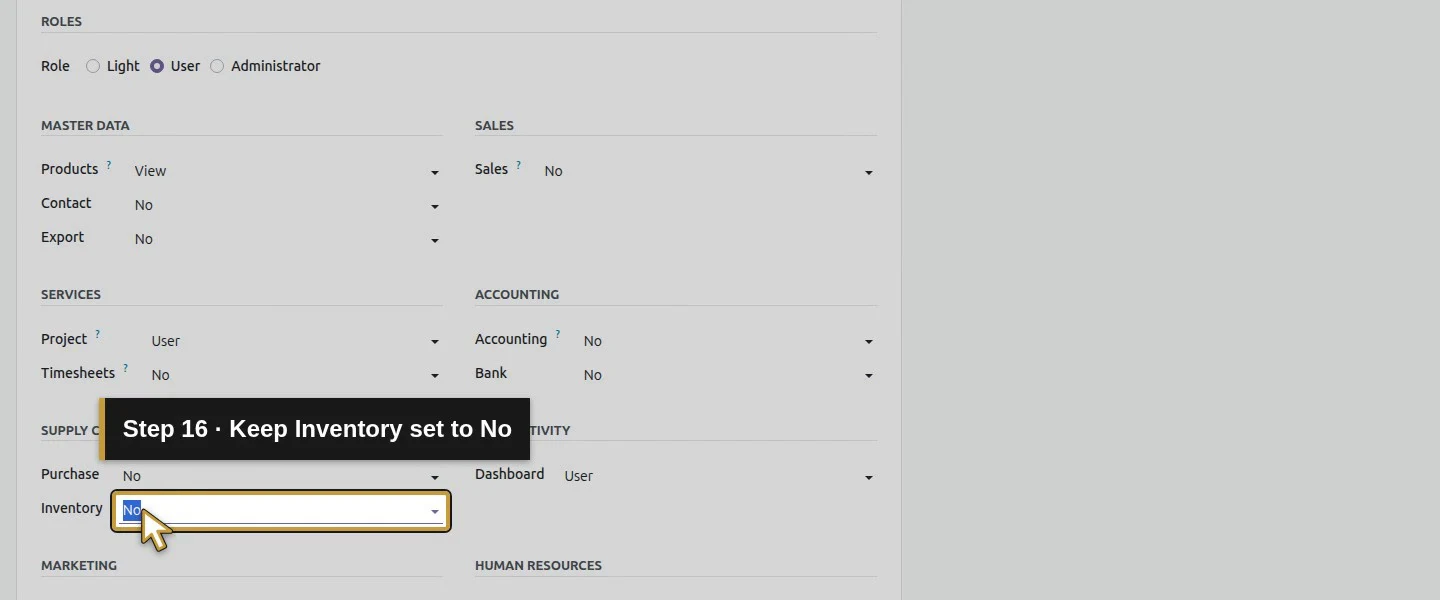
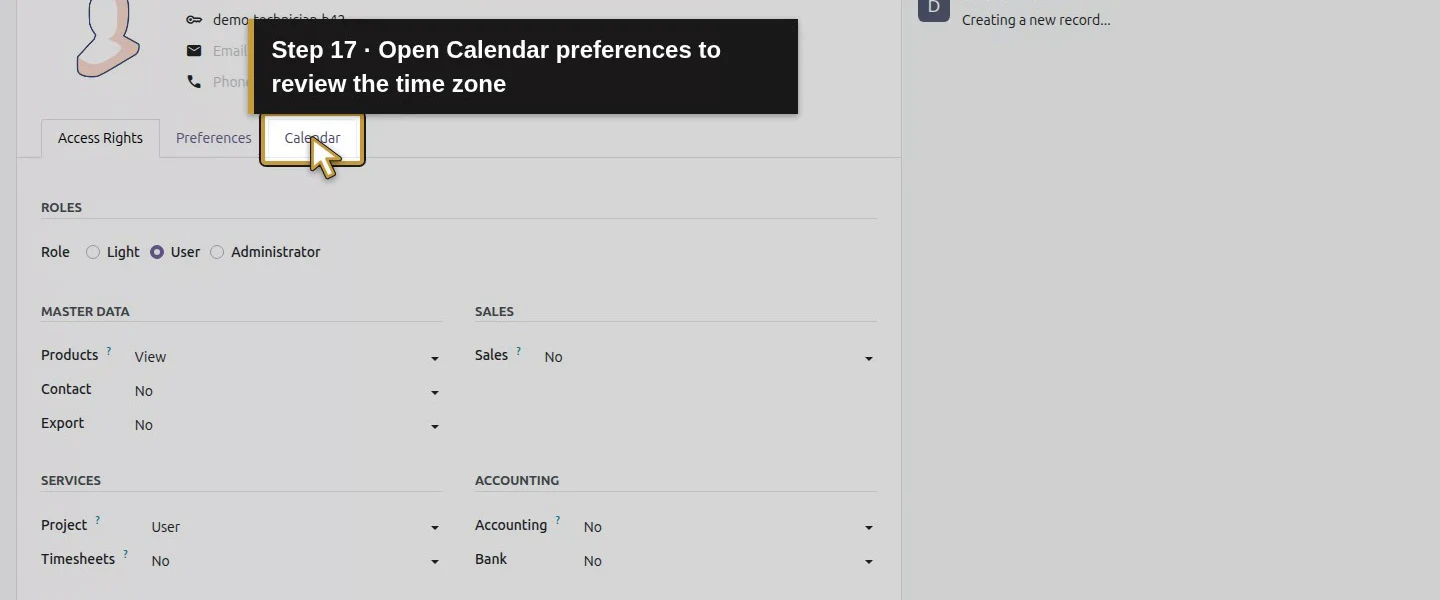
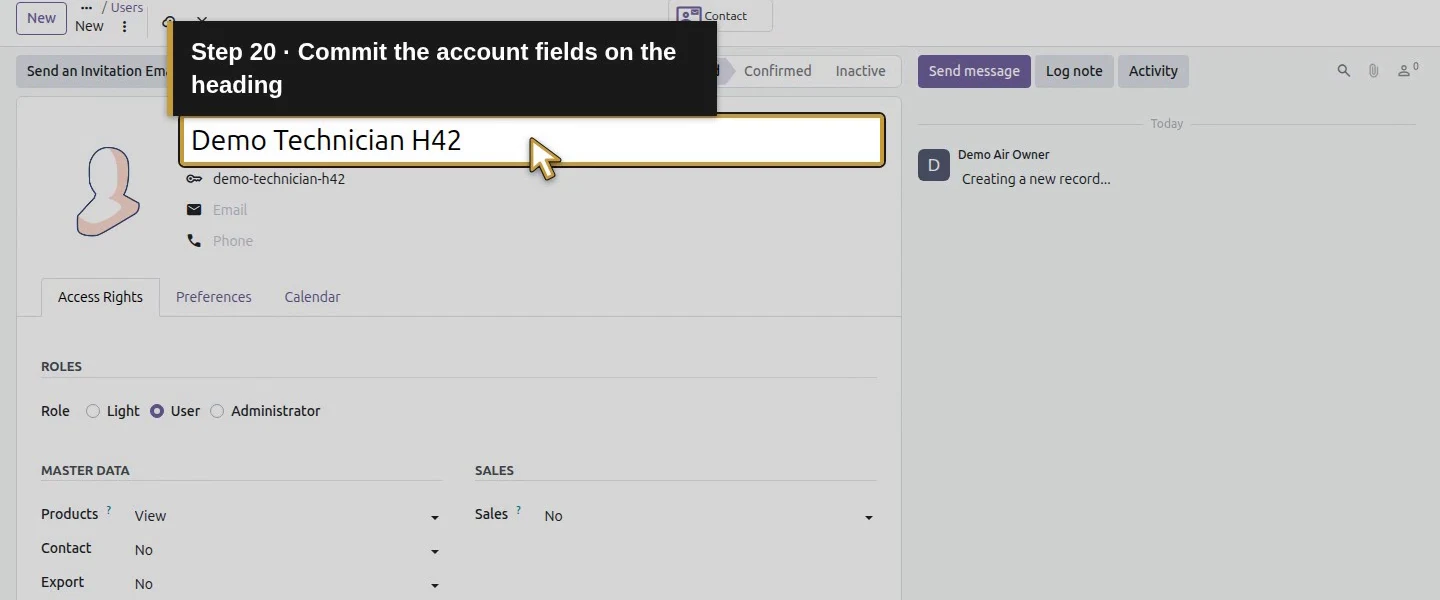
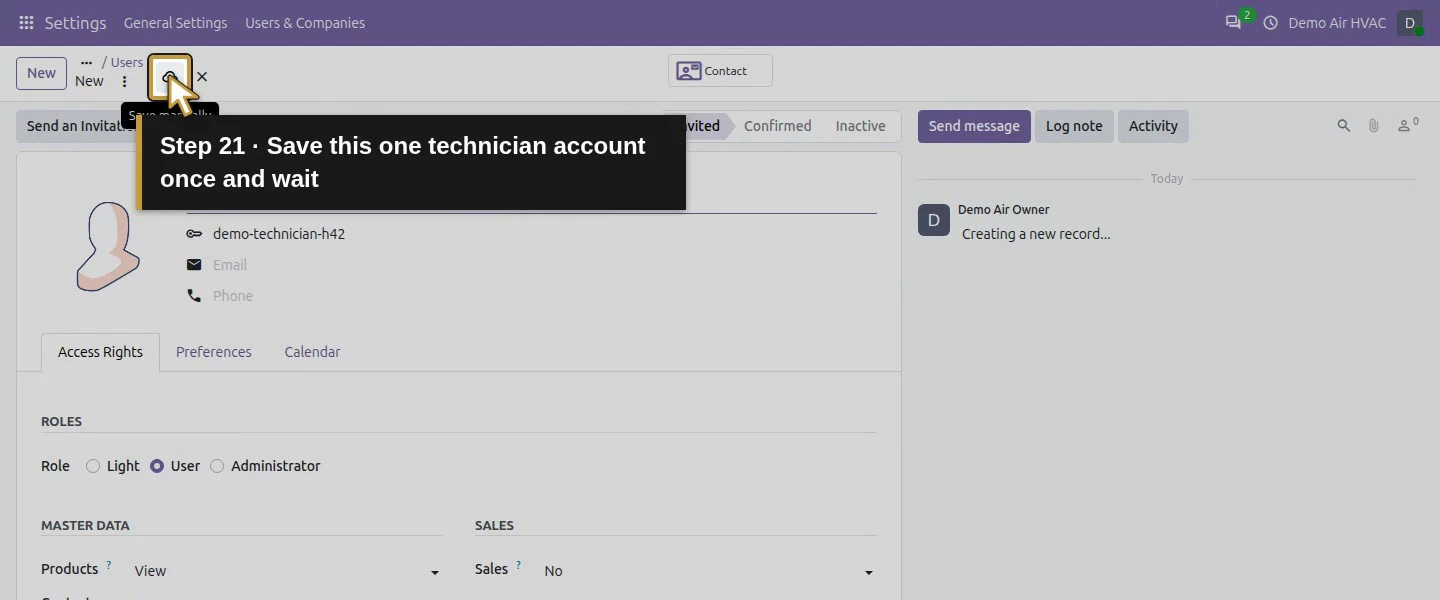
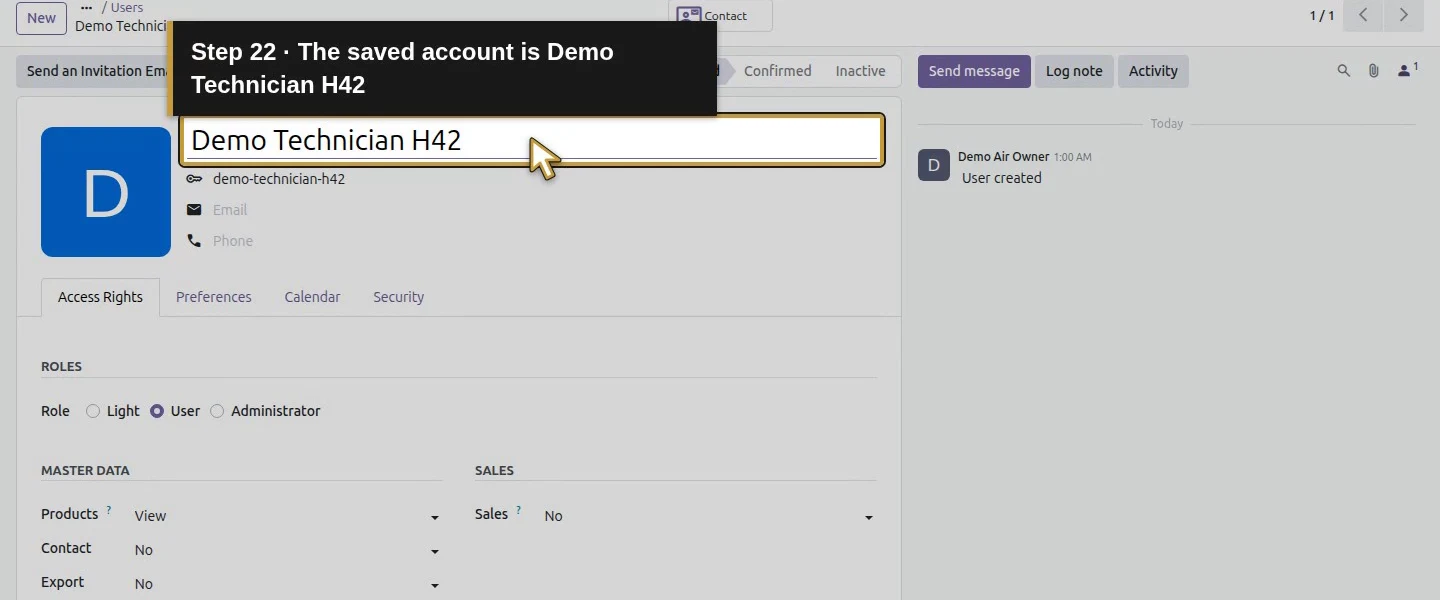
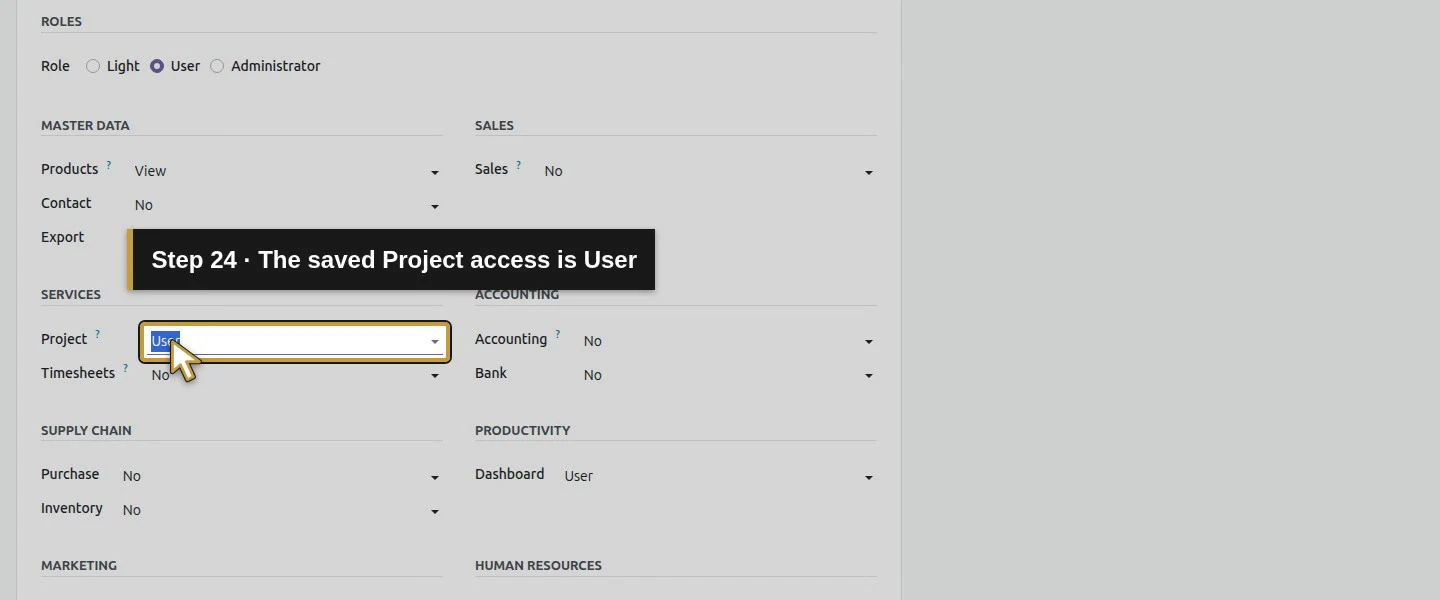
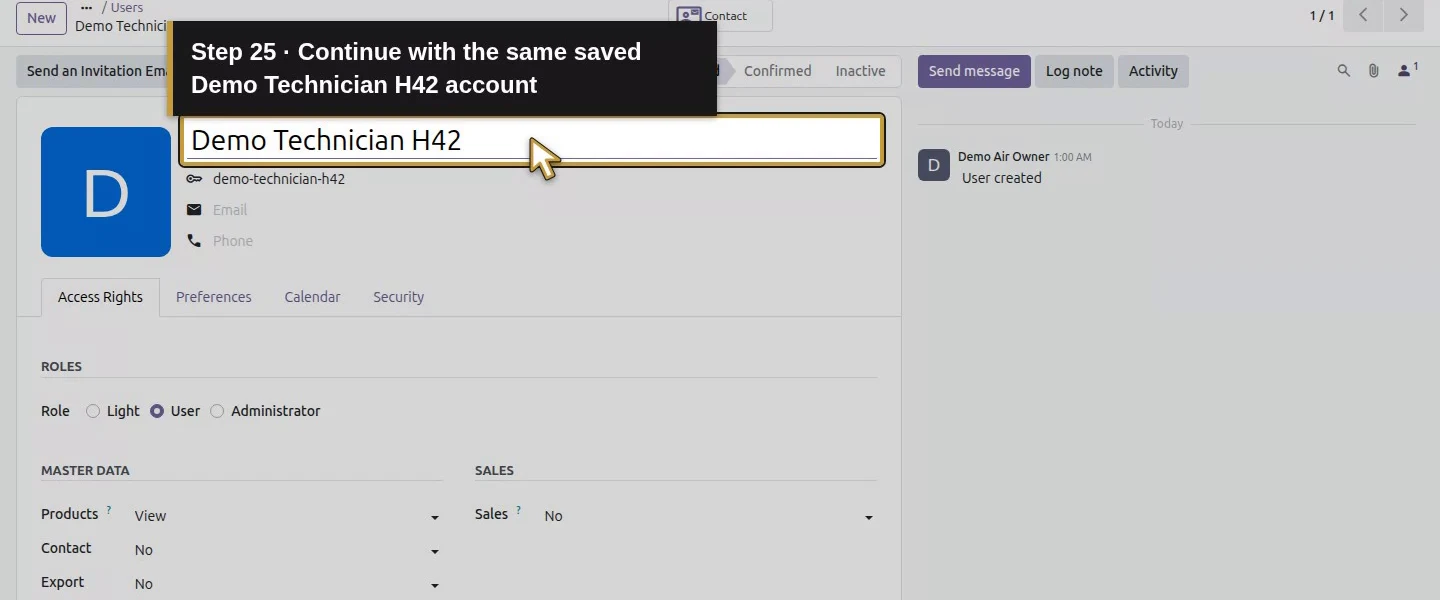
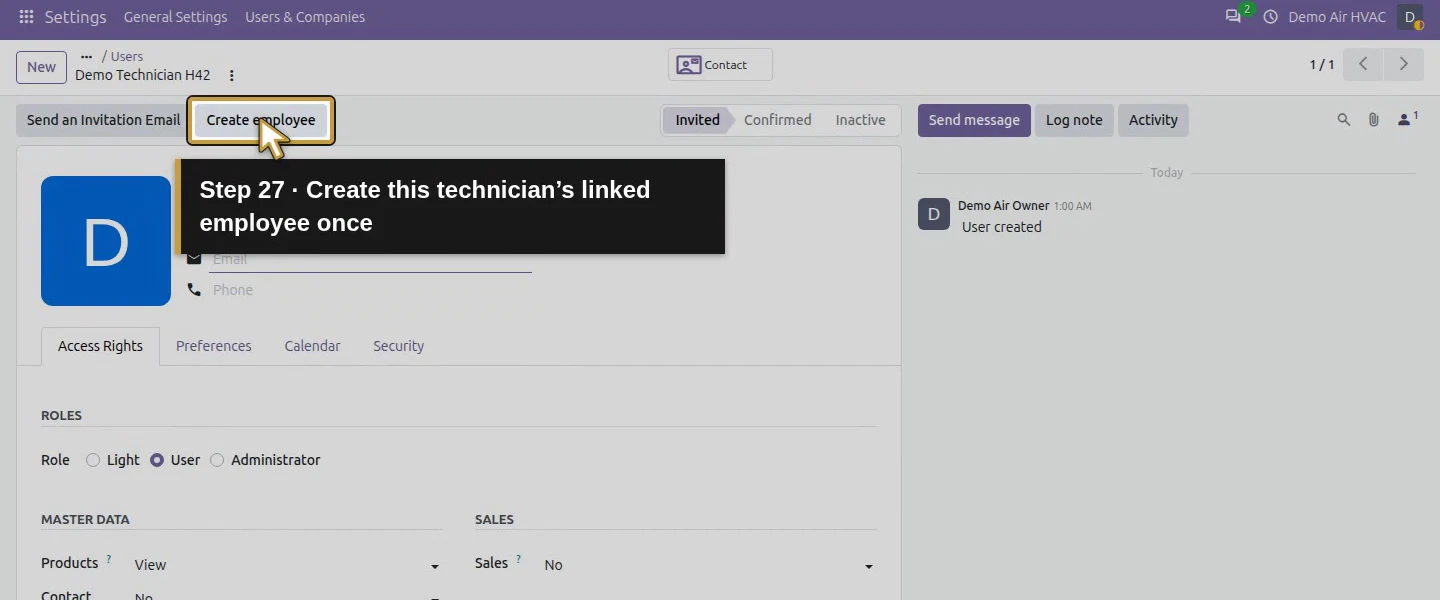
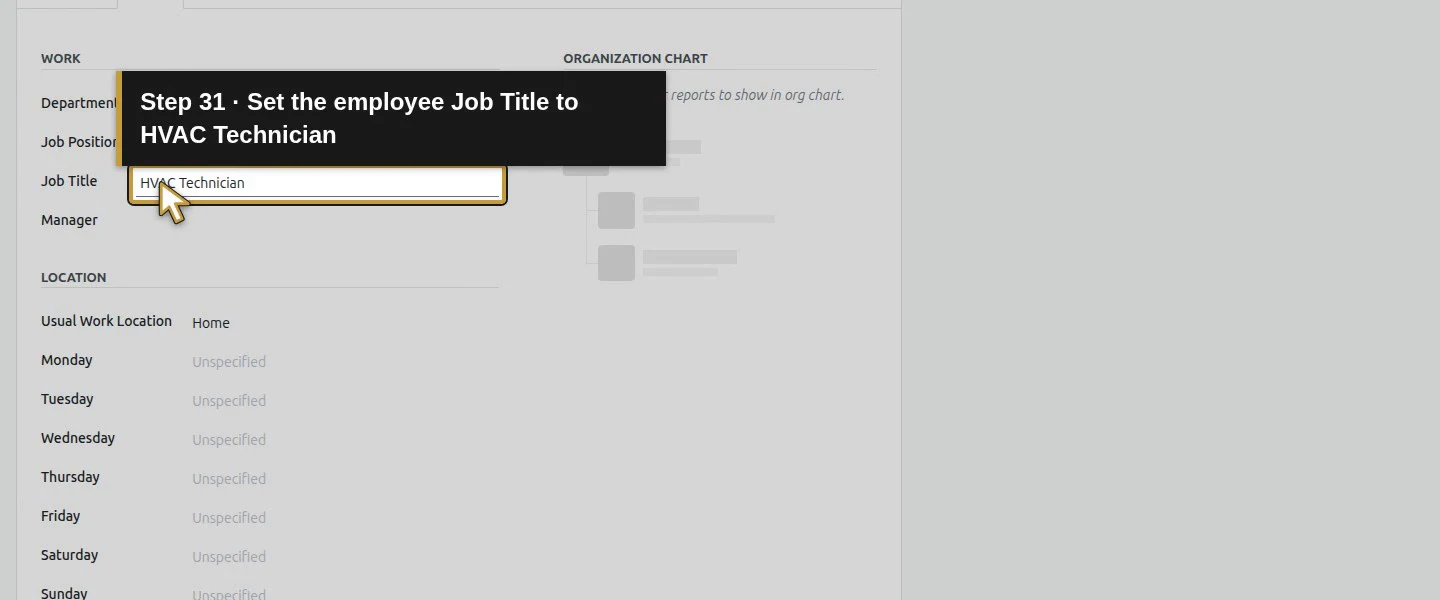
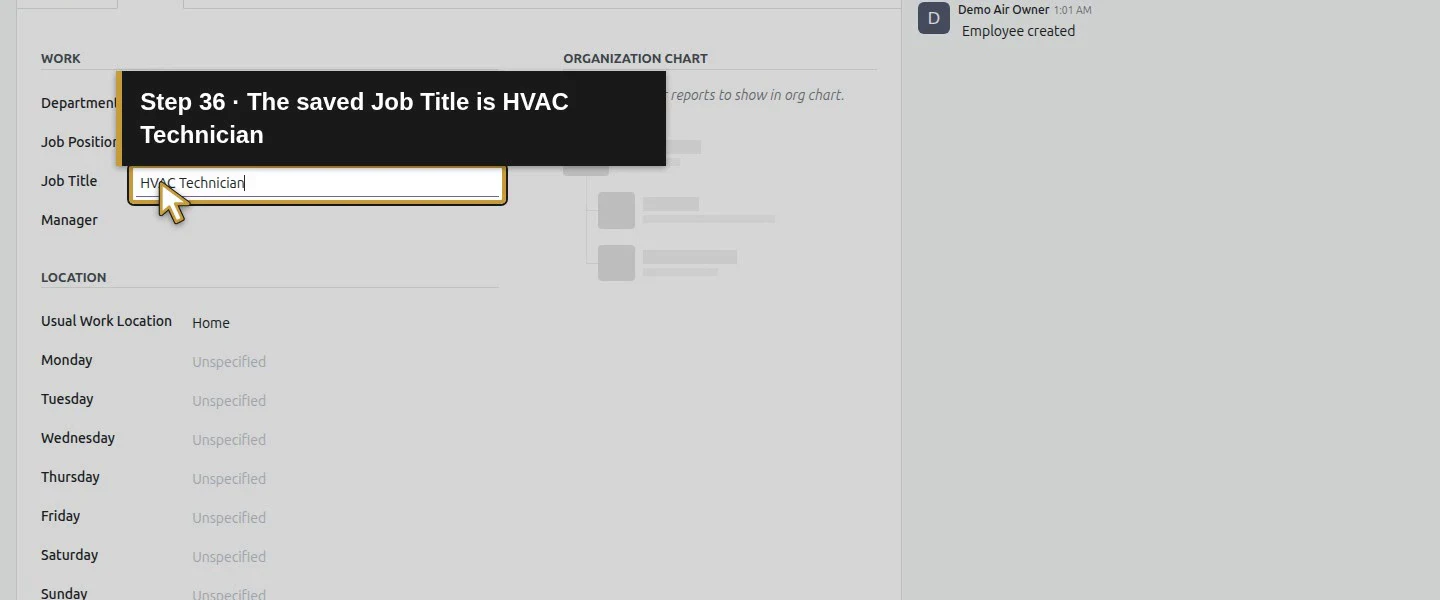
As administrator, open Settings → Manage Users. For a new training account, use New, enter Demo Technician H42 and the local login demo-technician-h42, then choose Role: User and Project: User under Access Rights. Save and reopen the account. Use H61's Create employee → Employee → Work procedure to set Job Title: HVAC Technician. Keep the same user/employee link and review the other app permissions. The private local password is prepared through H03's native Security procedure; never include login secrets in the tutorial media.
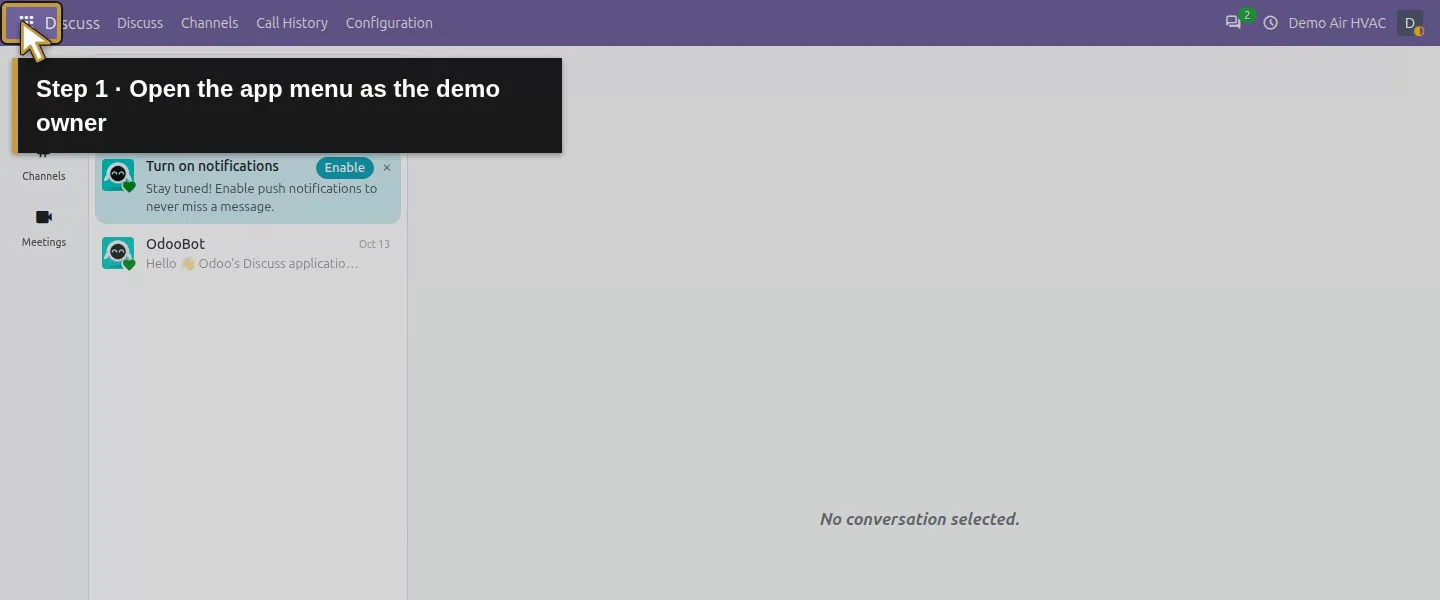
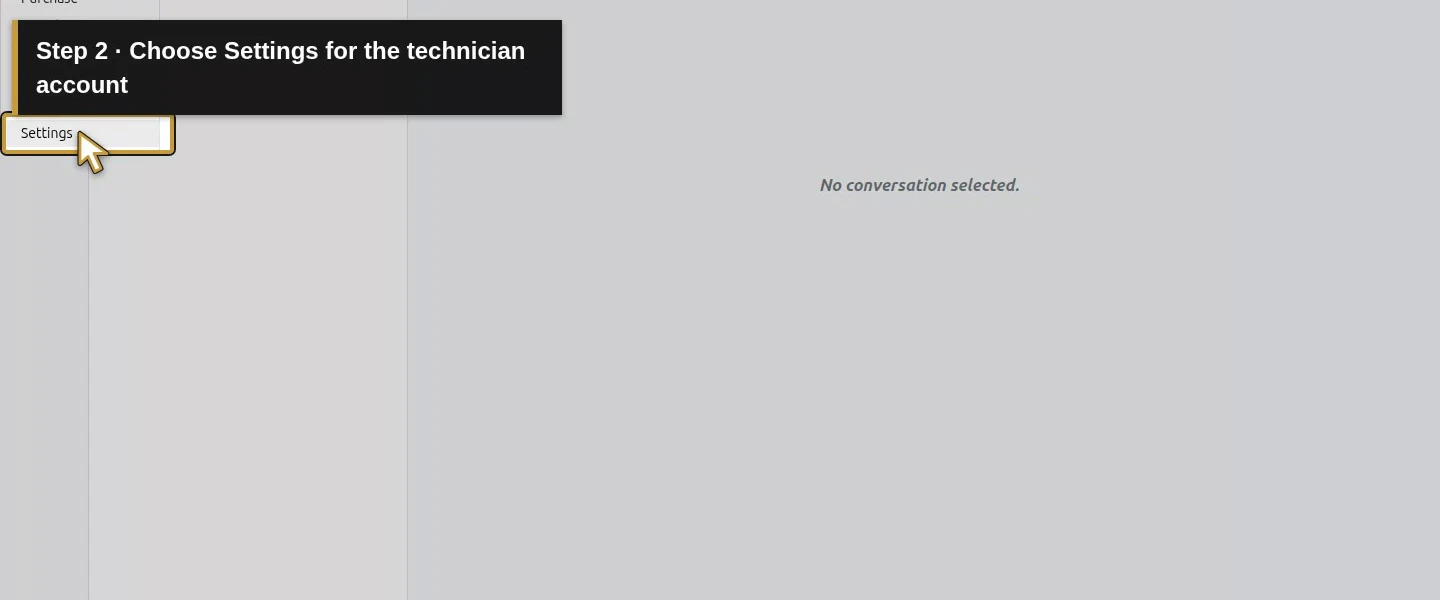
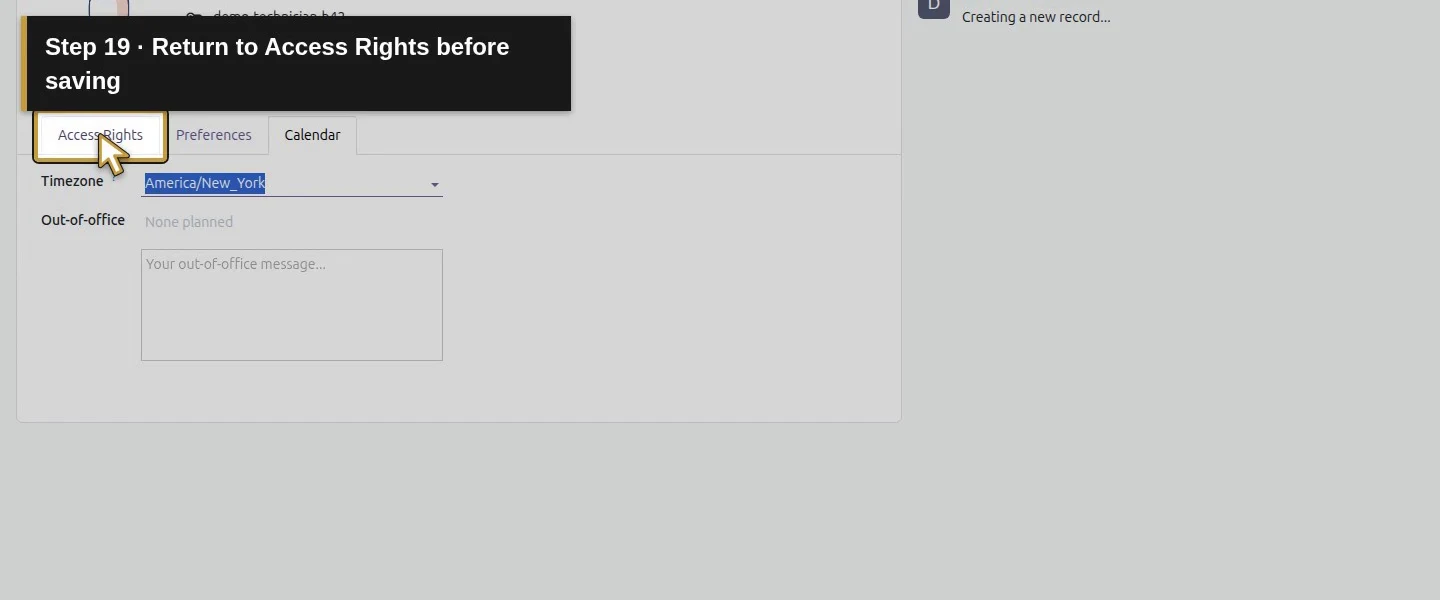
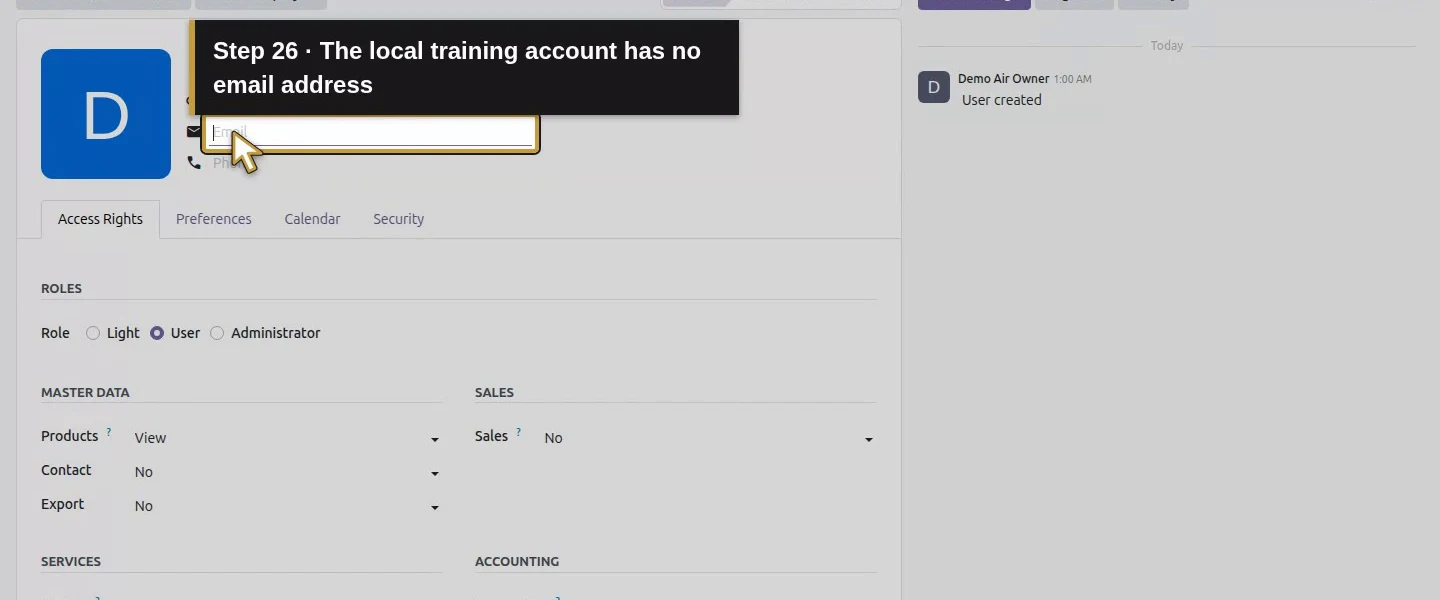
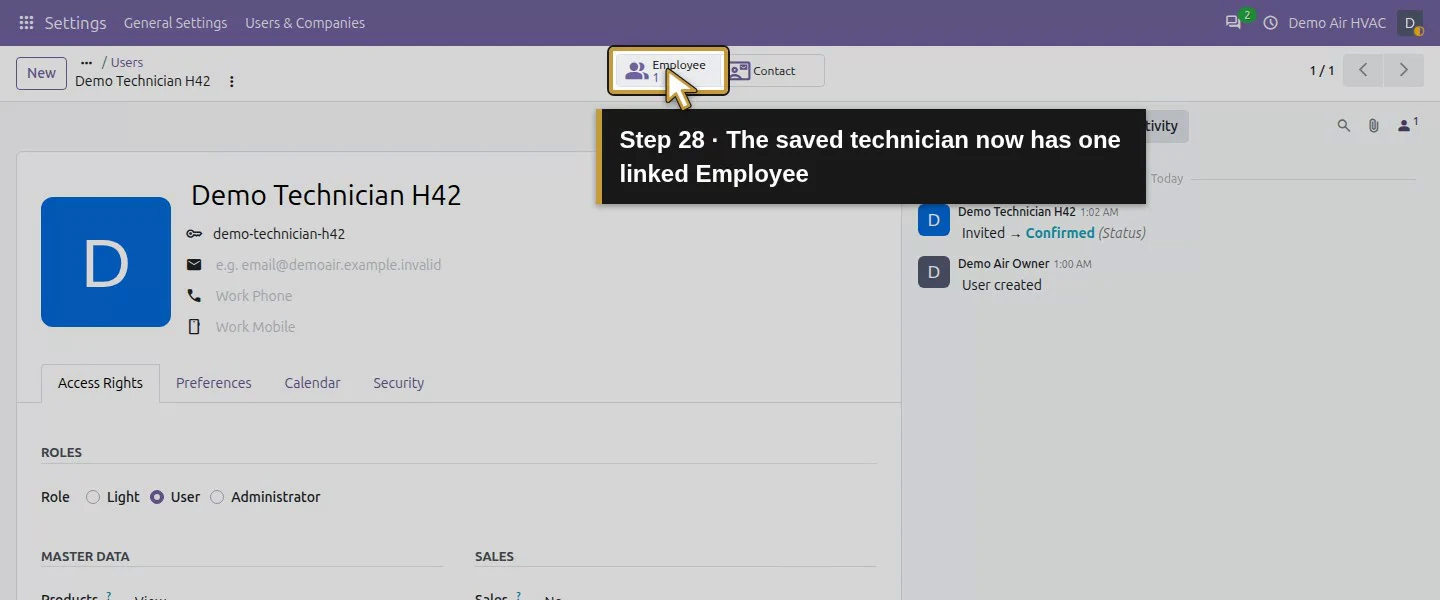
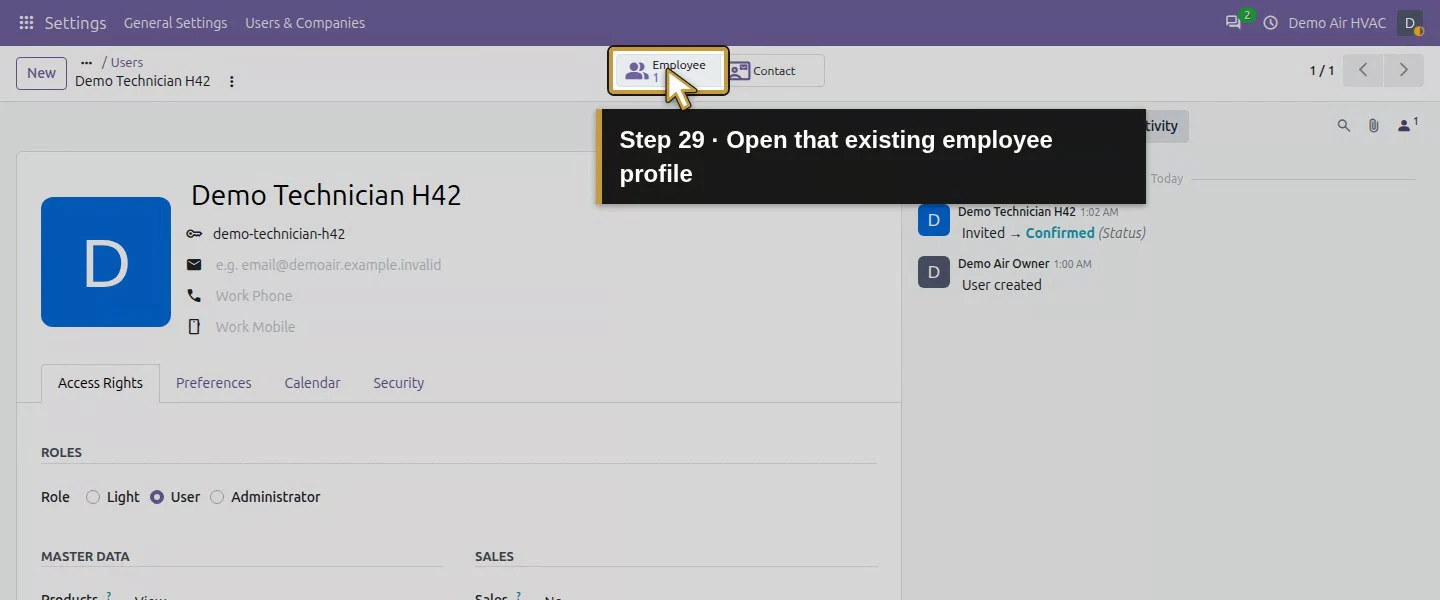
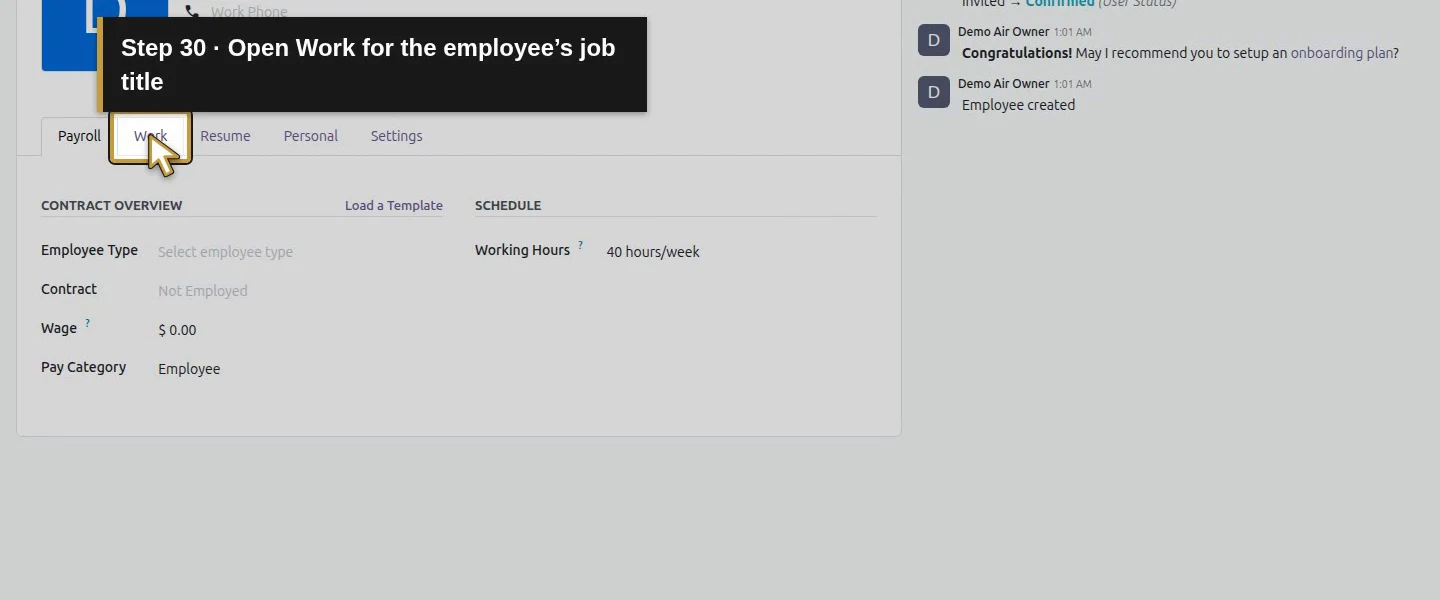
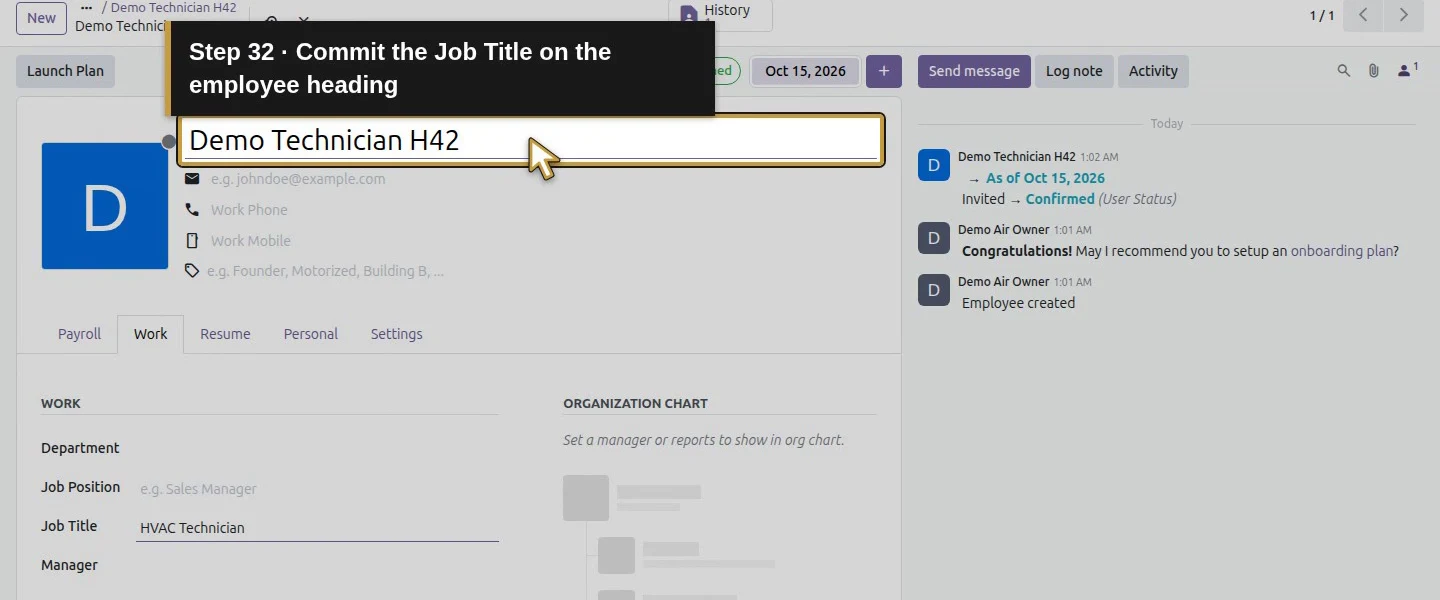
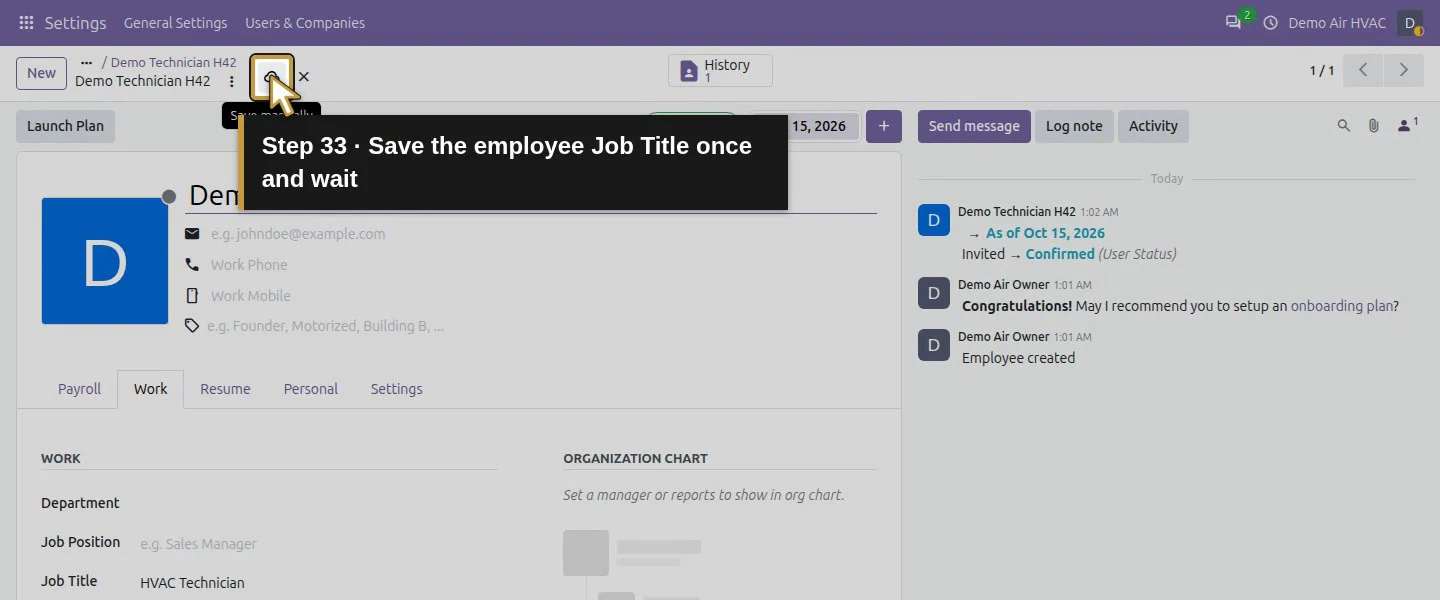
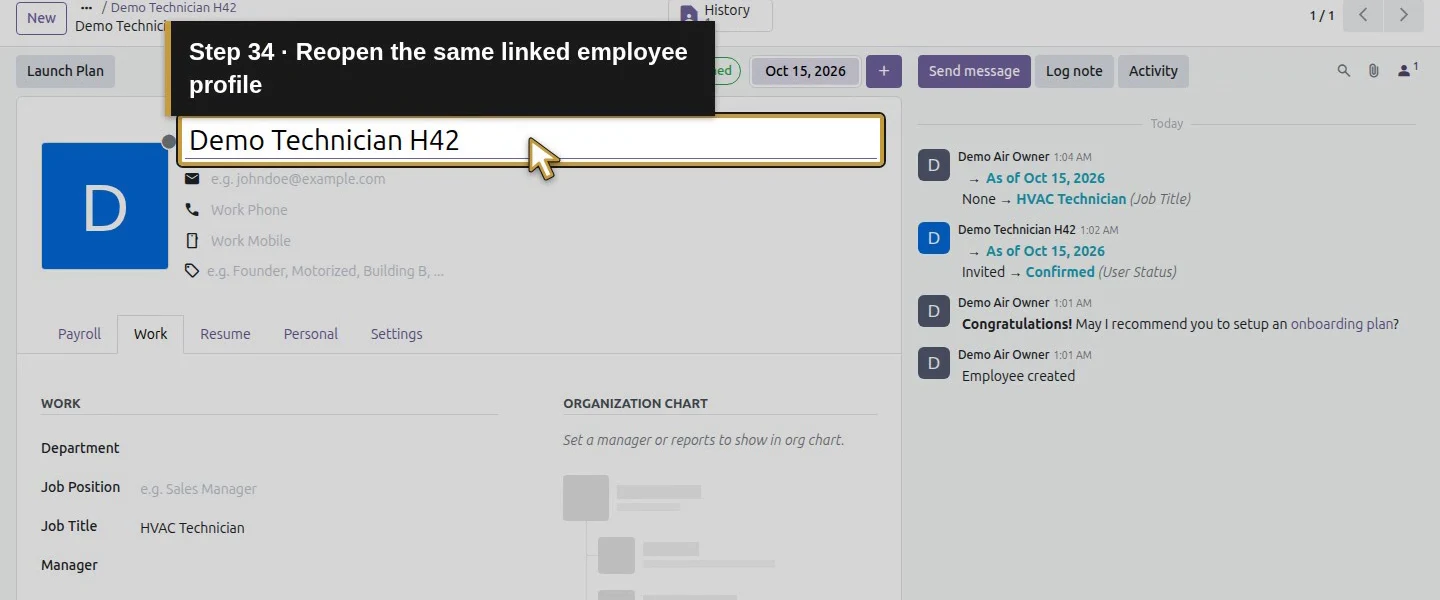
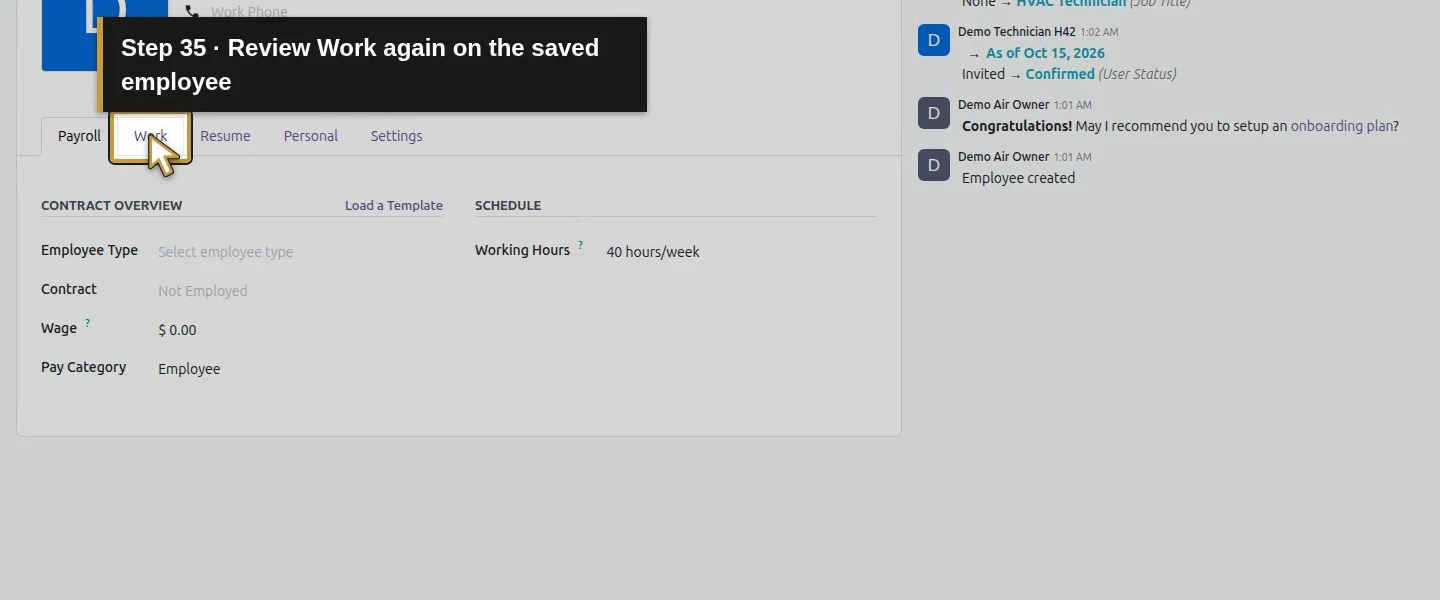
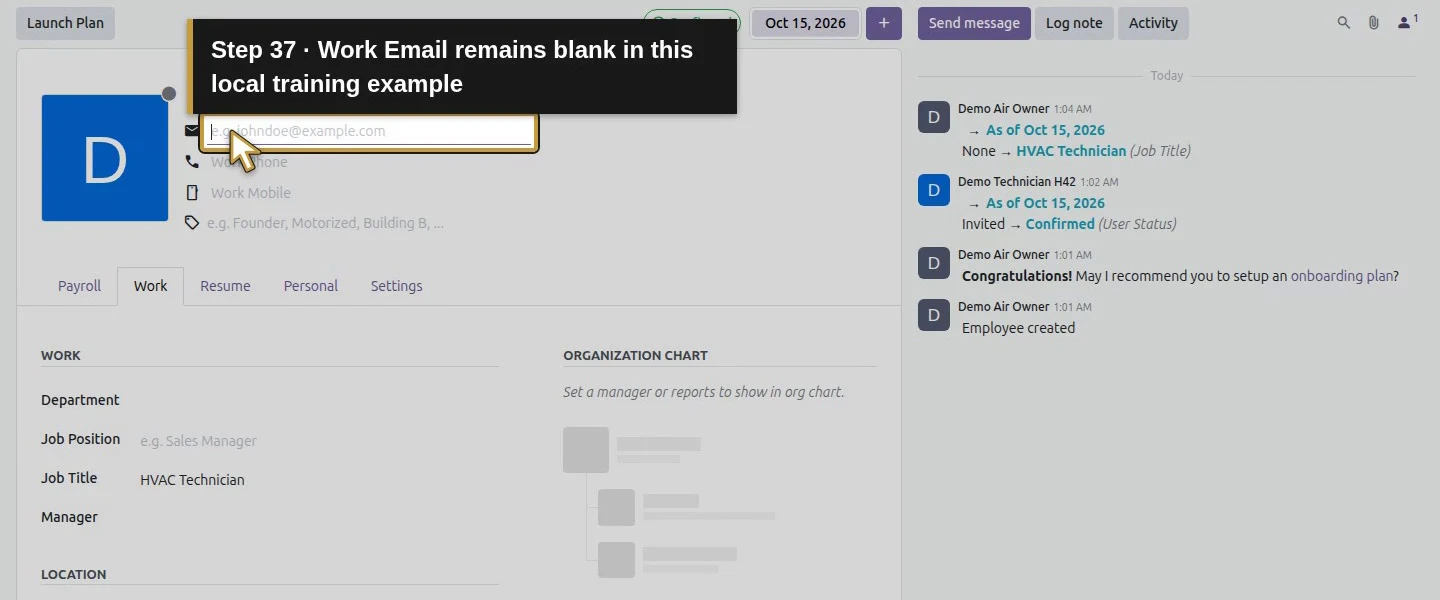
Open the app menu as the demo owner.Choose Settings for the technician account.Open Manage Users.Choose New for this one fictional technician.Name the fictional account Demo Technician H42.Enter the local non-email login demo-technician-h42.Choose the standard User role.Review User rather than Administrator.Open the Project access selector.Choose the standard Project User permission.Keep Sales set to No.Keep Timesheets set to No.Keep Accounting set to No.Keep Bank set to No.Keep Purchase set to No.Keep Inventory set to No.Open Calendar preferences to review the time zone.Keep America/New_York for this technician.Return to Access Rights before saving.Commit the account fields on the heading.Save this one technician account once and wait.The saved account is Demo Technician H42.Reopen retains the standard User role.The saved Project access is User.Continue with the same saved Demo Technician H42 account.The local training account has no email address.Create this technician’s linked employee once.The saved technician now has one linked Employee.Open that existing employee profile.Open Work for the employee’s job title.Set the employee Job Title to HVAC Technician.Commit the Job Title on the employee heading.Save the employee Job Title once and wait.Reopen the same linked employee profile.Review Work again on the saved employee.The saved Job Title is HVAC Technician.Work Email remains blank in this local training example.
Step 2. Open the generated job and check the starting access
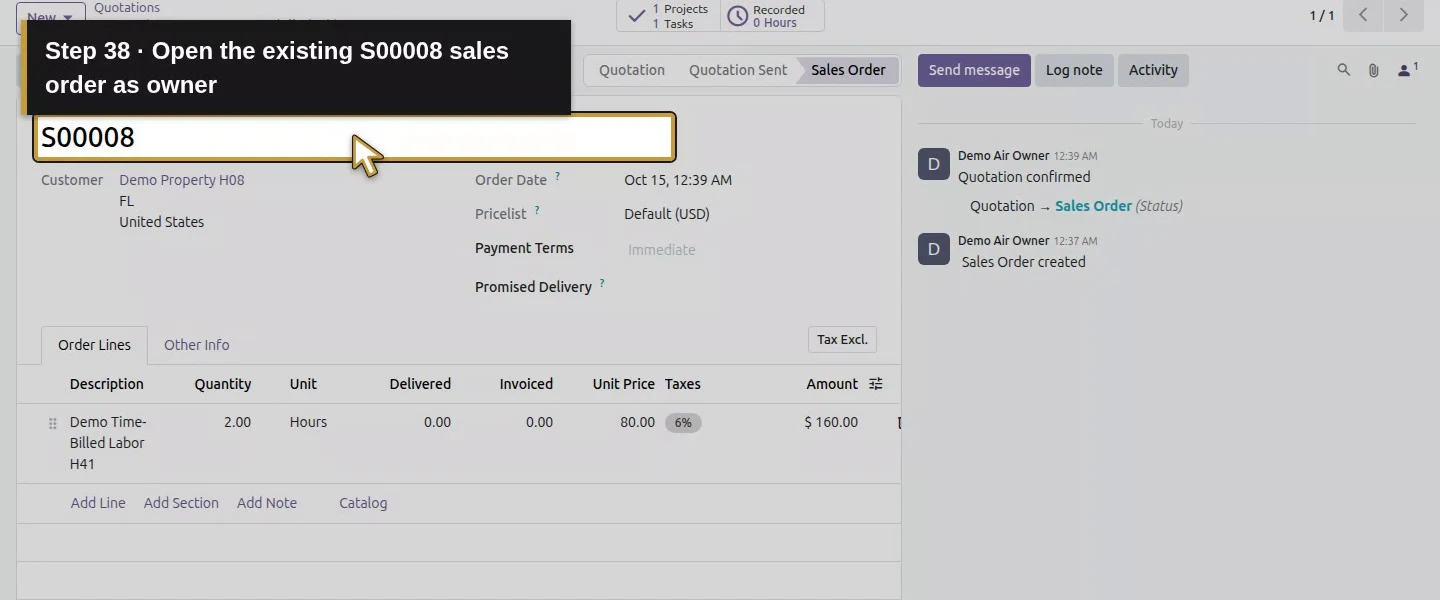
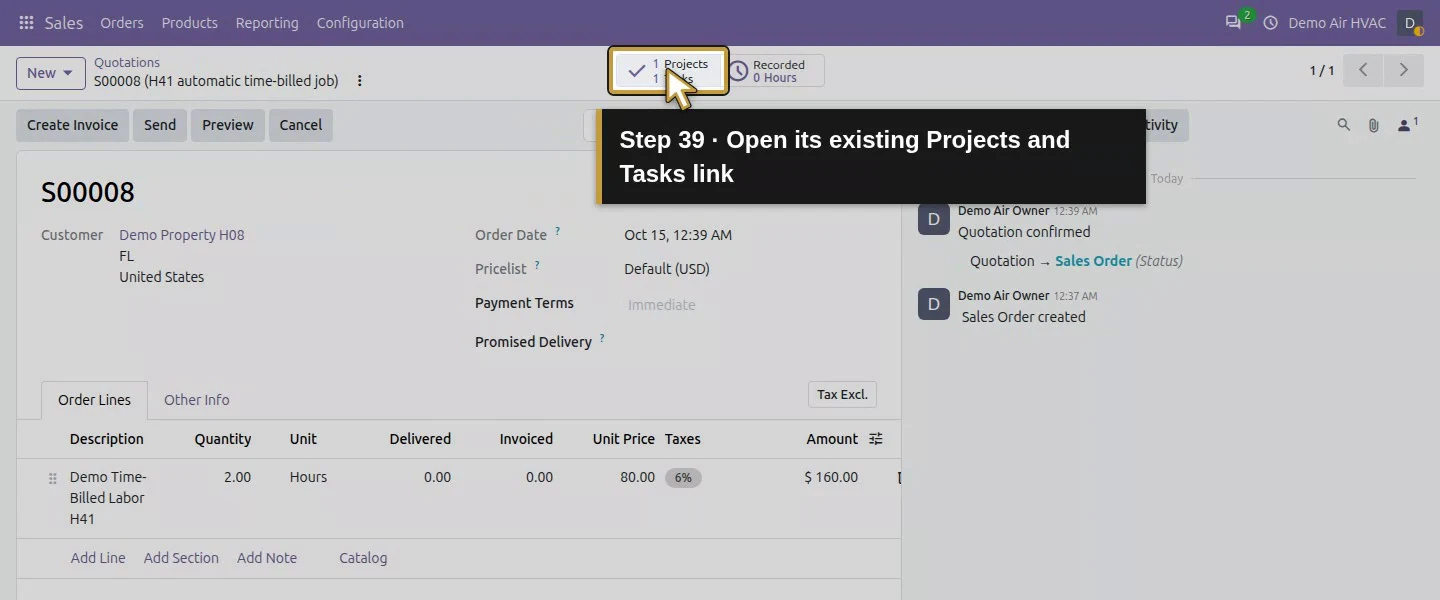
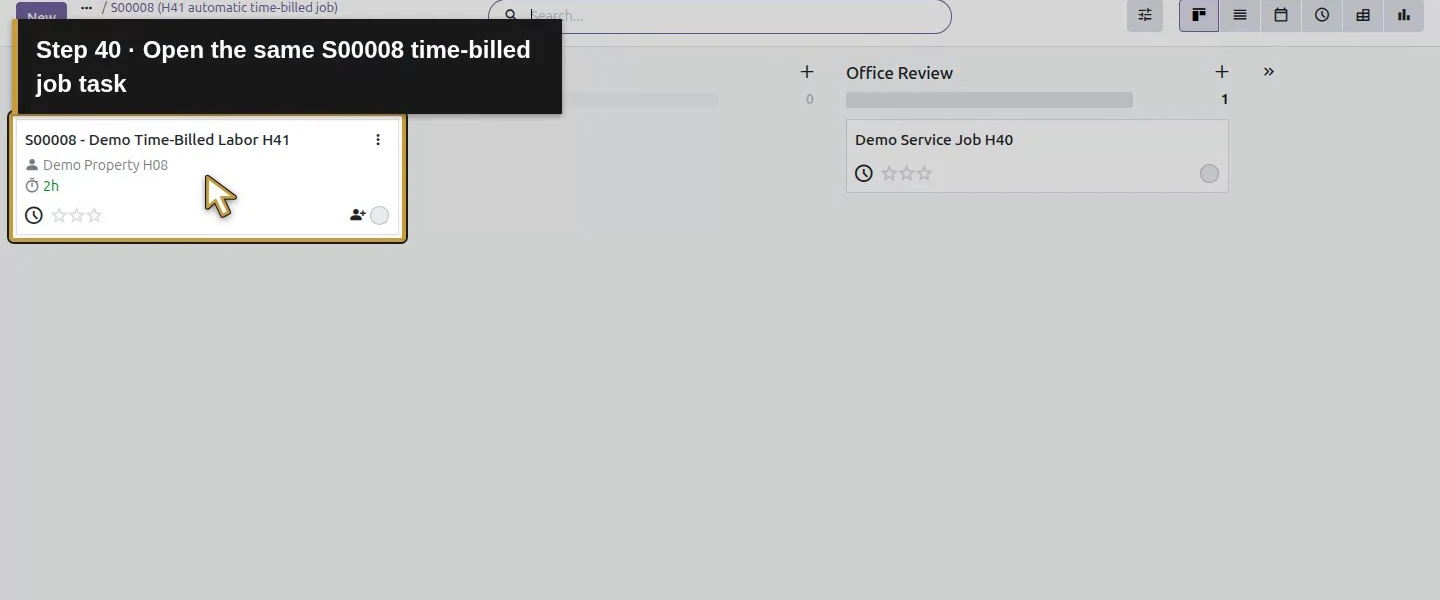
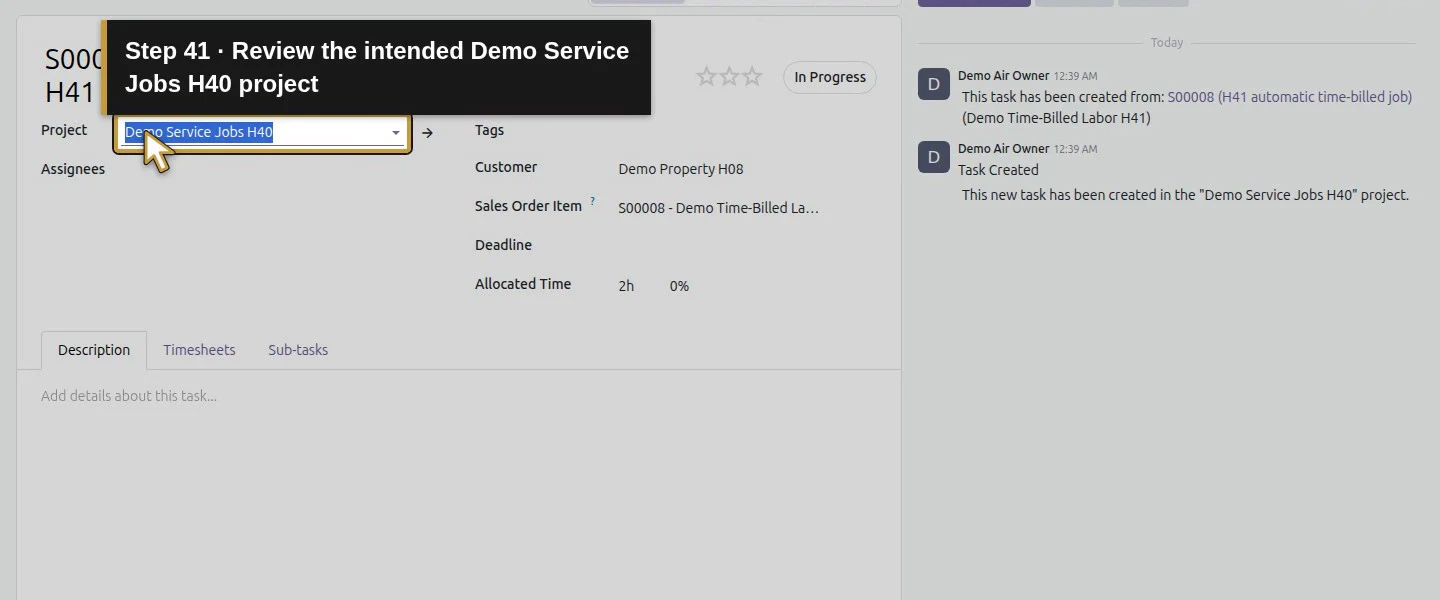
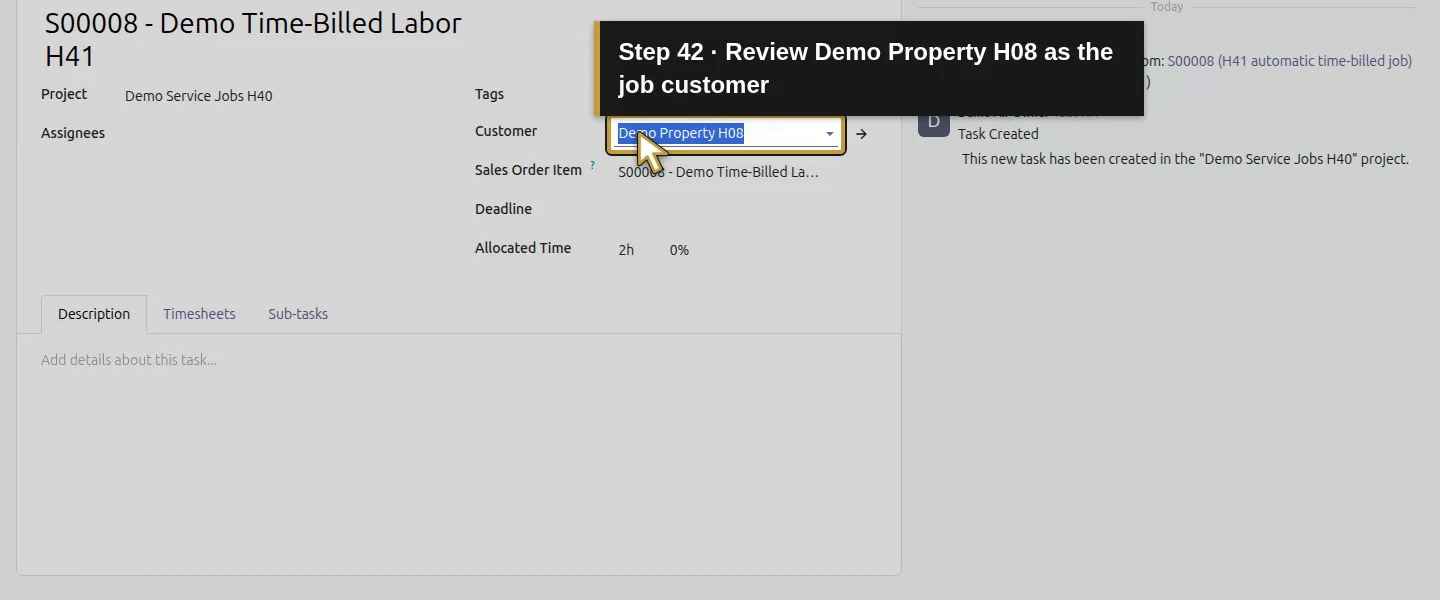
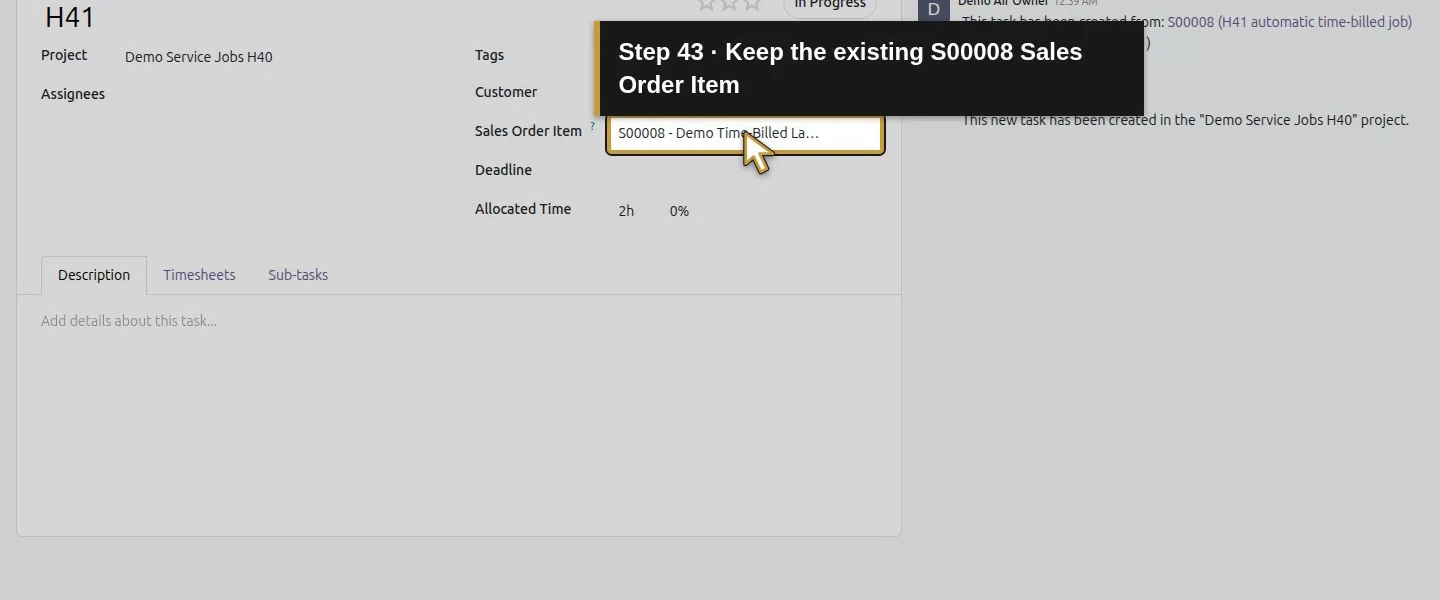
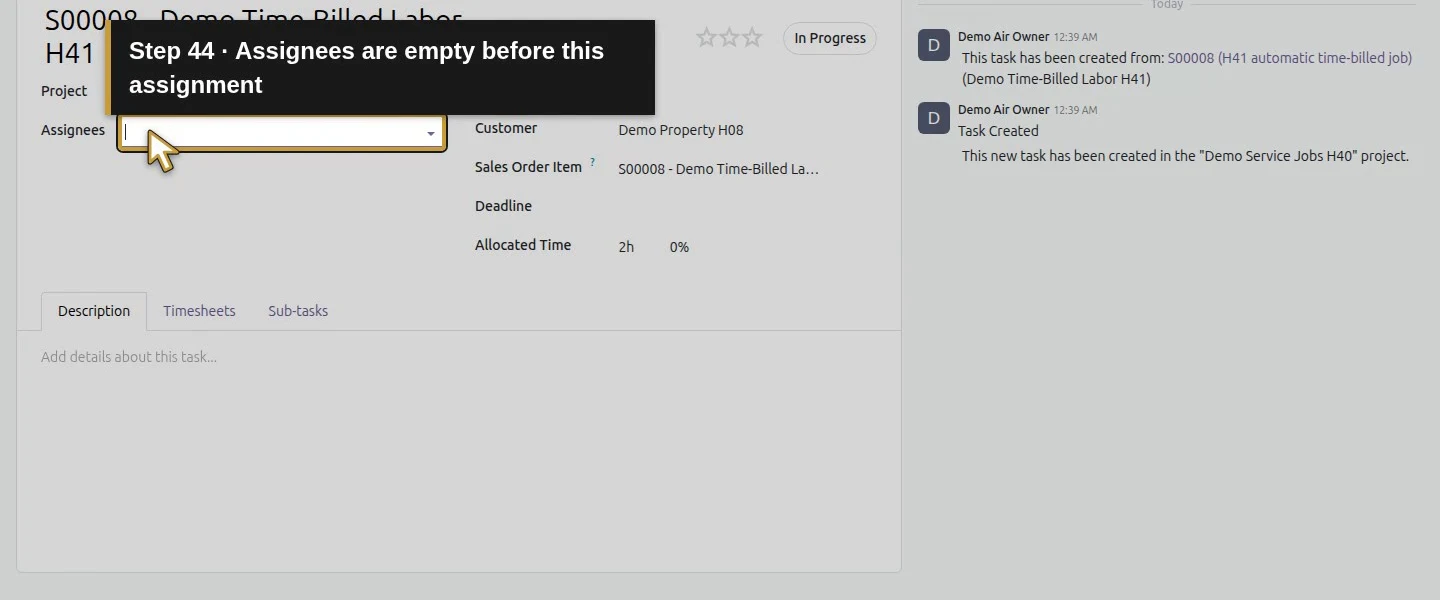
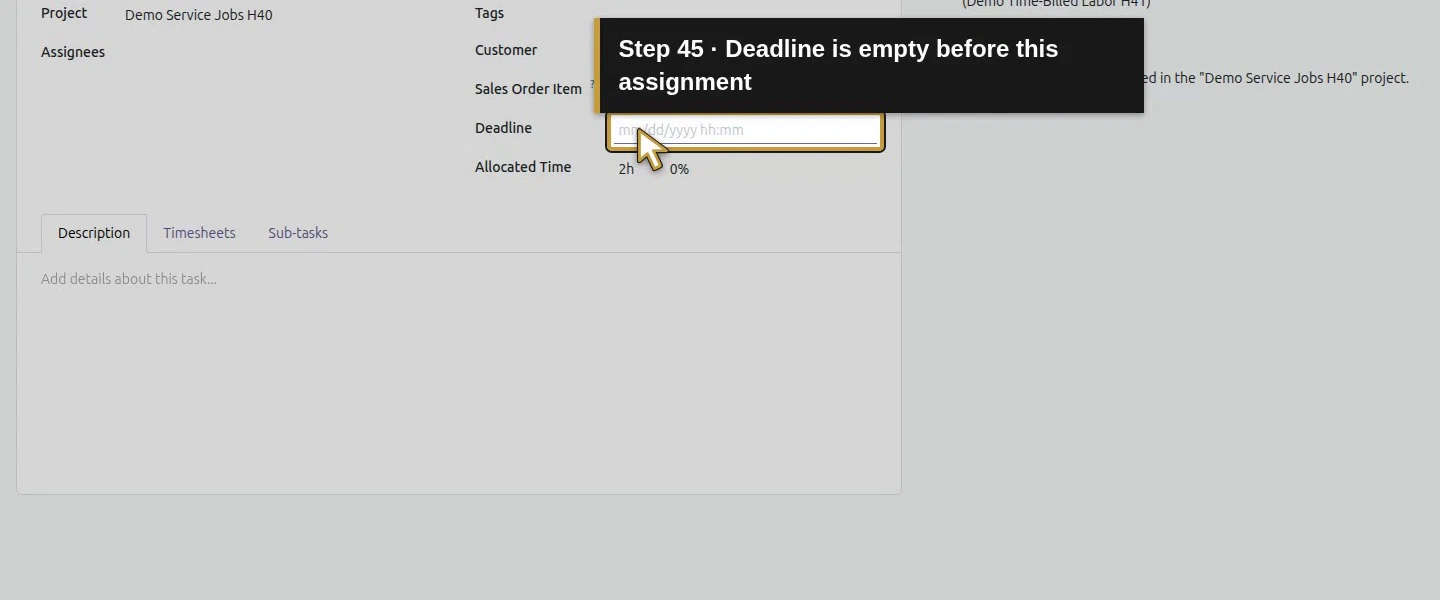
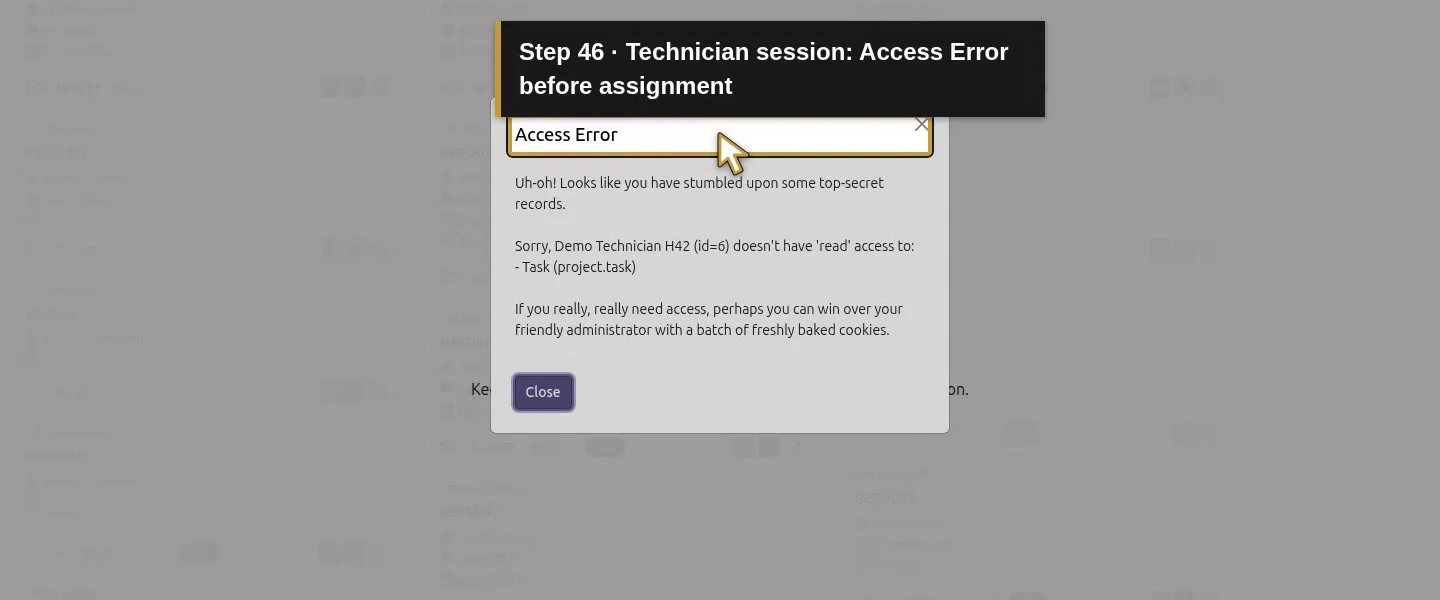
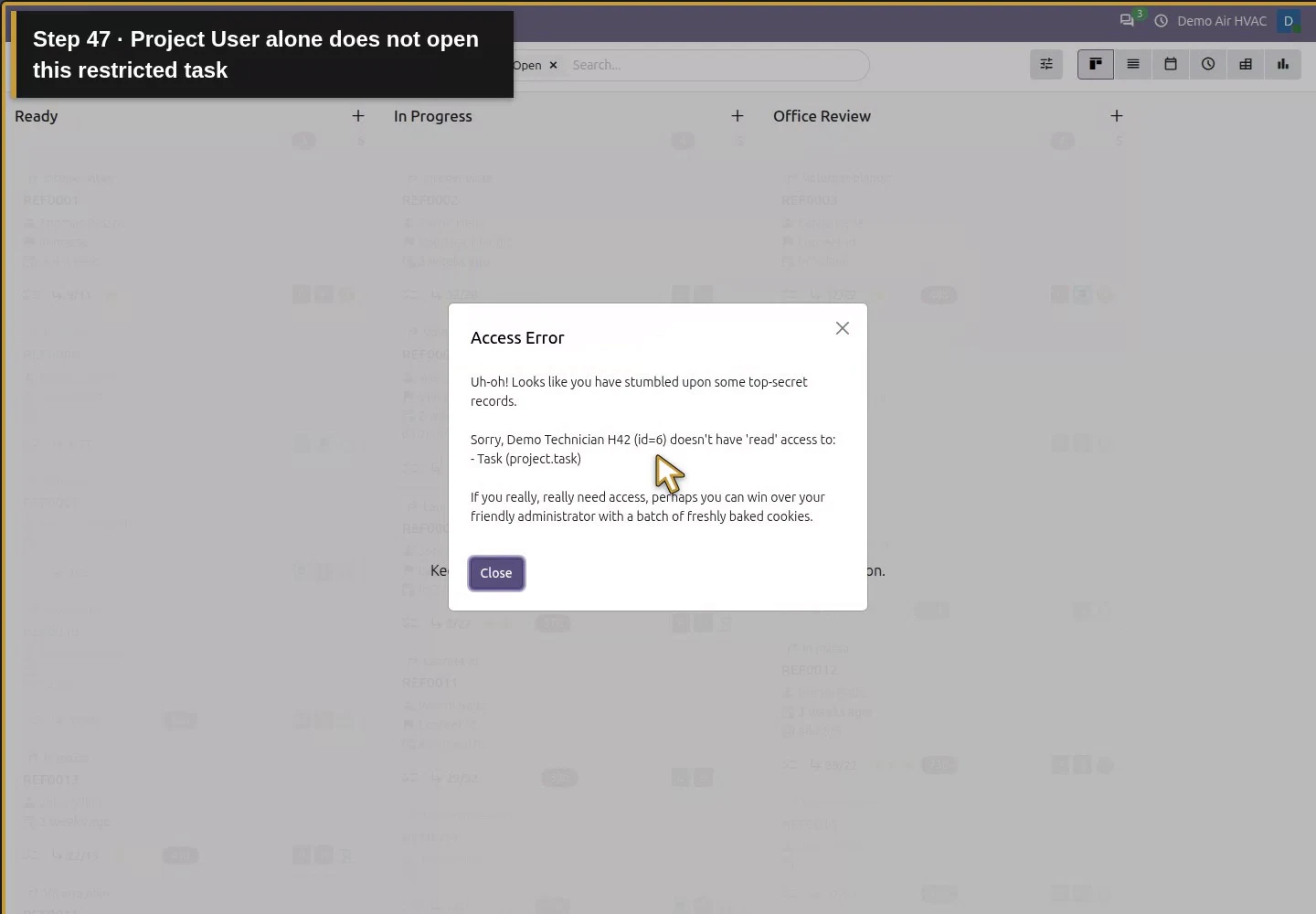
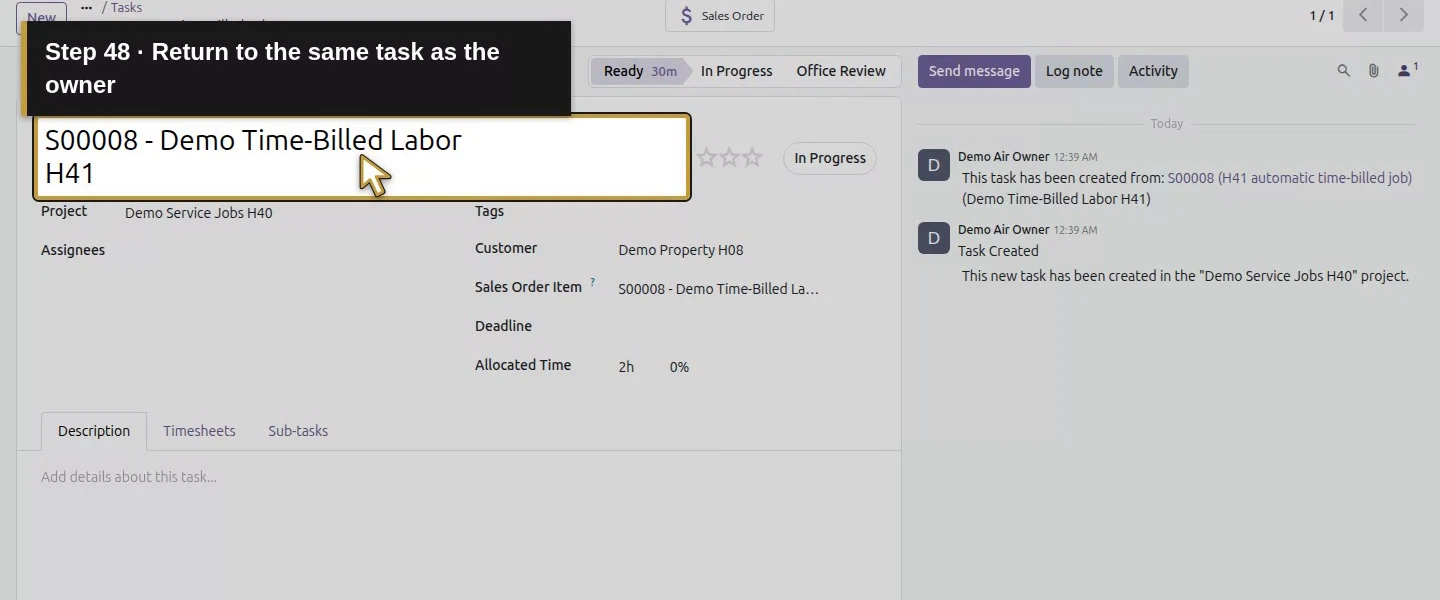
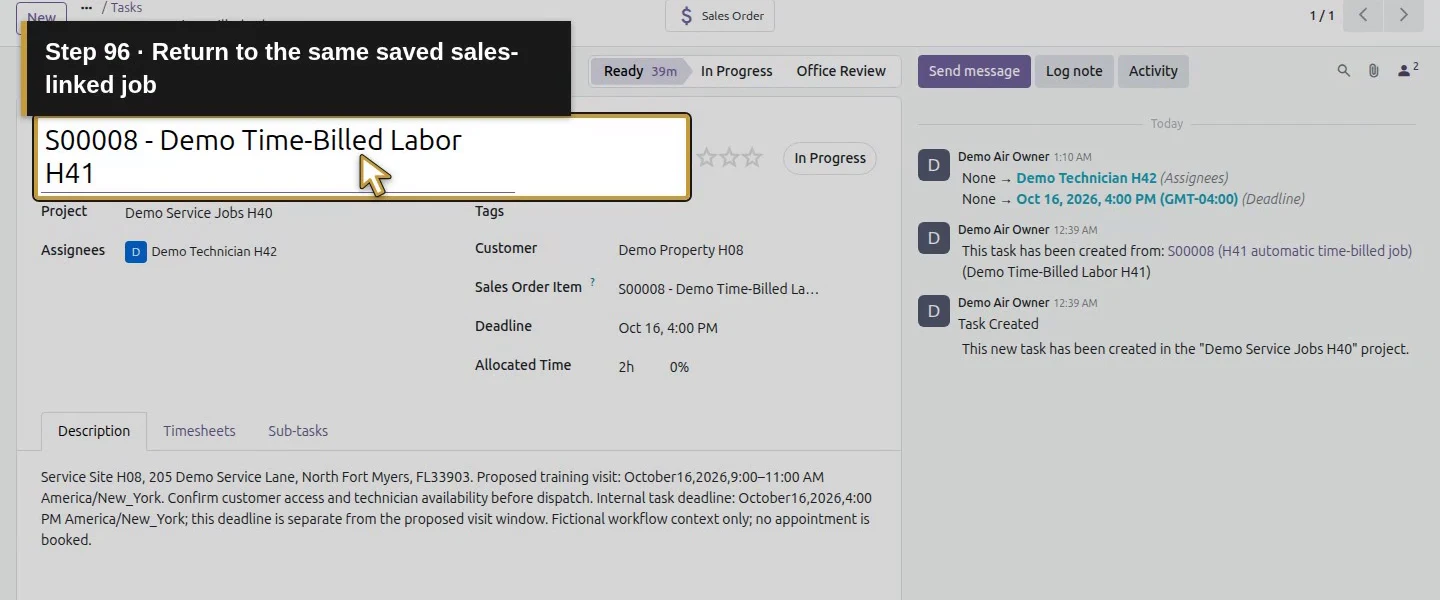
Open S00008 - Demo Time-Billed Labor H41 using H41's sales-order/project navigation. Check Project: Demo Service Jobs H40, Customer: Demo Property H08, and the S00008 Sales Order Item. Assignees and Deadline are initially empty. In our separate technician session, opening this task before assignment produced Access Error. Having Project User access alone did not make every task in this restricted project visible.
Open the existing S00008 sales order as owner.Open its existing Projects and Tasks link.Open the same S00008 time-billed job task.Review the intended Demo Service Jobs H40 project.Review Demo Property H08 as the job customer.Keep the existing S00008 Sales Order Item.Assignees are empty before this assignment.Deadline is empty before this assignment.Technician session: Access Error before assignment.Project User alone does not open this restricted task.Return to the same task as the owner.
Step 3. Choose the responsible assignee
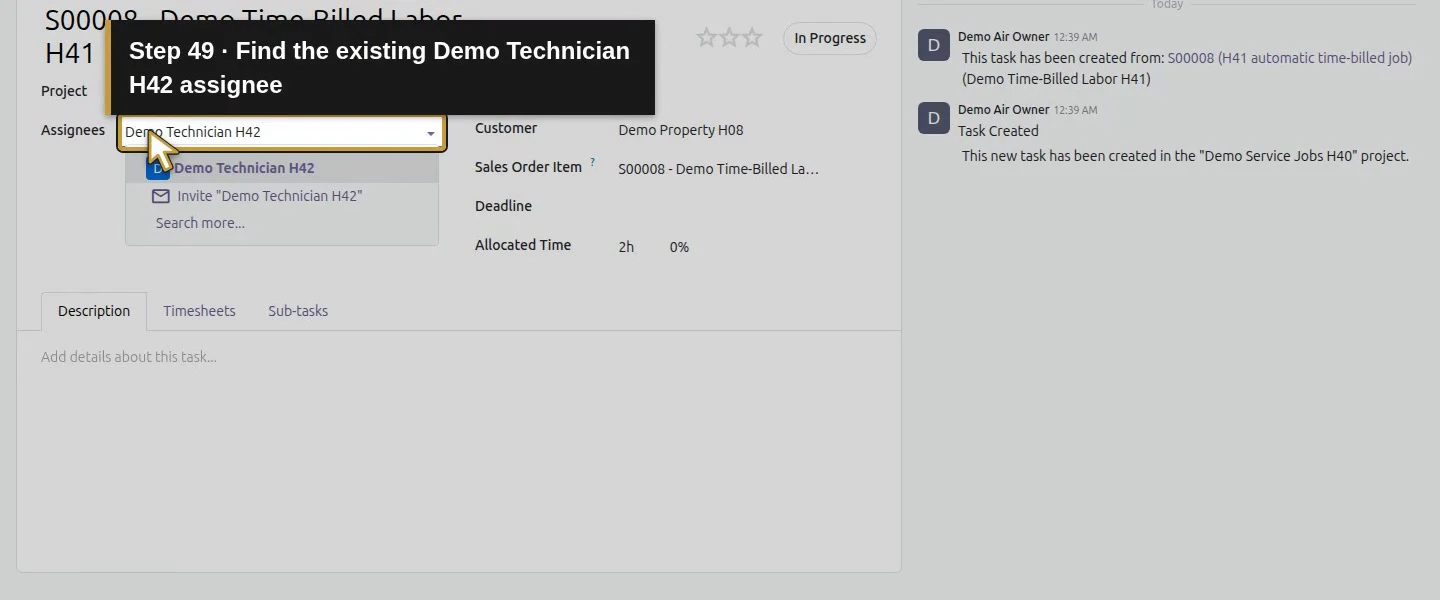
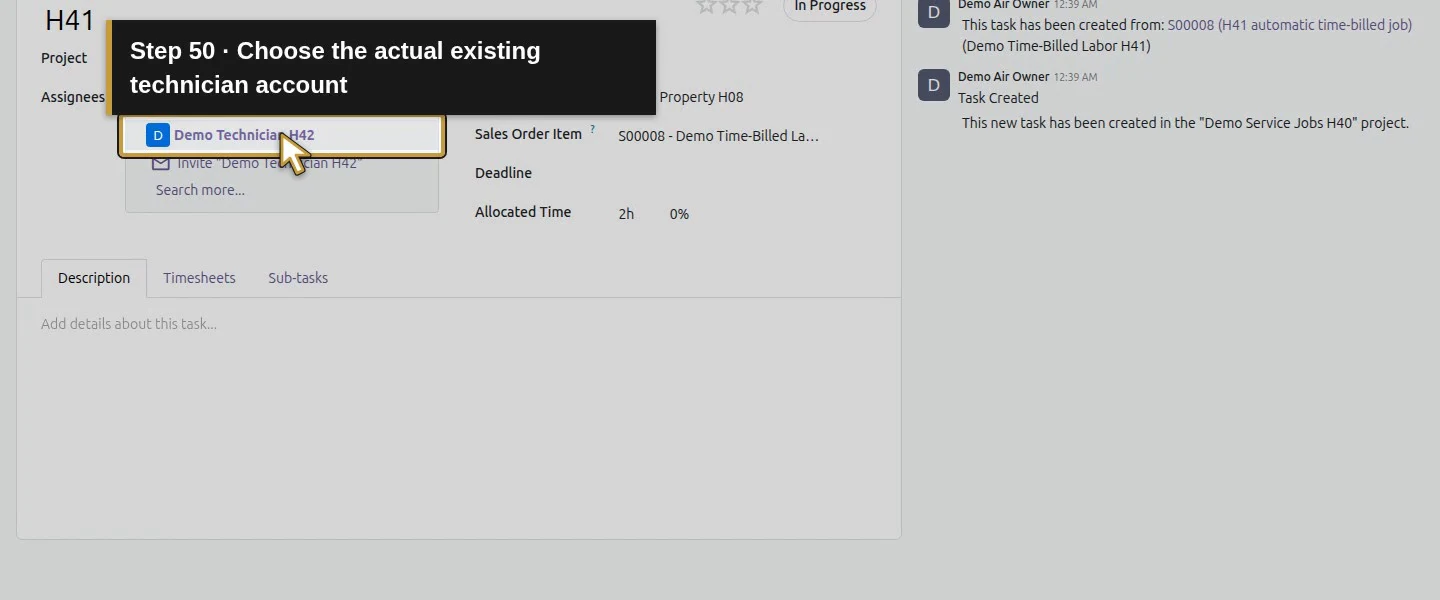
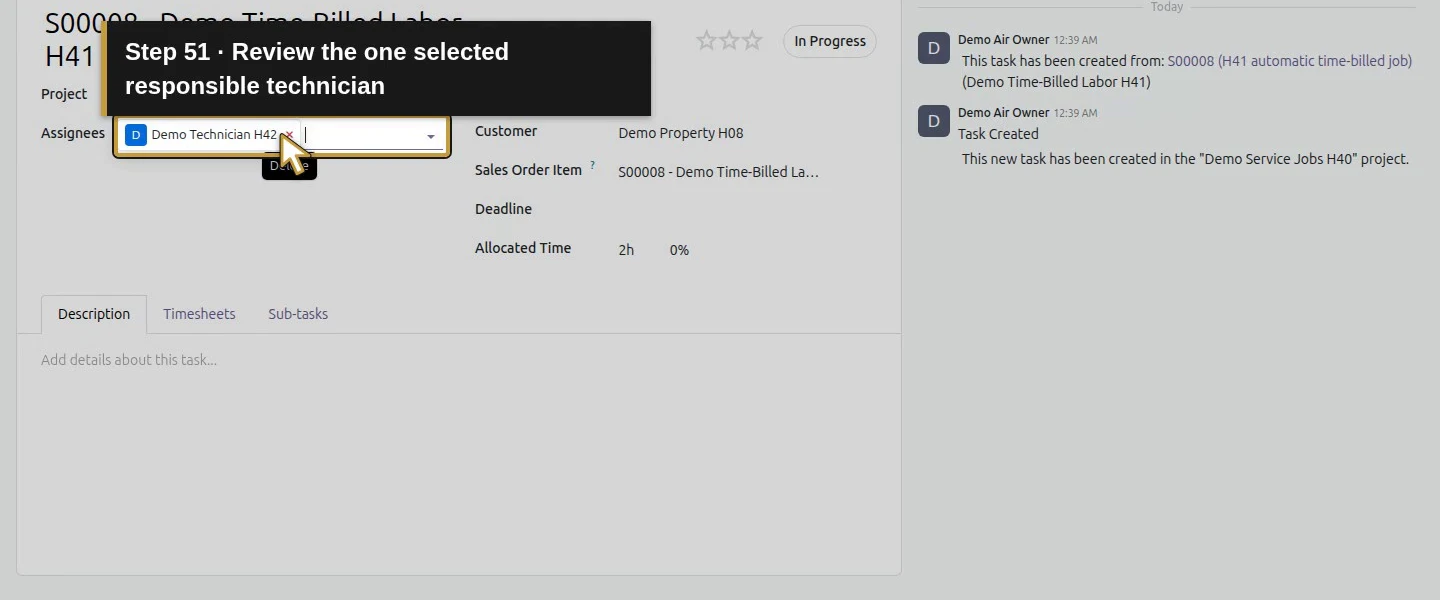
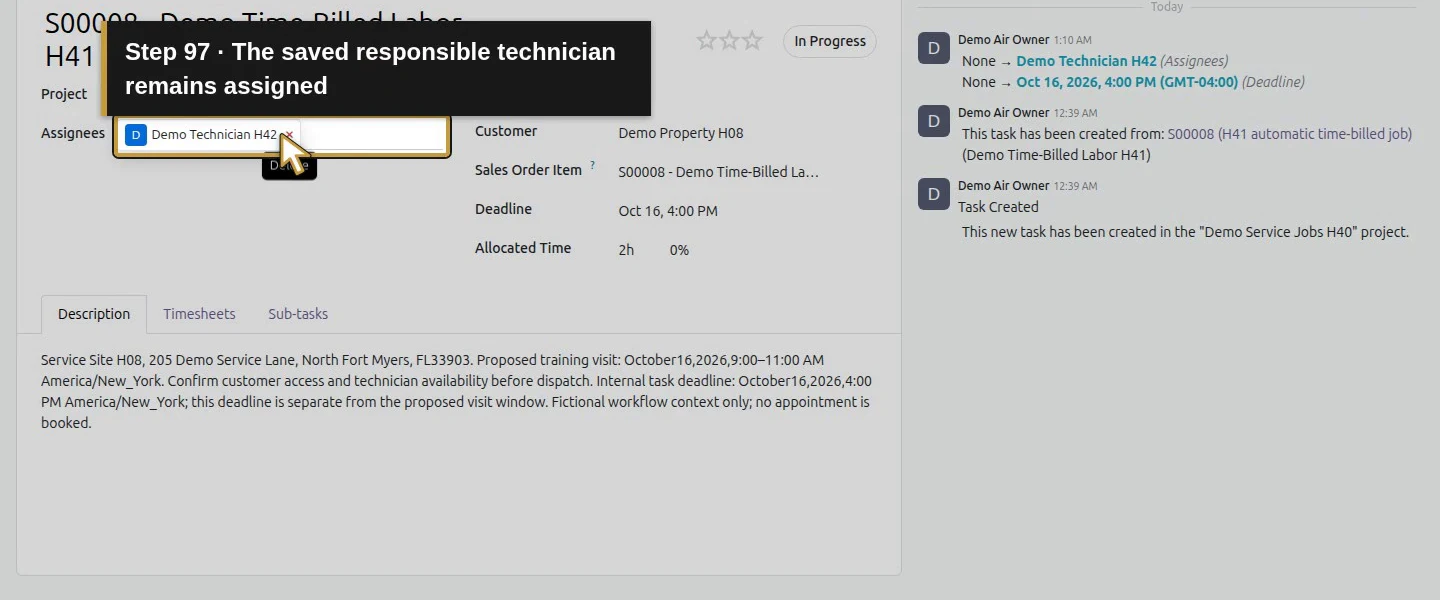
In the owner session, open Assignees, search Demo Technician H42, and select the actual existing user from the dropdown. Check that this is the intended account and that no unintended assignee is present. Keep the existing project, customer and sales-order item unchanged.
Find the existing Demo Technician H42 assignee.Choose the actual existing technician account.Review the one selected responsible technician.
Step 4. Choose the deadline date and time
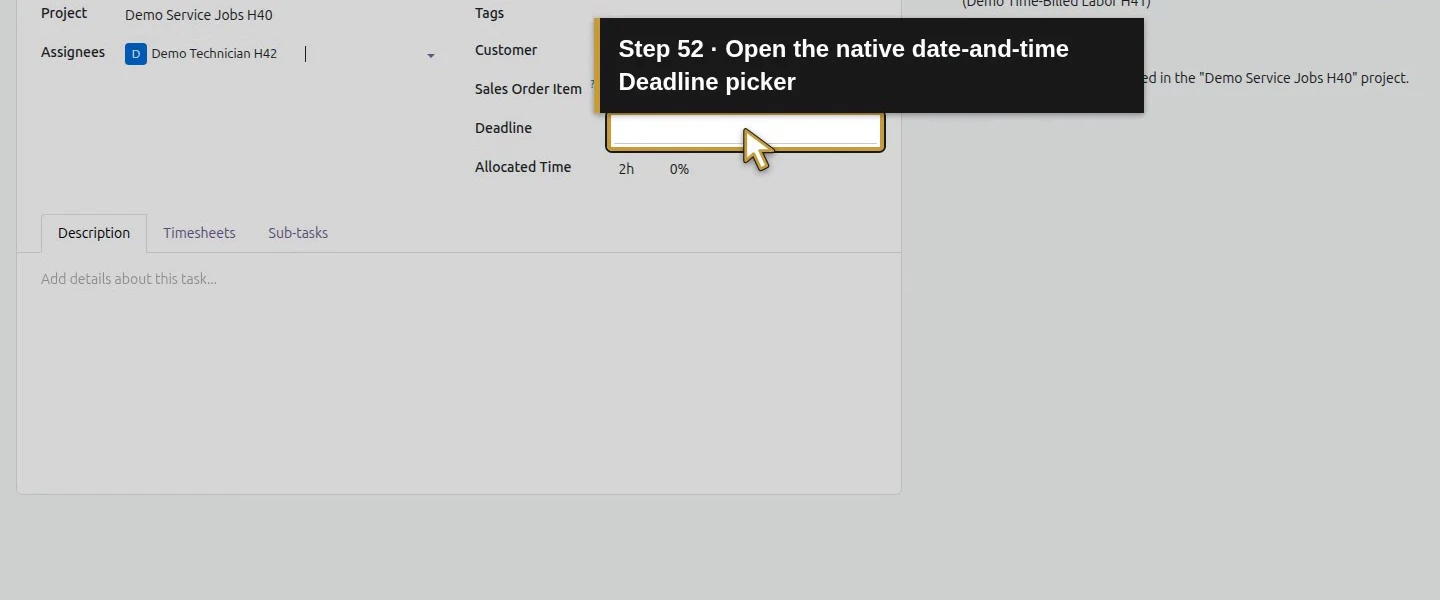
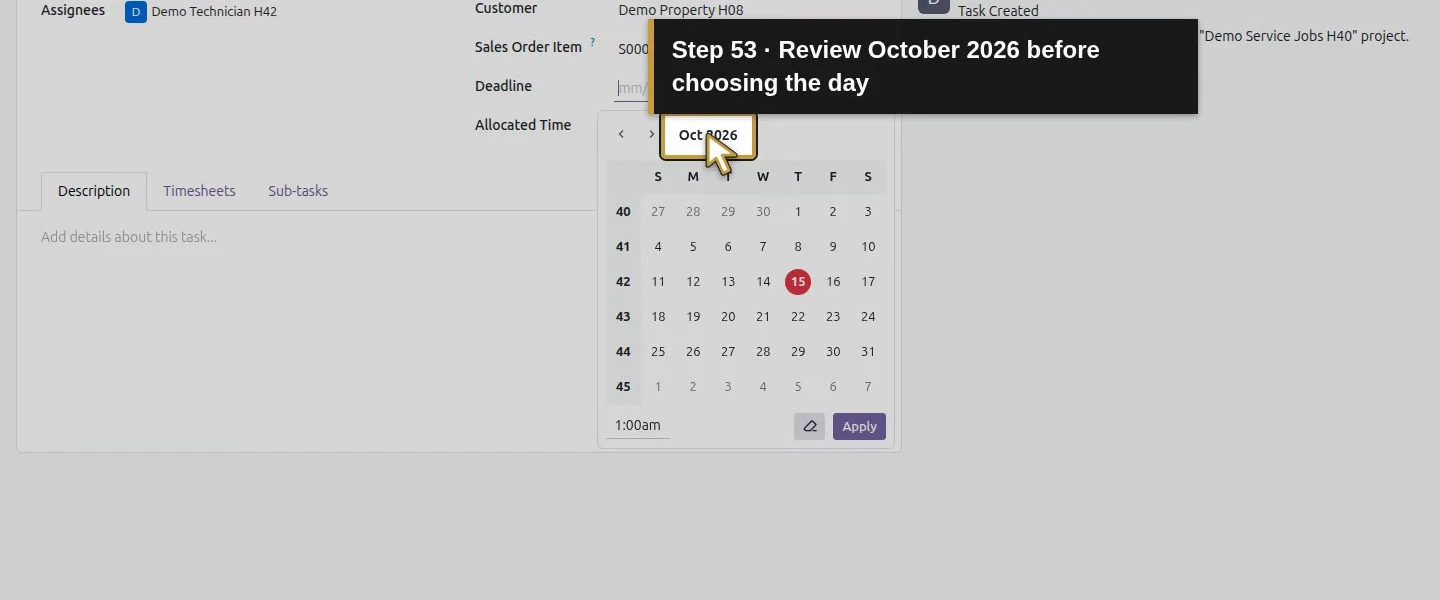
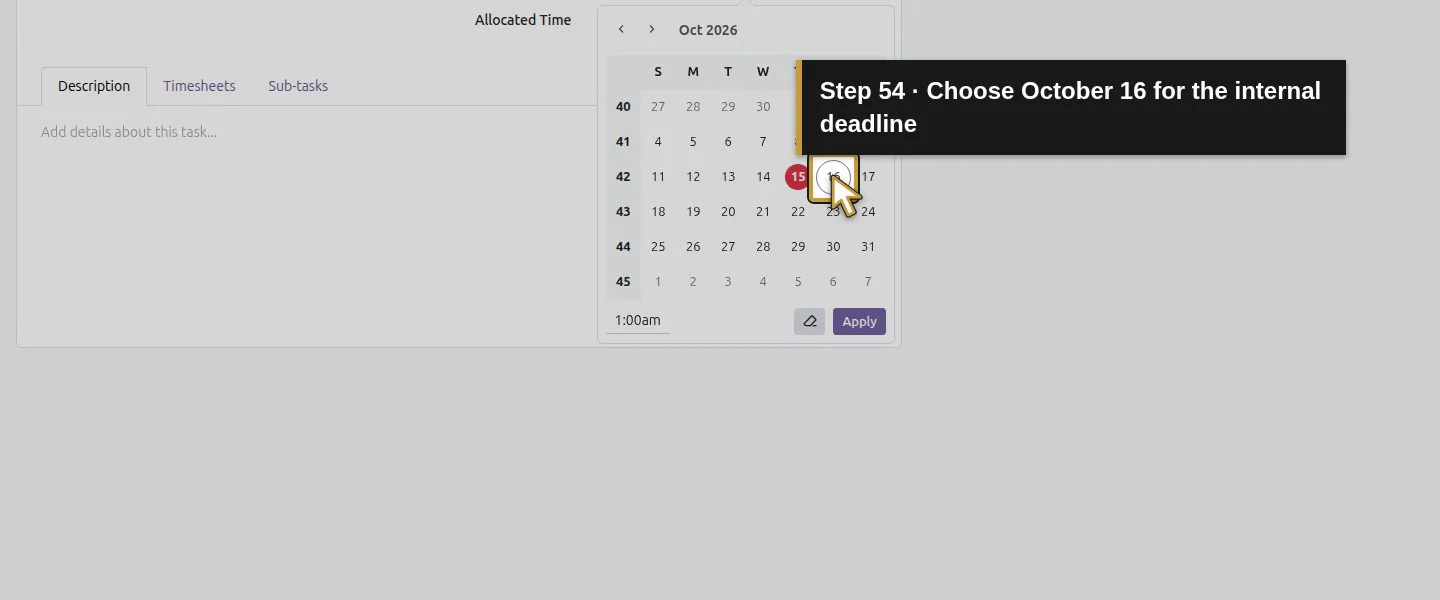
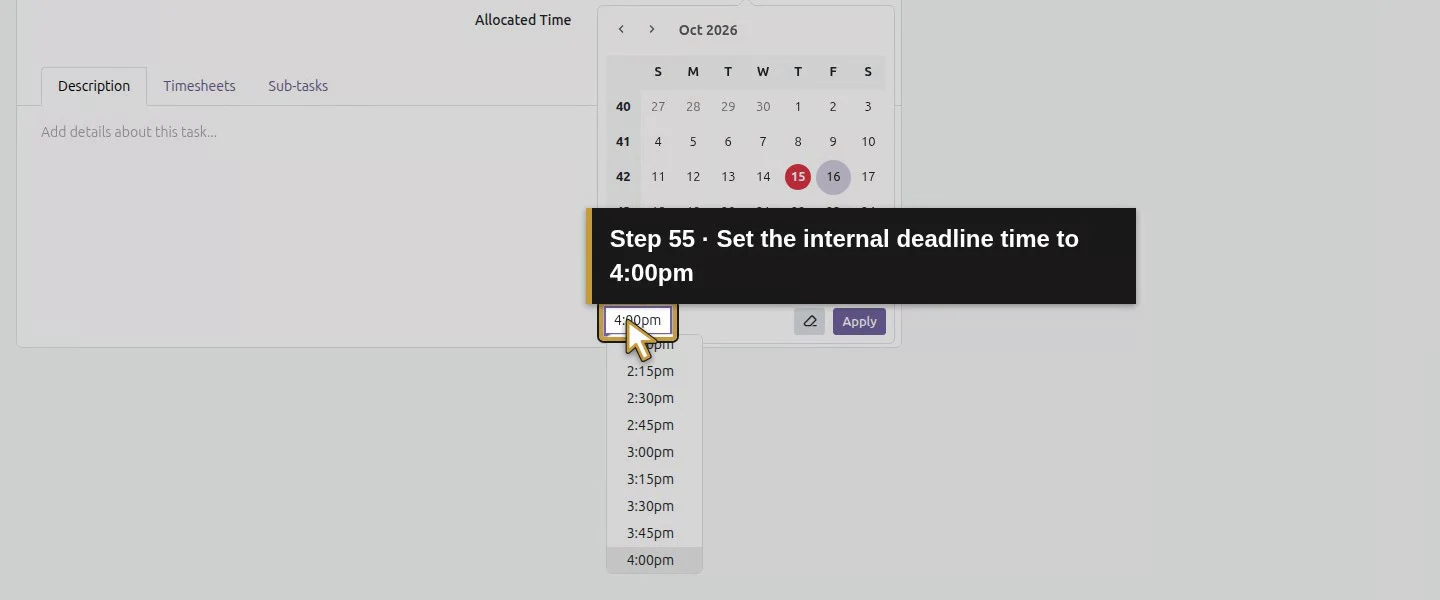
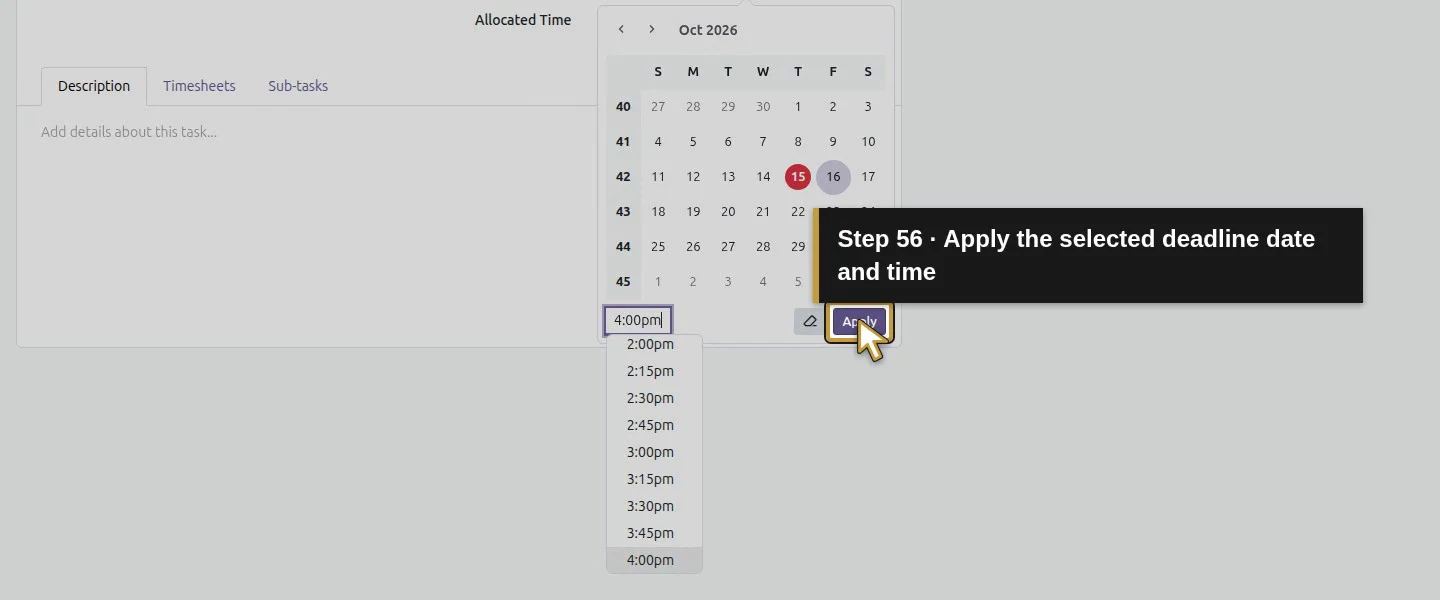
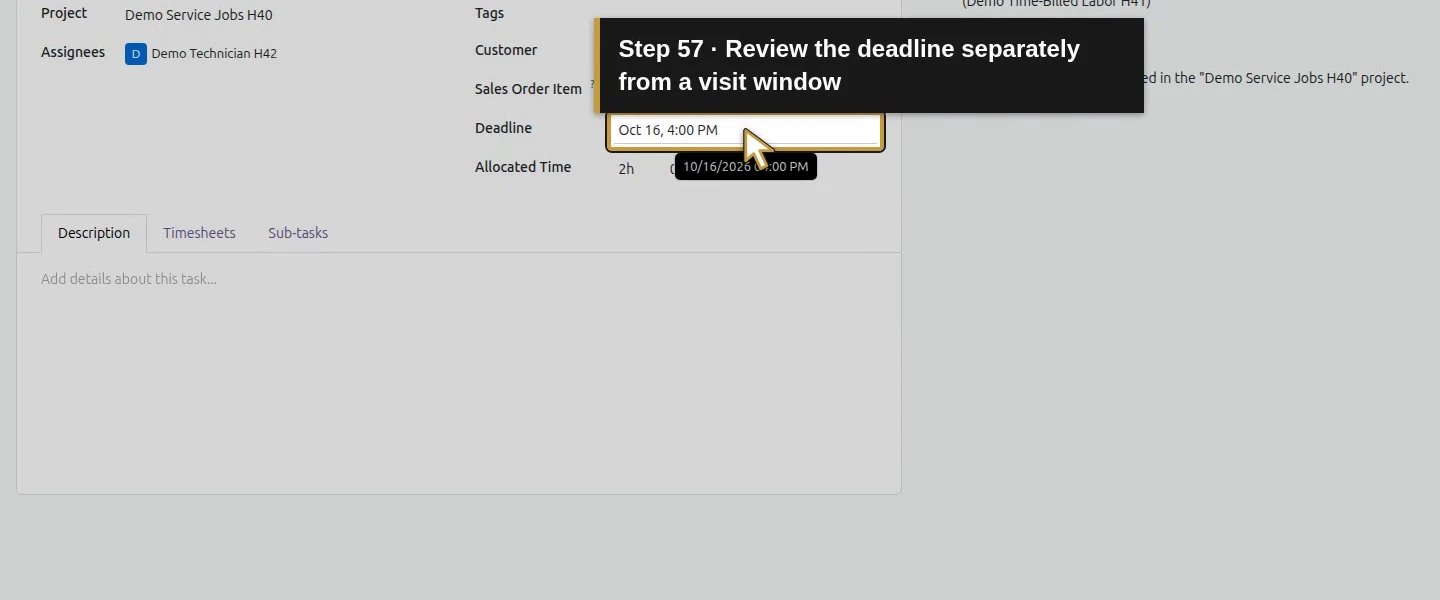
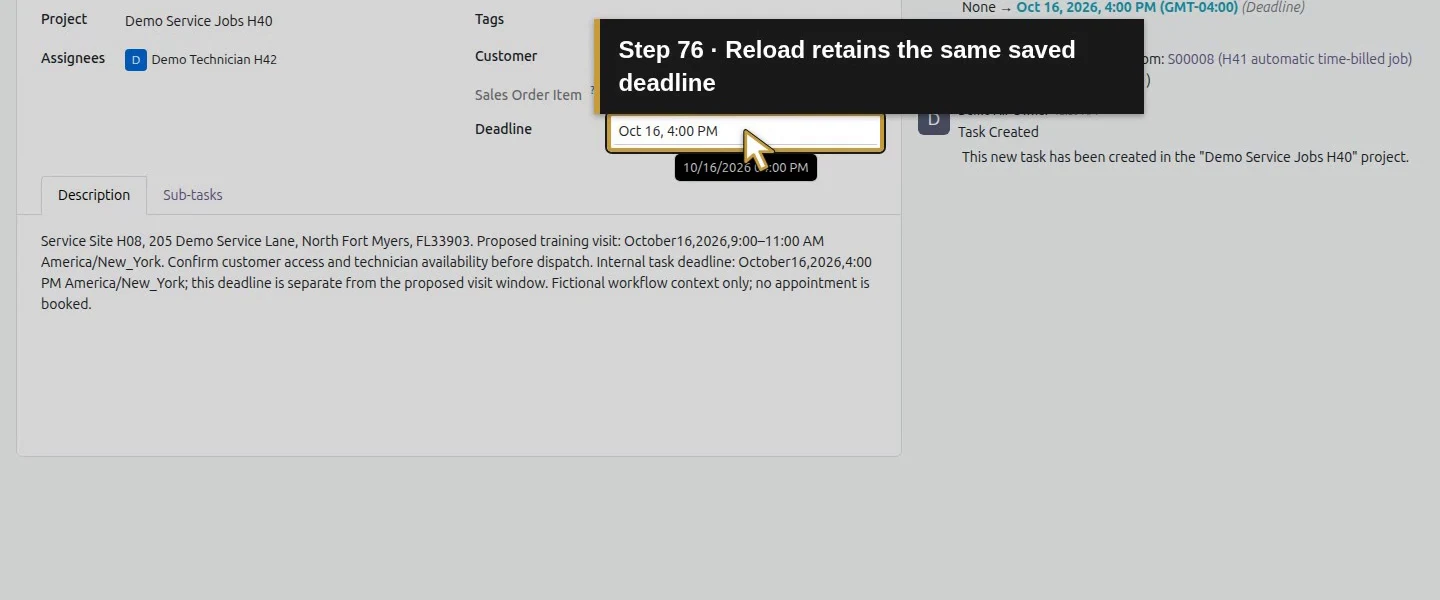
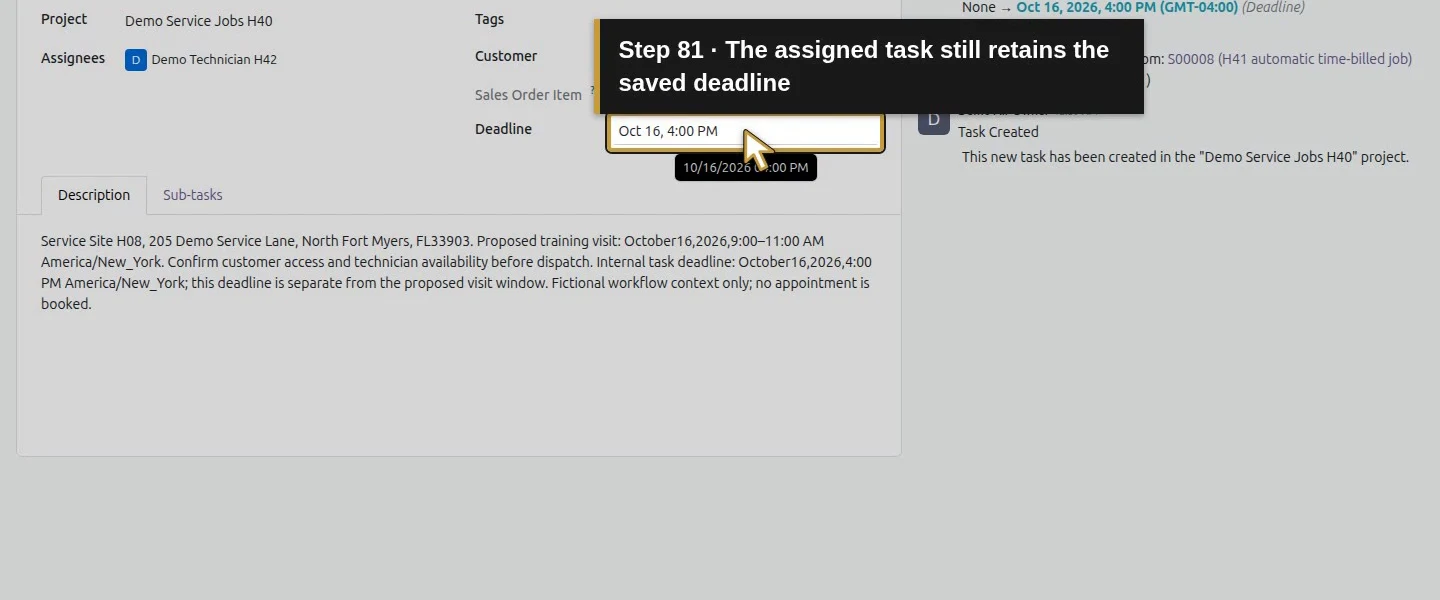
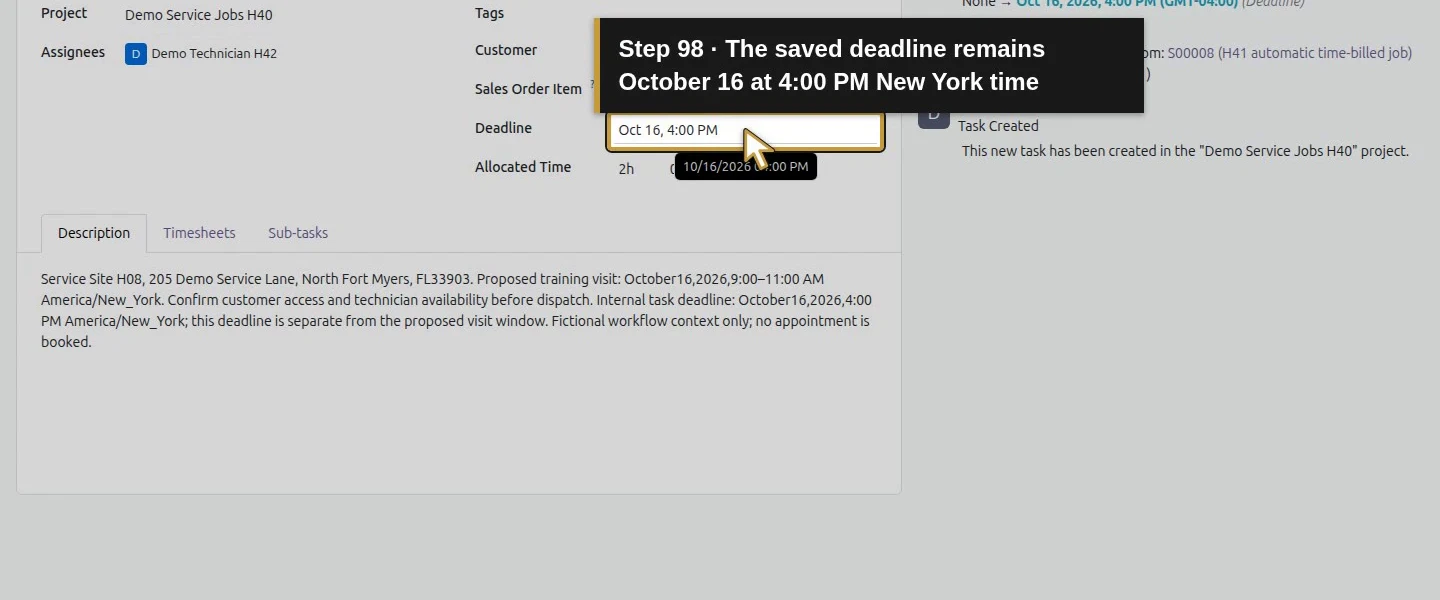
Click Deadline. In the native picker, select October 16, 2026, enter 4:00pm in its time field and click Apply. The tested field supports both date and time. This is an internal task deadline in America/New_York; it is separate from the proposed customer visit window.
Open the native date-and-time Deadline picker.Review October 2026 before choosing the day.Choose October 16 for the internal deadline.Set the internal deadline time to 4:00pm.Apply the selected deadline date and time.Review the deadline separately from a visit window.
Step 5. Add the manually reviewed visit context
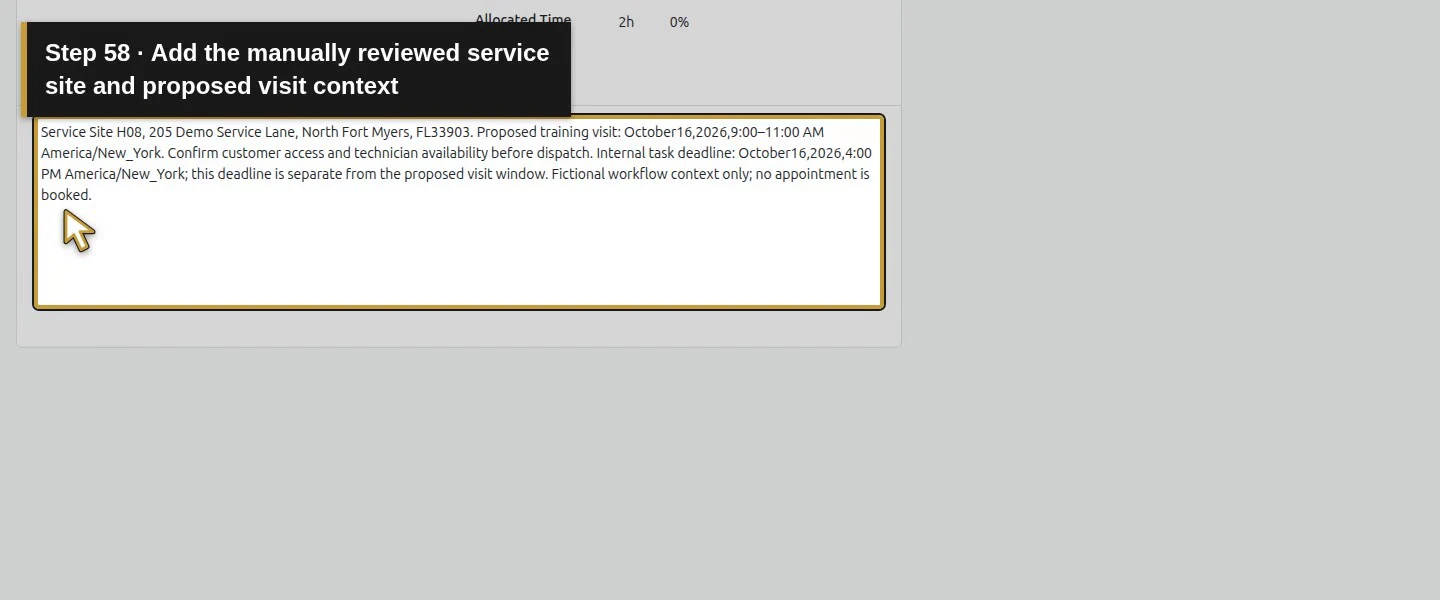
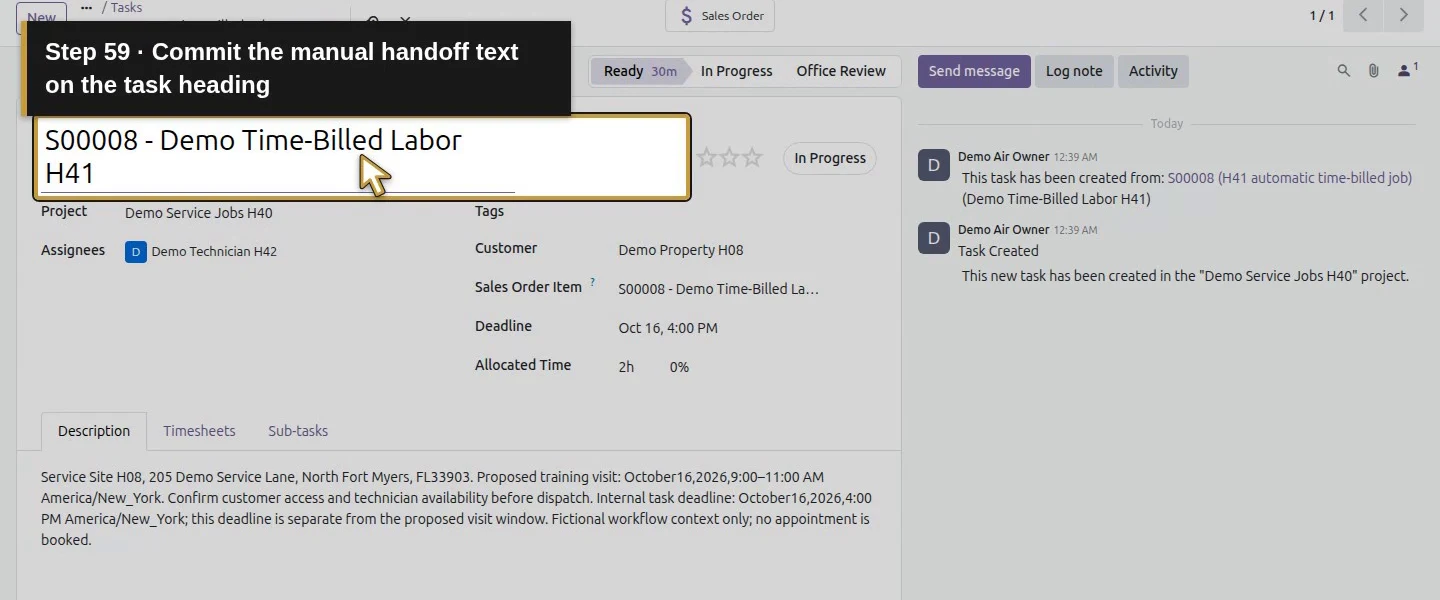
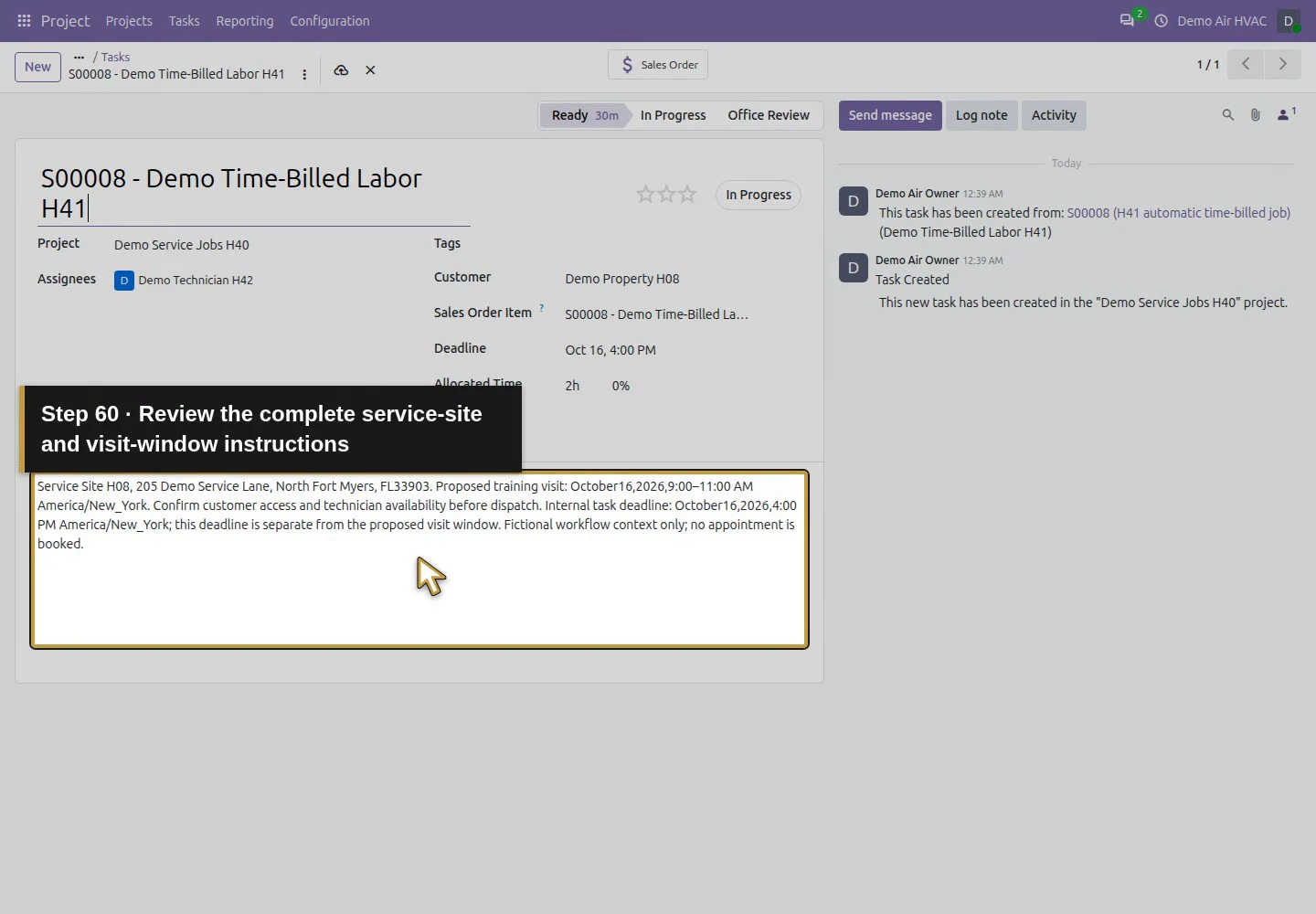
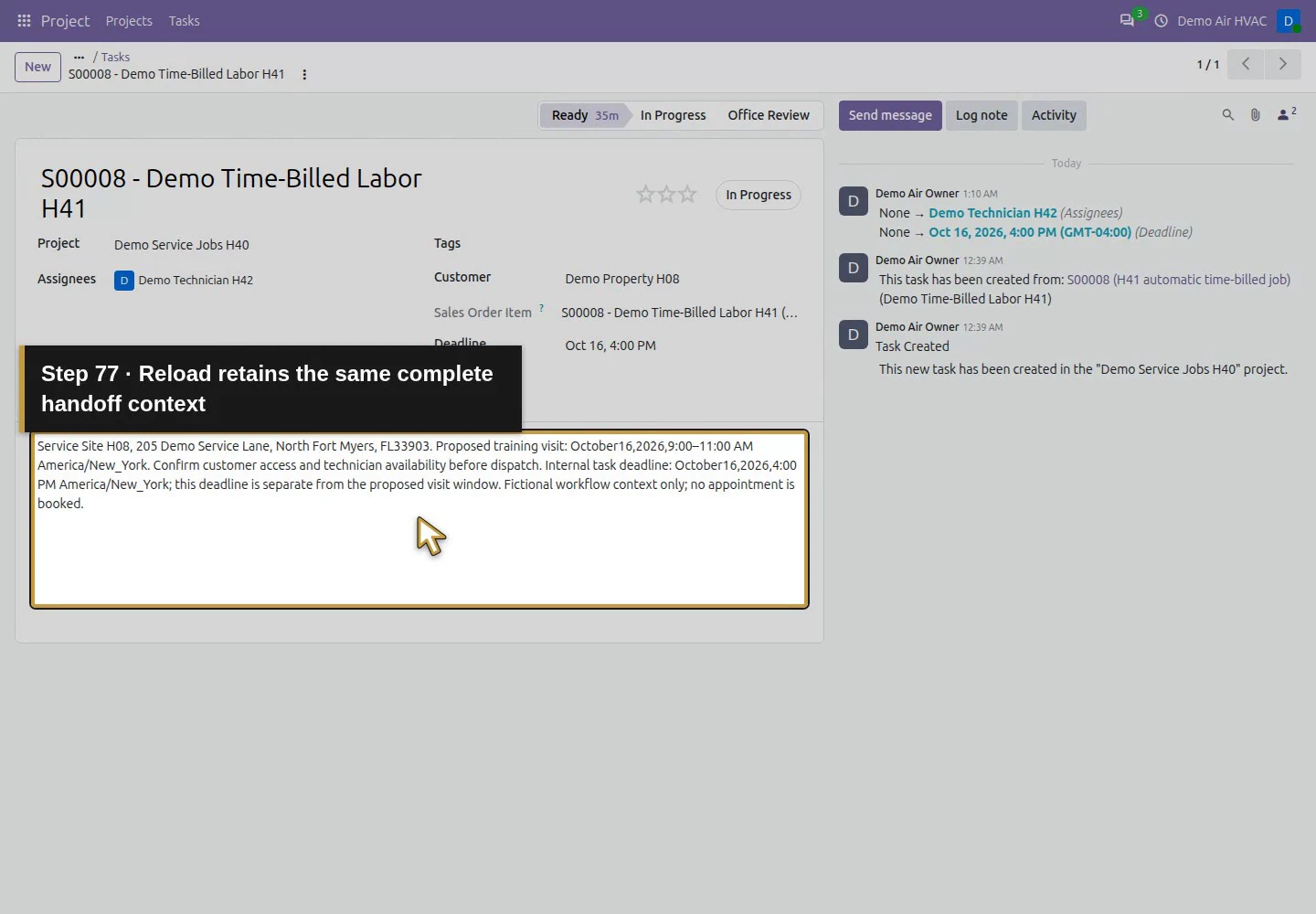
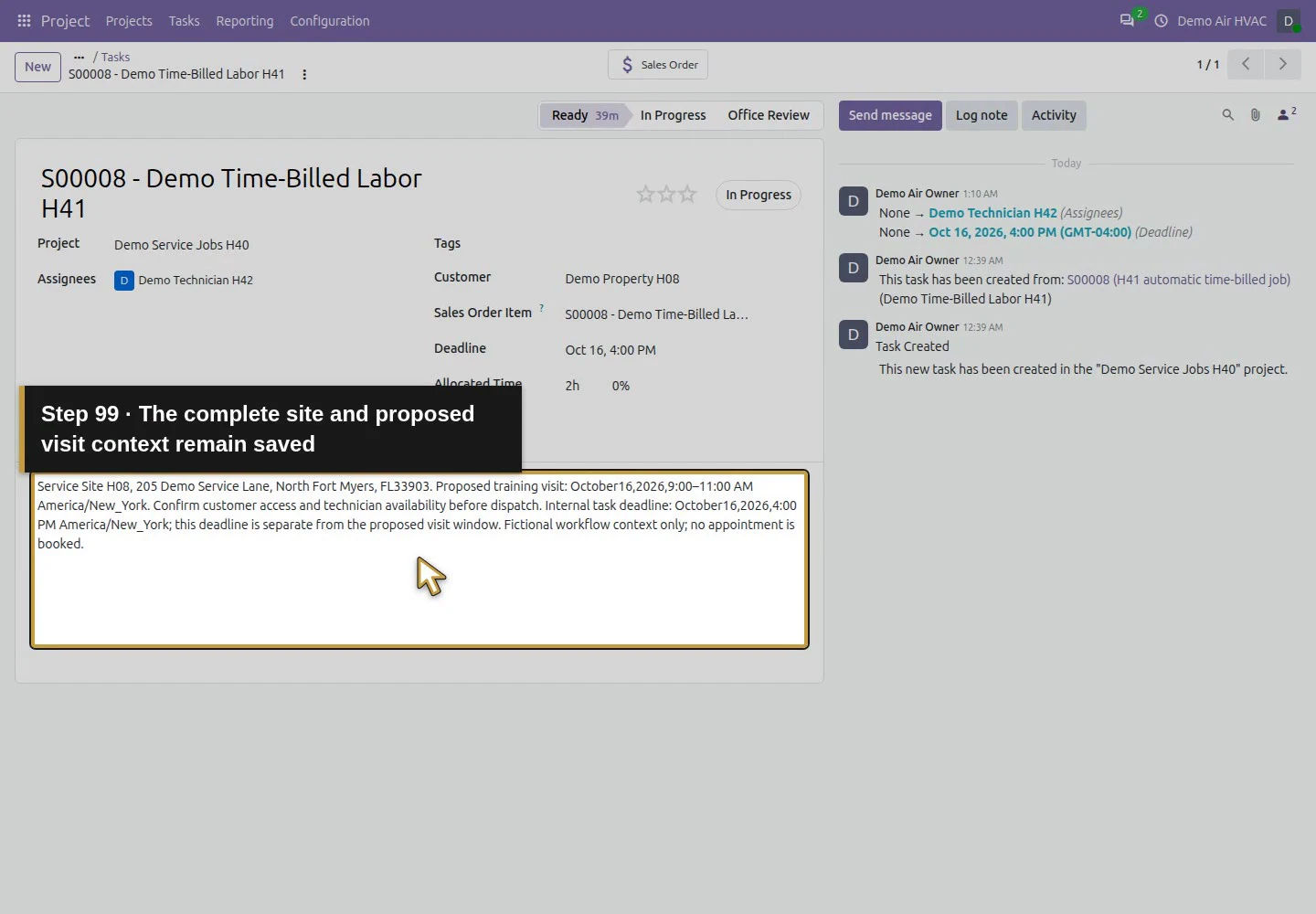
In Description, enter Service Site H08, 205 Demo Service Lane and the proposed training visit window, October 16, 9:00–11:00 AM America/New_York. State that customer access and technician availability need confirmation before dispatch. Keep the internal 4:00 PM deadline distinct from that window. This supplies context that the H41 task did not inherit from the quotation's scope note.
Add the manually reviewed service site and proposed visit context.Commit the manual handoff text on the task heading.Review the complete service-site and visit-window instructions.
Step 6. Save and reopen the owner view
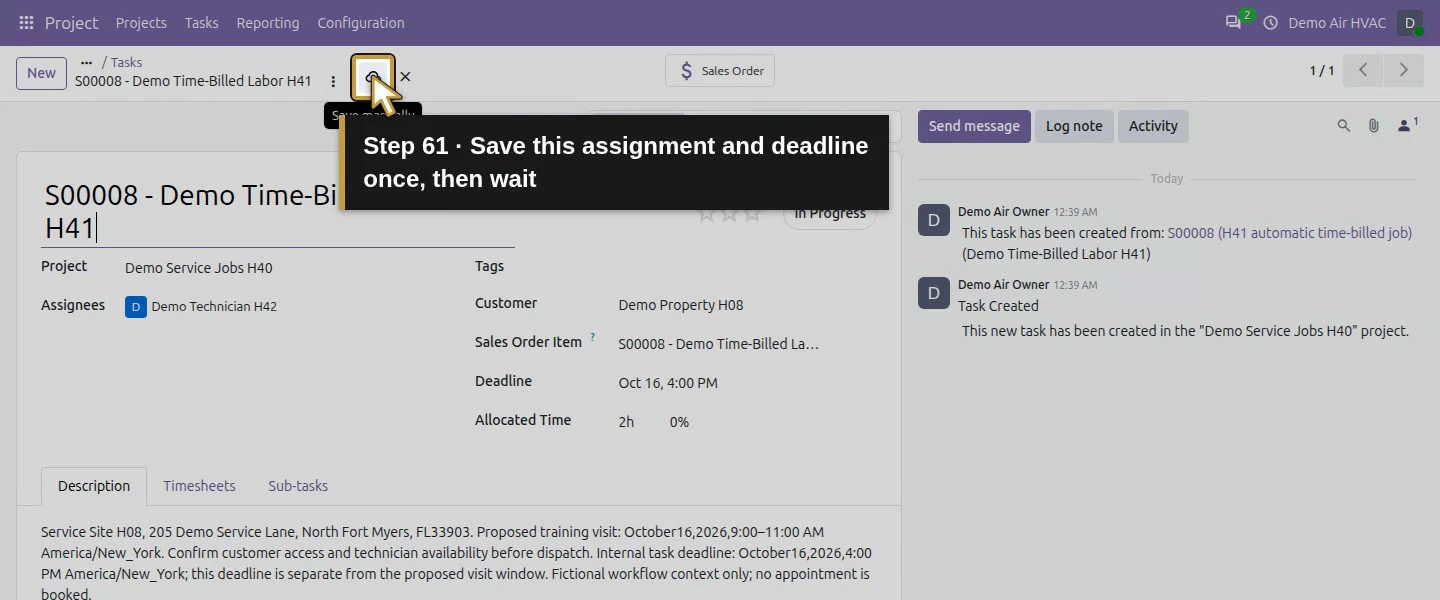
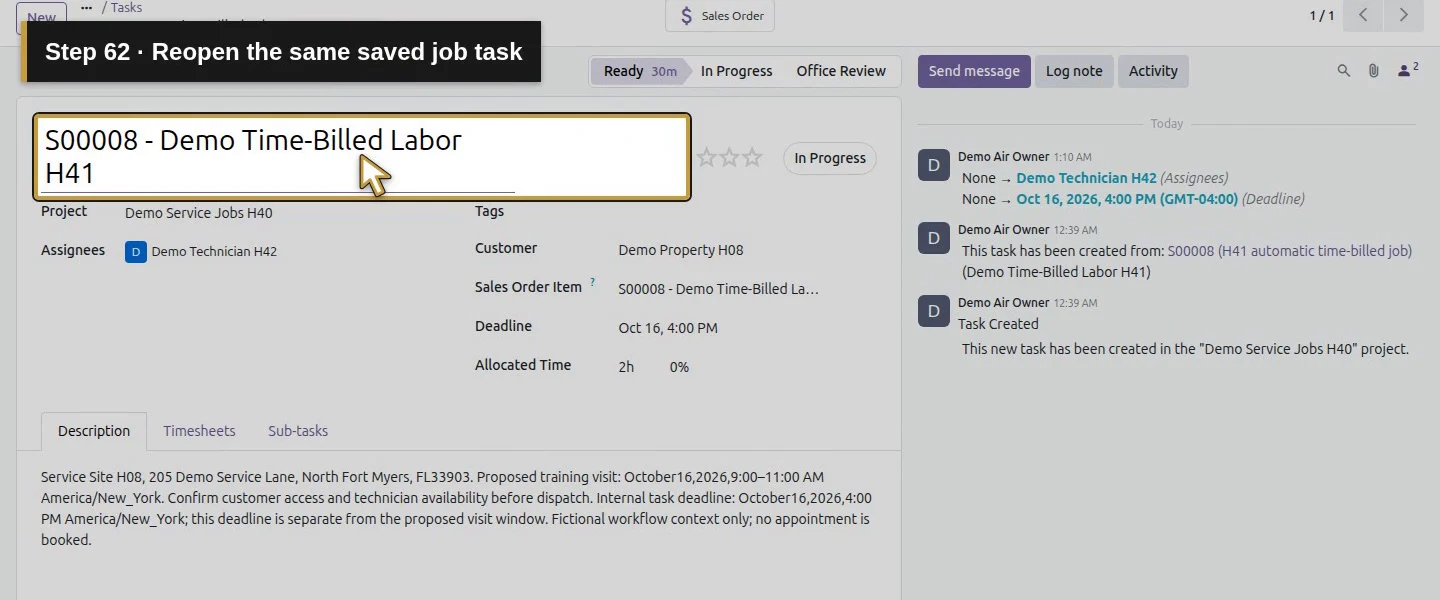
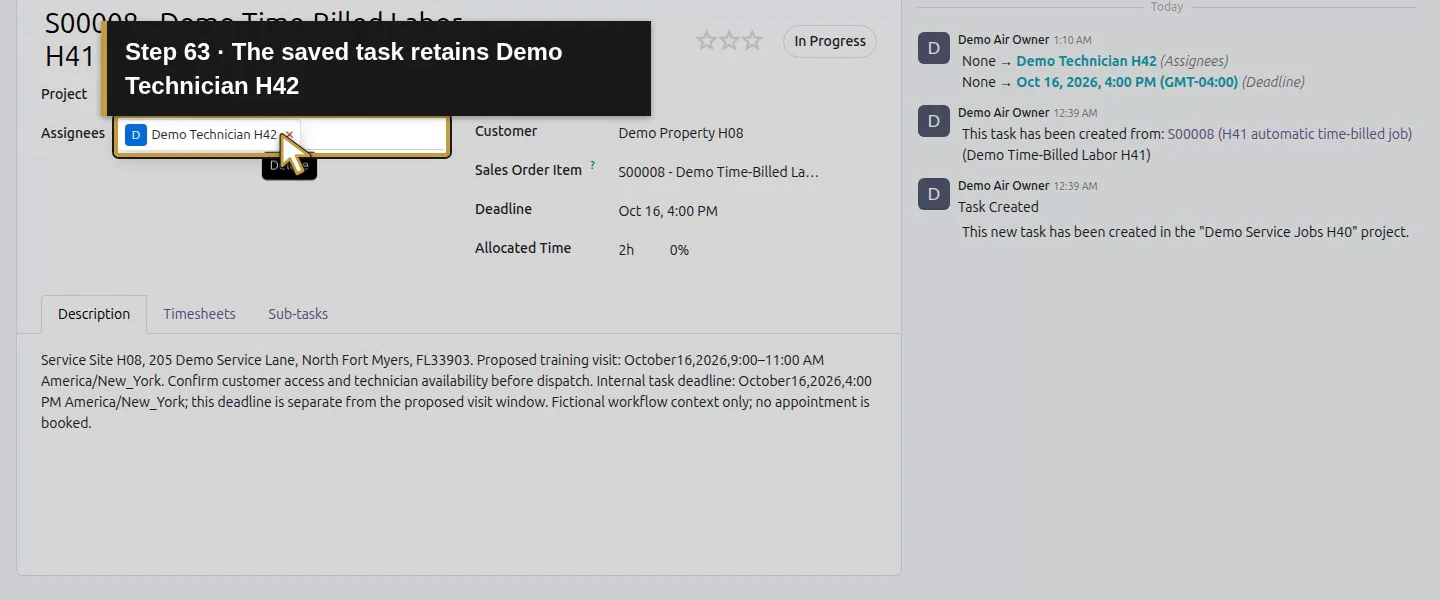
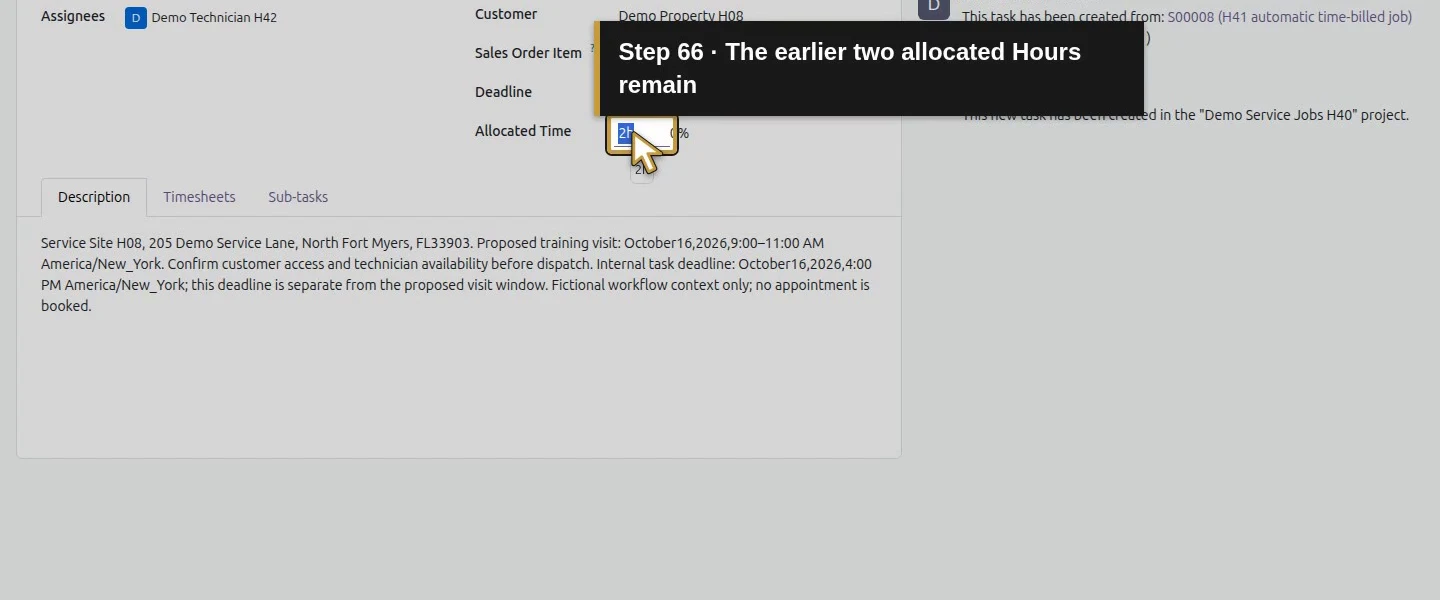
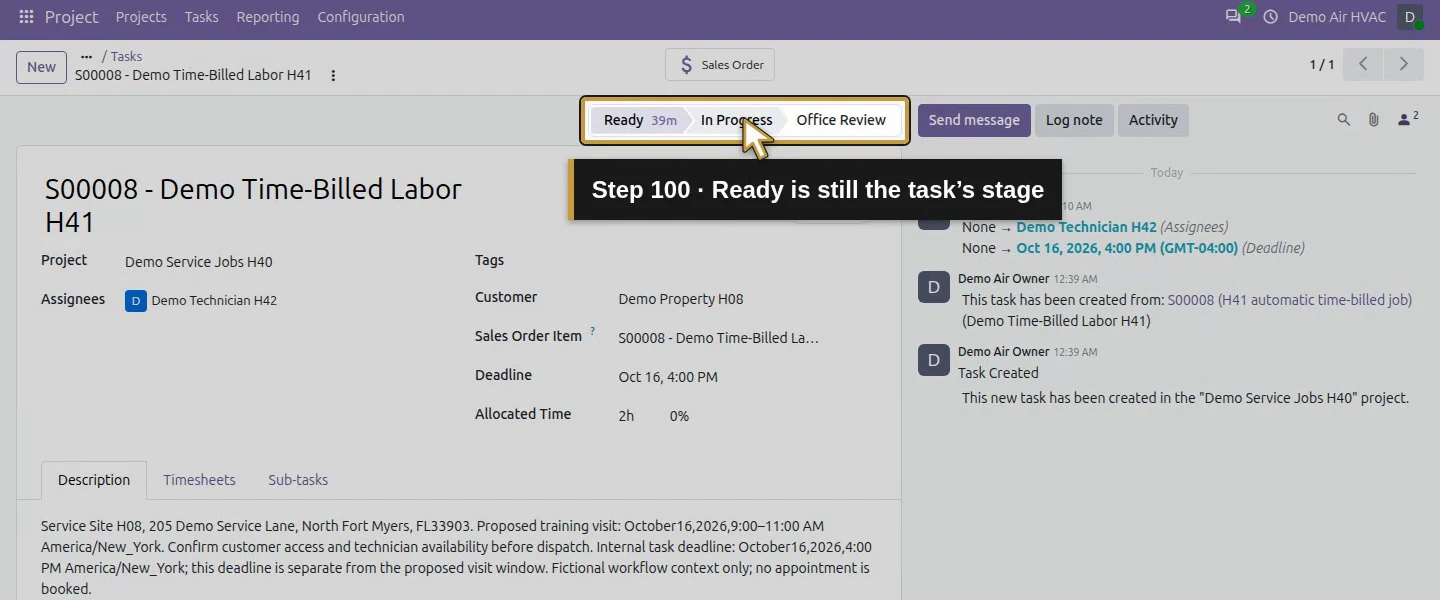
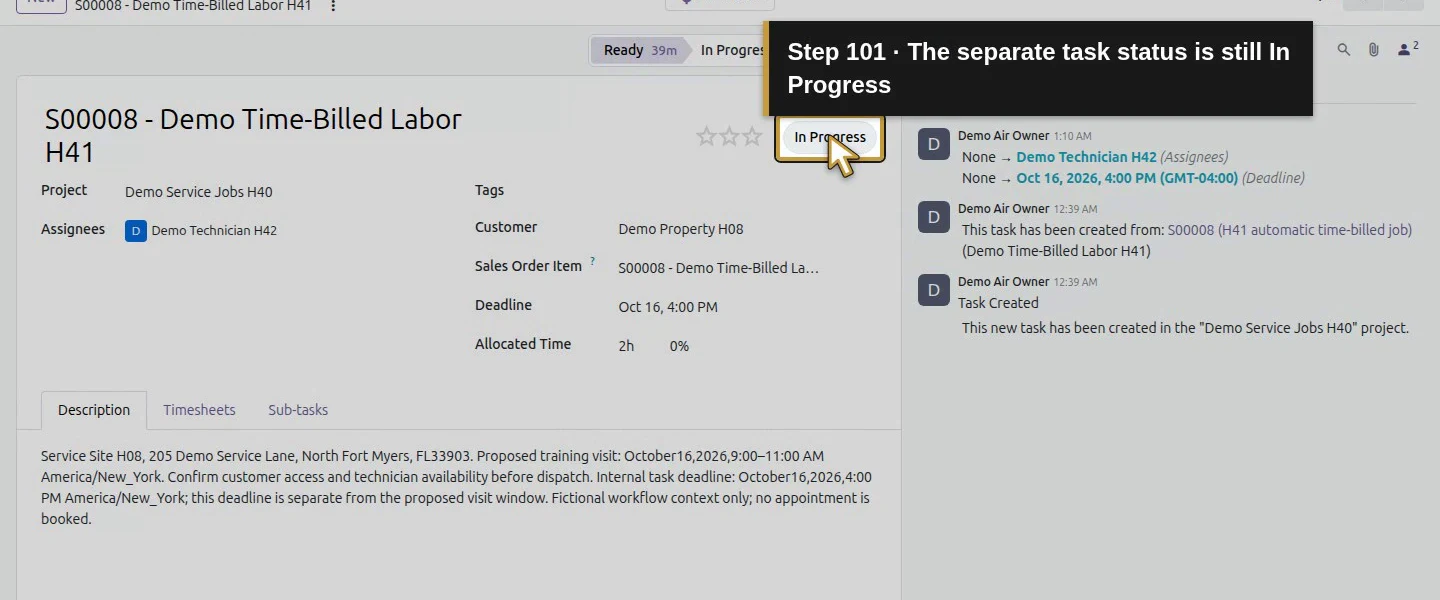
Click Save manually, then reopen or reload the same task. Check the technician name, service-site note and Oct 16, 4:00 PM deadline. The chatter records the changes from no assignee/deadline to these saved values. The task remains in Ready stage with In Progress status and retains its original sales-line link. The two allocated Hours remain the earlier estimate.
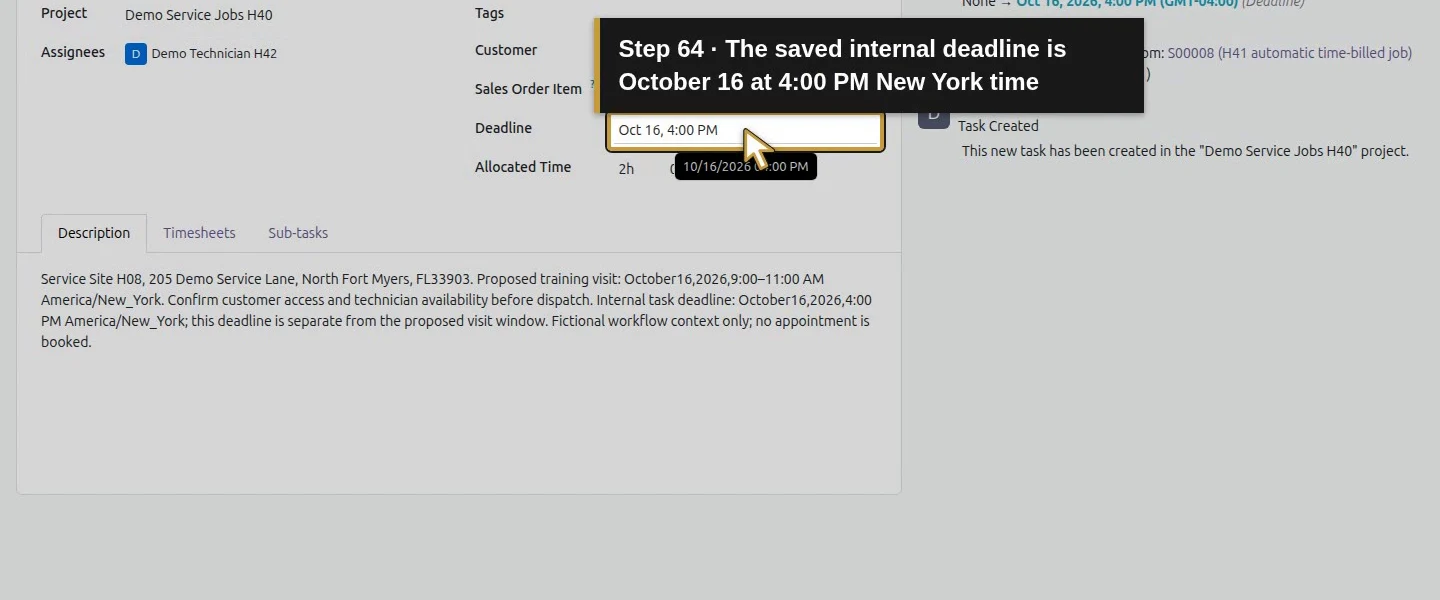
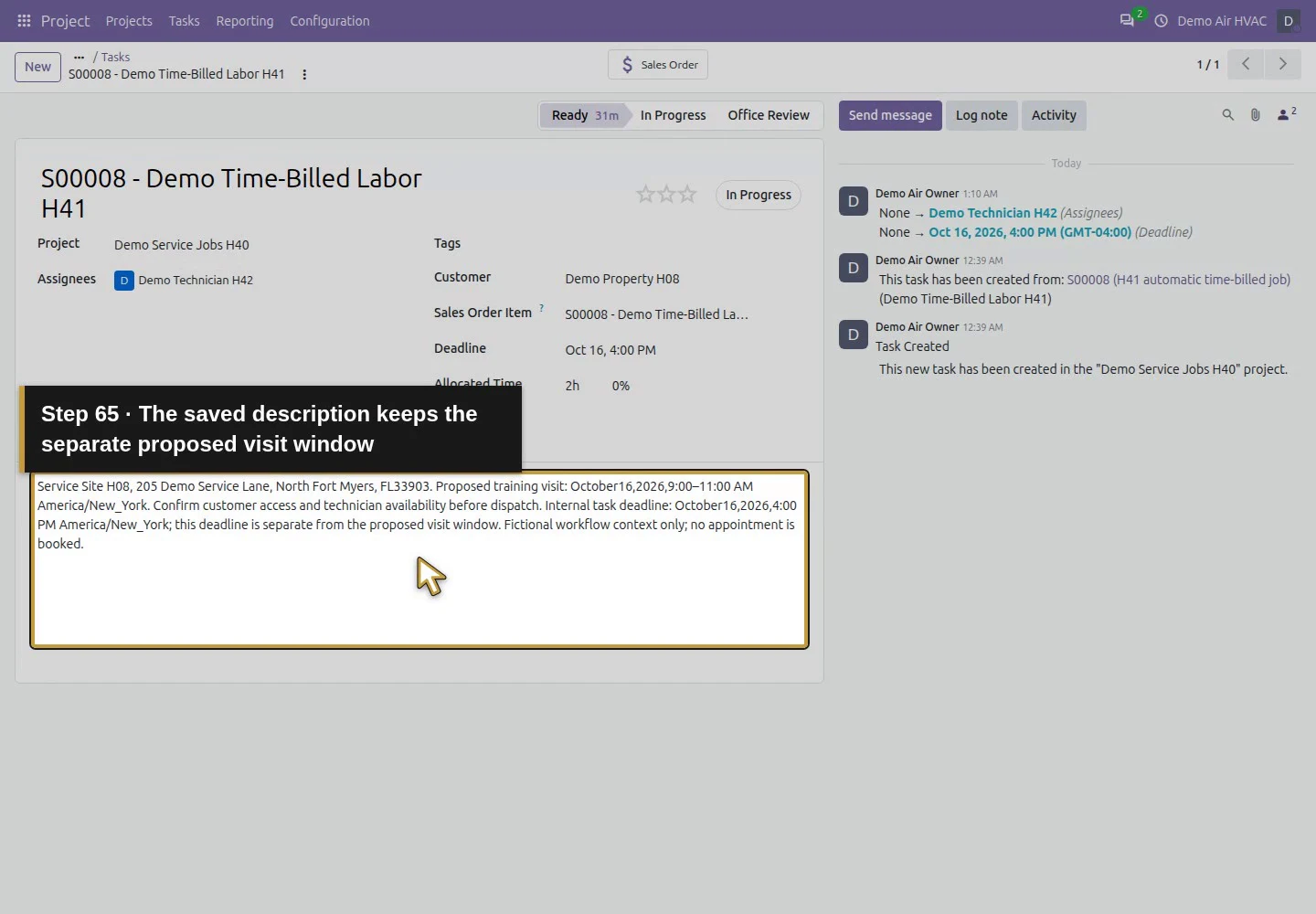
Save this assignment and deadline once, then wait.Reopen the same saved job task.The saved task retains Demo Technician H42.The saved internal deadline is October 16 at 4:00 PM New York time.The saved description keeps the separate proposed visit window.The earlier two allocated Hours remain.
Step 7. Verify the technician's own view
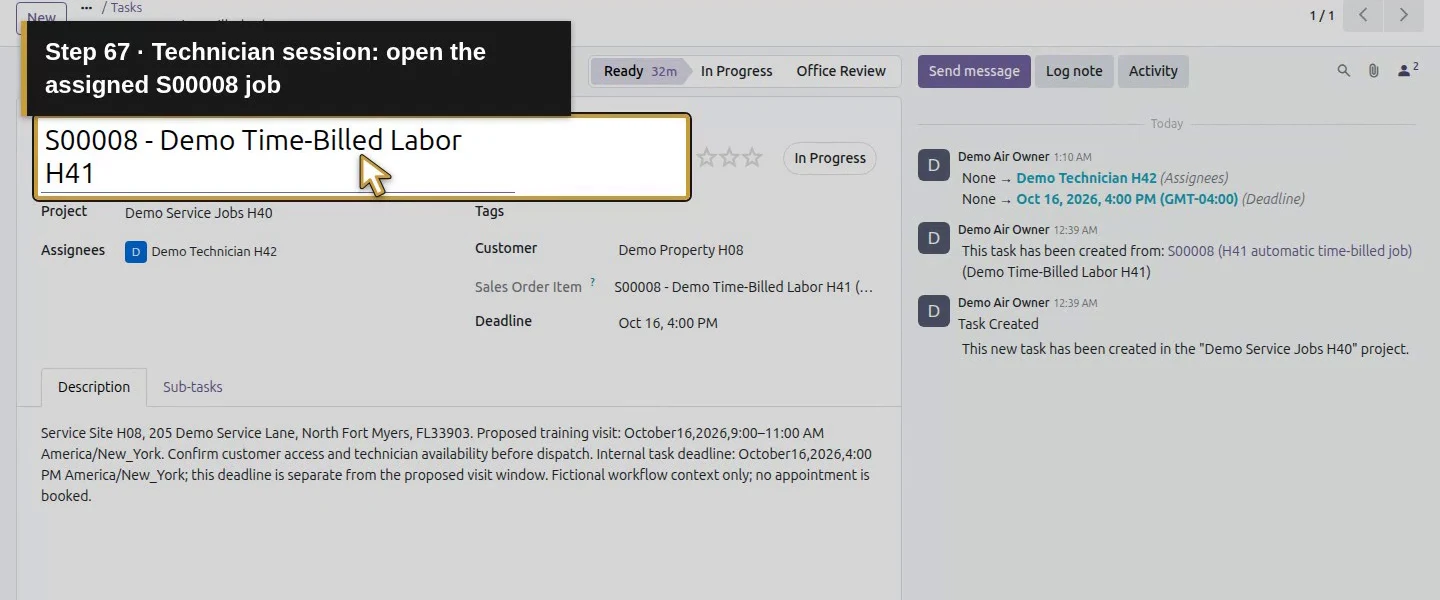
In a separate browser session, sign in as Demo Technician H42 and open the same task. Our technician can now read its customer, sales-order-item reference, assignee, description and Oct 16, 4:00 PM deadline. Reload and compare the saved values. The project still has team-only visibility and its owner team is unchanged; assignment added the technician as a follower of this task.
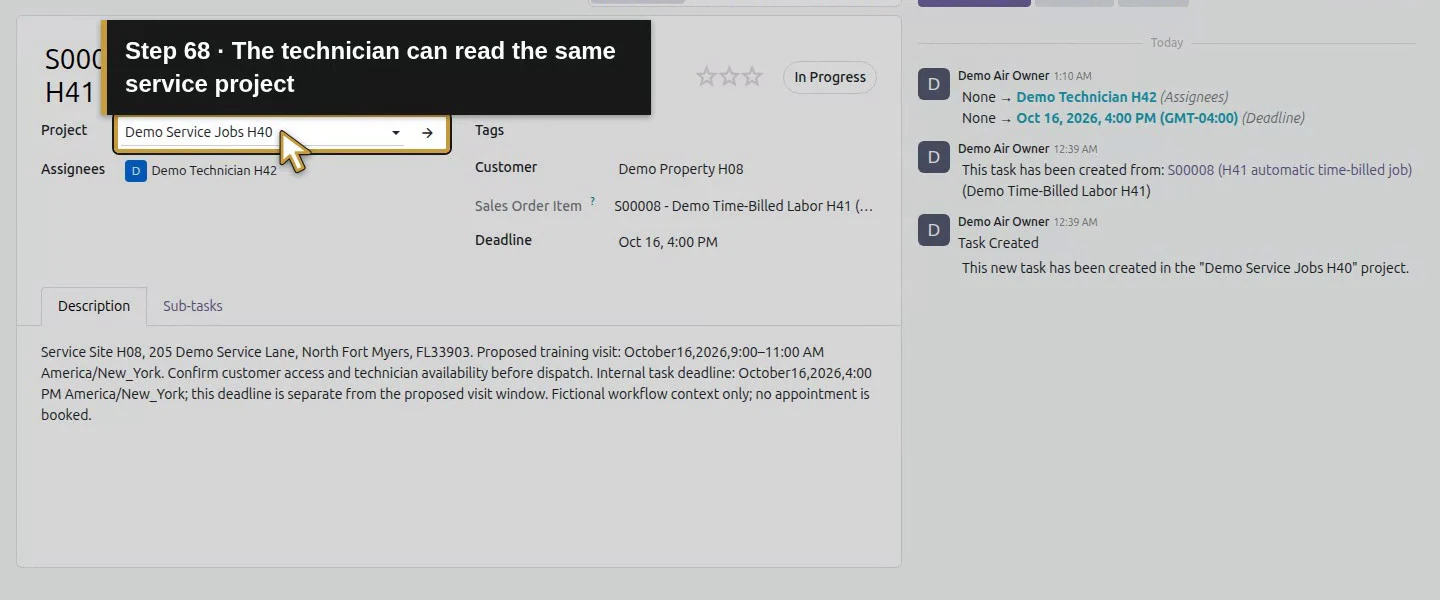
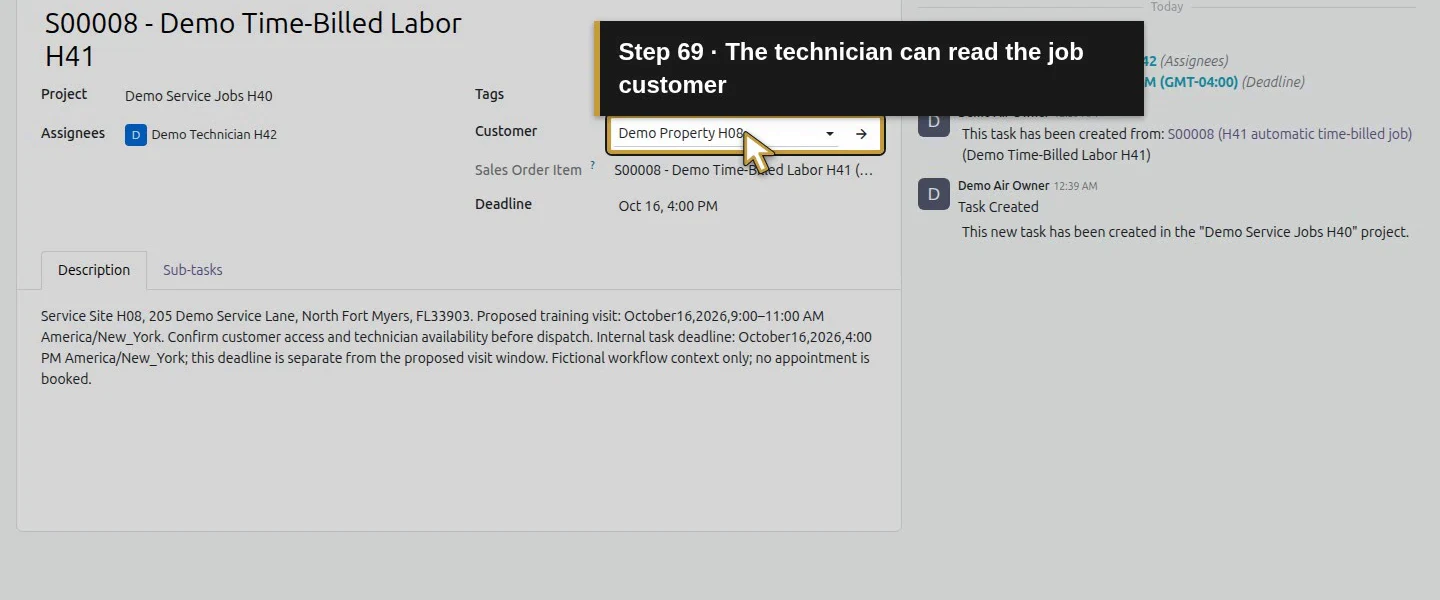
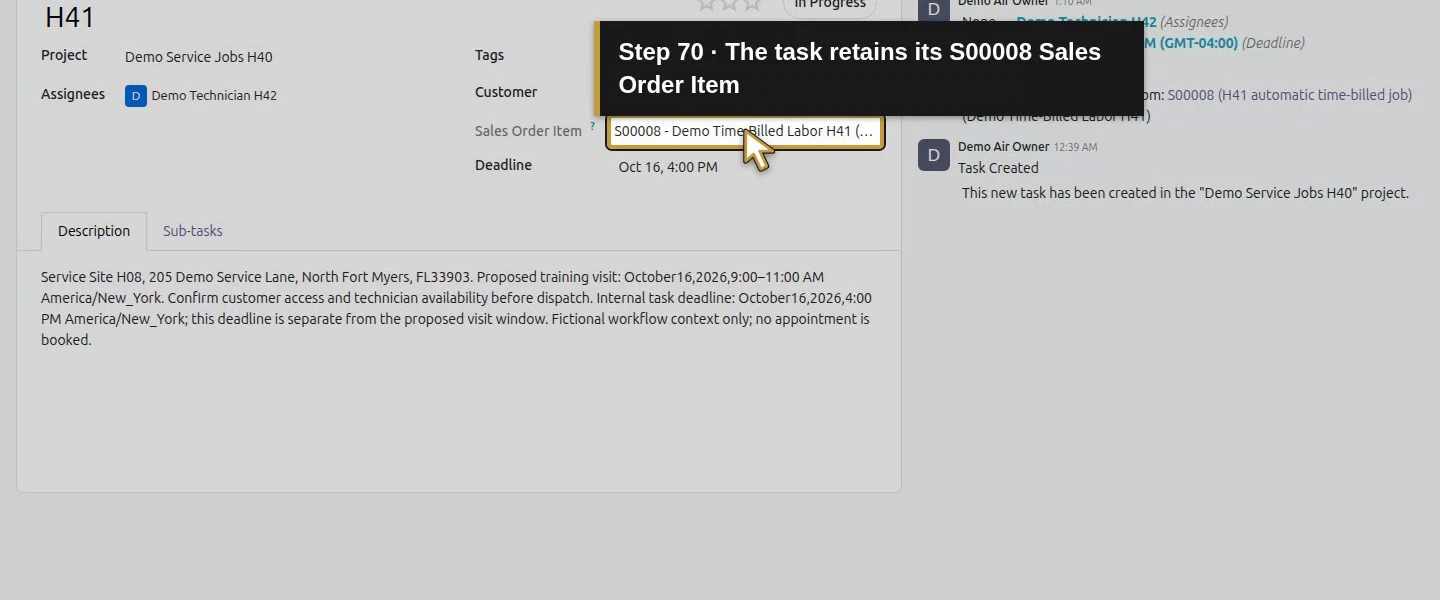
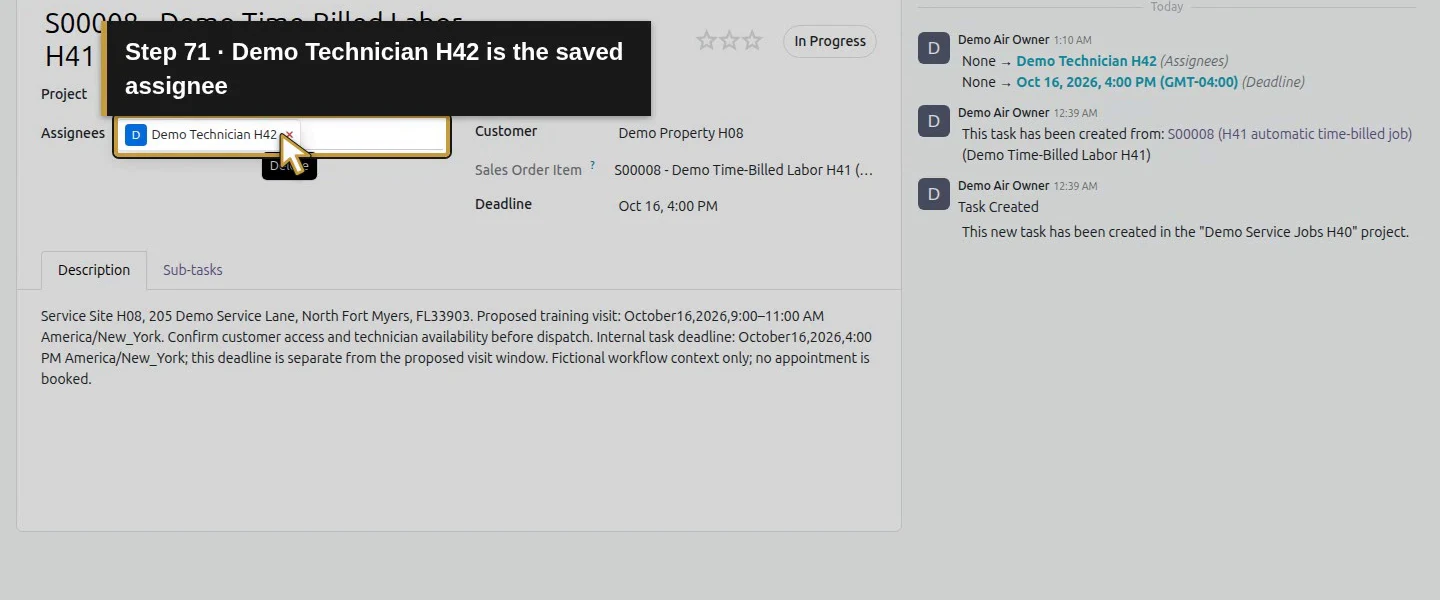
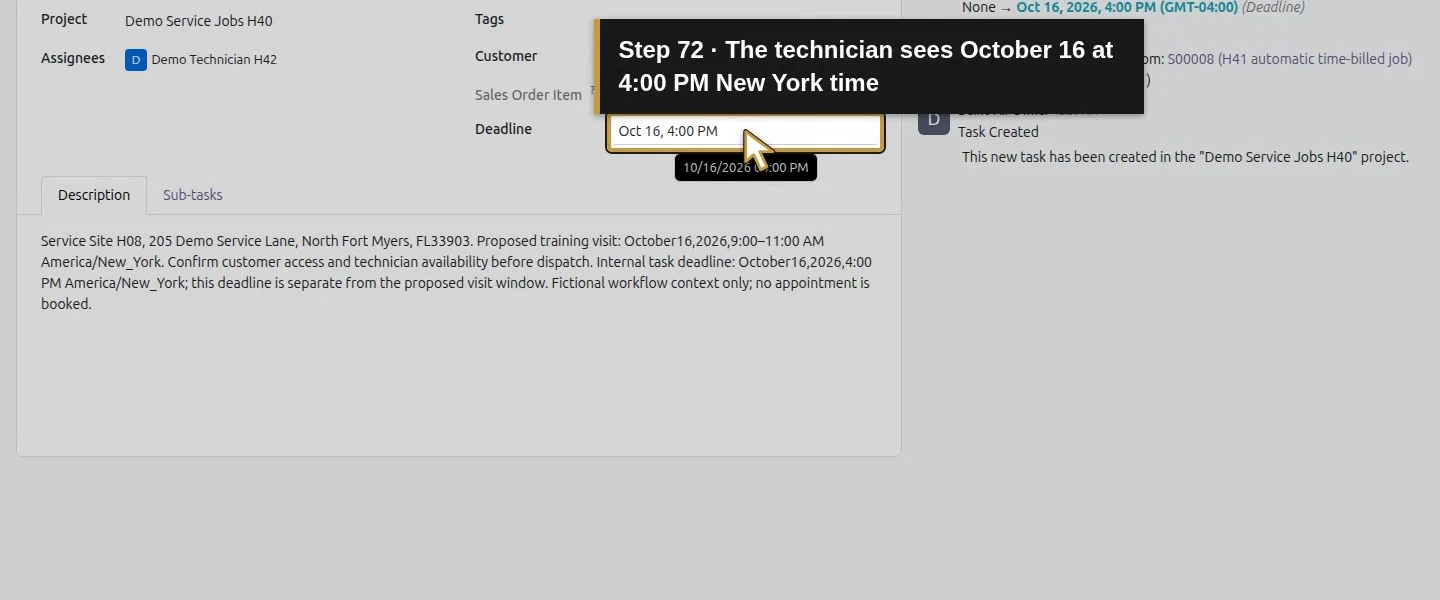
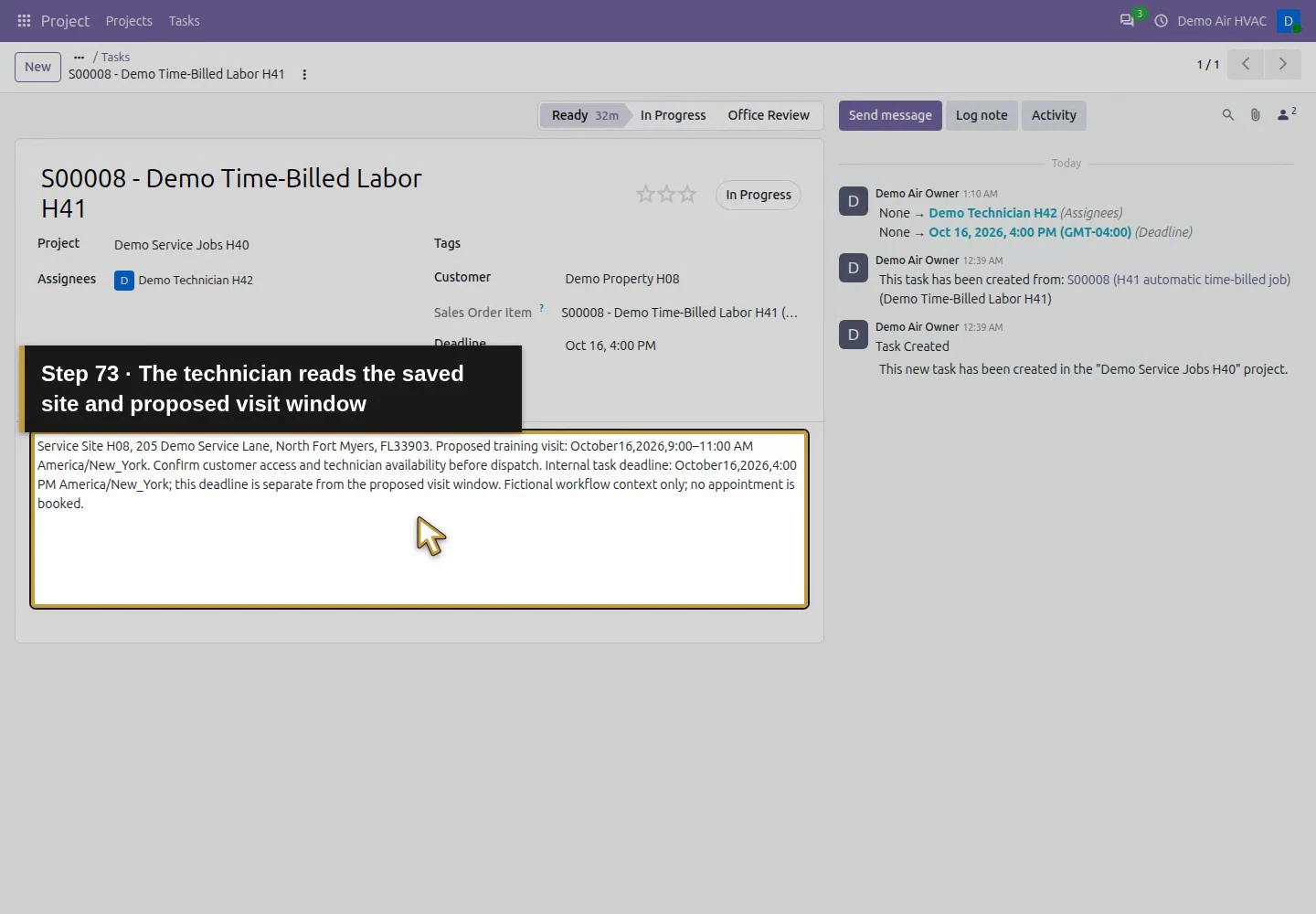
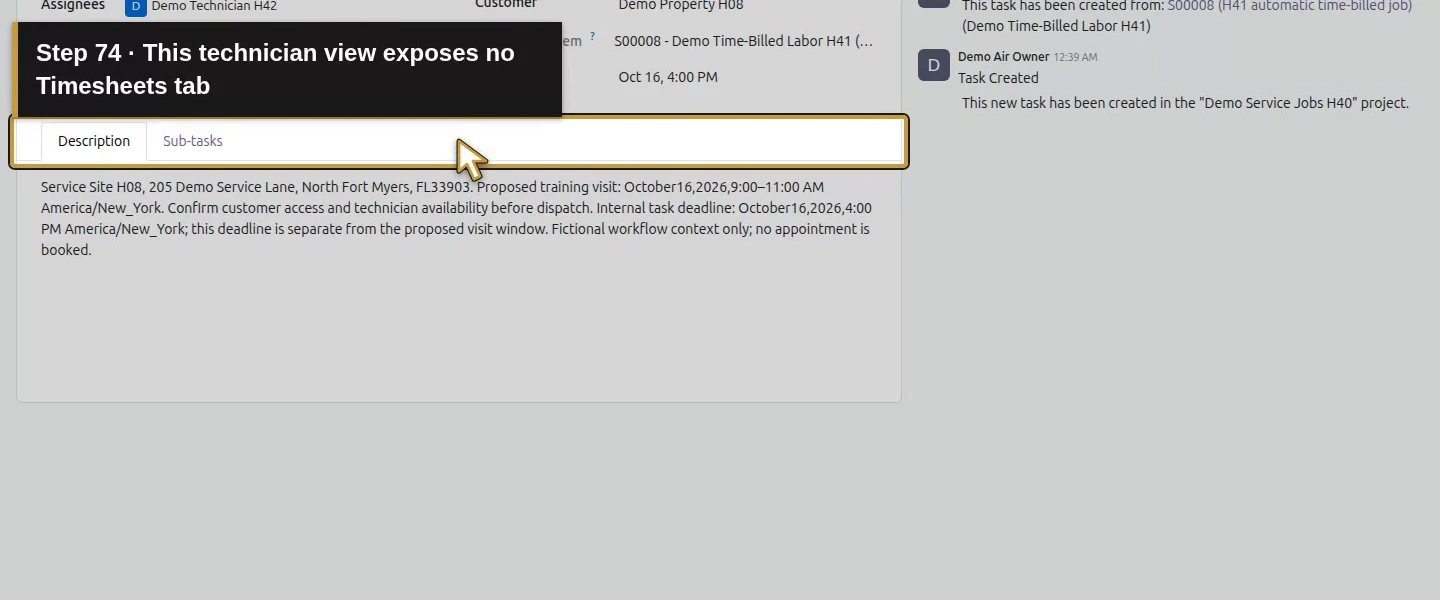
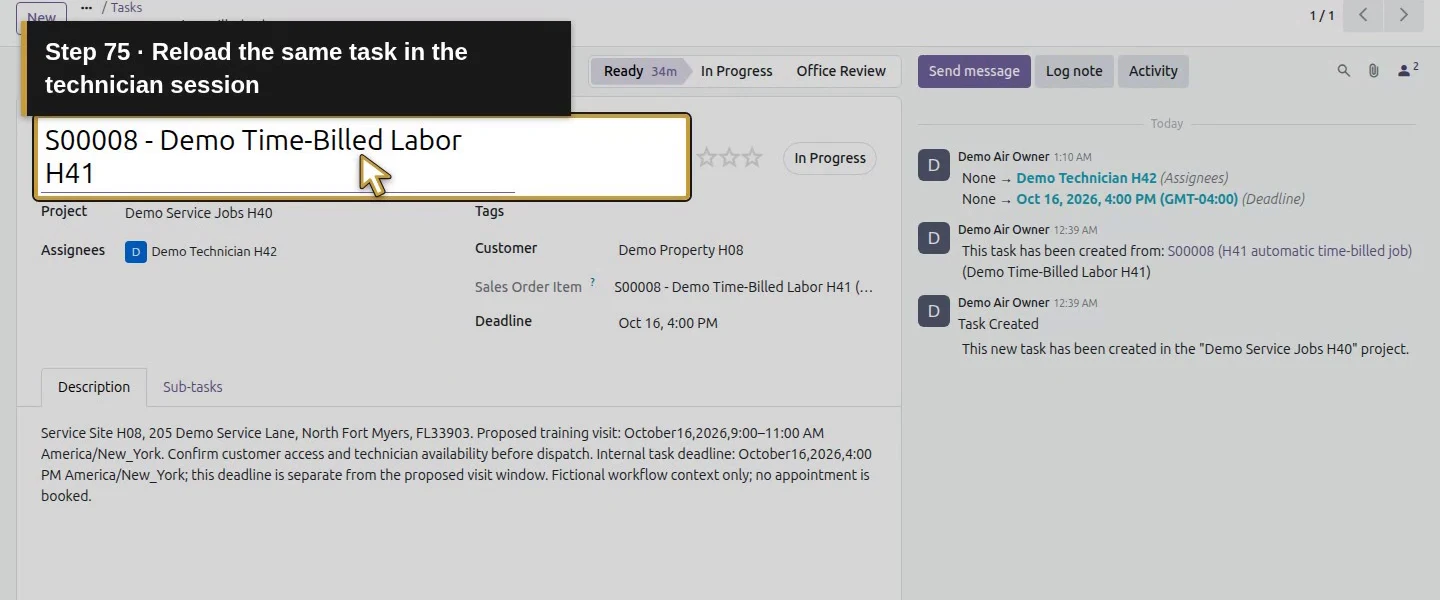
Technician session: open the assigned S00008 job.The technician can read the same service project.The technician can read the job customer.The task retains its S00008 Sales Order Item.Demo Technician H42 is the saved assignee.The technician sees October 16 at 4:00 PM New York time.The technician reads the saved site and proposed visit window.This technician view exposes no Timesheets tab.Reload the same task in the technician session.Reload retains the same saved deadline.Reload retains the same complete handoff context.
Step 8. Check the access boundary and notification separately
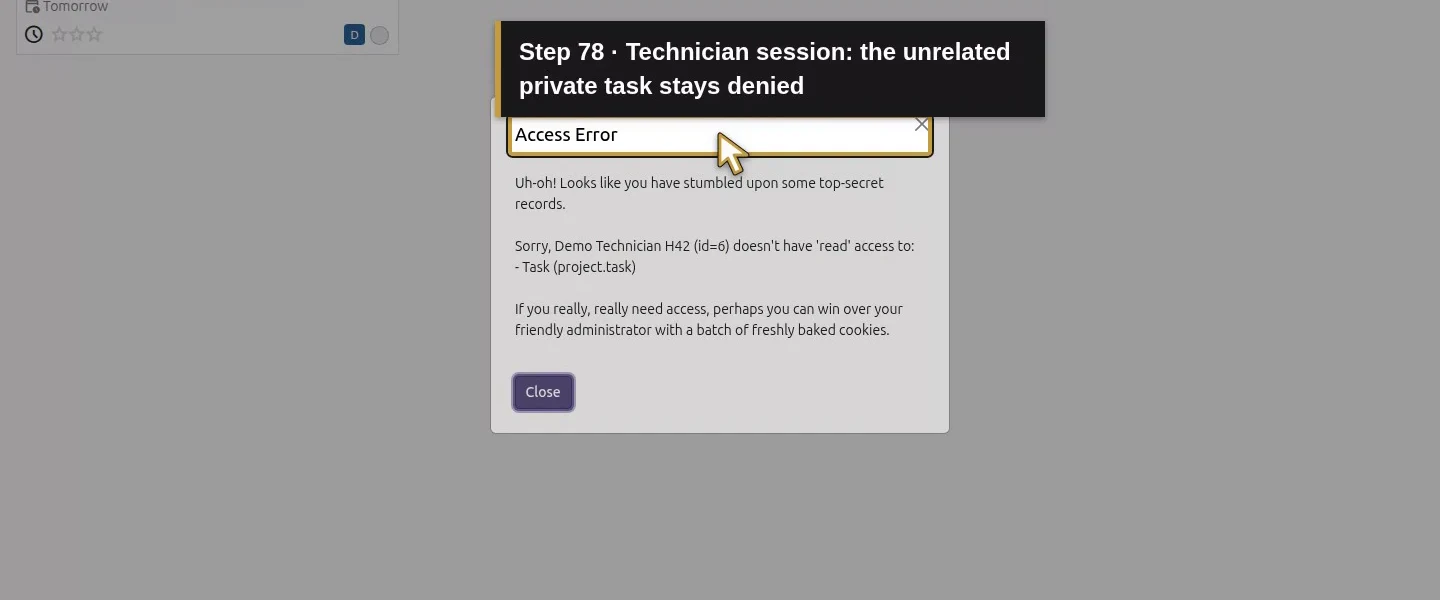
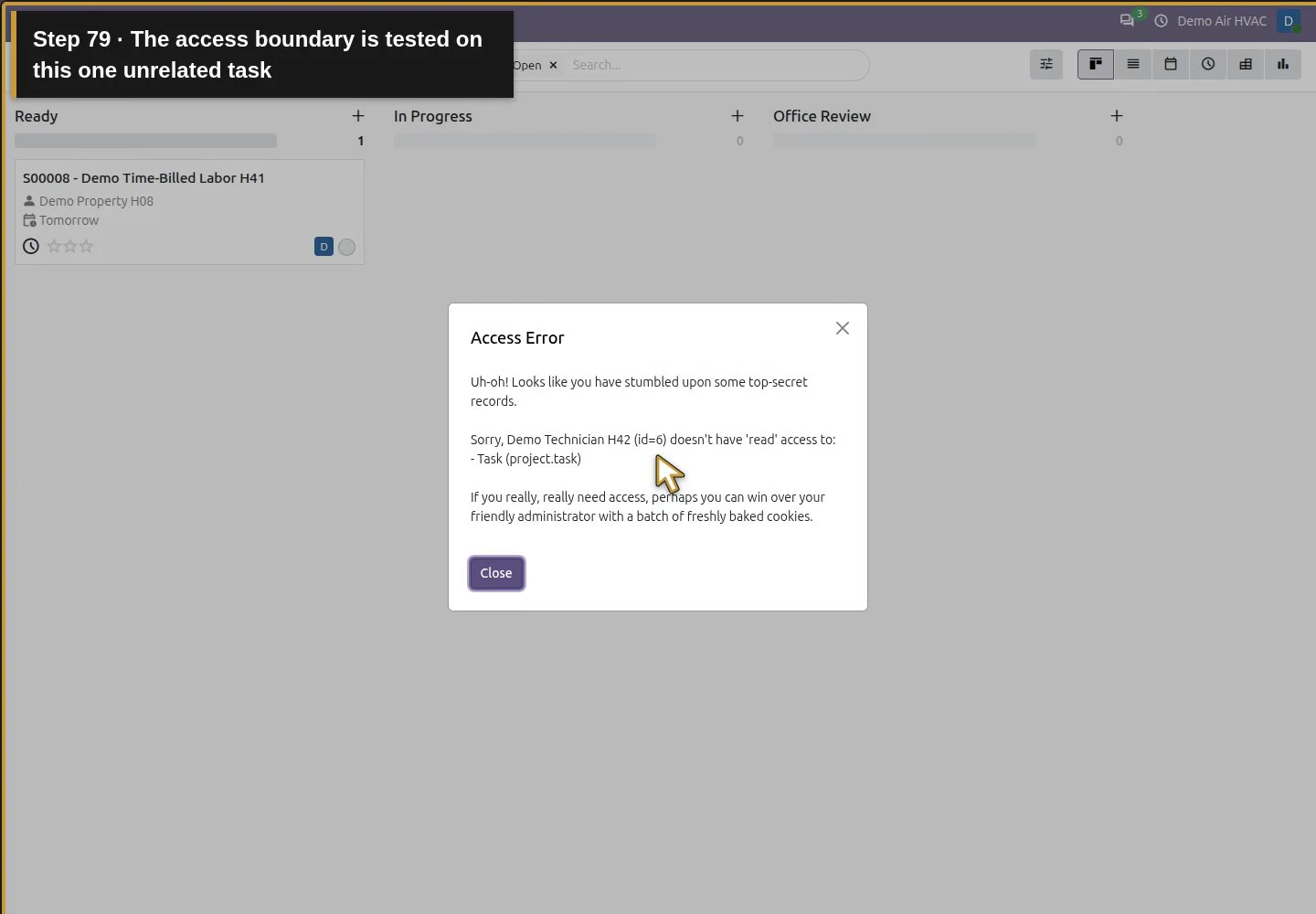
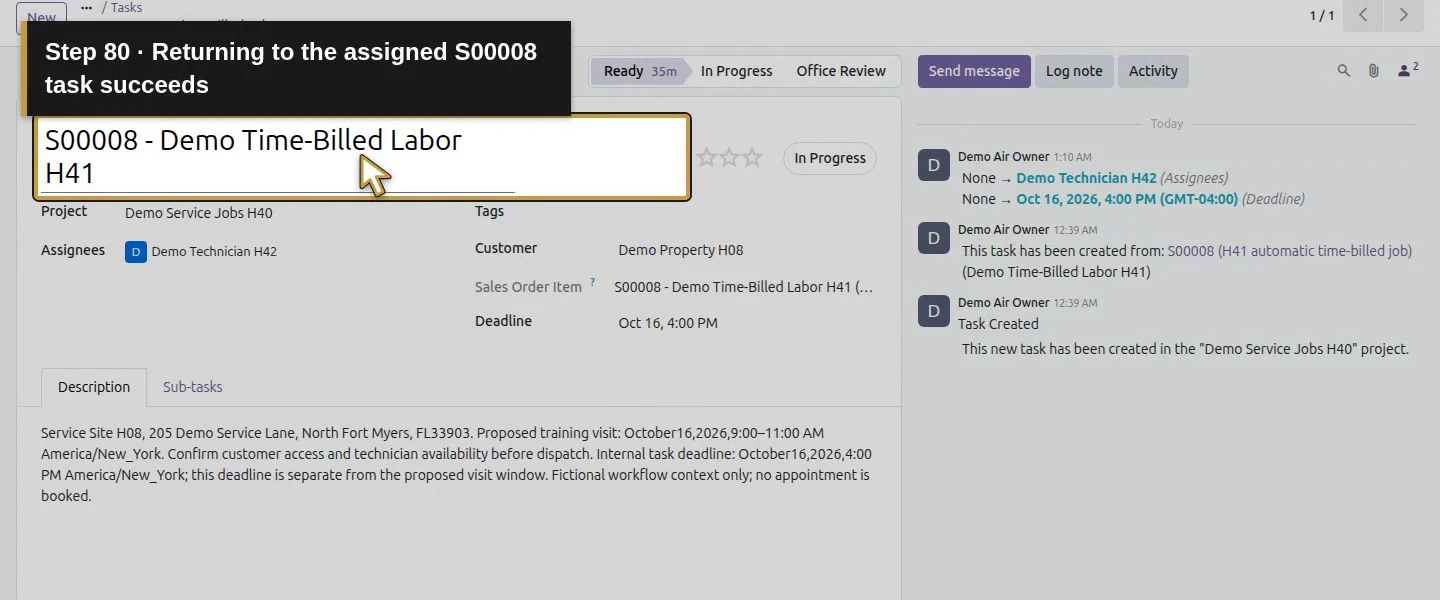
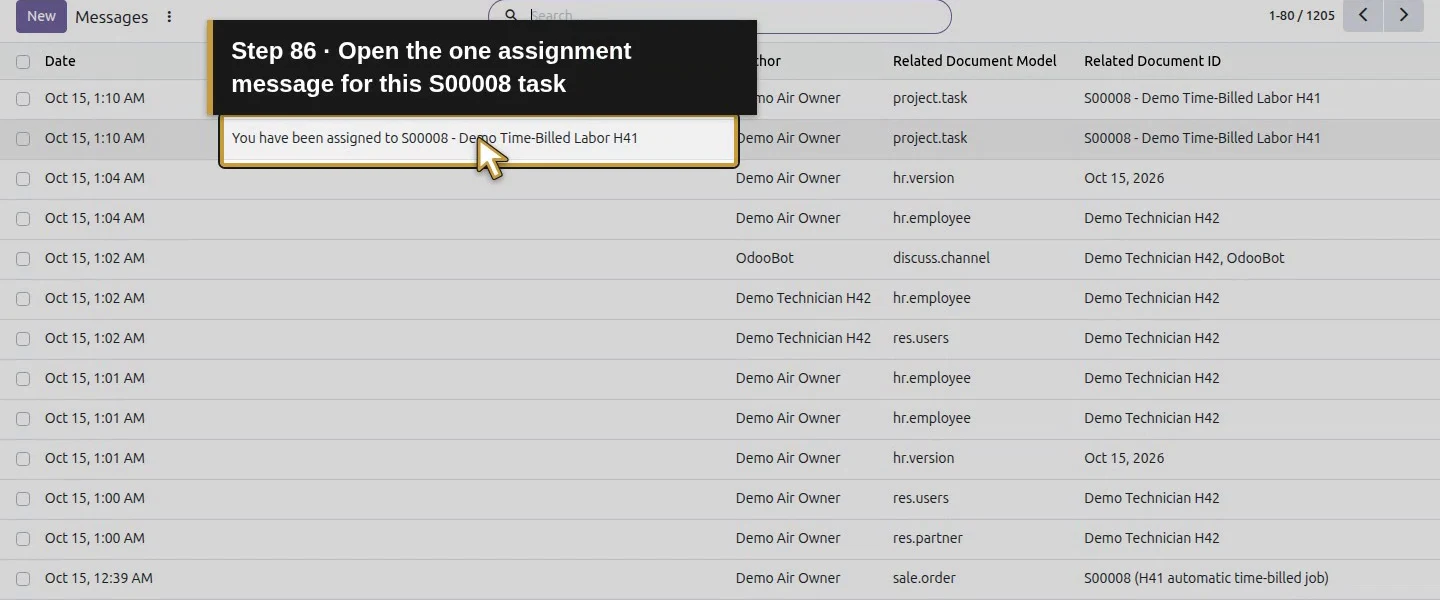
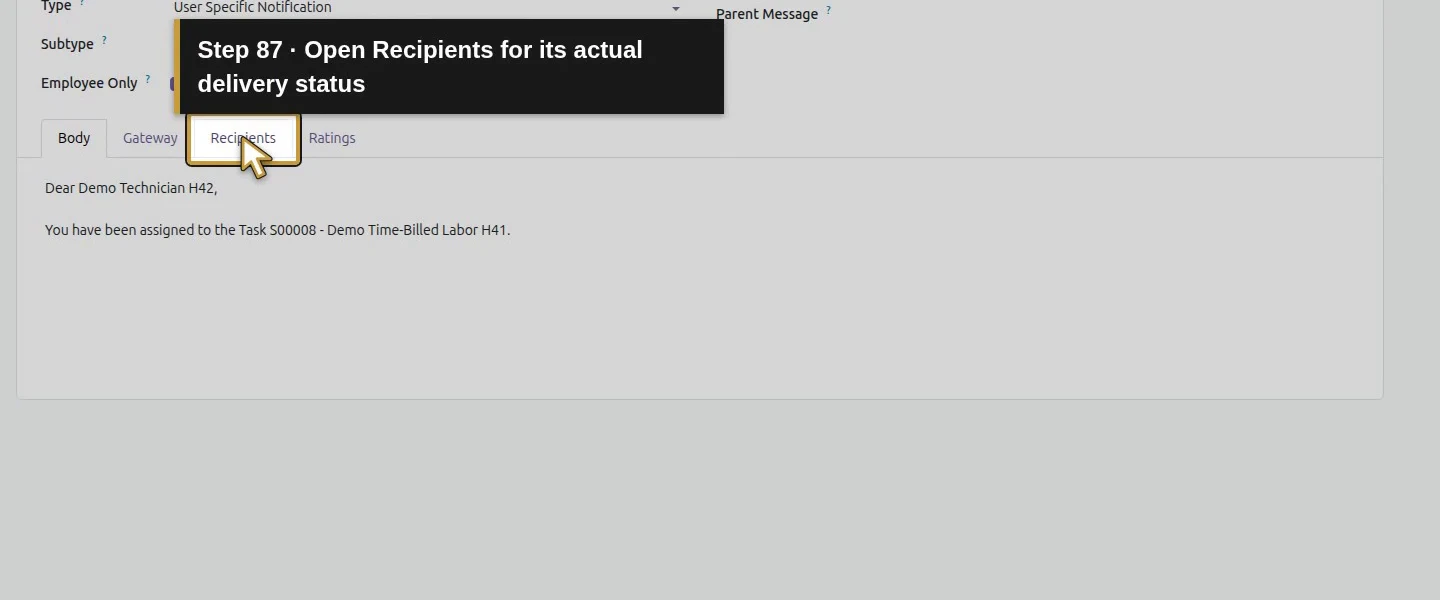
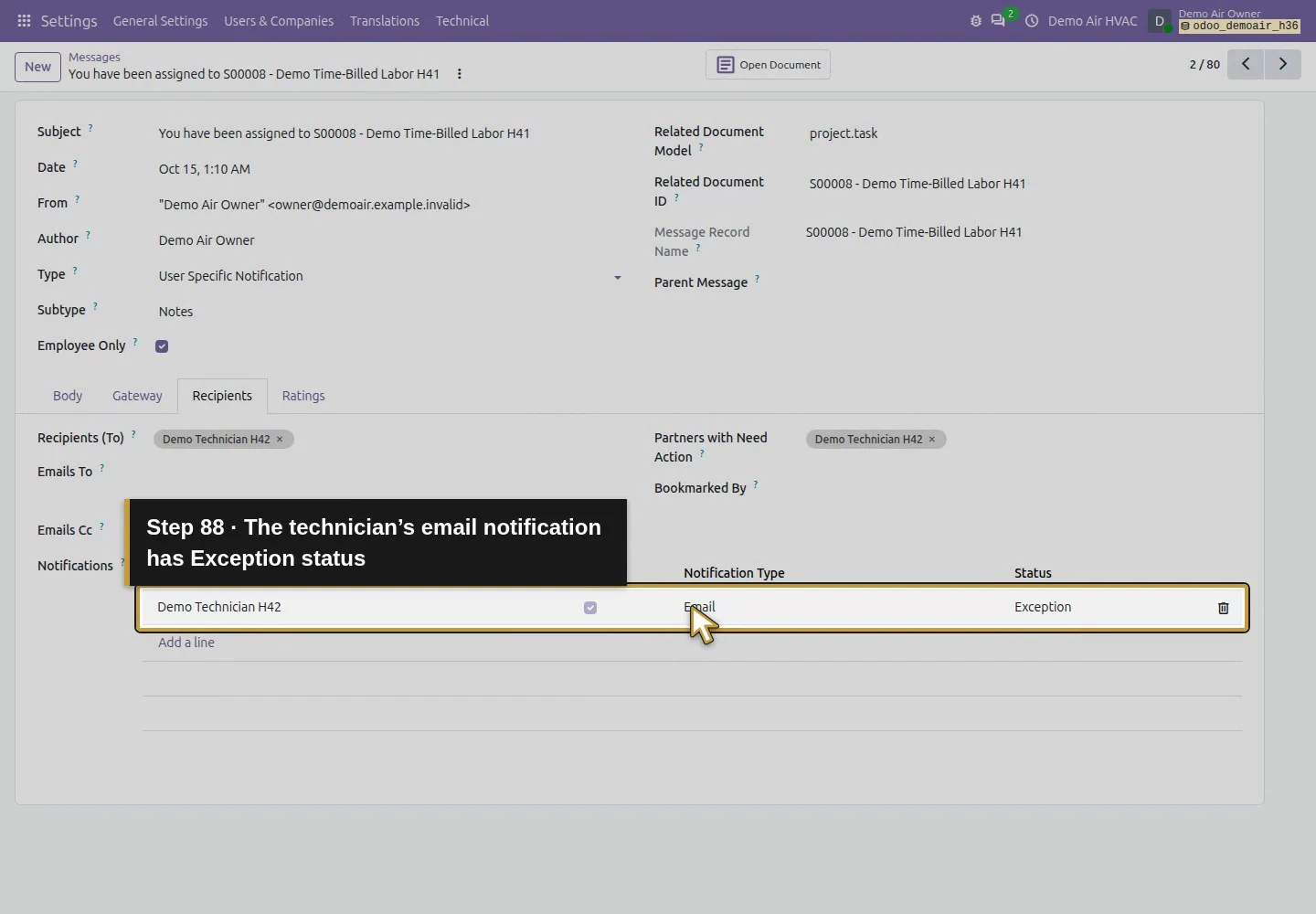
Our technician's attempt to open the earlier Demo Service Job H40 task still produced Access Error. Returning to the assigned task succeeded. The technician's blank email also caused the native assignment email notification to fail with mail_email_invalid; task access still worked. If your process requires an email alert, review the recipient address and actual delivery using set up and test outgoing email. An assigned name is not proof that a notification arrived.
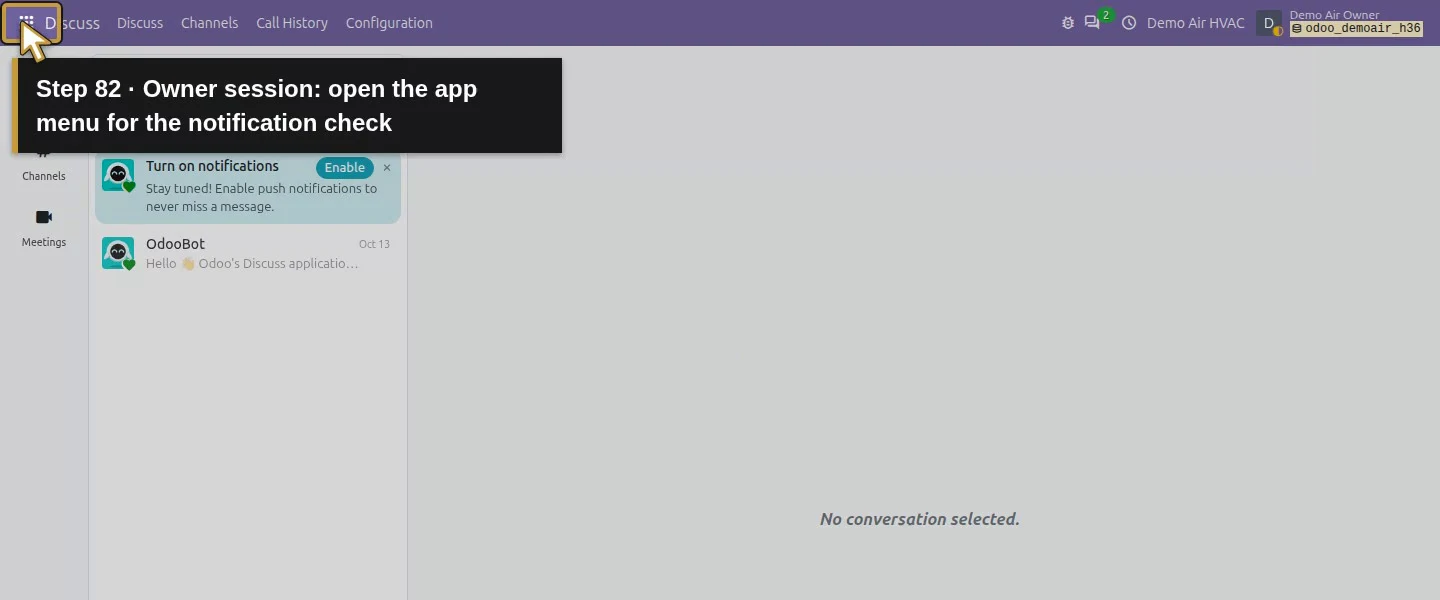
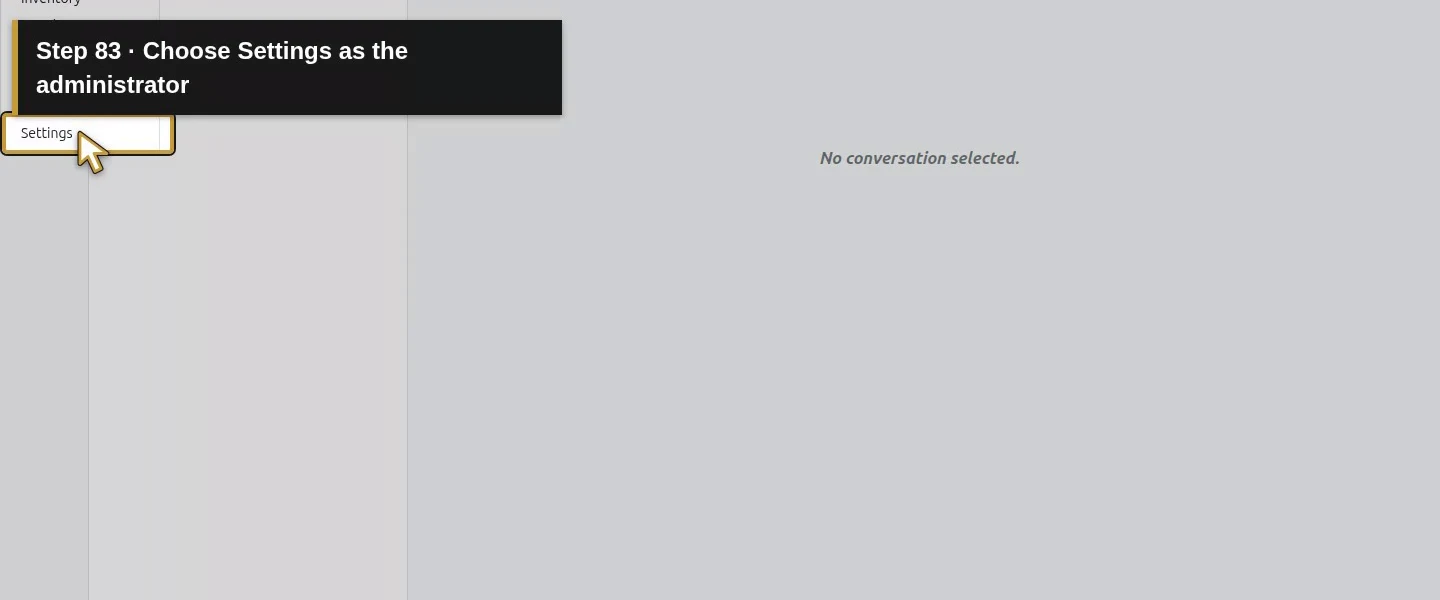
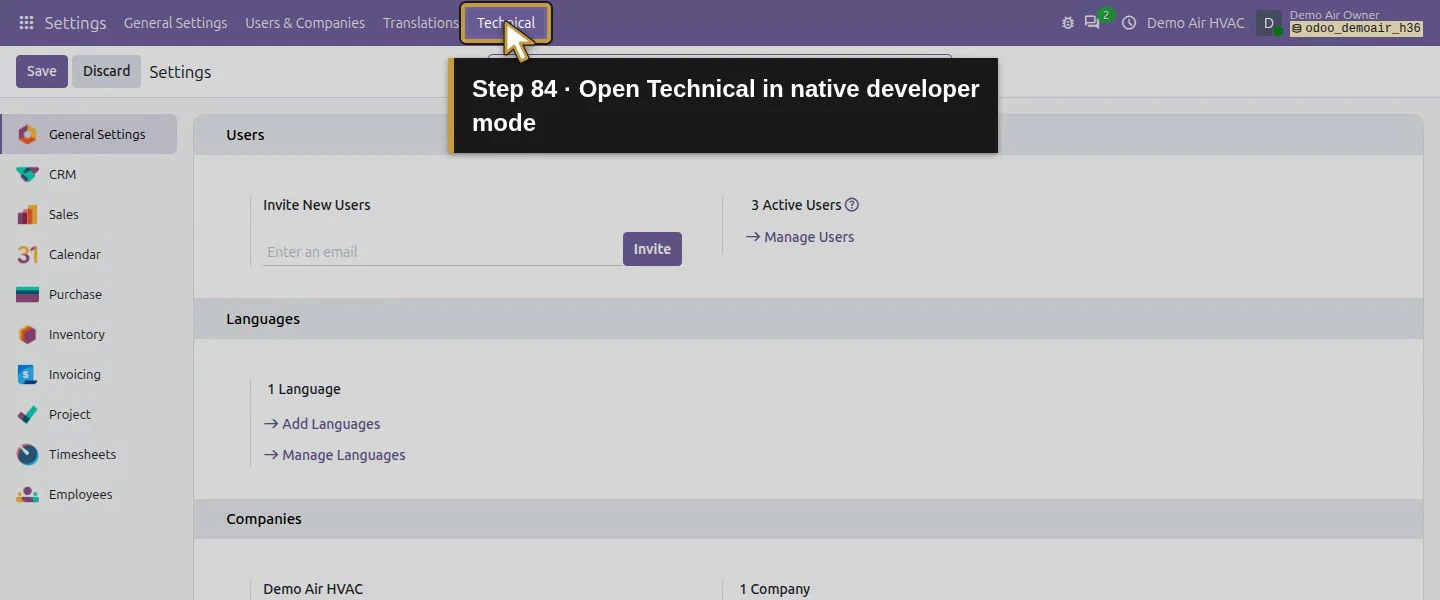
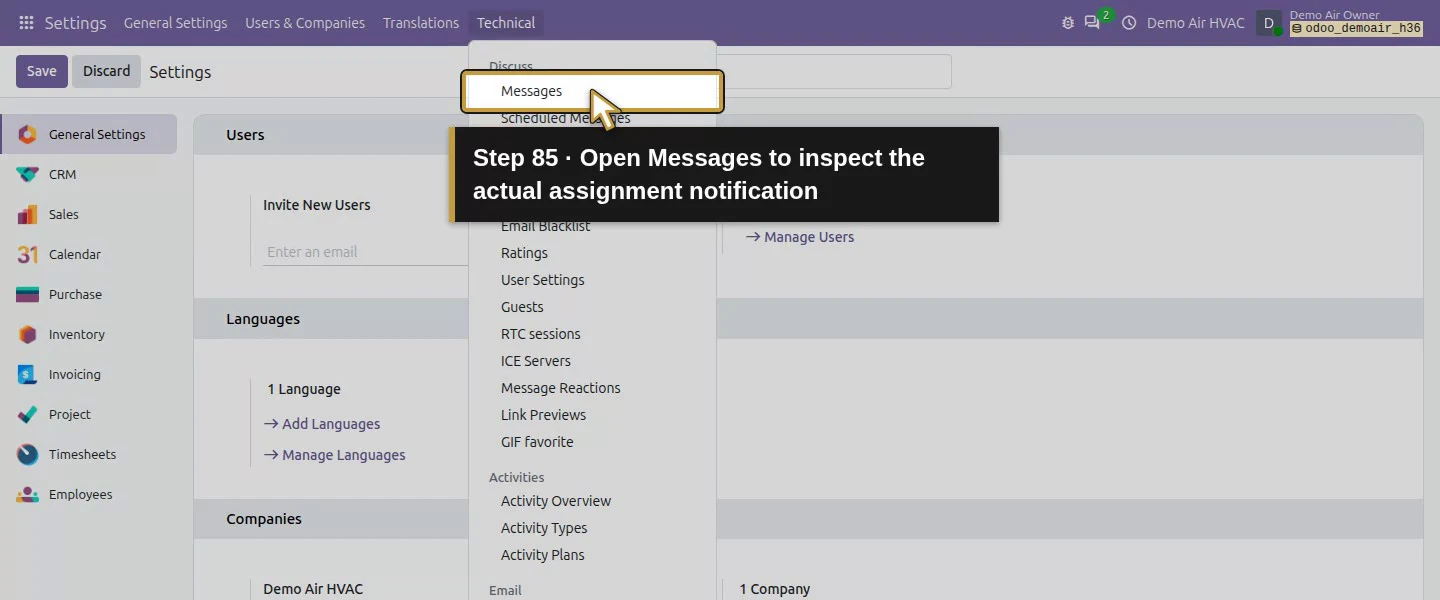
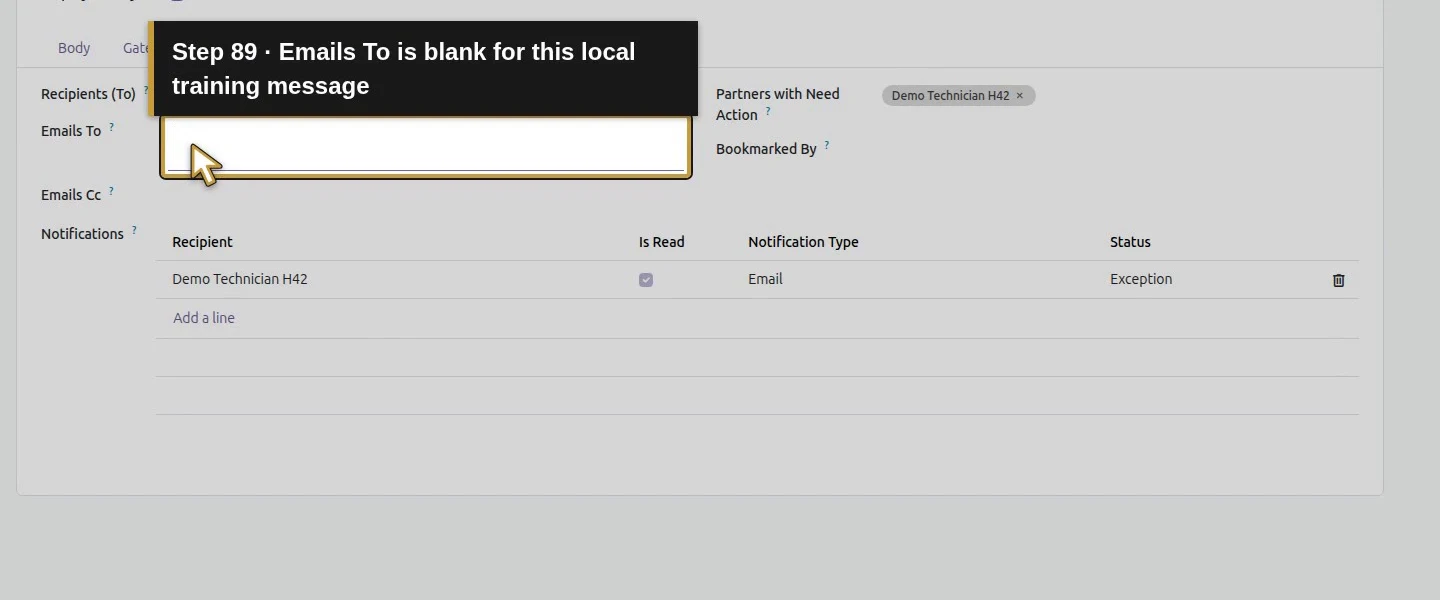
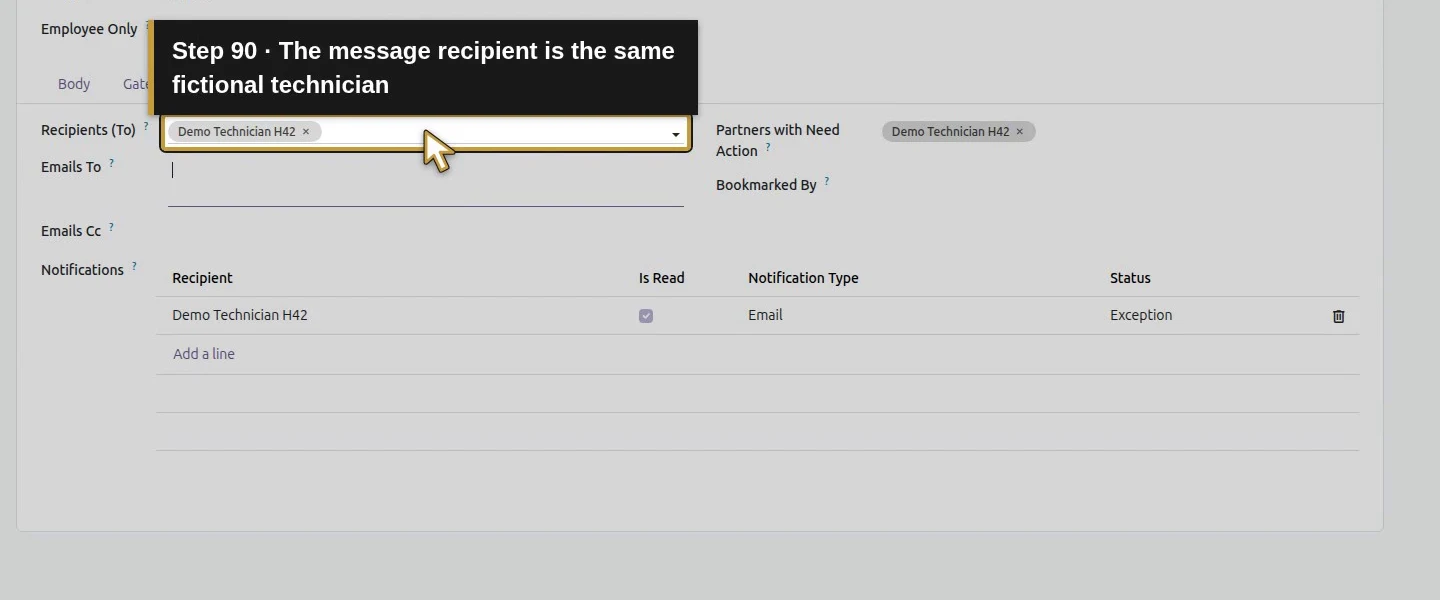
Technician session: the unrelated private task stays denied.The access boundary is tested on this one unrelated task.Returning to the assigned S00008 task succeeds.The assigned task still retains the saved deadline.Owner session: open the app menu for the notification check.Choose Settings as the administrator.Open Technical in native developer mode.Open Messages to inspect the actual assignment notification.Open the one assignment message for this S00008 task.Open Recipients for its actual delivery status.The technician’s email notification has Exception status.Emails To is blank for this local training message.The message recipient is the same fictional technician.
Step 9. Check what was not scheduled
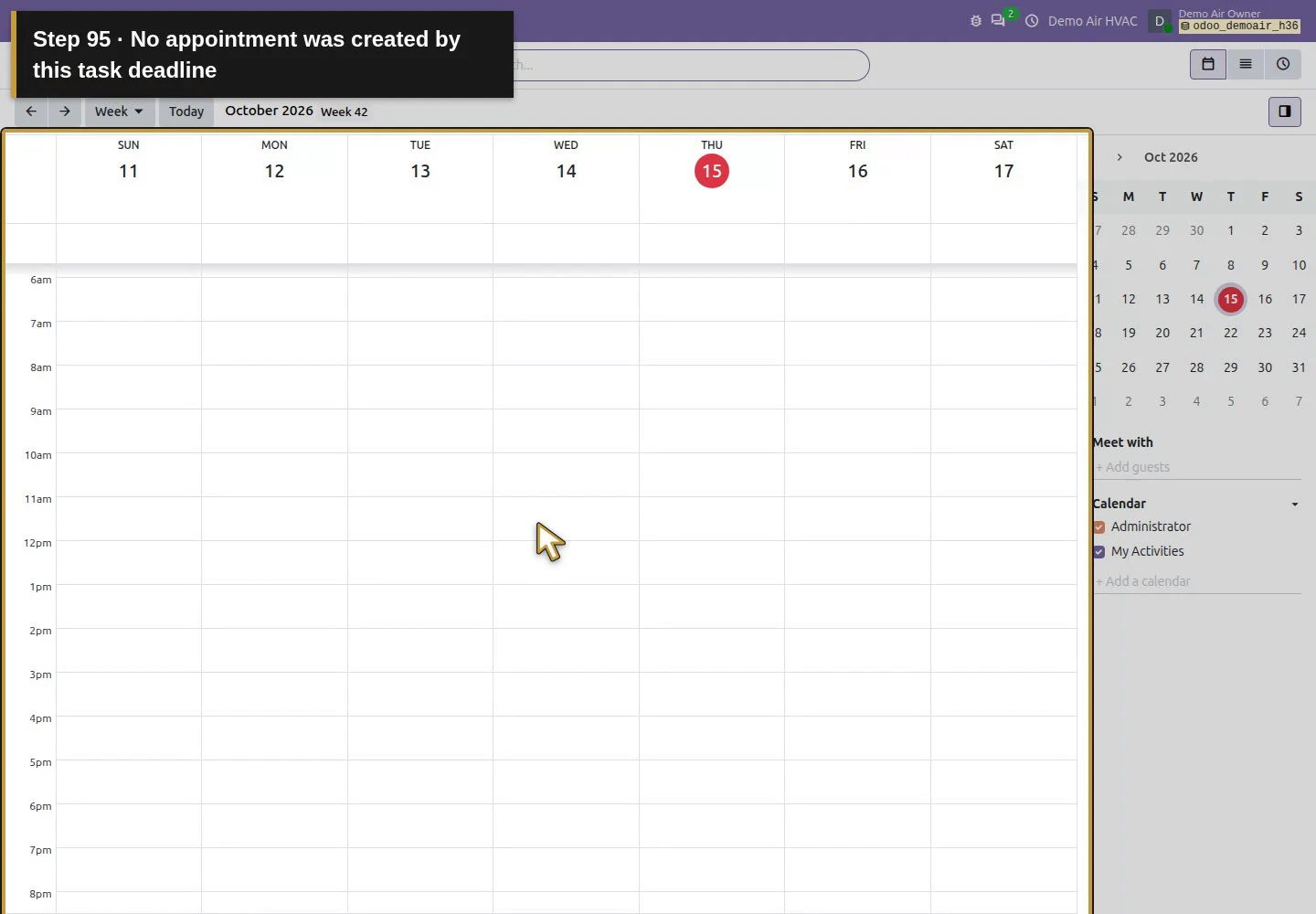
The Calendar event count stayed zero before and after the saved deadline. This procedure created no appointment, availability reservation, invoice or additional task. Our technician's form also did not expose Timesheets under the tested permissions; time-entry access needs its own check. Keep the manually agreed dispatch and customer handoff separate from this task's responsibility and deadline.
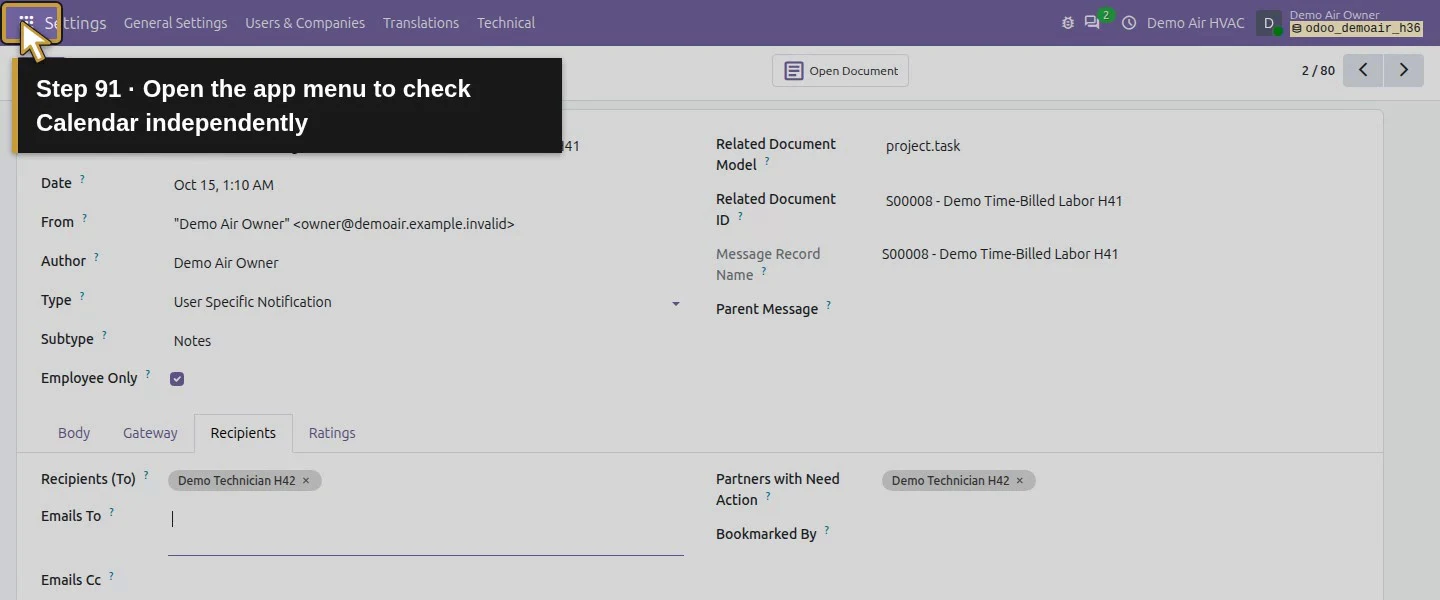
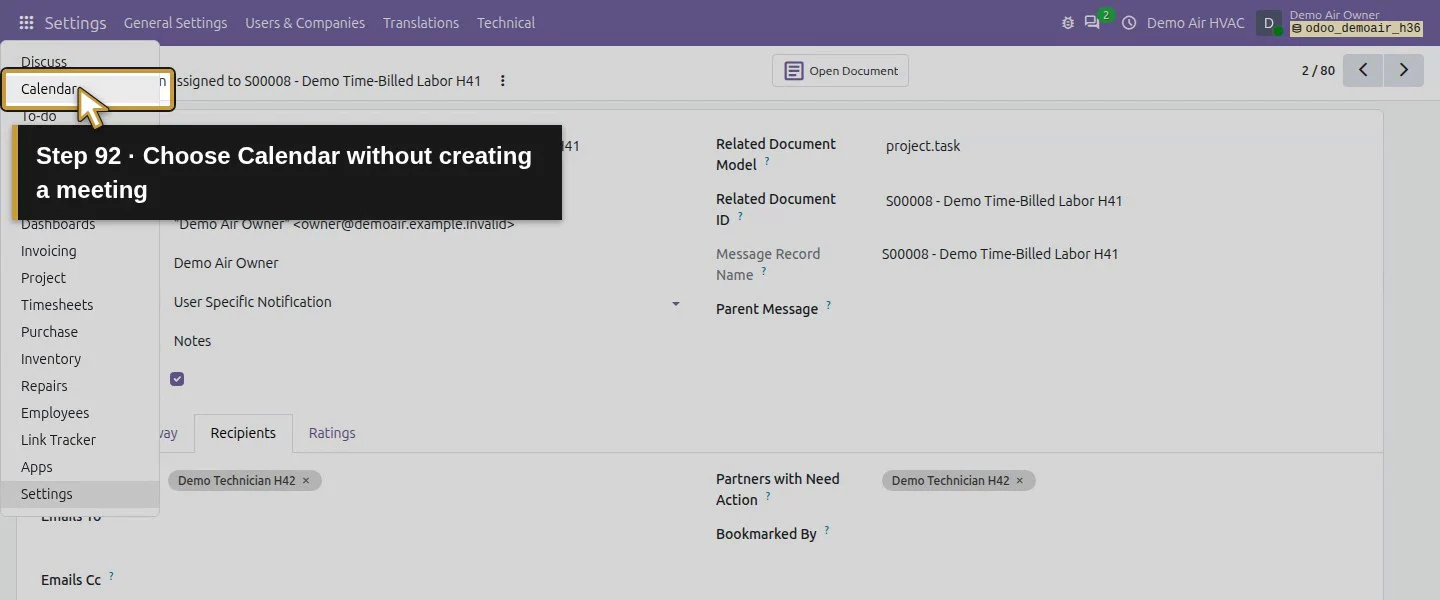
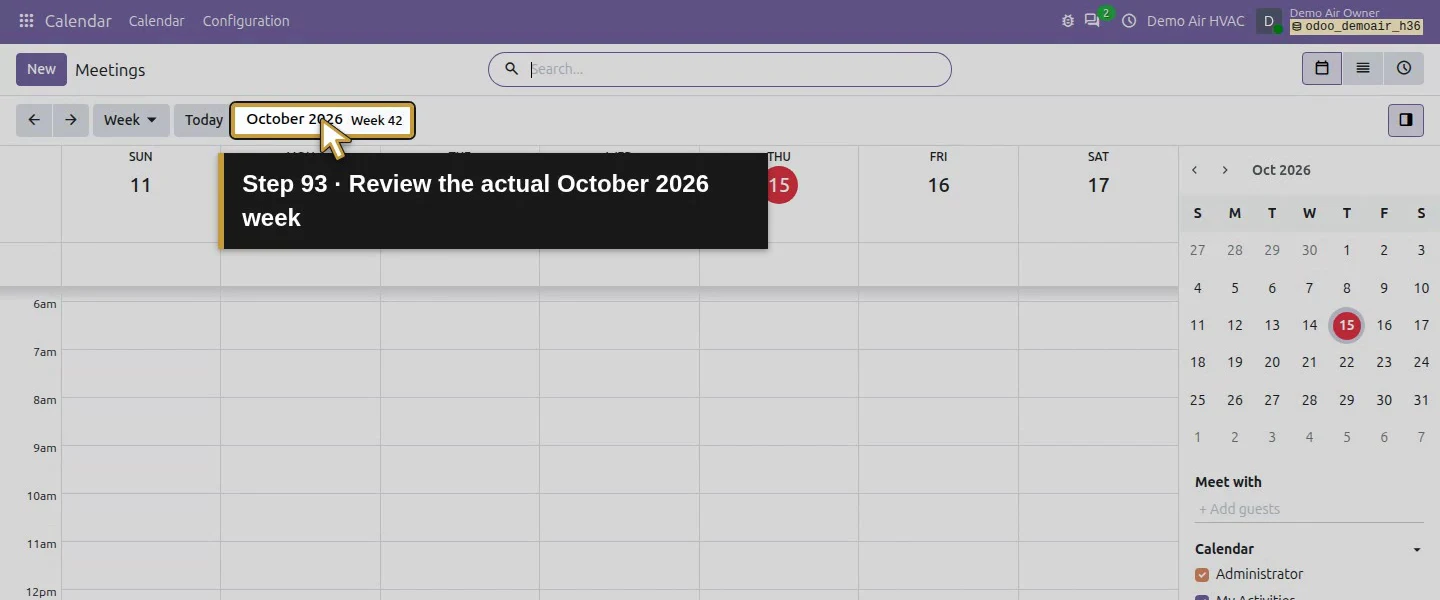
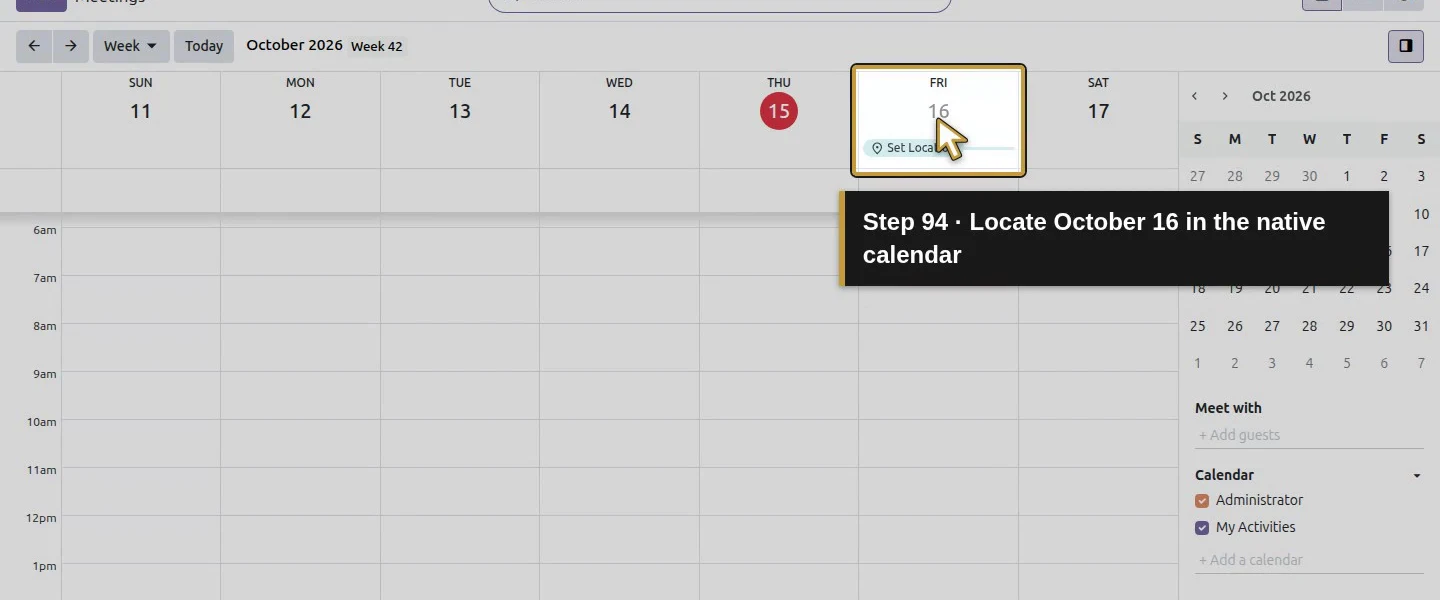
Open the app menu to check Calendar independently.Choose Calendar without creating a meeting.Review the actual October 2026 week.Locate October 16 in the native calendar.No appointment was created by this task deadline.Return to the same saved sales-linked job.The saved responsible technician remains assigned.The saved deadline remains October 16 at 4:00 PM New York time.The complete site and proposed visit context remain saved.Ready is still the task’s stage.The separate task status is still In Progress.
Check the result
The existing task retains Demo Technician H42 as its assignee and October 16, 2026 at 4:00 PM America/New_York as its deadline, plus the manually entered site/visit context. The technician's own session reads the same values after reload, while the unrelated private task stays denied. Project visibility/team, sales-line linkage and earlier business records are preserved. Calendar events remain zero. Assignment email failed for the blank training address; no email receipt is claimed.
If your screen differs
Test the actual assignee's role and task access rather than checking only the owner's form. This Project User was denied before assignment, gained access to the assigned task and remained denied on the other tested task. These checks do not establish every project/team/portal boundary. User time zones affect how deadlines display; both tested users used America/New_York, and the saved deadline was 20:00 UTC. A deadline did not book a visit or prove availability. The blank-address assignment notification failed and was retained without retry; use a valid reviewed recipient and actual delivery checks when email alerts are needed. Technician time-entry, edit and completion permissions are separate workflows.
Frequently asked questions
How do I assign an Odoo task to a technician?
Prepare the technician's internal user and appropriate Project role, then select that user in the task's Assignees field and save. Reopen the task in the technician's own session. Our Project User could read the assigned task after assignment while an unrelated private task stayed denied. Employee profile creation alone did not establish those access results.
Does an Odoo task deadline book a service appointment?
The tested Deadline picker saved a date and time, but Calendar event count stayed zero. We recorded the proposed customer window separately in Description and kept an internal 4:00 PM deadline. Confirm the customer visit, access and technician availability through the business's reviewed dispatch process.
Why can't an assigned user see an Odoo Project task?
Check the actual account, Project permission and restricted task/project access in that user's session. Our Project User was denied on the unassigned task, then could read it after assignment added the task follower. The unrelated task stayed denied. Email notification is another check: our blank-address alert failed despite successful task access.