
Getting started with Odoo · Lesson 4
How do I create an employee record in Odoo?
For a person who already has an Odoo login, open their user account and select Create employee. Add the job details, then reopen the employee record and verify its User link.
One saved employee profile linked to the existing office user, with a checked job title and work location.
Alex Rivera runs Demo Air HVAC, a fictional heating and cooling business. He has prepared the office worker’s login and permissions. Now he needs the employee profile for later team workflows.
Follow the seventeen stepsBefore you begin
Complete the company-profile lesson, the app checklist and the user-access lesson first. This walkthrough uses the existing Demo Office H03 account.
The tested setup is stock Odoo 20.0-20260926 Community, with native Employees installed. Sign in with an administrator account that can manage employee records. Check the current company; this example uses Demo Air HVAC.
Search Employees for the person before creating another profile. In our starting state, there is no employee for this user. If the user already has an Employee smart button, open and review that link first.
In Settings, select Manage Users and search for Demo Office H03. The recording starts with this filtered user list. It records the first employee creation, then the save-and-reopen checks.
This lesson uses Work and Settings on the employee form. Payroll, contracts, private personnel details and onboarding plans need their own setup. We leave the work email blank and use the existing login.
Create and verify the employee record
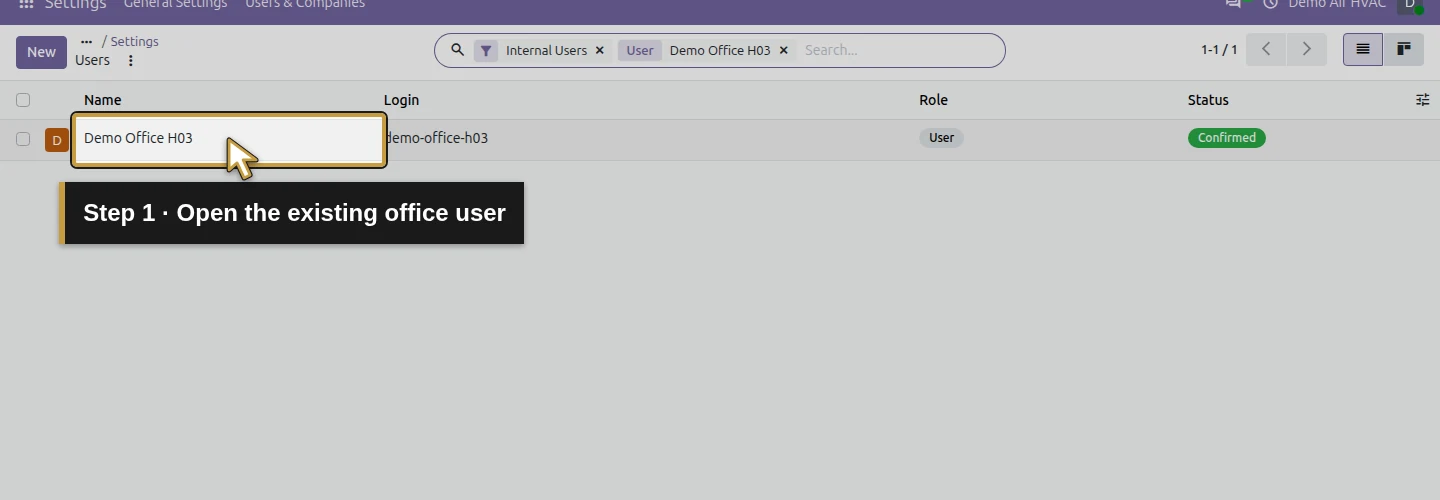
Step 1. Open the existing office user
In the filtered Users list, click Demo Office H03. This is the office account prepared in the user-access lesson.
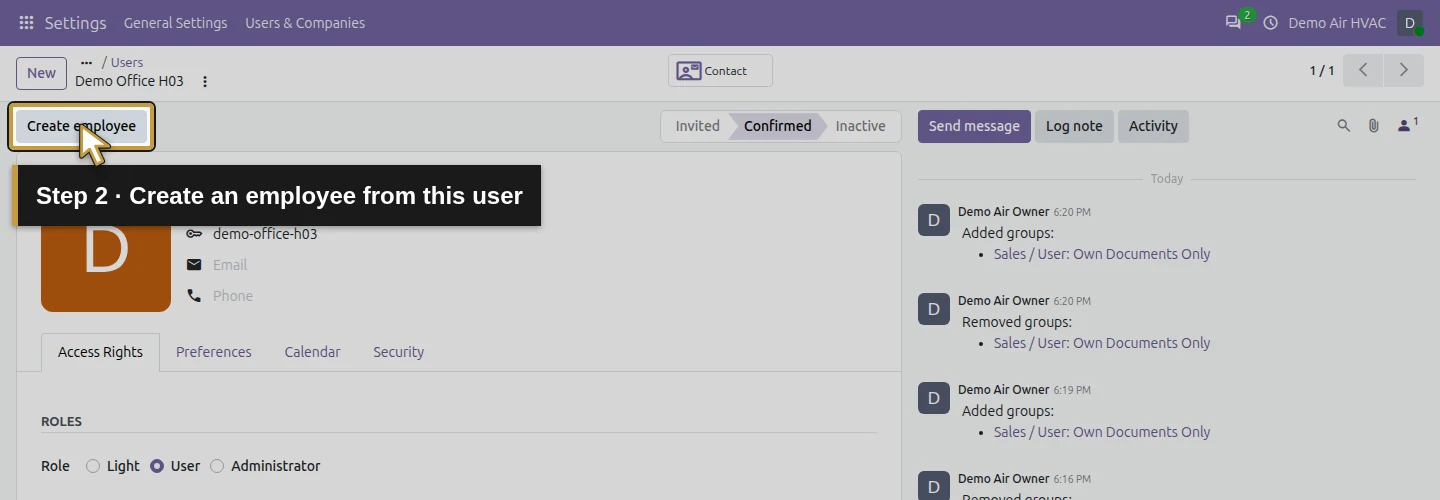
Step 2. Create an employee from this user
Click Create employee. Odoo creates the employee using this account and current company; an Employee smart button appears with a count of one.
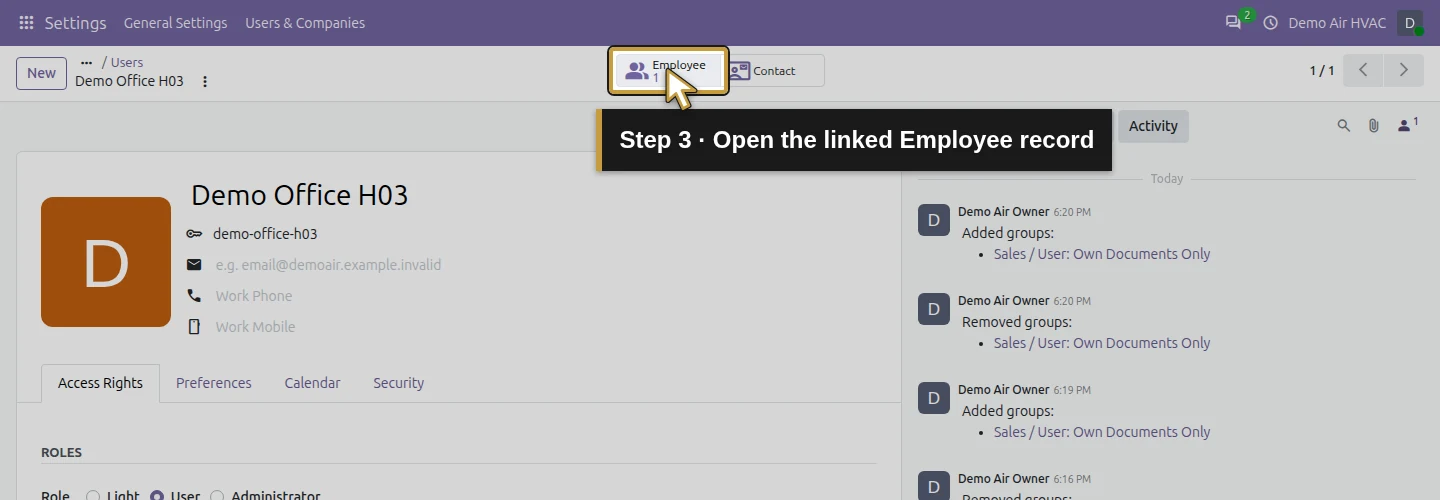
Step 3. Open the linked Employee record
Click the Employee smart button. Check the employee’s name at the top of the form.
Step 4. Open Work details
Select the Work tab. This contains the job details and work-location fields used in this lesson.
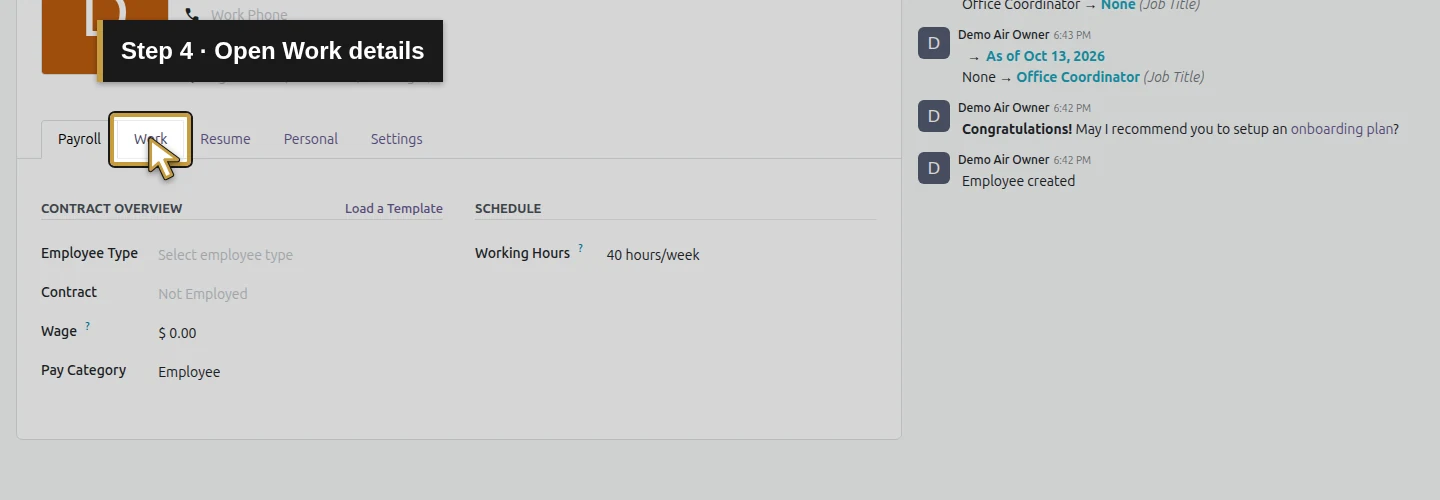
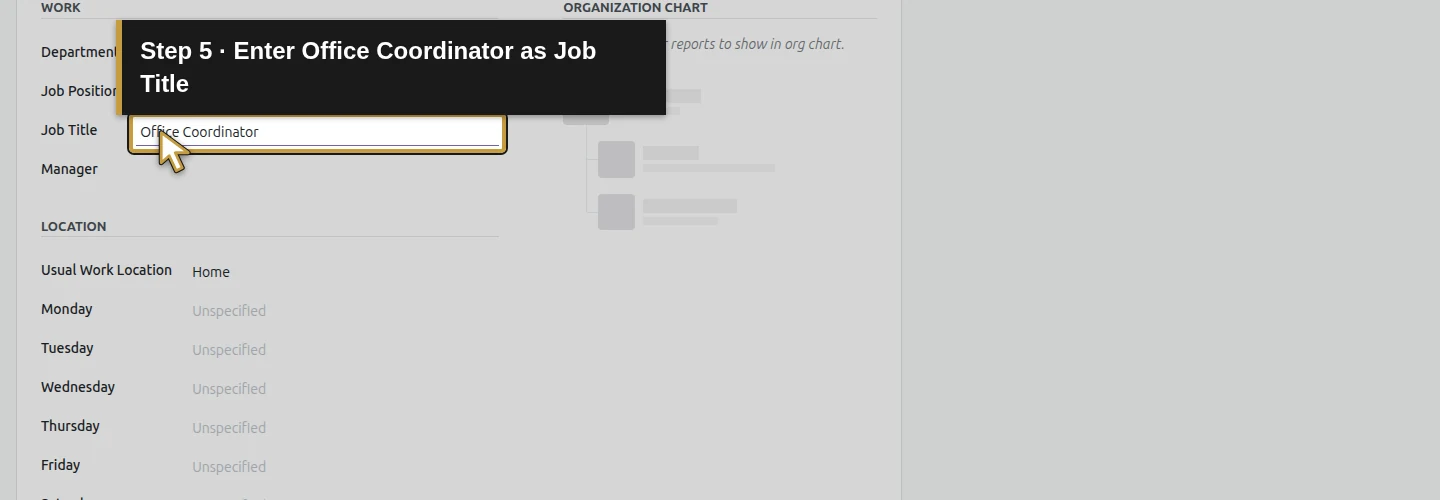
Step 5. Enter the Job Title
Click Job Title and enter Office Coordinator. This walkthrough uses the Job Title field; it does not create a separate Job Position record.
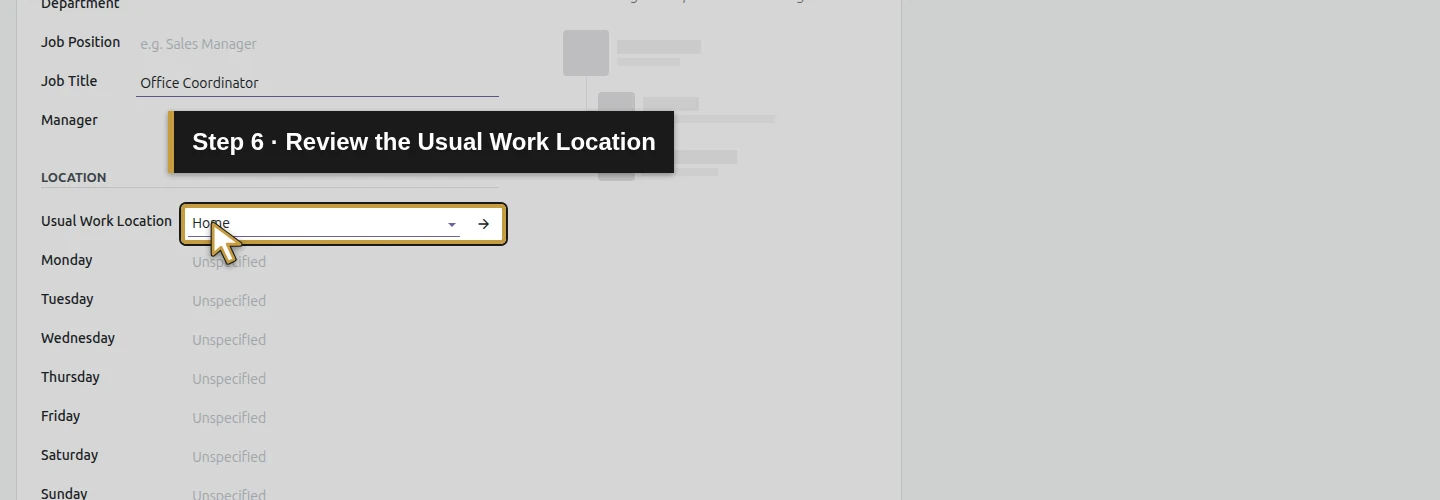
Step 6. Review the Usual Work Location
Check Usual Work Location. Our demo already has Home selected, matching this early stage of the fictional business. Review the location in your own setup; Home is this example’s existing default.
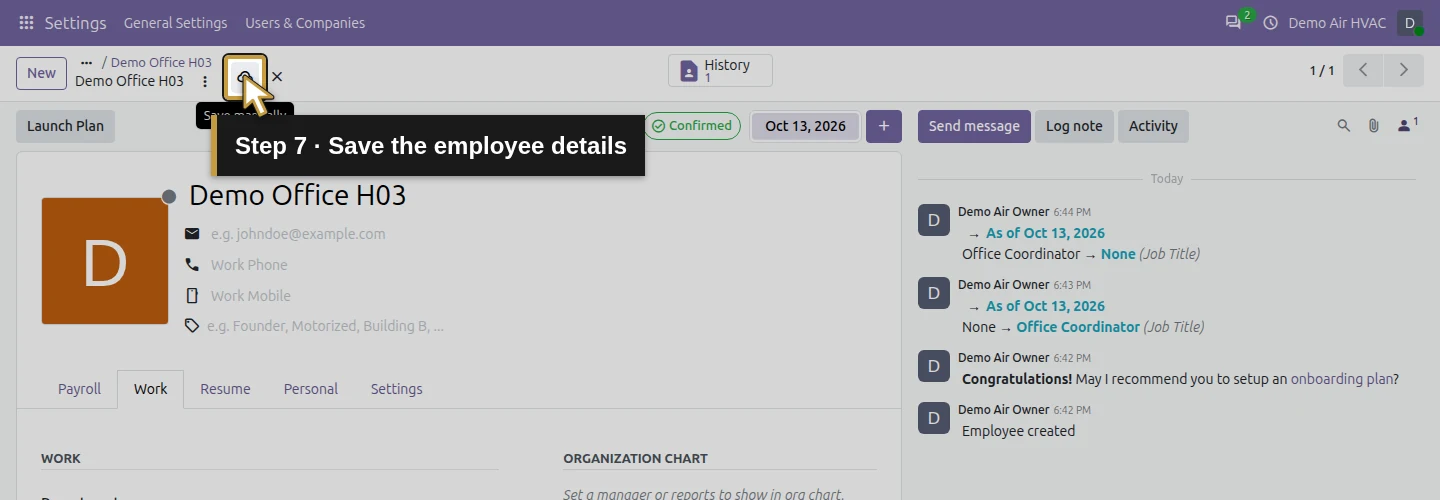
Step 7. Save the employee details
Click Save manually in the control bar beside the employee’s name. The job details are saved.
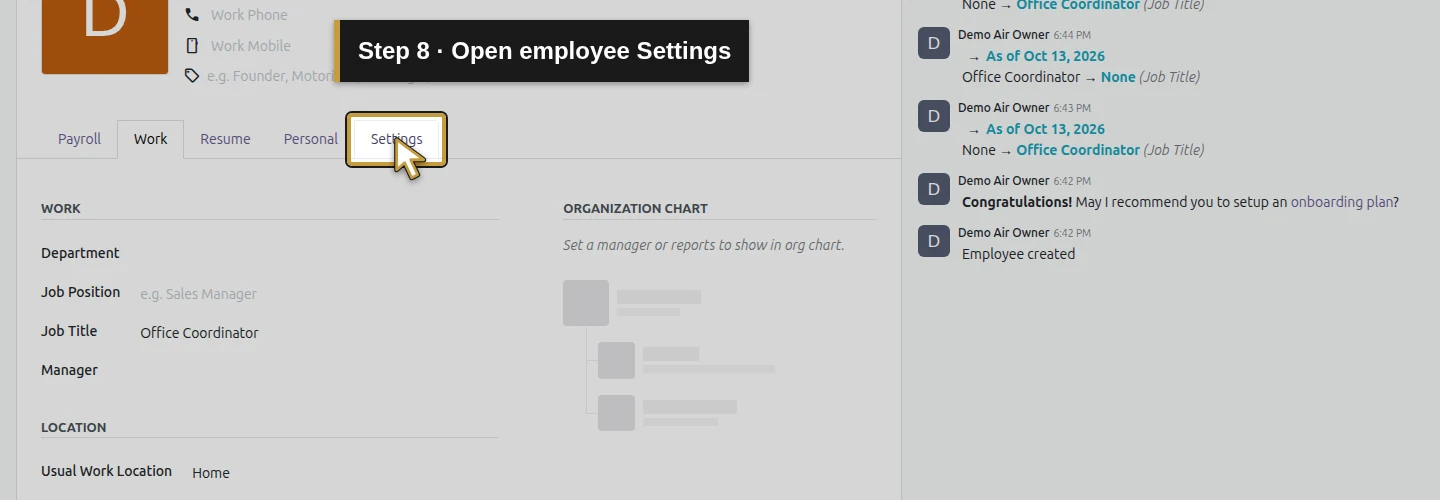
Step 8. Open employee Settings
Select the employee’s Settings tab. This is a tab on the employee form, separate from the system Settings app.
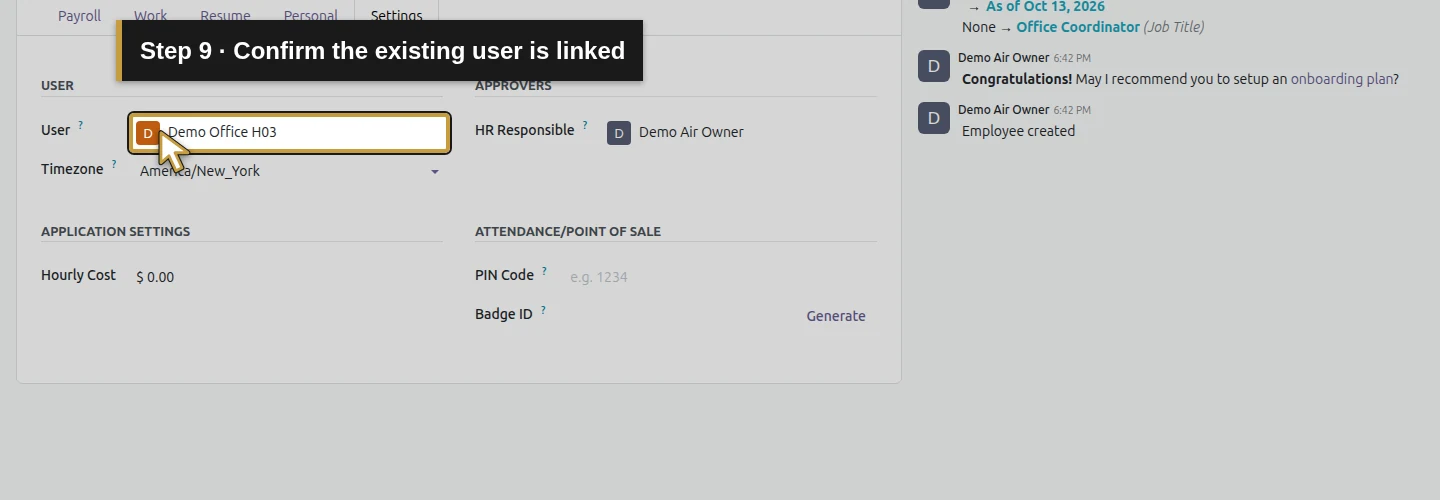
Step 9. Confirm the existing user is linked
Check User. It should show Demo Office H03, the account you started from. This path reuses that login.
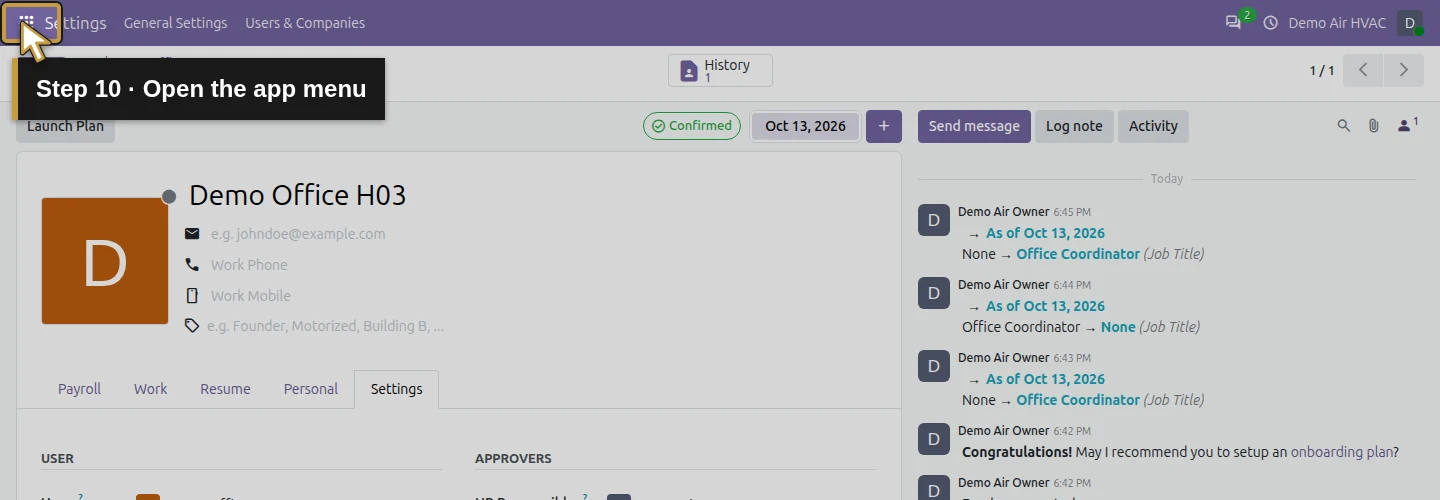
Step 10. Open the app menu
Click the grid-shaped app menu at the top left. We will reopen the saved record from Employees.
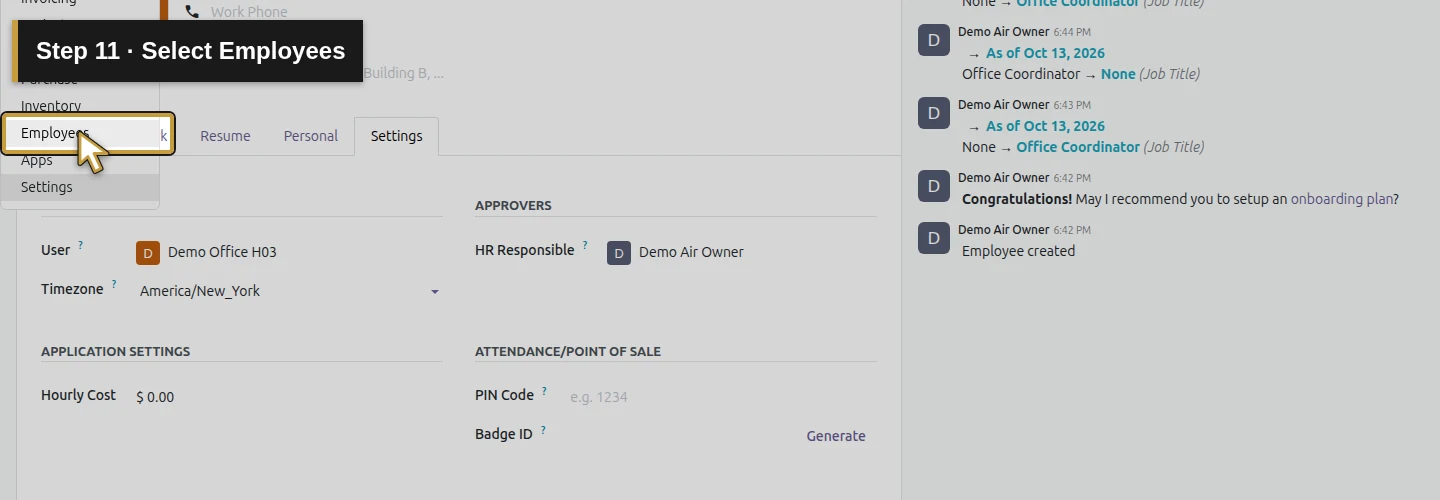
Step 11. Select Employees
Choose Employees. The employee overview opens.
Step 12. Search for the employee and press Enter
Click the search box, enter Demo Office H03, and press Enter. The filtered overview shows the matching employee.
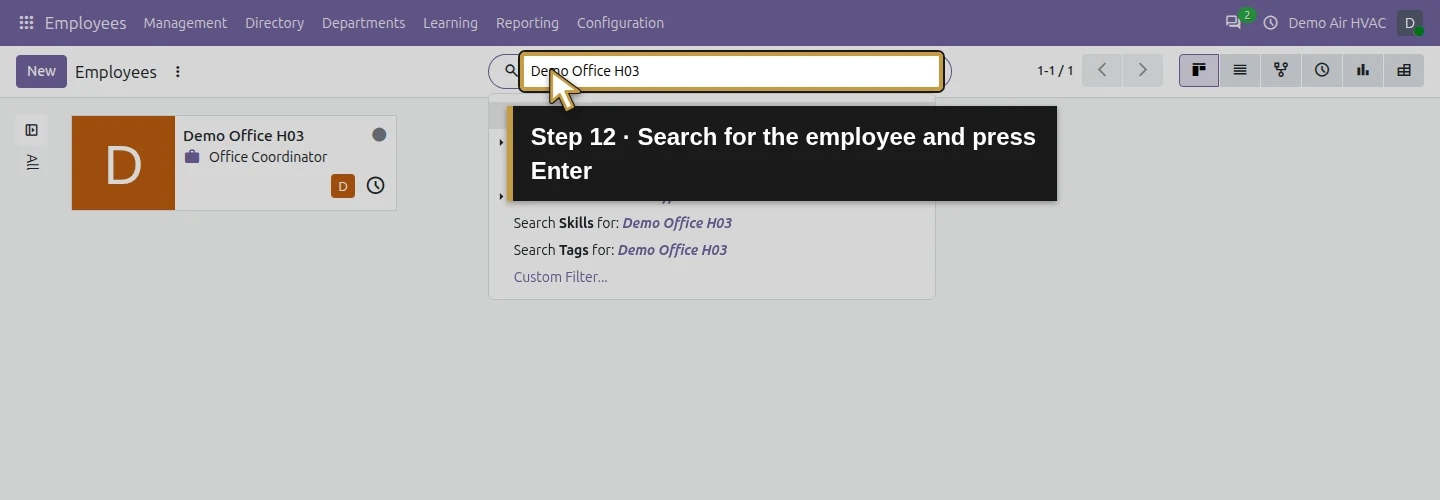
Step 13. Reopen the employee card
Click the Demo Office H03 employee card. Reopening checks the persisted record.
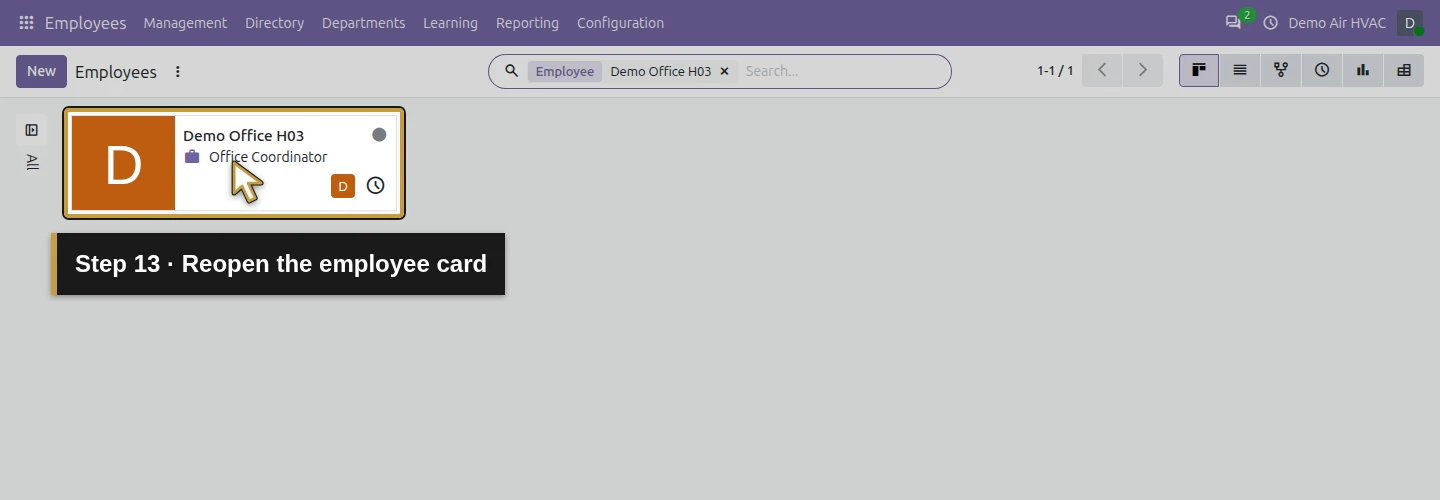
Step 14. Reopen Work details
Select Work again. Check the saved details rather than relying on the earlier edit form.
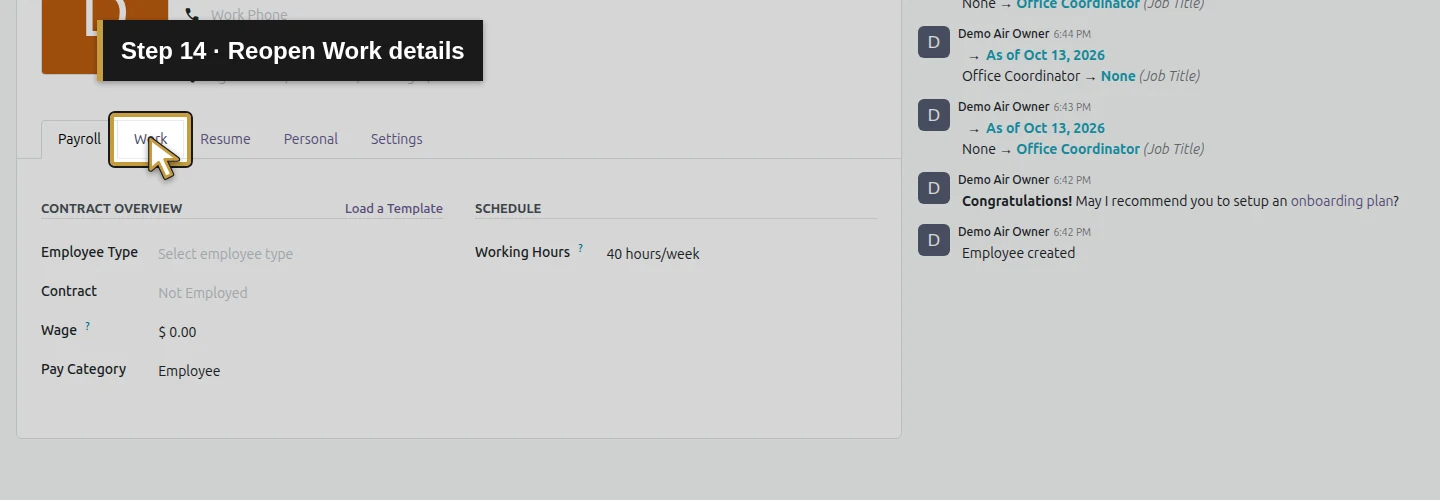
Step 15. Confirm the saved Job Title
Read Job Title and confirm Office Coordinator. Review the location alongside it.
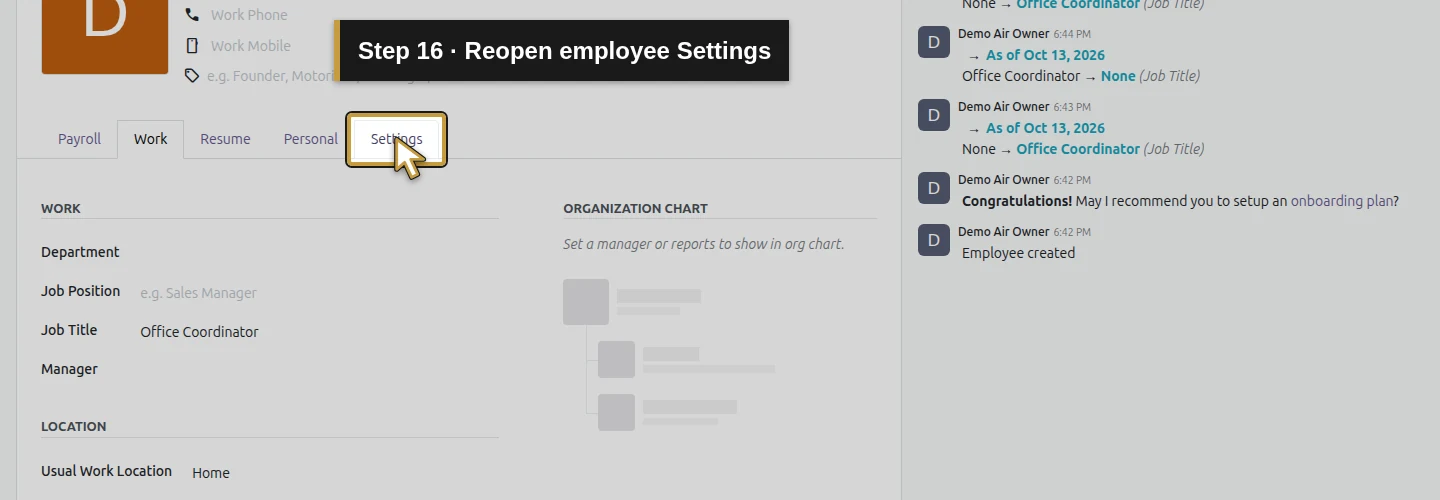
Step 16. Reopen employee Settings
Select Settings again to inspect the saved user link.
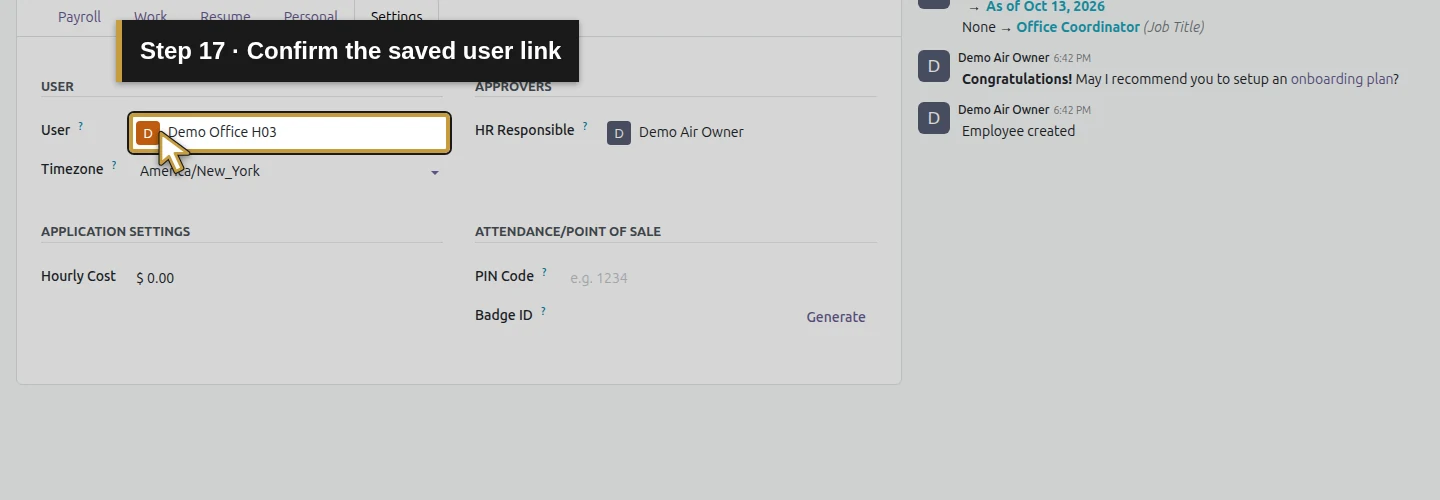
Step 17. Confirm the saved user link
Check that User still shows Demo Office H03. You now have the employee record connected to the intended existing account.
Check the final result
The saved record in this demo has the following values:
| Field or check | Verified result |
|---|---|
| Employee | Demo Office H03 |
| Company | Demo Air HVAC |
| Job Title | Office Coordinator |
| Usual Work Location | Home, the existing demo default |
| User | The existing Demo Office H03 account |
| Timezone | America/New_York, retained in this setup |
Returning to the user account shows an Employee count of one, with Create employee no longer offered for that link. Its User role and Sales: User: Own Documents Only permission remain intact. A separate office login still opens its own test opportunity and is still denied system Settings.
The employee profile and the login serve different purposes: the profile stores the person’s employee details; the user account carries their sign-in and access settings. Check both when preparing someone to work in Odoo.
Questions about Odoo employee setup
How do I link an employee to an existing Odoo user?
This walkthrough starts from that user in Manage Users and selects Create employee. The native action creates the linked employee. Open the Employee smart button, then check User under the employee’s Settings tab. Save and reopen to verify the result.
Why is Create employee missing from an Odoo user?
Check whether the user already has a linked employee and whether your account can manage employee records. In this demo, Create employee disappears after creation and the Employee smart button shows one. Open that existing link before trying another creation path.
Does creating an employee change their Odoo access rights?
The existing-user path tested here retained the office account’s User role and Sales permission. Employee-profile creation does not replace permission testing. Review the user’s access settings separately and sign in as that user to check the actions they need.
How do I avoid duplicate employee records in Odoo?
Search Employees for the person and review the existing user’s Employee link before creating another record. This single-company example stops offering Create employee once the link exists. It does not establish duplicate handling for every company or creation path.
Is an Odoo employee record enough to start payroll?
This lesson verifies the employee’s identity, job title, location and user link. It does not configure wages, contracts, taxes or pay runs. A Payroll tab or a recommendation for another app does not establish payroll readiness in your installed edition.
Continue the business setup
The office worker now has an employee profile connected to the existing login. The next planned lesson moves to US invoicing setup as Demo Air prepares to quote and bill its first job.
Get help setting up your HVAC team in Odoo
Tell us how your office staff and technicians will use Odoo. Onward can help you connect employee records, permissions and the workflows your team needs.
Talk about your Odoo setup