
Running an HVAC business with Odoo
How do I quote replacement equipment and optional upgrades in Odoo?
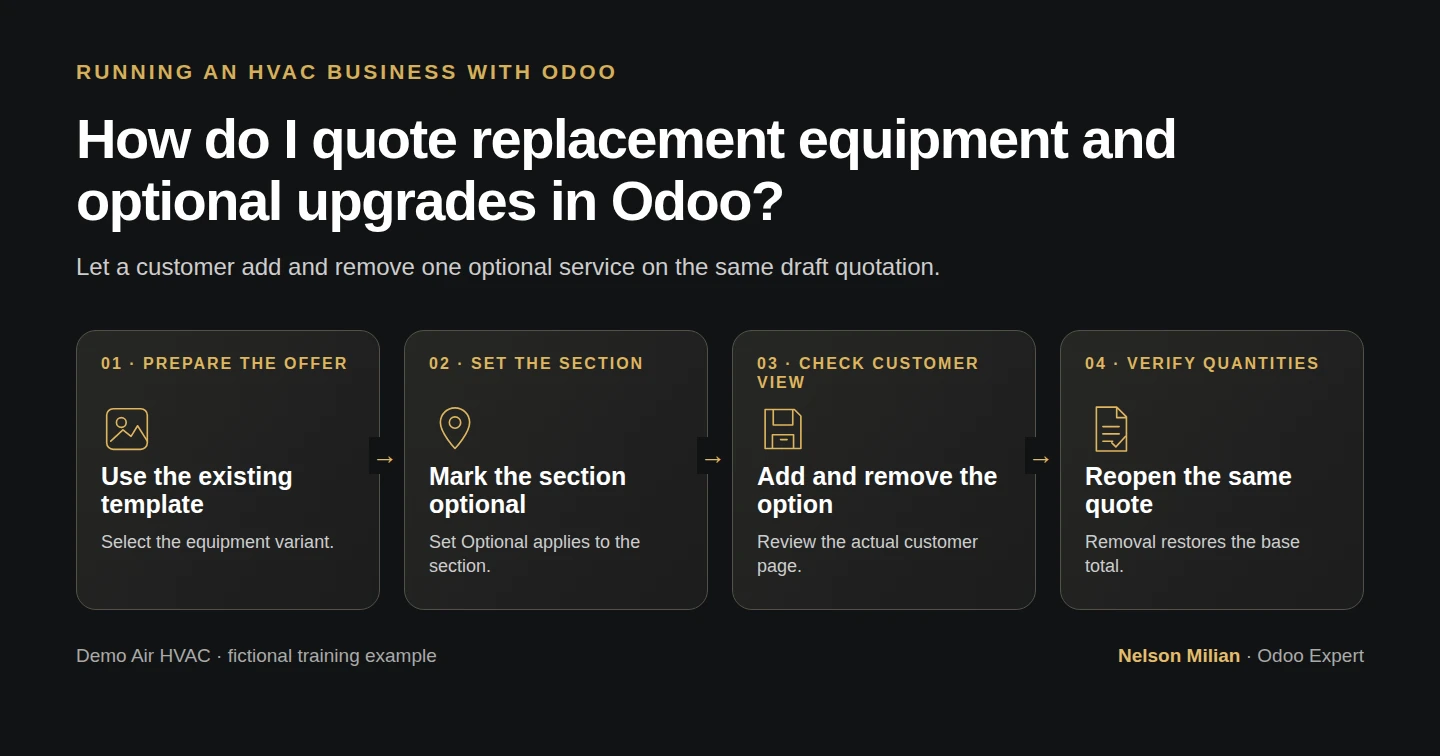
Quote HVAC equipment in Odoo and let the customer add or remove a clearly priced optional follow-up visit.
Alex is preparing a replacement-equipment quotation. The base price includes the selected equipment, a service-call assessment and a quoted labor allowance. A separate follow-up visit is optional. This guide shows how to create that choice and verify its price in the customer view.
Alex Rivera and Demo Air HVAC are fictional training examples. Prices, dates, quantities and business situations in this guide are illustrative.
Before you begin
Tested in stock Odoo 20.0-20260926 Community as the demo owner administrator, with official modules and standard configuration. Use the official Sales and Inventory apps, the customer and addresses from H08, the equipment from H12/H13, and the template from H24. Check your own product prices, taxes and scope before using this workflow. These training prices do not establish equipment sizing, compatibility or installation requirements.
Step-by-step workflow
Step 1. Create the optional service
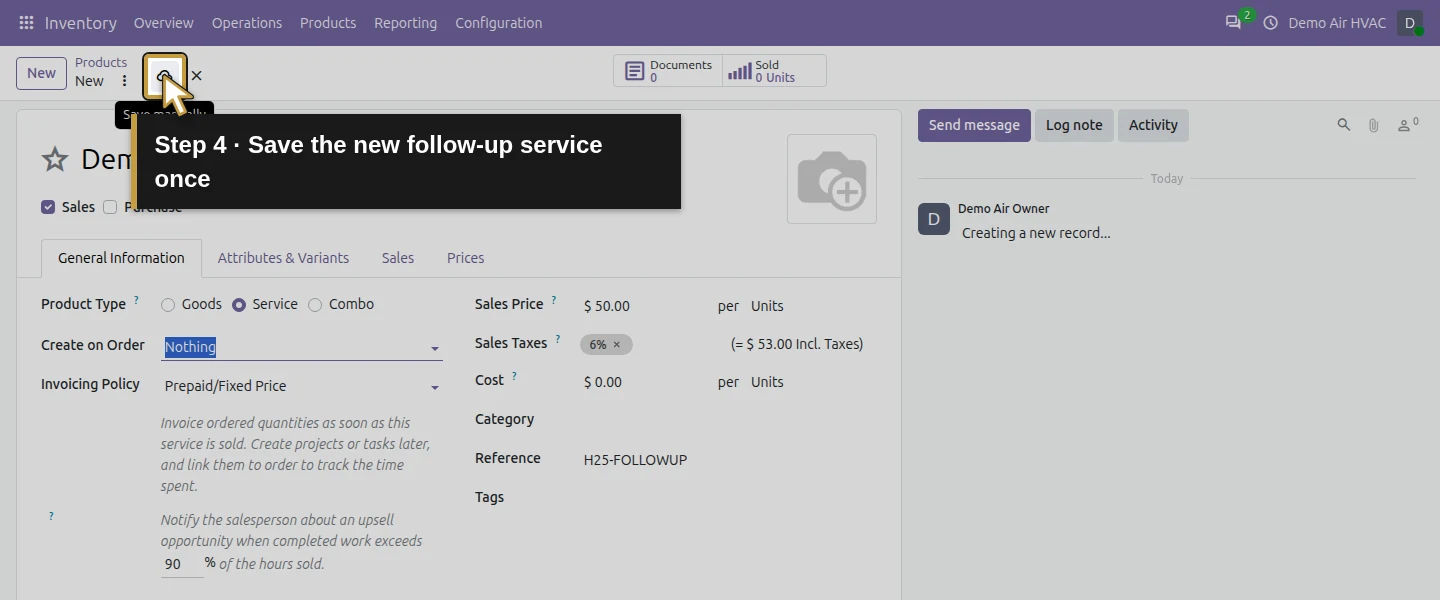
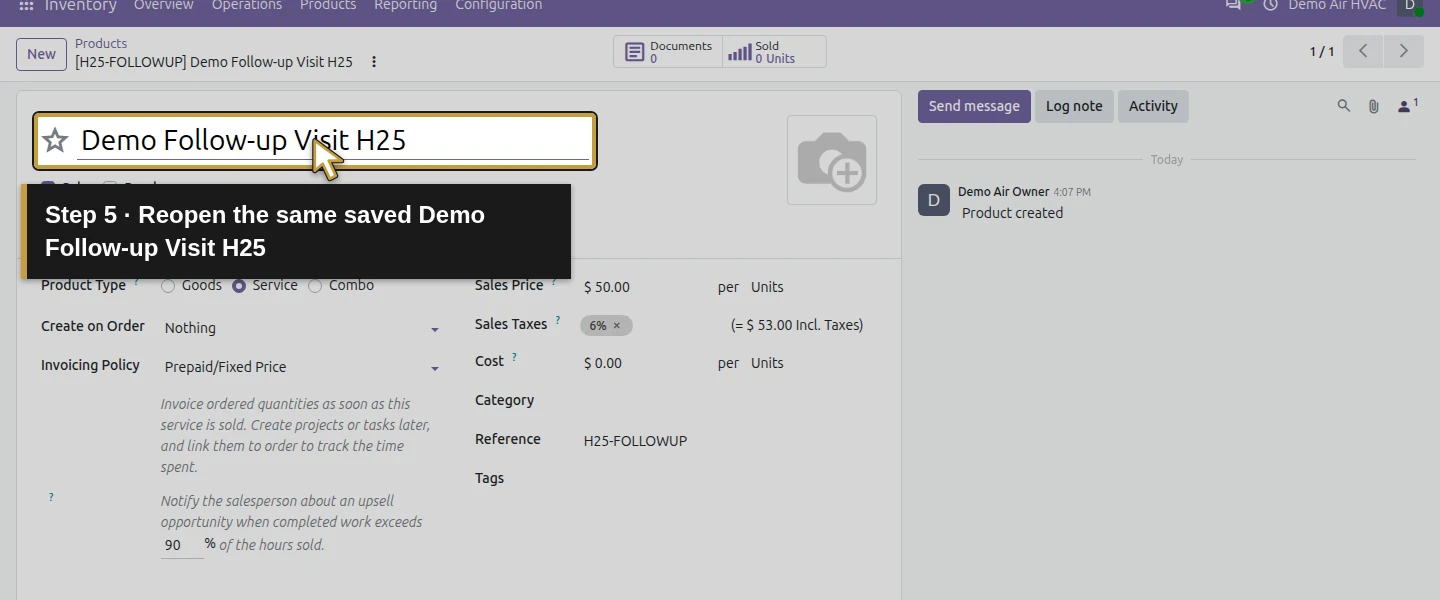
Open Inventory → Products → Products → New. Name the product Demo Follow-up Visit H25, choose Service, leave Sales checked and clear Purchase. Set Create on Order to Nothing and Invoicing Policy to Prepaid/Fixed Price. Change the service's default Hours unit to Units, enter a Sales Price of $50, and use internal reference H25-FOLLOWUP. Save and reopen. The example is one priced visit; choosing it will not create a task or book an appointment.
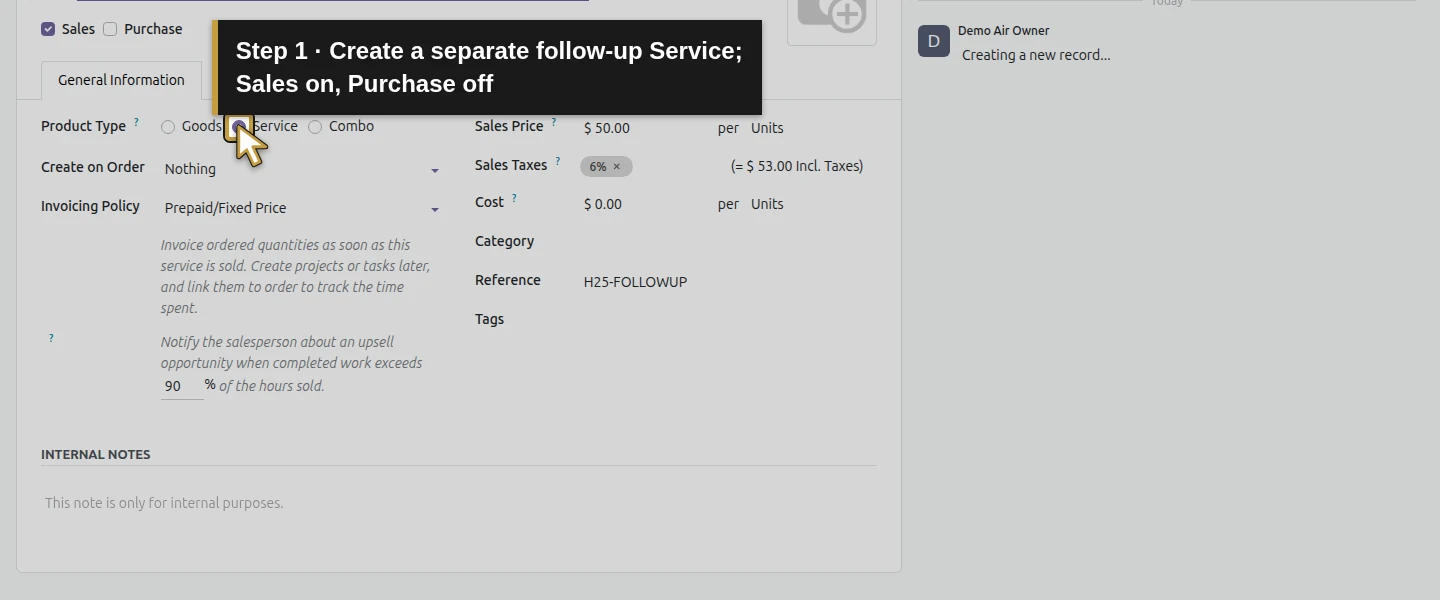
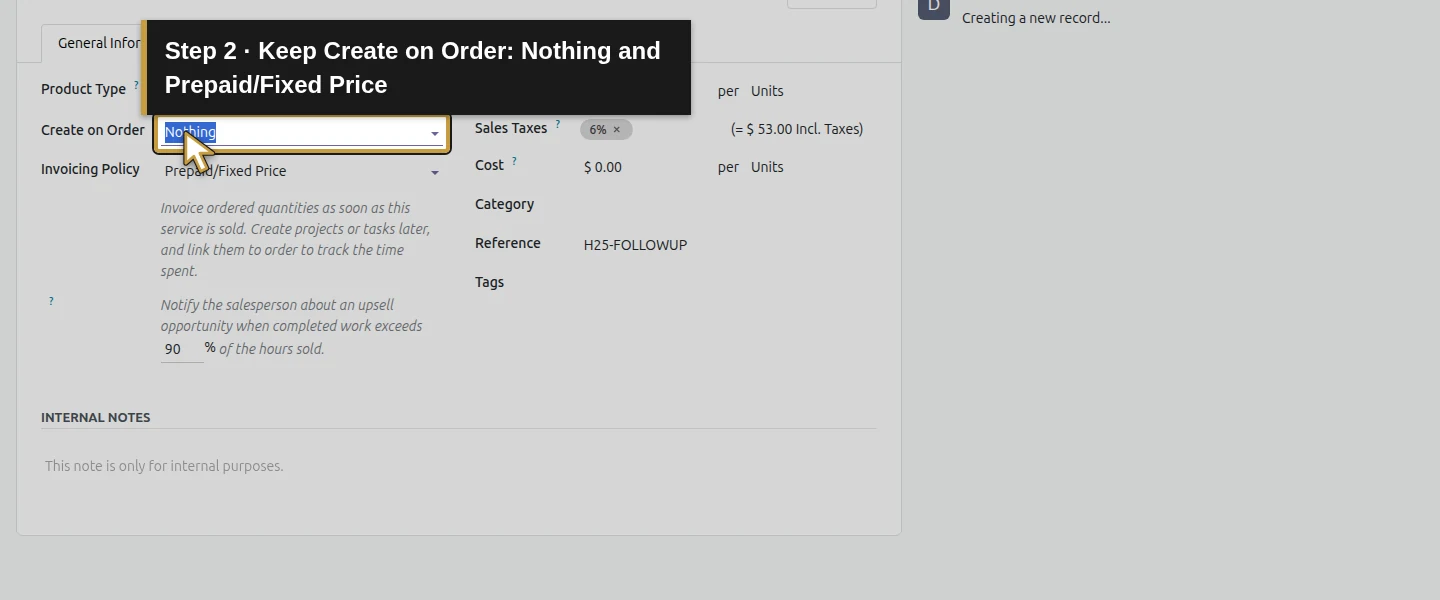
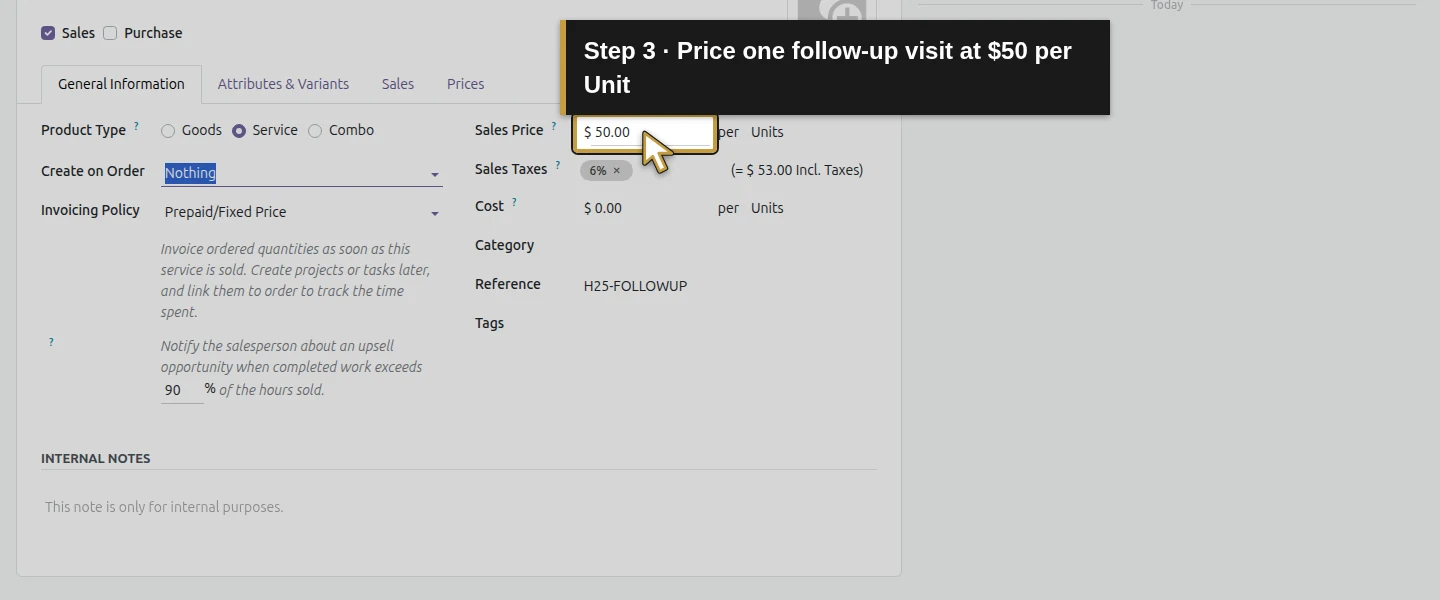
Step 2. Suggest the service with the equipment
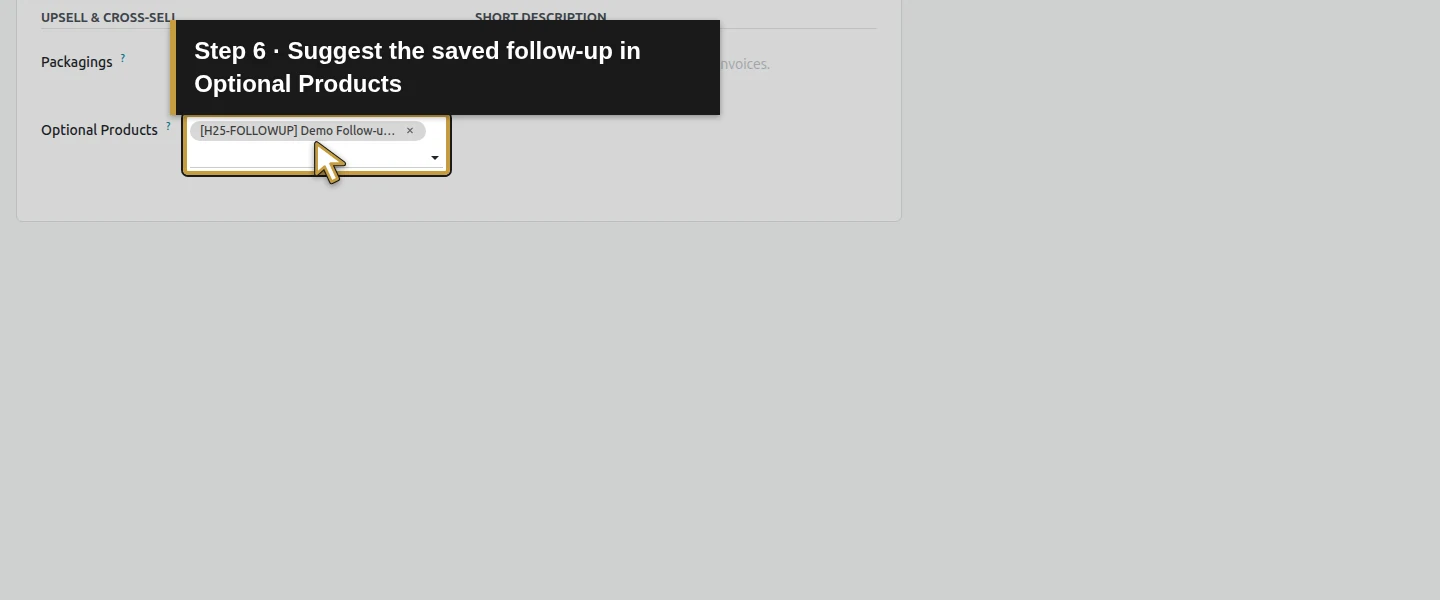
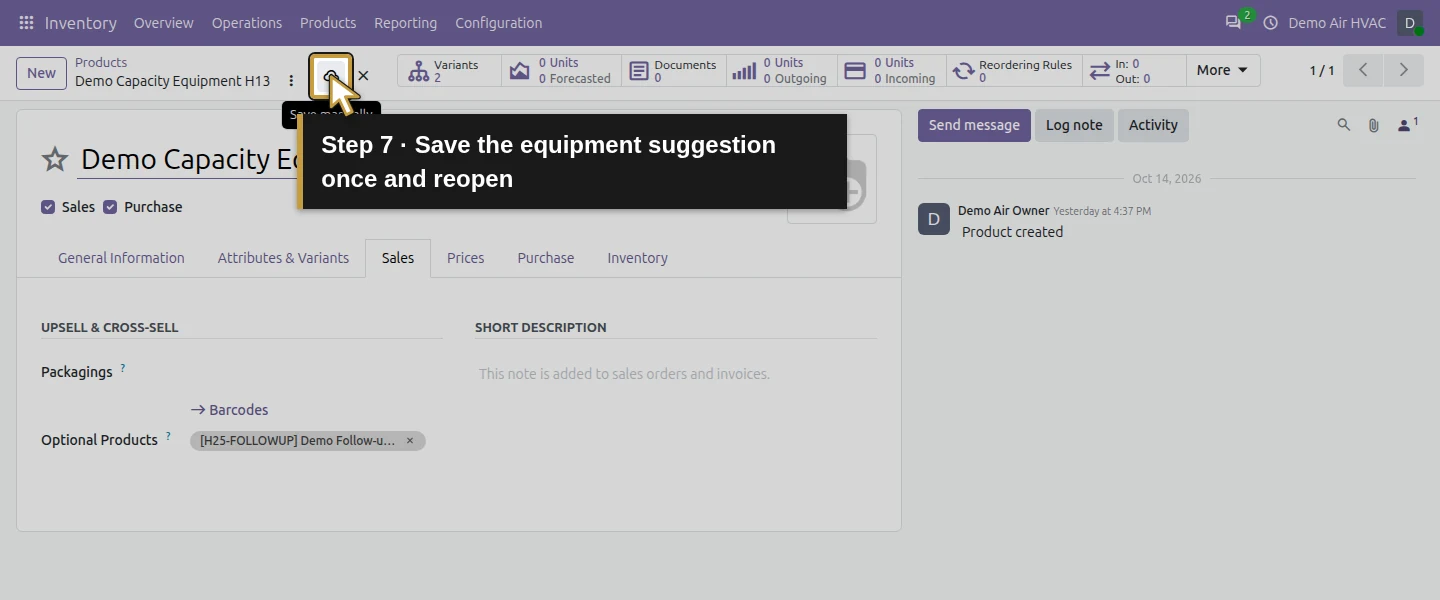
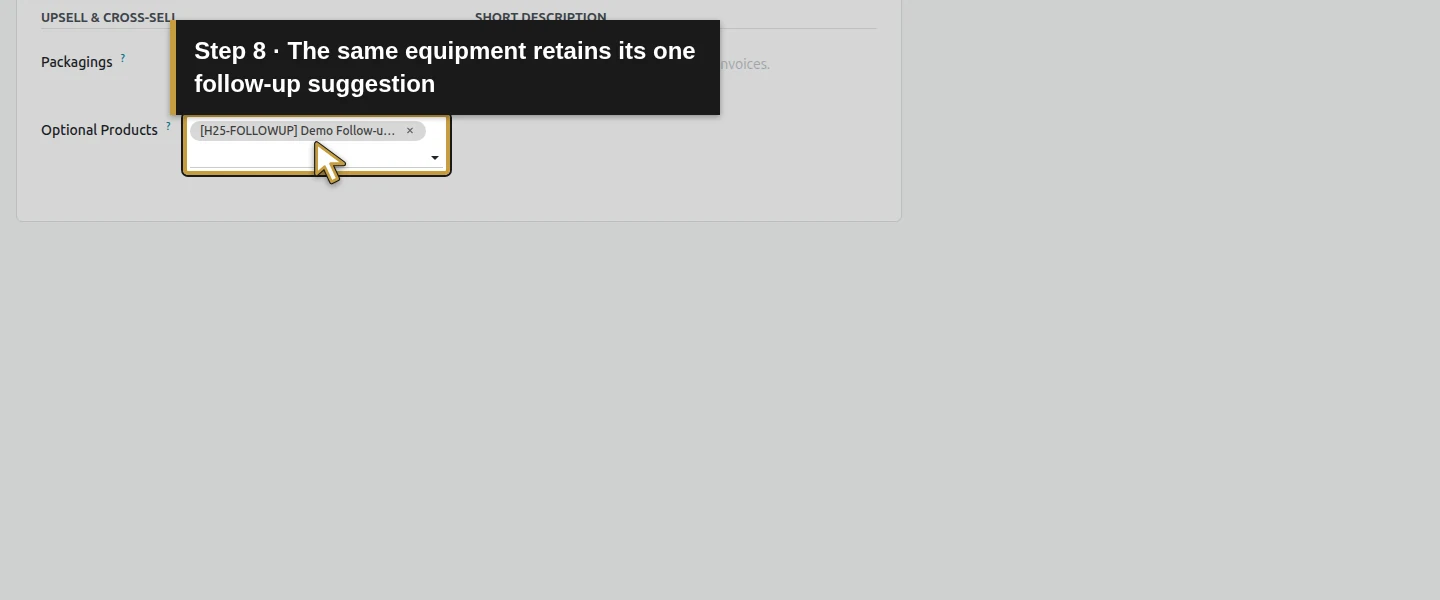
Open Demo Capacity Equipment H13 and its Sales tab. In Optional Products, select Demo Follow-up Visit H25, then save. This makes the service available in the product configurator when you add the equipment. The quotation still needs the optional section configured below.
Step 3. Start a quotation from the existing template
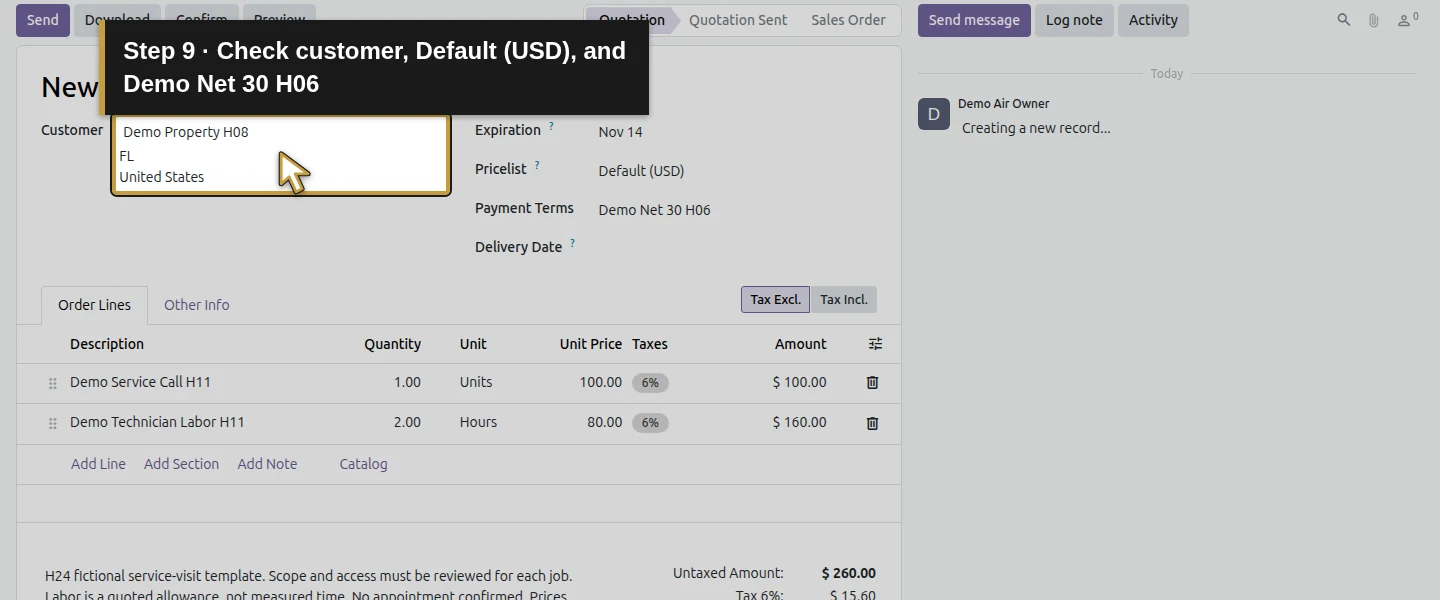
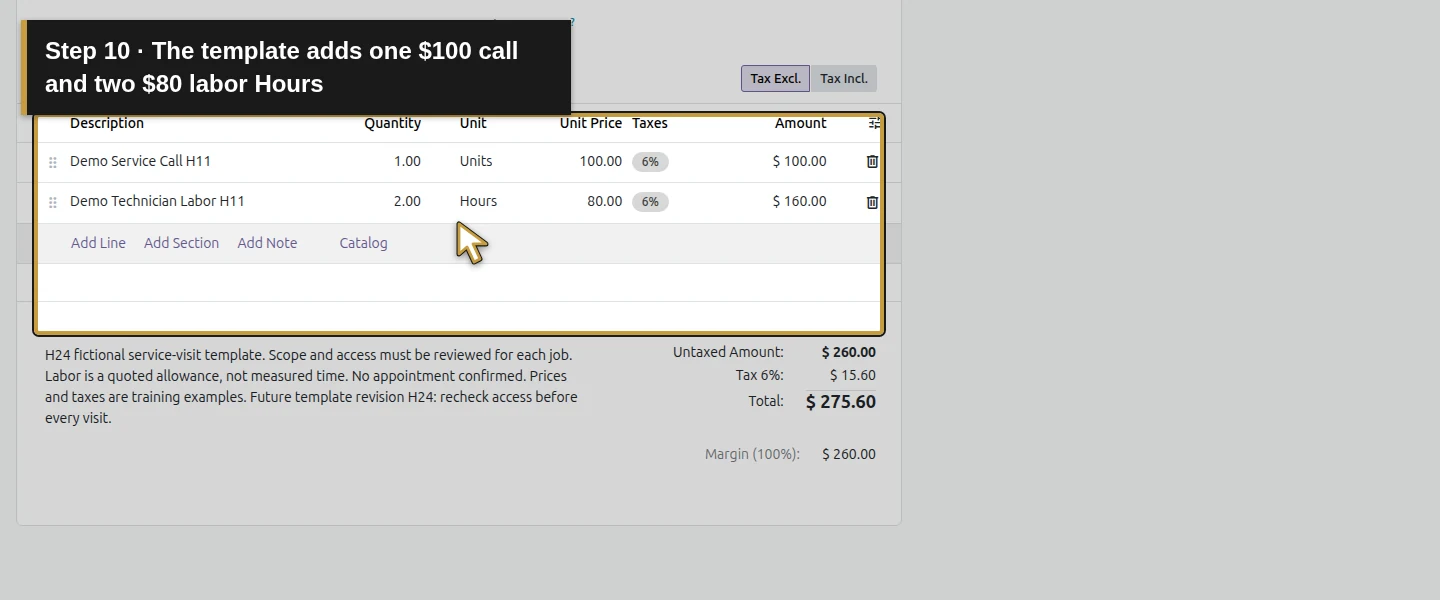
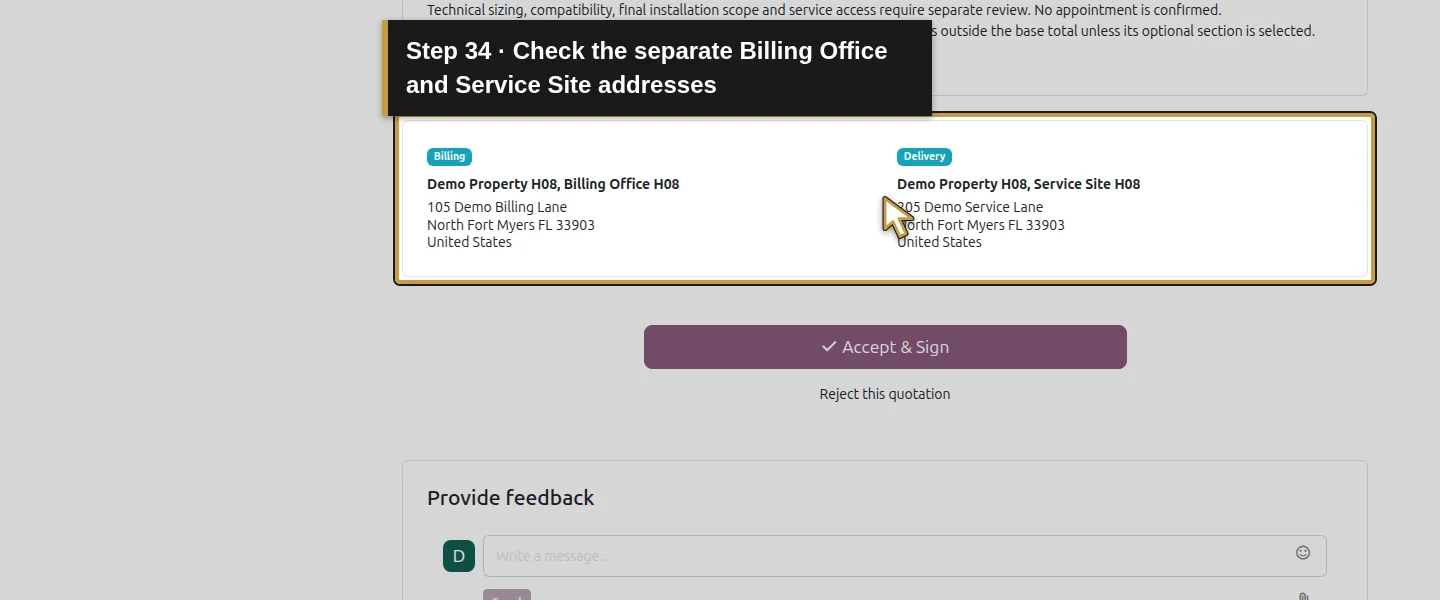
Open Sales → Orders → Quotations. Use the arrow beside New and choose Demo Service Visit H24. Select Demo Property H08. Check Default (USD) and Demo Net 30 H06. Check the copied billing and service addresses in Preview before customer acceptance. The template contributes one service call at $100 and two Hours of labor at $80 per Hour. Review the inherited terms before adding equipment.
Step 4. Choose the equipment variant and inspect the suggestion
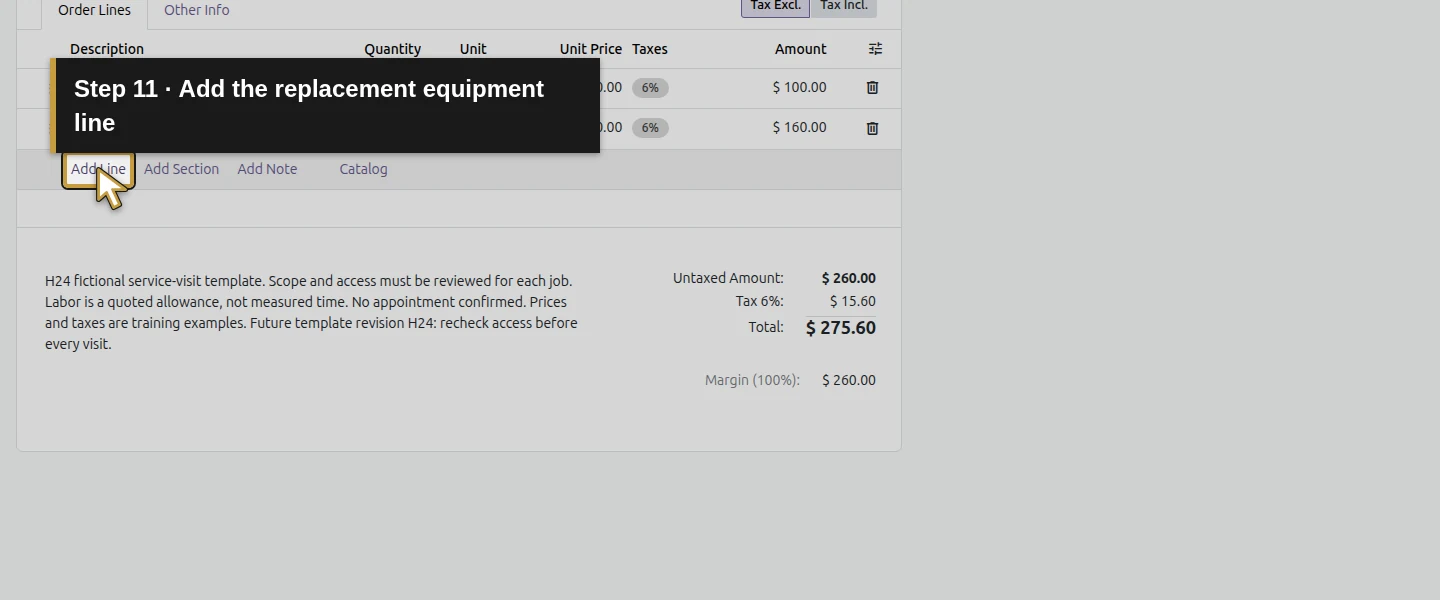
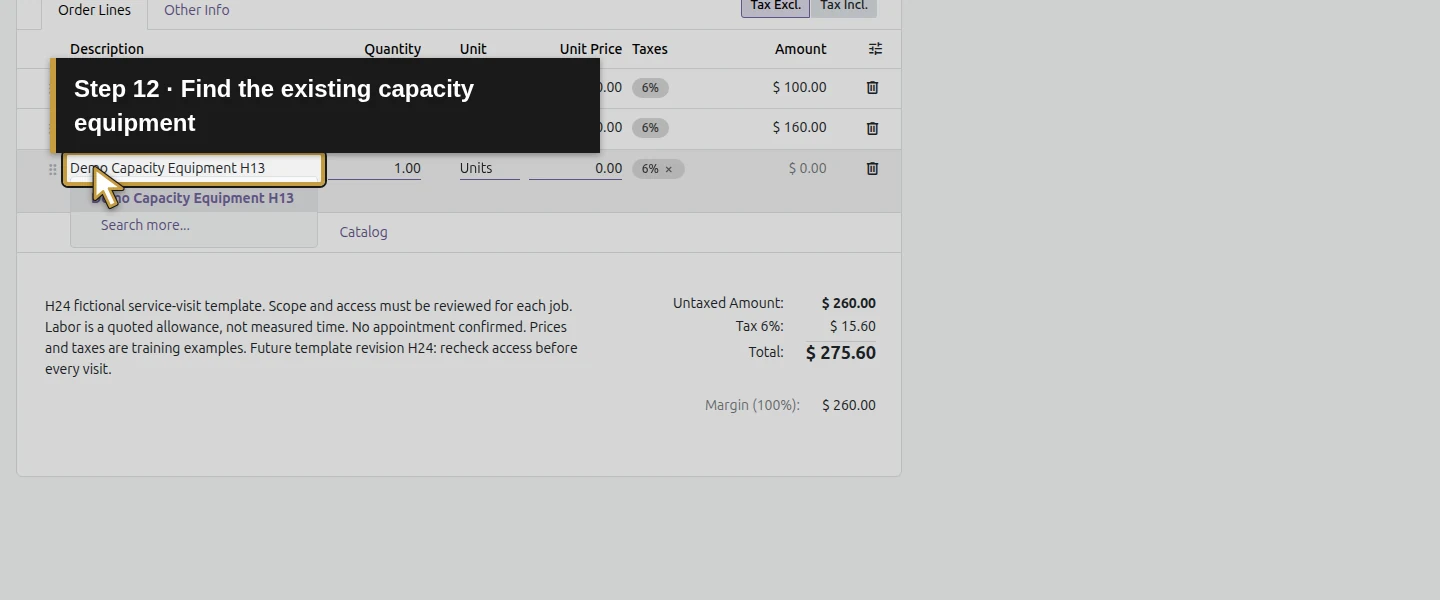
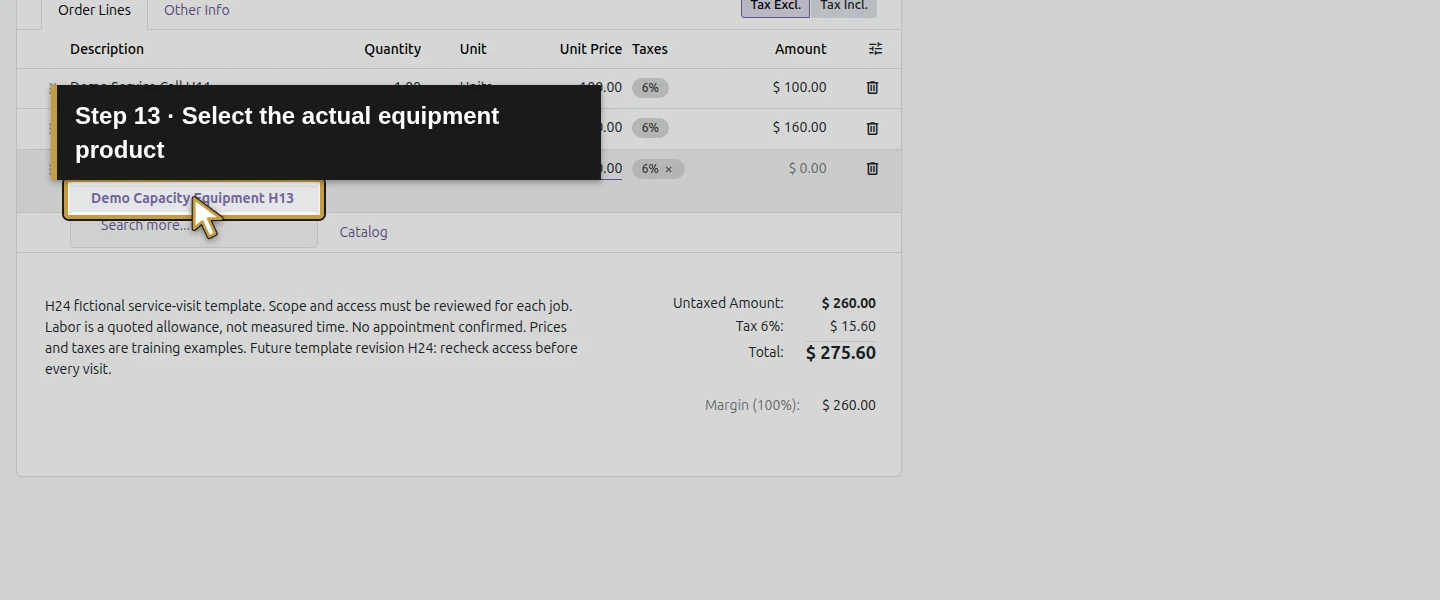
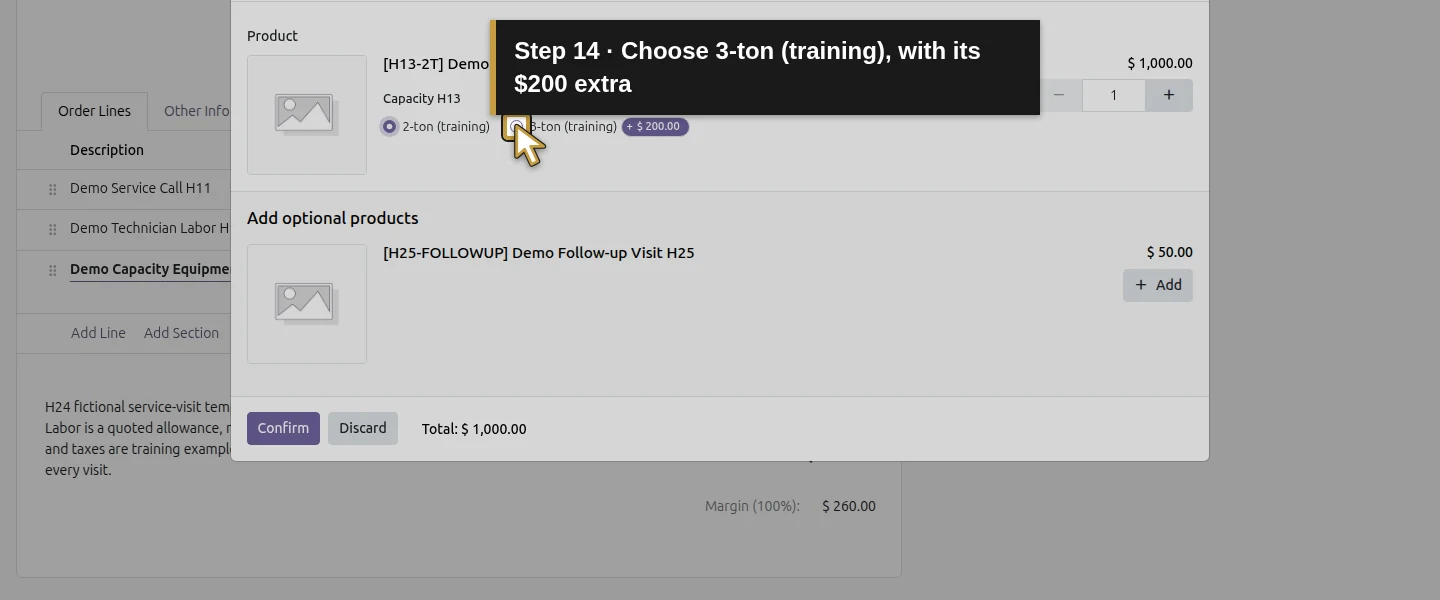
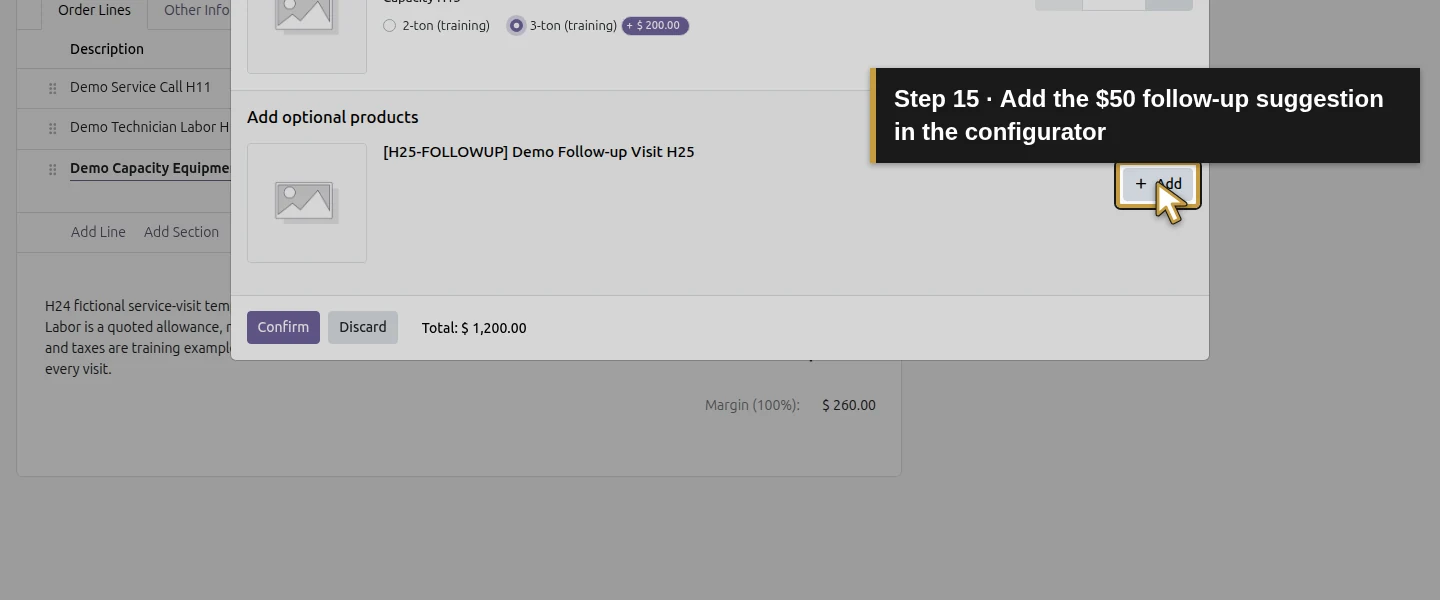
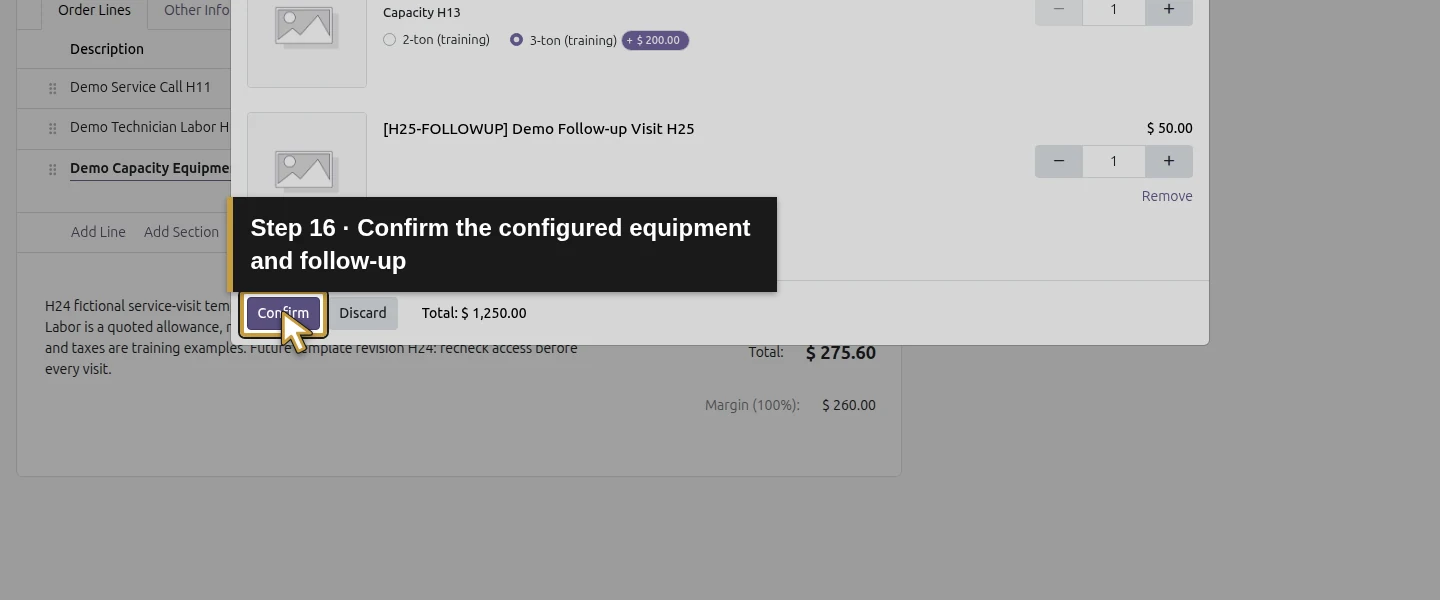
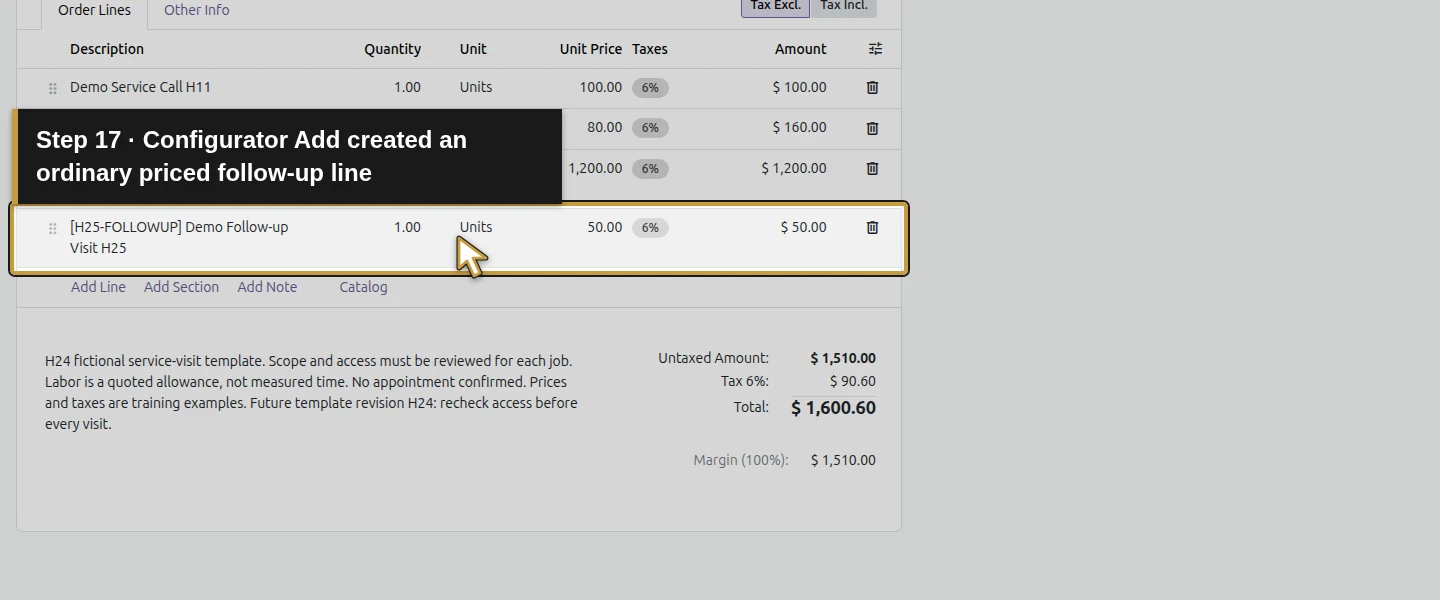
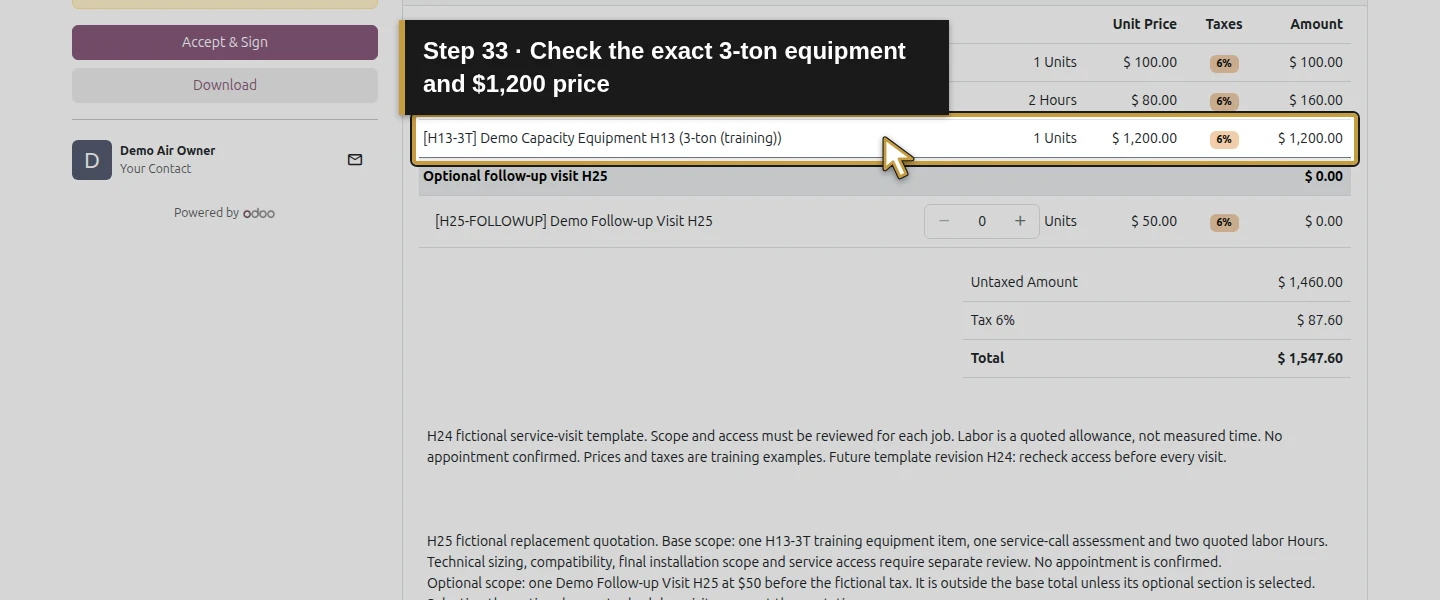
Click Add Line and use its Description product picker to select Demo Capacity Equipment H13. In Configure your product, explicitly choose 3-ton (training); the initial choice was 2-ton in this test. The $200 variant extra makes the equipment $1,200. Under Add optional products, click Add for the $50 follow-up service, then Confirm. Check the two inserted lines. At this point the service is an ordinary priced line, so it contributes to the total.
Step 5. Put the follow-up in an optional section
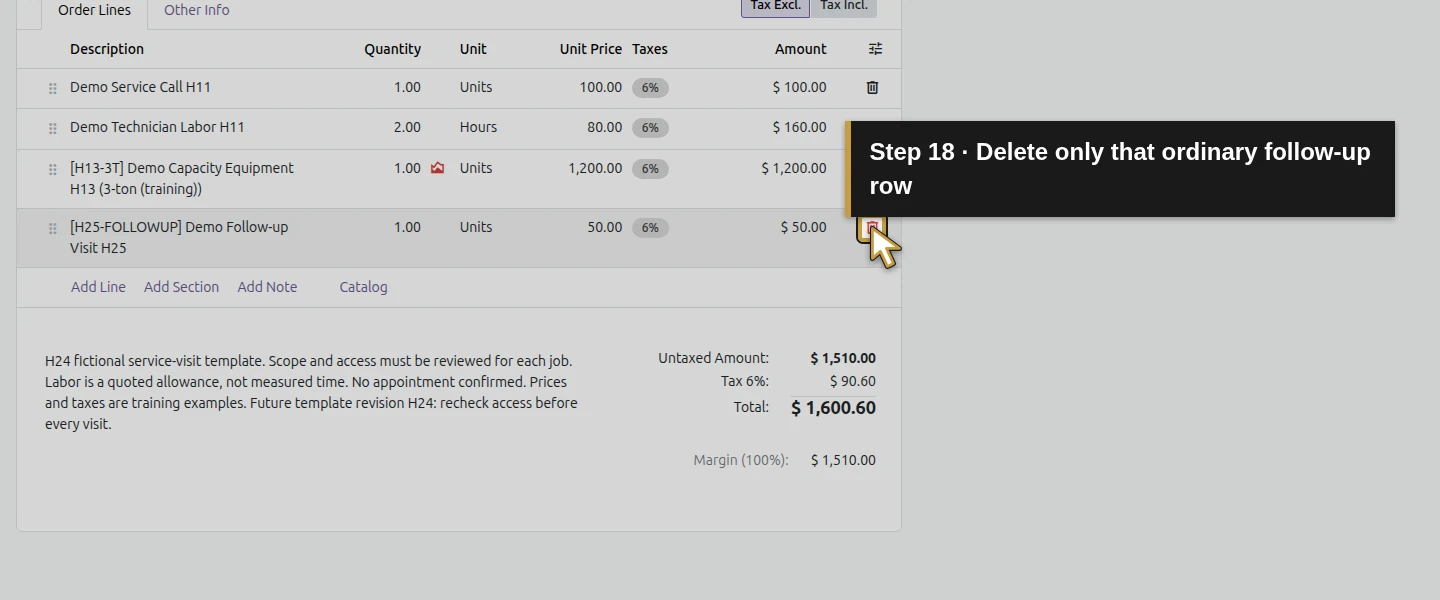
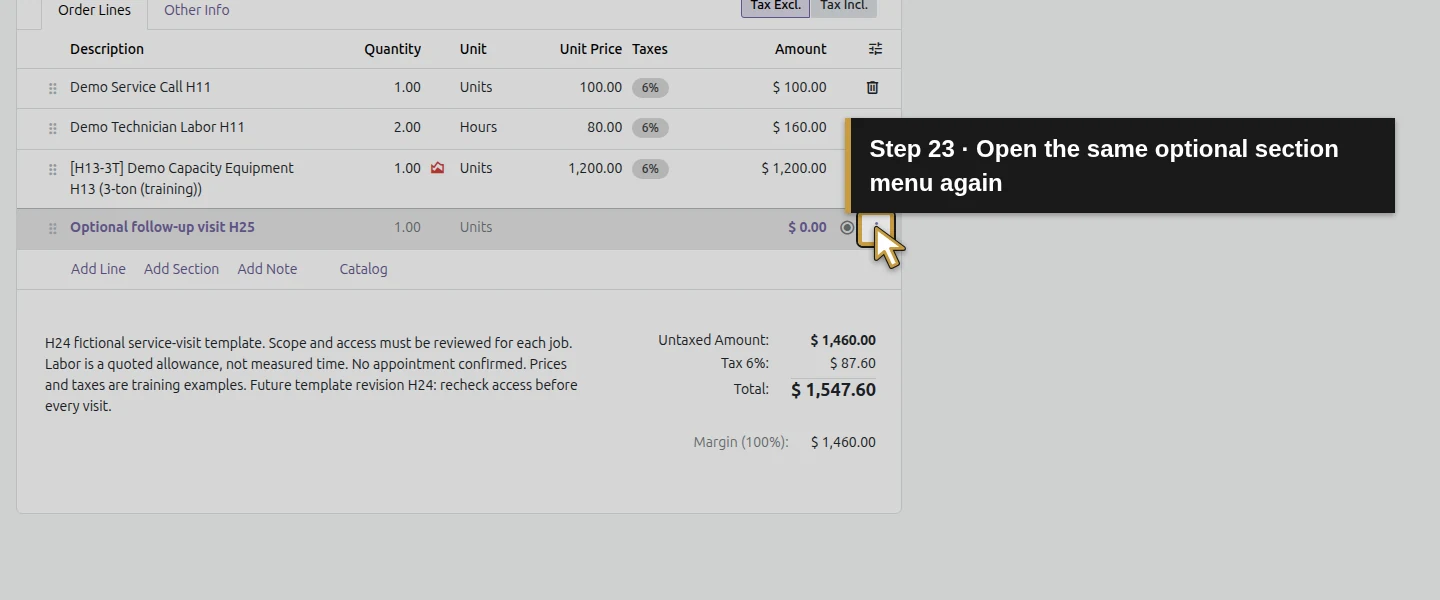
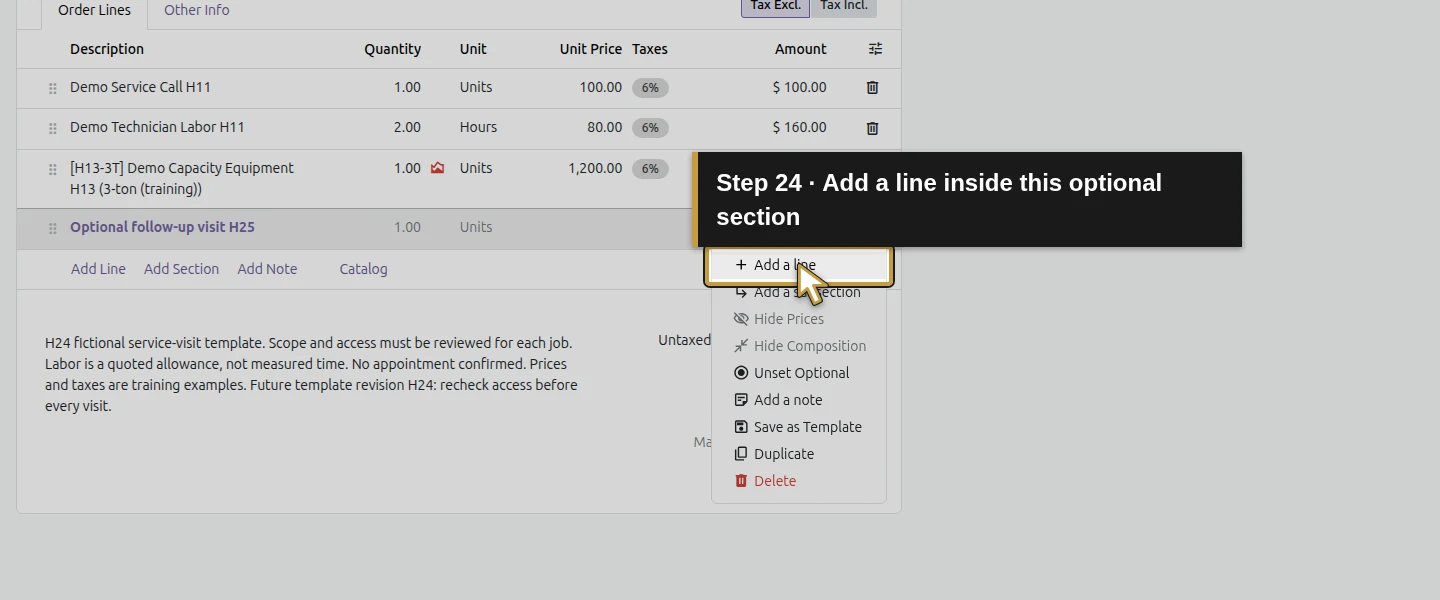
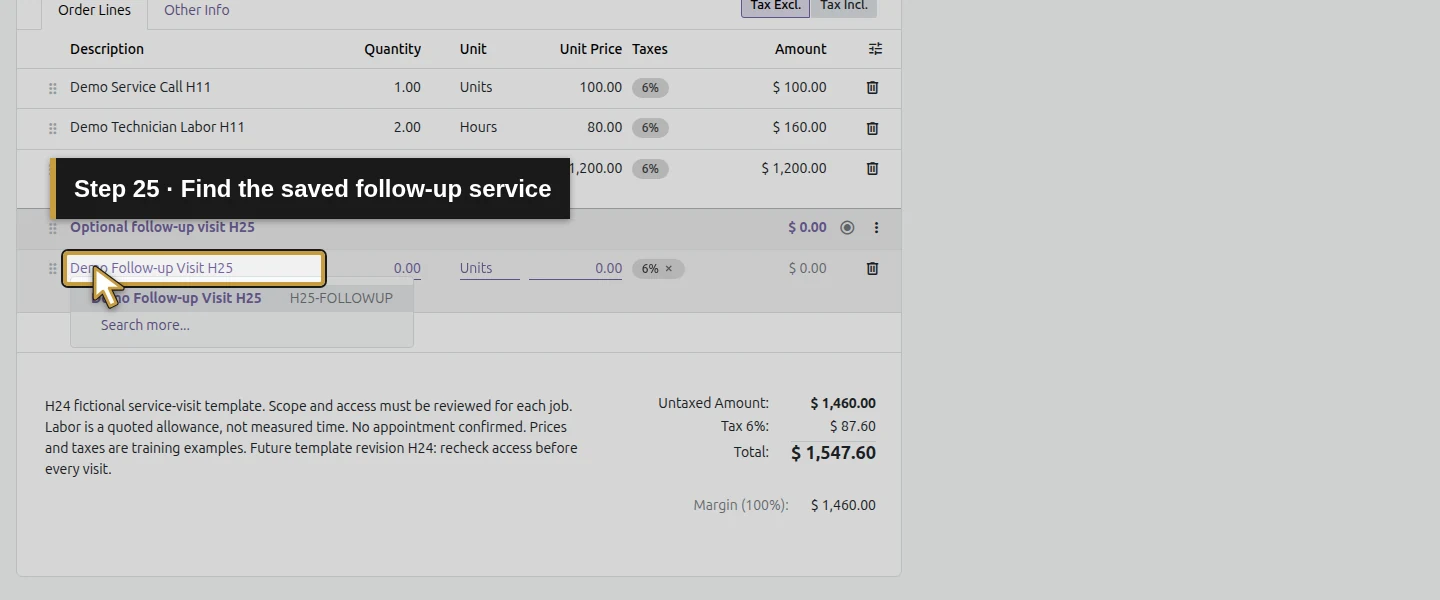
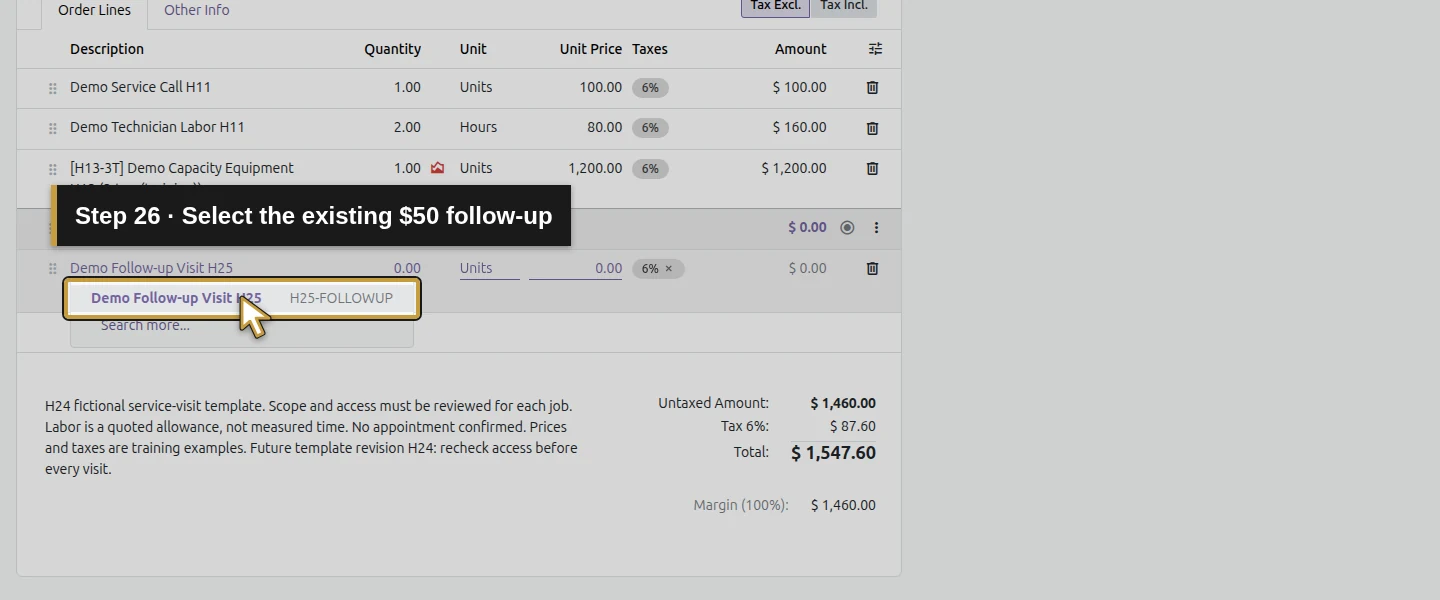
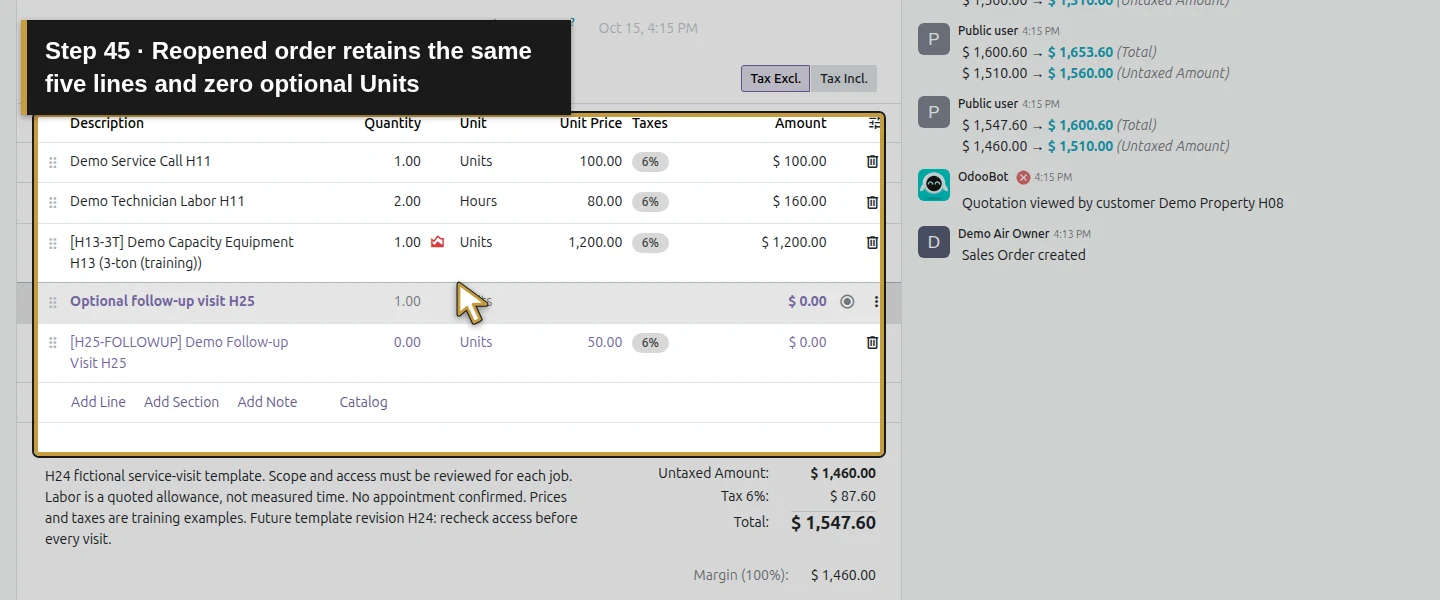
Use Delete row on that ordinary follow-up line. Keep the equipment and template's service/labor lines. Click Add Section and name it Optional follow-up visit H25. Open the section's three-dot menu, more_vert, and choose Set Optional. Open that same section menu again, choose Add a line, and select Demo Follow-up Visit H25 in the product picker. The line starts at 0 Units, with its $50 unit price retained and a zero subtotal. Keep it inside this section.
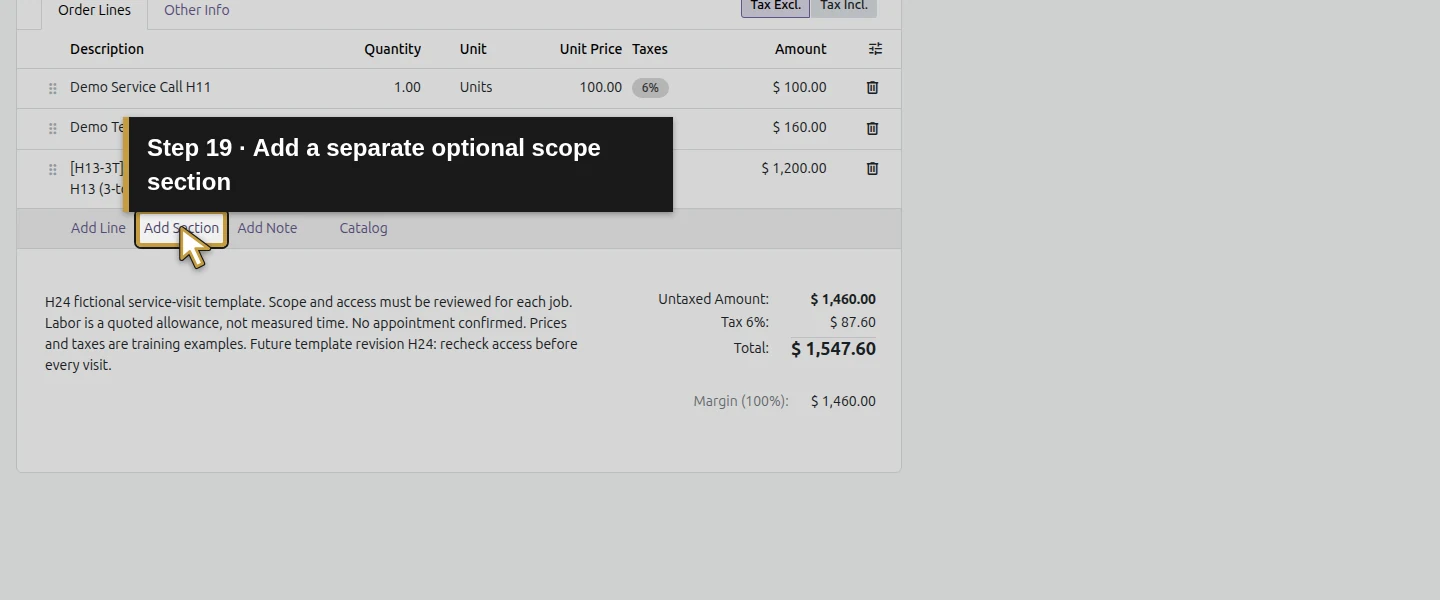
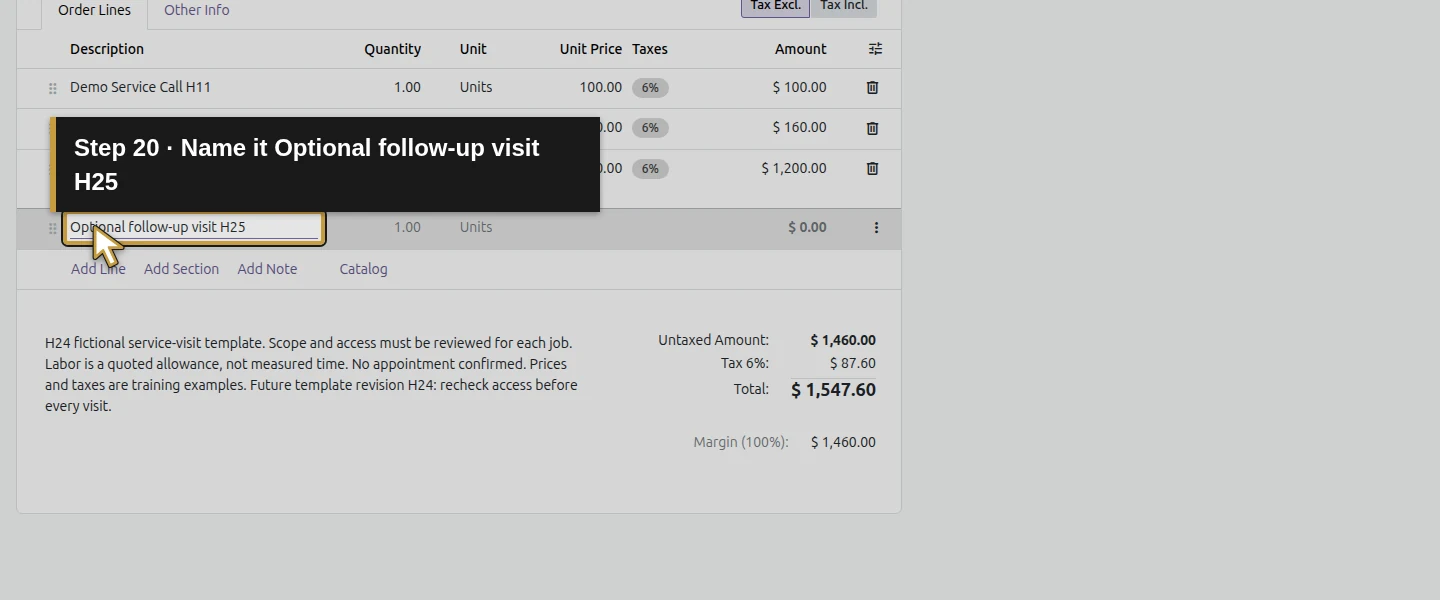
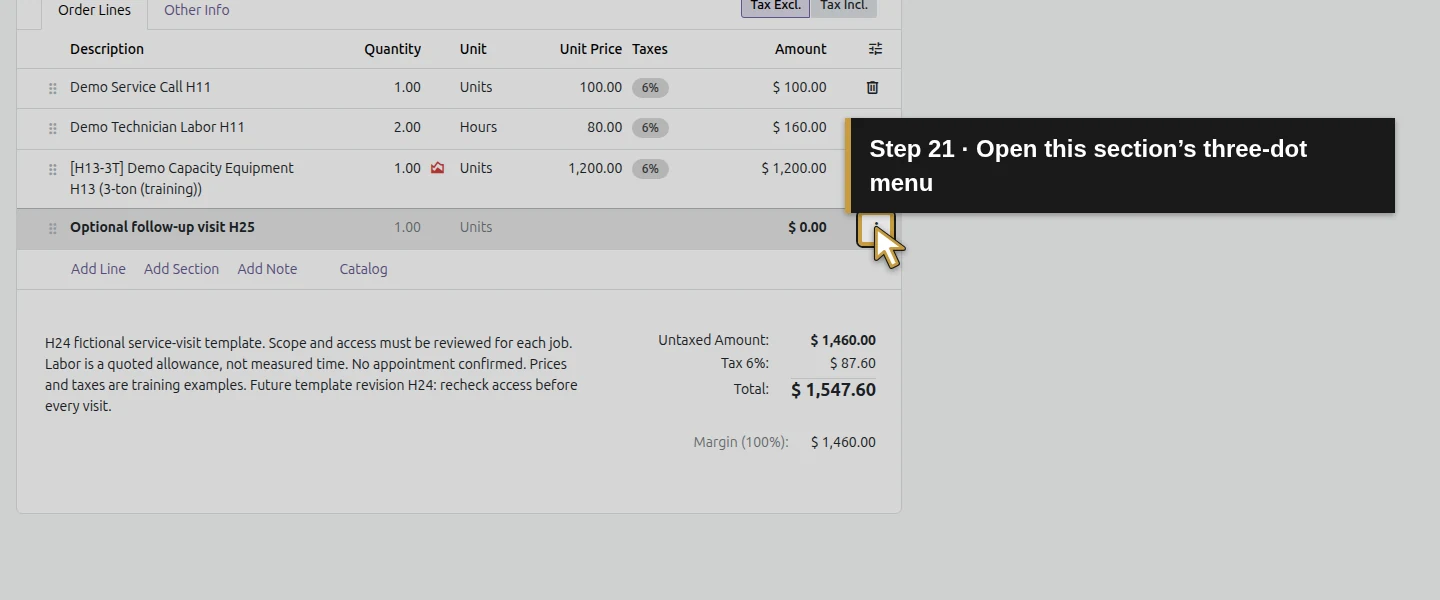
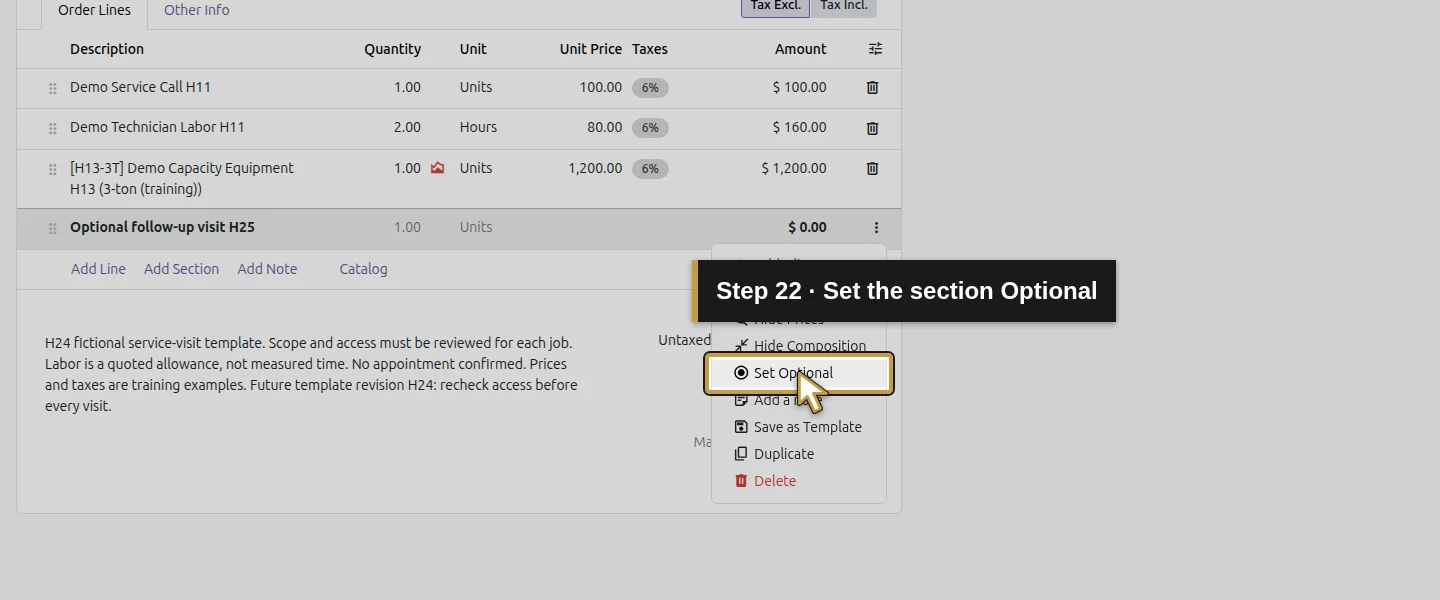
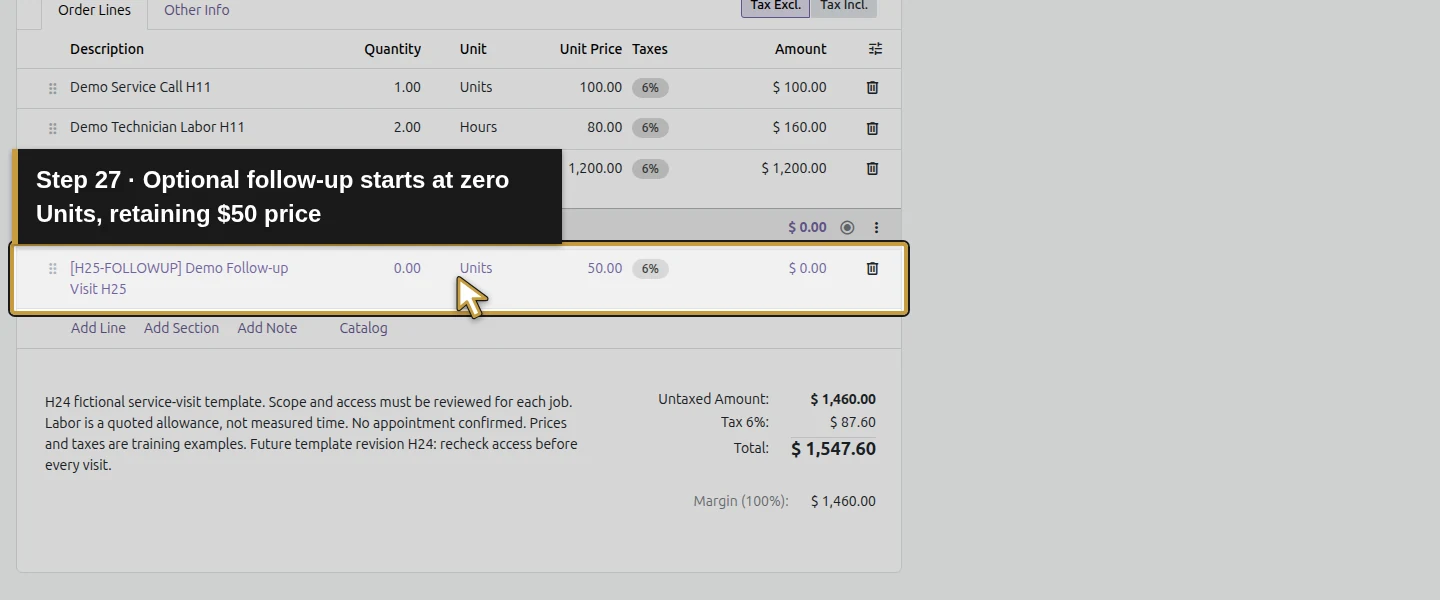
Step 6. Explain the scope and save the base quotation
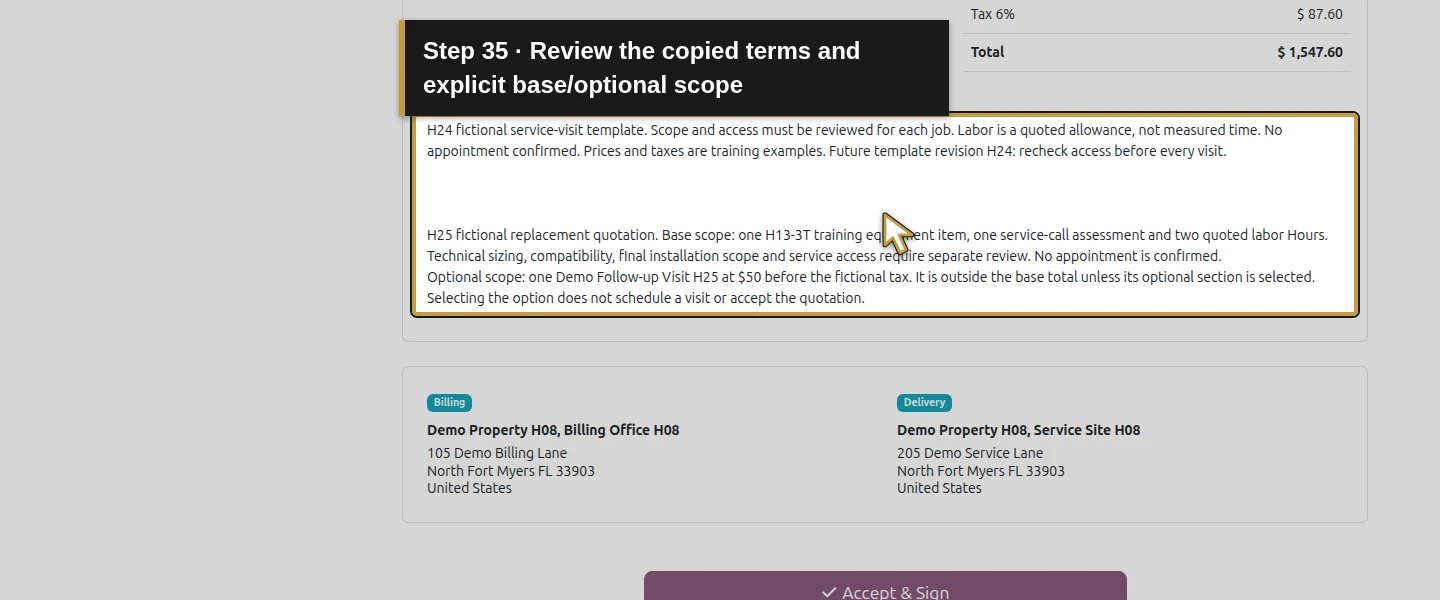
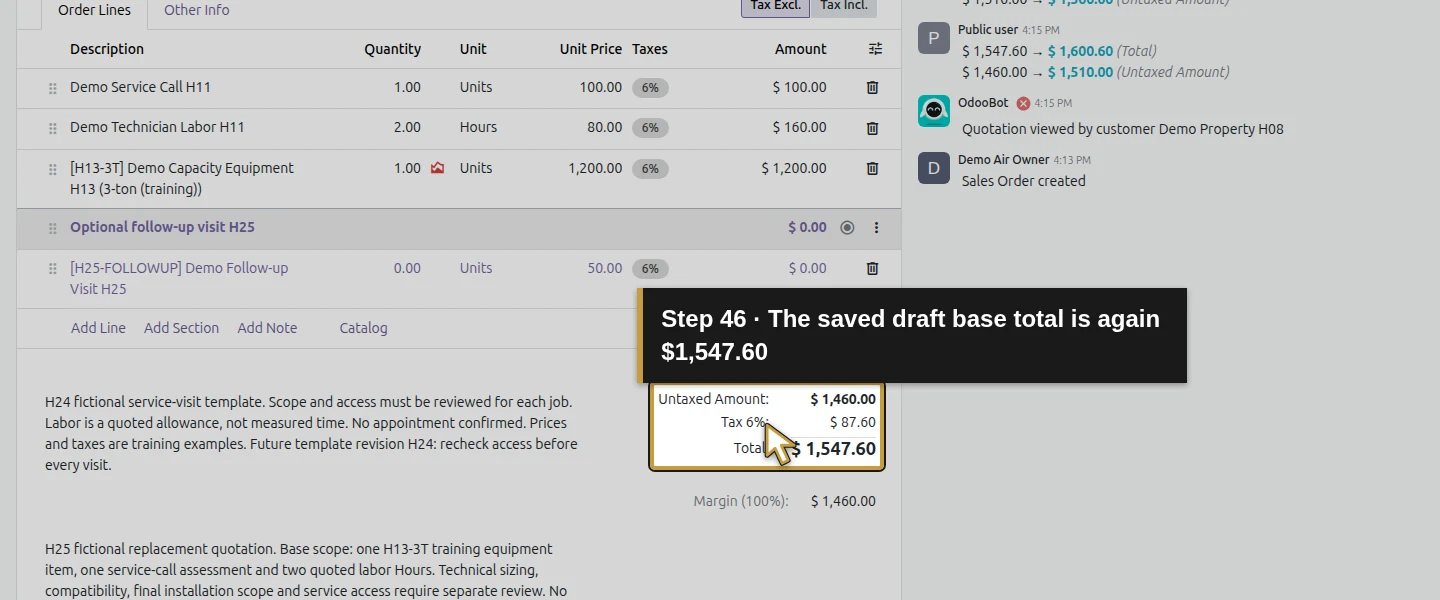
Append a short explanation beneath the quotation lines. State what the base equipment/service/labor price covers, what the $50 follow-up covers, and that technical sizing, compatibility, final scope and service access need separate review. Say that choosing the follow-up does not schedule a visit or accept the quotation. Click Save manually and reopen. The saved example is S00006: $1,460 untaxed plus $87.60 fictional 6% tax, totaling $1,547.60, with the follow-up quantity still zero.
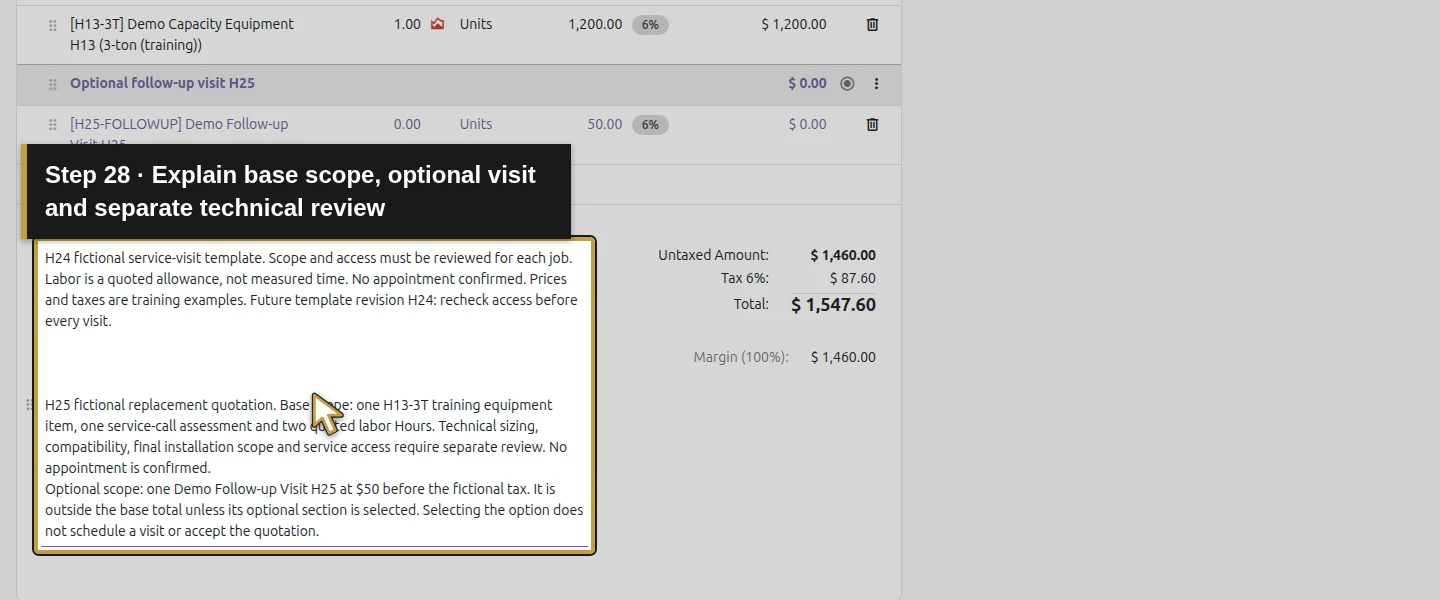
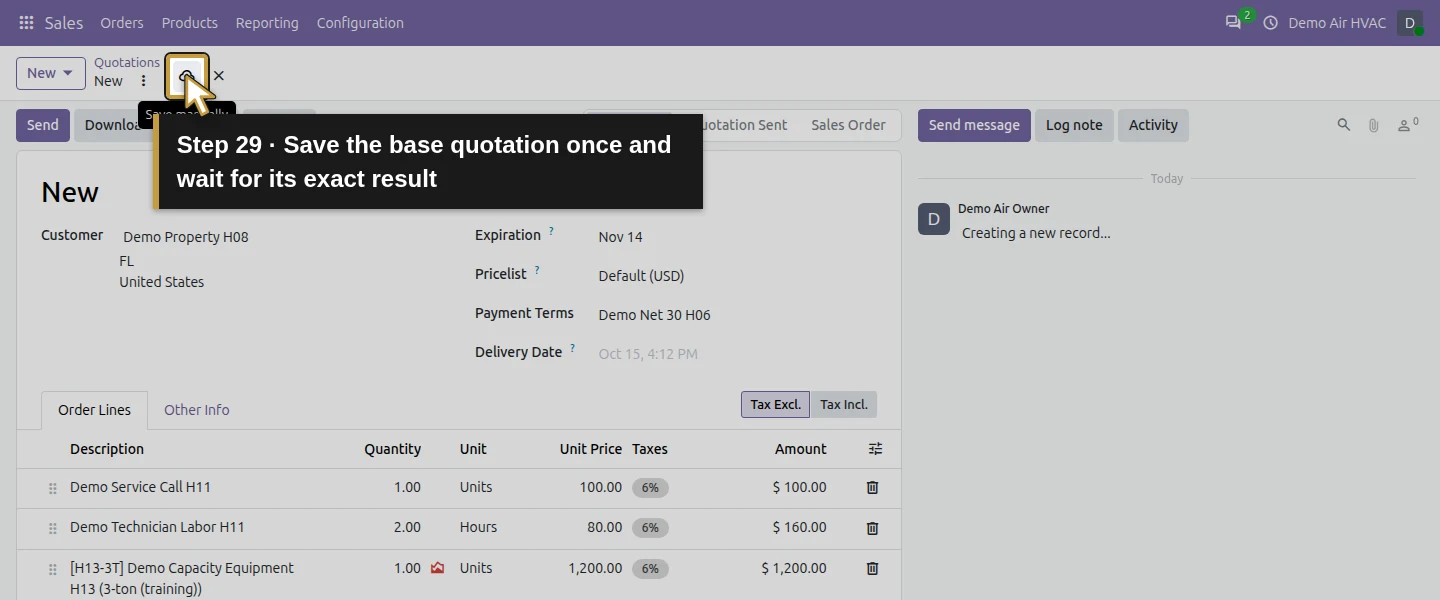
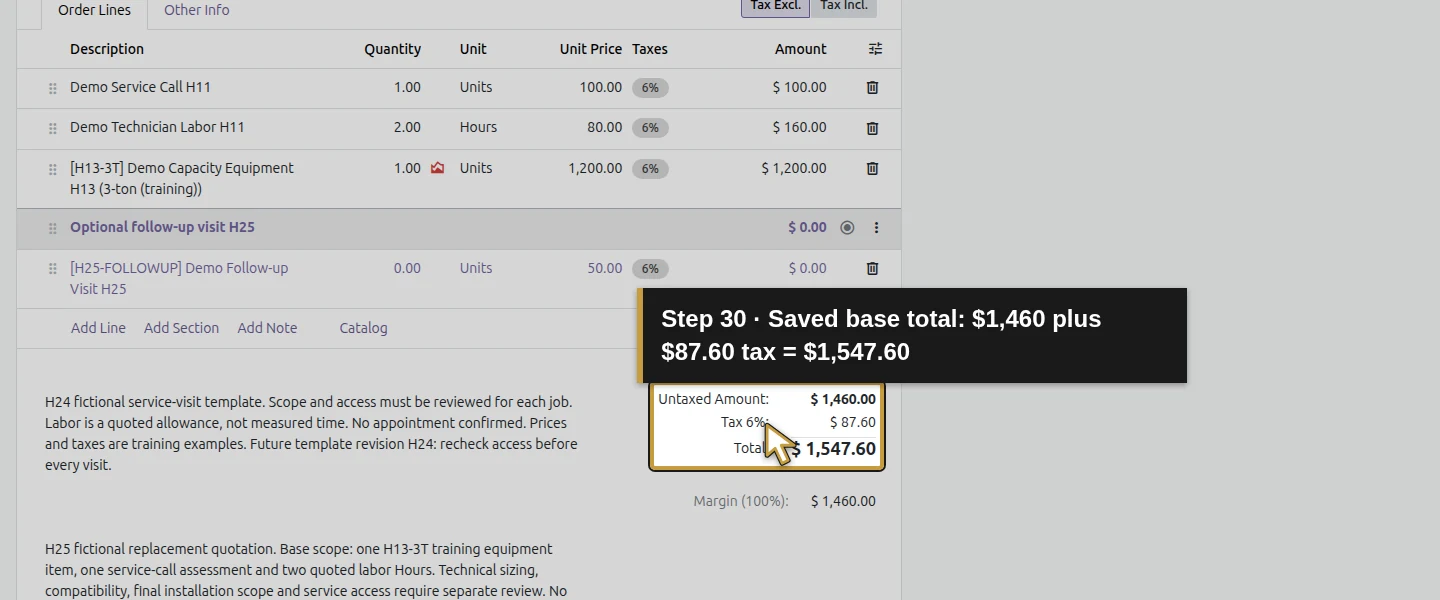
Step 7. Check the actual customer view
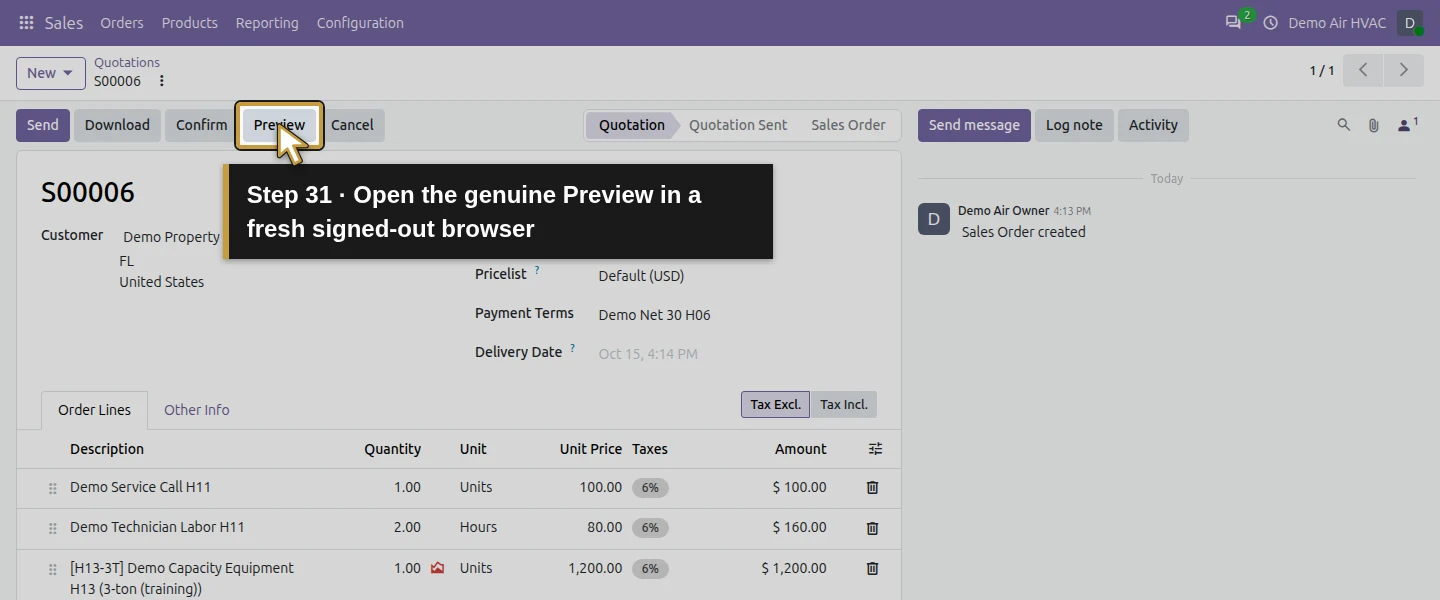
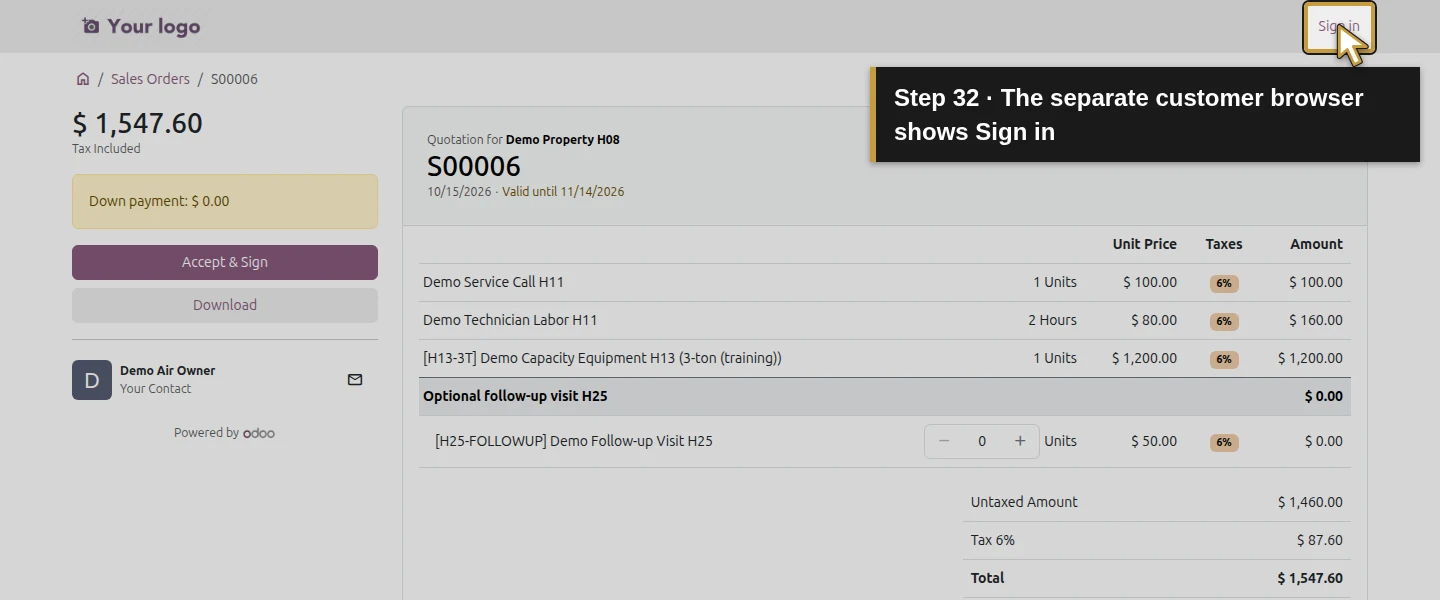
Click Preview. Check the exact equipment variant, billing/service addresses, scope notes, base total and optional row. For a training check, open the same private preview link in a separate browser without signing in; the tested page displayed Sign in and the quotation. The follow-up row has Remove one, a quantity box and Add one, alongside the $50 unit price. Treat the preview link as access to that quotation. No customer email was sent in this check.
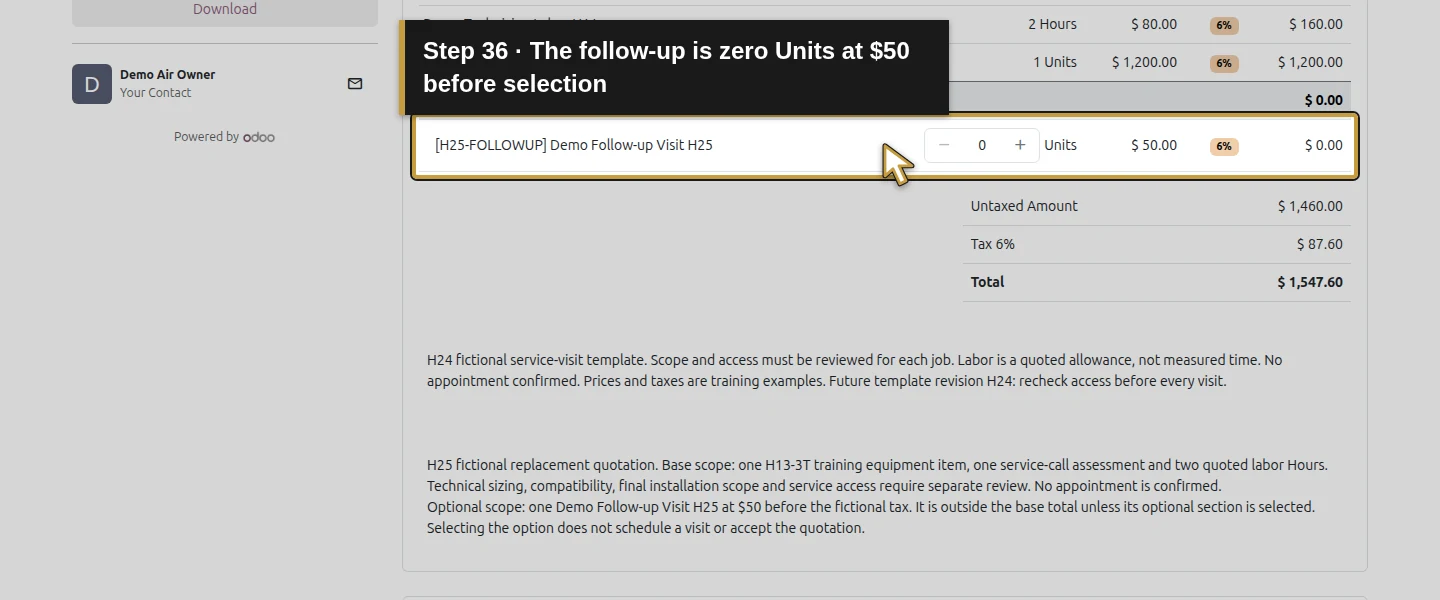
Step 8. Add and remove the option before acceptance
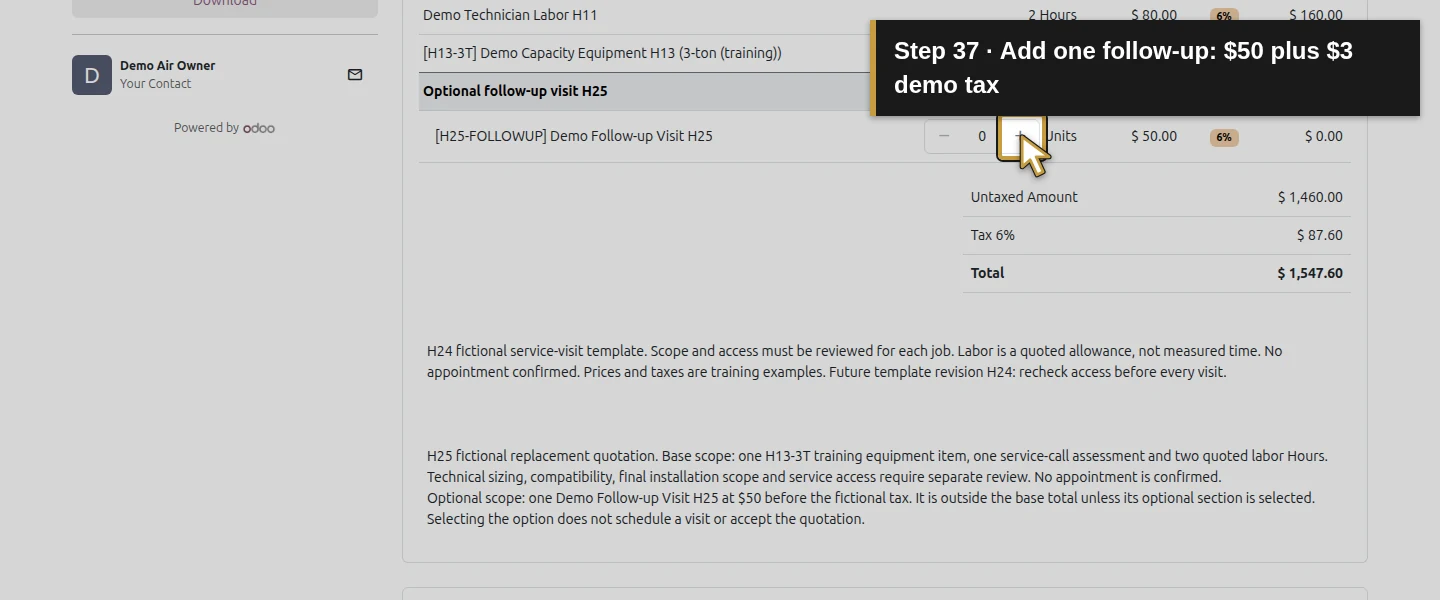
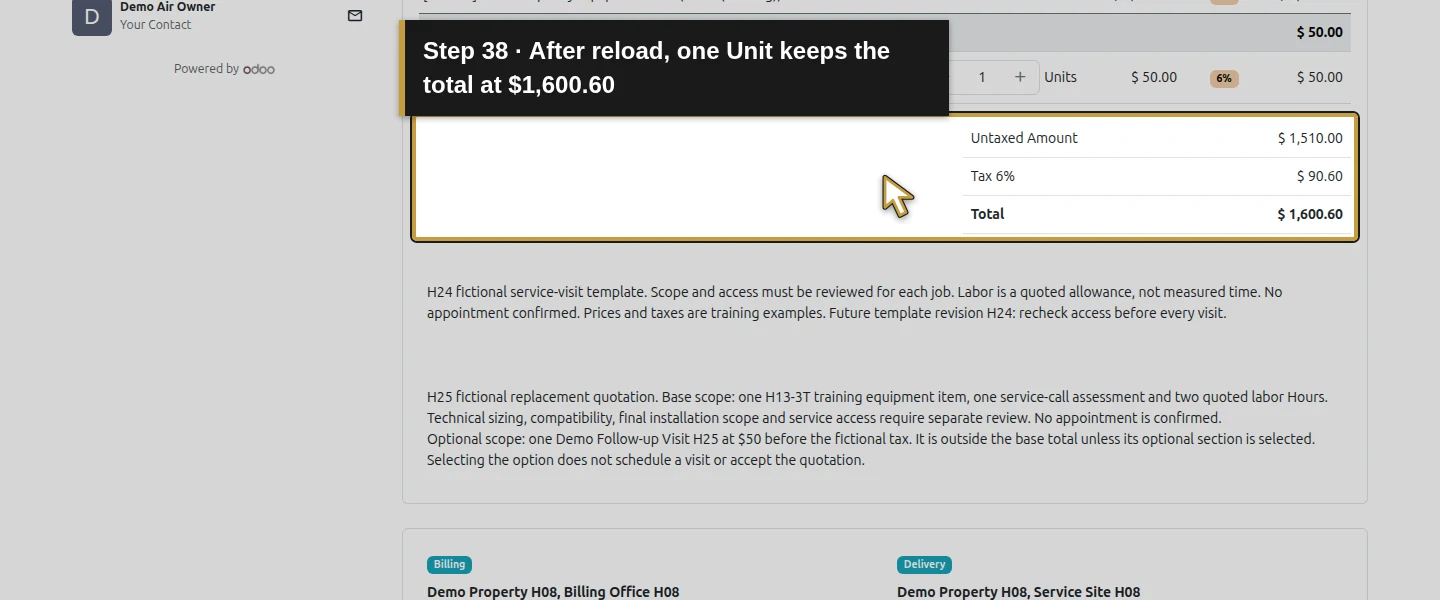
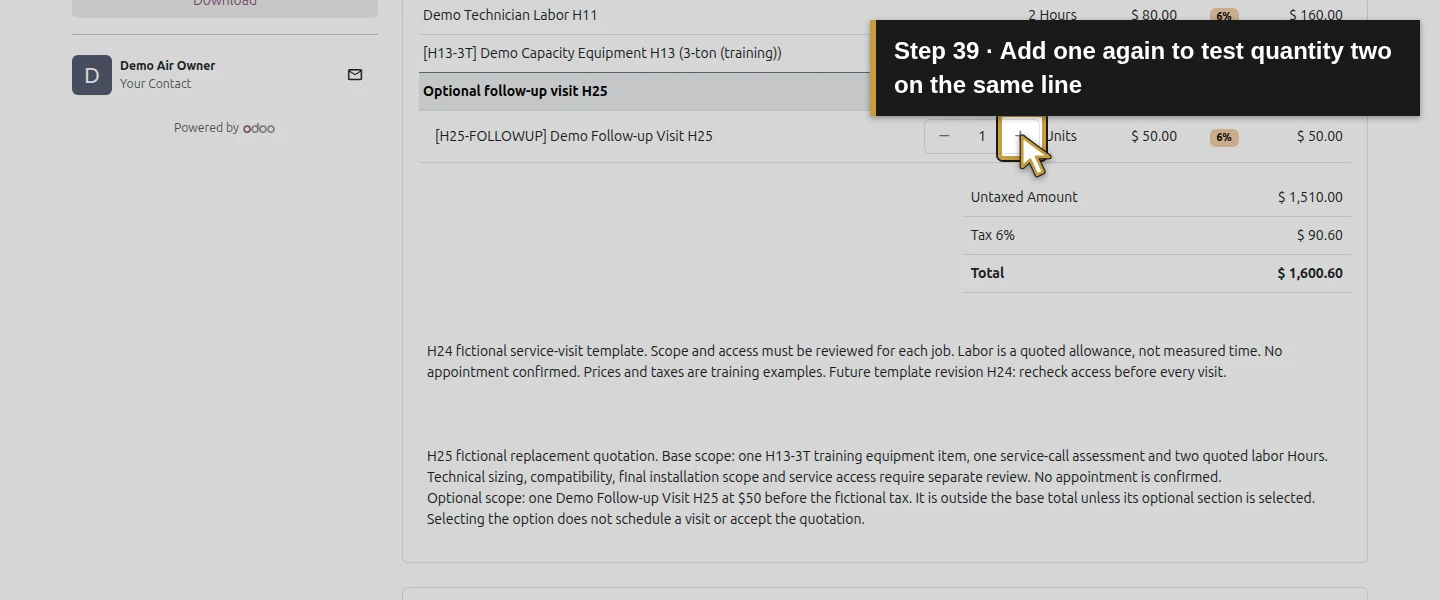
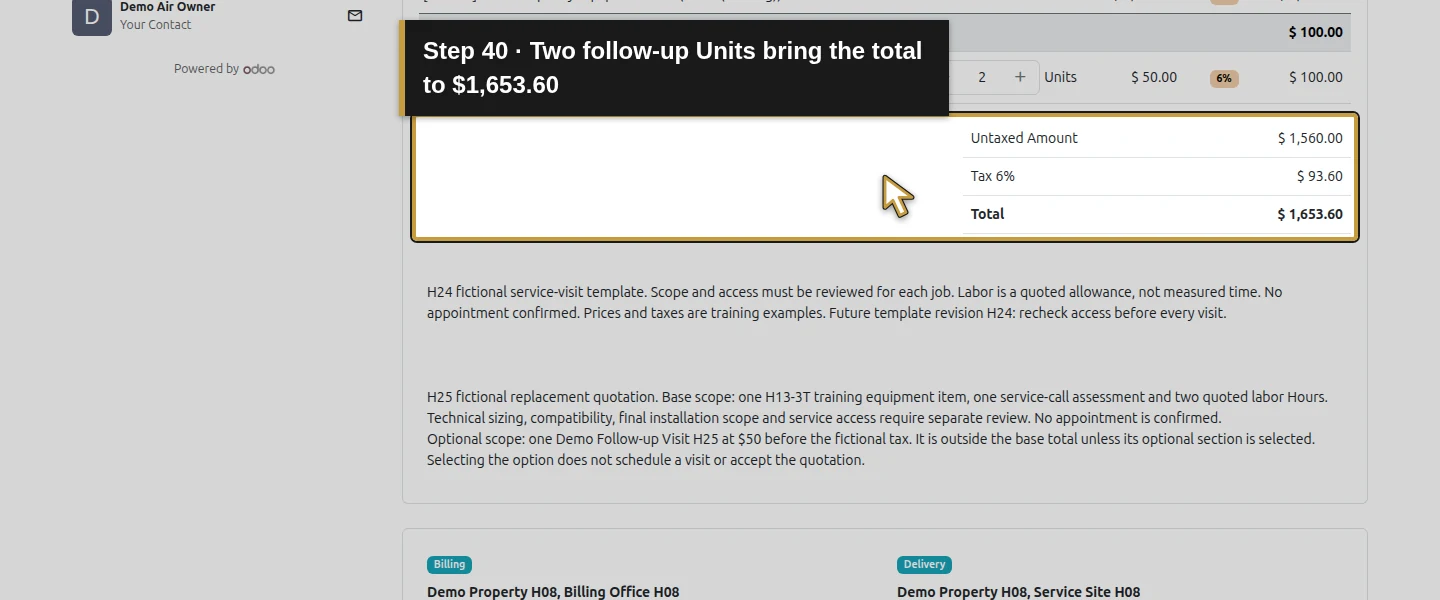
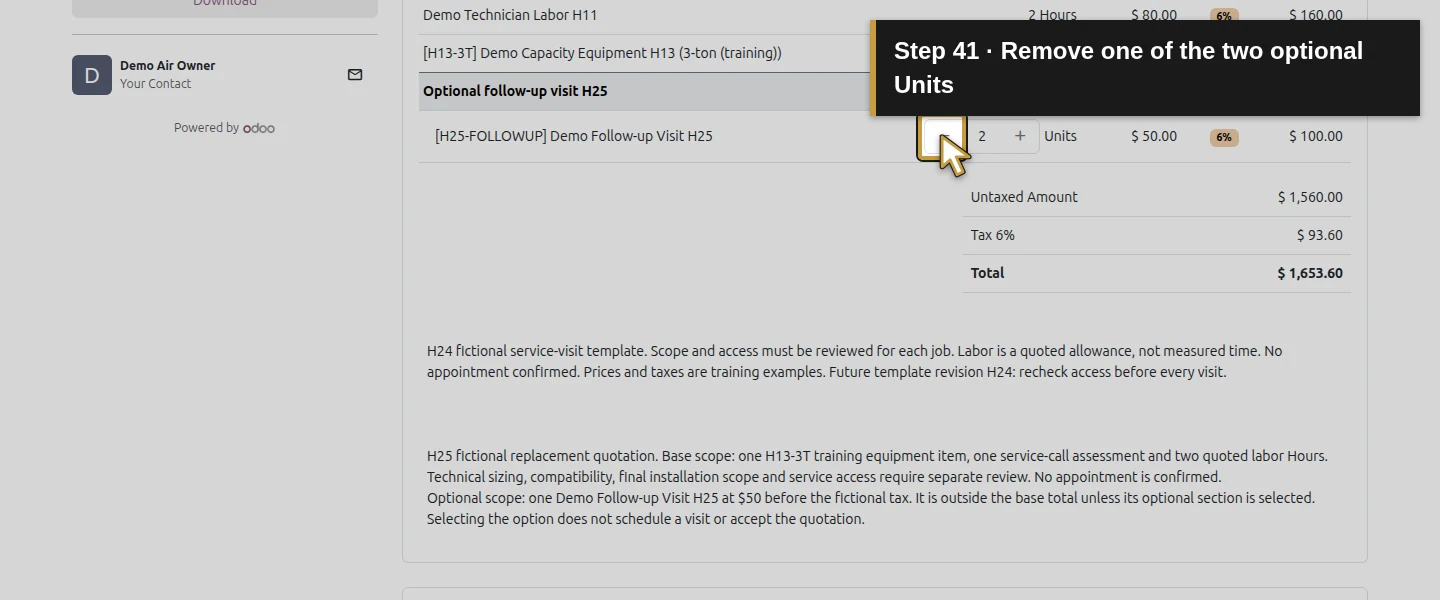
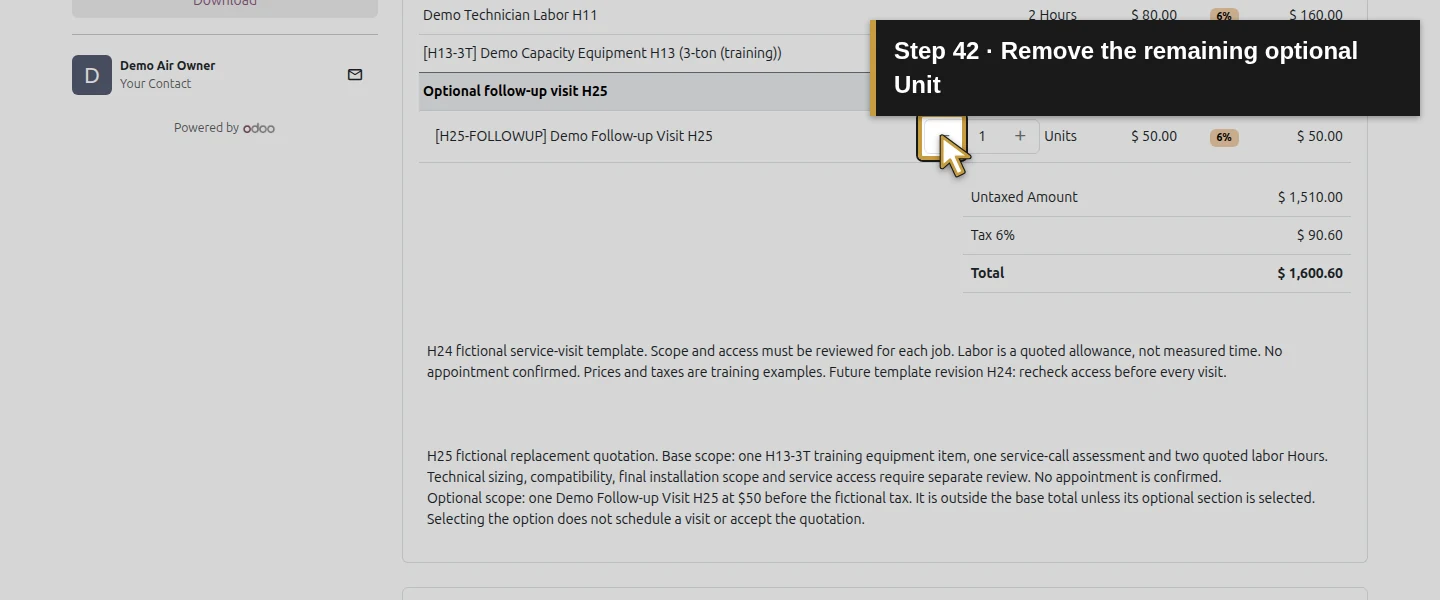
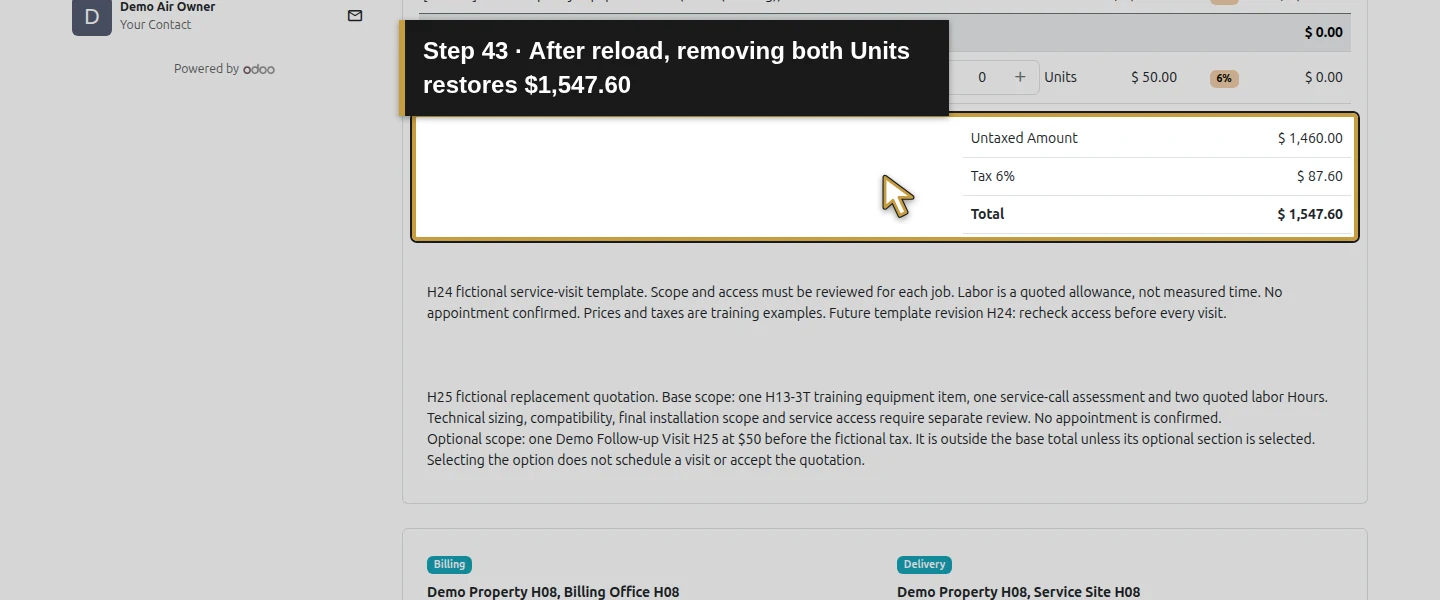
In the customer view, click Add one. One Unit adds $50 plus $3 demo tax, so the total becomes $1,600.60. Reload to check that the choice persists. A second Add one increases the same line to two Units and $1,653.60. Click Remove one twice and reload: quantity returns to zero and the base total returns to $1,547.60. Reopen the quotation in Sales to check the same result. Leave Accept & Sign for the acceptance lesson.
Check the result
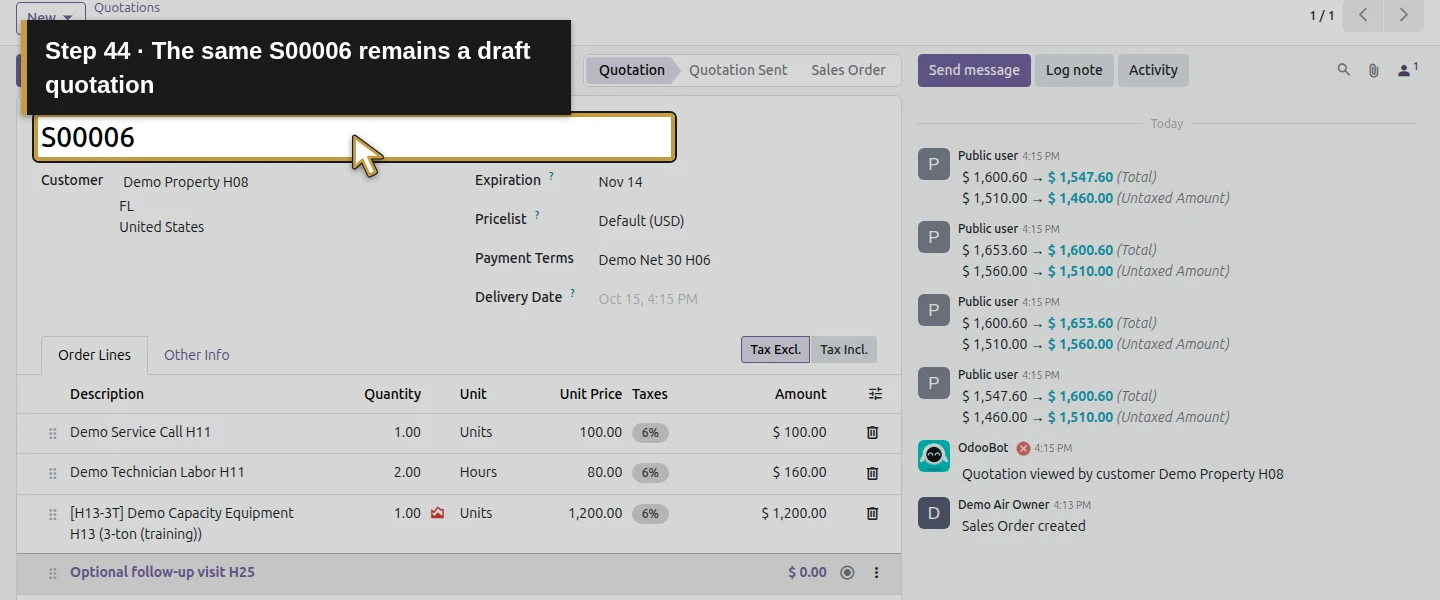
S00006 remains a draft quotation with three base product lines, one optional section and one follow-up line. The customer changed the same follow-up line from zero to one to two Units and back to zero; the five line identities stayed the same. One-Unit selection survived reload, and removal restored the saved $1,547.60 base total. No invoice or delivery was created, and earlier quotations and stock balances were preserved.
If your screen differs
Use the section's Set Optional control in this tested Odoo 20 form. Configurator Add produced an ordinary priced line; it did not make the line optional. A product line's own optional flag remained false while its parent section was optional, so check the section and customer view together. Optional quantities can exceed one, as the two-Unit check showed; review the selected quantity before acceptance. Only this draft, single-section, fixed-price case was tested. Signed orders, every permission/tax/pricelist combination and full equipment alternatives remain unverified. Keep technical selection and scheduling outside this quotation exercise.
Frequently asked questions
How do I add optional products to an Odoo 20 quotation?
In this tested form, add a section, open its three-dot menu and choose Set Optional. Use that section's Add a line control to add the optional product. Its initial zero quantity keeps it outside the base total. Setting Optional Products on the equipment suggests a product in the configurator, but clicking the configurator's Add inserted an ordinary priced line in this test.
Do optional products increase the total of an Odoo quotation?
They did when the customer increased the optional line's quantity. The zero-quantity follow-up left S00006 at $1,547.60. One $50 Unit with the fictional 6% tax changed it to $1,600.60; removing it restored the base total. Reload preserved the choice. This verified draft selection, while acceptance and invoicing remain separate workflows.
Can I quote HVAC replacement equipment and optional upgrades in Odoo?
The tested quotation combined a specific equipment variant with base service/labor lines and a separately priced optional follow-up visit. Scope notes explain the choice, and the customer view lets the customer change its quantity before acceptance. This does not verify mutually exclusive equipment alternatives, technical sizing, compatibility or appointment booking. Review those decisions and the selected quantities separately.Continue building the business
Next in the series: H26: How do I let a customer accept a quotation online in Odoo?. Quotation acceptance is covered in that separate workflow.
Talk about your Odoo setup
Bring your current process and the result you need to Onward to plan your Odoo workflow. Talk about your Odoo setup.