
Running an HVAC business with Odoo · Import products
How do I import HVAC parts and equipment into Odoo?
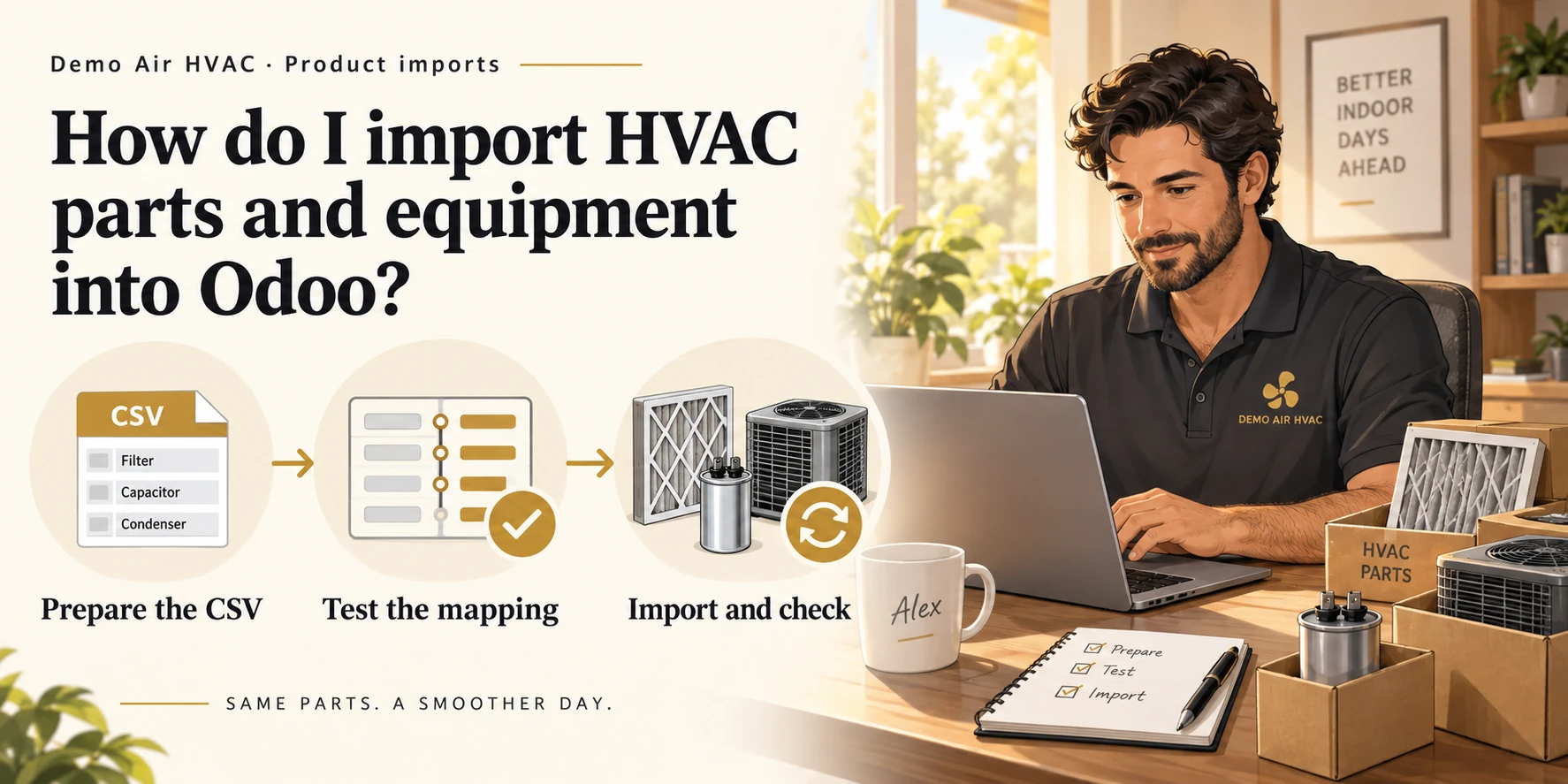
Open Sales > Products > Products, choose Import from the Actions menu and upload a small CSV. Check each mapping and use Test before Import. Reopen the saved products, then use the same External IDs to update them.
Three saved goods records with checked units, tracking and prices. A second import changes the filter price while retaining the same three records.
Alex Rivera runs Demo Air HVAC, a fictional heating and cooling business. He is adding a filter, capacitor and condenser to his catalogue before buying materials. All prices are fictional USD examples; importing this catalogue does not receive stock.
Follow the forty stepsBefore you begin
Complete the company-profile lesson and app-selection lesson in the series. This demo has Sales, Product, Inventory and the standard importer installed. Sign in with product-editing and import access; the walkthrough uses the owner administrator.
The screenshots show Odoo 20.0-20260926 Community, using stock fields and menus without Enterprise or customization. The starting catalogue contains three existing service products. Preserve existing data and test the sample in a demo database before using your own business records.
The existing Units unit is used for all three goods. The company currency is USD. Review appropriate taxes before using the products in actual orders: this demo inherits its earlier generated 6% defaults, and the CSV does not choose taxes.
Prepare the product CSV
Download the original example CSV and same-ID price-update CSV. Both are UTF-8, comma-separated files with a header row. The second changes only the filter's Sales Price from 20 to 21.
| External ID | Name | Internal Reference | Original Sales Price |
|---|---|---|---|
| demoair_h12_filter | Demo Return-Air Filter H12 | H12-FILTER | 20 |
| demoair_h12_capacitor | Demo Run Capacitor H12 | H12-CAP | 35 |
| demoair_h12_condenser | Demo Condenser H12 | H12-COND | 850 |
Each row also uses Product Type: Goods, Track Inventory: True, Unit: Units, Sales: True and Purchase: True. Keep the same External ID for each record you intend to update. An Internal Reference is useful for finding the product; this guide's duplicate check relies on External ID.
These are the columns used in this tested example, rather than a claim that every product import requires all nine. Use your version's actual mapping and available units. Odoo's import documentation explains imports and external identifiers.
Open the native importer
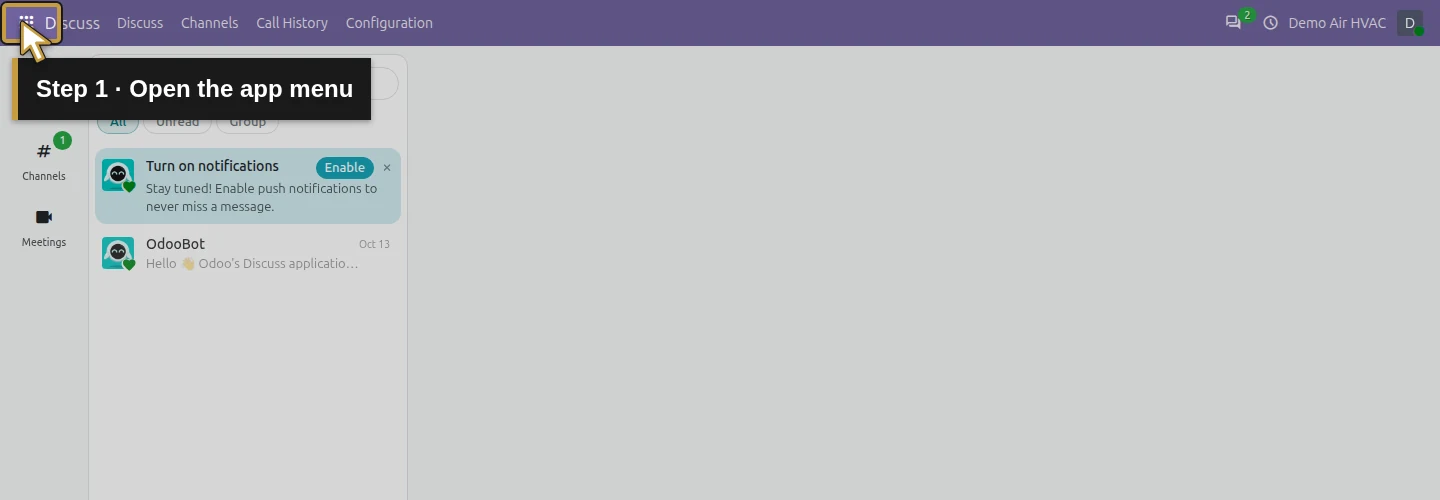
Step 1. Open the app menu
Click the grid-shaped app menu at the top left.
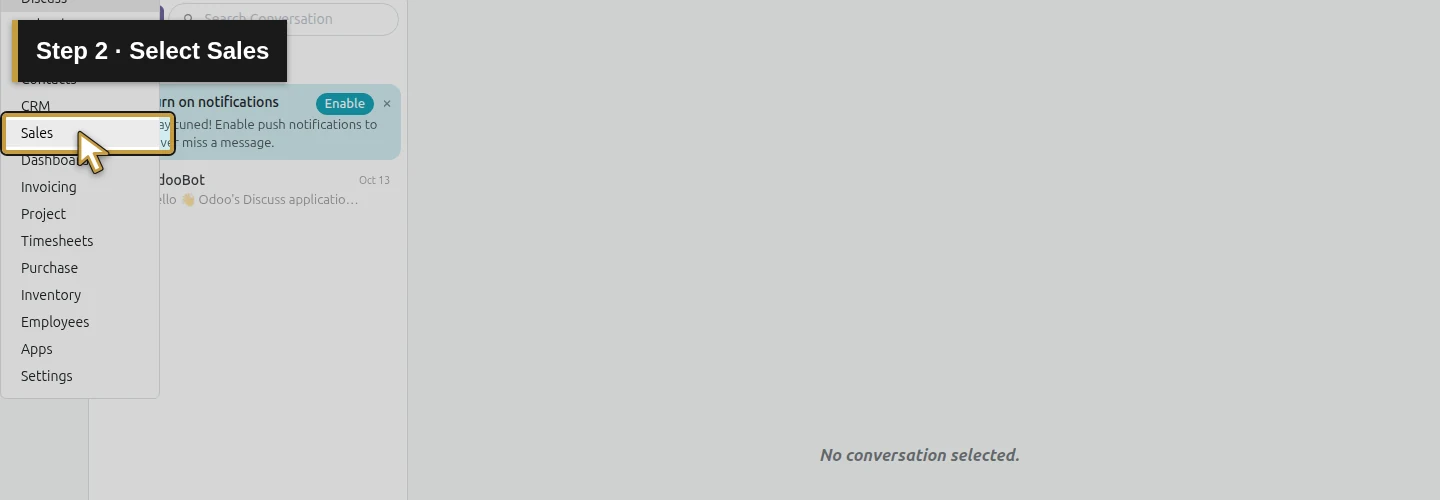
Step 2. Select Sales
Choose Sales and wait for its menu.
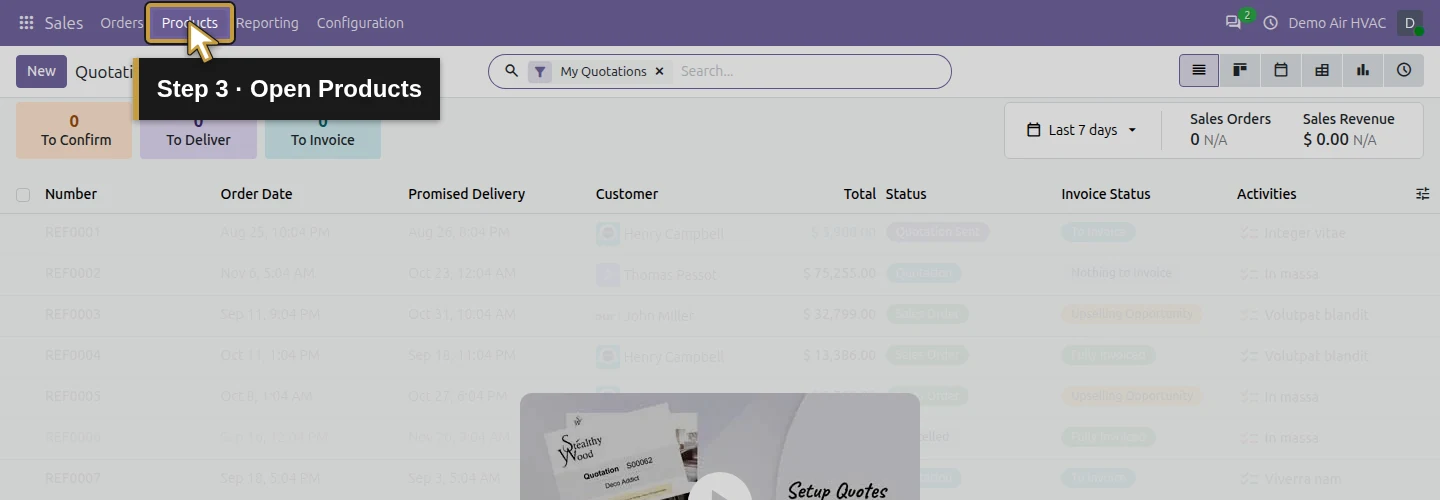
Step 3. Open Products
Click Products in the top menu.
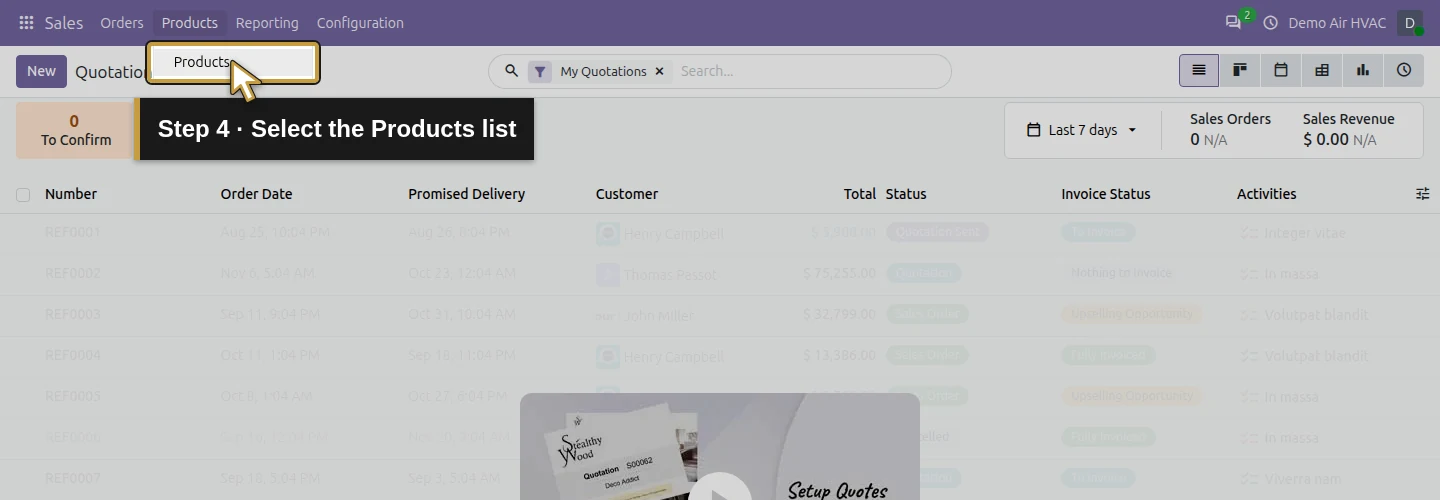
Step 4. Select the Products list
Choose Products from the dropdown. Check the existing catalogue before importing.
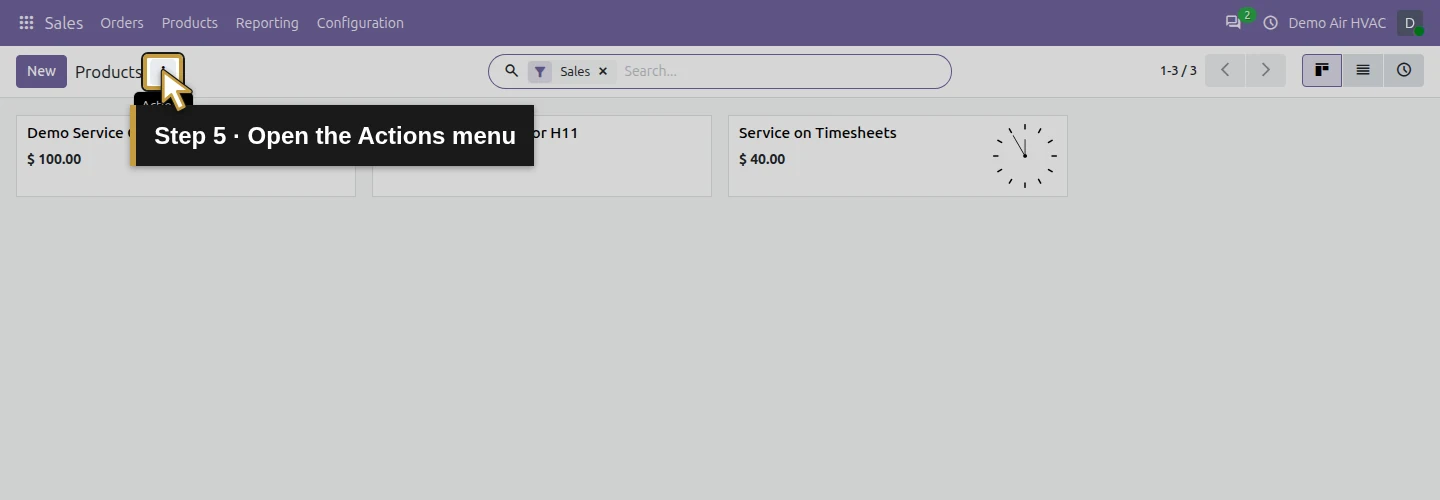
Step 5. Open the Actions menu
Open the Actions menu beside the product-list heading.
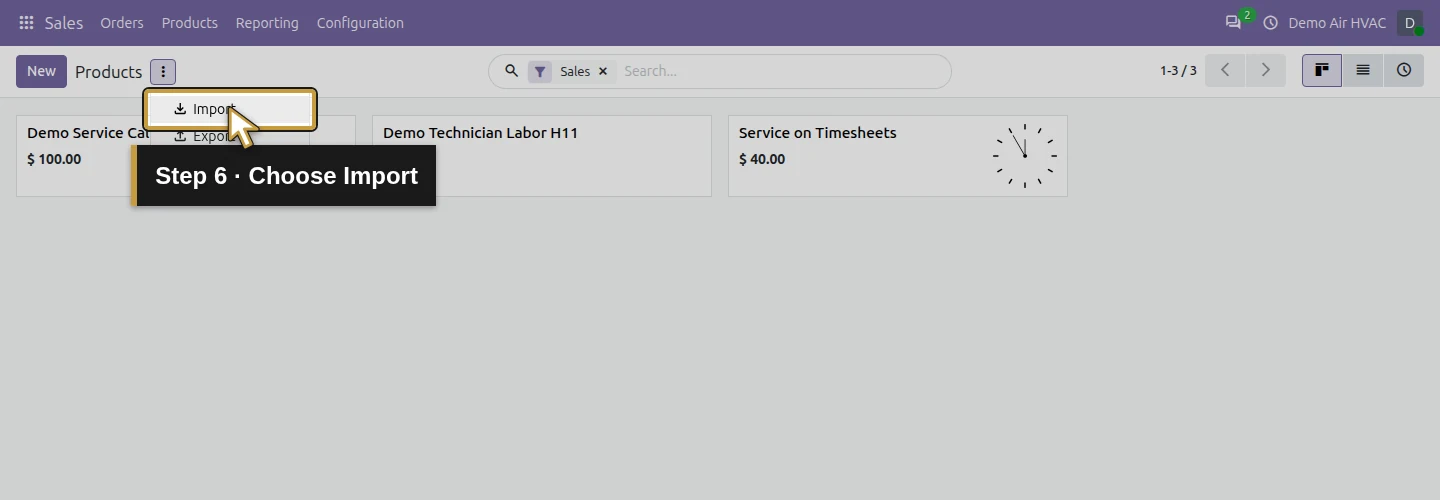
Step 6. Choose Import
Choose Import and wait for the importer.
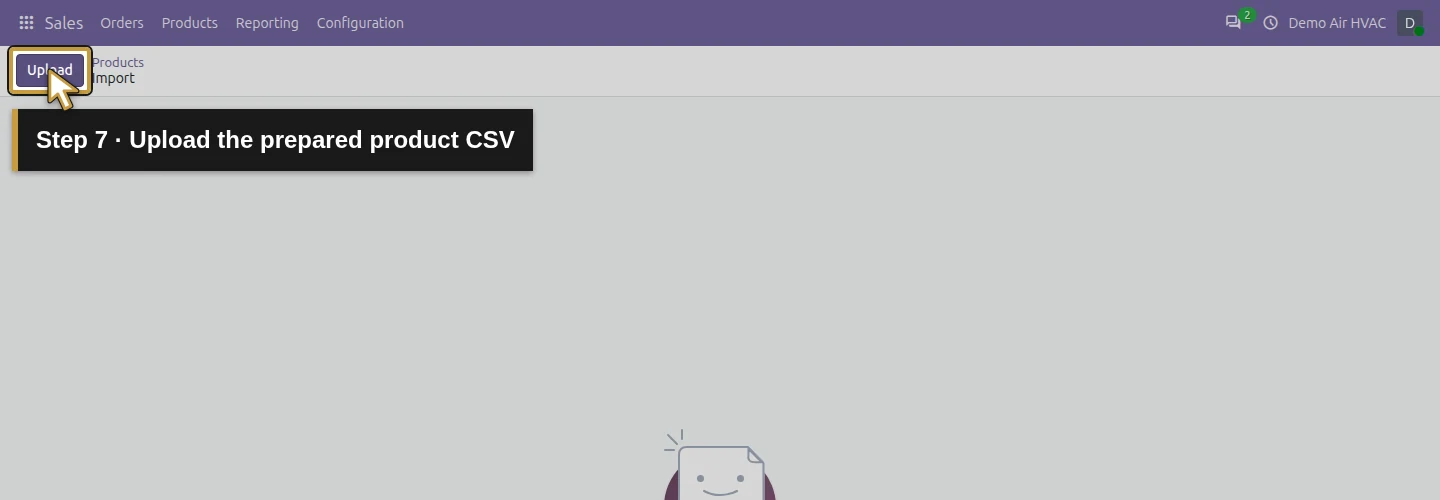
Step 7. Upload the prepared product CSV
Use Upload to select demo-air-hvac-products.csv. Wait for the file preview and field mappings.
Check the original mapping and test
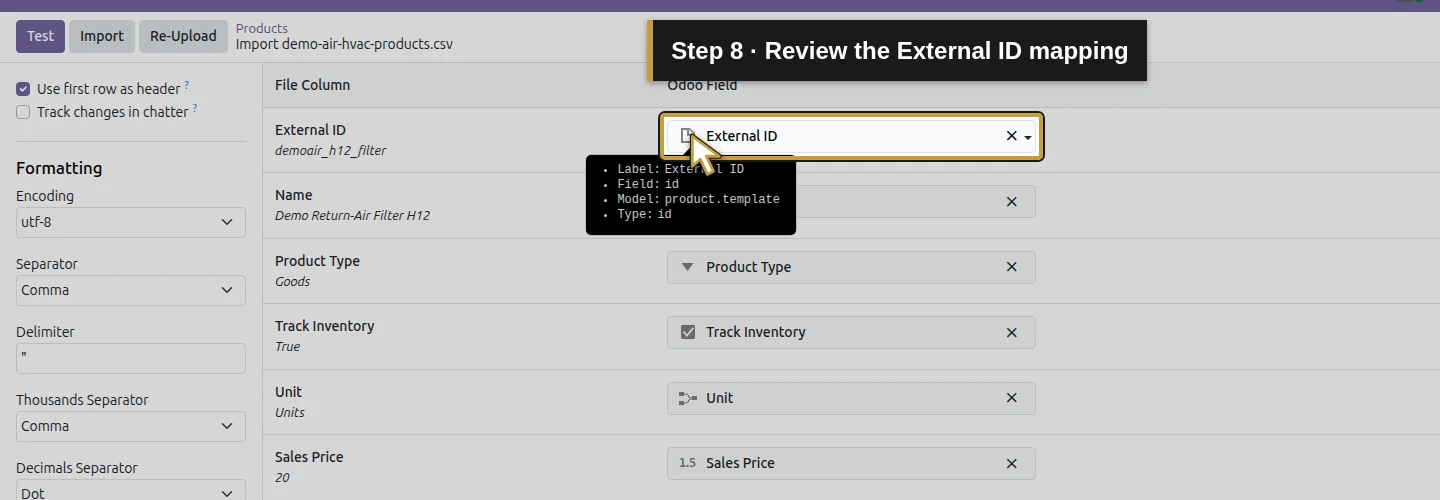
Step 8. Review the External ID mapping
Check that External ID maps to External ID. The first preview value is demoair_h12_filter.
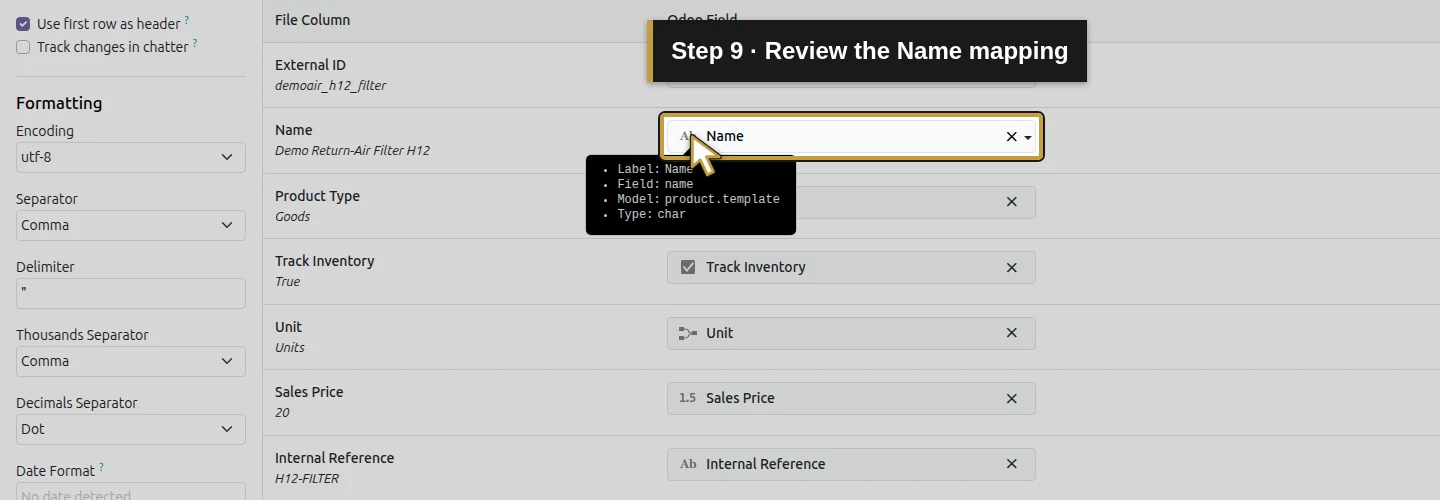
Step 9. Review the Name mapping
Check that Name maps to Name, with the fictional filter name in the preview.
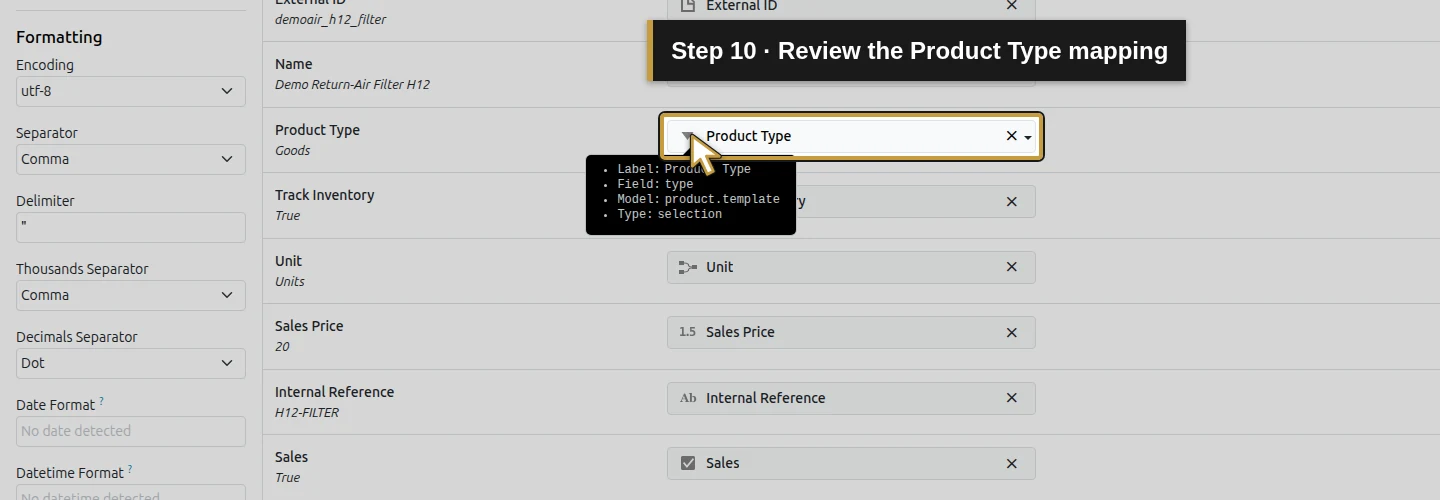
Step 10. Review the Product Type mapping
Check that Product Type maps to Product Type and the preview uses Goods.
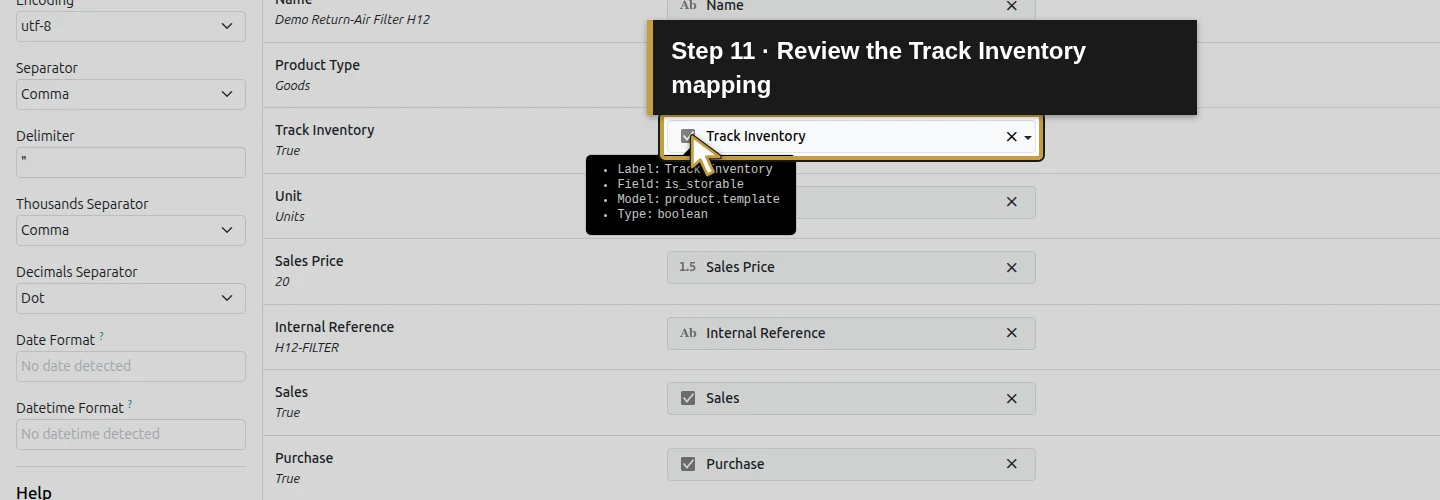
Step 11. Review the Track Inventory mapping
Check that Track Inventory maps to Track Inventory and the preview is True.
Step 12. Review the Unit mapping
Check that Unit maps to Unit and uses the existing Units value.
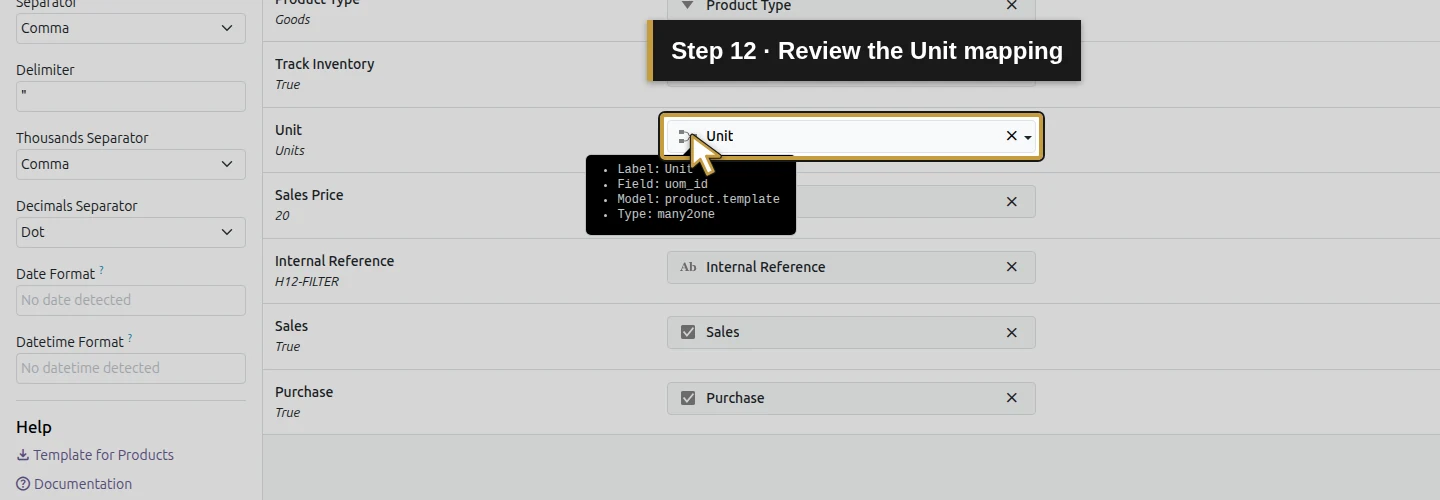
Step 13. Review the Sales Price mapping
Check that Sales Price maps to Sales Price. The original filter price is 20.
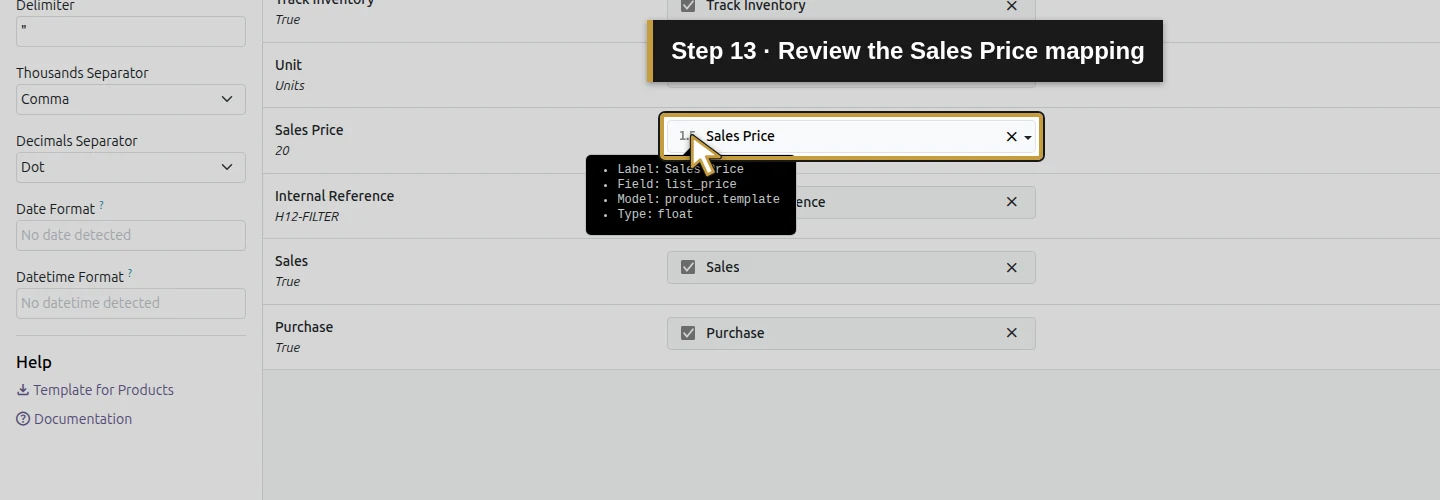
Step 14. Review the Internal Reference mapping
Check that Internal Reference maps to Internal Reference, with H12-FILTER in the preview.
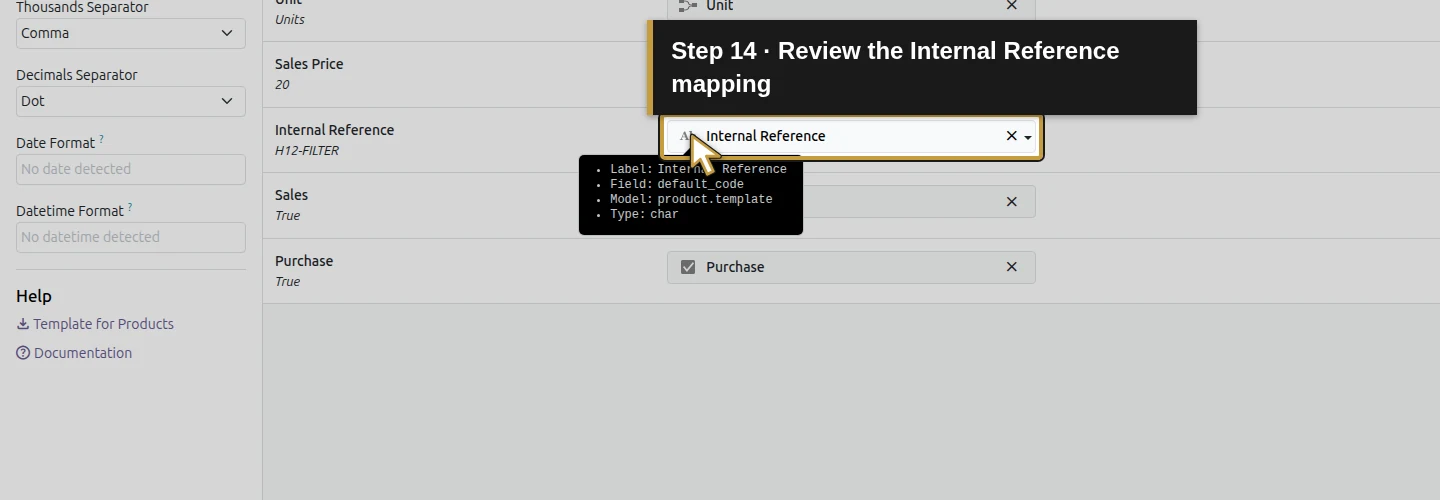
Step 15. Review the Sales mapping
Check that Sales maps to Sales, with True in the preview.
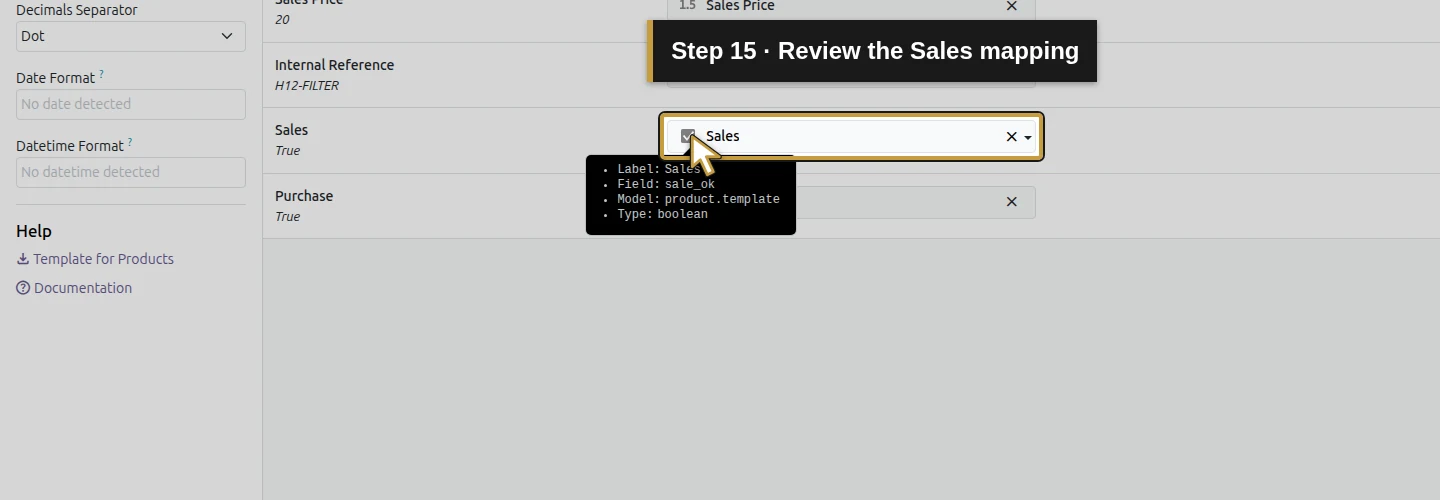
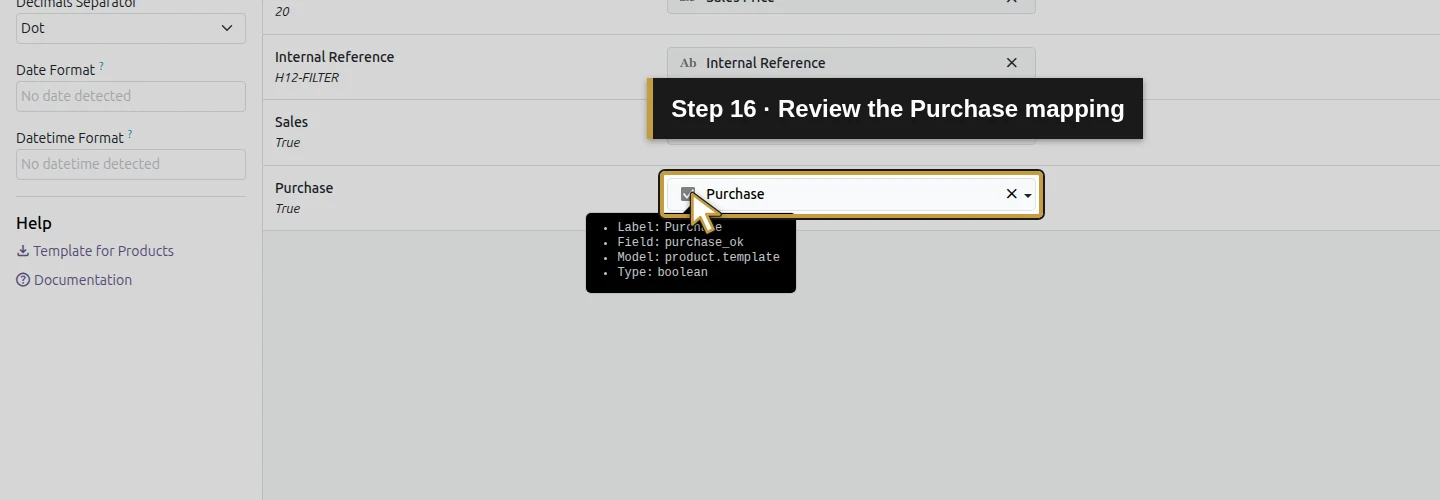
Step 16. Review the Purchase mapping
Check that Purchase maps to Purchase, also with True.
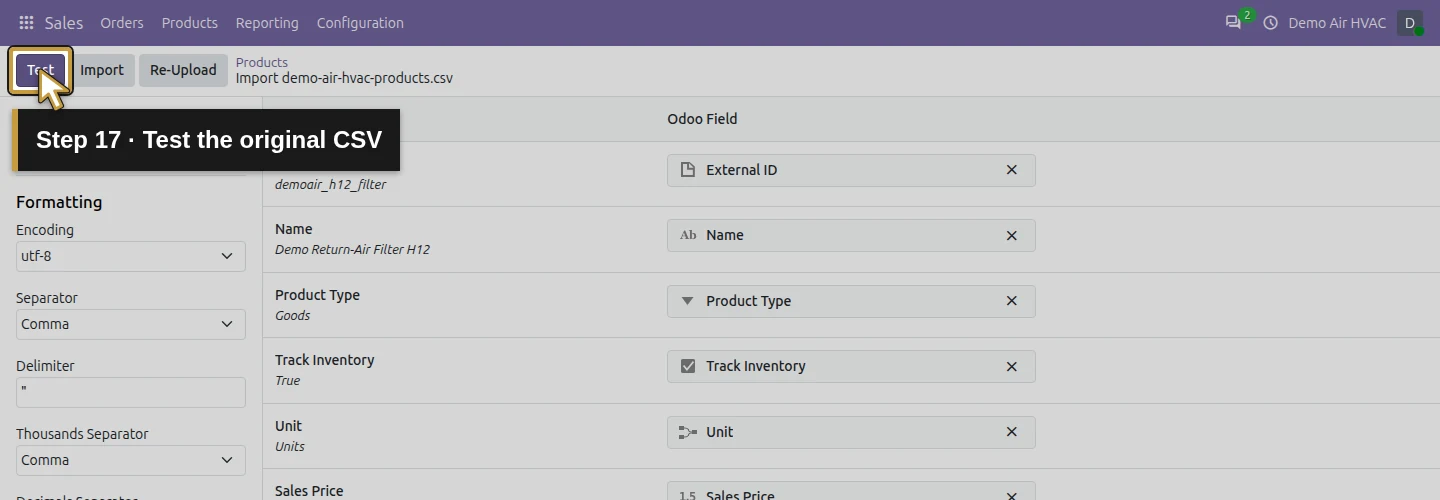
Step 17. Test the original CSV
Click Test. Correct any reported errors before using Import.
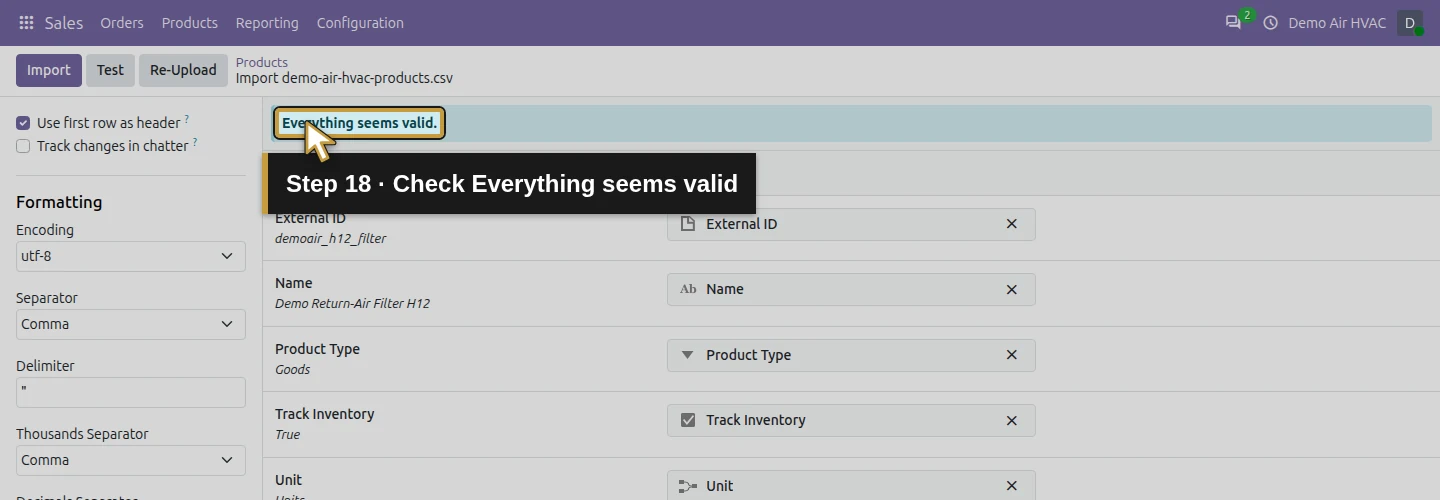
Step 18. Check Everything seems valid
Confirm Everything seems valid. In this demo, testing did not save any goods or create units.
Import and reopen the saved goods
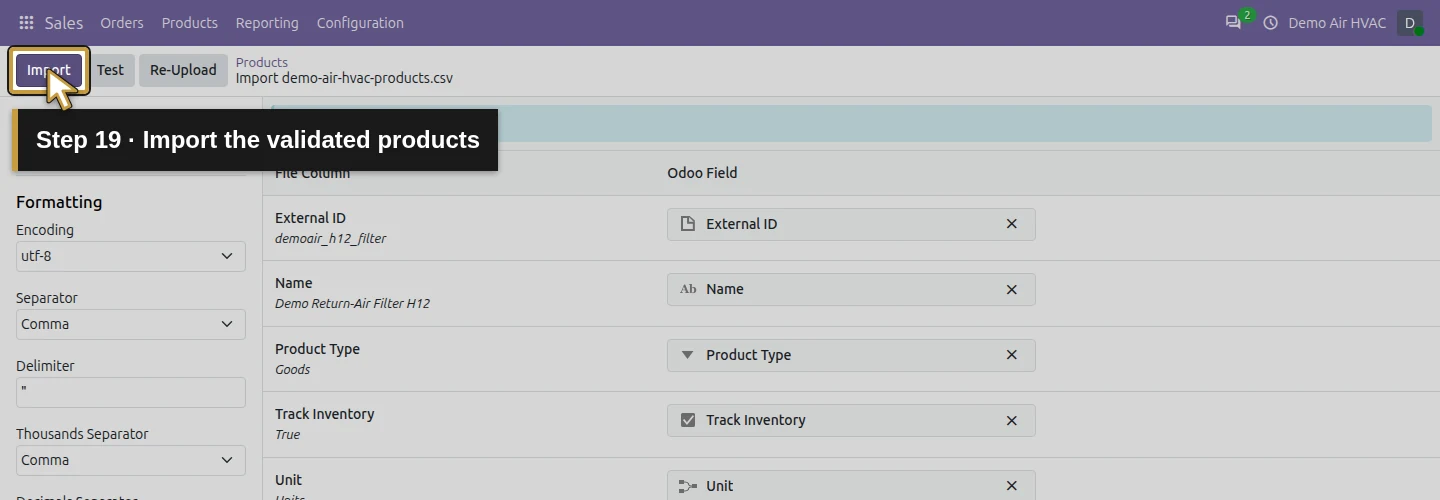
Step 19. Import the validated products
Click Import once to save the validated rows. Wait for the Imported records list.
Step 20. Find the imported filter record
Find Demo Return-Air Filter H12 in the imported results.
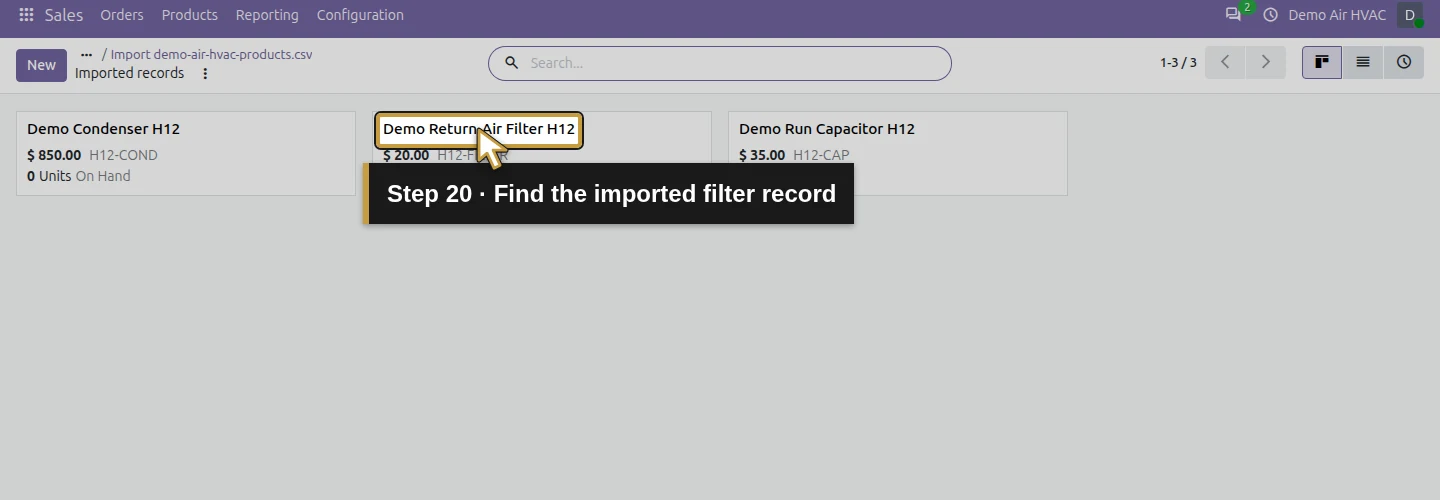
Step 21. Reopen the imported filter
Click the exact filter name to reopen its saved form.
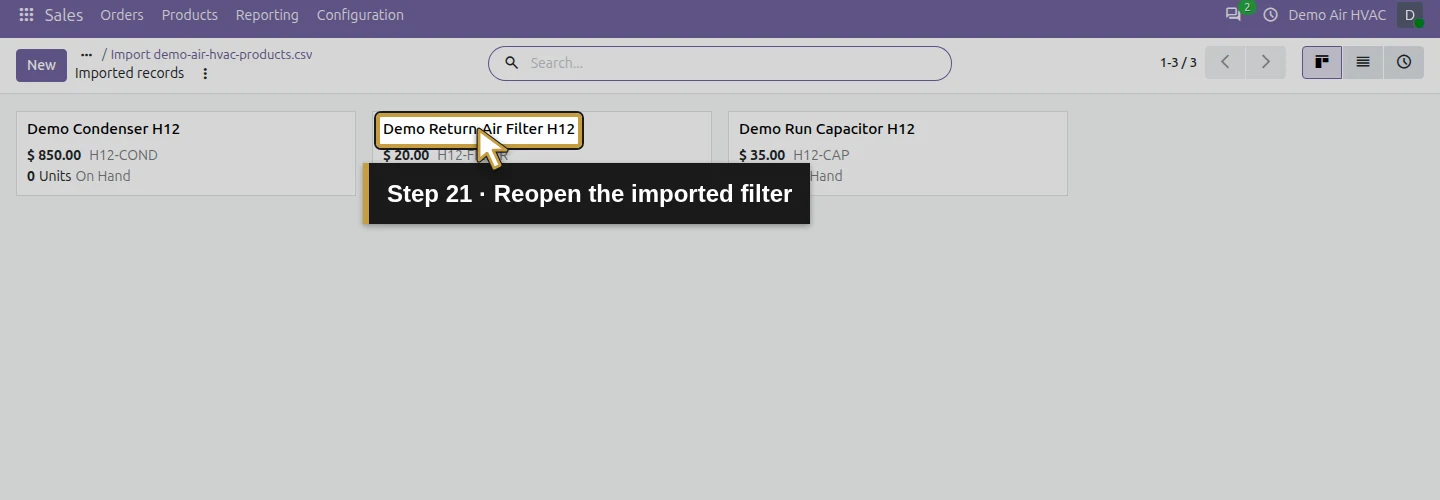
Step 22. Confirm Goods as the product type
Check that Goods remains selected under Product Type.
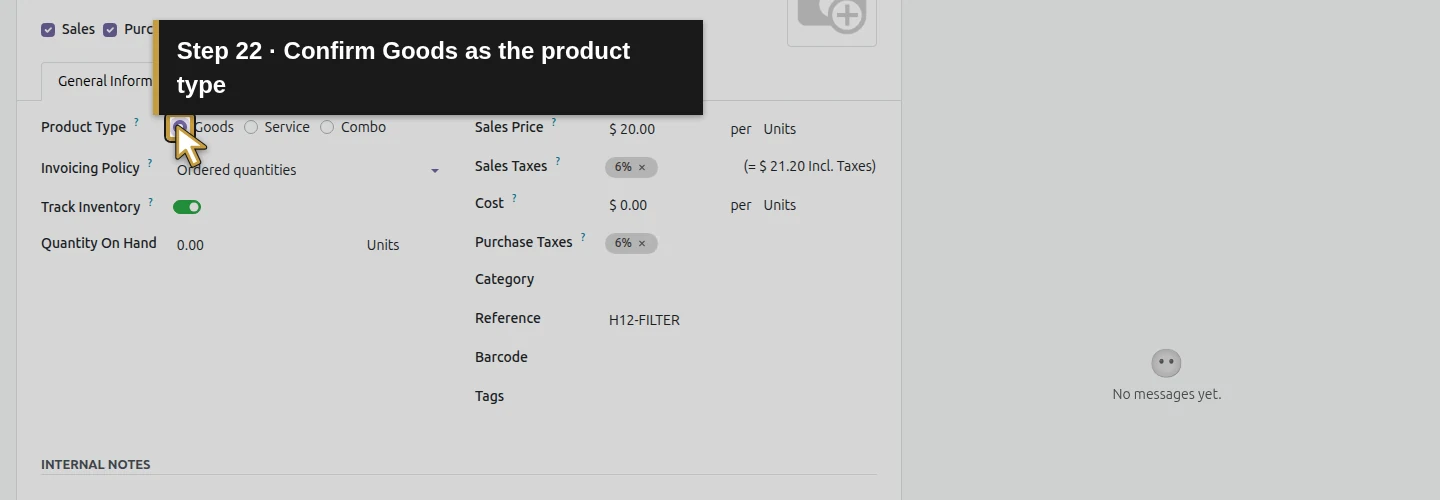
Step 23. Confirm Track Inventory is selected
Check that Track Inventory remains selected.
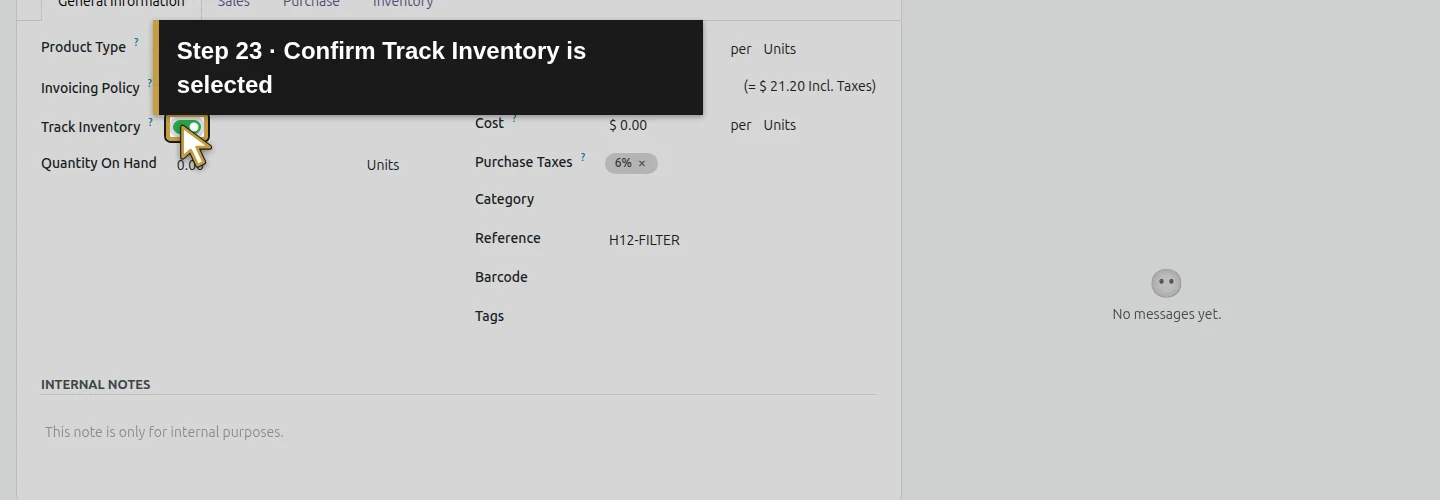
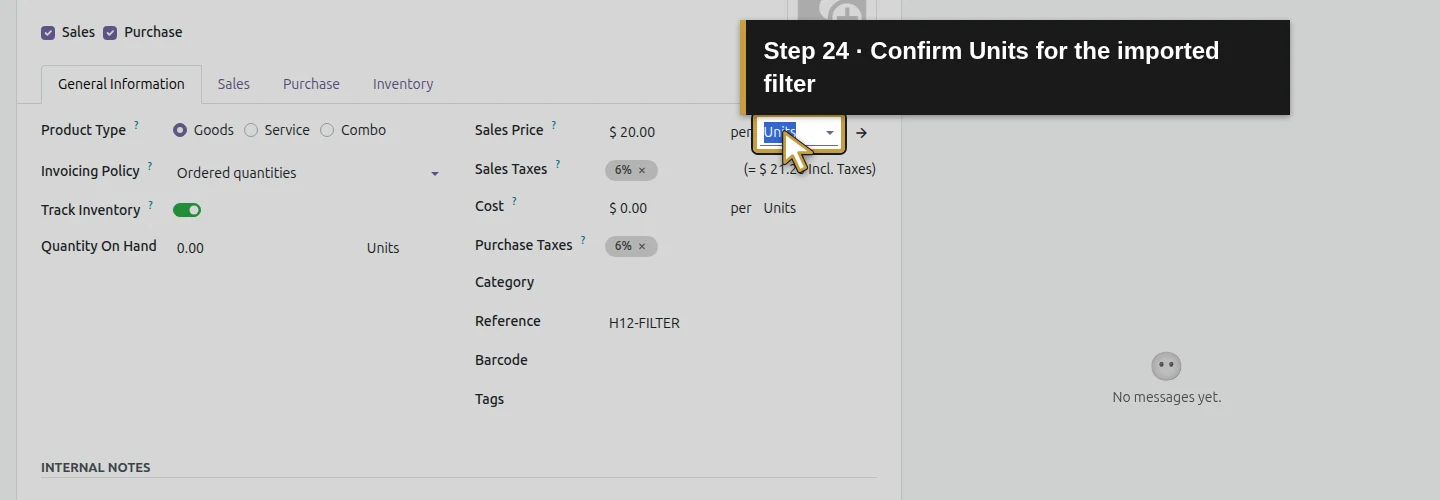
Step 24. Confirm Units for the imported filter
Check Units beside Sales Price.
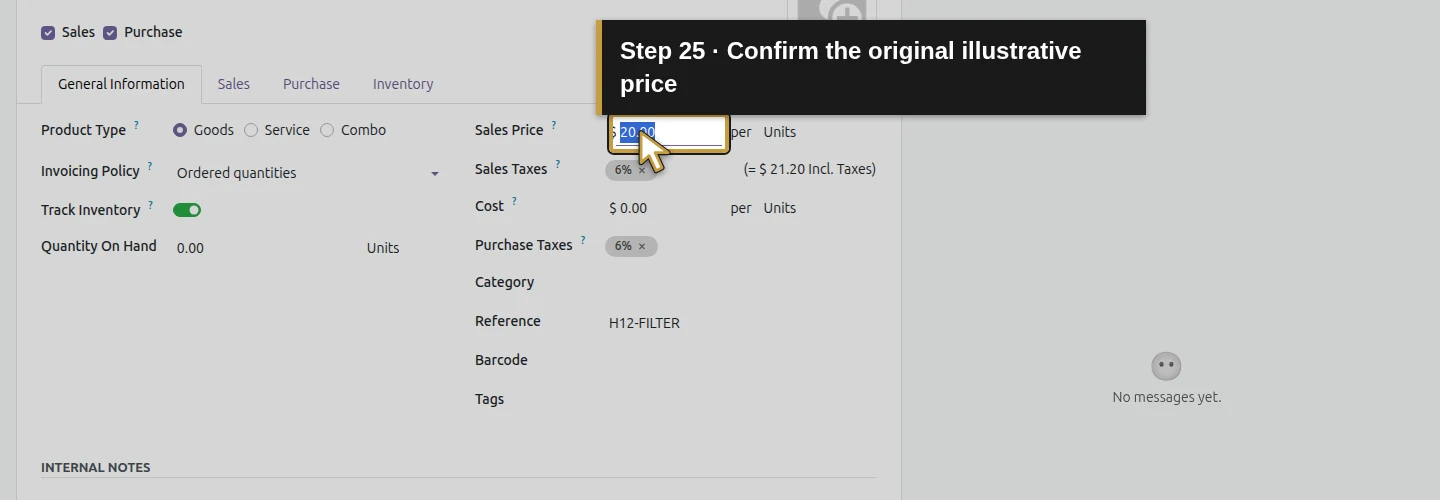
Step 25. Confirm the original illustrative price
Check that the saved Sales Price is 20.00 in USD.
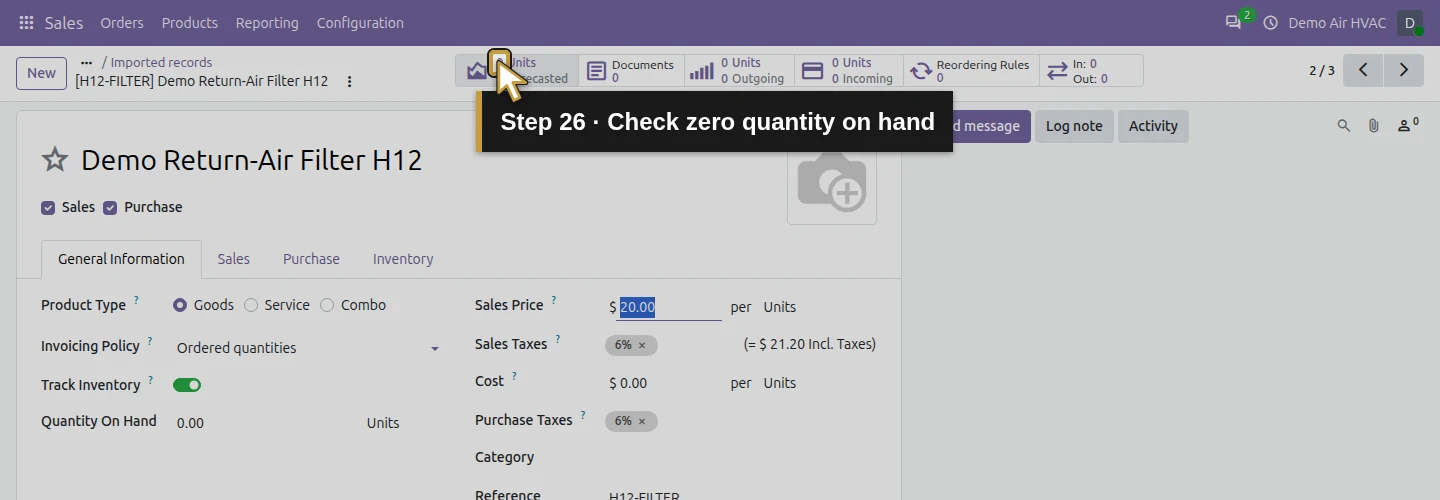
Step 26. Check zero quantity on hand
Check the highlighted zero in the stock summary. The Quantity On Hand line below also reads 0.00. Creating a product is separate from receiving or adjusting stock.
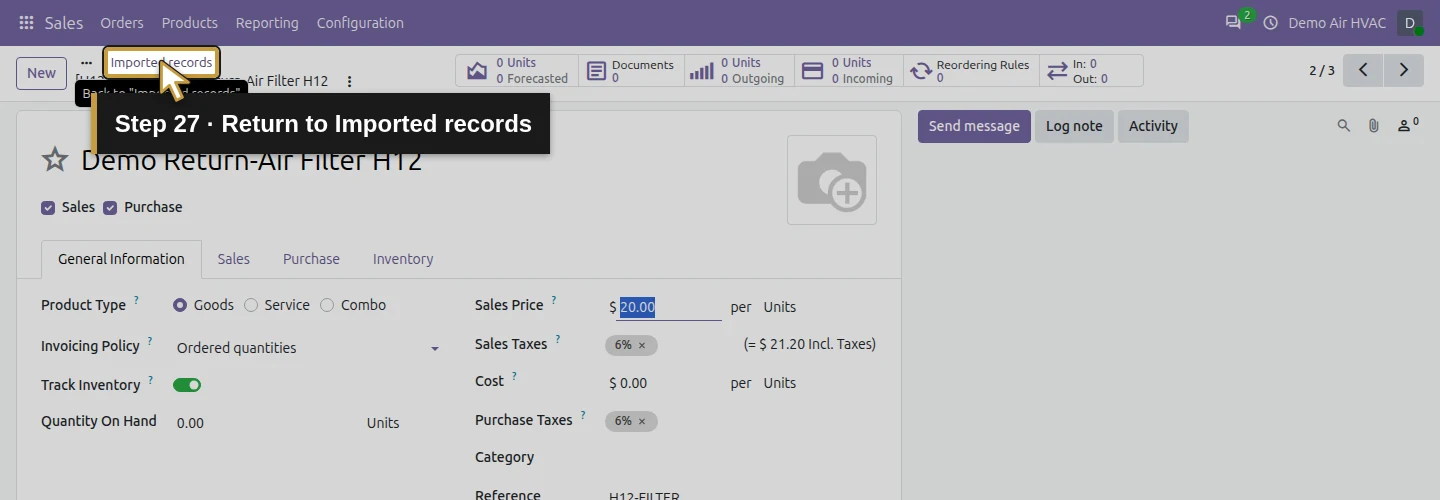
Step 27. Return to Imported records
Use the Imported records breadcrumb to return to the imported-results list.
Update using the same External IDs
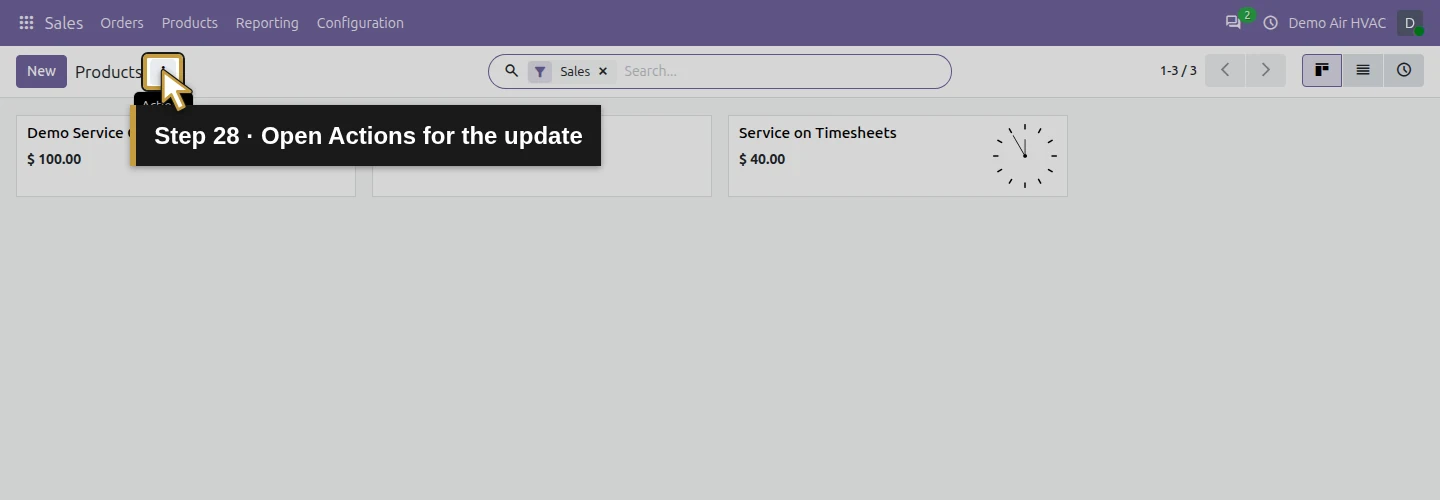
Step 28. Open Actions for the update
Open the Actions menu again to start the deliberate update.
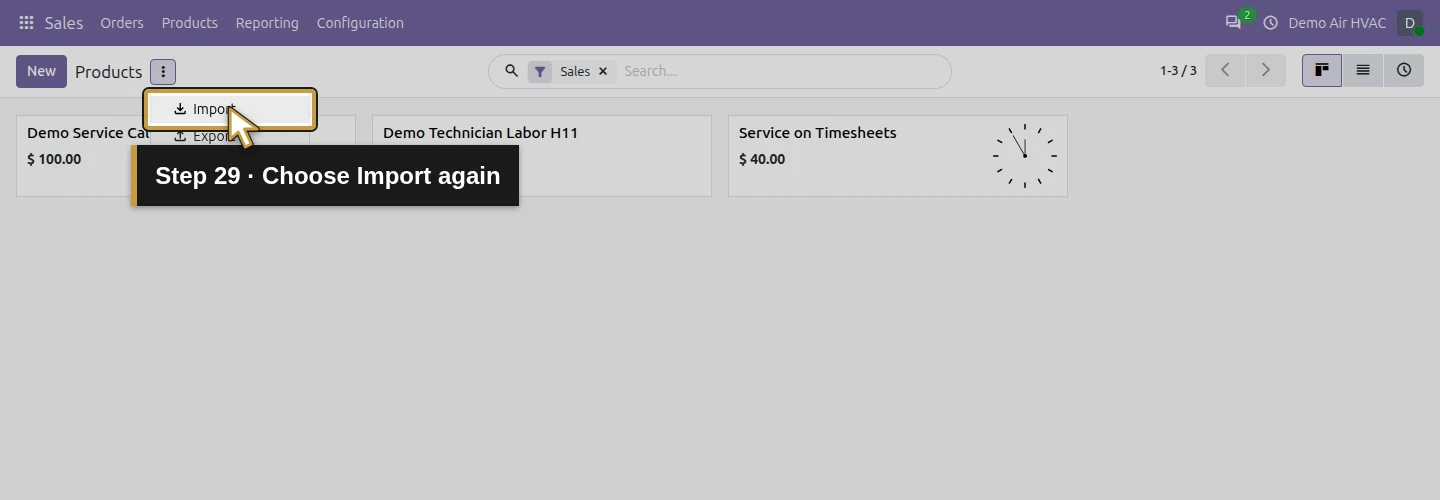
Step 29. Choose Import again
Choose Import again.
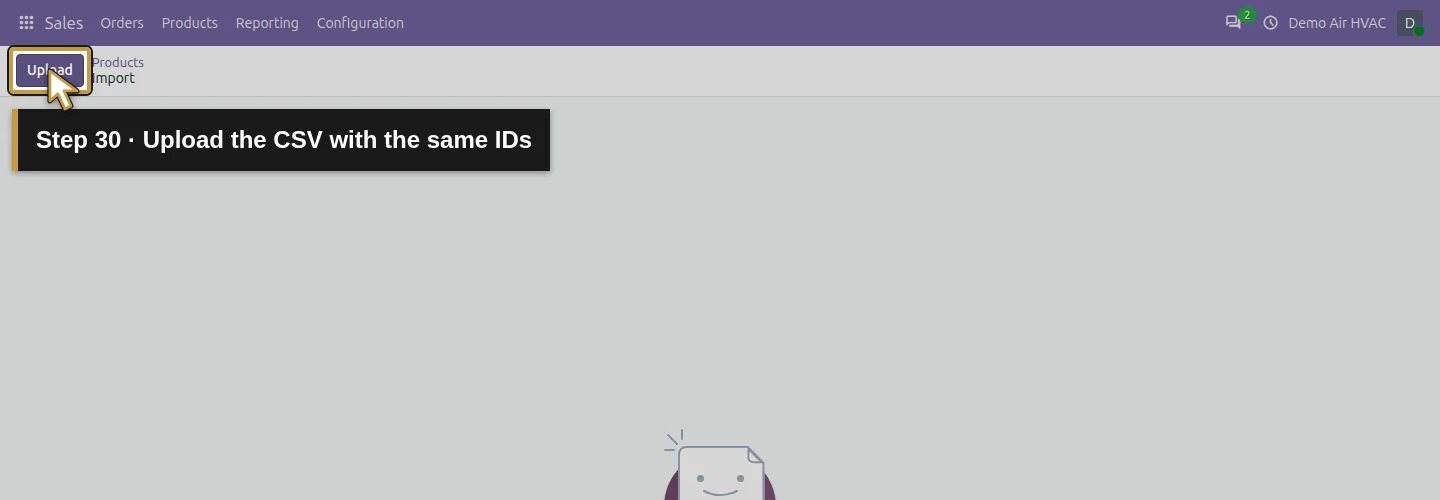
Step 30. Upload the CSV with the same IDs
Upload demo-air-hvac-products-update.csv. It keeps all three External IDs and changes only the filter price.
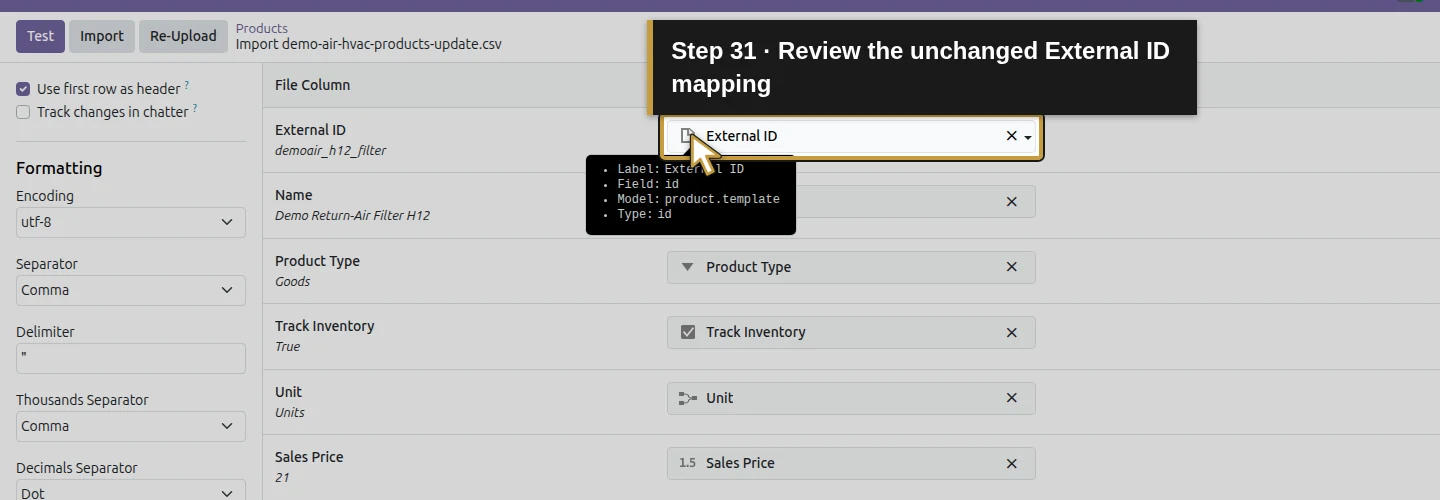
Step 31. Review the unchanged External ID mapping
Check the External ID mapping and the unchanged identifier preview.
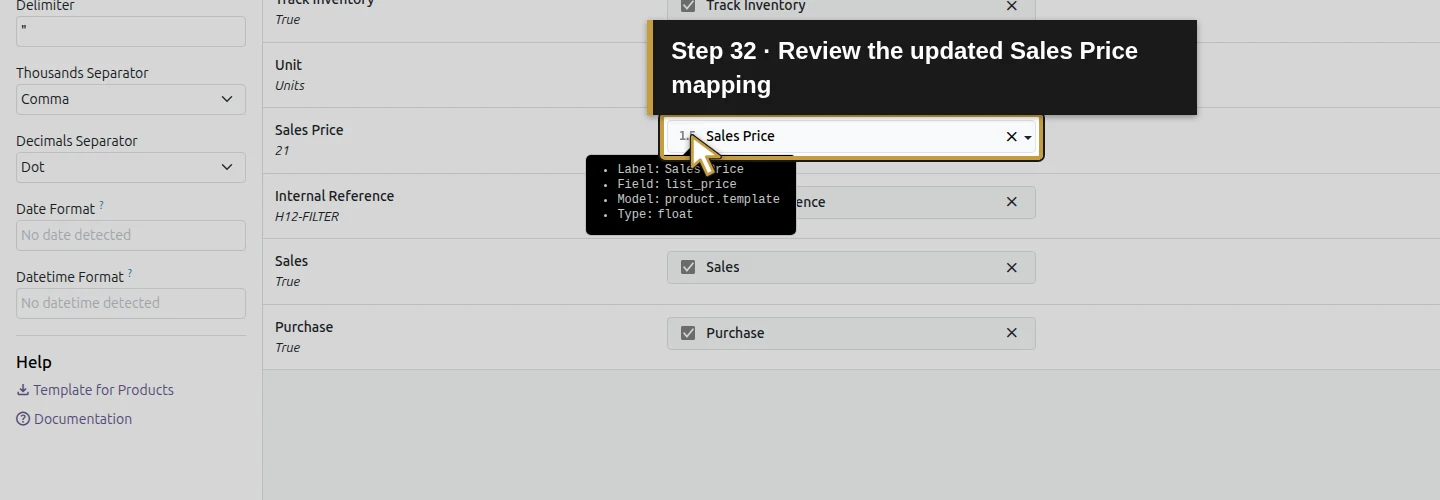
Step 32. Review the updated Sales Price mapping
Check the Sales Price mapping. The updated filter preview is 21.
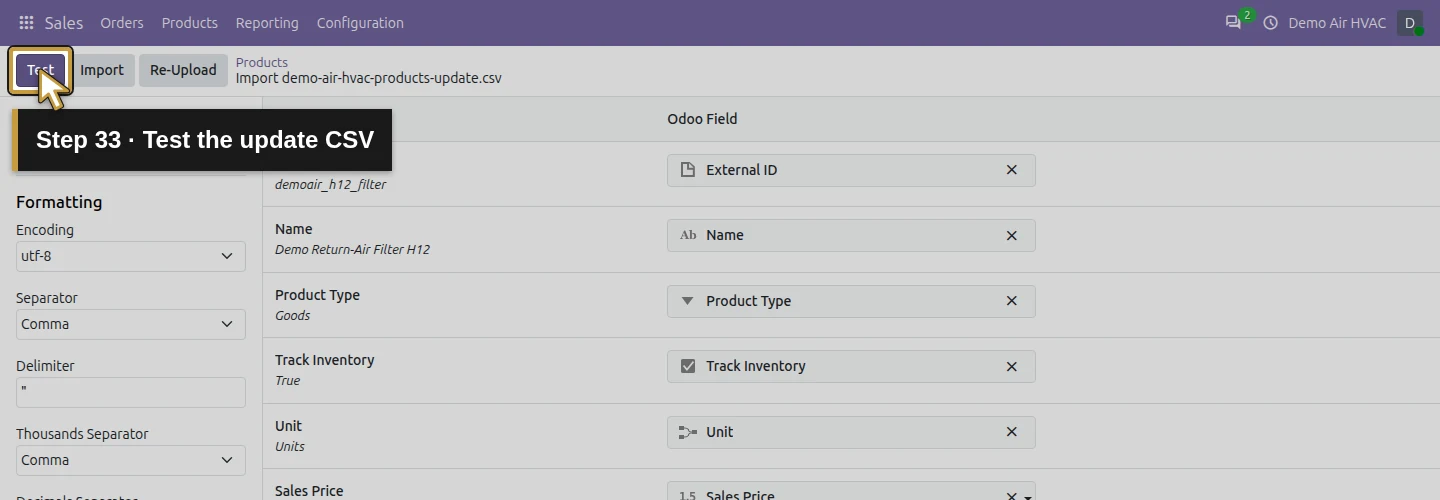
Step 33. Test the update CSV
Click Test for the update file too.
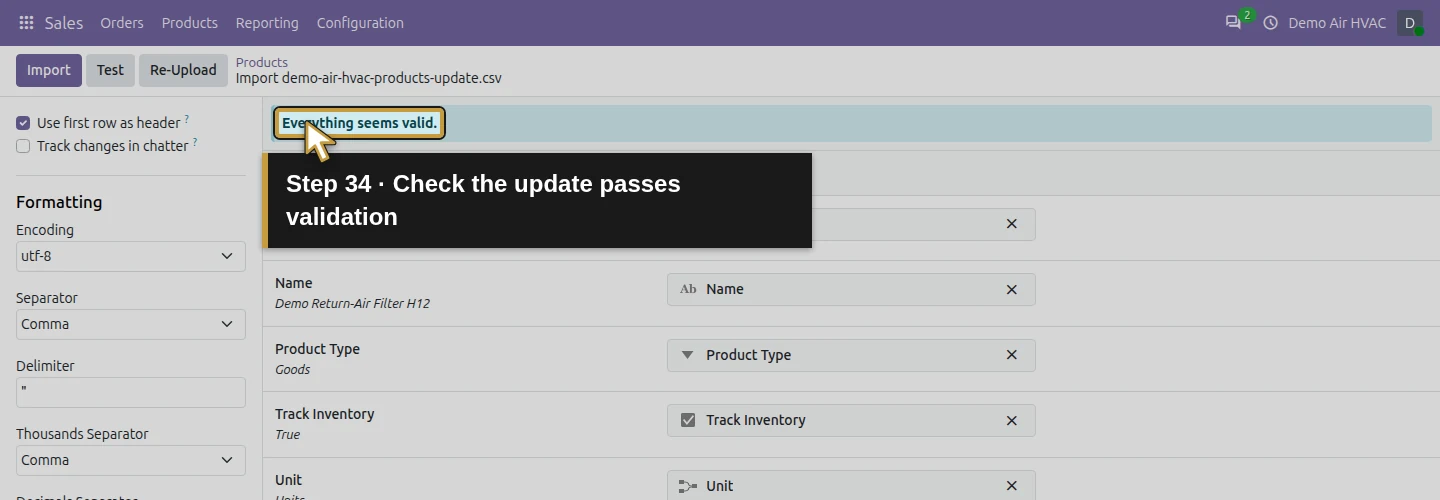
Step 34. Check the update passes validation
Confirm Everything seems valid. The saved filter price stayed 20 during this Test.
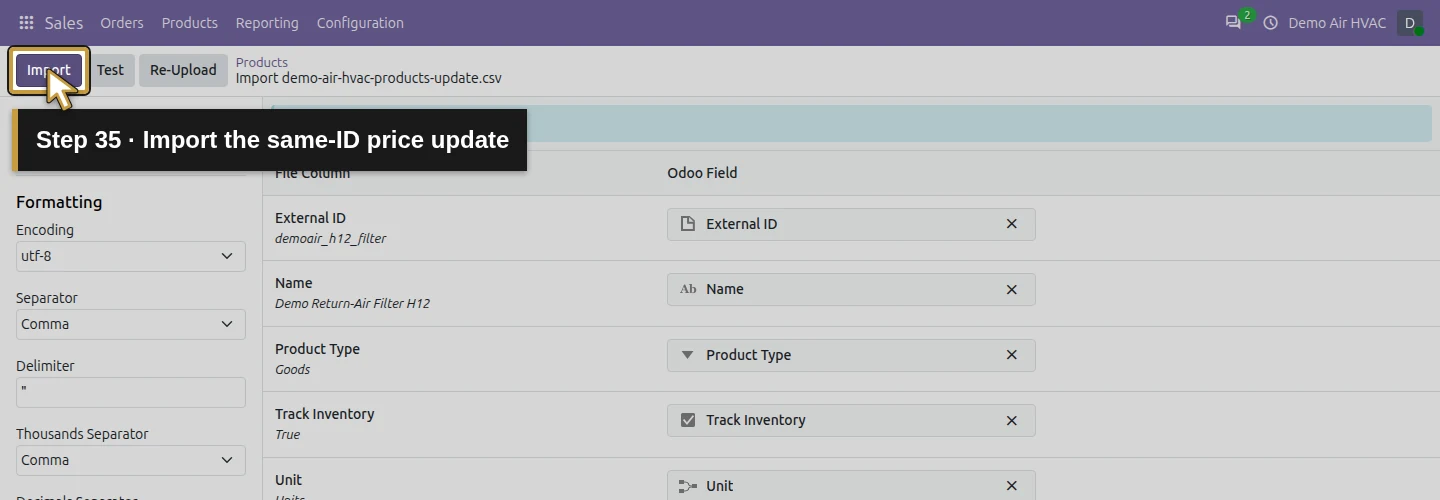
Step 35. Import the same-ID price update
Click Import to apply the same-ID update. Wait for the Imported records list.
Reopen and check the update
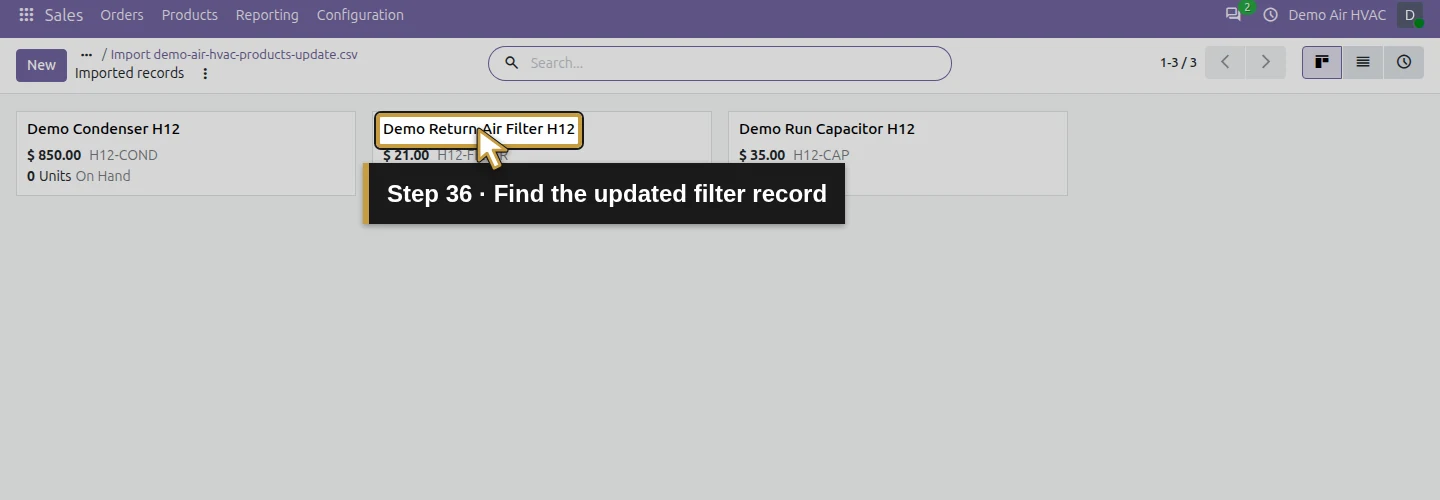
Step 36. Find the updated filter record
Find the existing Demo Return-Air Filter H12 record in the results.
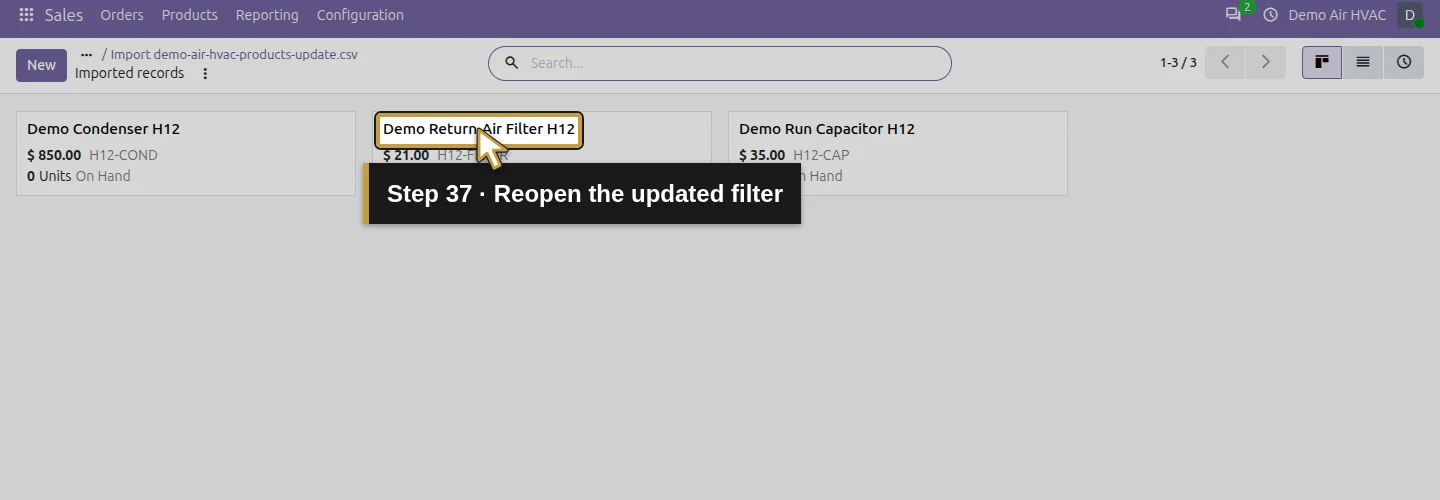
Step 37. Reopen the updated filter
Reopen that filter.
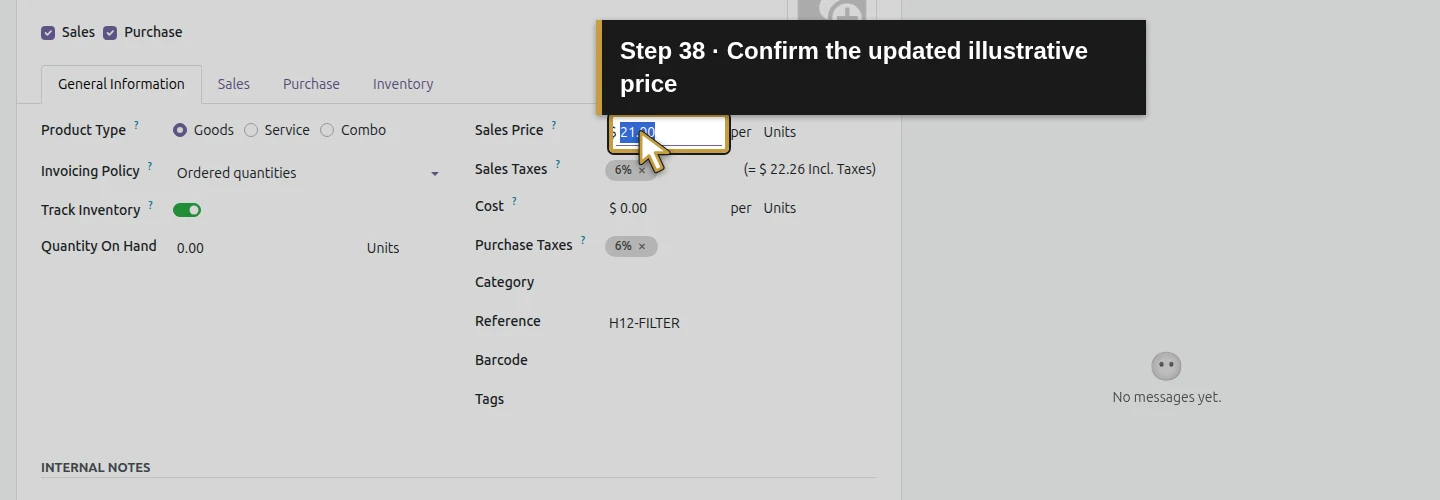
Step 38. Confirm the updated illustrative price
Check that Sales Price is now 21.00 in USD.
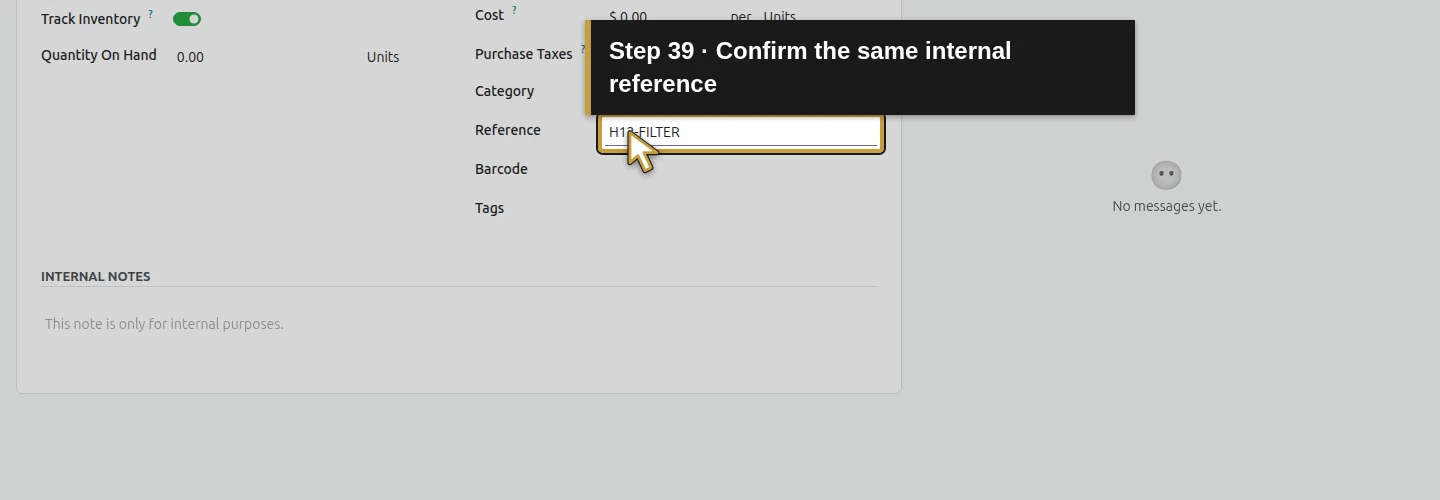
Step 39. Confirm the same internal reference
Check that its Internal Reference remains H12-FILTER.
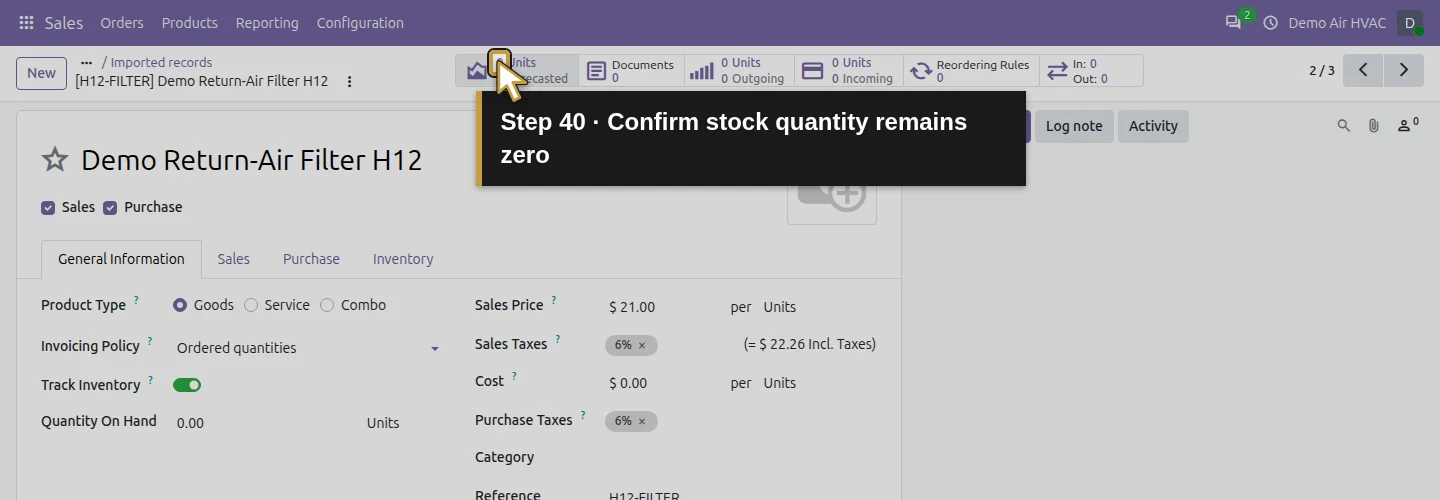
Step 40. Confirm stock quantity remains zero
Check the highlighted stock summary remains zero. The Quantity On Hand line below still reads 0.00 after the catalogue update.
Check the final result
The catalogue grew from three service products to six products after the original import. The same-ID update retained six products and the same three goods records. The filter price changed from 20 to 21; the capacitor and condenser stayed at 35 and 850. All prices are illustrative USD values.
All three imported goods use Units, allow Sales and Purchase, have Track Inventory enabled and show zero quantity on hand. The twenty existing units and earlier service products were preserved. Neither import created a sales order, accounting move or stock receipt.
If your import needs correction
Check the header row, separator, encoding and exact field mappings before Test. In this recording all nine headers mapped automatically; inspect yours rather than assuming they will. Resolve any Test error before importing. If a related unit is unavailable, review the intended unit instead of silently creating another.
For updates, preserve the exact External IDs belonging to the existing records. Do not change identifiers simply to repeat a tutorial. These three rows demonstrated a same-ID update; this guide does not establish name or Internal Reference as a duplicate-prevention rule. Imported prices and tax defaults still need human review.
Questions about importing Odoo products
How do I import products from CSV into Odoo?
In the tested version, open Sales > Products > Products, choose Import from the Actions menu and upload the CSV. Check every field mapping, run Test, correct errors and then Import. Reopen saved records to verify the result.
Which columns do I need to import Odoo products?
This tested sample uses External ID, Name, Product Type, Track Inventory, Unit, Sales Price, Internal Reference, Sales and Purchase. Those are the demonstrated columns, not a universal minimum. External IDs identify the records for the later update; check the fields and requirements shown by your importer.
How do I import product types and units in Odoo?
The example maps Product Type to Product Type with Goods as the value, and Unit to Unit with the existing Units value. Track Inventory is a separate True setting. After Import, the saved records retained Goods, Units and inventory tracking.
How do I update Odoo products without creating duplicates?
Keep each existing record's External ID in the update file. In this test, the second file kept the same three IDs and changed the filter price from 20 to 21. Import updated the same three records and kept the catalogue count at six. The Test button validated the update without persisting its price change.
Does importing Odoo products add stock quantity?
This catalogue import created product definitions with inventory tracking enabled. All three goods still had zero quantity on hand, and no stock receipt was created. Receiving purchased goods or entering opening quantities is a separate inventory workflow.
Continue preparing materials
Alex's catalogue now includes service calls, labor and three physical goods. Next, establish where materials will be stored before recording purchases and receipts. The later stock lessons build on these products.
Get help preparing an Odoo product import for your HVAC business
Review your catalogue, units and purchasing workflow with Onward.
Talk about your Odoo setup