
Running an HVAC business with Odoo
How do I create equipment size variants in Odoo?
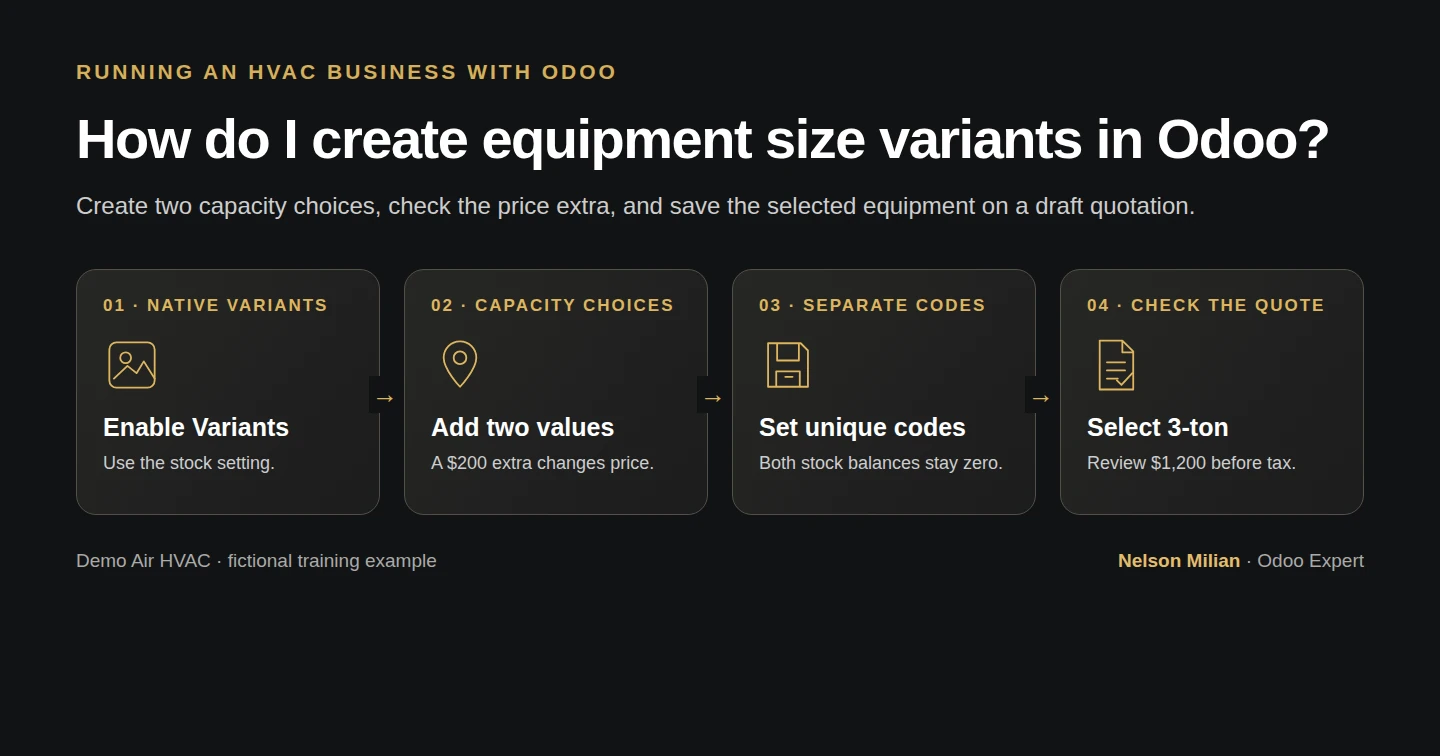
Create native product variants in Odoo, assign separate references and price extras, and verify the selected variant on a saved draft quotation.
Alex needs separate catalogue choices for two equipment capacities. A native attribute creates two selectable variants; the office can check the selected reference and price on a draft quotation. The capacity labels are training examples and do not size an HVAC system.
Alex Rivera and Demo Air HVAC are fictional training examples. Prices, dates, quantities and business situations in this guide are illustrative.
Before you begin
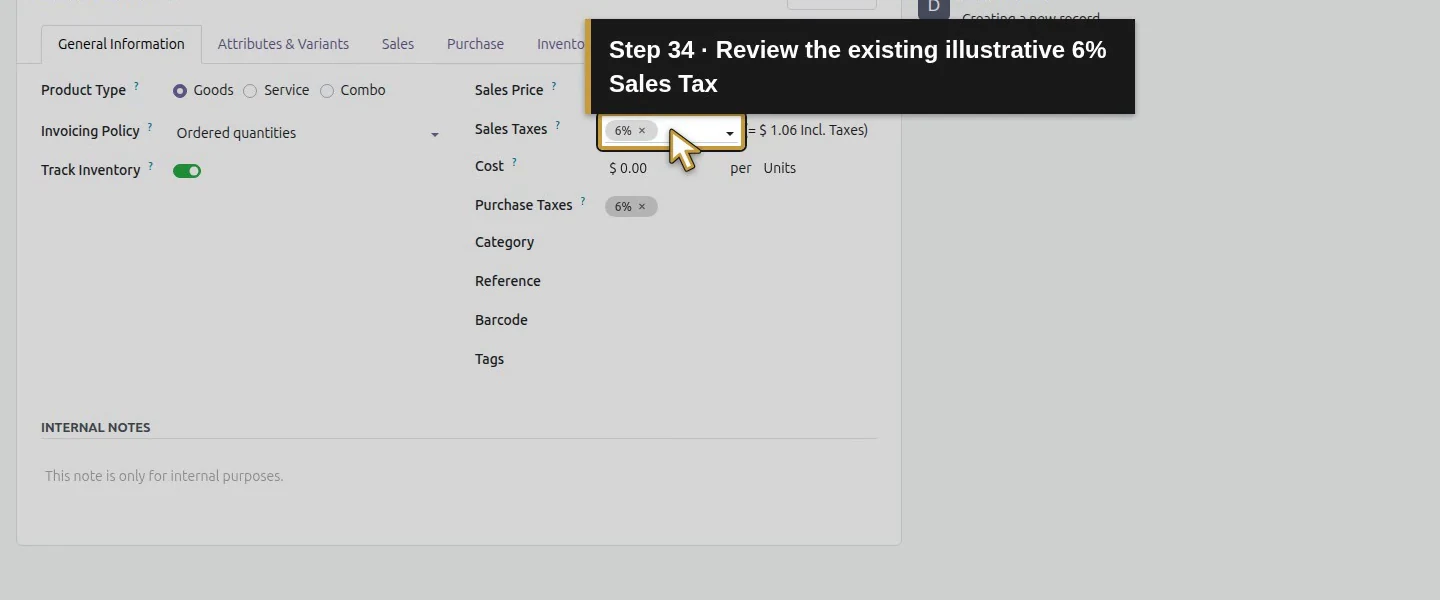
Tested in stock Odoo 20.0-20260926 Community as the demo owner administrator, with official modules and standard configuration. Complete product import and the service quotation. Keep the H12 goods and S00001/S00002 intact. This uses a separate Goods template with Units, zero stock, a $1,000 base price and the existing fictional 6% tax. Use the existing Demo Property H08 customer and Demo Net 30 H06 terms.
Step-by-step workflow
Stock Odoo 20 Community, owner role. Enable native Variants, define two fictional training capacities with a200 price extra, assign separate references, then explicitly select3-ton in a saved unsent quotation. Capacity labels do not prove HVAC sizing or compatibility. Existing products, stock, orders, finance and CRM source labels remain intact.
Step 1. Enable Variants
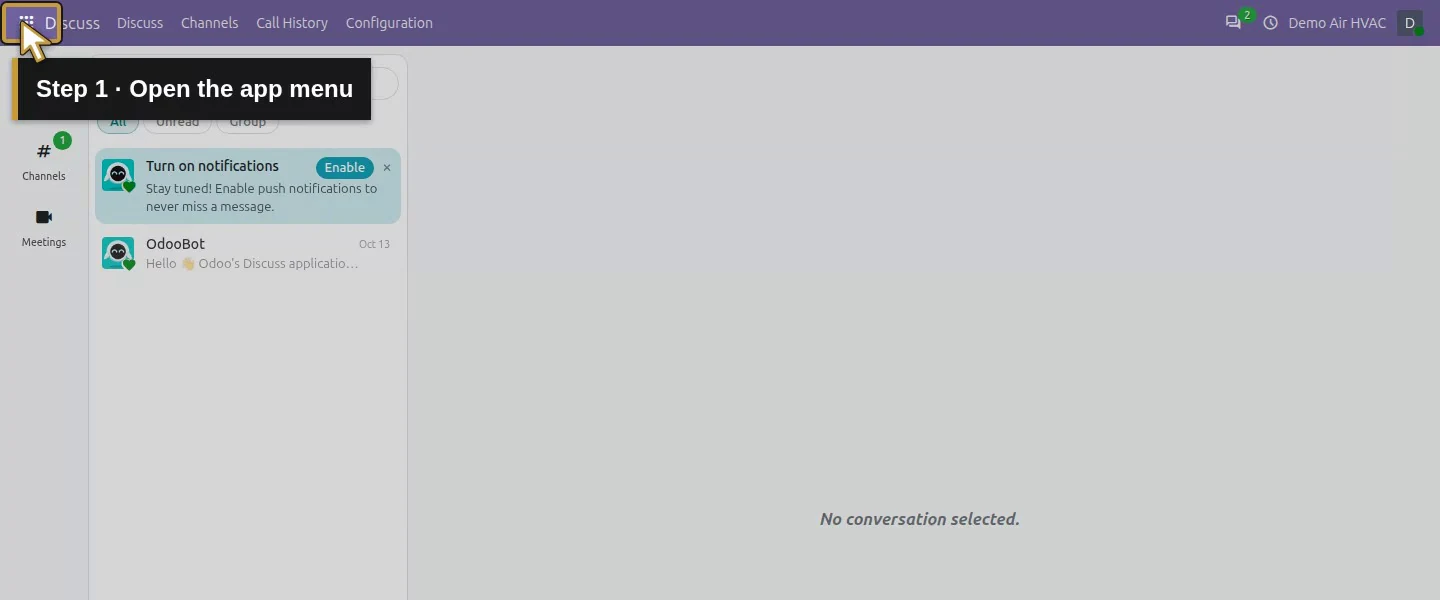
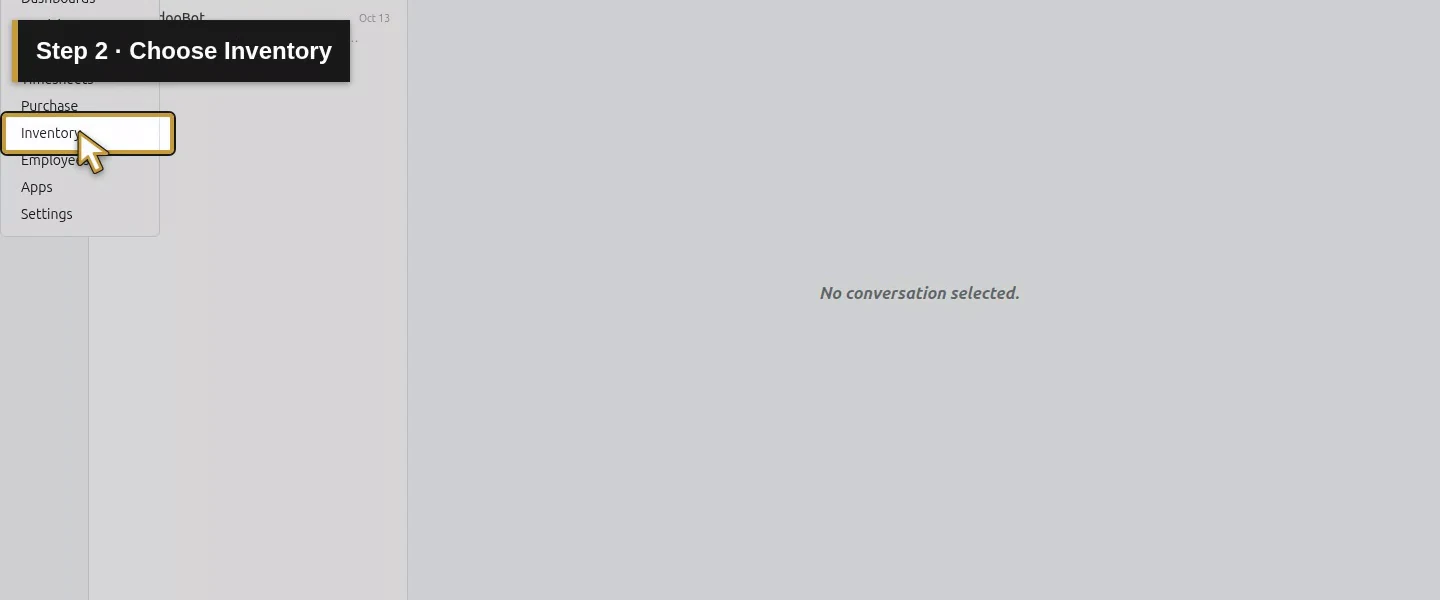
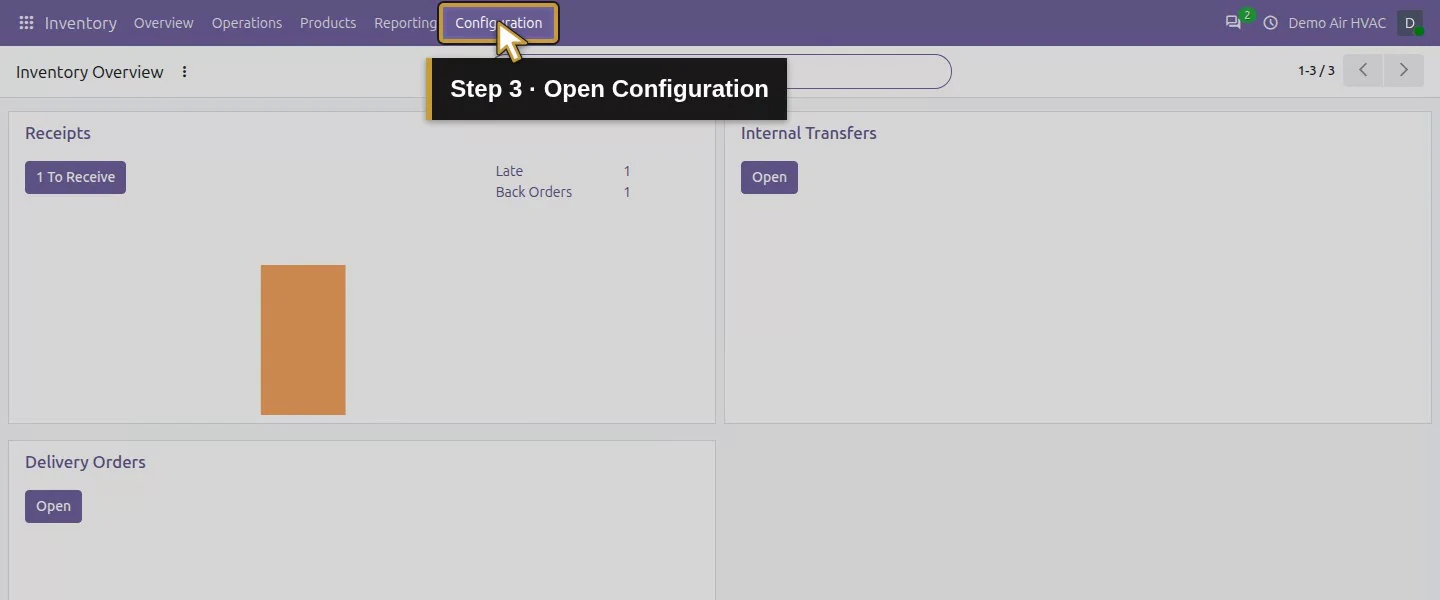
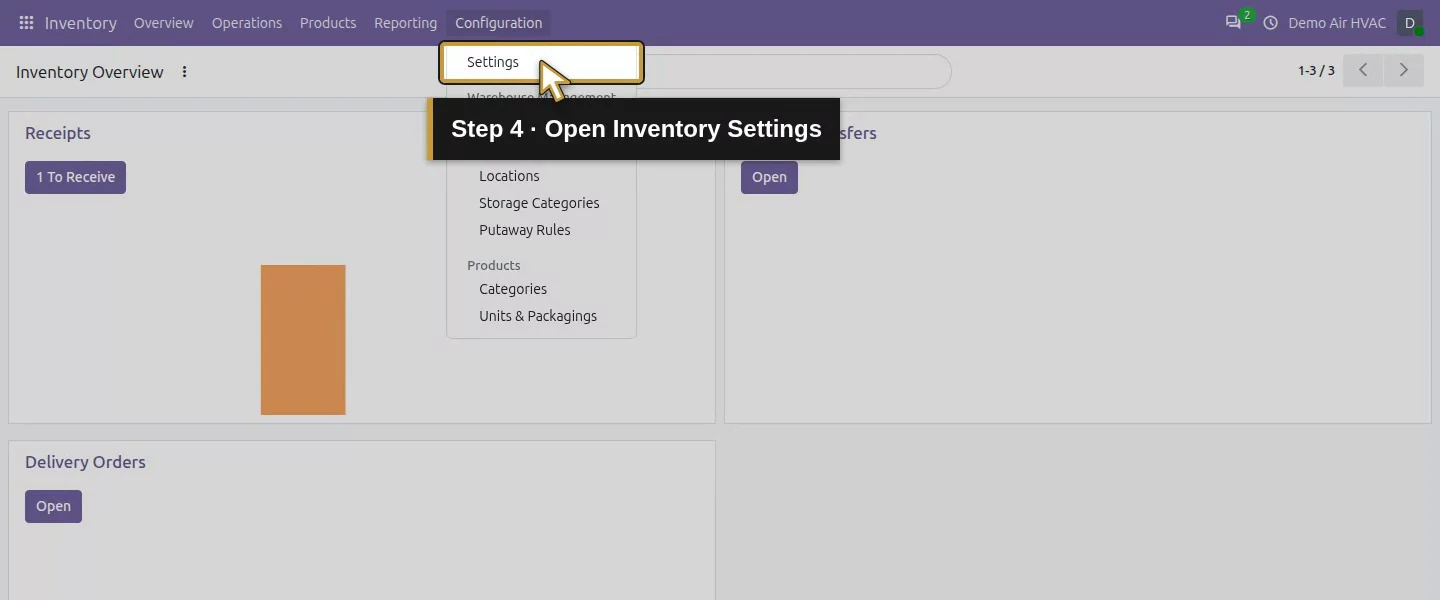
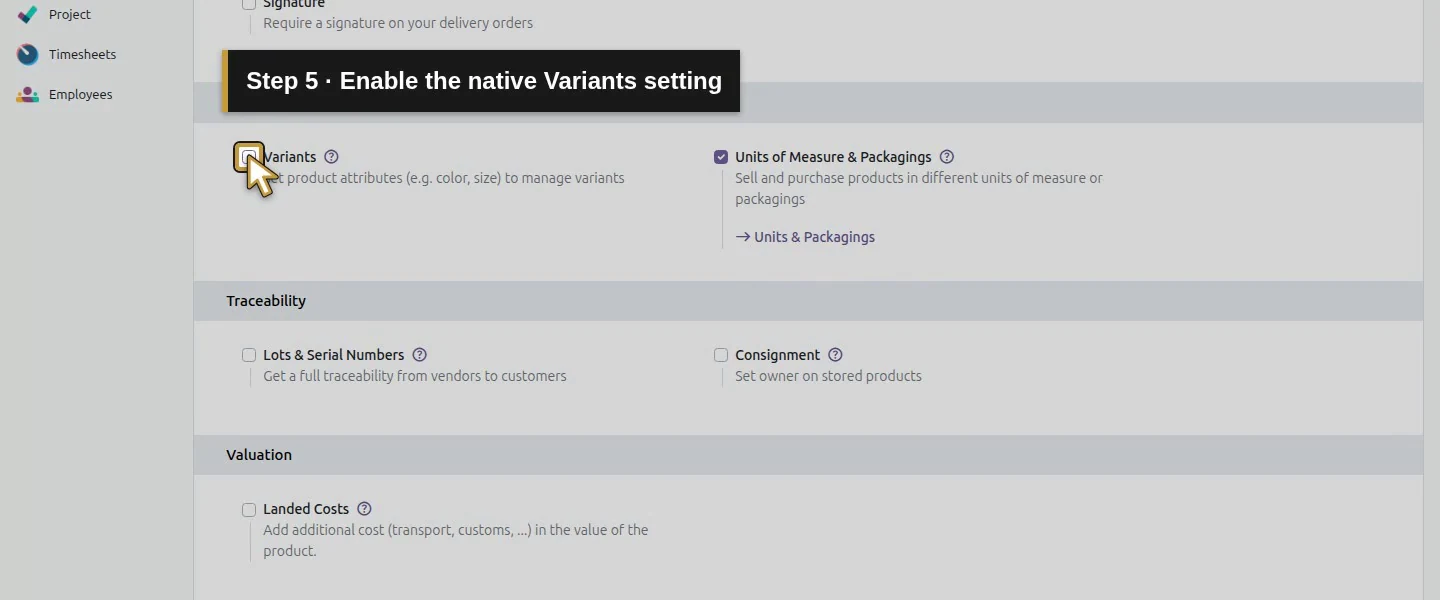
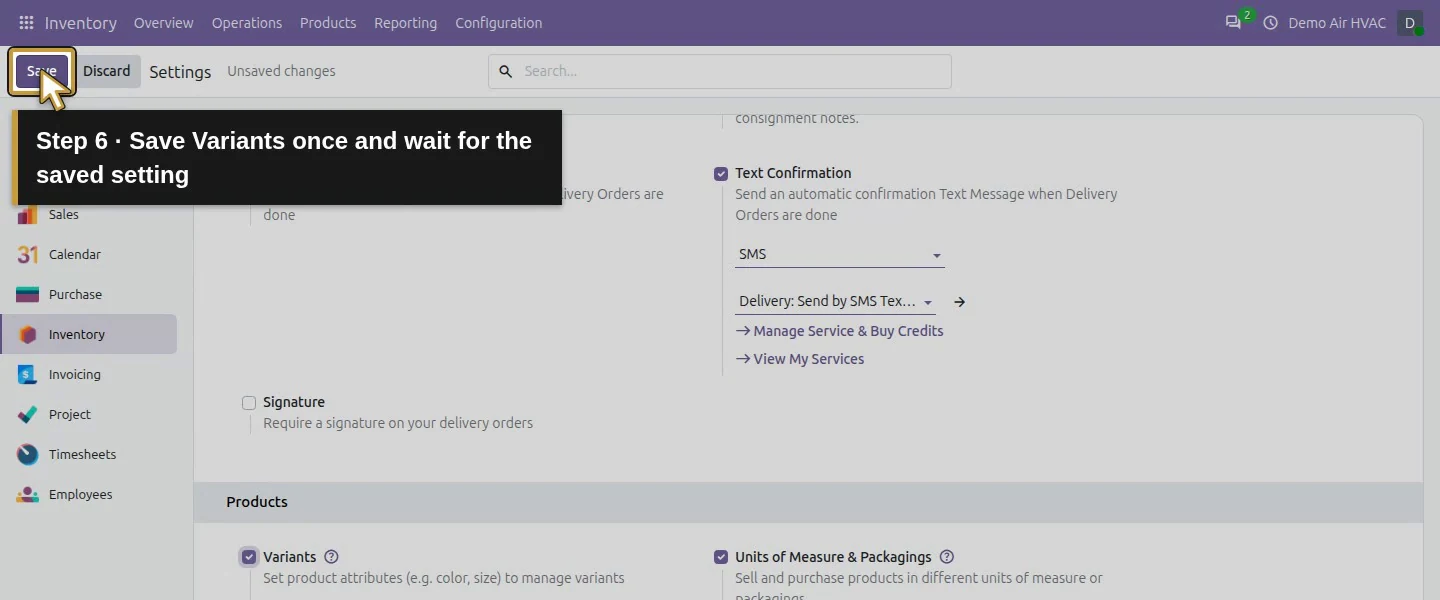
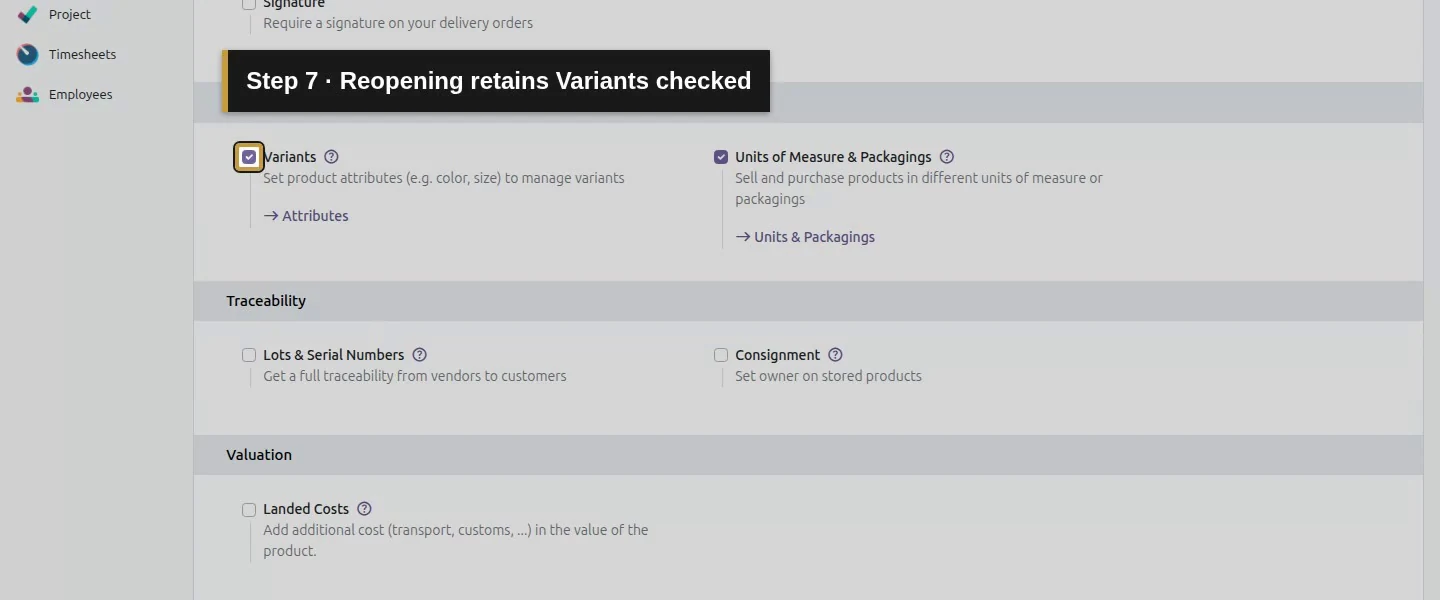
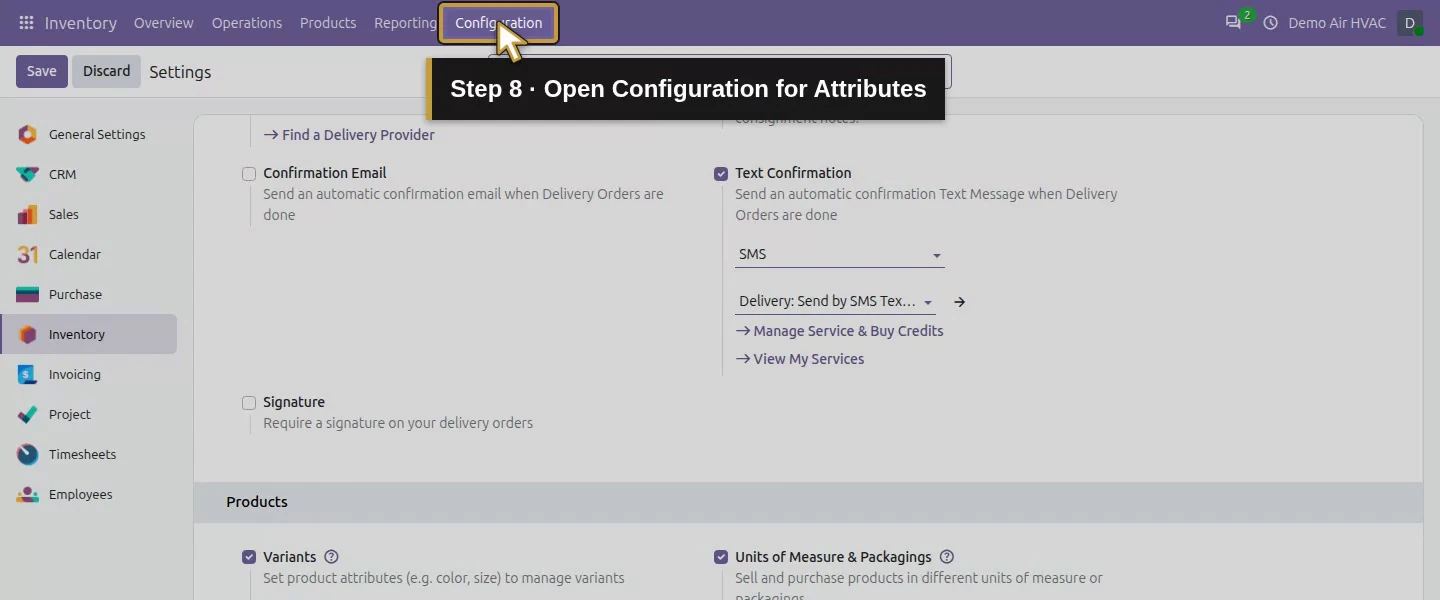
Open Inventory → Configuration → Settings, check Variants, and choose Save. Reopen the settings to confirm it remains enabled. The setting exposes native product attributes and variant choices.
Step 2. Create the capacity attribute
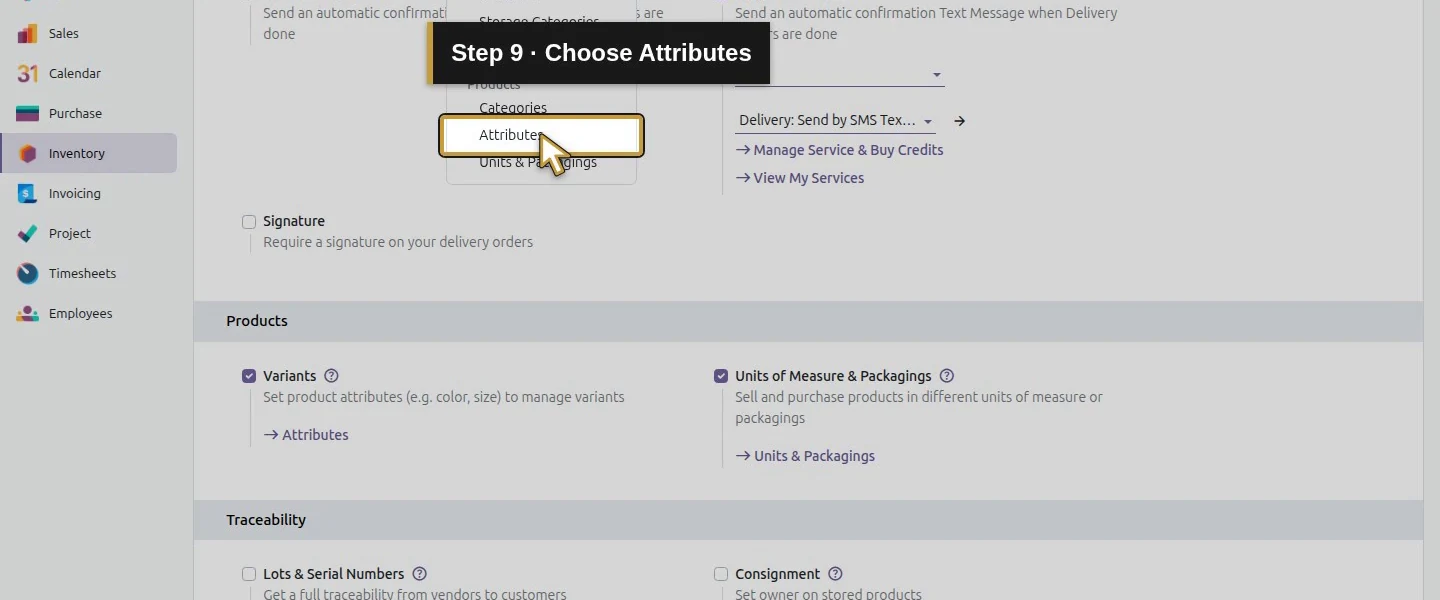
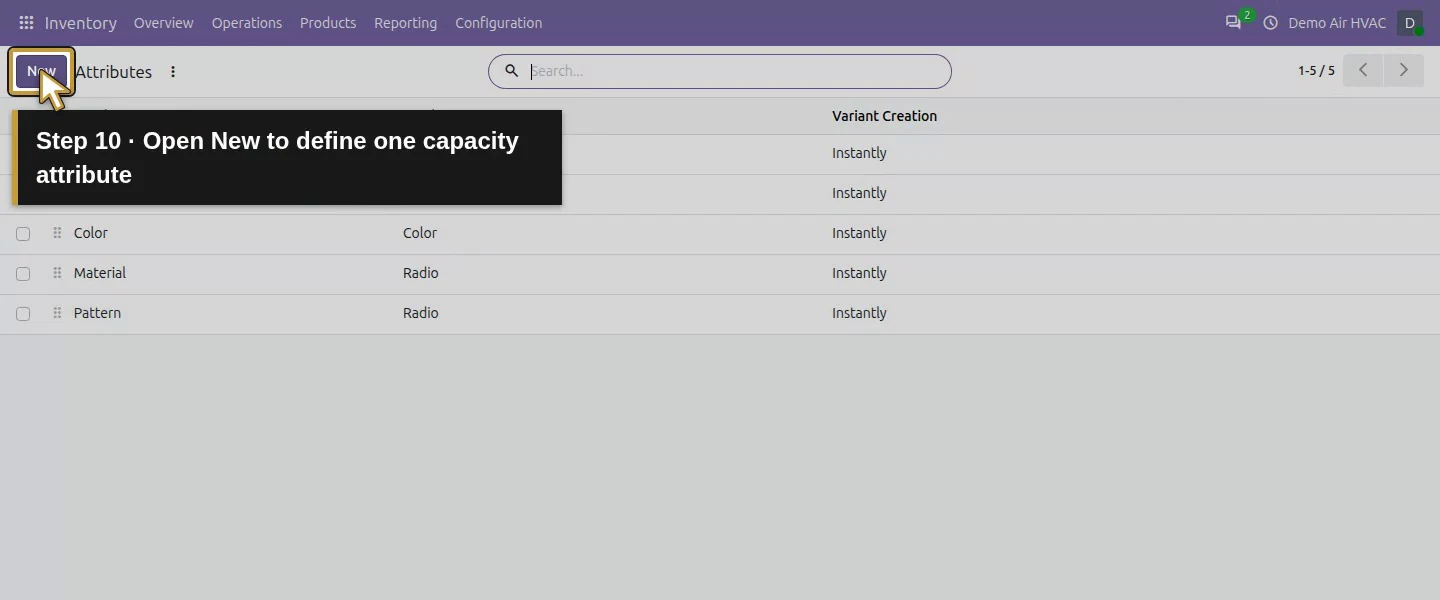
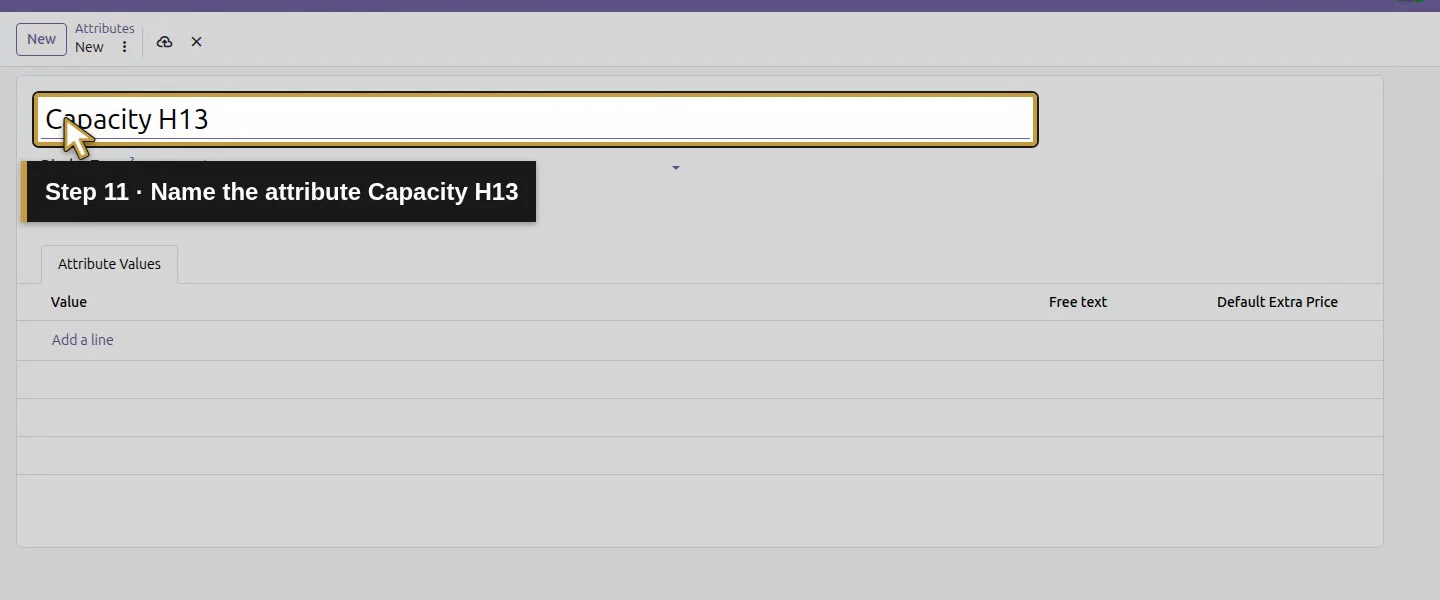
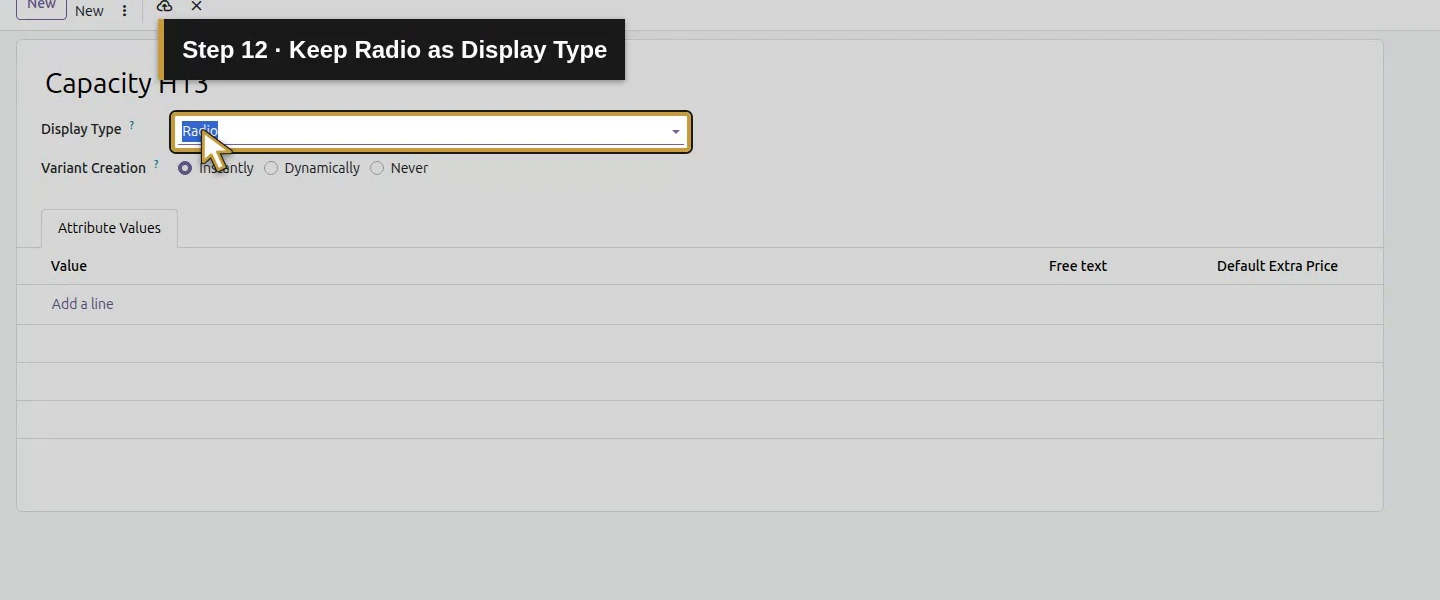
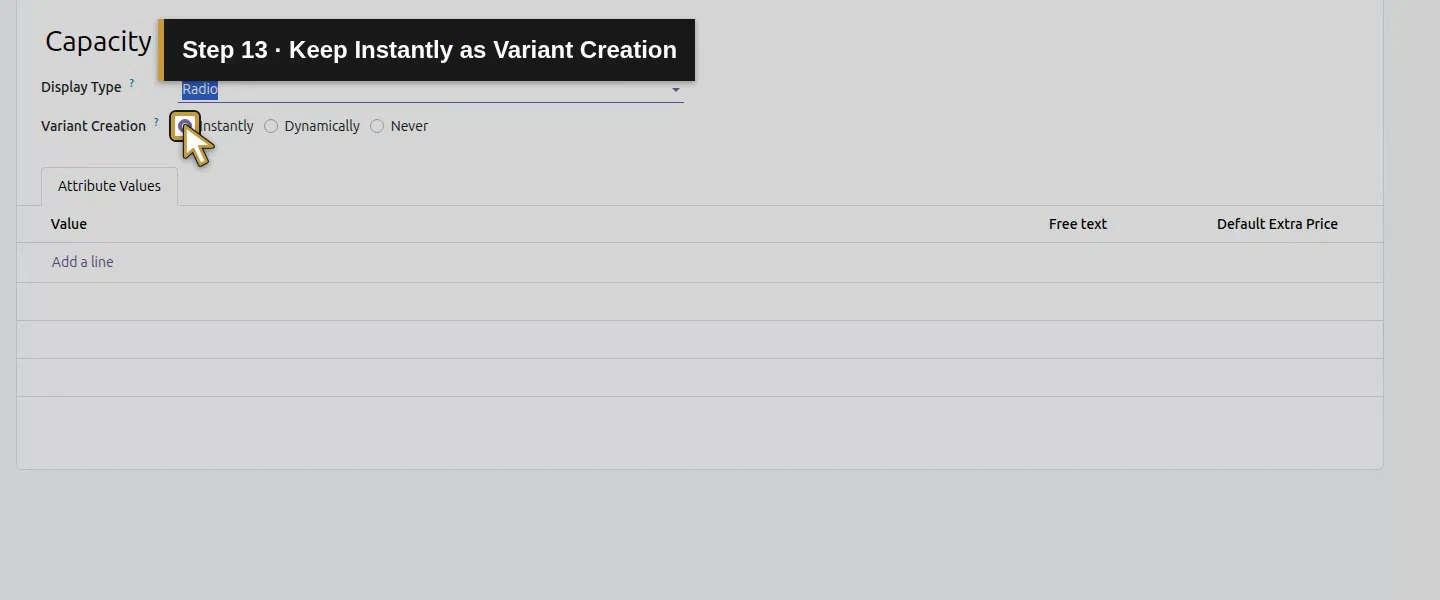
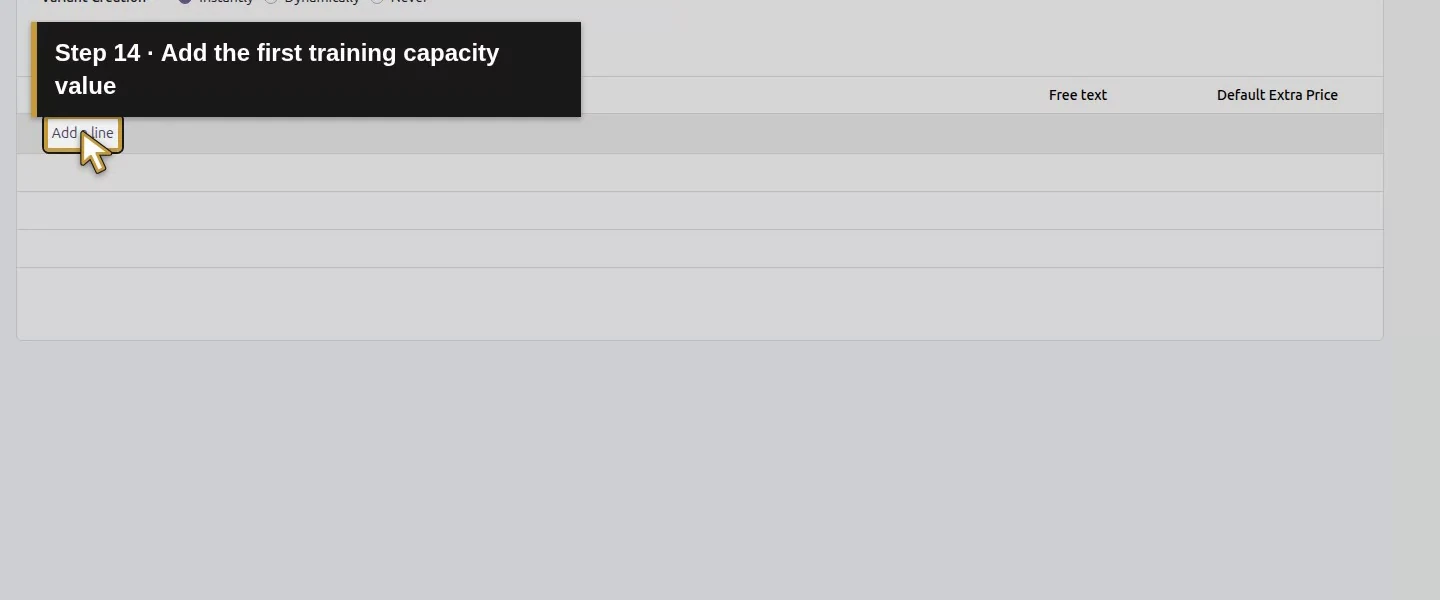
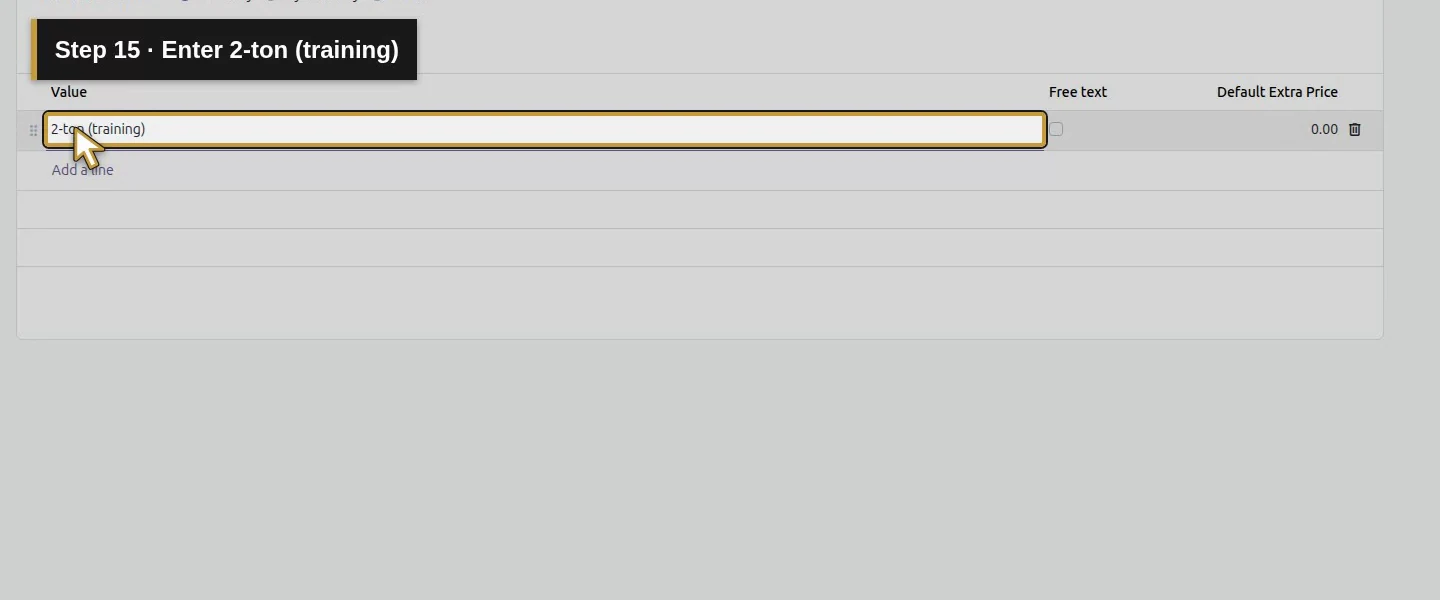
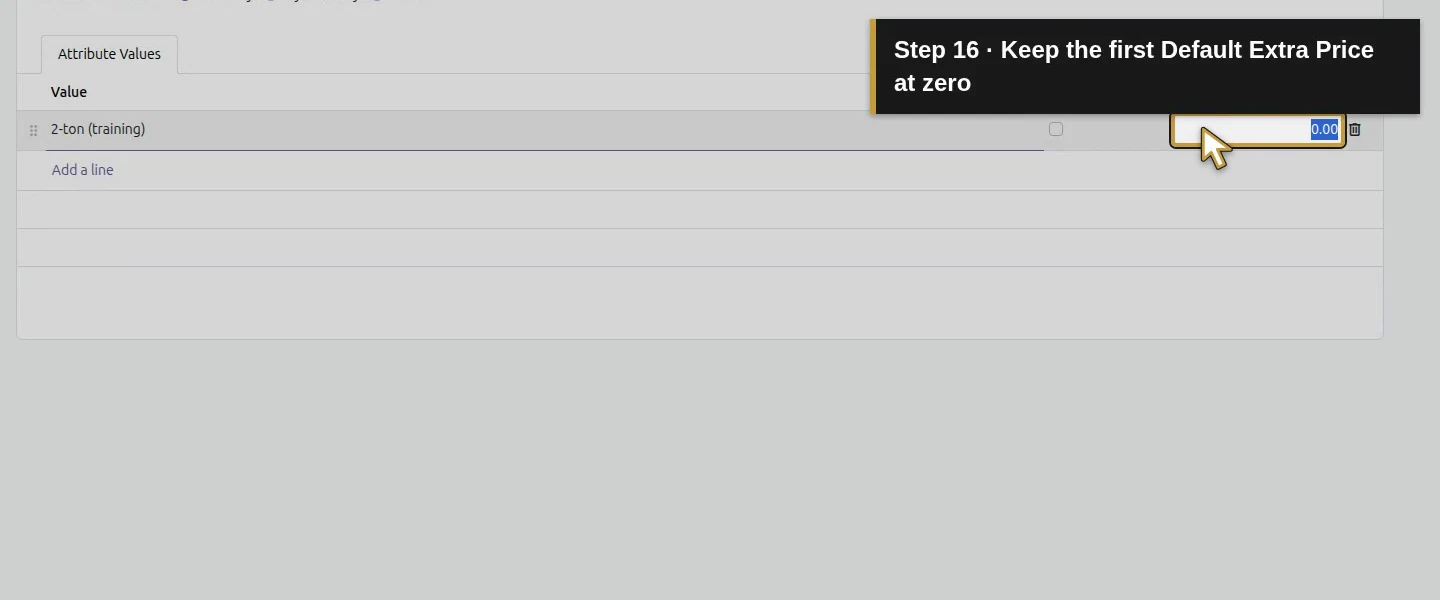
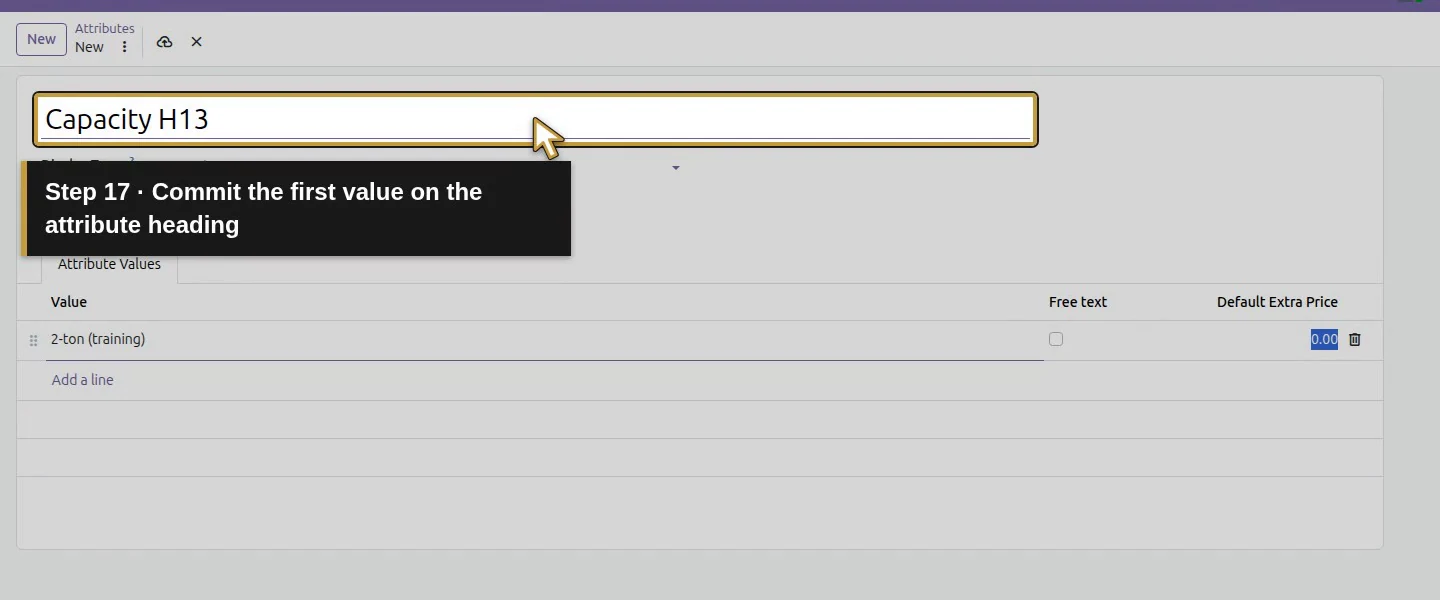
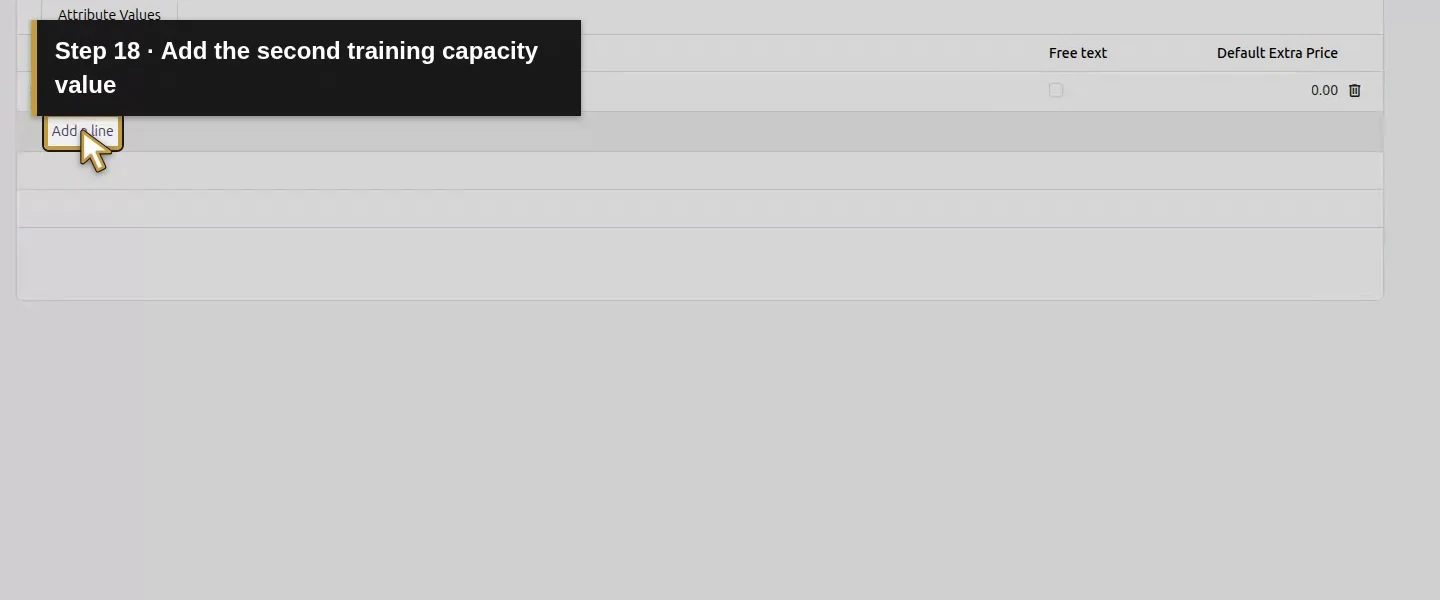
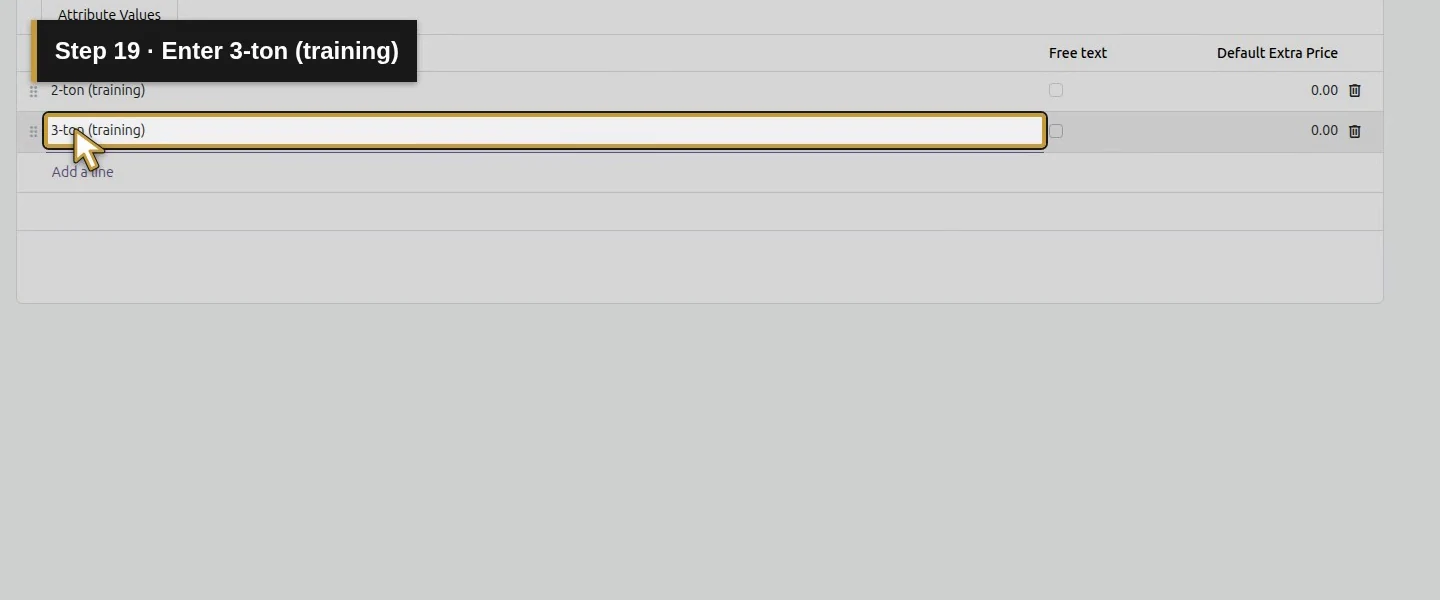
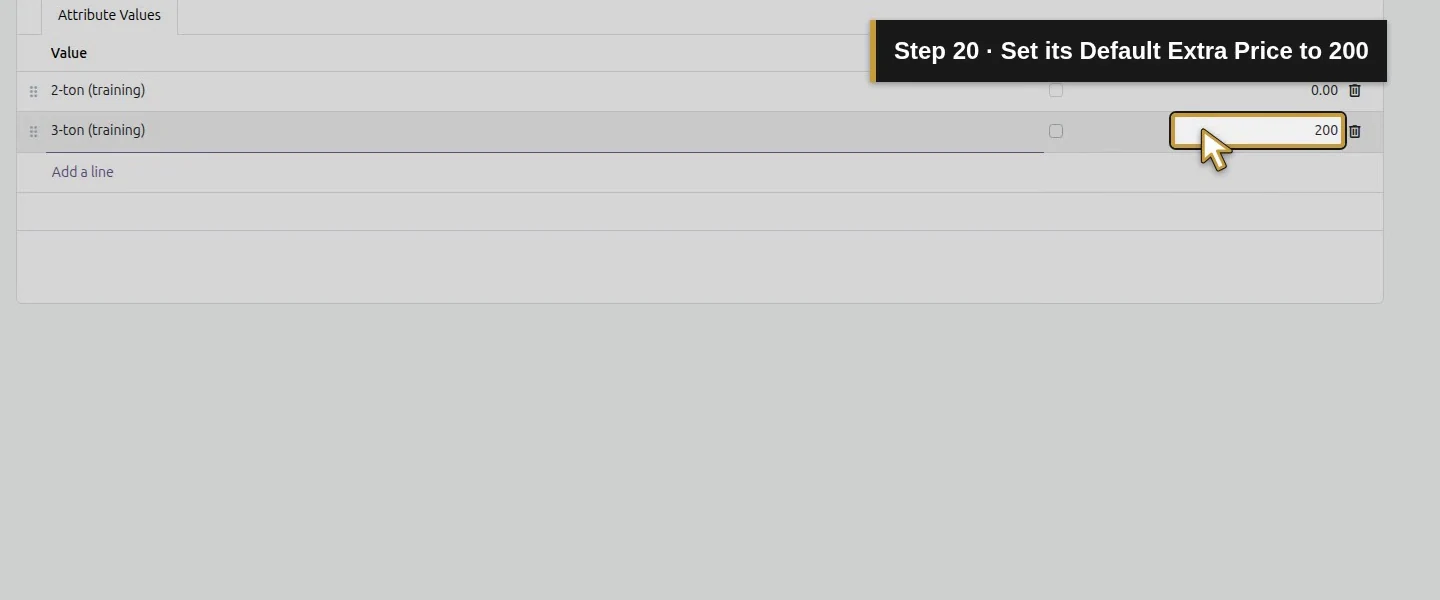
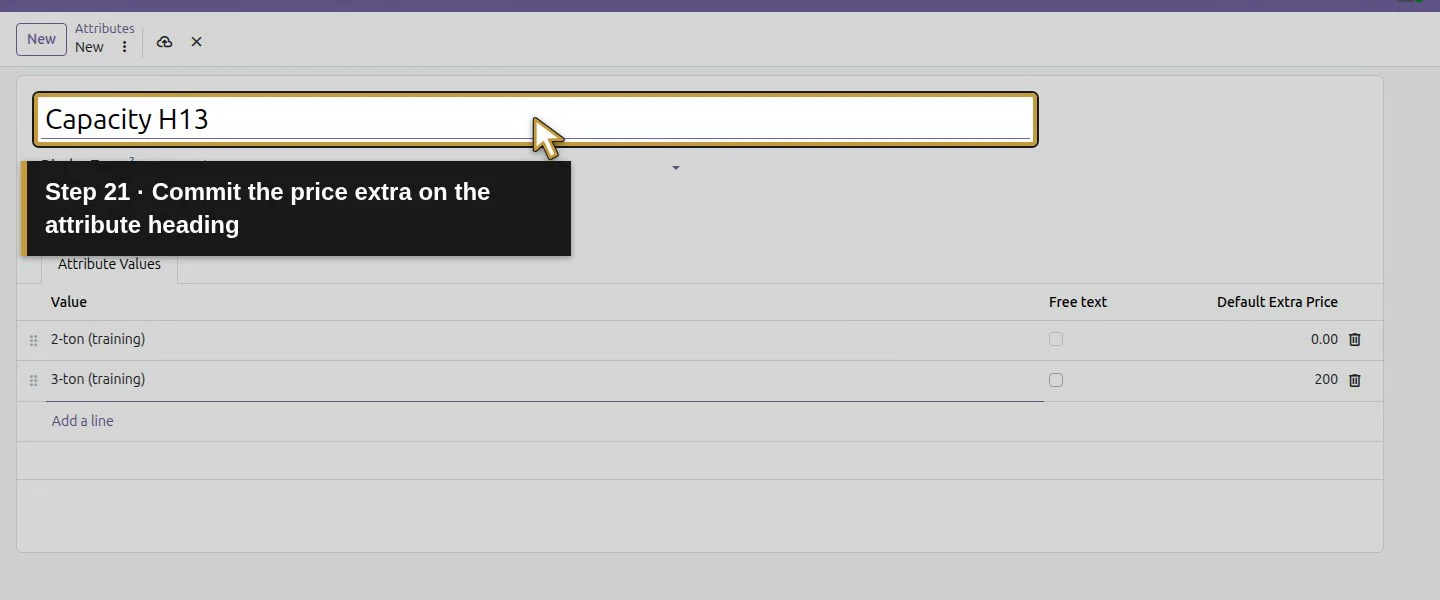
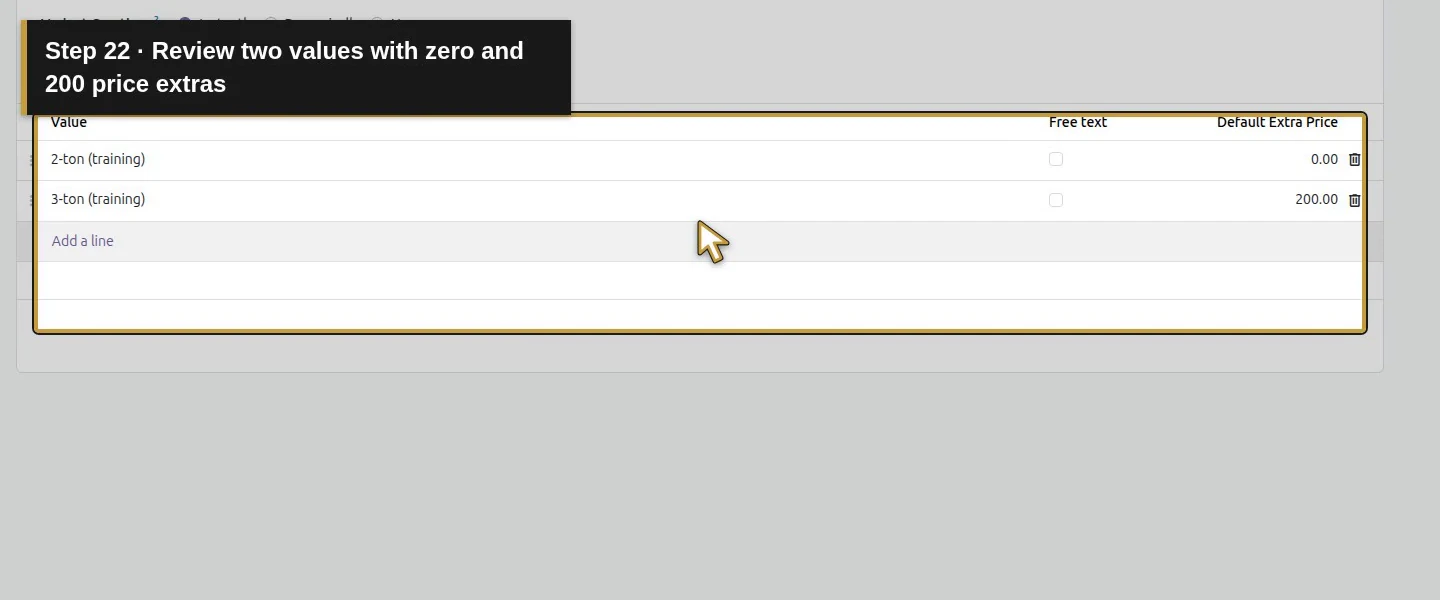
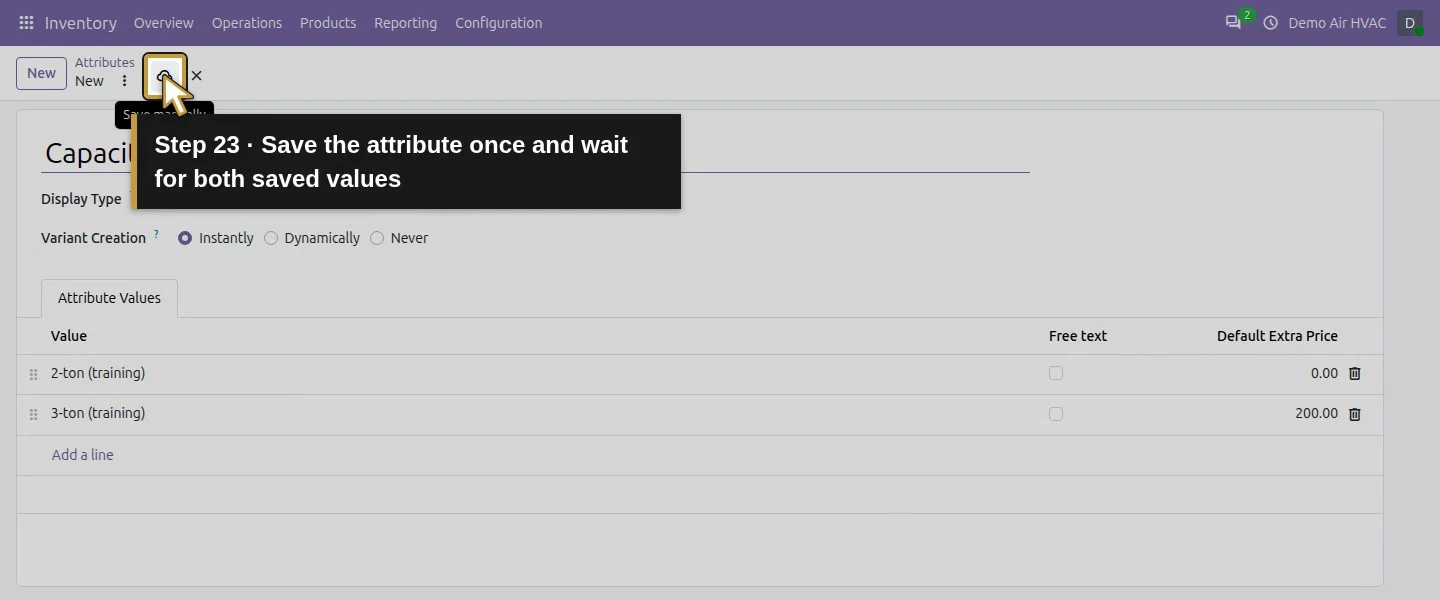
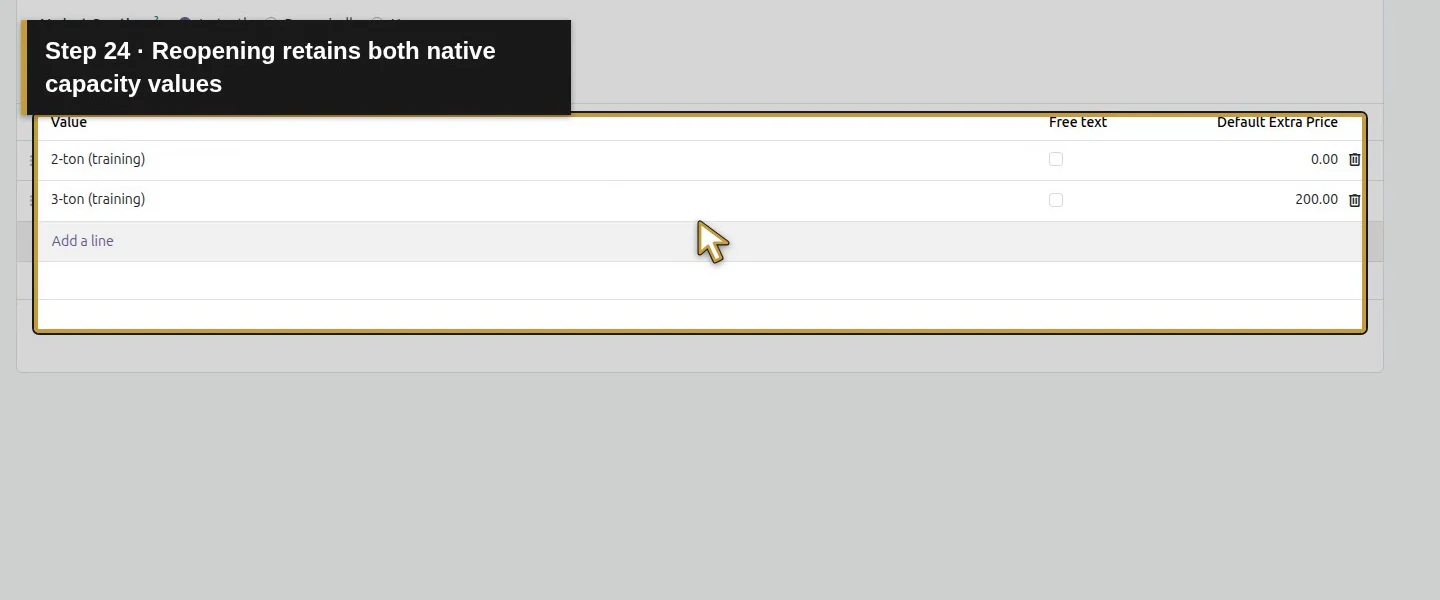
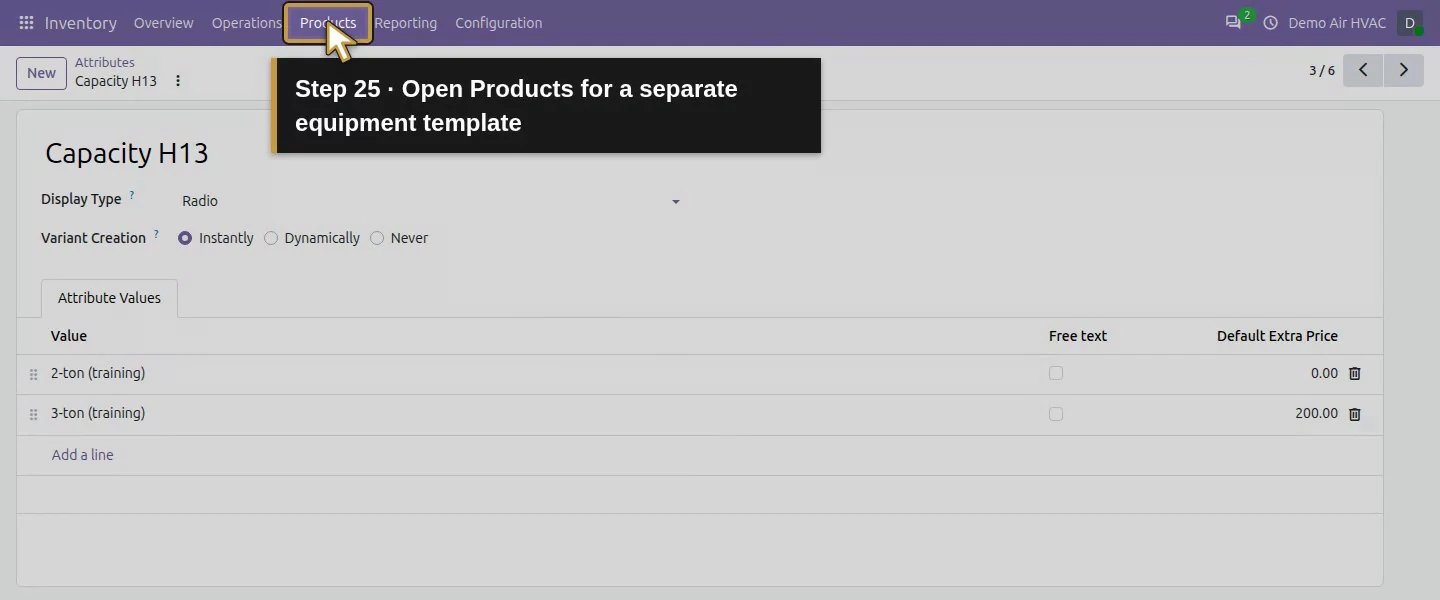
Open Inventory → Configuration → Attributes → New. Enter Capacity H13, select Display Type Radio and Variant Creation Instantly. Add 2-ton (training) with Default Extra Price 0, and 3-ton (training) with Default Extra Price 200. Save and wait for the saved attribute before leaving the form.
Step 3. Apply the two values to a separate product
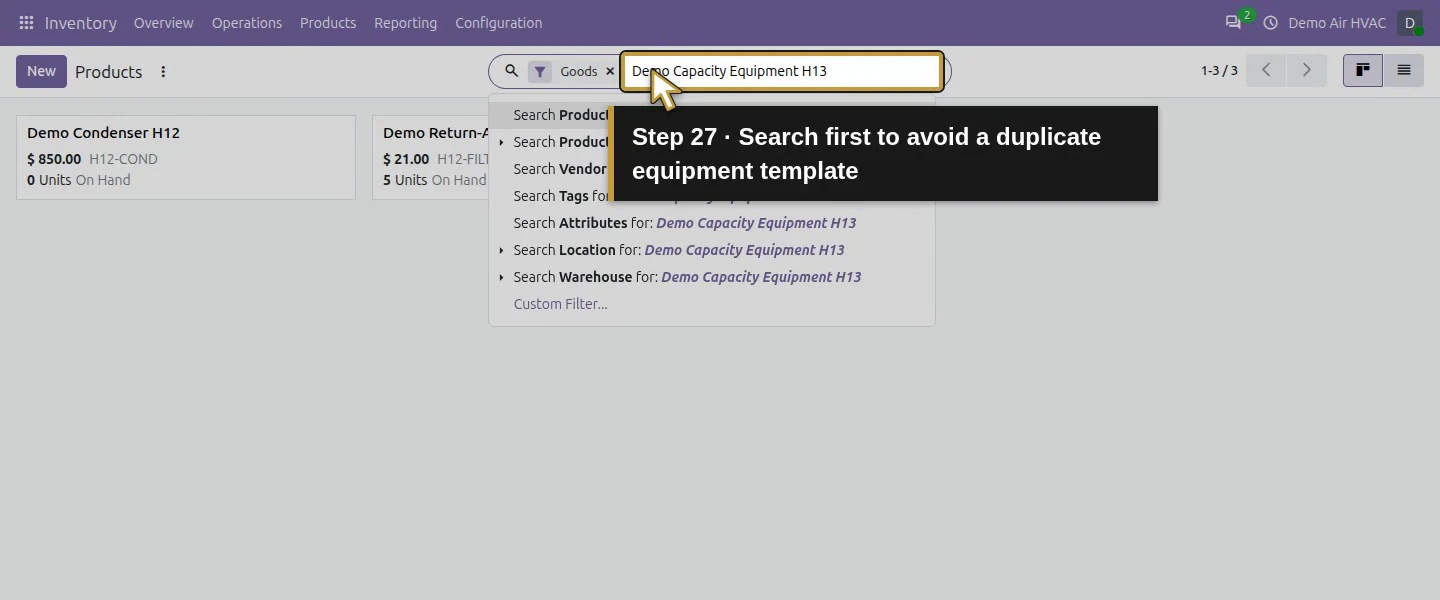
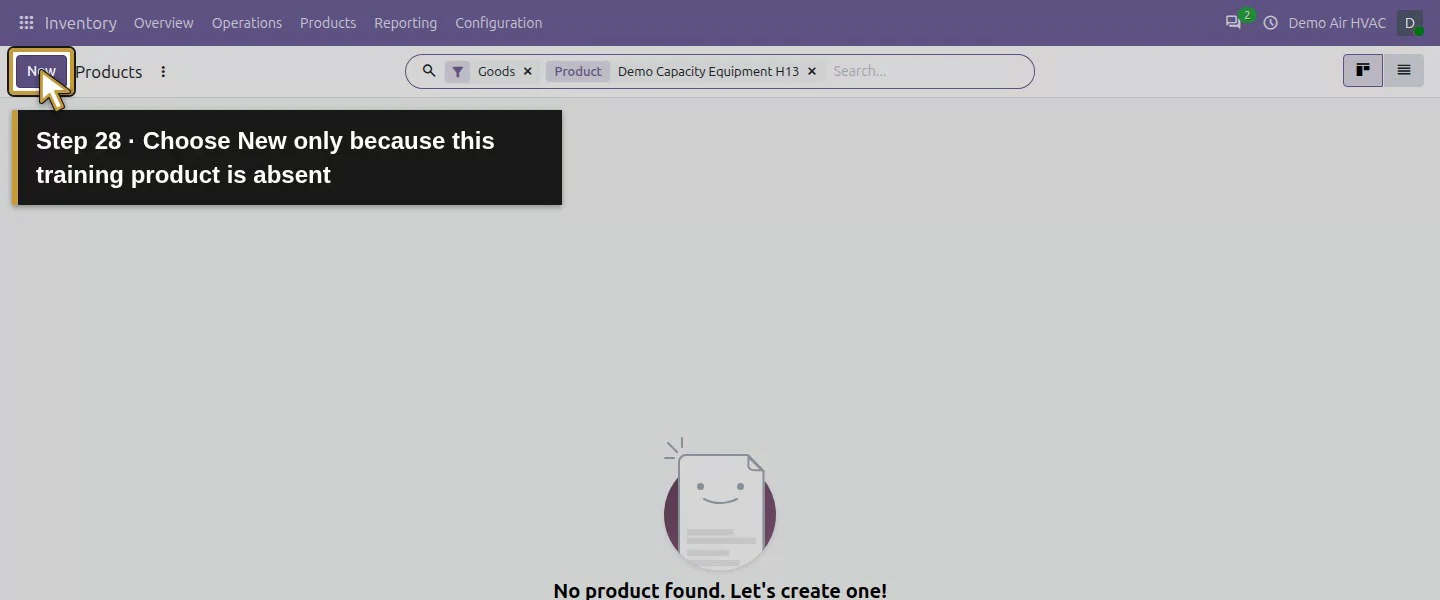
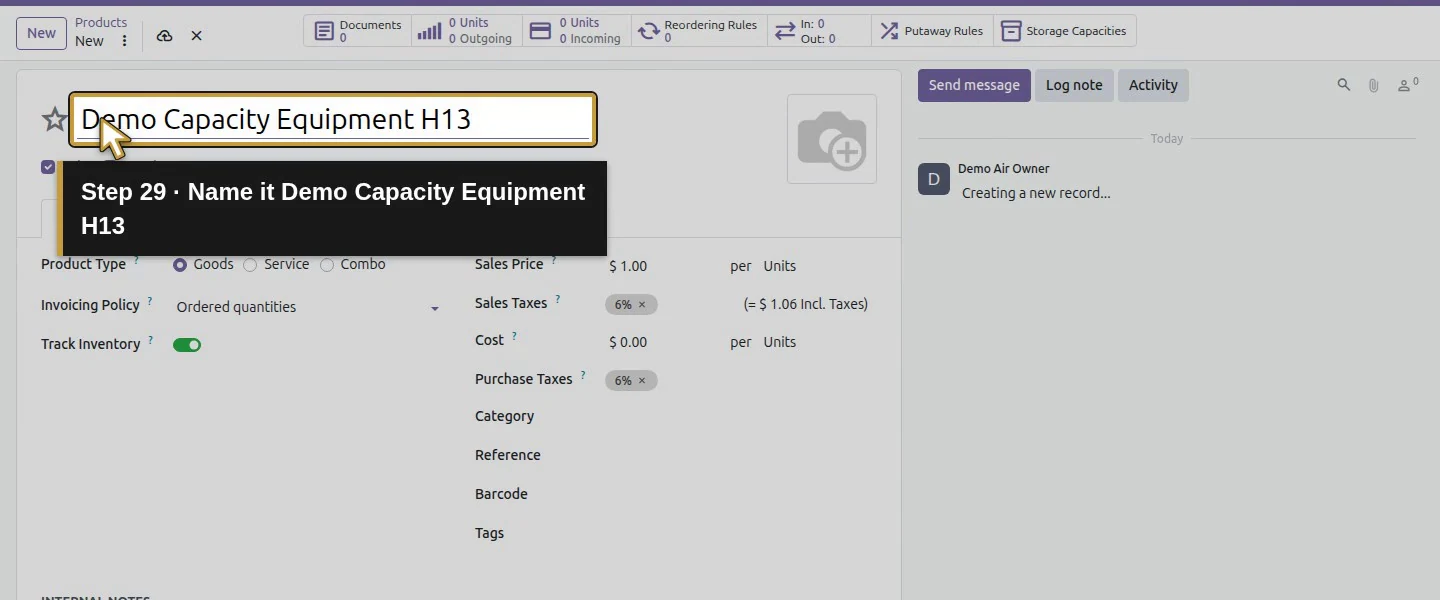
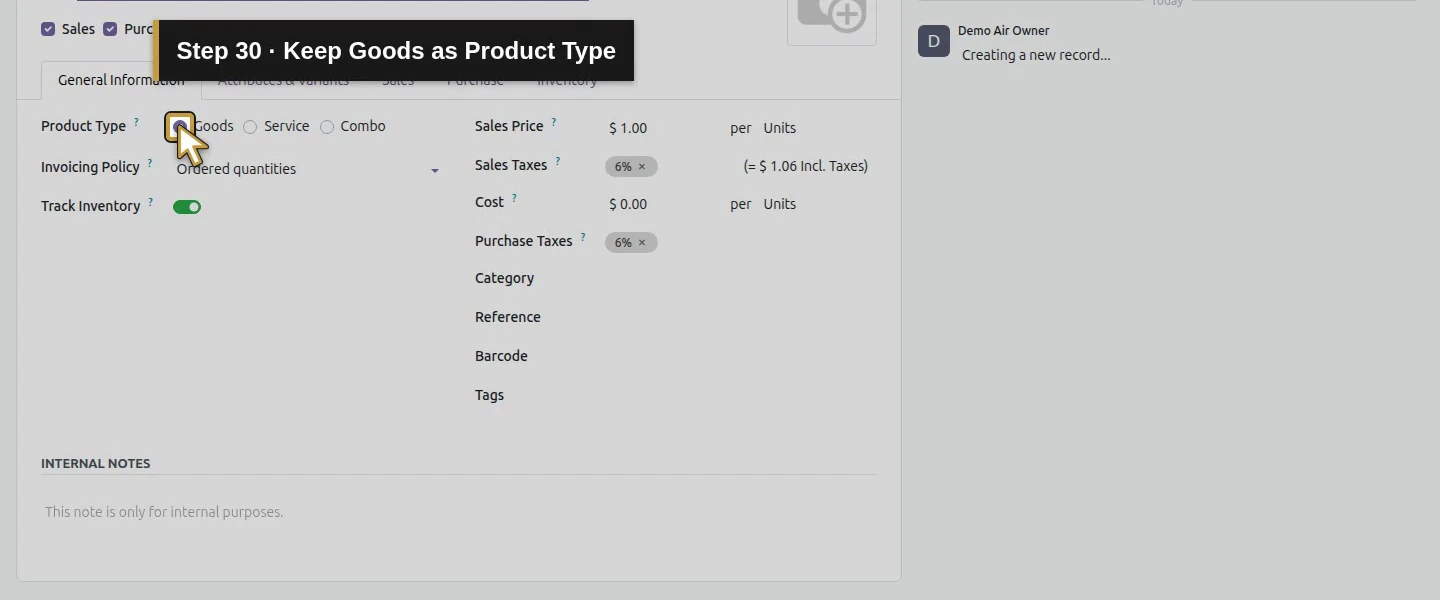
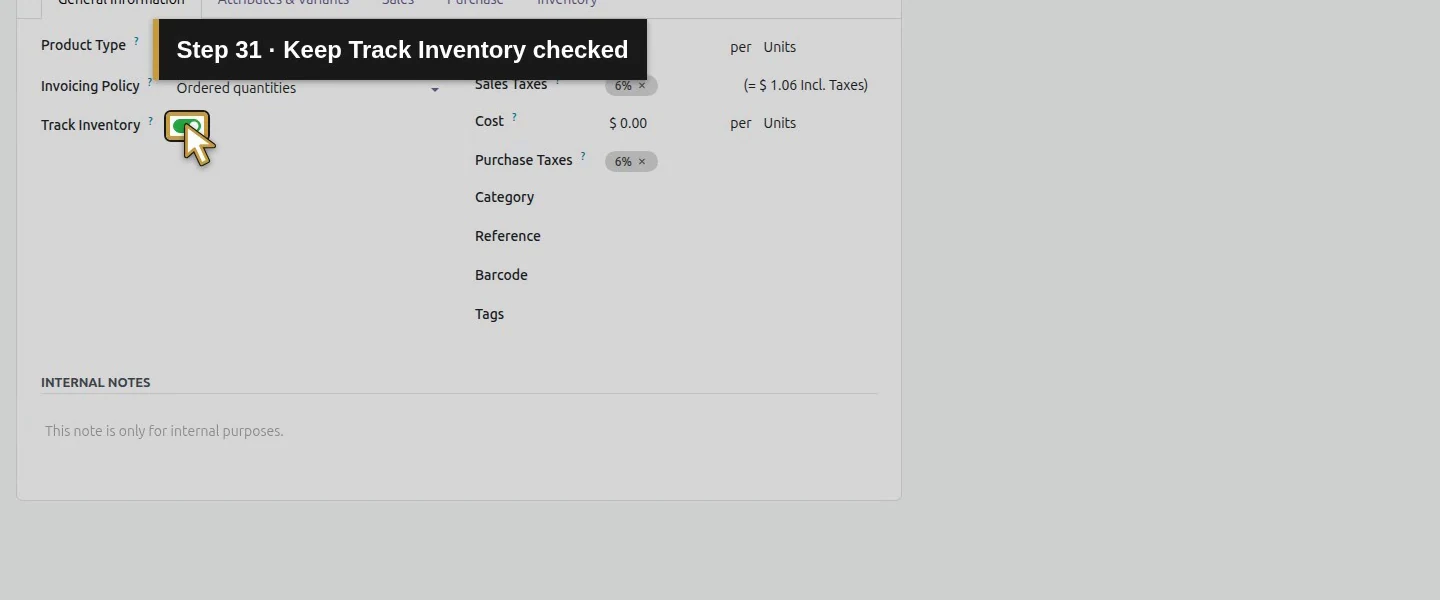
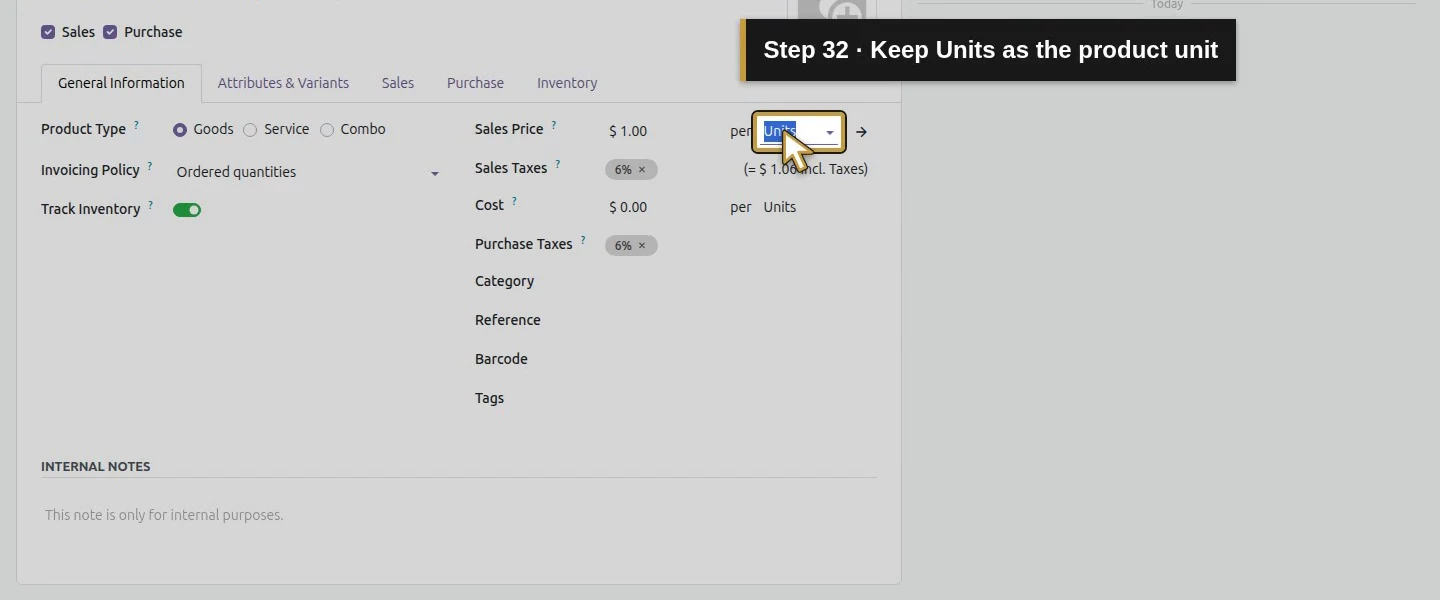
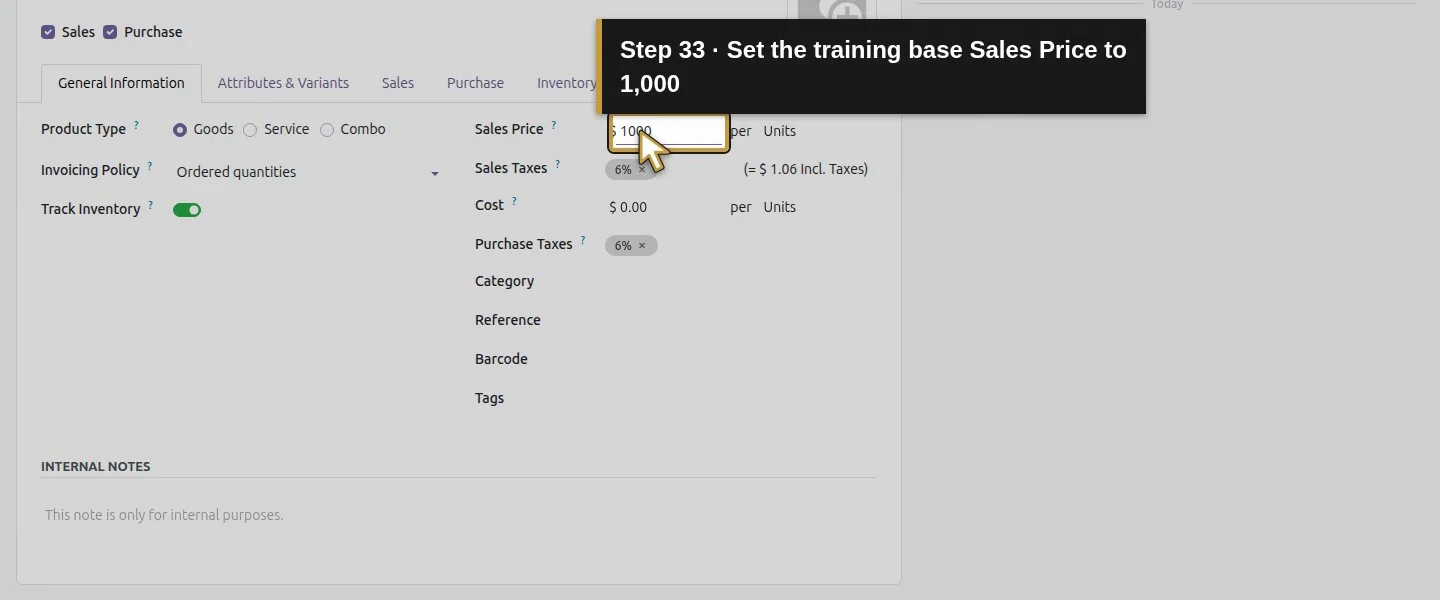
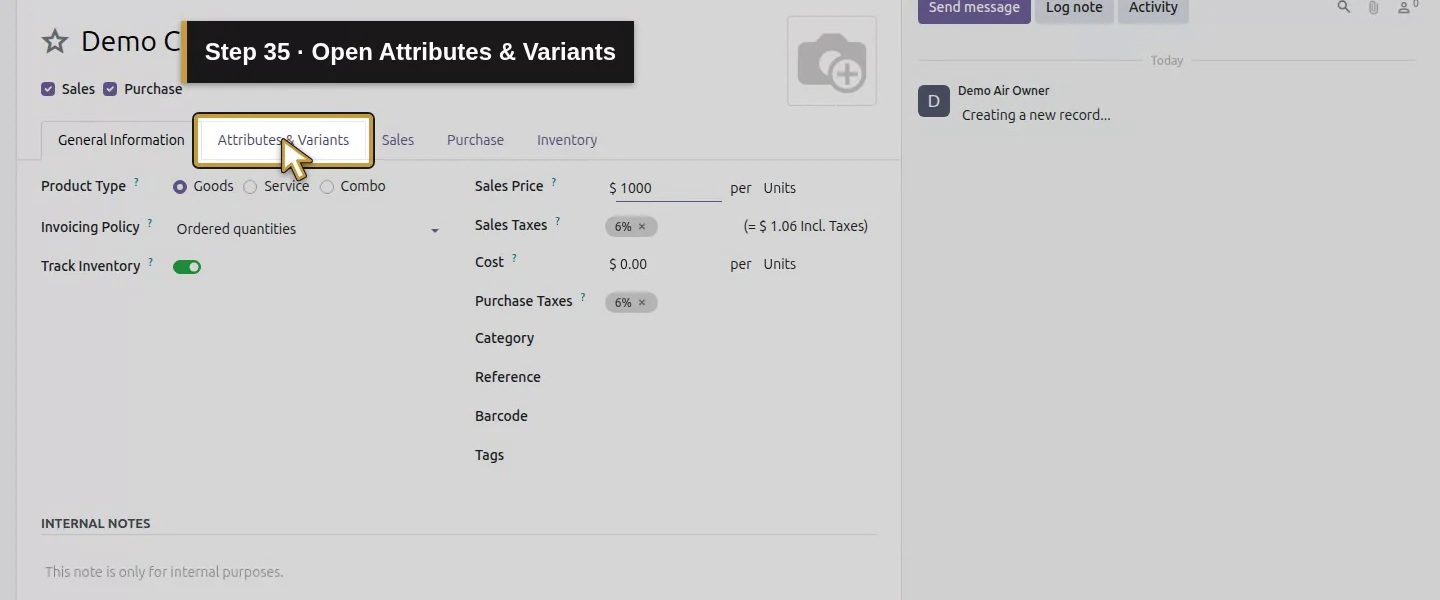
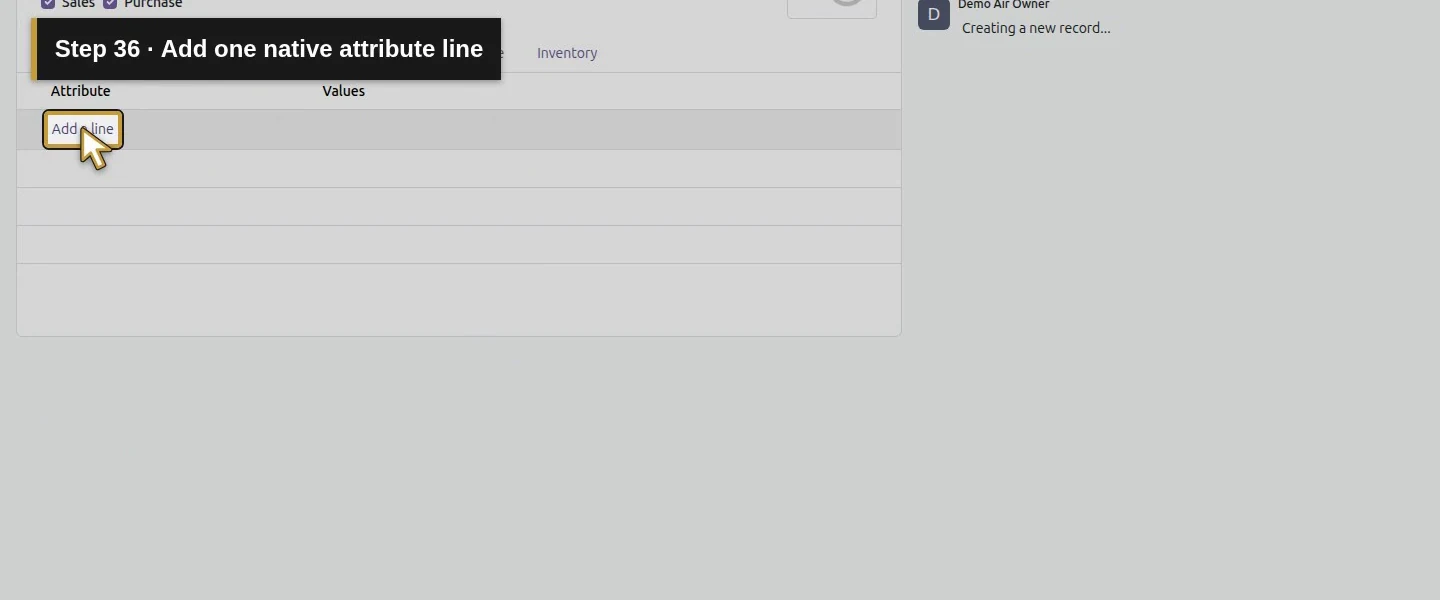
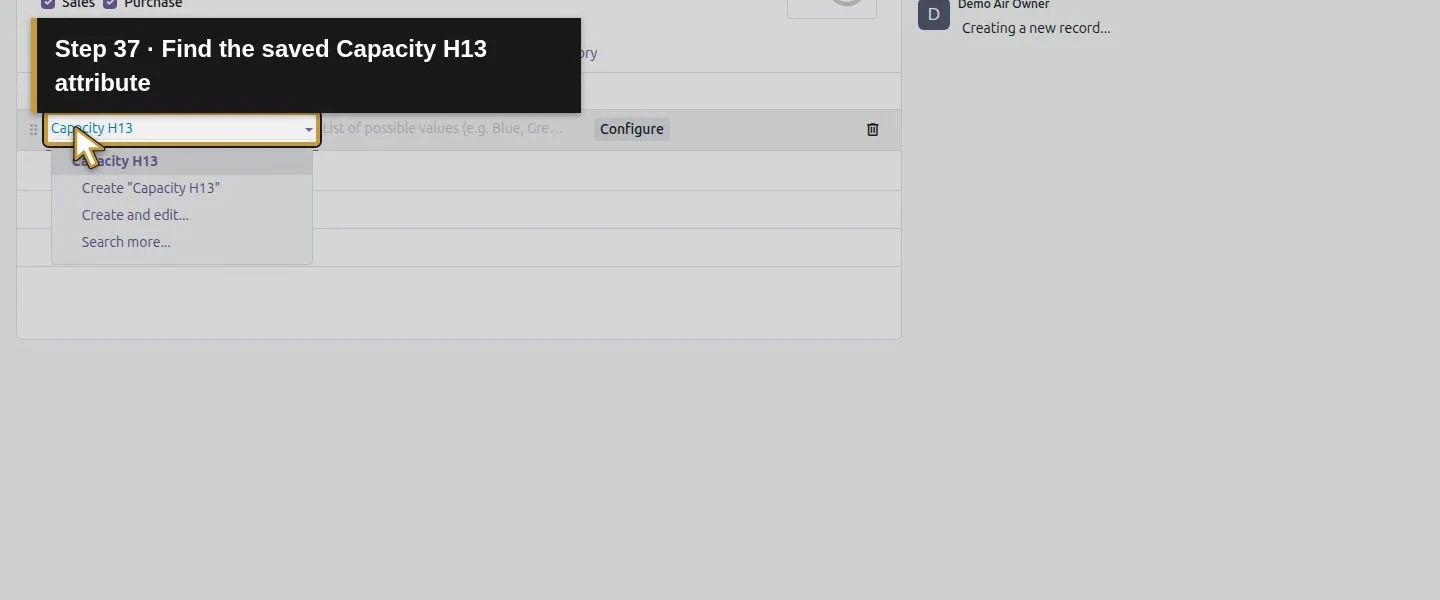
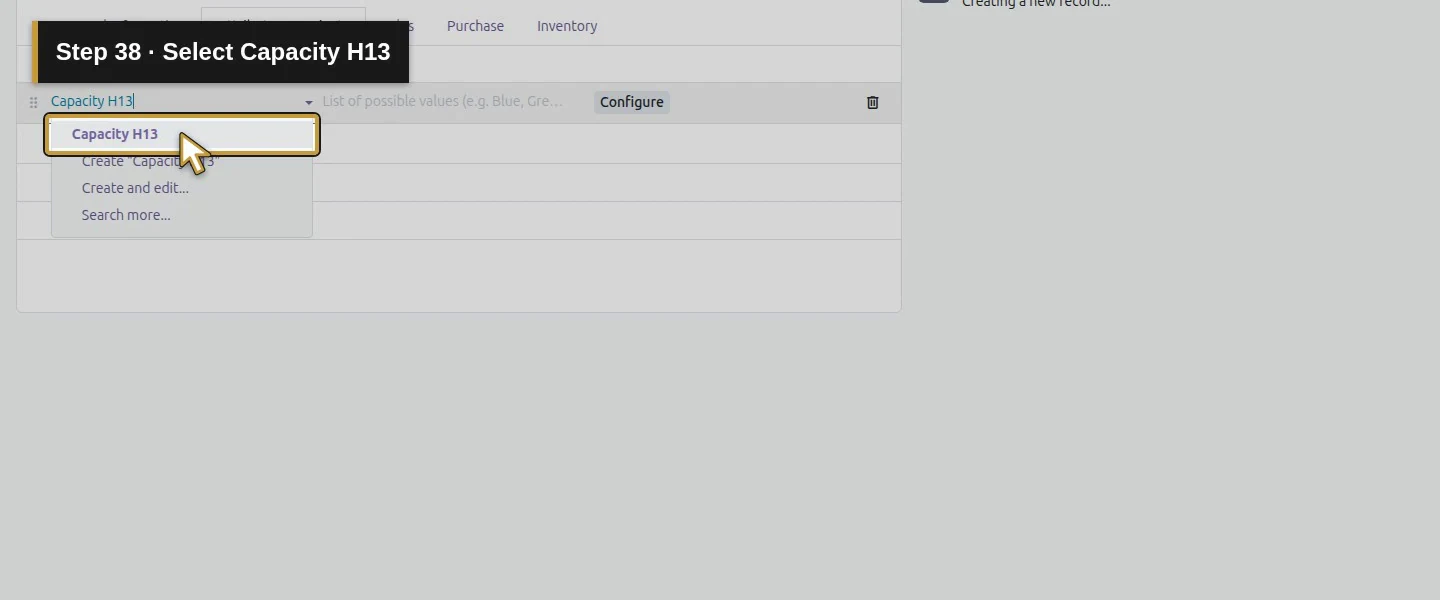
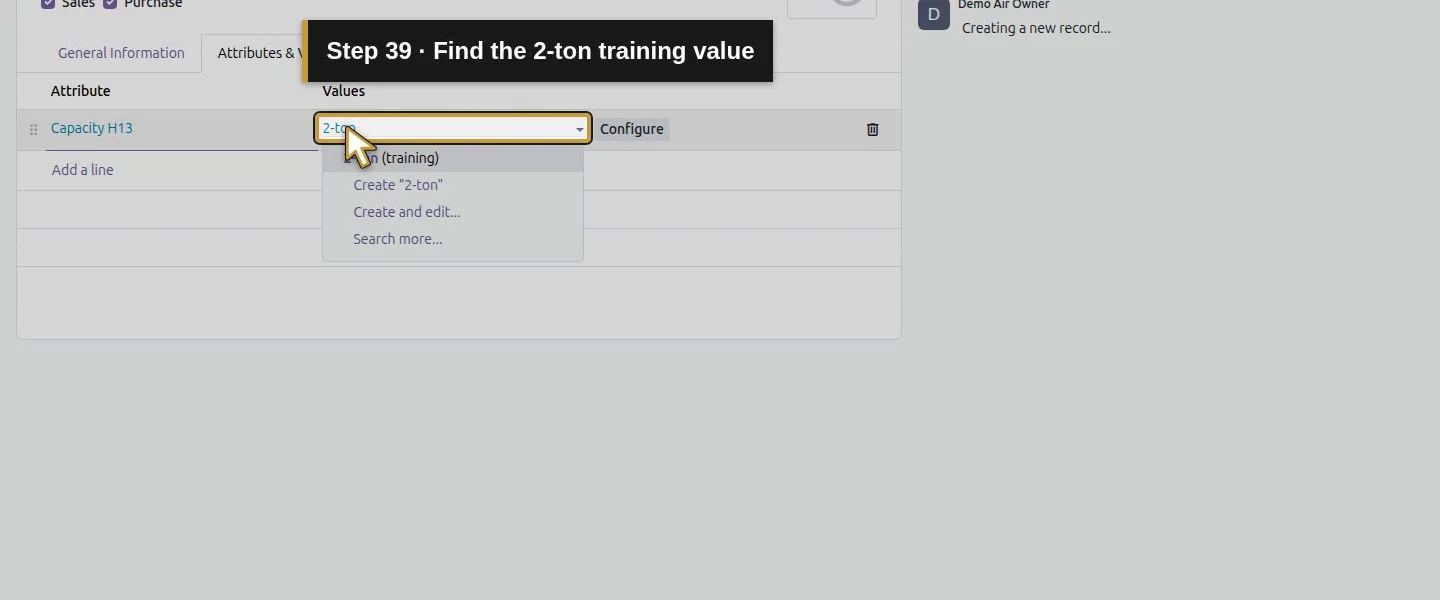
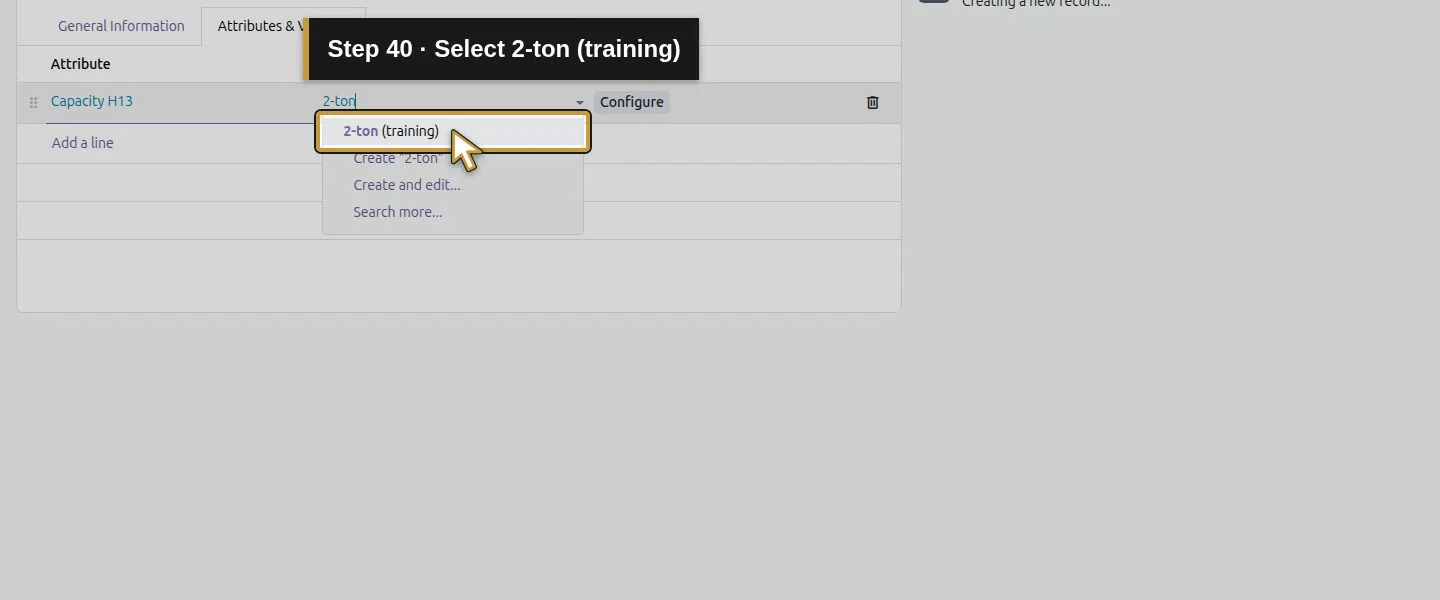
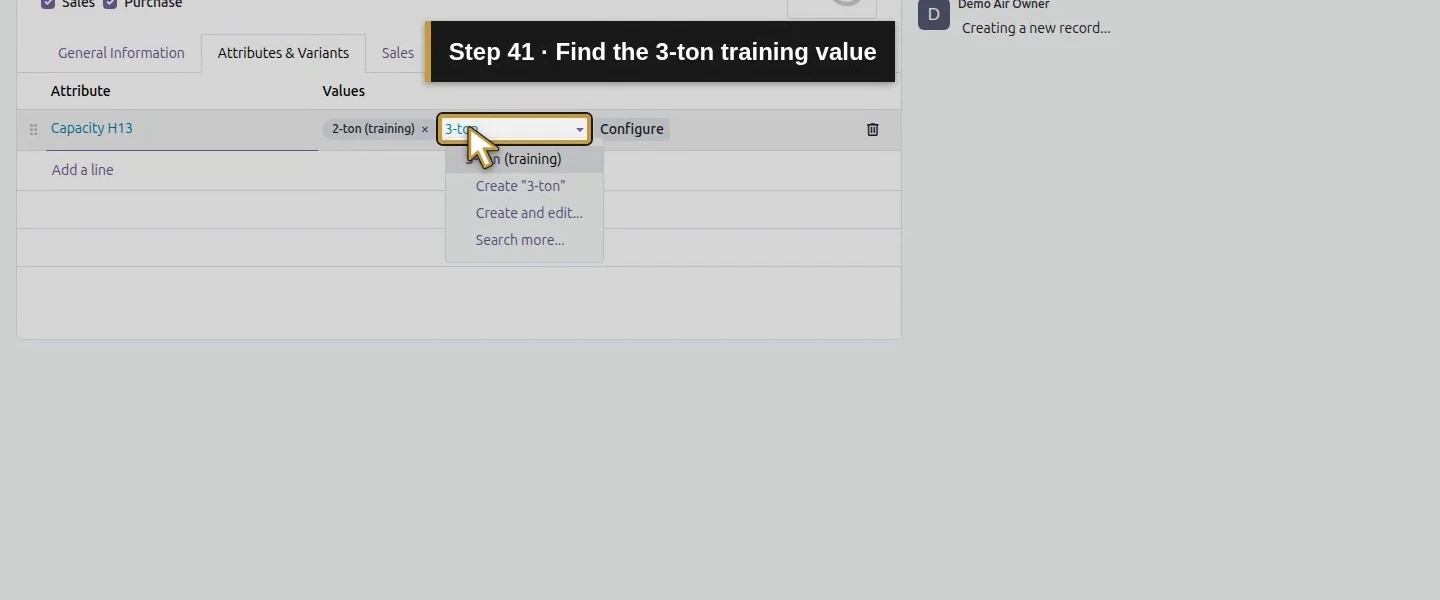
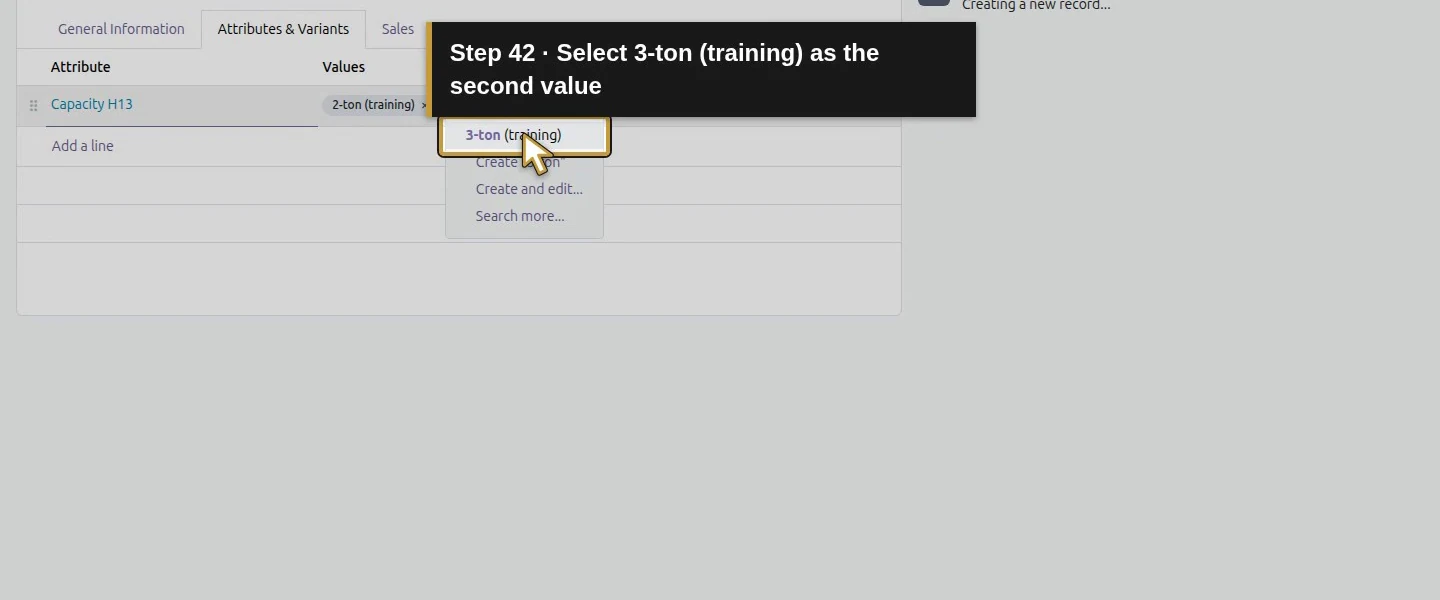
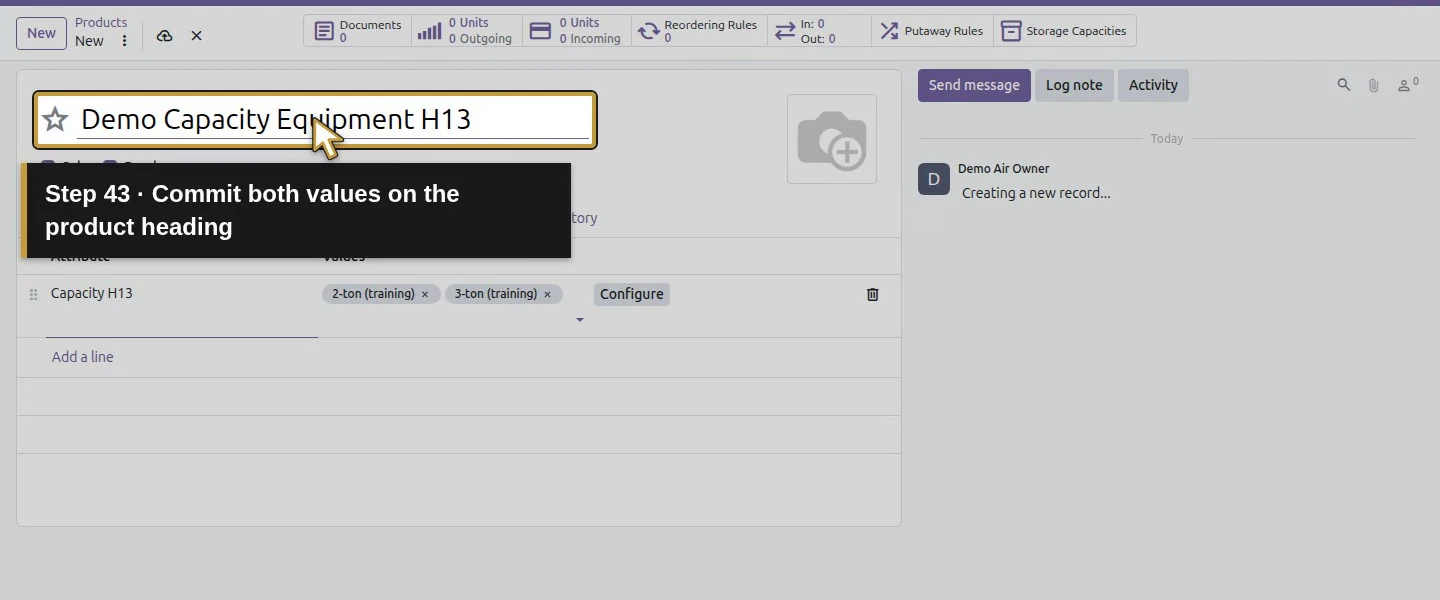
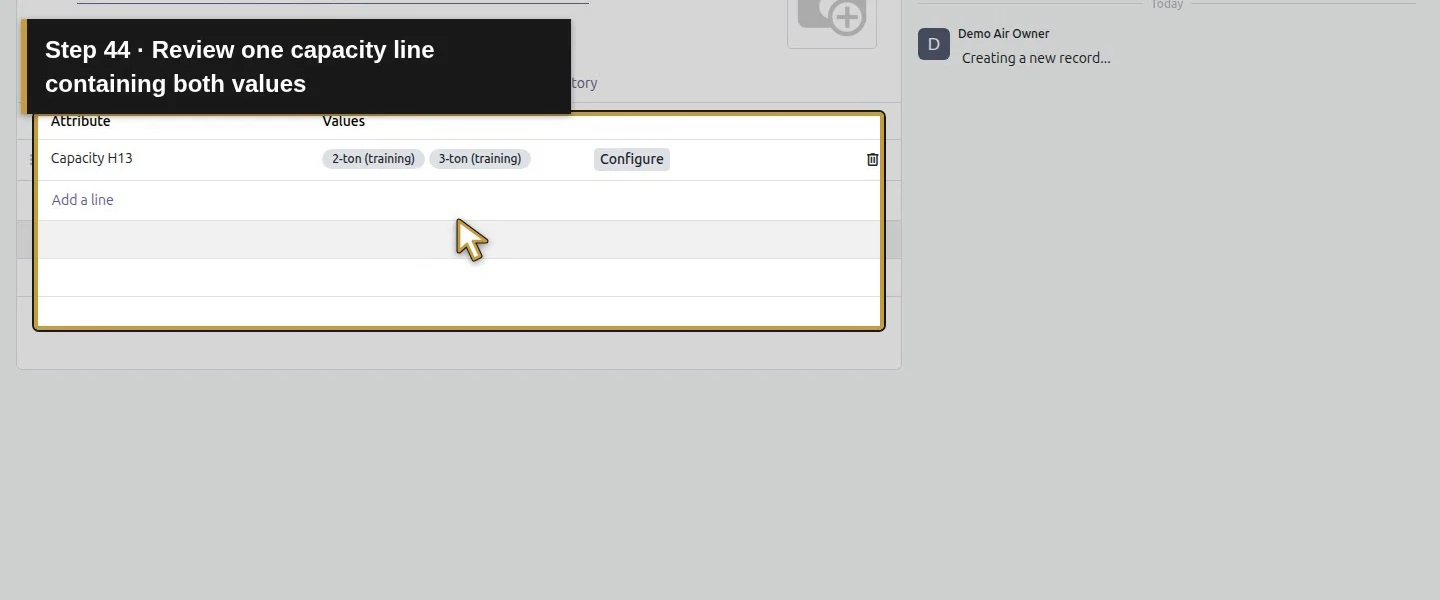
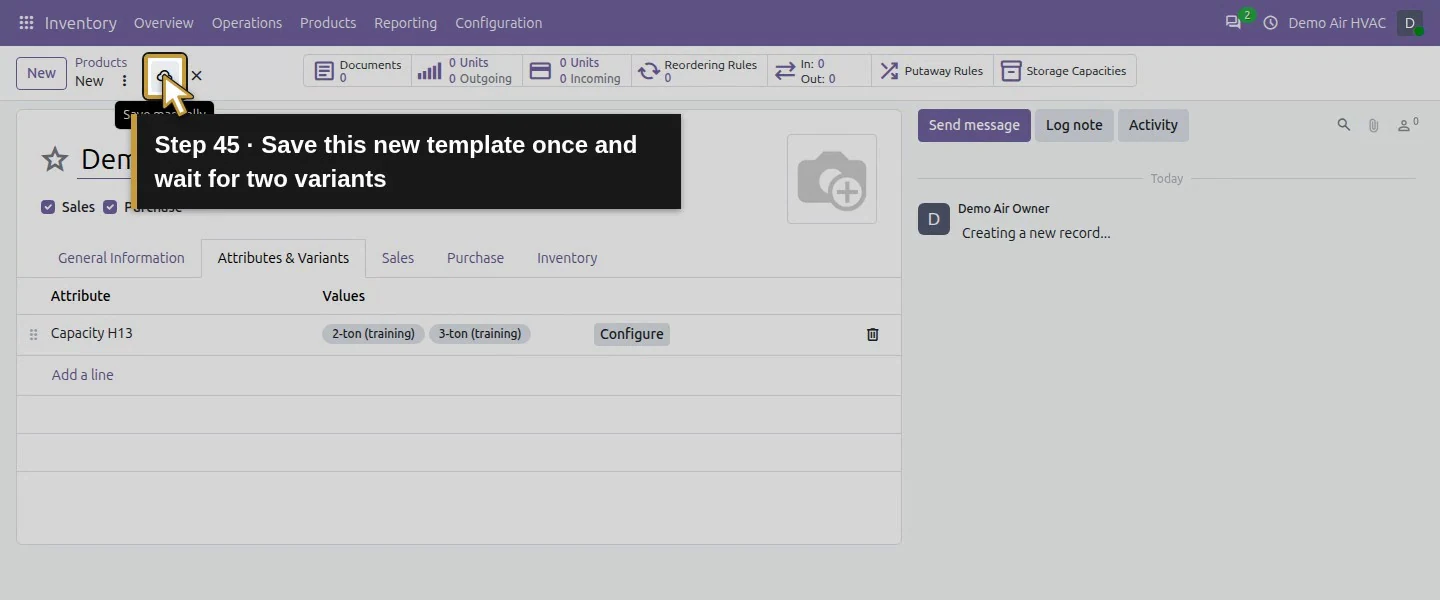
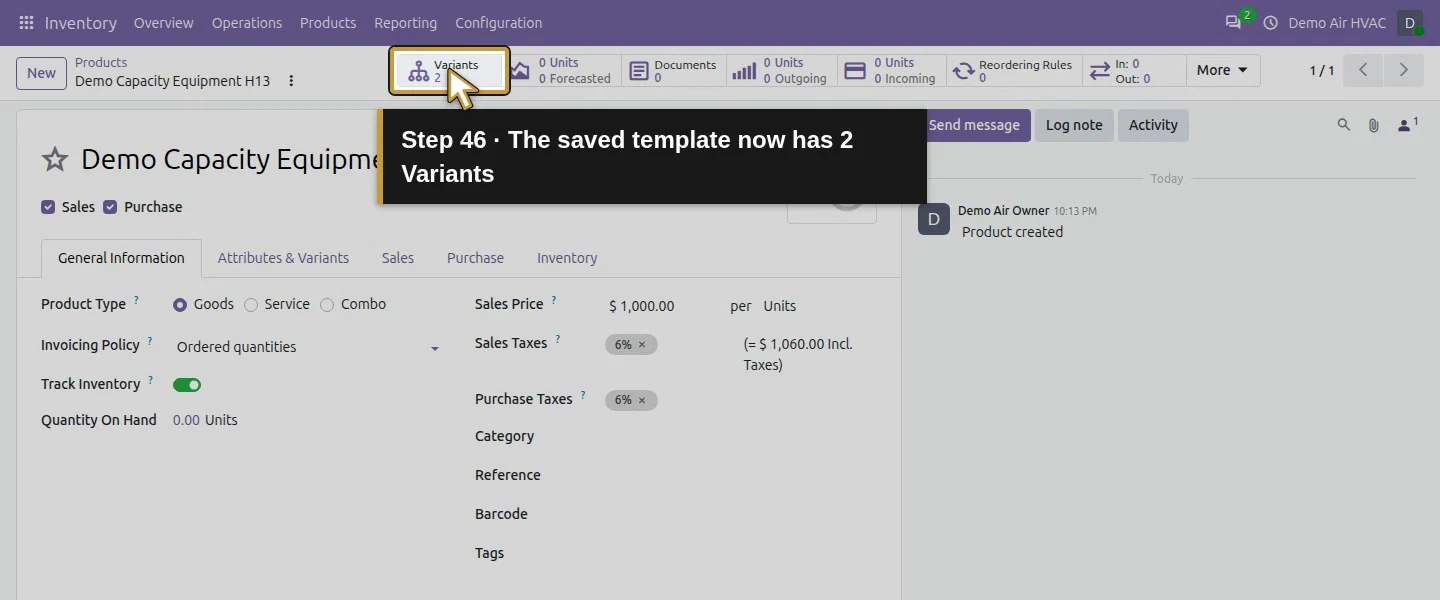
Open Inventory → Products → Products, search Demo Capacity Equipment H13, and choose New only if absent. Set Goods, Track Inventory checked, Units and Sales Price 1,000. On Attributes & Variants → Add a line, select Capacity H13 and both values. Save, wait for the saved record and reopen it. Check that the smart button shows 2 Variants.
Step 4. Give each variant its own reference
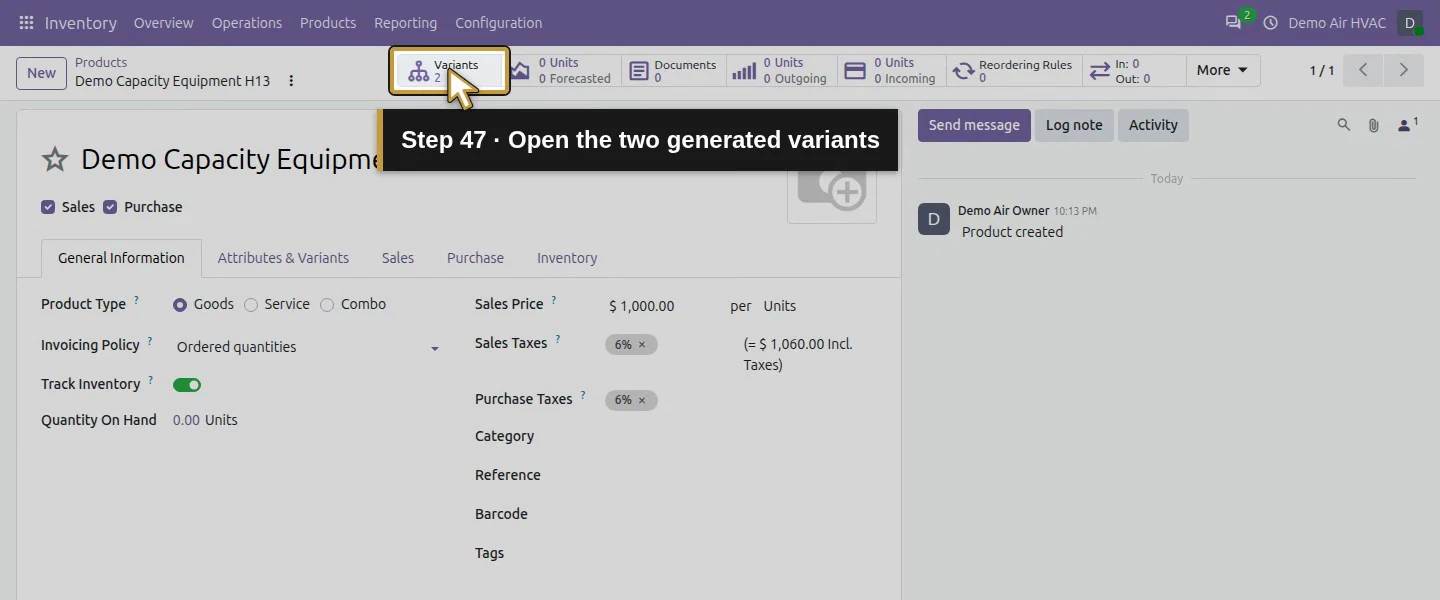
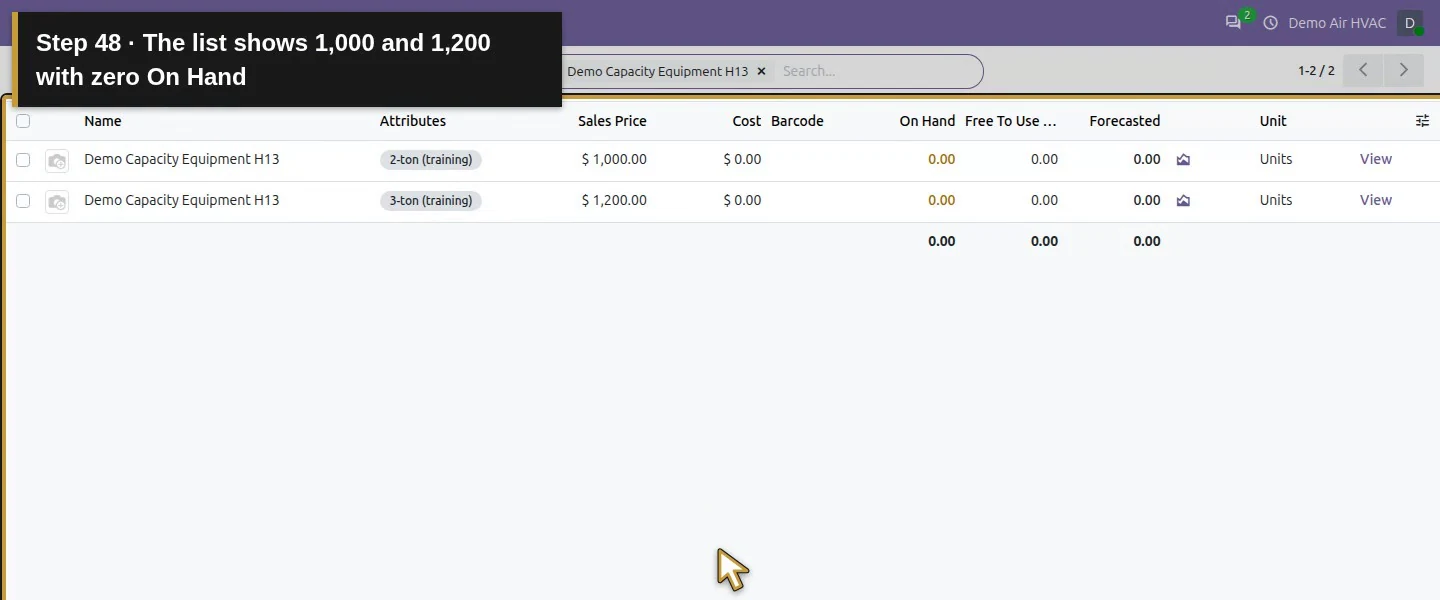
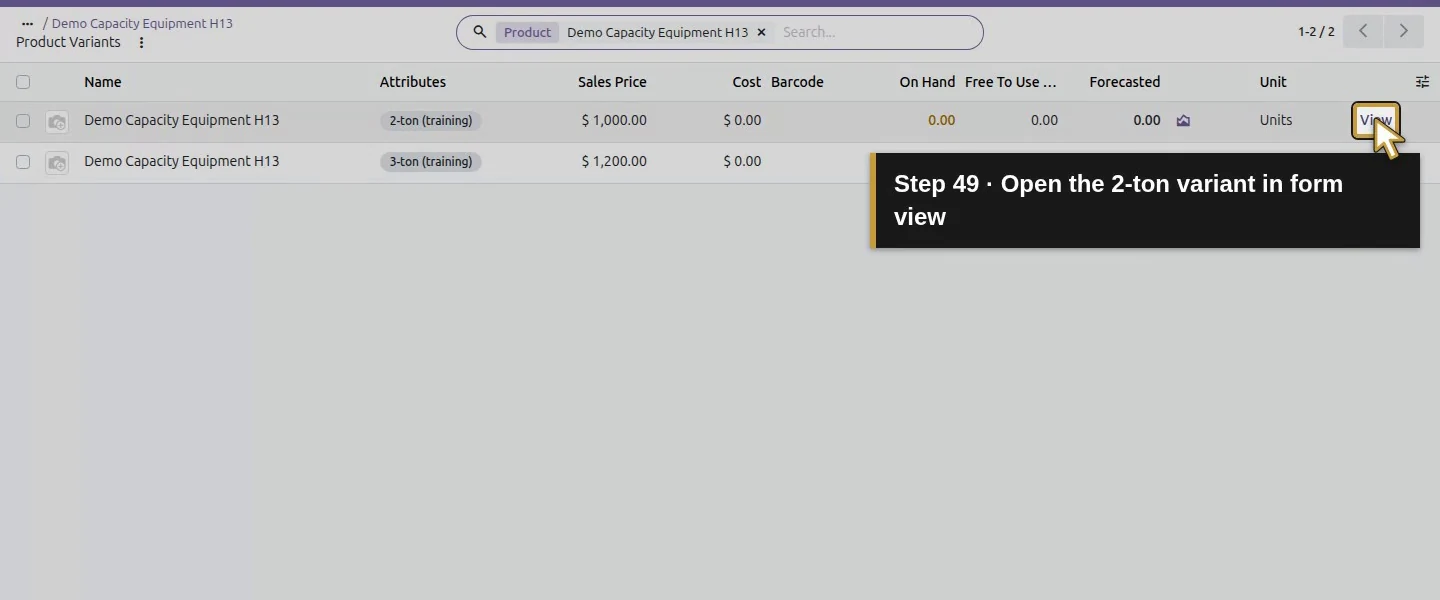
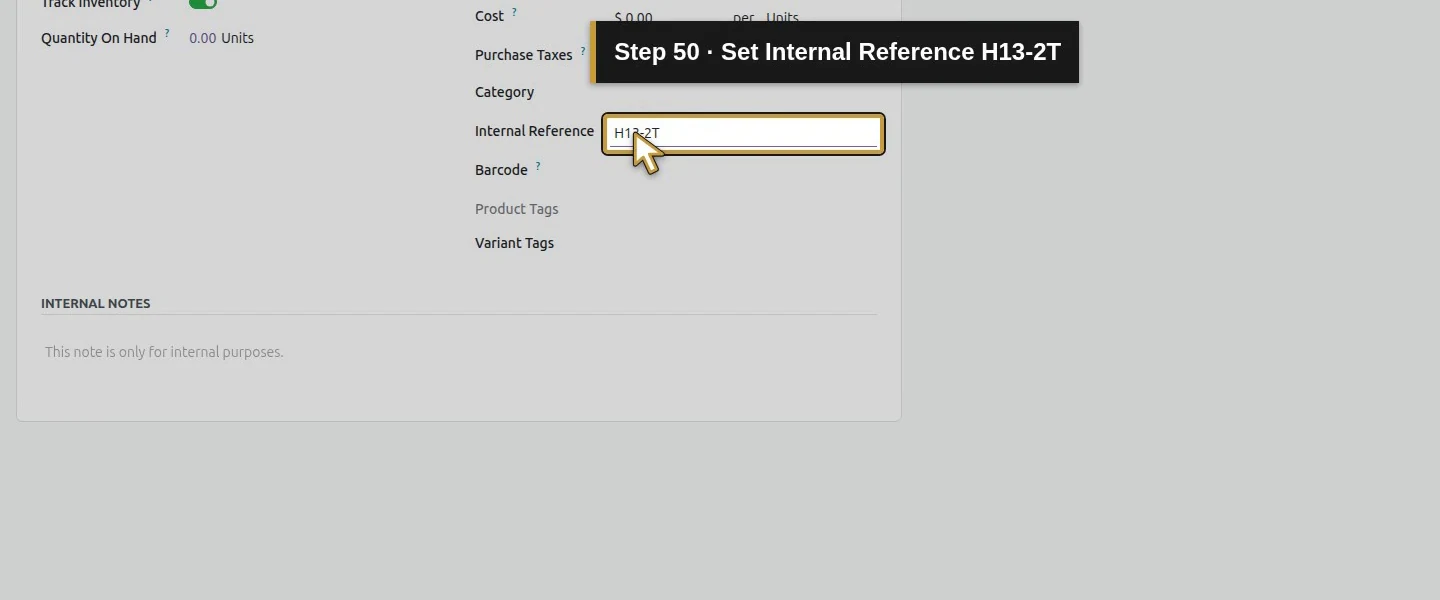
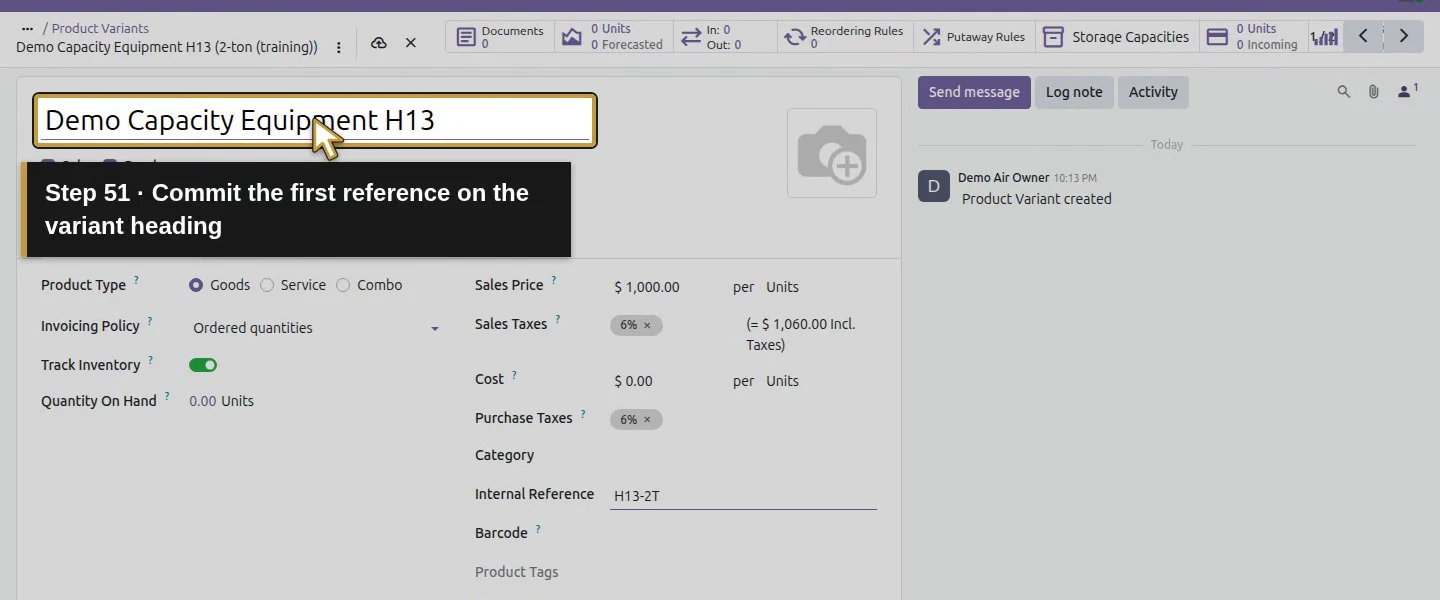
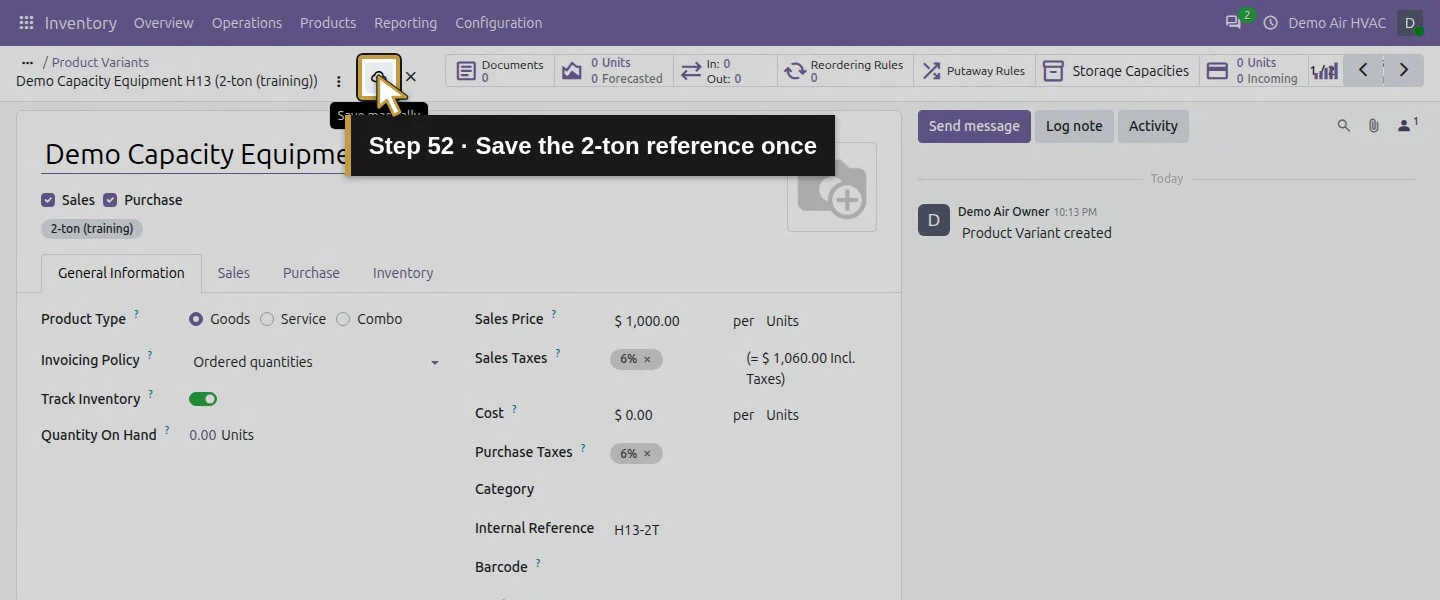
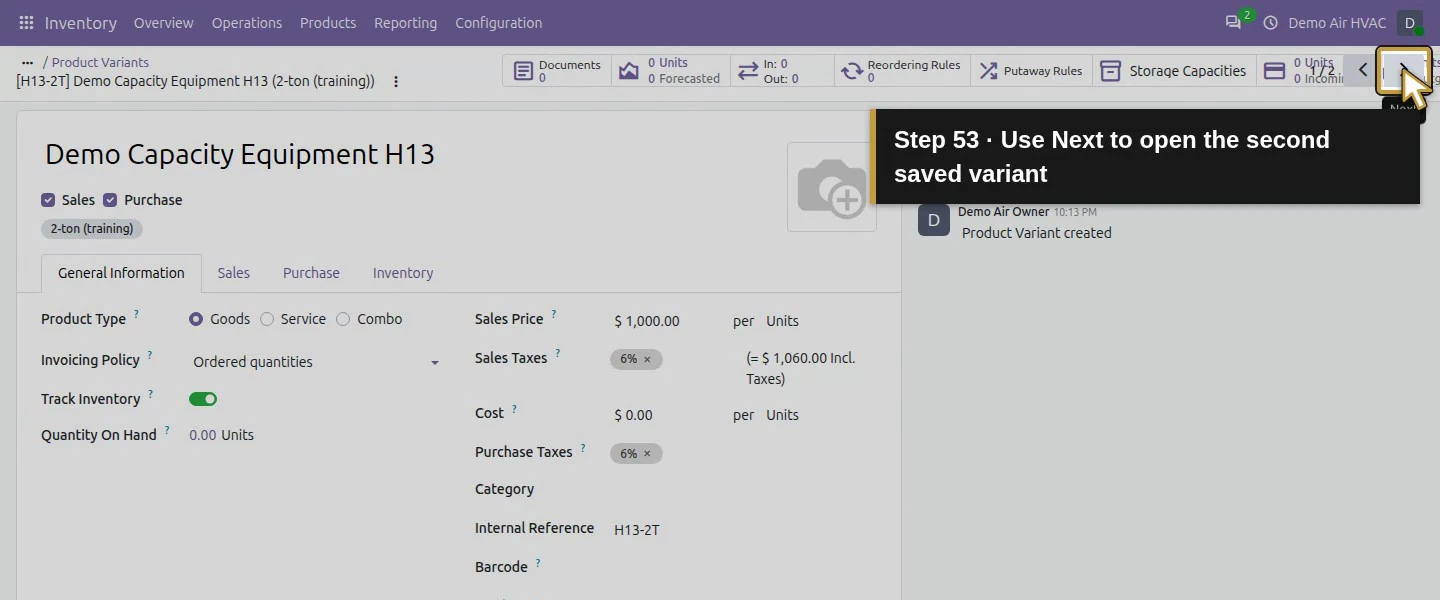
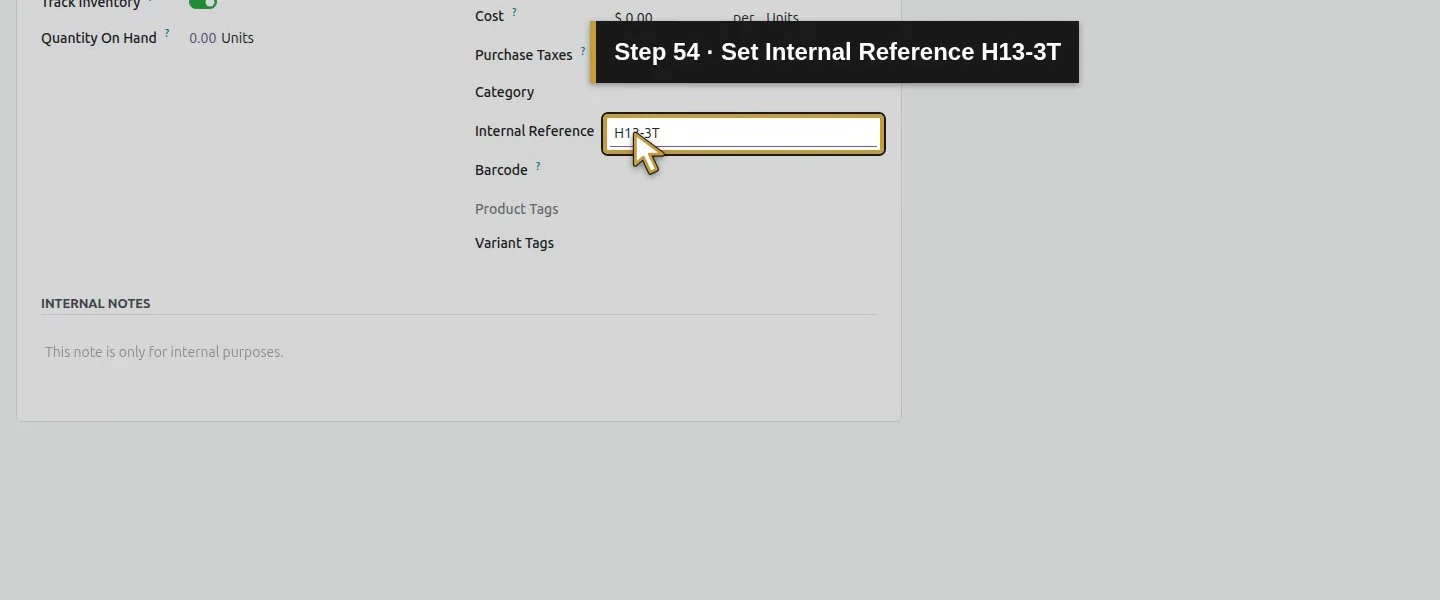
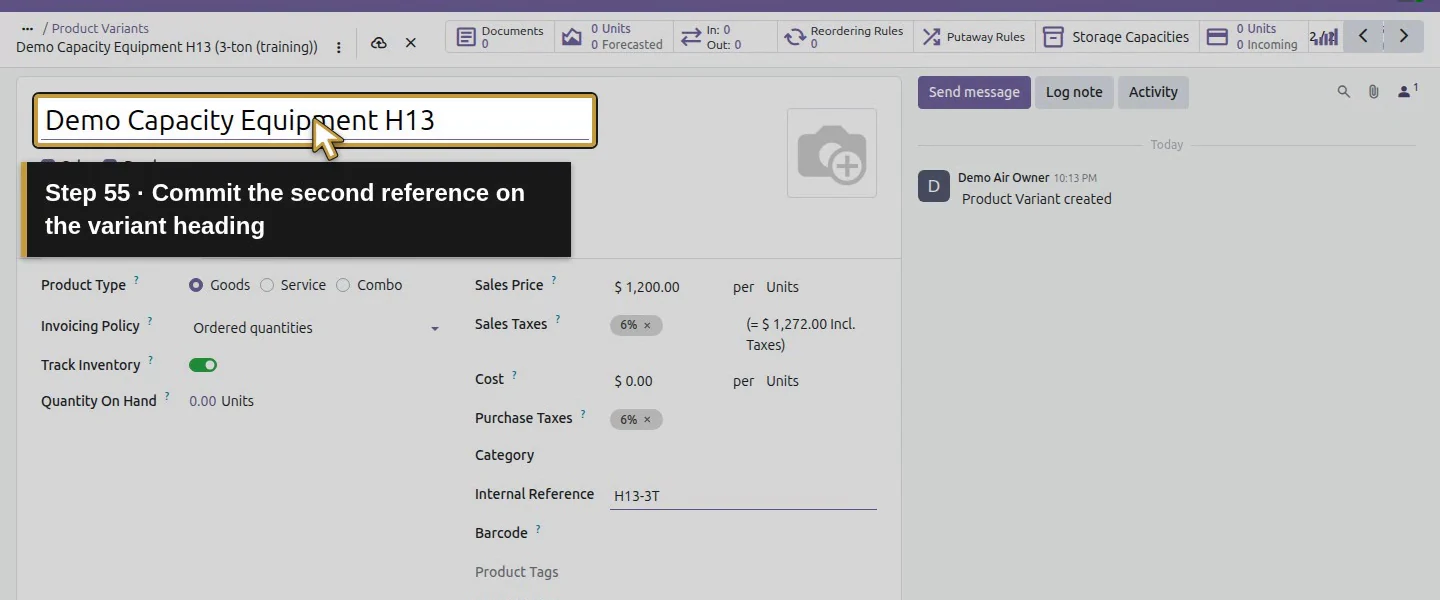
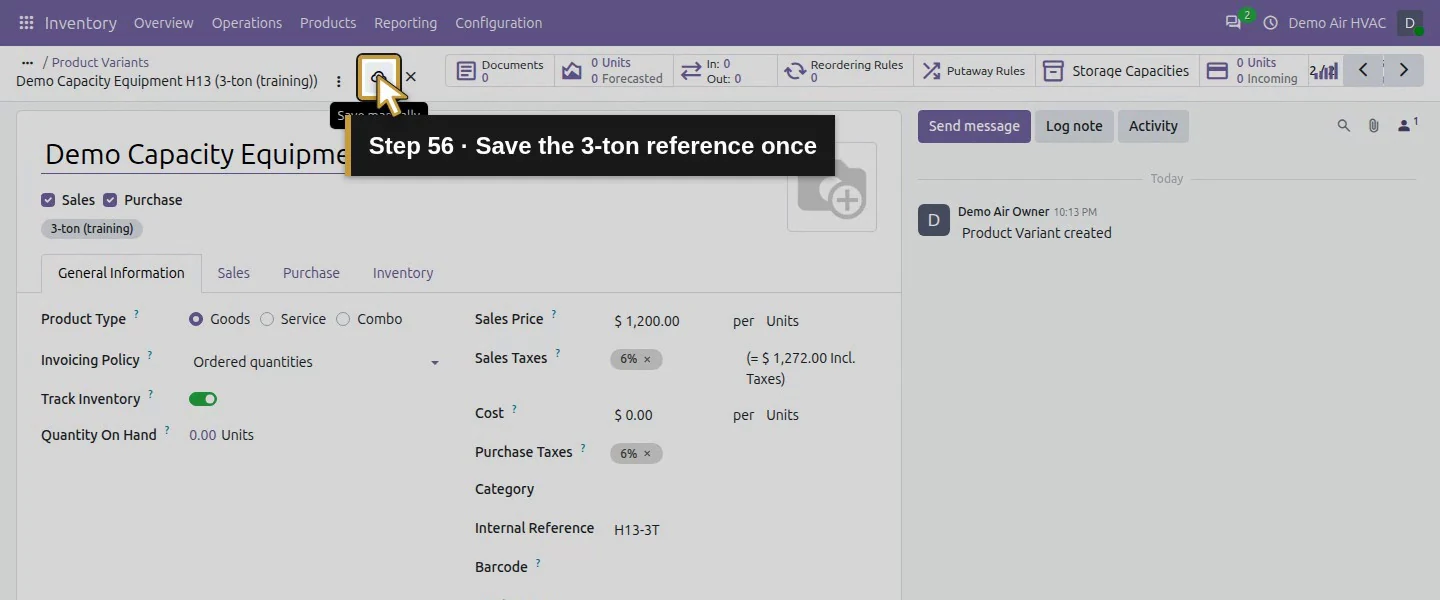
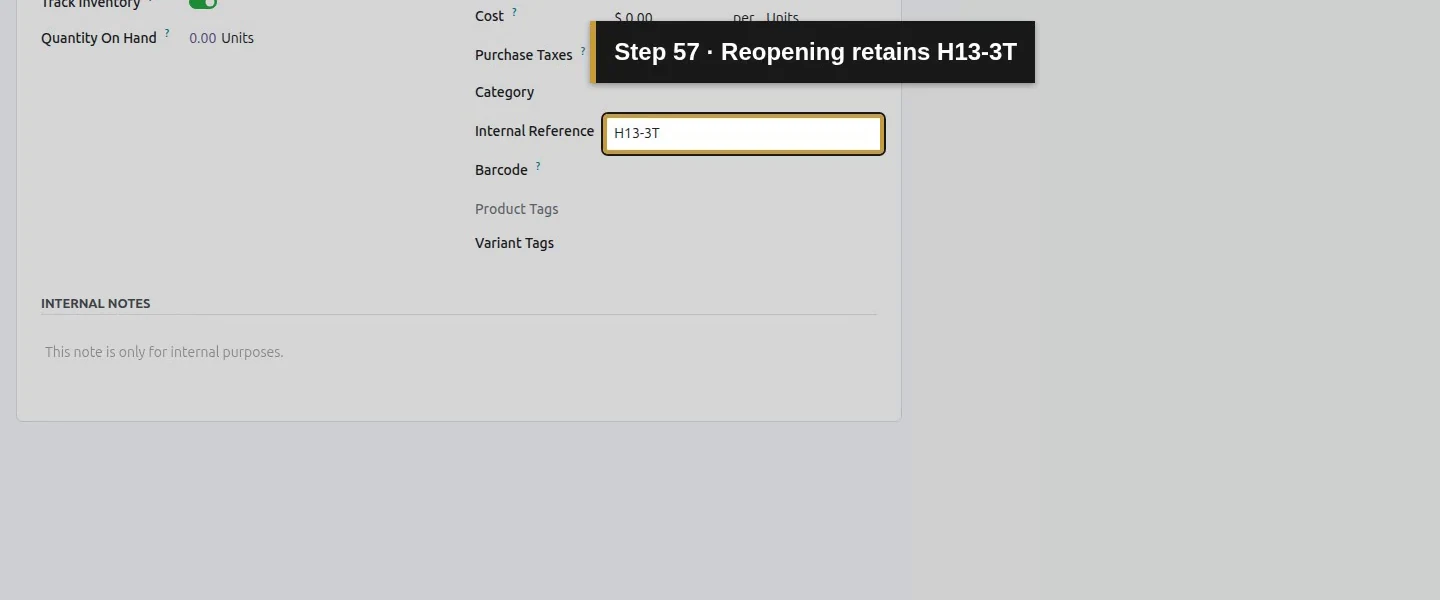
Click 2 Variants. The list shows $1,000 for 2-ton and $1,200 for 3-ton. Open the first variant and set Internal Reference H13-2T; save. Open the second and set Internal Reference H13-3T; save and reopen. Both remain at zero On Hand. The $200 value extra is added to the $1,000 template price.
Step 5. Choose the capacity in a new quotation
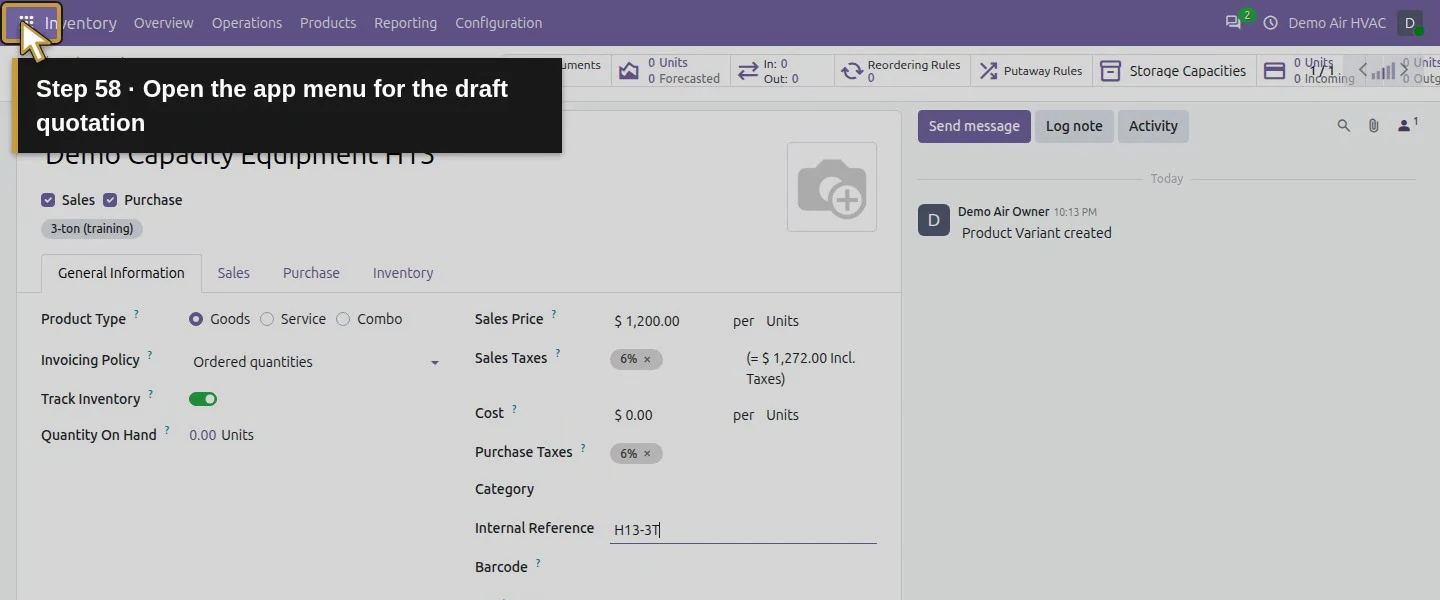
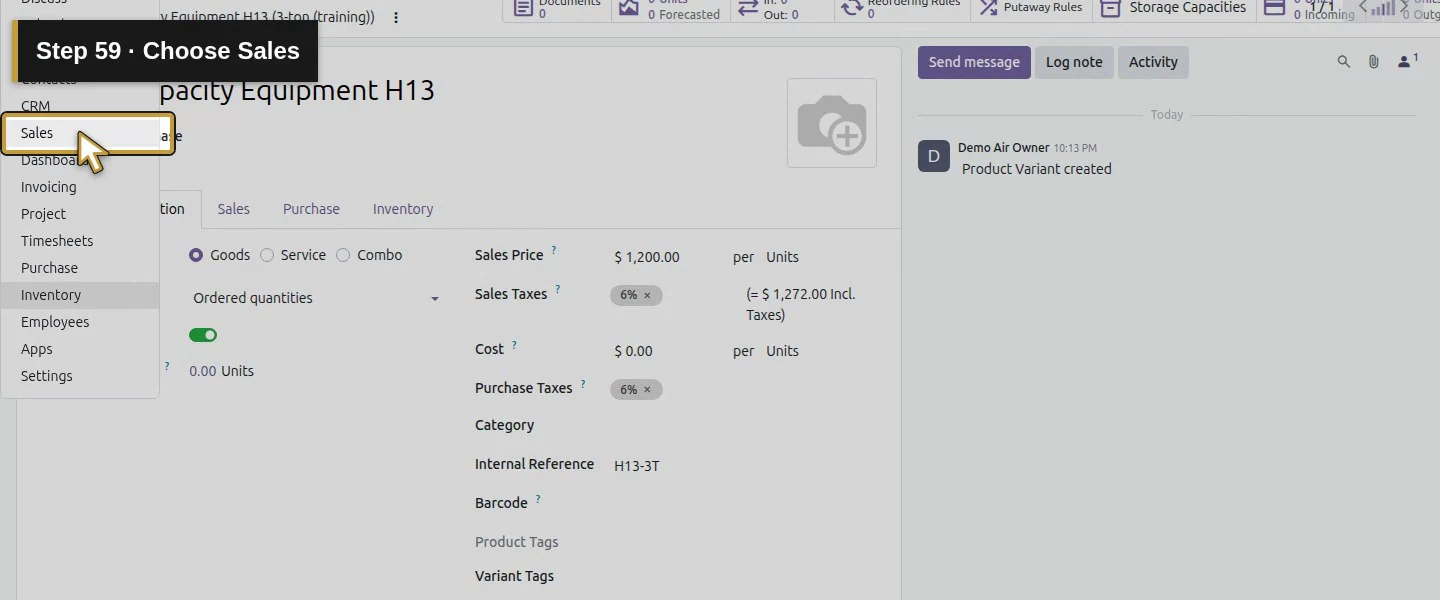
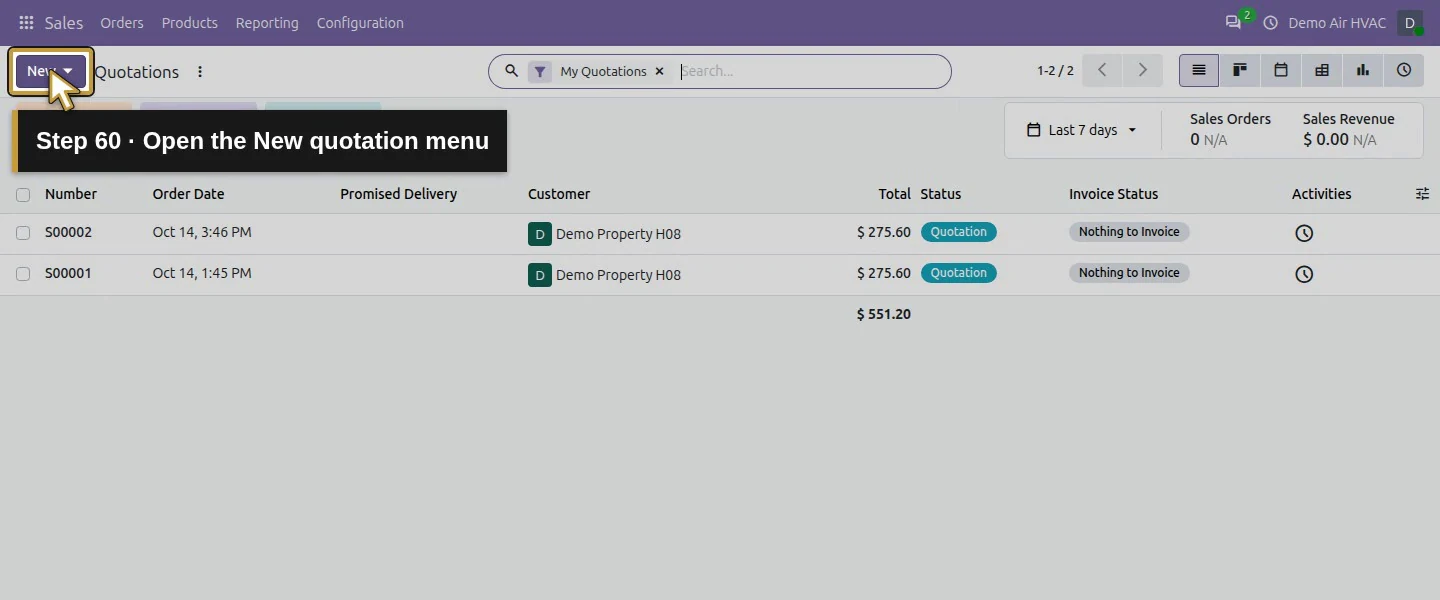
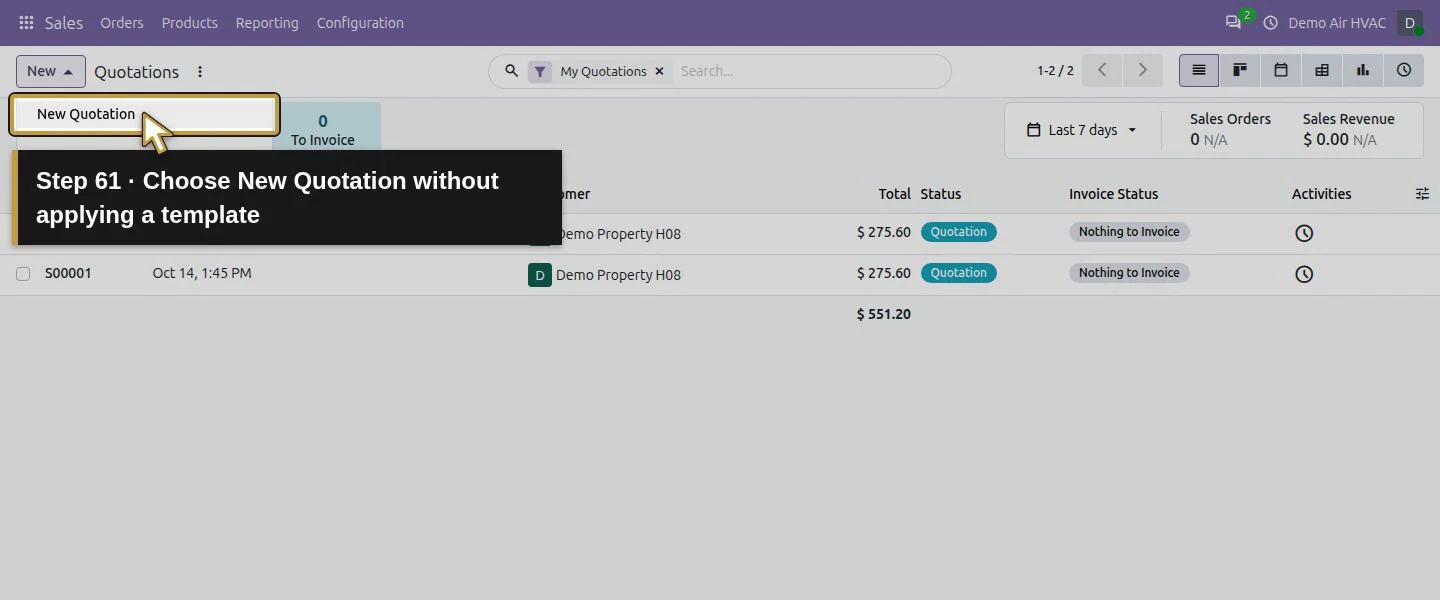
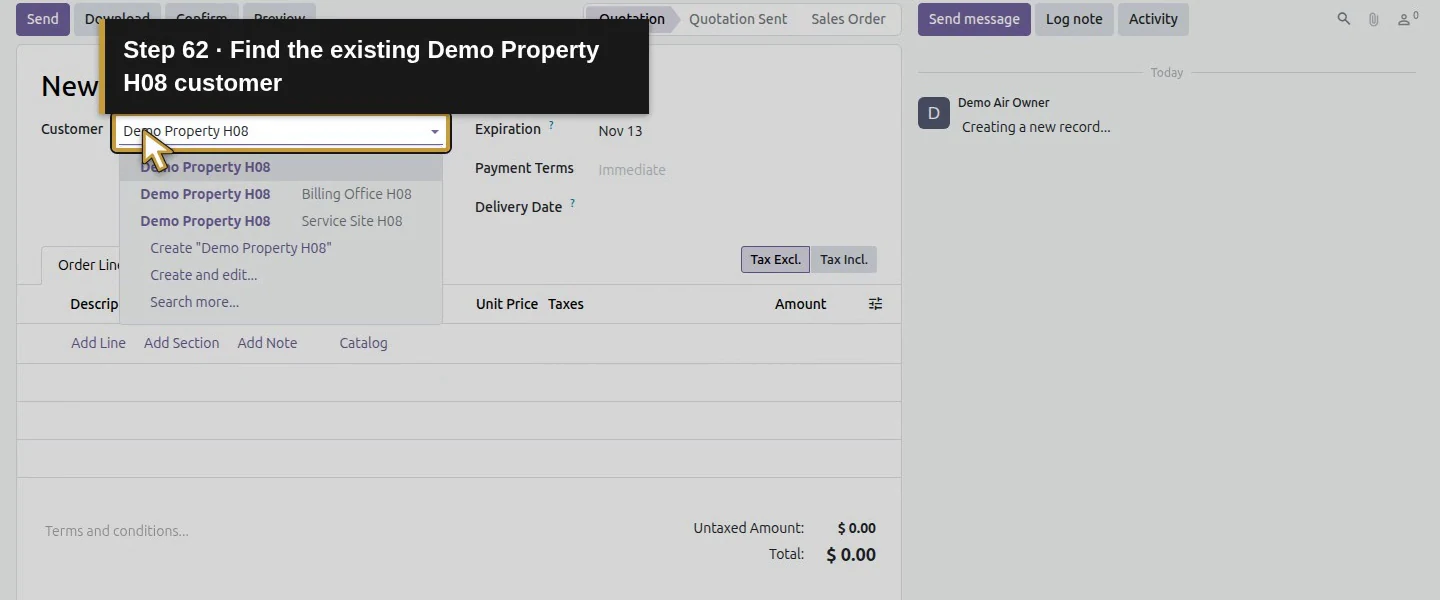
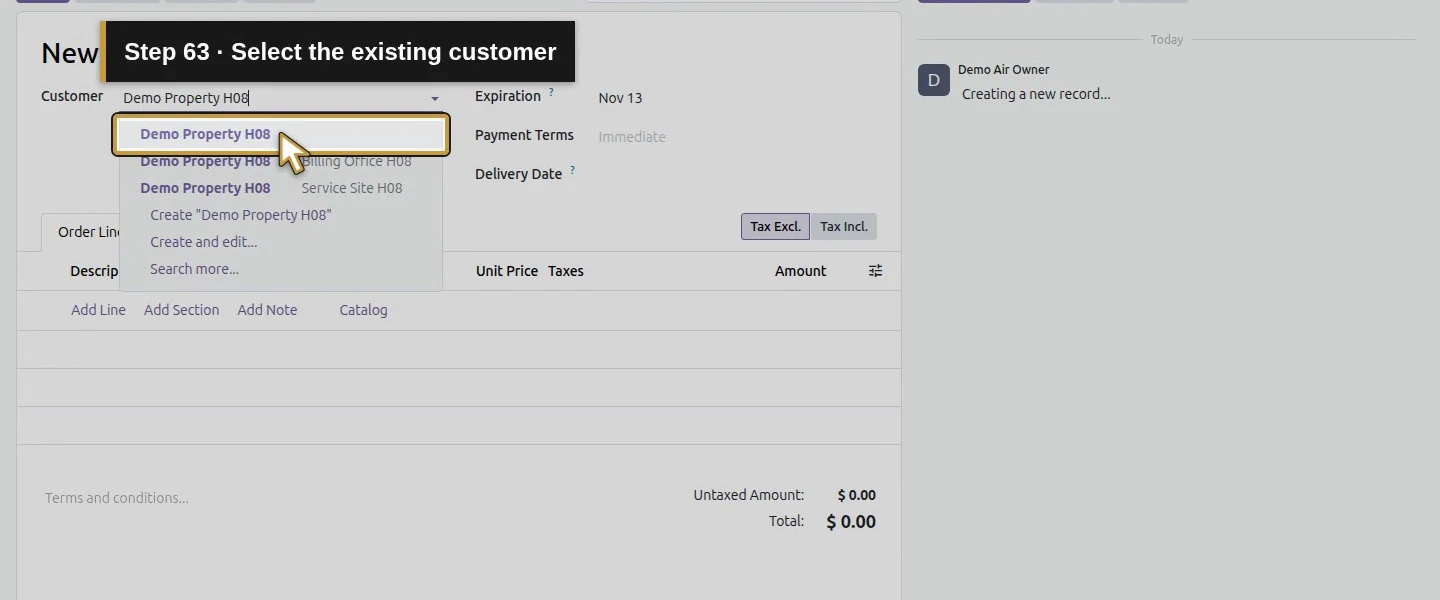
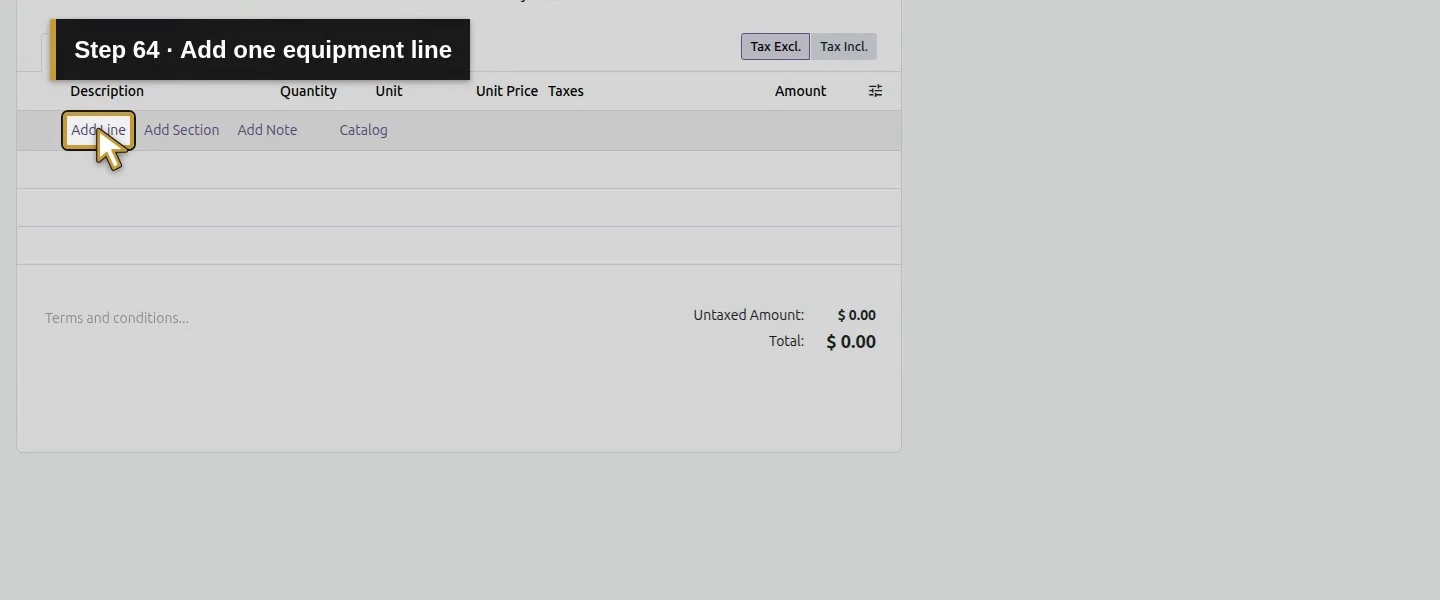
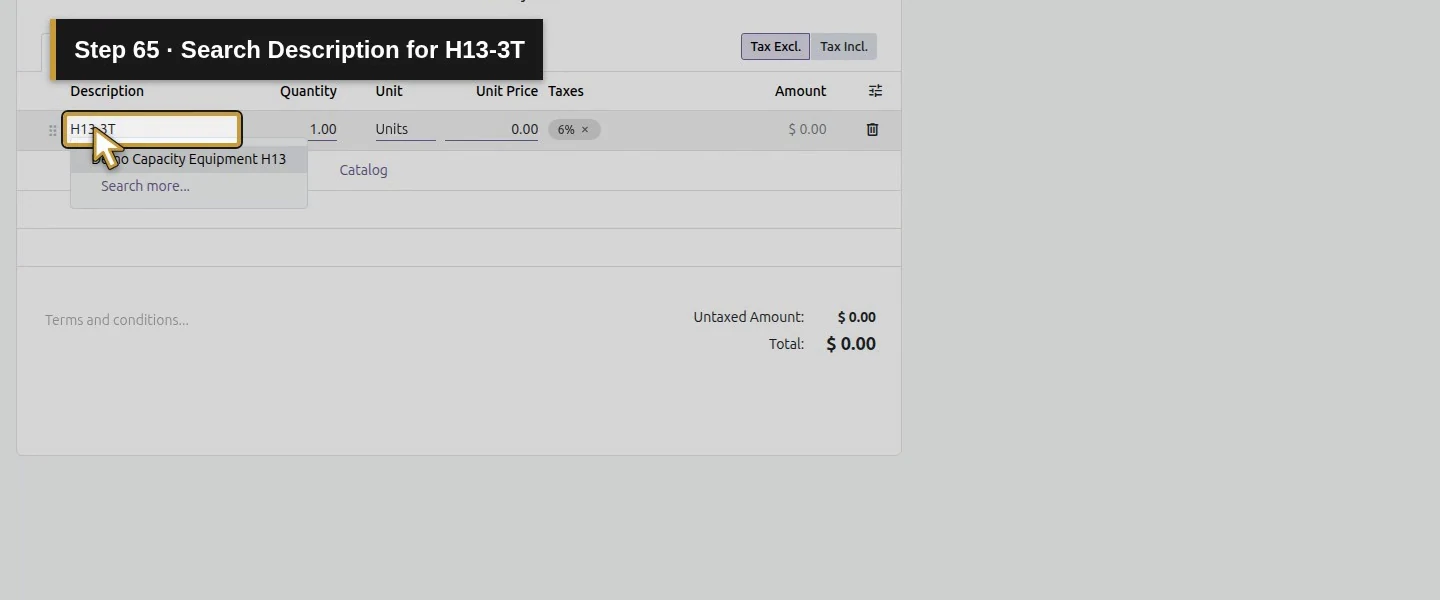
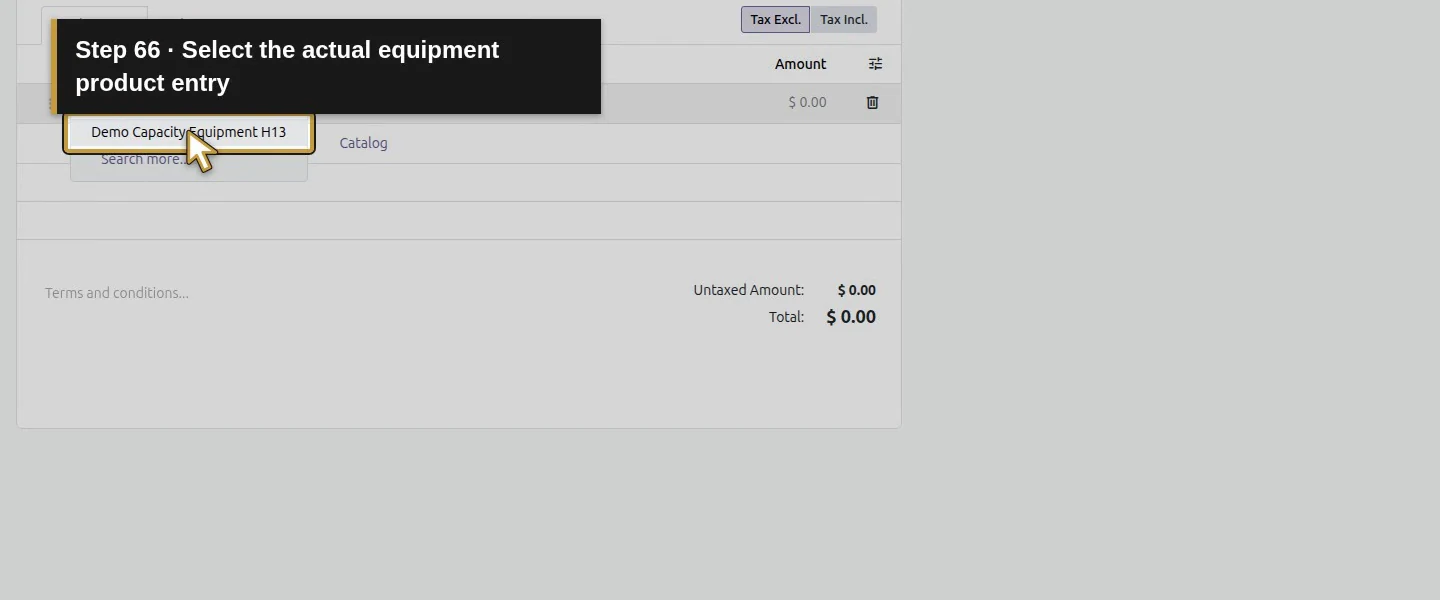
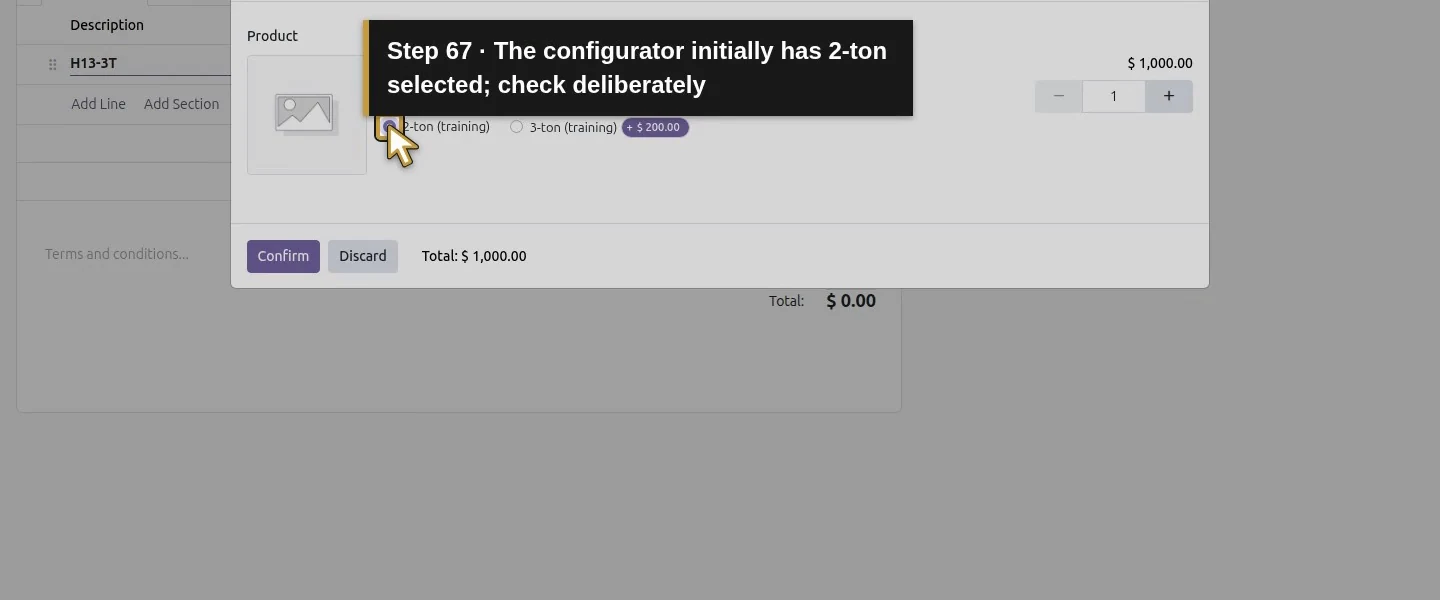
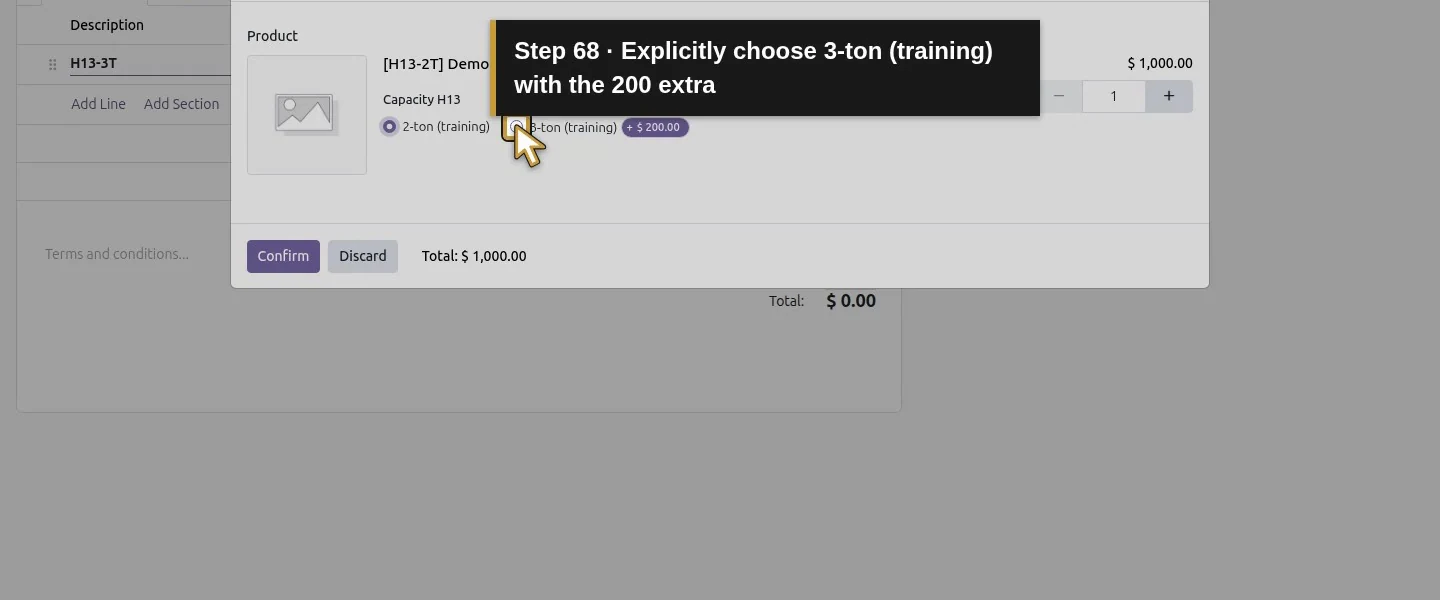
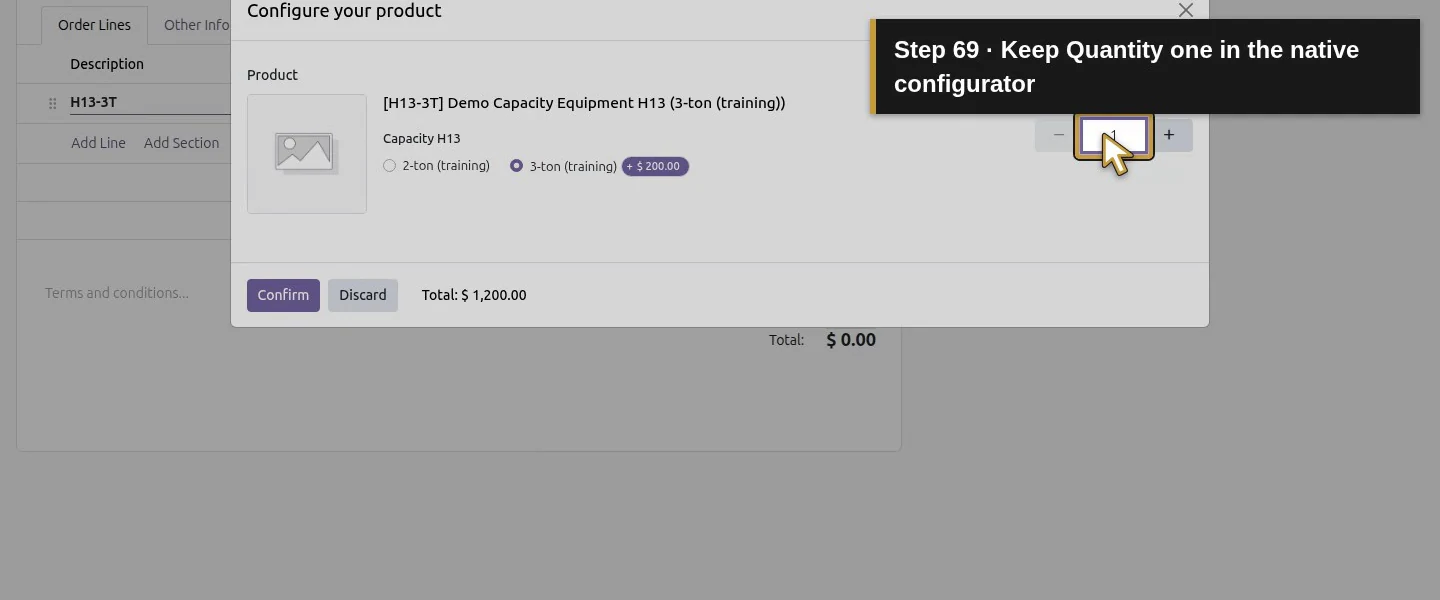
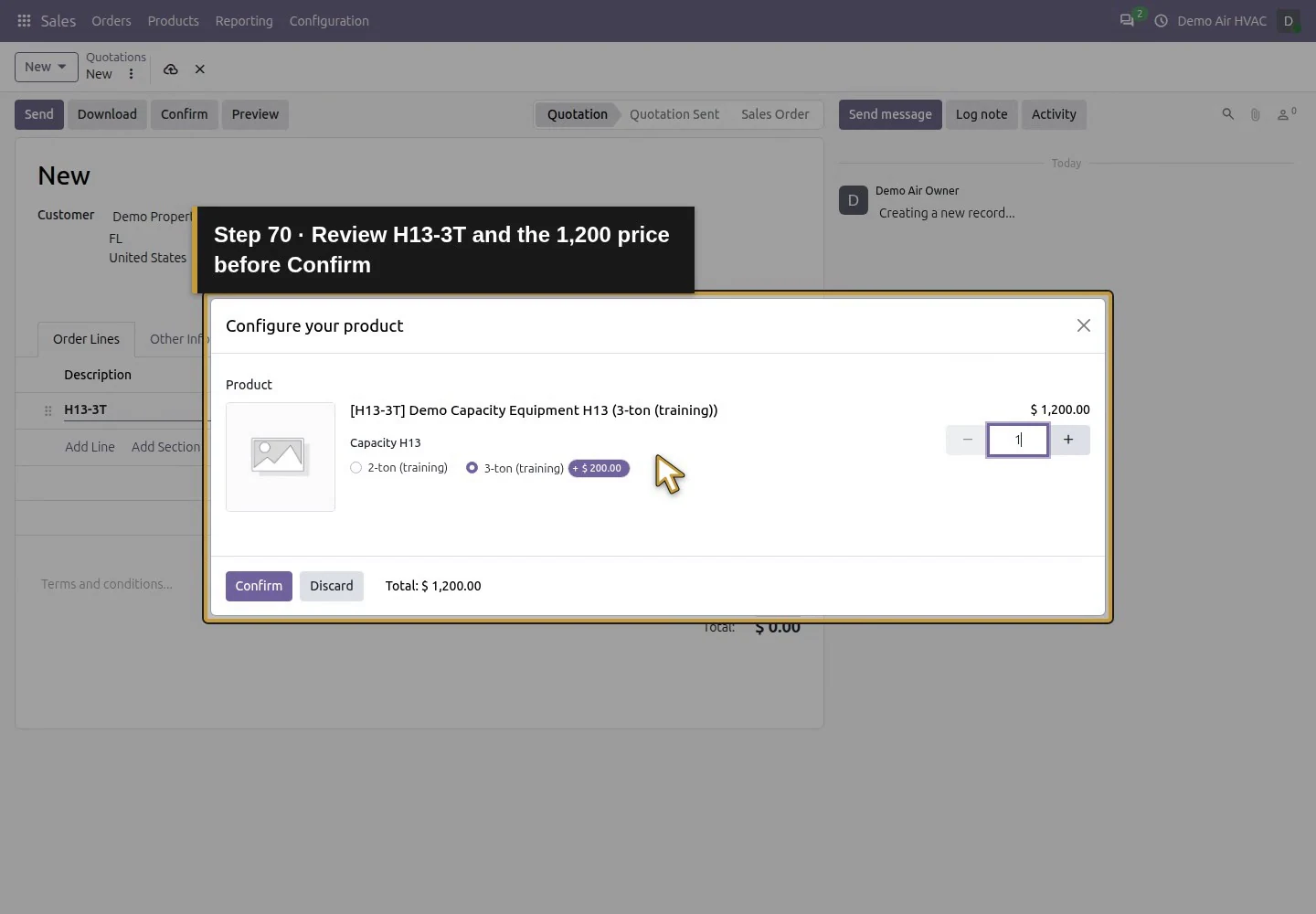
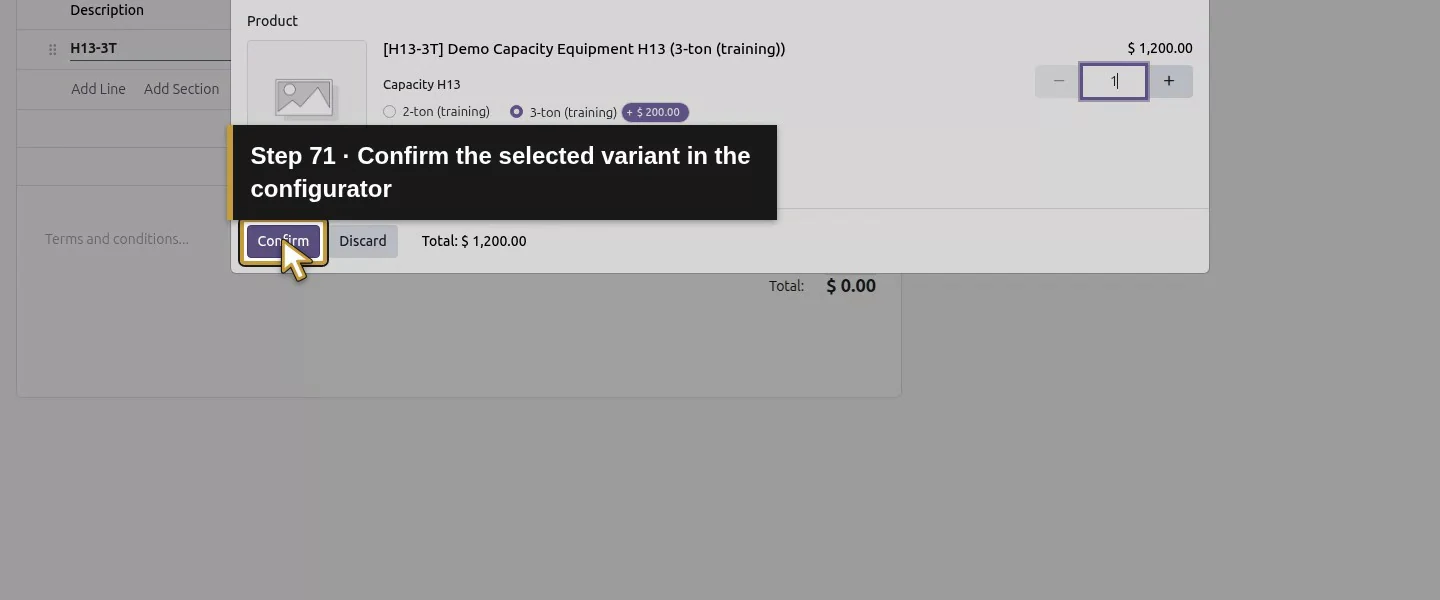
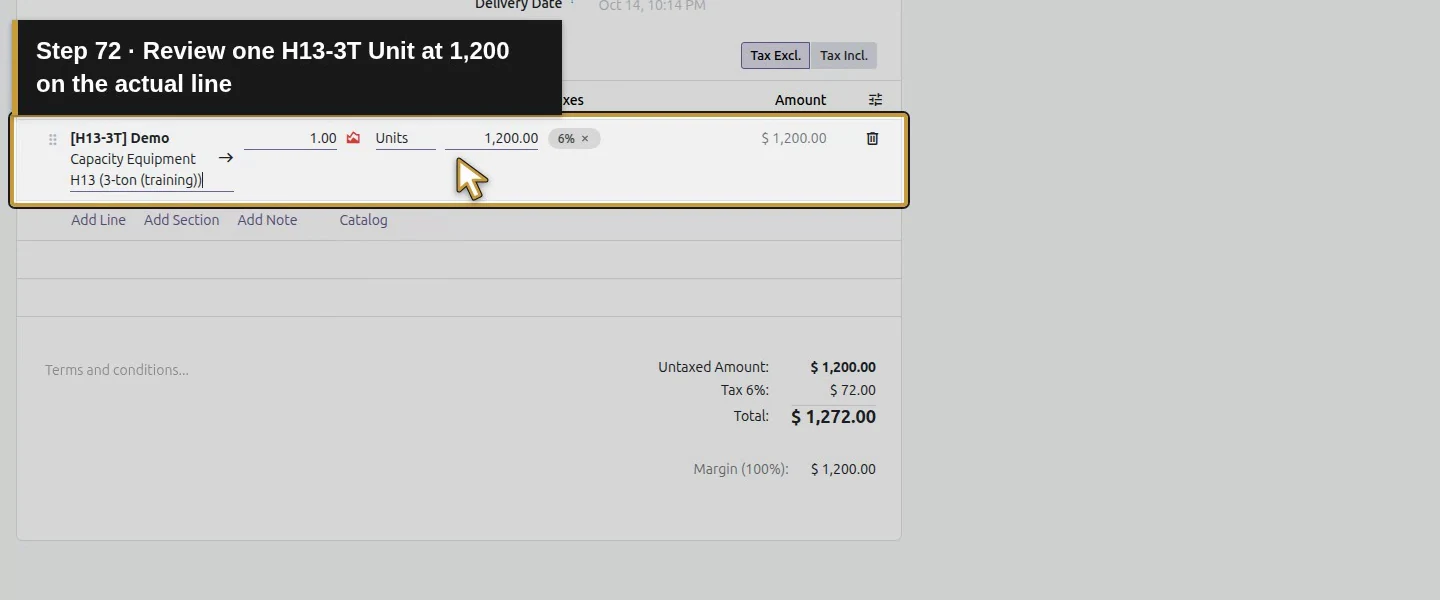
Open Sales → Orders → Quotations → New → New Quotation. Select existing Demo Property H08, then Add Line and search the Description product picker for the training equipment. Select its product entry. In Configure your product, explicitly choose 3-ton (training) +$200, Quantity 1, and review [H13-3T] and $1,200. Choose Confirm in this dialog. Searching by H13-3T still opened the configurator with the first value selected in this test, so check the option rather than assuming the search selected it.
Step 6. Save and reopen the unsent quote
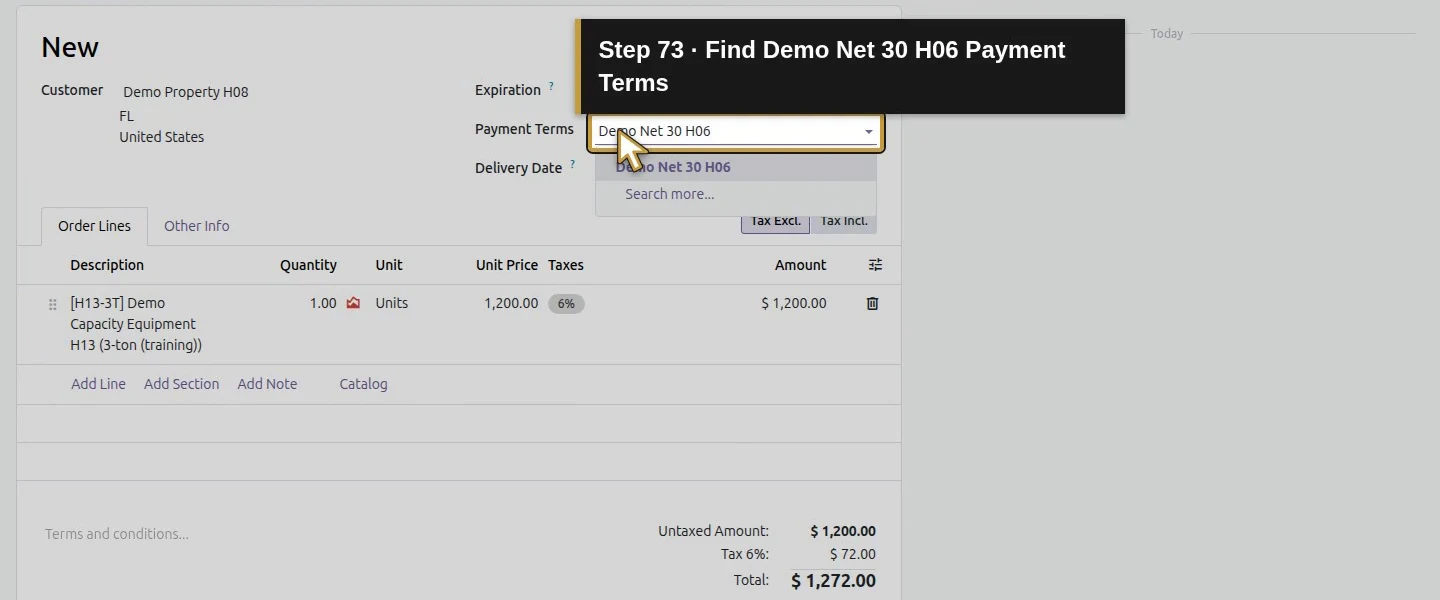
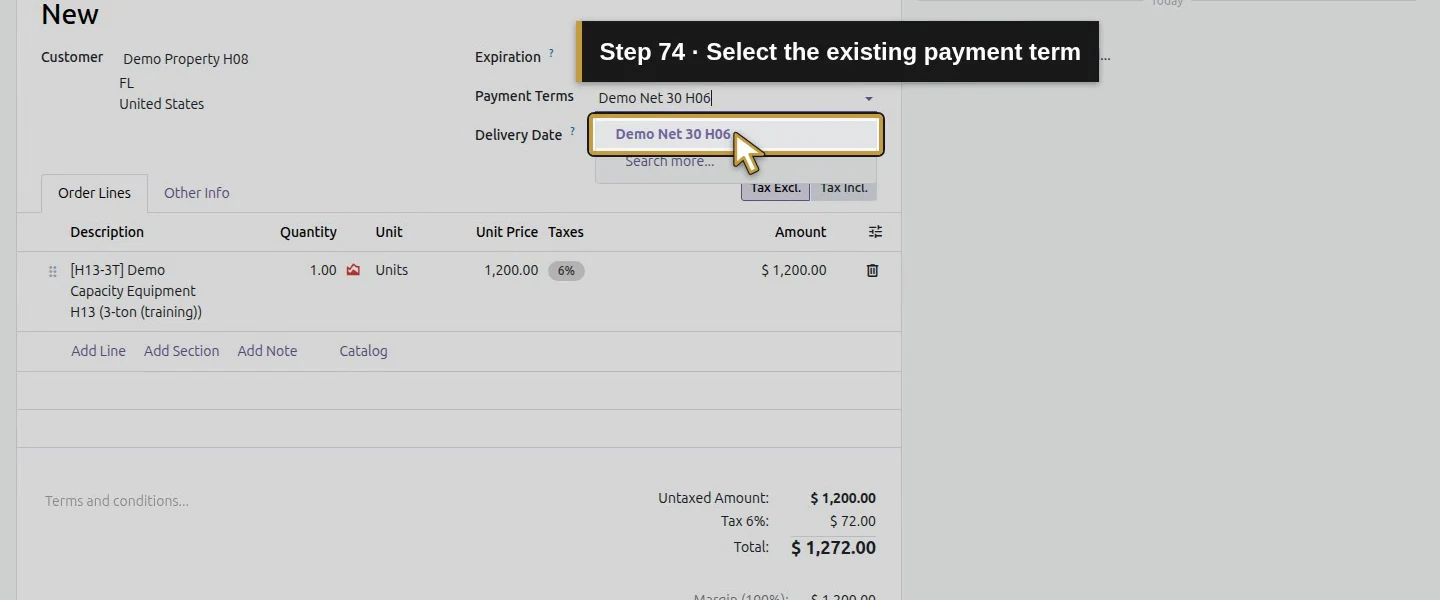
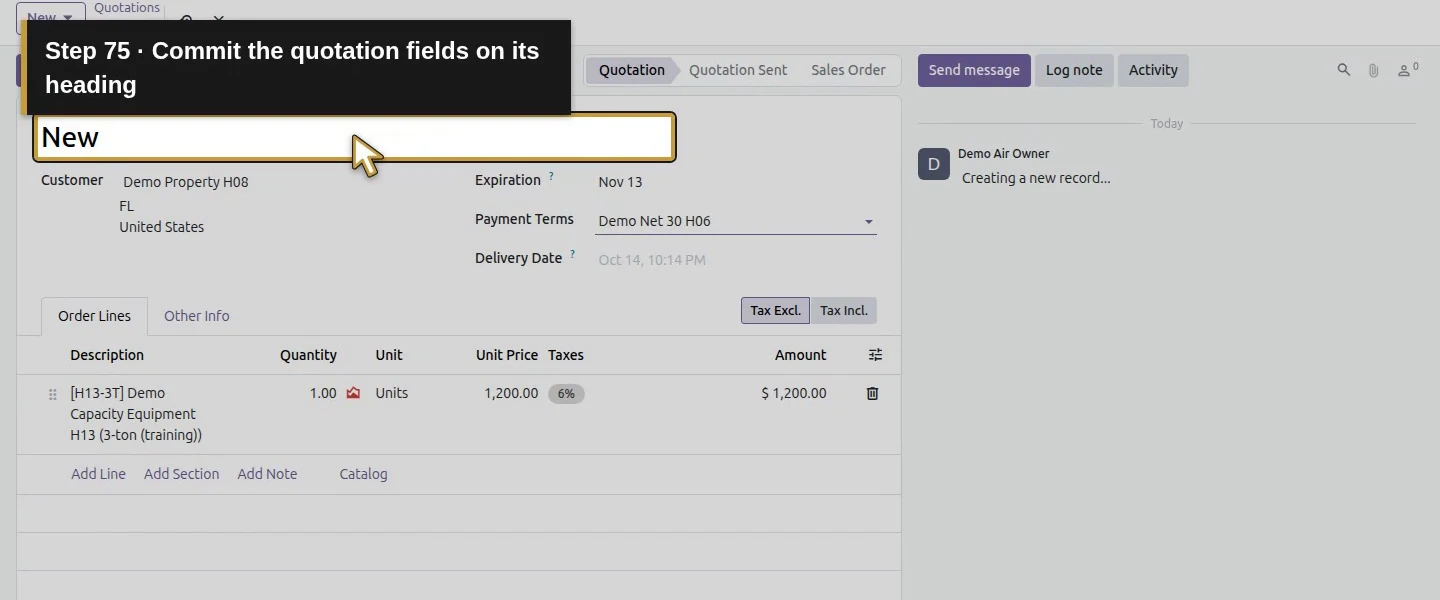
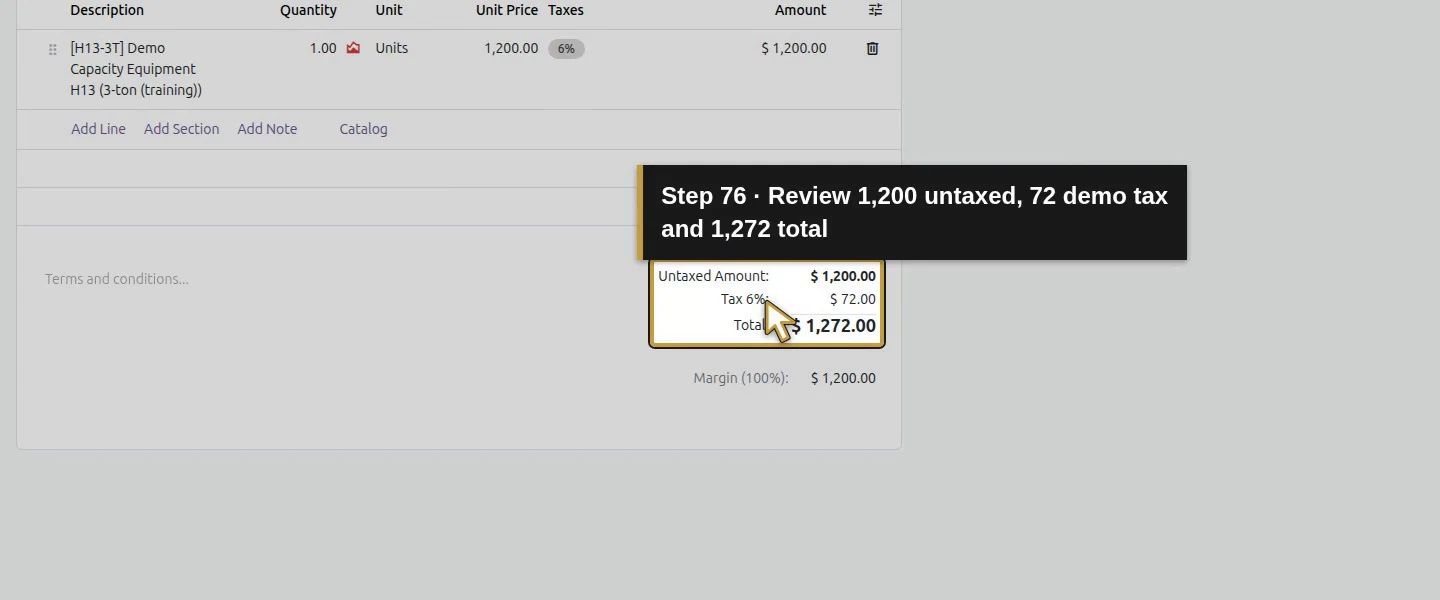
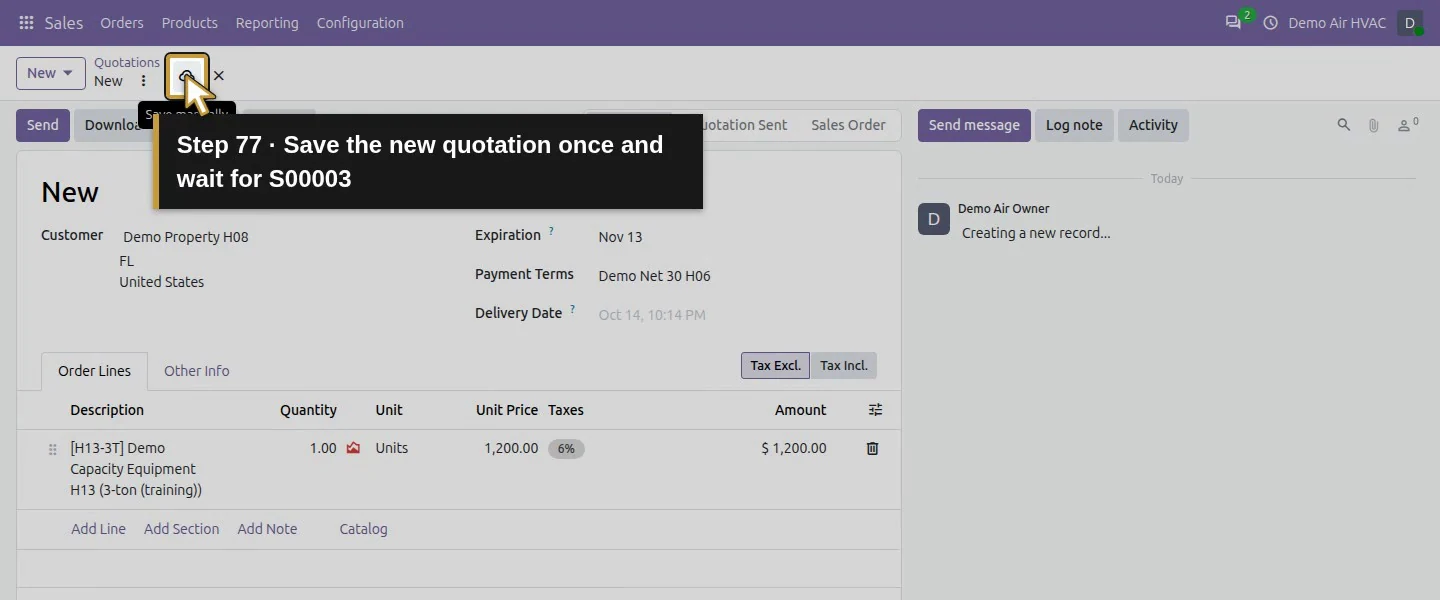
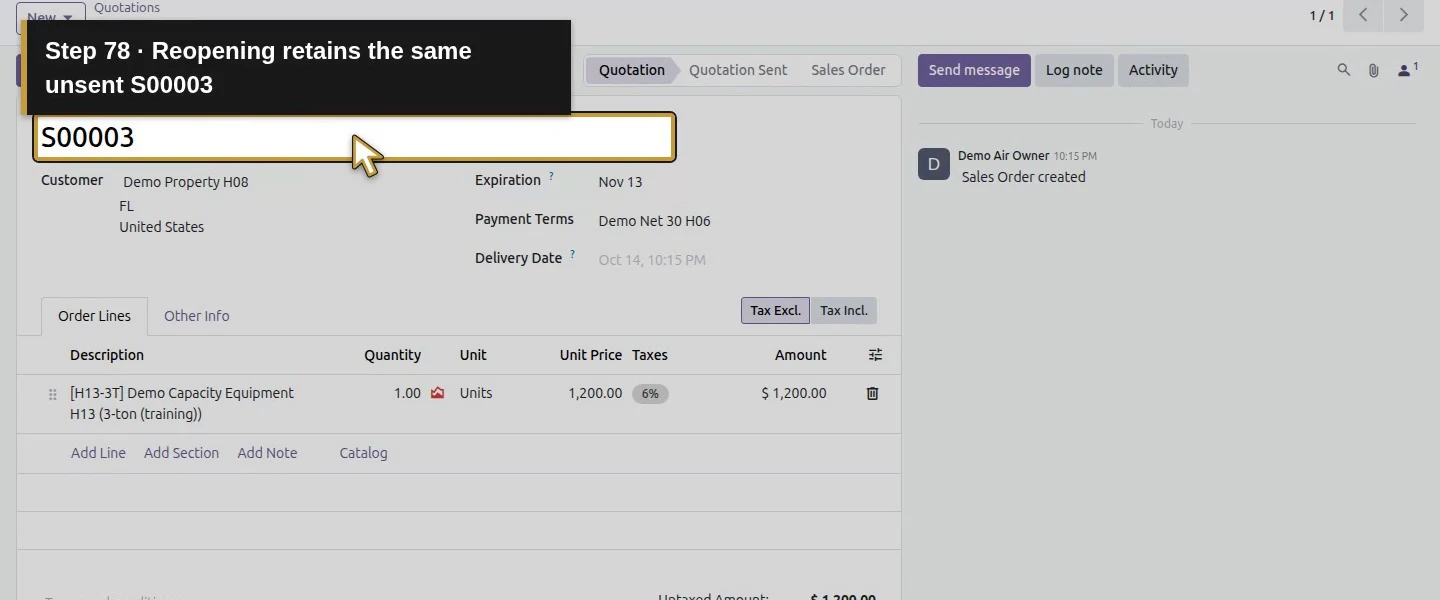
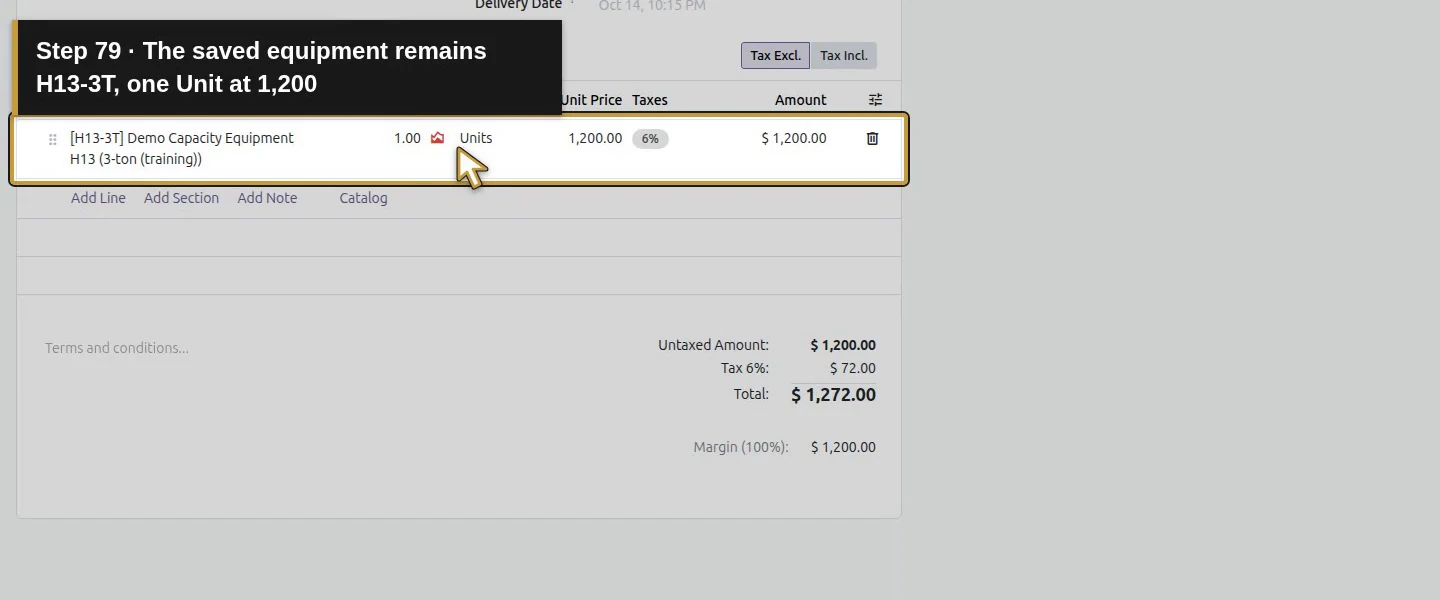
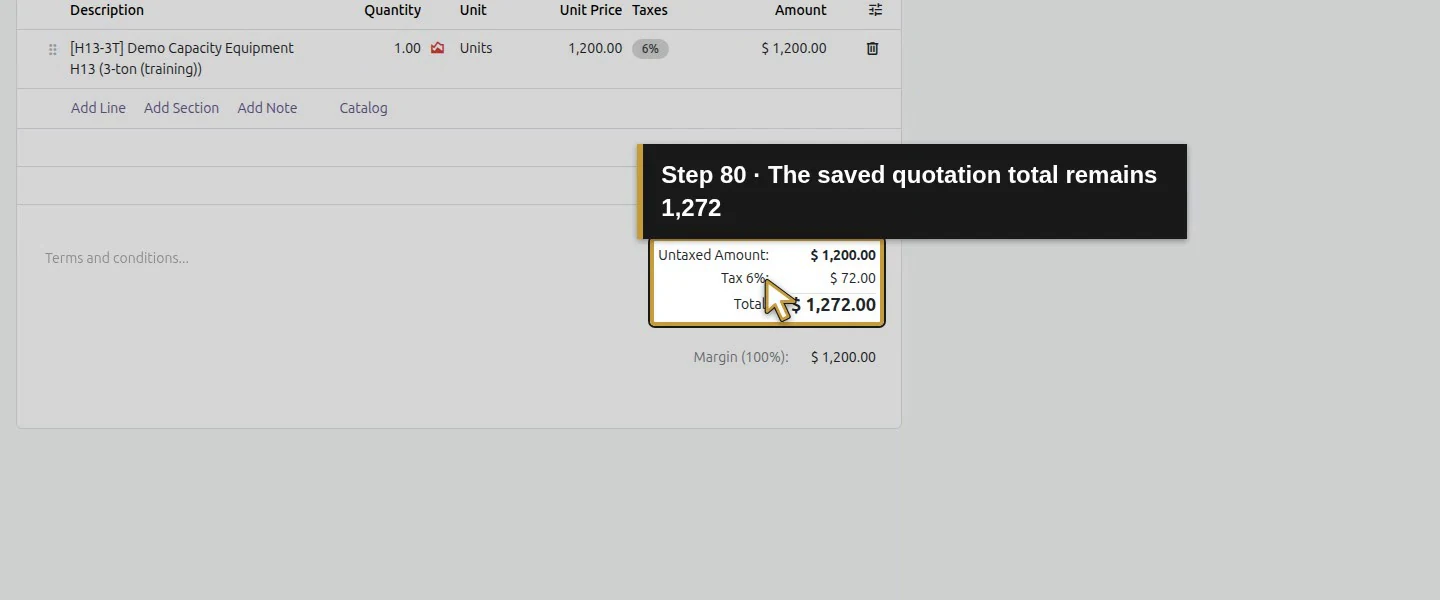
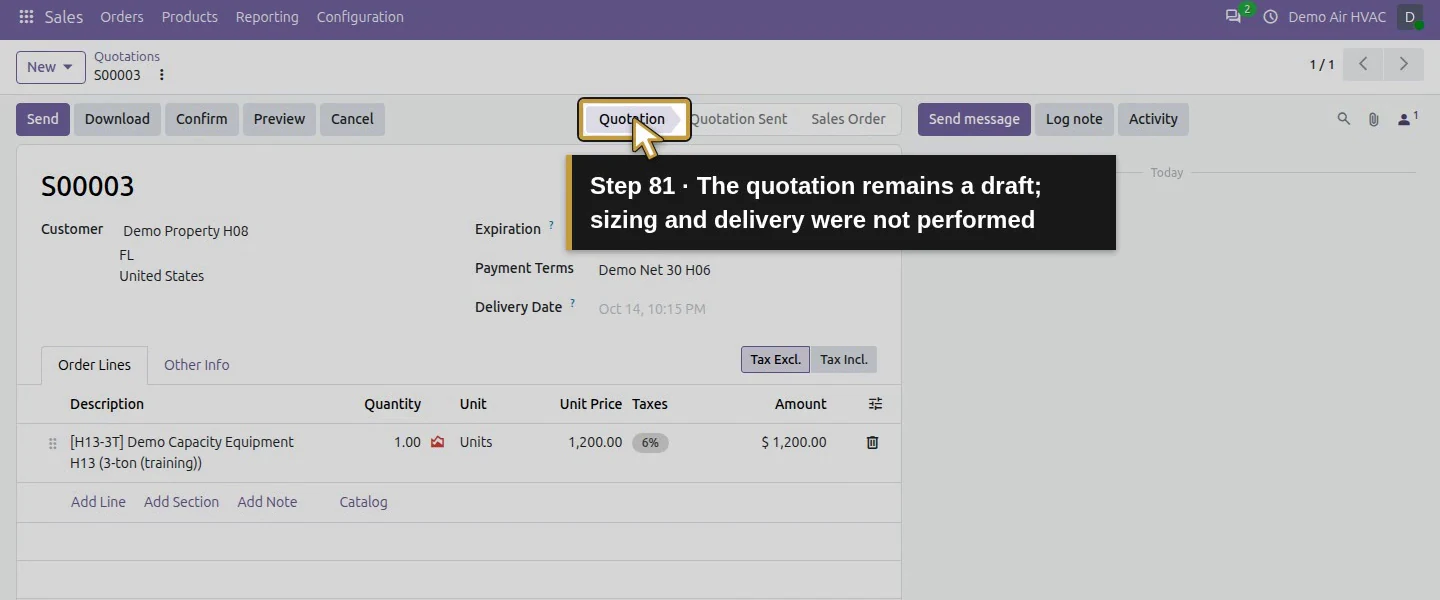
Set Payment Terms Demo Net 30 H06. Check the line has H13-3T, quantity one, Units and Unit Price $1,200. The training 6% tax gives $72 and a $1,272 total. Choose Save manually, wait for S00003, then reopen. Verify the variant and total. The quotation remains a draft; no stock receipt or delivery was created.
Check the result
Active template 19 has two native variants: product 19 H13-2T at $1,000 and product 20 H13-3T at $1,200. Both have zero stock. Saved draft S00003 selects product 20, one Unit at $1,200, $72 demo tax and $1,272 total; it retains customer/address records 7/8/9 and term 11. S00001/S00002 remain draft at $275.60 each. Original H12 quantities remain five filters, one capacitor and zero condensers.
If your screen differs
Training capacity labels do not prove equipment compatibility, load calculations or sizing. Price extras were verified with the current base price; other pricelist rules need separate testing. Wait for a new record to finish saving before reloading: the verification run produced an extra training template during an early reload, then archived that unused copy through Odoo. Search and reopen the existing product before creating another. Customer acceptance, purchasing, stock delivery and technical selection were not performed.
Frequently asked questions
How do I create product variants in Odoo?
Enable Variants, create a native attribute with reviewed values, and apply both values to a separate product's Attributes & Variants tab. This Instantly example generated two saved variants with distinct Internal References.Can Odoo product variants have different prices?
The tested template price is $1,000. Its 2-ton value has no extra; the 3-ton value adds $200. Selecting 3-ton in the native configurator produced a saved draft line at $1,200 before the fictional tax.Does an Odoo equipment variant verify HVAC compatibility?
This lesson records catalogue choices and quote prices. The training capacity labels do not verify load calculations, compatible equipment or the correct system for a property.Continue building the business
Continue with customer pricelists, whose pricing rules require their own native verification.
Talk about your Odoo setup
Bring your current process and the result you need to Onward to plan your Odoo workflow. Talk about your Odoo setup.