
Running an HVAC business with Odoo
How do I invoice a deposit and deduct it from the final invoice in Odoo?
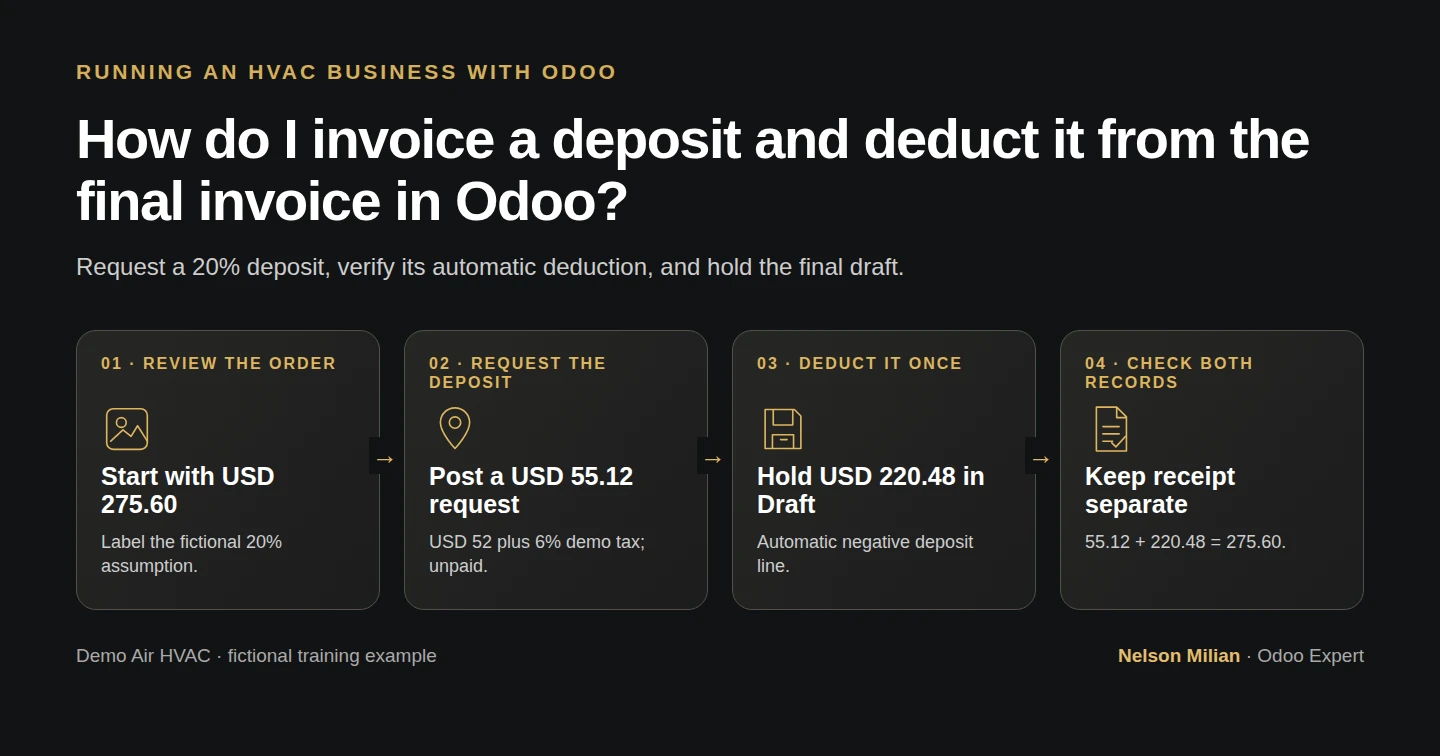
Create a 20% Odoo deposit invoice and verify its automatic deduction in a final draft, keeping unpaid requests, posted invoices and receipts separate.
Alex wants a deposit request that stays linked to the accepted HVAC quotation. This native example posts a 20% request for $55.12, then checks its deduction in a $220.48 final draft. The deposit is still unpaid. The final draft stays on hold: creating it demonstrates billing arithmetic, not completed service or permission to send a final bill.
Alex Rivera and Demo Air HVAC are fictional training examples. Prices, dates, quantities and business situations in this guide are illustrative.
Before you begin
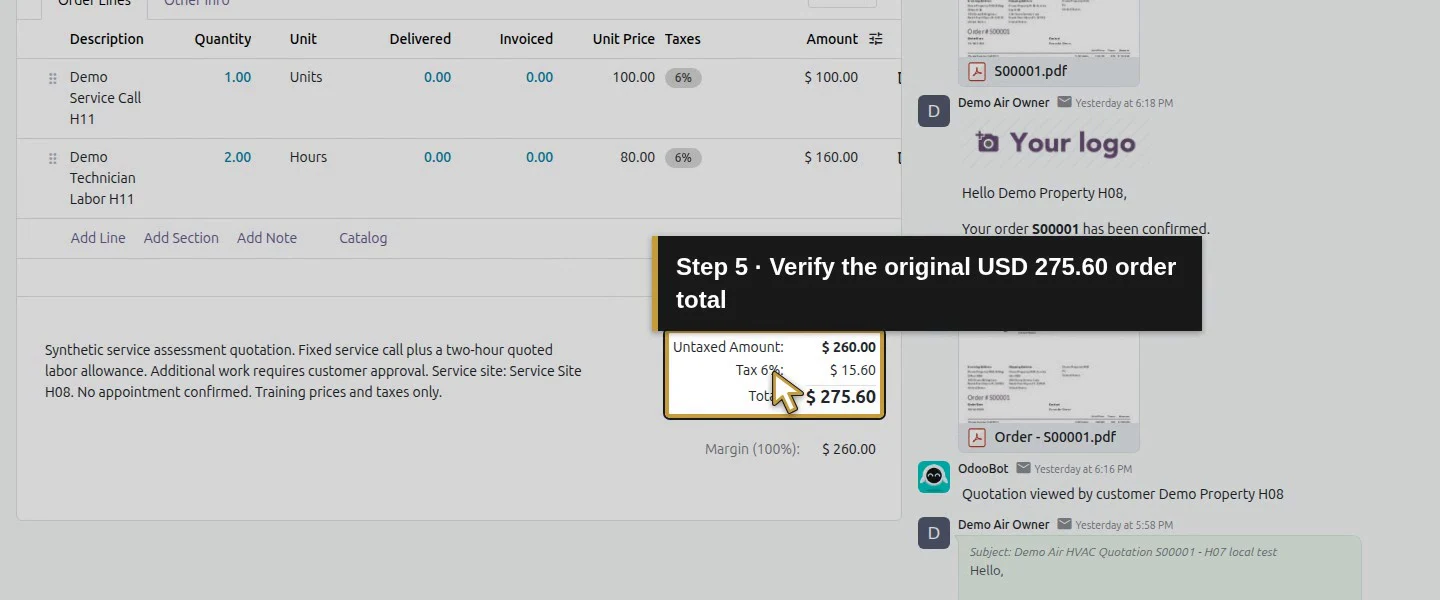
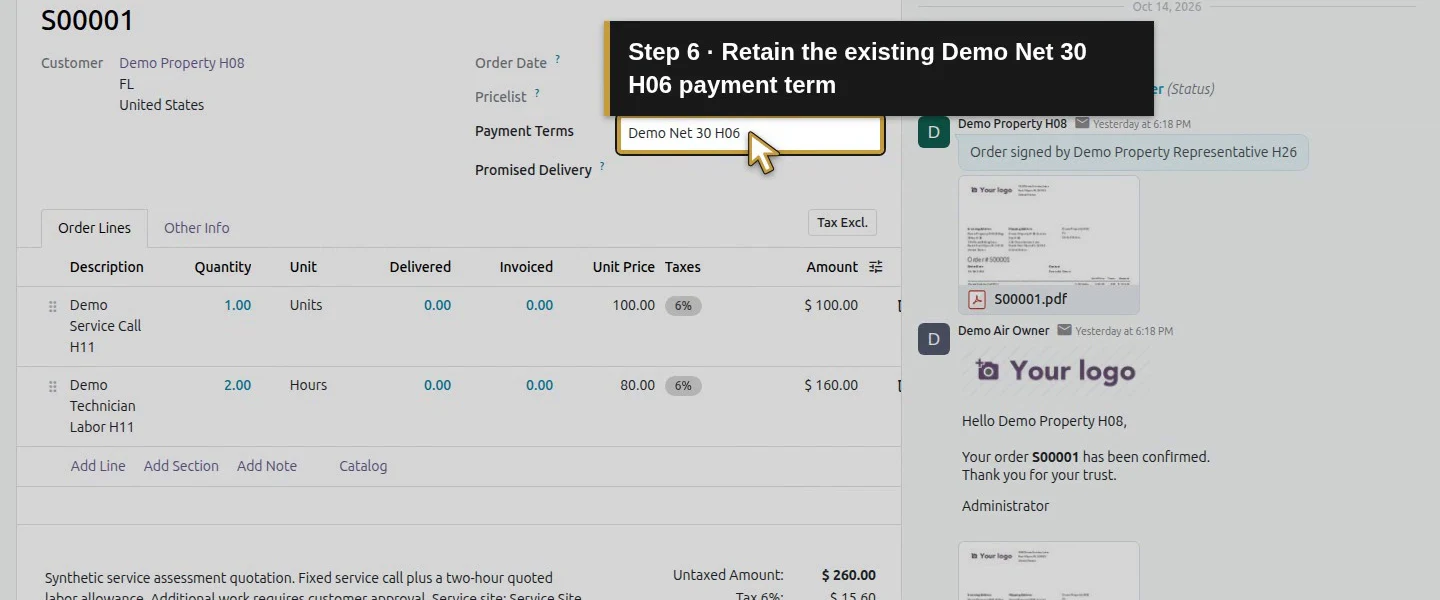
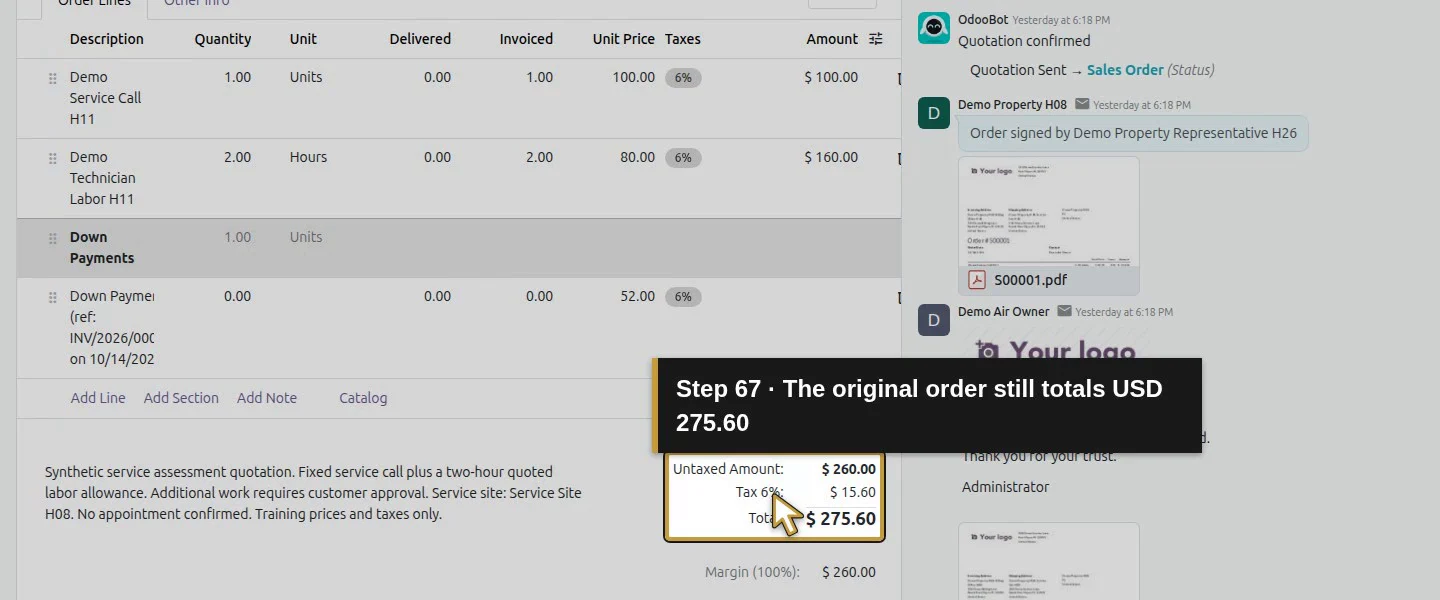
Tested in stock Odoo 20.0-20260926 Community as the demo owner administrator, with official modules and standard configuration. Reuse S00001, the $275.60 confirmed fixed-price order from the accepted fixed-price quotation, with the invoicing setup from the invoicing setup and existing the existing payment term. Its original service-call line is $100 and quoted labor is 2 Hours at $80; demo tax is 6%, with $260 untaxed and $275.60 total. These H11 products invoice ordered quantities, not actual timesheets. The scenario explicitly assumes a separately agreed 20% deposit for training; the original signature does not establish that additional agreement. No real agreement, work or receipt is asserted. Confirm actual commercial terms and the appropriate tax/account treatment for your business before using them.
Step-by-step workflow
Create one percentage deposit request, check its unpaid balance and verify the automatic deduction in a held final draft. The request and draft total the original order; no receipt or final posting occurs in this lesson.
Step 1. Review the same order and record the deposit decision
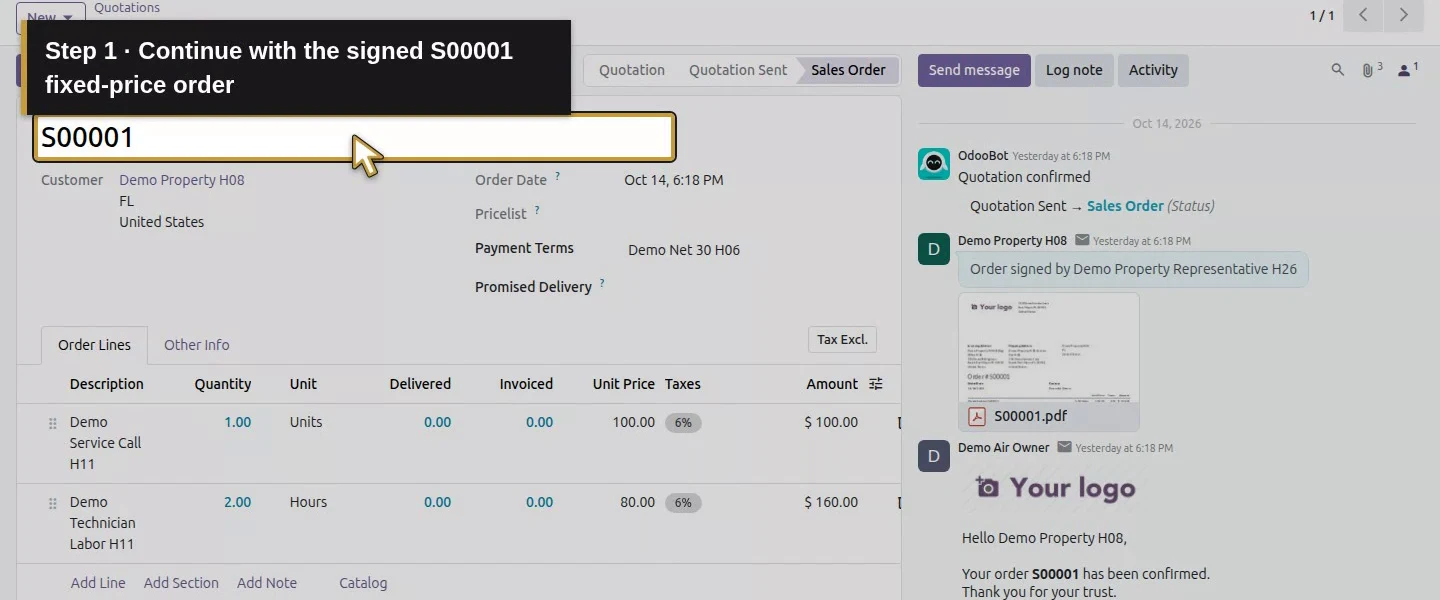
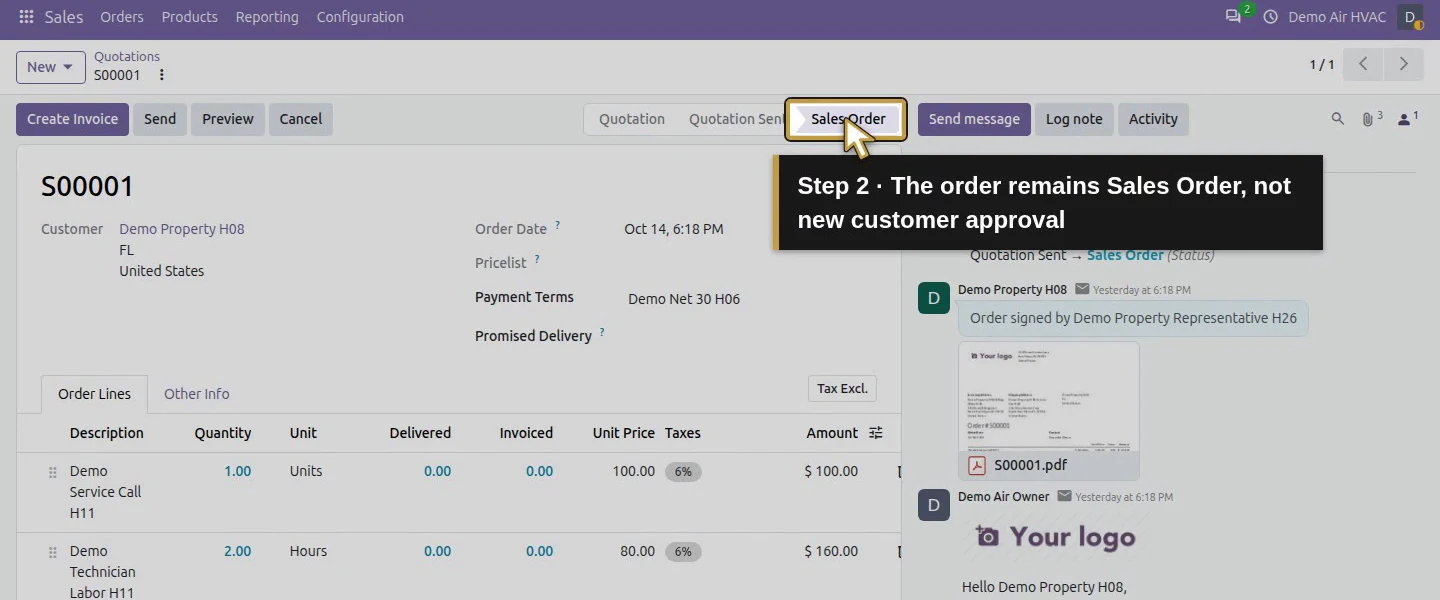
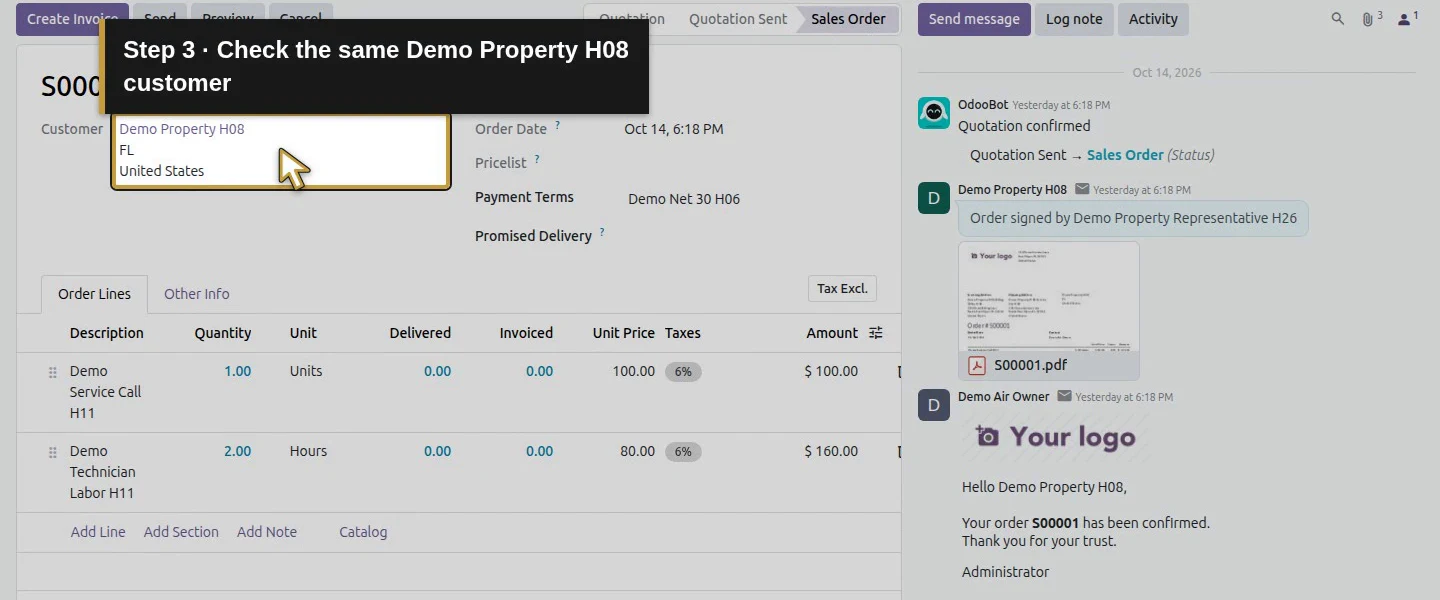
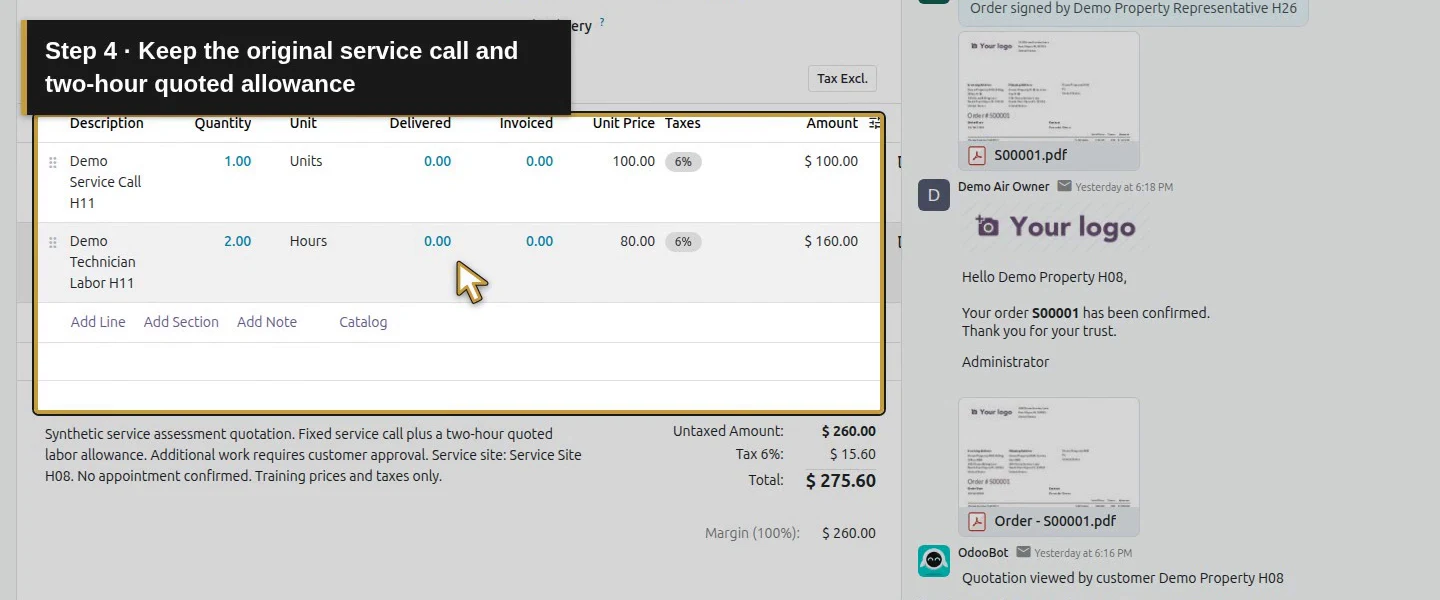
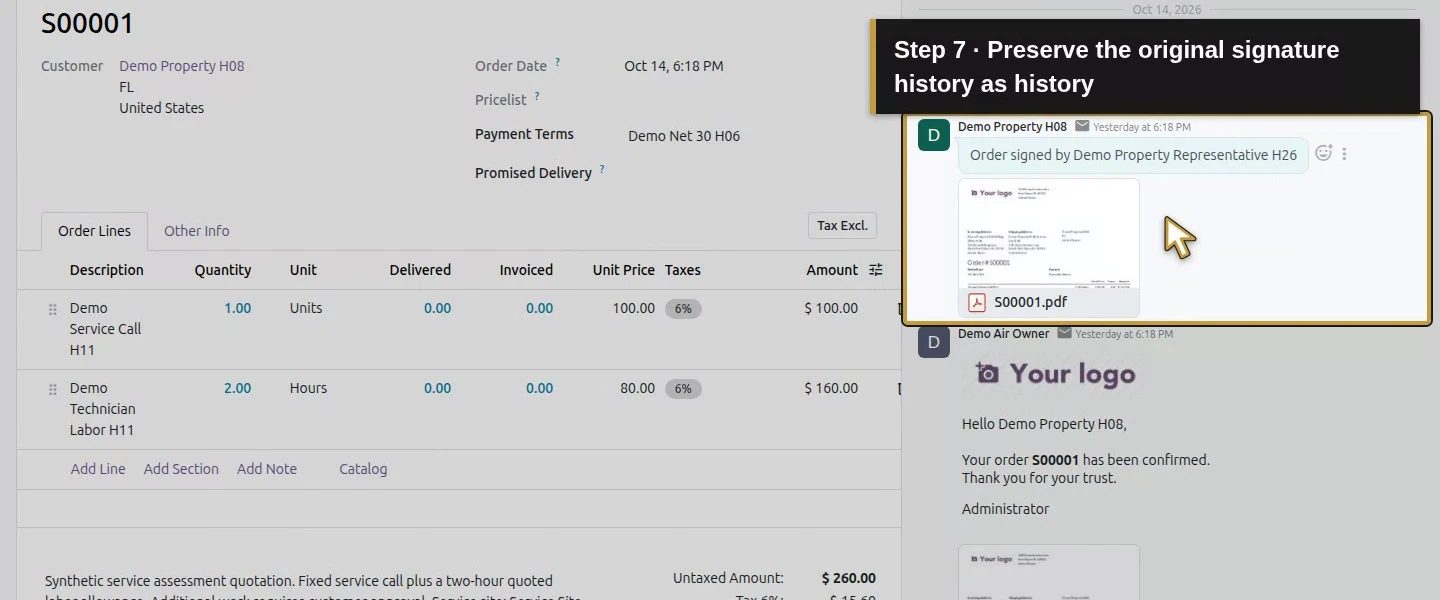
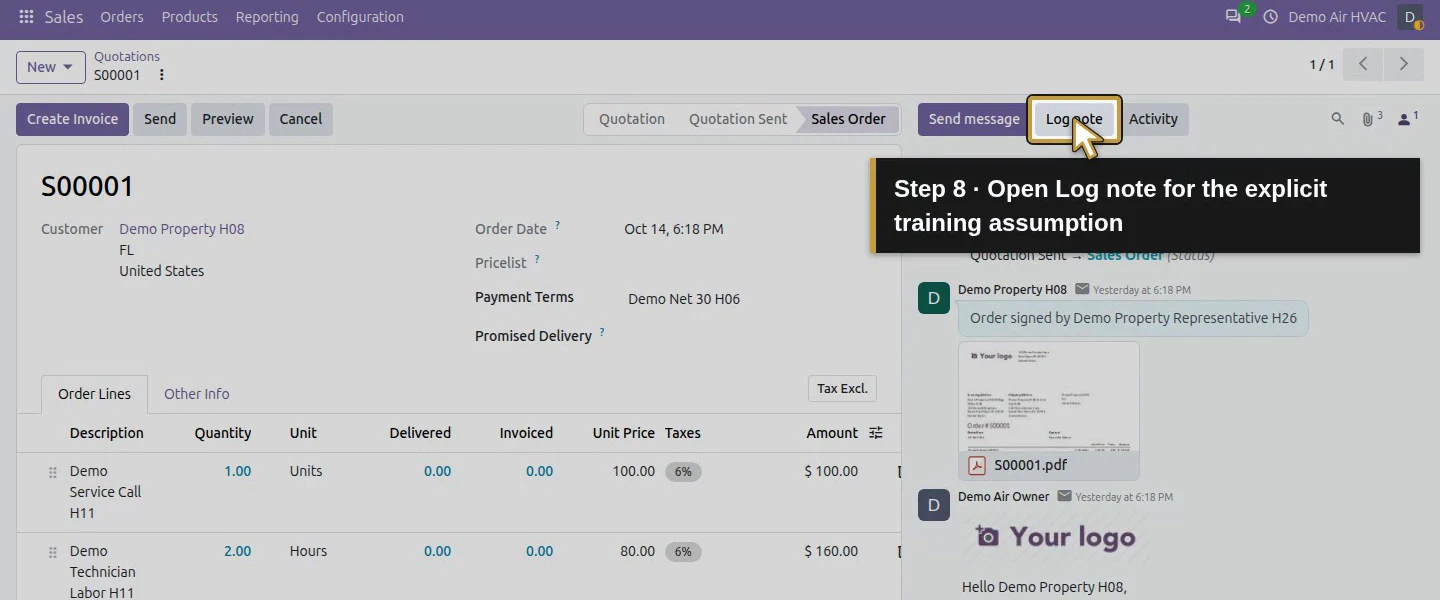
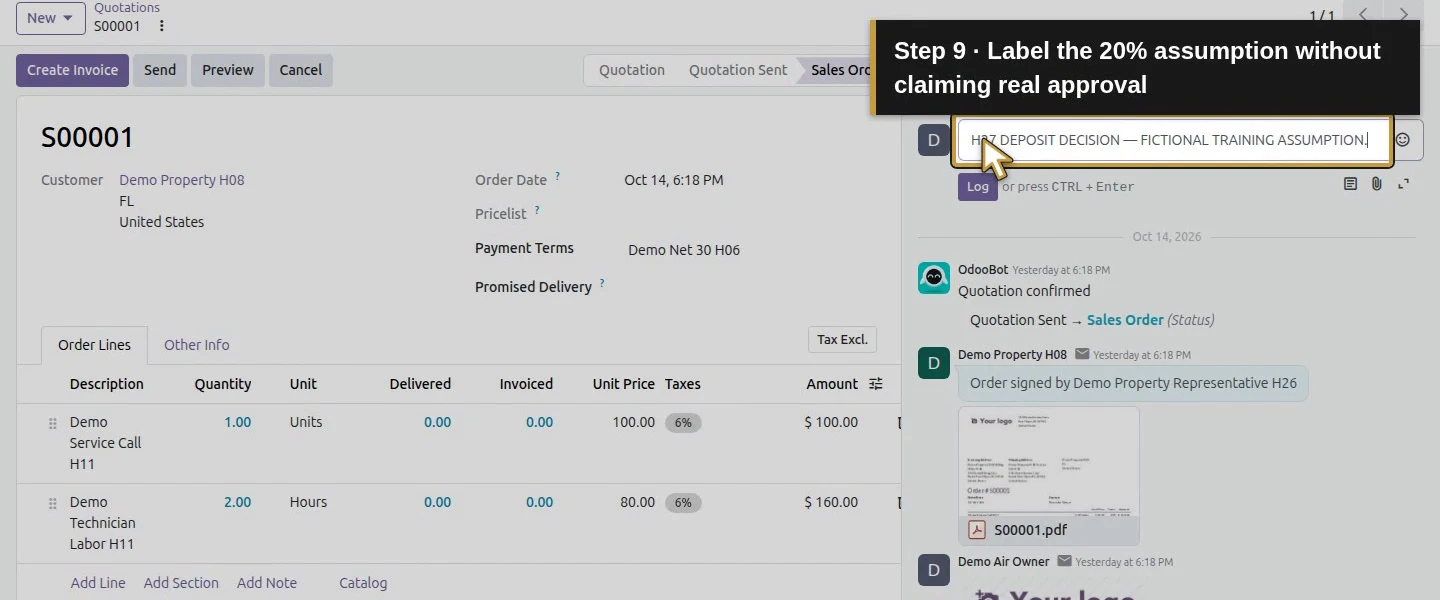
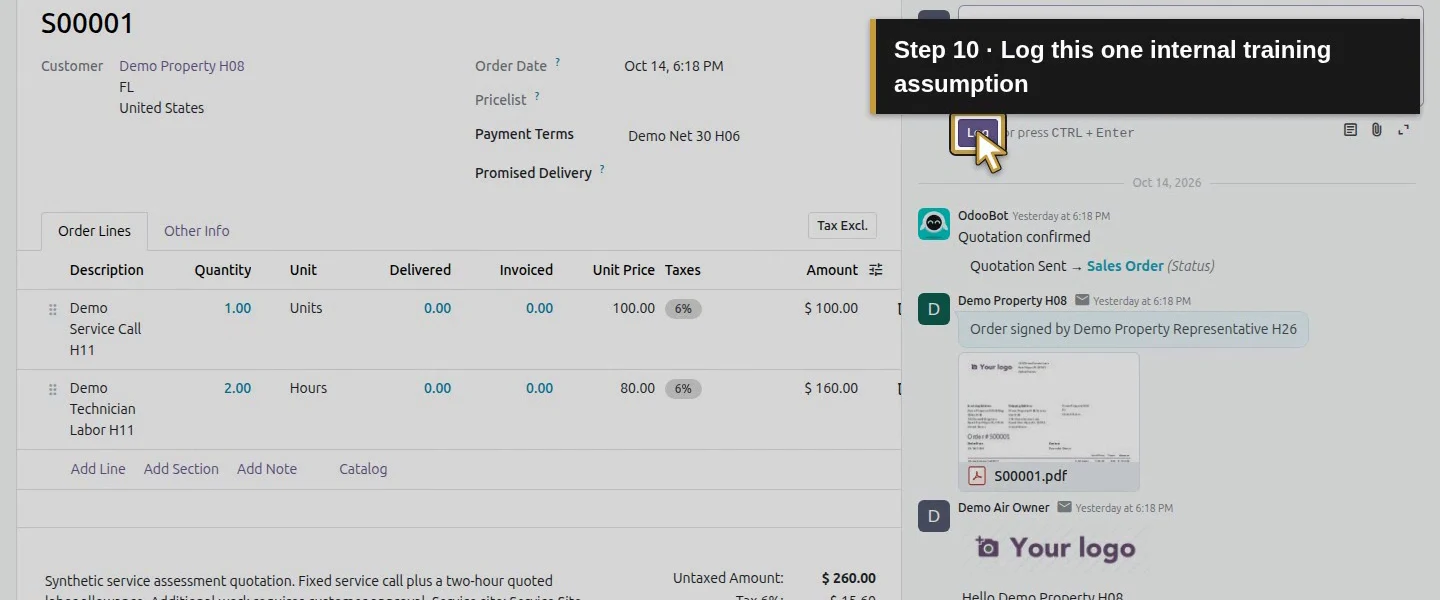
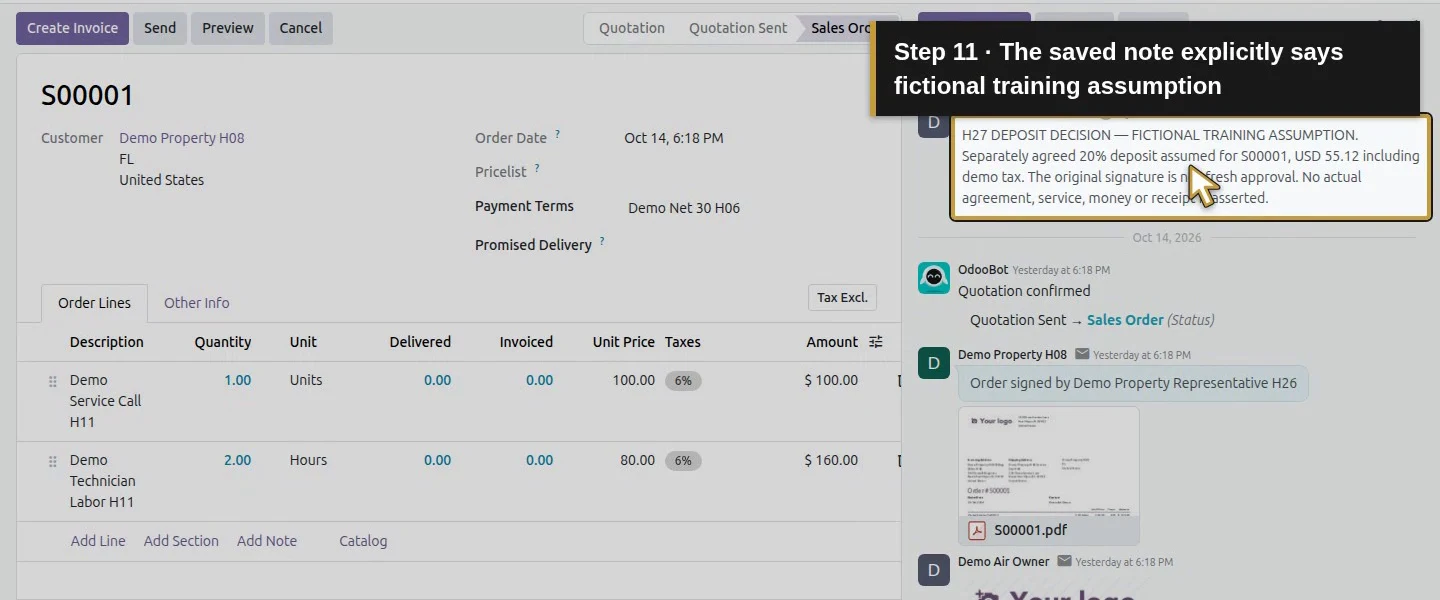
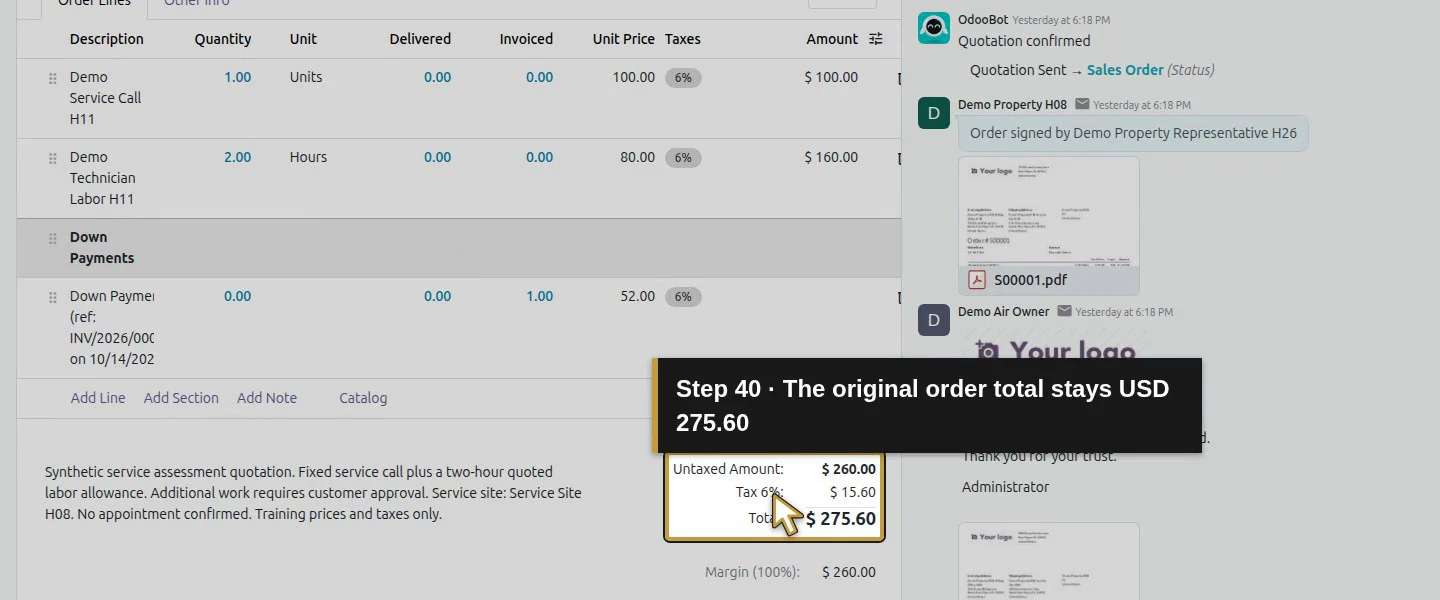
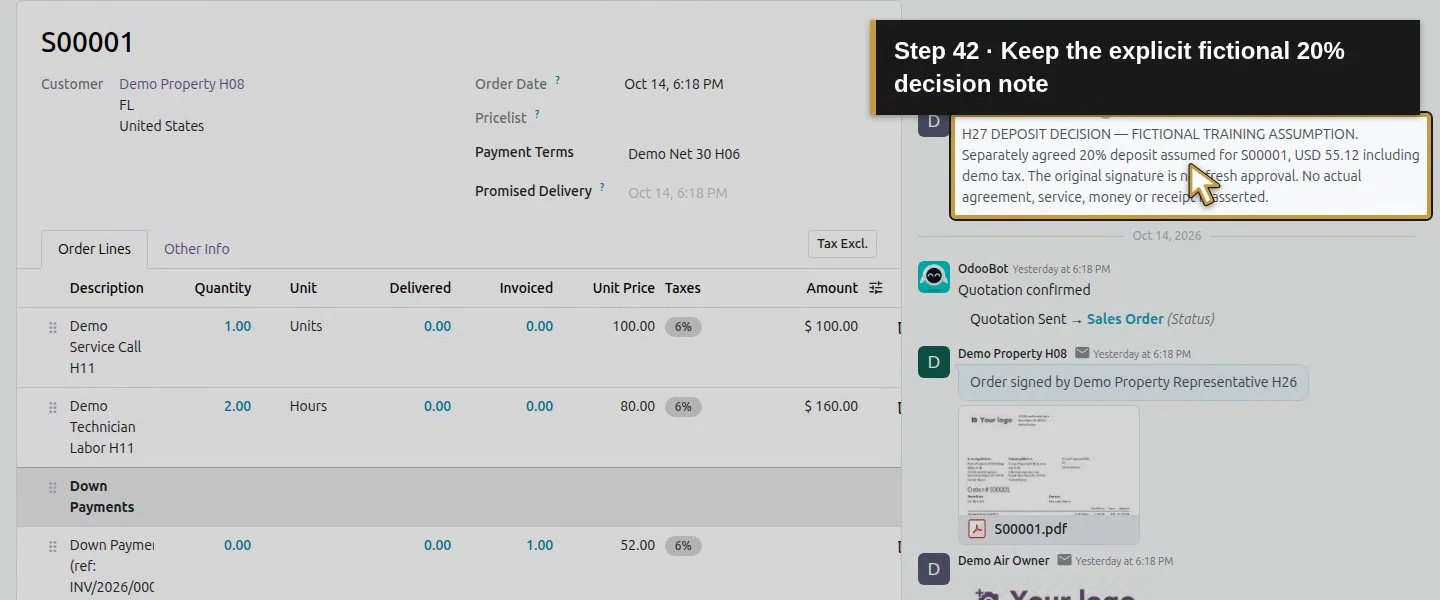
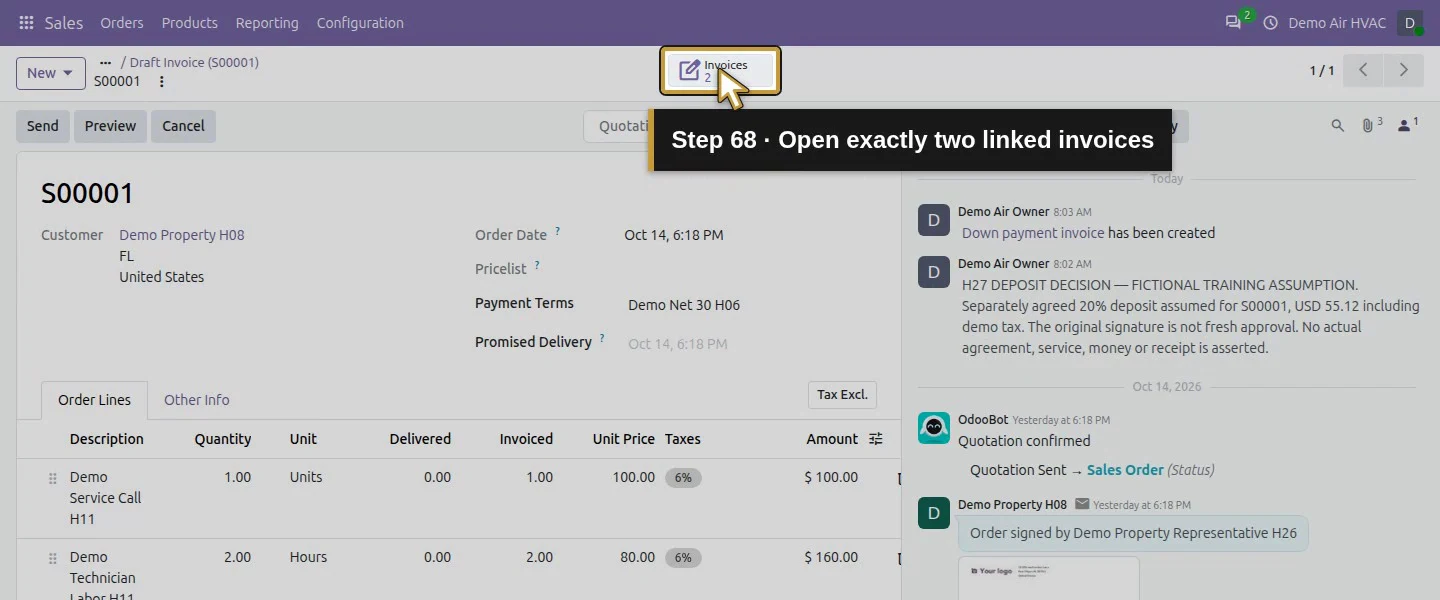
Open S00001 and check Sales Order, customer Demo Property H08, billing/service contacts, the original two service lines and $275.60 total. At the starting checkpoint it has no invoice. Use Log note, enter the clearly labelled training assumption of a separately agreed 20% deposit, and click Log. Preserve the original signed quotation and scope; an internal training note does not create actual customer approval.
Step 2. Choose the native percentage option
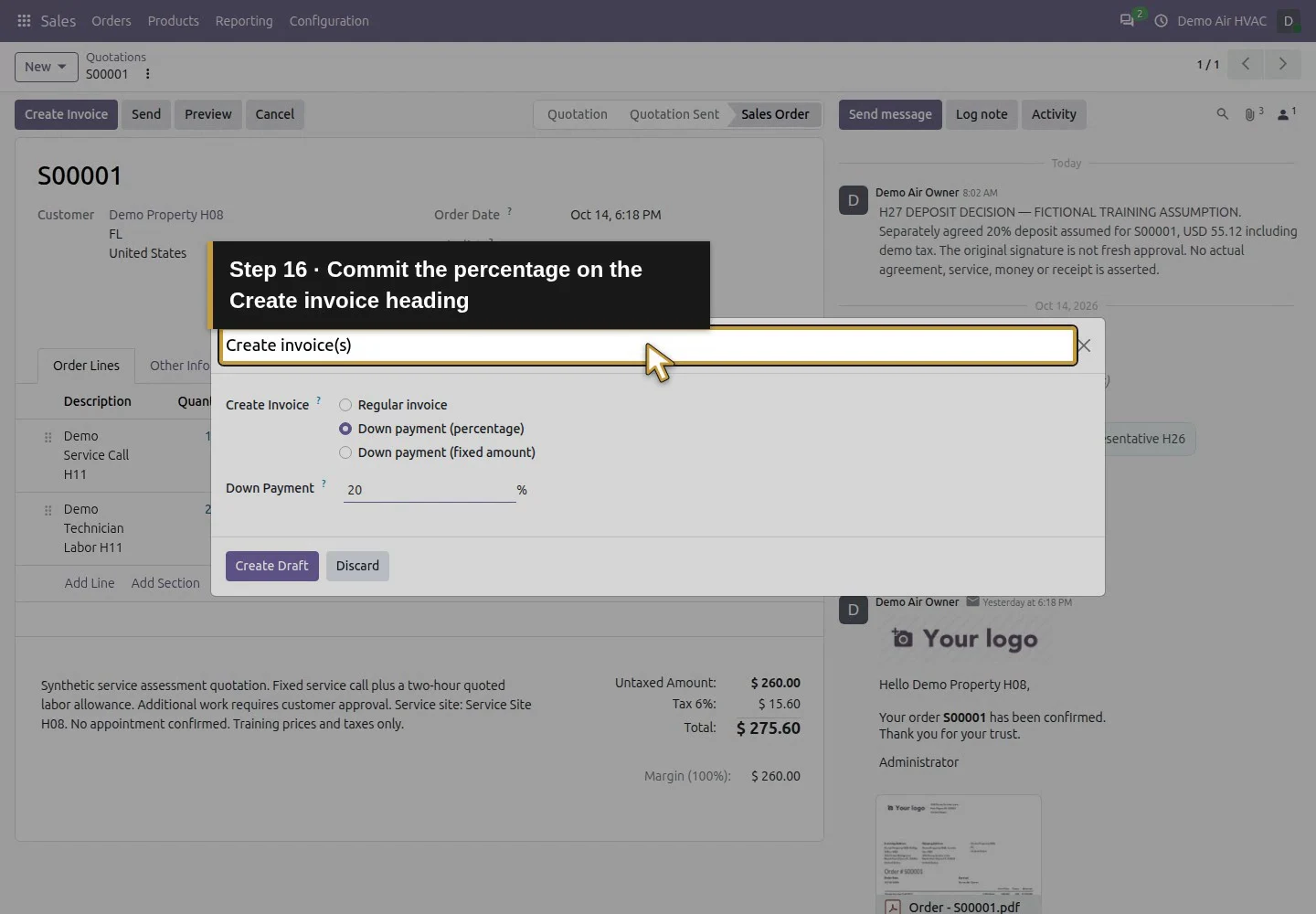
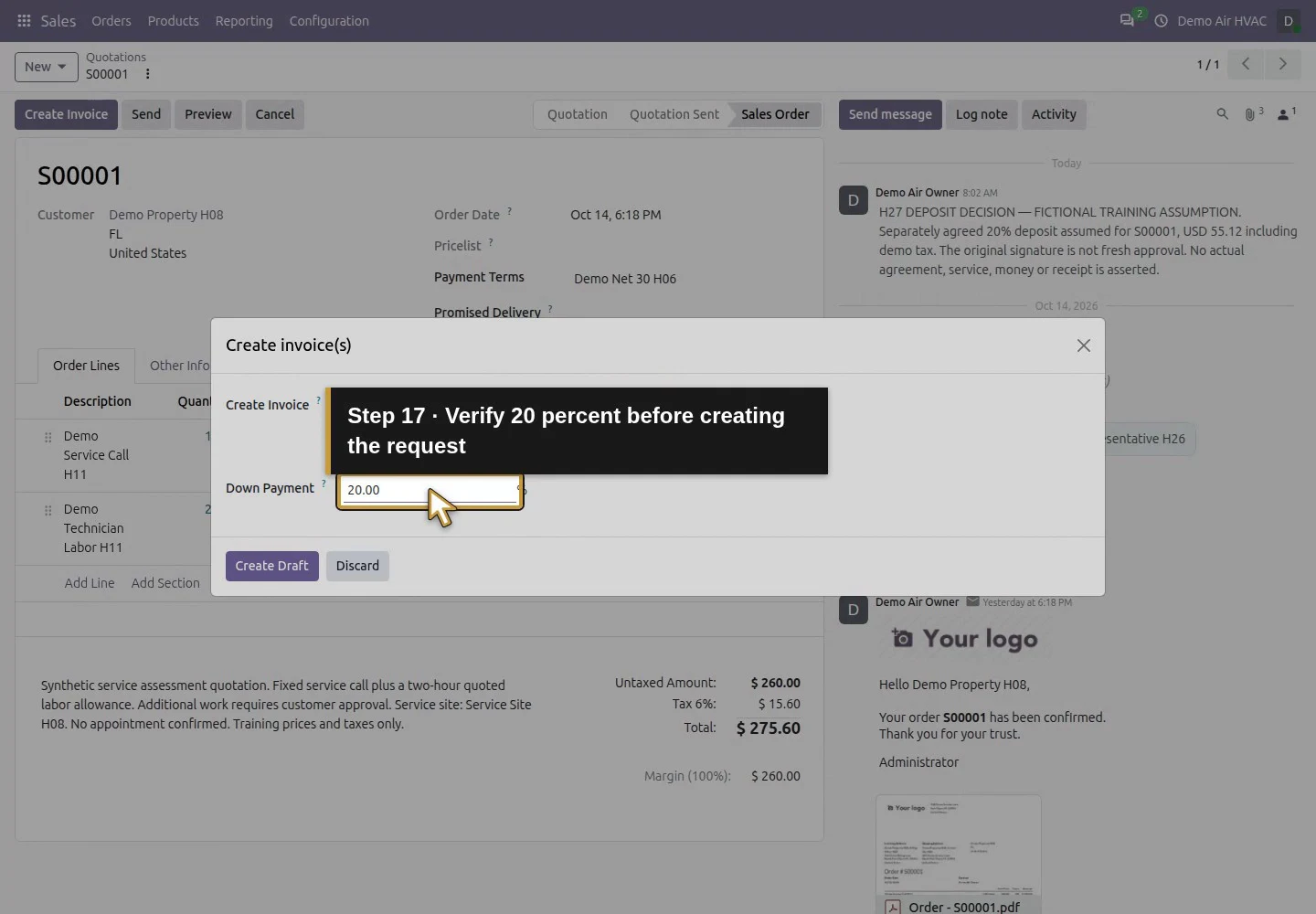
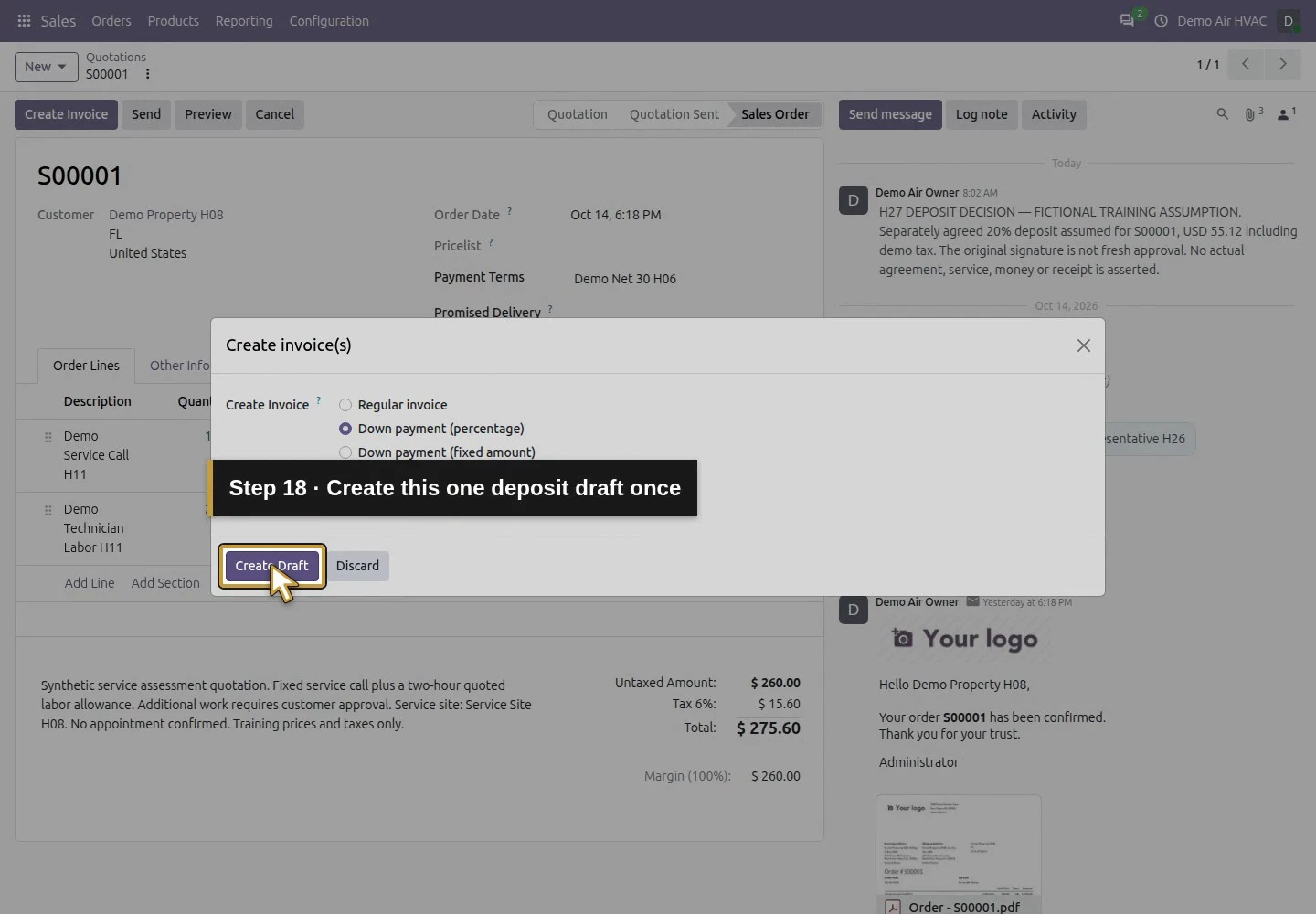
Click Create Invoice. In Create invoice(s), select Down payment (percentage). The other visible choices are Regular invoice and Down payment (fixed amount); this test uses only percentage. Enter 20 in Down Payment and click Create Draft once. Wait for the generated draft invoice.
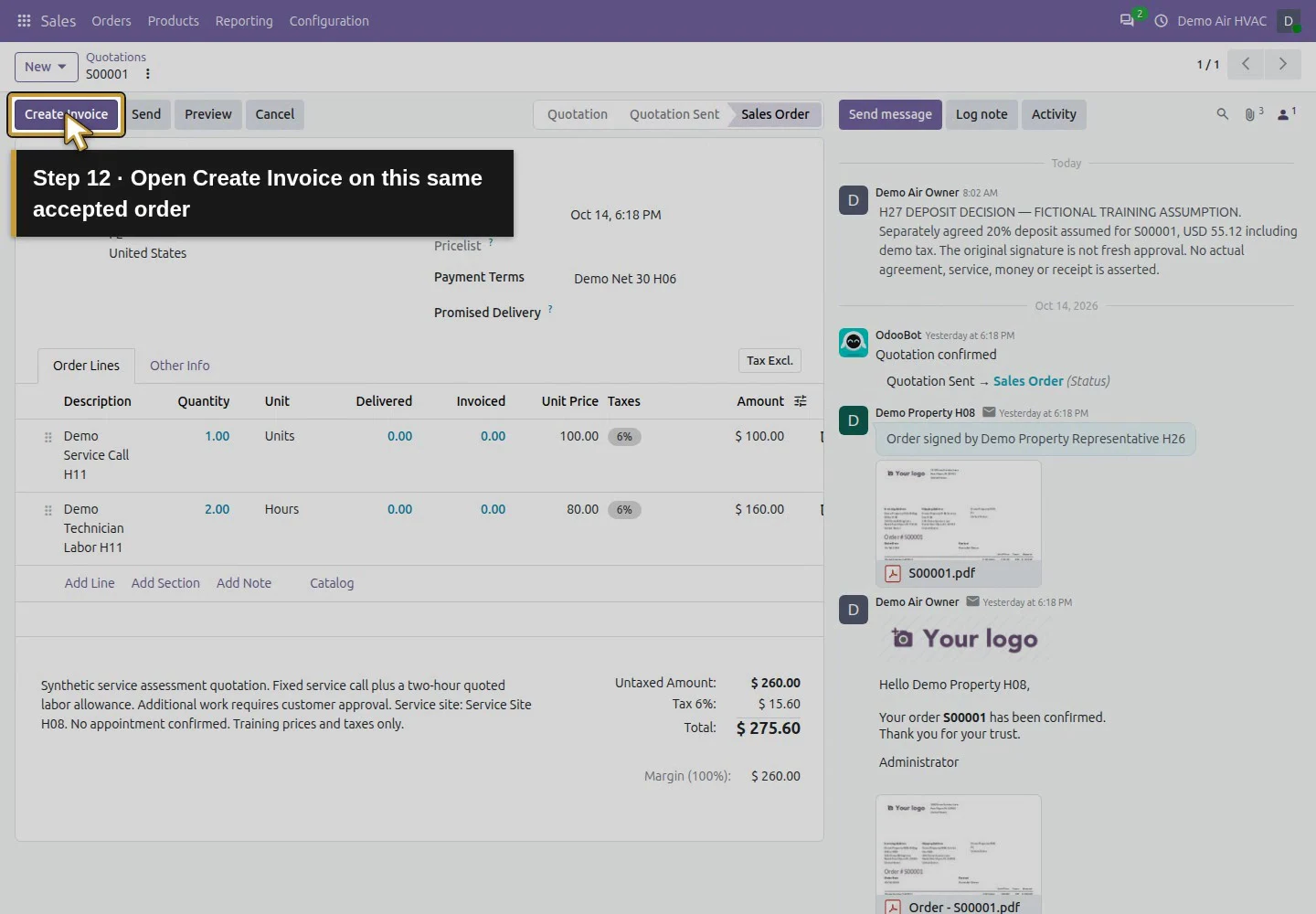
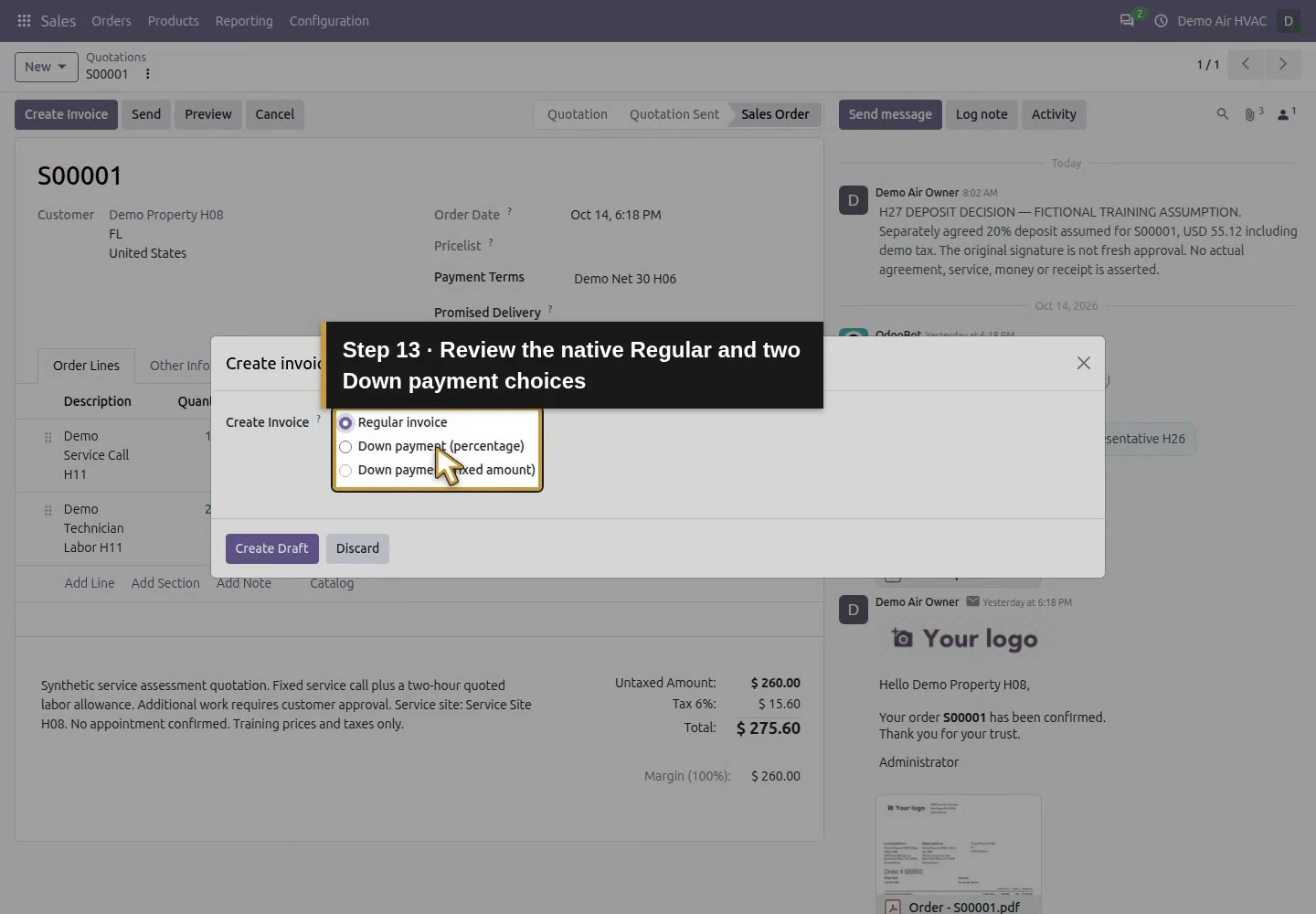
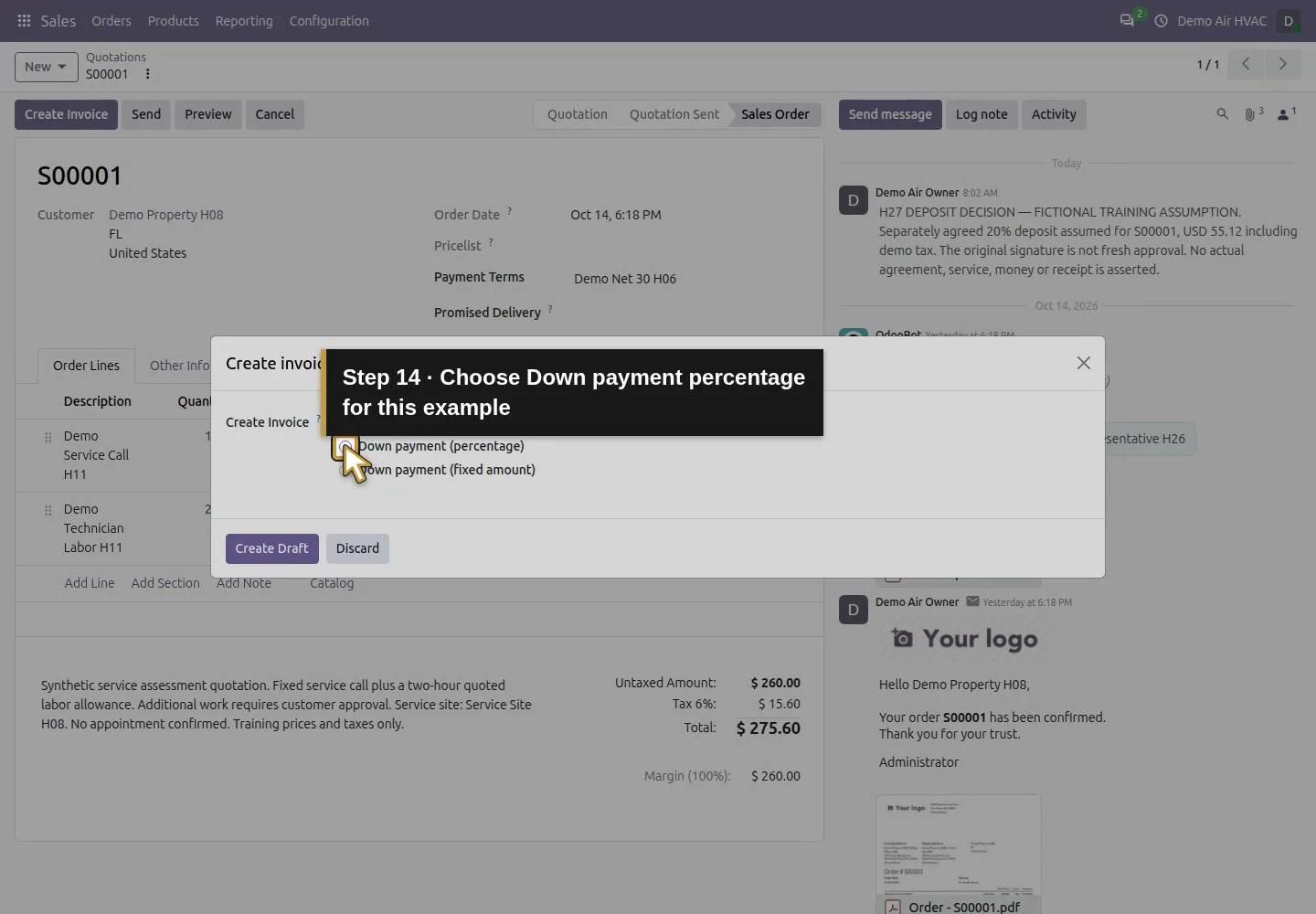
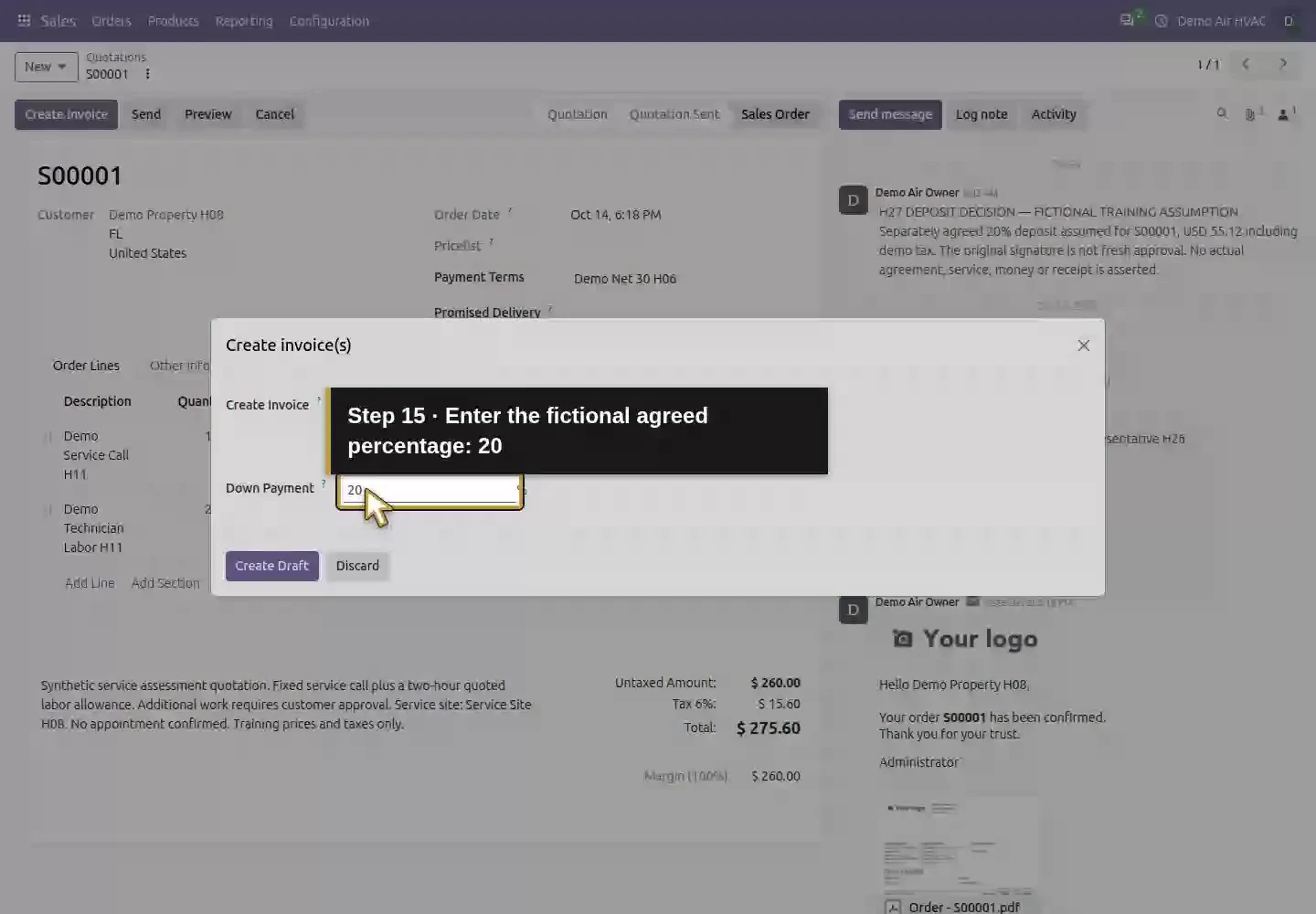
Step 3. Check the deposit line, customer and calculation
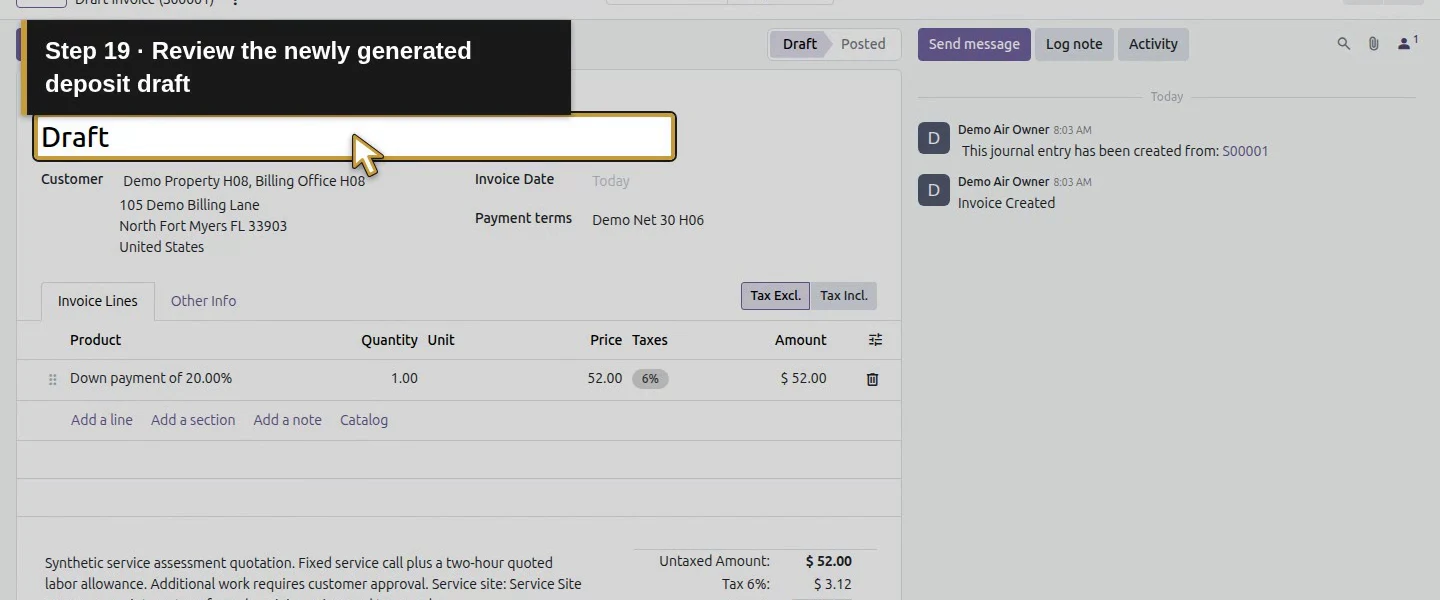
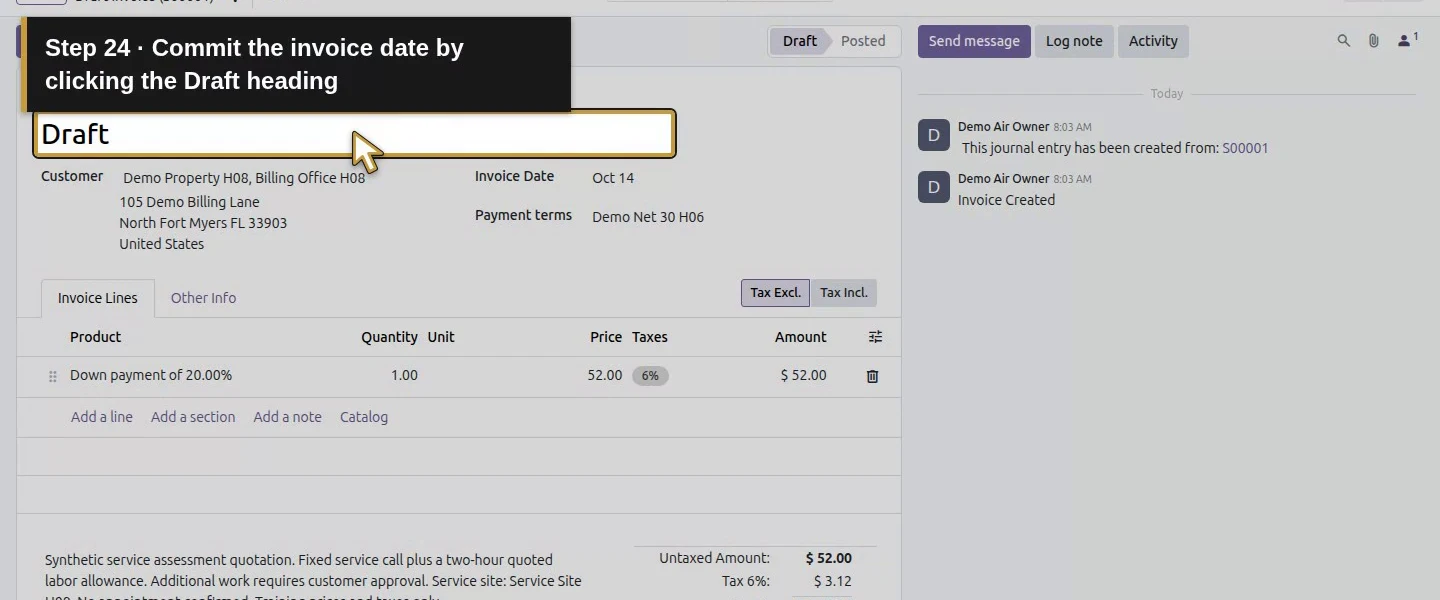
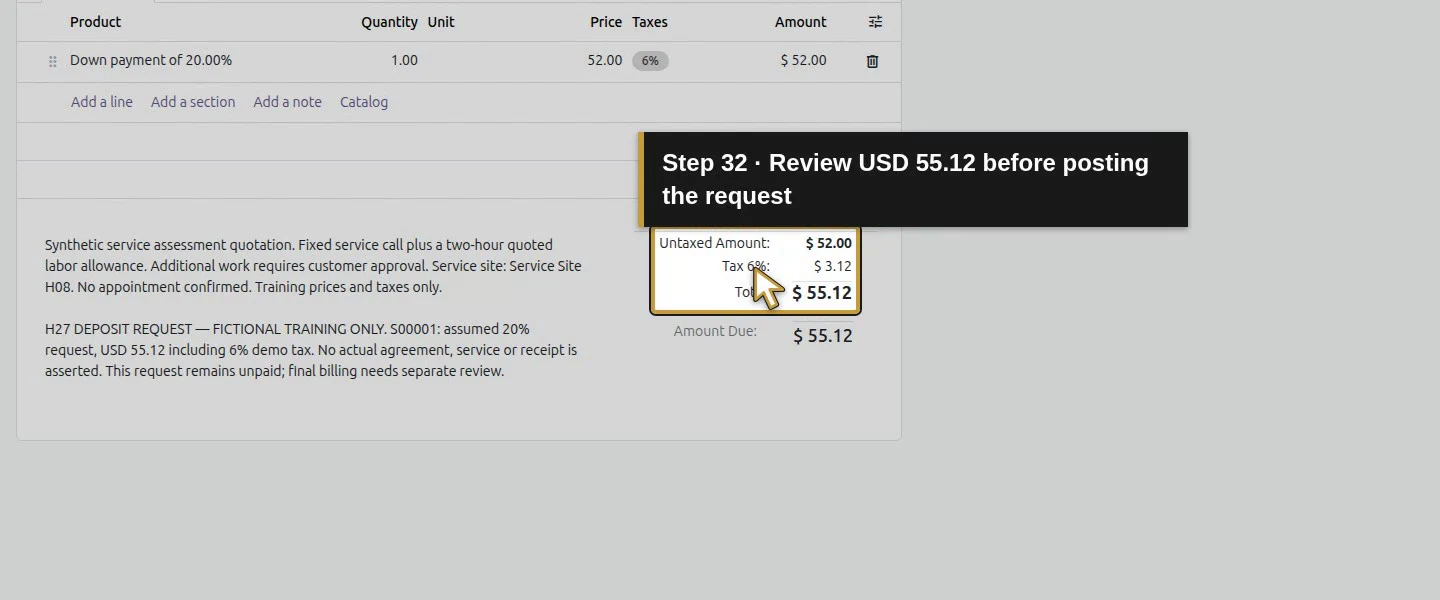
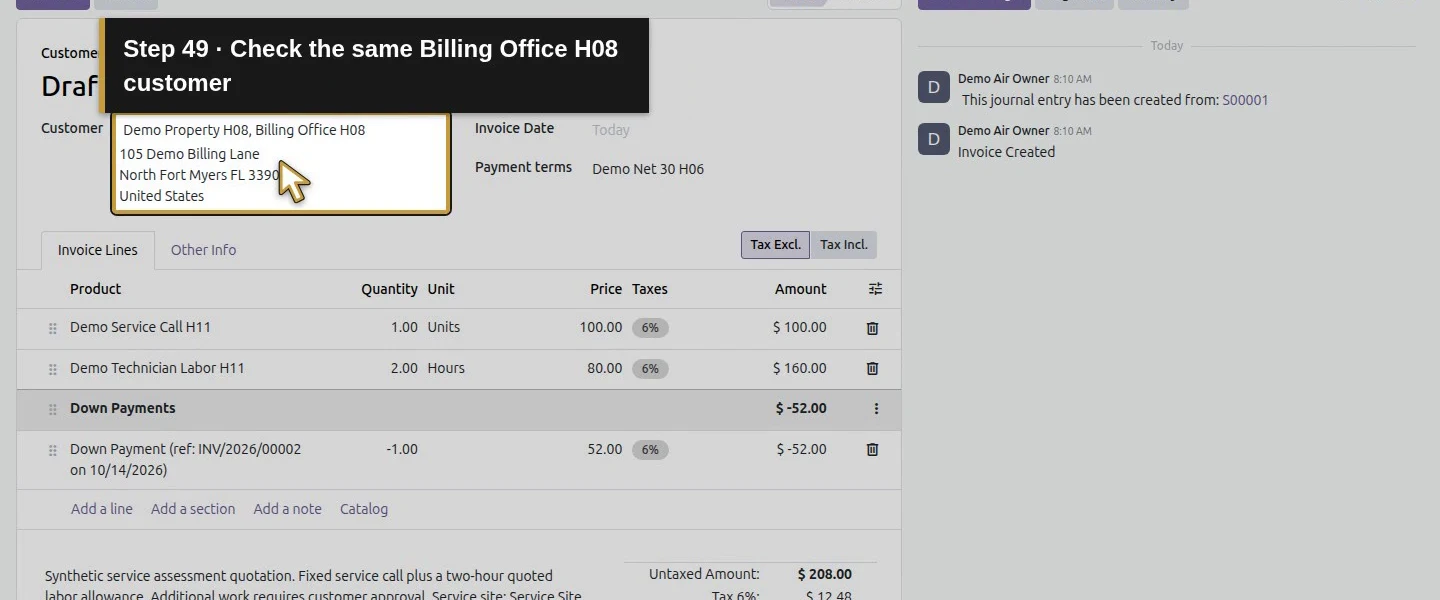
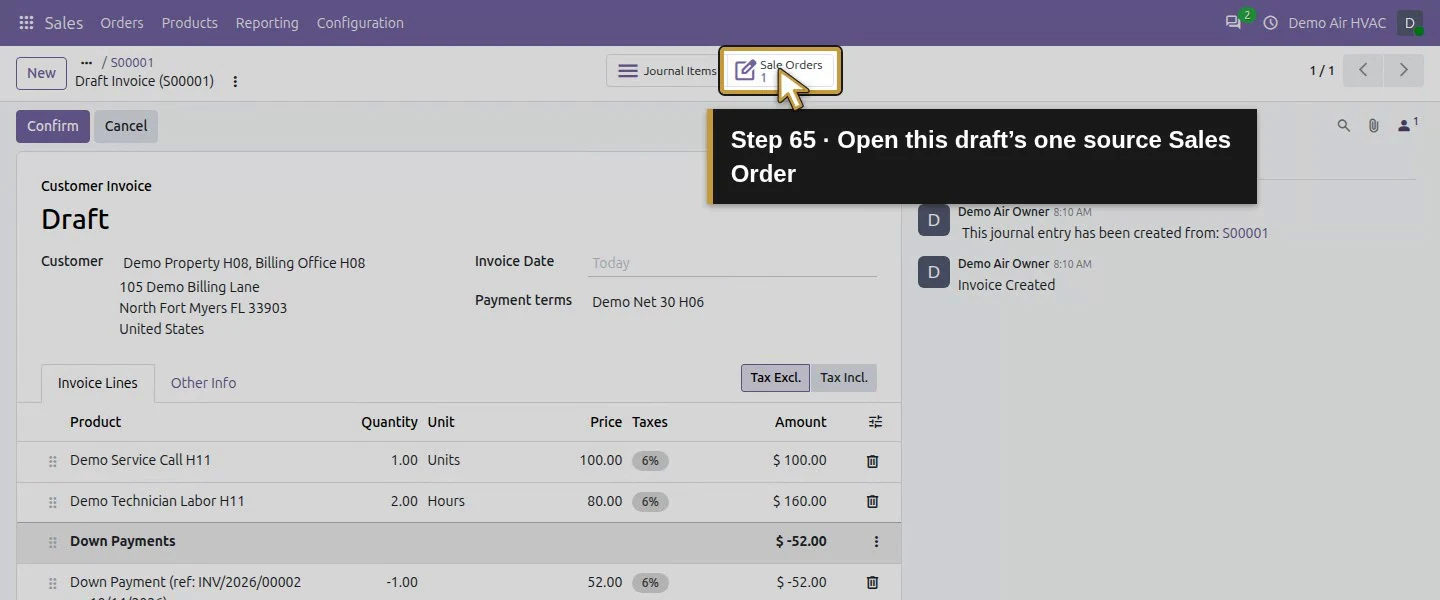
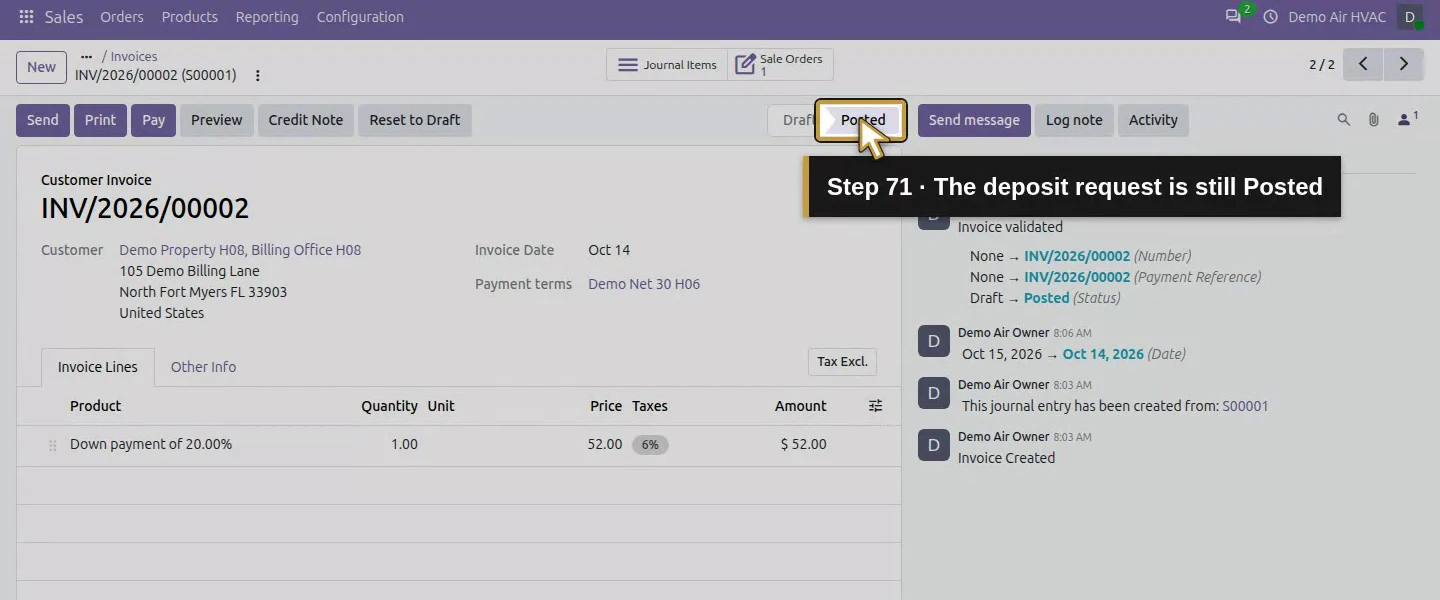
The draft is addressed to Demo Property H08, Billing Office H08 and retains 1 Sale Orders linked to S00001. Its line reads Down payment of 20.00%, Quantity 1.00, Price 52.00, Tax 6%. Totals are $52 untaxed + $3.12 demo tax = $55.12. The saved line has no selected product and uses the existing Product Sales account in this demo; this flow did not require creating a Down Payment product. Review the actual account/tax defaults rather than treating this synthetic configuration as an accounting recommendation.
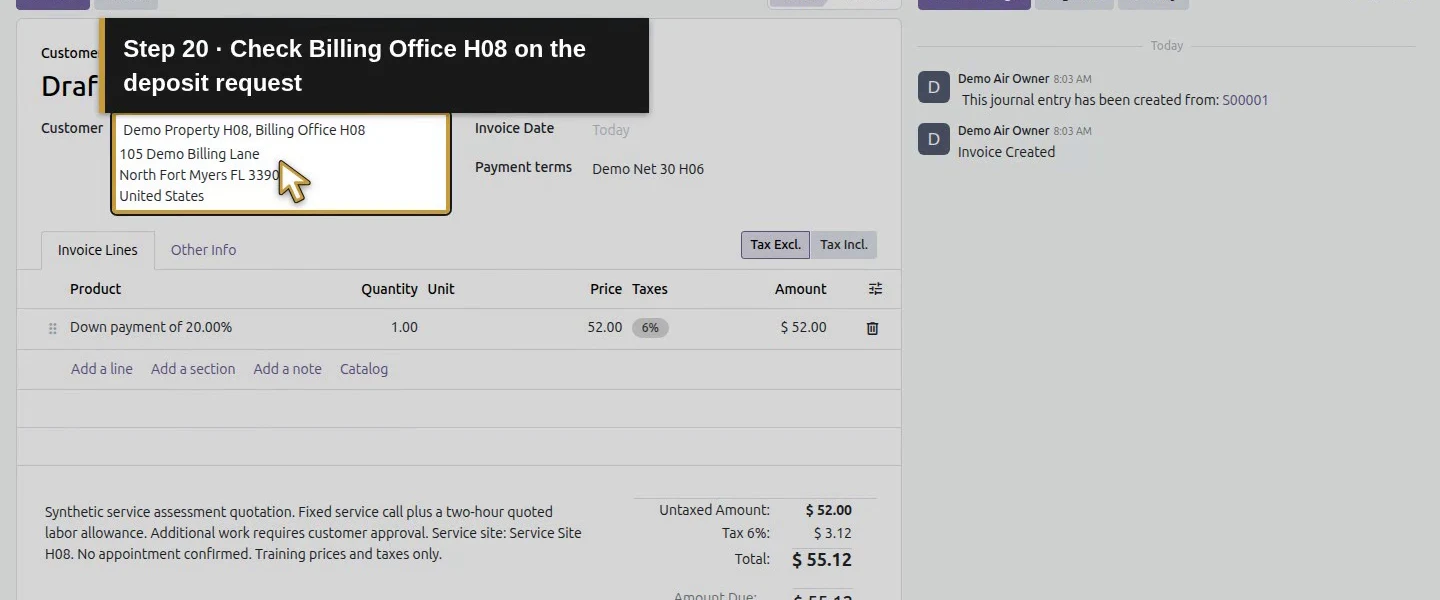
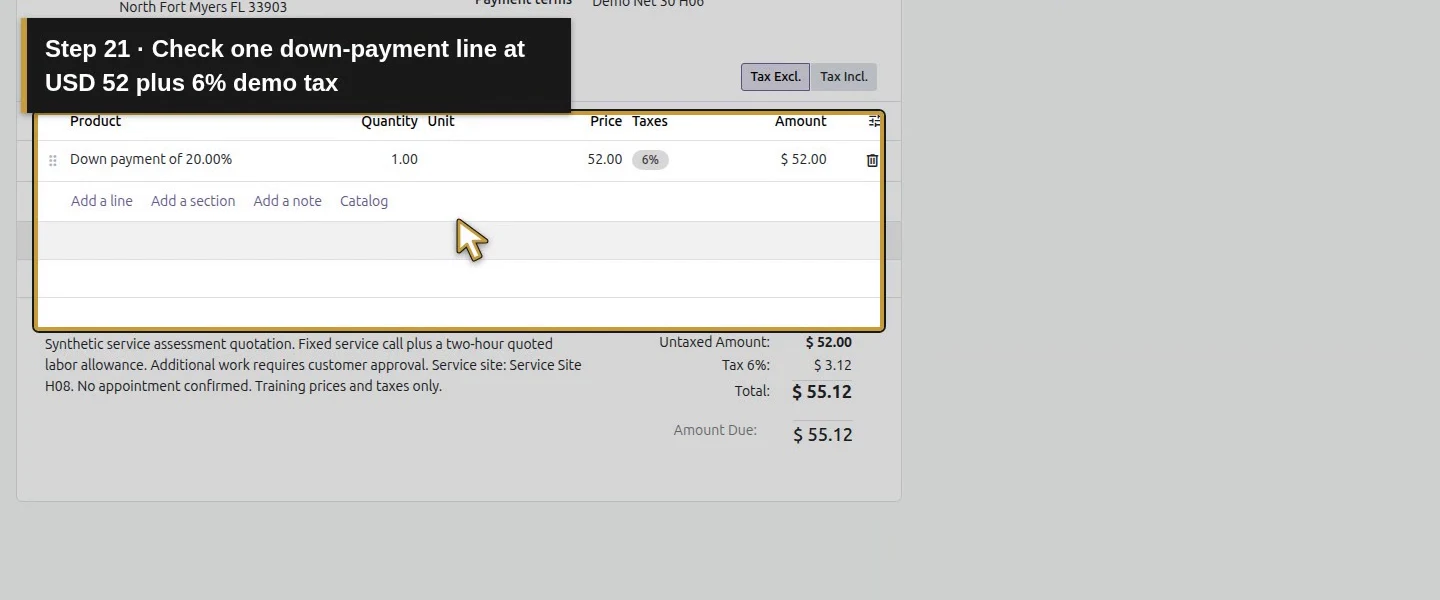
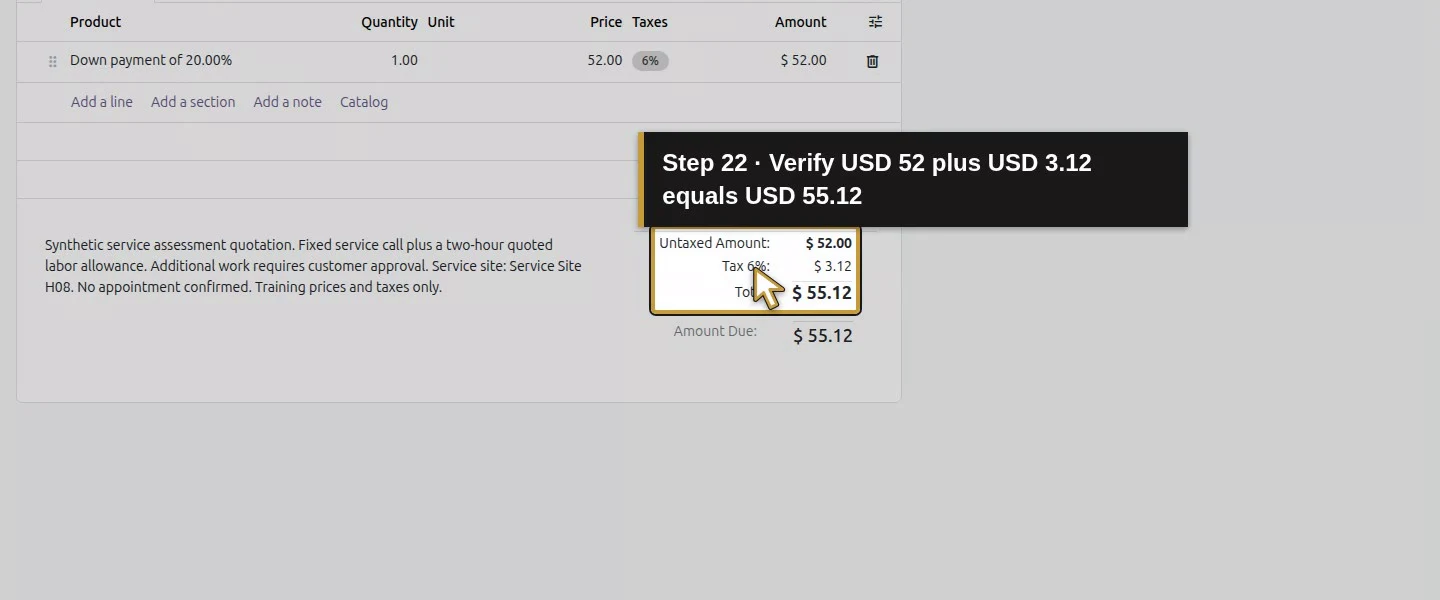
Step 4. Date and label the request before posting
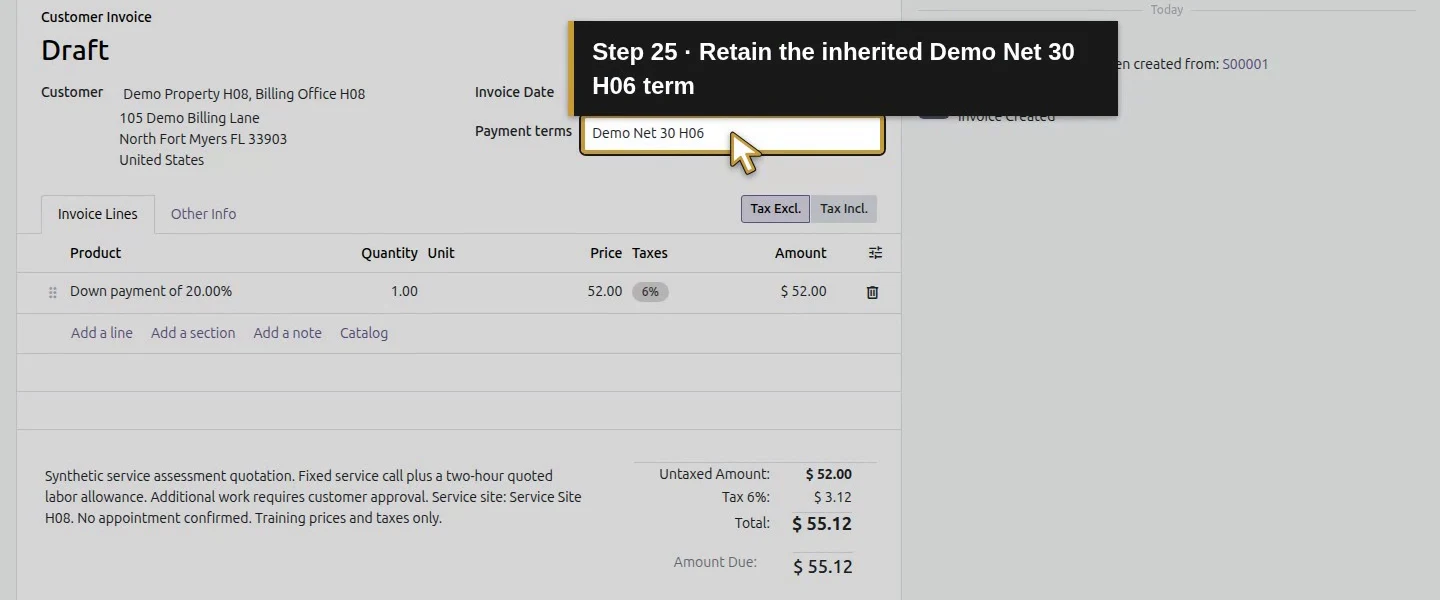
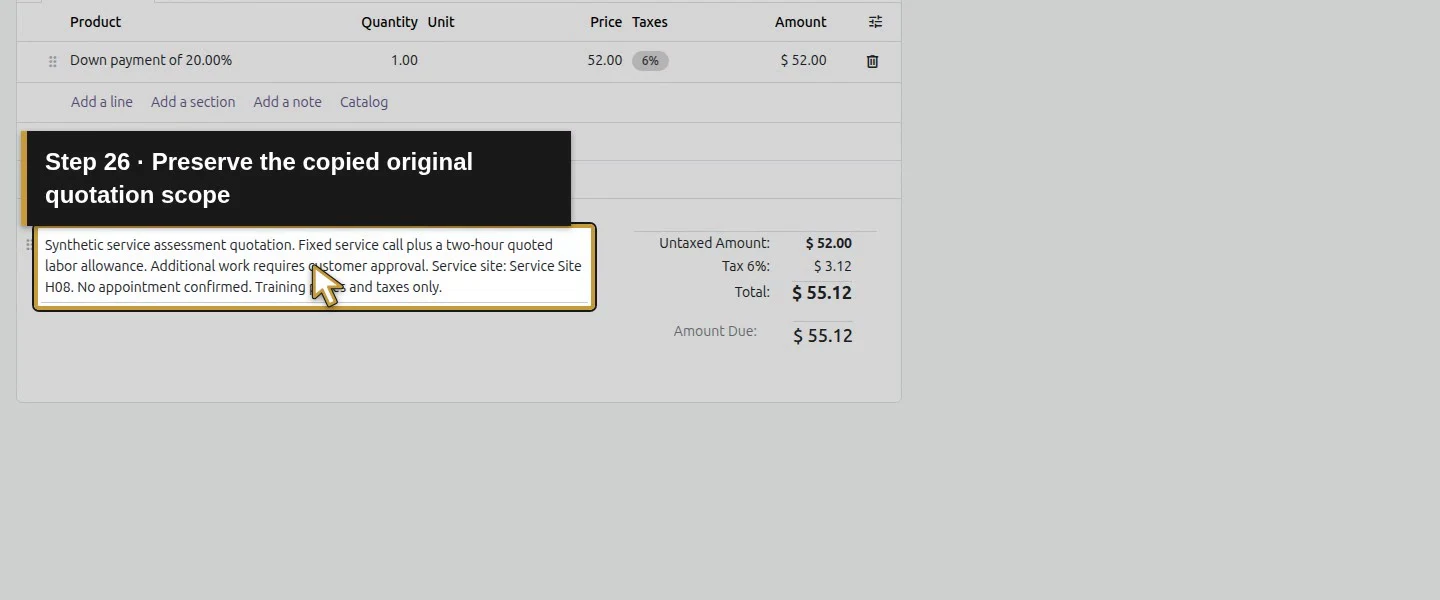
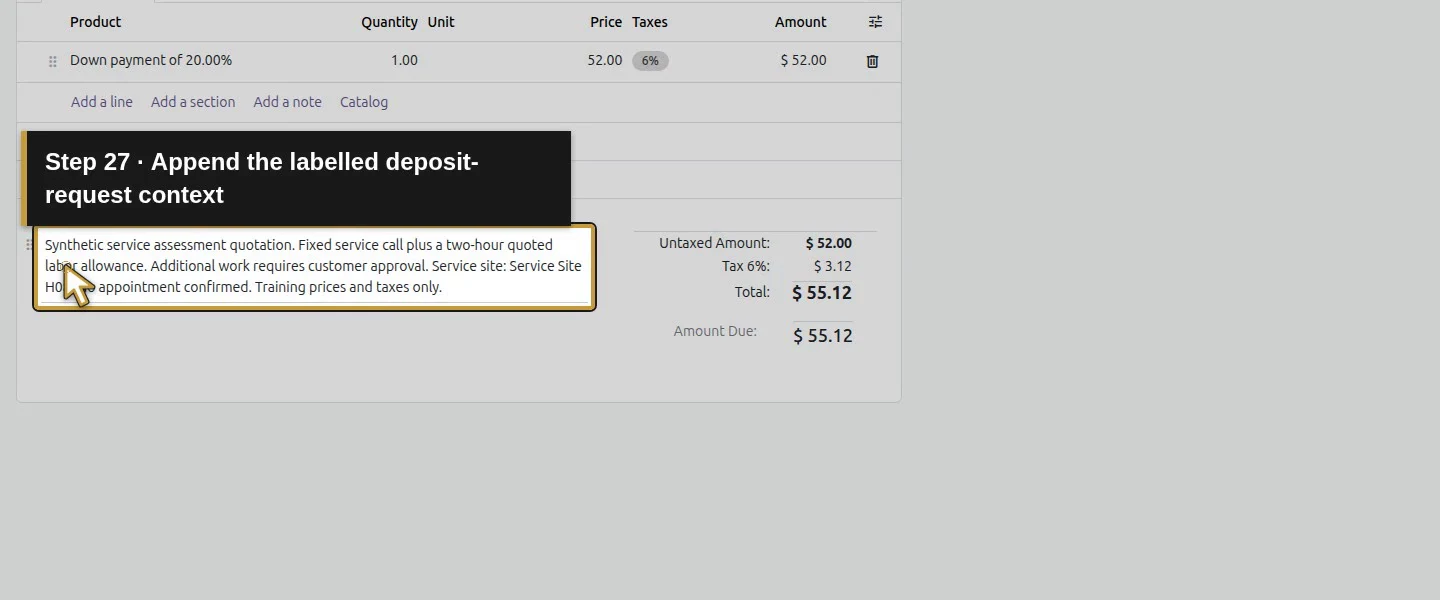
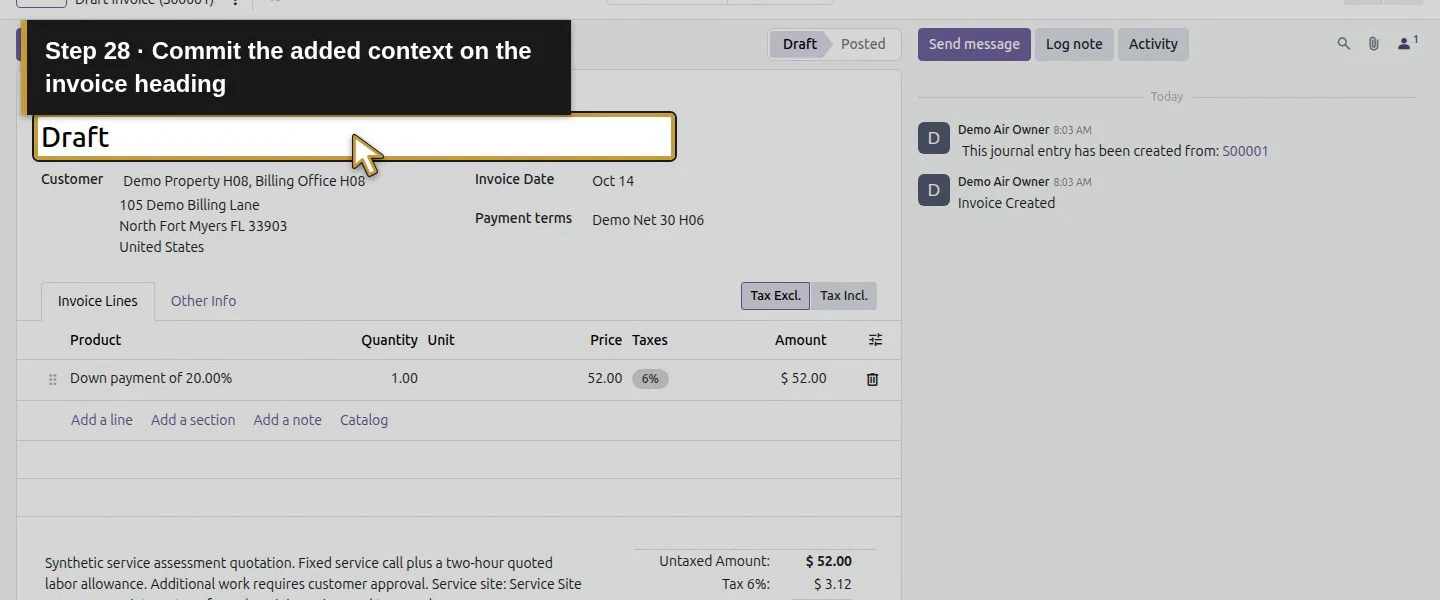
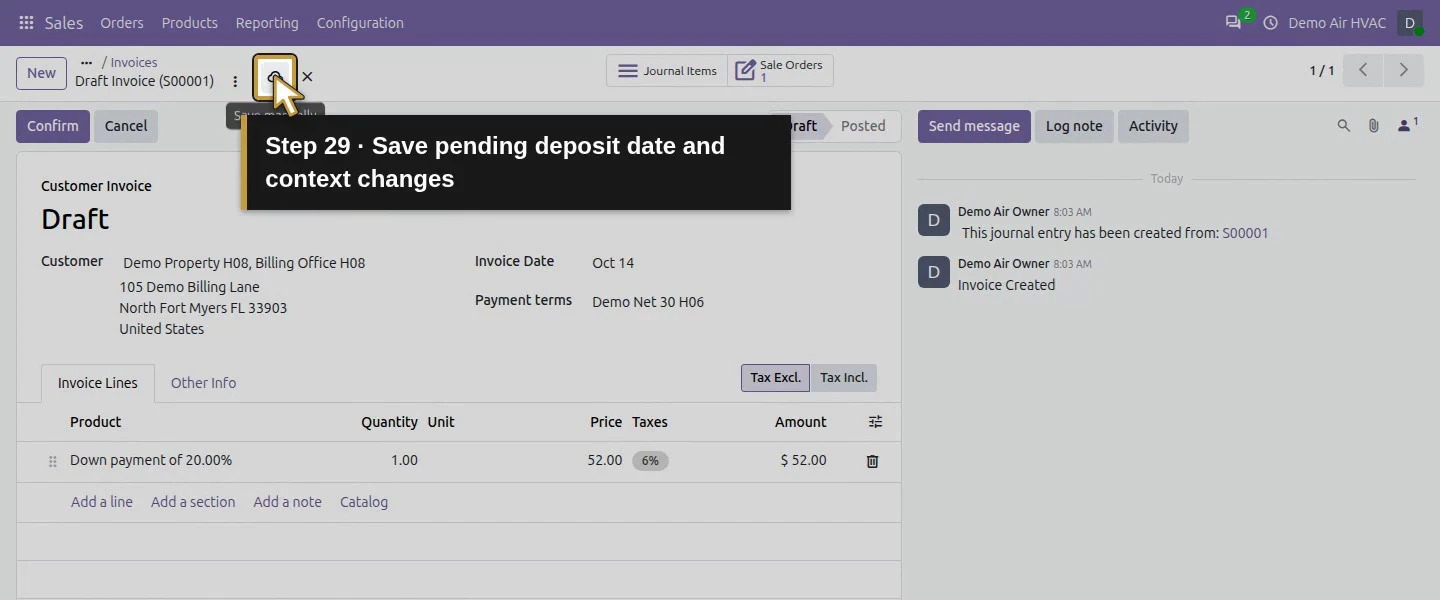
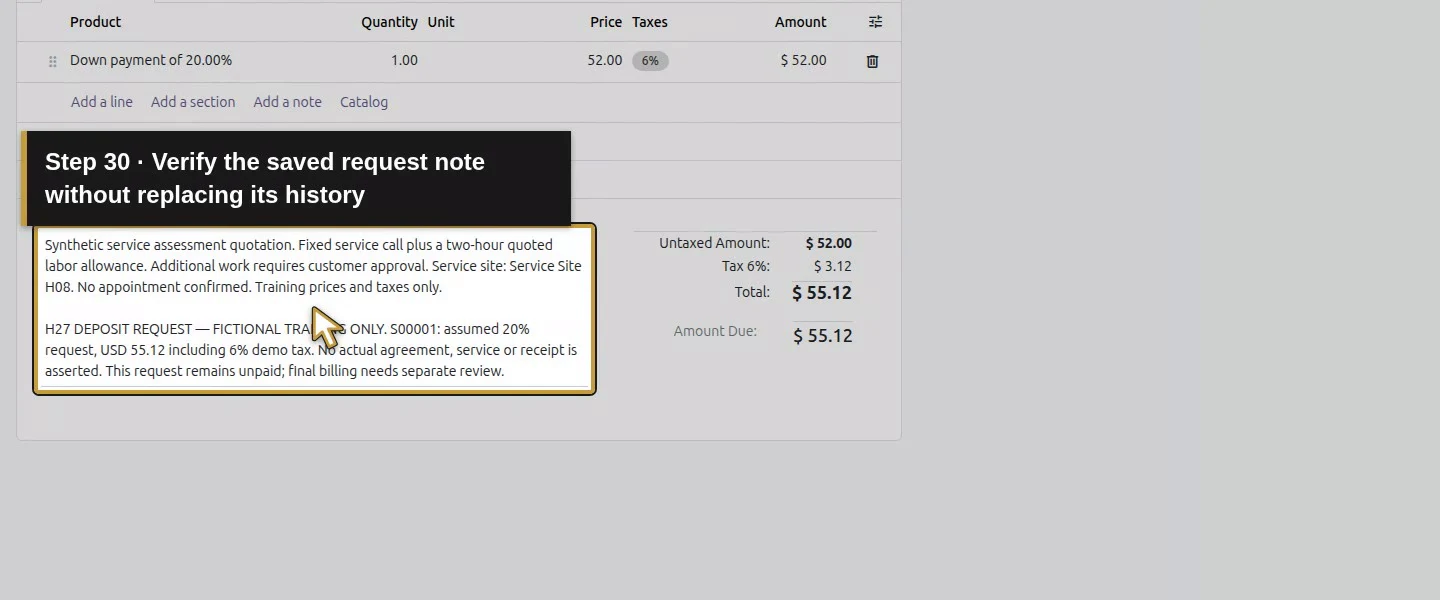
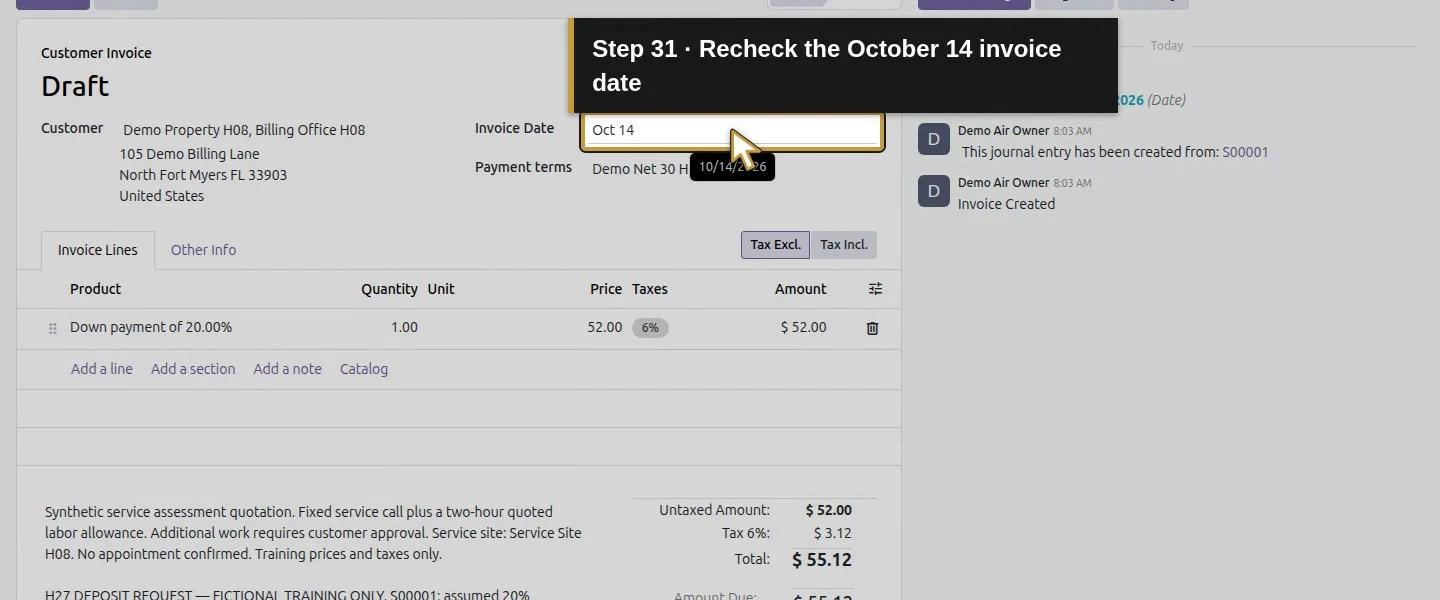
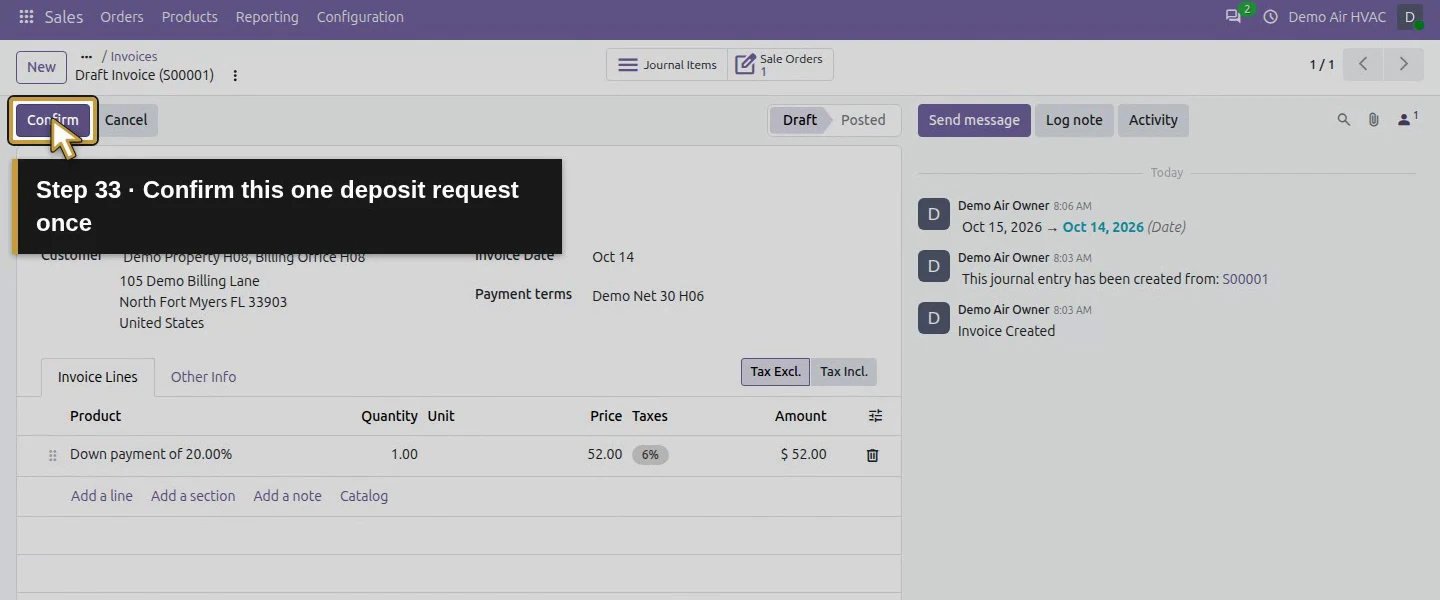
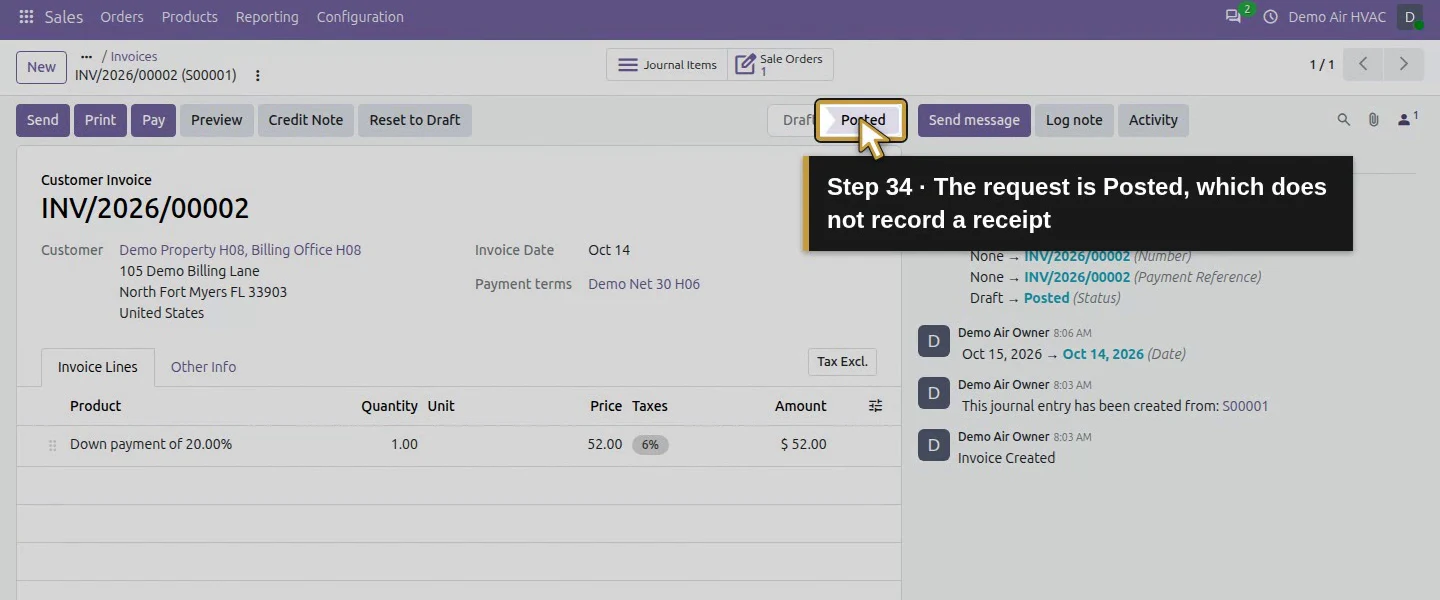
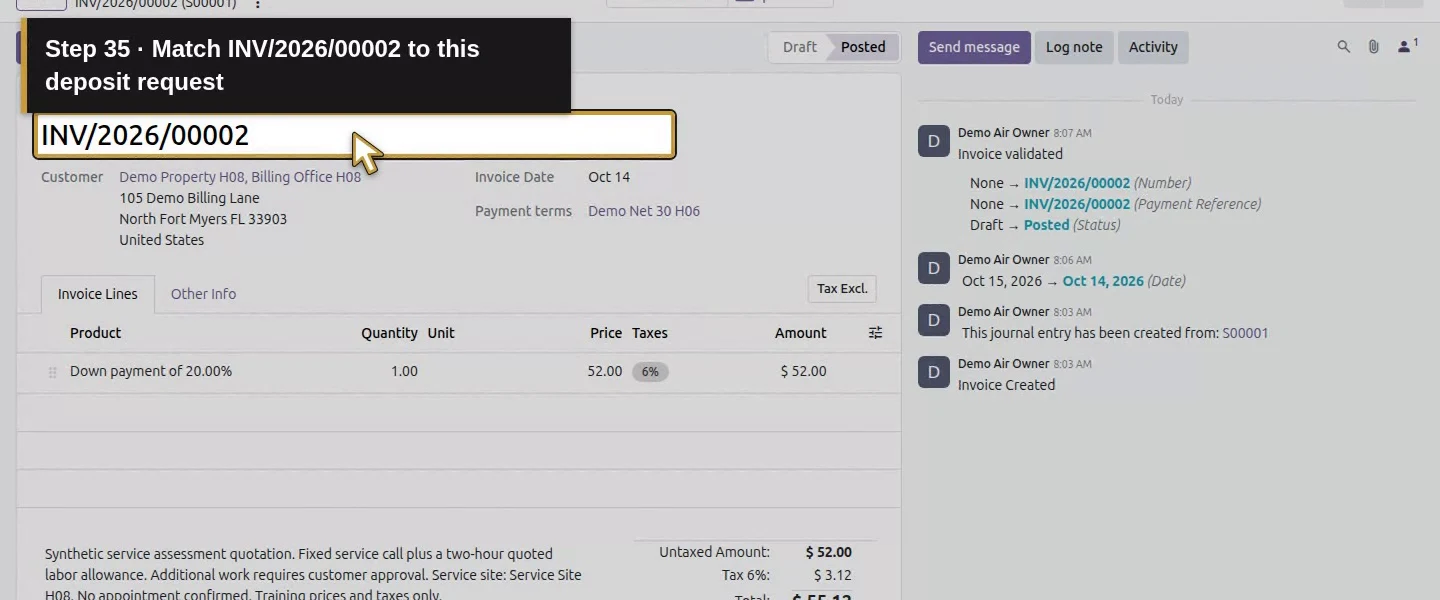
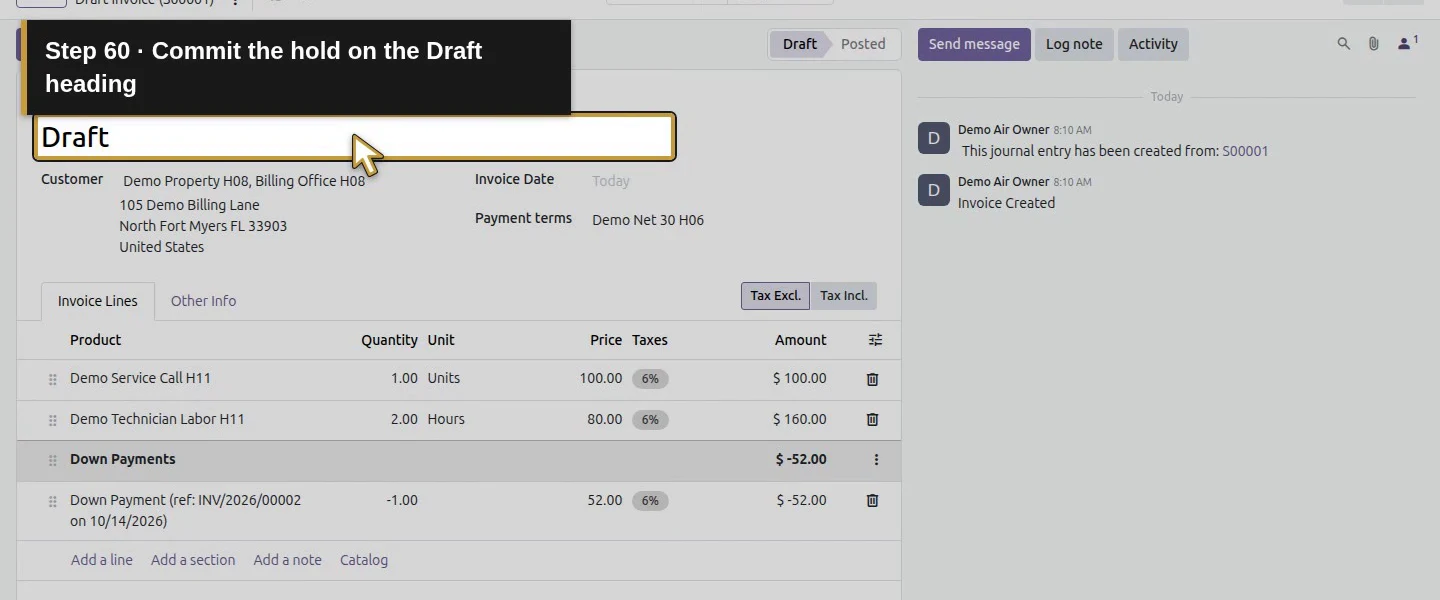
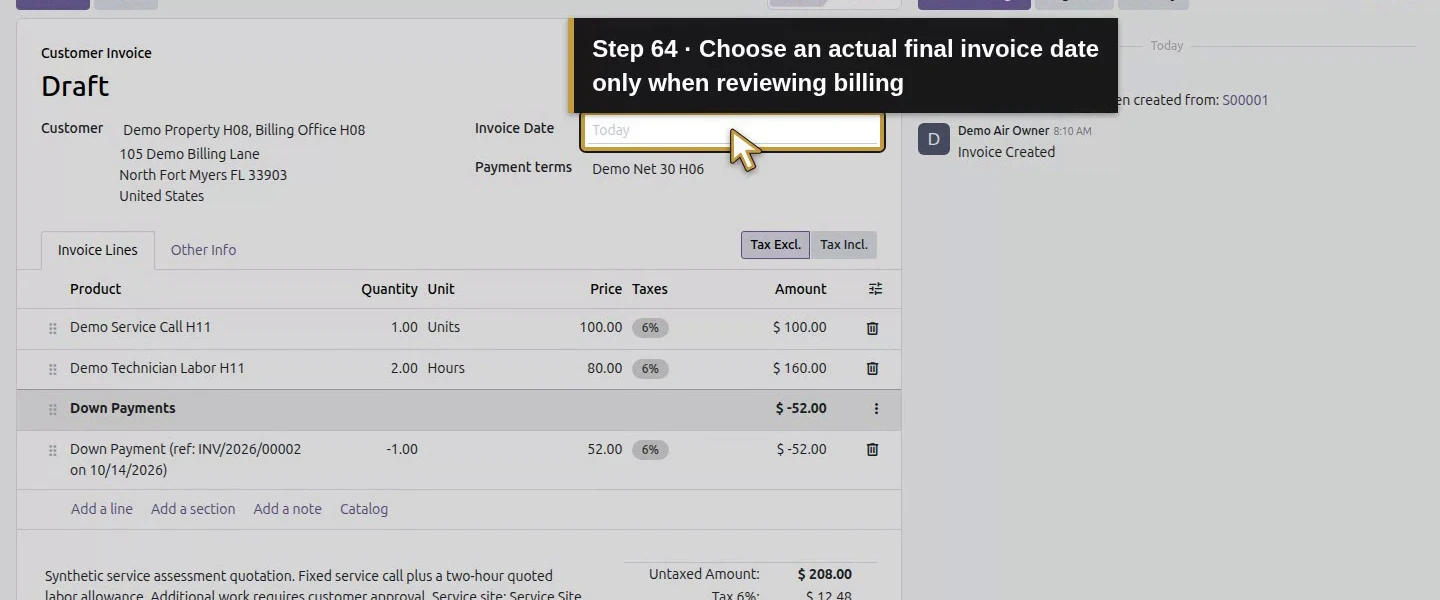
Enter 10/14/2026 in Invoice Date, commit the field by clicking the heading and check the inherited Demo Net 30 H06 term. Preserve the copied scope and append a short deposit-request note stating the order, amount and fictional nature of the example. Click Save manually if changes remain pending, wait for them to clear, then use Confirm. The request becomes Posted, number INV/2026/00002, with $55.12 due and a November 13, 2026 due date.
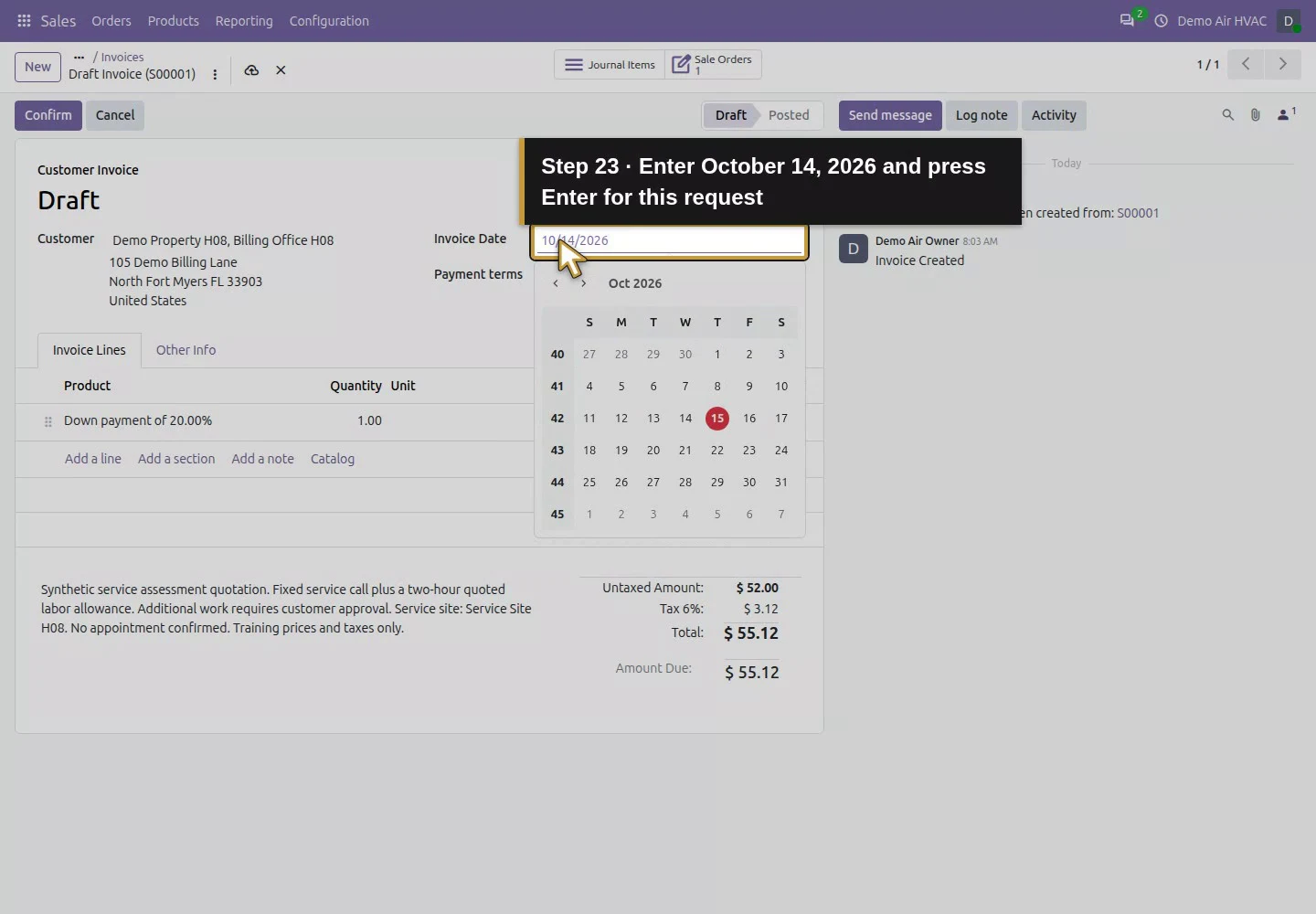
Step 5. Keep the request separate from payment
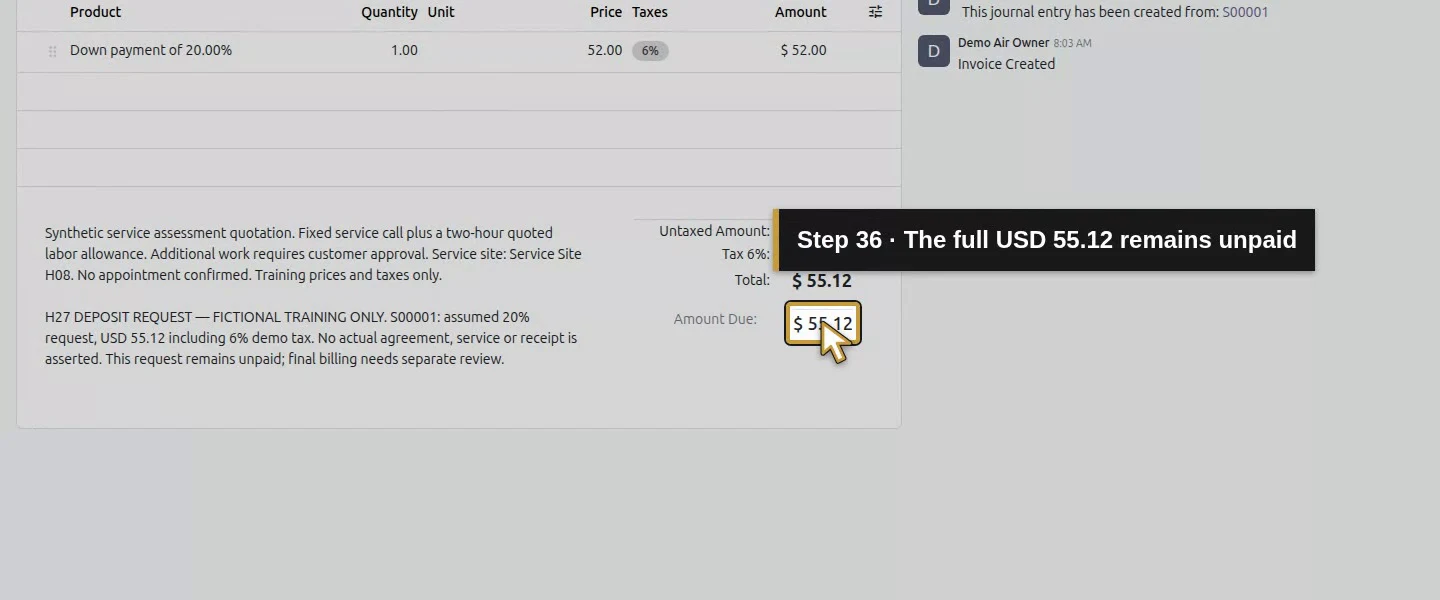
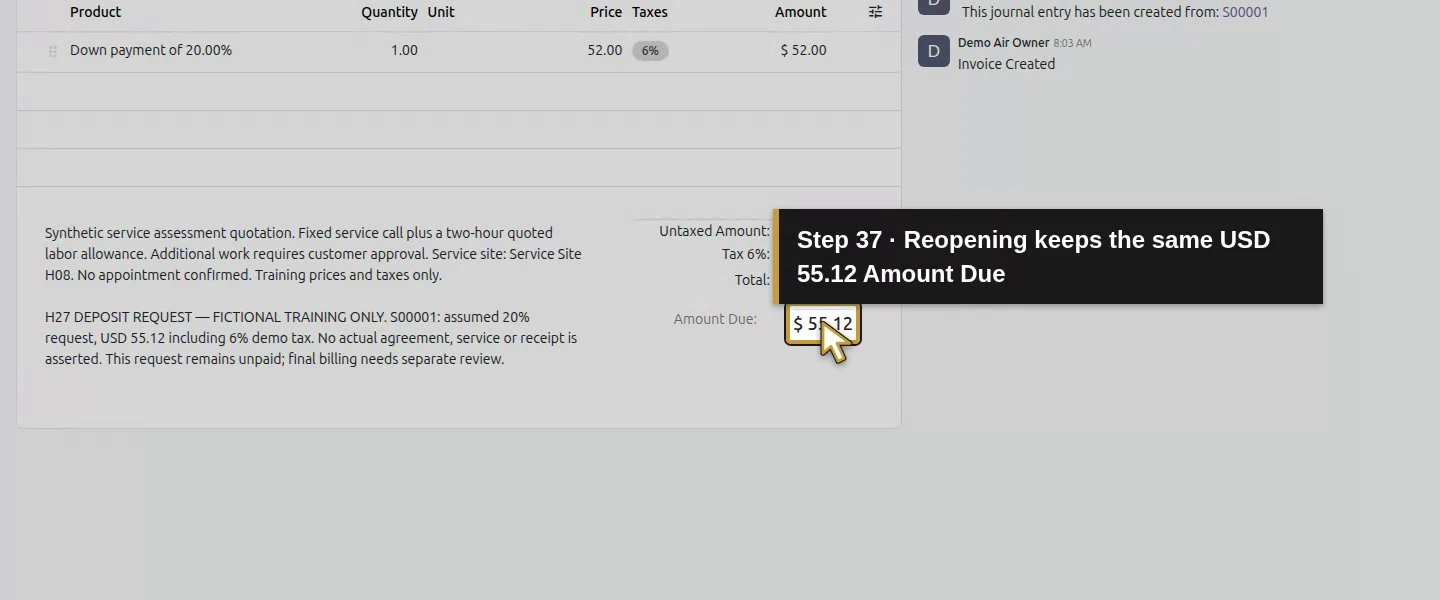
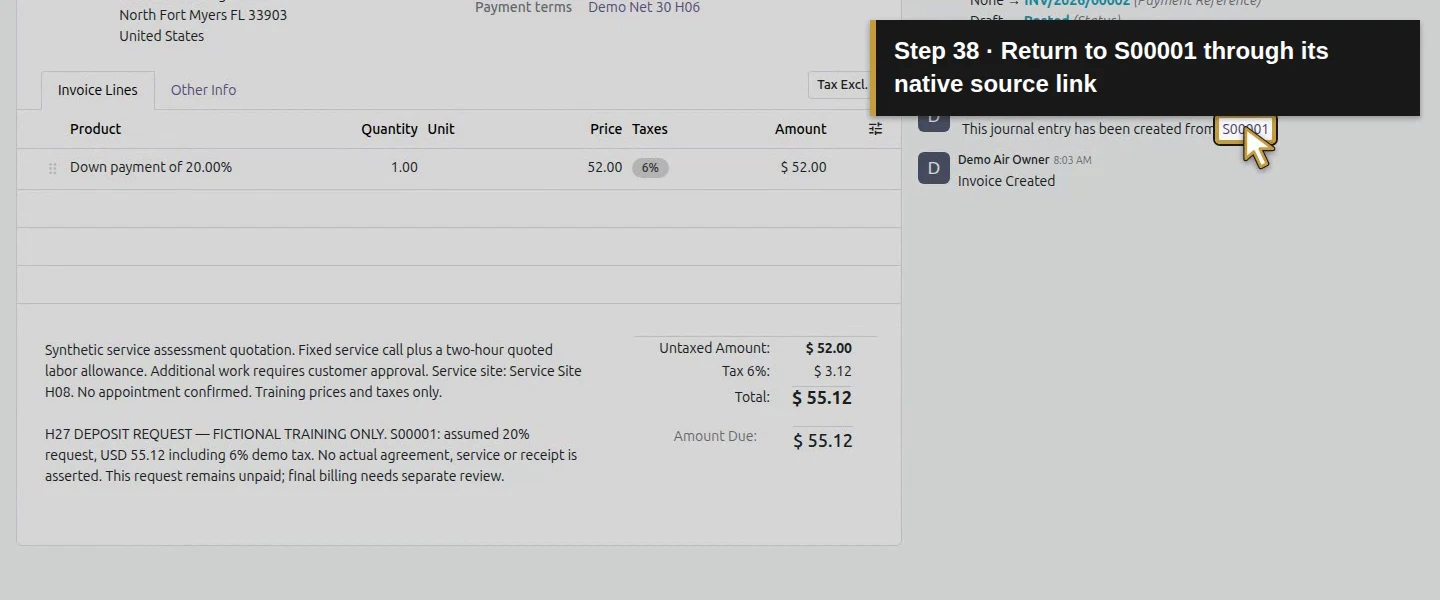
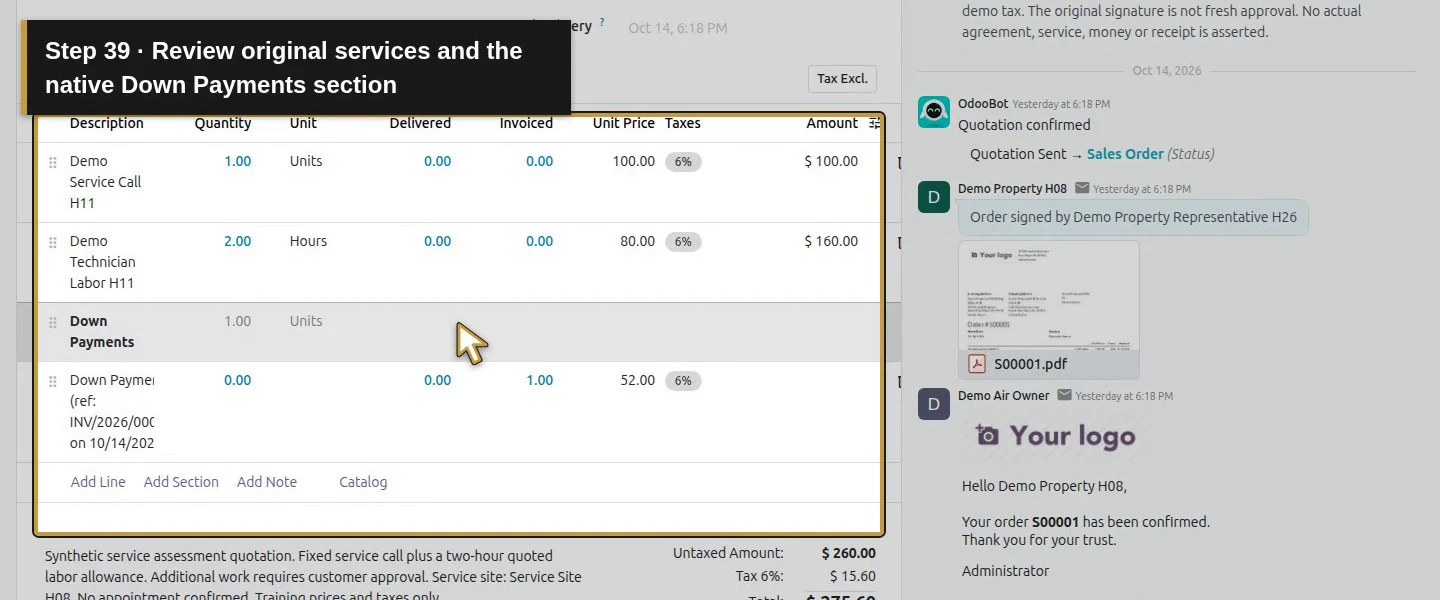
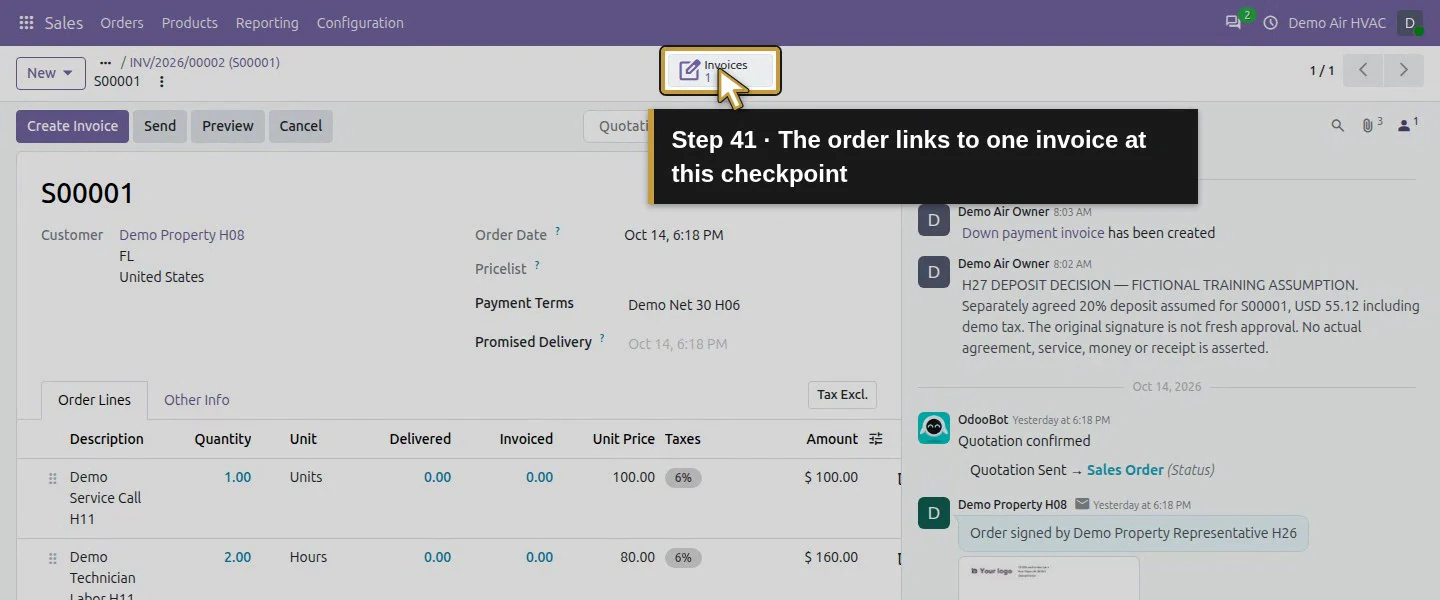
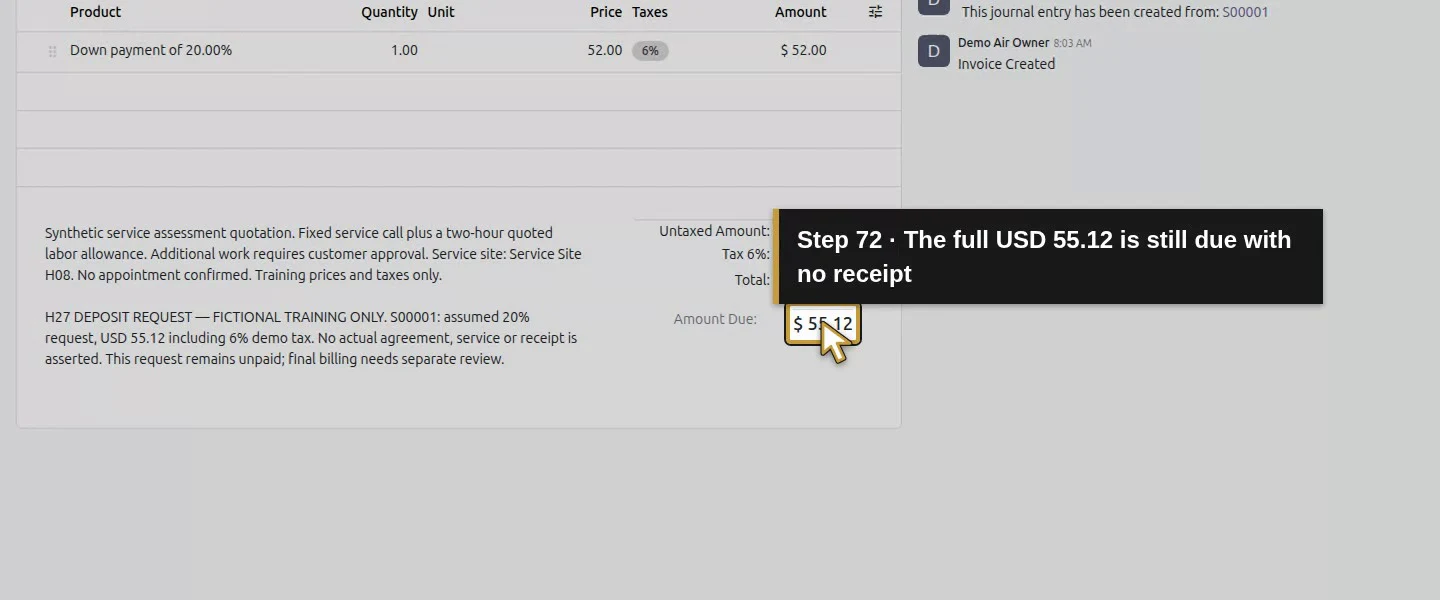
Reopen the posted deposit. It remains unpaid with the full $55.12 Amount Due and no linked receipt from this lesson. On S00001, the Down Payments section references the invoice. For an actual received deposit, use the separate the customer-payment procedure after independently confirming receipt. Do not mark it received merely because the request is posted.
Step 6. Prepare a final draft only after checking the billing basis
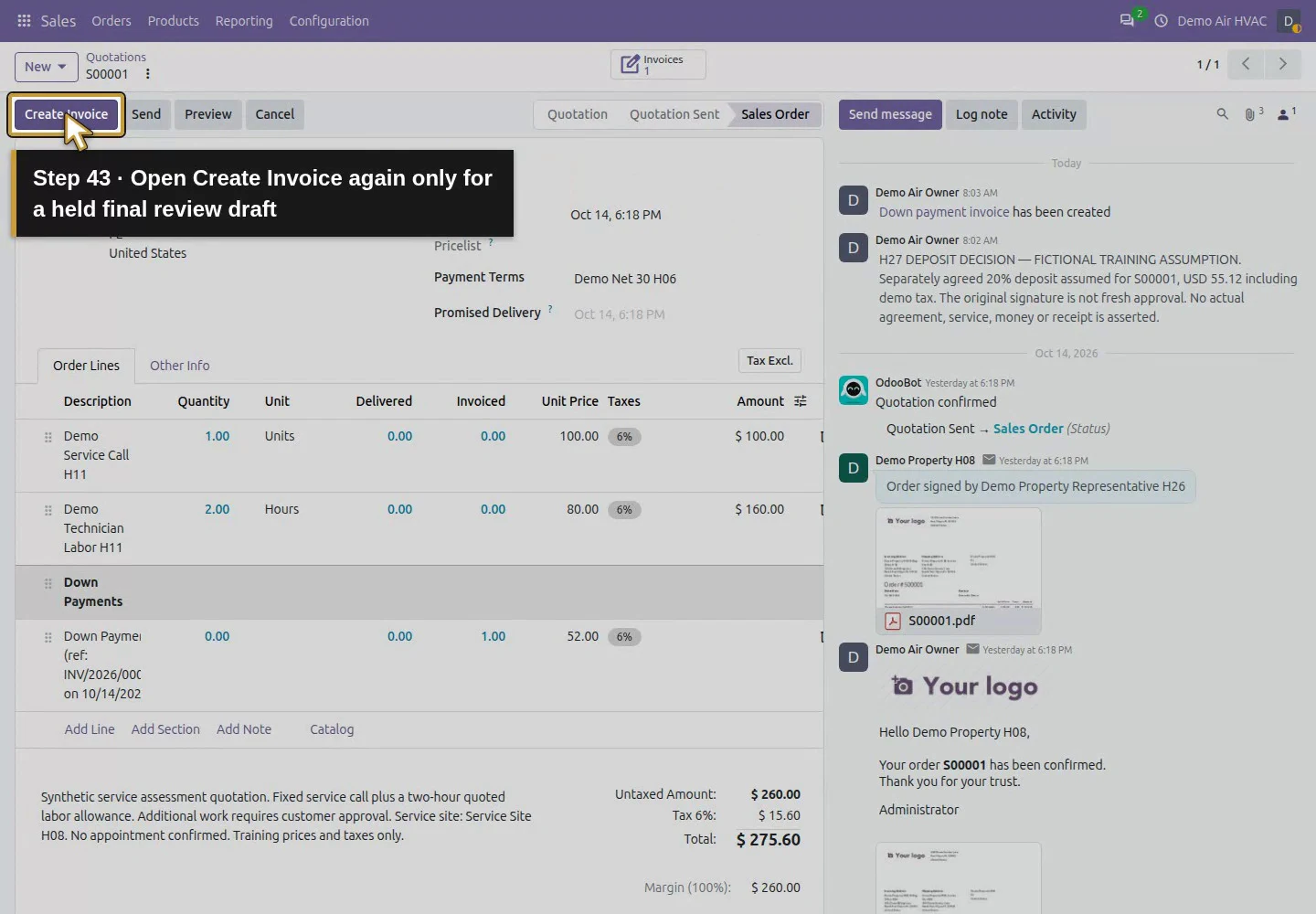
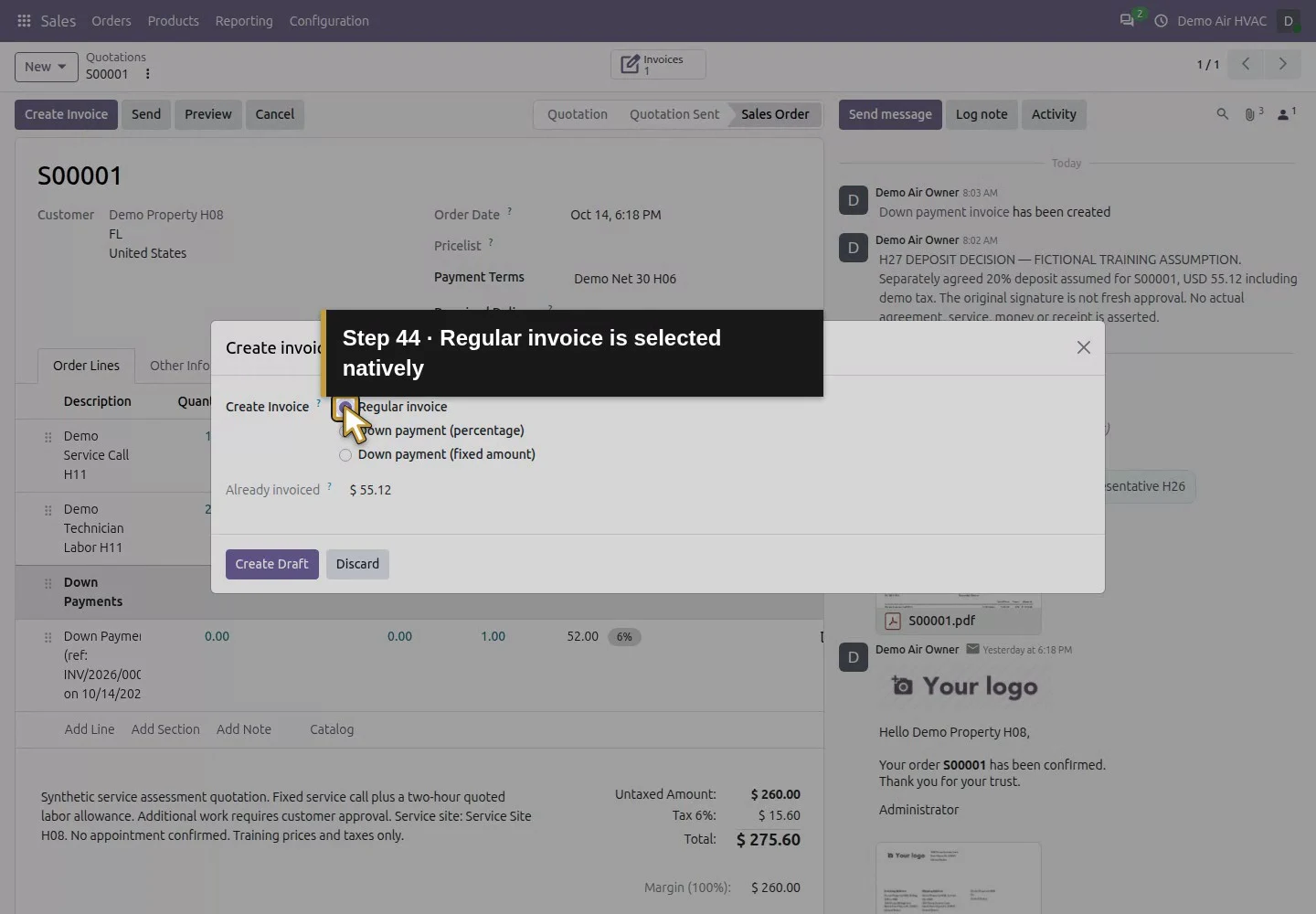
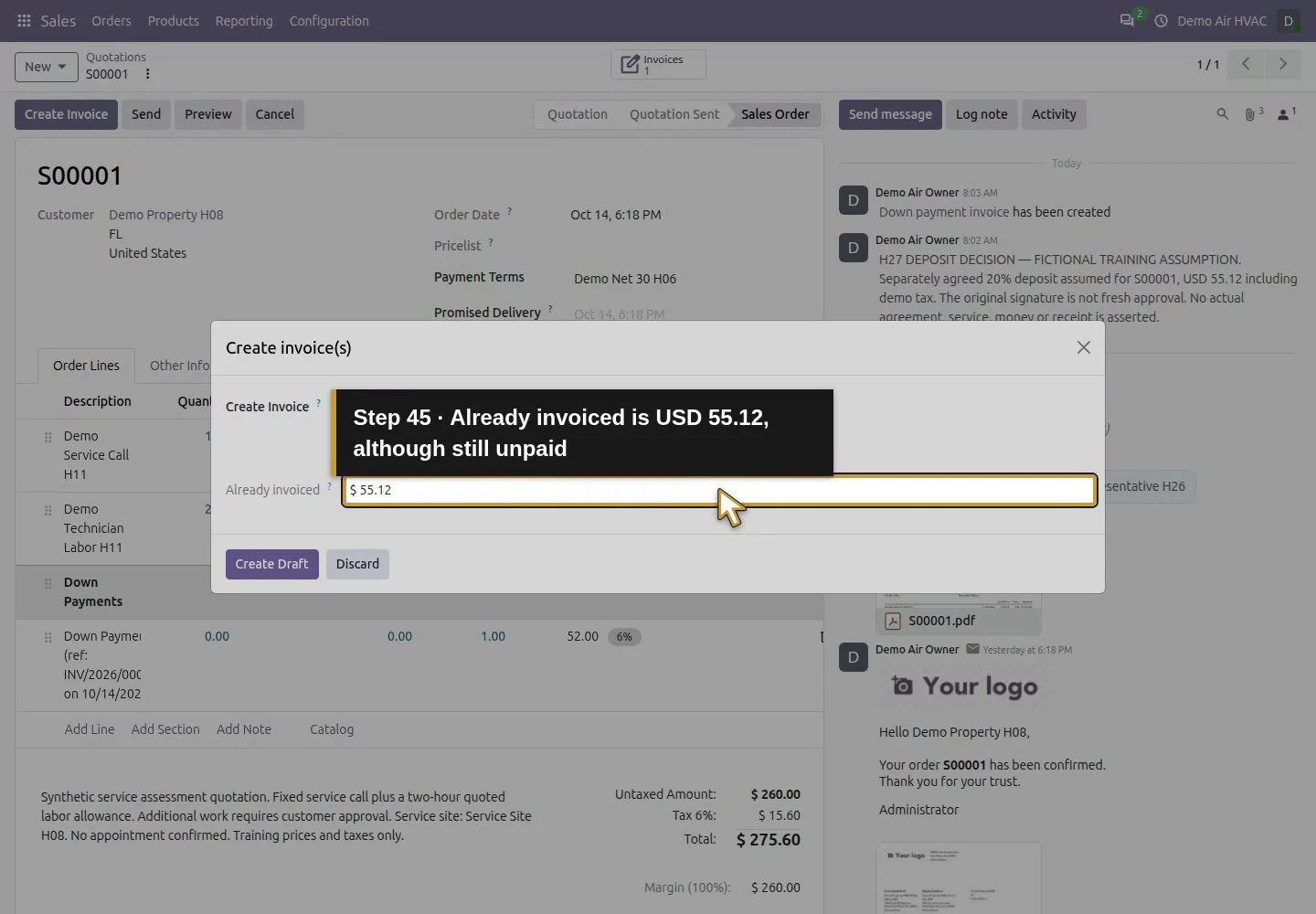
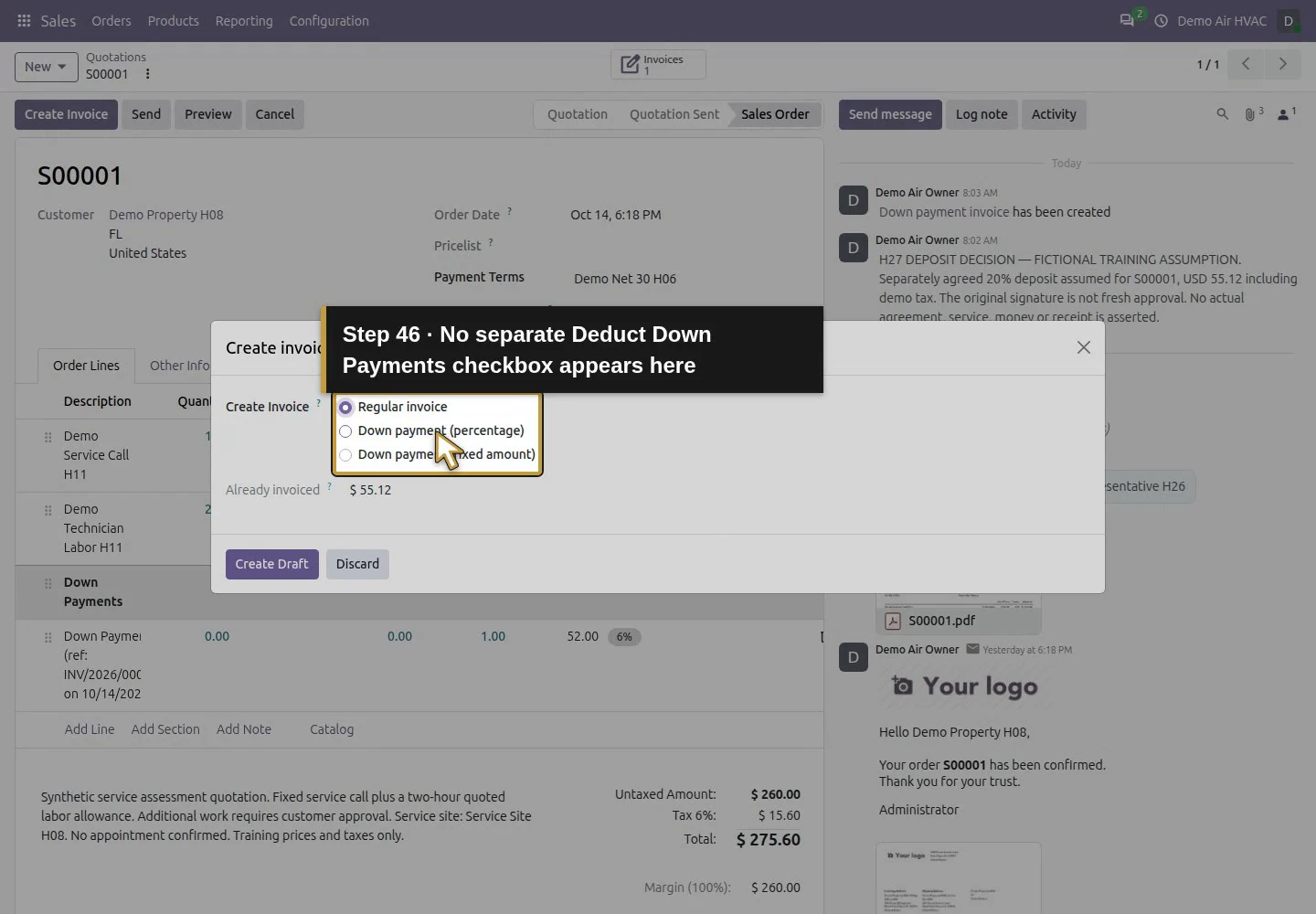
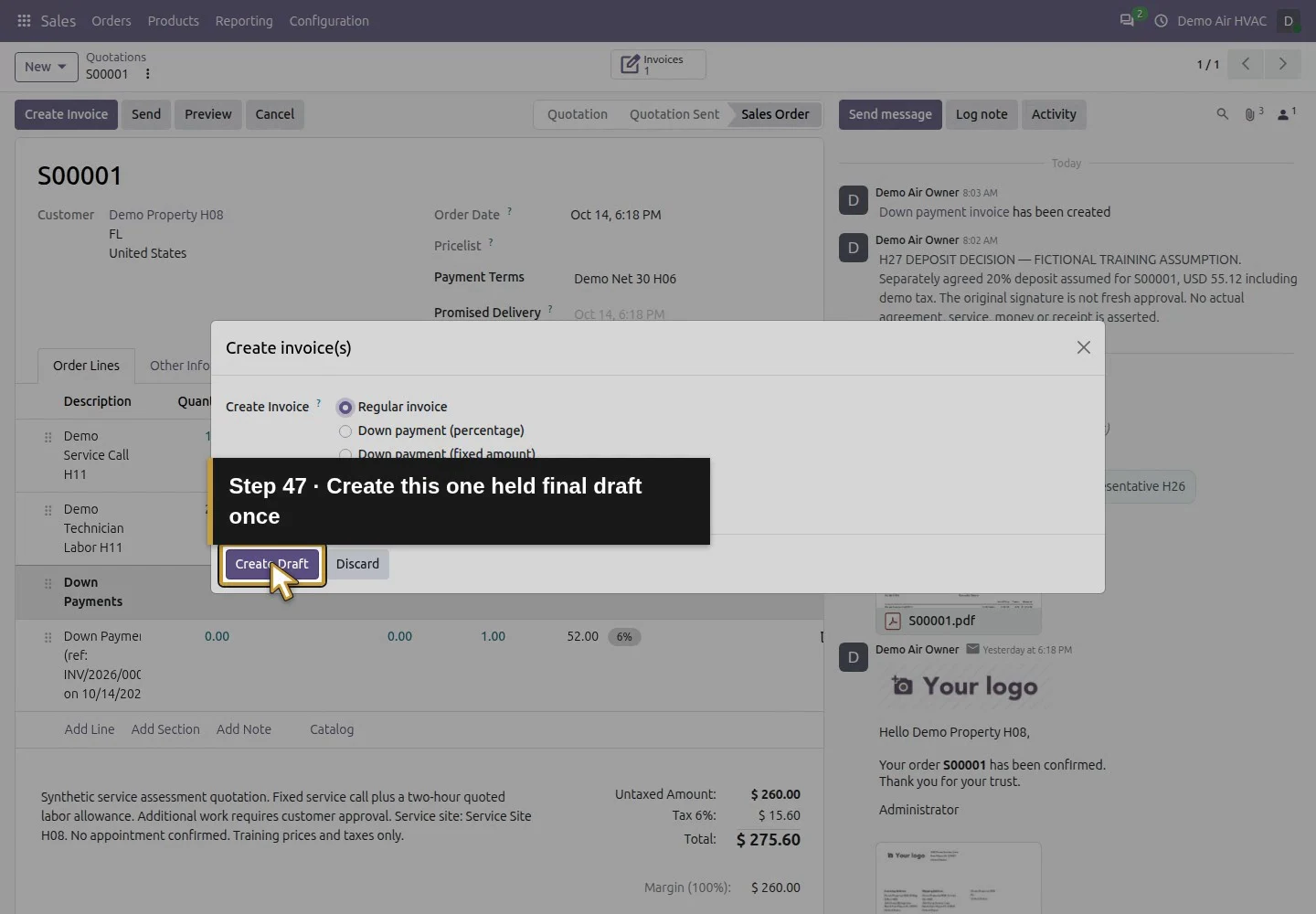
Return to S00001 using its breadcrumb. The original fixed-price lines are already invoiceable under their ordered-quantity policy; that eligibility does not prove service completion. This training step prepares a held review draft. Click Create Invoice again. Regular invoice is selected and Already invoiced: $55.12 appears. No separate Deduct Down Payments checkbox appeared in this tested dialog. Click Create Draft once.
Step 7. Compare the automatic deduction with the original deposit
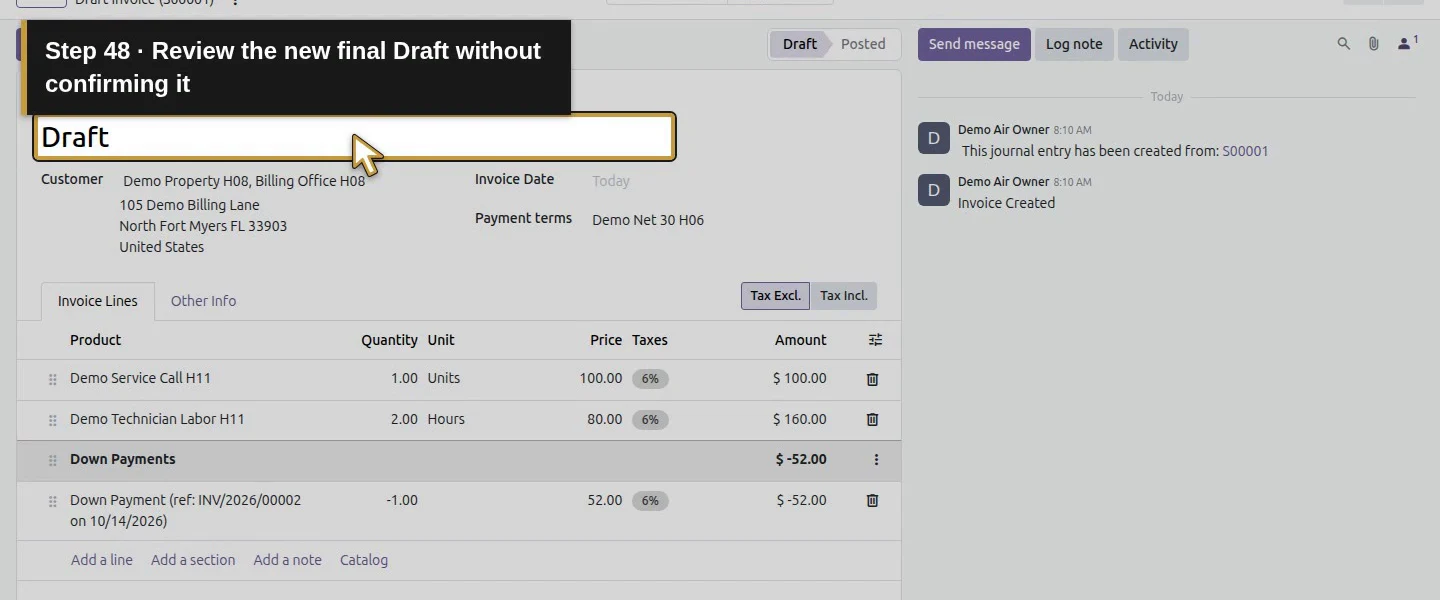
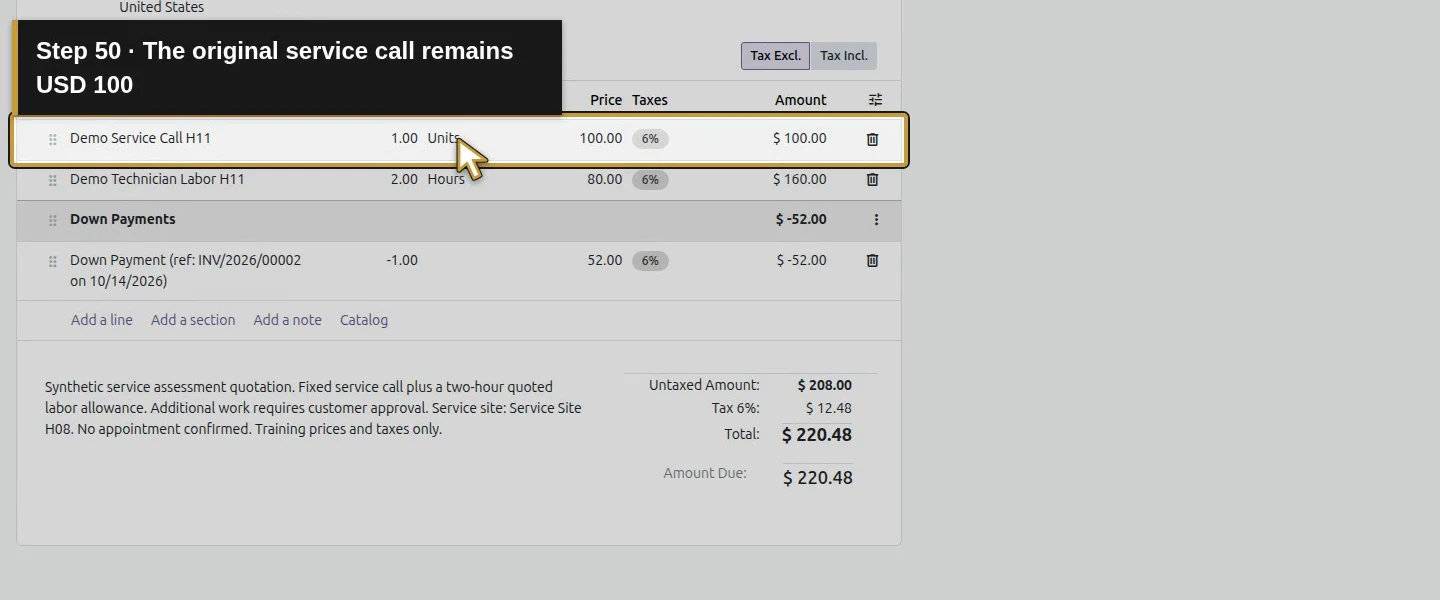
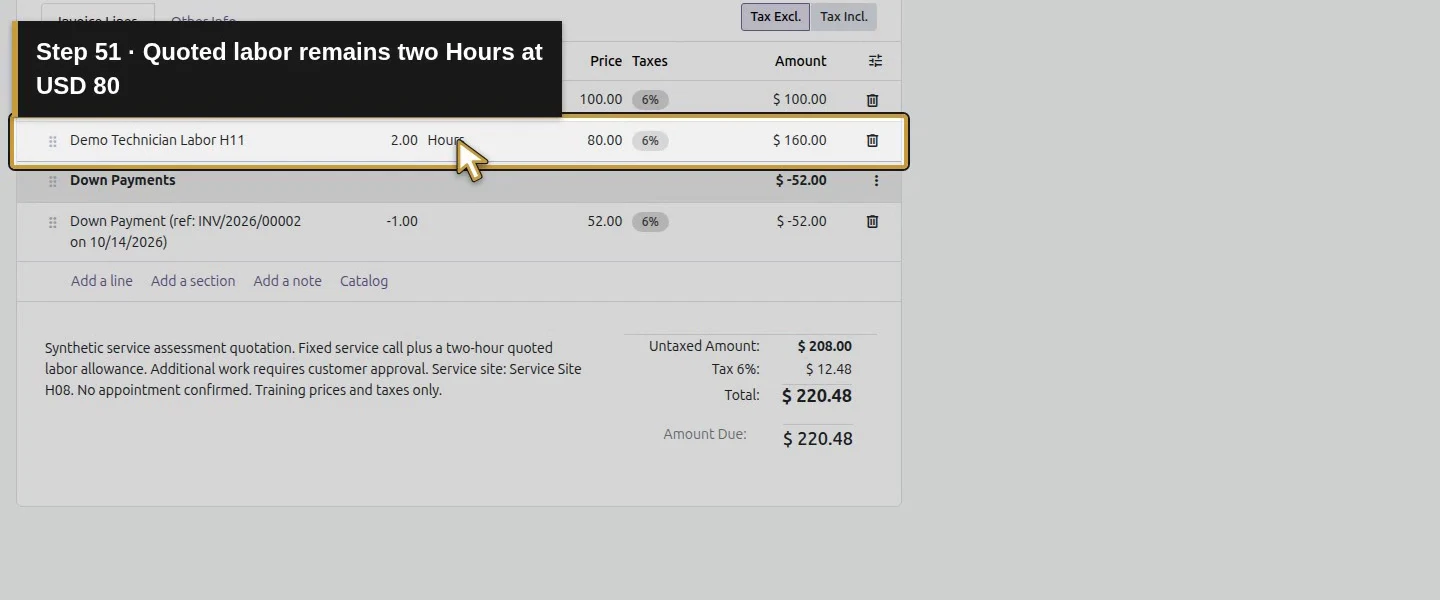
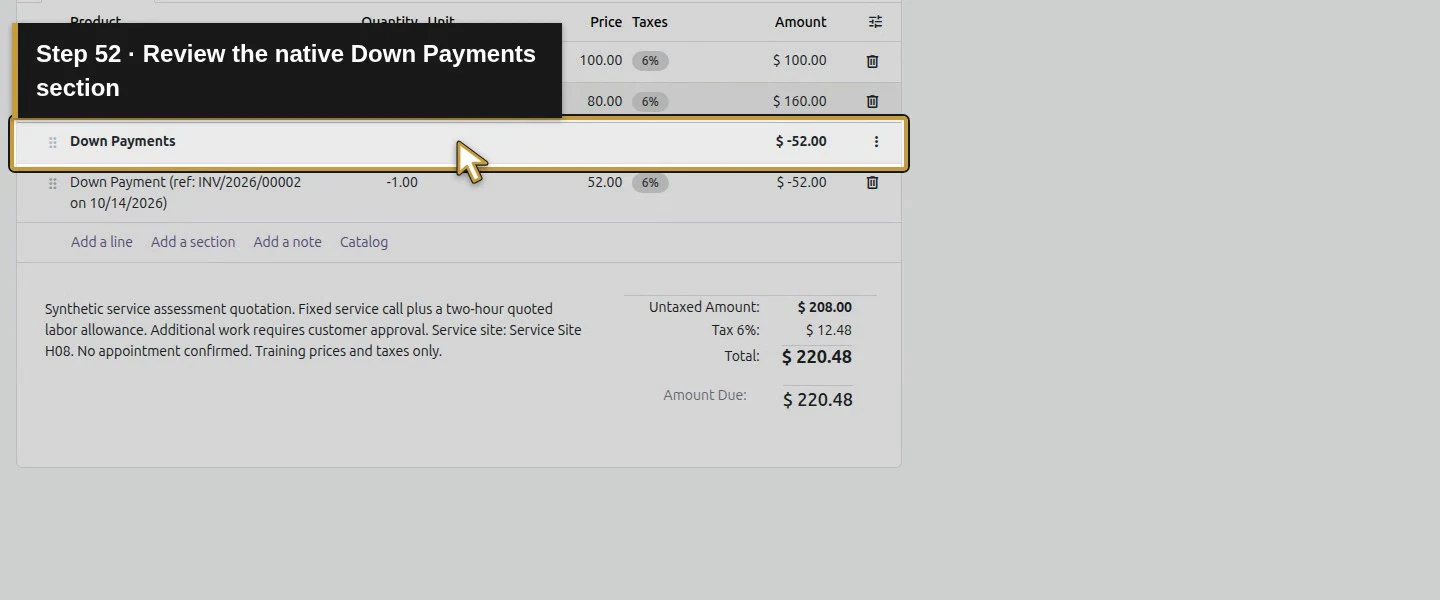
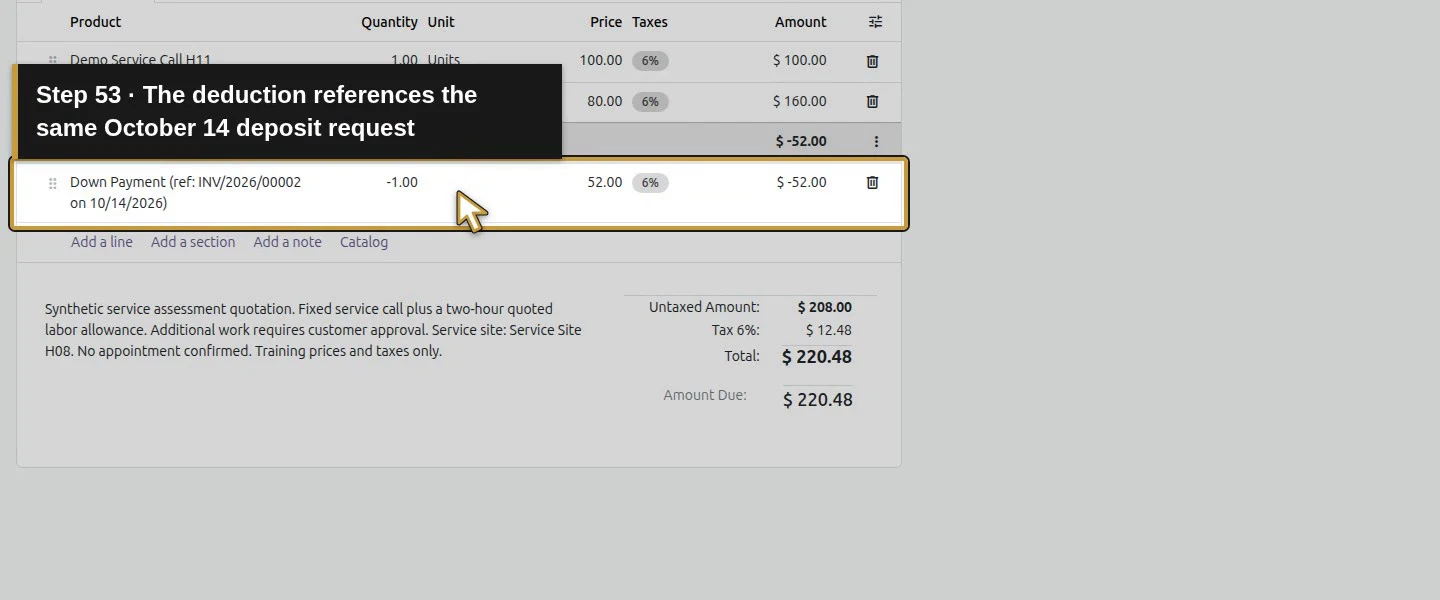
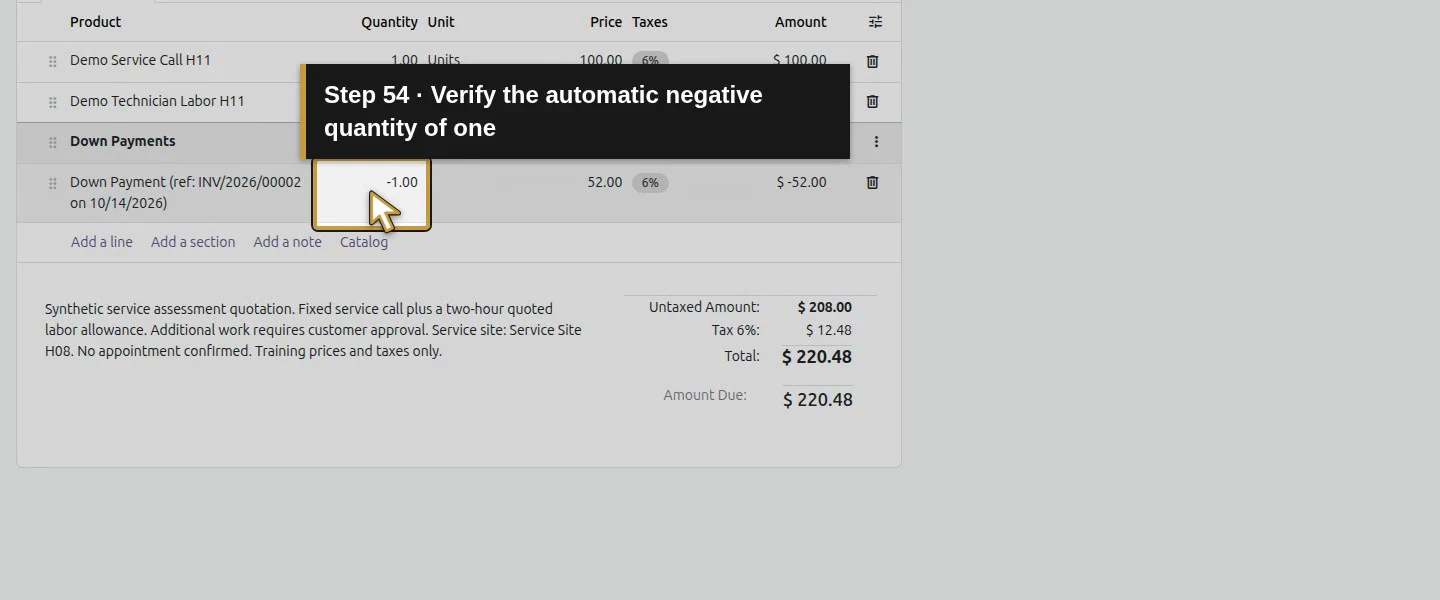
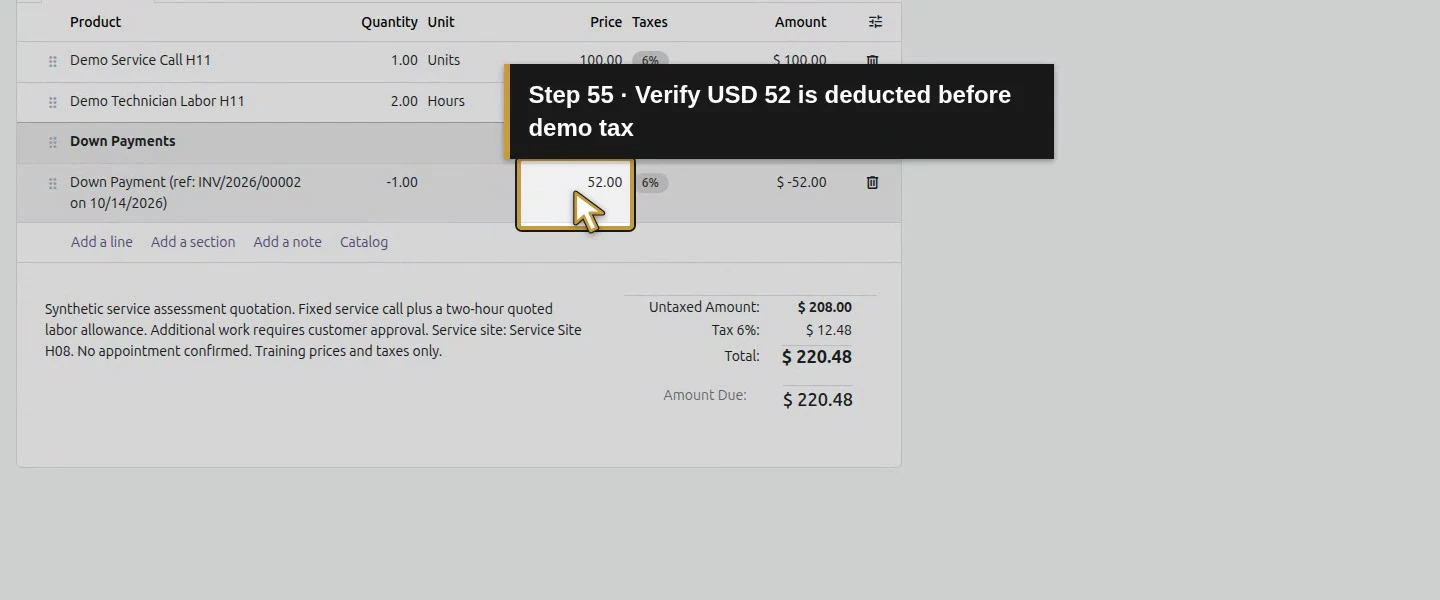
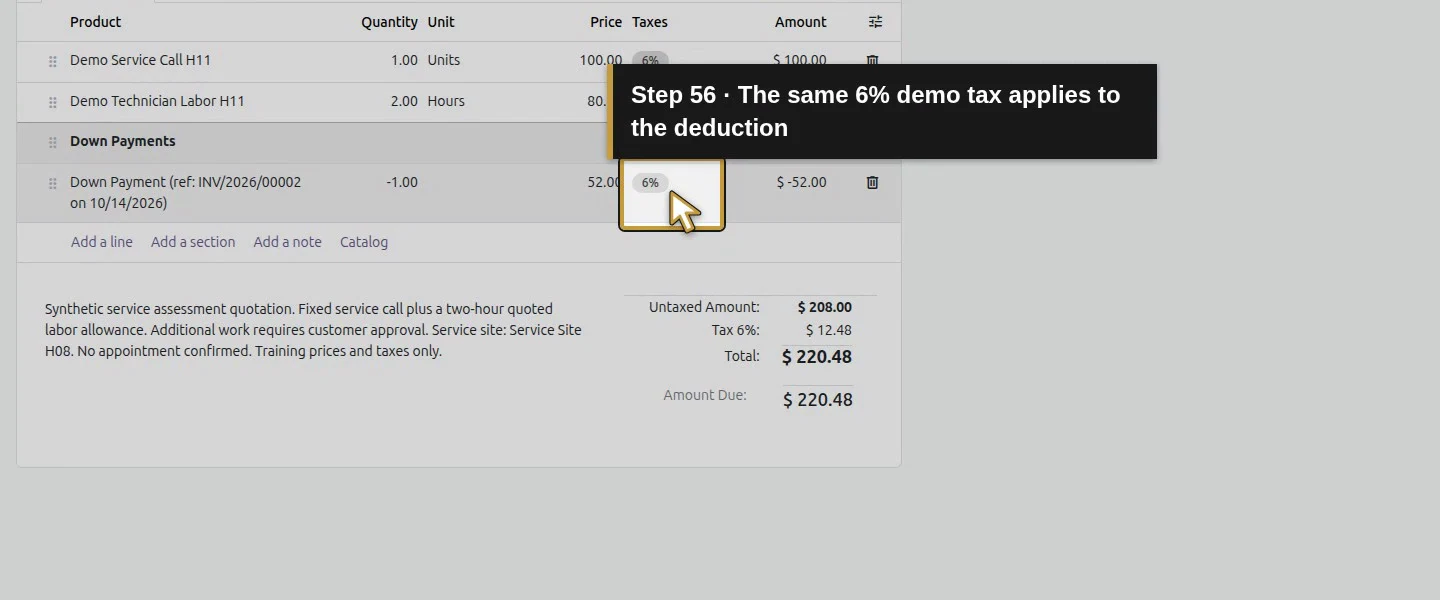
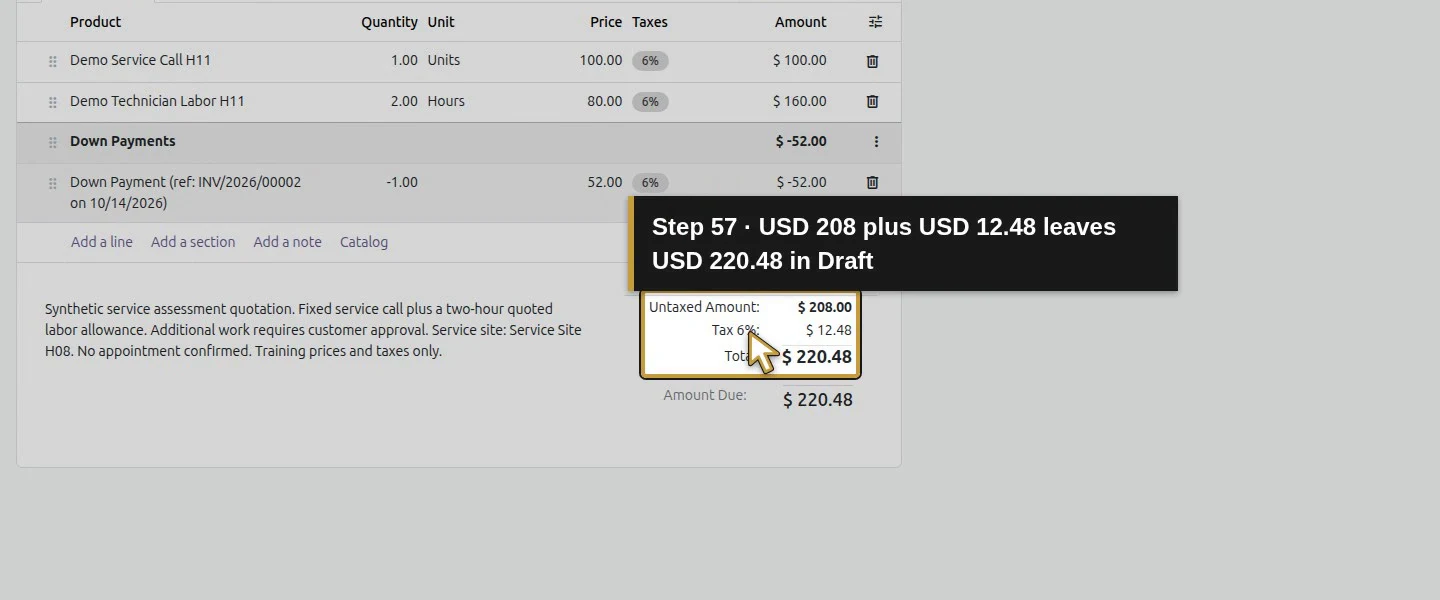
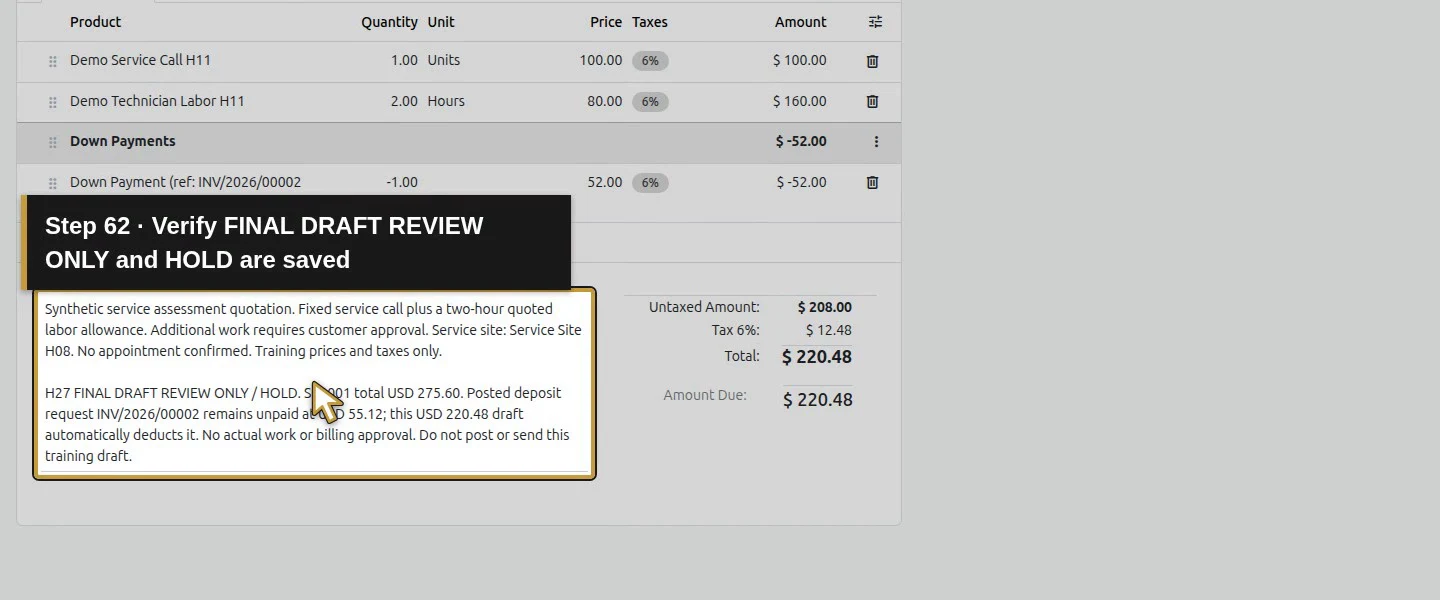
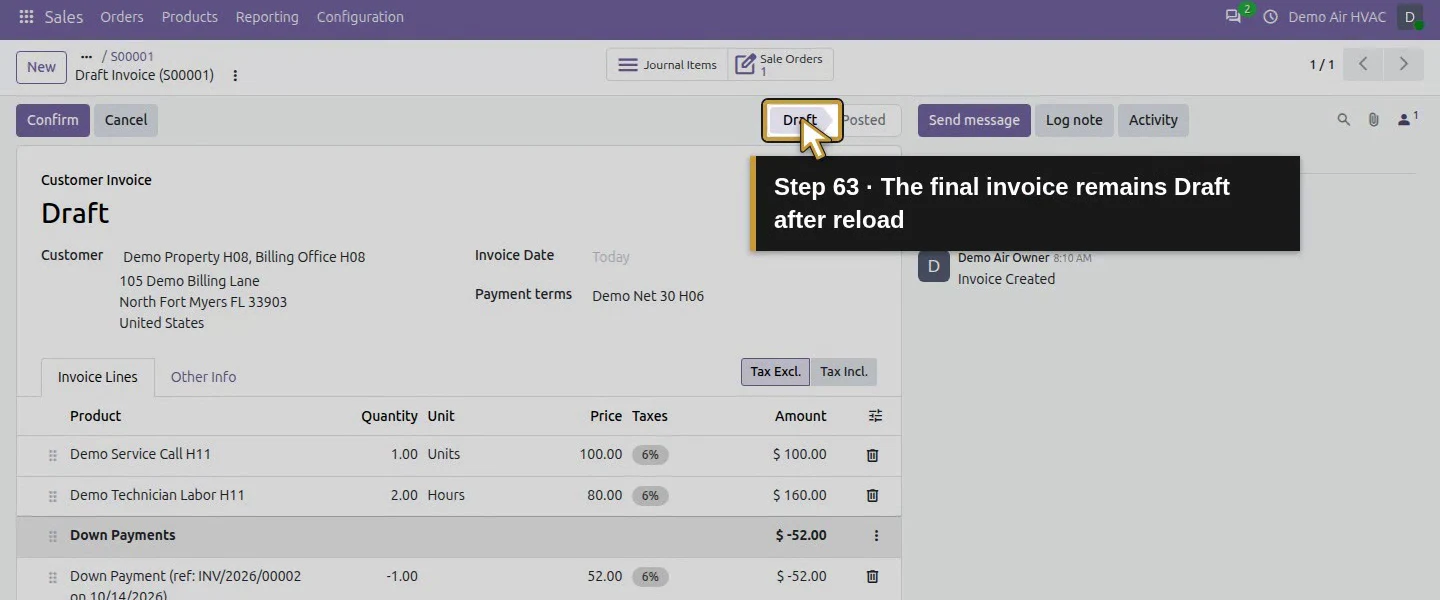
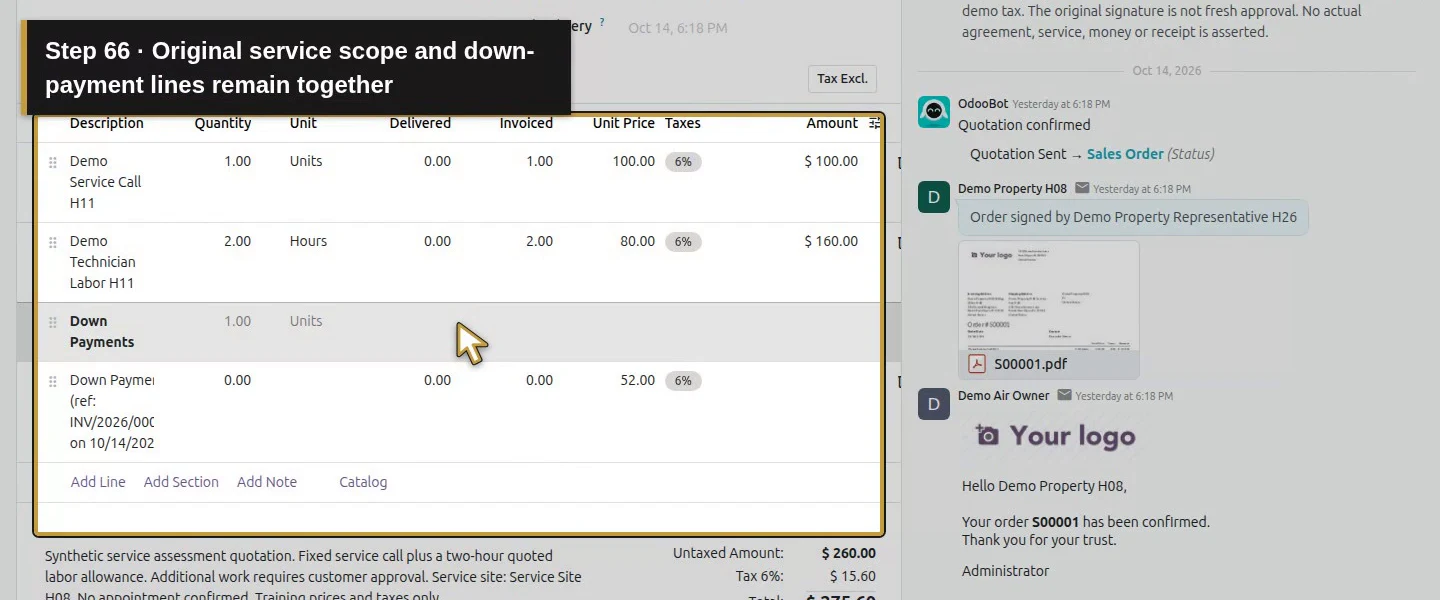
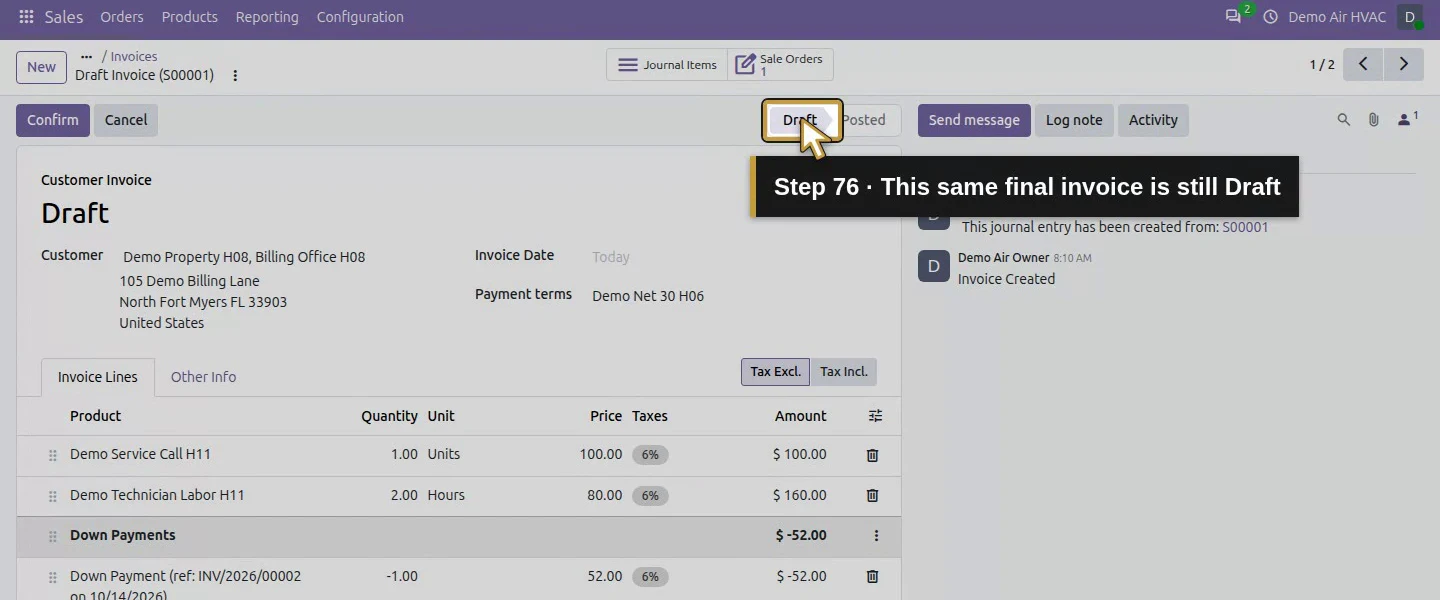
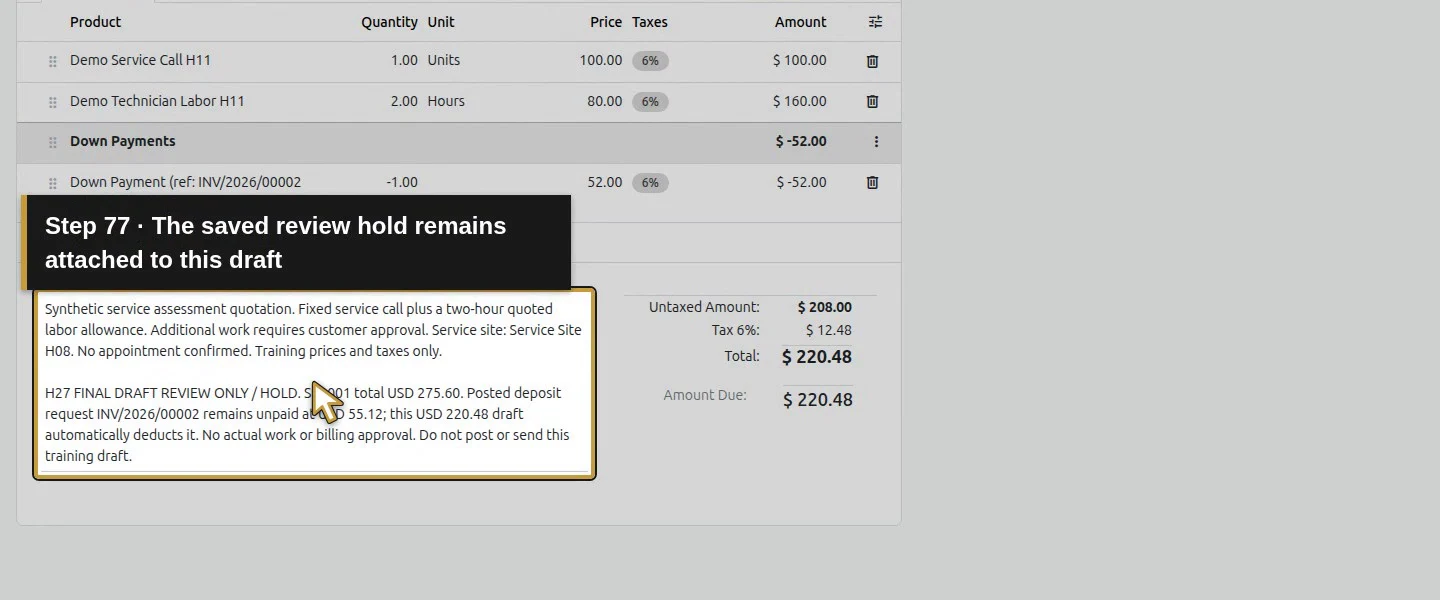
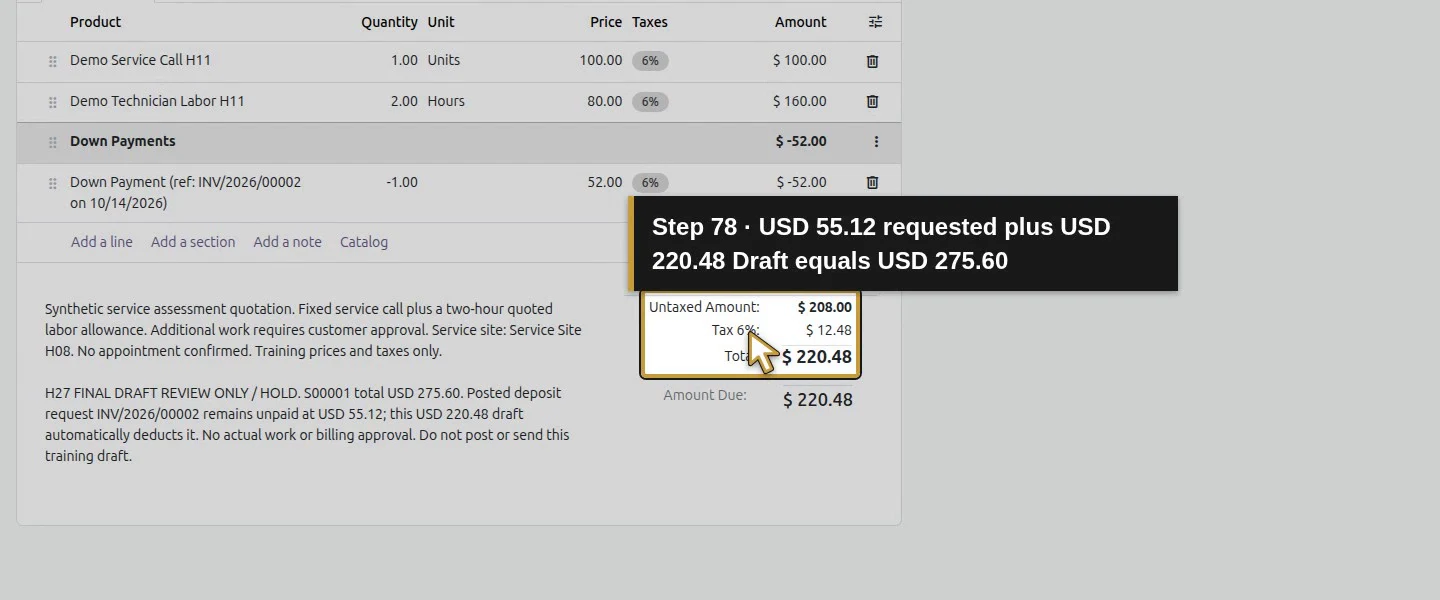
The final draft contains the $100 service call and $160 labor line, followed by Down Payments and Down Payment (ref: INV/2026/00002 on 10/14/2026). That deduction has Quantity -1.00, Price 52.00, 6% demo tax and an untaxed amount of -$52. Totals are $208 untaxed + $12.48 tax = $220.48. The deposit $55.12 plus this draft $220.48 equals the original $275.60 order. Both the positive deposit and negative deduction link to the same down-payment sales line. Do not add another manual deduction.
Step 8. Save the hold and reopen both linked invoices
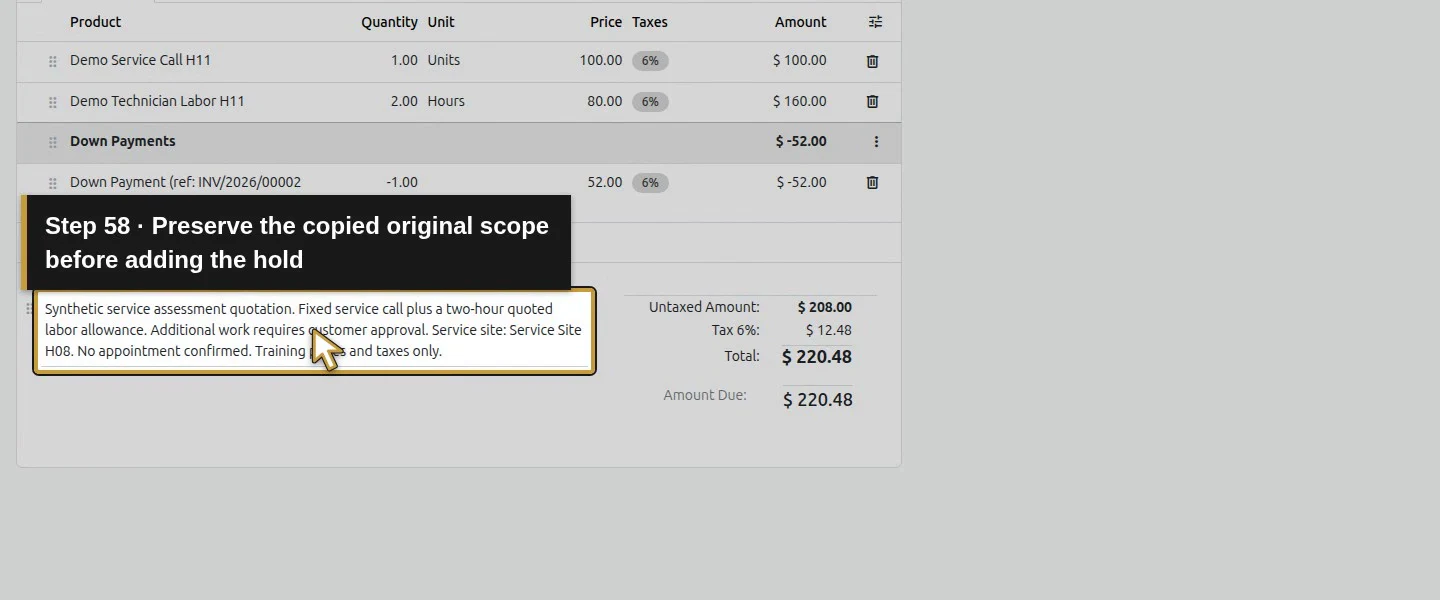
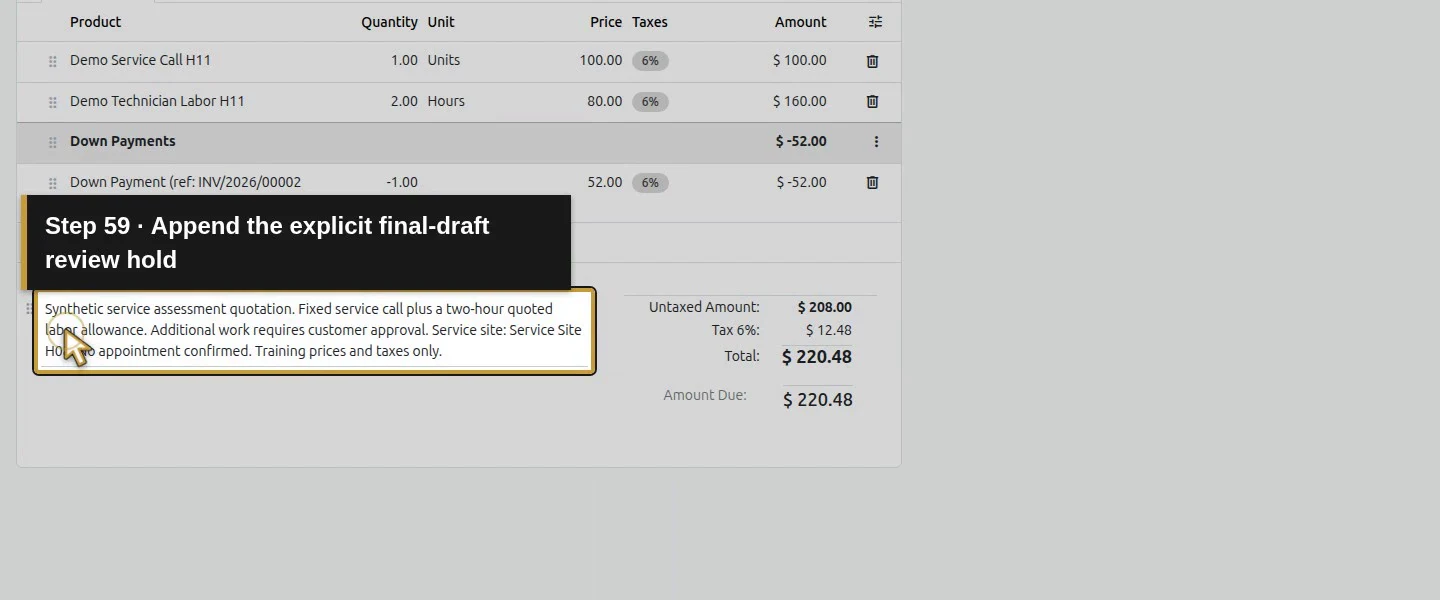
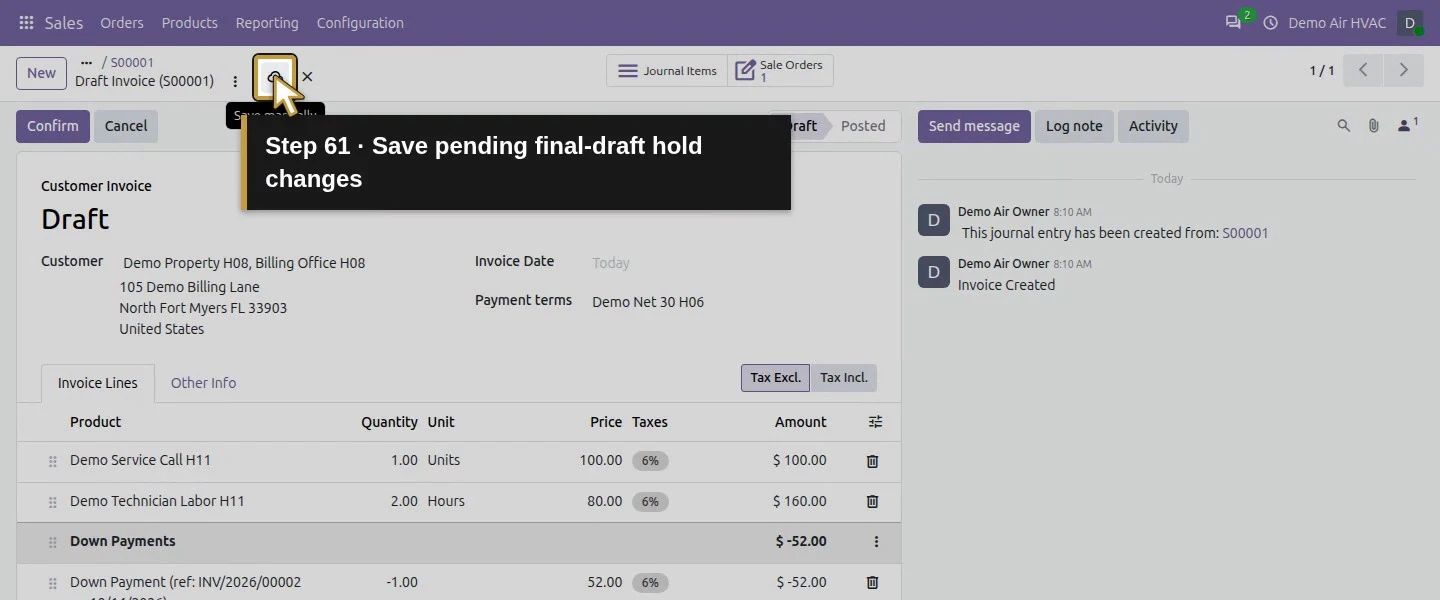
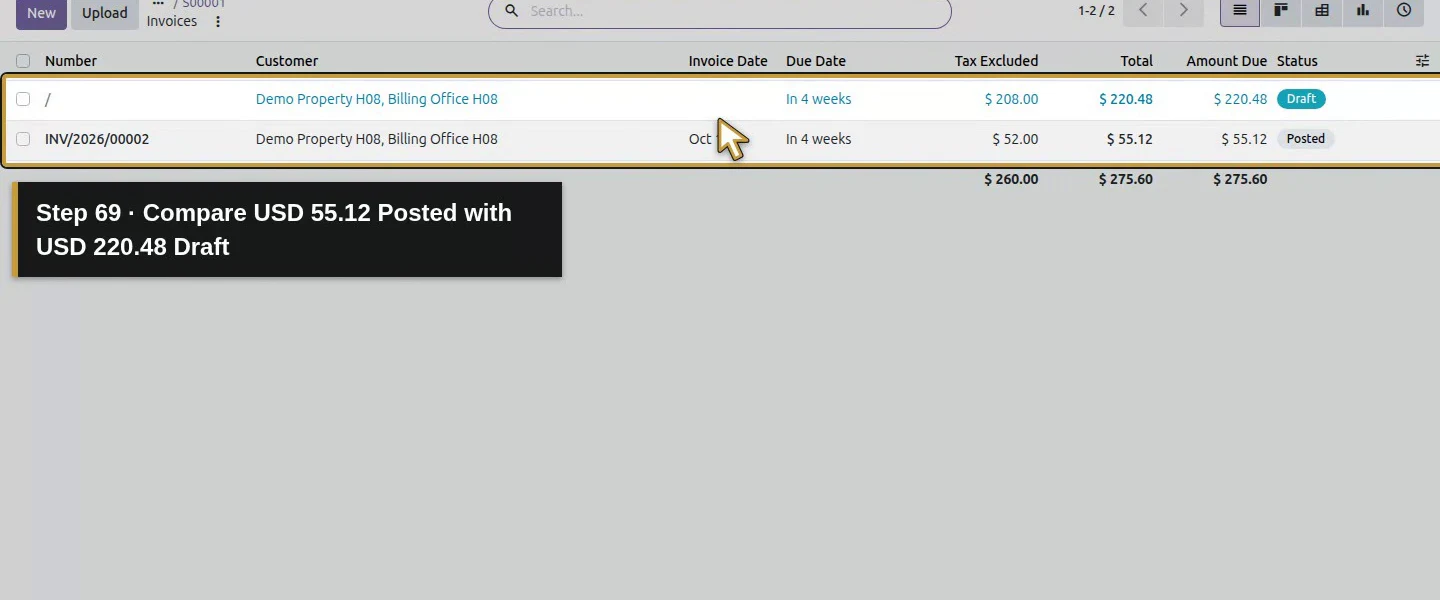
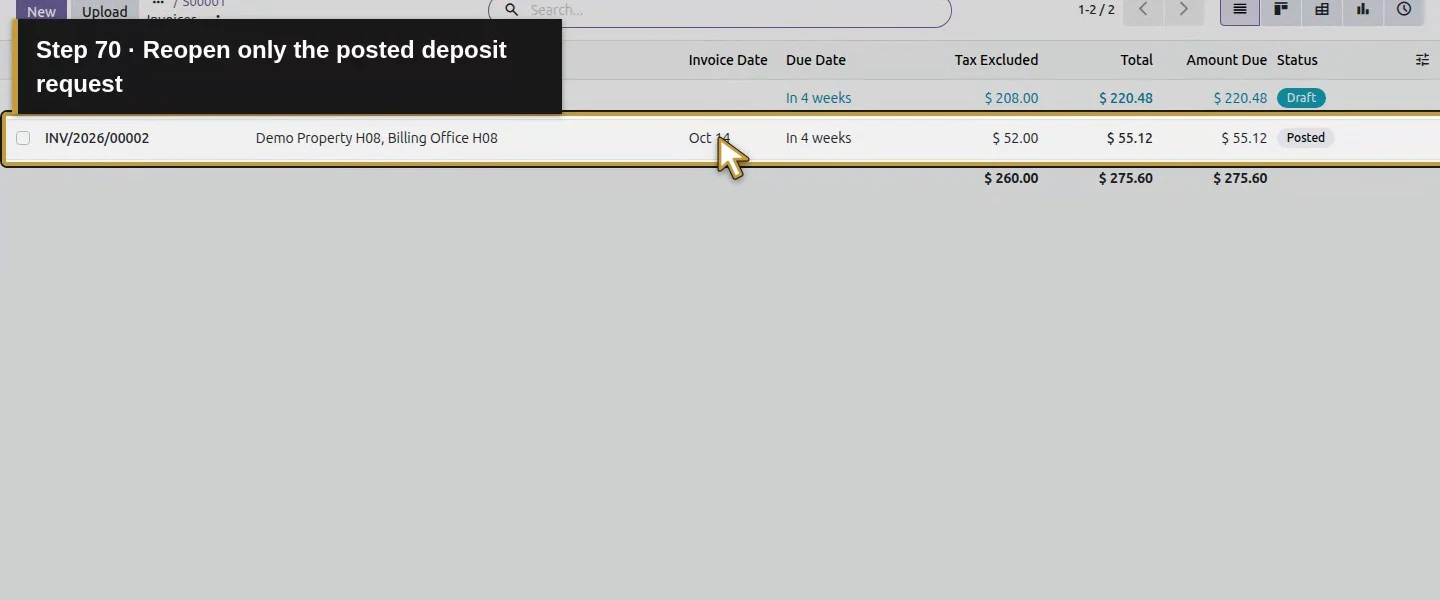
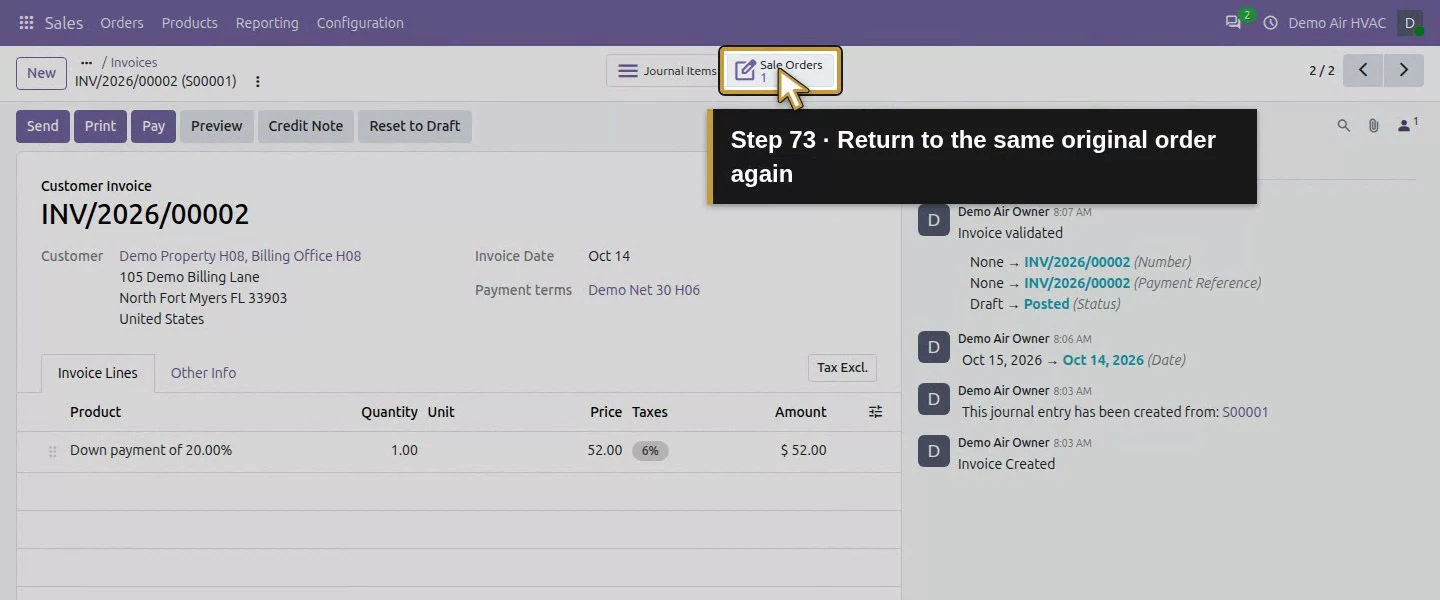
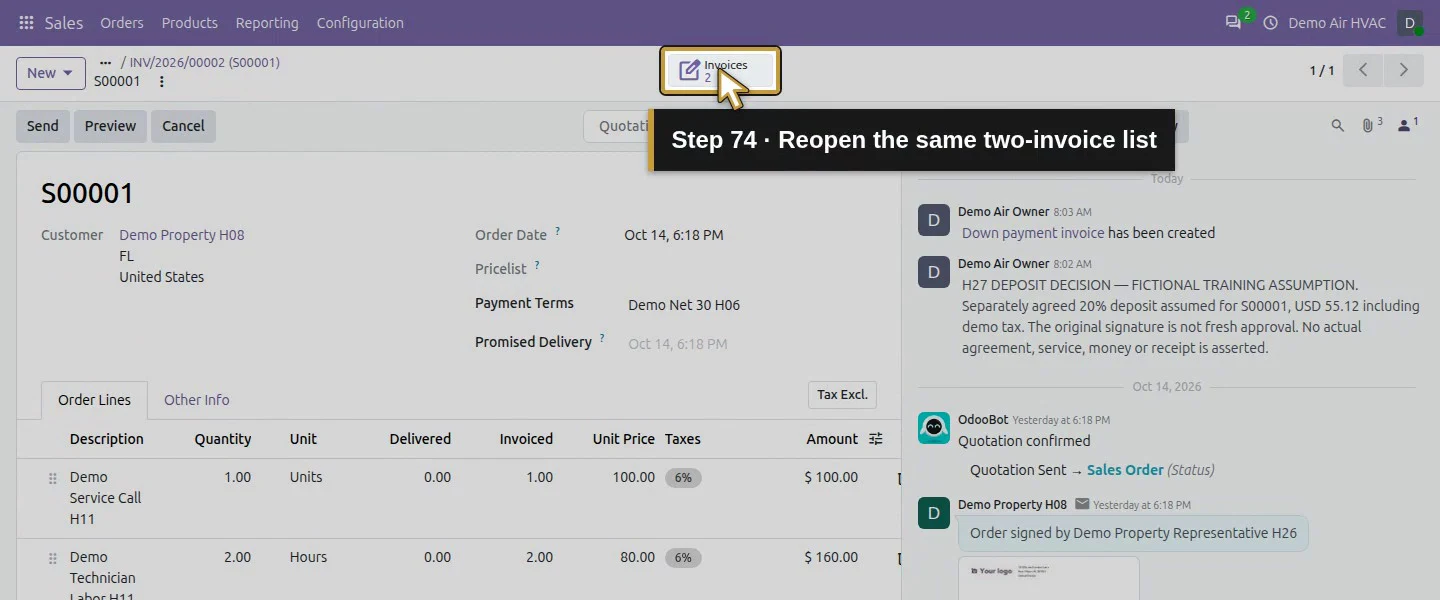
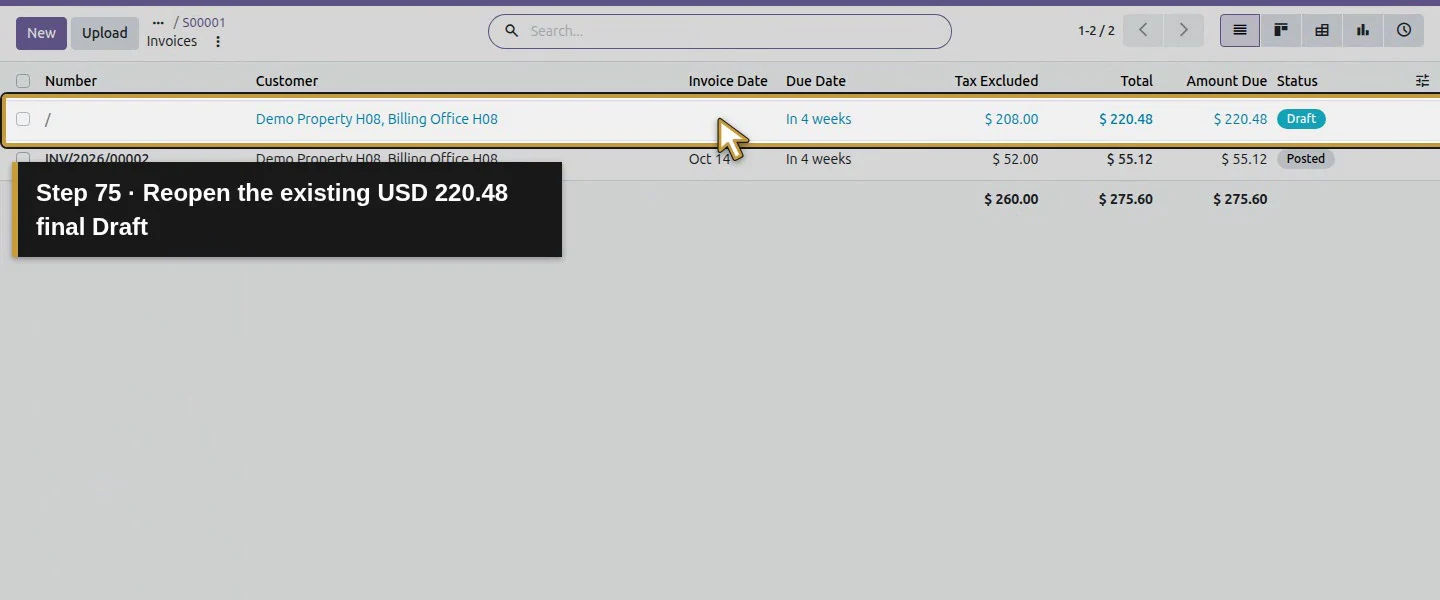
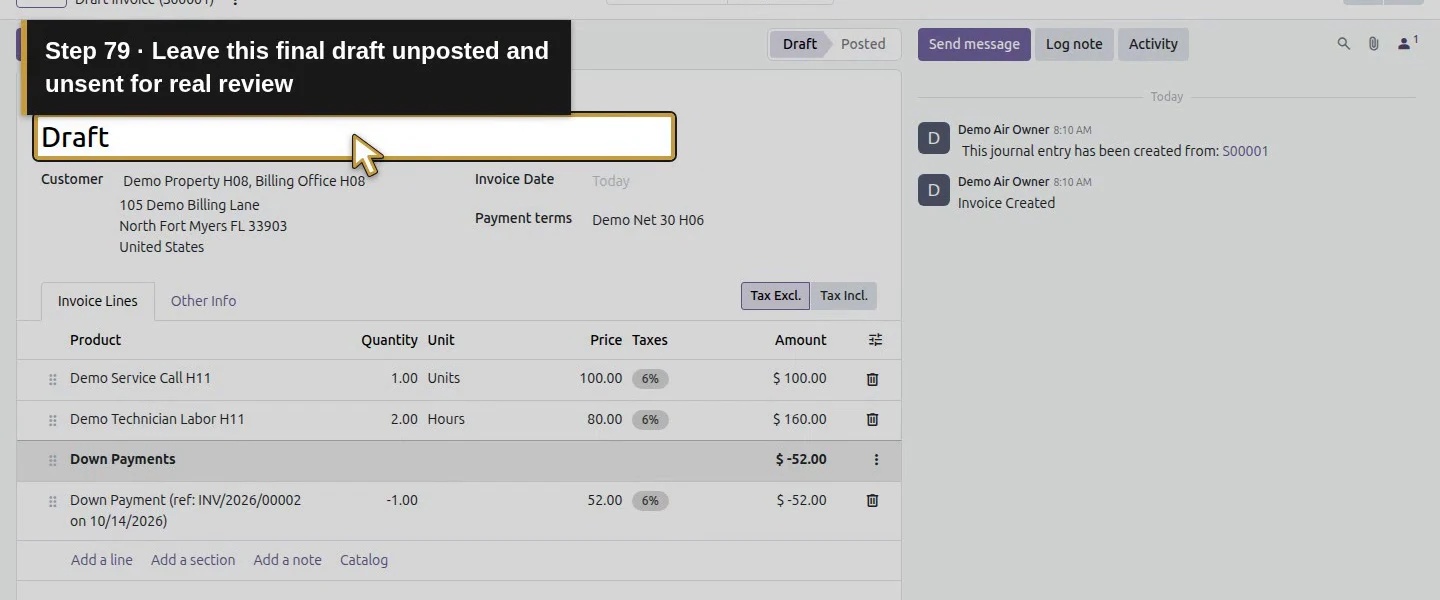
Append a clear FINAL DRAFT REVIEW ONLY / HOLD note to the draft: the deposit request remains unpaid and real final posting requires work/commercial review. Save pending changes and wait before reloading. Use 1 Sale Orders, then 2 Invoices, to inspect the same two records: the $55.12 deposit Posted and $220.48 final Draft. The order now has zero source quantities left to invoice and its saved invoice status is Fully Invoiced even though this final invoice is still draft. Its Create Invoice button is hidden in this state. Check the actual invoice status, not only the order indicator. Leave this draft unposted and unsent for review.
Check the result
S00001 retains its original $275.60 total, signed history and service lines, with native Down Payments section/line added. One posted unpaid deposit invoice, INV/2026/00002, requests $55.12. One saved final draft automatically deducts $55.12 including demo tax, leaving $220.48; both link to the same order and deposit sales line. The native two-invoice list shows Posted versus Draft. Reopening retained those two documents and the hold note. No payment was created, the final draft was not posted/sent, and earlier customer/supplier payments remain unchanged.
If your screen differs
The final deduction occurred while the deposit request was still unpaid. It accounts for an already invoiced request, not cash received. The source order counts its draft final quantities as invoiced, so Fully Invoiced and a hidden Create Invoice button do not prove every invoice is posted or paid. This test used one percentage, one currency and one 6% demo tax; fixed amounts, multiple deposits, mixed tax rates, cancellations and an oversize deposit were not exercised. The generated deposit line has no product in this version, and the regular-invoice dialog showed no deduction checkbox. Older screenshots can differ. The final draft remains held because service completion and real billing approval are outside this demonstration. Its displayed due date does not replace choosing an actual invoice date when reviewed.
Frequently asked questions
How do I create a down-payment invoice in Odoo?
On the reviewed confirmed order, use Create Invoice → Down payment (percentage), enter the agreed percentage and click Create Draft. Check customer, line, tax/account defaults and total before Confirm. Here 20% produced $52 plus $3.12 demo tax, a $55.12 posted unpaid request. The native line had no product selected.
How do I deduct an Odoo deposit from the final invoice?
After reviewing the real final-billing basis, return to the same order and use Create Invoice → Regular invoice → Create Draft. This runtime automatically included a negative line referencing the posted deposit, without a separate deduction checkbox. The $55.12 request plus $220.48 final draft equals $275.60. Review the original deposit and avoid adding a second manual deduction.
Does a down-payment invoice mean the deposit was paid?
No. The posted request in this test remained unpaid at $55.12 while Odoo already deducted it from the final draft. Invoice creation and deduction do not establish receipt. Confirm actual funds independently and inspect the linked payment and invoice residual in the appropriate payment workflow.Continue building the business
Continue with How do I buy special-order equipment for a customer job in Odoo?. The separate online-payment sandbox will use this unpaid deposit request; it will not reopen or duplicate H54’s already paid invoice. Collecting or recording a receipt stays separate from preparing either invoice.
Talk about your Odoo setup
Bring your current process and the result you need to Onward to plan your Odoo workflow. Talk about your Odoo setup.