
Running an HVAC business with Odoo
How can customers view and accept an Odoo quotation online?
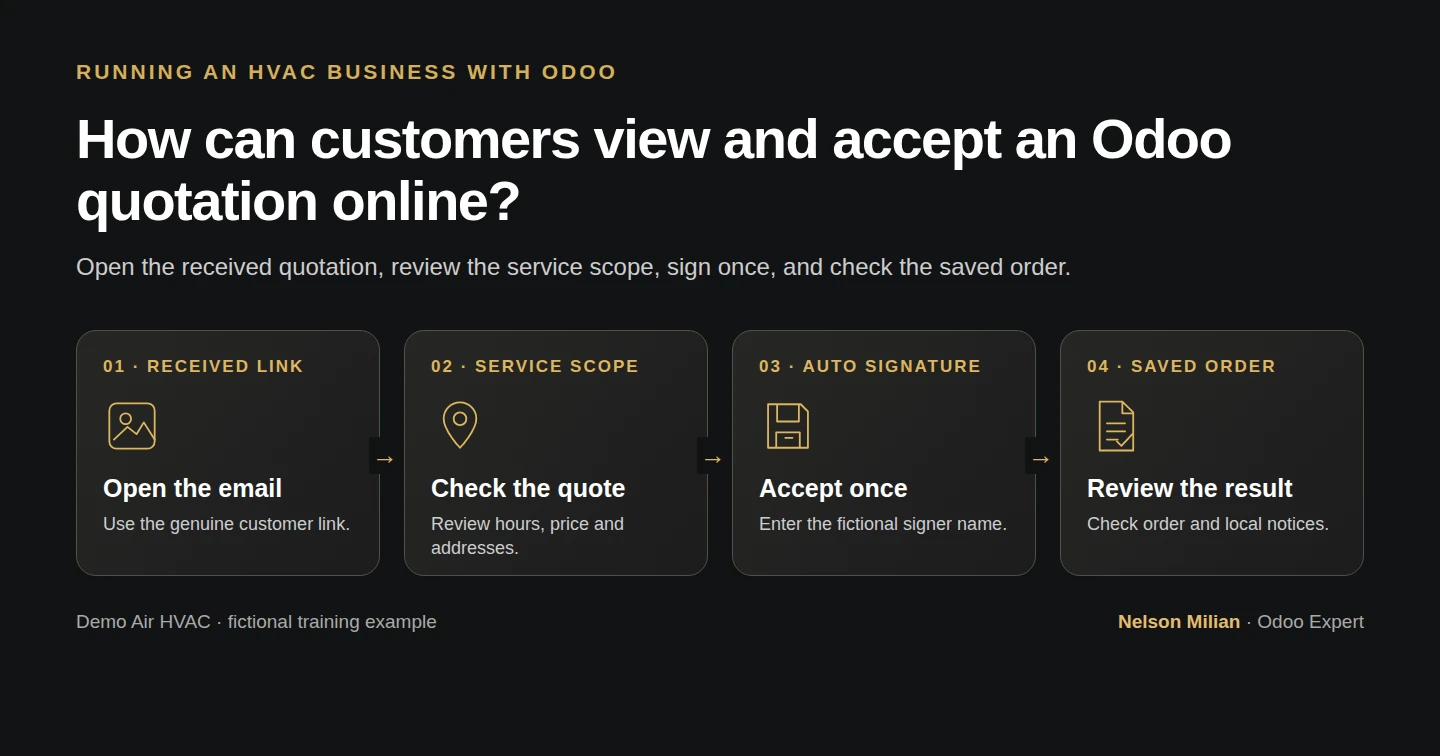
Let a customer review and sign an Odoo quotation online, then check the confirmed order, signature record and local confirmation email.
Alex has sent his HVAC assessment quotation. The customer needs to review the service scope and approve that exact document before Alex arranges the work. This guide follows the received quotation link through online signing and checks the resulting sales order.
Alex Rivera and Demo Air HVAC are fictional training examples. Prices, dates, quantities and business situations in this guide are illustrative.
Before you begin
Tested in stock Odoo 20.0-20260926 Community as the demo owner administrator, with official modules and standard configuration. Use the sent quotation S00001 from H23 and its received email from H07. The official Sales and Portal modules are available; the separate Sign app is not installed. Keep the local training mailbox running and use a separate browser session for the fictional customer. This example requires Online signature, has Prepayment: 0%, and uses no payment provider. Its two service products have Create on Order: Nothing. Those settings define what confirmation will do in this lesson.
Step-by-step workflow
Step 1. Check the quotation's confirmation options
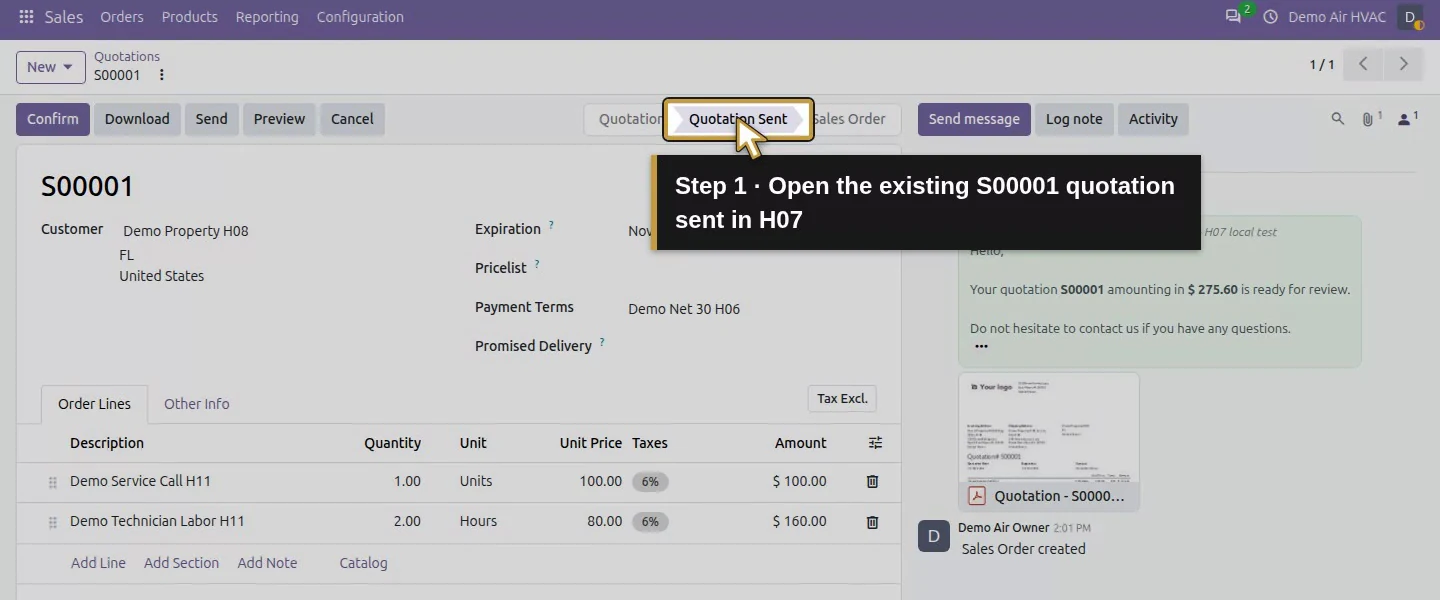
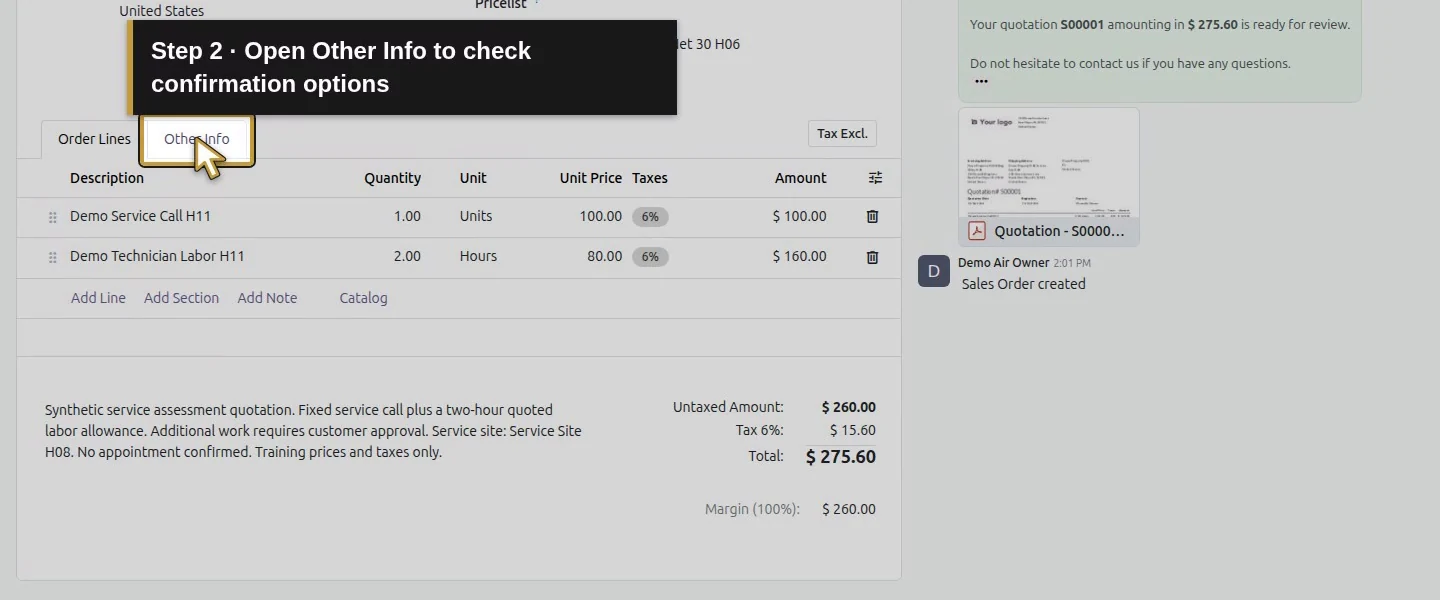
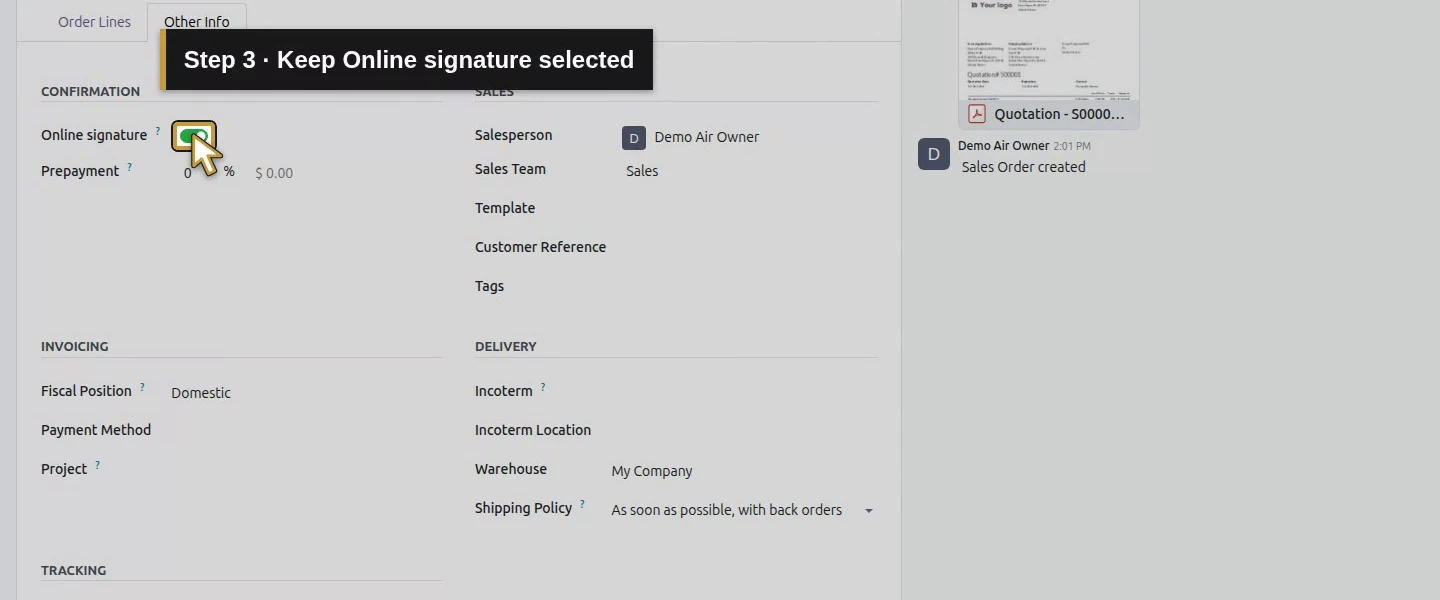
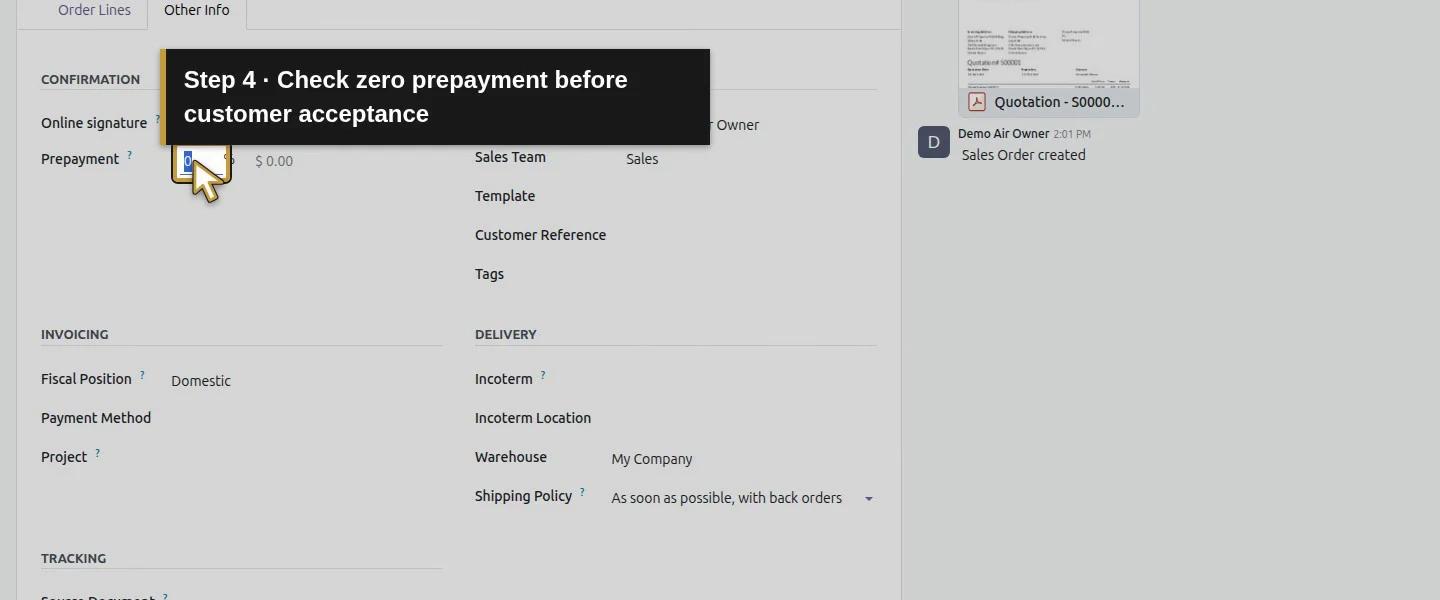
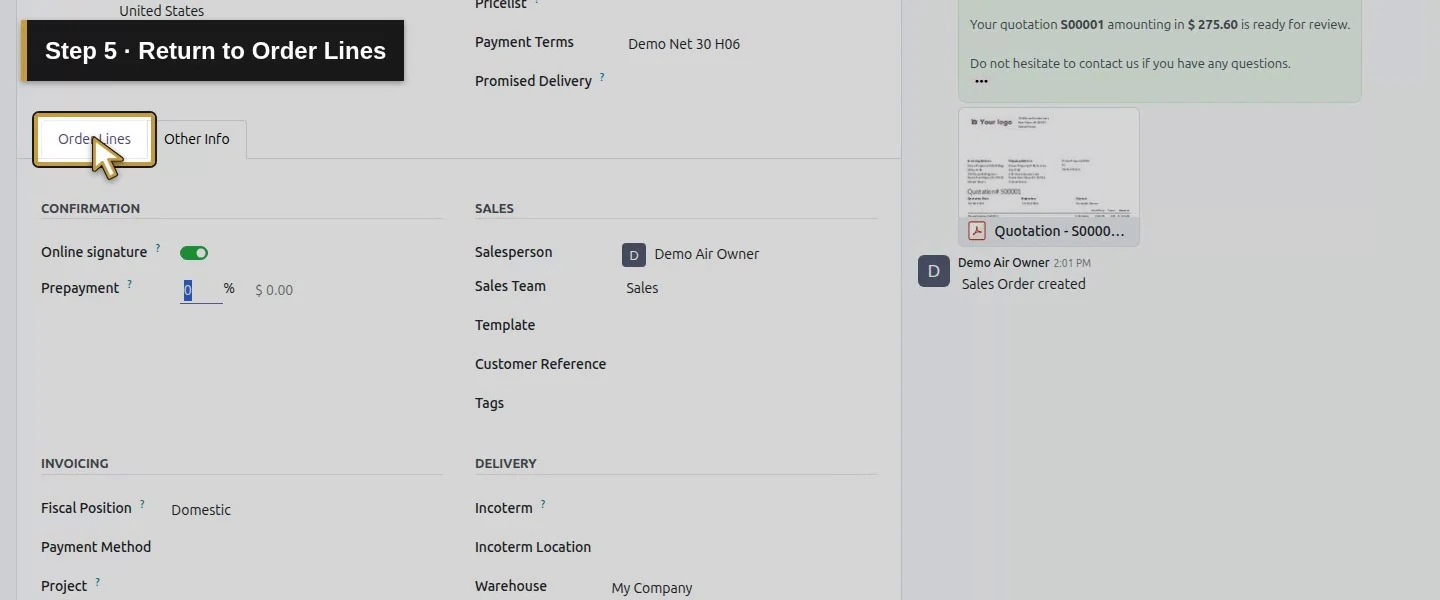
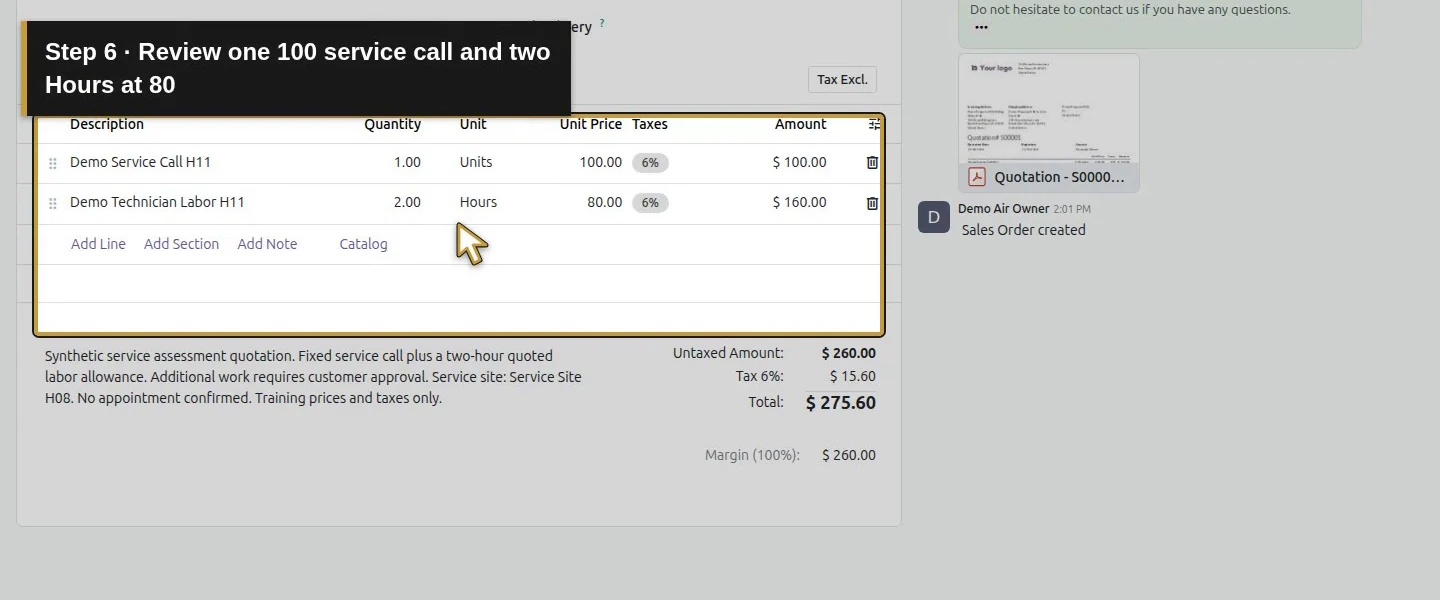
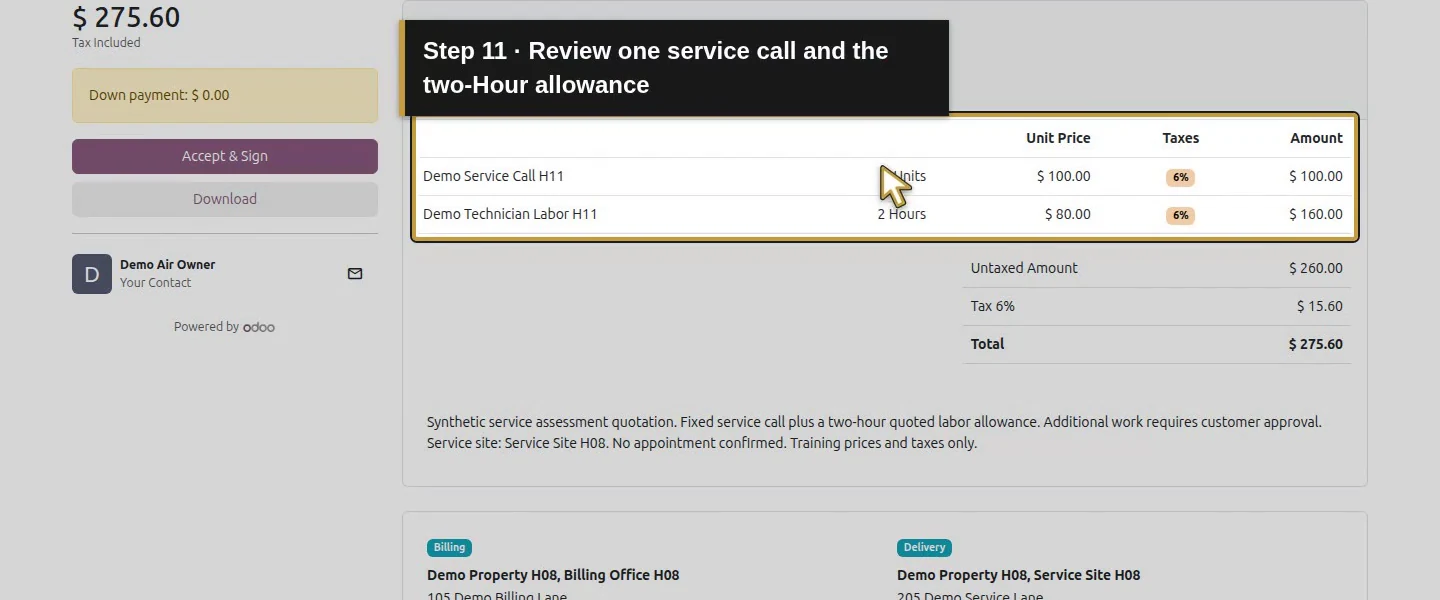
In Sales, open S00001 and select Other Info. Under Confirmation, check that Online signature is selected and Prepayment is 0% / $0.00. The quotation is Quotation Sent at this point. Return to Order Lines and check one service call at $100 and two Hours of technician labor at $80 per Hour. The two Hours are a quoted allowance; this is not a completed timesheet.
Step 2. Open the link from the received email
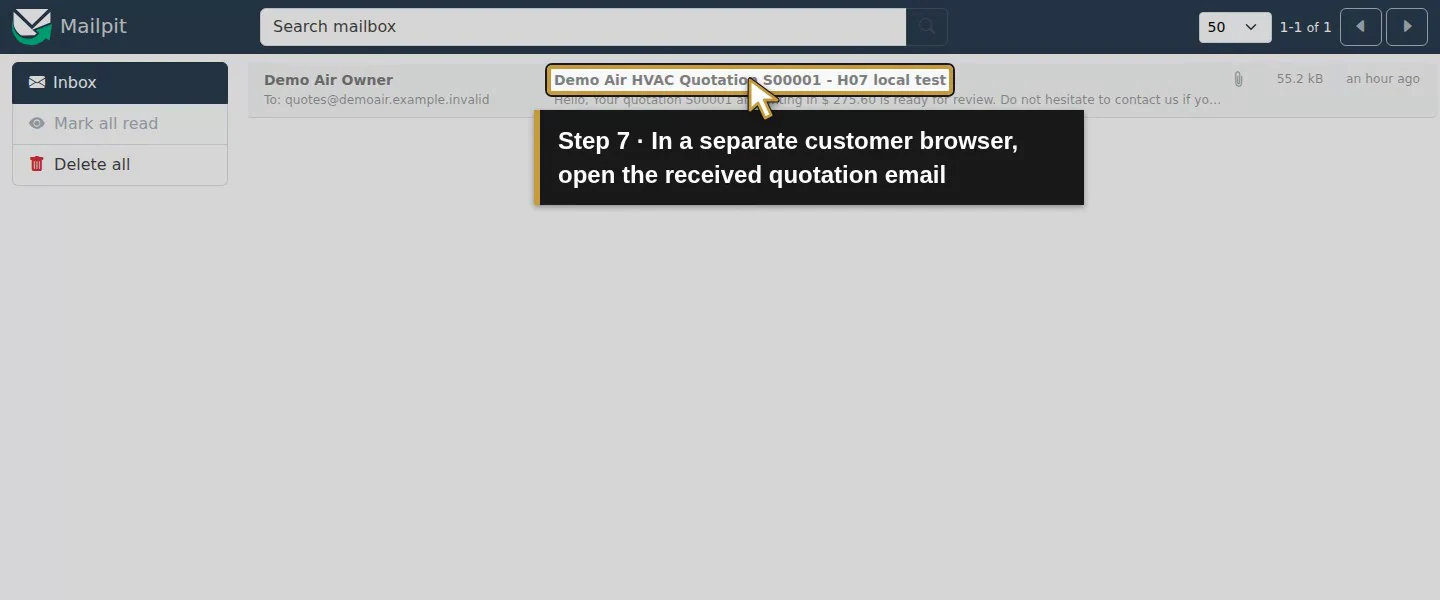
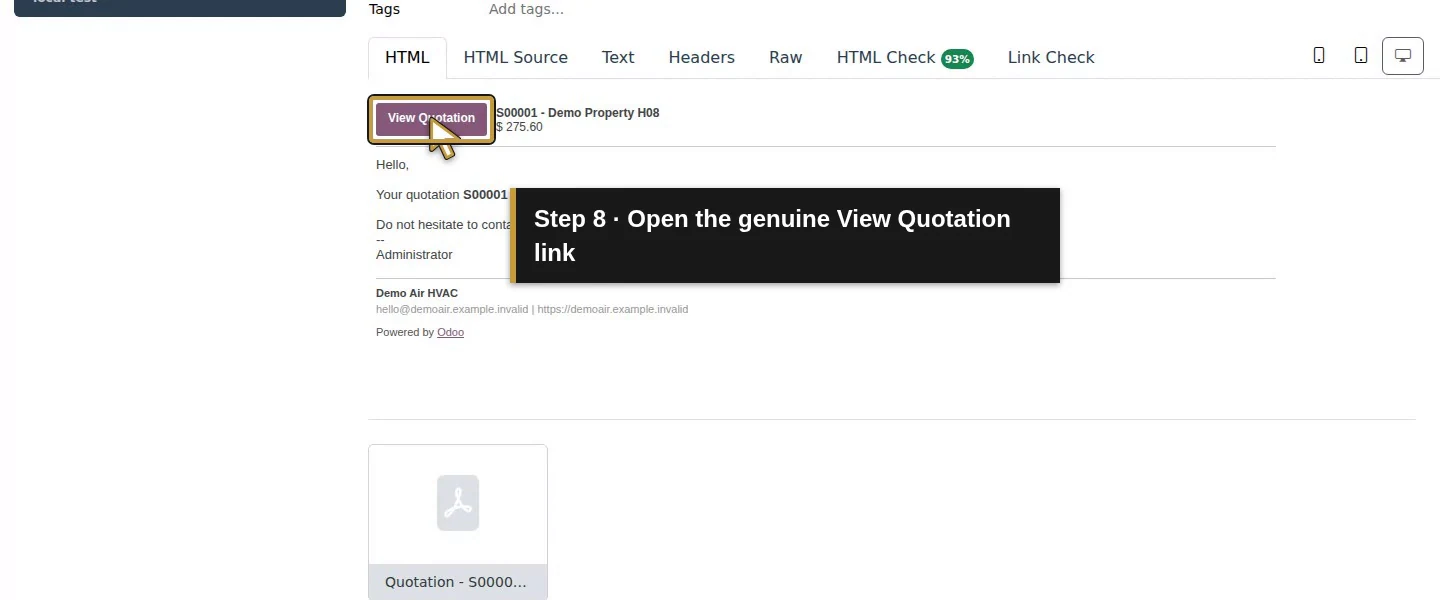
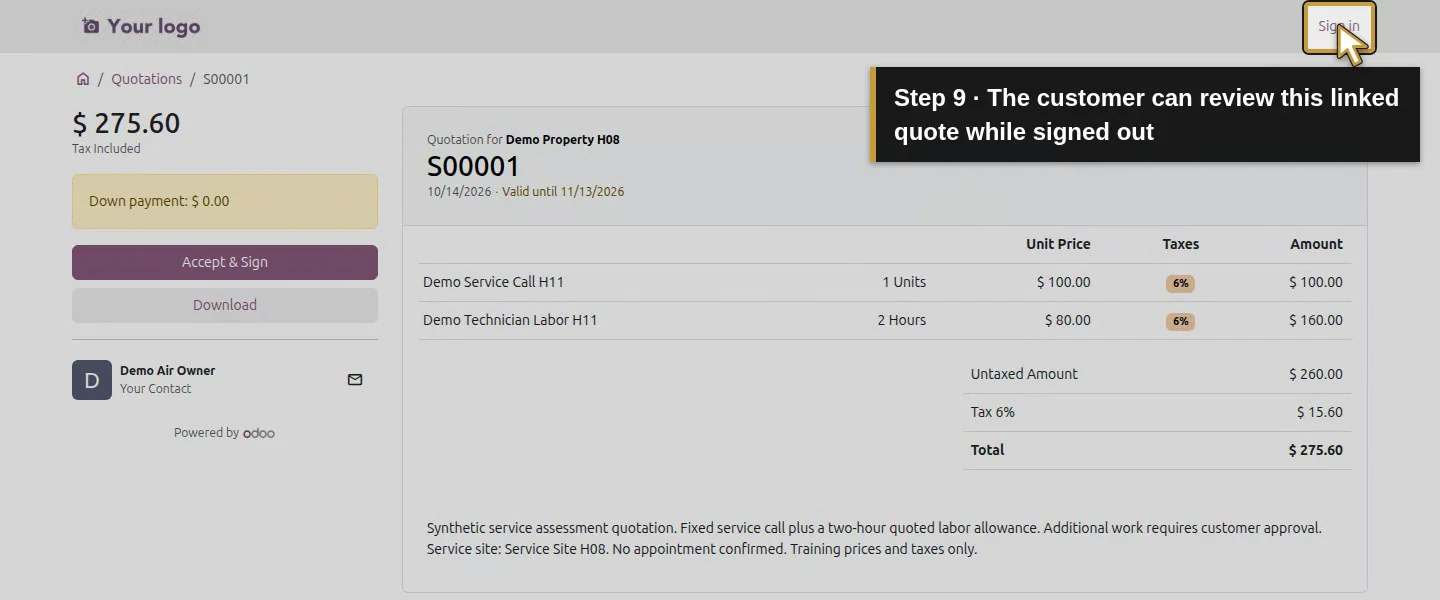
In the local Mailpit inbox from H07, open Demo Air HVAC Quotation S00001 - H07 local test. Use its View Quotation link in a separate customer browser session. Use the actual received link so this also tests the handoff from the email. Keep its private access parameters out of screenshots, source files and shared examples. The customer page in this test showed Sign in, while allowing access to this linked quotation without signing in.
Step 3. Review the quotation as the customer
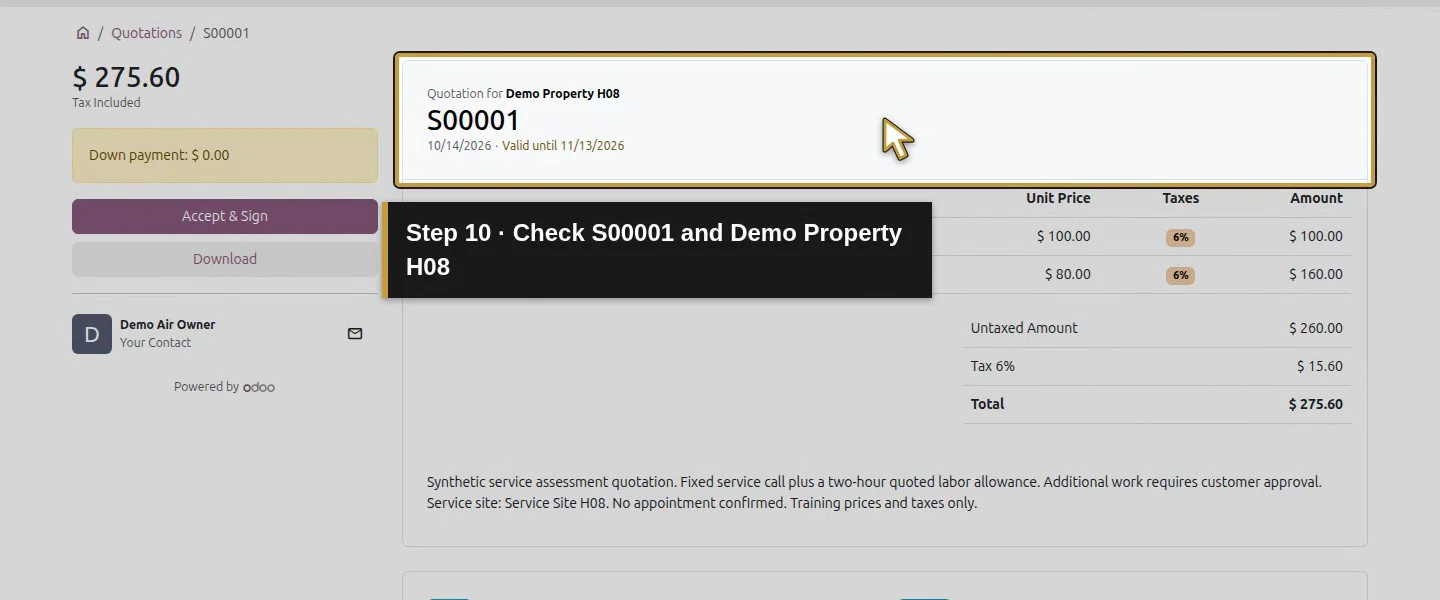
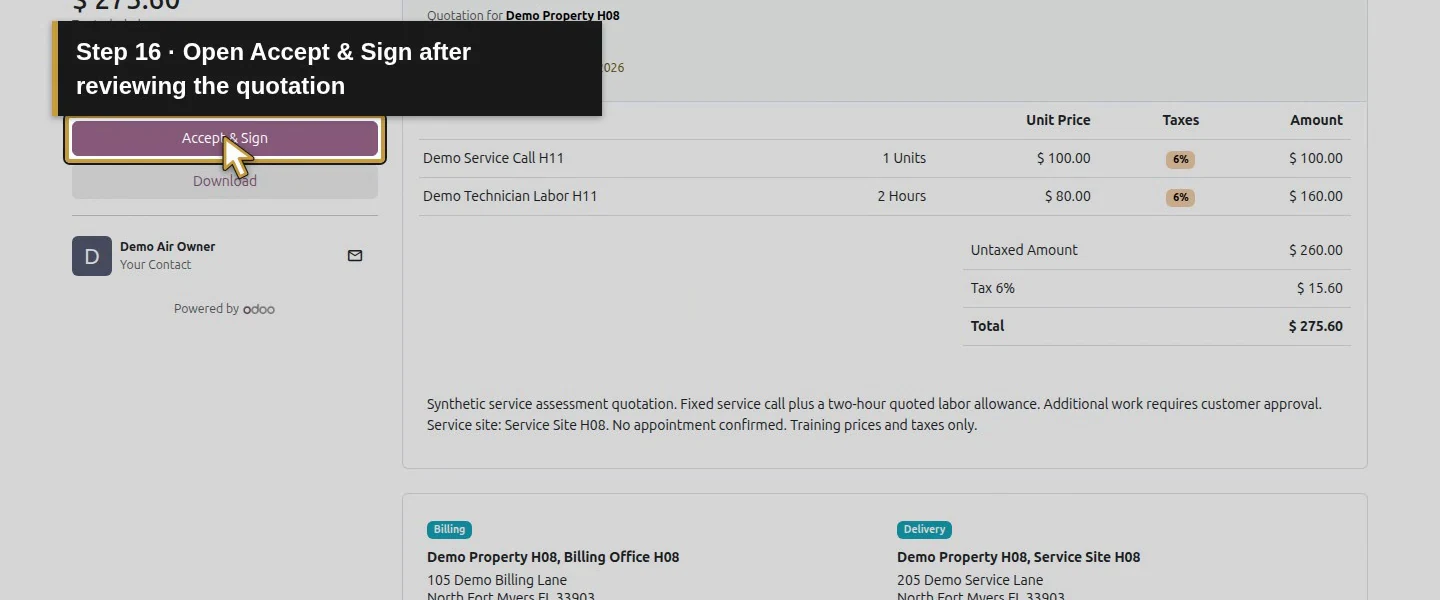
Check S00001, Demo Property H08, the service call and two-Hour allowance, and $275.60 total: $260 before the illustrative $15.60 tax. Read the scope beneath the totals, then check Billing for Billing Office H08 and Delivery for Service Site H08. The scope says additional work needs approval and no appointment is confirmed. Resolve an incorrect address, price or scope before signing.
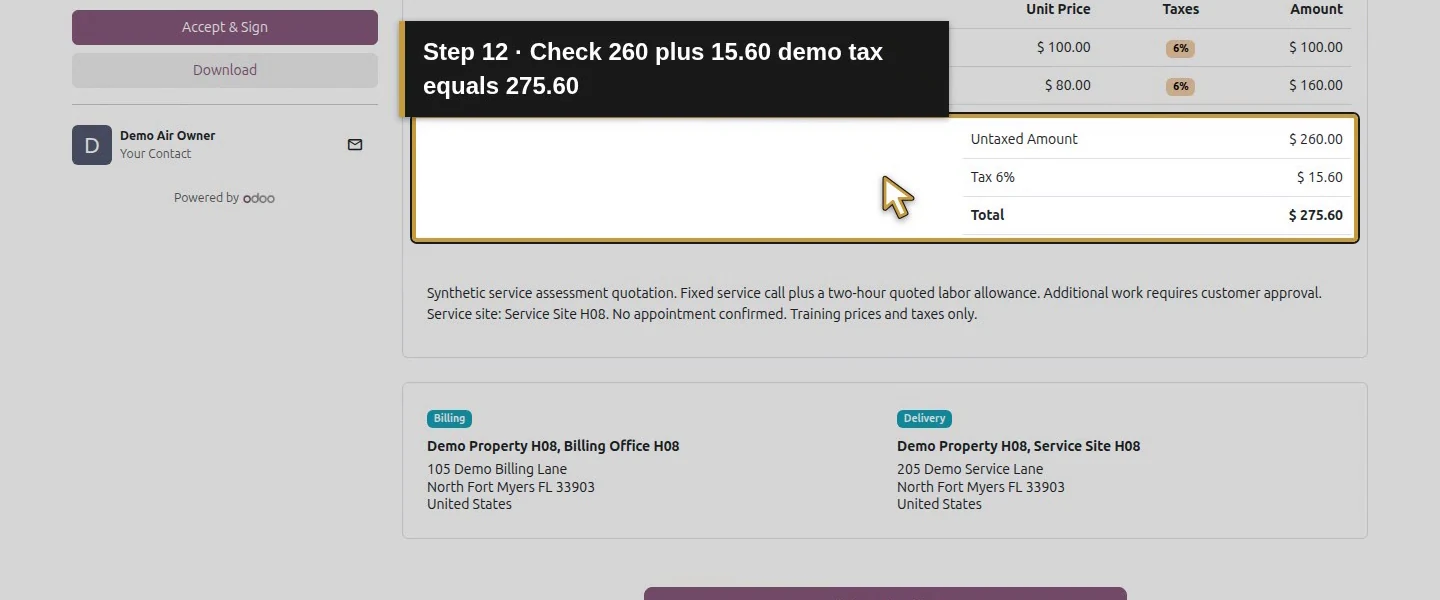
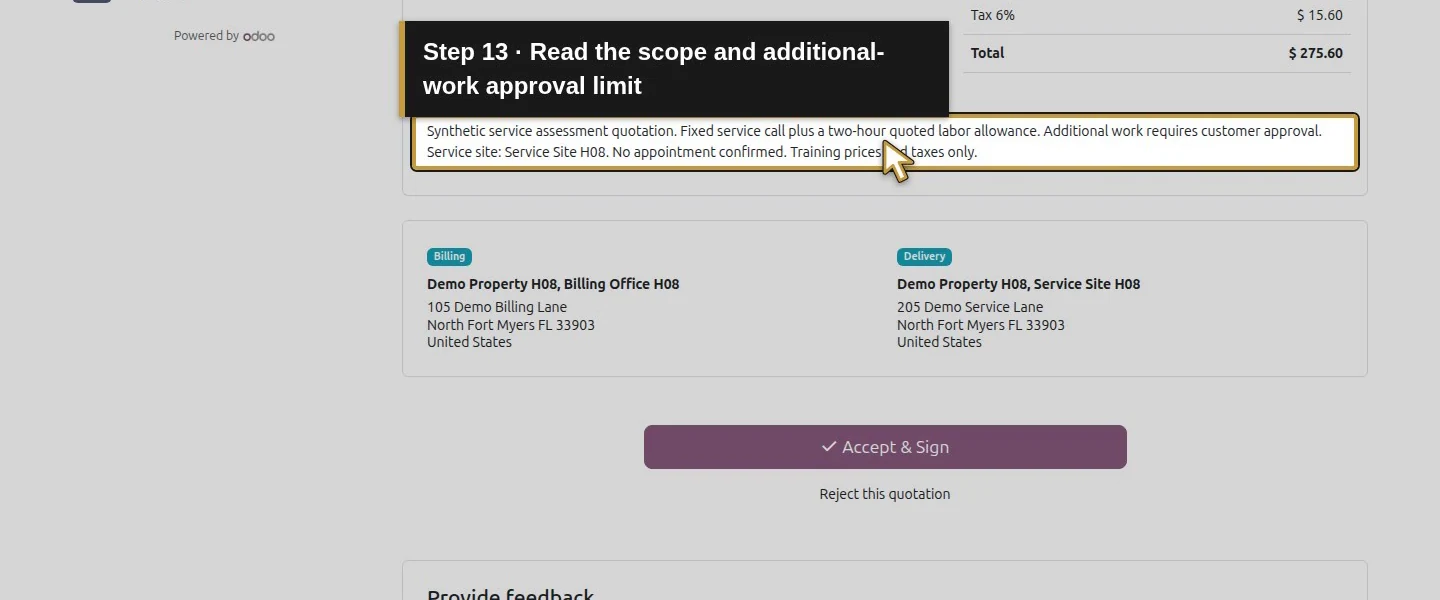
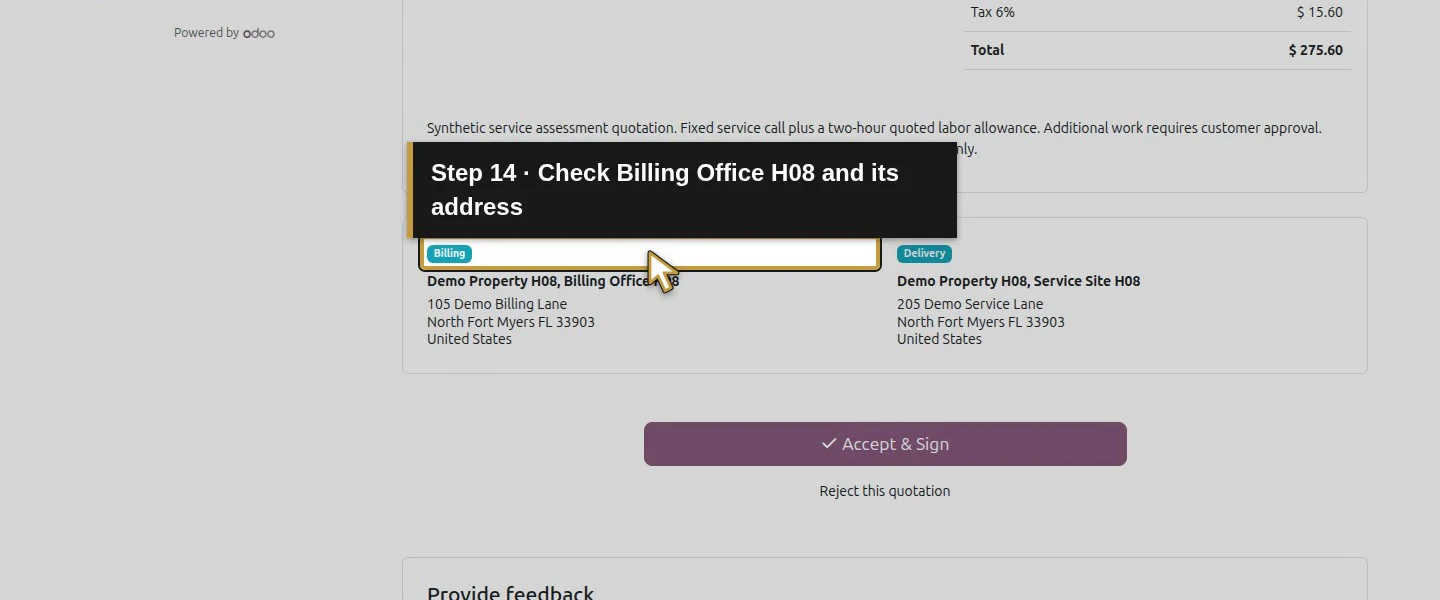
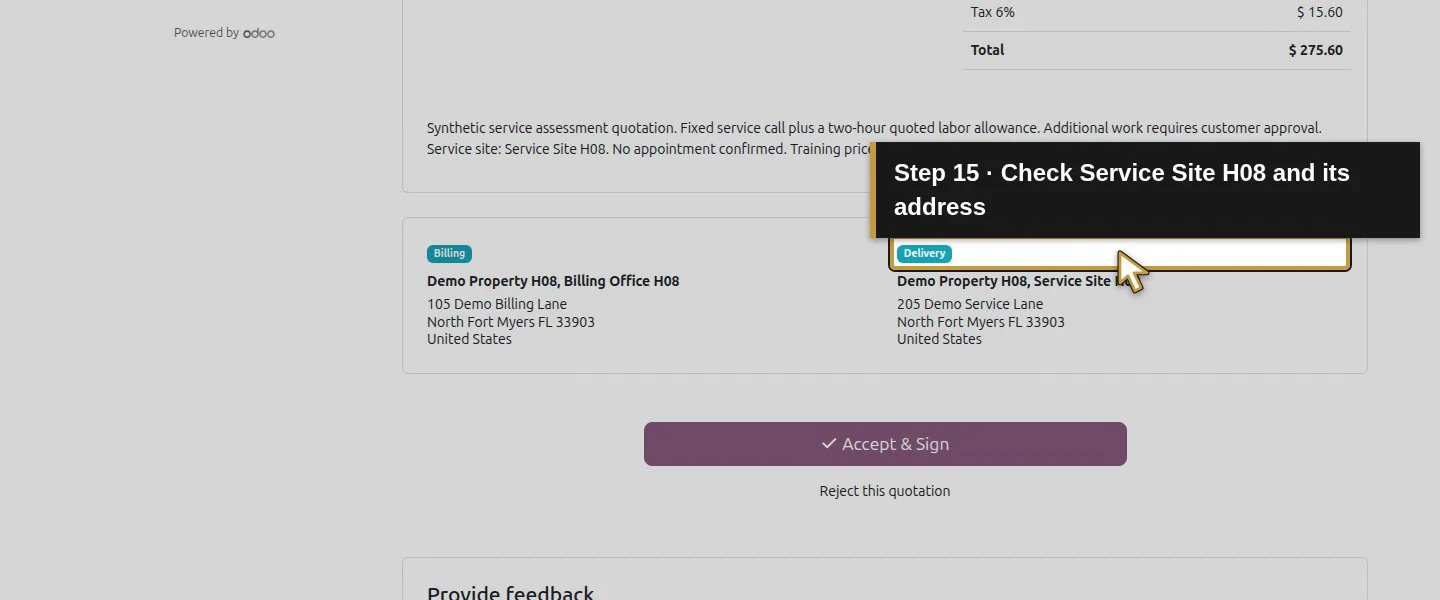
Step 4. Open Accept & Sign
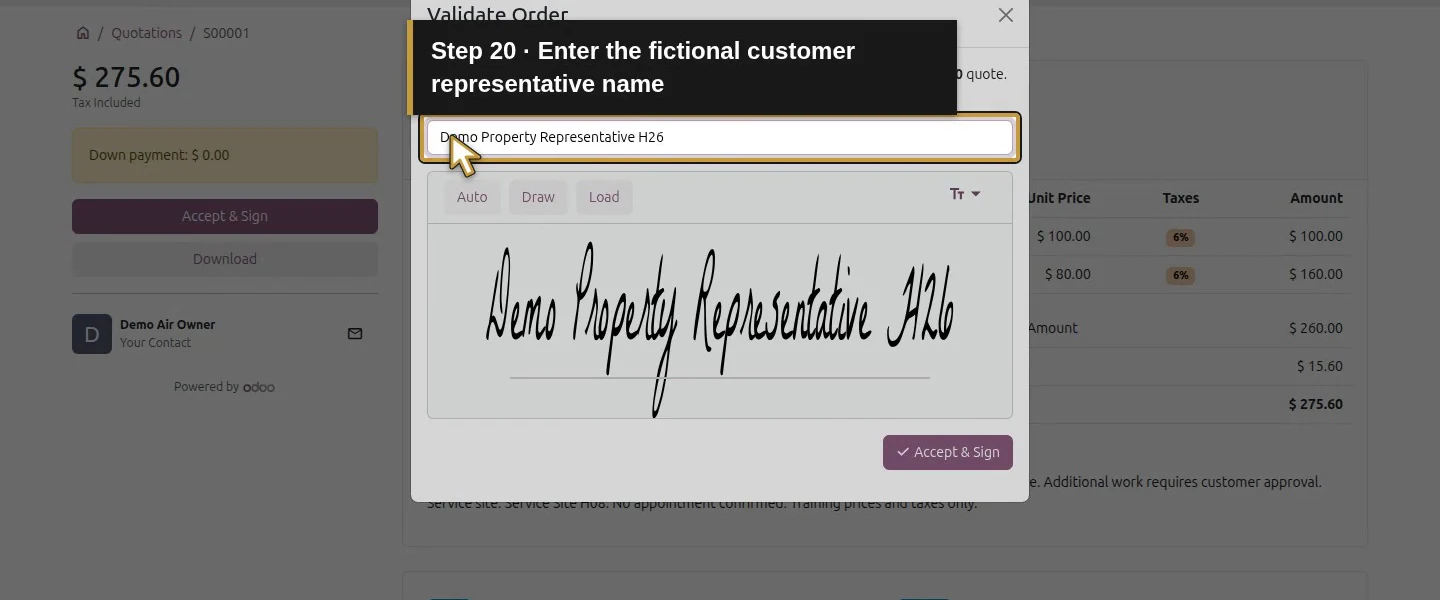
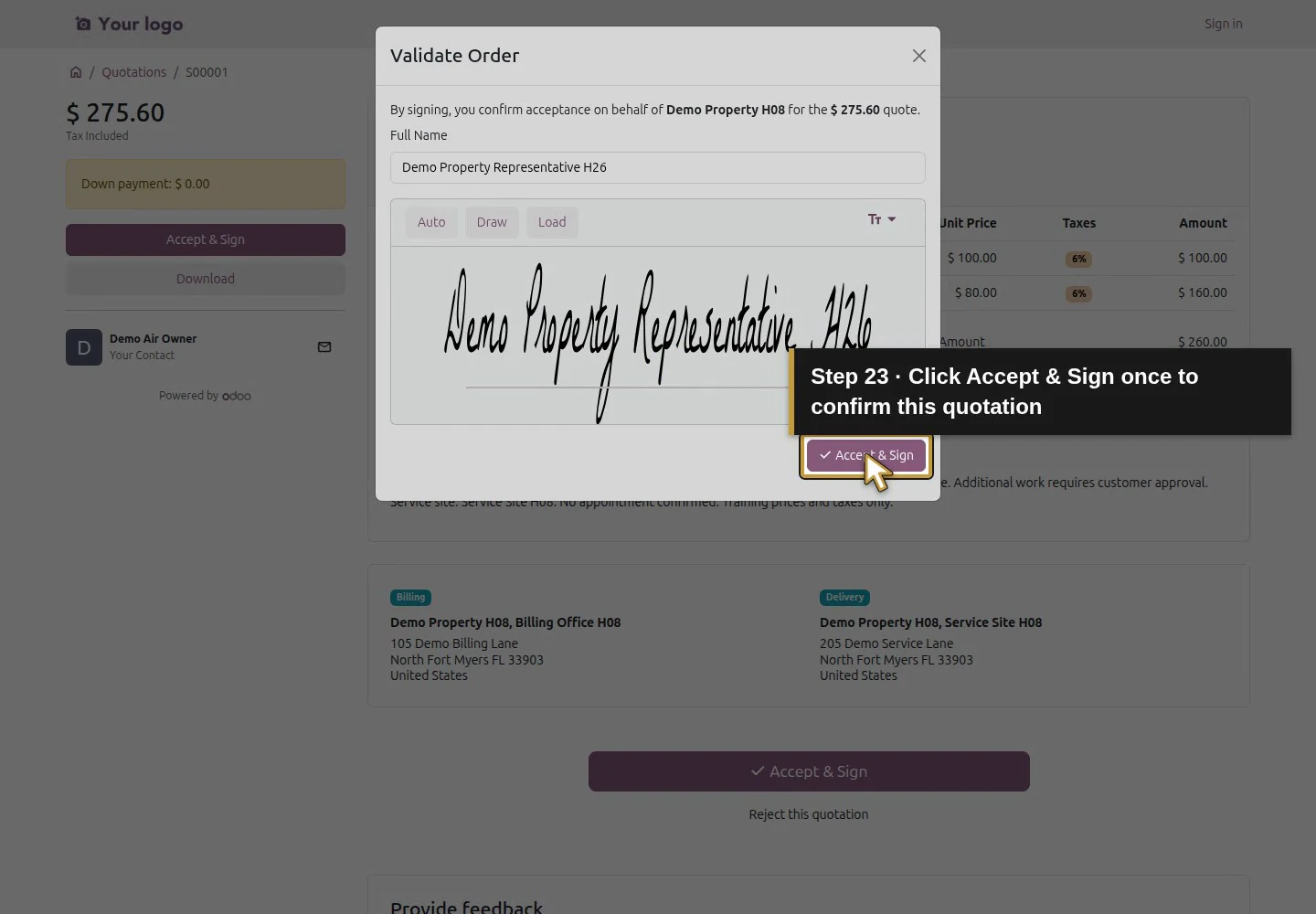
Click the customer's Accept & Sign button. The Validate Order dialog identifies the customer and the $275.60 amount being accepted. Check these details before continuing. The dialog offers Full Name and signature methods Auto, Draw and Load.
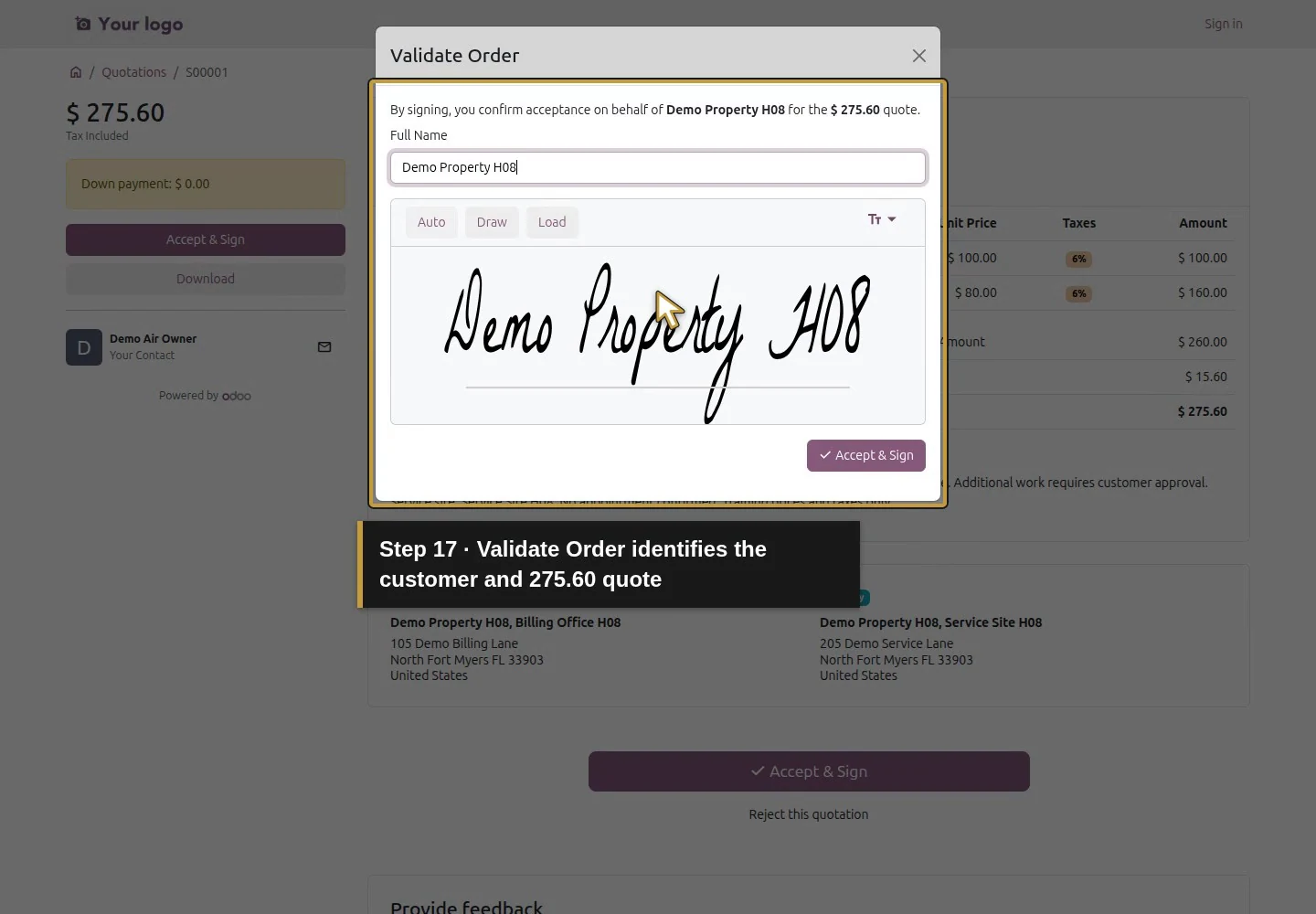
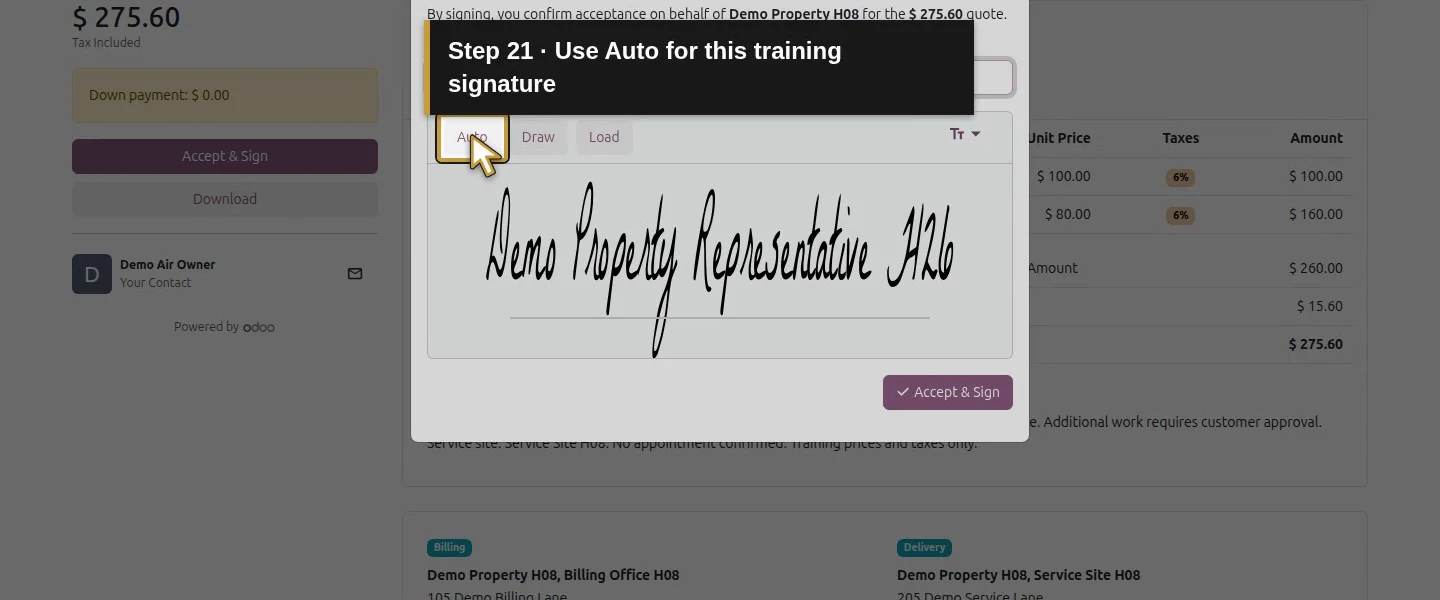
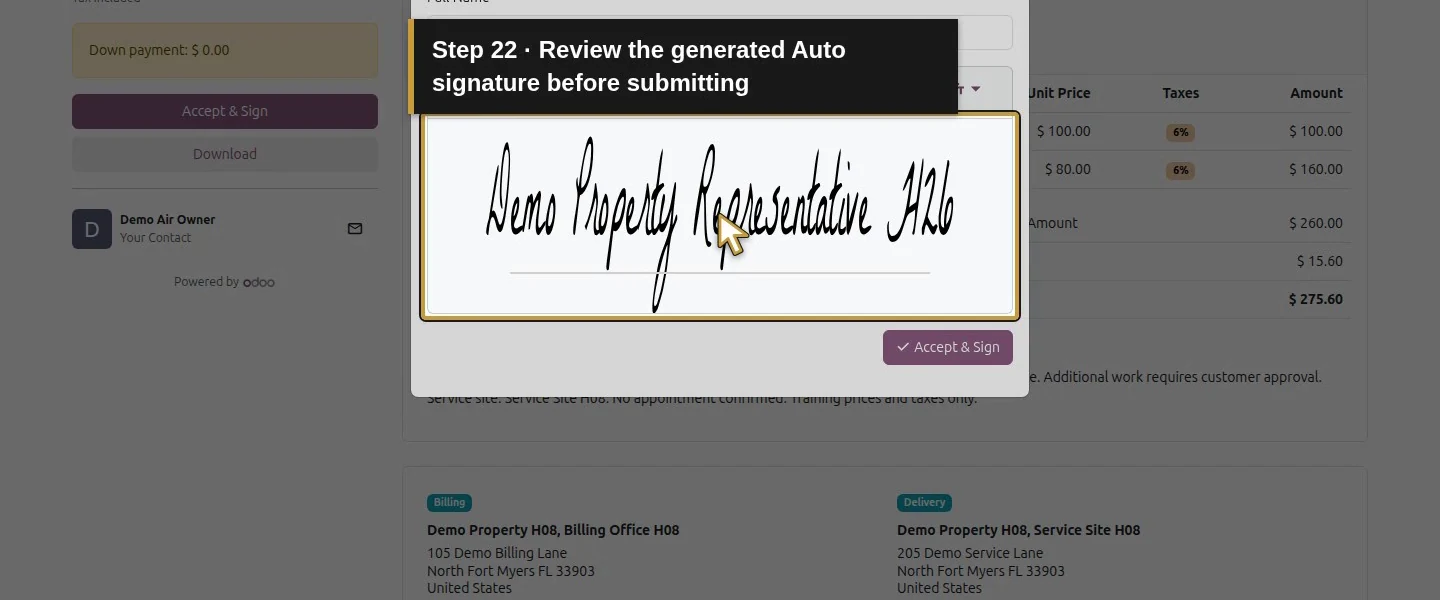
Step 5. Enter the name and generate the training signature
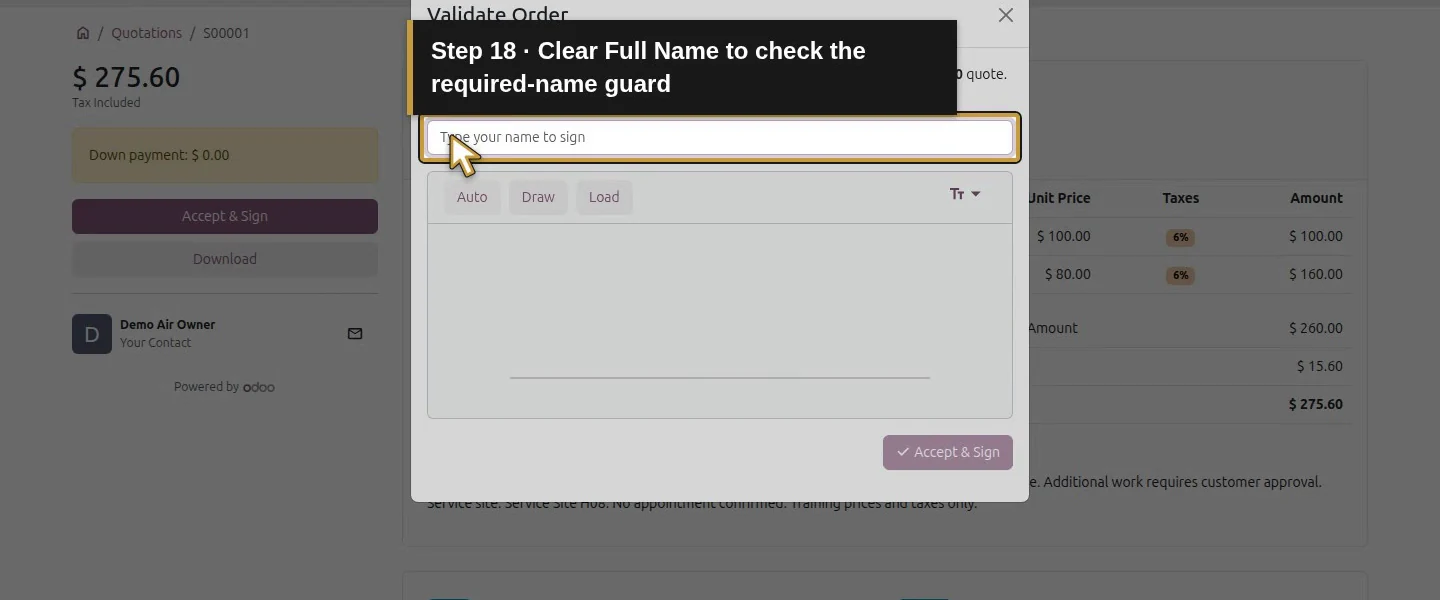
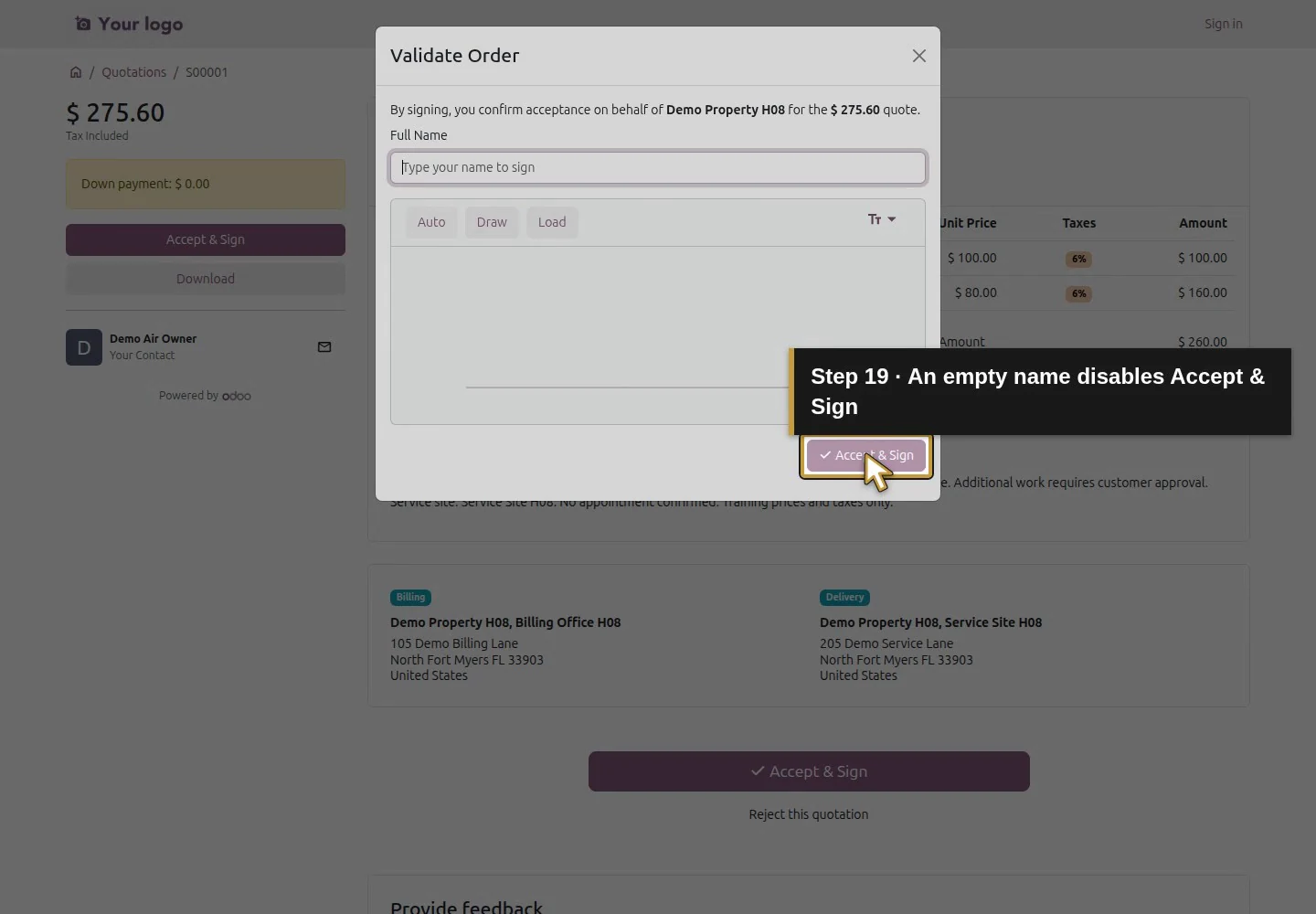
Replace Full Name with Demo Property Representative H26, our fictional signer, and use Auto to generate the example signature. In our empty-name check, Accept & Sign was disabled and the quotation stayed unconfirmed. Only Auto was exercised; the availability of Draw and Load was observed without testing those methods.
Step 6. Submit the signature once
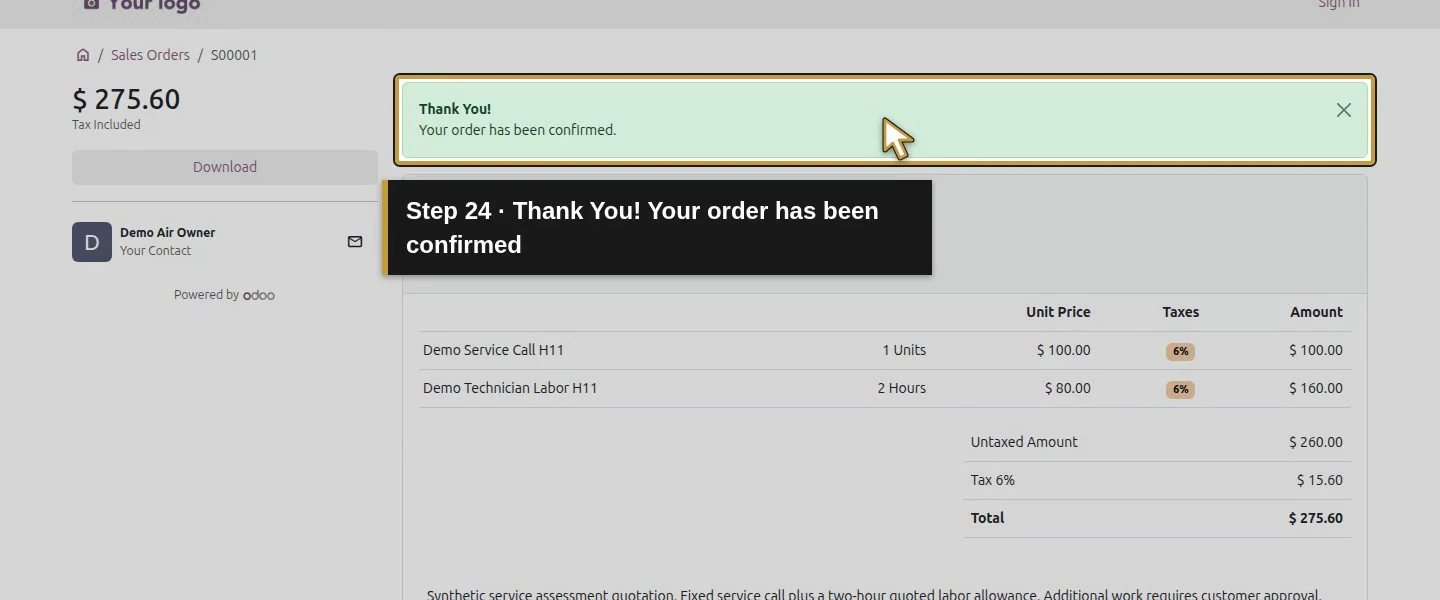
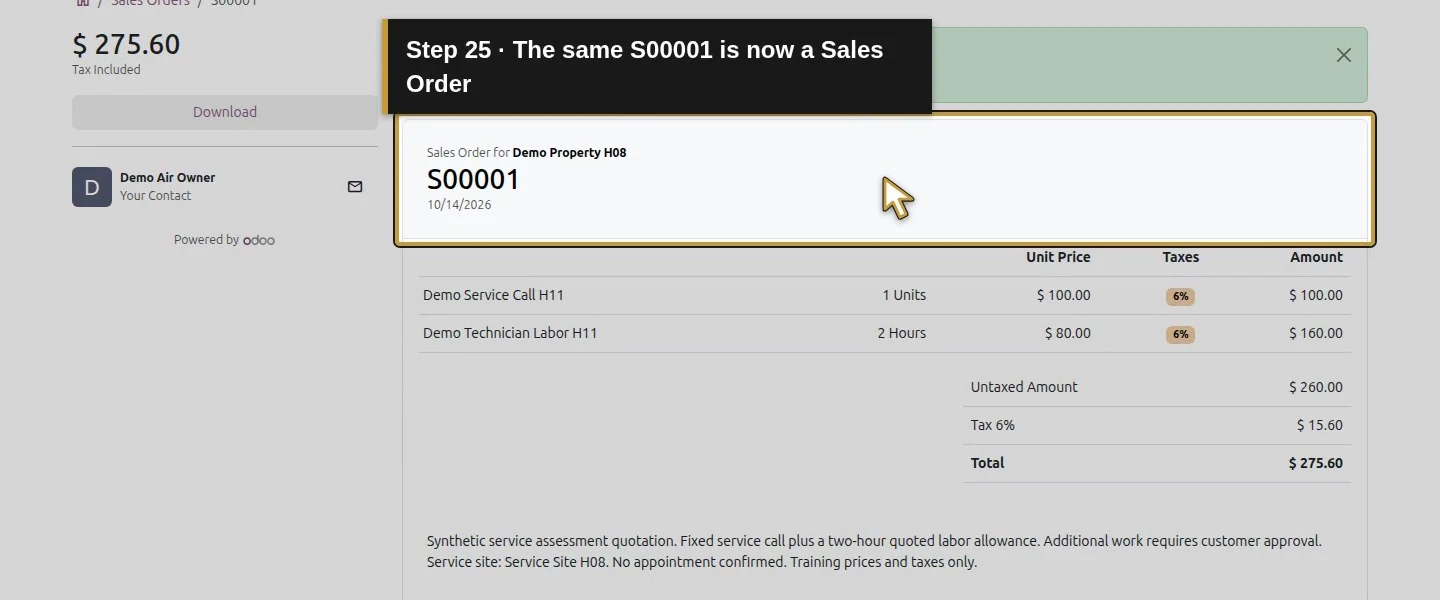
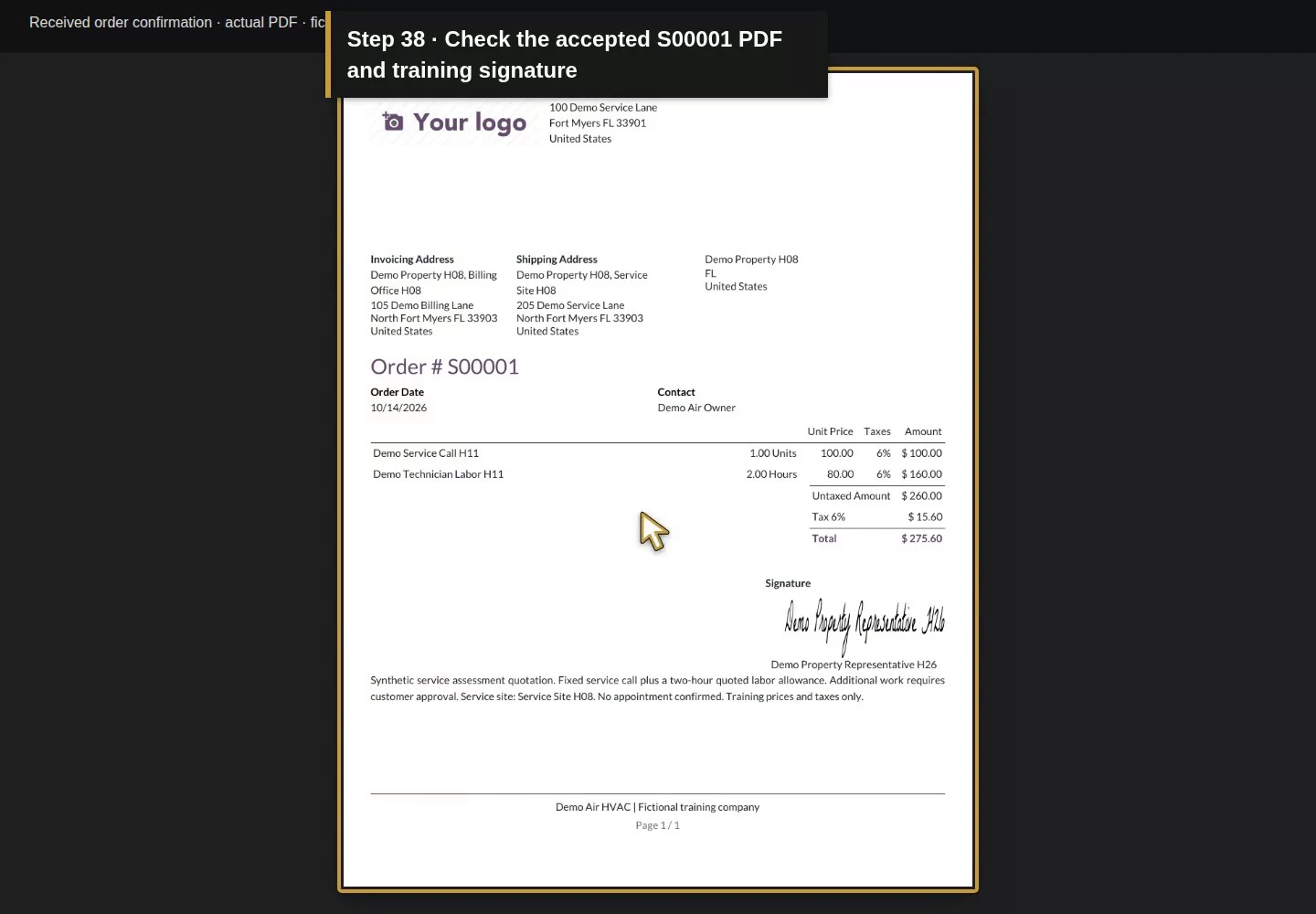
Click the dialog's Accept & Sign once. The page displays Thank You! Your order has been confirmed. and Sales Order for Demo Property H08. Check that the reference is still S00001, with the same two lines, scope, addresses and $275.60 total. The acceptance and rejection controls are no longer offered on the confirmed page.
Step 7. Reopen the same customer link
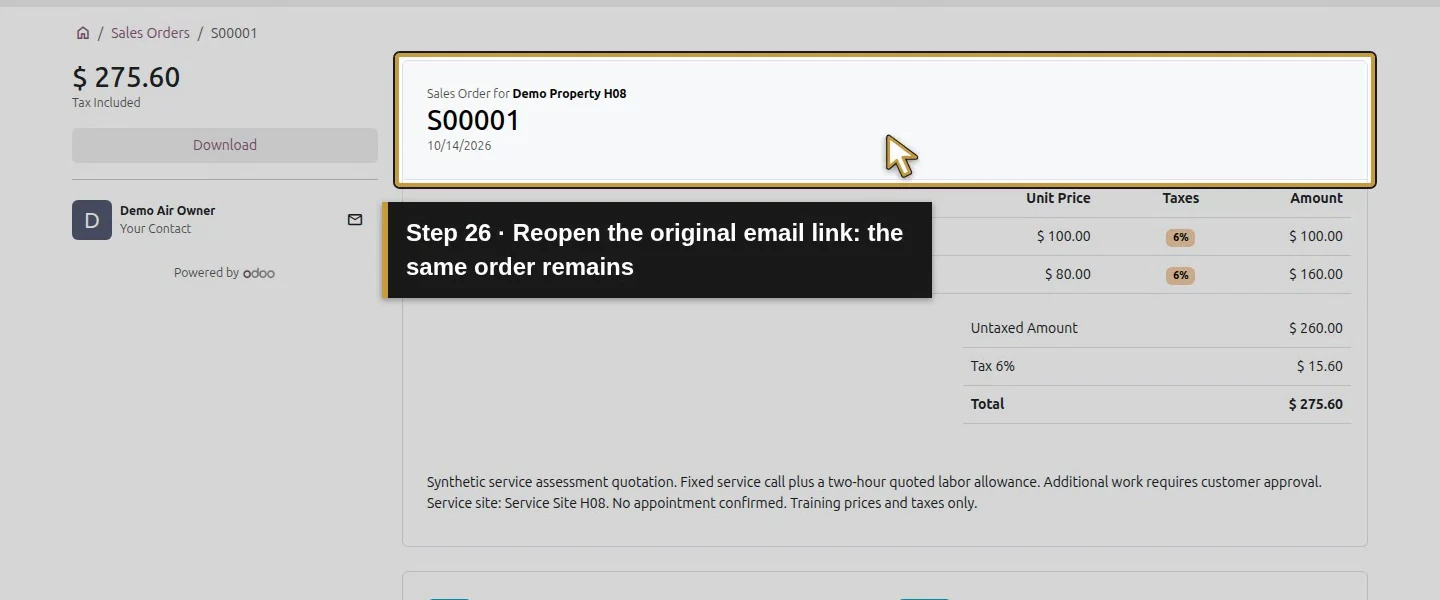
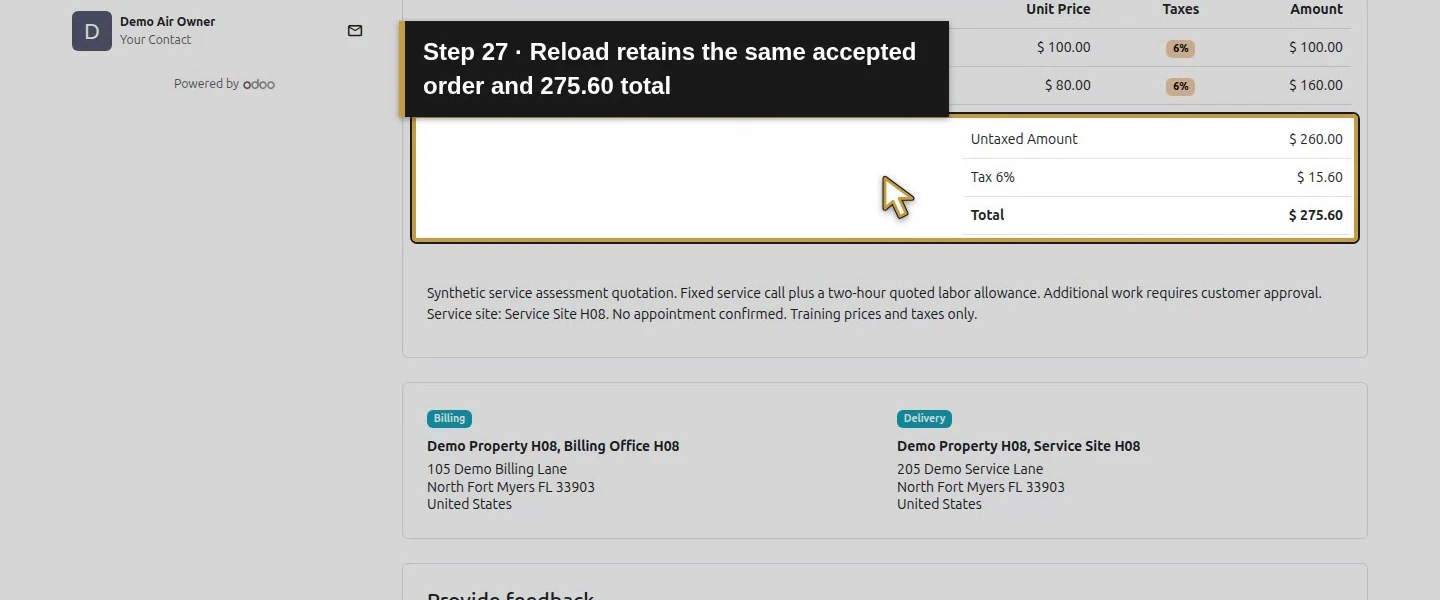
Open the original email link again and reload the page. It now shows the same sales order and total, without another Accept & Sign action. Our repeat visit retained the same saved signer, signing time and signature; it did not create a second order. A bare order URL without the private access parameters led our separate test tab to Login.
Step 8. Check the saved order and chatter in Sales
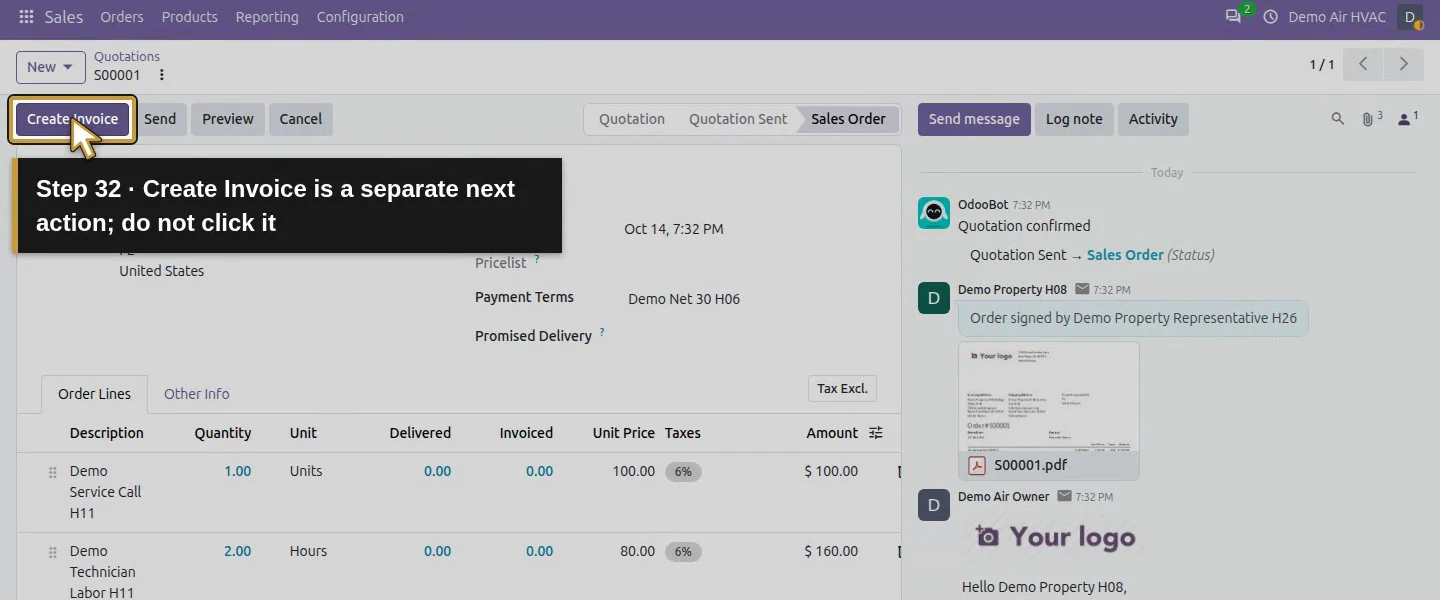
Return to the owner browser and reopen S00001 in Sales. Its status is Sales Order. In the chatter, check Order signed by Demo Property Representative H26, its S00001.pdf attachment, and Quotation confirmed with the change from Quotation Sent to Sales Order. The record also retained the signature image and signing time. This form did not expose a separate Customer Signature tab; use the controls and chatter actually present.
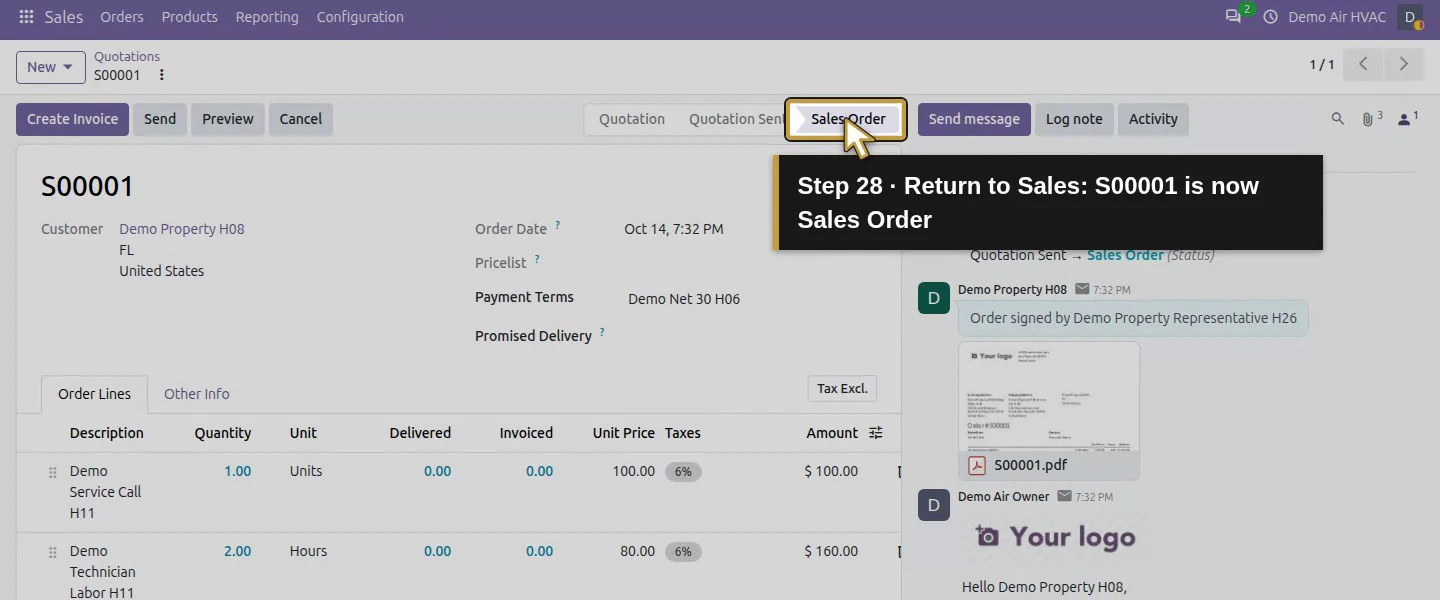
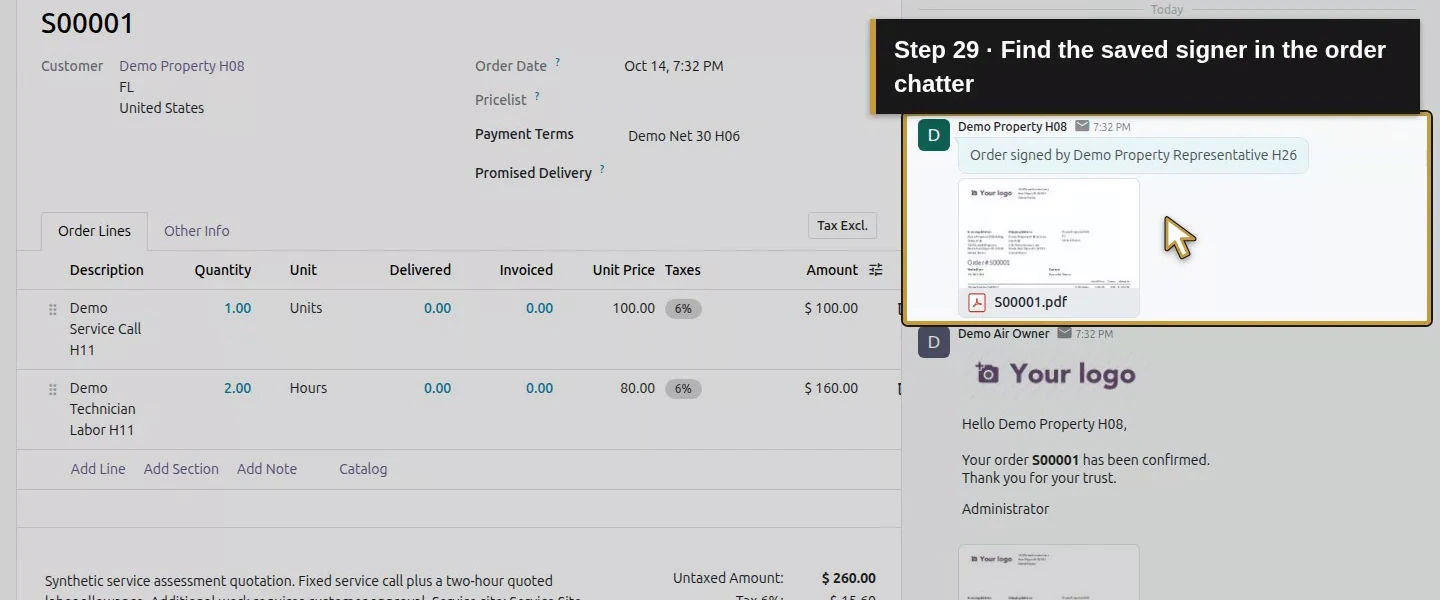
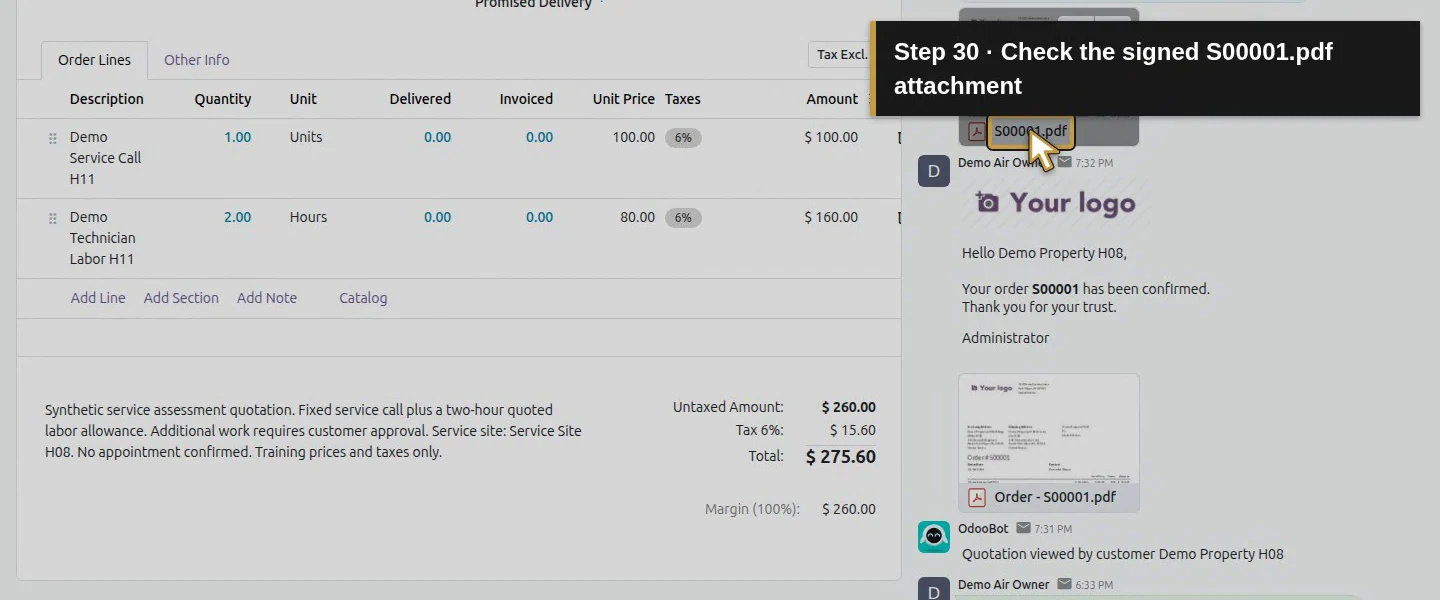
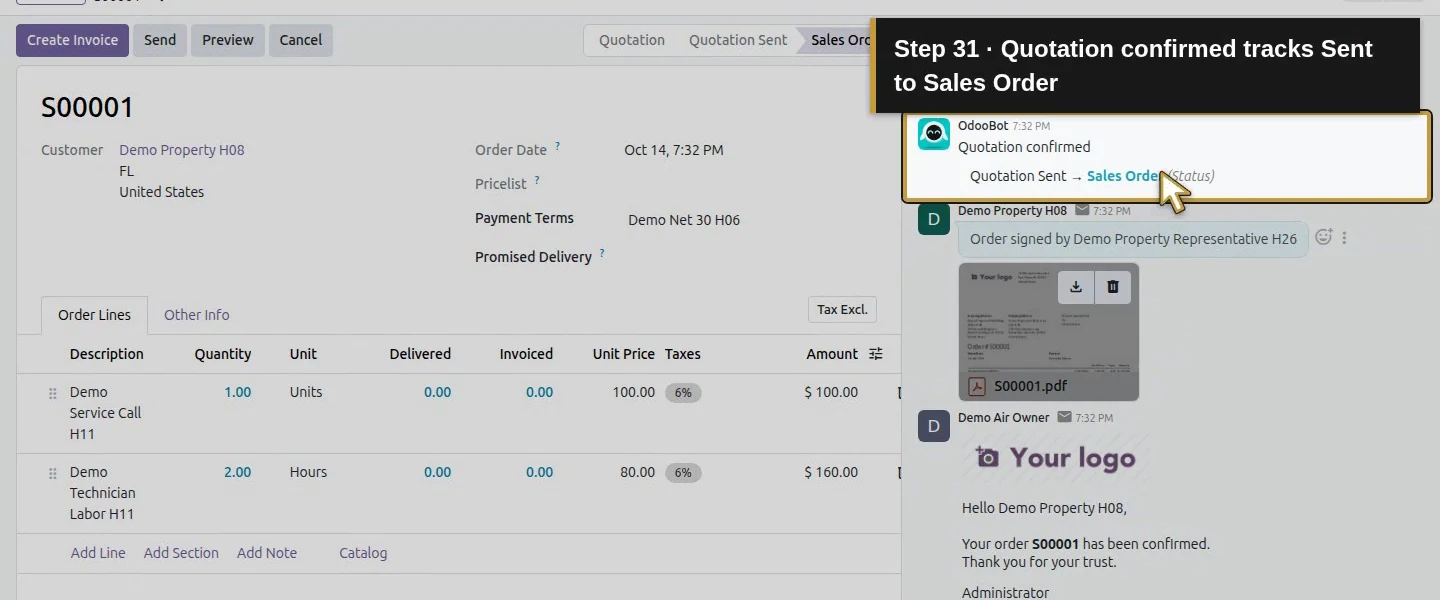
Step 9. Check the confirmation messages
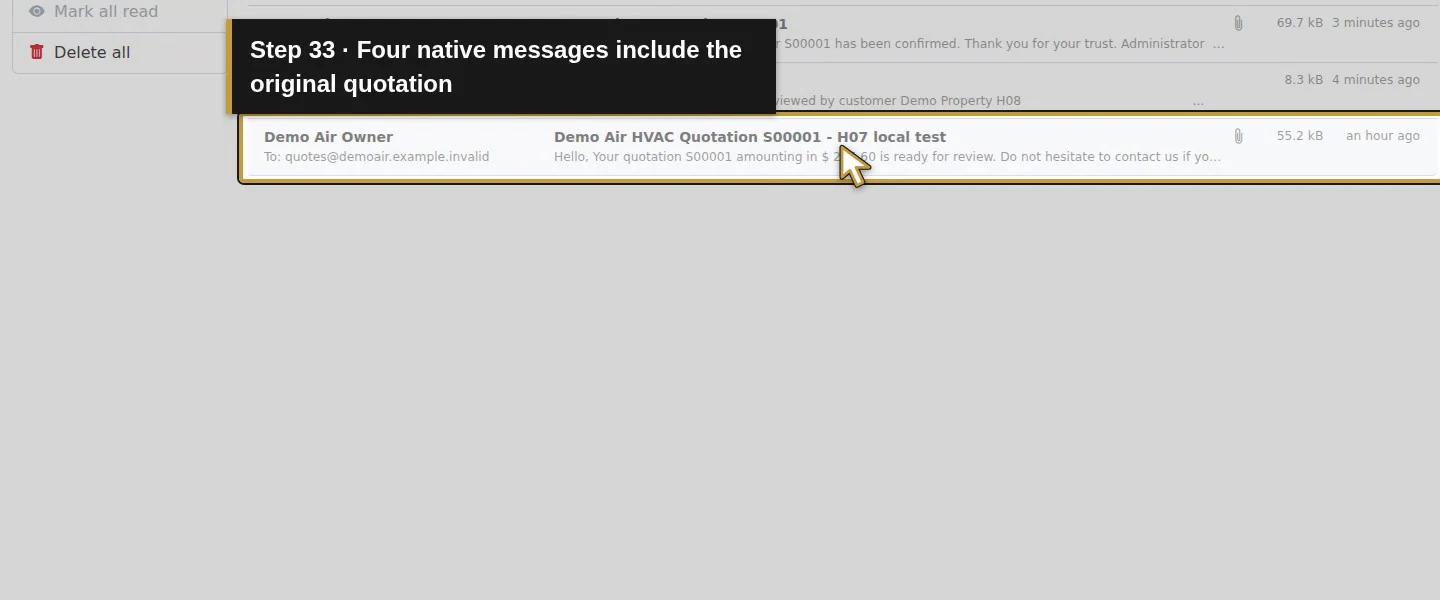
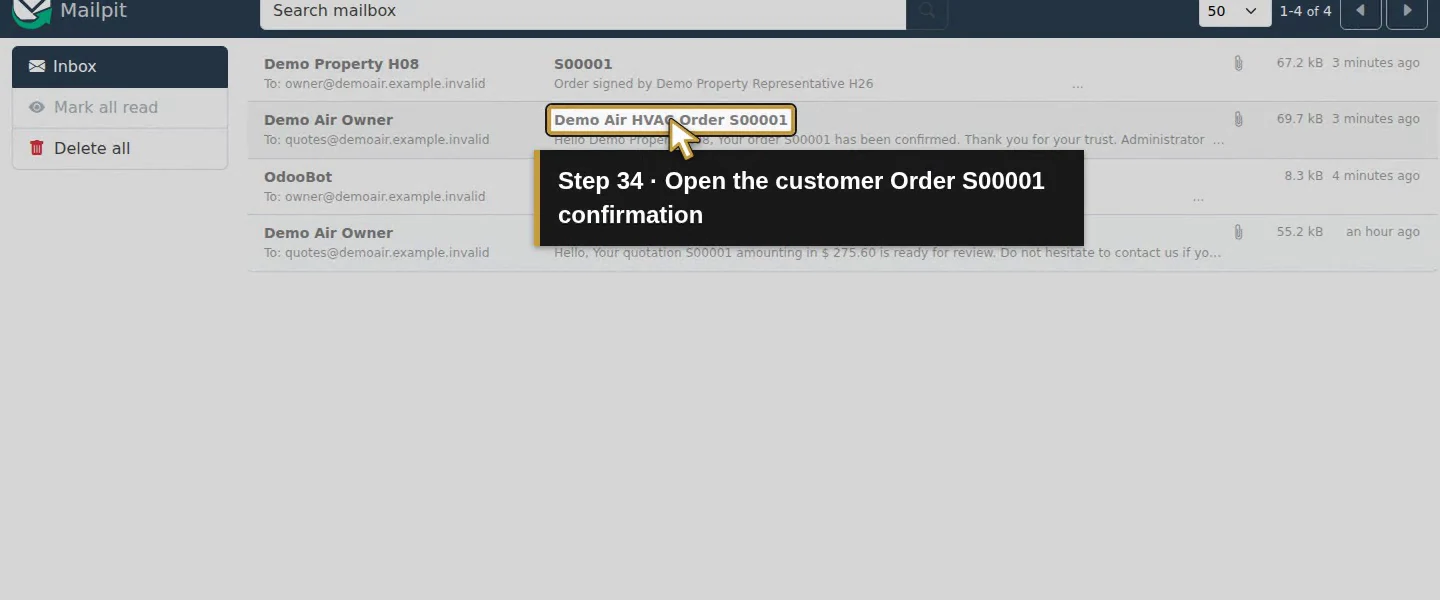
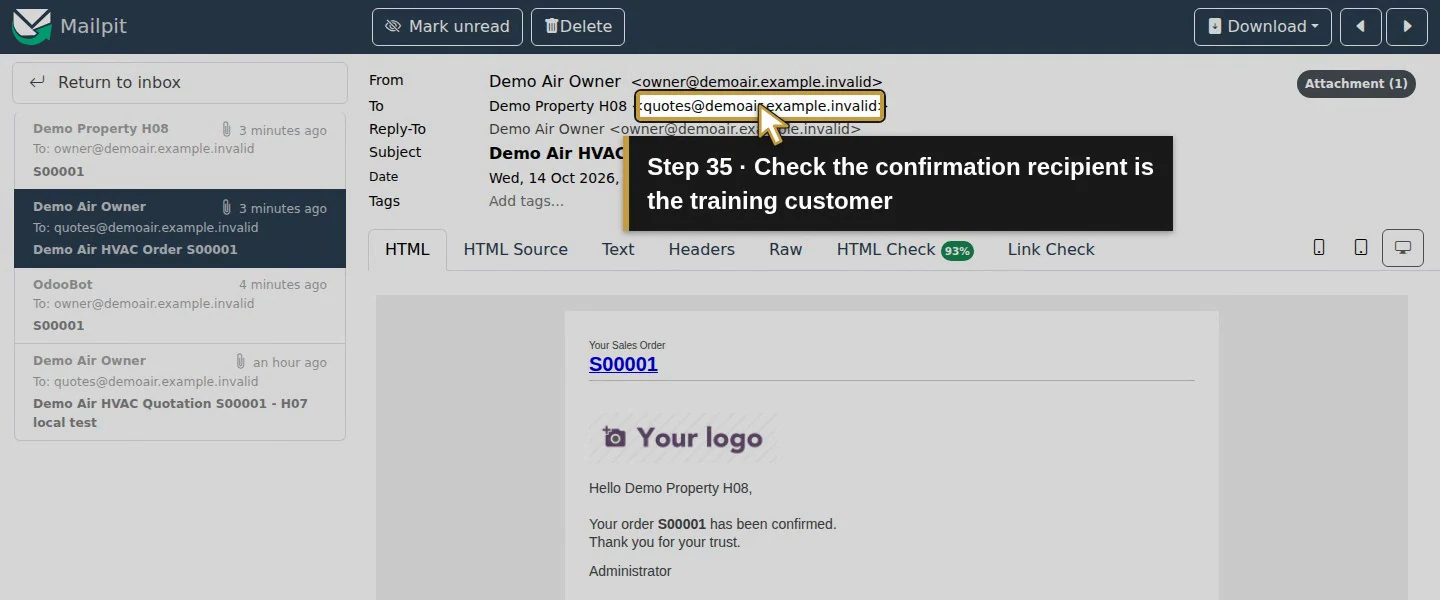
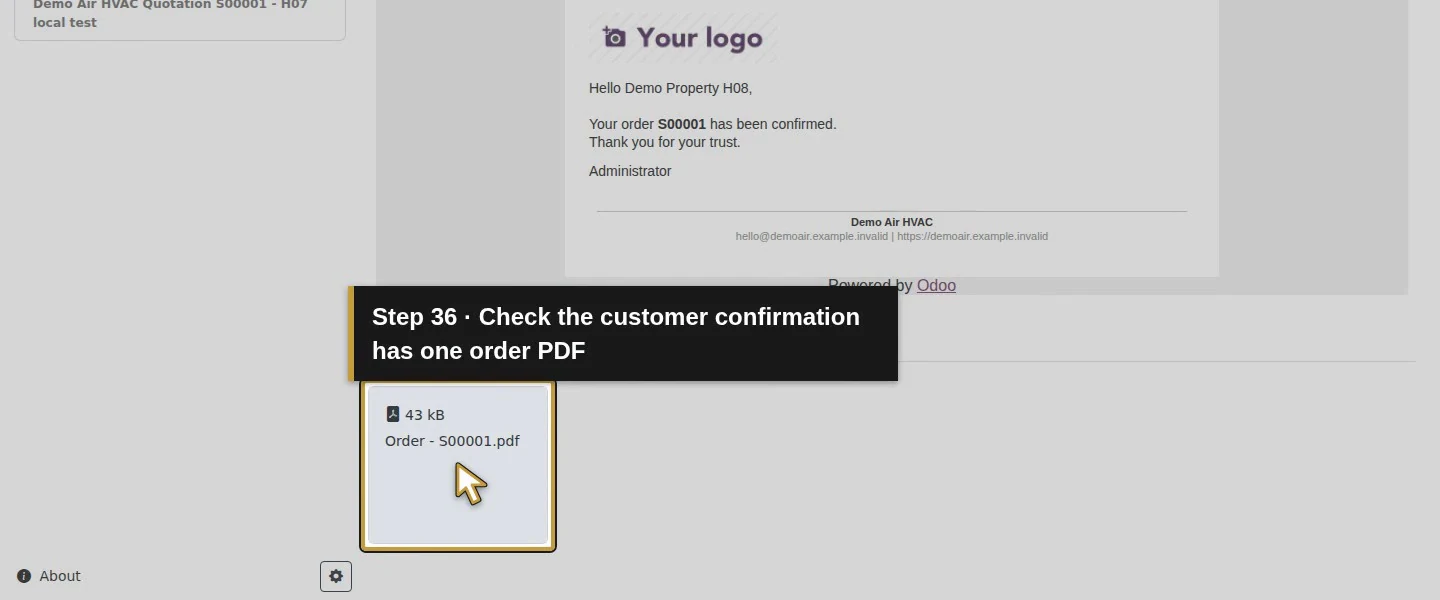
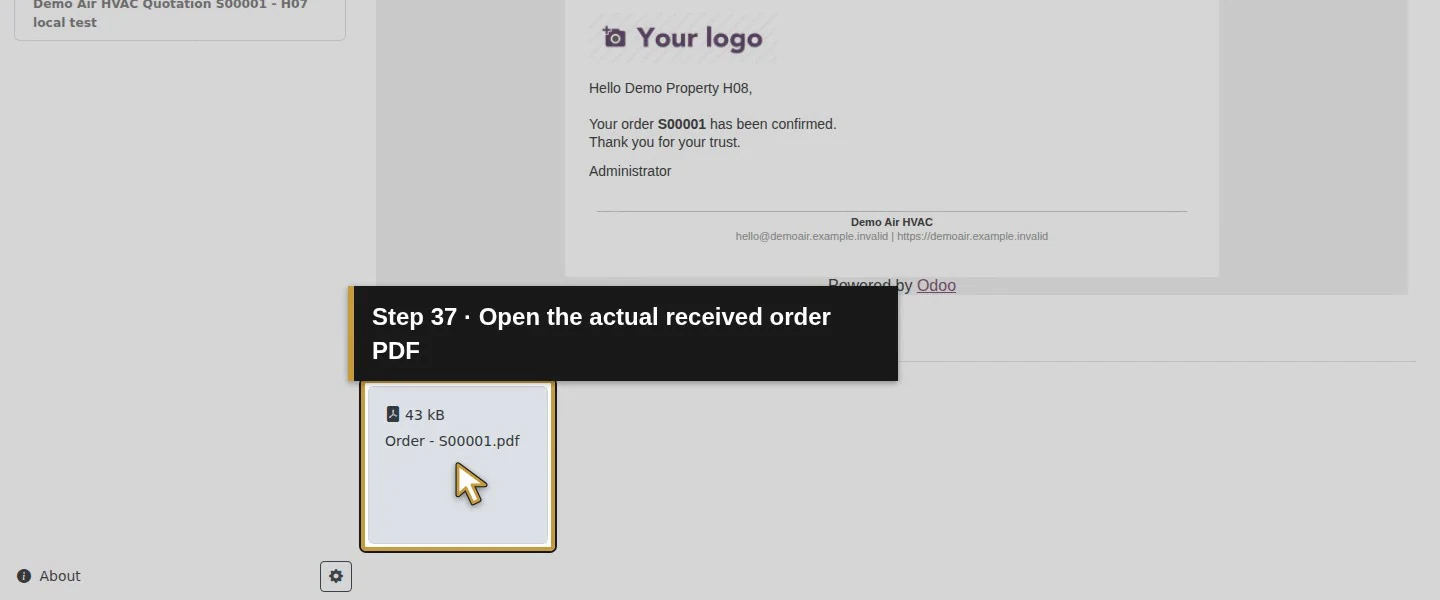
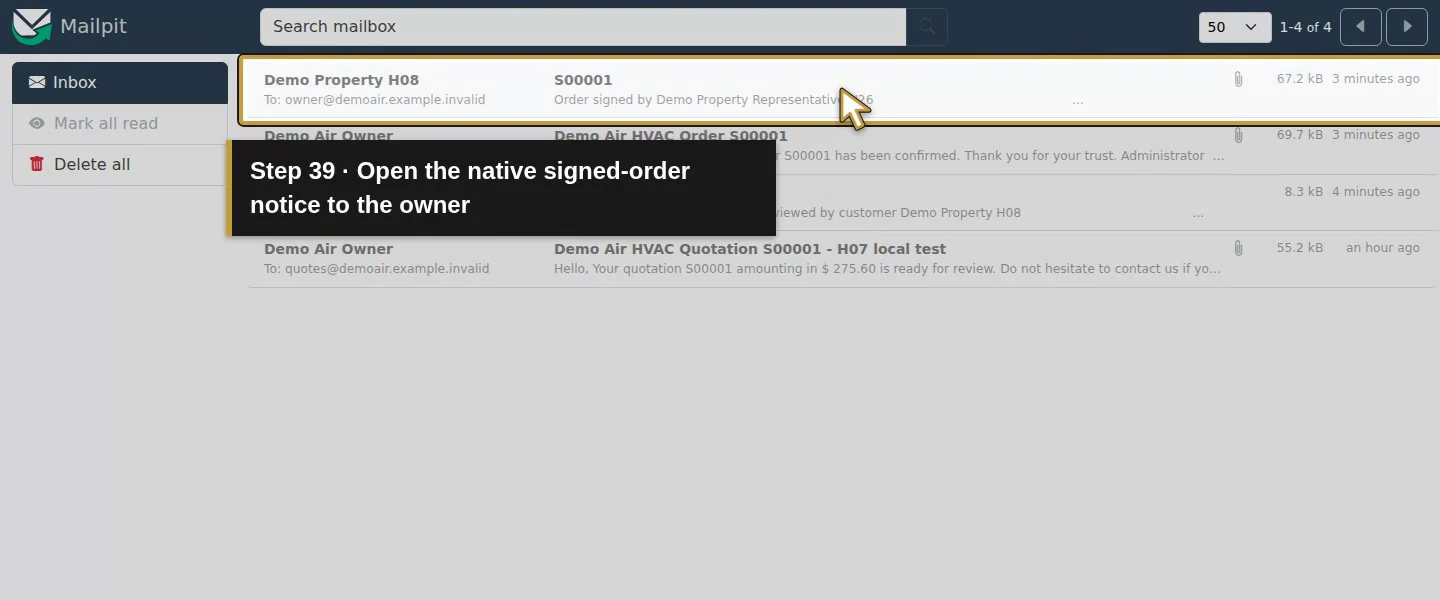
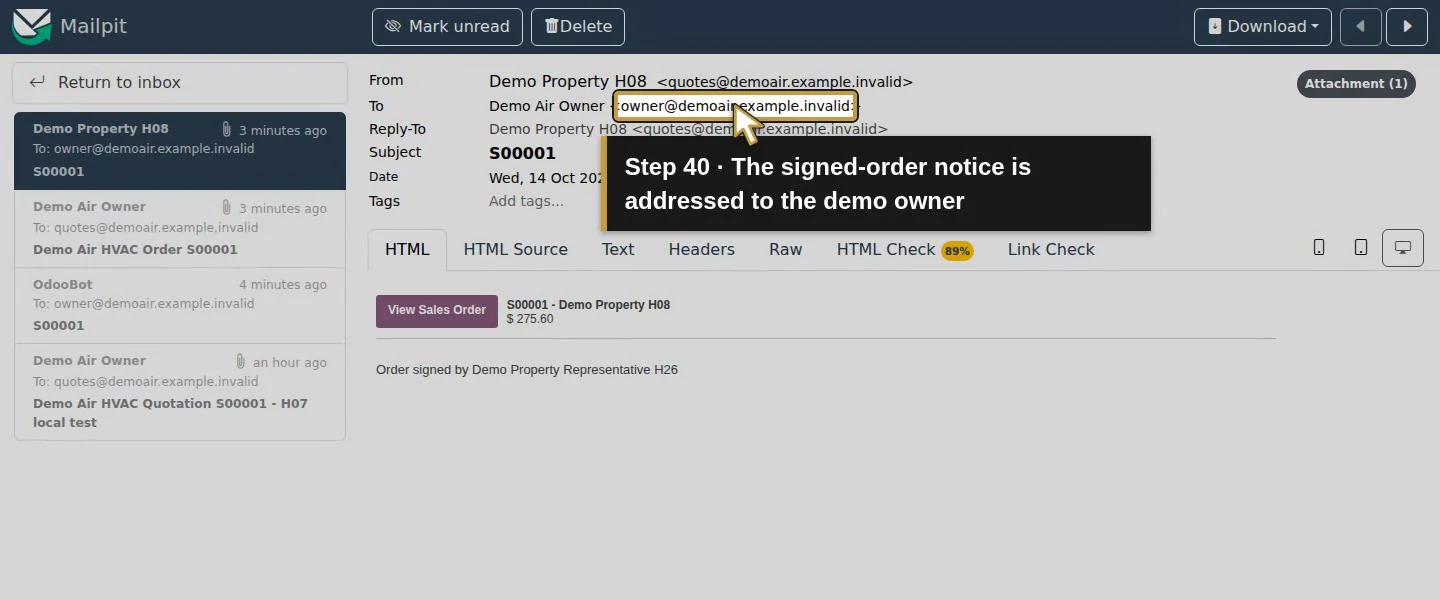
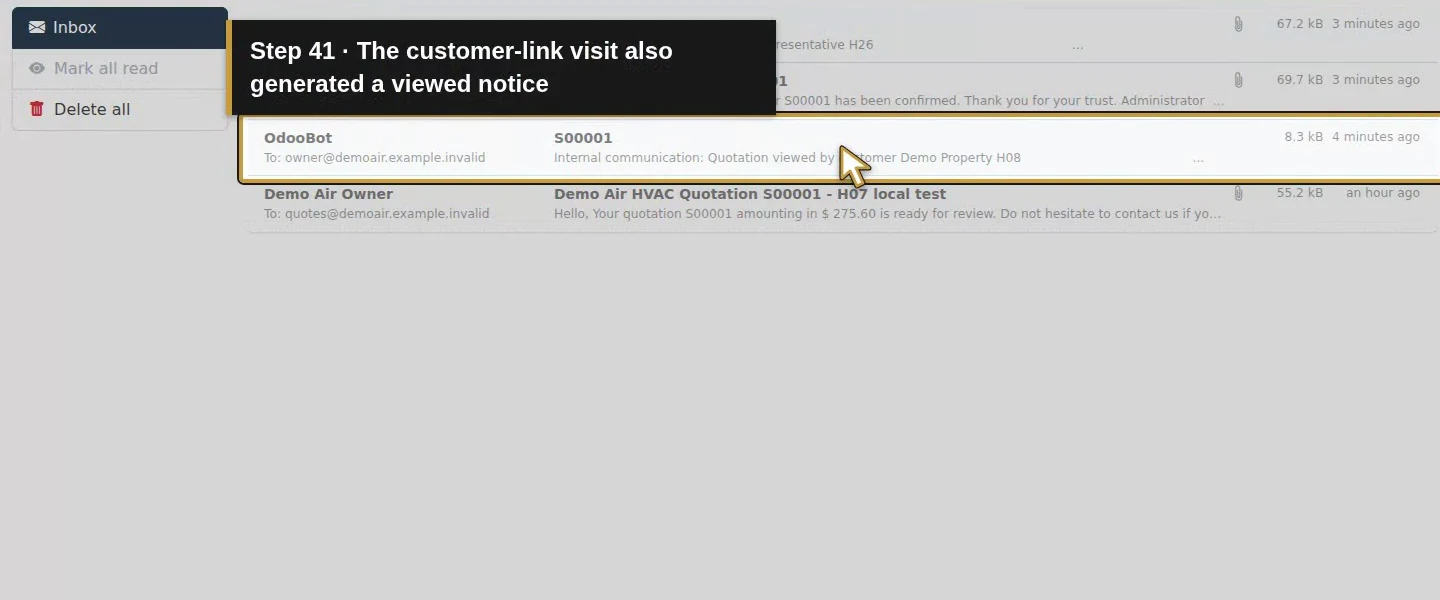
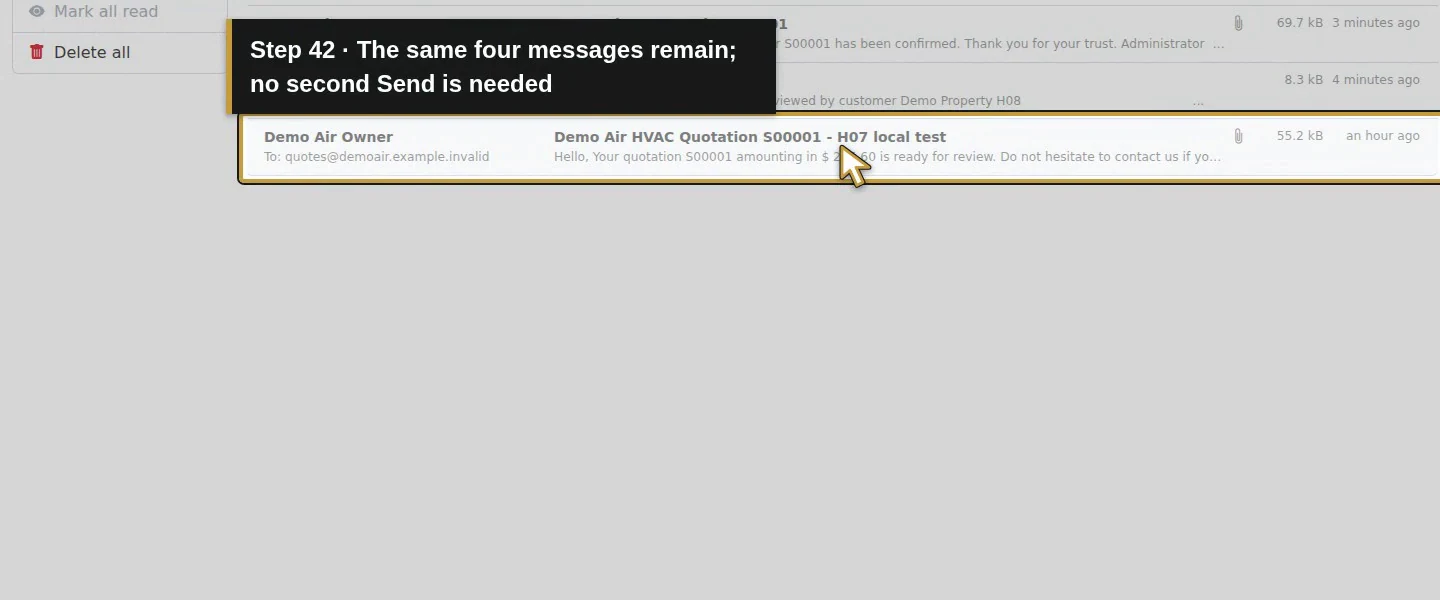
In Mailpit, check the customer message Demo Air HVAC Order S00001, sent to the training customer with one PDF, and the internal signed-order notice to the demo owner. The customer-link visit also generated a quotation-viewed notice. Together with H07's original quotation, the local inbox contained four messages. Reopening the link left that count unchanged. These messages came from the native workflow; no second Send was needed.
Step 10. Review the next business action
The owner form offers Create Invoice. The saved order’s Invoice Status is To Invoice; this acceptance test created no customer invoice, payment transaction, picking or task. The linked CRM enquiry stayed Qualified. Review the accepted scope and arrange the next business step explicitly; this configuration did not assign a technician, book an appointment or complete the work.
Check the result
The customer signed the existing S00001 through the link in the received quotation email. It changed from Quotation Sent to Sales Order at the same $275.60, retained the signer, signing time and signature image, and kept its two original lines, addresses, terms and scope. A repeat visit retained that result without another order or acceptance action. Native confirmation messages reached the local sink. No customer invoice, payment, stock transfer, task or CRM Won transition occurred in this configuration.
If your screen differs
This test used stock Sales/Portal signing without the separate Sign app. It establishes the Auto signature path for this quotation; it does not establish legal sufficiency, other signature methods or every customer access configuration. Check Online signature and the quotation state if Accept & Sign is absent. If a link leads to Login, use the original received View Quotation link and check access rather than removing its private parameters. Post-confirmation actions depend on products and settings: this example used service products with Create on Order Nothing and zero prepayment. The local sink proves these messages only; production-provider delivery and payments remain separate checks. The chatter envelope's accessible label was misleading as documented in H07; saved notifications and the received mailbox messages provided delivery evidence.
Frequently asked questions
Can a customer accept an Odoo quotation online?
Yes. In this stock Odoo 20 test, the customer opened View Quotation from the received email, reviewed the document, then used Accept & Sign, Full Name and Auto. Submission confirmed the same sales order and retained the signature. The separate Sign app was not installed. The quotation had Online signature enabled and zero prepayment.
Does accepting an Odoo quotation pay the invoice?
Acceptance did not take payment or create an invoice in this example. The confirmed order showed To Invoice and had no payment transaction or customer invoice. Its zero-prepayment setting and service products define this result. Check invoice and payment records separately before treating an accepted quotation as paid.
Why does my Odoo quotation link not open?
Use the original View Quotation link from the received message and check the quotation state and intended access. In our separate customer browser, that private link opened S00001 without signing in; opening the bare order URL led to Login. After signing, the same original link showed the sales order without another acceptance action. Keep private link parameters out of shared examples.
Continue building the business
Review how the accepted decision relates to CRM in H22: How do I mark an opportunity as won or lost in Odoo?. Signing this order did not move the linked enquiry to Won automatically in the tested case.
Talk about your Odoo setup
Bring your current process and the result you need to Onward to plan your Odoo workflow. Talk about your Odoo setup.