Running an HVAC business with Odoo

How do I create a reusable quotation template in Odoo?
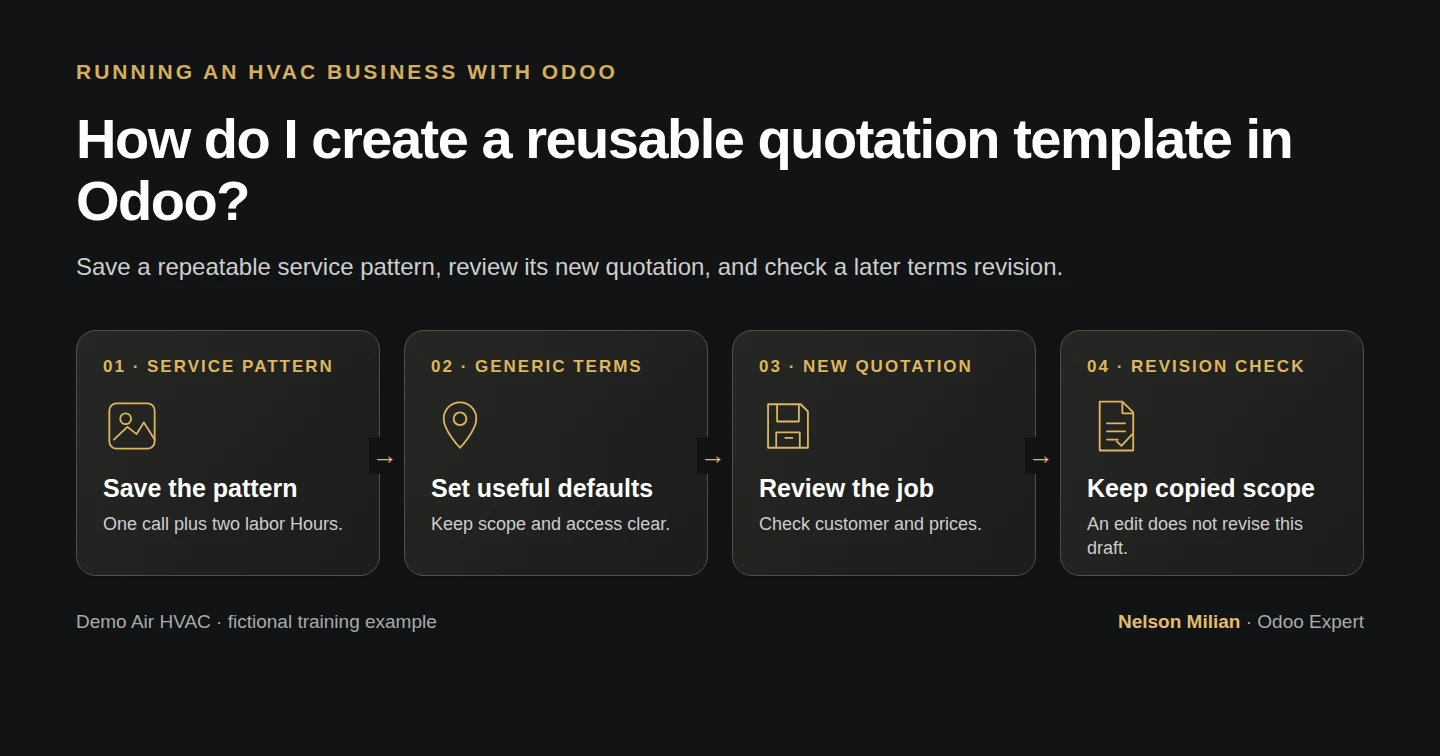
Workflow overview: How do I create a reusable quotation template in Odoo?
Workflow overview. Instructional screenshots show the actual demo interface.

Create a reusable Odoo quotation template, apply its service lines and terms to a new draft, and check saved-quotation behavior after a template revision.

A quotation template prepares repeatable content while the office reviews each customer's job. Alex saves a service-call and two-hour labor pattern, creates a new draft from it, and checks that a later terms revision does not silently change the saved quotation.

Alex Rivera and Demo Air HVAC are fictional training examples. Prices, dates, quantities and business situations in this guide are illustrative.

Before you begin

Tested in stock Odoo 20.0-20260926 Community as the demo owner administrator, with official modules and standard configuration. Complete the service quotation and reuse its H11 products, Demo Property H08 customer and Demo Net 30 H06 terms. Keep S00001 intact; this example creates the separate S00002 draft. Prices and the 6% demo tax are fictional. Online acceptance, invoices and sending remain separate workflows.

Step-by-step workflow

Stock Odoo 20 Community, owner role. Save one reusable service-call and two-hour labor pattern, create a separate draft from the New menu, then check that a later generic-terms revision leaves the saved draft unchanged. Fictional prices and six-percent demo tax; sharing, customer acceptance, messaging and payments remain separate.

Step 1. Create the native template

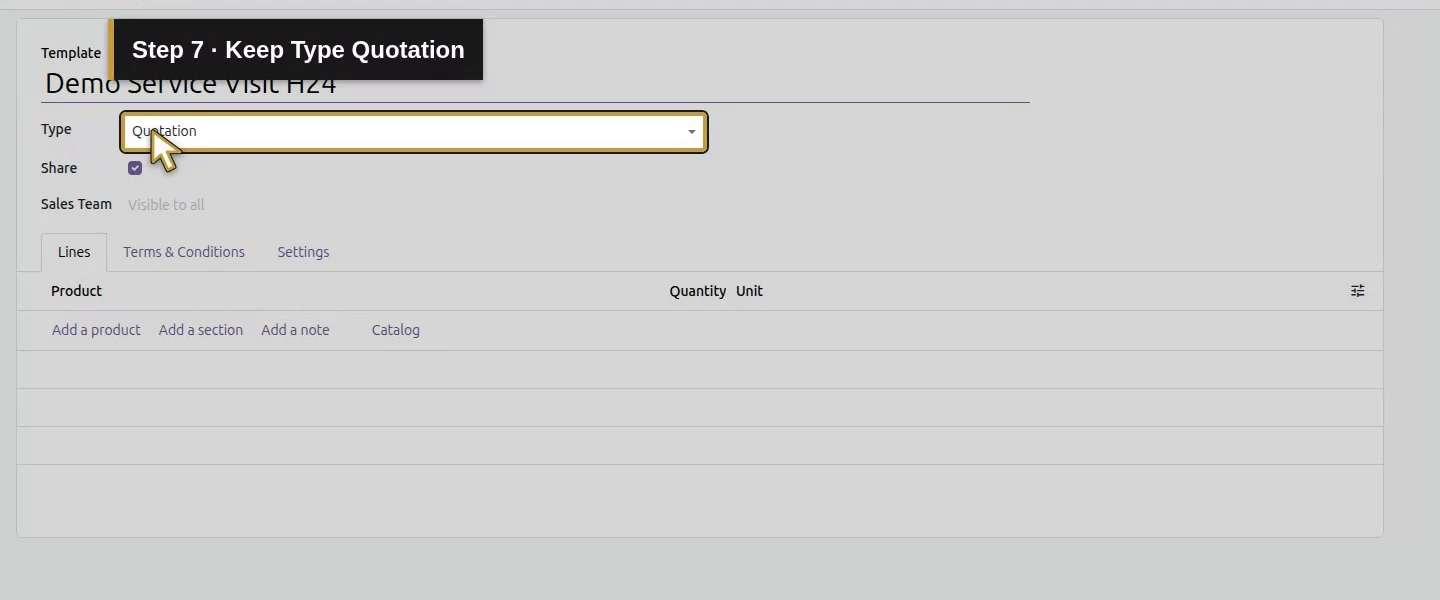
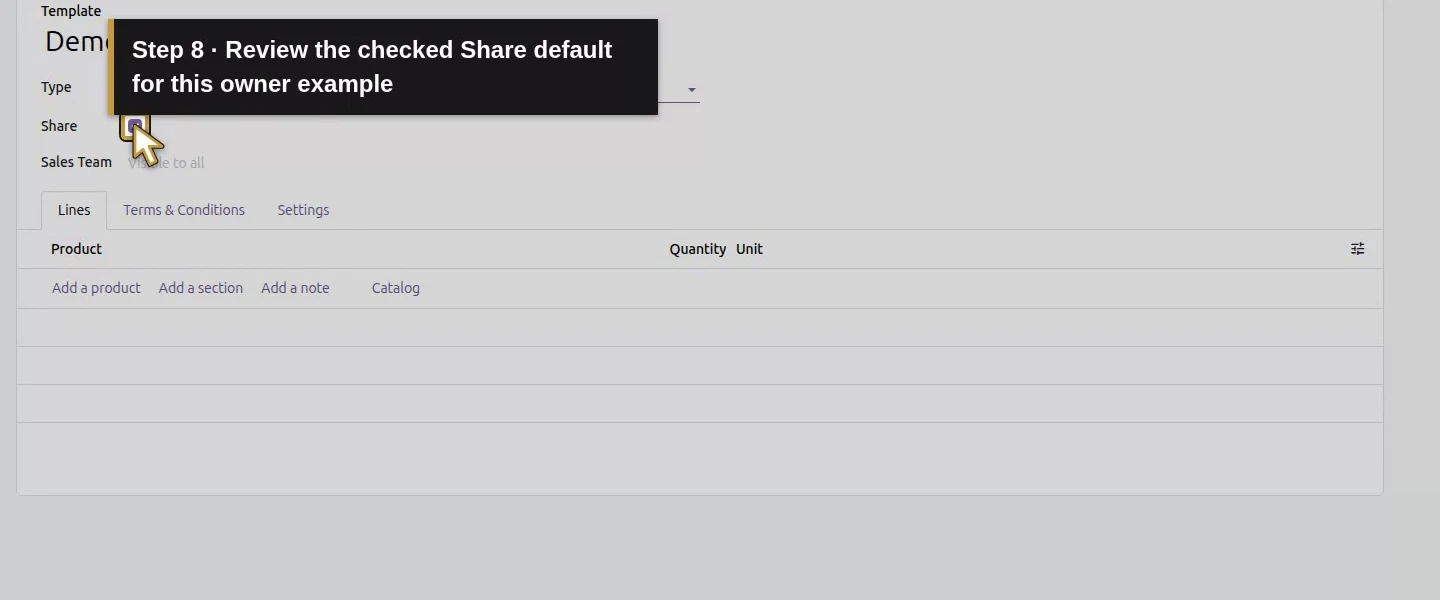
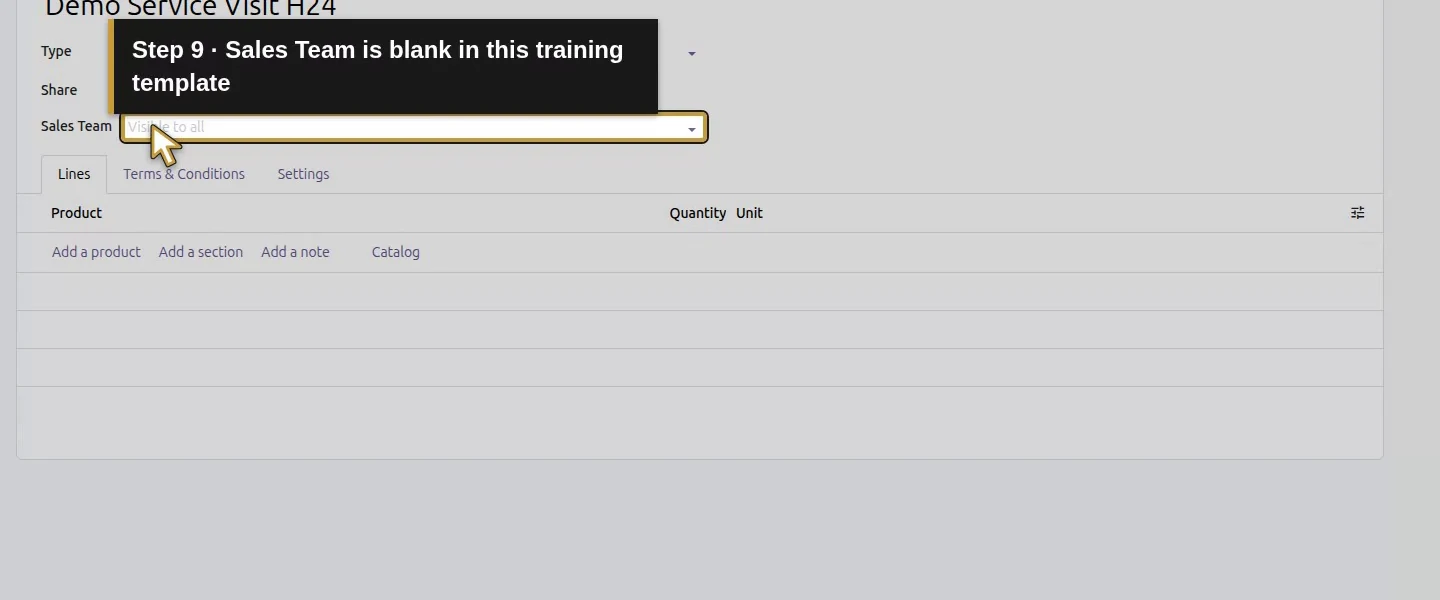
Open Sales → Configuration → Templates. The menu is already available in this tested runtime; no additional template setting was needed. Search for Demo Service Visit H24 and choose New only if absent. Enter that Template name. The tested form shows Type Quotation, Share checked and Sales Team empty; review sharing for your actual sales staff.
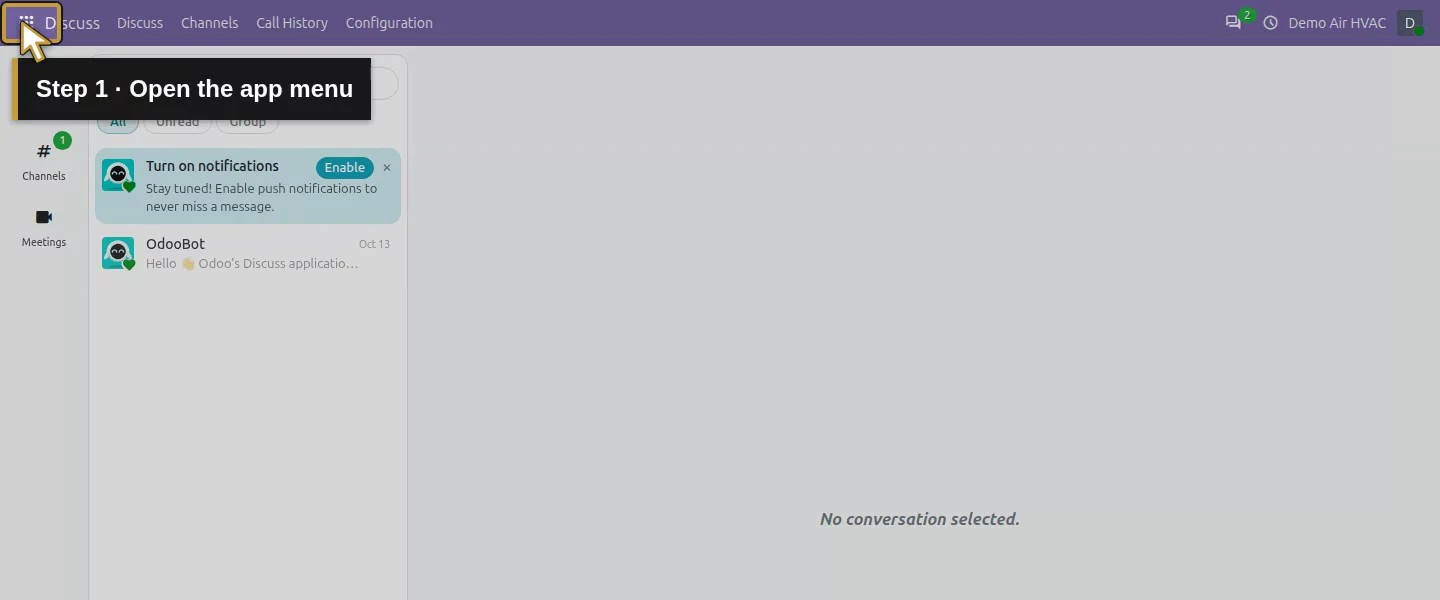
Action 1: Open the app menu. The actual target is highlighted in gold.
Open the app menu.
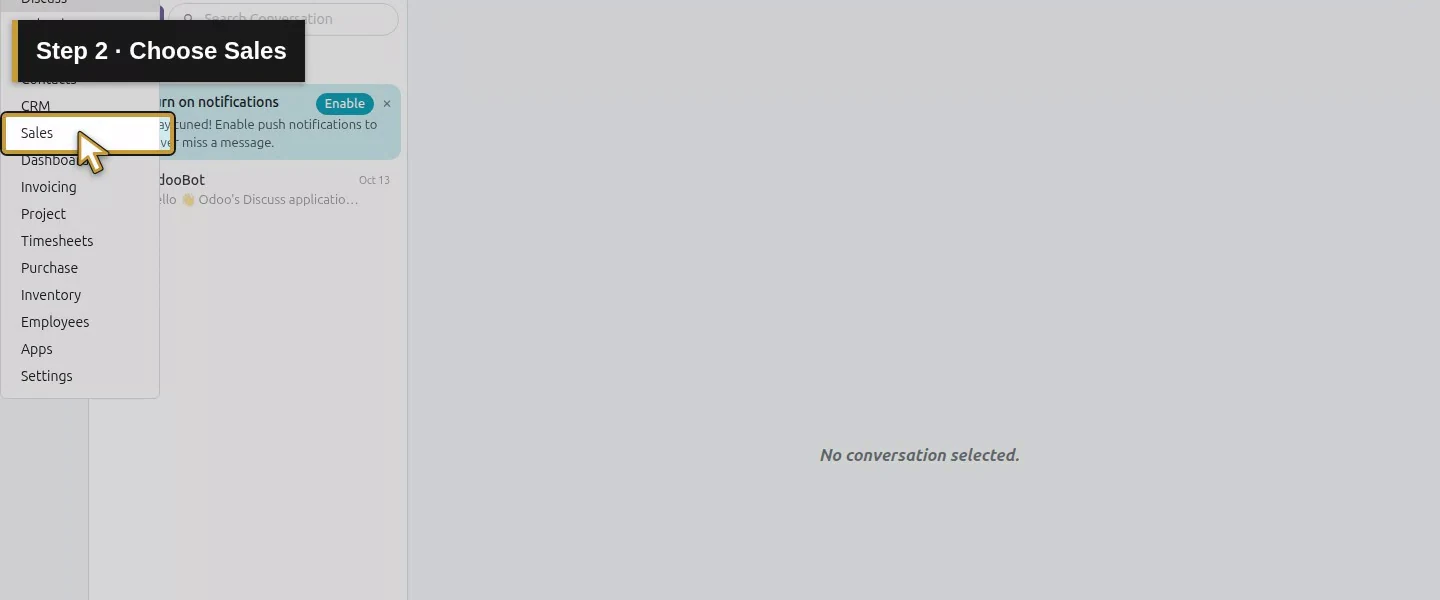
Action 2: Choose Sales. The actual target is highlighted in gold.
Choose Sales.
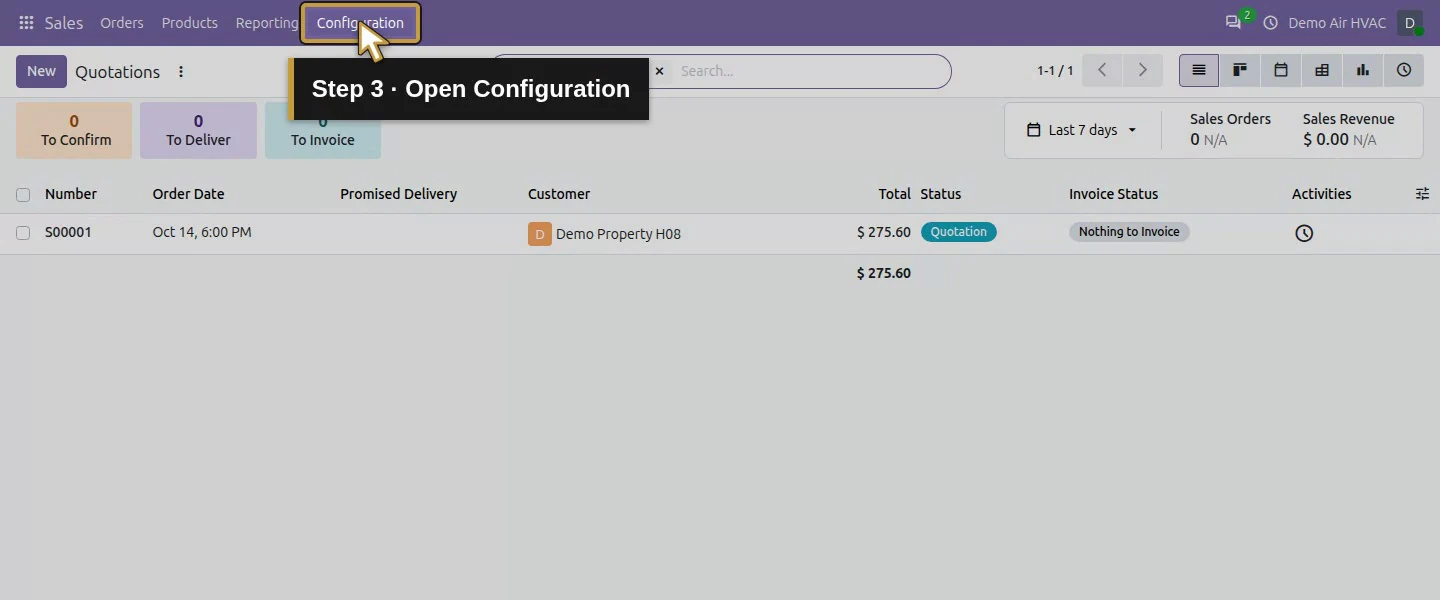
Action 3: Open Configuration. The actual target is highlighted in gold.
Open Configuration.
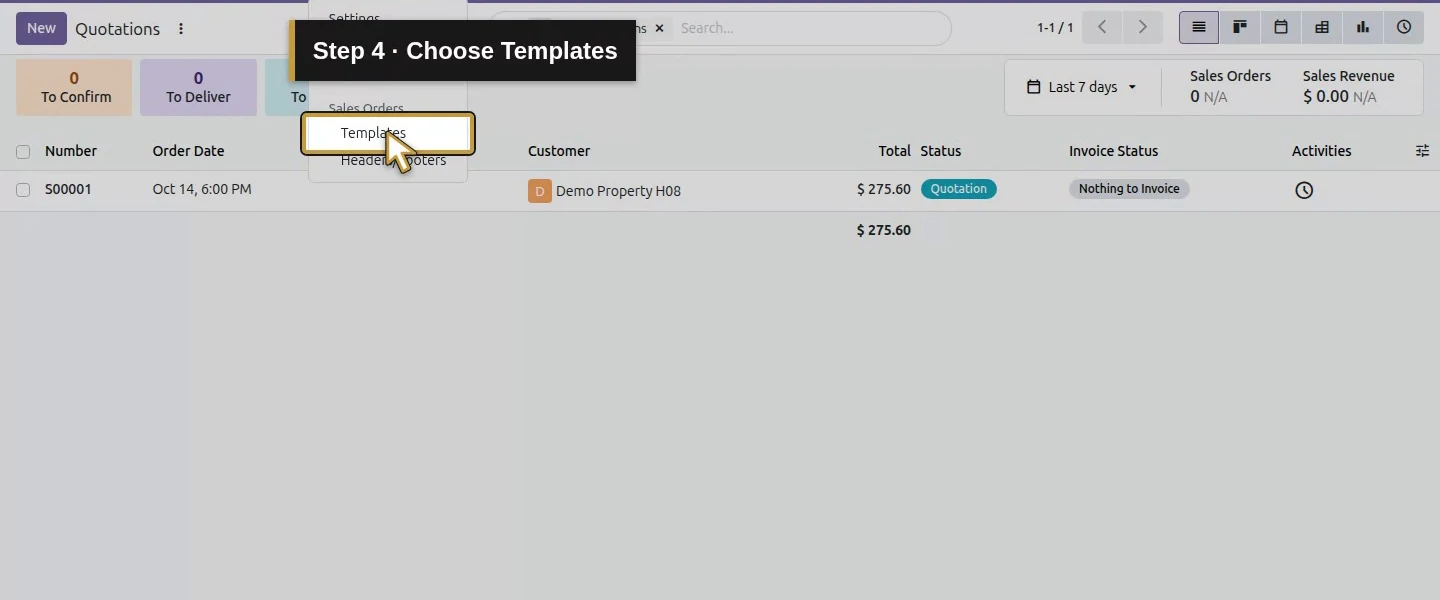
Action 4: Choose Templates. The actual target is highlighted in gold.
Choose Templates.
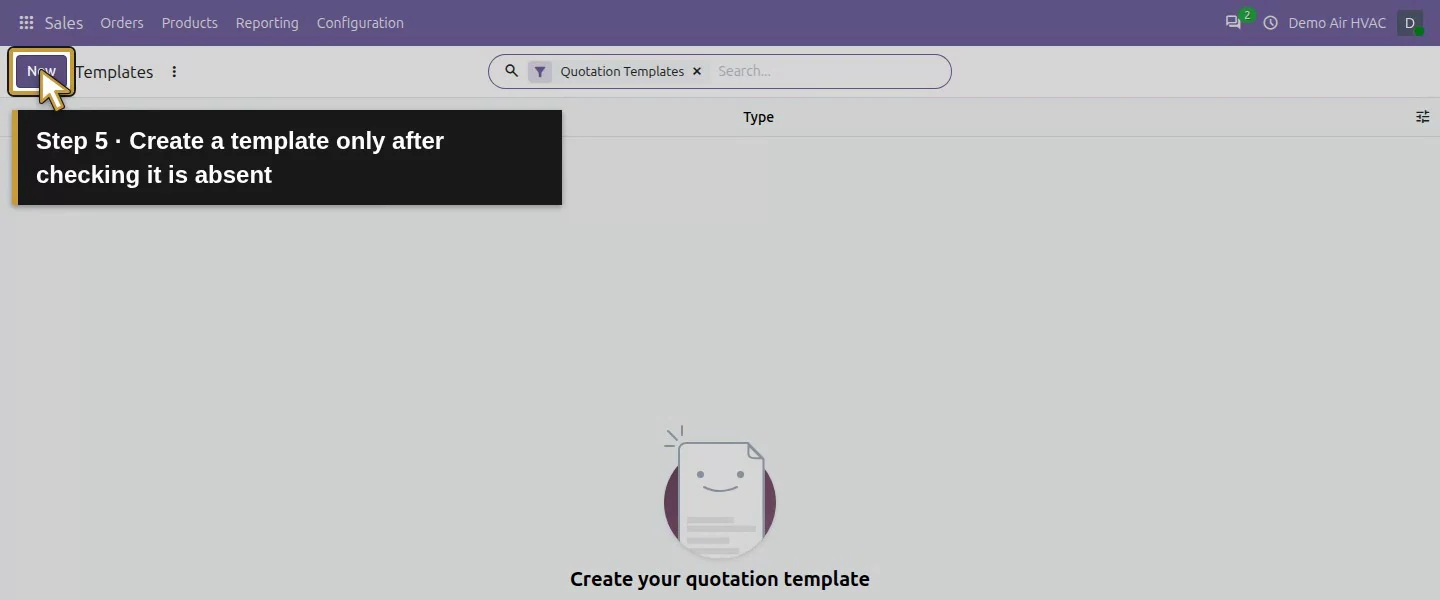
Action 5: Create a template only after checking it is absent. The actual target is highlighted in gold.
Create a template only after checking it is absent.
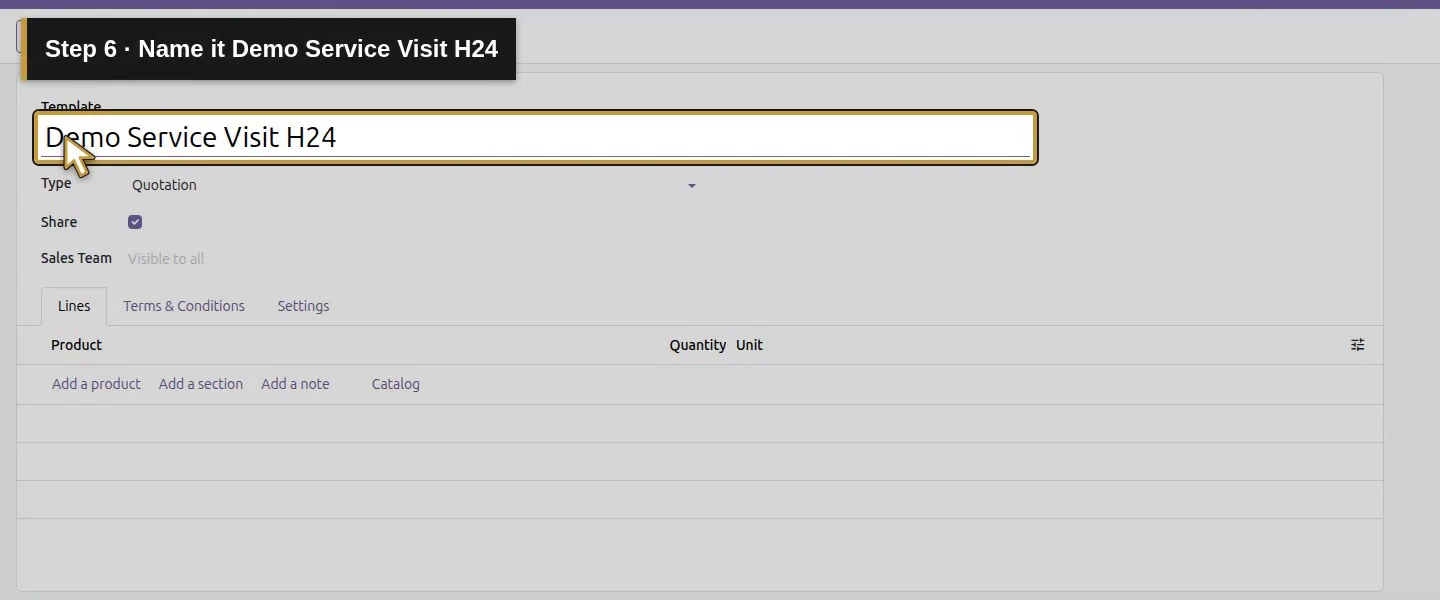
Action 6: Name it Demo Service Visit H24. The actual target is highlighted in gold.
Name it Demo Service Visit H24.
Action 7: Keep Type Quotation. The actual target is highlighted in gold.
Keep Type Quotation.
Action 8: Review the checked Share default for this owner example. The actual target is highlighted in gold.
Review the checked Share default for this owner example.
Action 9: Sales Team is blank in this training template. The actual target is highlighted in gold.
Sales Team is blank in this training template.

Step 2. Add the reusable service pattern

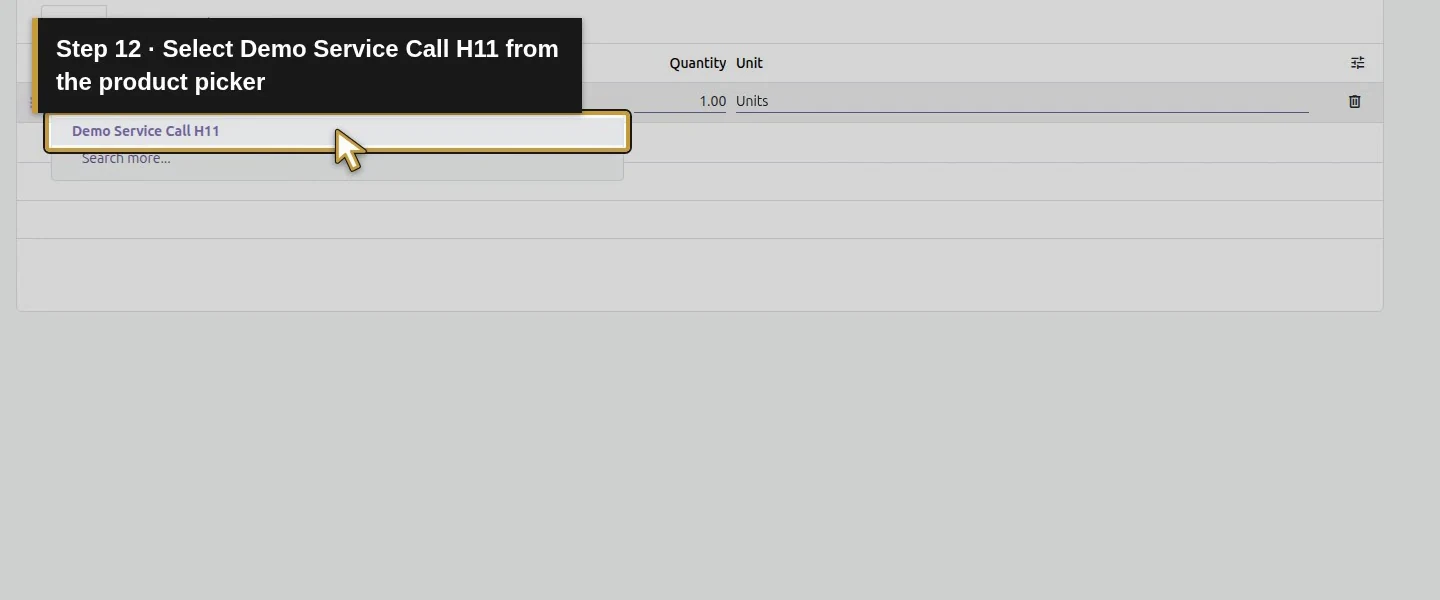
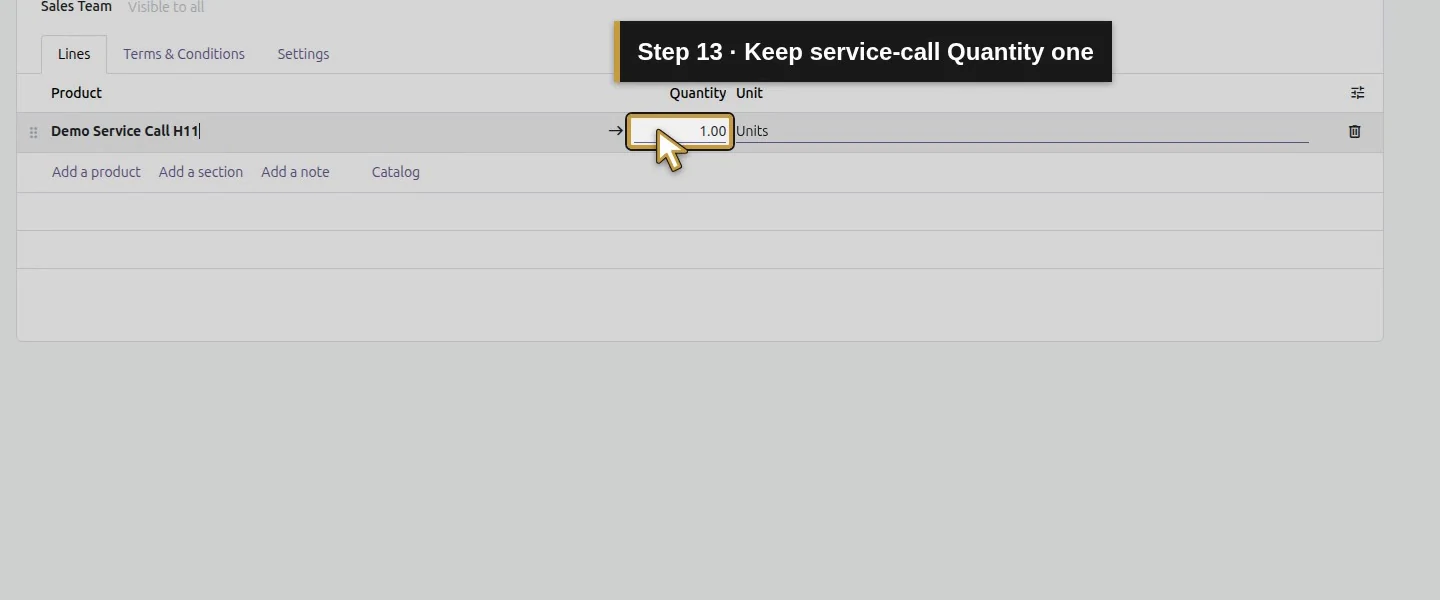
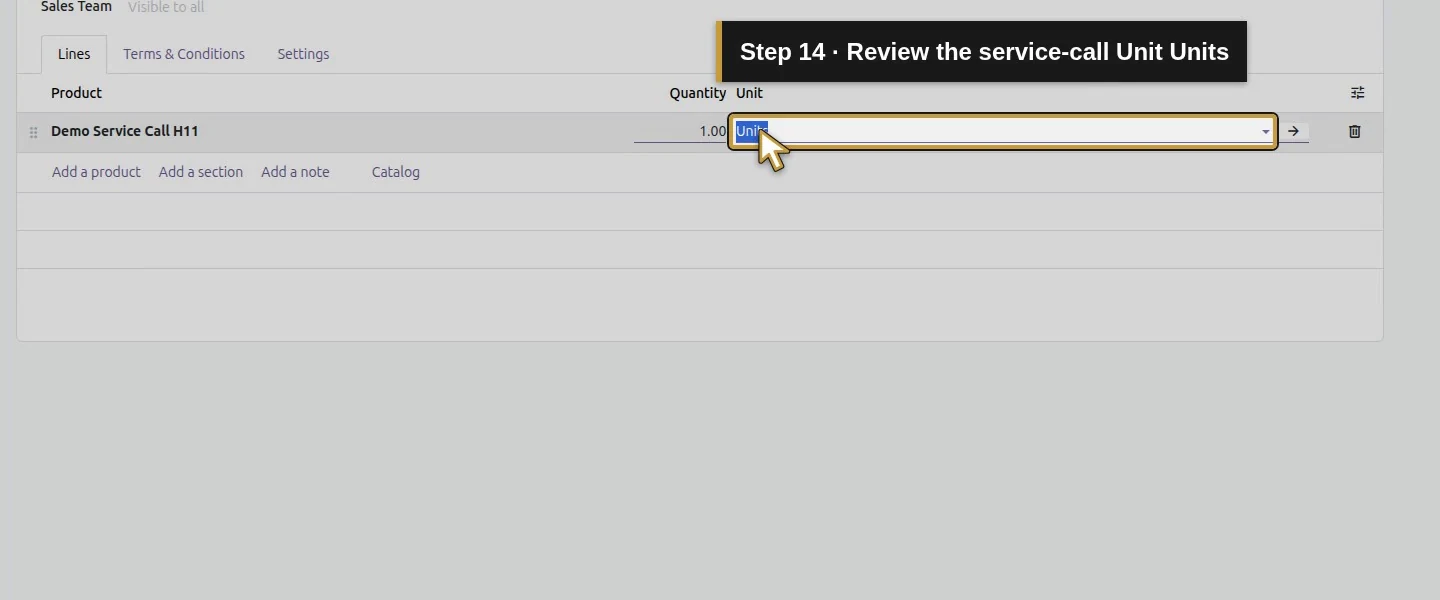
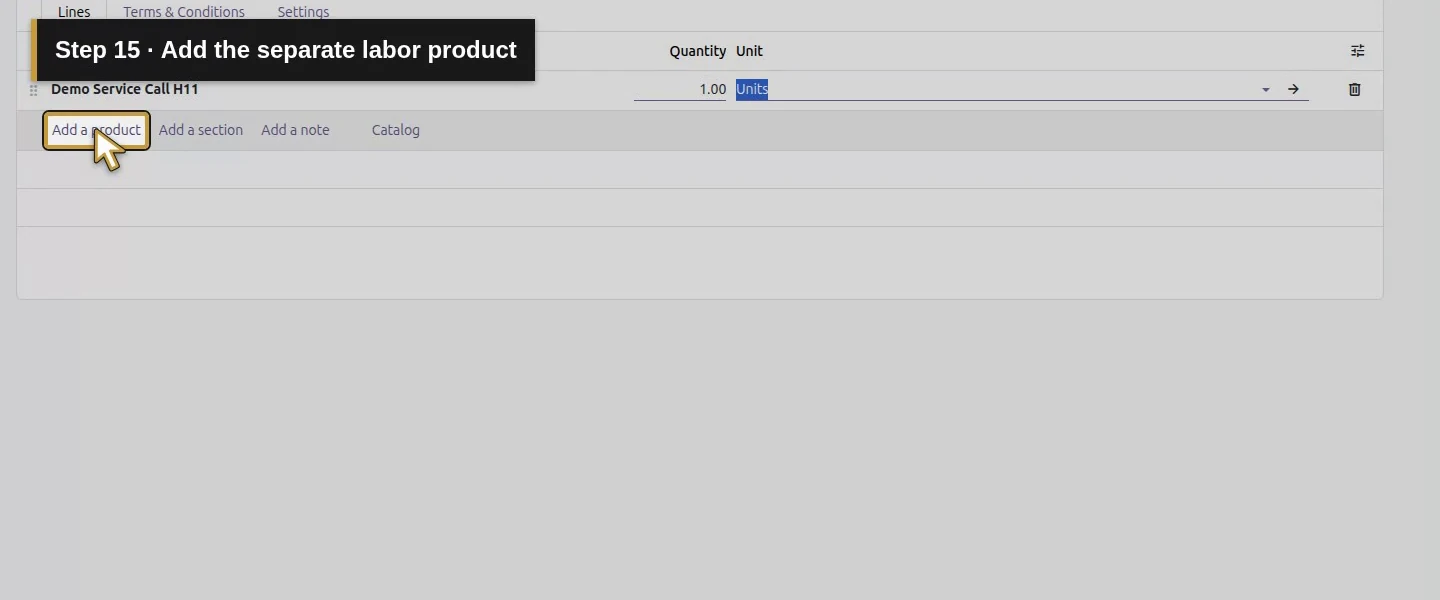
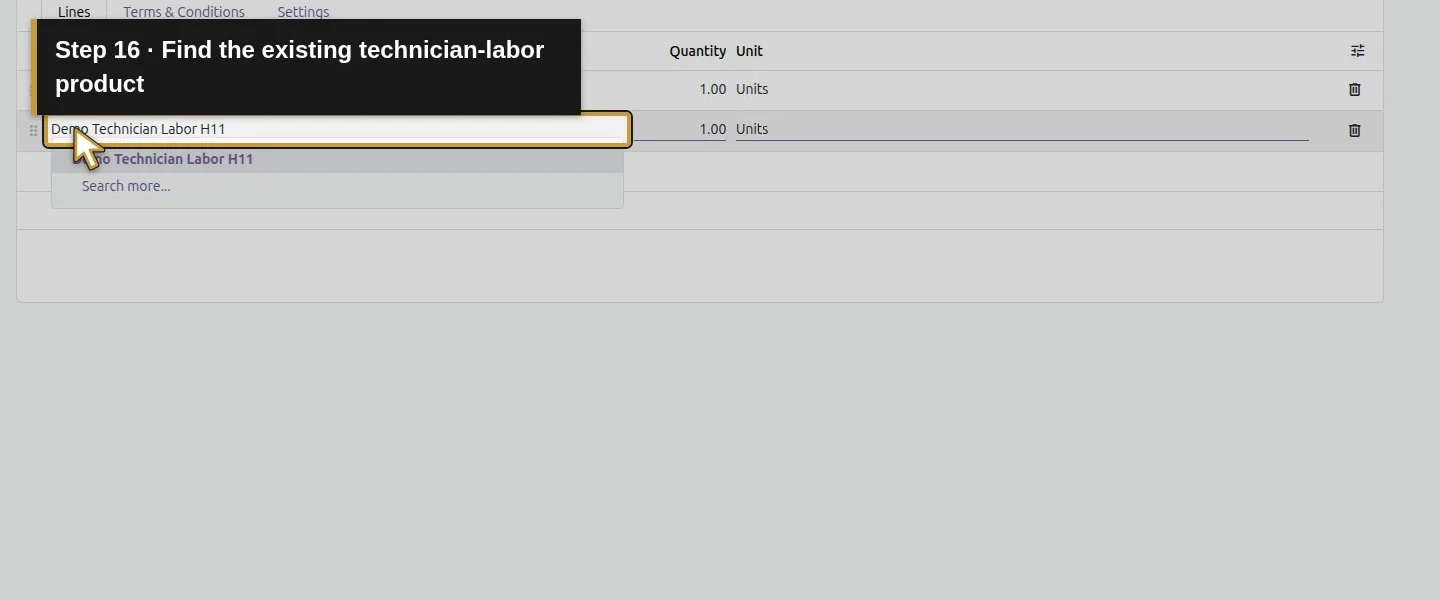
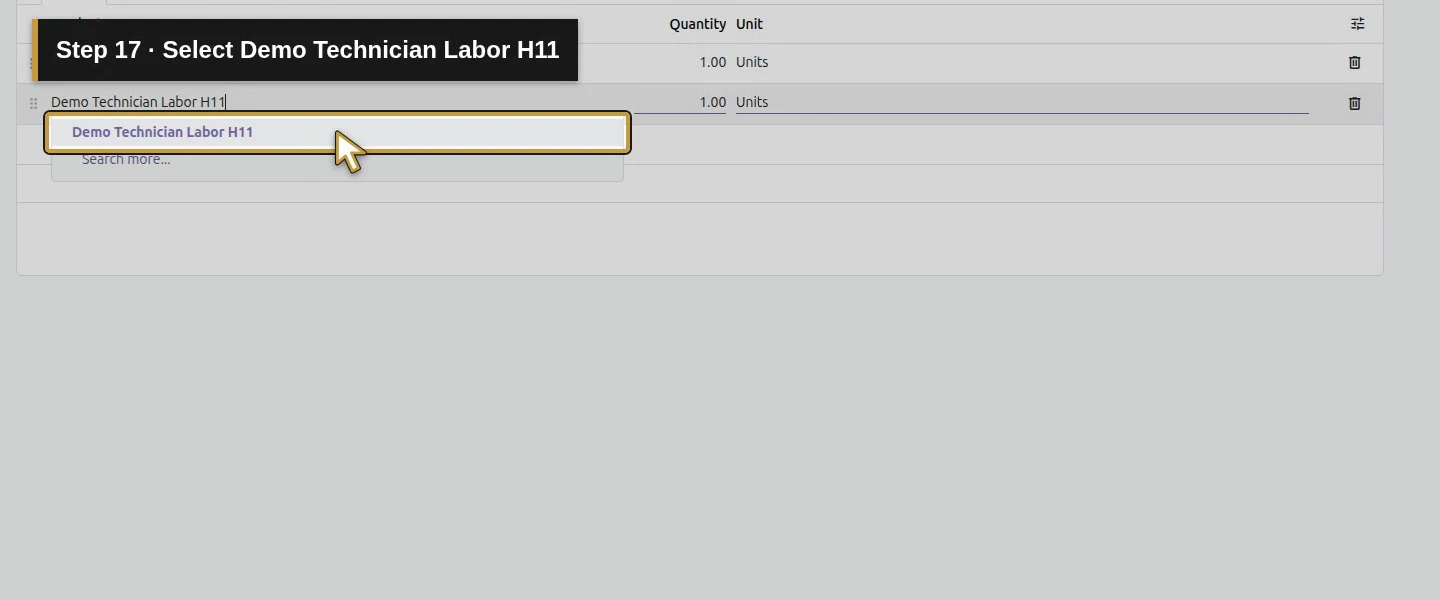
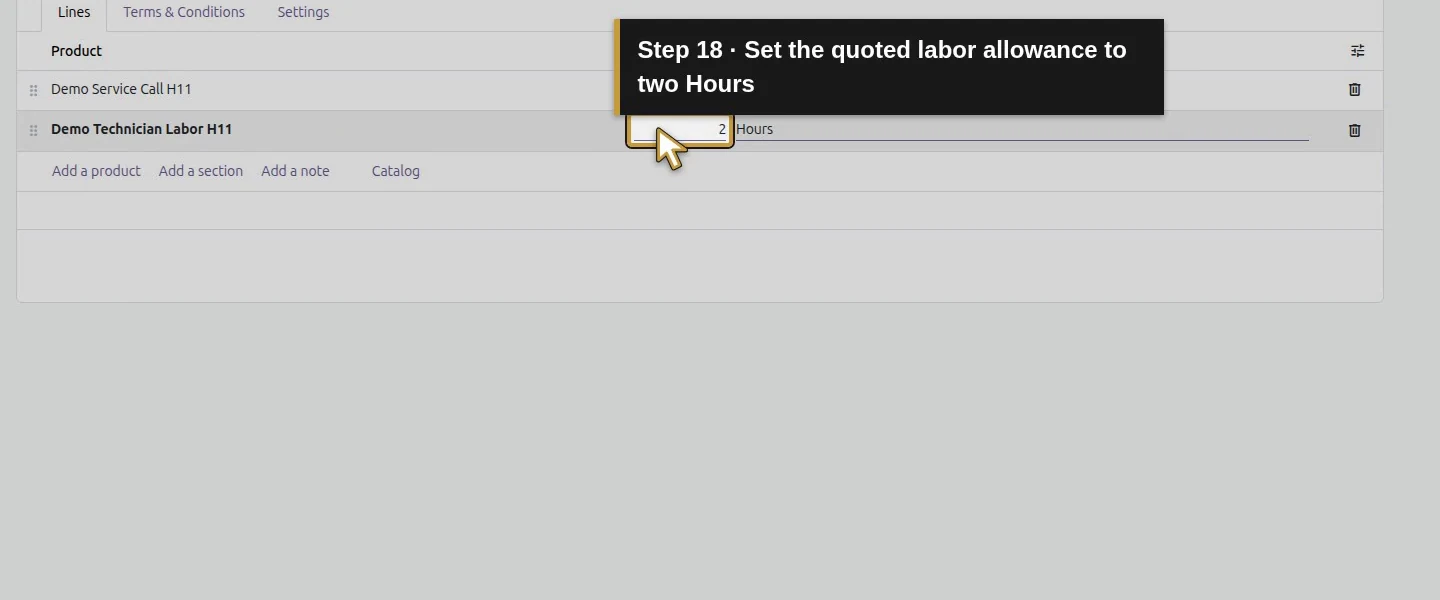
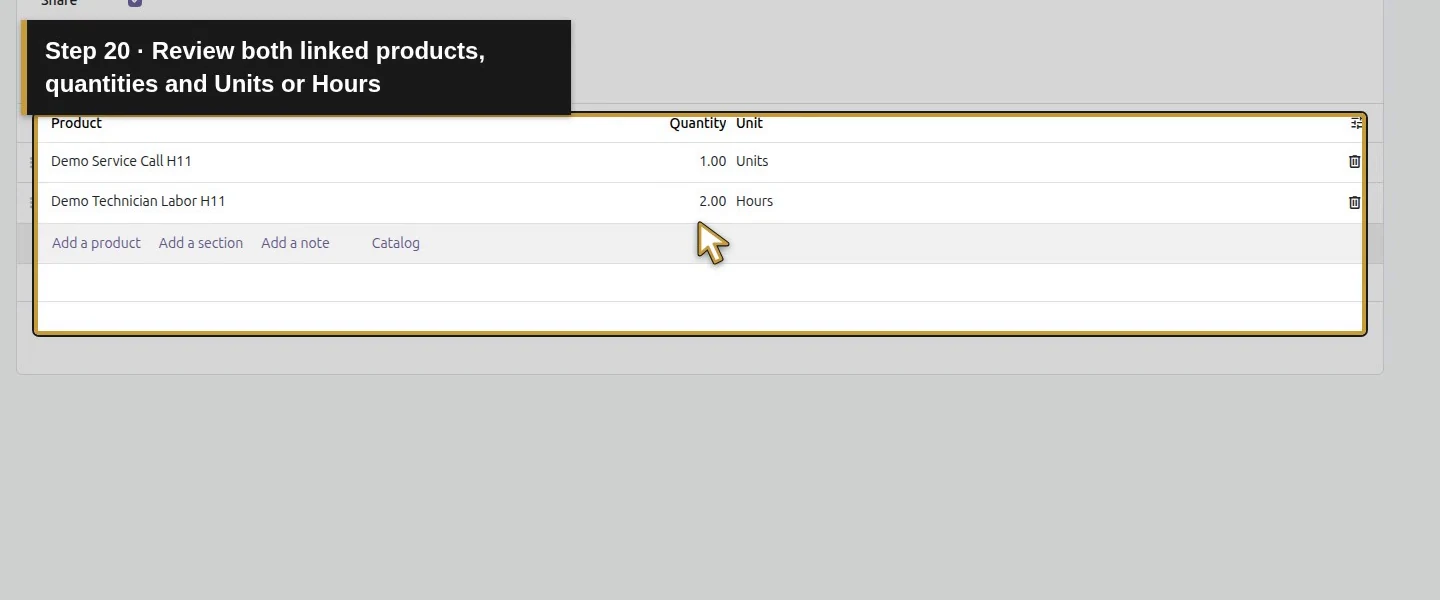
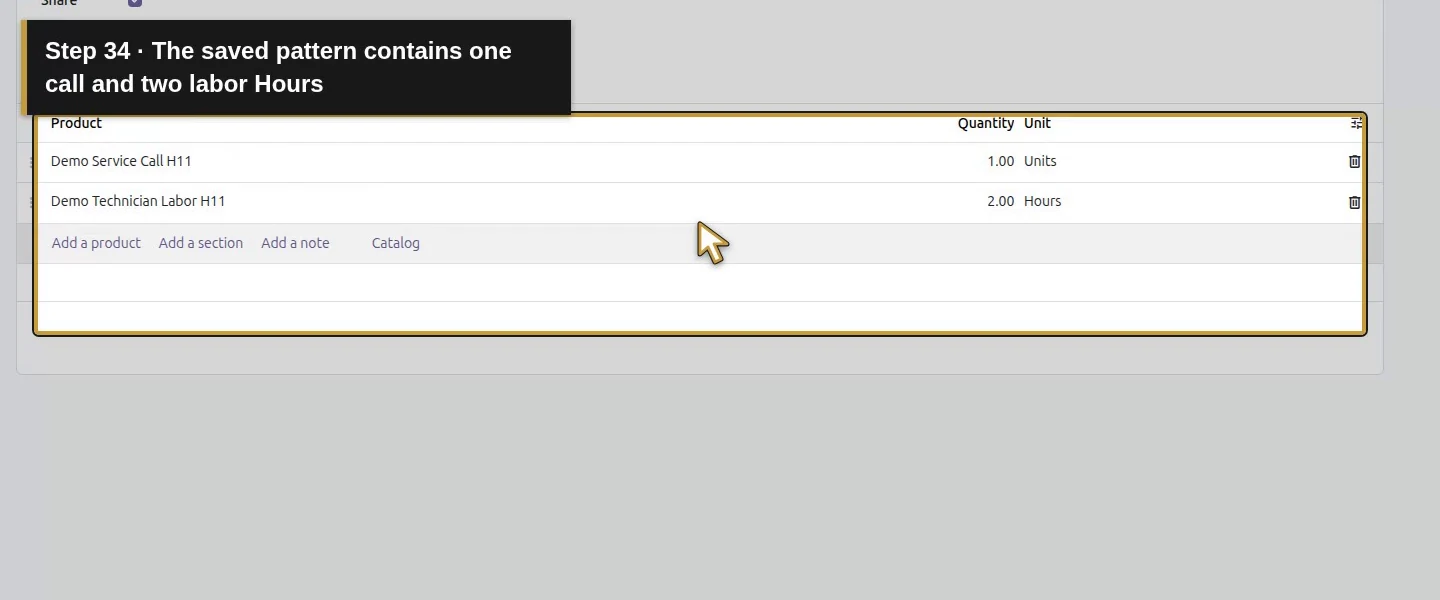
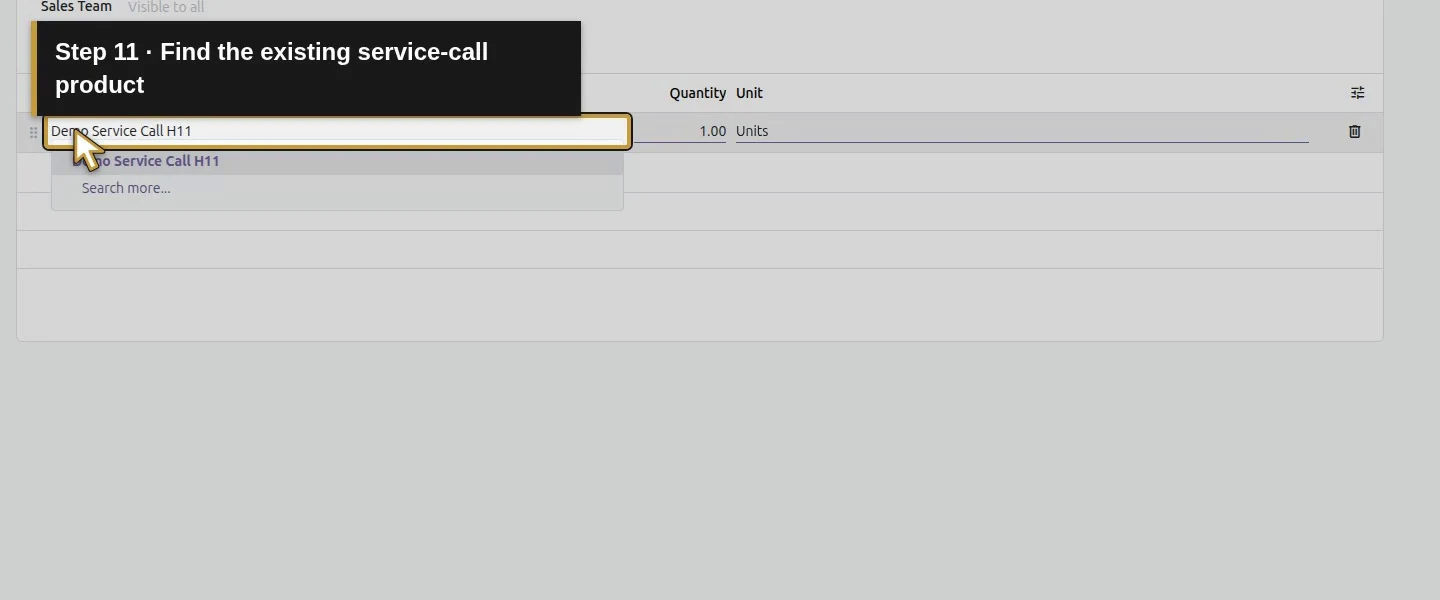
On Lines, choose Add a product, select existing Demo Service Call H11, and set Quantity 1, Unit Units. Add Demo Technician Labor H11 with Quantity 2, Unit Hours. The tested template list holds products, quantities and units; prices appear when the new quotation is prepared.
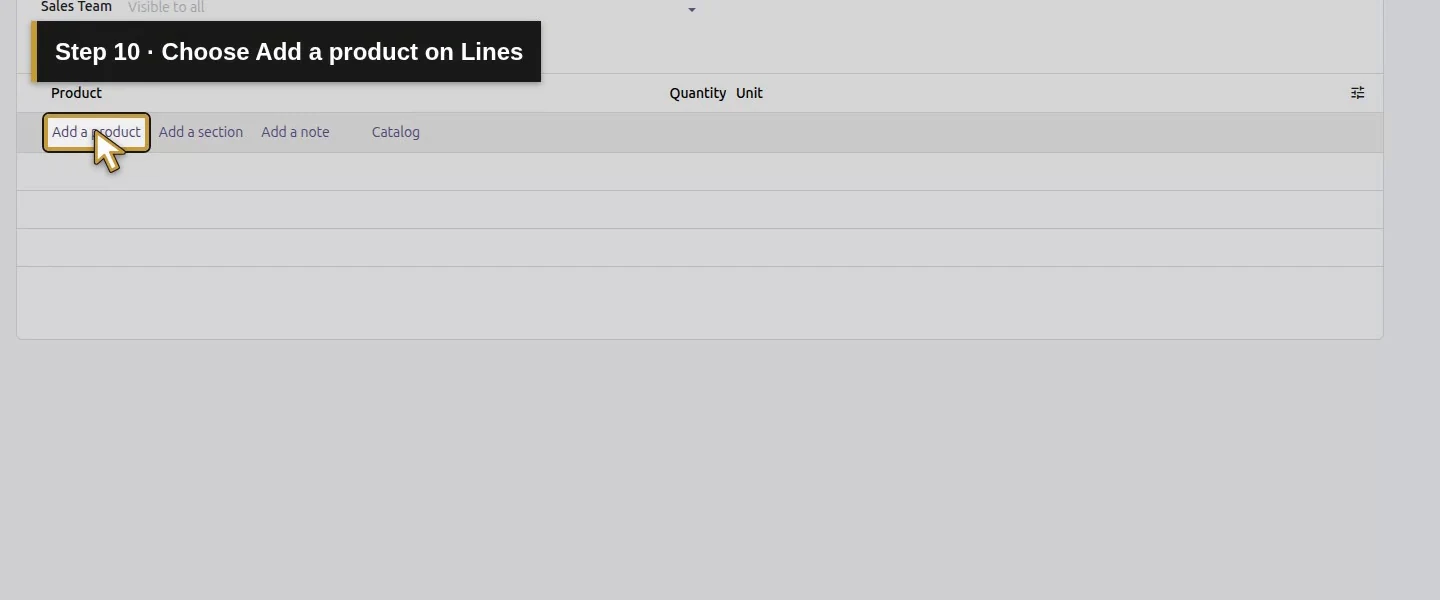
Action 10: Choose Add a product on Lines. The actual target is highlighted in gold.
Choose Add a product on Lines.
Action 11: Find the existing service-call product. The actual target is highlighted in gold.
Find the existing service-call product.
Action 12: Select Demo Service Call H11 from the product picker. The actual target is highlighted in gold.
Select Demo Service Call H11 from the product picker.
Action 13: Keep service-call Quantity one. The actual target is highlighted in gold.
Keep service-call Quantity one.
Action 14: Review the service-call Unit Units. The actual target is highlighted in gold.
Review the service-call Unit Units.
Action 15: Add the separate labor product. The actual target is highlighted in gold.
Add the separate labor product.
Action 16: Find the existing technician-labor product. The actual target is highlighted in gold.
Find the existing technician-labor product.
Action 17: Select Demo Technician Labor H11. The actual target is highlighted in gold.
Select Demo Technician Labor H11.
Action 18: Set the quoted labor allowance to two Hours. The actual target is highlighted in gold.
Set the quoted labor allowance to two Hours.
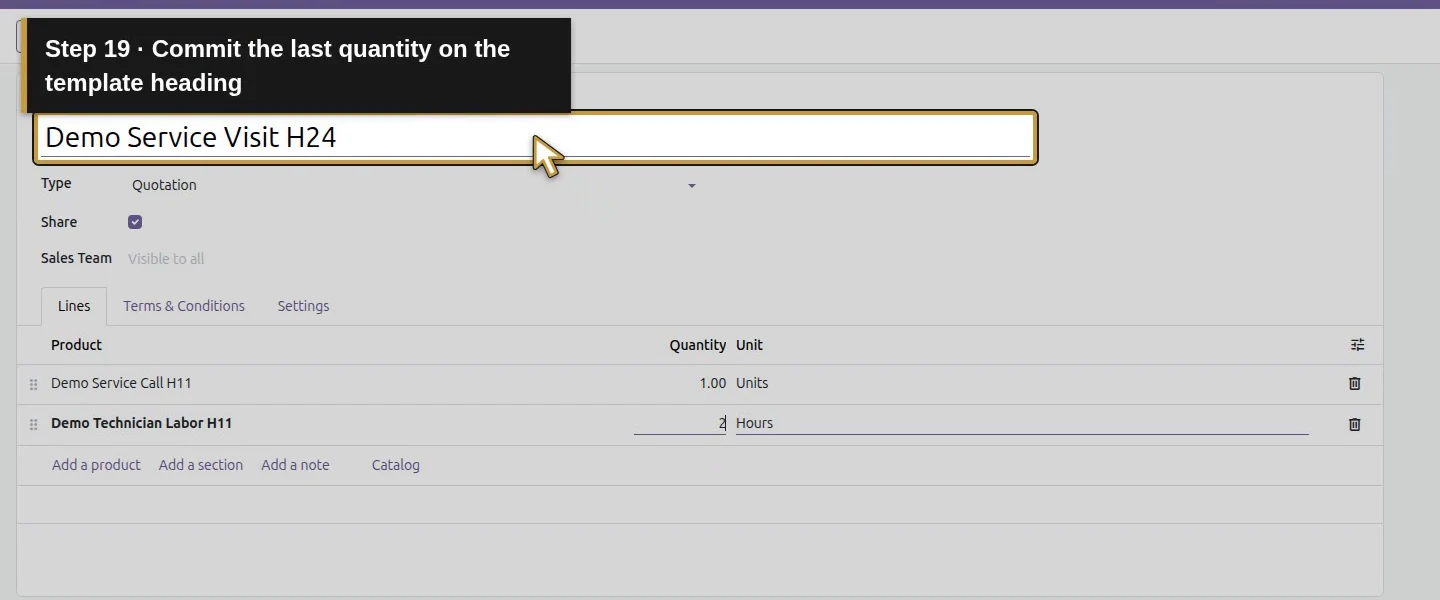
Action 19: Commit the last quantity on the template heading. The actual target is highlighted in gold.
Commit the last quantity on the template heading.
Action 20: Review both linked products, quantities and Units or Hours. The actual target is highlighted in gold.
Review both linked products, quantities and Units or Hours.

Step 3. Set useful terms and validity

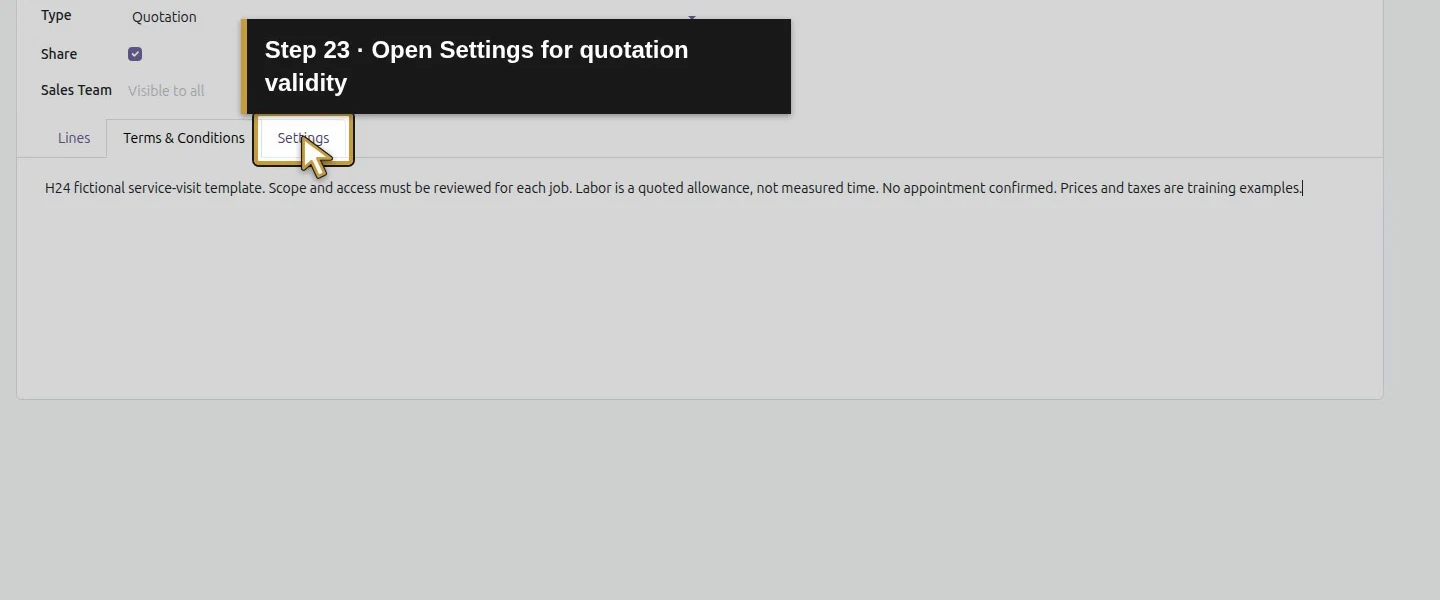
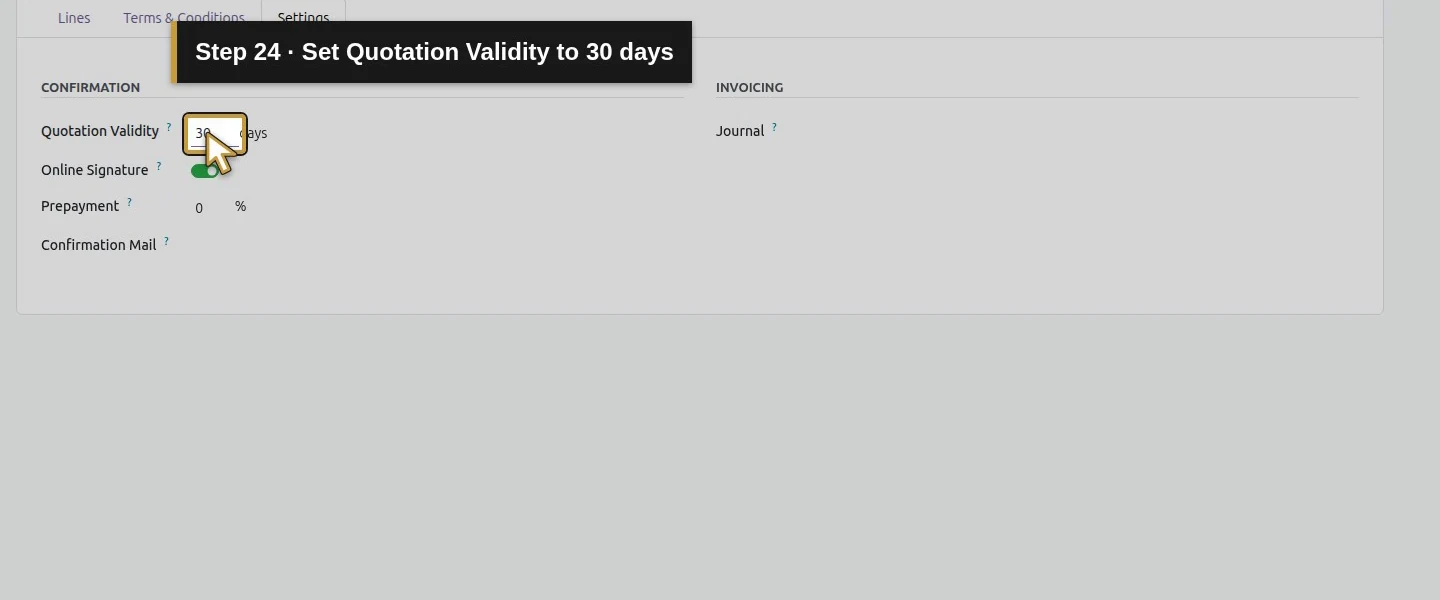
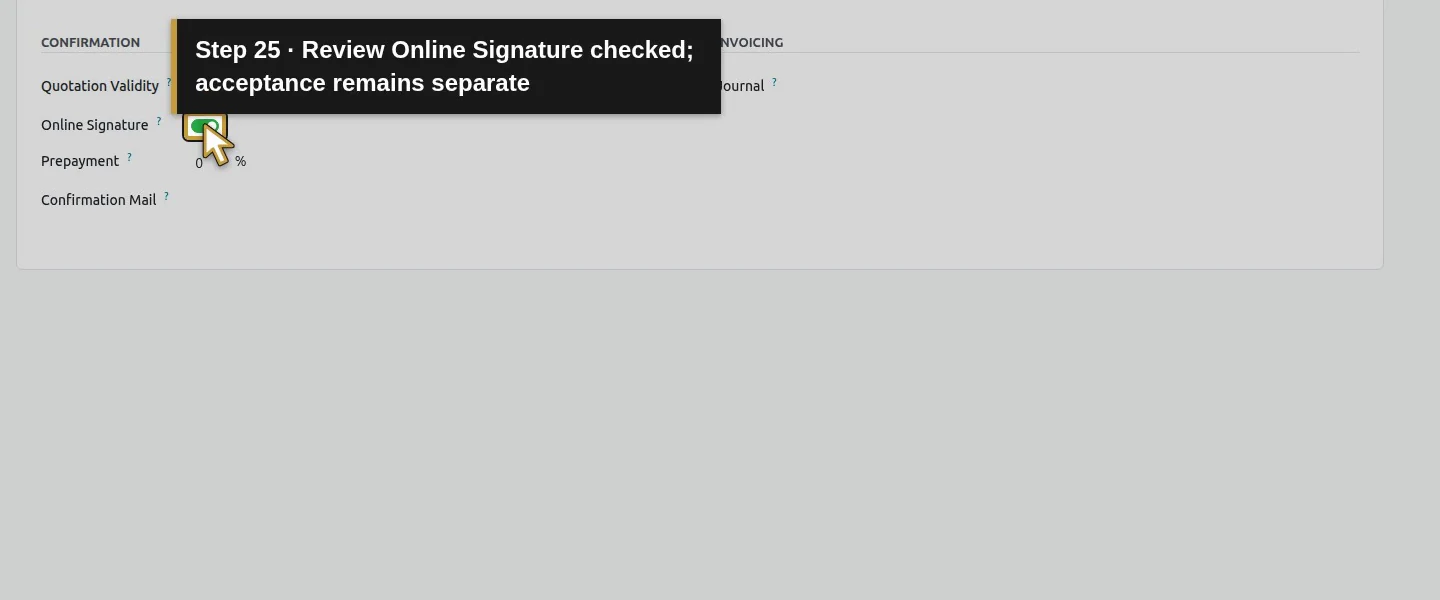
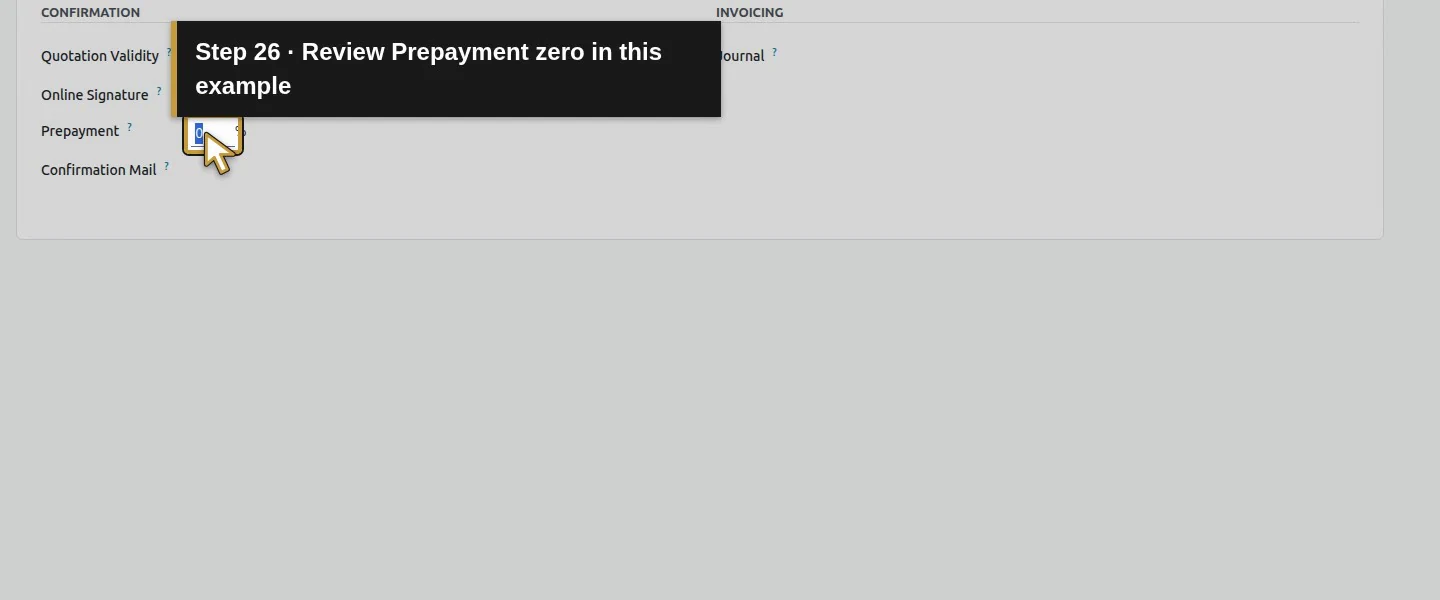
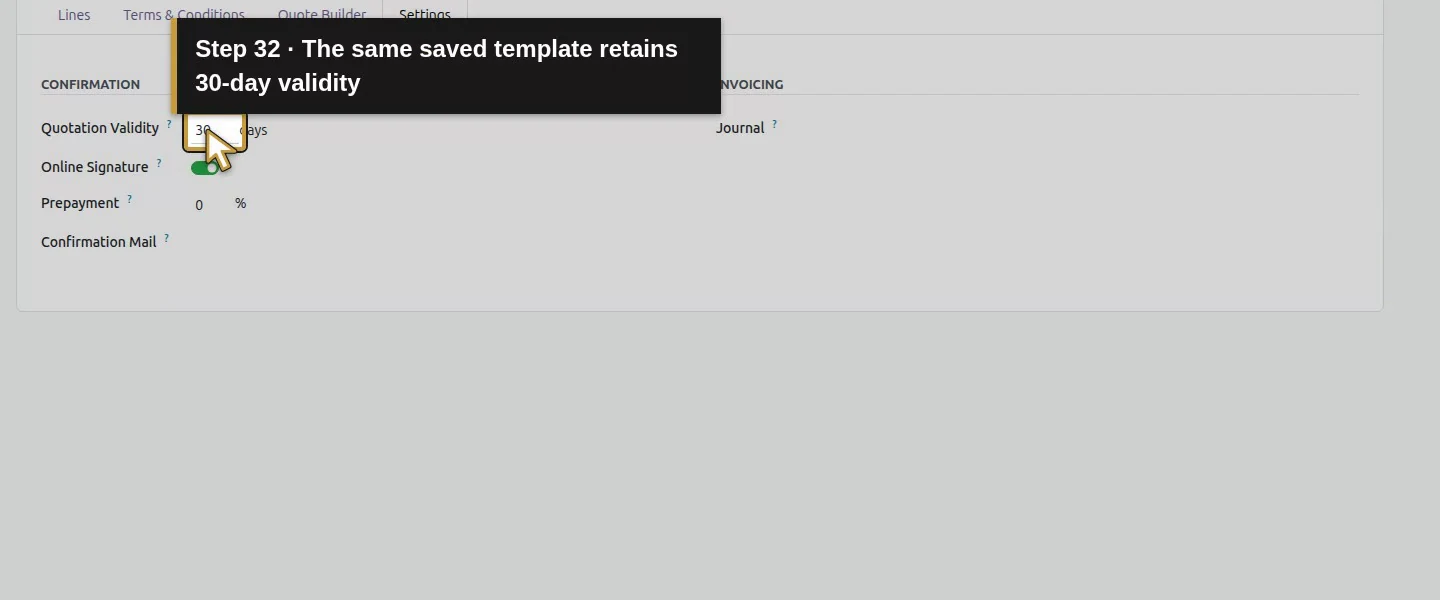
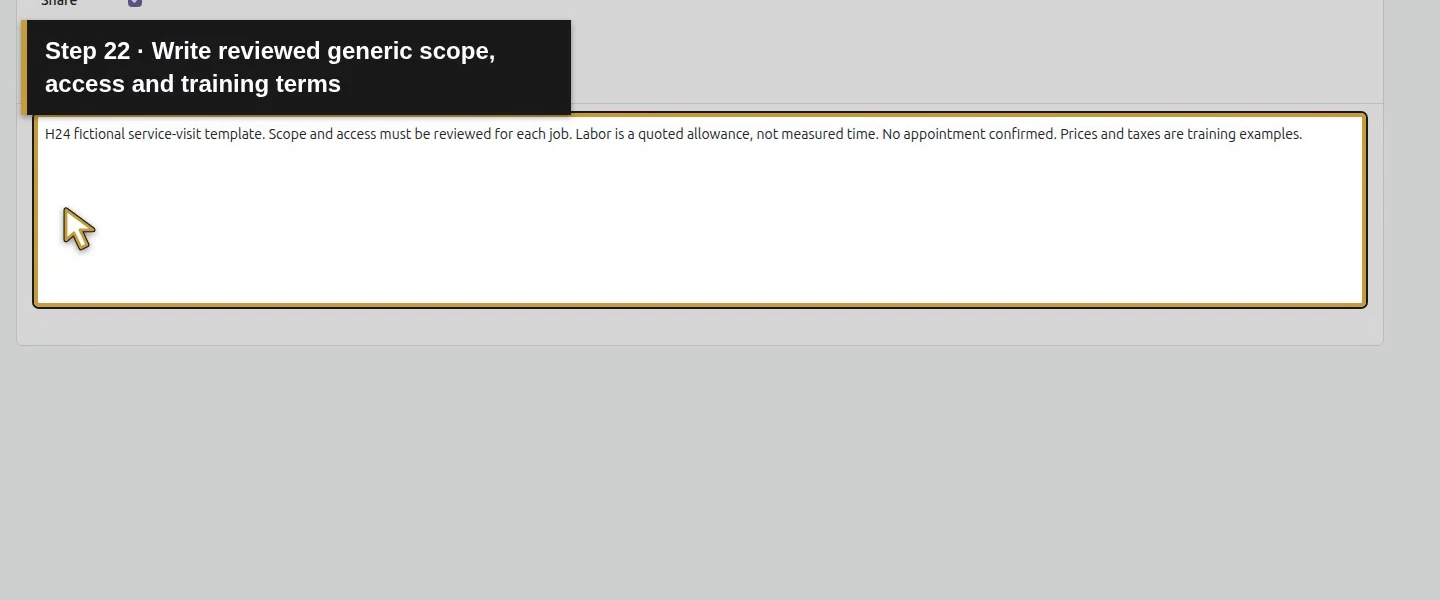
On Terms & Conditions, write that scope and access require review, labor is a quoted allowance, no appointment is confirmed, and prices/taxes are training examples. On Settings, set Quotation Validity 30 days. The tested defaults also show Online Signature checked, Prepayment zero, and blank Confirmation Mail/Journal. These settings are not proof of successful acceptance or payment. Choose Save manually and reopen the template.
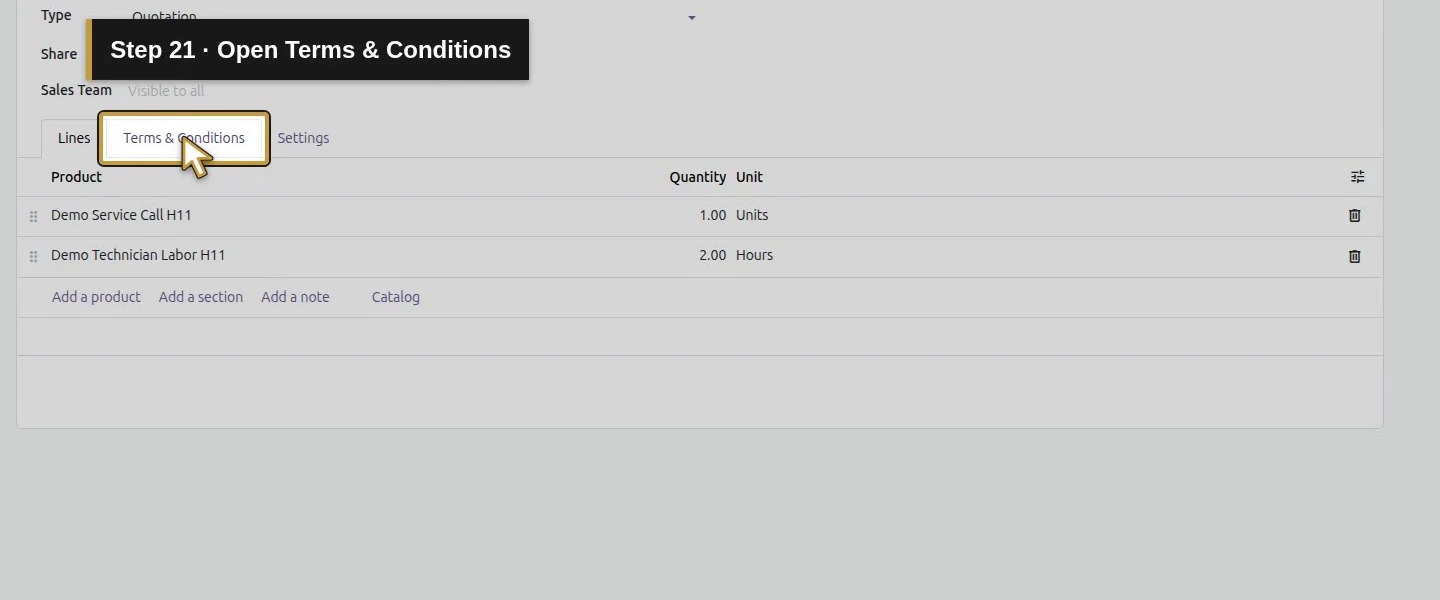
Action 21: Open Terms & Conditions. The actual target is highlighted in gold.
Open Terms & Conditions.
Action 22: Write reviewed generic scope, access and training terms. The actual target is highlighted in gold.
Write reviewed generic scope, access and training terms.
Action 23: Open Settings for quotation validity. The actual target is highlighted in gold.
Open Settings for quotation validity.
Action 24: Set Quotation Validity to 30 days. The actual target is highlighted in gold.
Set Quotation Validity to 30 days.
Action 25: Review Online Signature checked; acceptance remains separate. The actual target is highlighted in gold.
Review Online Signature checked; acceptance remains separate.
Action 26: Review Prepayment zero in this example. The actual target is highlighted in gold.
Review Prepayment zero in this example.
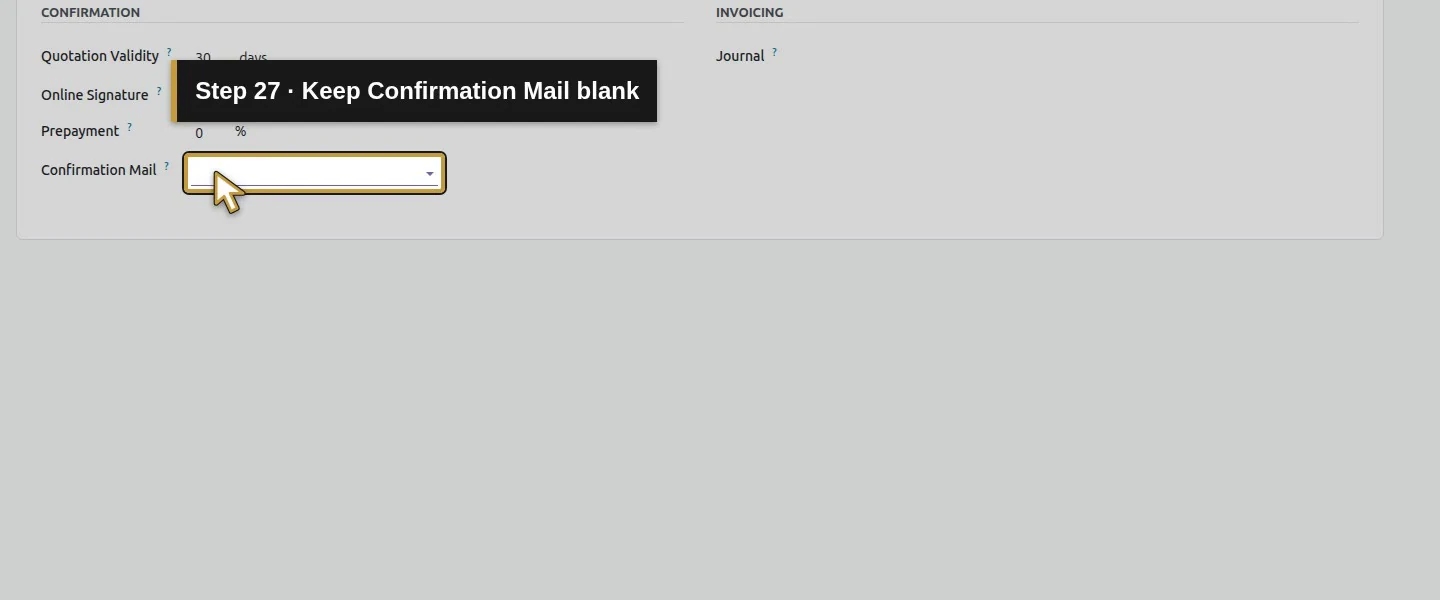
Action 27: Keep Confirmation Mail blank. The actual target is highlighted in gold.
Keep Confirmation Mail blank.
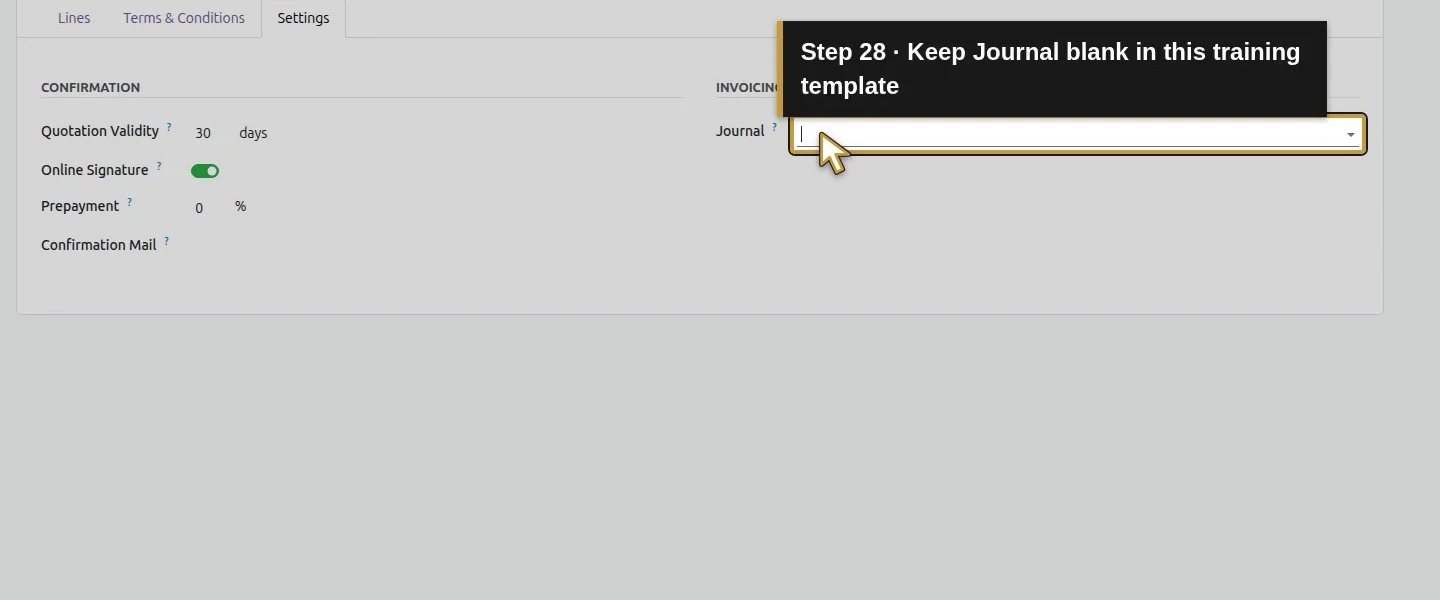
Action 28: Keep Journal blank in this training template. The actual target is highlighted in gold.
Keep Journal blank in this training template.
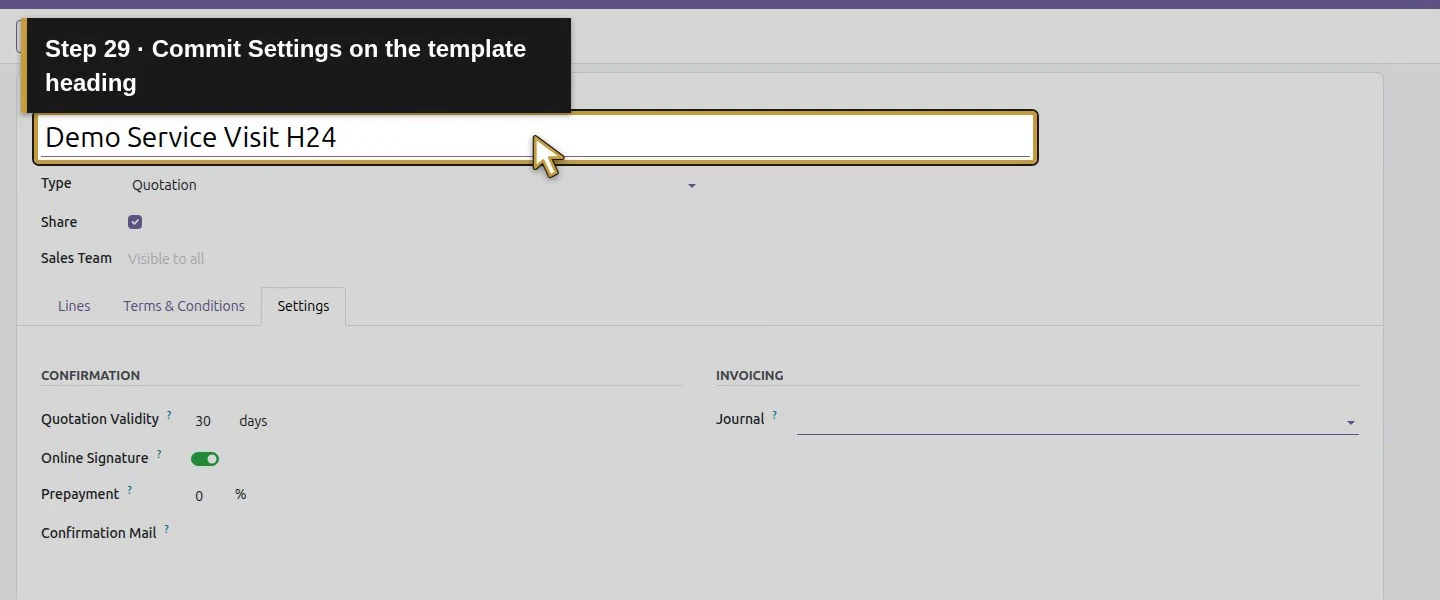
Action 29: Commit Settings on the template heading. The actual target is highlighted in gold.
Commit Settings on the template heading.
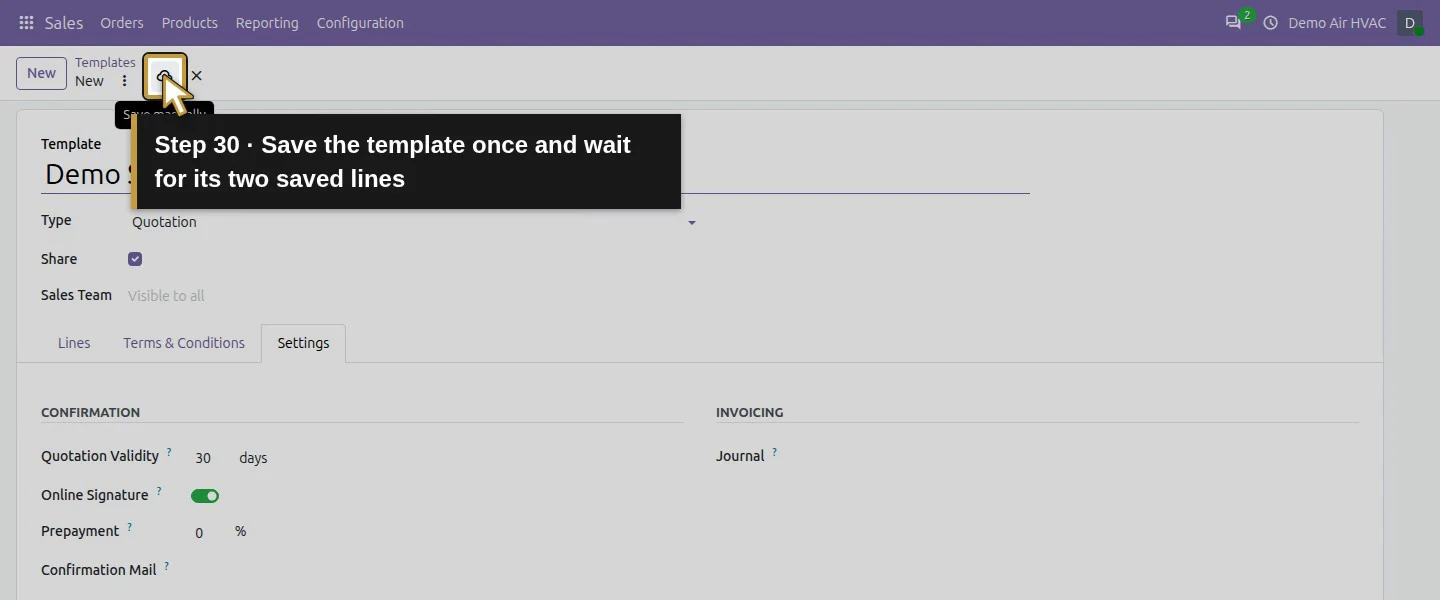
Action 30: Save the template once and wait for its two saved lines. The actual target is highlighted in gold.
Save the template once and wait for its two saved lines.
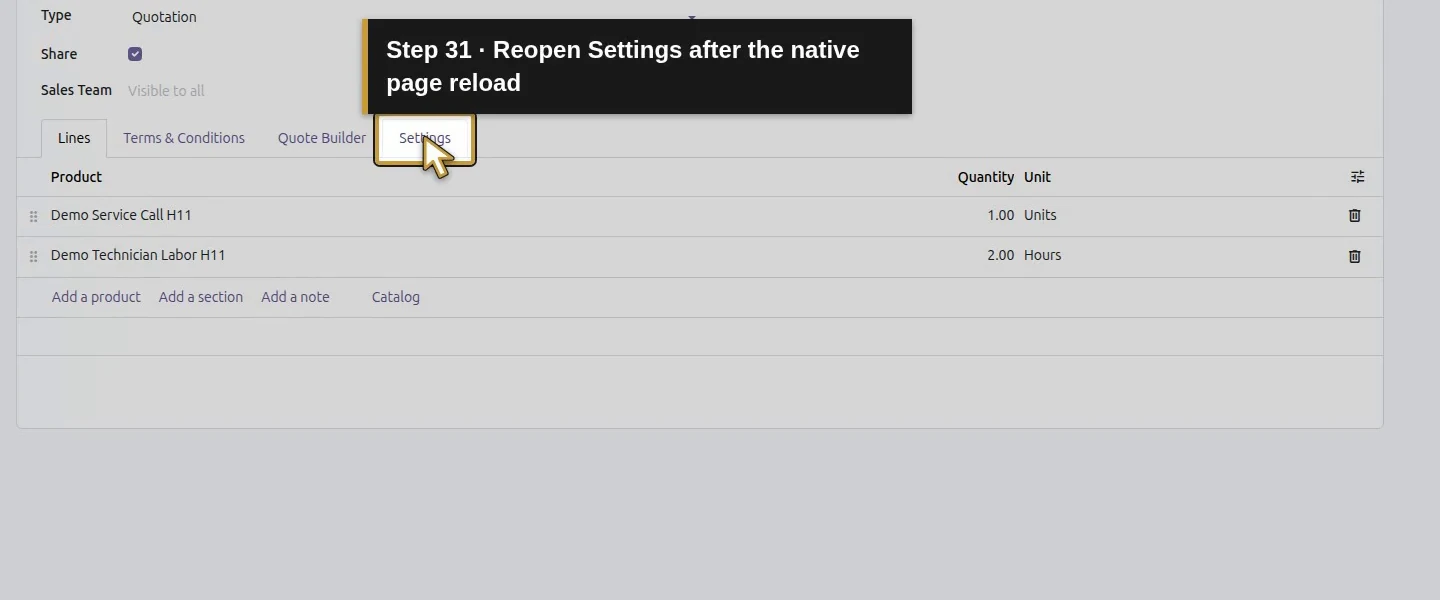
Action 31: Reopen Settings after the native page reload. The actual target is highlighted in gold.
Reopen Settings after the native page reload.
Action 32: The same saved template retains 30-day validity. The actual target is highlighted in gold.
The same saved template retains 30-day validity.
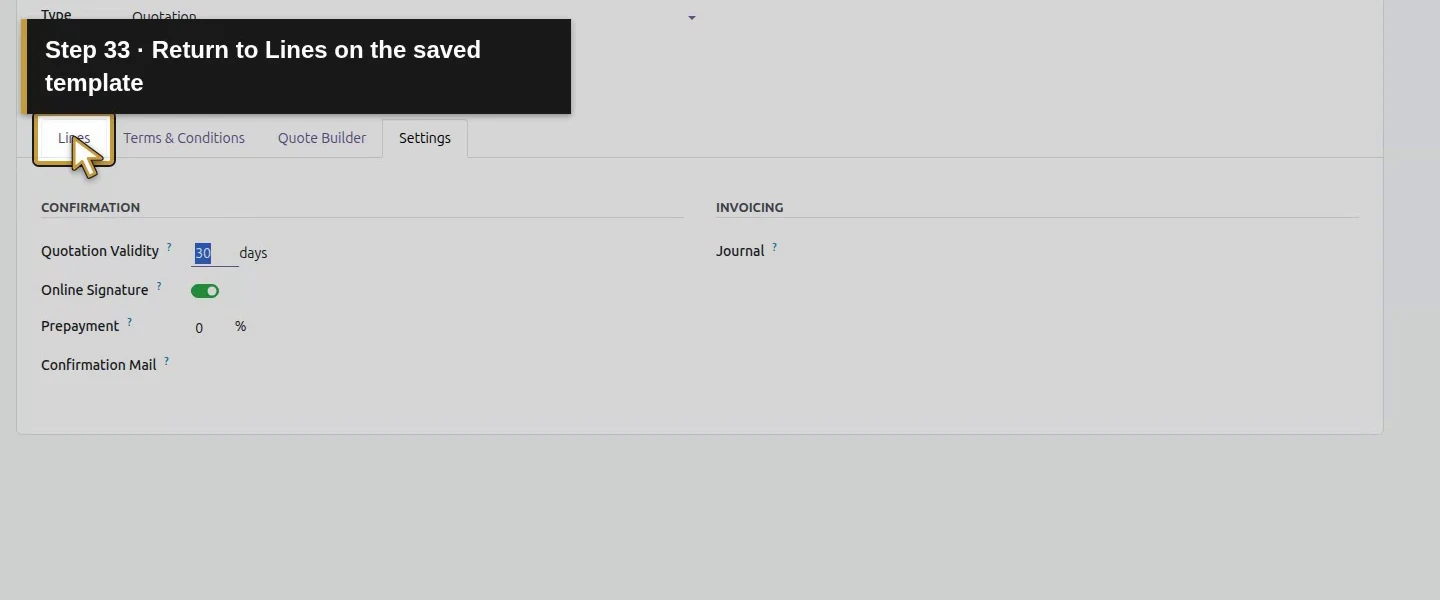
Action 33: Return to Lines on the saved template. The actual target is highlighted in gold.
Return to Lines on the saved template.
Action 34: The saved pattern contains one call and two labor Hours. The actual target is highlighted in gold.
The saved pattern contains one call and two labor Hours.

Step 4. Create a draft from the New menu

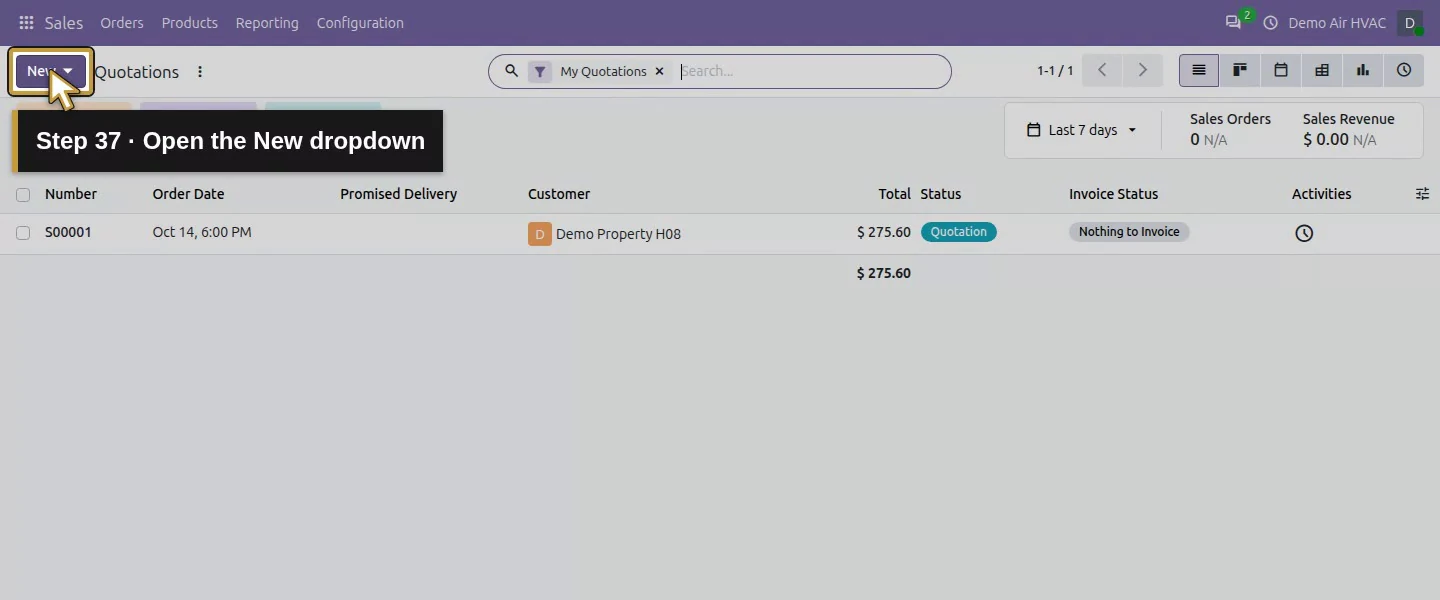
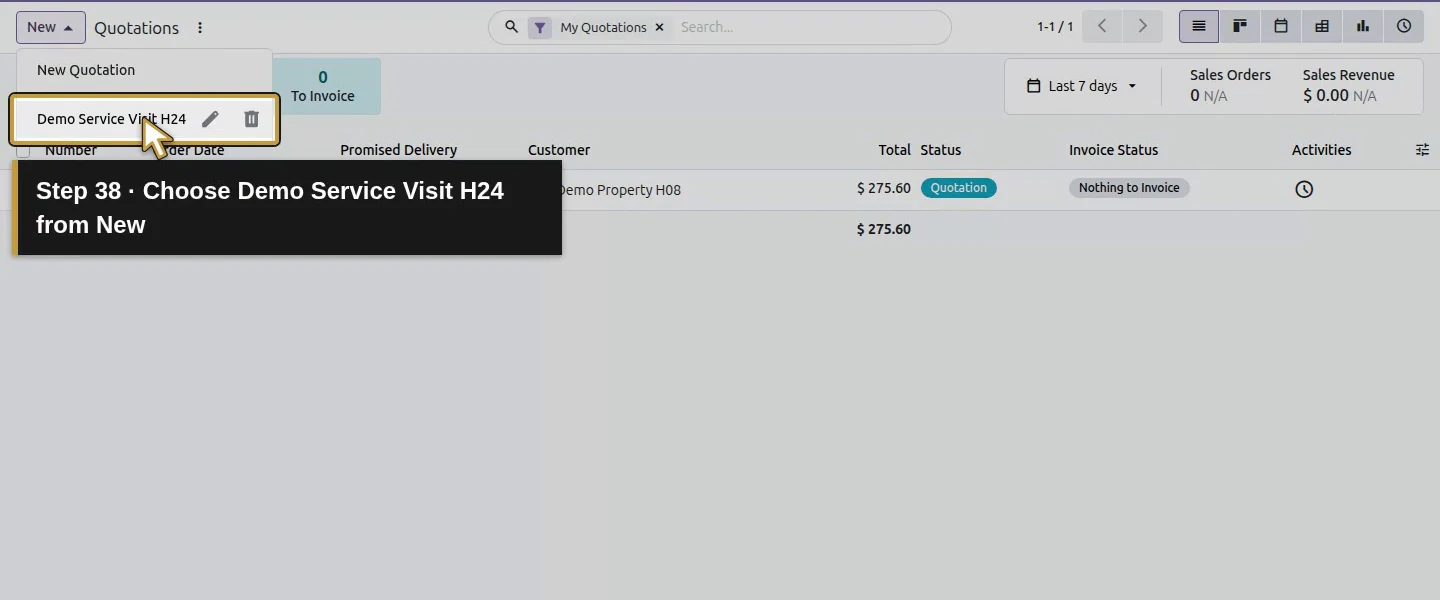
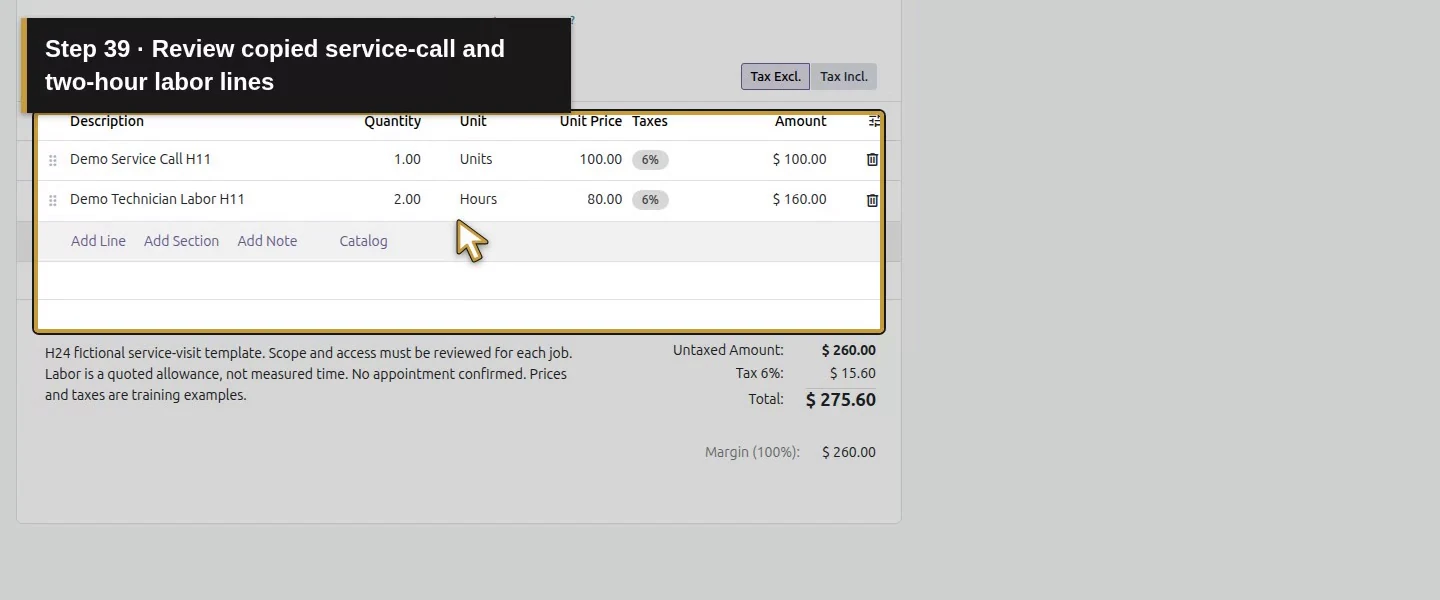
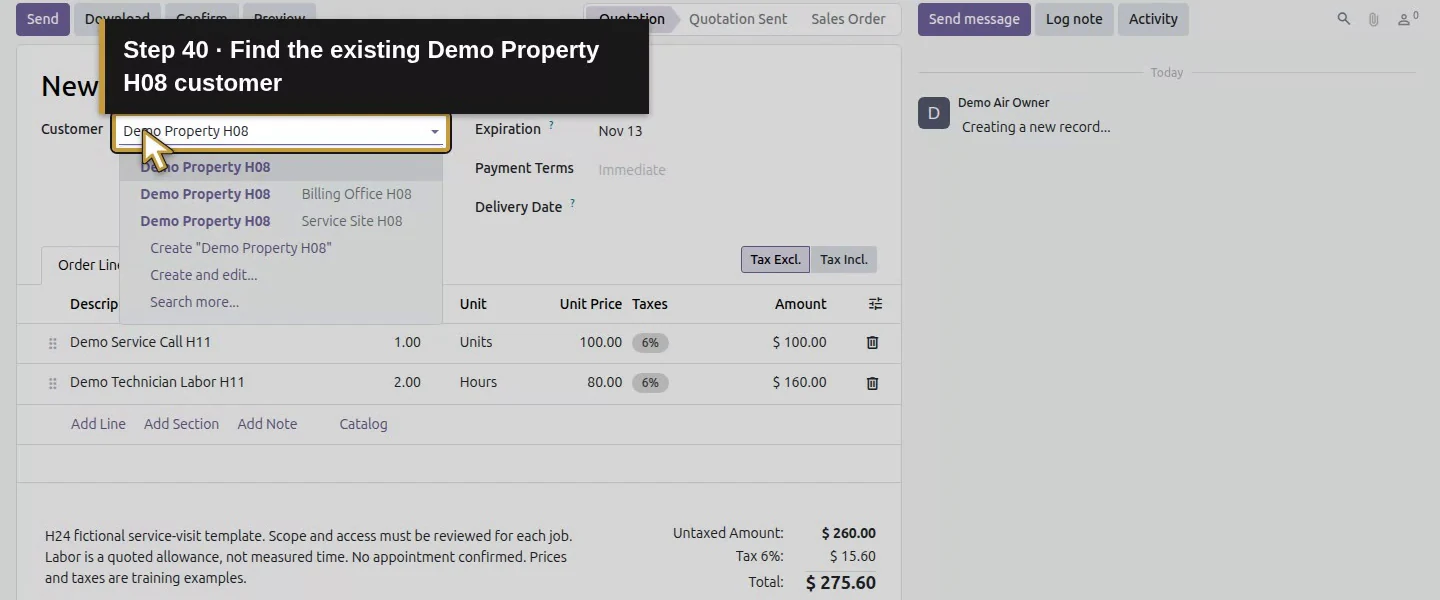
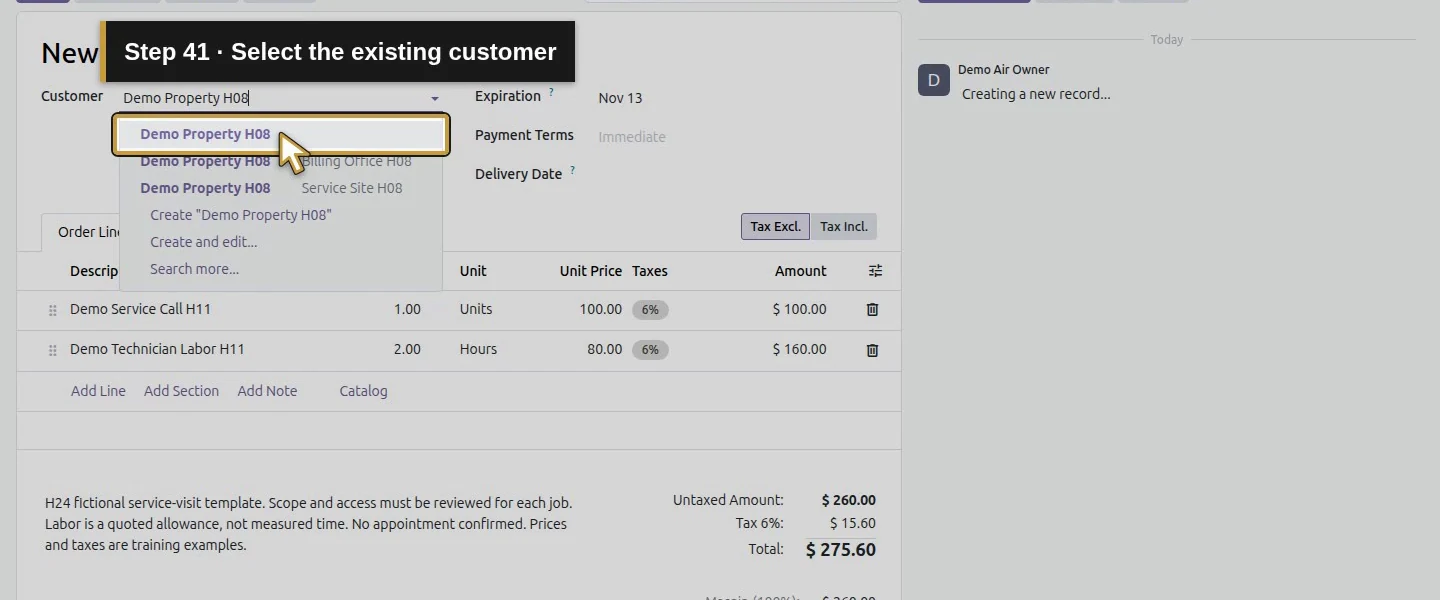
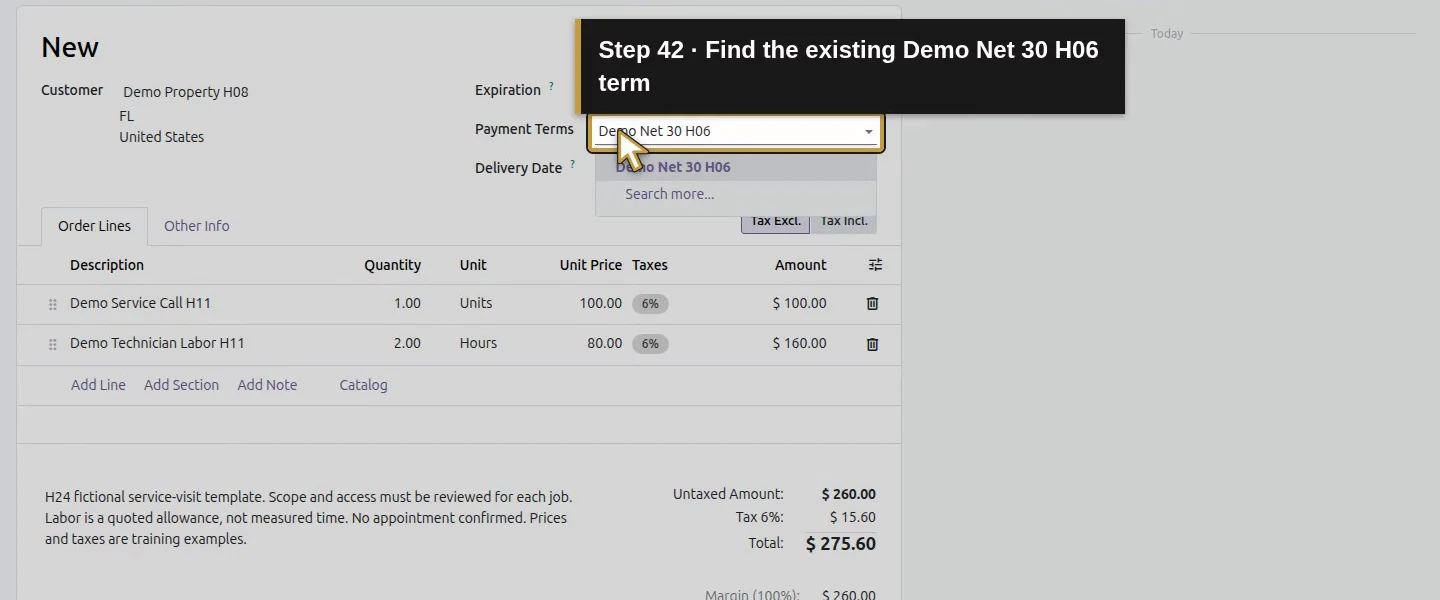
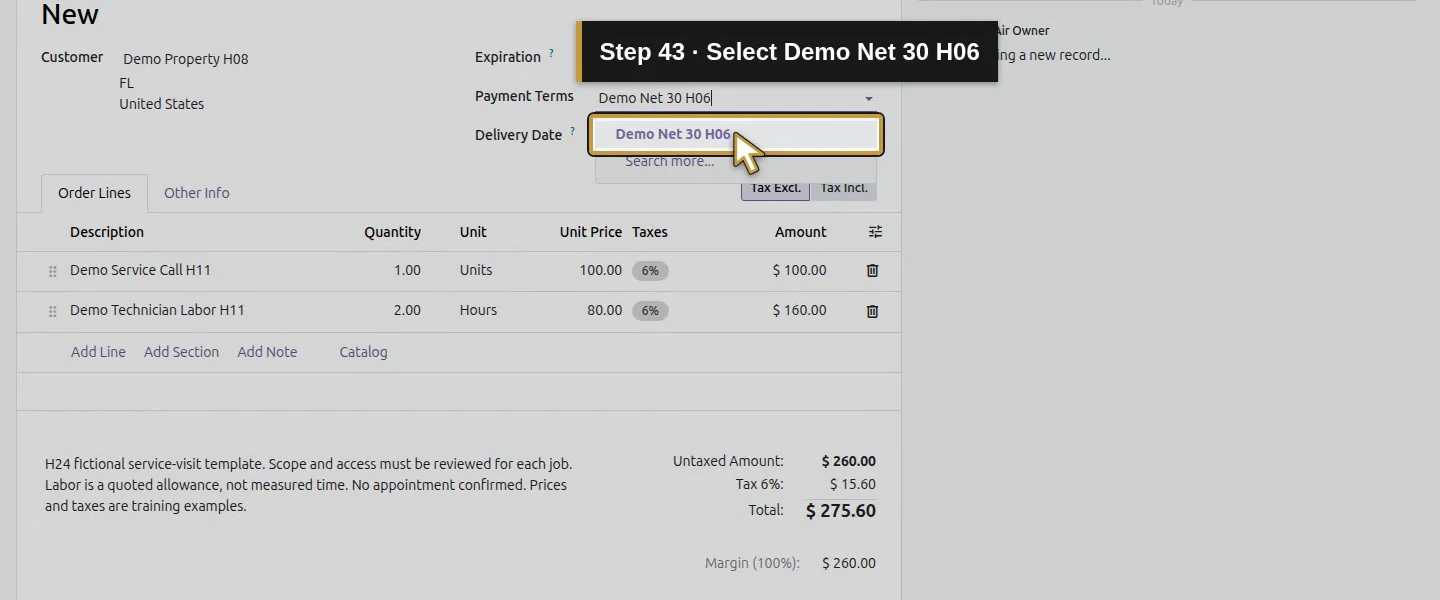
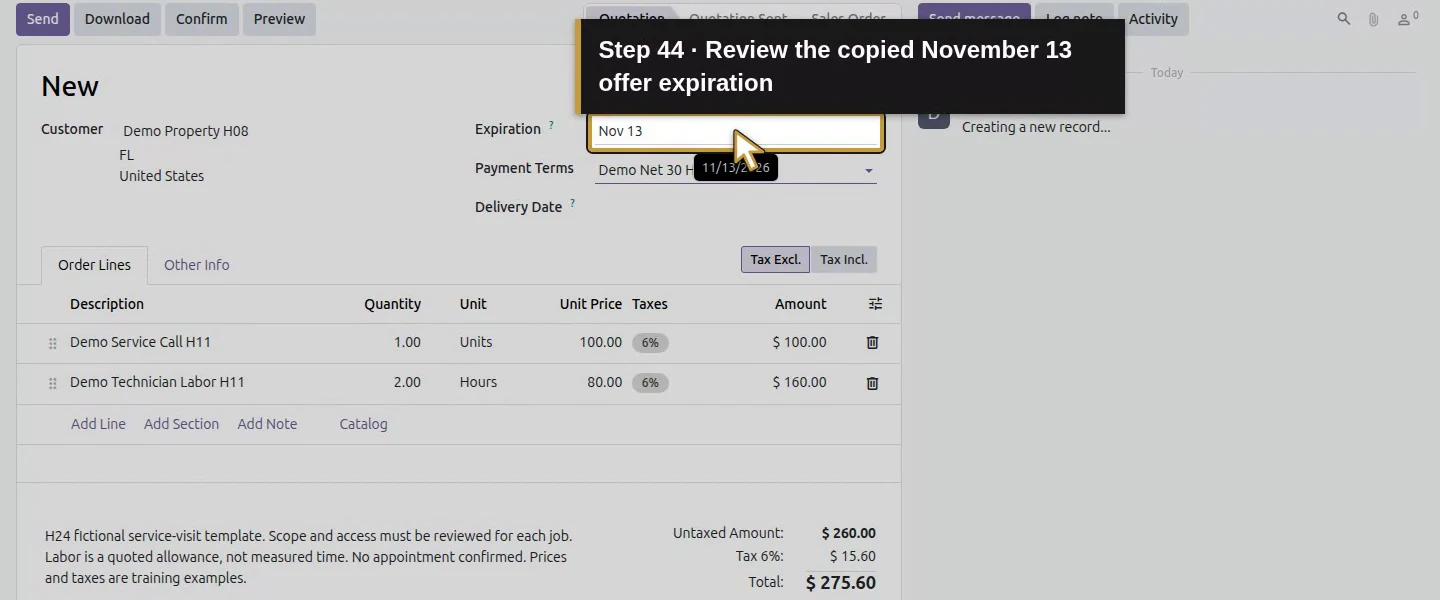
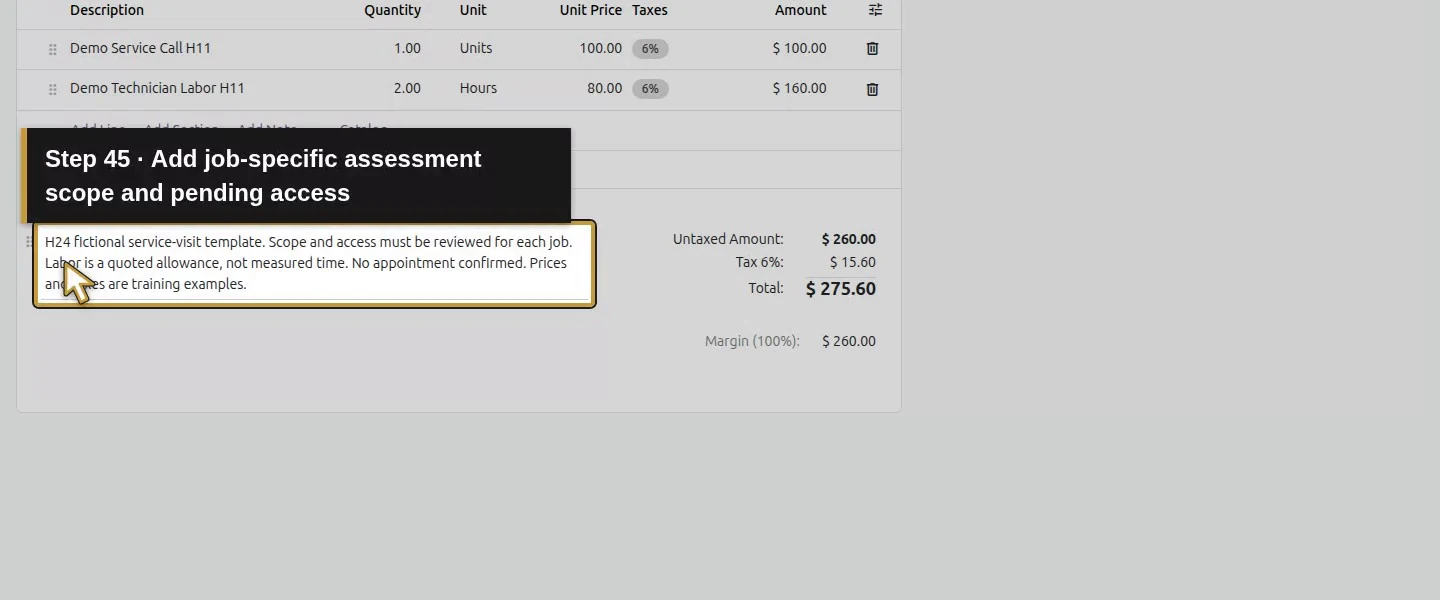
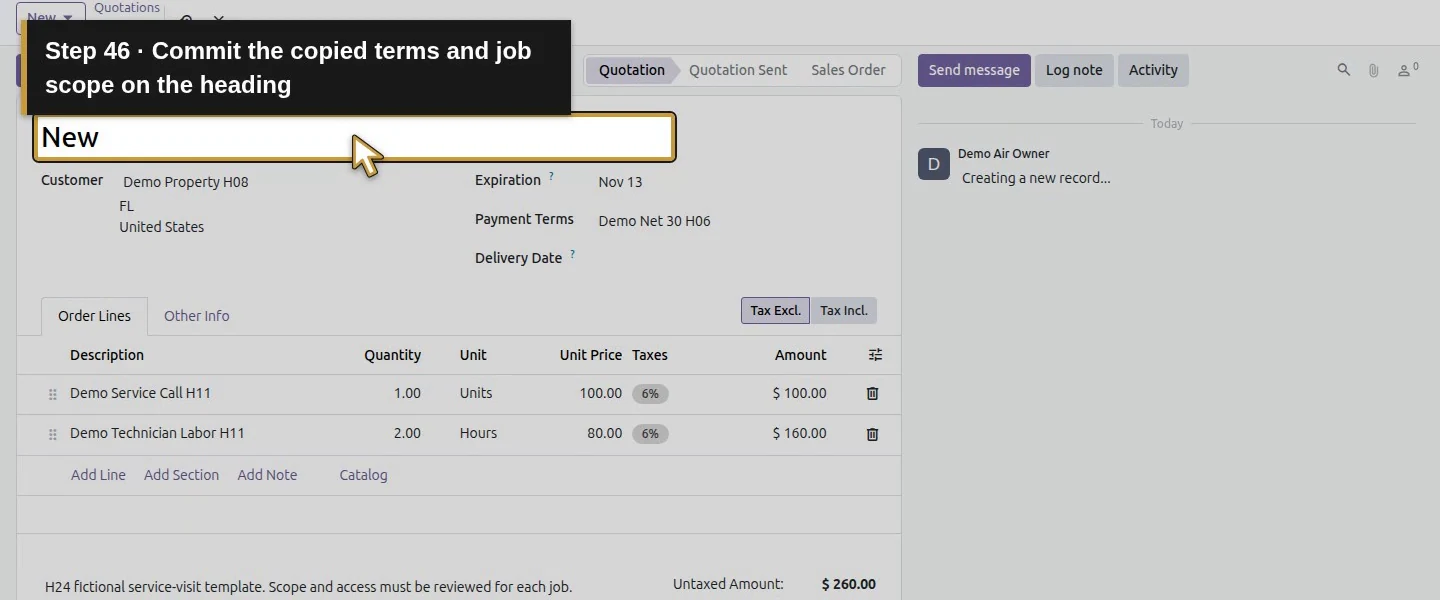
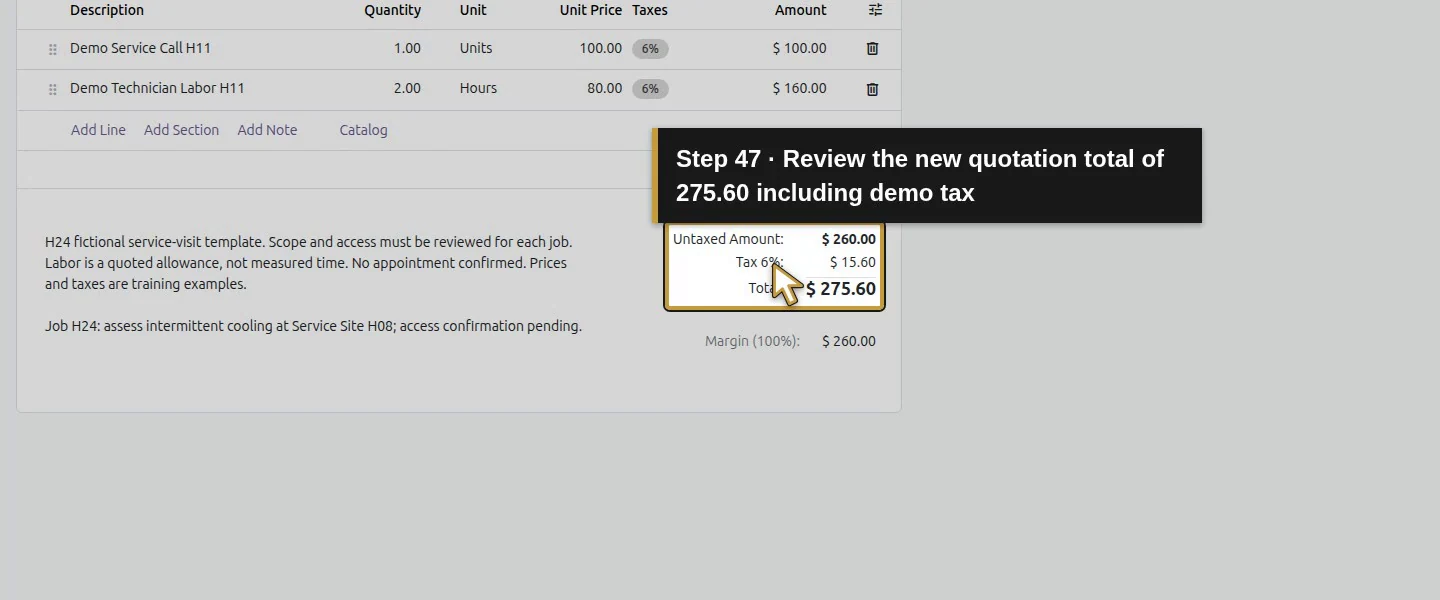
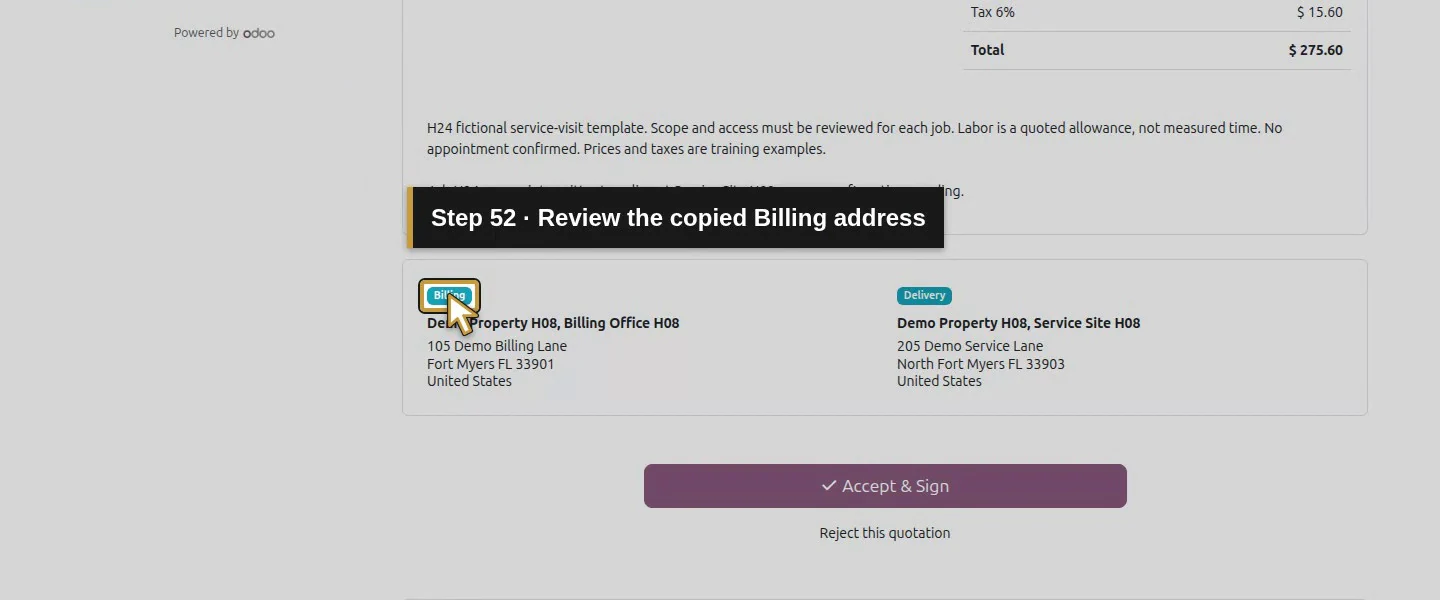
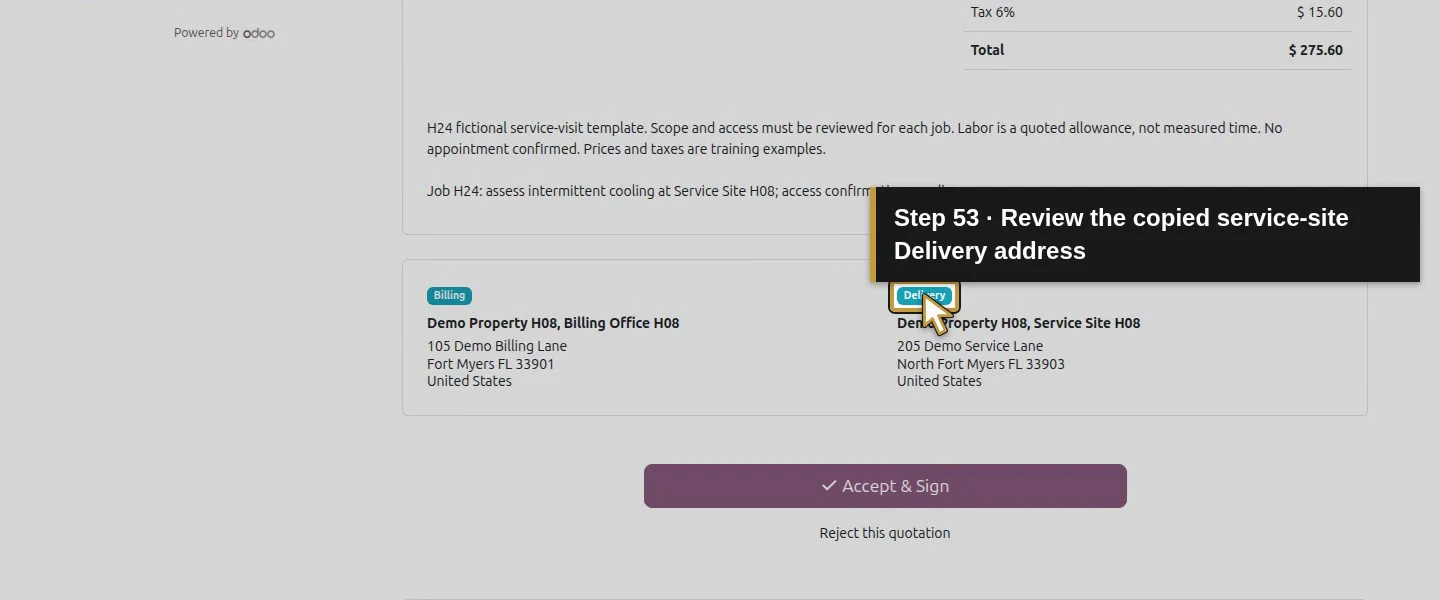
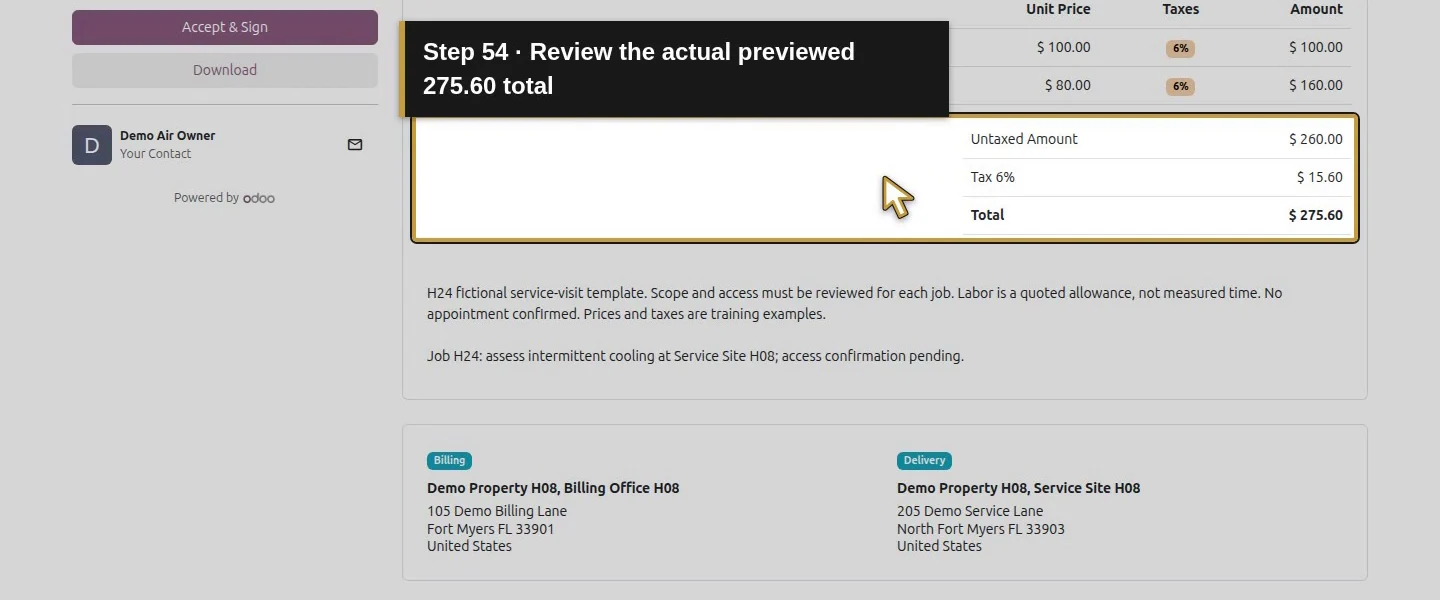
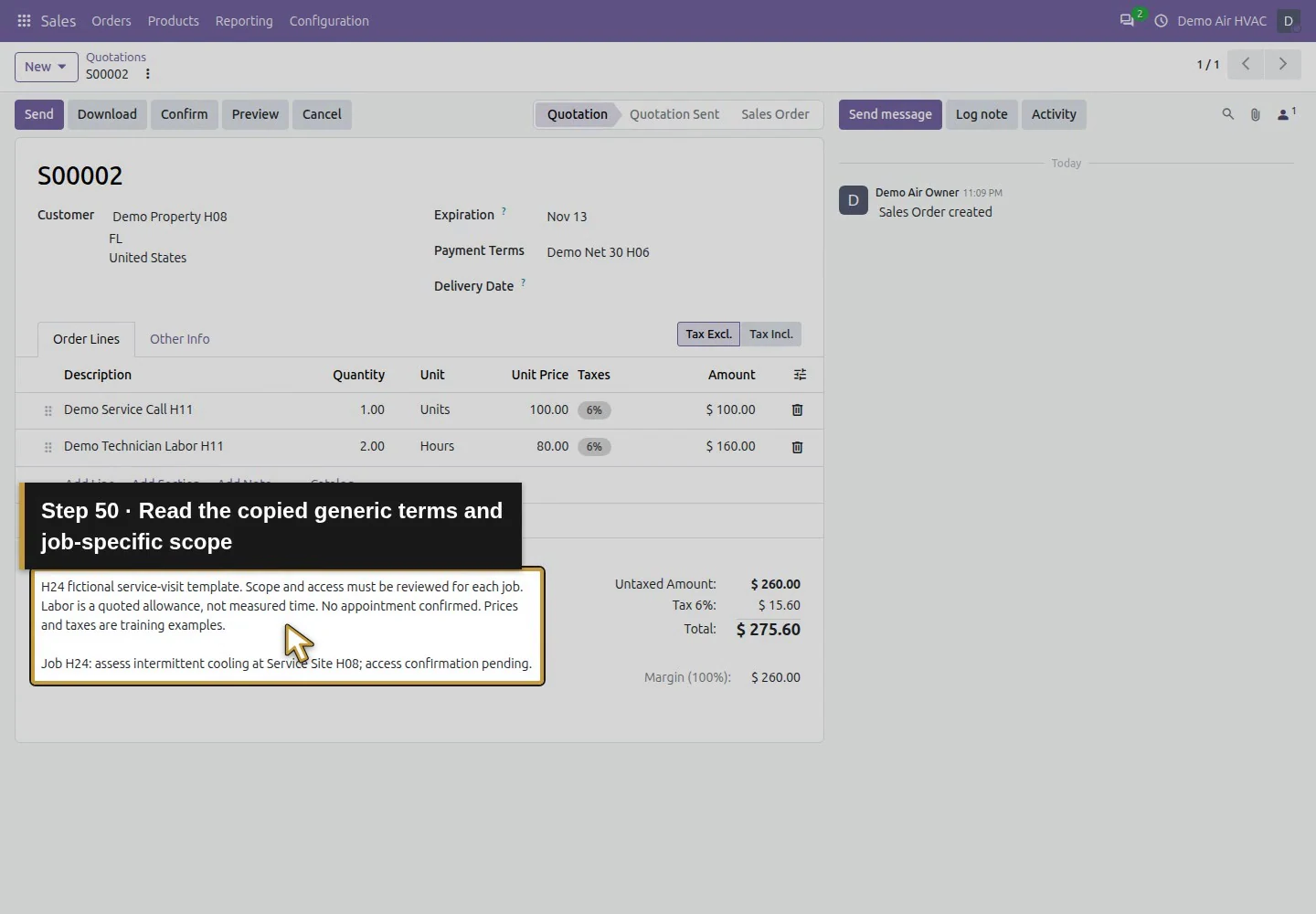
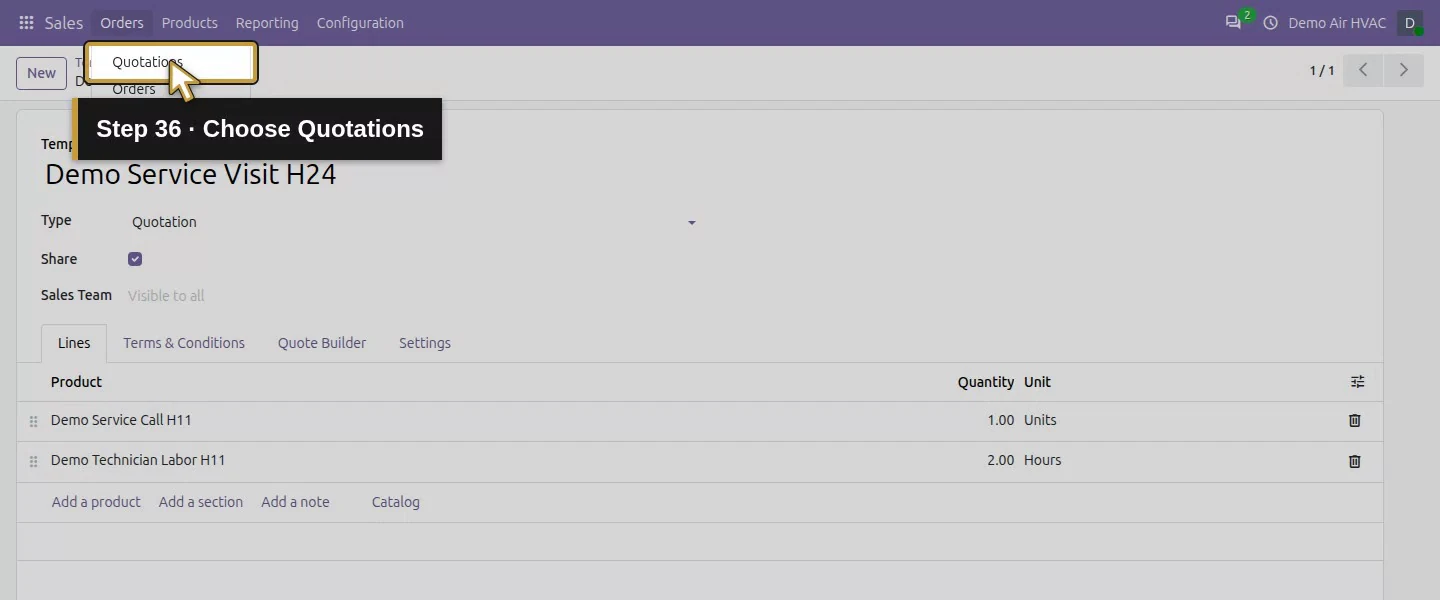
Return to Sales → Orders → Quotations. With a template available, New has a dropdown. Choose Demo Service Visit H24 from it. The new form contains one service call at $100 and two labor Hours at $80, copied terms and Expiration November 13. Select existing Demo Property H08 and Demo Net 30 H06; review the copied billing/service addresses and $275.60 total. Edit the copied terms below the lines to add the job-specific assessment scope and pending access confirmation.
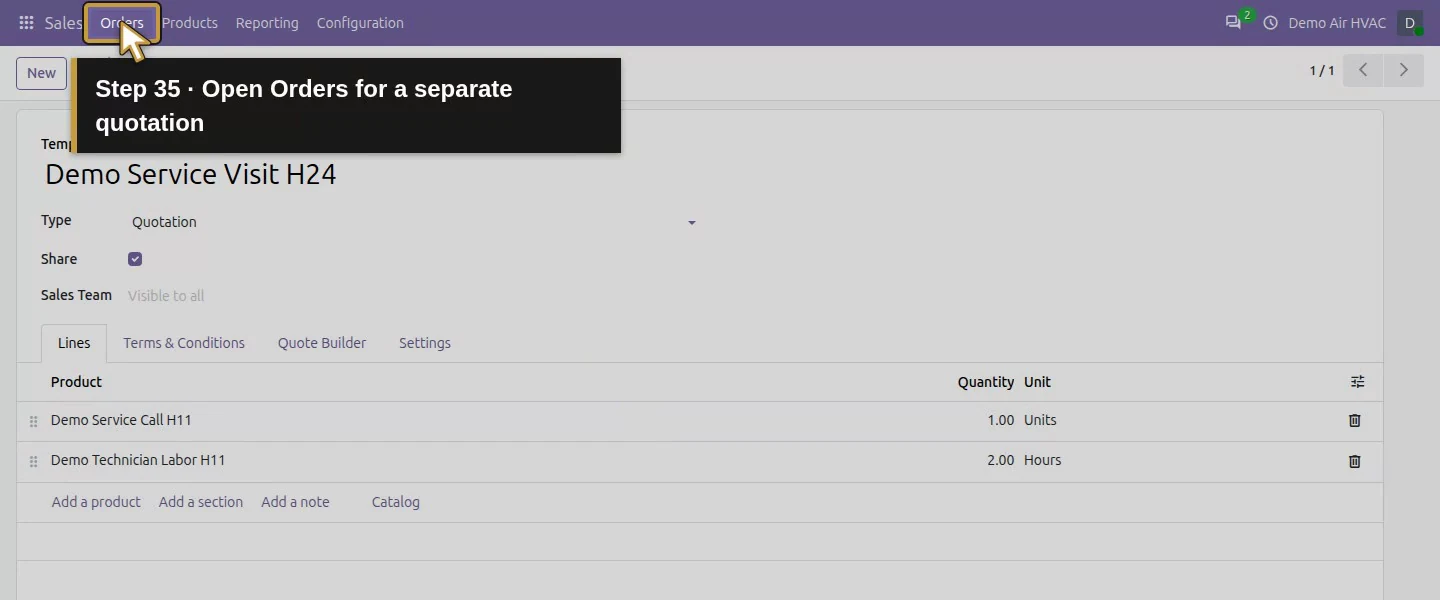
Action 35: Open Orders for a separate quotation. The actual target is highlighted in gold.
Open Orders for a separate quotation.
Action 36: Choose Quotations. The actual target is highlighted in gold.
Choose Quotations.
Action 37: Open the New dropdown. The actual target is highlighted in gold.
Open the New dropdown.
Action 38: Choose Demo Service Visit H24 from New. The actual target is highlighted in gold.
Choose Demo Service Visit H24 from New.
Action 39: Review copied service-call and two-hour labor lines. The actual target is highlighted in gold.
Review copied service-call and two-hour labor lines.
Action 40: Find the existing Demo Property H08 customer. The actual target is highlighted in gold.
Find the existing Demo Property H08 customer.
Action 41: Select the existing customer. The actual target is highlighted in gold.
Select the existing customer.
Action 42: Find the existing Demo Net 30 H06 term. The actual target is highlighted in gold.
Find the existing Demo Net 30 H06 term.
Action 43: Select Demo Net 30 H06. The actual target is highlighted in gold.
Select Demo Net 30 H06.
Action 44: Review the copied November 13 offer expiration. The actual target is highlighted in gold.
Review the copied November 13 offer expiration.
Action 45: Add job-specific assessment scope and pending access. The actual target is highlighted in gold.
Add job-specific assessment scope and pending access.
Action 46: Commit the copied terms and job scope on the heading. The actual target is highlighted in gold.
Commit the copied terms and job scope on the heading.
Action 47: Review the new quotation total of 275.60 including demo tax. The actual target is highlighted in gold.
Review the new quotation total of 275.60 including demo tax.
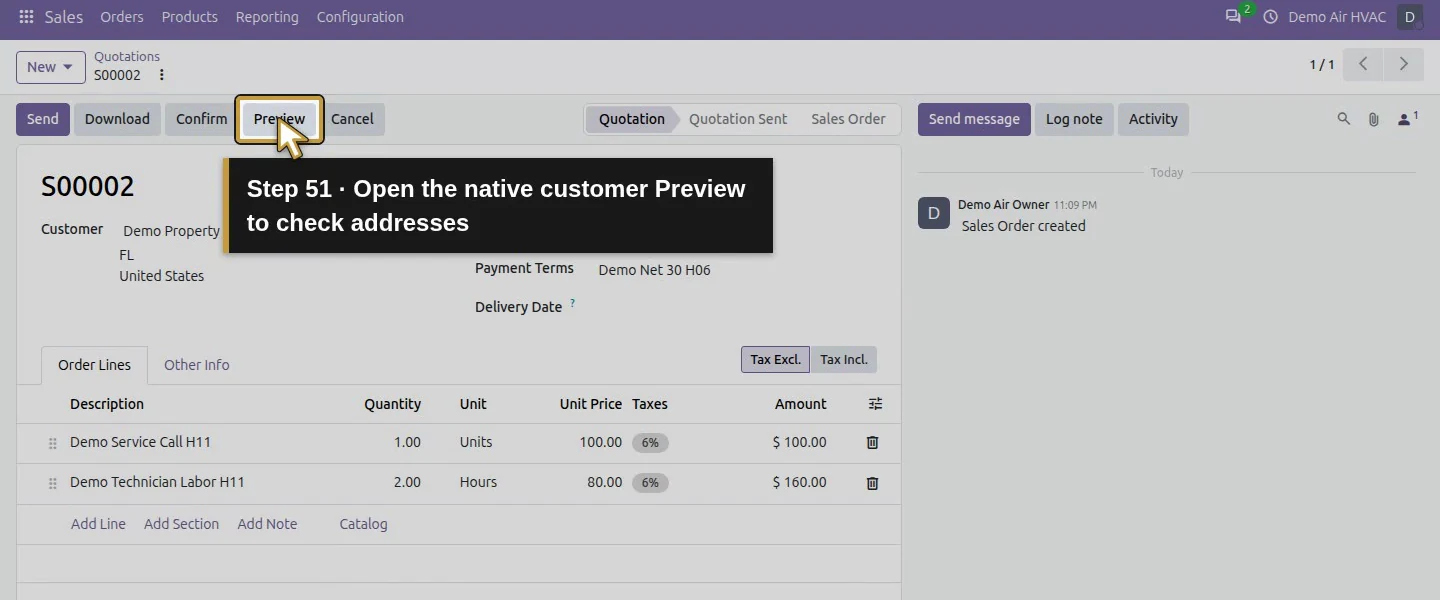
Action 51: Open the native customer Preview to check addresses. The actual target is highlighted in gold.
Open the native customer Preview to check addresses.
Action 52: Review the copied Billing address. The actual target is highlighted in gold.
Review the copied Billing address.
Action 53: Review the copied service-site Delivery address. The actual target is highlighted in gold.
Review the copied service-site Delivery address.
Action 54: Review the actual previewed 275.60 total. The actual target is highlighted in gold.
Review the actual previewed 275.60 total.

Step 5. Save, reopen and check a terms revision

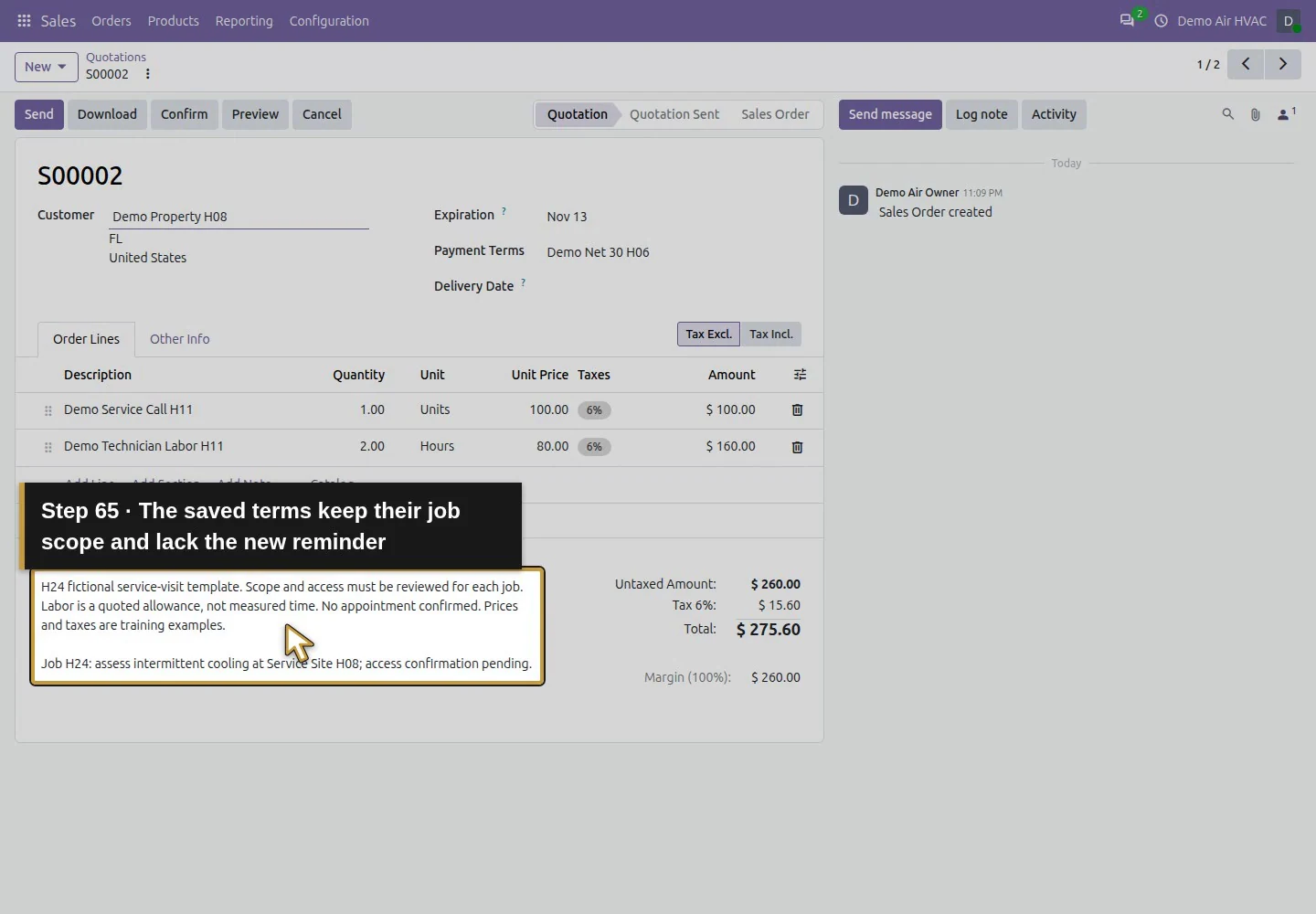
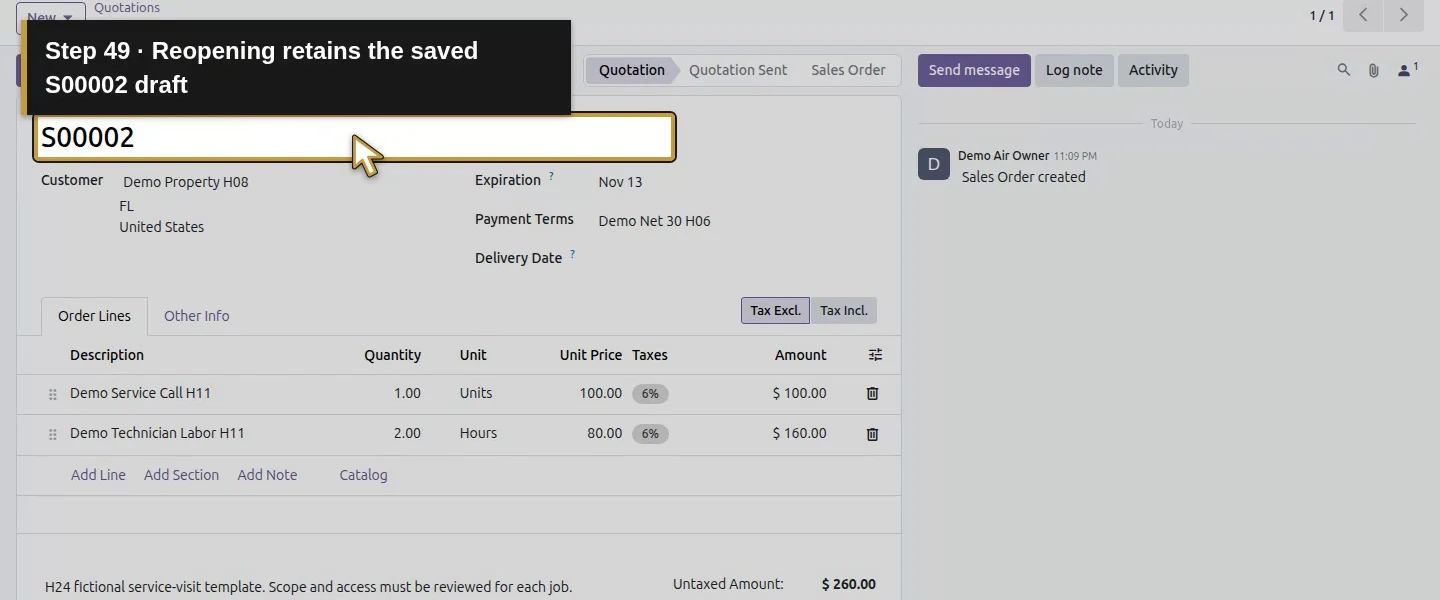
Choose Save manually, wait for the saved quotation number and reopen S00002. Check lines, units, prices, terms and expiration. In the training test, the template's terms were then revised with an explicit future-visit reminder. Reopening S00002 retained its original copied terms and job-specific scope; the new template reminder was absent. Review existing quotations directly when their terms need changing.
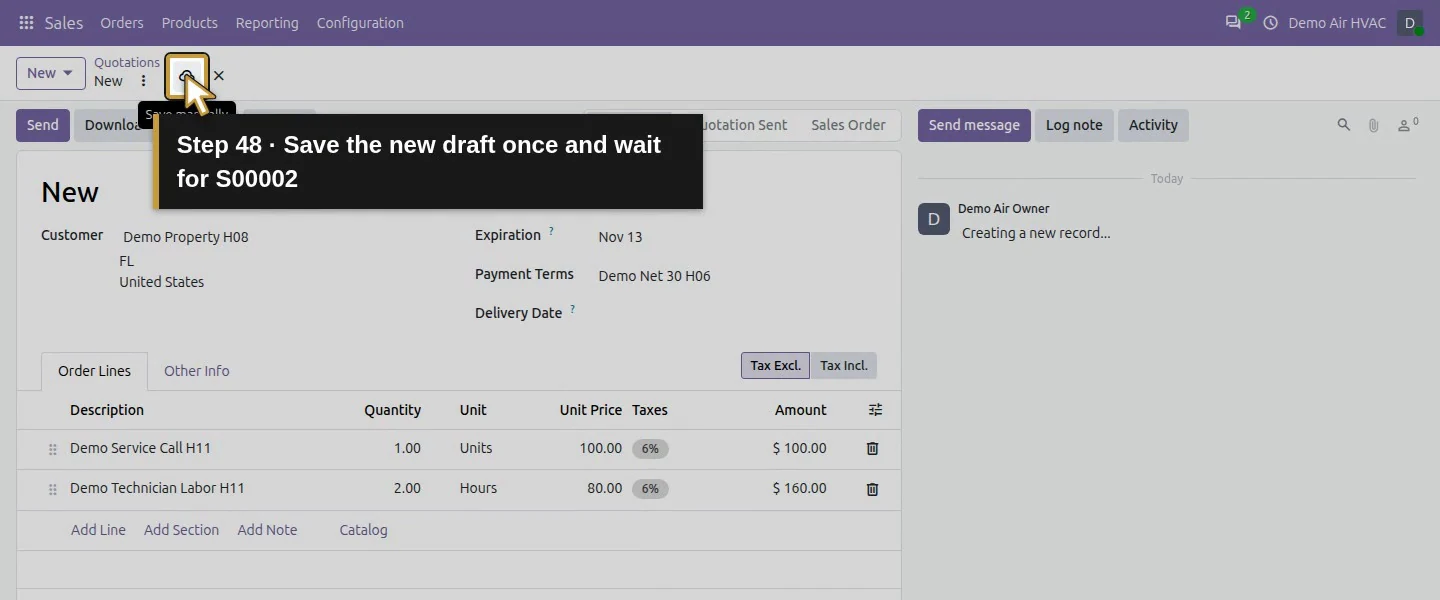
Action 48: Save the new draft once and wait for S00002. The actual target is highlighted in gold.
Save the new draft once and wait for S00002.
Action 49: Reopening retains the saved S00002 draft. The actual target is highlighted in gold.
Reopening retains the saved S00002 draft.
Action 50: Read the copied generic terms and job-specific scope. The actual target is highlighted in gold.
Read the copied generic terms and job-specific scope.
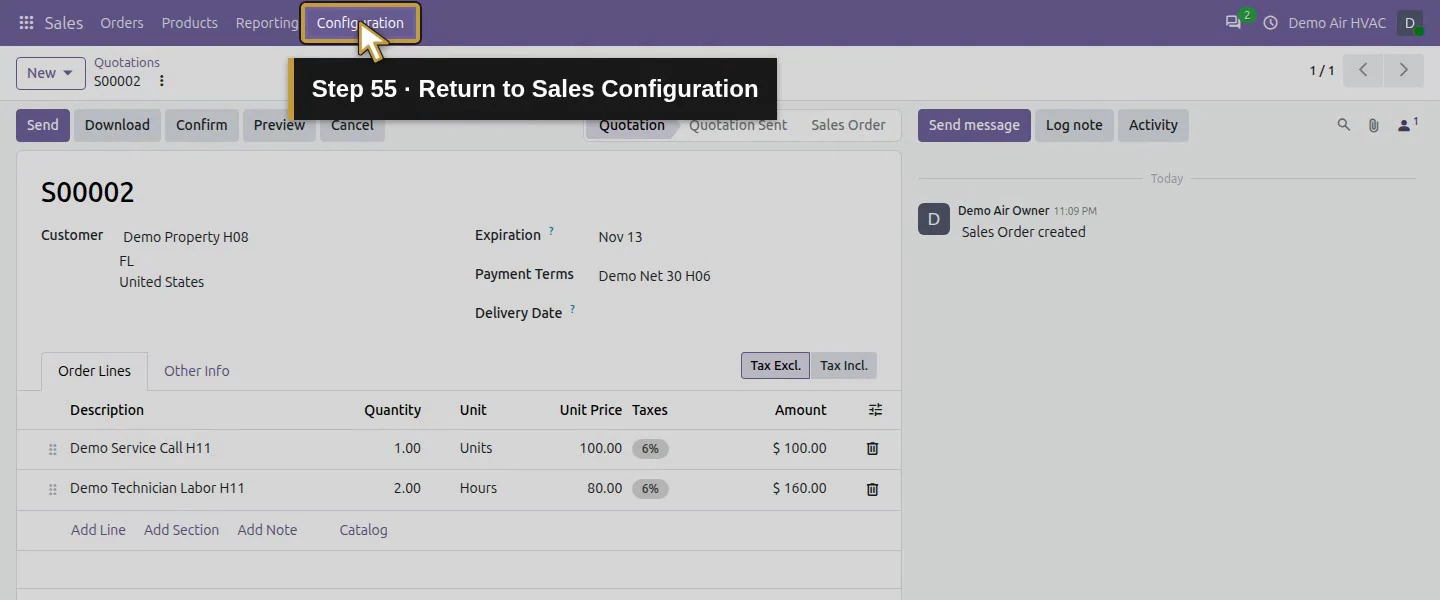
Action 55: Return to Sales Configuration. The actual target is highlighted in gold.
Return to Sales Configuration.
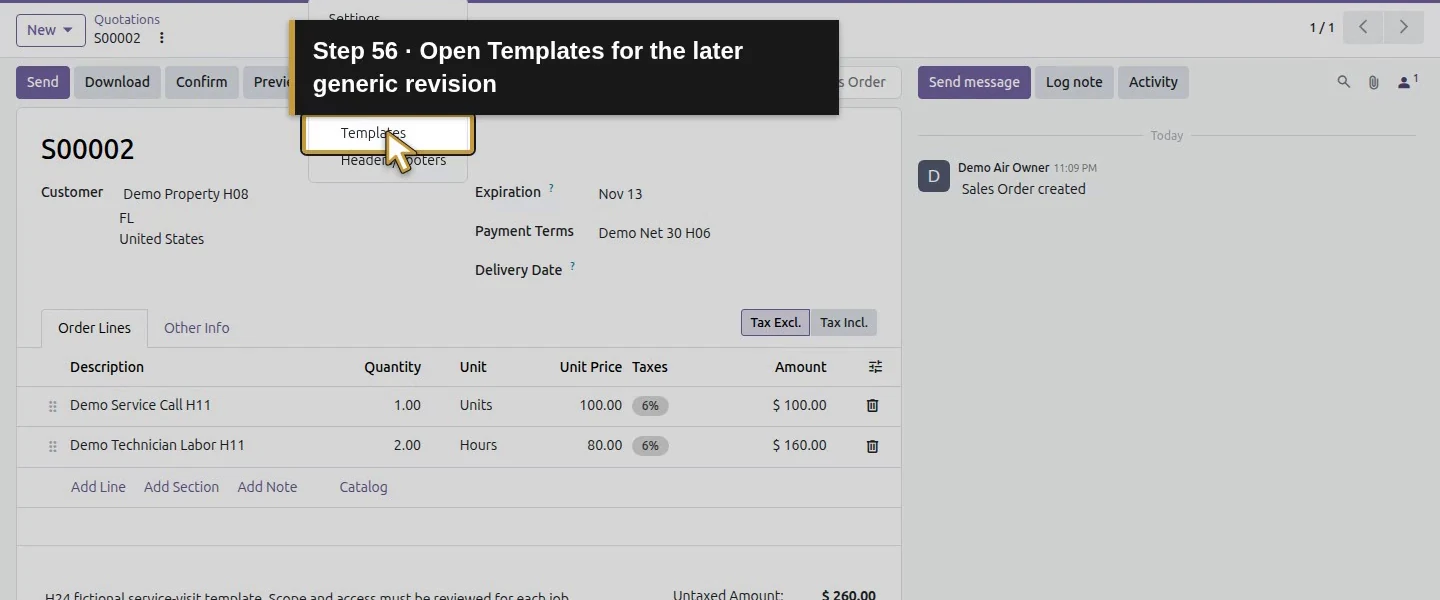
Action 56: Open Templates for the later generic revision. The actual target is highlighted in gold.
Open Templates for the later generic revision.
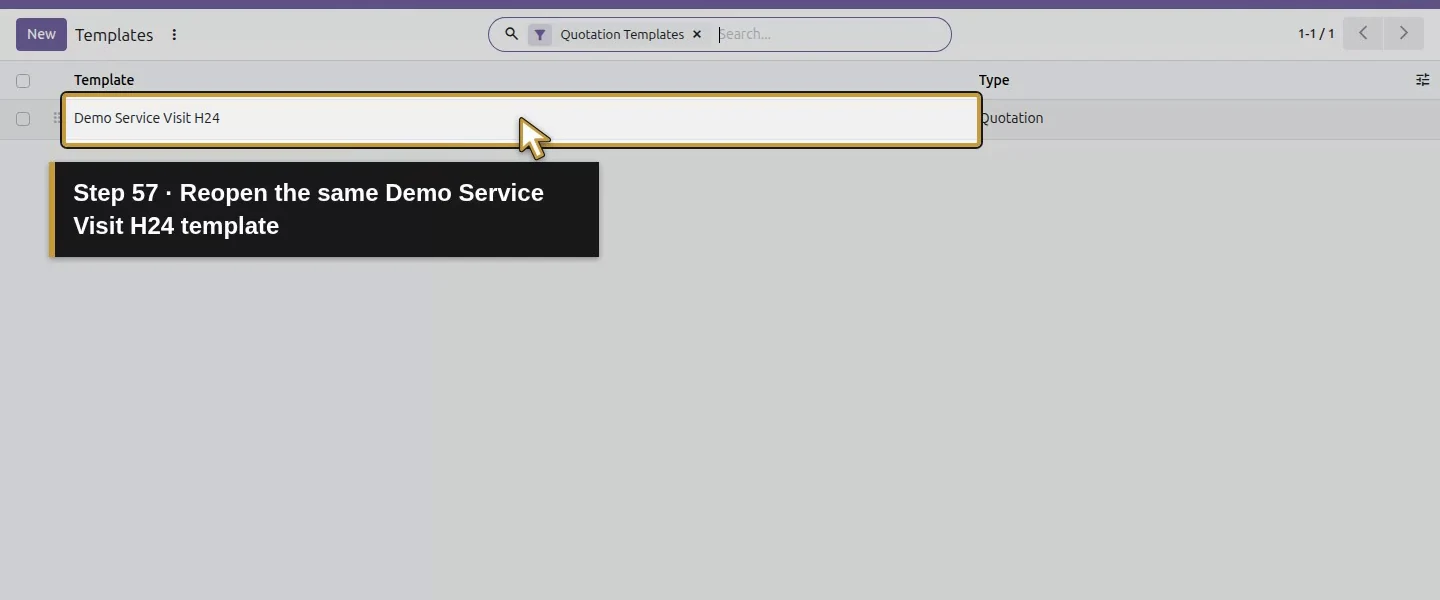
Action 57: Reopen the same Demo Service Visit H24 template. The actual target is highlighted in gold.
Reopen the same Demo Service Visit H24 template.
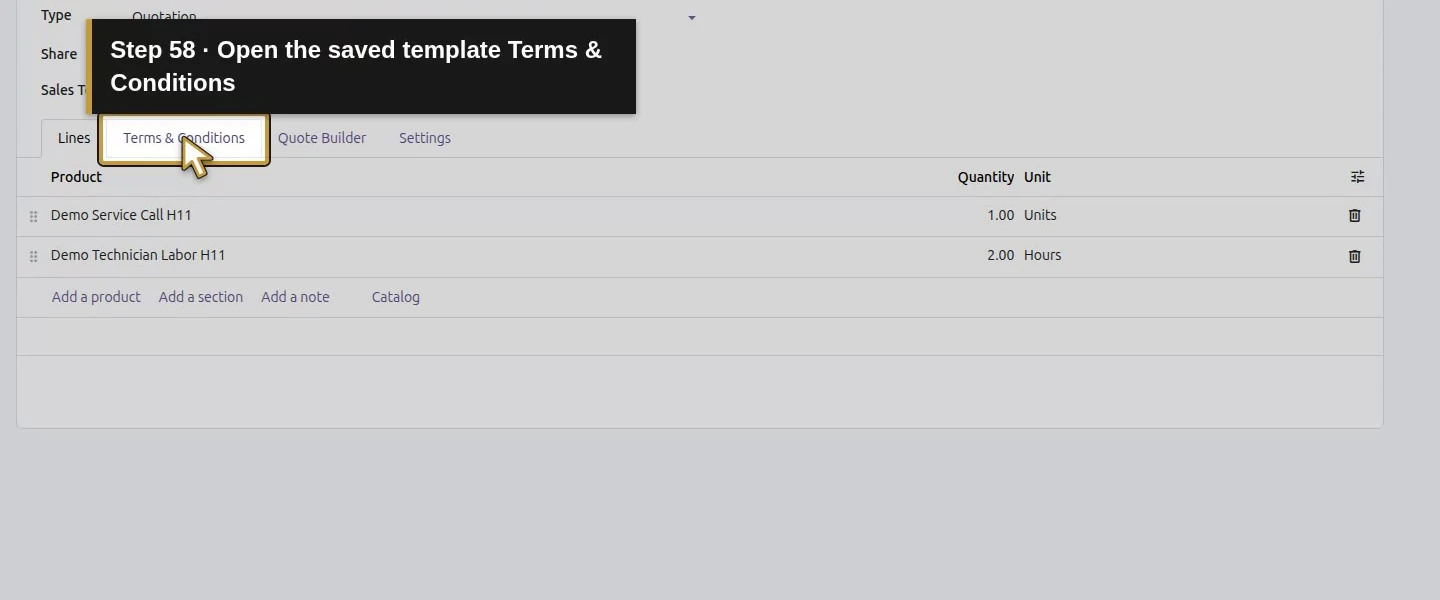
Action 58: Open the saved template Terms & Conditions. The actual target is highlighted in gold.
Open the saved template Terms & Conditions.
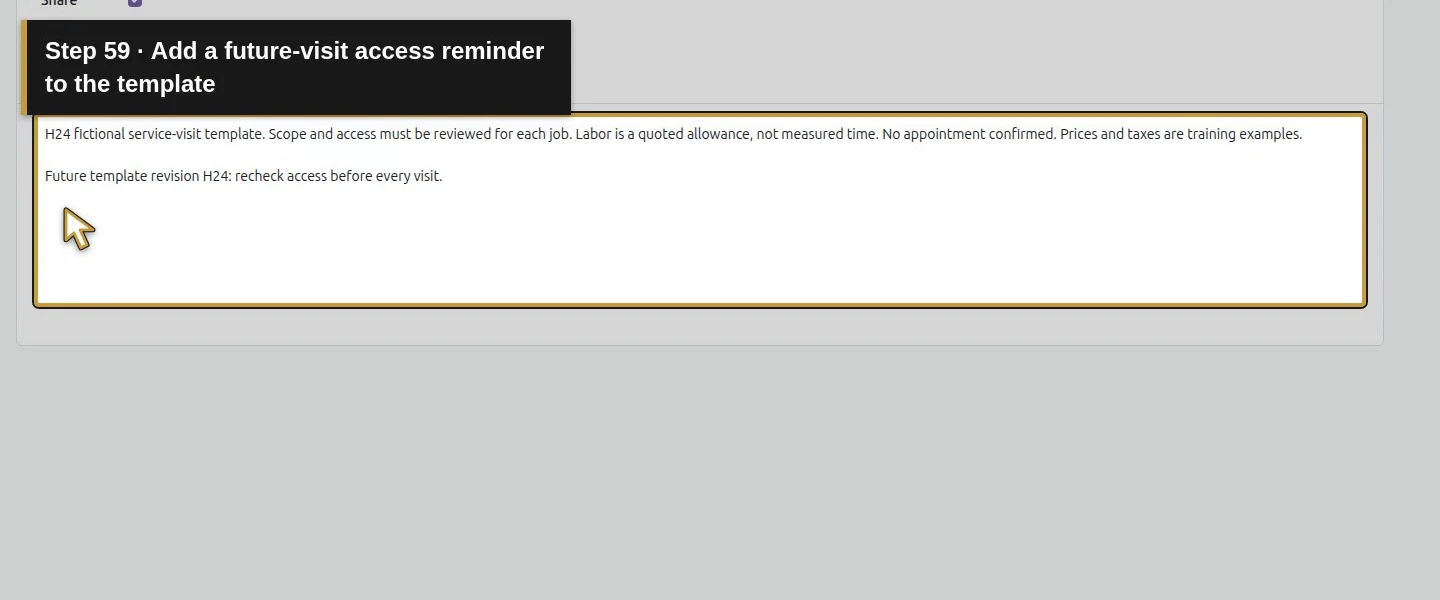
Action 59: Add a future-visit access reminder to the template. The actual target is highlighted in gold.
Add a future-visit access reminder to the template.
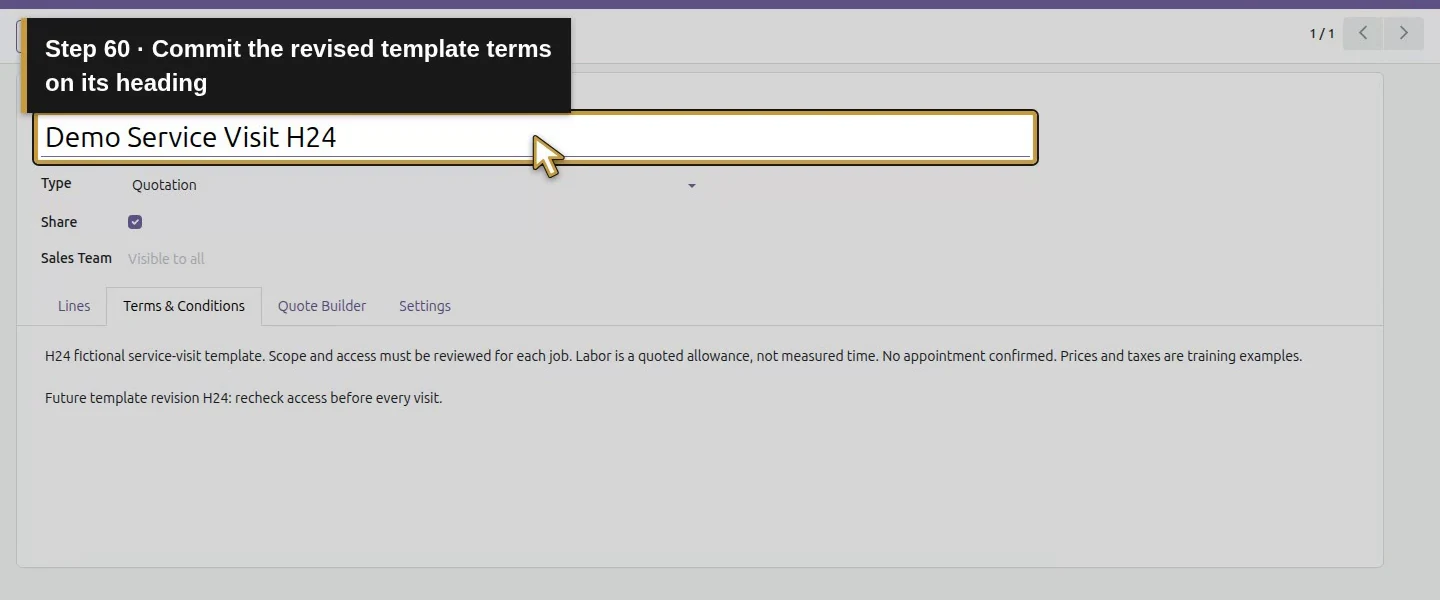
Action 60: Commit the revised template terms on its heading. The actual target is highlighted in gold.
Commit the revised template terms on its heading.
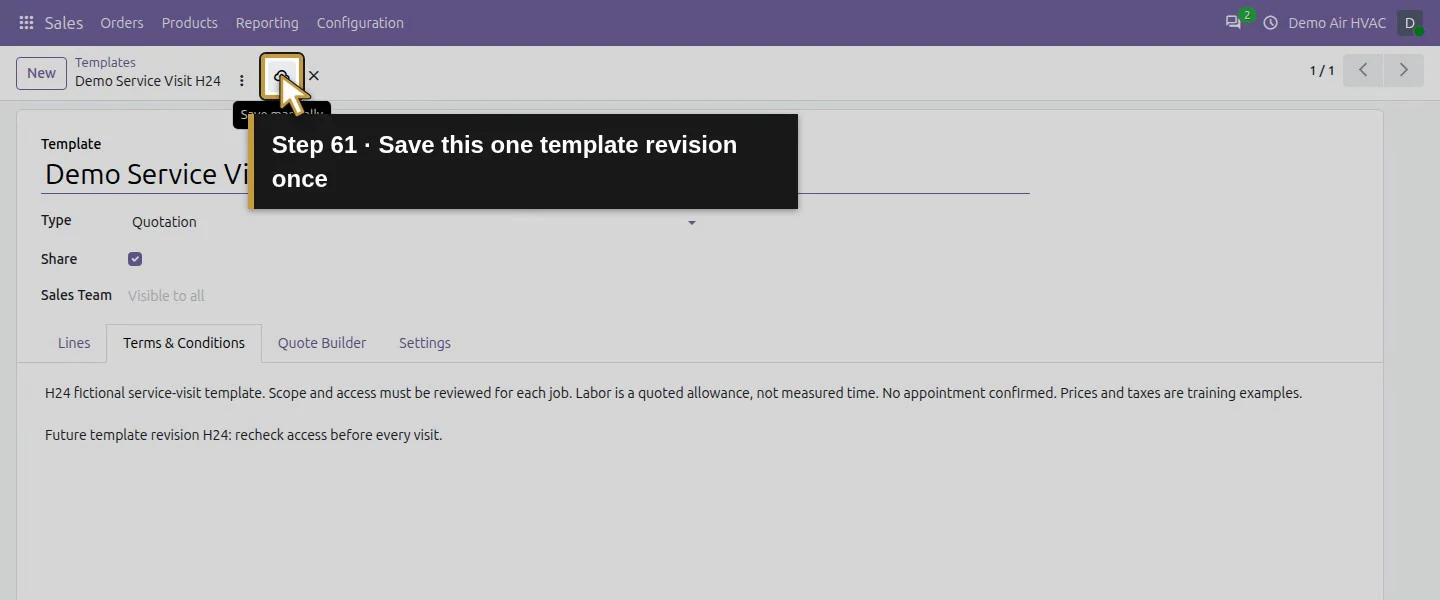
Action 61: Save this one template revision once. The actual target is highlighted in gold.
Save this one template revision once.
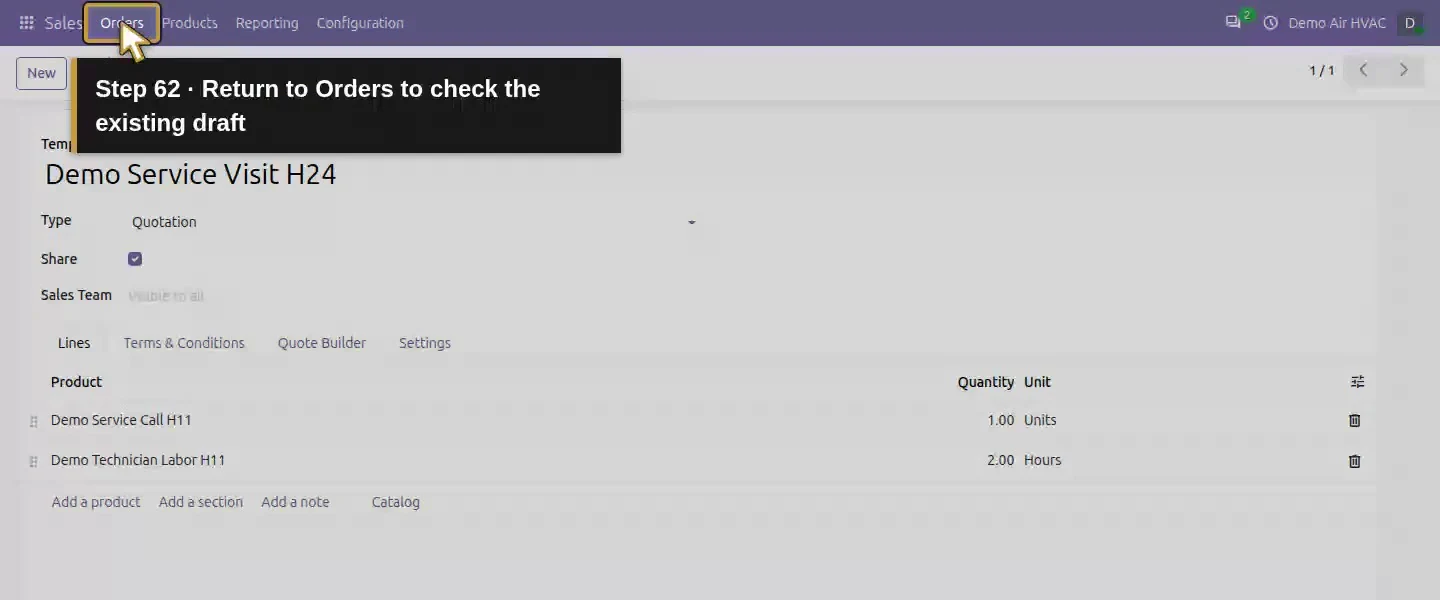
Action 62: Return to Orders to check the existing draft. The actual target is highlighted in gold.
Return to Orders to check the existing draft.
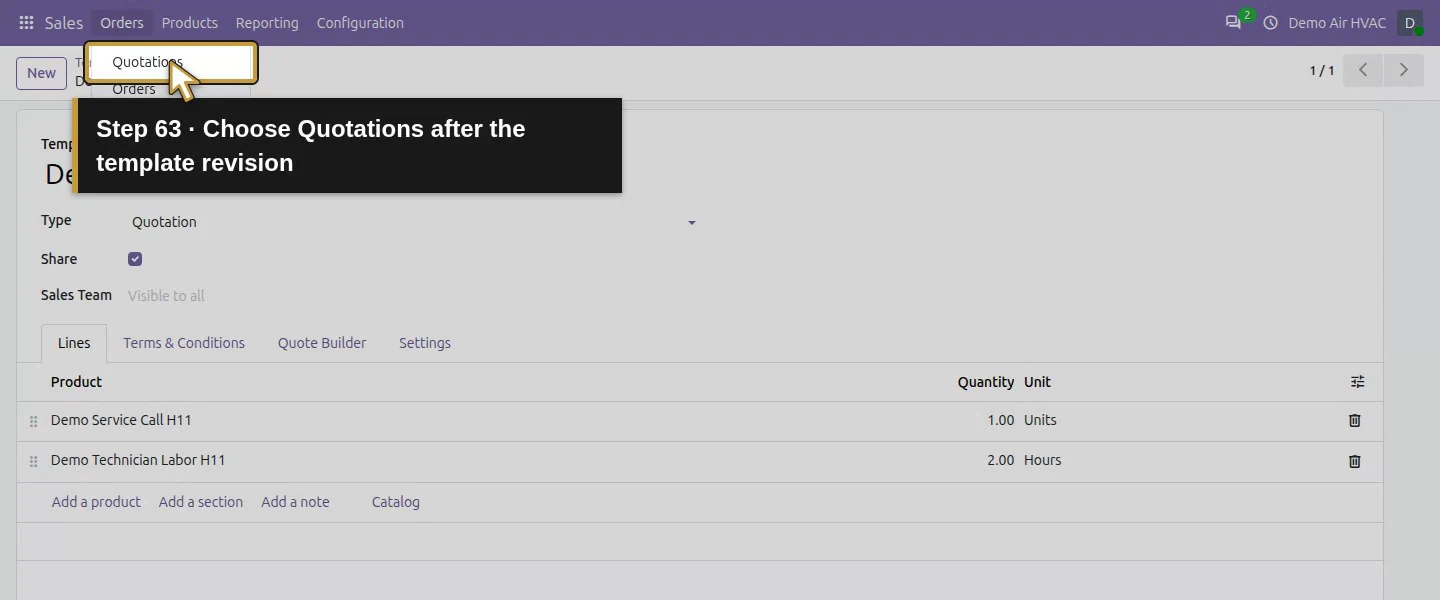
Action 63: Choose Quotations after the template revision. The actual target is highlighted in gold.
Choose Quotations after the template revision.
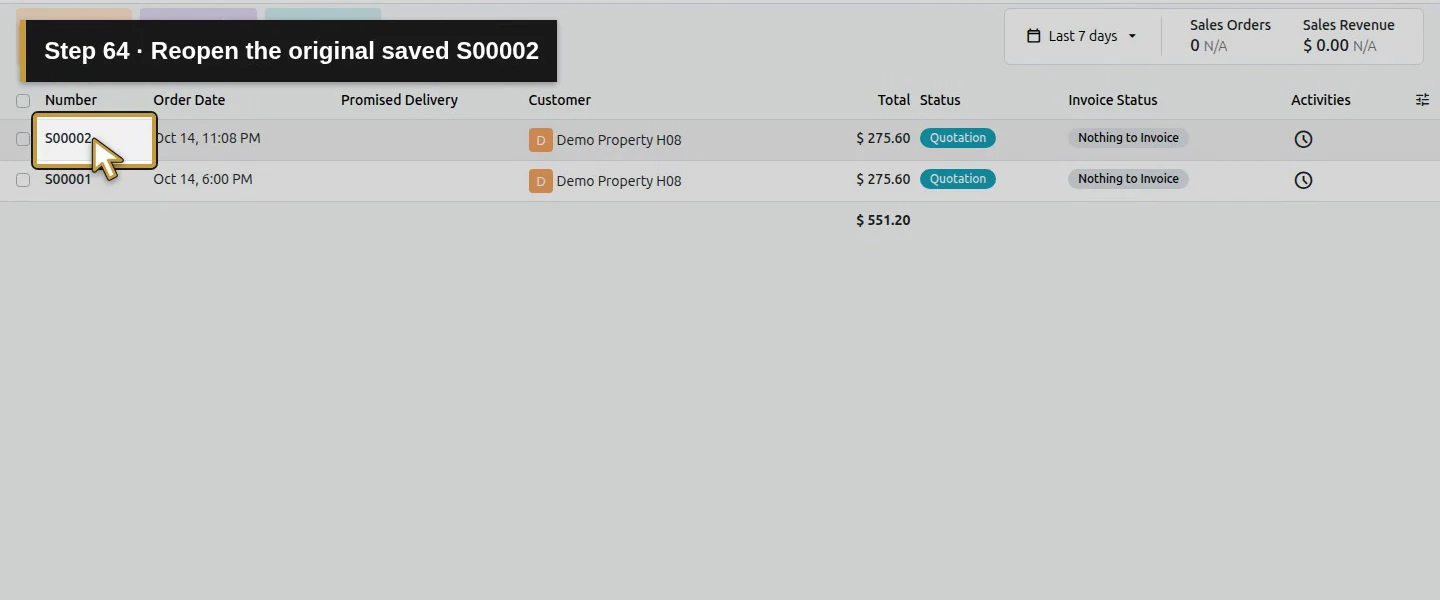
Action 64: Reopen the original saved S00002. The actual target is highlighted in gold.
Reopen the original saved S00002.
Action 65: The saved terms keep their job scope and lack the new reminder. The actual target is highlighted in gold.
The saved terms keep their job scope and lack the new reminder.
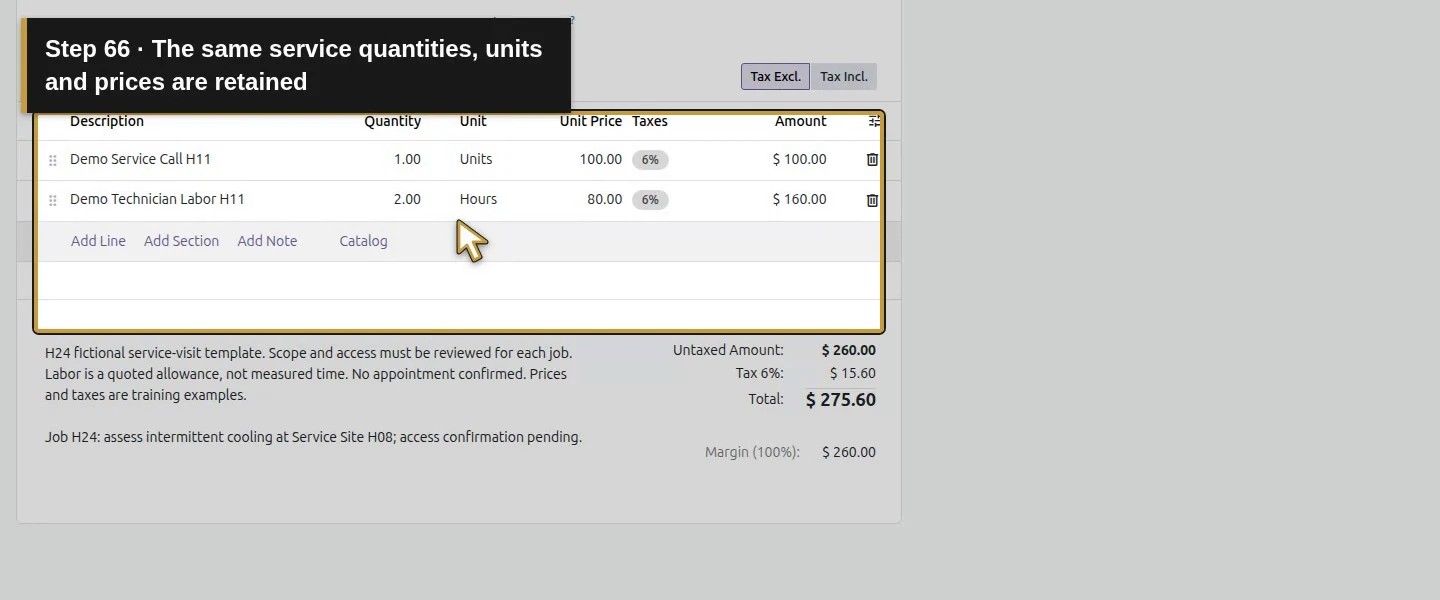
Action 66: The same service quantities, units and prices are retained. The actual target is highlighted in gold.
The same service quantities, units and prices are retained.
Action 67: This remains an unsent draft with no acceptance or invoice. The actual target is highlighted in gold.
This remains an unsent draft with no acceptance or invoice.

Check the result

Template 1 Demo Service Visit H24 retains the two service lines, 30-day validity and revised generic terms. S00002 remains a draft at $275.60 with one service call, two labor Hours, existing customer/address records 7/8/9 and term 11. Its copied terms and added job scope did not change after the template's later terms edit. S00001 and its opportunity link remain intact.

If your screen differs

This version creates a quotation through New → template name; do not require an old form-level Quotation Template selector. New templates changed the New button into a dropdown, so a script looking for an exact button named New no longer matched it. The test covers a terms revision, not every possible price, quantity, template-reapplication or product-price change. Shared-template access for another salesperson and online signature/payment were not tested.

Frequently asked questions

How do I create a quotation template in Odoo? In this runtime, open Sales → Configuration → Templates, add reviewed service lines and Terms & Conditions, set validity and save. In Quotations, choose the template from the New dropdown and review the resulting draft.
Do Odoo quotation templates update old quotations? This tested terms revision did not change the saved S00002 quotation. It retained its copied terms and job-specific scope. Other edits or deliberately reapplying a template need separate review.
Can I use an Odoo template for HVAC service calls? This native example copies one service call and two labor Hours, then the office checks customer, scope, access, addresses, terms, prices and tax. A copied allowance does not measure actual technician time or book an appointment.

Continue building the business

Customer portal access and quotation acceptance remain separate pending workflows. Equipment options later build on the verified template.

Talk to an Odoo partner

Bring your current process and the result you need to Onward to plan your Odoo workflow. Talk to an Odoo partner.