
Running an HVAC business with Odoo
How do I record an HVAC site assessment in Odoo?
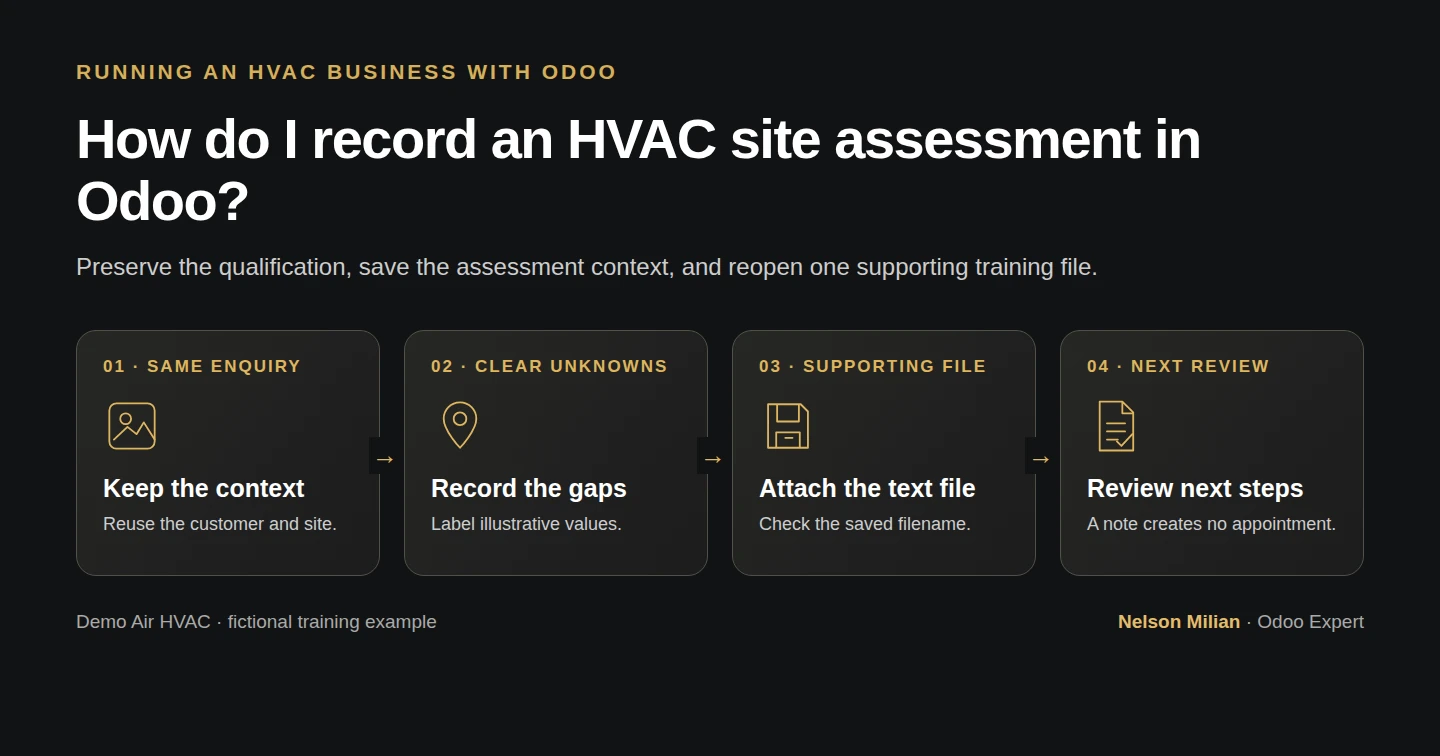
Save site-assessment notes and a supporting file on the existing Odoo CRM enquiry, then reopen the record and check the estimator handoff.
Alex needs the estimator to find the reported issue, site reference and unanswered questions on the same enquiry. This native workflow adds assessment notes and one supporting training file without creating a separate customer or inspection system.
Alex Rivera and Demo Air HVAC are fictional training examples. Prices, dates, quantities and business situations in this guide are illustrative.
Before you begin
Tested in stock Odoo 20.0-20260926 Community as the demo owner administrator, with official modules and standard configuration. Complete opportunity qualification. Reuse Demo Service Enquiry H16 and its existing Demo Property H08 customer, Service Site H08 reference and qualification Notes. Prepare a plain-text file named demoair-site-assessment-h21.txt, clearly labelled as fictional training data. This tests a text attachment, not an equipment photograph or technical diagnosis.
Step-by-step workflow
Stock Odoo 20 Community, owner role. Preserve the existing enquiry qualification and append a dated fictional site assessment with a manual site reference and unanswered questions. Save once, attach one labelled 637-byte text fixture, reload Notes and open its native filename viewer. Actual text rendering, photographs, another role and portal or customer sharing are unverified. No sizing, technical recommendation, appointment or activity is created.
Step 1. Check the enquiry and site reference
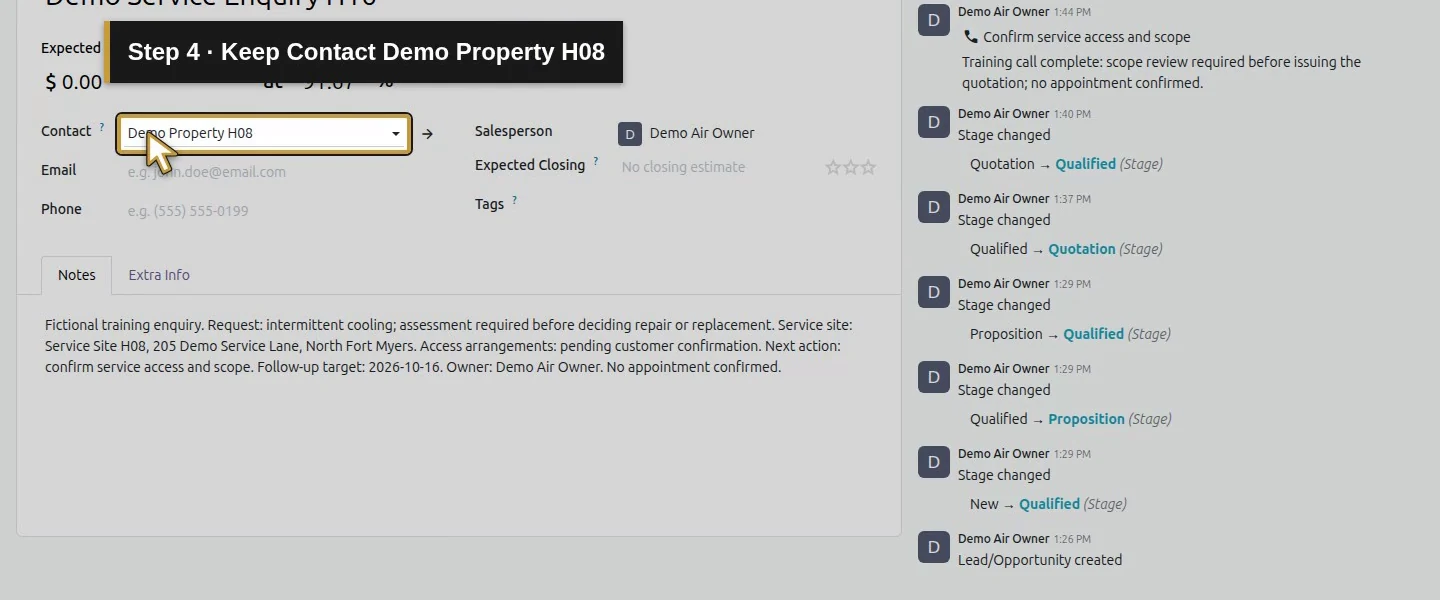
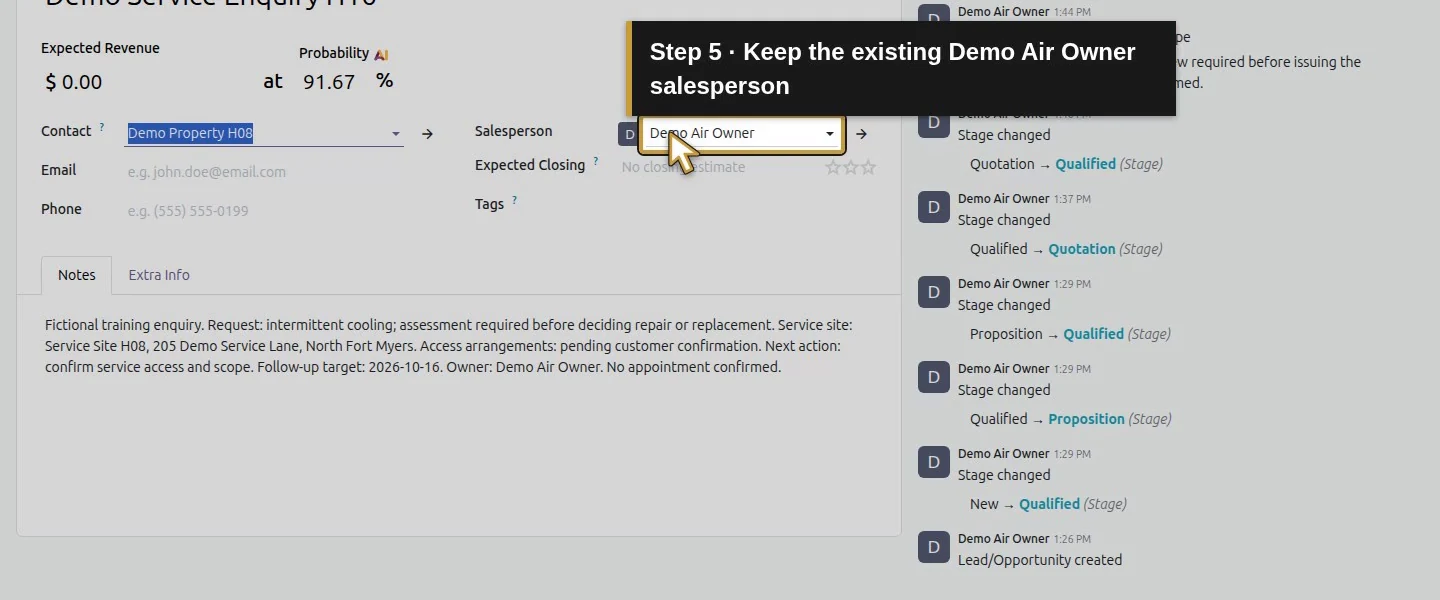
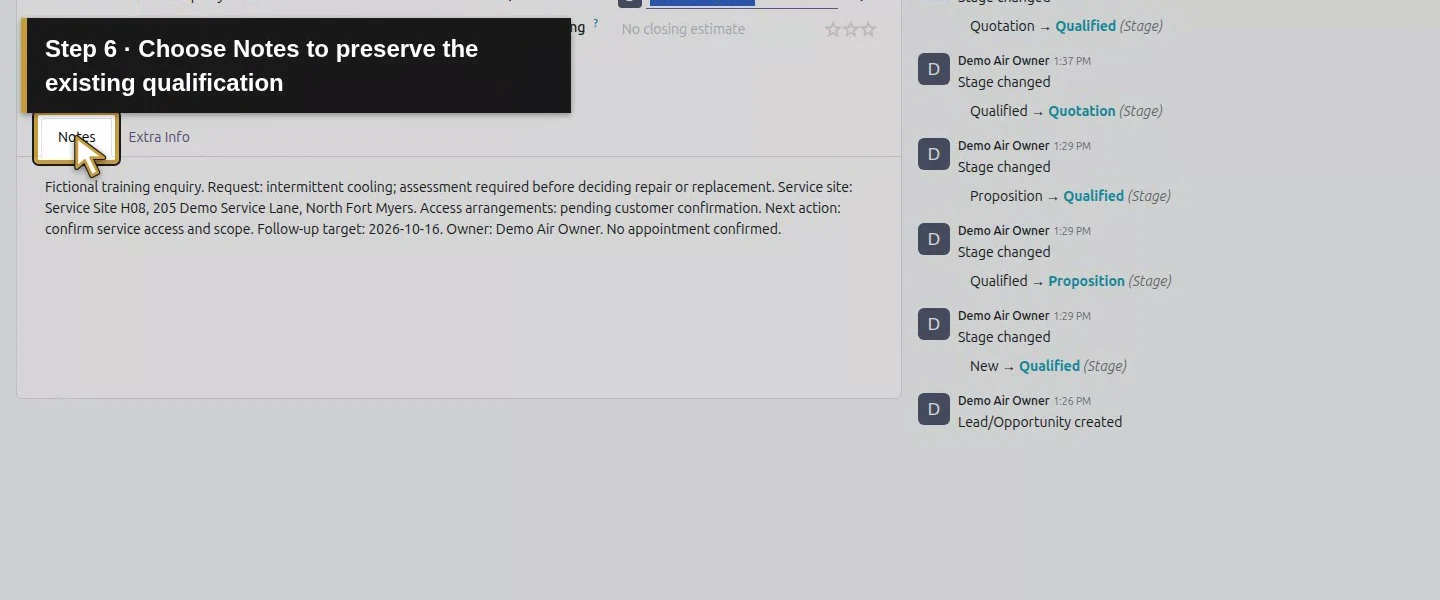
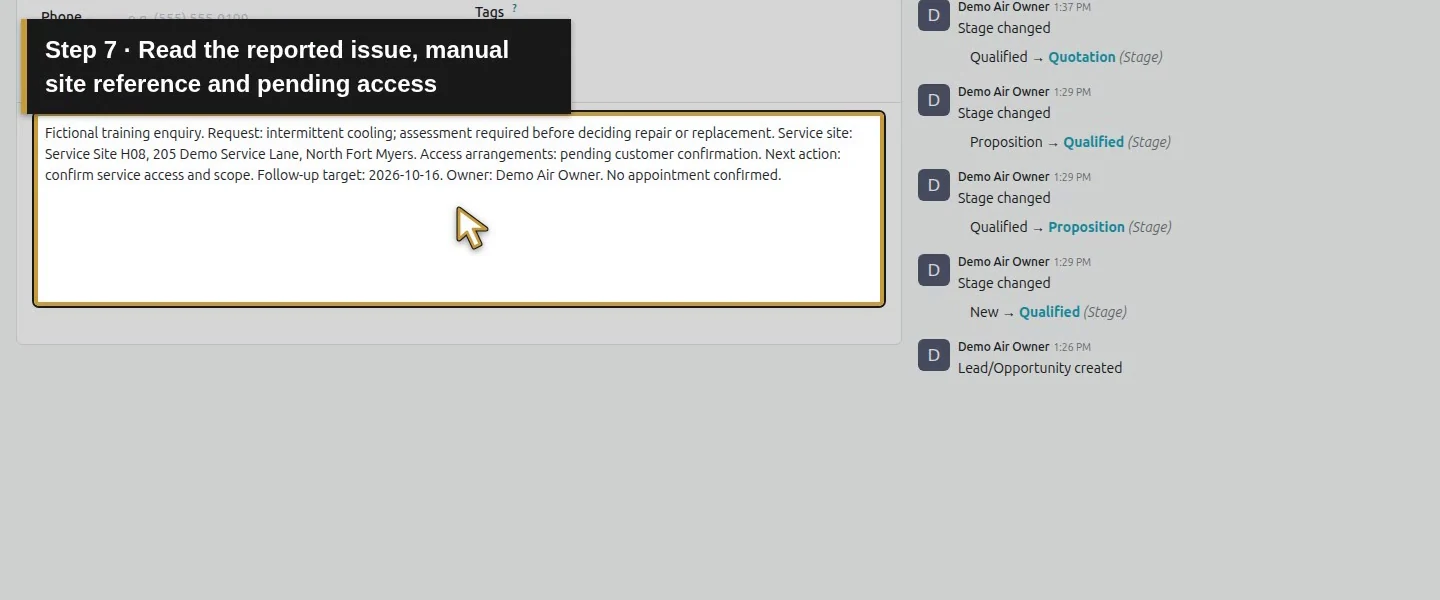
Open CRM → Pipeline → Demo Service Enquiry H16. Confirm Contact Demo Property H08 and Salesperson Demo Air Owner. Choose Notes and read the existing qualification. The service-site address is a manual reference to Service Site H08, 205 Demo Service Lane; this form does not establish a structured inspection record.
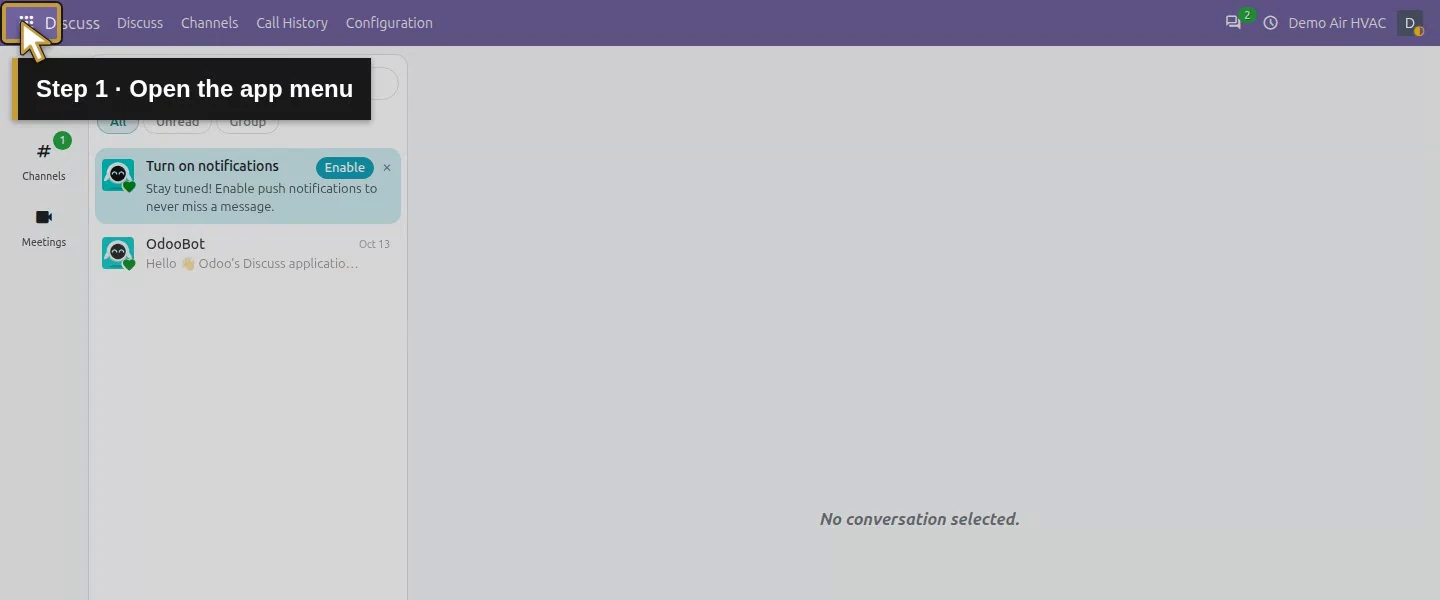
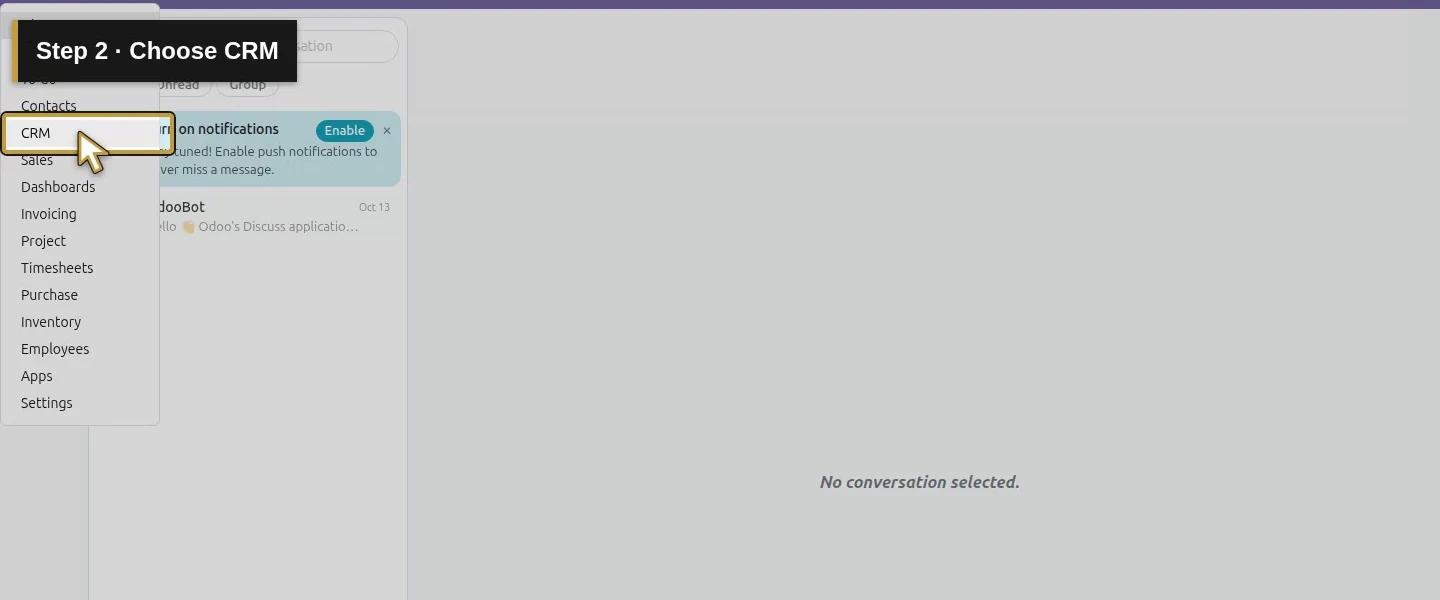
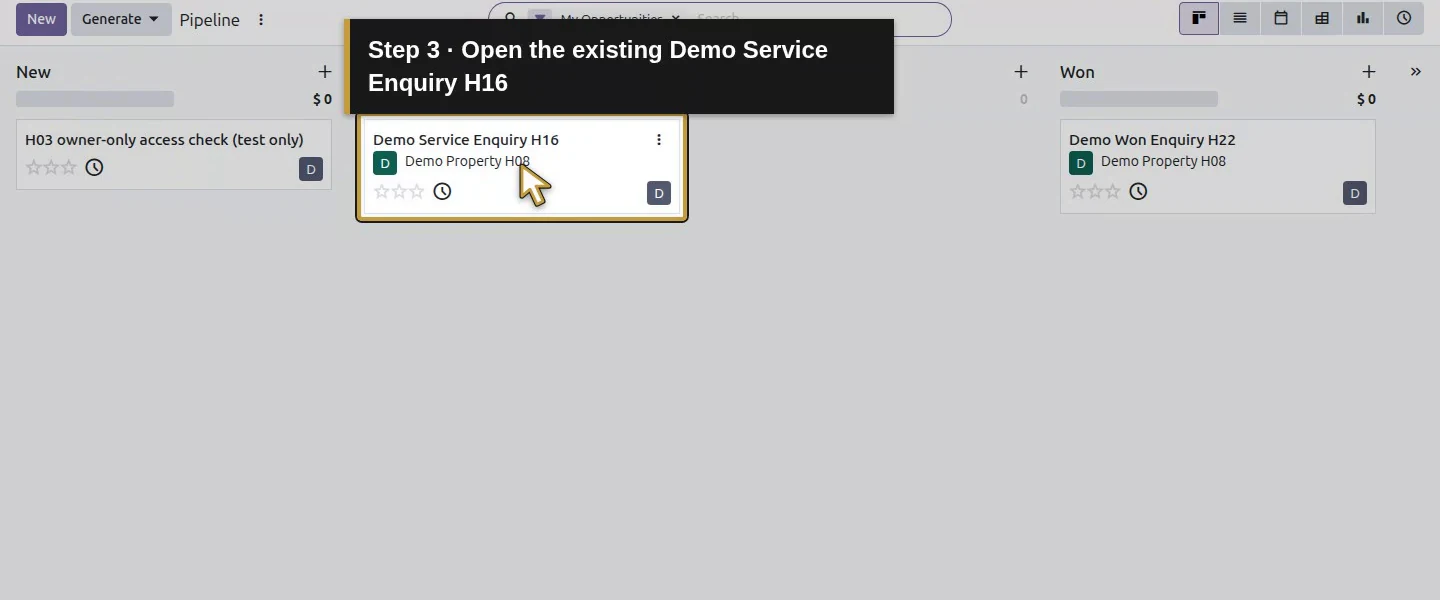
Step 2. Append the assessment without losing qualification
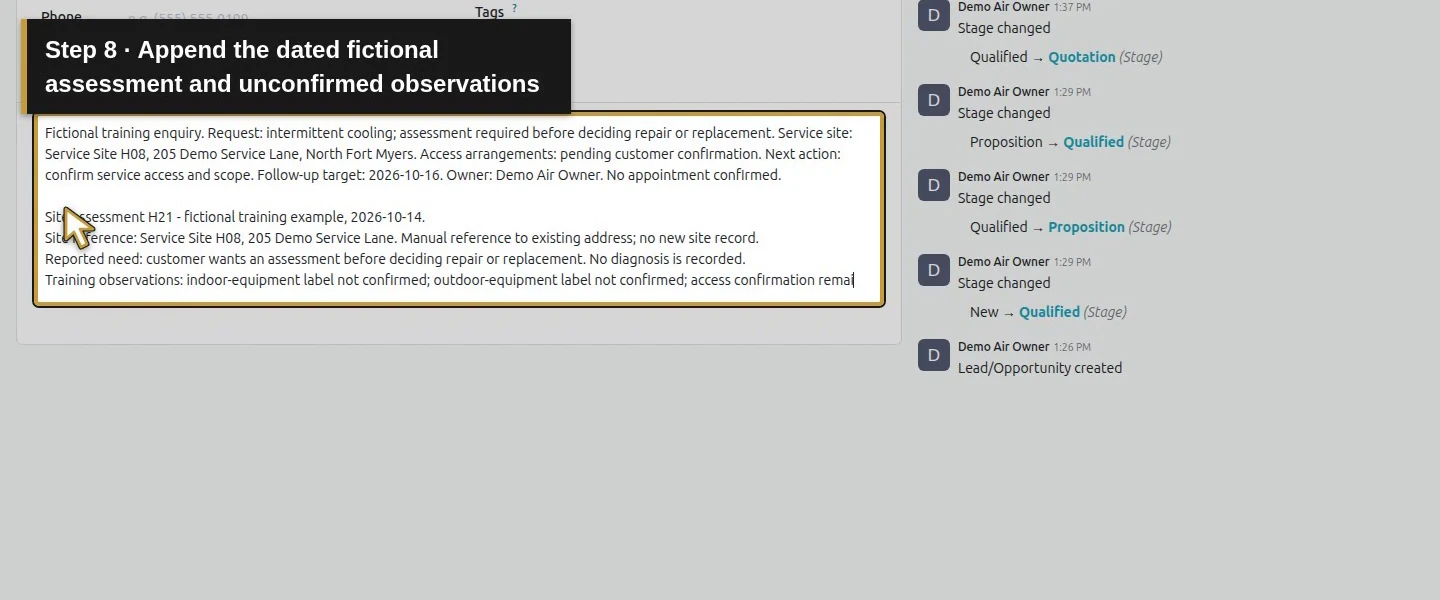
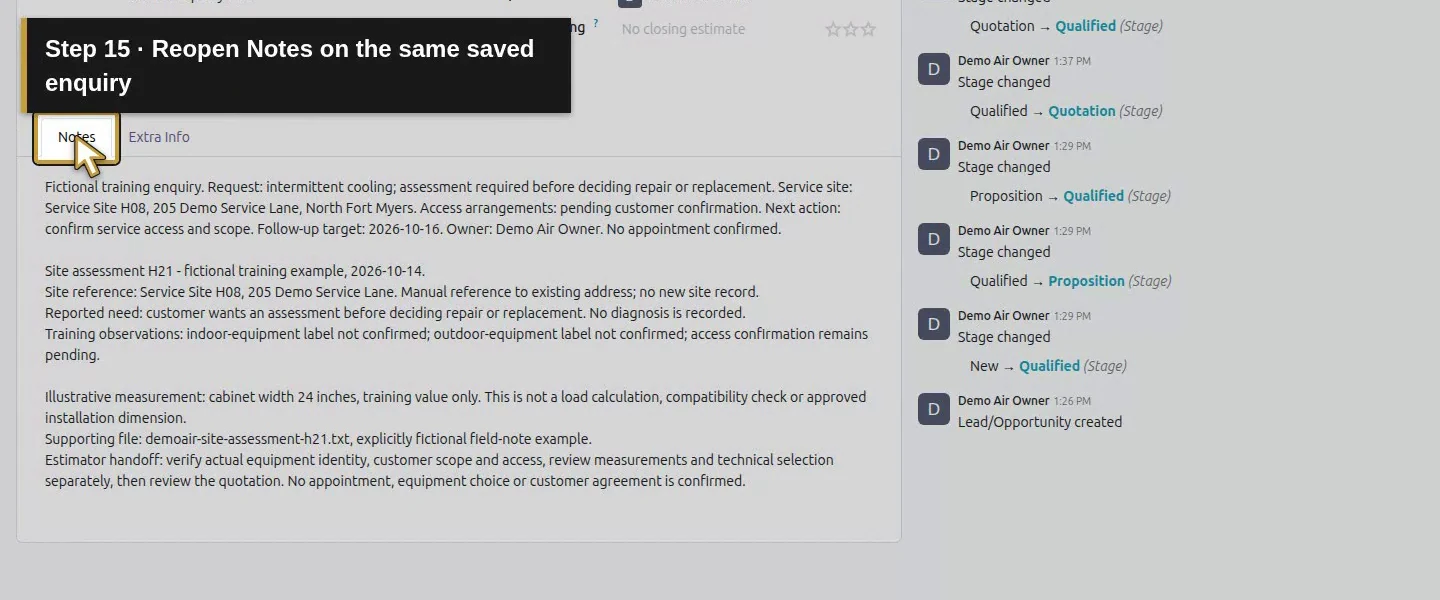
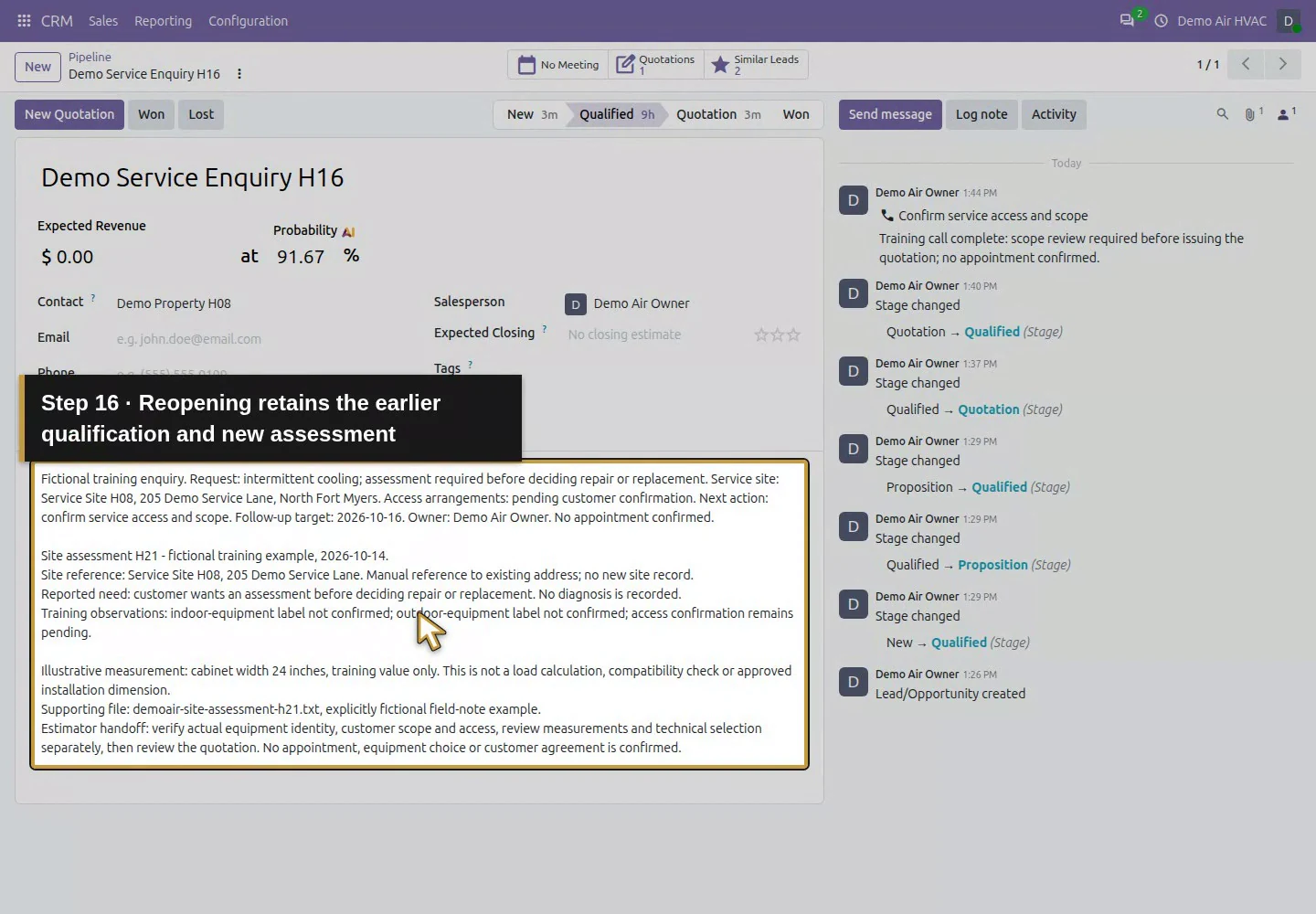
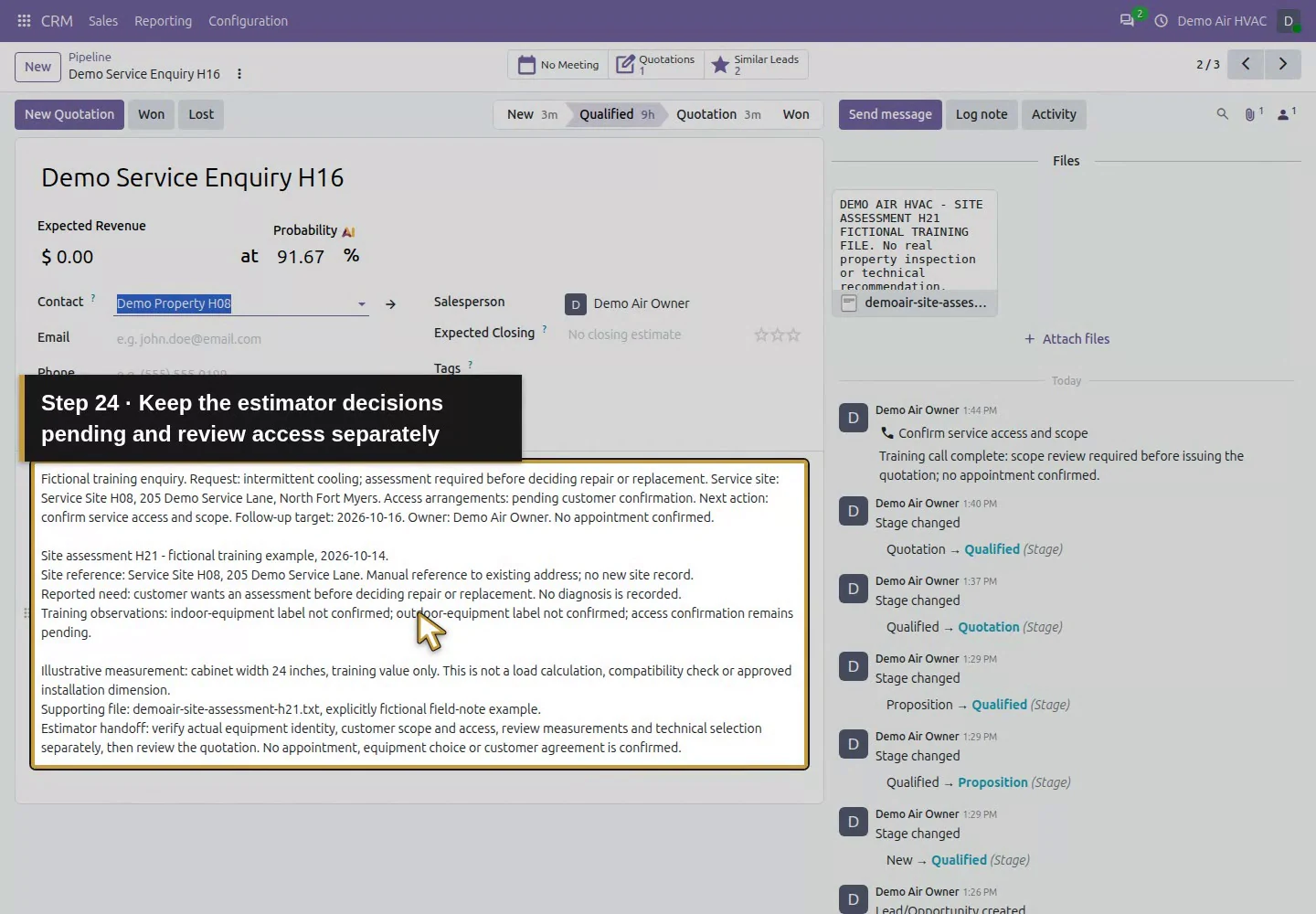
In Notes, preserve the earlier text and add Site assessment H21 - fictional training example, 2026-10-14. Record the reported need, observations and unanswered questions. This fixture says the equipment labels are unconfirmed and access remains pending. Its 24-inch cabinet width is explicitly an illustrative value, not an approved dimension or equipment-sizing result.
Step 3. Record the estimator's next decisions
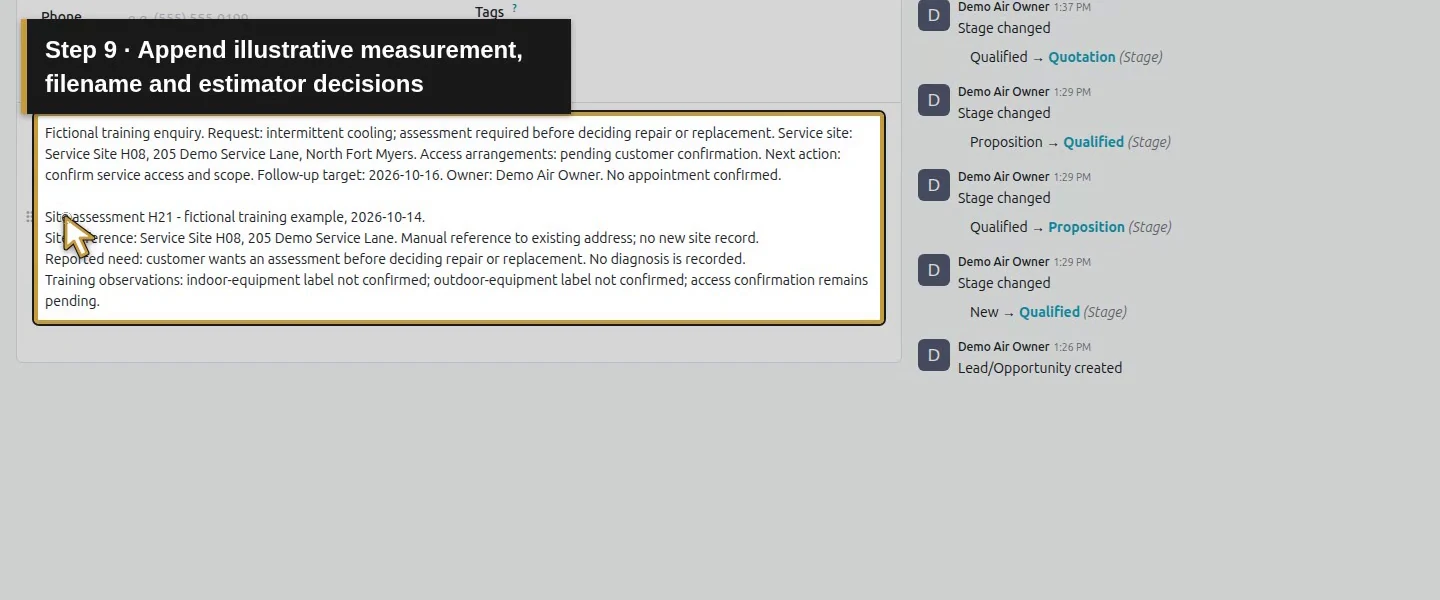
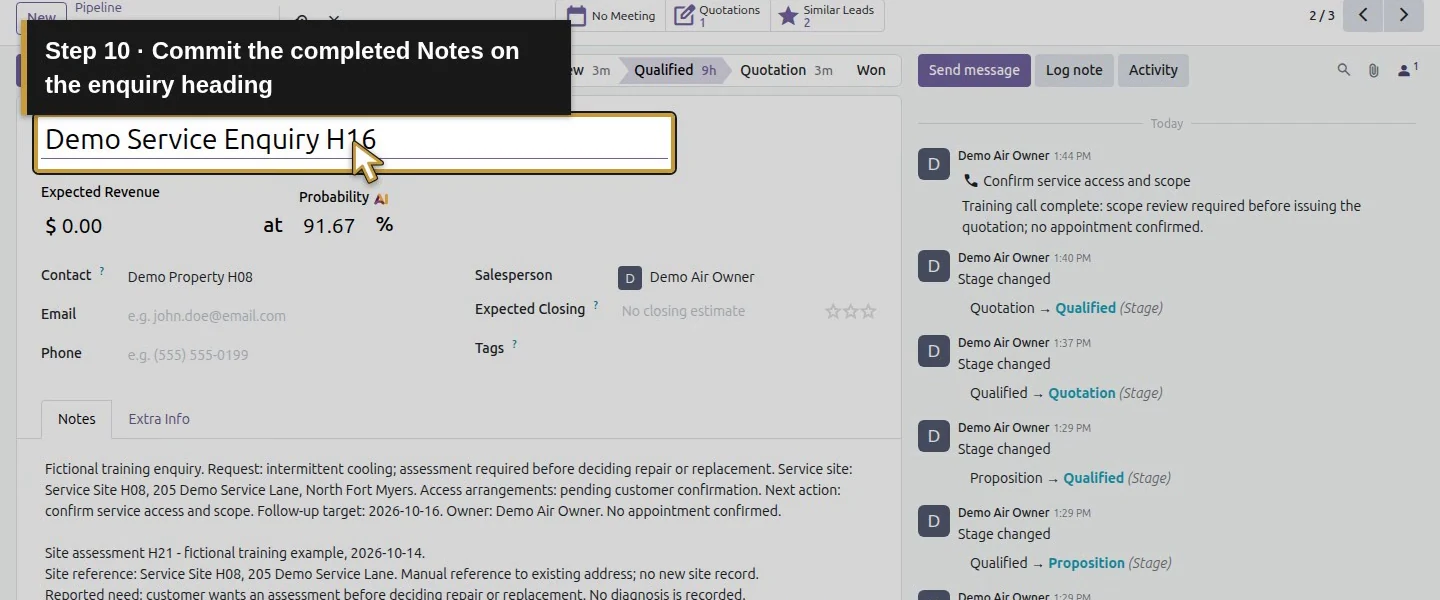
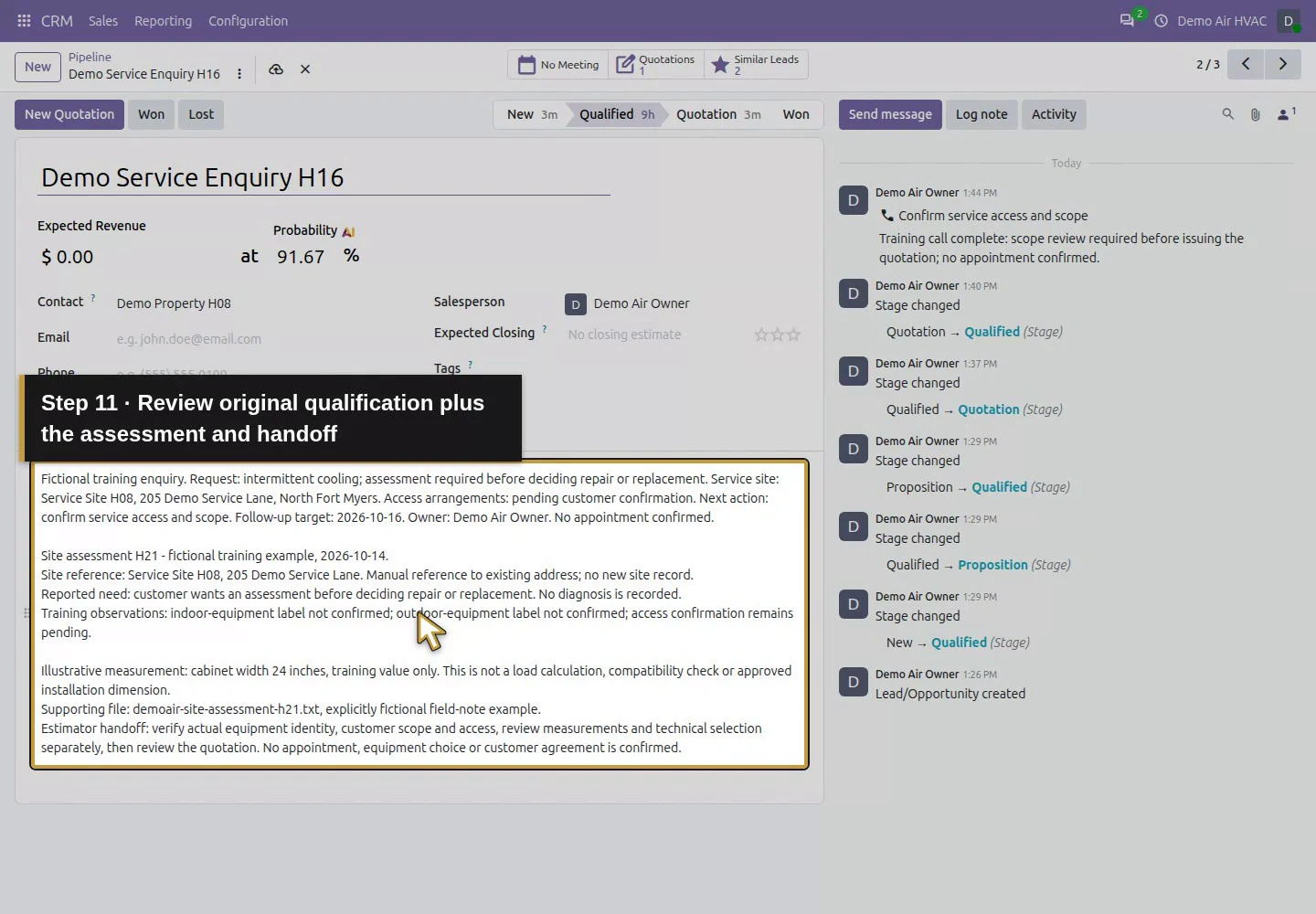
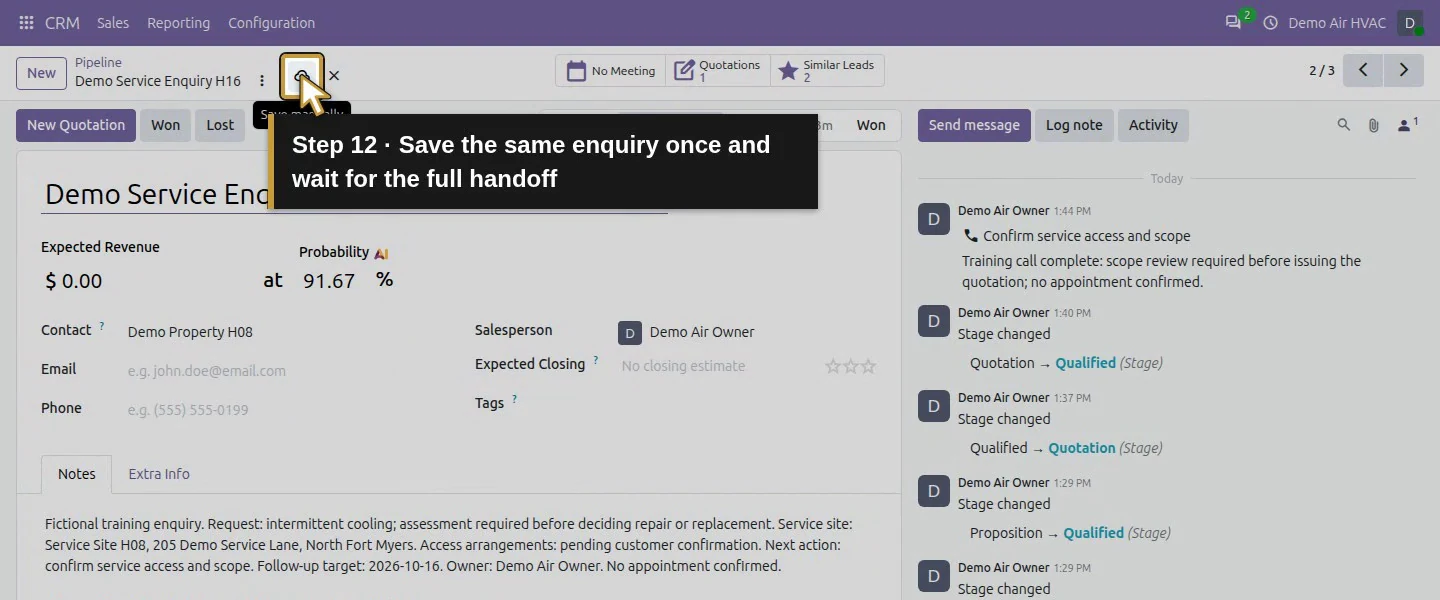
In the same section, add the supporting filename and handoff: verify equipment identity, scope/access, measurements and technical selection before reviewing the quotation. Keep appointment and customer agreement pending. Writing this handoff does not assign a task or schedule a reminder. Choose Save manually and wait for the saved form.
Step 4. Attach the supporting training file
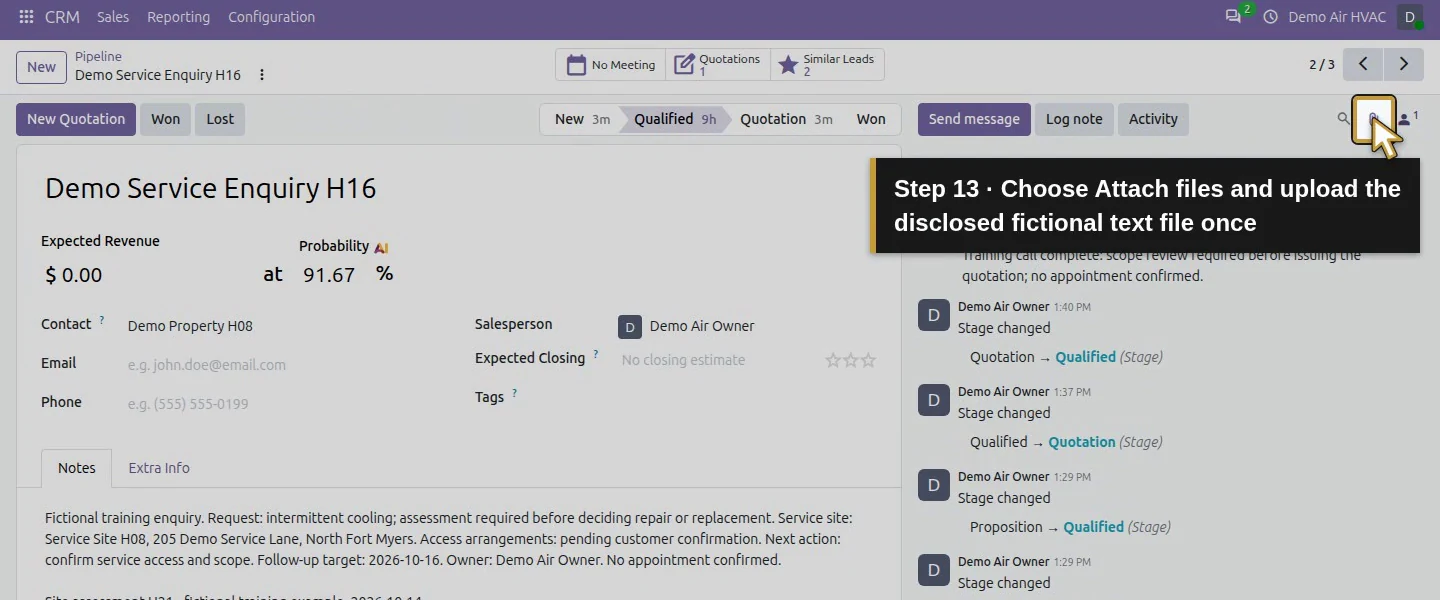
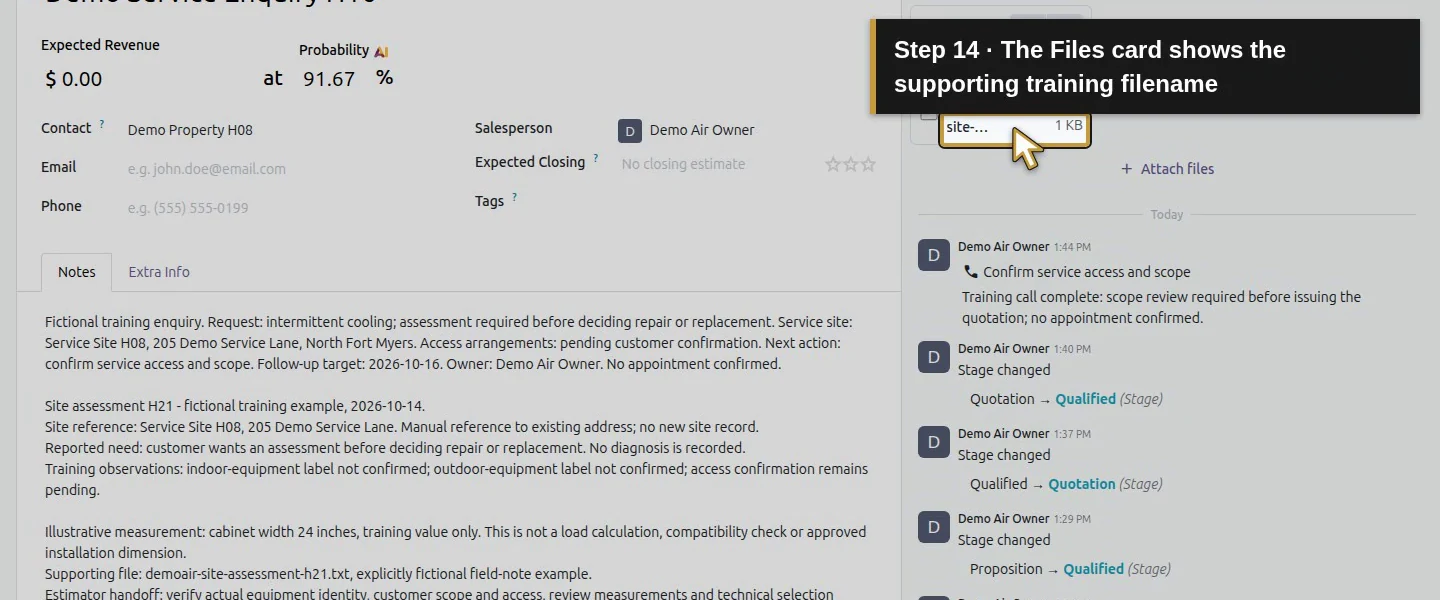
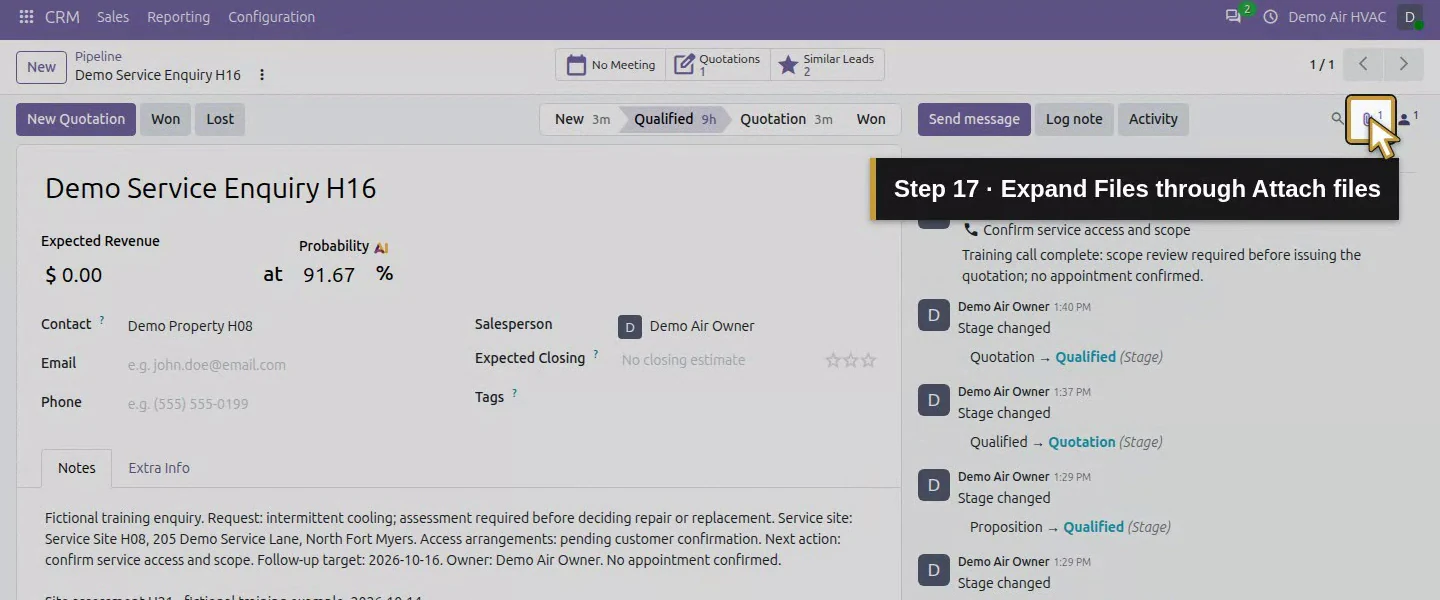
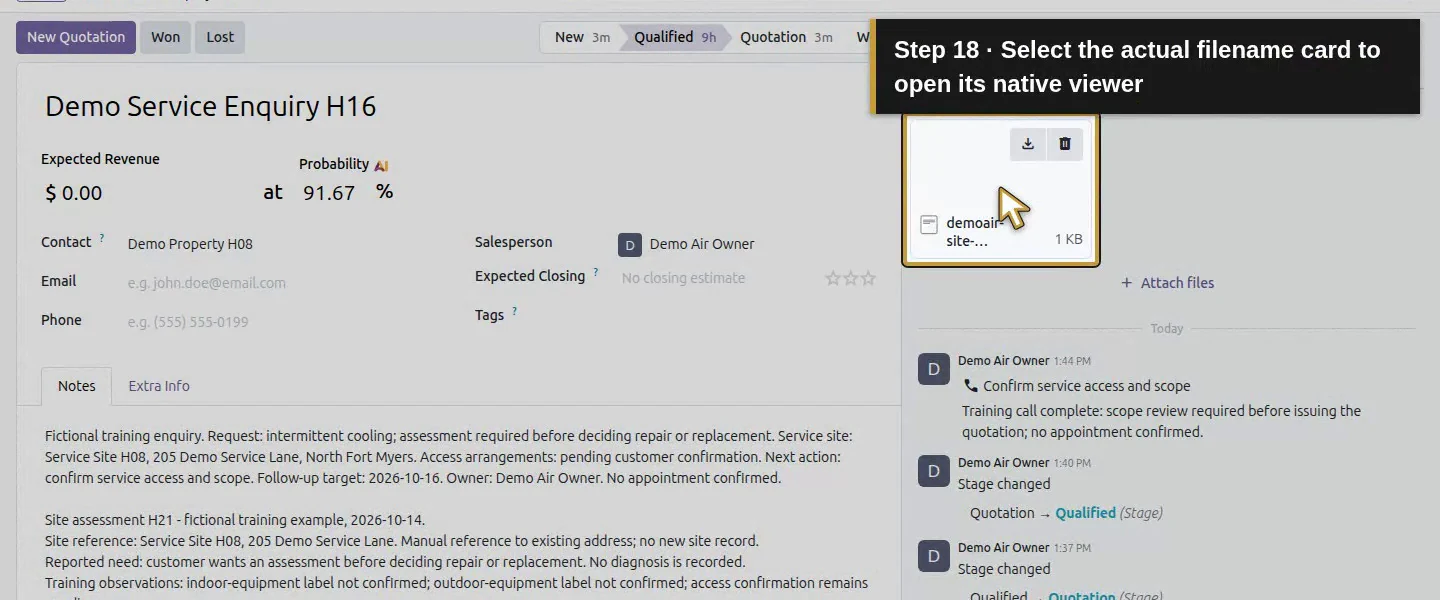
In the enquiry's chatter, choose Attach files, then select demoair-site-assessment-h21.txt. The training file repeats the enquiry/site reference, unconfirmed equipment/access and next decision. Wait for the Files card and attachment count one. Attach to this enquiry, rather than another customer's record.
Step 5. Reopen the notes and file
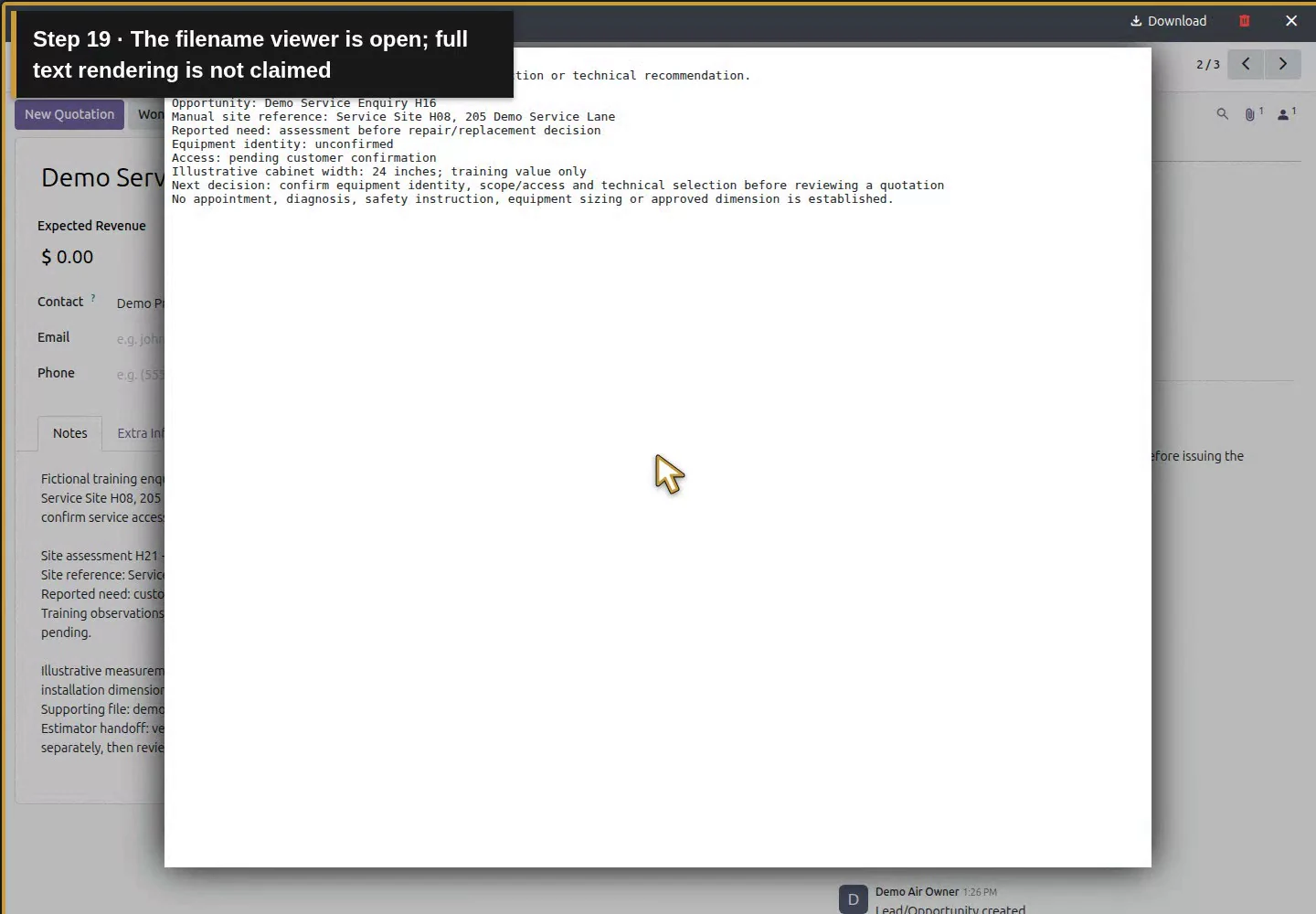
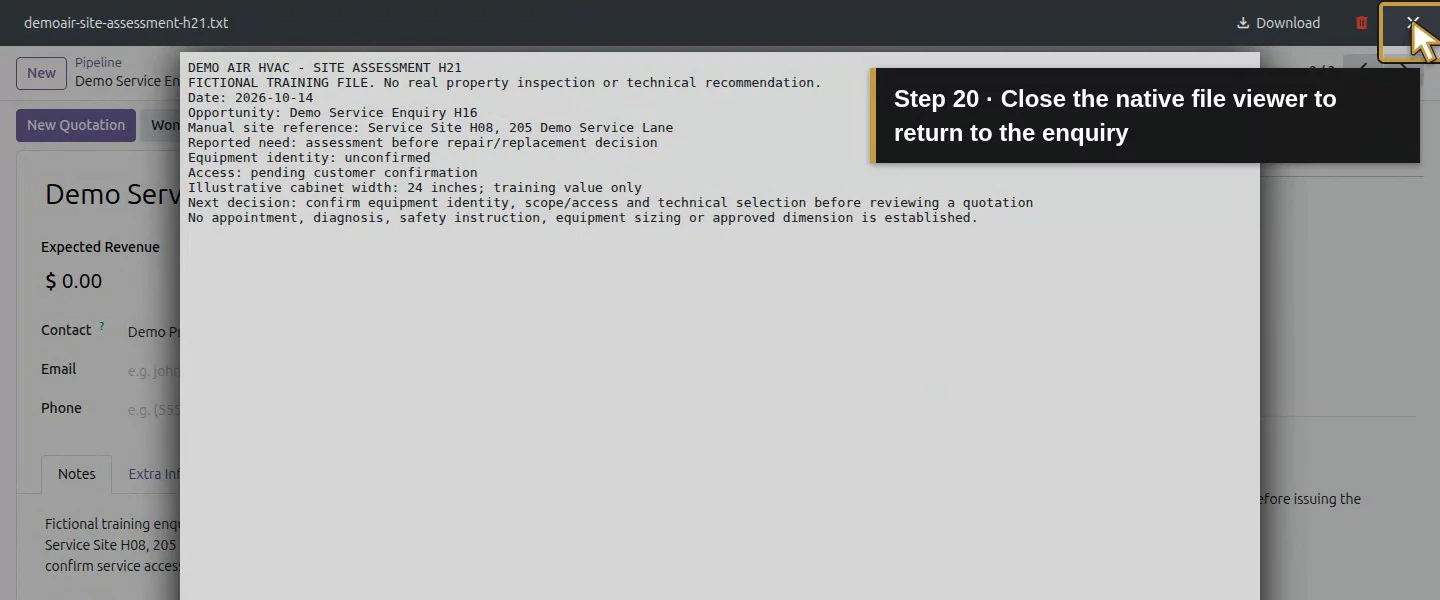
Reload the saved enquiry, choose Notes and check both the earlier qualification and new assessment section. Click Attach files to expand Files and select the filename card to open the native file viewer. This test opened the viewer for the text file; image/photo rendering needs a separate format check. Close the viewer to return to the enquiry.
Step 6. Review the handoff and access scope
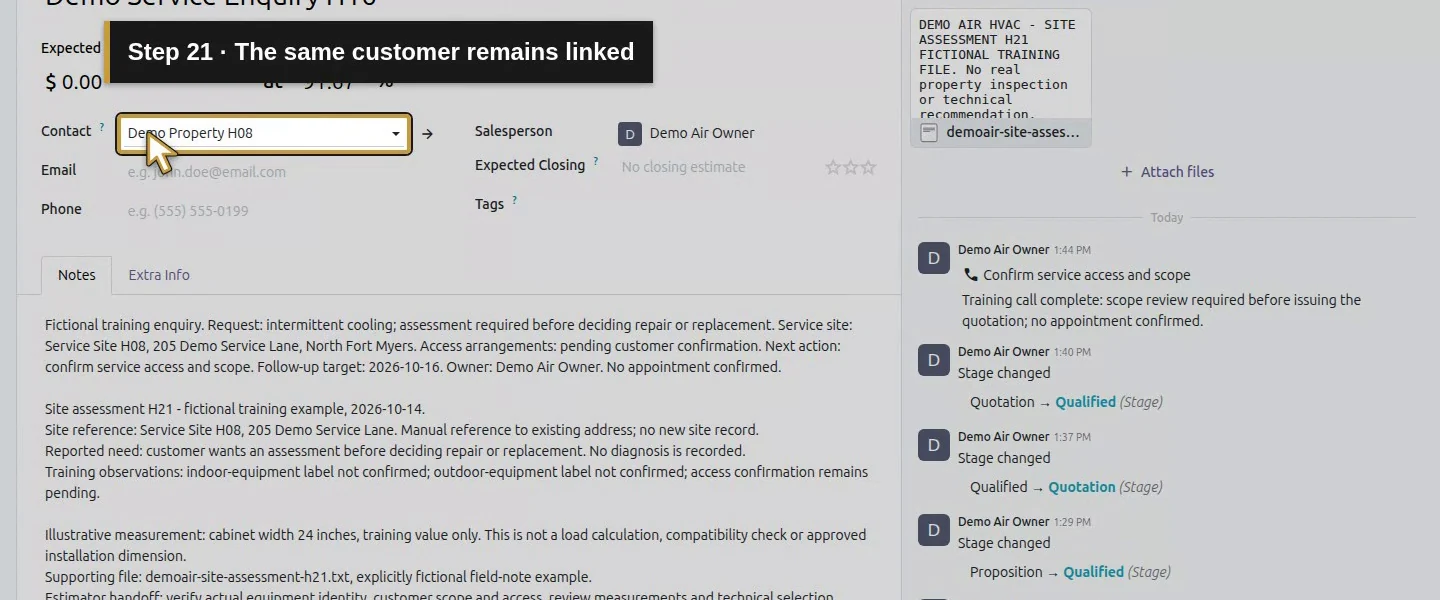
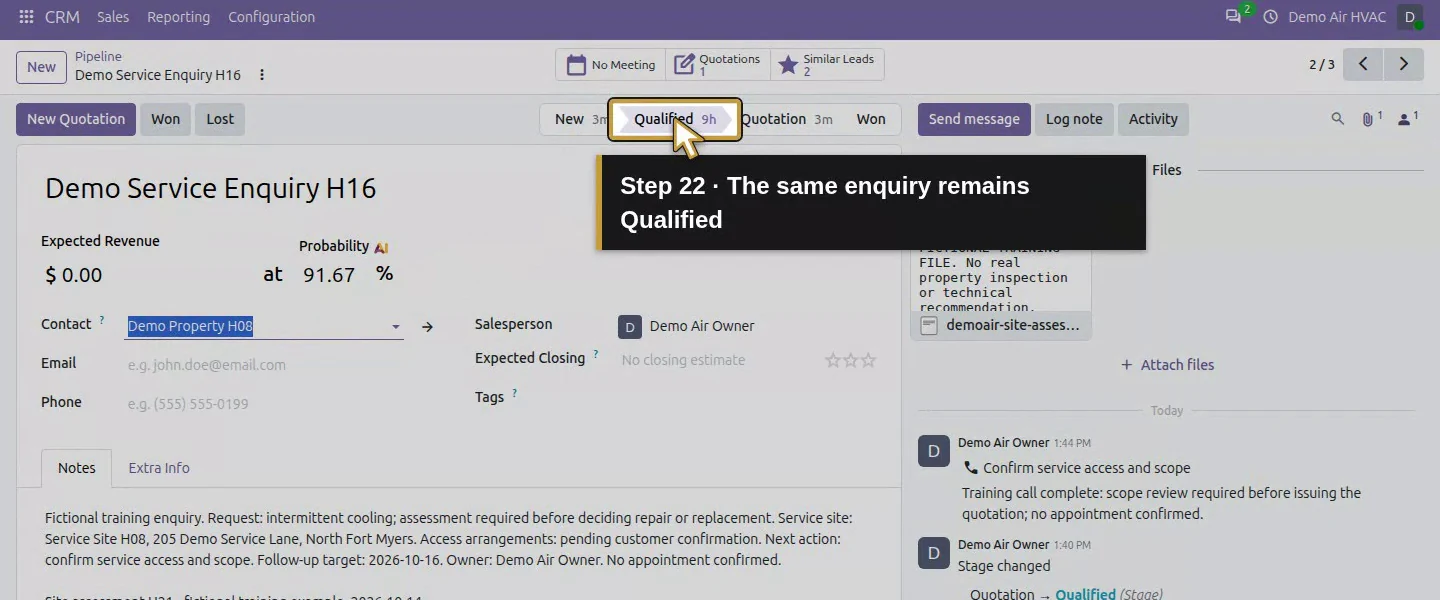
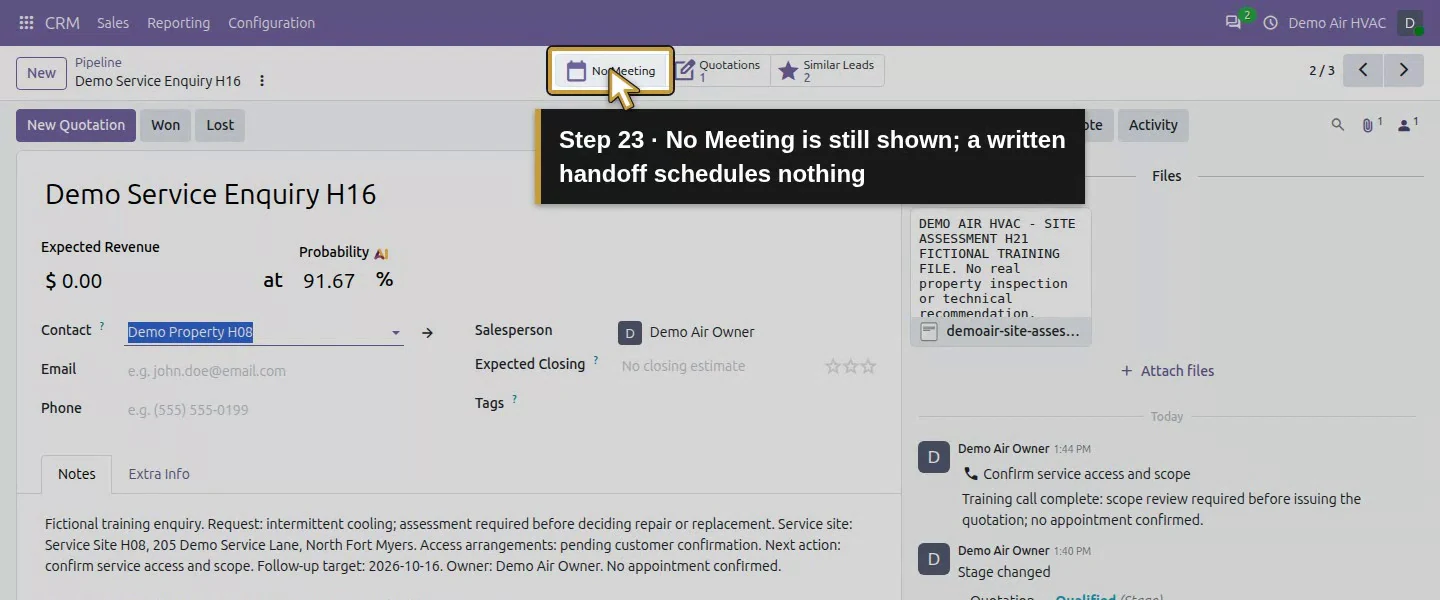
Confirm the same customer, salesperson and Qualified stage remain, with the supporting file linked to this enquiry. The owner could reopen it; another employee's access and portal/customer sharing were not tested. No new activity was created, so use the separate activities lesson if a scheduled internal follow-up is required.
Check the result
Opportunity 3 retains the original qualification Notes plus the dated H21 assessment and estimator handoff. One 637-byte text attachment, record 116, links to crm.lead 3 and its native checksum matches the uploaded file. It is not marked Public. The owner can reopen the notes and filename viewer. Customer 7, salesperson 2, Qualified stage, marketing labels and the existing draft S00001 remain intact; no appointment or new activity was created.
If your screen differs
Notes are free text and the site link is a manual reference. The record does not calculate HVAC sizing, verify measurements or provide technical/safety instructions. This test covers one text file, not photographic preview, structured commissioning or another user's access. The viewer opened by selecting the filename card; the small Preview icon was obstructed in the test. An attachment's Public flag alone does not establish all access rules or guarantee confidentiality.
Frequently asked questions
How do I record a site visit in Odoo CRM?
Use the existing enquiry's Notes to preserve the site reference, reported issue, observations and unanswered questions. Append the estimator handoff, save and reopen. In this test, the earlier qualification and new assessment remained together.How do I attach site-assessment files to an Odoo opportunity?
Choose Attach files on the intended enquiry, upload the reviewed file and check its Files card after reopening. The tested text attachment remained linked to the same opportunity. Photos and other preview formats need their own check.Does Odoo CRM calculate HVAC equipment sizing?
This workflow stores notes and a supporting file. It does not calculate loads, verify equipment compatibility or approve a system size; technical selection remains a separate decision.Continue building the business
Continue with equipment options. Use activities when the office needs a saved internal follow-up.
Talk about your Odoo setup
Bring your current process and the result you need to Onward to plan your Odoo workflow. Talk about your Odoo setup.