
Running an HVAC business with Odoo · Payment terms
How do I set payment terms and invoice due dates in Odoo?

Open Invoicing, choose Configuration > Payment Terms and create the agreed rule. Set the days after the invoice date, test an example date, then save and reopen to check the result.
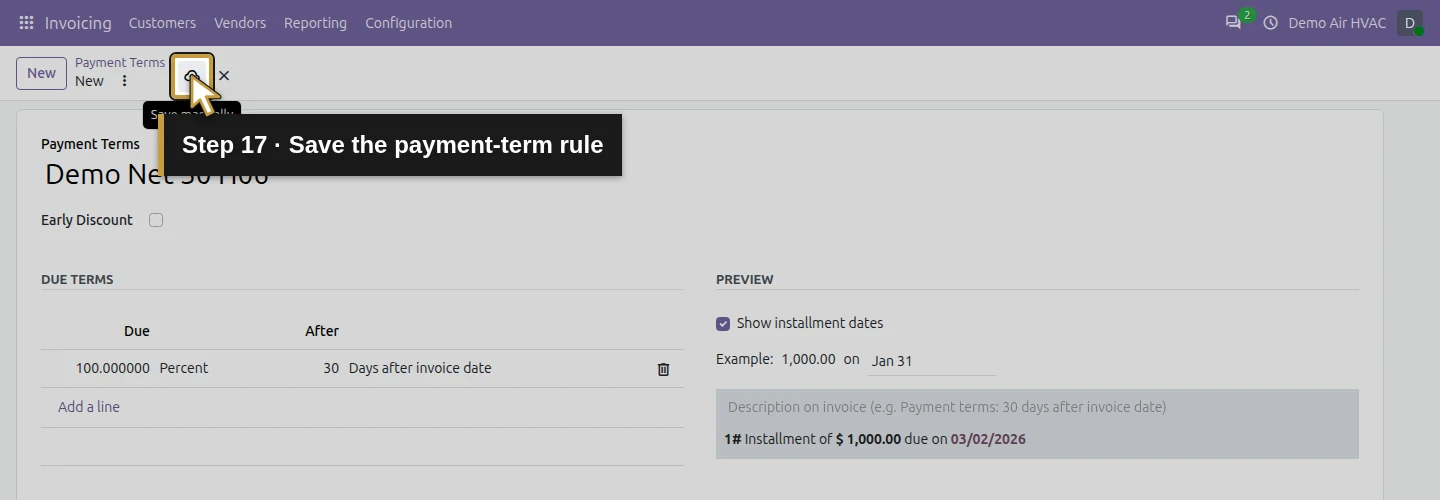
One saved Net 30 rule: 100% due thirty days after the invoice date. Its native example shows January 31, 2026 becoming March 2, 2026.
Alex Rivera runs Demo Air HVAC, a fictional heating and cooling business. He is preparing an illustrative thirty-day customer agreement before his first invoice. Choose terms that match your actual agreement.
Follow the twenty-seven stepsBefore you begin
Complete the company-profile lesson and US invoicing setup in the series. The demo has Invoicing installed and its US chart and USD currency configured. Sign in with access to payment-term configuration; this walkthrough uses the owner administrator.
The screenshots show Odoo 20.0-20260926 Community, with stock fields and menus, without Enterprise or customization. Have the agreed payment timing ready. Search existing terms before creating another one: the demo already has a standard 30 Days term, and creates Demo Net 30 H06 only to demonstrate the setup.
The built-in 1,000.00 amount is a form example. This lesson saves a rule and checks its preview. Creating an invoice, choosing its date and term, and collecting payment are later workflows. Early Discount stays unchecked in this example.
Open the payment-term configuration
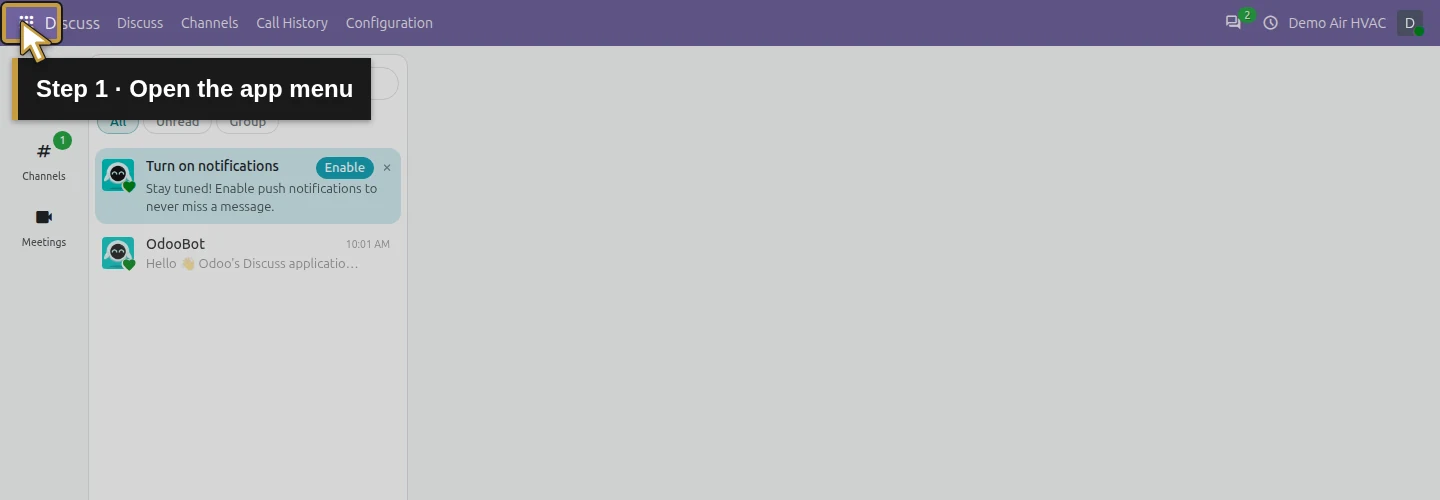
Step 1. Open the app menu
Click the grid-shaped app menu at the top left.
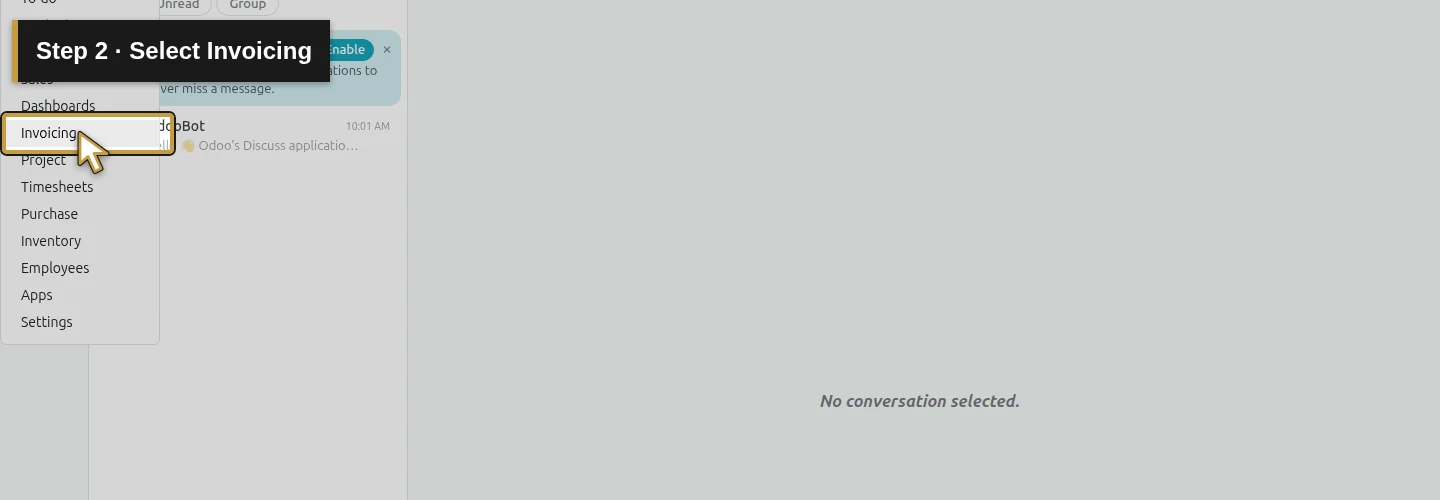
Step 2. Select Invoicing
Choose Invoicing. Wait for its menu to appear.
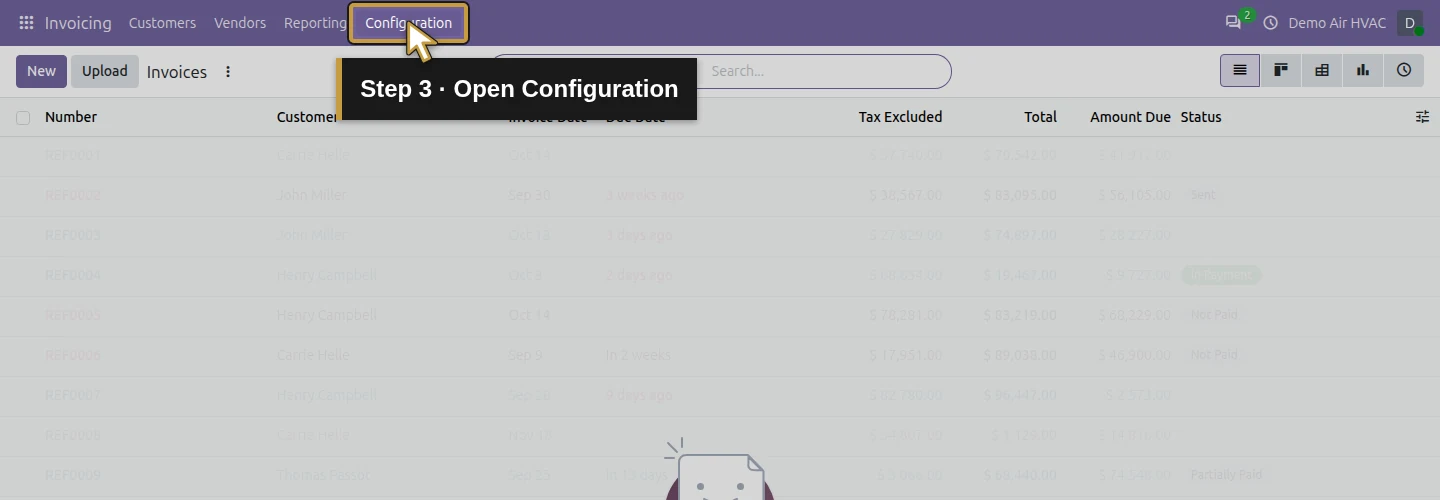
Step 3. Open Configuration
Click Configuration in the top menu.
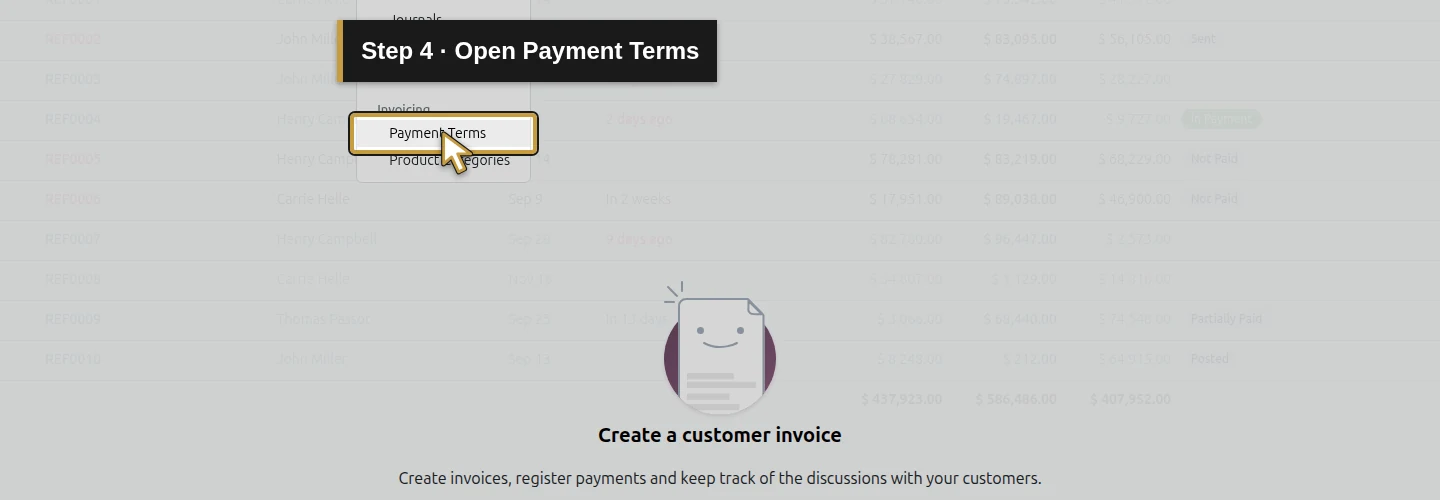
Step 4. Open Payment Terms
Choose Payment Terms. Review existing terms before creating another rule.
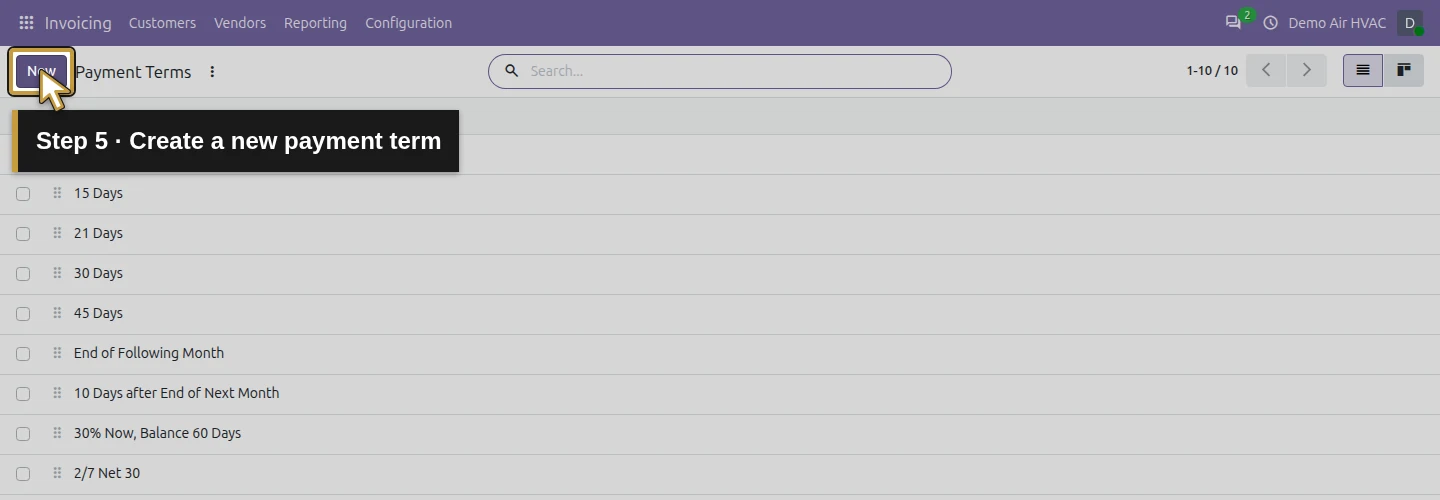
Step 5. Create a new payment term
Click New and wait for the new form with a blank name.
Define the Net 30 rule
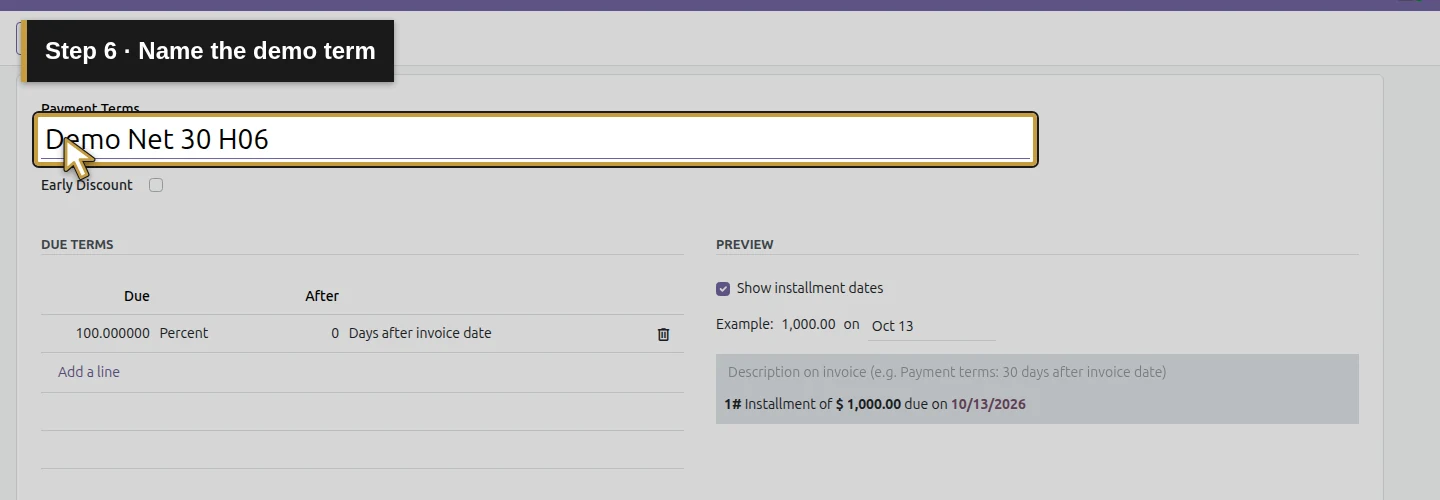
Step 6. Name the demo term
Enter Demo Net 30 H06. Use a clear name for the agreement you need in your business.
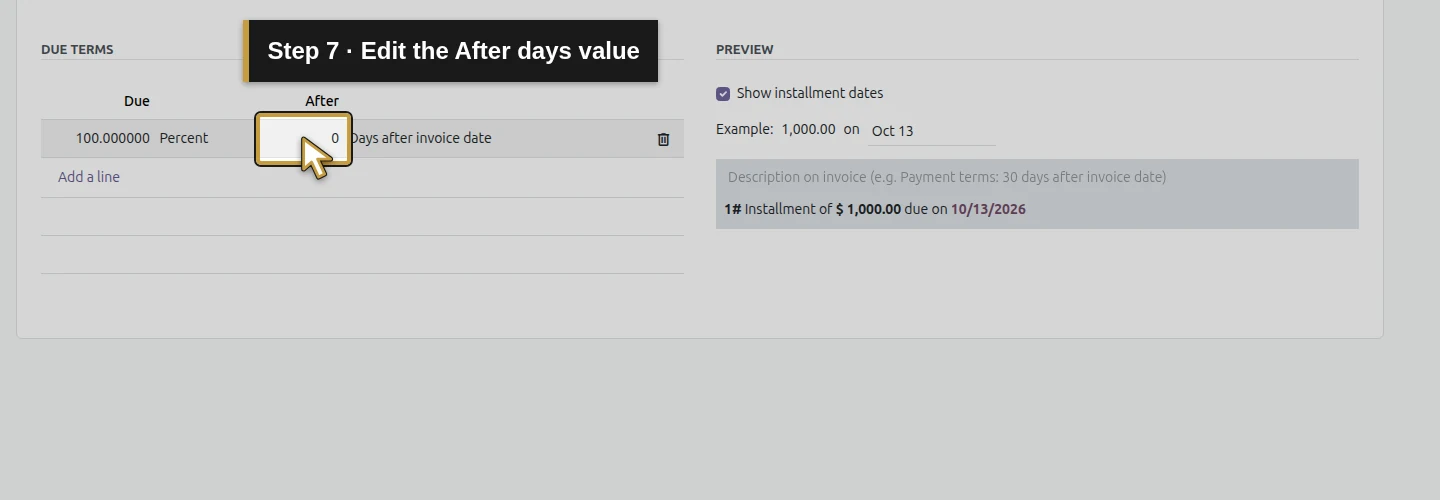
Step 7. Edit the After days value
In Due Terms, click the line’s After value to edit it.
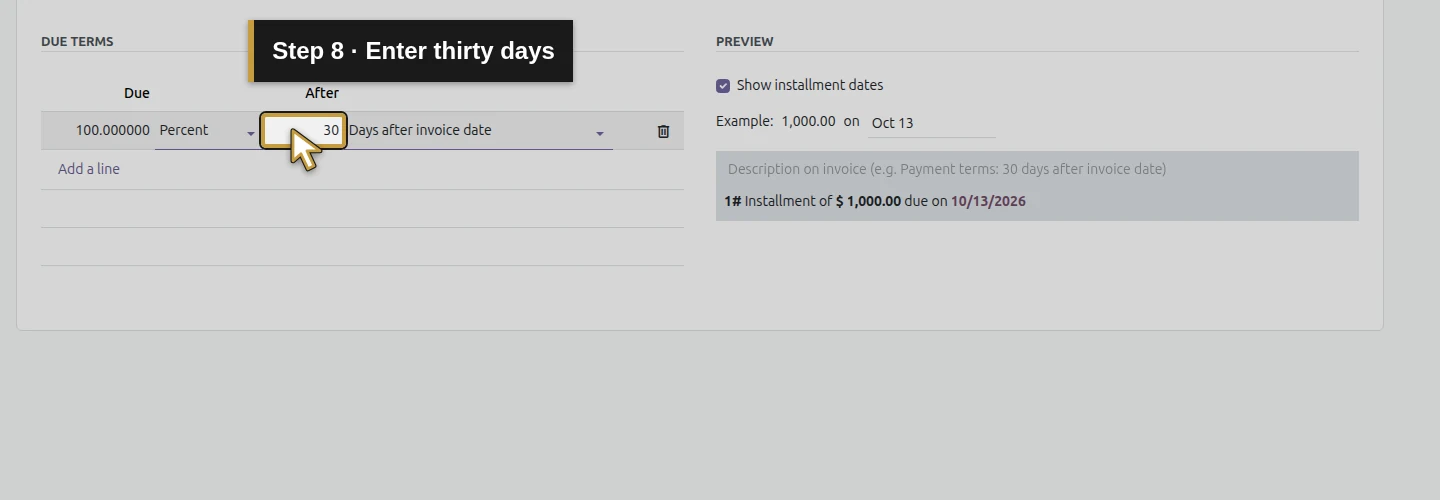
Step 8. Enter thirty days
Enter 30. This is the number of days in the example agreement.
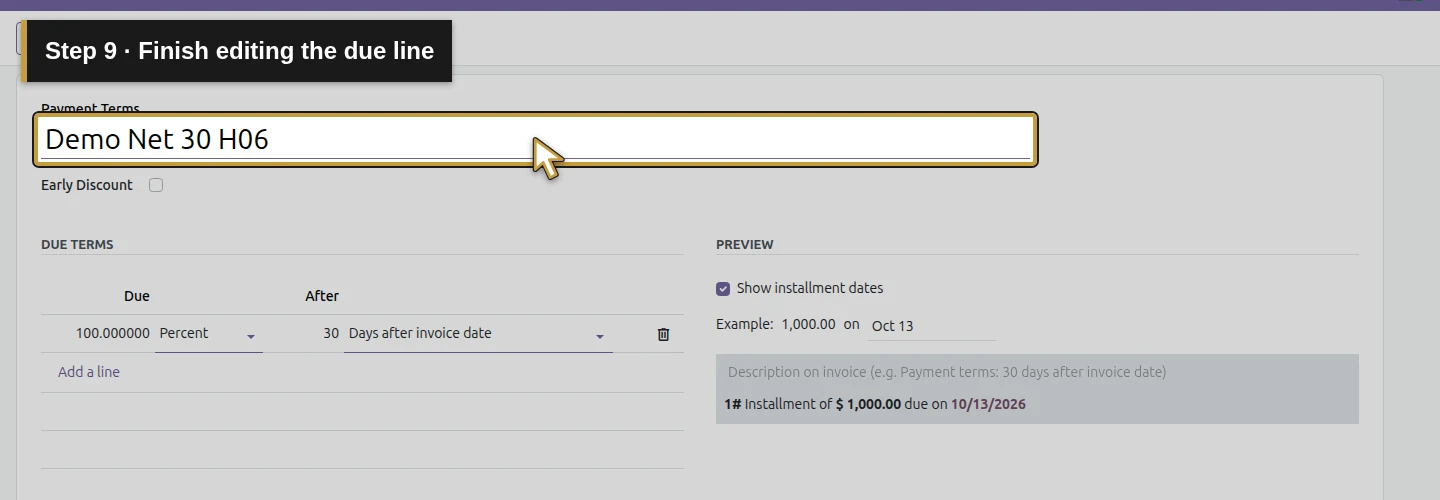
Step 9. Finish editing the due line
Click the name field to finish editing the line.
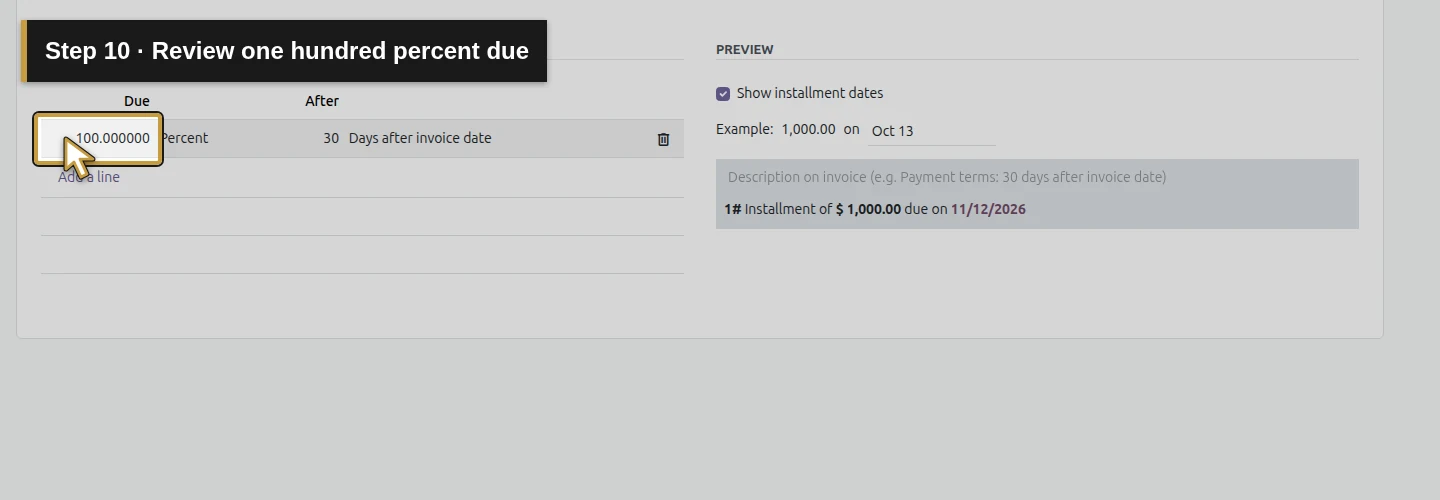
Step 10. Review one hundred percent due
Check that the line shows 100.000000 Percent. This example makes the full amount due on one date.
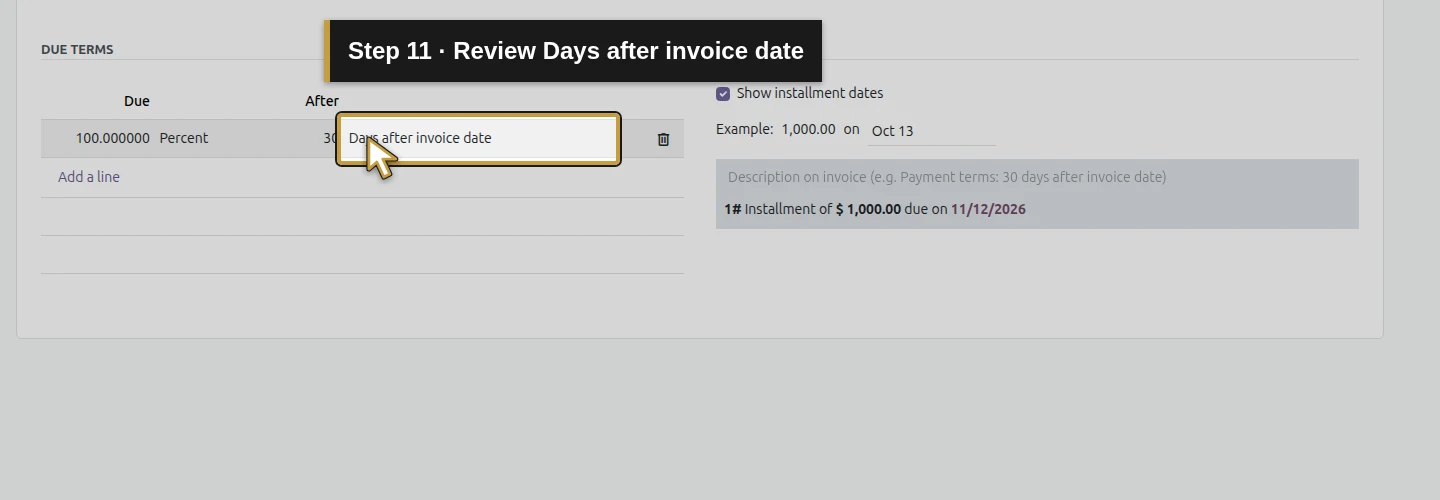
Step 11. Review Days after invoice date
Check that the line uses Days after invoice date. Keep Early Discount unchecked for this example.
Test a month-boundary example
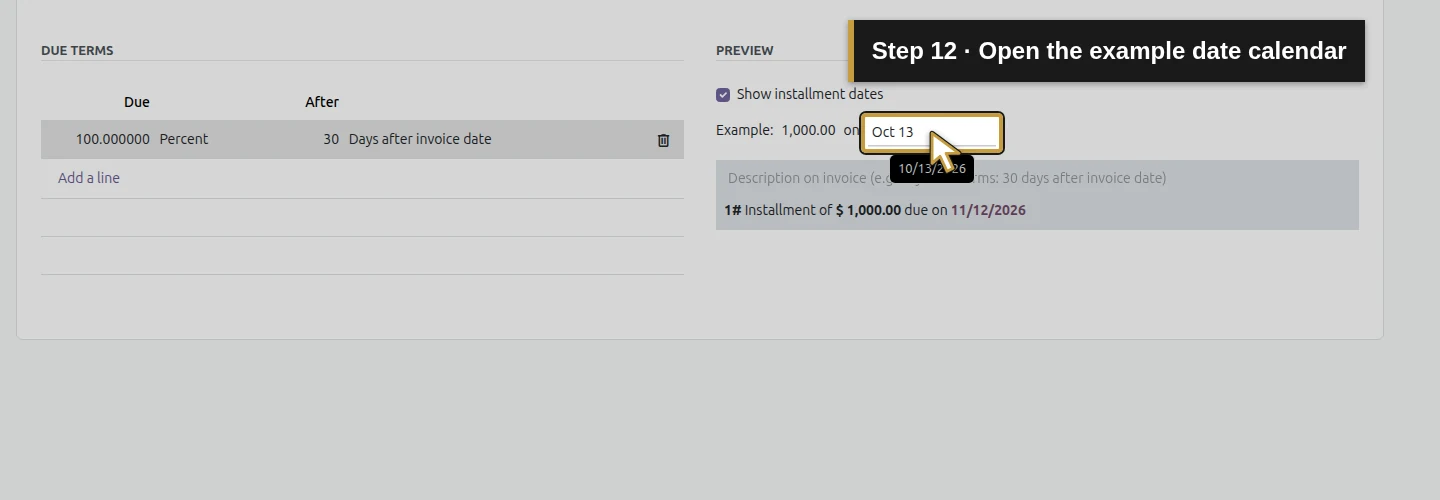
Step 12. Open the example date calendar
In Preview, click the example date. Its calendar opens; the amount is the built-in illustration.
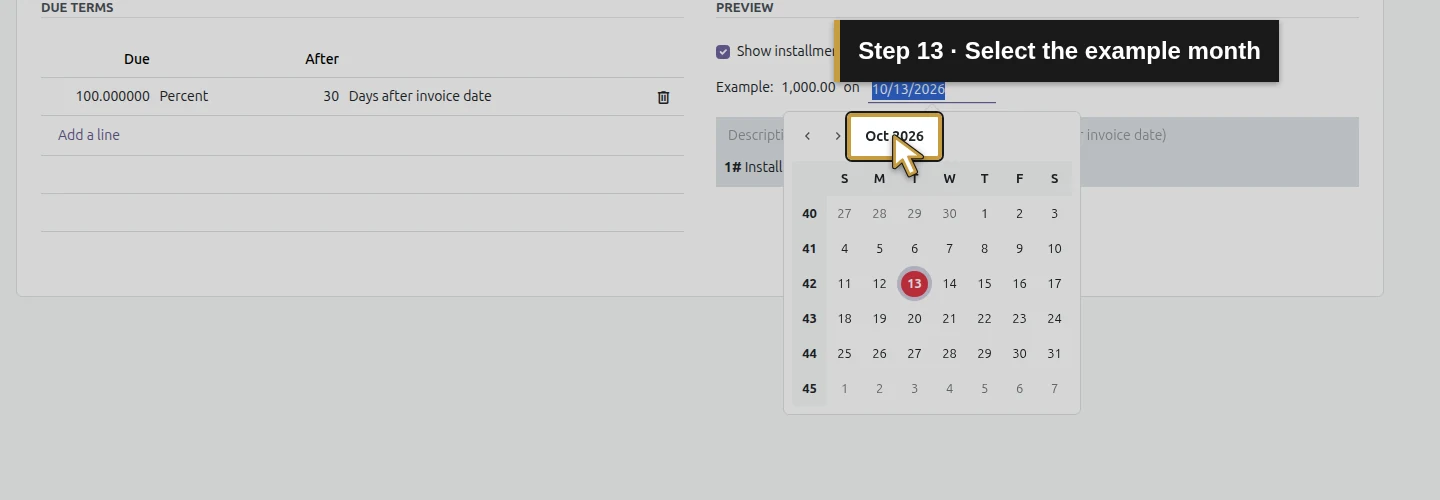
Step 13. Select the example month
Click the calendar’s month heading to open its month selector.
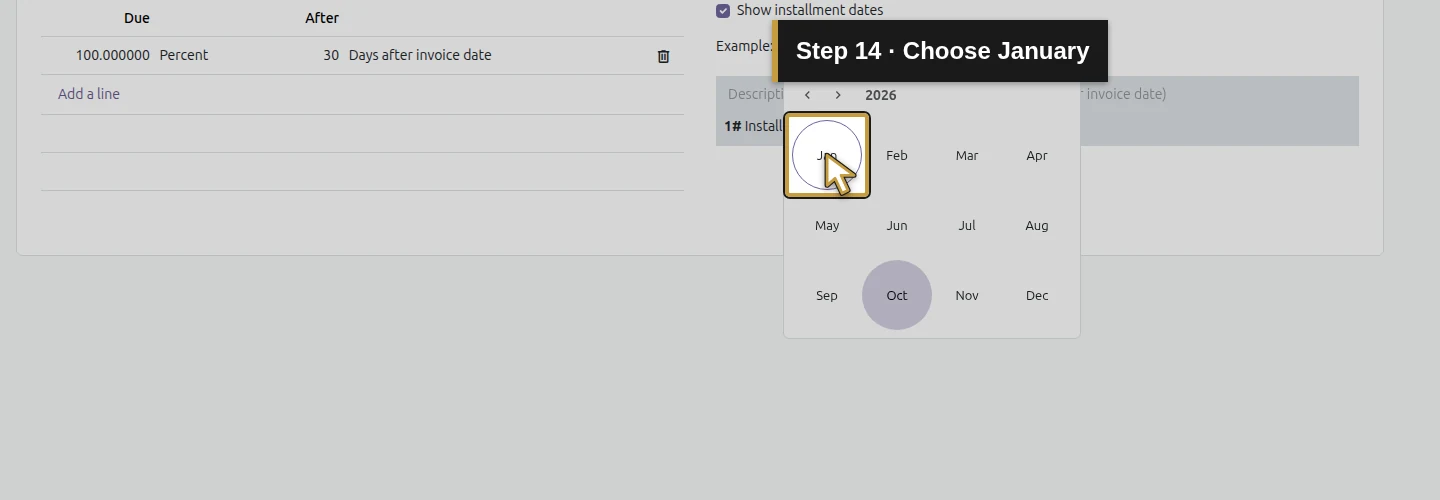
Step 14. Choose January
Choose Jan in the 2026 month selector shown in this walkthrough.
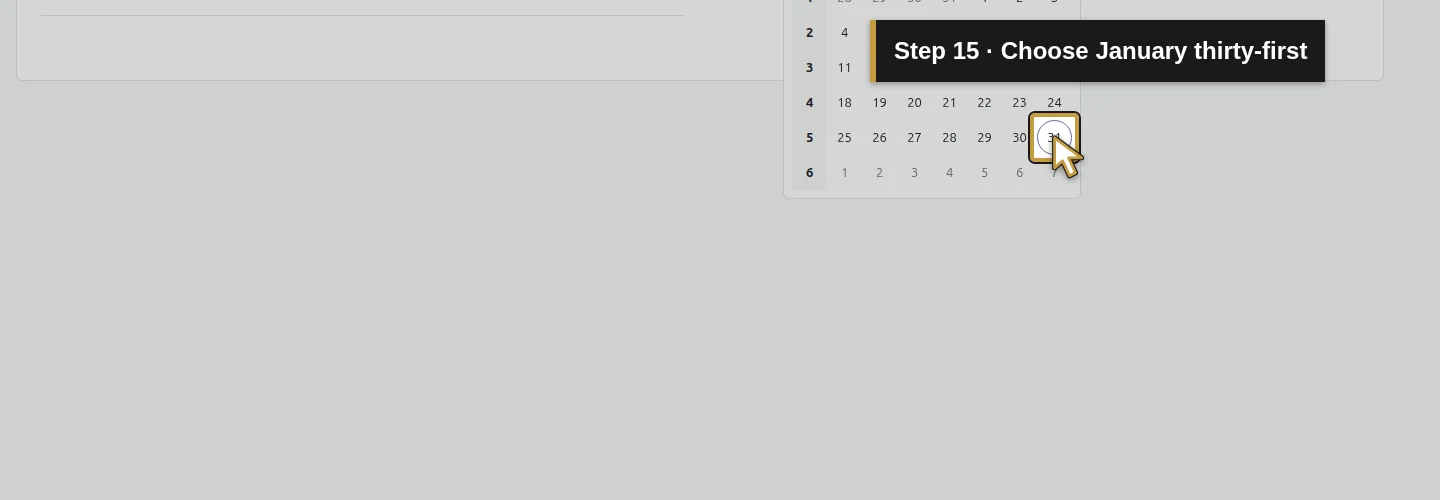
Step 15. Choose January thirty-first
Choose the current-month 31. Avoid the muted day from the neighboring month. The example date becomes January 31, 2026.
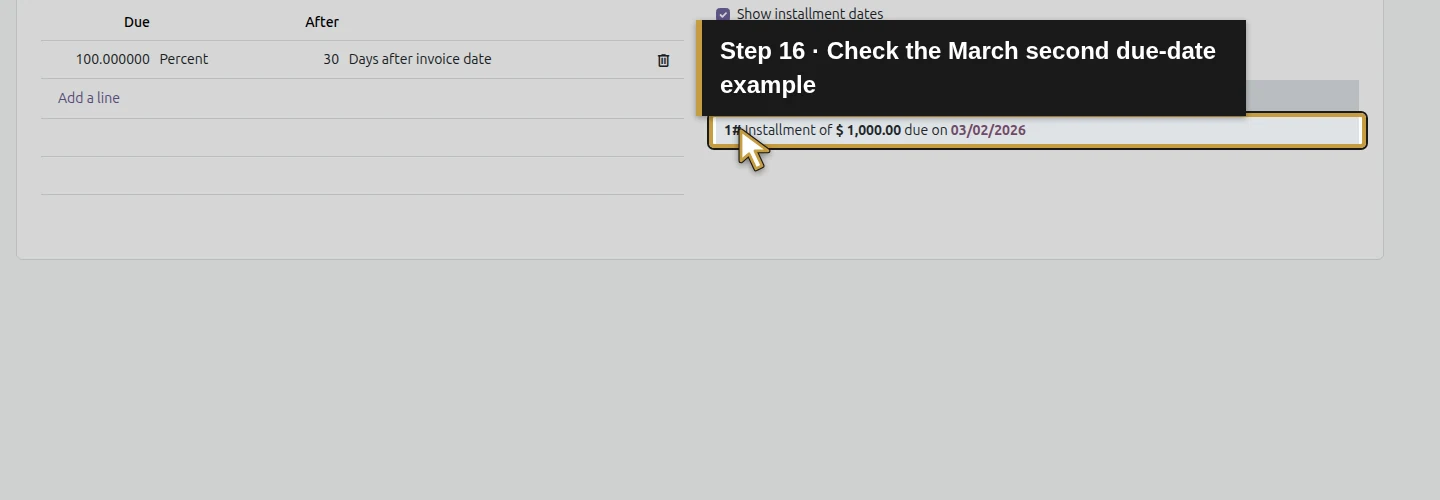
Step 16. Check the March second due-date example
Read the preview: $1,000.00 due on 03/02/2026. Thirty calendar days after January 31, 2026 is March 2, 2026.
Save and reopen the term
Step 17. Save the payment-term rule
Click the cloud-shaped Save manually control beside the breadcrumb. The term is saved.
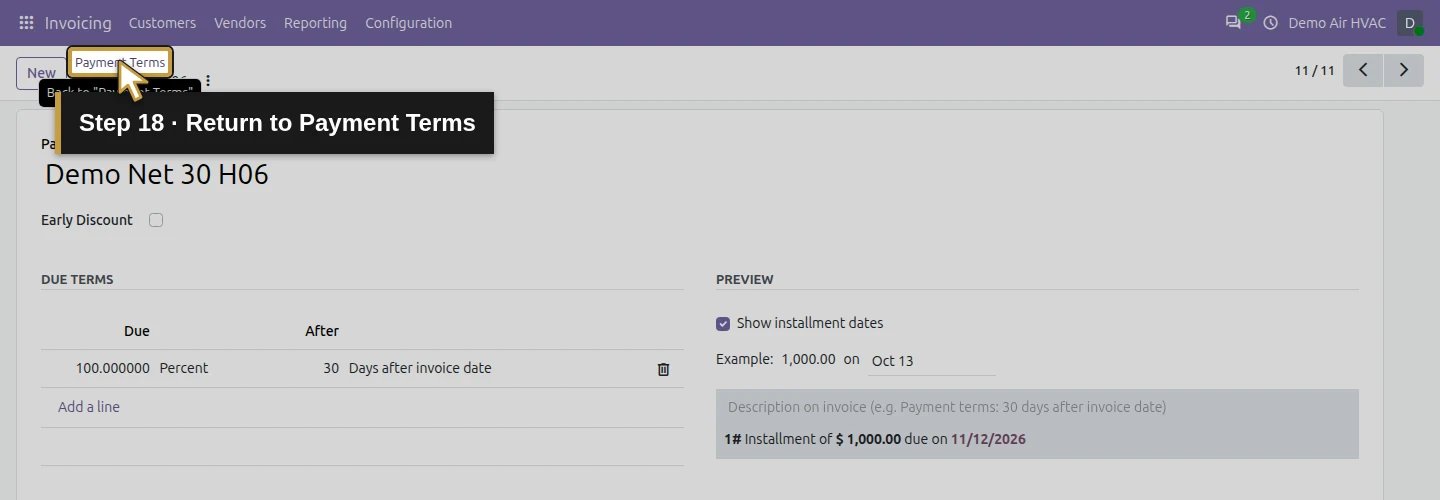
Step 18. Return to Payment Terms
Click the Payment Terms breadcrumb to return to the list.
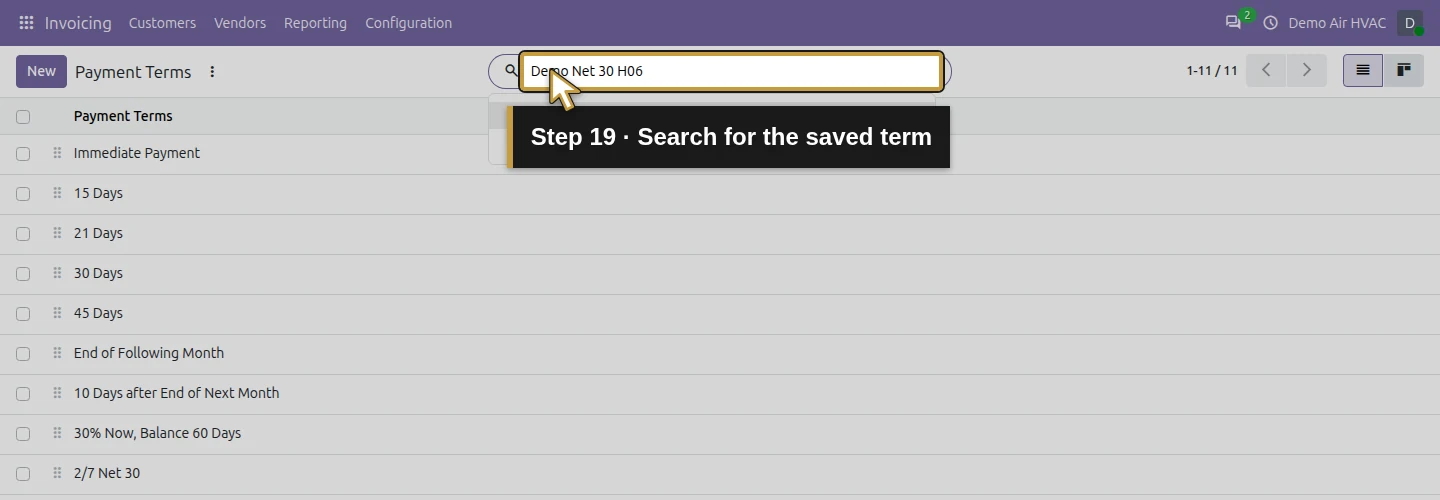
Step 19. Search for the saved term
Enter Demo Net 30 H06 in Search… and press Enter.
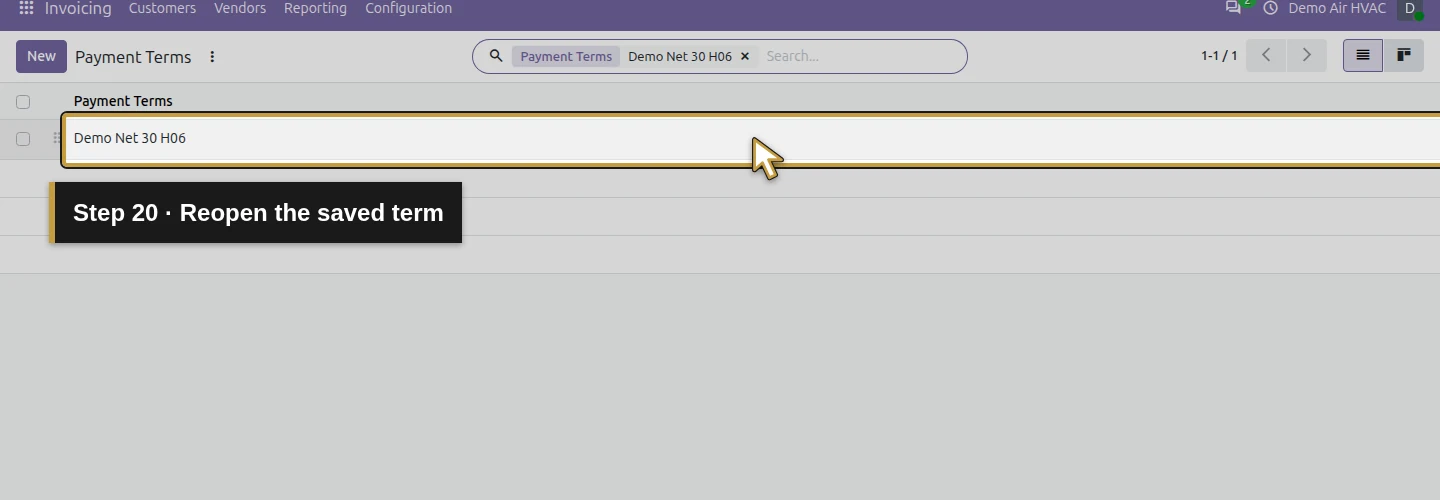
Step 20. Reopen the saved term
Click the exact Demo Net 30 H06 name in the results to reopen the saved term.
Step 21. Confirm the saved thirty-day rule
Check that After still shows 30. The one 100% line and Days after invoice date rule remain saved.
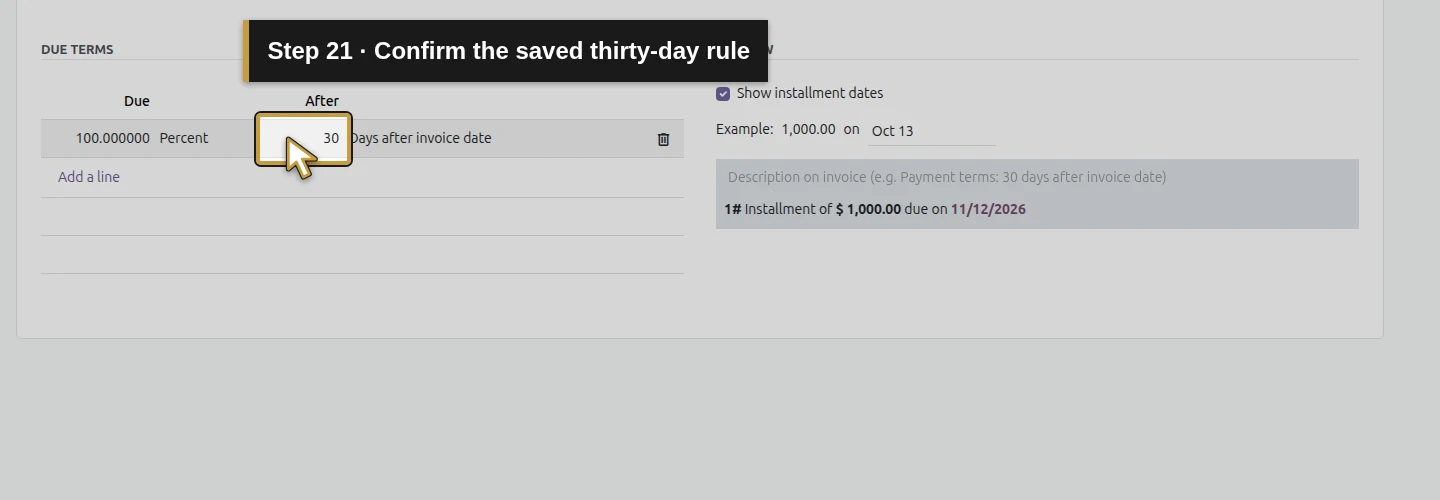
Check the saved rule again
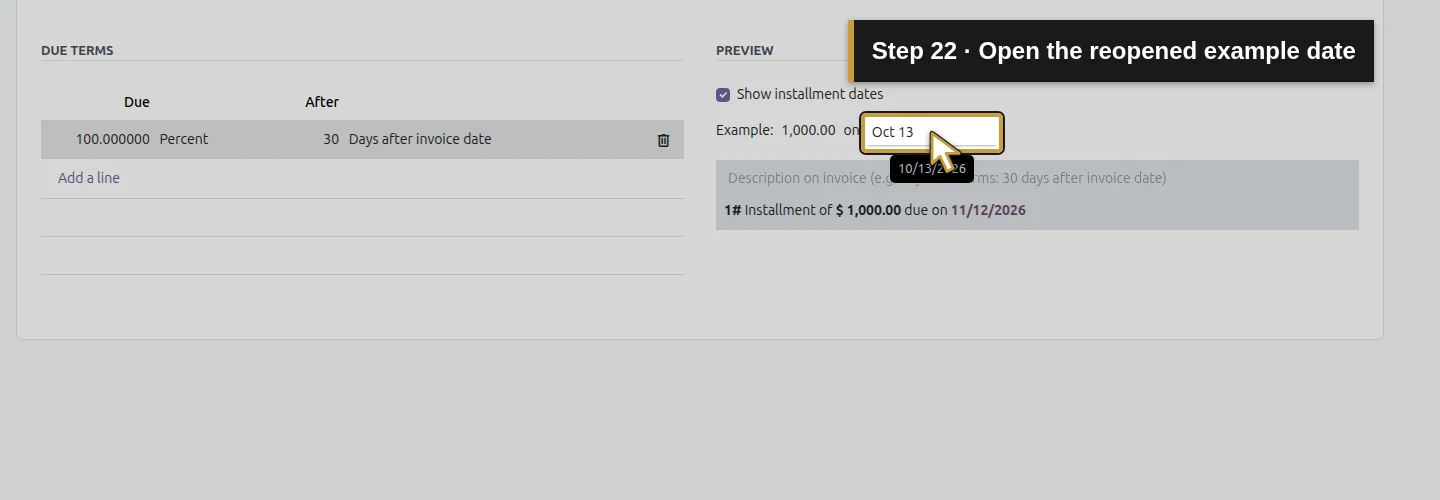
Step 22. Open the reopened example date
Click the example date again. It returns to today when the form reopens; that preview input is separate from the saved rule.
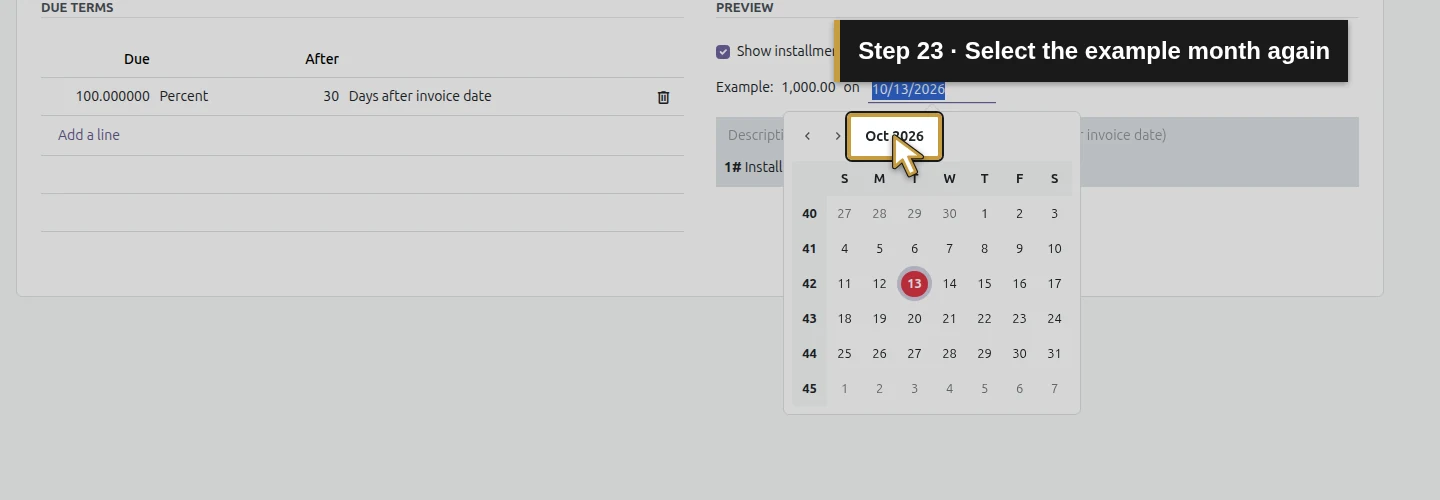
Step 23. Select the example month again
Open the calendar’s month selector again.
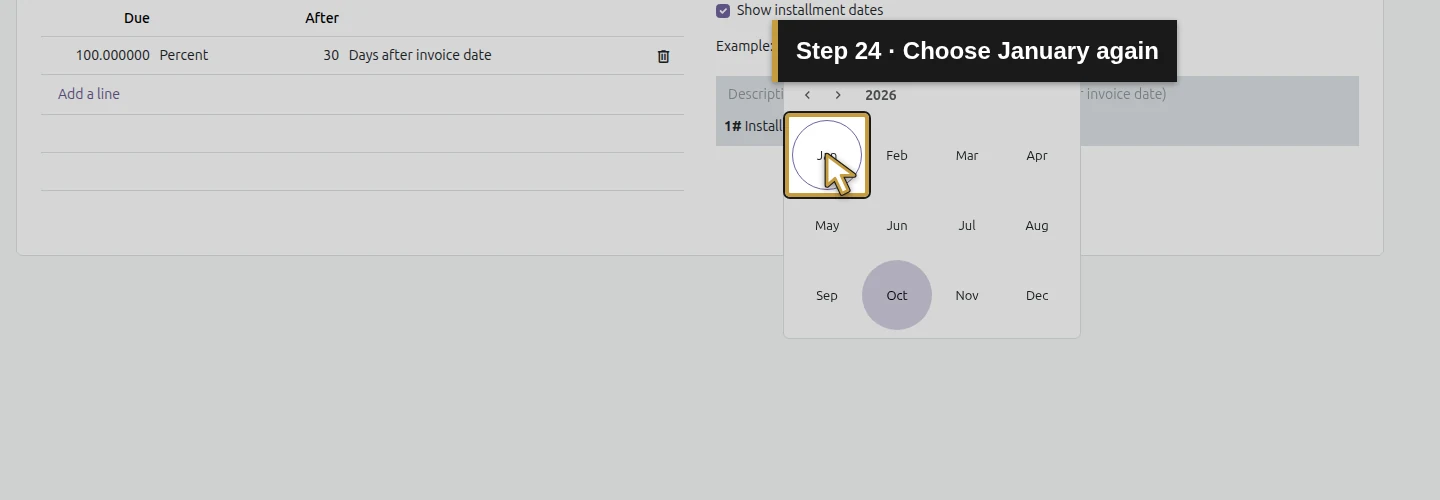
Step 24. Choose January again
Choose Jan in the 2026 month selector again.
Step 25. Choose January thirty-first again
Choose the current-month 31 again to repeat the boundary example.
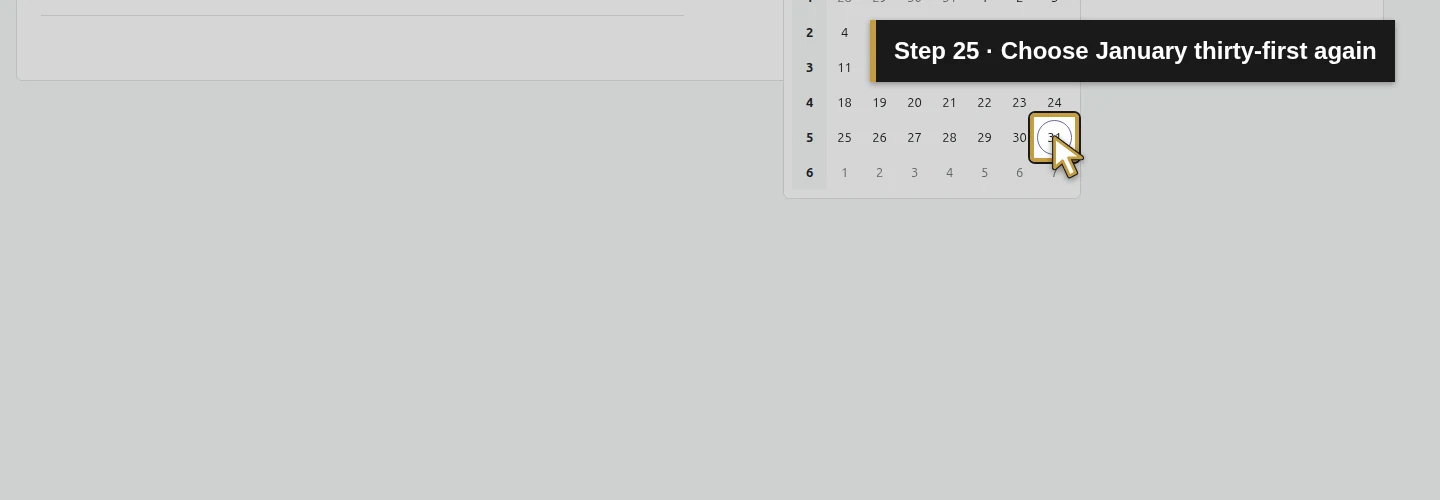
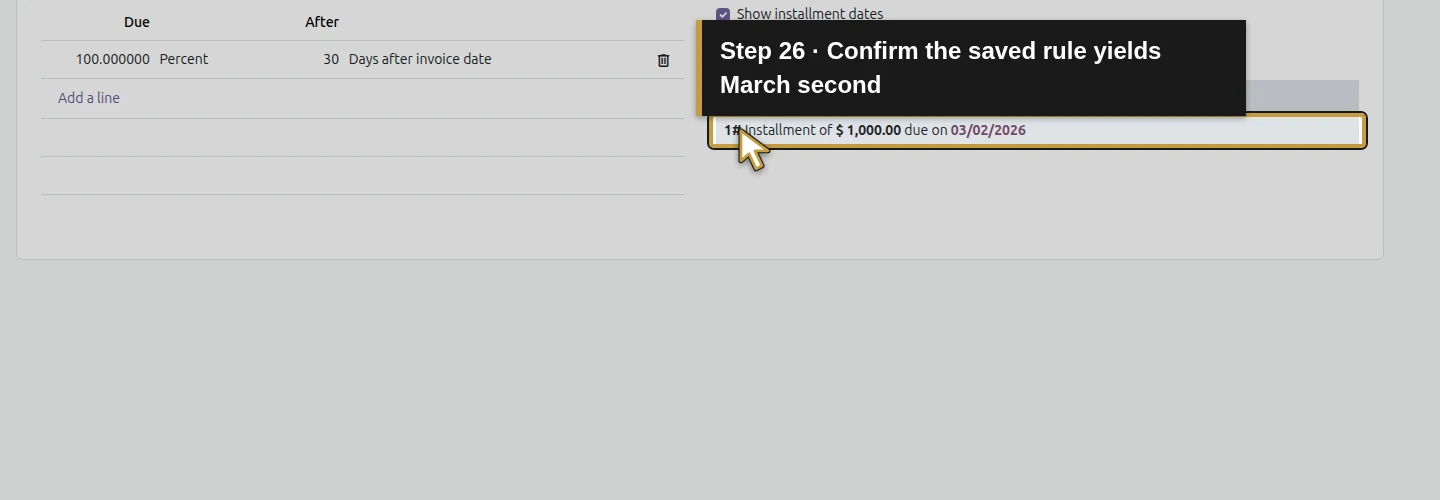
Step 26. Confirm the saved rule yields March second
Check that the saved rule again previews 03/02/2026 as the due date.
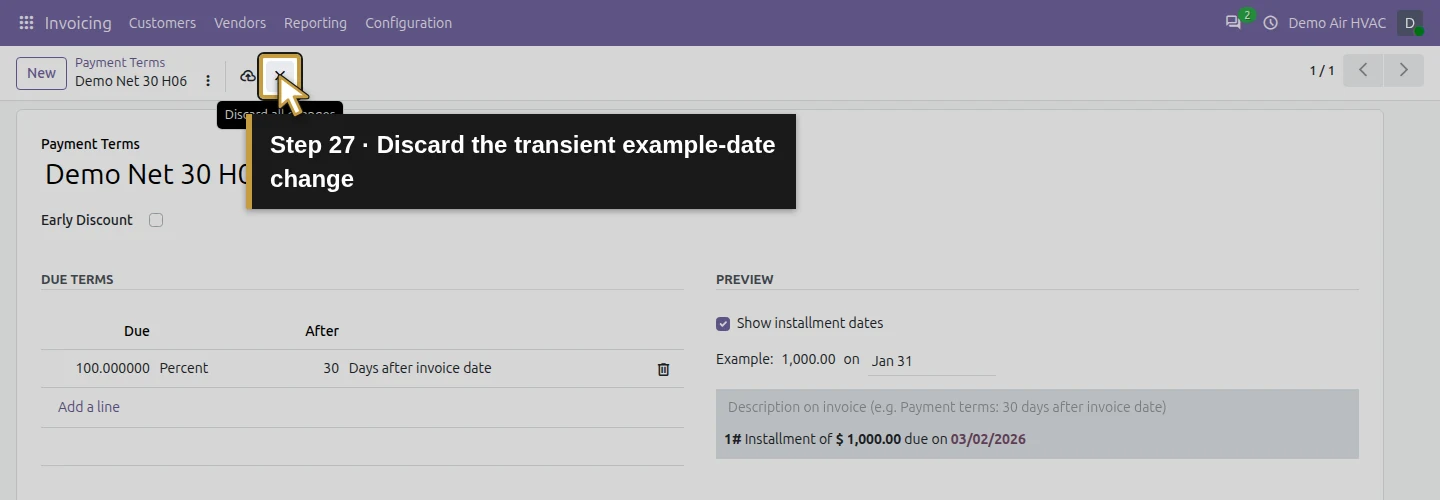
Step 27. Discard the transient example-date change
Click Discard all changes to leave the temporary example-date change. The previously saved term and thirty-day rule stay intact.
Check the final result
Demo Net 30 H06 is saved with one line: 100% due thirty days after the invoice date, with no early discount. Reopening retained the rule. The native January 31, 2026 example produced March 2, 2026 twice, and discarding the temporary date change preserved the saved term.
The rule calculates the preview date for you. You still agree the commercial terms, choose the correct term and invoice date, and review the later invoice. A saved payment term does not collect money.
If your screen differs
Wait for the blank New form before typing. In the calendar, choose the current-month day rather than a muted neighboring-month cell. If a saved term already fits your agreement, review and reuse it instead of creating a duplicate. The example date resetting after reopening is expected in this tested version; check the saved due line separately.
Questions about Odoo payment terms and due dates
How do I set payment terms in Odoo?
In the tested version, open Invoicing > Configuration > Payment Terms. Review an existing rule or choose New, enter the agreed due line, check the native example, save and reopen. This guide’s example uses 100% due thirty days after the invoice date.
How does Odoo calculate an invoice due date?
The tested payment-term preview applies the selected rule to its example date. With thirty days after the invoice date, January 31, 2026 previewed March 2, 2026. When creating a later invoice, choose and review its actual date and payment term; this lesson demonstrates the rule’s preview.
Is Net 30 the same as the end of the month in Odoo?
A thirty-days-after rule counts thirty calendar days from its input date. In this example, January 31 became March 2. That differs from an agreement tied to a month’s last day. Check the rule and preview against your agreement rather than relying only on a term’s name.
Why does the example date reset when I reopen an Odoo payment term?
In the tested version, the example date is a temporary preview input, while the due line is saved. Reopening returned the preview date to today and kept the thirty-day rule. Re-enter an example date to check the saved rule again.
Do Odoo payment terms collect a customer payment automatically?
This workflow configures timing and calculates an example due date. It creates no invoice or payment and moves no money. Payment collection and payment recording require separate workflows.
Continue preparing your first quotation
Alex’s agreed due-date rule is ready. Next, prepare the HVAC service-call and labor products and the customer details before assembling the first quotation. The later invoice lesson will apply the selected term to an actual invoice.
Get help setting up Odoo invoicing for your HVAC business
Review your customer terms and invoicing workflow with Onward.
Talk about your Odoo setup