
Running an HVAC business with Odoo
How do I close an Odoo job and prepare it for invoicing?
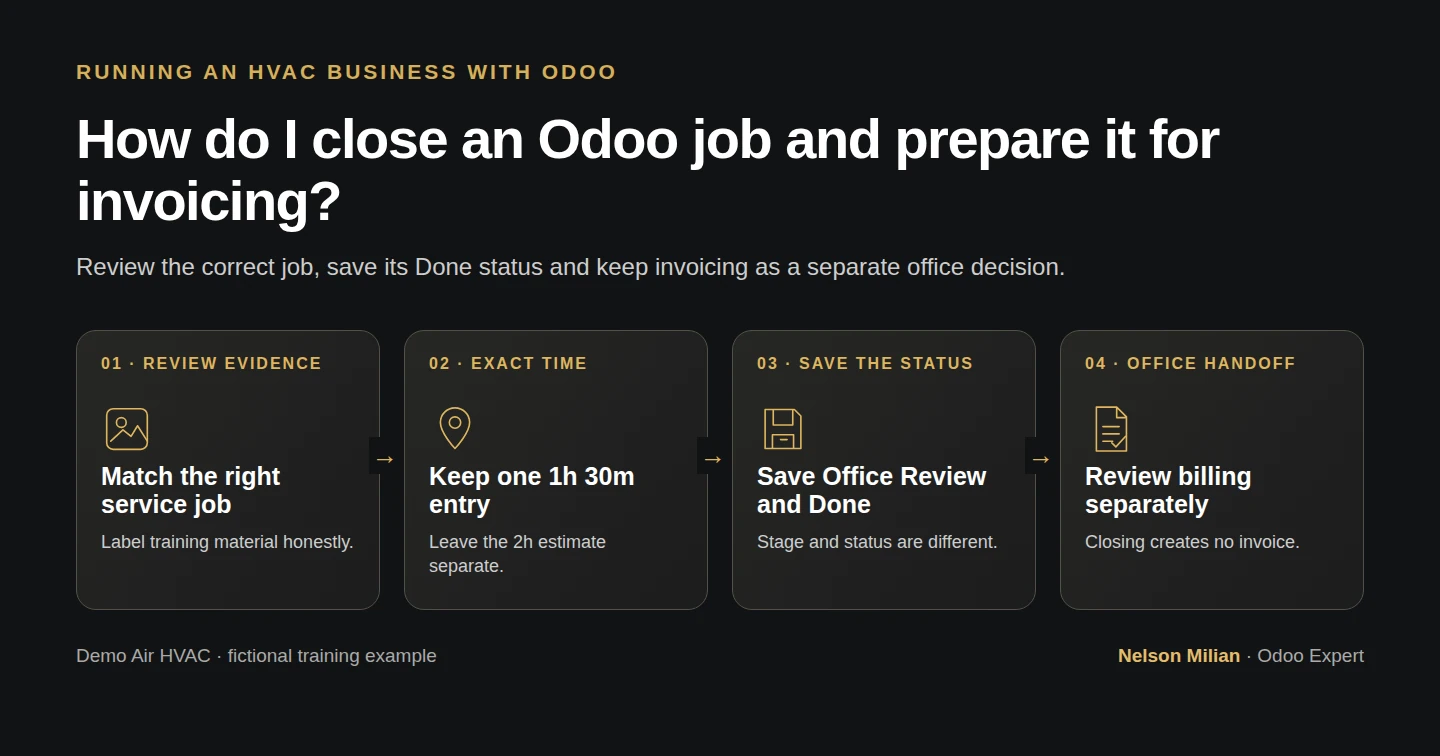
Review an Odoo job’s time and materials exceptions, save its task Done, and preserve a clear handoff without automatically creating an invoice.
Alex needs a clear decision about what is finished and what the office can invoice. We review the existing hourly training task, keep the separate materials exception visible, then save its operational status Done and record the invoicing handoff. Closing the task is a separate action from creating an invoice.
Alex Rivera and Demo Air HVAC are fictional training examples. Prices, dates, quantities and business situations in this guide are illustrative.
Before you begin
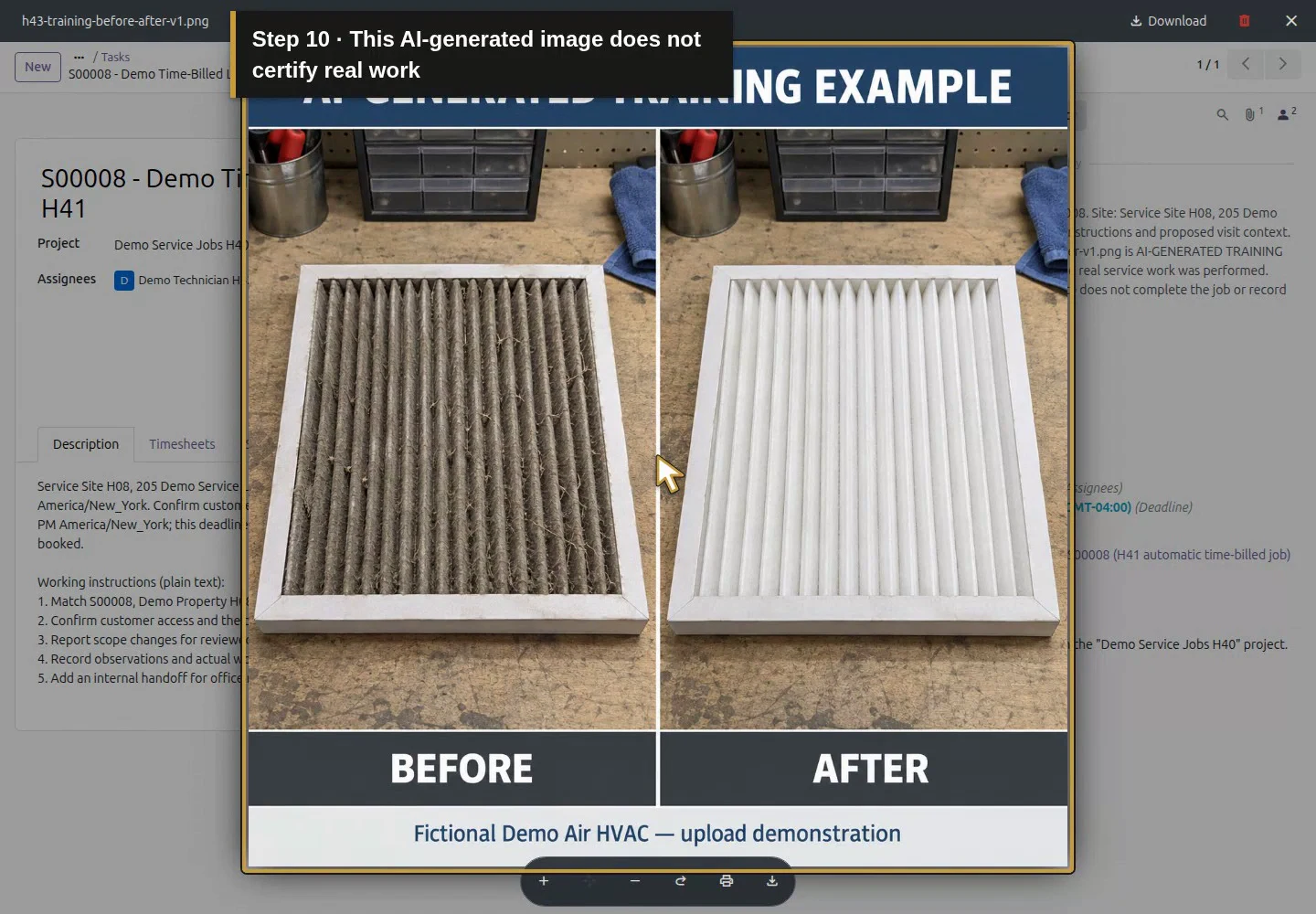
Tested in stock Odoo 20.0-20260926 Community as the demo owner administrator, with official modules and standard configuration. Use saved instructions and the labelled training image for the saved instructions and labelled image, recorded technician time for the exact 1.5-hour entry and the separate materials reconciliation for the materials reconciliation. The closeout target is S00008 - Demo Time-Billed Labor H41 / task 6, customer Demo Property H08, with one time-based service line. The separate S00007 / Demo Service Job H40 has an open parts backorder and billing hold; do not close that job in this procedure. The owner performs review and closure; the assigned technician’s session verifies the saved result. All work and evidence here are fictional rehearsal material. The AI-labelled image is not proof of actual service completion or that the proposed later appointment occurred.
Step-by-step workflow
Review the recorded time, save the hourly task Done and record the invoicing handoff. The separate materials job stays open, and no invoice is created in this fictional closeout.
Step 1. Review the correct task’s scope and evidence
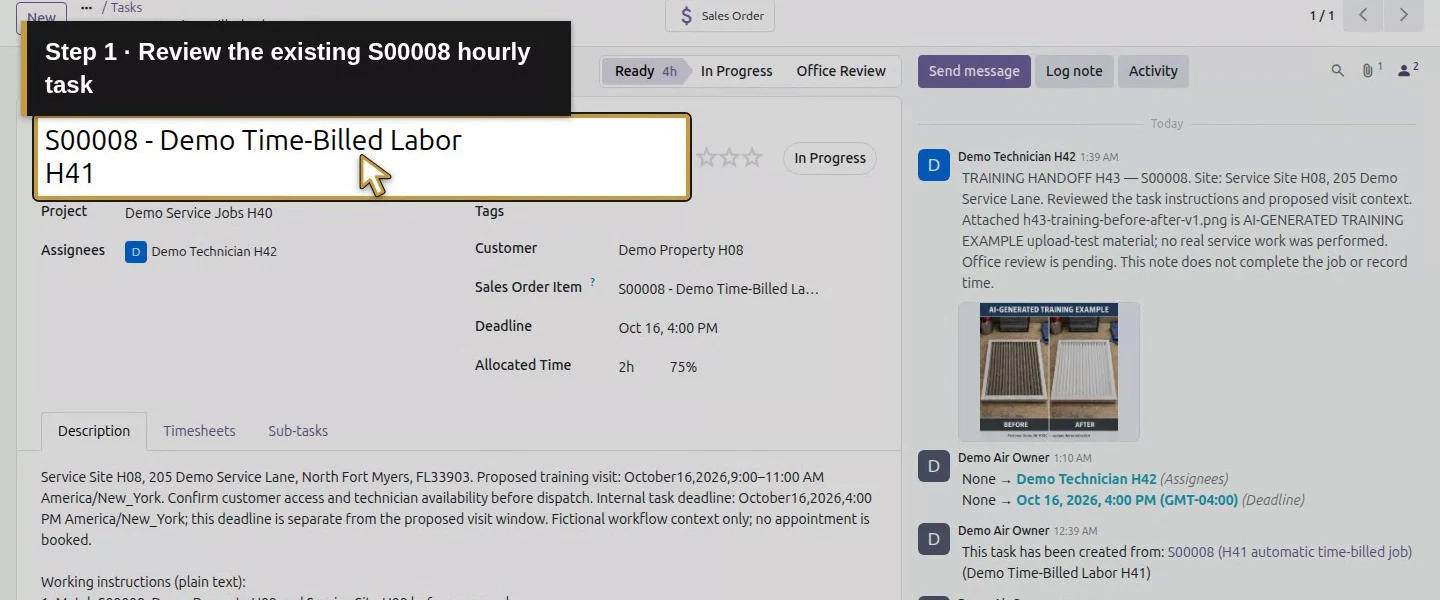
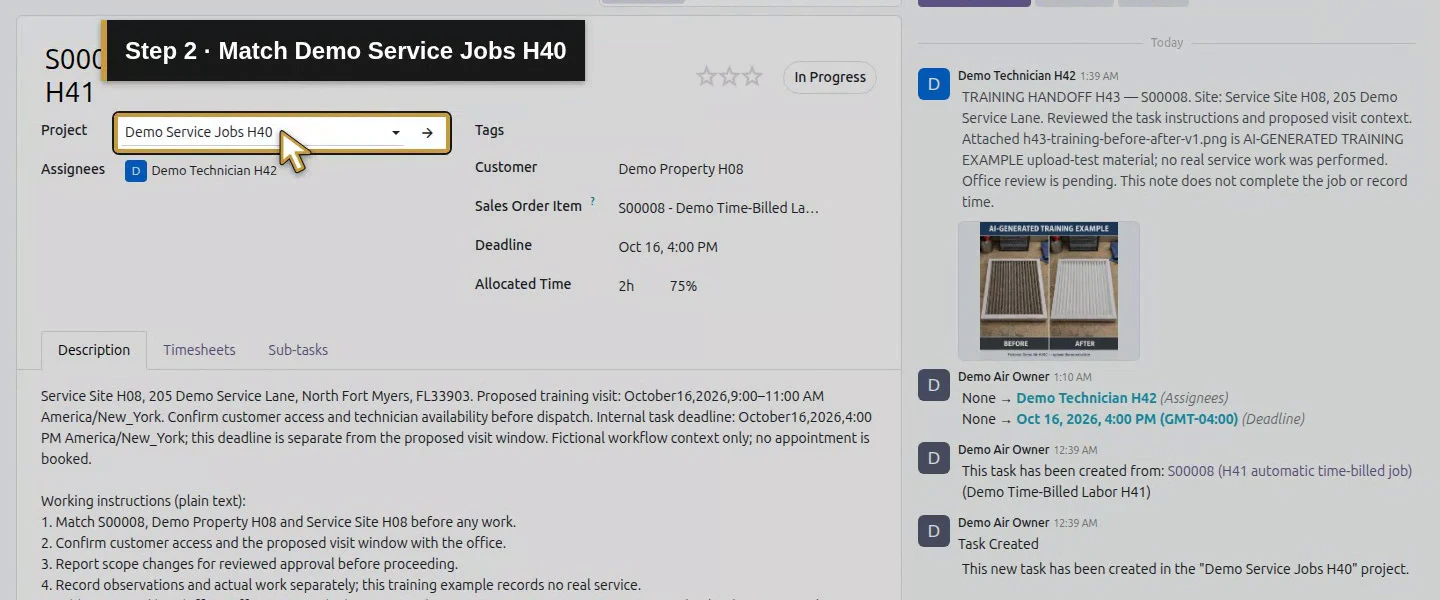
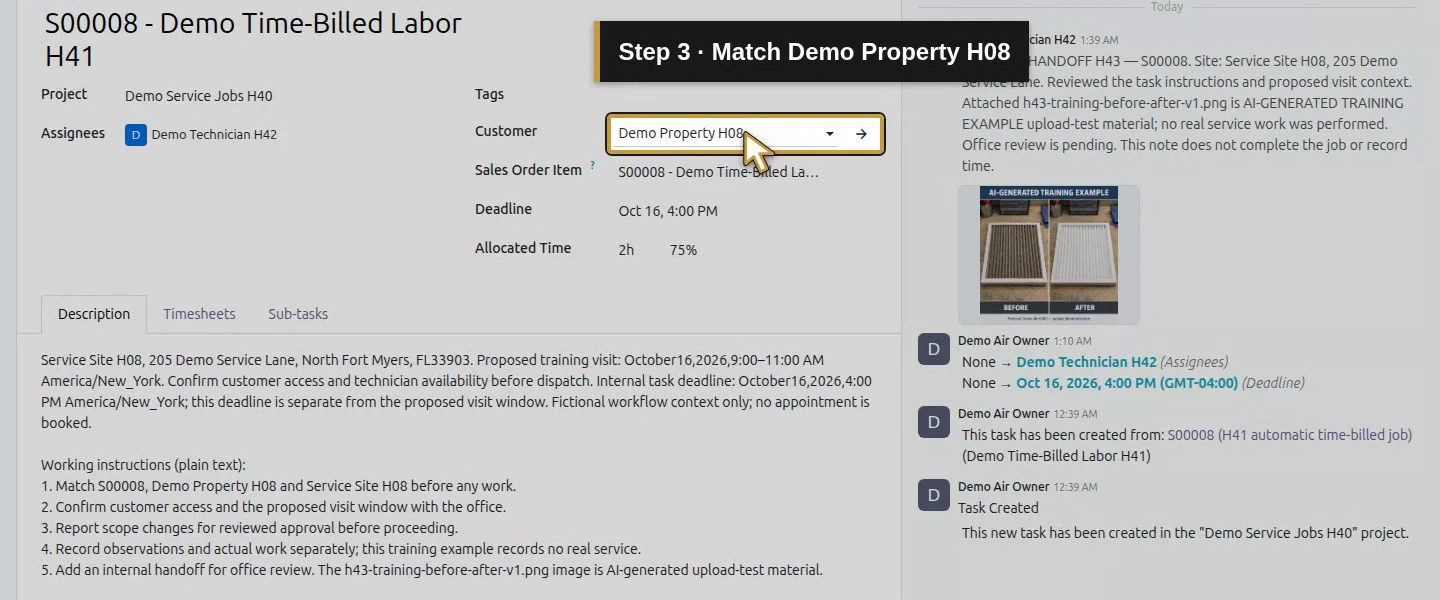
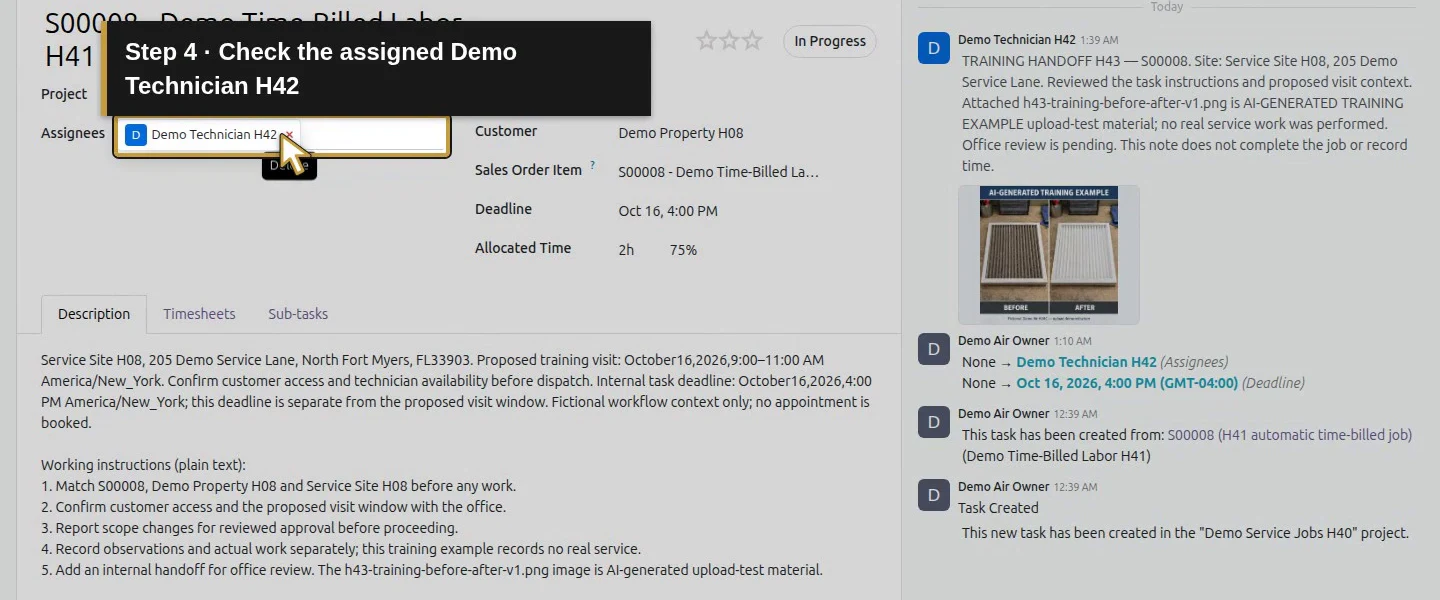
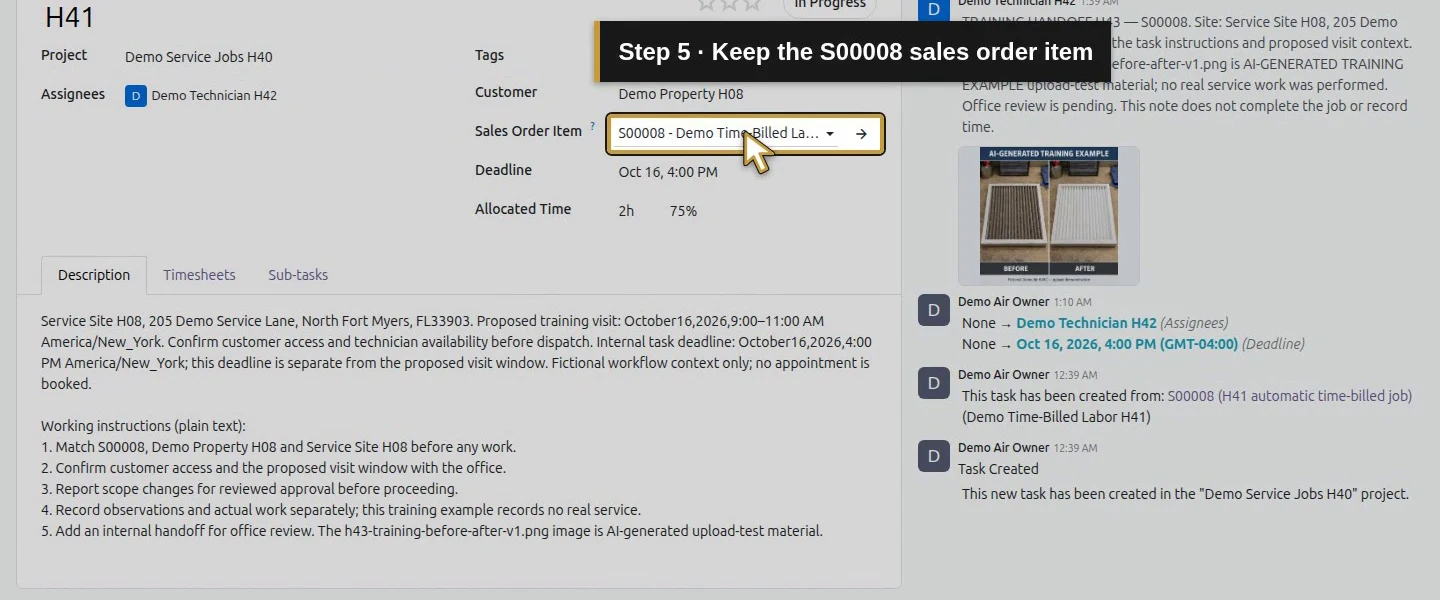
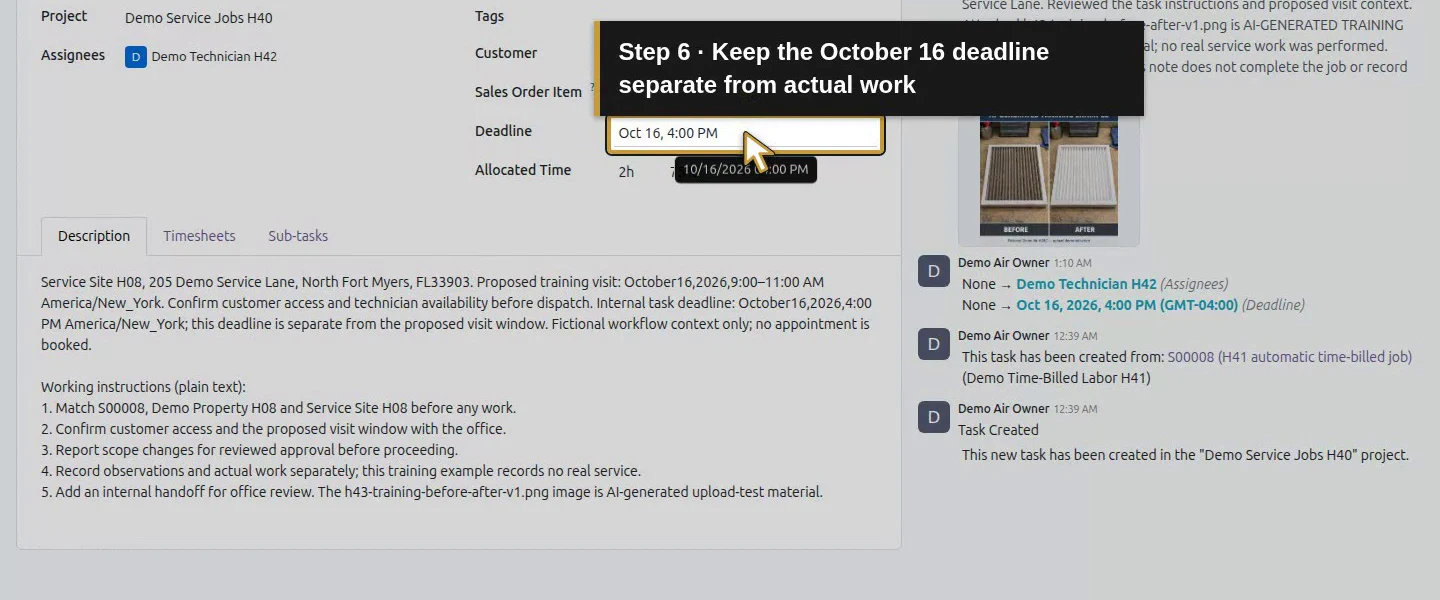
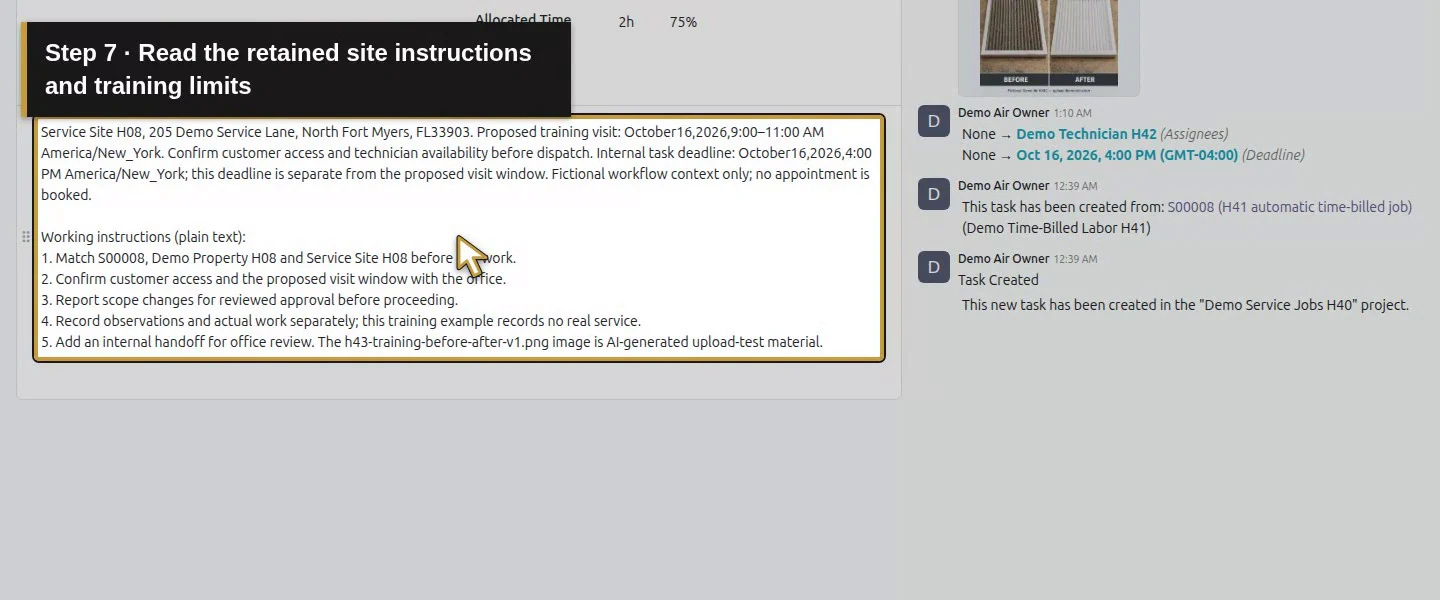
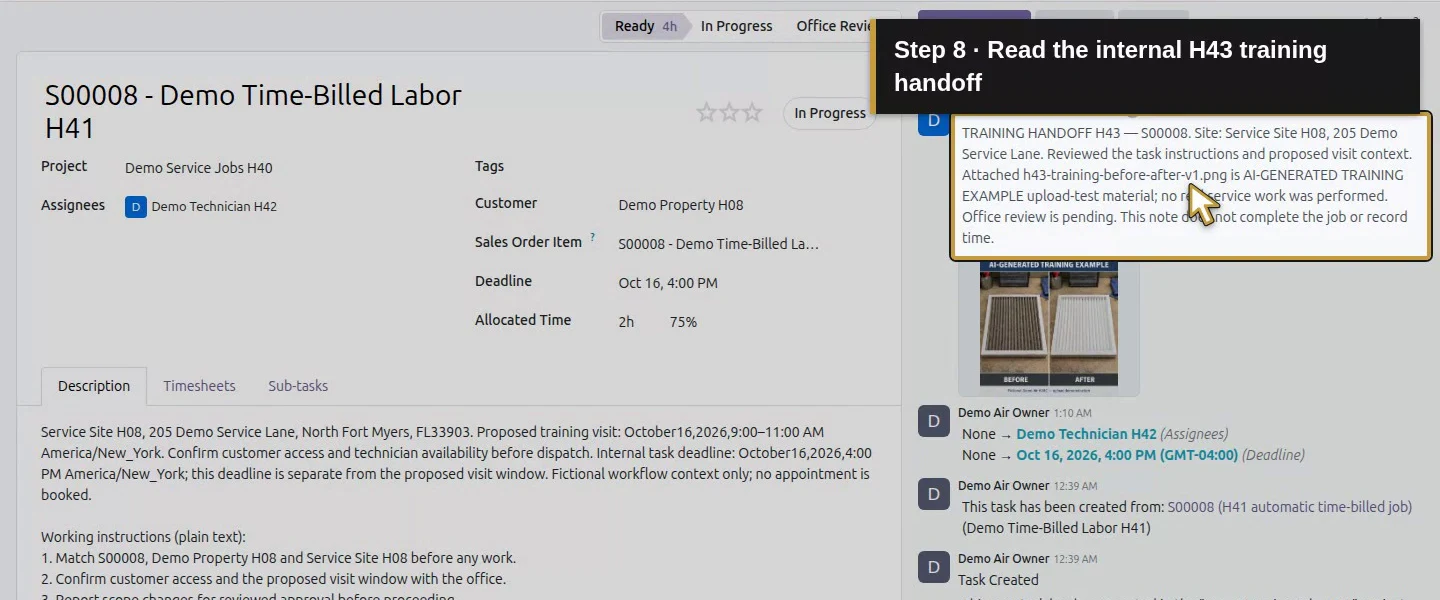
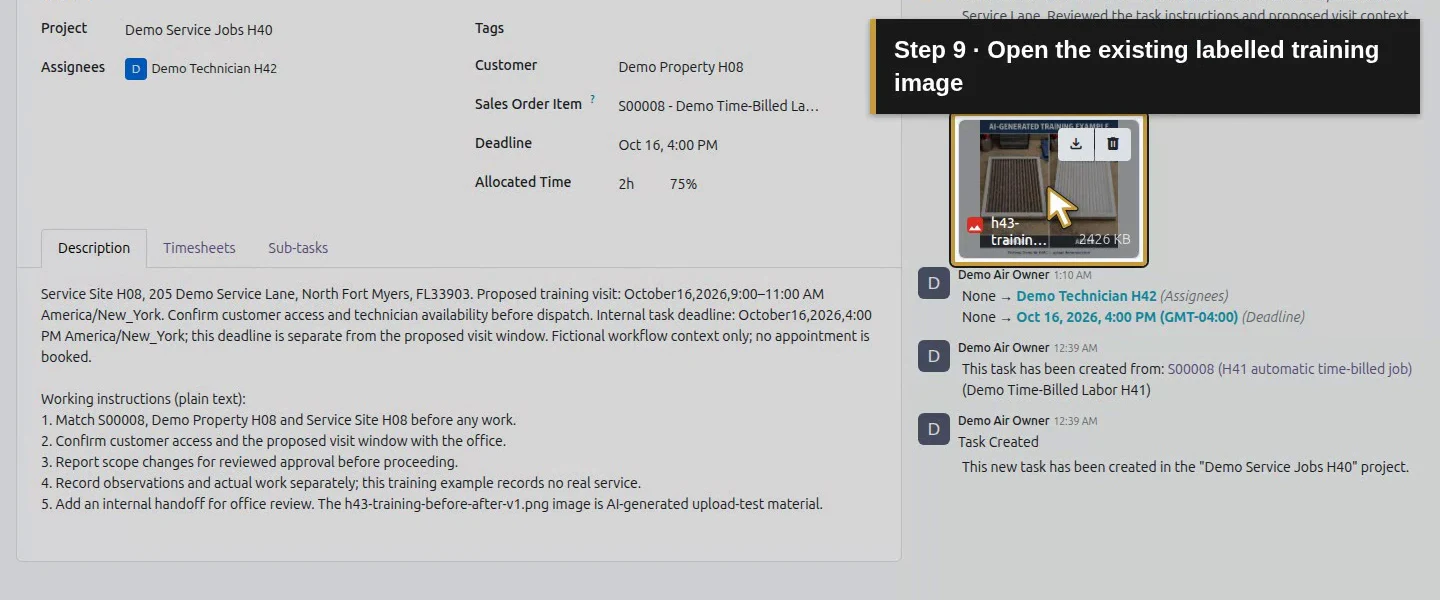
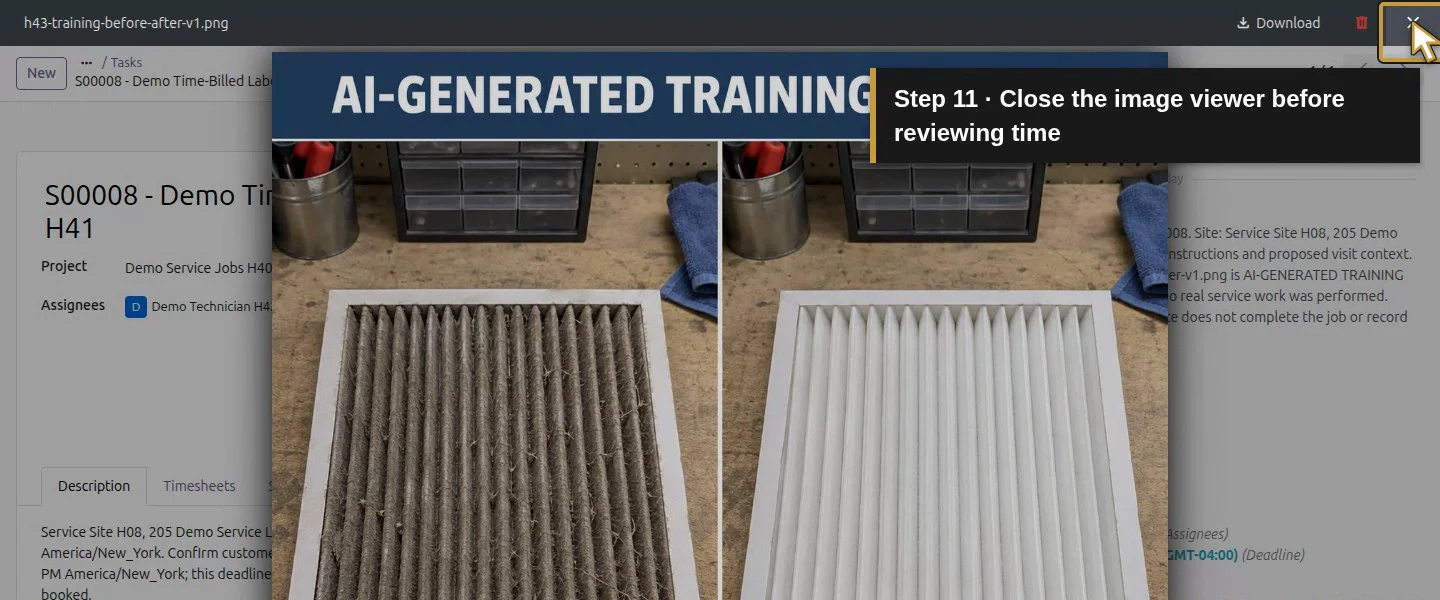
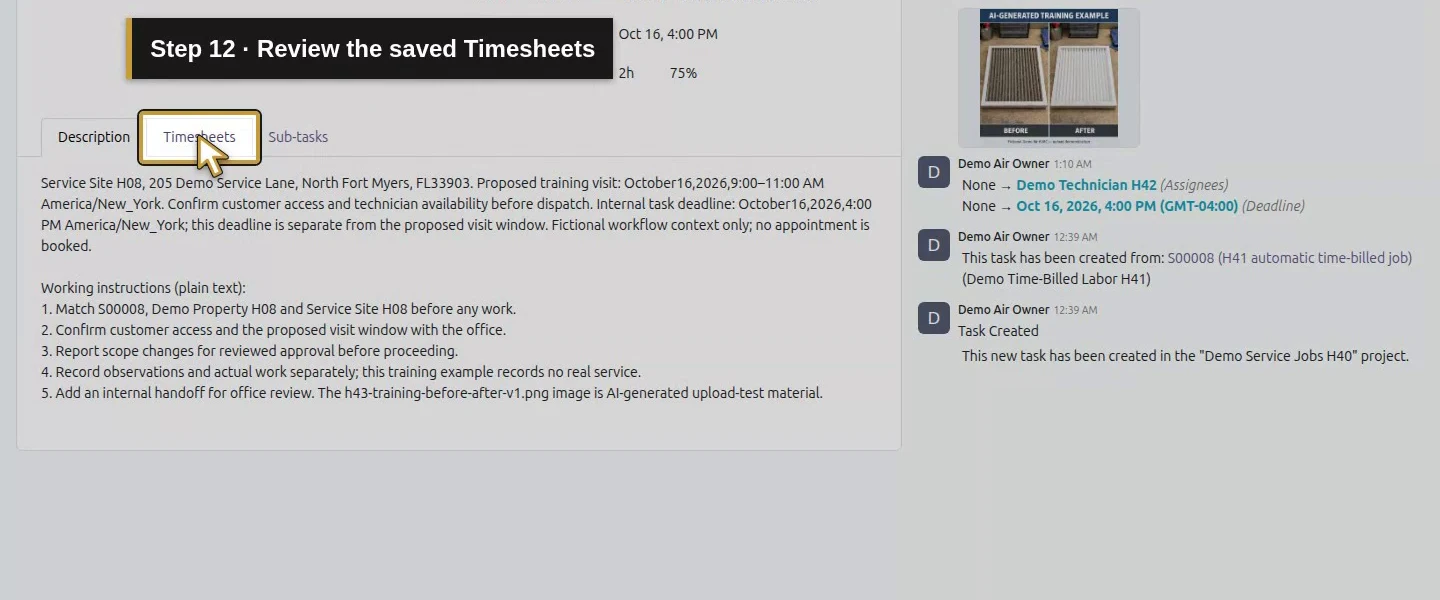
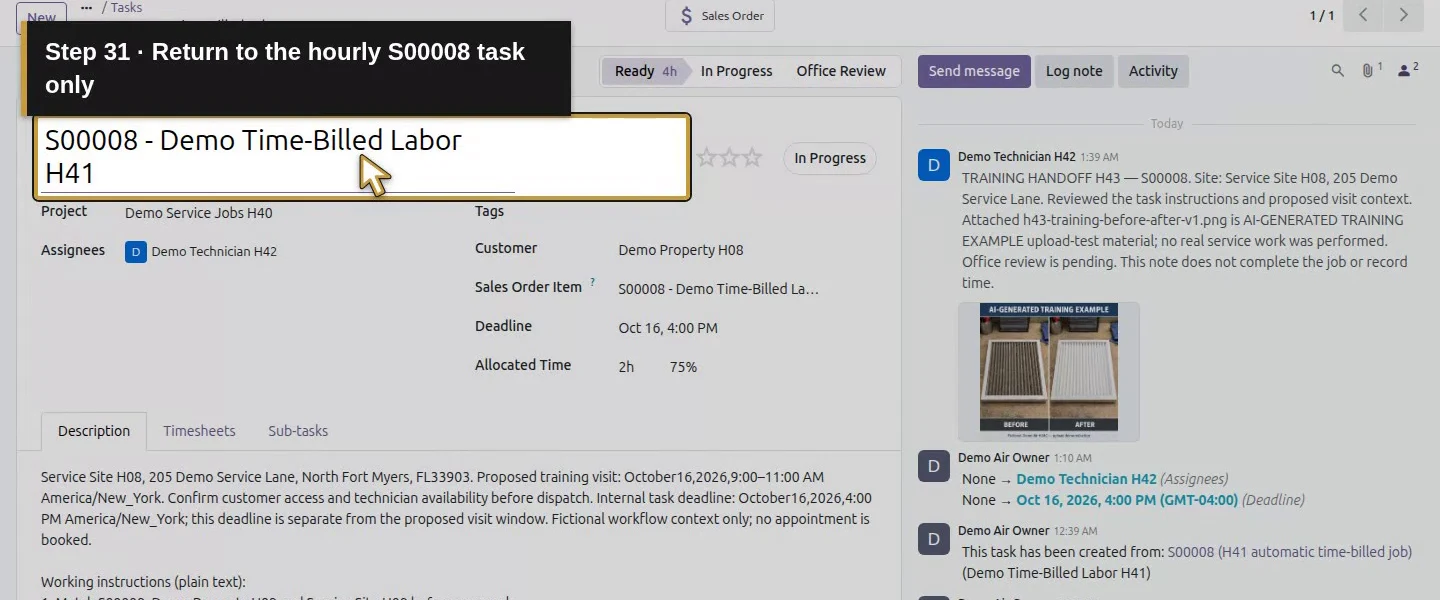
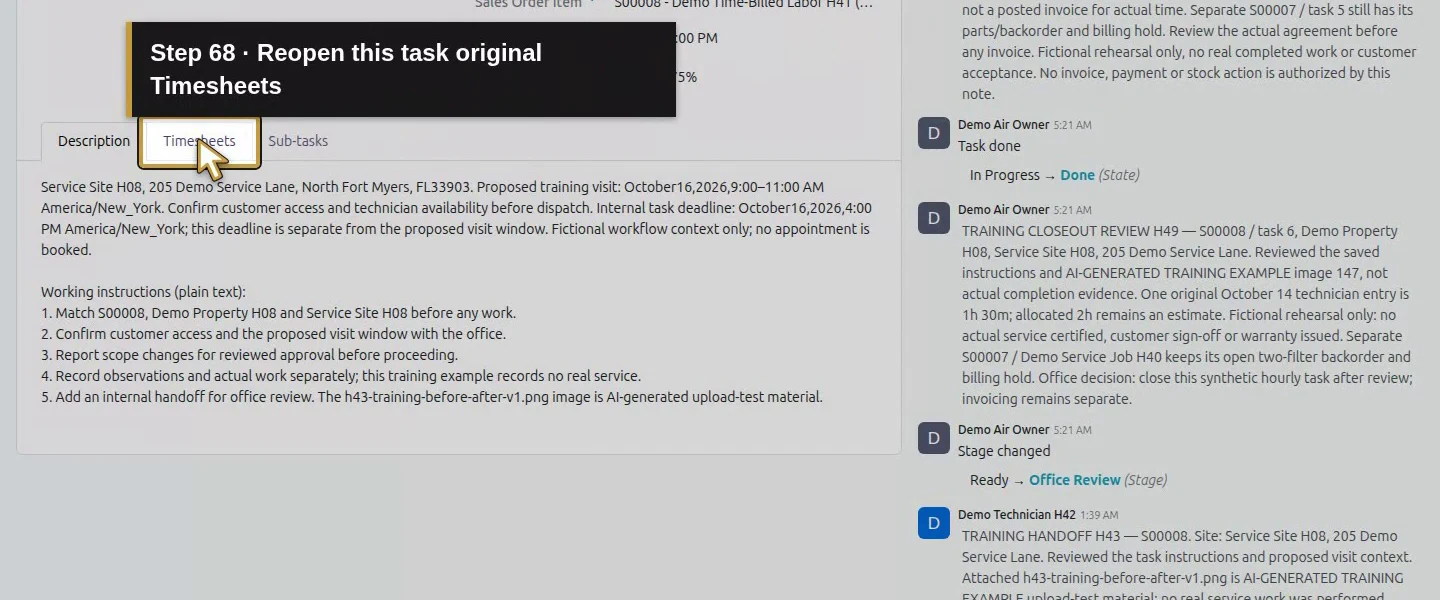
Open S00008 - Demo Time-Billed Labor H41. Check customer, project, assigned technician and Sales Order Item. Read the saved site instructions and H43 internal handoff. The attached before/after image is explicitly AI-generated upload-test material. This lesson closes the synthetic training task only. In your business, review actual work records and genuine completion evidence before deciding the job is finished. Keep outstanding decisions visible.
Step 2. Check the single technician time entry
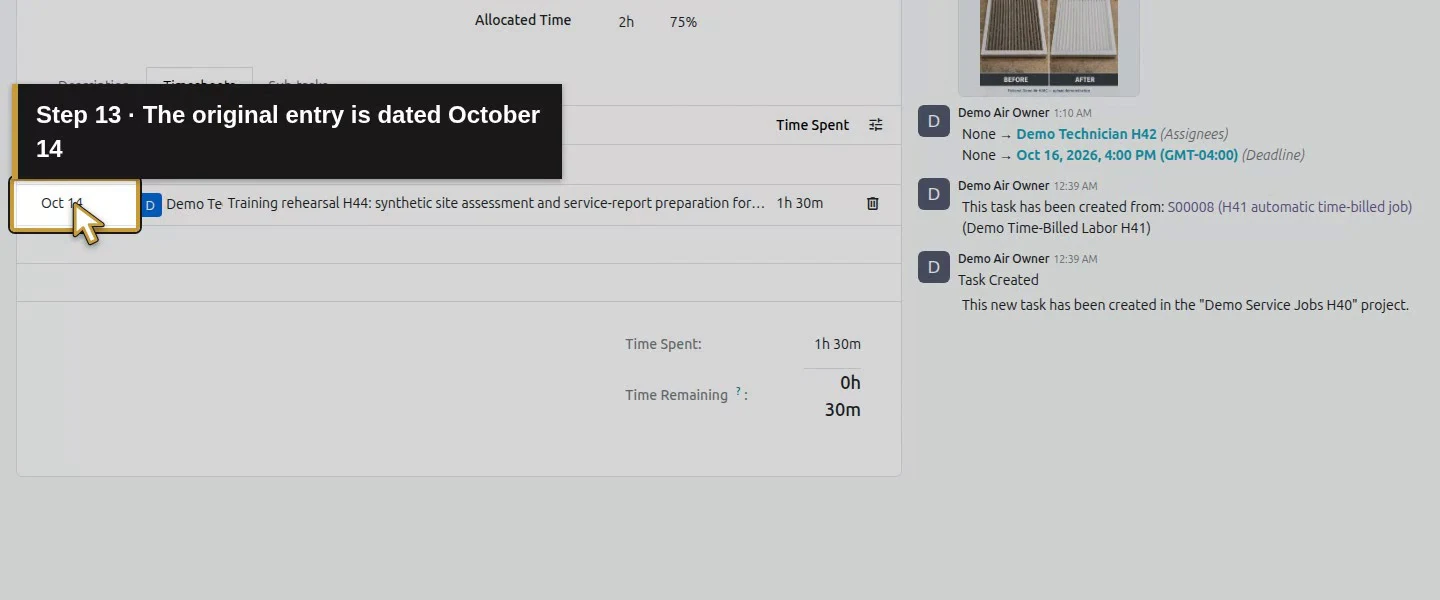
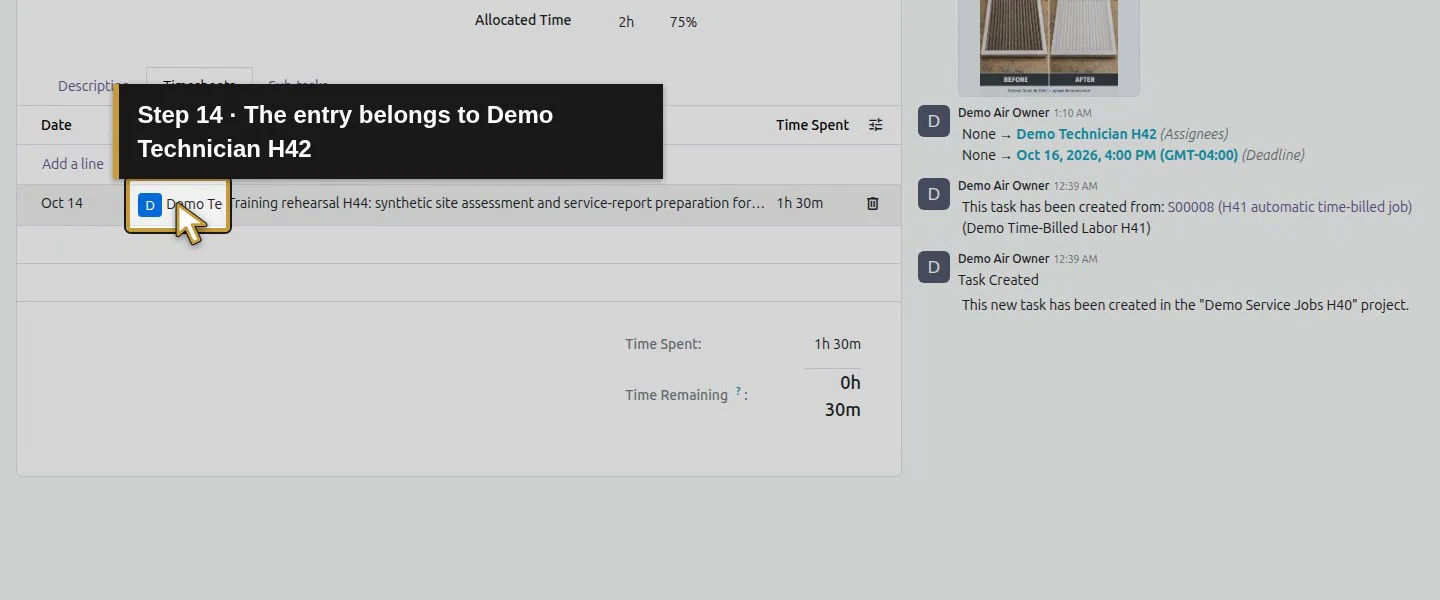
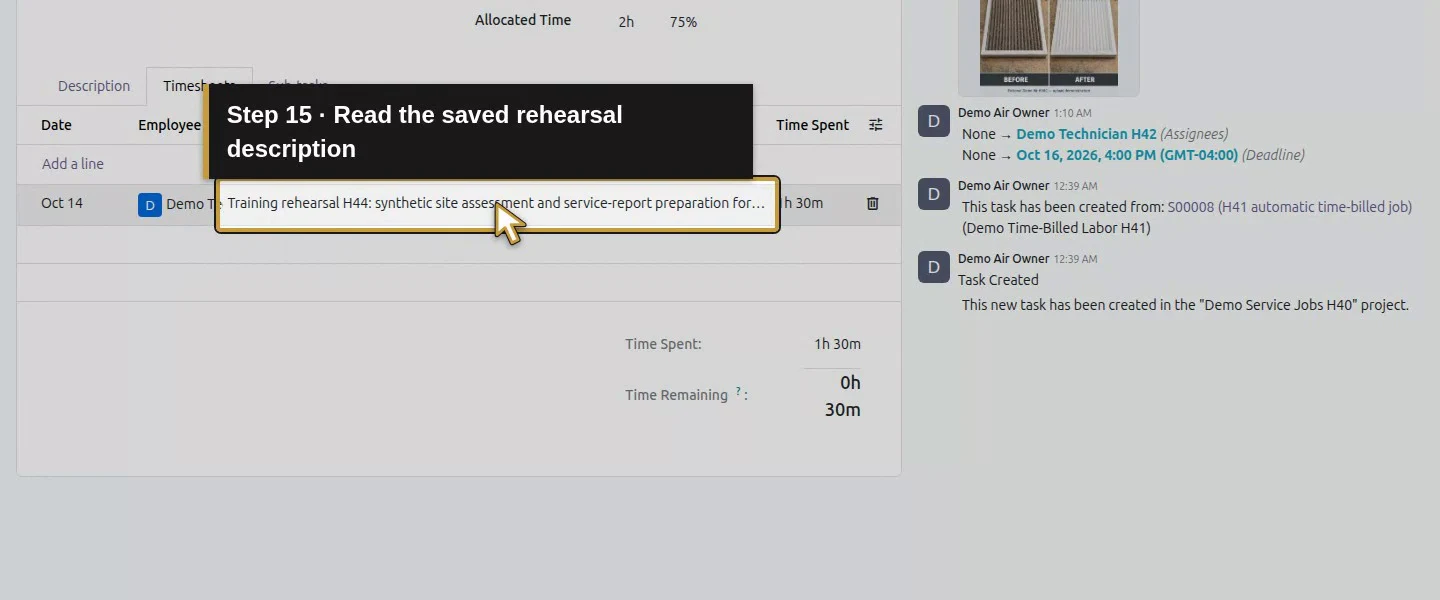
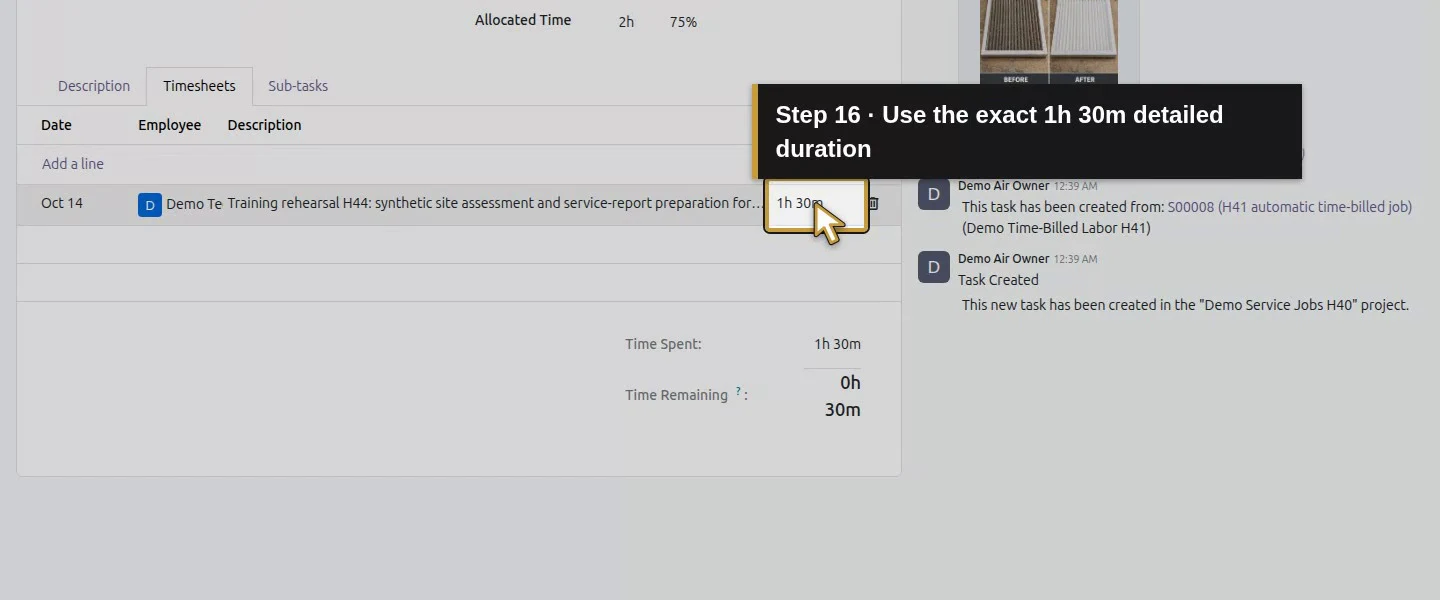
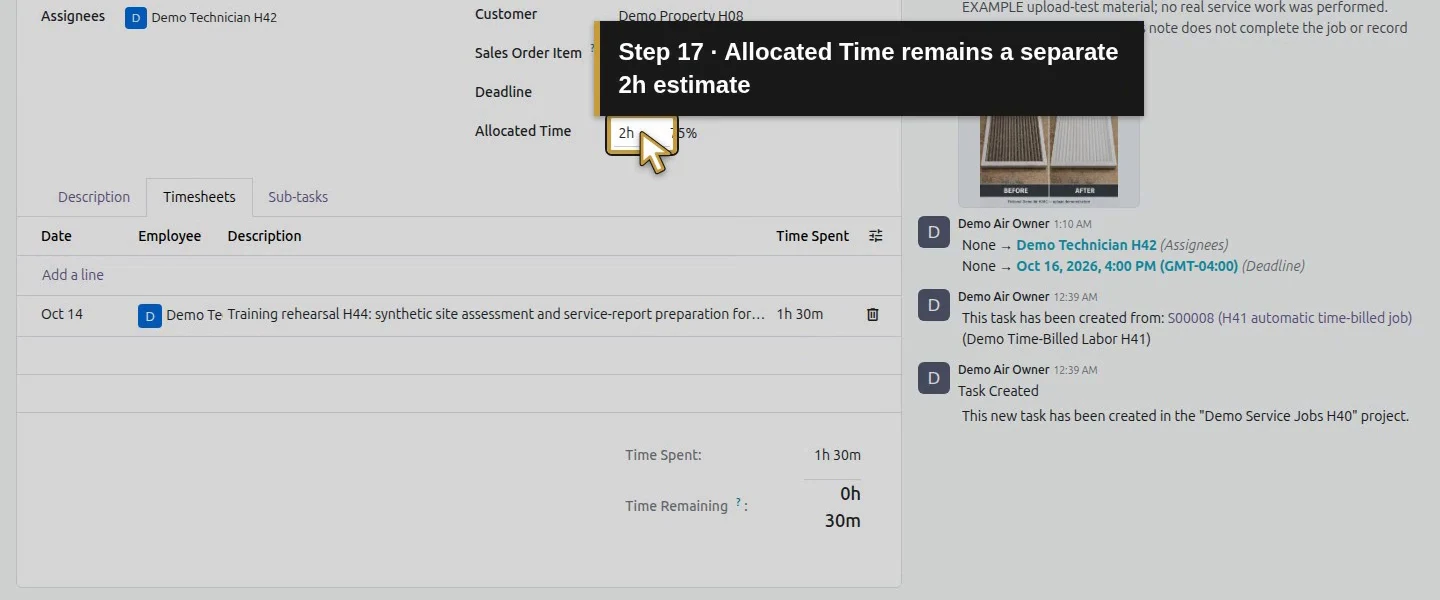
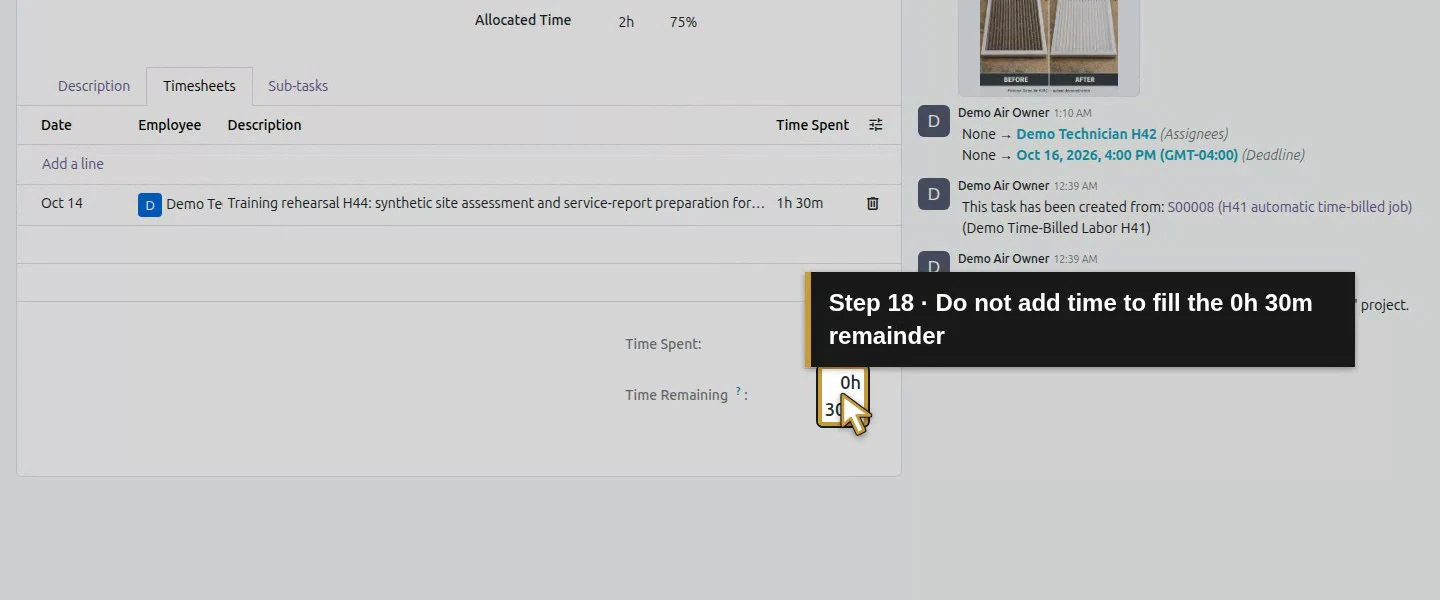
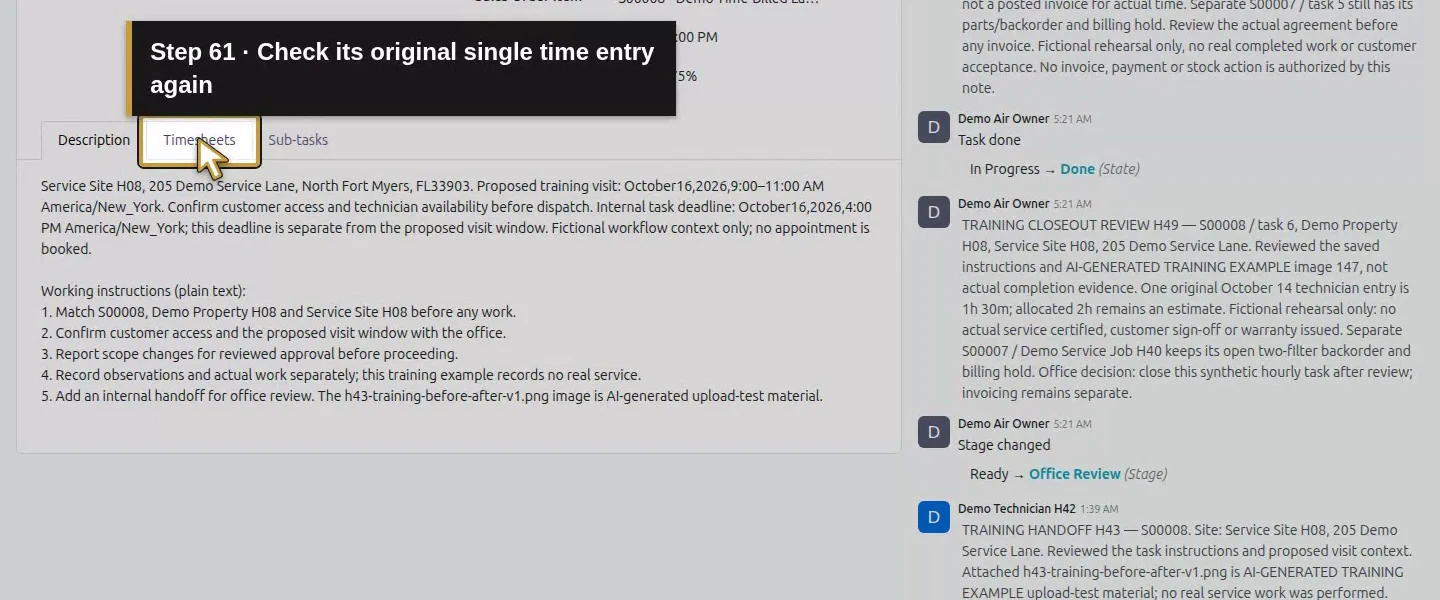
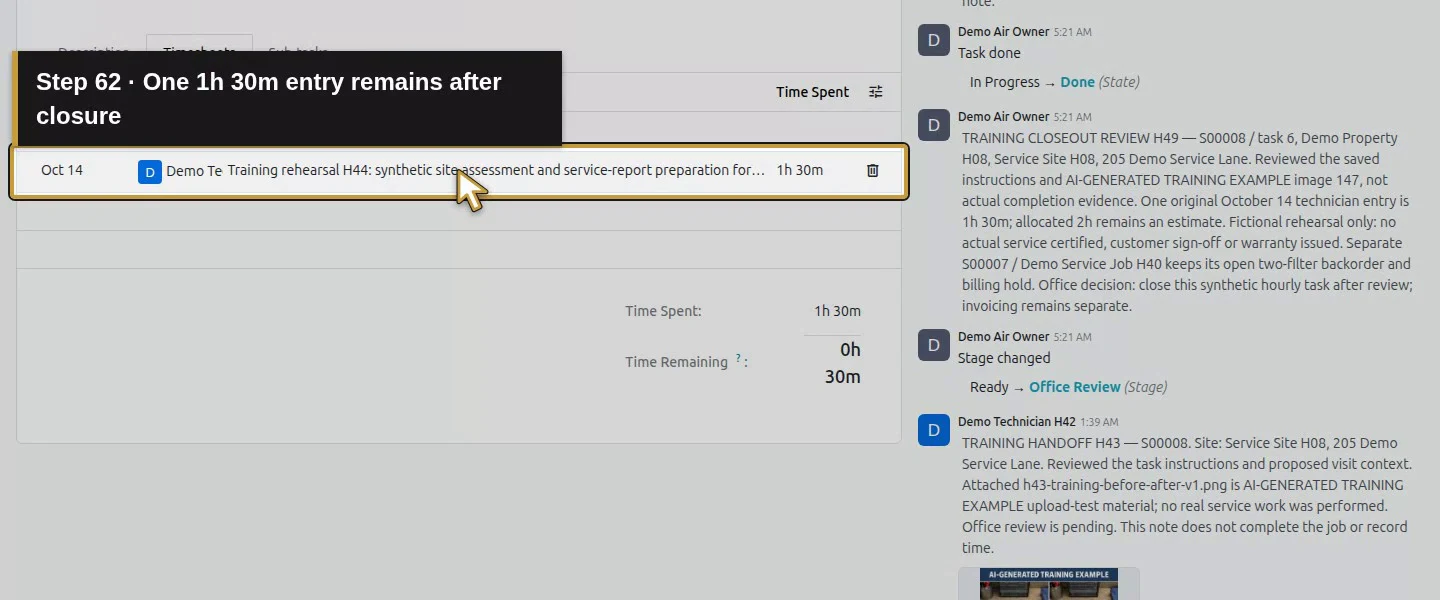
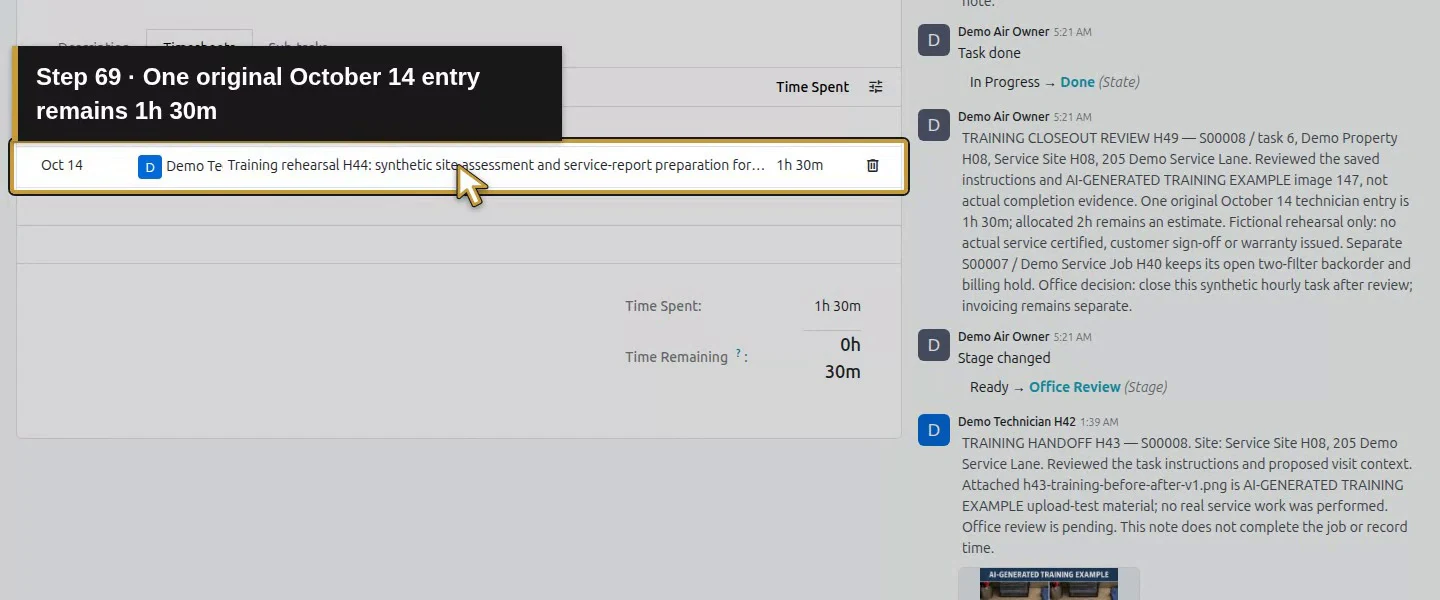
Open Timesheets. Verify the October 14 date, Demo Technician H42, work description and one 1h 30m entry on this task. It remains linked to the intended S00008 sales line. The 2h allocation was an estimate; 0h 30m remaining does not mean another half-hour should be entered or billed. Reconcile duplicates and missing work from facts, rather than changing time to match the estimate.
Step 3. Keep materials and billing exceptions with their own order
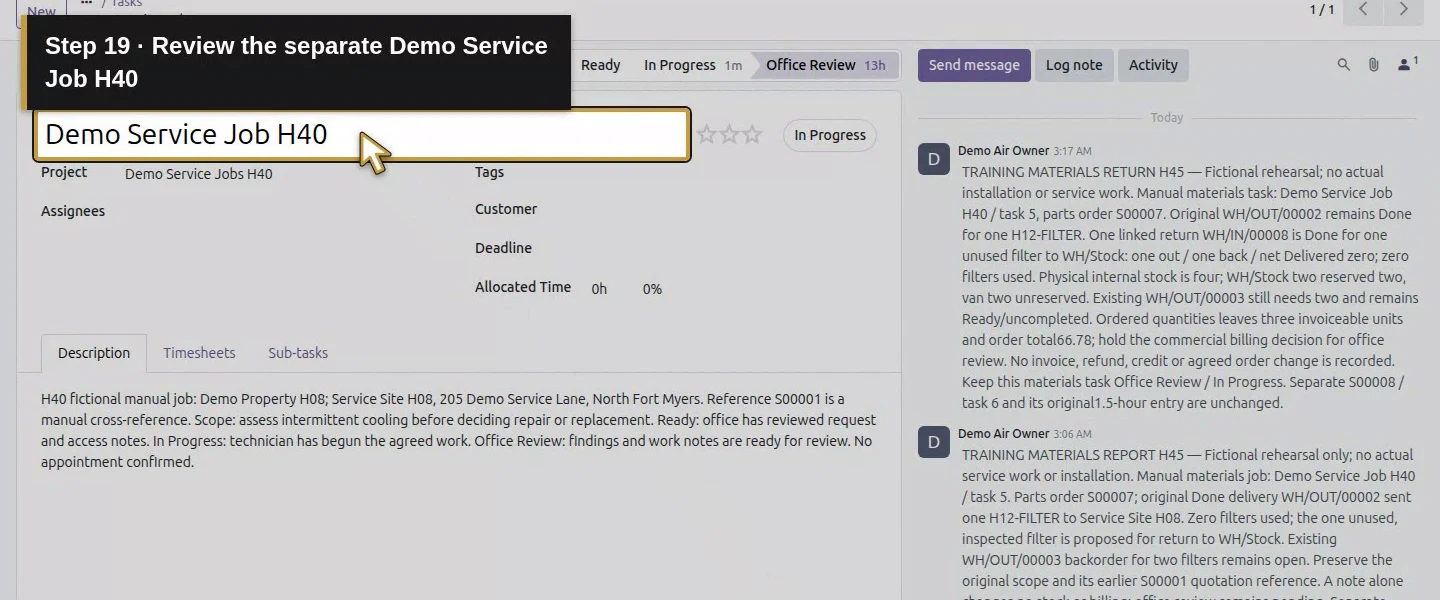
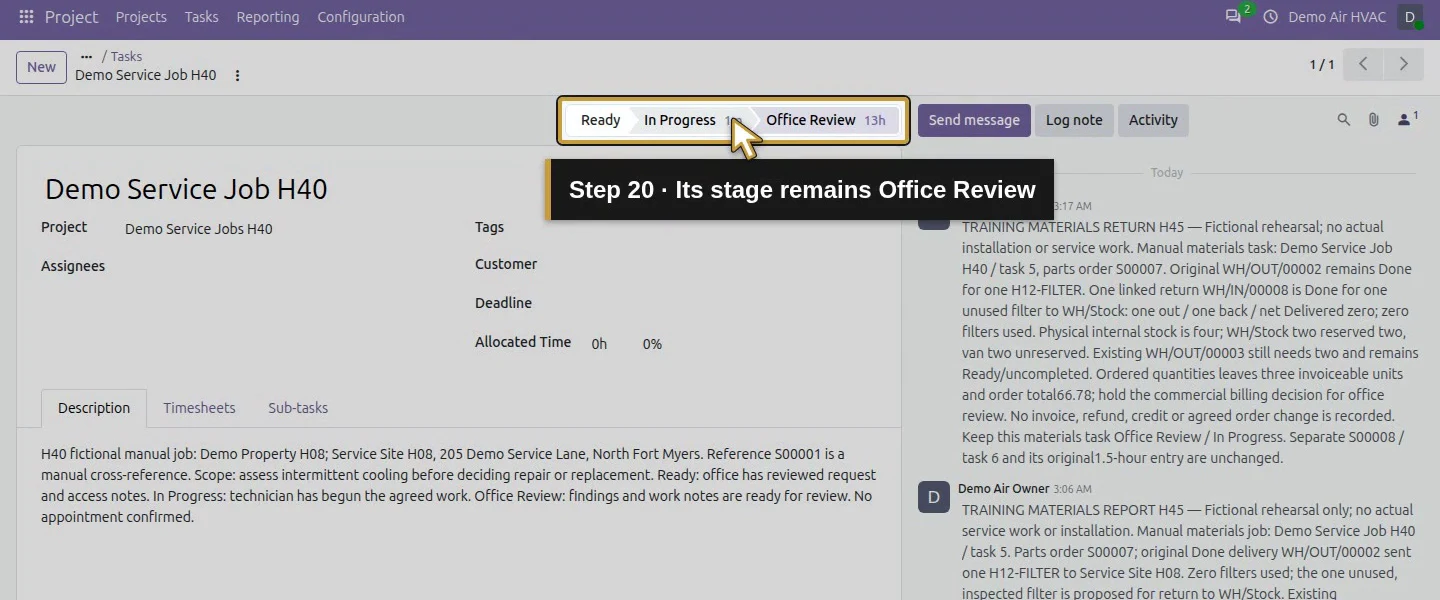
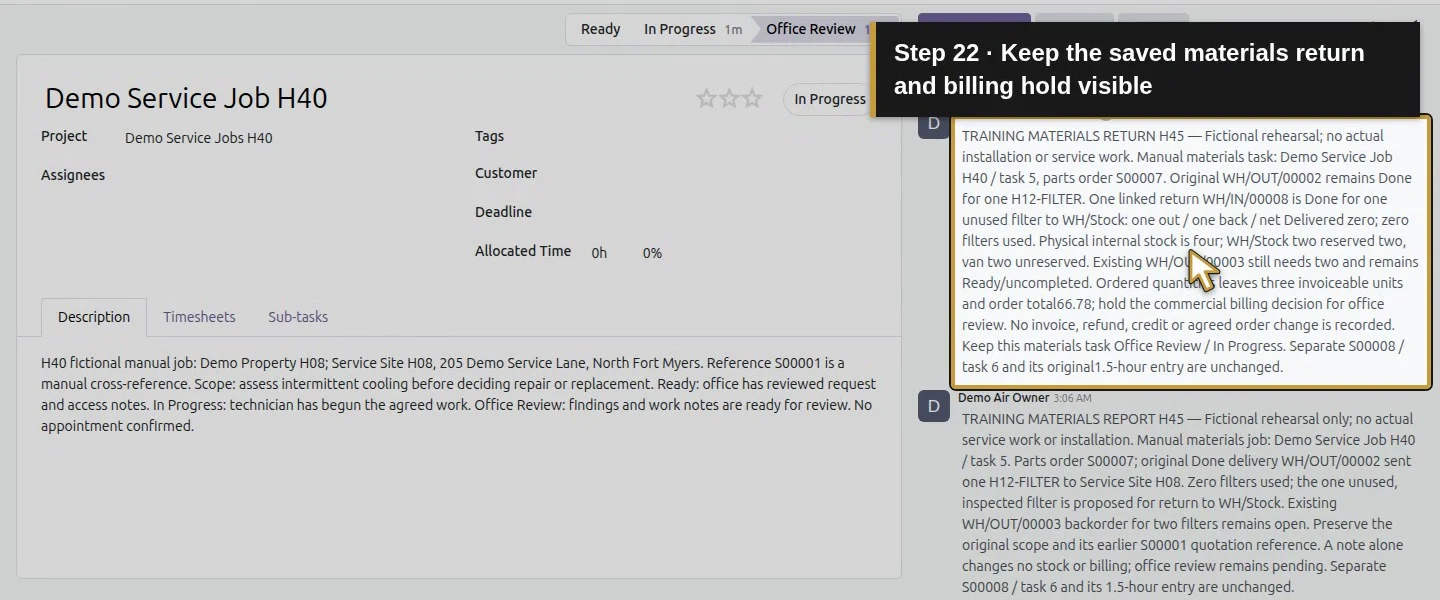
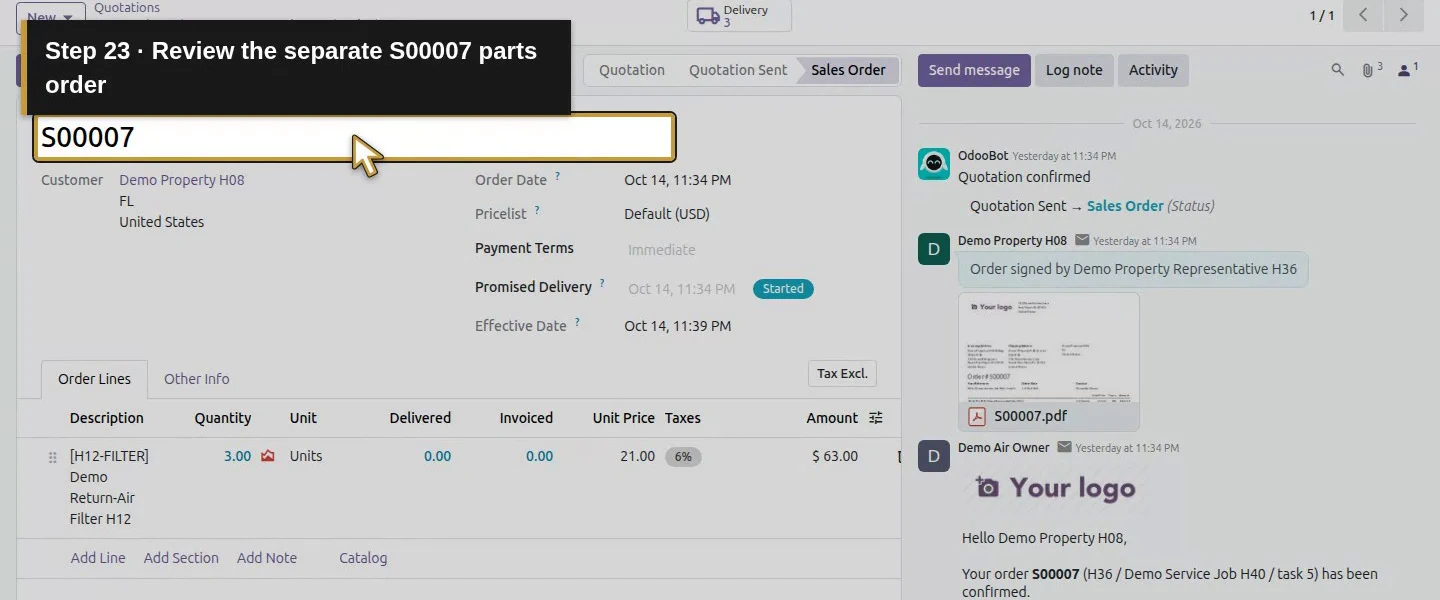
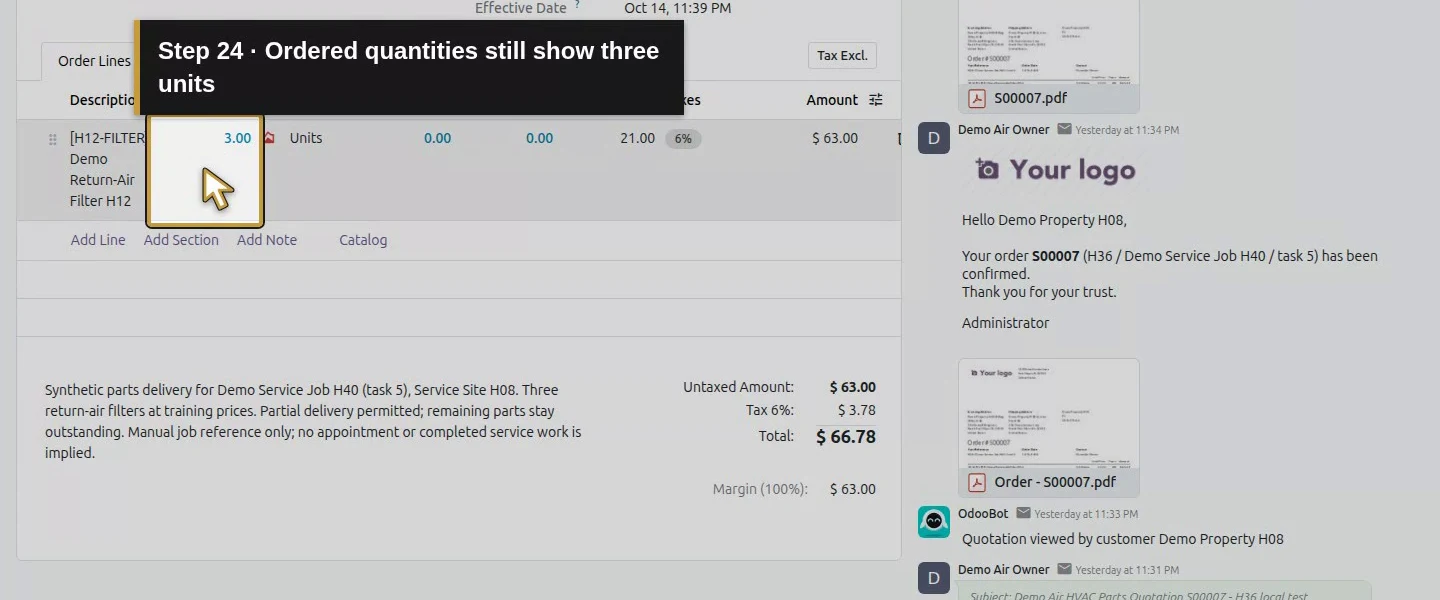
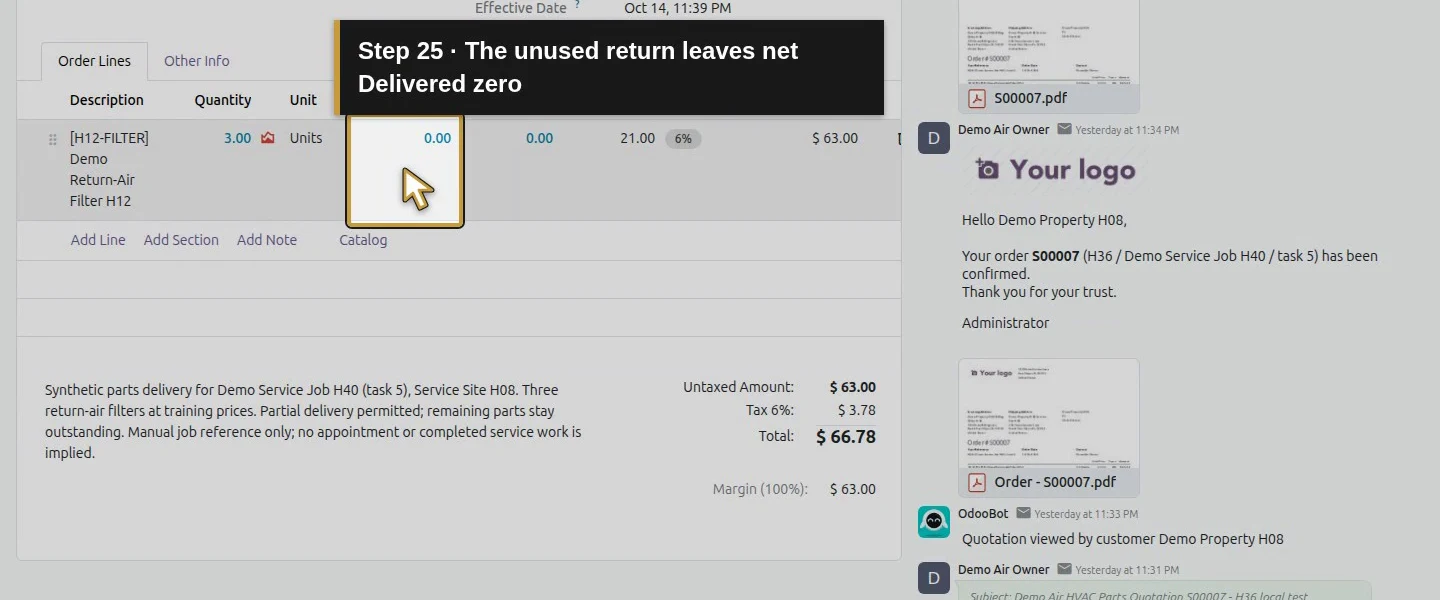
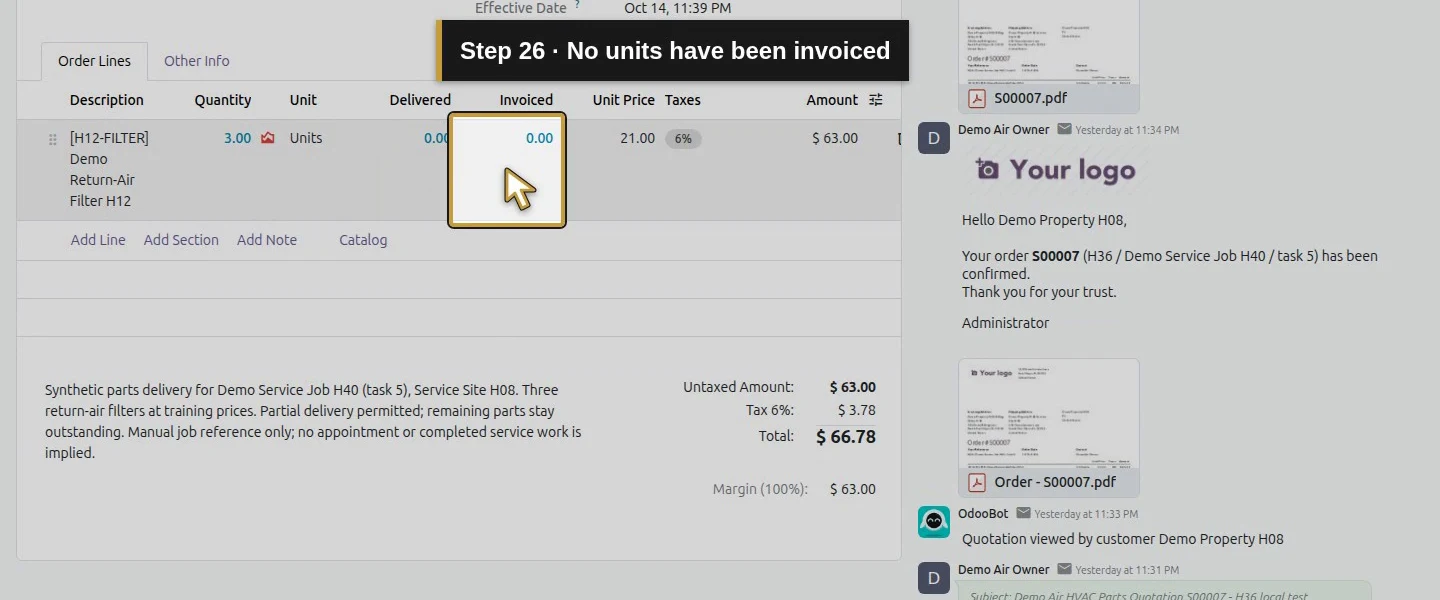
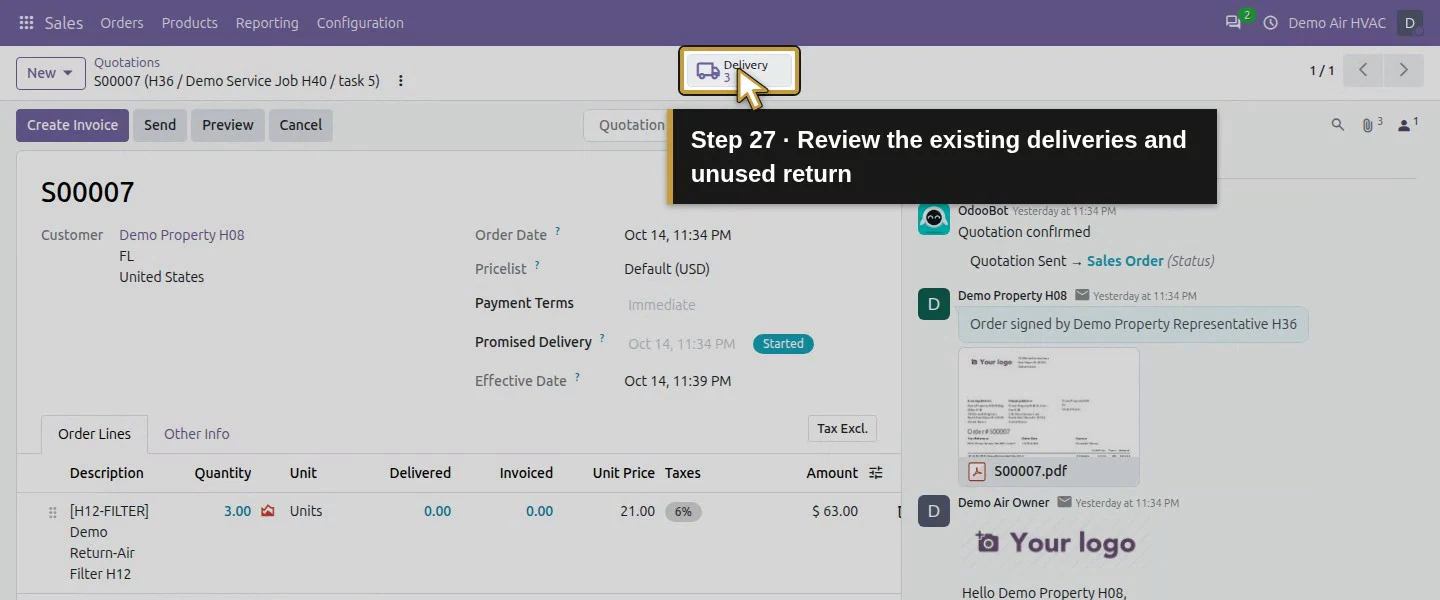
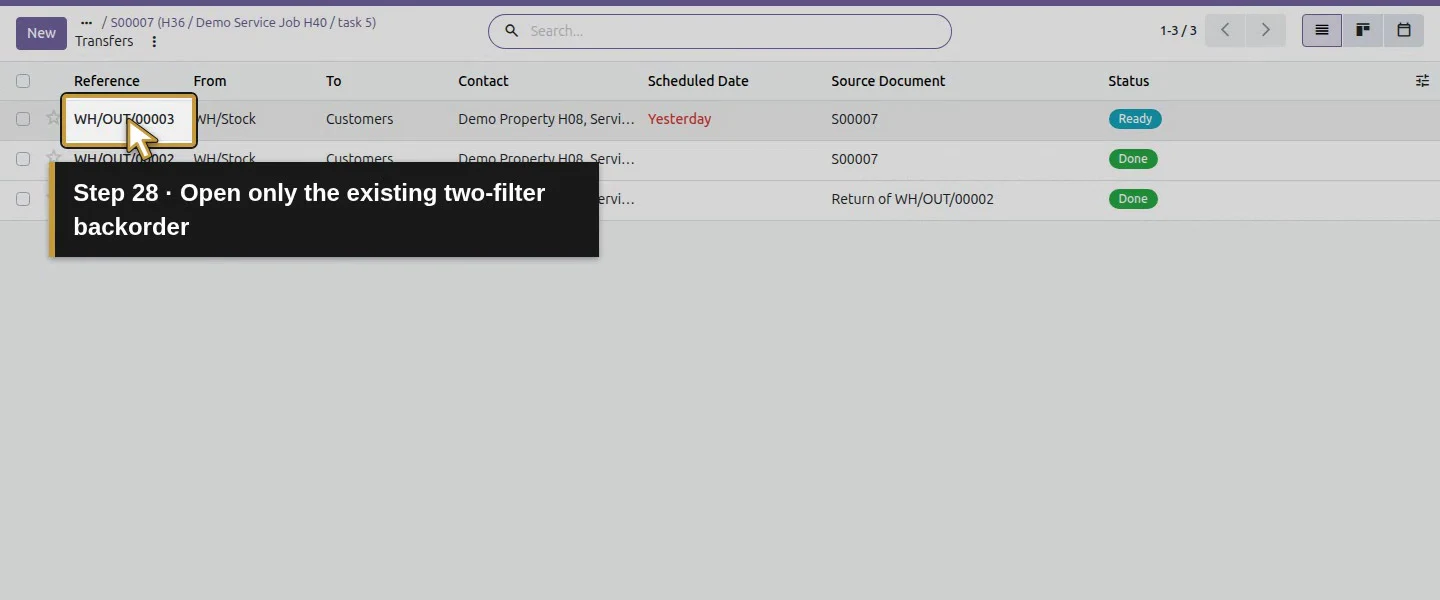
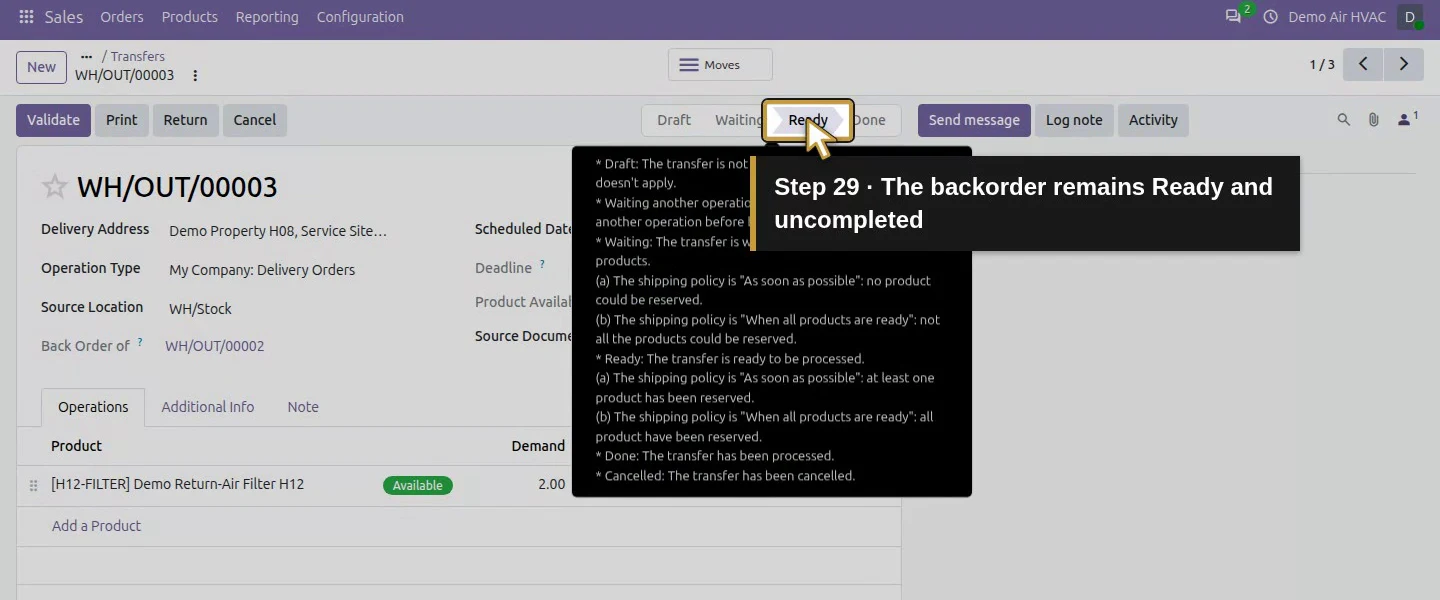
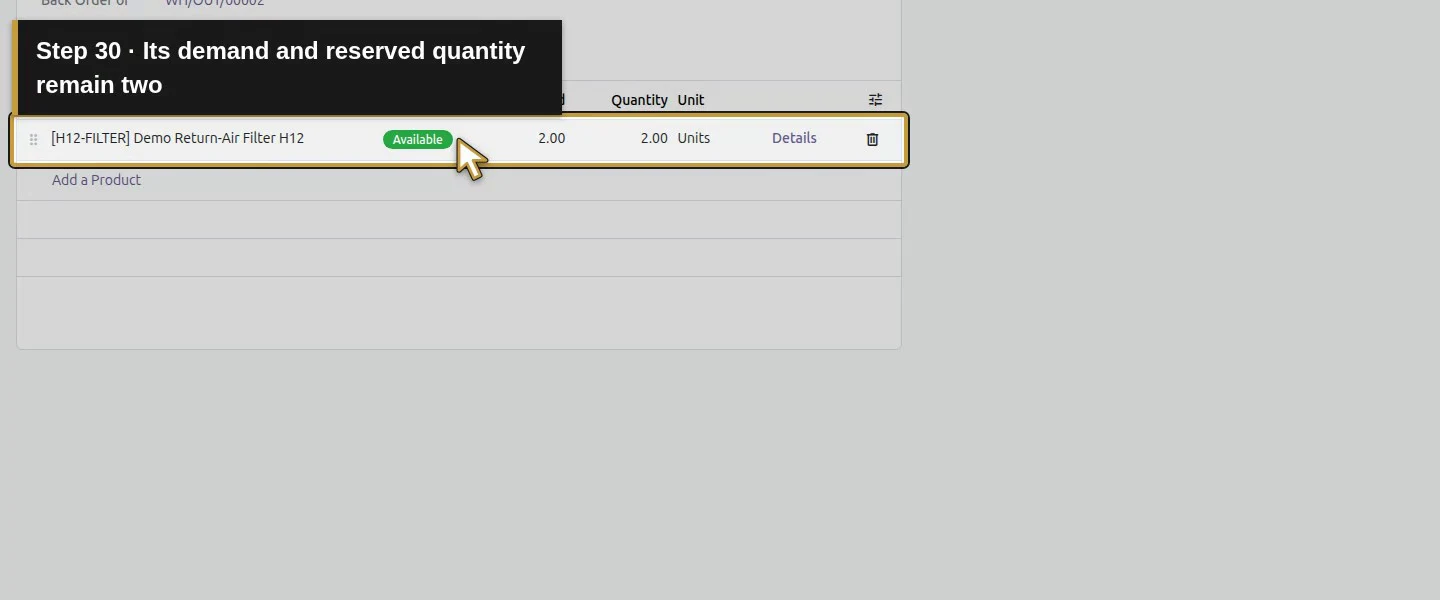
Review H45’s matching parts job and S00007 references. One filter went out and the same unused filter came back, leaving zero net delivered. Its two-filter backorder remains open, while Ordered quantities still exposes three invoiceable units. Leave that task Office Review / In Progress and retain its billing hold. S00008 has only its hourly service line; closing it does not resolve the other order’s stock, scope or billing.
Step 4. Save the task’s Office Review stage
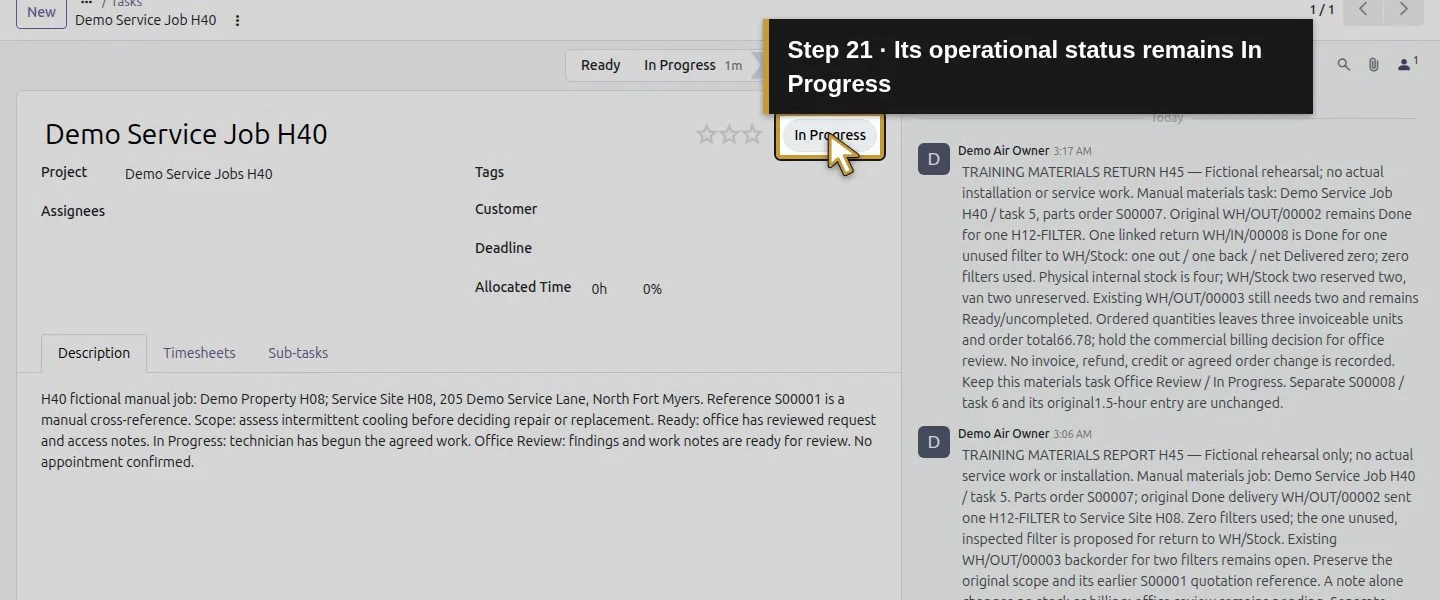
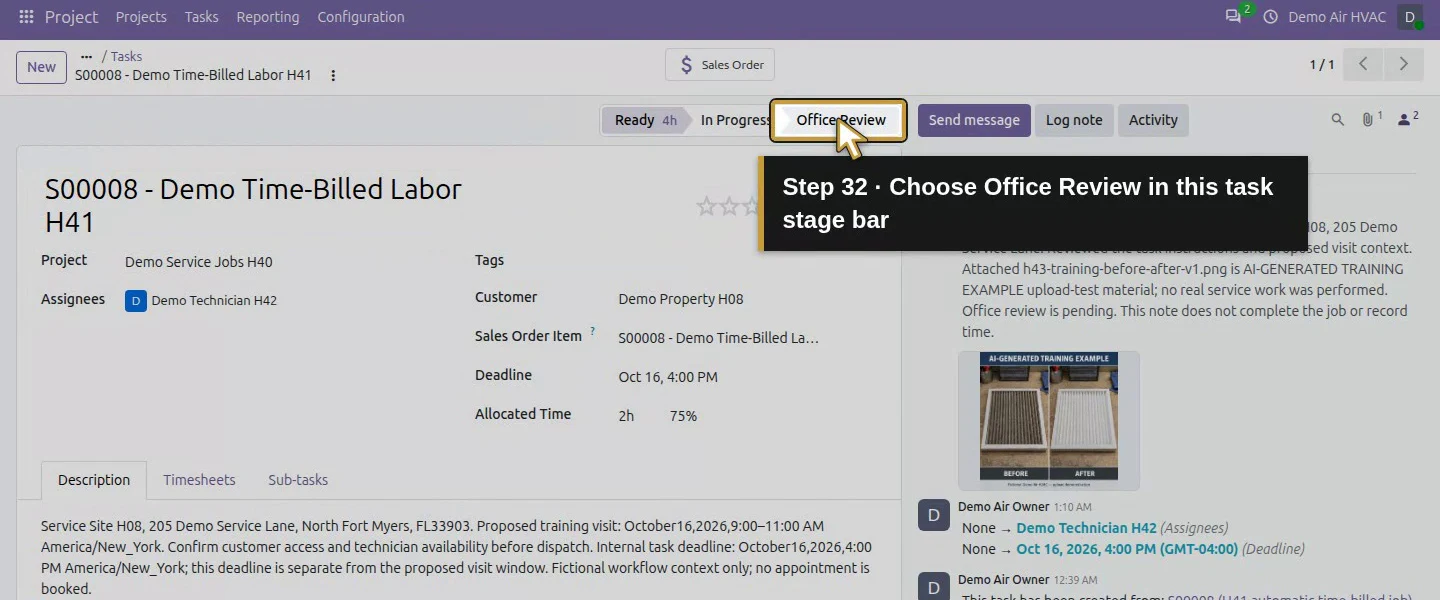
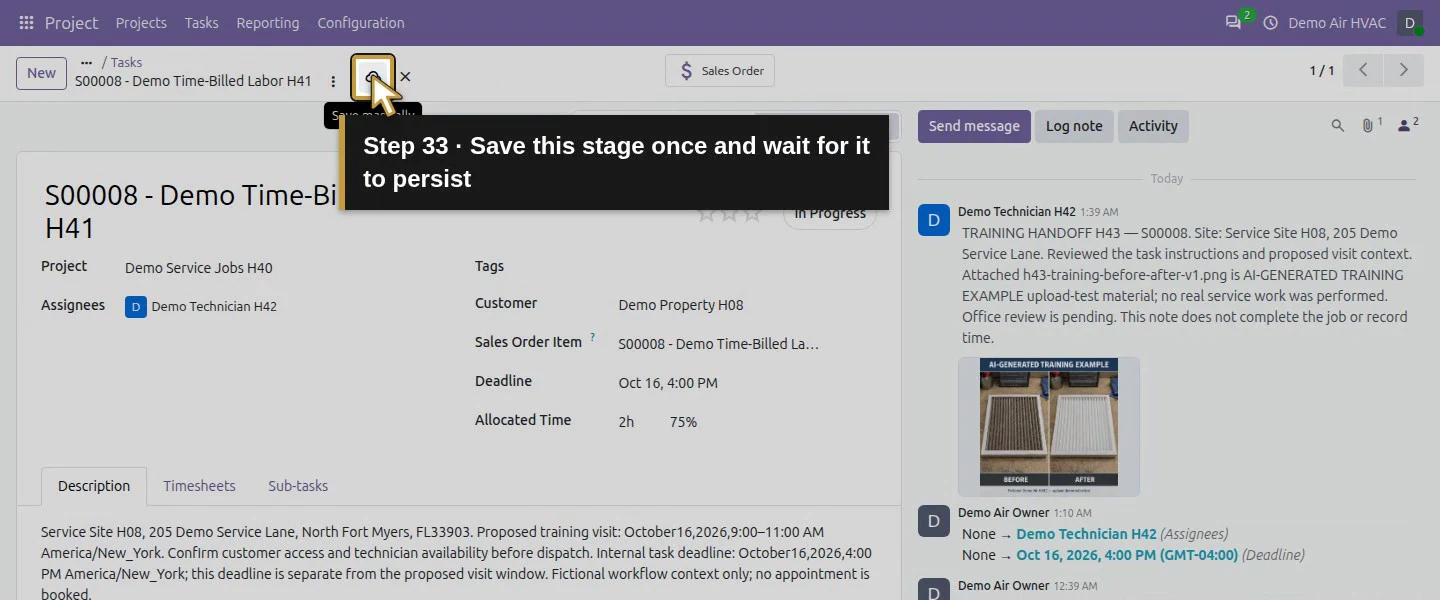
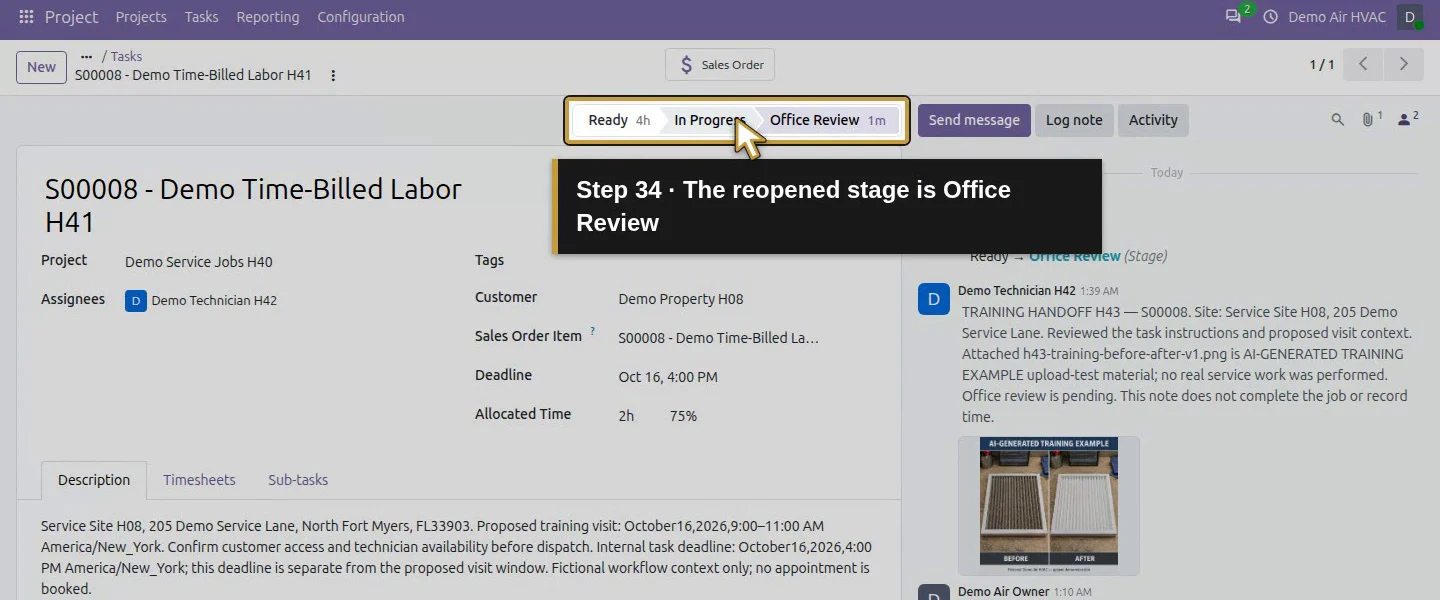
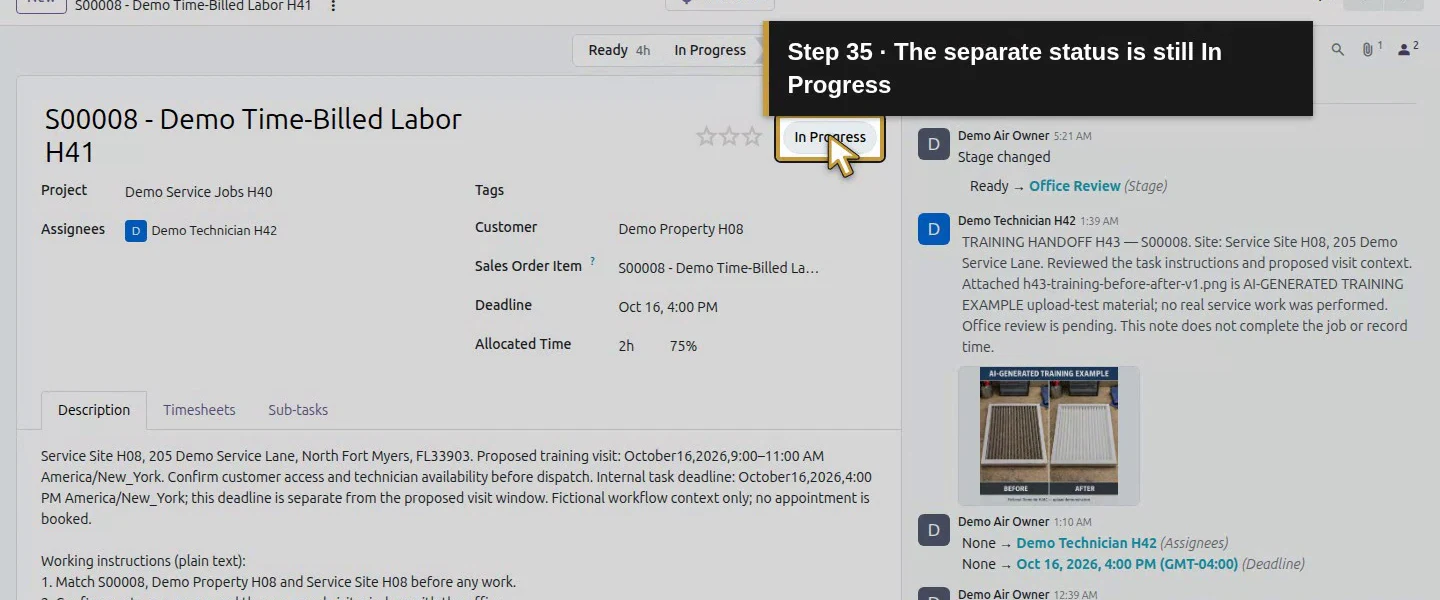
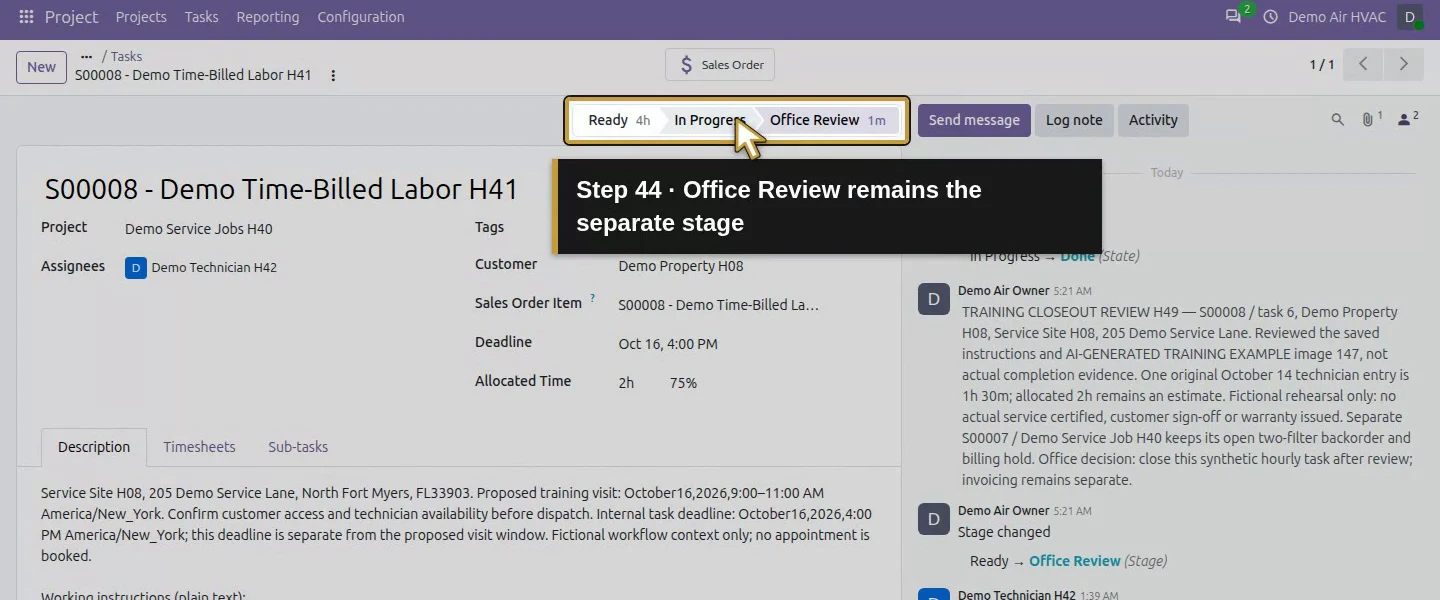
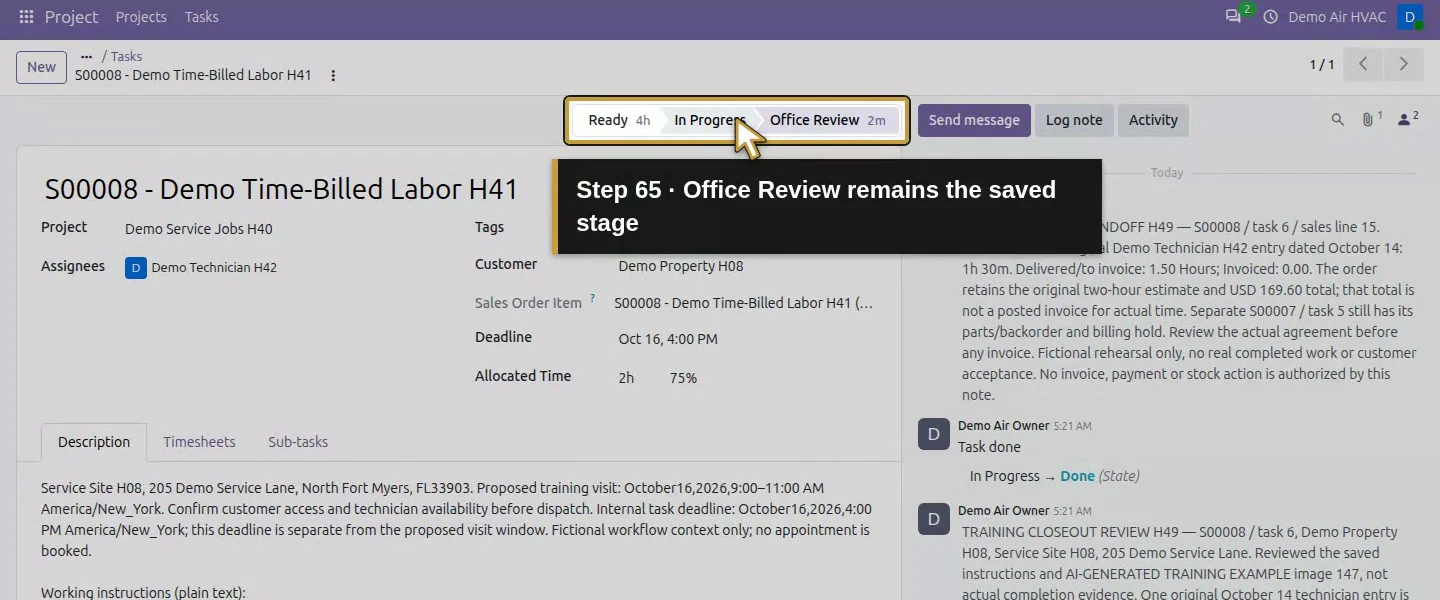
On the hourly task, choose Office Review in the stage bar. Click Save manually and wait for pending changes to clear. The saved stage becomes Office Review, but the separate status remains In Progress and the task is not yet closed. Choosing a stage and seeing its label is insufficient proof of a saved result. This is an office process label, not a required approval gate.
Step 5. Log the office’s reviewed decision
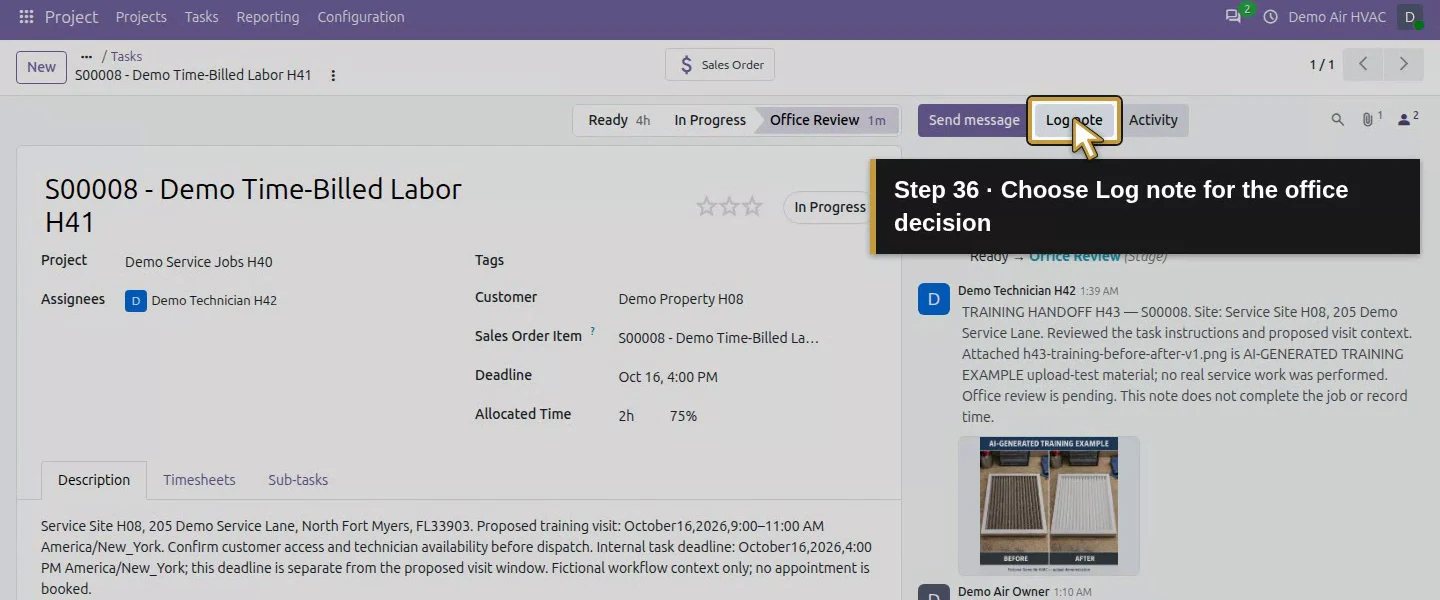
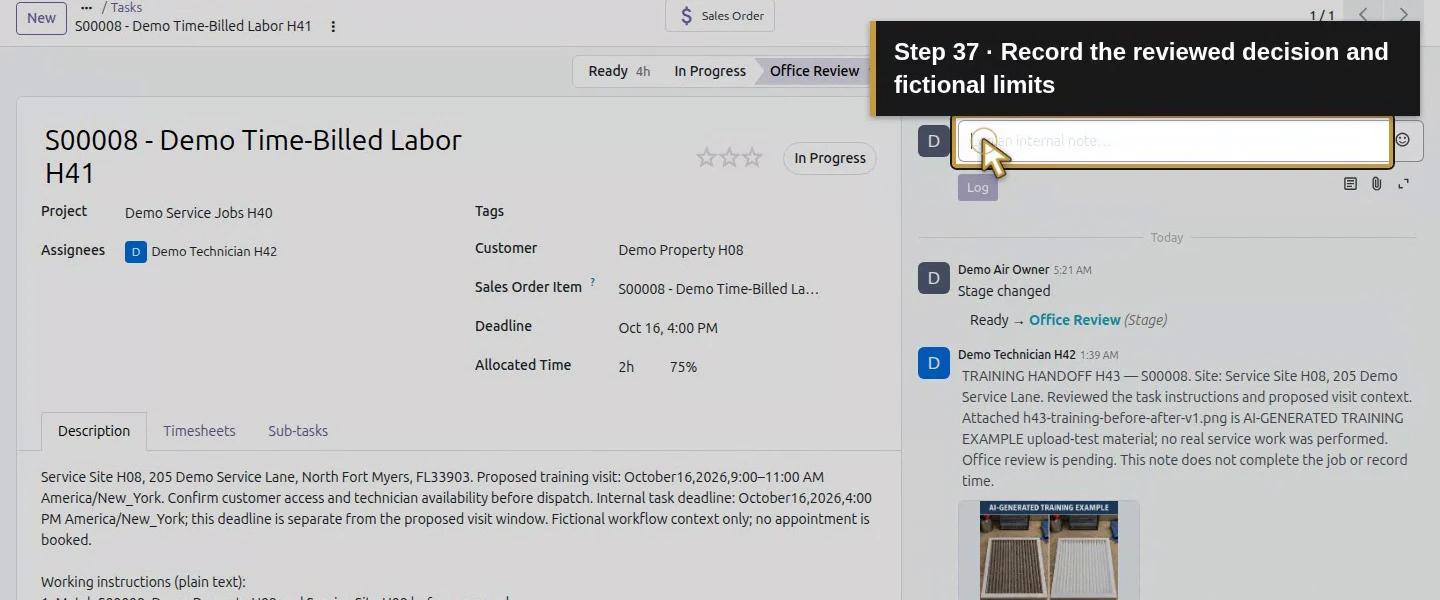
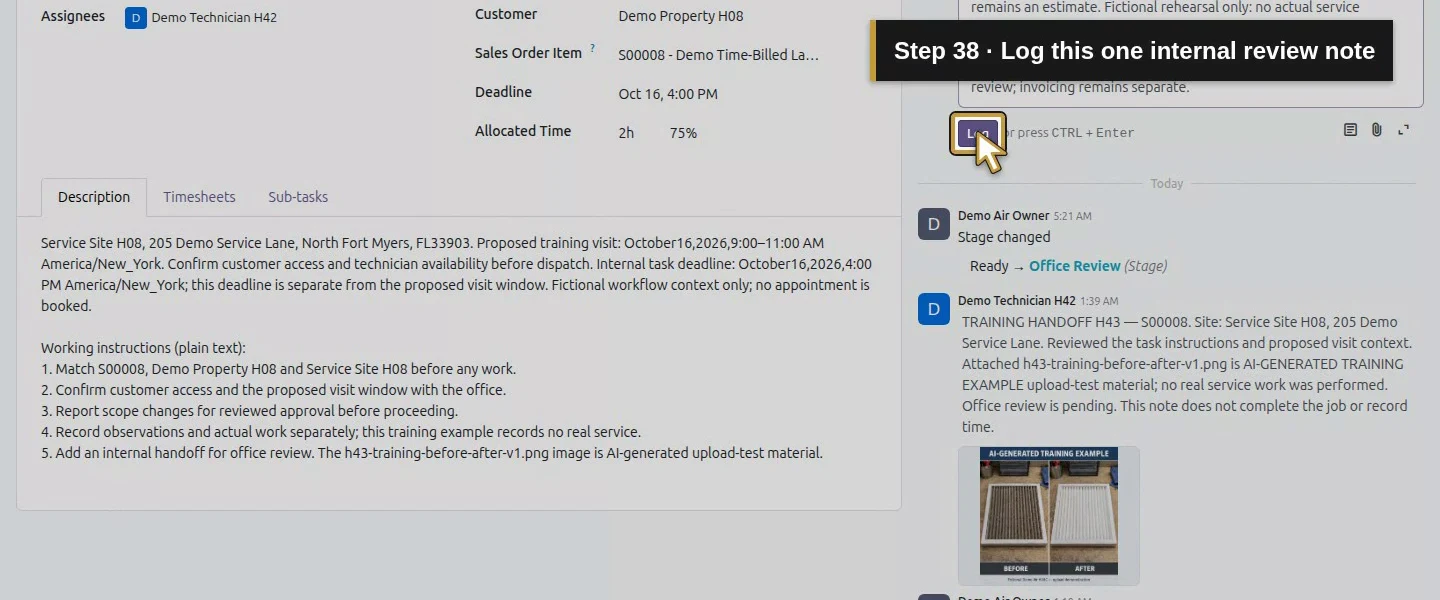
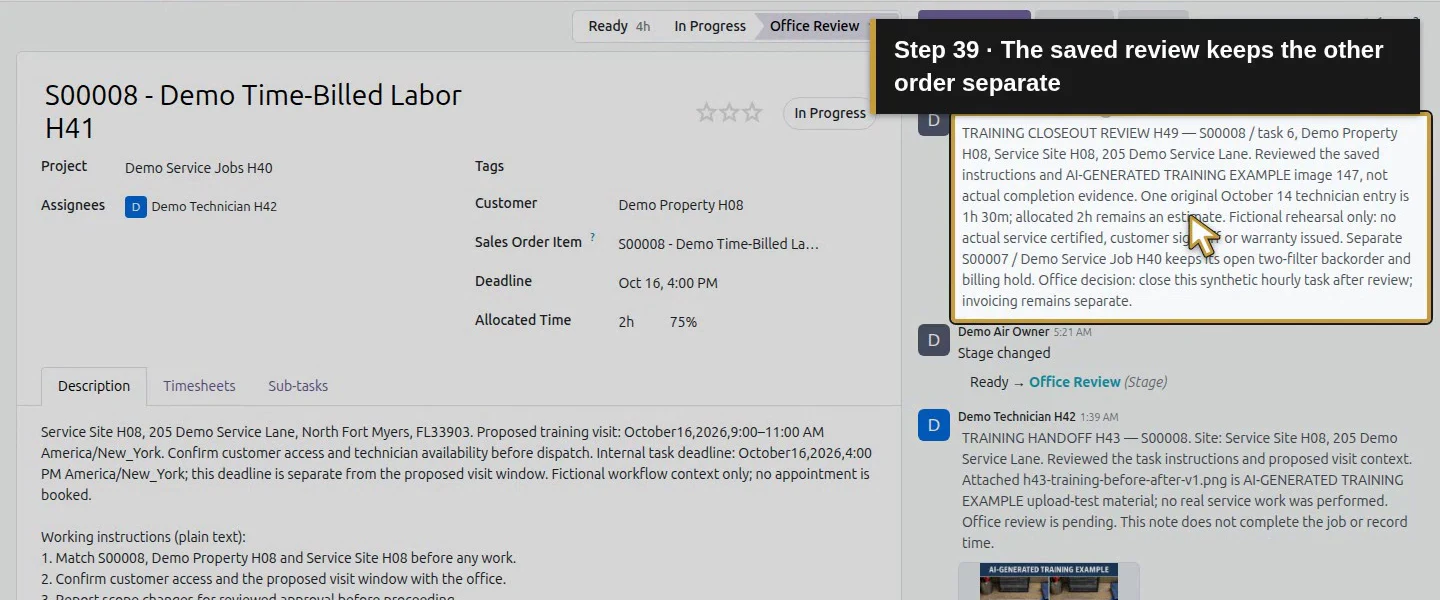
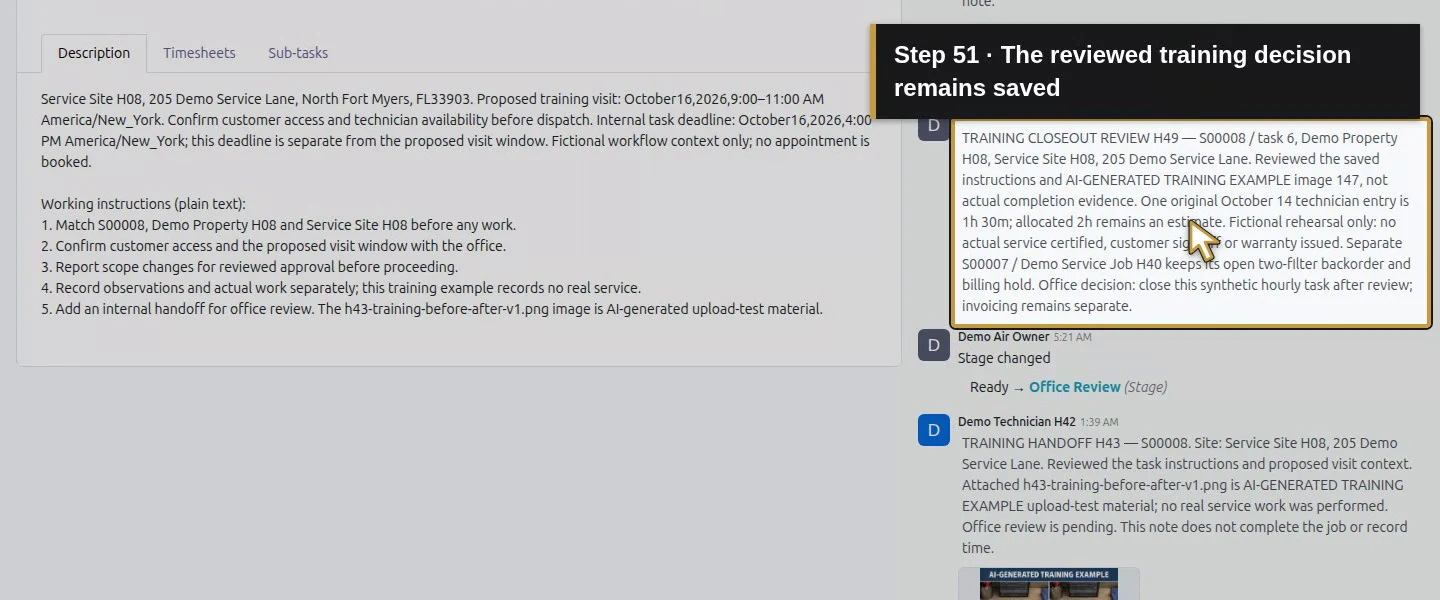
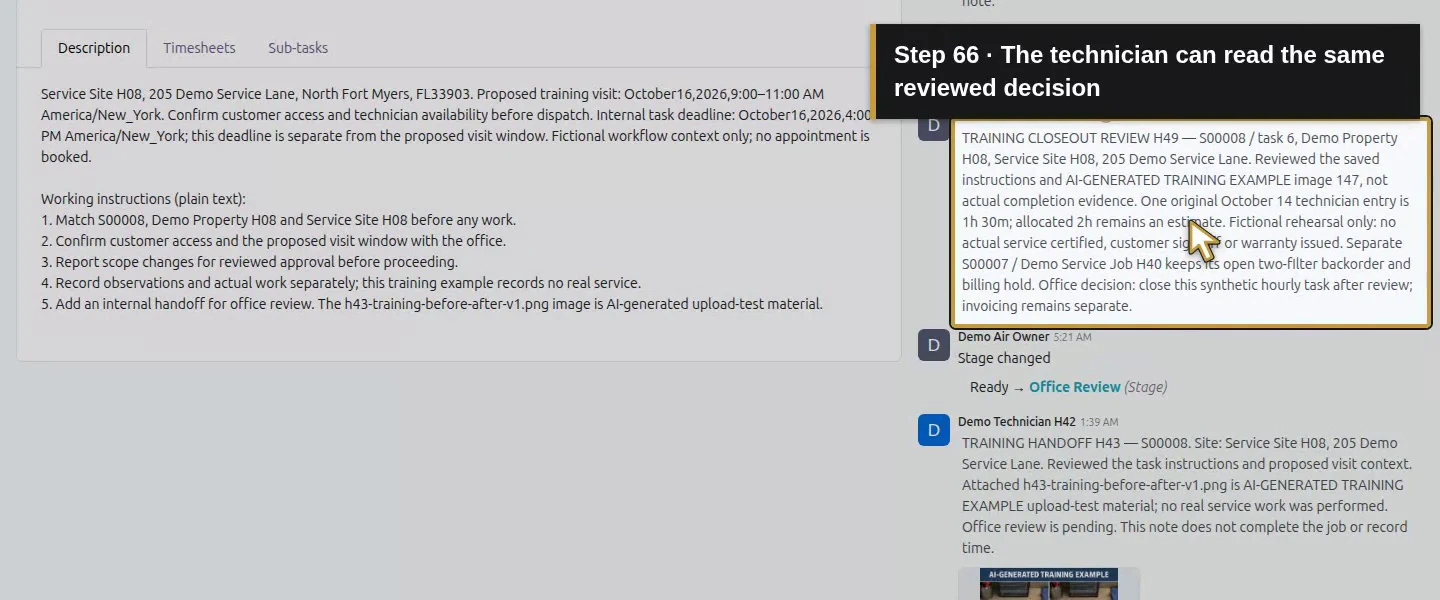
Click Log note and record the task/order/customer/site, reviewed evidence, exact employee time and remaining exceptions. The training note explicitly states that this is a rehearsal, no real service is certified and the parts order remains separate. Click Log once. Our note is internal Notes and generated no recipient notification. It does not establish customer sign-off, a warranty certificate or a commercial change agreement.
Step 6. Choose Done and save the operational status
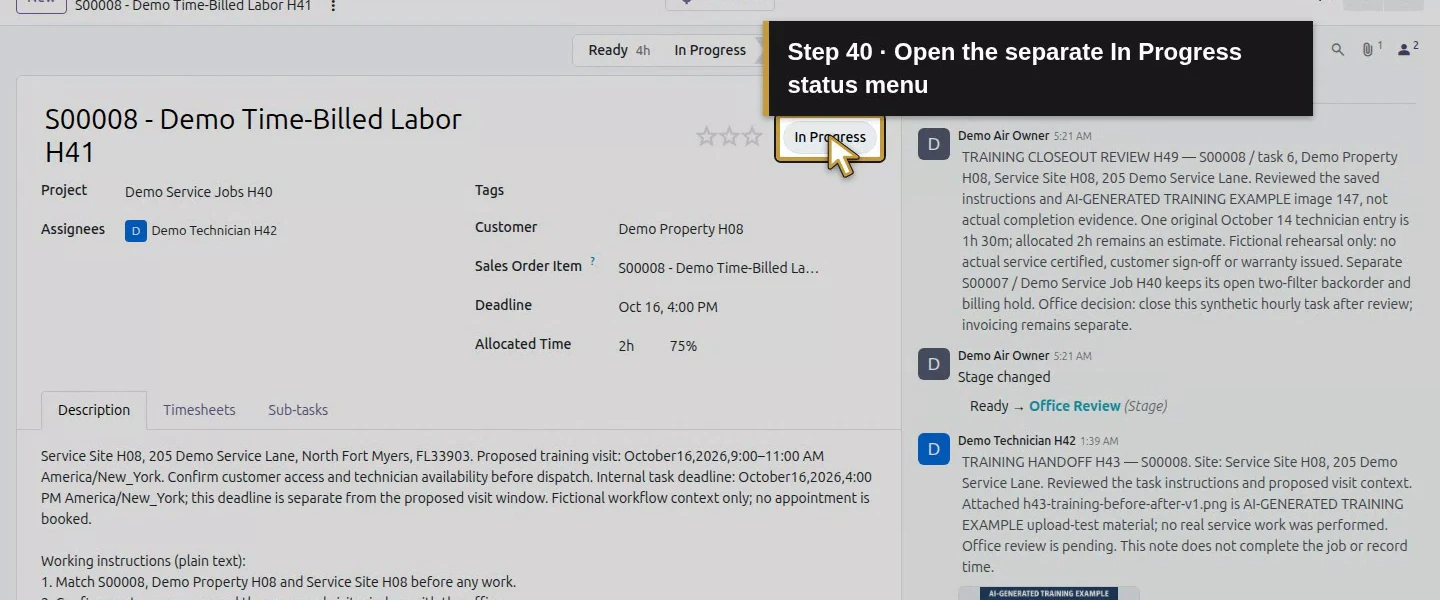
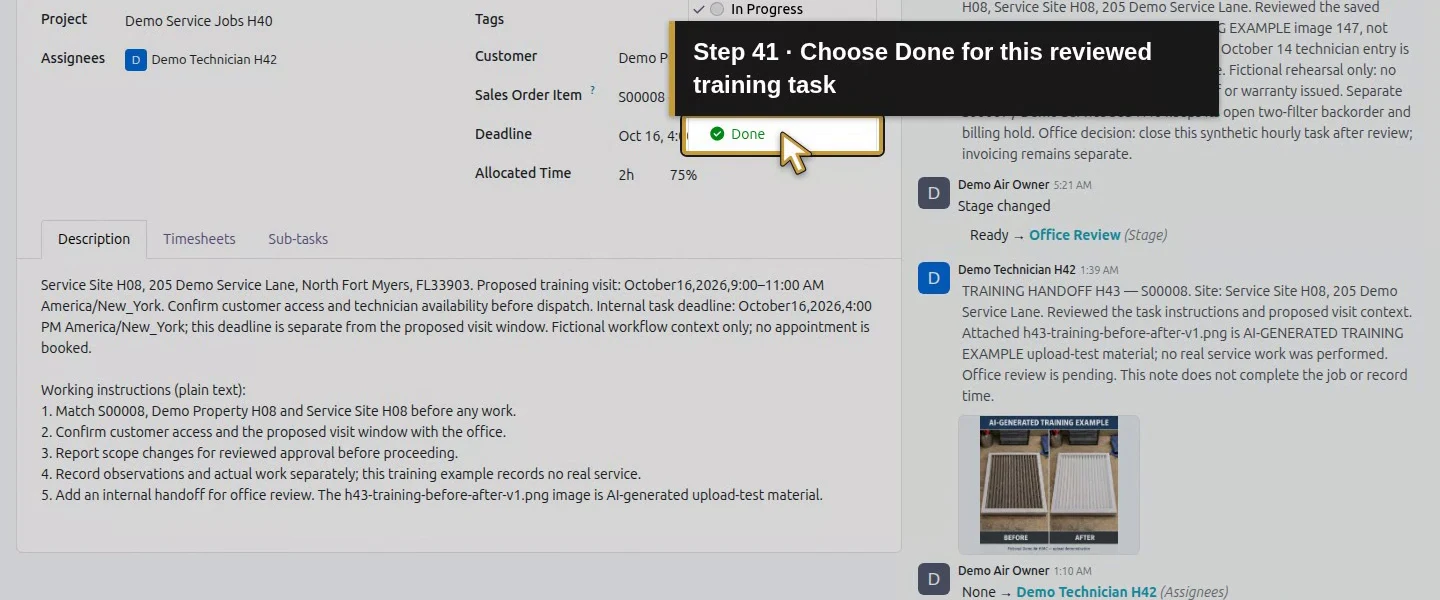
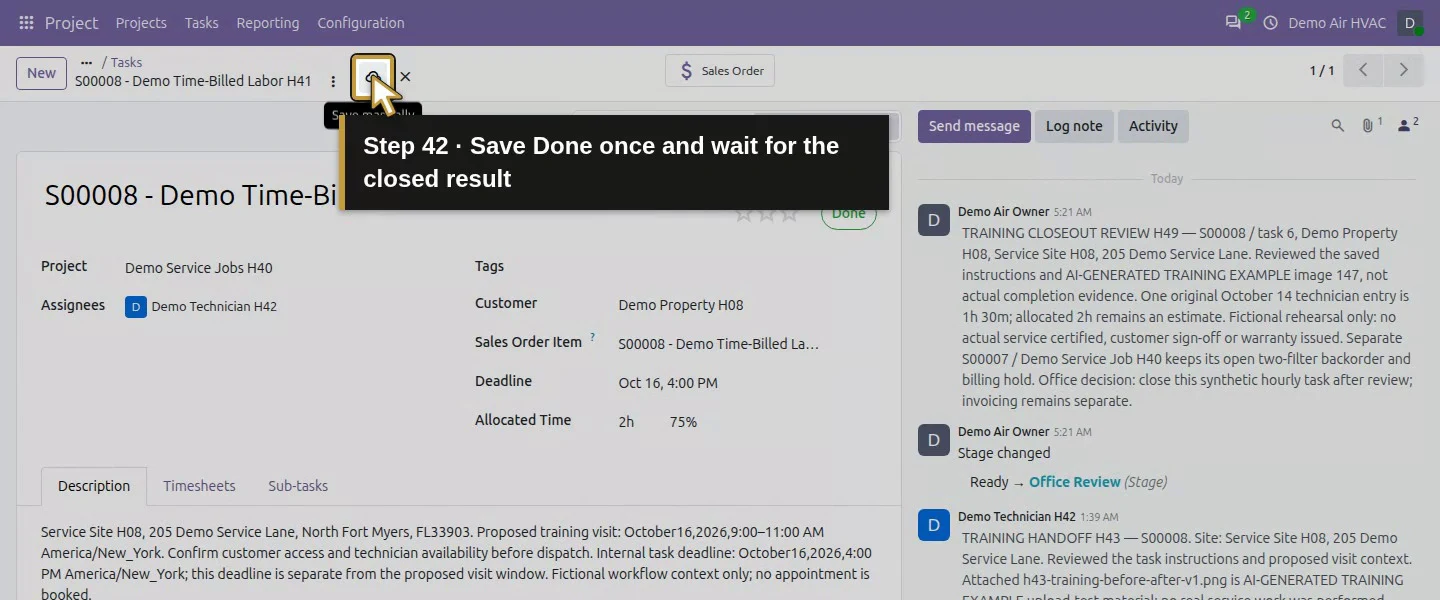
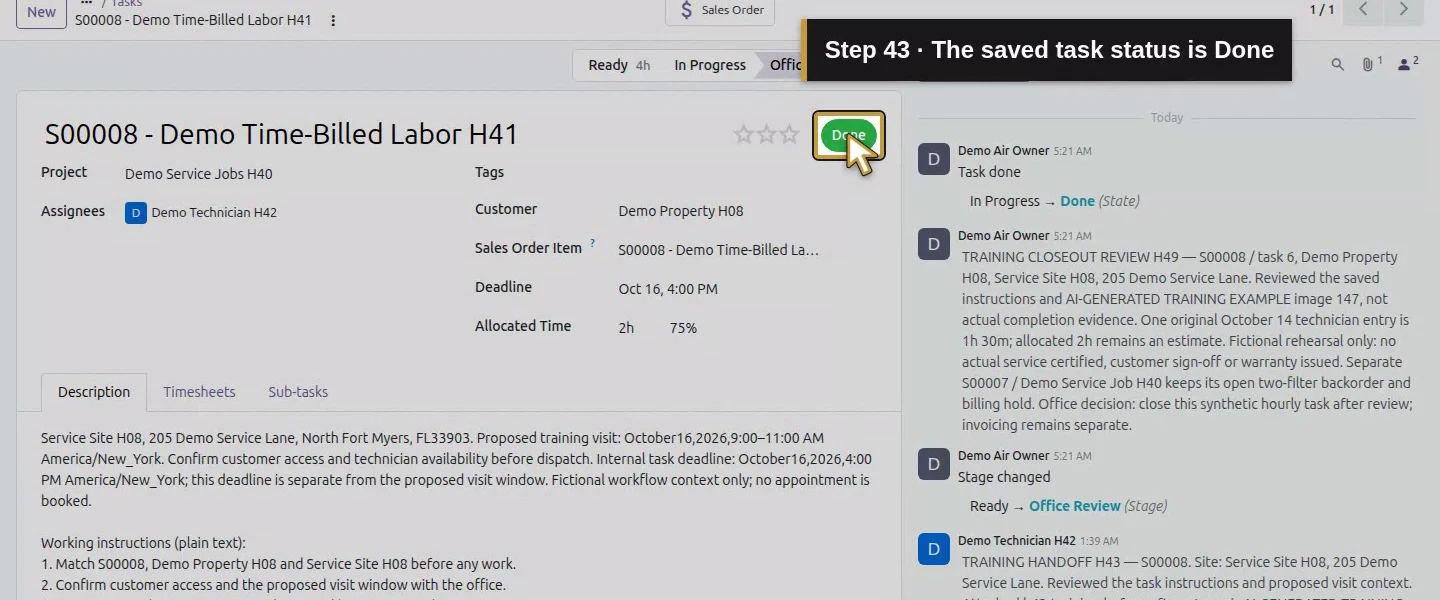
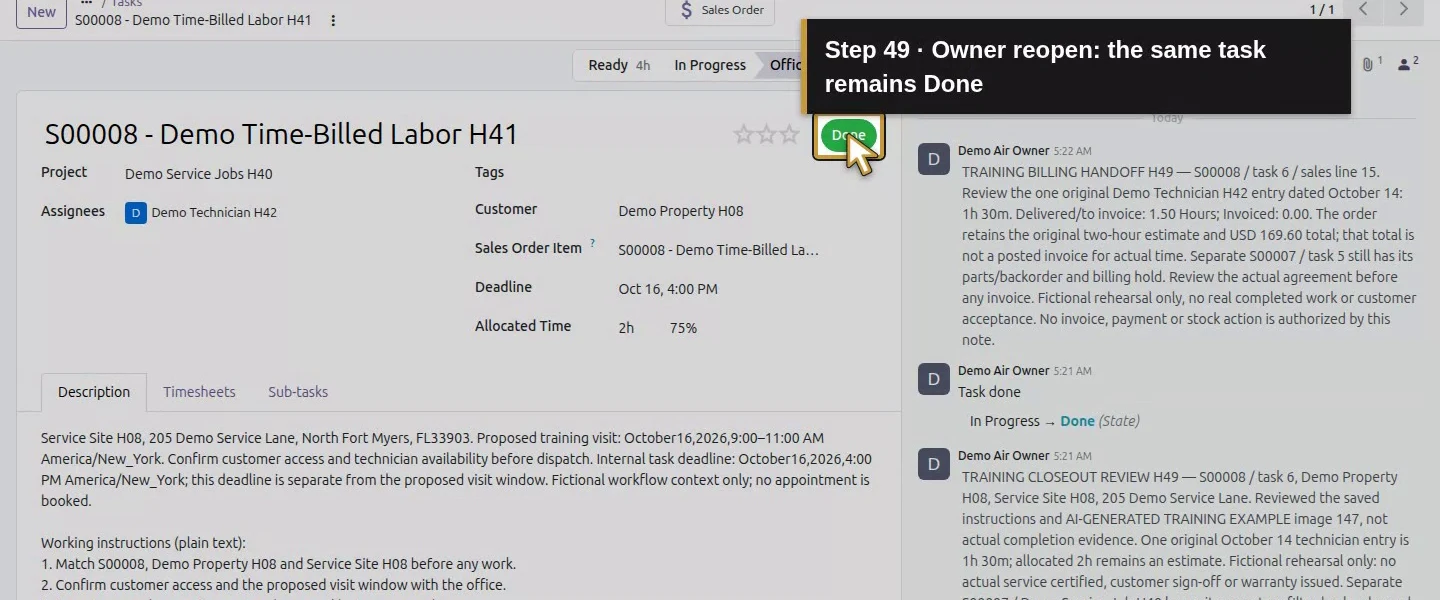
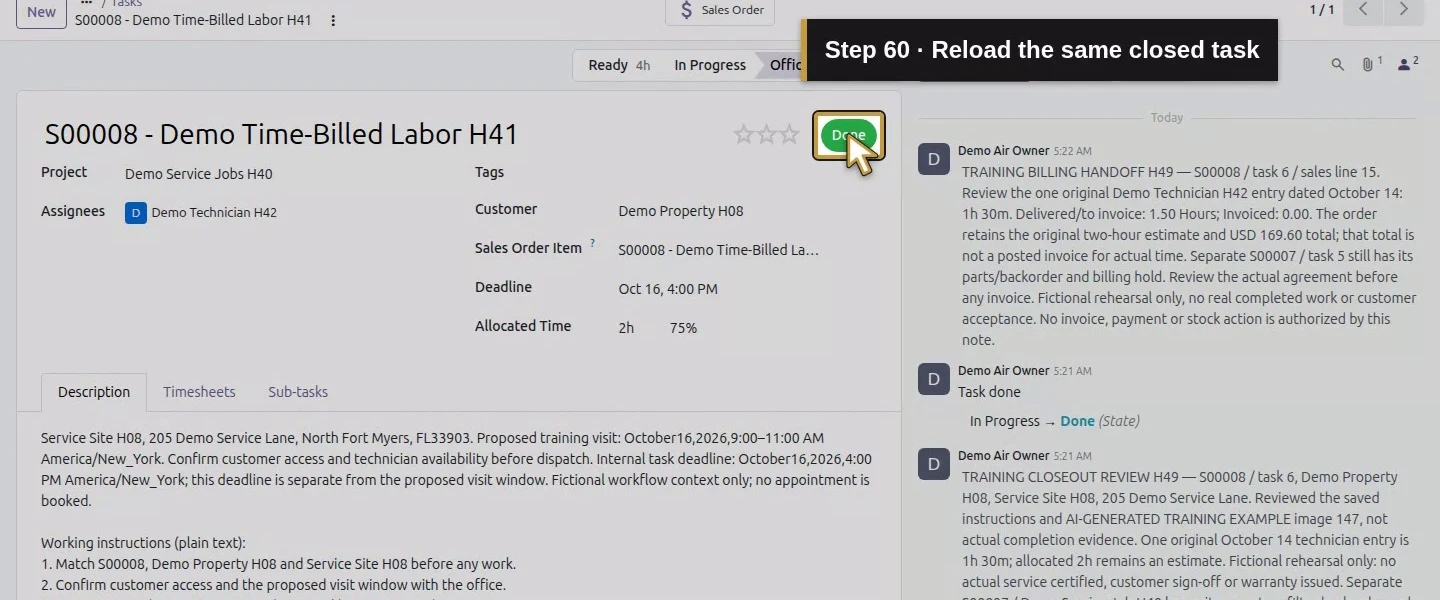
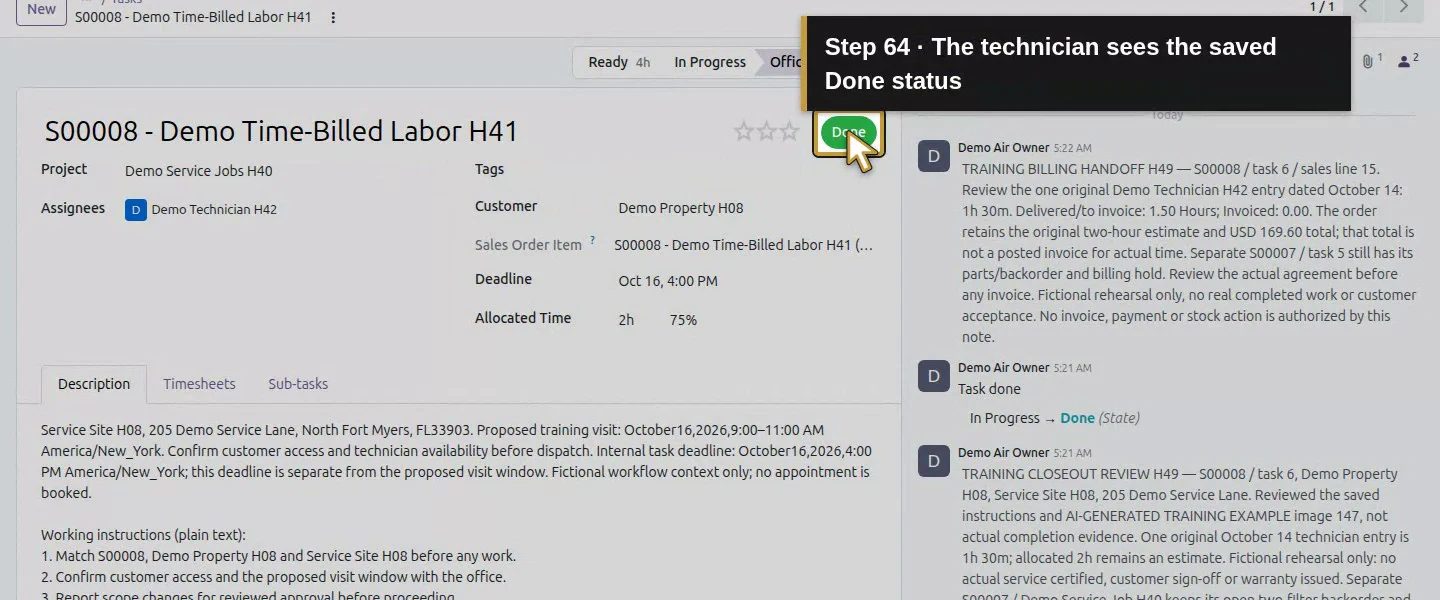
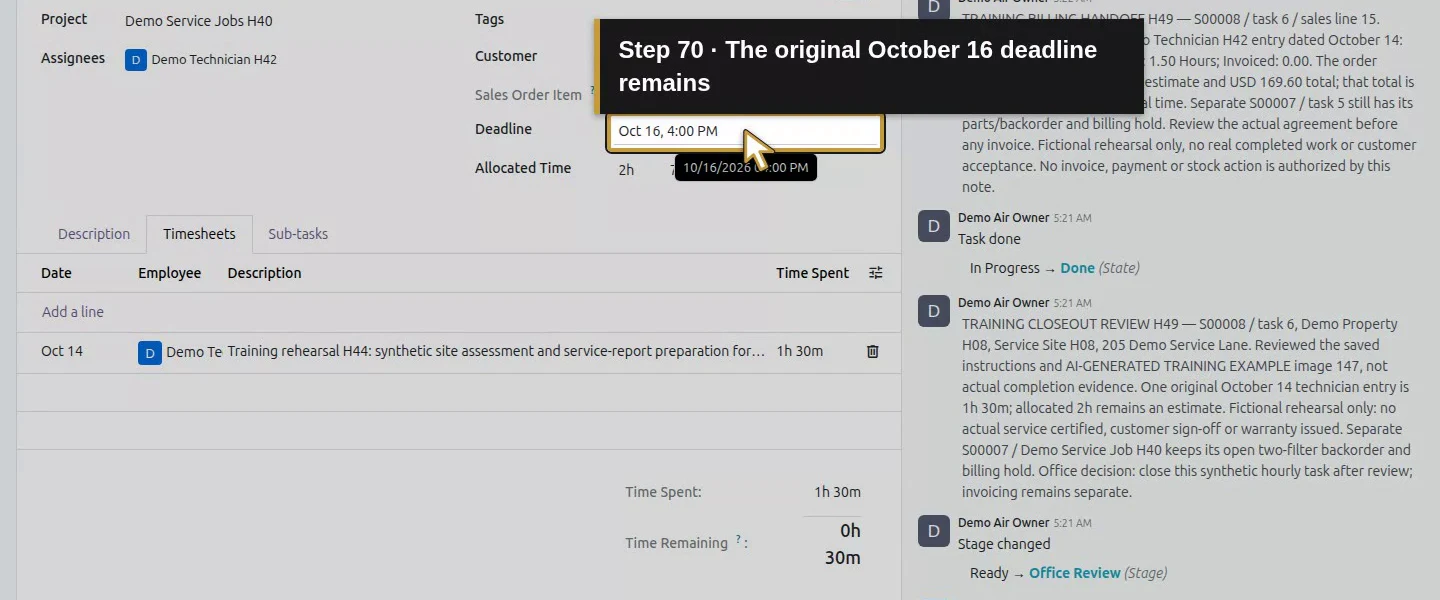
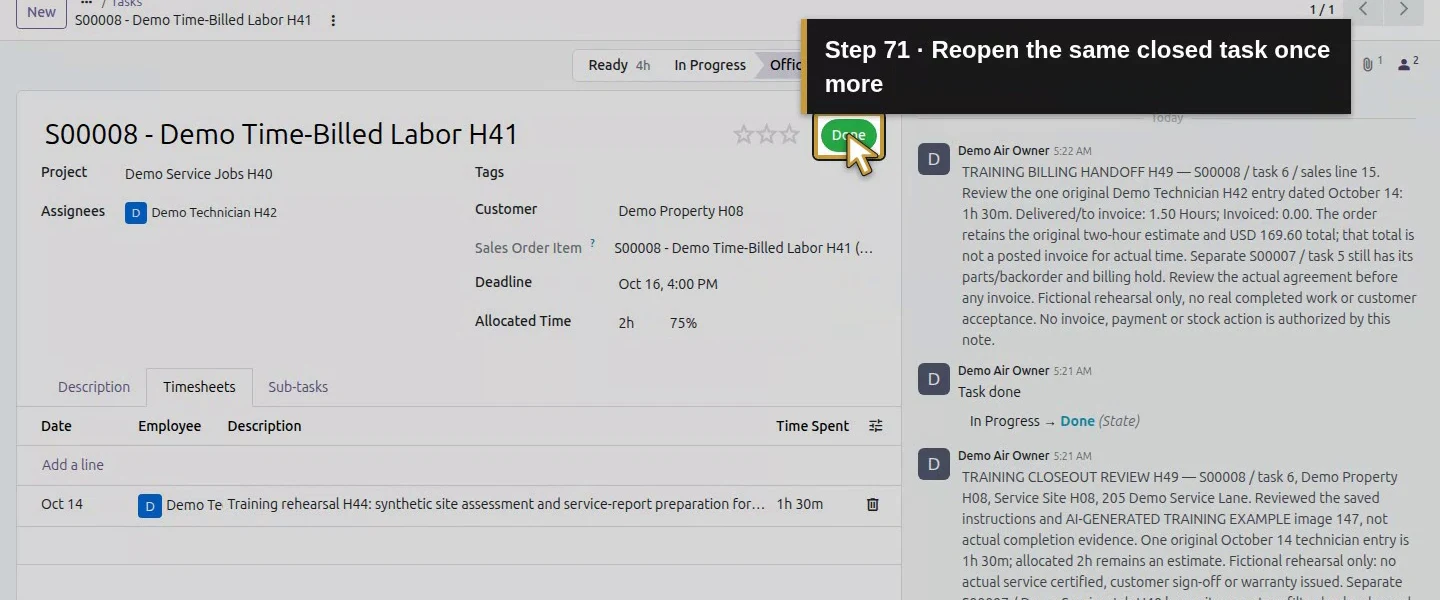
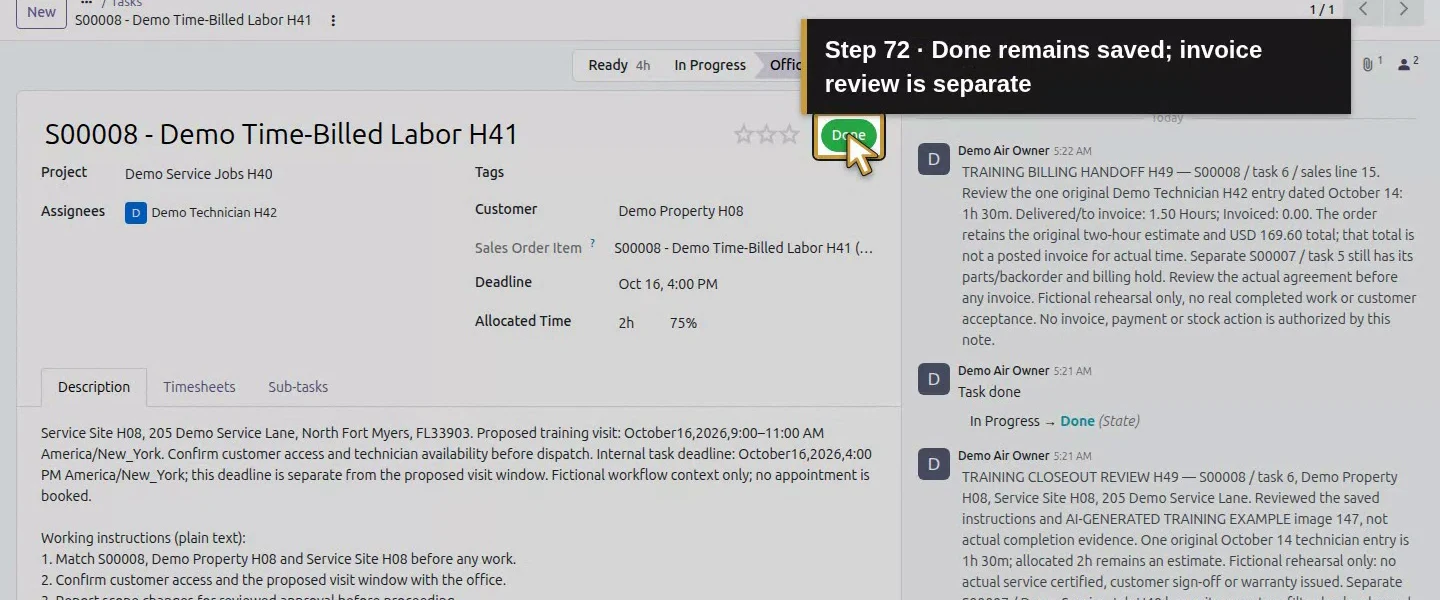
Open the In Progress status button and select Done from its menu. Click Save manually again and wait for saving to finish. The saved status is now Done, and the task’s closed flag is true. Its stage remains Office Review. The same 1.5-hour entry, original description, assignee and deadline remain. No invoice, payment, stock transfer or separate job was created or completed by this action.
Step 7. Add a precise invoicing handoff
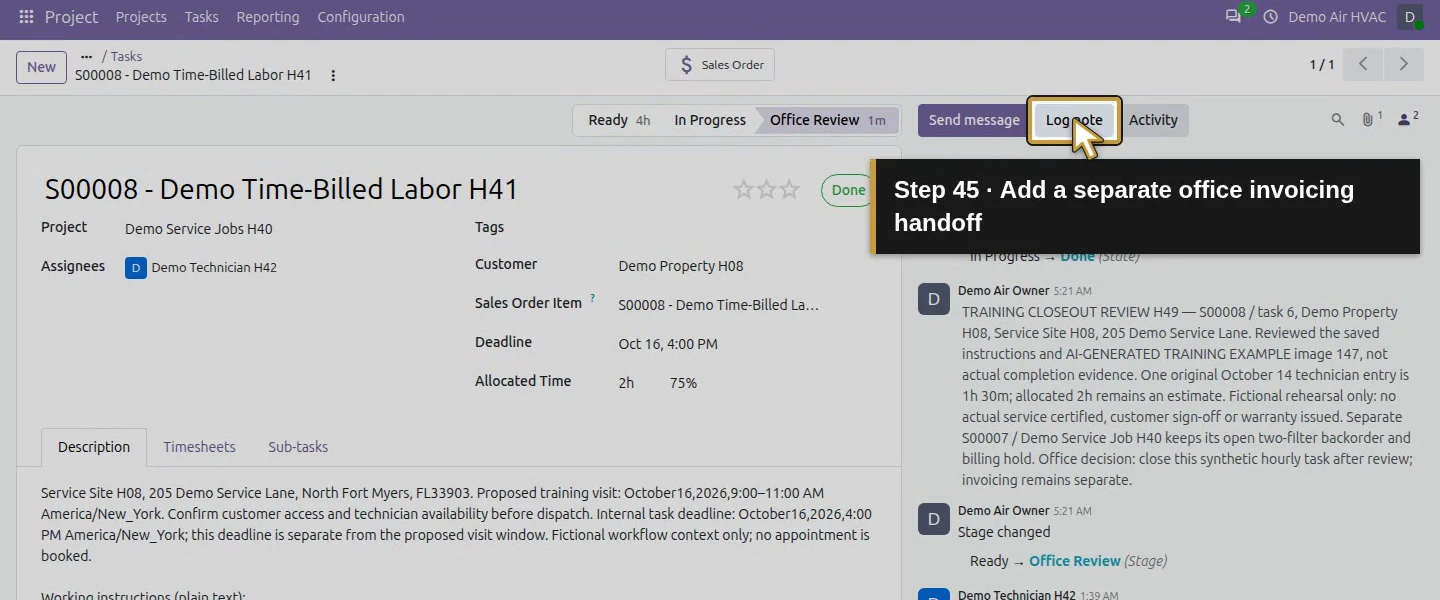
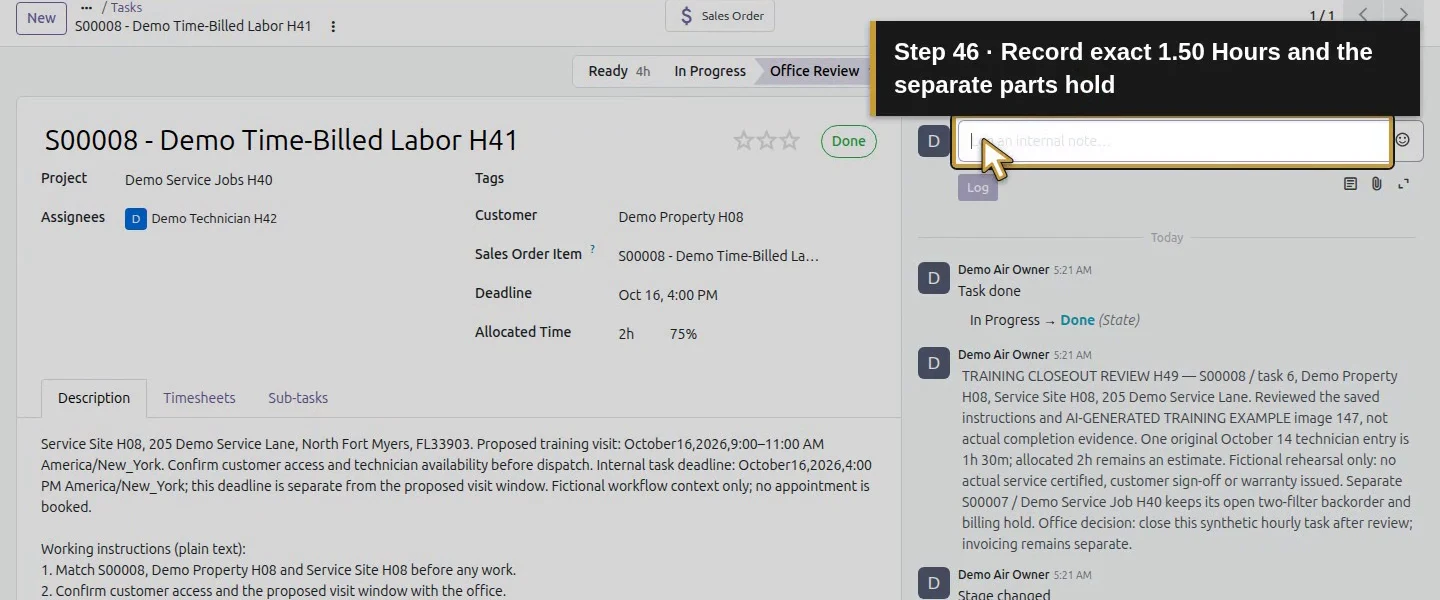
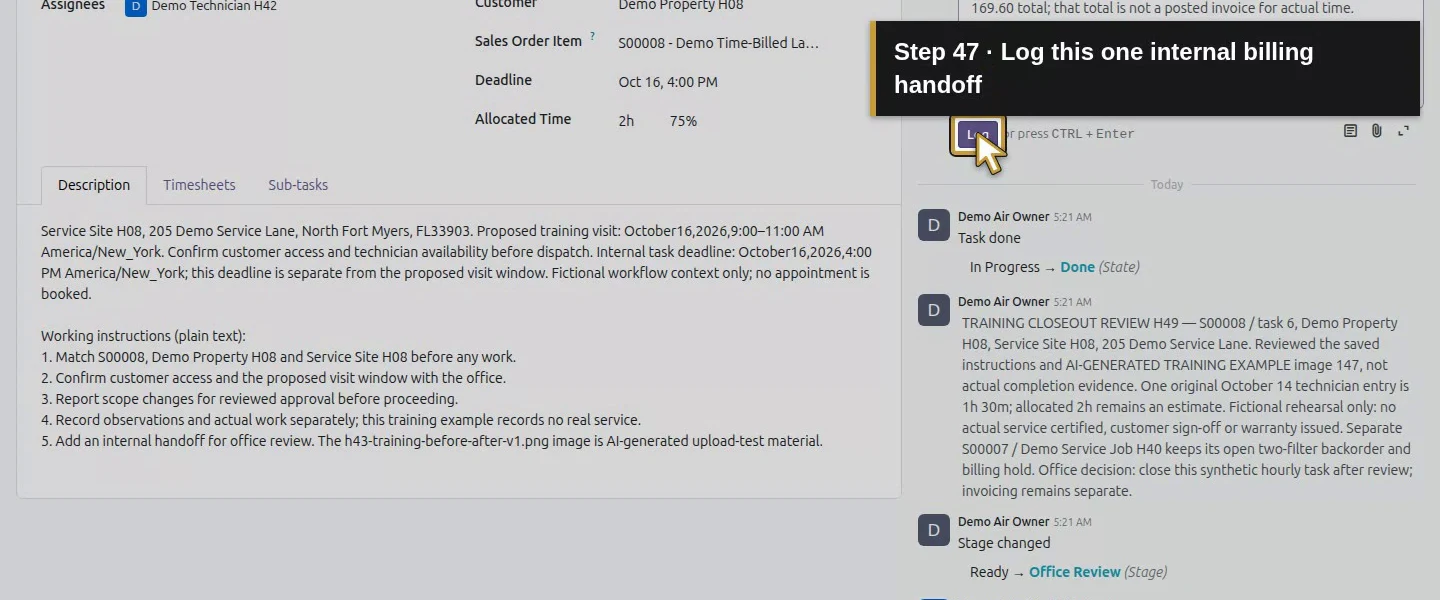
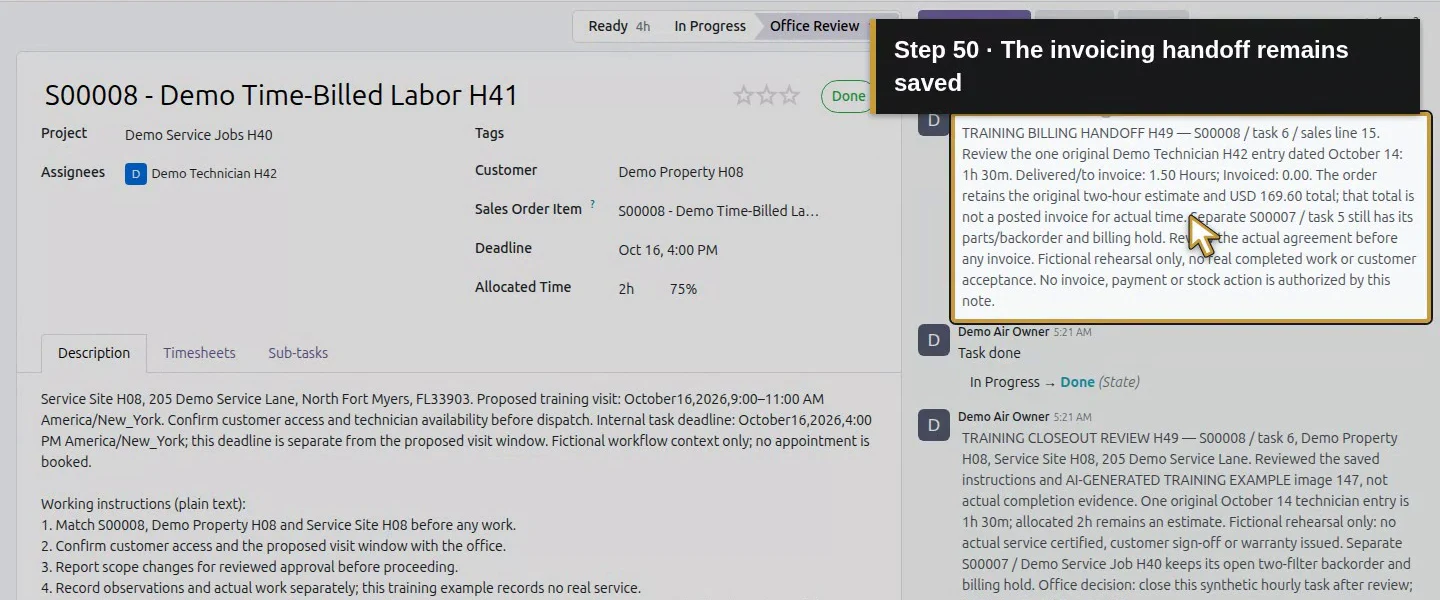
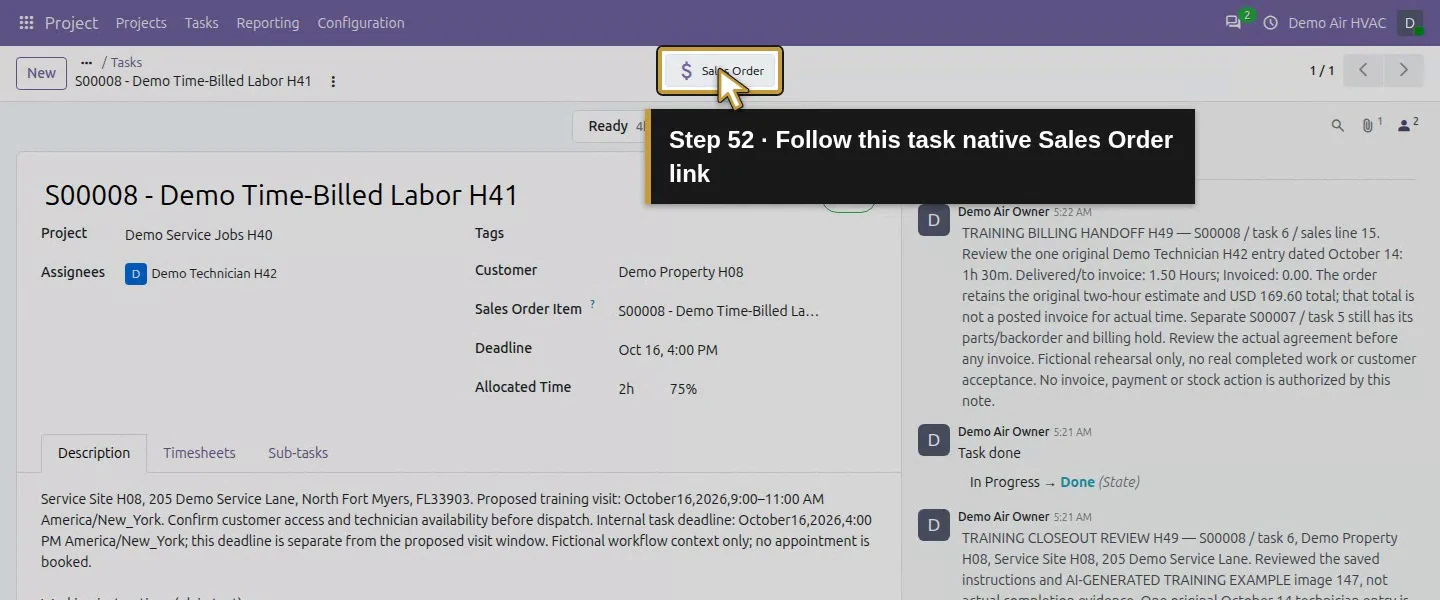
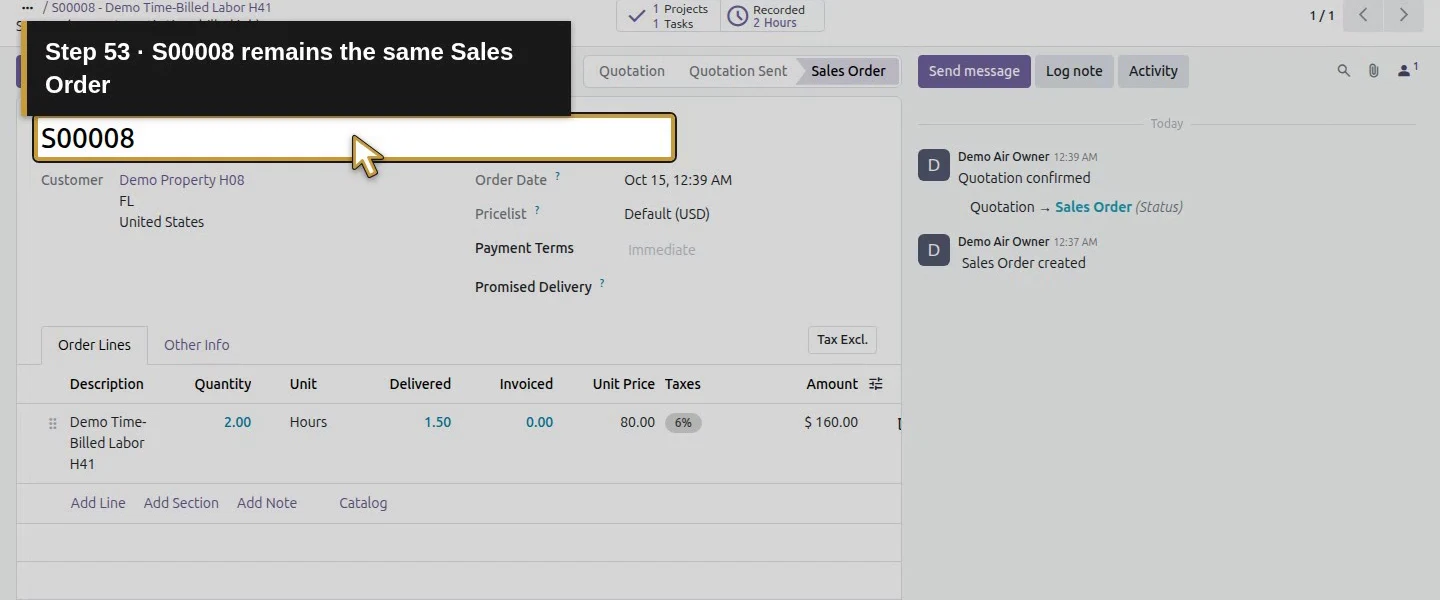
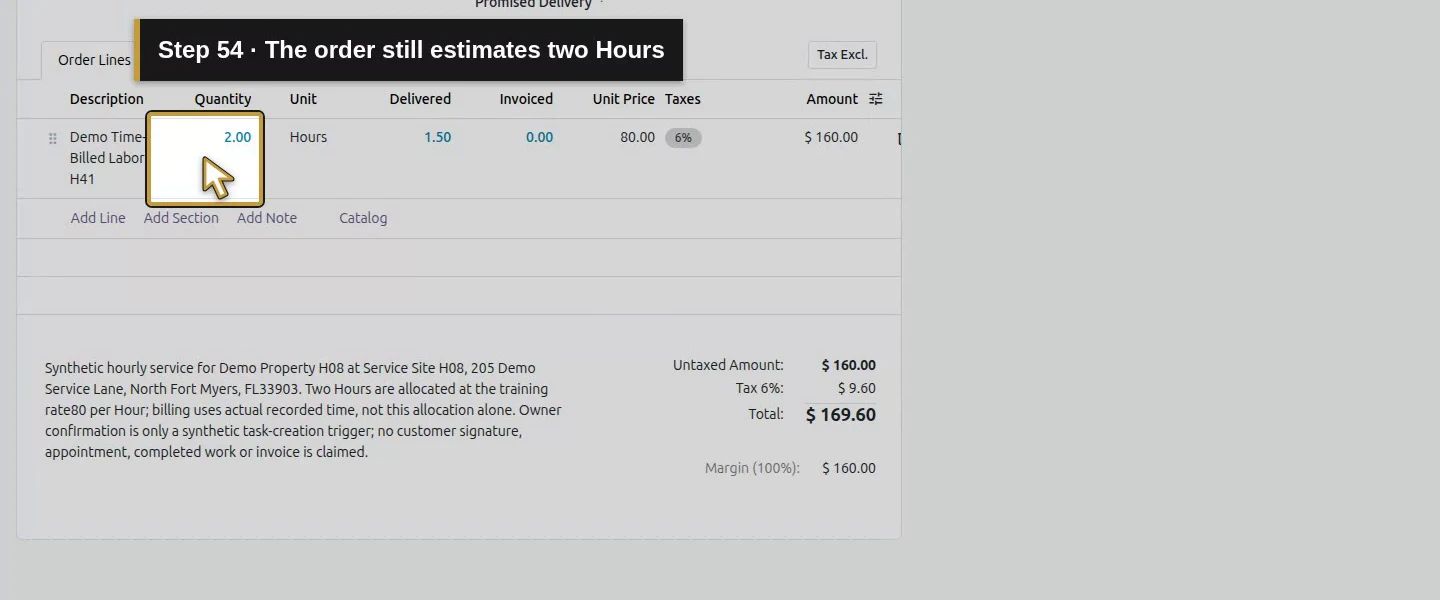
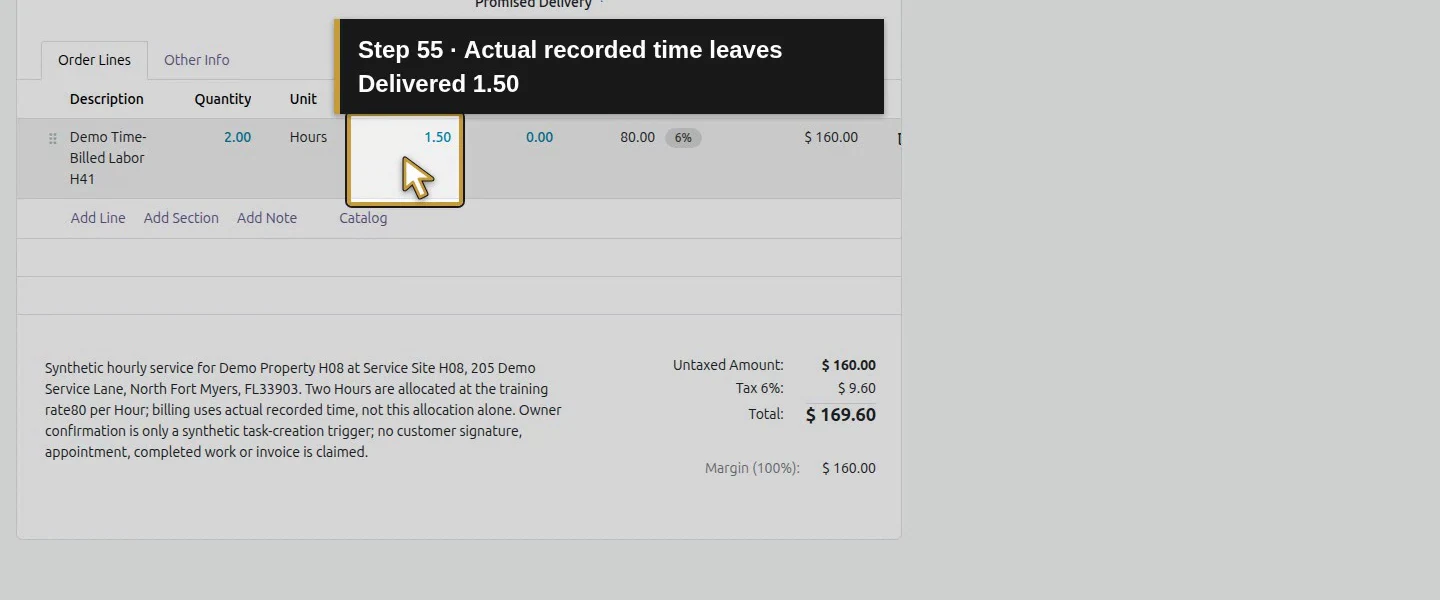
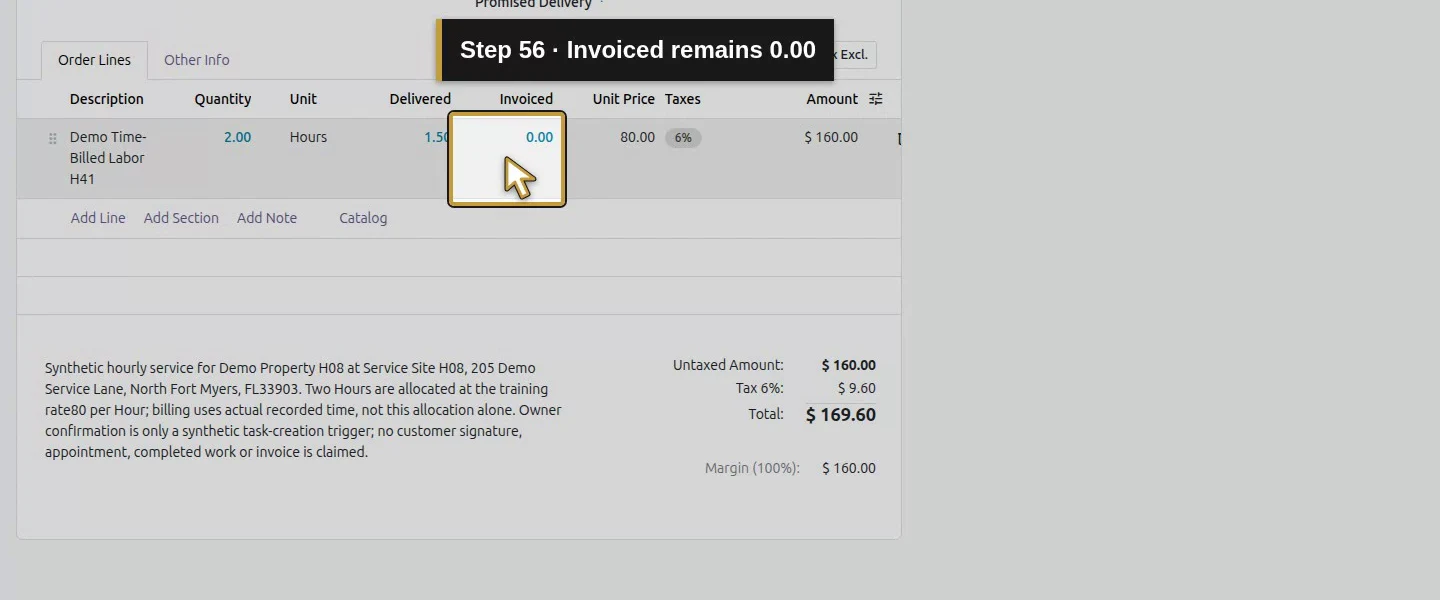
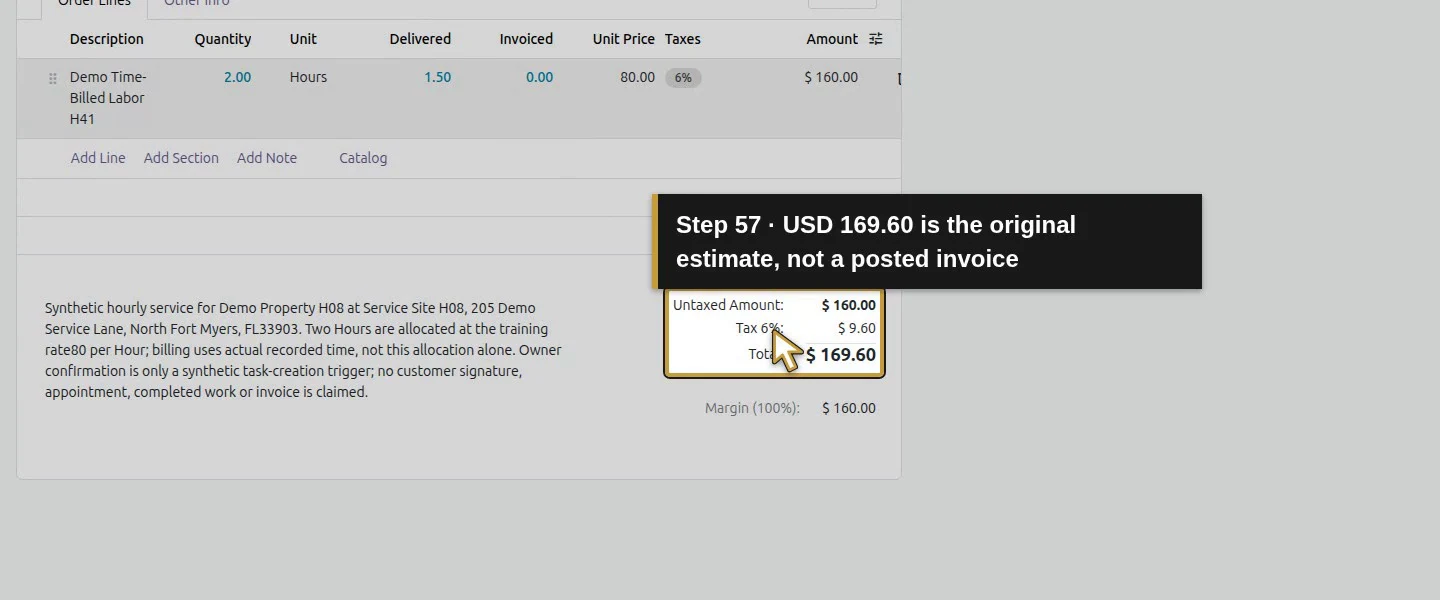
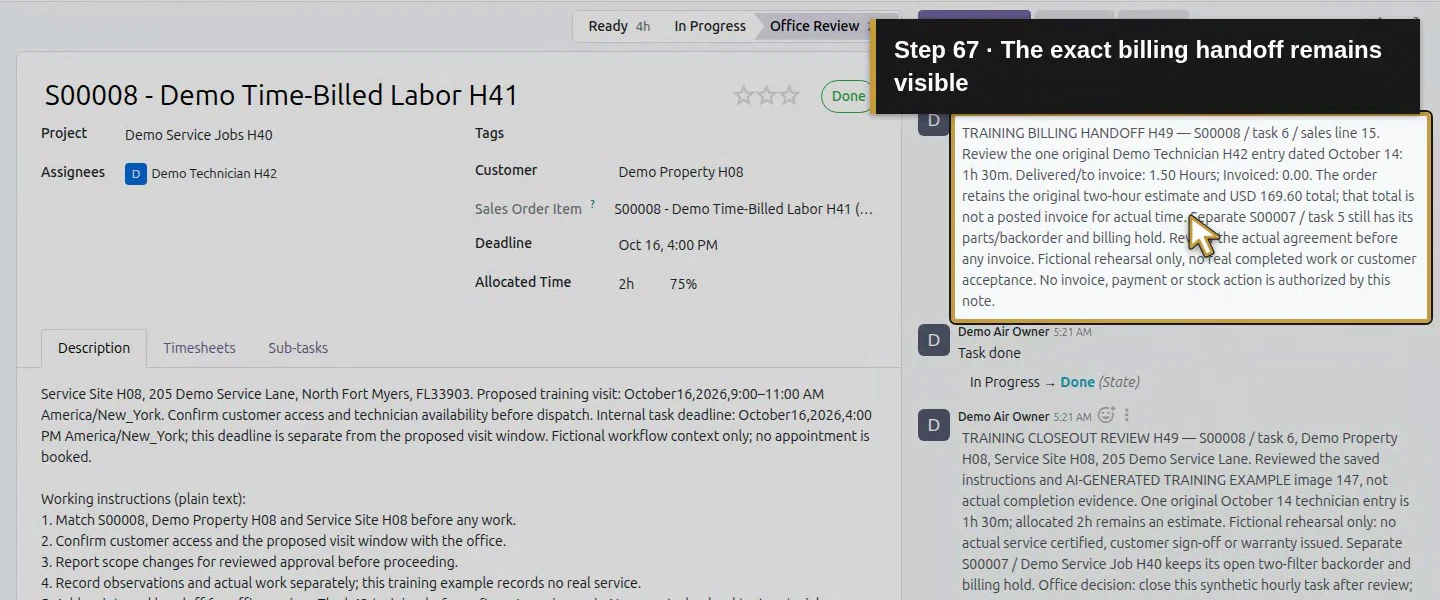
Use Log note to name S00008, the reviewed 1.5-hour entry, correct time-based sales line and the separate parts hold. Record Delivered/to invoice: 1.50 and Invoiced: 0.00 for that service. Its order still shows the original two-hour estimate and $169.60 total; that total is not a posted invoice for actual time. In a real business, the office must review the agreement before generating the financial document.
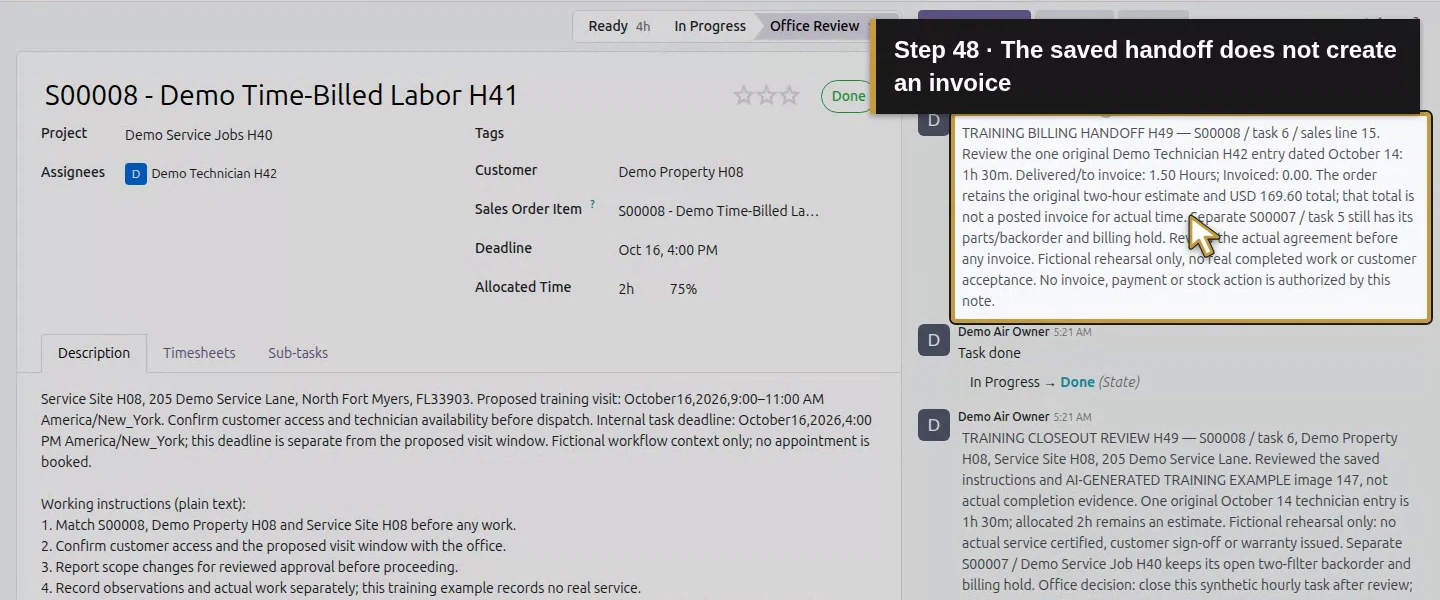
Step 8. Reopen the task and check the financial boundary
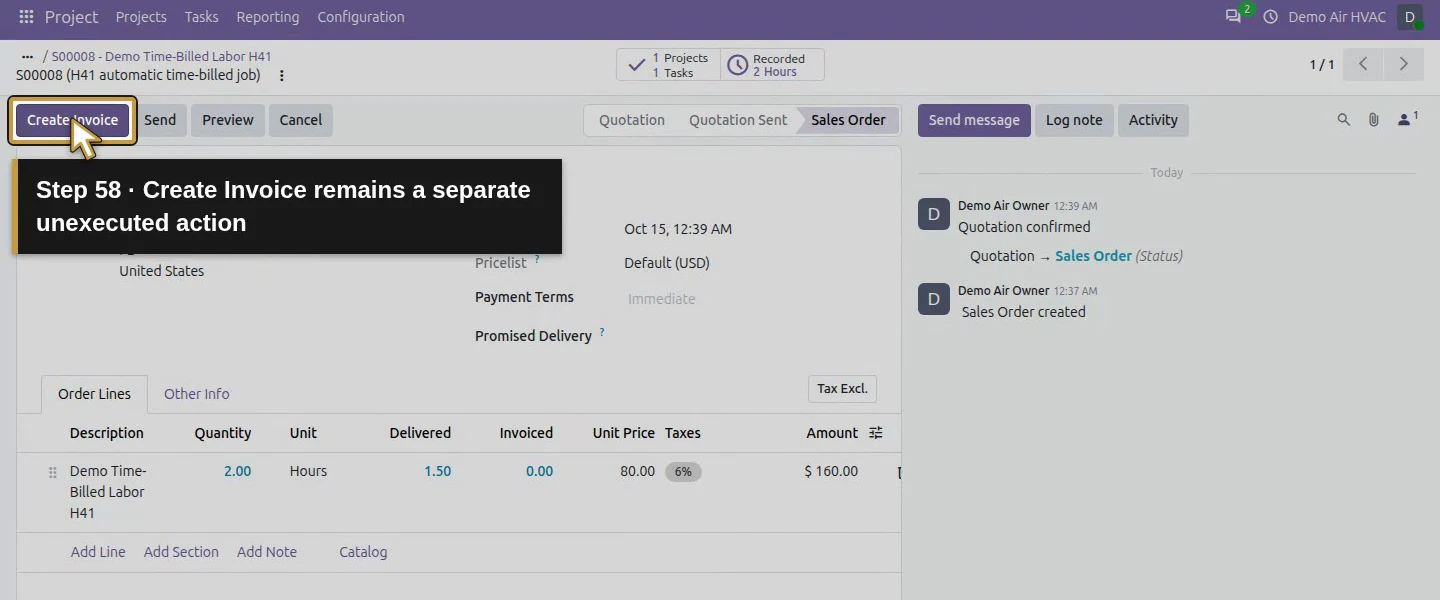
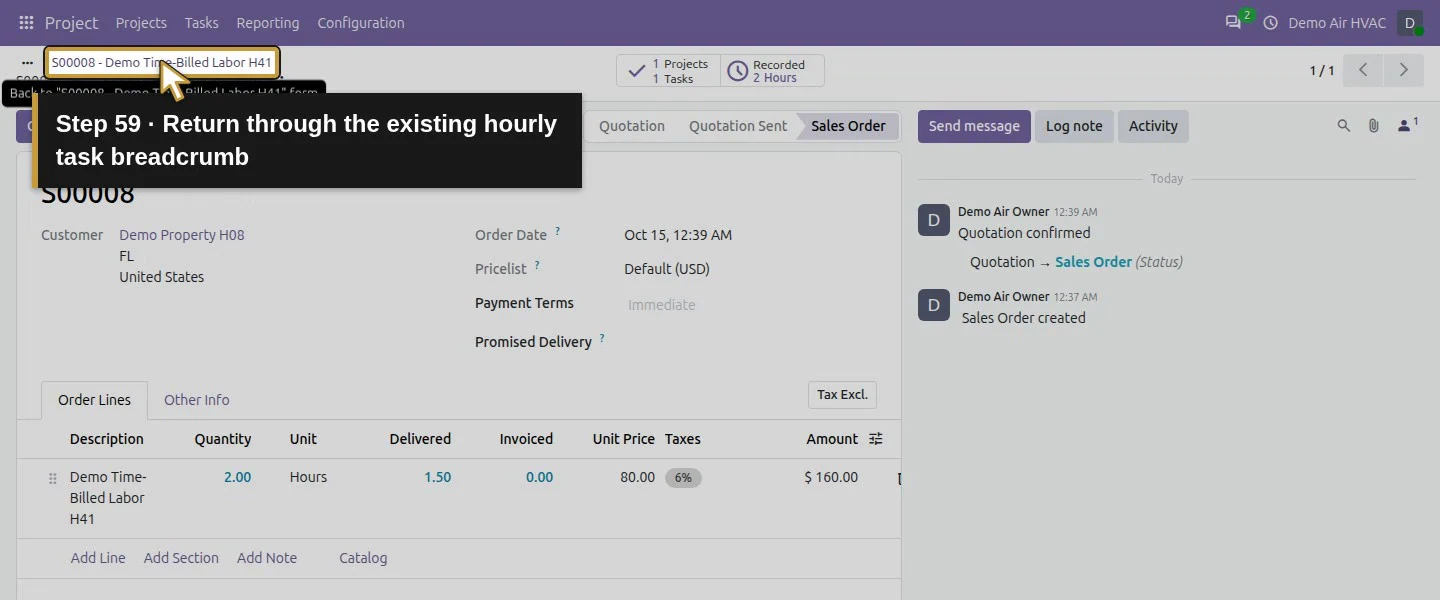
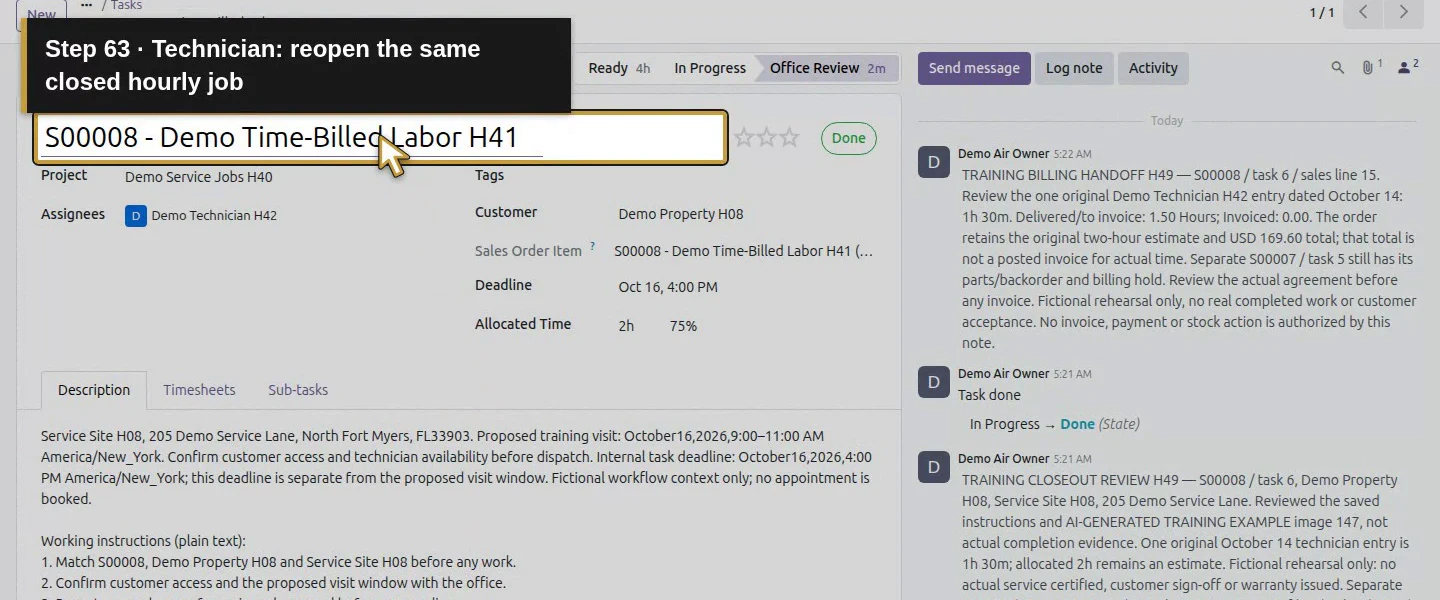
Reload the same task in owner and technician sessions. Both show Done and the same review/handoff notes. As the owner, click Sales Order. S00008 remains a Sales Order with Create Invoice available and no invoice yet. Return through the task link and reload to confirm the same closed task and one time entry. We did not click Create Invoice in this lesson. The parts task and its backorder stay open for their own resolution.
Check the result
Task 6 is saved Done with its closed flag true while Office Review remains its stage. Two internal notes retain the reviewed training decision and invoicing handoff, visible after owner/technician reload. The original description, labelled image, employee assignment, deadline and sole 1.5-hour entry are preserved. S00008 still has 1.5 hours invoiceable, zero invoiced and no invoice/payment. The separate materials task stays In Progress with its backorder and billing hold; stock and accounting balances are unchanged.
If your screen differs
Office Review is a stage, while Done is the independent operational status. Both changes needed Save manually in this runtime; pending labels did not establish persisted changes. Done did not create an invoice, change the already invoiceable 1.5 hours, complete the other job, fill the unused allocation or certify actual work. The stored Ending Date stayed empty, so this test does not promise an automatic completion timestamp. We tested owner closure and technician readback, not a technician approval authority or enforced review/locking rule. No real completion, customer acceptance, invoice posting or payment is asserted.
Frequently asked questions
How do I close an Odoo service job?
Review the correct task’s scope, actual evidence, time and outstanding materials decisions. In this tested workflow the owner saved the Office Review stage, logged the decision, selected Done in the separate status menu and saved again. Reopening showed Done and a closed task. The synthetic example did not certify real service work.
Does marking an Odoo task done create an invoice?
No invoice was created in this test. The time-based sales line was already invoiceable from its saved 1.5-hour timesheet before closeout. After Done, it still showed 1.50 to invoice and zero invoiced. The owner’s Sales Order screen retained Create Invoice as a separate action.
What should I check before invoicing an Odoo job?
Check the right customer/order, agreed scope, genuine work evidence, exact employee time and sales link, duplicates, delivery/return records, backorders and invoicing policy. Here the hourly task was reviewed separately from a parts order with zero net delivered, three ordered units still invoiceable and an open backorder. Closure did not resolve that commercial exception.Continue building the business
Continue with How do I invoice job time and materials in Odoo?. Resolve the relevant order’s scope and billing exceptions before invoicing; closed-task status alone does not decide the financial quantity.
Talk about your Odoo setup
Bring your current process and the result you need to Onward to plan your Odoo workflow. Talk about your Odoo setup.