
Getting started with Odoo · Lesson 5
How do I set up US invoicing in Odoo?
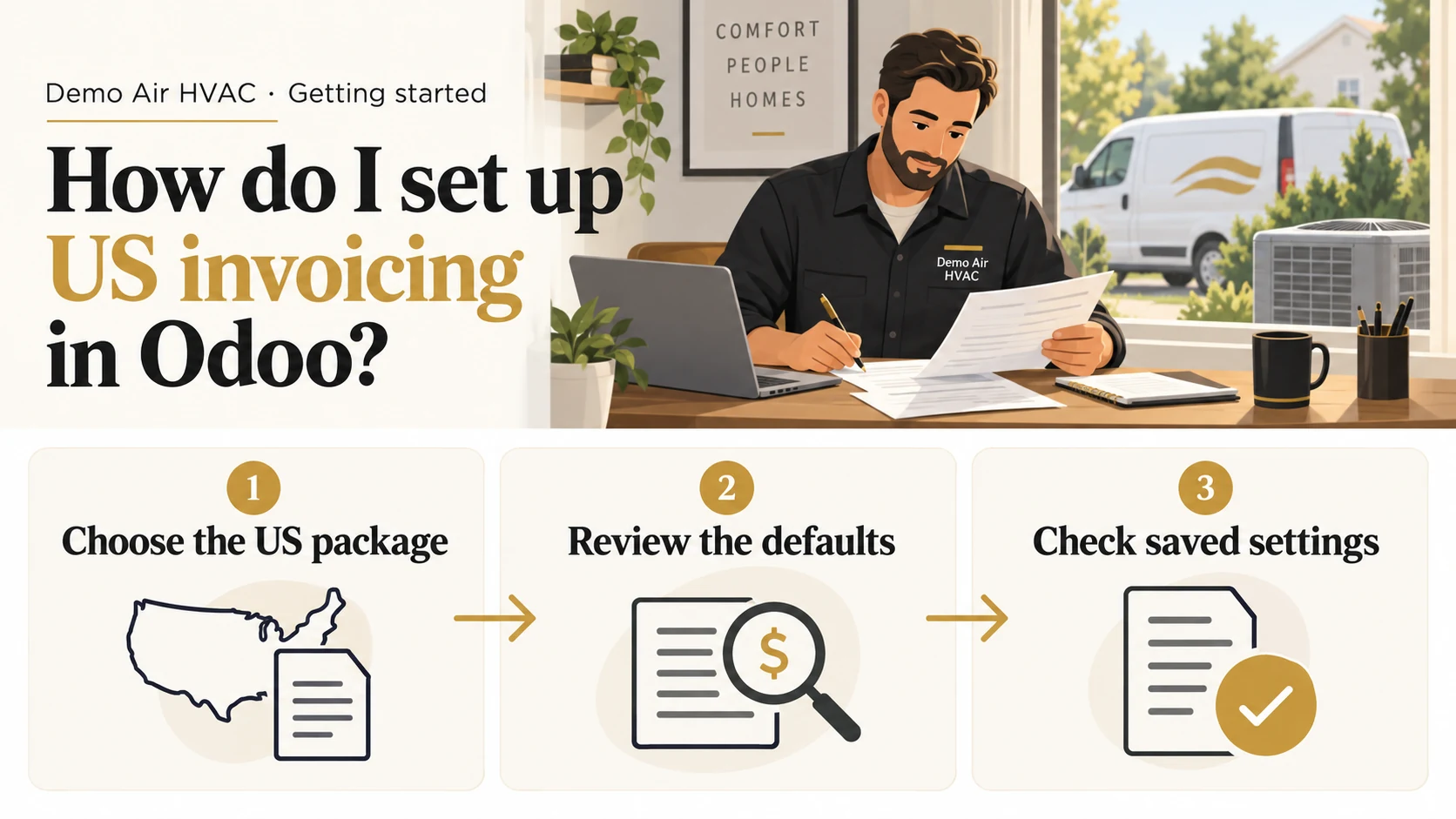
Open Settings, select Invoicing and choose United States under Fiscal Localization. Save, then review the fiscal country, currency and generated tax defaults before using them for real work.
A saved US fiscal package with checked country, USD and generated defaults. This lesson prepares configuration before creating an invoice.
Alex Rivera runs Demo Air HVAC, a fictional heating and cooling business in Florida. His company profile is ready, but its fresh database still uses a generic accounting package. He needs to save the US package and inspect what Odoo generates.
Follow the seventeen stepsBefore you begin
Complete the company-profile lesson and the app-selection lesson in this series. Invoicing must be installed. Sign in as an administrator in a fresh, transaction-free database; the example company already has United States, Florida and USD set.
The screenshots show Odoo 20.0-20260926 Community. This procedure uses its stock Invoicing and official US localization, without Enterprise or customization. A populated database or a different country requires its own accounting setup review; the chart switch tested here began with no accounting entries.
The starting package is Generic (Minimal) Chart of Accounts, with 15% generic tax defaults. The US package generates 6% sales and purchase defaults for this Florida example. Review actual job and product tax treatment before making real invoices. Florida's general state rate has exceptions, and county surtax can apply. Florida Department of Revenue rate guidance.
Choose the US fiscal package
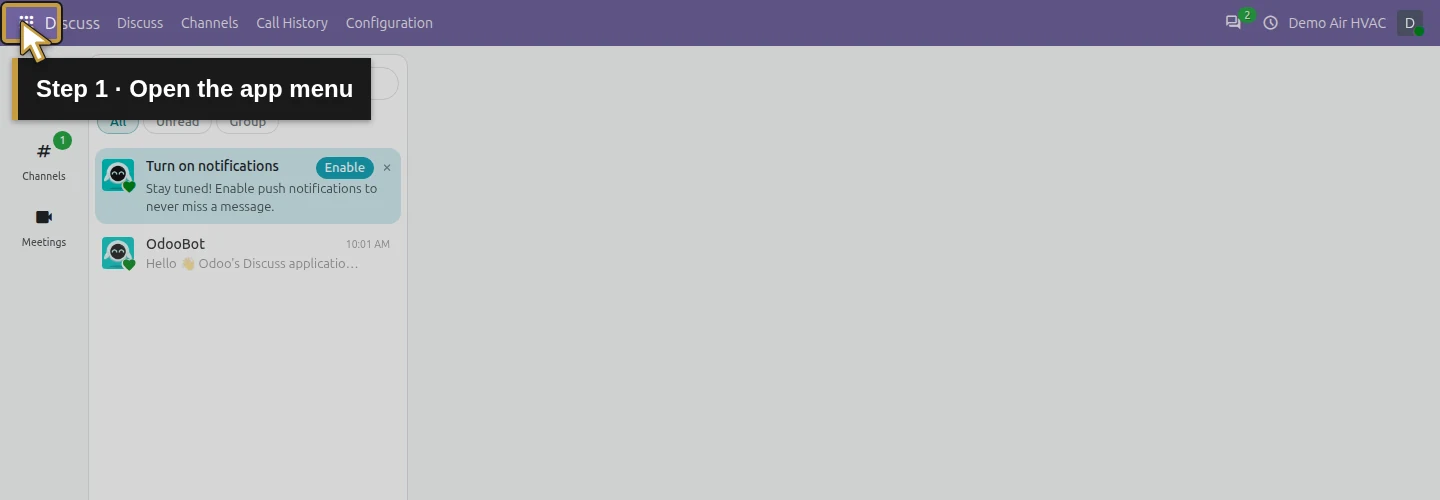
Step 1. Open the app menu
Click the grid-shaped app menu at the top left. The app choices open.
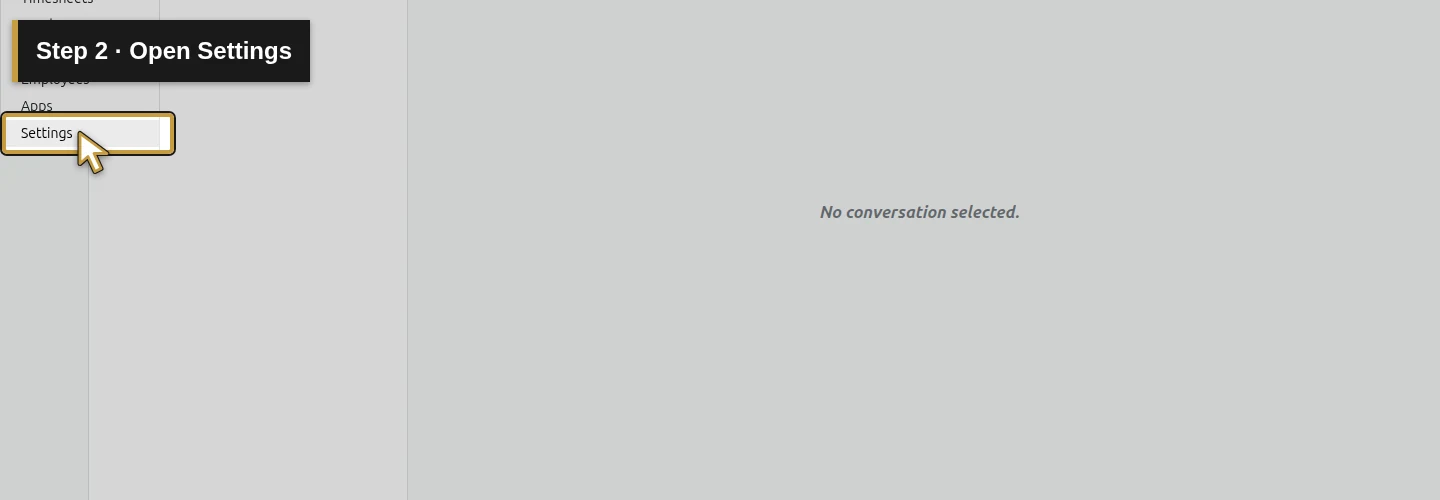
Step 2. Open Settings
Select Settings. Odoo opens General Settings.
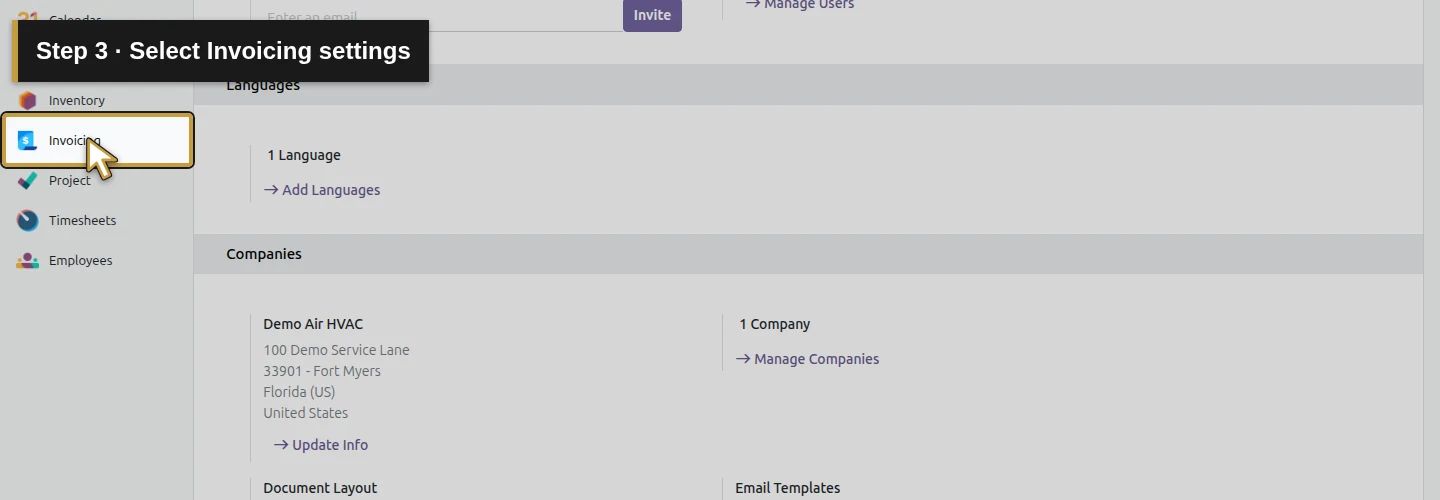
Step 3. Select Invoicing settings
Select Invoicing in the left sidebar. Find the Initial Setup section.
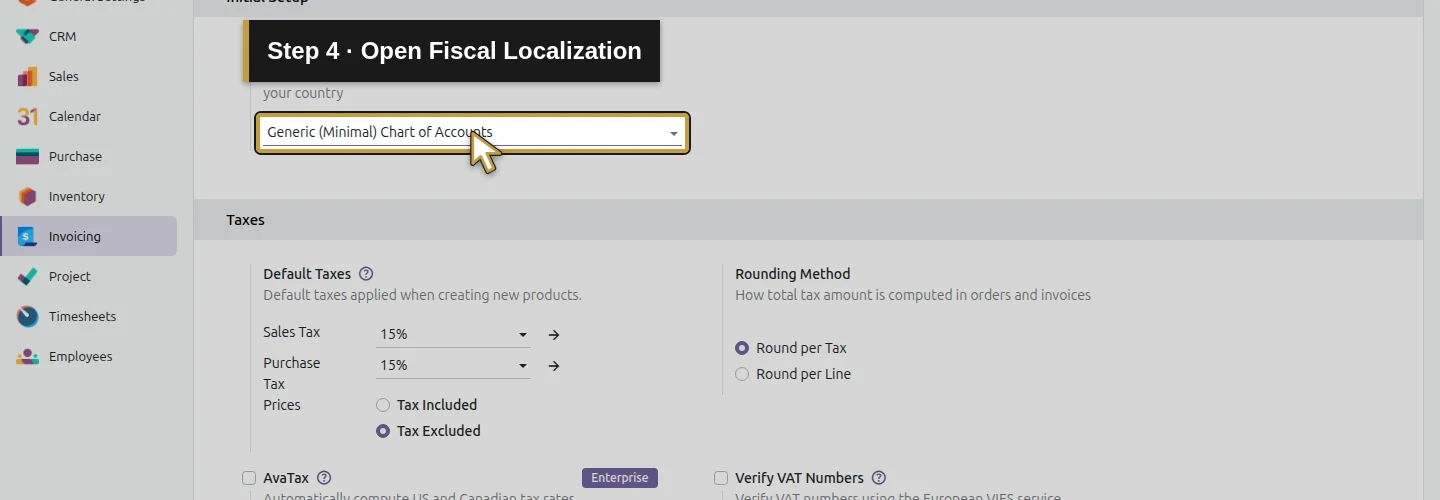
Step 4. Open Fiscal Localization
Click the Fiscal Localization selector, currently showing Generic (Minimal) Chart of Accounts. Its country packages appear.
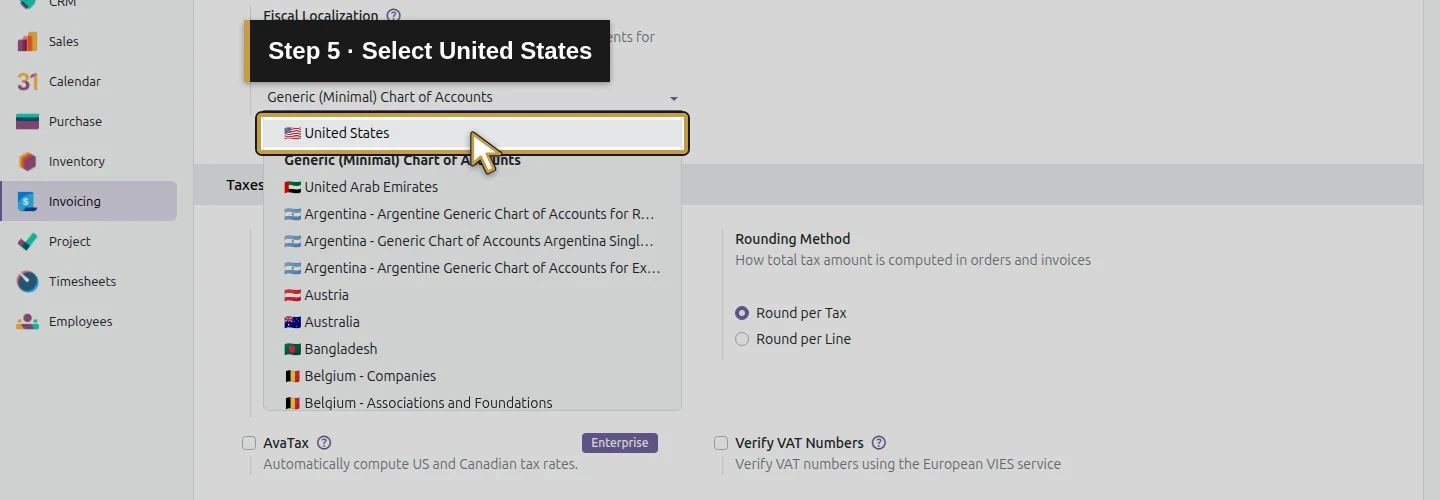
Step 5. Select United States
Select United States from the package list. Check the chosen value before saving.
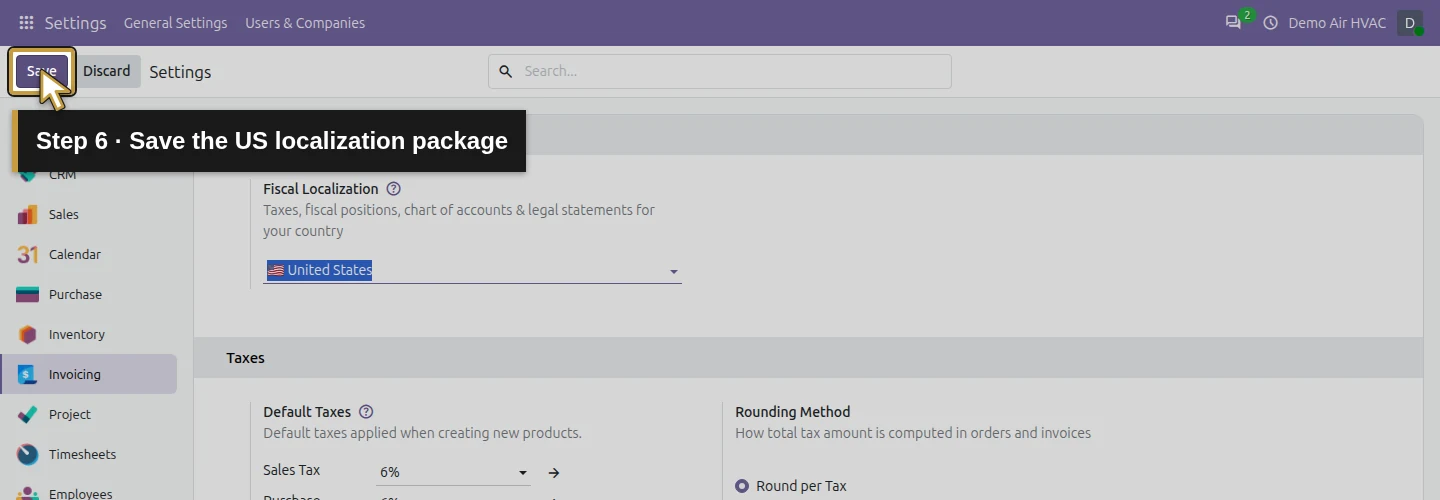
Step 6. Save the US localization package
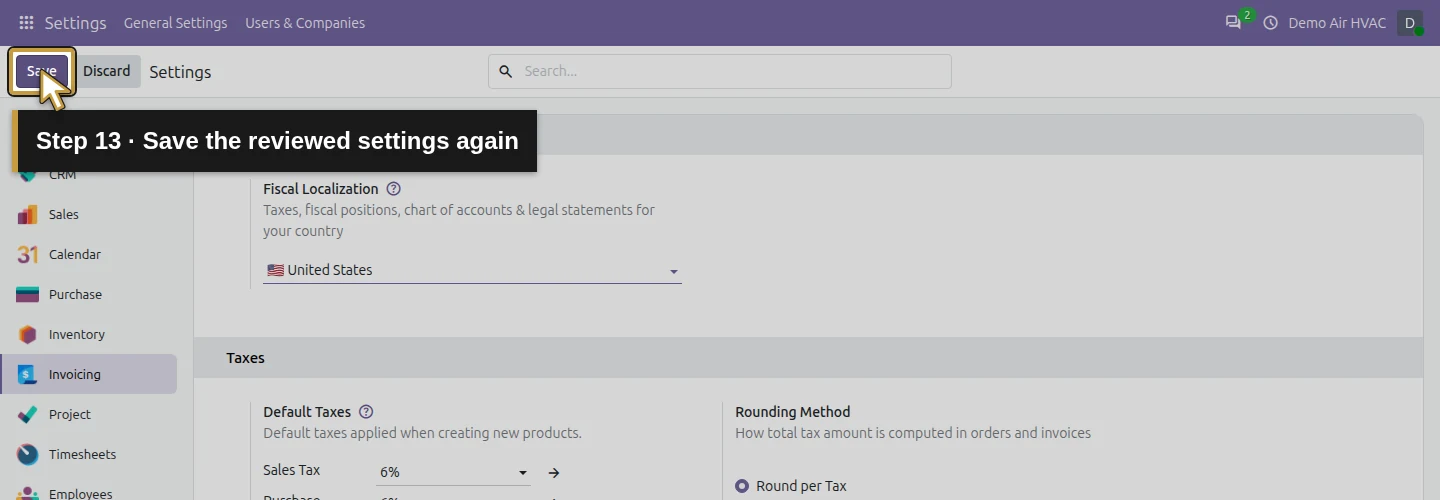
Click Save and wait for Odoo to finish loading the official package. In this example, the web client reloads. The screenshot highlights Save in a later capture after the US package was already saved; the video shows the original first save.
Review the generated configuration
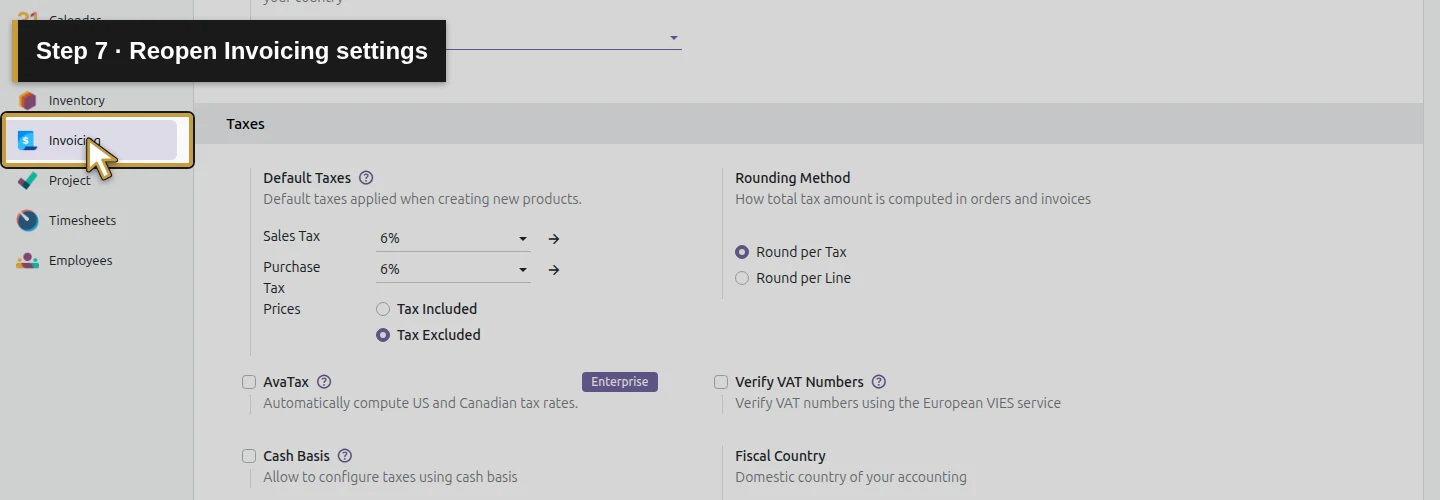
Step 7. Reopen Invoicing settings
After the reload, select Invoicing again to inspect the saved configuration.
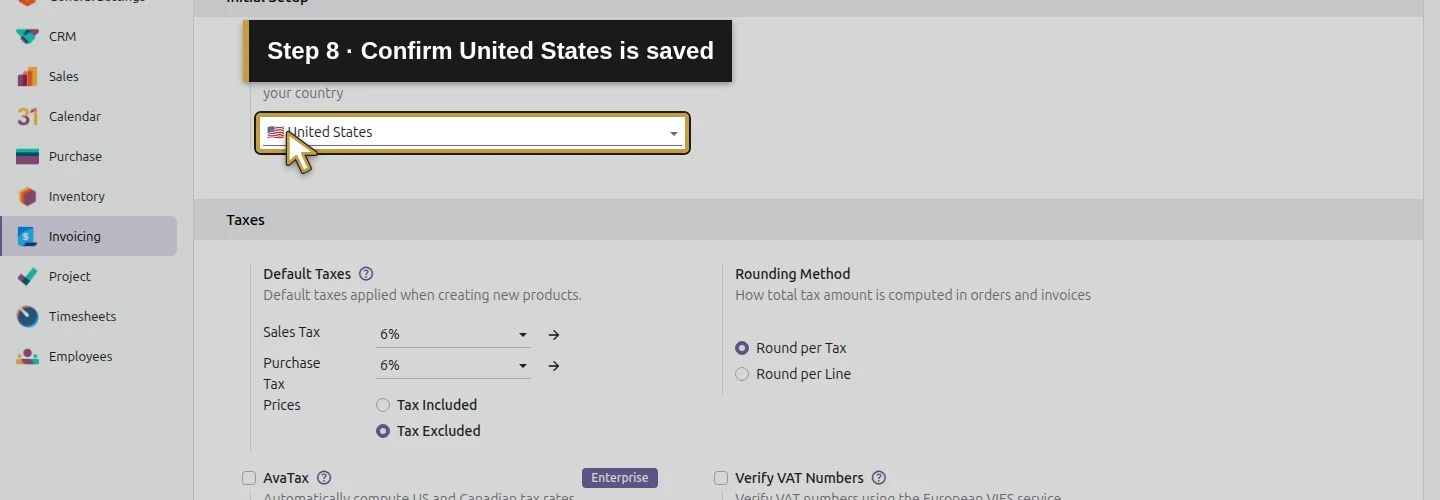
Step 8. Confirm United States is saved
Check Fiscal Localization. It now shows United States, rather than the generic package.
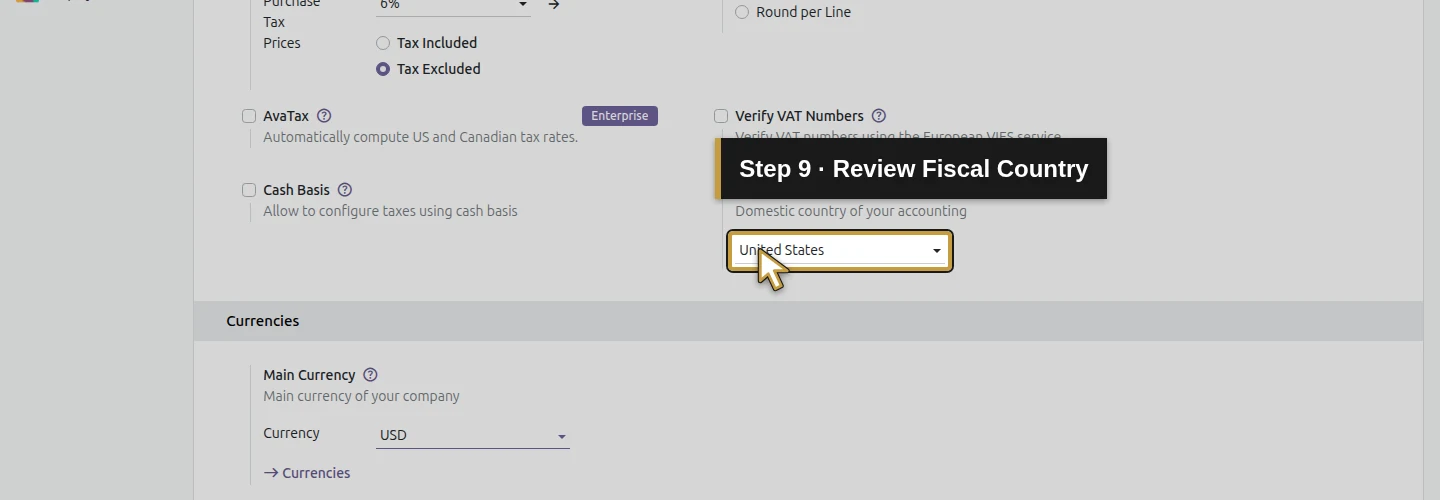
Step 9. Review Fiscal Country
Find Fiscal Country in the Taxes section. Confirm United States for this US company.
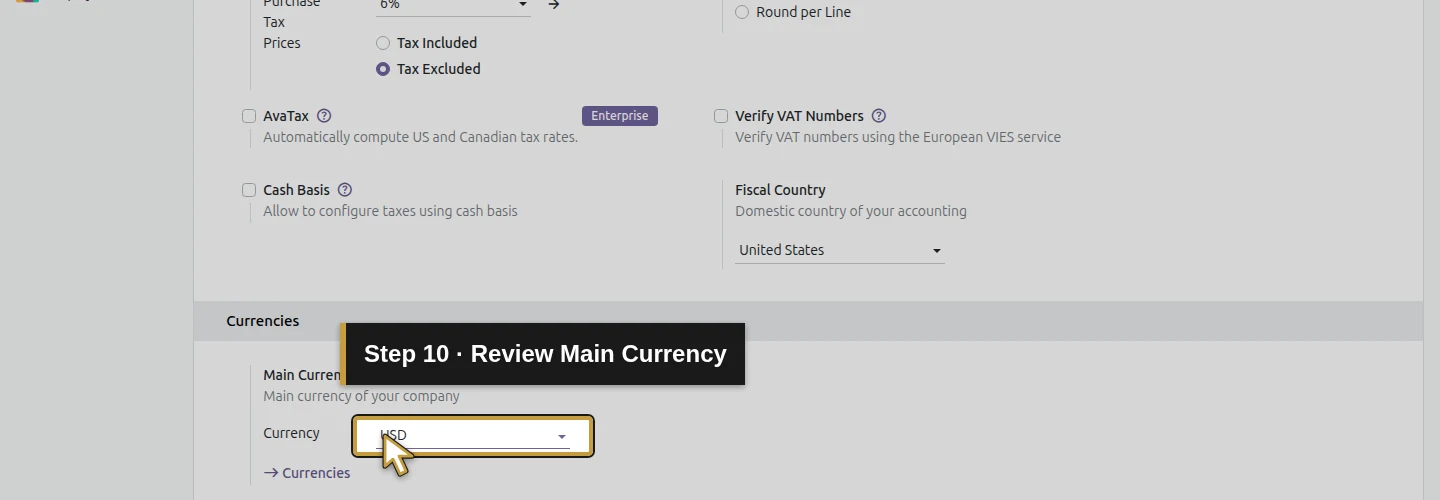
Step 10. Review Main Currency
Find Main Currency below Taxes. Confirm USD, the currency already chosen for Demo Air.
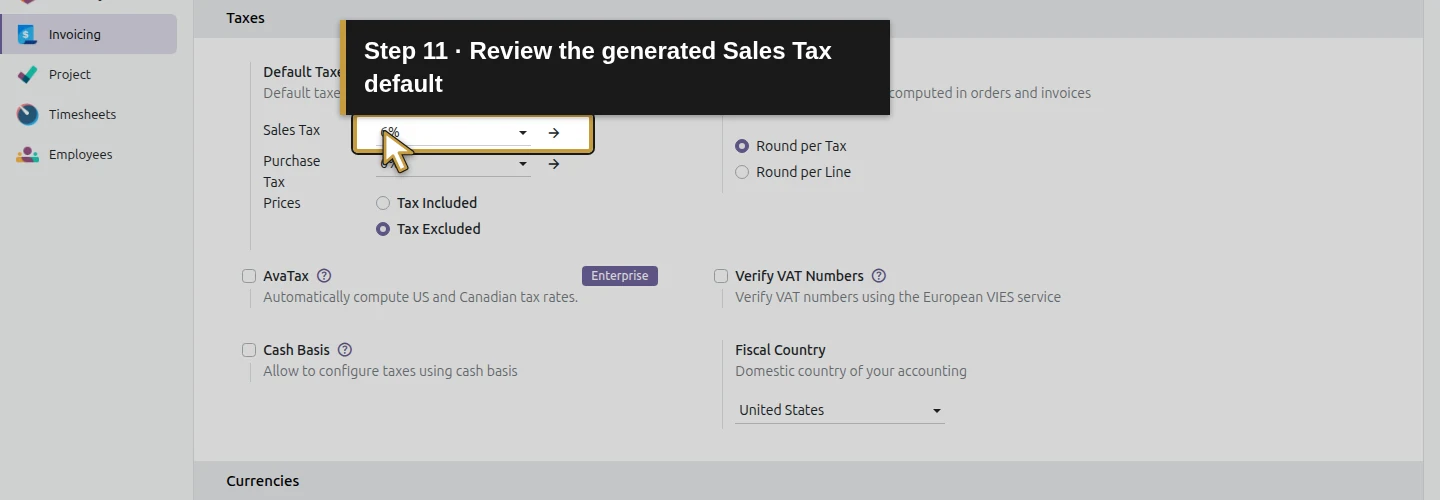
Step 11. Review the generated Sales Tax default
Return to Default Taxes > Sales Tax. Odoo generated 6% in this Florida demo. Inspect this value as a default; decide the correct treatment for your actual sales before using it.
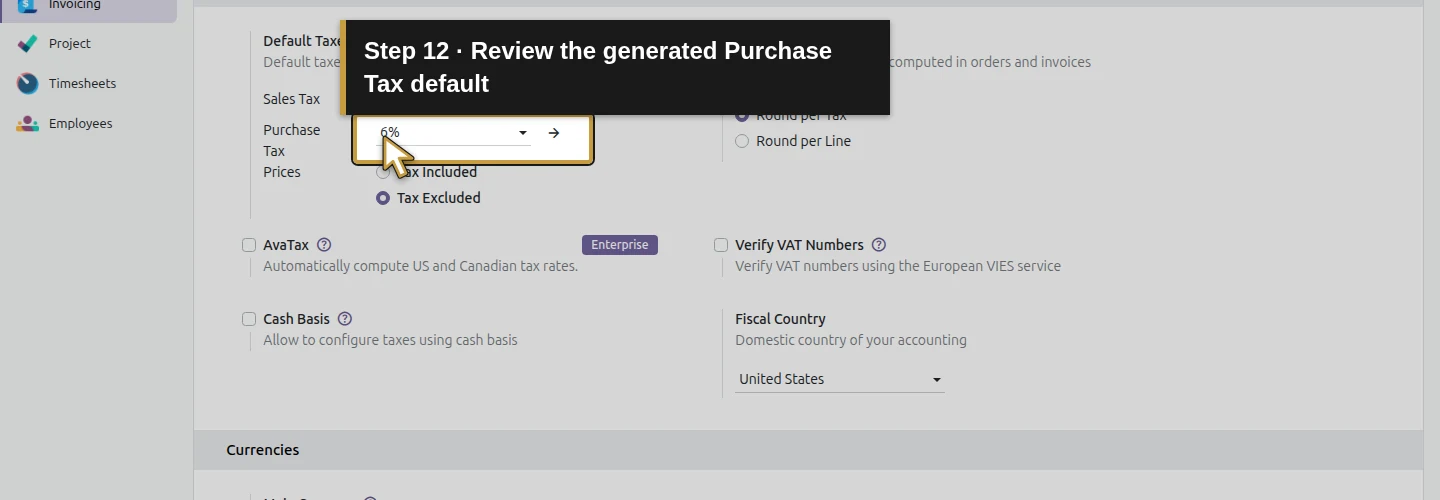
Step 12. Review the generated Purchase Tax default
Check Purchase Tax beneath Sales Tax. The demo also shows 6%. Review your supplier and purchase treatment separately; a generated default does not establish how every material purchase should be taxed.
Save and check the persisted result
Step 13. Save the reviewed settings again
Click Save after reviewing the configuration. We retain the generated values in this demonstration. Wait for the web client to reload.
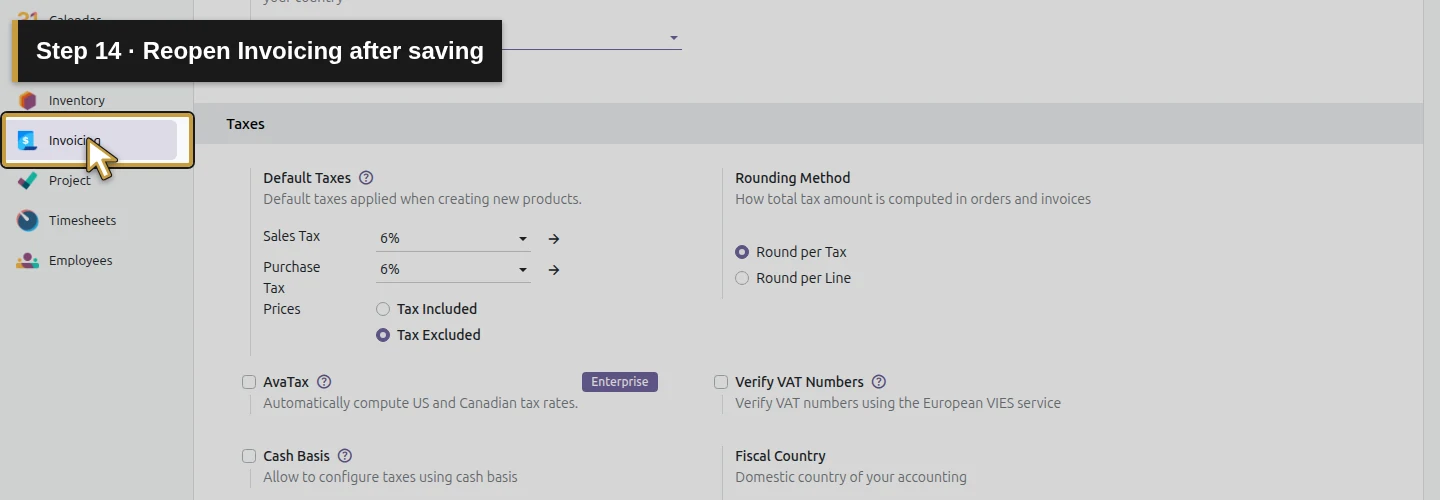
Step 14. Reopen Invoicing after saving
Select Invoicing once more. This checks persisted configuration rather than an unsaved form.
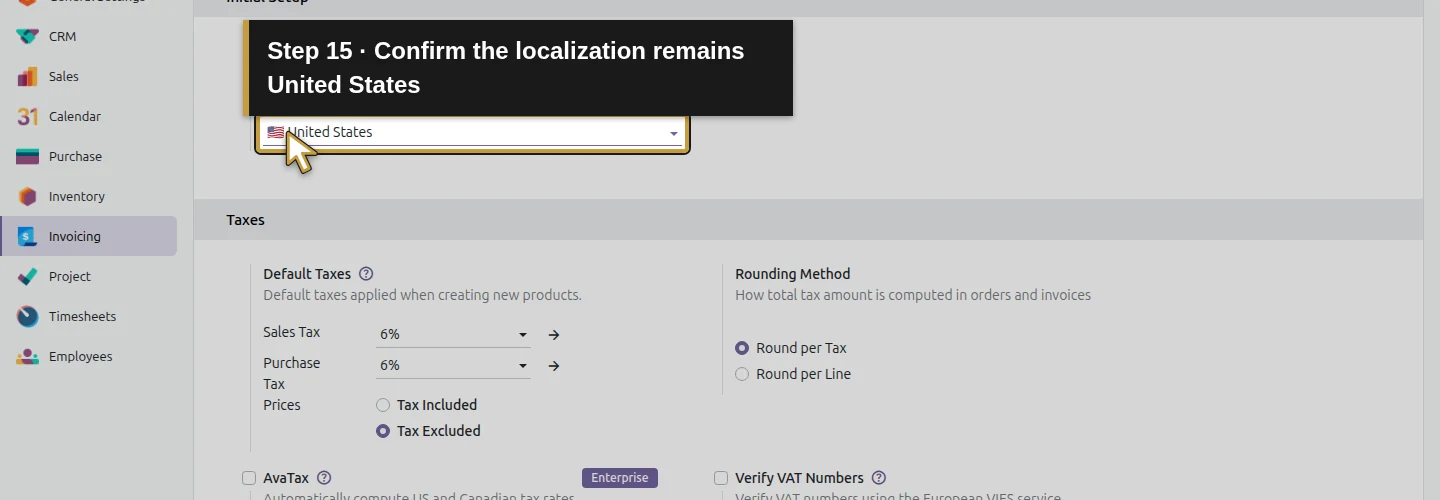
Step 15. Confirm the localization remains United States
Verify Fiscal Localization still shows United States.
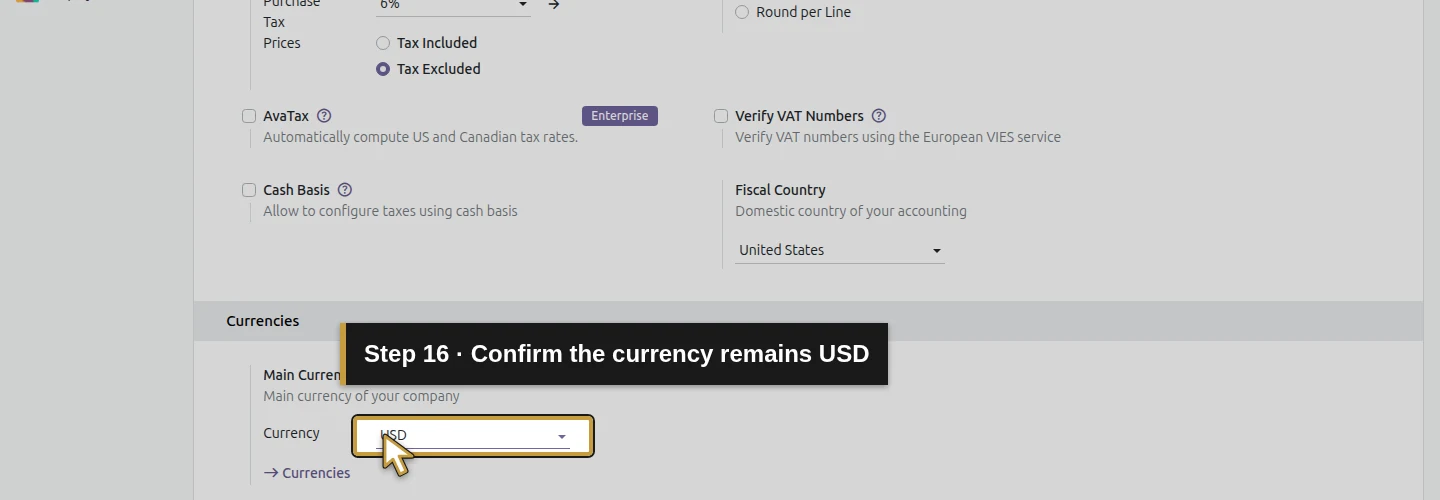
Step 16. Confirm the currency remains USD
Check Main Currency again. The saved currency remains USD.
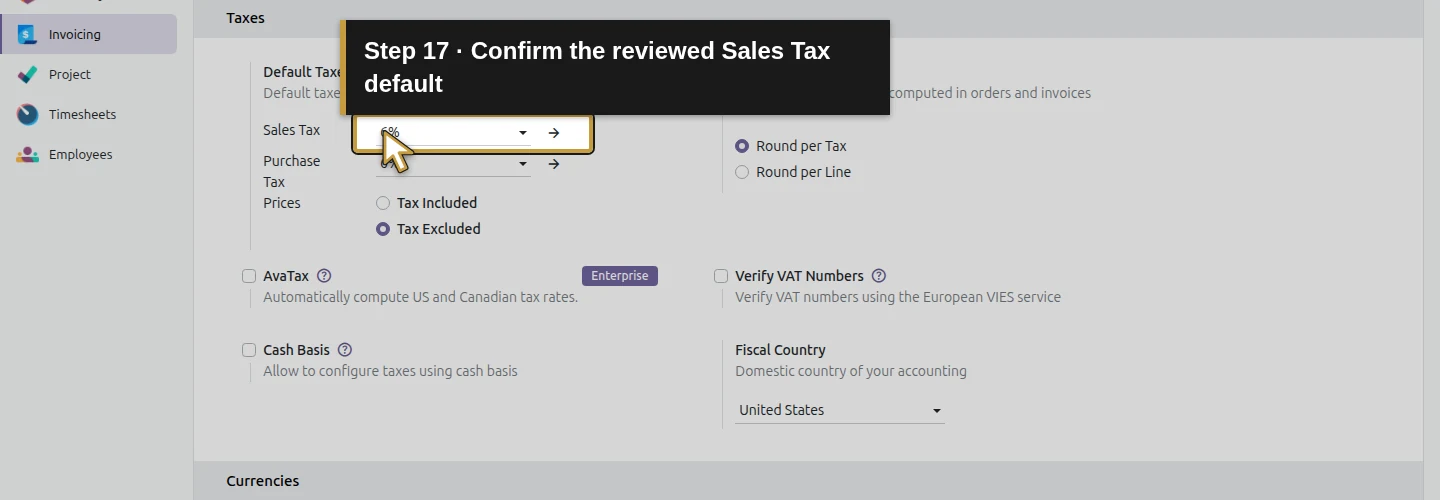
Step 17. Confirm the reviewed Sales Tax default
Return to Sales Tax. The retained demo default is 6%. Your next decision is the tax policy for actual HVAC work before issuing invoices.
Check the final result
The reopened demo shows United States for the fiscal package and fiscal country, USD for currency, and the generated 6% sales/purchase defaults. Odoo installed its official US accounting module and generated the accounts and taxes. The unchanged save retained the setup, and no invoice or payment was created.
For HVAC work, review the contract and what is being sold or installed. Florida's contractor guidance distinguishes fixtures, such as central air-conditioning units, from items that remain tangible personal property, such as window units. That distinction affects the tax review; the demo's 6% value is not a blanket instruction for all jobs. Florida Department of Revenue contractor guidance.
If your screen differs
If Invoicing is missing, check the installed apps and your access. If the fiscal package is already United States, review its existing configuration rather than selecting the generic package to recreate the example. If your database contains accounting transactions, stop at inspection and get a review of the existing chart before planning a change.
Questions about Odoo invoicing setup
How do I change fiscal localization in Odoo?
On the fresh database tested here, open Settings, select Invoicing, choose United States under Fiscal Localization and save. Reopen the settings to check the saved package and generated defaults. This example does not test changing a populated accounting chart.
Can I set up US invoicing in Odoo without Enterprise?
Yes, this saved-package workflow was tested in stock Odoo 20 Community using Invoicing and the official US localization modules. It verifies the package, currency and generated defaults. Additional accounting tools and provider integrations need separate availability checks.
Why does Odoo show 6% sales tax for my Florida company?
The native US package generated that default for Demo Air's Florida company. Florida's general state rate has exceptions, and county surtax and the type of HVAC contract or property can matter. Review your actual tax policy before using the default on invoices.
Can I change the Odoo chart of accounts after posting invoices?
This demonstration starts with no accounting entries and does not test a chart migration after posting. Have the existing accounts, balances, taxes and transaction history reviewed before choosing a migration procedure.
Does setting up Odoo invoicing connect my bank or create an invoice?
This workflow saves the fiscal package and checks its configuration. It created no invoice, bank connection or payment. Bank/payment journals, payment terms and the first job invoice are separate lessons.
Continue setting up the business
Alex's invoicing foundation is saved. The next finance lessons cover bank/payment journals and payment terms; customer and supplier setup prepare the records needed for the first job.
Get help setting up Odoo for your HVAC business
Review your apps, invoicing setup and business workflows with Onward.
Talk about your Odoo setup