Running an HVAC business with Odoo

How do I record an agreed change to an Odoo sales order?
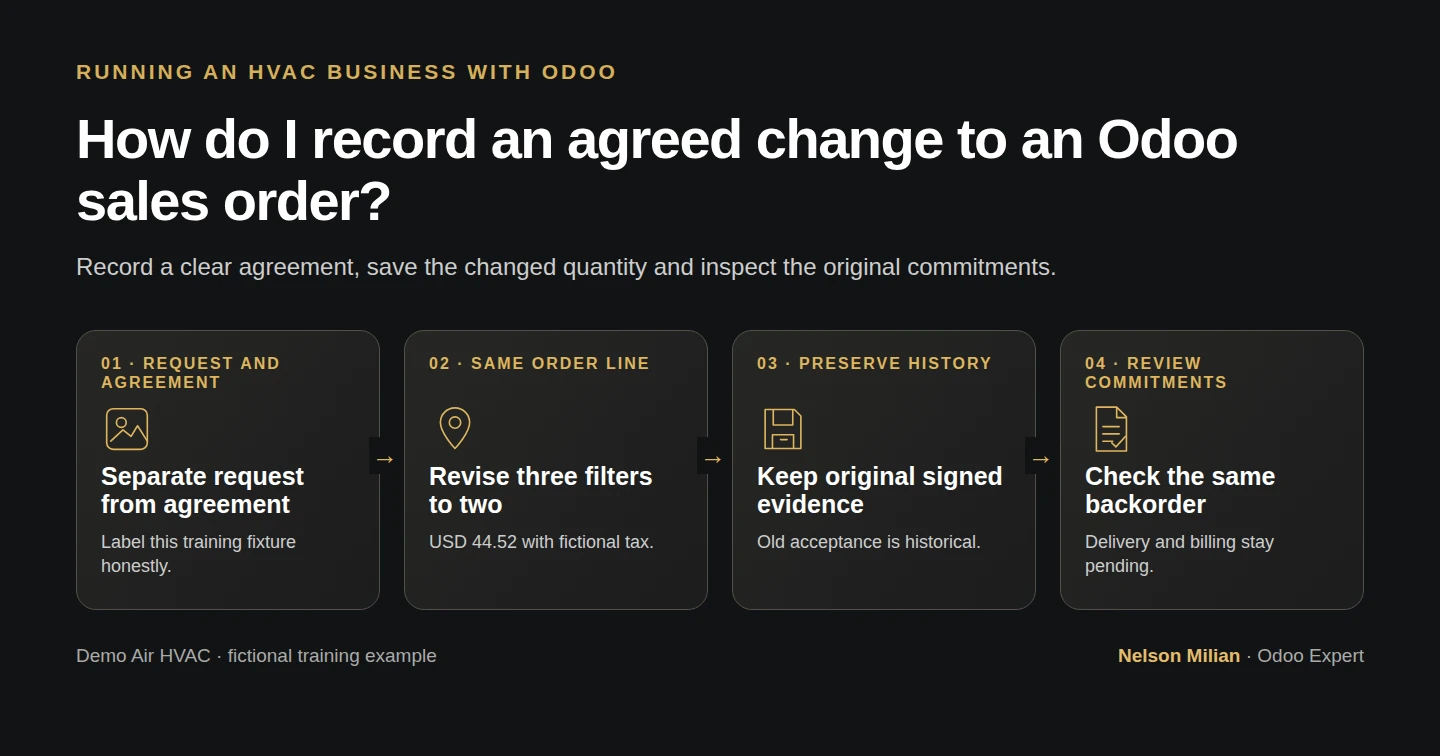
Workflow overview: How do I record an agreed change to an Odoo sales order?
Workflow overview. Instructional screenshots show the actual demo interface.

Record a manual sales-order amendment in Odoo, preserve original acceptance evidence and verify the revised quantity, total and downstream stock records.

Alex needs the commercial order to match a documented change after an unused filter came back. This example reduces the order from three filters to two at the same unit price, preserves the original acceptance records and checks the existing backorder. The native edit does not collect a new customer agreement automatically.

Alex Rivera and Demo Air HVAC are fictional training examples. Prices, dates, quantities and business situations in this guide are illustrative.

Before you begin

Tested in stock Odoo 20.0-20260926 Community as the demo owner administrator, with official modules and standard configuration. Use the quotation-acceptance foundation from customer quotation acceptance and the completed unused-filter return from the unused-filter return. The target is S00007, manually referenced to Demo Service Job H40 / task 5. It has three ordered filters, zero net Delivered after one delivery/return, no invoice and an existing two-filter backorder. Its original accepted total is $66.78. The owner administrator can edit this confirmed, unlocked order in the tested runtime. For training only, the manually agreed amendment is an explicit scenario fixture: two filters at $21 each, $42 + $2.52 demo tax = $44.52. No real customer approval is represented. In a real business, retain genuine written agreement before applying a commercial change.

Step-by-step workflow

Record the request and fictional manual agreement, save the revised quantity and written scope, then inspect the unchanged delivery commitments. This lesson creates no invoice, refund or new customer signature.

Step 1. Review the accepted order and existing commitments

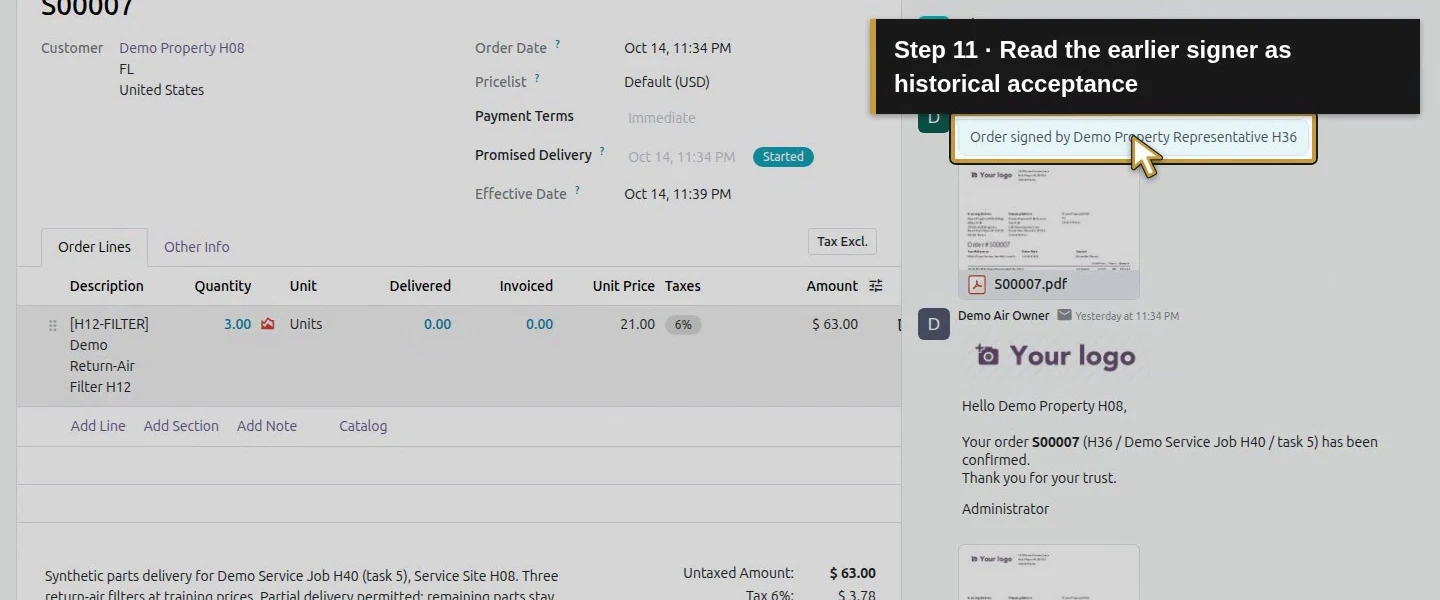
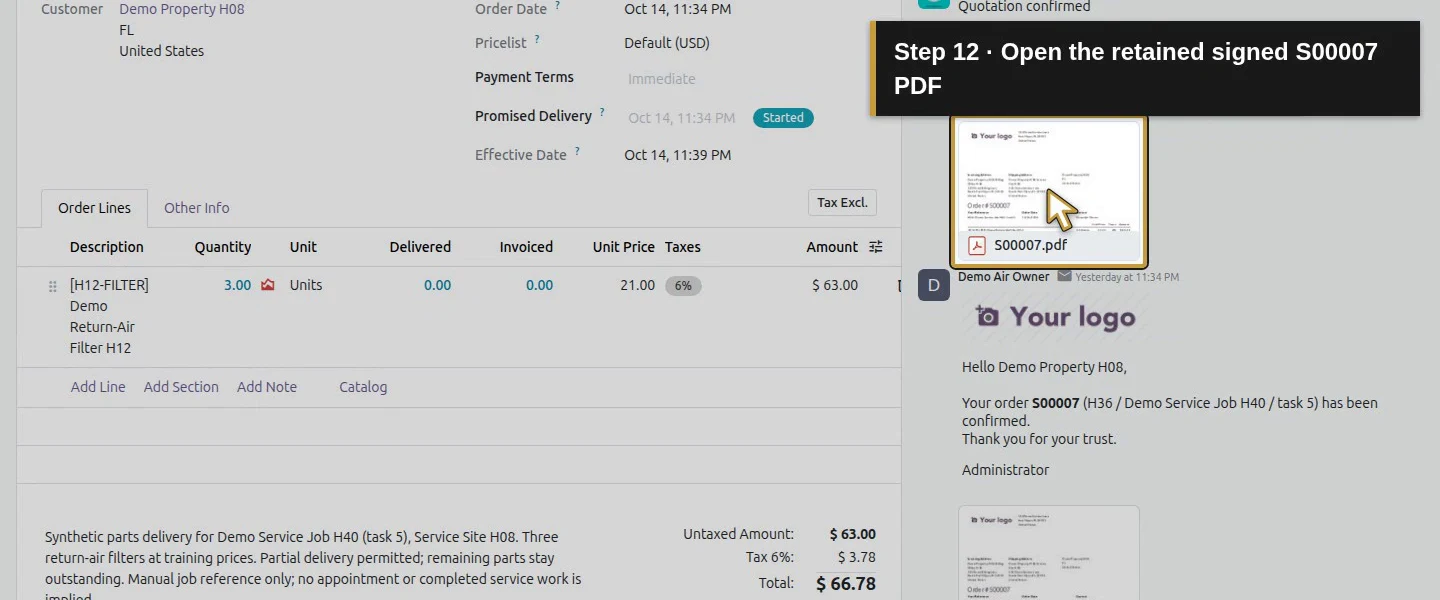
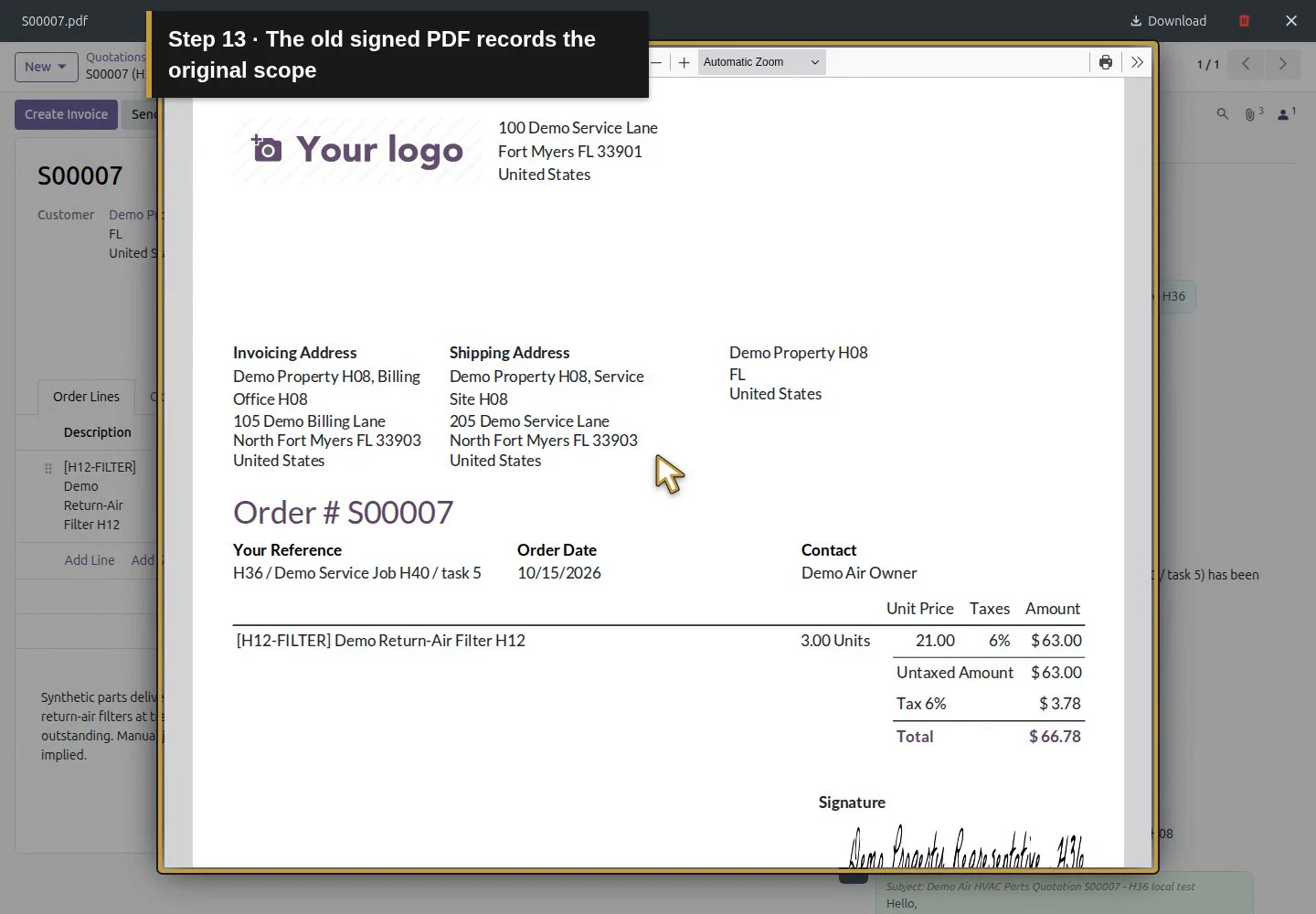
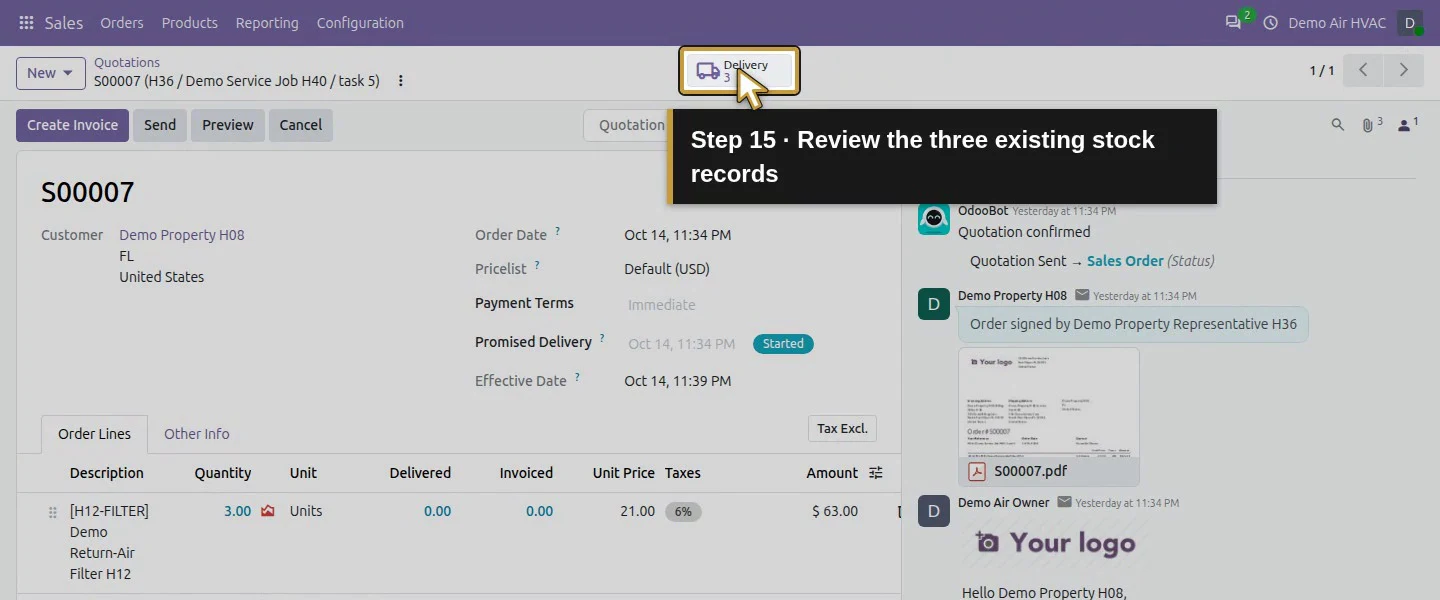
Open S00007 and check customer, Customer Reference and the original three-filter line. Review the original accepted PDF/signature, existing Done delivery and Done return, outstanding backorder and invoice status. The original customer signature belongs to the earlier order. This example starts with net Delivered 0.00, Invoiced 0.00, and two filters already reserved on WH/OUT/00003. Keep those records intact.
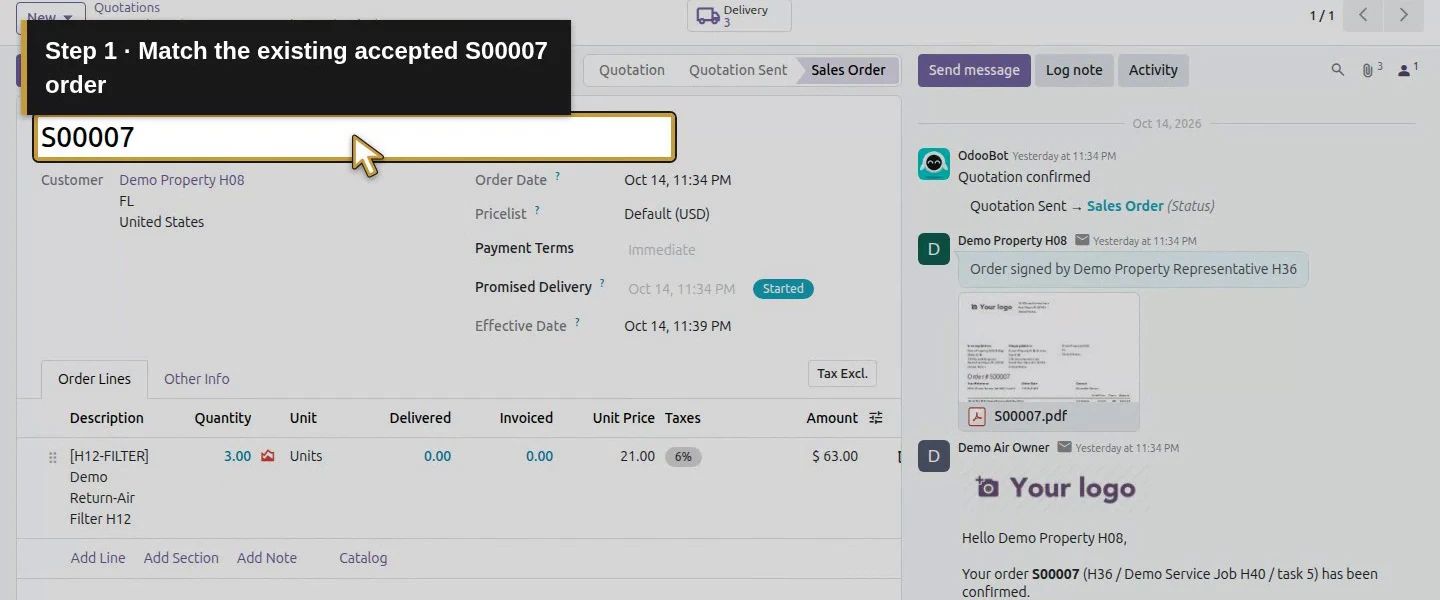
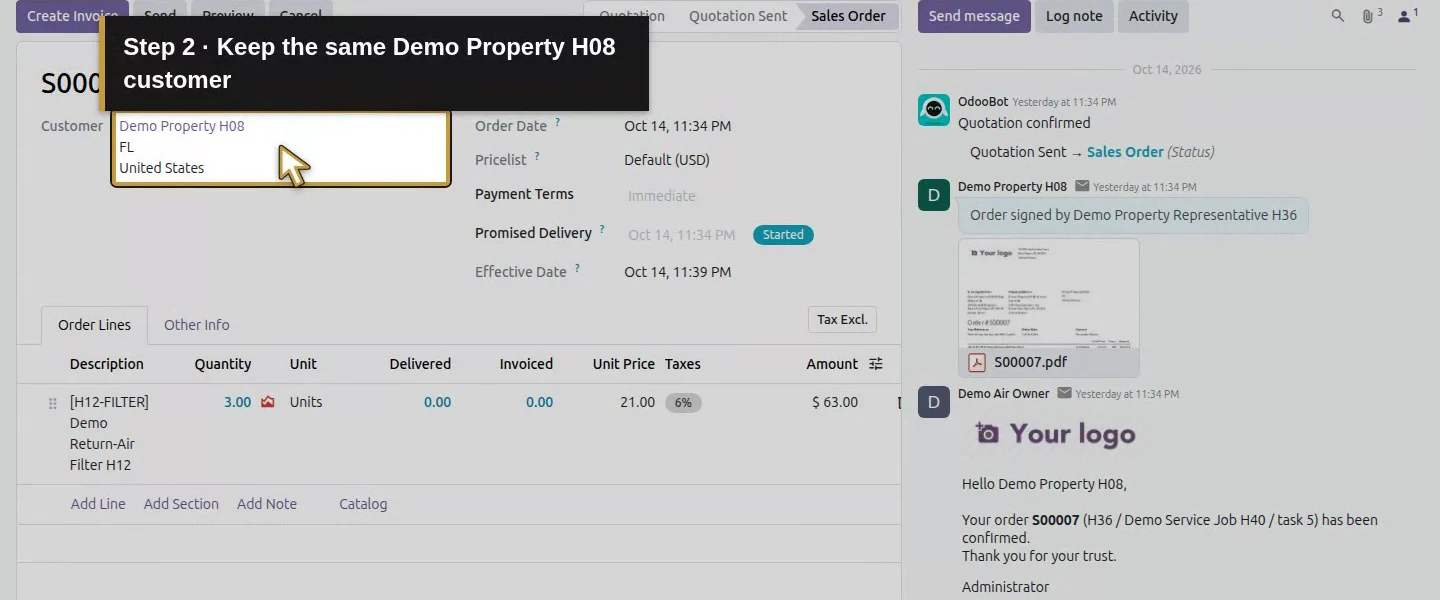
Action 1: Match the existing accepted S00007 order. The actual target is highlighted in gold.
Match the existing accepted S00007 order.
Action 2: Keep the same Demo Property H08 customer. The actual target is highlighted in gold.
Keep the same Demo Property H08 customer.
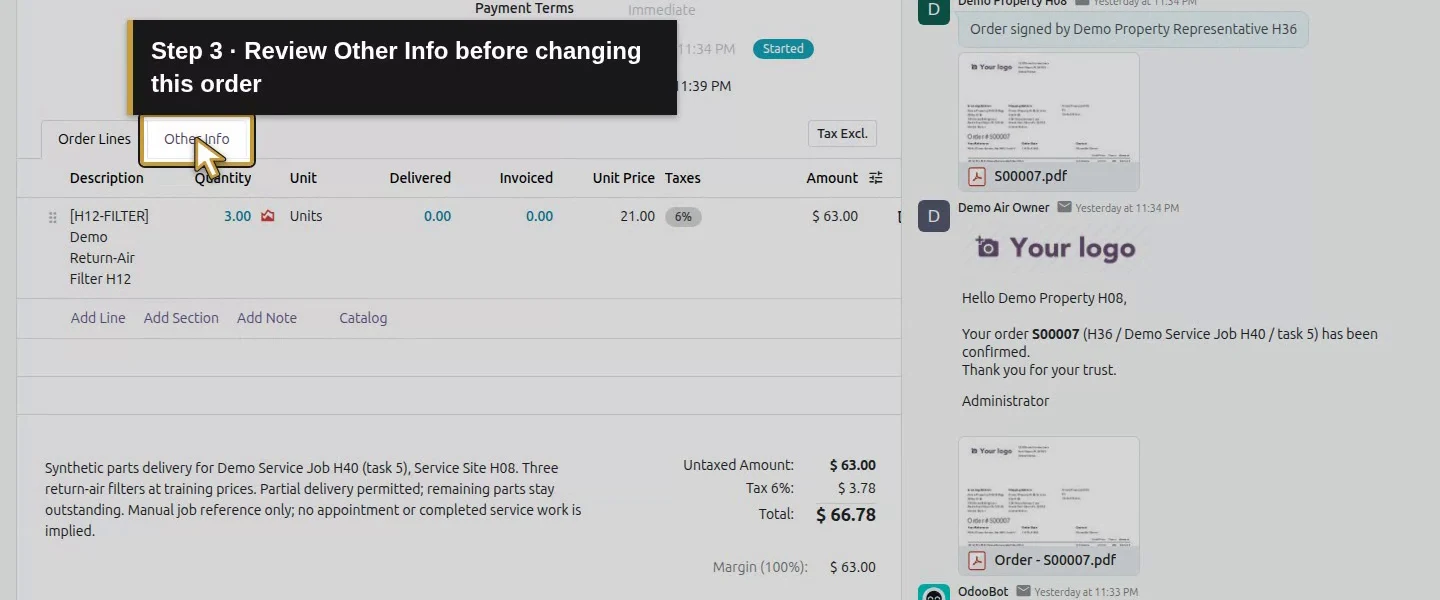
Action 3: Review Other Info before changing this order. The actual target is highlighted in gold.
Review Other Info before changing this order.
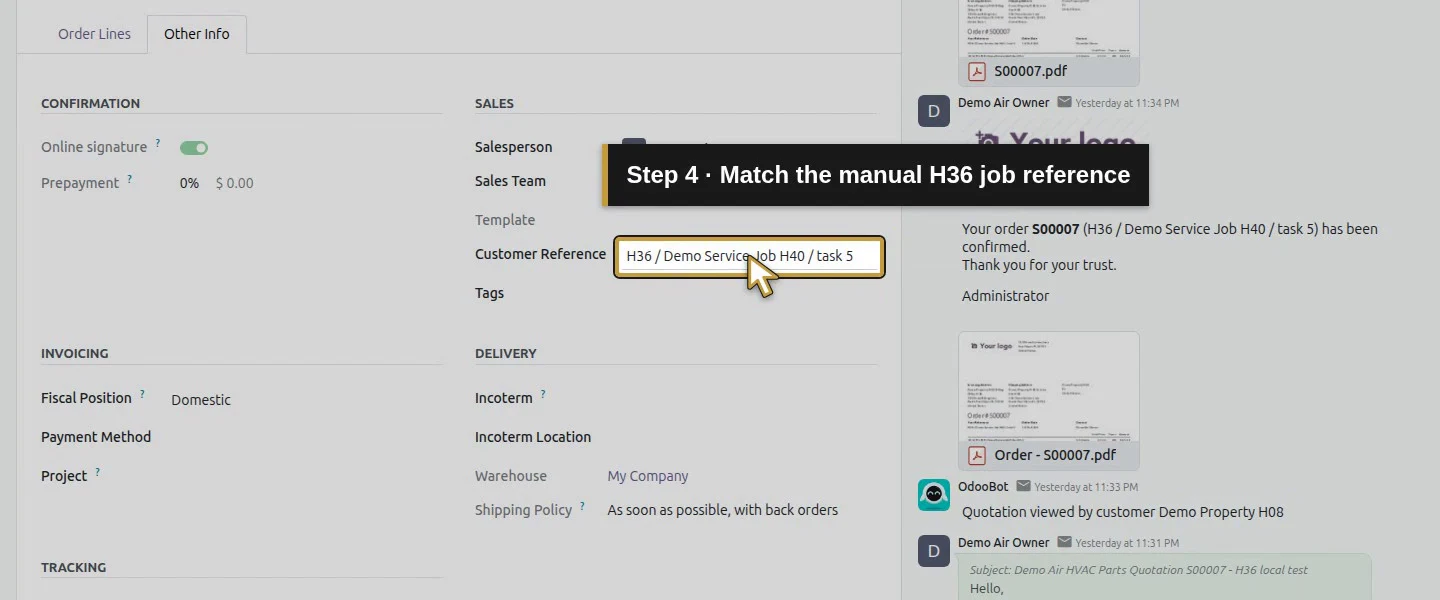
Action 4: Match the manual H36 job reference. The actual target is highlighted in gold.
Match the manual H36 job reference.
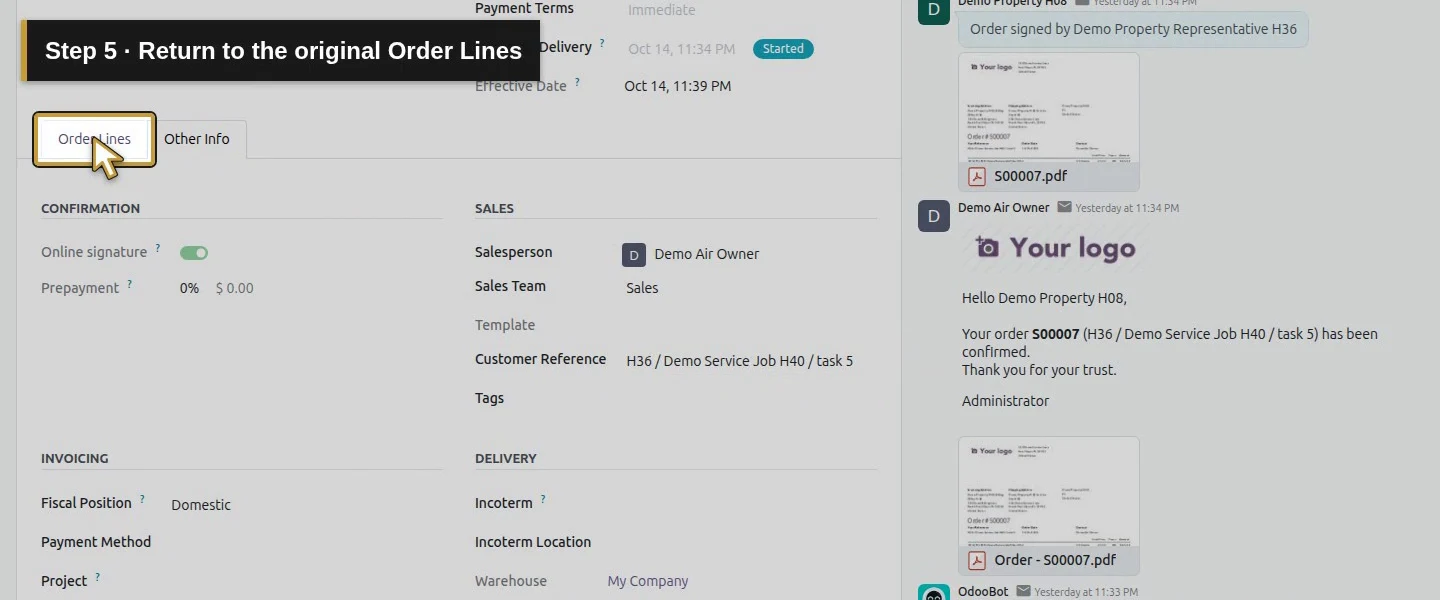
Action 5: Return to the original Order Lines. The actual target is highlighted in gold.
Return to the original Order Lines.
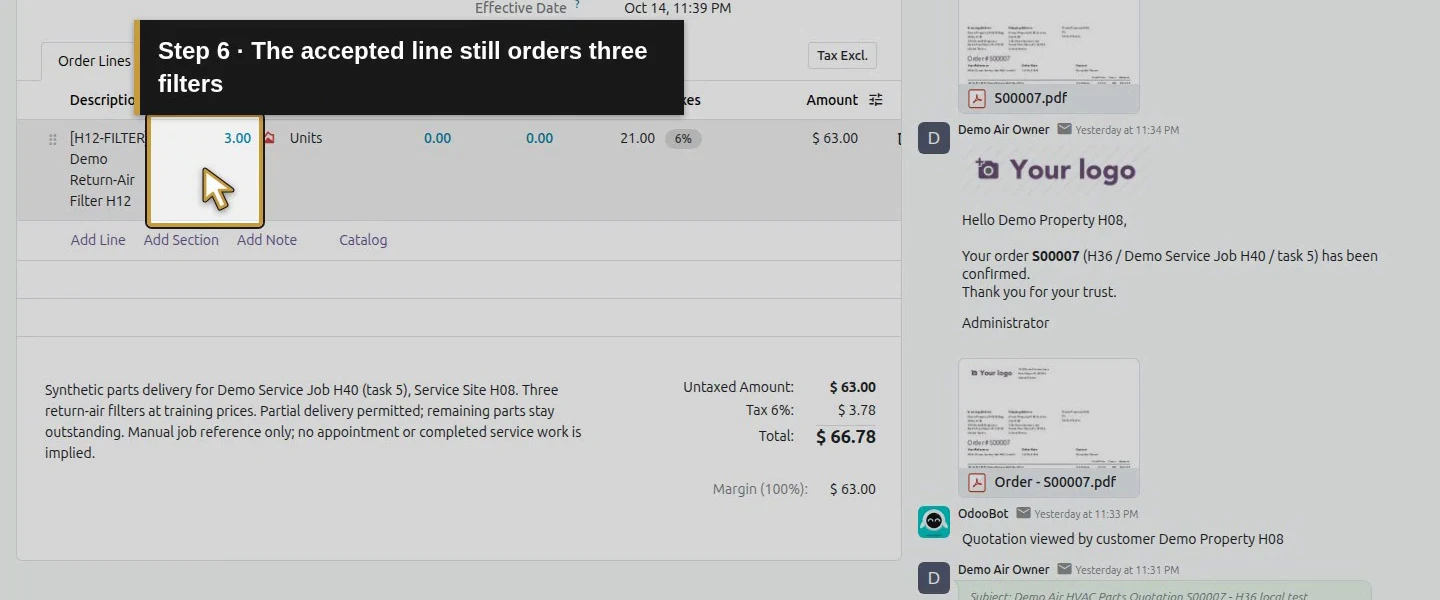
Action 6: The accepted line still orders three filters. The actual target is highlighted in gold.
The accepted line still orders three filters.
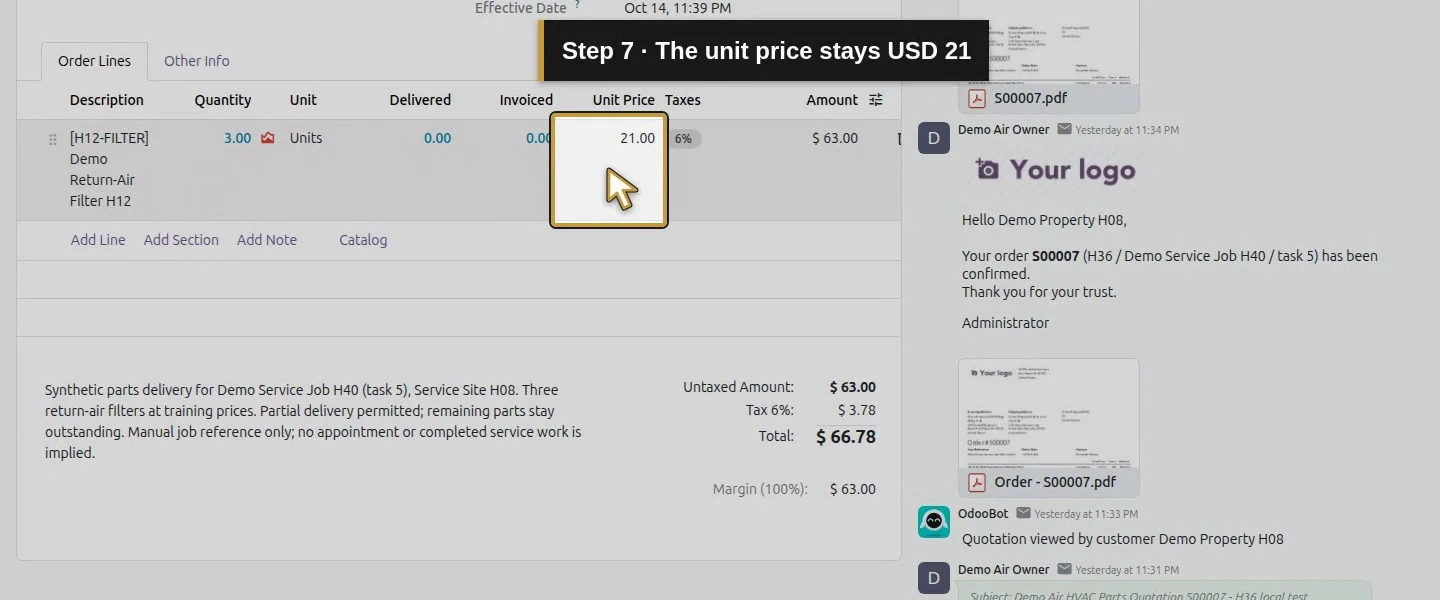
Action 7: The unit price stays USD 21. The actual target is highlighted in gold.
The unit price stays USD 21.
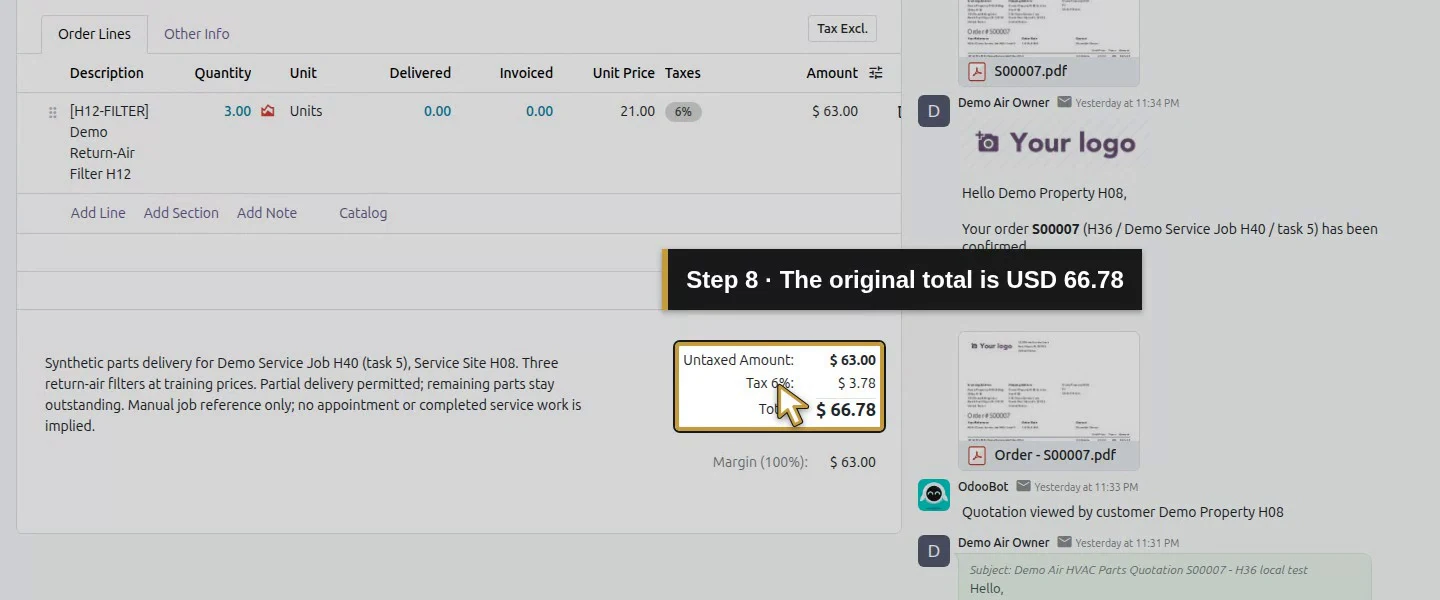
Action 8: The original total is USD 66.78. The actual target is highlighted in gold.
The original total is USD 66.78.
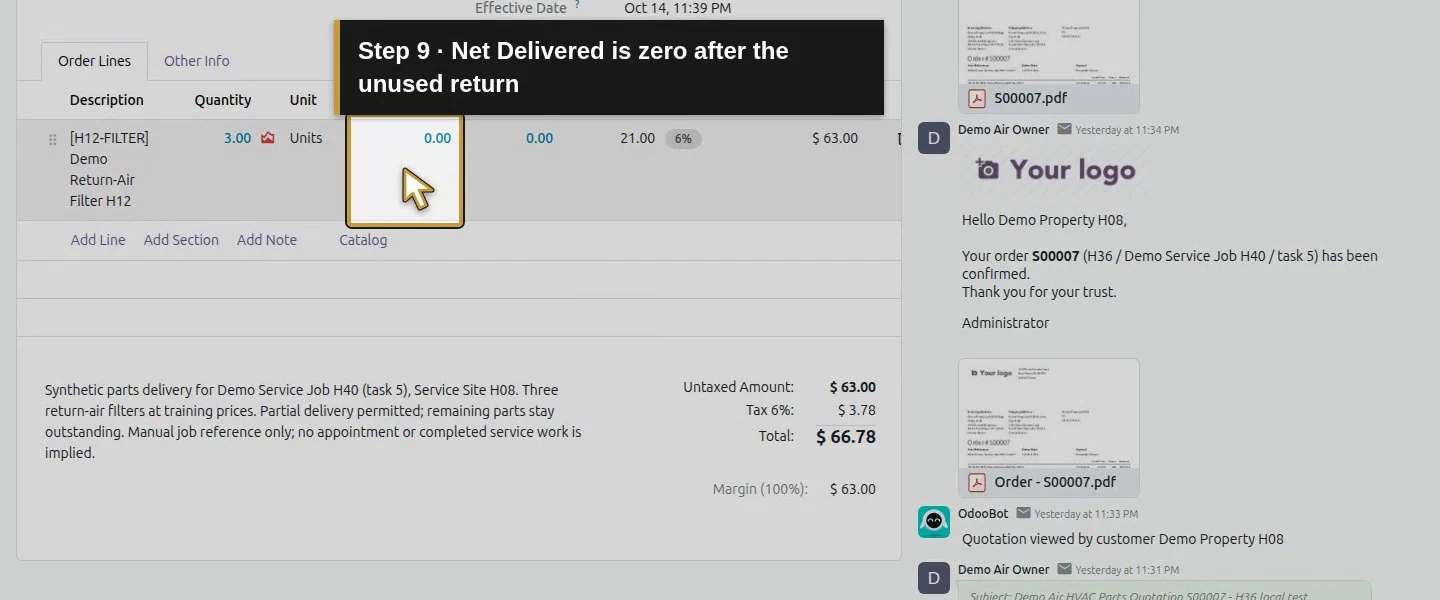
Action 9: Net Delivered is zero after the unused return. The actual target is highlighted in gold.
Net Delivered is zero after the unused return.
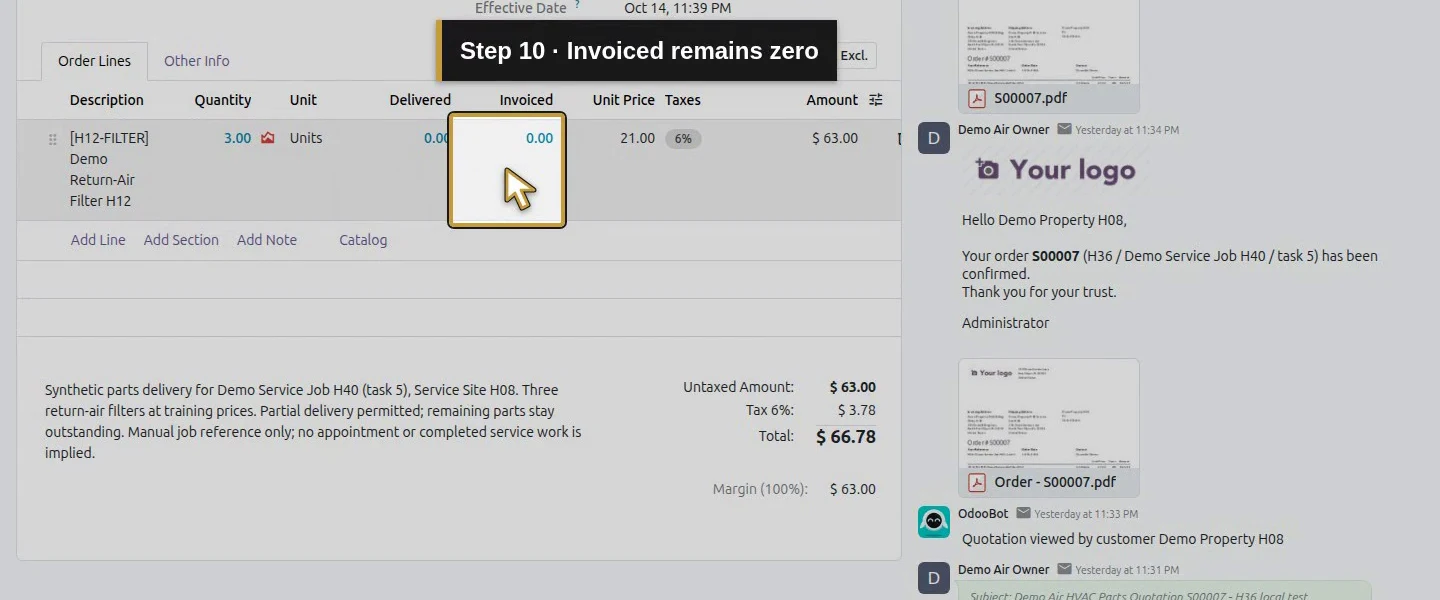
Action 10: Invoiced remains zero. The actual target is highlighted in gold.
Invoiced remains zero.
Action 11: Read the earlier signer as historical acceptance. The actual target is highlighted in gold.
Read the earlier signer as historical acceptance.
Action 12: Open the retained signed S00007 PDF. The actual target is highlighted in gold.
Open the retained signed S00007 PDF.
Action 13: The old signed PDF records the original scope. The actual target is highlighted in gold.
The old signed PDF records the original scope.
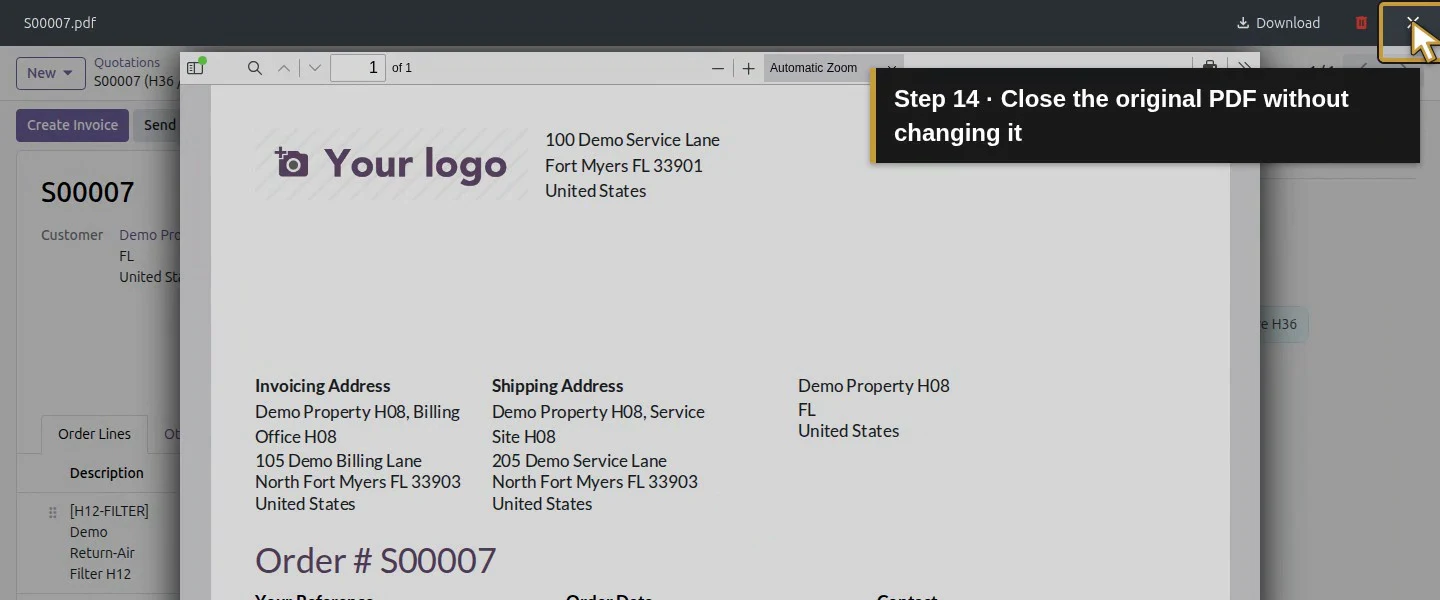
Action 14: Close the original PDF without changing it. The actual target is highlighted in gold.
Close the original PDF without changing it.
Action 15: Review the three existing stock records. The actual target is highlighted in gold.
Review the three existing stock records.
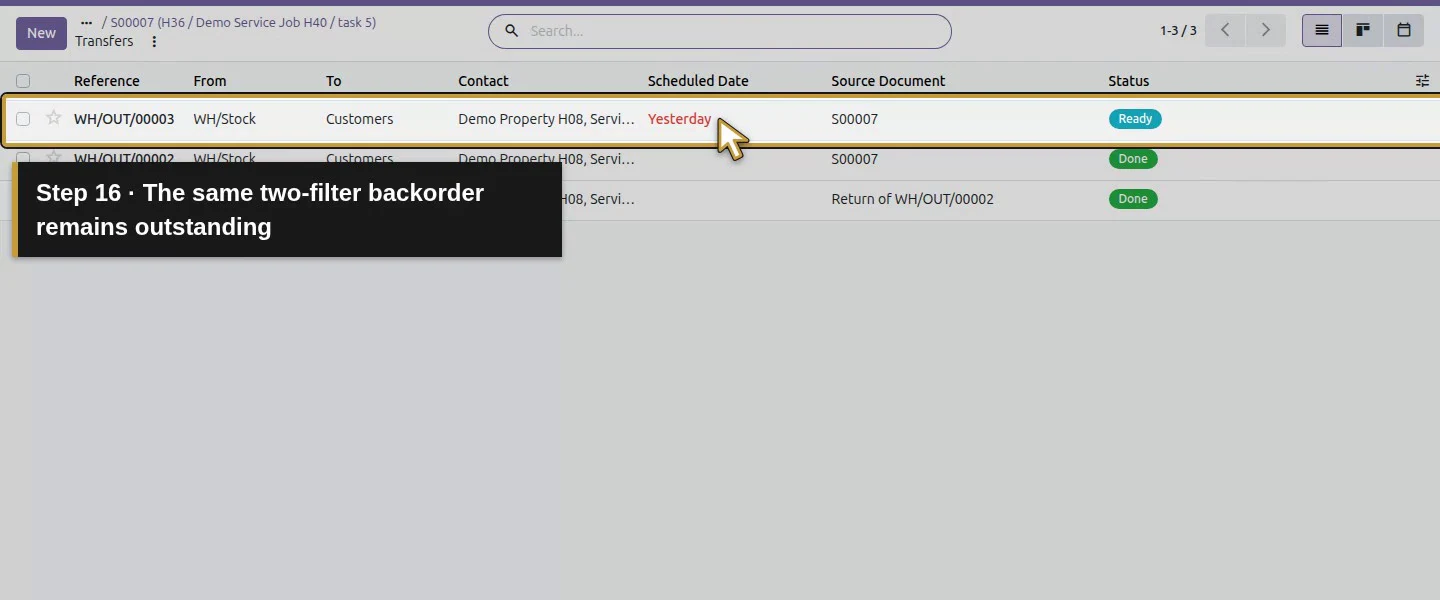
Action 16: The same two-filter backorder remains outstanding. The actual target is highlighted in gold.
The same two-filter backorder remains outstanding.
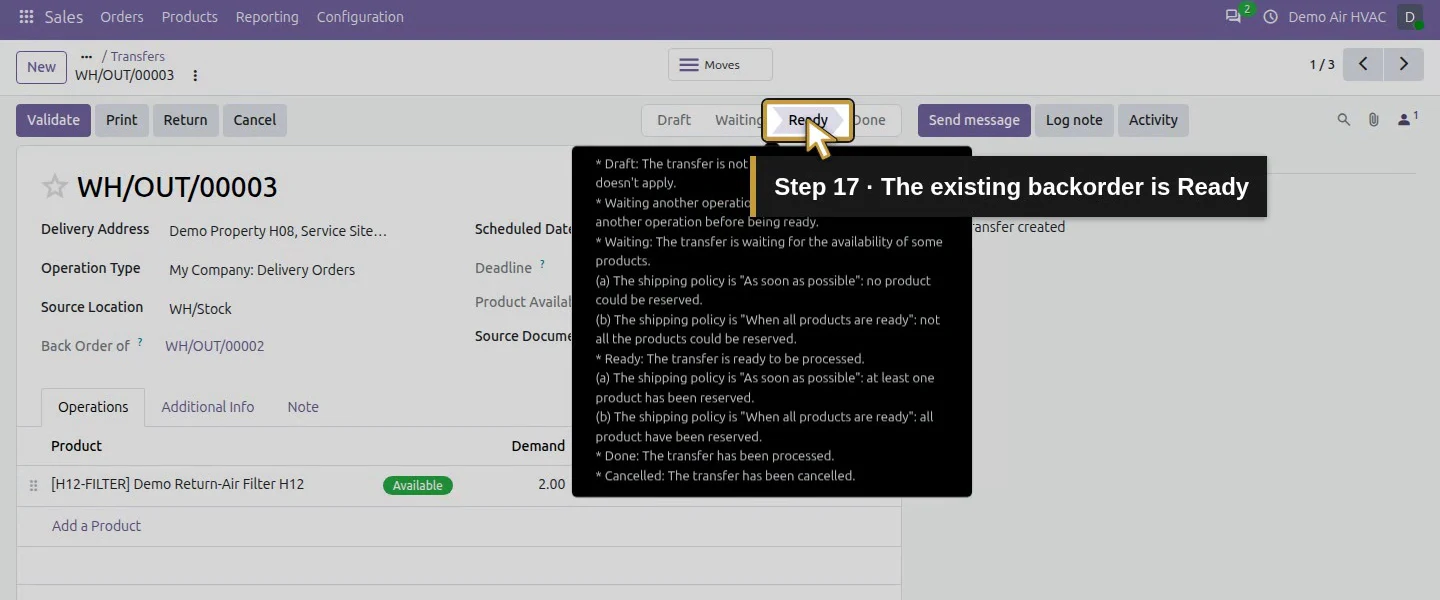
Action 17: The existing backorder is Ready. The actual target is highlighted in gold.
The existing backorder is Ready.
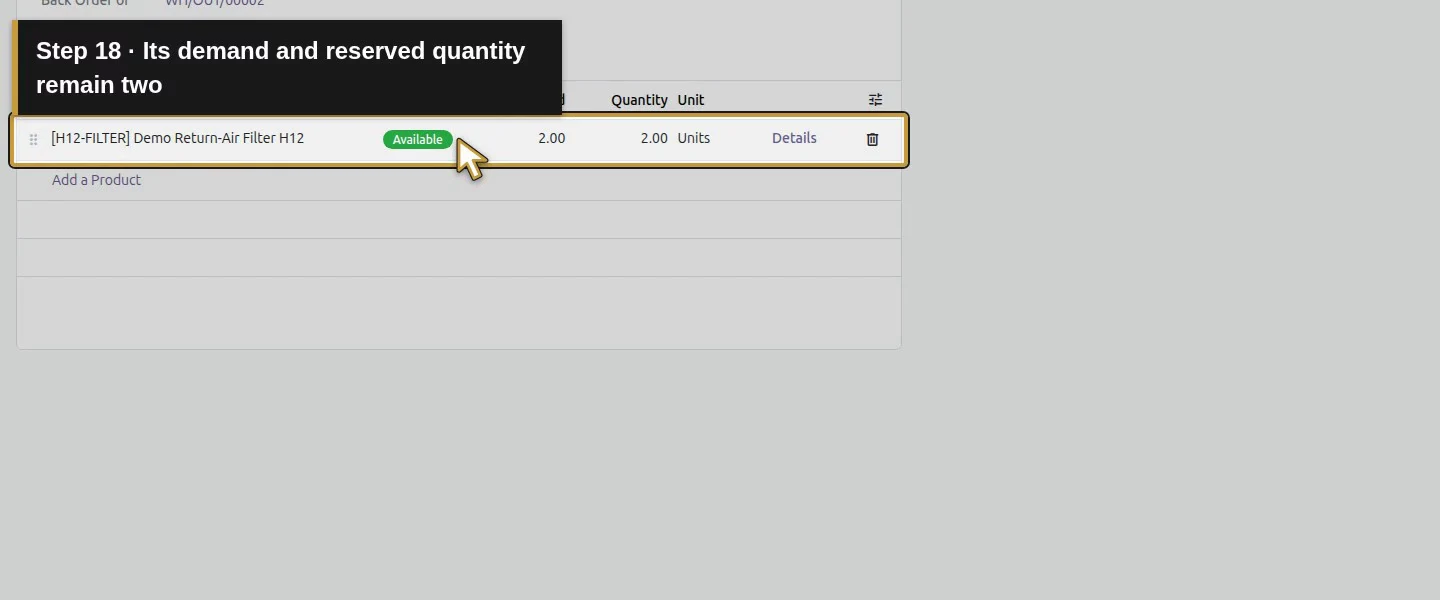
Action 18: Its demand and reserved quantity remain two. The actual target is highlighted in gold.
Its demand and reserved quantity remain two.

Step 2. Record the request separately from agreement

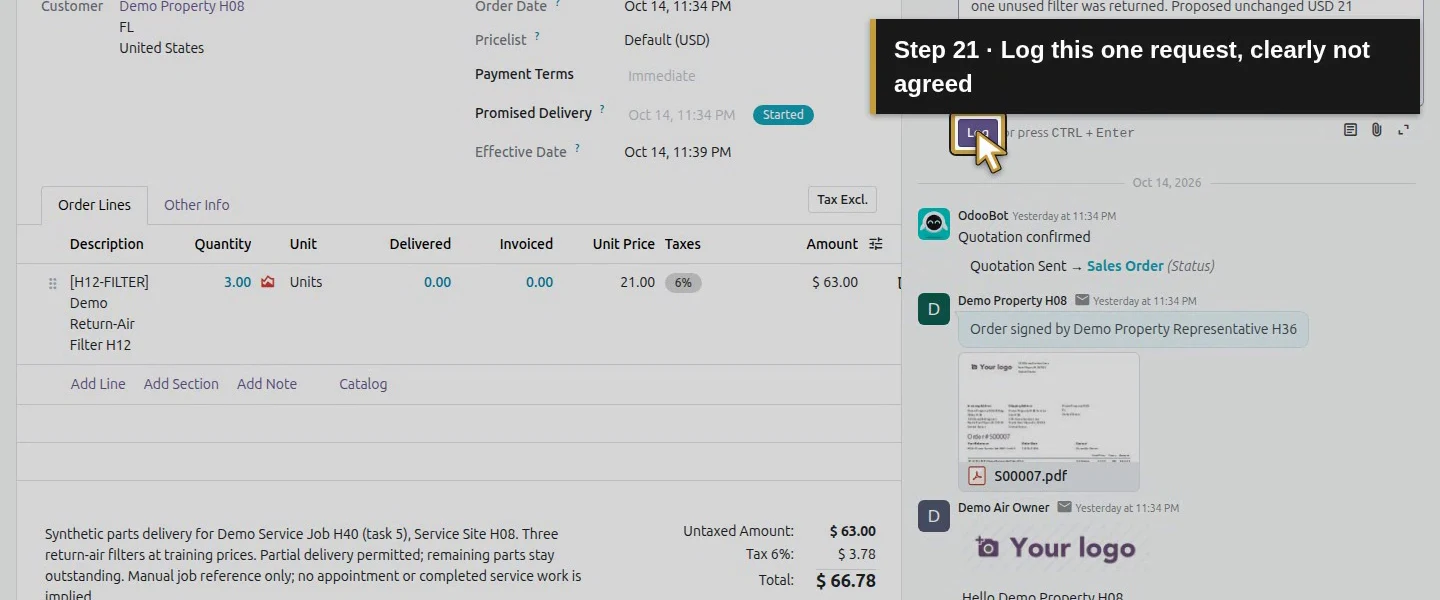
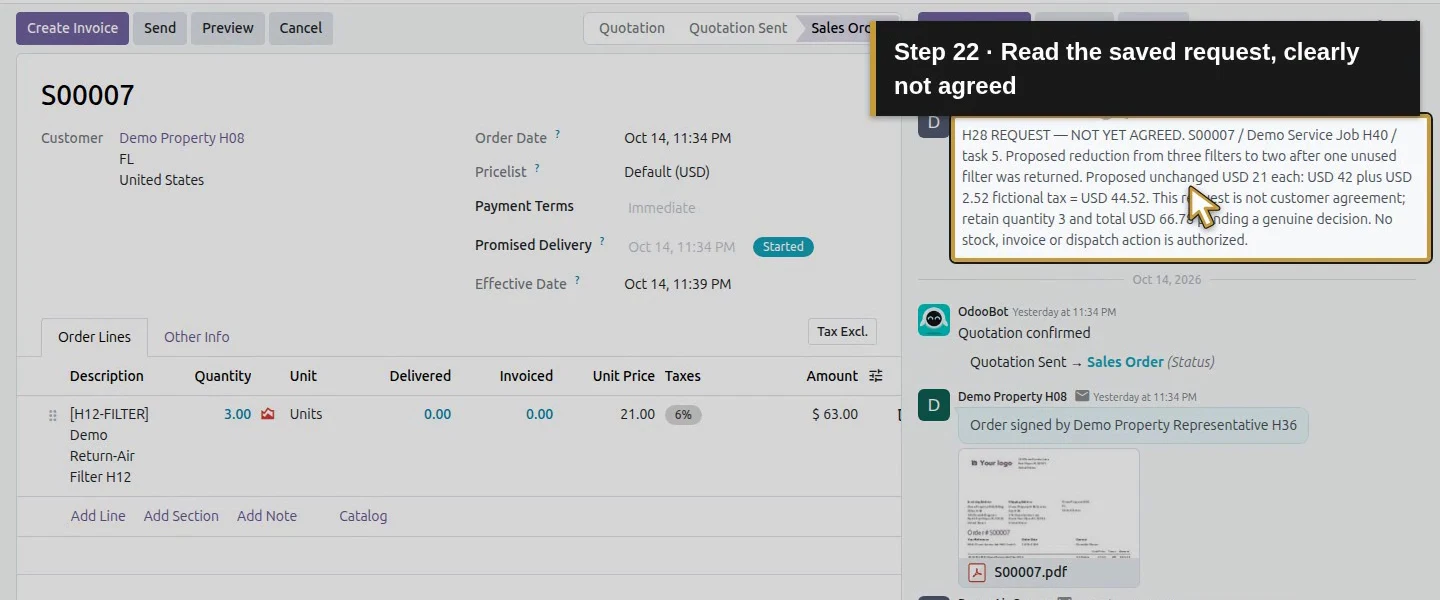
Click Log note and describe the proposed reduction from three to two filters, the unused return and proposed total. Identify it as not yet agreed and click Log once. We verified that this request note alone left ordered quantity three, total $66.78, stock and invoice eligibility unchanged. A request in chatter is not an approval control.
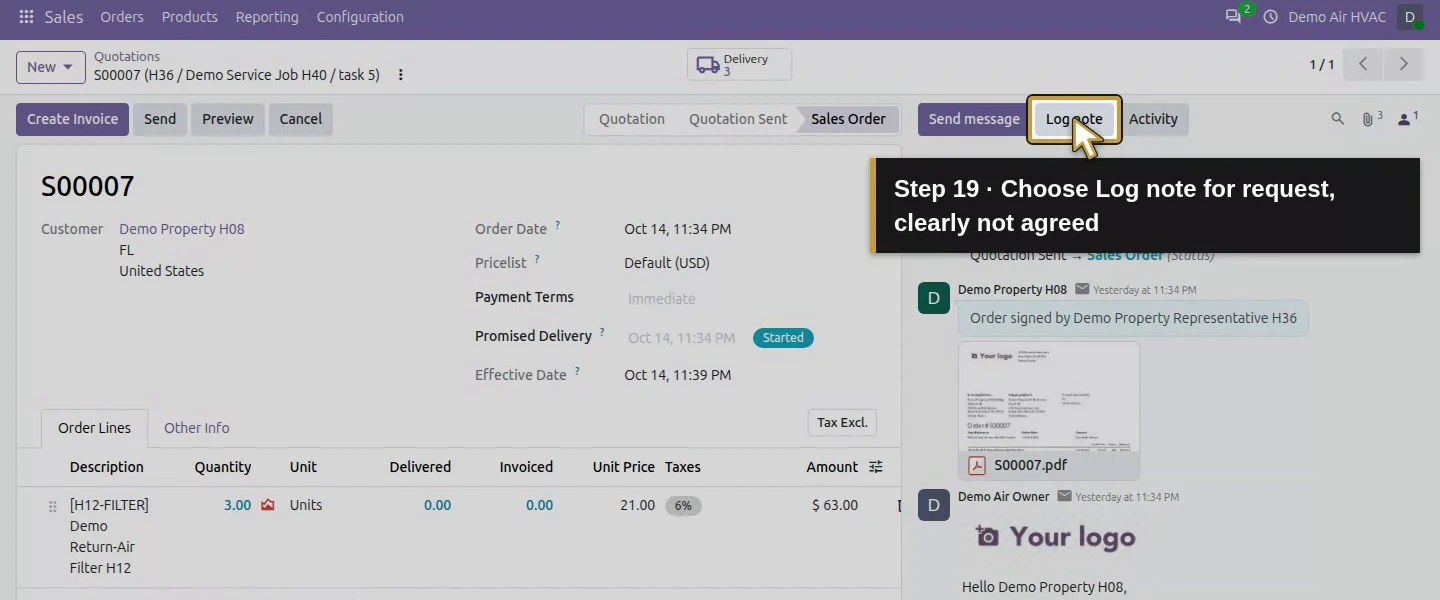
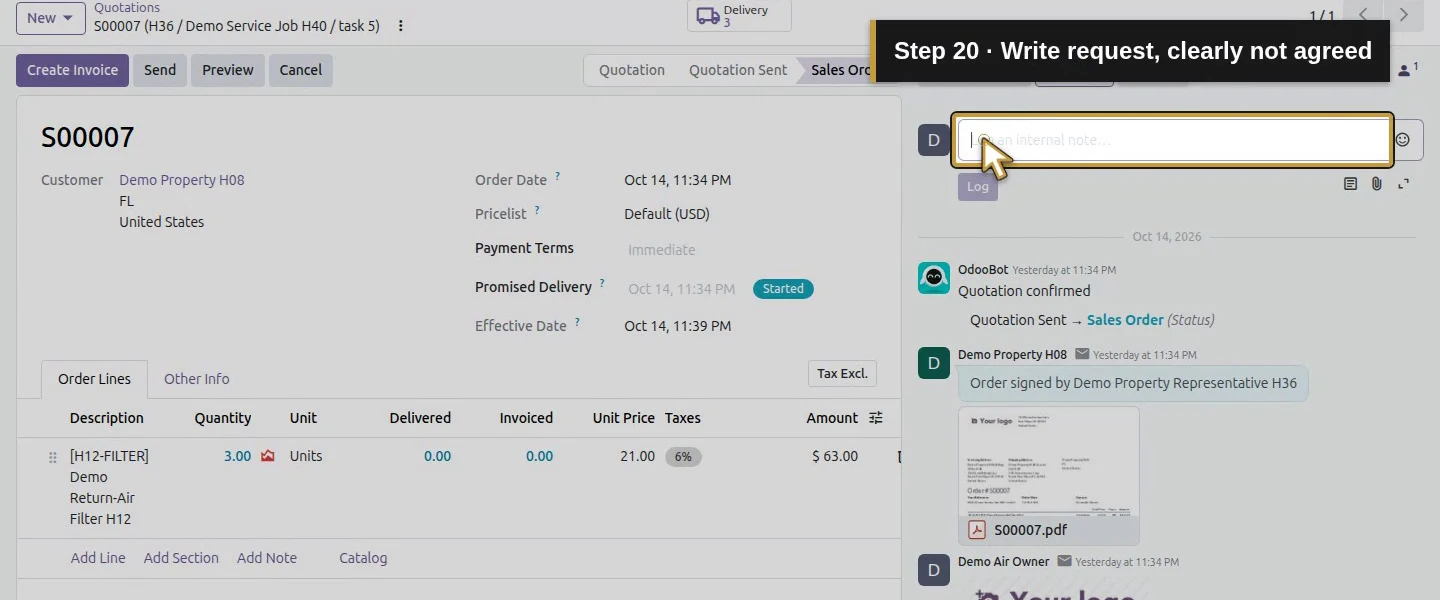
Action 19: Choose Log note for request, clearly not agreed. The actual target is highlighted in gold.
Choose Log note for request, clearly not agreed.
Action 20: Write request, clearly not agreed. The actual target is highlighted in gold.
Write request, clearly not agreed.
Action 21: Log this one request, clearly not agreed. The actual target is highlighted in gold.
Log this one request, clearly not agreed.
Action 22: Read the saved request, clearly not agreed. The actual target is highlighted in gold.
Read the saved request, clearly not agreed.

Step 3. Record the manual agreement and its evidence

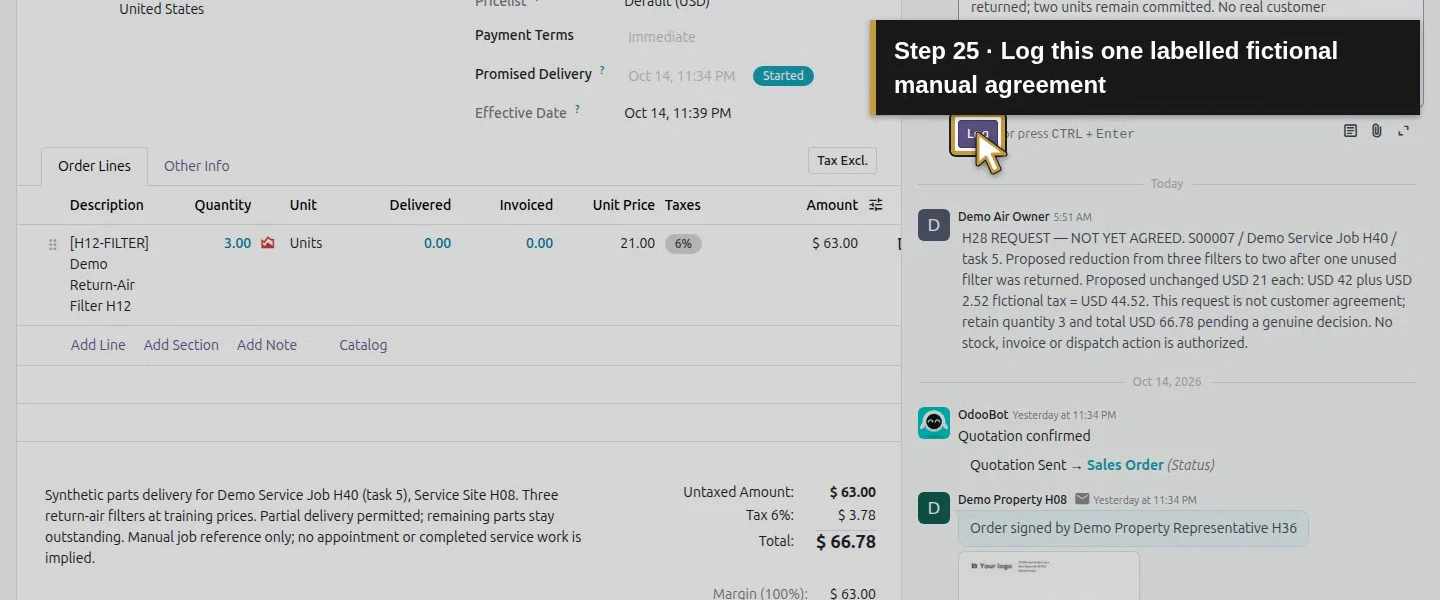
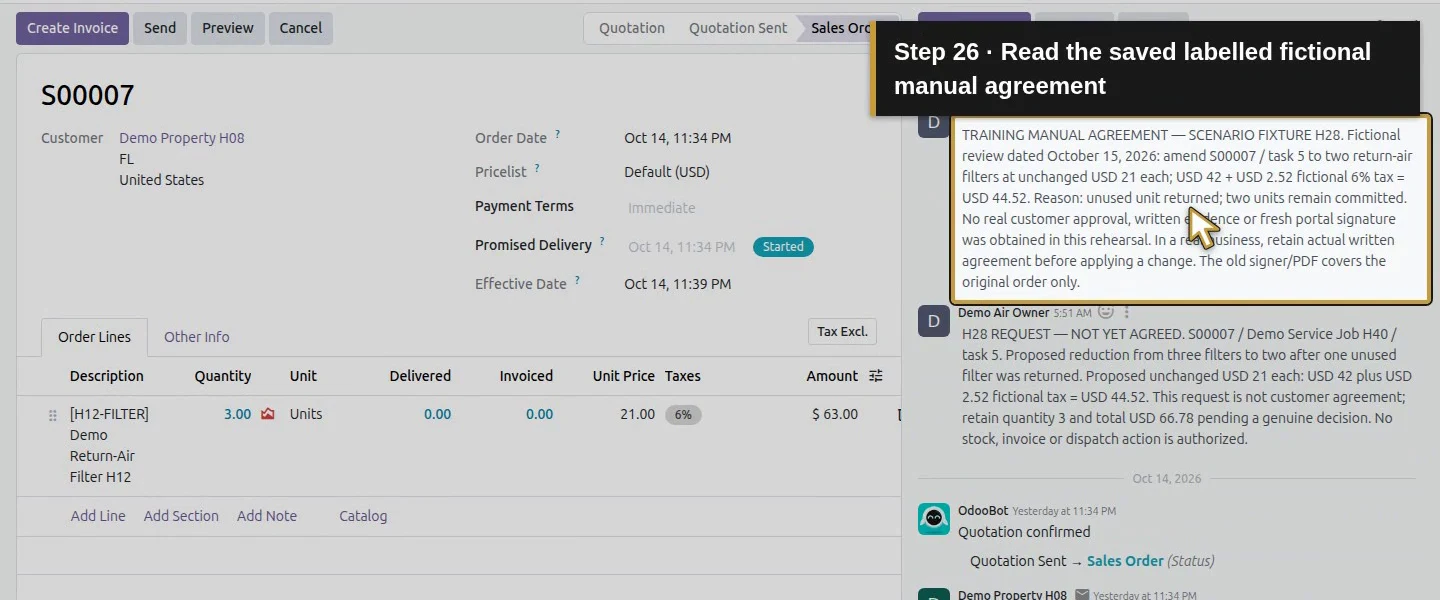
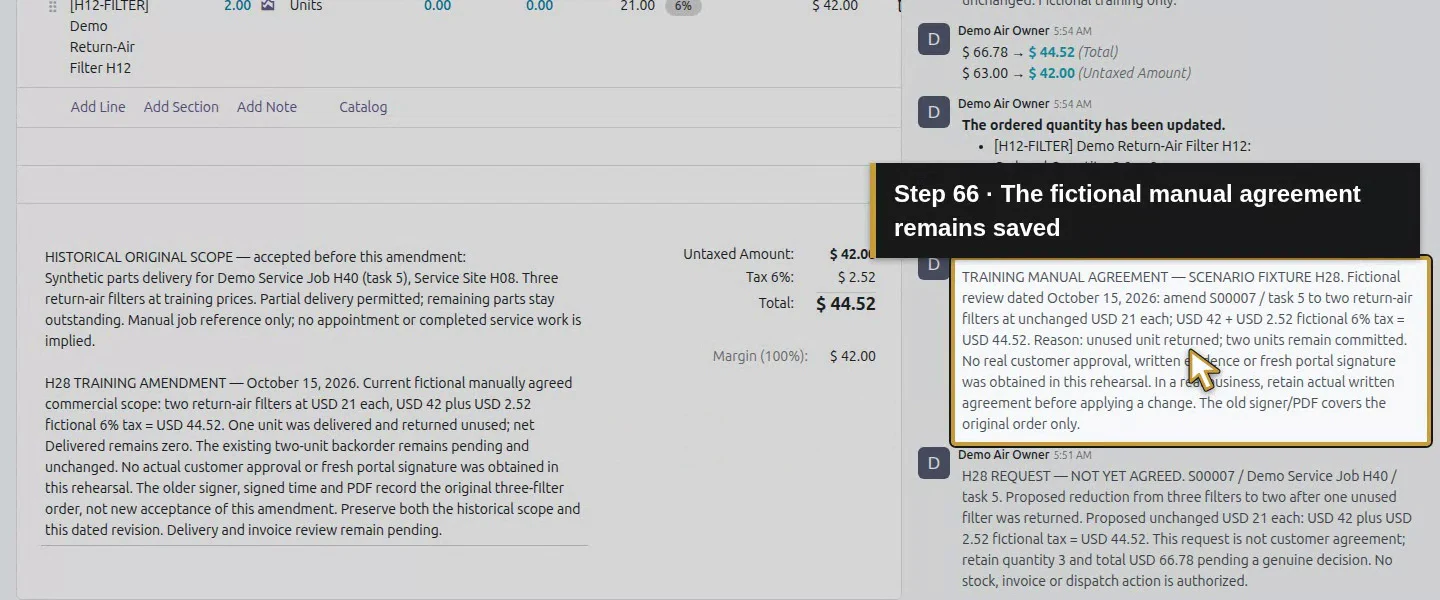
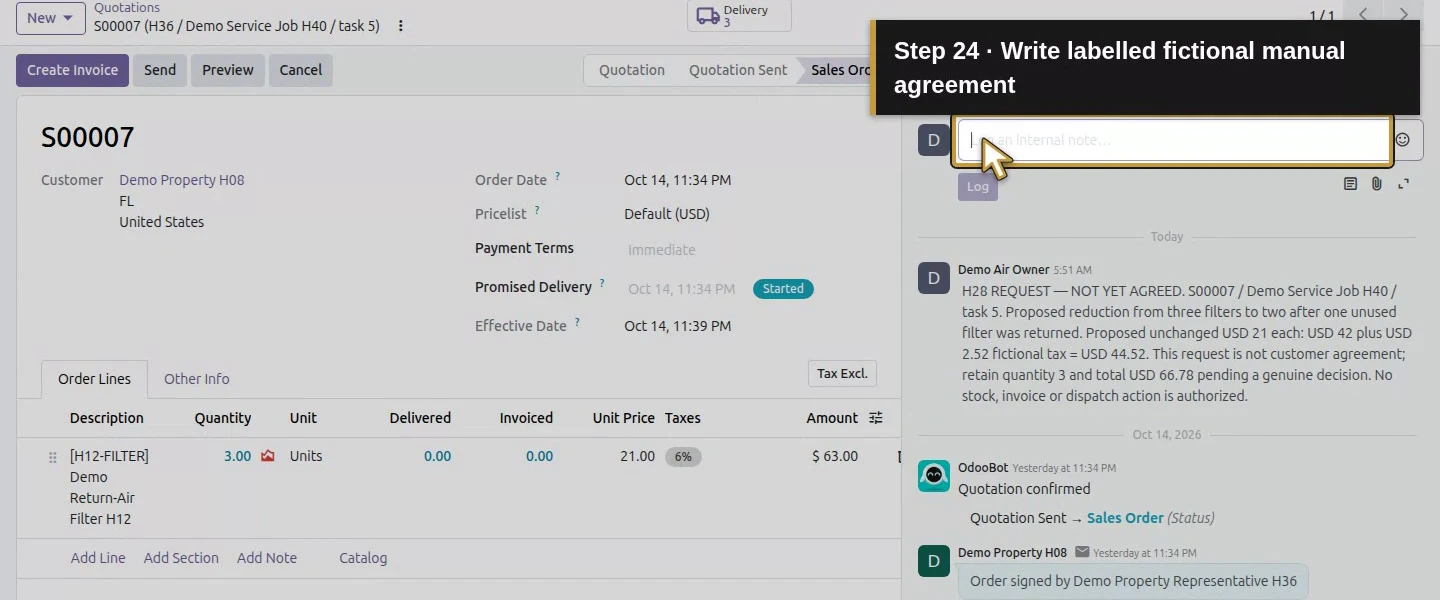
After obtaining the appropriate agreement in your business, retain its genuine written evidence and record the accepted scope, quantity, unit price, tax treatment, reason and date. Our second internal note is explicitly TRAINING MANUAL AGREEMENT — SCENARIO FIXTURE: two filters at the unchanged $21 each, total $44.52 including demo tax. It openly states that no real customer approval or new portal signature was obtained. This demonstrates where to record a manual decision, not a native approval gate or proof of an actual customer agreement.
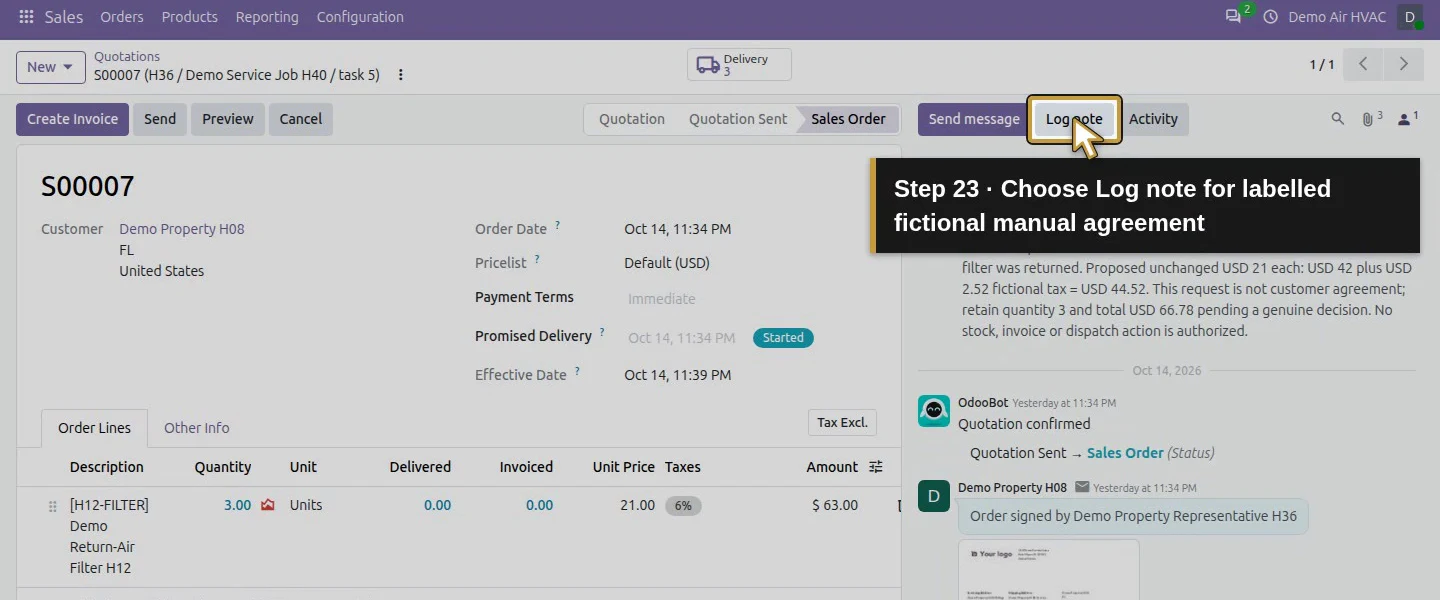
Action 23: Choose Log note for labelled fictional manual agreement. The actual target is highlighted in gold.
Choose Log note for labelled fictional manual agreement.
Action 24: Write labelled fictional manual agreement. The actual target is highlighted in gold.
Write labelled fictional manual agreement.
Action 25: Log this one labelled fictional manual agreement. The actual target is highlighted in gold.
Log this one labelled fictional manual agreement.
Action 26: Read the saved labelled fictional manual agreement. The actual target is highlighted in gold.
Read the saved labelled fictional manual agreement.

Step 4. Apply the agreed quantity and save once

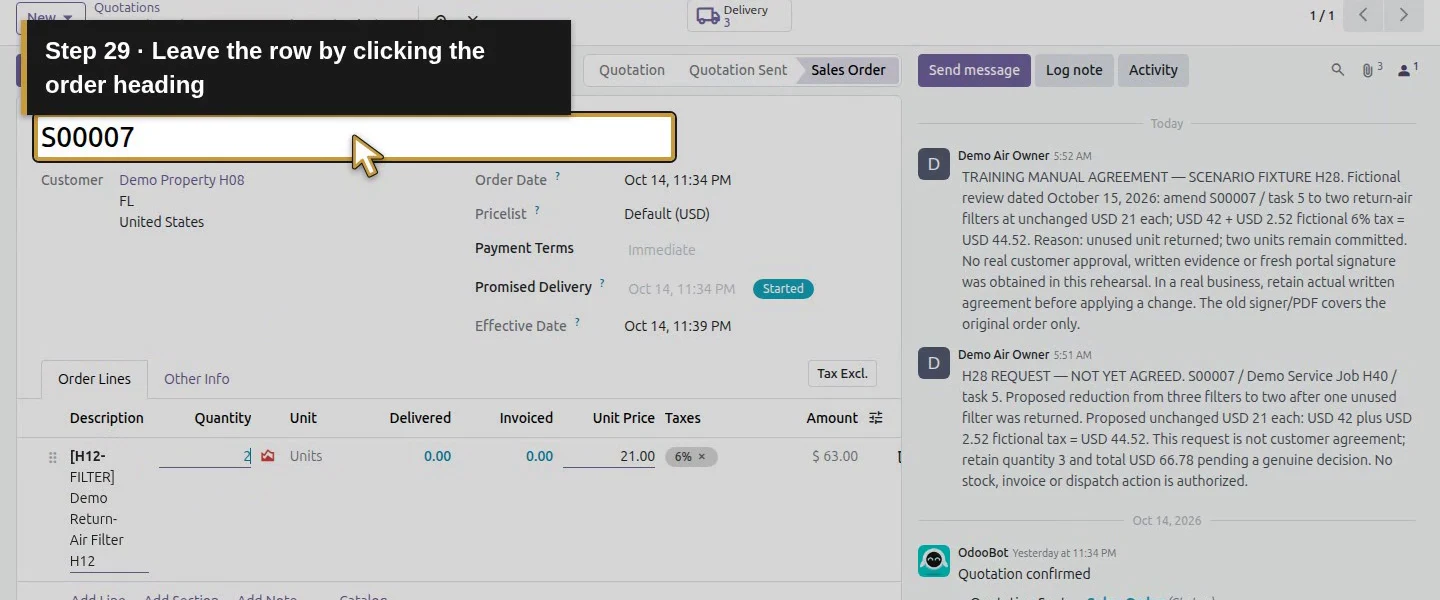
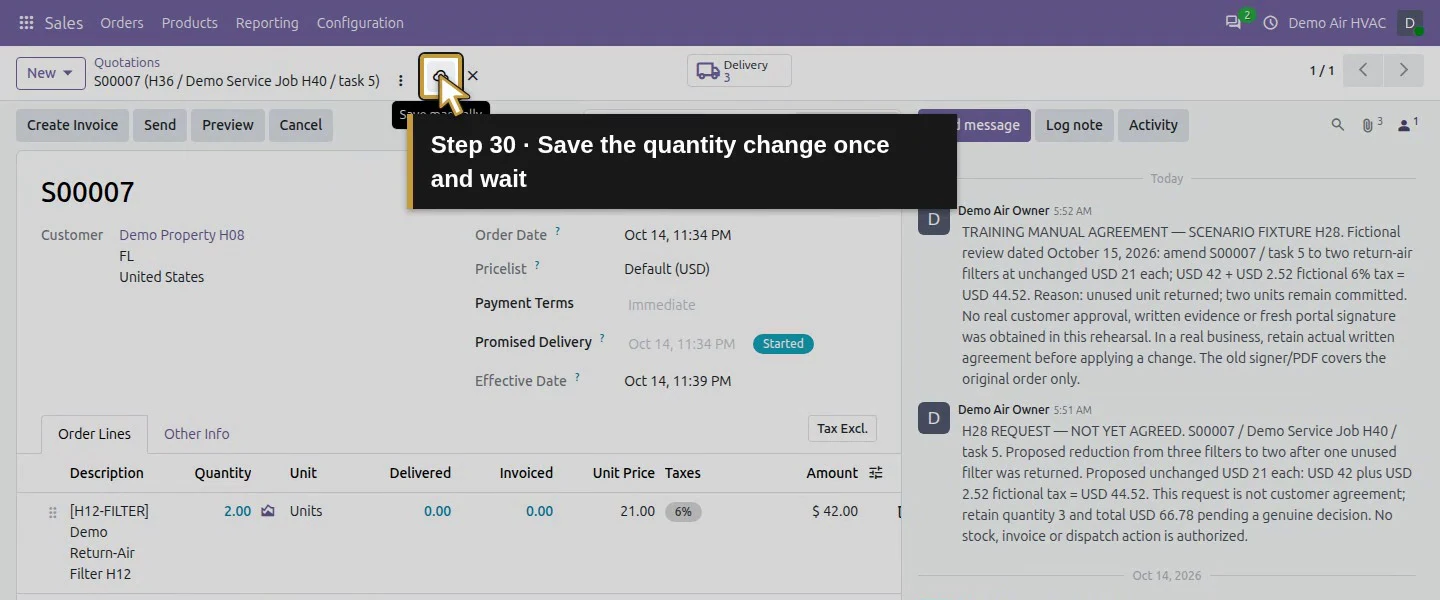
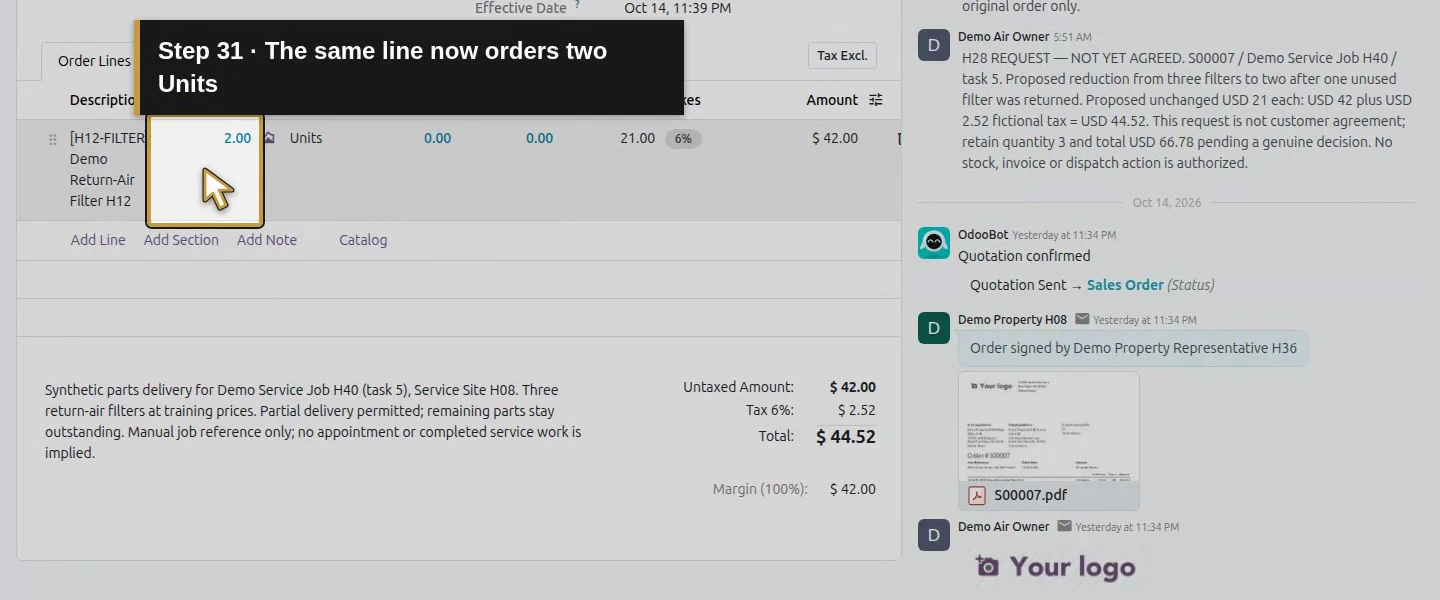
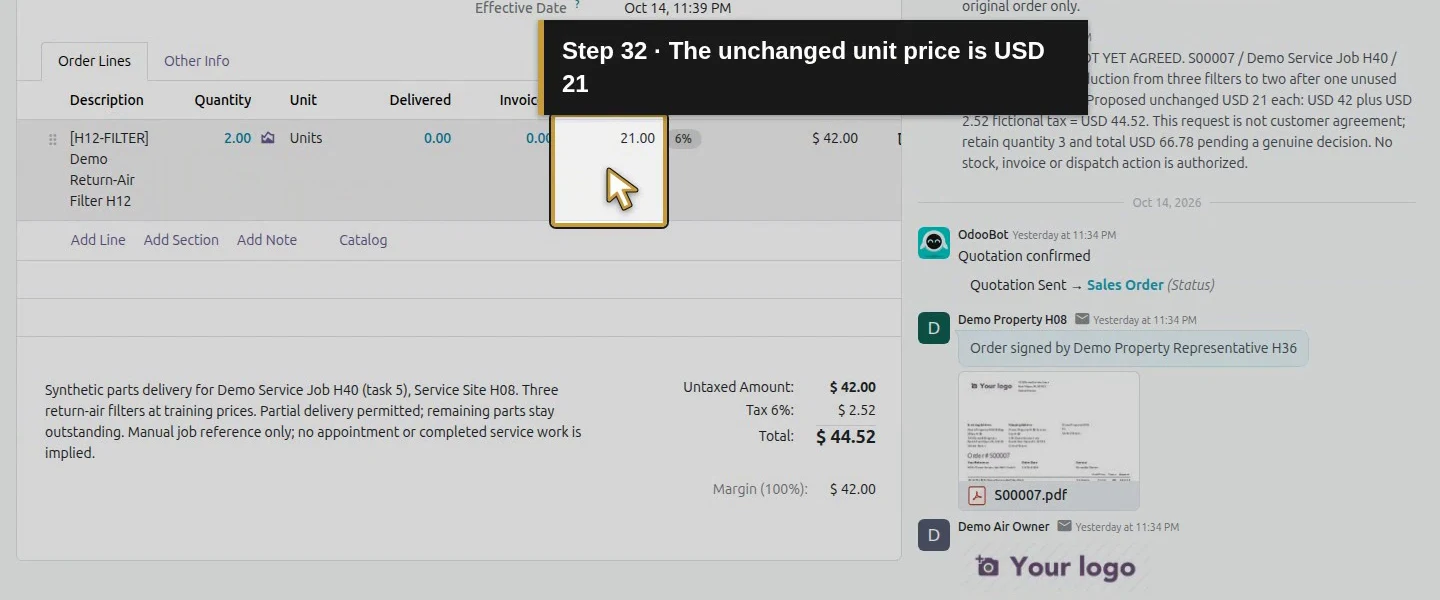
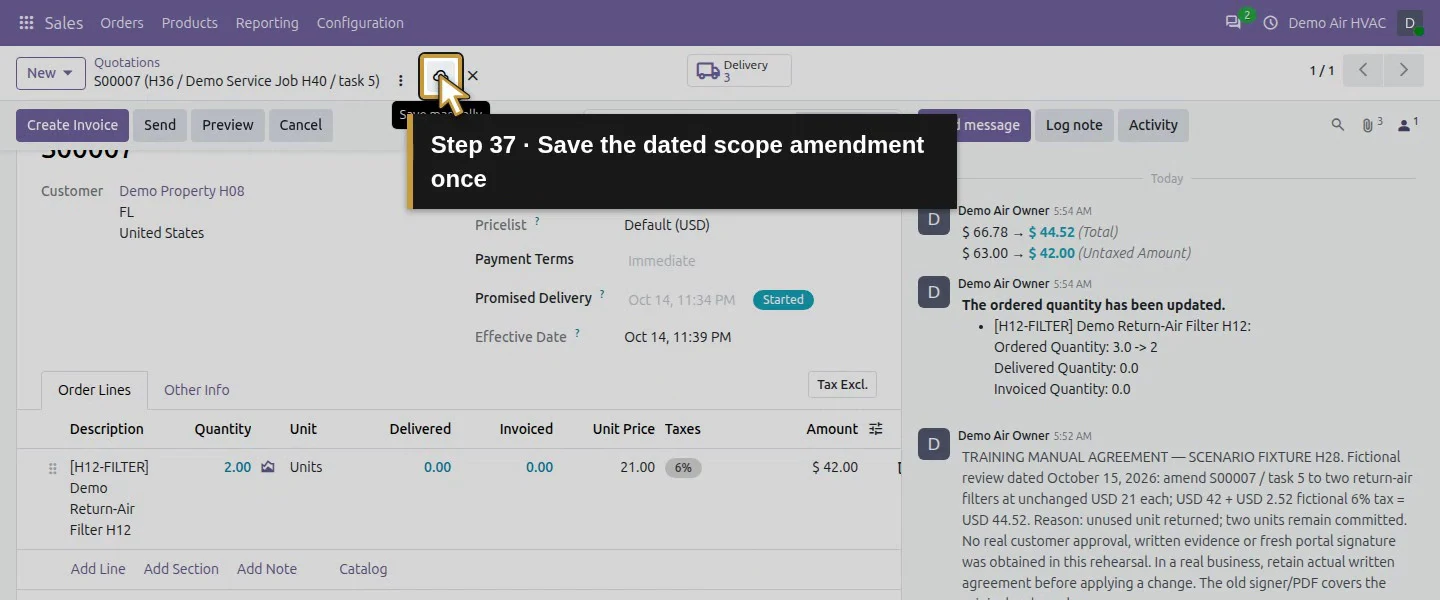
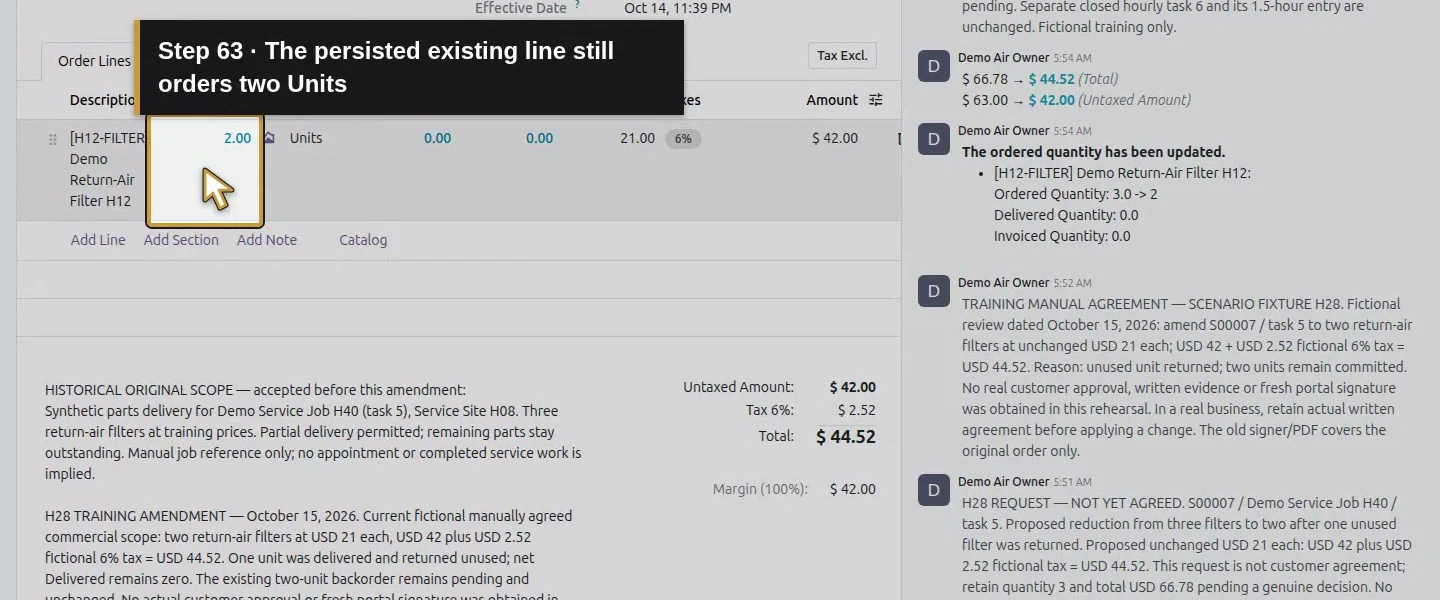
On Order Lines, click the existing filter’s Quantity cell and change 3.00 to 2. Keep the same product and $21.00 Unit Price. Click the order heading to leave the cell, then Save manually and wait for pending changes to clear. The same line now shows two Units, $42.00 untaxed, $2.52 demo tax and $44.52 total. Chatter retains the native ordered-quantity update and before/after totals. We did not cancel, duplicate or recreate the order.
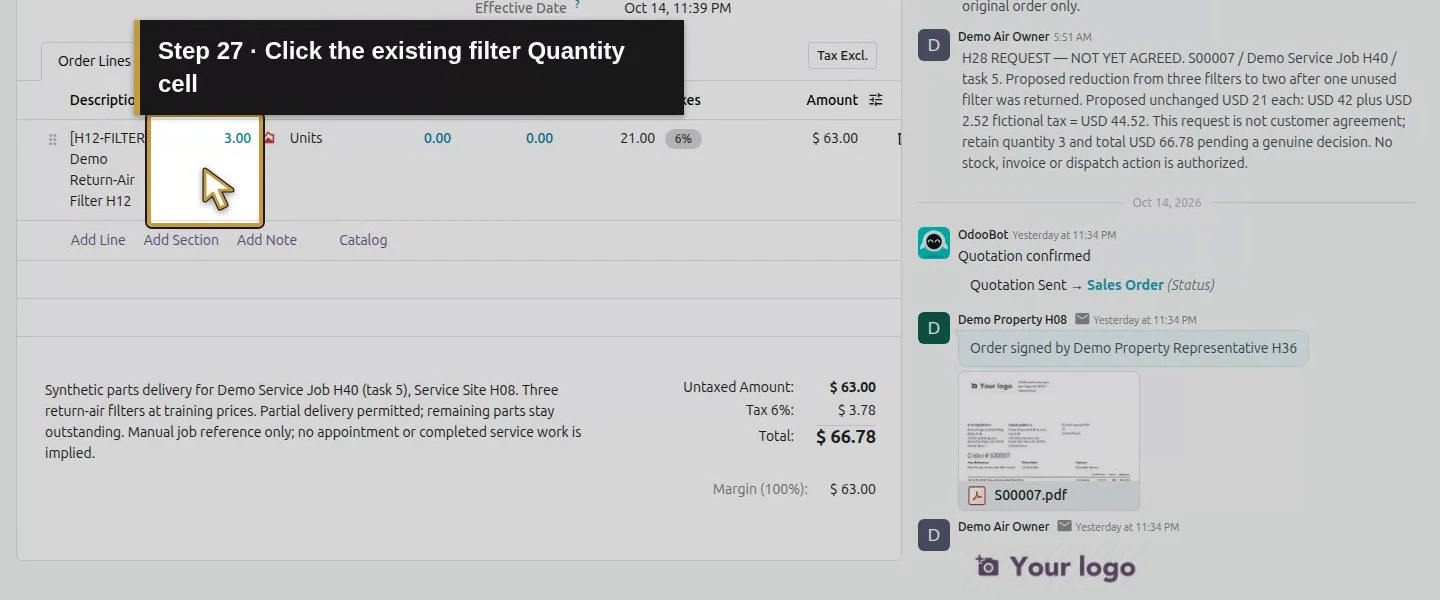
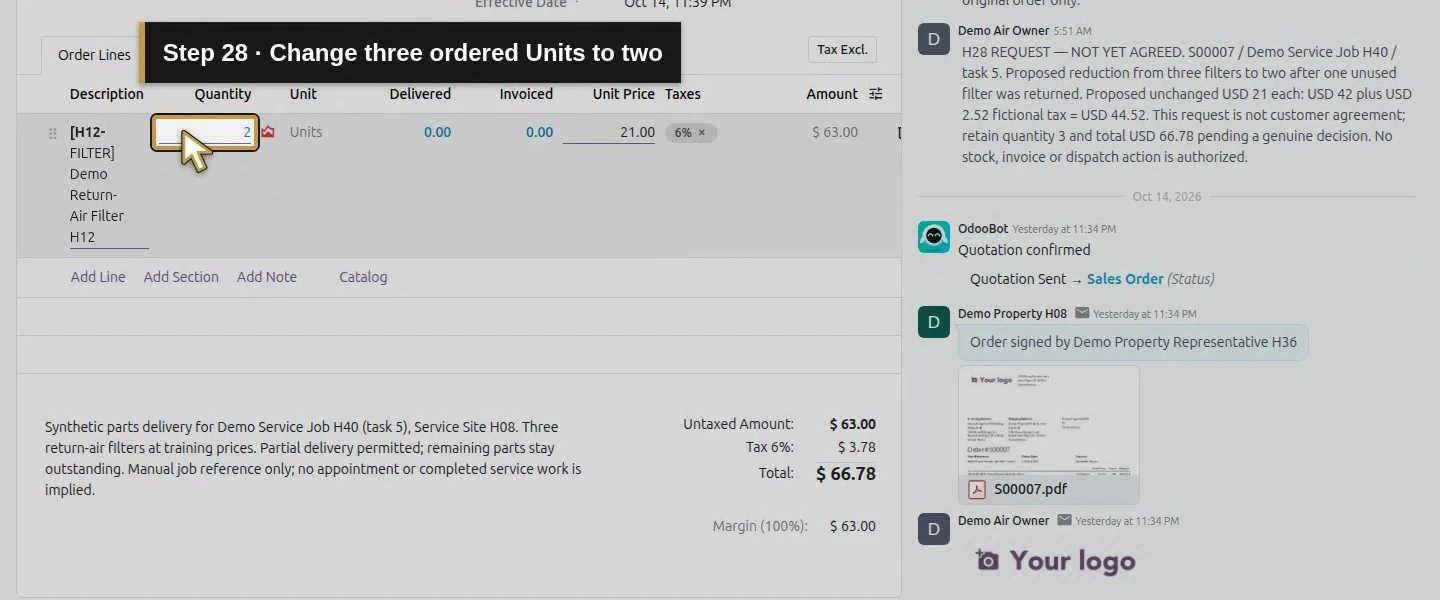
Action 27: Click the existing filter Quantity cell. The actual target is highlighted in gold.
Click the existing filter Quantity cell.
Action 28: Change three ordered Units to two. The actual target is highlighted in gold.
Change three ordered Units to two.
Action 29: Leave the row by clicking the order heading. The actual target is highlighted in gold.
Leave the row by clicking the order heading.
Action 30: Save the quantity change once and wait. The actual target is highlighted in gold.
Save the quantity change once and wait.
Action 31: The same line now orders two Units. The actual target is highlighted in gold.
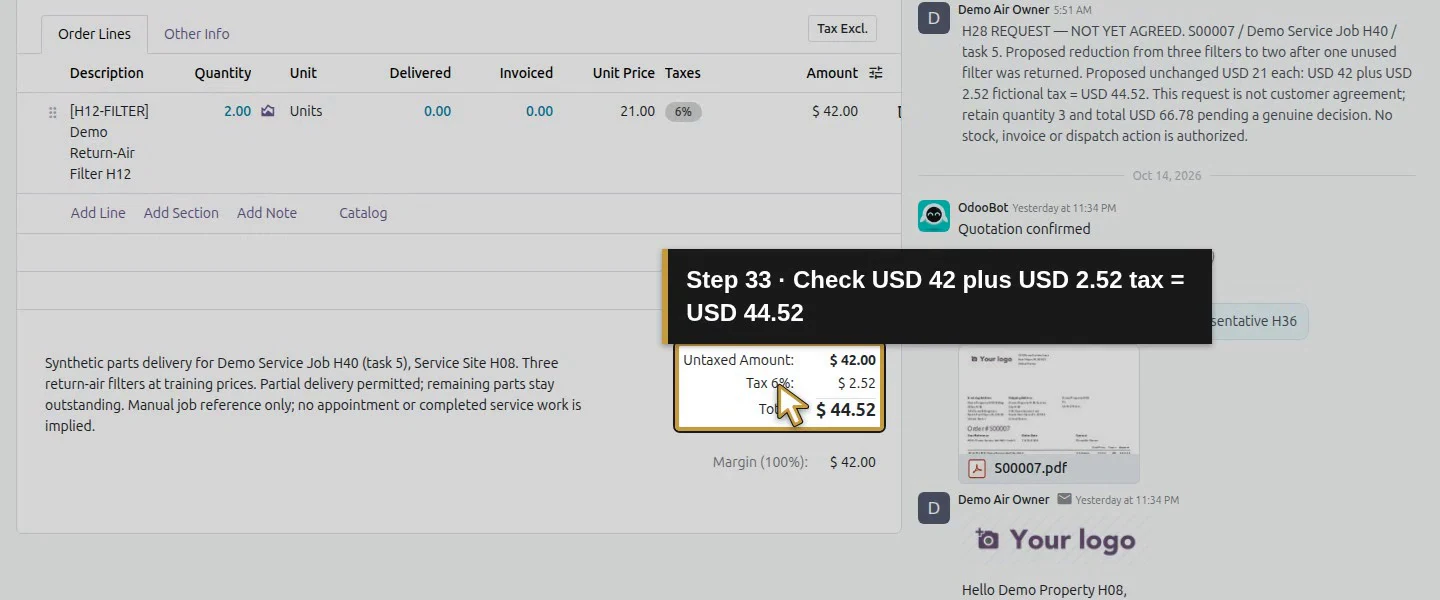
The same line now orders two Units.
Action 32: The unchanged unit price is USD 21. The actual target is highlighted in gold.
The unchanged unit price is USD 21.
Action 33: Check USD 42 plus USD 2.52 tax = USD 44.52. The actual target is highlighted in gold.
Check USD 42 plus USD 2.52 tax = USD 44.52.

Step 5. Keep the written scope consistent with the revision

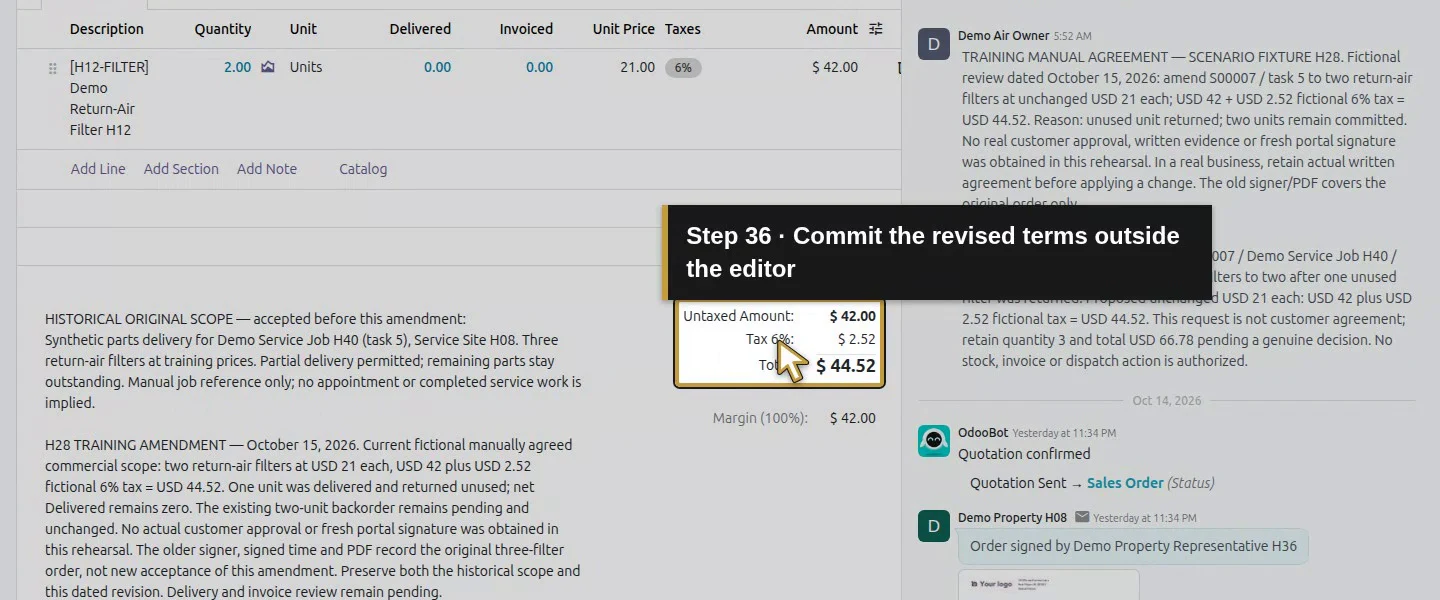
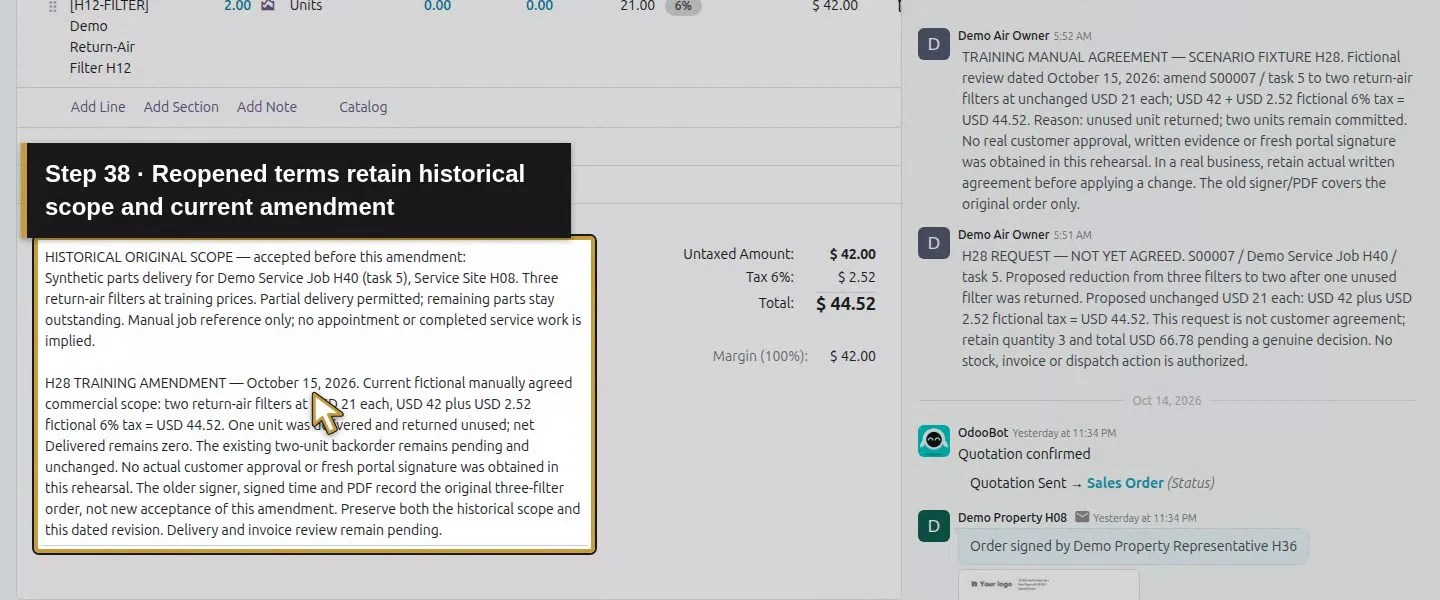
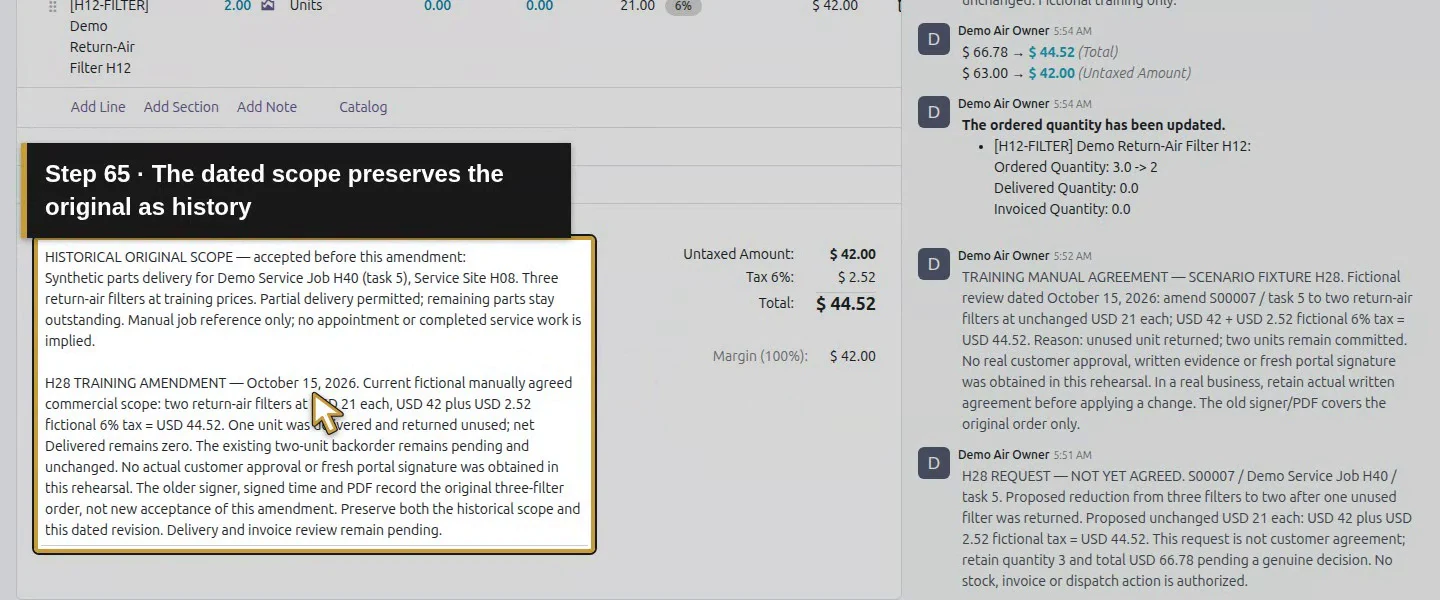
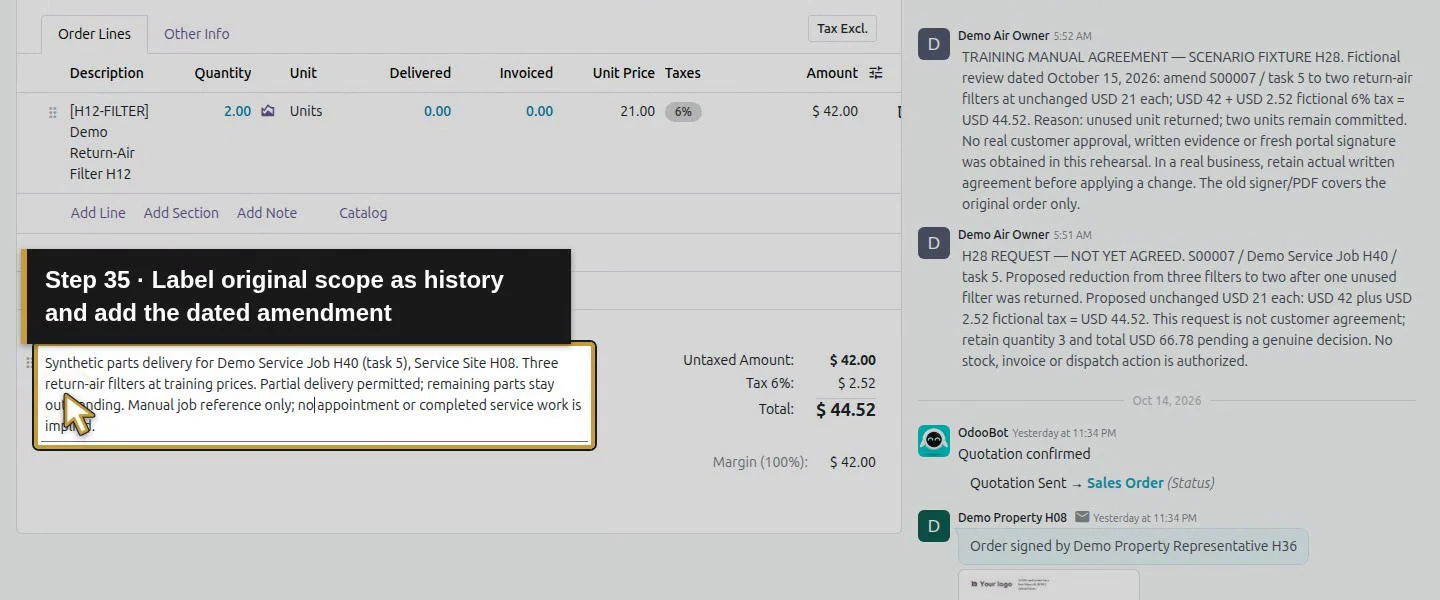
The original terms still described three filters after the quantity edit. Preserve that text as labelled historical scope and append a dated H28 TRAINING AMENDMENT stating the current two-filter agreement, revised amount and unchanged delivery/return history. Save and wait again. State that the older signature/PDF records the original order and is not a new acceptance of the amendment. Do not leave the current line quantity and unqualified scope text contradicting one another.
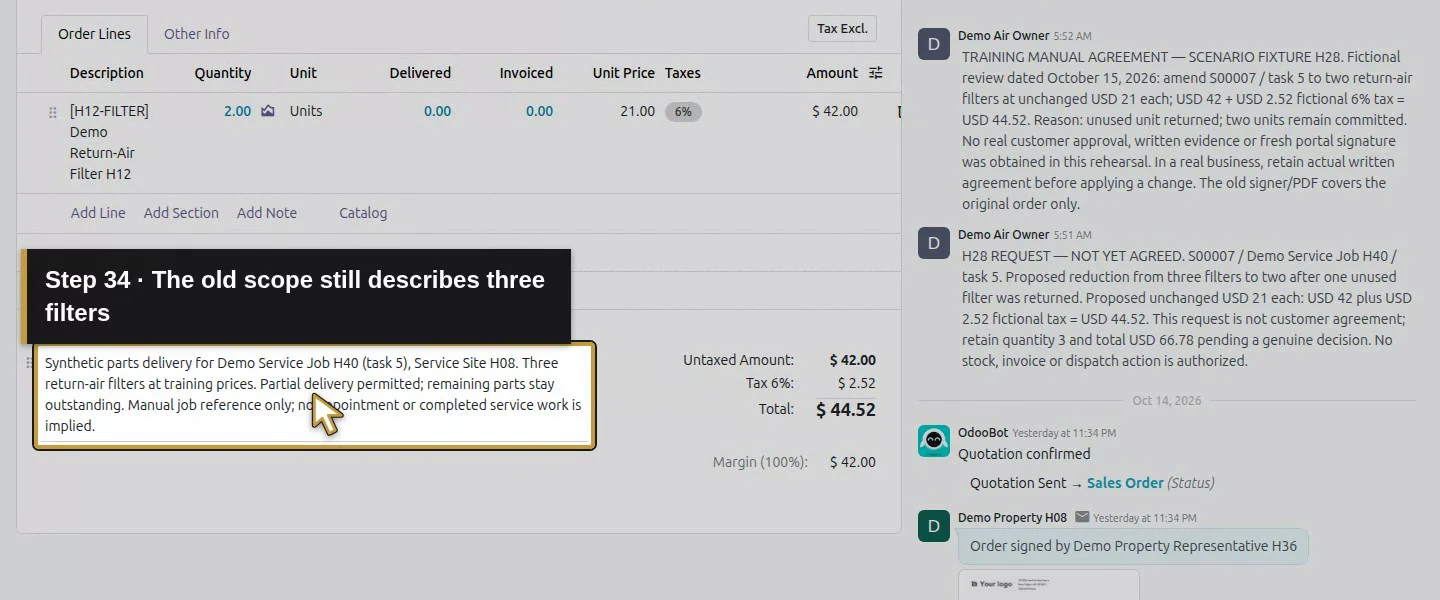
Action 34: The old scope still describes three filters. The actual target is highlighted in gold.
The old scope still describes three filters.
Action 35: Label original scope as history and add the dated amendment. The actual target is highlighted in gold.
Label original scope as history and add the dated amendment.
Action 36: Commit the revised terms outside the editor. The actual target is highlighted in gold.
Commit the revised terms outside the editor.
Action 37: Save the dated scope amendment once. The actual target is highlighted in gold.
Save the dated scope amendment once.
Action 38: Reopened terms retain historical scope and current amendment. The actual target is highlighted in gold.
Reopened terms retain historical scope and current amendment.

Step 6. Inspect downstream records and original acceptance

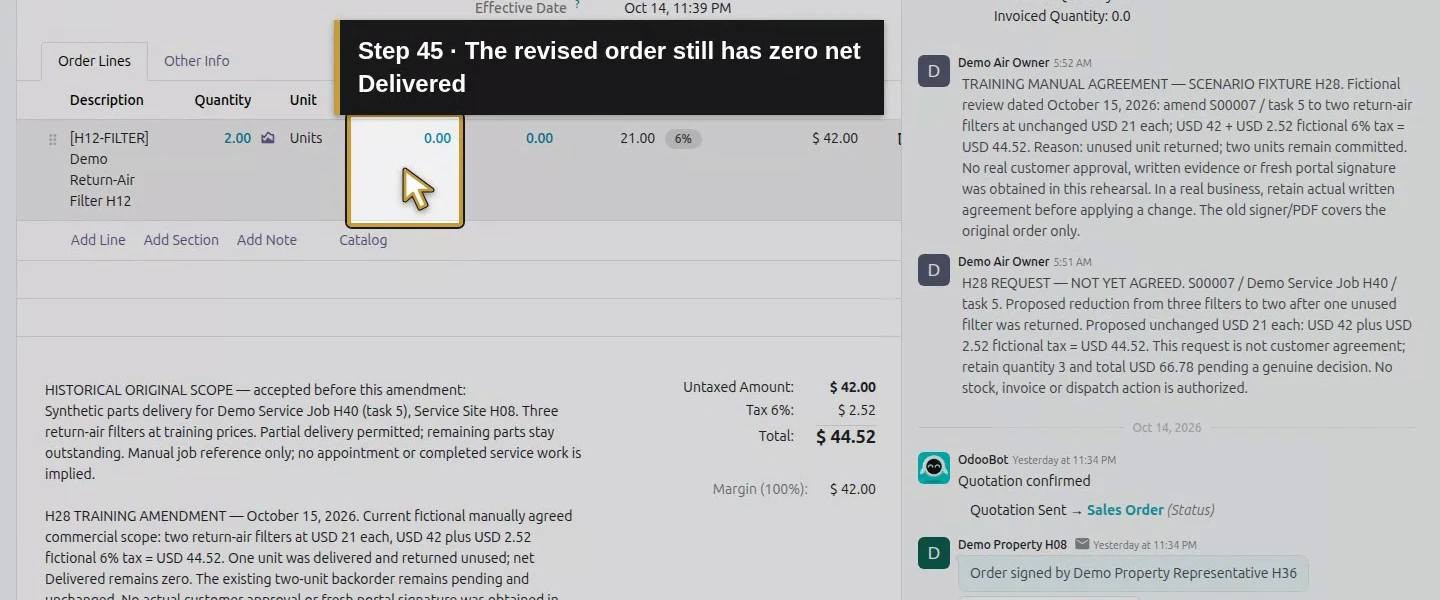
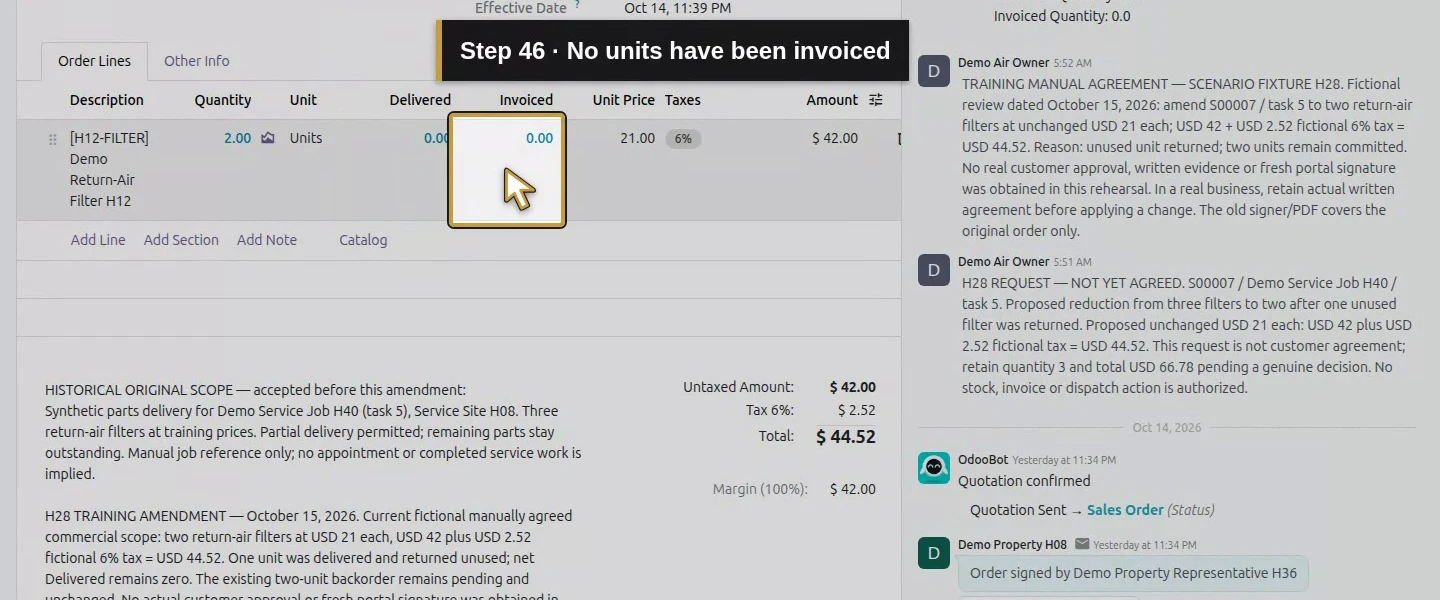
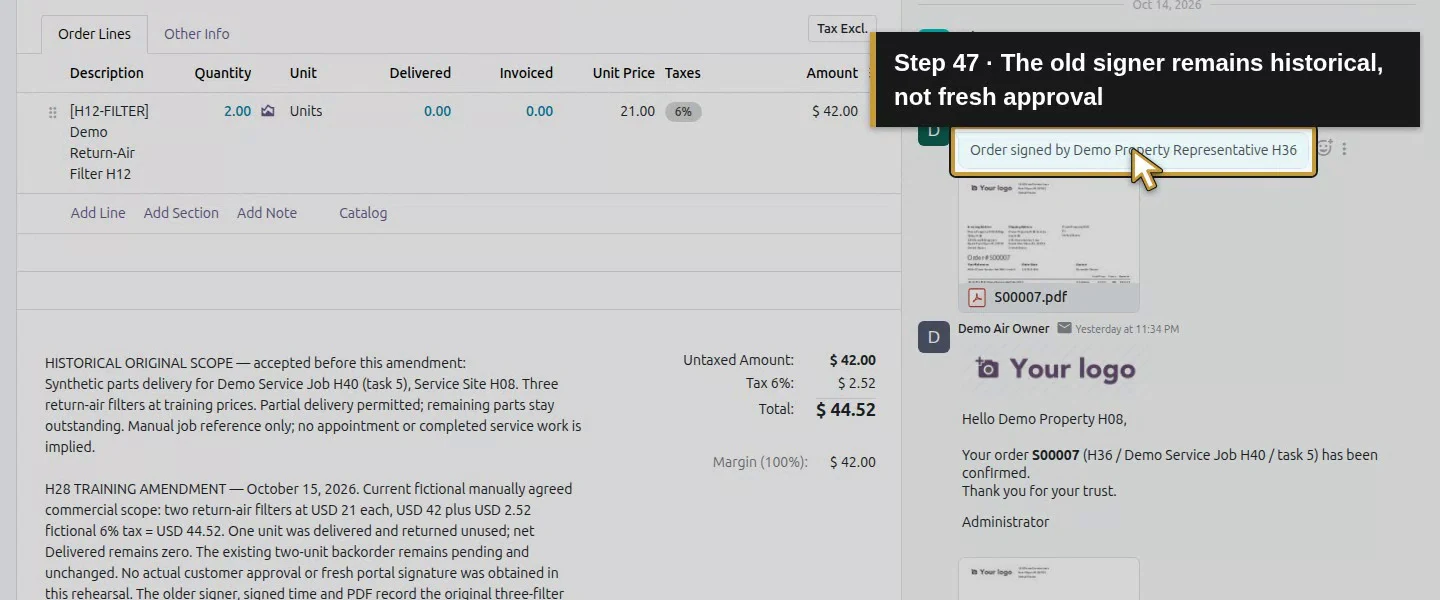
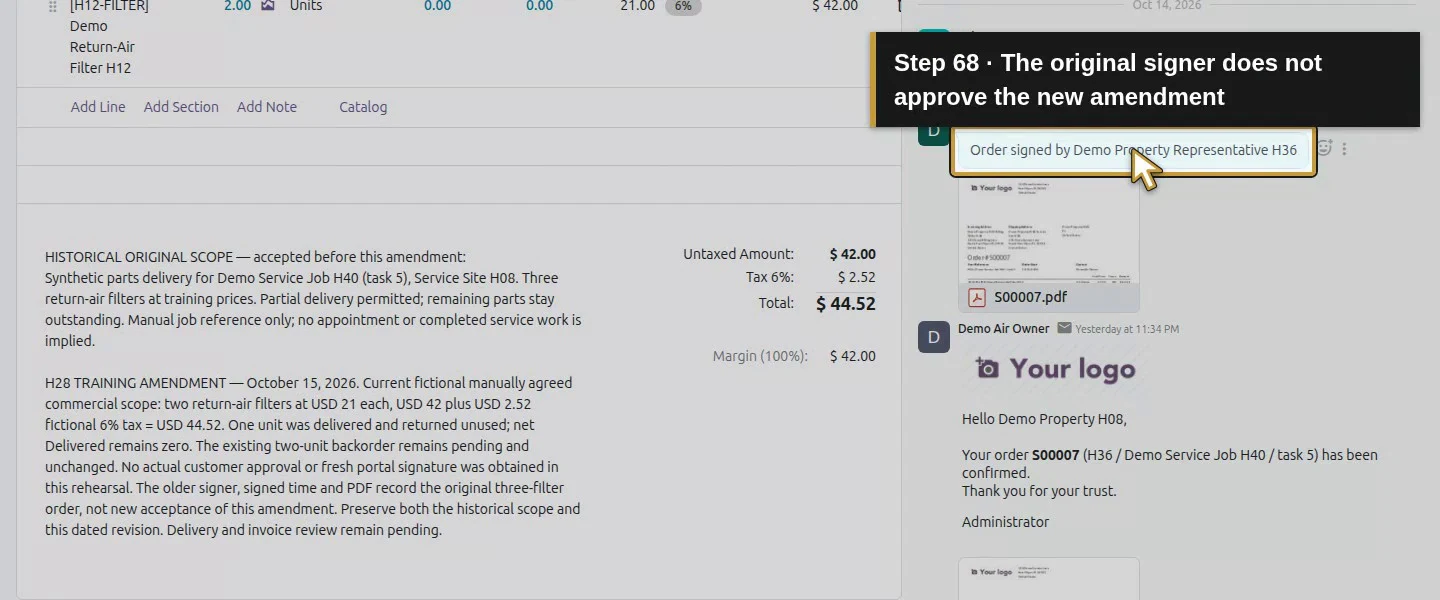
Open Delivery and check the existing two-filter backorder, original Done one-filter delivery and Done one-filter return. All three retain their original identities and quantities; no second procurement or stock movement was generated. Net Delivered stays zero, while the Ordered quantities policy now exposes two units to invoice. The original signer/time and three PDF attachment checksums remain unchanged. Their presence does not establish fresh signature approval. No invoice or refund exists.
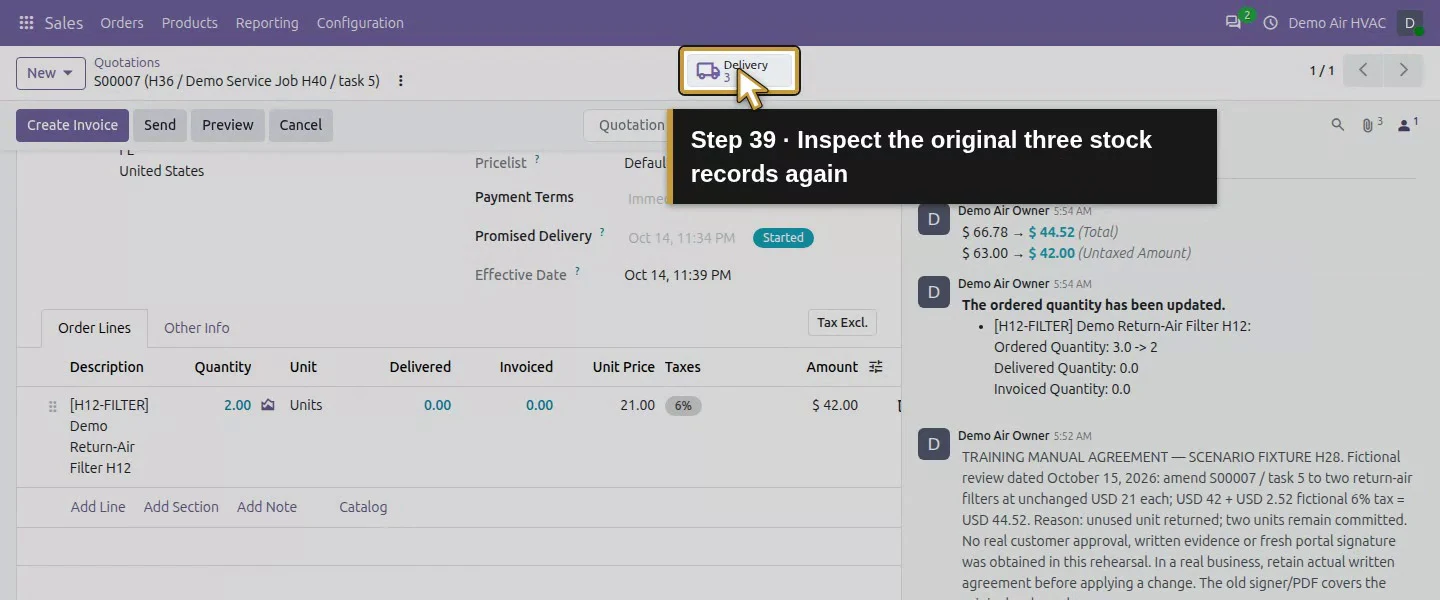
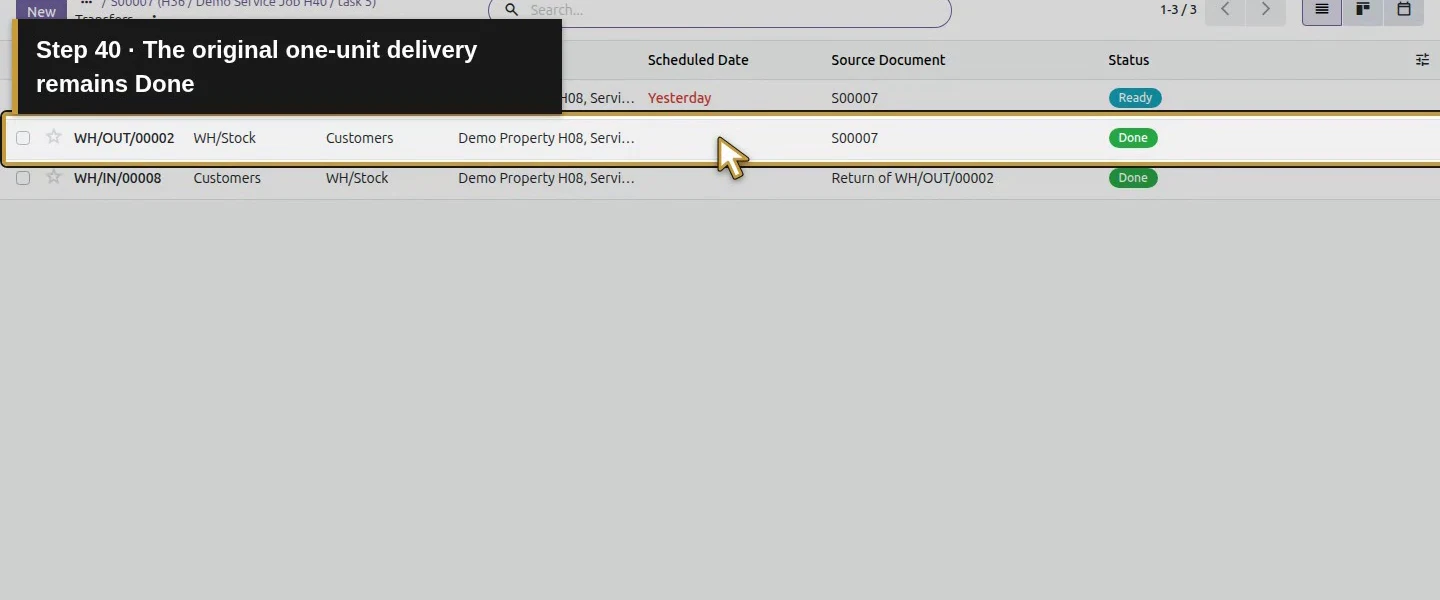
Action 39: Inspect the original three stock records again. The actual target is highlighted in gold.
Inspect the original three stock records again.
Action 40: The original one-unit delivery remains Done. The actual target is highlighted in gold.
The original one-unit delivery remains Done.
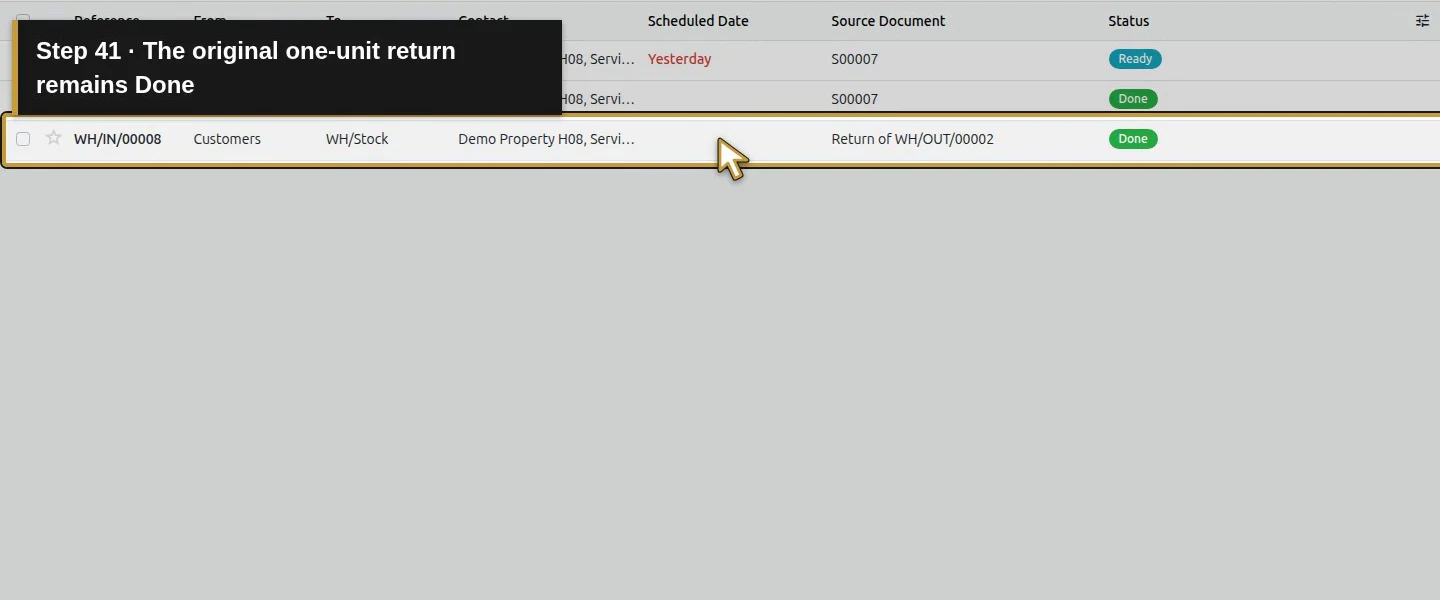
Action 41: The original one-unit return remains Done. The actual target is highlighted in gold.
The original one-unit return remains Done.
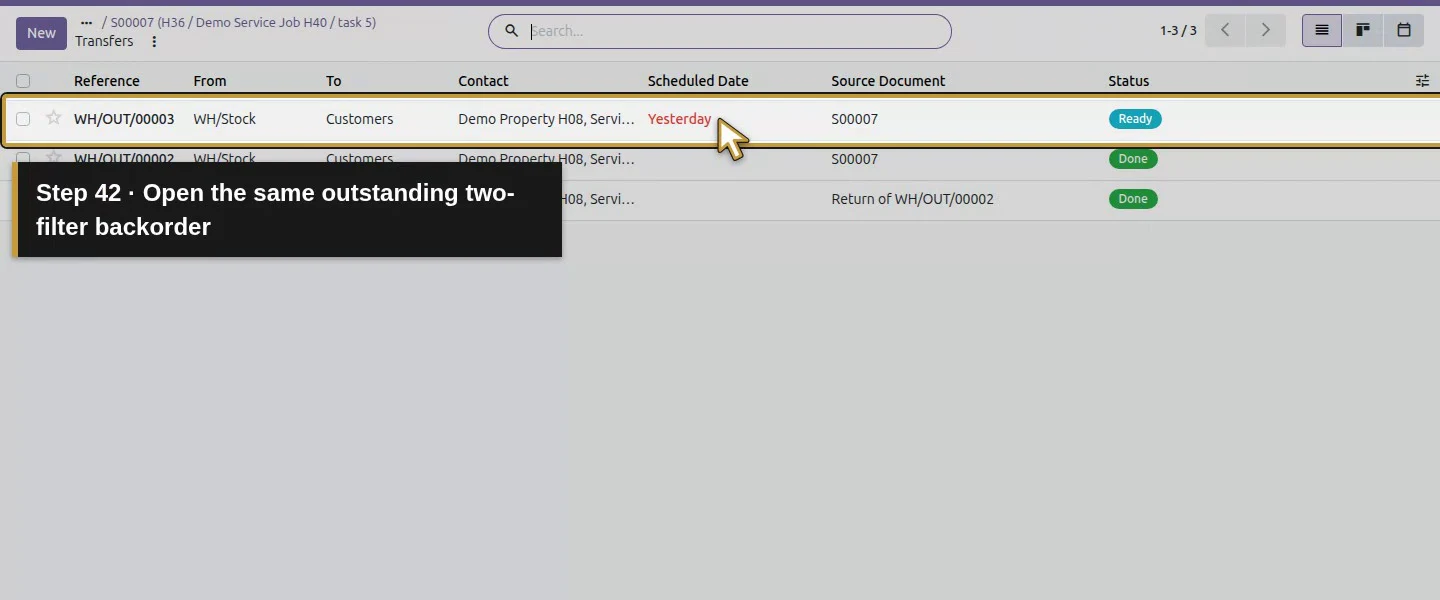
Action 42: Open the same outstanding two-filter backorder. The actual target is highlighted in gold.
Open the same outstanding two-filter backorder.
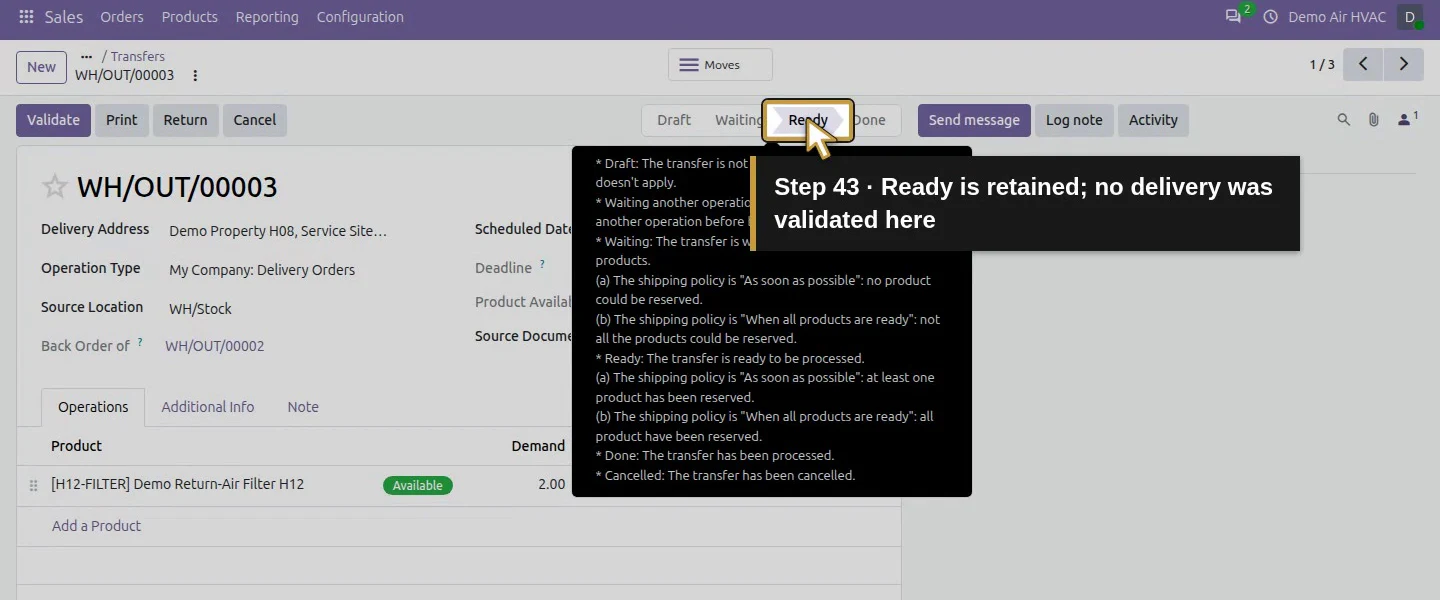
Action 43: Ready is retained; no delivery was validated here. The actual target is highlighted in gold.
Ready is retained; no delivery was validated here.
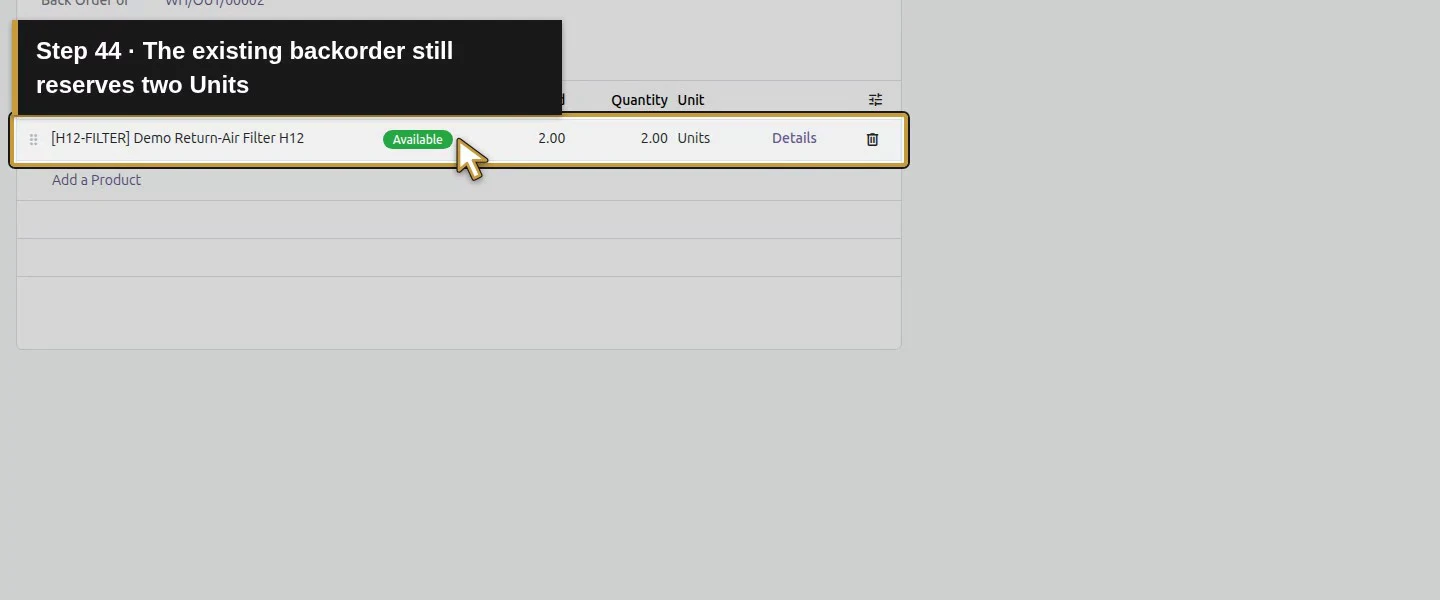
Action 44: The existing backorder still reserves two Units. The actual target is highlighted in gold.
The existing backorder still reserves two Units.
Action 45: The revised order still has zero net Delivered. The actual target is highlighted in gold.
The revised order still has zero net Delivered.
Action 46: No units have been invoiced. The actual target is highlighted in gold.
No units have been invoiced.
Action 47: The old signer remains historical, not fresh approval. The actual target is highlighted in gold.
The old signer remains historical, not fresh approval.
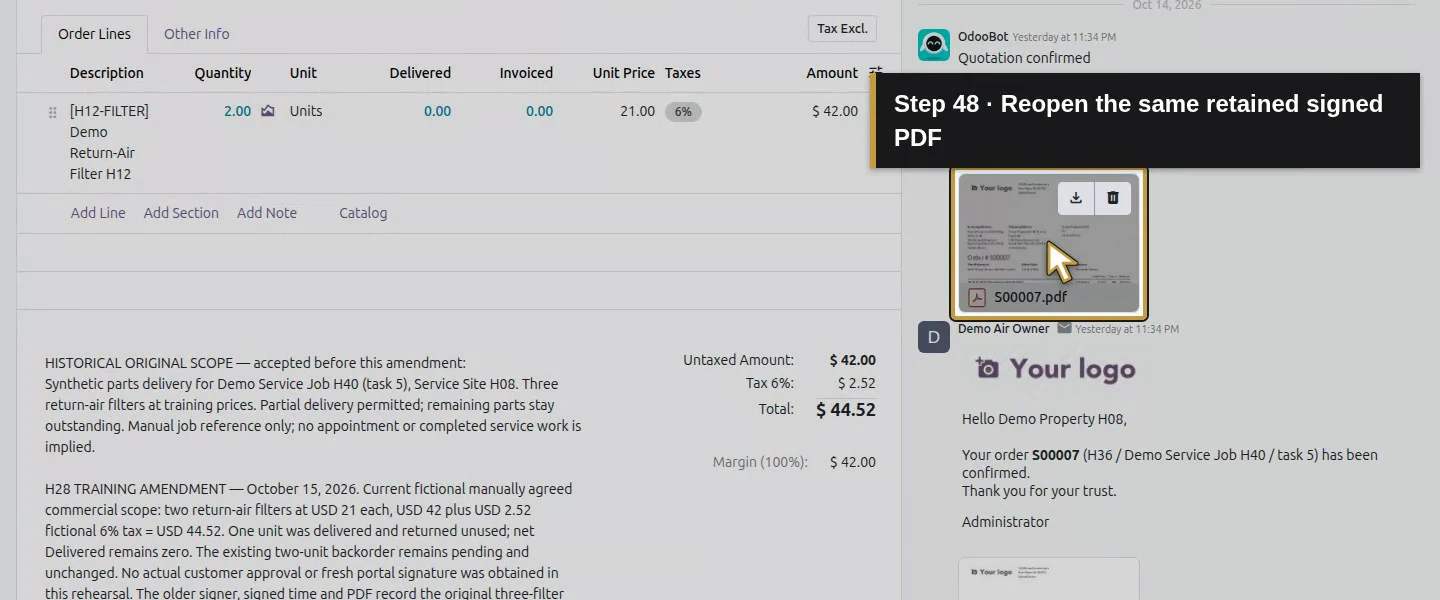
Action 48: Reopen the same retained signed PDF. The actual target is highlighted in gold.
Reopen the same retained signed PDF.
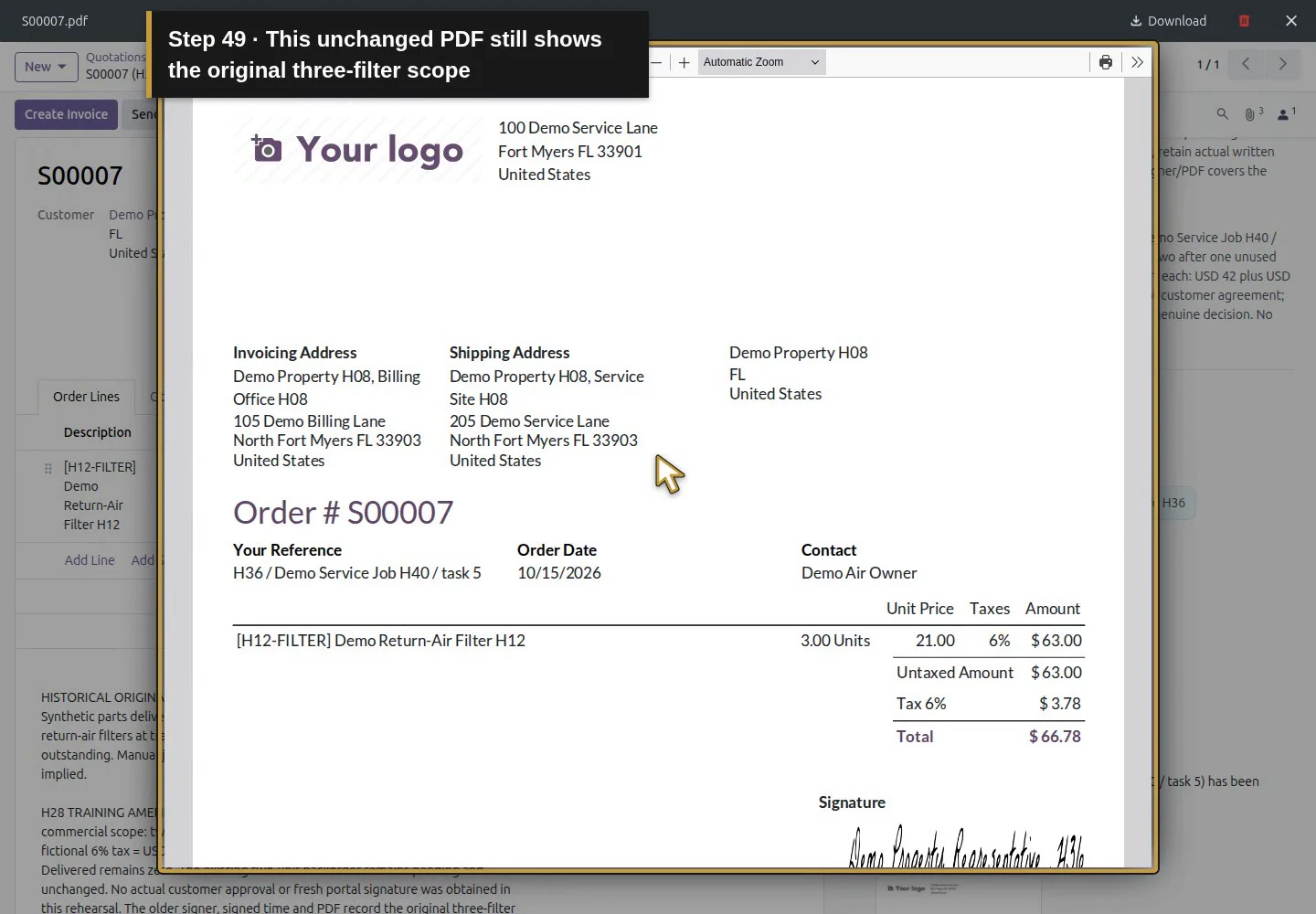
Action 49: This unchanged PDF still shows the original three-filter scope. The actual target is highlighted in gold.
This unchanged PDF still shows the original three-filter scope.
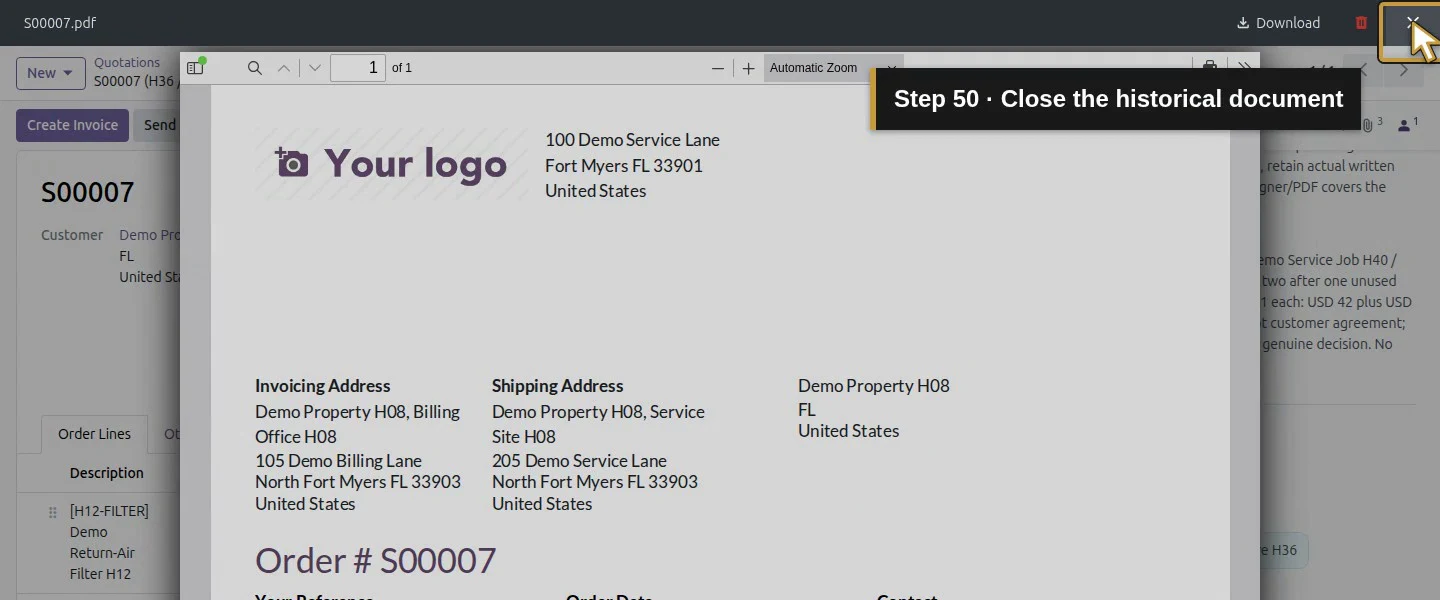
Action 50: Close the historical document. The actual target is highlighted in gold.
Close the historical document.

Step 7. Record the handoff on the matching job

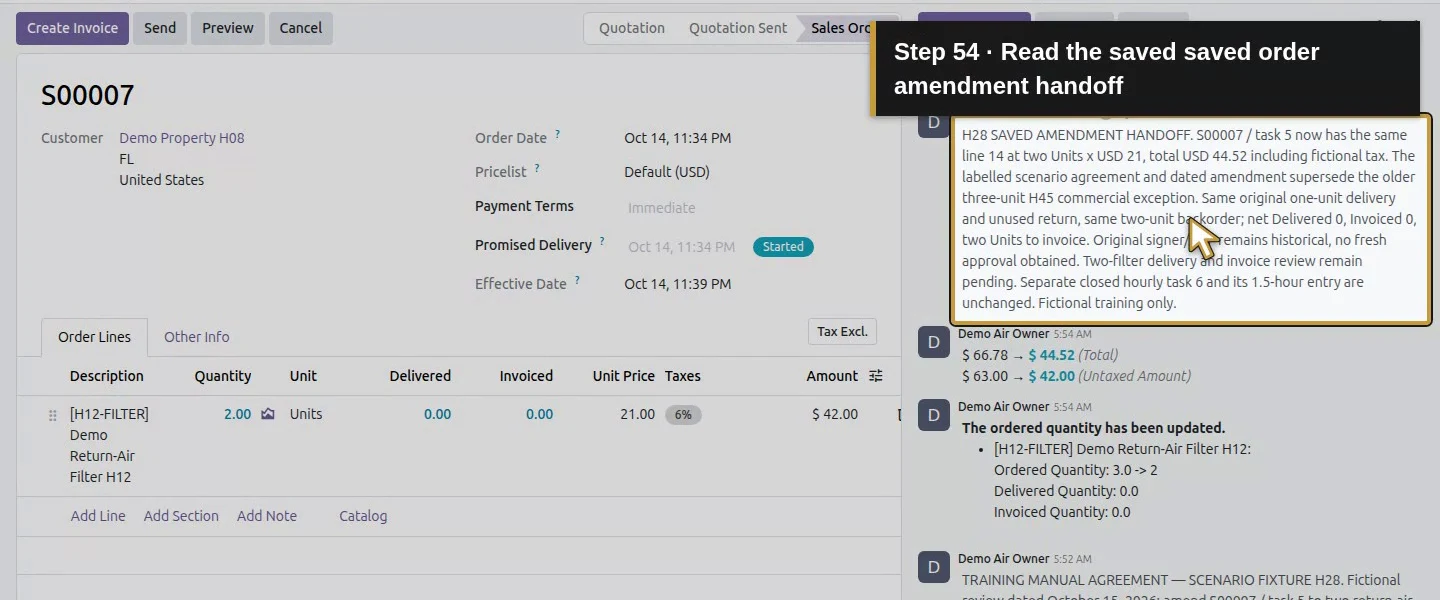
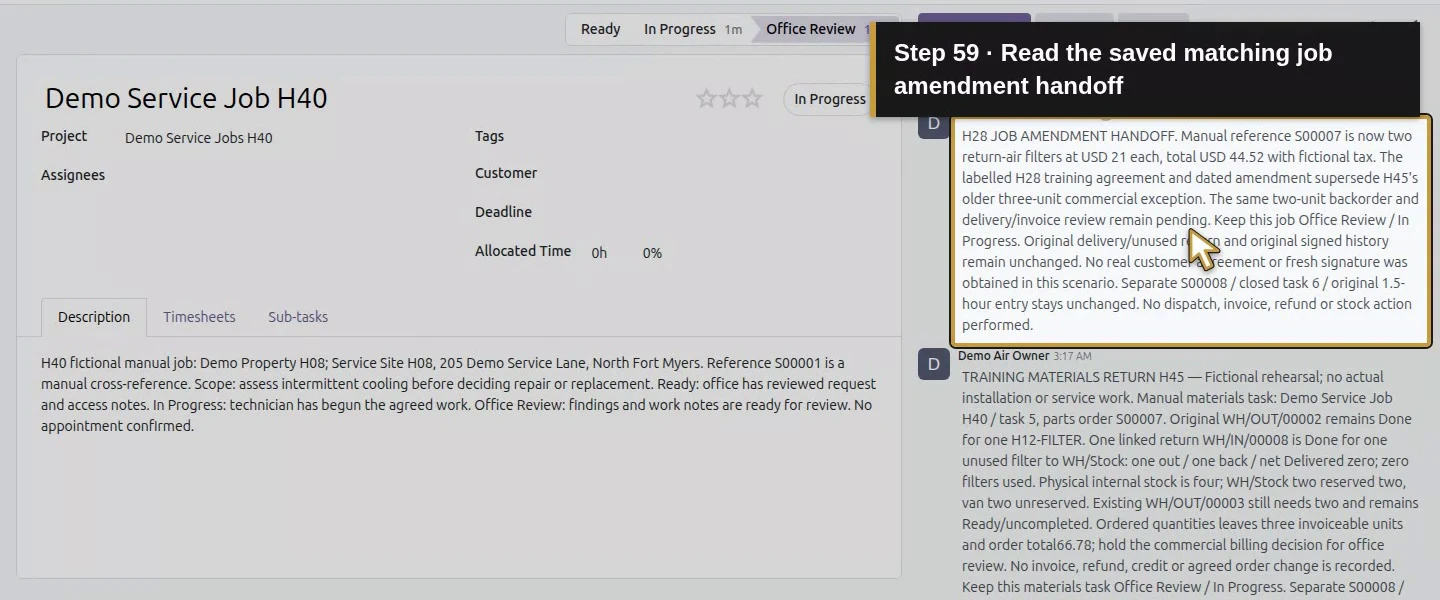
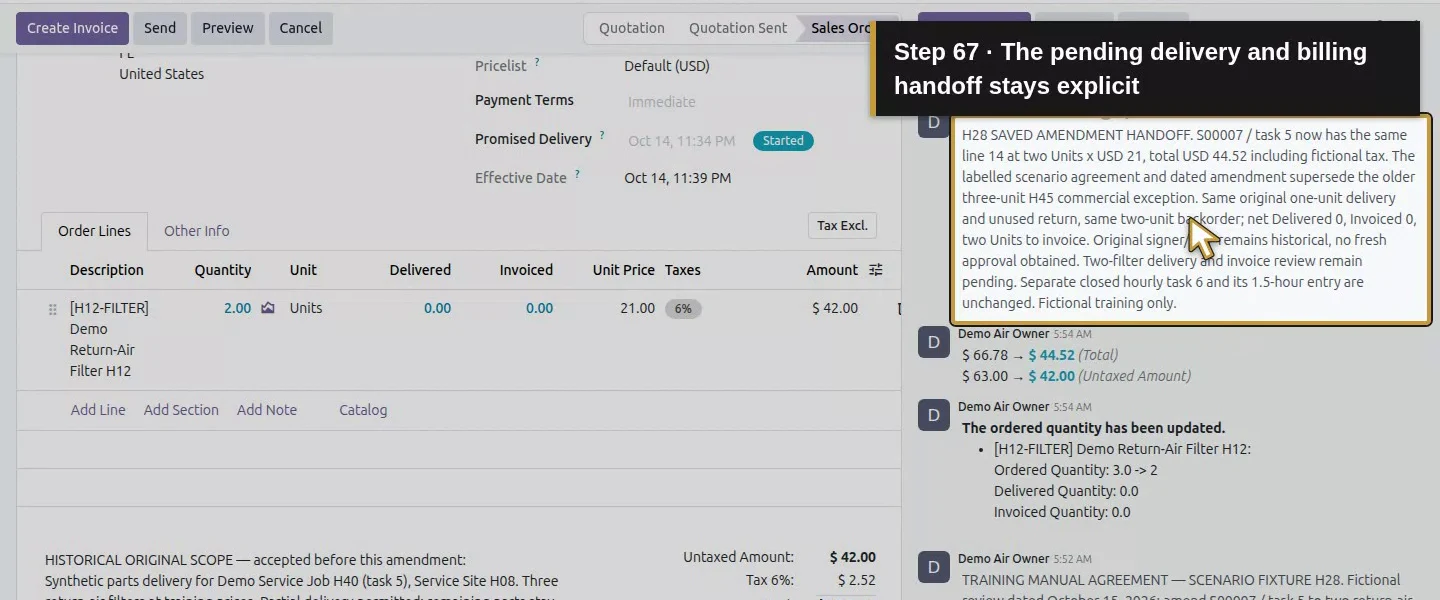
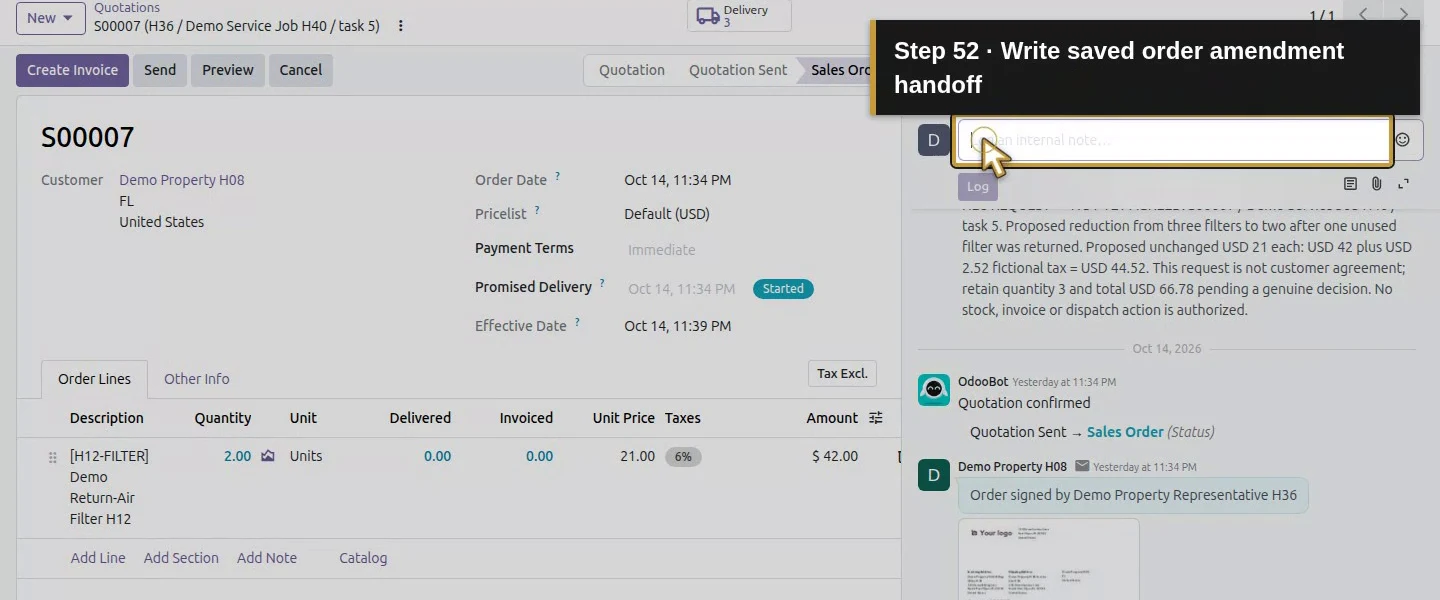
Log a saved-result note on S00007, then add an internal amendment note to Demo Service Job H40 with the revised order reference and amount. Explain that this later agreement supersedes the older three-unit commercial exception in H45, while the two-filter delivery and invoice review remain pending. Keep the job Office Review / In Progress. The separate closed hourly task and its 1.5-hour entry remain unchanged.
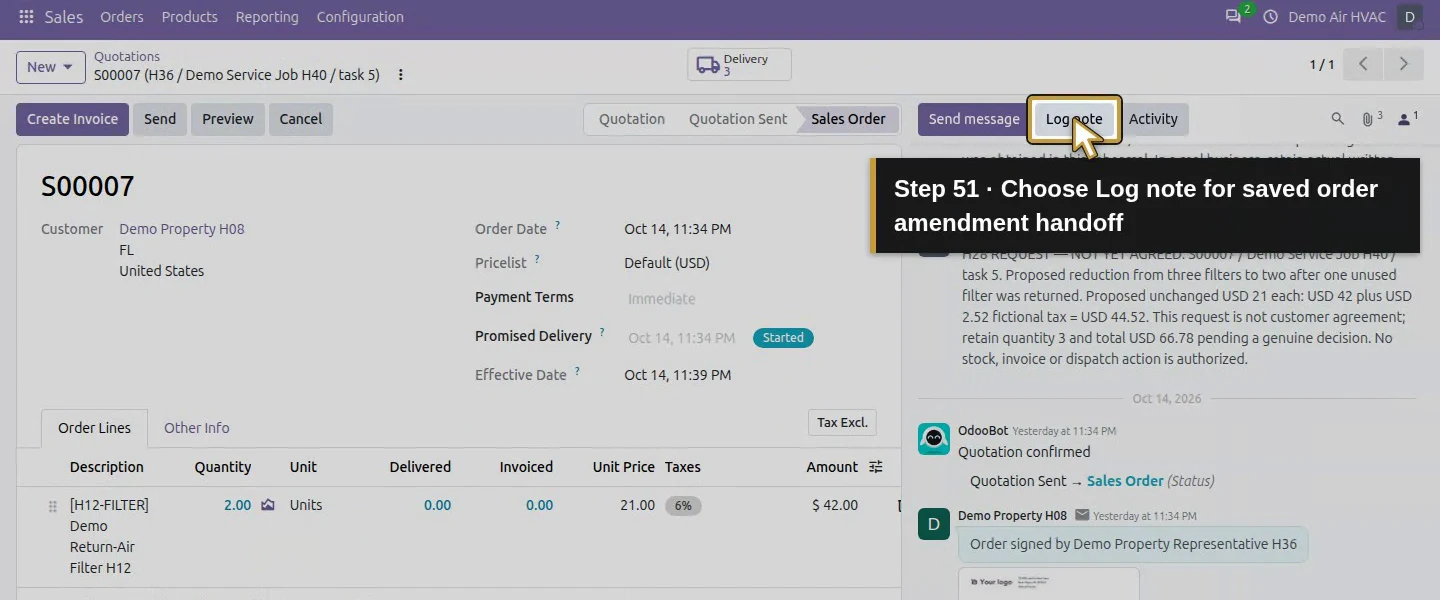
Action 51: Choose Log note for saved order amendment handoff. The actual target is highlighted in gold.
Choose Log note for saved order amendment handoff.
Action 52: Write saved order amendment handoff. The actual target is highlighted in gold.
Write saved order amendment handoff.
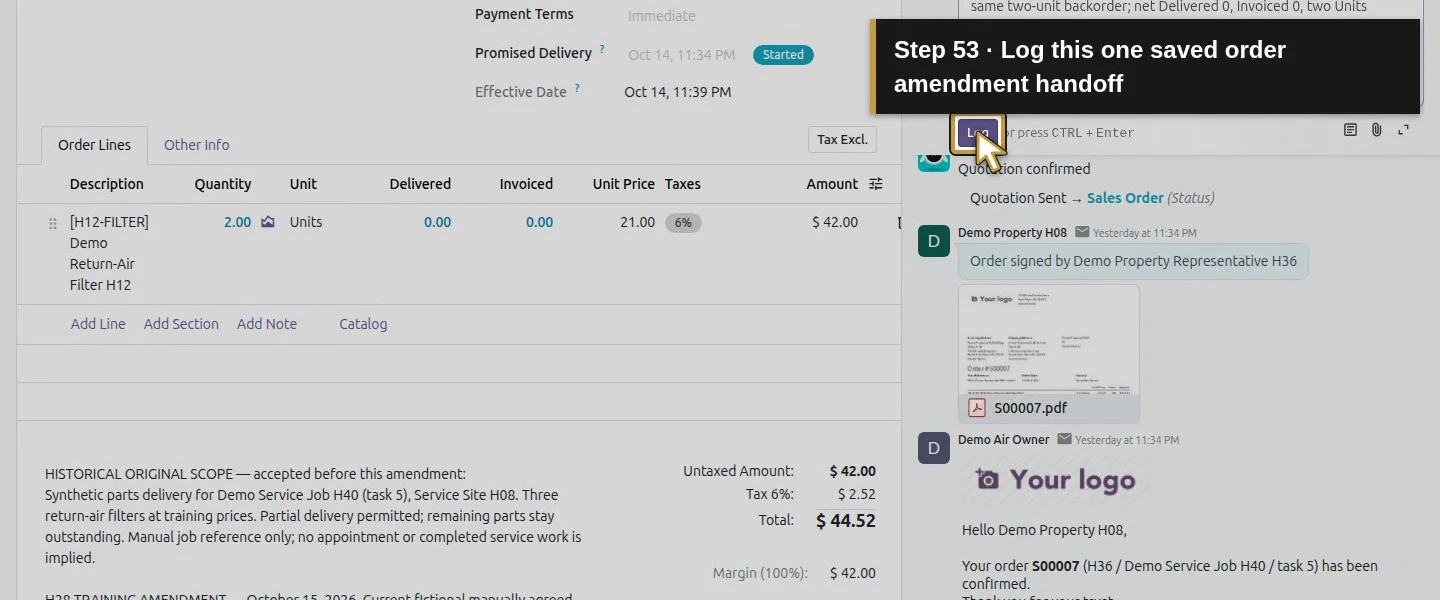
Action 53: Log this one saved order amendment handoff. The actual target is highlighted in gold.
Log this one saved order amendment handoff.
Action 54: Read the saved saved order amendment handoff. The actual target is highlighted in gold.
Read the saved saved order amendment handoff.
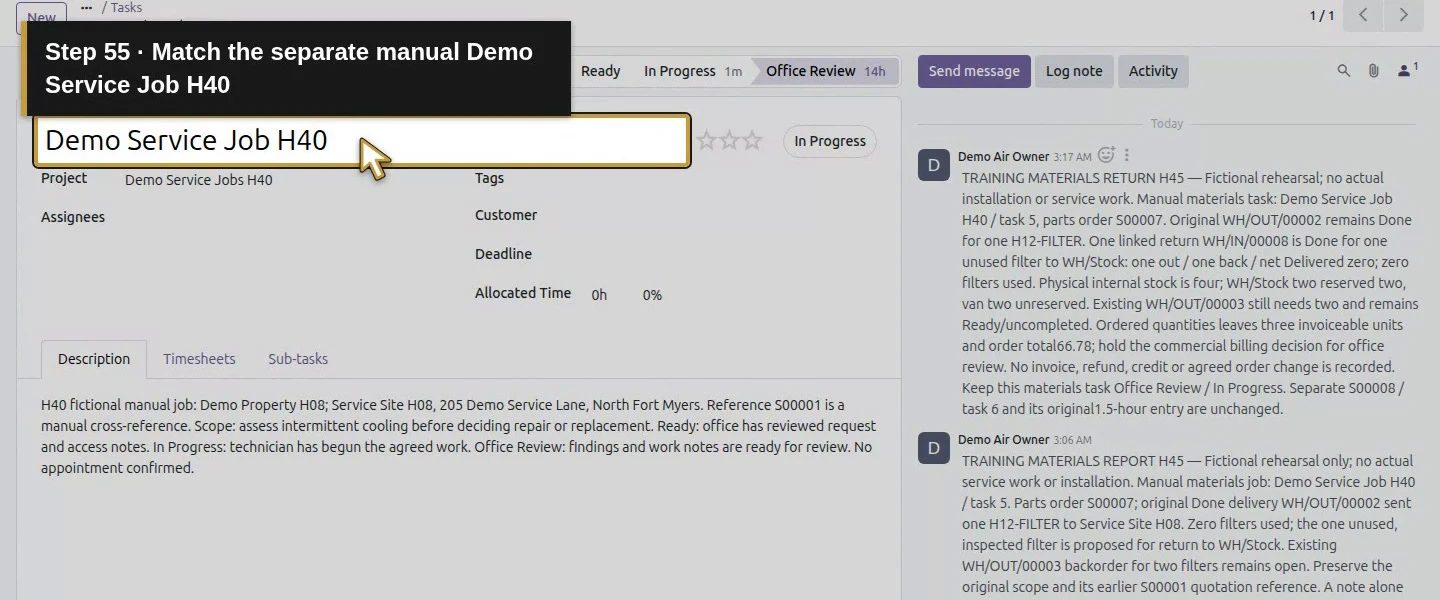
Action 55: Match the separate manual Demo Service Job H40. The actual target is highlighted in gold.
Match the separate manual Demo Service Job H40.
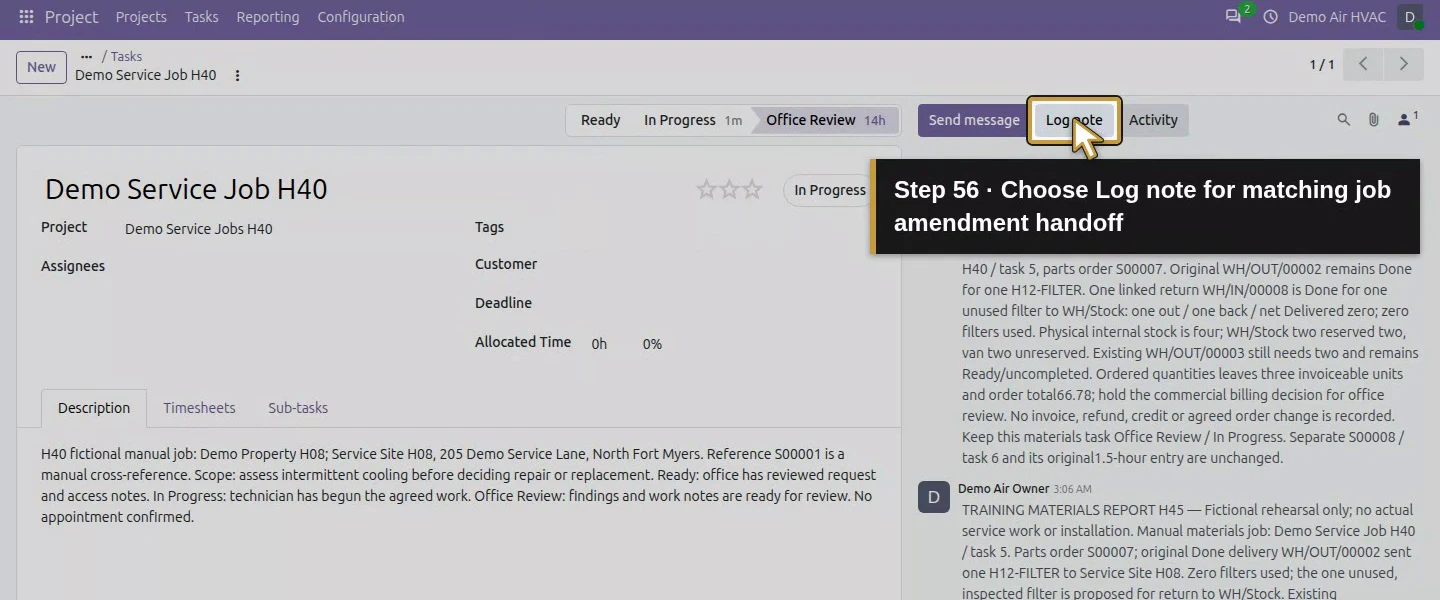
Action 56: Choose Log note for matching job amendment handoff. The actual target is highlighted in gold.
Choose Log note for matching job amendment handoff.
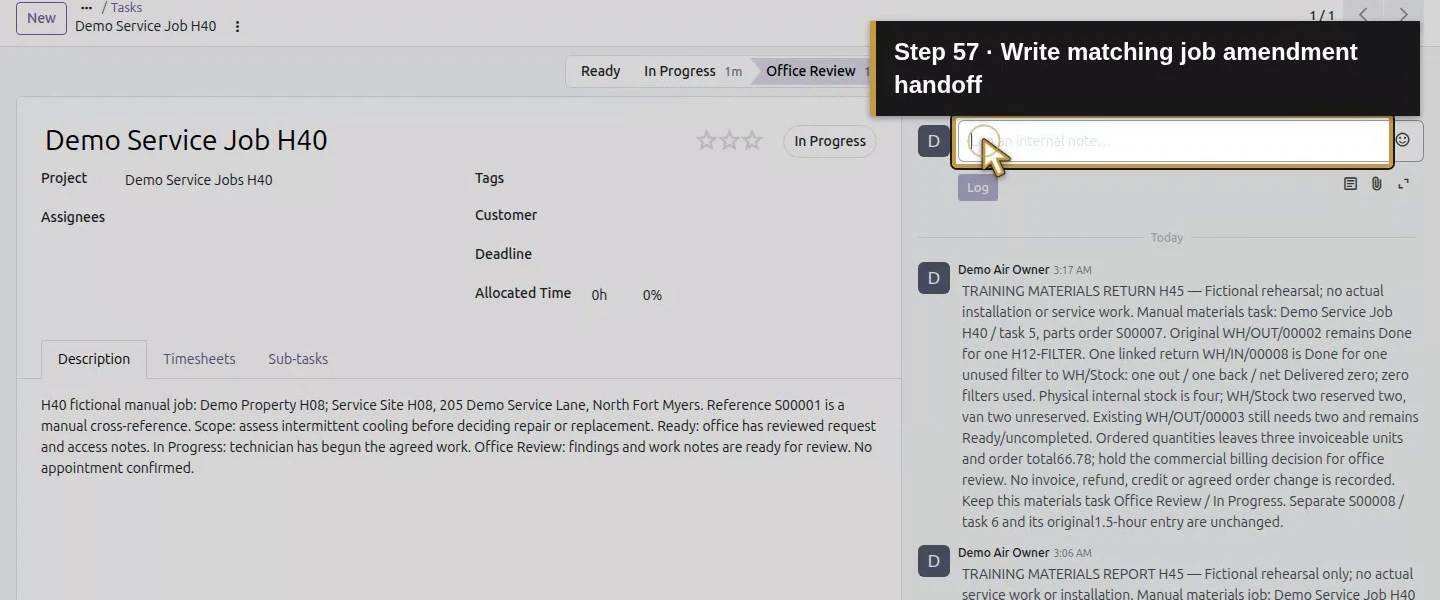
Action 57: Write matching job amendment handoff. The actual target is highlighted in gold.
Write matching job amendment handoff.
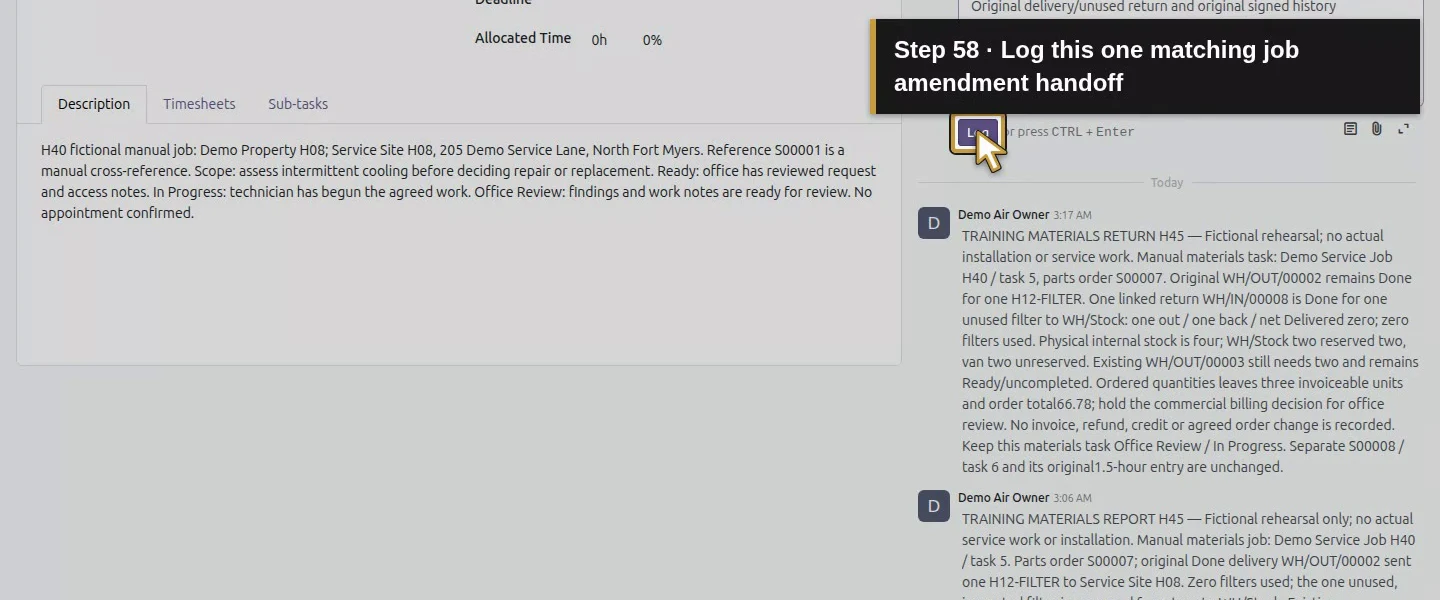
Action 58: Log this one matching job amendment handoff. The actual target is highlighted in gold.
Log this one matching job amendment handoff.
Action 59: Read the saved matching job amendment handoff. The actual target is highlighted in gold.
Read the saved matching job amendment handoff.
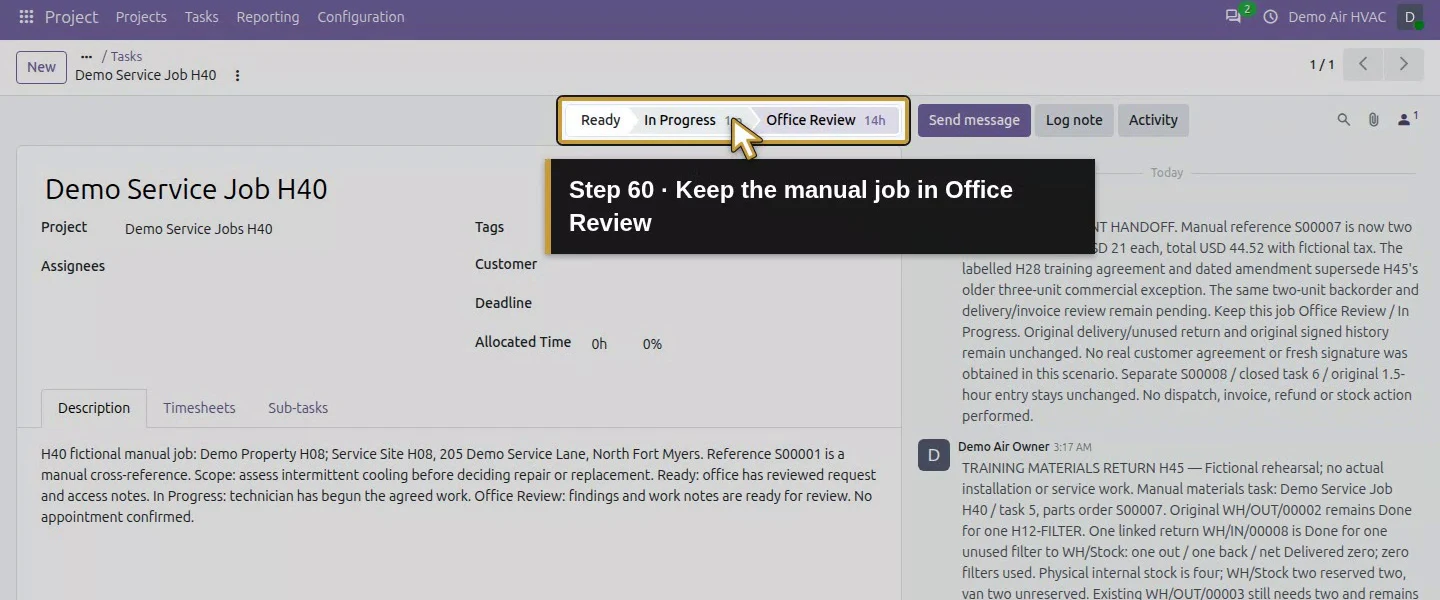
Action 60: Keep the manual job in Office Review. The actual target is highlighted in gold.
Keep the manual job in Office Review.
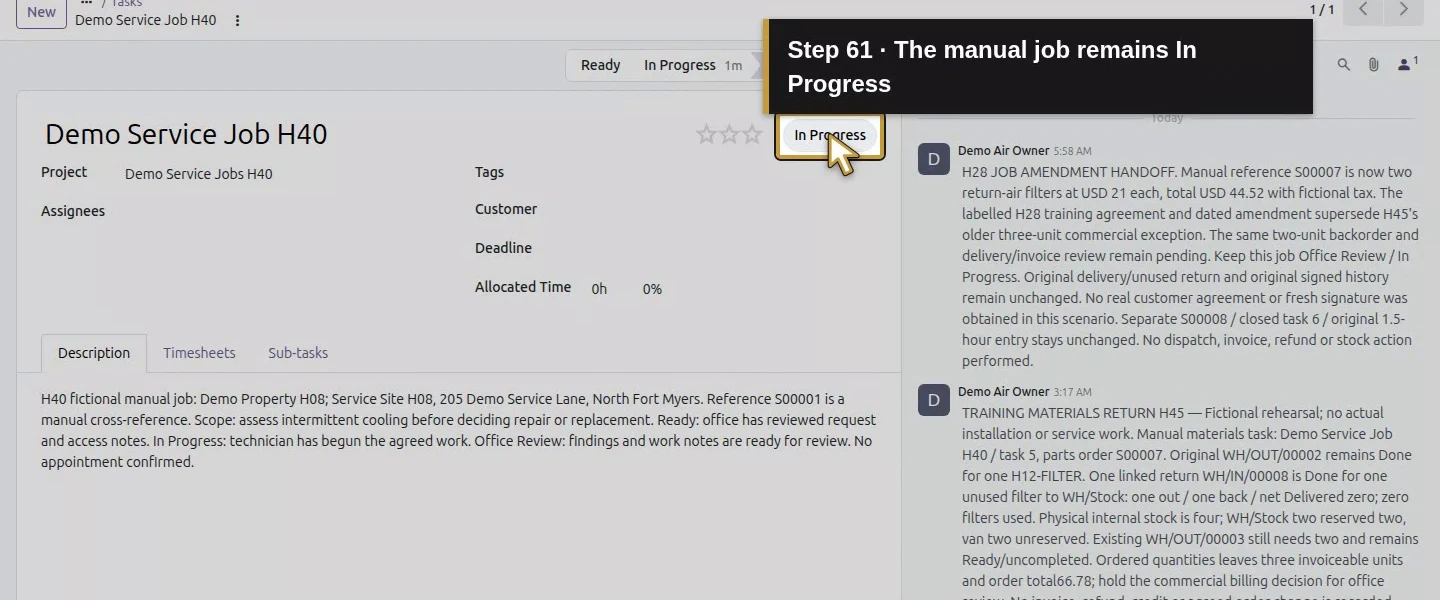
Action 61: The manual job remains In Progress. The actual target is highlighted in gold.
The manual job remains In Progress.

Step 8. Reopen the saved order before releasing work

Reload S00007 and check the same line, quantity two, $44.52 total, revised scope, manual-agreement note and original acceptance records. Reconcile the open two-filter commitment with the real operational plan before dispatch or invoicing. Our reopen retained one order/line and the same downstream records. We did not request another signature, send an amendment, deliver stock or create an invoice in this lesson.
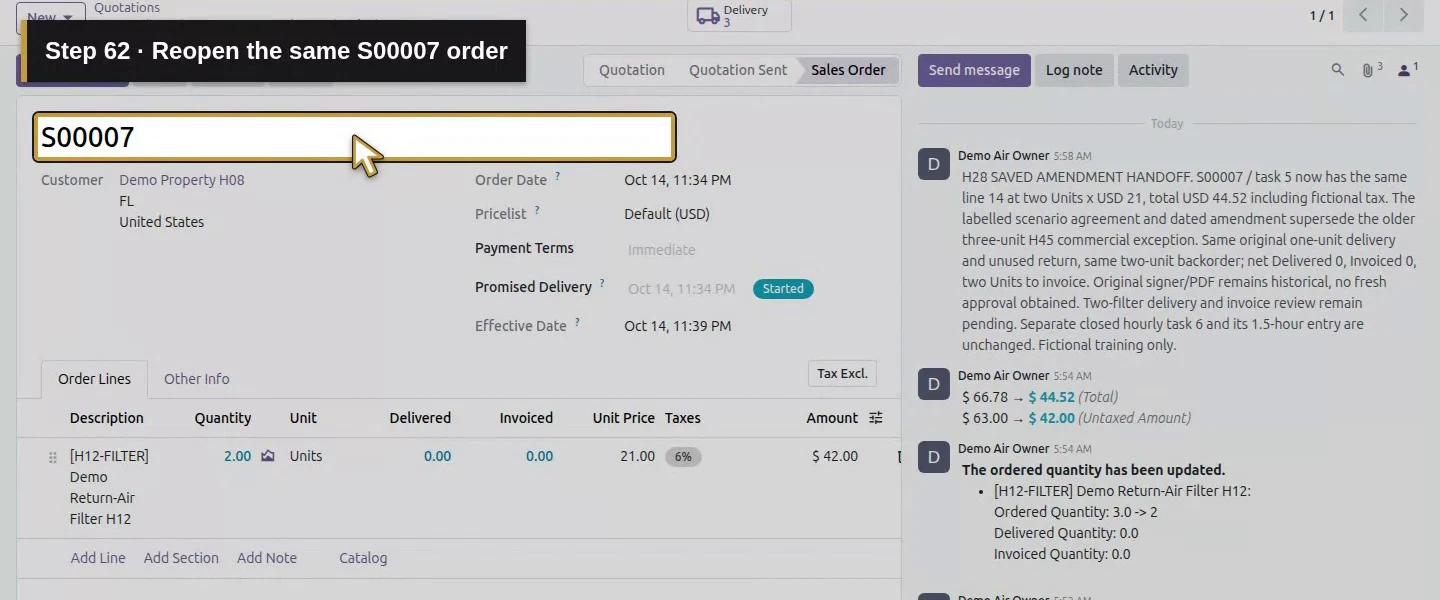
Action 62: Reopen the same S00007 order. The actual target is highlighted in gold.
Reopen the same S00007 order.
Action 63: The persisted existing line still orders two Units. The actual target is highlighted in gold.
The persisted existing line still orders two Units.
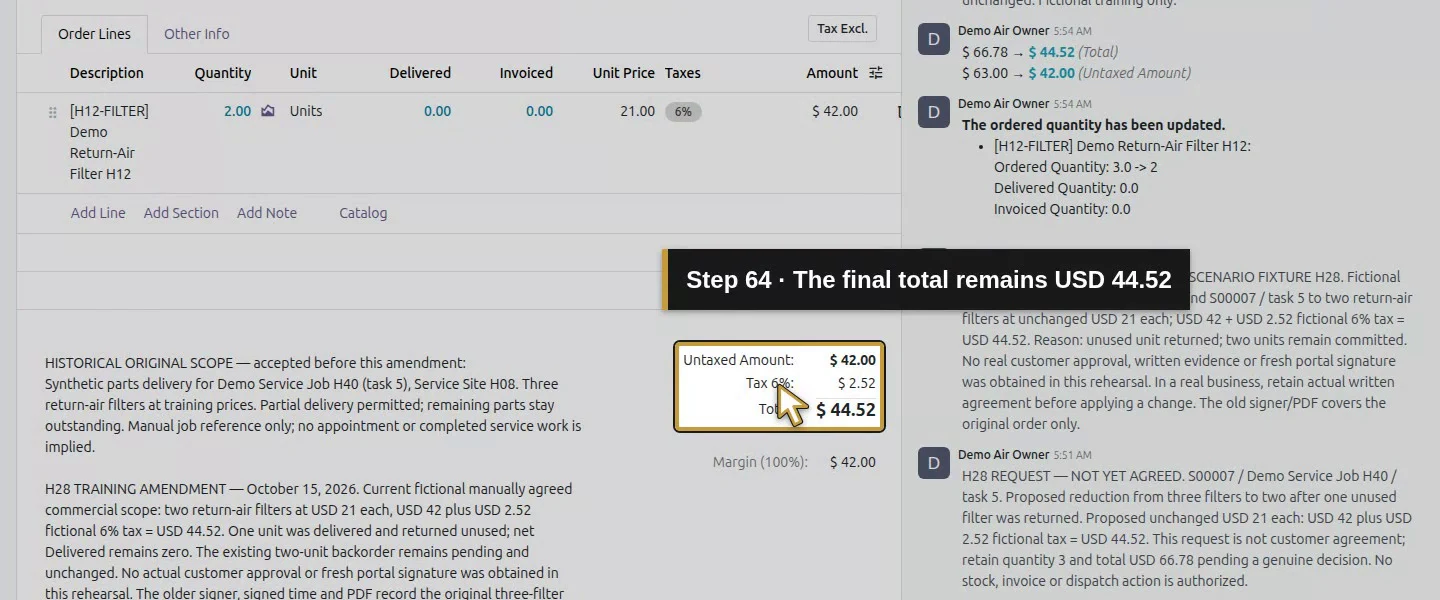
Action 64: The final total remains USD 44.52. The actual target is highlighted in gold.
The final total remains USD 44.52.
Action 65: The dated scope preserves the original as history. The actual target is highlighted in gold.
The dated scope preserves the original as history.
Action 66: The fictional manual agreement remains saved. The actual target is highlighted in gold.
The fictional manual agreement remains saved.
Action 67: The pending delivery and billing handoff stays explicit. The actual target is highlighted in gold.
The pending delivery and billing handoff stays explicit.
Action 68: The original signer does not approve the new amendment. The actual target is highlighted in gold.
The original signer does not approve the new amendment.

Check the result

S00007 remains the same confirmed order and line, revised to two filters at $21 plus demo tax, total $44.52. Native quantity/total history and separate request/manual-agreement/saved-result notes are retained, with the dated scope amendment. The original PDF checksums and signer/time are preserved as historical acceptance, not new approval. The same two-filter backorder remains Ready/reserved; original delivery/return, physical stock, job states and invoices are unchanged. The revised line has two units to invoice and zero delivered/invoiced.

If your screen differs

An editable confirmed order does not supply a complete change-order approval system. We recorded an explicitly fictional manual agreement; we did not obtain real approval or test a fresh portal signature for the amendment. The old signer/time and signed PDFs stayed present after editing, so do not treat them as acceptance of revised quantities. Unlocked owner editing was the tested case; other roles, locked orders, cancellations, extra service lines and milestone changes were not exercised. A price/quantity edit did not rewrite task instructions or close the remaining delivery. Inspect each downstream record and update contradictory scope text deliberately.

Frequently asked questions

How do I change a confirmed Odoo sales order? In this tested owner session, the confirmed order was unlocked and its existing Quantity cell could be edited. We recorded a manual-agreement fixture first, changed three filters to two, saved and checked the revised total and downstream records. Locked orders and other roles were not tested. Existing signature details did not become fresh approval of the change.
Does editing an Odoo sales order update the job automatically? Inspect each related record. This saved quantity change updated the order total and invoiceable quantity, while the same two-filter backorder, original delivery/return and task states remained unchanged. The owner deliberately updated the written scope and manual job note. No universal automatic job update or extra procurement is established.
How do I record a customer change request in Odoo? Use a clearly identified request note, then retain the actual written agreement separately before applying a commercial edit. Our request note changed no order quantities. A second note explicitly recorded the fictional manual-agreement scenario, followed by the saved revision and result checks. This is not an enforced native approval workflow or real customer acceptance.

Continue building the business

Continue with How do I invoice job time and materials in Odoo? after the relevant delivery and billing review. The later installation milestone guide has its own prerequisites; this quantity amendment did not validate milestone invoicing.

Talk to an Odoo partner

Bring your current process and the result you need to Onward to plan your Odoo workflow. Talk to an Odoo partner.