By Nelson Milian, Odoo Expert & Agentic AI Developer
Published
Running an HVAC business with Odoo
How do I reserve and deliver parts for a customer job in Odoo?
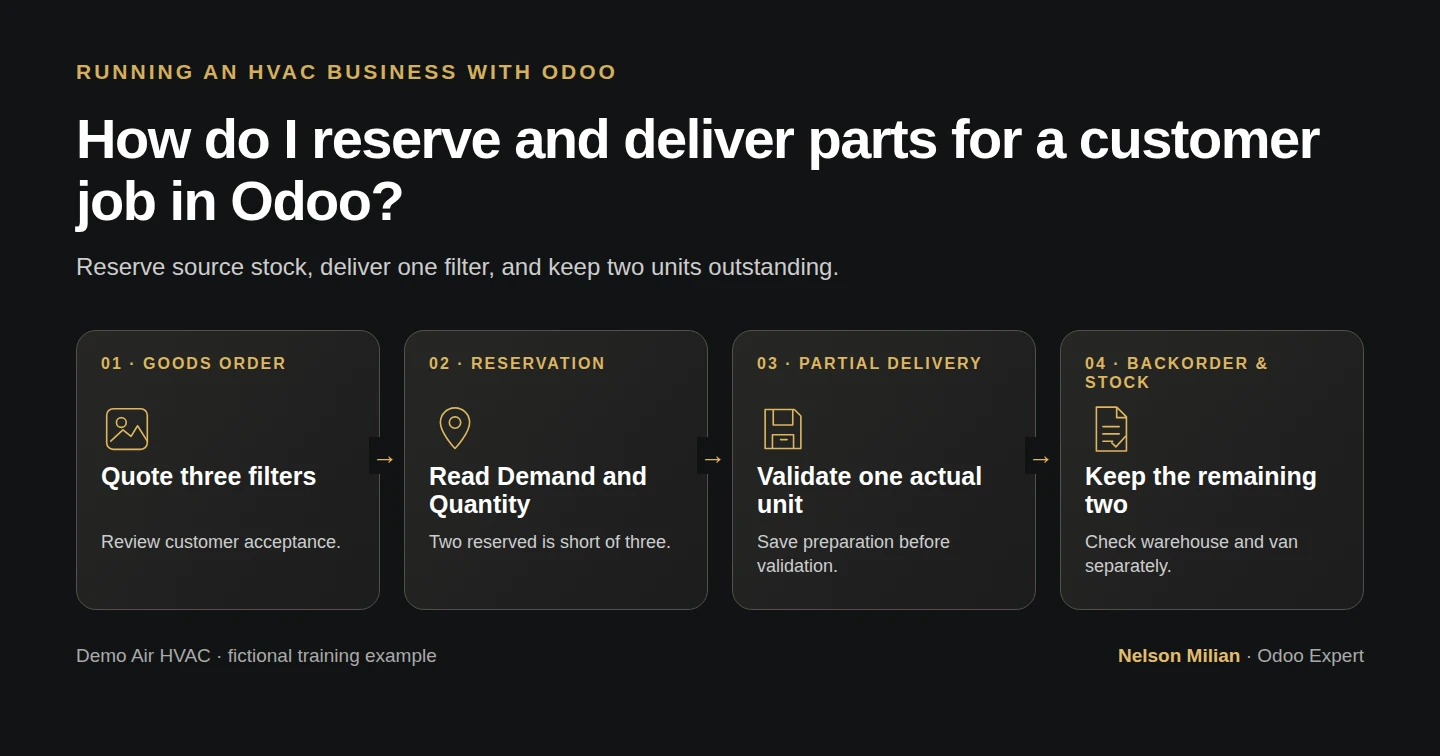
Workflow overview. Instructional screenshots show the actual demo interface.
Reserve parts from an Odoo sales order, deliver the actual quantity and retain the remaining demand on a linked backorder.
Alex has promised three replacement filters for an HVAC customer job. Only two are available in the delivery's source location, and he is handing over one today. This guide separates the sales order, stock reservation, completed delivery and outstanding parts.
Alex Rivera and Demo Air HVAC are fictional training examples. Prices, dates, quantities and business situations in this guide are illustrative.
Before you begin
Tested in stock Odoo 20.0-20260926 Community as the demo owner administrator, with official modules and standard configuration. Use the official Sales and Inventory modules, the stock-tracked filter from H12, received stock from H32, and the customer acceptance procedure from H26. Later stock lessons have left this checkpoint with two filters in WH/Stock and two in WH/Demo Van 01. Read your current balances before following the example. Use a separate goods quotation; the signed service-only S00001 has no stock delivery. The local mail sink remains the destination for training messages. Our delivery operation reserves available source stock when the order is confirmed.
Step-by-step workflow
96 highlighted video actions with a white pointer, gold border and English captions, without narration. Each written step groups its smaller video actions. Stock Odoo 20 Community. One fictional three-filter goods quotation, genuine local received-link acceptance, partial warehouse reservation, one-unit delivery and native backorder. Manual project reference; no installed-material consumption or automated Project link.
Step 1. Prepare the separate parts quotation
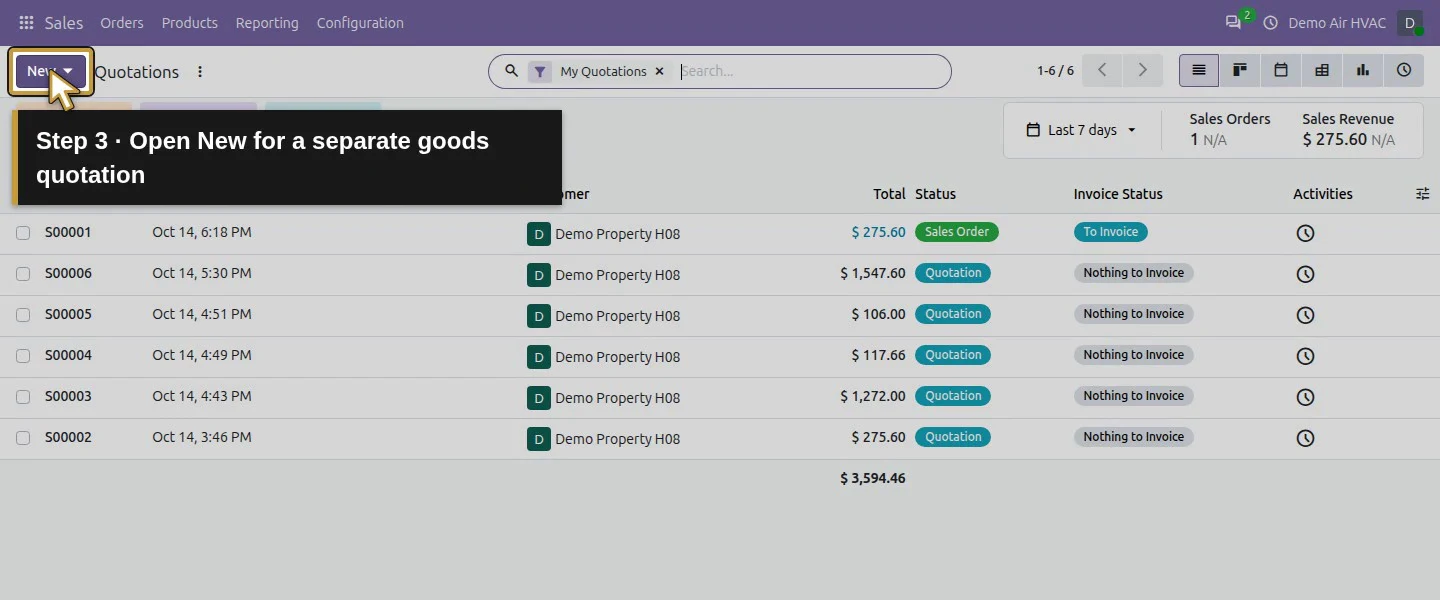
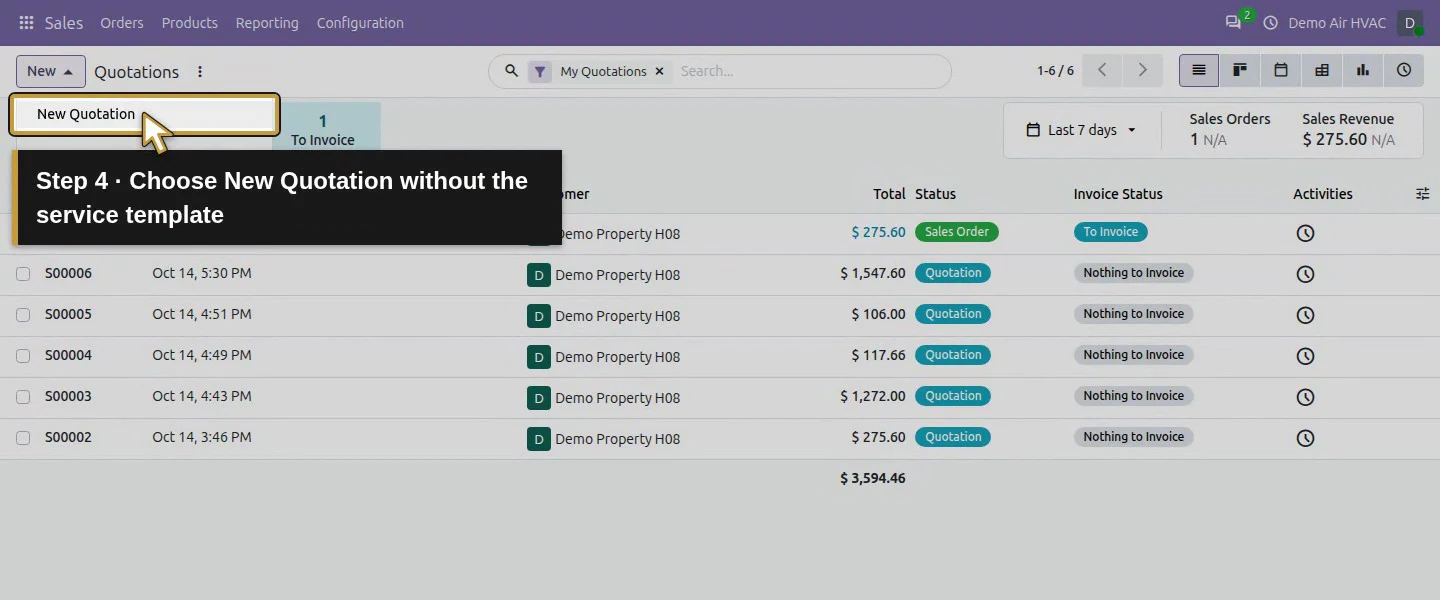
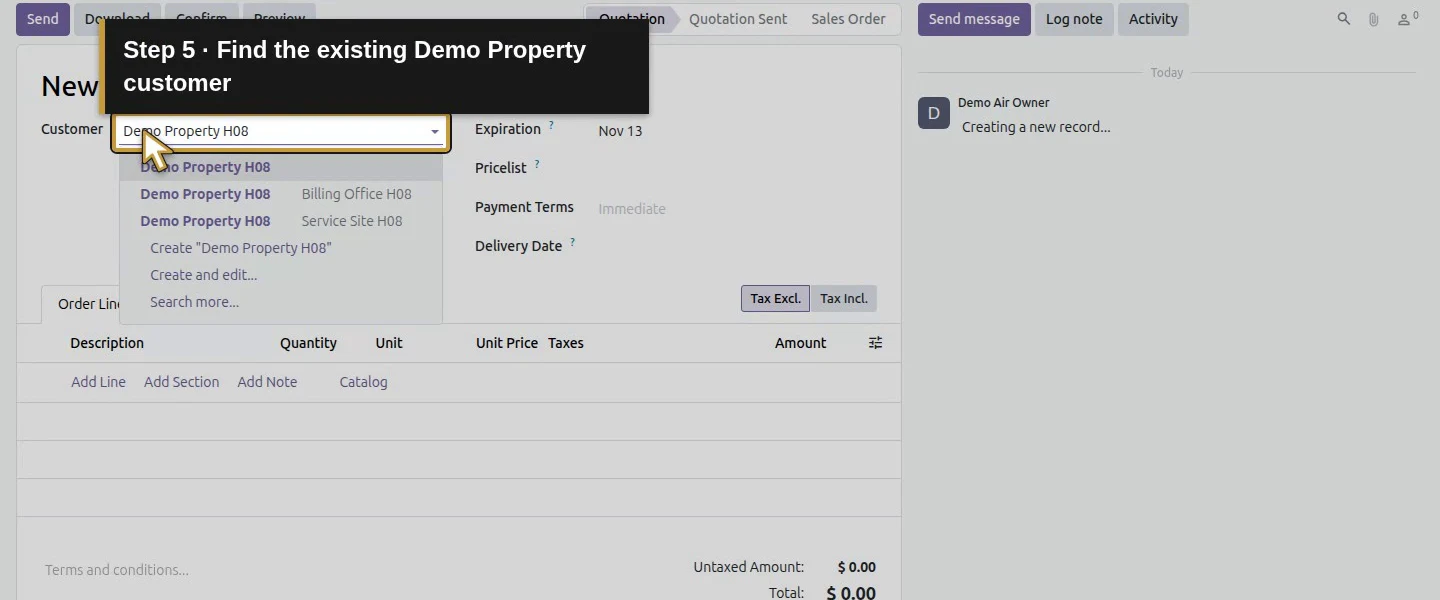
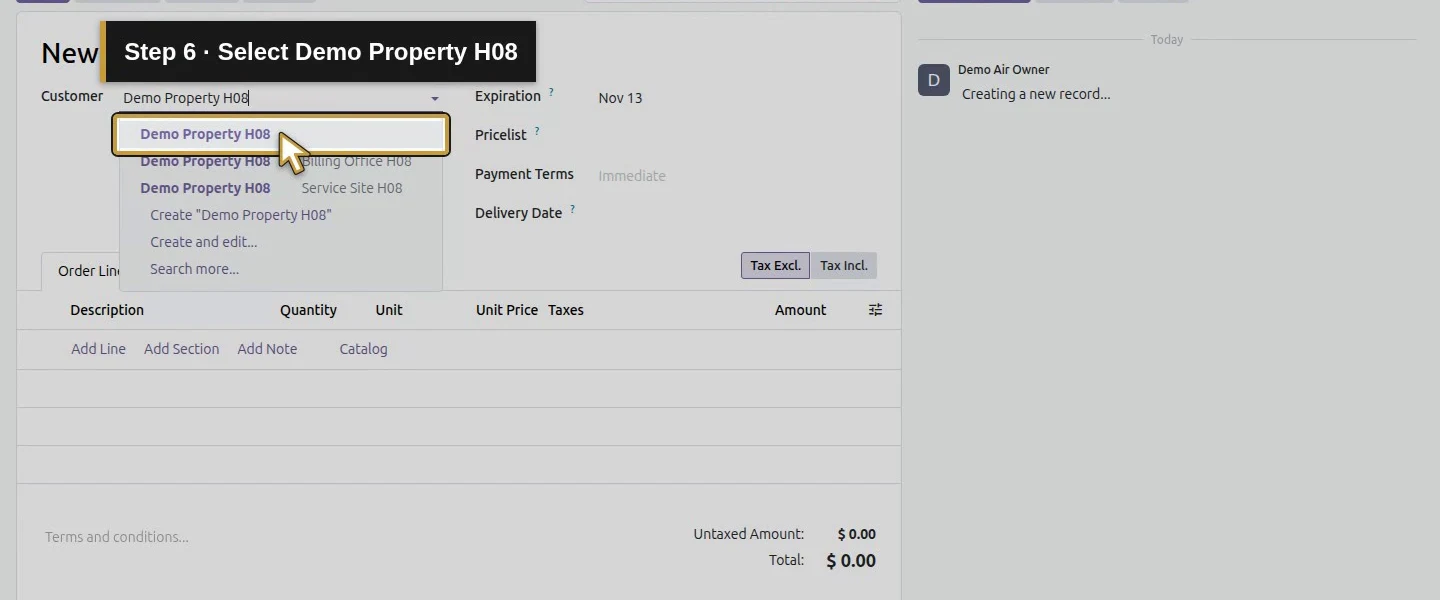
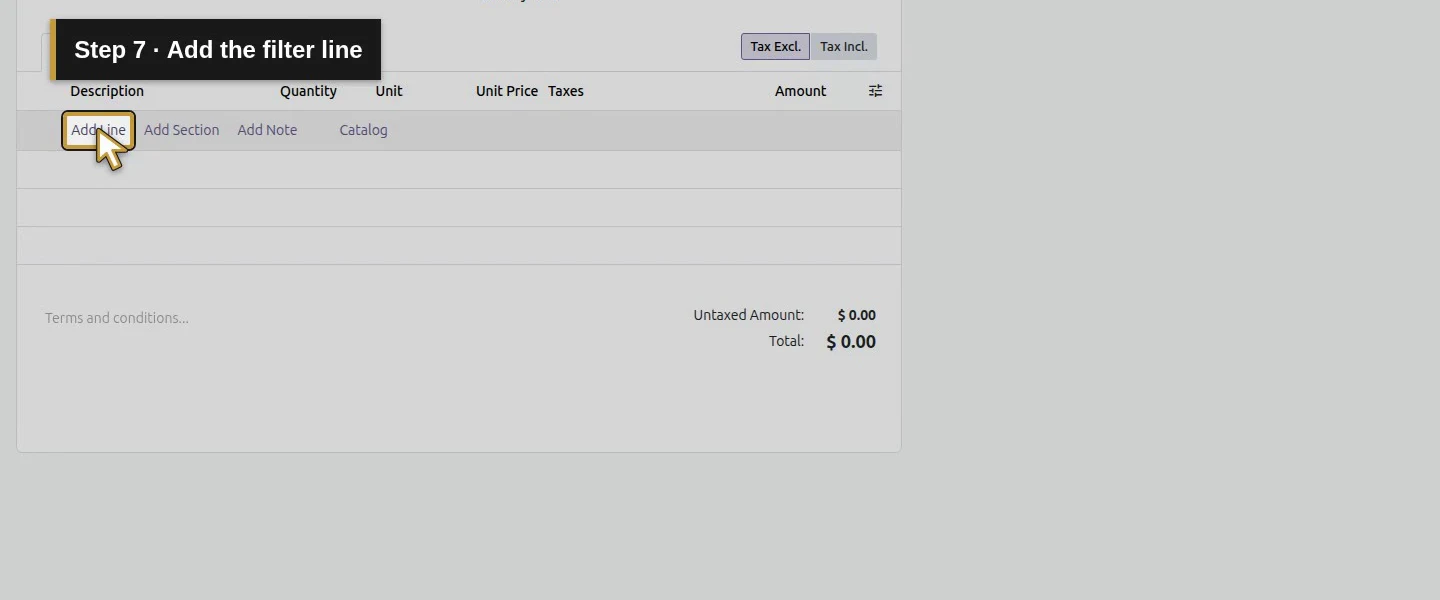
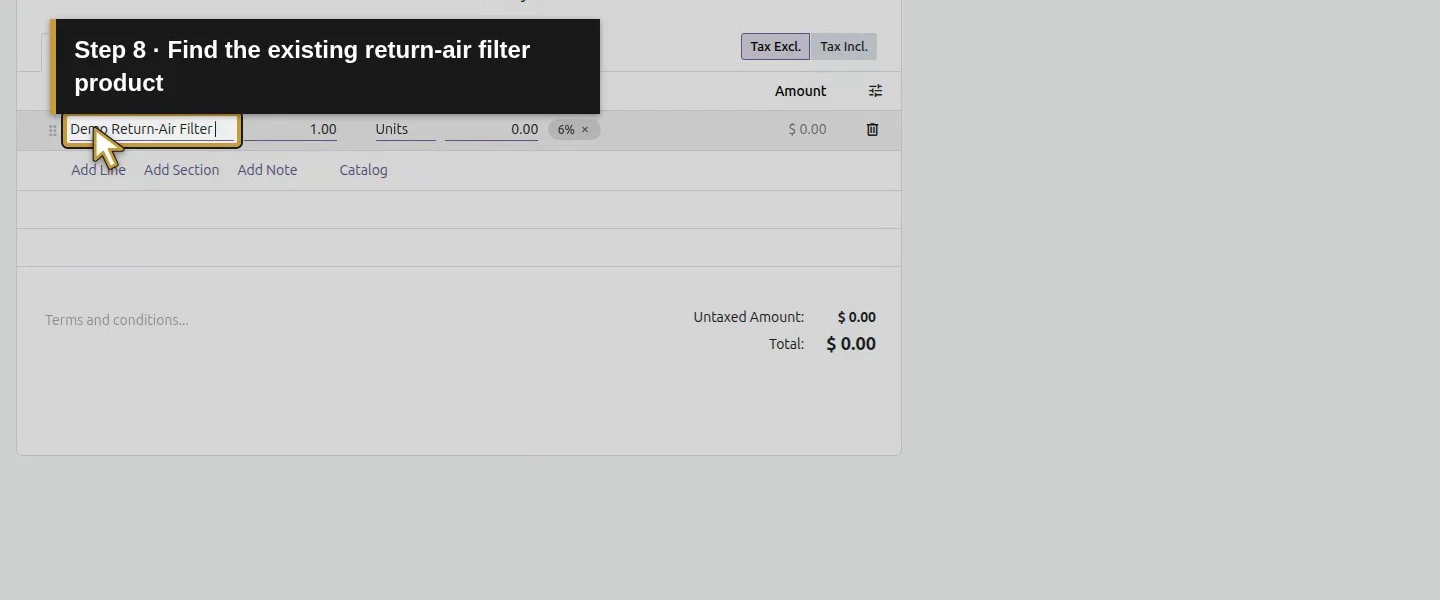
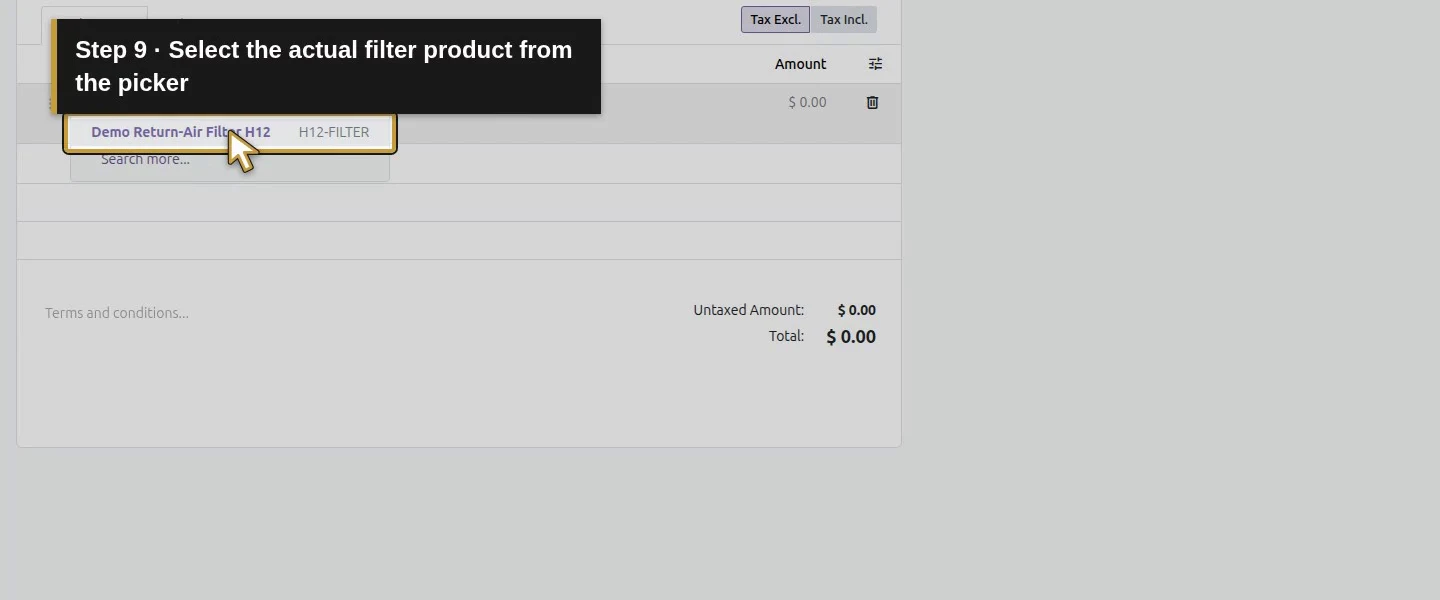
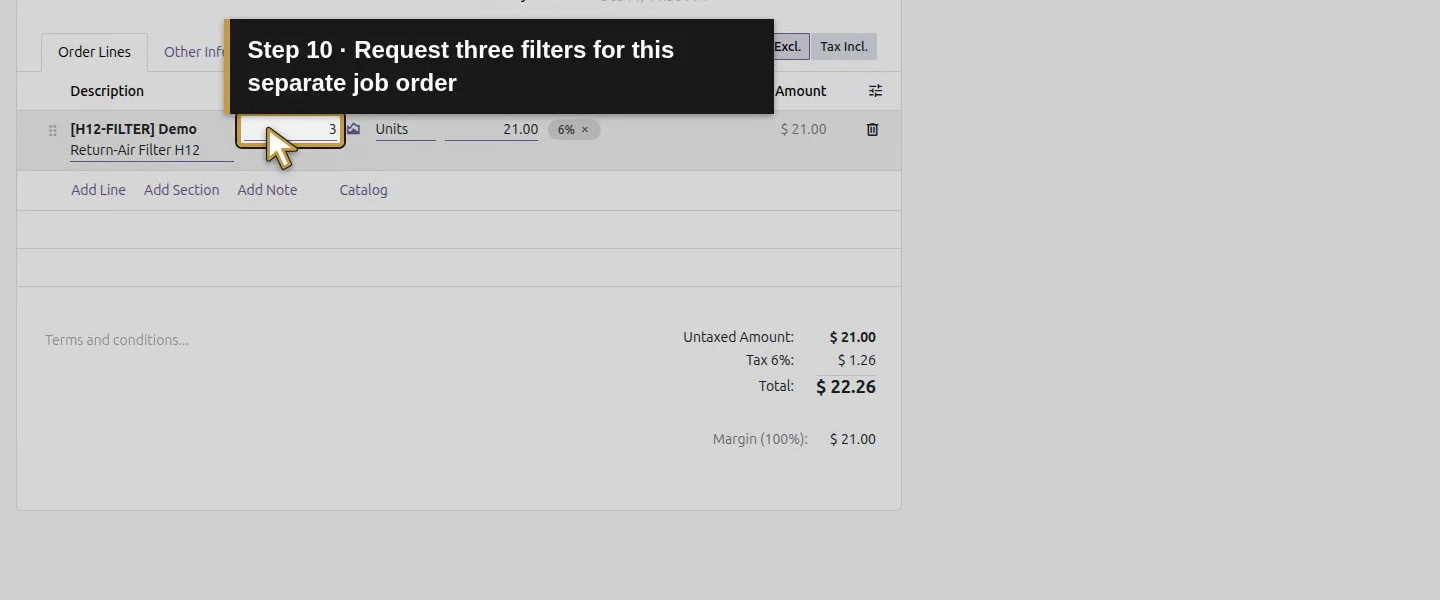
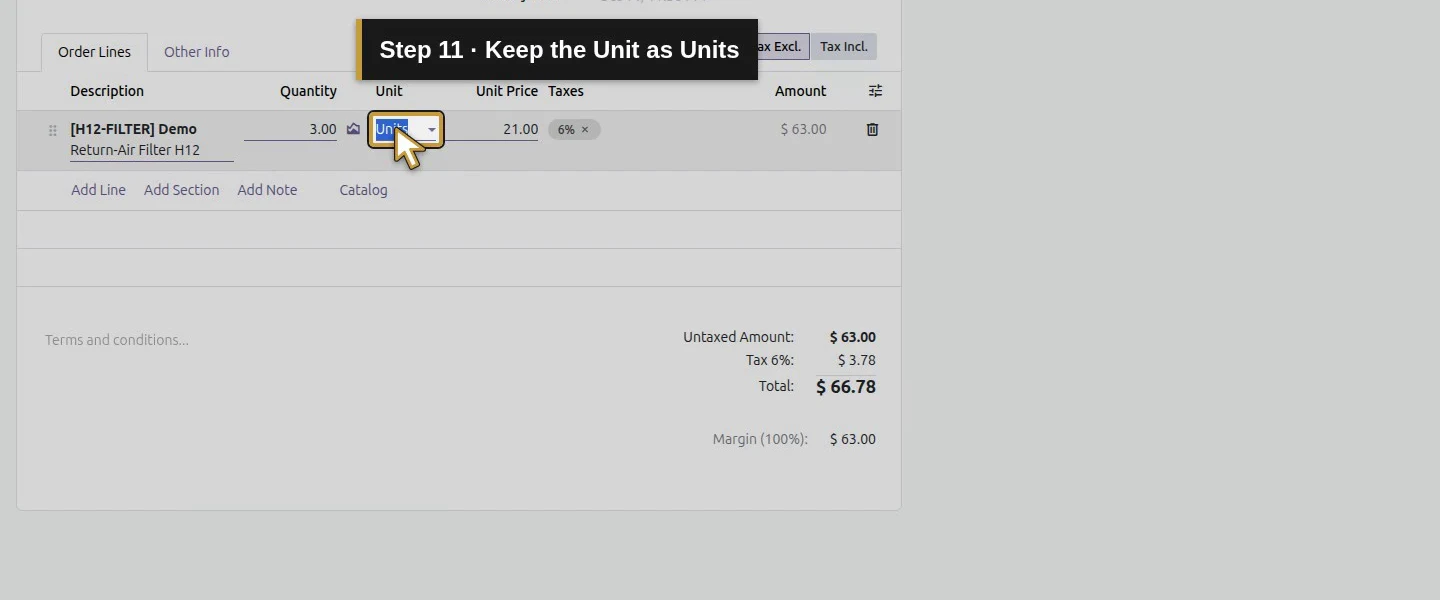
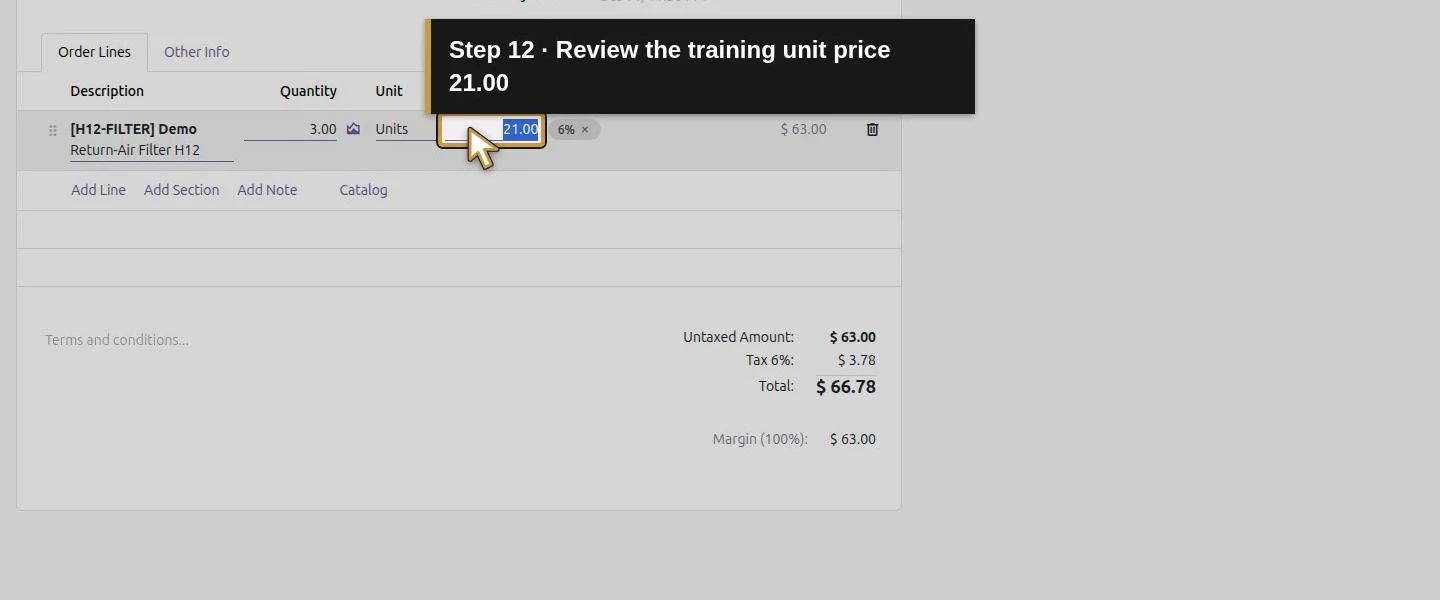
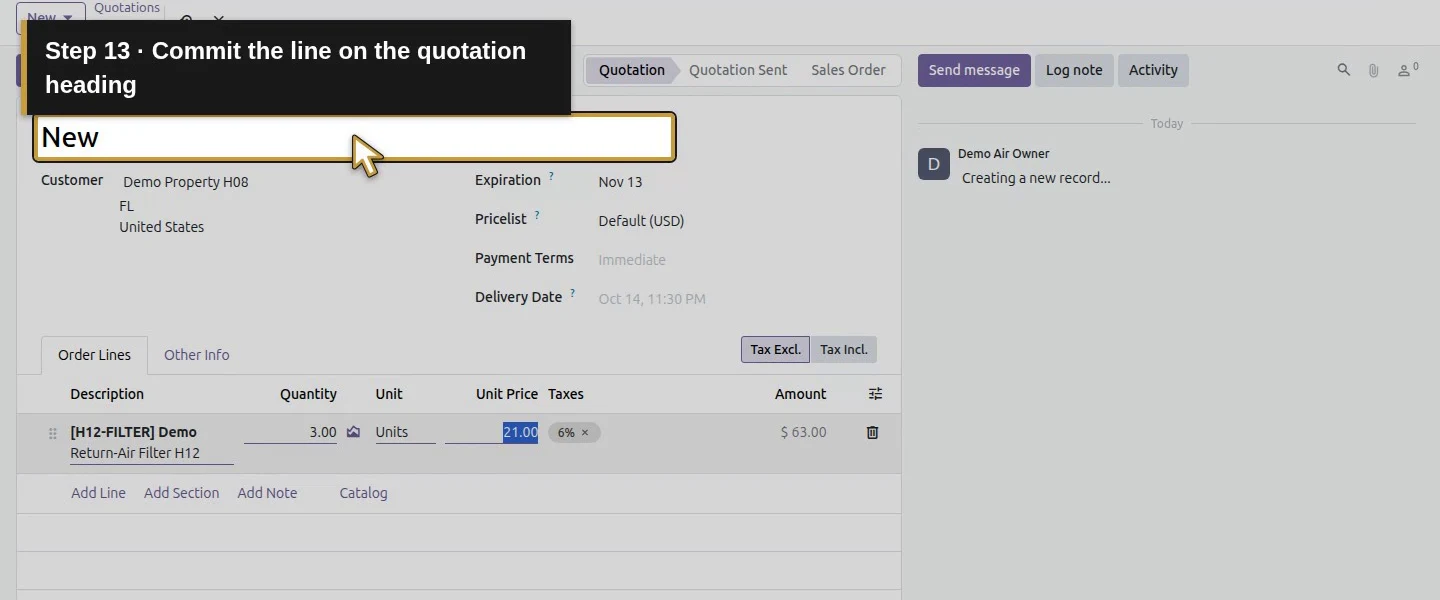
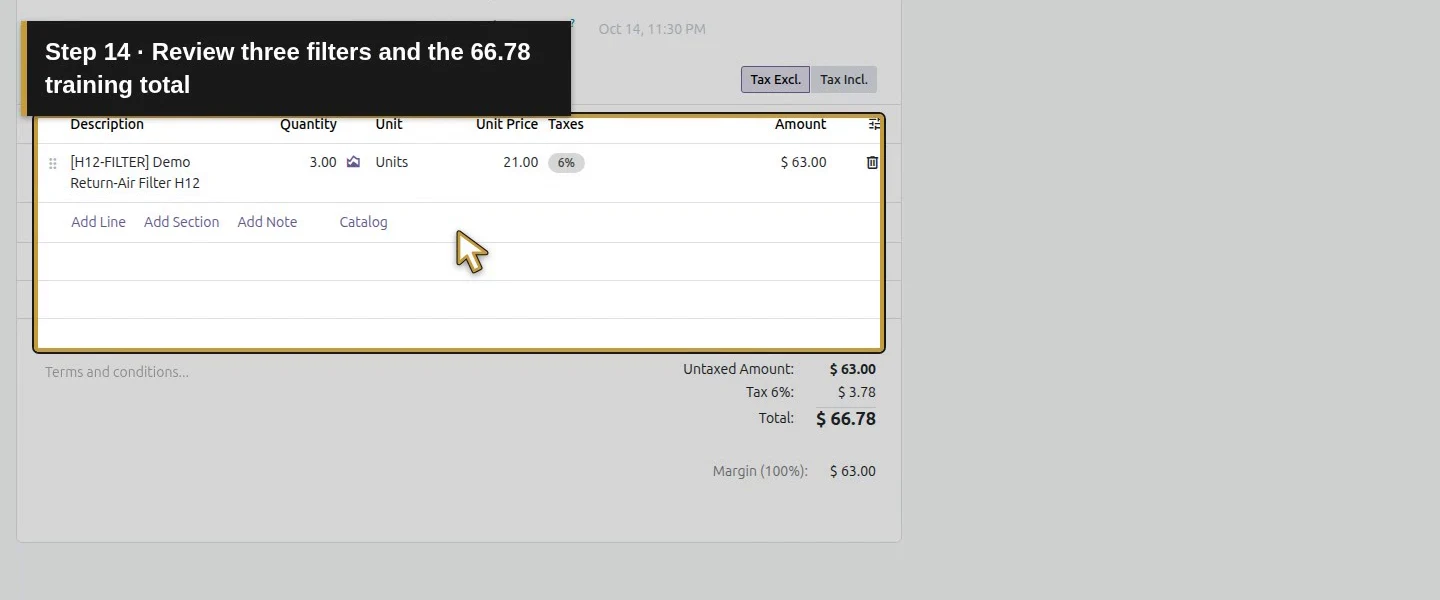
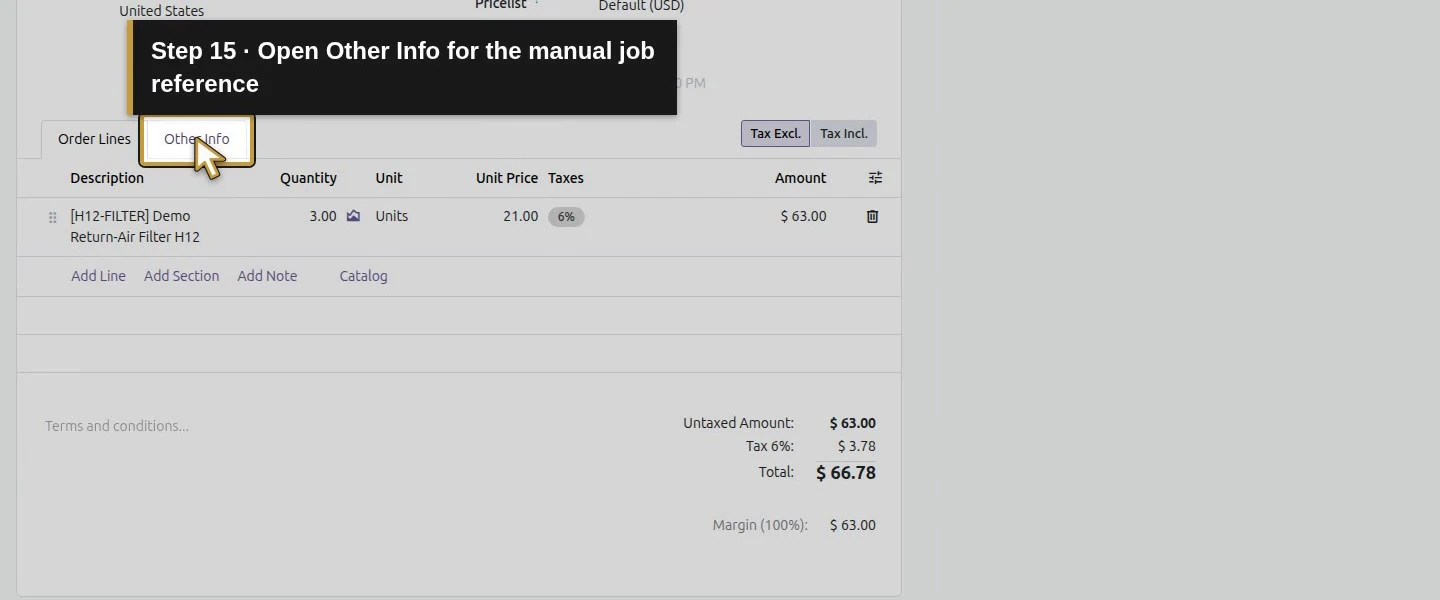
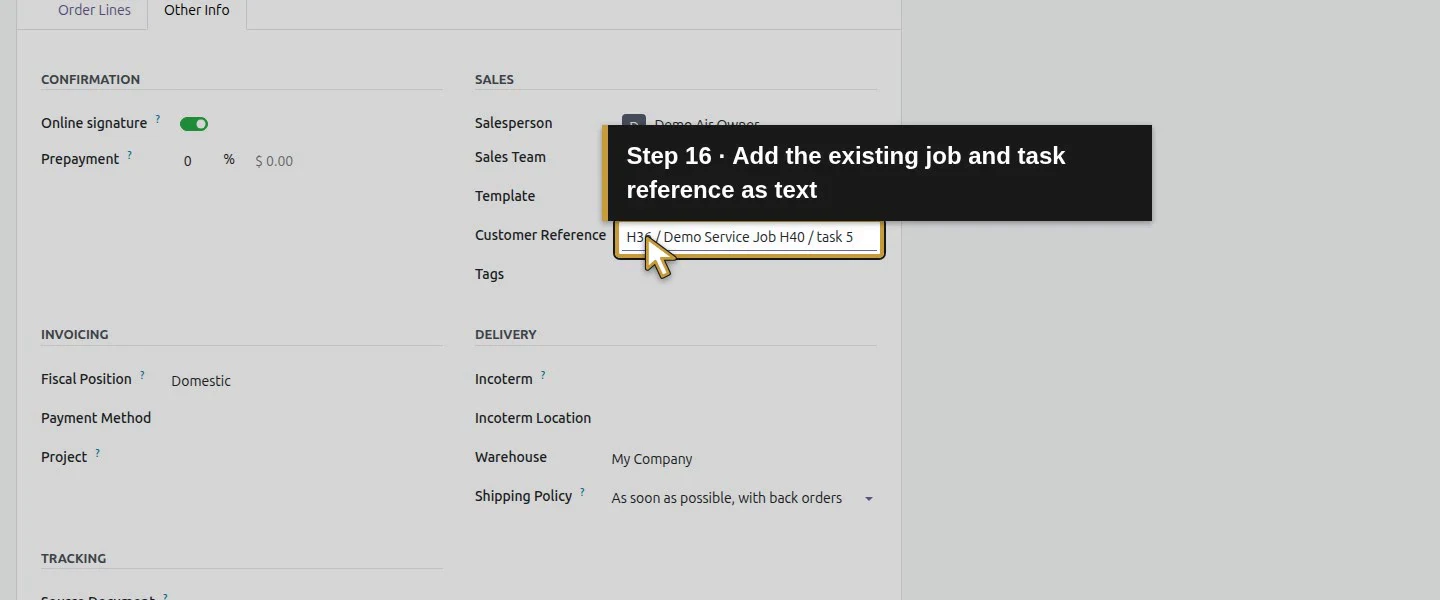
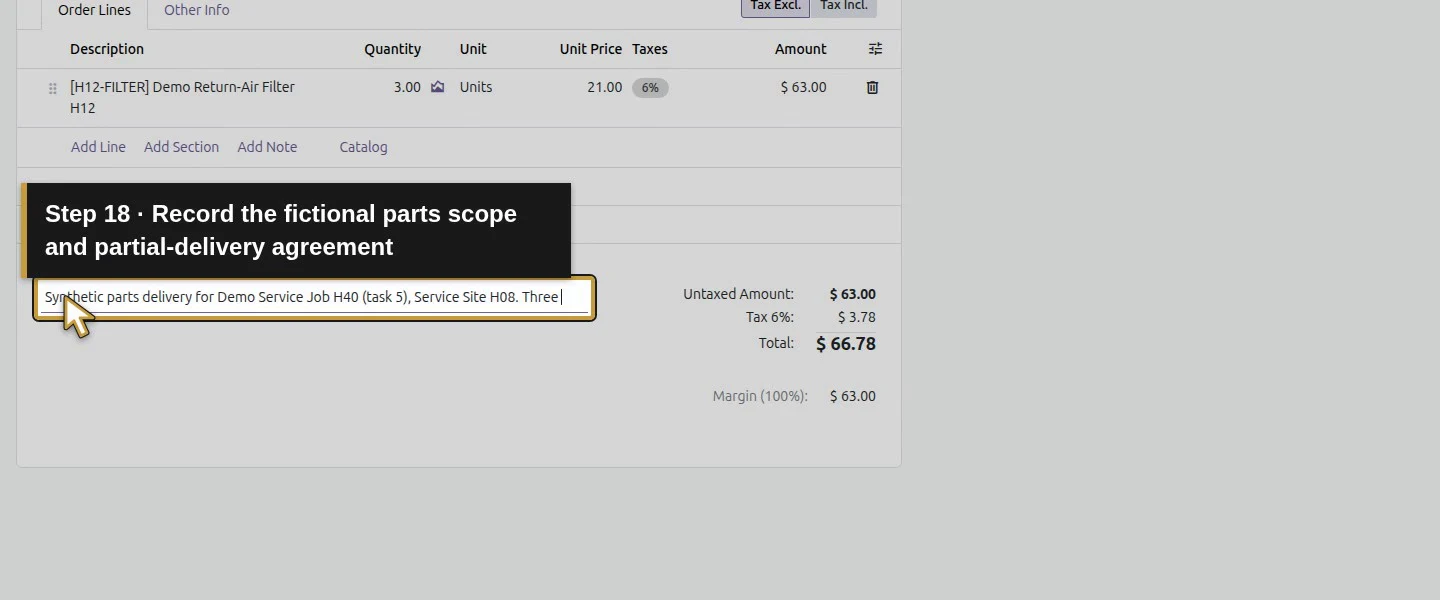
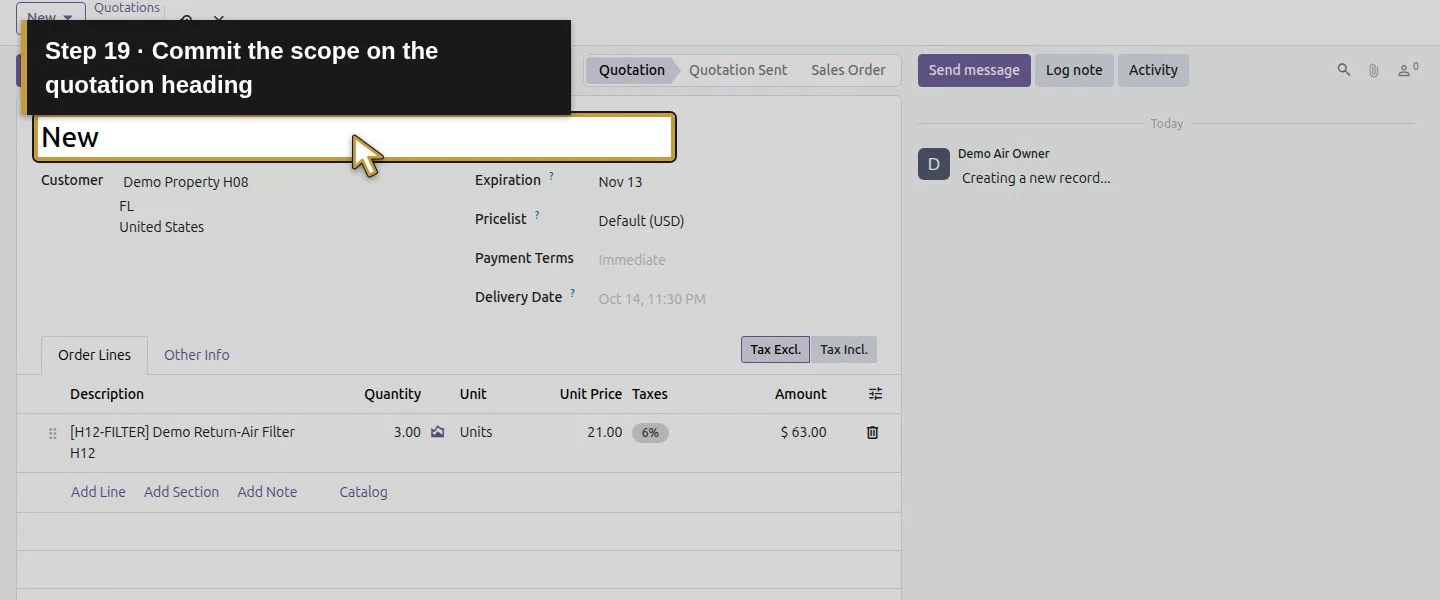
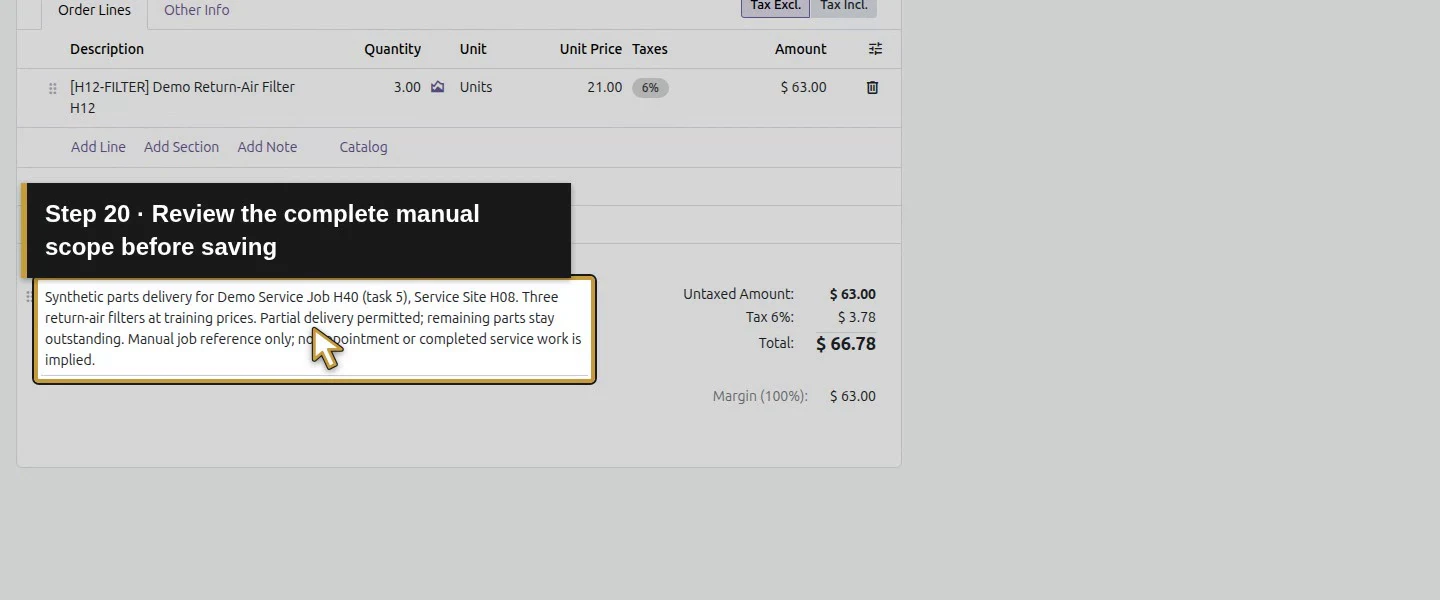
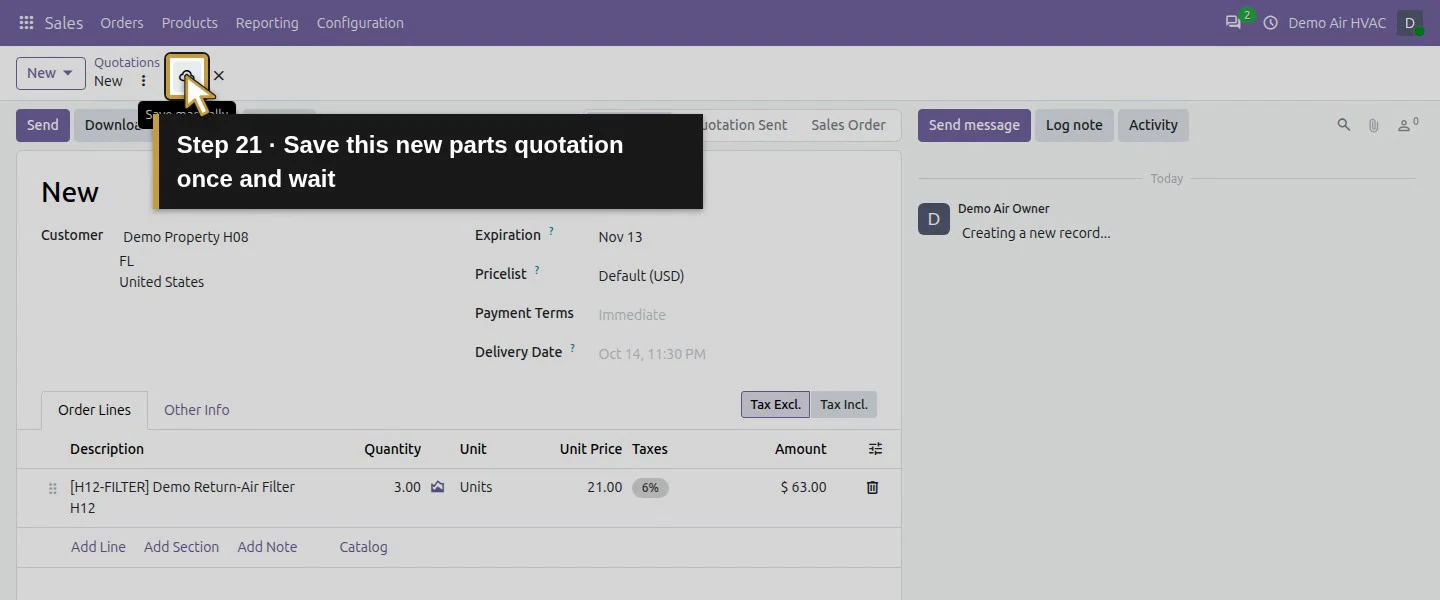
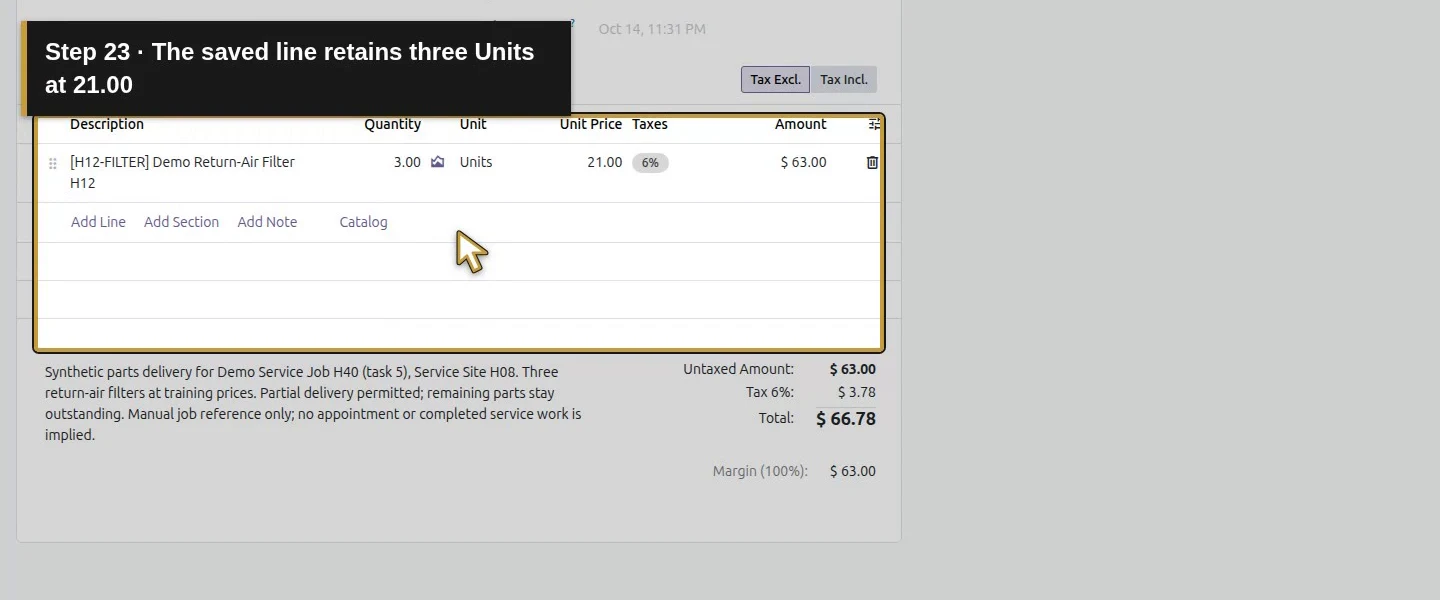
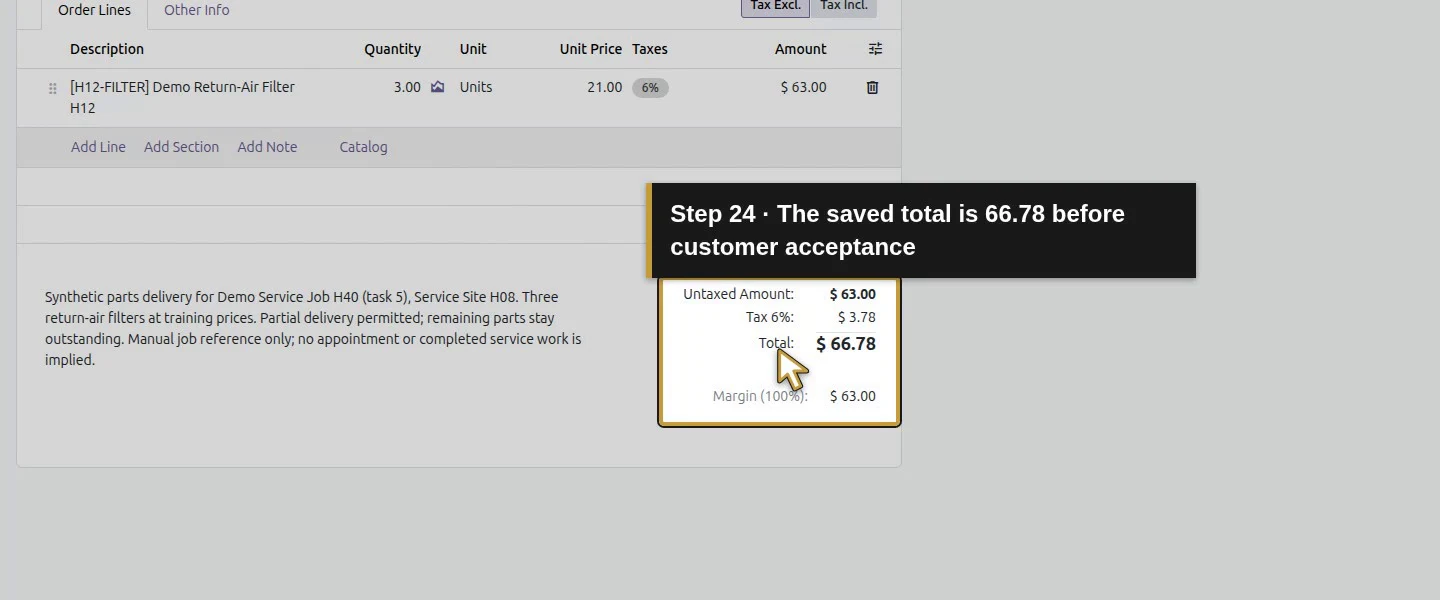
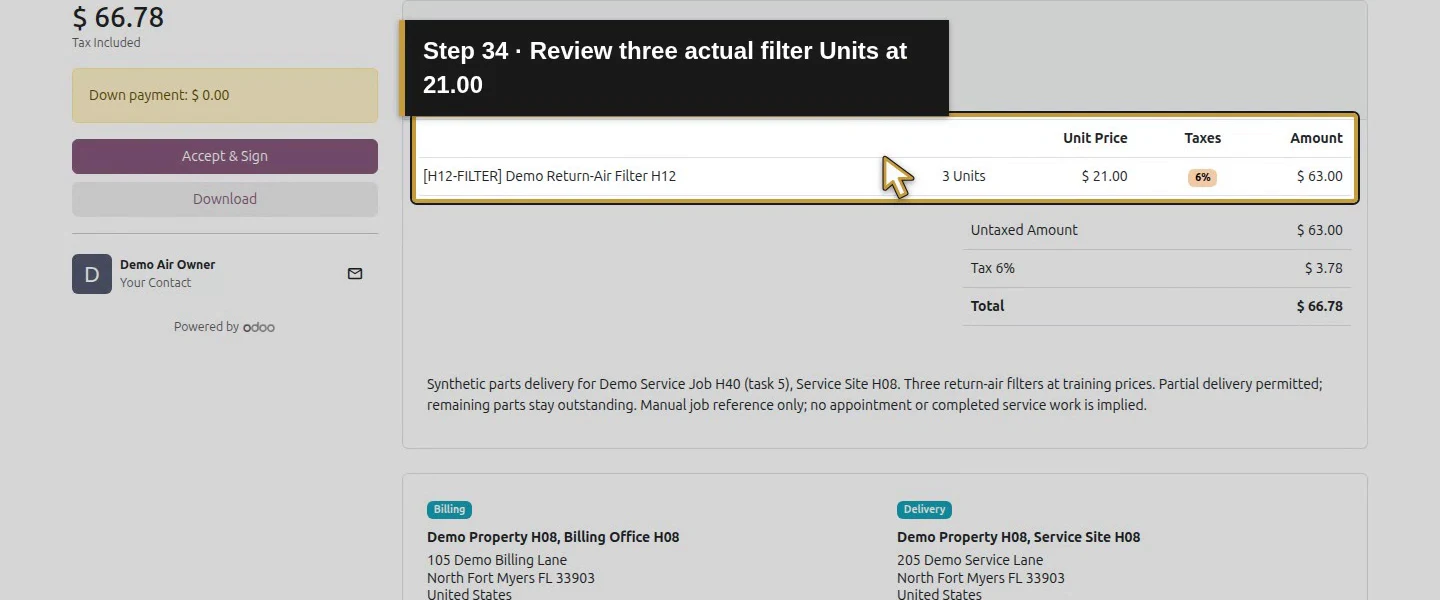
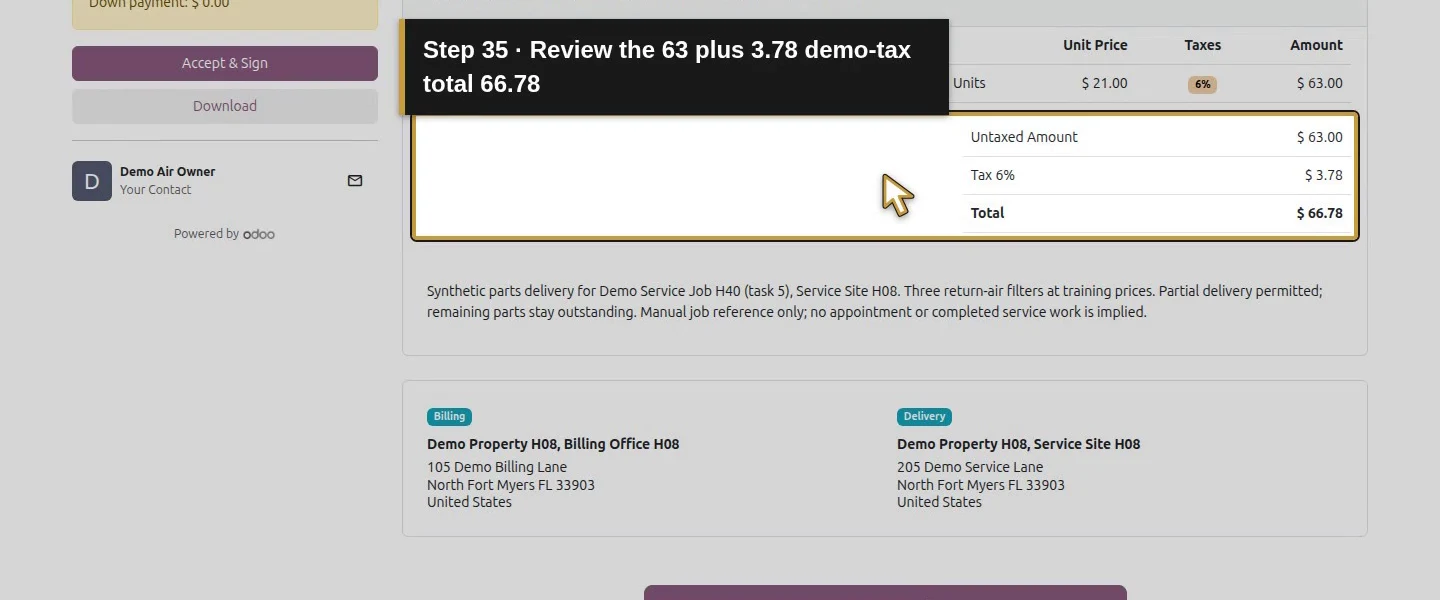
In Sales, open New → New Quotation, select Demo Property H08, and add the actual Demo Return-Air Filter H12 product from its dropdown. Enter 3 Units at the saved training price of $21 each. The total is $66.78, including the illustrative $3.78 tax. Under Other Info, put the job reference in Customer Reference; ours is H36 / Demo Service Job H40 / task 5. Add a scope note allowing partial delivery and identifying Service Site H08, then Save manually. This typed reference does not create a Project link.
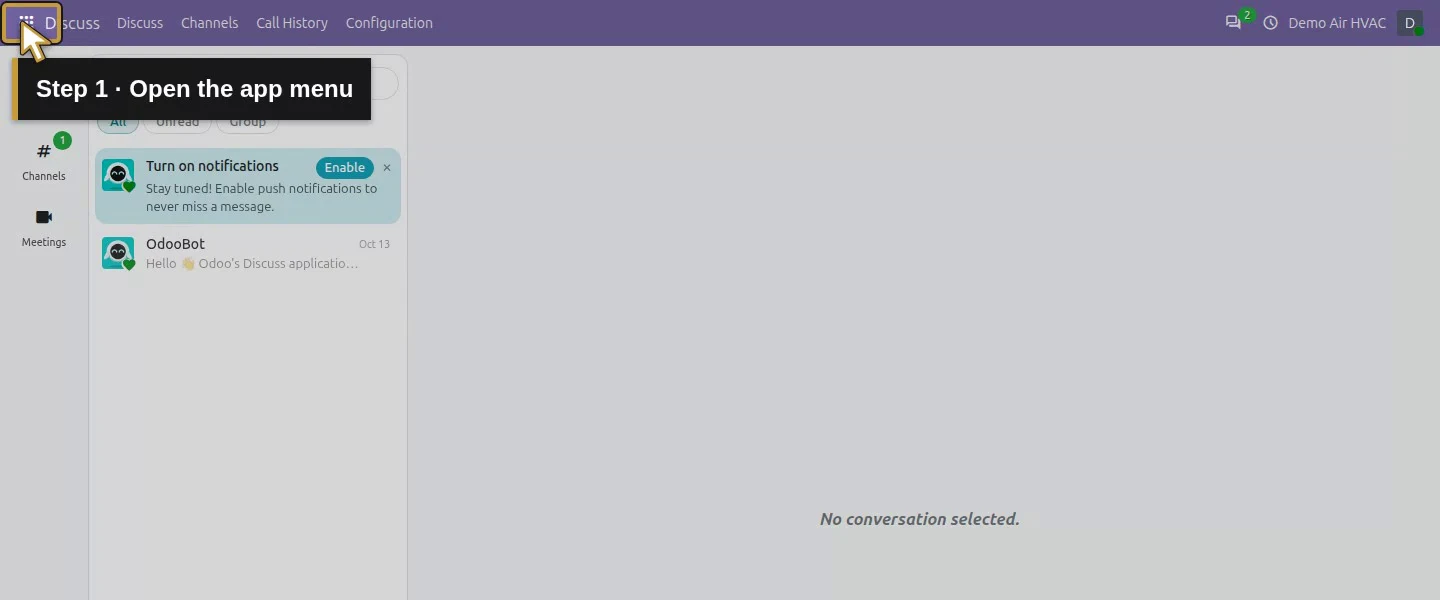
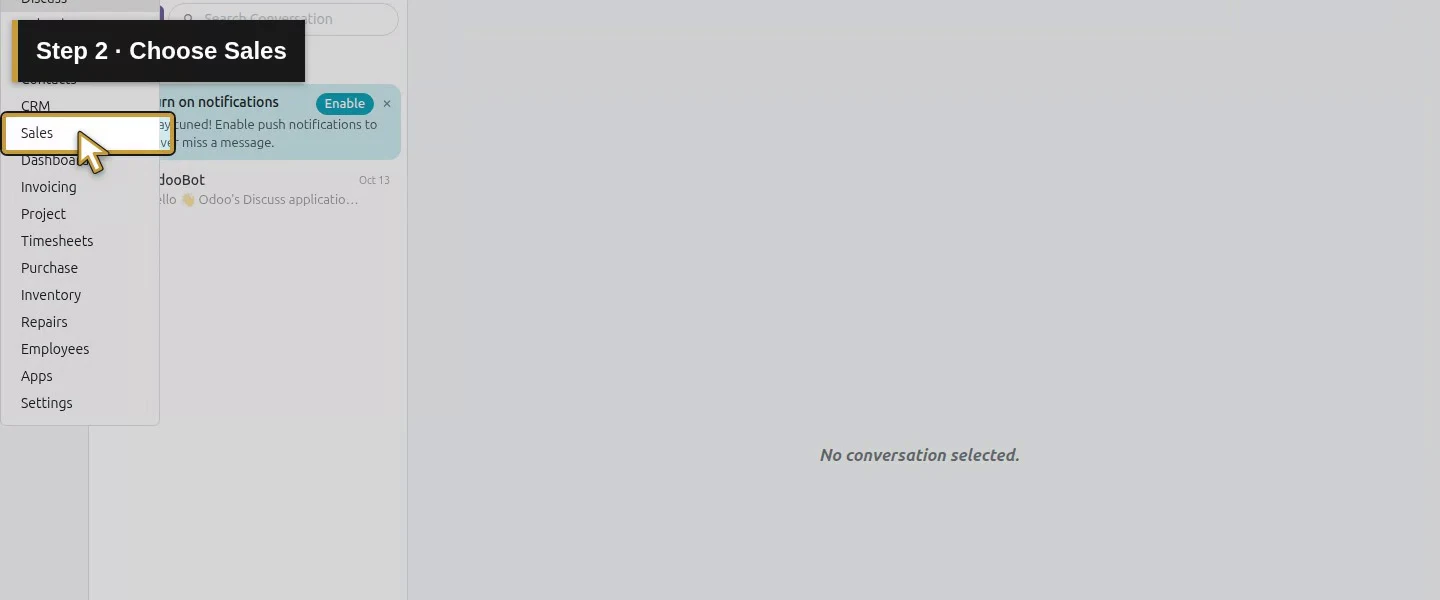
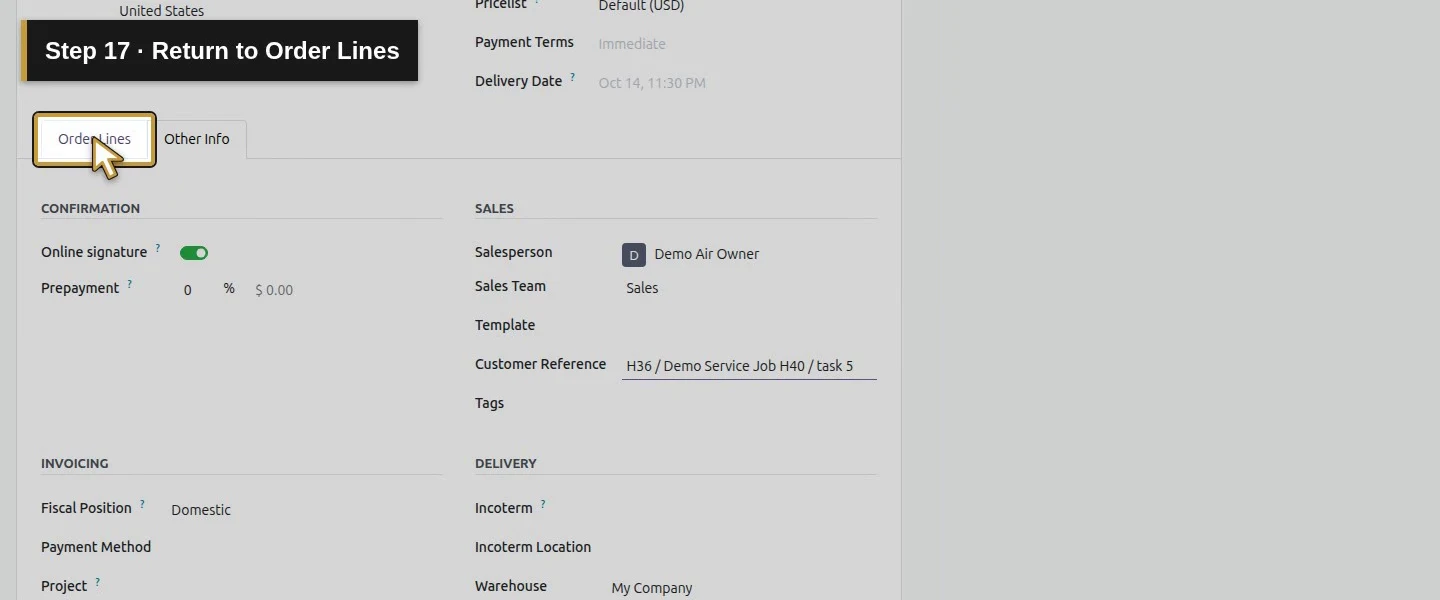
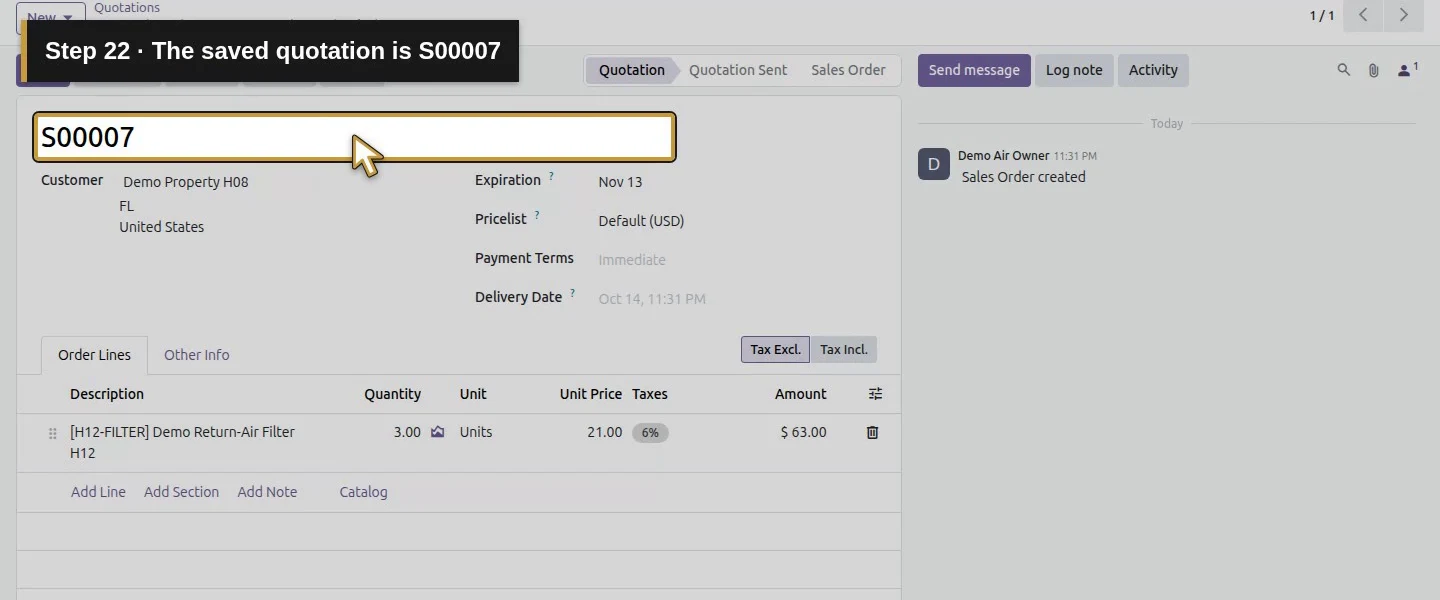
Open the app menu.Choose Sales.Open New for a separate goods quotation.Choose New Quotation without the service template.Find the existing Demo Property customer.Select Demo Property H08.Add the filter line.Find the existing return-air filter product.Select the actual filter product from the picker.Request three filters for this separate job order.Keep the Unit as Units.Review the training unit price 21.00.Commit the line on the quotation heading.Review three filters and the 66.78 training total.Open Other Info for the manual job reference.Add the existing job and task reference as text.Return to Order Lines.Record the fictional parts scope and partial-delivery agreement.Commit the scope on the quotation heading.Review the complete manual scope before saving.Save this new parts quotation once and wait.The saved quotation is S00007.The saved line retains three Units at 21.00.The saved total is 66.78 before customer acceptance.
Step 2. Confirm the reviewed goods order
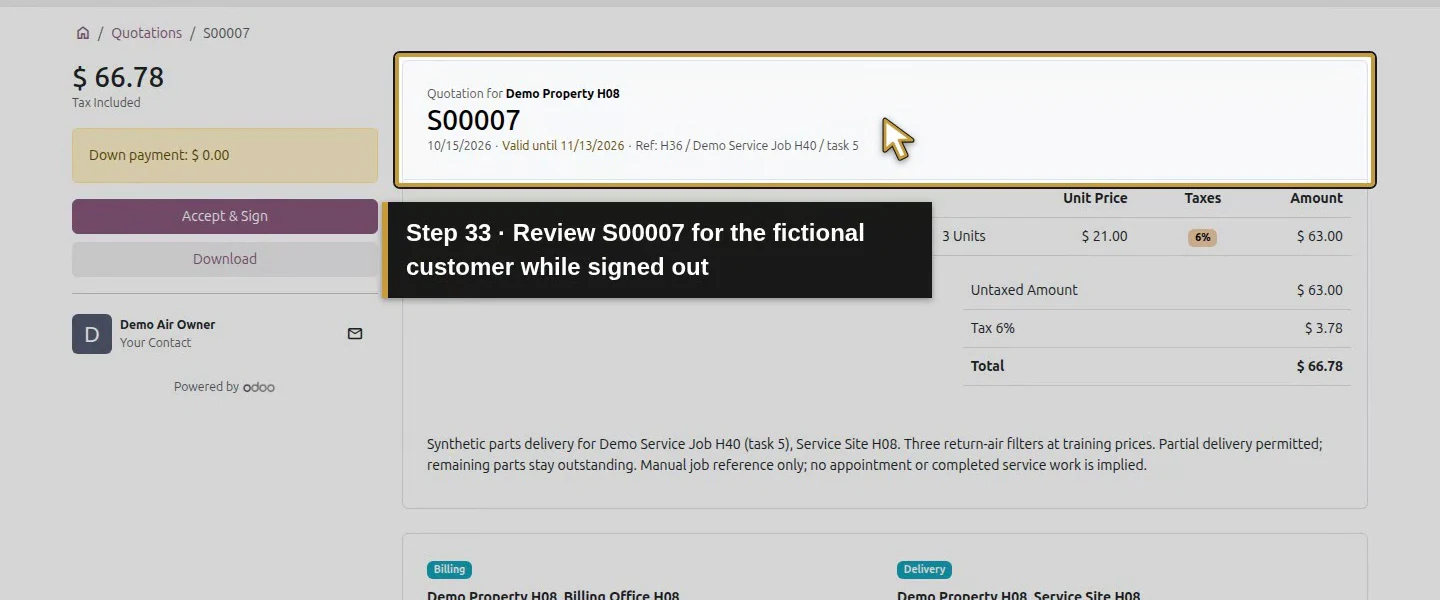
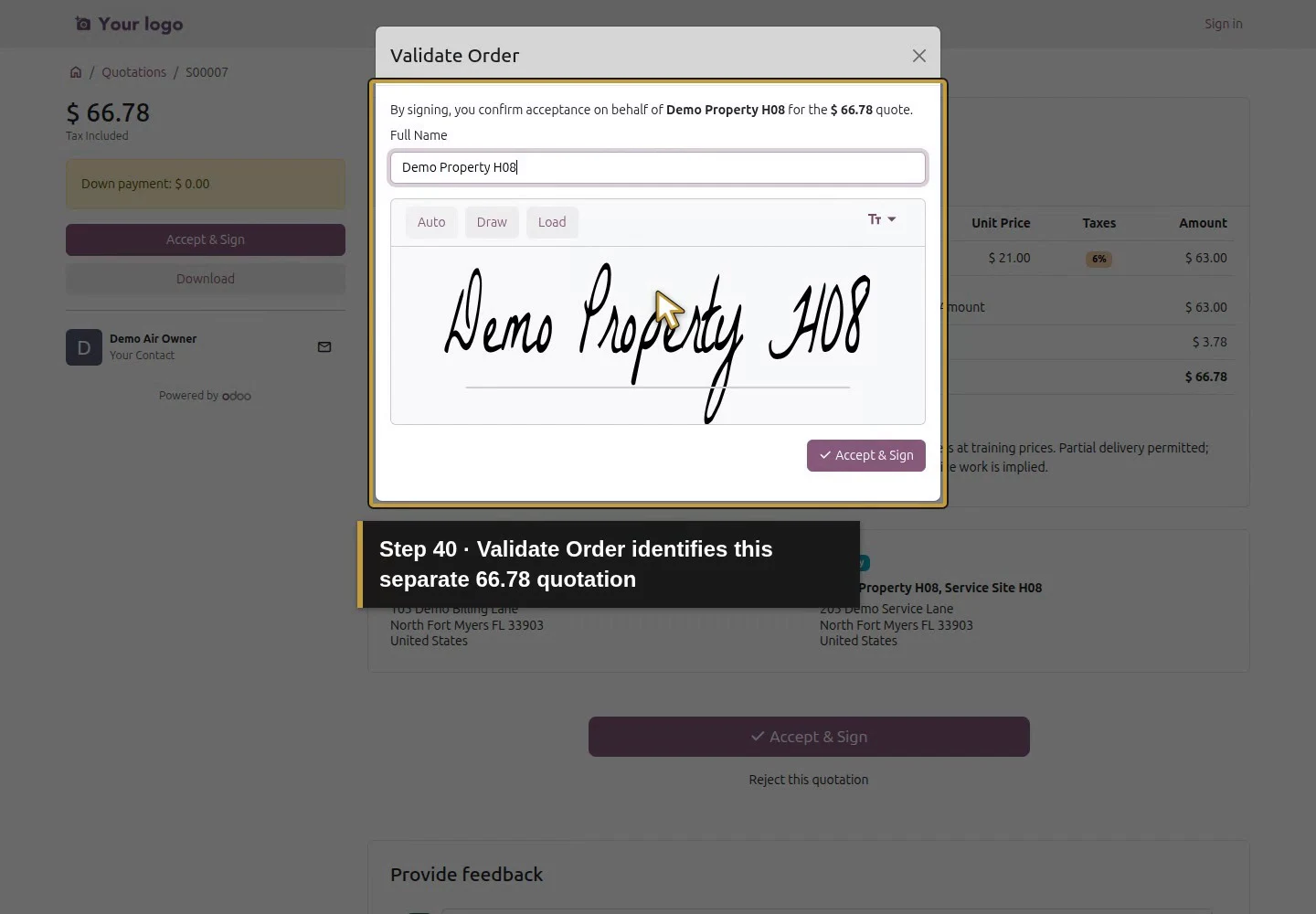
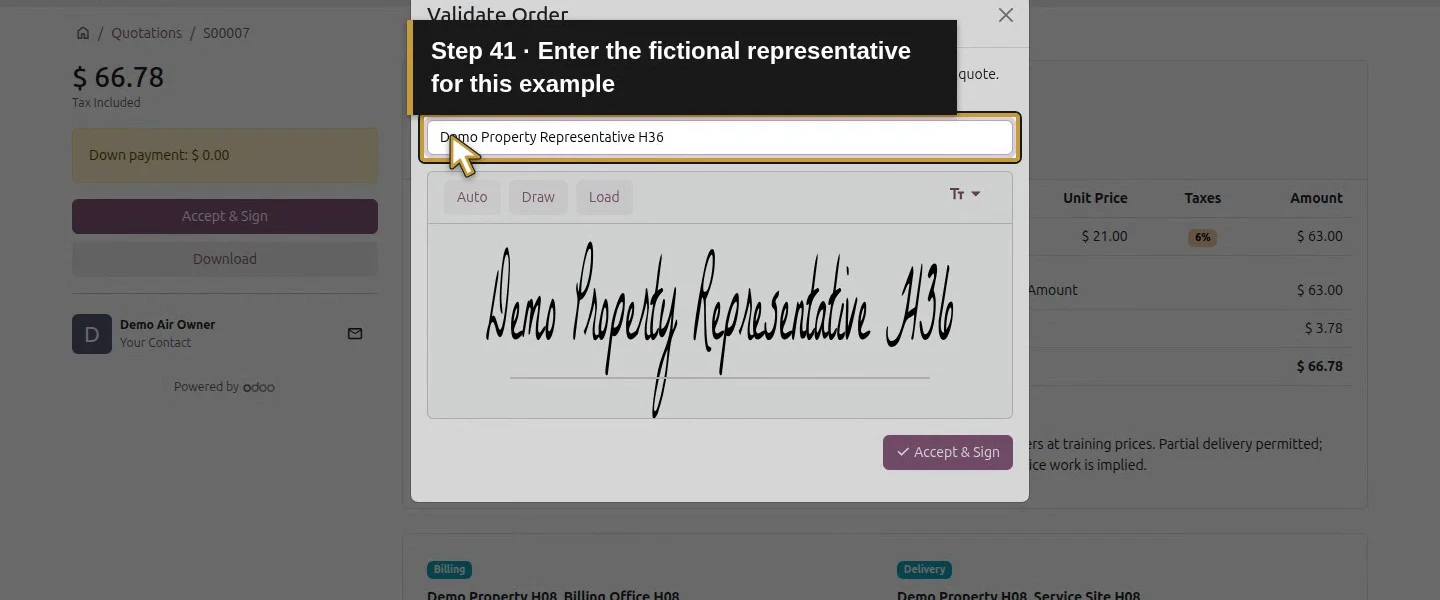
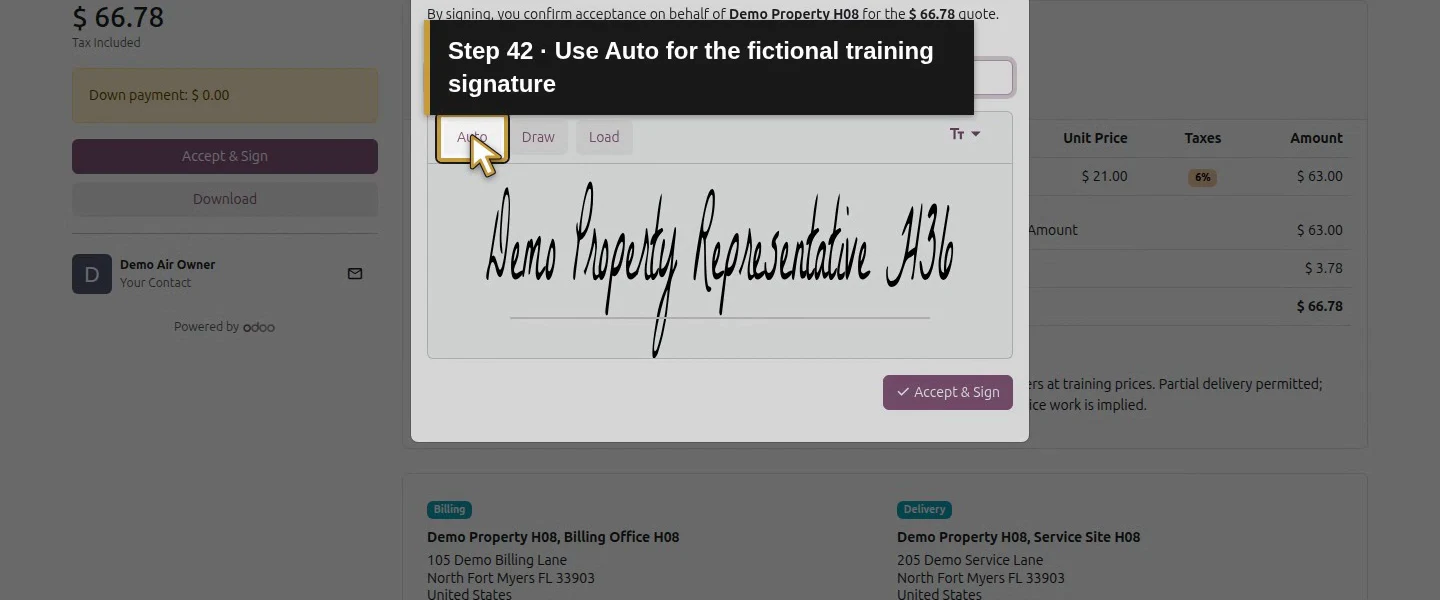
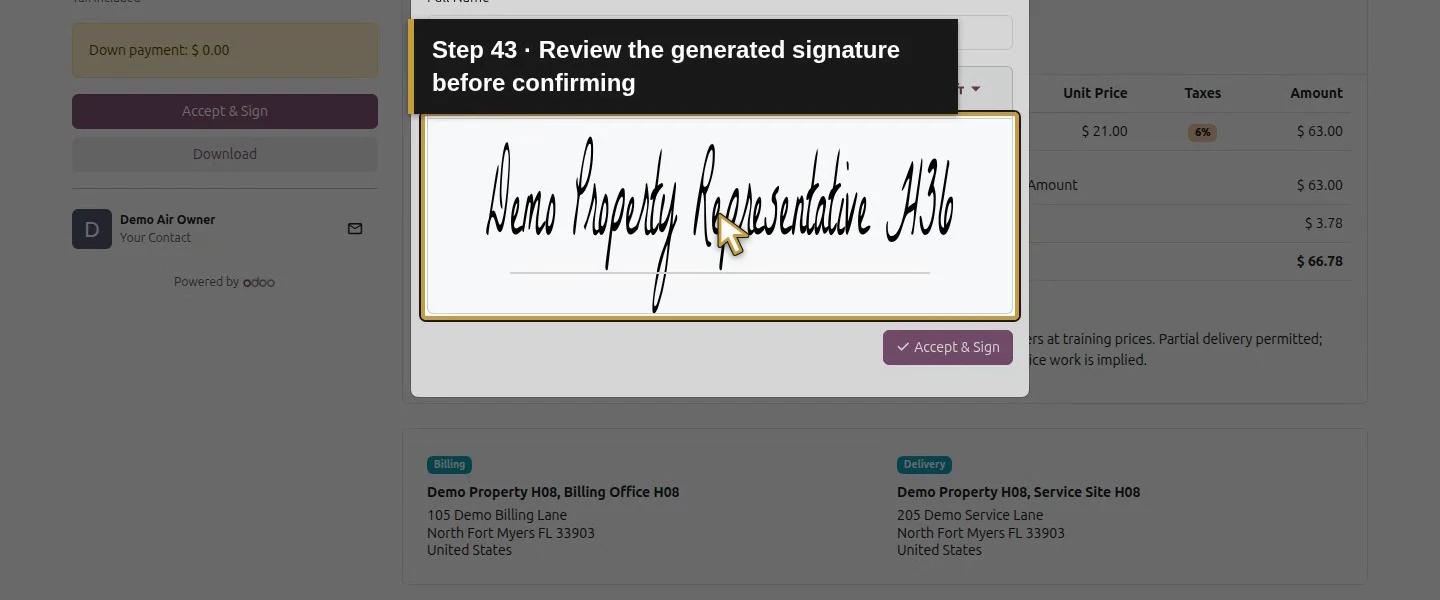
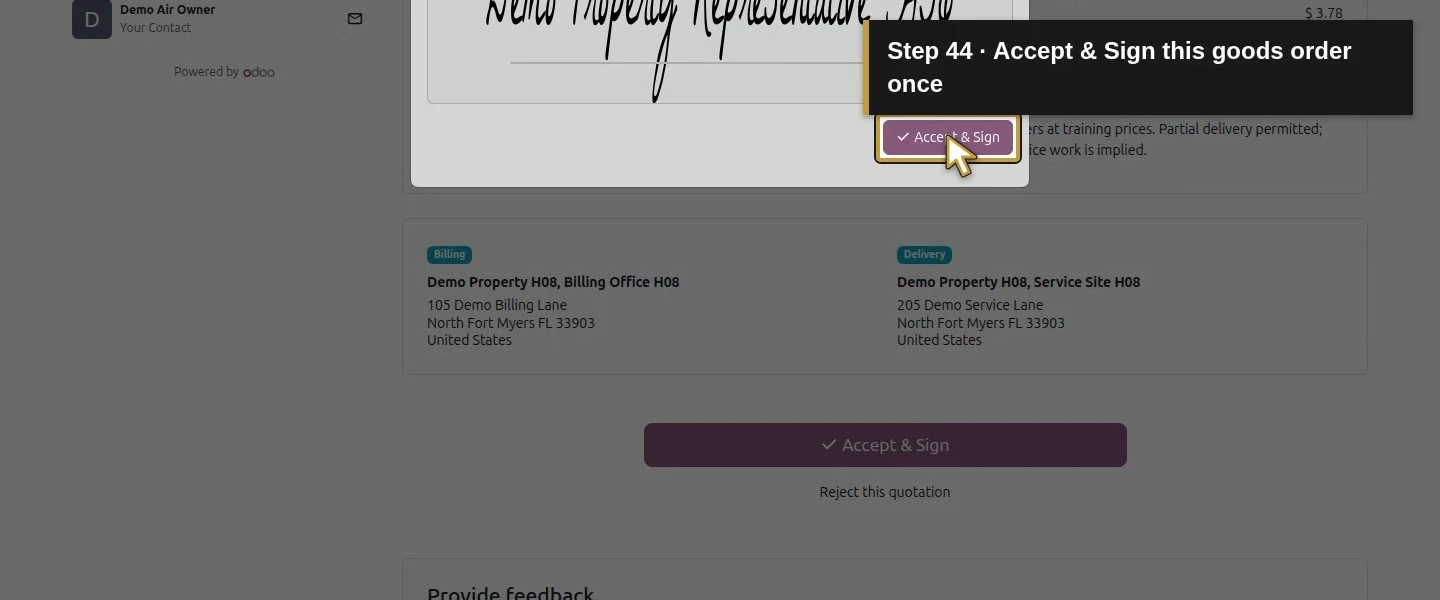
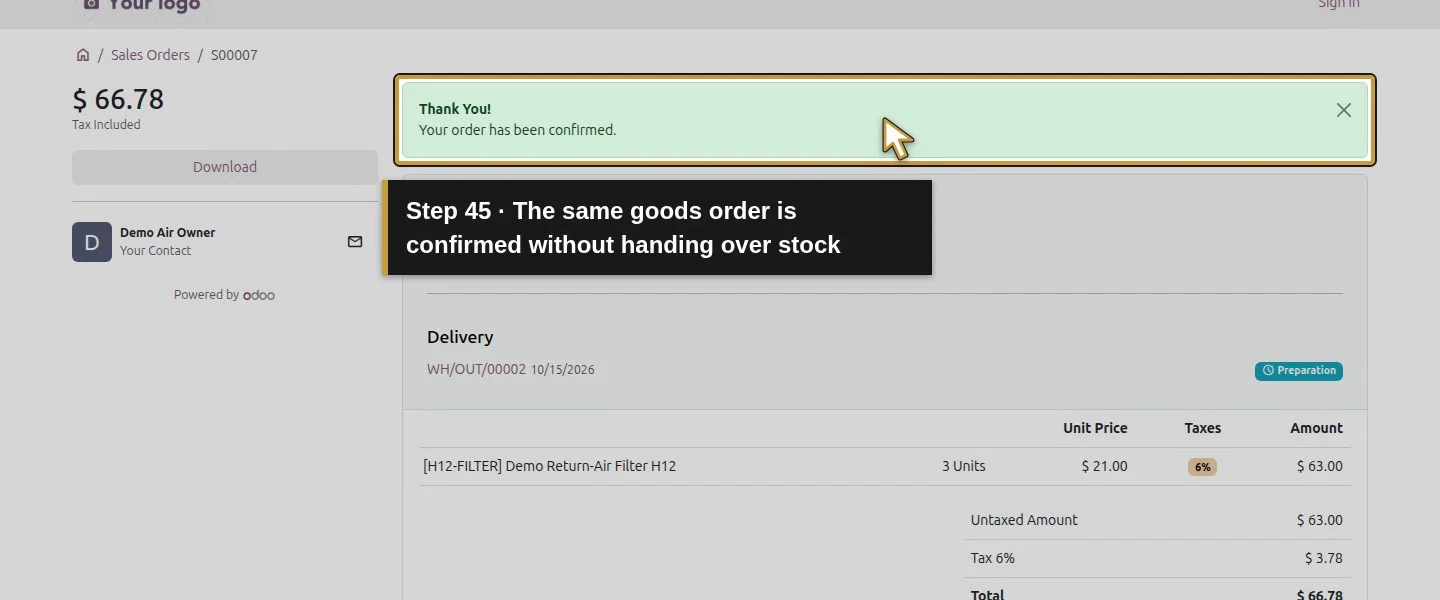
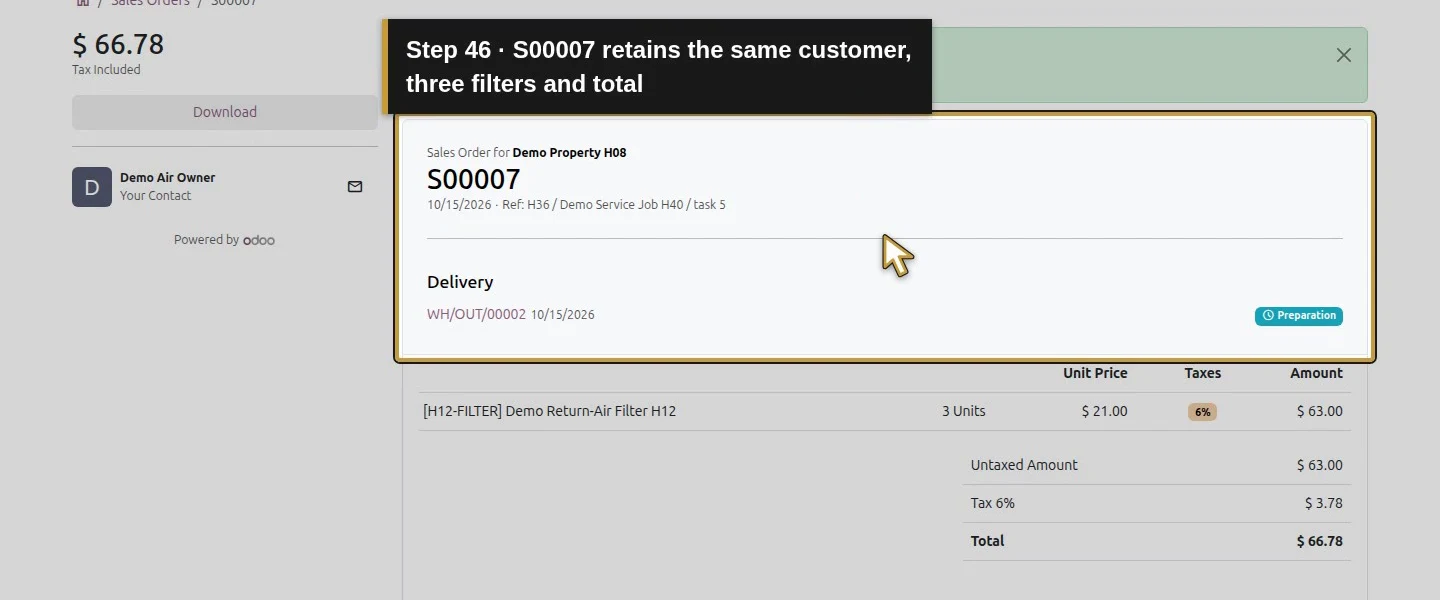
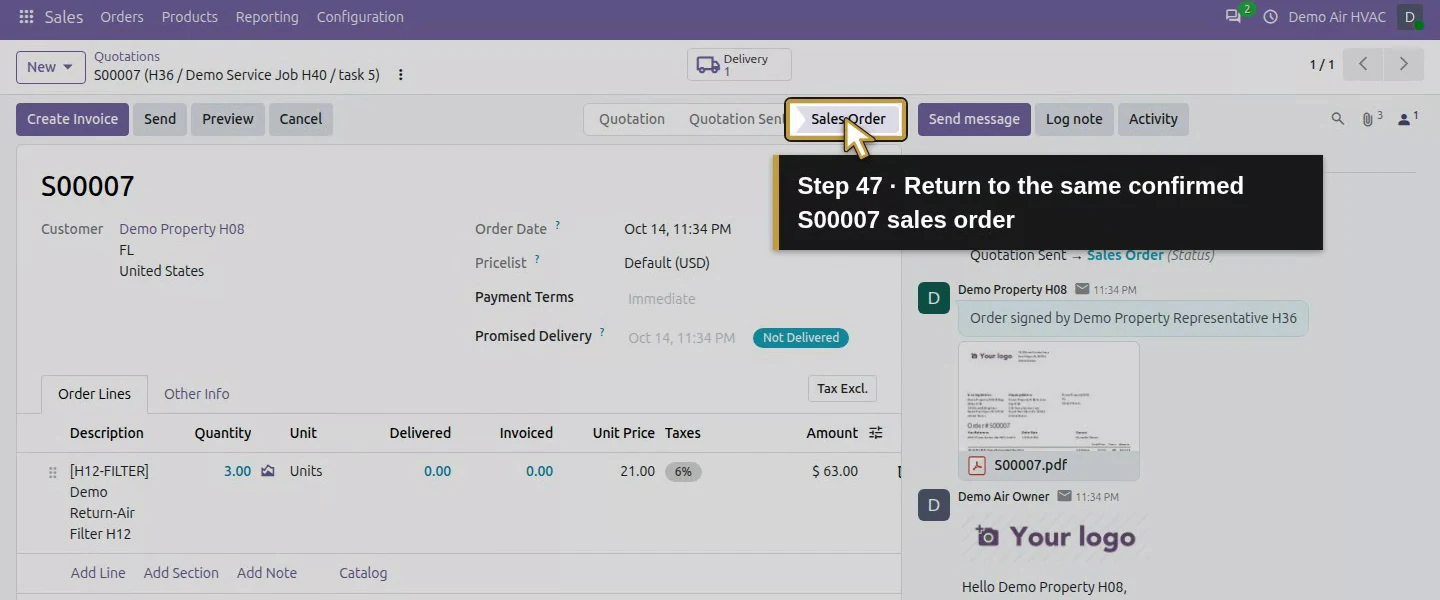
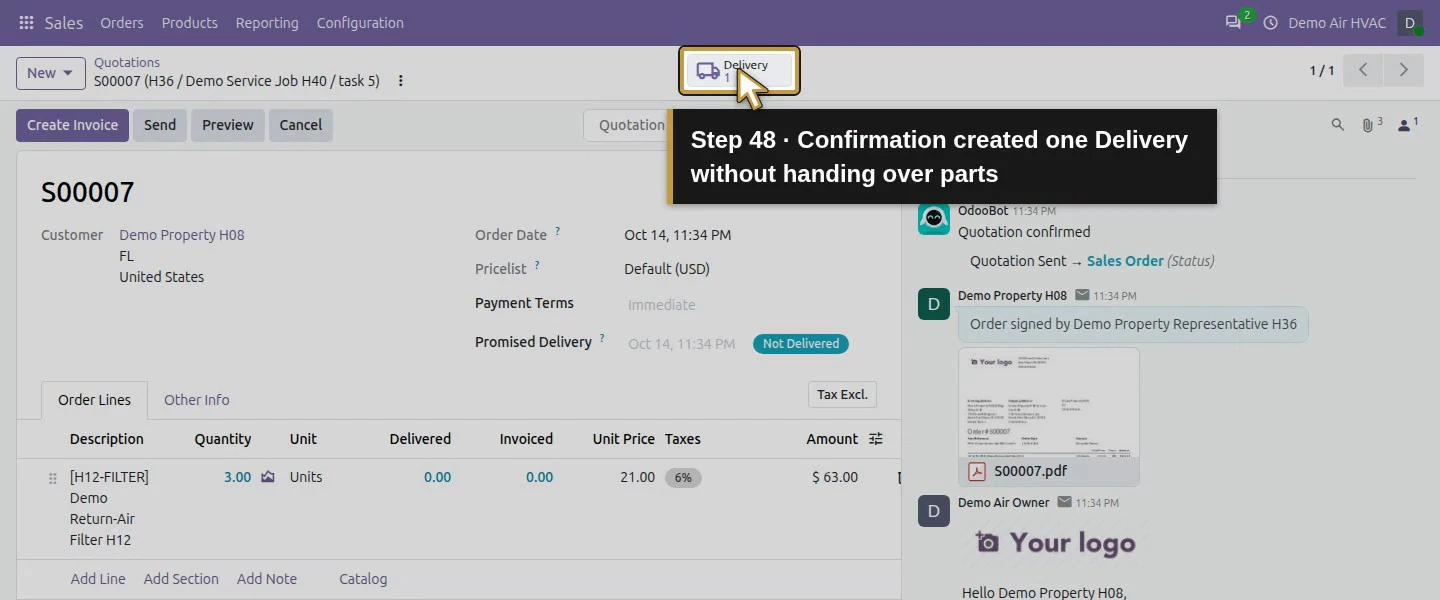
Check the goods, quantity, price and copied billing/service addresses using the quotation review from H23. Follow H26's received-email View Quotation → Accept & Sign → Validate Order procedure with the fictional customer. Our new S00007 became Sales Order at $66.78 and gained 1 Delivery. Preserve S00001 and its earlier service scope. Confirmation created a delivery; it did not hand over any parts.
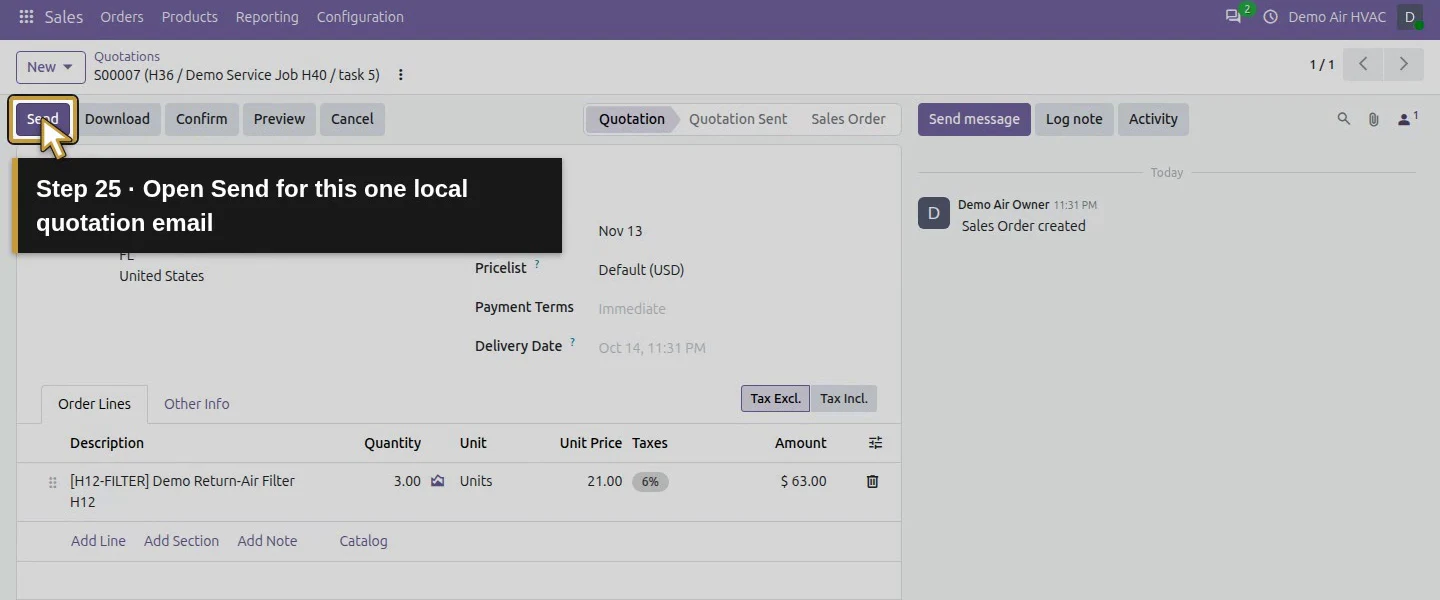
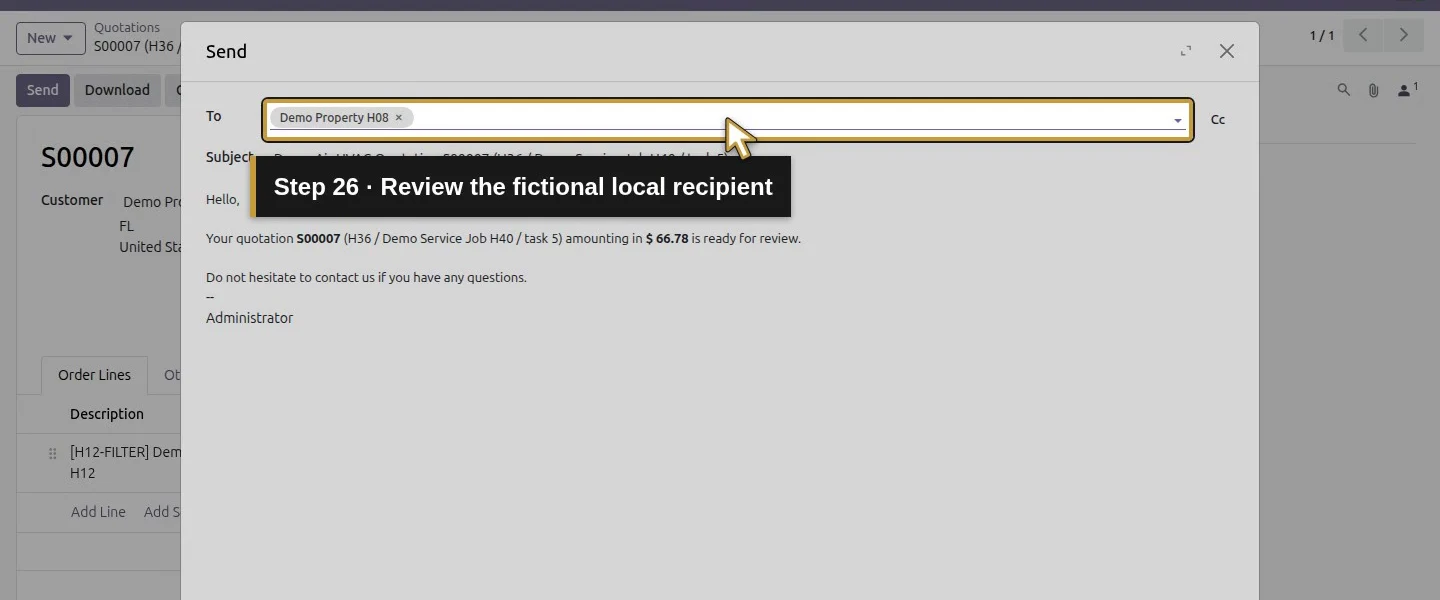
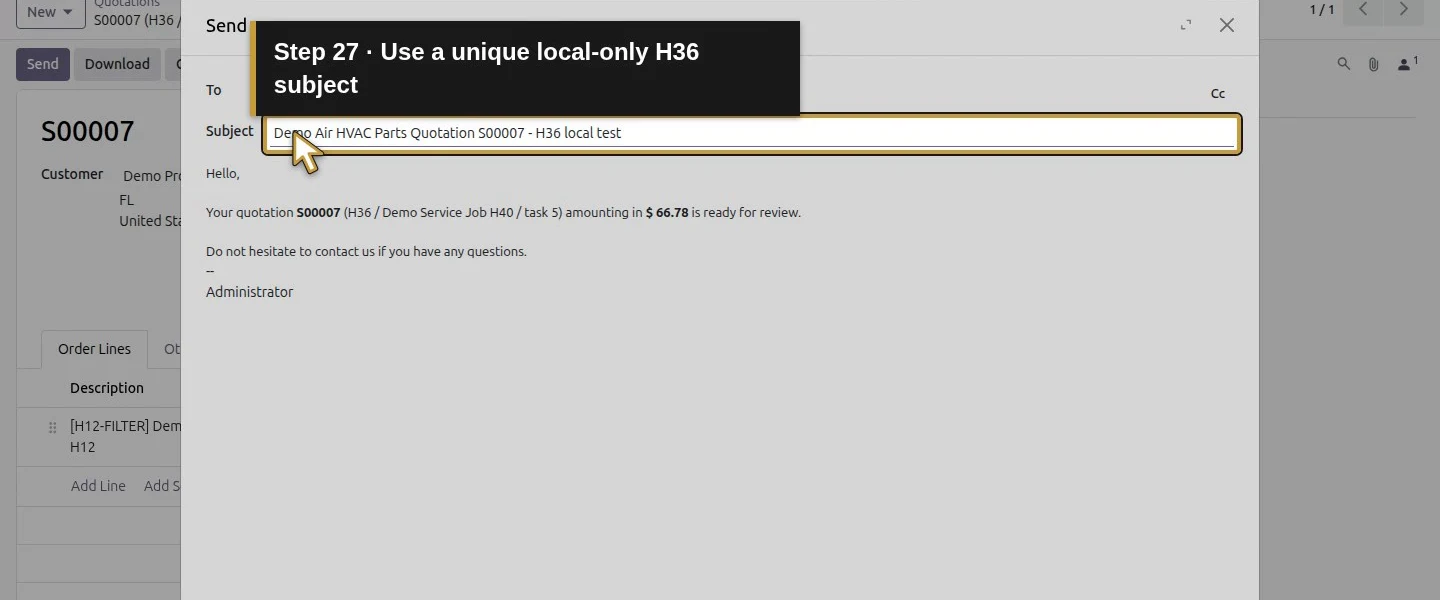
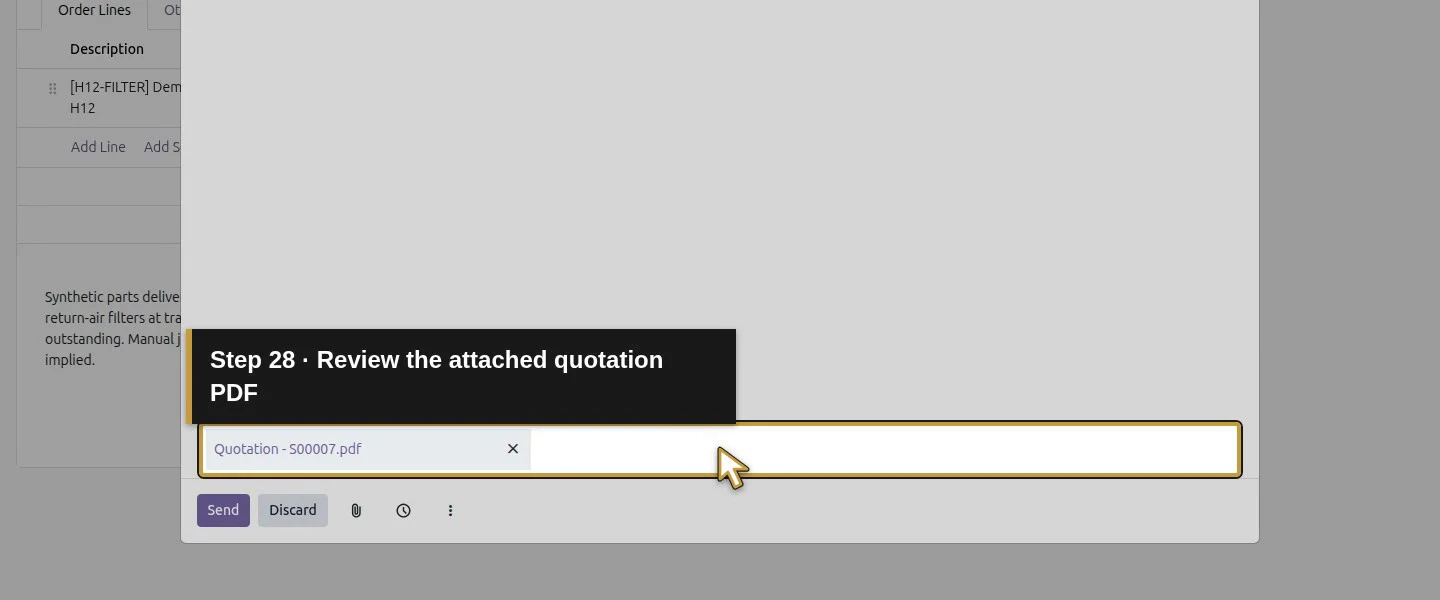
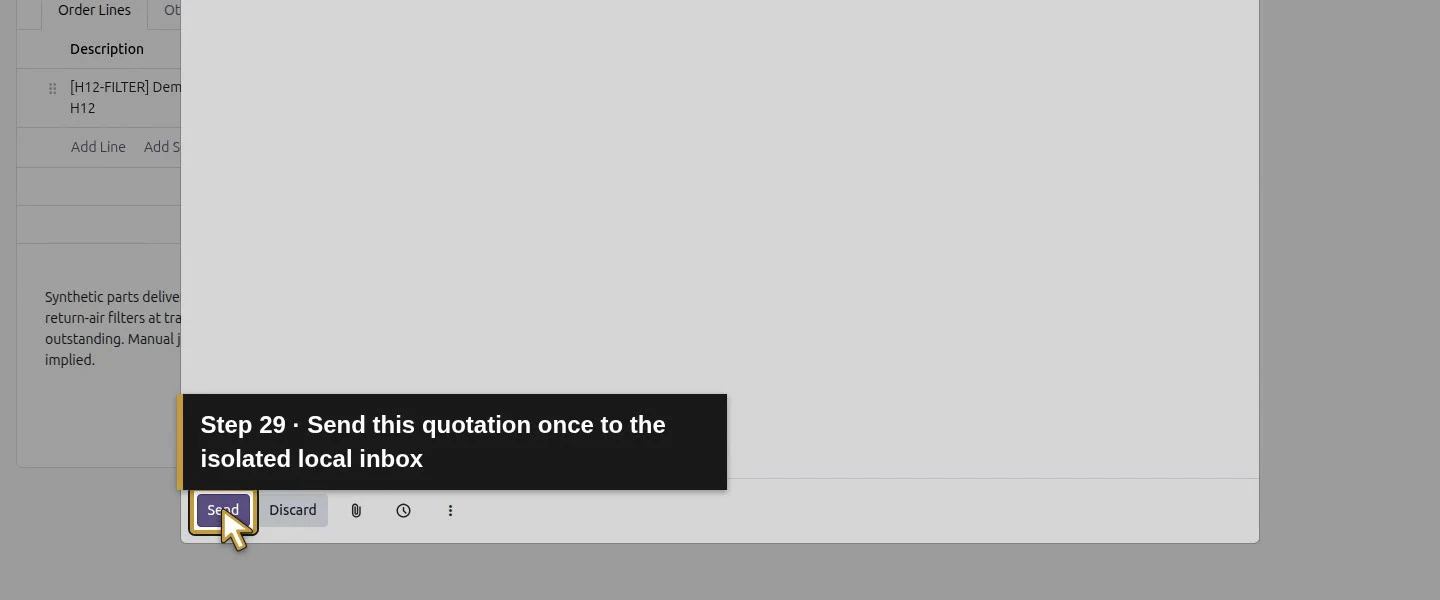
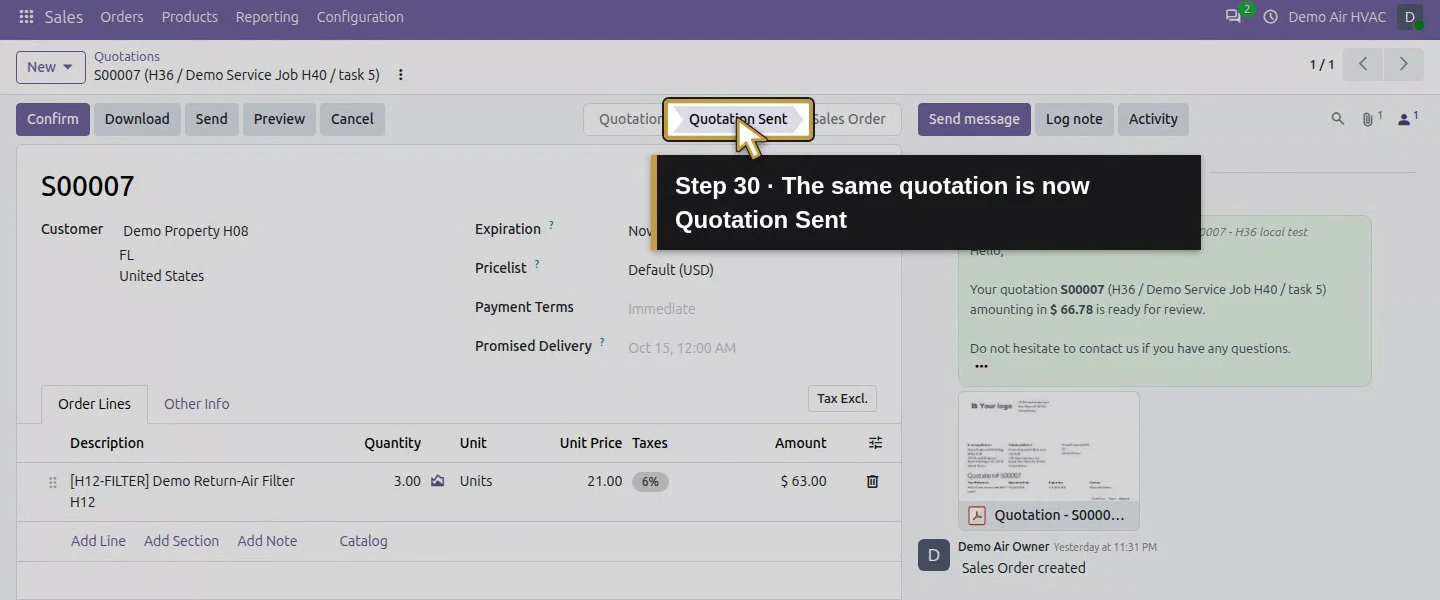
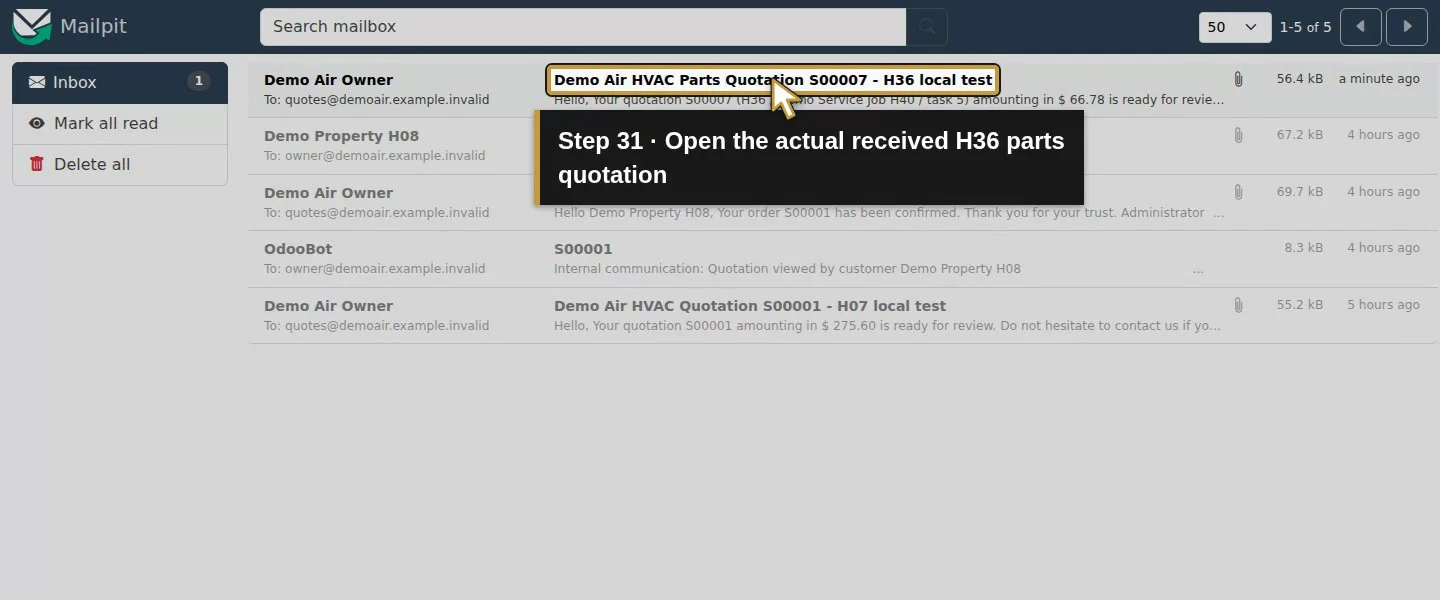
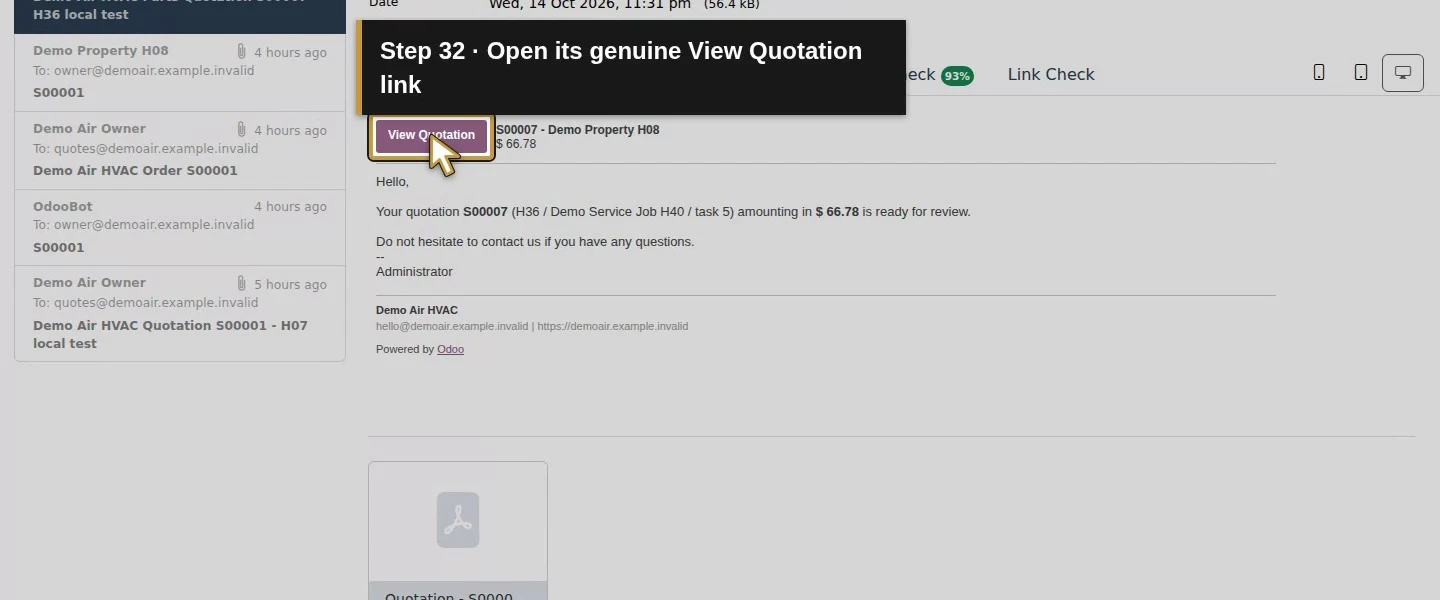
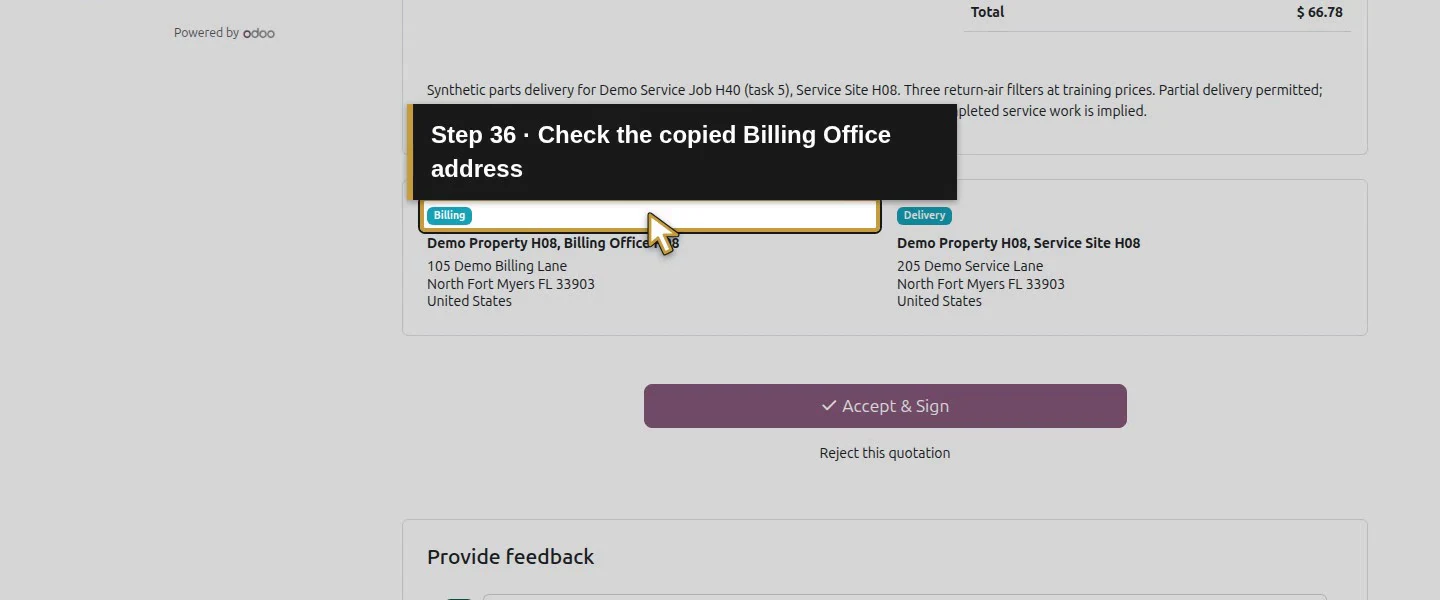
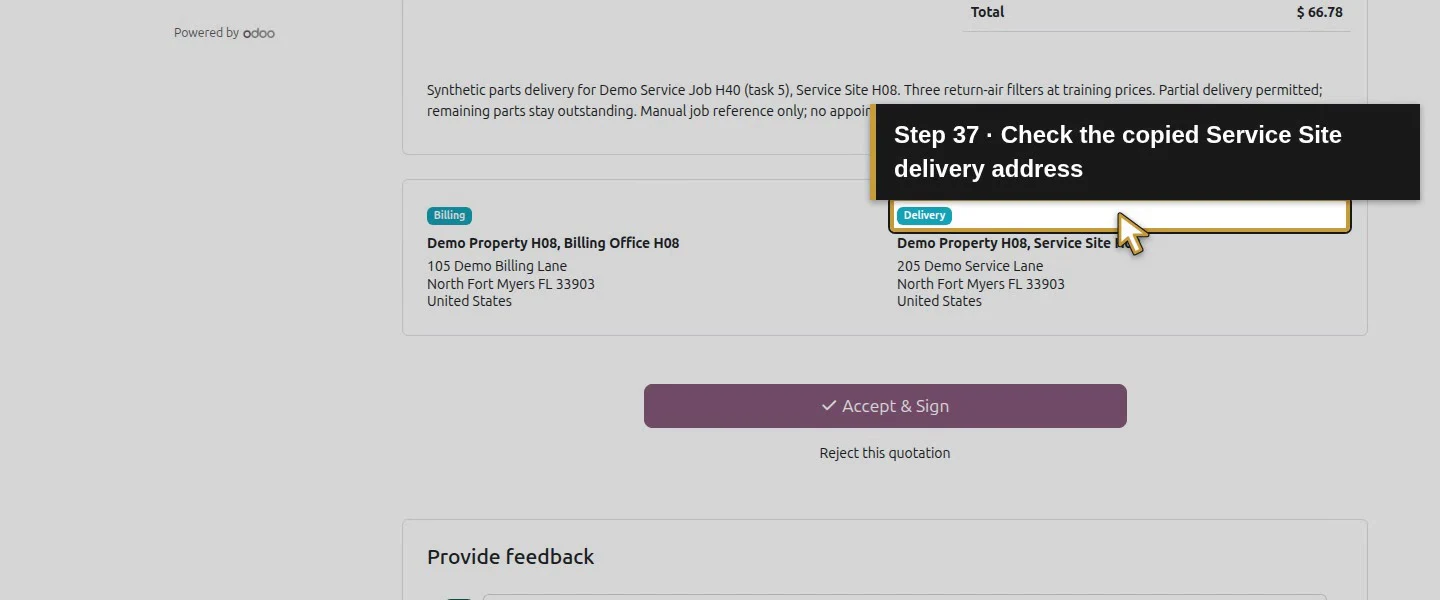
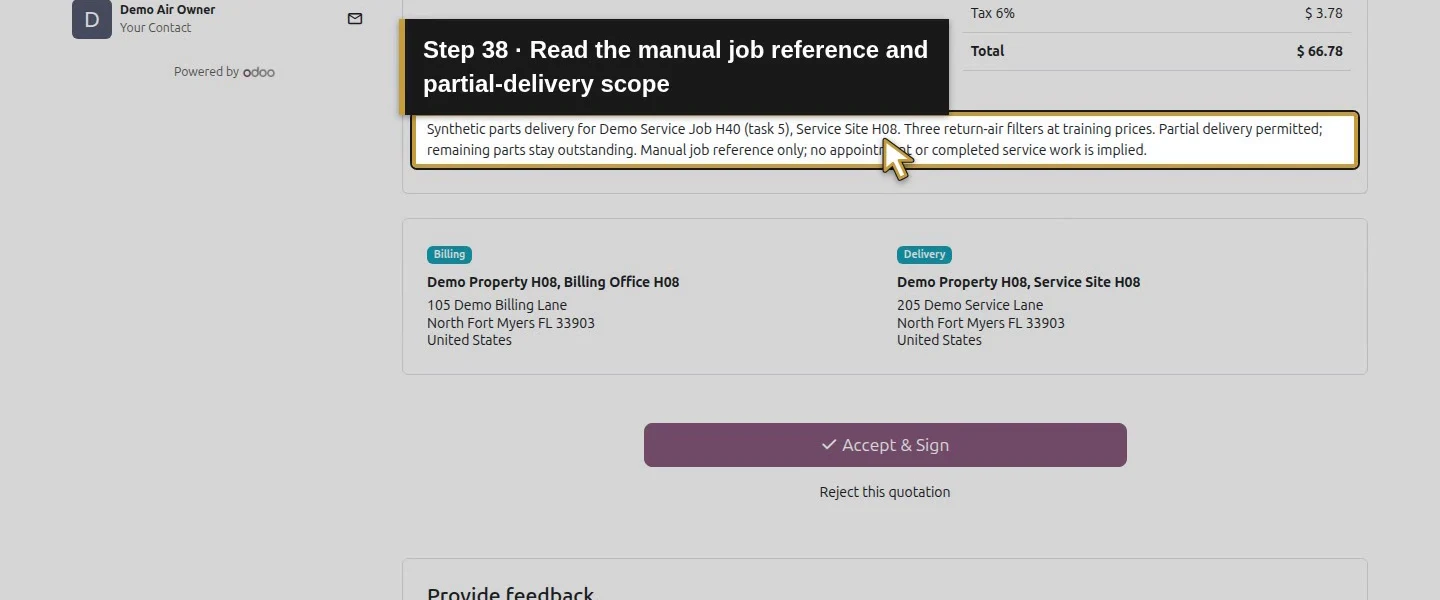
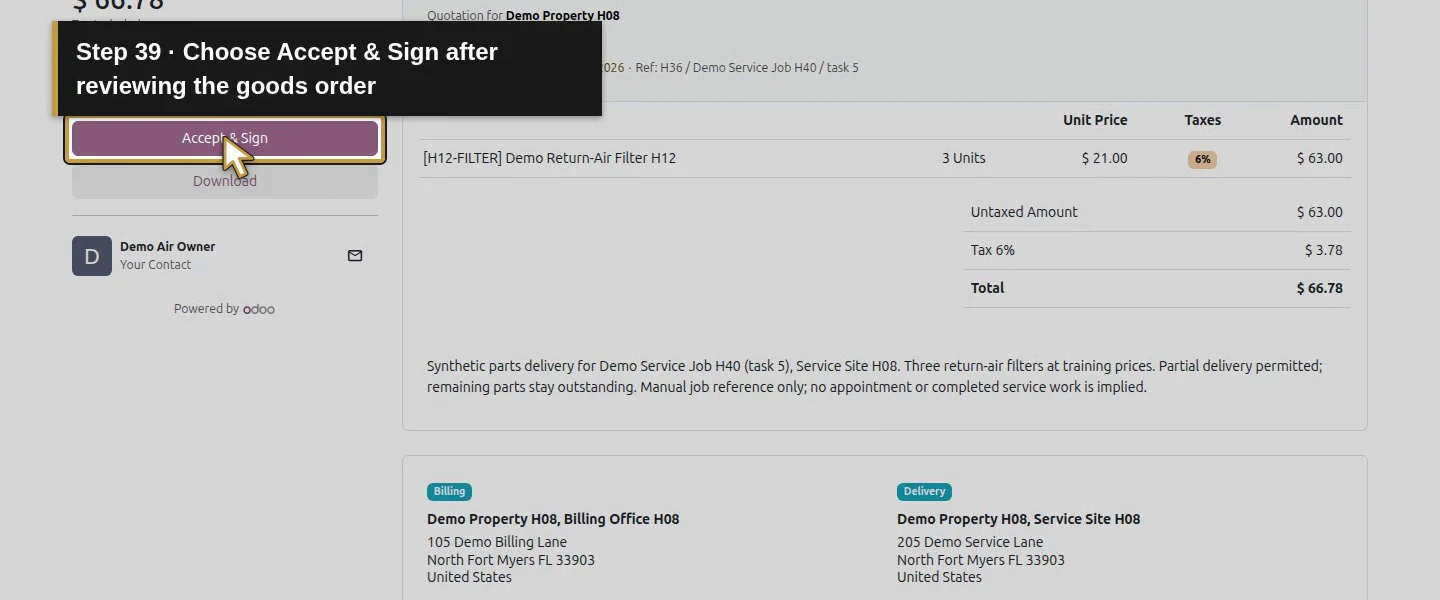
Open Send for this one local quotation email.Review the fictional local recipient.Use a unique local-only H36 subject.Review the attached quotation PDF.Send this quotation once to the isolated local inbox.The same quotation is now Quotation Sent.Open the actual received H36 parts quotation.Open its genuine View Quotation link.Review S00007 for the fictional customer while signed out.Review three actual filter Units at 21.00.Review the 63 plus 3.78 demo-tax total 66.78.Check the copied Billing Office address.Check the copied Service Site delivery address.Read the manual job reference and partial-delivery scope.Choose Accept & Sign after reviewing the goods order.Validate Order identifies this separate 66.78 quotation.Enter the fictional representative for this example.Use Auto for the fictional training signature.Review the generated signature before confirming.Accept & Sign this goods order once.The same goods order is confirmed without handing over stock.S00007 retains the same customer, three filters and total.Return to the same confirmed S00007 sales order.Confirmation created one Delivery without handing over parts.
Step 3. Open the delivery and compare demand with quantity
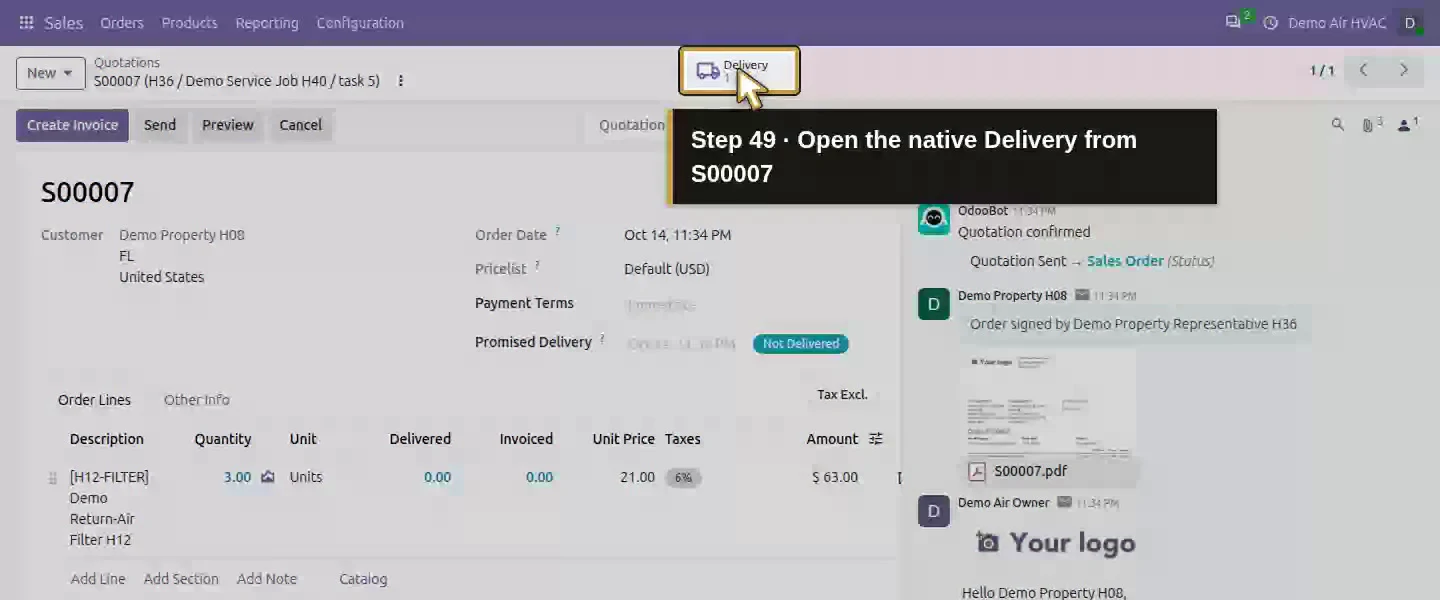
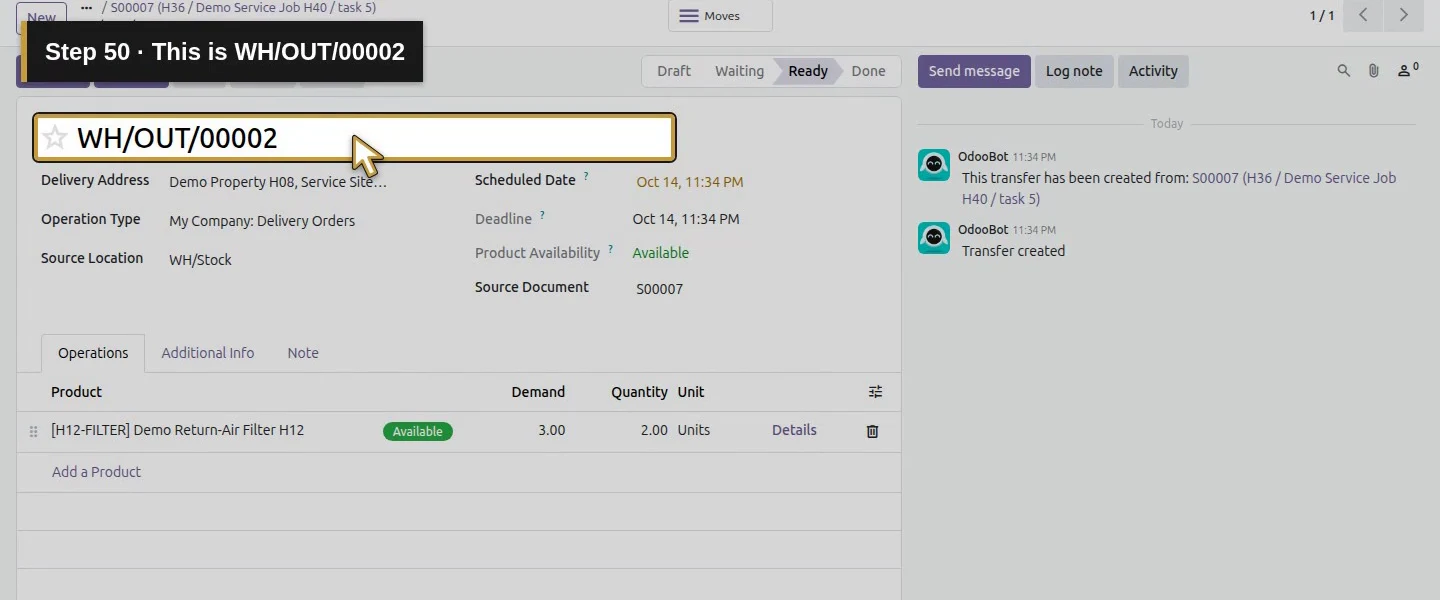
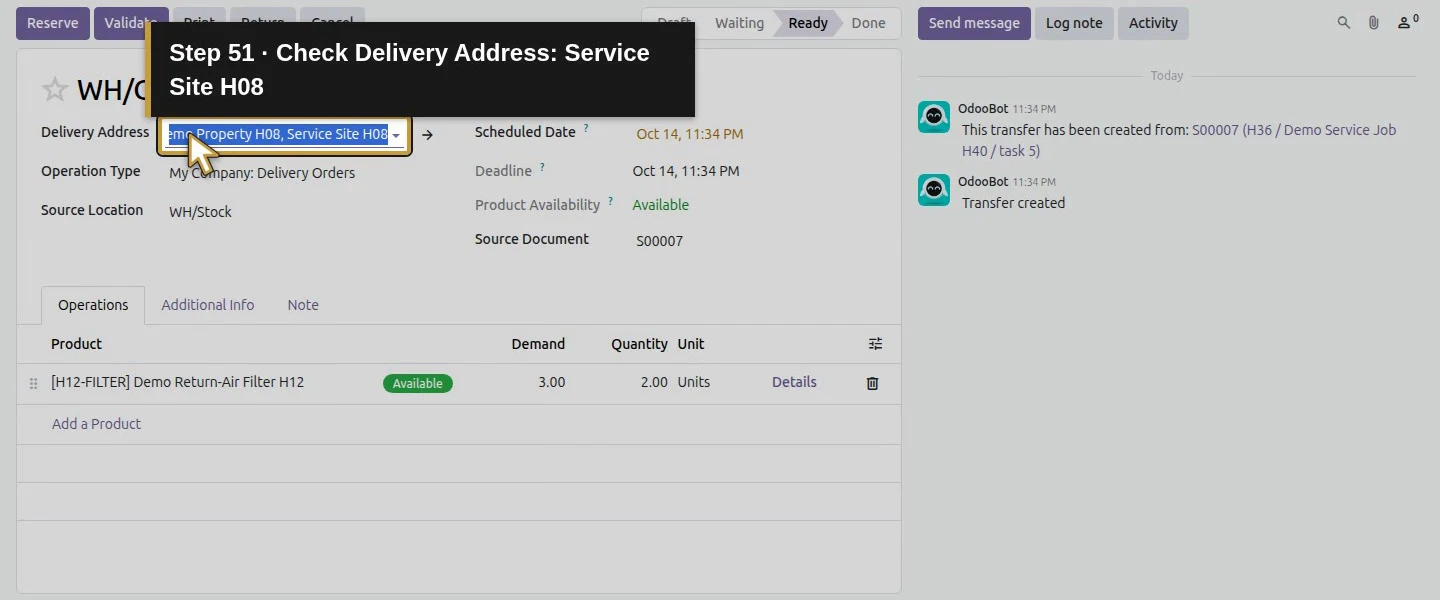
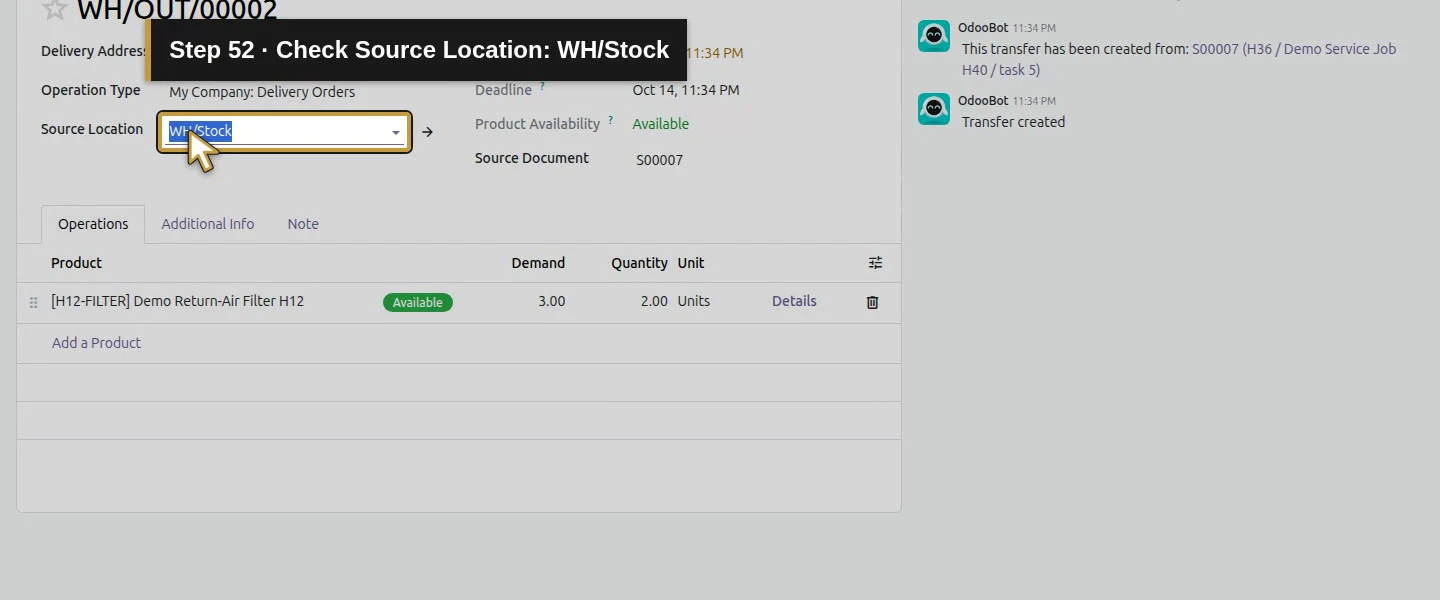
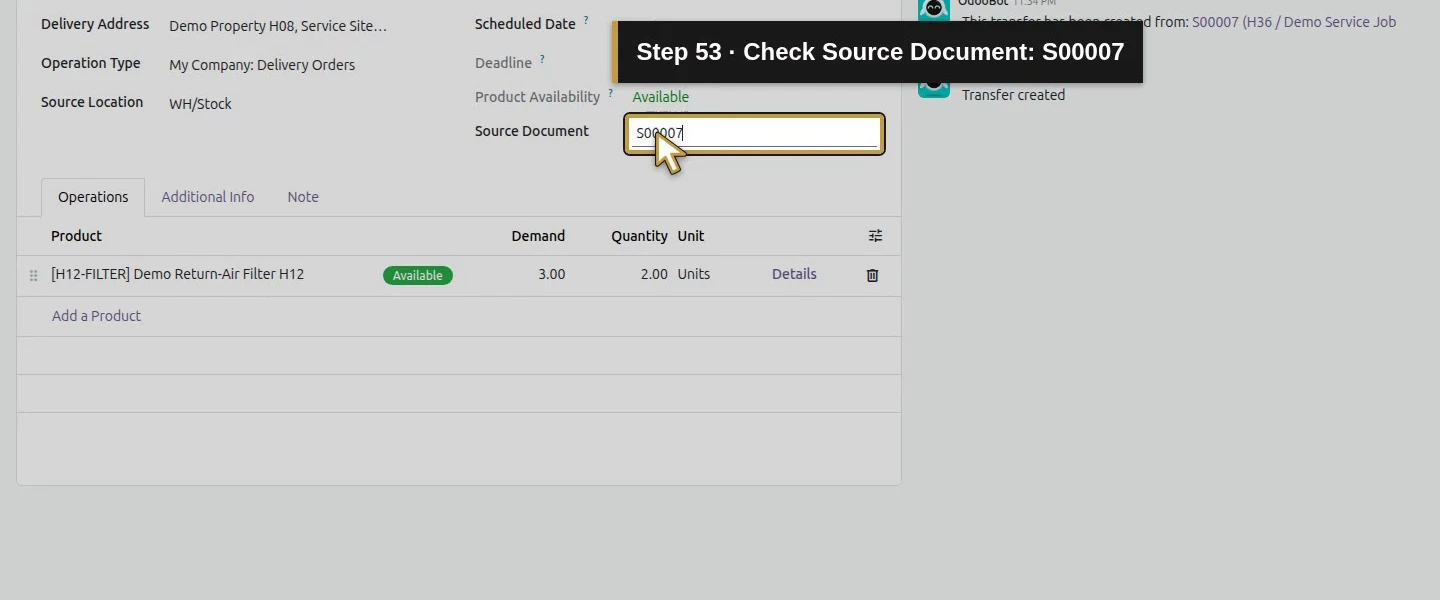
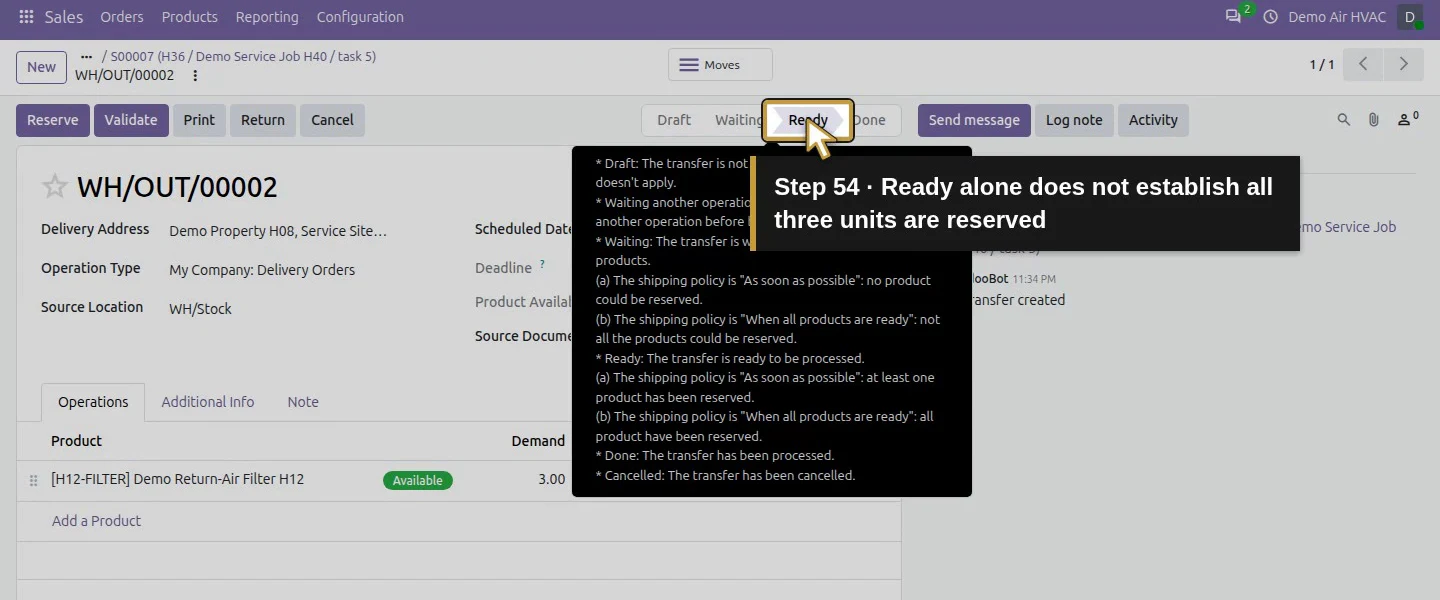
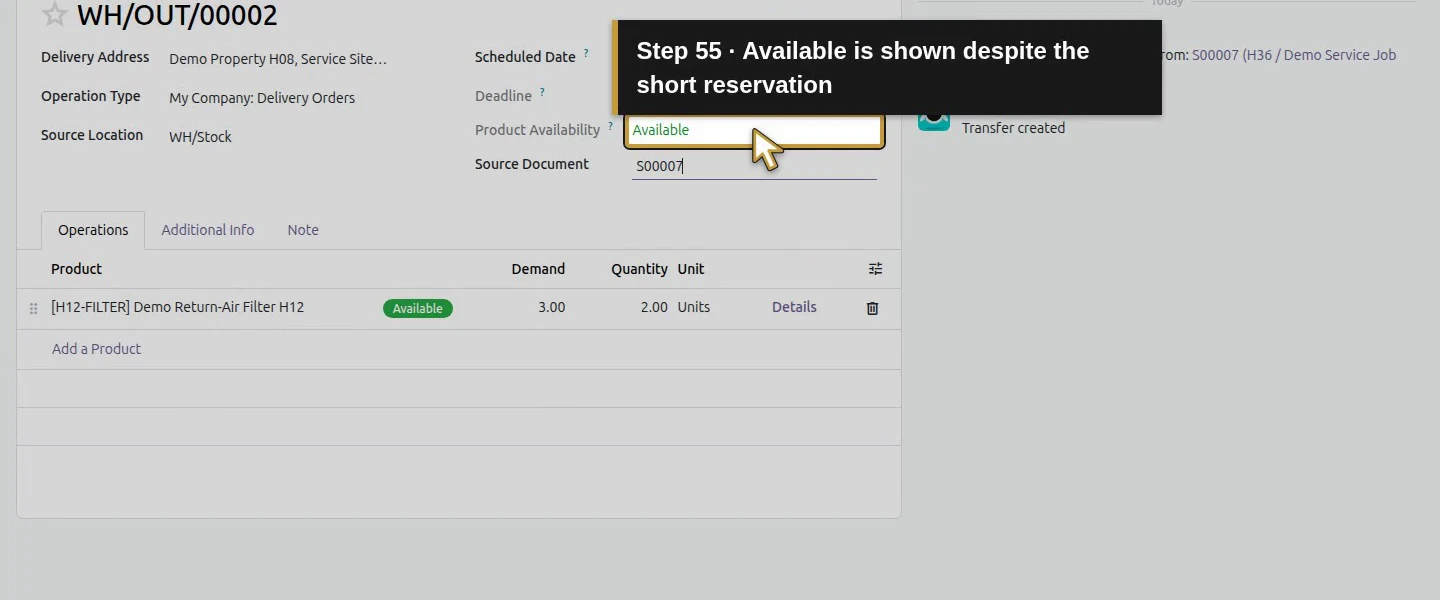
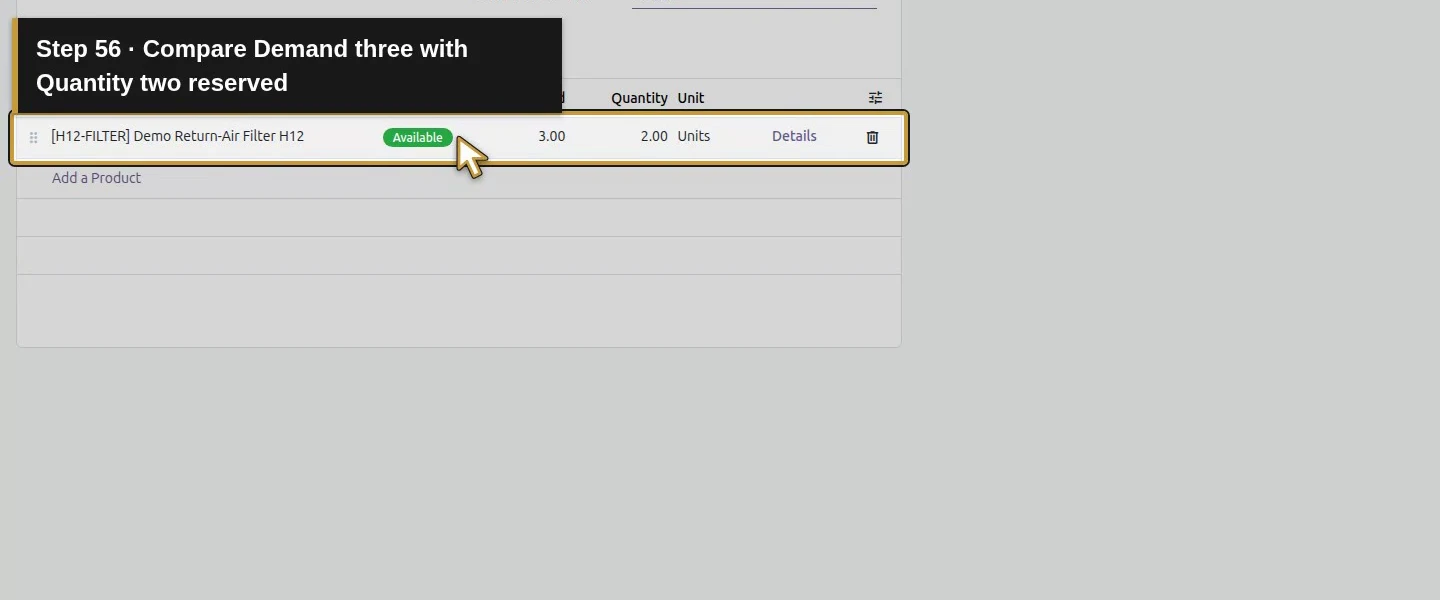
On S00007, click Delivery and open WH/OUT/00002. Check Delivery Address: Service Site H08, Source Location: WH/Stock, and Source Document: S00007. Under Operations, the filter has Demand: 3.00 and Quantity: 2.00. This form shows Ready and Available even though only two of the three requested filters are reserved. Read the quantities before treating the whole order as available.
Open the native Delivery from S00007.This is WH/OUT/00002.Check Delivery Address: Service Site H08.Check Source Location: WH/Stock.Check Source Document: S00007.Ready alone does not establish all three units are reserved.Available is shown despite the short reservation.Compare Demand three with Quantity two reserved.
Step 4. Check what reservation actually did
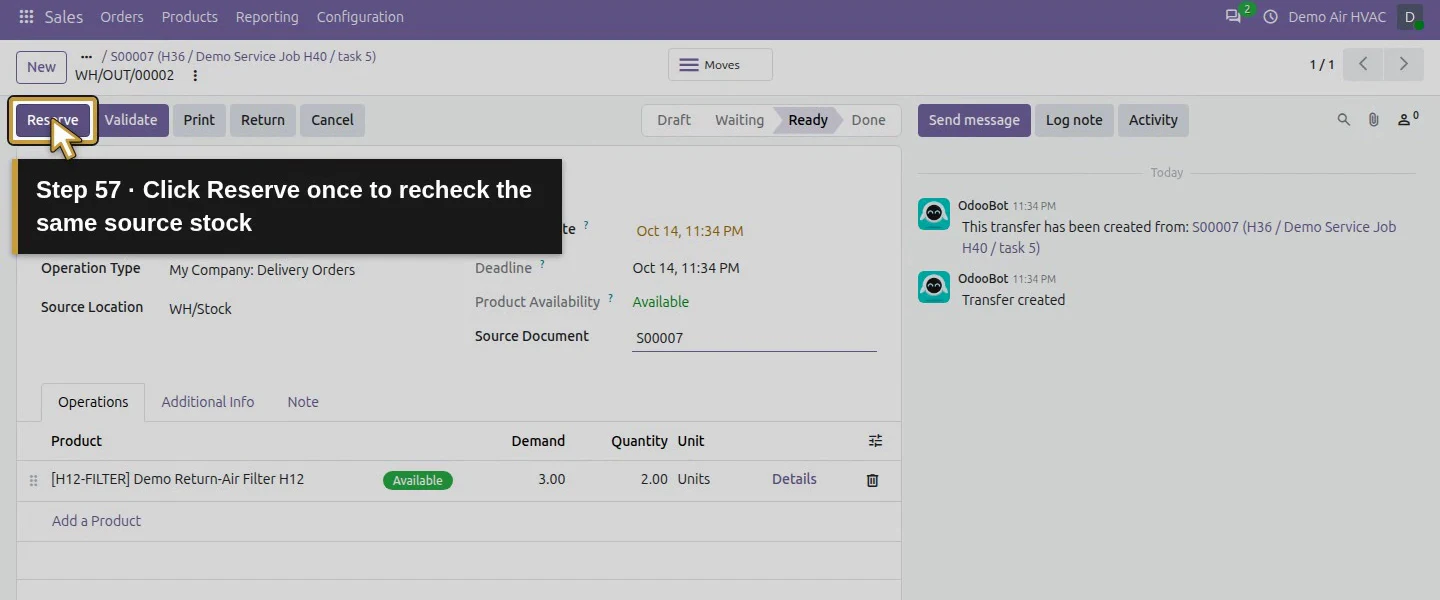
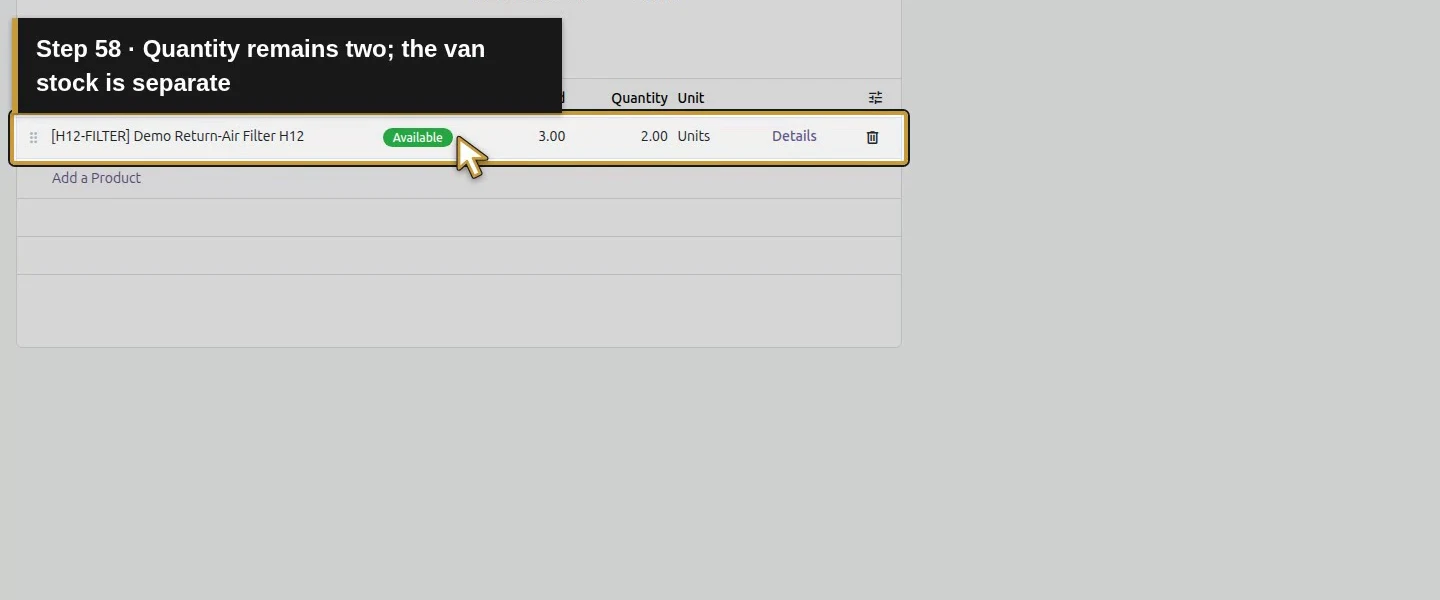
Click Reserve once to recheck availability. Our quantity stayed at two because the same two WH/Stock filters were already reserved at confirmation. The van's two filters were not reserved by this WH/Stock delivery. Total internal stock remained four and the sales line's Delivered quantity remained zero. Reserve did not manufacture the missing unit or reduce stock on hand.
Click Reserve once to recheck the same source stock.Quantity remains two; the van stock is separate.
Step 5. Enter the quantity actually being delivered
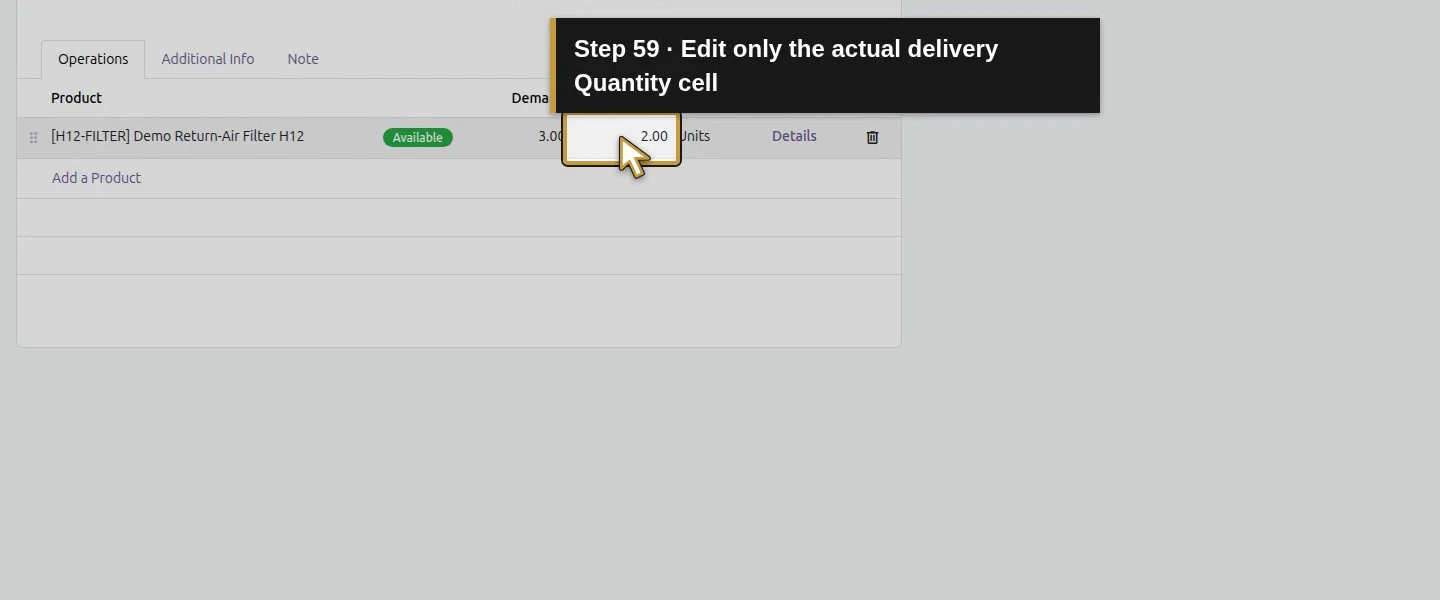
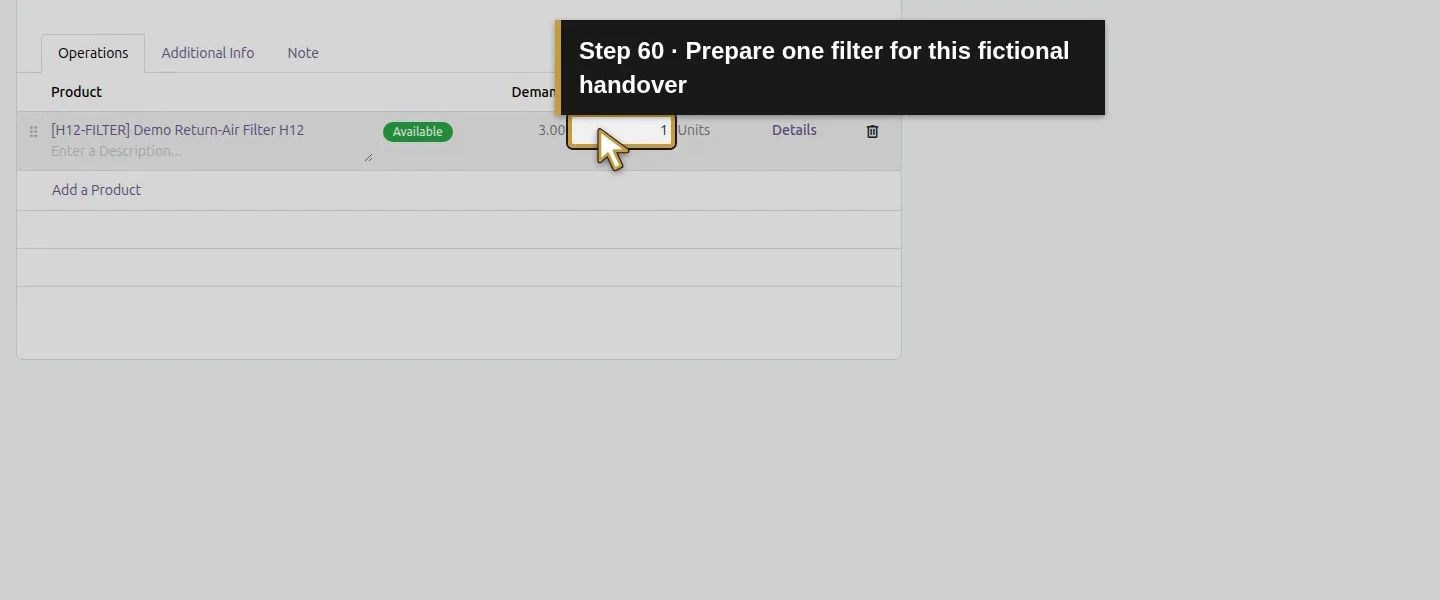
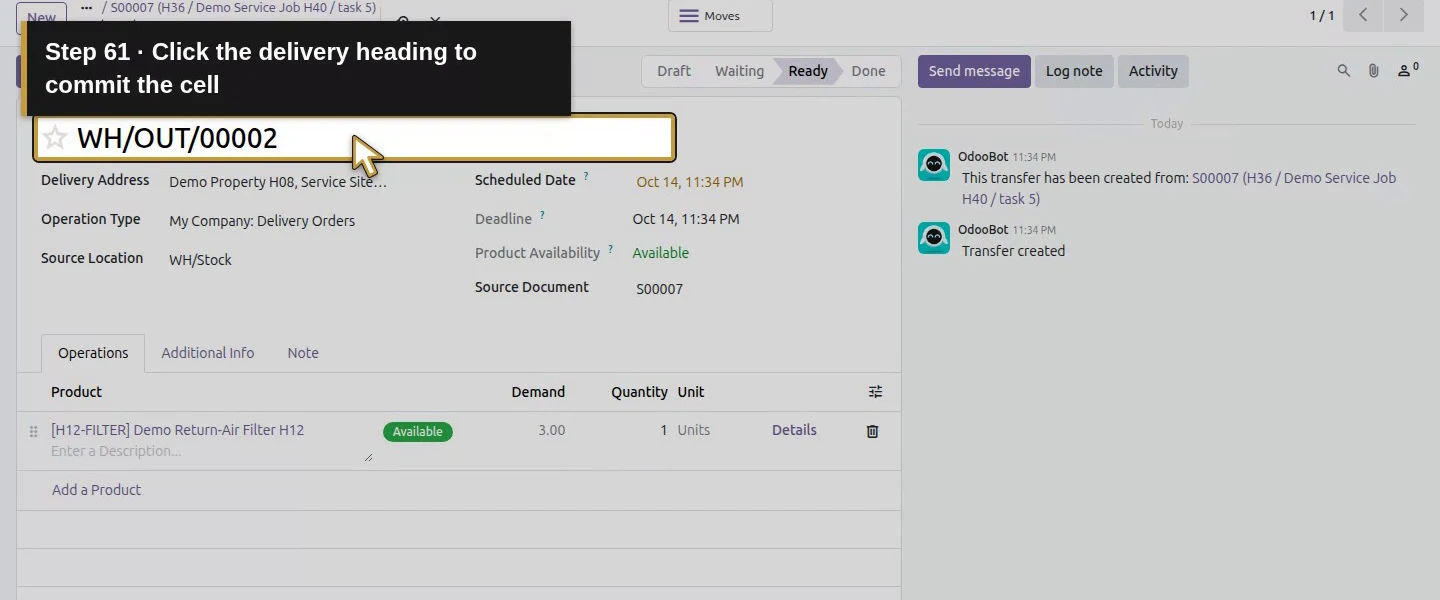
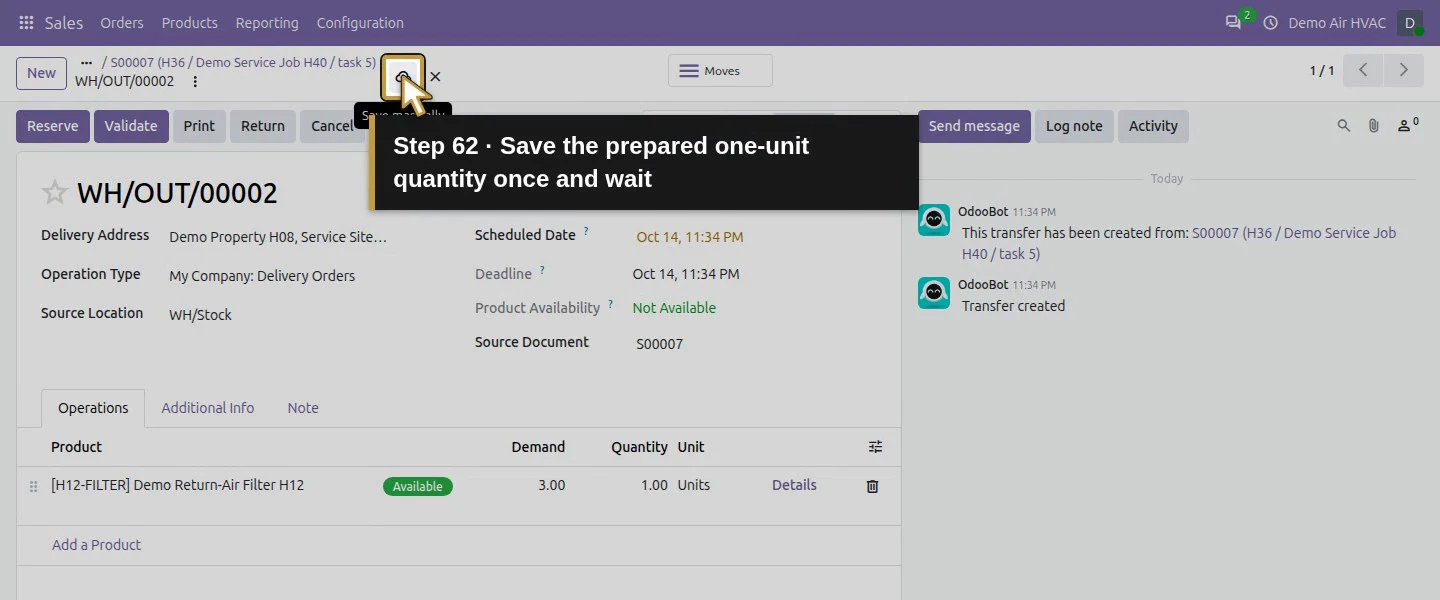
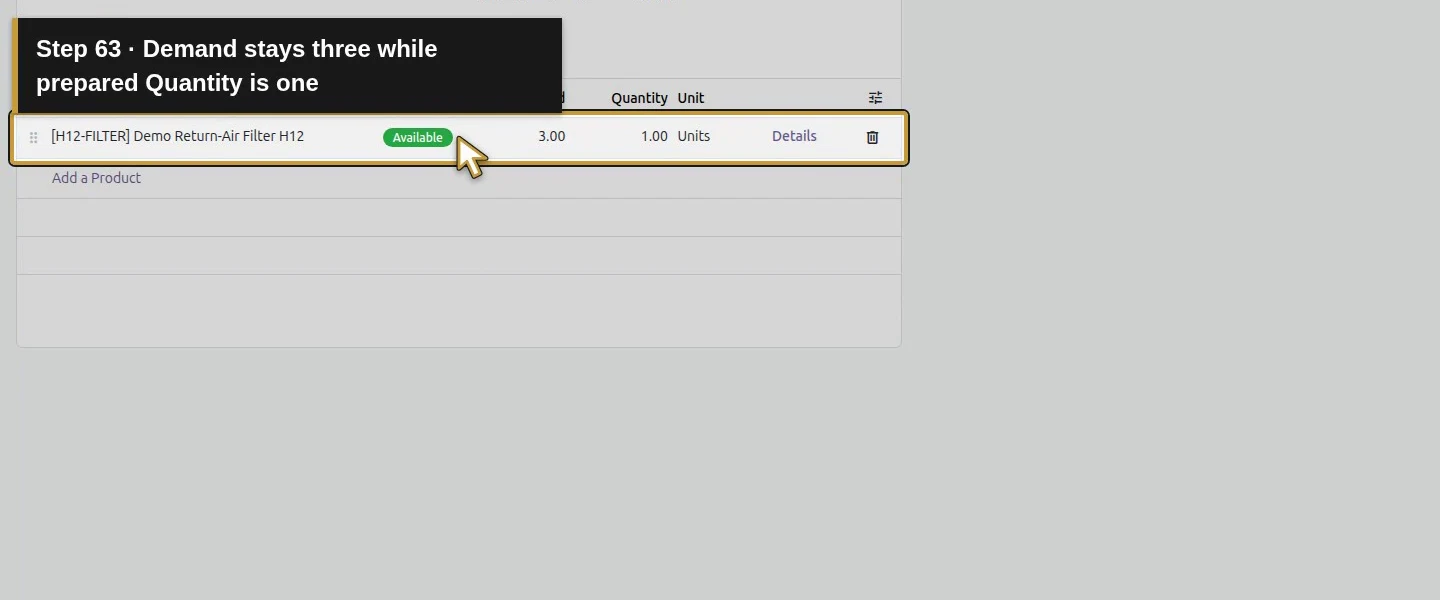
For today's one-filter handover, click the filter row's Quantity cell and replace 2.00 with 1.00. Leave the original three-unit sales order unchanged. Click outside the row and use Save manually. At this saved stage, WH/Stock still held two filters, one reserved, and the order still showed Delivered zero. Saving the prepared quantity is separate from validating the delivery.
Edit only the actual delivery Quantity cell.Prepare one filter for this fictional handover.Click the delivery heading to commit the cell.Save the prepared one-unit quantity once and wait.Demand stays three while prepared Quantity is one.
Step 6. Validate and keep the remaining demand
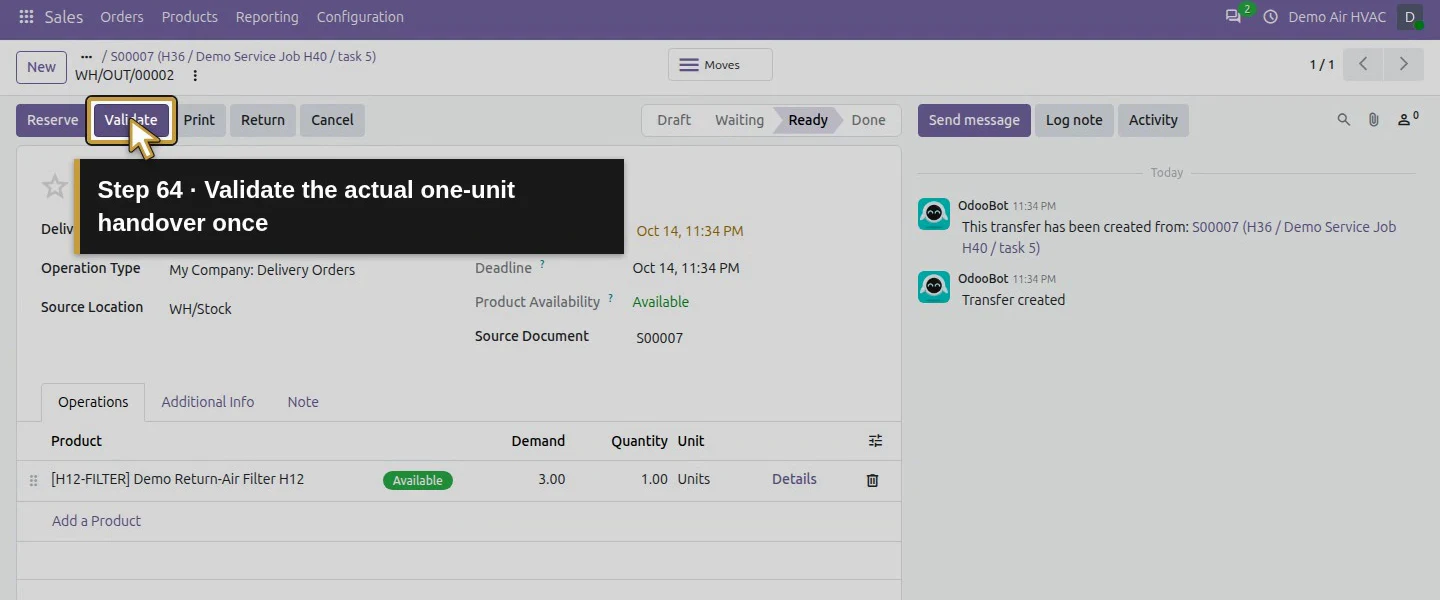
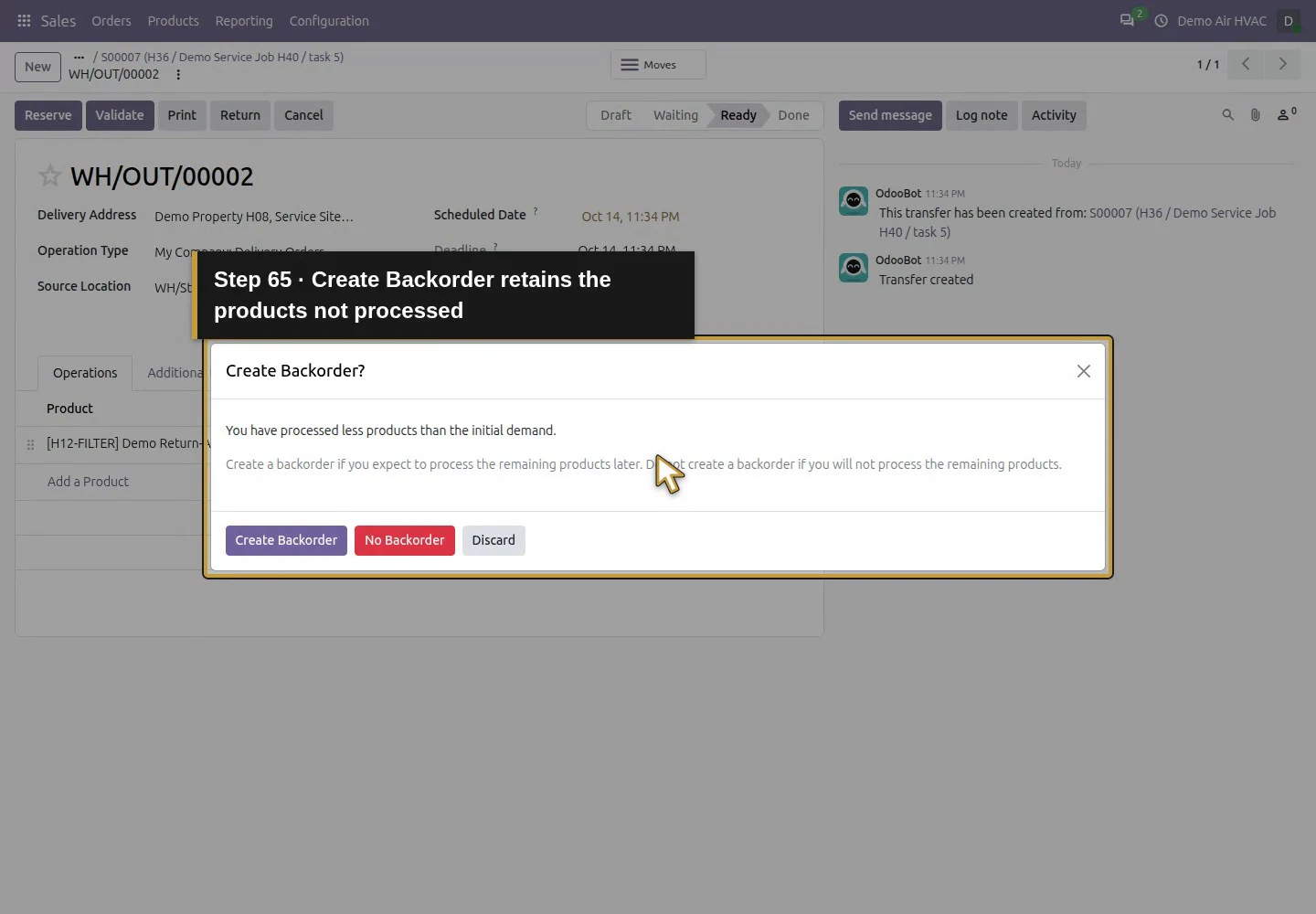
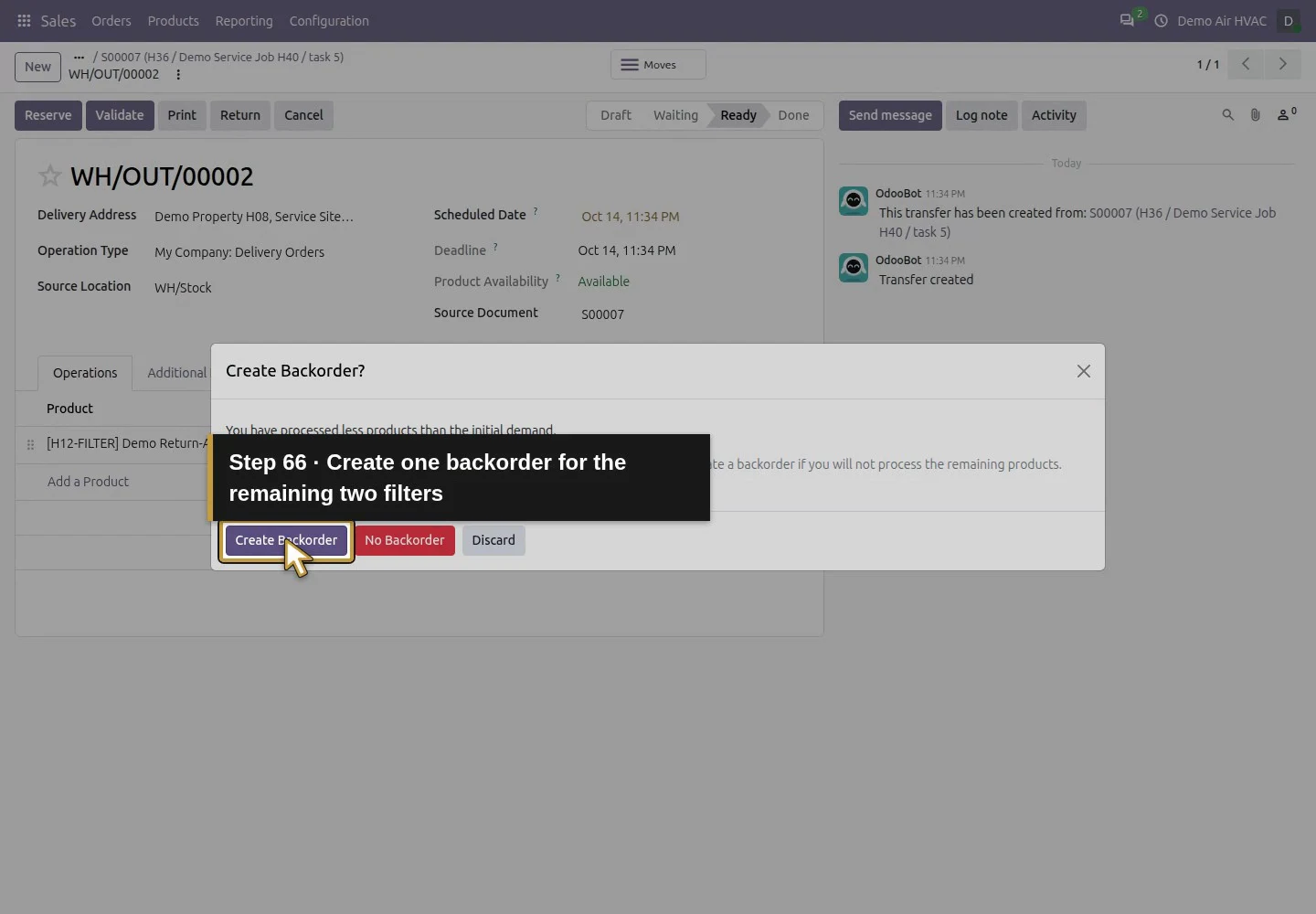
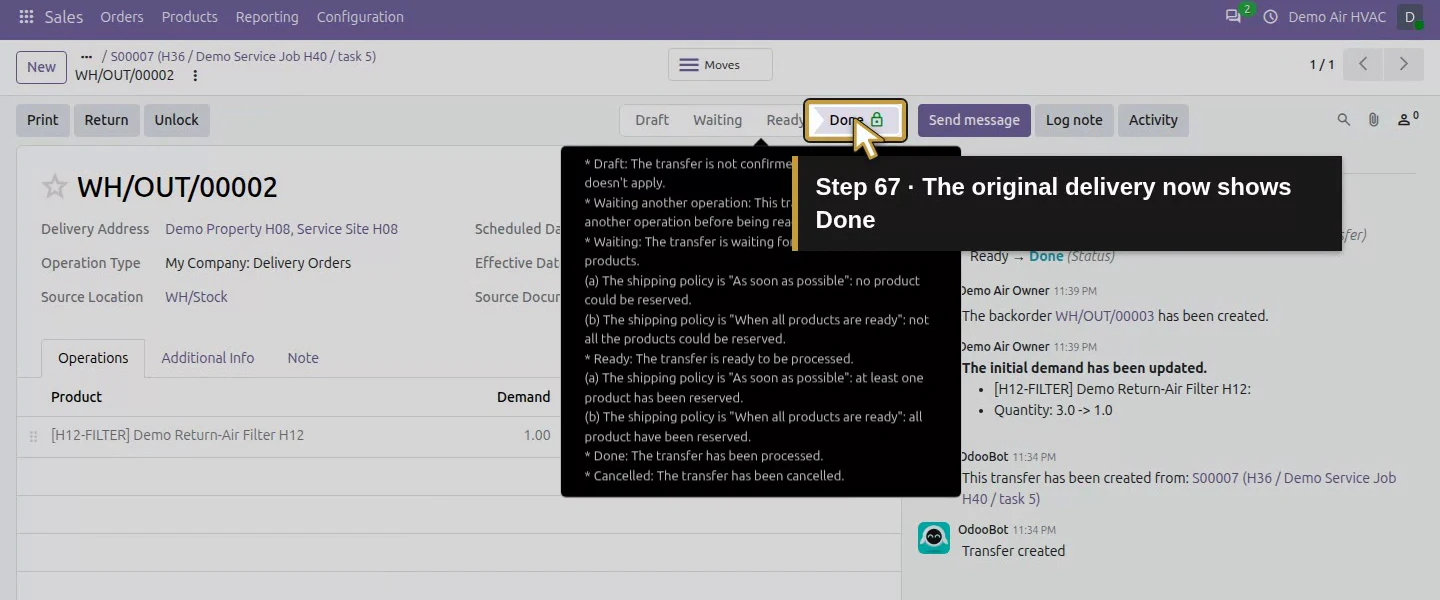
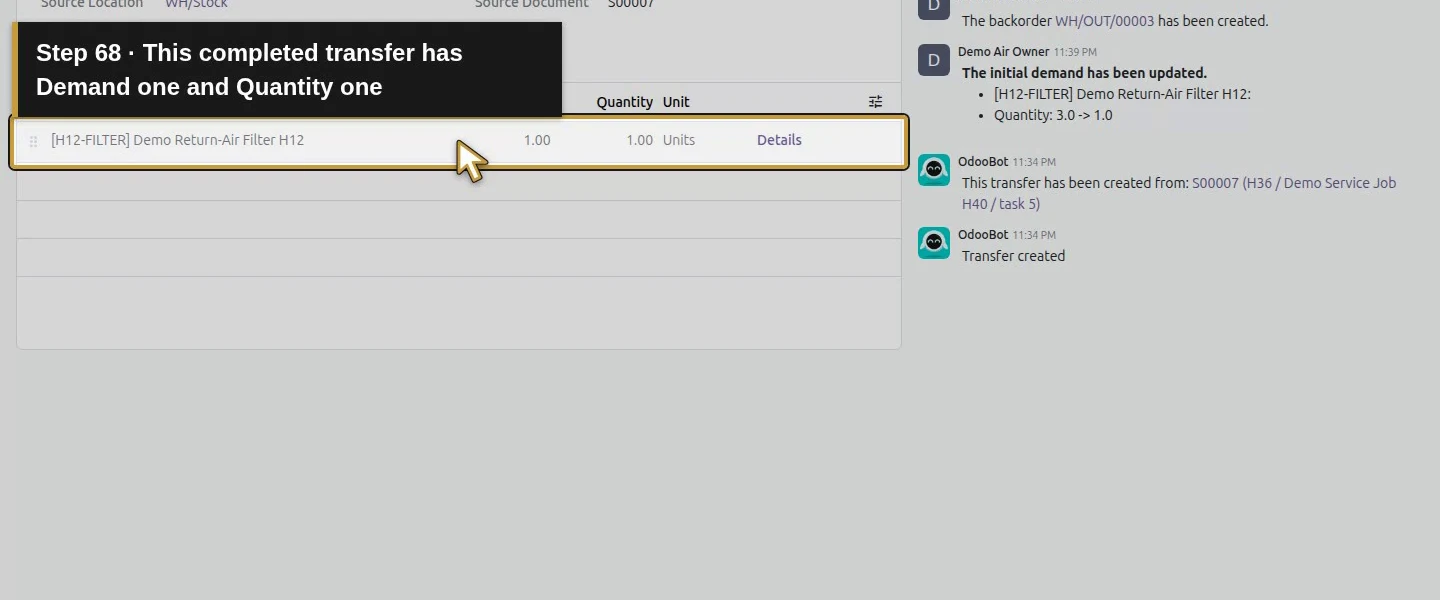
Click Validate. The Create Backorder? dialog says fewer products were processed than initially demanded. Click Create Backorder to retain the remaining two filters. WH/OUT/00002 becomes Done with Demand and Quantity both 1.00. Its chatter records the initial-demand change and links the new WH/OUT/00003. That split changes this transfer's demand; the sales order still requests three.
Validate the actual one-unit handover once.Create Backorder retains the products not processed.Create one backorder for the remaining two filters.The original delivery now shows Done.This completed transfer has Demand one and Quantity one.
Step 7. Reopen the backorder and sales order
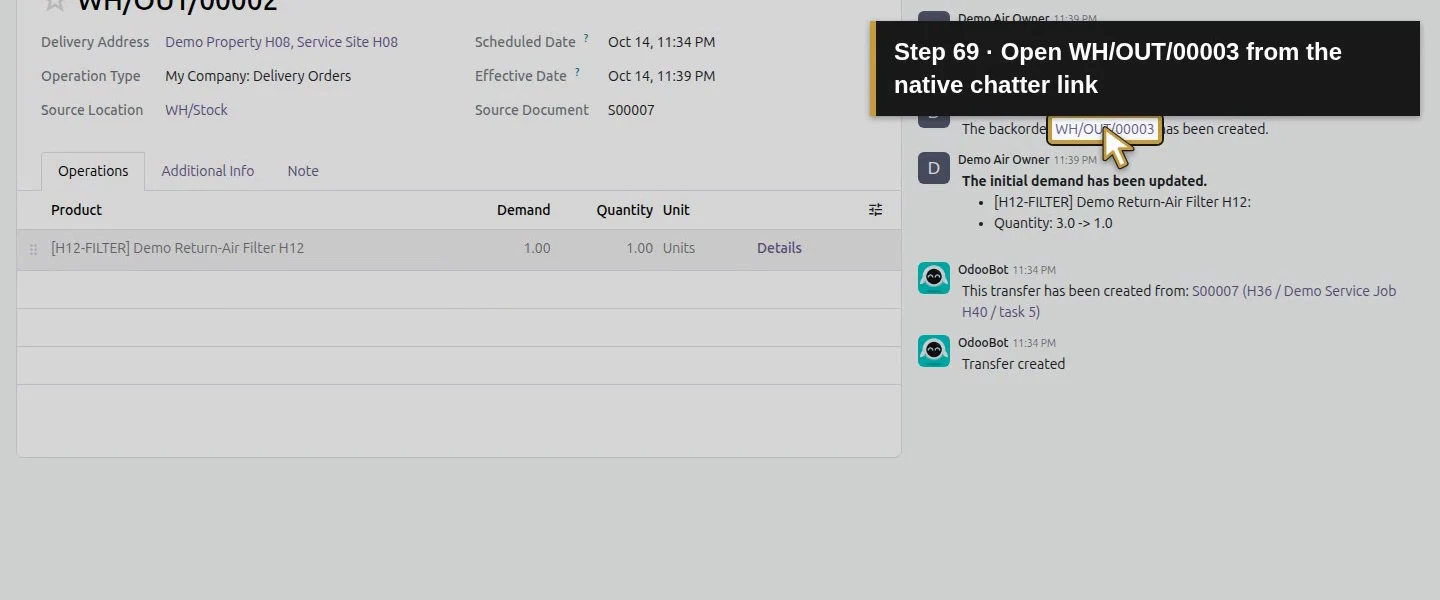
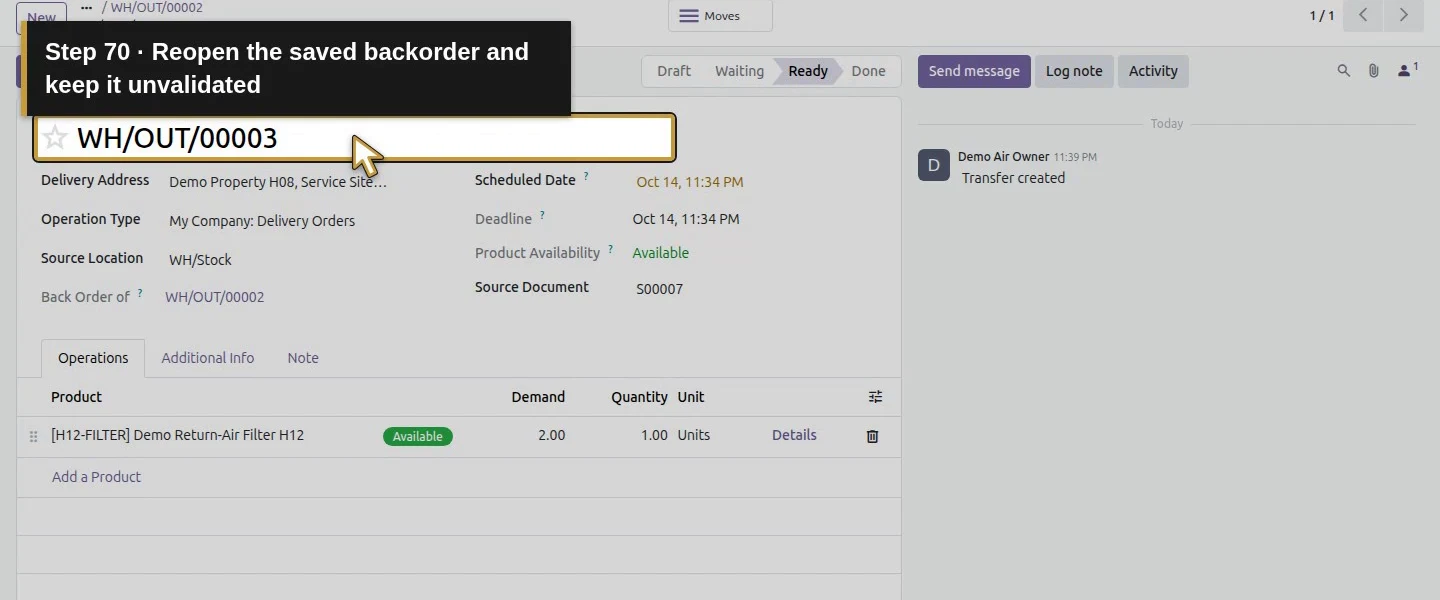
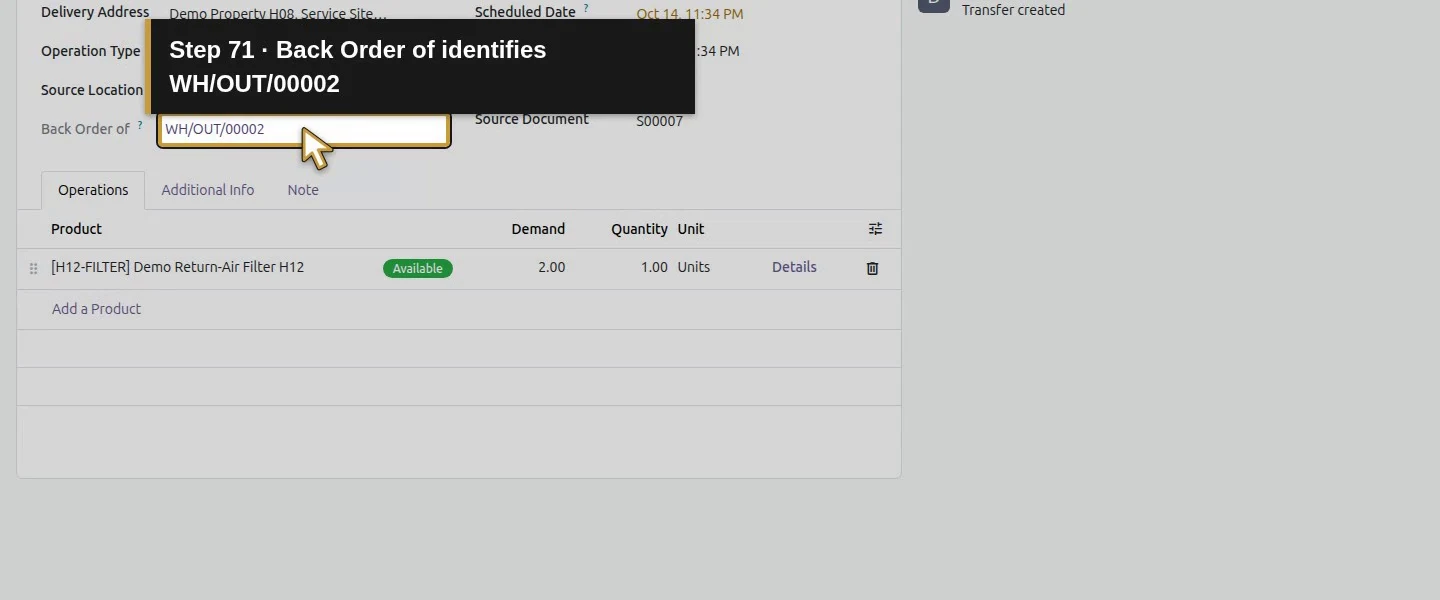
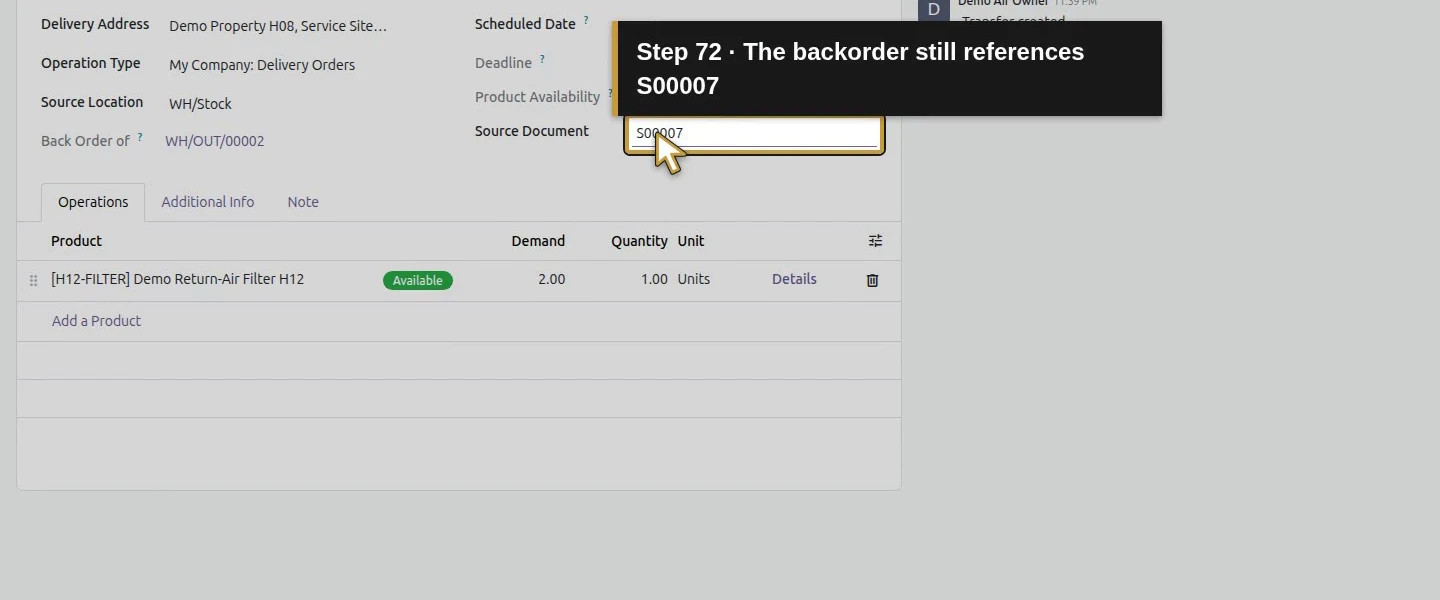
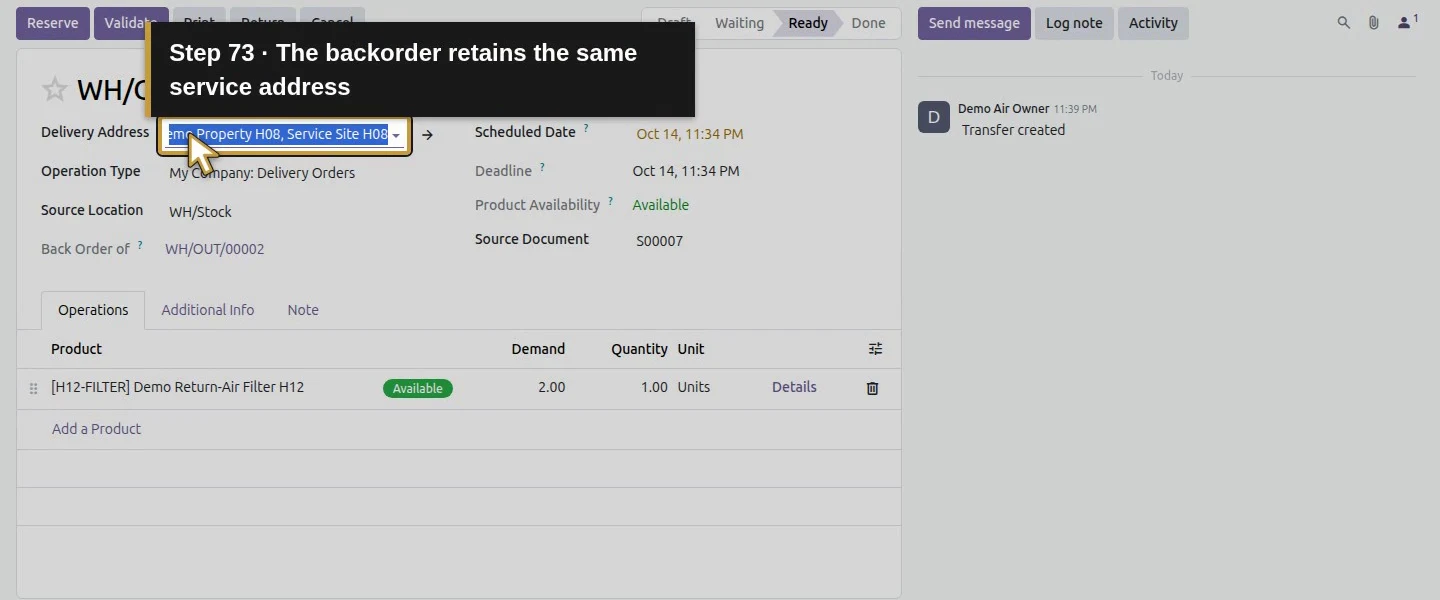
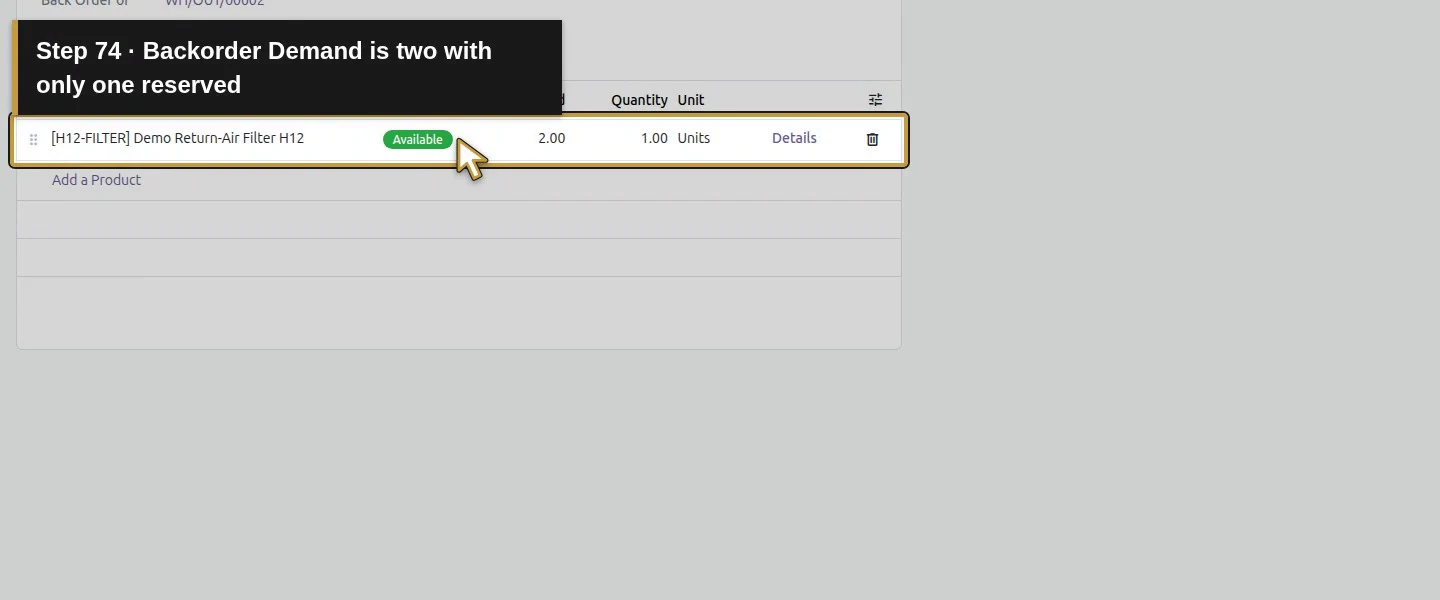
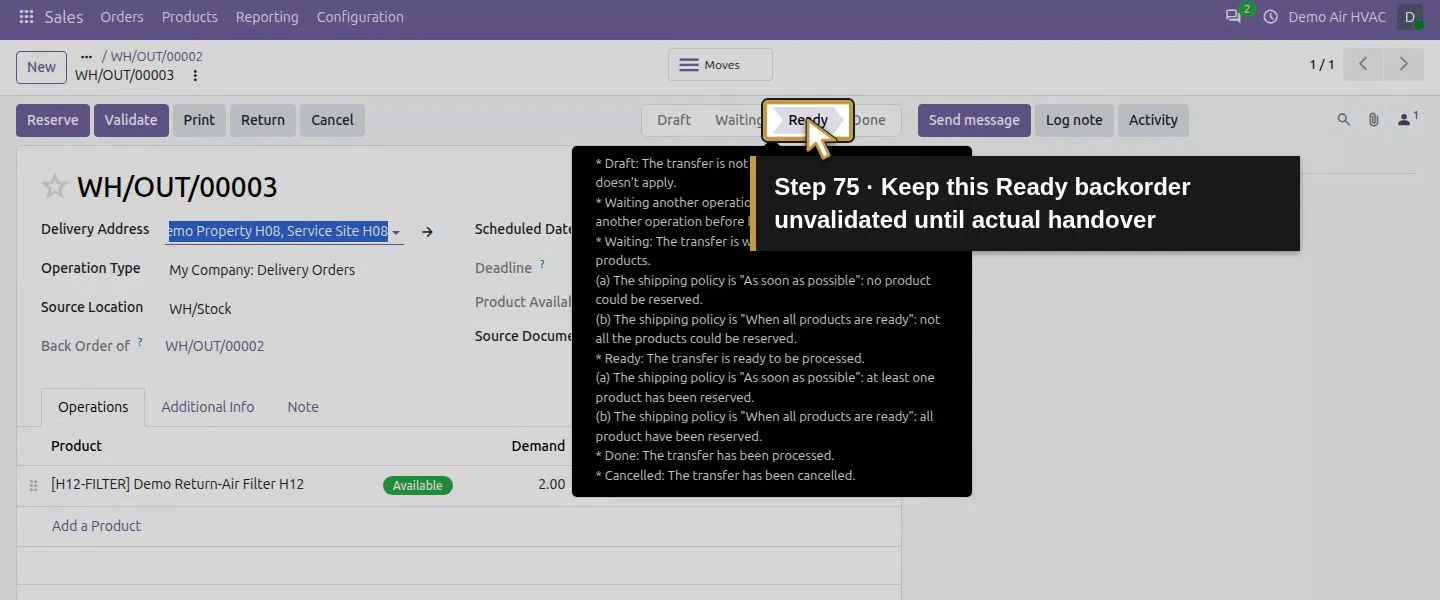
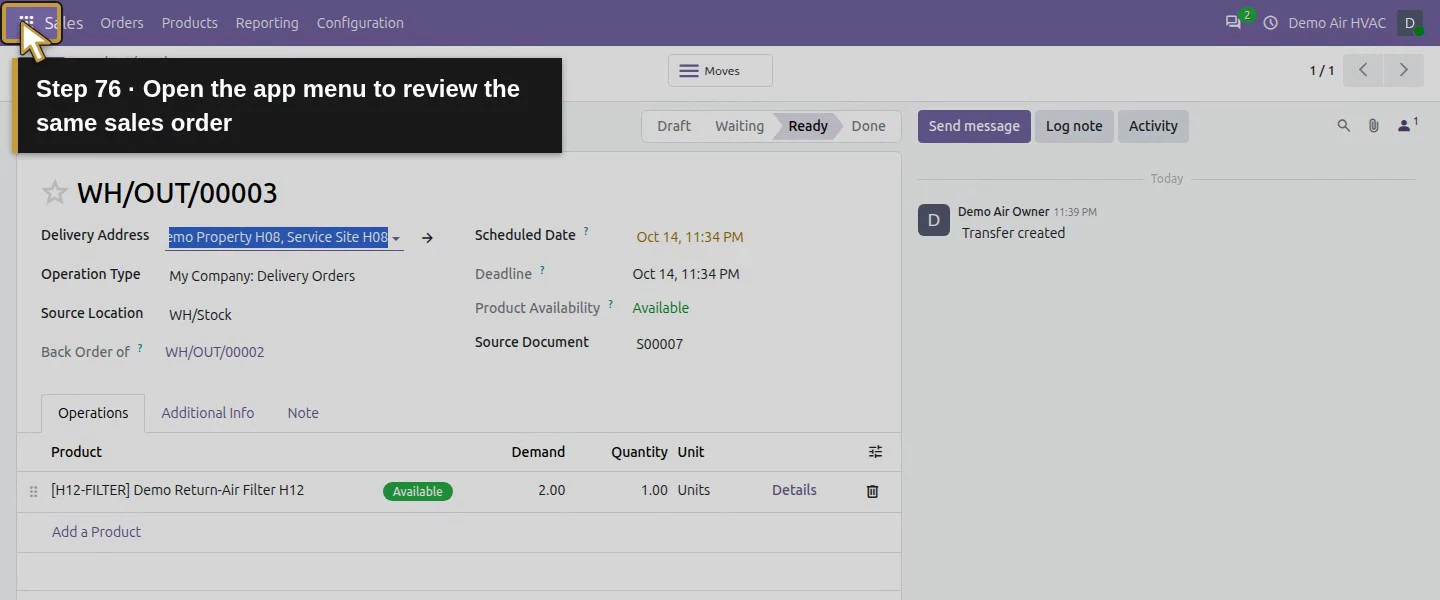
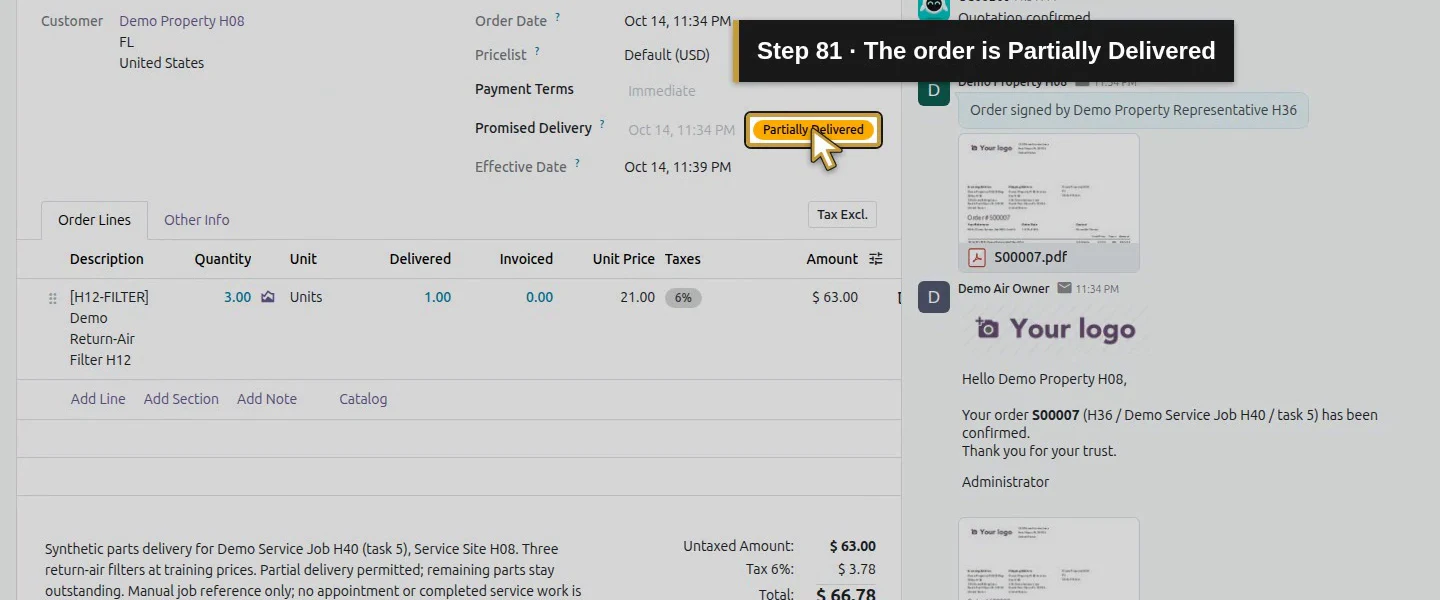
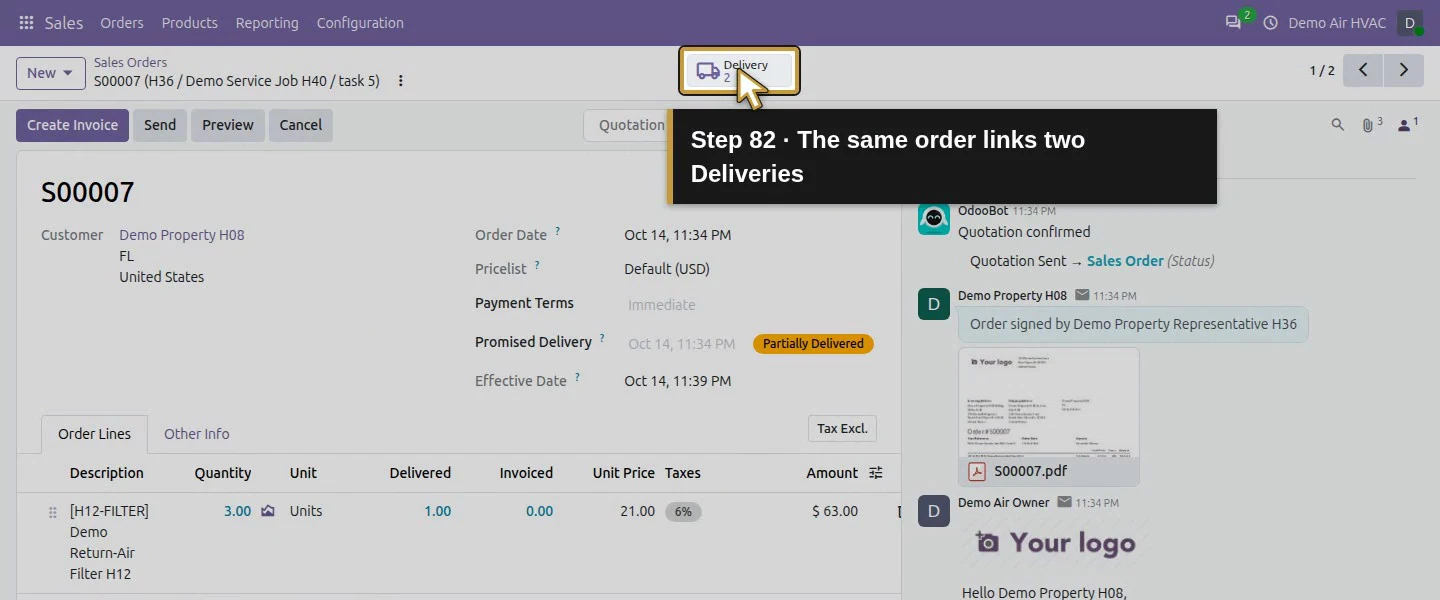
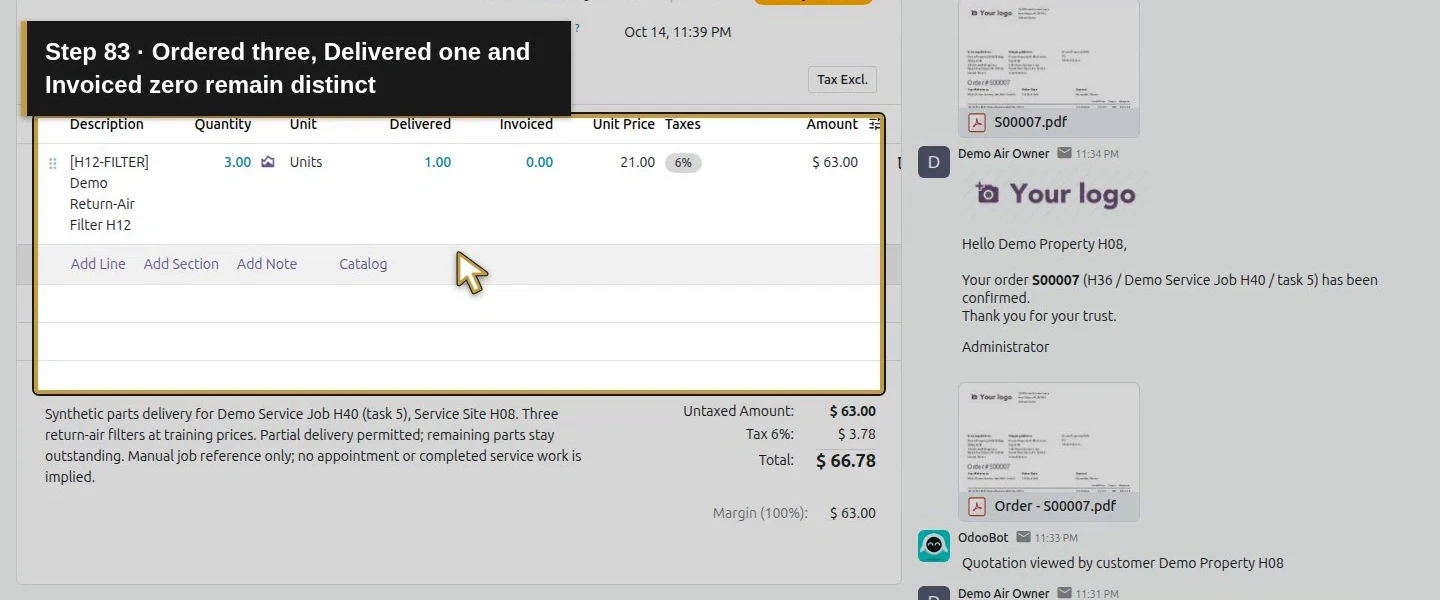
Open WH/OUT/00003 from the completed delivery's chatter and reload it. Check Back Order of: WH/OUT/00002, Source Document: S00007, the same service address and Demand: 2.00 / Quantity: 1.00. One remaining warehouse filter is reserved; the other requested unit is still unavailable from that source. Leave this backorder unvalidated. Reopen S00007: it shows Partially Delivered, 2 Delivery, ordered three, Delivered one and Invoiced zero.
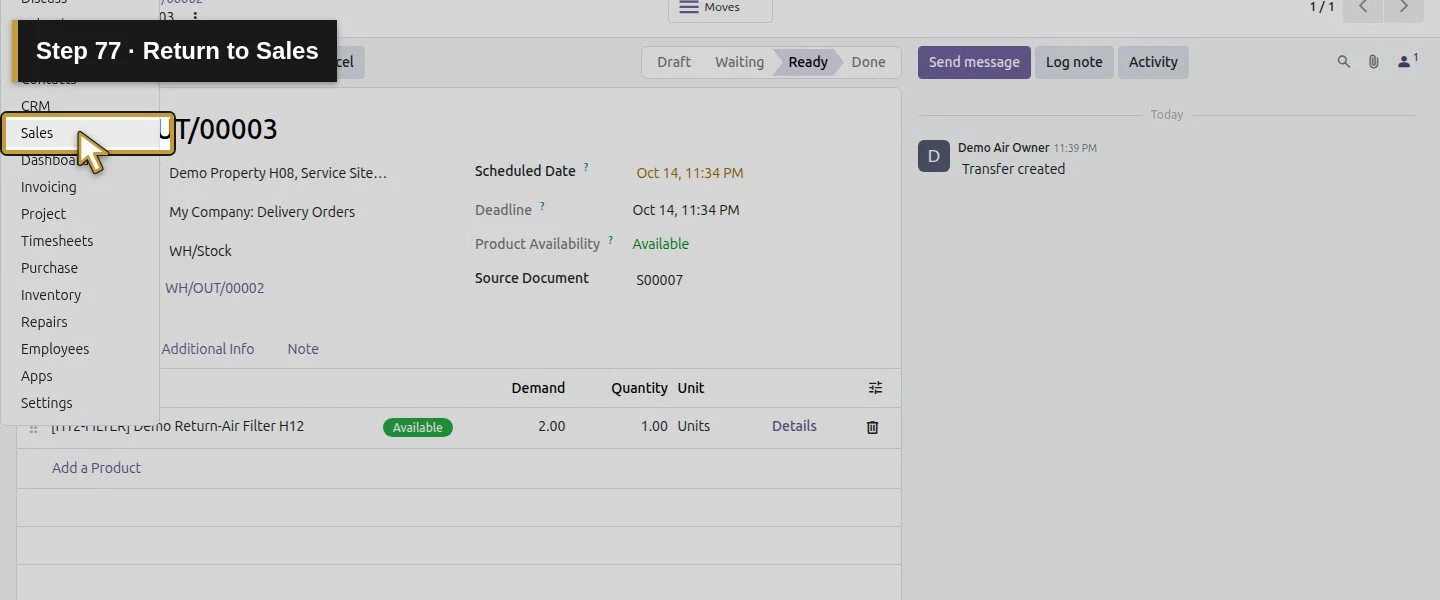
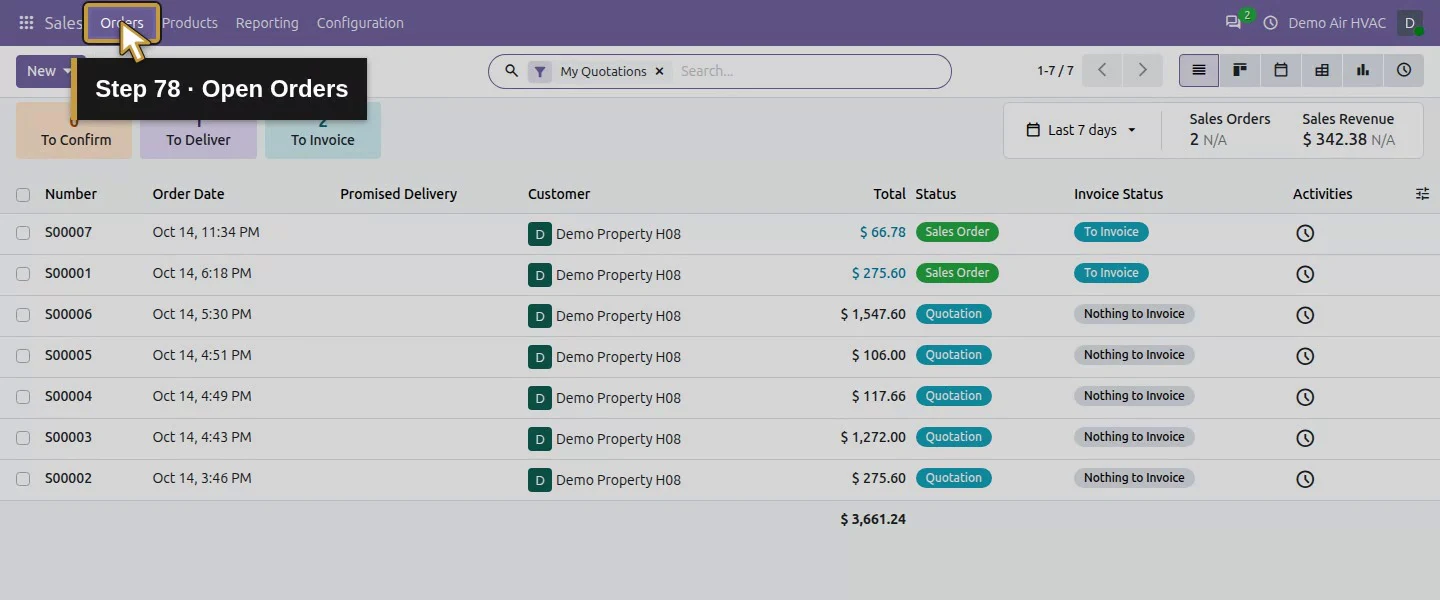
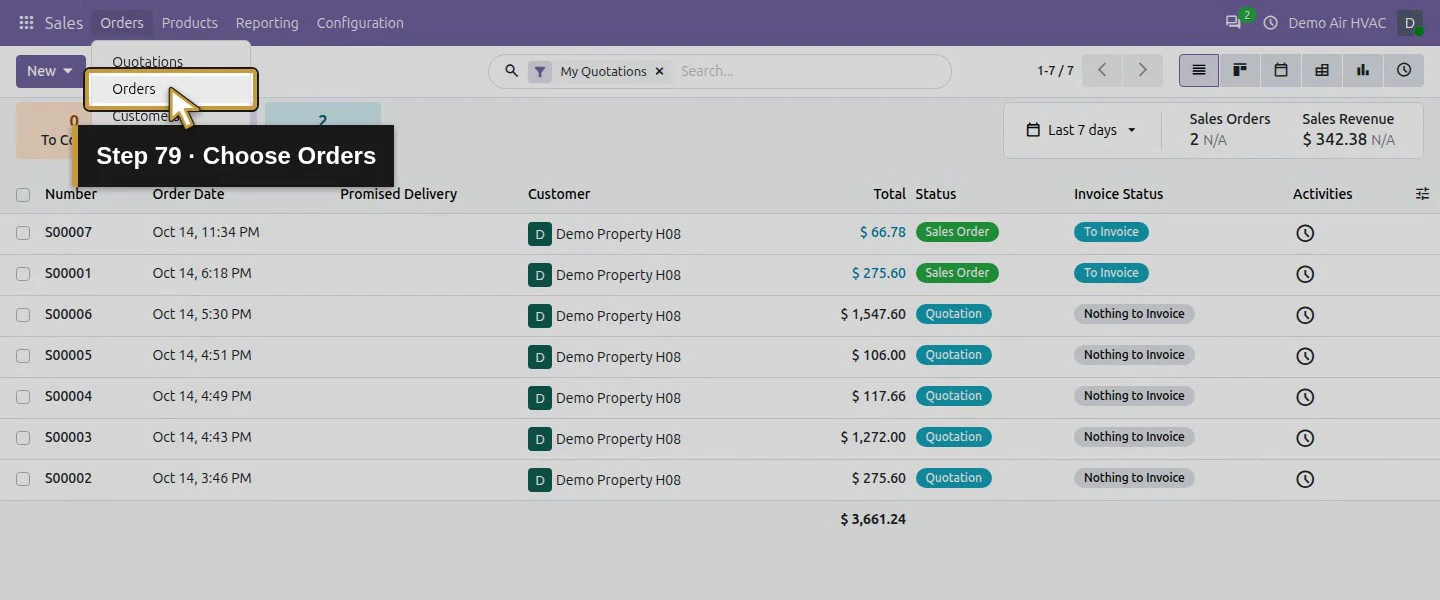
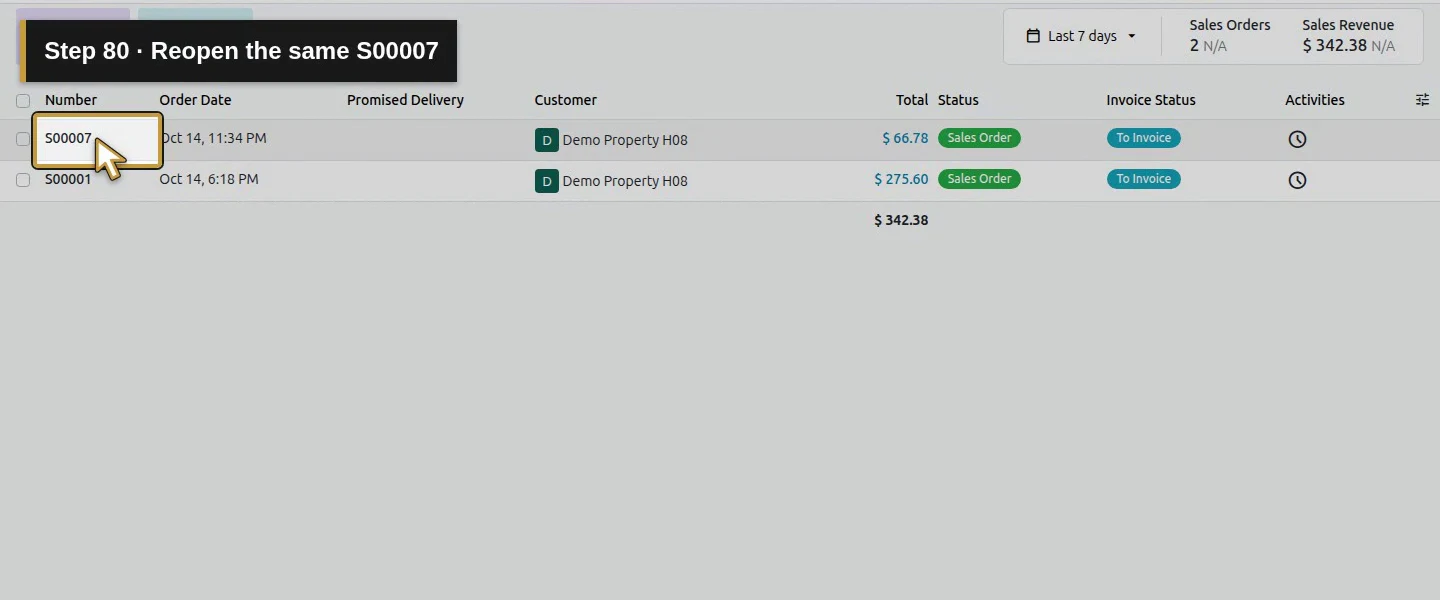
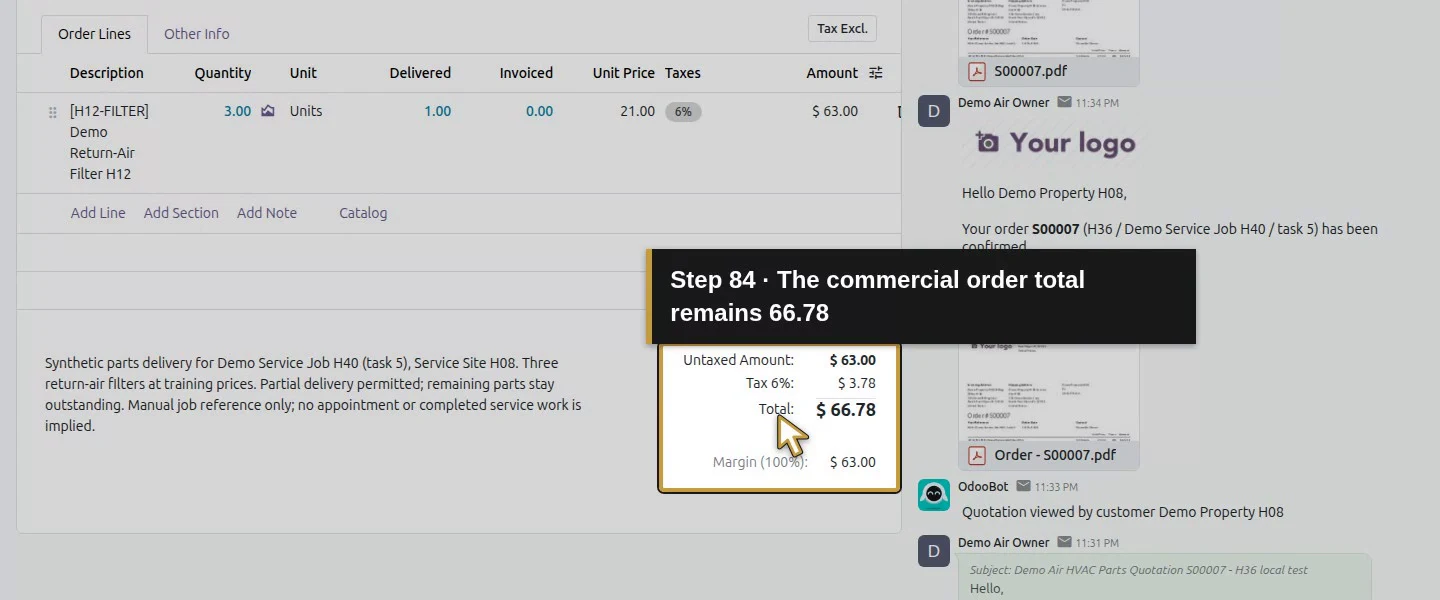
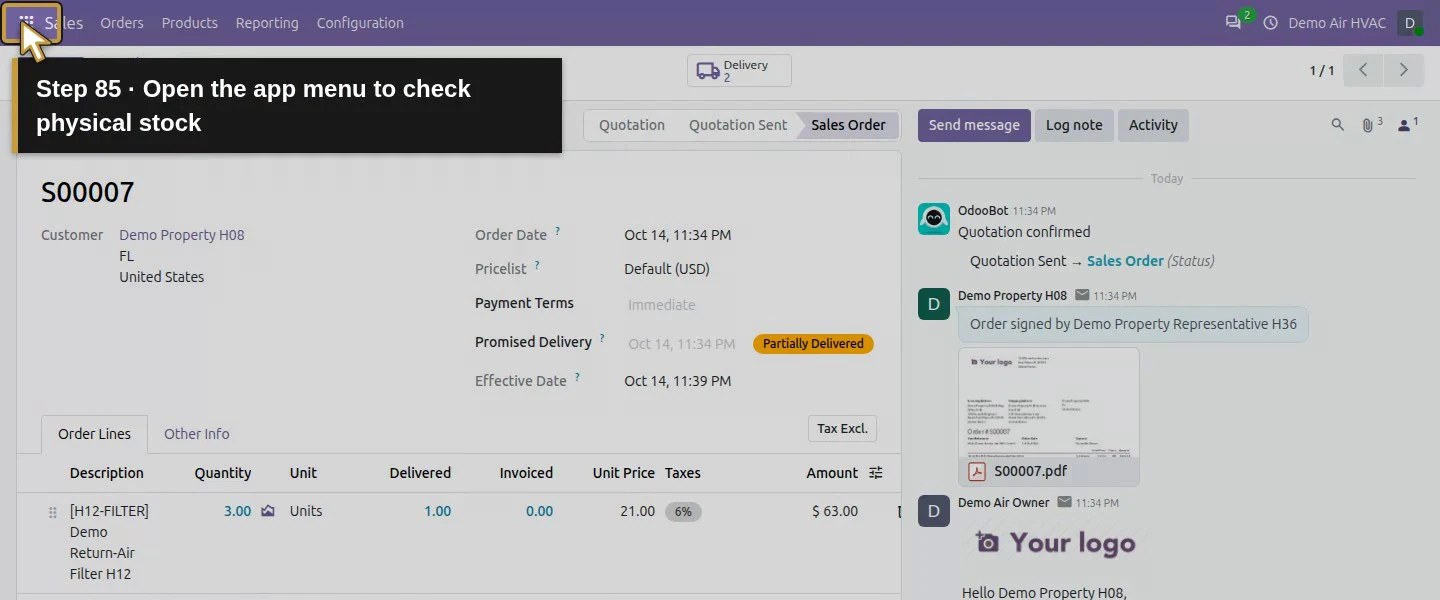
Open WH/OUT/00003 from the native chatter link.Reopen the saved backorder and keep it unvalidated.Back Order of identifies WH/OUT/00002.The backorder still references S00007.The backorder retains the same service address.Backorder Demand is two with only one reserved.Keep this Ready backorder unvalidated until actual handover.Open the app menu to review the same sales order.Return to Sales.Open Orders.Choose Orders.Reopen the same S00007.The order is Partially Delivered.The same order links two Deliveries.Ordered three, Delivered one and Invoiced zero remain distinct.The commercial order total remains 66.78.
Step 8. Check physical stock by location
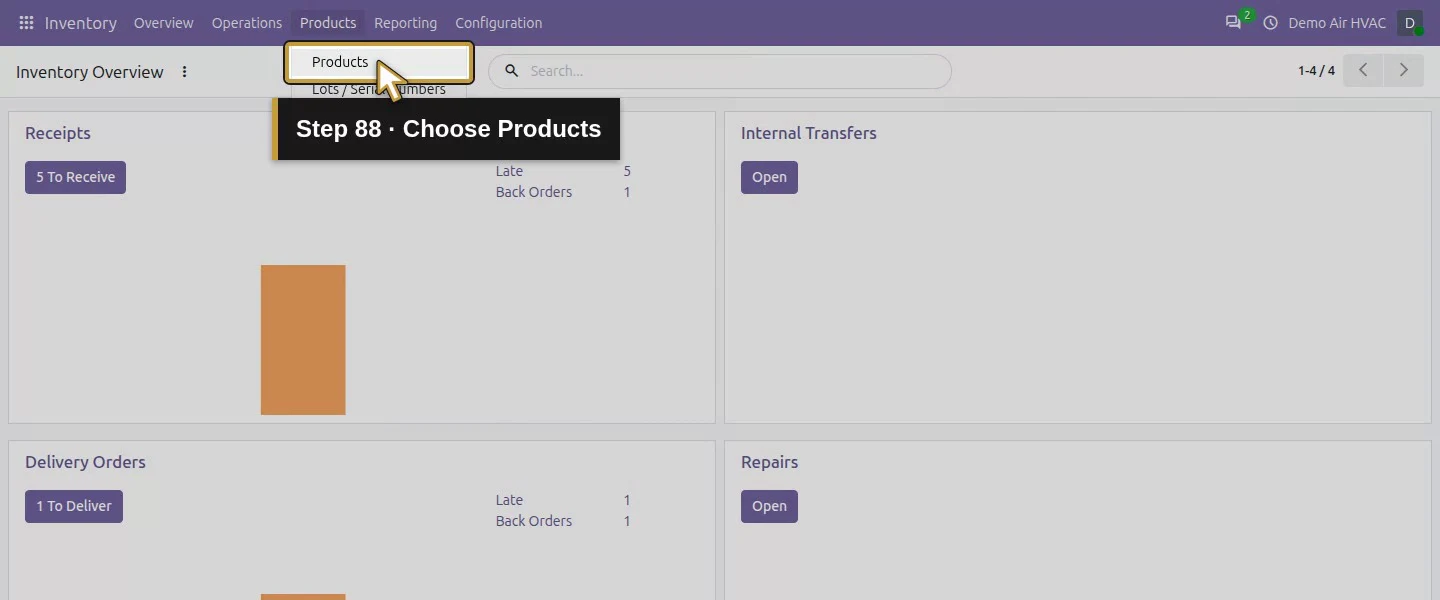
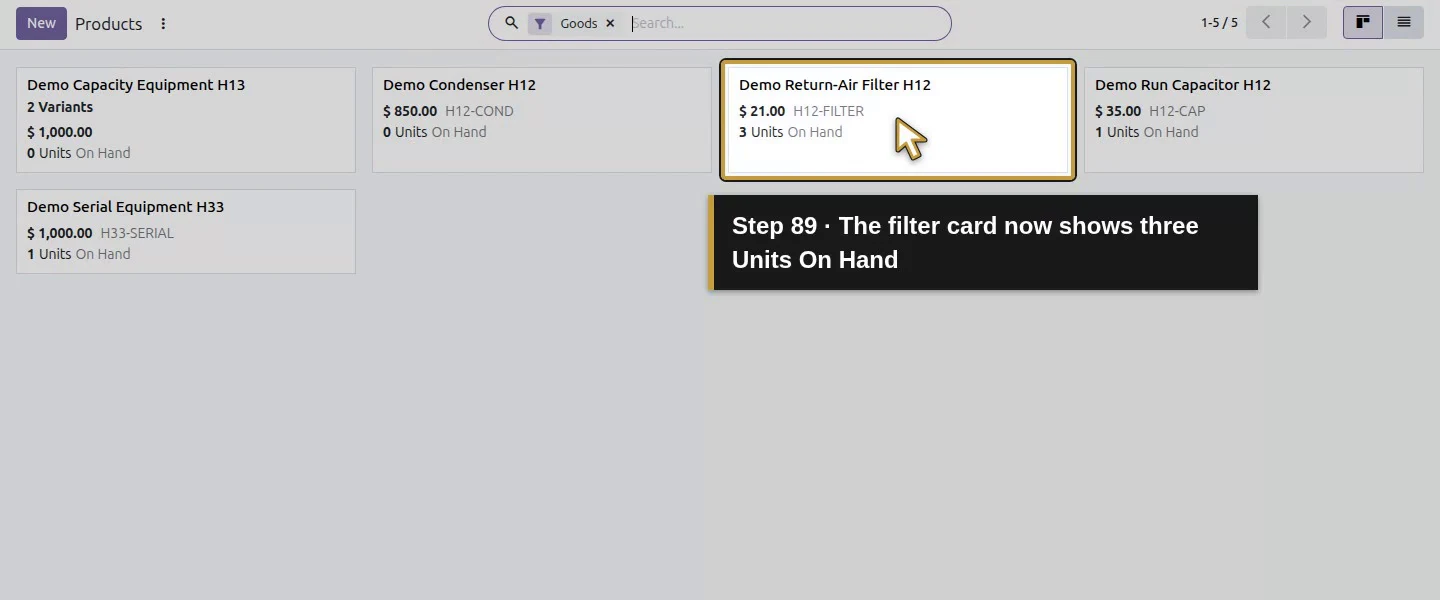
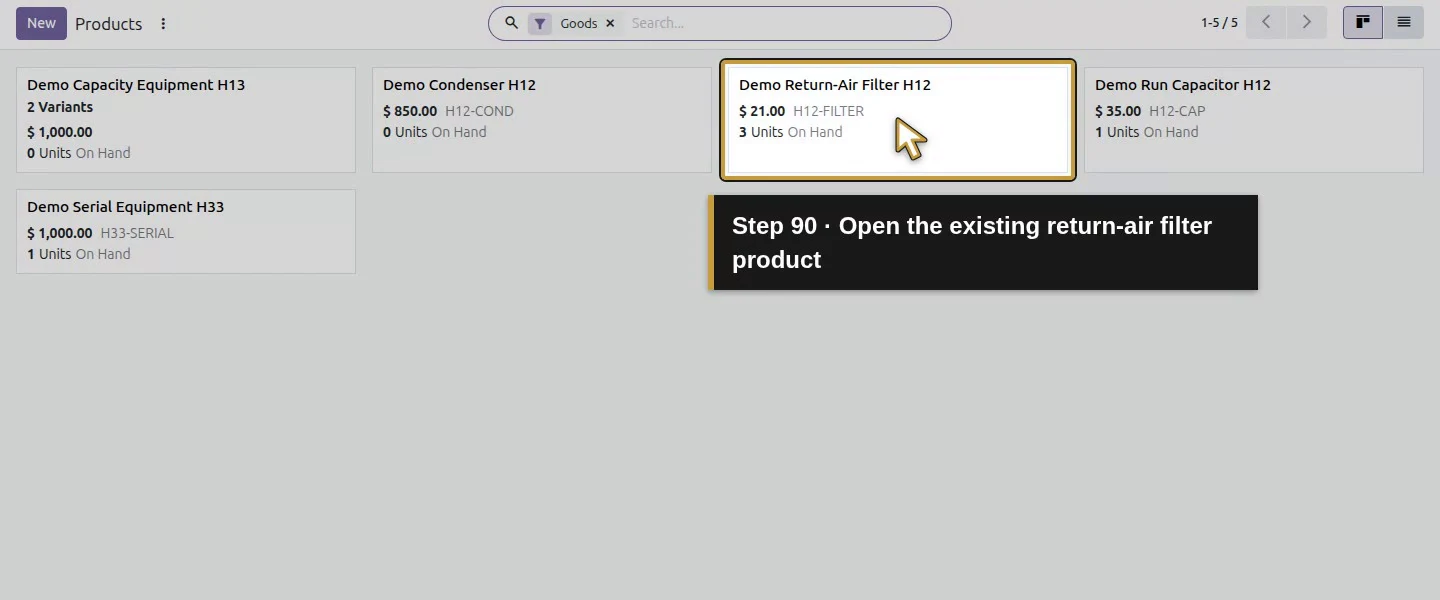
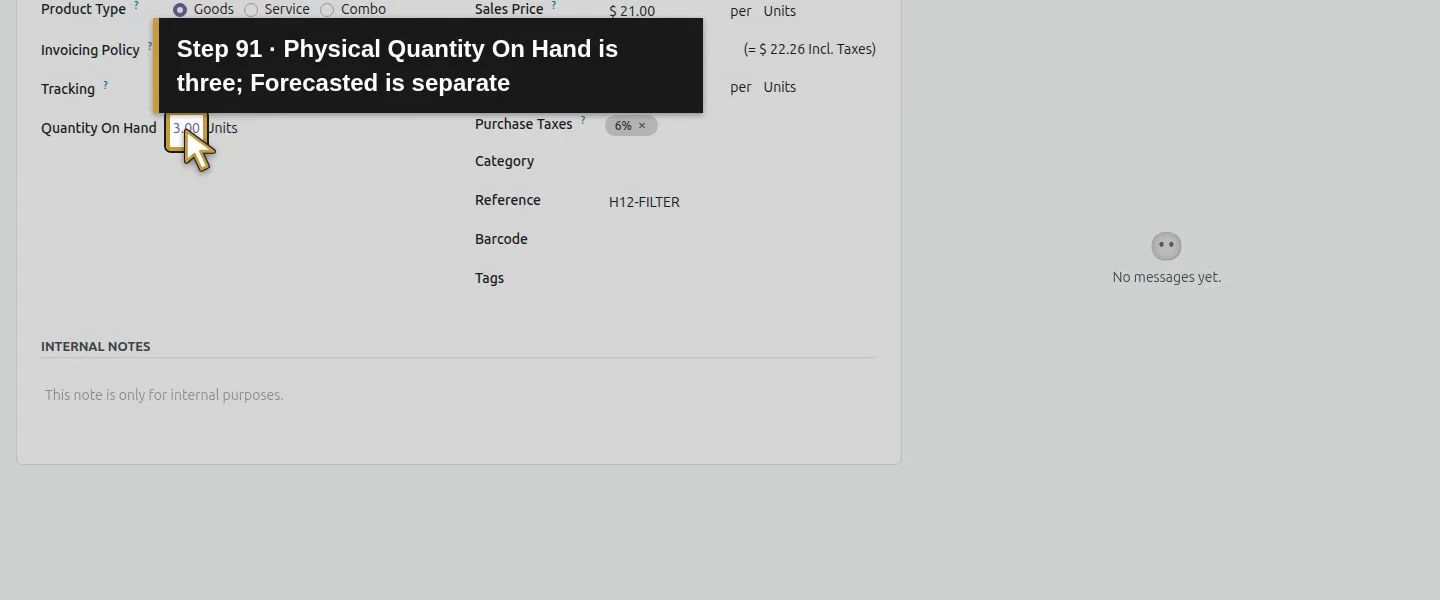
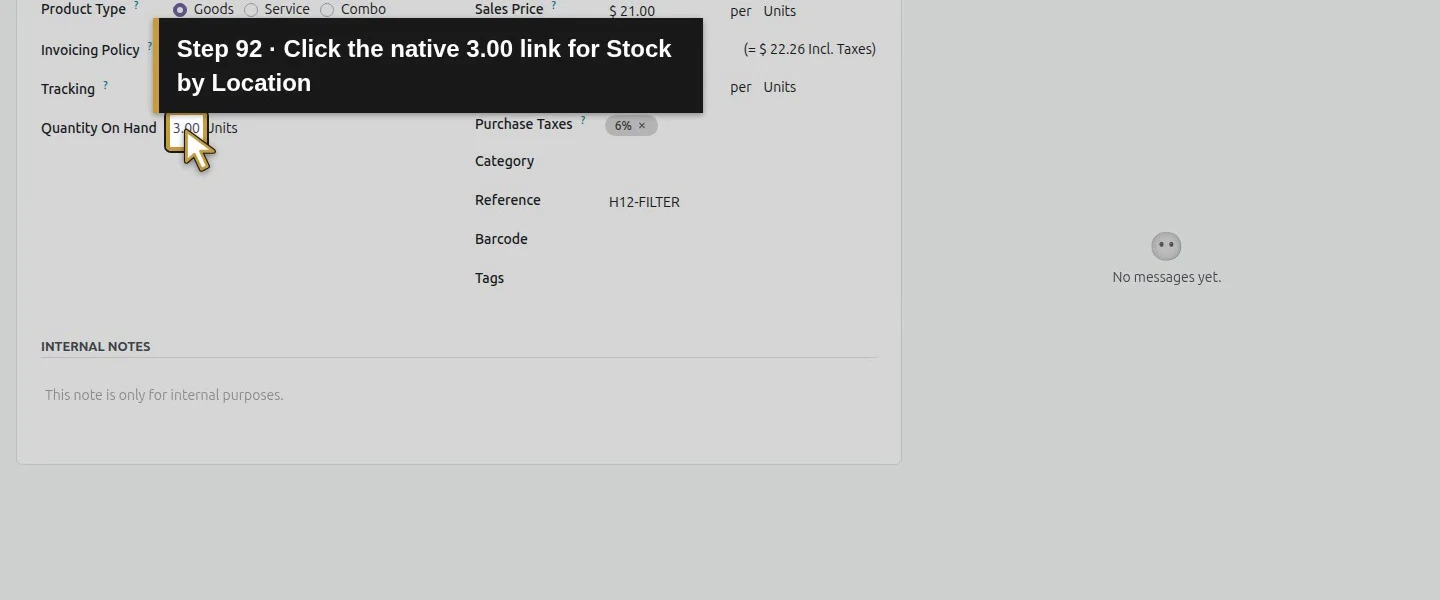
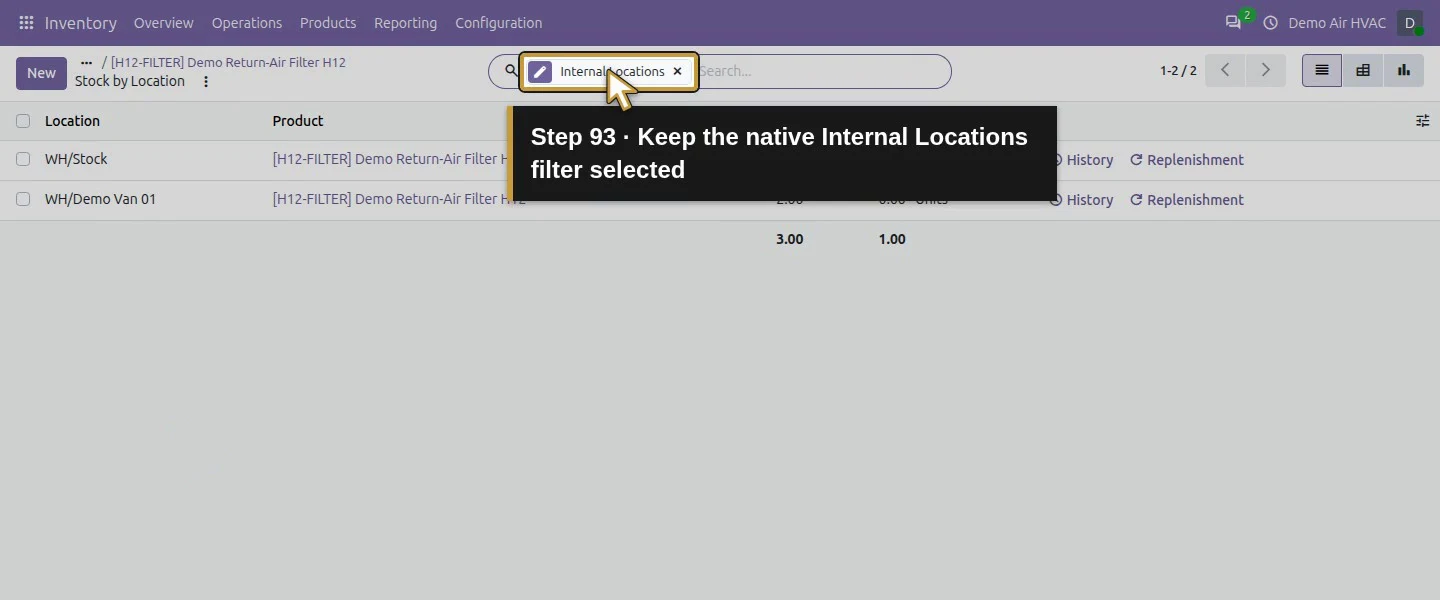
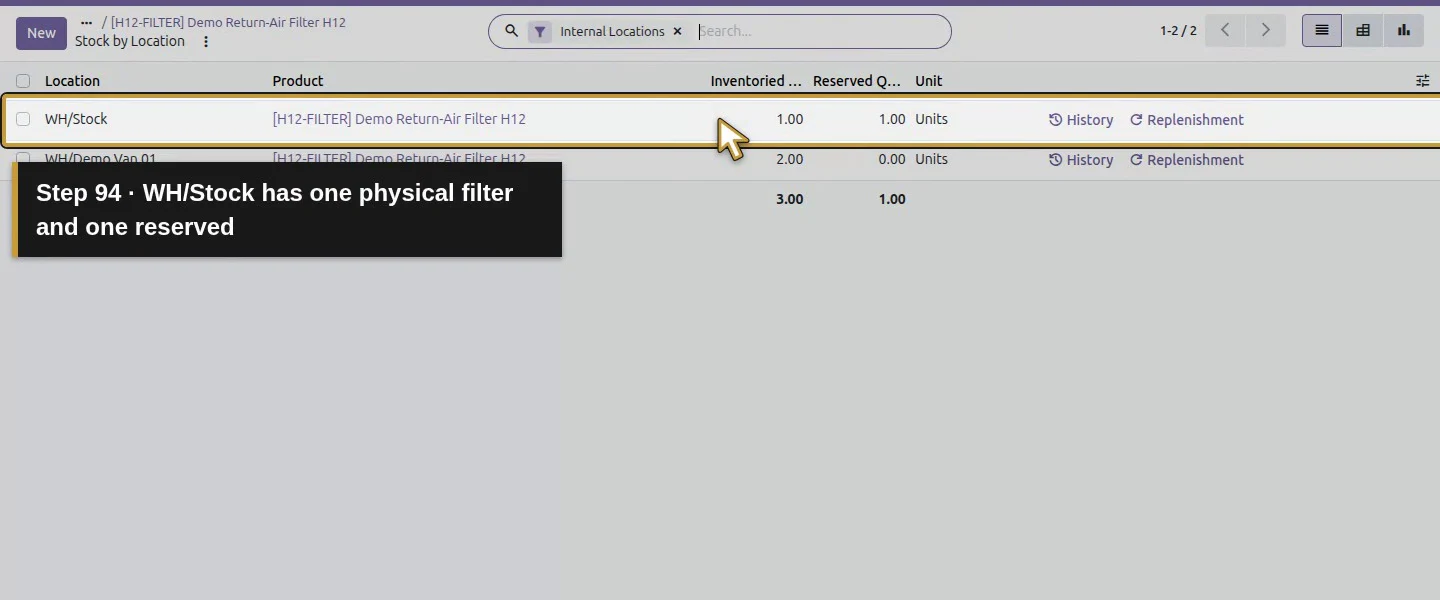
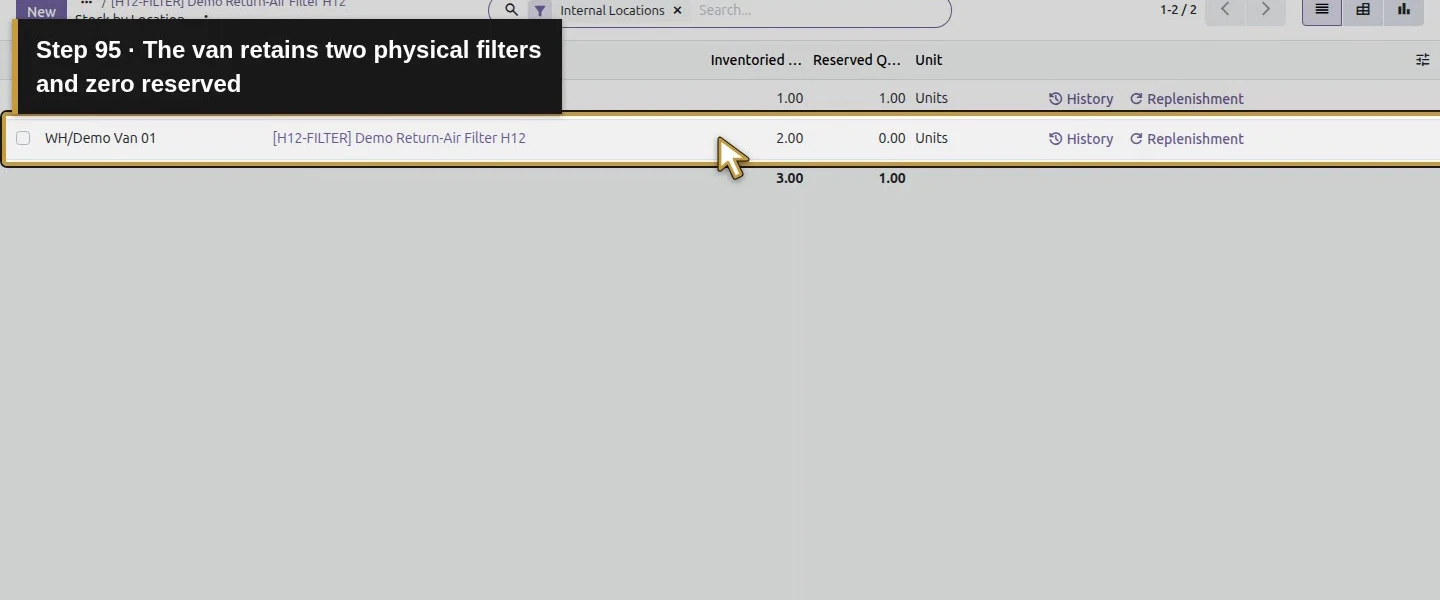
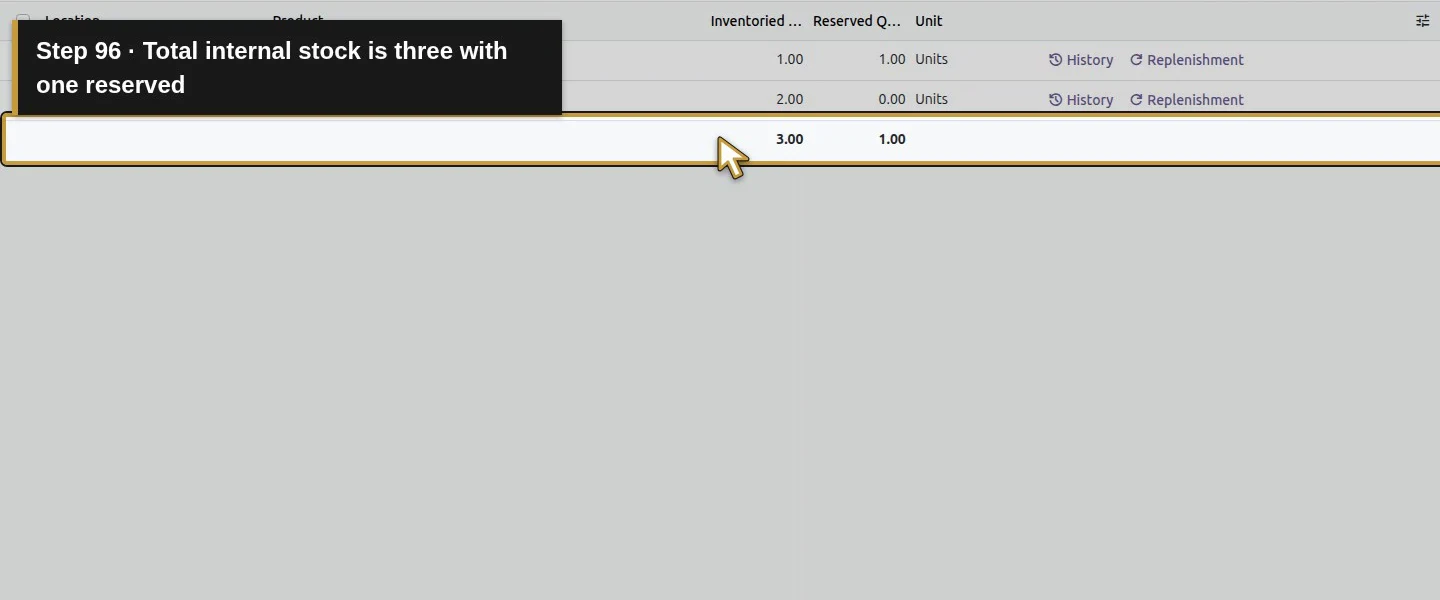
Open Inventory → Products → Products, then Demo Return-Air Filter H12. The card now shows 3 Units On Hand. On the product form, click the 3.00 quantity link to open Stock by Location. With Internal Locations selected, check WH/Stock: Inventoried Quantity 1.00 / Reserved Quantity 1.00 and WH/Demo Van 01: 2.00 / 0.00. Total internal stock is three, with one reserved. The separate Forecasted figure includes future movements and is not the number physically on hand.
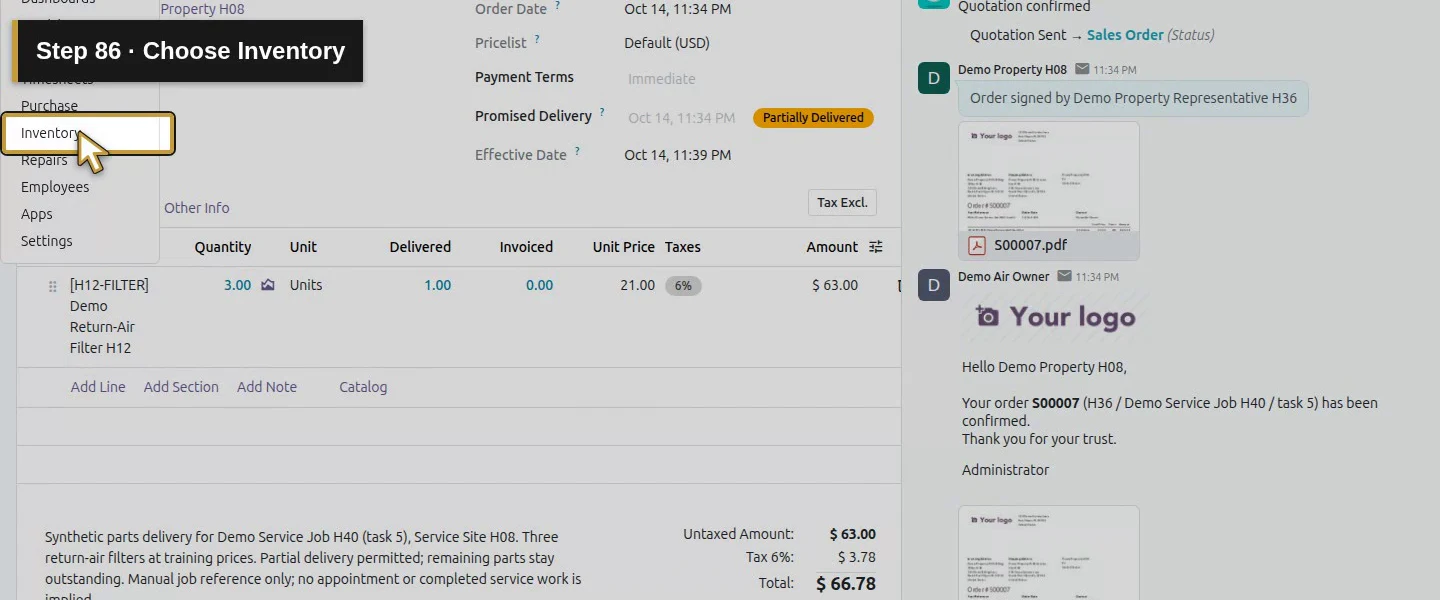
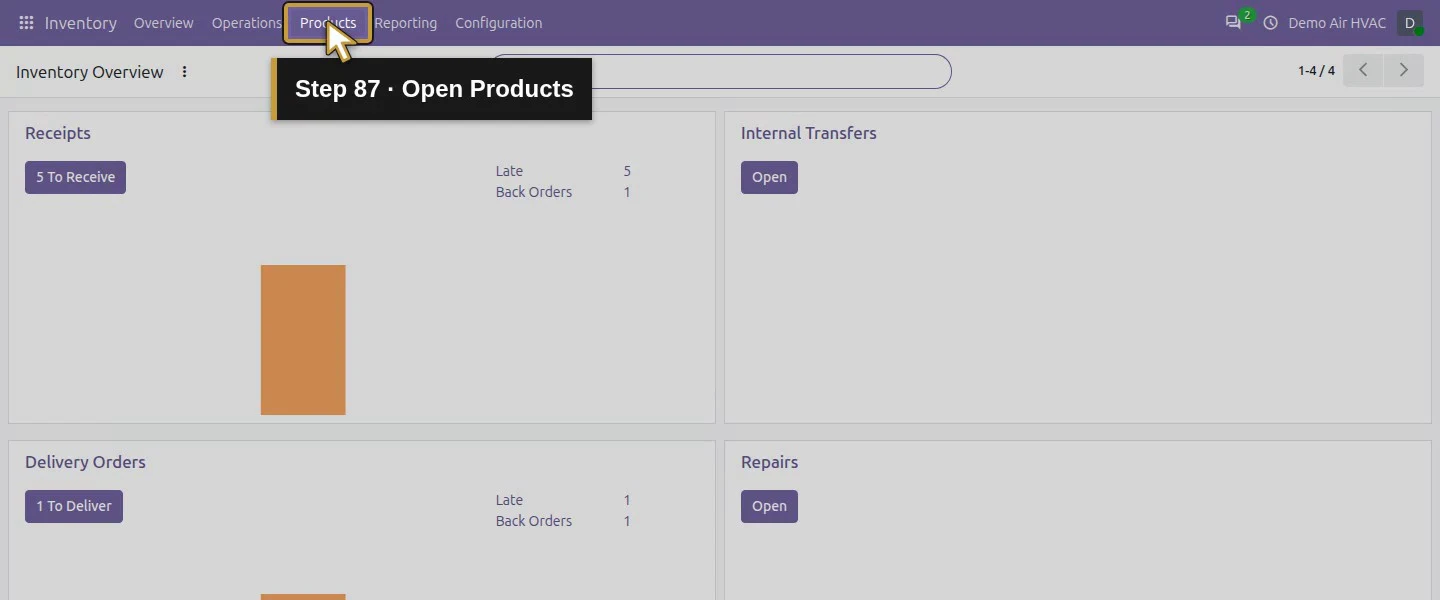
Open the app menu to check physical stock.Choose Inventory.Open Products.Choose Products.The filter card now shows three Units On Hand.Open the existing return-air filter product.Physical Quantity On Hand is three; Forecasted is separate.Click the native 3.00 link for Stock by Location.Keep the native Internal Locations filter selected.WH/Stock has one physical filter and one reserved.The van retains two physical filters and zero reserved.Total internal stock is three with one reserved.
Check the result
S00007 still requests three filters at $66.78. WH/OUT/00002 is Done for one, and linked backorder WH/OUT/00003 retains demand for two, with one source unit reserved. The order shows Delivered one and Invoiced zero. Internal physical stock changed from four to three: warehouse one and van two. S00001's signed service scope is preserved. The existing Project task remains in Office Review with In Progress status, and no new task, customer invoice or payment was created.
If your screen differs
Our delivery was Ready/Available with a partially reserved line; those labels did not establish that all three units were available. Read Demand, Quantity and source-location stock. A WH/Stock reservation did not automatically use the van location, and a forecast that includes pending receipts was not on-hand stock. This example retained a backorder; the No Backorder branch was observed but not exercised. Do not validate the remaining transfer until its actual handover is known. Job references here are typed text, with Project left unlinked; no automatic job update or installed-equipment history was demonstrated.
Frequently asked questions
How do I reserve parts for an Odoo sales order?
Open the confirmed order's Delivery and compare the product's Demand and Quantity with the source-location stock. This delivery operation reserved two WH/Stock filters automatically at confirmation. Clicking Reserve again kept the same two reserved units against demand for three. The van stock was separate, and Ready did not mean the full demand was reserved.
Does reserved inventory reduce Odoo stock on hand?
Reservation left our four internal filters physically on hand. After entering one actual unit and saving, stock still remained four. Validate → Create Backorder completed the one-unit delivery and reduced internal stock to three. The backorder retained demand for two, with one remaining warehouse unit reserved.
Does an Odoo delivery automatically update a Project job?
The tested delivery updated the sales line's Delivered quantity and stock. Its job name in Customer Reference and the scope note were manual text; Project was unlinked. The existing task's Office Review stage and In Progress status stayed unchanged, and no task was created. Use the separate Project workflow for the job handoff.