
Running an HVAC business with Odoo
How do I add my logo and business details to Odoo quotations and invoices?
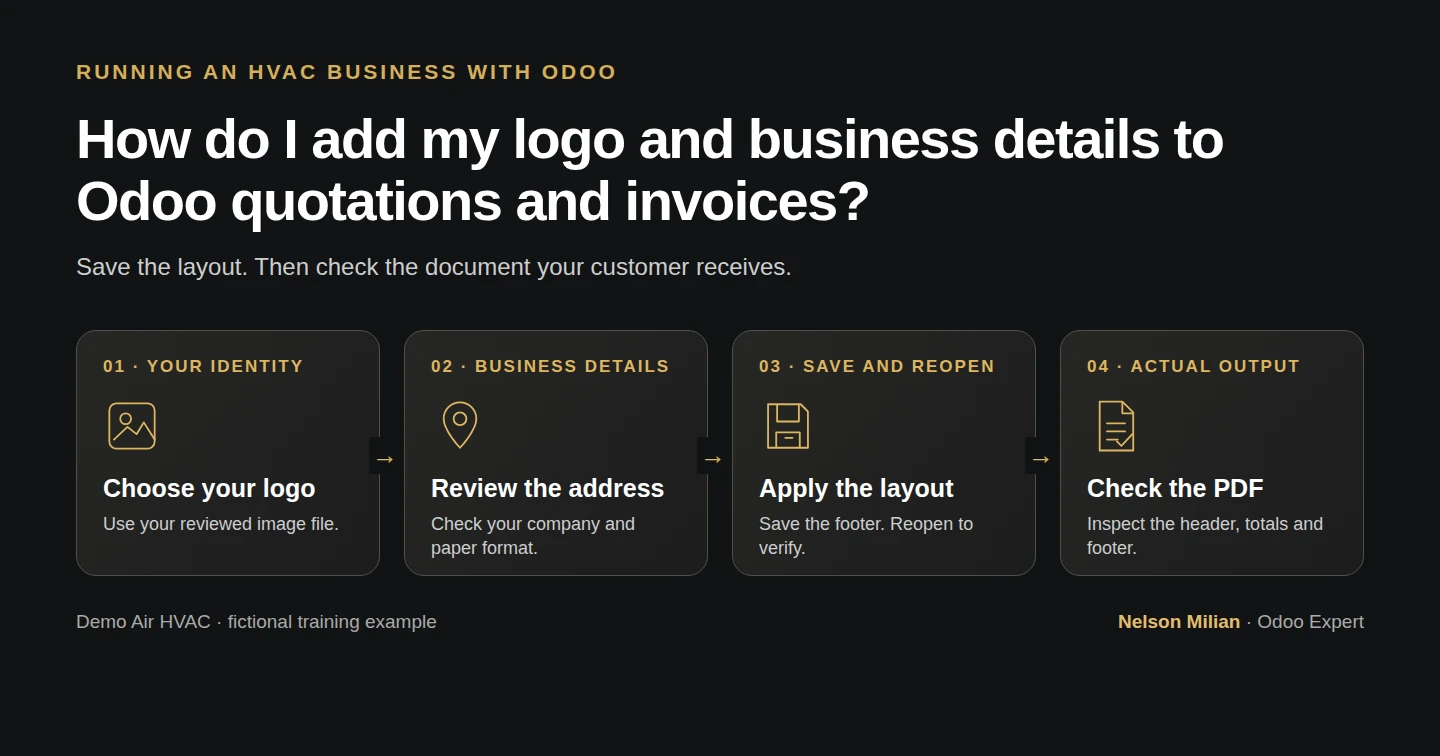
Upload a logo, review Odoo document details and verify the saved layout on an actual quotation PDF.
Alex wants the business details and logo to appear on customer documents. This procedure updates the standard company document layout and checks a real quotation PDF.
Alex Rivera and Demo Air HVAC are fictional training examples. Prices, dates, quantities and business situations in this guide are illustrative.
Before you begin
Tested in stock Odoo 20.0-20260926 Community as the demo owner administrator, with official modules and standard configuration. Complete company setup and create the service quotation. The demo reused its existing Your logo placeholder PNG to test the upload; select your own business logo for real use. Actual quotation output was tested here; inspect the first invoice separately when it is available.
Step-by-step workflow
Step 1. Open document layout
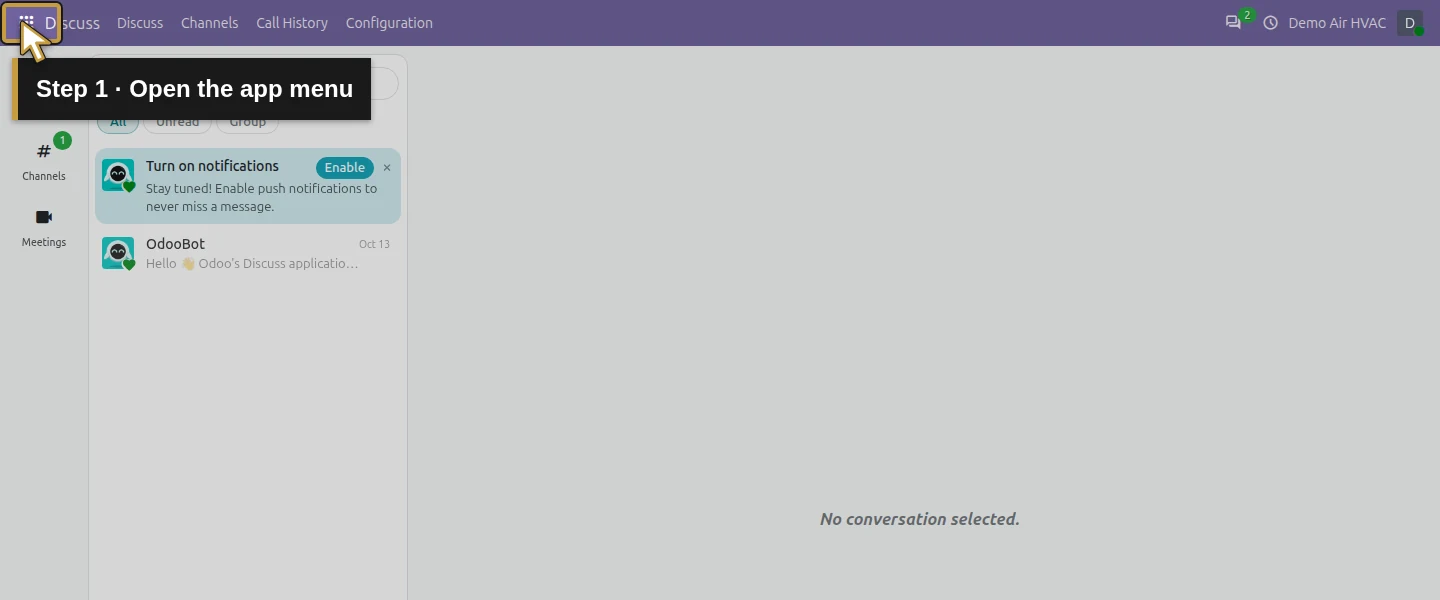
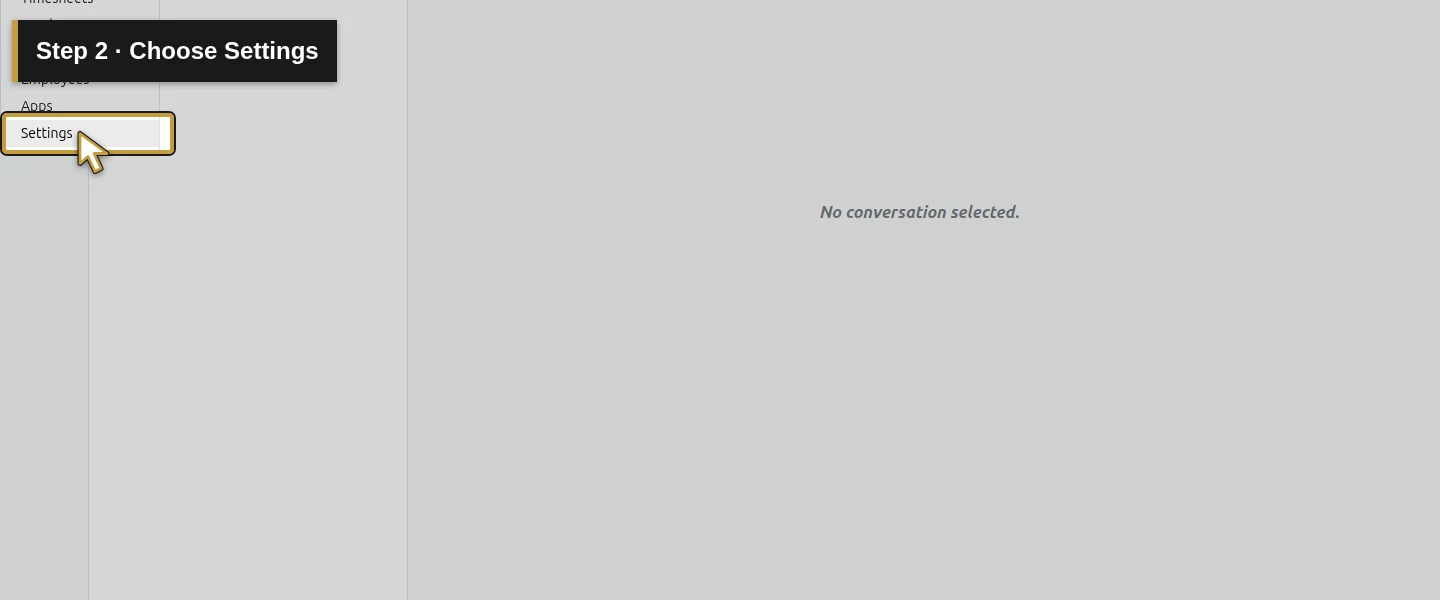
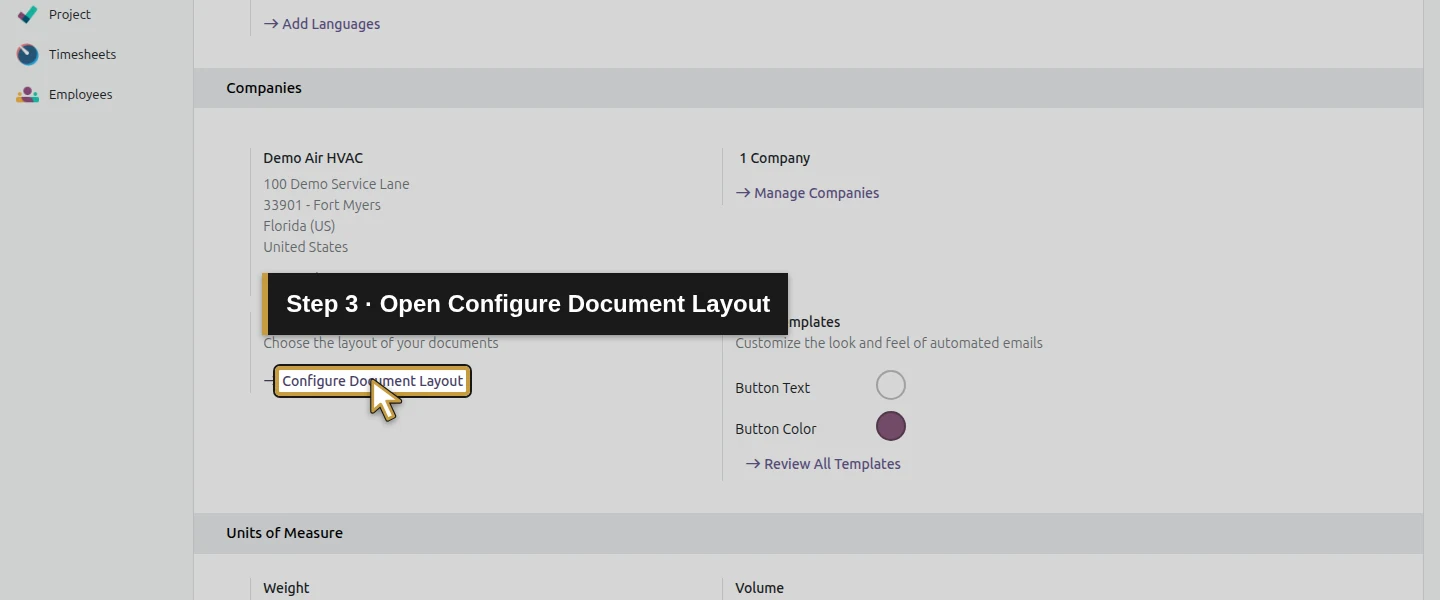
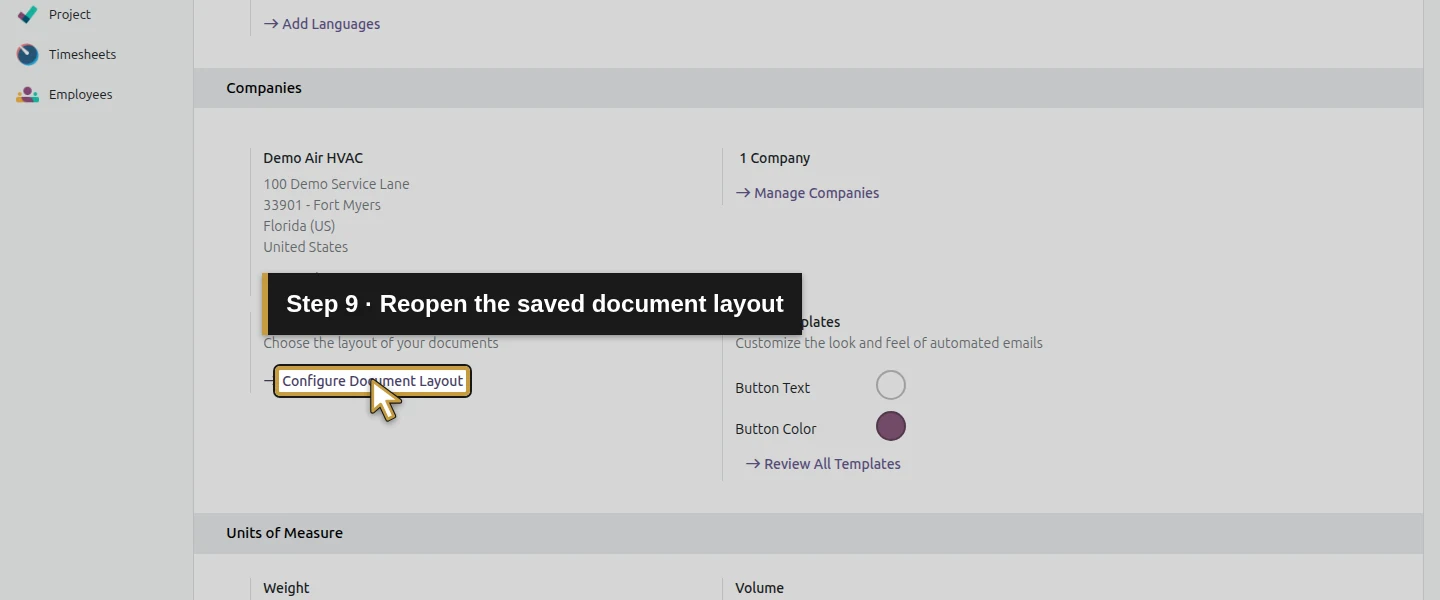
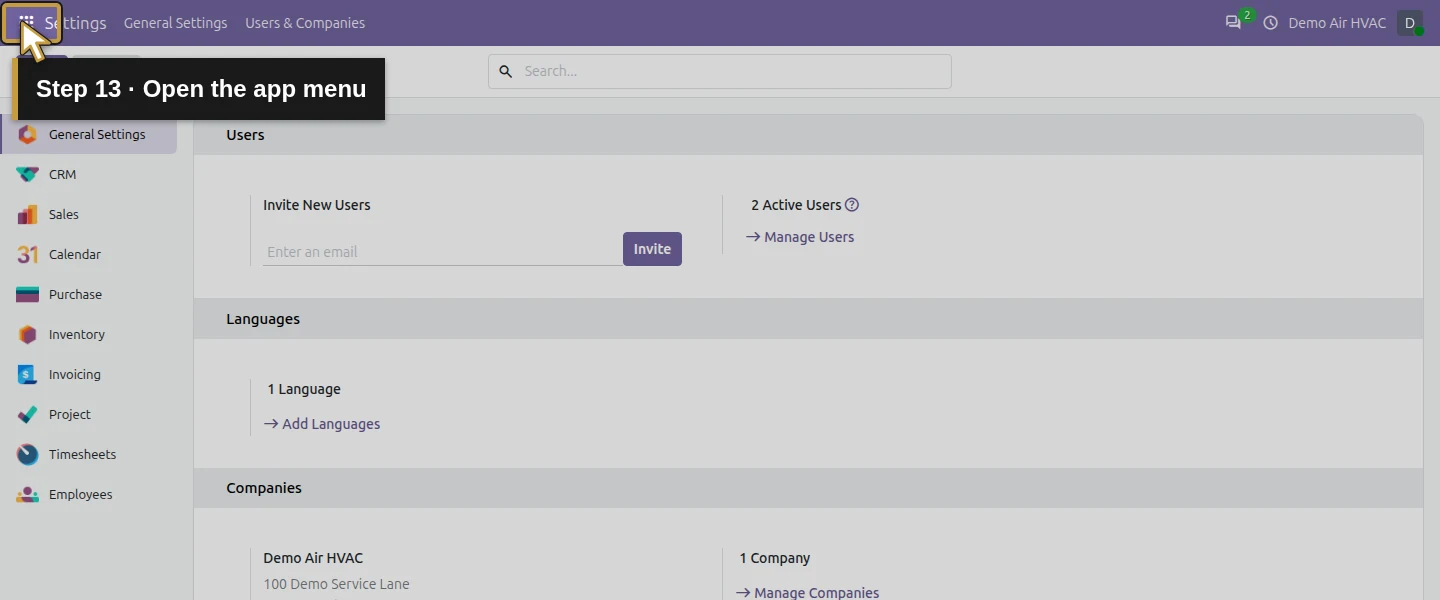
Open the app menu, choose Settings, and find Document Layout under General Settings. Click Configure Document Layout.
Step 2. Review the address and paper format
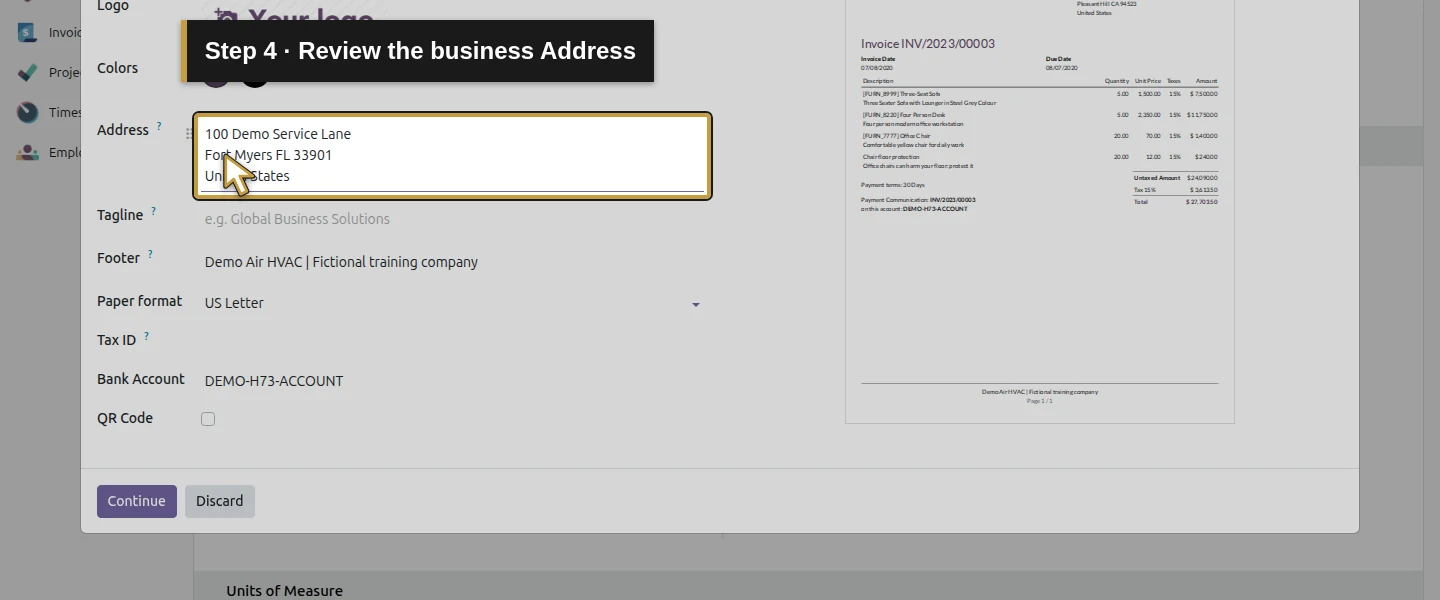
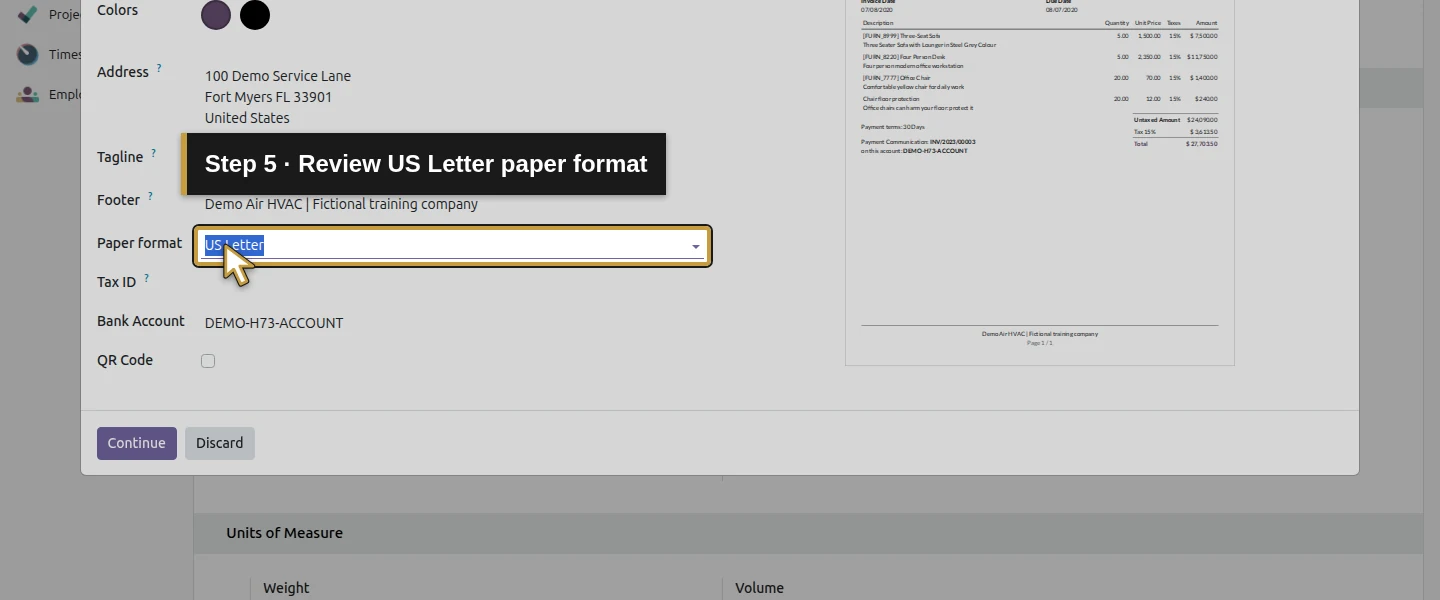
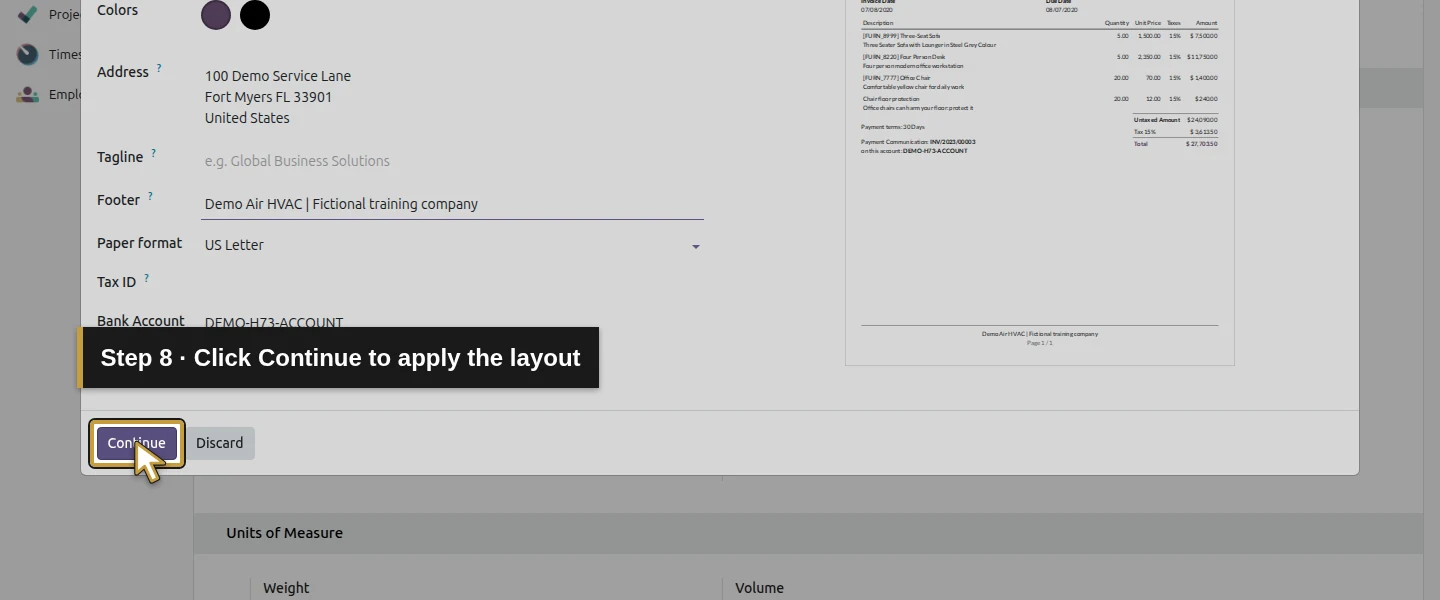
In Configure your document layout, review Address against the company profile. The demo shows 100 Demo Service Lane, Fort Myers FL 33901, United States. It retains US Letter and the existing layout/font settings.
Step 3. Select the logo file
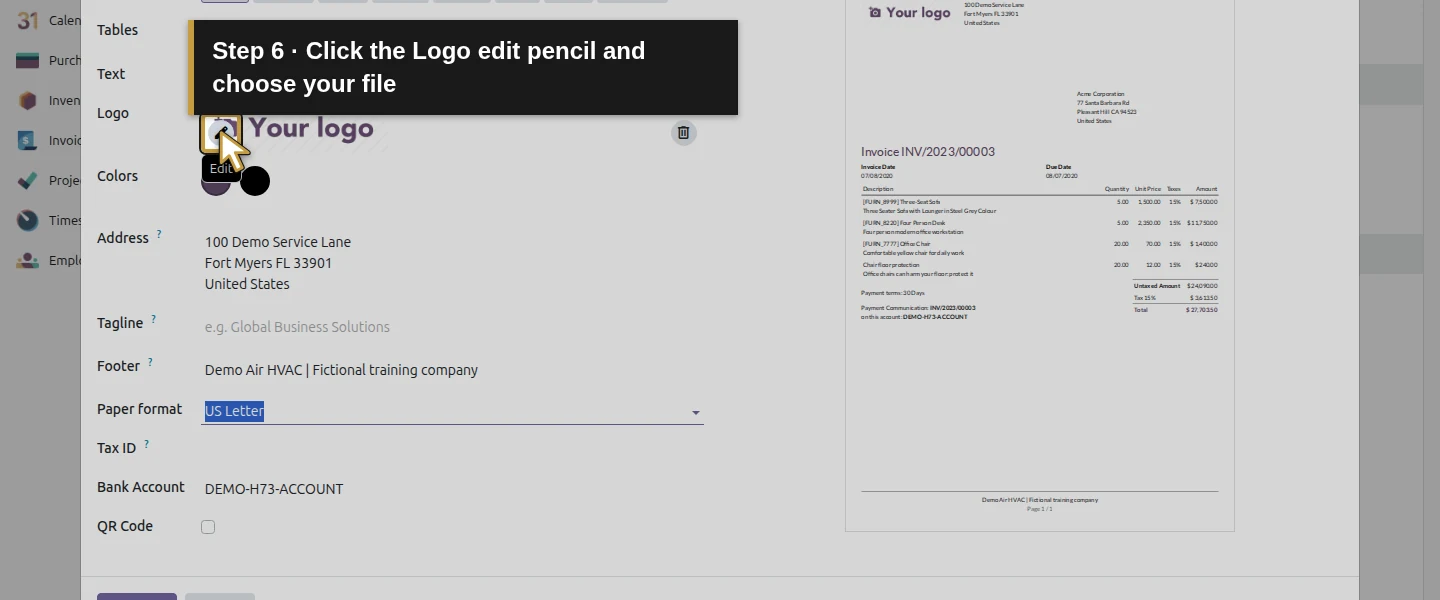
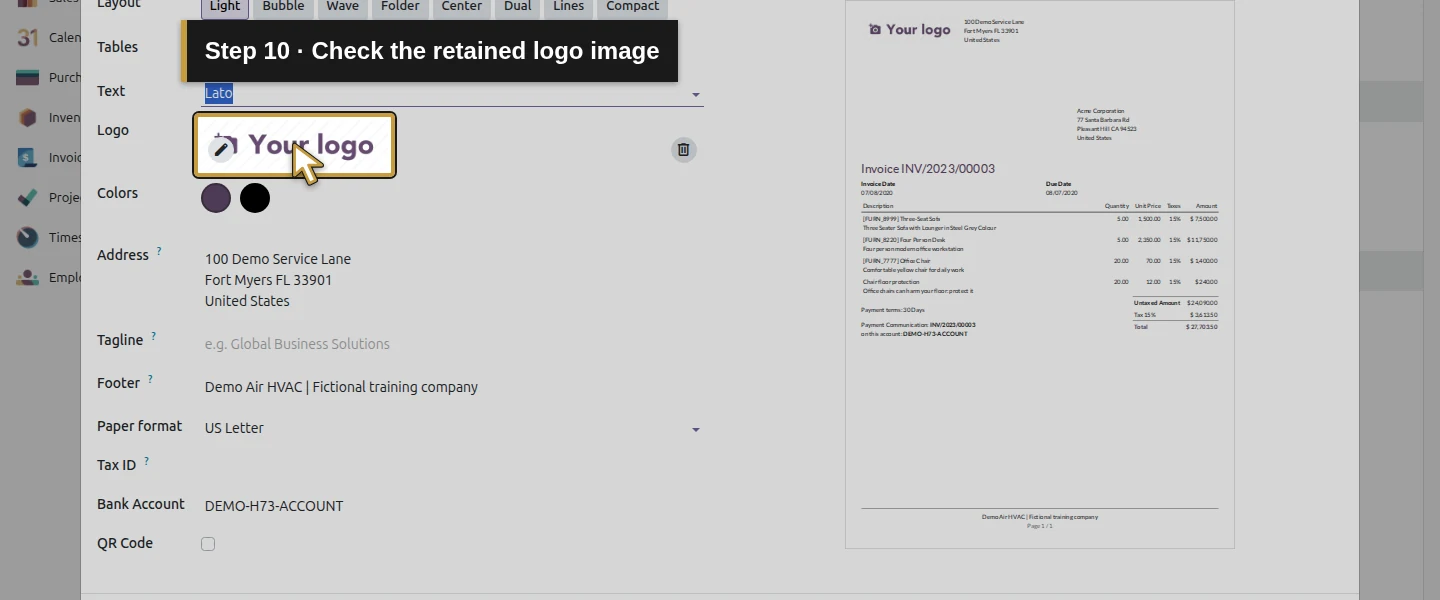
Hover over Logo and click its Edit pencil. Choose the PNG file through the file chooser. This test reuploaded the existing placeholder image without creating new artwork.
Step 4. Review the footer
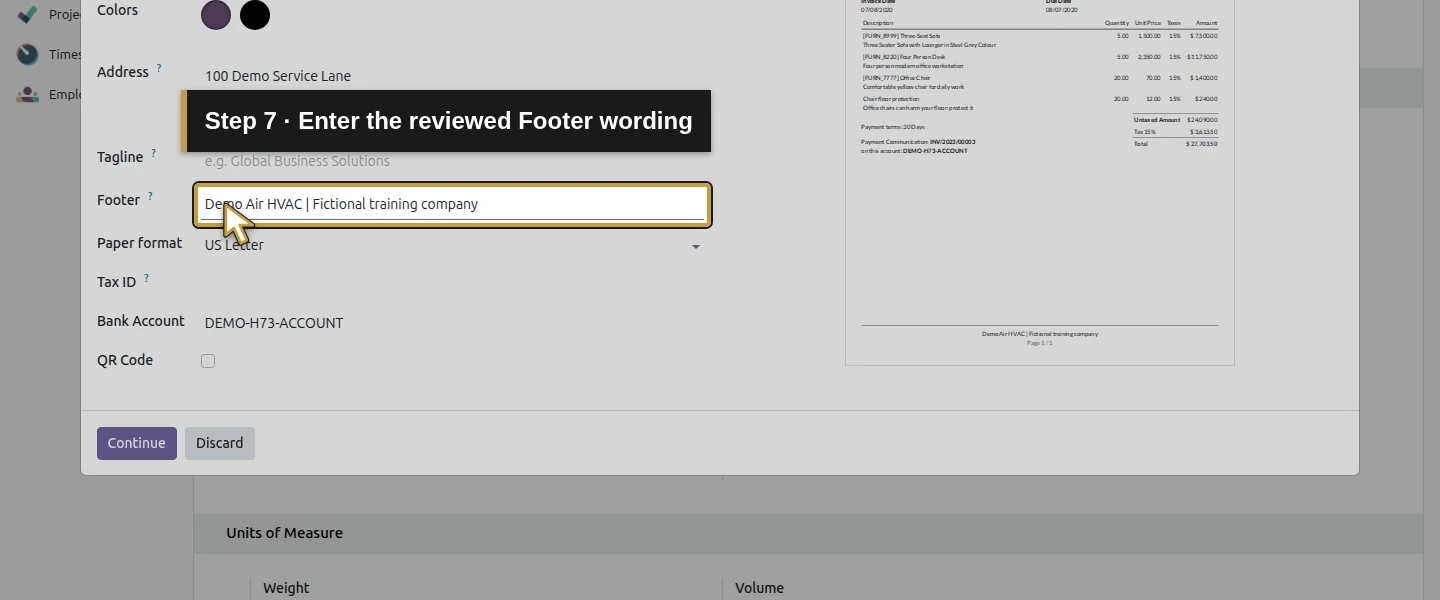
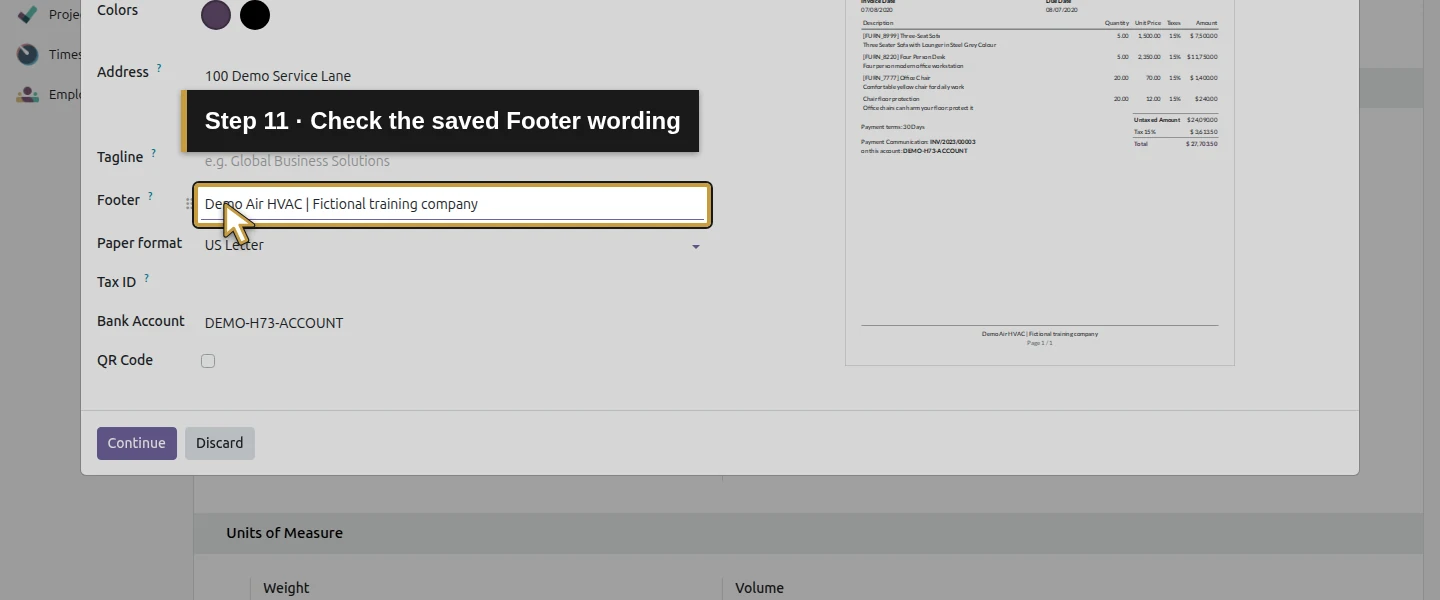
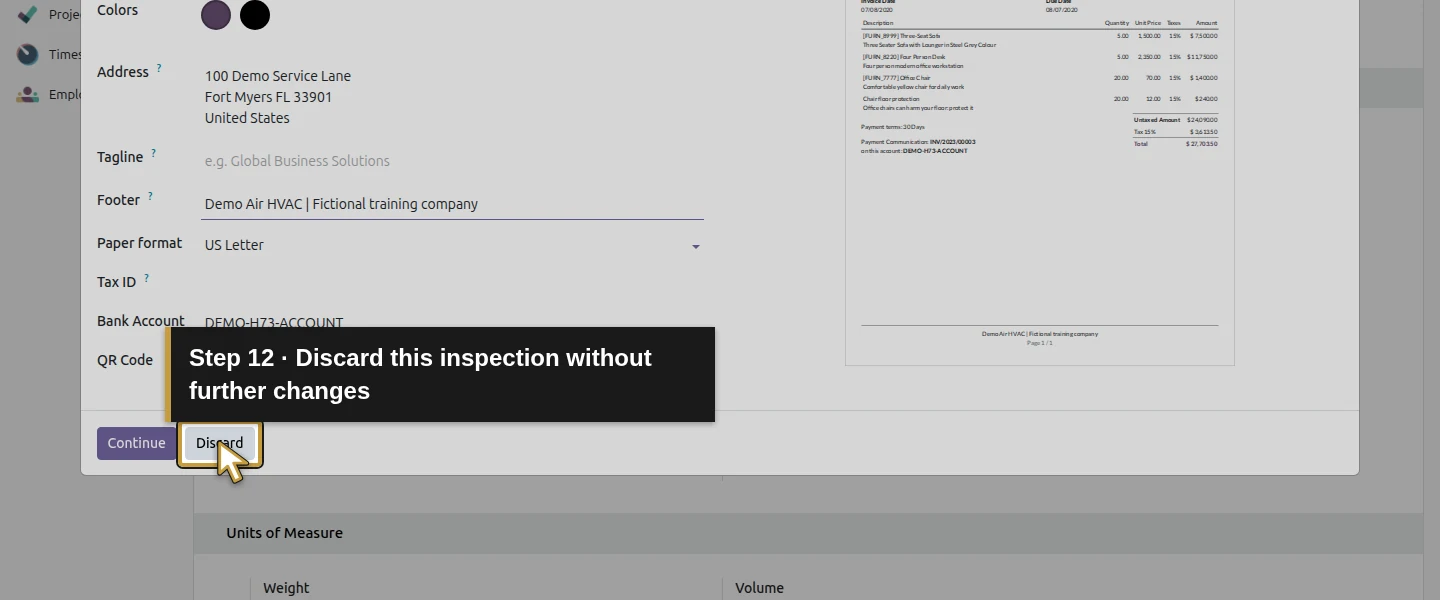
In Footer, enter the reviewed company wording. The training example uses Demo Air HVAC | Fictional training company. Review Tagline, Tax ID, Bank Account and QR Code only when those details are appropriate; they were not changed in this test.
Step 5. Apply the layout
Click Continue, the actual button in this dialog. Reopen Configure Document Layout and check the retained logo, address, footer and paper format. Use Discard to close that inspection without further edits.
Step 6. Download the actual quotation
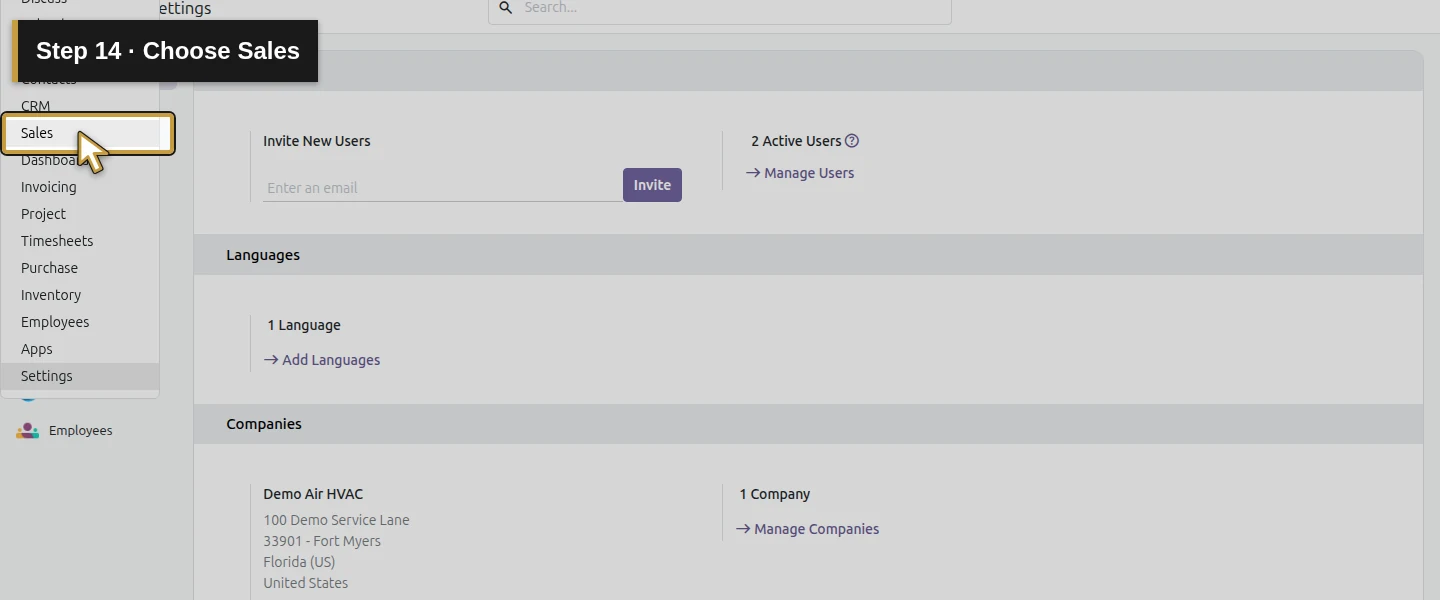
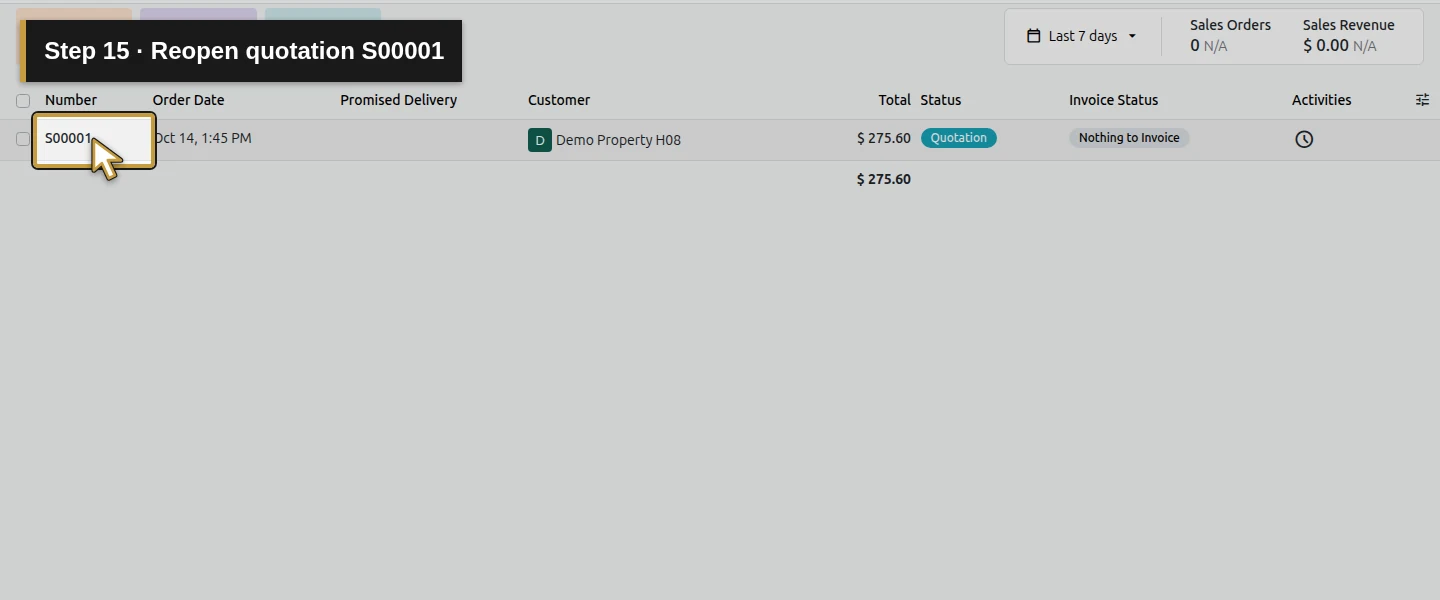
Open Sales, reopen S00001, and click Download. Inspect the actual PDF rather than relying only on the settings preview.
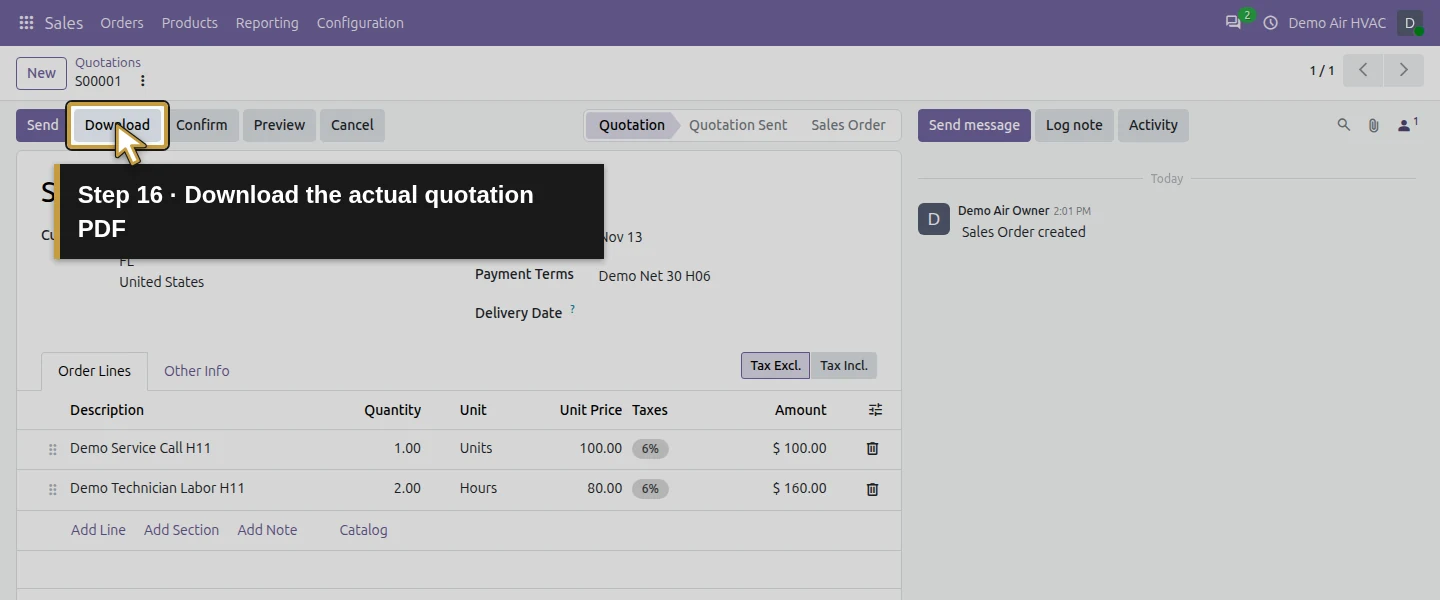
Step 7. Check the printed document
Verify the logo and company address in the header, the customer billing/service addresses, product lines, totals, footer and page number. The final demo PDF has the configured logo/address and footer, with the reviewed USD 275.60 total.
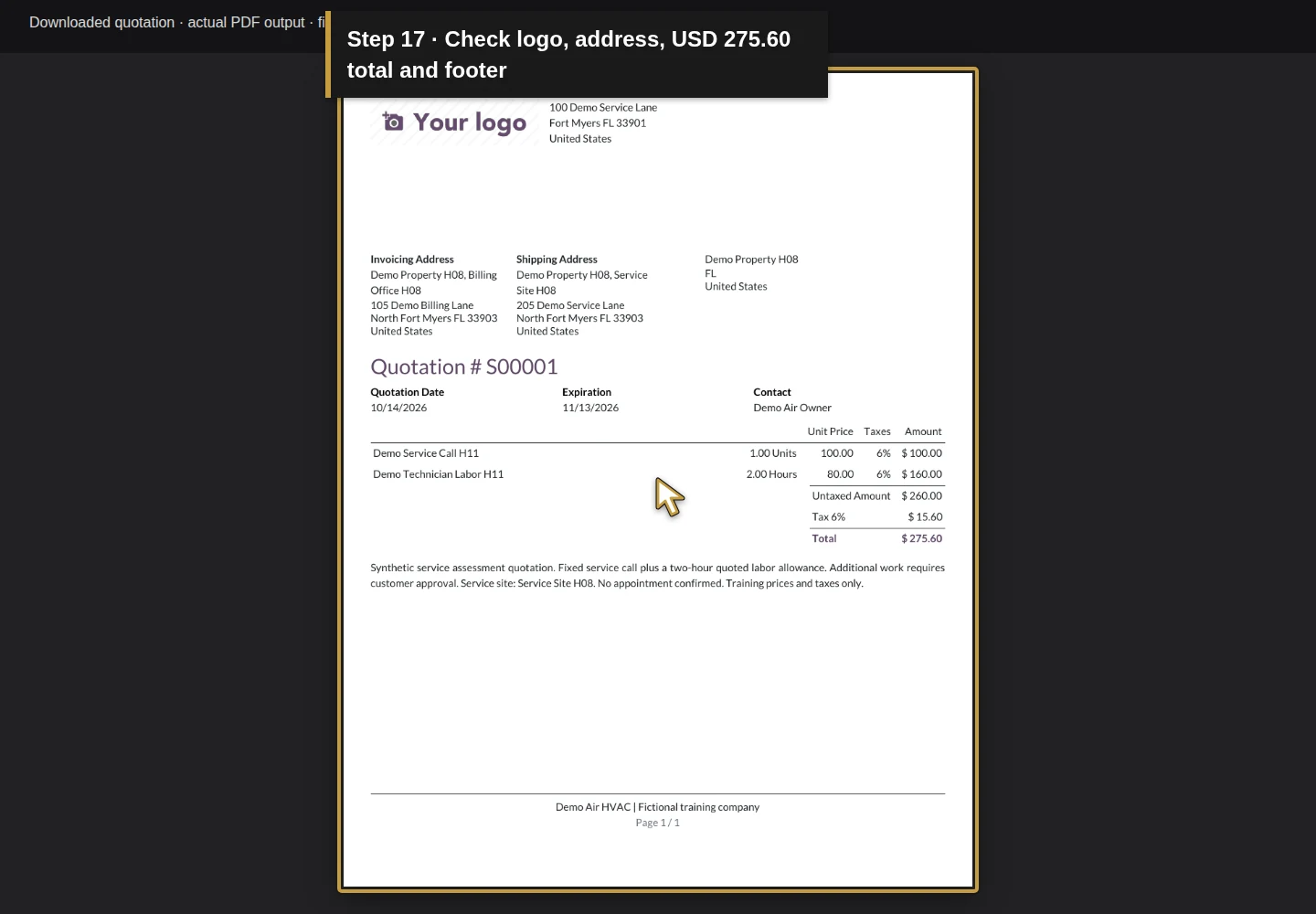
Check the result
The company layout retained the uploaded PNG, existing address and US Letter paper format, plus the fictional-company footer. The final downloaded quotation showed those header/footer details and correct table styling. Quotation S00001 remained draft; printing did not establish acceptance or payment.
If your screen differs
If the PDF is plain or missing header details while the preview looks correct, have the hosting administrator check the renderer's reachable service URL. In this Docker demo, the browser uses localhost:8078 and Odoo serves internally on port 8069. The standard report.url parameter was set through native System Parameters to http://127.0.0.1:8069; the public base URL remains localhost:8078. Use your actual hosting values. Other layouts, file formats, roles and actual invoice output remain untested here.
Frequently asked questions
How do I change the logo on Odoo invoices?
Open the standard company document-layout dialog, edit Logo, select your file and Continue. This test verified the quotation PDF; inspect your actual invoice output too.Can I use the same business details on quotations and invoices?
Review the company document settings for the intended company. The saved layout was checked on a quotation; the first invoice still needs its own output check.Why is my Odoo invoice logo missing?
Check the saved logo and actual document company. For self-hosted PDFs, also check that the renderer can reach its assets; this demo needed the native report.url setting.Continue building the business
Continue with payment terms, and check invoice output again when the invoicing workflow is verified.
Talk about your Odoo setup
Bring your current process and the result you need to Onward to plan your Odoo workflow. Talk about your Odoo setup.