Running an HVAC business with Odoo

Can I accept online invoice payments in Odoo?
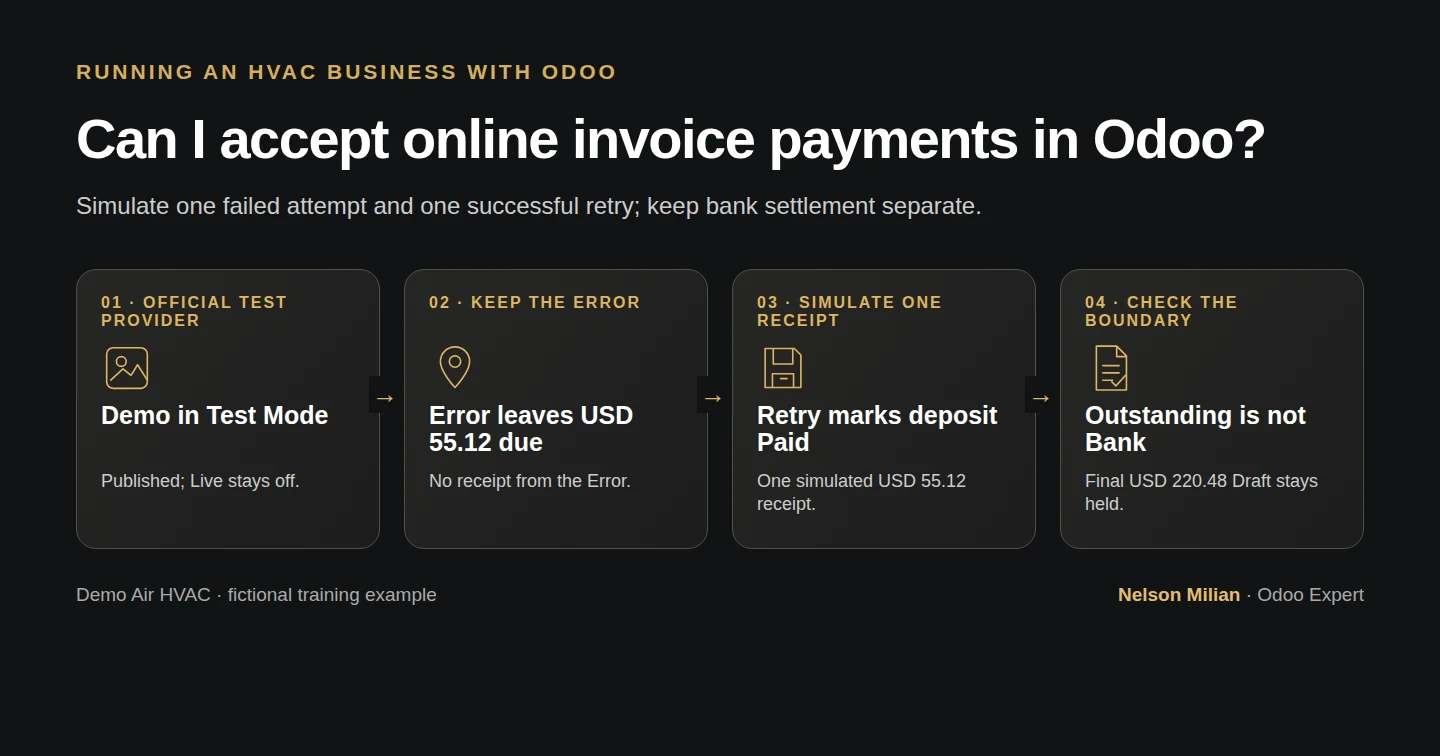
Workflow overview: Can I accept online invoice payments in Odoo?
Workflow overview. Instructional screenshots show the actual demo interface.

Test Odoo online invoice checkout with the official Demo provider, one error and successful retry, exact invoice/receipt links and no real charge.

Stock Odoo provides a demo checkout that can simulate an online invoice payment. Alex uses it to test the customer journey before considering a real processor. An Error attempt creates no receipt; a Successful retry creates one simulated $55.12 receipt and clears the deposit invoice. This verifies the shipped demo flow, not live card processing, fees, payouts or bank settlement.

Alex Rivera and Demo Air HVAC are fictional training examples. Prices, dates, quantities and business situations in this guide are illustrative.

Before you begin

Tested in stock Odoo 20.0-20260926 Community as the demo owner administrator, with official modules and standard configuration. Use a training database only. The owner administrator installs the official payment_demo module; a separate signed-out customer browser opens the native private invoice link. H27 supplies unpaid INV/2026/00002, the $55.12 deposit request on S00001, with Billing Office H08. Its $220.48 final invoice stays Draft/on hold. Reuse H73’s bank journal. H54’s $171.72 invoice has already been paid in H56 and is preserved. All checkout details below are invented test strings. No real card, processor account, credentials or live payment is used. Private invoice-link parameters stay out of public examples. Invoice Online Payment is already enabled in Invoicing settings in this example; the later native settings check confirmed it without changing the setting.

Step-by-step workflow

Stock Odoo 20 Community. Fictional Demo Air HVAC uses the official Demo provider in Test Mode: one Error creates no receipt; one Successful retry creates one simulated USD 55.12 receipt. No real money or bank settlement is demonstrated. The USD 220.48 final invoice stays Draft and held for review.

Step 1. Install the official Demo provider

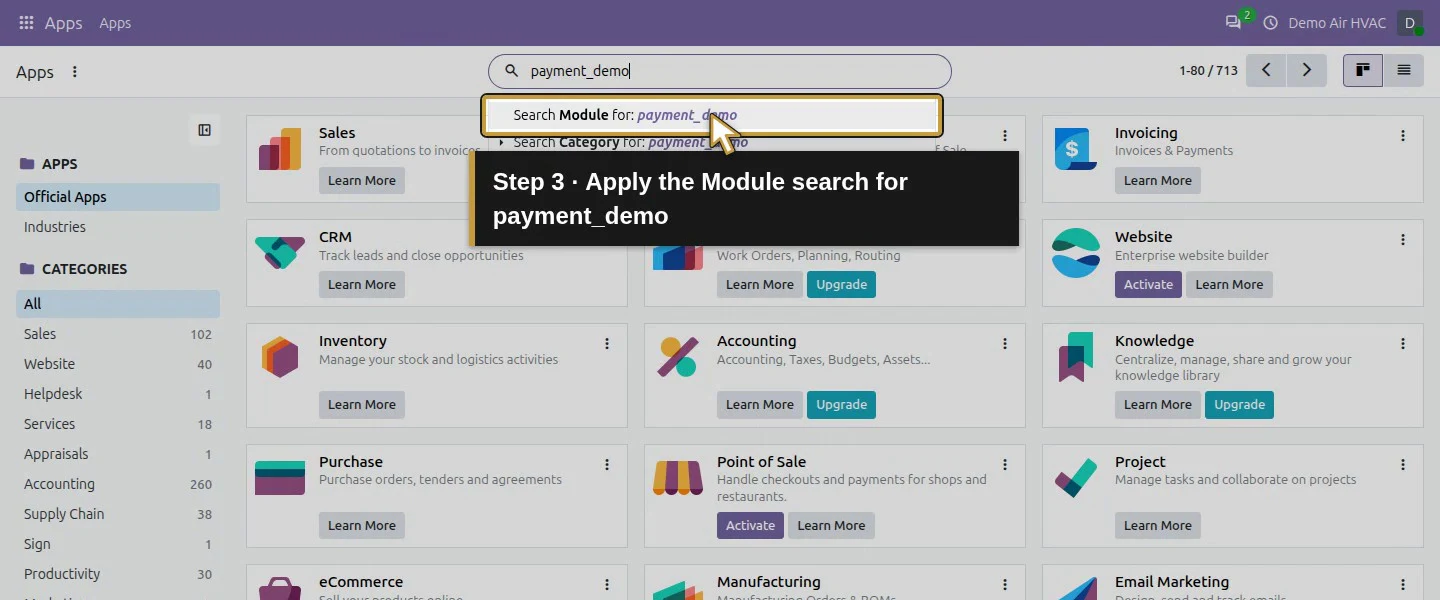
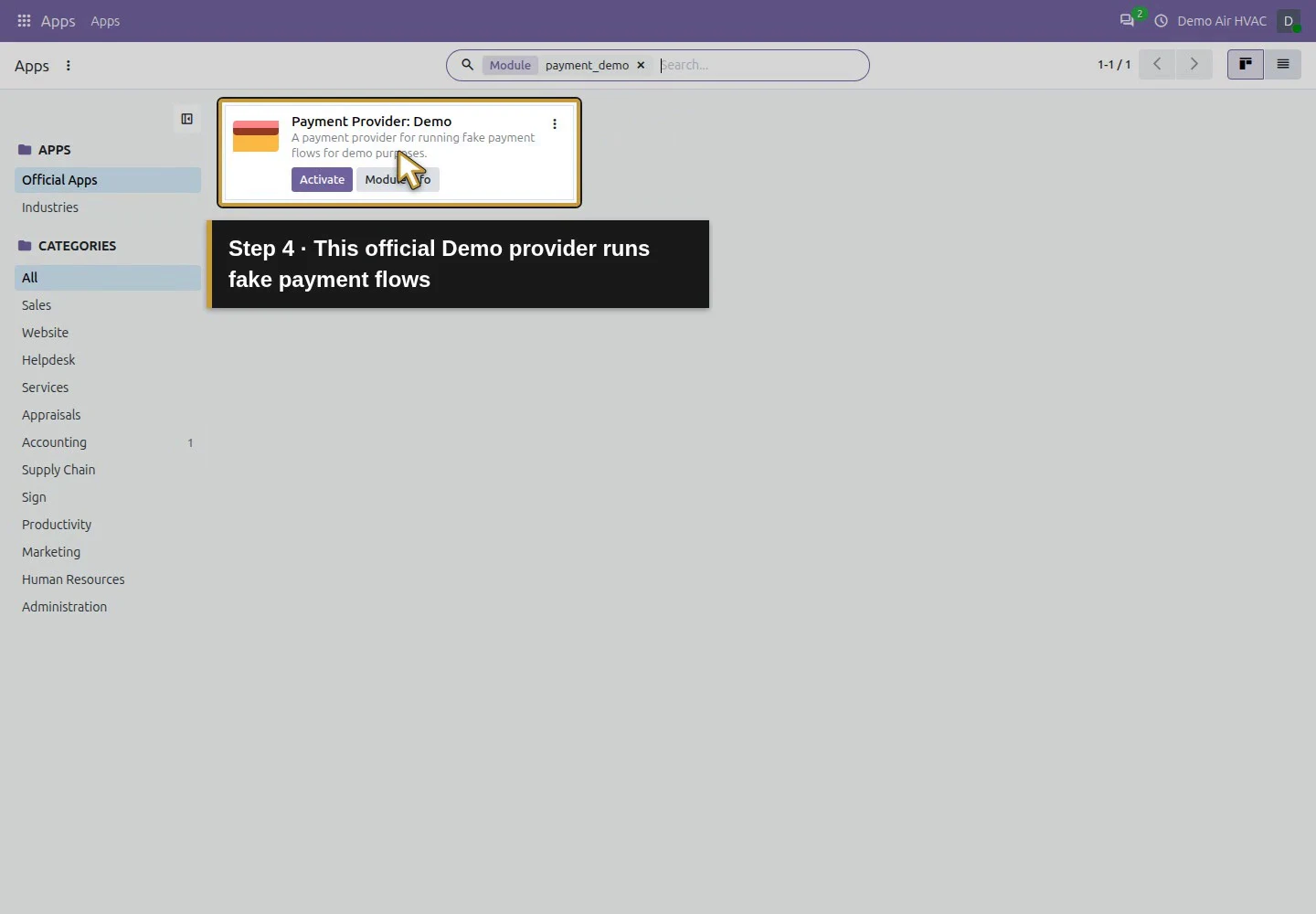
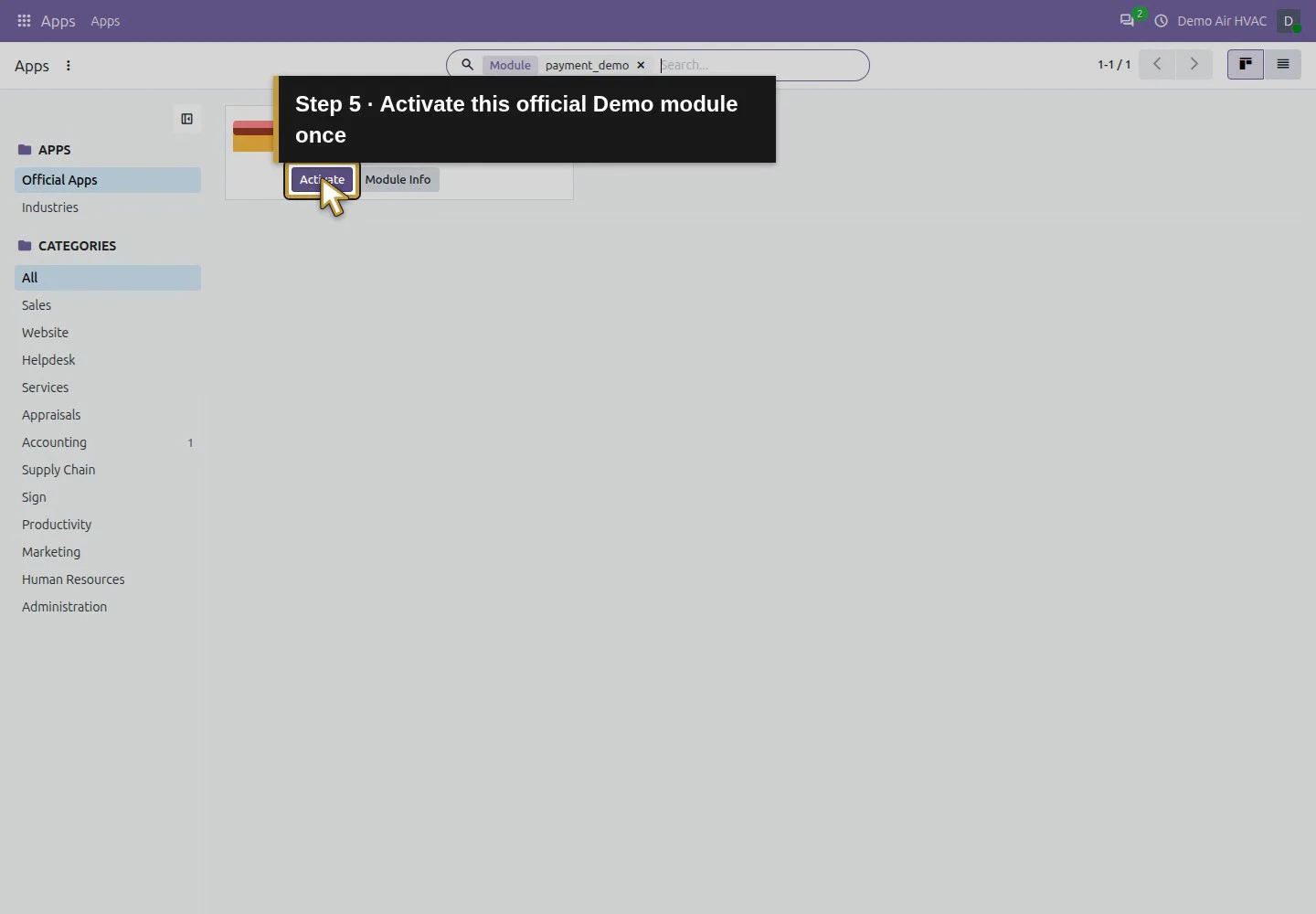
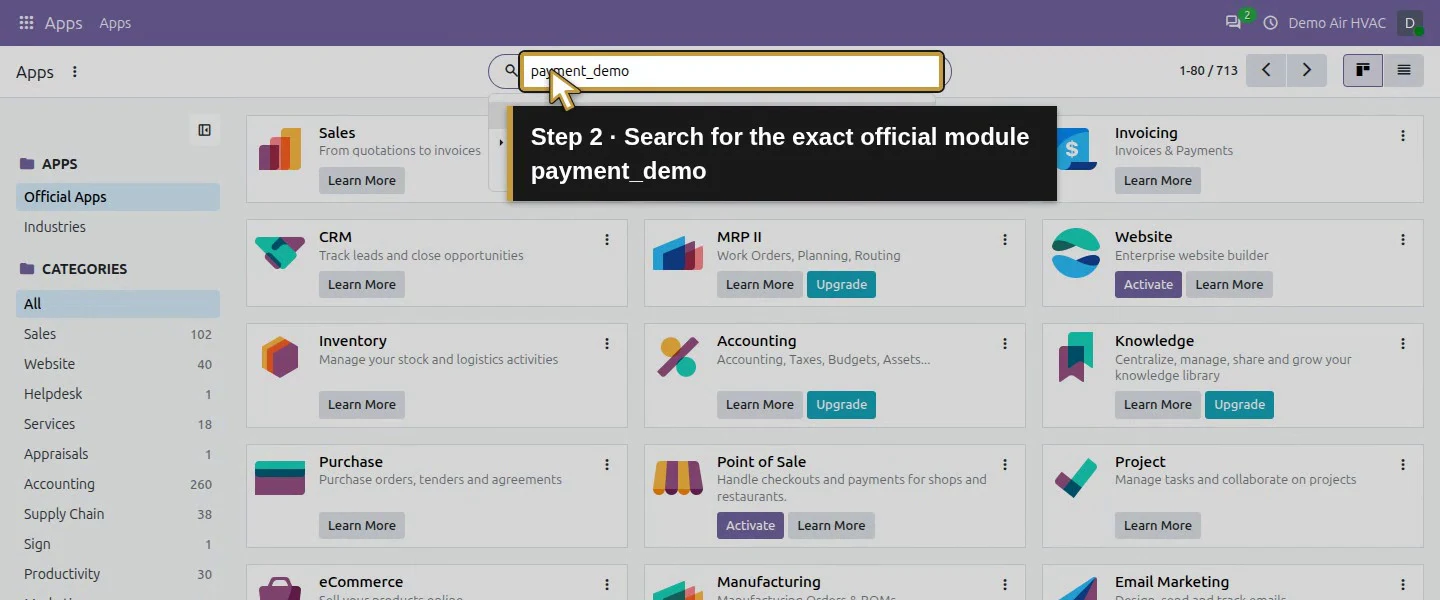
Open Apps, remove the default Apps filter and wait for the list to refresh. Search payment_demo, apply the Module search and locate Payment Provider: Demo. Click its Activate once and wait for installation. The selected module is supplied by Odoo S.A. under LGPL-3; it is not an Enterprise upgrade or a third-party module. The existing official Payment Engine and Payment - Account modules were already installed.
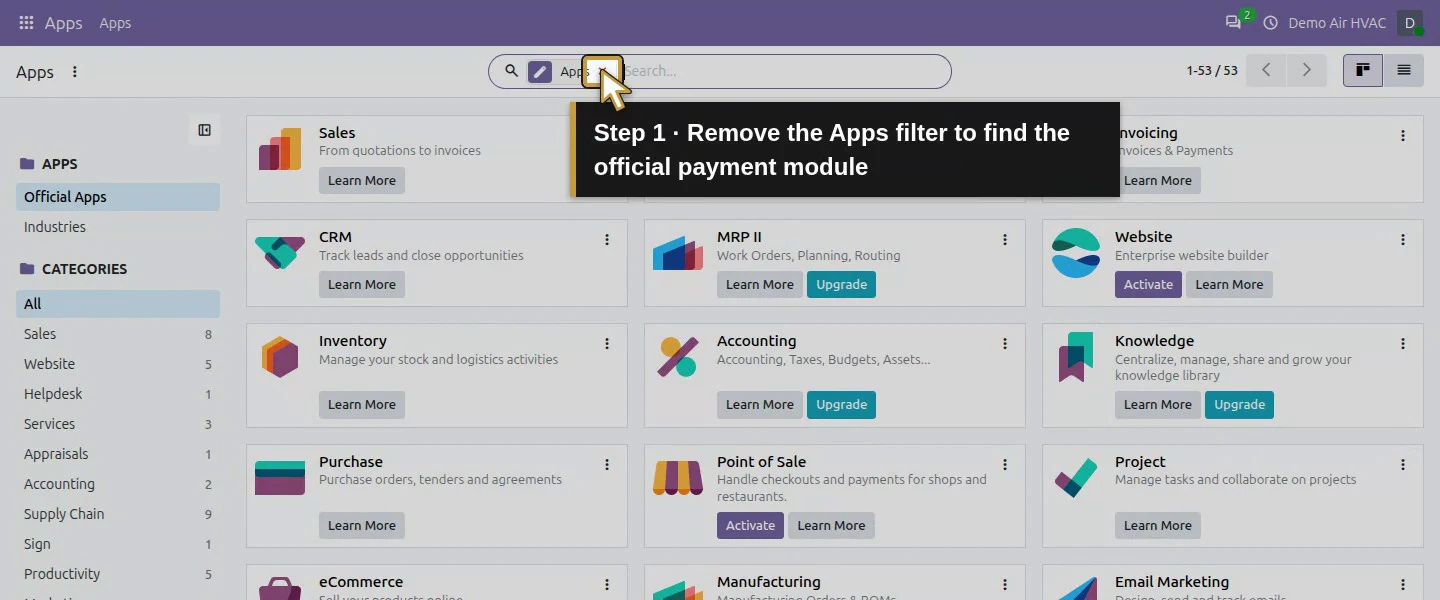
Action 1: Remove the Apps filter to find the official payment module. The actual target is highlighted in gold.
Remove the Apps filter to find the official payment module.
Action 2: Search for the exact official module payment_demo. The actual target is highlighted in gold.
Search for the exact official module payment_demo.
Action 3: Apply the Module search for payment_demo. The actual target is highlighted in gold.
Apply the Module search for payment_demo.
Action 4: This official Demo provider runs fake payment flows. The actual target is highlighted in gold.
This official Demo provider runs fake payment flows.
Action 5: Activate this official Demo module once. The actual target is highlighted in gold.
Activate this official Demo module once.

Step 2. Inspect the actual test settings

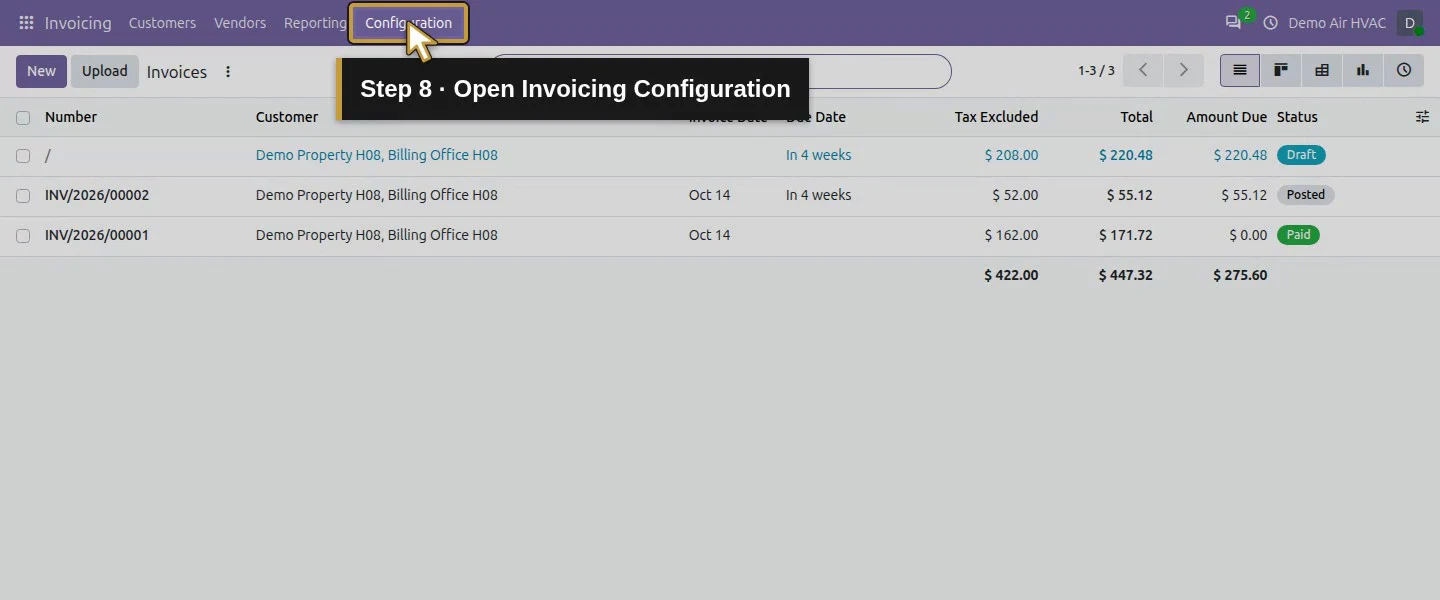
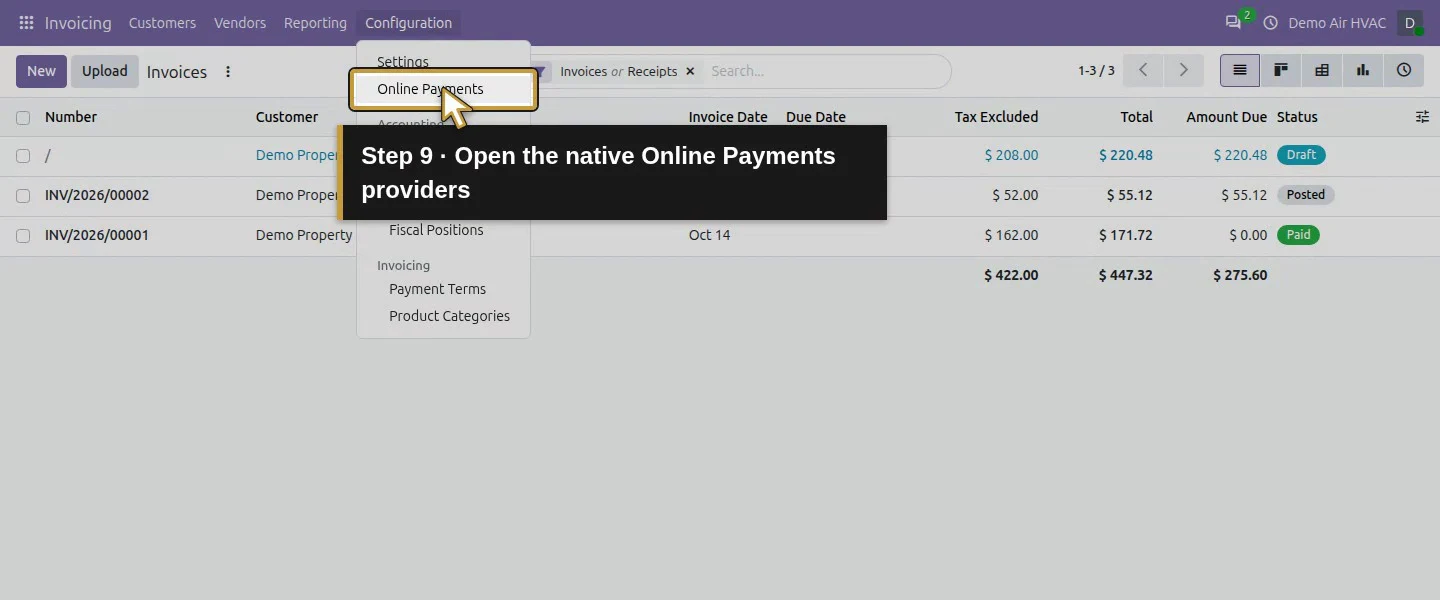
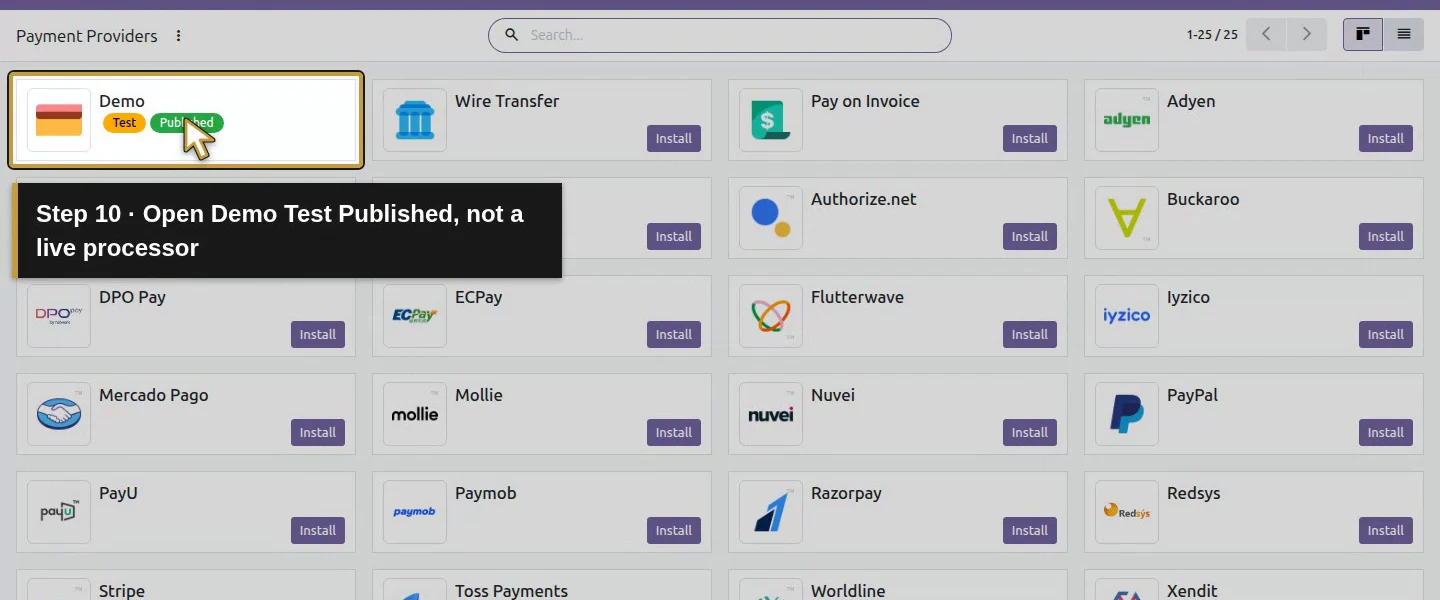
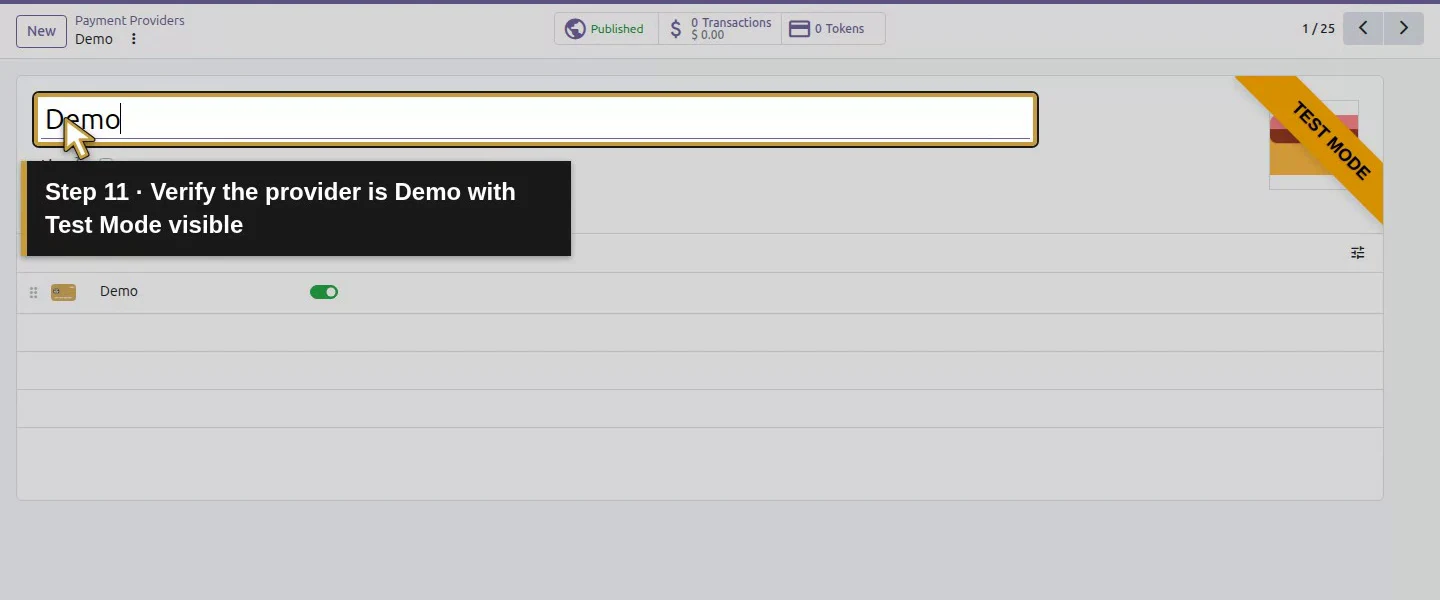
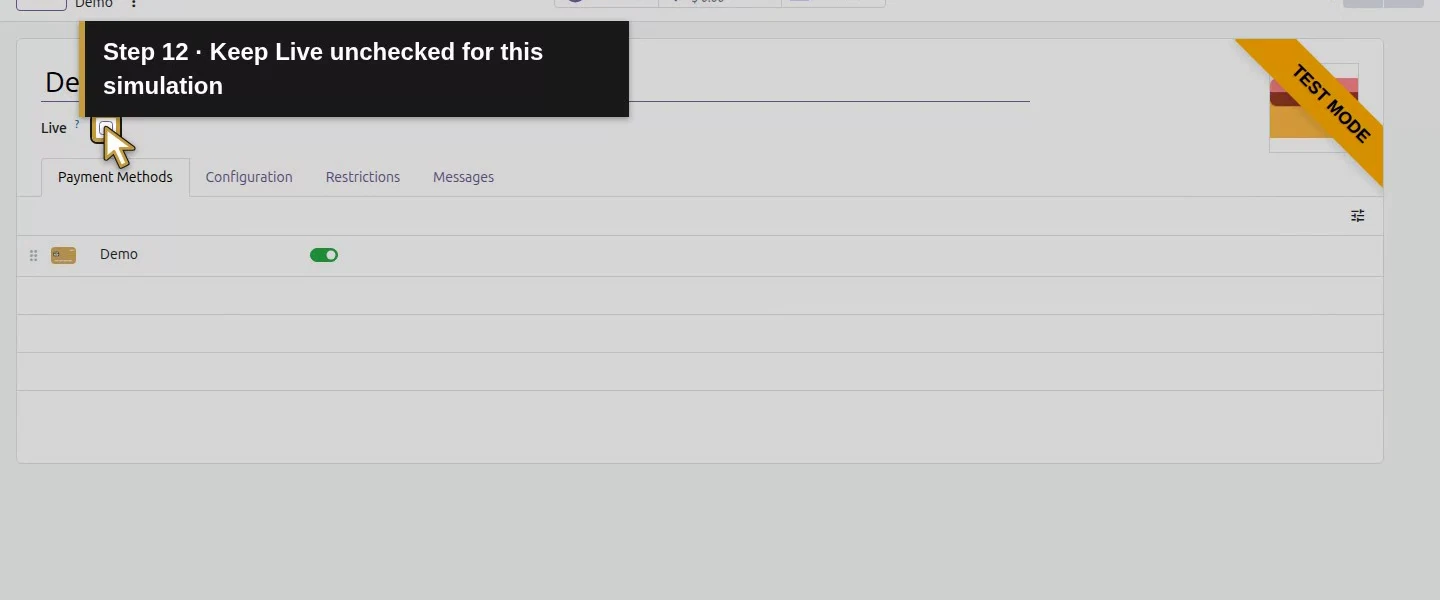
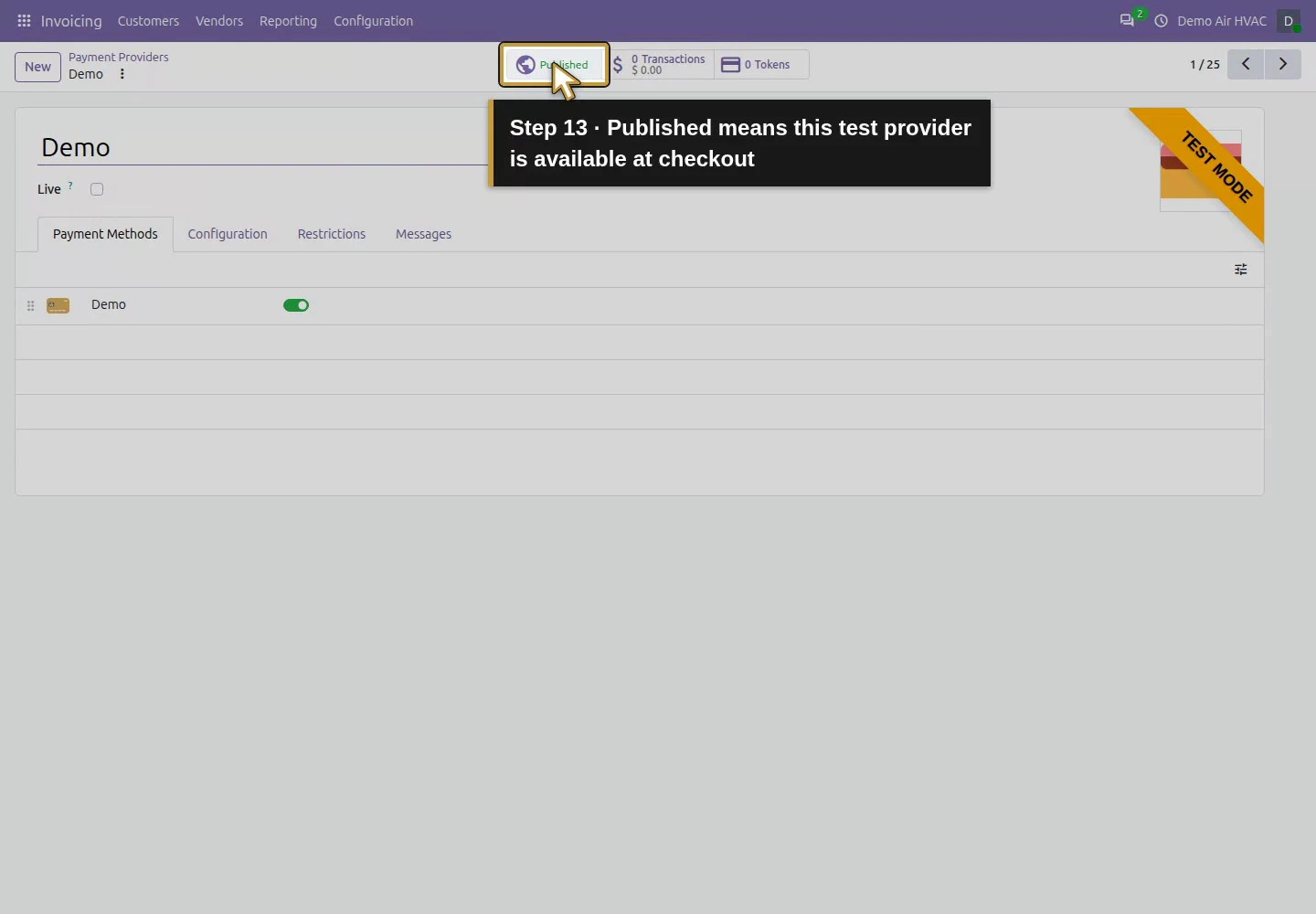
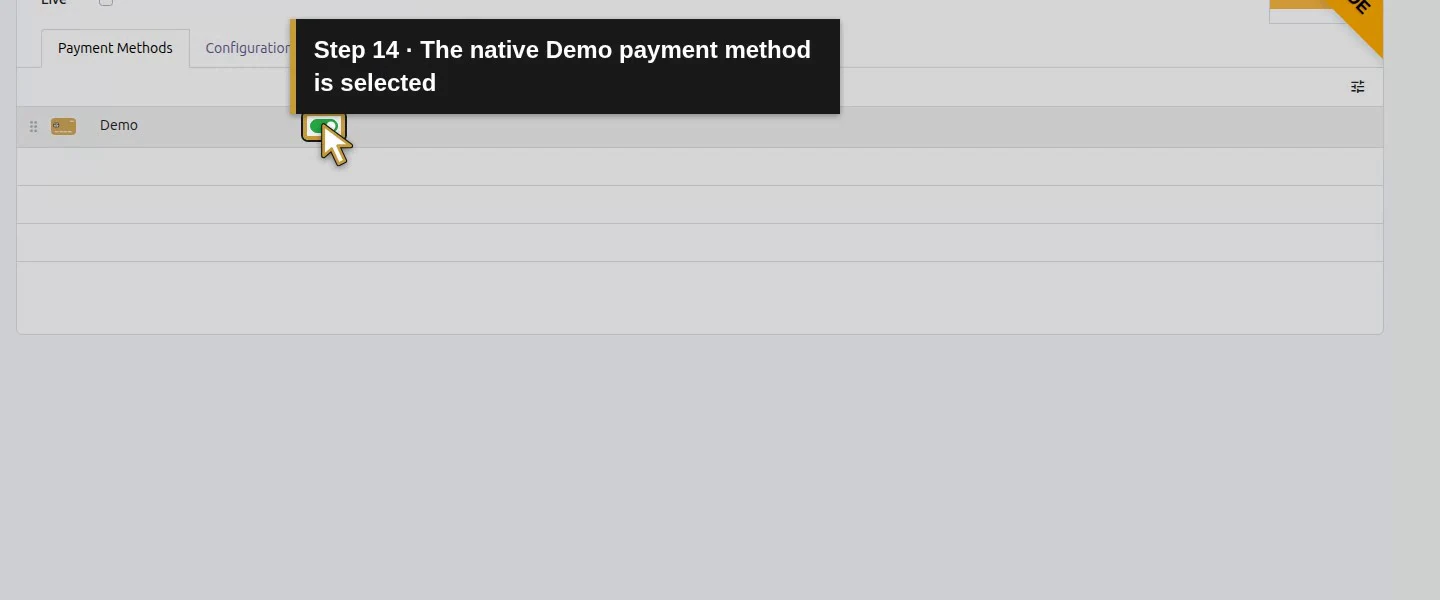
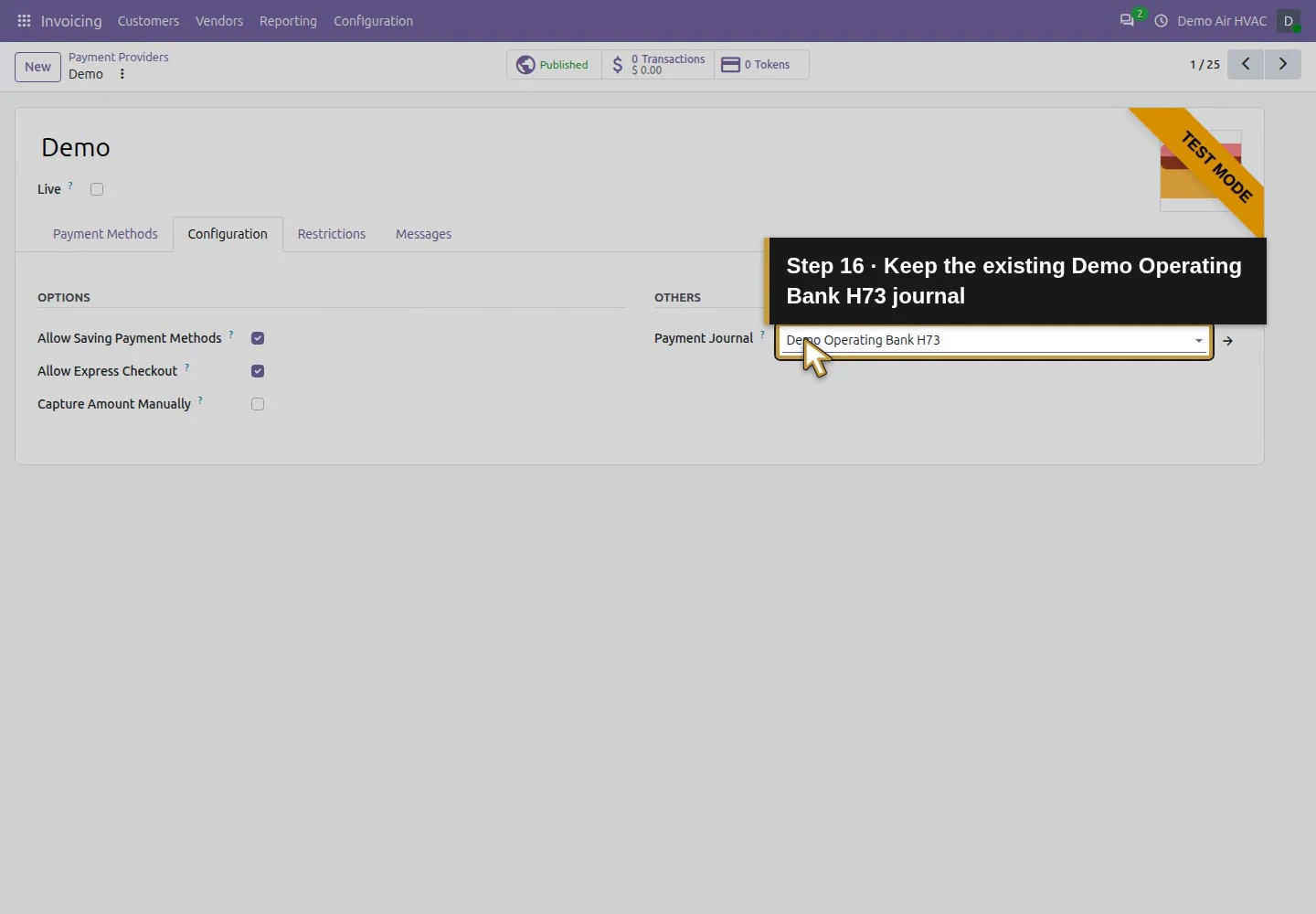
Open Invoicing → Configuration → Online Payments and select Demo Test Published. The provider form shows Test Mode, Published and an unchecked Live box. Its Demo payment method is checked. In Configuration, the inherited Payment Journal is Demo Operating Bank H73. These were the module’s saved defaults in this runtime; no Live activation or processor credentials were needed. The final record remains Test Mode.
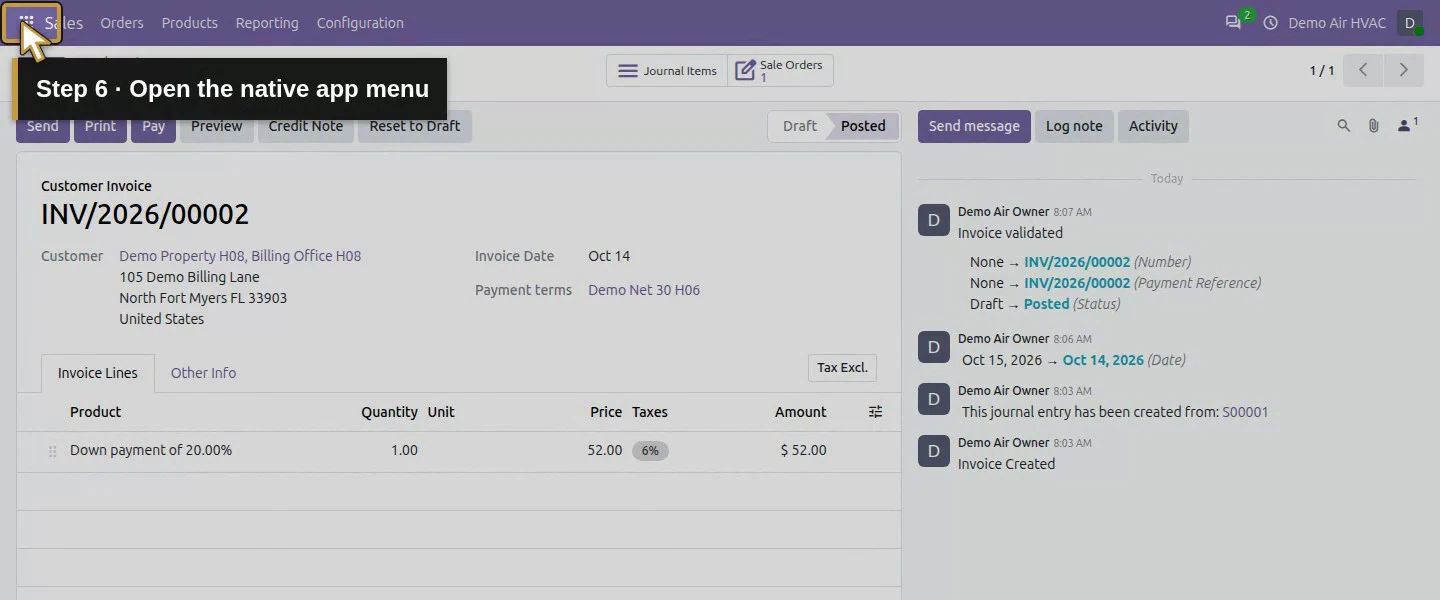
Action 6: Open the native app menu. The actual target is highlighted in gold.
Open the native app menu.
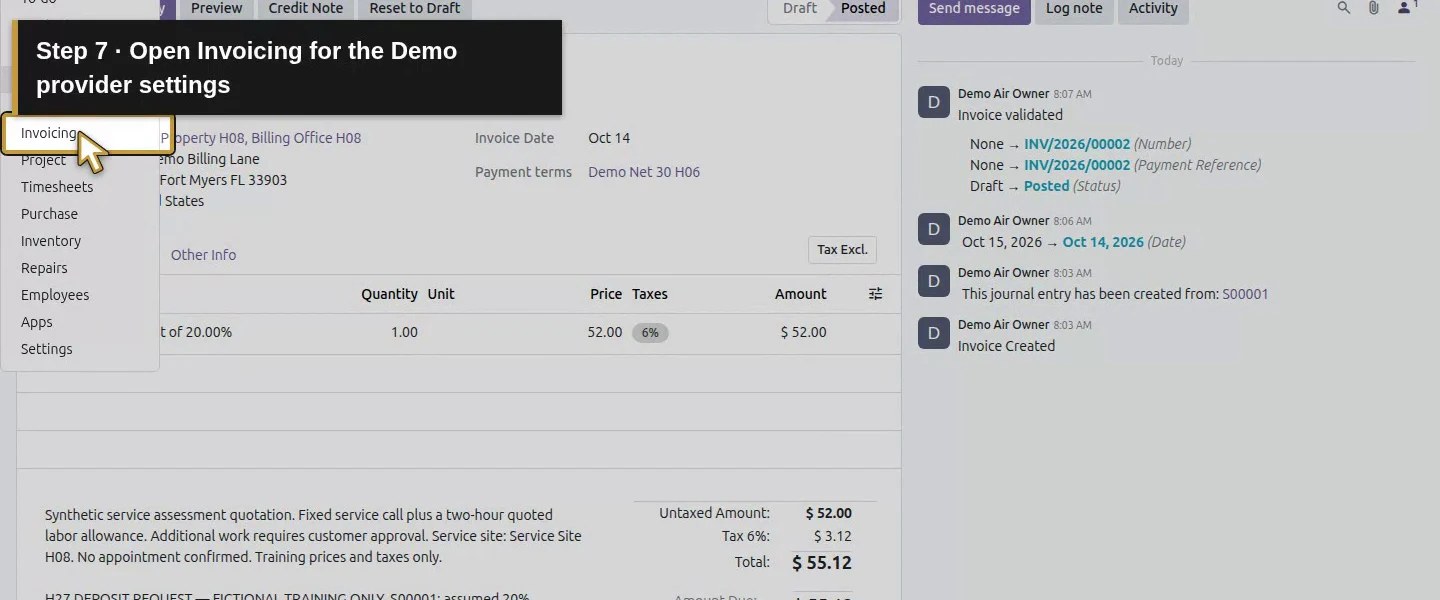
Action 7: Open Invoicing for the Demo provider settings. The actual target is highlighted in gold.
Open Invoicing for the Demo provider settings.
Action 8: Open Invoicing Configuration. The actual target is highlighted in gold.
Open Invoicing Configuration.
Action 9: Open the native Online Payments providers. The actual target is highlighted in gold.
Open the native Online Payments providers.
Action 10: Open Demo Test Published, not a live processor. The actual target is highlighted in gold.
Open Demo Test Published, not a live processor.
Action 11: Verify the provider is Demo with Test Mode visible. The actual target is highlighted in gold.
Verify the provider is Demo with Test Mode visible.
Action 12: Keep Live unchecked for this simulation. The actual target is highlighted in gold.
Keep Live unchecked for this simulation.
Action 13: Published means this test provider is available at checkout. The actual target is highlighted in gold.
Published means this test provider is available at checkout.
Action 14: The native Demo payment method is selected. The actual target is highlighted in gold.
The native Demo payment method is selected.
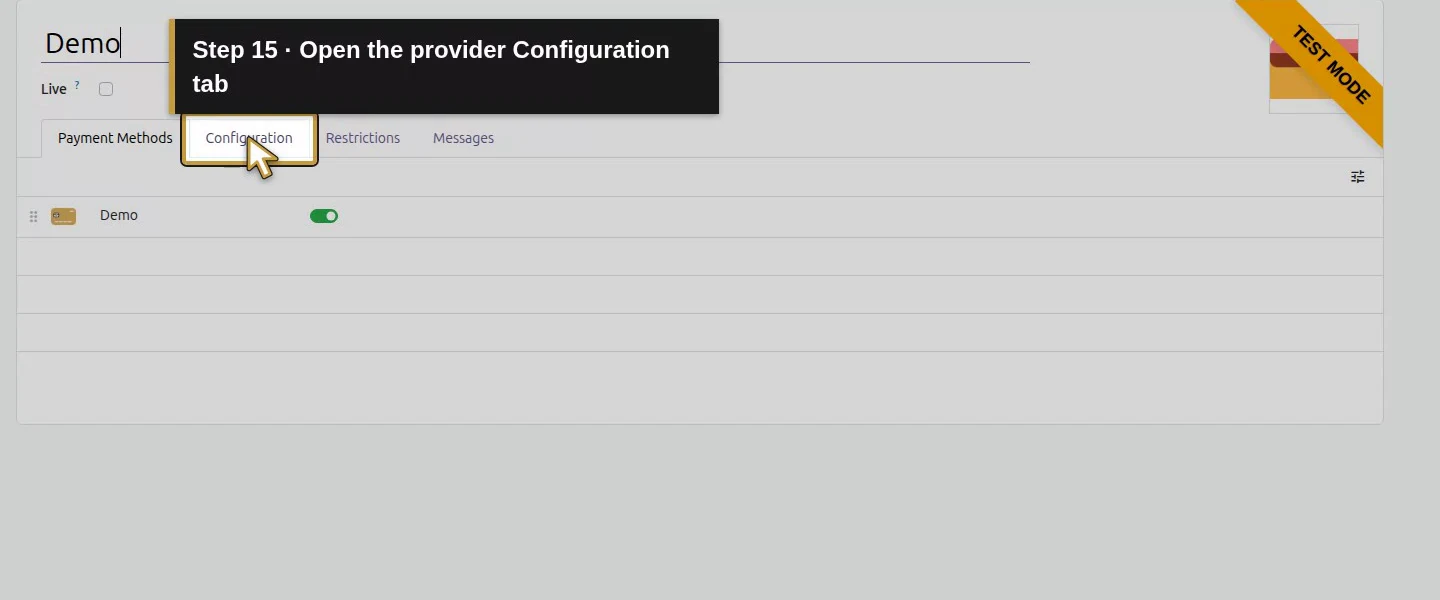
Action 15: Open the provider Configuration tab. The actual target is highlighted in gold.
Open the provider Configuration tab.
Action 16: Keep the existing Demo Operating Bank H73 journal. The actual target is highlighted in gold.
Keep the existing Demo Operating Bank H73 journal.

Step 3. Open the unpaid deposit as a customer

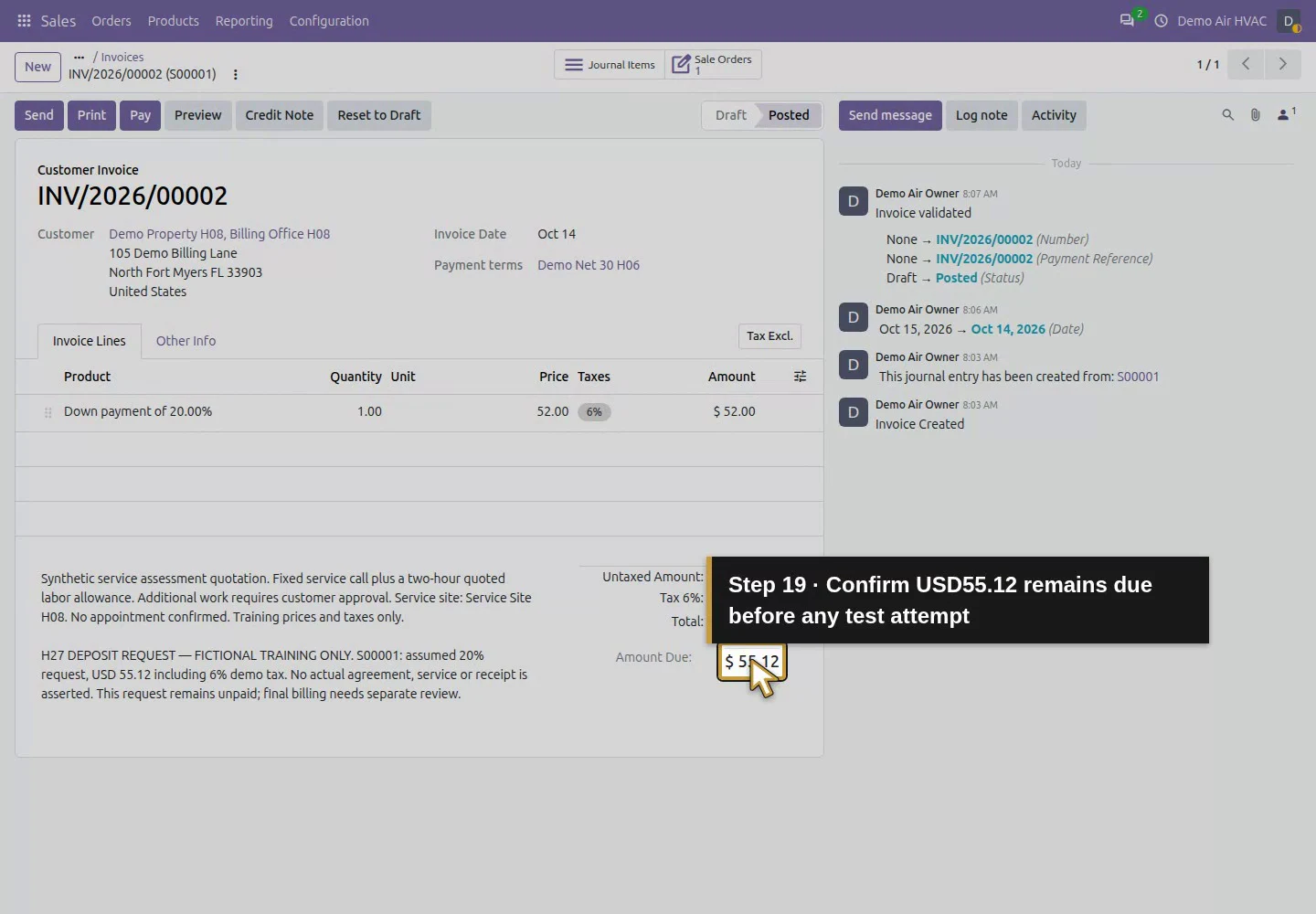
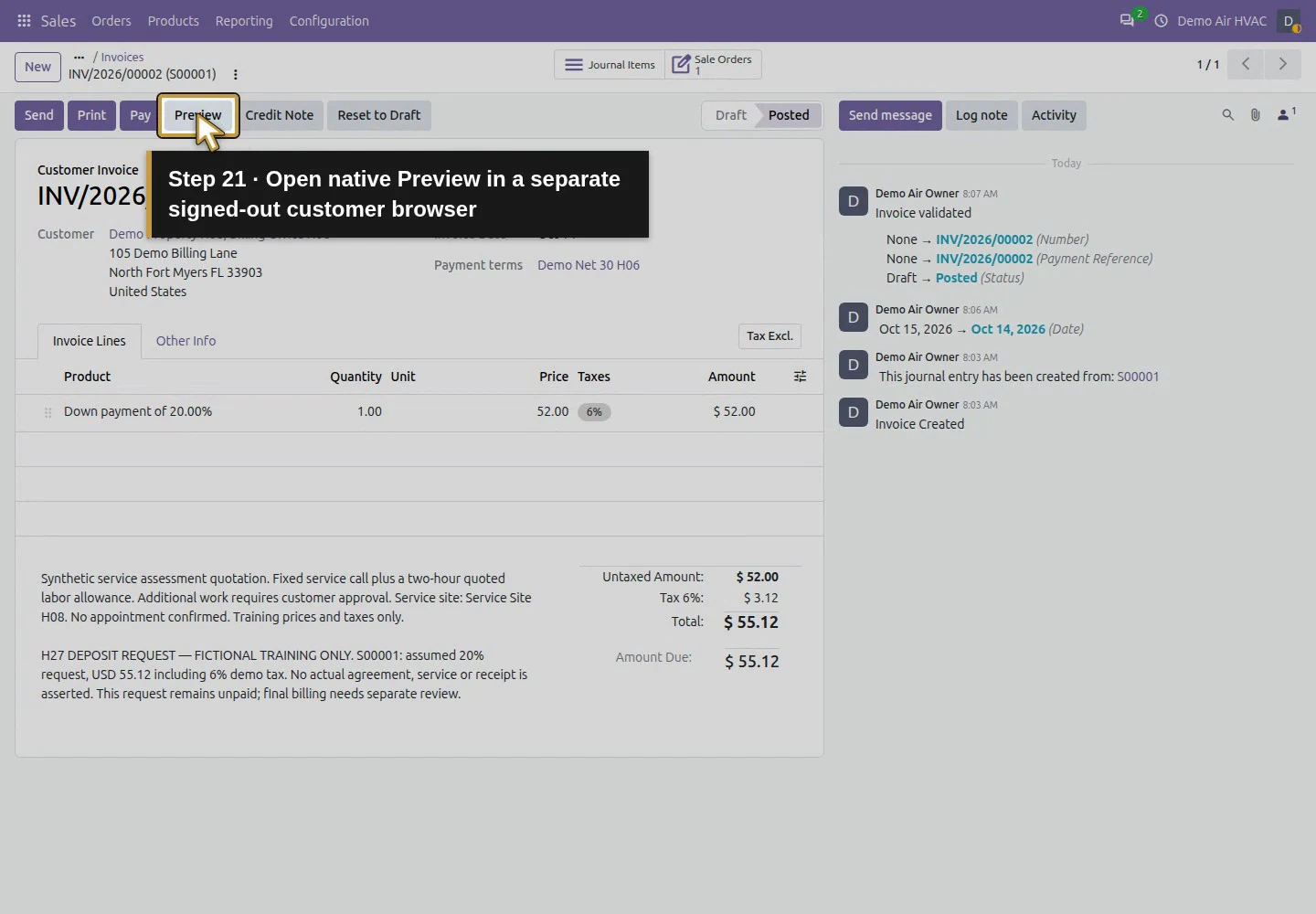
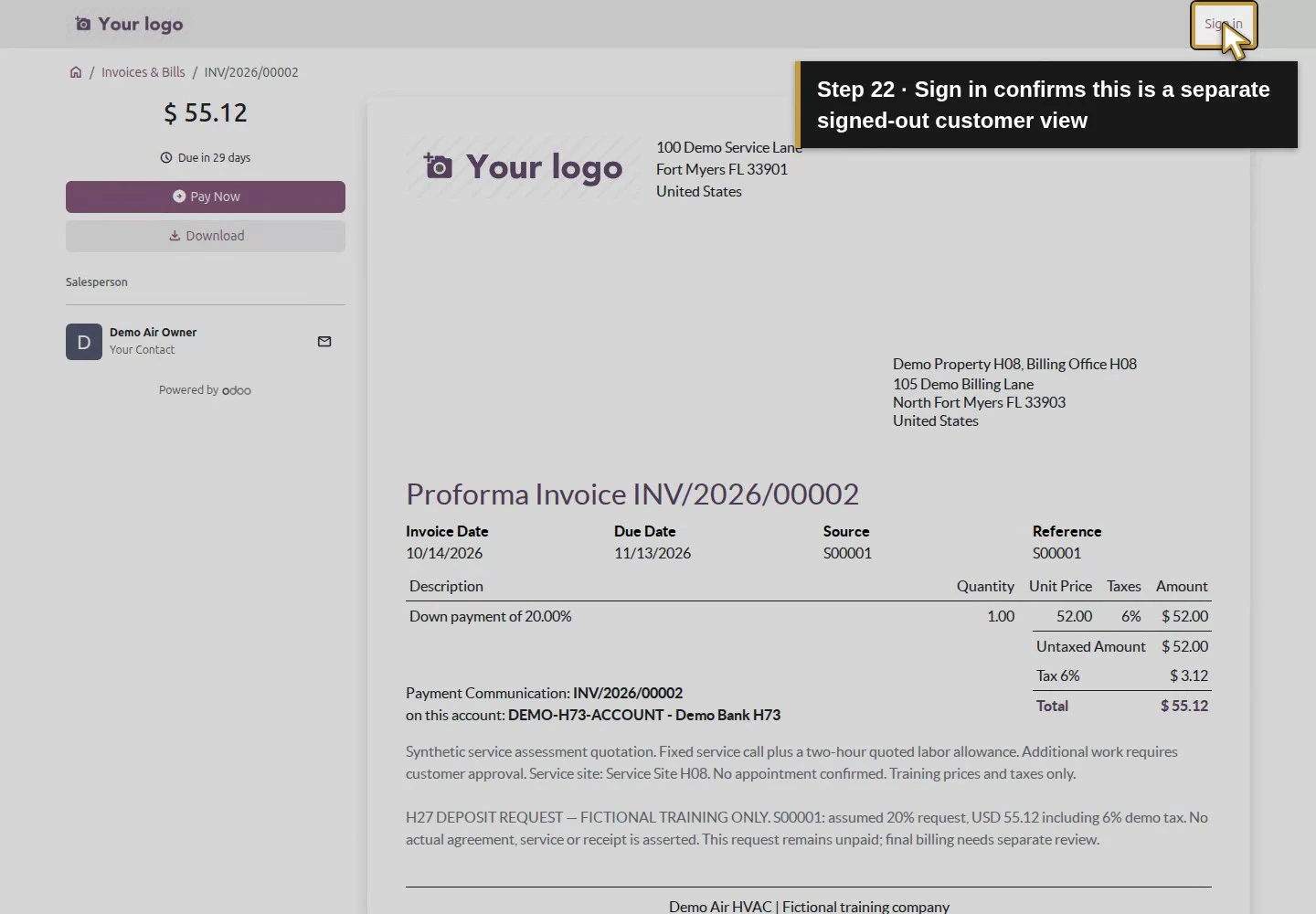
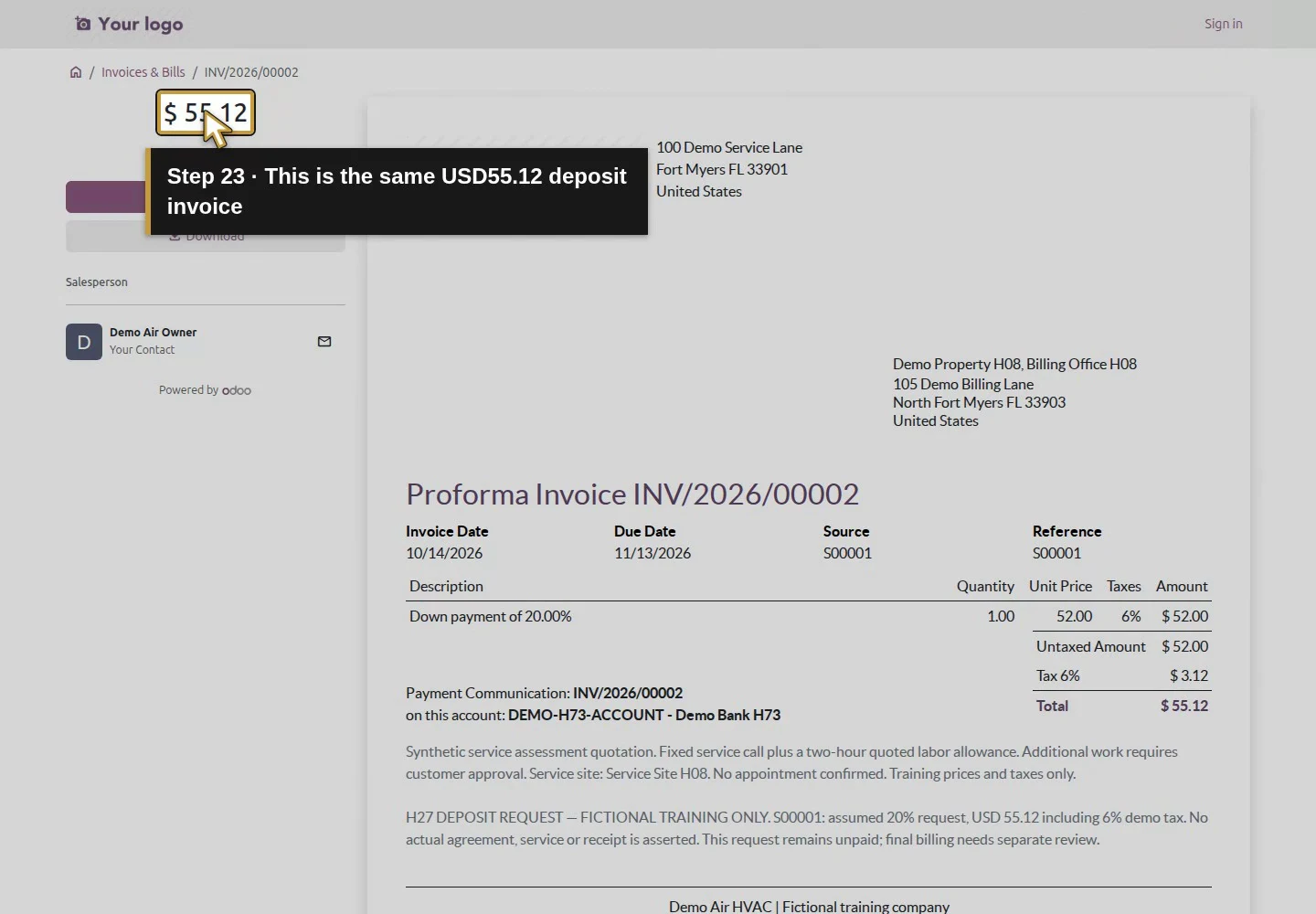
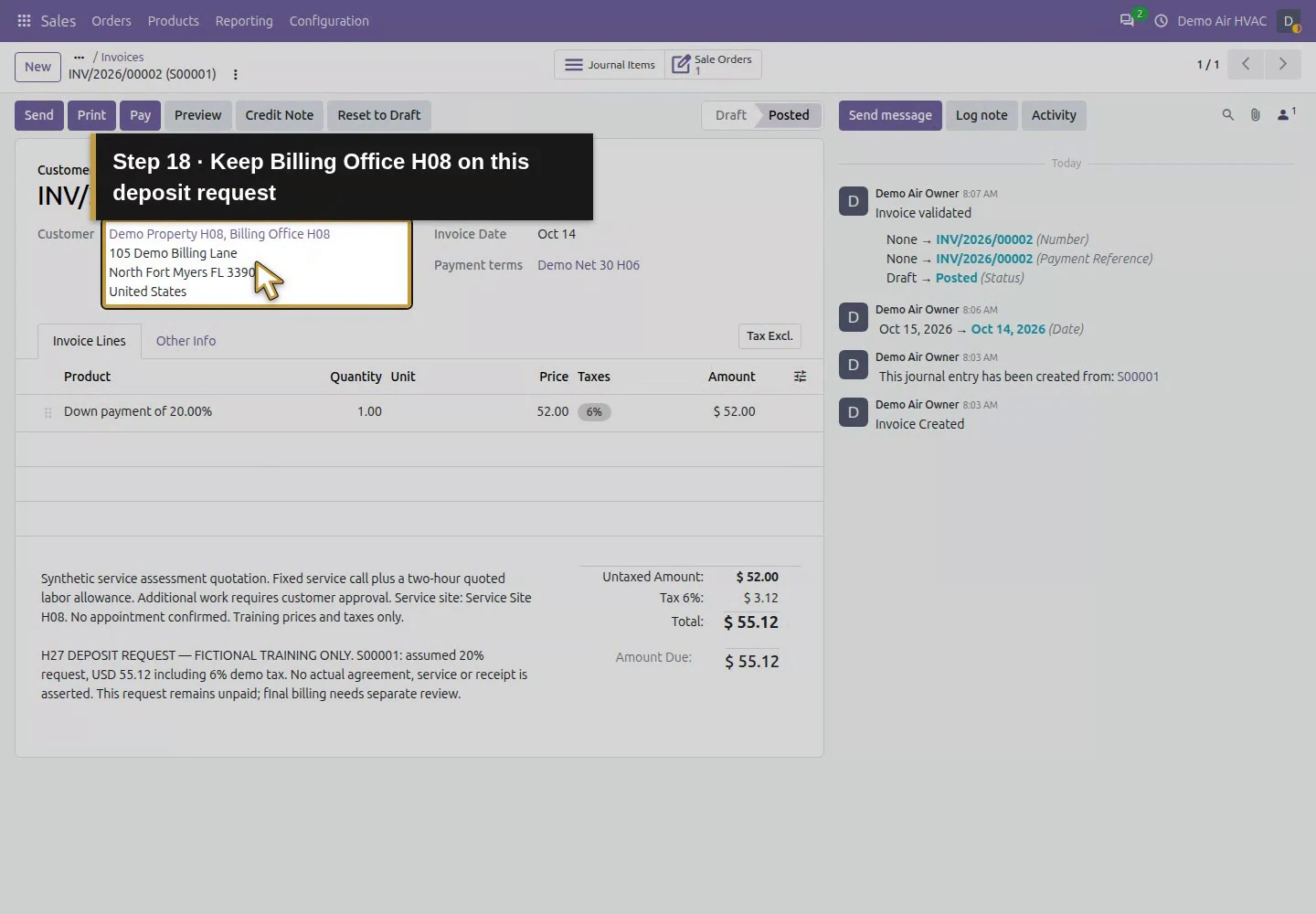
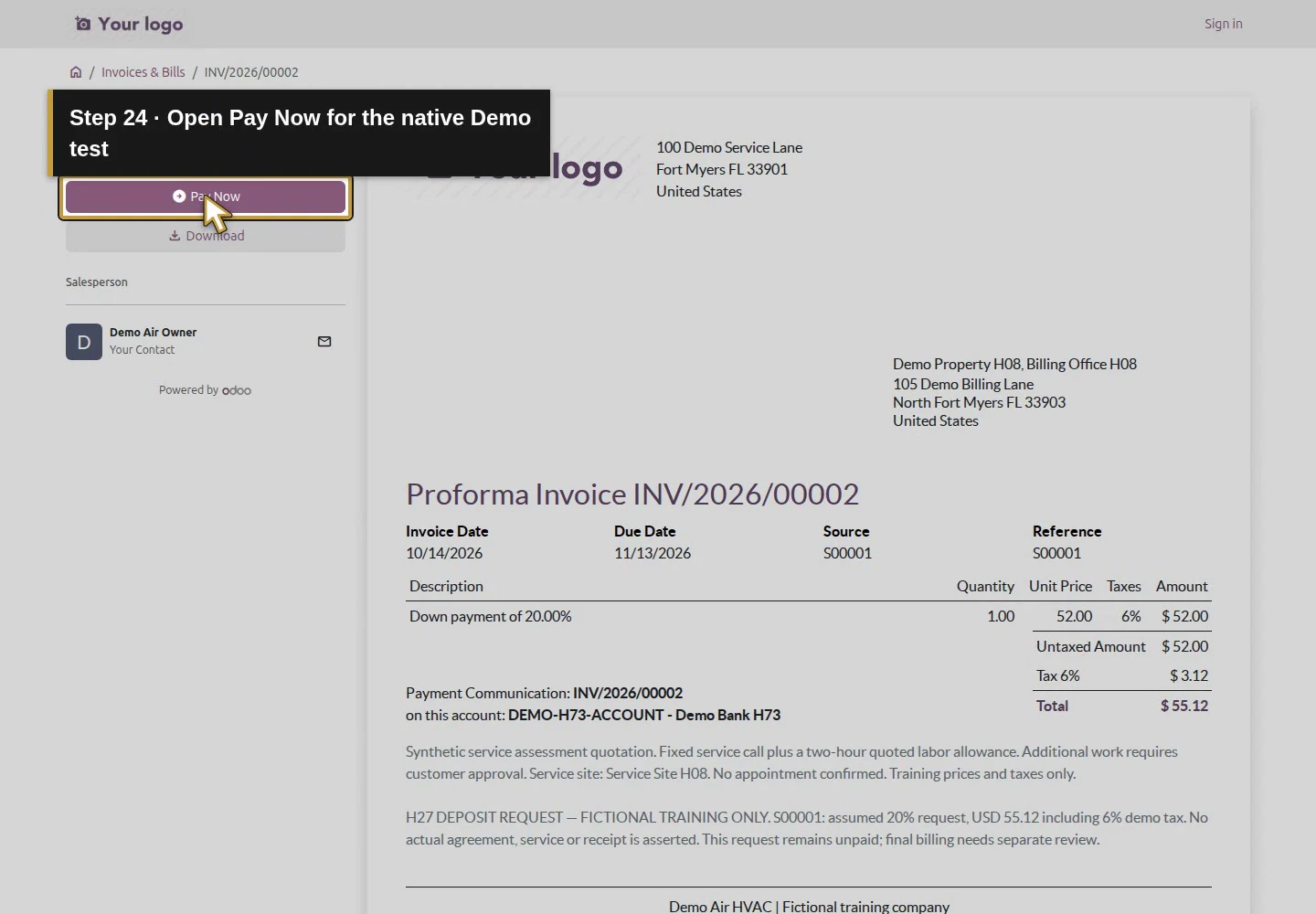
Open INV/2026/00002 and verify Posted, $55.12 due and the correct billing contact. Click Preview, then open its resulting private invoice link in a separate signed-out browser. The customer page offers Sign in and Pay Now and identifies the $55.12 invoice. This test uses the genuine preview link; it does not establish invoice-email delivery. Keep the private URL private.
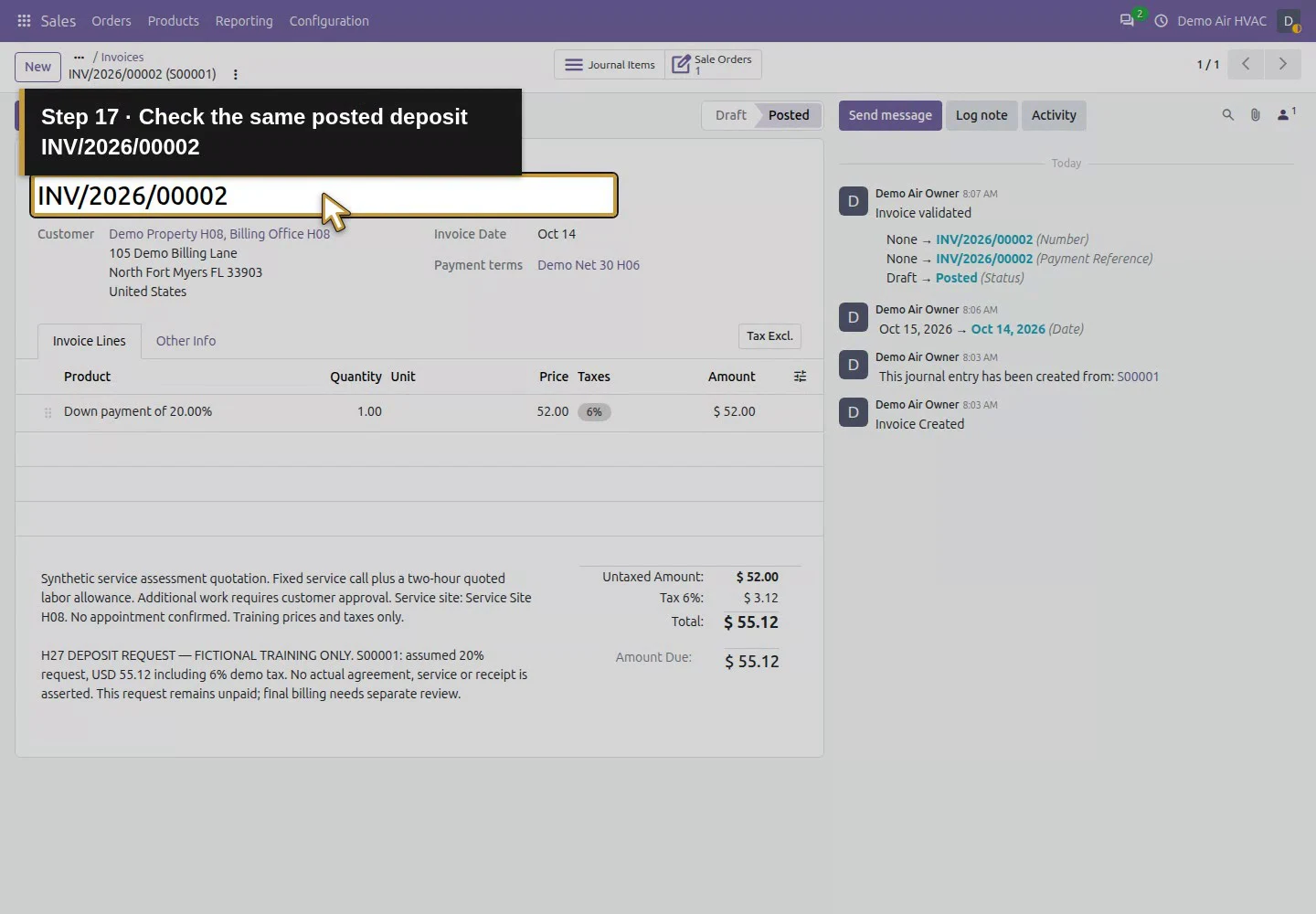
Action 17: Check the same posted deposit INV/2026/00002. The actual target is highlighted in gold.
Check the same posted deposit INV/2026/00002.
Action 18: Keep Billing Office H08 on this deposit request. The actual target is highlighted in gold.
Keep Billing Office H08 on this deposit request.
Action 19: Confirm USD55.12 remains due before any test attempt. The actual target is highlighted in gold.
Confirm USD55.12 remains due before any test attempt.
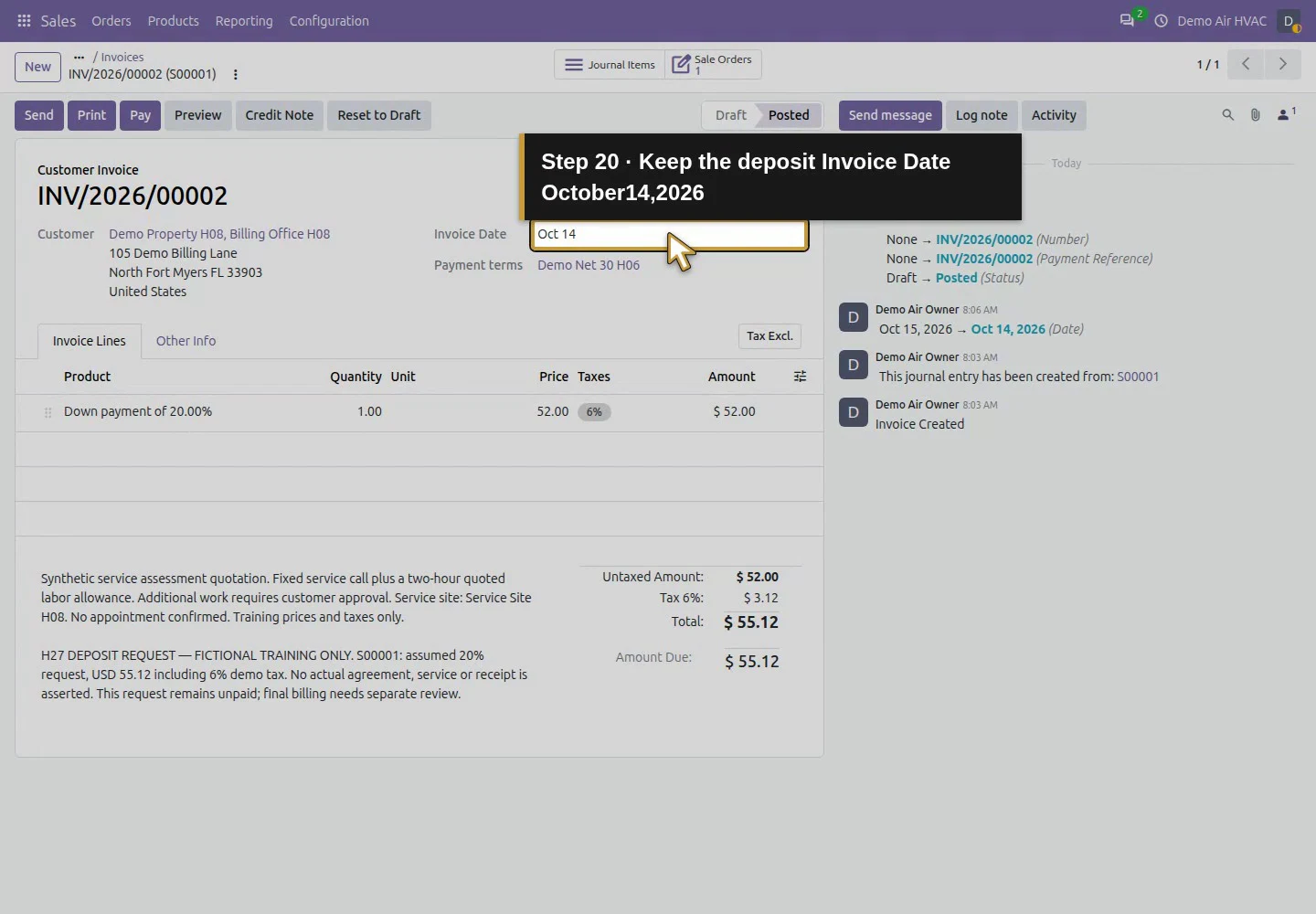
Action 20: Keep the deposit Invoice Date October14,2026. The actual target is highlighted in gold.
Keep the deposit Invoice Date October14,2026.
Action 21: Open native Preview in a separate signed-out customer browser. The actual target is highlighted in gold.
Open native Preview in a separate signed-out customer browser.
Action 22: Sign in confirms this is a separate signed-out customer view. The actual target is highlighted in gold.
Sign in confirms this is a separate signed-out customer view.
Action 23: This is the same USD55.12 deposit invoice. The actual target is highlighted in gold.
This is the same USD55.12 deposit invoice.

Step 4. Review the native Pay dialog

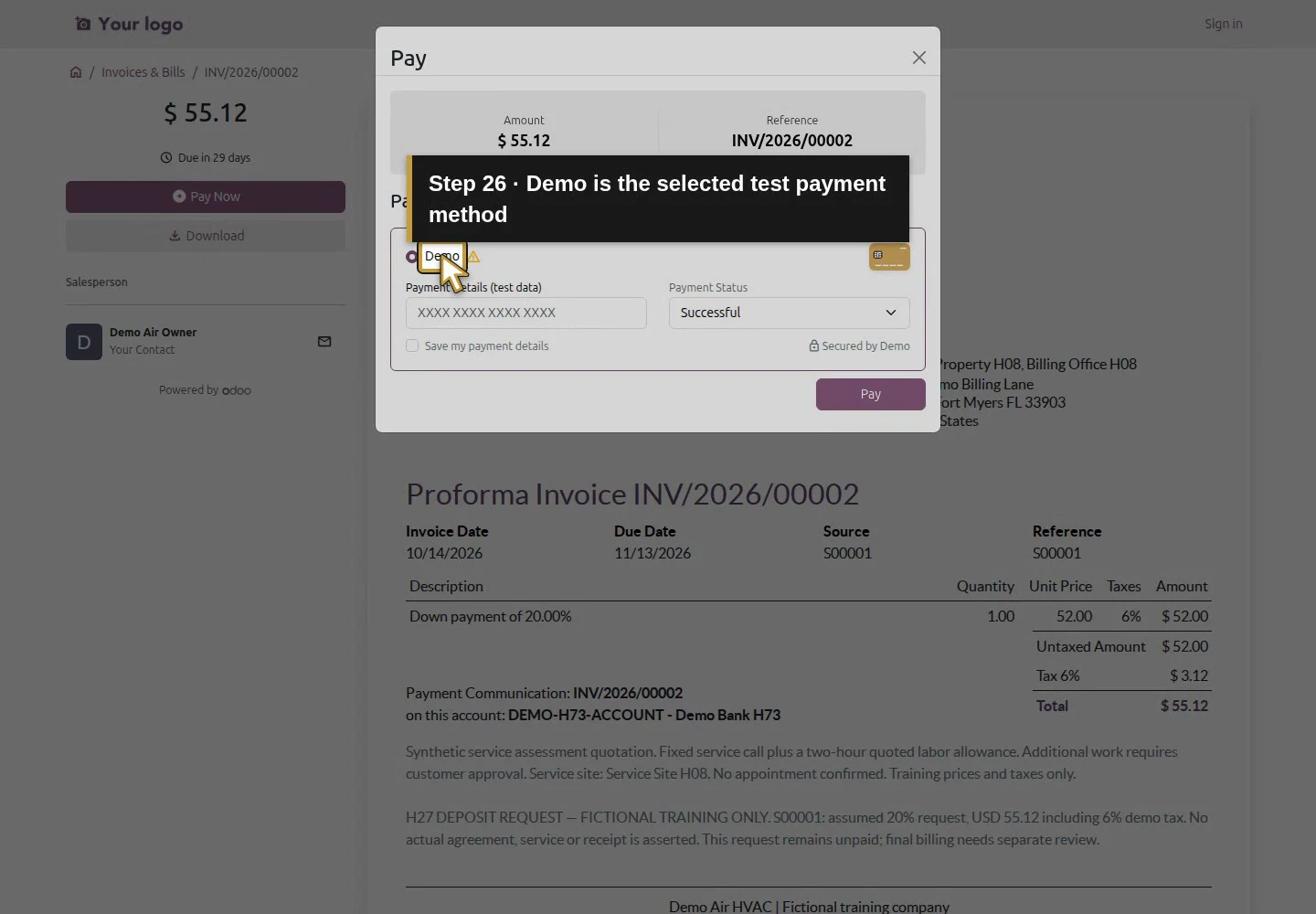
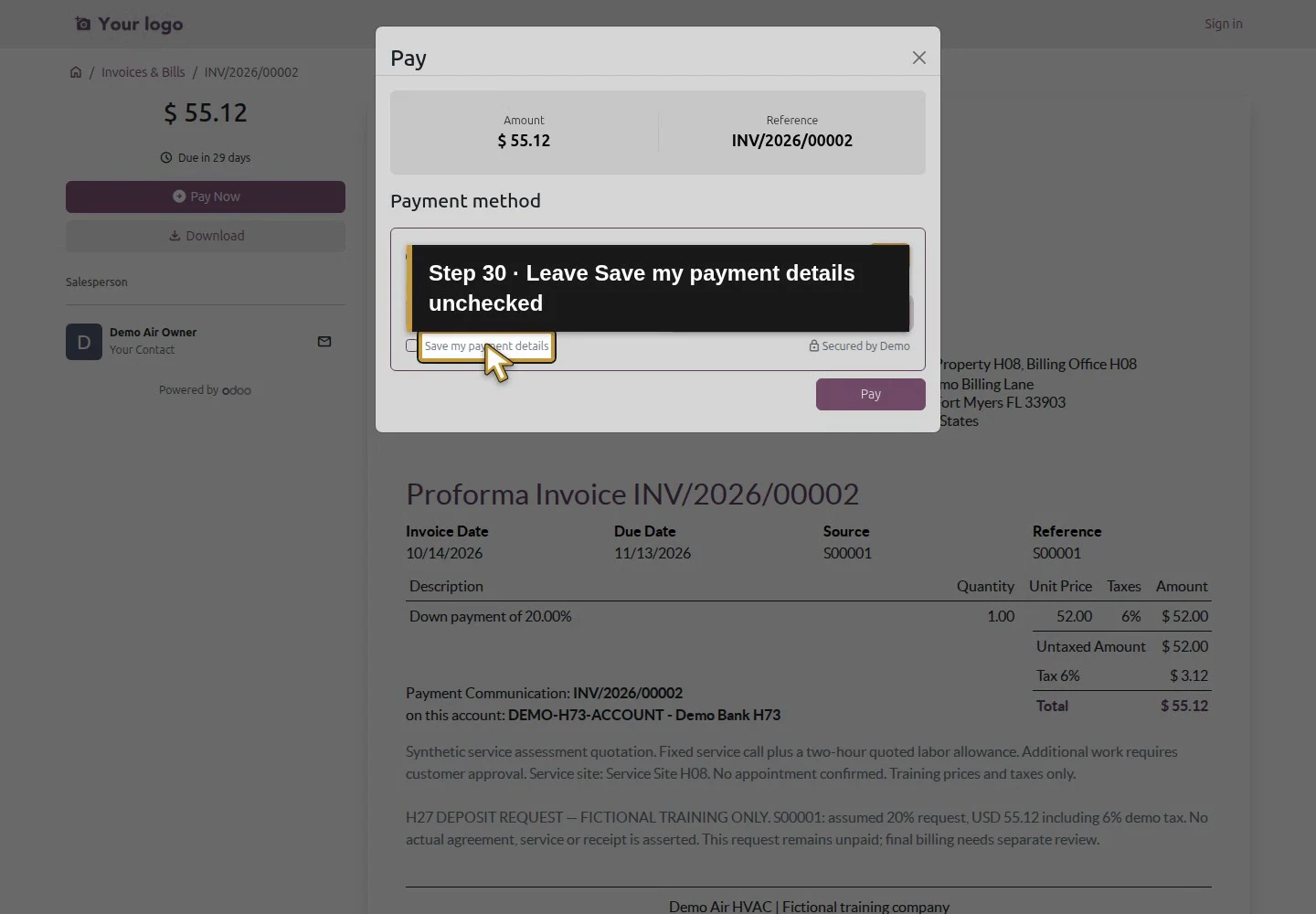
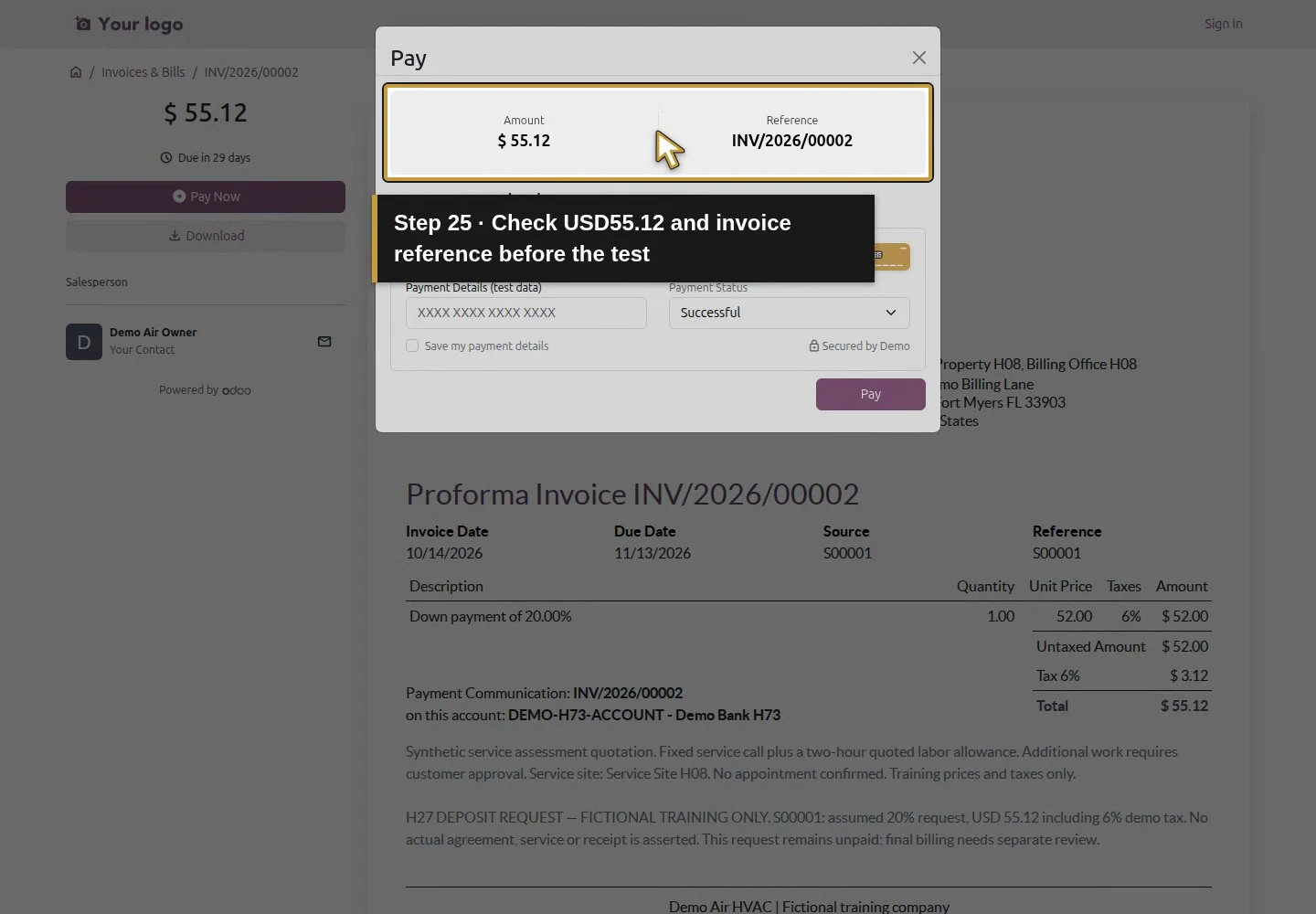
Click Pay Now. Check Amount: $55.12, Reference: INV/2026/00002 and the selected Demo method. The form has Payment Details (test data) and Payment Status, with Successful, Pending, Cancelled and Error choices. Save my payment details is unchecked; leave it unchecked. This provider accepts synthetic test input for its simulation, not a real card charge.
Action 24: Open Pay Now for the native Demo test. The actual target is highlighted in gold.
Open Pay Now for the native Demo test.
Action 25: Check USD55.12 and invoice reference before the test. The actual target is highlighted in gold.
Check USD55.12 and invoice reference before the test.
Action 26: Demo is the selected test payment method. The actual target is highlighted in gold.
Demo is the selected test payment method.

Step 5. Run the identified Error case first

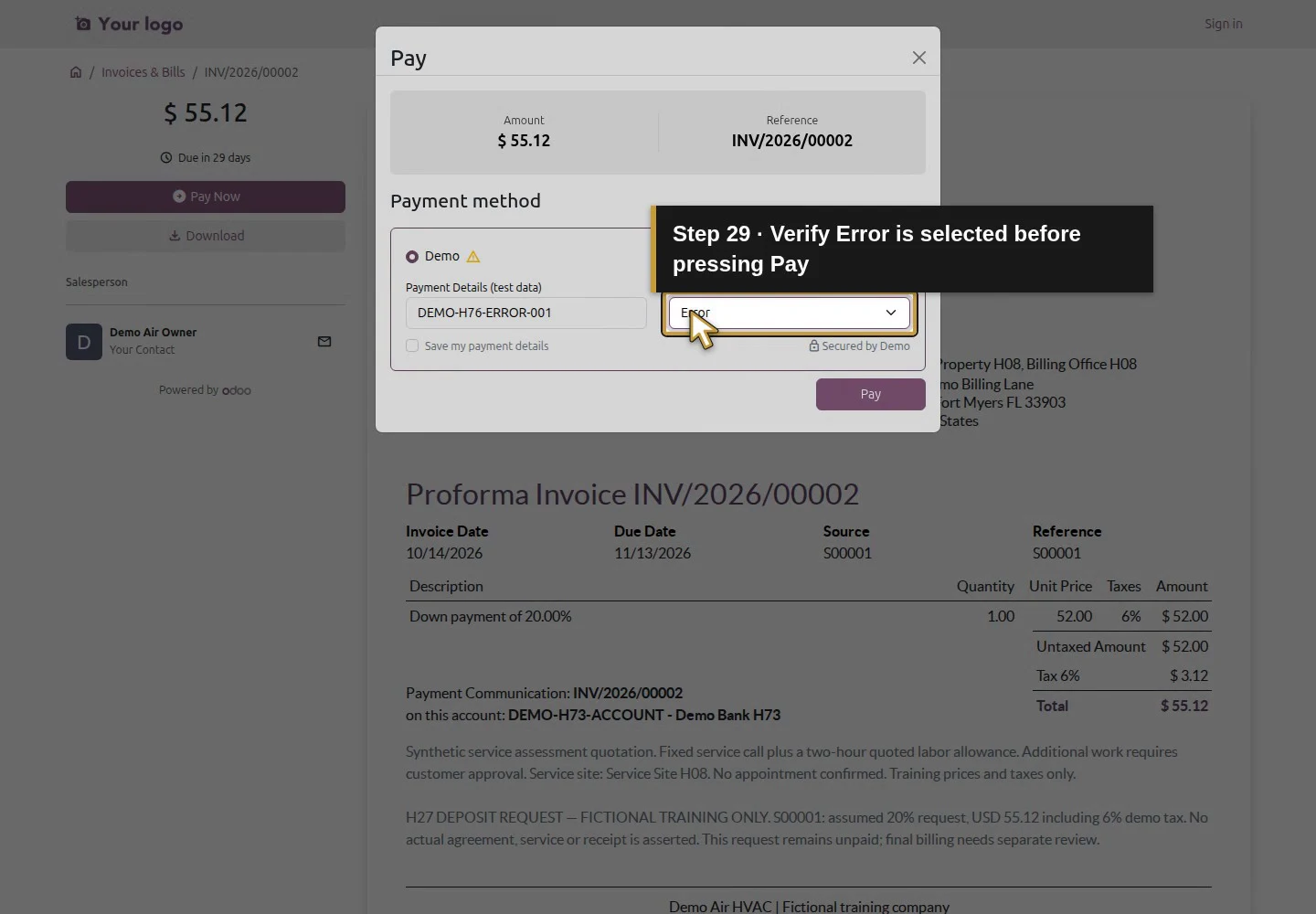
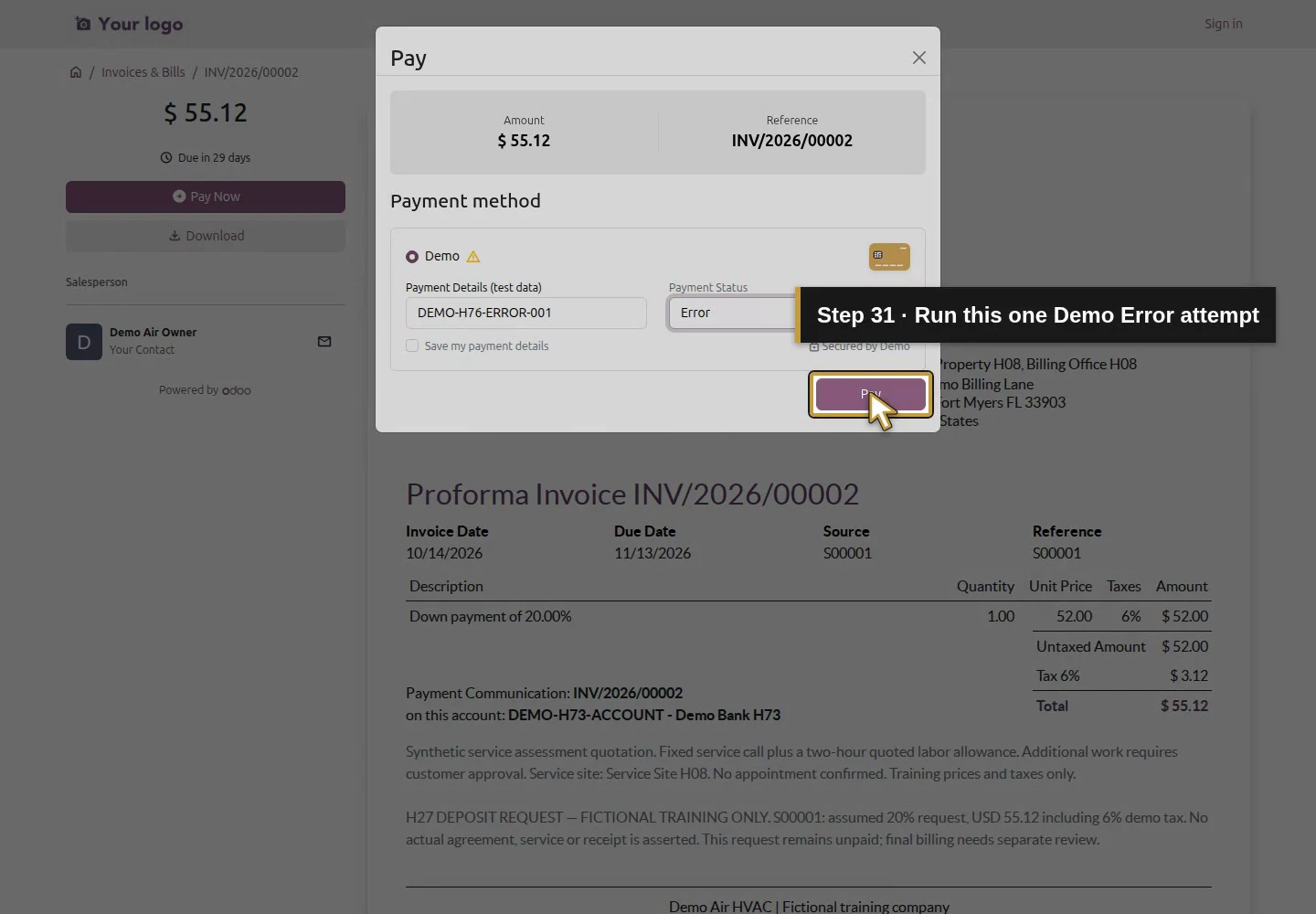
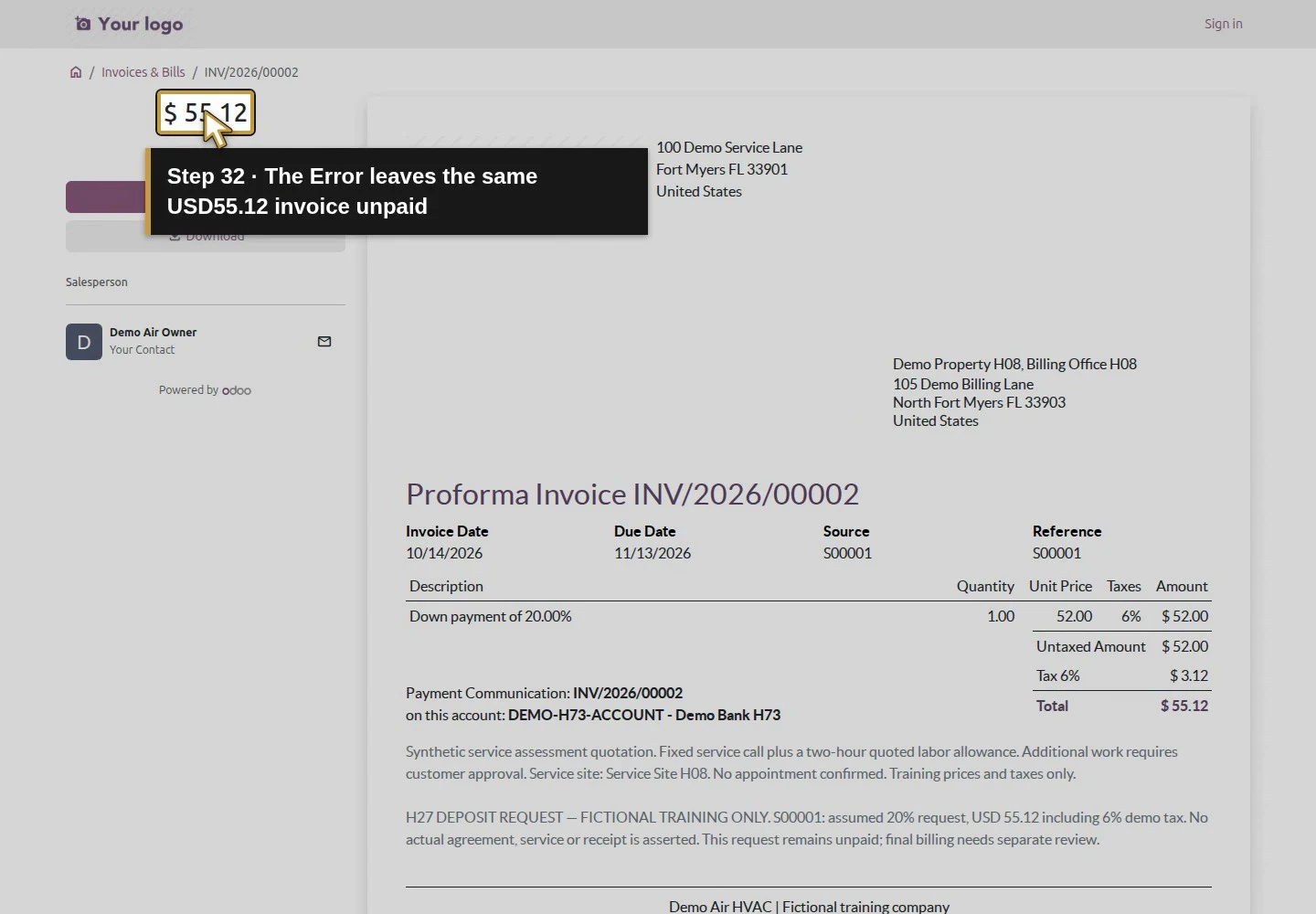
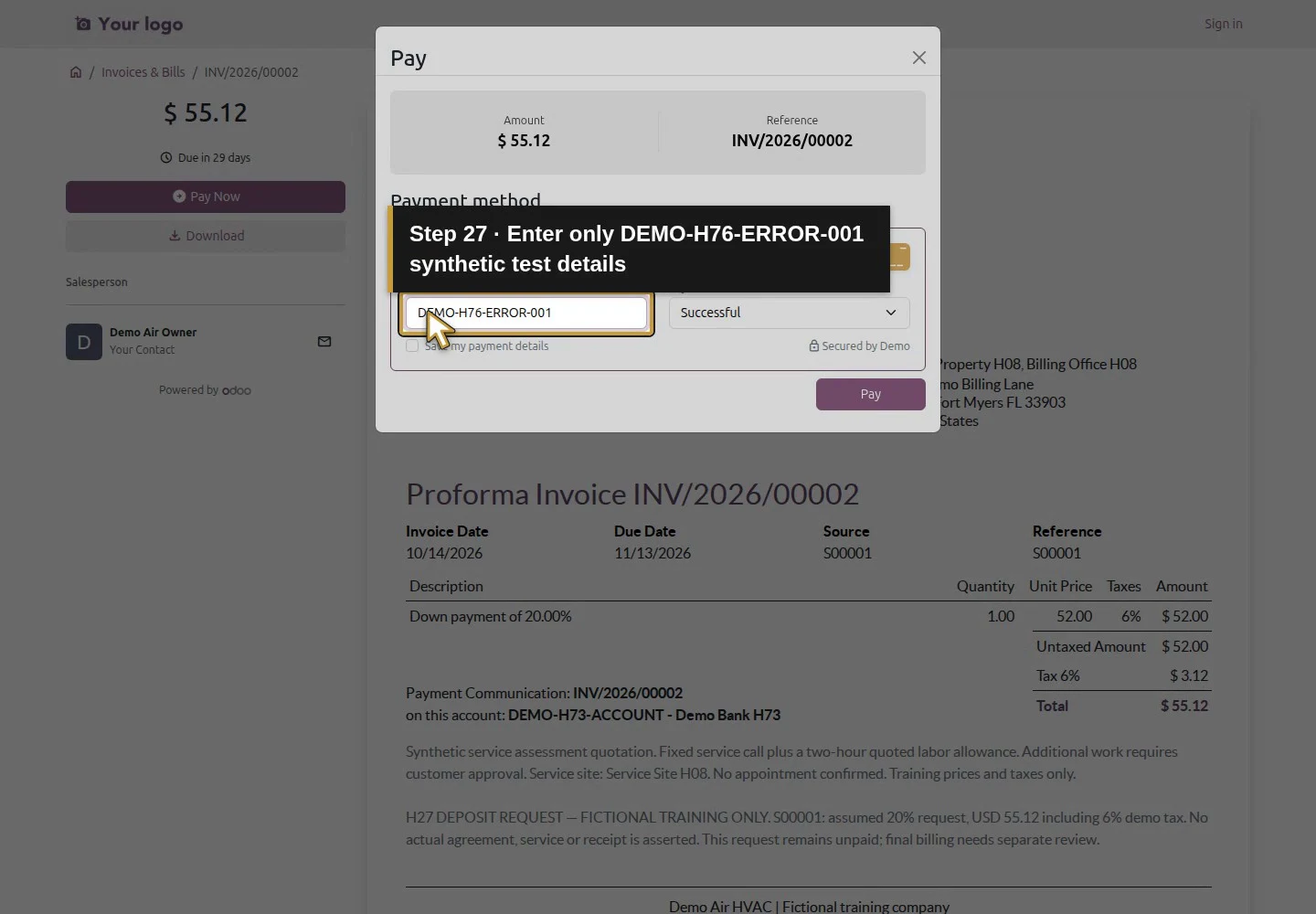
Enter DEMO-H76-ERROR-001 in Payment Details (test data), choose Error in Payment Status and click Pay once. Wait for the return to the invoice before judging the outcome. The deposit remains unpaid at $55.12. The saved transaction reference INV/2026/00002 has Error status and the explicit demo error message, with no linked receipt. Its existence is an attempted transaction, not a successful payment.
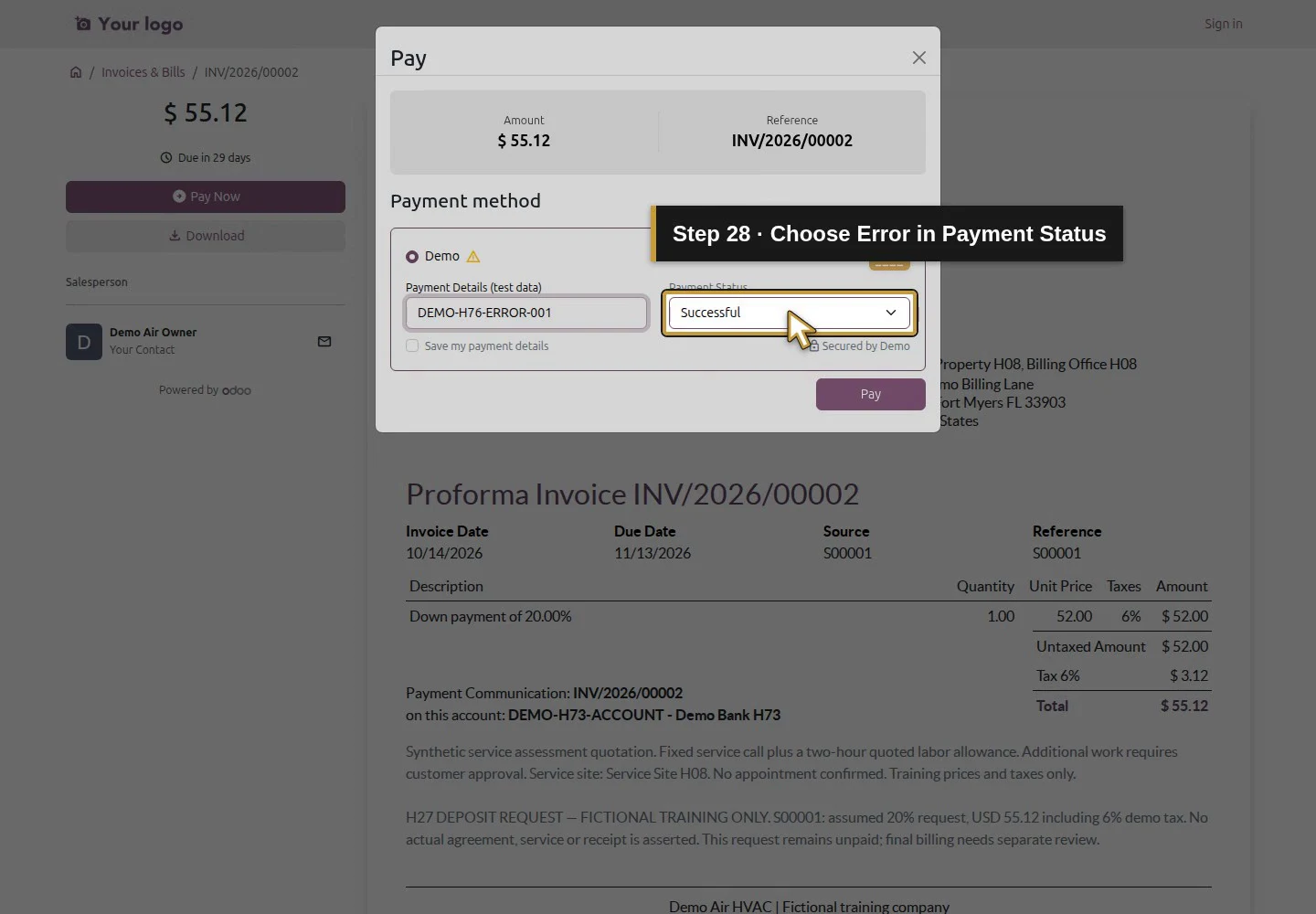
Action 27: Enter only DEMO-H76-ERROR-001 synthetic test details. The actual target is highlighted in gold.
Enter only DEMO-H76-ERROR-001 synthetic test details.
Action 28: Choose Error in Payment Status. The actual target is highlighted in gold.
Choose Error in Payment Status.
Action 29: Verify Error is selected before pressing Pay. The actual target is highlighted in gold.
Verify Error is selected before pressing Pay.
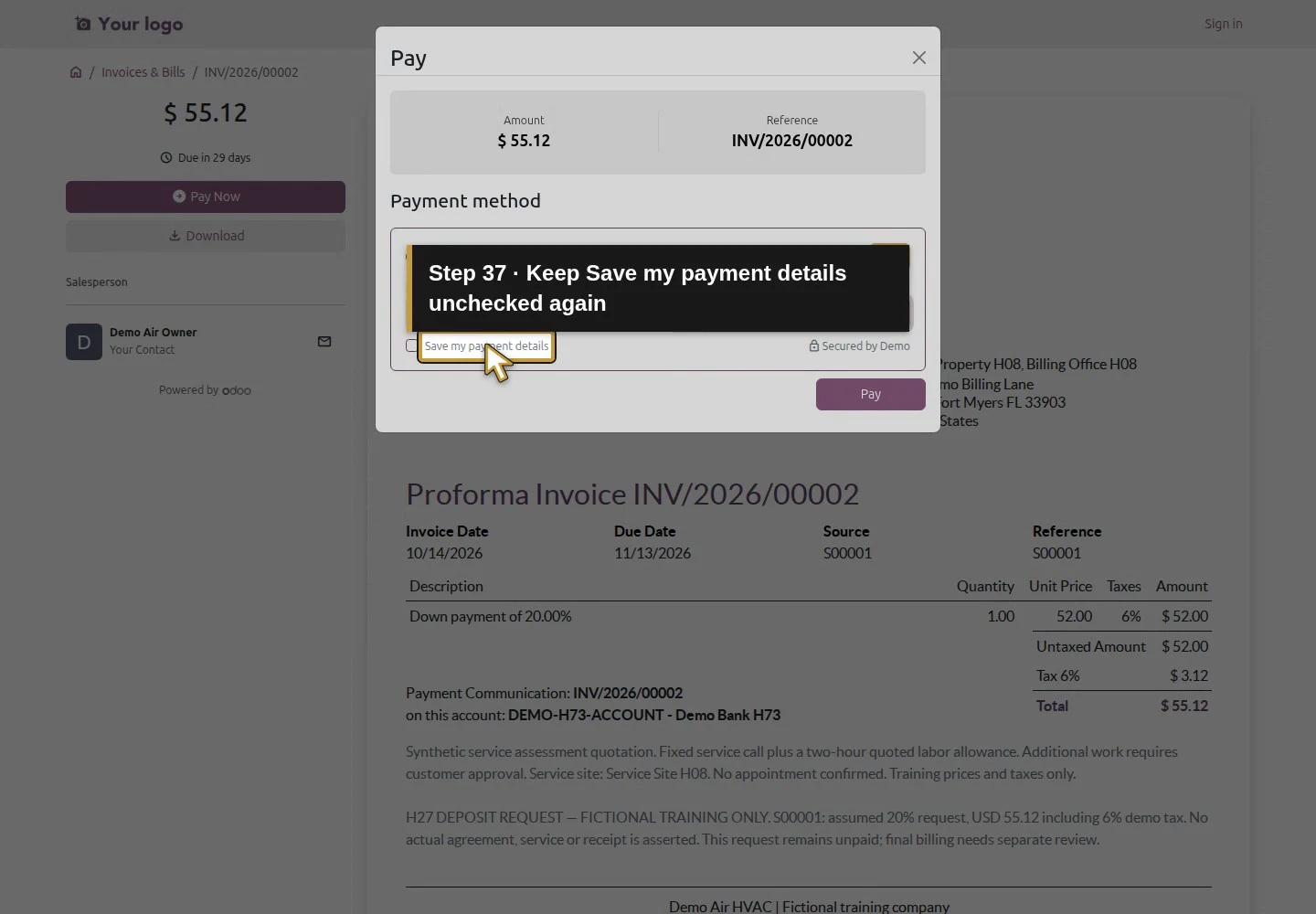
Action 30: Leave Save my payment details unchecked. The actual target is highlighted in gold.
Leave Save my payment details unchecked.
Action 31: Run this one Demo Error attempt. The actual target is highlighted in gold.
Run this one Demo Error attempt.
Action 32: The Error leaves the same USD55.12 invoice unpaid. The actual target is highlighted in gold.
The Error leaves the same USD55.12 invoice unpaid.

Step 6. Retry once with the Successful case

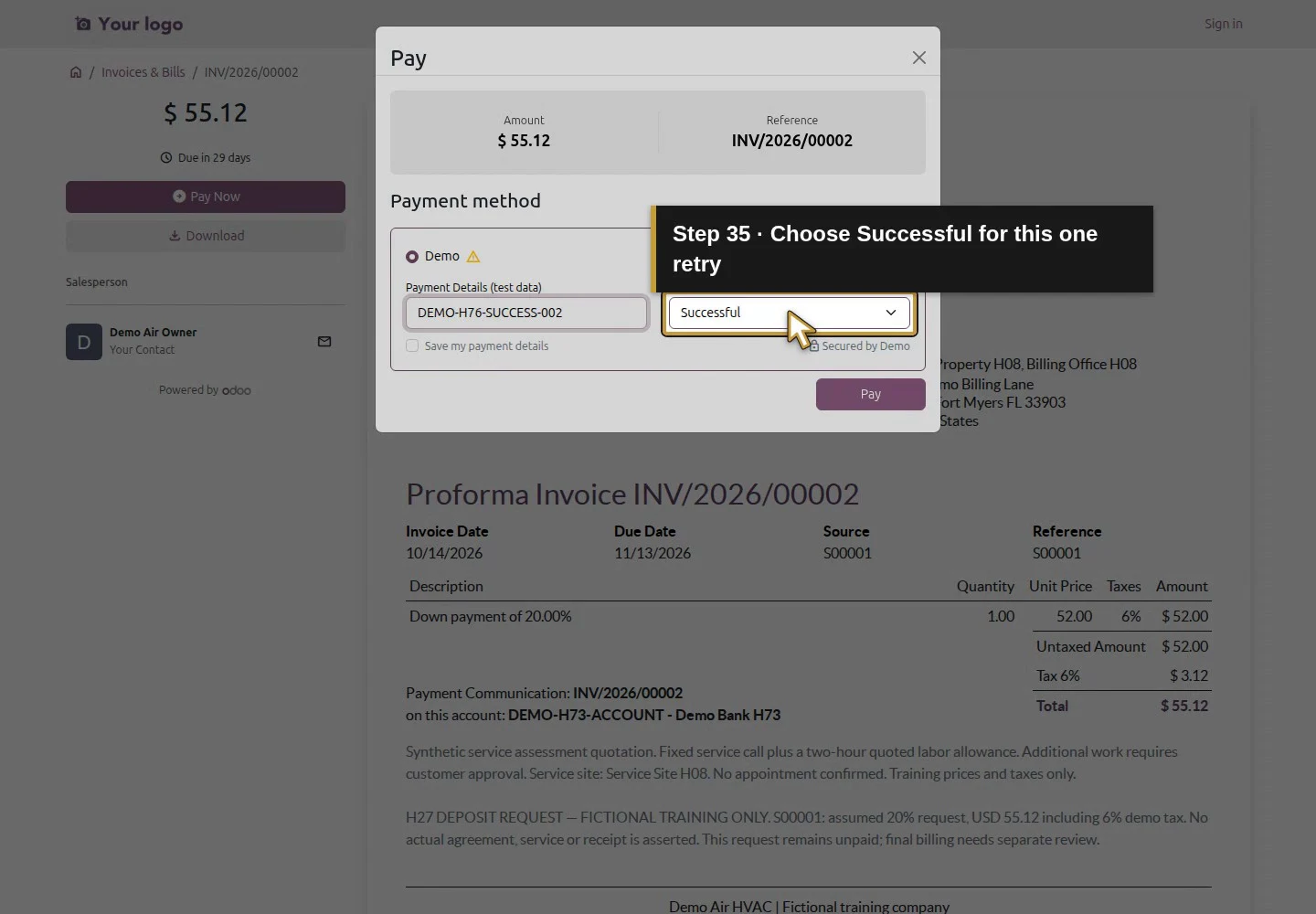
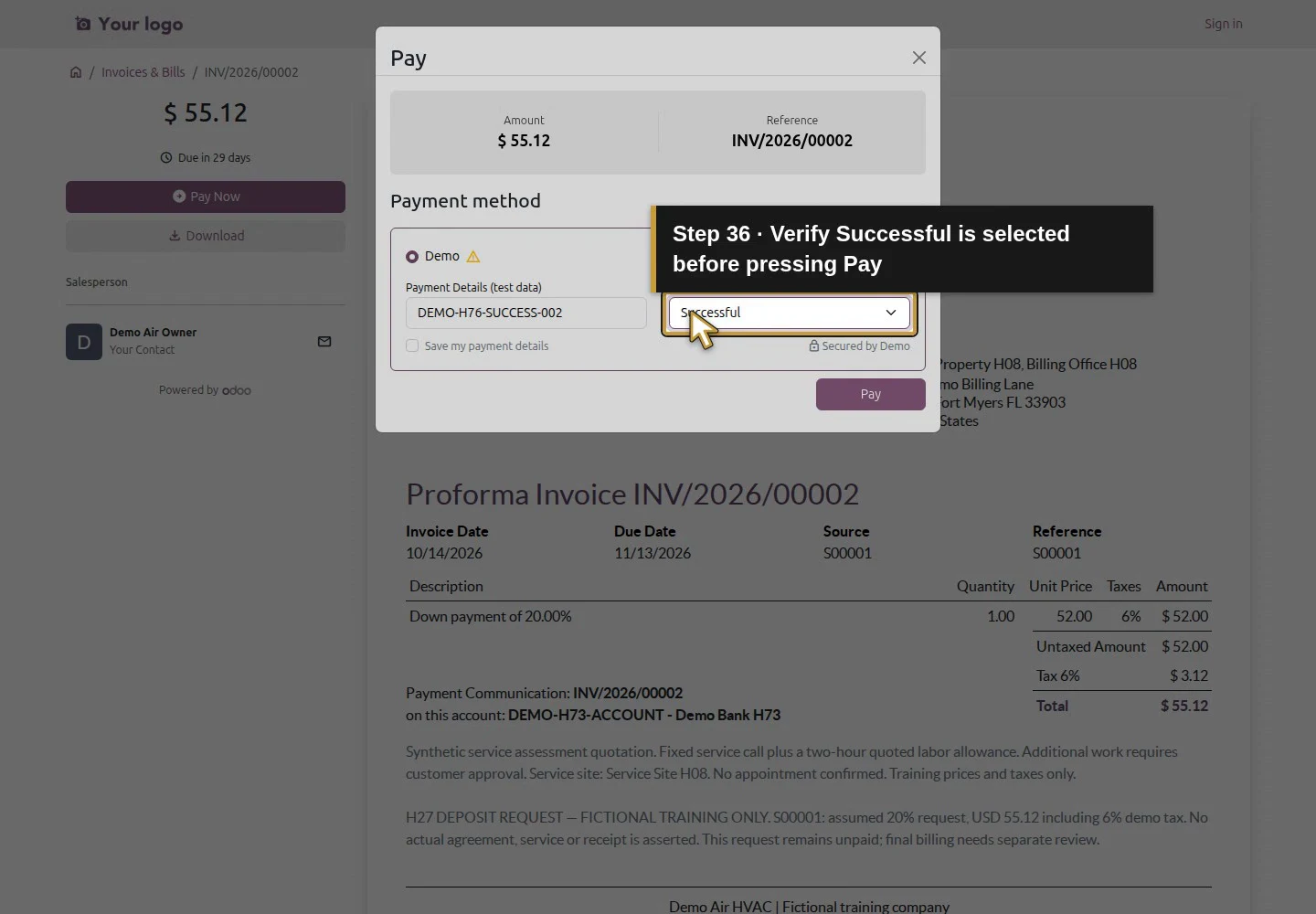
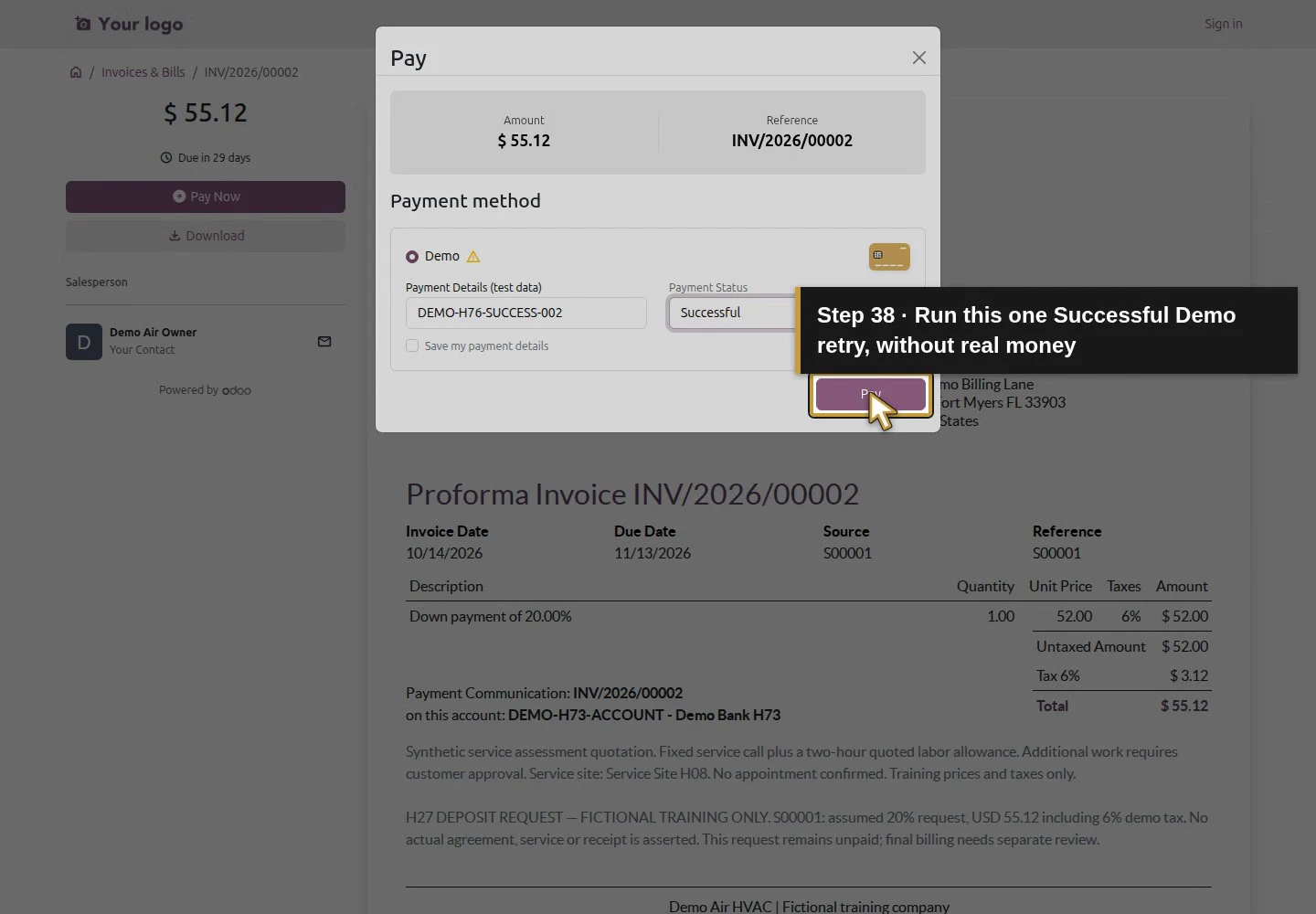
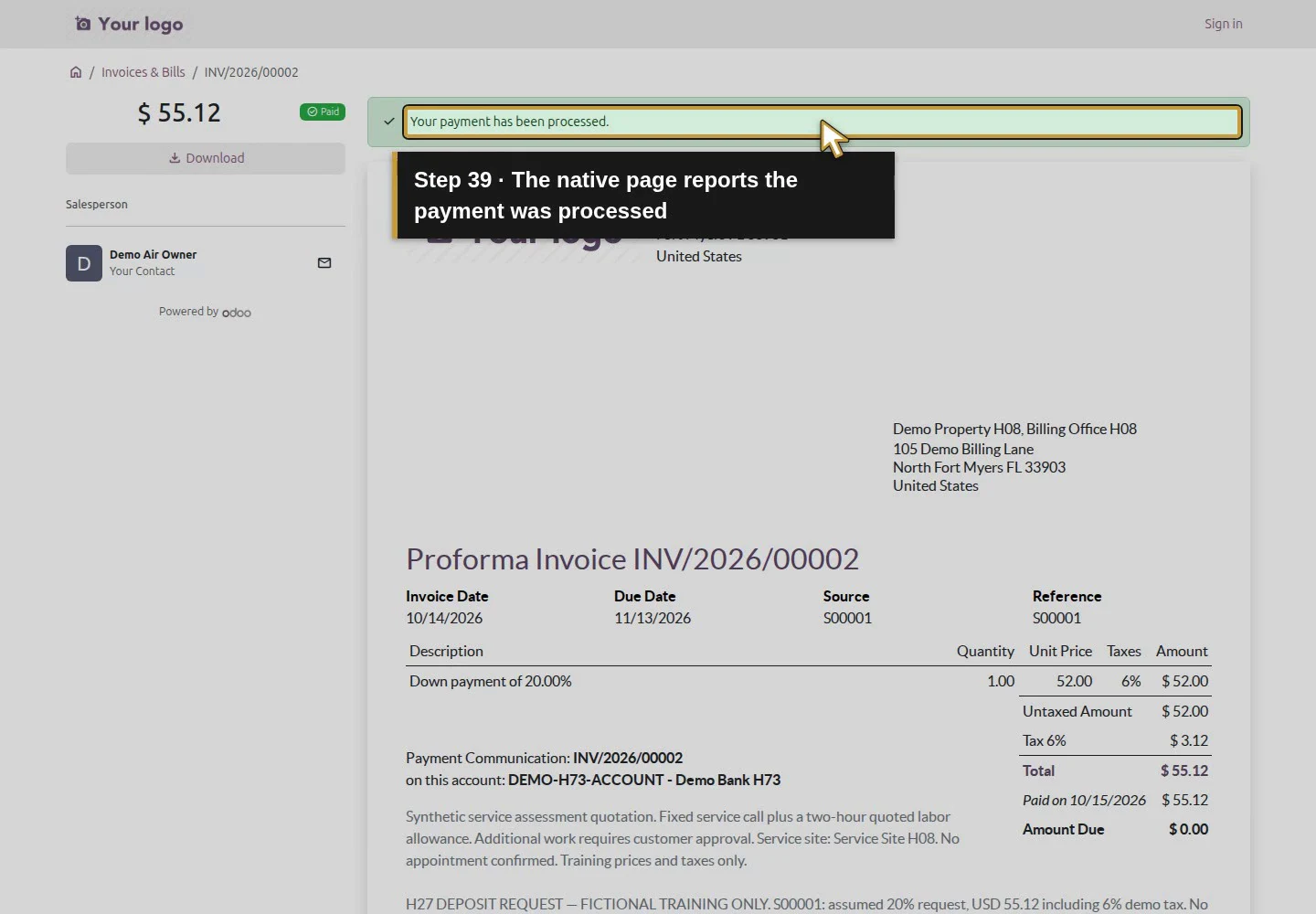
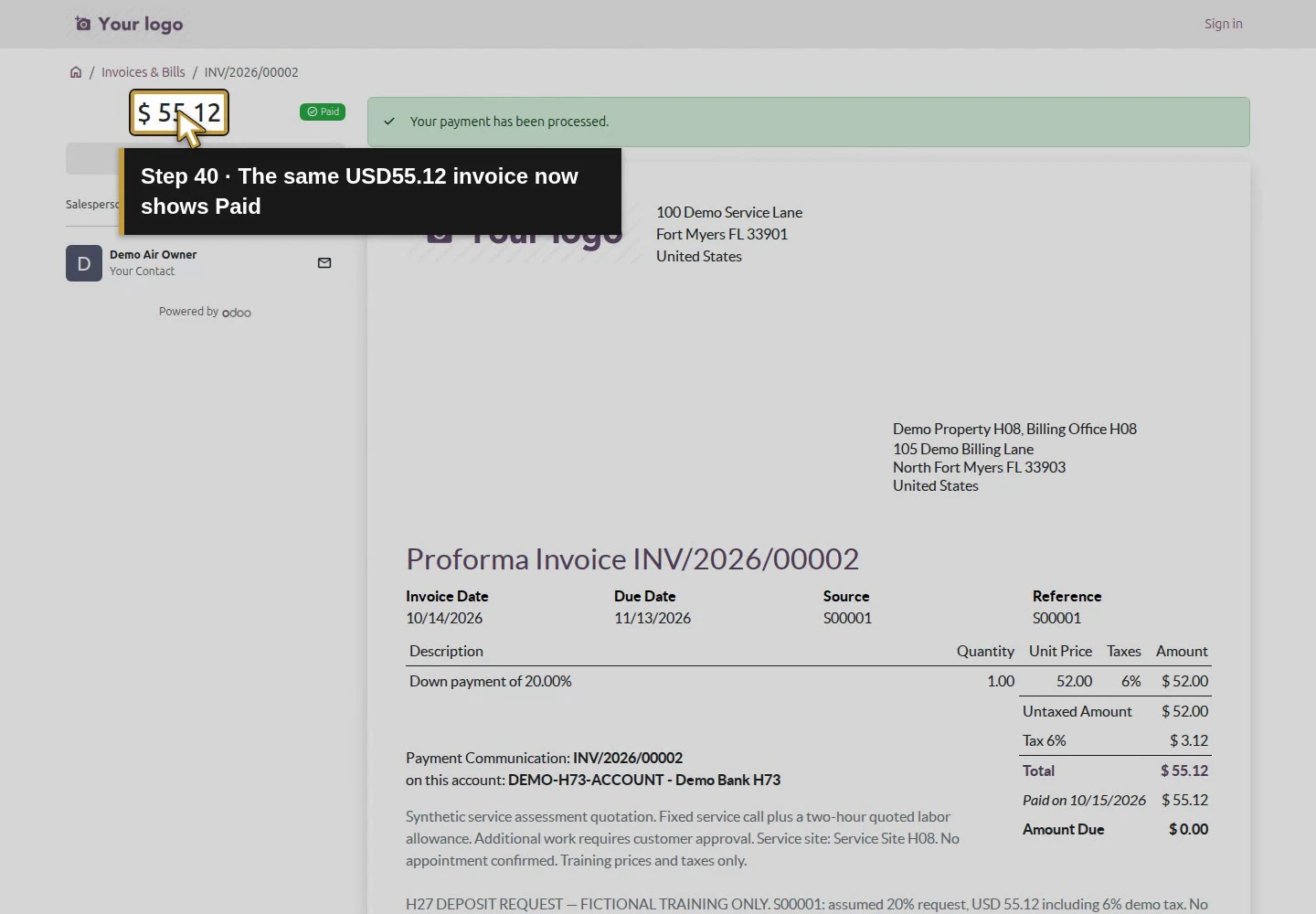
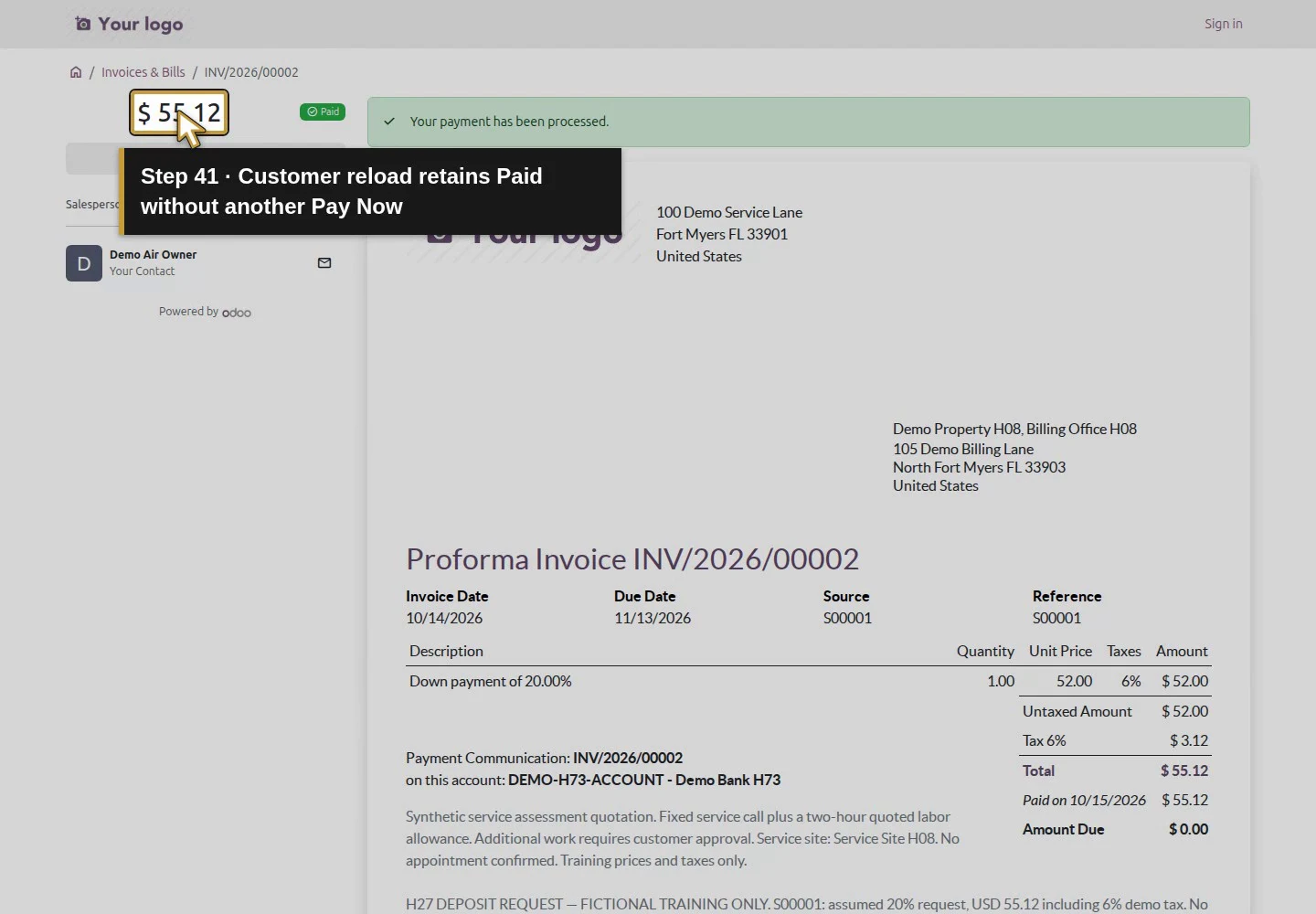
On the same unpaid invoice, click Pay Now again. Enter DEMO-H76-SUCCESS-002, choose Successful, retain the unchecked save-details option and click Pay once. Wait for completion; the first screen or an intermediate read can precede the completed posting. The customer page returns with Paid, Your payment has been processed, and no Pay Now action. Reload the page and verify that result remains.
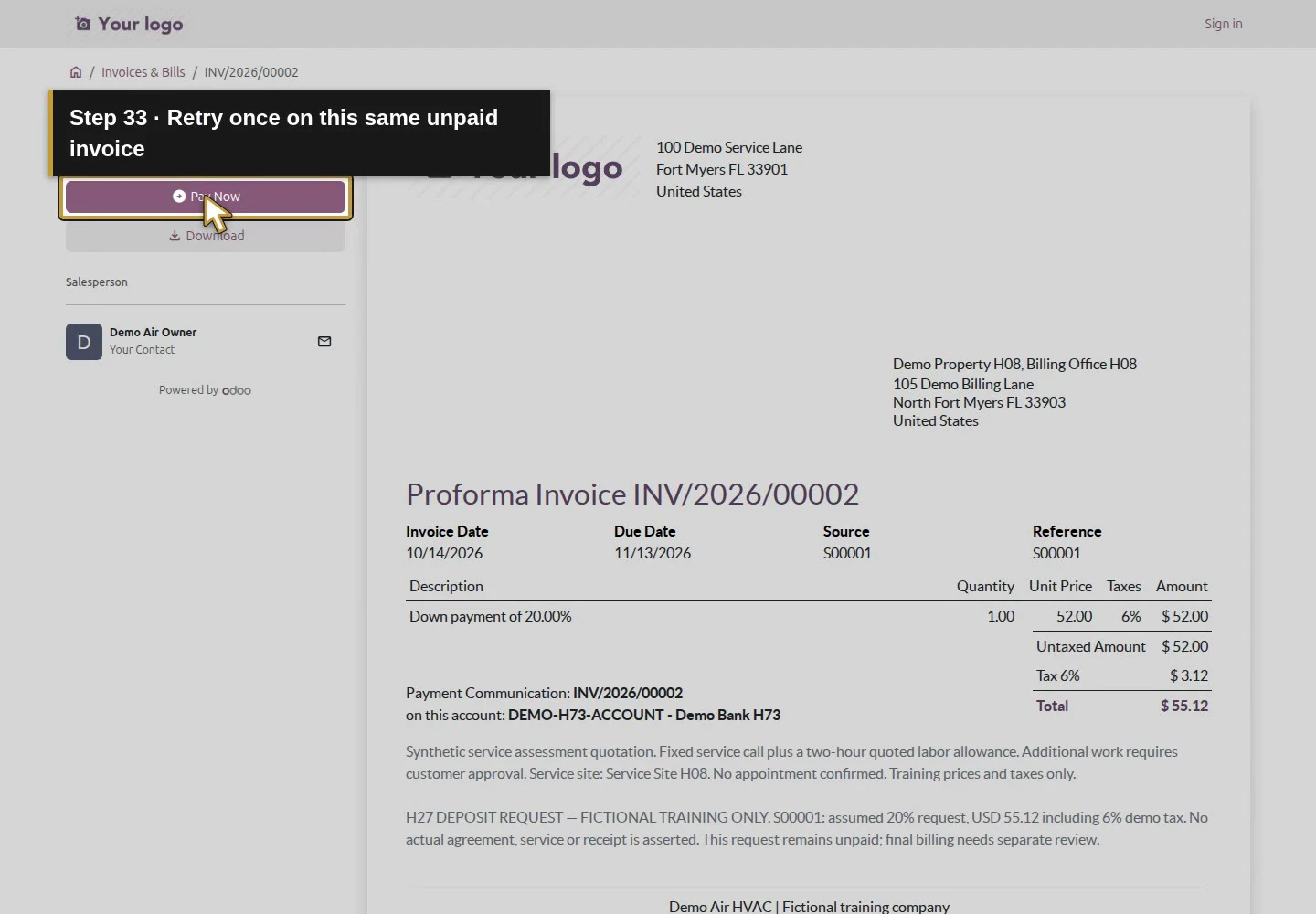
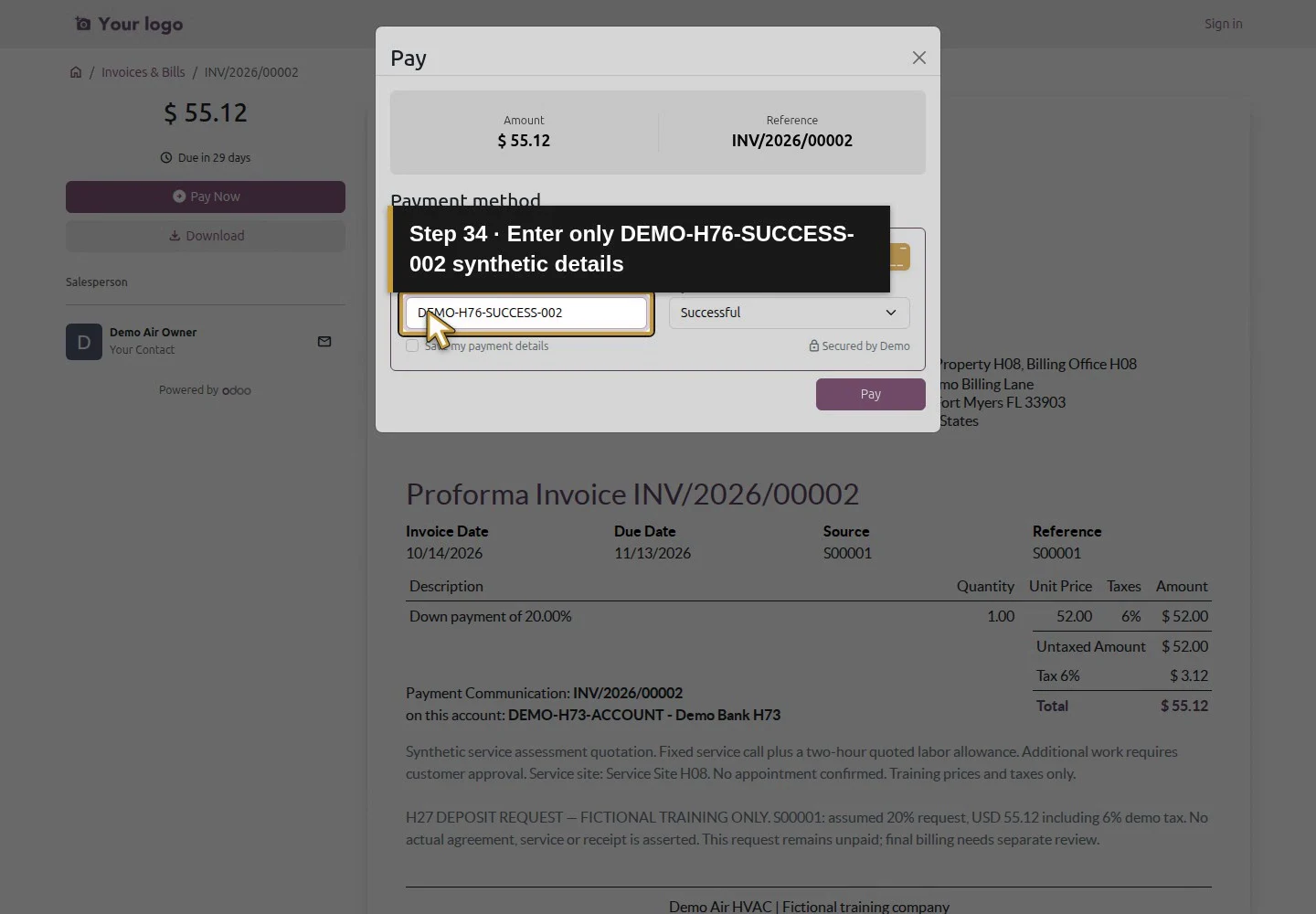
Action 33: Retry once on this same unpaid invoice. The actual target is highlighted in gold.
Retry once on this same unpaid invoice.
Action 34: Enter only DEMO-H76-SUCCESS-002 synthetic details. The actual target is highlighted in gold.
Enter only DEMO-H76-SUCCESS-002 synthetic details.
Action 35: Choose Successful for this one retry. The actual target is highlighted in gold.
Choose Successful for this one retry.
Action 36: Verify Successful is selected before pressing Pay. The actual target is highlighted in gold.
Verify Successful is selected before pressing Pay.
Action 37: Keep Save my payment details unchecked again. The actual target is highlighted in gold.
Keep Save my payment details unchecked again.
Action 38: Run this one Successful Demo retry, without real money. The actual target is highlighted in gold.
Run this one Successful Demo retry, without real money.
Action 39: The native page reports the payment was processed. The actual target is highlighted in gold.
The native page reports the payment was processed.
Action 40: The same USD55.12 invoice now shows Paid. The actual target is highlighted in gold.
The same USD55.12 invoice now shows Paid.
Action 41: Customer reload retains Paid without another Pay Now. The actual target is highlighted in gold.
Customer reload retains Paid without another Pay Now.

Step 7. Inspect both transaction attempts in the owner view

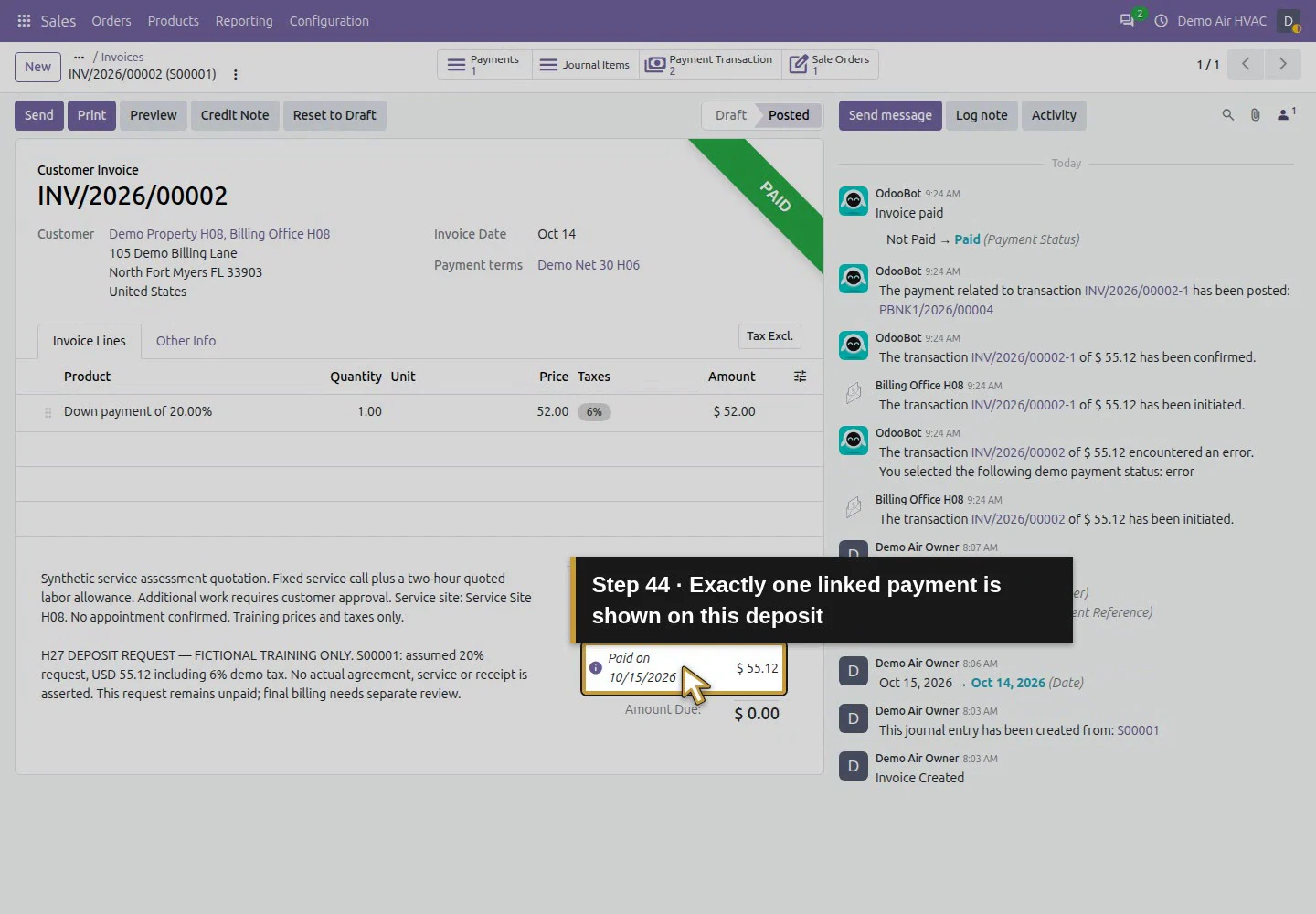
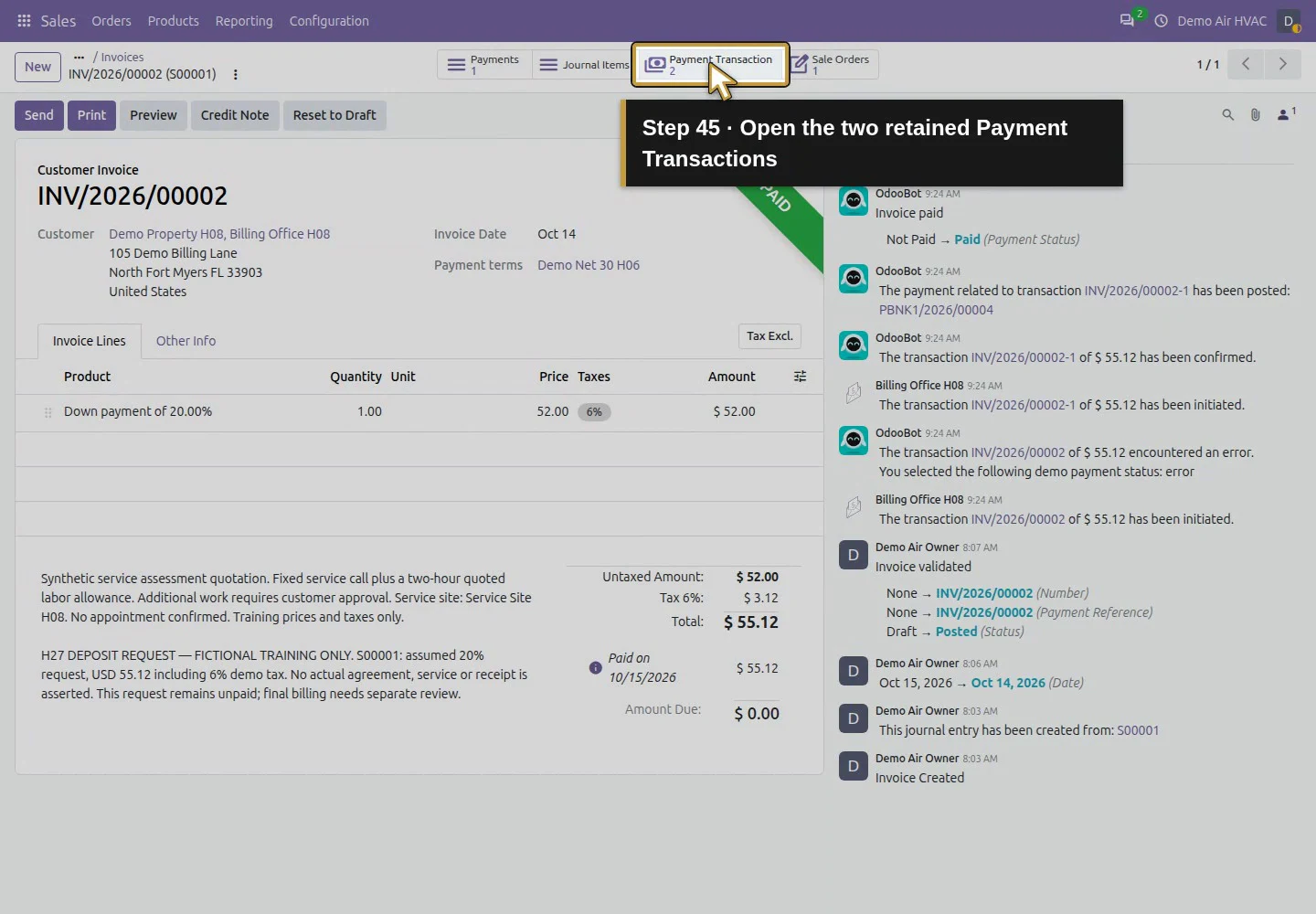
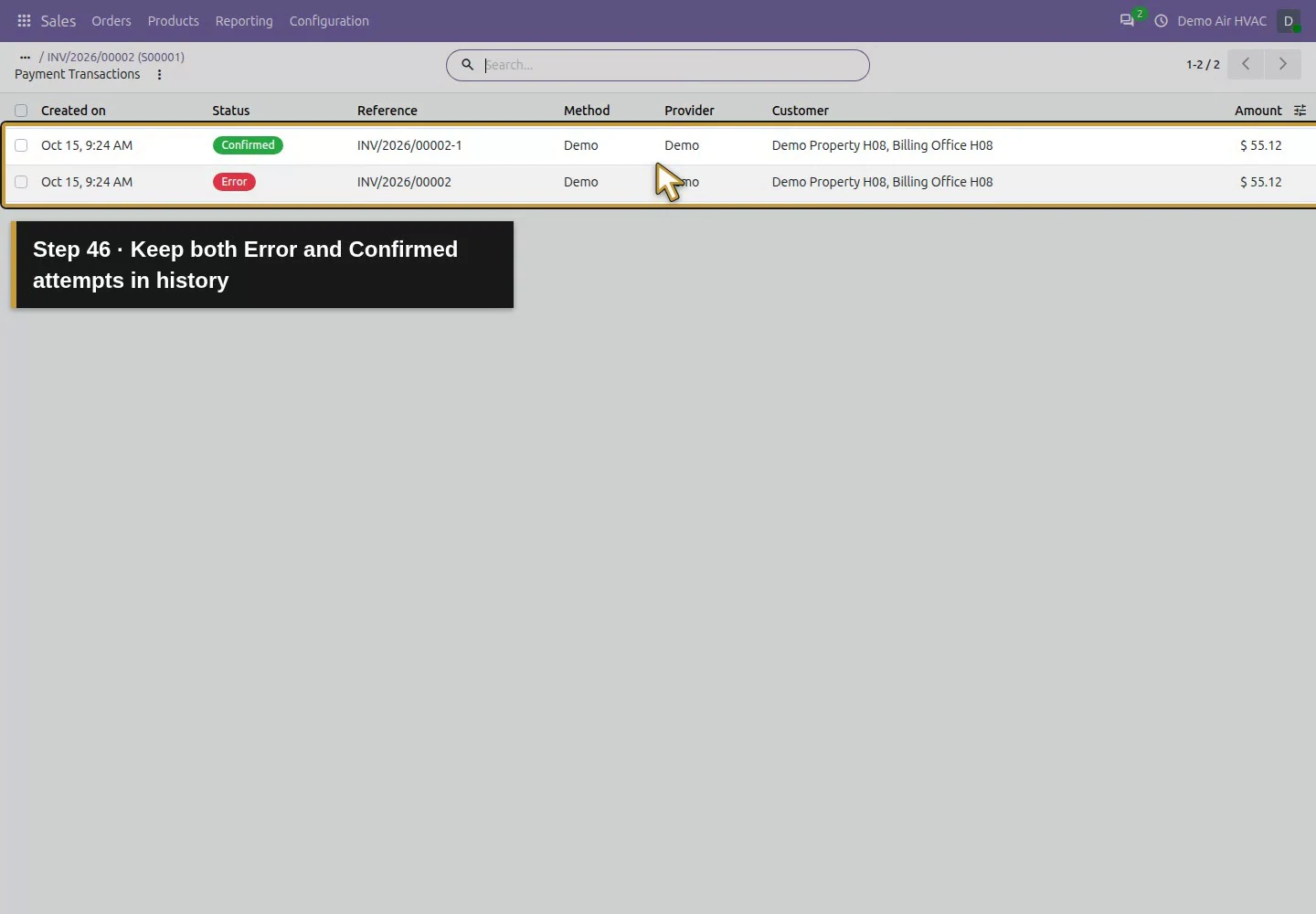
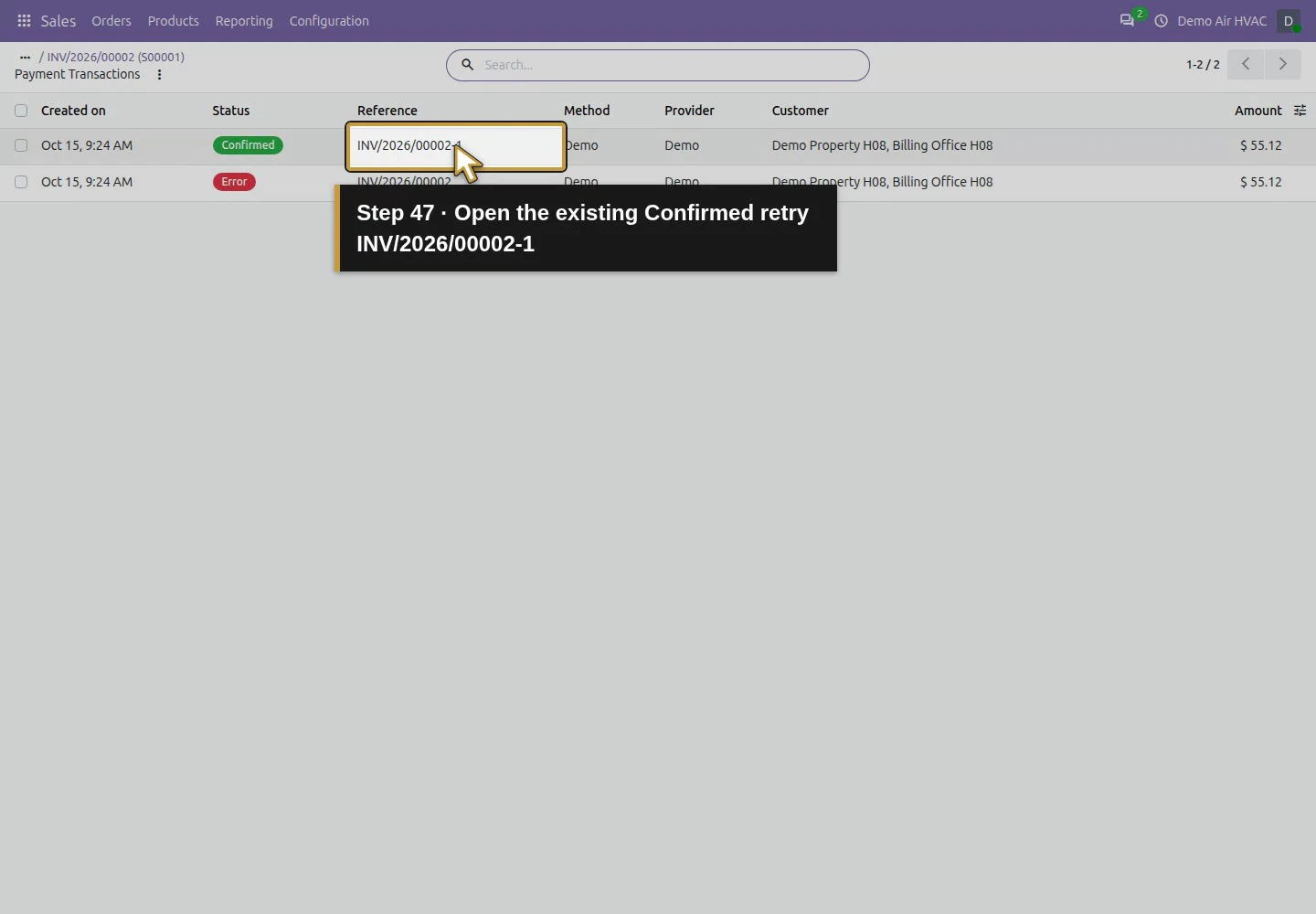
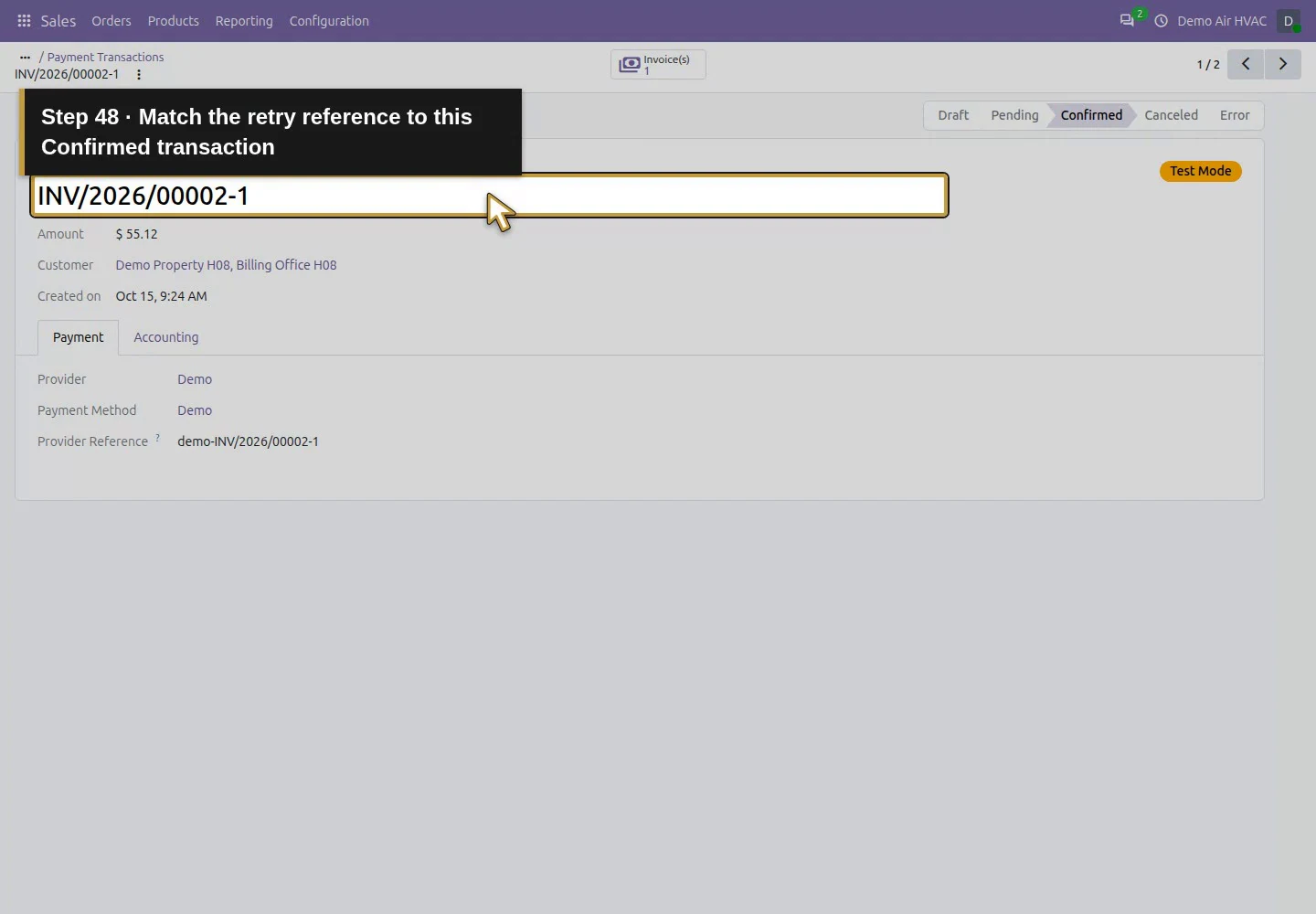
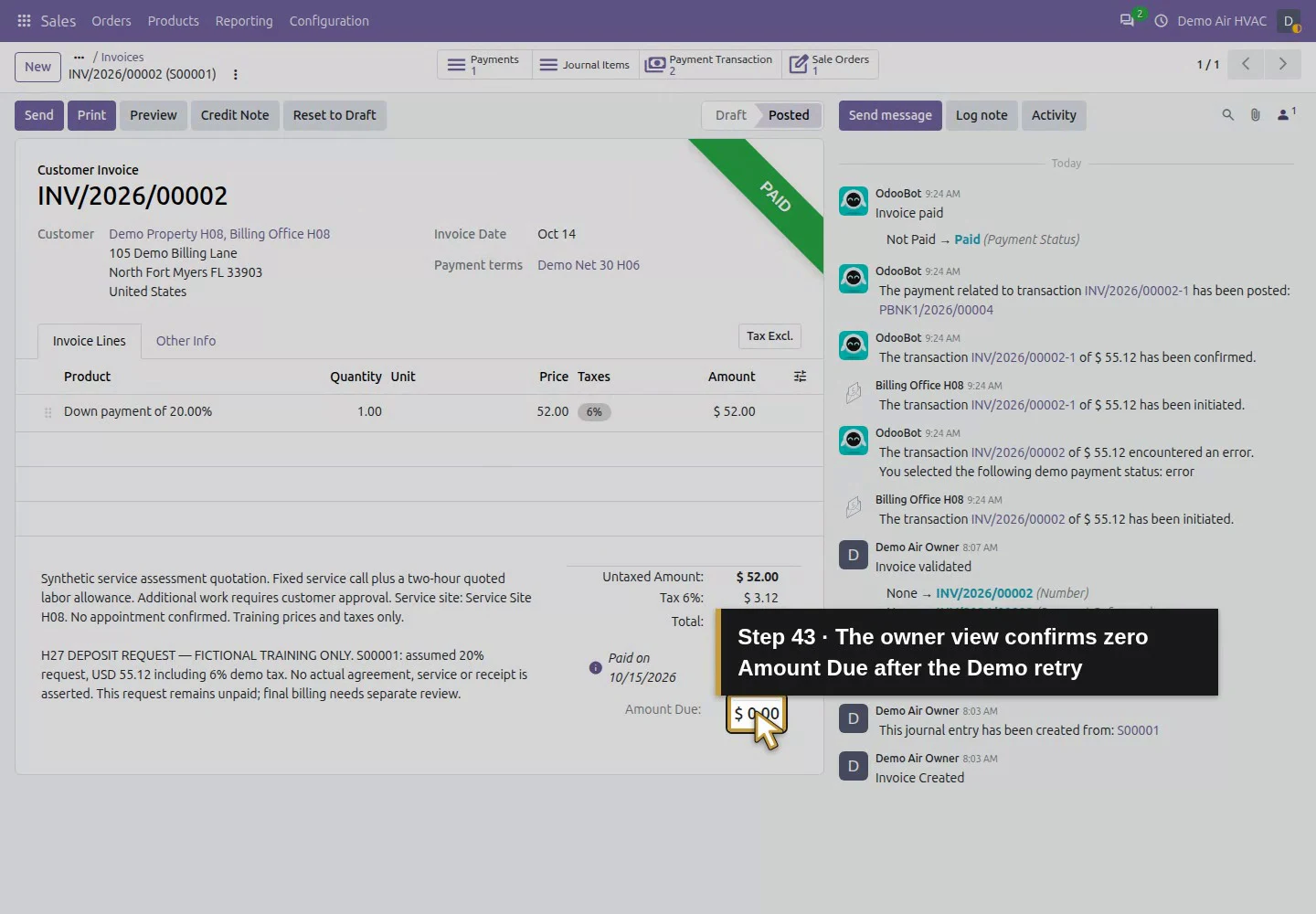
Return to the owner’s same invoice and reload. It now shows Paid Customer Invoice, Amount Due: $0.00, 1 Payments and 2 Payment Transaction. Open 2 Payment Transaction: the list retains INV/2026/00002 — Error and INV/2026/00002-1 — Confirmed, each for $55.12 with Demo as method/provider. The failed attempt remains in history; the retry did not overwrite it. Confirmed describes the successful demo transaction, not a real processor payout.
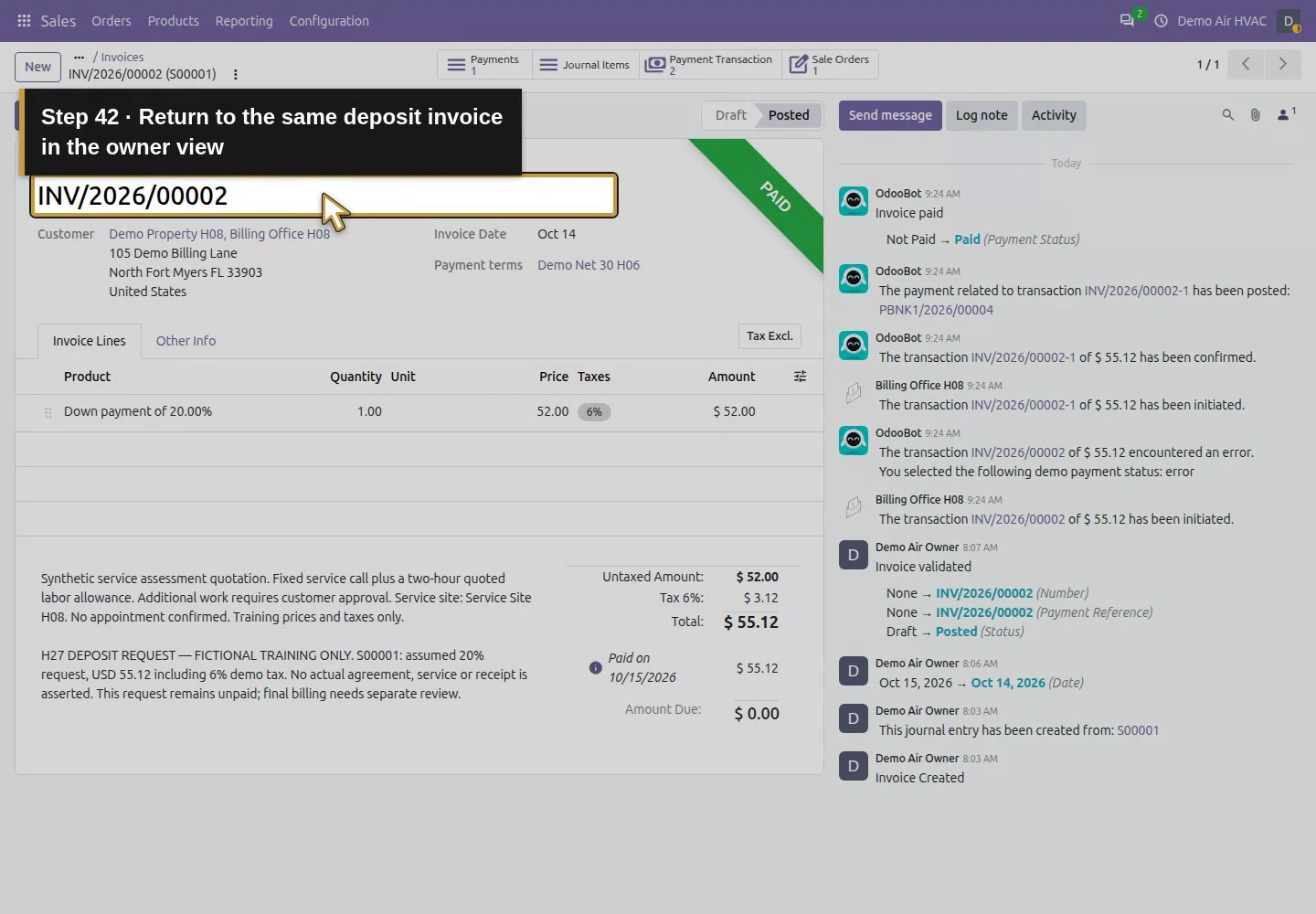
Action 42: Return to the same deposit invoice in the owner view. The actual target is highlighted in gold.
Return to the same deposit invoice in the owner view.
Action 43: The owner view confirms zero Amount Due after the Demo retry. The actual target is highlighted in gold.
The owner view confirms zero Amount Due after the Demo retry.
Action 44: Exactly one linked payment is shown on this deposit. The actual target is highlighted in gold.
Exactly one linked payment is shown on this deposit.
Action 45: Open the two retained Payment Transactions. The actual target is highlighted in gold.
Open the two retained Payment Transactions.
Action 46: Keep both Error and Confirmed attempts in history. The actual target is highlighted in gold.
Keep both Error and Confirmed attempts in history.
Action 47: Open the existing Confirmed retry INV/2026/00002-1. The actual target is highlighted in gold.
Open the existing Confirmed retry INV/2026/00002-1.
Action 48: Match the retry reference to this Confirmed transaction. The actual target is highlighted in gold.
Match the retry reference to this Confirmed transaction.
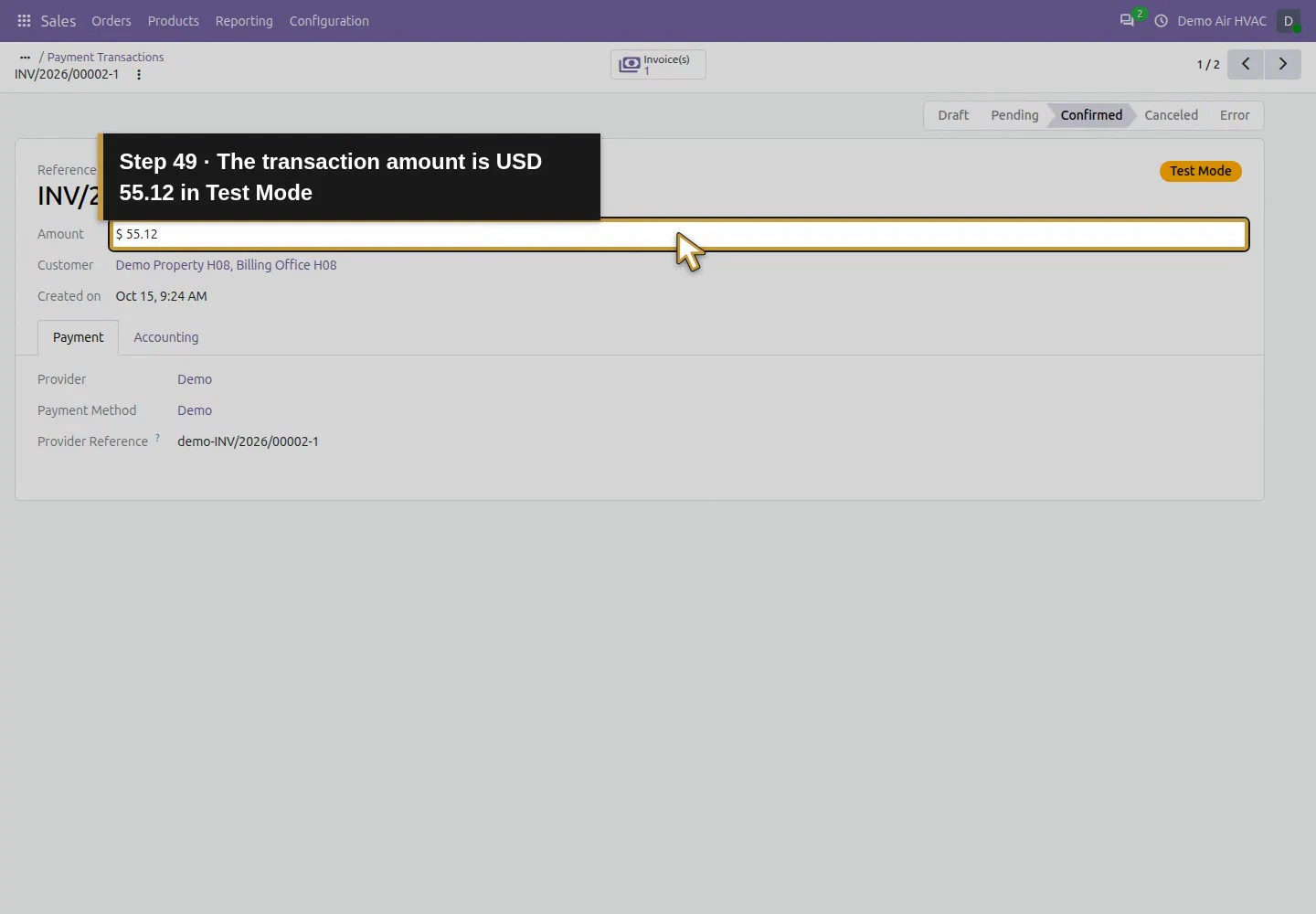
Action 49: The transaction amount is USD 55.12 in Test Mode. The actual target is highlighted in gold.
The transaction amount is USD 55.12 in Test Mode.
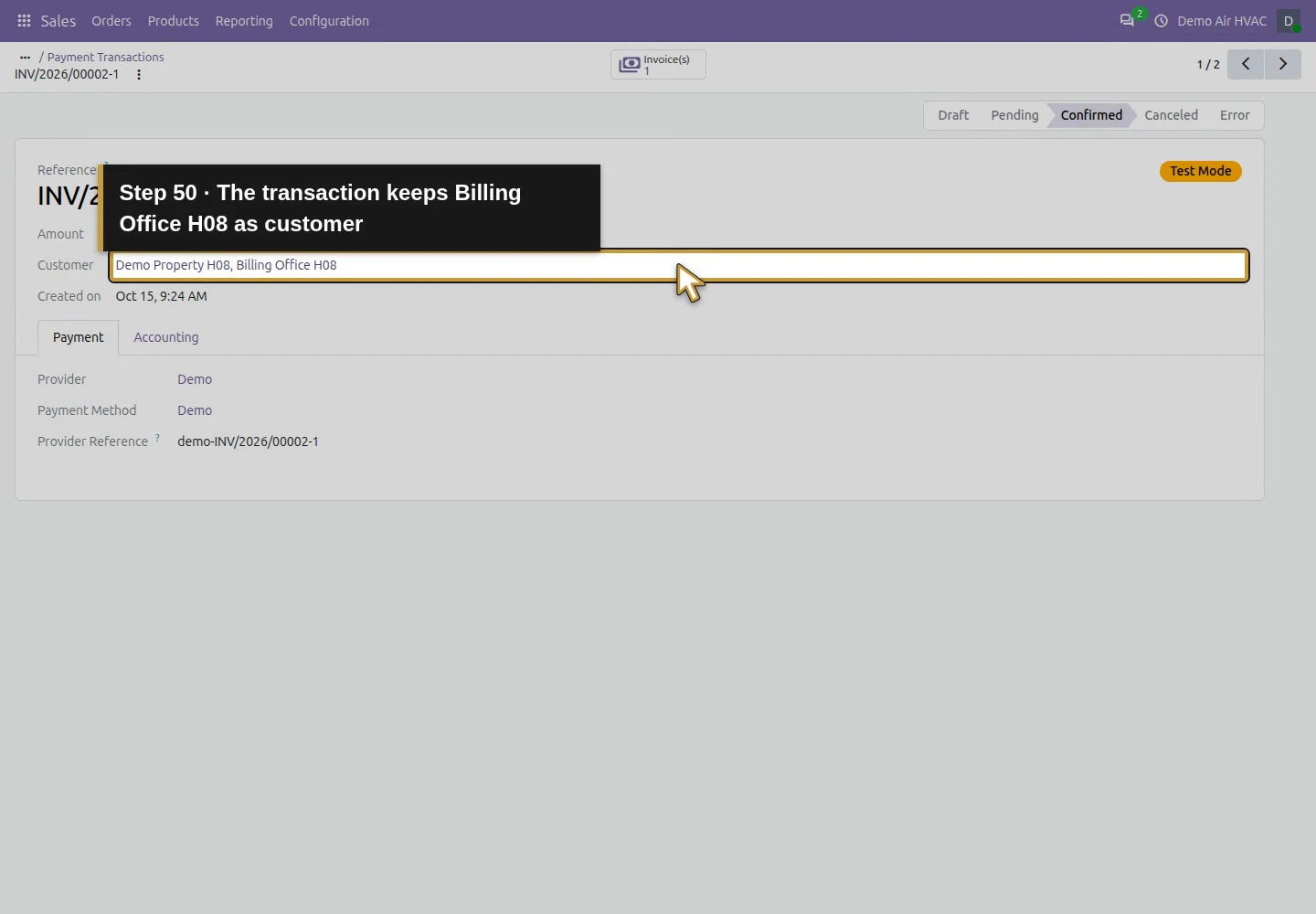
Action 50: The transaction keeps Billing Office H08 as customer. The actual target is highlighted in gold.
The transaction keeps Billing Office H08 as customer.

Step 8. Follow the successful transaction to its single receipt

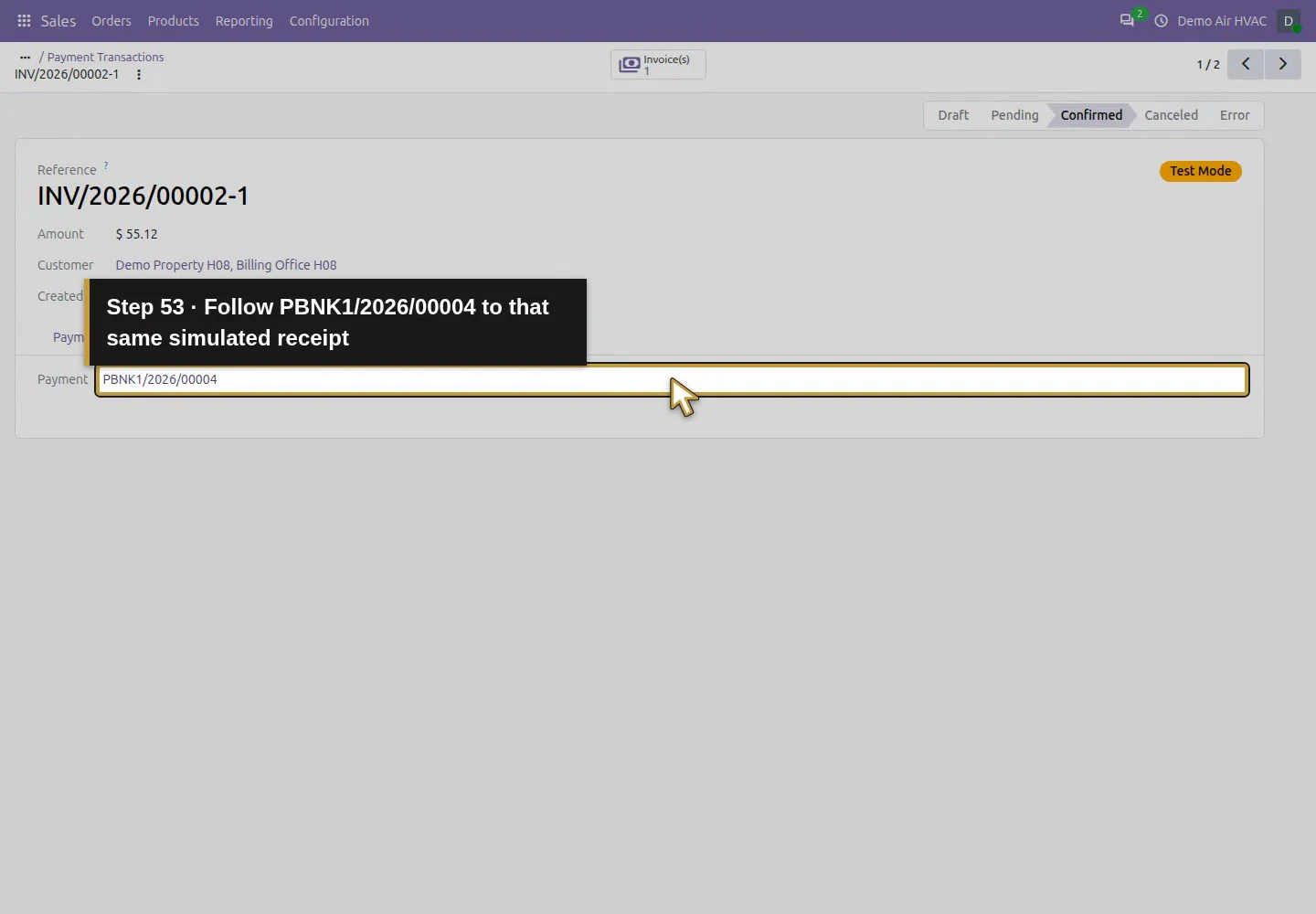
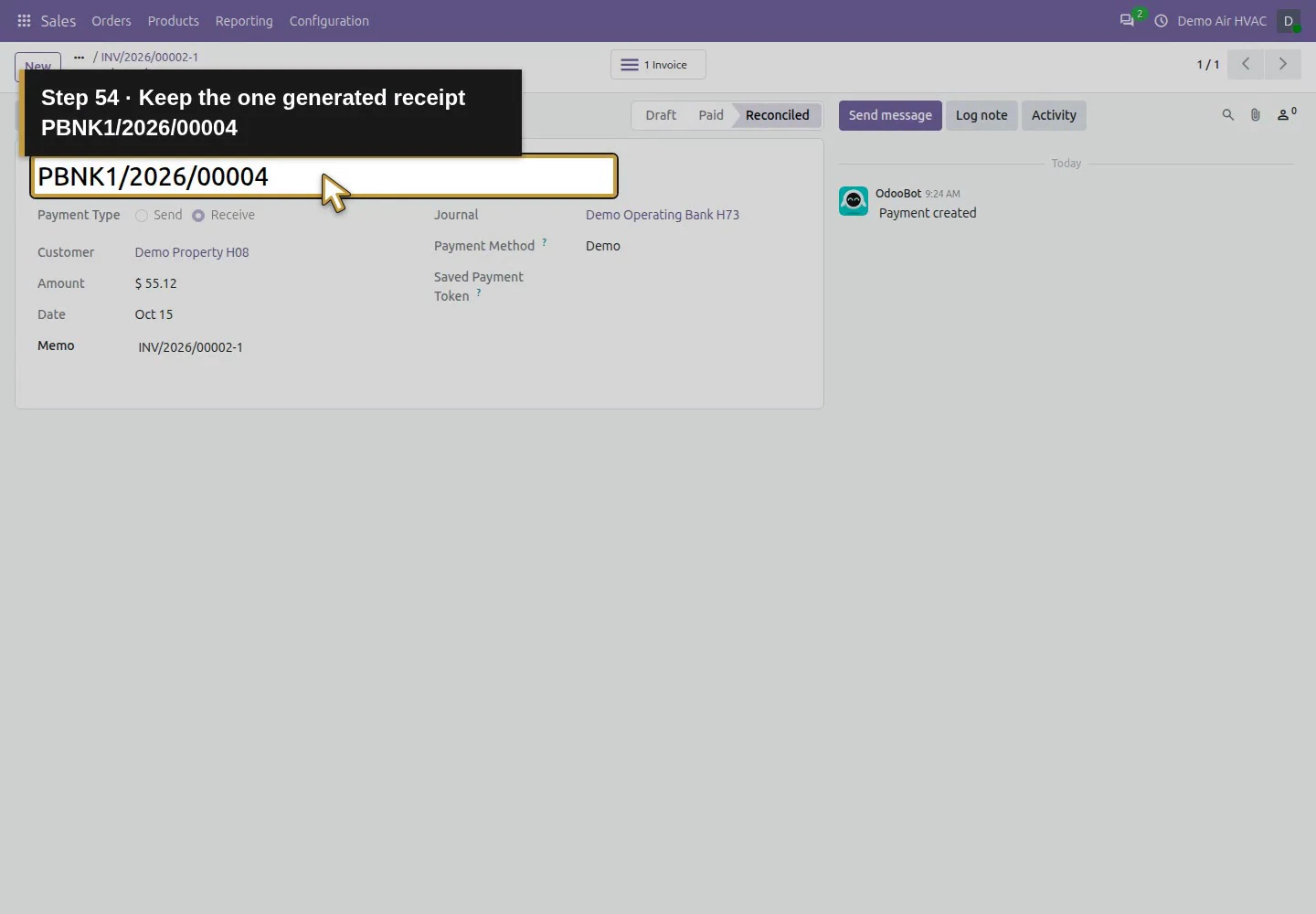
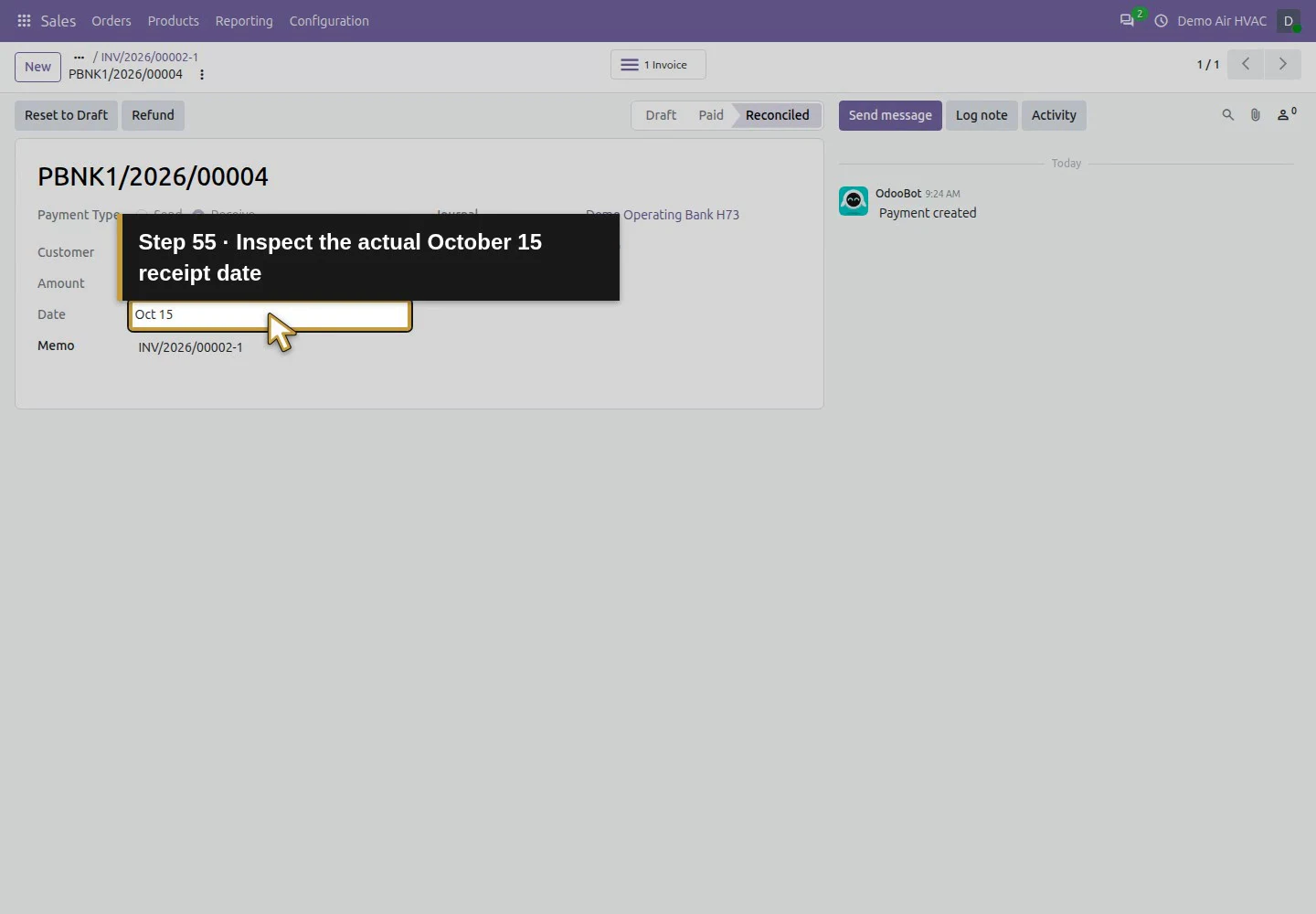
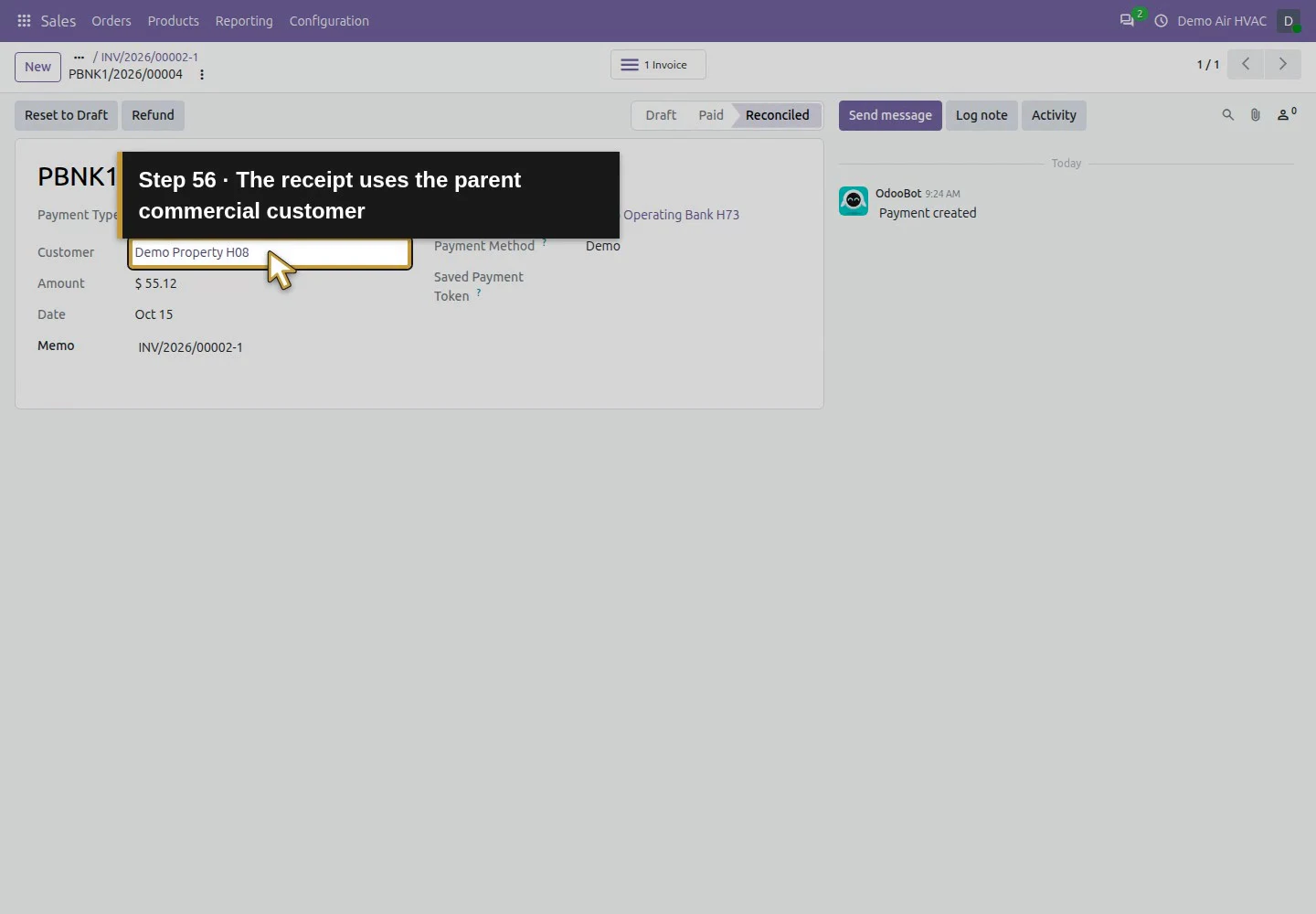
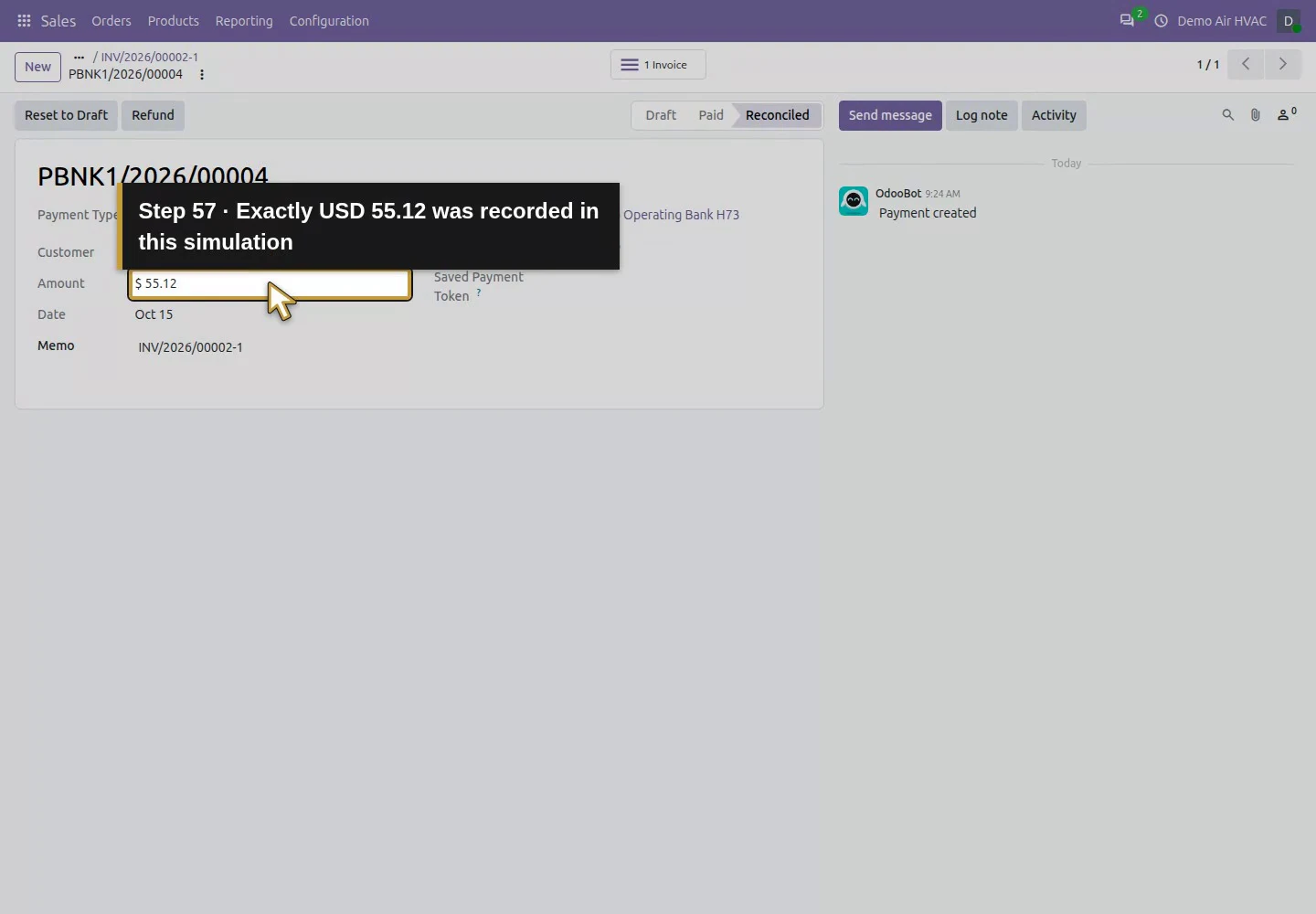
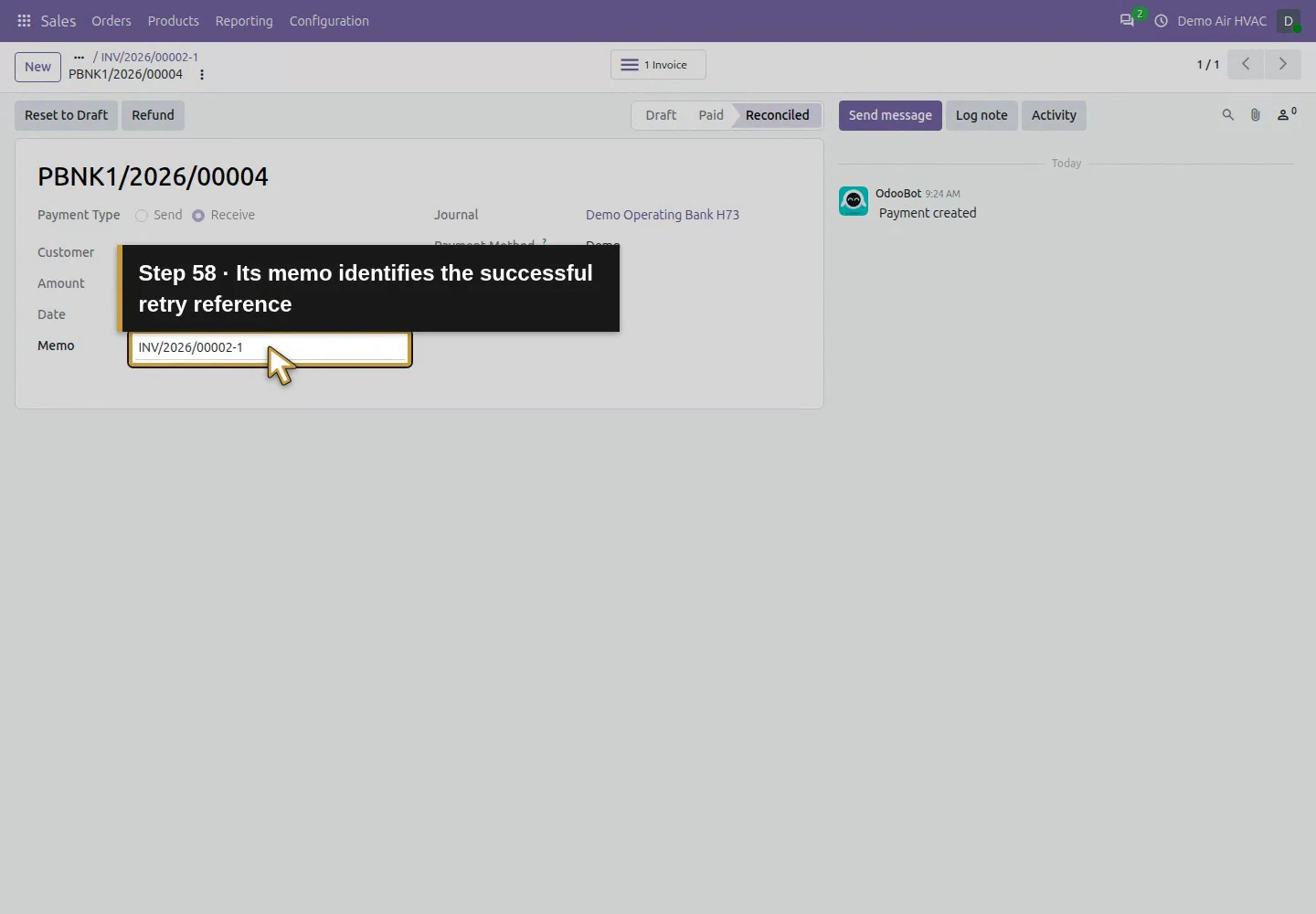
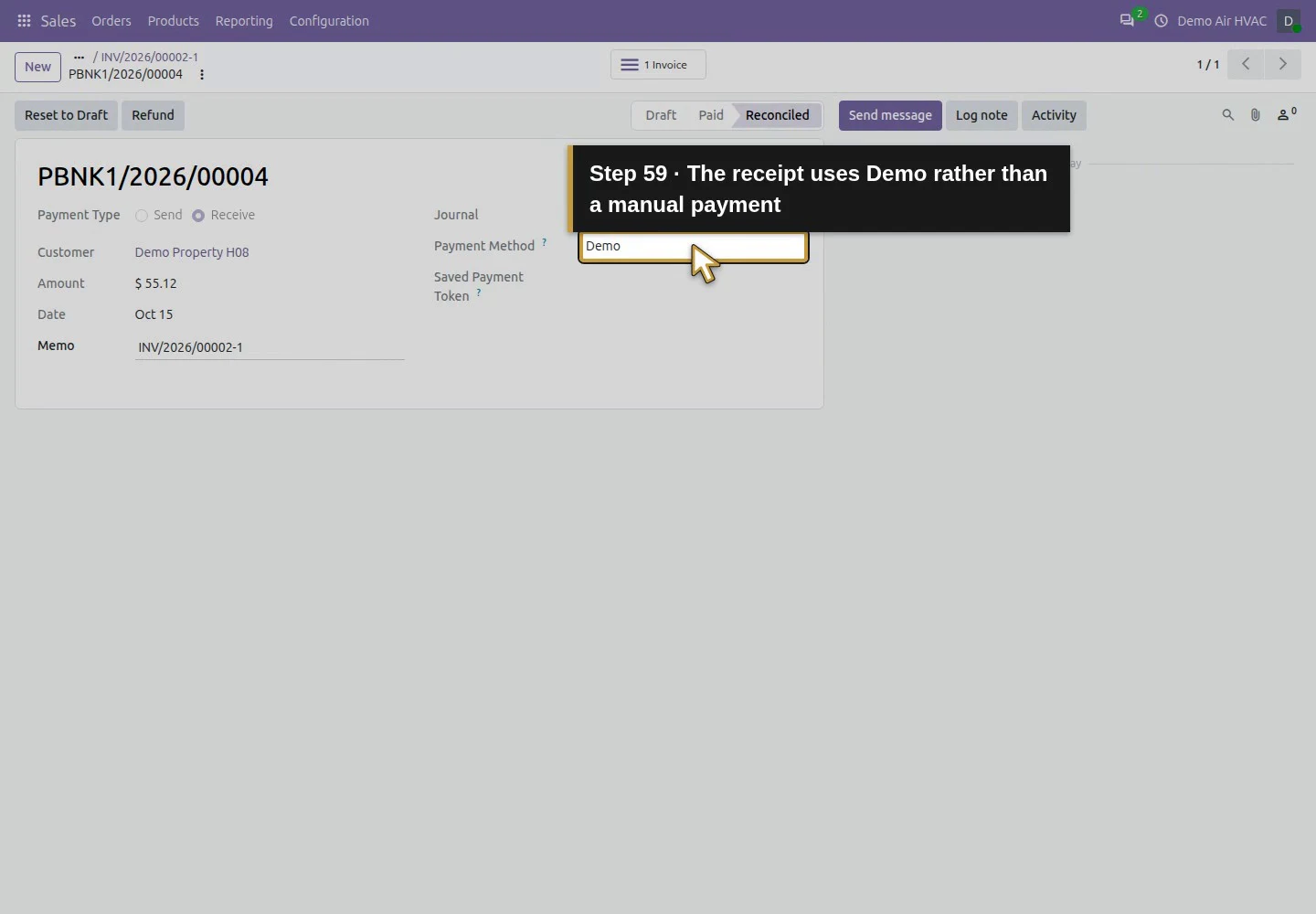
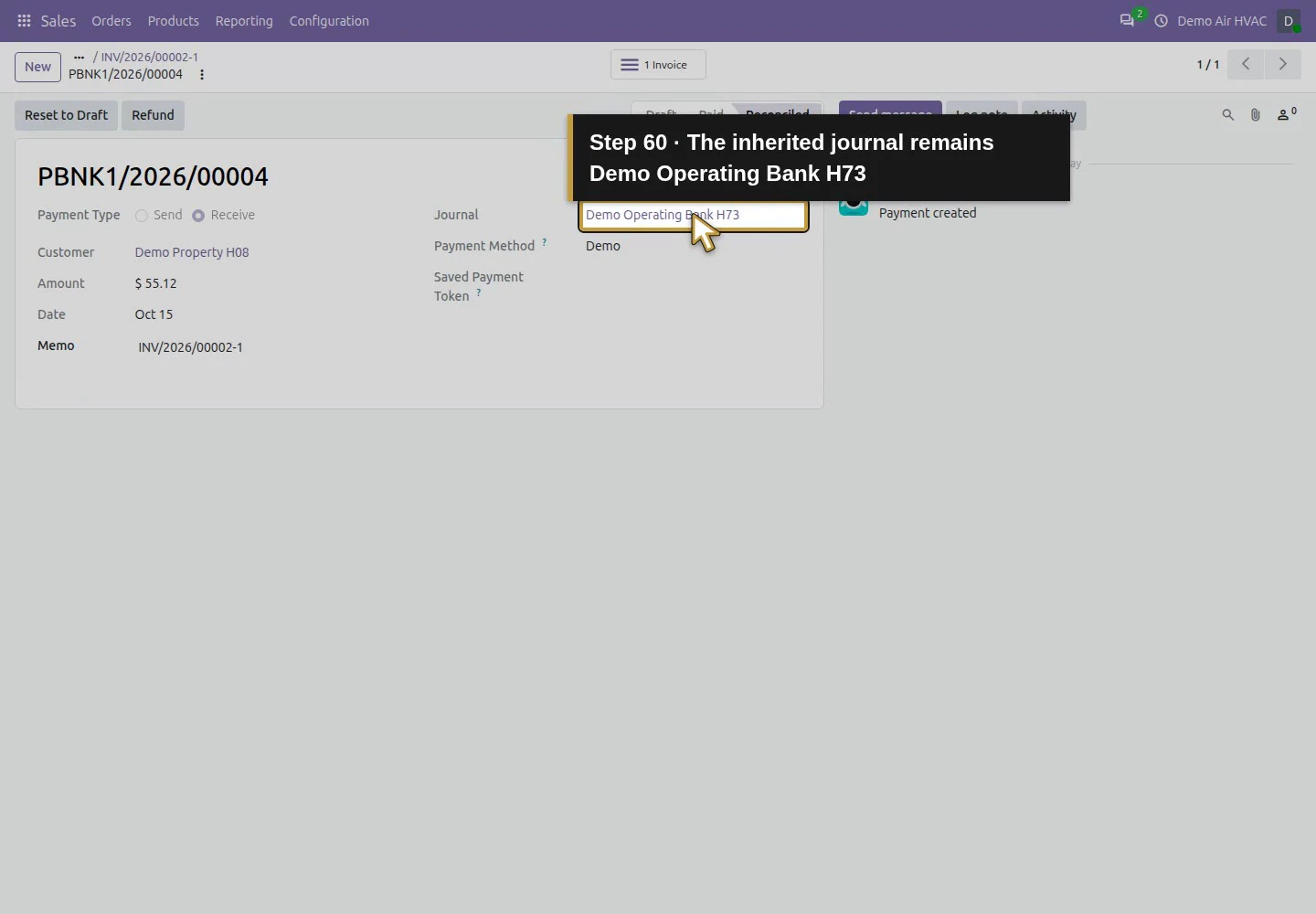
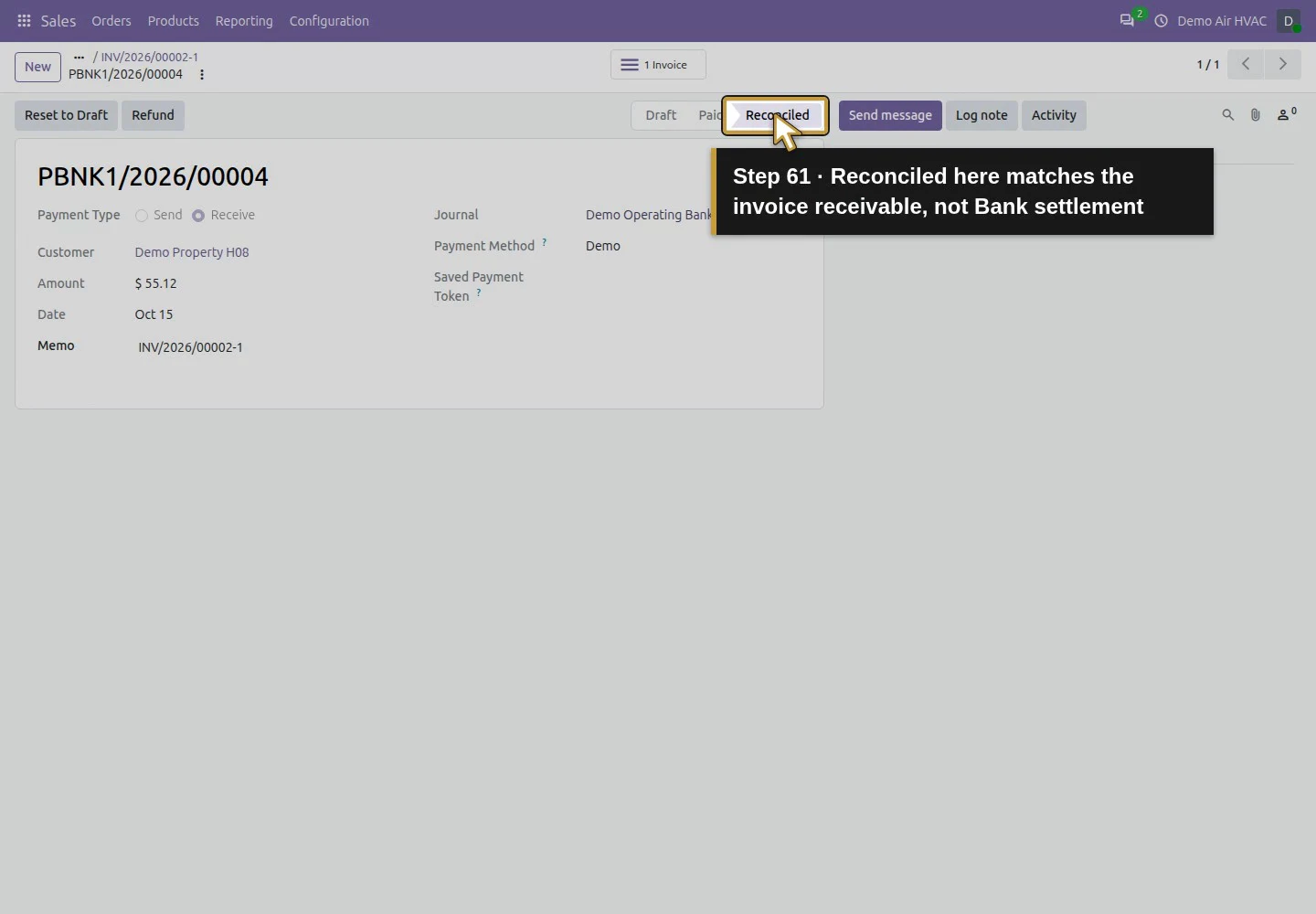
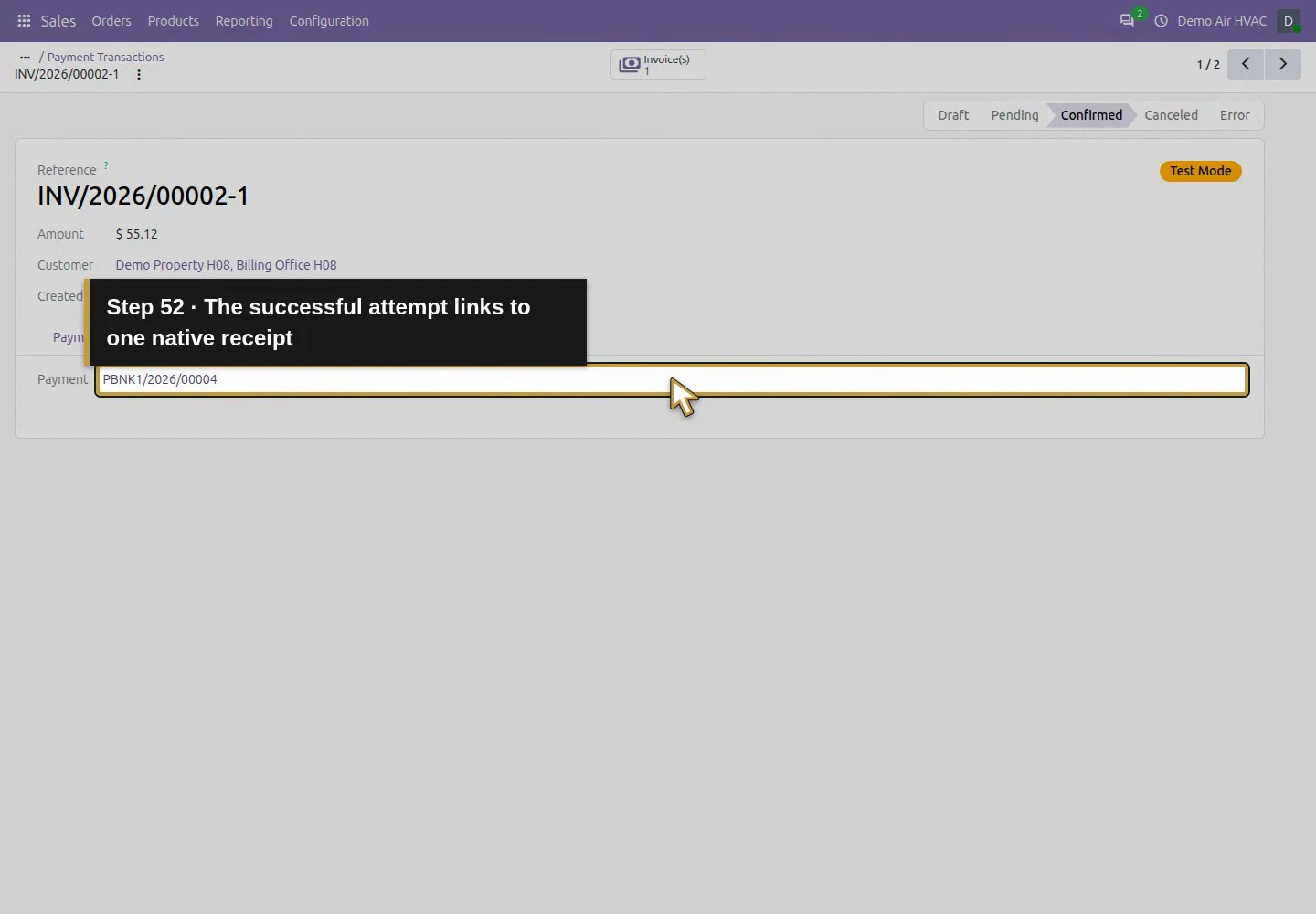
Open INV/2026/00002-1, then Accounting and its payment link PBNK1/2026/00004. Check type Receive, amount $55.12, customer Demo Property H08, journal Demo Operating Bank H73, method Demo, memo/reference INV/2026/00002-1 and status Reconciled. The transaction/invoice uses Billing Office H08; the generated receipt uses its parent commercial customer. The generated payment Date is October 15, 2026, while the deposit Invoice Date remains October 14. Inspect the saved date rather than assuming it matches the invoice date.
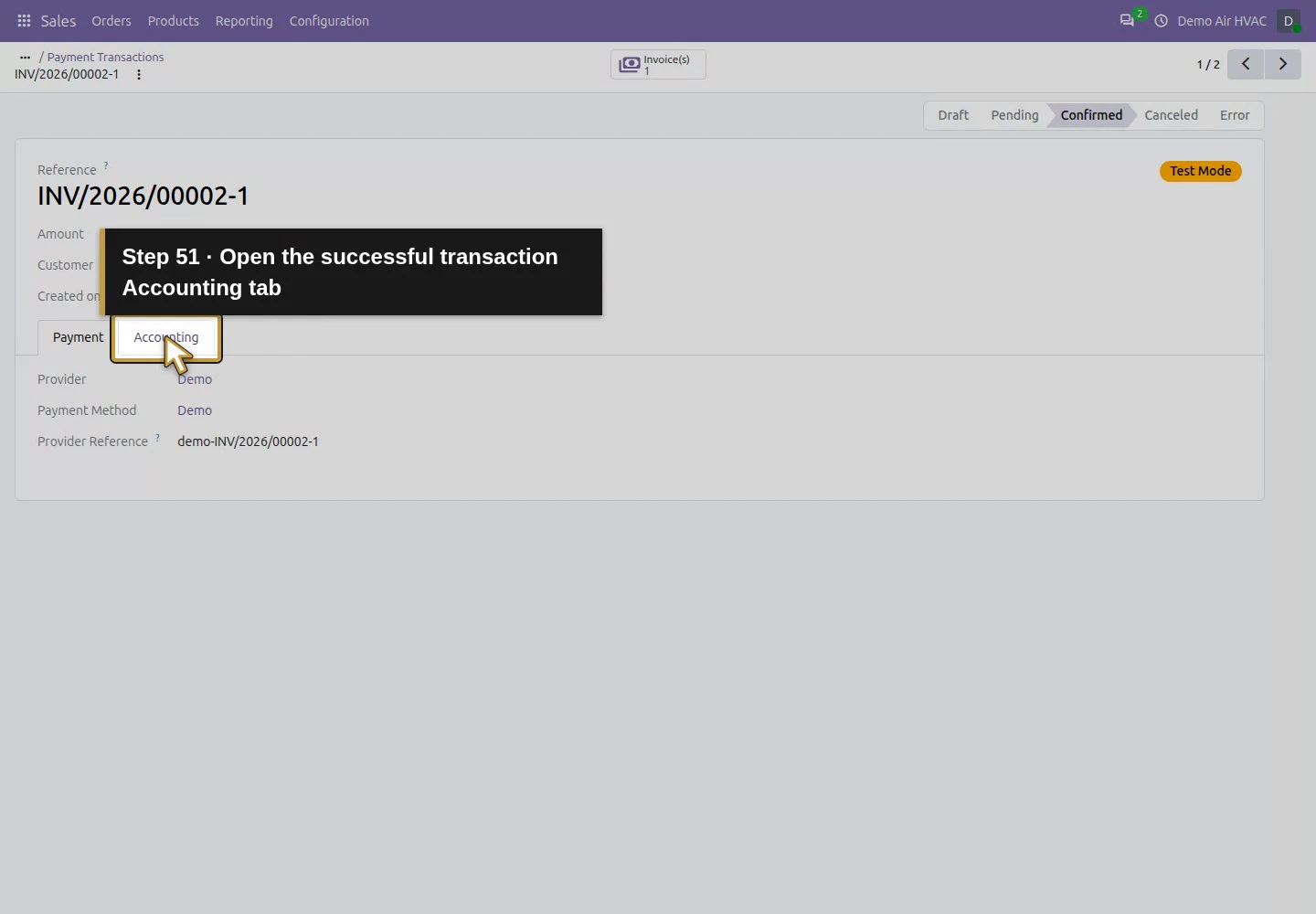
Action 51: Open the successful transaction Accounting tab. The actual target is highlighted in gold.
Open the successful transaction Accounting tab.
Action 52: The successful attempt links to one native receipt. The actual target is highlighted in gold.
The successful attempt links to one native receipt.
Action 53: Follow PBNK1/2026/00004 to that same simulated receipt. The actual target is highlighted in gold.
Follow PBNK1/2026/00004 to that same simulated receipt.
Action 54: Keep the one generated receipt PBNK1/2026/00004. The actual target is highlighted in gold.
Keep the one generated receipt PBNK1/2026/00004.
Action 55: Inspect the actual October 15 receipt date. The actual target is highlighted in gold.
Inspect the actual October 15 receipt date.
Action 56: The receipt uses the parent commercial customer. The actual target is highlighted in gold.
The receipt uses the parent commercial customer.
Action 57: Exactly USD 55.12 was recorded in this simulation. The actual target is highlighted in gold.
Exactly USD 55.12 was recorded in this simulation.
Action 58: Its memo identifies the successful retry reference. The actual target is highlighted in gold.
Its memo identifies the successful retry reference.
Action 59: The receipt uses Demo rather than a manual payment. The actual target is highlighted in gold.
The receipt uses Demo rather than a manual payment.
Action 60: The inherited journal remains Demo Operating Bank H73. The actual target is highlighted in gold.
The inherited journal remains Demo Operating Bank H73.
Action 61: Reconciled here matches the invoice receivable, not Bank settlement. The actual target is highlighted in gold.
Reconciled here matches the invoice receivable, not Bank settlement.

Step 9. Check the accounting and retry boundary

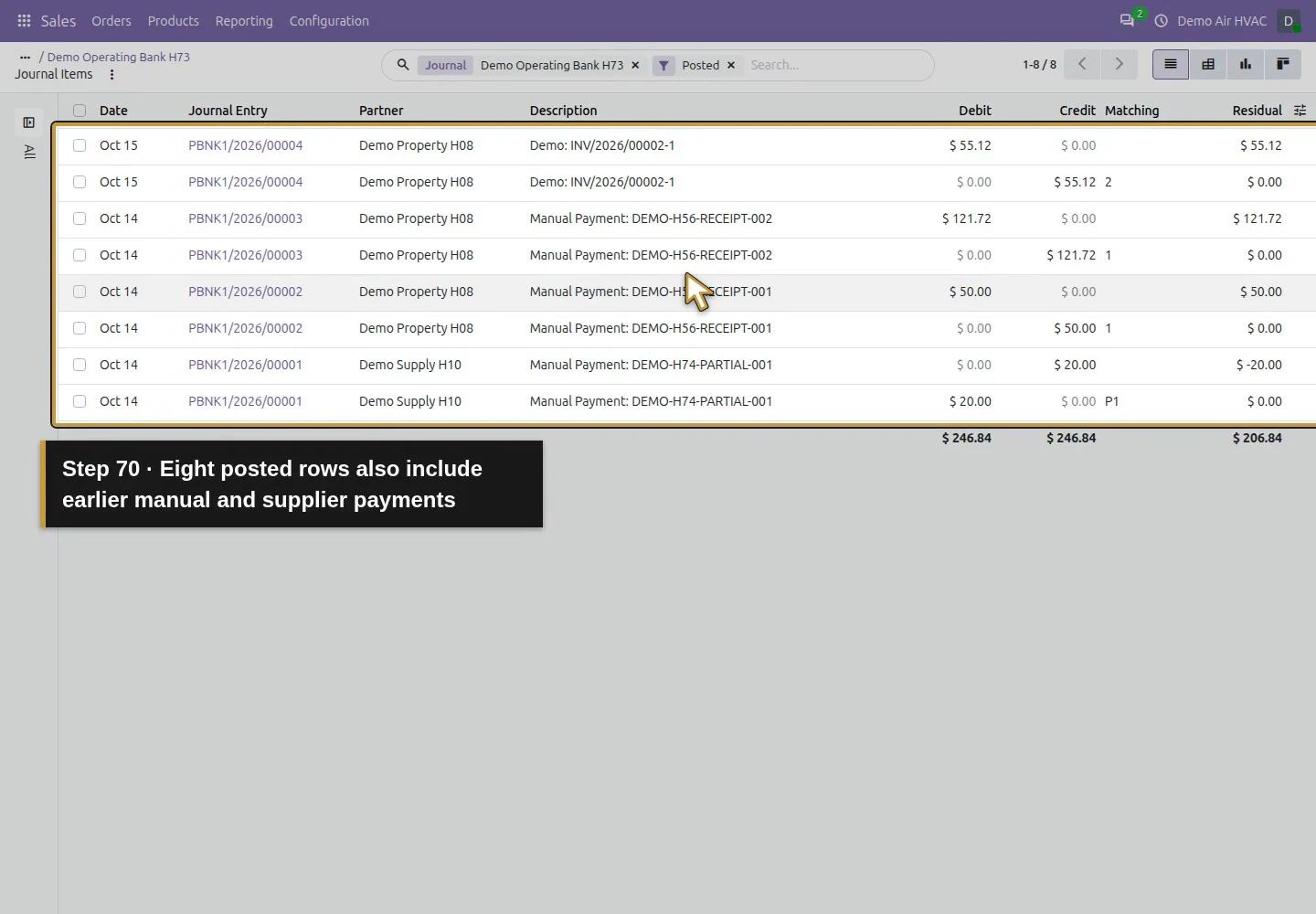
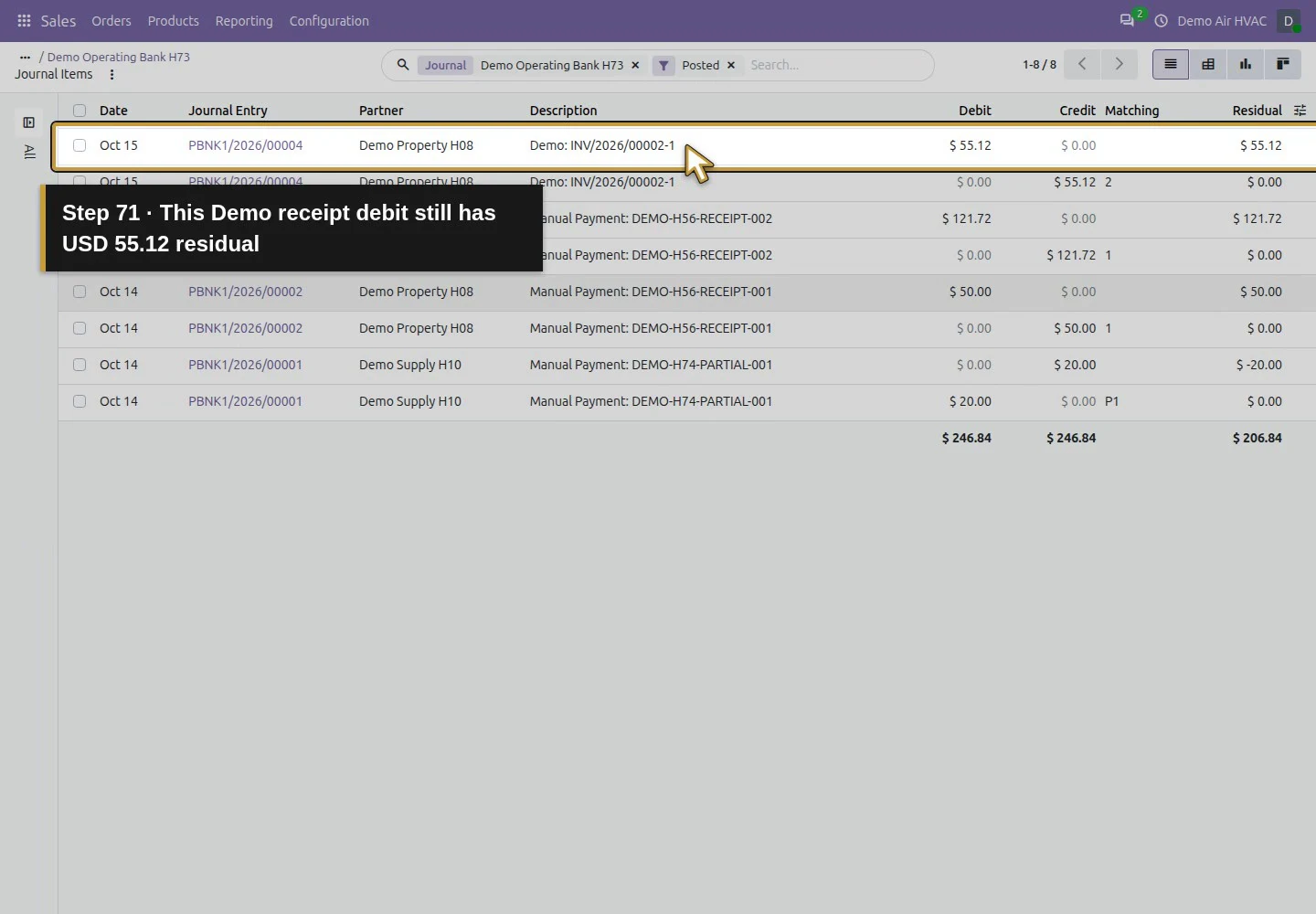
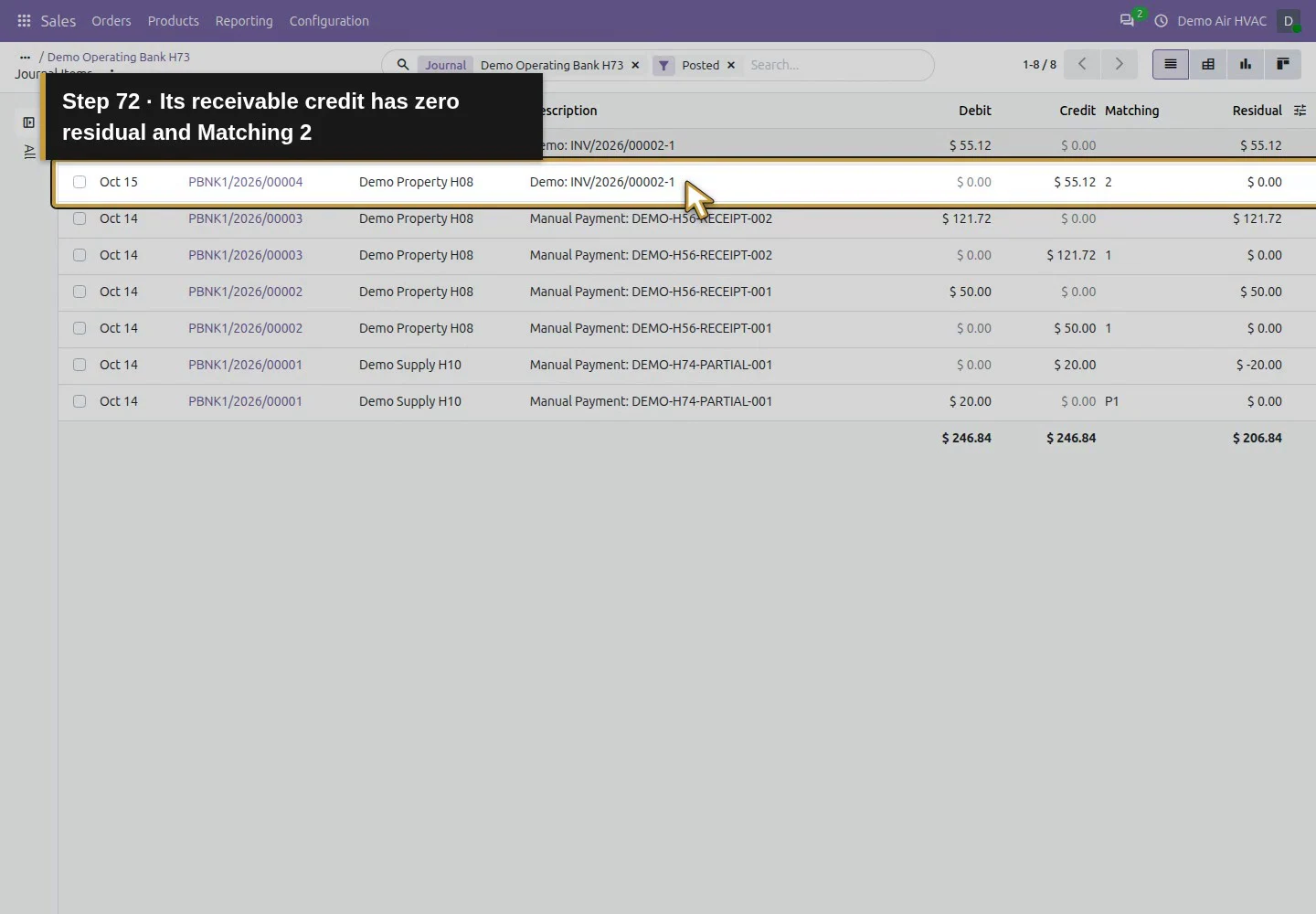
The successful transaction links to exactly one receipt and the same deposit invoice; the Error transaction has no receipt. Saved checks after the customer reload still show two attempts, one new receipt and zero saved payment tokens. The receipt matches the invoice receivable but leaves $55.12 in Outstanding Receipts unmatched. The Demo method’s native account mapping points there. No Bank-account entry or bank-statement reconciliation was created. Do not add a manual payment for this same simulated receipt.
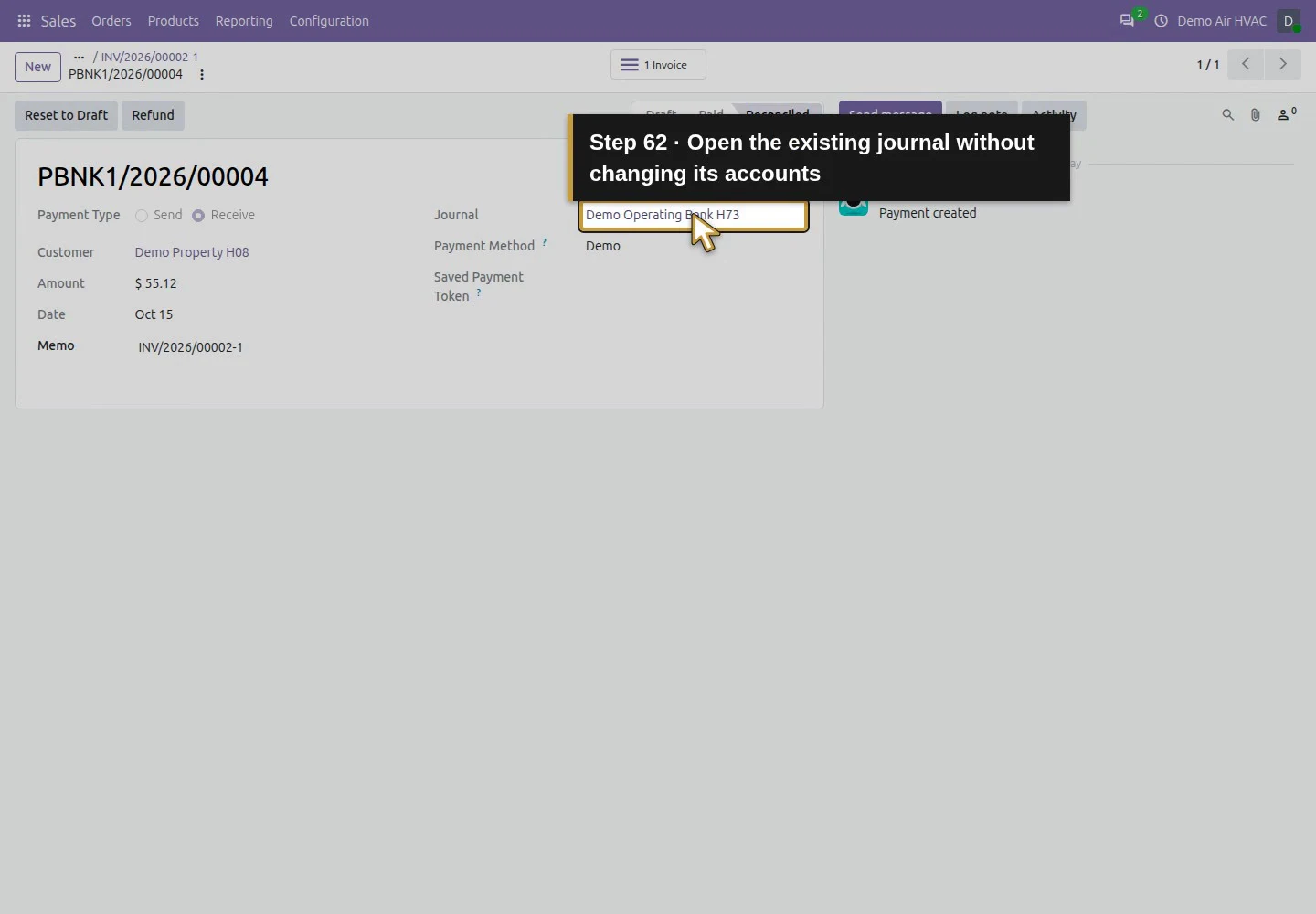
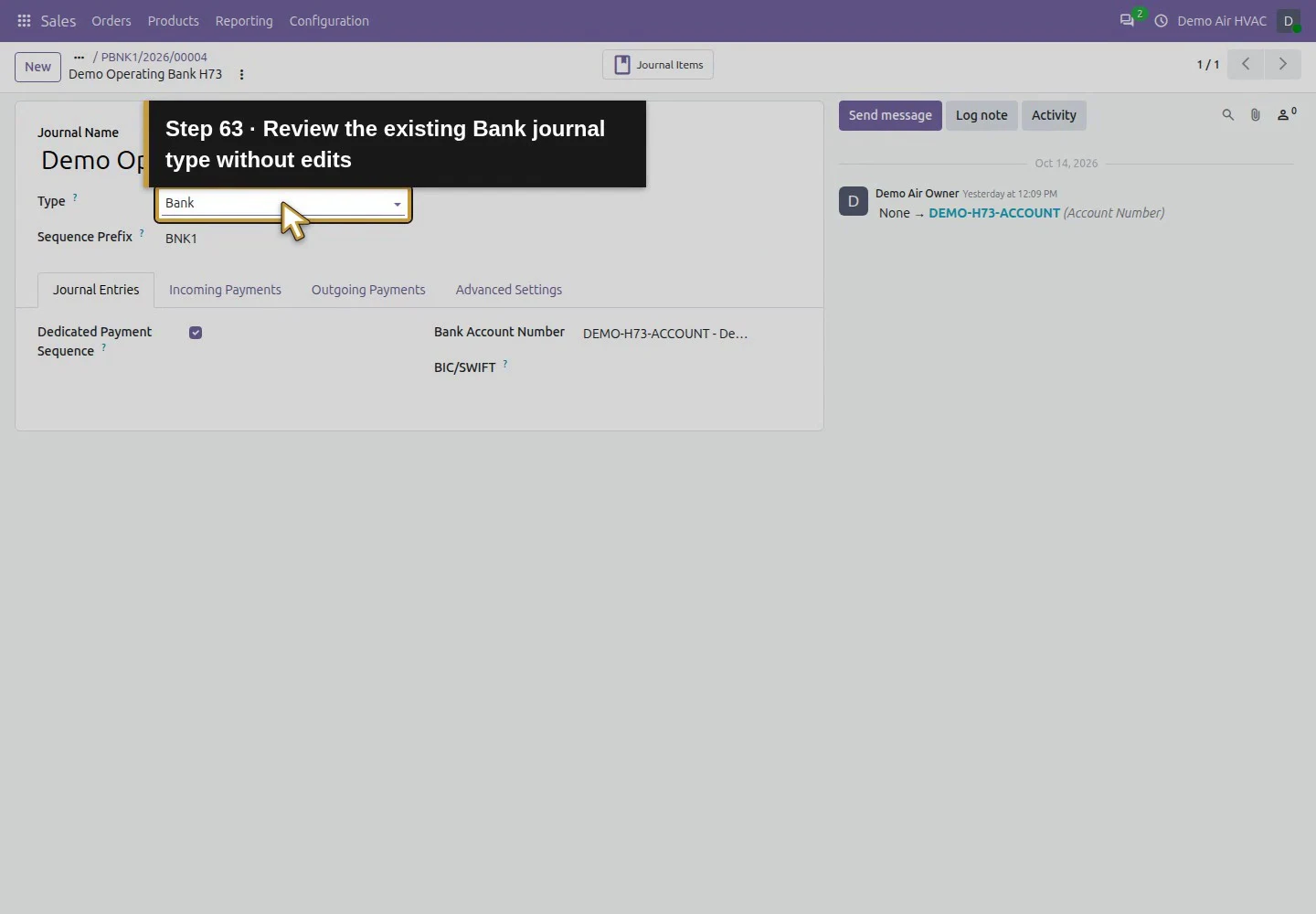
Action 62: Open the existing journal without changing its accounts. The actual target is highlighted in gold.
Open the existing journal without changing its accounts.
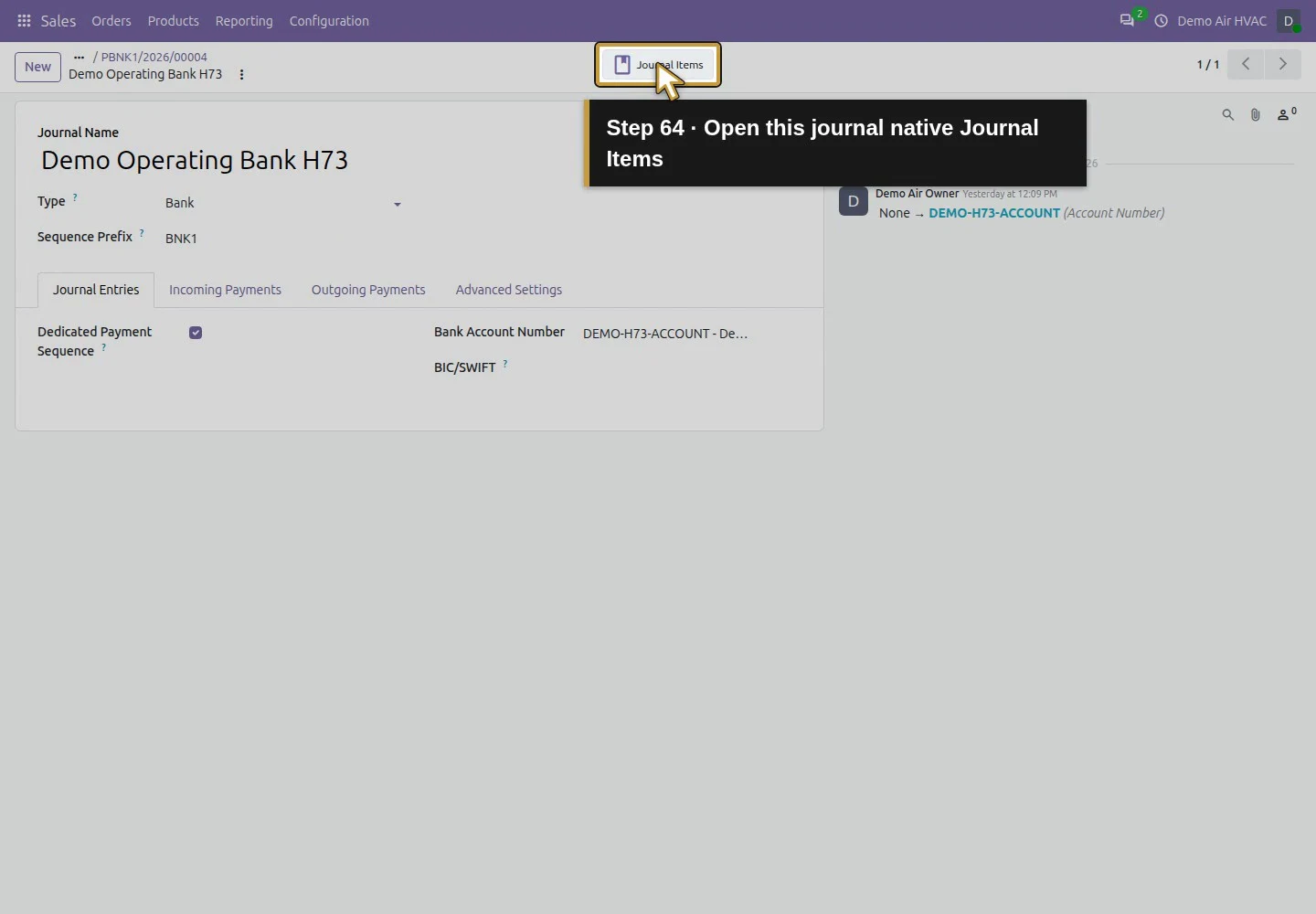
Action 63: Review the existing Bank journal type without edits. The actual target is highlighted in gold.
Review the existing Bank journal type without edits.
Action 64: Open this journal native Journal Items. The actual target is highlighted in gold.
Open this journal native Journal Items.
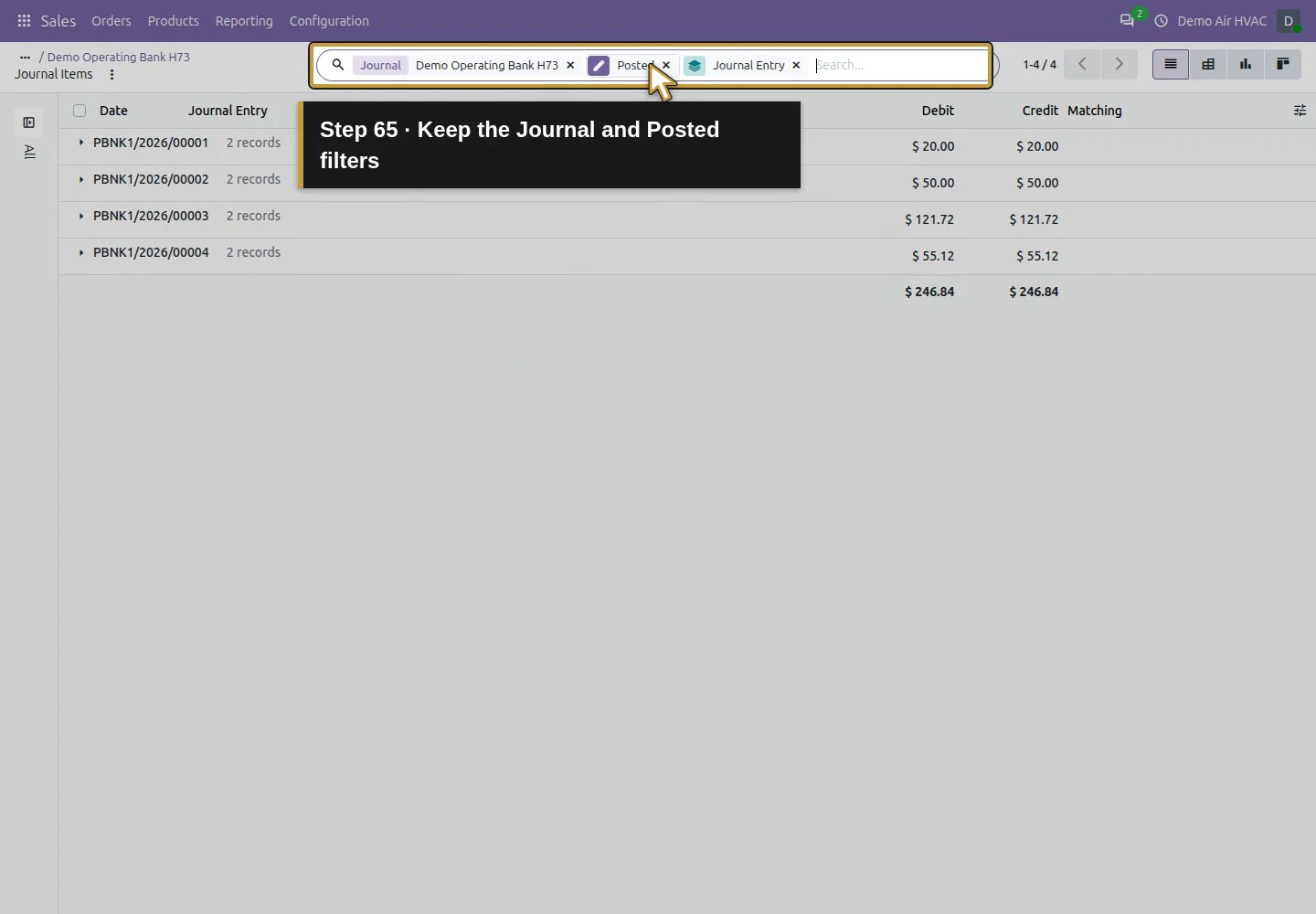
Action 65: Keep the Journal and Posted filters. The actual target is highlighted in gold.
Keep the Journal and Posted filters.
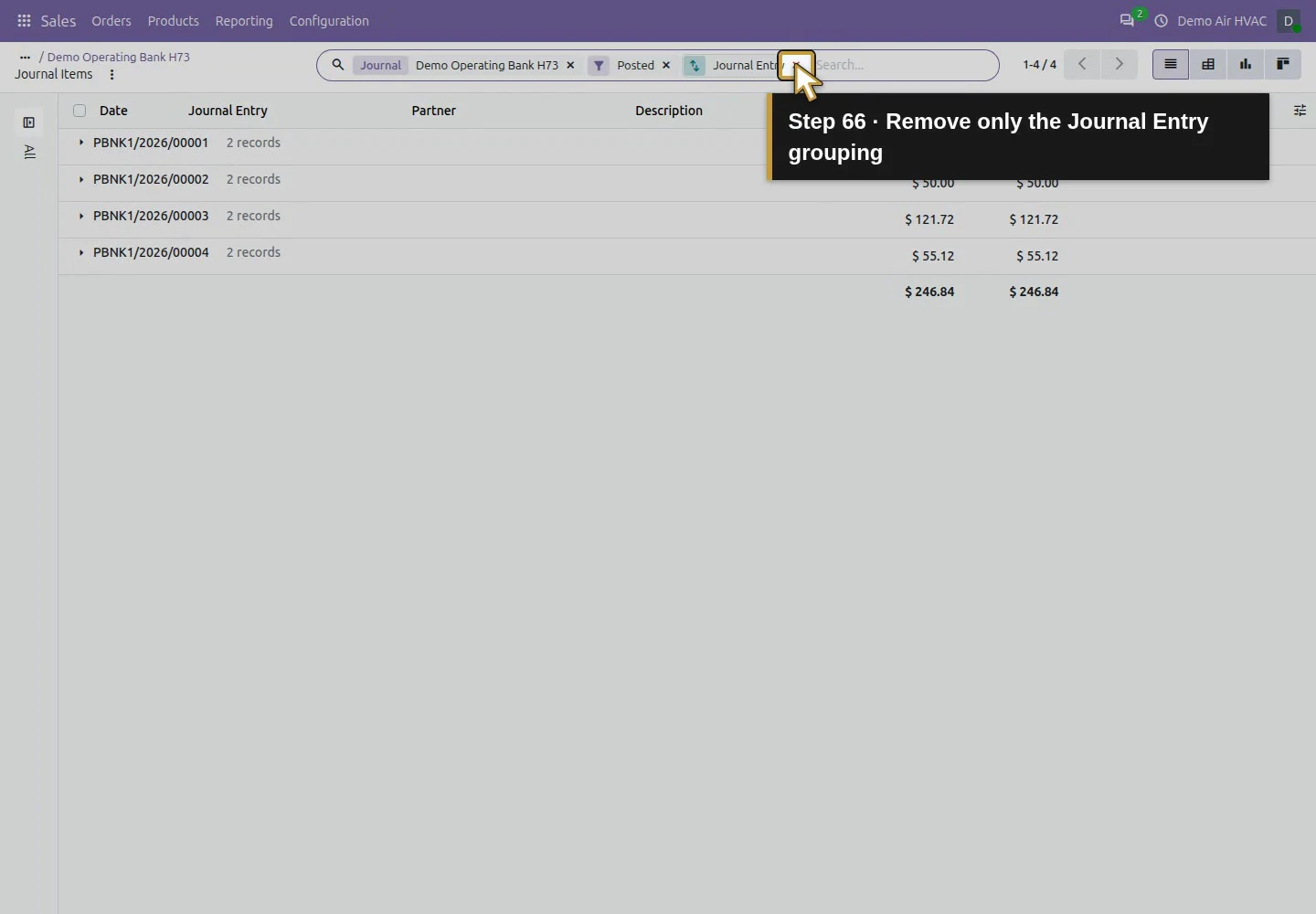
Action 66: Remove only the Journal Entry grouping. The actual target is highlighted in gold.
Remove only the Journal Entry grouping.
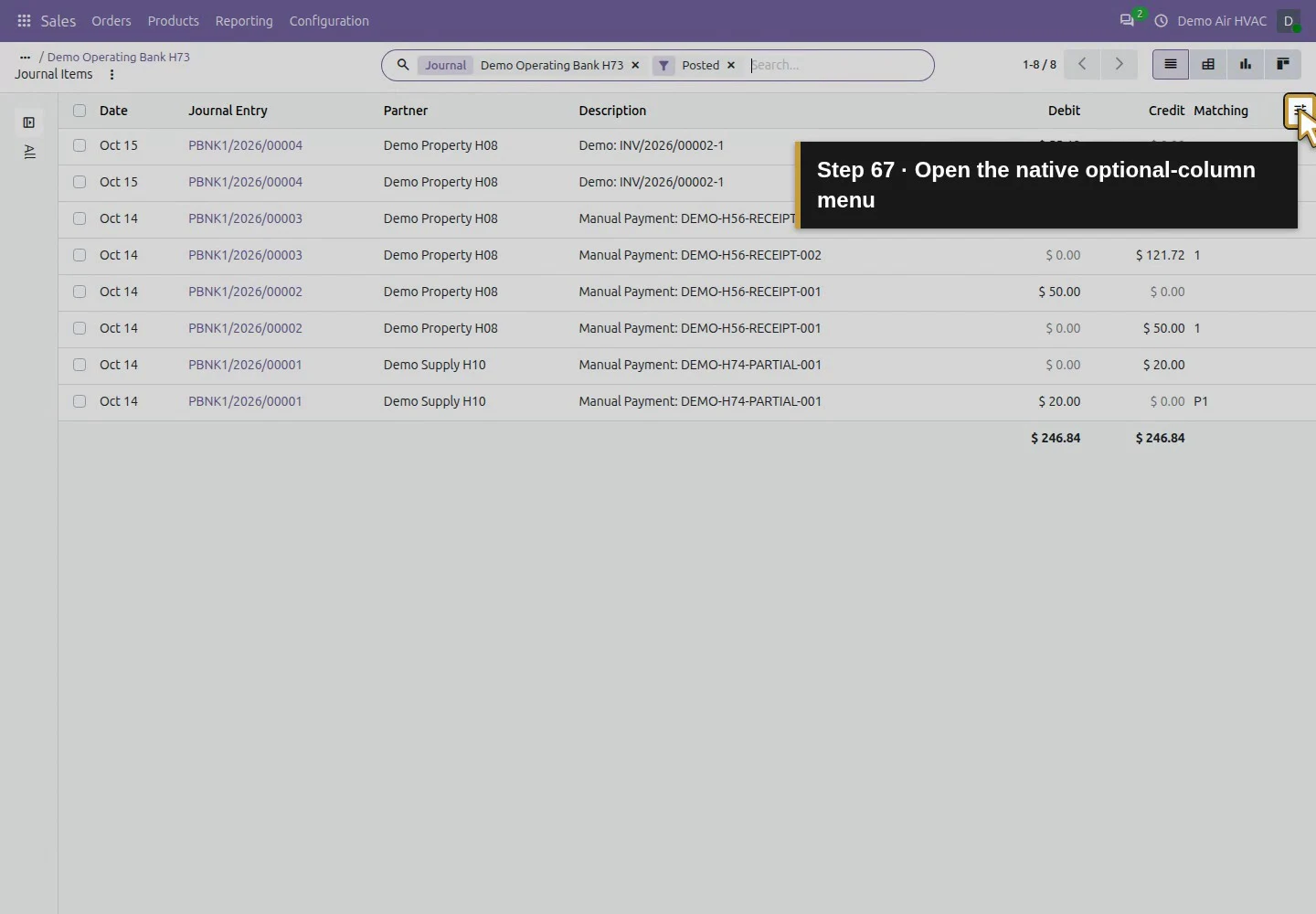
Action 67: Open the native optional-column menu. The actual target is highlighted in gold.
Open the native optional-column menu.
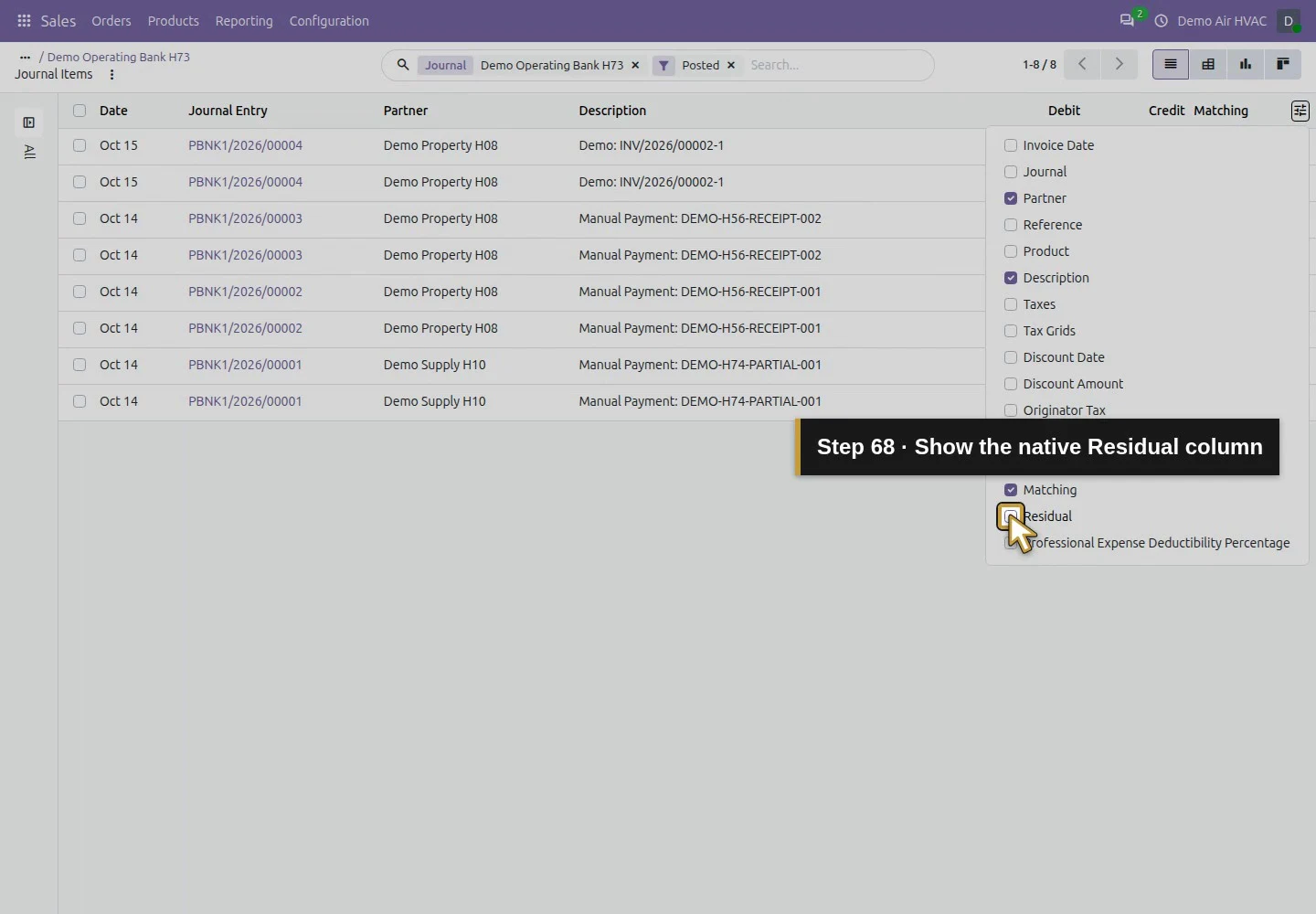
Action 68: Show the native Residual column. The actual target is highlighted in gold.
Show the native Residual column.
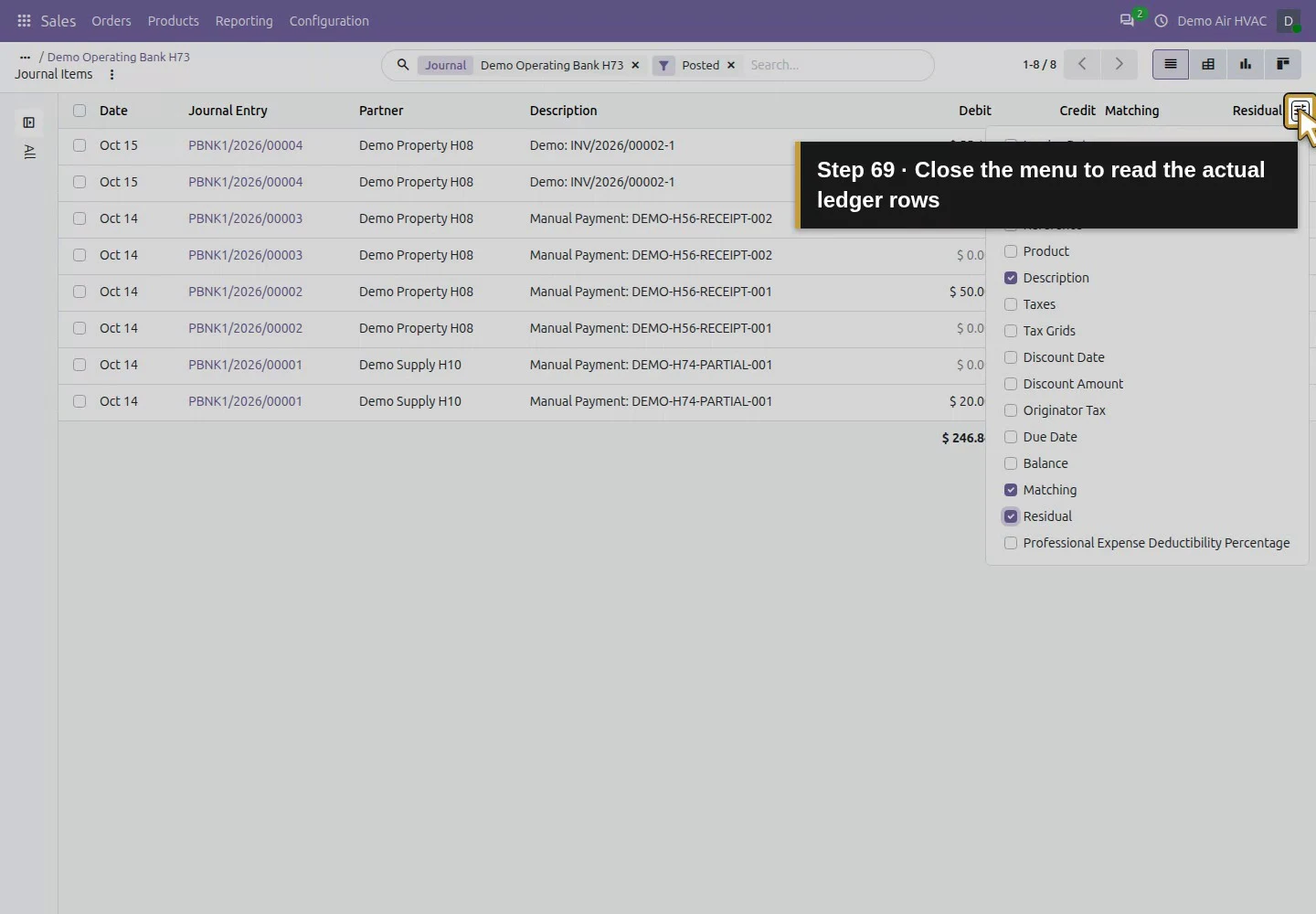
Action 69: Close the menu to read the actual ledger rows. The actual target is highlighted in gold.
Close the menu to read the actual ledger rows.
Action 70: Eight posted rows also include earlier manual and supplier payments. The actual target is highlighted in gold.
Eight posted rows also include earlier manual and supplier payments.
Action 71: This Demo receipt debit still has USD 55.12 residual. The actual target is highlighted in gold.
This Demo receipt debit still has USD 55.12 residual.
Action 72: Its receivable credit has zero residual and Matching 2. The actual target is highlighted in gold.
Its receivable credit has zero residual and Matching 2.

Step 10. Preserve the final draft and its review hold

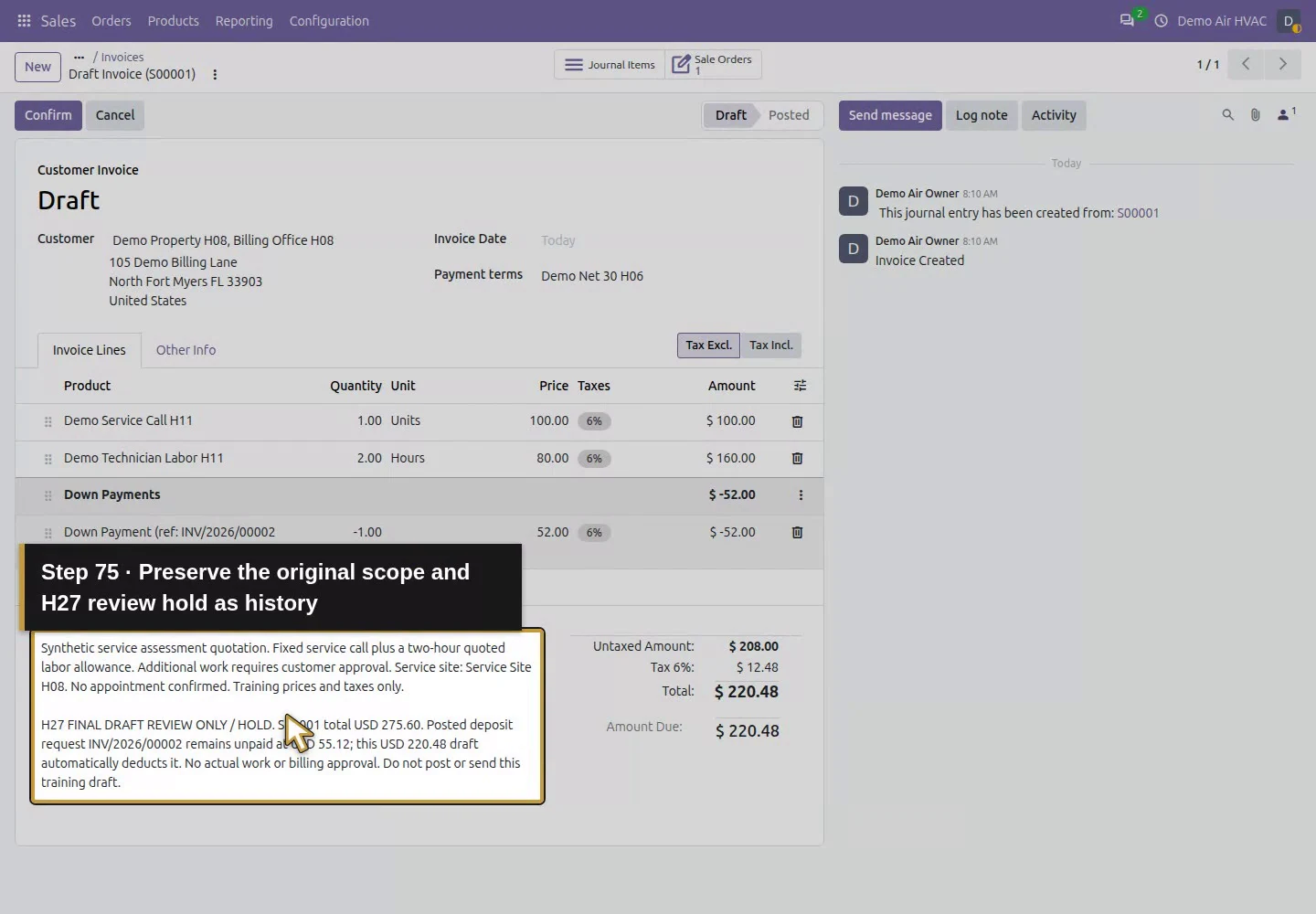
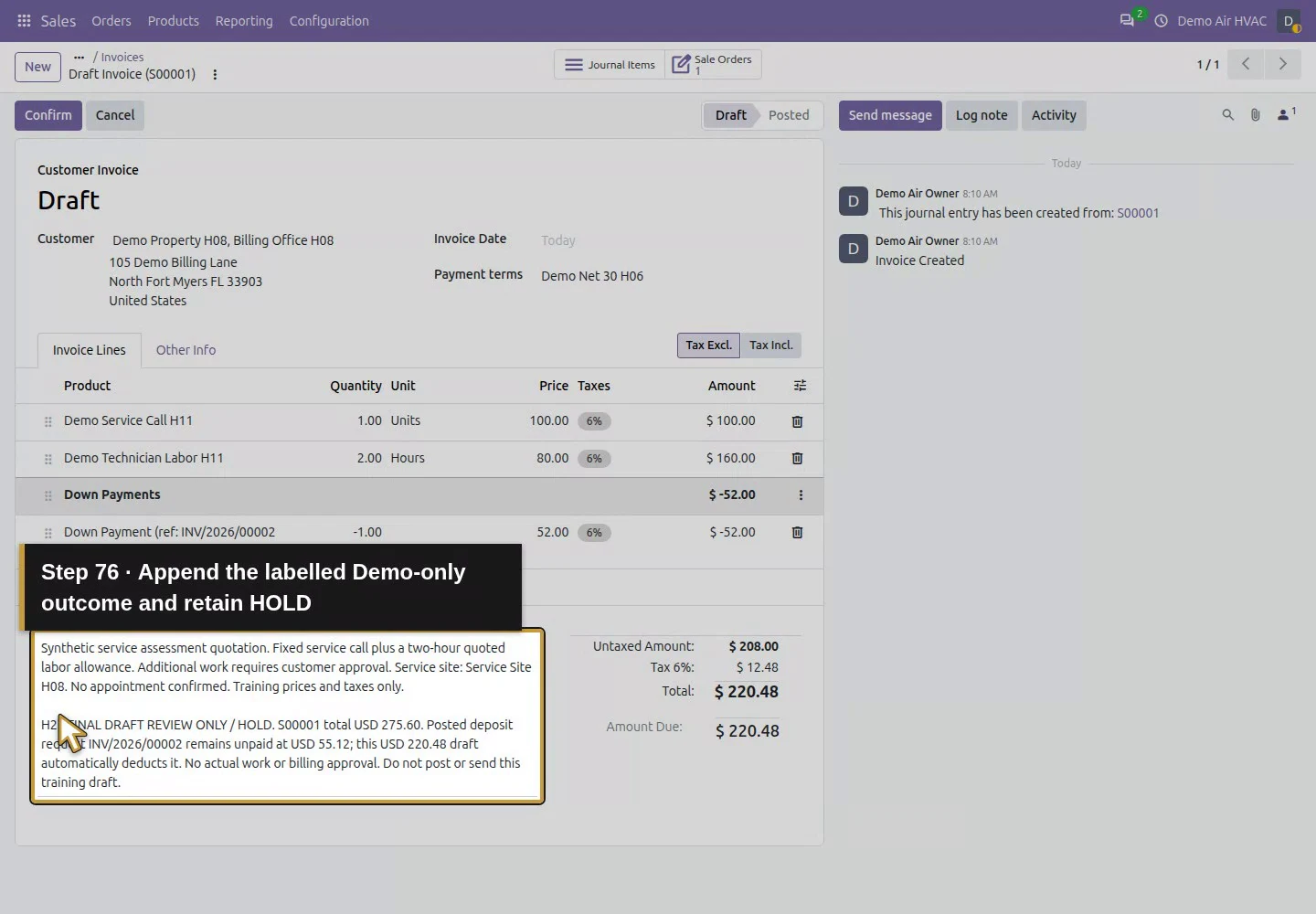
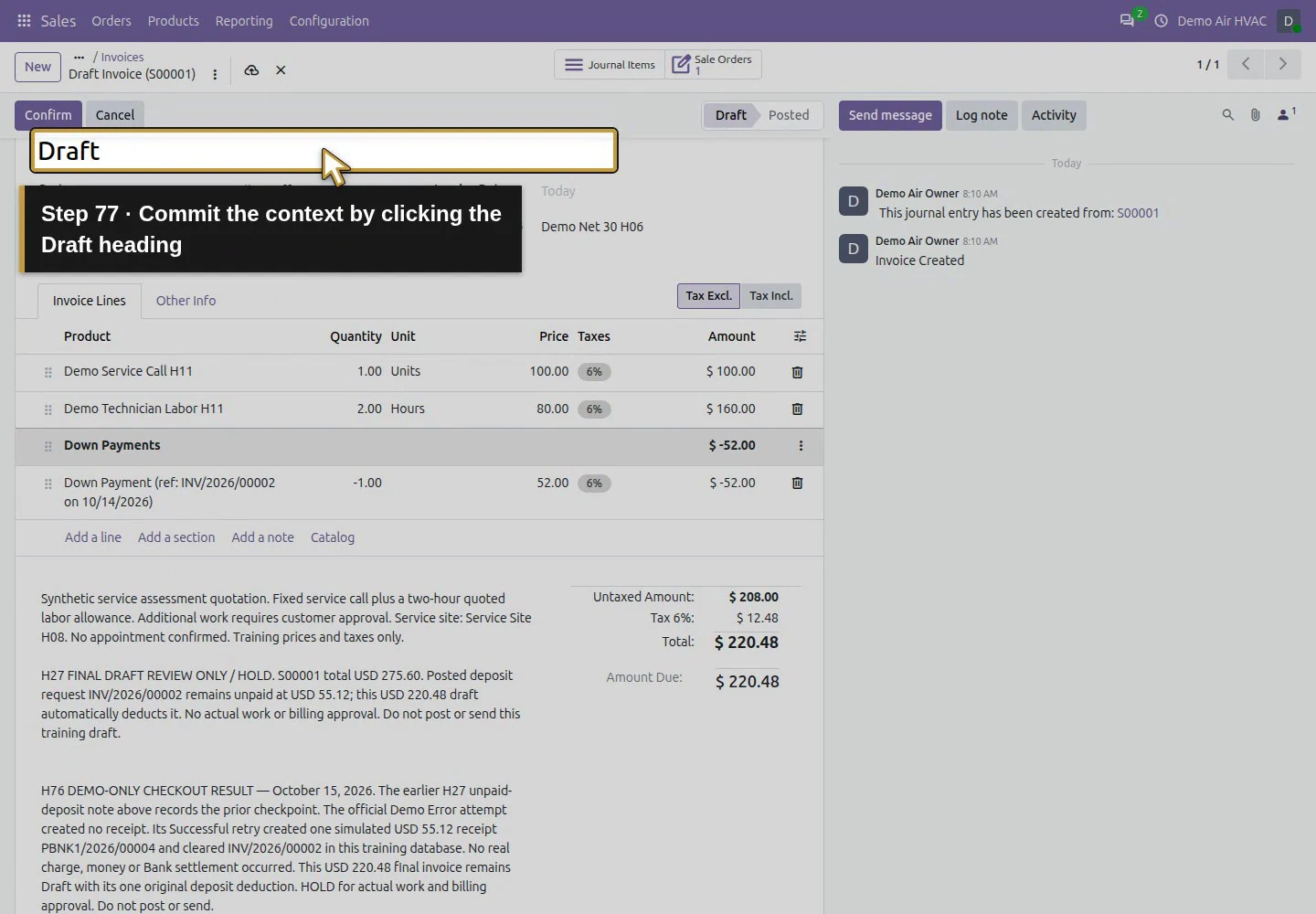
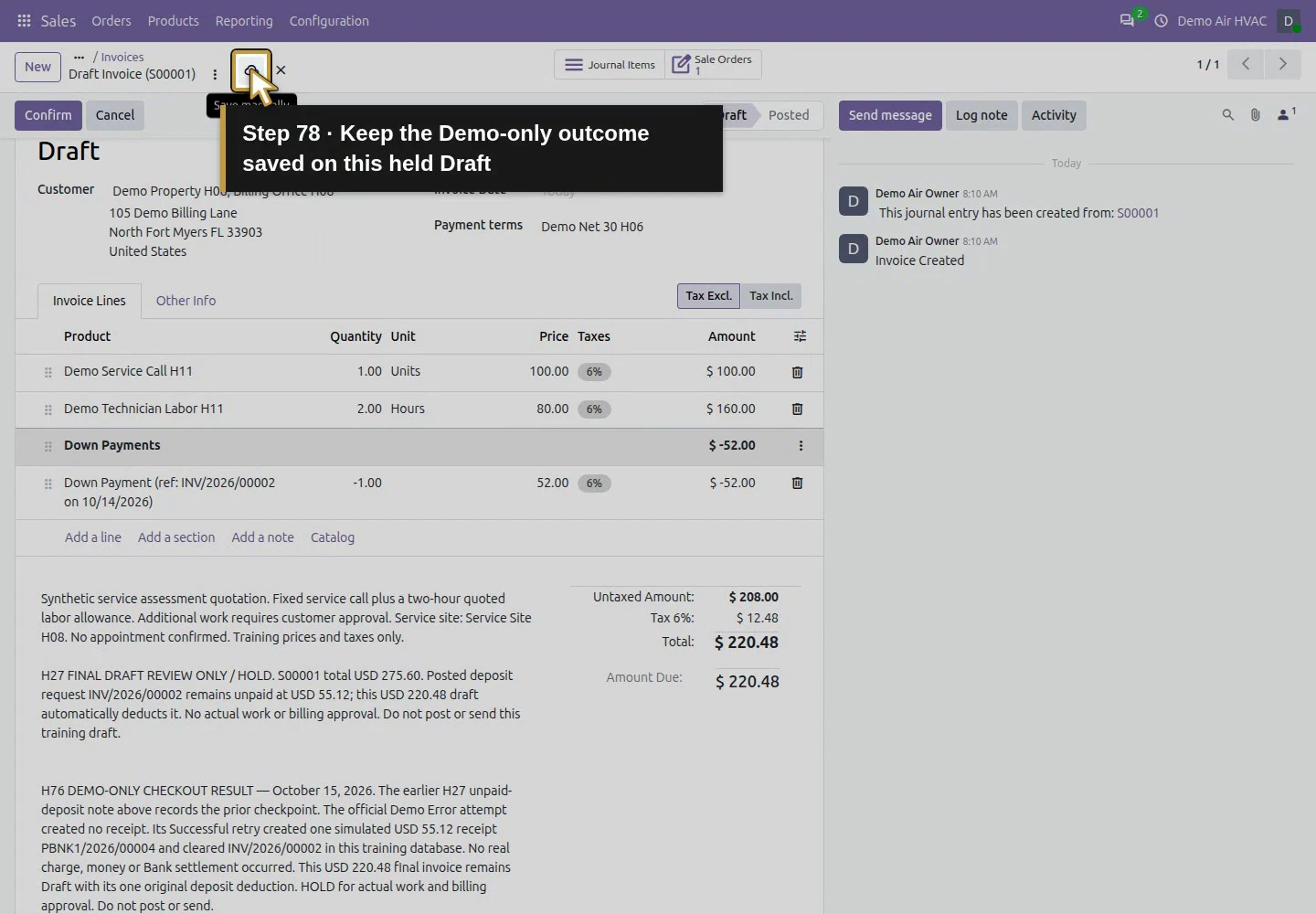
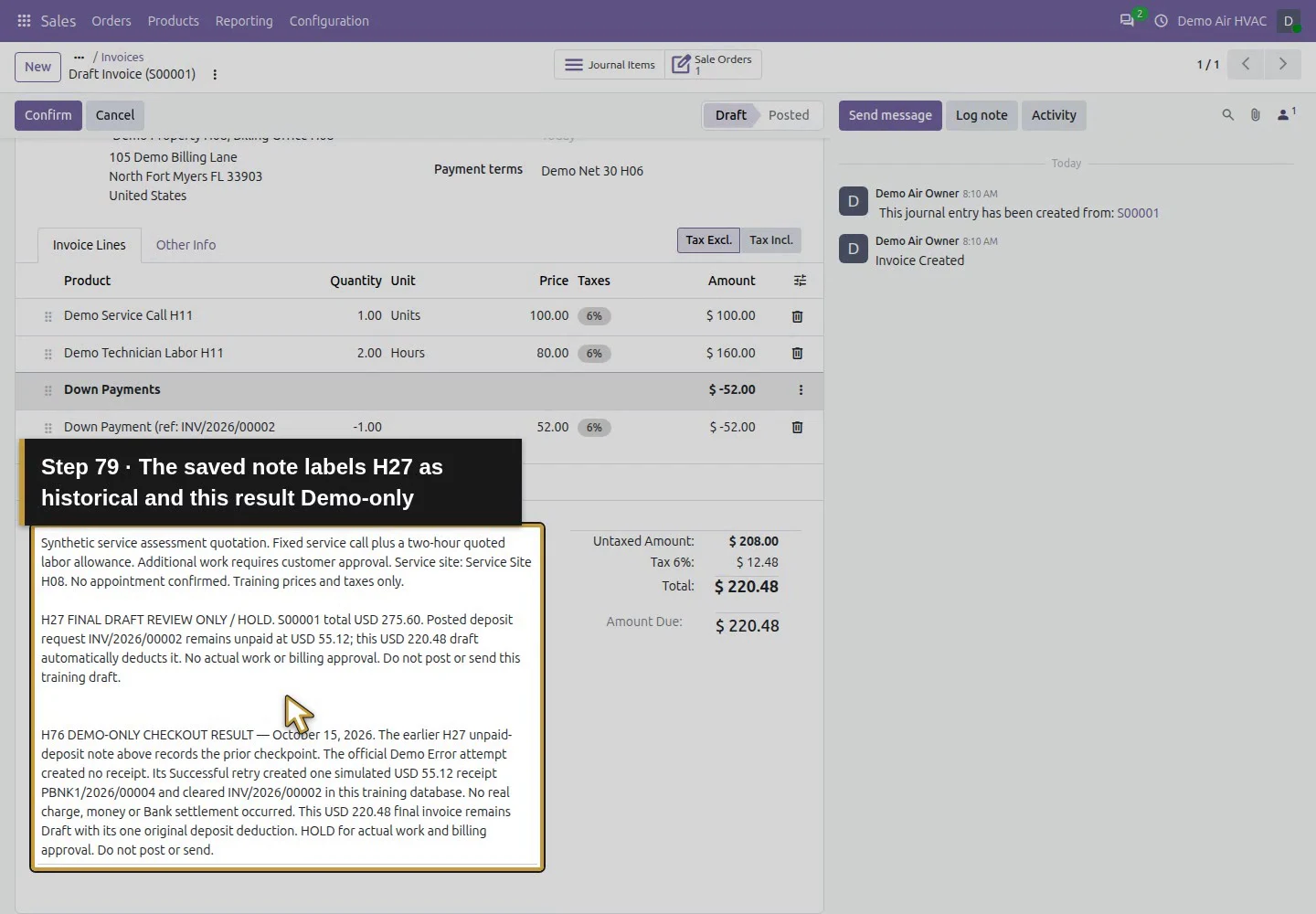
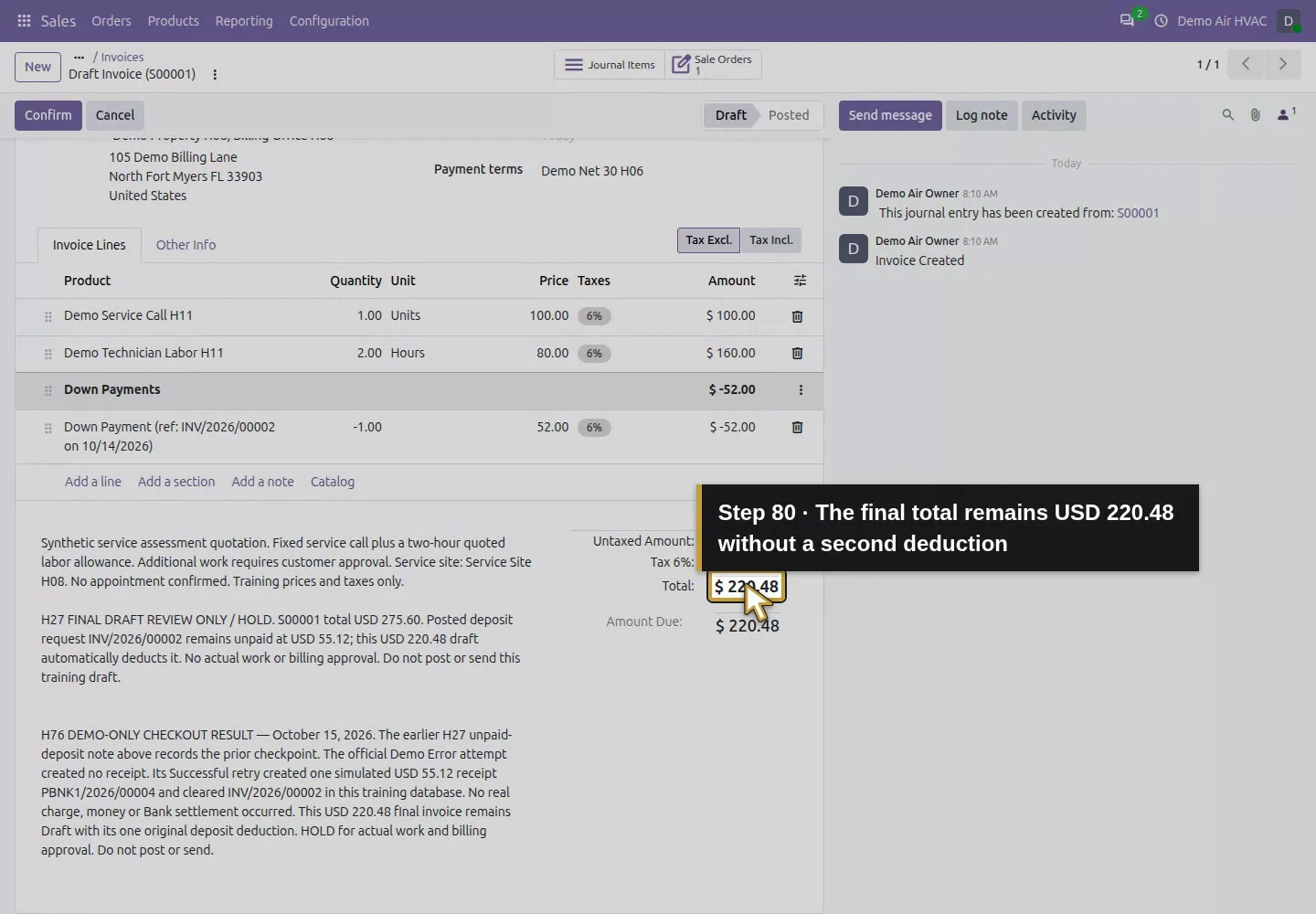
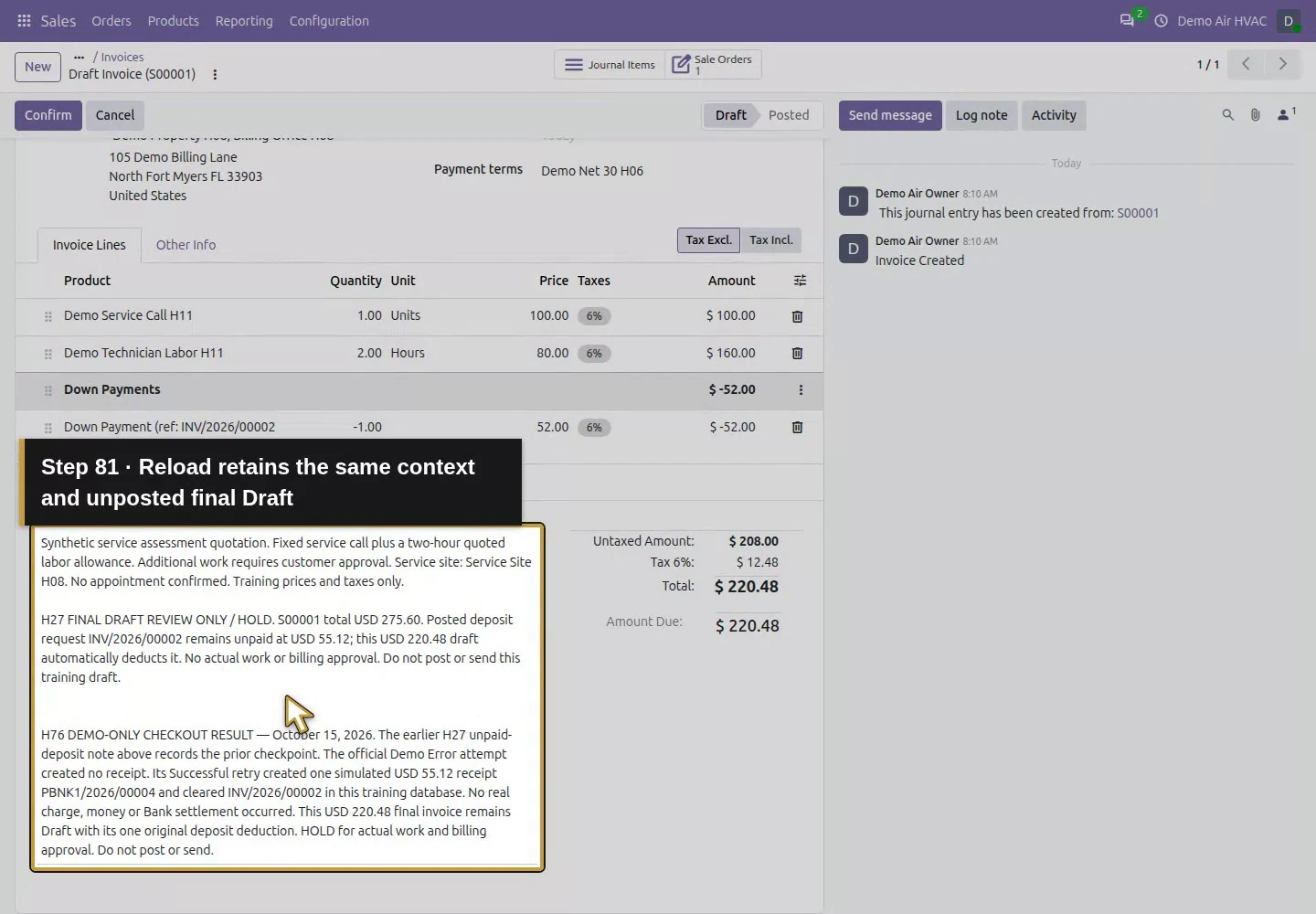
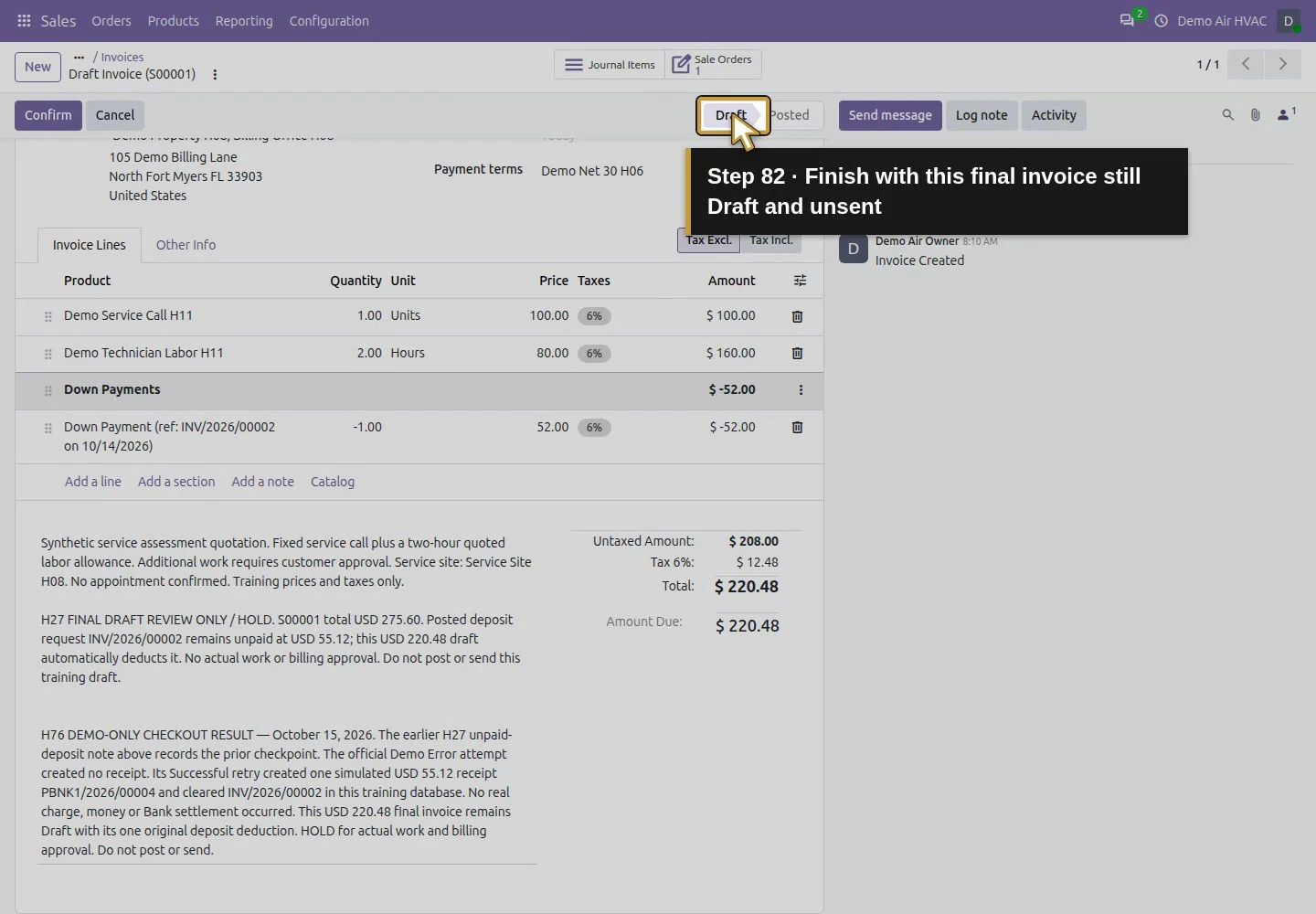
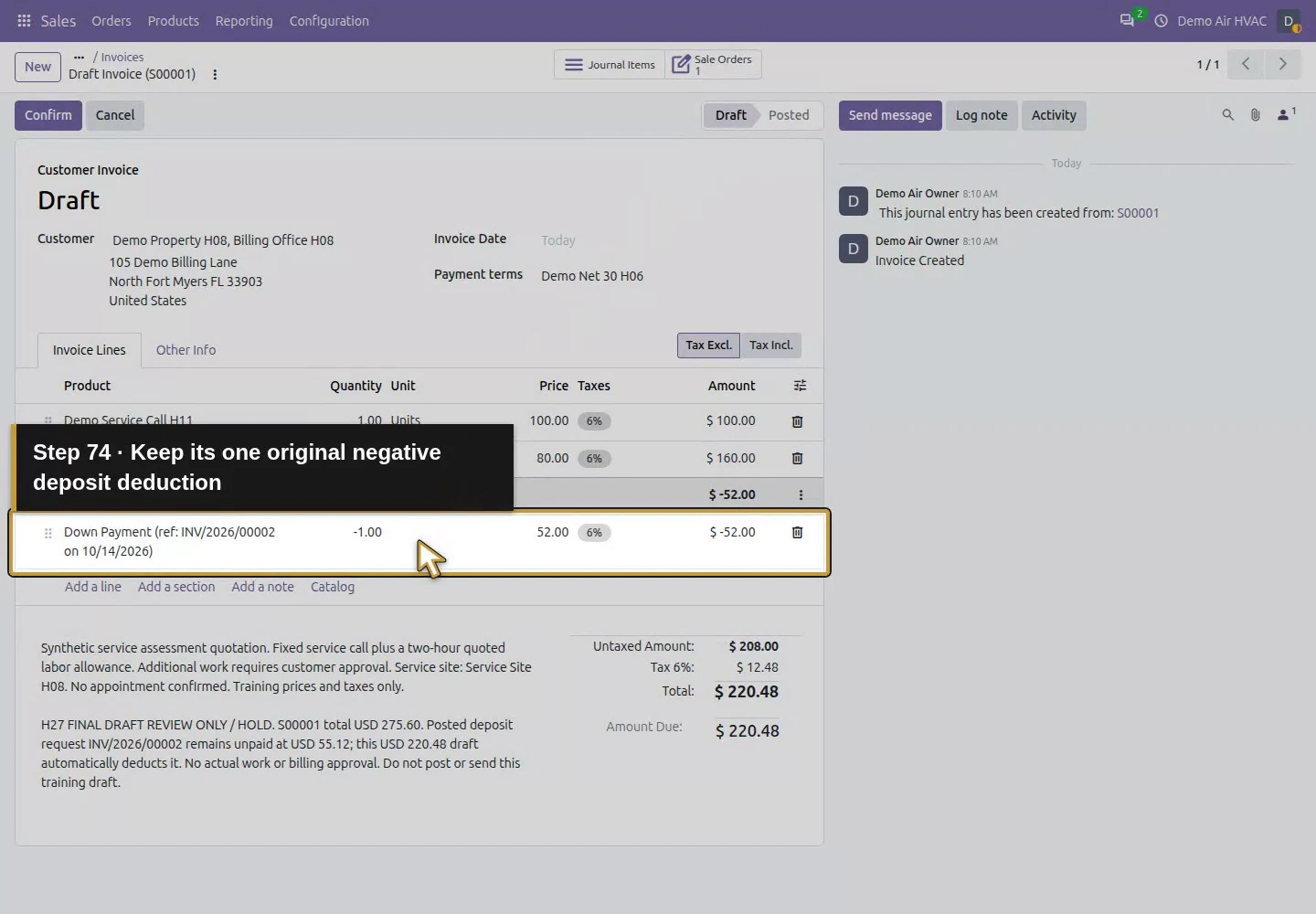
Reopen H27’s $220.48 final draft. Its original lines and single deposit deduction remain unchanged. Update its note to label H27’s earlier unpaid state as historical and record the later Demo-only paid result; retain the hold pending actual work/commercial review. Save pending changes and wait for the save to settle. The final stays Draft/unpaid and is neither posted nor sent. Earlier customer/supplier invoices and payments are preserved. A real provider would need its own separately verified configuration and operating process.
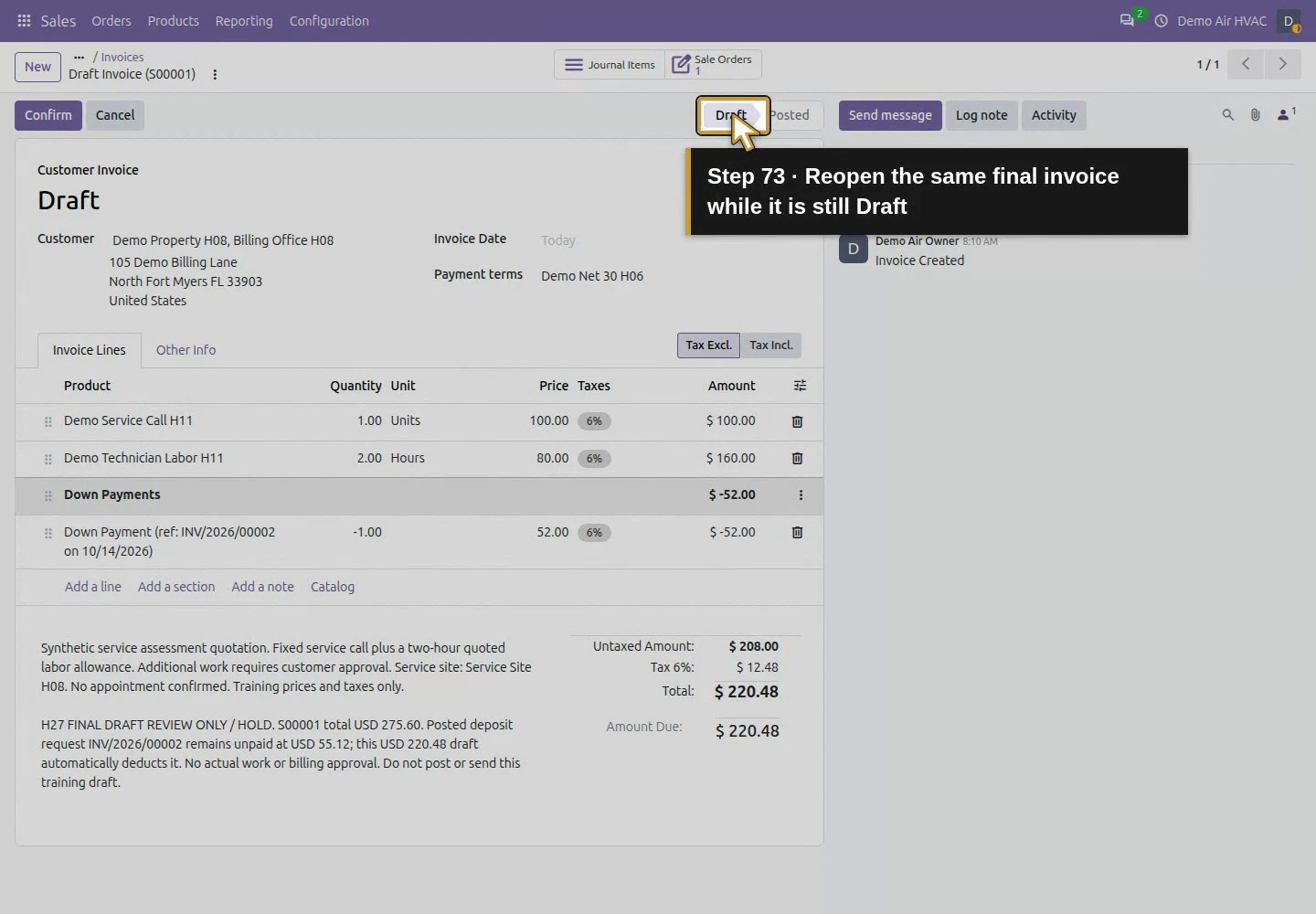
Action 73: Reopen the same final invoice while it is still Draft. The actual target is highlighted in gold.
Reopen the same final invoice while it is still Draft.
Action 74: Keep its one original negative deposit deduction. The actual target is highlighted in gold.
Keep its one original negative deposit deduction.
Action 75: Preserve the original scope and H27 review hold as history. The actual target is highlighted in gold.
Preserve the original scope and H27 review hold as history.
Action 76: Append the labelled Demo-only outcome and retain HOLD. The actual target is highlighted in gold.
Append the labelled Demo-only outcome and retain HOLD.
Action 77: Commit the context by clicking the Draft heading. The actual target is highlighted in gold.
Commit the context by clicking the Draft heading.
Action 78: Keep the Demo-only outcome saved on this held Draft. The actual target is highlighted in gold.
Keep the Demo-only outcome saved on this held Draft.
Action 79: The saved note labels H27 as historical and this result Demo-only. The actual target is highlighted in gold.
The saved note labels H27 as historical and this result Demo-only.
Action 80: The final total remains USD 220.48 without a second deduction. The actual target is highlighted in gold.
The final total remains USD 220.48 without a second deduction.
Action 81: Reload retains the same context and unposted final Draft. The actual target is highlighted in gold.
Reload retains the same context and unposted final Draft.
Action 82: Finish with this final invoice still Draft and unsent. The actual target is highlighted in gold.
Finish with this final invoice still Draft and unsent.

Check the result

The official Demo provider is installed, Published in Test Mode with Live off and the existing bank journal. The $55.12 deposit has two retained online transaction attempts: Error with no receipt, then Confirmed with one $55.12 Demo receipt. The invoice is Paid/residual zero and the receipt is Reconciled. Customer reload retains Paid without Pay Now and creates no extra attempt/receipt. Saved tokens remain zero. The receipt’s Outstanding Receipts debit remains unmatched and Bank has no entry. The $220.48 final draft retains its deduction, updated historical/demo context and review hold; the earlier $171.72 paid invoice and $37.24 supplier residual are preserved.

If your screen differs

This is a shipped Demo-provider test in unmodified Community, not a live-processing tutorial. Only Error and Successful were exercised; Pending, Cancelled, saved-token use, manual capture, refunds and another processor were not tested. Installation published Demo in Test Mode by default. Reopen/no-Pay checks established no new attempt on revisit, not protection against every possible duplicate request or network retry. The initial selected read briefly captured an in-flight draft transaction before later results finished; final completed-state/link checks resolve that timing. The generated receipt uses October 15 even though the invoice is October 14 and the local transaction list displays October 14 at 8:01 PM; keep date and timezone assumptions explicit. Provider checkout can create accounting records in a demo without moving real money. Live processor fees, payout timing, credentials and settlement require separate current verification.

Frequently asked questions

Can I test online invoice payments in Odoo without a real charge?

Yes, this native test installed the official Payment Provider: Demo module and retained Test Mode with Live off. A signed-out customer used the private invoice link and Demo’s test-data/status controls. Error created no receipt; Successful created one simulated receipt and cleared the same invoice. This does not verify a live third-party processor.

Does an Odoo demo payment mean the bank received money? No. Demo changed the invoice to Paid and created a Reconciled payment record, but its $55.12 Outstanding Receipts debit stayed unmatched and Bank had no entry. No charge, payout or statement reconciliation occurred. Treat the accounting and customer-page result as a simulation.
What should I check after an Odoo payment retry? Inspect each transaction reference/status, its invoice and any linked payment. Here Error remained as INV/2026/00002 without a receipt; the Confirmed retry became INV/2026/00002-1 with exactly one $55.12 receipt. Check the zero invoice balance and reload before recording another payment. Revisit created no extra attempt or receipt; other retry/network cases were not tested.

Continue building the business

The office grows next: IT01: What technology do I need to open an HVAC shop and office? (guide coming later). For the accounting boundary, continue with H75: What can I do for bank reconciliation in Odoo? (guide coming later). The demo’s unmatched Outstanding Receipts remains visible for that review; it is not actual bank evidence.

Talk to an Odoo partner

Bring your current process and the result you need to Onward to plan your Odoo workflow. Talk to an Odoo partner.