
Running an HVAC business with Odoo
How do I buy special-order equipment for a customer job in Odoo?
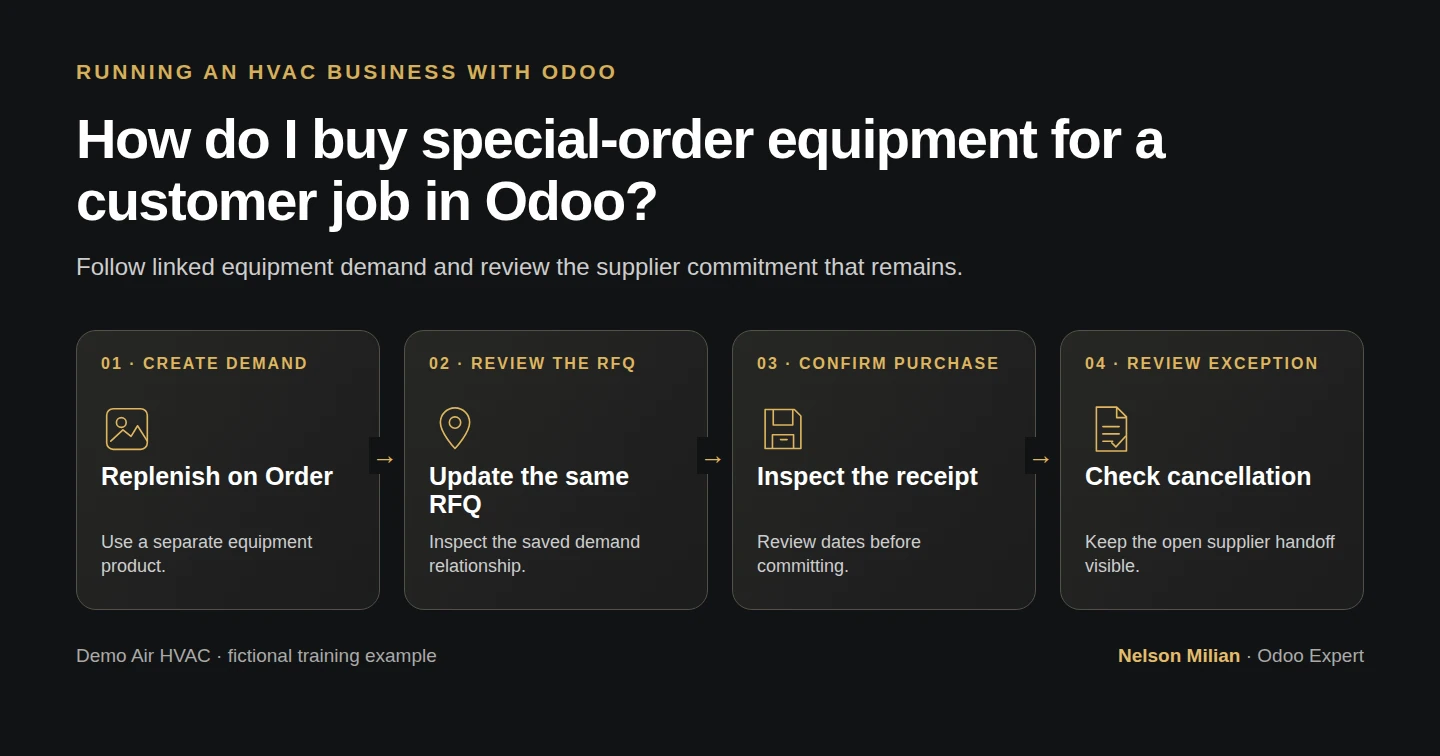
Buy special-order HVAC equipment through Odoo’s native replenishment route, inspect the sales/purchase links and handle a cancellation exception.
Alex wants equipment purchasing to follow a particular customer order. We use a separate fictional equipment product to verify the native replenishment path. Confirming one training sale creates a supplier RFQ; increasing the sale quantity updates that same RFQ. The cancellation check then shows why the supplier purchase still needs an owner’s review when the customer order stops.
Alex Rivera and Demo Air HVAC are fictional training examples. Prices, dates, quantities and business situations in this guide are illustrative.
Before you begin
Tested in stock Odoo 20.0-20260926 Community as the demo owner administrator, with official modules and standard configuration. Complete H25 equipment quotation and options and H30 purchase orders. Reuse Demo Property H08 and Demo Supply H10. Preserve H25’s draft S00006 and its equipment variants; this test creates a separate product and order. Official Sales/Inventory/Purchase integrations are already installed. Use the owner administrator and the local training database. The owner’s native confirmation here is an explicit fictional test action, not evidence of customer acceptance. No supplier email, actual commitment, receipt, installation or appointment occurs. The later cancellation steps are a controlled test on these same isolated training records.
Step-by-step workflow
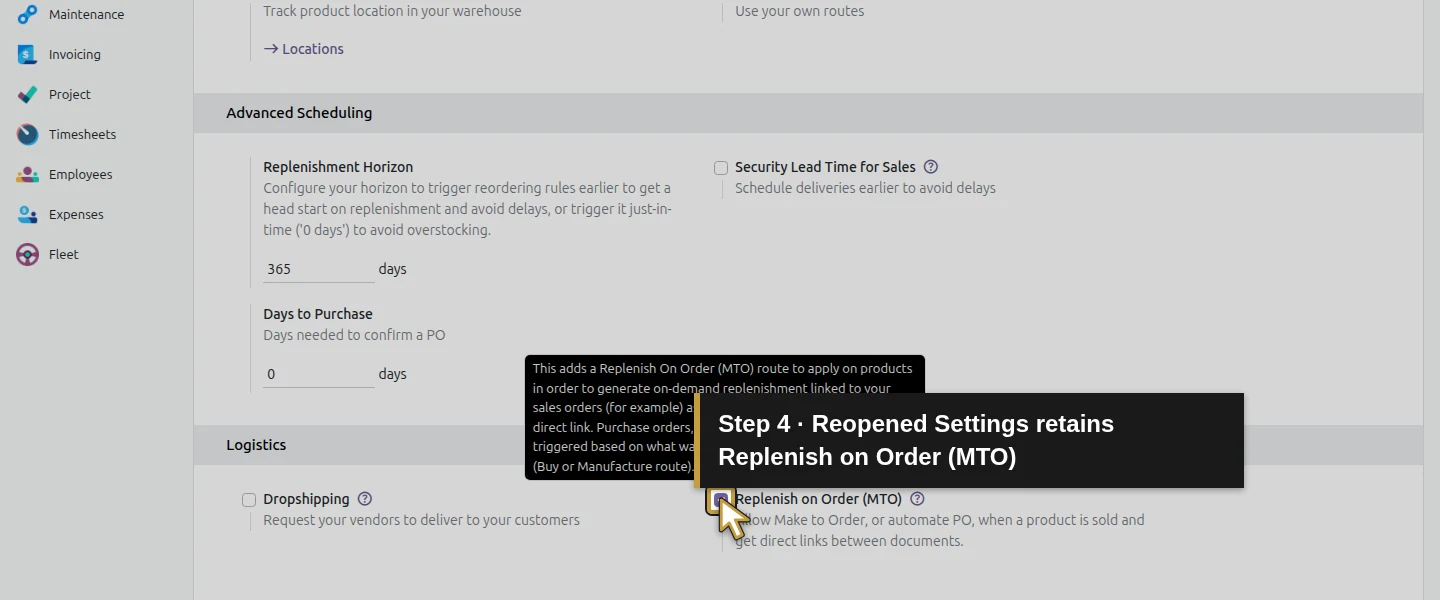
Step 1. Enable the native Replenish on Order setting
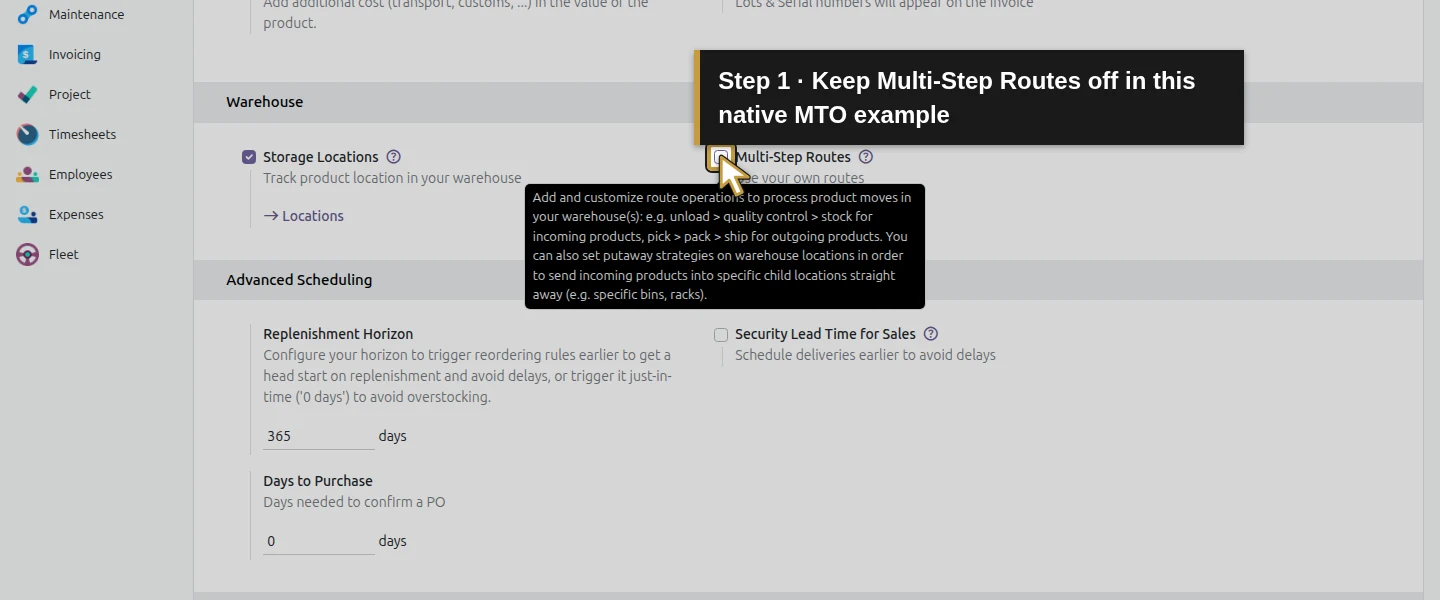
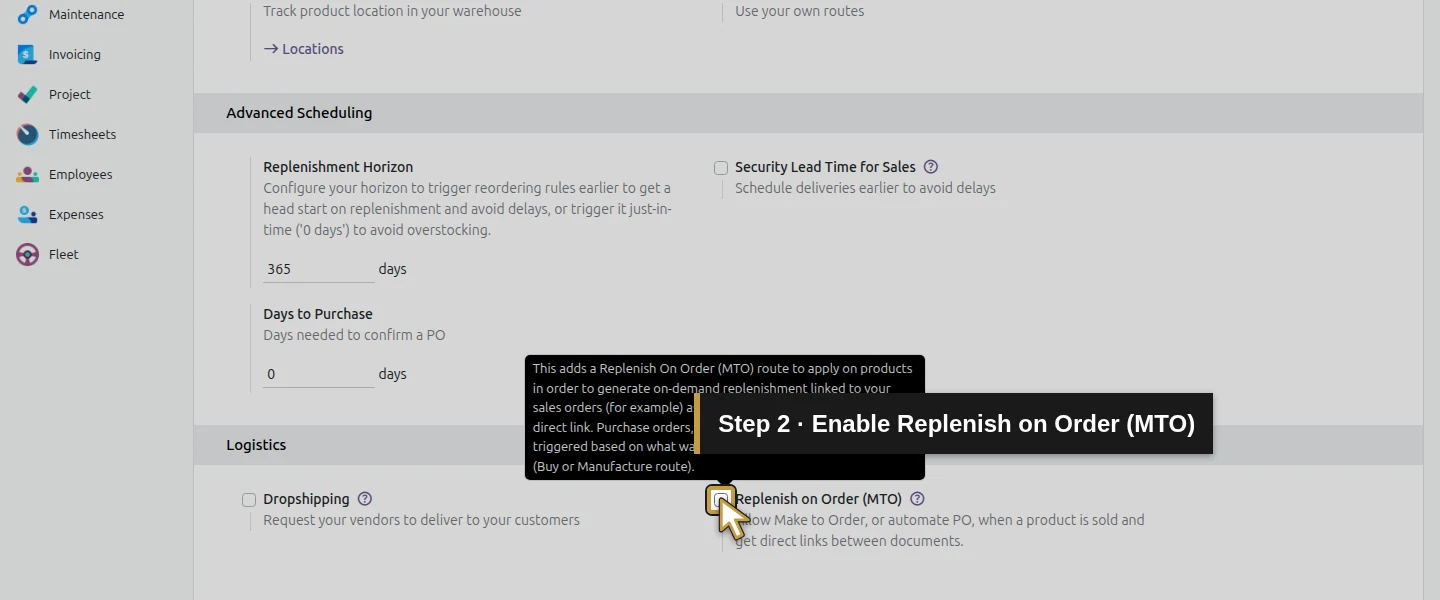
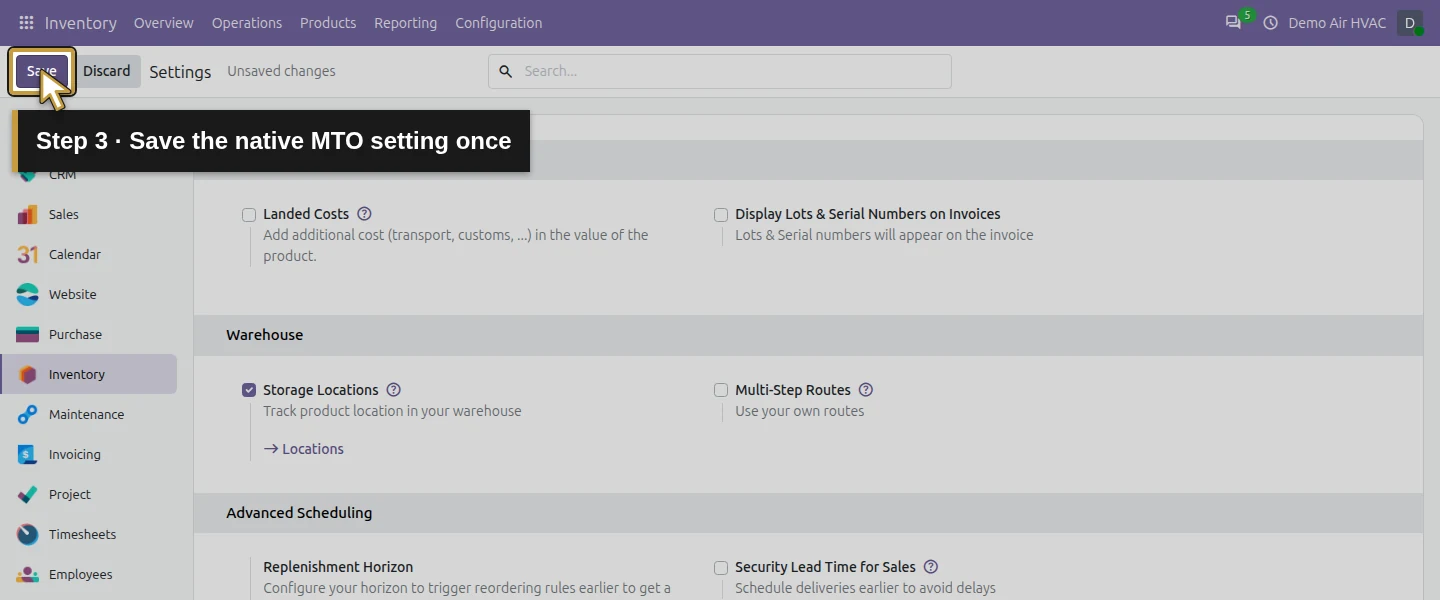
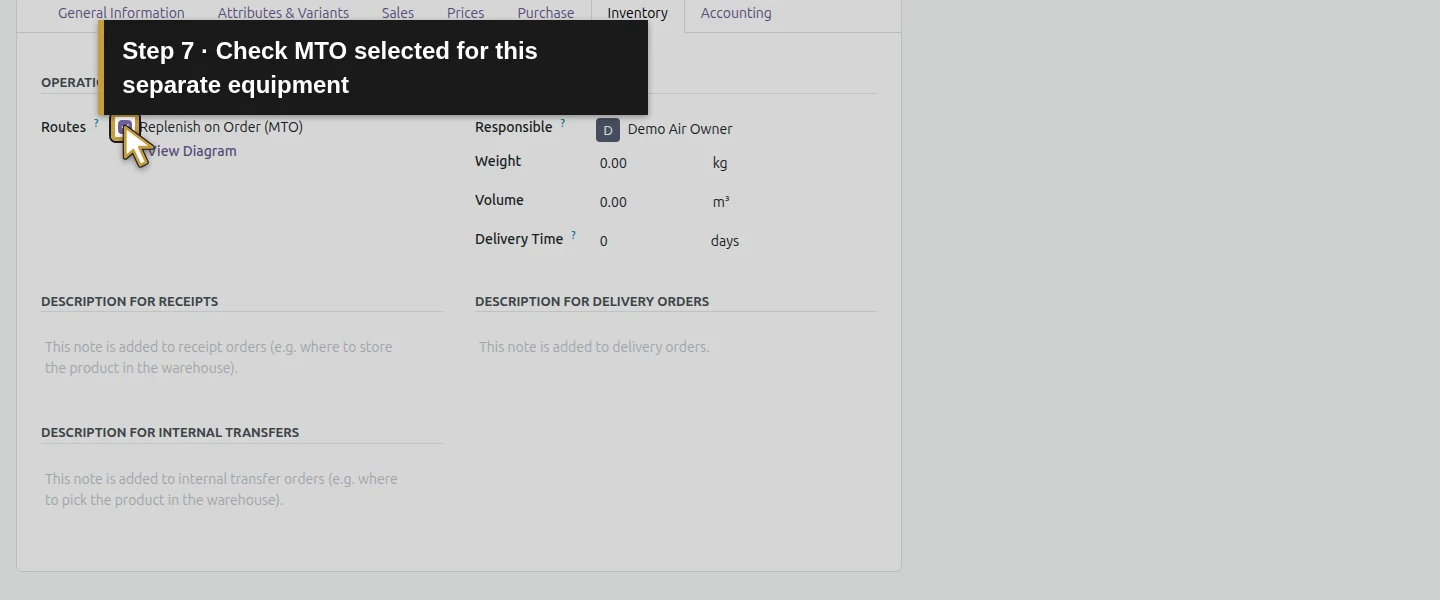
Open Inventory → Configuration → Settings. Under Logistics, check Replenish on Order (MTO) and click Save. In this build it has its own setting; Multi-Step Routes remains unchecked. Saving activates the existing MTO route and its shipped rules. The warehouse already has a native Buy rule. We do not create or edit routing rules, and there is no separate Buy checkbox on the product screen used below.
Step 2. Create a separate equipment product
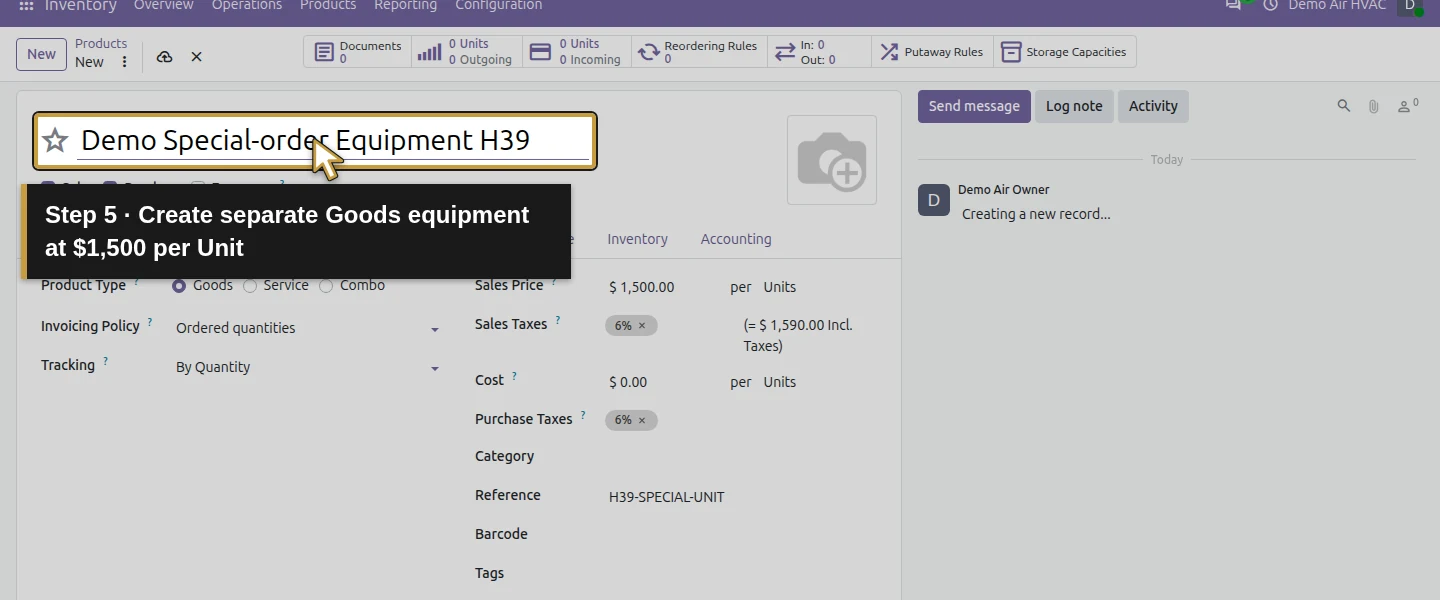
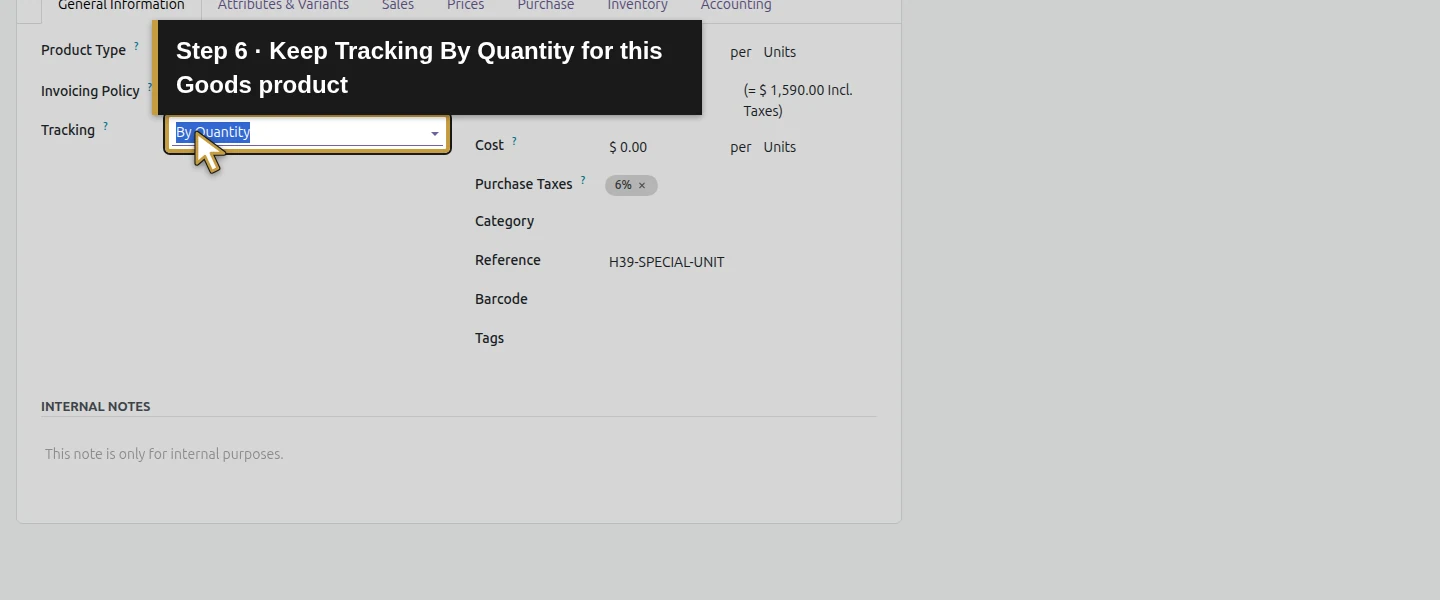
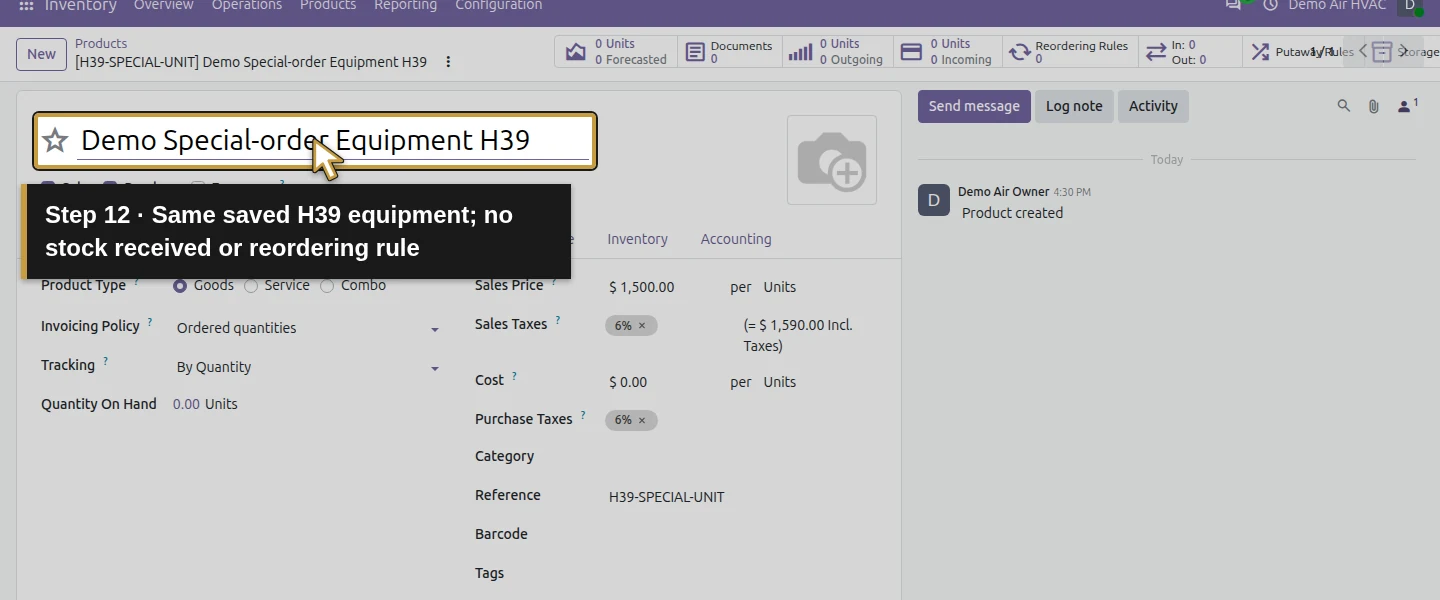
Open Inventory → Products → Products → New. Name it Demo Special-order Equipment H39, keep Sales and Purchase checked, choose Goods and set Tracking → By Quantity. Set Sales Price $1,500 and Reference H39-SPECIAL-UNIT, with Units as the unit. Retain the existing illustrative 6% sales/purchase taxes. This simple route test does not configure lot or serial tracking, technical compatibility or equipment sizing.
Step 3. Set replenishment and the supplier price
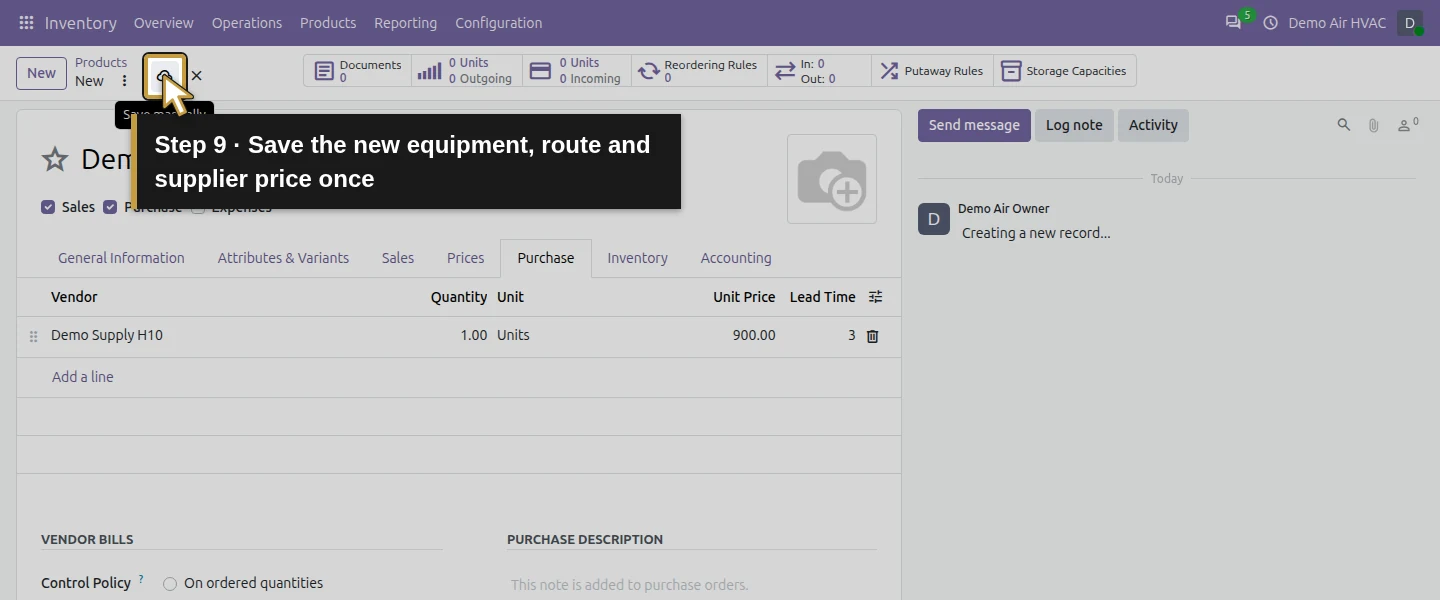
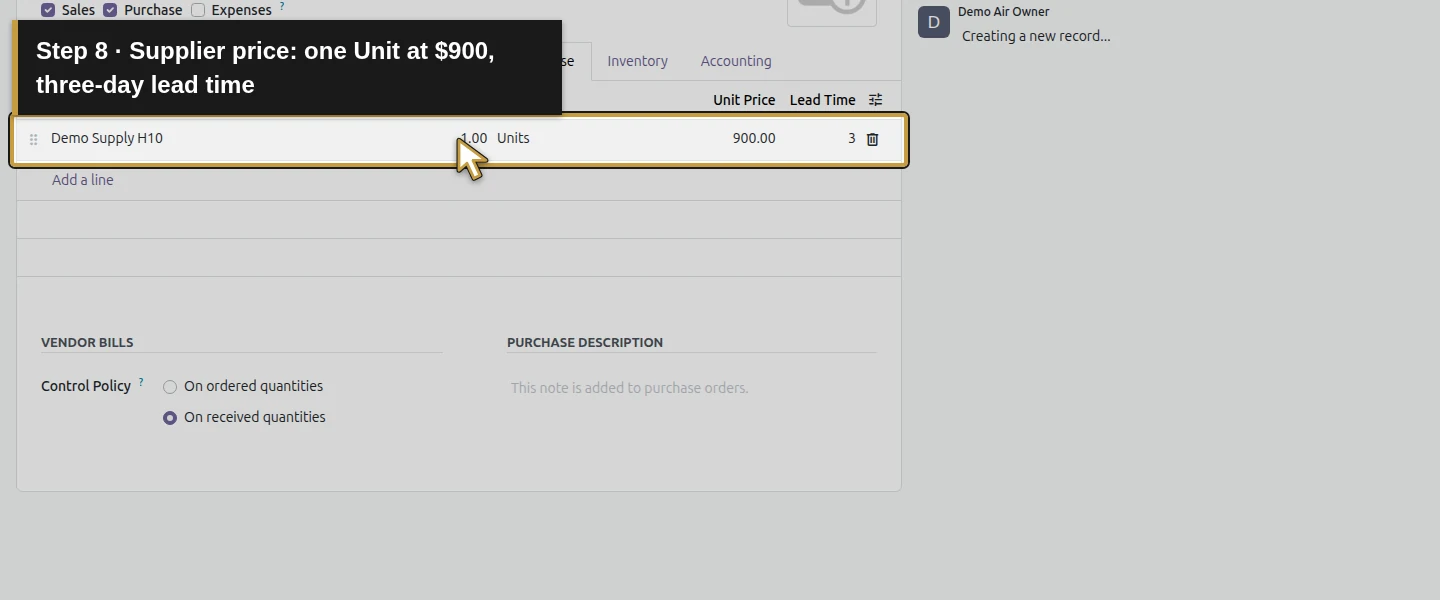
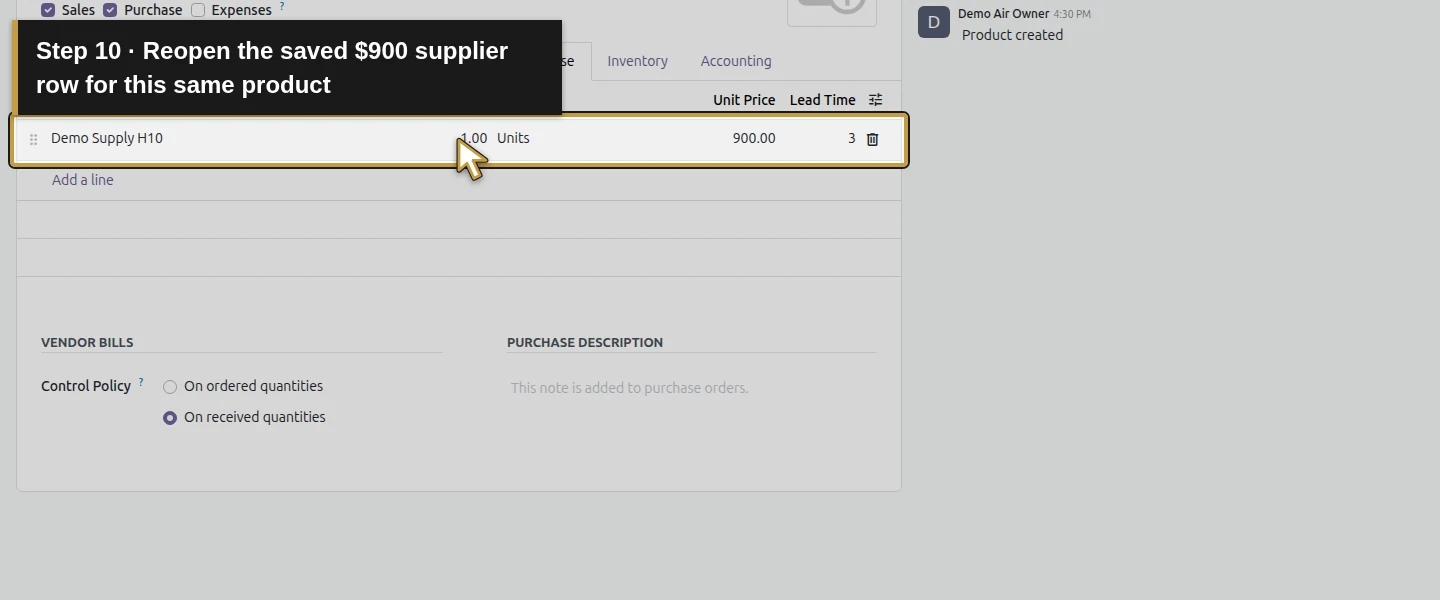
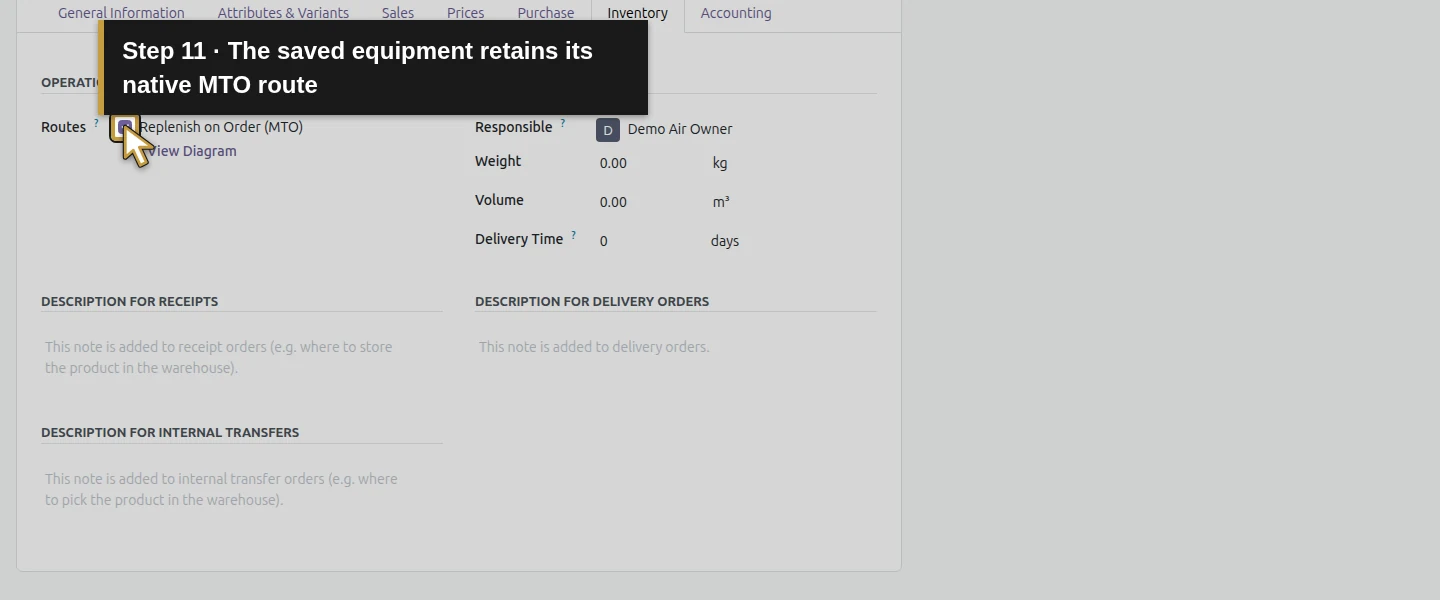
On Inventory, check Replenish on Order (MTO). On Purchase, click Add a line and choose Demo Supply H10. Keep minimum Quantity 1 Unit, enter Unit Price 900 and Lead Time 3 days. Click Save manually and reopen. Check the product, route and single supplier row. No reordering rule is added for this product. The $900 is a supplier price; the product’s separate Cost remains zero in this training example.
Step 4. Prepare one clearly identified training sale
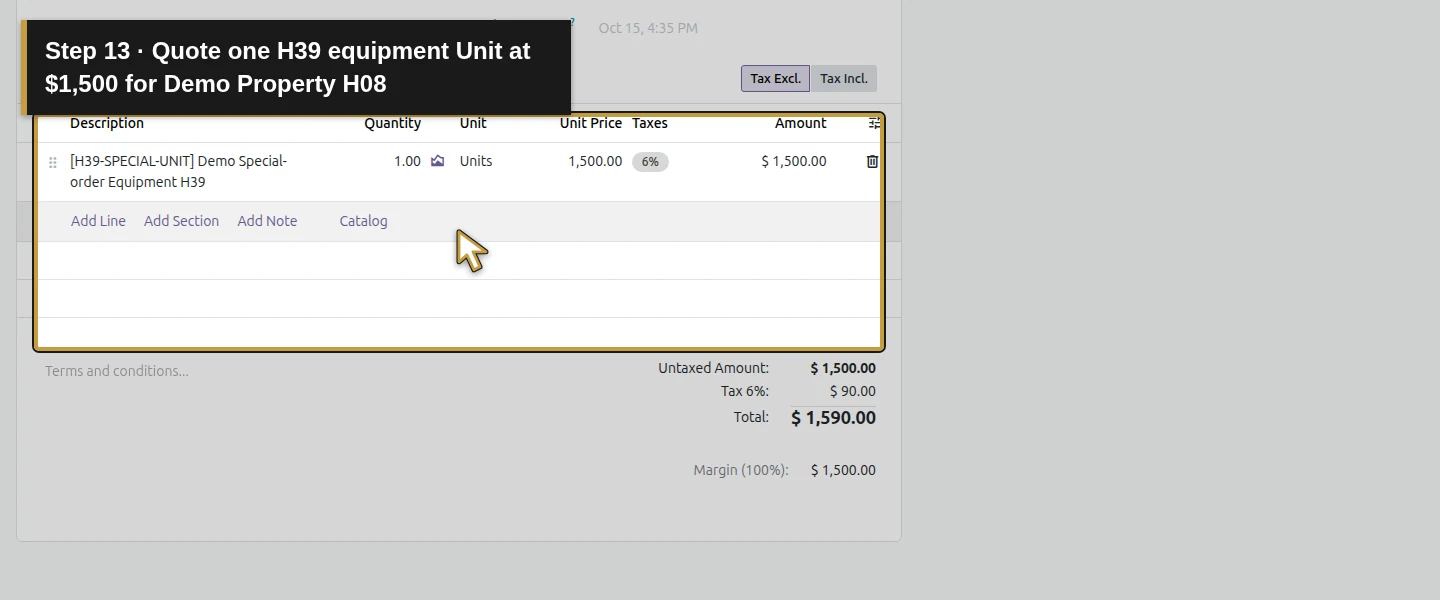
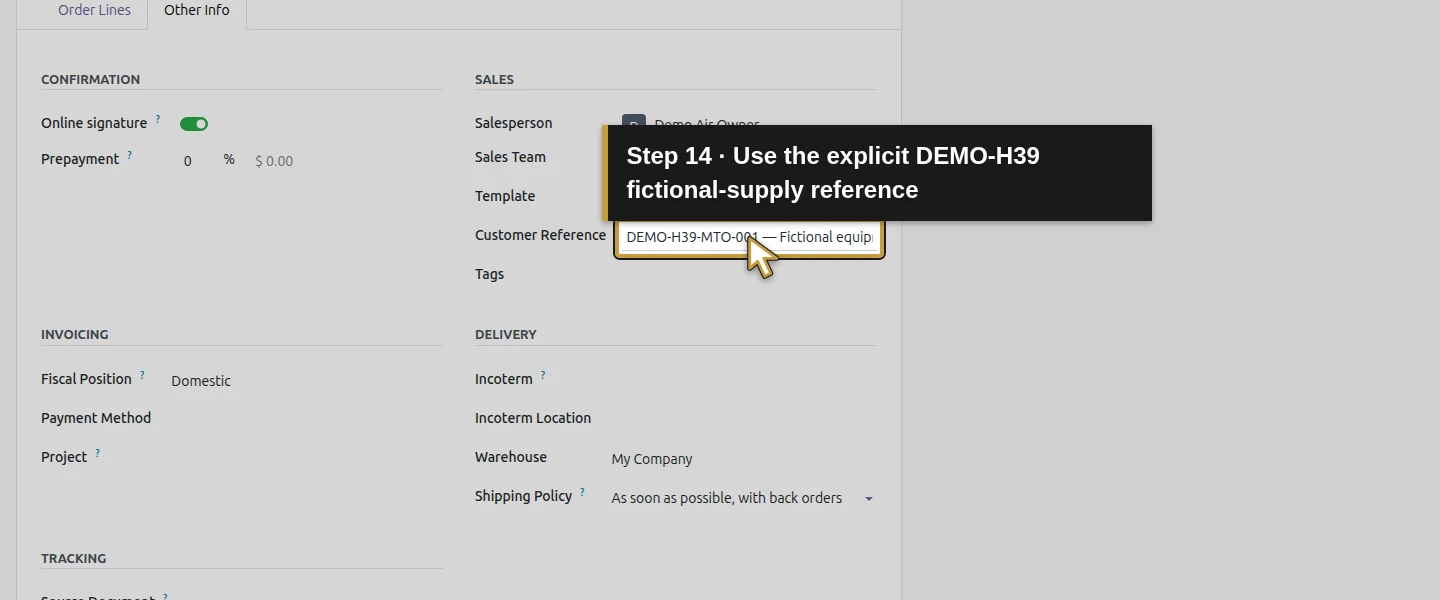
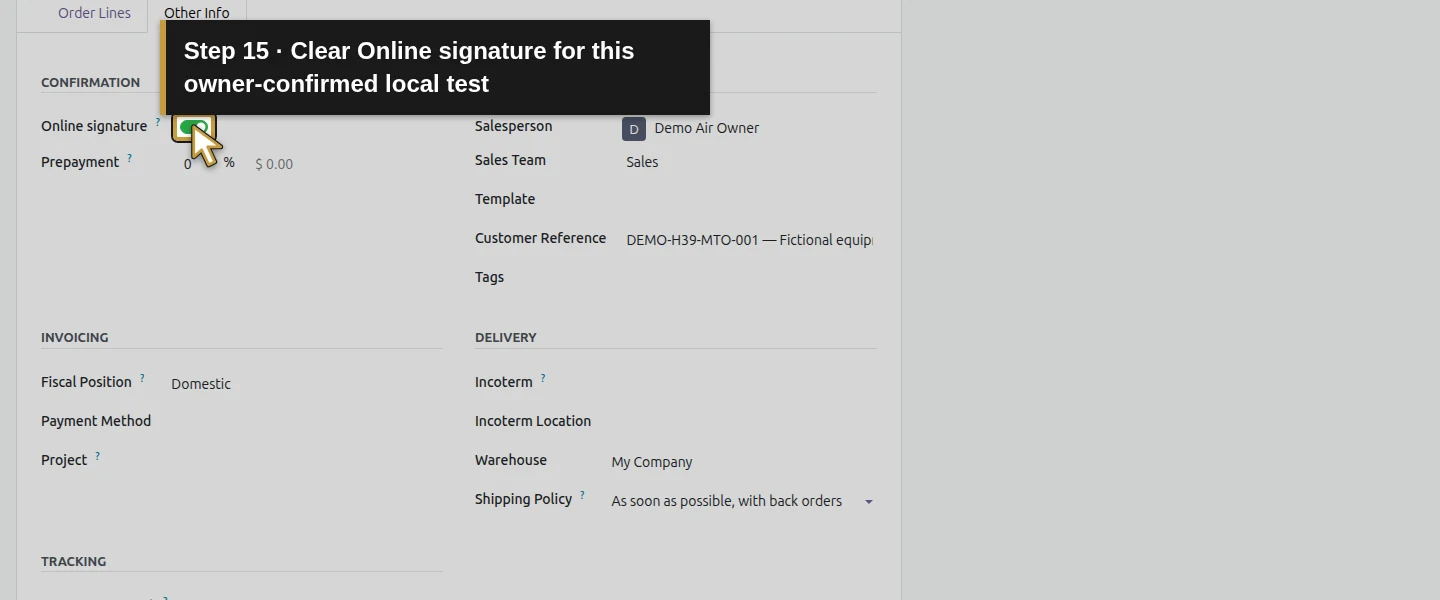
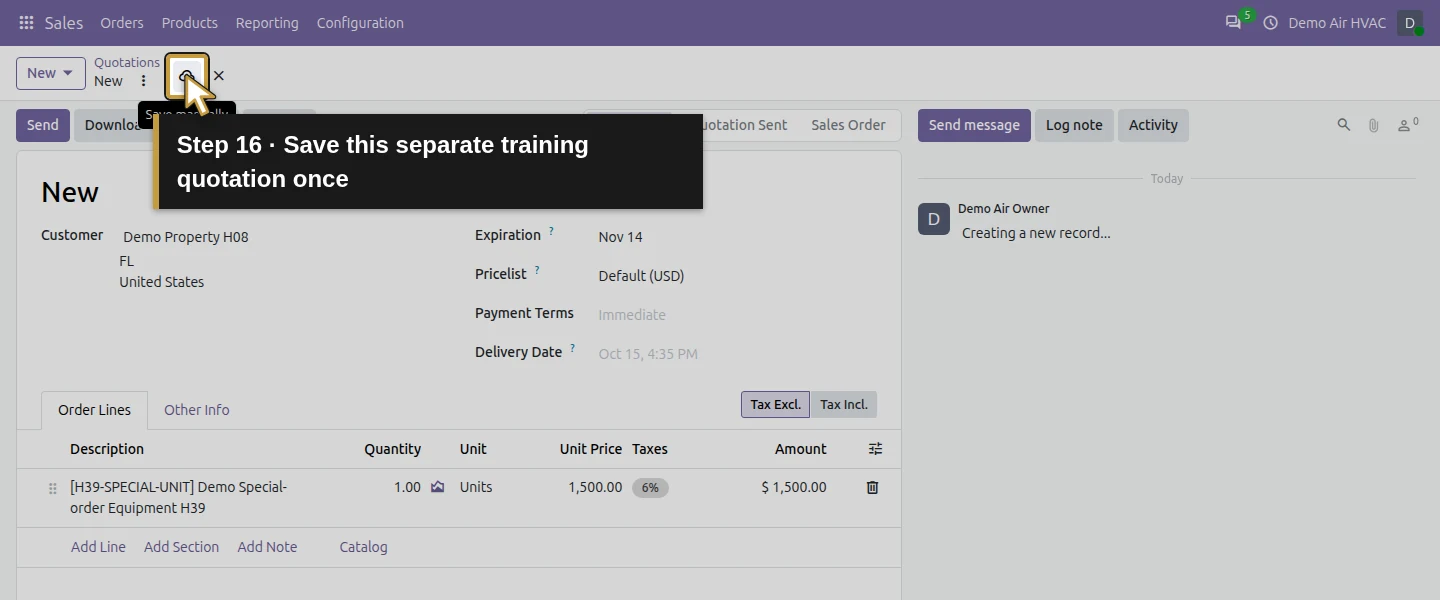
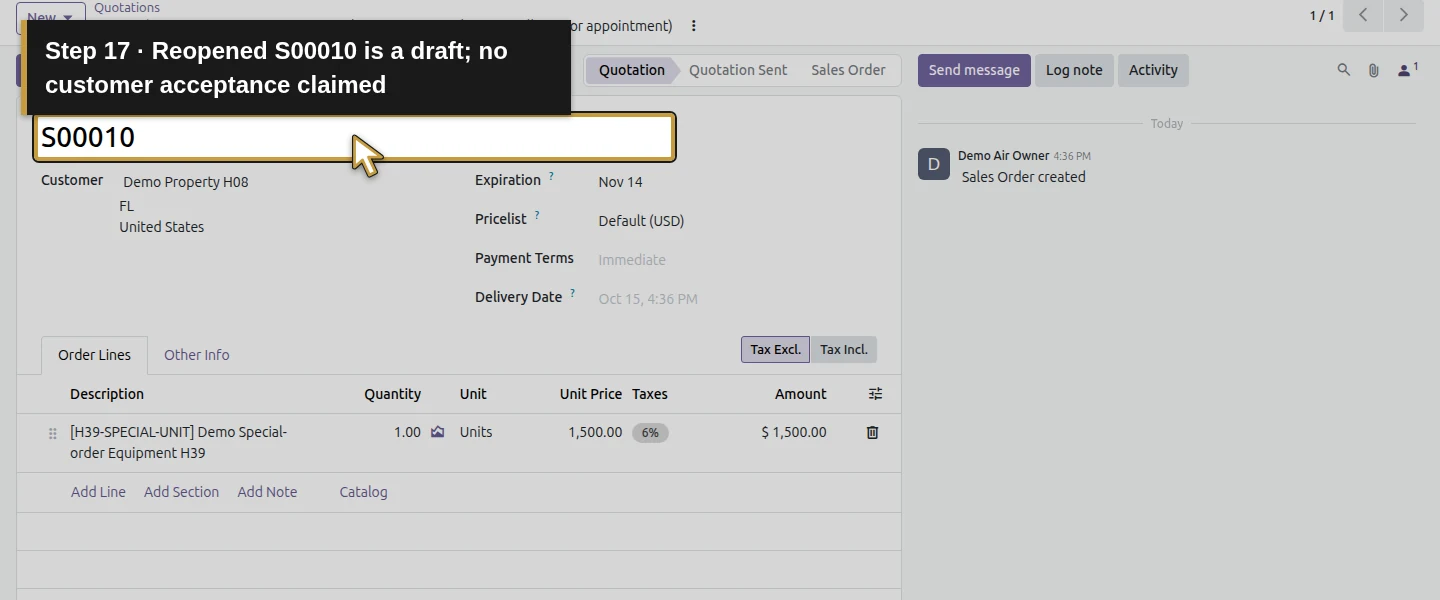
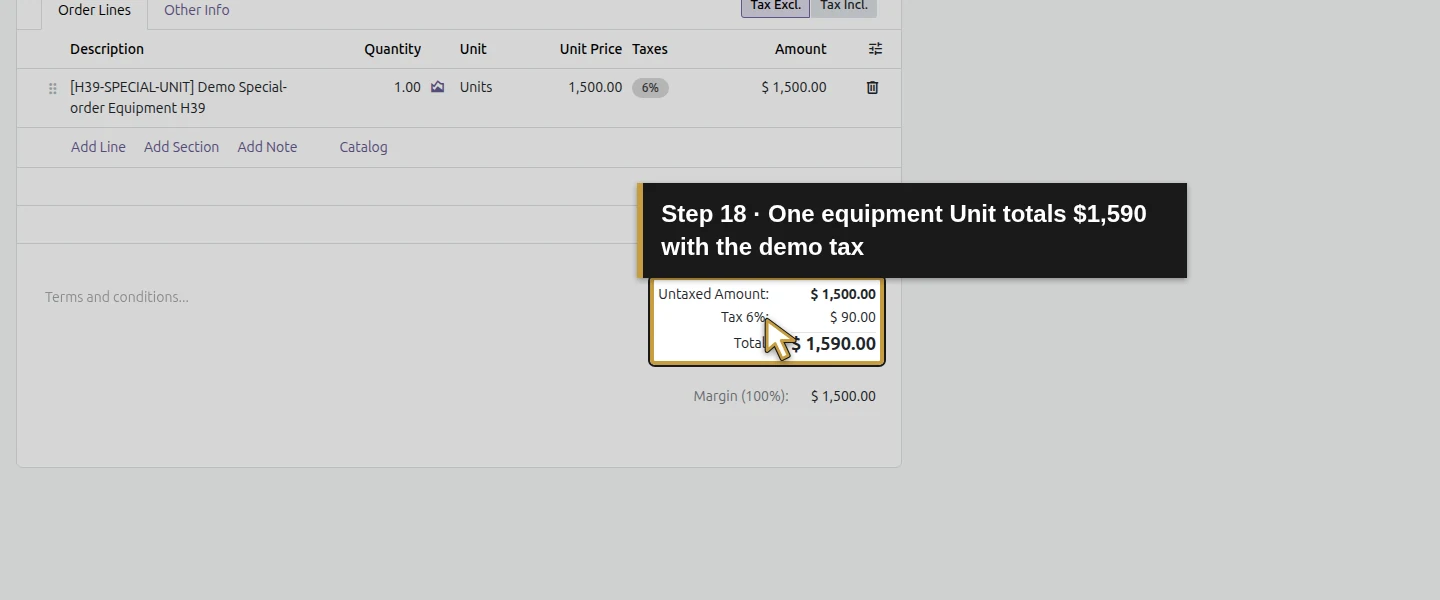
Open Sales → Orders → Quotations and use New → New Quotation. Select Demo Property H08. Click Add Line, use the Description product picker and choose Demo Special-order Equipment H39 / H39-SPECIAL-UNIT. Keep Quantity 1 Unit at $1,500. In Other Info, enter DEMO-H39-MTO-001 — Fictional equipment supply, no installation or appointment in Customer Reference. Clear Online signature for this owner-confirmed local test and save. The example is S00010, totaling $1,590 with the illustrative tax. Keep real customer approval and agreed scope separate from this training confirmation.
Step 5. Confirm once and open the generated purchase
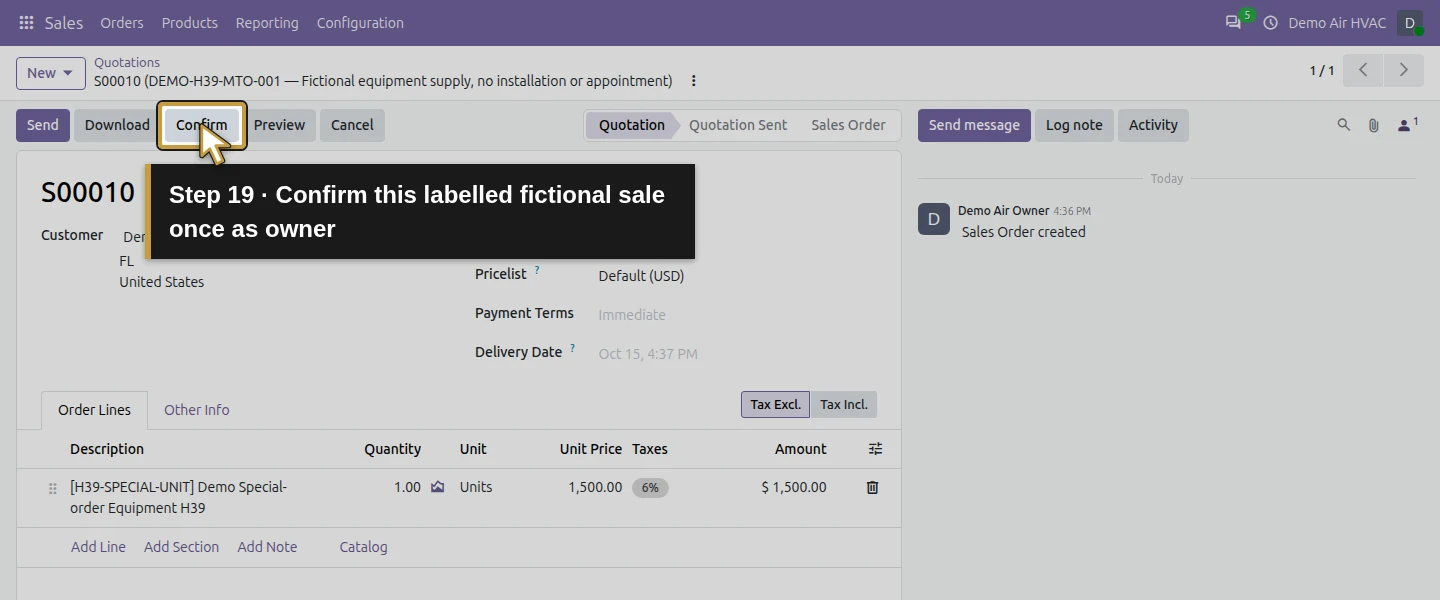
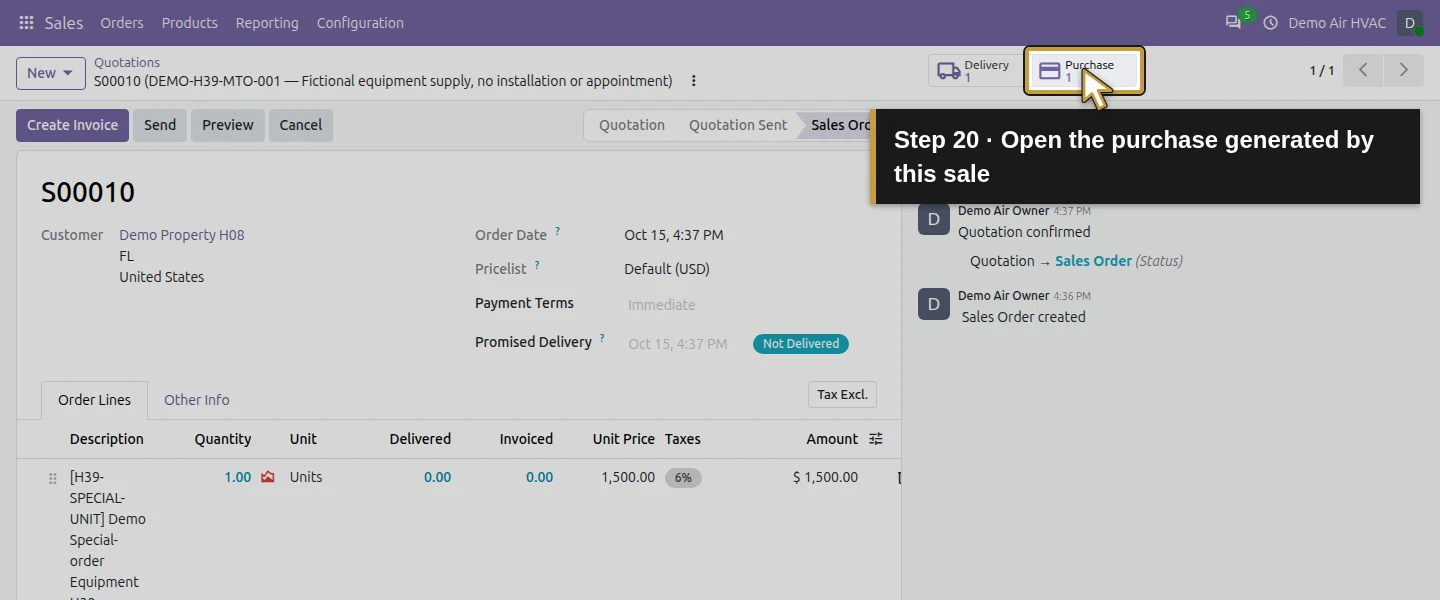
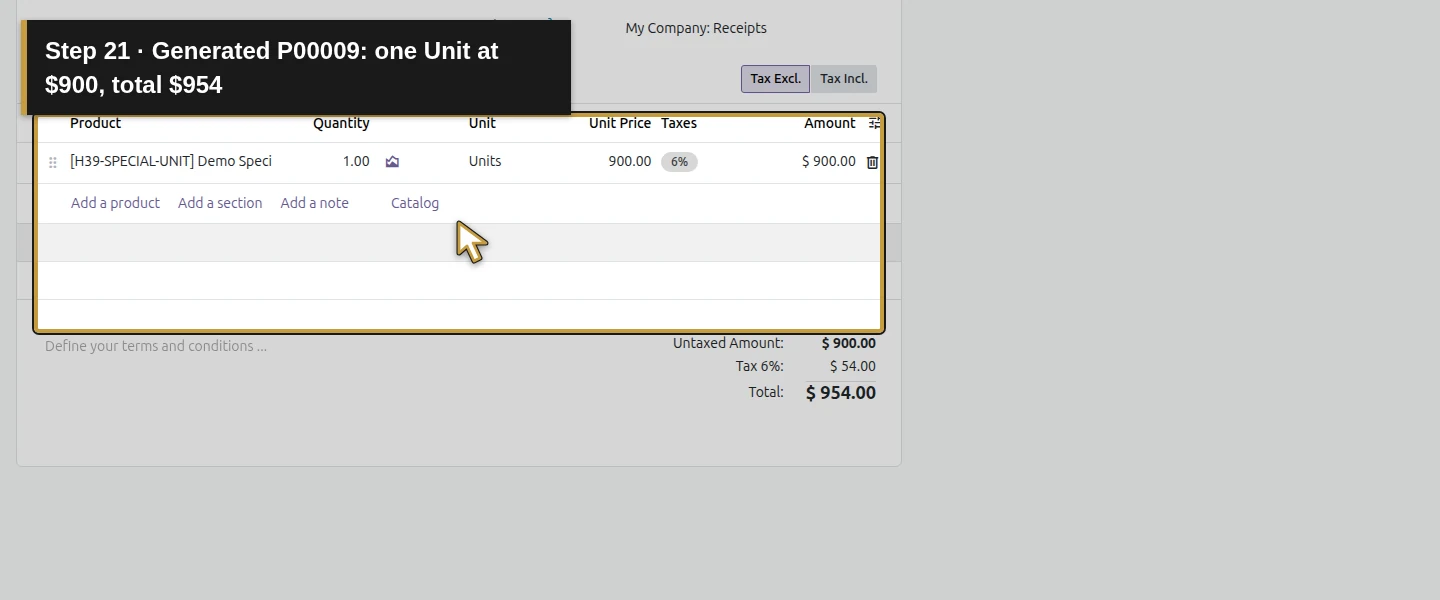
Click Confirm once and wait for Sales Order. The order gains 1 Purchase and 1 Delivery smart buttons. Click 1 Purchase. It opens P00009, a draft Request for Quotation for Demo Supply H10: one Unit at $900, $900 untaxed + $54 demo tax = $954. This document was generated by the order confirmation. We did not type a purchase reference or run the scheduler to create it.
Step 6. Check the actual demand relationship
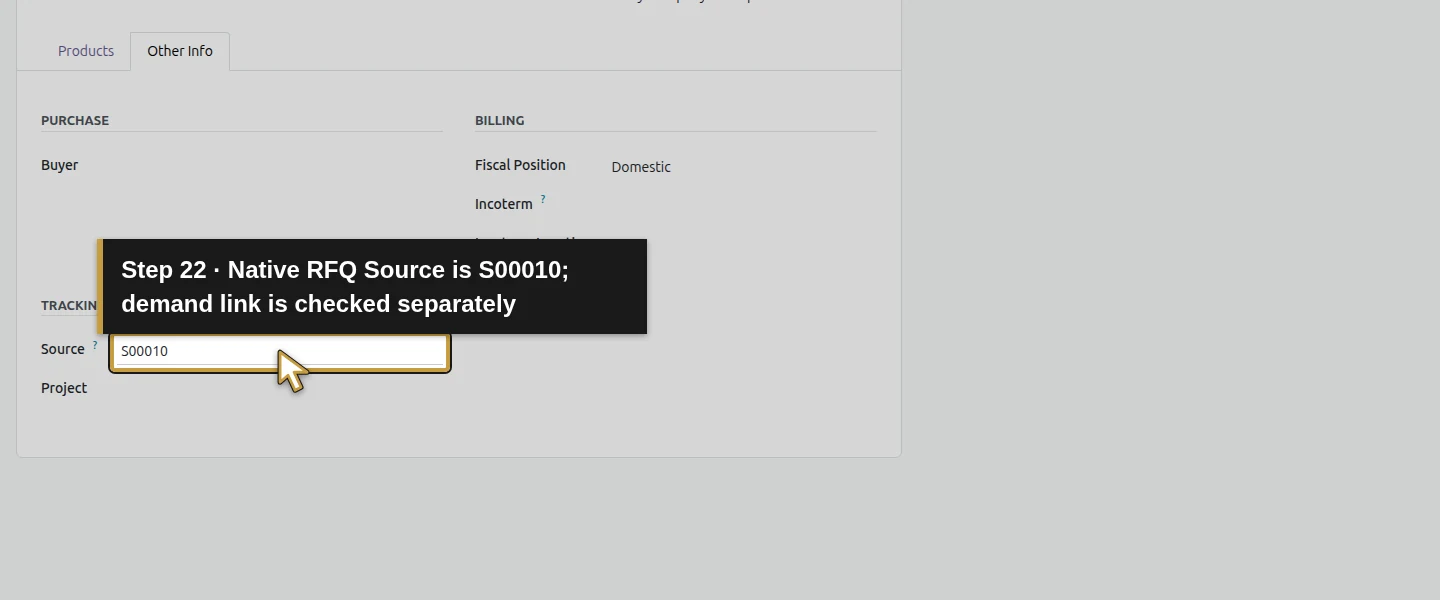
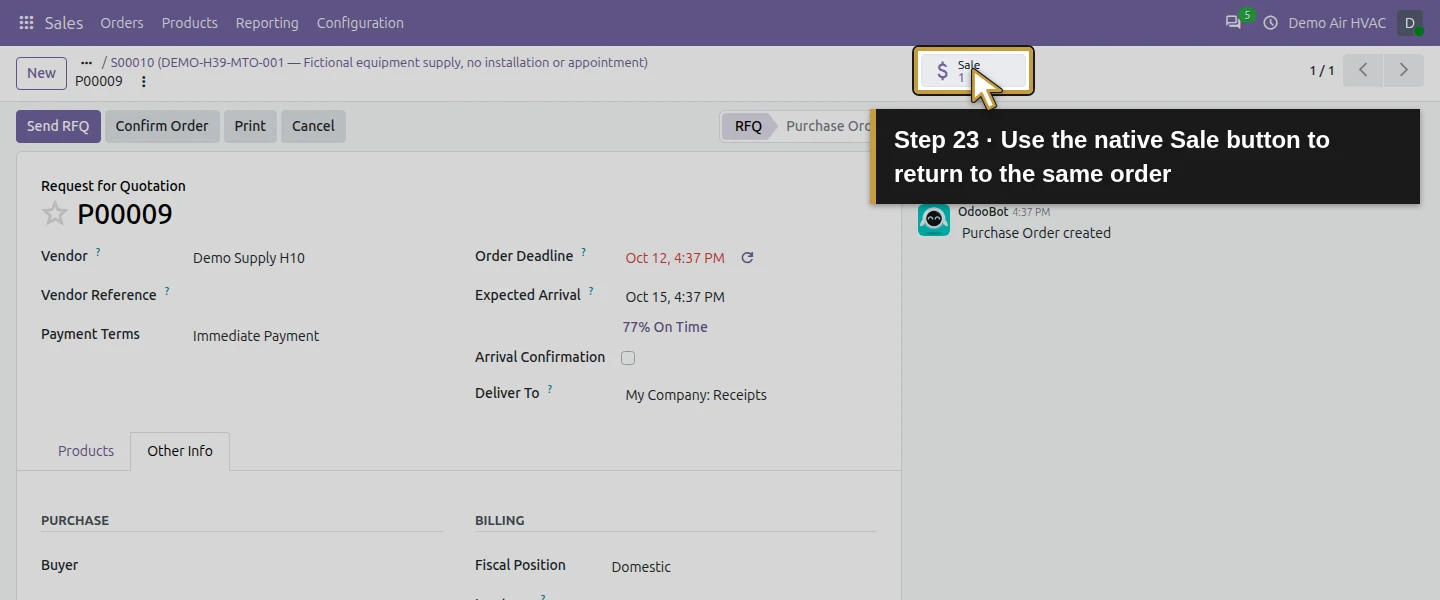
P00009 has a 1 Sale smart button; click it to return to S00010. Use 1 Purchase to return to the same P00009 when reviewing supply. Its Other Info → Source is S00010. The native buttons and saved demand relationship establish this connection beyond a typed reference. The outbound delivery is waiting for supply, with no received equipment. An RFQ is still a proposed purchase, so review it before creating a supplier order.
Step 7. Increase the training demand and inspect the same RFQ
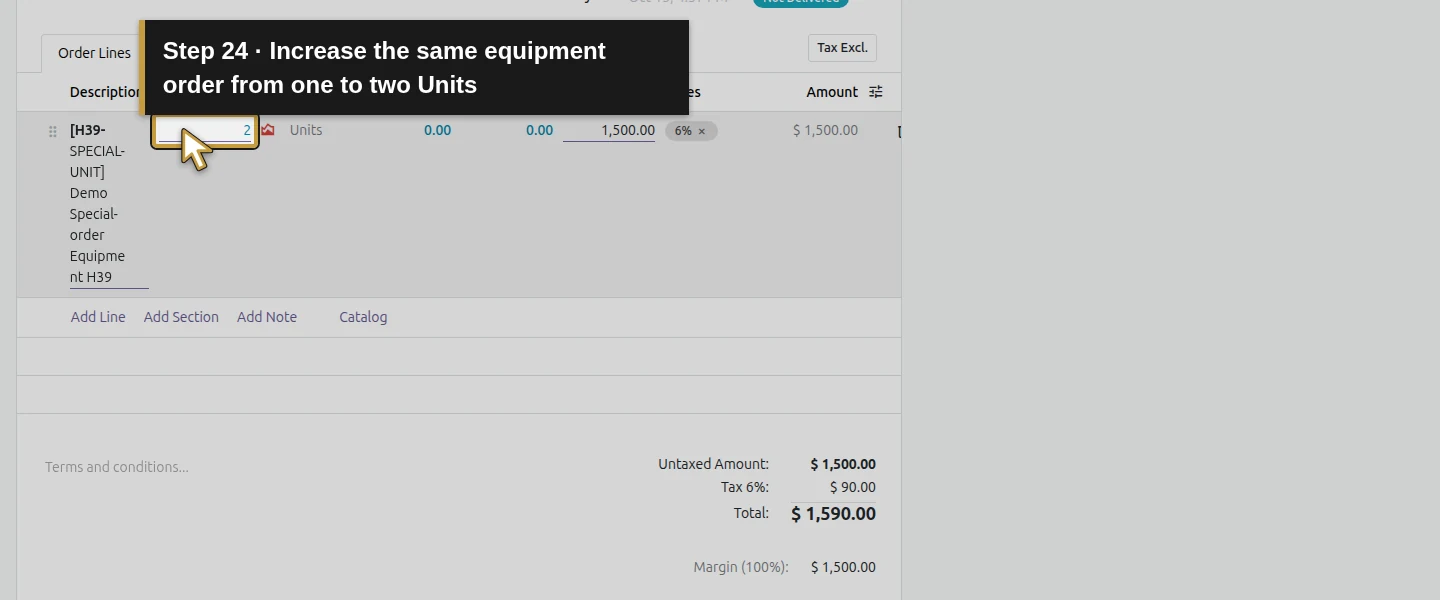
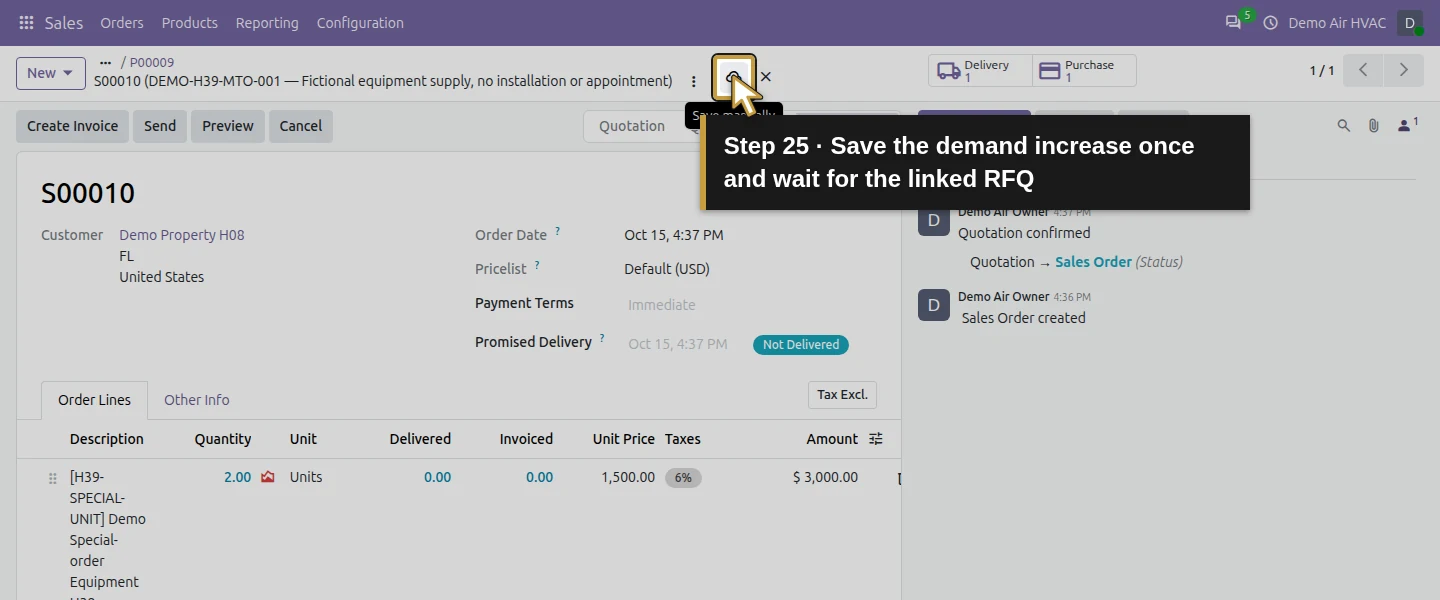
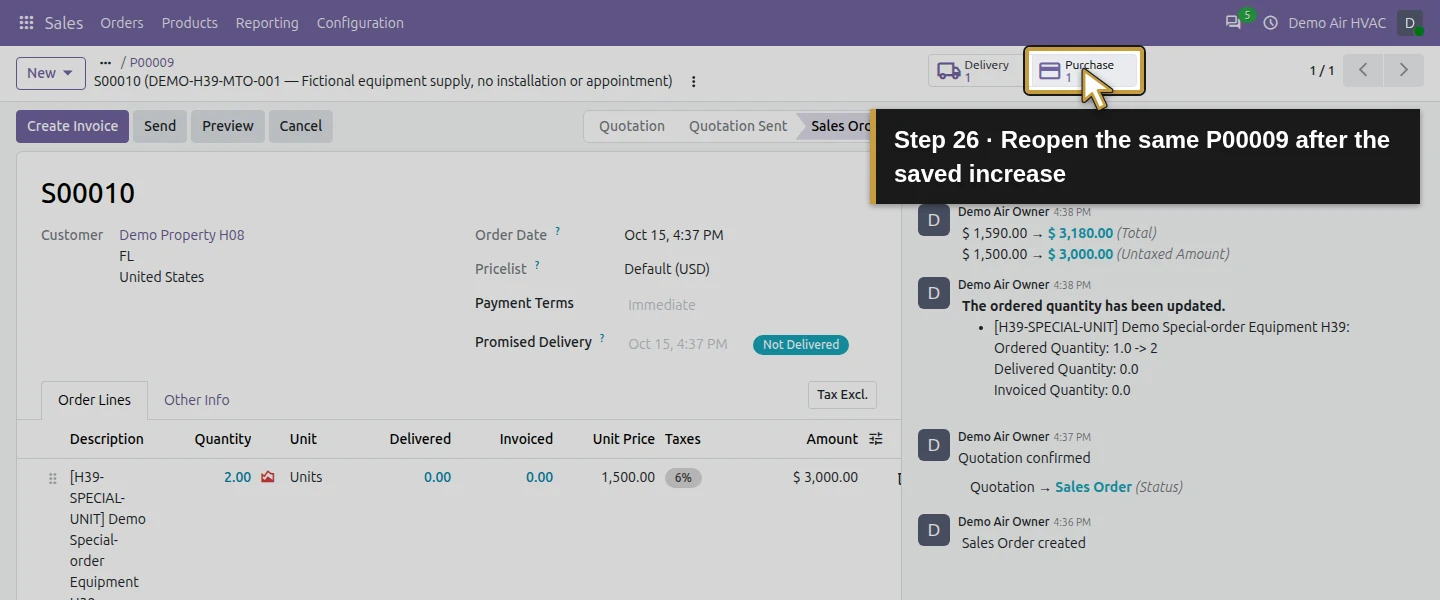
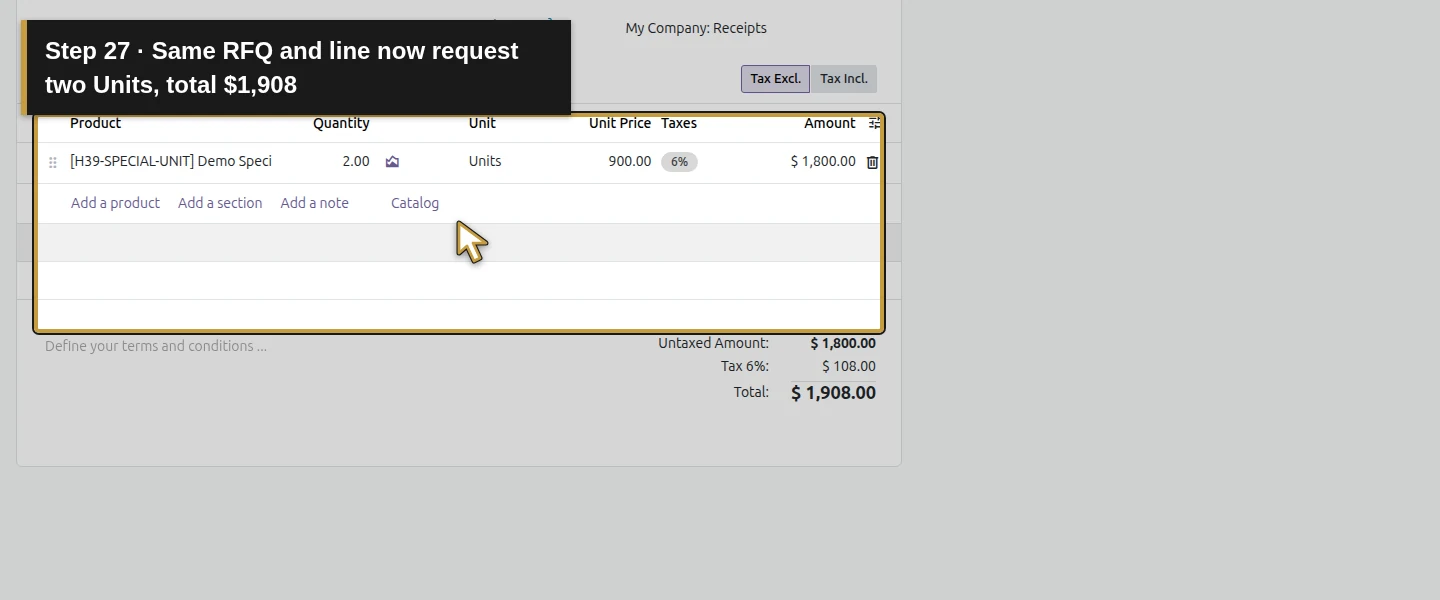
Return through 1 Sale to S00010 and open Order Lines. Click the equipment’s Quantity cell, change 1 → 2 and click Save manually. Wait for the save to finish, then reopen the linked purchase. The same P00009 and original product line now request 2 Units at $900: $1,800 untaxed + $108 demo tax = $1,908. The sale totals $3,180. There is one generated RFQ, not a second purchase for the additional unit. This checks an increase while the purchase is still a draft; reductions and other purchase states need their own review.
Step 8. Review the procurement dates before committing
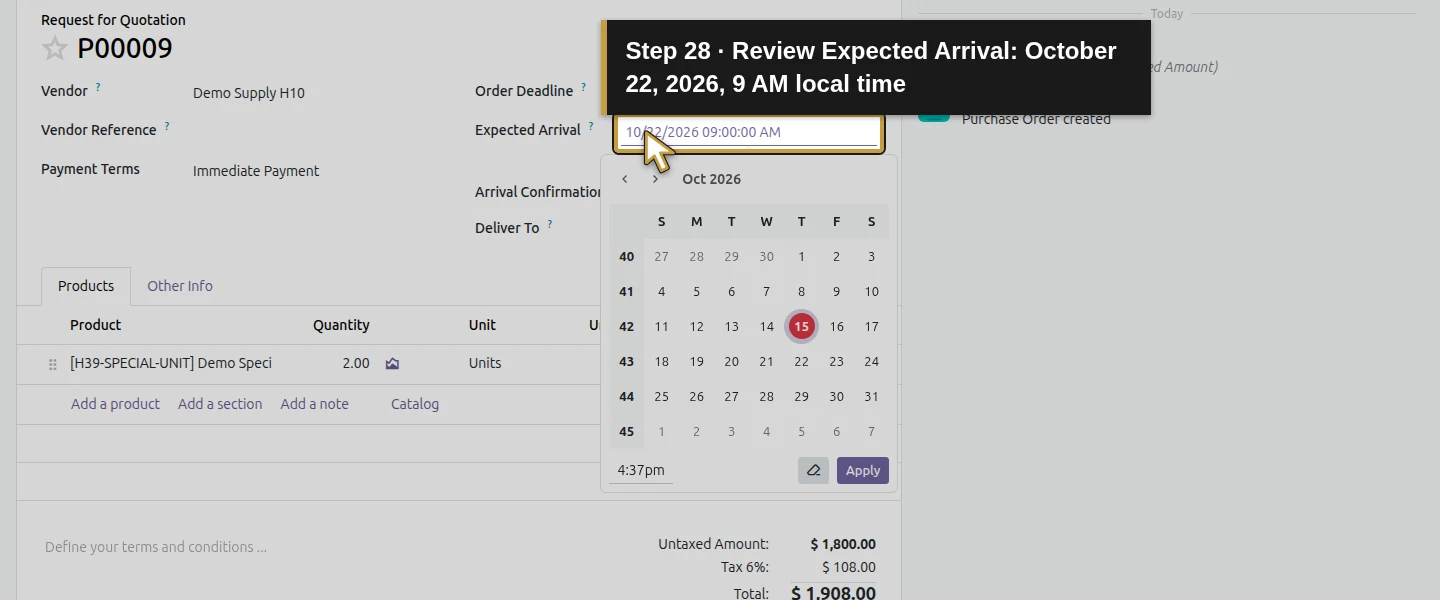
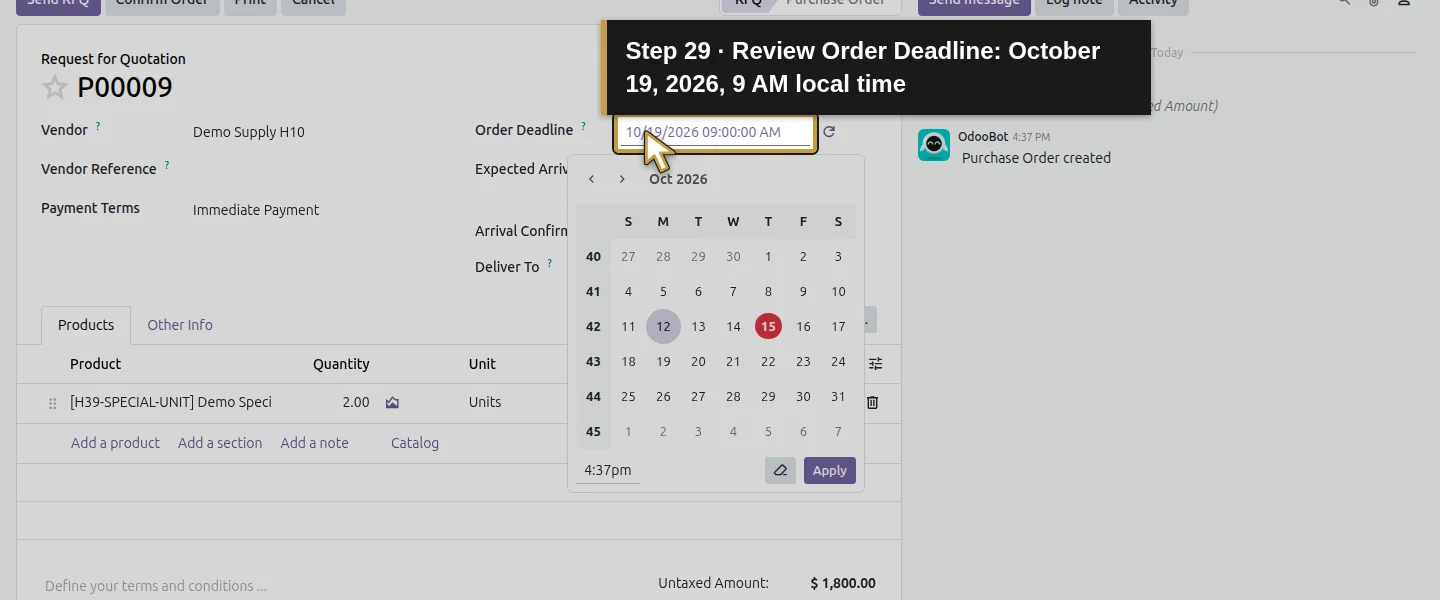
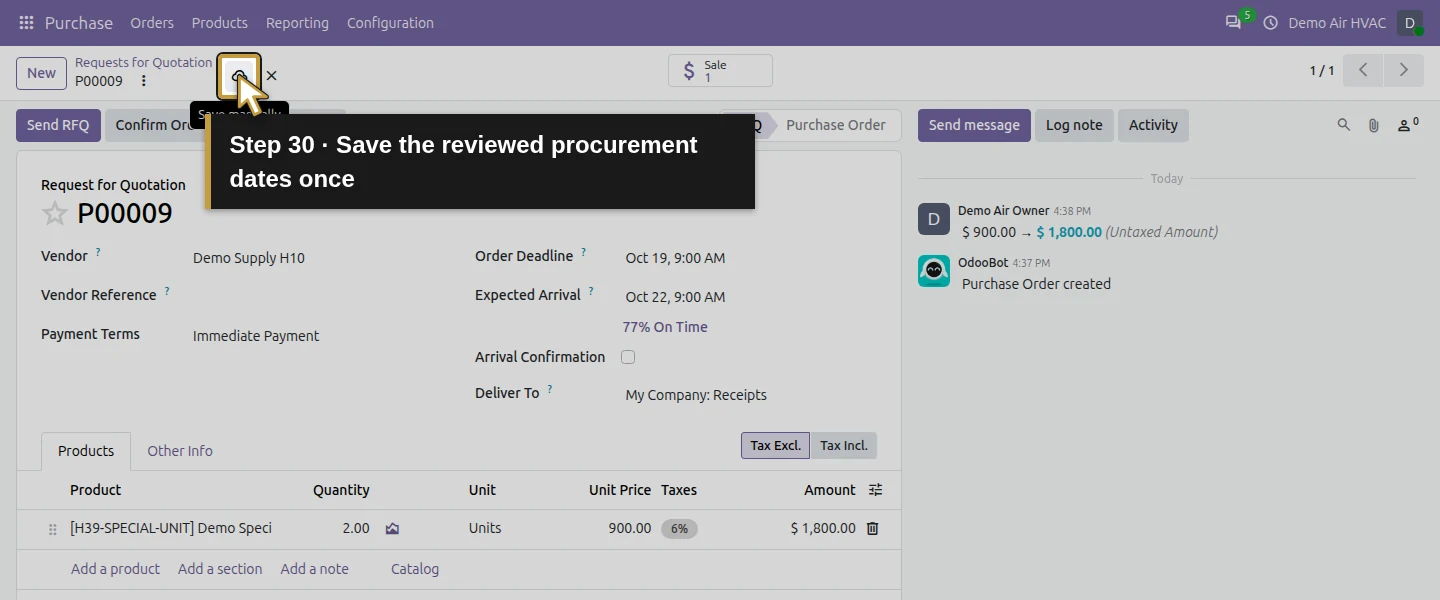
The initial demand used the current date, so its three-day supplier lead time produced an Order Deadline already in the past. Review this rather than promising immediate equipment availability. For this fictional planning exercise, click the date controls and enter Expected Arrival October 22, 2026 at 9 AM and Order Deadline October 19, 2026 at 9 AM, pressing Enter to apply each. Click Save manually. These are reviewed example dates; changing the RFQ dates does not itself establish a customer appointment or agreed delivery promise.
Step 9. Confirm the reviewed supplier order and inspect its receipt
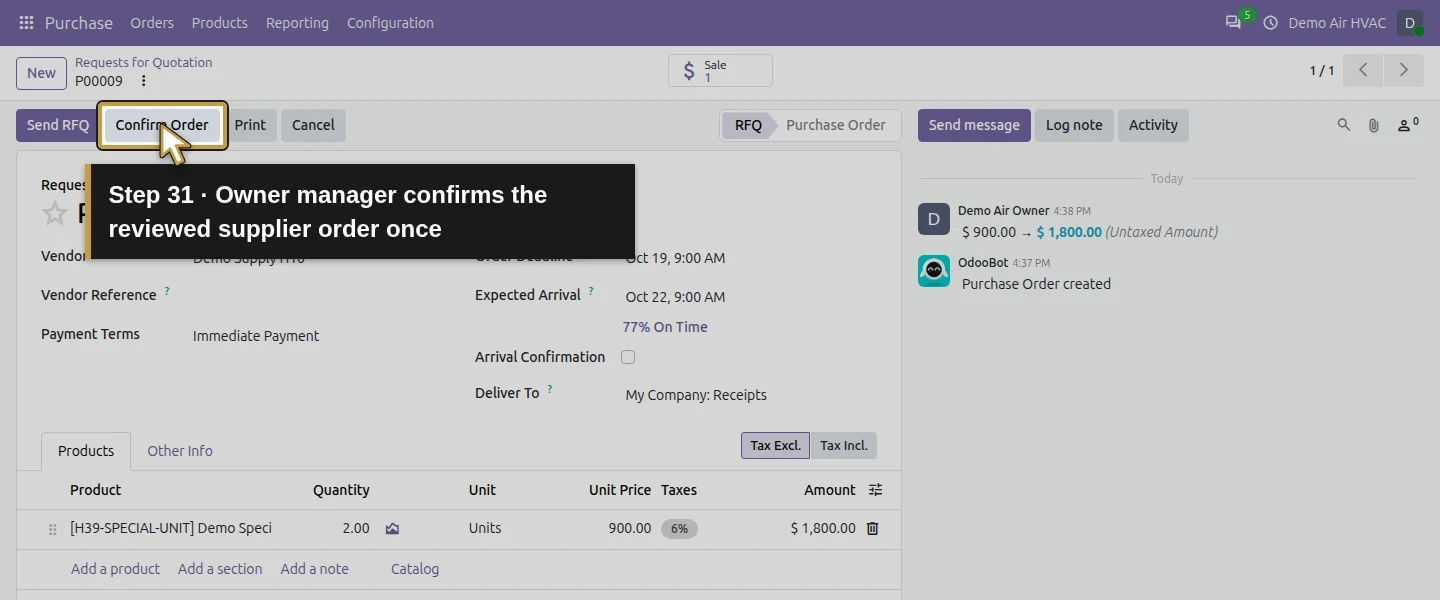
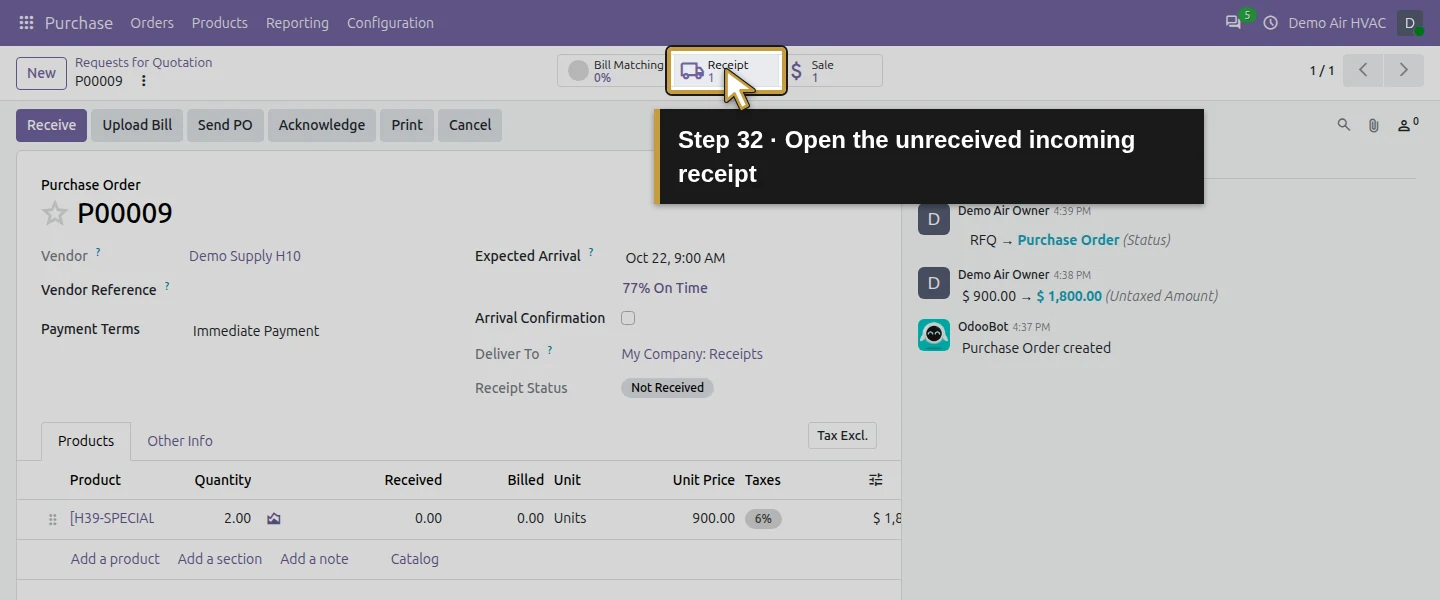
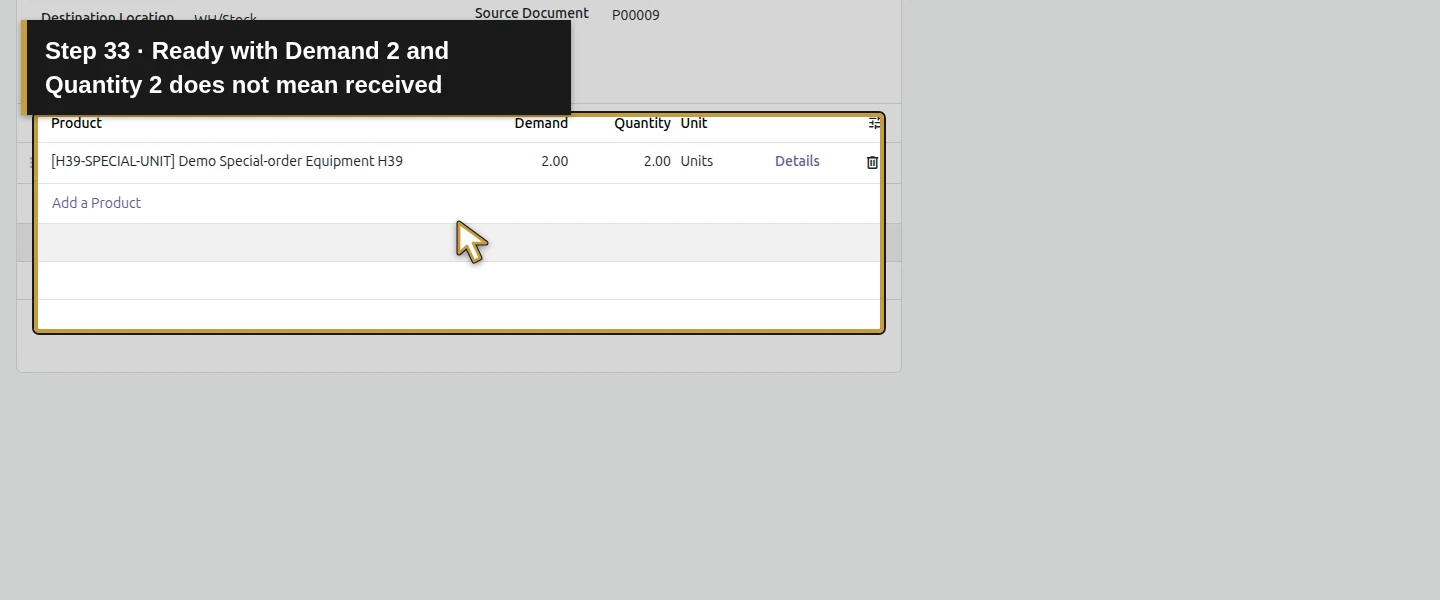
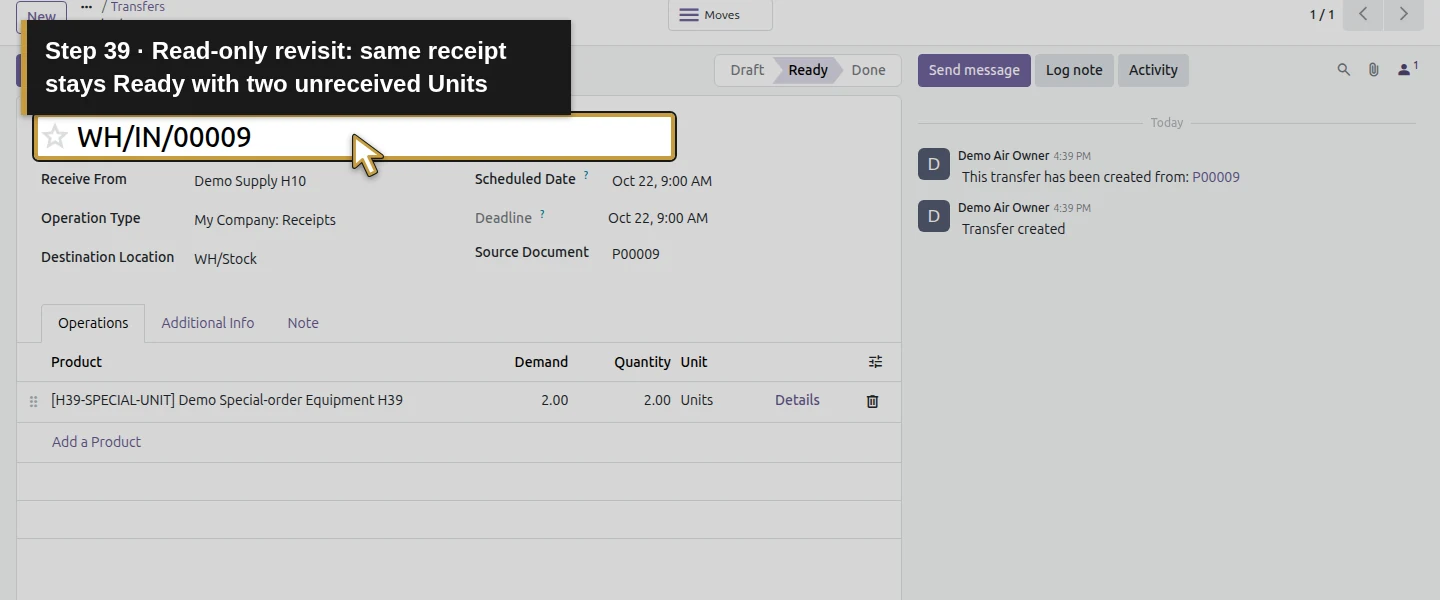
As the owner manager, click Confirm Order once. P00009 becomes Purchase Order and gains 1 Receipt. The existing two-step purchase setting is preserved; this owner can confirm directly, so the step is not a test of a Purchase User’s approval boundary. Click 1 Receipt. WH/IN/00009 is Ready, with Demand 2 and prefilled Quantity 2 for WH/Stock. Do not click Validate for goods that have not arrived. Received remains zero and physical equipment stock remains zero. The incoming receipt is linked upstream of the sale’s delivery before the cancellation test.
Step 10. Check what the purchase has actually established
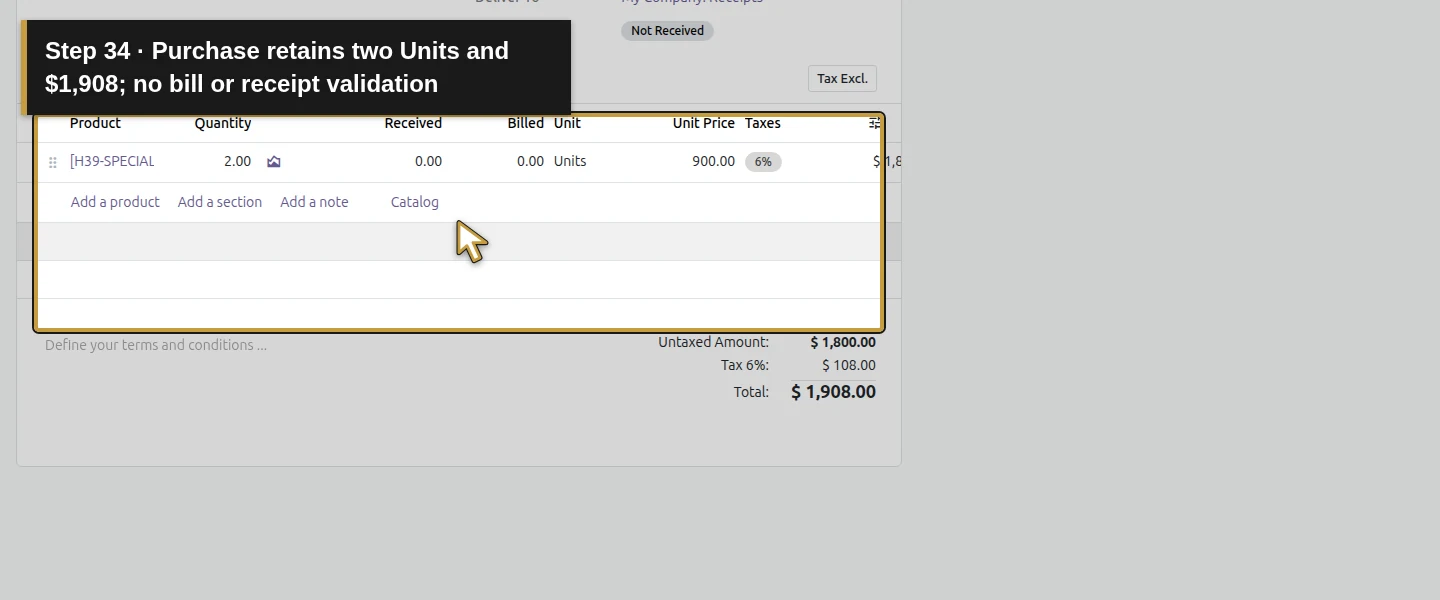
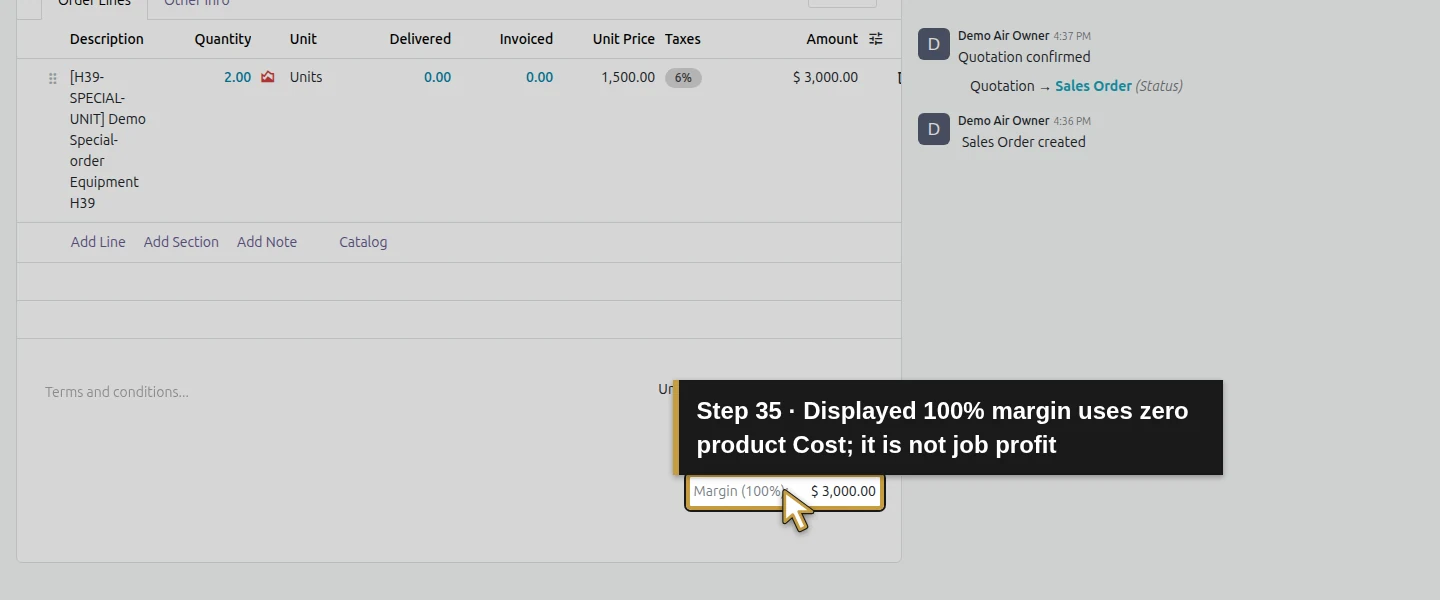
Return to P00009. It retains two Units, $1,908 total and the October22 expected arrival, with no bill or receipt completion. The $900 supplier price and $1,500 sale price are different amounts. S00010 displays a 100% margin in this checkpoint because the product Cost is zero; that display does not establish the job’s actual profit. Receiving, supplier billing, customer delivery, installation work and job costing remain separate workflows. You can stop this training path here if you only need to review native procurement.
Step 11. Test customer cancellation on this training order
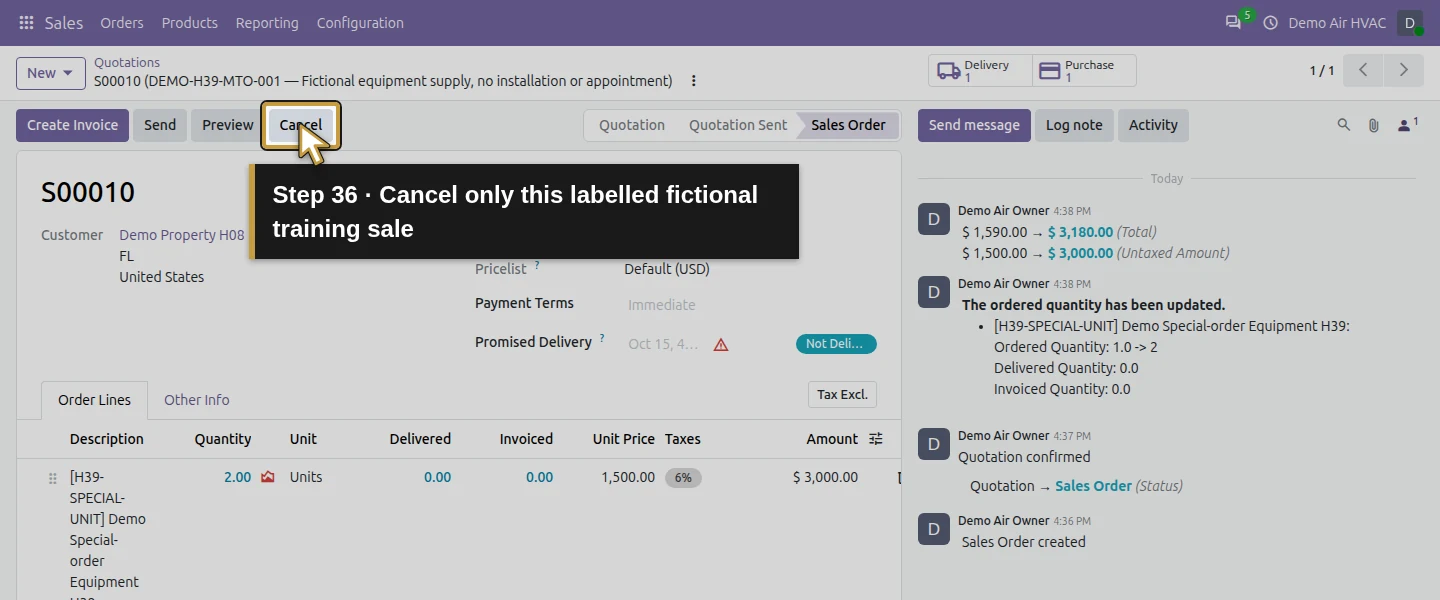
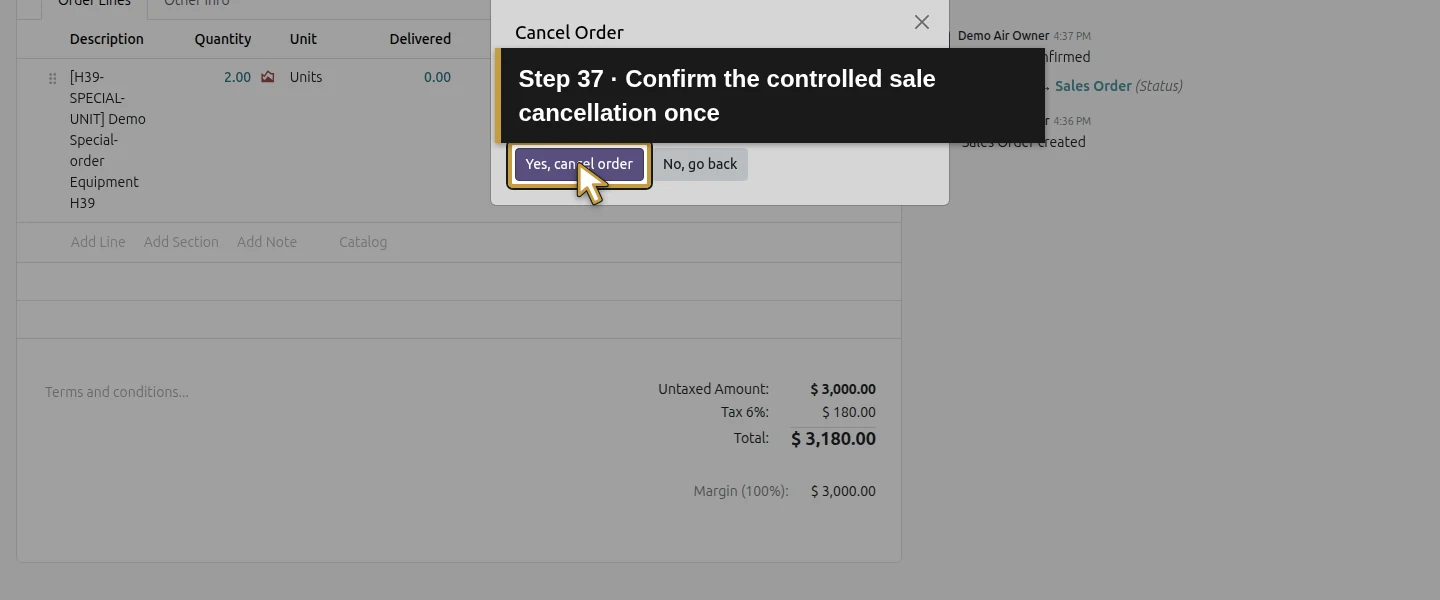
For the controlled exception check, use 1 Sale to return to S00010. Click Cancel, read the confirmation and choose Yes, cancel order once. The sale becomes Cancelled and its WH/OUT/00004 delivery is canceled. Leave Set to Quotation unused. This is a deliberate test on the labelled fictional order; it does not represent an actual customer’s cancellation or supplier agreement.
Step 12. Inspect the supplier commitment that remains
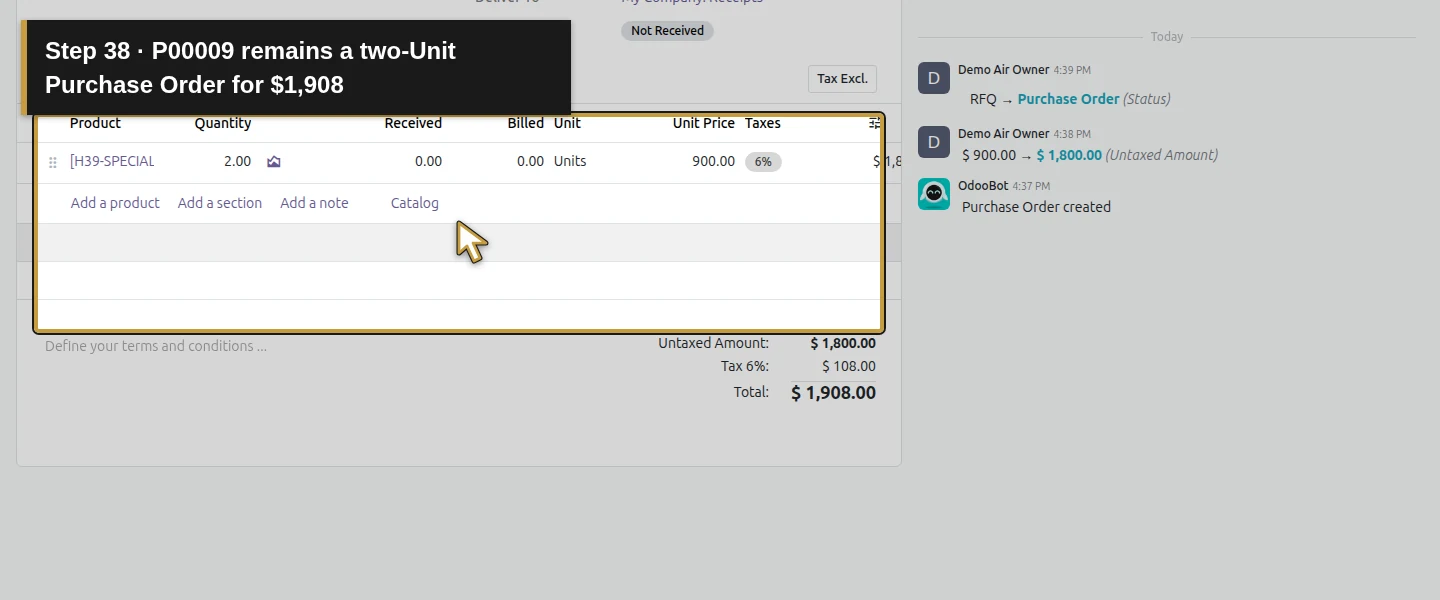
Open 1 Purchase again. P00009 is still a Purchase Order for 2 Units / $1,908. 1 Receipt still opens Ready WH/IN/00009, unreceived. The product has 0 On Hand, 2 Incoming and 2 Forecasted after the sale is canceled. Odoo has created an Exception activity on the purchase: it names S00010, identifies the two canceled Units and says manual action may be needed. In this case, canceling the sale did not cancel the purchase or remove the incoming supply.
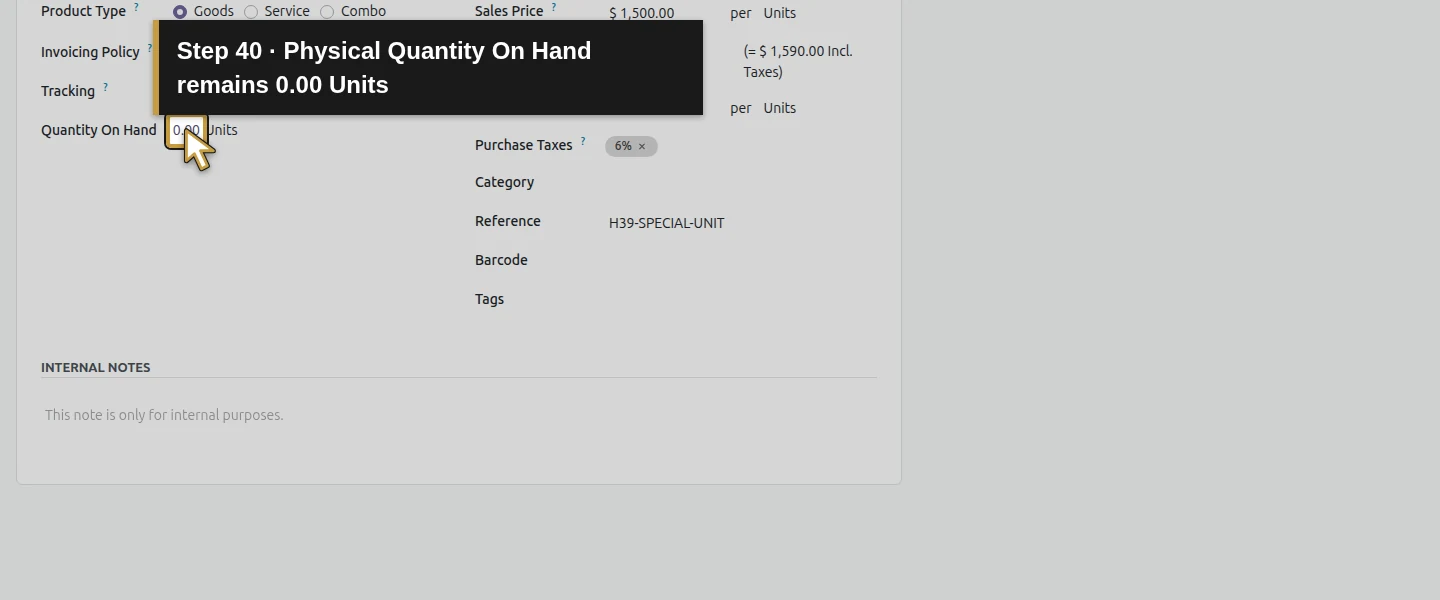
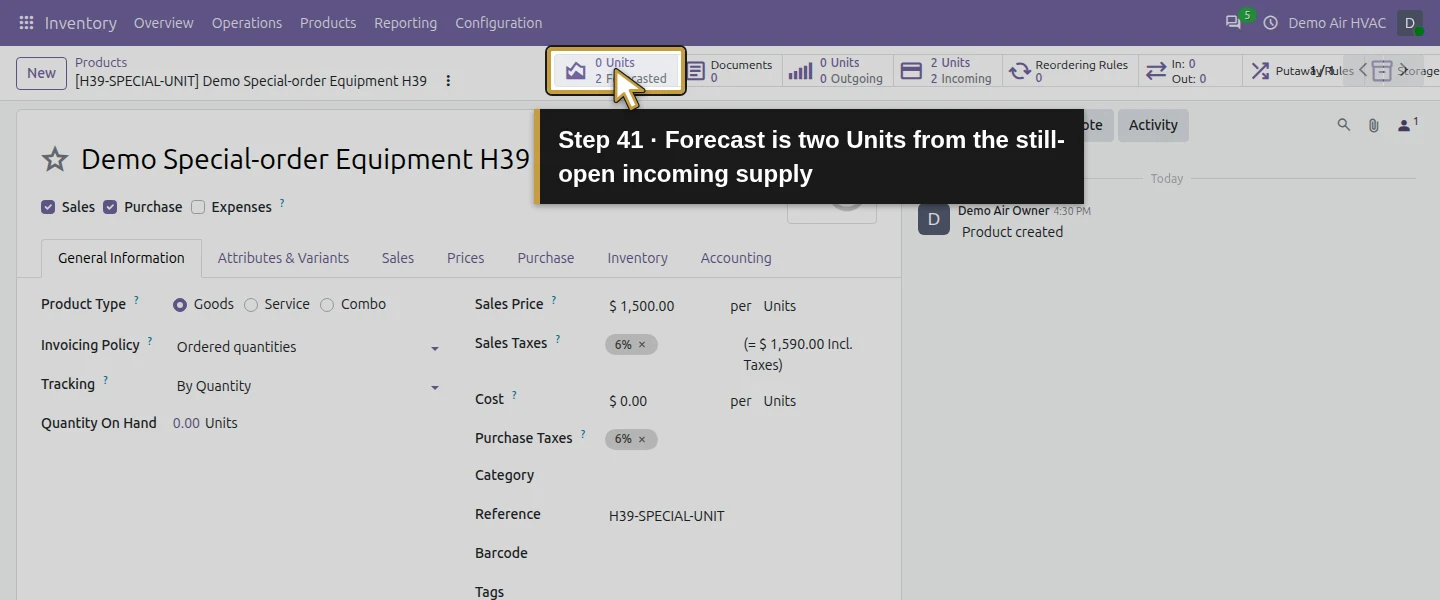
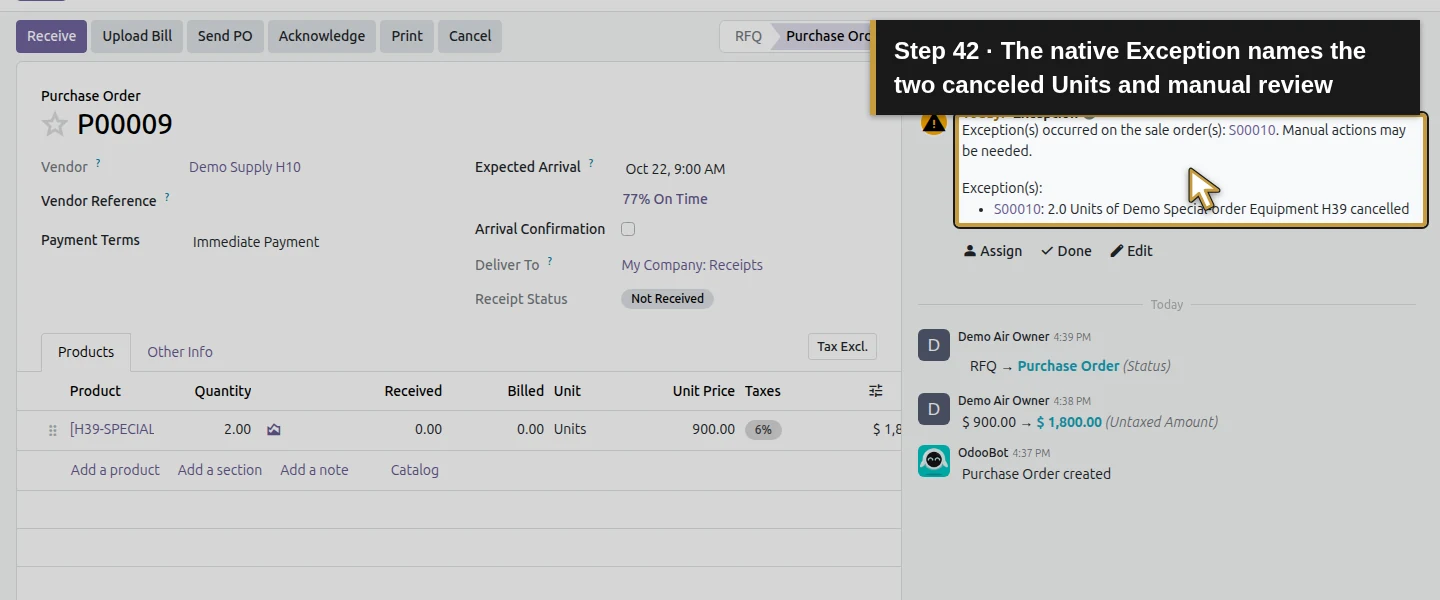
Step 13. Assign the open exception and preserve the review handoff
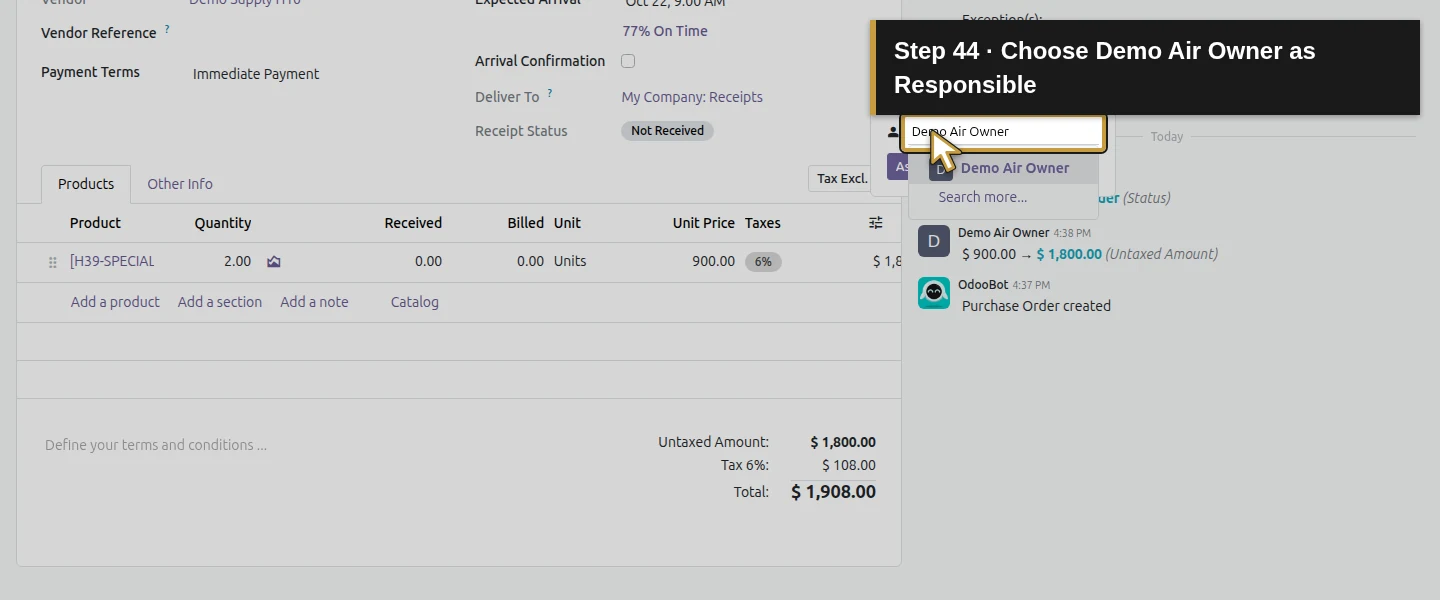
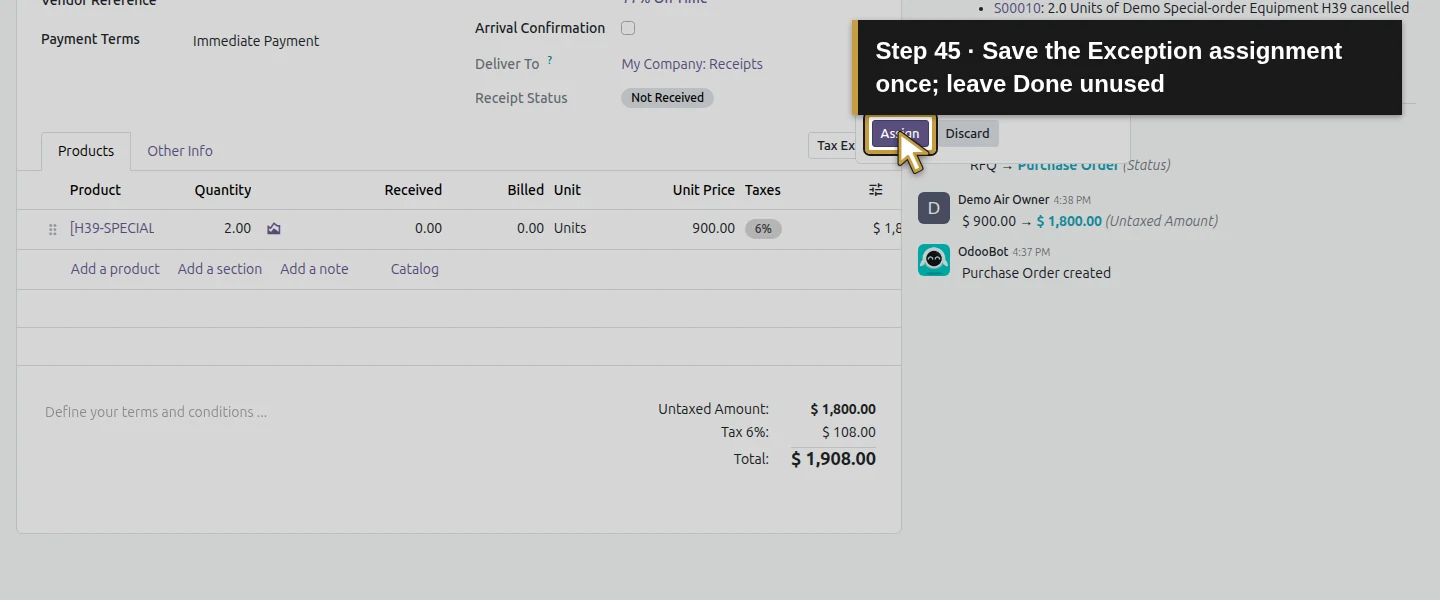
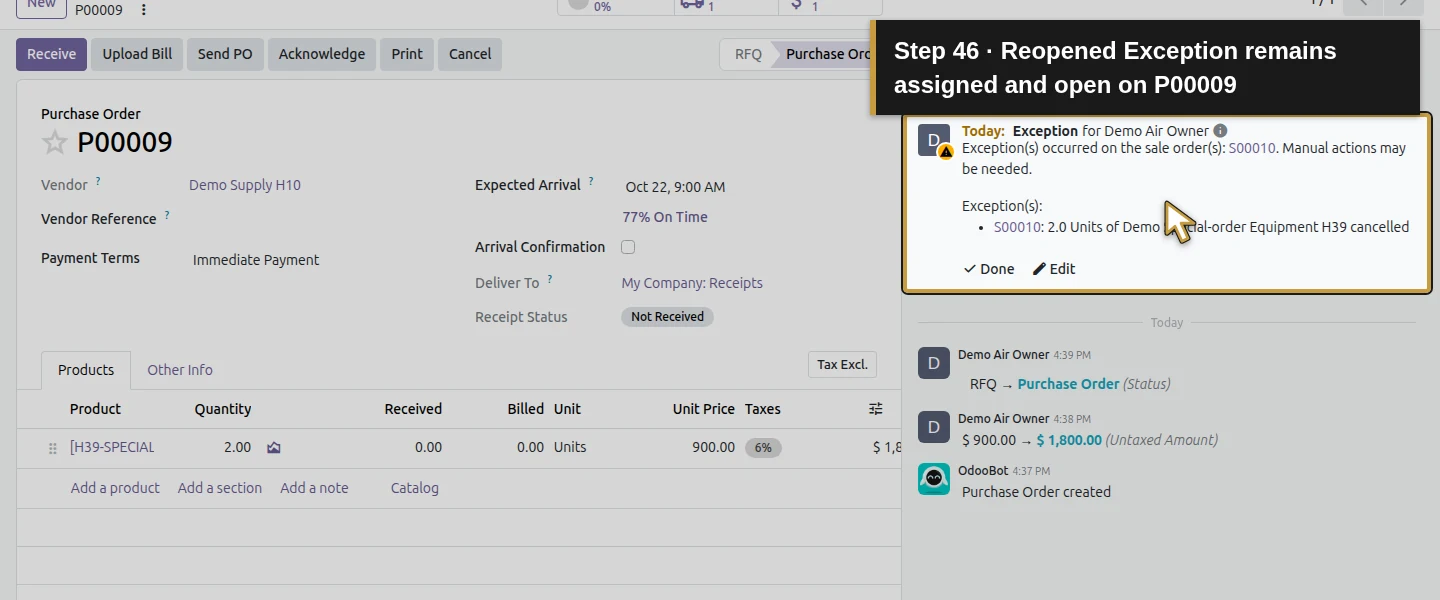
Return to P00009’s Planned Activities. The new Exception initially shows Assign. Click it, select Demo Air Owner in Responsible and click Assign. The same activity now belongs to the owner; leave Done unused. Reload and check that the purchase, incoming receipt and Exception remain. Review supplier disposition before canceling, reducing, receiving or repurposing any actual supply. This guide records the unresolved fictional purchase visibly; it has not contacted a supplier or executed a supplier cancellation.
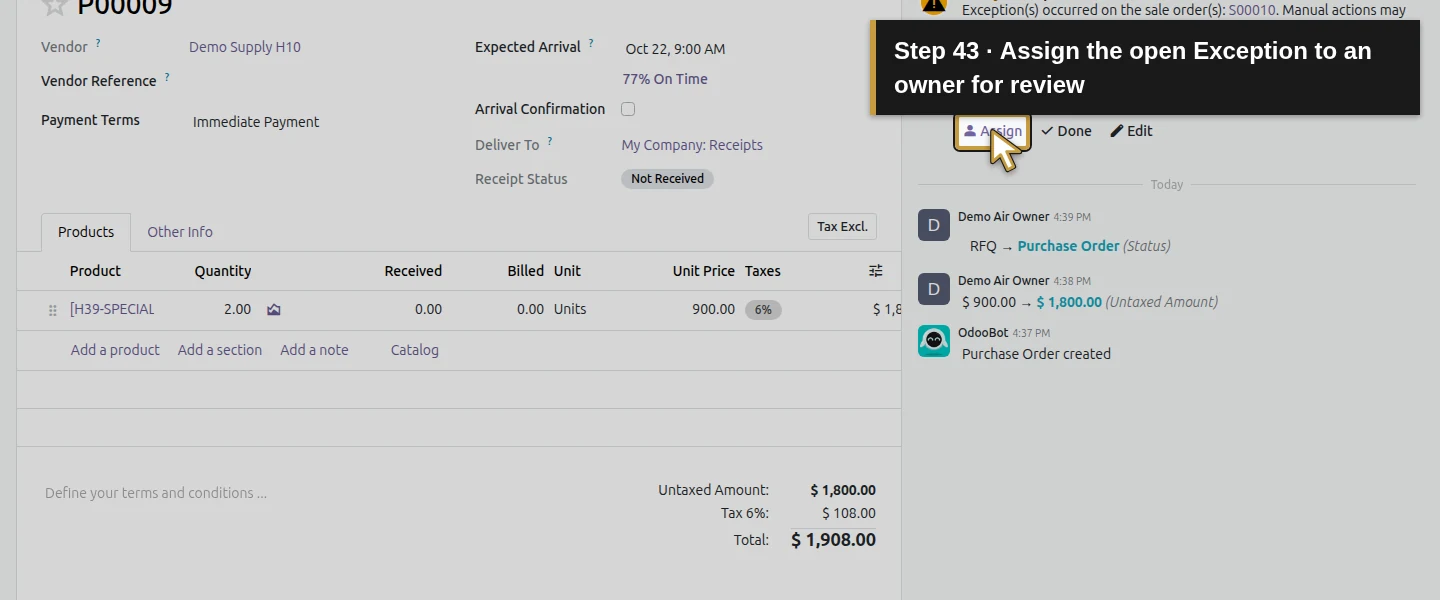
Check the result
One native MTO setting and one separate quantity-tracked product generate a linked RFQ from S00010. Increasing one to two Units updates the same P00009 and purchase line. Native Sale/Purchase navigation and linked stock demand confirm the relationship. Owner confirmation creates the unreceived two-Unit receipt. The deliberate sale cancellation cancels its delivery but leaves P00009 Purchase Order/$1,908 and the Ready receipt open; the native Exception is assigned to Demo Air Owner and survives reload. Equipment physical stock stays zero, incoming/forecast becomes two, and no invoice, bill, payment, signature or supplier email is created. The prior nine sales, eight purchases, finance, stock quantities, tasks, CRM, website and portal results remain unchanged; the two prior review activities are preserved. Full before/after checkpoint bytes and SHA256 hashes pass.
If your screen differs
Use the actual native Replenish on Order (MTO) setting in this Odoo 20 build. Do not add an assumed Buy checkbox or custom procurement rule when the existing warehouse rule already supplies this case. Review supplier price, minimum, unit, lead time, tax and dates before confirming. An order increase updated this draft RFQ; that does not establish every reduction, grouping or confirmed-order change. The owner manager’s direct confirmation does not prove ordinary-user approval rights. Ready and a prefilled receipt Quantity do not mean received stock. Customer cancellation left this confirmed supplier purchase open and raised an initially unassigned Exception; assigning it does not resolve it. Supplier cancellation, actual delivery, serial tracking and project costing remain outside this case. Default product Cost 0 makes the displayed margin unsuitable as actual job-profit evidence.
Frequently asked questions
How do I buy equipment for a specific Odoo sales order?
In this tested stock Odoo 20 Community runtime, enable Replenish on Order (MTO), select it on a quantity-tracked Goods product and save the supplier price/lead time. Confirming the training sale generates a draft RFQ. Verify the native Purchase/Sale smart buttons and actual demand link, then review the RFQ before confirming. A manually typed Source alone would not establish the same procurement proof.Why did Odoo not create a purchase order from my sale?
Check the MTO setting, the product’s selected route, Goods/tracking and Purchase setup, supplier information and the actual sale confirmation. In this case confirmation creates a draft RFQ, which still needs purchase review and Confirm Order; it is not already a confirmed supplier order. The existing warehouse Buy rule supplies the tested flow, with no separate Buy checkbox selected on this product screen.Does canceling an Odoo sales order cancel its purchase order?
It did not in this confirmed-purchase case. The sale and outbound delivery were canceled, while the two-Unit purchase and Ready incoming receipt remained open. Odoo raised an Exception saying manual action may be needed; we assigned it to the owner and left it open for review. No automatic supplier cancellation or supplier agreement is established.Continue building the business
Continue with H47: How do I manage an HVAC installation project in Odoo? for the separate installation-project workflow. Keep this canceled route-test order and open supplier Exception separate from an active installation job.
Talk about your Odoo setup
Bring your current process and the result you need to Onward to plan your Odoo workflow. Talk about your Odoo setup.