
Running an HVAC business with Odoo
How do I give customers access to their own Odoo portal records?
Give customers portal access, verify their own quotations and invoices, and check account revocation separately from emailed share links in Odoo.
Alex wants customers to review their own quotations and invoices without opening another customer’s documents. We invite two existing fictional customers, sign in through separate customer sessions and check their actual records. We also revoke the second account and test the original quotation email link: removing account access does not make that link stop working in this case.
Alex Rivera and Demo Air HVAC are fictional training examples. Prices, dates, quantities and business situations in this guide are illustrative.
Before you begin
Tested in stock Odoo 20.0-20260926 Community as the demo owner administrator, with official modules and standard configuration. Complete H08 customer addresses, H09 contact import, H23 quotations, H26 online acceptance and H54 consolidated invoices. Reuse Demo Property H08 and the separate Demo Property Import H09, including their existing billing/service contacts. The official portal, auth_signup, sale and account modules are already installed, Odoo-authored and LGPL-3; no app or business customization is added. Use separate browser sessions for the owner and each customer. This verification sends only to the local Mailpit sink using .example.invalid recipients. Invitations, passwords and private link tokens stay out of screenshots and published material. No actual customer account, work approval or payment is involved.
Step-by-step workflow
Step 1. Review the two customer records and their relationships
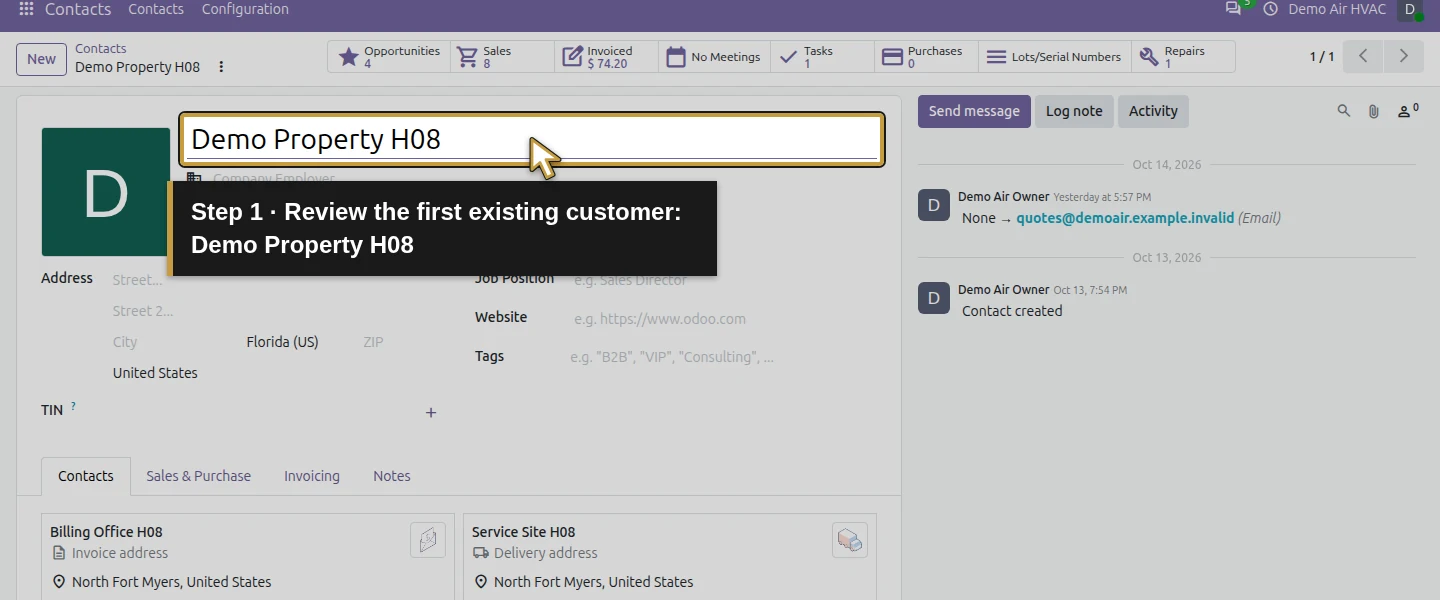
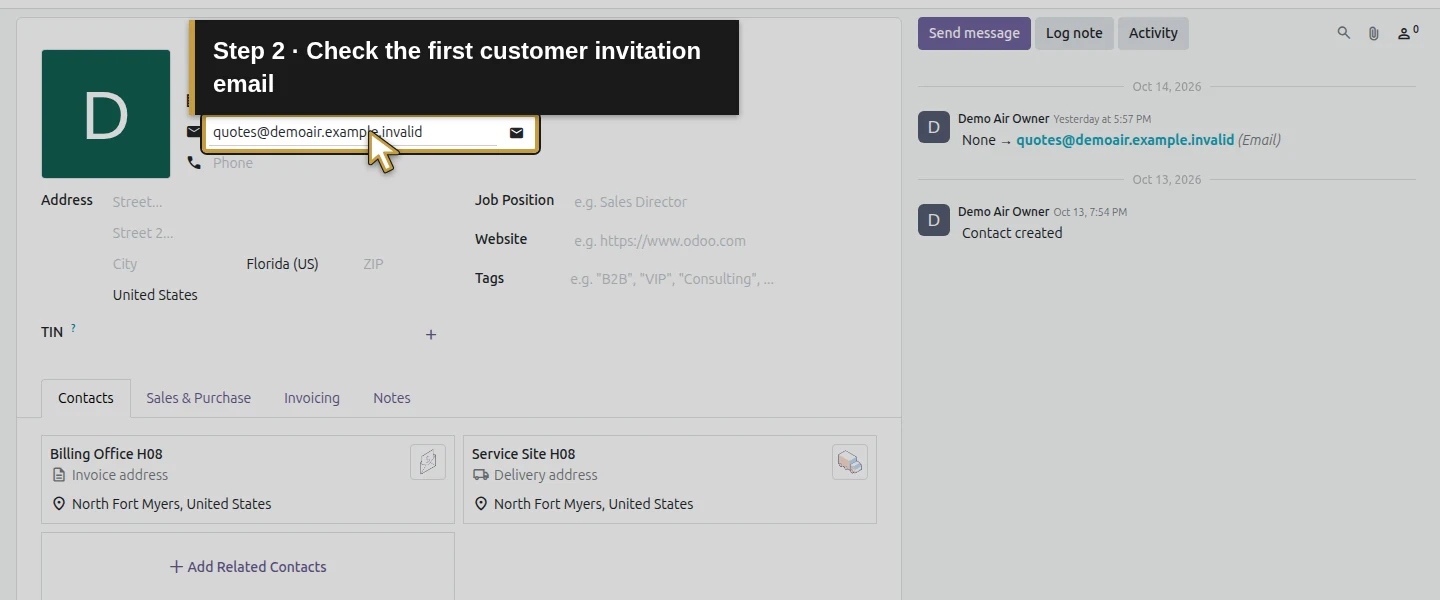
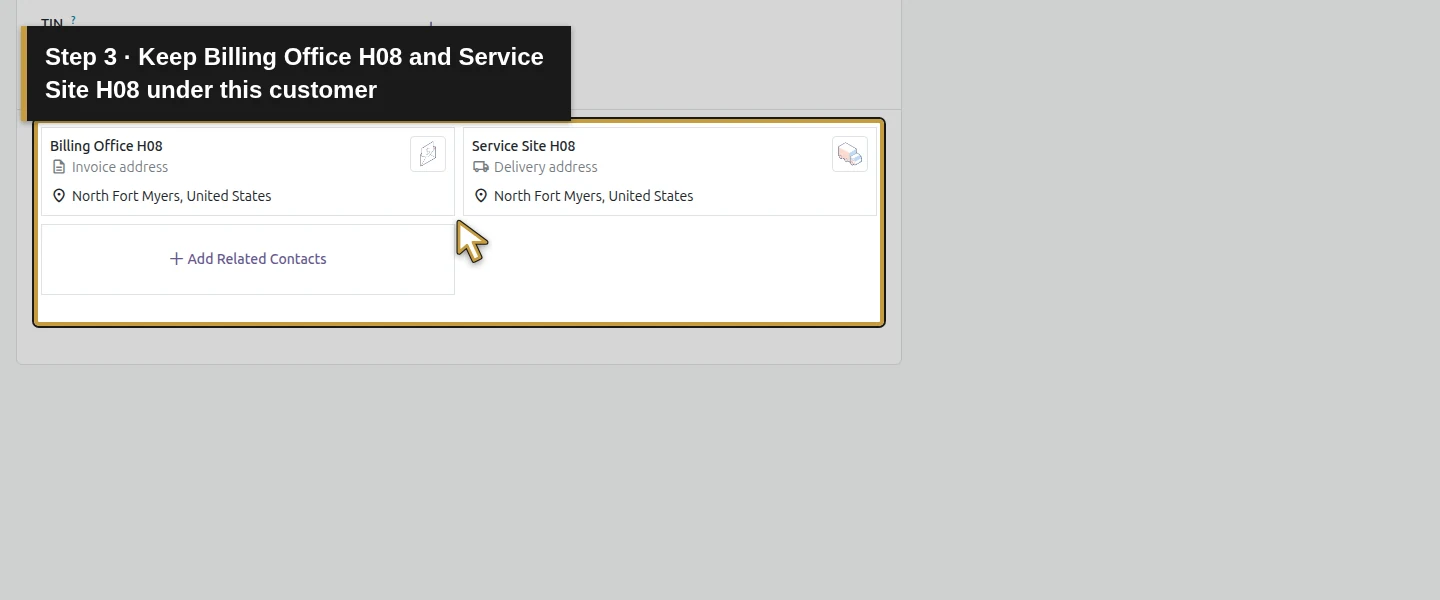
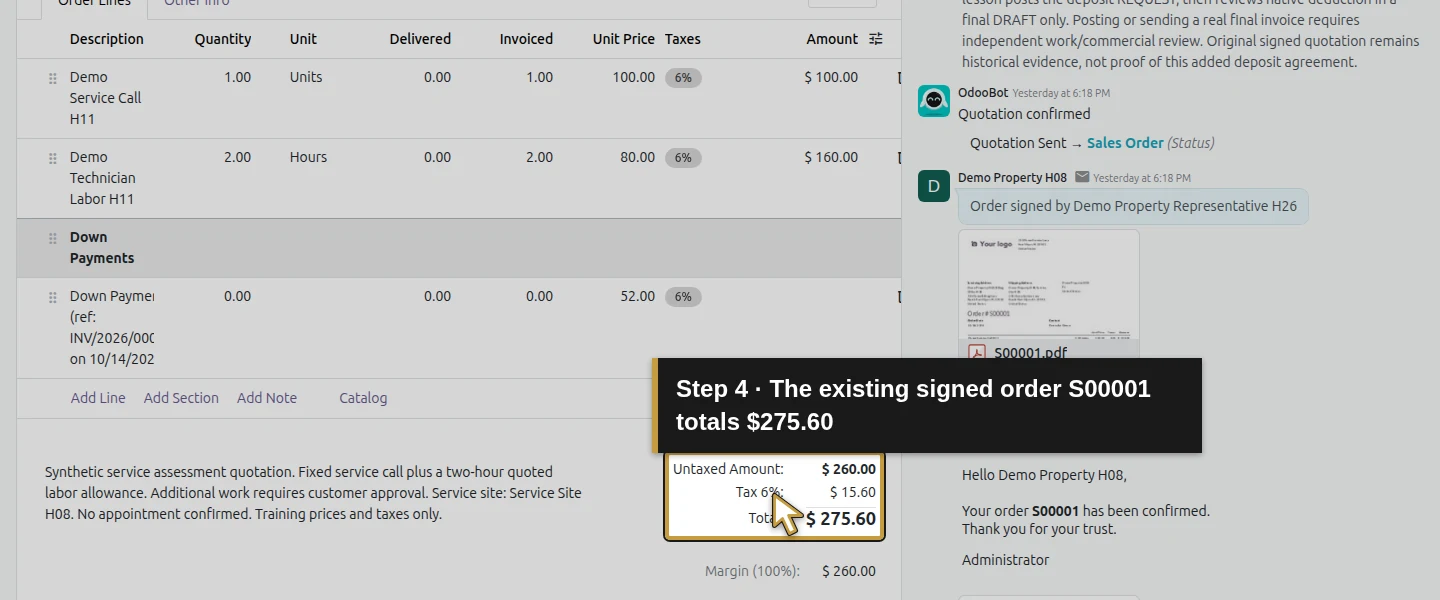
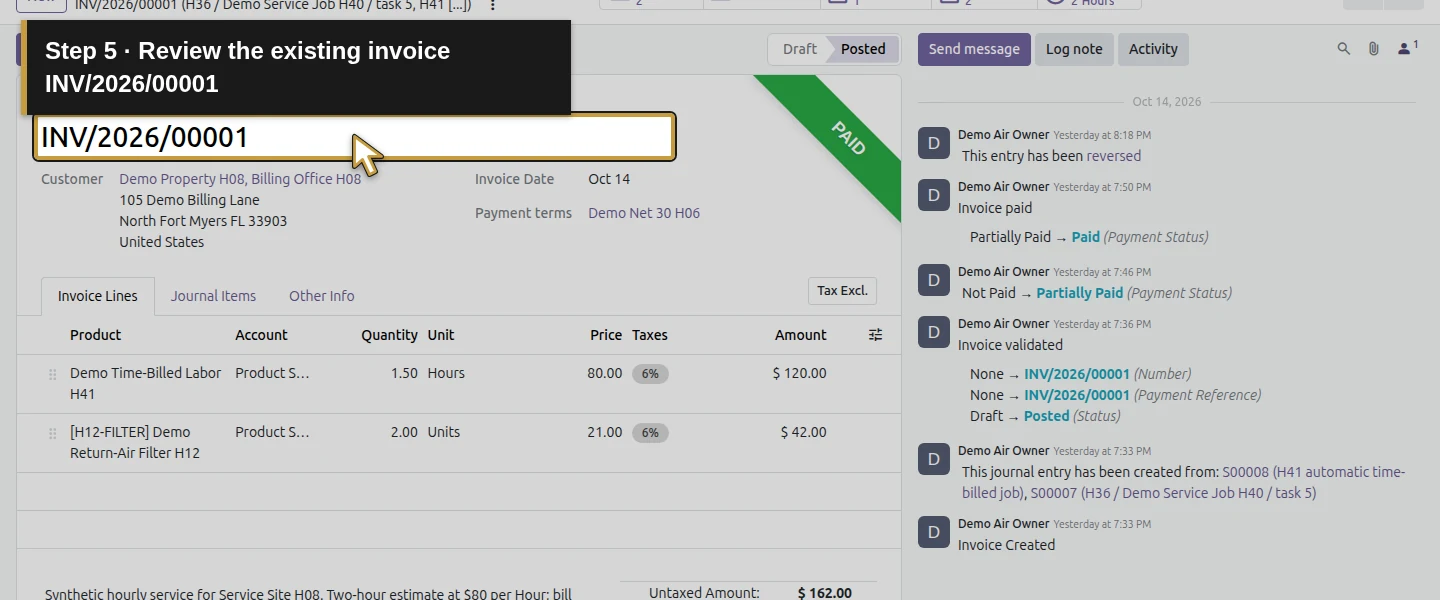
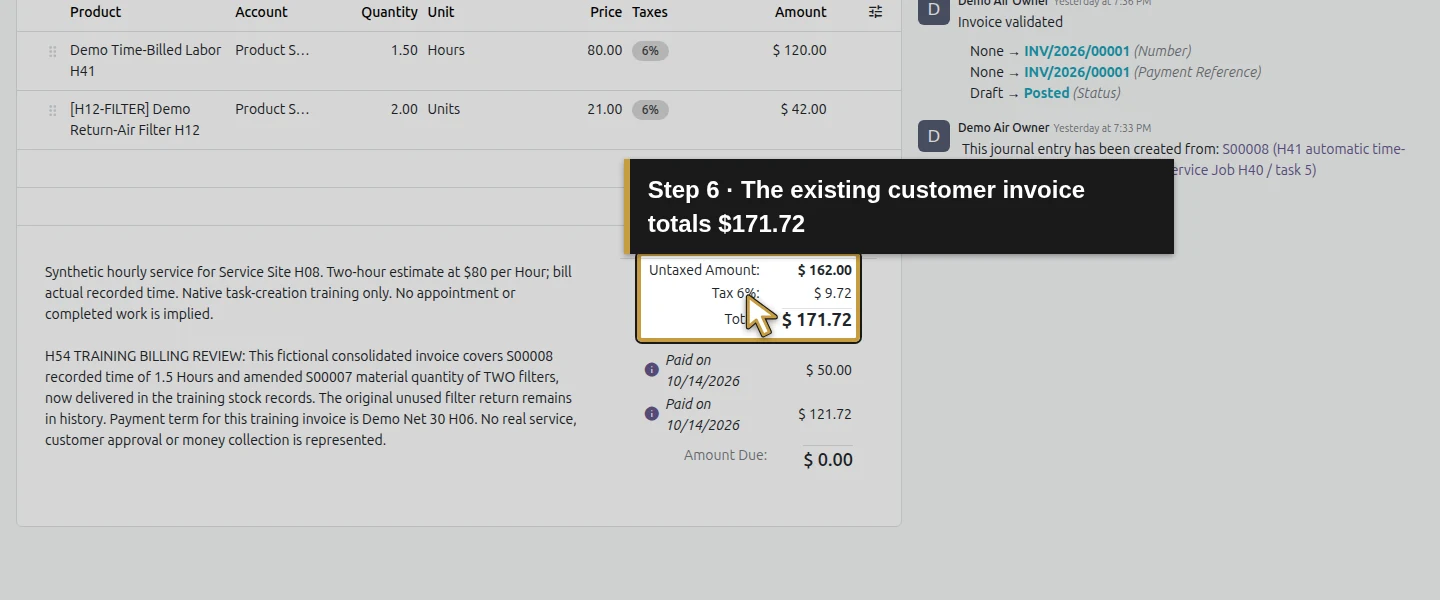
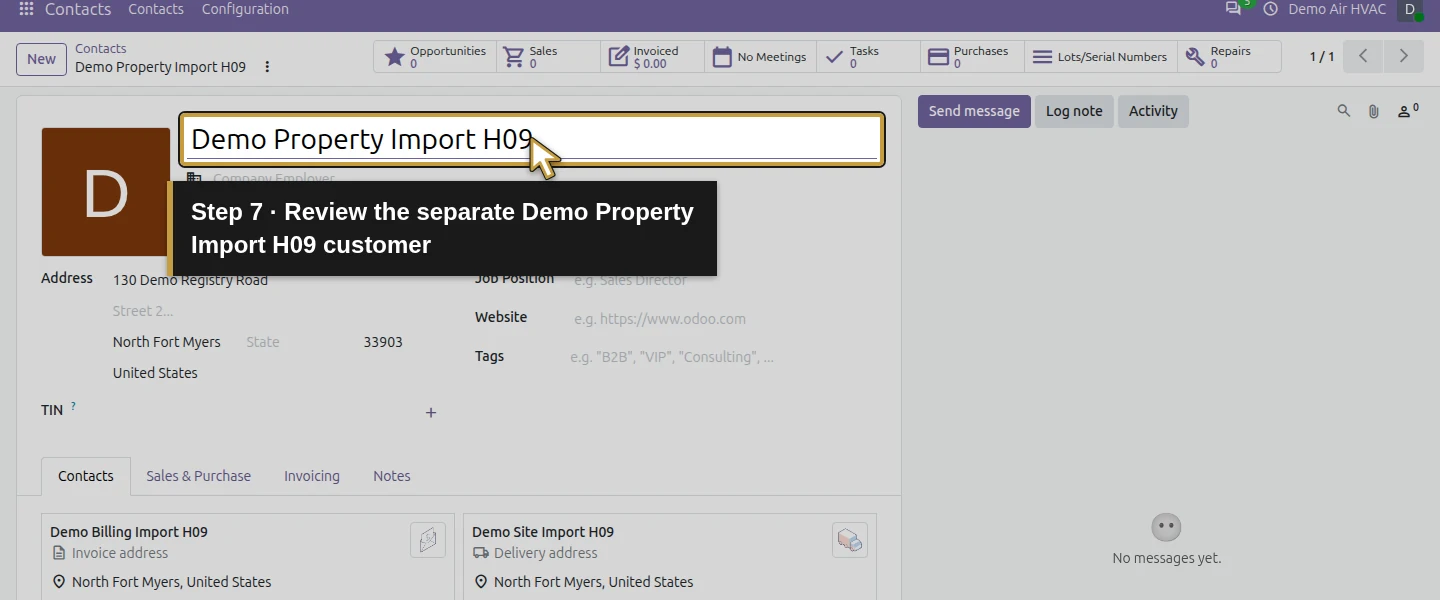
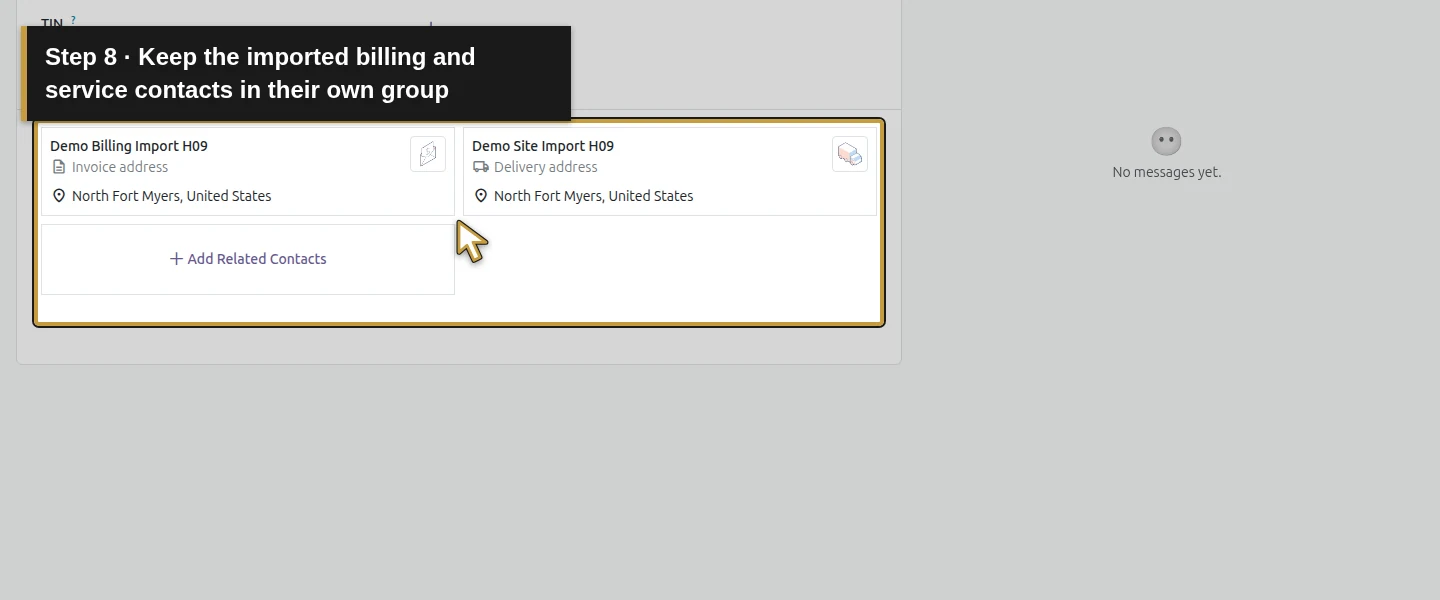
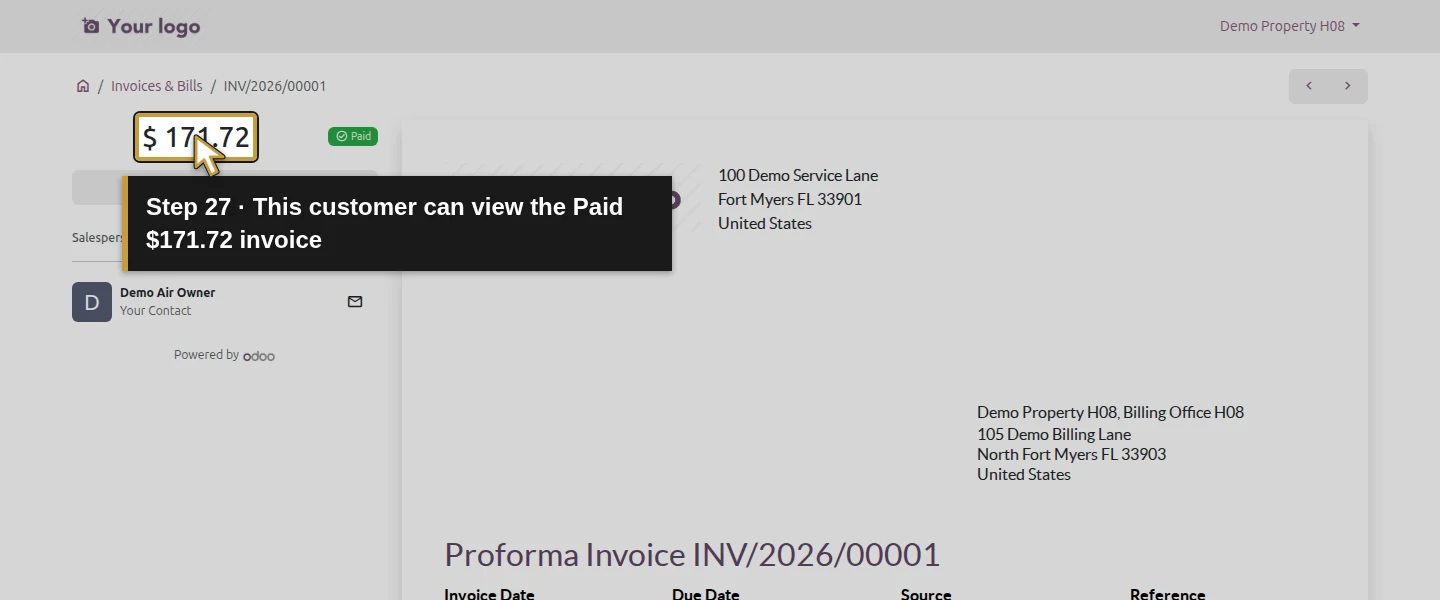
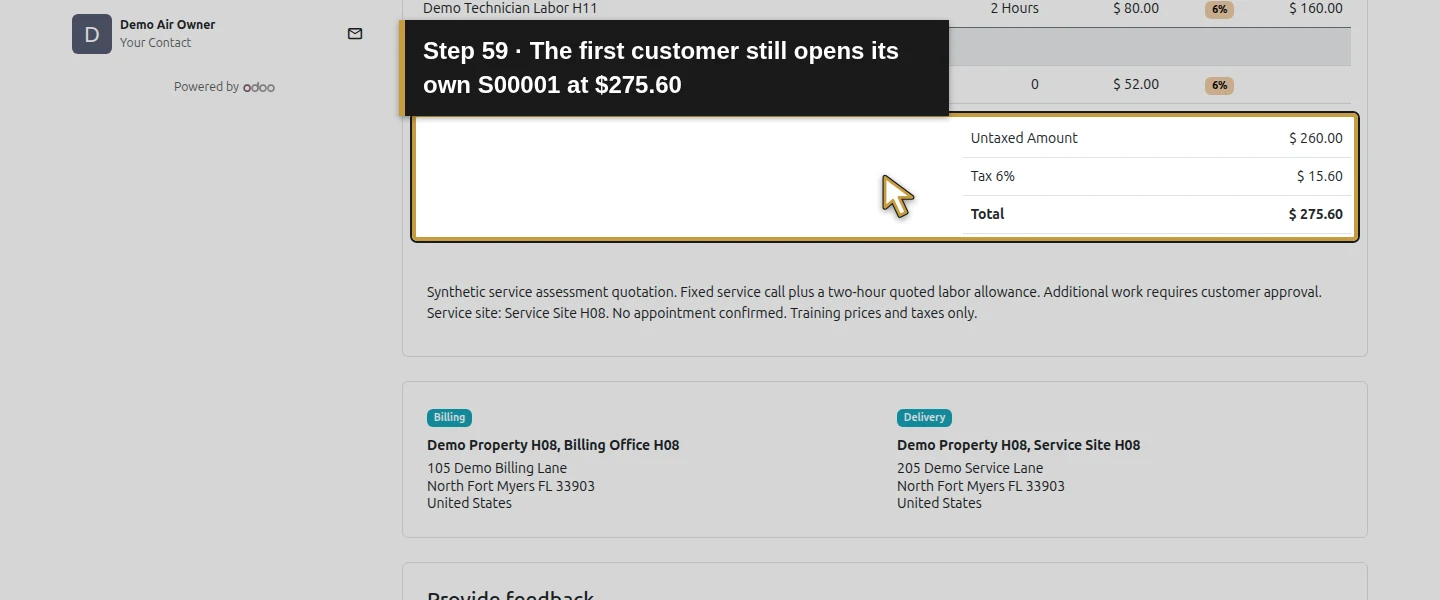
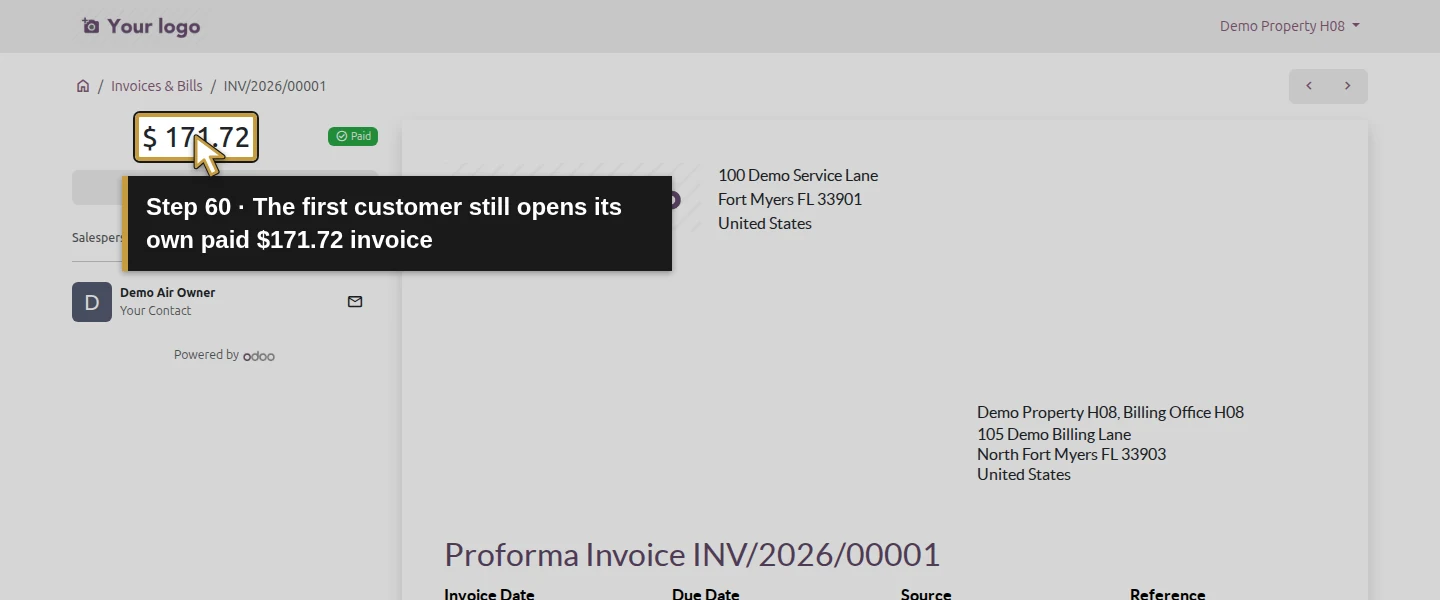
Open Contacts → Demo Property H08. Its email is quotes@demoair.example.invalid, with Billing Office H08 and Service Site H08 linked beneath it. Existing S00001 is the $275.60 signed sales order; INV/2026/00001 is the $171.72 paid invoice addressed to its billing contact. The separate Demo Property Import H09 has its own billing/service contacts and initially has no quotations. Keep these customer groups separate. This test grants access on the two selected top-level contact records; it does not prove isolation between contacts inside the same customer group.
Step 2. Review the second customer’s invitation address
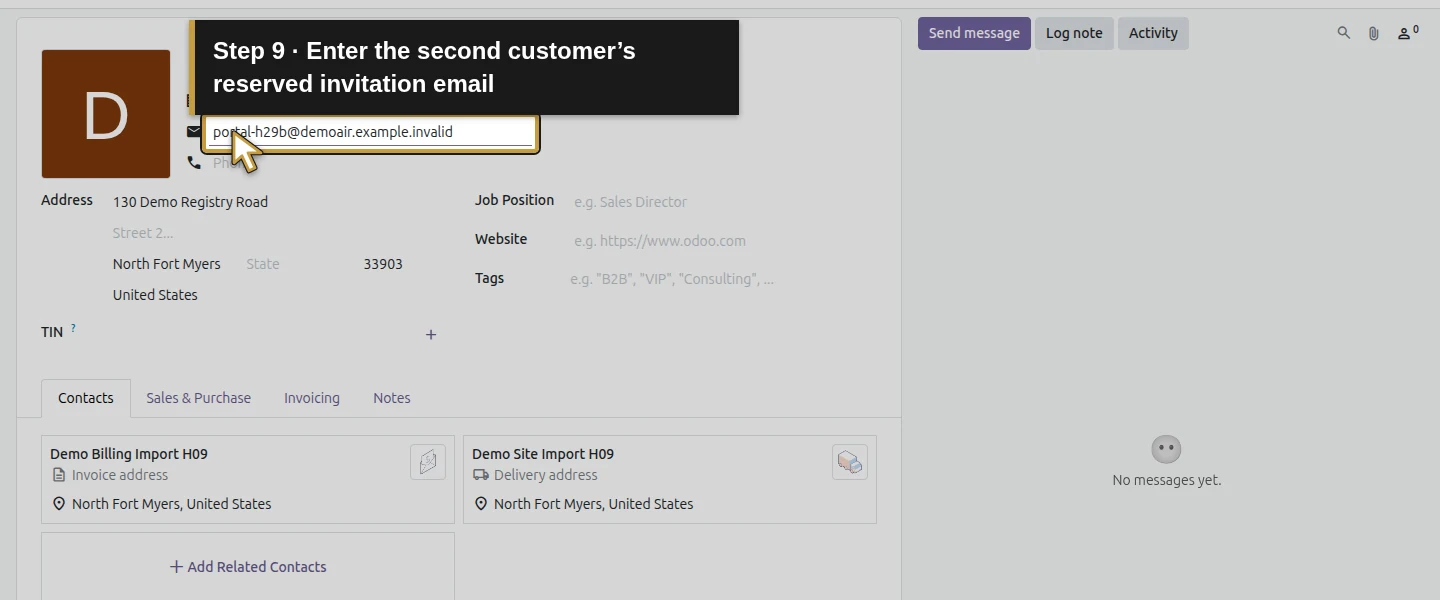
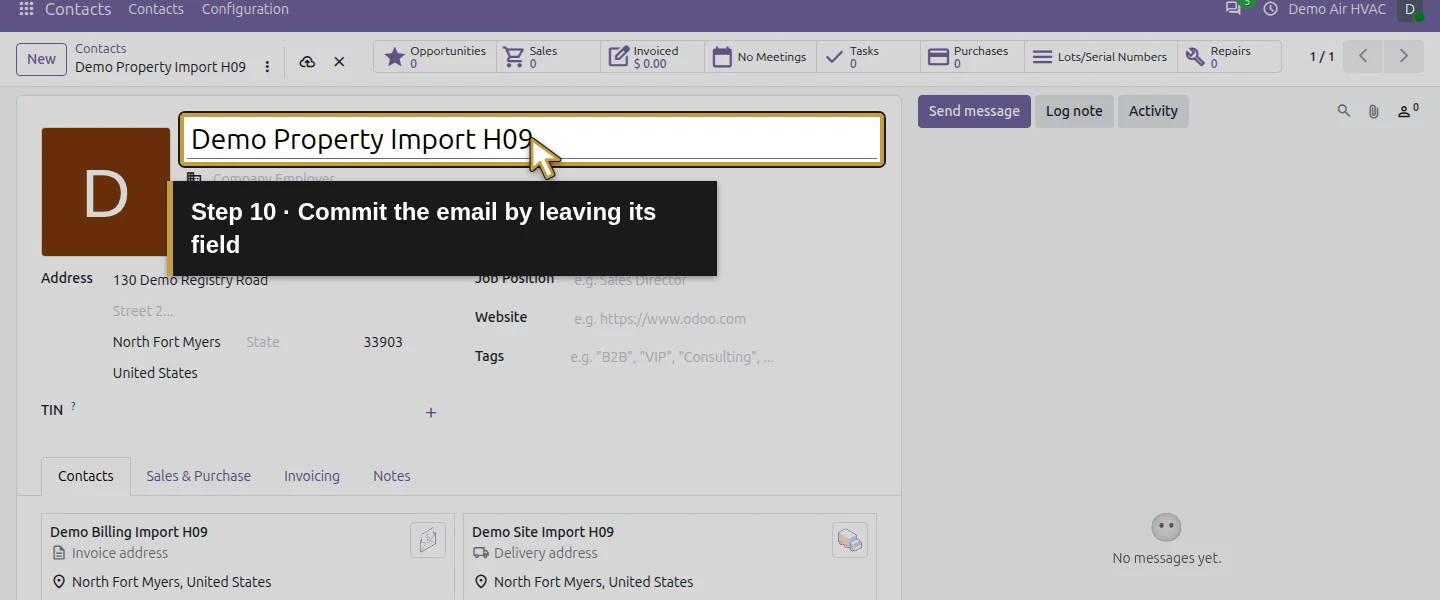
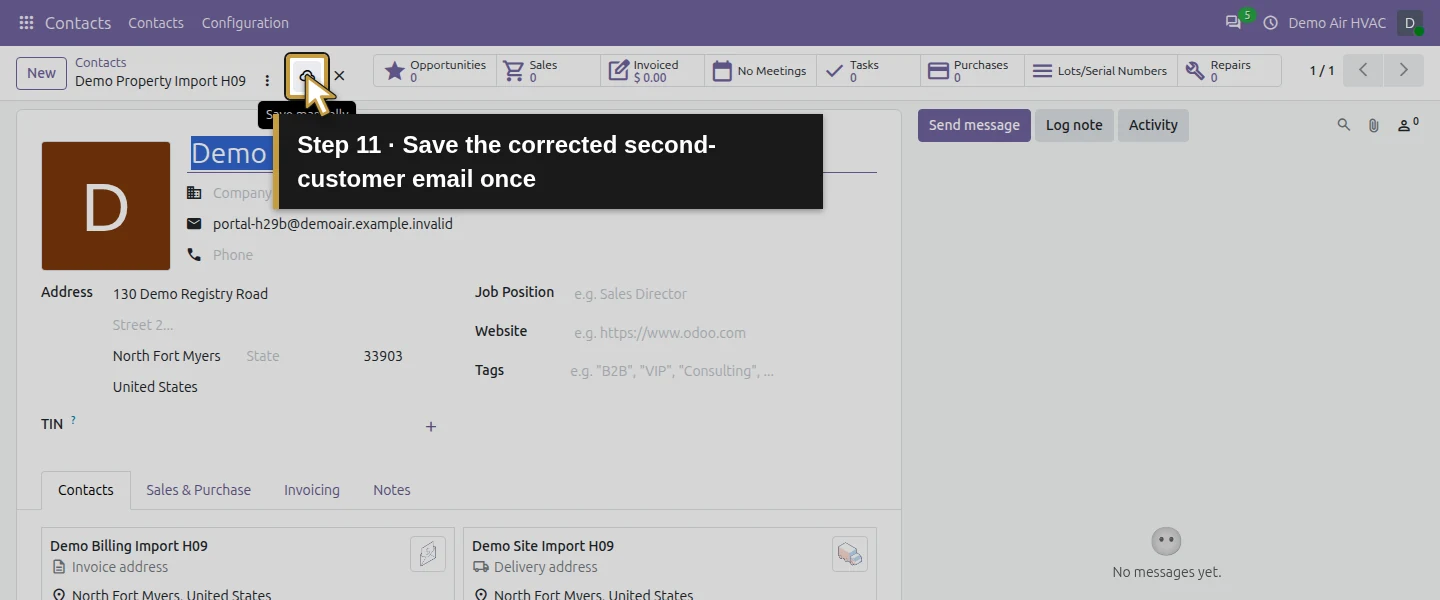
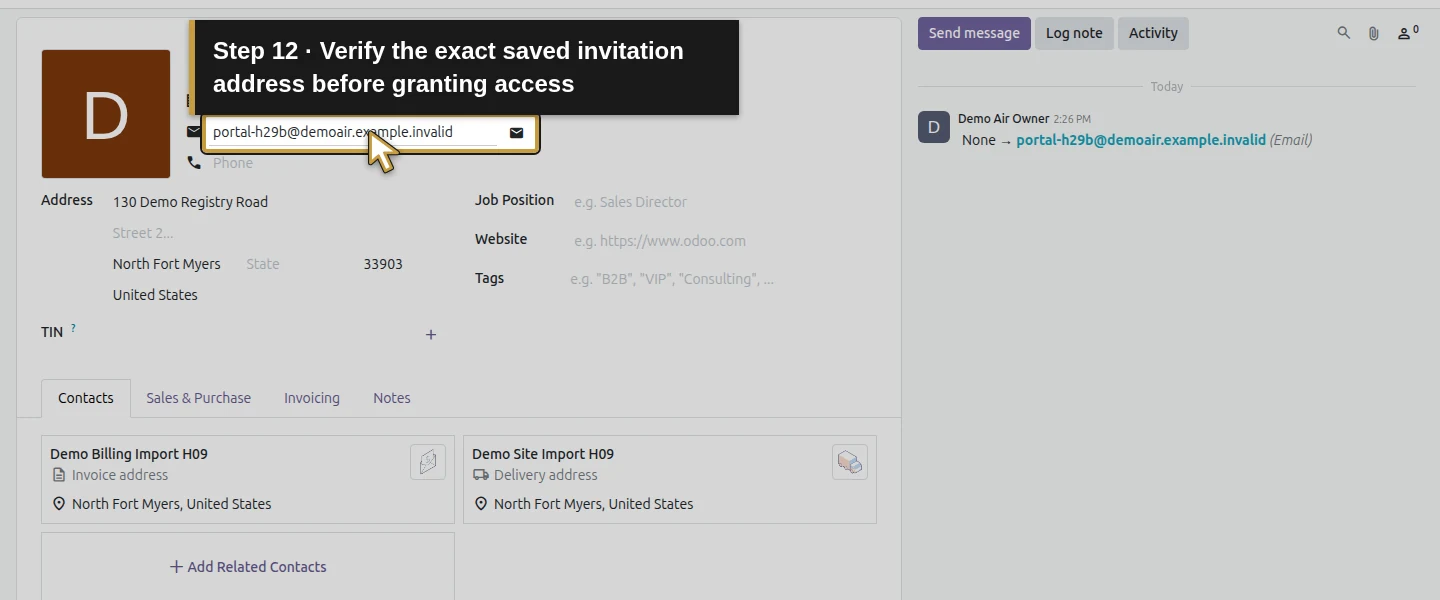
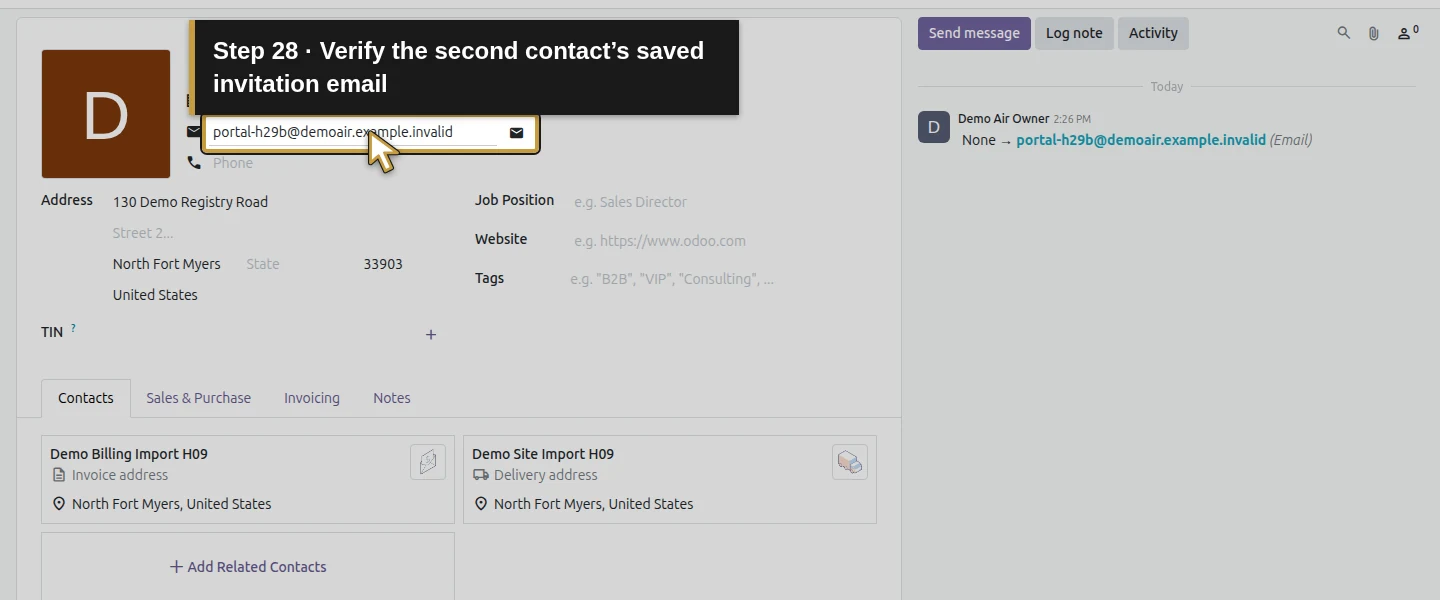
On Demo Property Import H09, enter Email portal-h29b@demoair.example.invalid and click Save manually. Reopen or inspect the saved field before inviting. Check that the exact address belongs to the intended selected contact; correct that same record before sending if it does not match. The existing street, parent and billing/service relationships remain unchanged.
Step 3. Grant access to the first selected contact
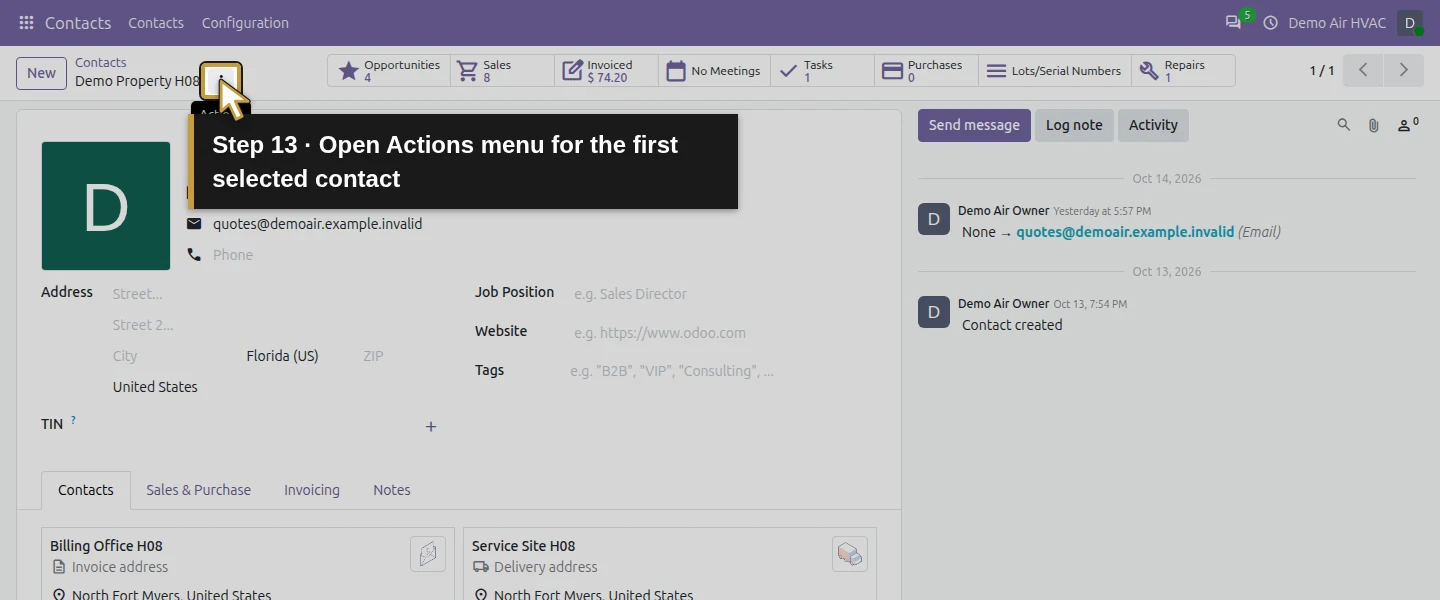
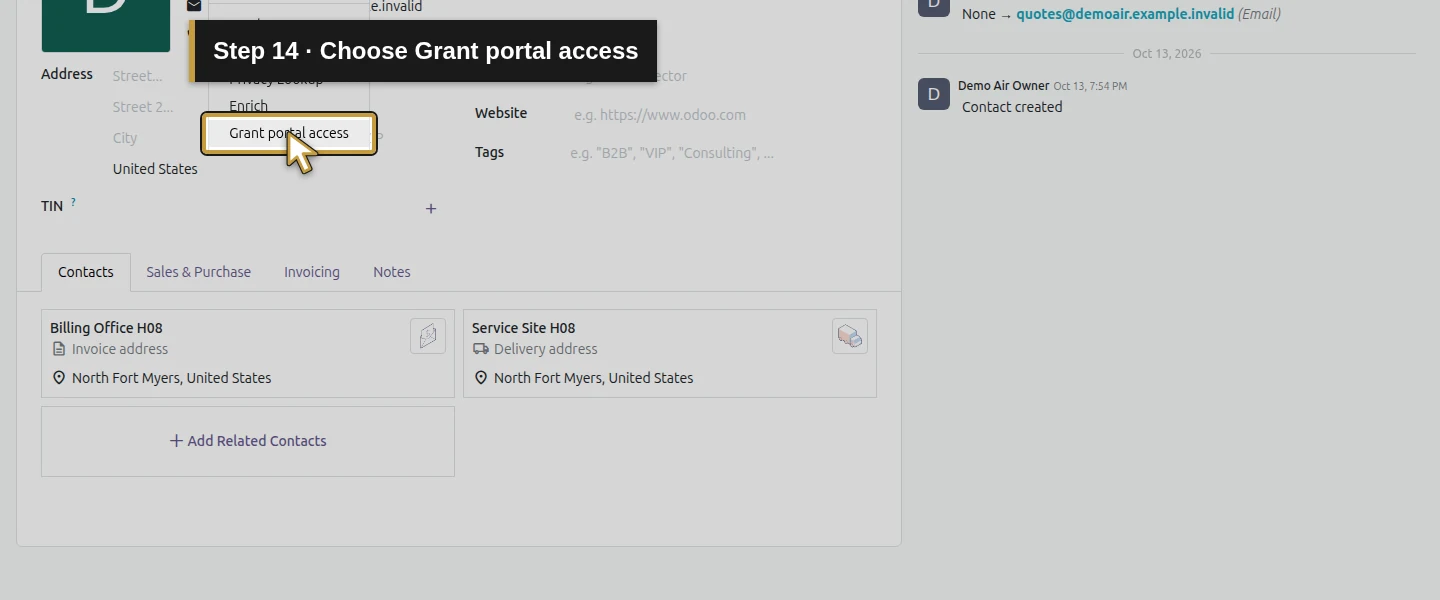
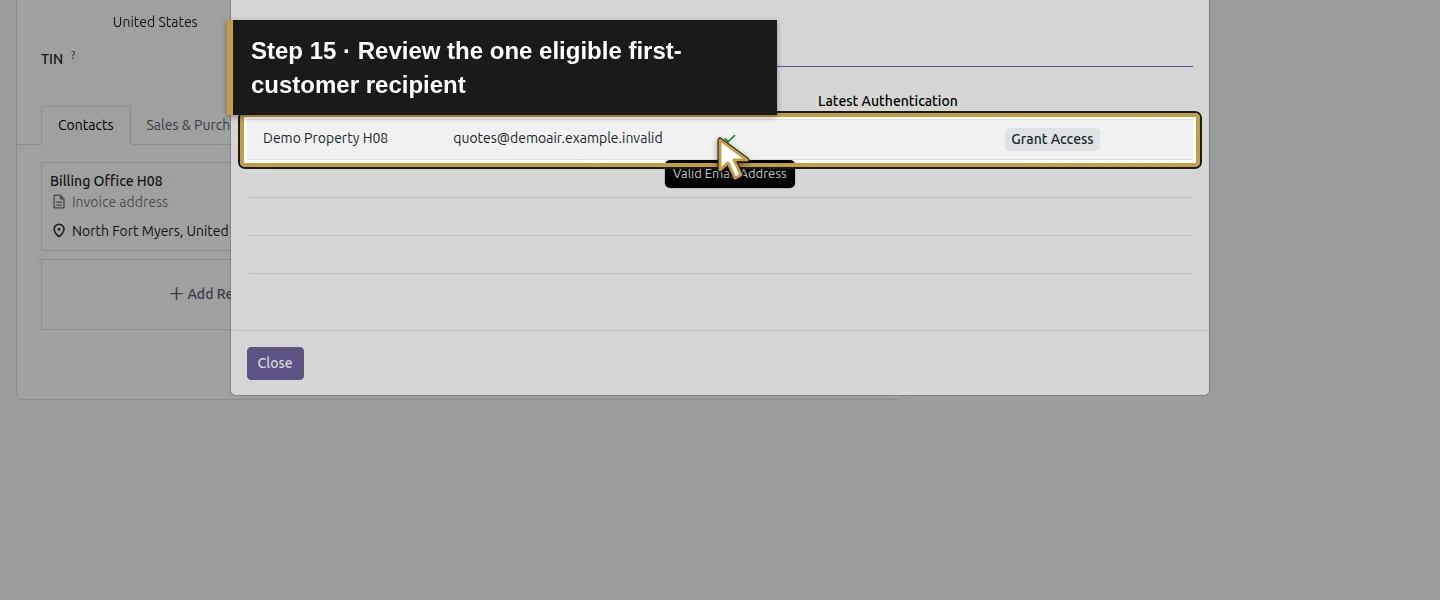
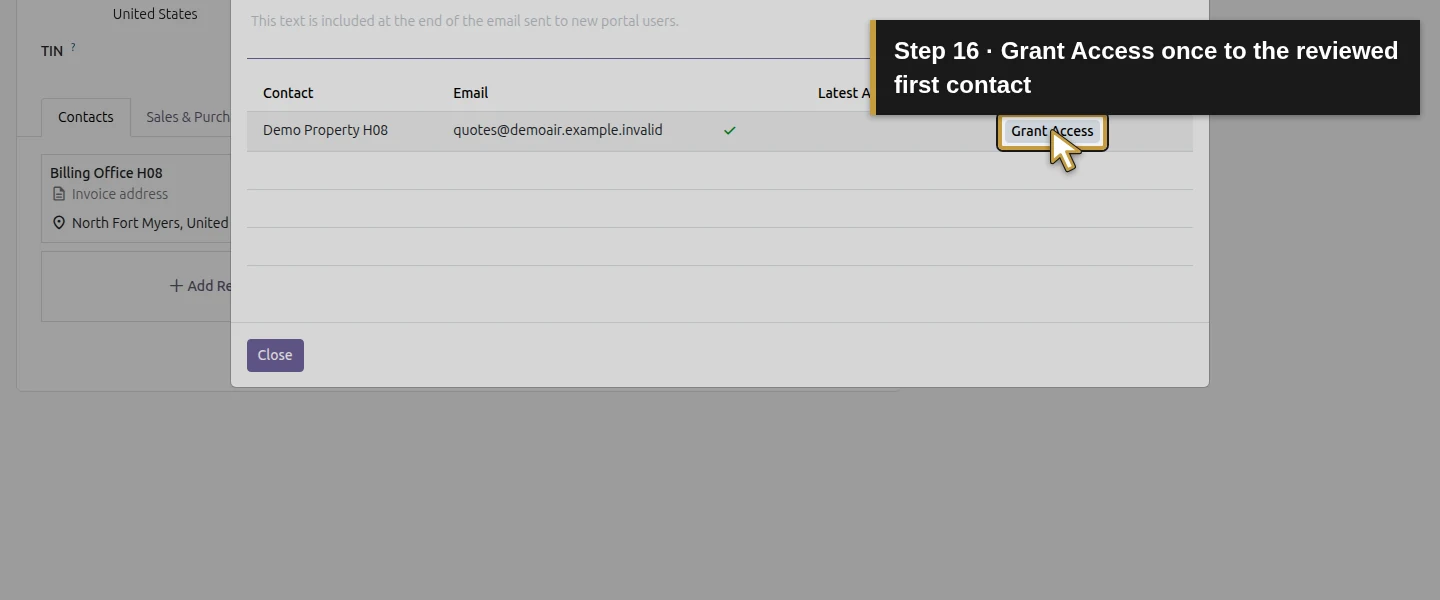
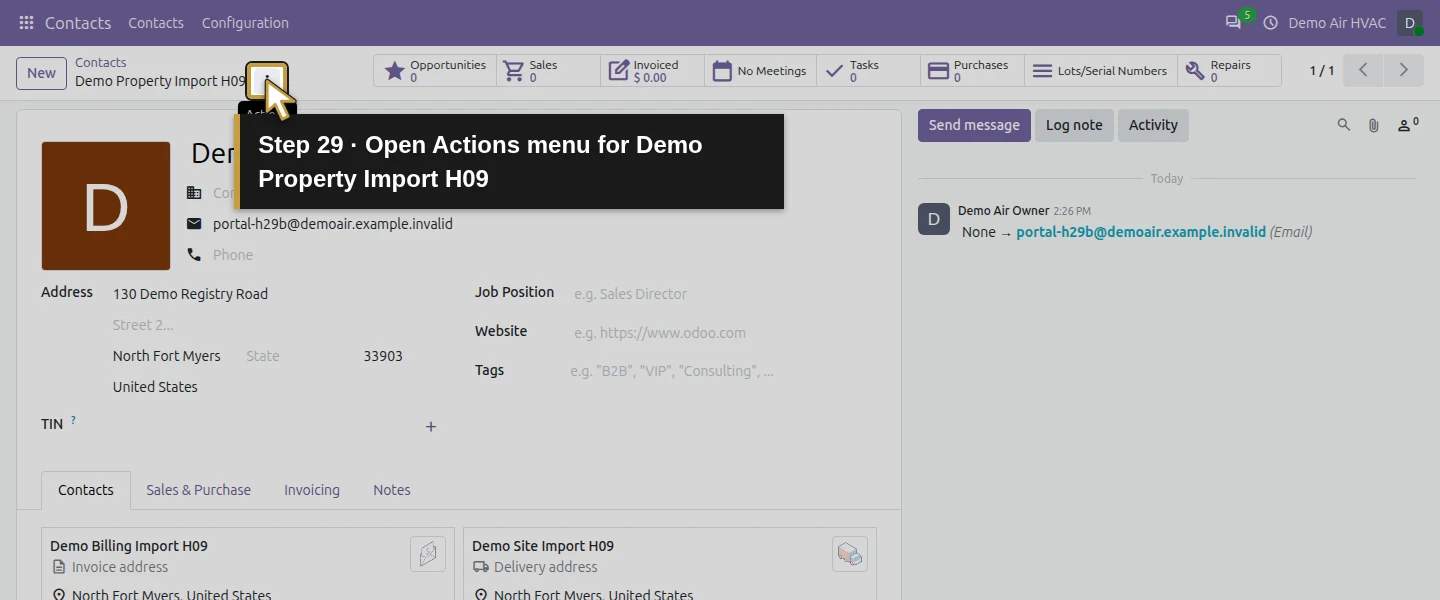
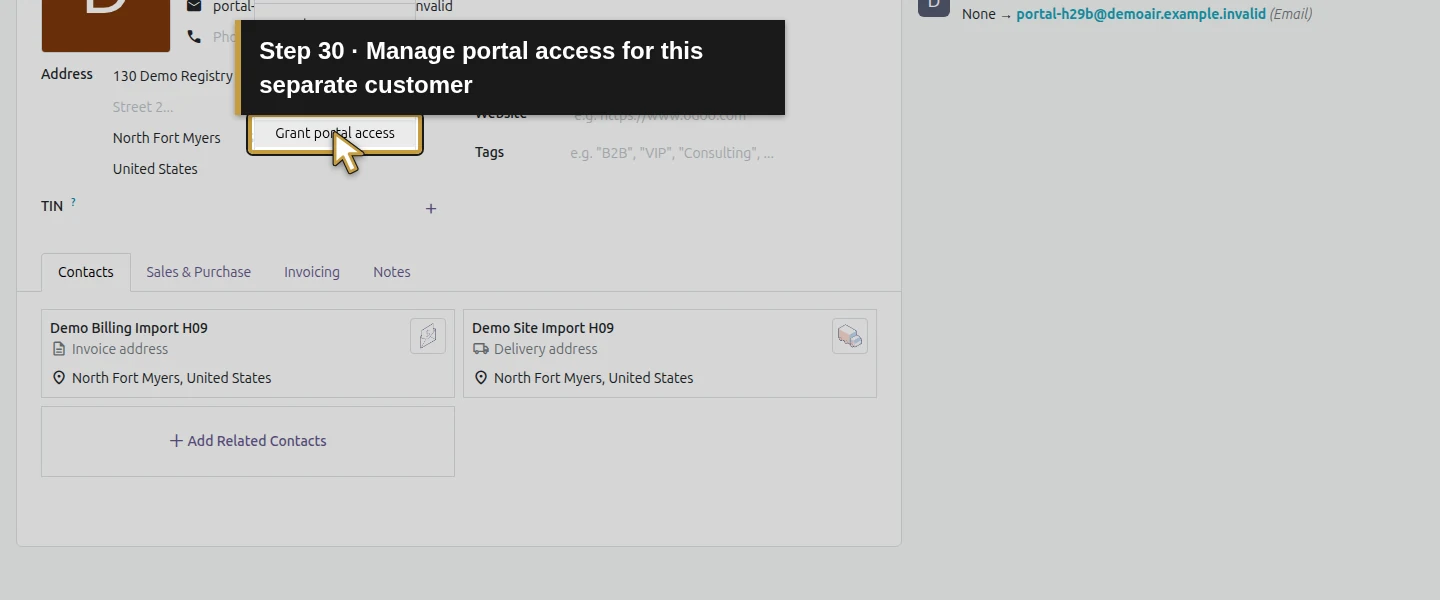
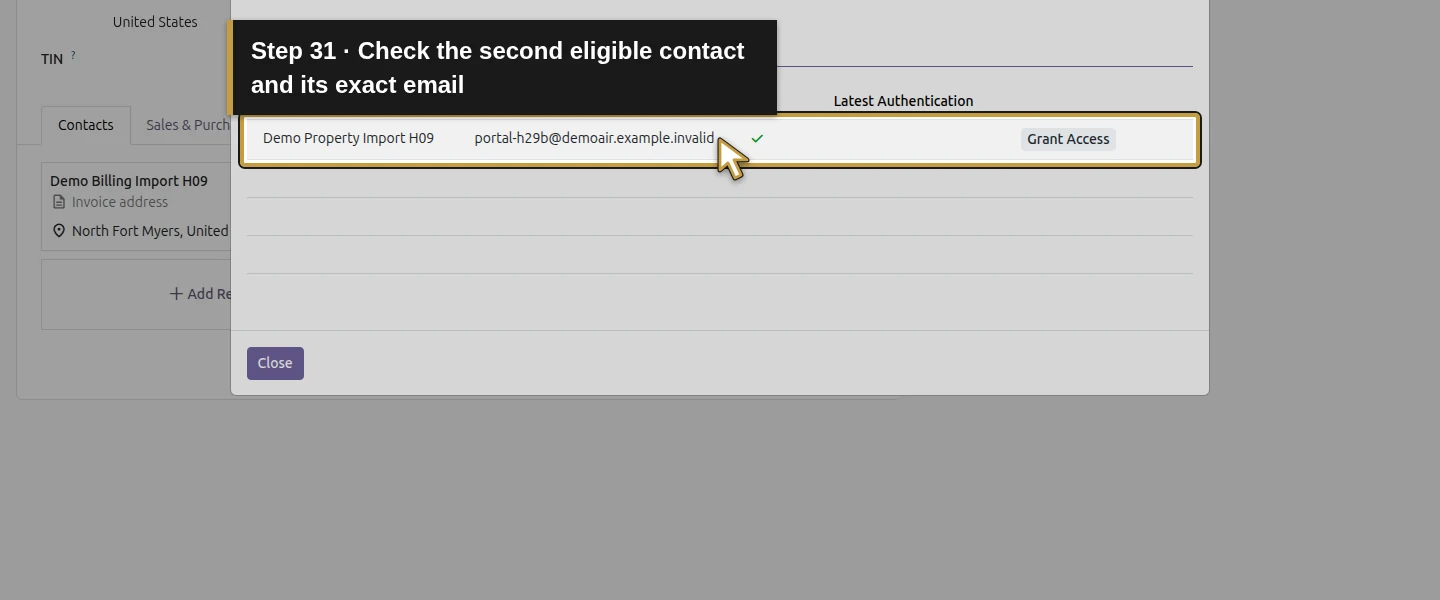
Return to Demo Property H08 and open Actions menu → Grant portal access. The Portal Access Management dialog lists the eligible contact and its email. In this test it contains one row, Demo Property H08; the billing and delivery address records are not separately invited. Review the recipient, then click that row’s Grant Access once. Wait for Revoke Access and Re-Invite to appear. The native action creates one portal account for the selected contact and sends its invitation to the local sink. Do not click Re-Invite merely because the initial view has not refreshed.
Step 4. Set the first customer’s password from its invitation
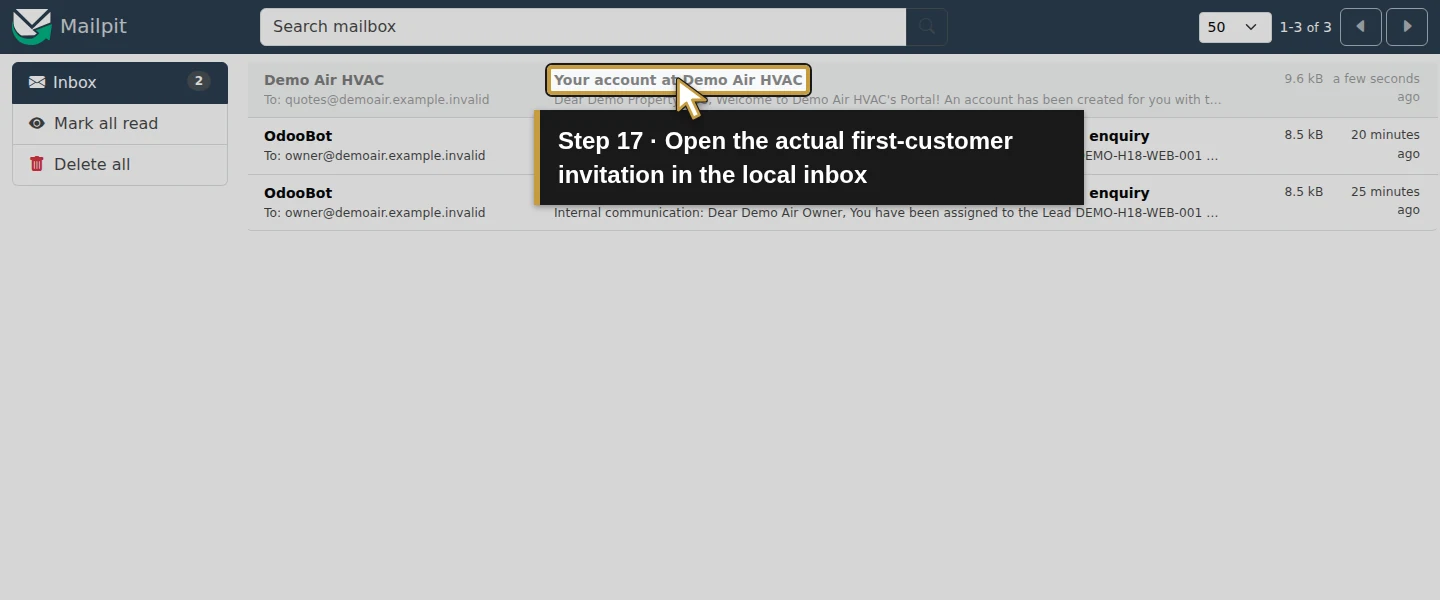
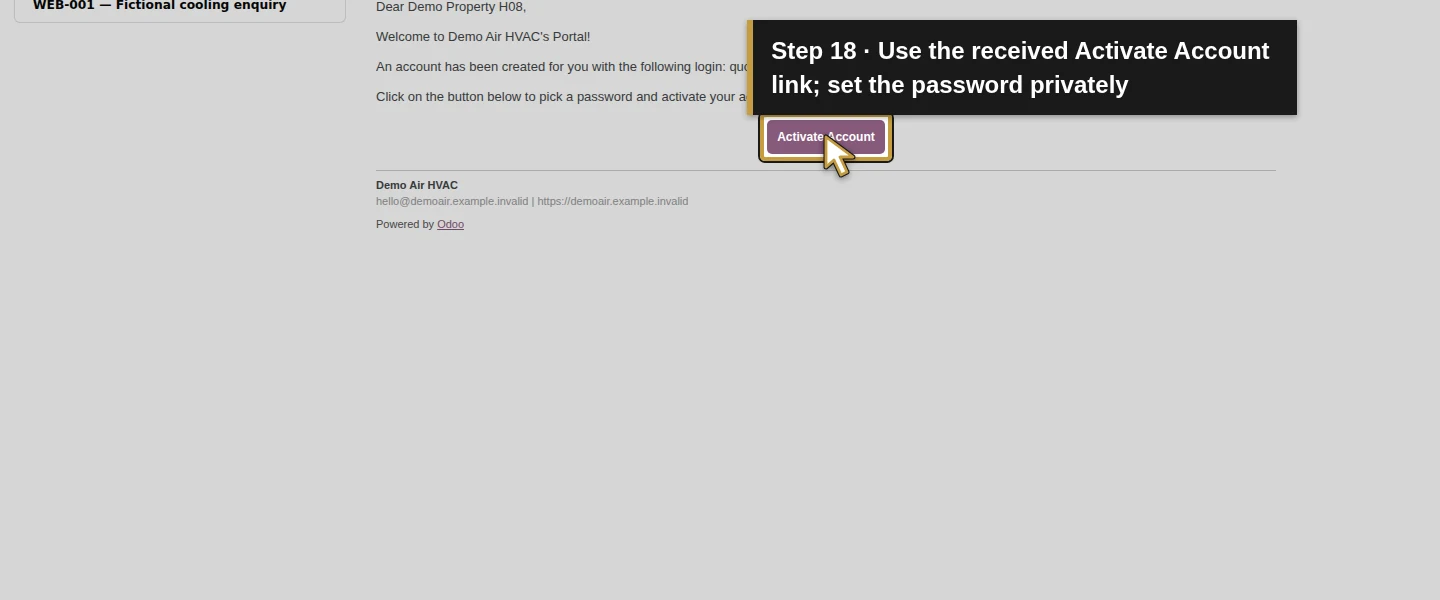
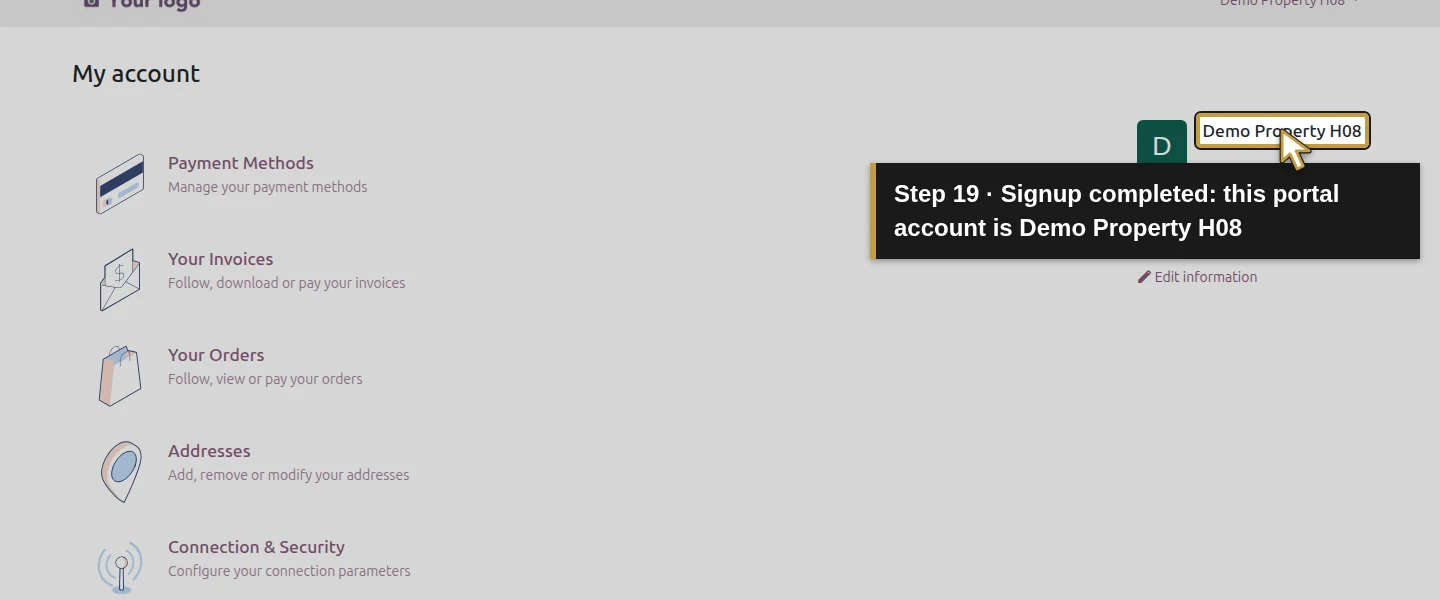
Open the actual received Your account at Demo Air HVAC invitation in the first customer’s separate browser session. Follow its signup link, review Name and Email, enter and confirm a private password, then click Sign up once. The customer lands on My account as Demo Property H08, rather than entering the owner’s business backend. Account setup also produces local password-change and welcome messages. Keep the password fields and invitation URL out of instructional screenshots.
Step 5. Check that customer’s orders and invoices
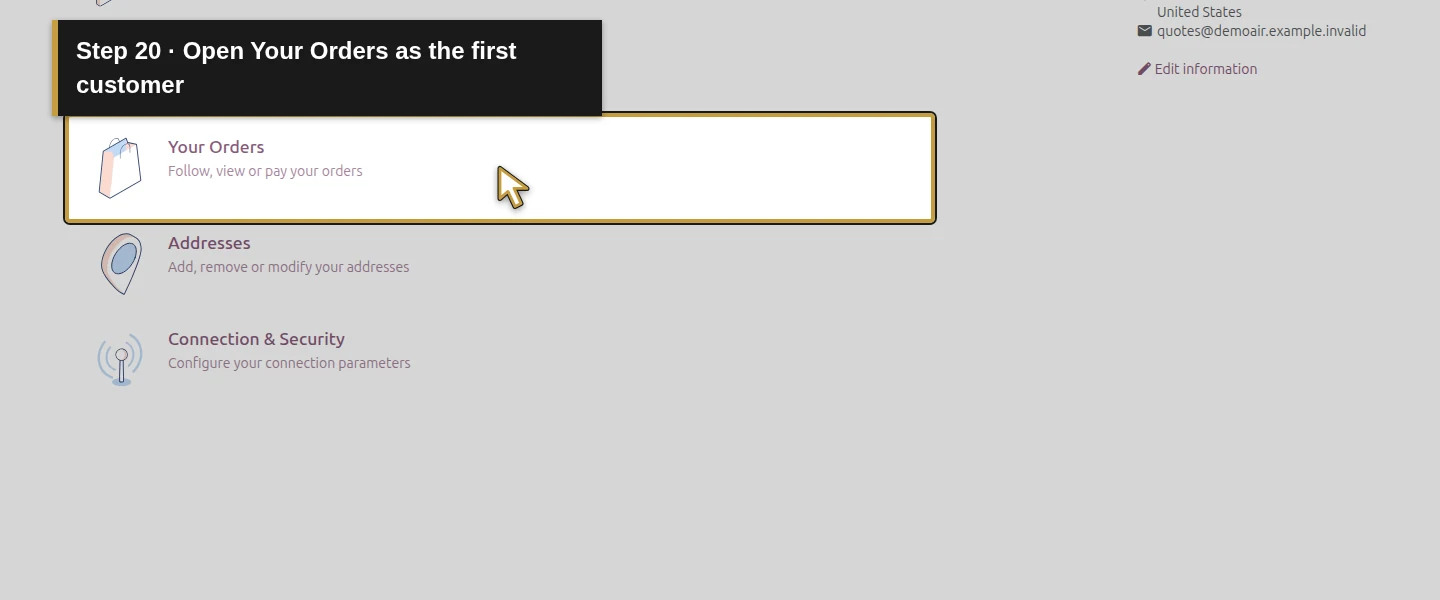
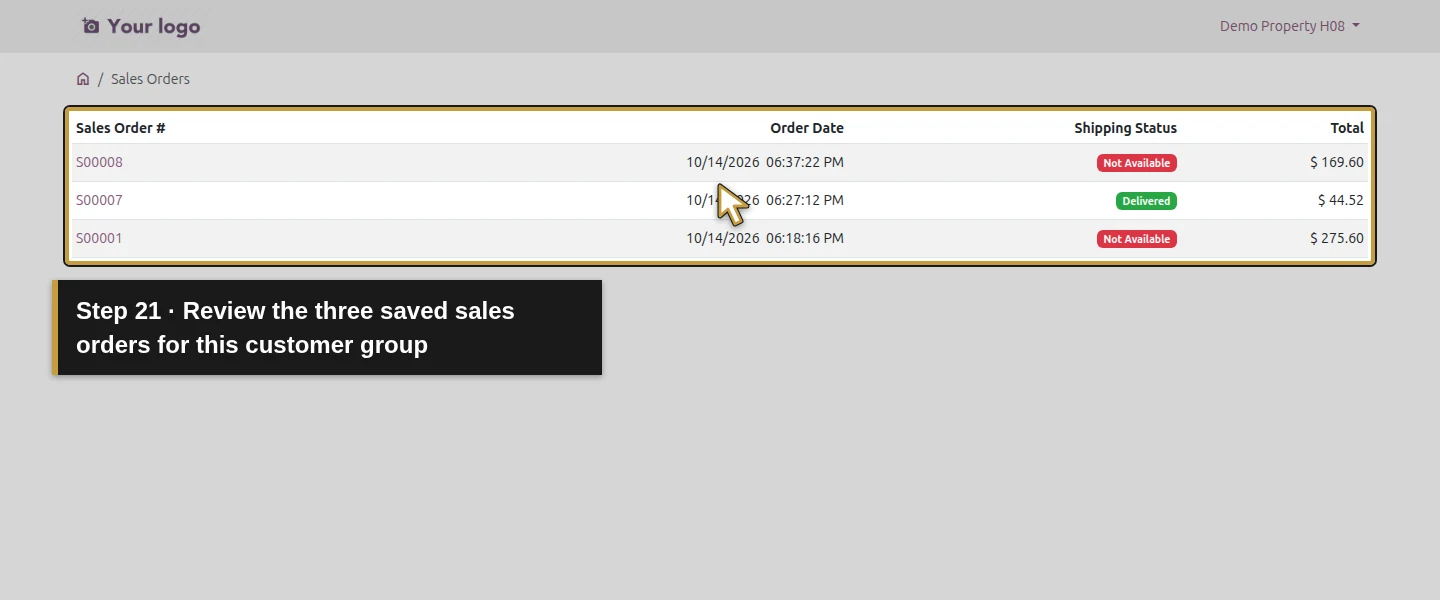
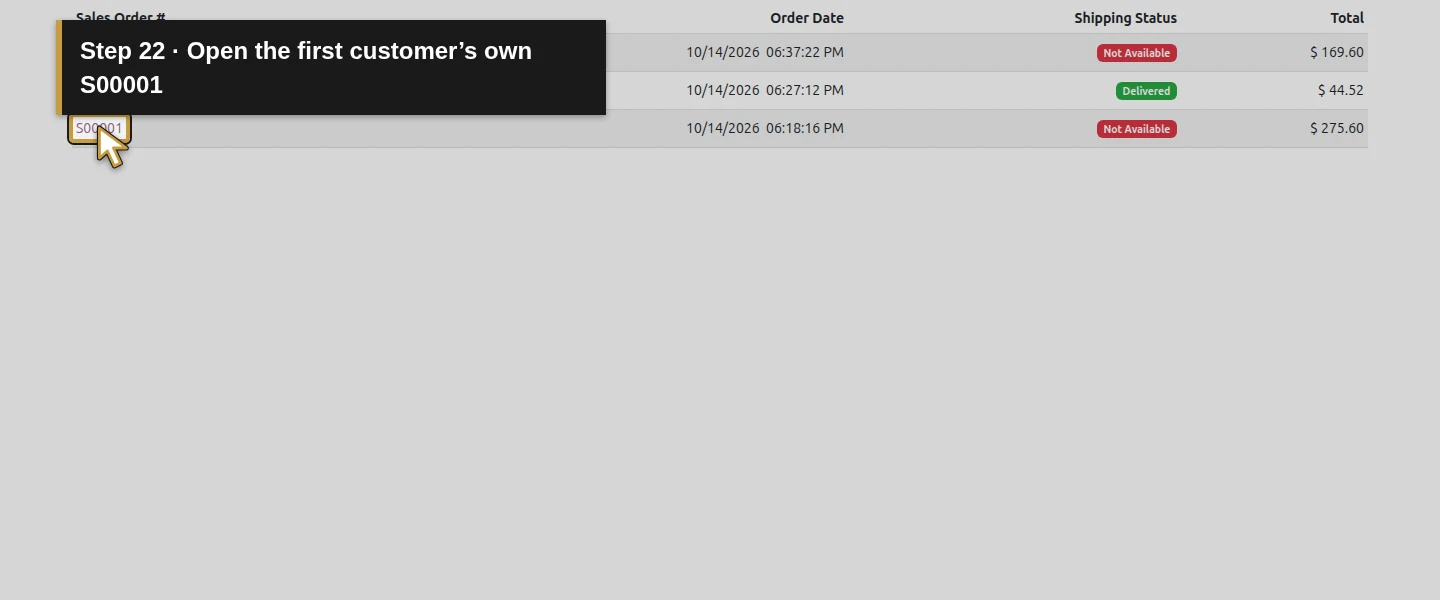
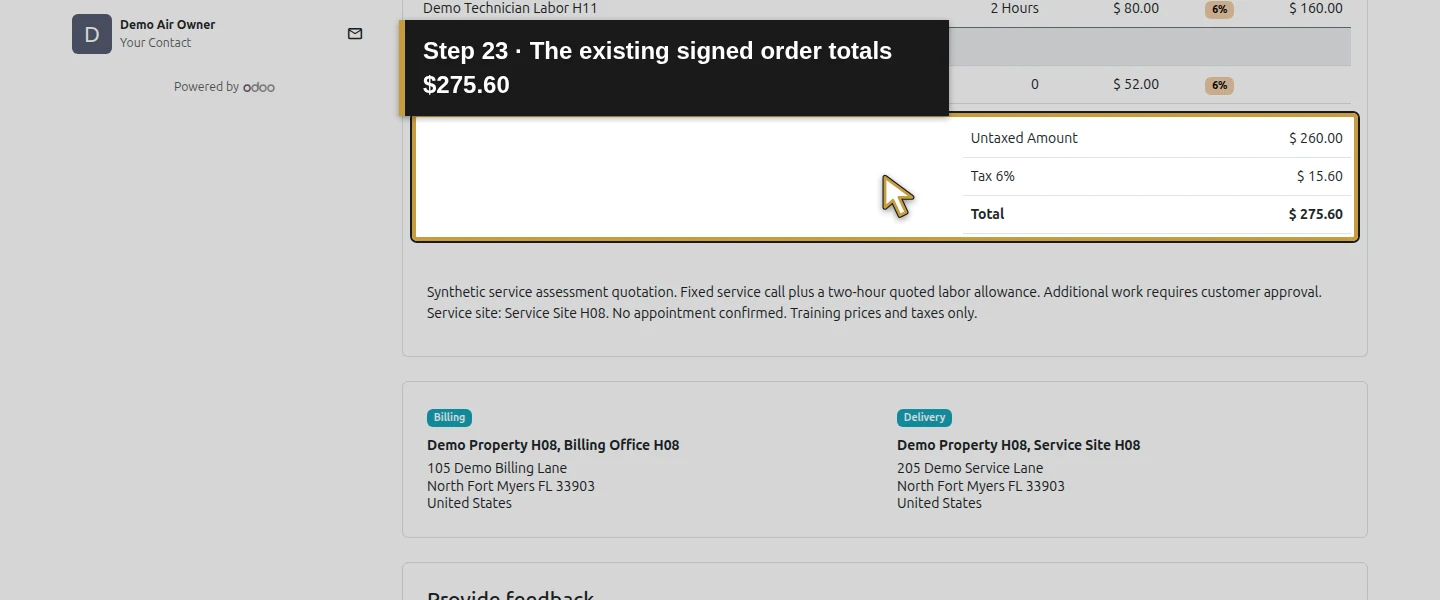
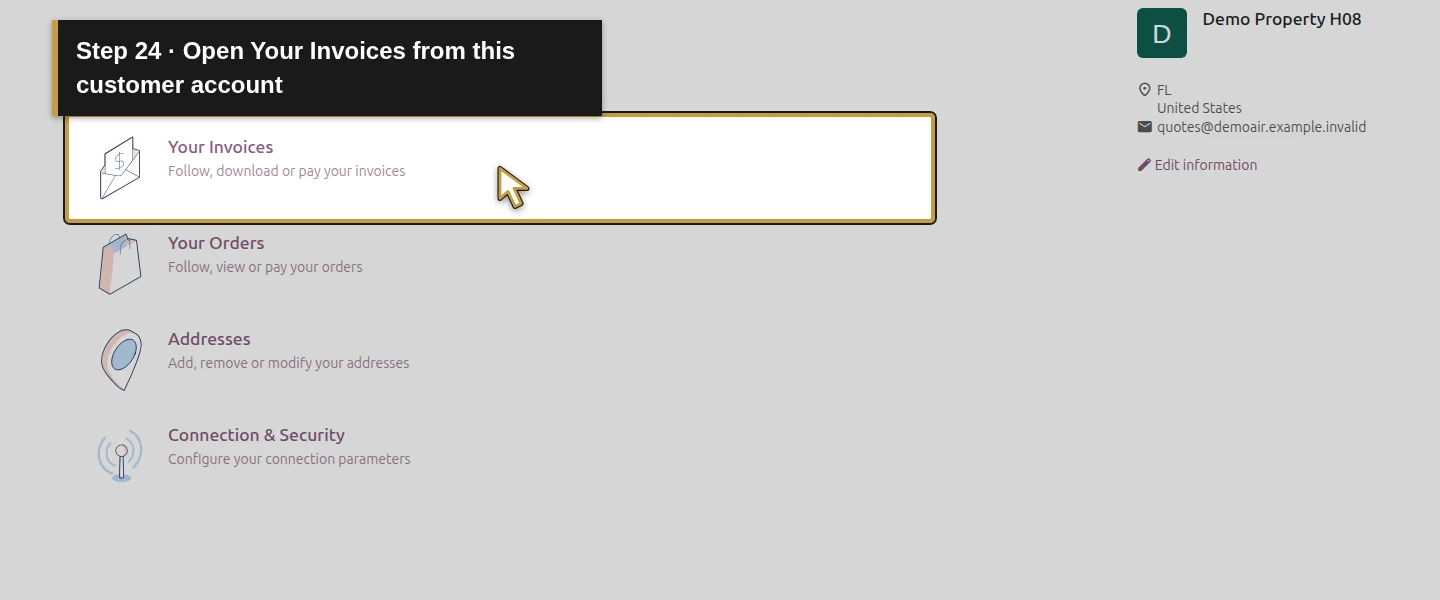
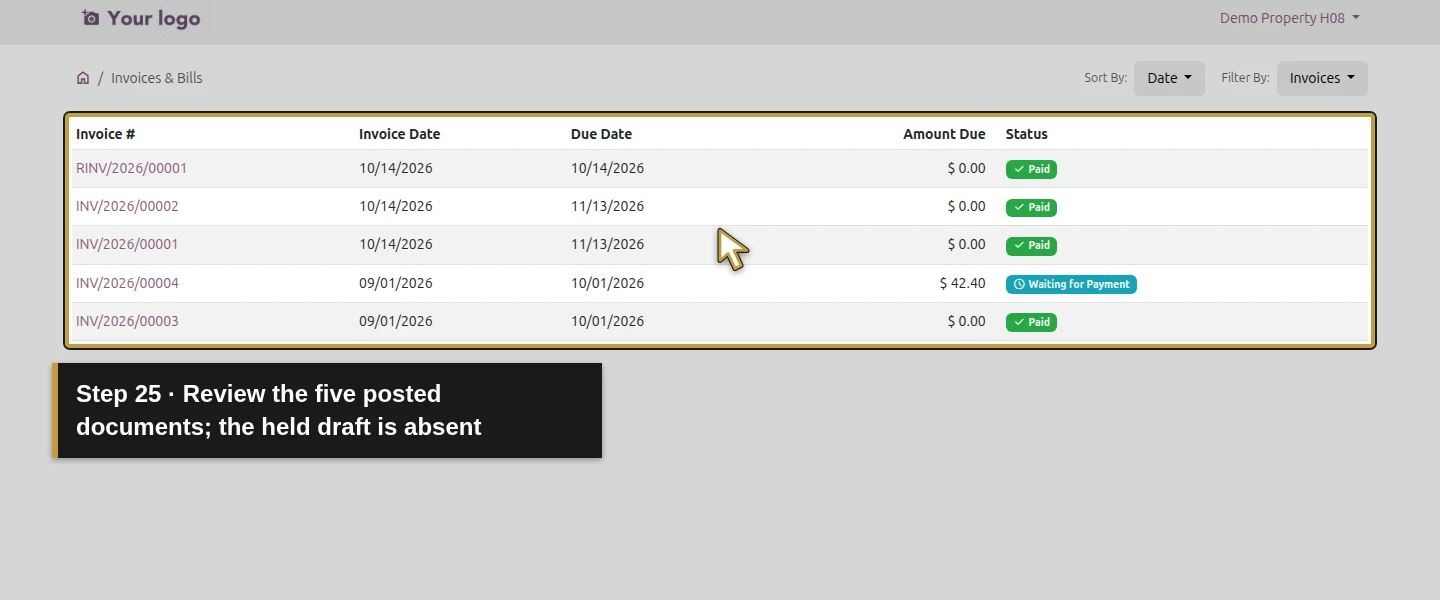
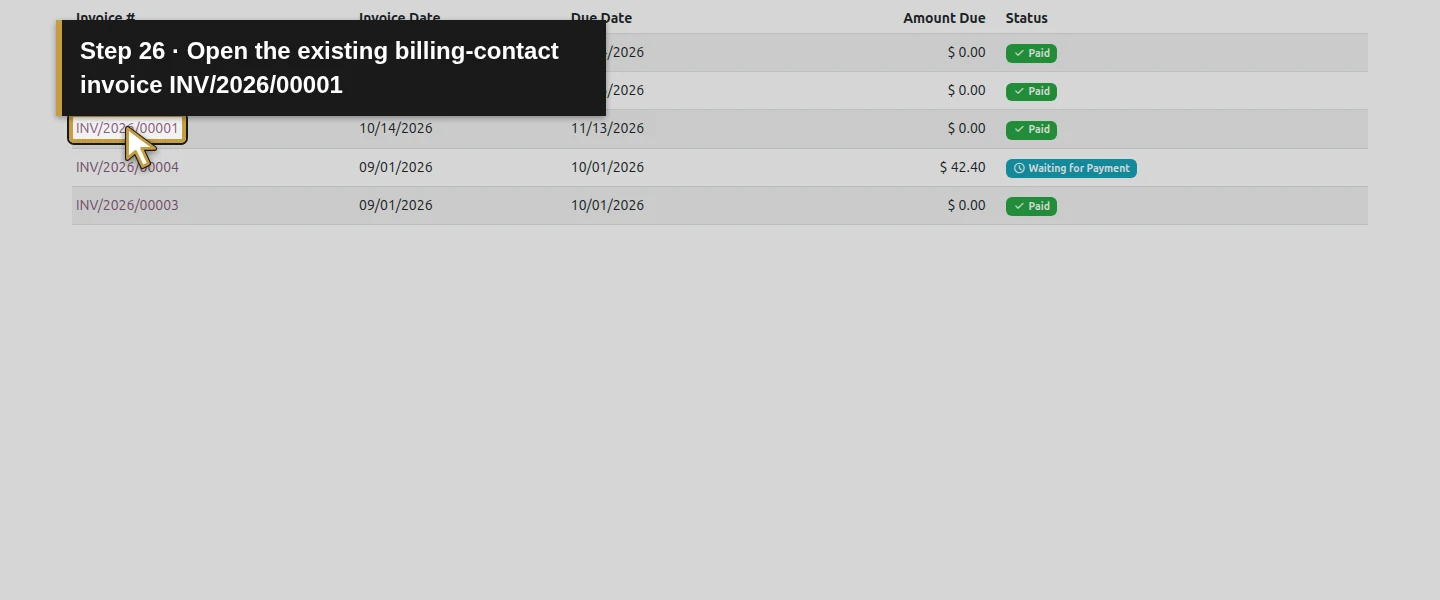
On My account, open Your Orders. The tested list contains S00008, S00007 and S00001; open S00001 and check its $275.60 total. Open Your Invoices: five posted invoices/credit notes appear, while the held $220.48 draft invoice is absent from that list. Open INV/2026/00001 and verify Paid/$171.72. The top-level customer can see this invoice for its related billing contact, so contact relationships matter. The internally blocked $42.40 invoice appears here as Waiting for Payment; an internal hold is not a claim that this portal list hides it.
Step 6. Invite and sign in as the second customer
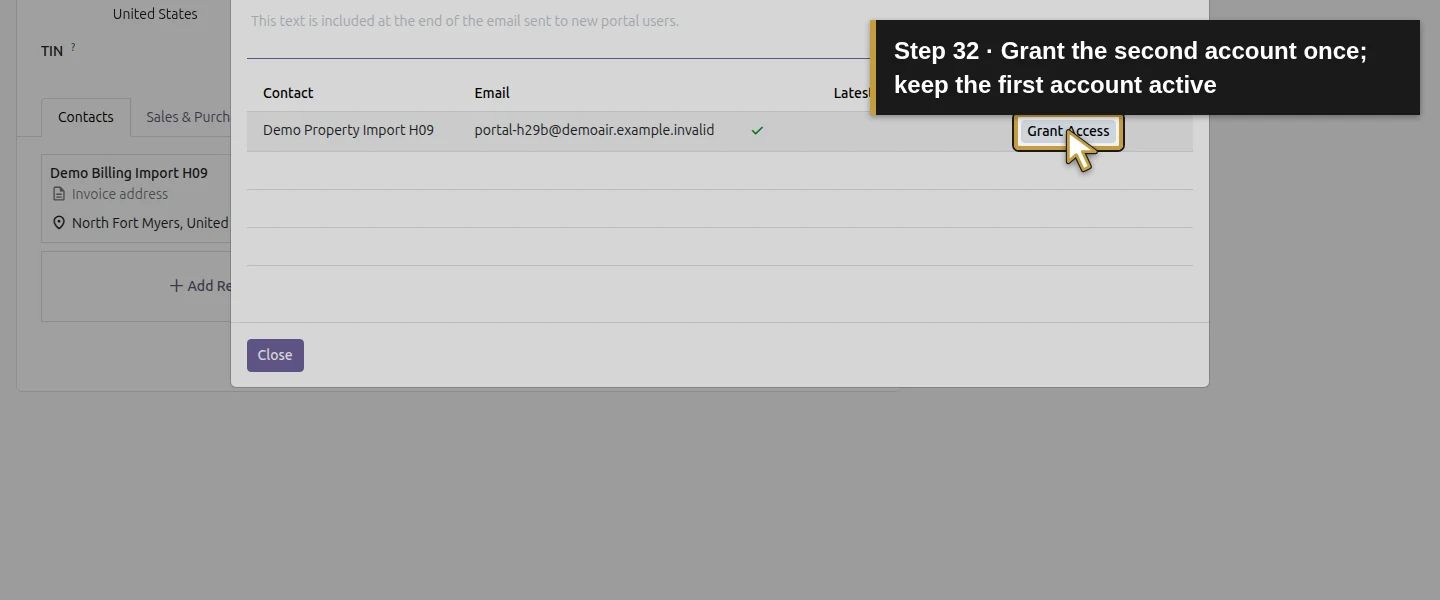
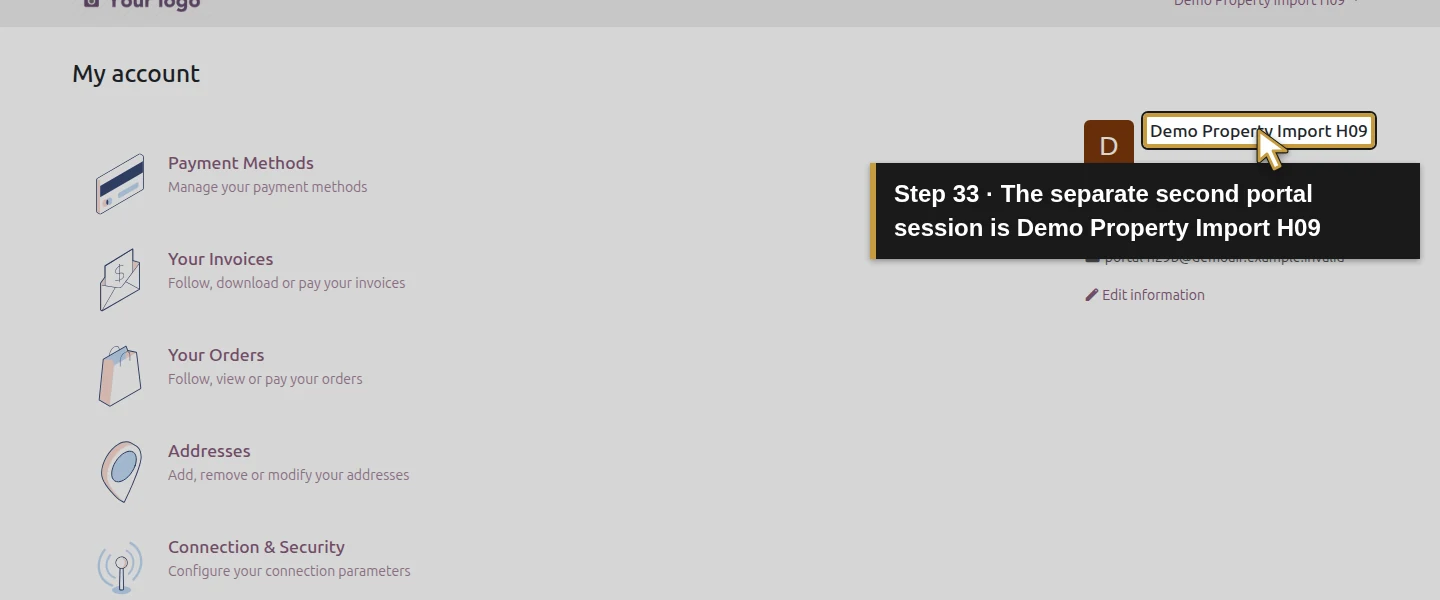
In the owner session, open Demo Property Import H09 and use Actions menu → Grant portal access. Check portal-h29b@demoair.example.invalid, then click Grant Access once. In a second separate customer session, follow that customer’s actual received invitation, set/confirm its own private password and click Sign up. My account now identifies Demo Property Import H09. The two new users have the stock Role / Portal group; the owner and existing internal staff permissions are unchanged.
Step 7. Prepare one labelled quotation for the second customer
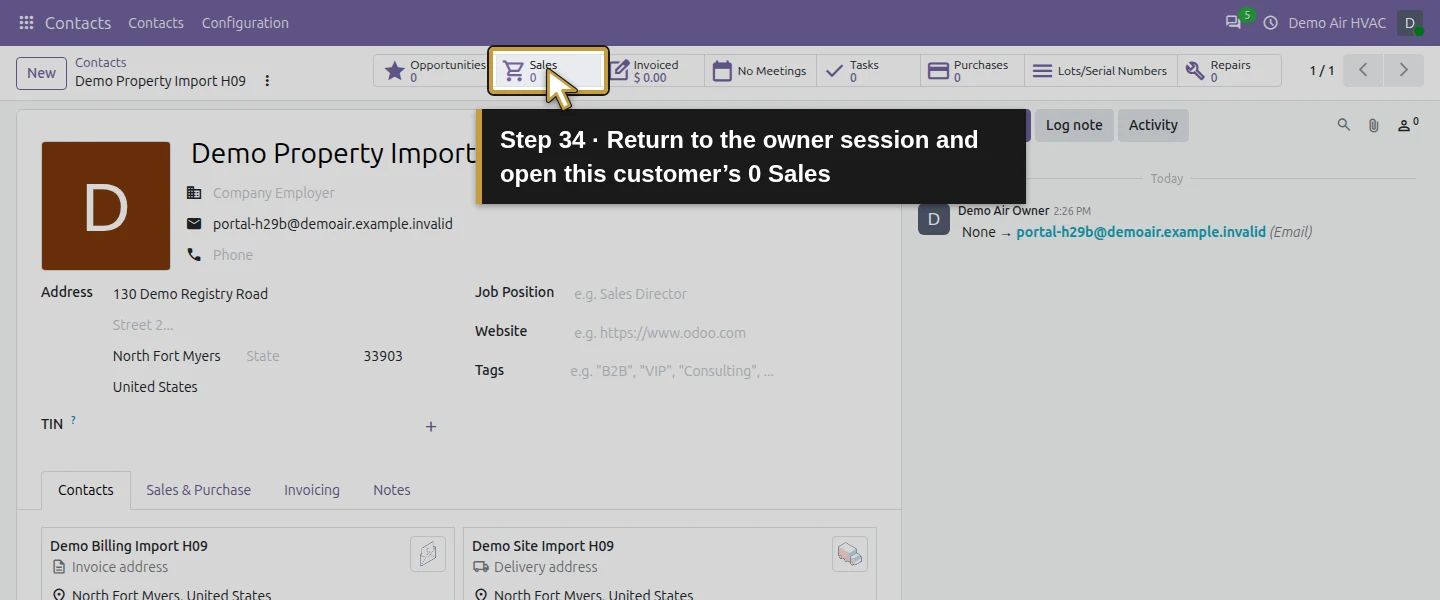
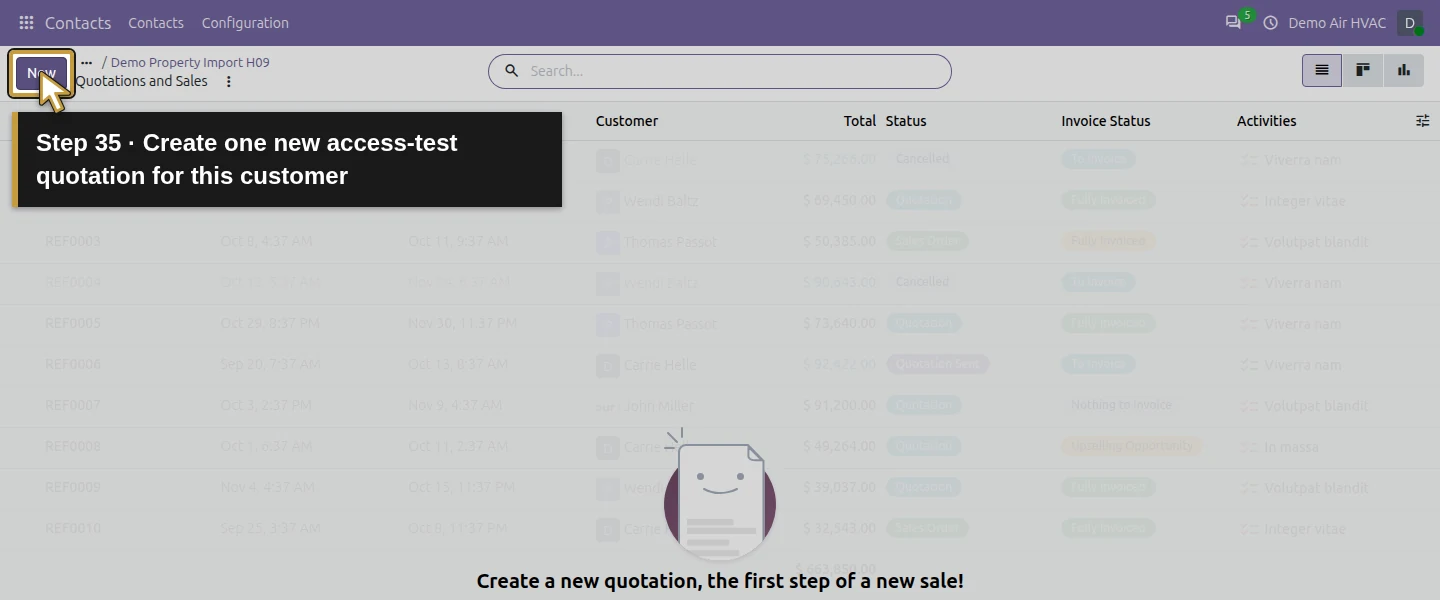
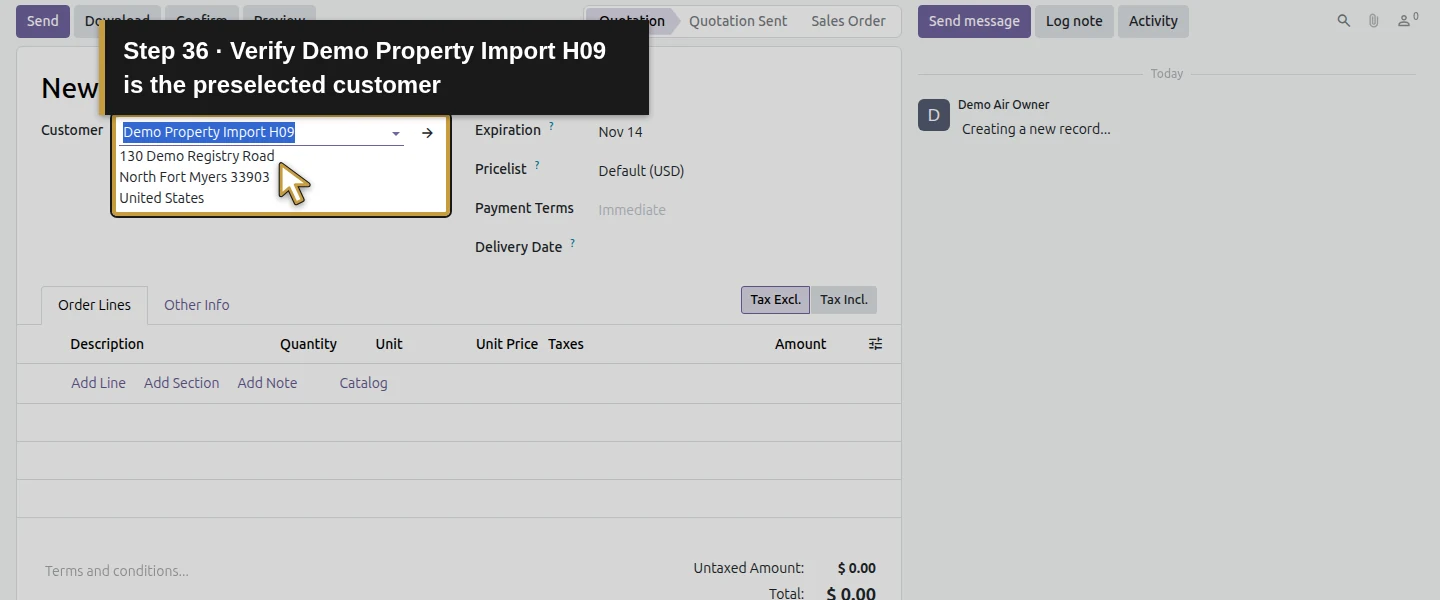
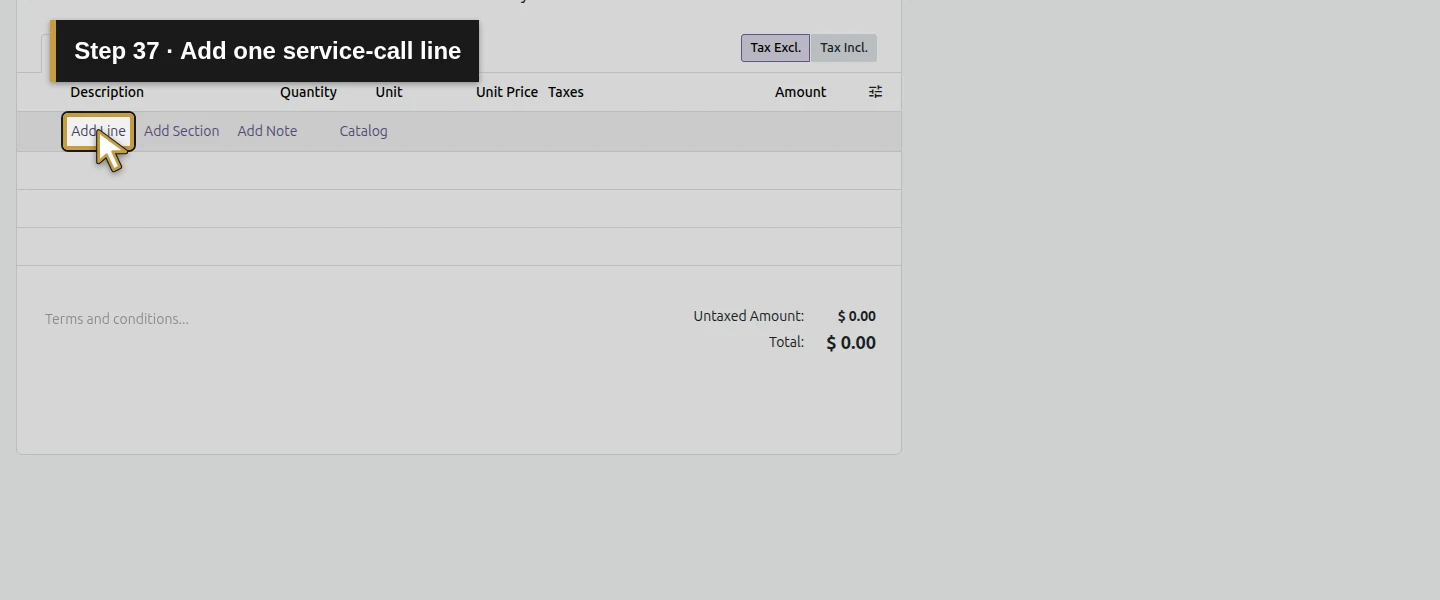
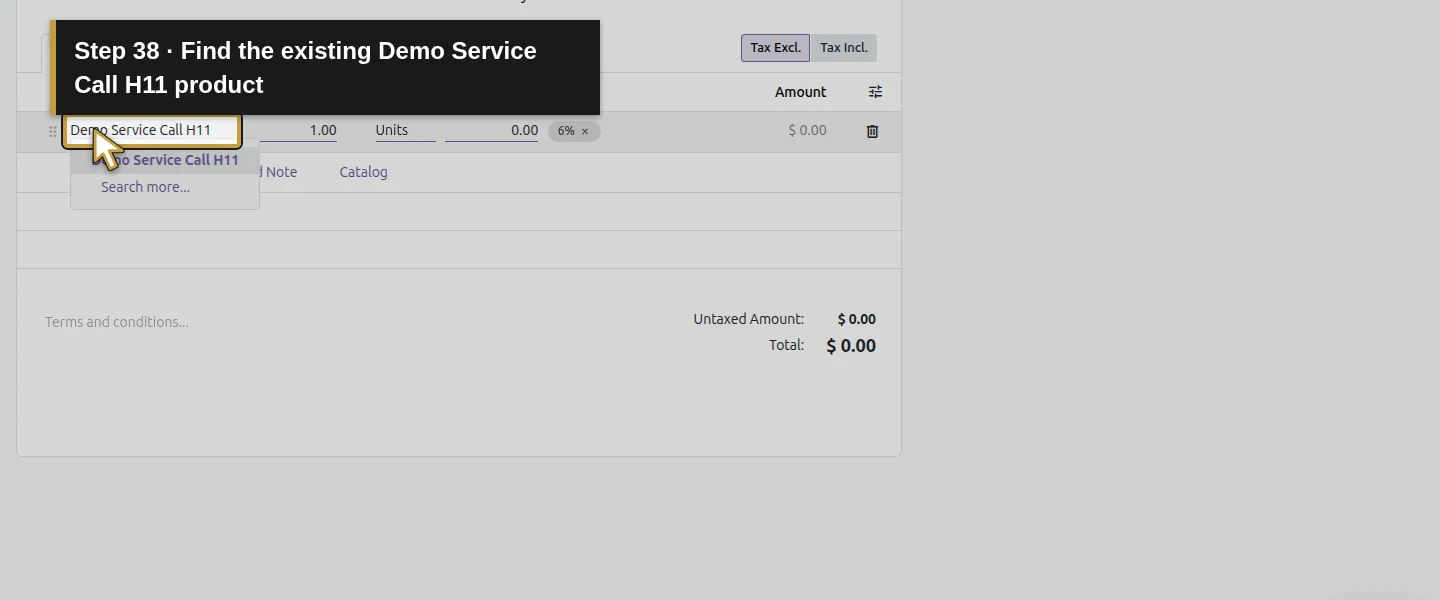
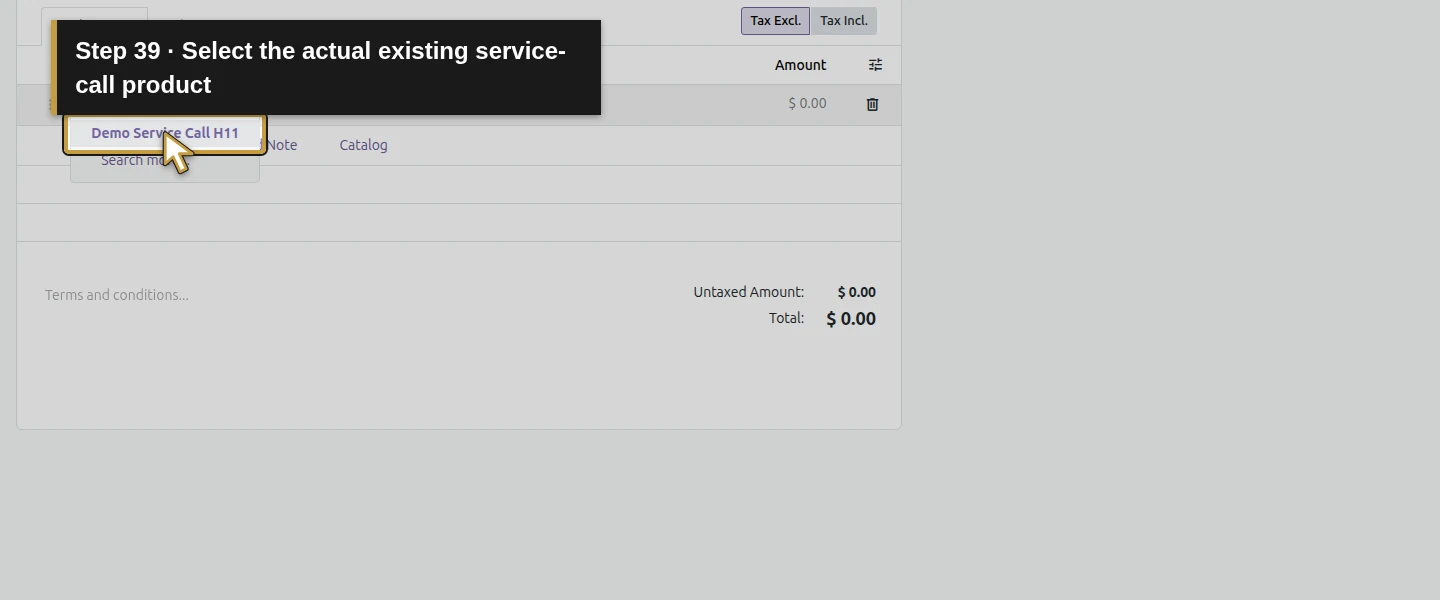
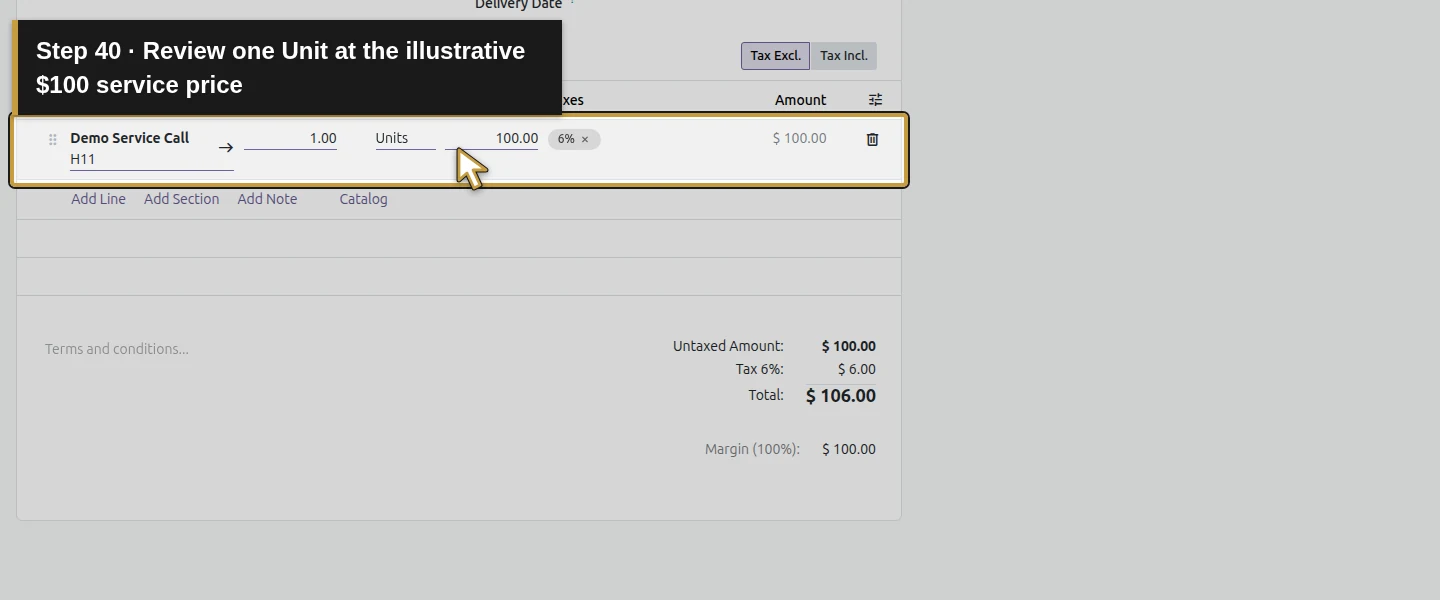
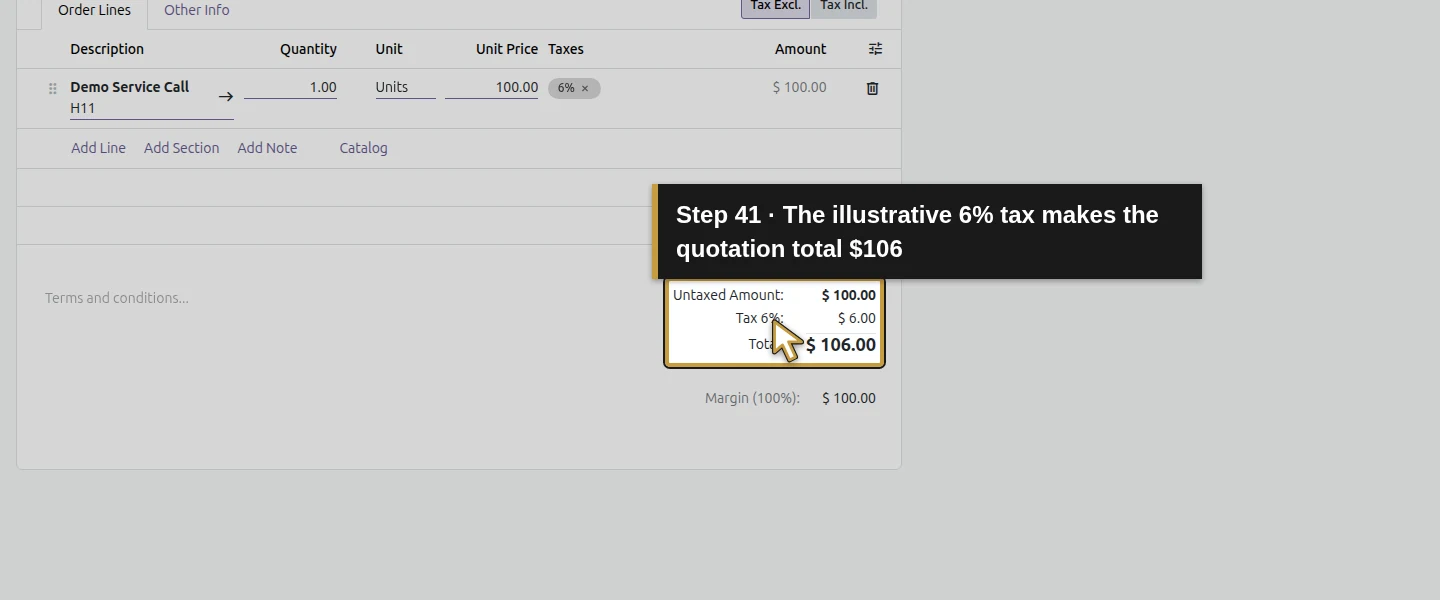
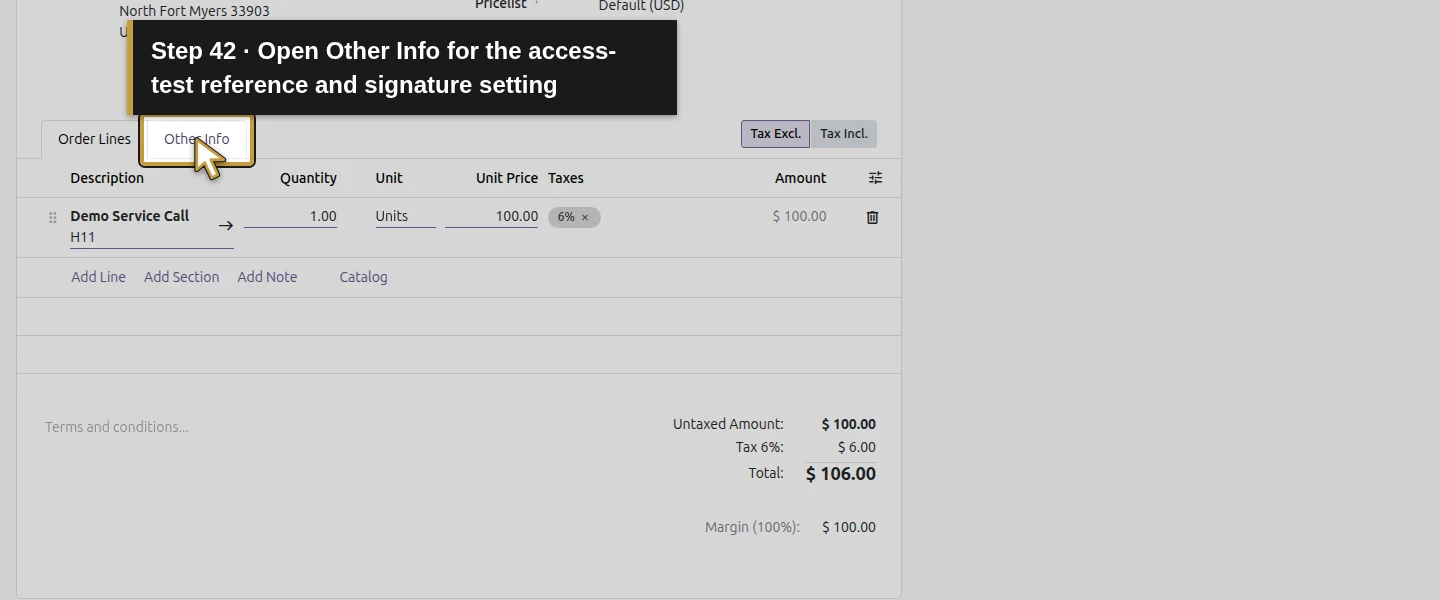
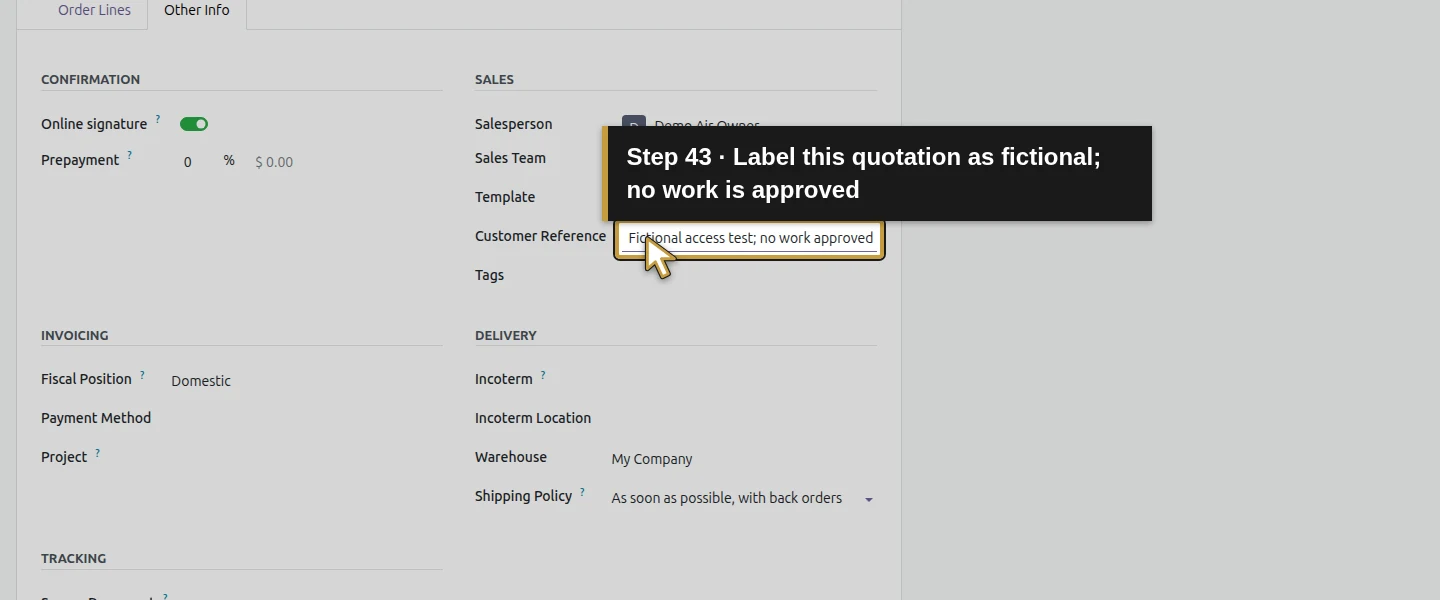
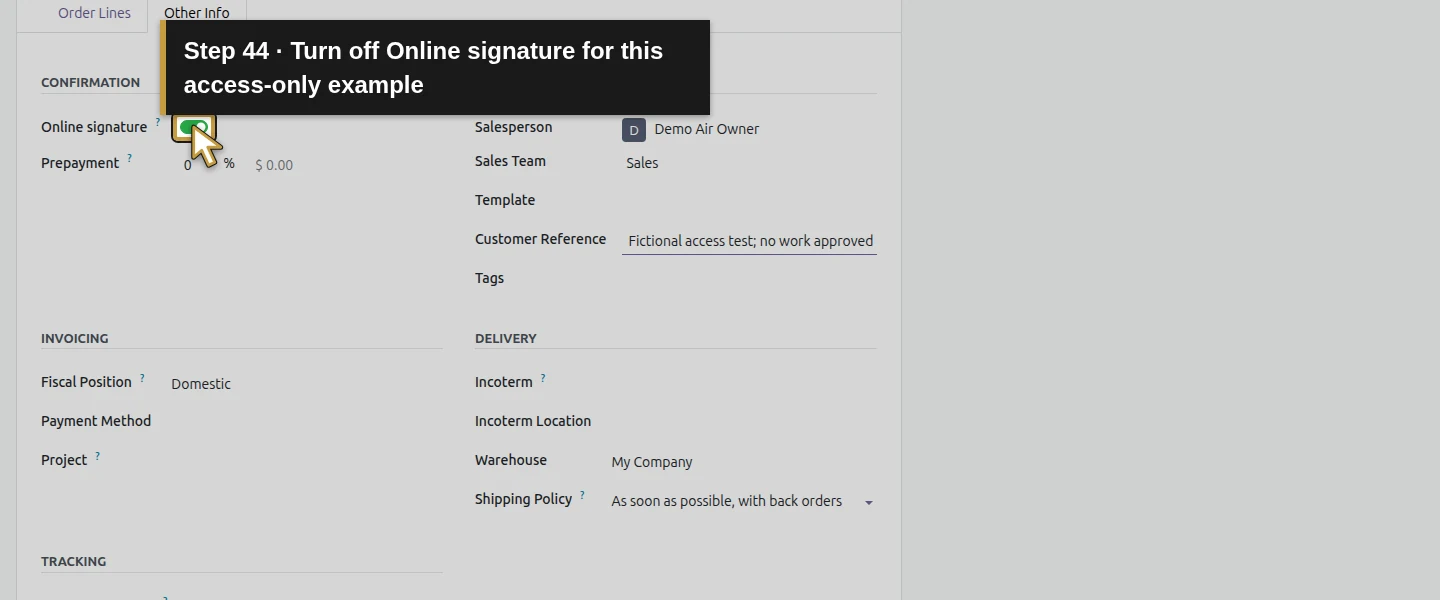
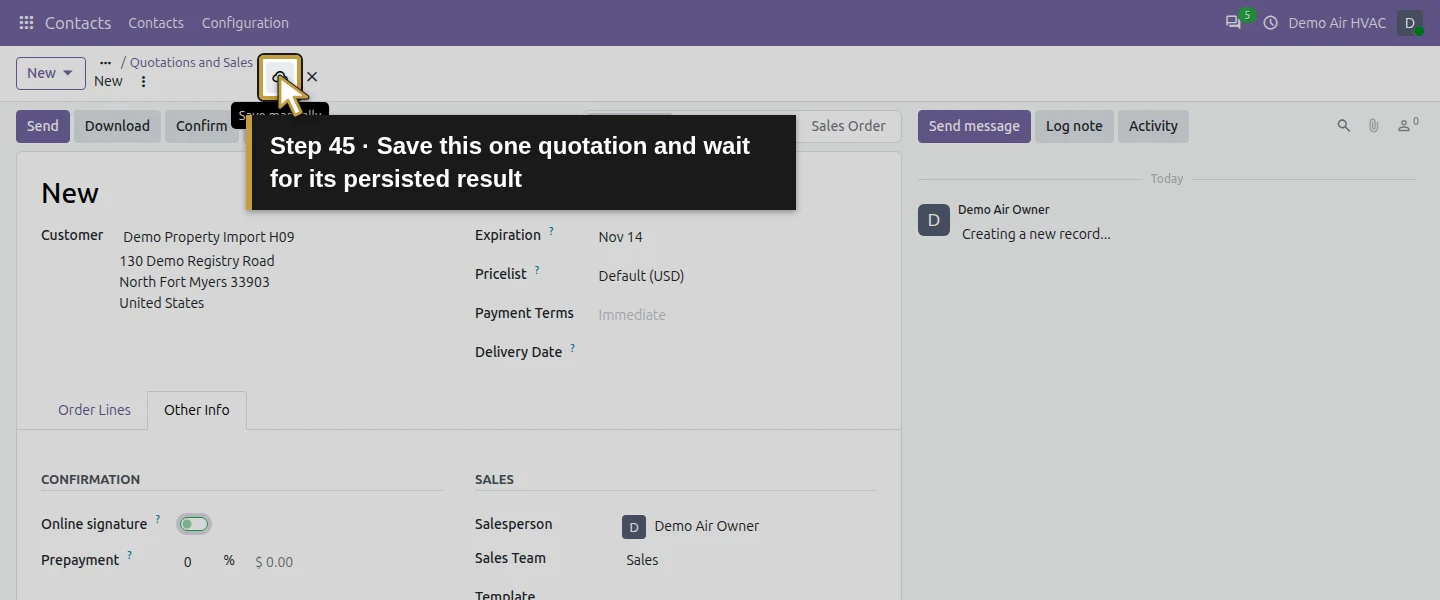
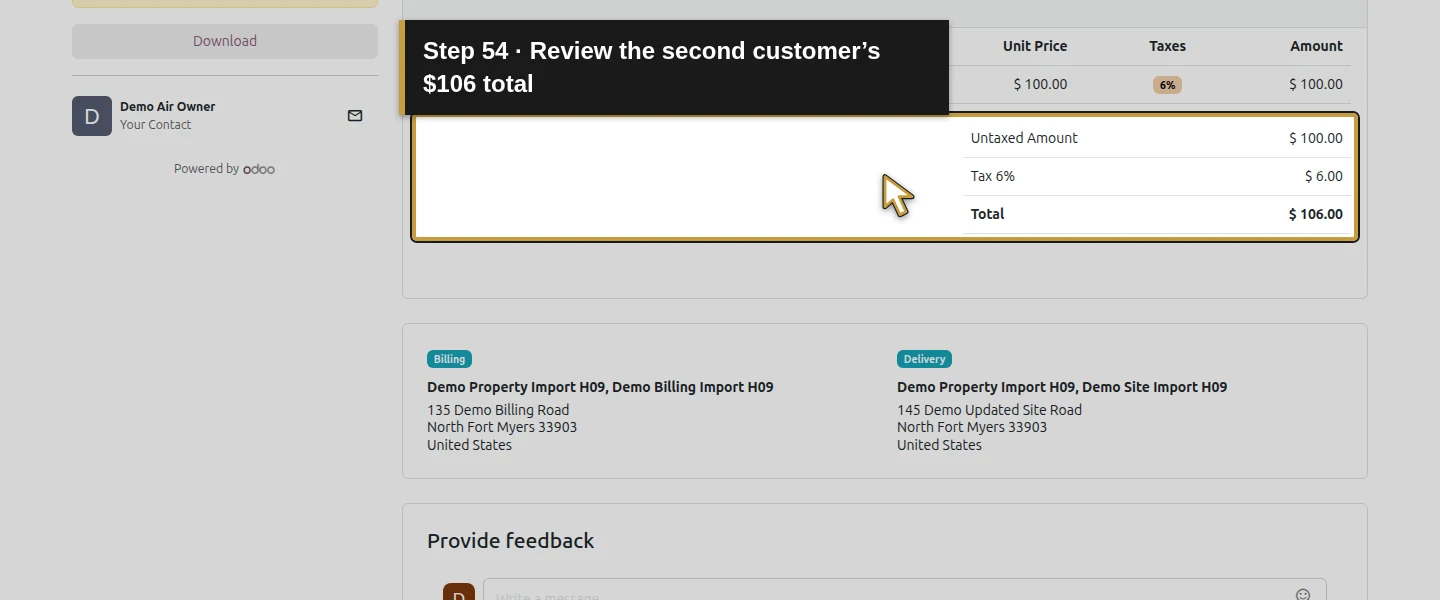
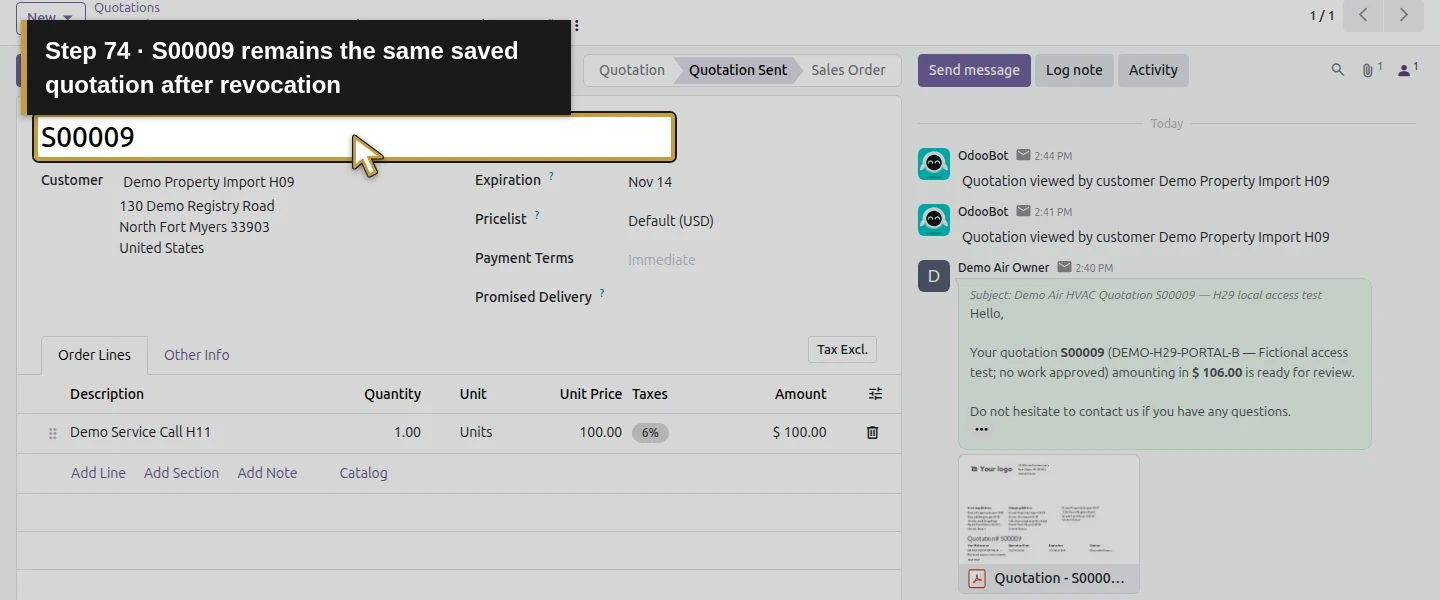
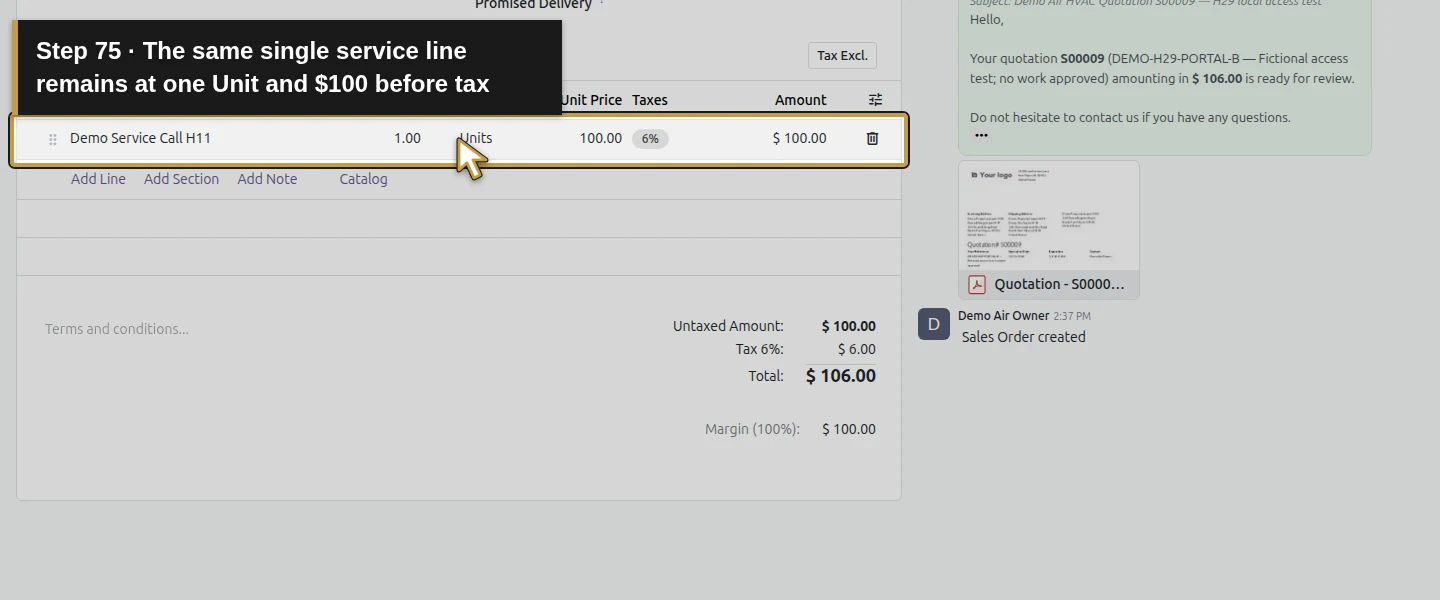
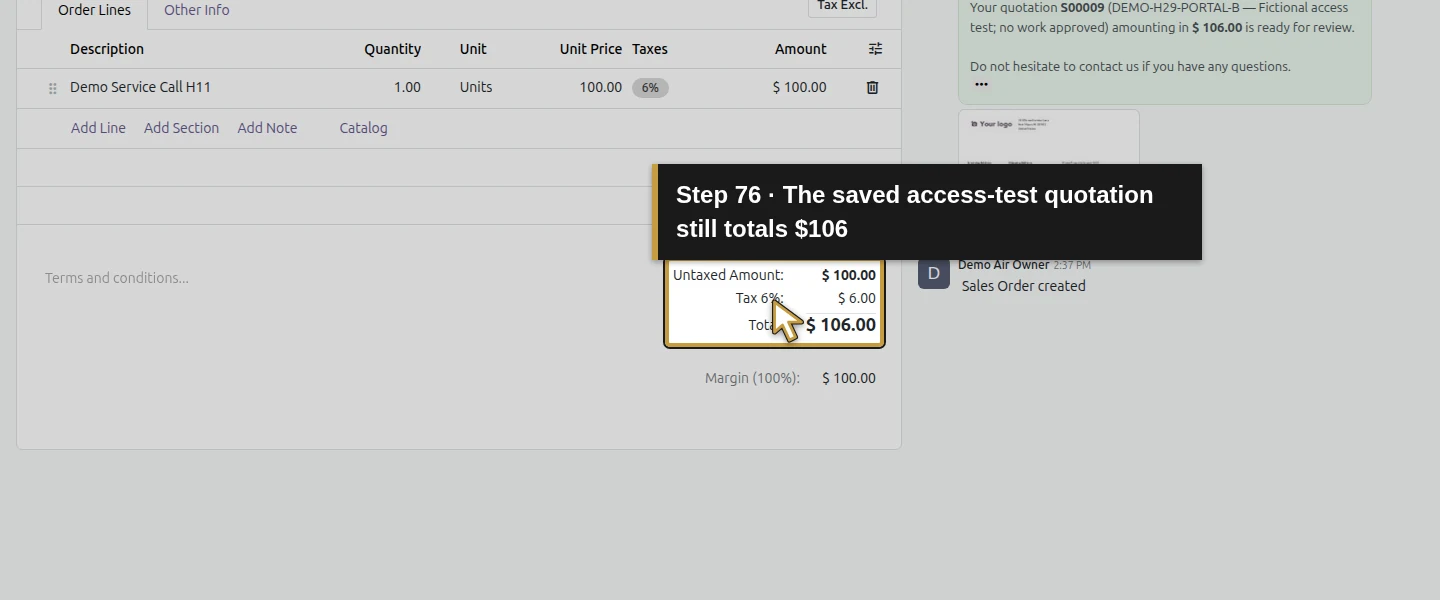
In the owner session on Demo Property Import H09, click 0 Sales → New. Customer is preselected. On Order Lines, click Add Line and choose Demo Service Call H11 through the Description product picker. Review 1 Unit × $100, the illustrative 6% tax and $106 Total. On Other Info, enter Customer Reference DEMO-H29-PORTAL-B — Fictional access test; no work approved and turn off Online signature for this access-only example. Save once. The new quotation is S00009, with the existing imported billing and service addresses. Do not confirm it or create an invoice.
Step 8. Send that quotation to the local test recipient
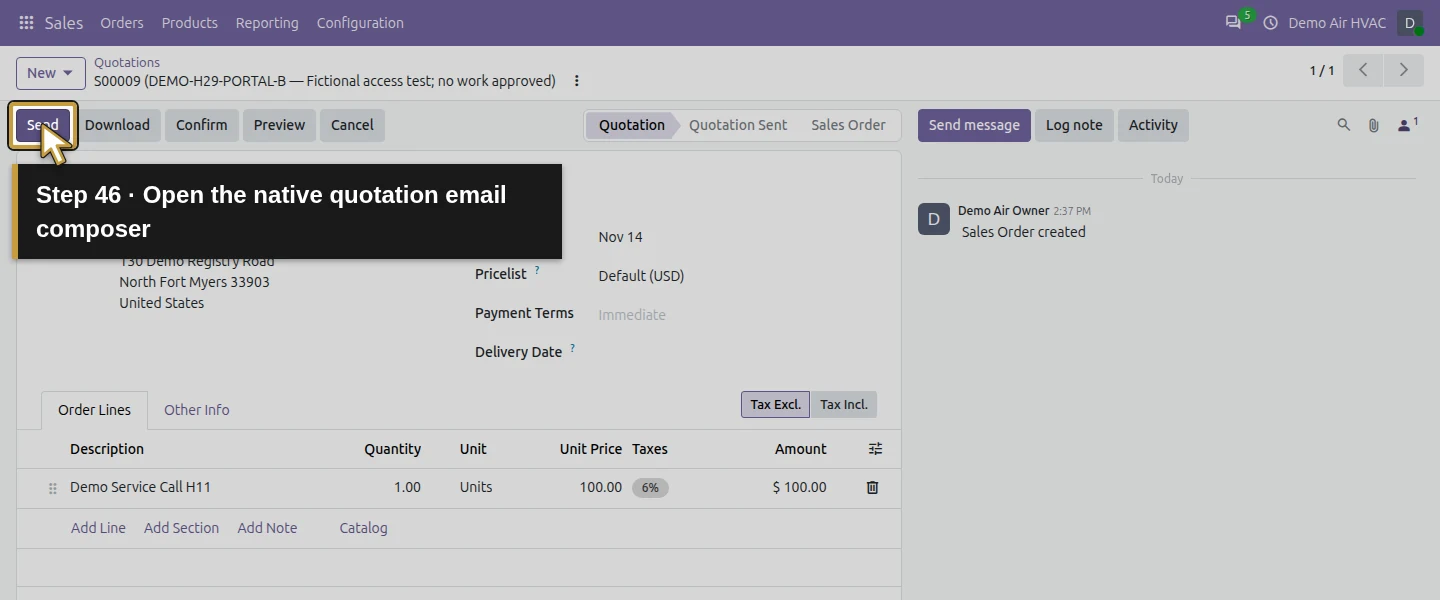
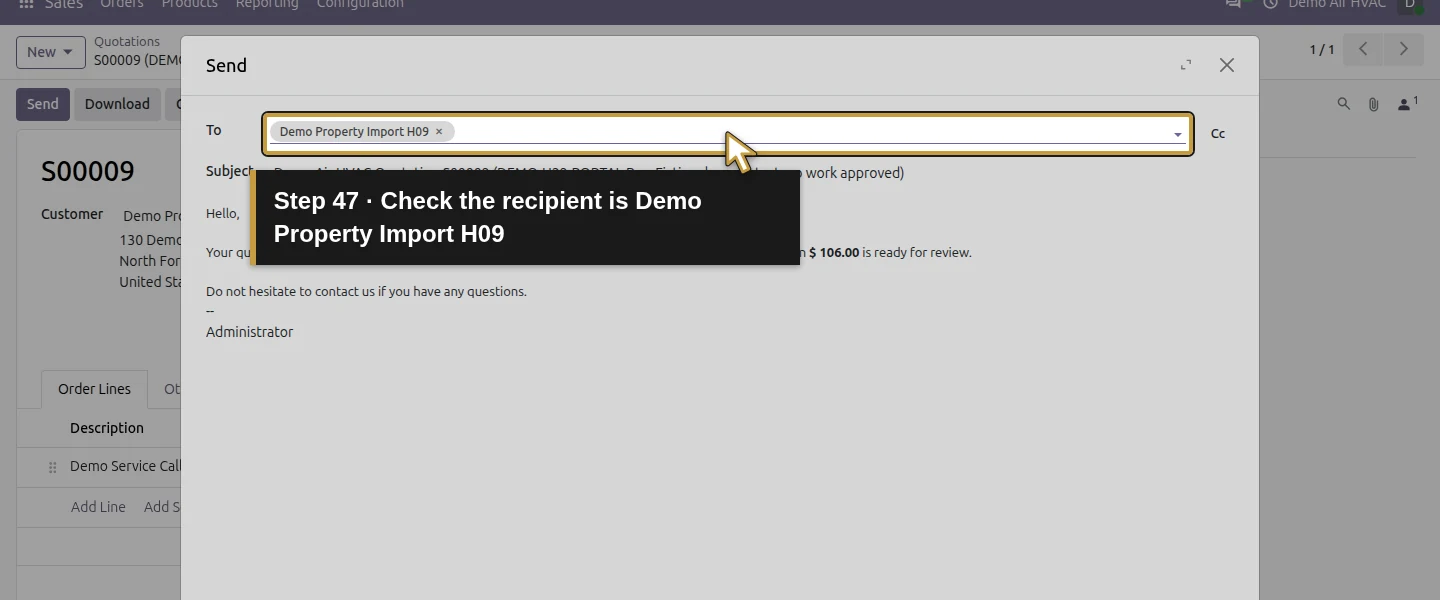
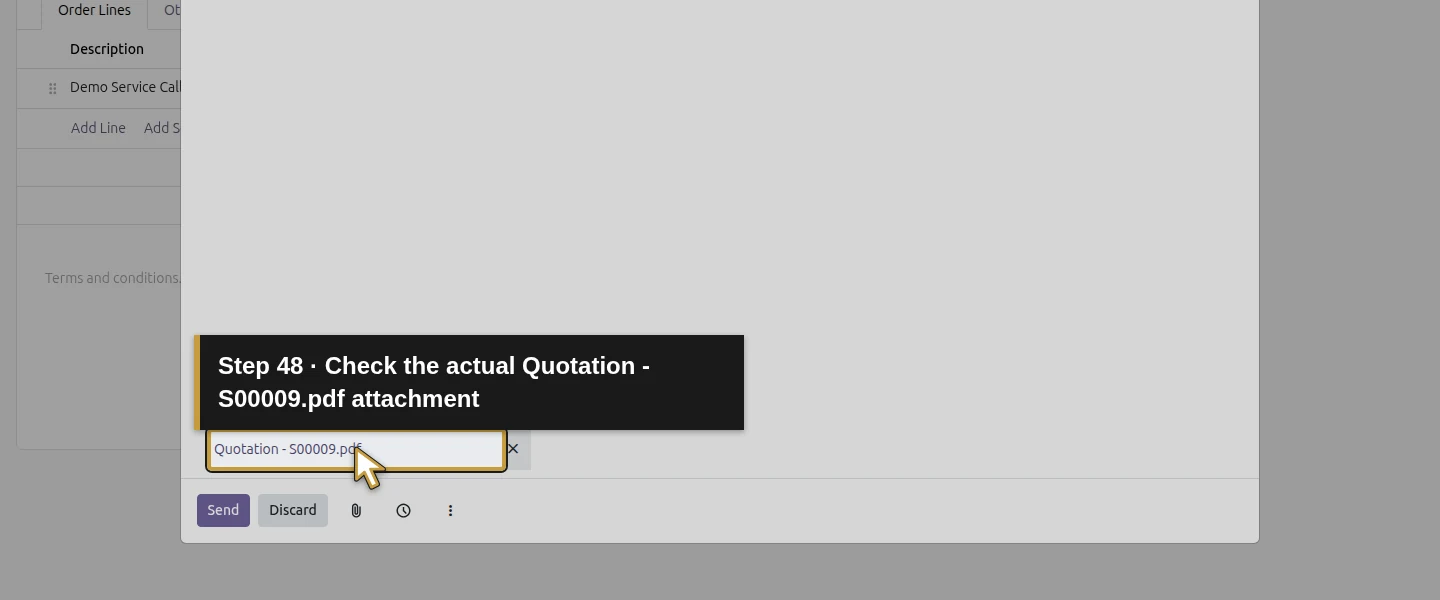
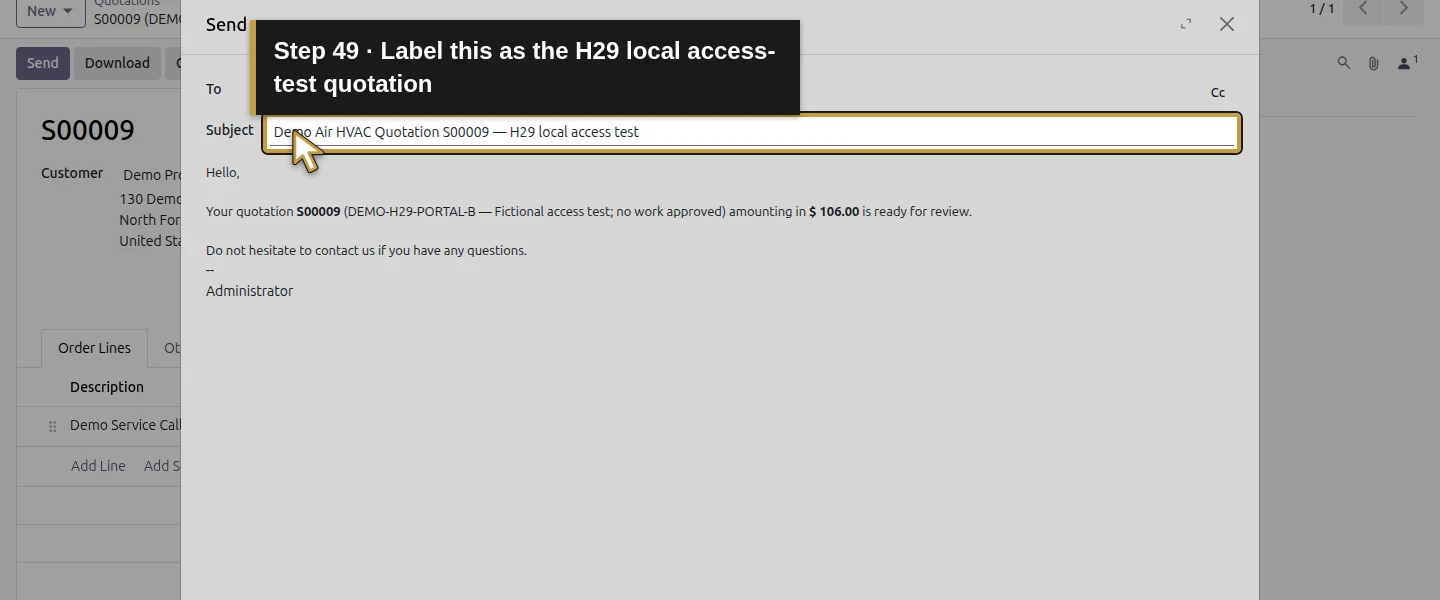
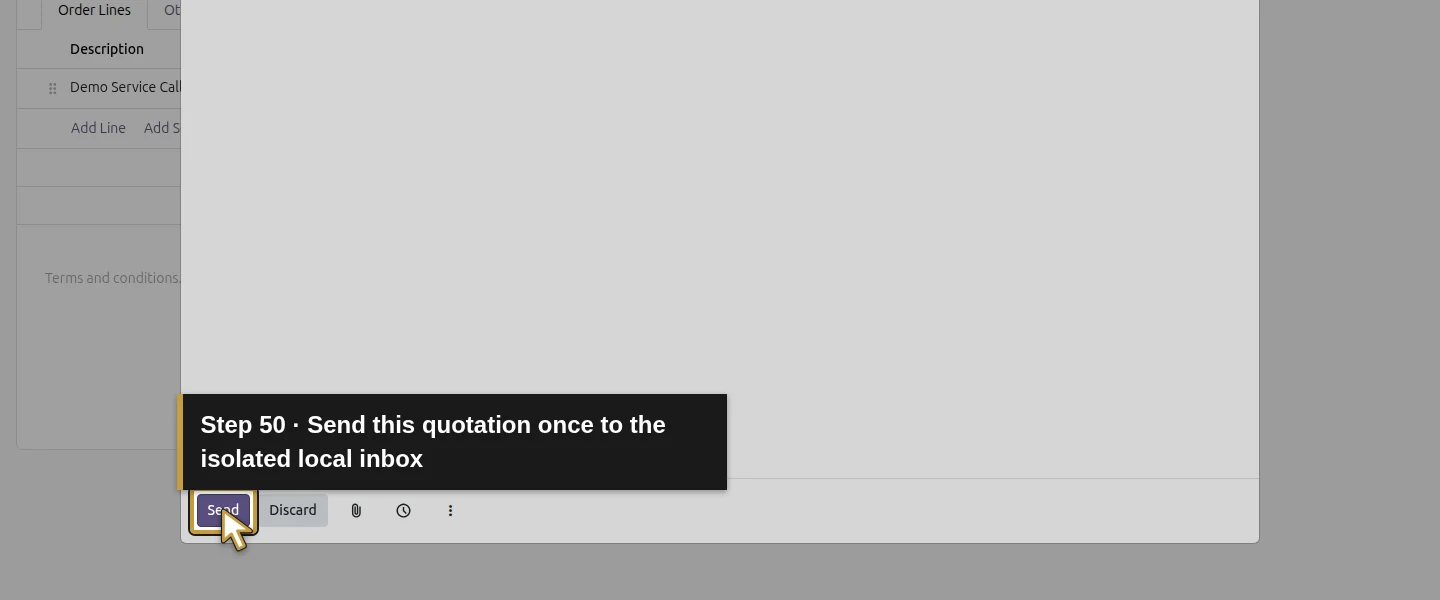
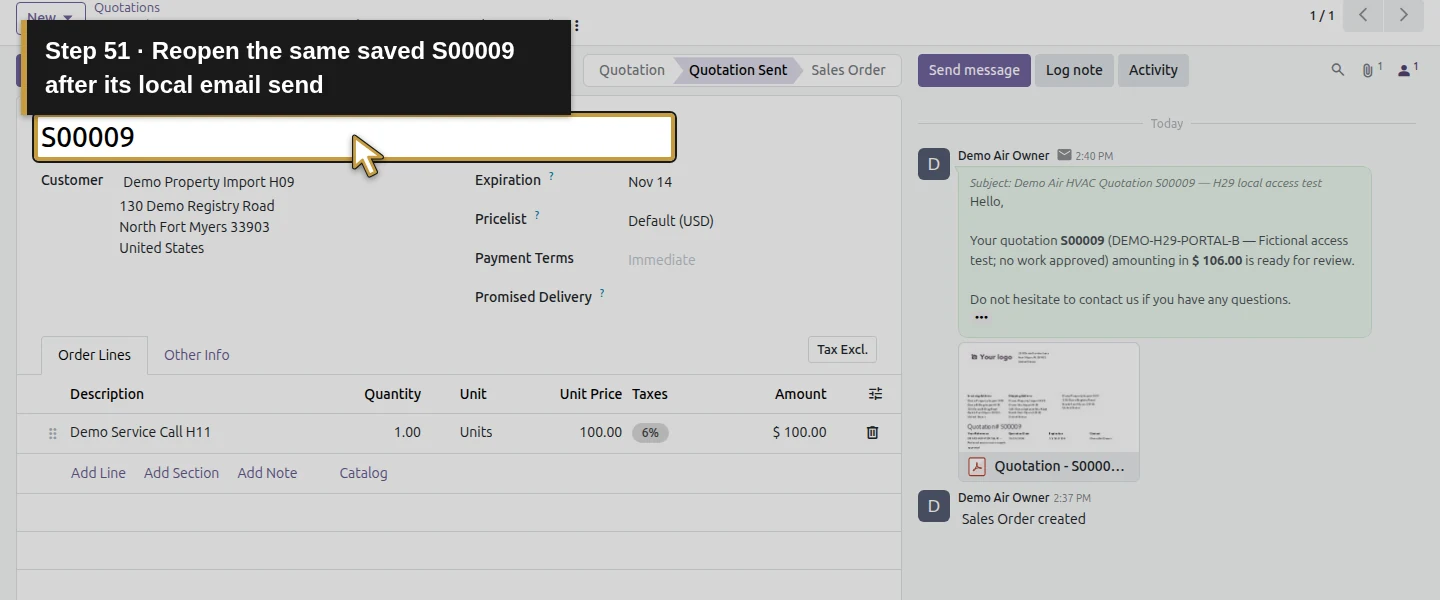
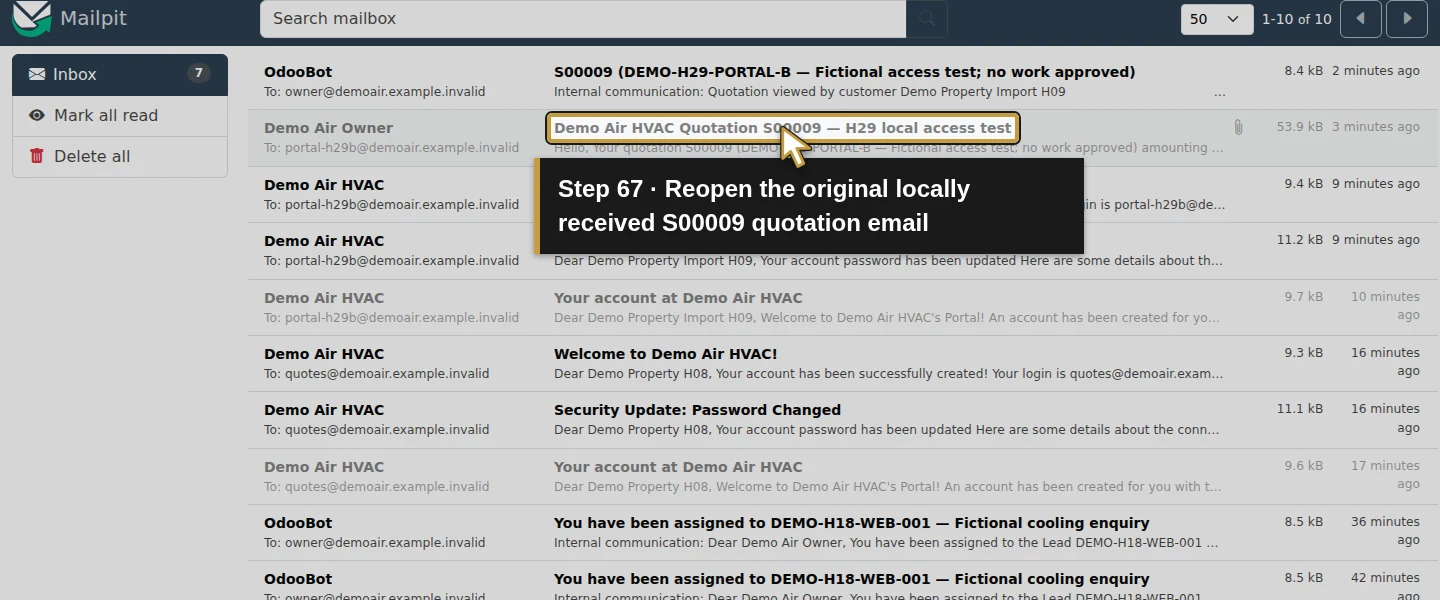
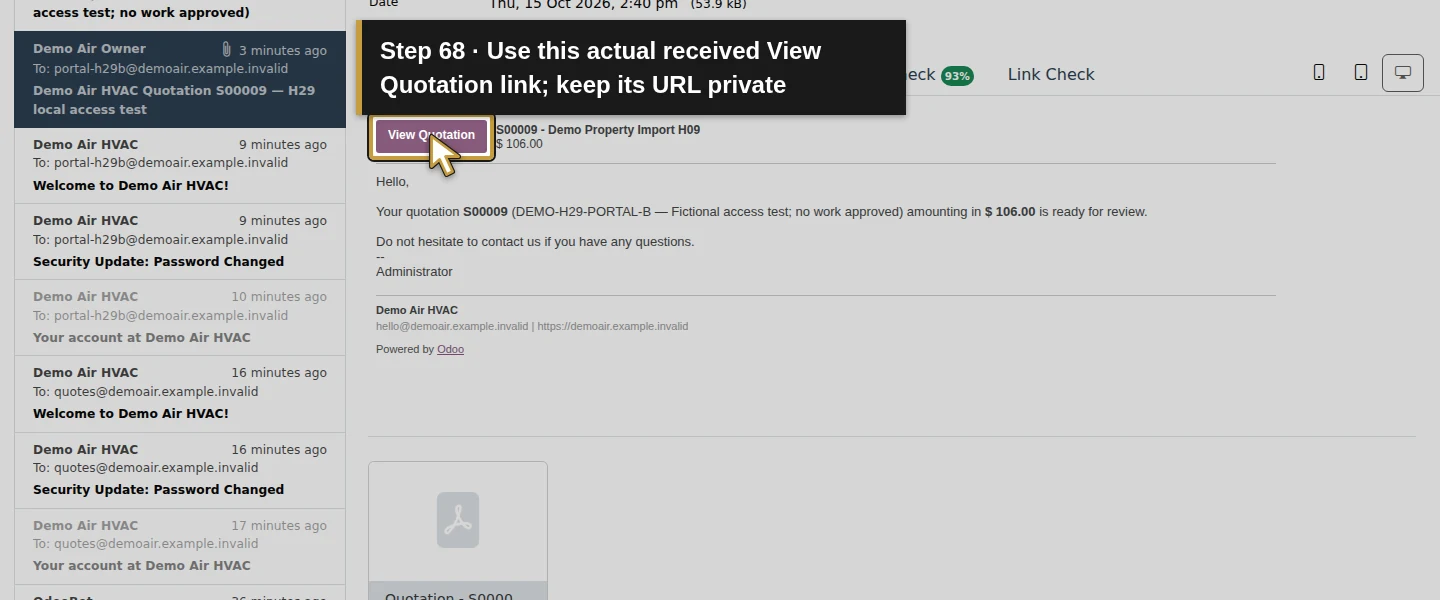
On S00009, click Send. Review Demo Property Import H09 as recipient and the attached Quotation - S00009.pdf. Set Subject Demo Air HVAC Quotation S00009 — H29 local access test, then click the dialog’s Send once. Wait for the dialog to close and verify Quotation Sent. The local sink receives one quotation email to portal-h29b@demoair.example.invalid. Save that actual message for the later share-link check. This is a sent training quotation, with no acceptance, signature, invoice or payment.
Step 9. Test own-record access and the customer boundary
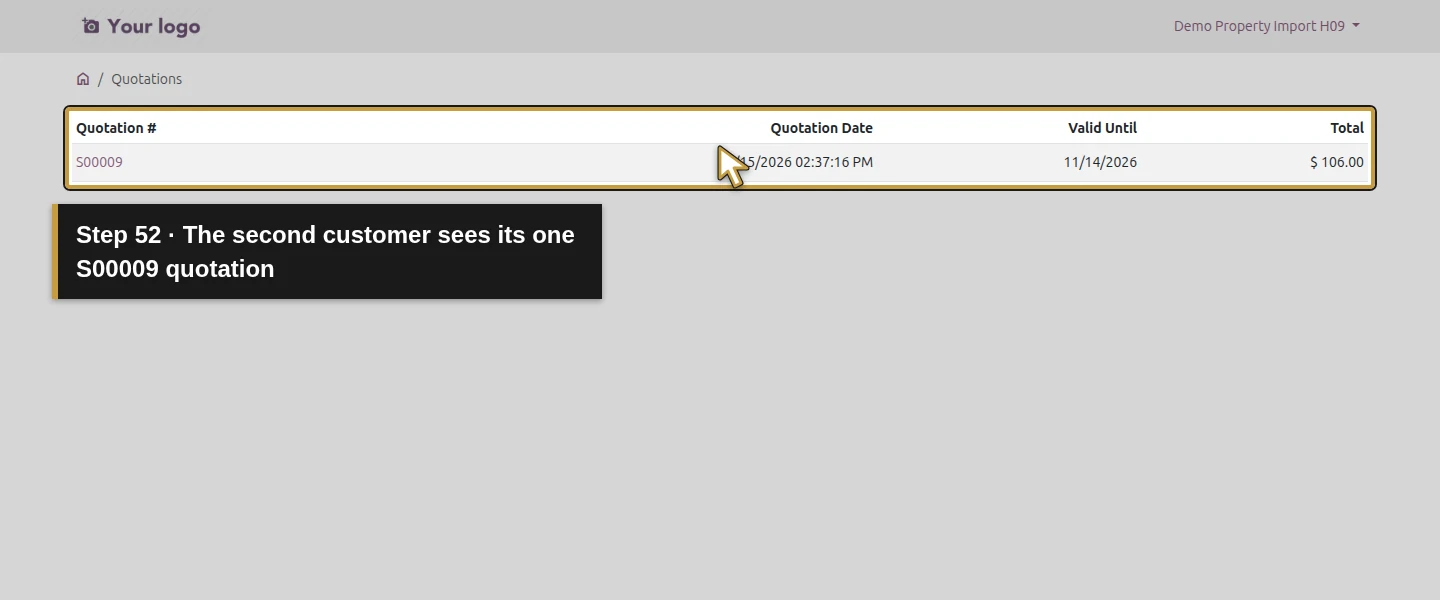
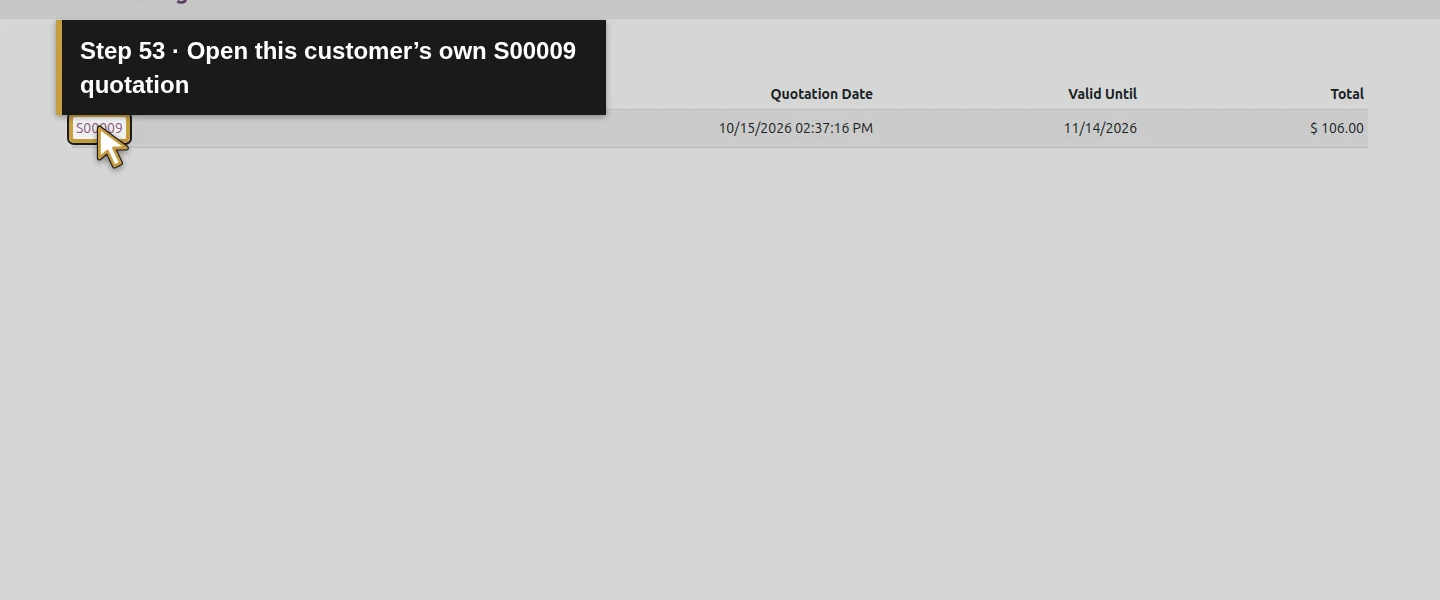
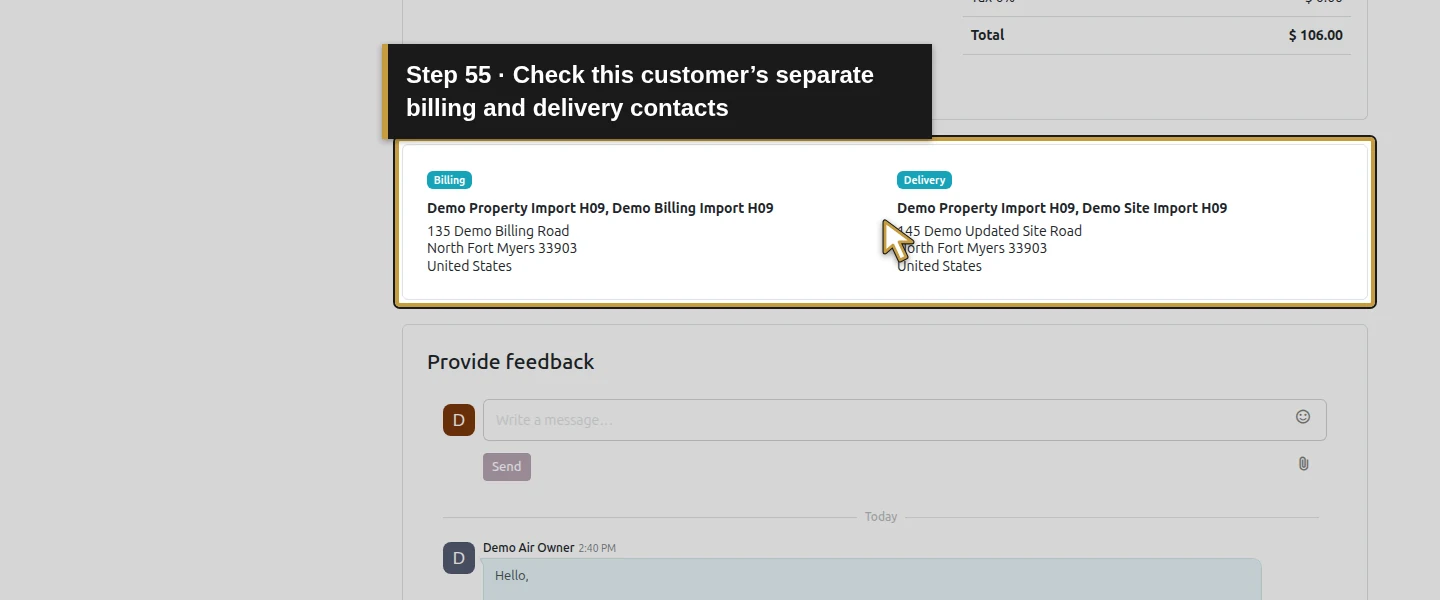
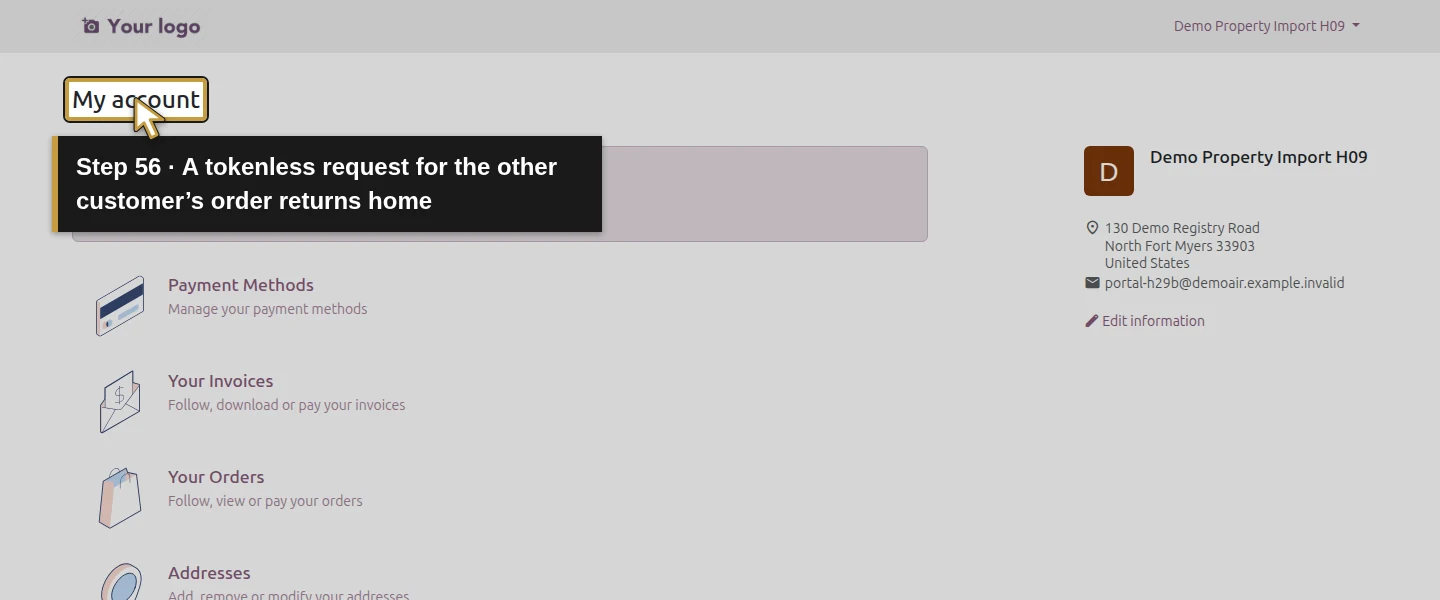
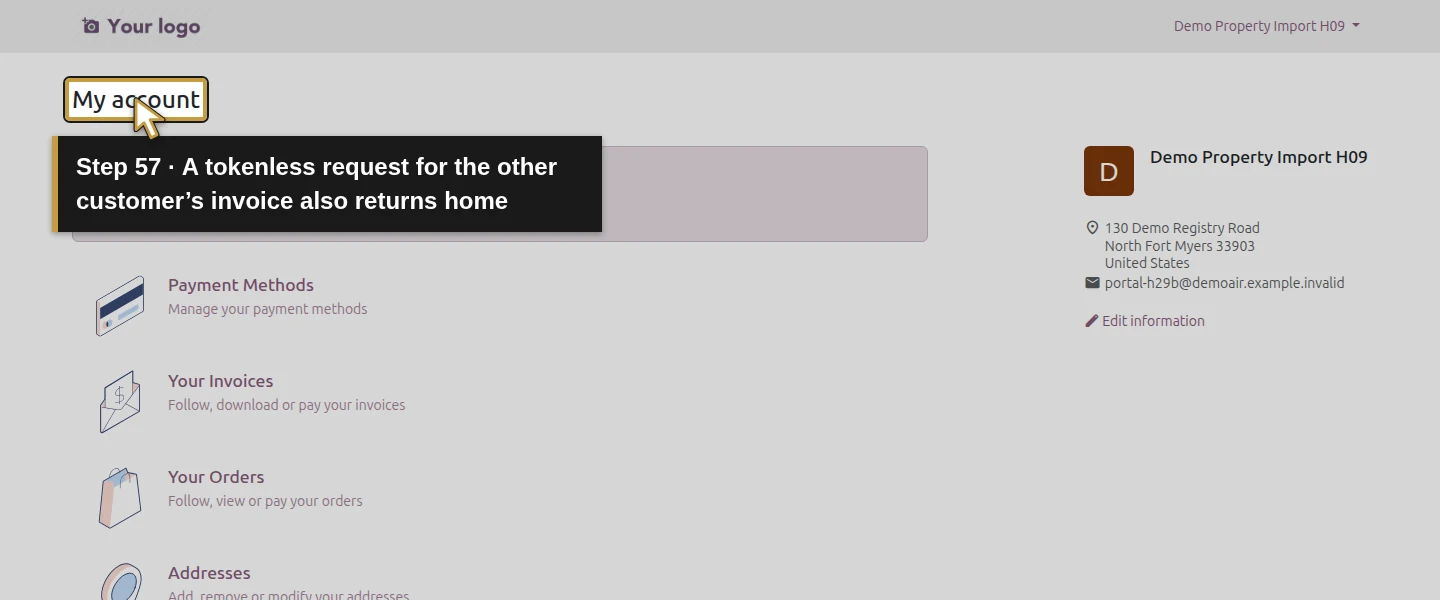
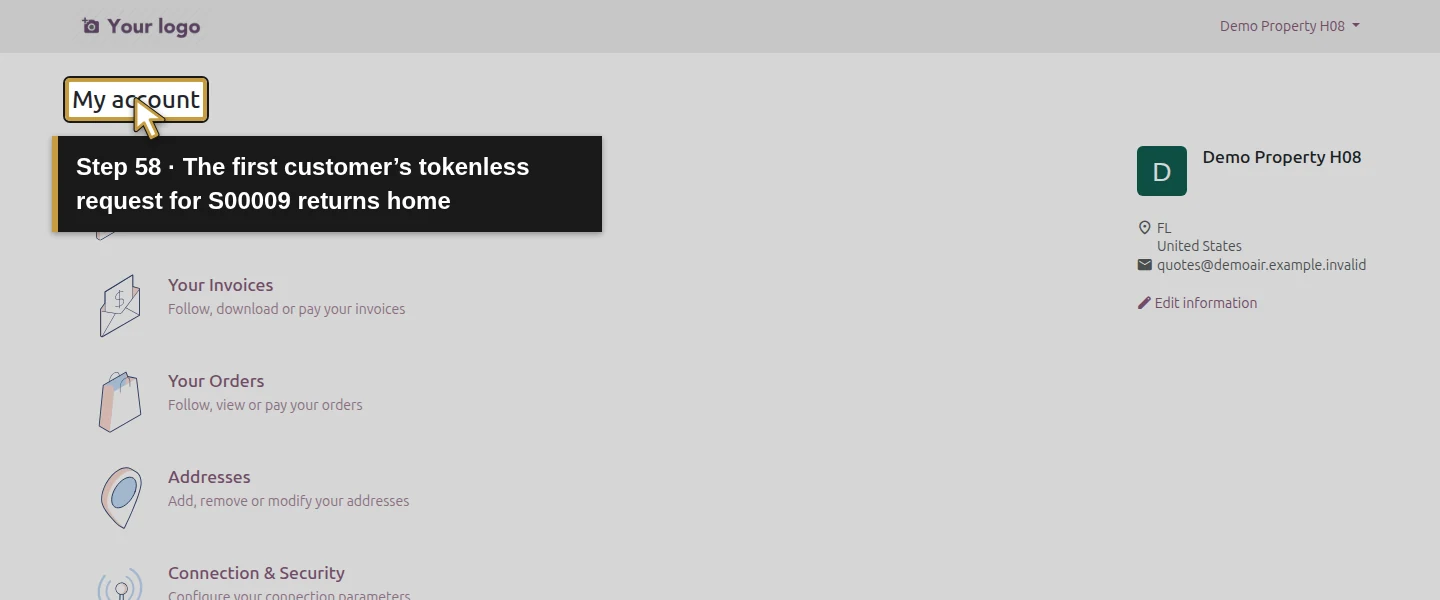
As the second customer, open Quotations and check that S00009 is its one listed quotation. Open it and verify the customer, separate billing/service addresses and $106 total. Then use the browser address bar for the known tokenless test paths: the first customer’s /my/orders/1 and /my/invoices/4. Both return this second customer to /my, without showing those documents. In the first customer’s session, the second customer’s /my/orders/9 also returns to /my. Its own /my/orders/1 and /my/invoices/4 open successfully. Use these known fictional records in the training instance; remove document-share query tokens for this account-access check. An owner preview or a token-bearing email link would test a different path.
Step 10. Revoke only the second customer’s account
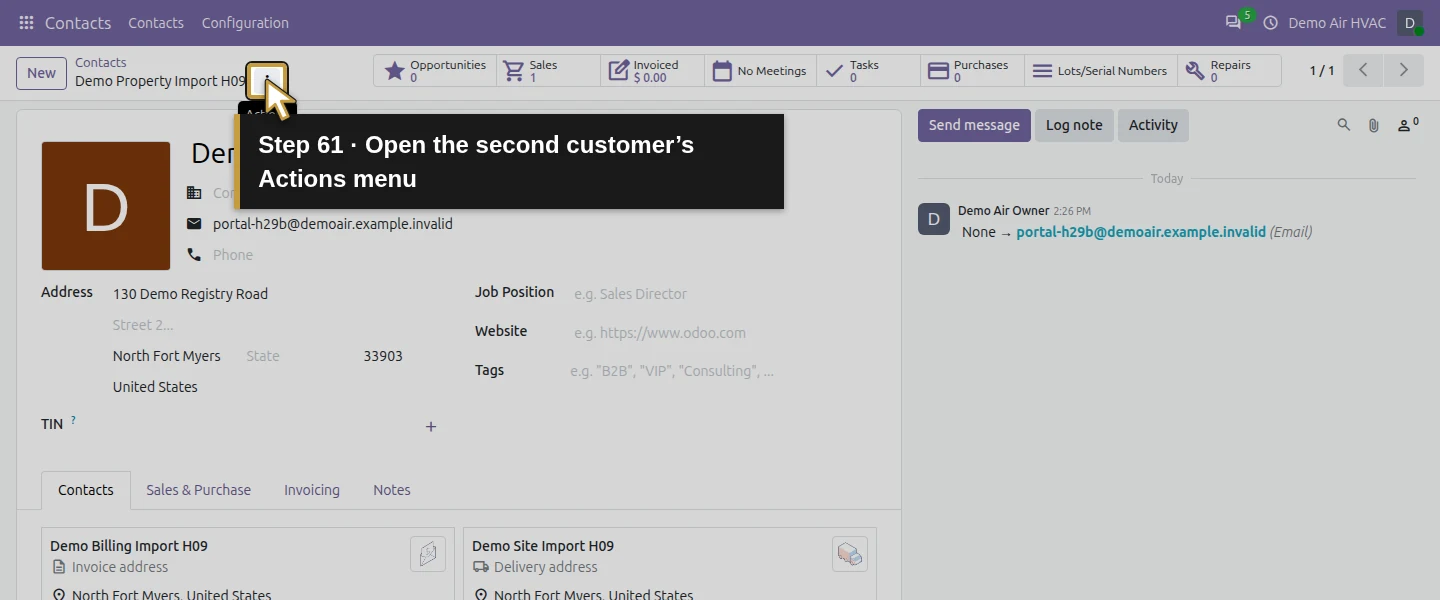
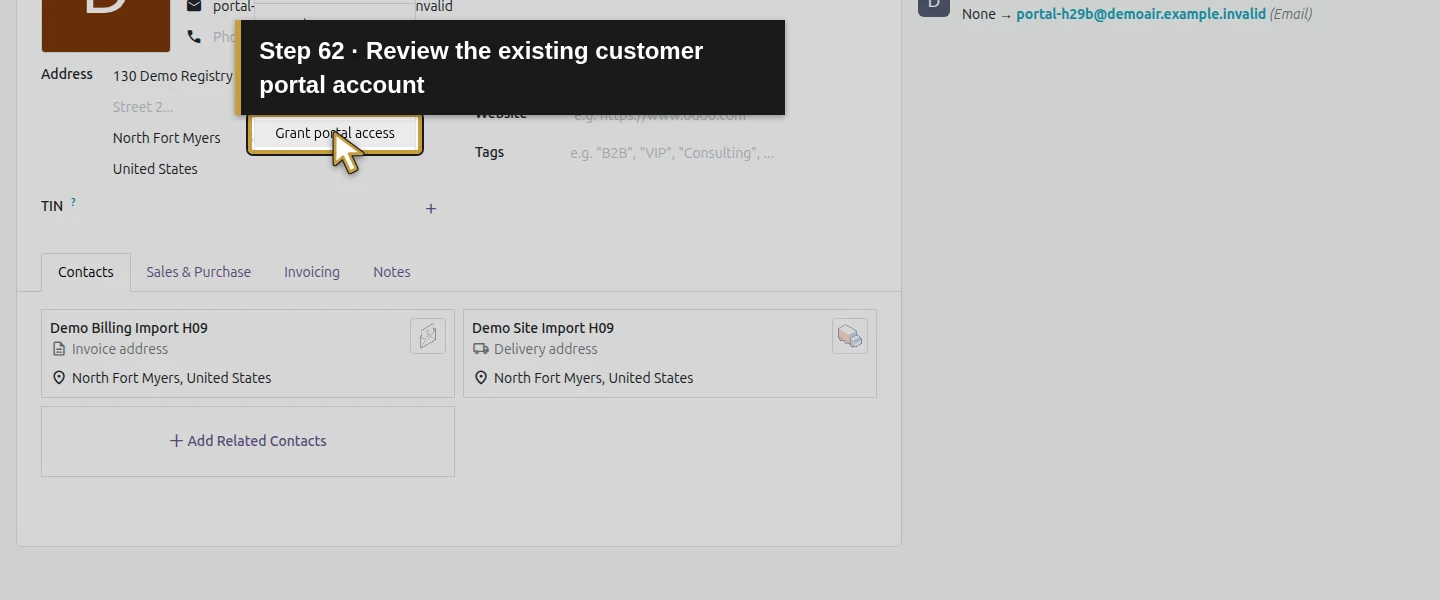
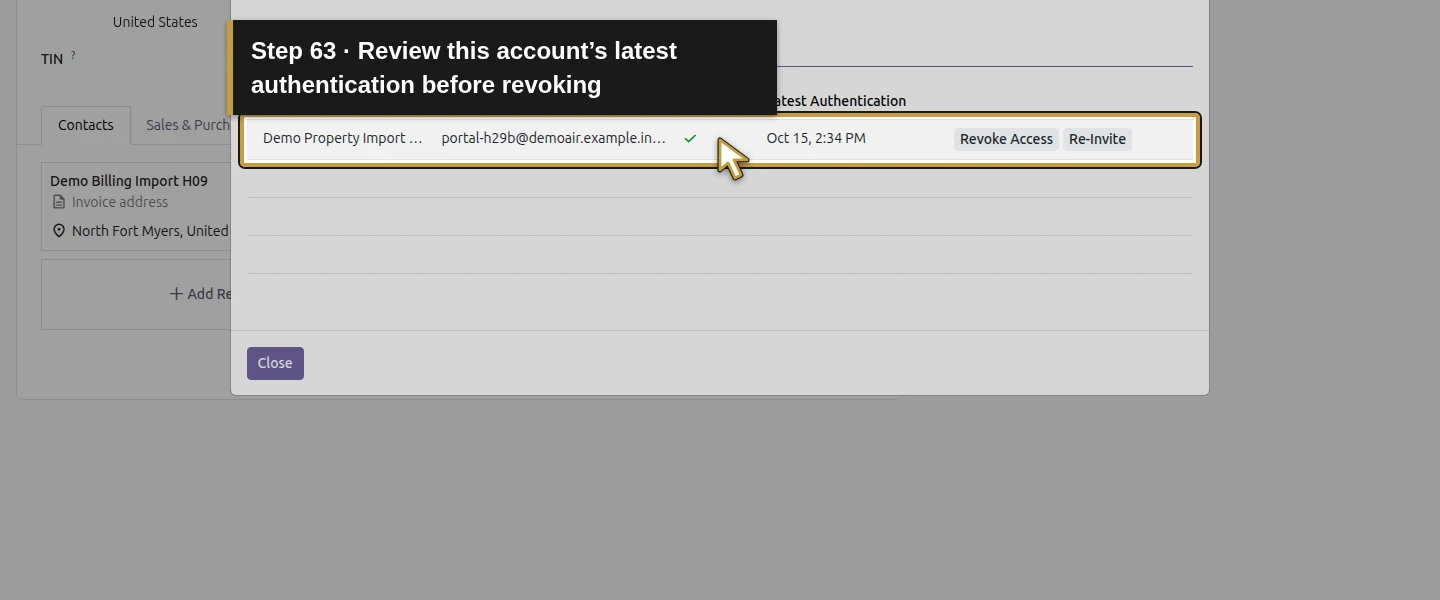
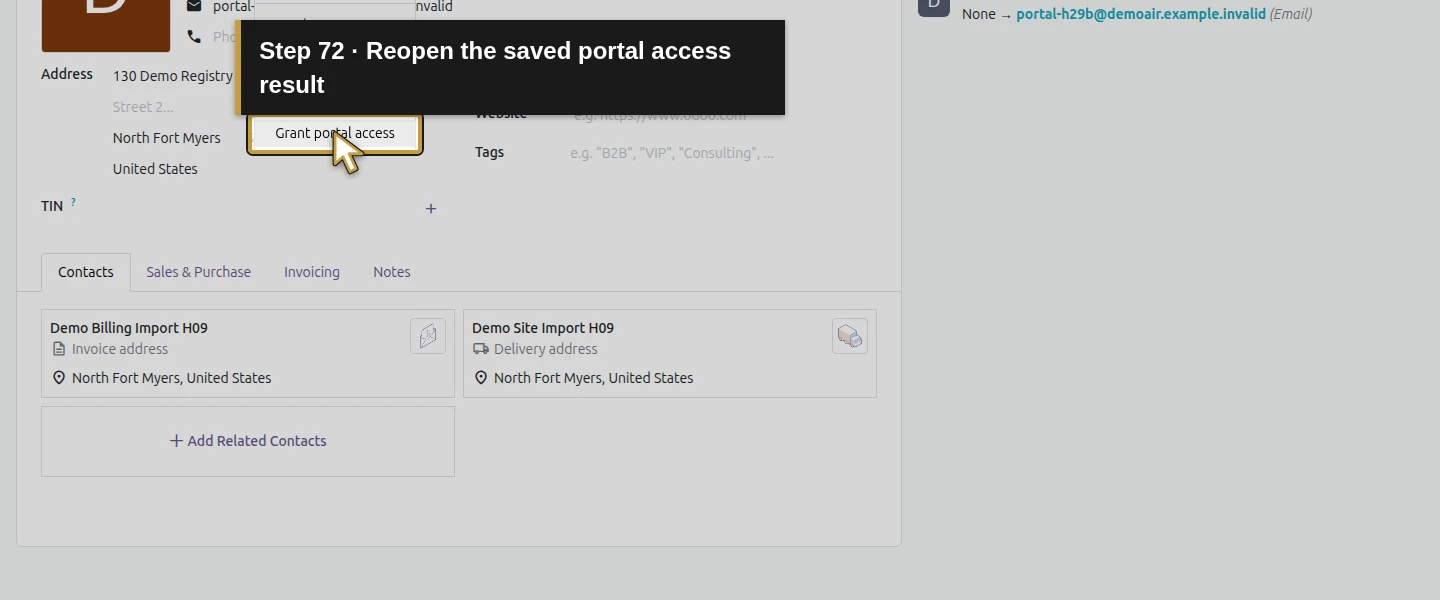
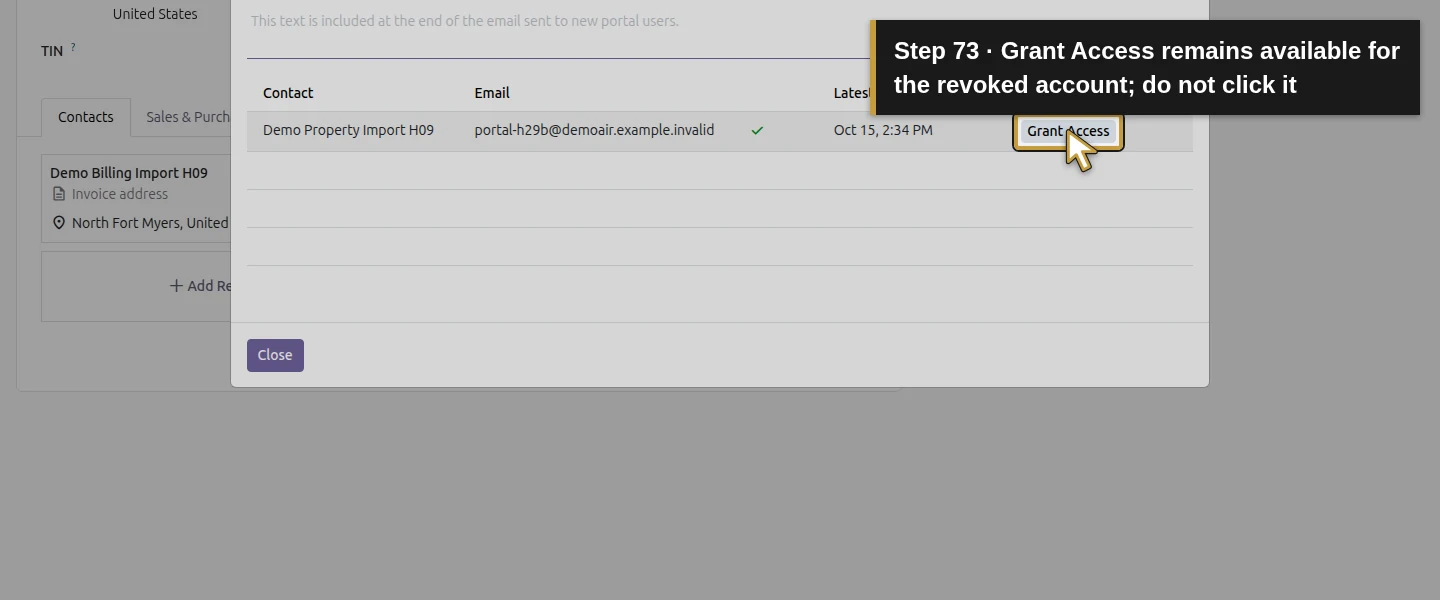
In the owner session, return to Demo Property Import H09 and open Actions menu → Grant portal access again. The row now shows its latest authentication, Revoke Access and Re-Invite. Click Revoke Access once and wait for Grant Access to return. The native action deactivates that portal user in this test; it retains the saved contact and quotation. Its stored portal-group membership remains on the inactive user. Leave the first customer’s access enabled and do not re-invite the second customer during this check.
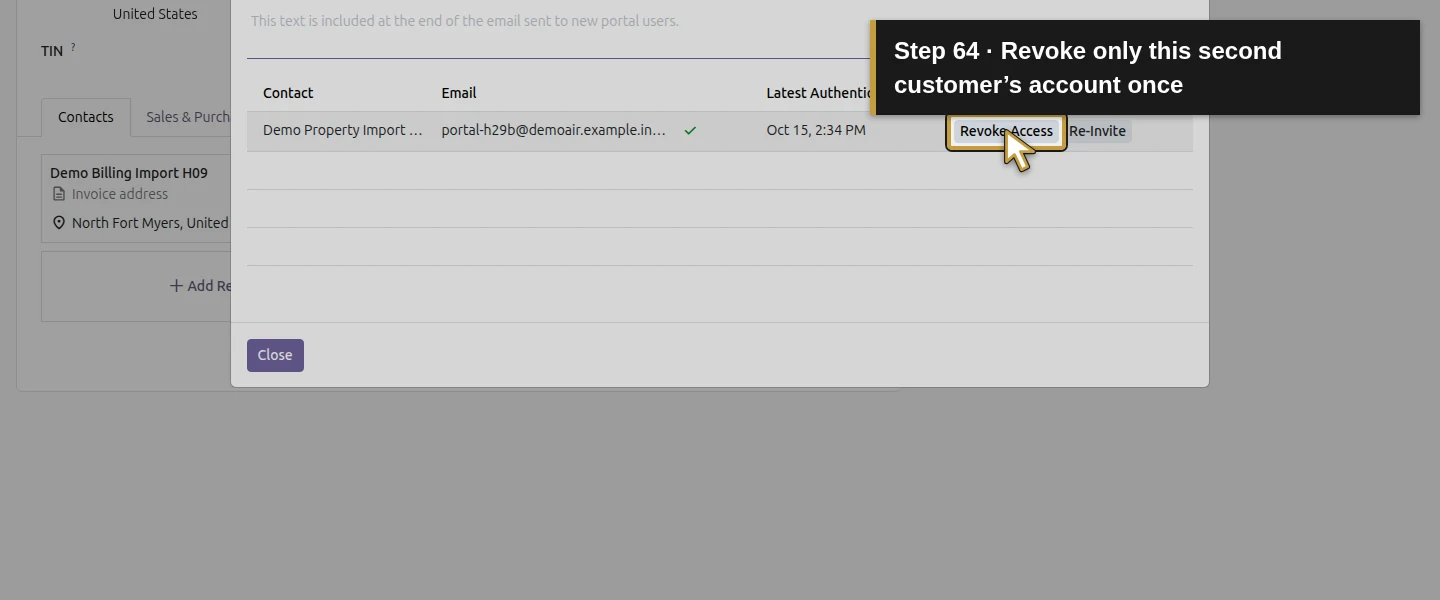
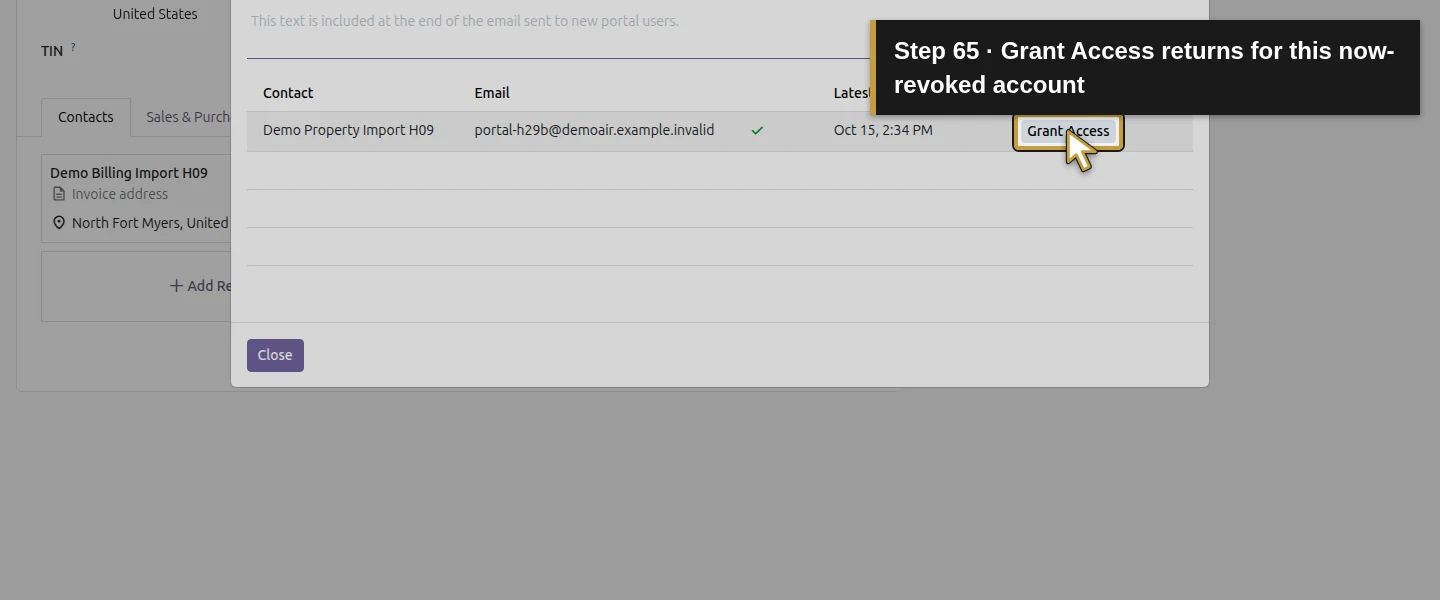
Step 11. Verify the old session and fresh login are refused
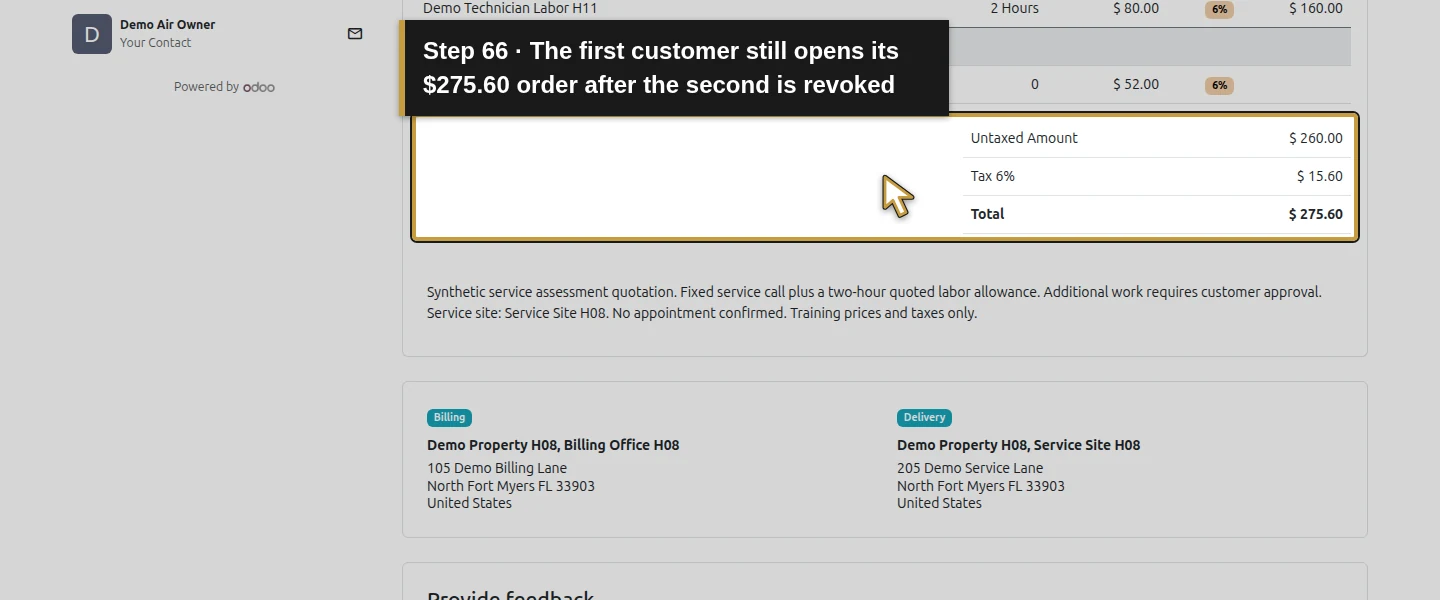
In the second customer’s existing session, open tokenless /my/orders/9 again. It now redirects to Login. Enter that same customer’s login and previously working password and click Log in once: the observed result is Wrong login/password. The first customer still opens its own S00001. This demonstrates the selected account’s revocation and the continued first account; it does not establish what every share link does. Do not treat an old tab’s already-rendered document as proof that the revoked session can fetch it again.
Step 12. Check the original emailed link separately
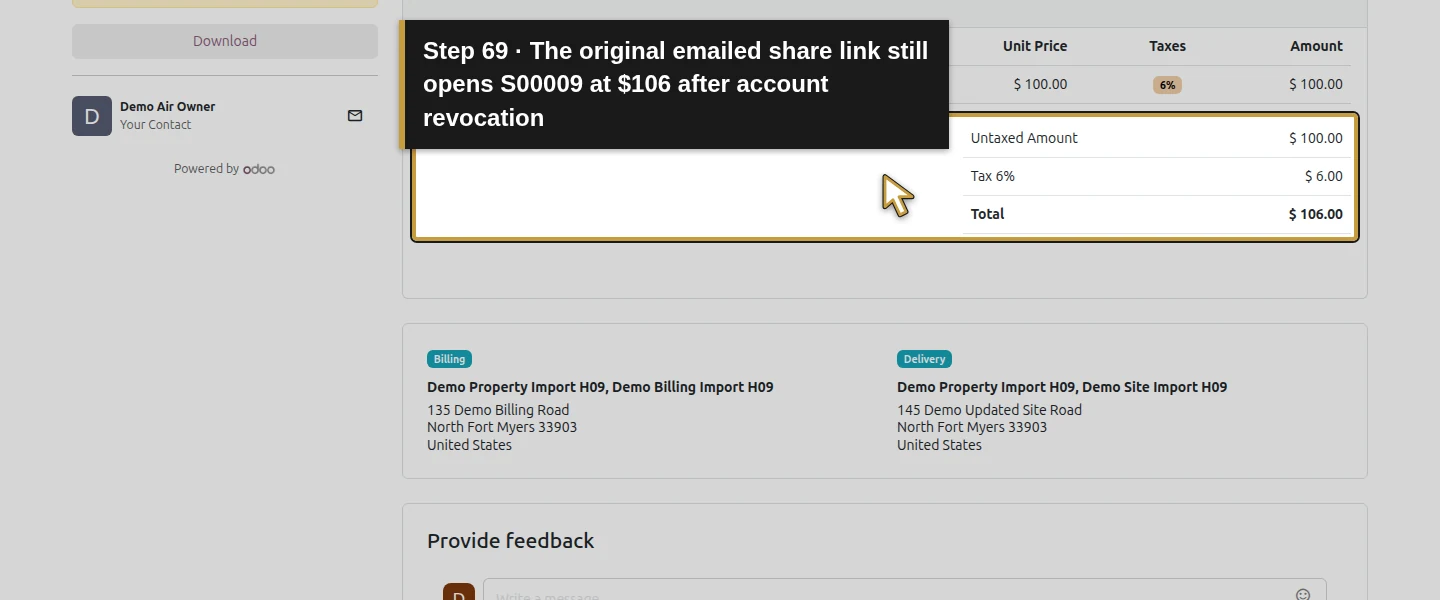
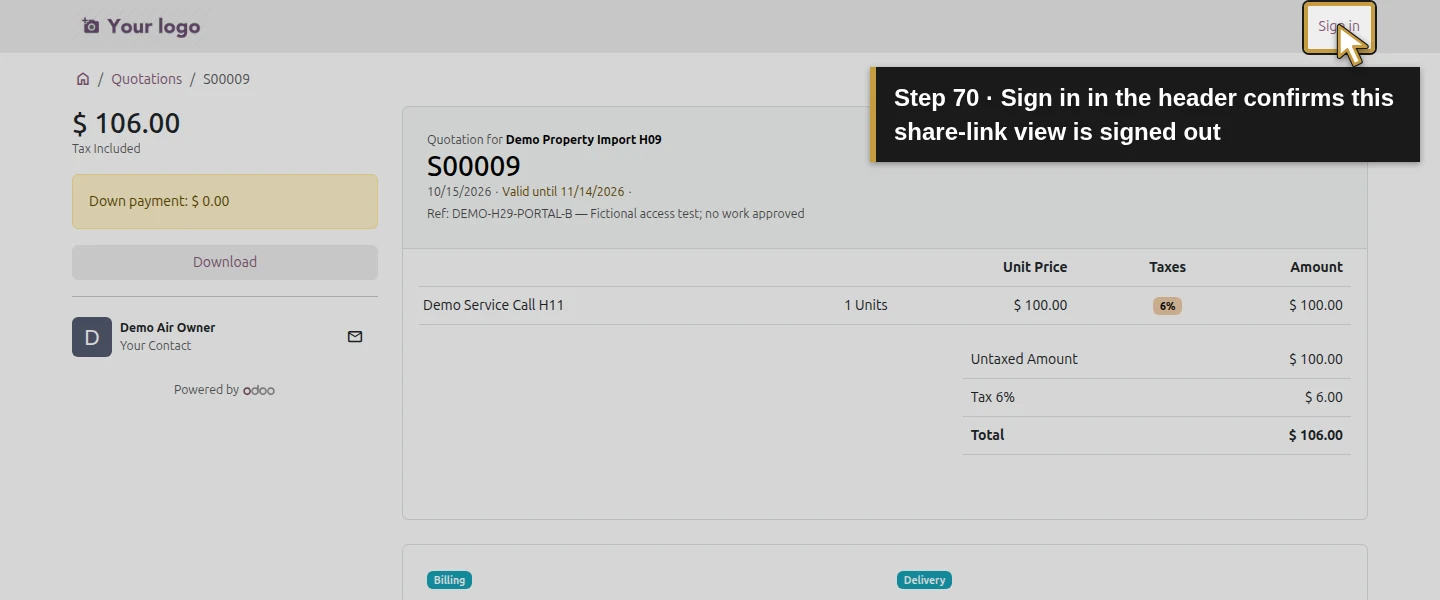
While signed out in the second customer session, open the original quotation email’s actual View Quotation link. That received /mail/view link redirects to the S00009 portal page with its private share parameters, and the quotation still opens at $106. The header offers Sign in, confirming this view is signed out. Opening /my/orders/9 again without those parameters still redirects to Login. The account remains inactive. Record these as separate results: the account is revoked, but this document link still grants access. This guide does not demonstrate a native control that revokes every prior document share link.
Step 13. Reopen the saved result and preserve business records
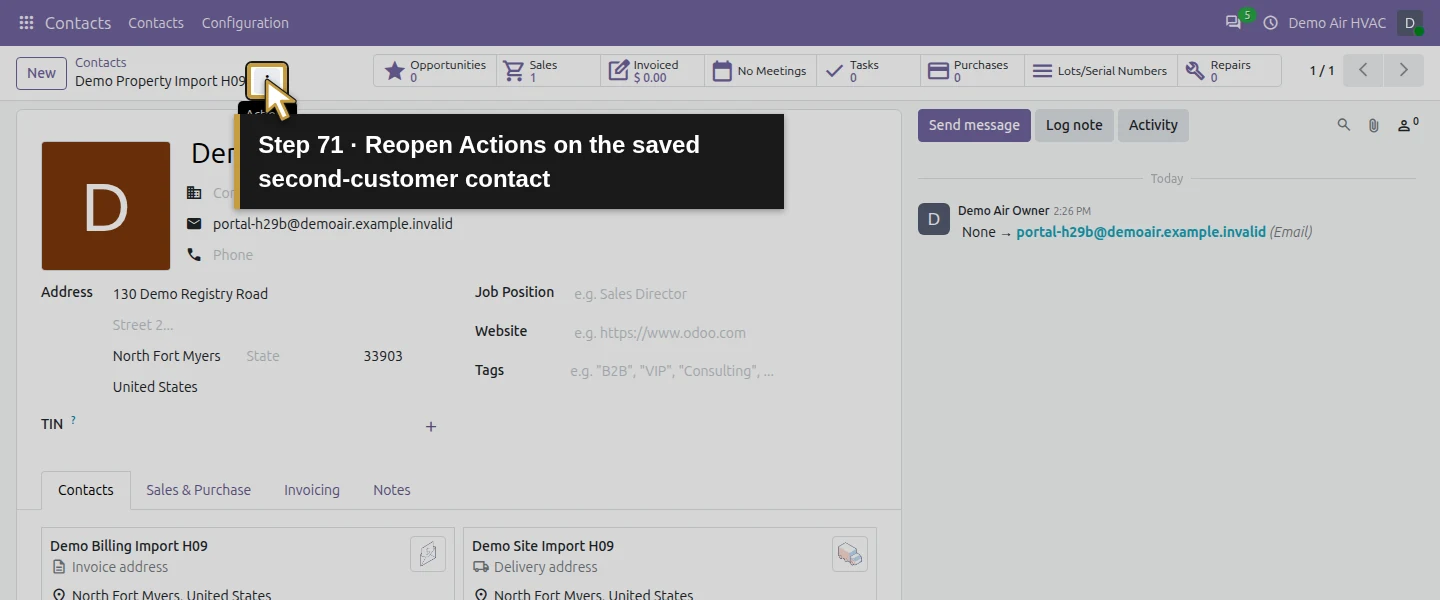
Reopen the contact’s access dialog and the saved S00009 in the owner session. The second contact remains available for Grant Access; the quotation stays Sent, unsigned and uninvoiced, with one $106 service line. The first portal account remains active. There are exactly two new customer accounts, rather than repeated invitation accounts. Existing eight orders, earlier invoice balances, 18 accounting moves, eight payments, stock, billed time, approved leave, Fleet service/draft bill and the pump’s two completed requests remain unchanged. Treat the retained private email link as working access, and keep it out of public screenshots or guide links.
Check the result
Two existing customer contacts receive native portal invitations and complete signup through separate sessions. Each opens its own selected document; three tokenless cross-customer order/invoice attempts return to portal home. The first customer’s five-posted-document list includes its billing-contact invoice but excludes the held draft invoice. One new S00009 remains Sent at $106, unsigned and uninvoiced. Revoking the second account deactivates it, refuses the existing-session tokenless route and a fresh login, while the first account still works. The original received S00009 link still opens signed out; removing its share parameters returns to Login. All 73 selected prior business result keys match exactly, and existing eight order rows/invoices/internal-user permissions are preserved. The local sink grows from11 to19 messages: two invitations, four password/welcome messages, one quotation and one quotation-viewed notification to the owner.
If your screen differs
Check the actual selected contact, saved email and customer relationships before Grant Access. Invite/signup and account-based access differ from token-based document sharing. This case tests two customer groups, three tokenless cross-customer paths and one actual received link after revocation; it is not a universal security or all-link-revocation test. Re-Invite, duplicate-address errors, access among several portal contacts inside the same customer group, other document models and real email delivery were not tested. A stored portal group on an inactive account does not prove that it can log in. The internally blocked invoice remained visible in the tested portal list. Wait for actual controls/results after navigation or send; early reads can still show the previous state. Passwords and private URLs must stay out of published media.
Frequently asked questions
How do I give an Odoo customer portal access?
Open the intended contact, review its saved email, then use Actions menu → Grant portal access and the row’s Grant Access button. In this test, the actual invitation opens native signup in a separate customer session. Signup creates a working portal login for that contact; it does not give the owner’s backend permissions. The tested edition is stock Odoo 20 Community with the official portal and auth_signup modules installed.Can Odoo customers see another customer’s invoices?
In the selected two-customer test, the second account’s tokenless request for the first customer’s invoice returned to portal home, while that first customer could open it. Related contacts inside the same customer group are a different boundary: the first top-level account could see its billing-contact invoice. These checks do not prove isolation for every company relationship, document type or share-token route.Does disabling an Odoo portal account cancel every shared link?
No such result was demonstrated. Native Revoke Access deactivated the second account and blocked its existing-session tokenless request and fresh login. Its original emailed quotation link still opened the document while signed out, using the retained private share parameters. Account access and this shared-document path are separate; the tutorial does not demonstrate revoking every existing link.Continue building the business
Continue with H13: How do I create equipment size variants in Odoo?. Reuse the existing customer and catalogue records; the portal test does not require repeating the earlier accepted service order.
Talk about your Odoo setup
Bring your current process and the result you need to Onward to plan your Odoo workflow. Talk about your Odoo setup.