
Running an HVAC business with Odoo
How do I import customer contacts into Odoo?
Import customer, billing and service-site contacts into Odoo, test the mappings, and update a saved address with the same External ID.
Alex has a small customer list to bring into Odoo. This example imports a customer with separate billing and service addresses, then changes the service address without creating another contact.
Alex Rivera and Demo Air HVAC are fictional training examples. Prices, dates, quantities and business situations in this guide are illustrative.
Before you begin
Tested in stock Odoo 20.0-20260926 Community as the demo owner administrator, with official modules and standard configuration. Complete customer and service-site records. Use Contacts and its native Import action in a training database. This creates a separate H09 example and preserves the H08 customer. Prepare a UTF-8, comma-separated CSV with a header row. No email or telephone fields are needed.
Step-by-step workflow
Import three related contacts, test all mappings, then update the service address with the same External ID and check the final count. This verifies one controlled update, not automatic duplicate detection or company classification.
Step 1. Prepare stable IDs and related addresses
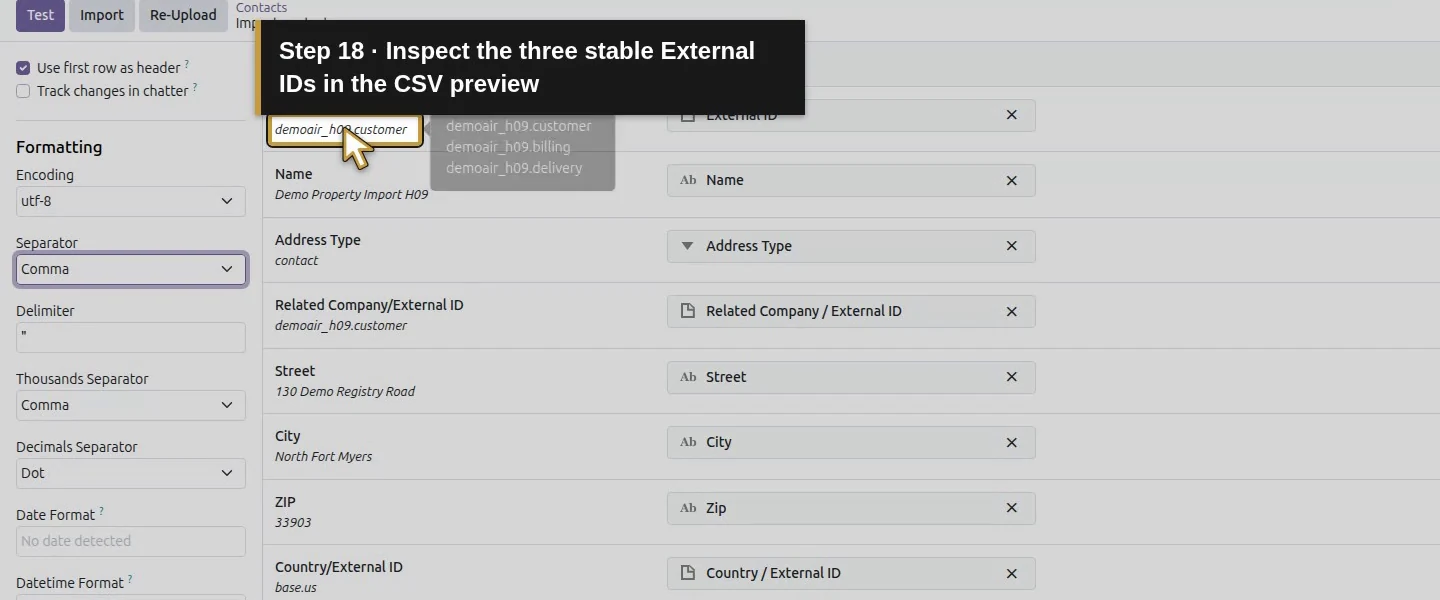
Use the following eight columns. Put the parent first; the two address rows point to its External ID. Address Type uses the imported values contact, invoice and delivery. Country/External ID uses the installed US country identifier base.us.
csv
External ID,Name,Address Type,Related Company/External ID,Street,City,ZIP,Country/External ID
demoair_h09.customer,Demo Property Import H09,contact,,130 Demo Registry Road,North Fort Myers,33903,base.us
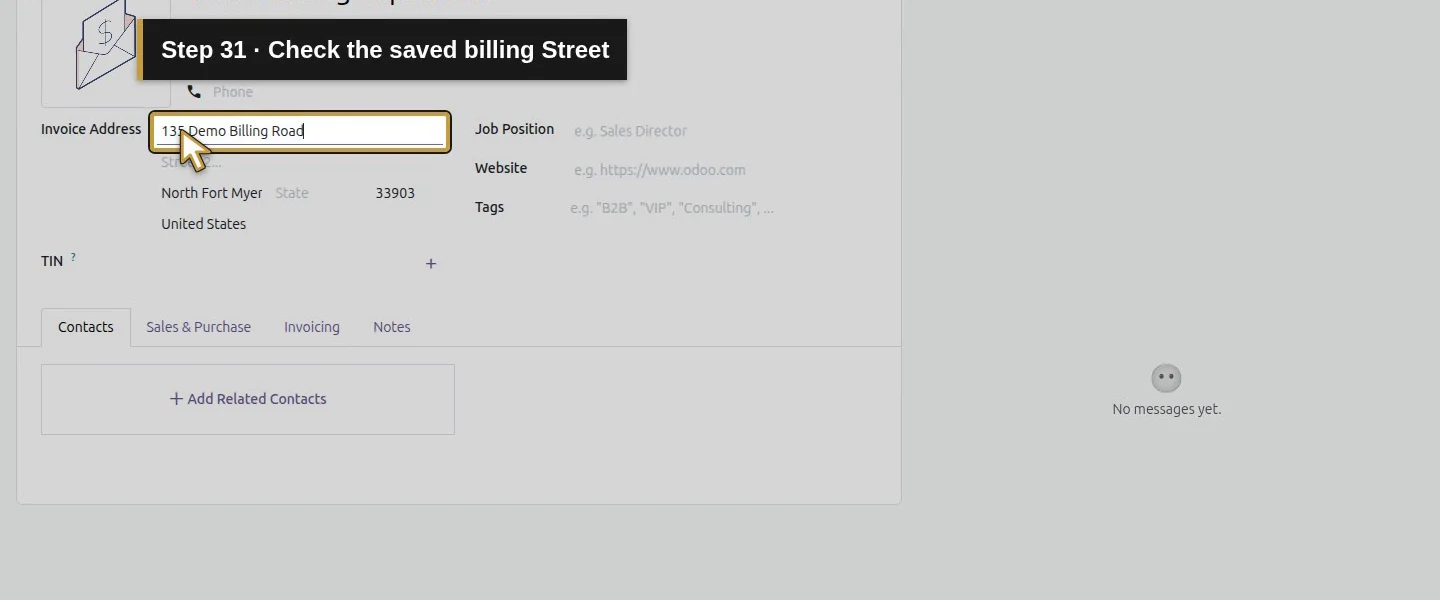
demoair_h09.billing,Demo Billing Import H09,invoice,demoair_h09.customer,135 Demo Billing Road,North Fort Myers,33903,base.us
demoair_h09.delivery,Demo Site Import H09,delivery,demoair_h09.customer,140 Demo Site Road,North Fort Myers,33903,base.us
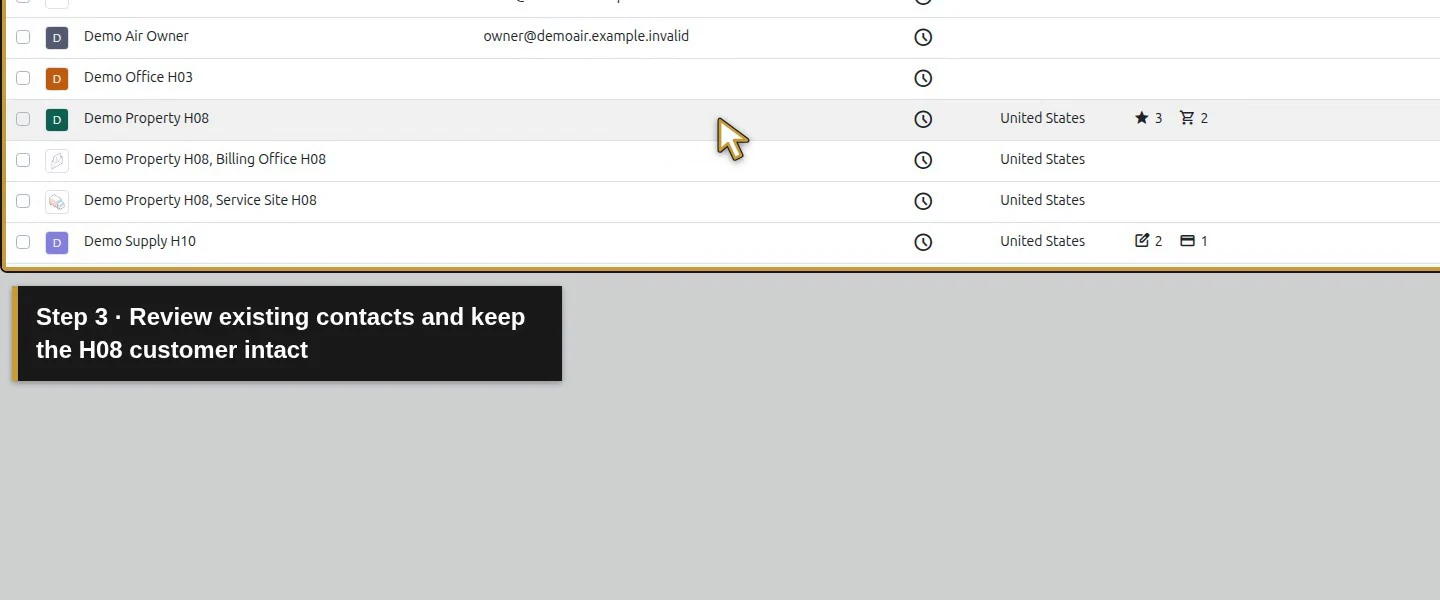
Search the three names before importing and keep a restorable backup of the training database.
Step 2. Upload through Contacts
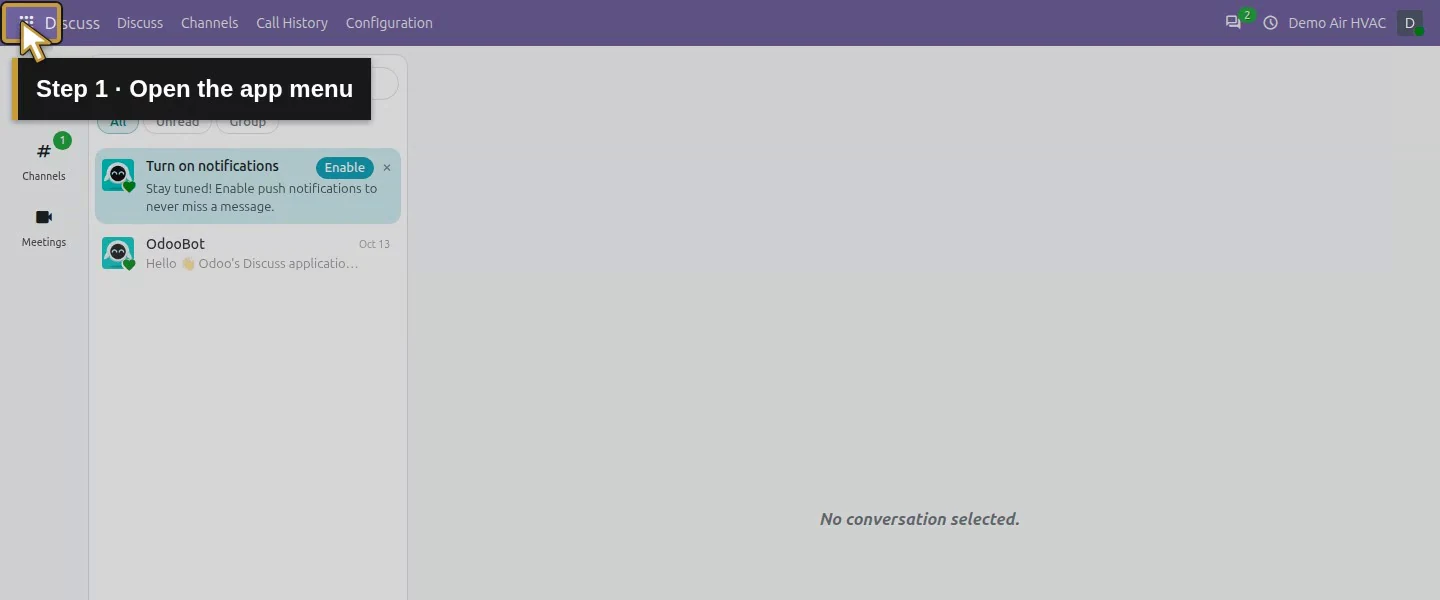
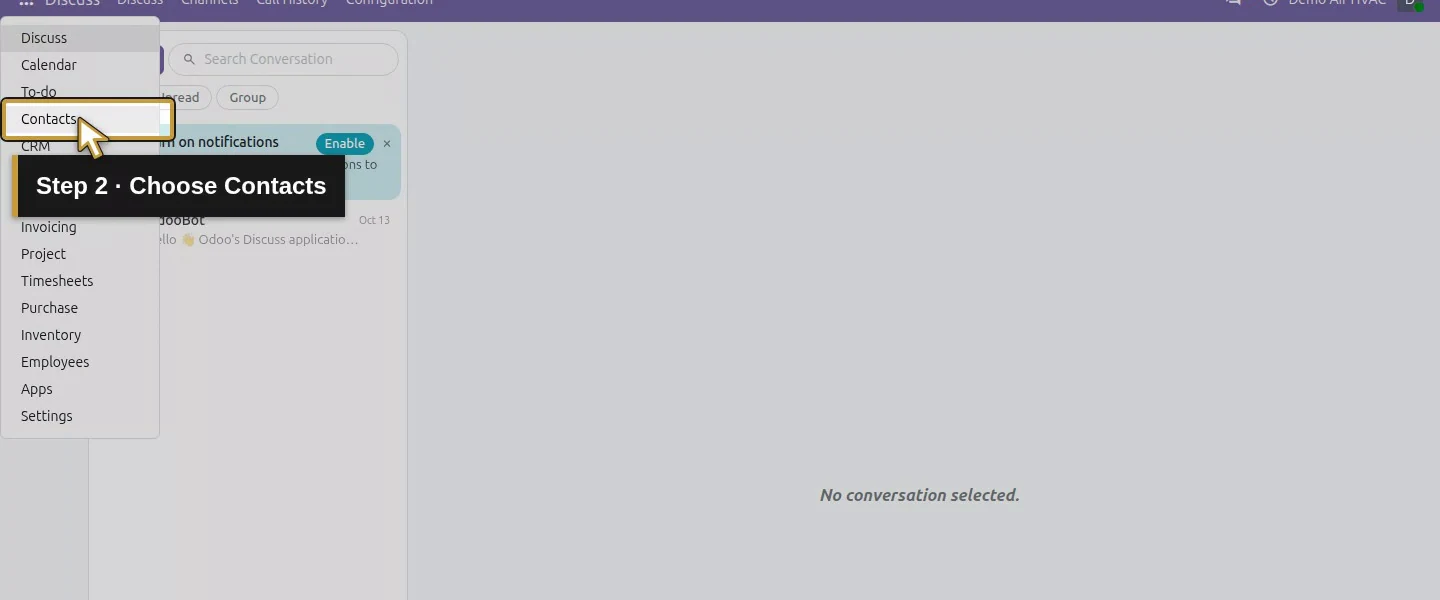
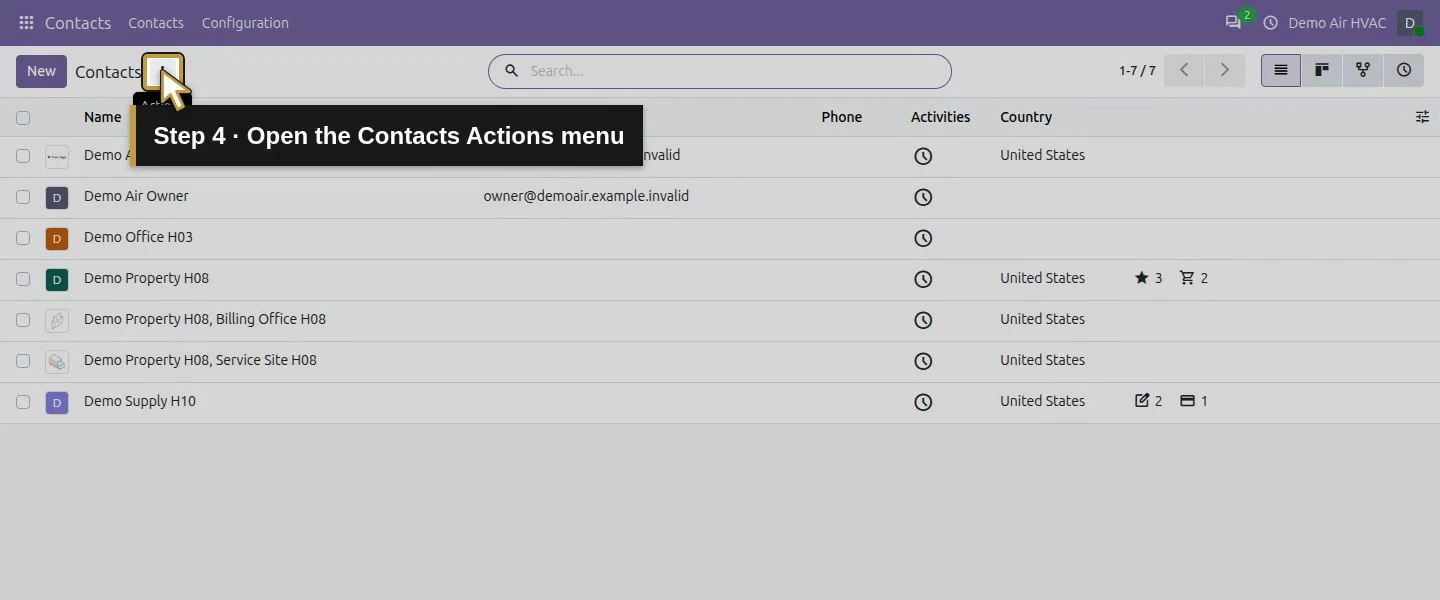
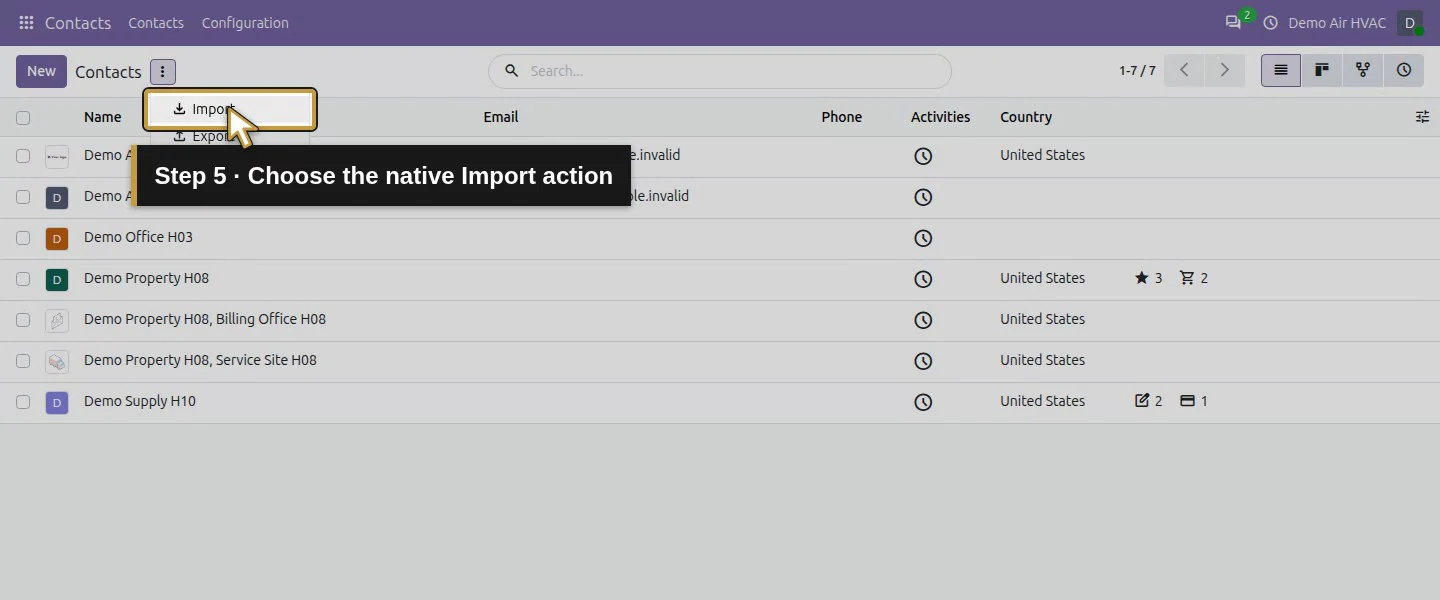
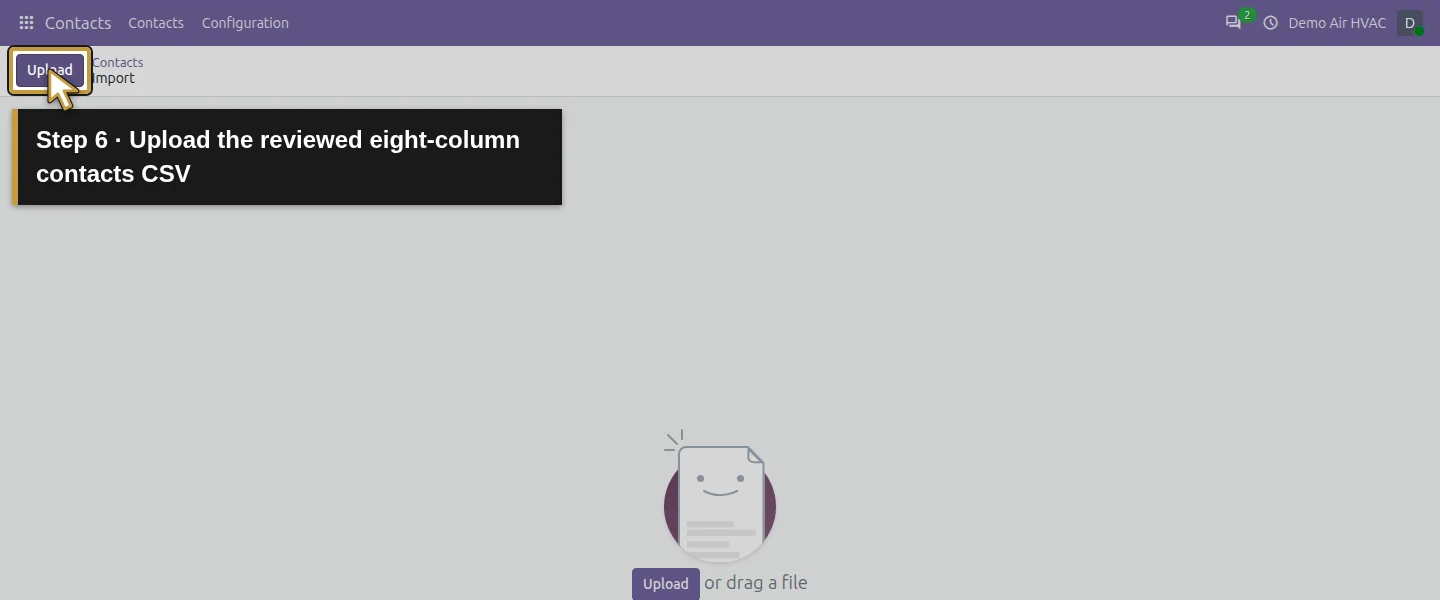
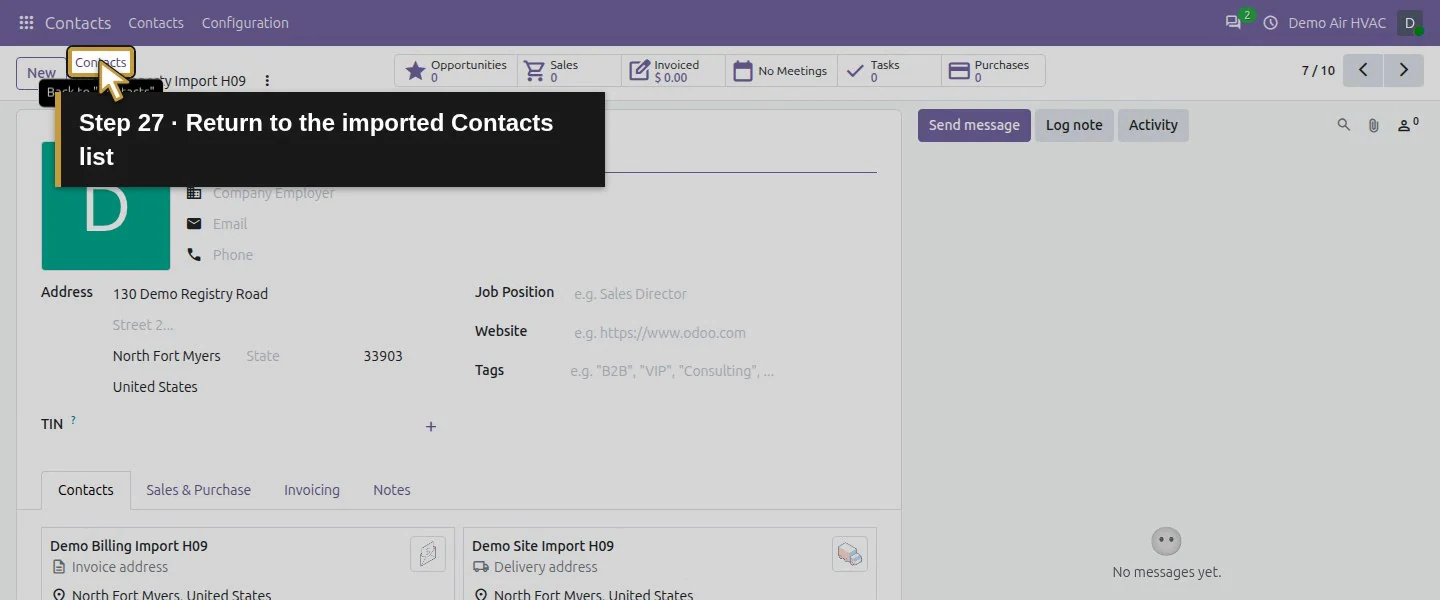
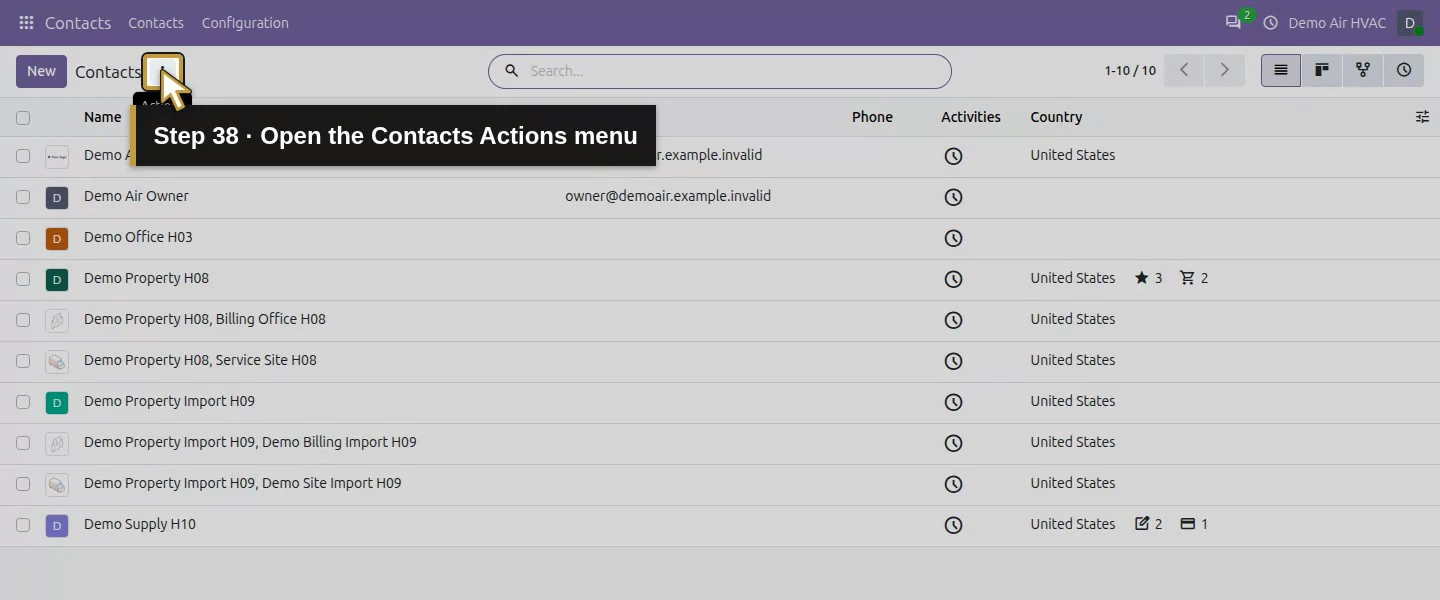
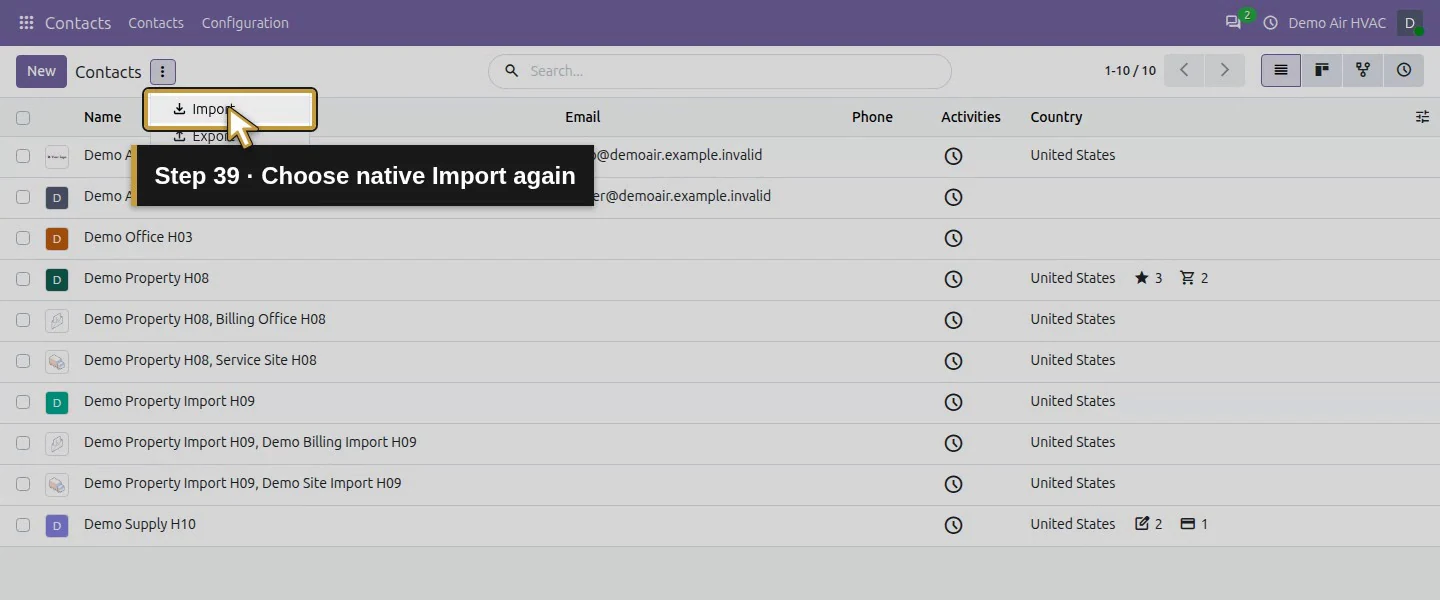
Open Contacts → Actions menu → Import → Upload and choose the CSV. Check that Odoo shows three rows, the comma separator and the first row as a header. This fixture has no Is a Company or Country/Code column: neither mapped to an editable import field in the tested runtime.
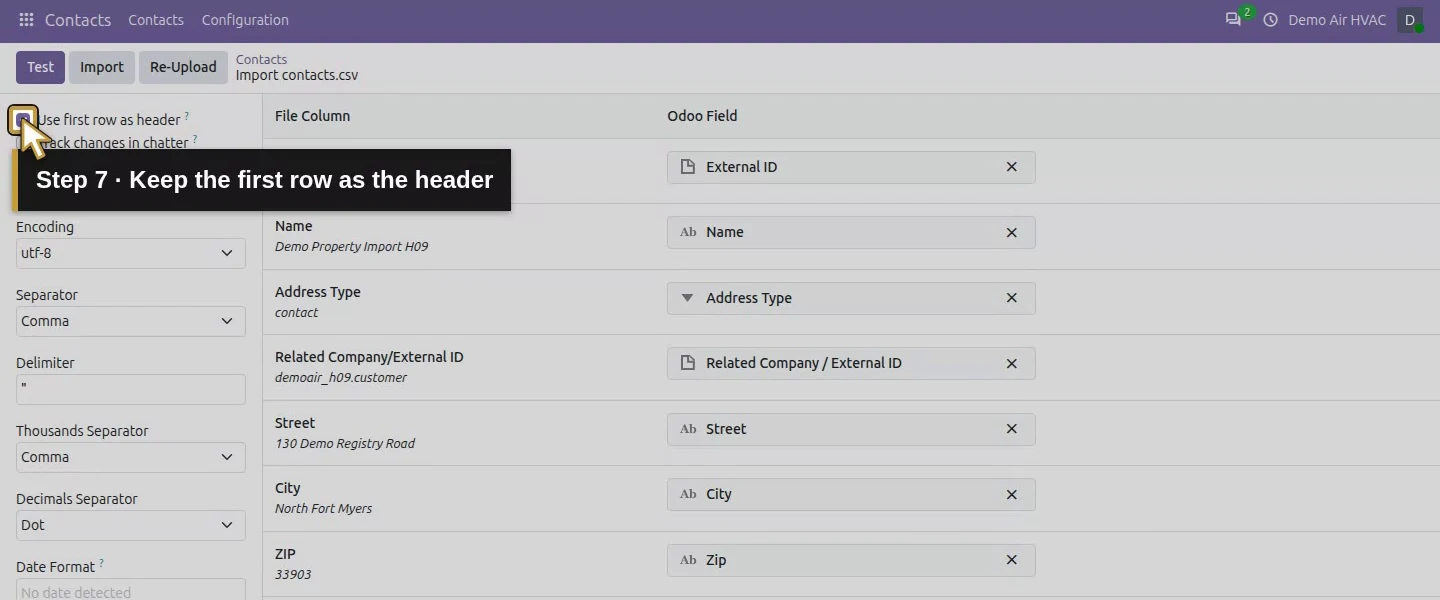
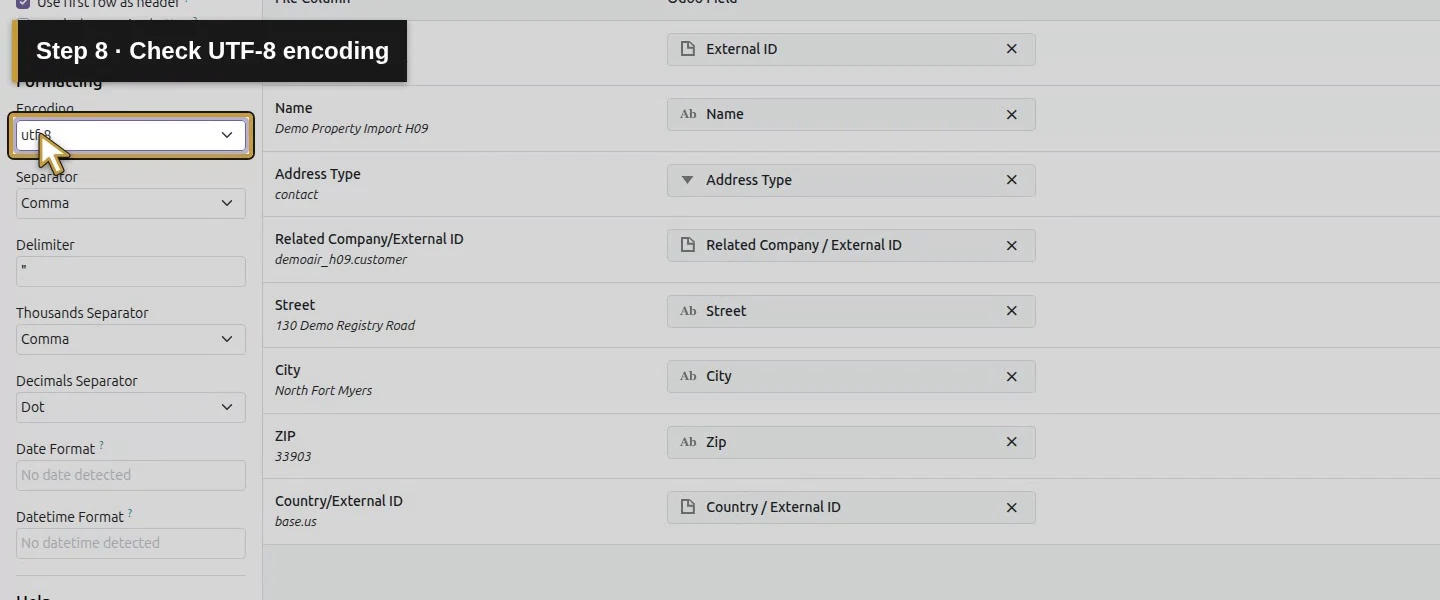
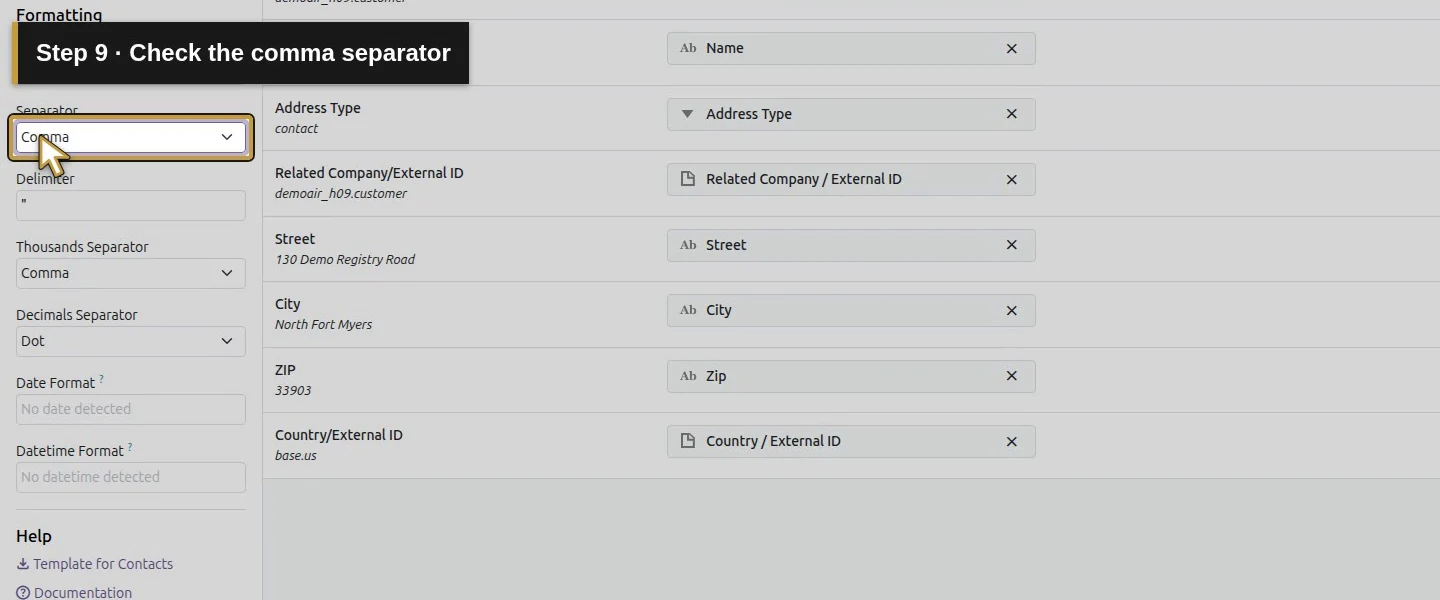
Step 3. Review every field mapping
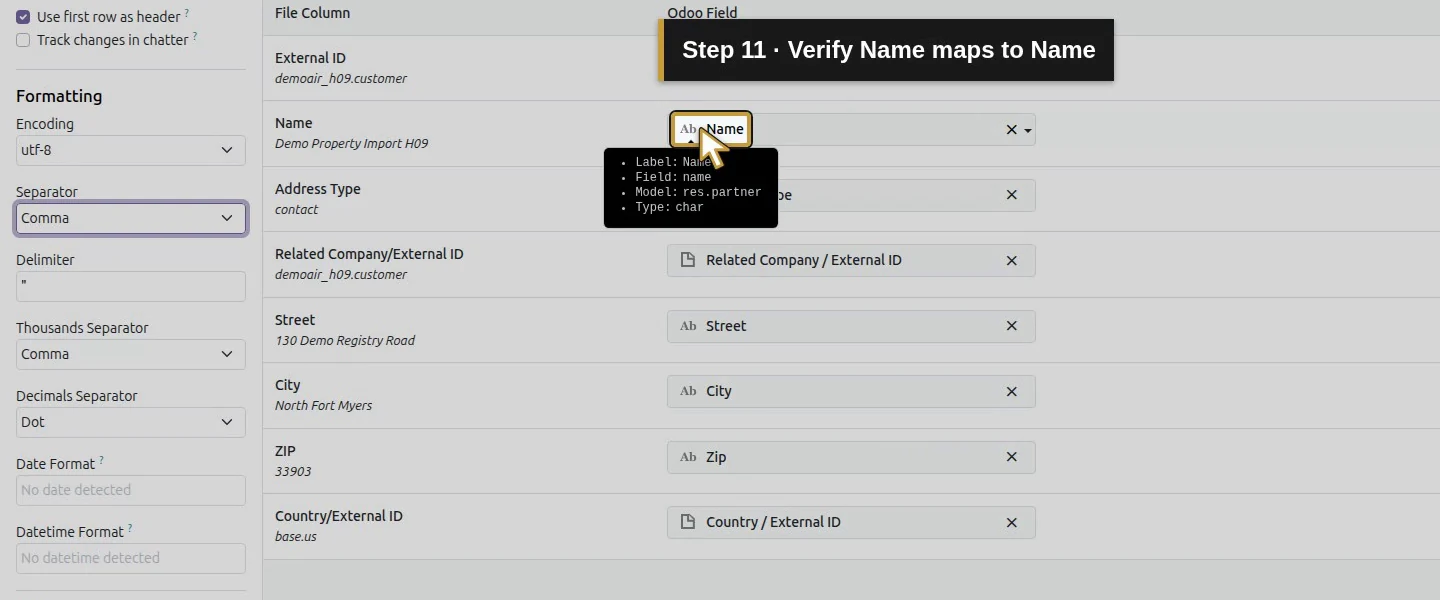
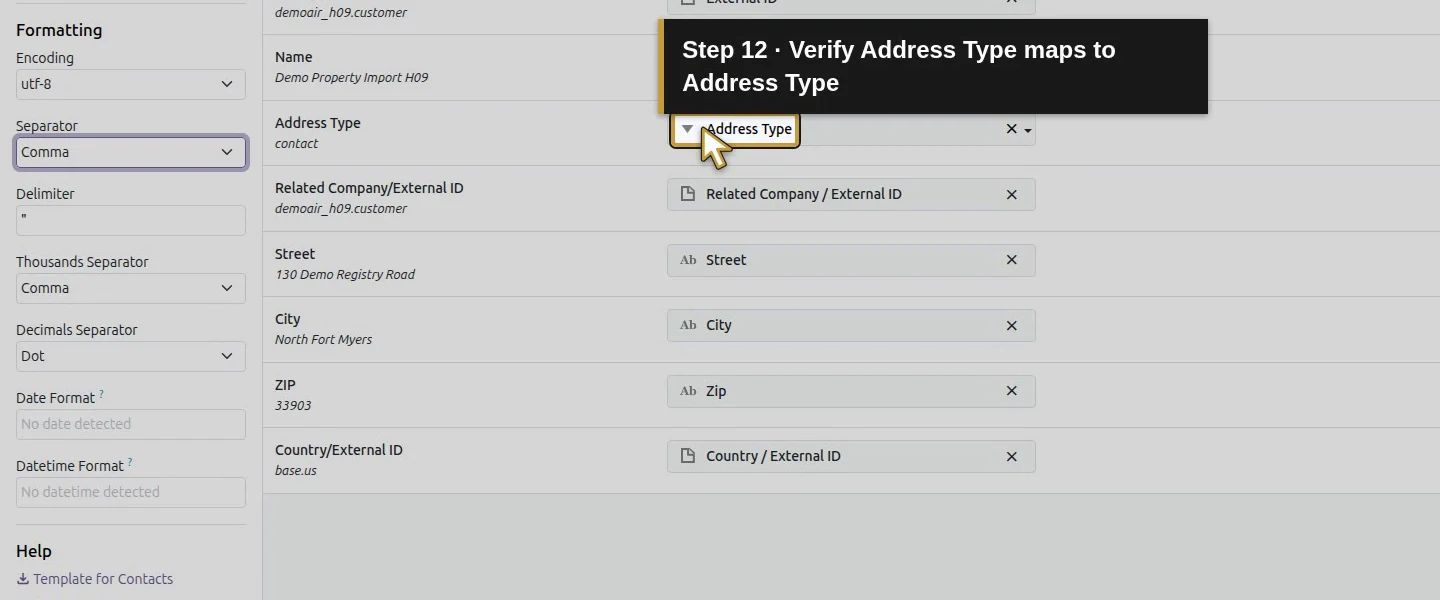
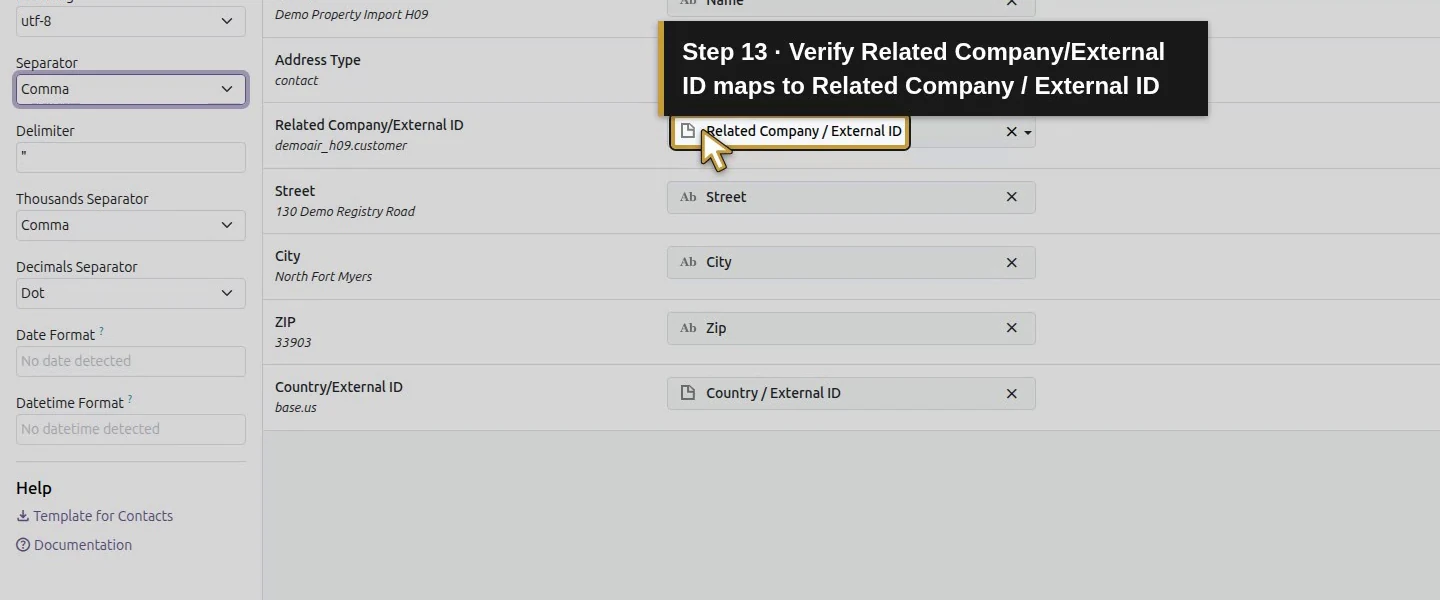
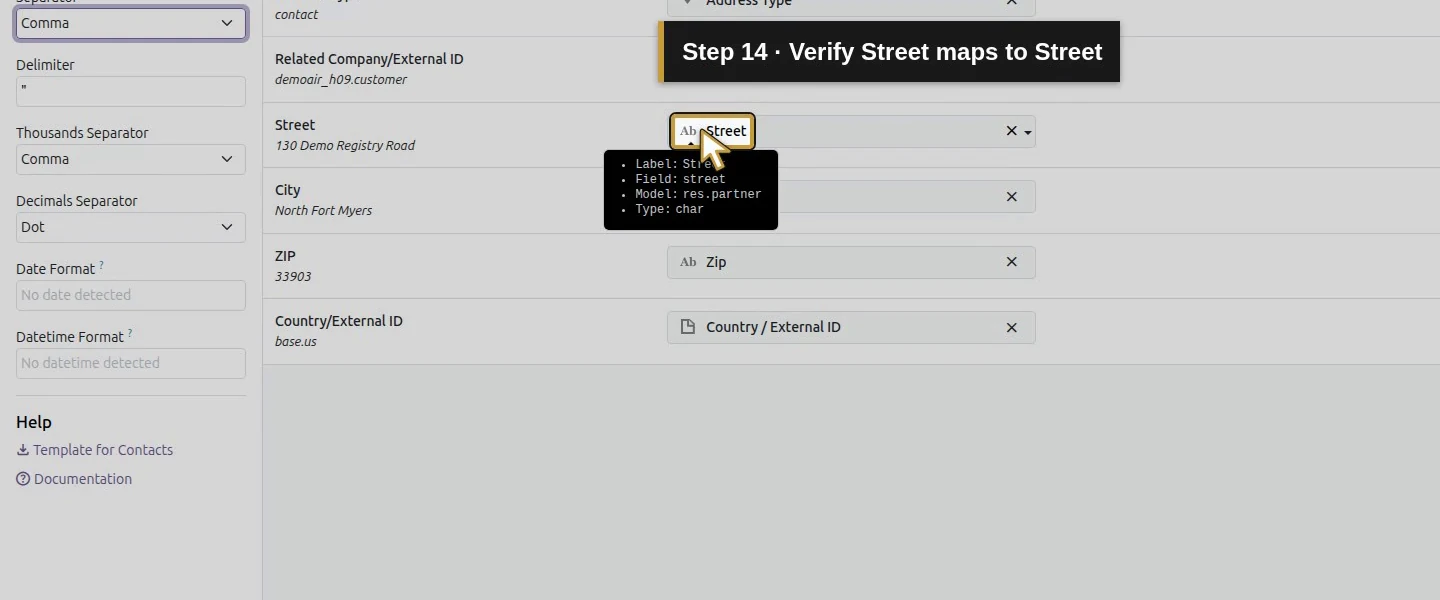
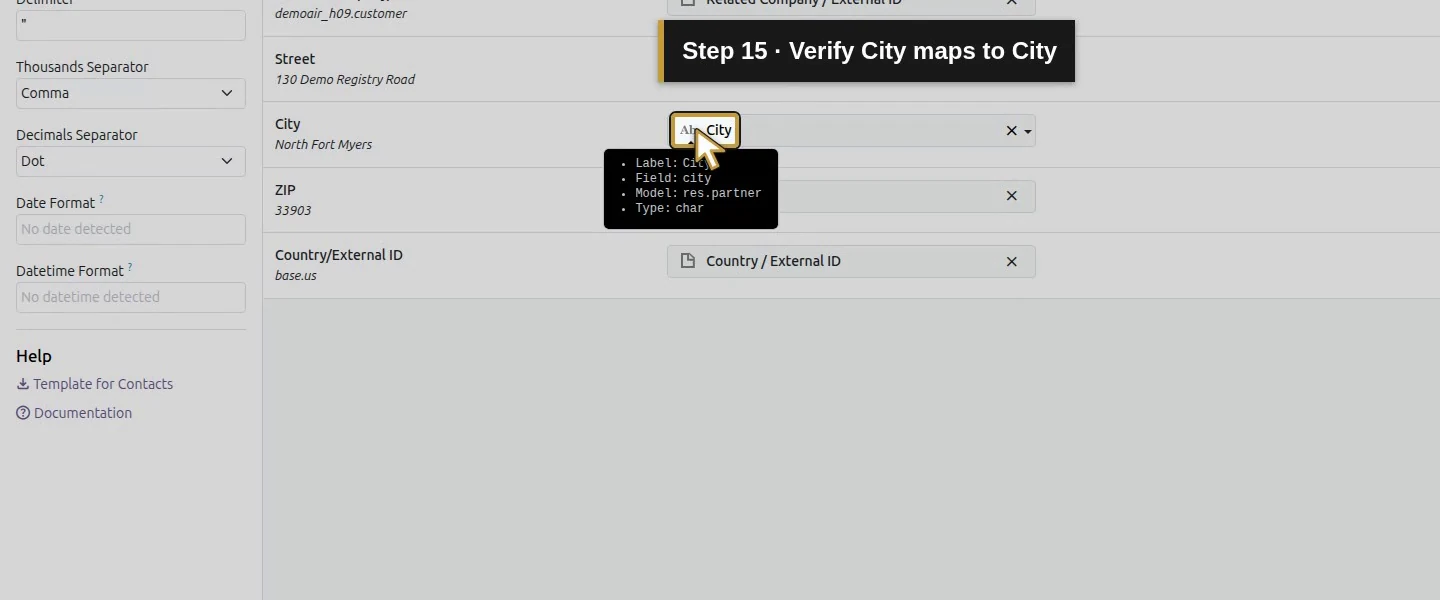
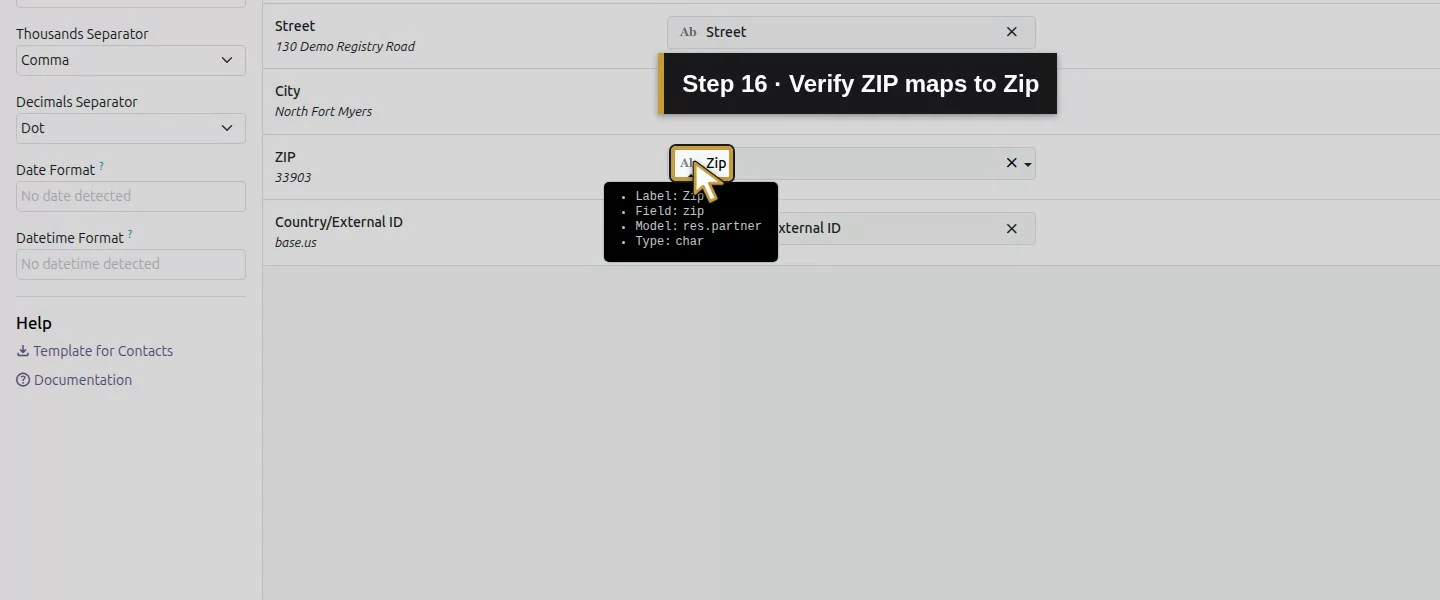
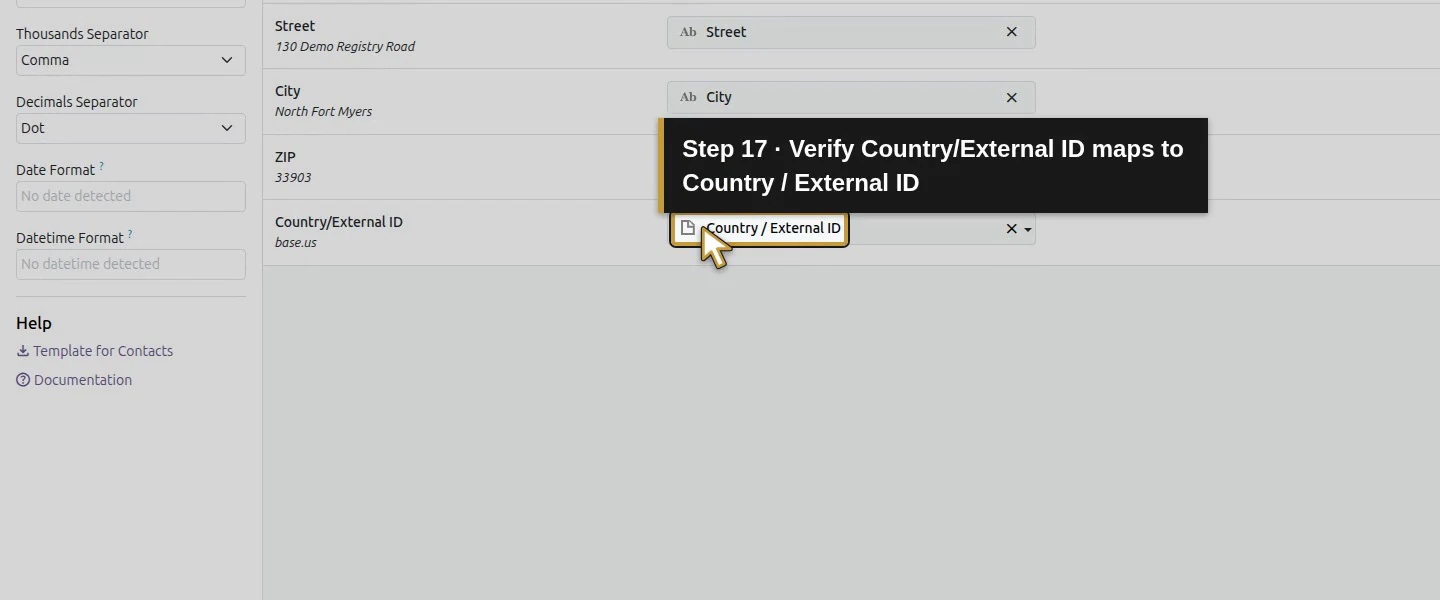
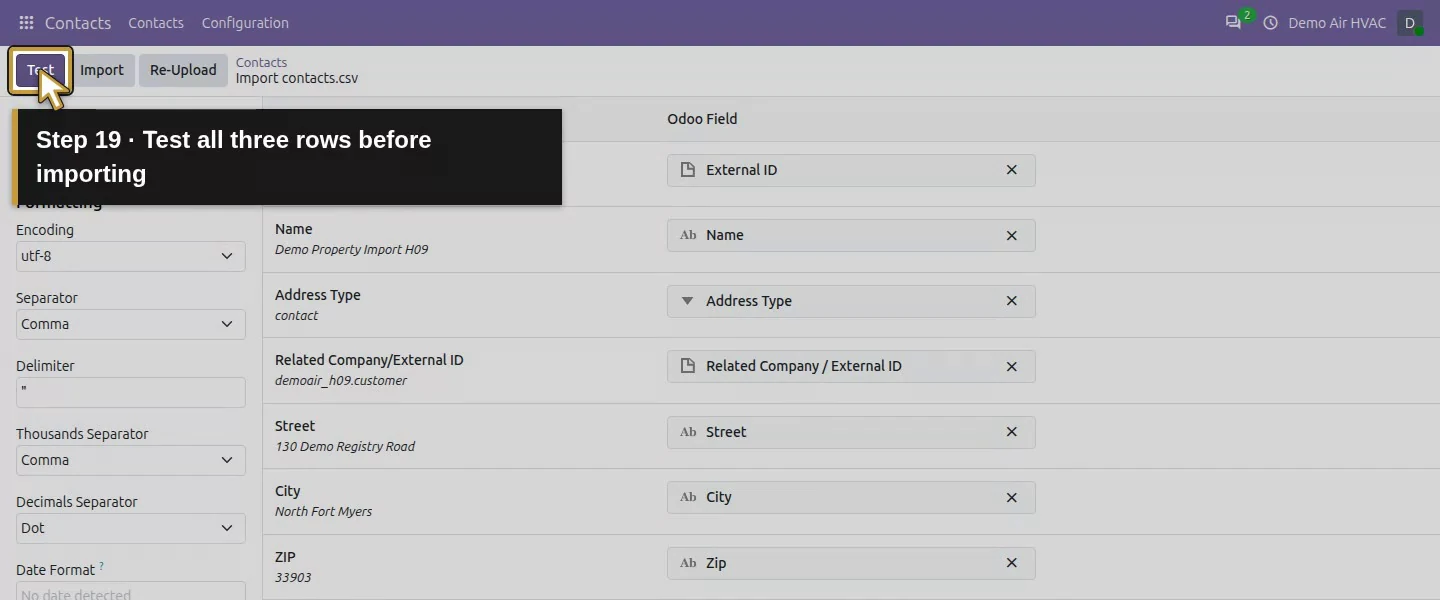
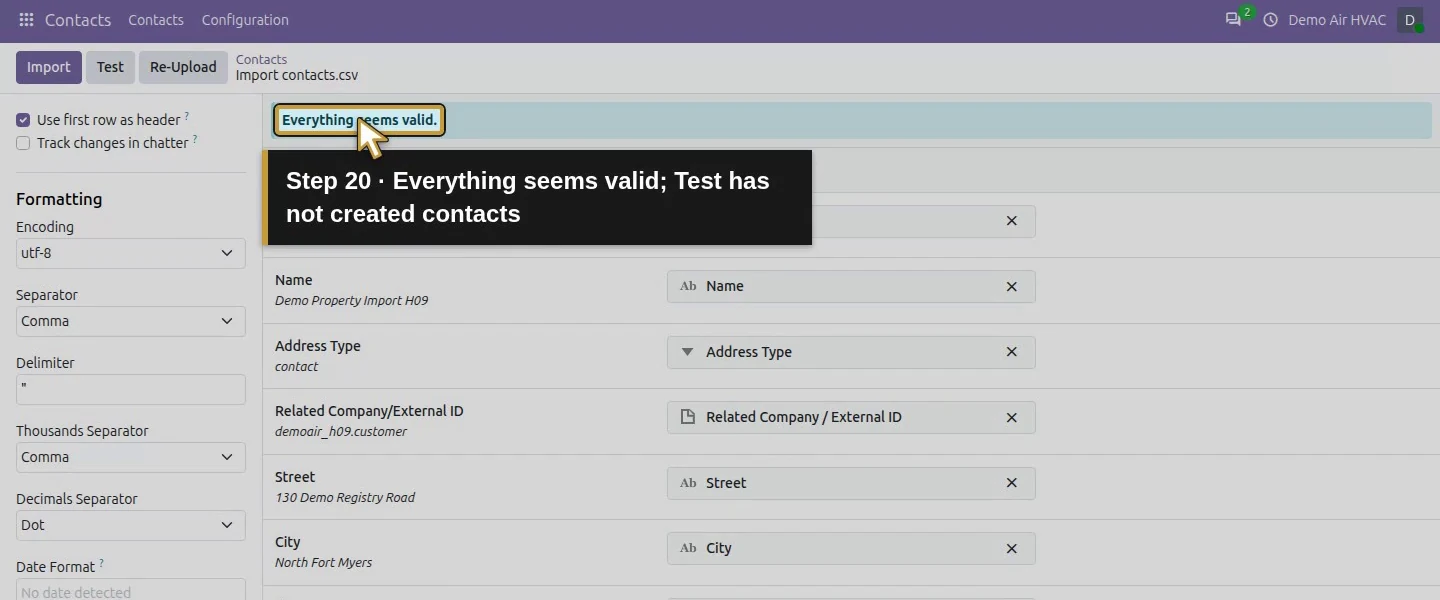
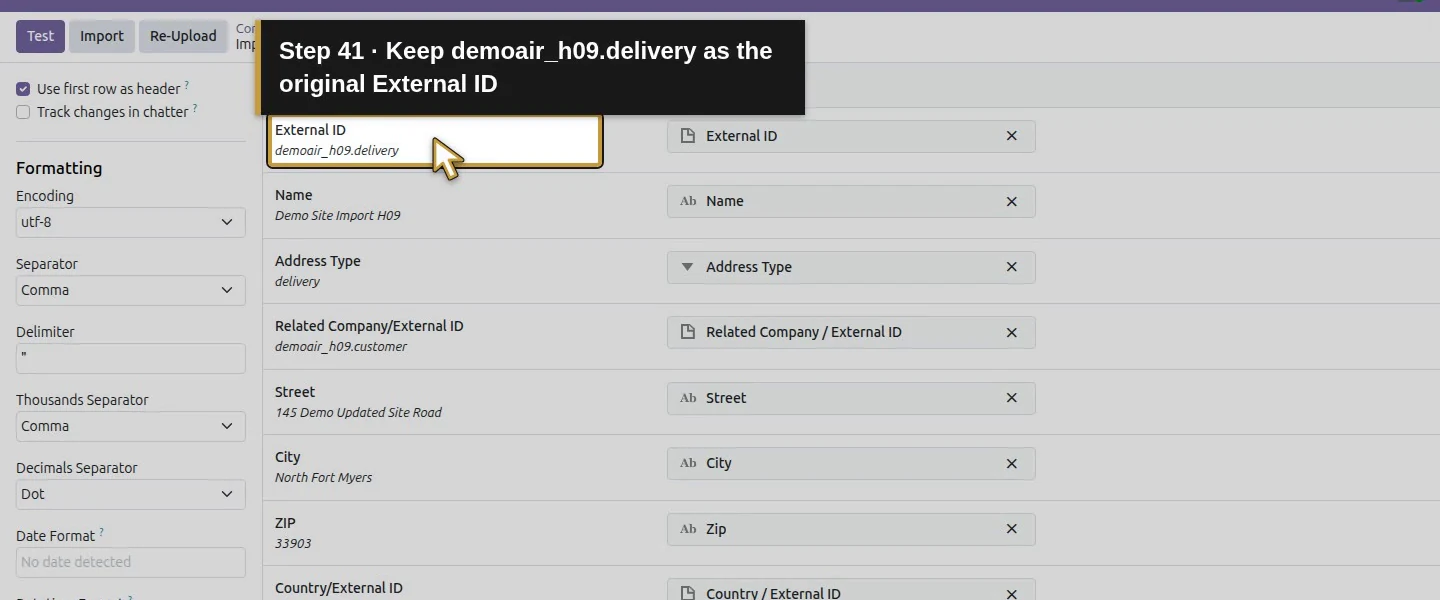
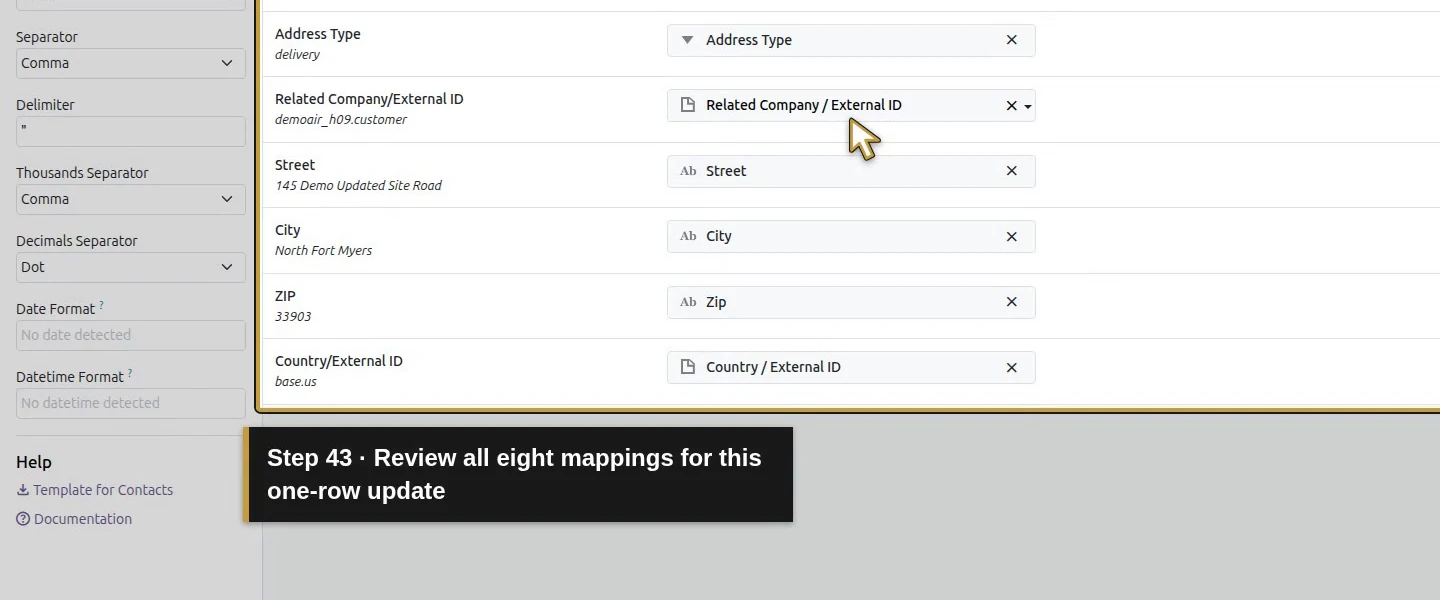
Match External ID, Name, Address Type, Street, City and ZIP to their fields. Map Related Company/External ID to Related Company / External ID, and Country/External ID to Country / External ID. Confirm all eight columns have a destination. Leave the parent row's Related Company blank; both children reference demoair_h09.customer.
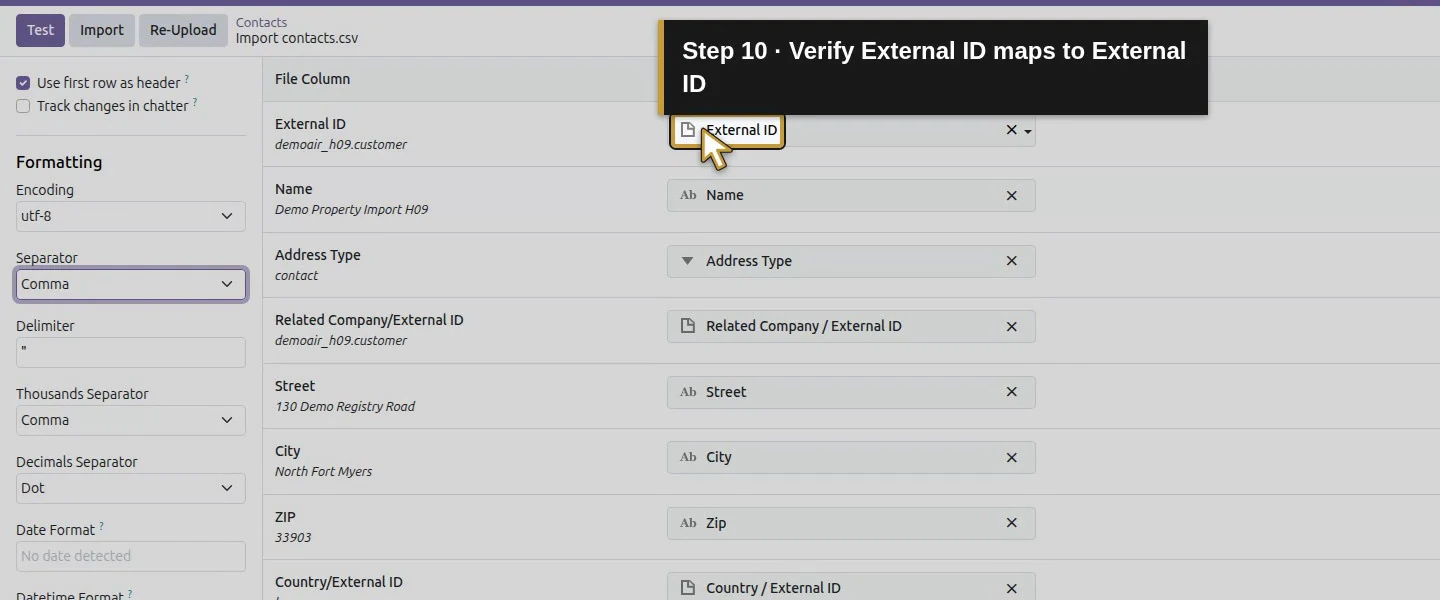
Step 4. Test, then import the three rows
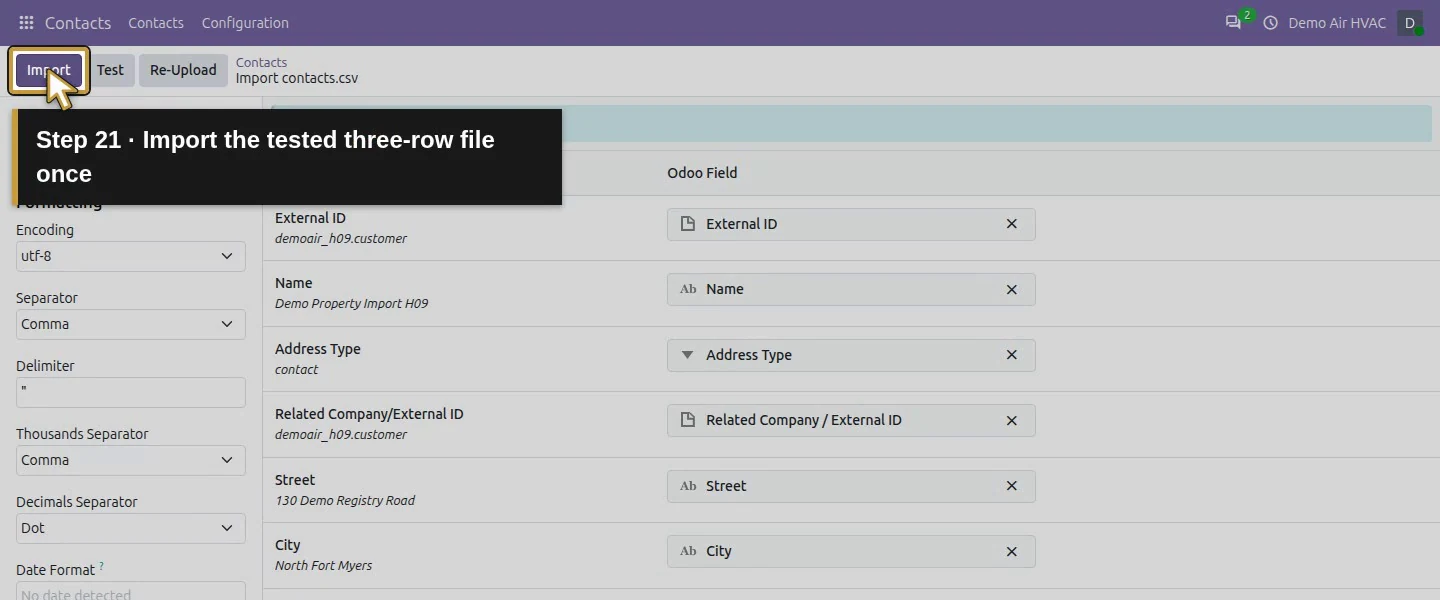
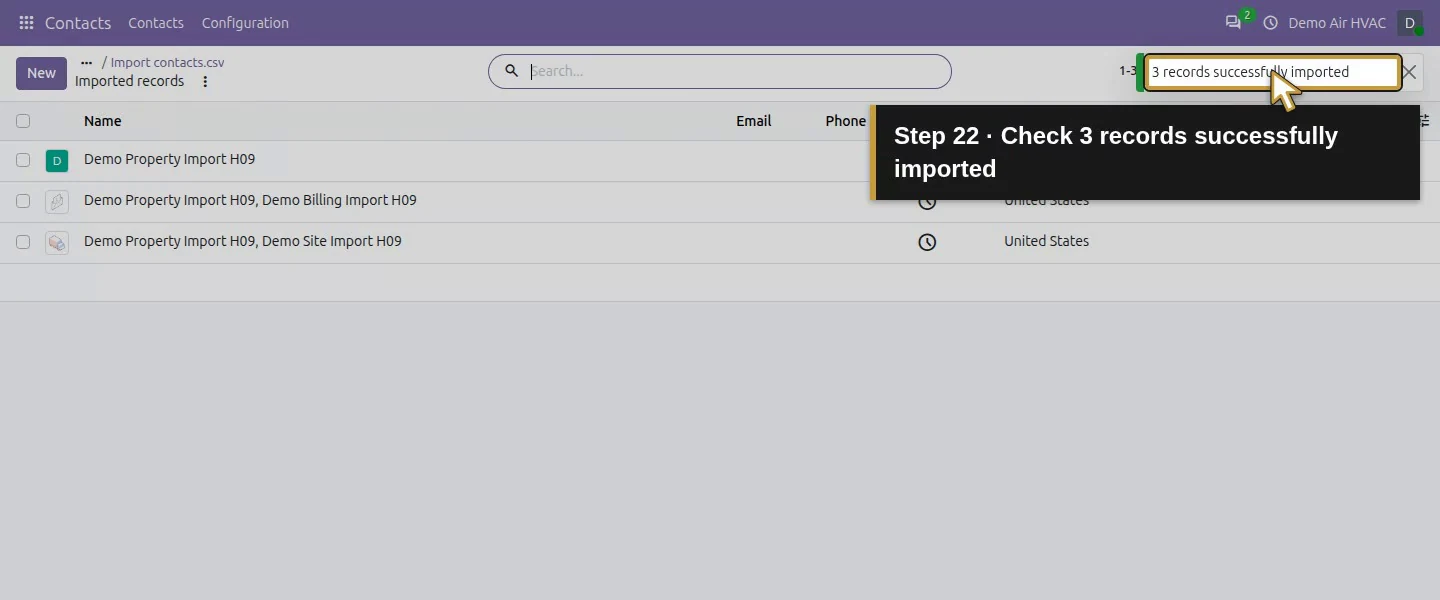
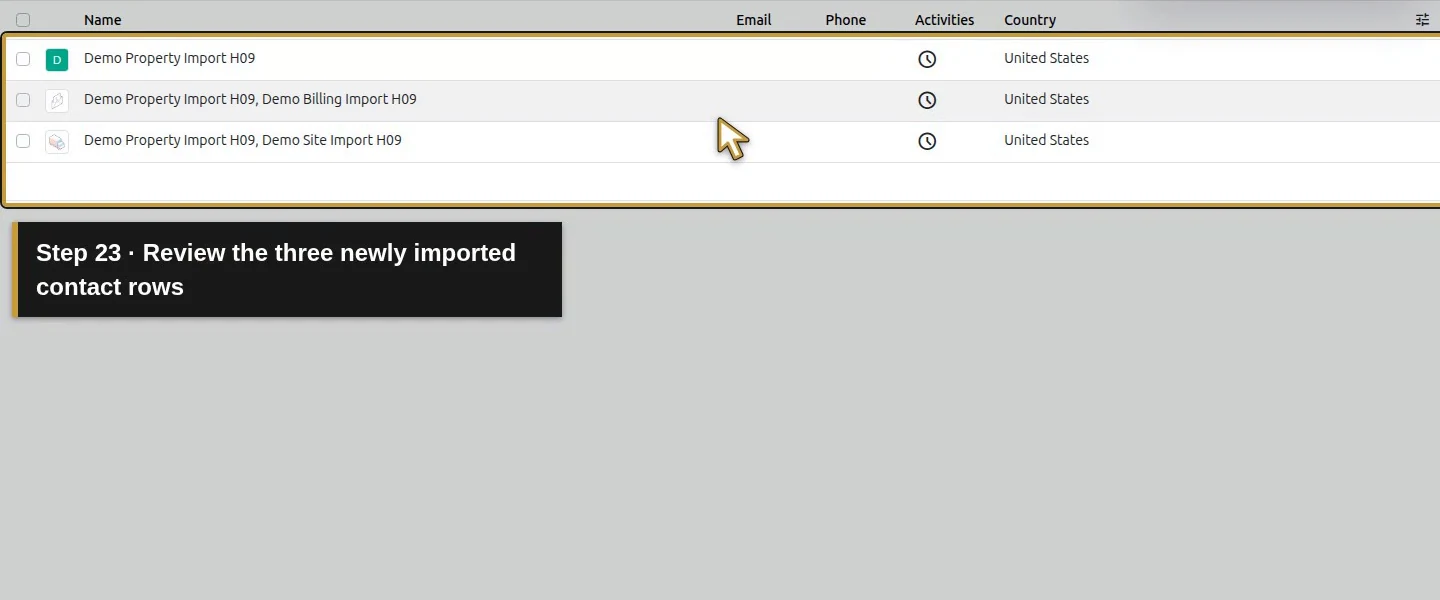
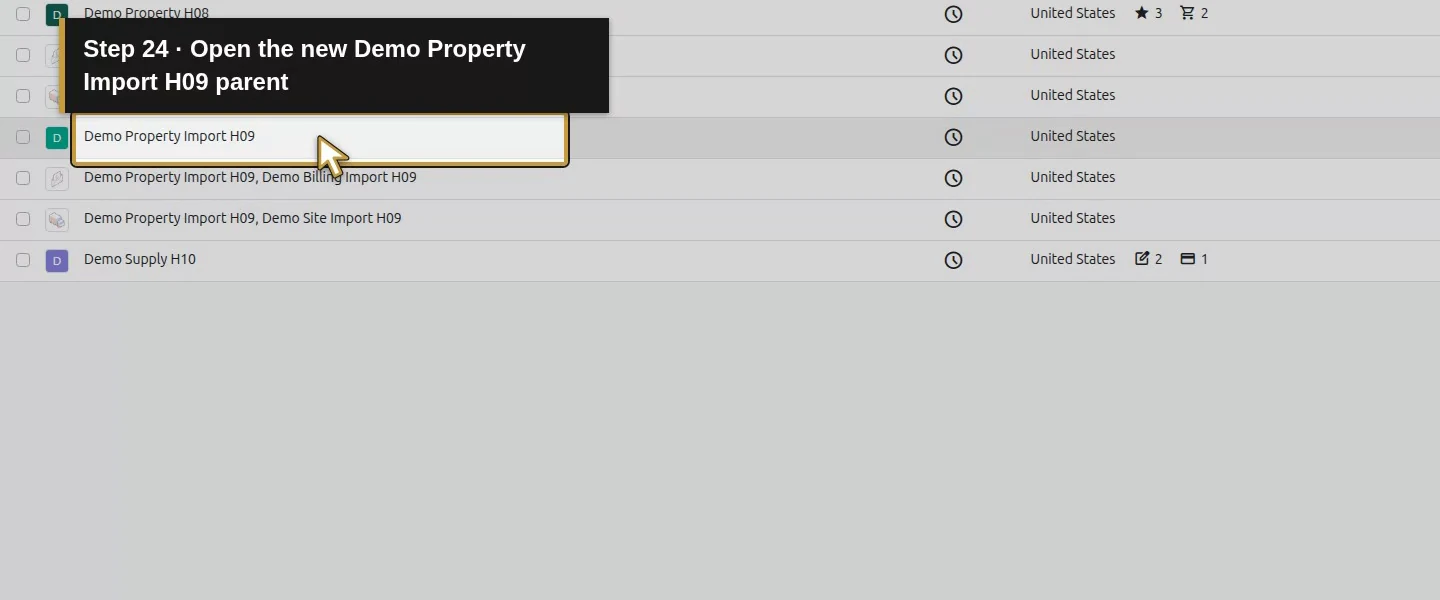
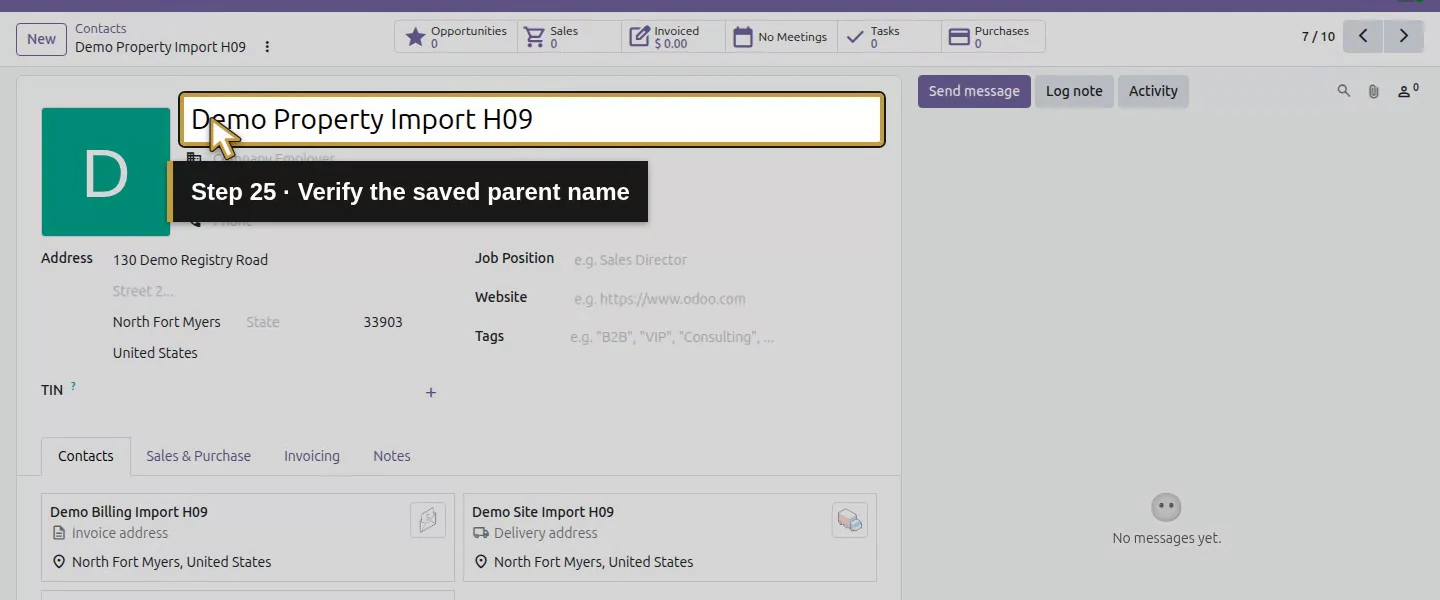
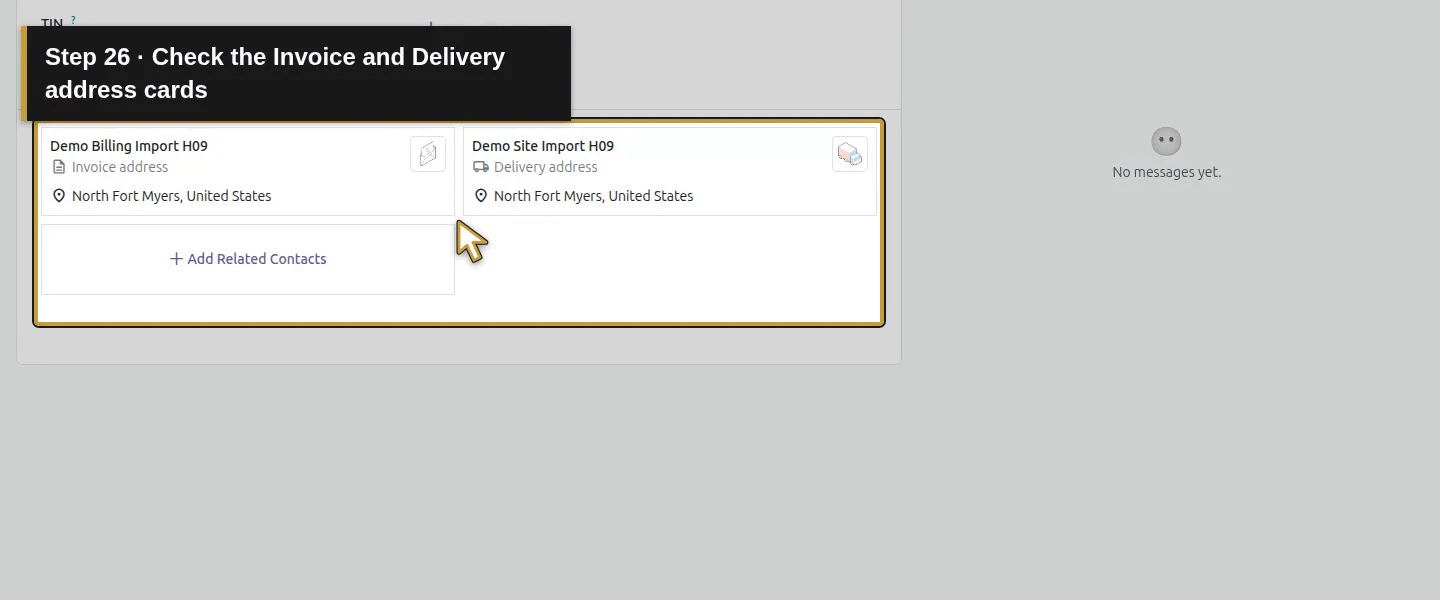
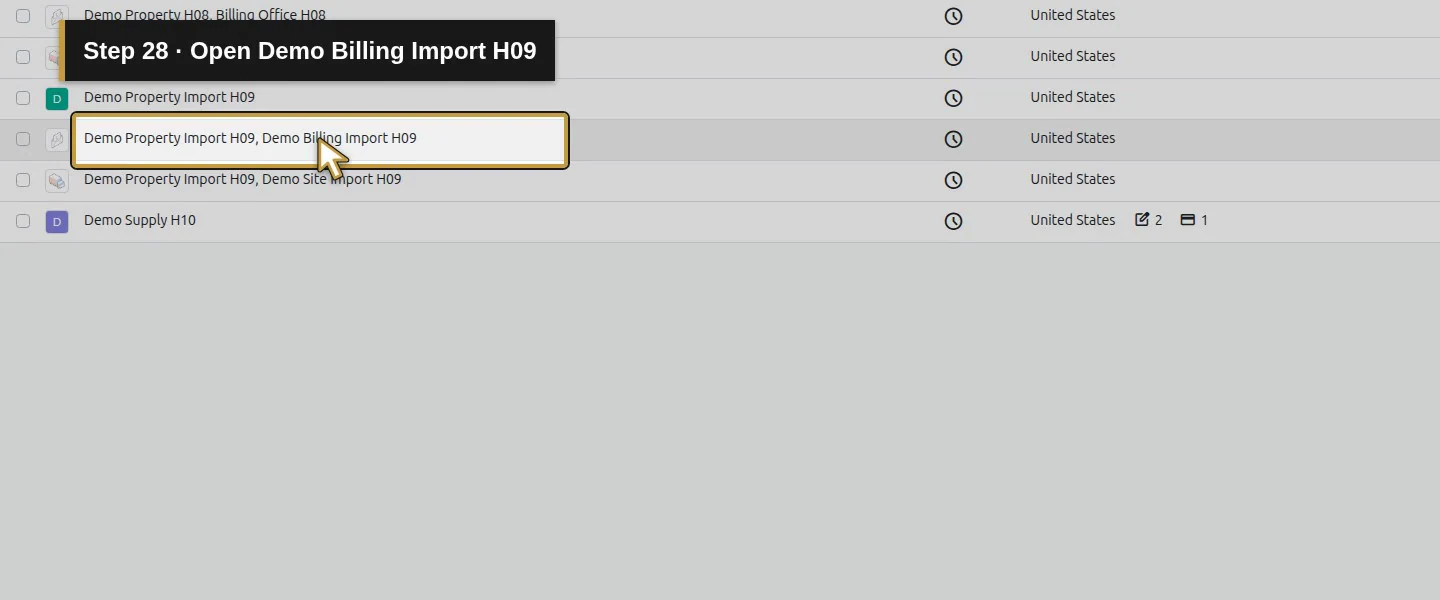
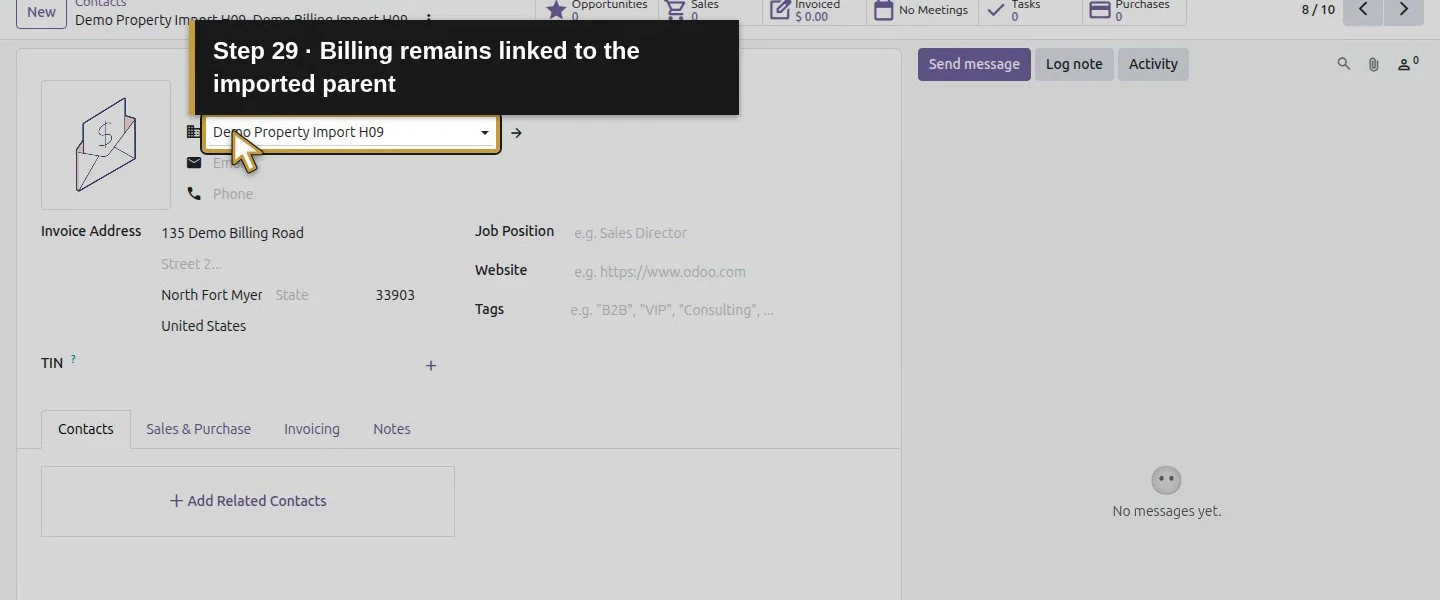
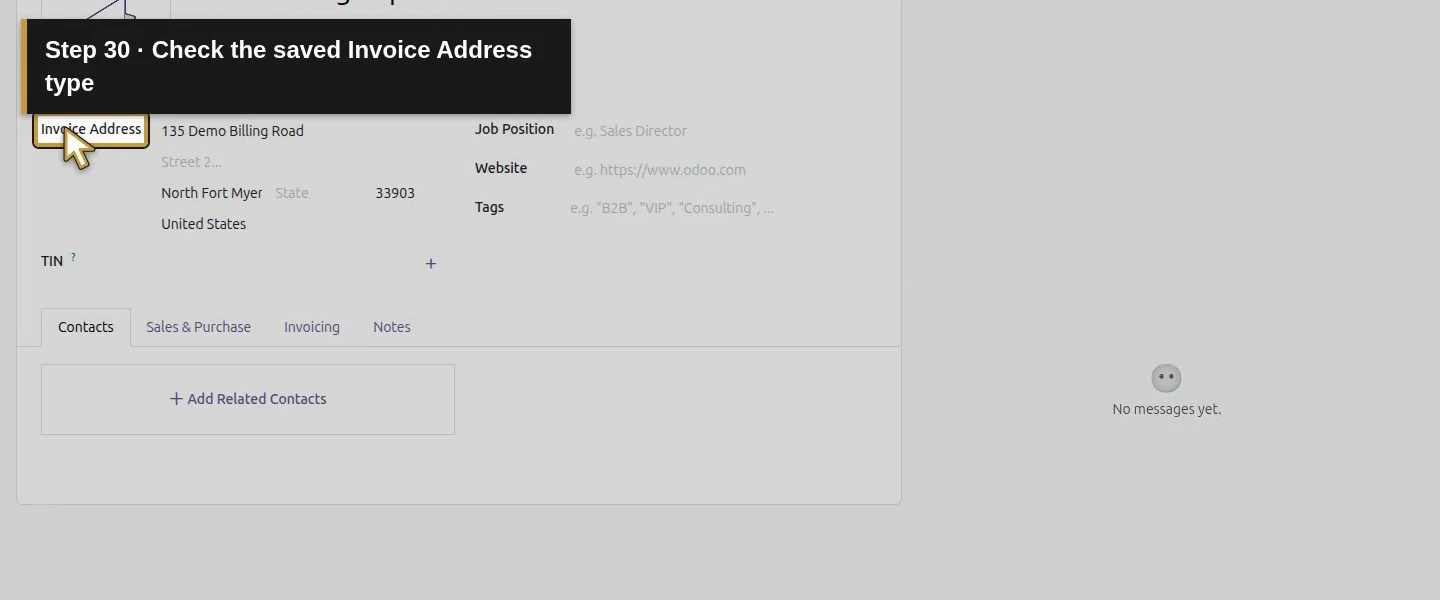
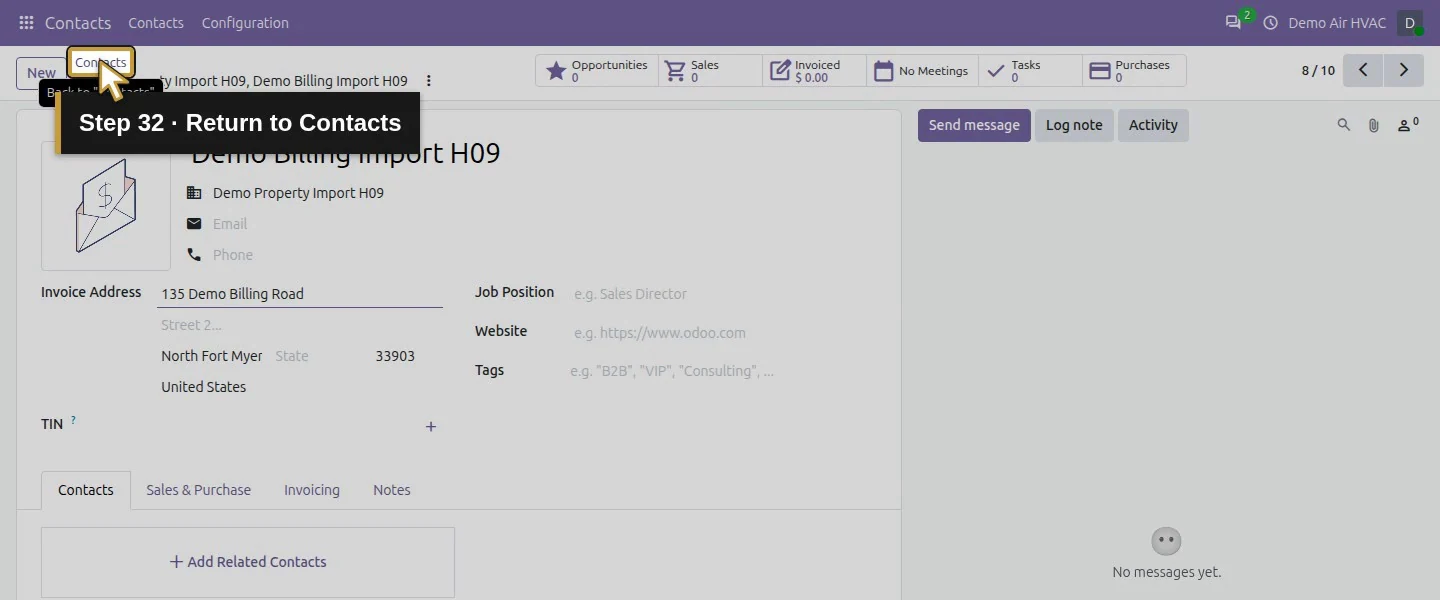
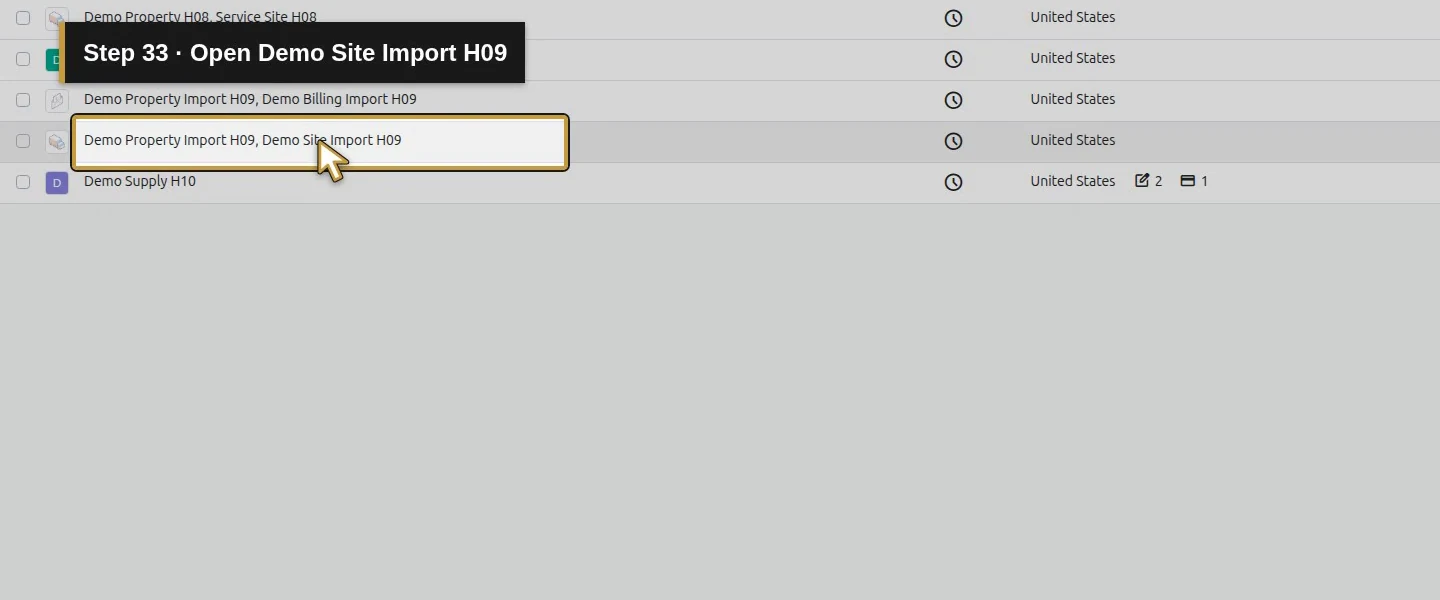
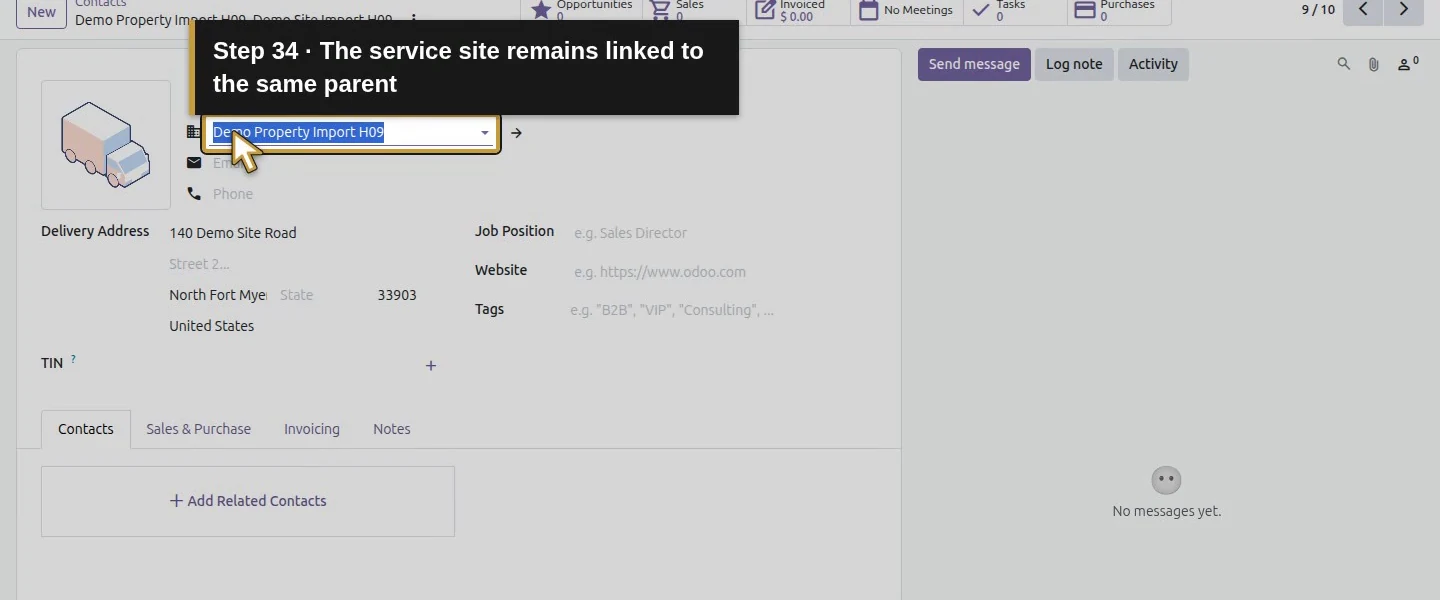
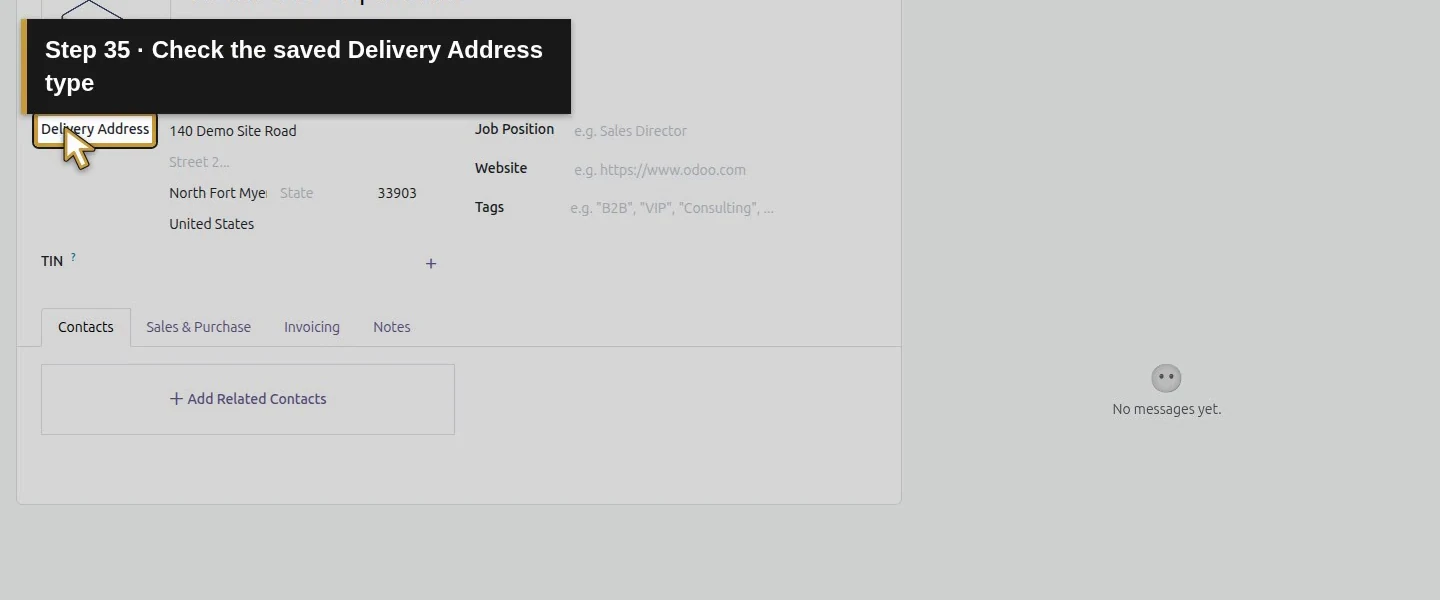
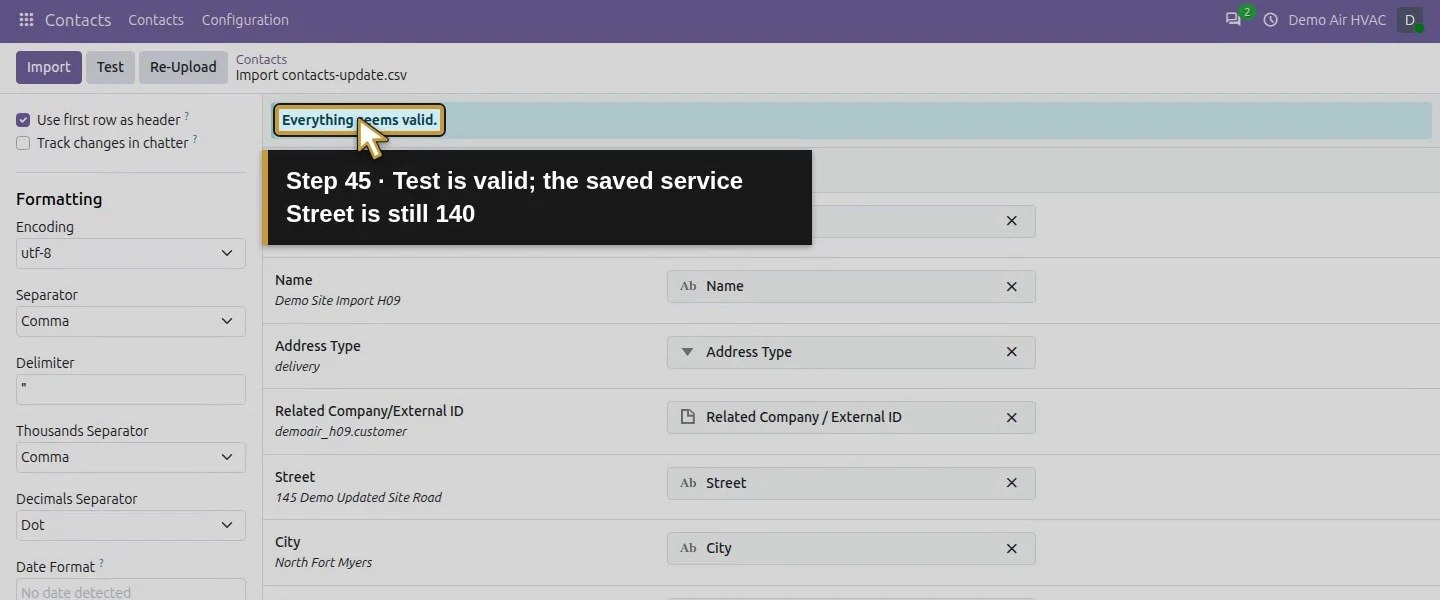
Choose Test. Continue when the preview says Everything seems valid and the rows and mappings match your file. Testing did not create contacts in this example. Choose Import once and wait for 3 records successfully imported. Open the parent and both address records. The parent shows the two cards; the children retain their Related Company and the Invoice Address or Delivery Address type.
Step 5. Update the service address with its existing ID
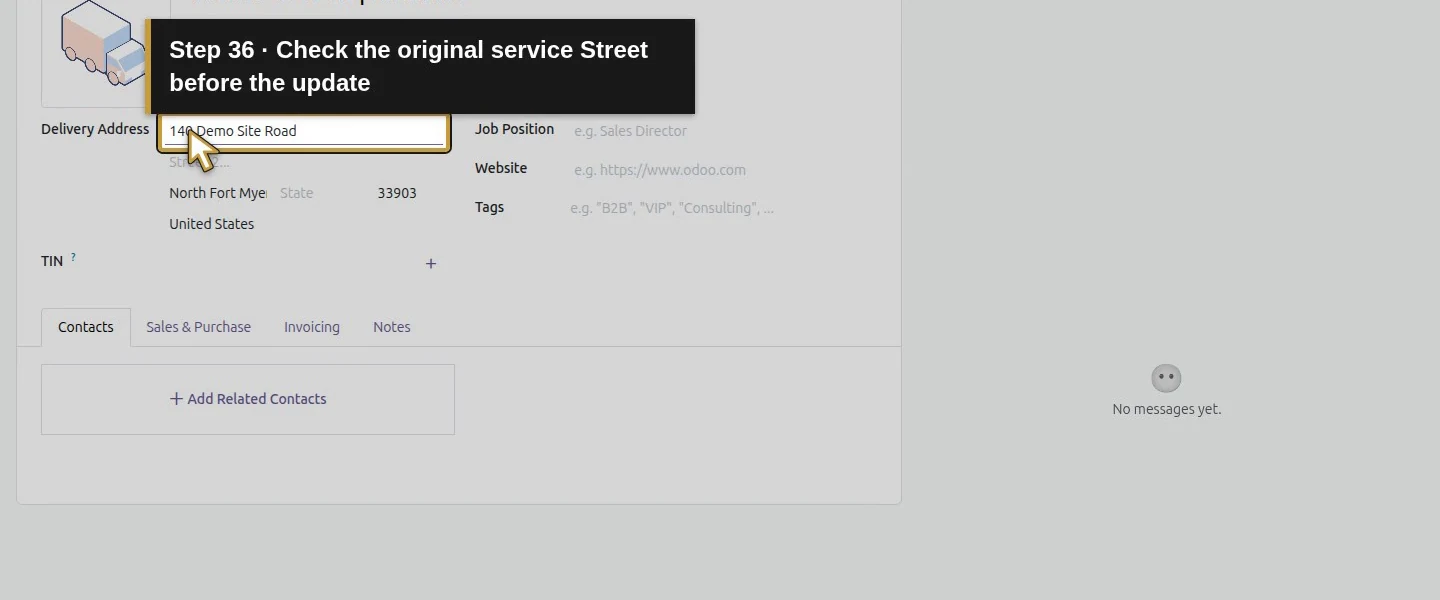
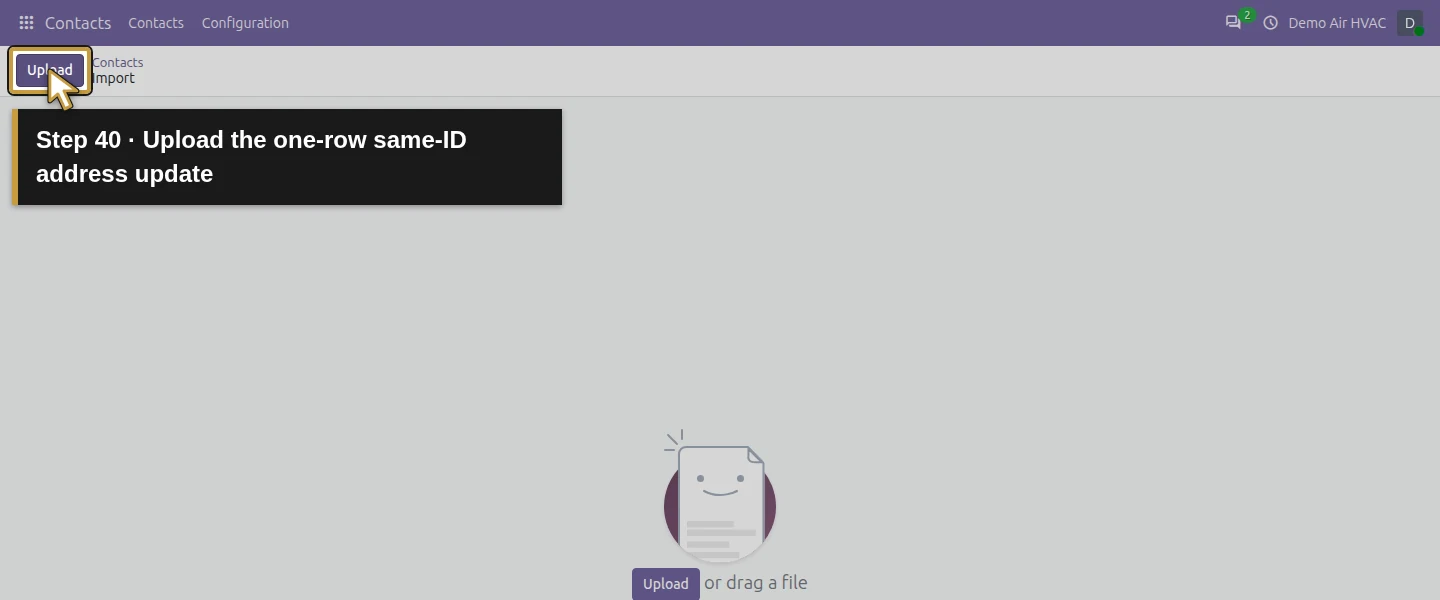
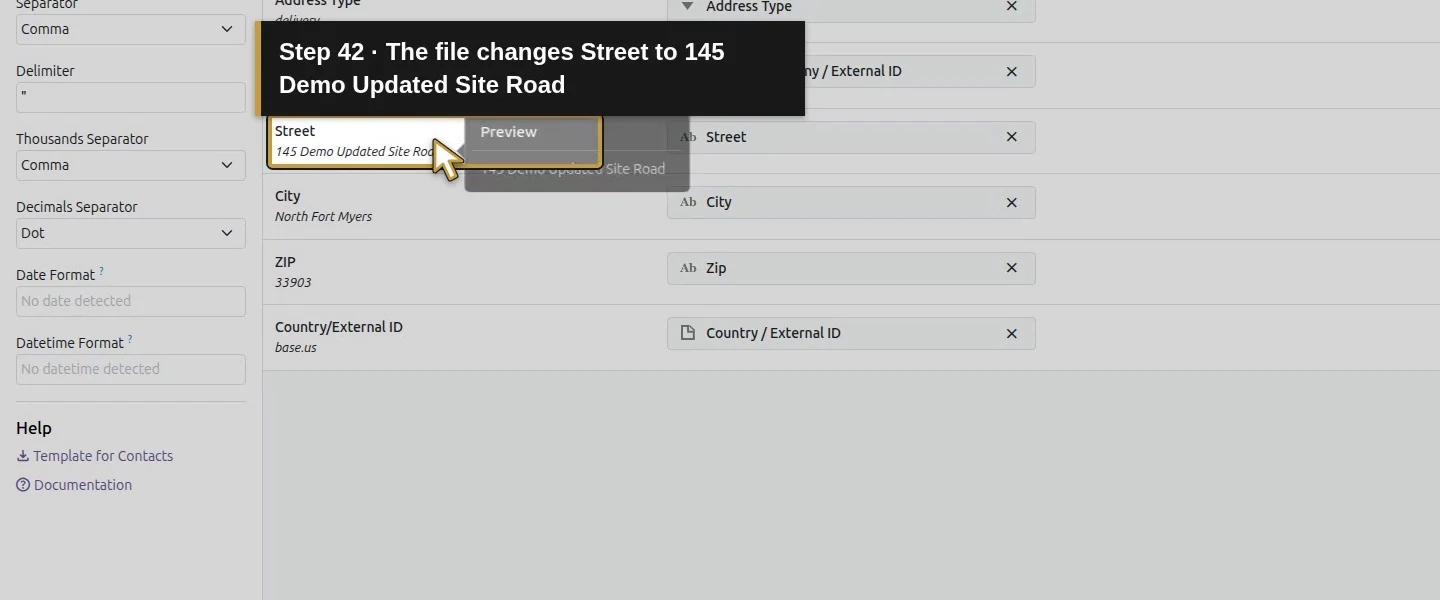
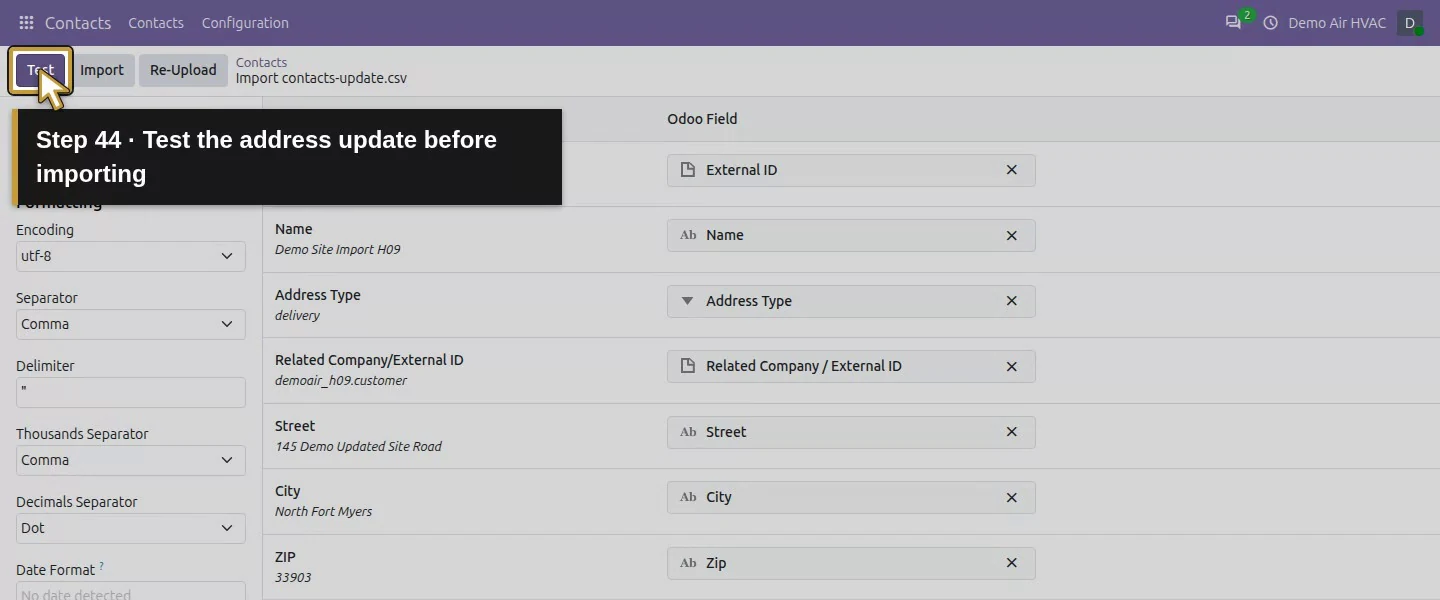
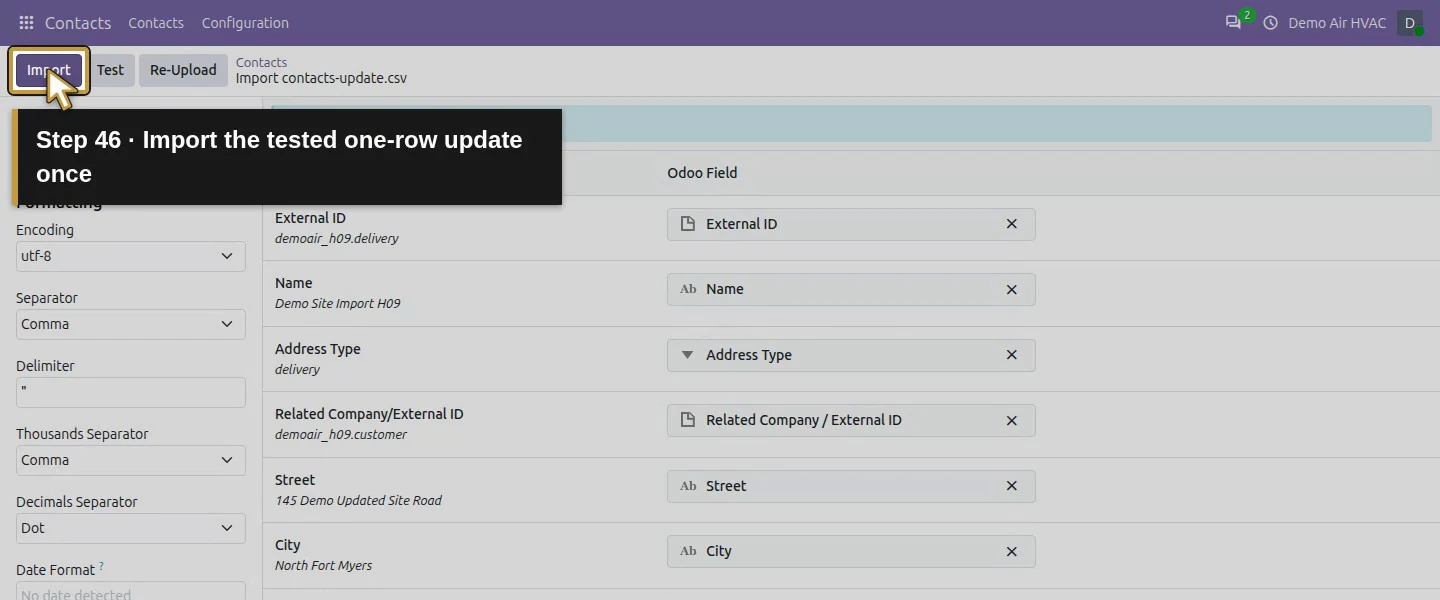
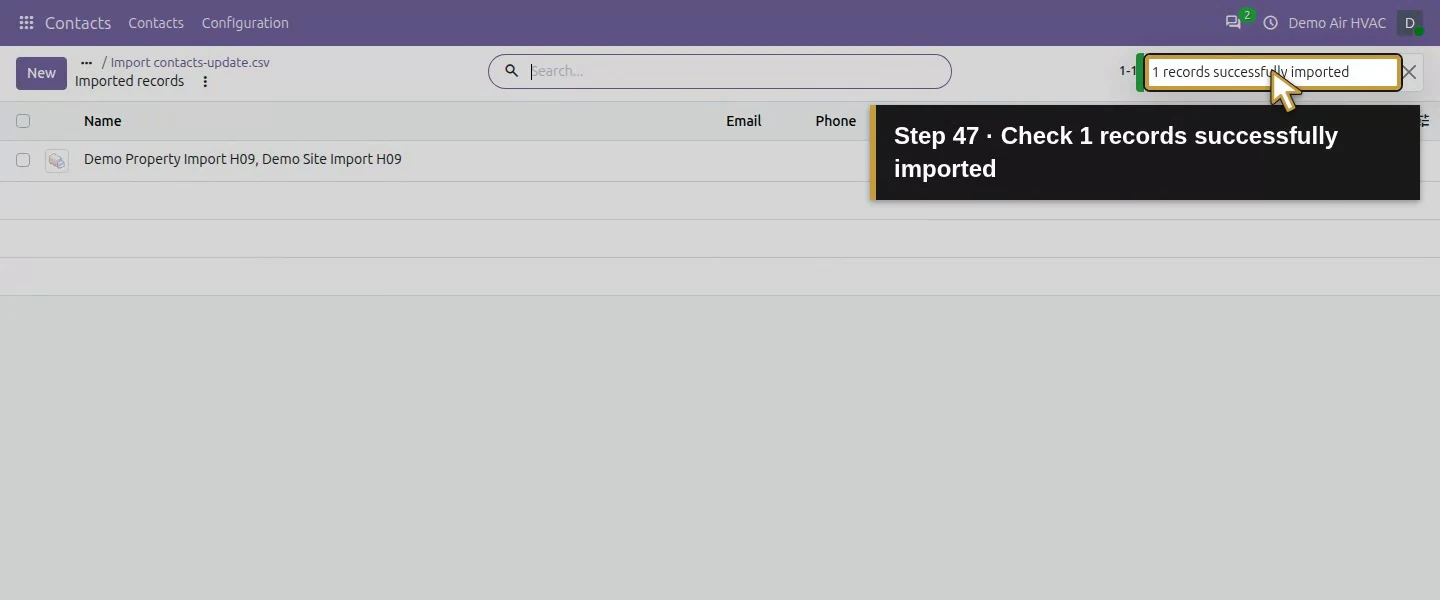
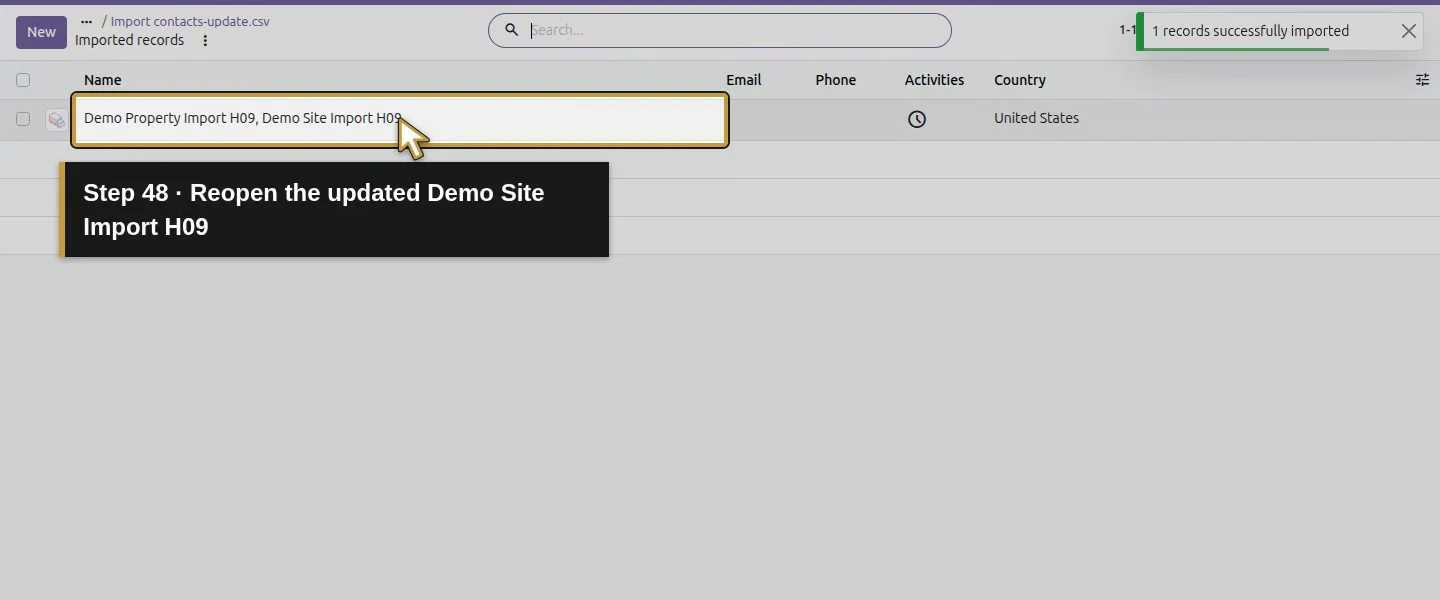
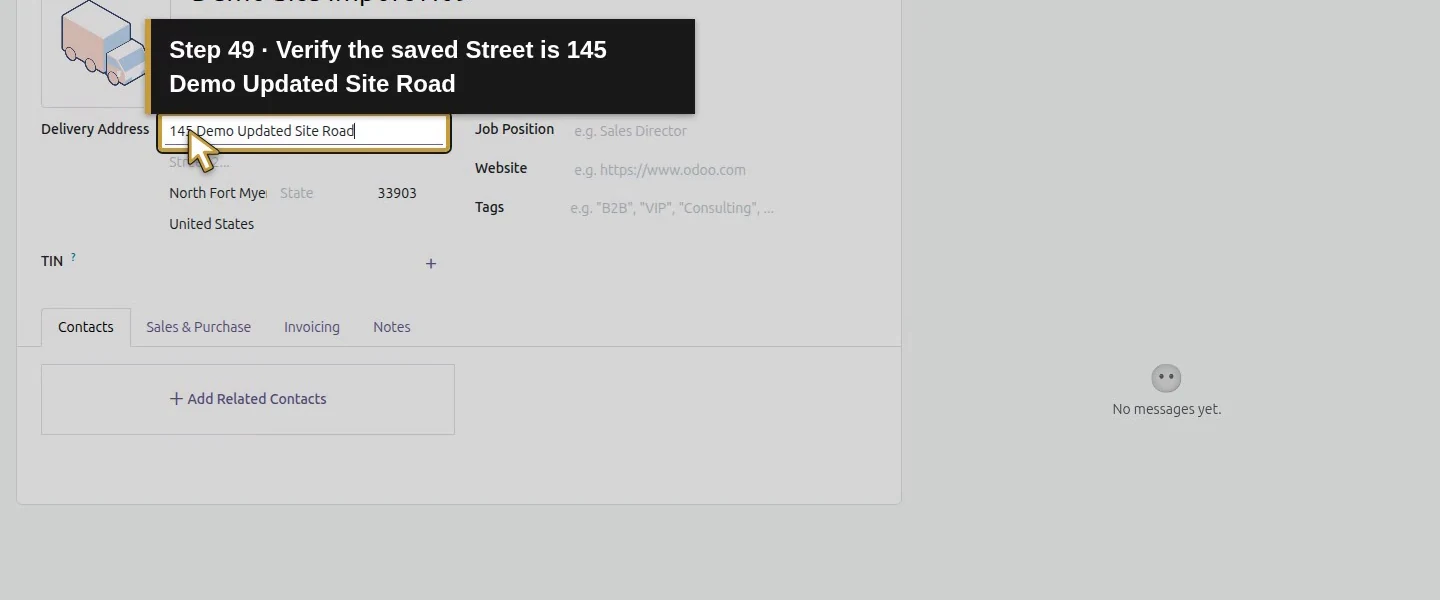
Prepare a one-row CSV with the same eight columns and the delivery row's original External ID. Change only its Street to 145 Demo Updated Site Road. Upload it through the same Import action, review the mappings and choose Test. Before Import, the saved street remains 140 Demo Site Road. Choose Import and wait for 1 records successfully imported.
Step 6. Reopen and check for duplicates
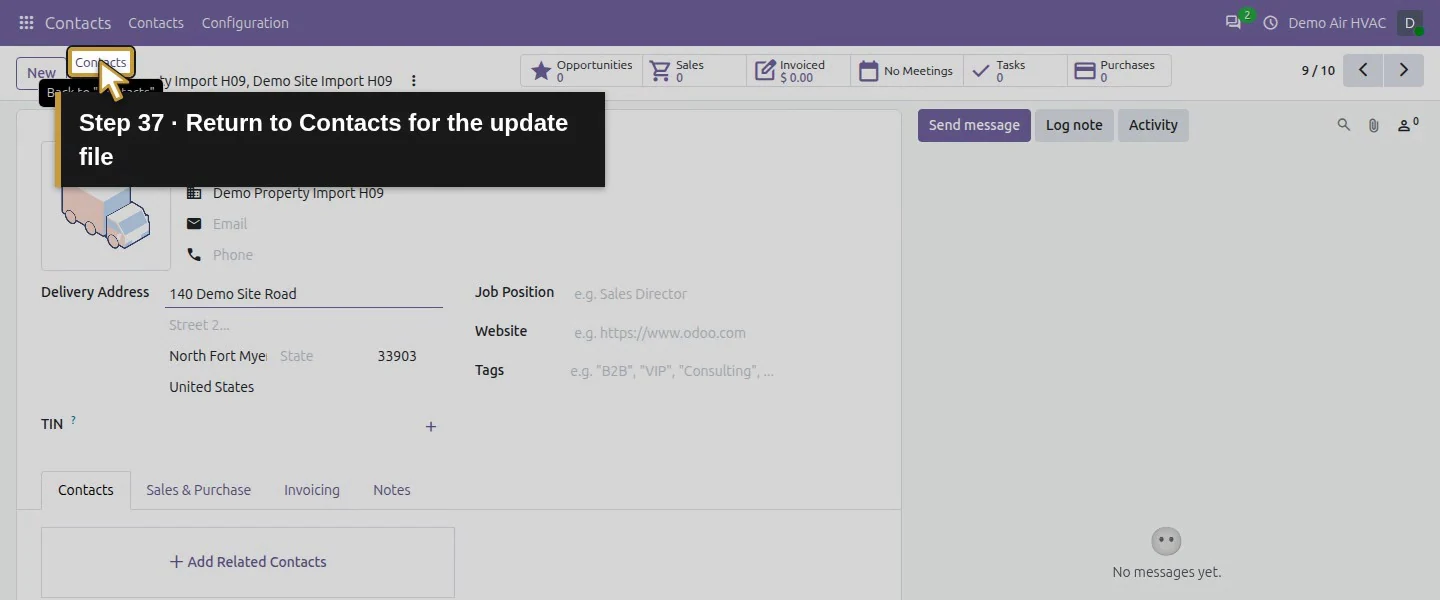
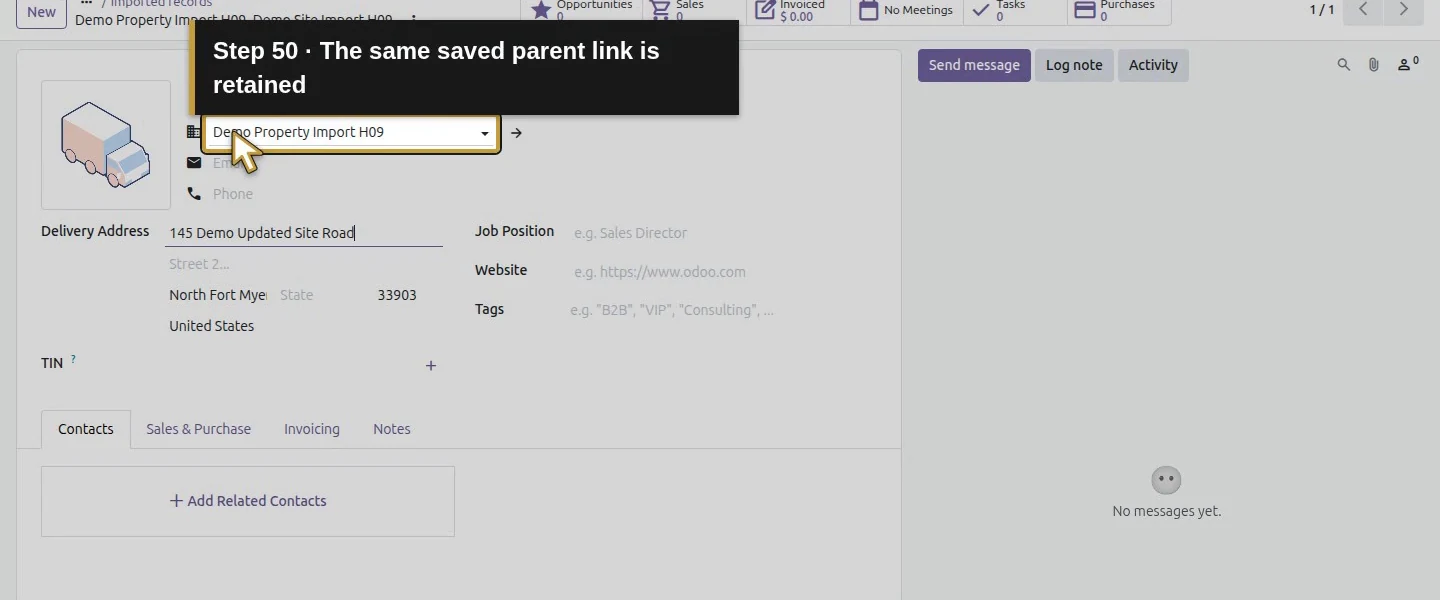
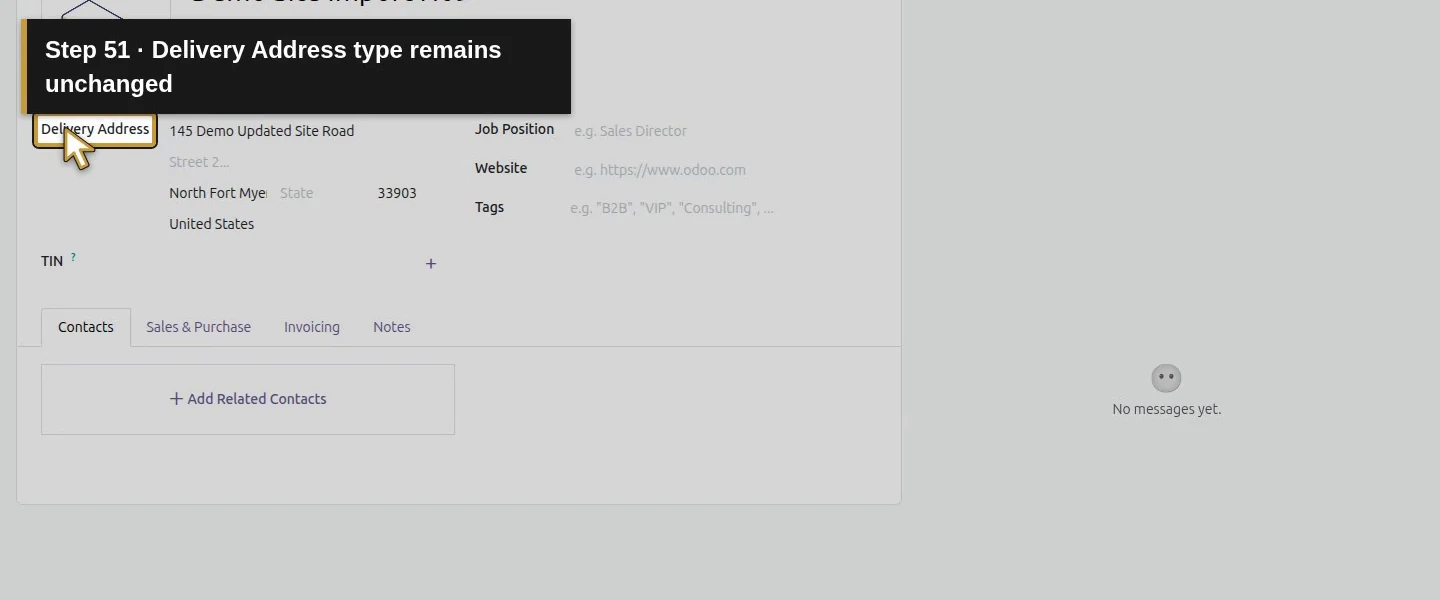
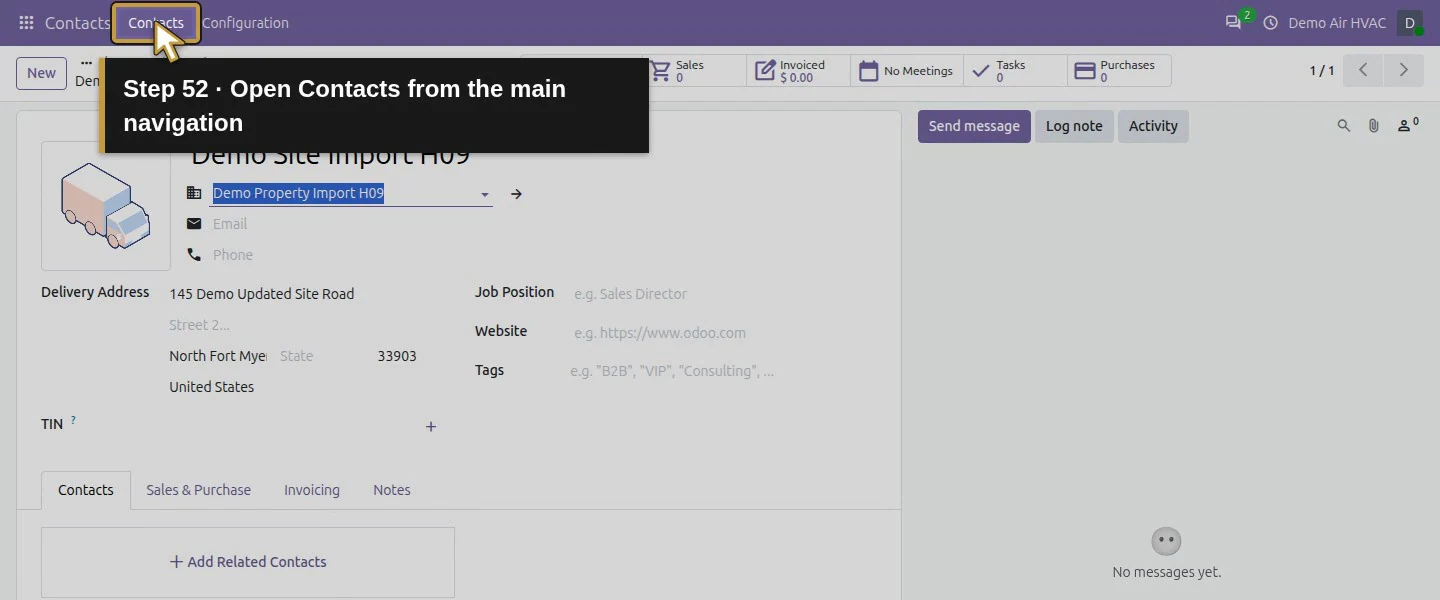
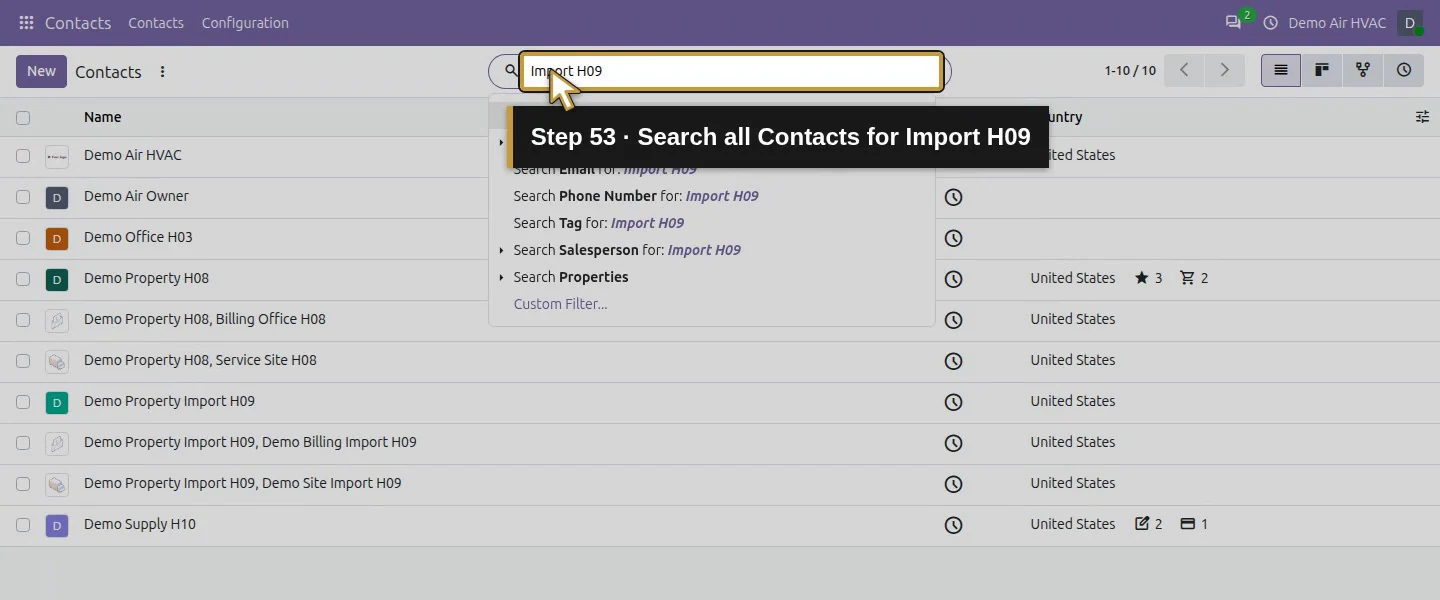
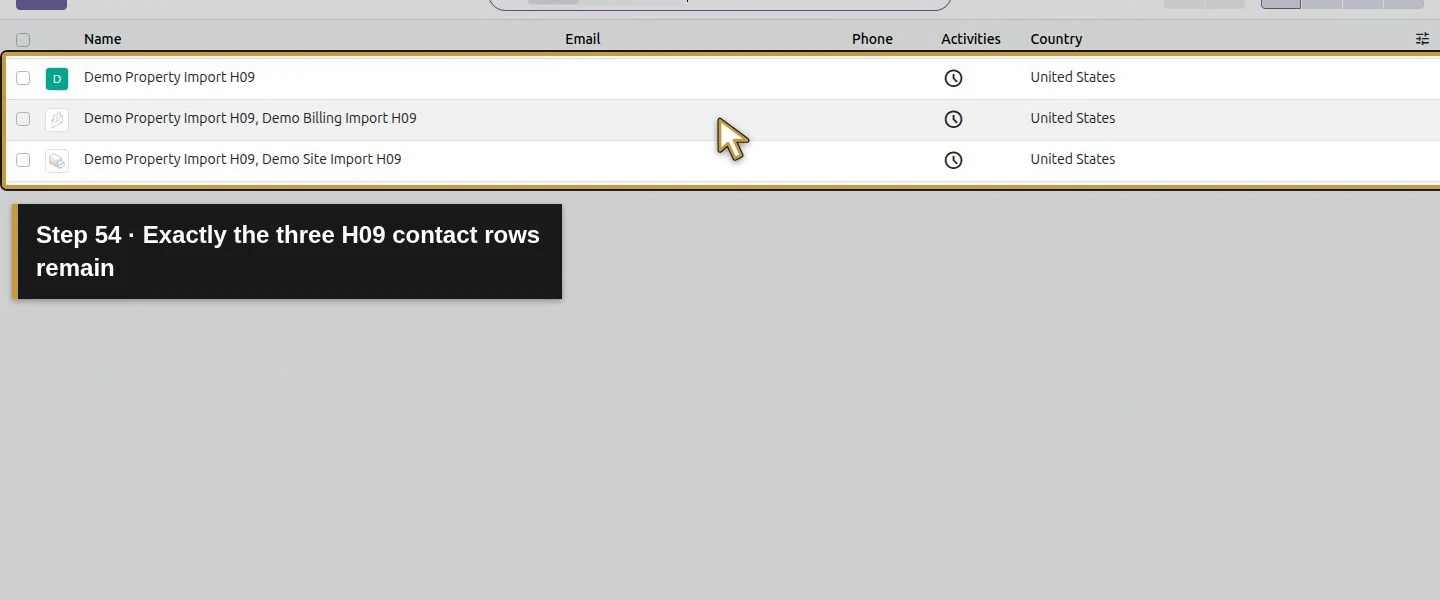
Open Demo Site Import H09 and check Street 145 Demo Updated Site Road, its parent and Delivery Address type. Search the three H09 names again: there are still three records. Their saved IDs and links are unchanged. Preserve the CSV External IDs for future updates; displayed record numbers can differ in another database.
Check the result
The import created customer 14, billing address 15 and service address 16. Both children link to customer 14. Reusing demoair_h09.delivery updated record 16 to 145 Demo Updated Site Road; the contact count stayed ten and exactly three H09 External IDs remained. Original H08 records 7/8/9 and their address links are intact.
If your screen differs
The native importer did not map Is a Company or Country/Code in this test. This procedure establishes the related-contact structure, not company classification. Test success does not replace reviewing a backup, source data and field mappings. A new or missing External ID can create another record; this lesson verifies one correctly identified update, not automatic duplicate detection for arbitrary files.
Frequently asked questions
How do I import customer contacts into Odoo?
Open Contacts → Actions menu → Import, upload a reviewed CSV, map all columns and choose Test before Import. This example creates a customer plus billing and delivery addresses linked by External ID.How do I update Odoo contacts without creating duplicates?
In this test, reusing the original delivery contact's External ID updated its Street and preserved its saved record and parent link. Keep the same IDs and check the resulting count; missing or different IDs need separate duplicate review.Can I import billing and service addresses into Odoo?
The tested CSV maps Related Company / External ID to the parent and Address Type to invoice or delivery. Reopening the child records confirms Invoice Address and Delivery Address. Company classification was not established by this file.Continue building the business
Continue with lead-source labels or the the service quotation.
Talk about your Odoo setup
Bring your current process and the result you need to Onward to plan your Odoo workflow. Talk about your Odoo setup.