Running an HVAC business with Odoo

How do I set up a sales pipeline for my HVAC business in Odoo?
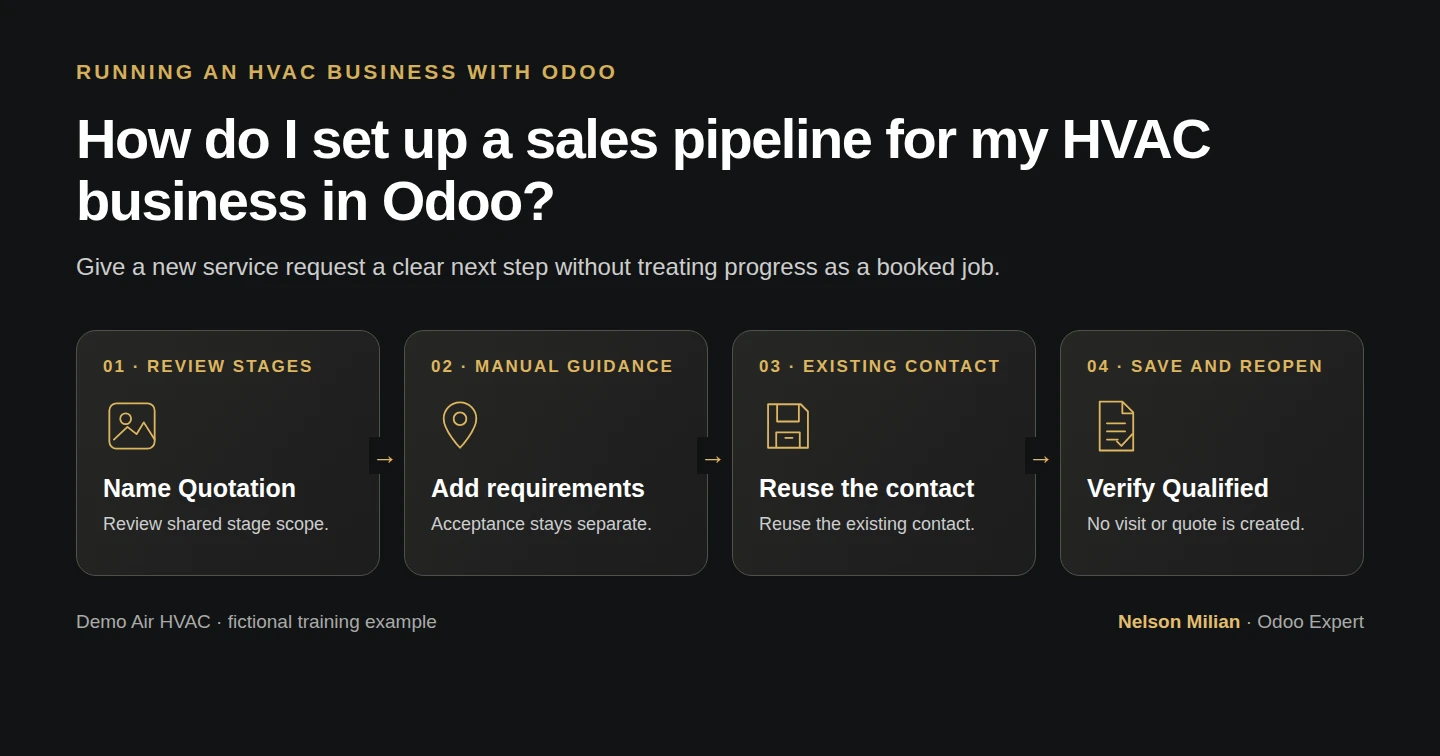
Workflow overview: How do I set up a sales pipeline for my HVAC business in Odoo?
Workflow overview. Instructional screenshots show the actual demo interface.

Set up an Odoo CRM pipeline, rename a standard stage and save a customer enquiry using native controls.

Alex needs a pipeline that distinguishes a new request, qualified work and a quotation being prepared. This example reuses the standard stages and gives Proposition the clearer business label Quotation.

Alex Rivera and Demo Air HVAC are fictional training examples. Prices, dates, quantities and business situations in this guide are illustrative.

Before you begin

Tested in stock Odoo 20.0-20260926 Community as the demo owner administrator, with official modules and standard configuration. Complete the customer/address lesson. The initial stages are New, Qualified, Proposition and Won. The demo has one Sales team. Its stages are shared; review the effect on other teams before renaming a shared stage.

Step-by-step workflow

26 highlighted video actions with a white pointer, gold border and English captions, without narration. Each written step groups its smaller video actions. Stock Odoo 20.0-20260926 Community; one shared pipeline stage renamed, one synthetic enquiry saved and reopened in Qualified. Requirements are manual guidance. No quotation, appointment, other-role or multiple-team behavior is demonstrated.

Step 1. Review the pipeline

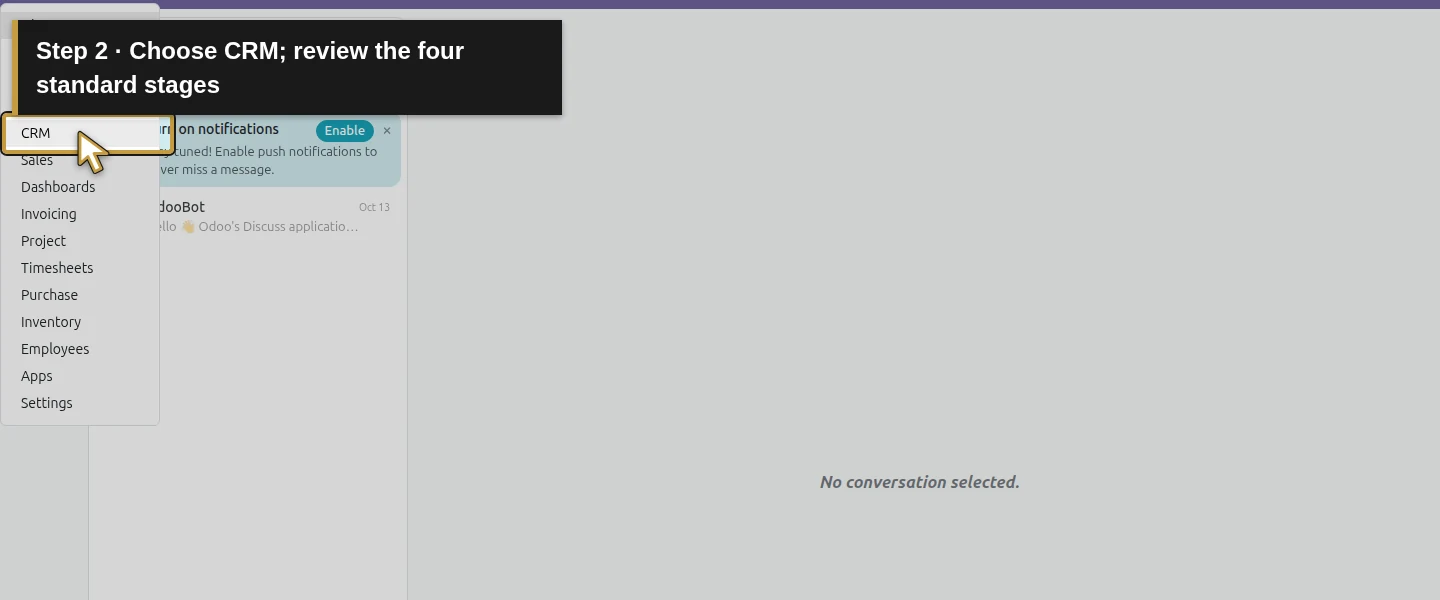
Open the app menu and choose CRM. Review the New, Qualified, Proposition and Won columns. The default My Opportunities filter shows the current user's enquiries; it is not a complete company duplicate check.
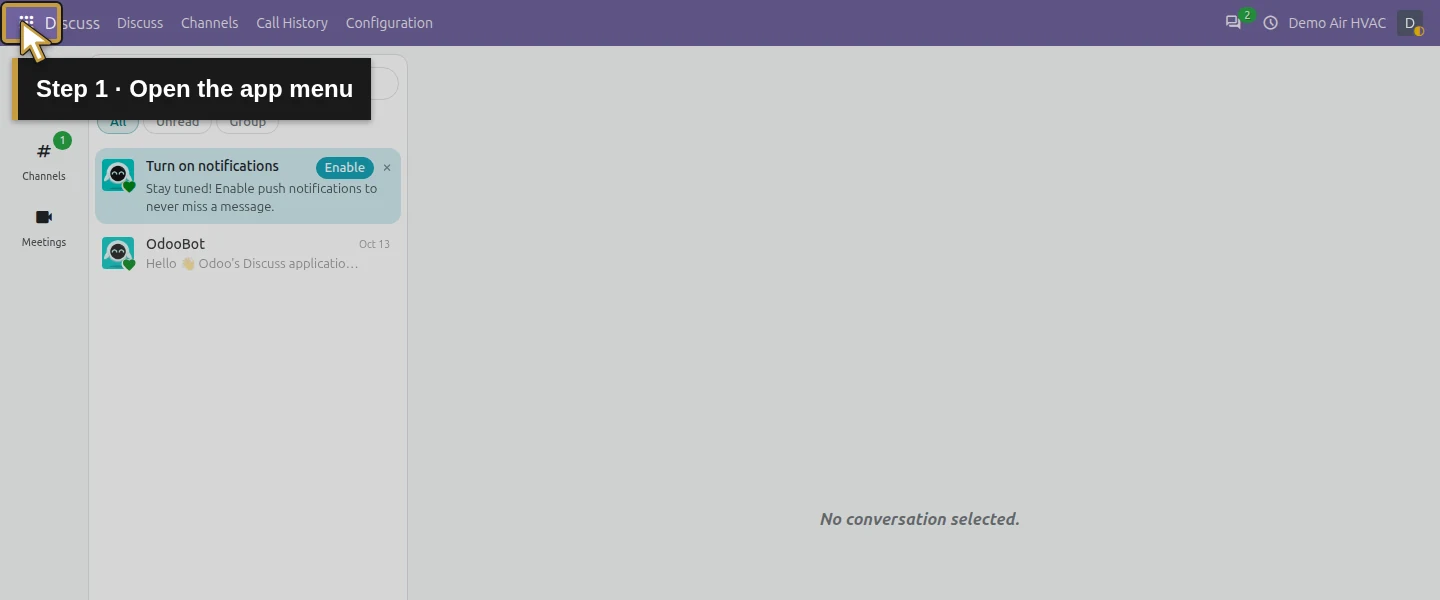
Video action 1: Open the app menu. The actual target is highlighted in gold.
Open the app menu.
Video action 2: Choose CRM; review the four standard stages. The actual target is highlighted in gold.
Choose CRM; review the four standard stages.

Step 2. Open the stage editor

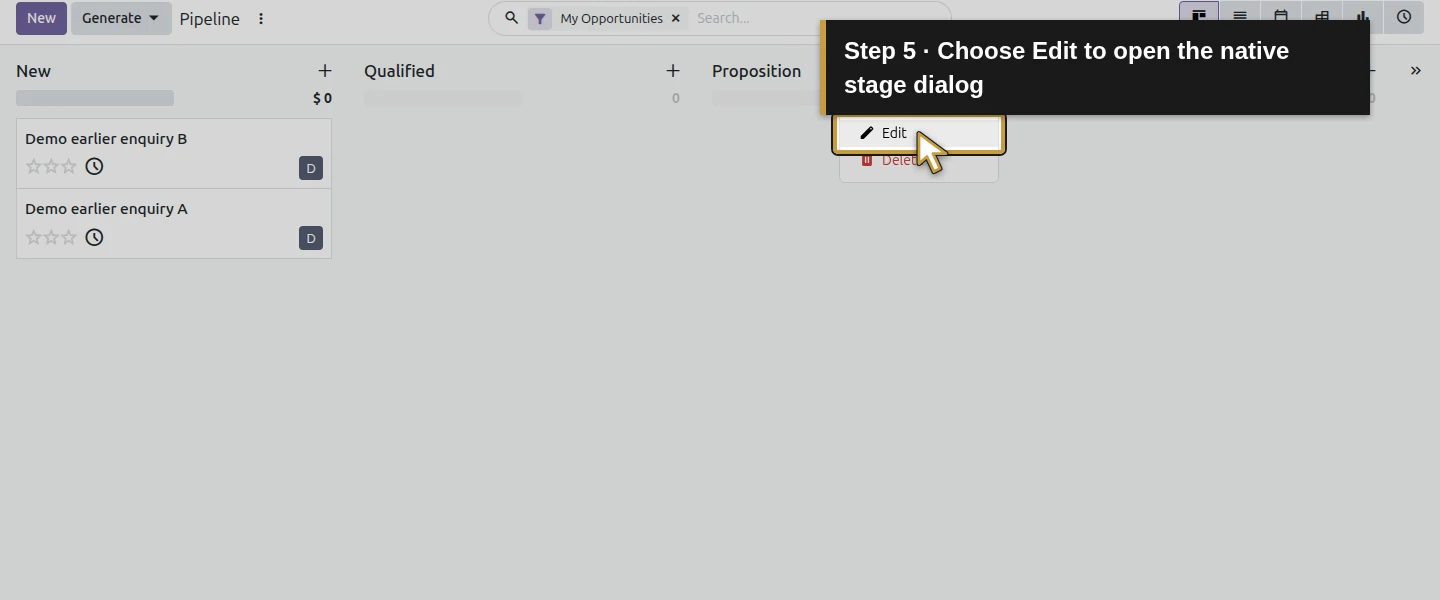
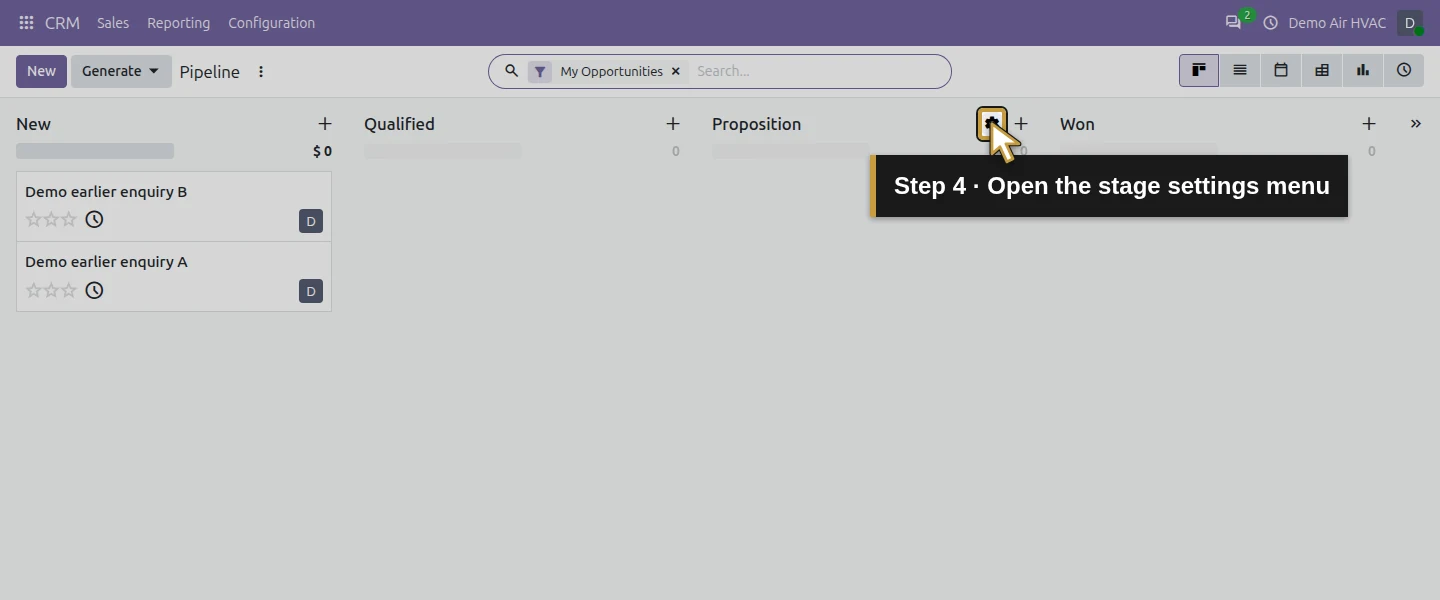
Move the pointer over the Proposition column header. Its settings/menu button becomes visible. Open that button and choose Edit.
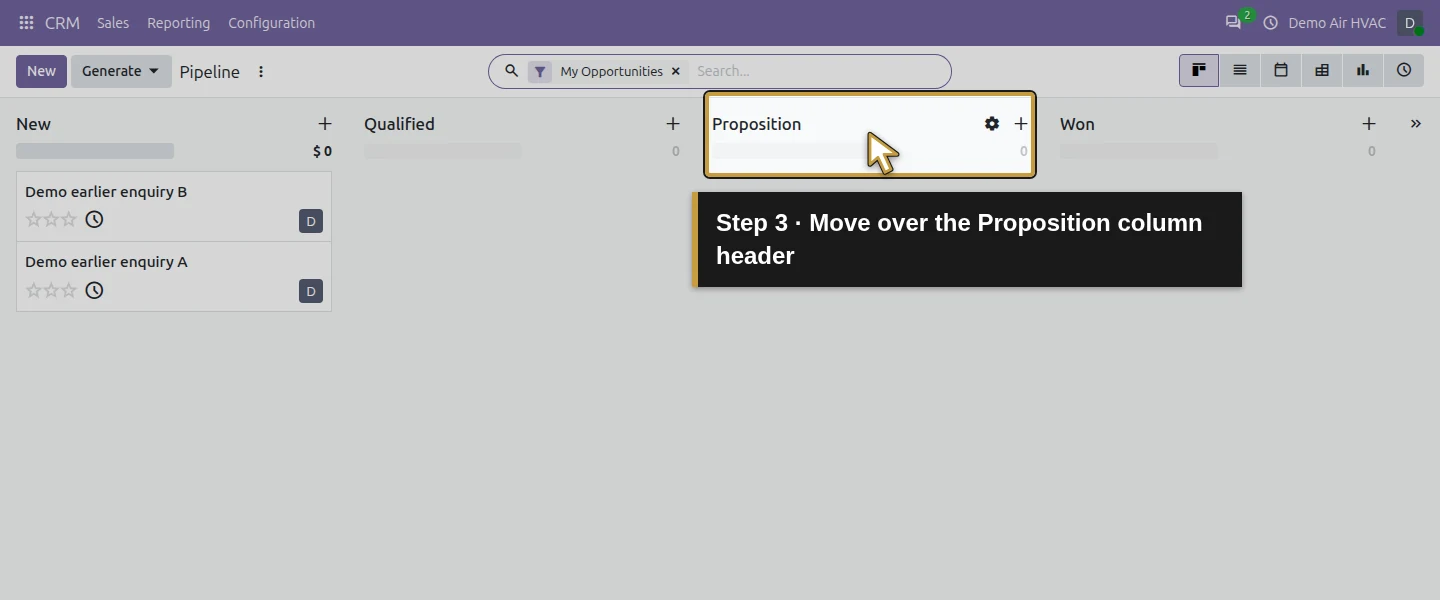
Video action 3: Move over the Proposition column header. The actual target is highlighted in gold.
Move over the Proposition column header.
Video action 4: Open the stage settings menu. The actual target is highlighted in gold.
Open the stage settings menu.
Video action 5: Choose Edit to open the native stage dialog. The actual target is highlighted in gold.
Choose Edit to open the native stage dialog.

Step 3. Name the quotation stage

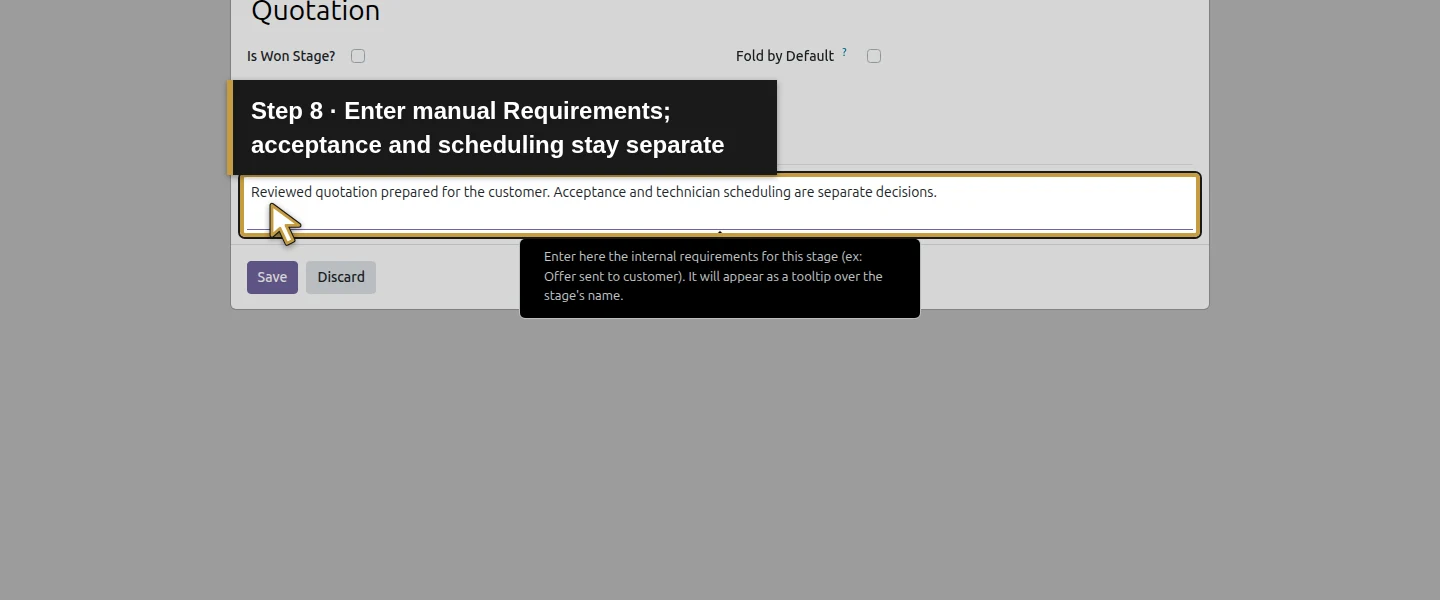
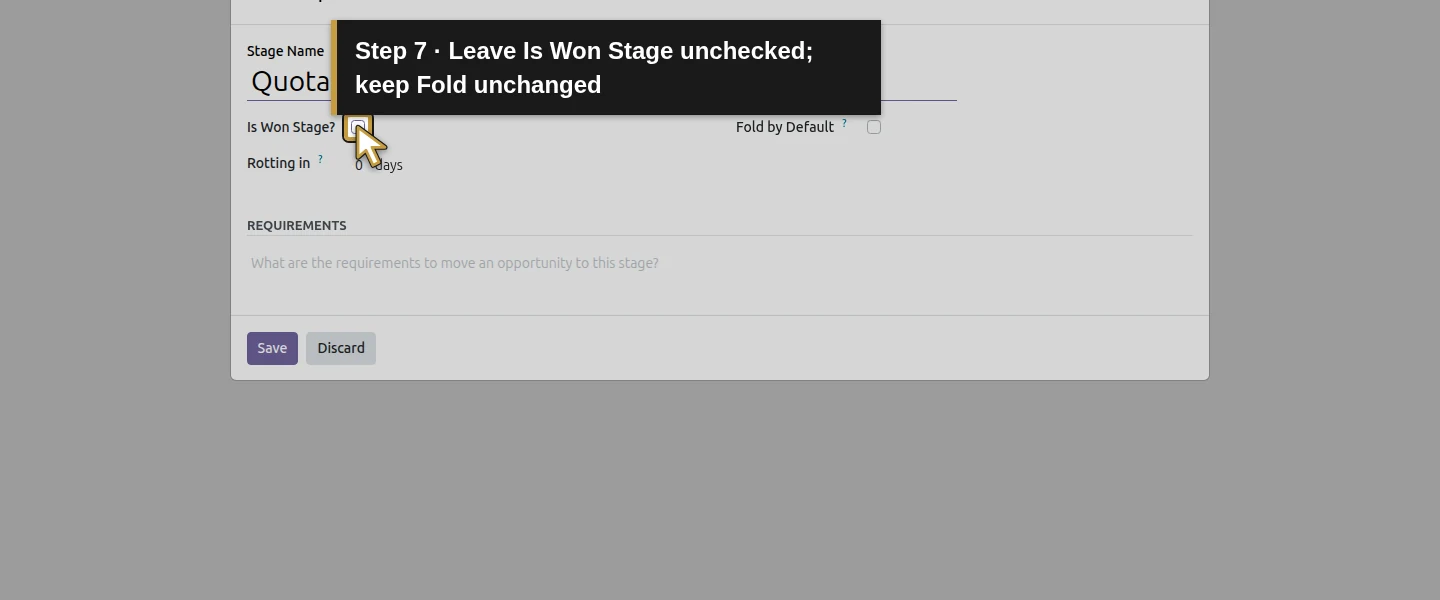
In Stage Name, enter Quotation. Leave Is Won Stage? unchecked and Fold by Default? unchanged. In Requirements, enter: Reviewed quotation prepared for the customer. Acceptance and technician scheduling are separate decisions.
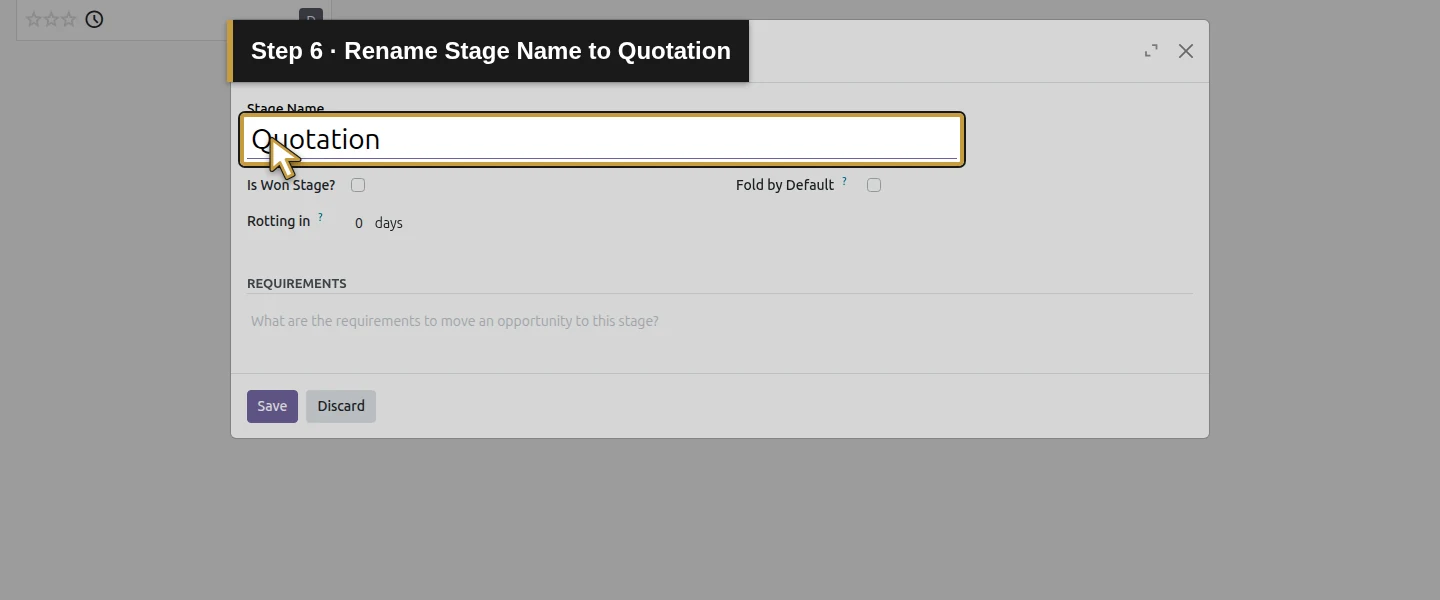
Video action 6: Rename Stage Name to Quotation. The actual target is highlighted in gold.
Rename Stage Name to Quotation.
Video action 7: Leave Is Won Stage unchecked; keep Fold unchanged. The actual target is highlighted in gold.
Leave Is Won Stage unchecked; keep Fold unchanged.
Video action 8: Enter manual Requirements; acceptance and scheduling stay separate. The actual target is highlighted in gold.
Enter manual Requirements; acceptance and scheduling stay separate.

Step 4. Save the stage

Click Save in the dialog. Confirm the column now reads Quotation. This native editor did not expose a Sales Teams selector; the existing shared scope was retained. Requirements are business guidance, not demonstrated enforcement.
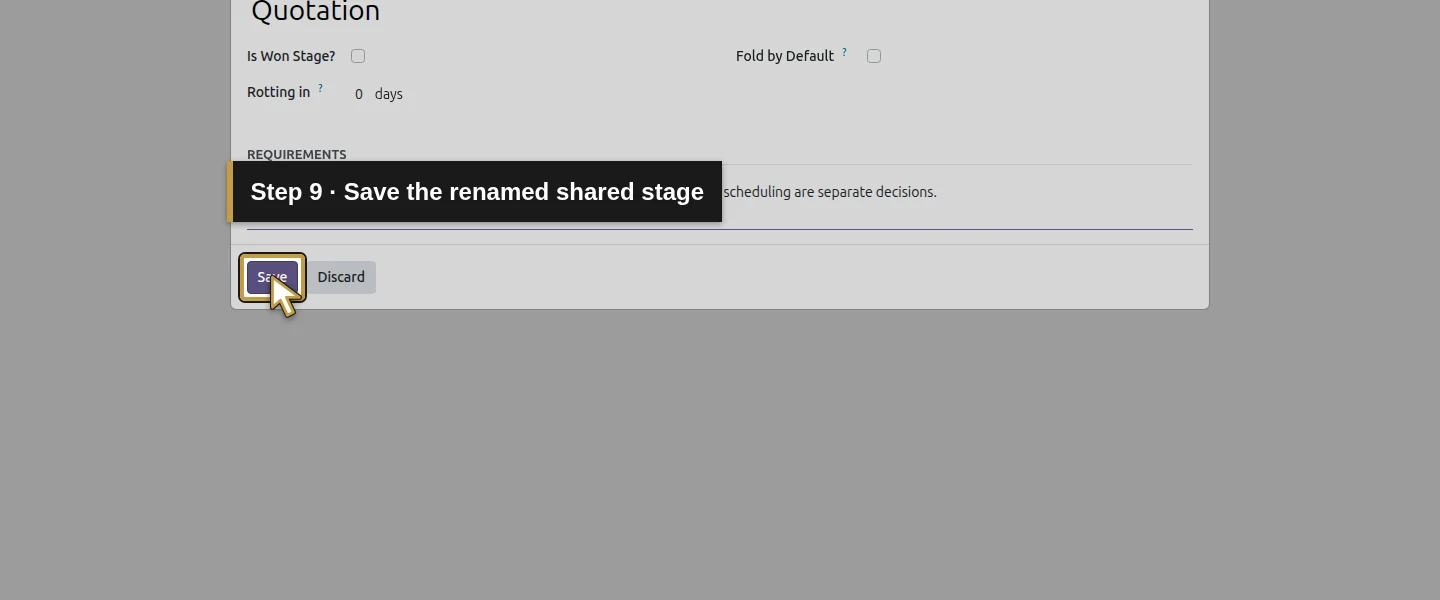
Video action 9: Save the renamed shared stage. The actual target is highlighted in gold.
Save the renamed shared stage.

Step 5. Create the training enquiry

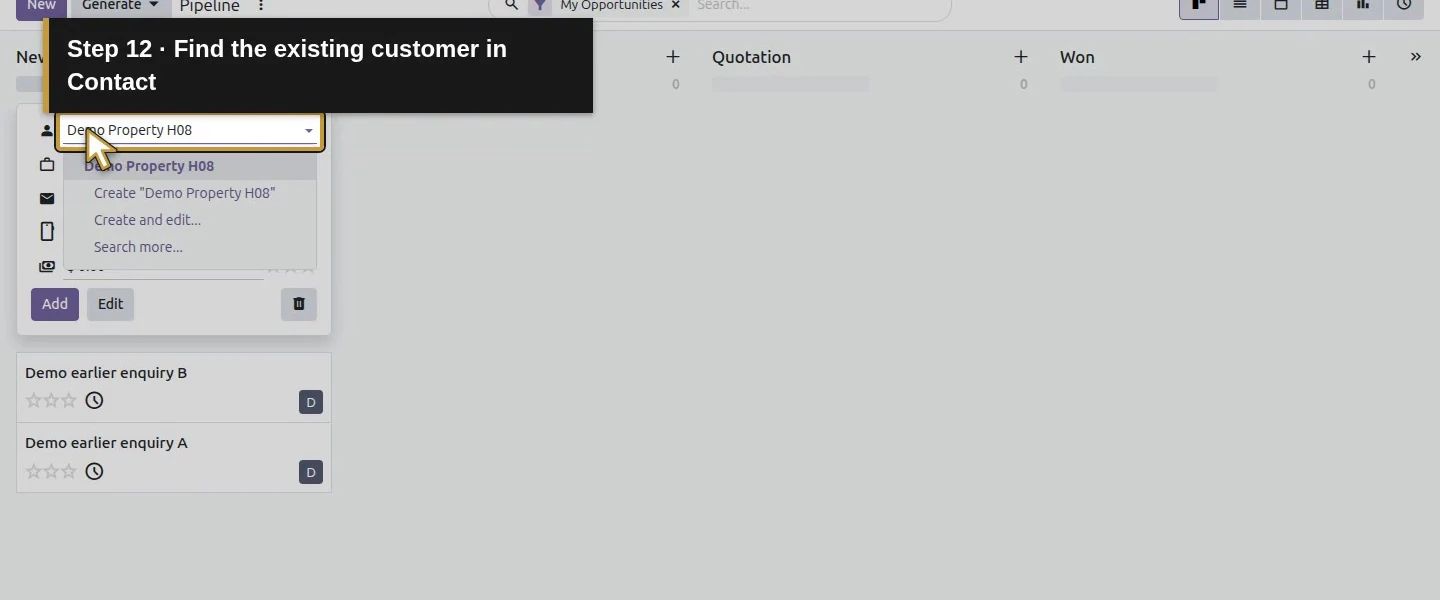
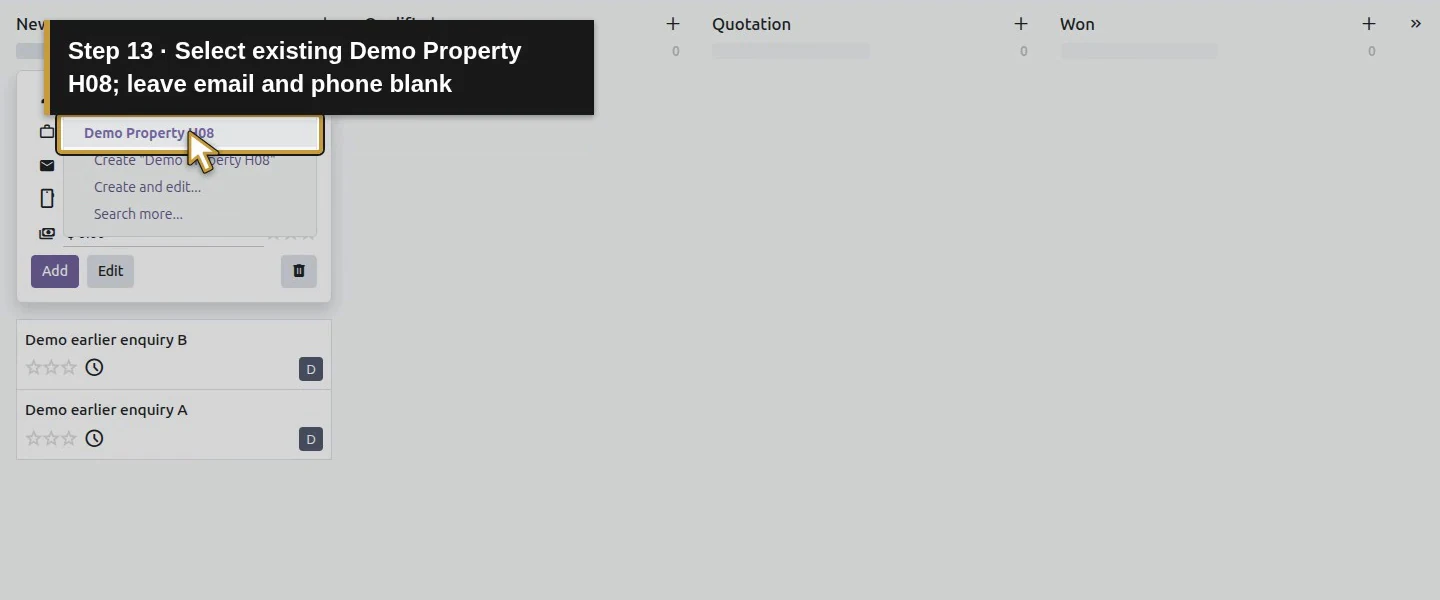
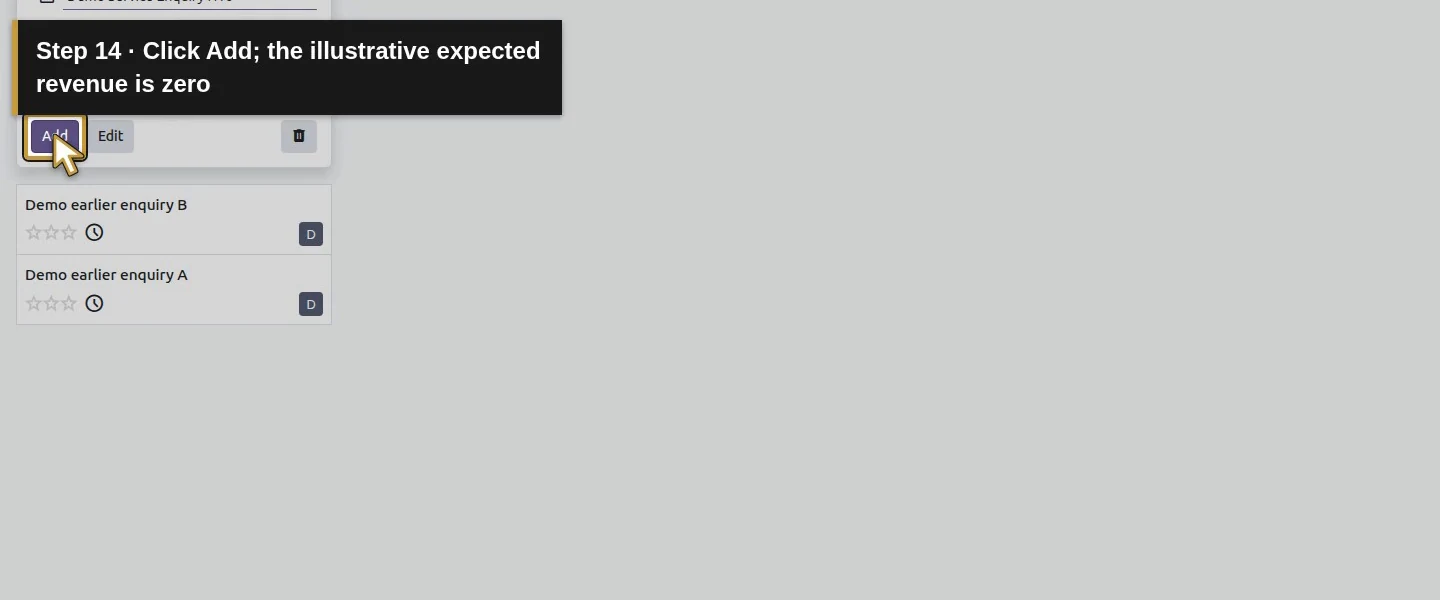
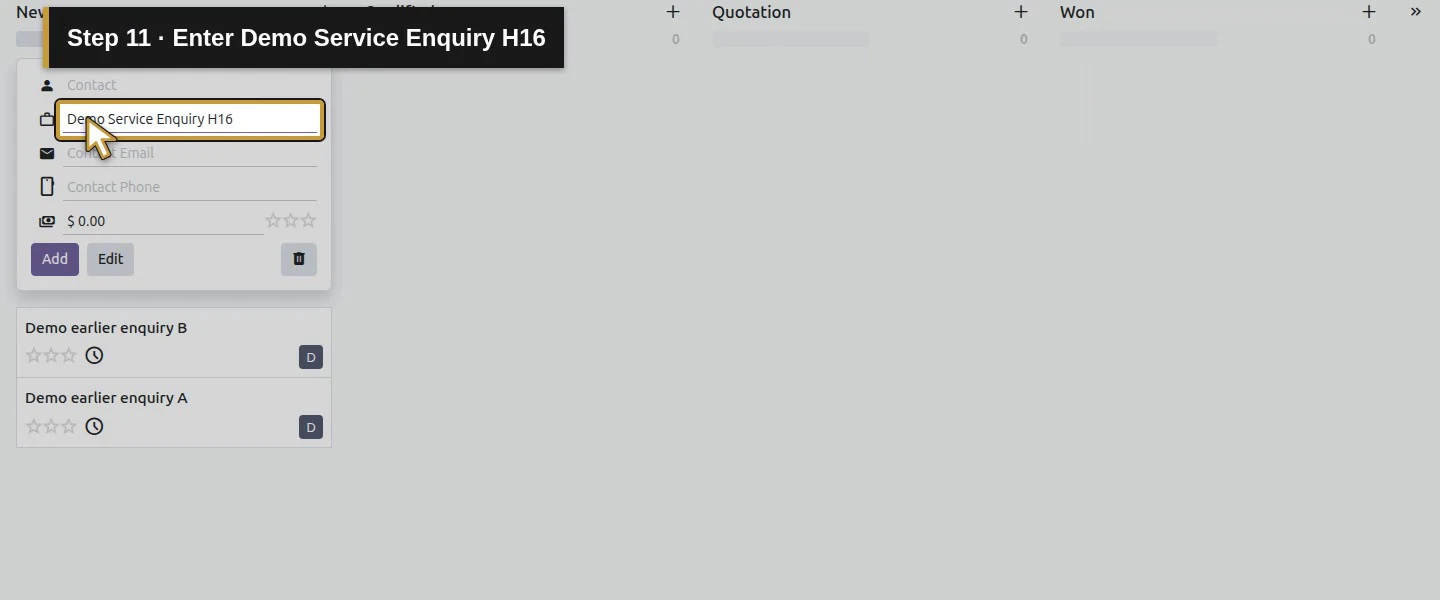
Click New on the pipeline. Enter Demo Service Enquiry H16 in Opportunity's Name and select existing Demo Property H08 in Contact. Leave email/phone blank and expected revenue at the clearly illustrative zero. Click Add.
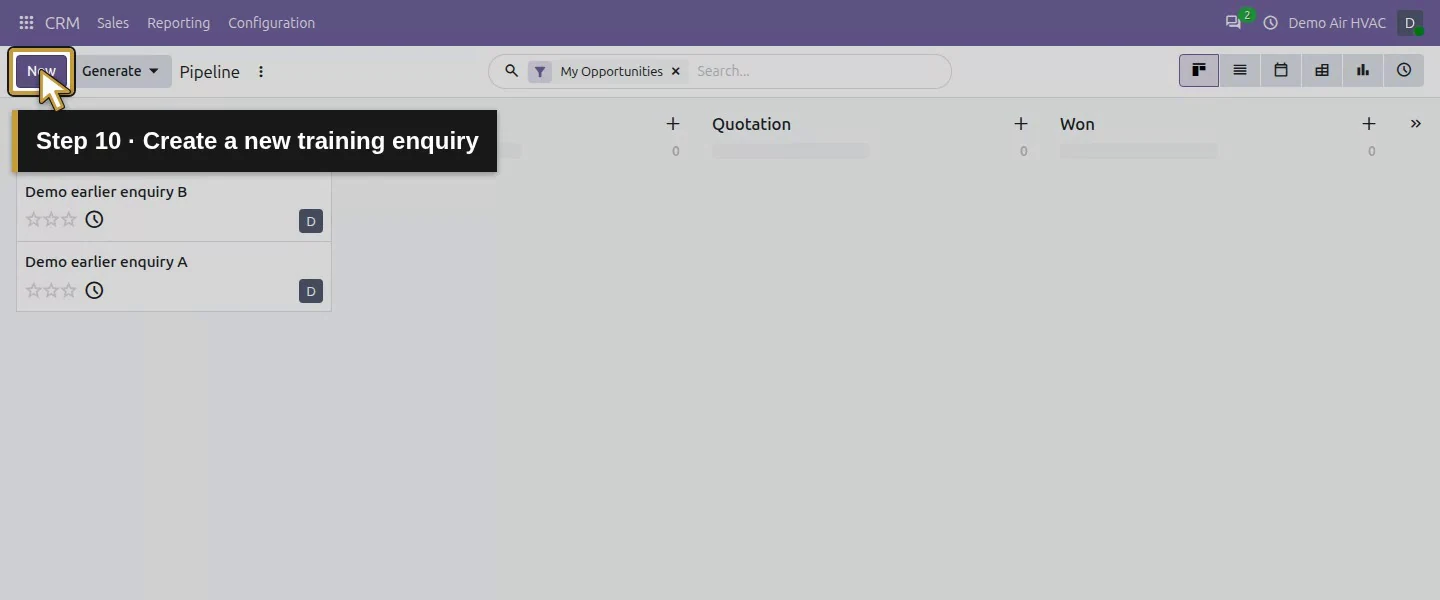
Video action 10: Create a new training enquiry. The actual target is highlighted in gold.
Create a new training enquiry.
Video action 11: Enter Demo Service Enquiry H16. The actual target is highlighted in gold.
Enter Demo Service Enquiry H16.
Video action 12: Find the existing customer in Contact. The actual target is highlighted in gold.
Find the existing customer in Contact.
Video action 13: Select existing Demo Property H08; leave email and phone blank. The actual target is highlighted in gold.
Select existing Demo Property H08; leave email and phone blank.
Video action 14: Click Add; the illustrative expected revenue is zero. The actual target is highlighted in gold.
Click Add; the illustrative expected revenue is zero.
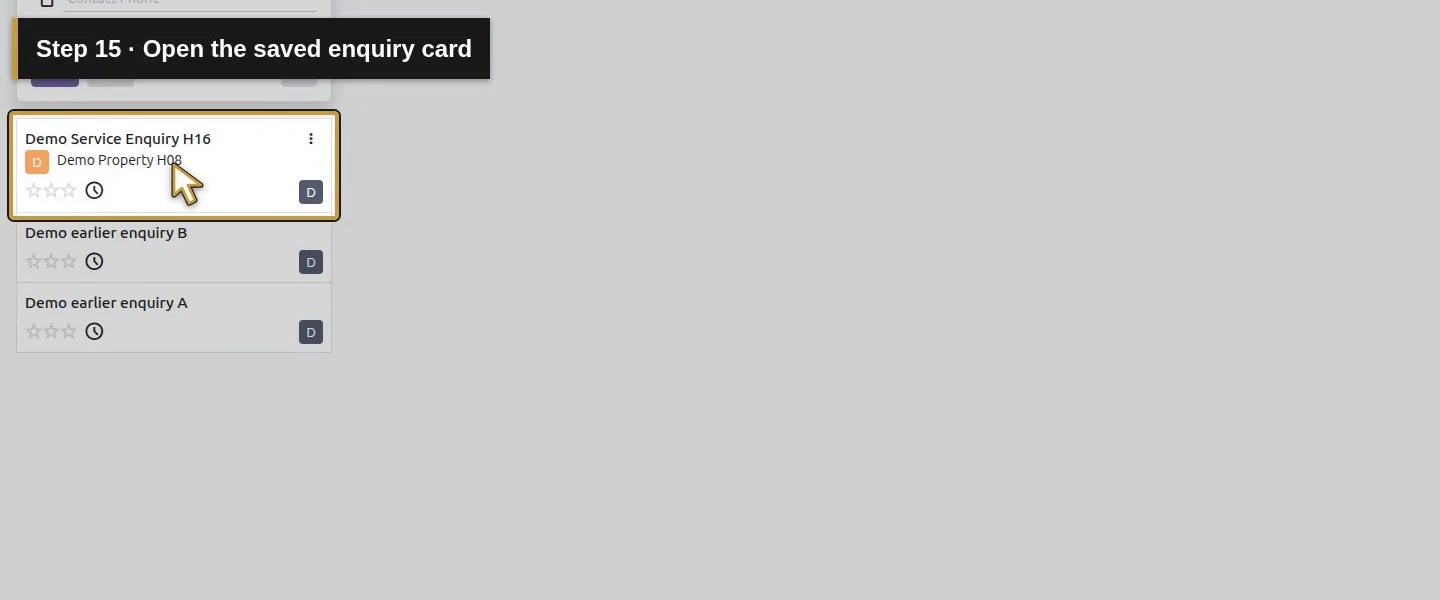
Video action 15: Open the saved enquiry card. The actual target is highlighted in gold.
Open the saved enquiry card.

Step 6. Review responsibility

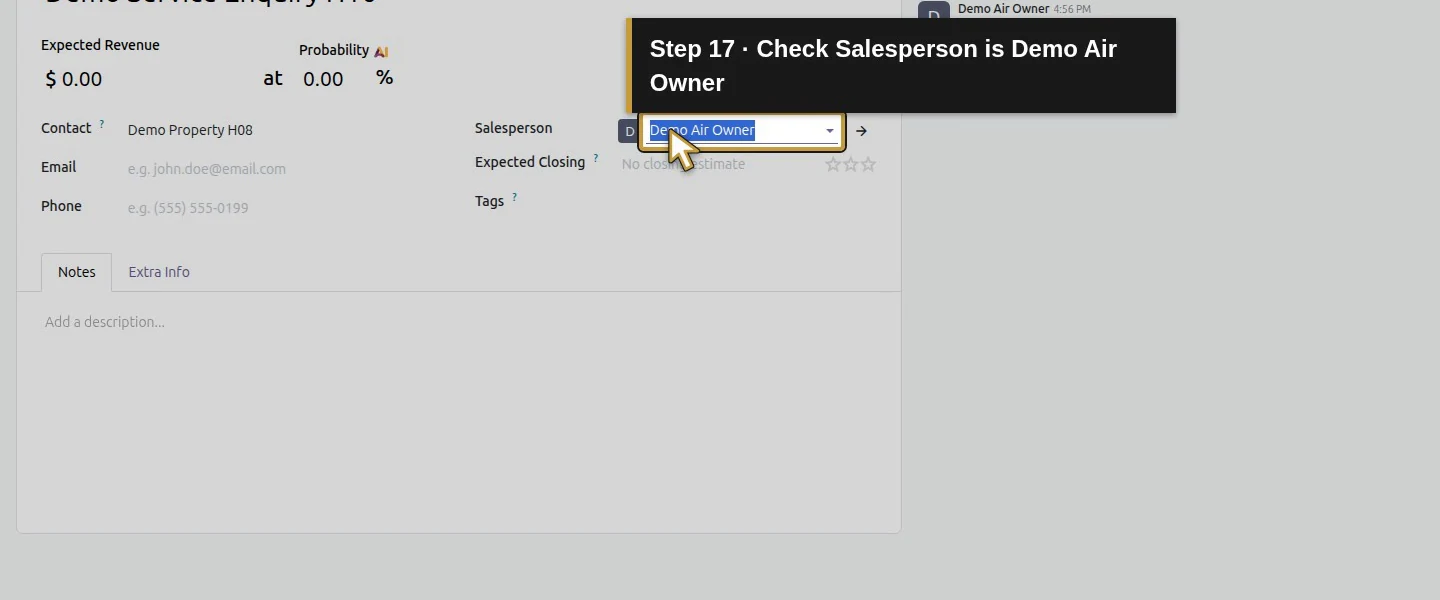
Open the new card. Check Contact, Salesperson and the current stage. The demo saved customer Demo Property H08 and salesperson Demo Air Owner.
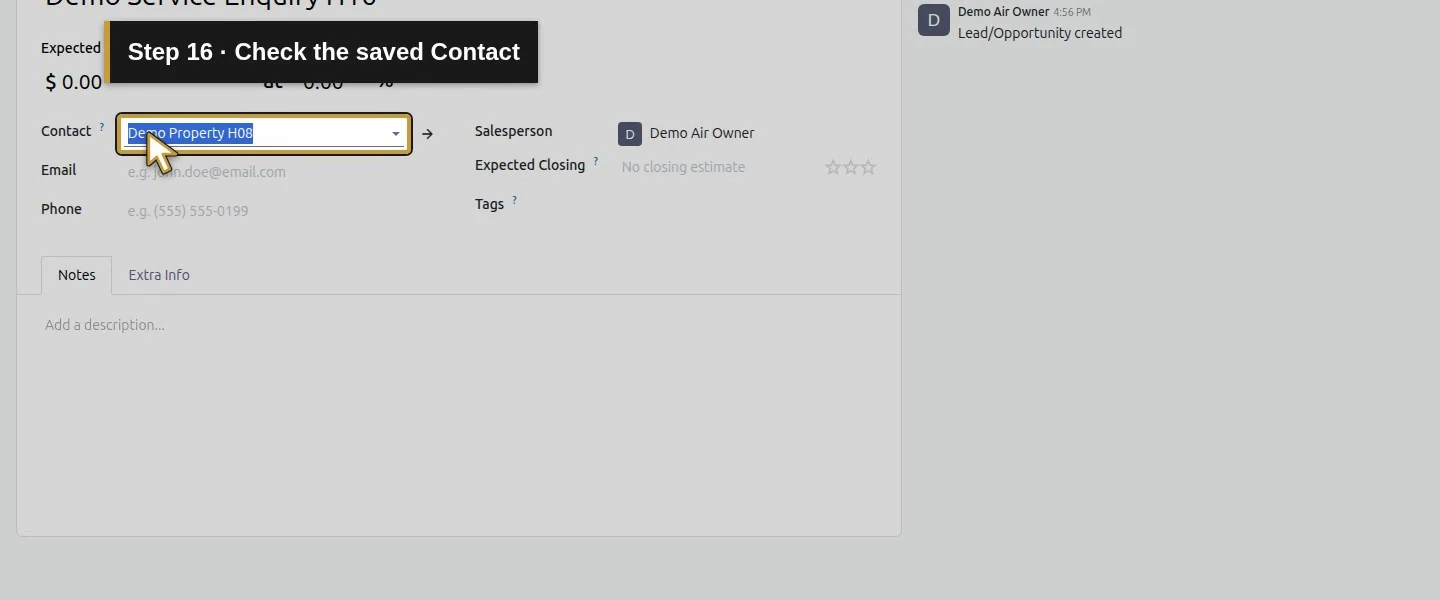
Video action 16: Check the saved Contact. The actual target is highlighted in gold.
Check the saved Contact.
Video action 17: Check Salesperson is Demo Air Owner. The actual target is highlighted in gold.
Check Salesperson is Demo Air Owner.

Step 7. Test the stage control

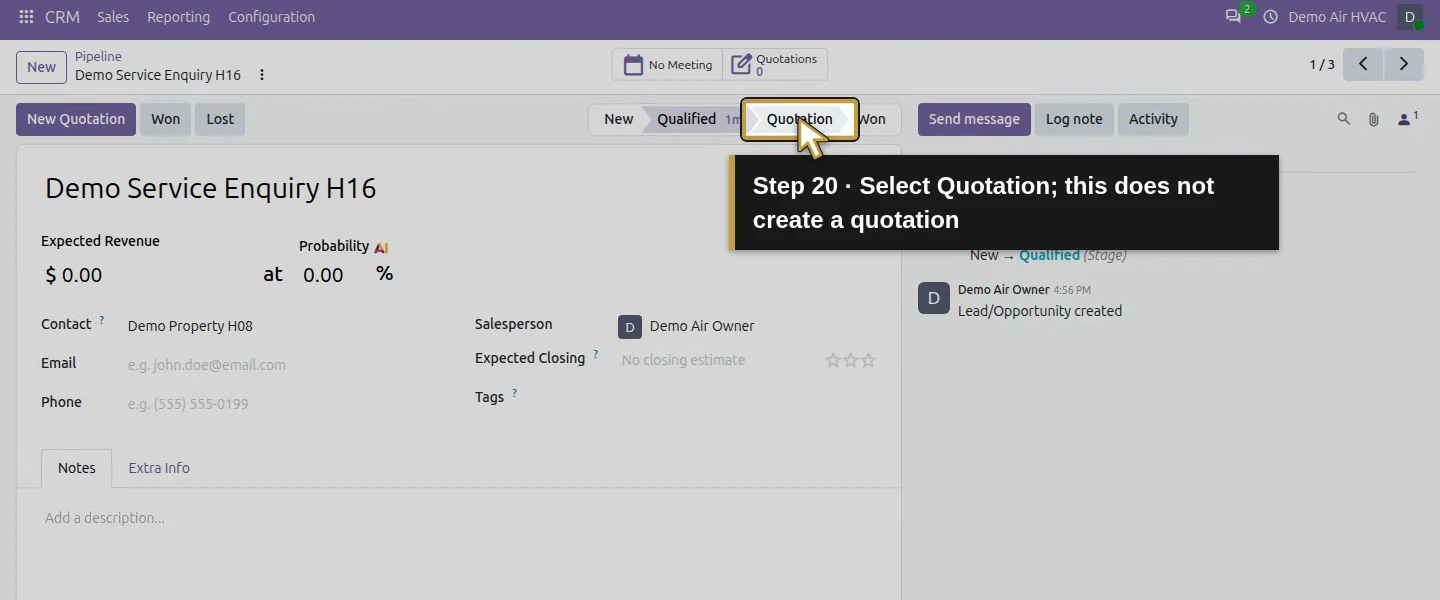
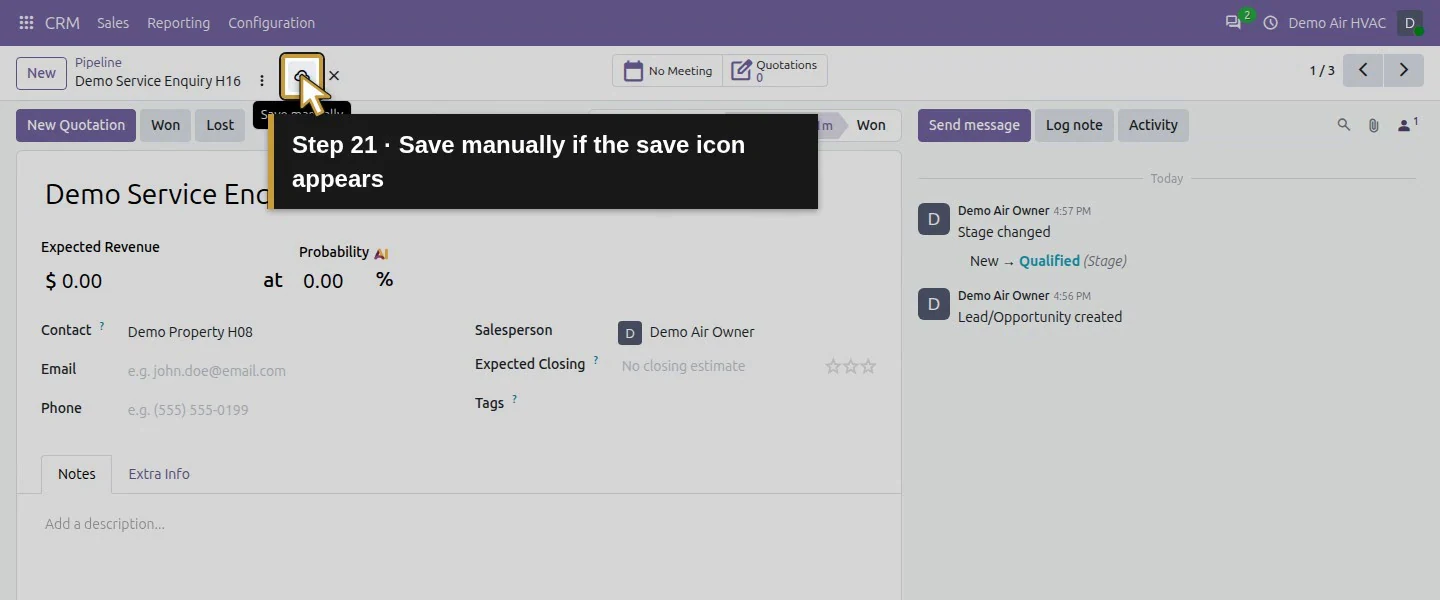
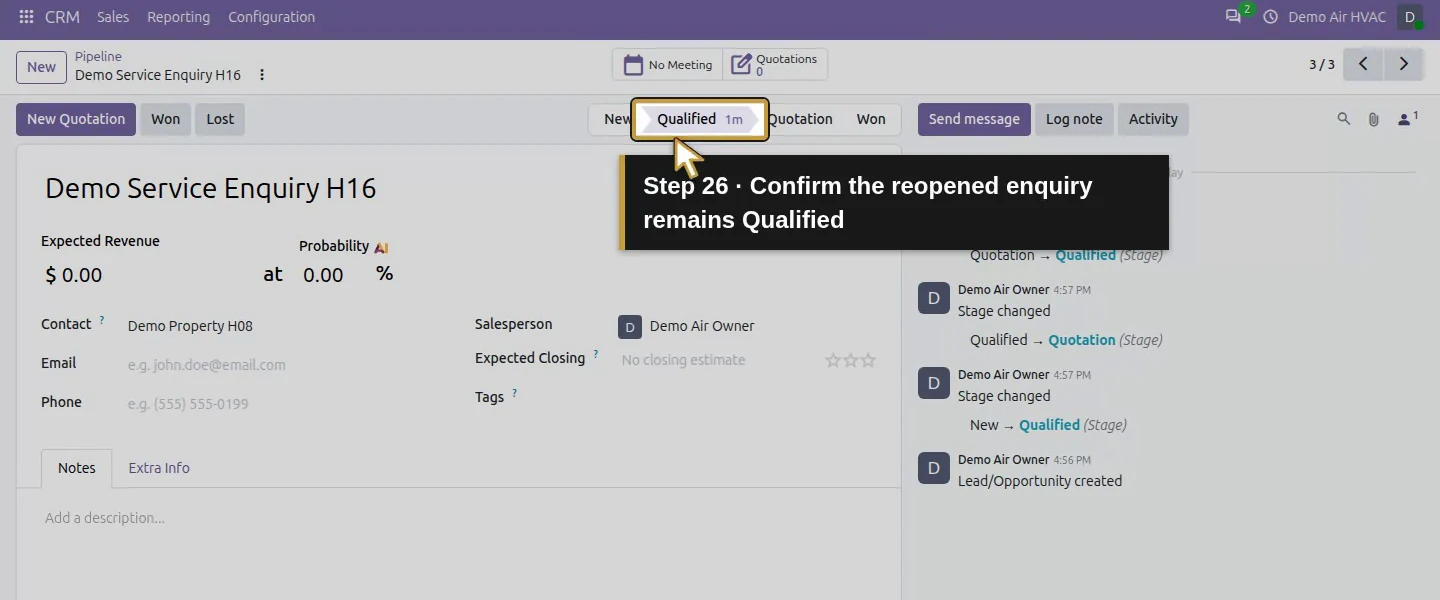
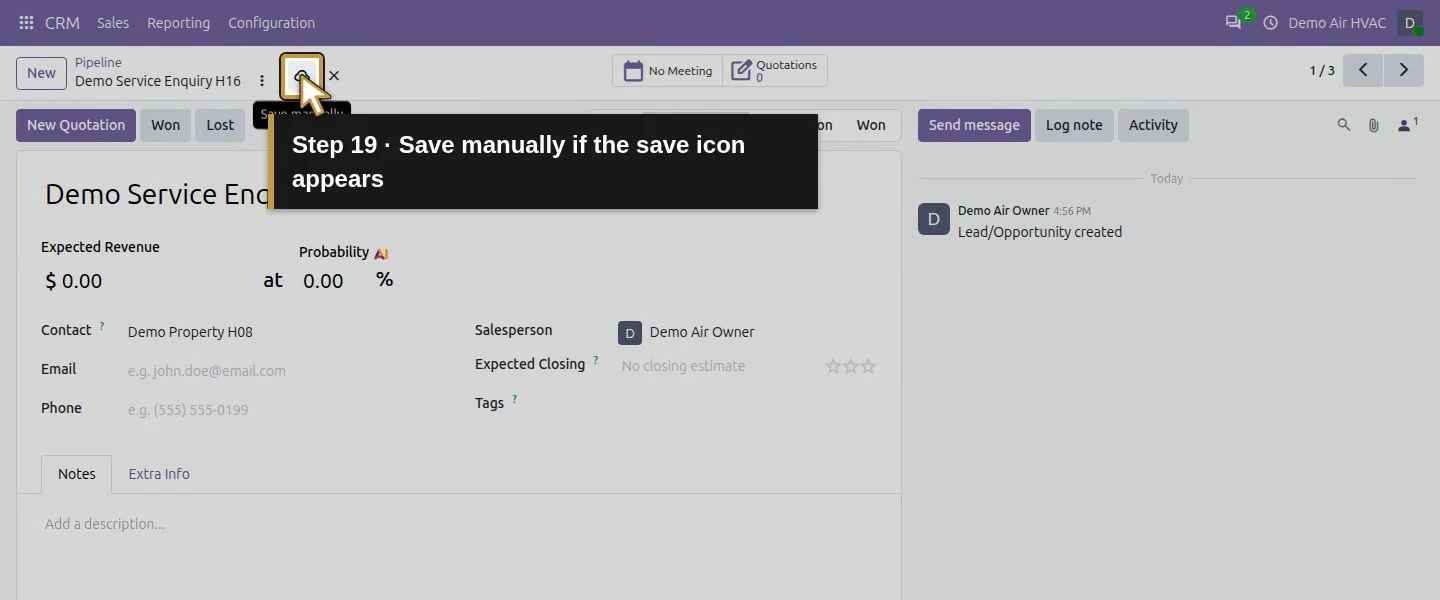
For the synthetic transition check, select Qualified, then Quotation, then return to Qualified, saving manually when the save icon appears. Reopen the enquiry to confirm the final stage. A manually selected stage does not prove that a quotation exists or a visit is booked.
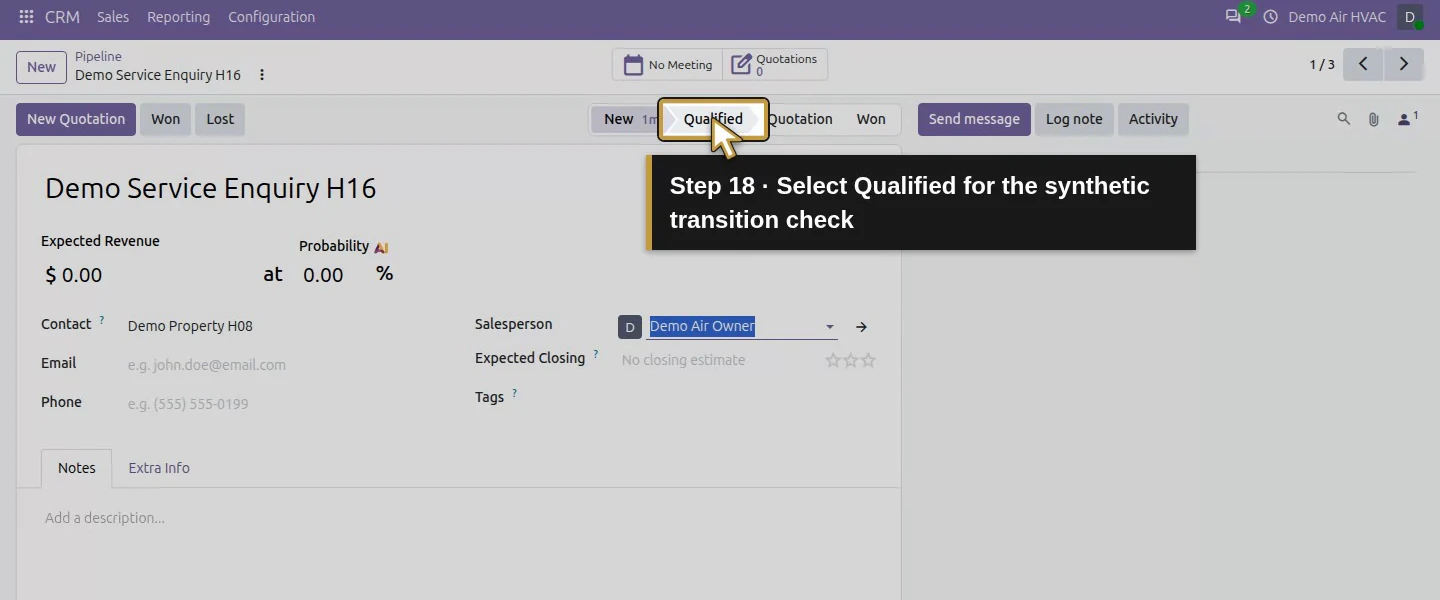
Video action 18: Select Qualified for the synthetic transition check. The actual target is highlighted in gold.
Select Qualified for the synthetic transition check.
Video action 19: Save manually if the save icon appears. The actual target is highlighted in gold.
Save manually if the save icon appears.
Video action 20: Select Quotation; this does not create a quotation. The actual target is highlighted in gold.
Select Quotation; this does not create a quotation.
Video action 21: Save manually if the save icon appears. The actual target is highlighted in gold.
Save manually if the save icon appears.
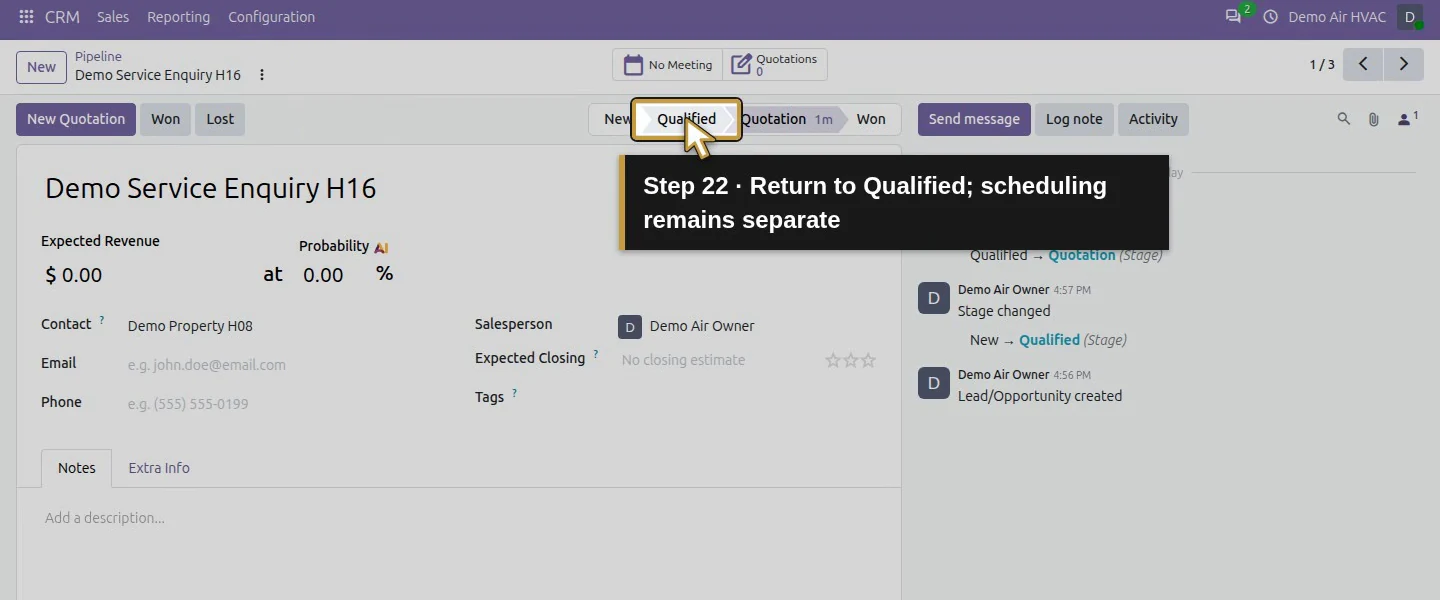
Video action 22: Return to Qualified; scheduling remains separate. The actual target is highlighted in gold.
Return to Qualified; scheduling remains separate.
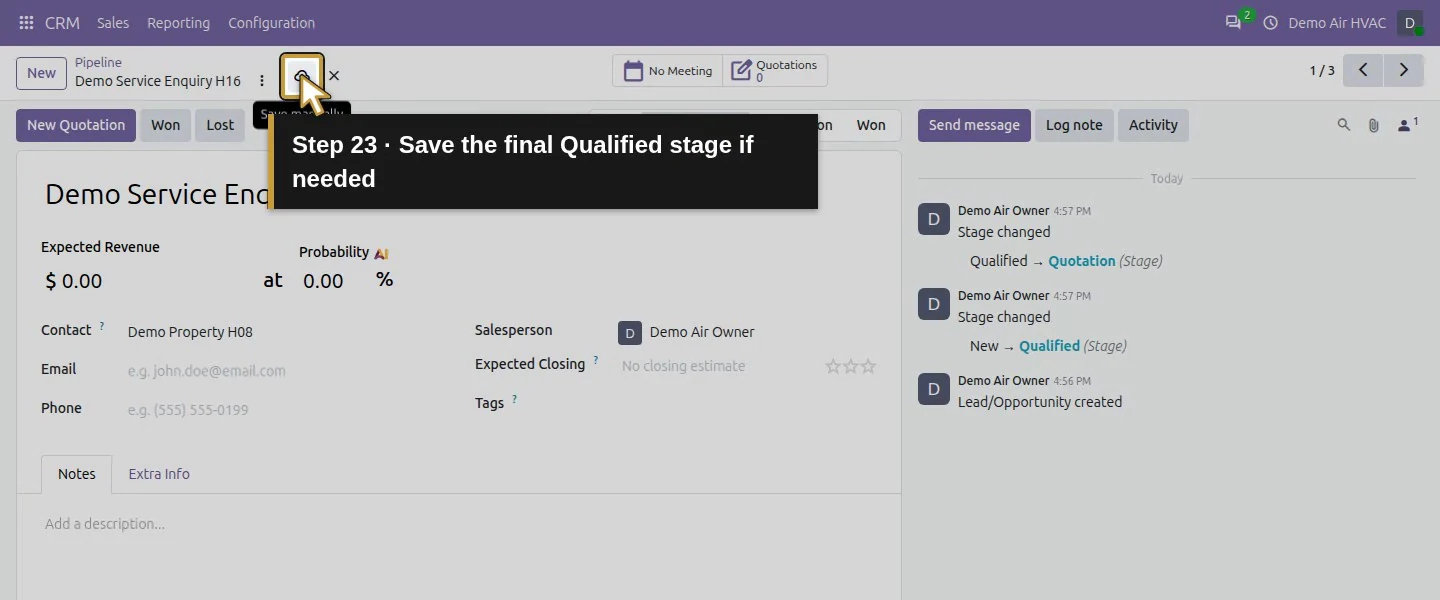
Video action 23: Save the final Qualified stage if needed. The actual target is highlighted in gold.
Save the final Qualified stage if needed.
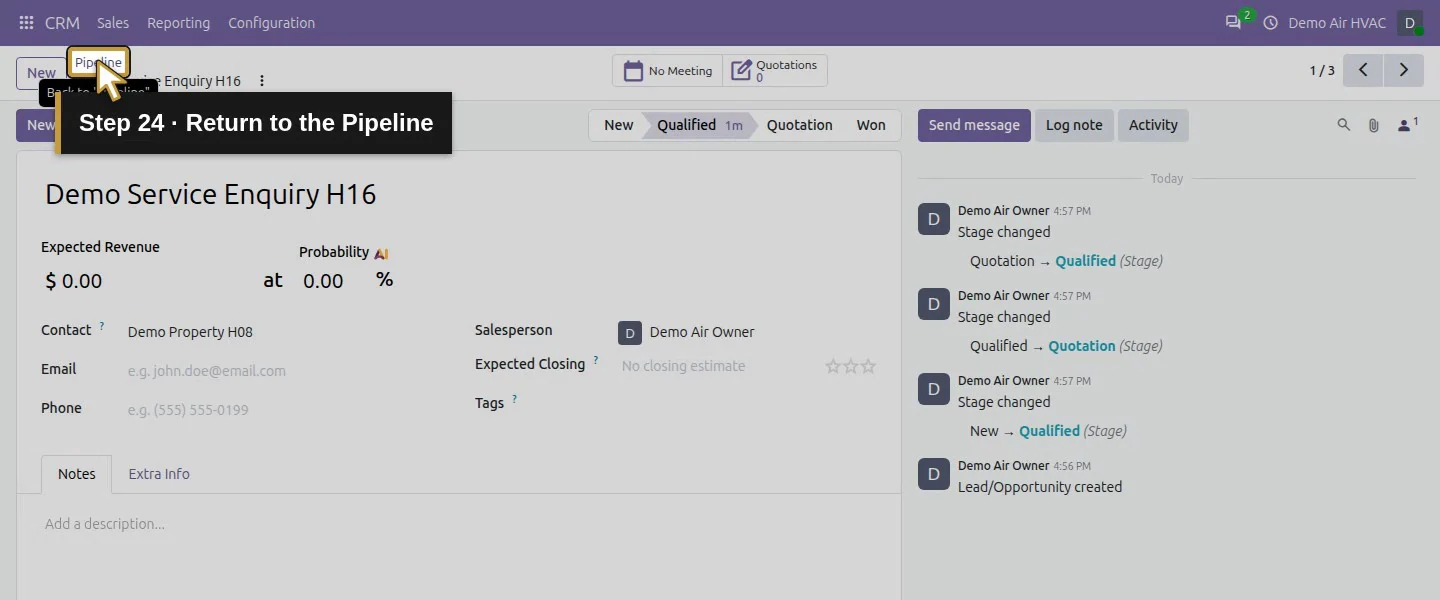
Video action 24: Return to the Pipeline. The actual target is highlighted in gold.
Return to the Pipeline.
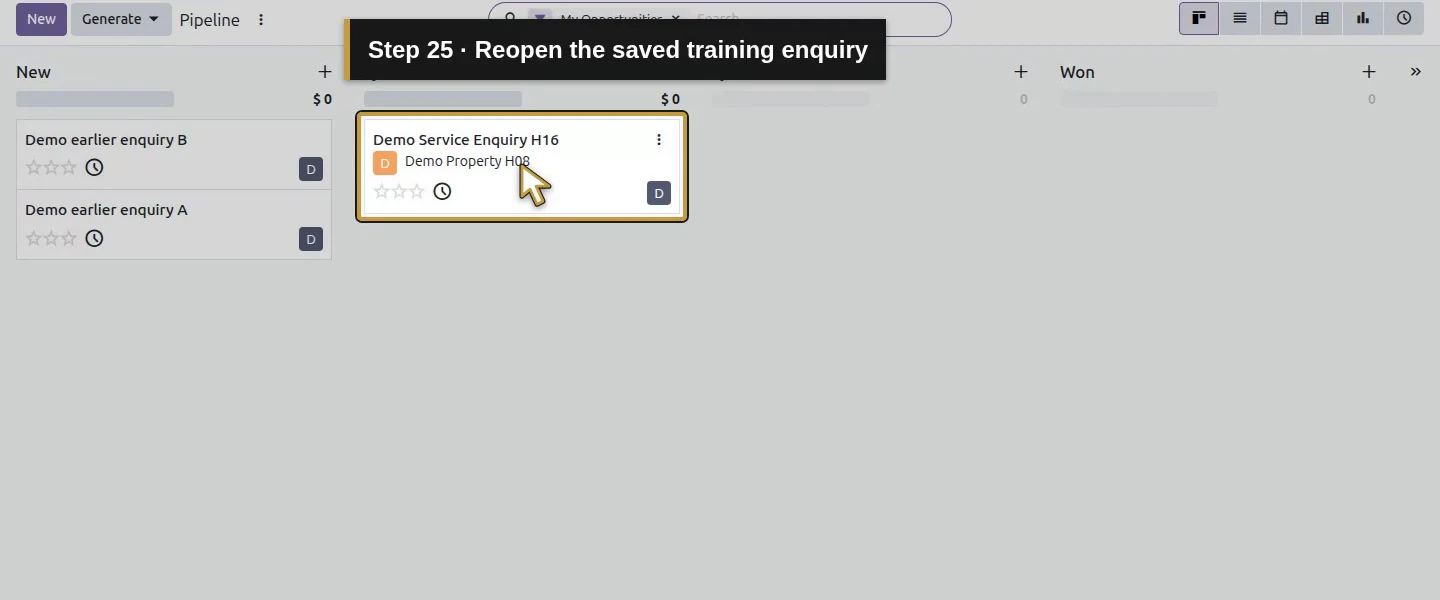
Video action 25: Reopen the saved training enquiry. The actual target is highlighted in gold.
Reopen the saved training enquiry.
Video action 26: Confirm the reopened enquiry remains Qualified. The actual target is highlighted in gold.
Confirm the reopened enquiry remains Qualified.

Check the result

The demo retained four stages; existing stage 3 was renamed Quotation with its guidance, sequence and shared scope retained. One new enquiry, record 3, uses customer 7 and owner 2 and reopens in Qualified. The two earlier H03 enquiries remain in New. No new customer, sales order or accounting move was created.

If your screen differs

Hover over the column header to reveal its menu. Check My Opportunities and your role if a card is missing. Requirements did not block the synthetic transition into Quotation before a quotation existed; the office must still review business readiness. Other-role and multiple-team behavior were not tested.

Frequently asked questions

How do I rename a stage in an Odoo CRM pipeline? Hover over its column header, open the stage menu and choose Edit. Change Stage Name, save and check the pipeline. Review shared-stage scope first.
Should HVAC repairs and replacements use different CRM pipelines? This example uses one pipeline and records the service need in the enquiry. Separate teams and team-specific stages require their own configuration and access review.
Does moving an Odoo opportunity schedule a technician? The tested transitions changed CRM progress only. No appointment, technician assignment or sales order was created.

Continue building the business

Qualify the service enquiry, then schedule its follow-up.

Talk to an Odoo partner

Bring your current process and the result you need to Onward to plan your Odoo workflow. Talk to an Odoo partner.