
Running an HVAC business with Odoo
How do I schedule and complete follow-up activities in Odoo?
Schedule an Odoo CRM call activity with an owner and due date, then complete it with saved feedback.
Alex's next action should become assigned work, not remain a date written in Notes. This example schedules a Call on the existing enquiry and records its fictional completion.
Alex Rivera and Demo Air HVAC are fictional training examples. Prices, dates, quantities and business situations in this guide are illustrative.
Before you begin
Tested in stock Odoo 20.0-20260926 Community as the demo owner administrator, with official modules and standard configuration. Complete the qualification lesson. Use Demo Service Enquiry H16, assigned to Demo Air Owner. The example date is October 16, 2026; choose the date that matches your real follow-up.
Step-by-step workflow
Step 1. Open the activity control
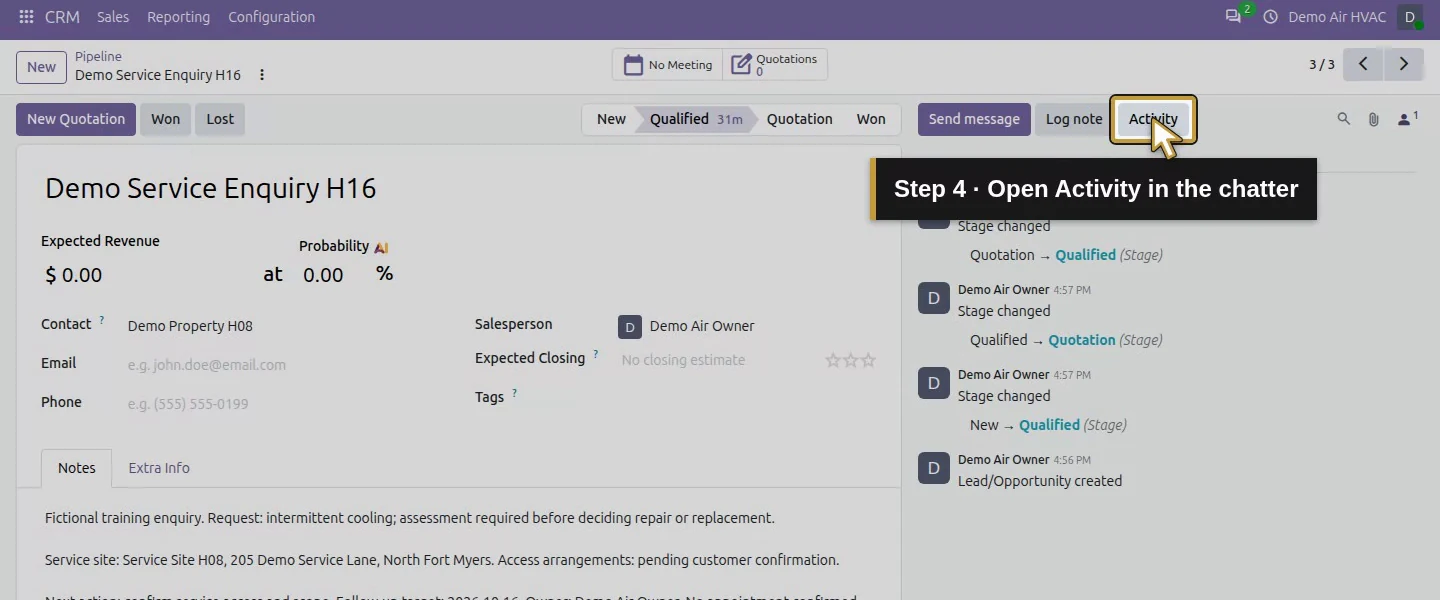
Open the opportunity. In the chatter, click Activity. Check existing planned activities before adding another.
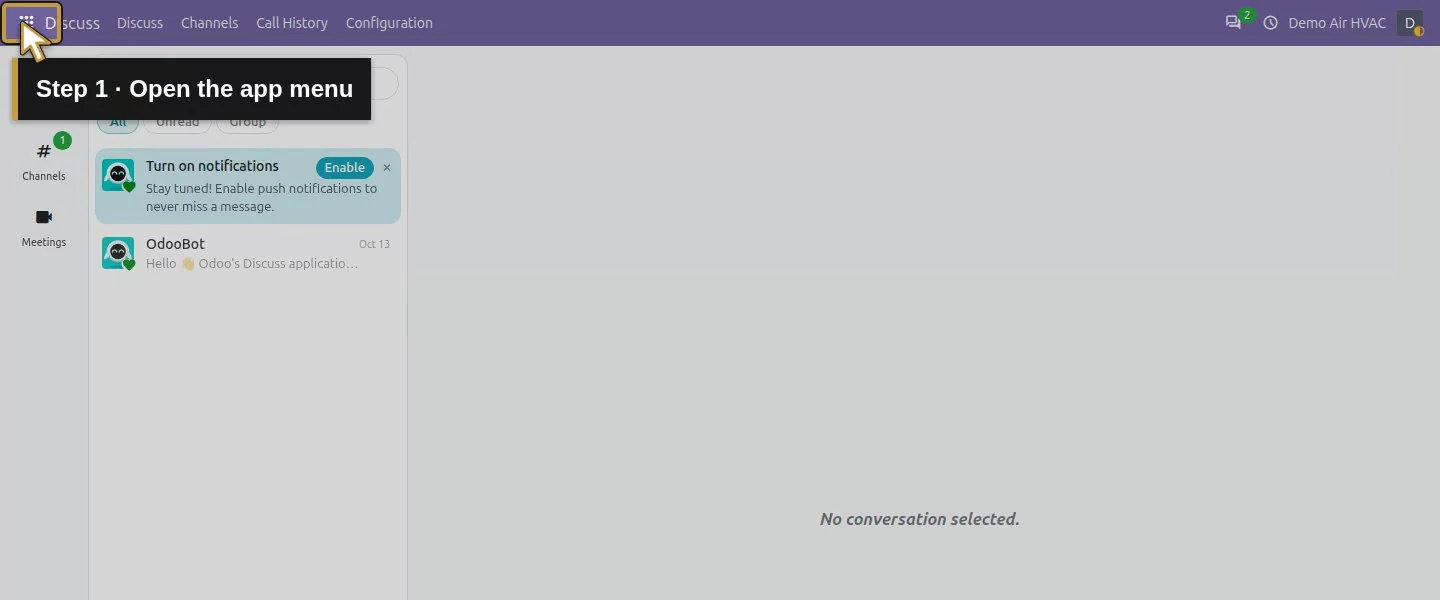
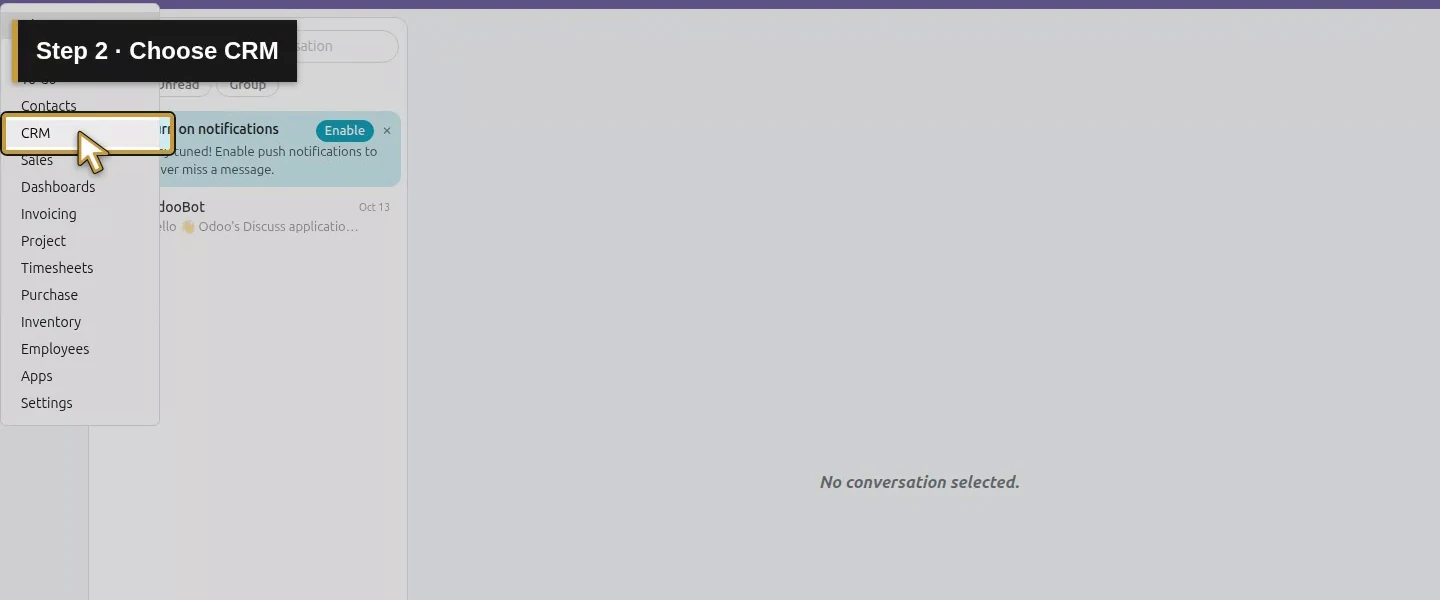
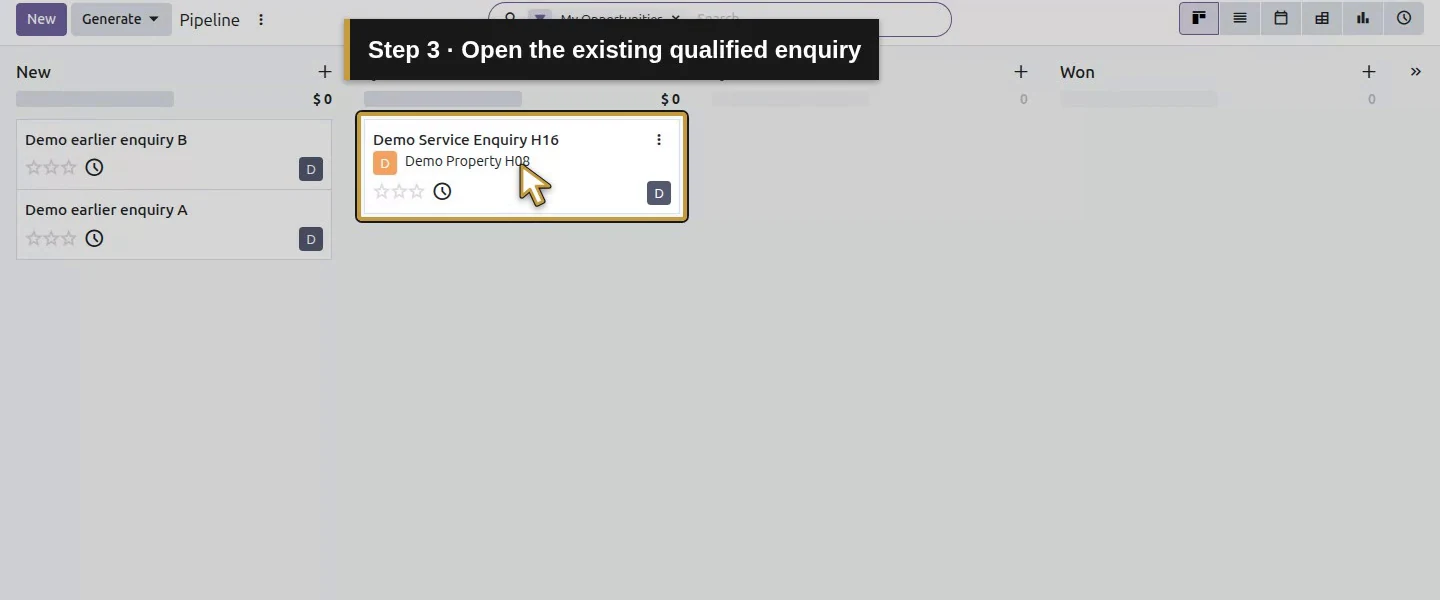
Step 2. Select Call
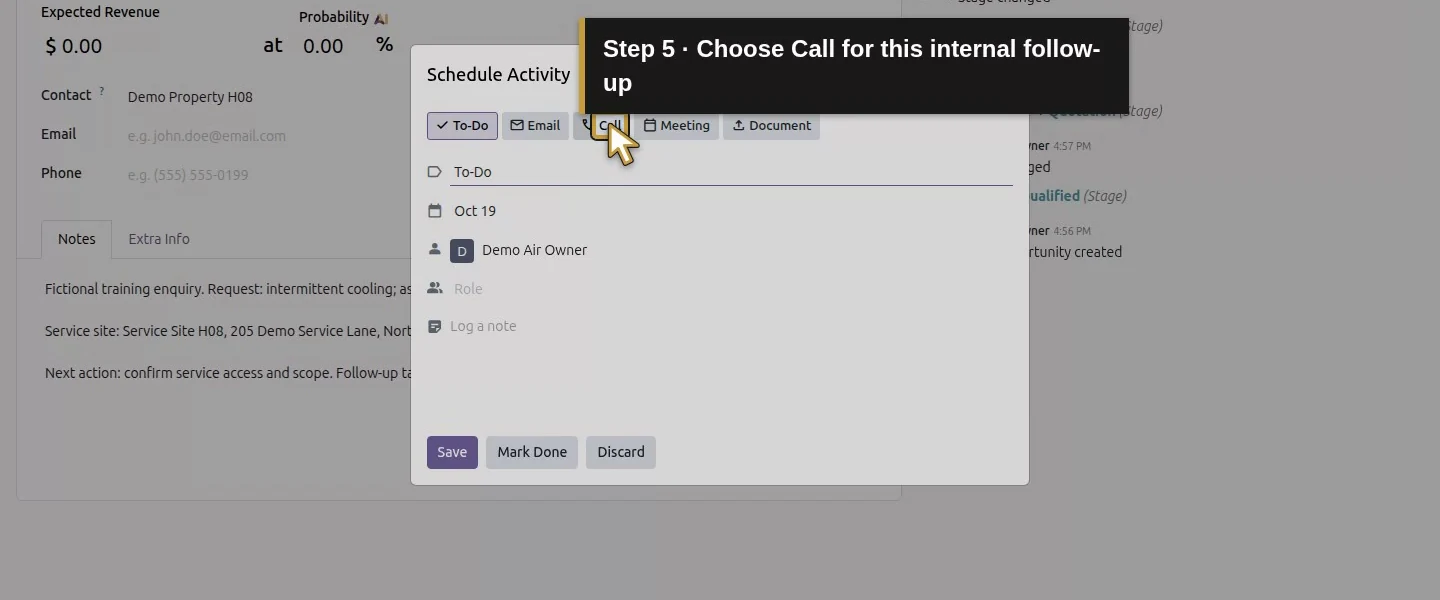
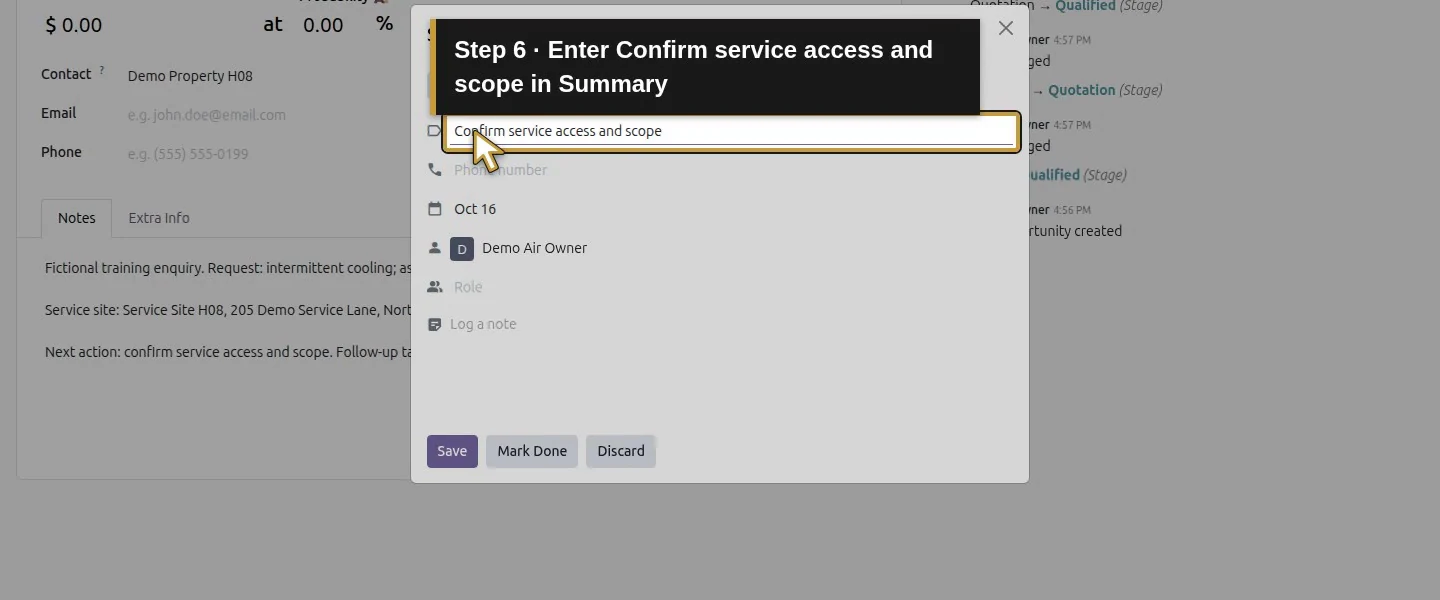
The Schedule Activity dialog offers To-Do, Email, Call, Meeting and Document. Choose Call and enter Confirm service access and scope in Summary.
Step 3. Choose the due date
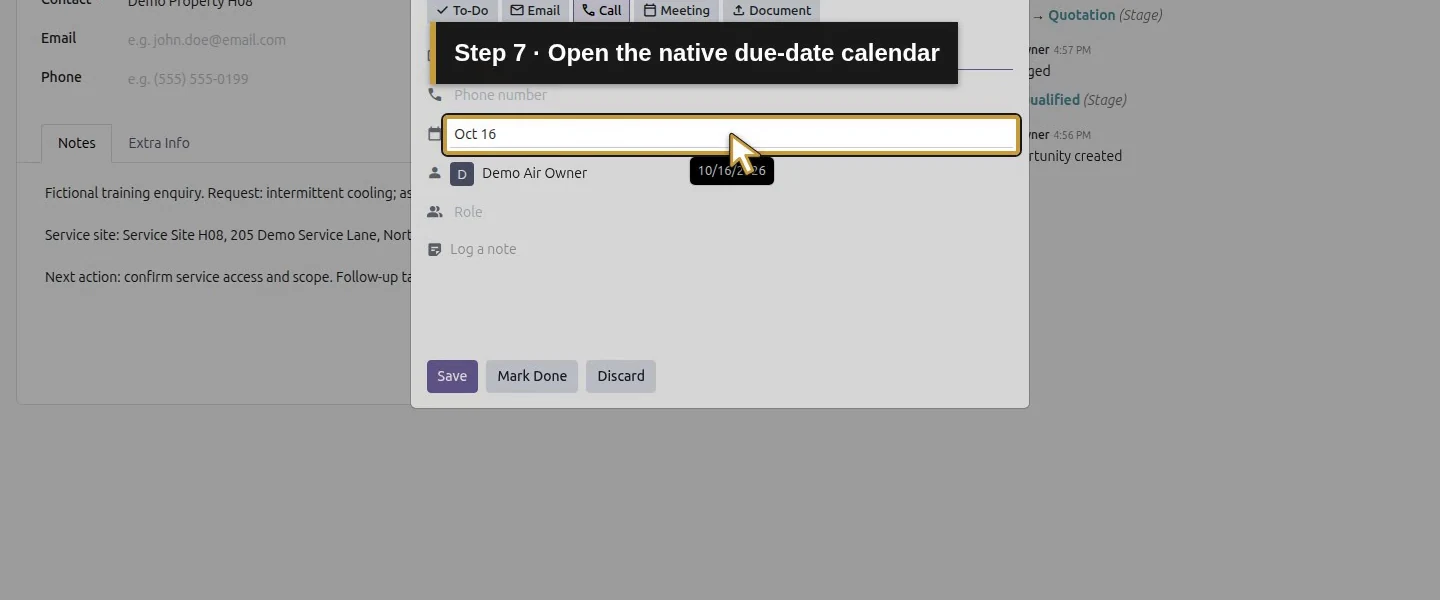
Click the date control in the dialog. In the native calendar, choose October 16, 2026 for this training example. Use the calendar's month control when the intended date is in another month.
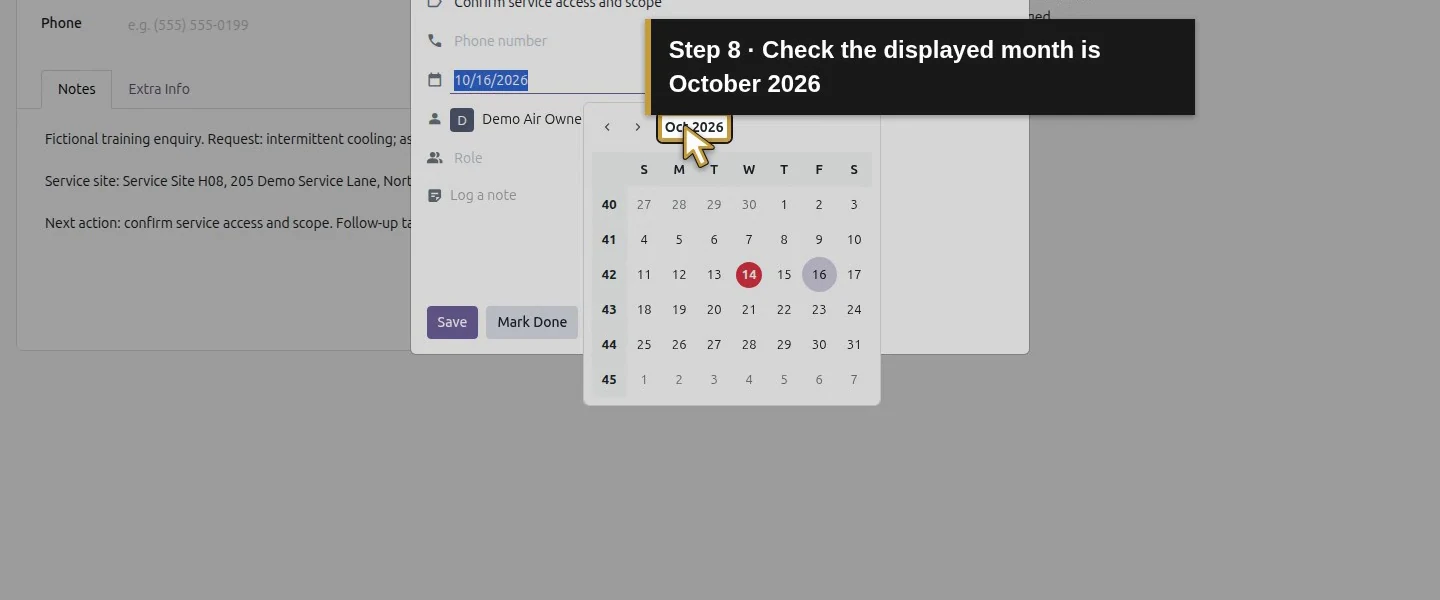
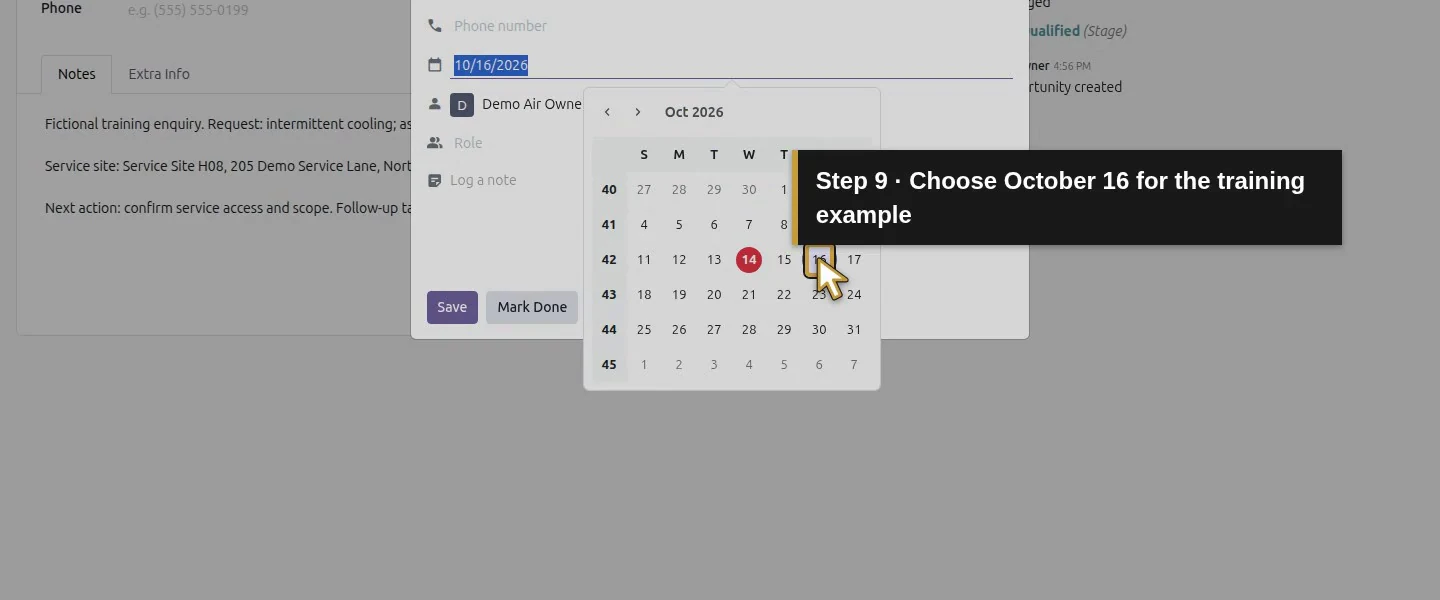
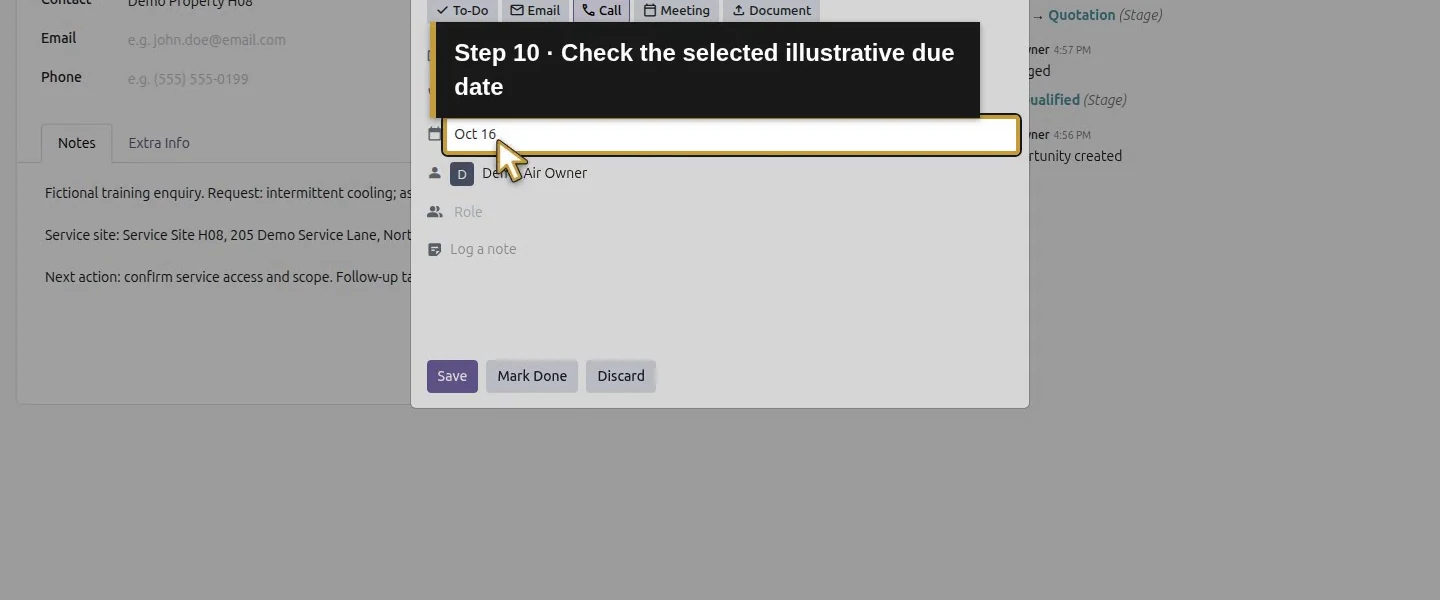
Step 4. Review Assigned to
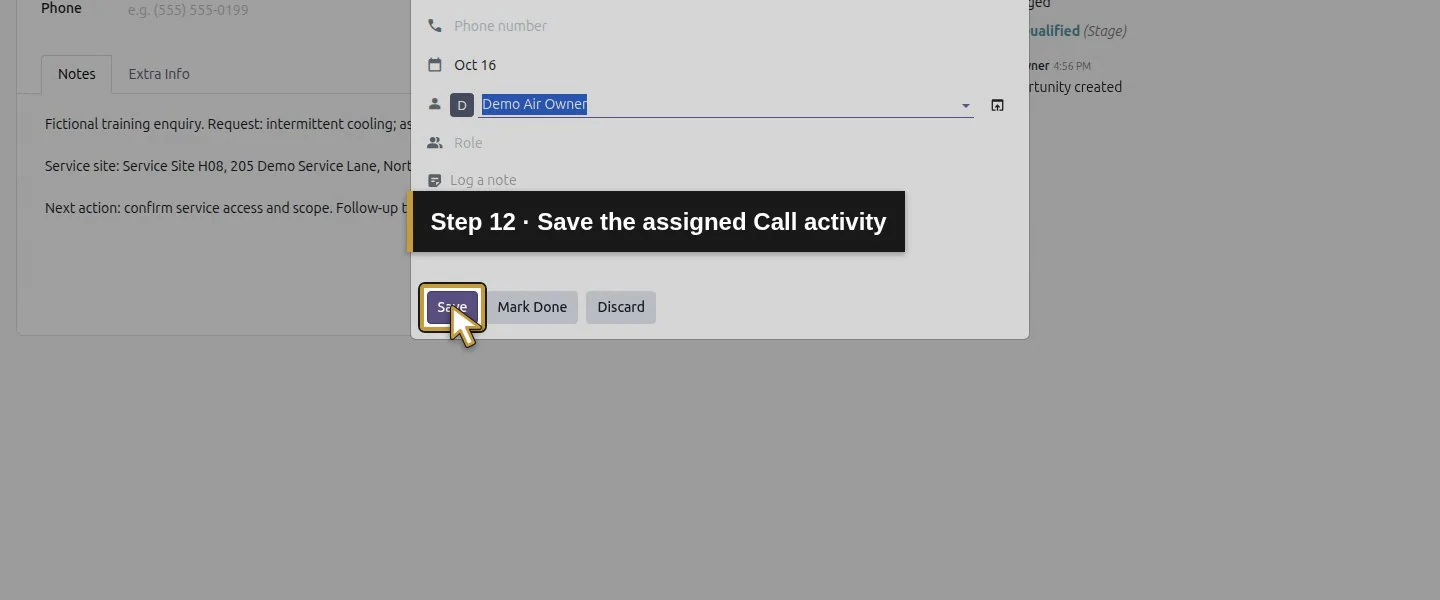
Check Assigned to is Demo Air Owner. The dialog also has a Role control; this example uses the existing assigned user and leaves Role unchanged.
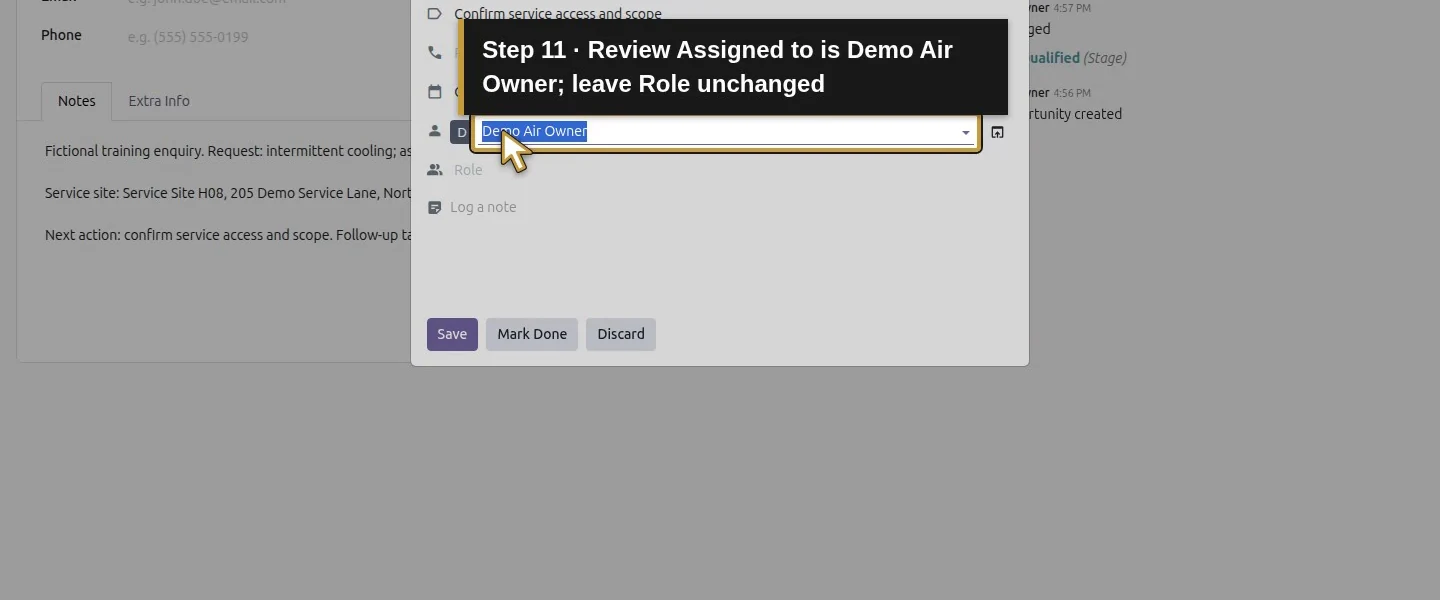
Step 5. Save the activity
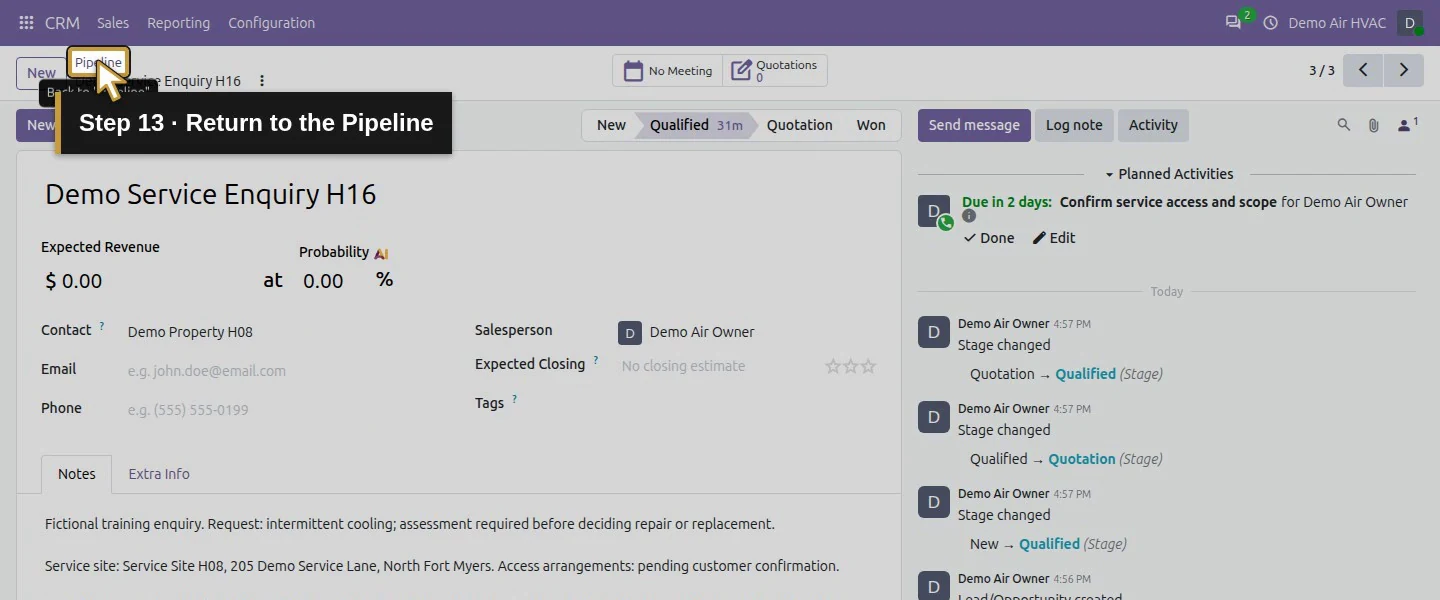
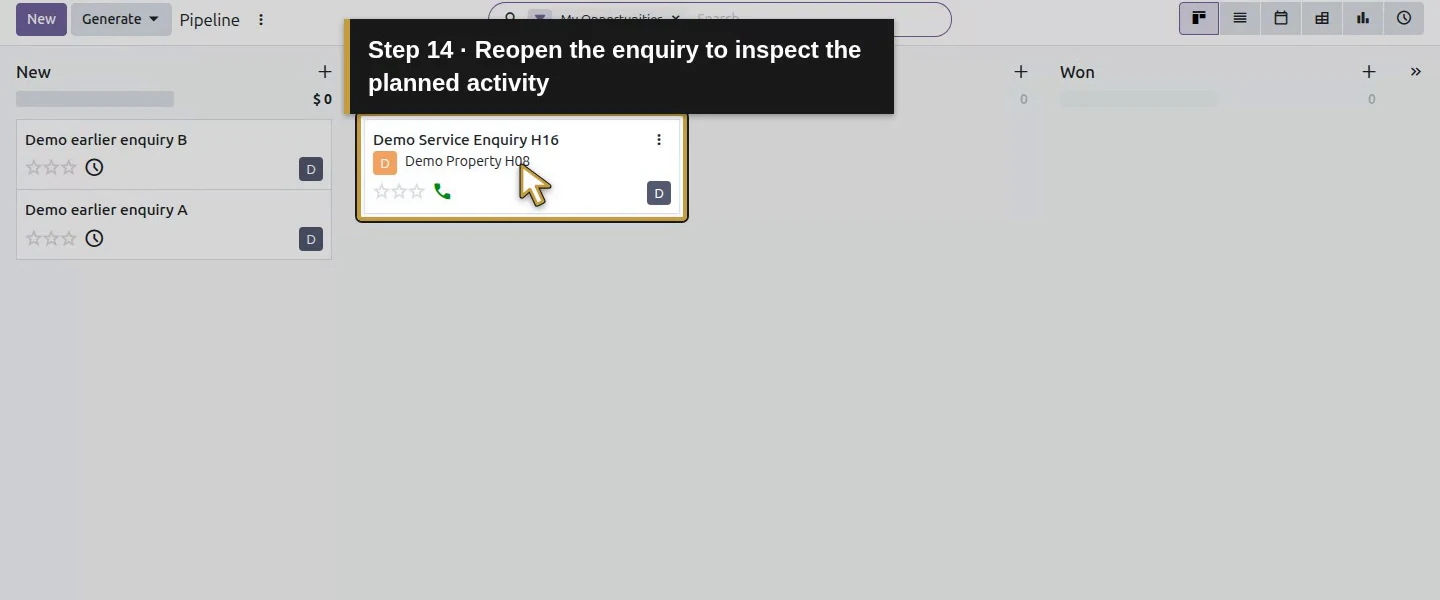
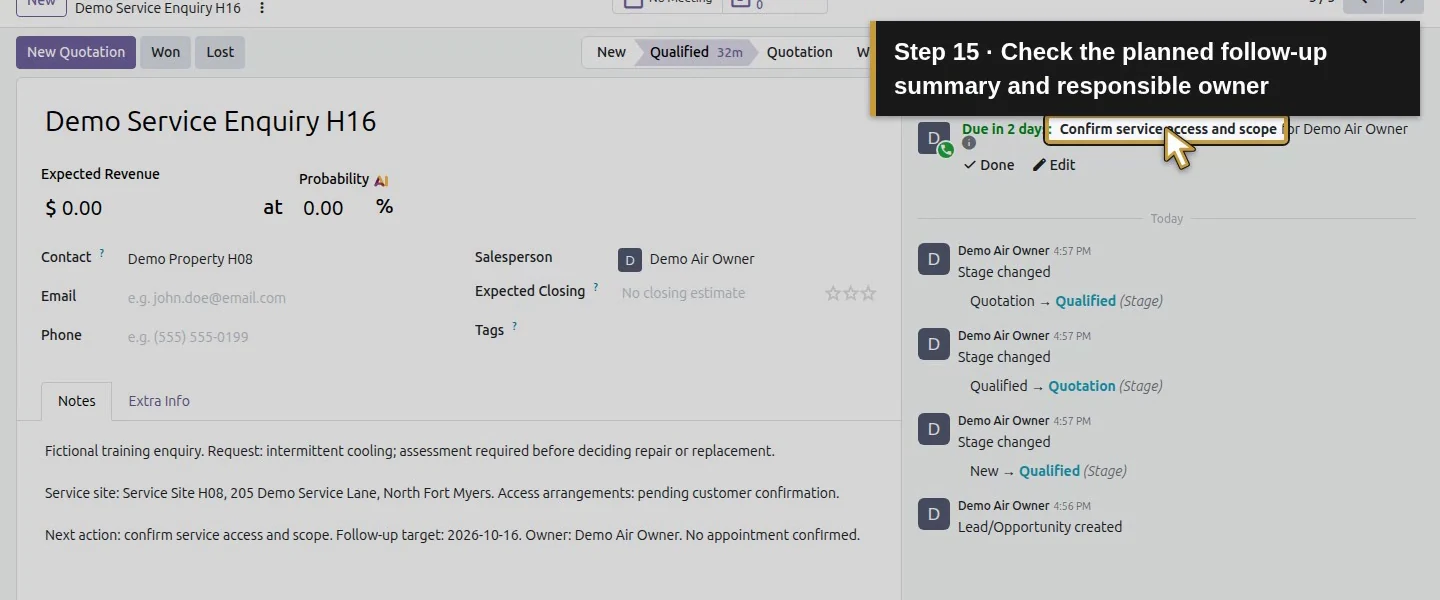
Click Save. Reopen the opportunity and inspect Planned Activities. The demo showed one Call, due in two days, with the intended summary and owner.
Step 6. Record the completion feedback
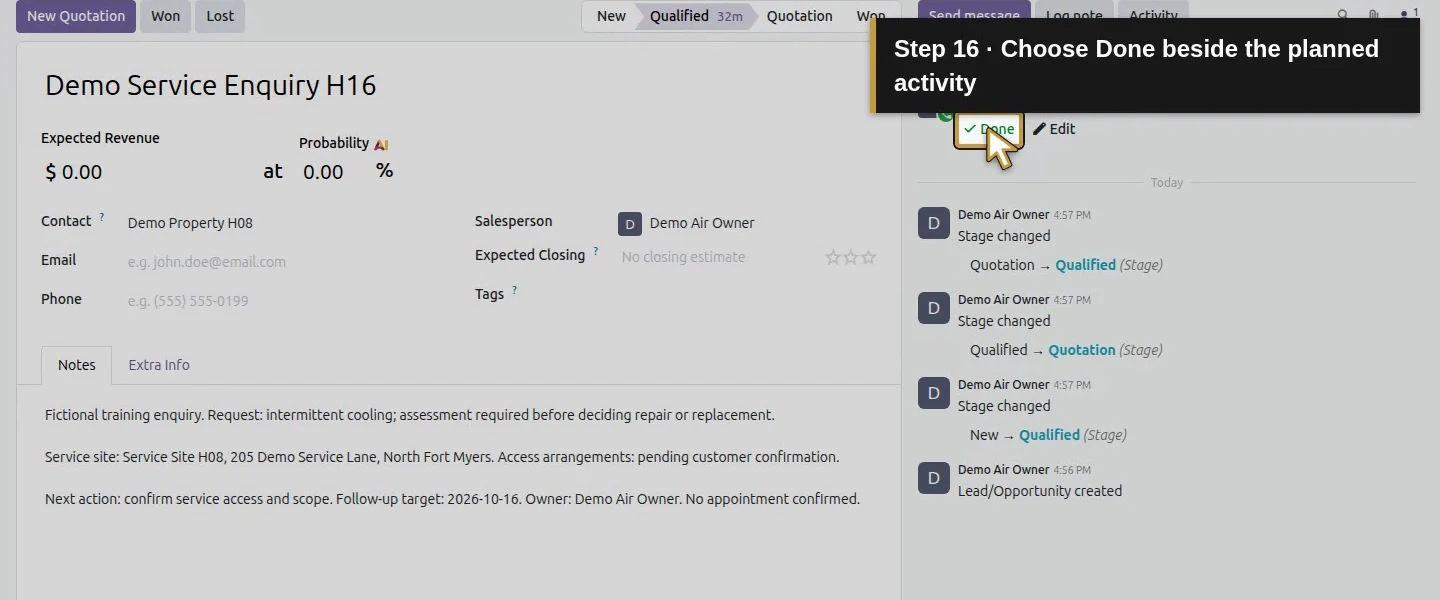
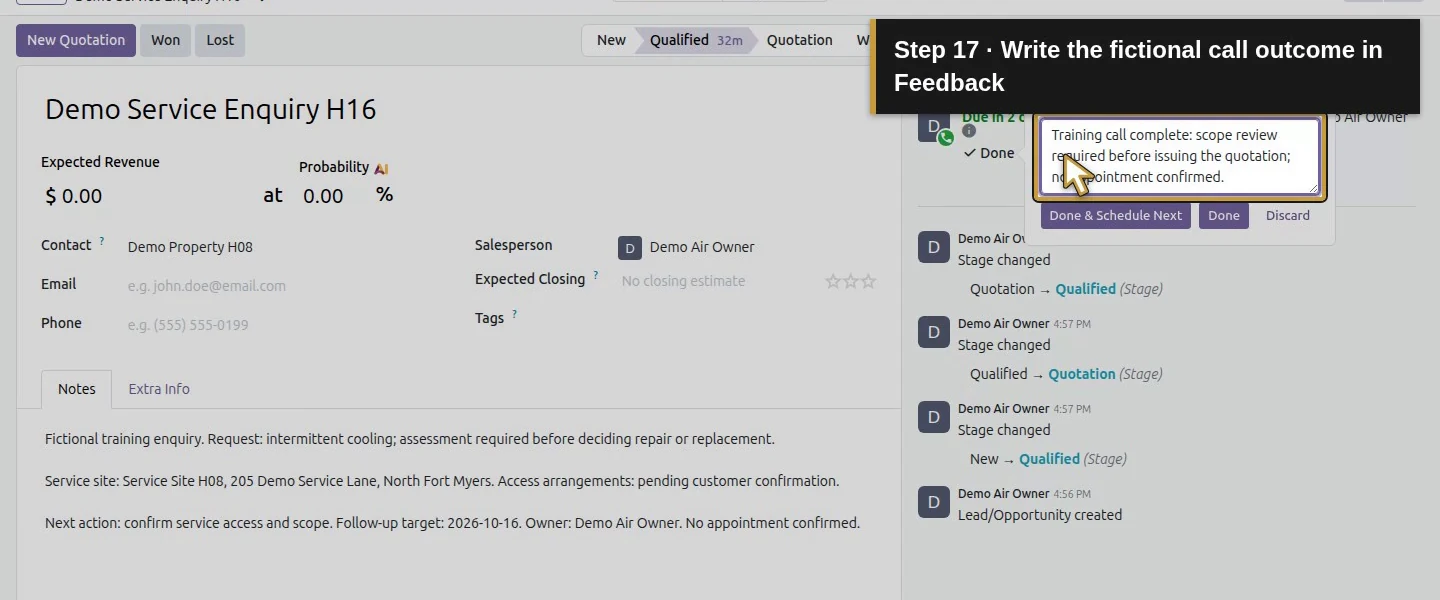
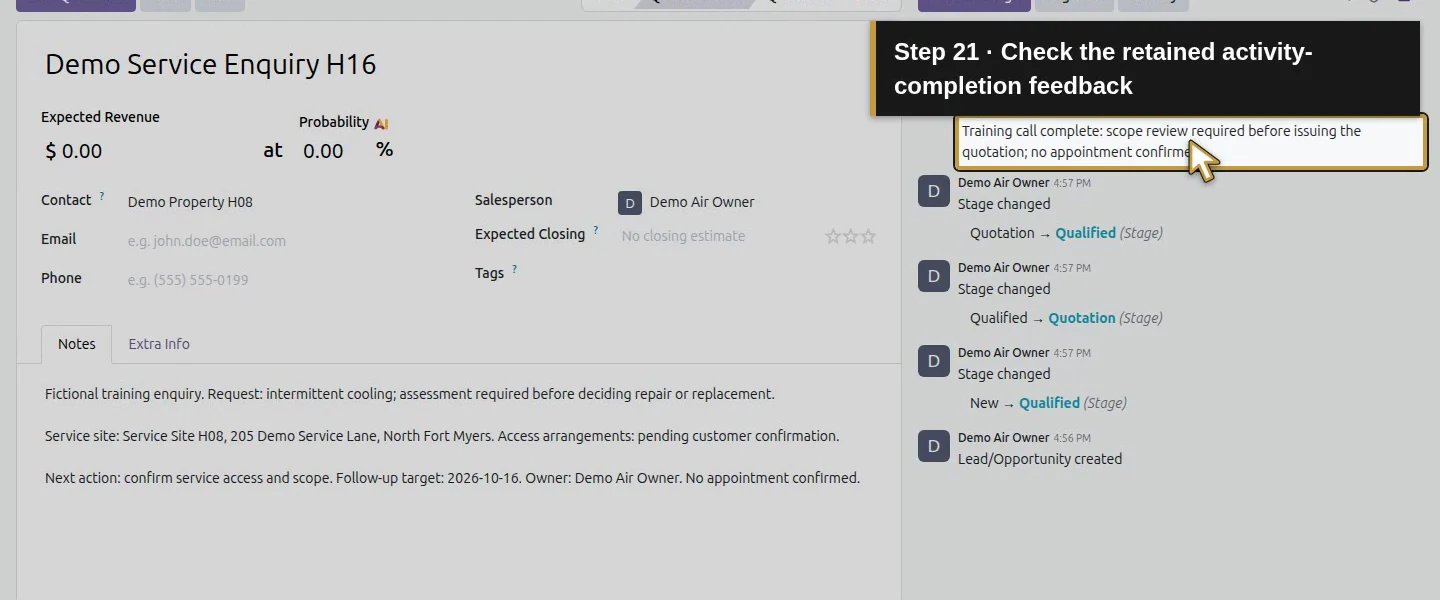
After the fictional call outcome is ready, click Done beside the planned activity. The Mark Done popover has a Write Feedback box. Enter: Training call complete: scope review required before issuing the quotation; no appointment confirmed.
Step 7. Complete without another activity
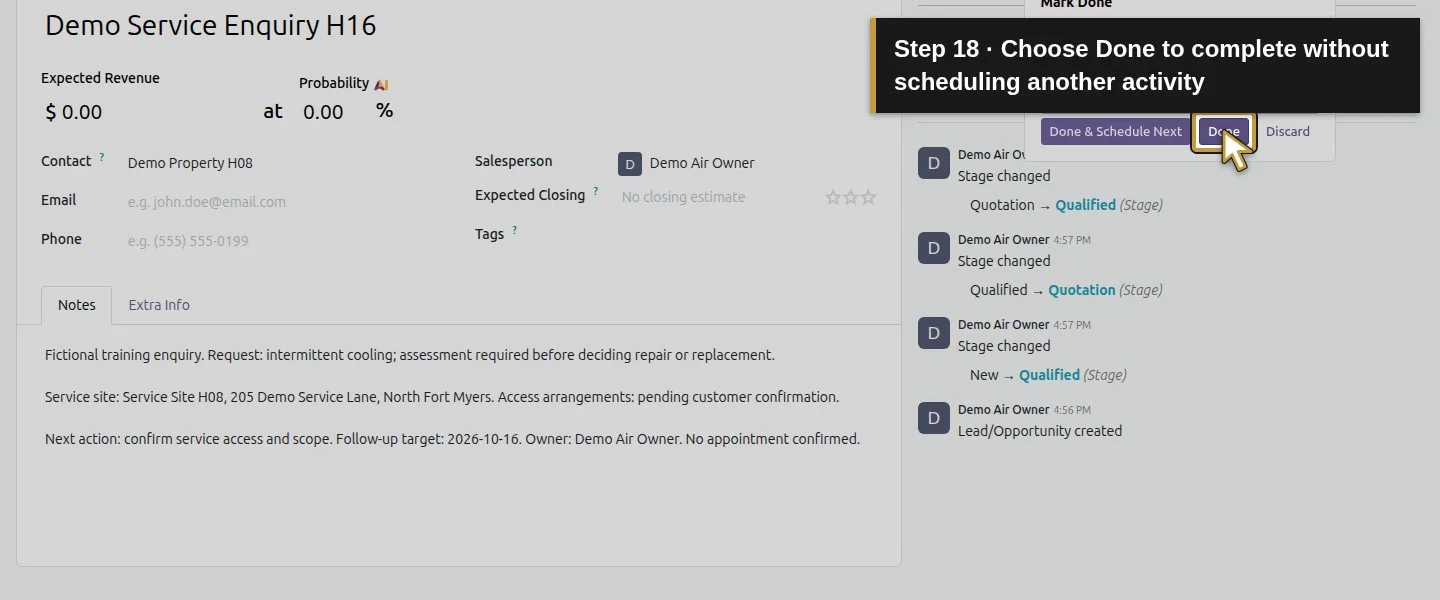
Choose Done in the popover. Done & Schedule Next is a separate choice; this example does not select it.
Step 8. Check completion
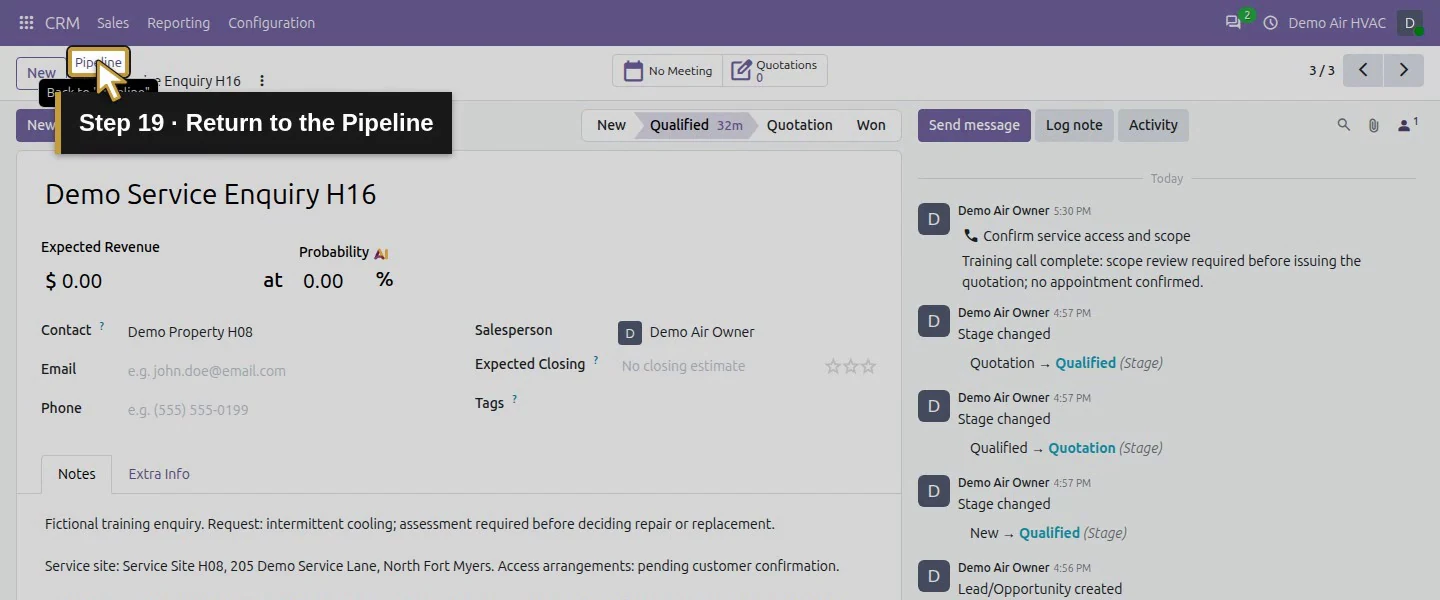
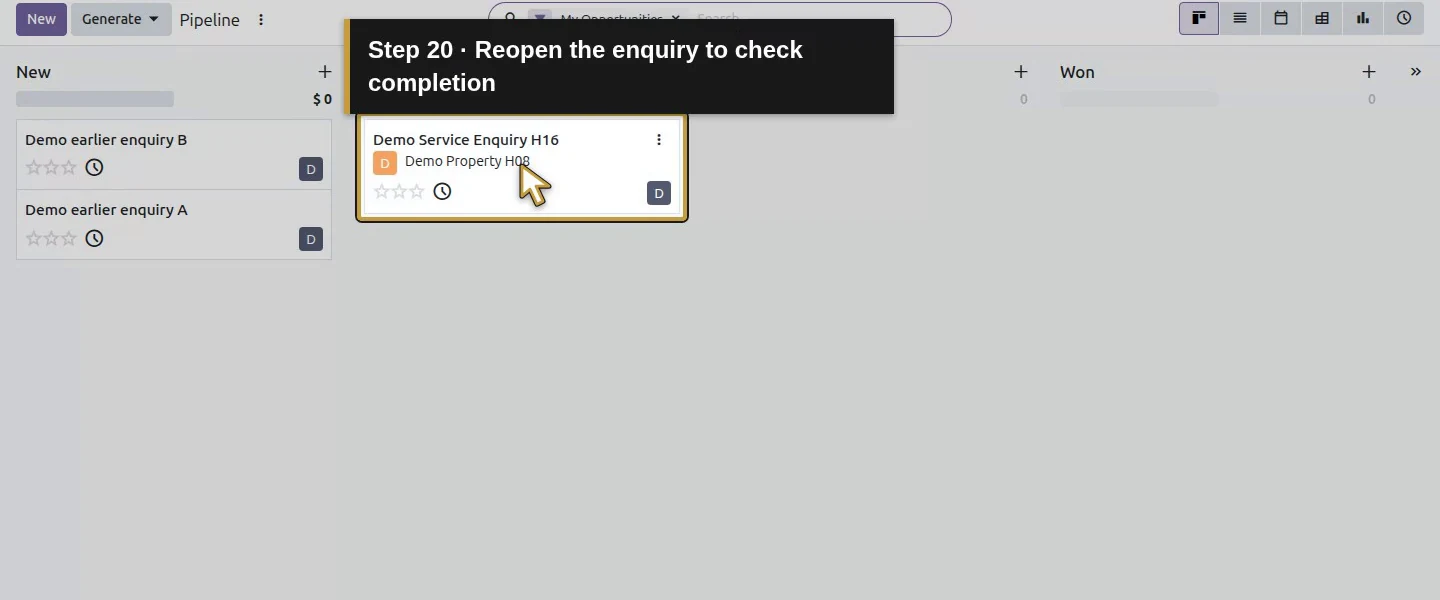
Reopen the enquiry. Check that the planned call no longer remains open and that its feedback is retained in the record's activity-completion history. A new follow-up, if needed, must be deliberately scheduled.
Check the result
Activity 1 was saved as Call on CRM enquiry 3, assigned to user 2, due 2026-10-16 and planned. Completing it left zero open activities on that enquiry and retained one completion notification with the exact feedback. No next activity or customer appointment was created.
If your screen differs
The native scheduling button is Save, not a generic Schedule button. Completion uses Done beside the activity and a feedback popover. The date control is a calendar, not a free-text field. This tests an internal Call and completion; customer email delivery and automatic reminder rules remain separate workflows.
Frequently asked questions
How do I schedule a follow-up call in Odoo CRM?
Open the enquiry's Activity control, choose Call, set Summary, date and Assigned to, then Save and inspect the planned activity.How do I mark an Odoo activity as done?
Click Done beside the activity, enter feedback and choose Done in the popover. Verify the planned item is gone and completion feedback remains.Do Odoo activities automatically email customers?
This Call test created an internal activity and completion notification. It did not verify customer email delivery; message sending is a separate workflow.Continue building the business
To create an internal follow-up from a saved CRM stage change, follow How do I set up a no-code reminder rule in Odoo?. That guide checks repeat behavior and manual completion separately.
Create the reviewed service quotation.
Talk about your Odoo setup
Bring your current process and the result you need to Onward to plan your Odoo workflow. Talk about your Odoo setup.