
Running an HVAC business with Odoo · Service products
How do I create HVAC service-call and labor products in Odoo?
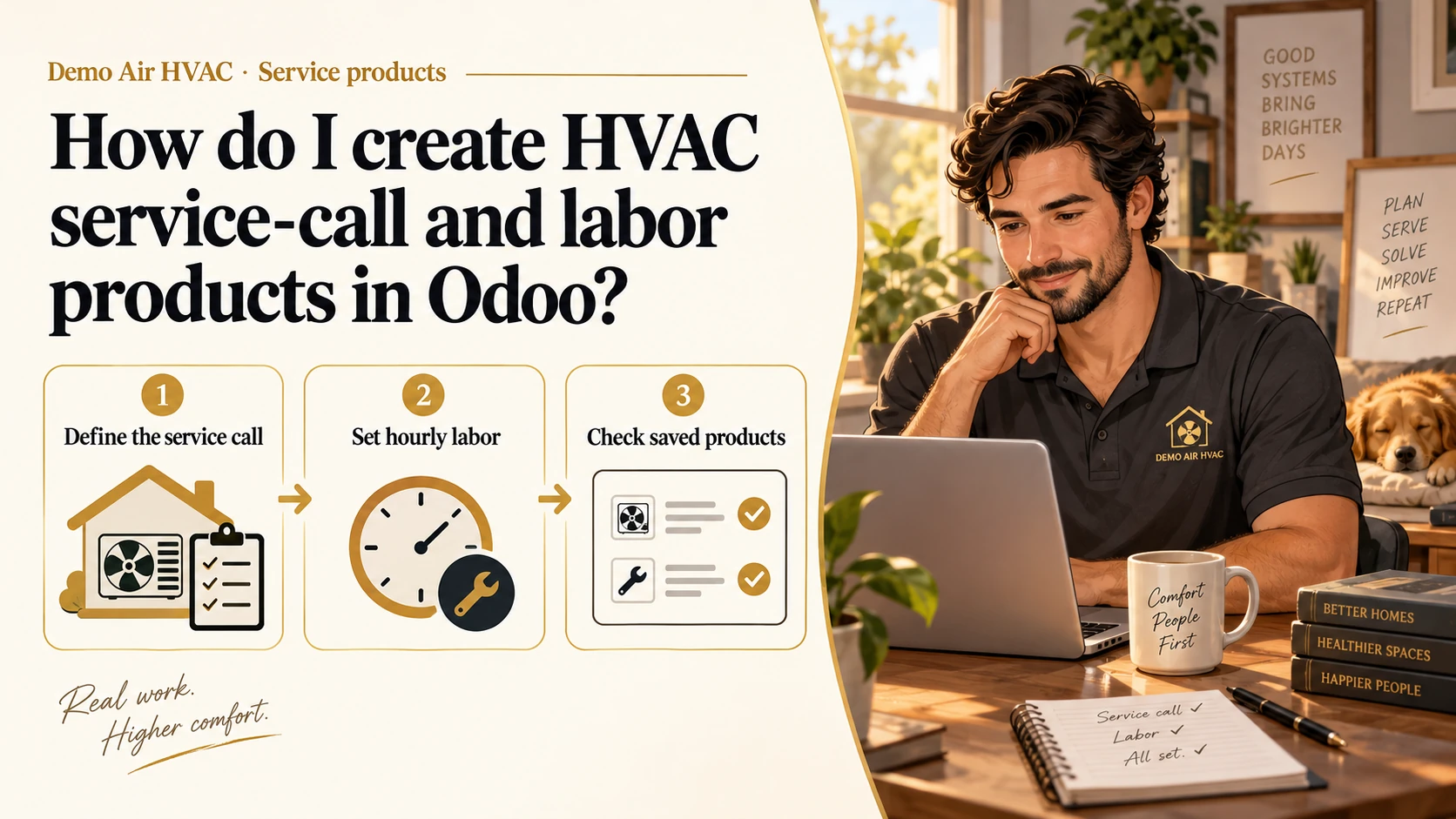
Open Sales > Products > Products and create each service. Choose its unit and price, review Invoicing Policy and Create on Order, then save and reopen. Use Units for a fixed service call and Hours for quoted labor.
Two saved service products with checked prices, units and ordered-quantity invoicing policies, ready for a later quotation.
Alex Rivera runs Demo Air HVAC, a fictional heating and cooling business. He is preparing a service call and technician labor before his first quotation. The example rates are fictional: USD 100 per service-call unit and USD 80 per labor hour.
Follow the thirty-eight stepsBefore you begin
Complete the company-profile lesson and app-selection lesson in the series. Sales, Product and Units of Measure are installed; this demo also has the native Project and Task Logs prerequisites. Sign in with product-editing access; the walkthrough uses the owner administrator.
The screenshots show Odoo 20.0-20260926 Community, with stock fields and menus, without Enterprise or customization. Search the product list before creating another record. The existing Service on Timesheets product stays intact; this lesson creates two distinct examples.
Have your agreed service scope, unit and rate ready. These prices illustrate data entry, not market rates or Onward offers. The demo’s generated 6% Sales Taxes remains visible and unchanged; review the correct taxes for your actual work before using a real quotation.
Both examples use Prepaid/Fixed Price and Nothing under Create on Order. The hourly unit prices manually quoted hours. Timesheet capture, billing recorded time and automatic task generation are separate workflows.
Open the product list
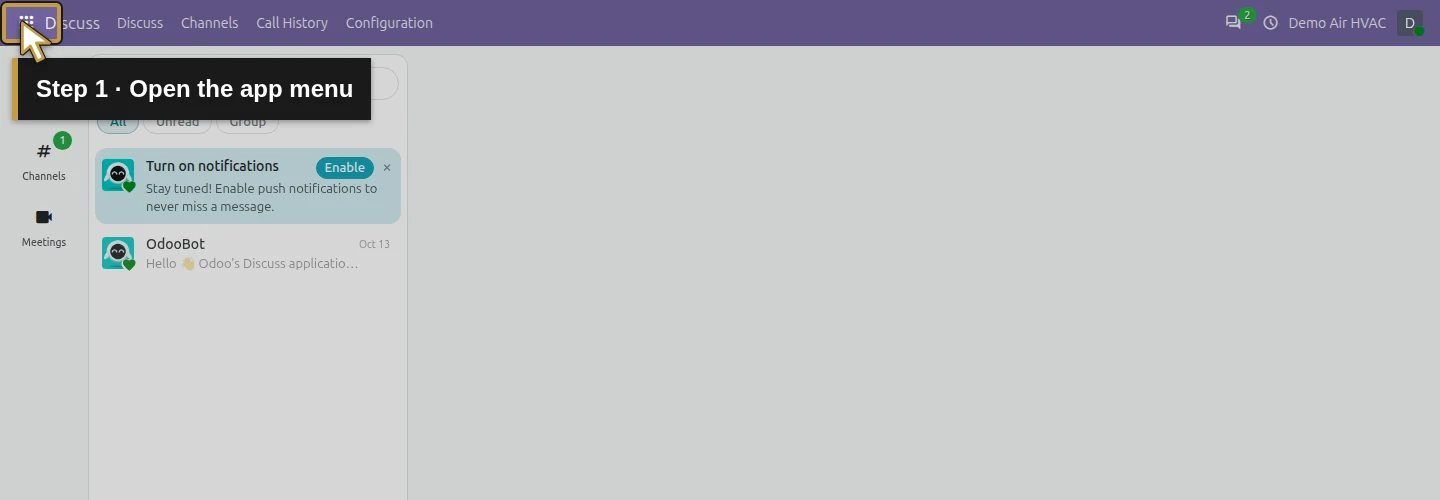
Step 1. Open the app menu
Click the grid-shaped app menu at the top left.
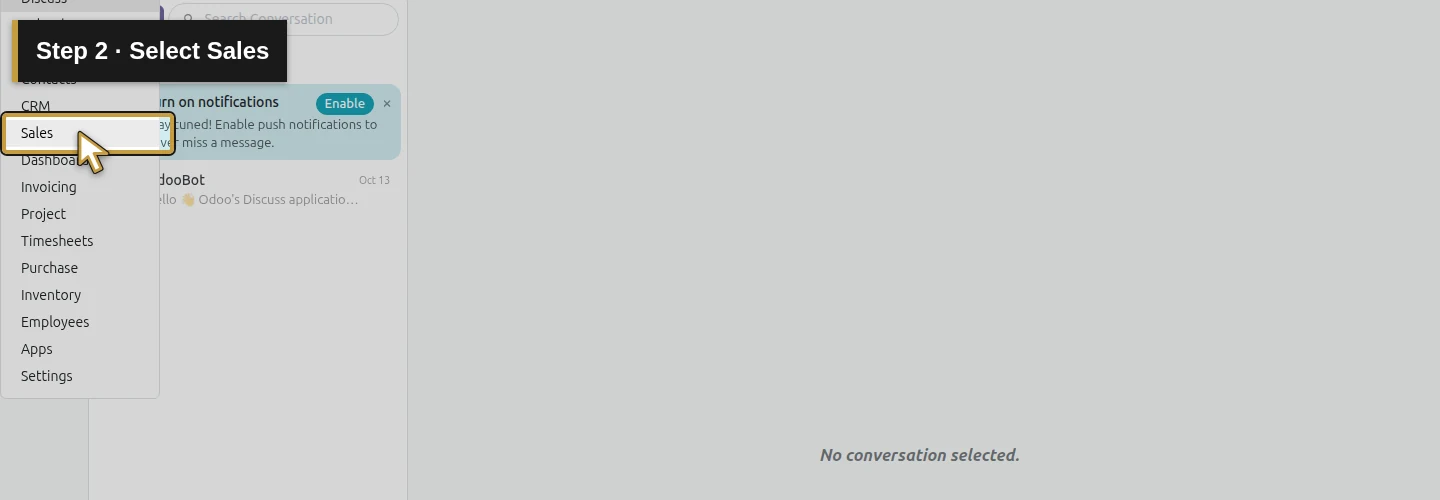
Step 2. Select Sales
Choose Sales and wait for its menu.
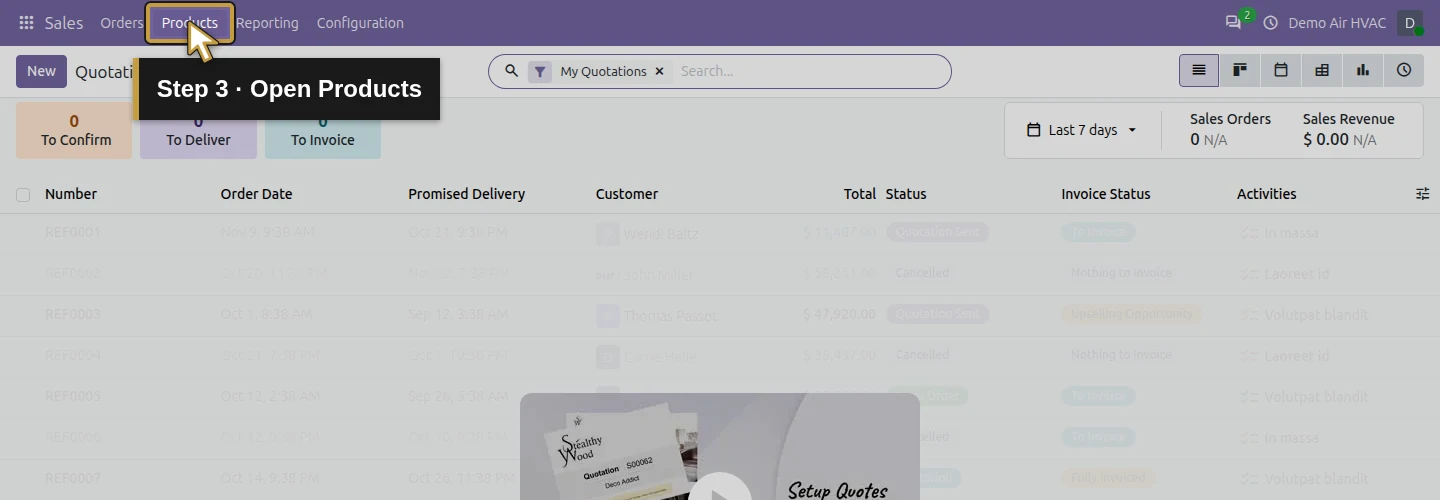
Step 3. Open Products
Click Products in the top menu.
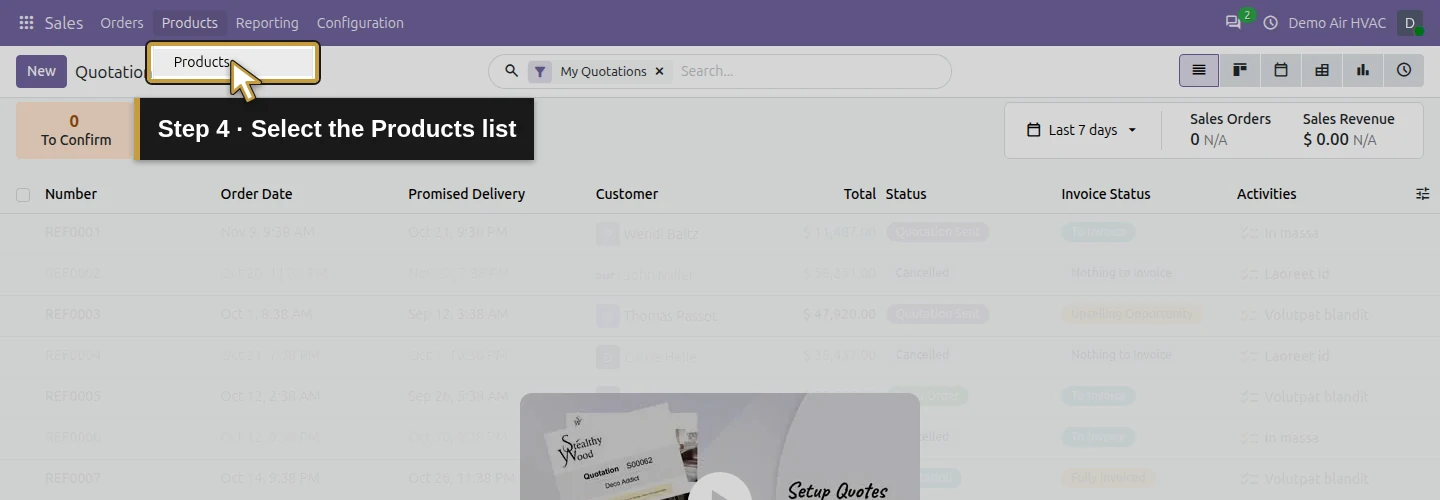
Step 4. Select the Products list
Choose Products from the dropdown. Check for an existing matching service before using New.
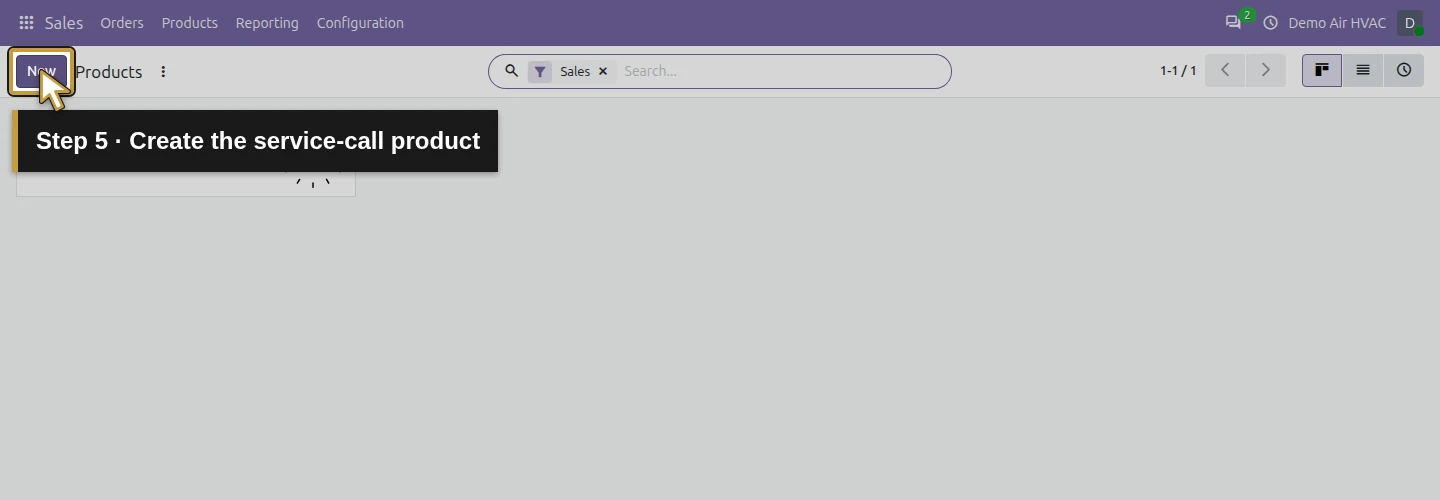
Step 5. Create the service-call product
Click New and wait for the blank product form.
Define and save the service call
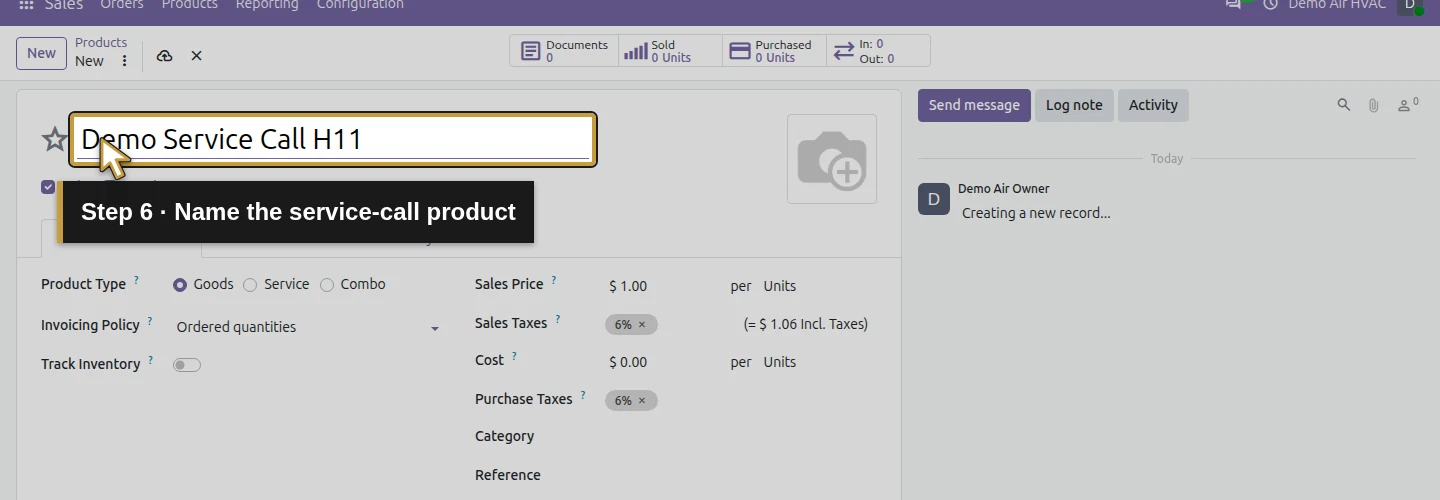
Step 6. Name the service-call product
Enter Demo Service Call H11 in the product name area.
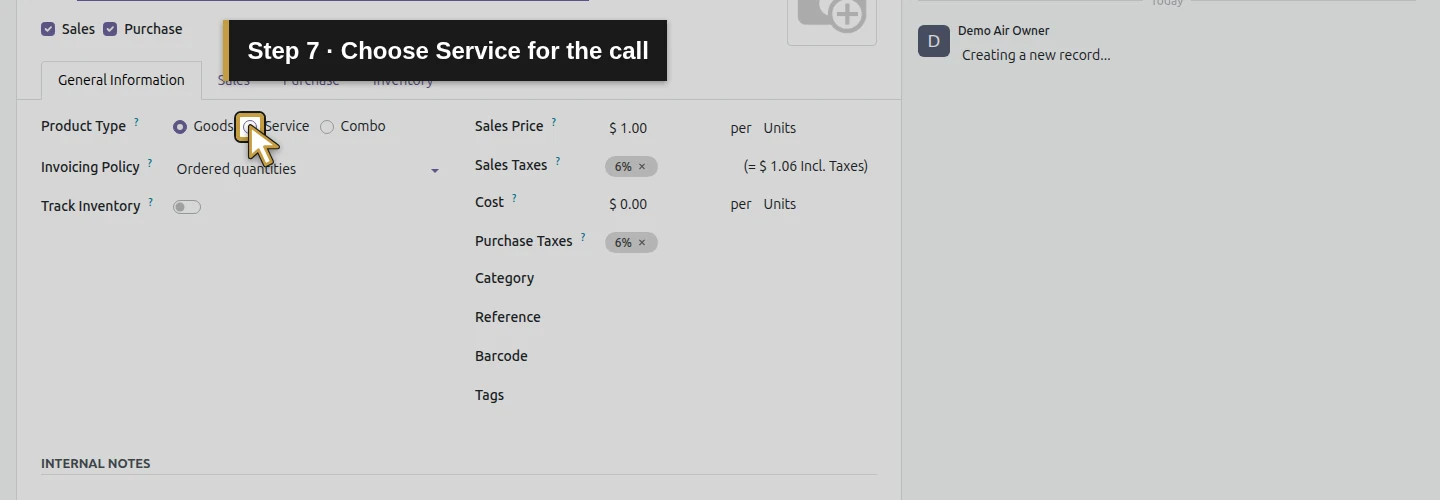
Step 7. Choose Service for the call
Choose Service under Product Type. In this demo, the unit switches to Hours, so check it explicitly.
Step 8. Turn off Purchase for the call
Uncheck Purchase for this example of a service your own business sells. Keep Sales checked.
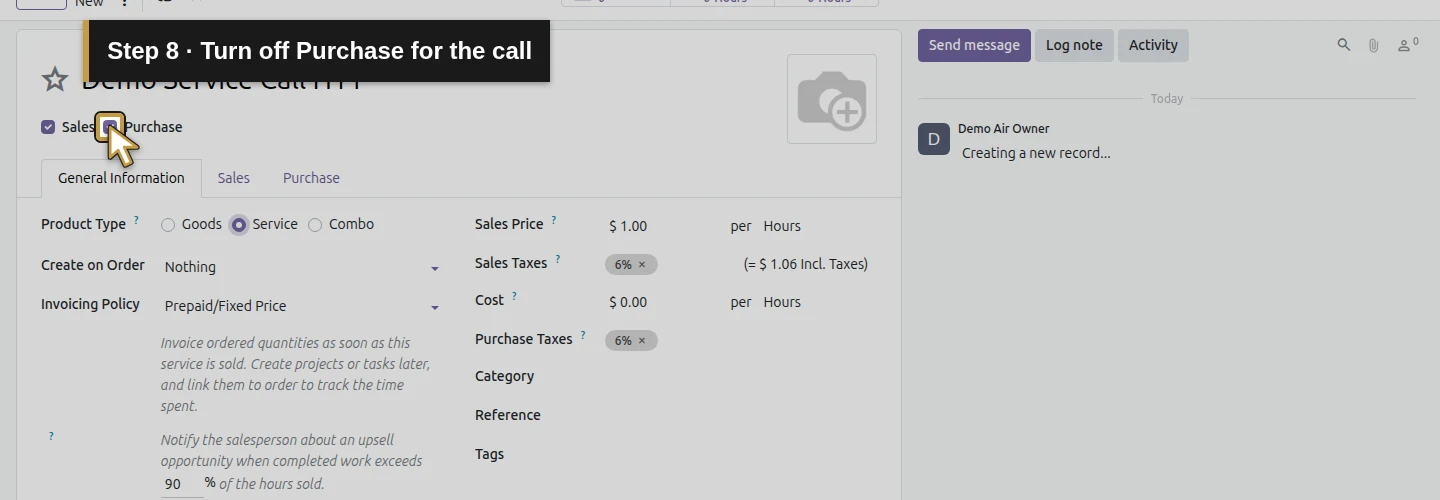
Step 9. Find the Units sales unit
In the unit beside Sales Price, type Units. This is the sales unit; a second unit appears beside Cost.
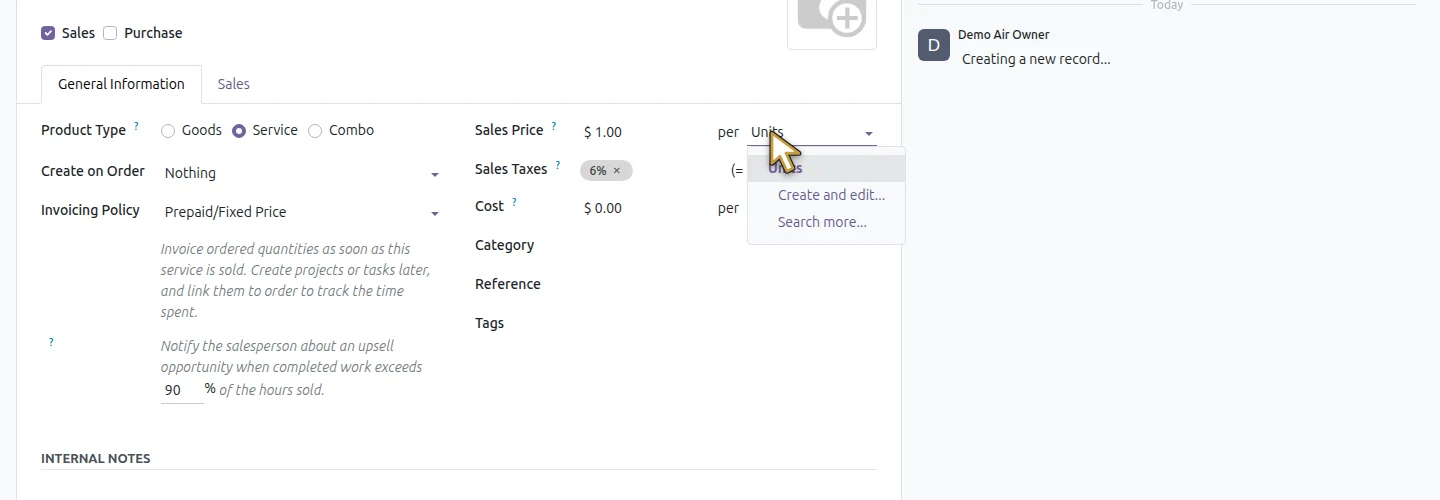
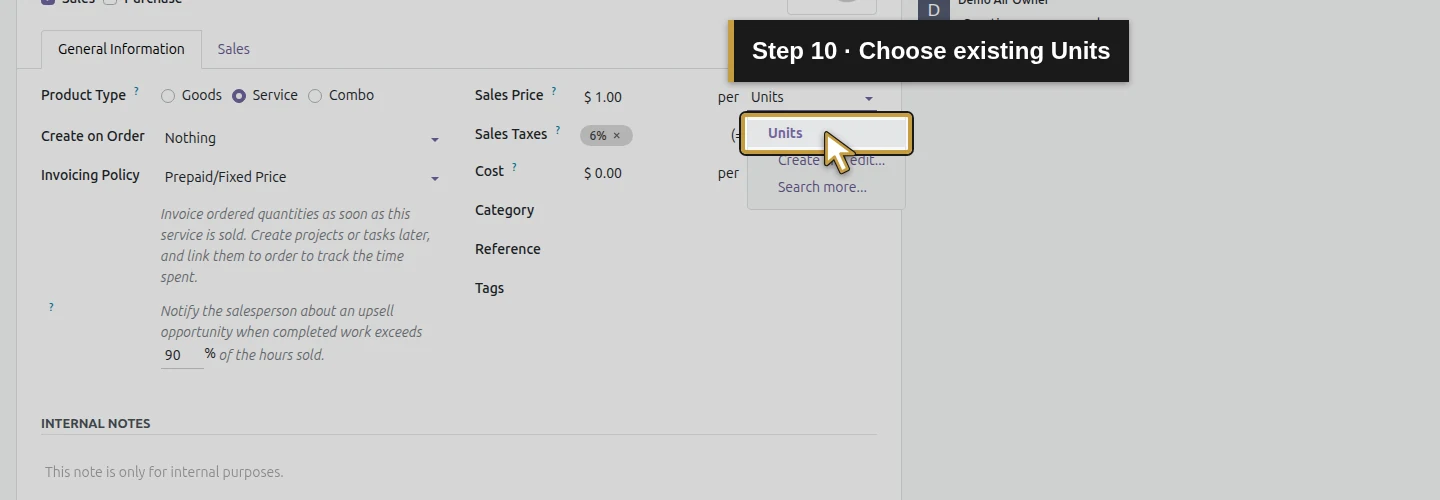
Step 10. Choose existing Units
Select the existing Units result. Avoid Create and edit when the required unit already exists.
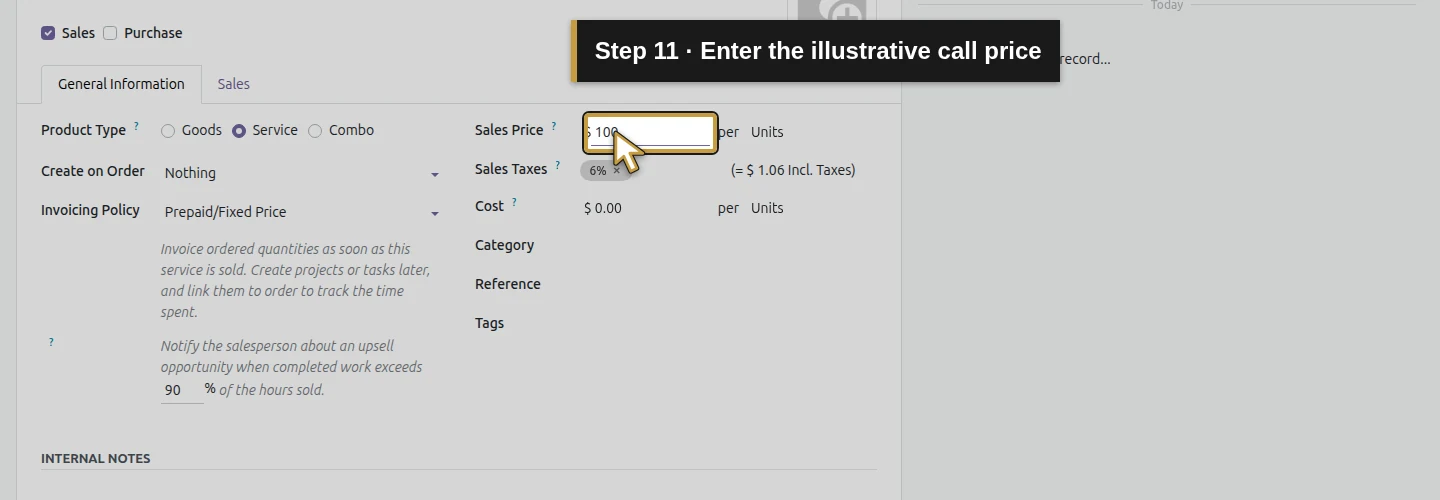
Step 11. Enter the illustrative call price
Enter 100 in Sales Price. This is the fictional USD 100 price per call unit.
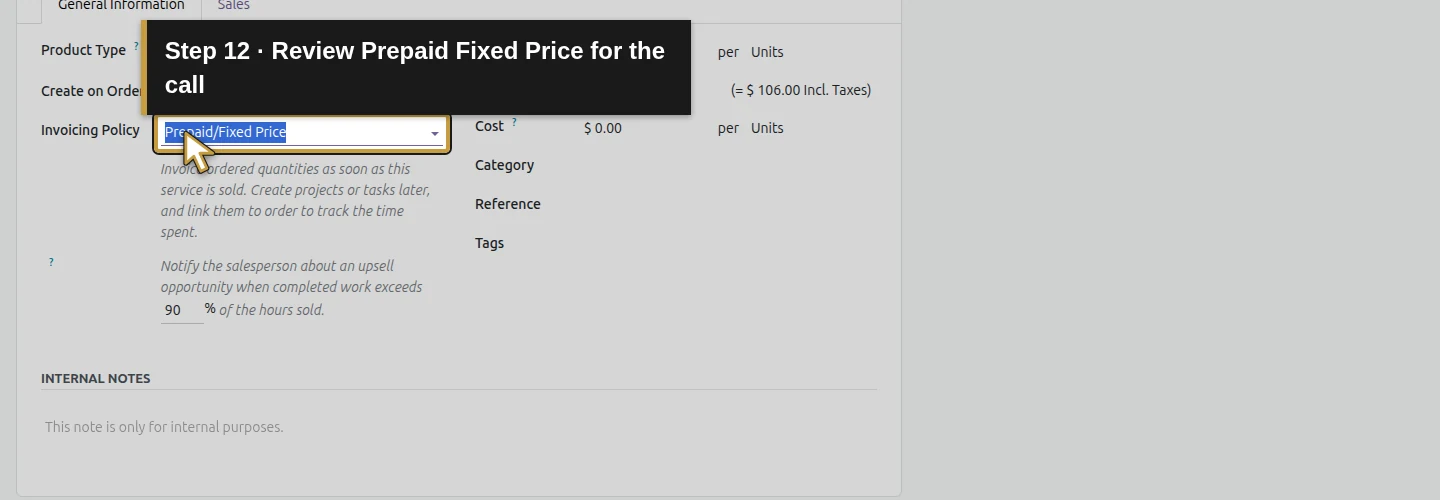
Step 12. Review Prepaid Fixed Price for the call
Check Invoicing Policy: Prepaid/Fixed Price. The displayed explanation uses ordered quantities.
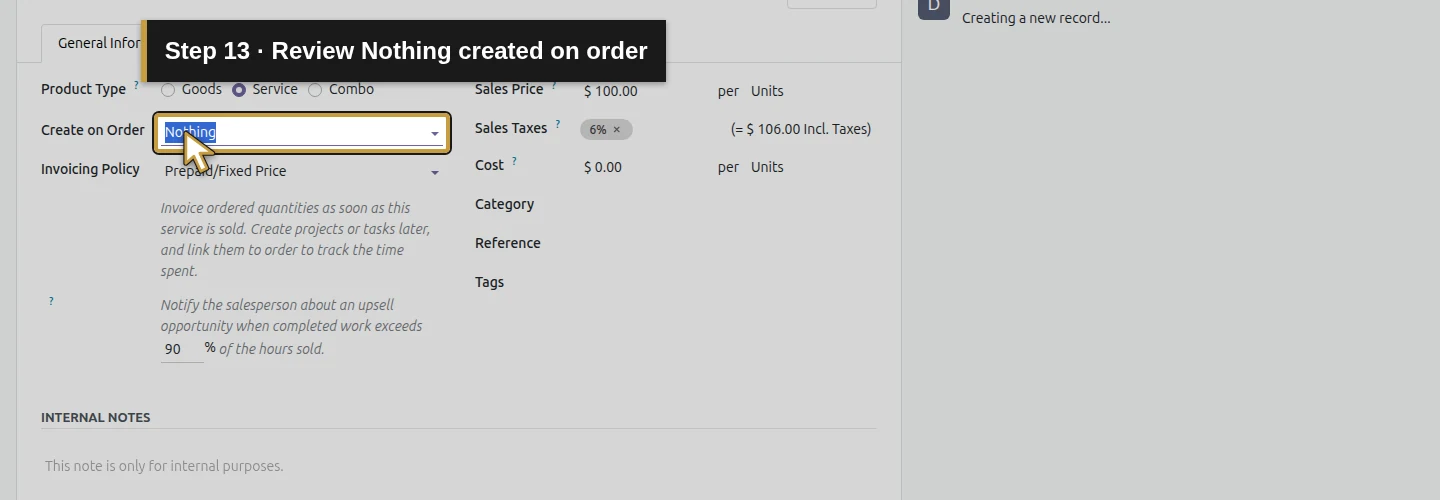
Step 13. Review Nothing created on order
Check Create on Order: Nothing. This example does not configure automatic project or task generation.
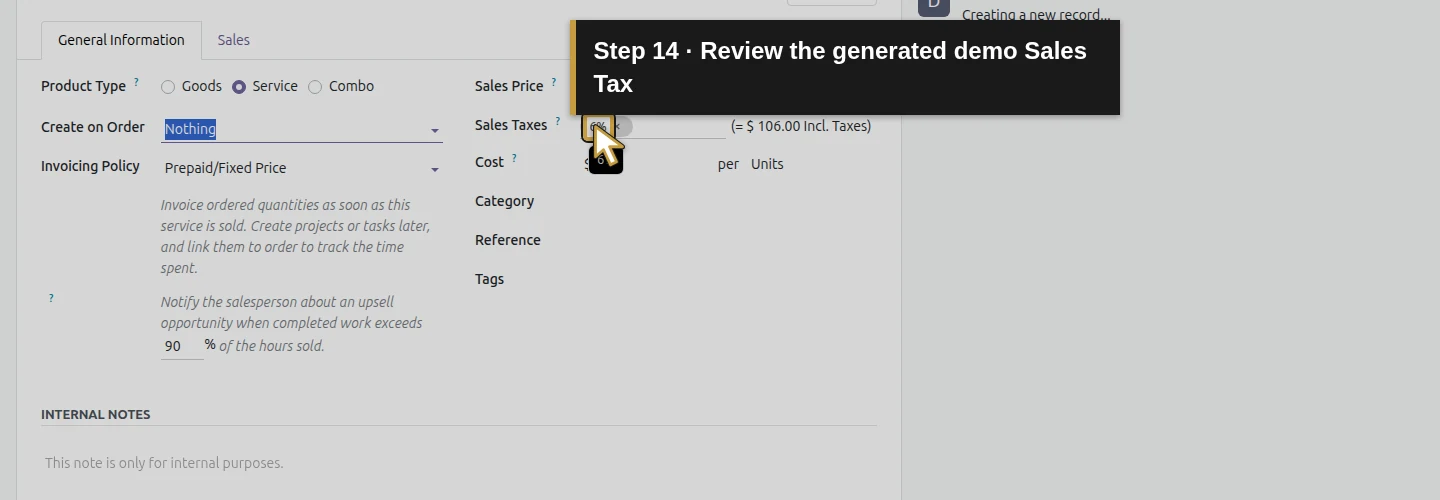
Step 14. Review the generated demo Sales Tax
Review Sales Taxes, shown as 6% from this demo’s earlier setup. That inherited default is not a tax determination for every HVAC service.
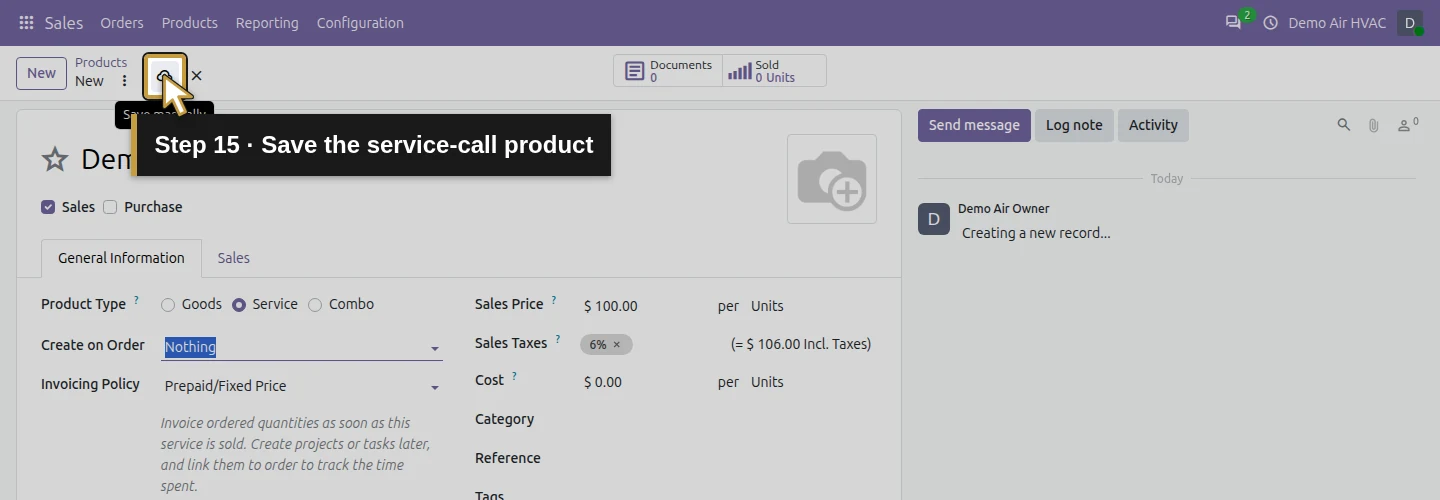
Step 15. Save the service-call product
Click the cloud-shaped Save manually control beside the breadcrumb.
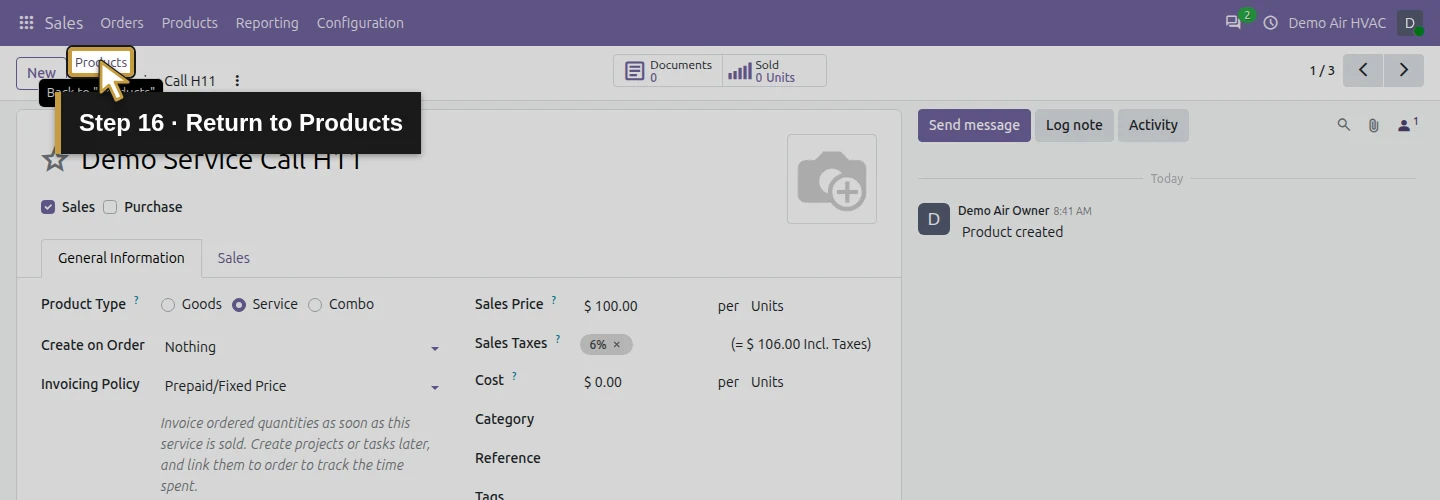
Step 16. Return to Products
Click the Products breadcrumb to return to the list.
Define and save hourly labor
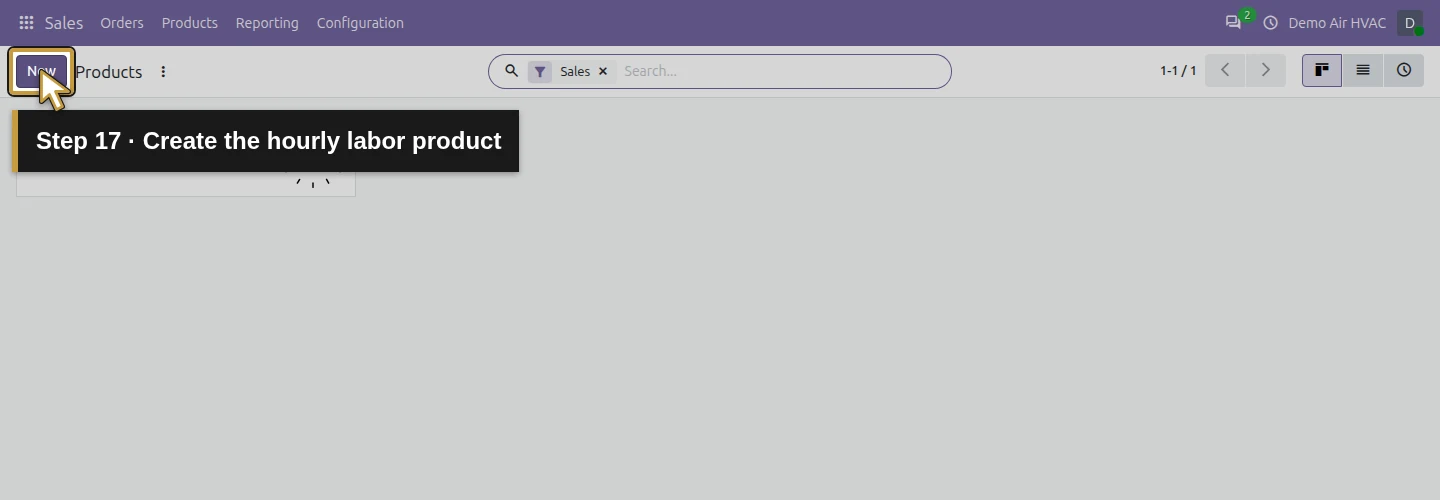
Step 17. Create the hourly labor product
Click New to start the separate hourly labor product.
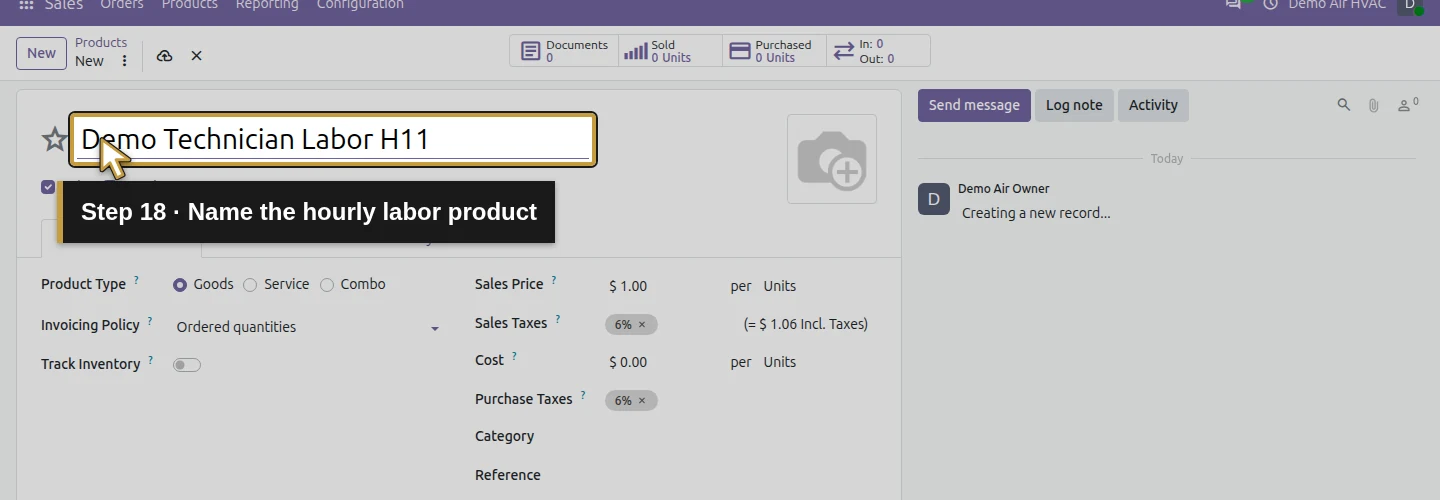
Step 18. Name the hourly labor product
Enter Demo Technician Labor H11 in the name area.
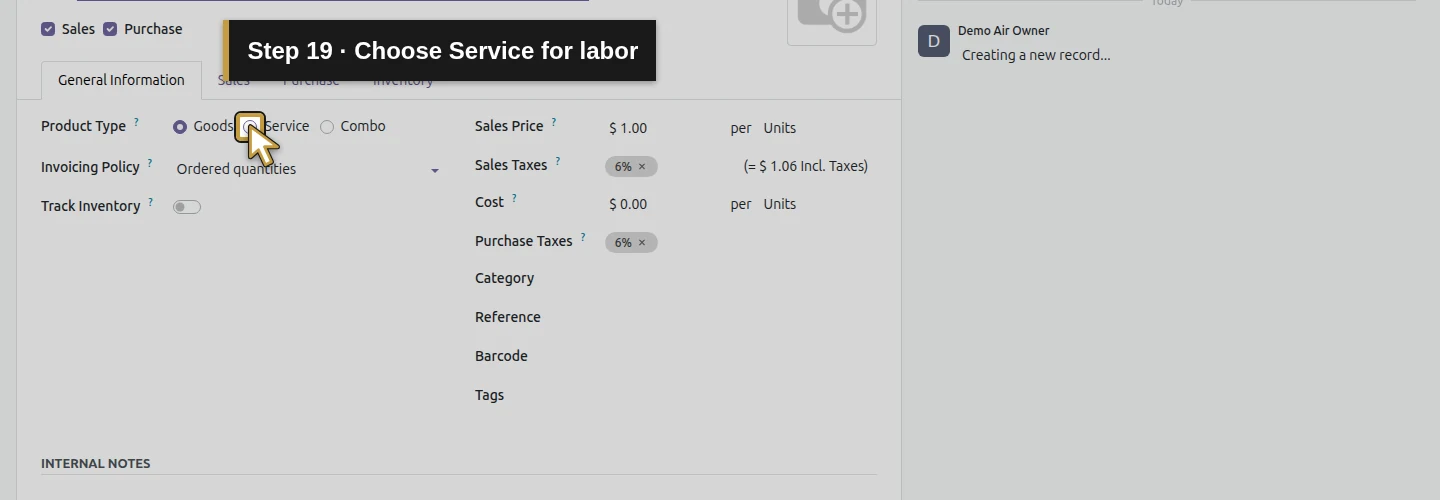
Step 19. Choose Service for labor
Choose Service under Product Type.
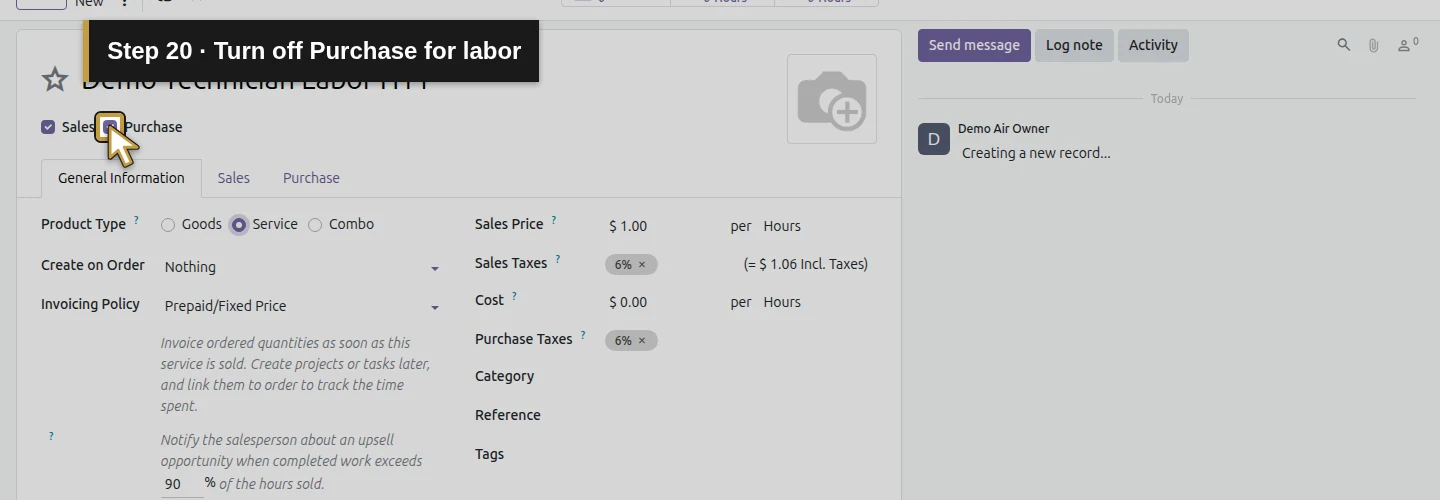
Step 20. Turn off Purchase for labor
Uncheck Purchase for this own-labor example and keep Sales checked.
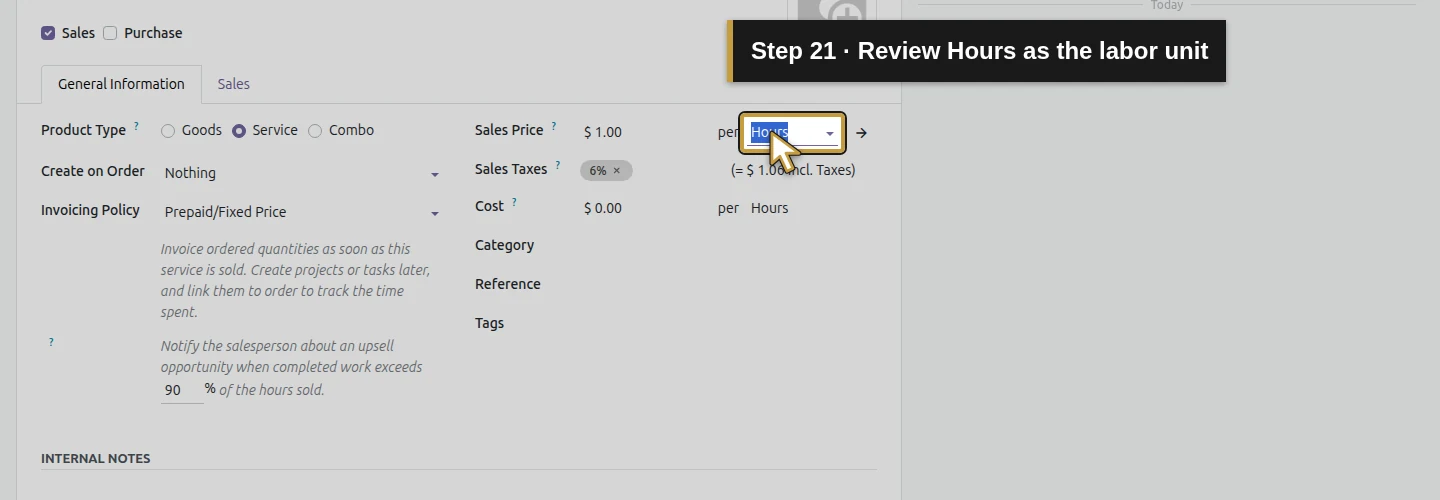
Step 21. Review Hours as the labor unit
Check Hours beside Sales Price. Selecting Service set that unit in this demo; verify your actual form.
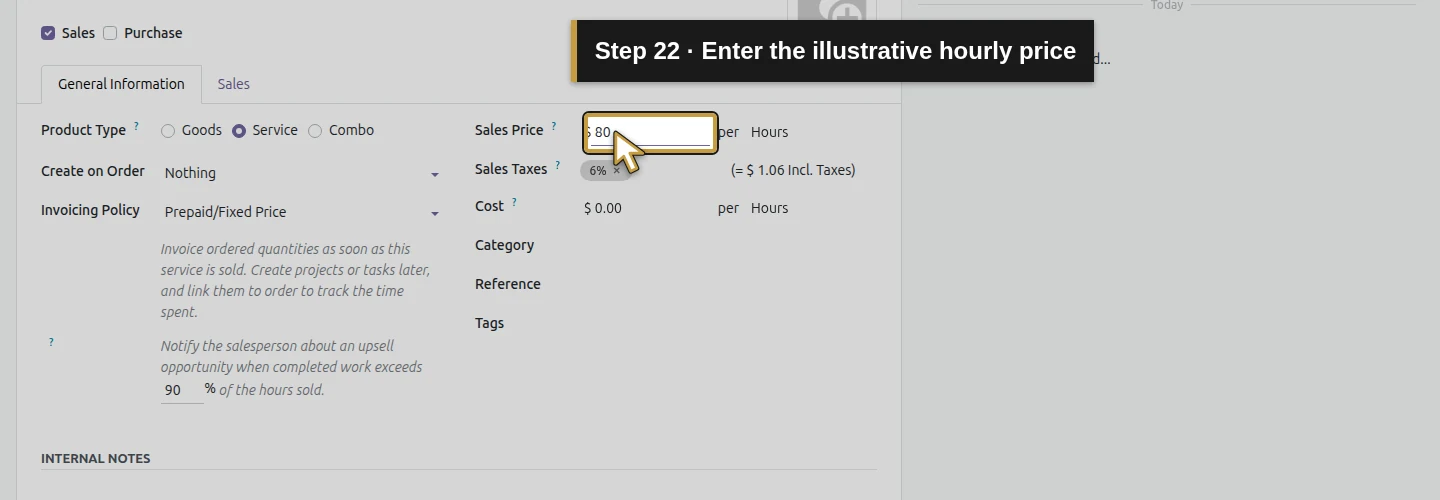
Step 22. Enter the illustrative hourly price
Enter 80 in Sales Price. This is the fictional USD 80 rate per quoted hour.
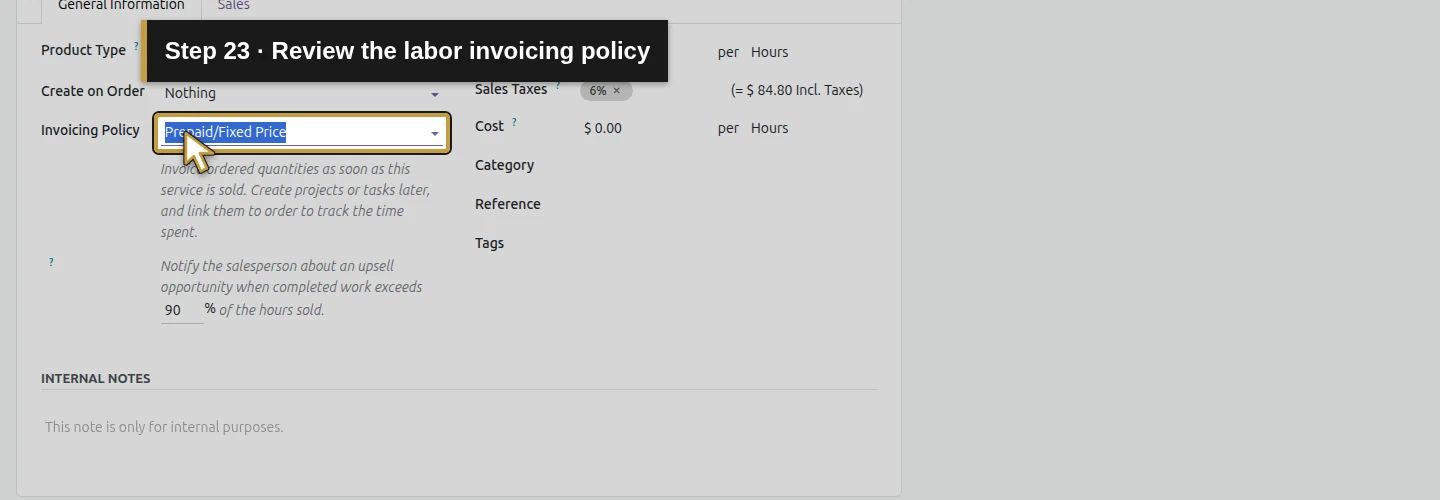
Step 23. Review the labor invoicing policy
Check Prepaid/Fixed Price. For this example, invoice quantities come from the ordered hours, not recorded timesheets.
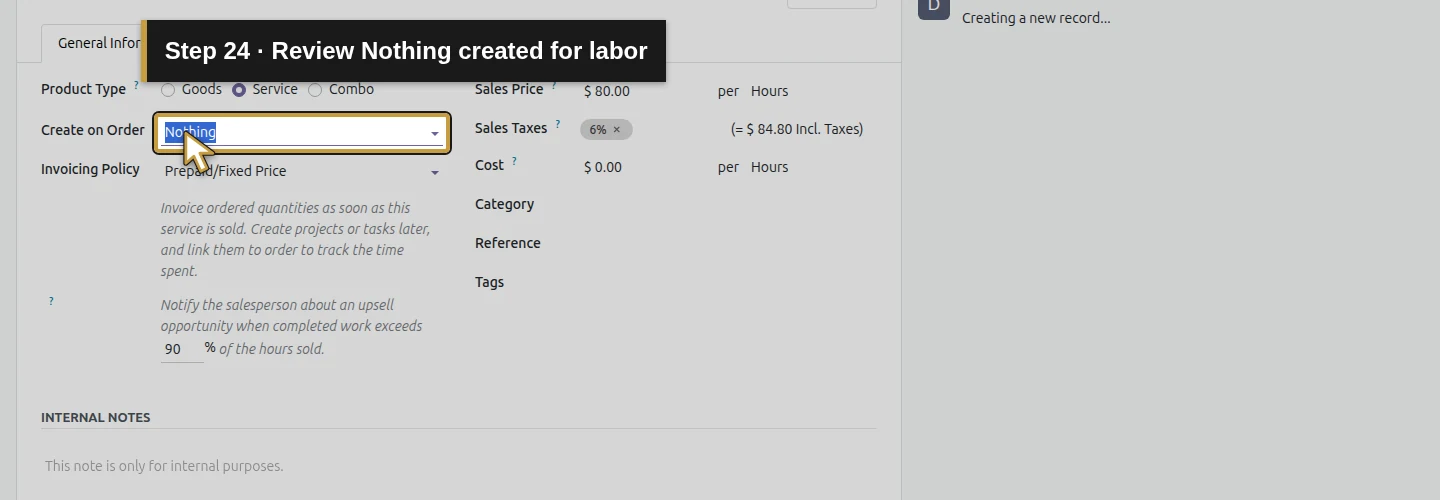
Step 24. Review Nothing created for labor
Check Create on Order: Nothing for labor too.
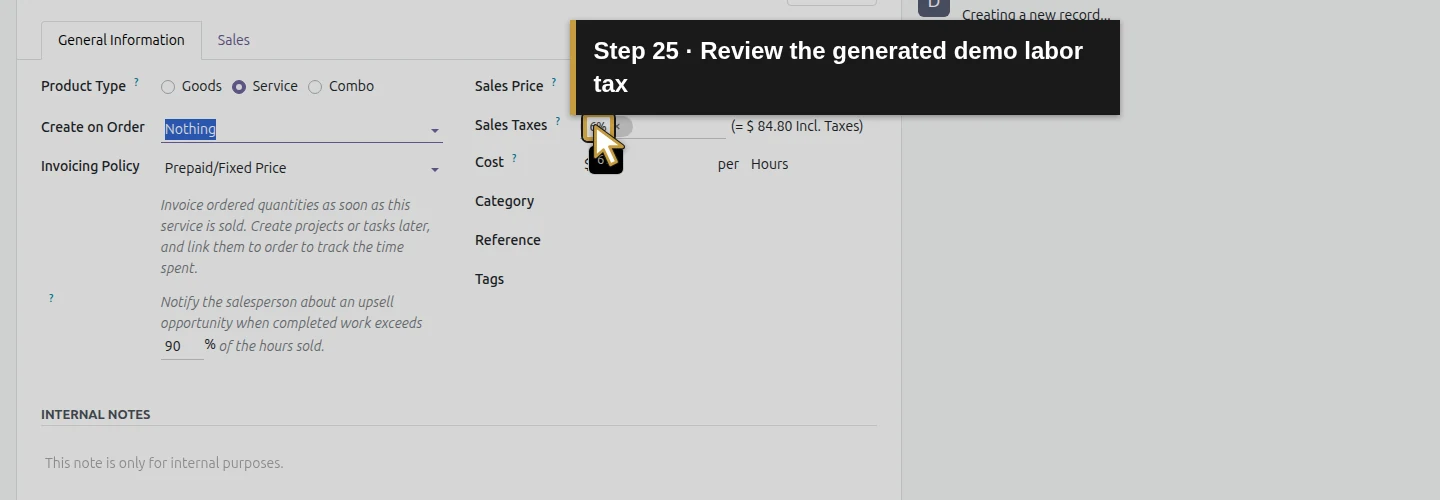
Step 25. Review the generated demo labor tax
Review the inherited demo 6% Sales Taxes. Choose the appropriate actual tax treatment before using real business data.
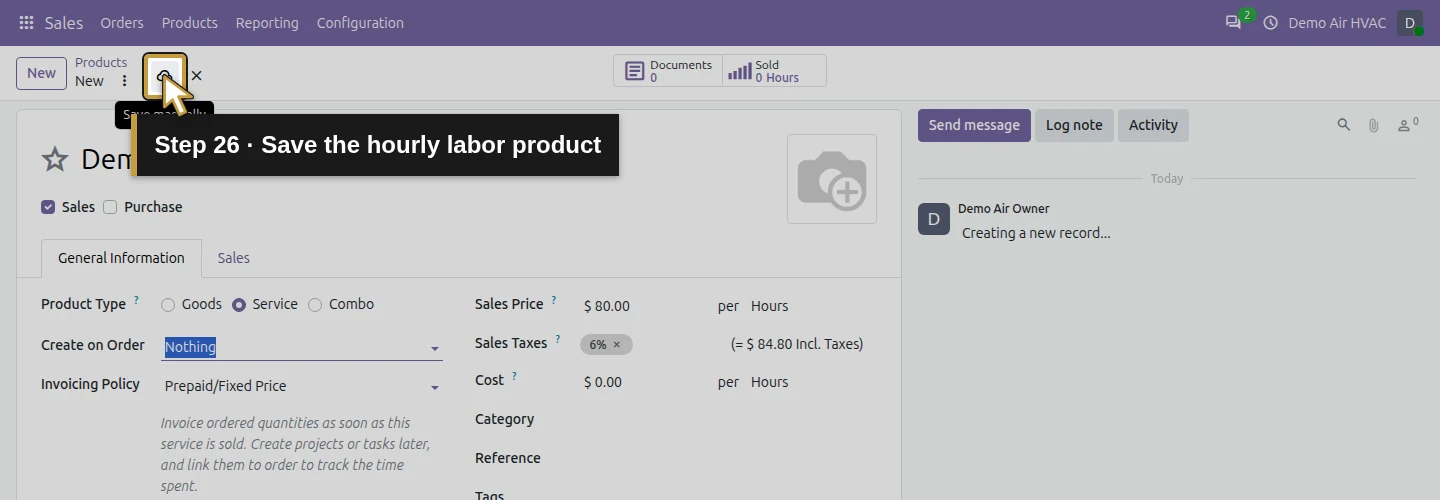
Step 26. Save the hourly labor product
Click Save manually to save the hourly labor product.
Reopen and check both products
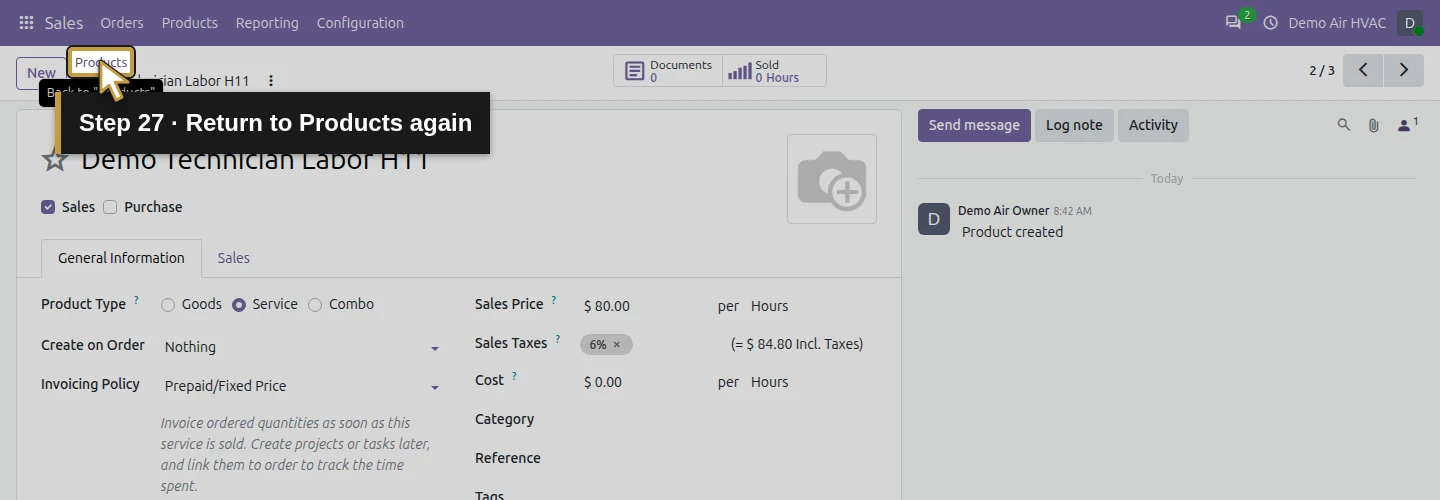
Step 27. Return to Products again
Click the Products breadcrumb to return to the list again.
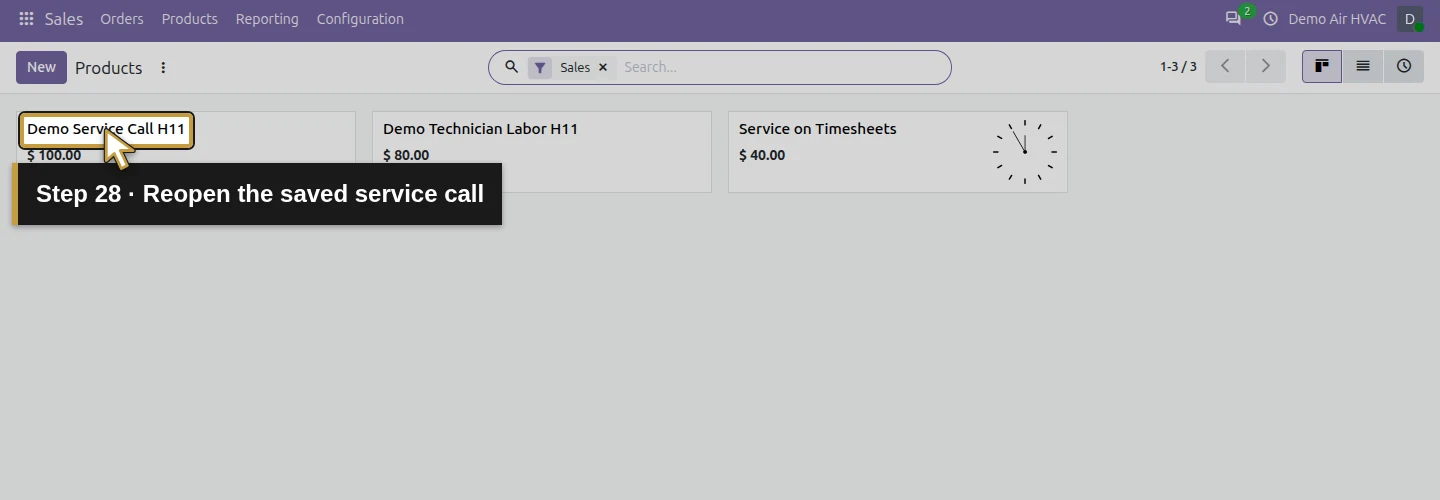
Step 28. Reopen the saved service call
Click the exact Demo Service Call H11 card name to reopen the saved call.
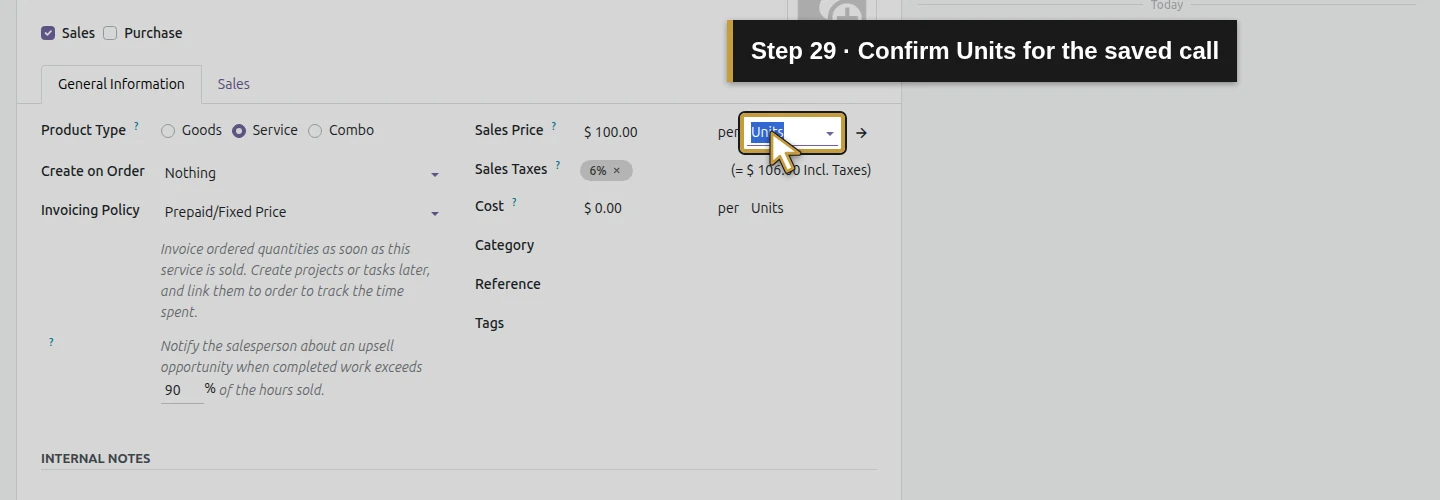
Step 29. Confirm Units for the saved call
Check that its sales unit is still Units.
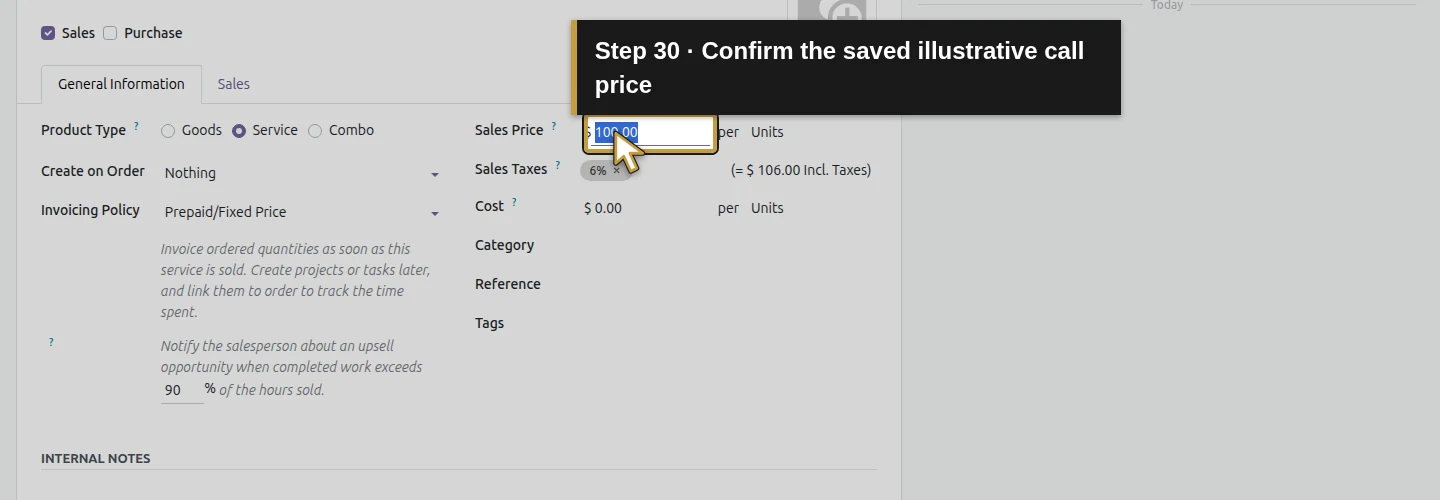
Step 30. Confirm the saved illustrative call price
Check that Sales Price remains 100.00 in USD.
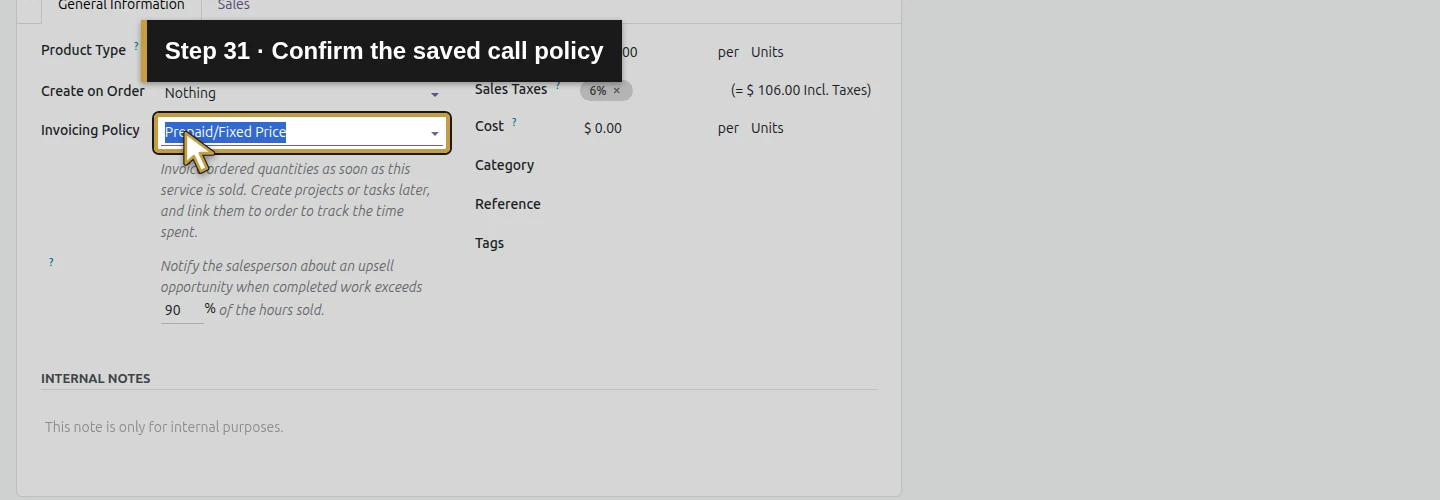
Step 31. Confirm the saved call policy
Check that the saved call policy remains Prepaid/Fixed Price.
Step 32. Confirm the saved call tracking
Check that Create on Order remains Nothing.
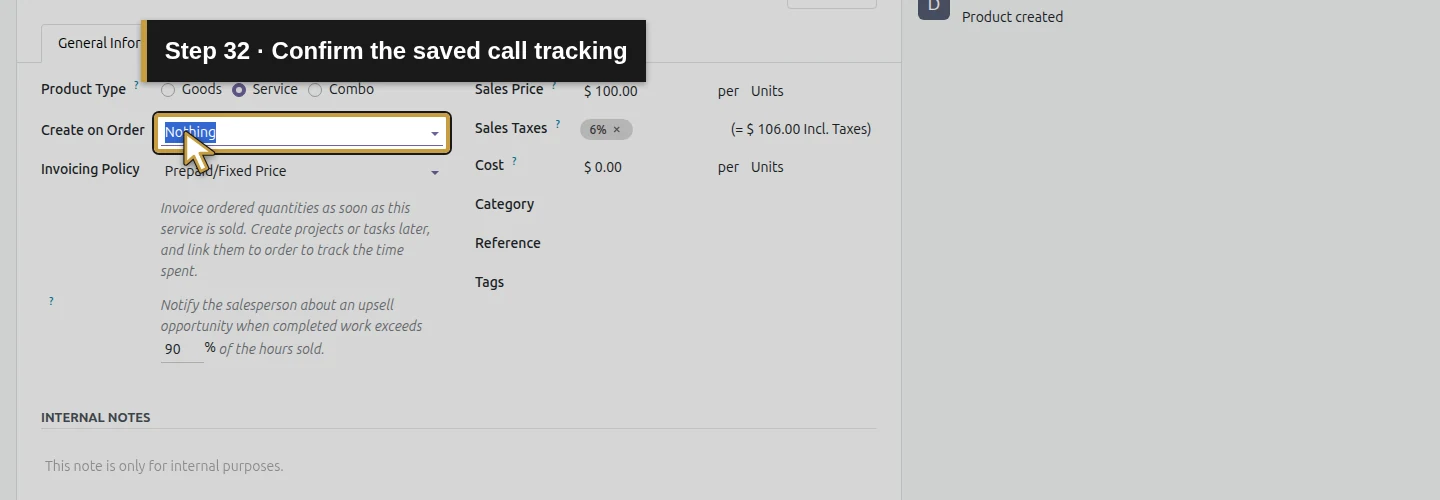
Step 33. Return to the saved products list
Click the Products breadcrumb to return to the saved product list.
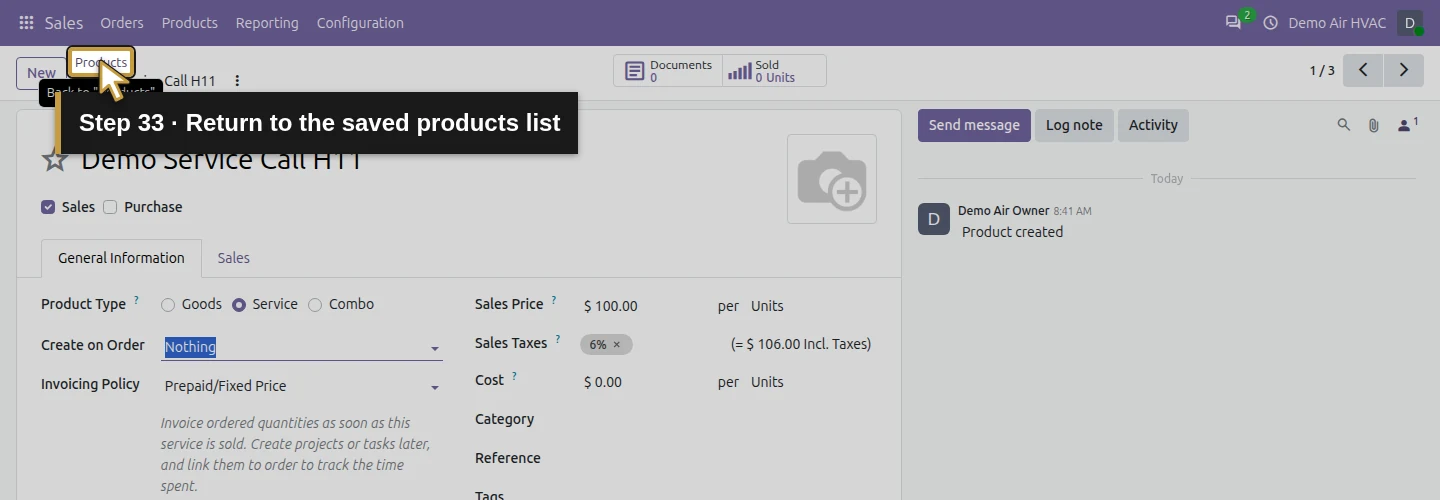
Step 34. Reopen the saved hourly labor
Click the exact Demo Technician Labor H11 name to reopen saved labor.
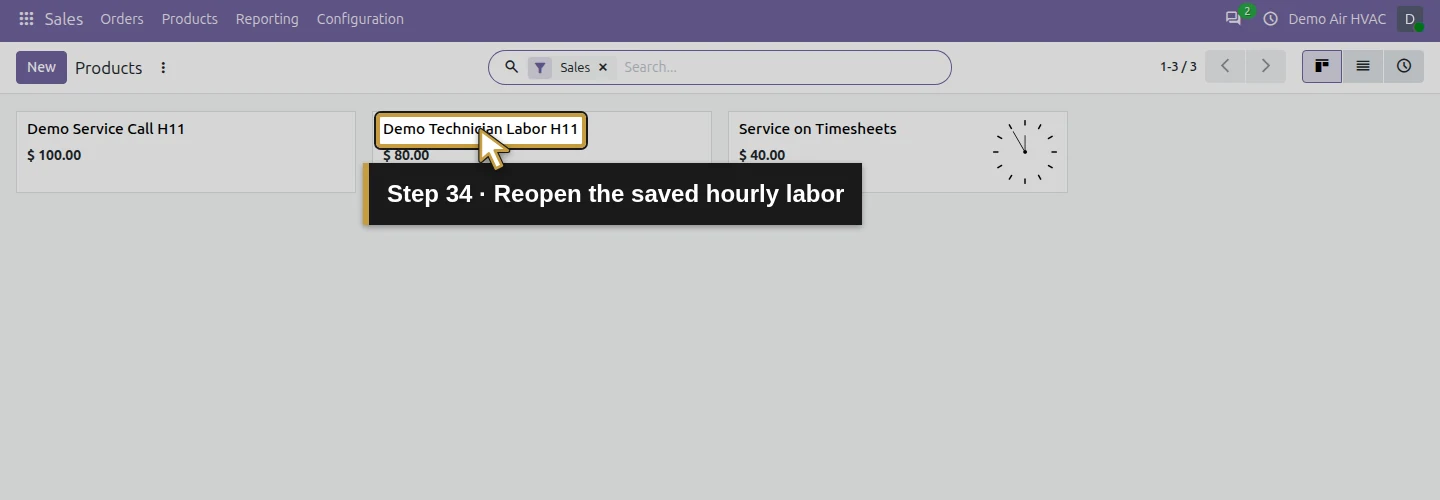
Step 35. Confirm Hours for saved labor
Check that the sales unit remains Hours.
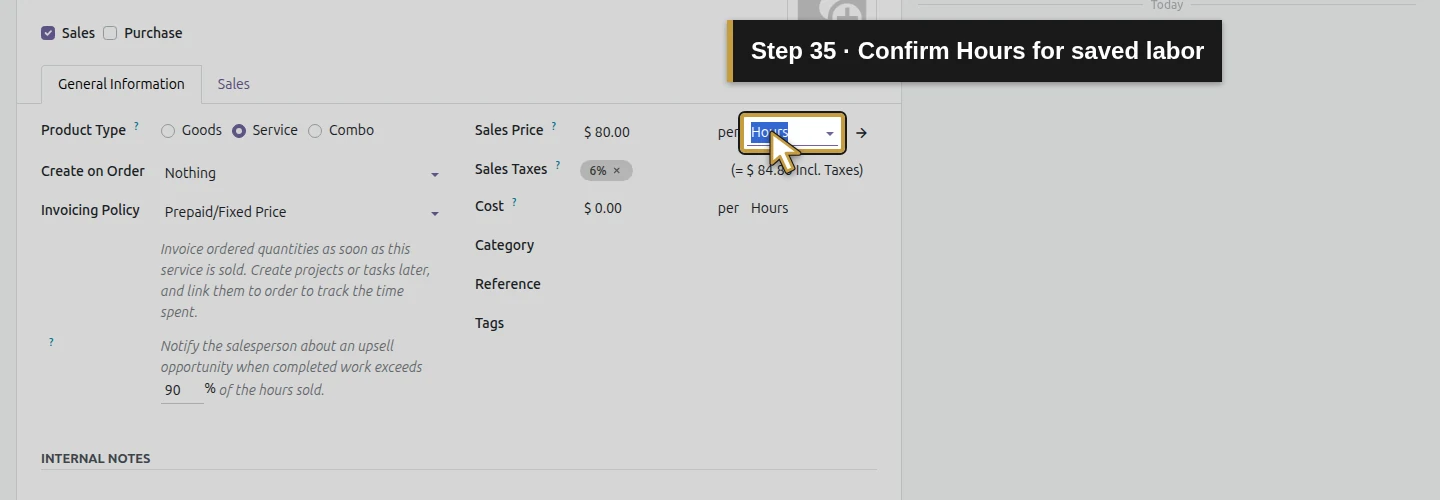
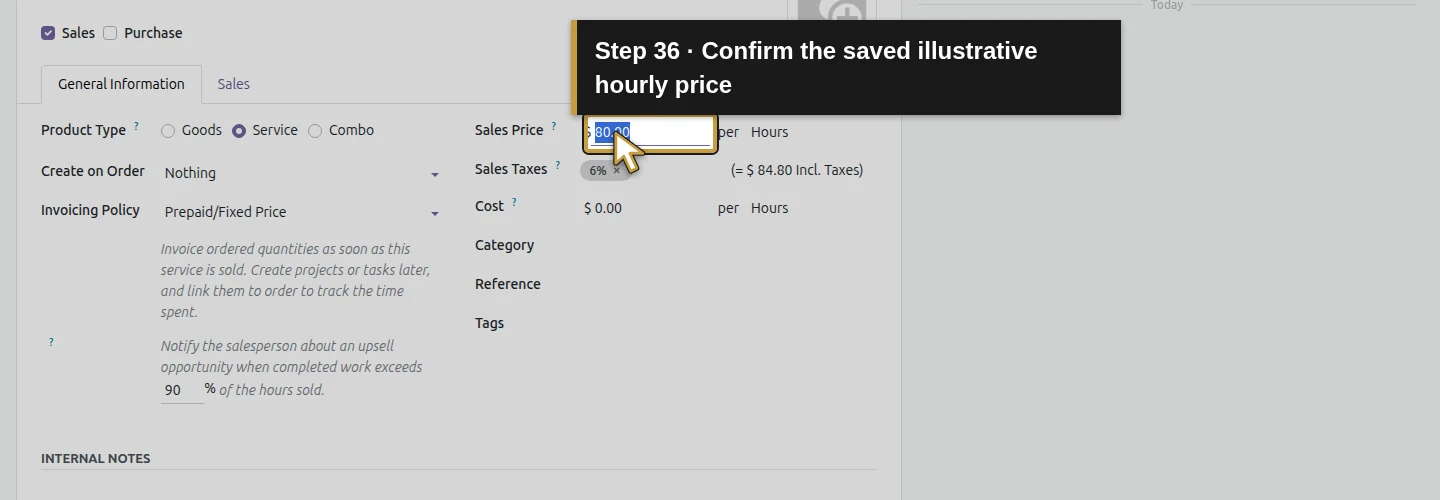
Step 36. Confirm the saved illustrative hourly price
Check that Sales Price remains 80.00 in USD.
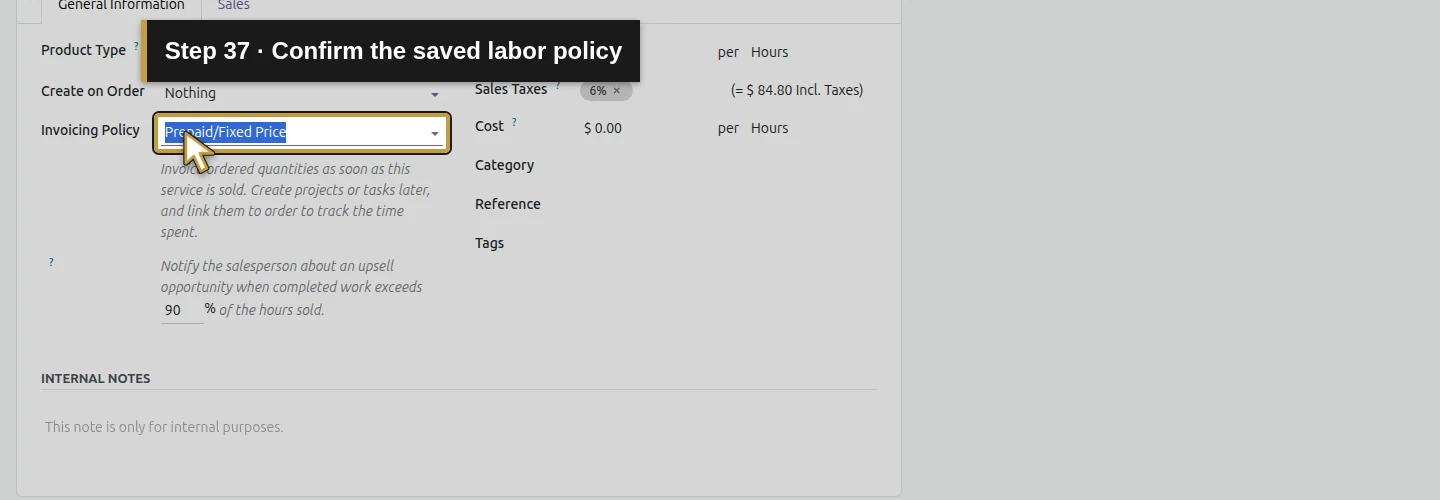
Step 37. Confirm the saved labor policy
Check that the saved labor policy remains Prepaid/Fixed Price.
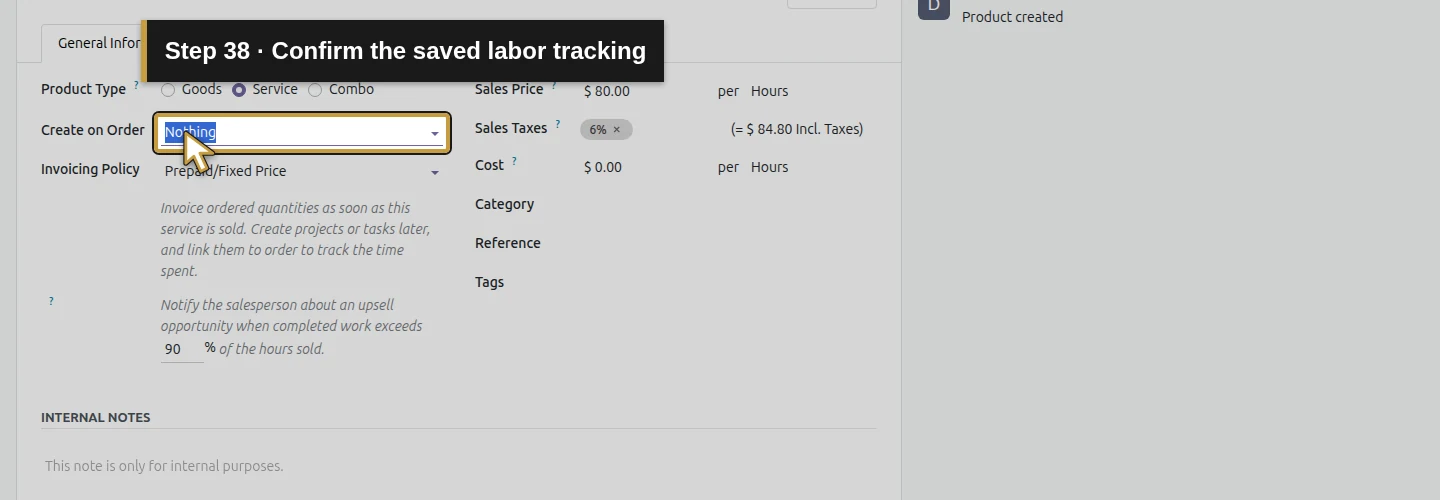
Step 38. Confirm the saved labor tracking
Check that Create on Order remains Nothing for saved labor.
Check the final result
Demo Service Call H11 is a Service sold in Units at the illustrative USD 100 price. Demo Technician Labor H11 is a Service sold in Hours at the illustrative USD 80 rate. Both keep Sales enabled, Purchase disabled, Prepaid/Fixed Price and Create on Order: Nothing. Save and reopen retained their settings.
The existing Service on Timesheets product was preserved. This setup created no sales order or accounting move. A service product defines what you can sell; the later quotation lesson uses its unit, price and quantity.
If your screen differs
The name area is a text box that can span lines. Selecting Service changed the unit to Hours in this demo, so do not assume a fixed call already uses Units. Target the unit beside Sales Price, then check it after saving. Search existing records before repeating the lesson, and open the saved product to review it.
An Hours unit expresses a rate per hour. It does not capture time or switch the invoicing policy to Based on Timesheets. Keep the quantity basis and Create on Order setting clear when defining the service.
Questions about Odoo service products and hourly labor
How do I create a service product in Odoo?
In the tested version, open Sales > Products > Products and choose New. Enter the name, choose Service, set its sales unit and price, review Invoicing Policy and Create on Order, then save and reopen. Check for an existing matching product first.
How do I charge for hourly labor in Odoo?
Use a service product with Hours as its sales unit and the agreed price per hour. This example saves an illustrative USD 80 rate with Prepaid/Fixed Price, for manually quoted hours. Time capture and invoicing recorded timesheets require a separate workflow.
What does Prepaid/Fixed Price mean for an Odoo service product?
The tested form explains that this policy uses ordered quantities. Both saved examples have that quantity basis. The product’s policy does not itself create an invoice or record a prepayment; the later sales and invoicing workflows apply it.
Does an Hours unit automatically enable timesheet billing in Odoo?
The hourly example uses Hours while its policy remains Prepaid/Fixed Price. Those are separate settings. This lesson defines an hourly rate for quoted quantities; it does not record time or test Based on Timesheets billing.
Does creating a service product automatically create an Odoo task?
These products retain Create on Order: Nothing. Saving and reopening them creates the product definitions, without configuring task generation. A later lesson will test the stock tracking setting and sales-order behavior needed for that workflow.
Continue preparing job materials
Alex’s service call and labor items are ready for a later quotation. Next, prepare the physical parts and equipment records before purchasing or receiving materials. Services, physical goods and stock quantities have different roles in the business.
Get help setting up Odoo services for your HVAC business
Review your service products, quotations and invoicing workflow with Onward.
Talk about your Odoo setup