
Running an HVAC business with Odoo
How do I automate parts replenishment in Odoo?
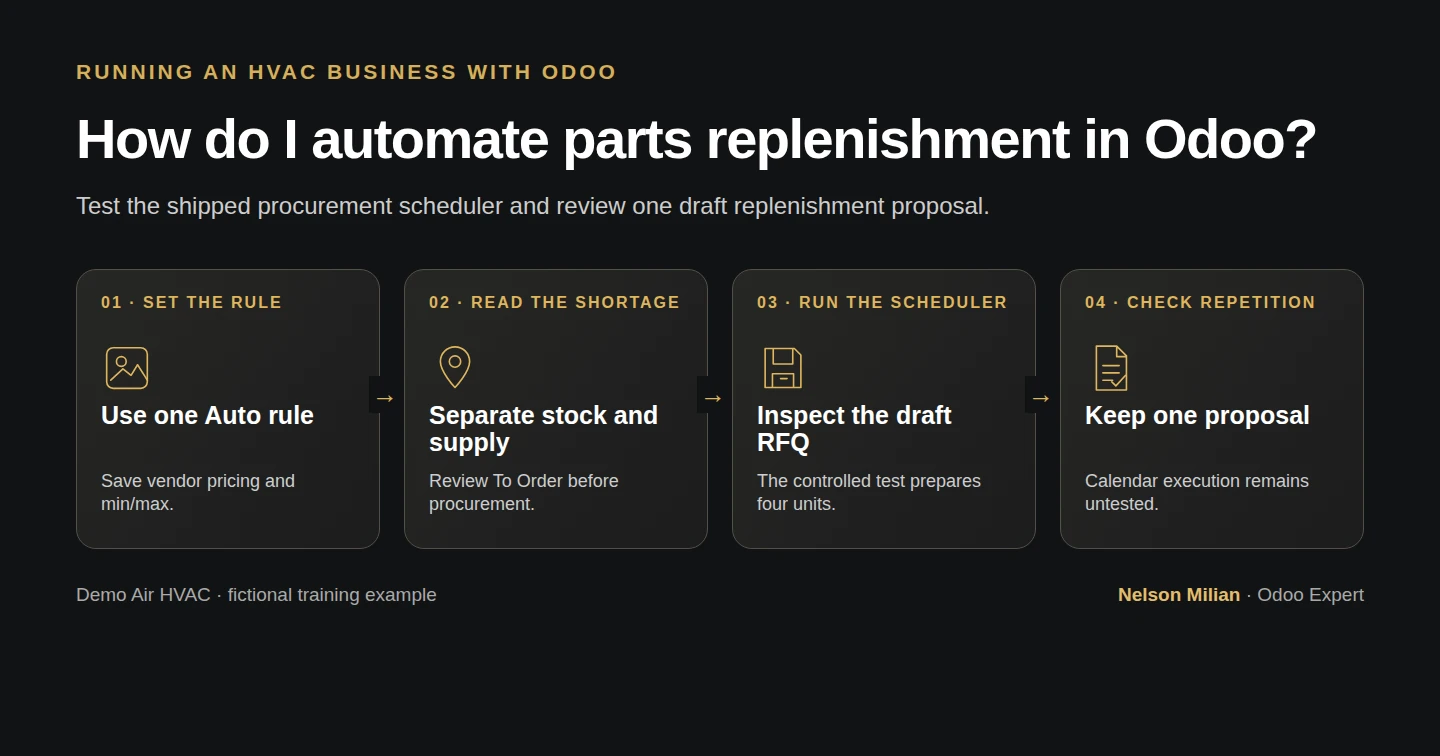
Set a native Odoo Auto reordering rule, generate a supplier RFQ from its shortage, and check that a repeated scheduler run does not add another proposal.
Alex wants Odoo to calculate the parts needed to restore a reviewed stock level and prepare a supplier request. This example uses one capacitor rule, checks the native scheduler's result, and leaves the RFQ for purchasing review.
Alex Rivera and Demo Air HVAC are fictional training examples. Prices, dates, quantities and business situations in this guide are illustrative.
Before you begin
Tested in stock Odoo 20.0-20260926 Community as the demo owner administrator, with official modules and standard configuration. Complete partial receiving, supplier setup and user access. Use an administrator in a training database with a restorable checkpoint and one known reordering rule. H12-CAP has one Unit in WH/Stock. This local demo has background cron processing disabled; the shipped procurement scheduler is run manually to test the Auto rule. Unattended clock execution is not verified.
Step-by-step workflow
Step 1. Save the part's vendor pricing
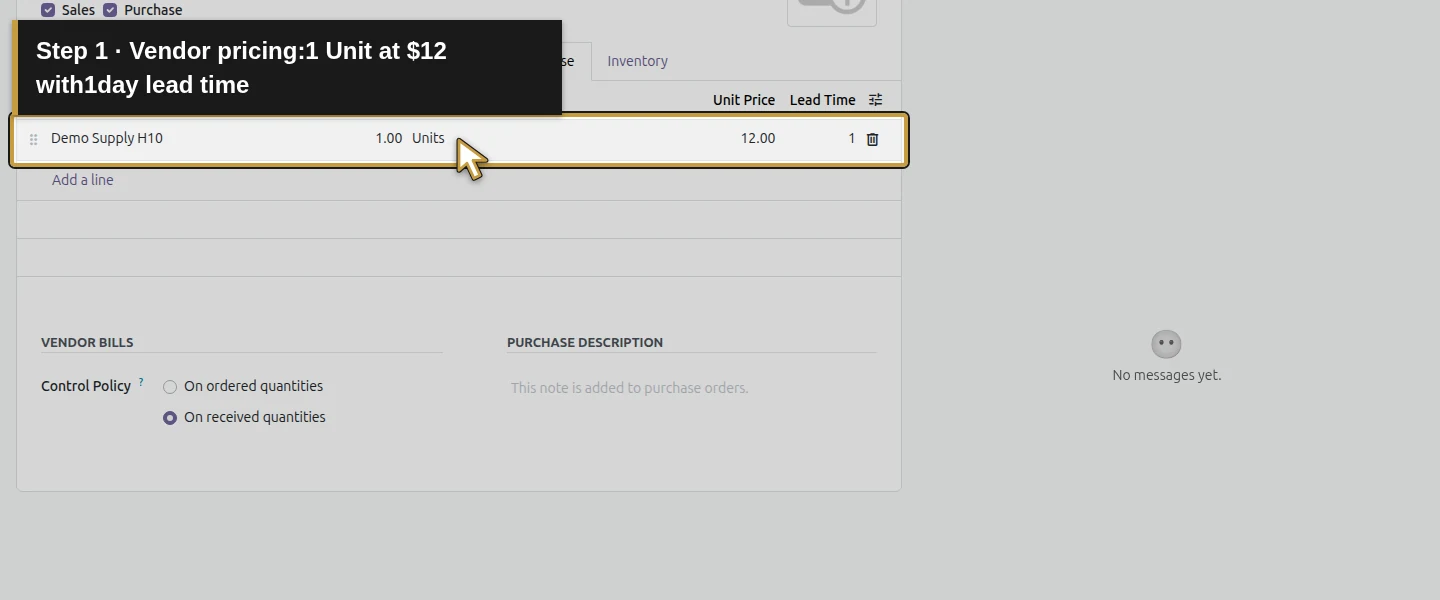
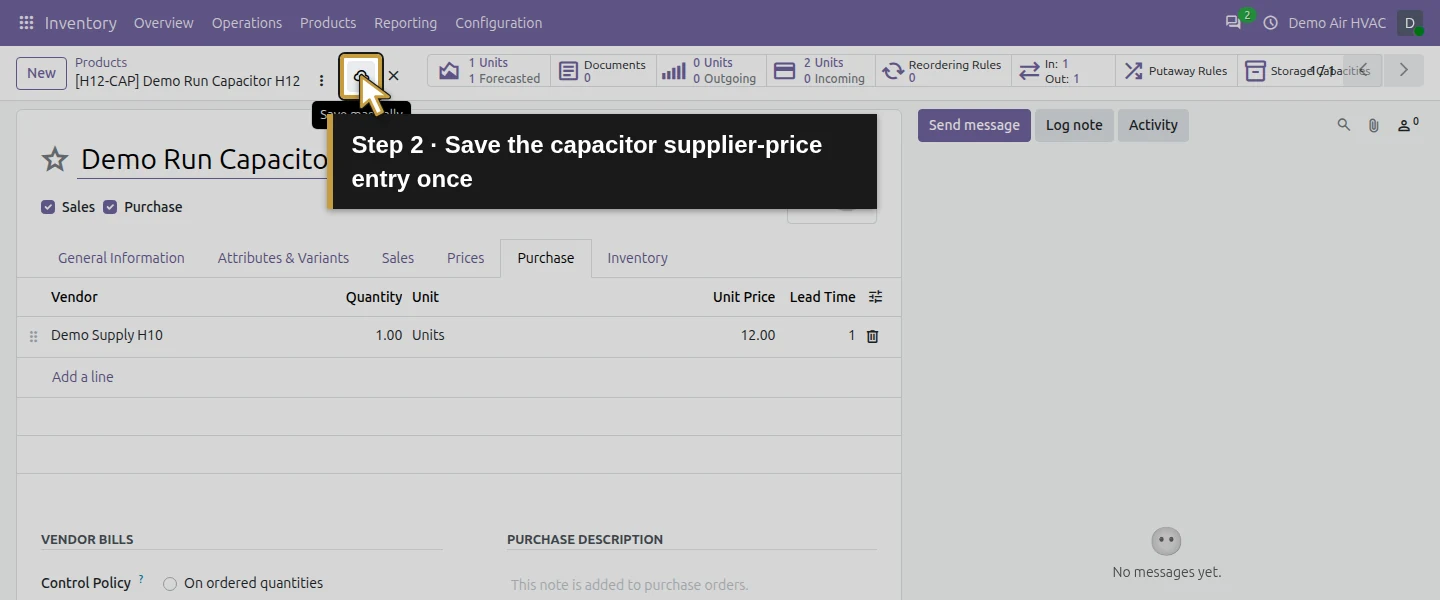
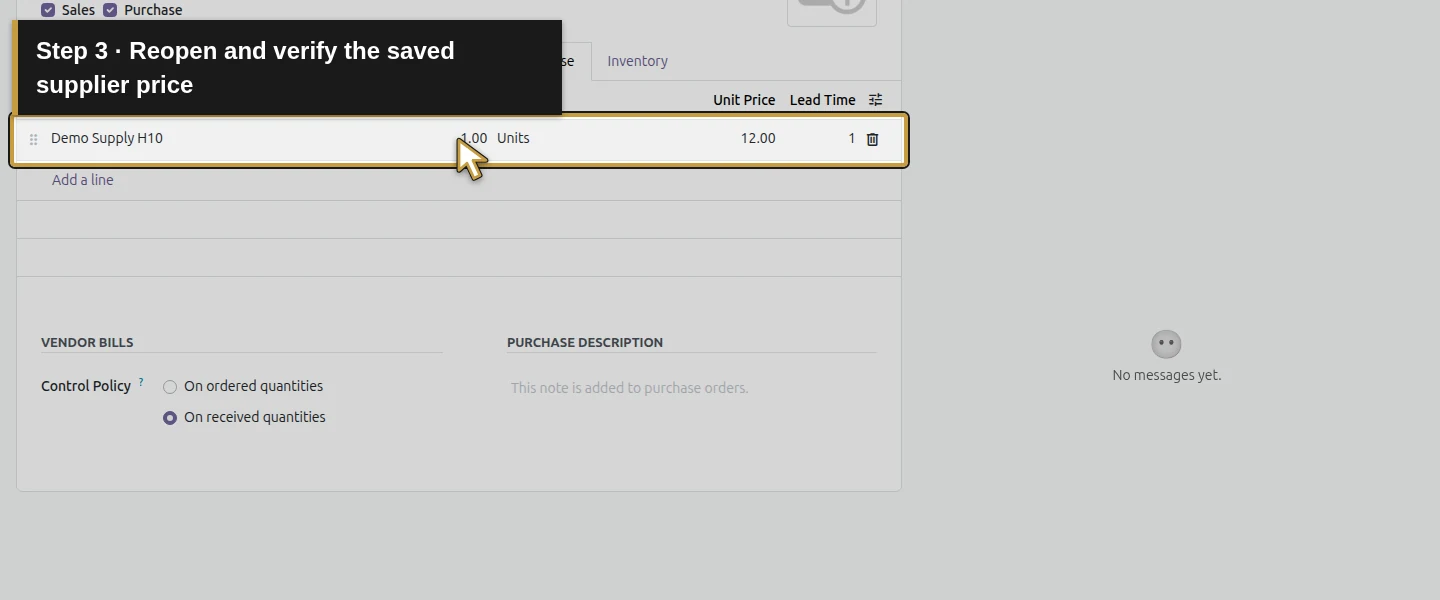
Open Inventory → Products → Products → Demo Run Capacitor H12 → Purchase. Choose Add a line, select existing Demo Supply H10, and set Quantity 1, Unit Units, Unit Price 12 and Lead Time 1 day. Save and reopen. The existing Purchase and inventory tracking remain enabled. This adds one reviewed supplier-price entry; the earlier PO price alone had not created one.
Step 2. Create one Auto rule
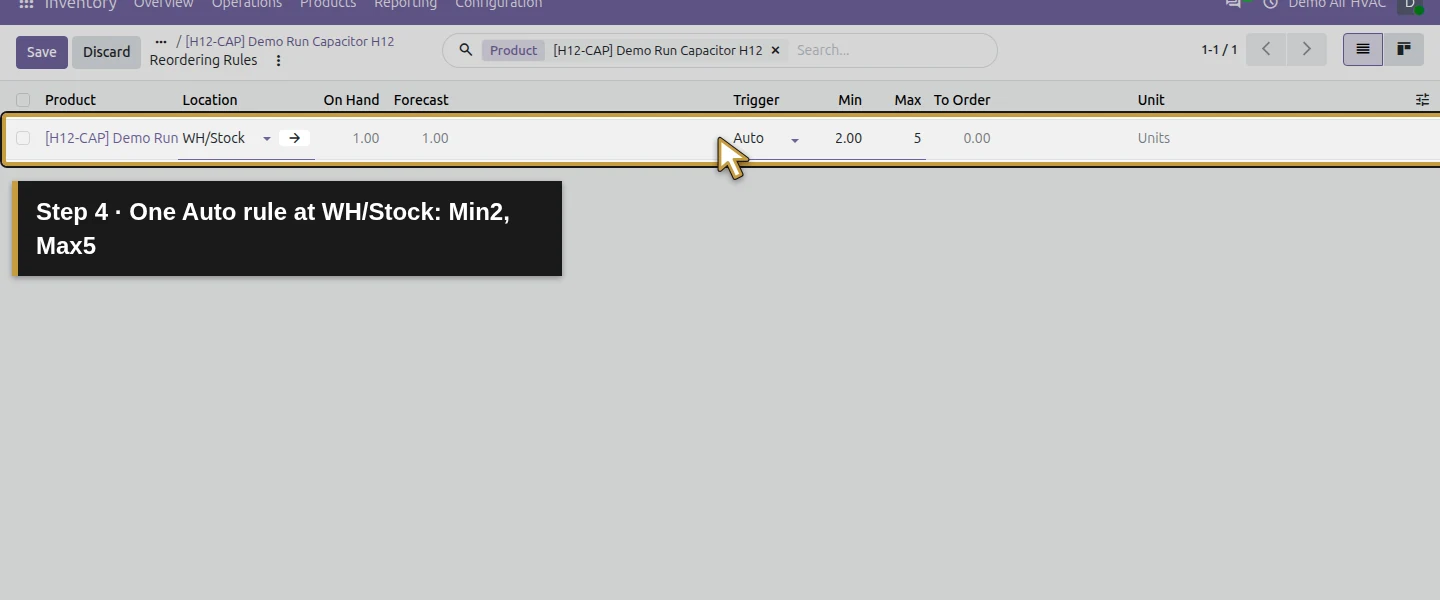
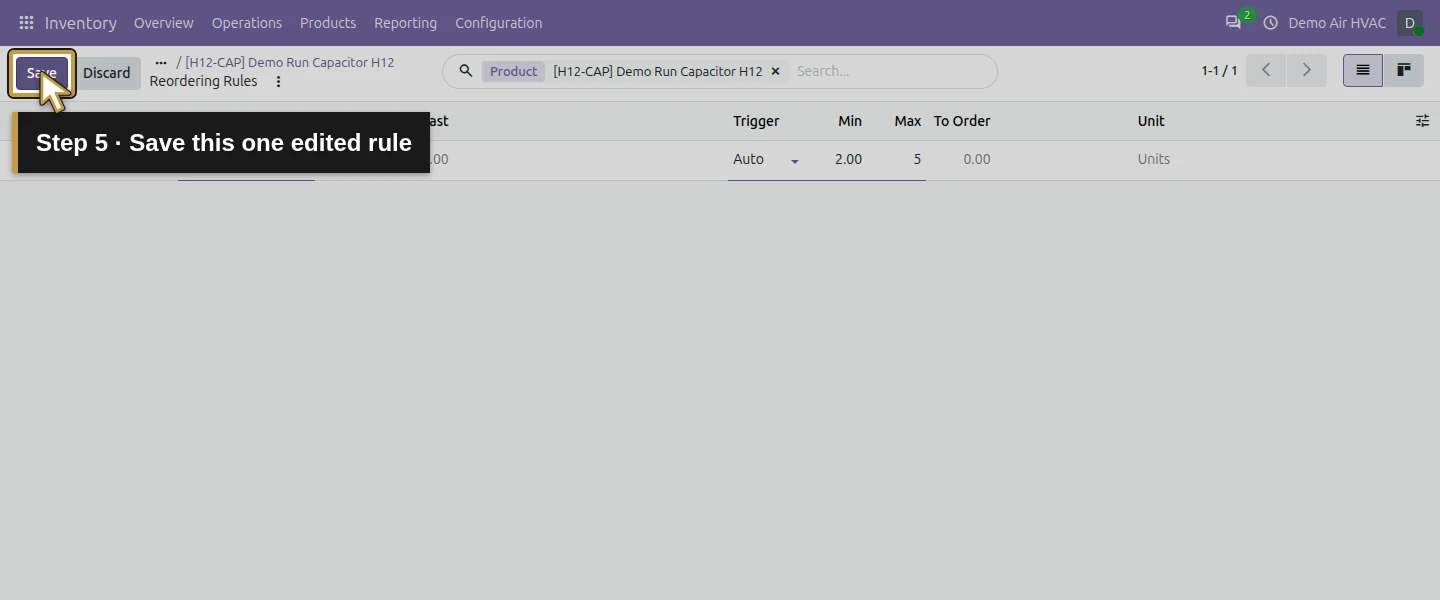
On the product, open Reordering Rules and choose New if this part/location has no rule. Keep Location WH/Stock and Trigger Auto. Set Min 2 and Max 5, then save the edited row and leave the blank new-row entry. Reopen and verify only one rule for that product/location. In this runtime the native list can begin another blank row; discard that empty entry rather than saving a duplicate.
Step 3. Check the calculated shortage
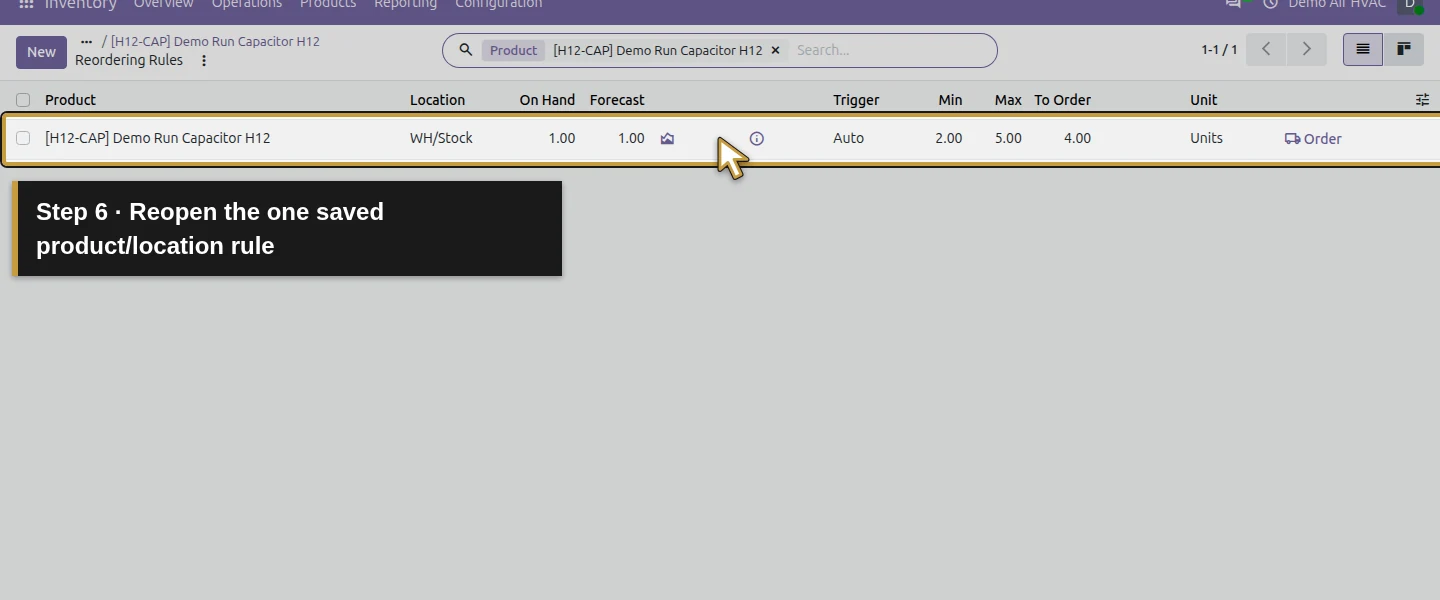
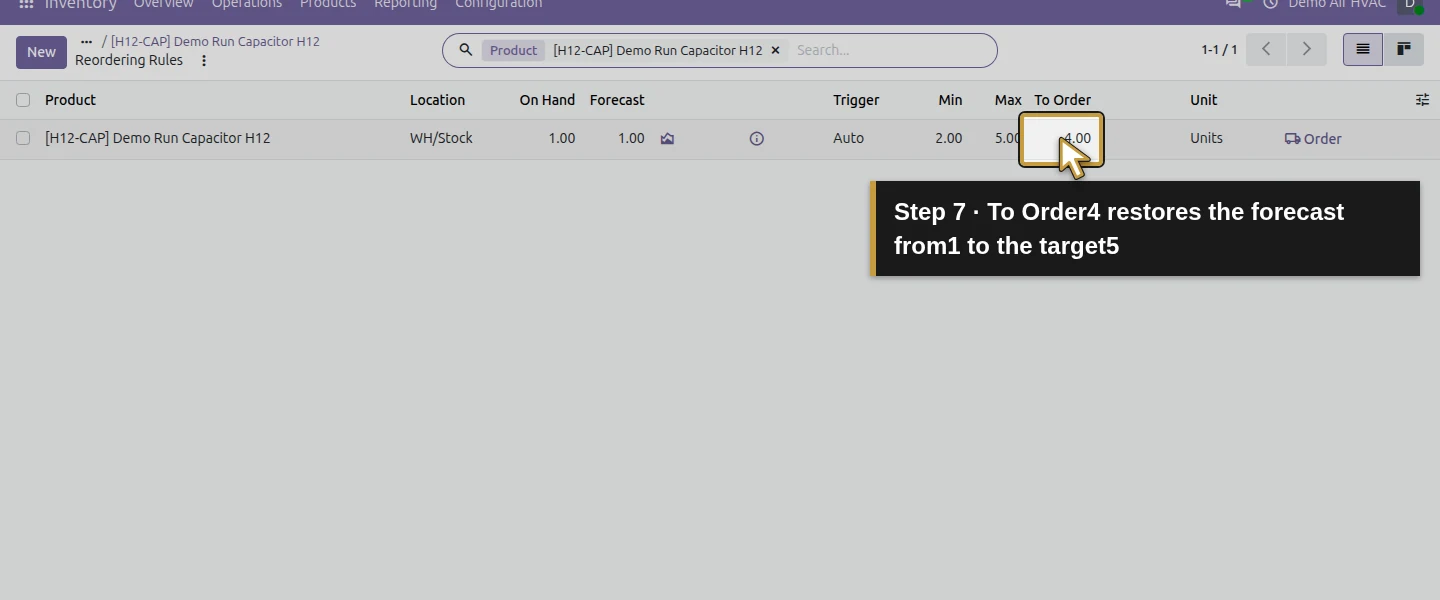
The saved row shows On Hand 1, Forecast 1, Min 2, Max 5 and To Order 4 Units. The reviewed forecast is below minimum, and four restores the target five. The existing vendor/default warehouse buying path worked without a separate rule Route selection. No stock adjustment or artificial sale is needed to create this shortage.
Step 4. Run the shipped scheduler in the training check
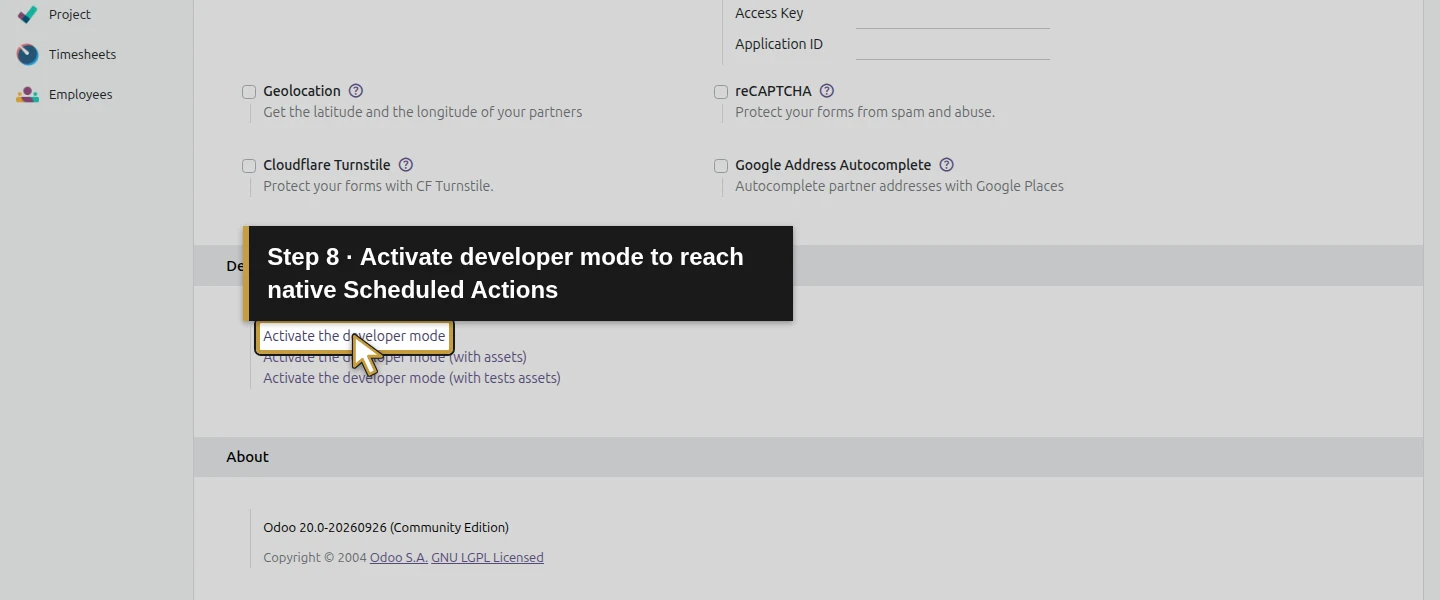
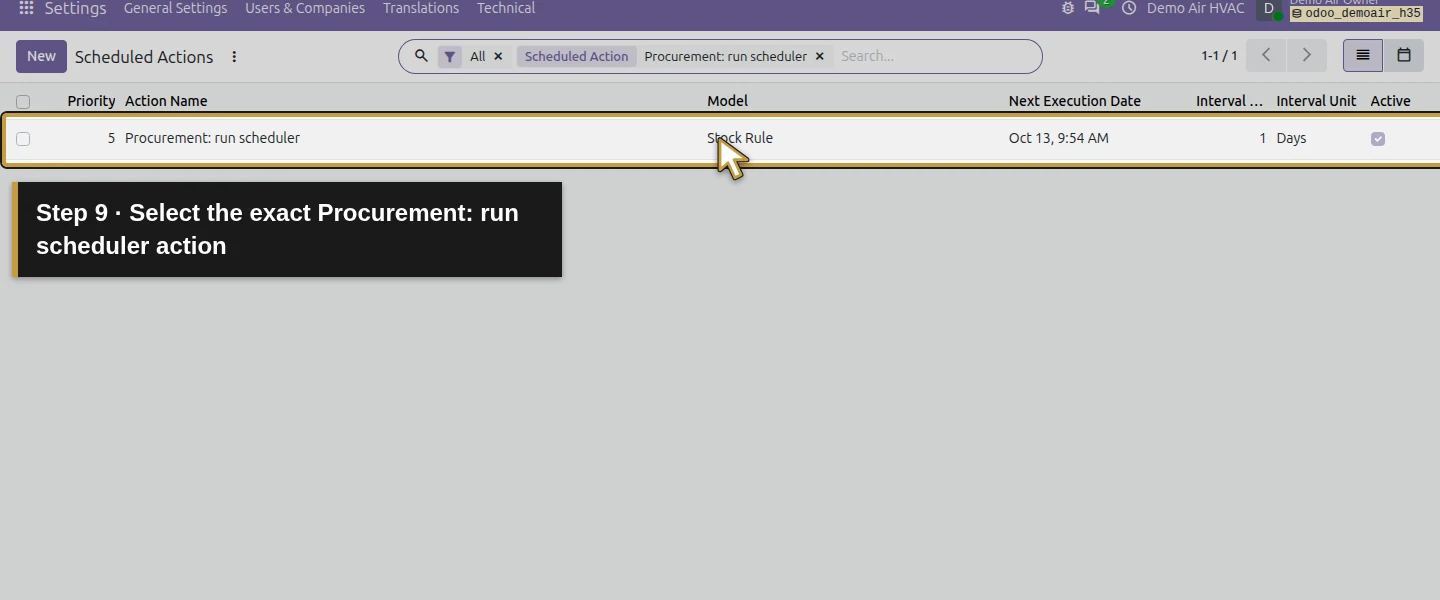
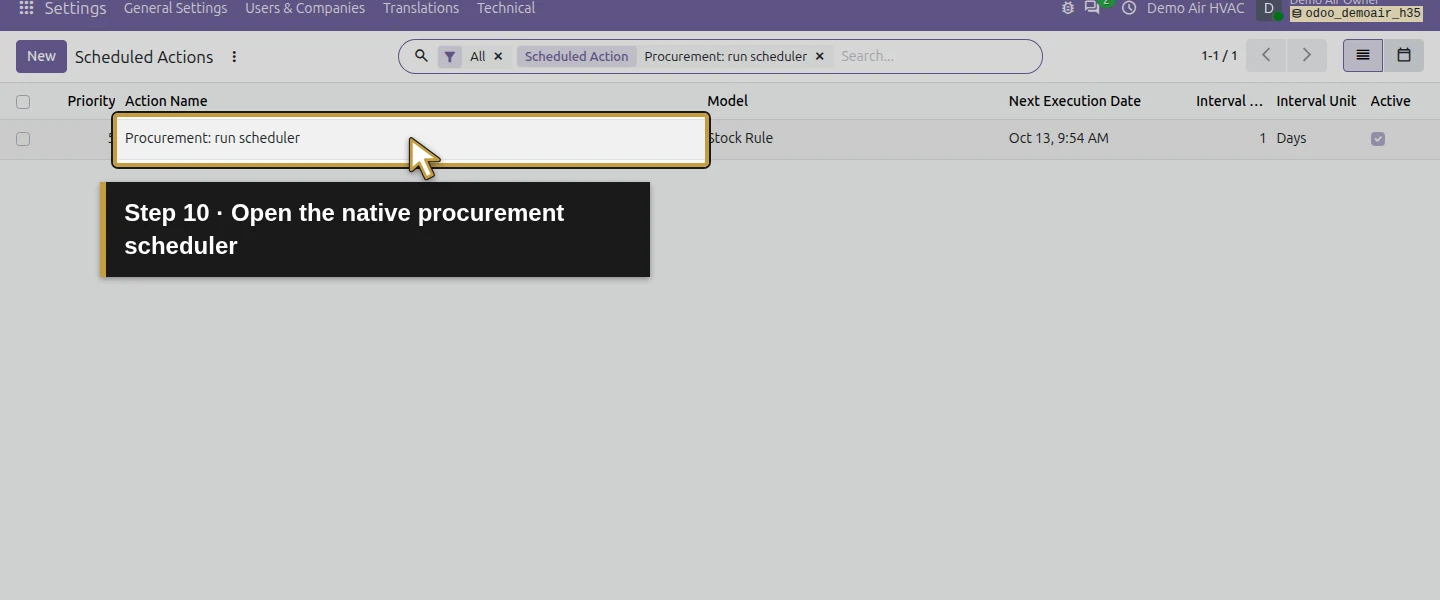
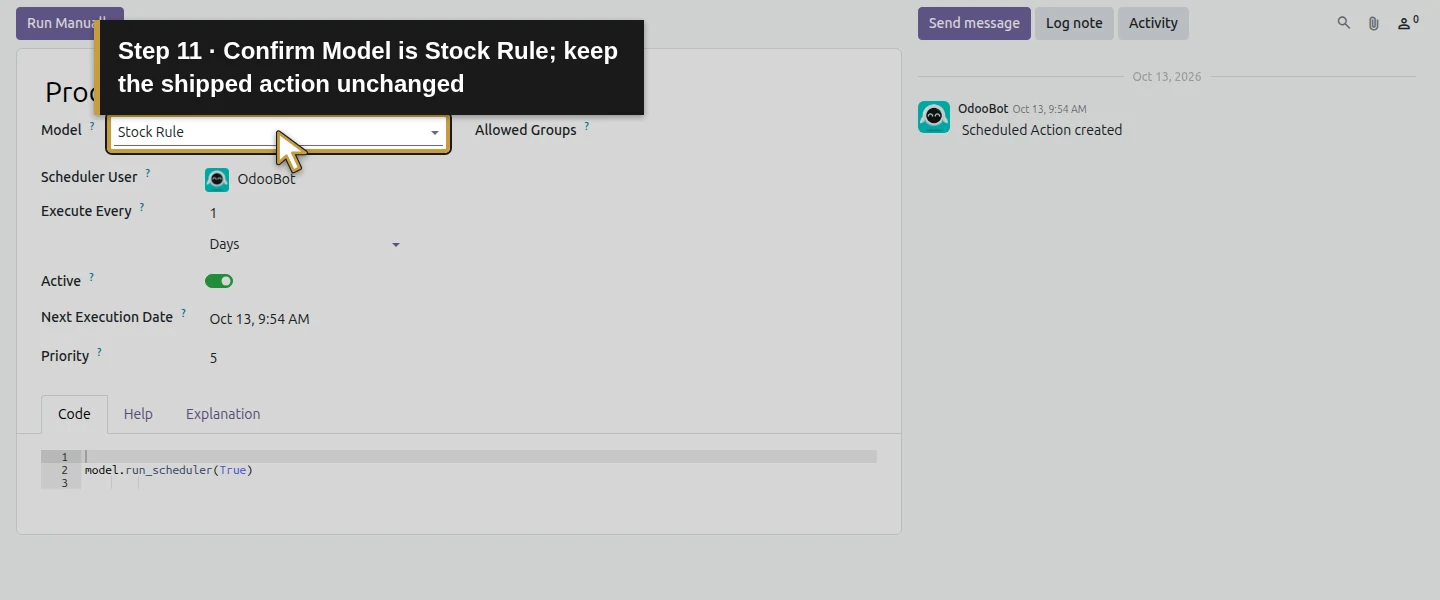
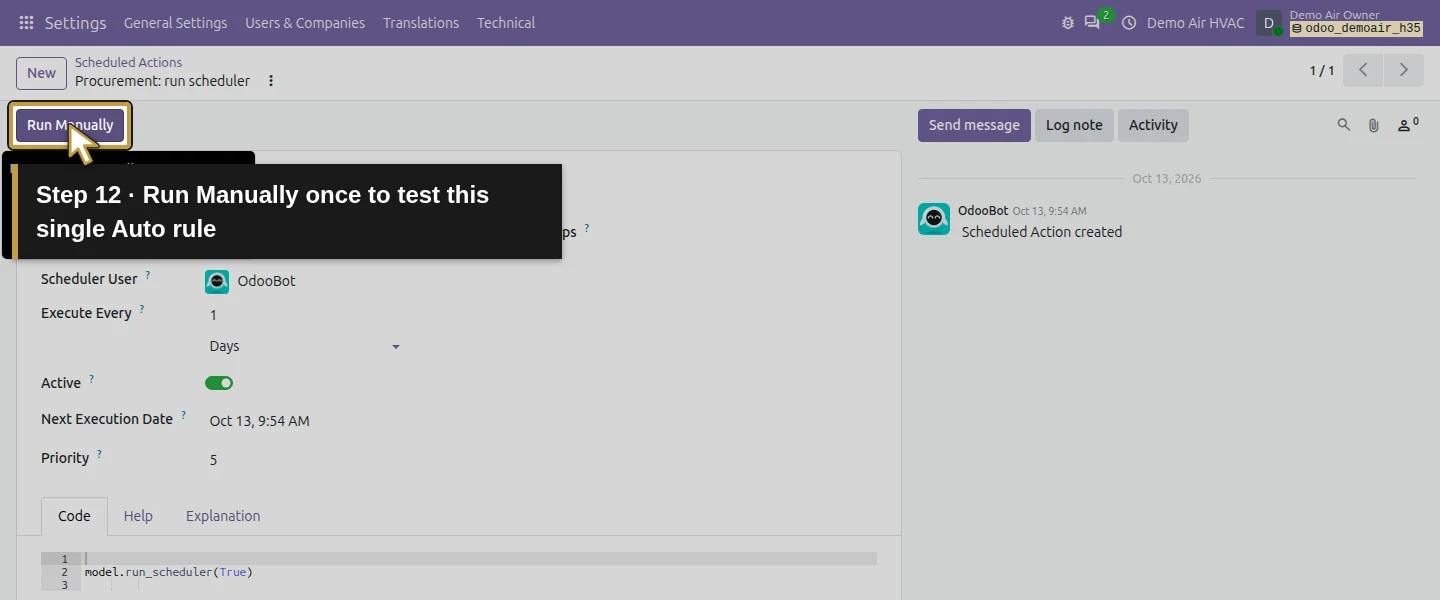
As the administrator, open Settings and choose Activate the developer mode. Open Technical → Scheduled Actions, search Procurement: run scheduler, and open that exact action. Confirm its Model is Stock Rule, then choose Run Manually. Keep the shipped code and configuration. This action evaluates the database's Auto rules; the test has only this one. The old Inventory Run Scheduler menu was not visible in this runtime, so this guide uses the available native control.
Step 5. Review the generated RFQ
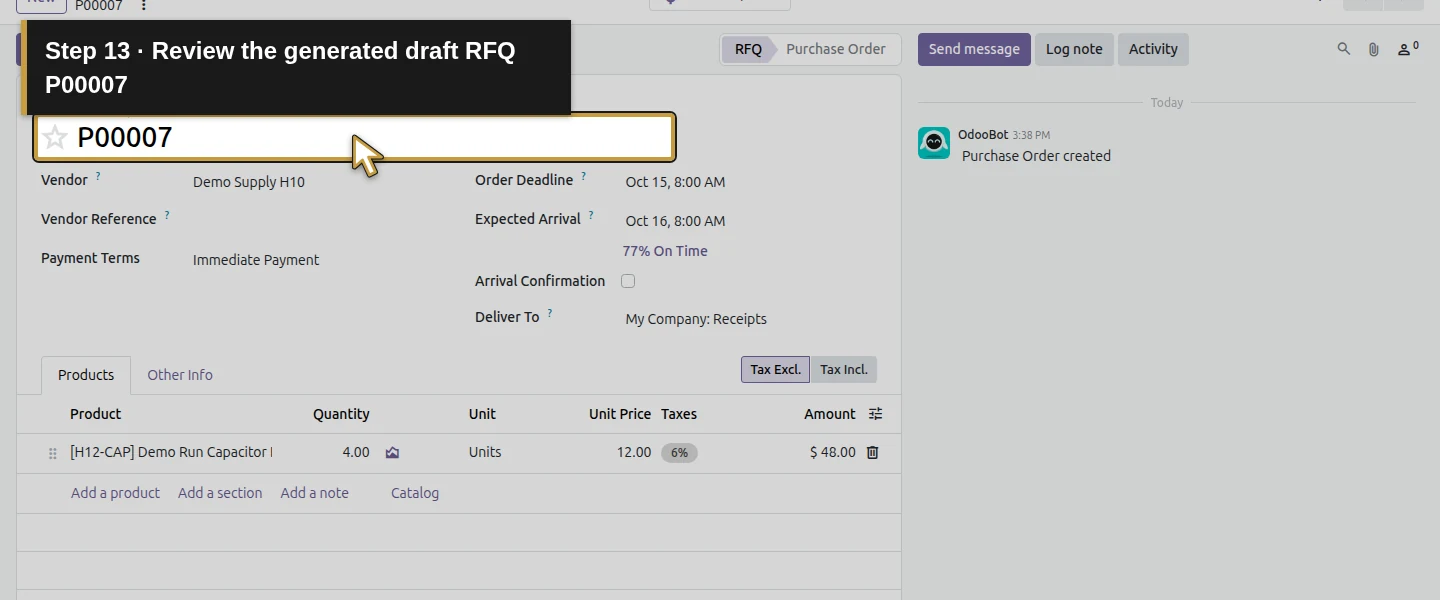
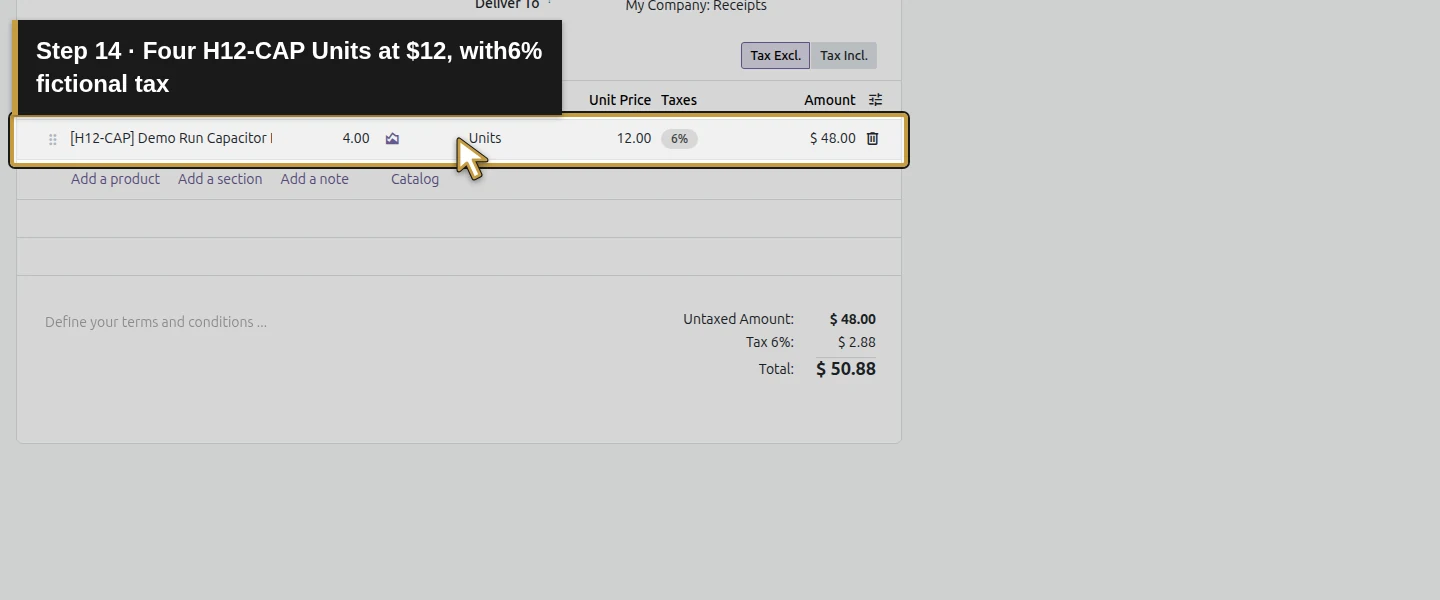
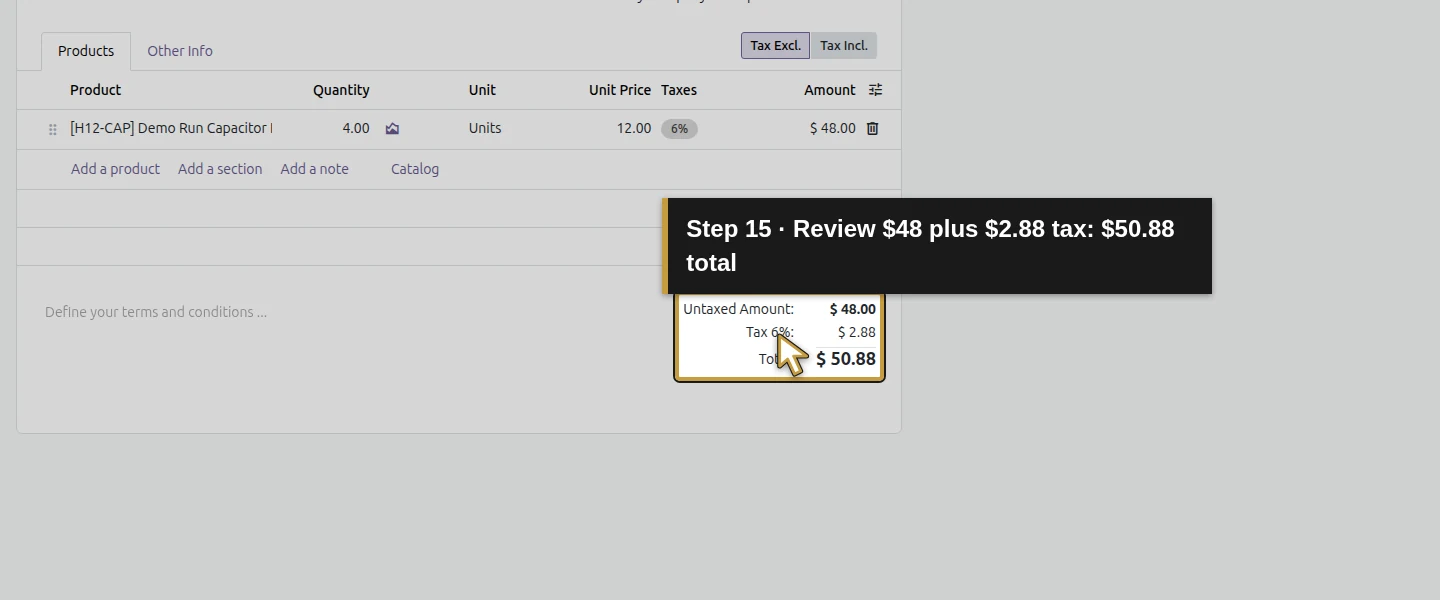
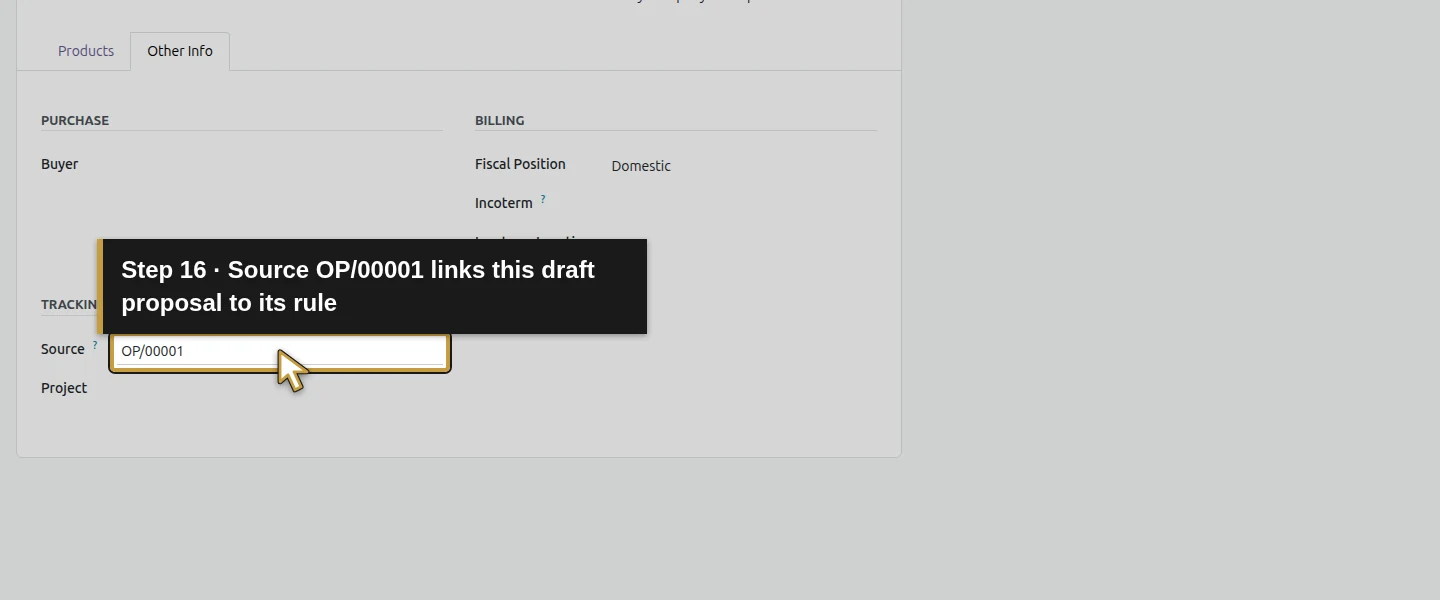
Open Purchase → Orders → Requests for Quotation and inspect the generated request for Demo Supply H10. The scheduler's saved example is P00008, with source OP/00001, four H12-CAP Units at $12, Immediate Payment and $48 + $2.88 fictional tax = $50.88. It remains an RFQ, with no receipt or invoice. Review supplier, quantity, price, dates and approval policy before confirming or sending.
Step 6. Repeat and inspect the covered condition
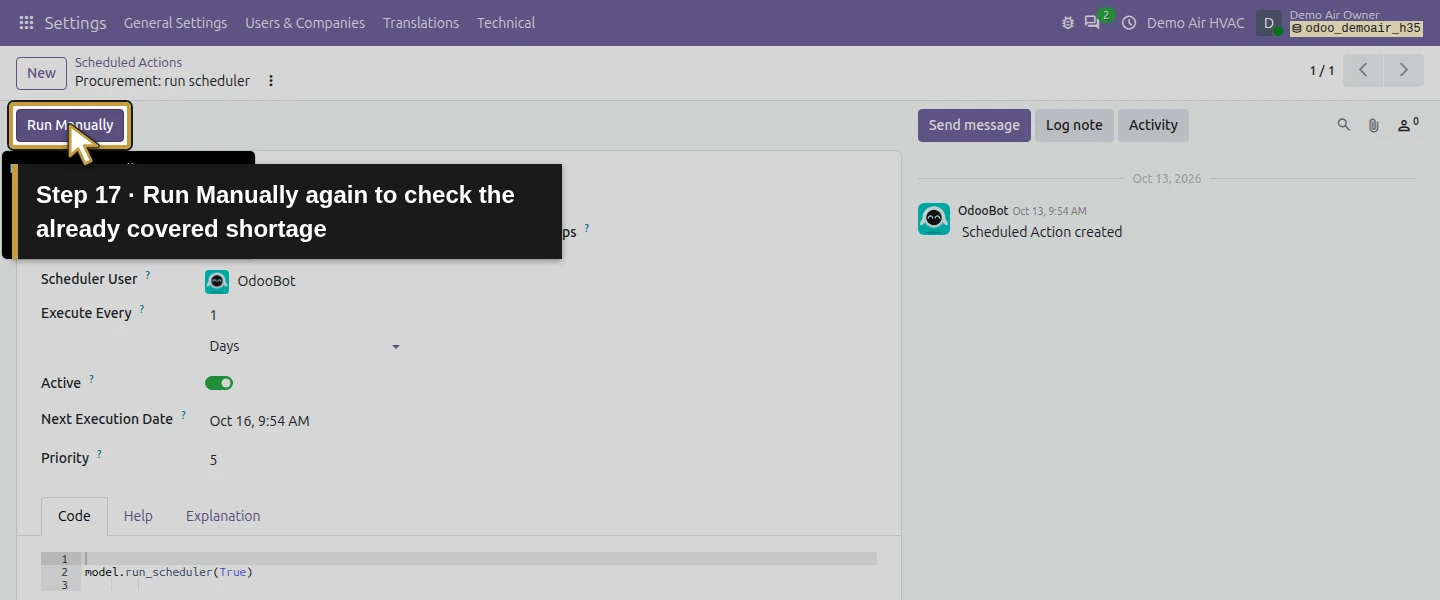
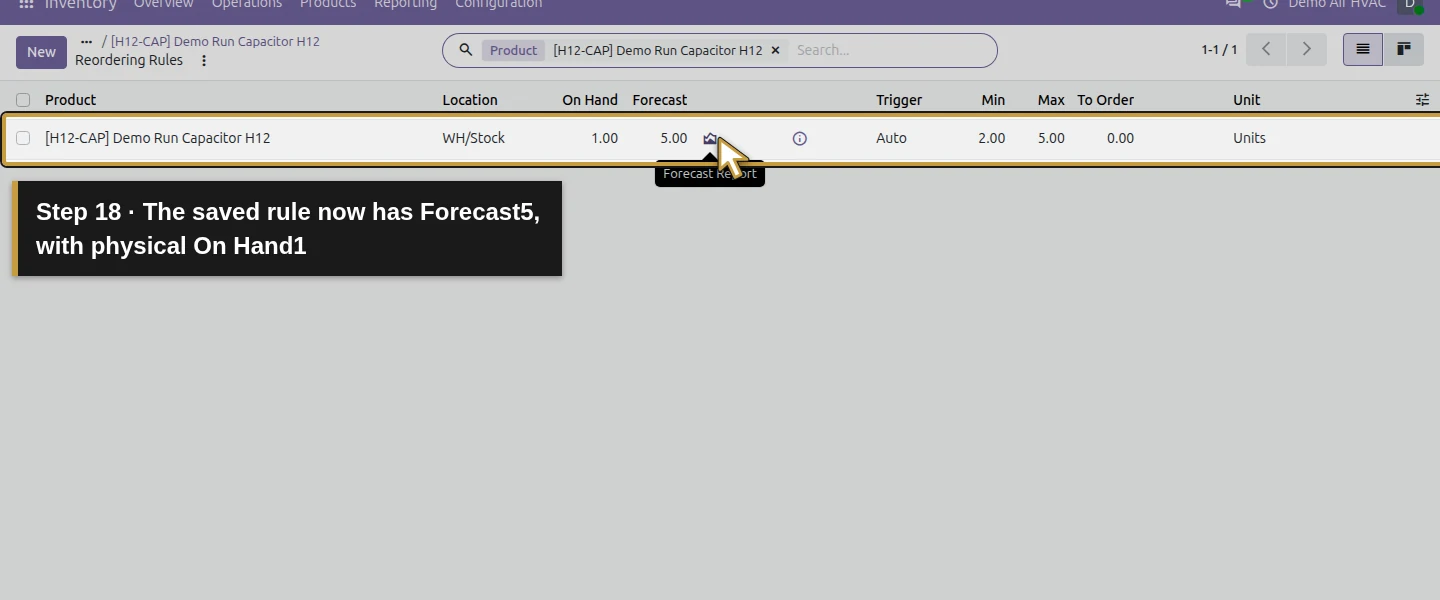
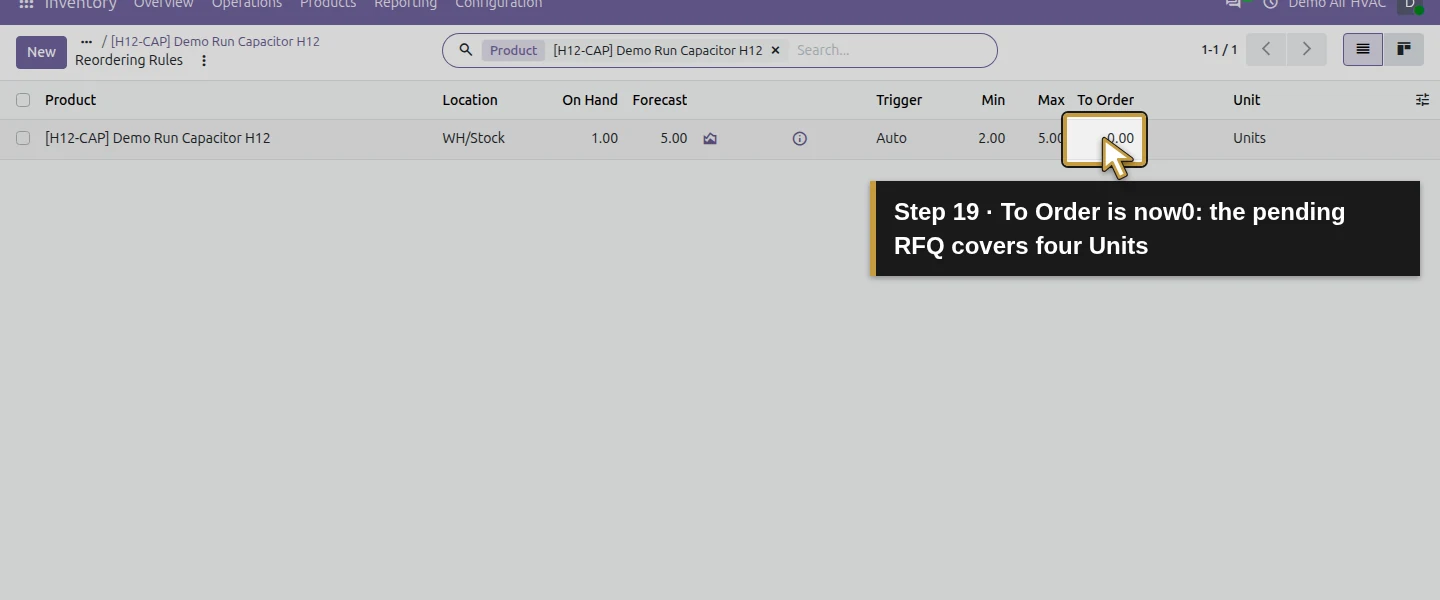
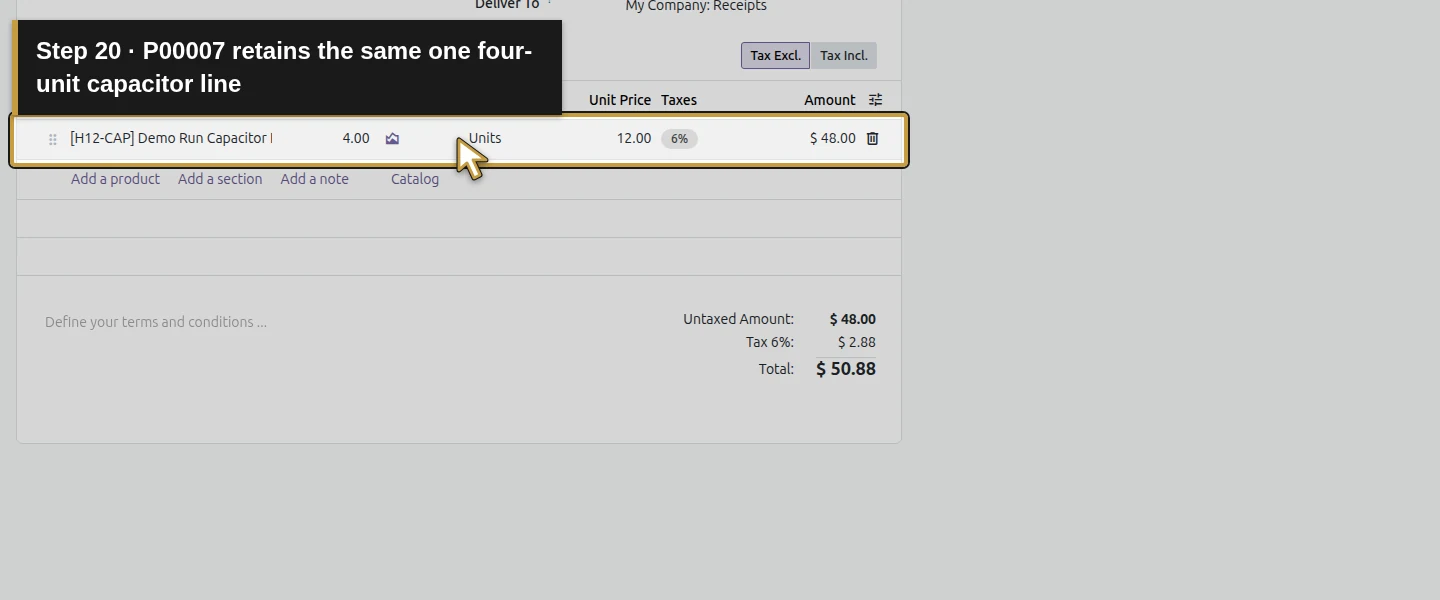
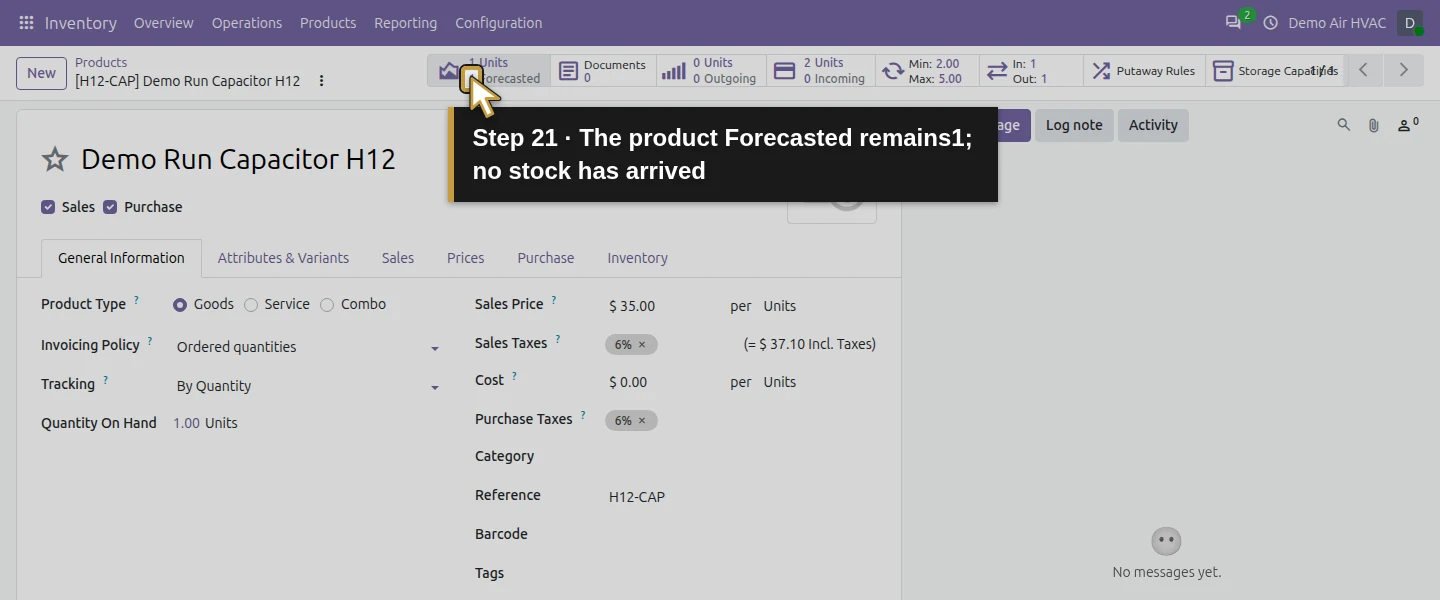
Return to the same Procurement: run scheduler action and choose Run Manually again. Reopen the saved rule and RFQ. The rule now shows On Hand 1, Forecast 5 and To Order 0 because the pending RFQ covers four Units. P00008 still contains the same one four-unit line; the repeated run creates no additional active capacitor proposal in this test. Physical stock is still one, and the product's ordinary Forecast view remains one until a confirmed movement exists.
Step 7. Keep scheduled execution separate from this result
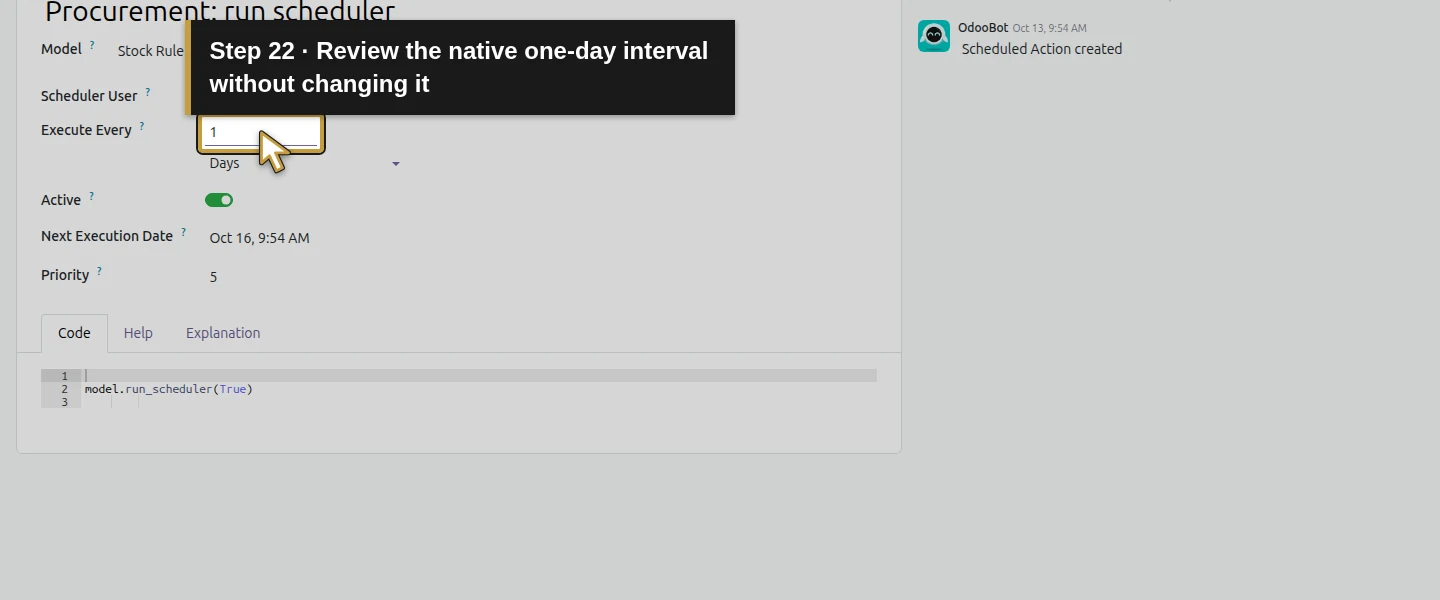
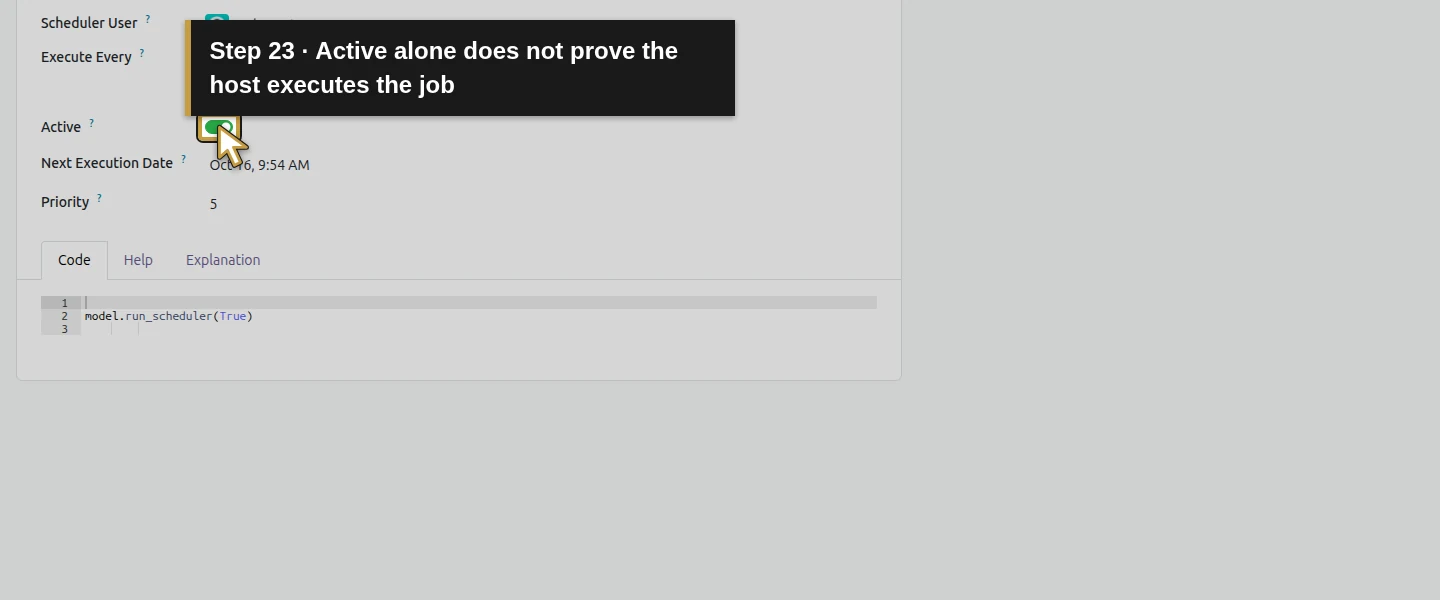
The action's native interval is one day, but this demo's runtime has max_cron_threads 0. Its Active checkbox alone does not establish scheduled execution. The test verifies the shipped Auto-rule function through Run Manually, not a later unattended run. Review the host's scheduling operation separately before relying on it in a working business.
Check the result
Auto rule OP/00001 uses H12-CAP at WH/Stock with minimum two and maximum five. A native procurement scheduler run created draft P00008 for four Units at $12, total $50.88, with its orderpoint link. A repeated run retained that one active proposal and quantity; rule Forecast is five and To Order zero while physical stock stays one. The earlier manual Order probe P00007 is canceled and retained. No new receipt, bill or external supplier message was created.
If your screen differs
Only one rule, vendor and buying path were tested. The scheduler evaluates all applicable Auto rules, so the single-rule training scope matters. The native rule's Forecast includes the pending RFQ here, while the product's ordinary Forecast remains one; neither means stock physically arrived. Repetition did not add a proposal in this case, but quantity overrides, changed demand, multiple vendors/routes, currency conversion and every retry scenario remain untested. Calendar-triggered execution is still unverified because background processing is disabled.
Frequently asked questions
How do I set automatic reordering rules in Odoo?
Save vendor pricing and one product/location rule with Trigger Auto and reviewed Min/Max quantities. This test runs Odoo's shipped procurement scheduler manually and verifies its RFQ. Unattended execution also depends on the host's scheduler, which is disabled in this demo.Why is an Odoo reordering rule not creating an RFQ?
Check the rule's location, forecast, Min/Max, buying path and saved vendor pricing, then whether its actual scheduler executes. Here, a pending four-unit RFQ raised the rule Forecast to five and To Order to zero, so another run did not add a proposal.Does an Odoo replenishment proposal approve the purchase?
The tested scheduler creates a draft RFQ with the supplier, quantities, price and native rule link. It creates no receipt or bill. Supplier, dates, price and purchase approval remain office decisions before confirmation.Continue building the business
Continue with the verified inventory count or review the purchase-order workflow before confirming a replenishment proposal.
Talk about your Odoo setup
Bring your current process and the result you need to Onward to plan your Odoo workflow. Talk about your Odoo setup.