
Running an HVAC business with Odoo
How do I count van stock and make an inventory adjustment in Odoo?
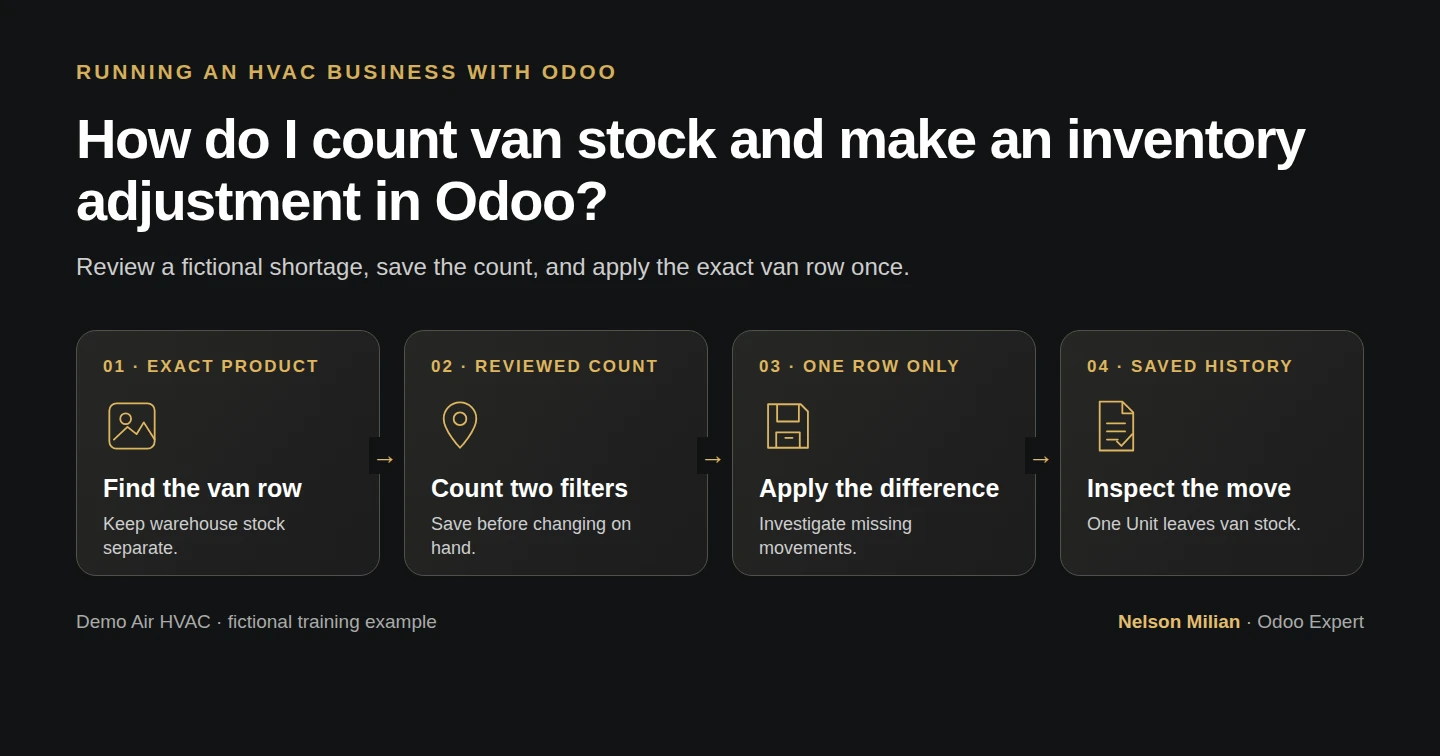
Save a van inventory count, review its difference, then apply and inspect the Odoo movement history.
An inventory adjustment records a reviewed difference between physical stock and Odoo. Alex's fictional training count finds two filters where Odoo shows three; the example records a one-filter decrease.
Alex Rivera and Demo Air HVAC are fictional training examples. Prices, dates, quantities and business situations in this guide are illustrative.
Before you begin
Tested in stock Odoo 20.0-20260926 Community as the demo owner administrator, with official modules and standard configuration. Complete the van transfer. Start with three filters in WH/Demo Van 01 and three in WH/Stock. Use a clearly labeled synthetic count; reconcile overlapping receipts, transfers and deliveries before applying a real adjustment.
Step-by-step workflow
Stock Odoo 20 Community, owner role, untracked filter Units. Disclosed fictional count finds two filters in the van where Odoo records three. Save Counted first, review Difference minus one, then apply only this row once and inspect History. The reason is retained in the synthetic count record; native row Apply requests no reason/approval dialog. Warehouse remains three, company stock becomes five. Apply All, real inspection, other roles and concurrent/serial counts are untested.
Step 1. Select the exact product and van location
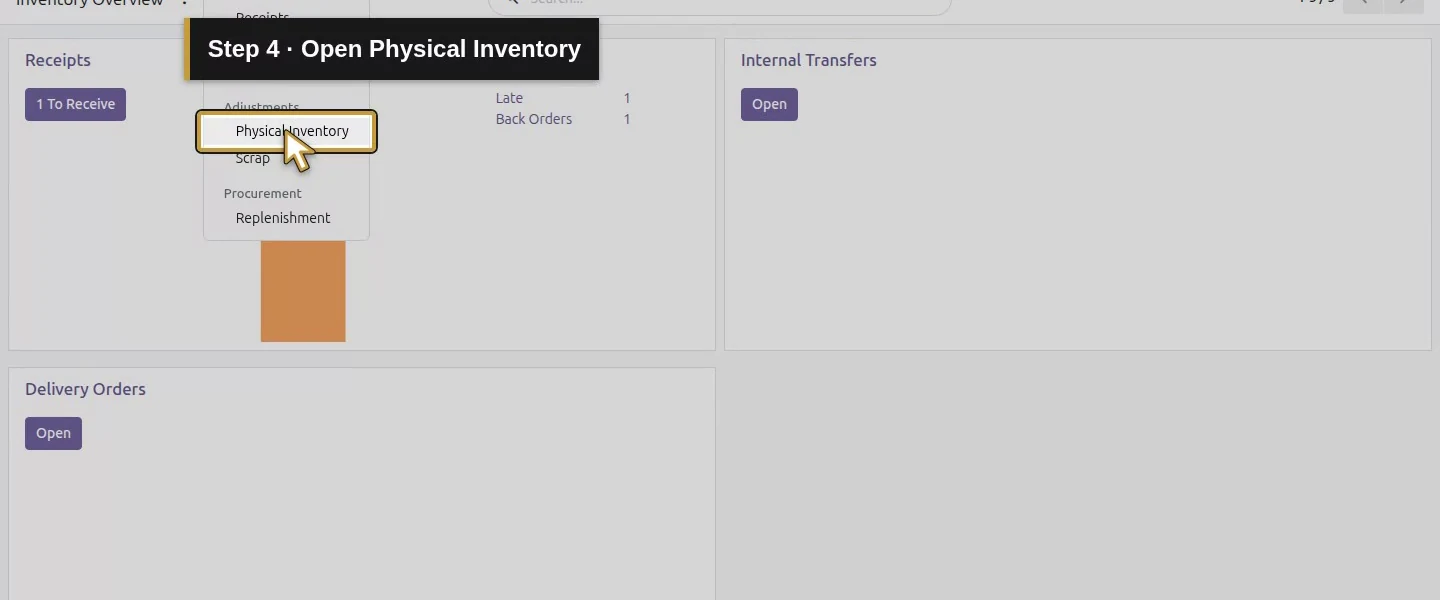
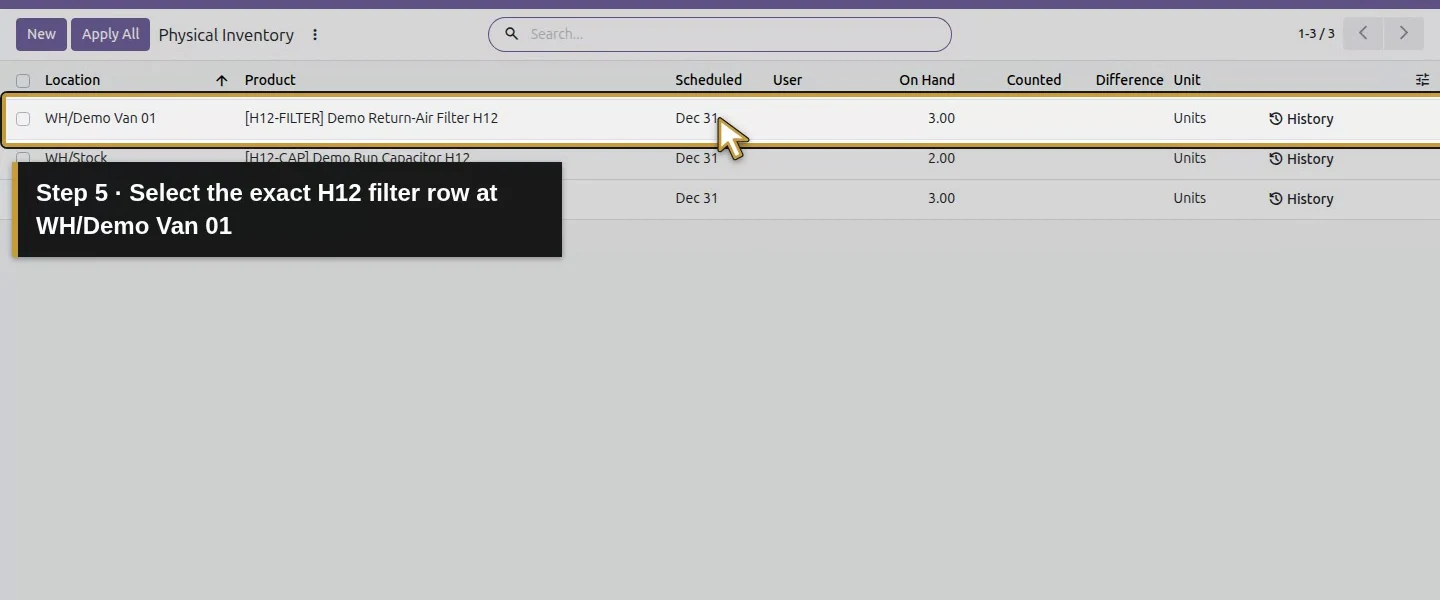
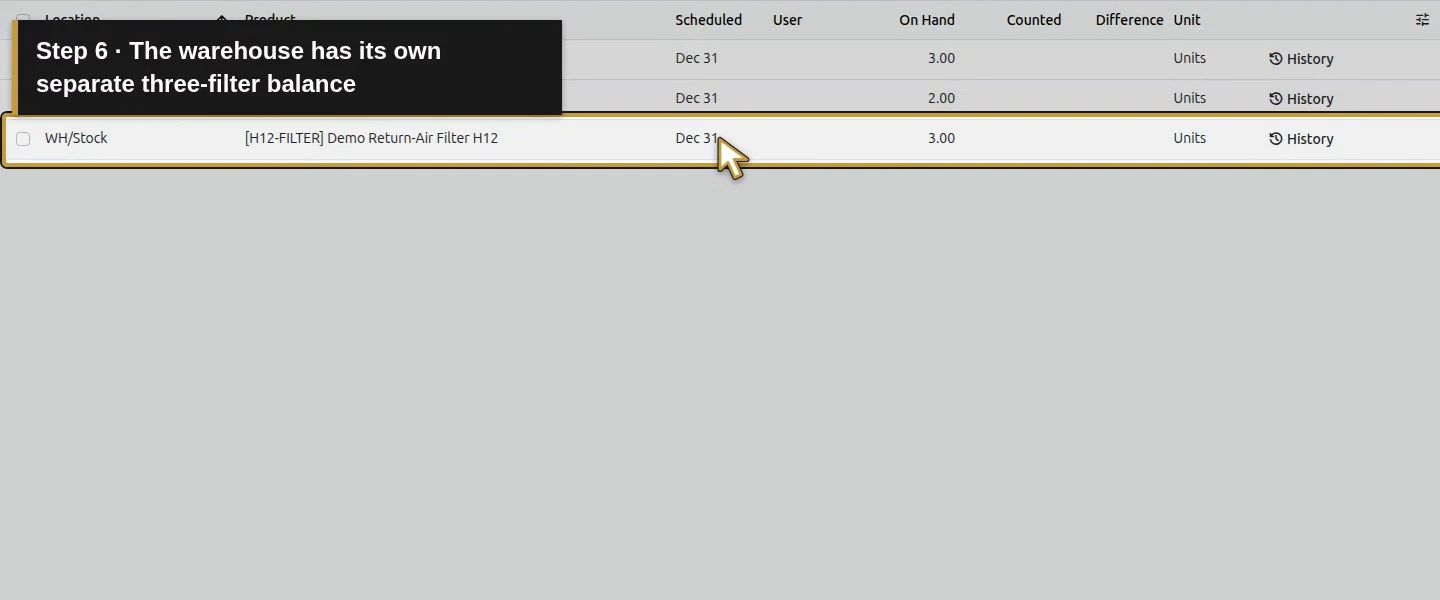
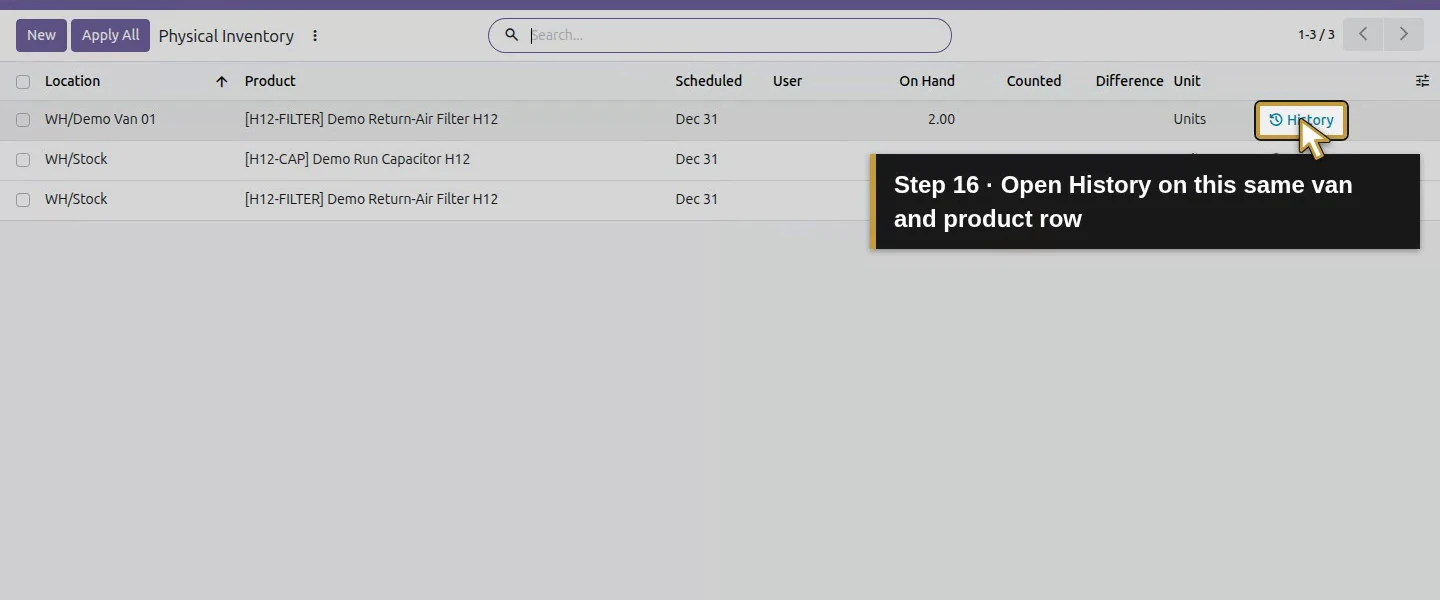
Open Inventory → Operations → Physical Inventory. Find the row for WH/Demo Van 01 and Demo Return-Air Filter H12. Check On Hand 3 and Units; the warehouse's separate filter row is not this count.
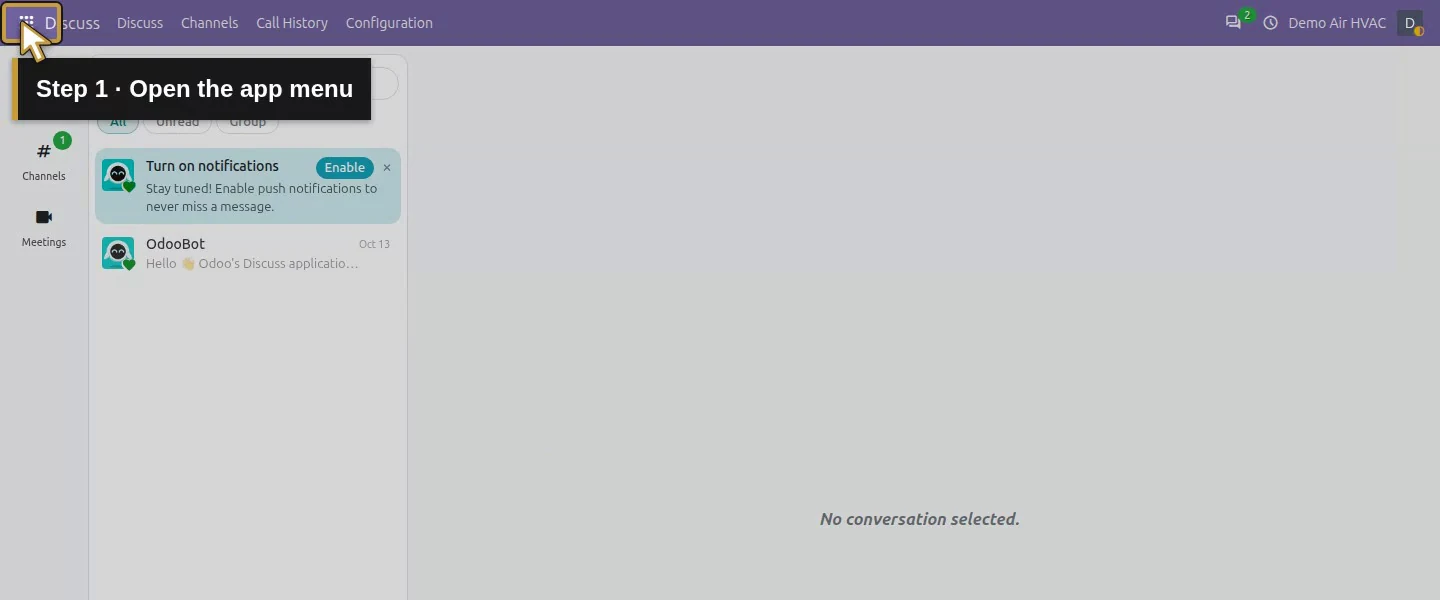
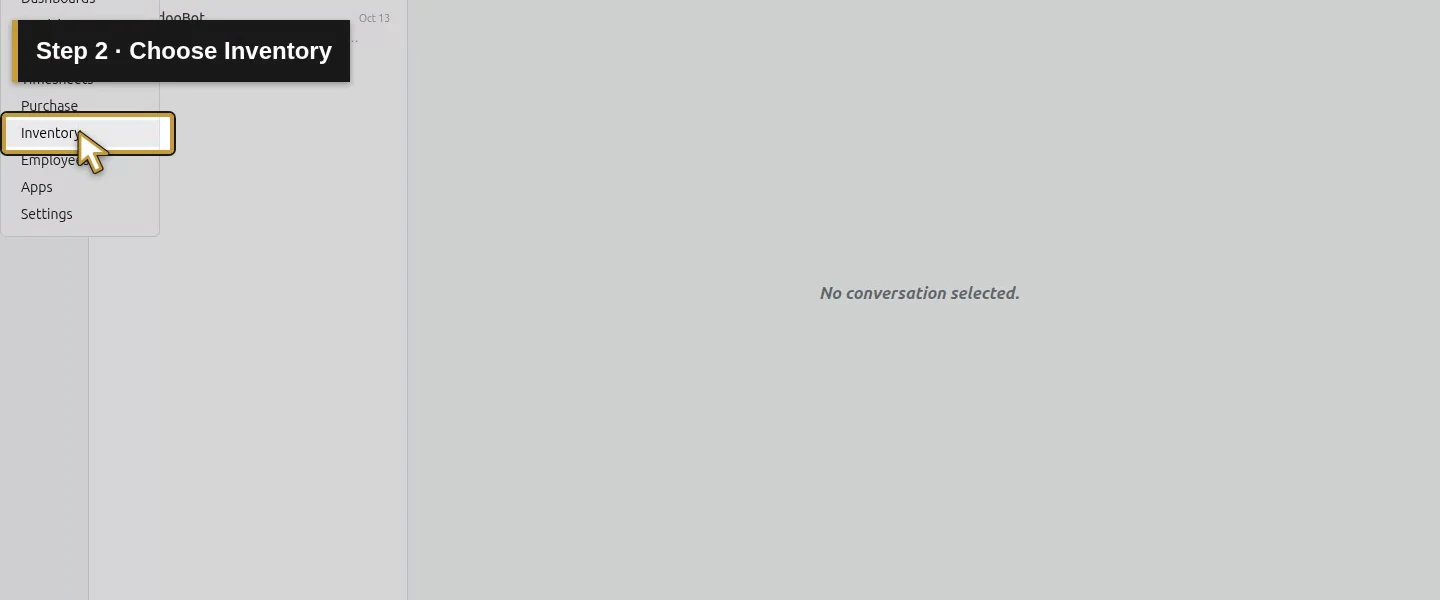
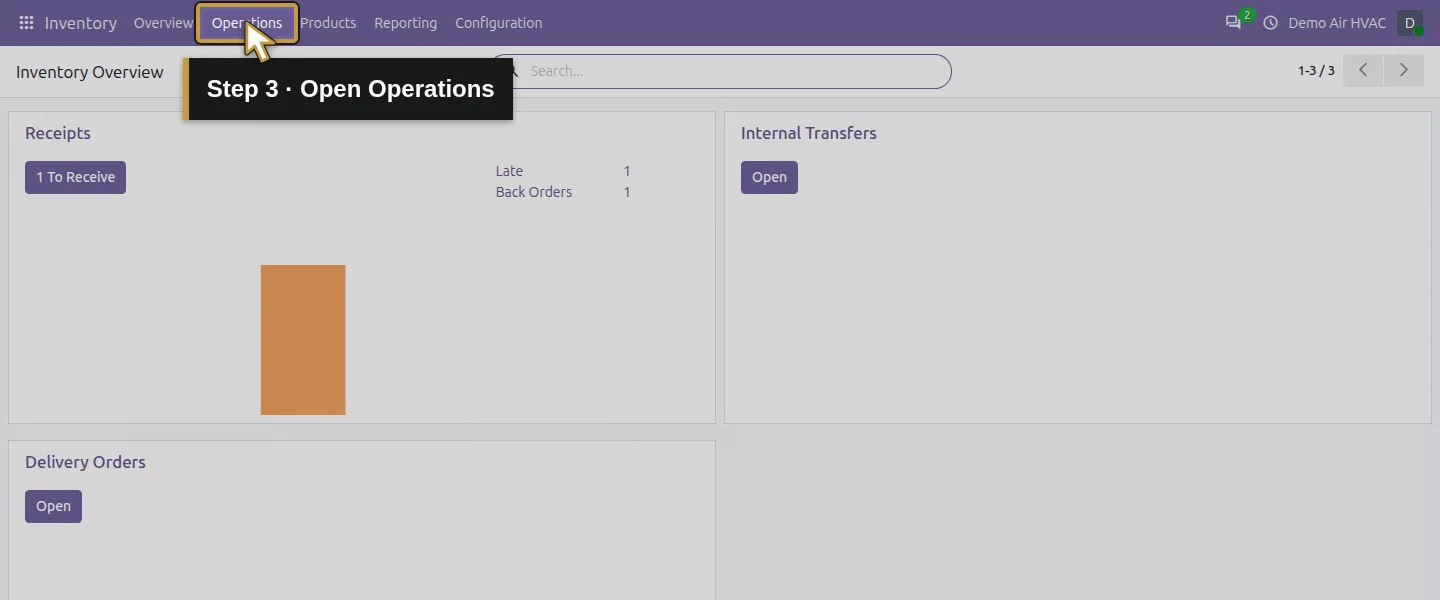
Step 2. Enter the counted quantity
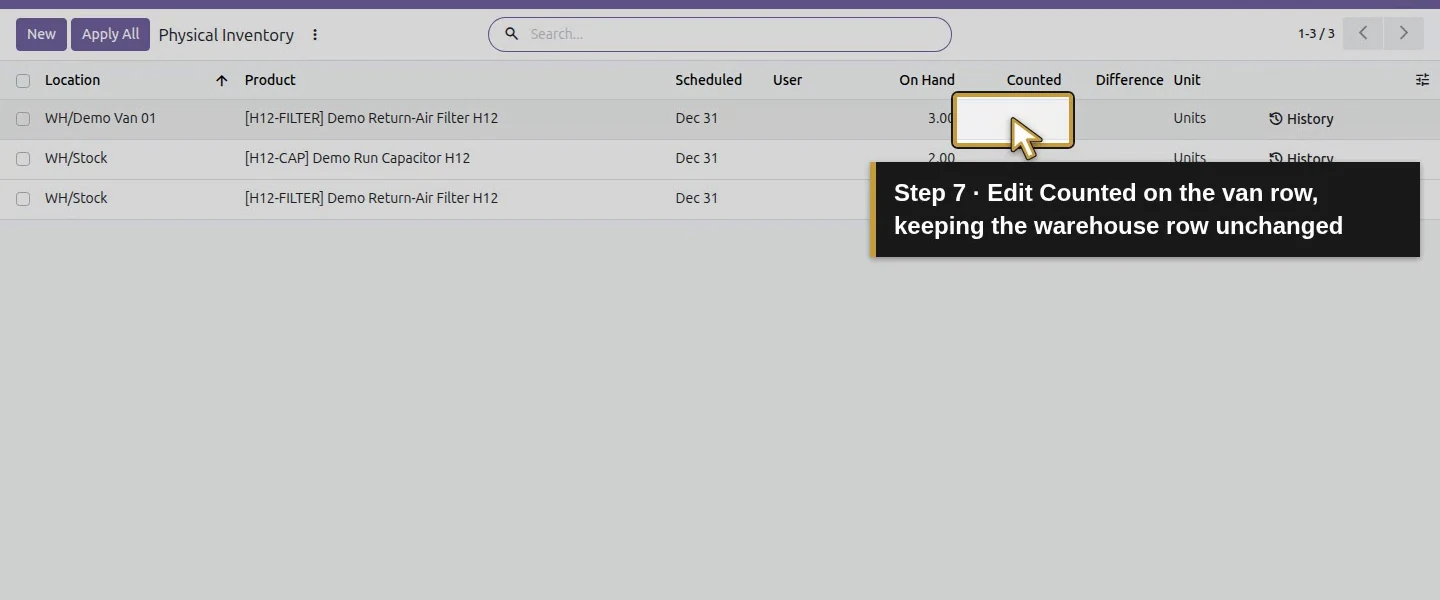
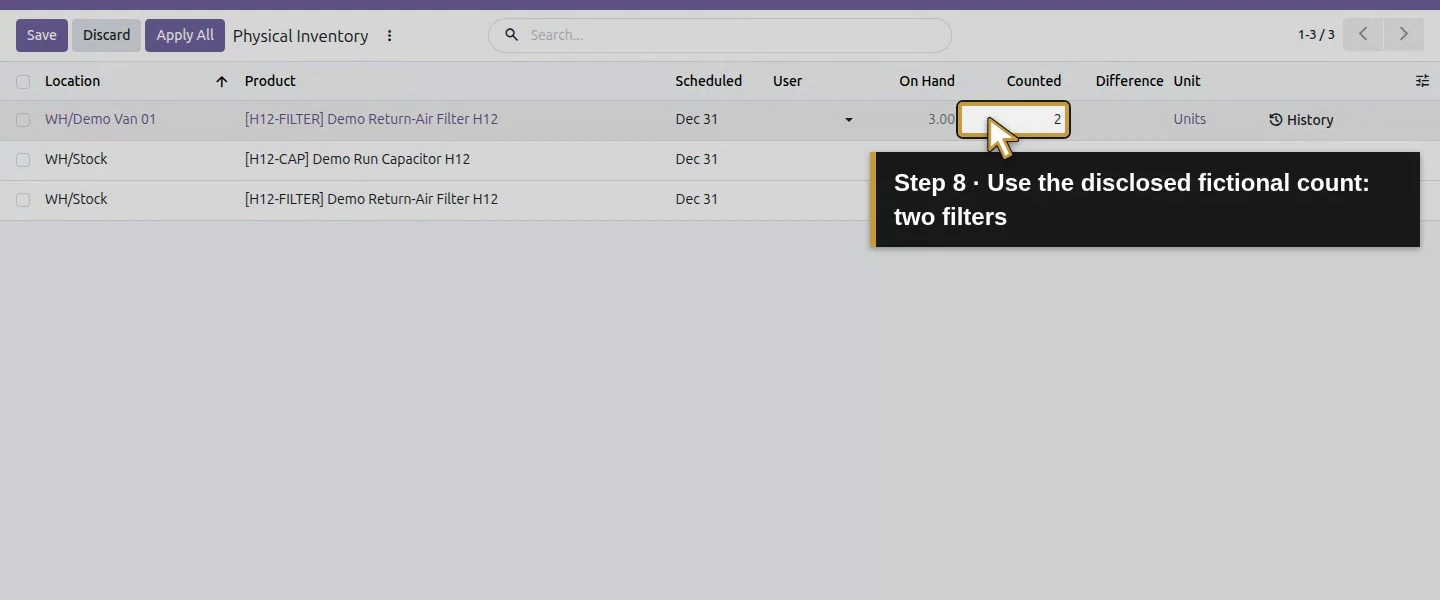
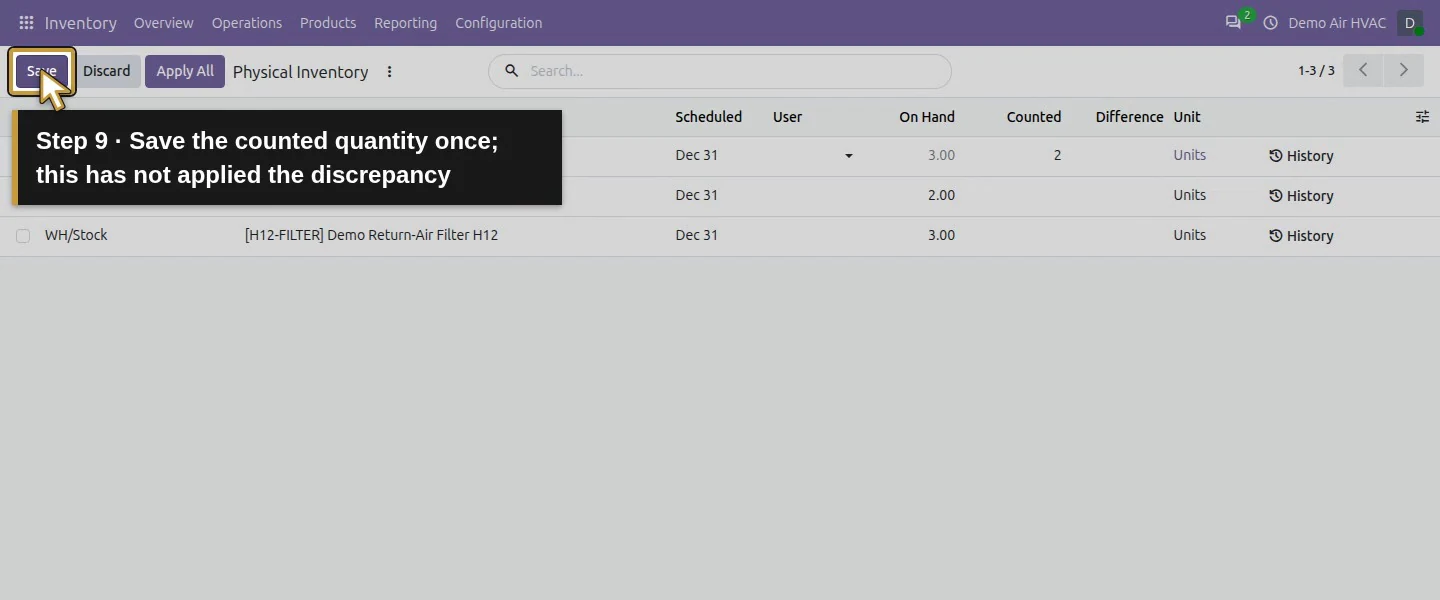
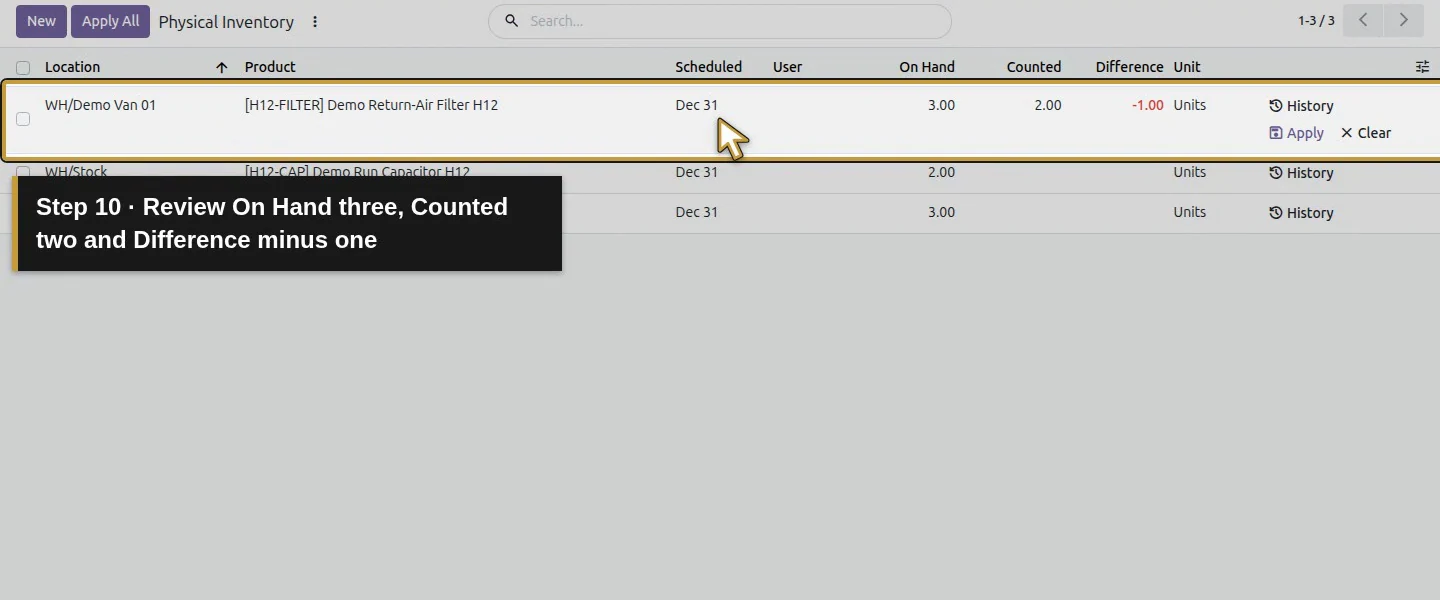
Click the van row to edit it. Enter 2 in Counted, then use the list's Save button. The saved row shows On Hand 3, Counted 2, Difference −1. Saving the count has not yet changed on-hand stock.
Step 3. Review the discrepancy before applying
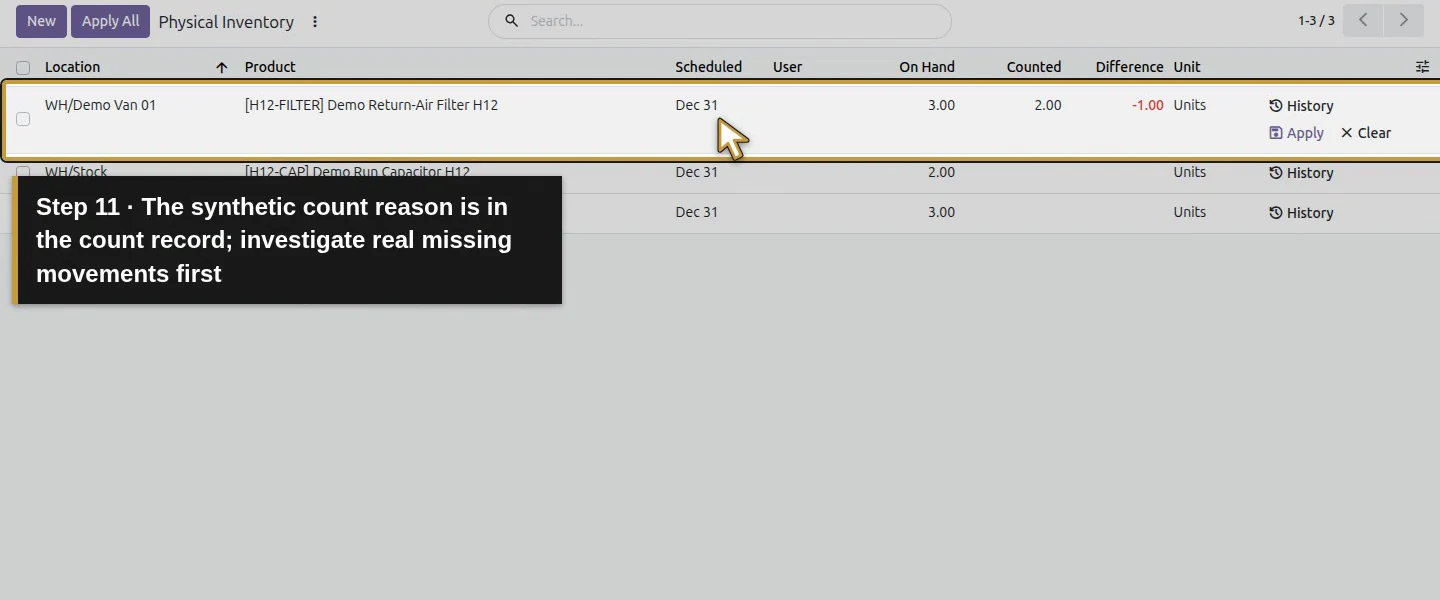
For the training example, record the reason as synthetic one-filter count discrepancy in the team's count record. For a real business, investigate missing movements first. The tested row-level Apply flow does not request a reason or approval dialog.
Step 4. Apply this reviewed row once
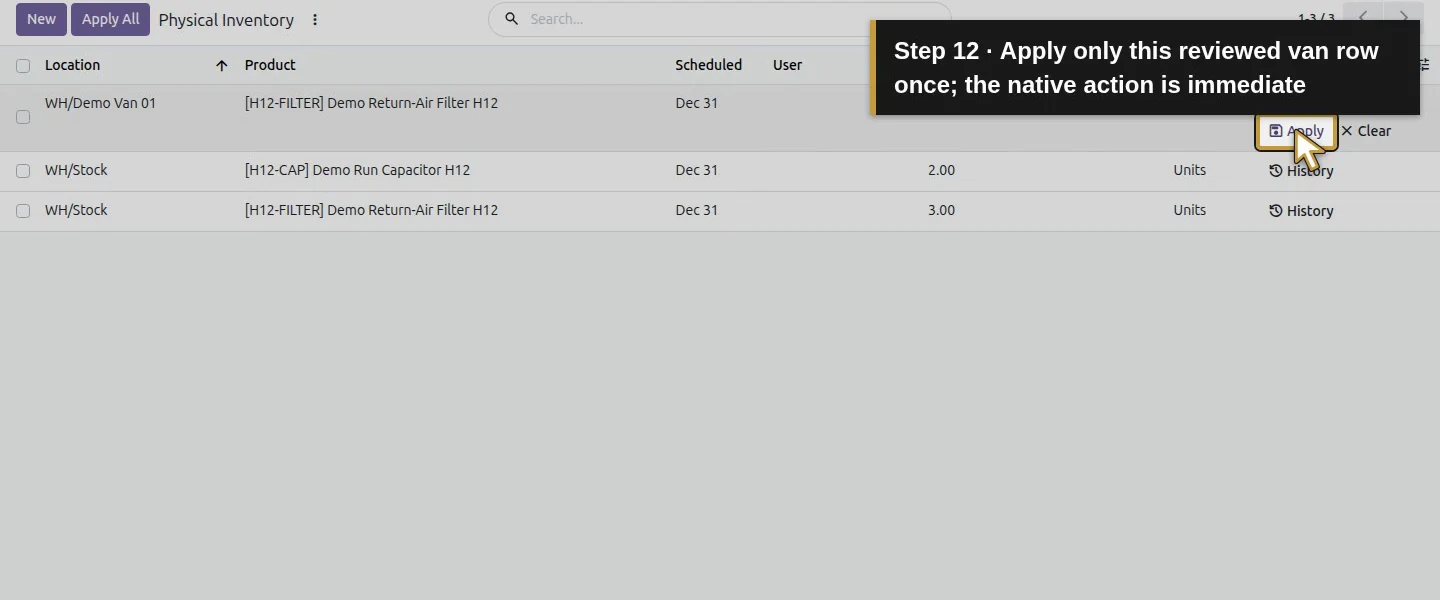
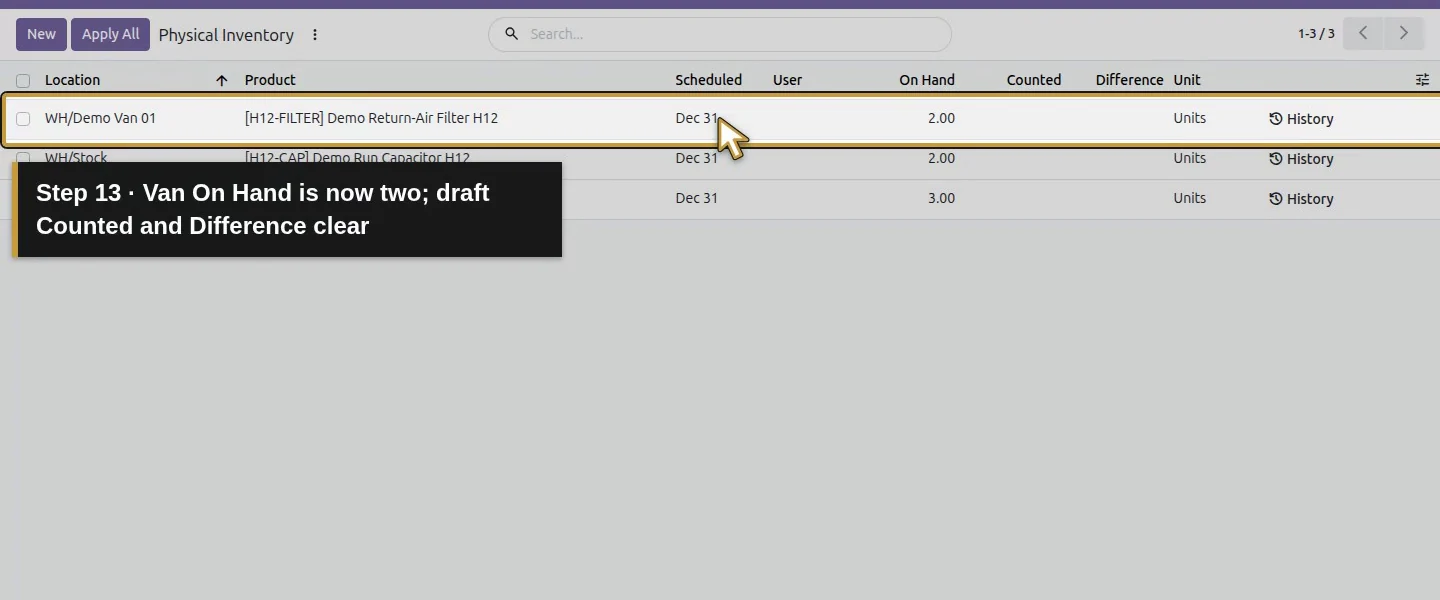
Choose the van row's Apply action, shown with the save icon. It applies immediately in this test: On Hand becomes 2, and the draft Counted/Difference cells clear. Use the individual row action so the reader can see which count is being applied.
Step 5. Reopen and inspect History
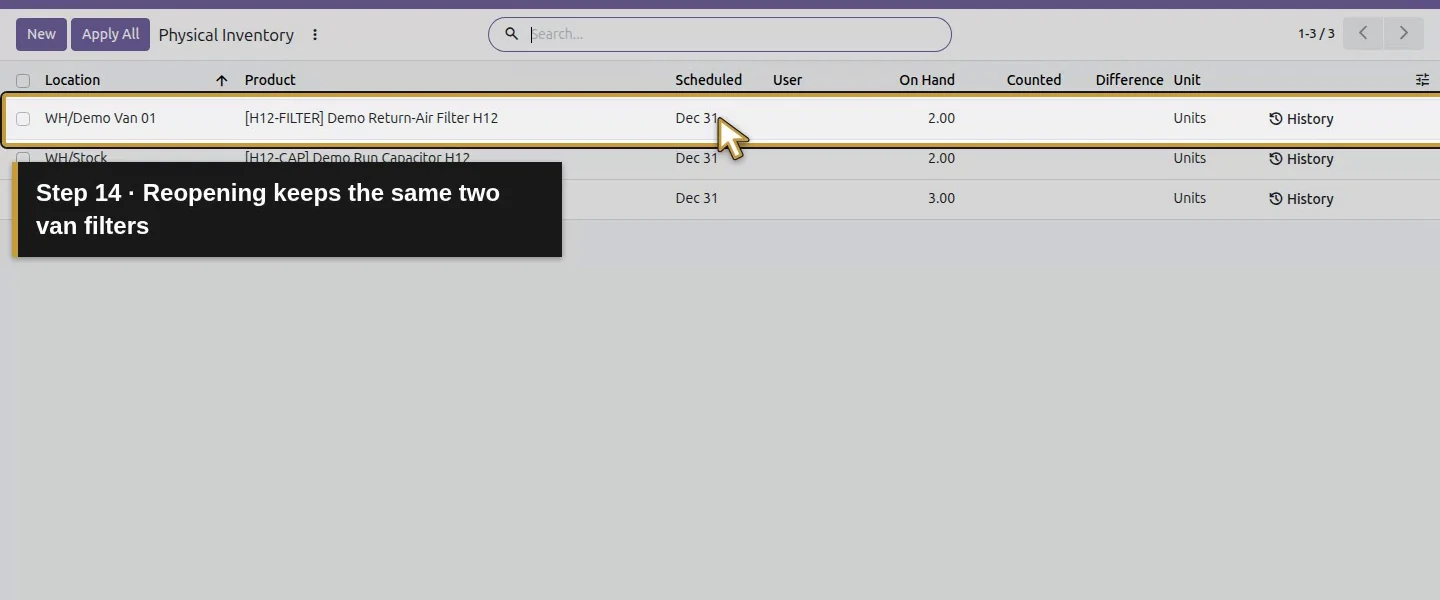
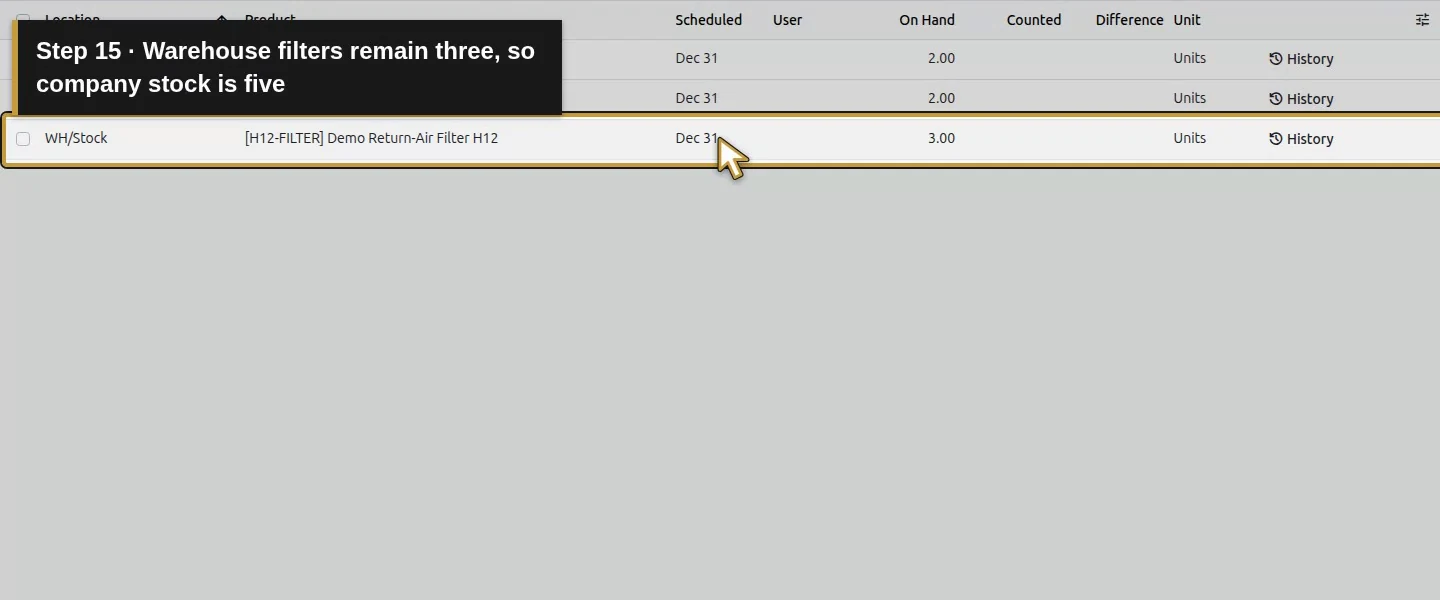
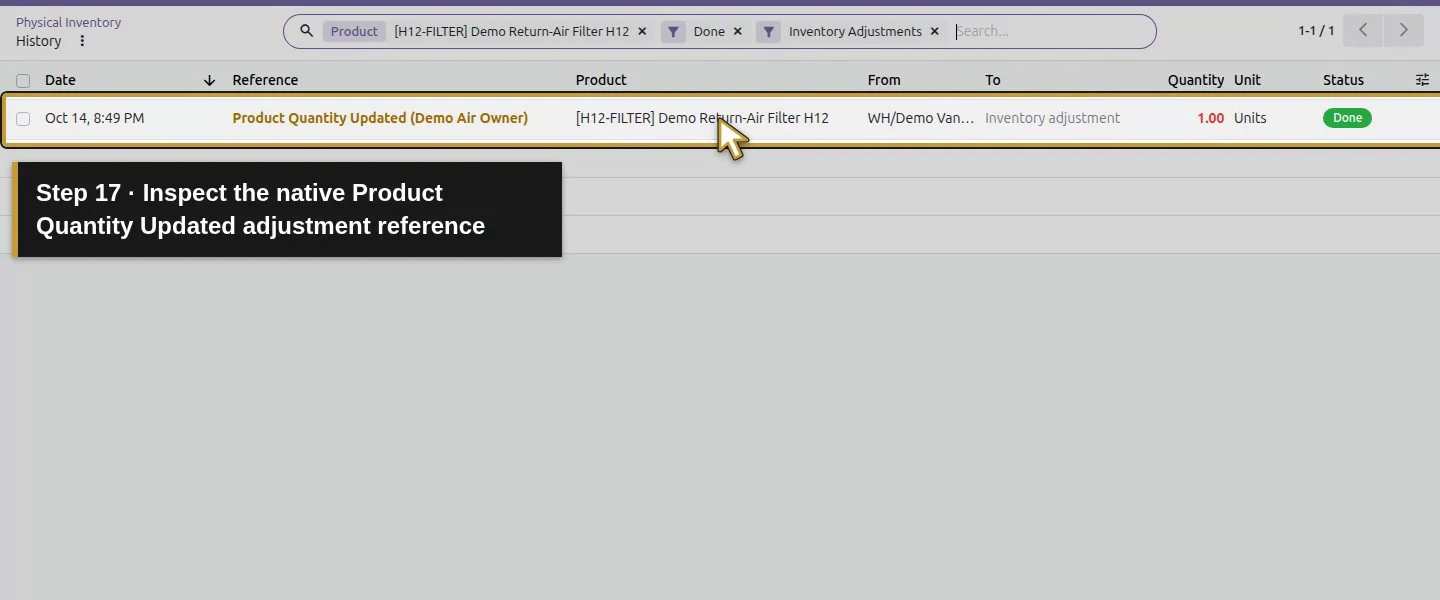
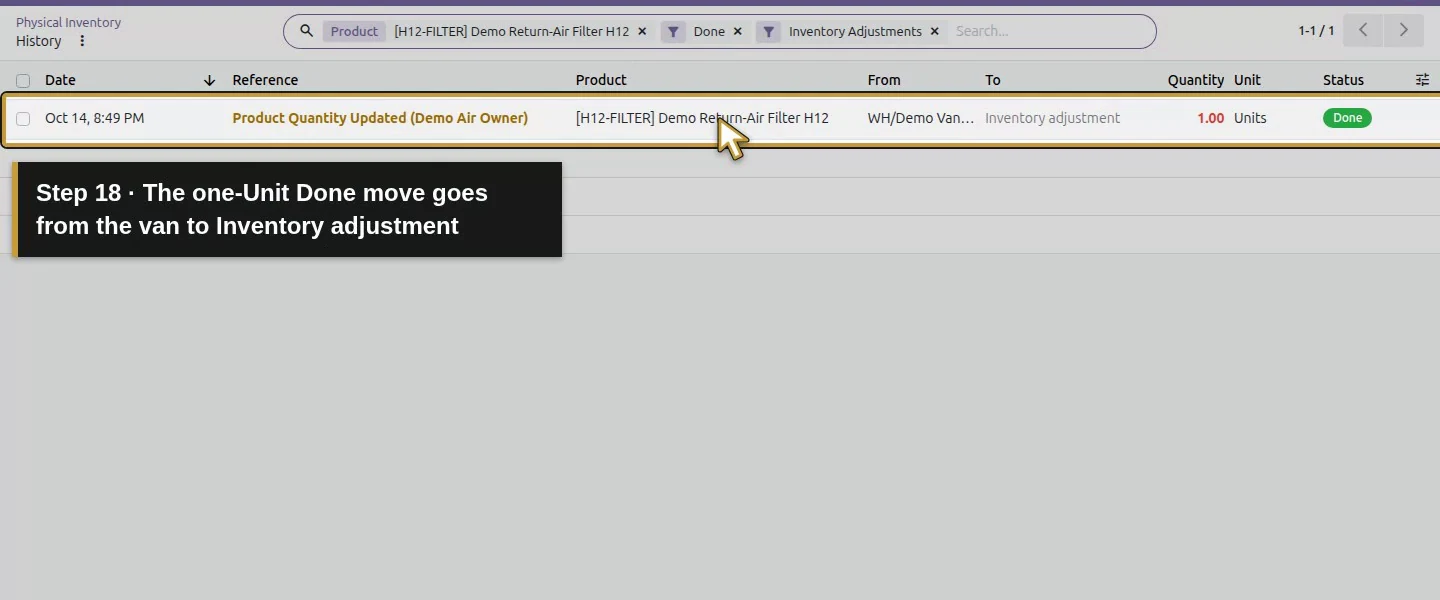
Reload Physical Inventory and confirm two van filters and three warehouse filters. Choose the van row's History. It shows one Done inventory-adjustment movement of one Unit from WH/Demo Van 01 to Inventory adjustment, with the automatic reference Product Quantity Updated (Demo Air Owner).
Check the result
The saved count retained On Hand three until Apply. Applying it created one Done adjustment movement and set the van balance to two. Warehouse filters stayed three, so company on-hand filters became five. History retained the date, user reference, product, source, destination and quantity.
If your screen differs
The row-level Apply did not present a reason dialog. Its automatic history reference is not an explanation of why a part was missing; keep the reviewed count reason in the business's count record. Apply All, other roles, tracked equipment and concurrent-stock changes were not tested. Do not use an adjustment to conceal an unrecorded customer delivery.
Frequently asked questions
How do I count van inventory in Odoo?
In Physical Inventory, edit Counted on the exact product and van-location row, save it, review Difference and apply that row after investigating the discrepancy.Does entering an Odoo count immediately change stock?
In this test, saving Counted two left On Hand at three. The row's Apply action changed on-hand stock to two and created the adjustment movement.How do I explain missing parts in Odoo inventory?
Investigate receipts, transfers, deliveries and returns first. The tested Apply action recorded an automatic user/date movement reference without a reason dialog; keep the reviewed explanation with the count record.Continue building the business
Follow a physical supplier return in How do I return a faulty part to a supplier in Odoo?.
Talk about your Odoo setup
Bring your current process and the result you need to Onward to plan your Odoo workflow. Talk about your Odoo setup.