Running an HVAC business with Odoo

How do I receive a partial supplier delivery in Odoo?
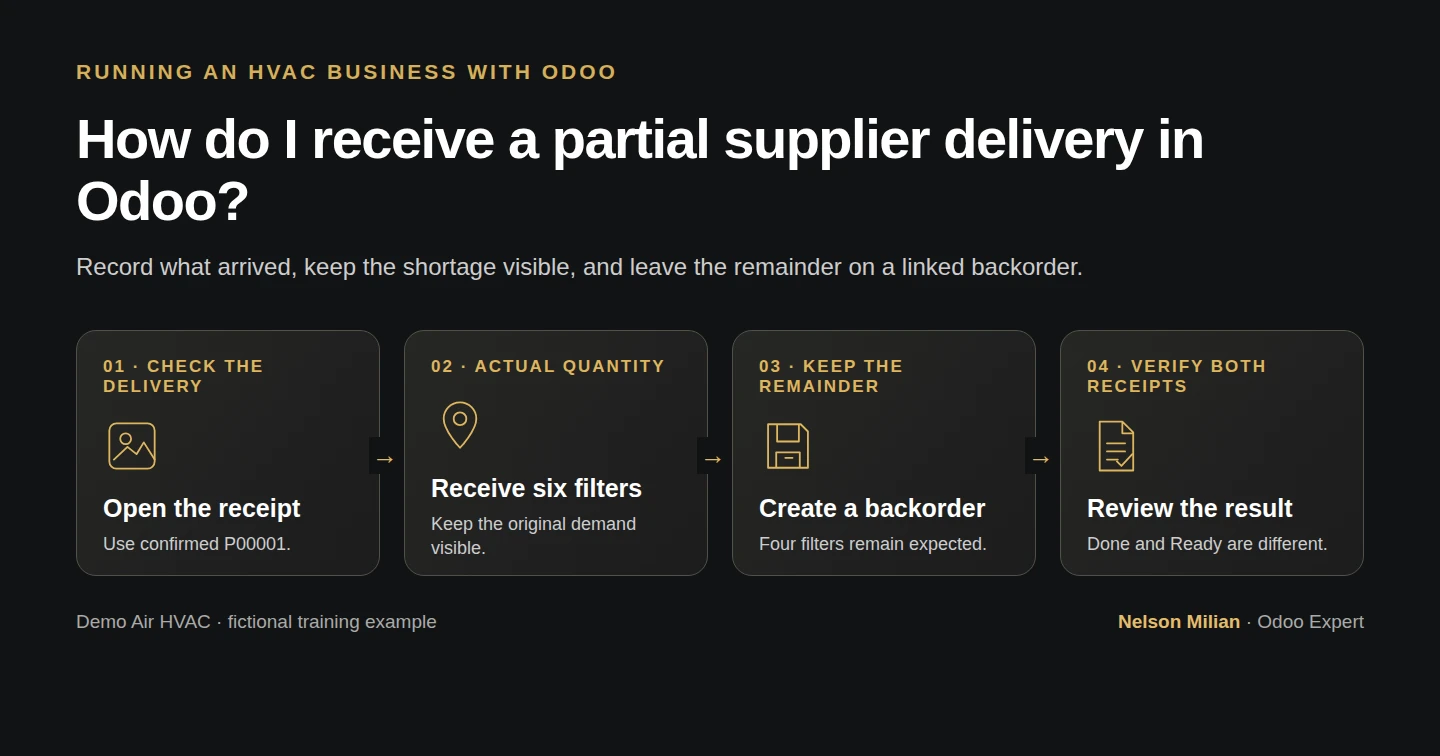
Workflow overview: How do I receive a partial supplier delivery in Odoo?
Workflow overview. Instructional screenshots show the actual demo interface.

Receive six of ten filters in Odoo and keep the remaining four on a linked backorder.

A partial receipt records what arrived, while a backorder preserves what is still expected. Alex receives six of ten ordered filters and both capacitors, leaving four filters with the supplier.

Alex Rivera and Demo Air HVAC are fictional training examples. Prices, dates, quantities and business situations in this guide are illustrative.

Before you begin

Tested in stock Odoo 20.0-20260926 Community as the demo owner administrator, with official modules and standard configuration. Complete the purchase order and stock locations examples. Start from confirmed P00001 with receipt WH/IN/00001 and no goods received yet. These parts use Units and do not require lot or serial entry.

Step-by-step workflow

34 highlighted video actions with a white pointer, gold border and English captions, without narration. Each written step groups its smaller video actions. Stock Odoo 20 Community, owner role. Reuse the confirmed P00001 and original Ready receipt from H30. Receive six of ten filters and both capacitors, creating one Ready four-filter backorder. Demand remains the original commitment until Odoo splits the receipt. No Backorder is observed only; remaining receipt stays unvalidated. No billing, payment, inventory count adjustment or supplier message.

Step 1. Open the linked receipt

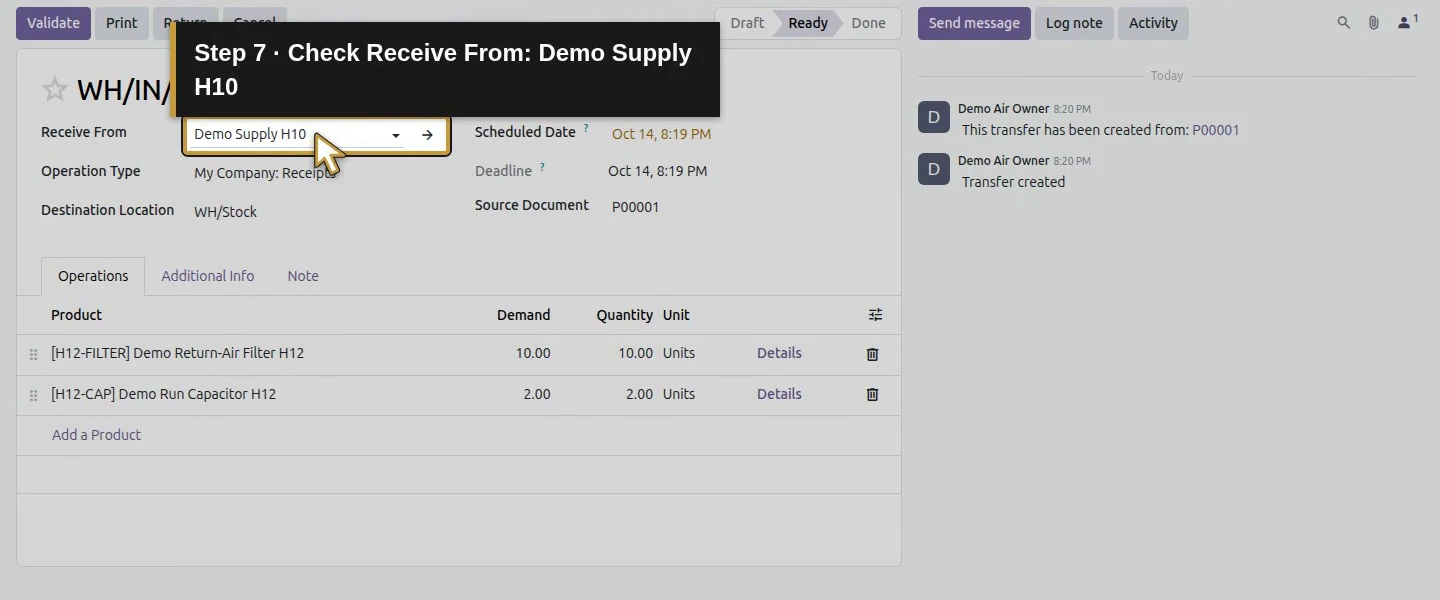
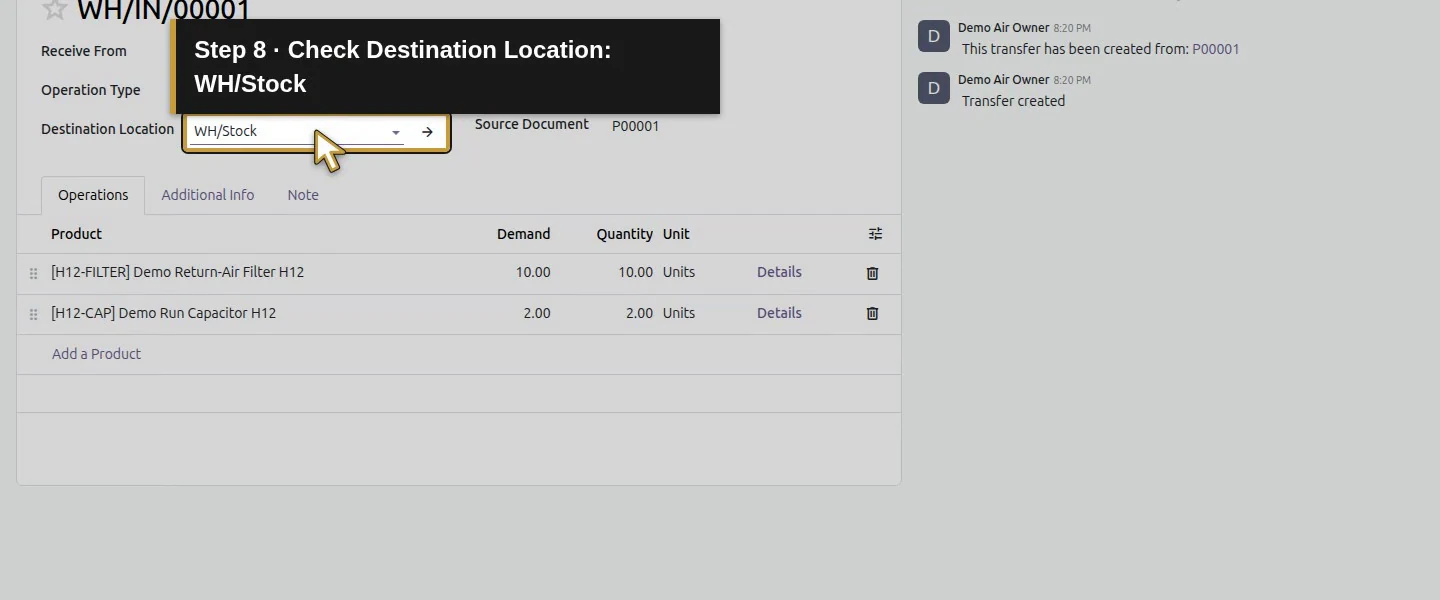
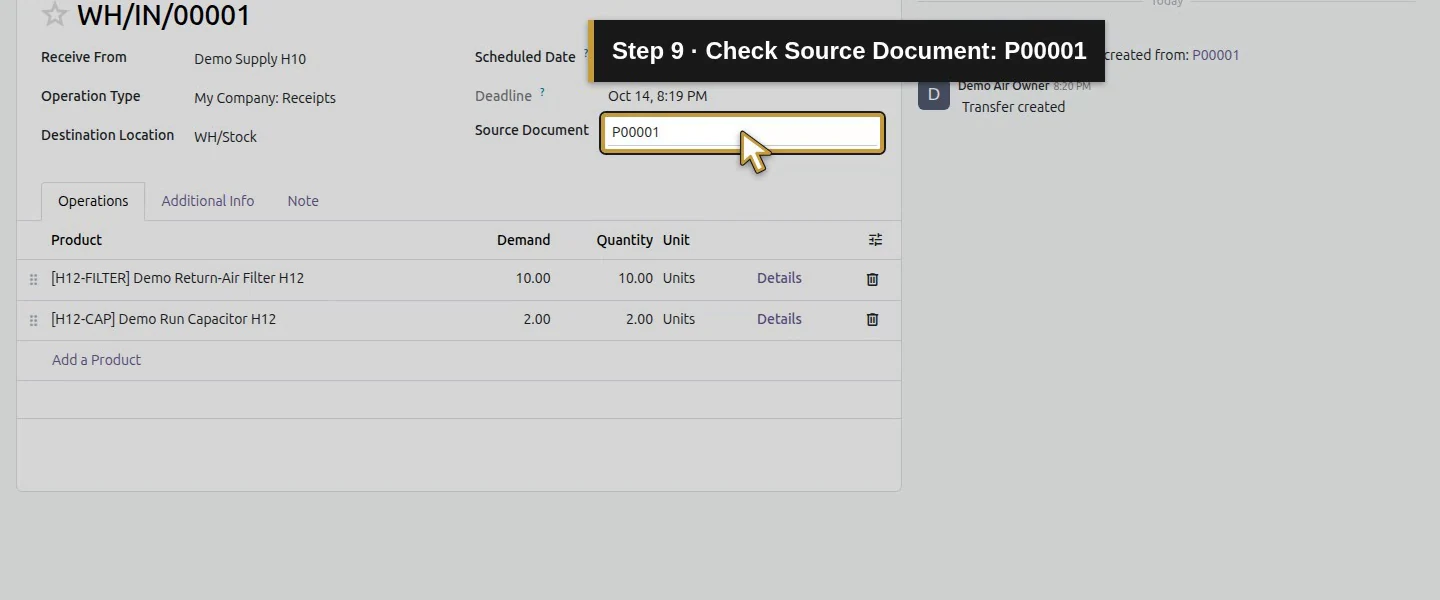
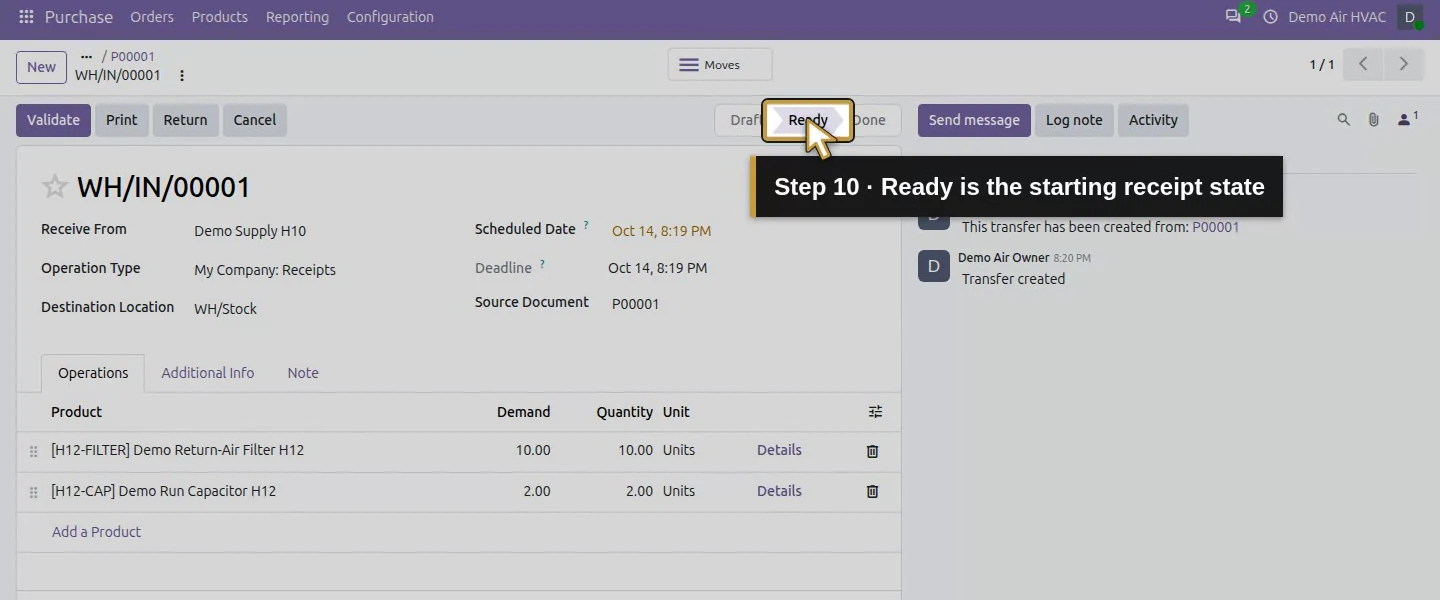
Open Purchase โ†’ Orders โ†’ Purchase Orders โ†’ P00001 and choose 1 Receipt. Check Receive From: Demo Supply H10, Destination Location: WH/Stock and Source Document: P00001. WH/IN/00001 is initially Ready.
Video action 1: Open the app menu. The actual target is highlighted in gold.
Open the app menu.
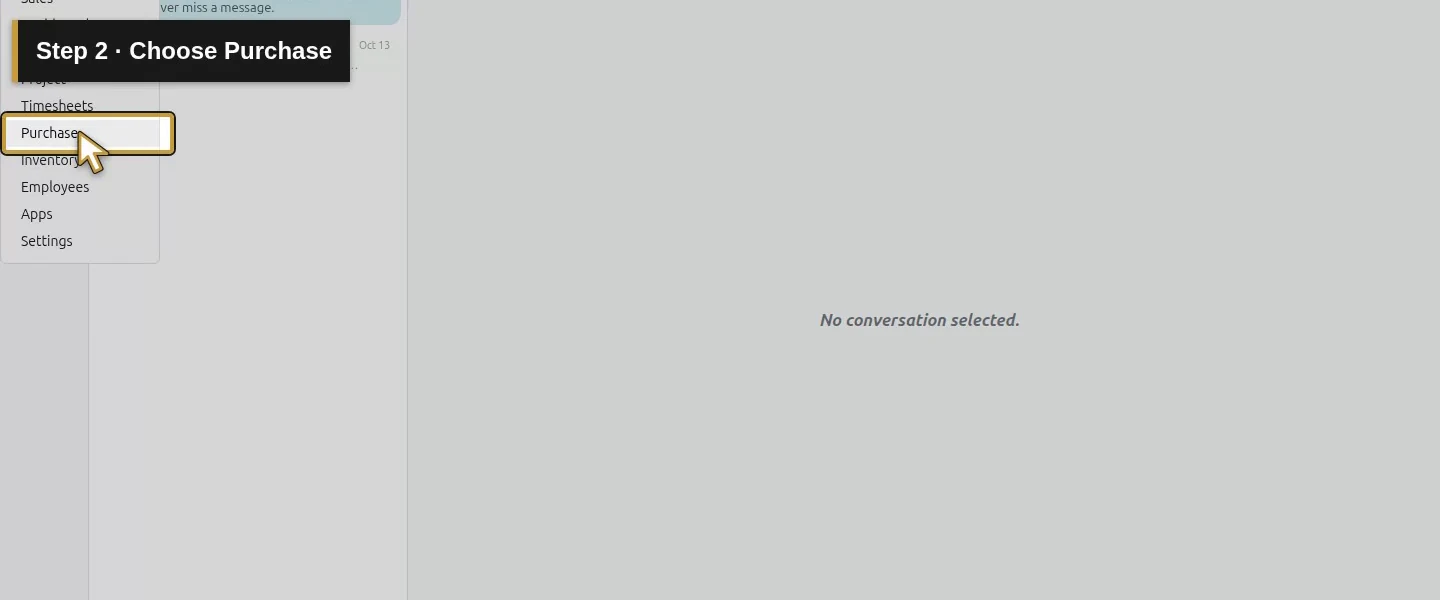
Video action 2: Choose Purchase. The actual target is highlighted in gold.
Choose Purchase.
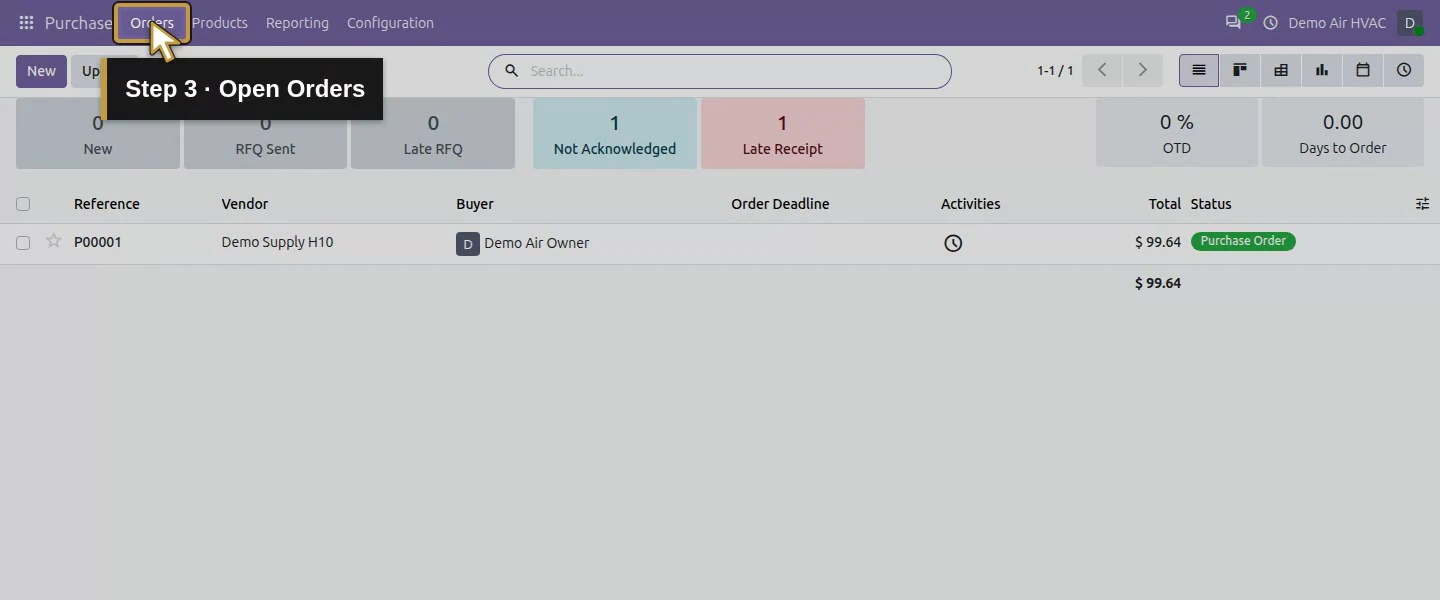
Video action 3: Open Orders. The actual target is highlighted in gold.
Open Orders.
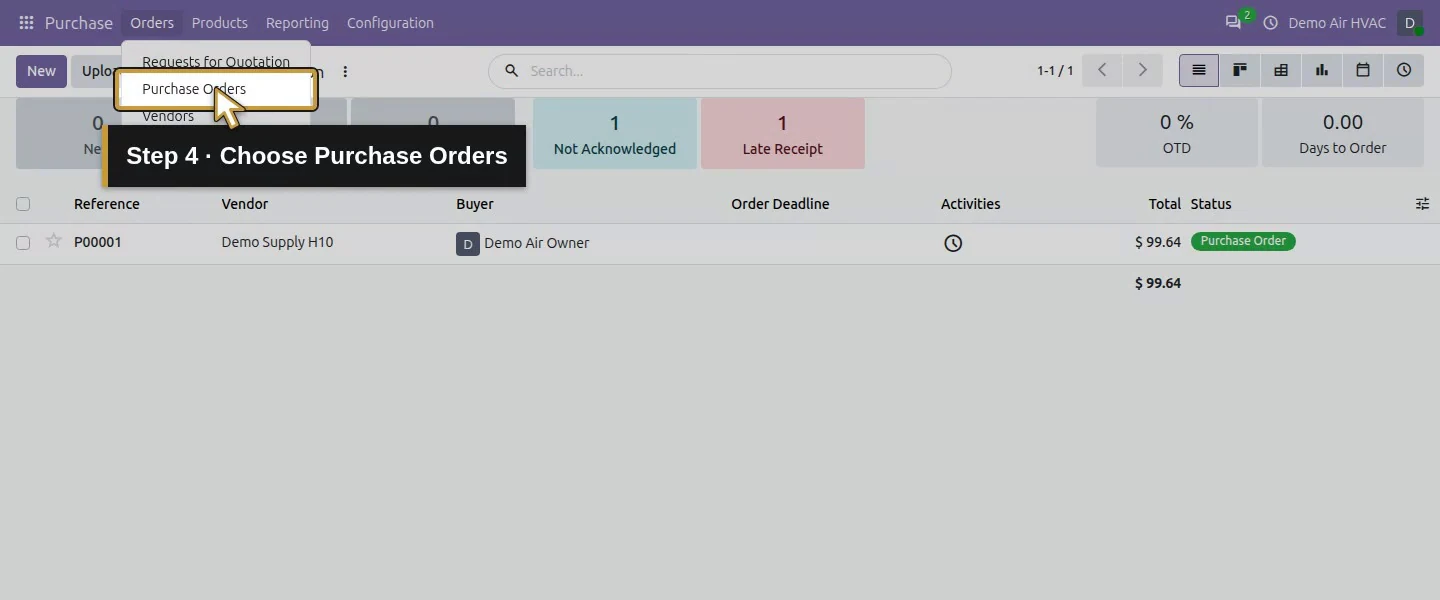
Video action 4: Choose Purchase Orders. The actual target is highlighted in gold.
Choose Purchase Orders.
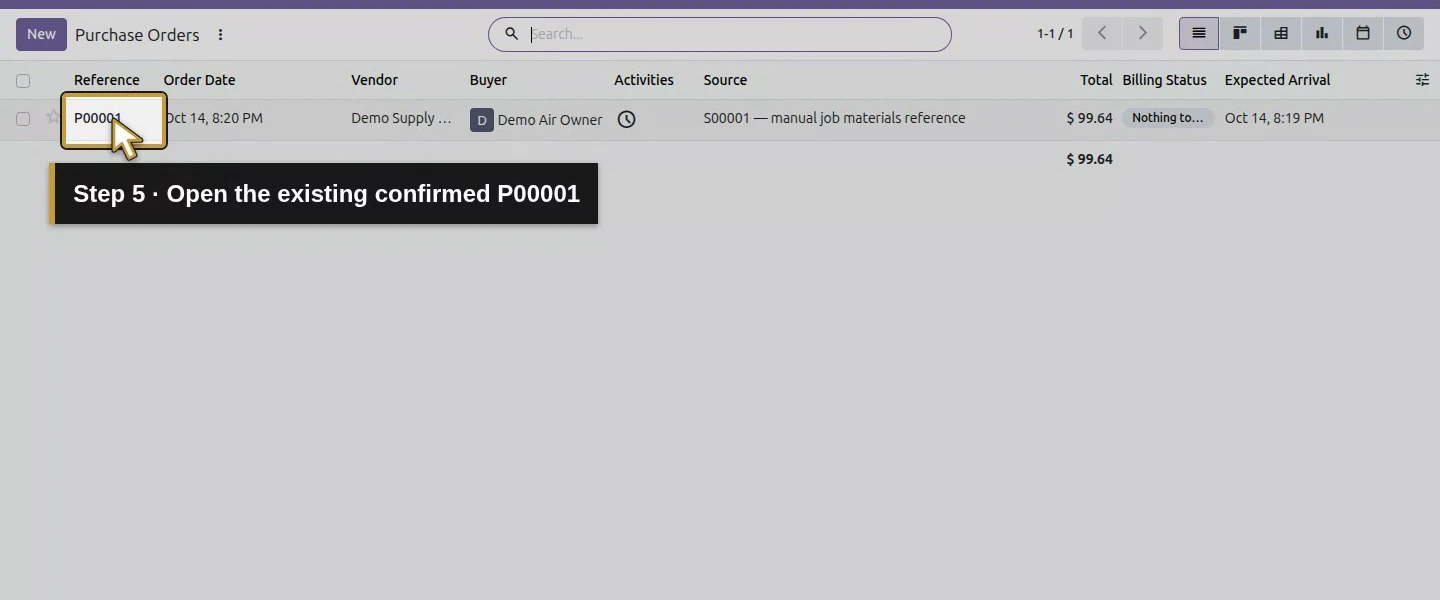
Video action 5: Open the existing confirmed P00001. The actual target is highlighted in gold.
Open the existing confirmed P00001.
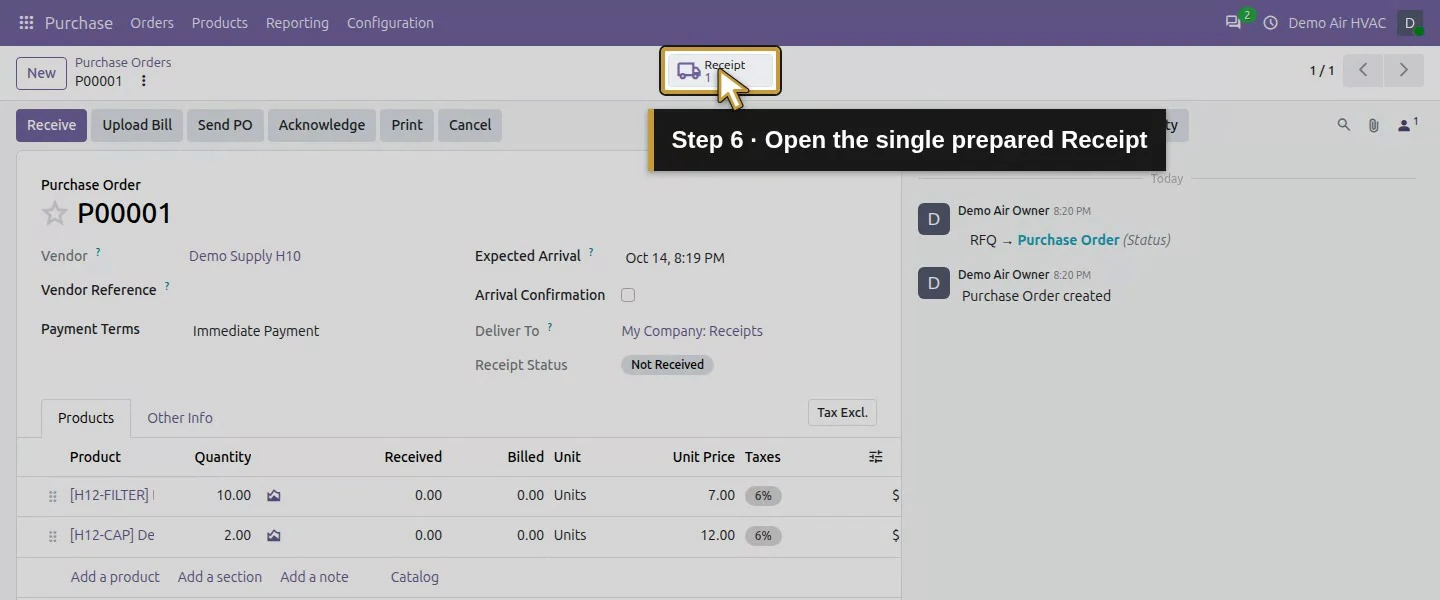
Video action 6: Open the single prepared Receipt. The actual target is highlighted in gold.
Open the single prepared Receipt.
Video action 7: Check Receive From: Demo Supply H10. The actual target is highlighted in gold.
Check Receive From: Demo Supply H10.
Video action 8: Check Destination Location: WH/Stock. The actual target is highlighted in gold.
Check Destination Location: WH/Stock.
Video action 9: Check Source Document: P00001. The actual target is highlighted in gold.
Check Source Document: P00001.
Video action 10: Ready is the starting receipt state. The actual target is highlighted in gold.
Ready is the starting receipt state.

Step 2. Replace the proposed quantity with the actual delivery

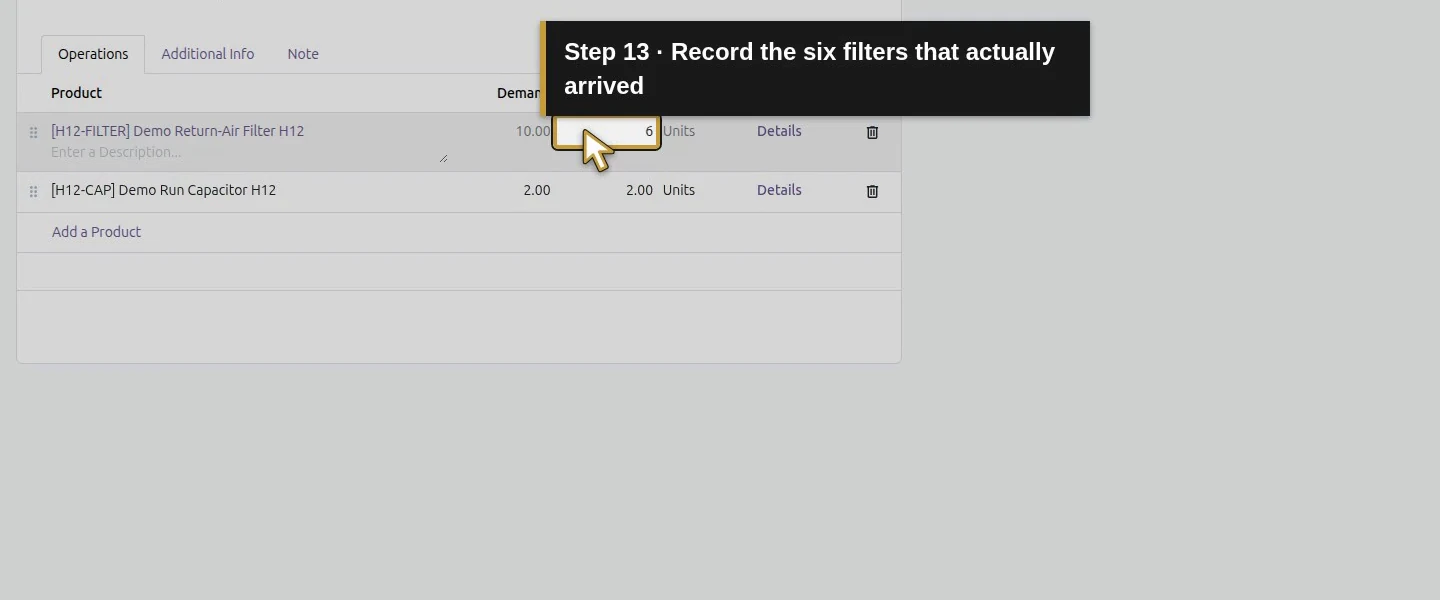
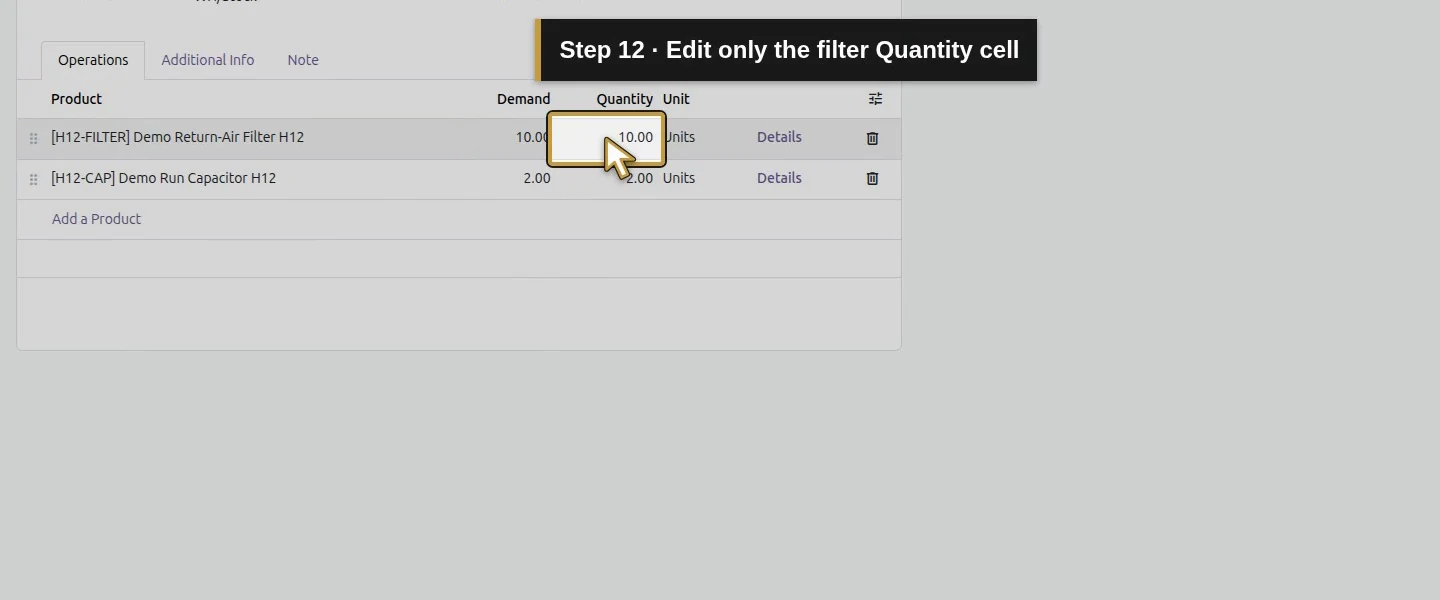
On Operations, the receipt initially shows Demand 10, Quantity 10 for filters and Demand 2, Quantity 2 for capacitors. Click the filter's Quantity cell and enter 6. Leave the capacitor Quantity at 2 after checking the delivery. Keep the ordered demand at ten; do not edit it to conceal the shortage.
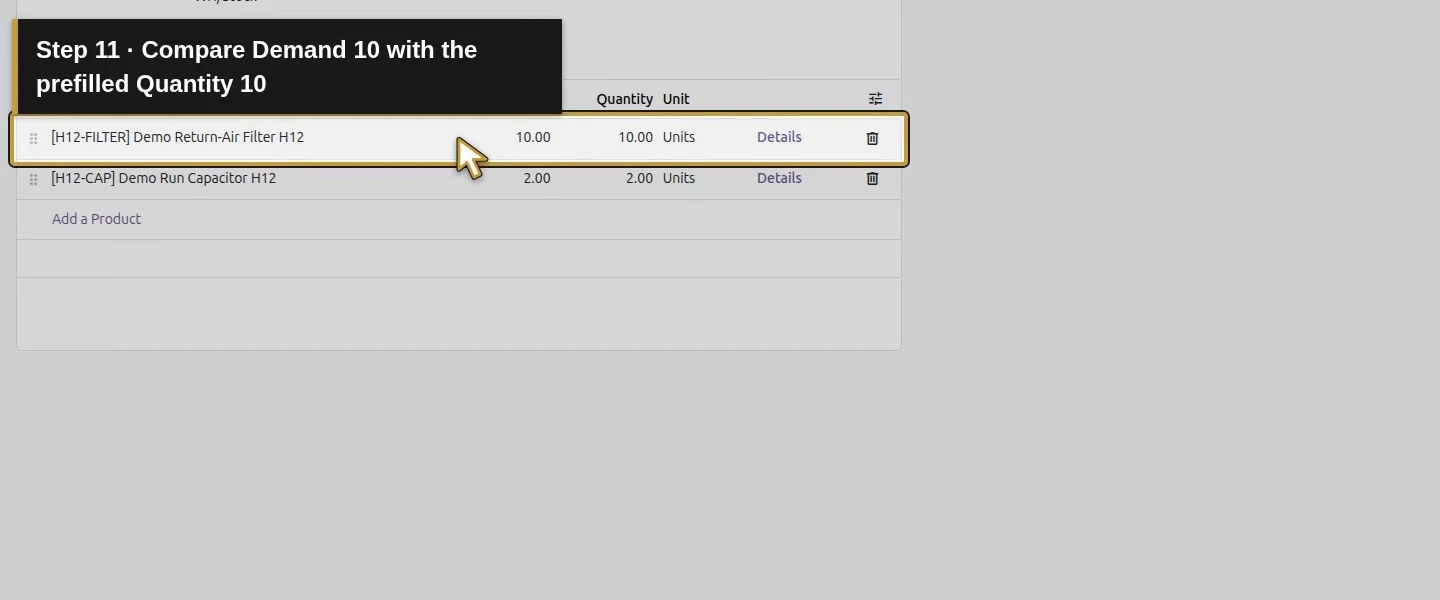
Video action 11: Compare Demand 10 with the prefilled Quantity 10. The actual target is highlighted in gold.
Compare Demand 10 with the prefilled Quantity 10.
Video action 12: Edit only the filter Quantity cell. The actual target is highlighted in gold.
Edit only the filter Quantity cell.
Video action 13: Record the six filters that actually arrived. The actual target is highlighted in gold.
Record the six filters that actually arrived.
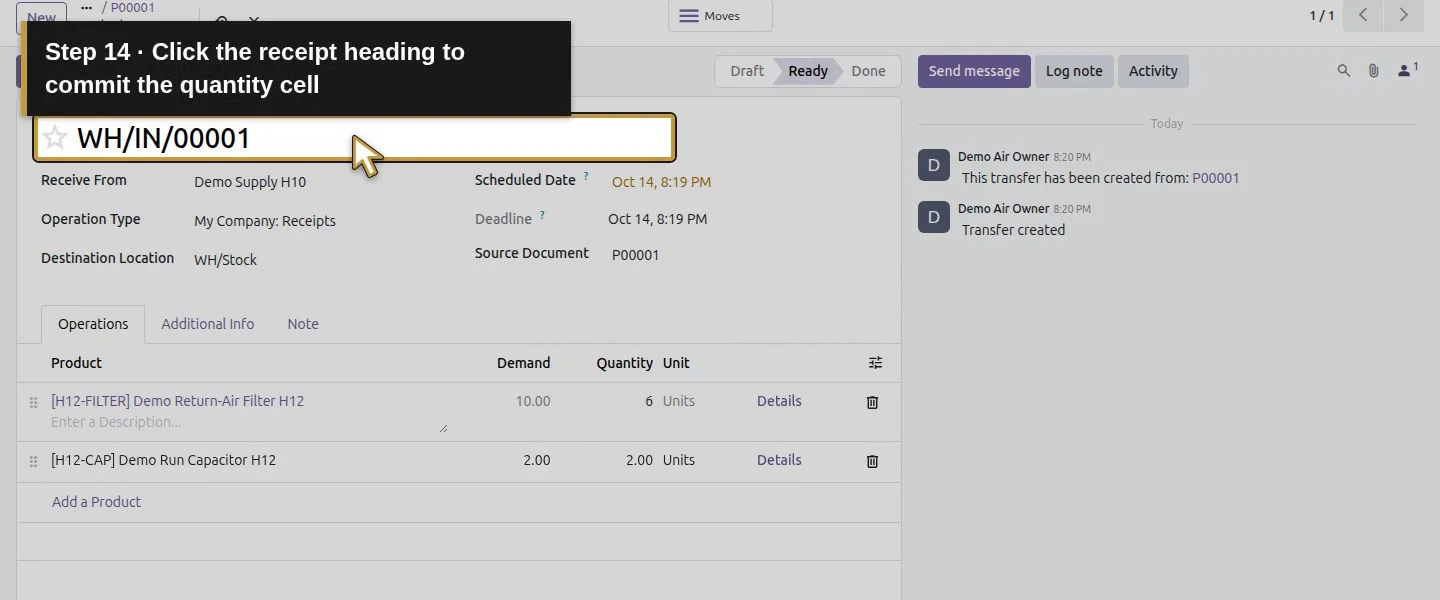
Video action 14: Click the receipt heading to commit the quantity cell. The actual target is highlighted in gold.
Click the receipt heading to commit the quantity cell.
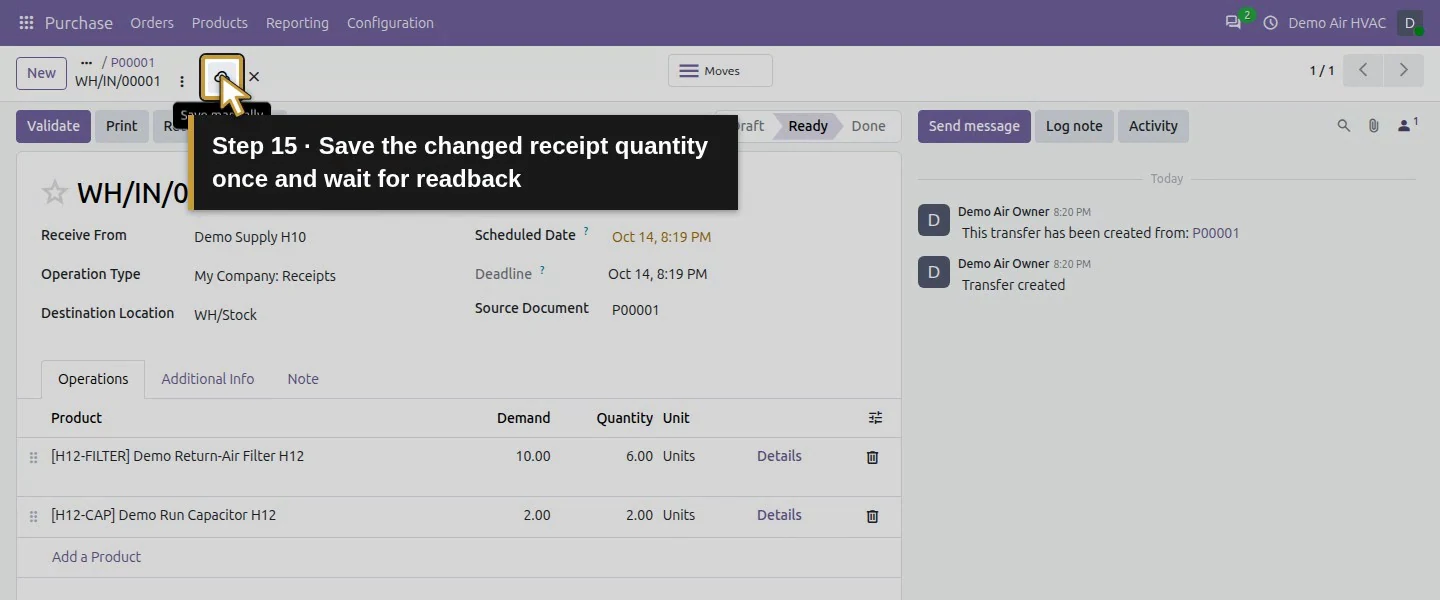
Video action 15: Save the changed receipt quantity once and wait for readback. The actual target is highlighted in gold.
Save the changed receipt quantity once and wait for readback.

Step 3. Review before validating

Check the exact products, actual quantities and Units against the delivery. These are physical warehouse receipts. A count adjustment is a different operation. Do not validate the full prefilled quantity when only part arrived.
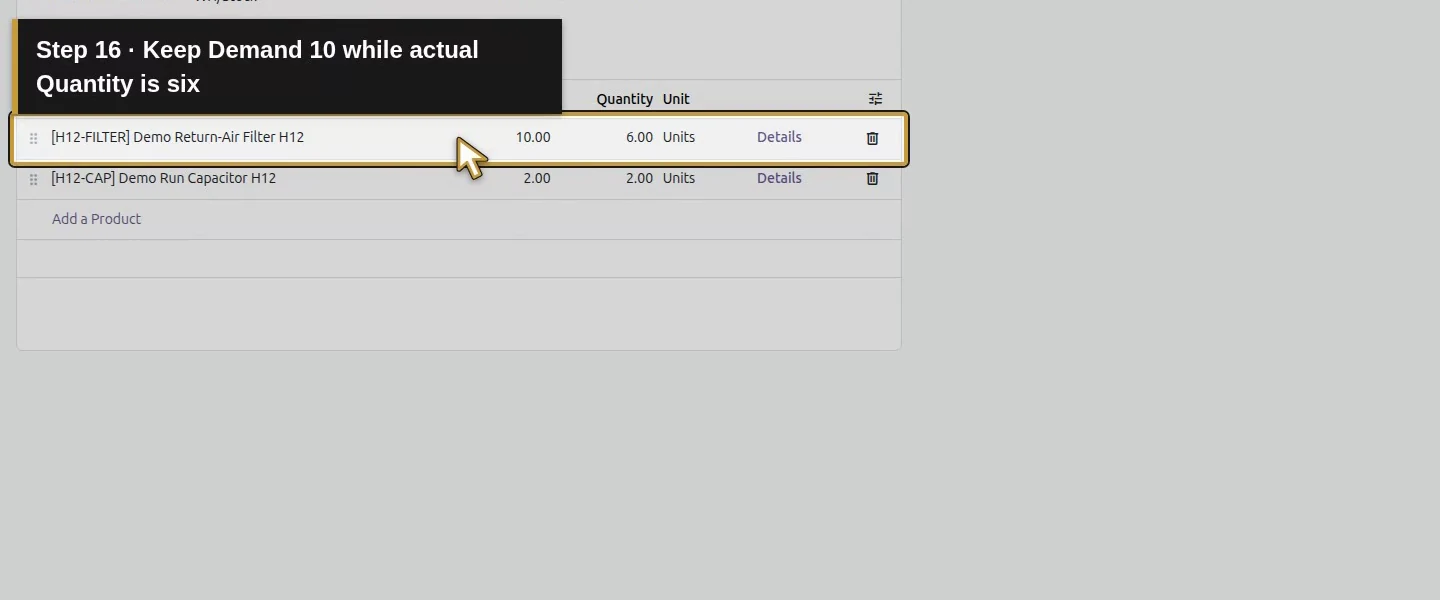
Video action 16: Keep Demand 10 while actual Quantity is six. The actual target is highlighted in gold.
Keep Demand 10 while actual Quantity is six.
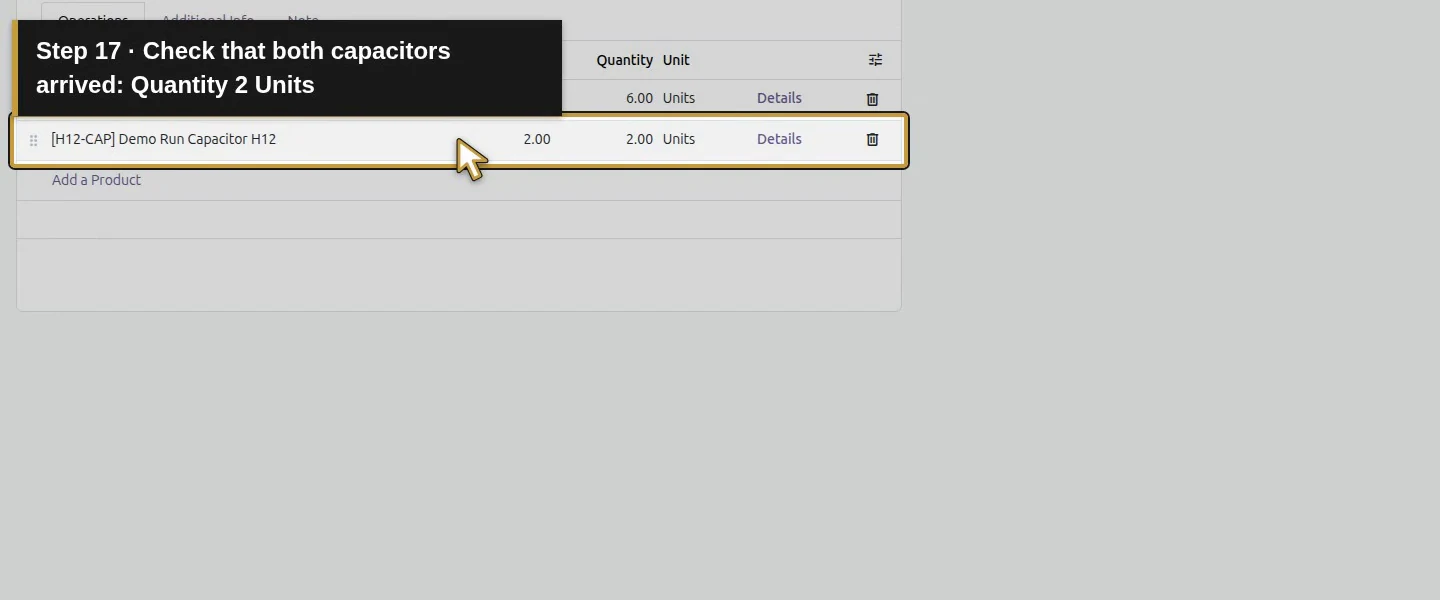
Video action 17: Check that both capacitors arrived: Quantity 2 Units. The actual target is highlighted in gold.
Check that both capacitors arrived: Quantity 2 Units.

Step 4. Keep the remainder as a backorder

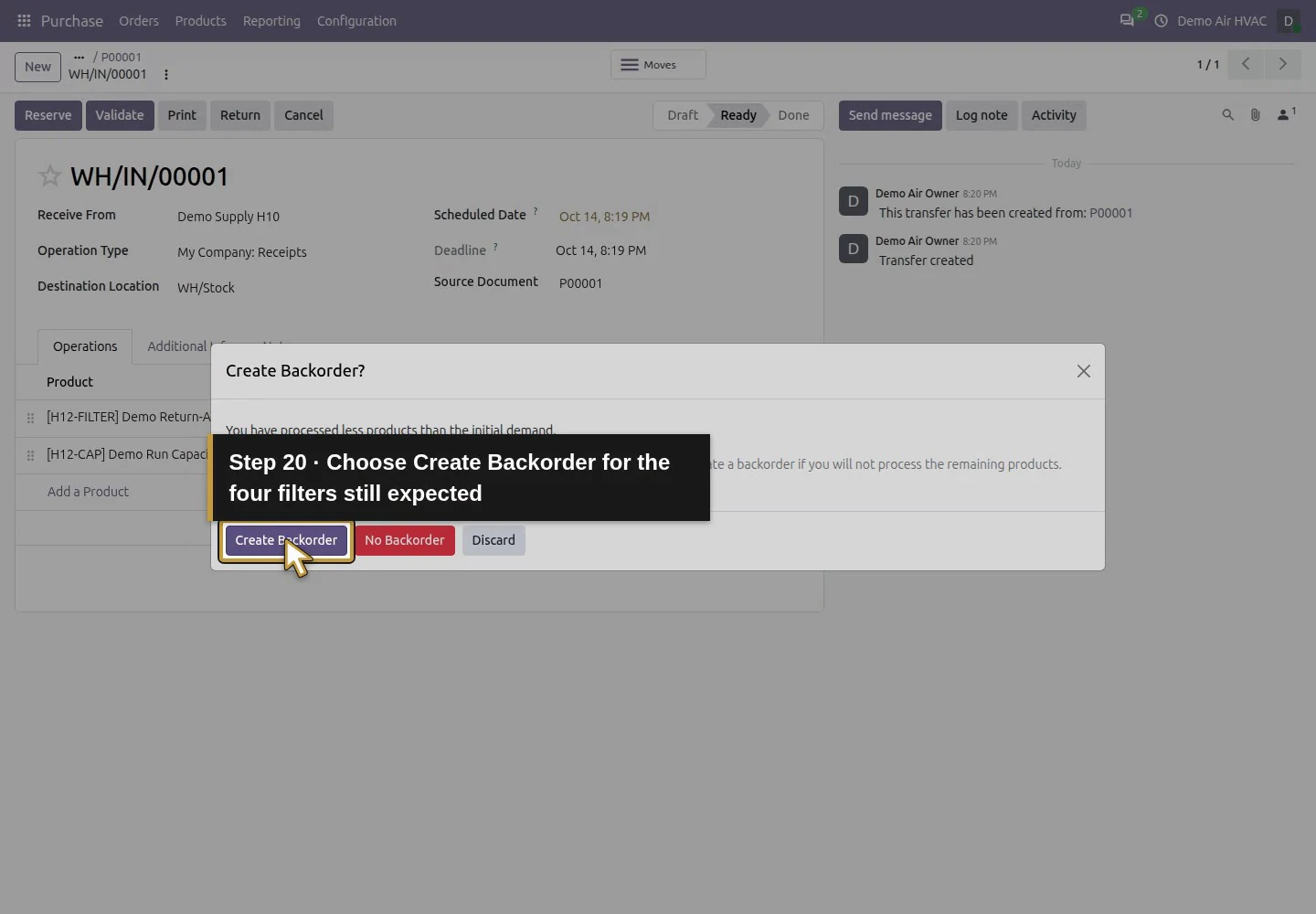
Choose Validate. The tested Create Backorder? dialog offers Create Backorder, No Backorder and Discard. Select Create Backorder because the remaining four filters are still expected. Wait until WH/IN/00001 shows Done.
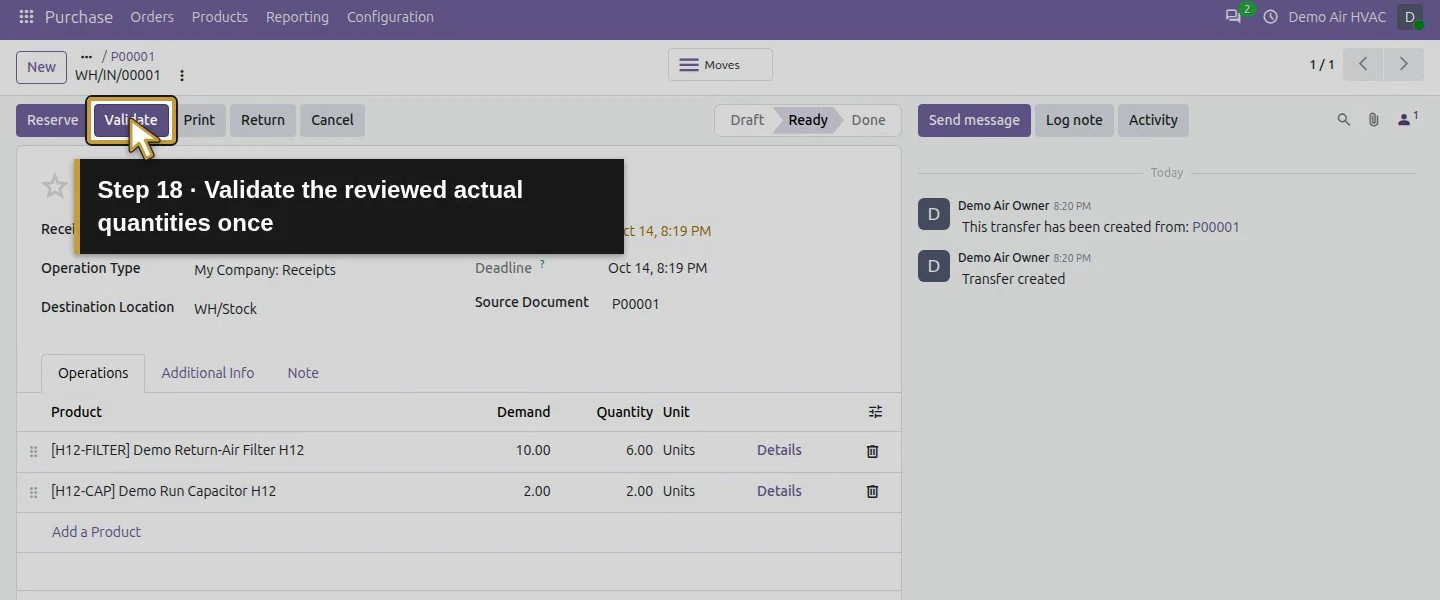
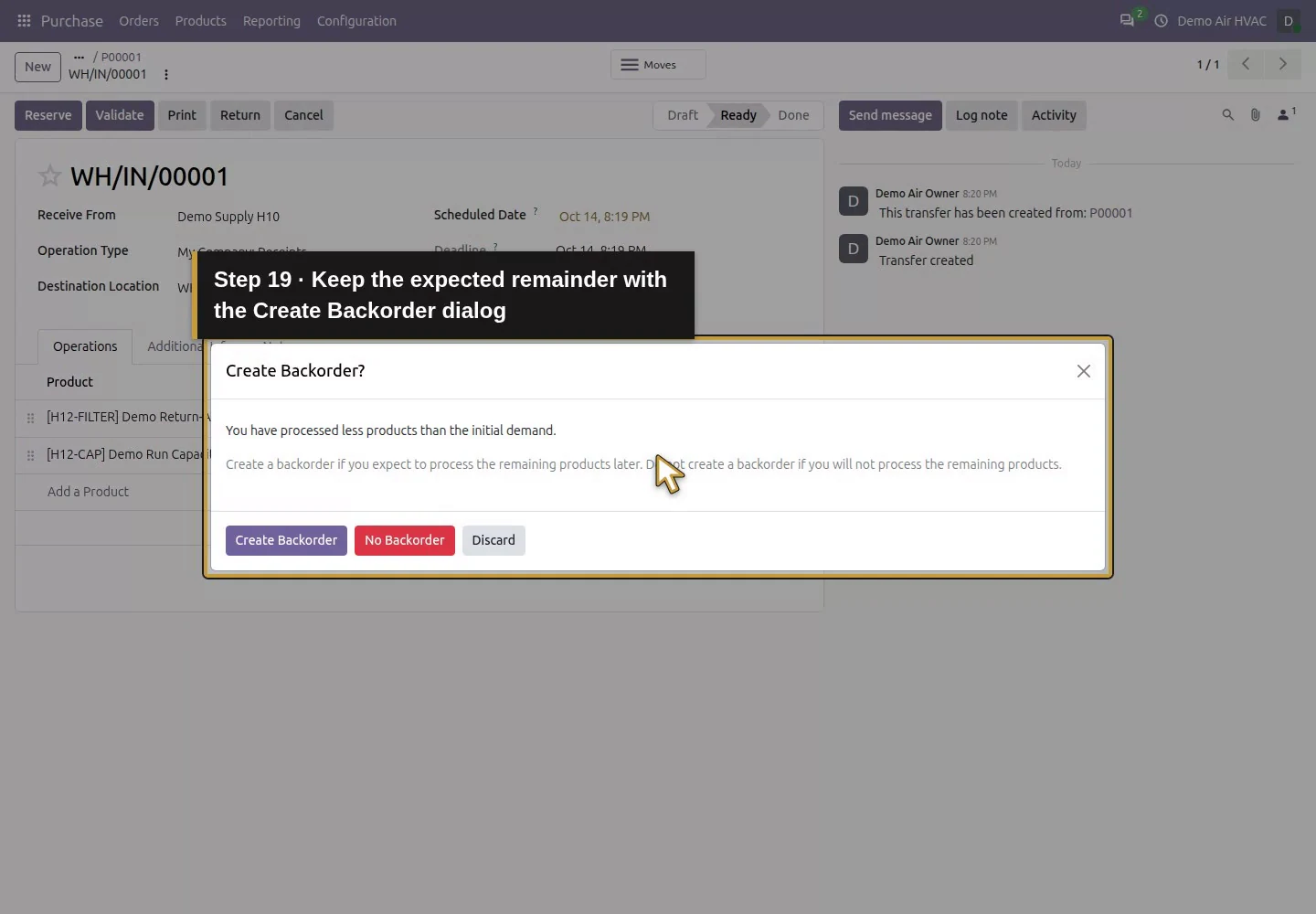
Video action 18: Validate the reviewed actual quantities once. The actual target is highlighted in gold.
Validate the reviewed actual quantities once.
Video action 19: Keep the expected remainder with the Create Backorder dialog. The actual target is highlighted in gold.
Keep the expected remainder with the Create Backorder dialog.
Video action 20: Choose Create Backorder for the four filters still expected. The actual target is highlighted in gold.
Choose Create Backorder for the four filters still expected.

Step 5. Reopen the receipt, backorder and order

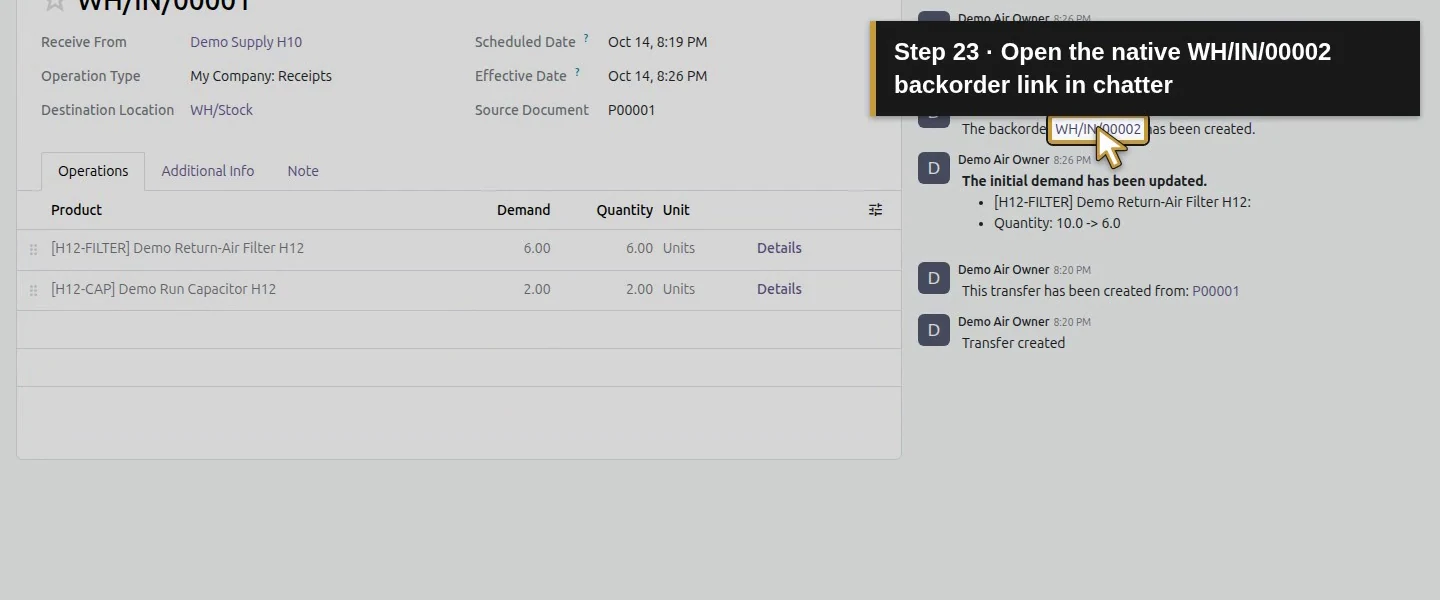
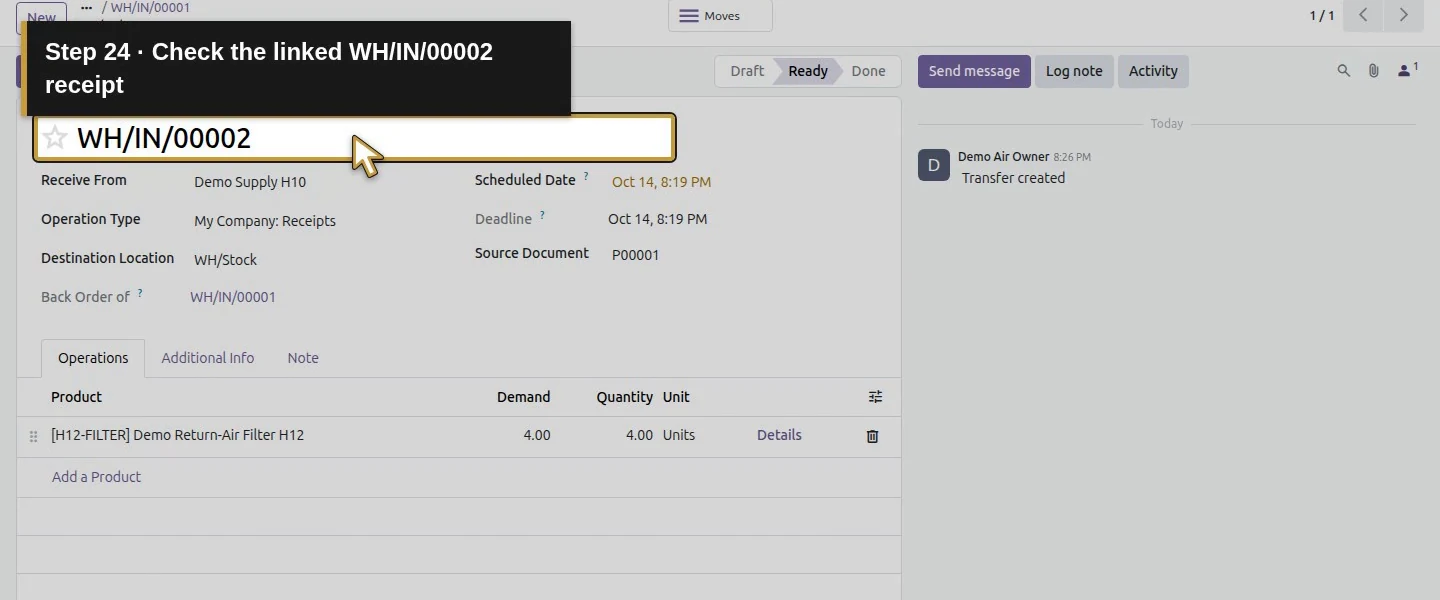
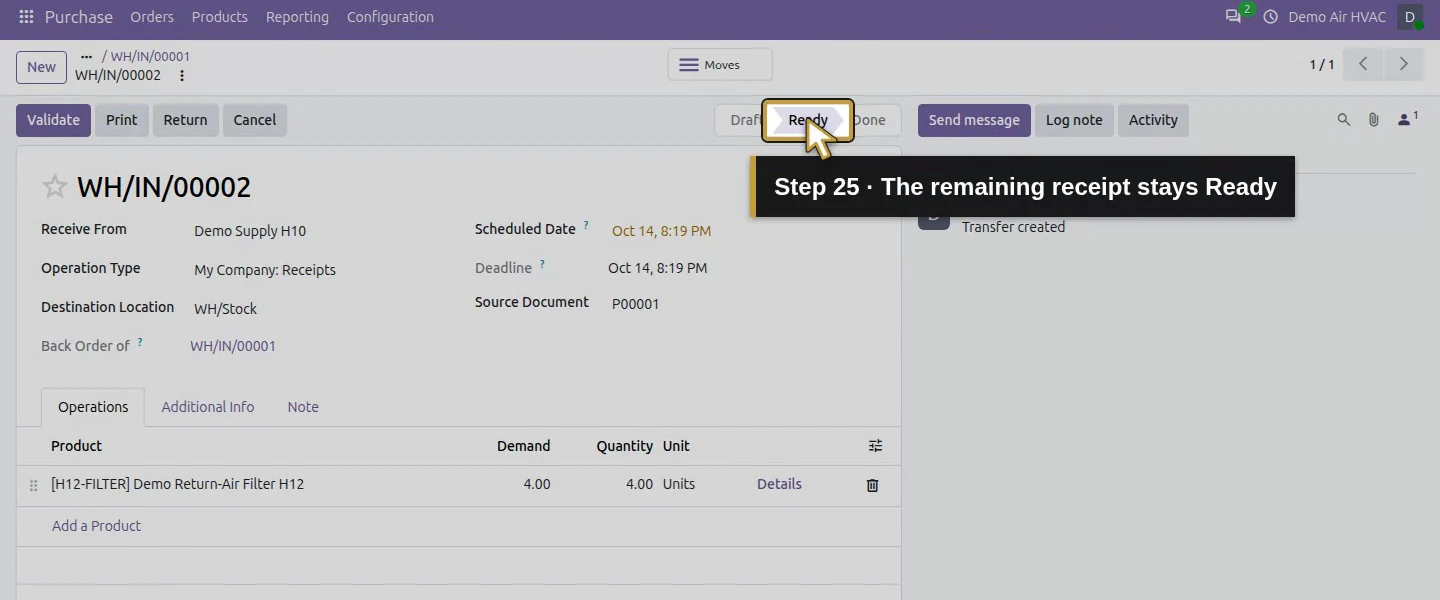
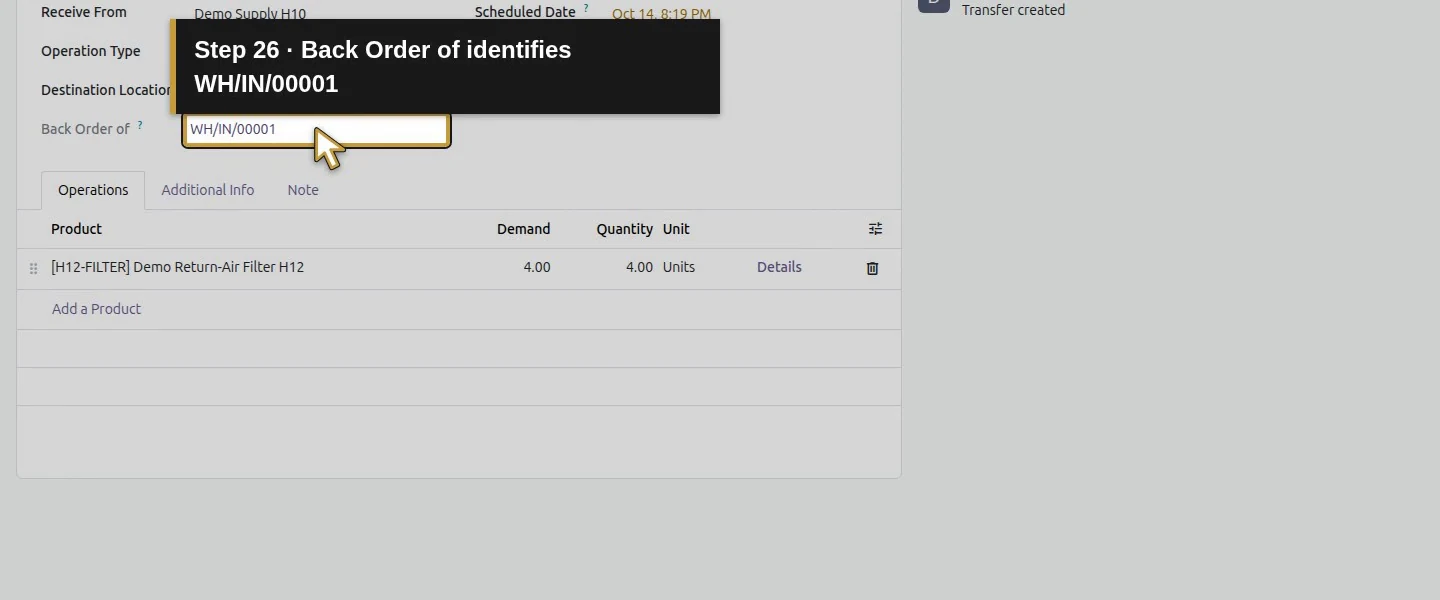
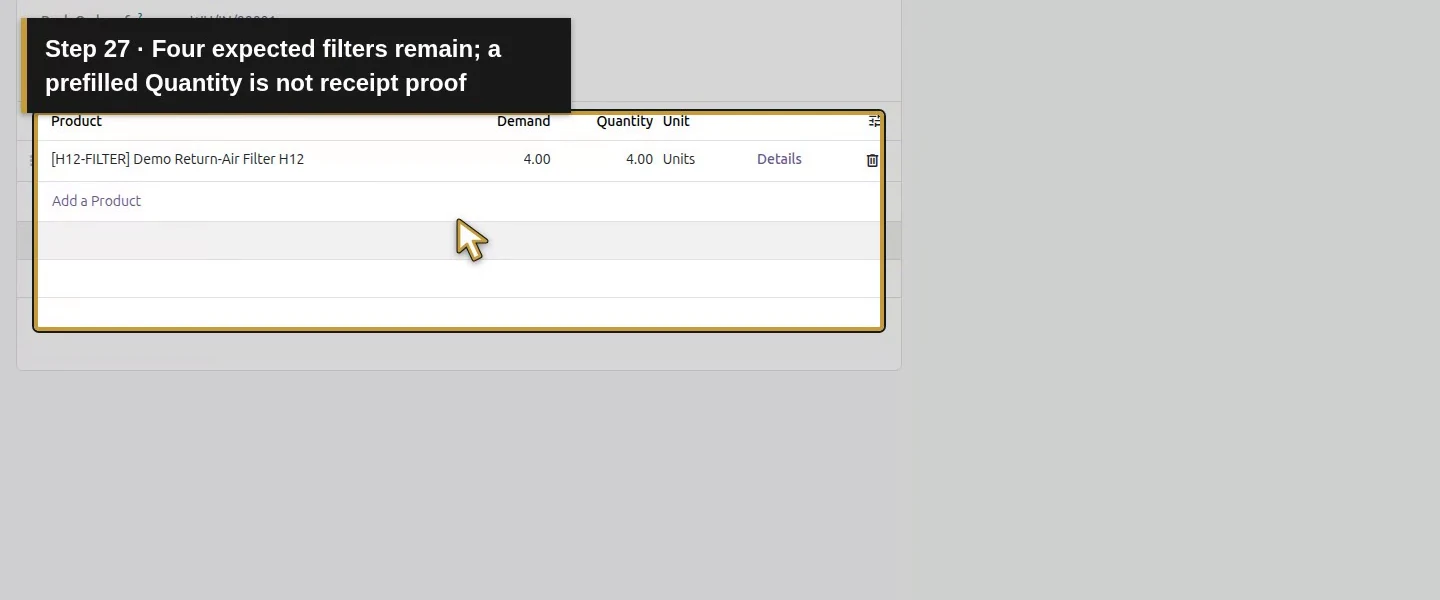
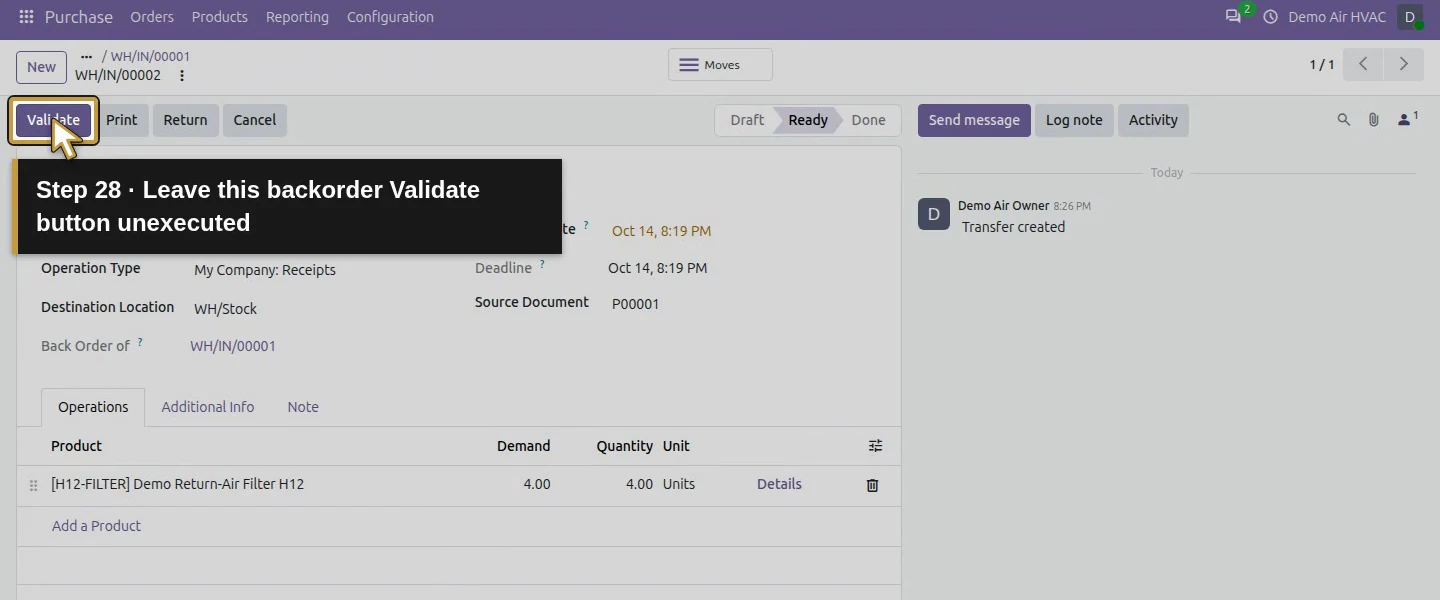
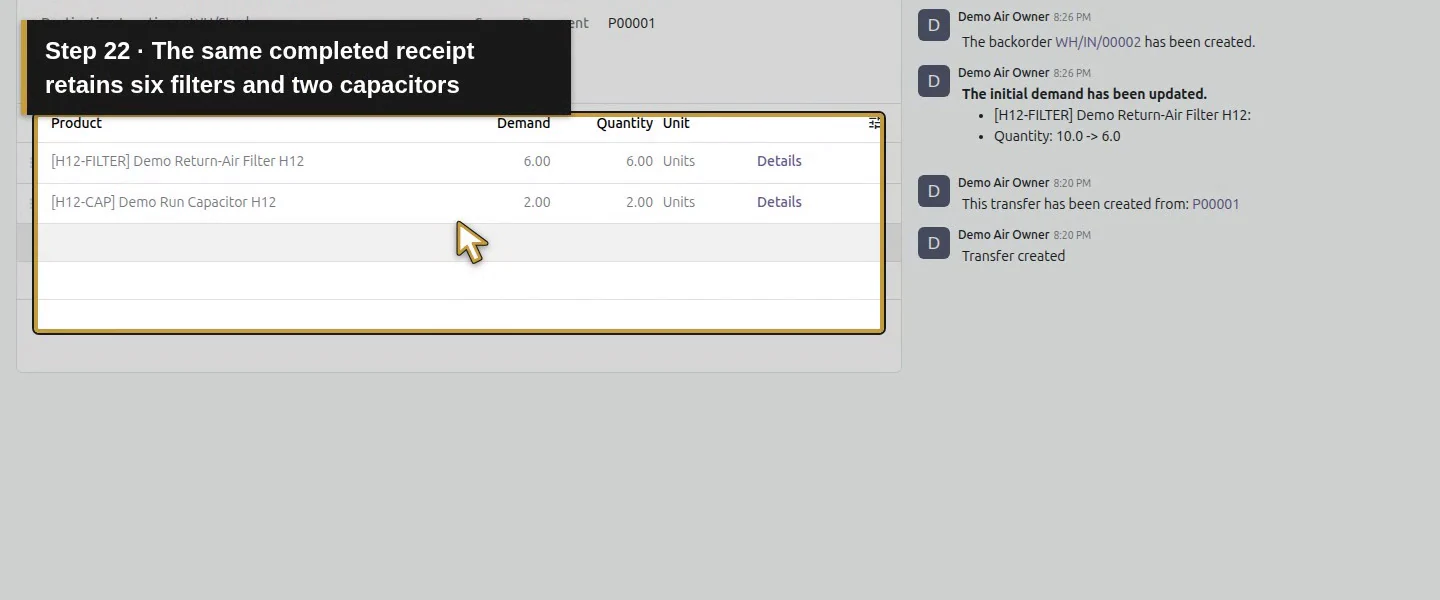
Reopen WH/IN/00001: its completed lines now show six filters and two capacitors. Open the chatter's WH/IN/00002 backorder link; it is Ready for four filters and identifies Back Order of WH/IN/00001. Reopen P00001 and check Received six filters and two capacitors. Leave the backorder unvalidated until its delivery arrives.
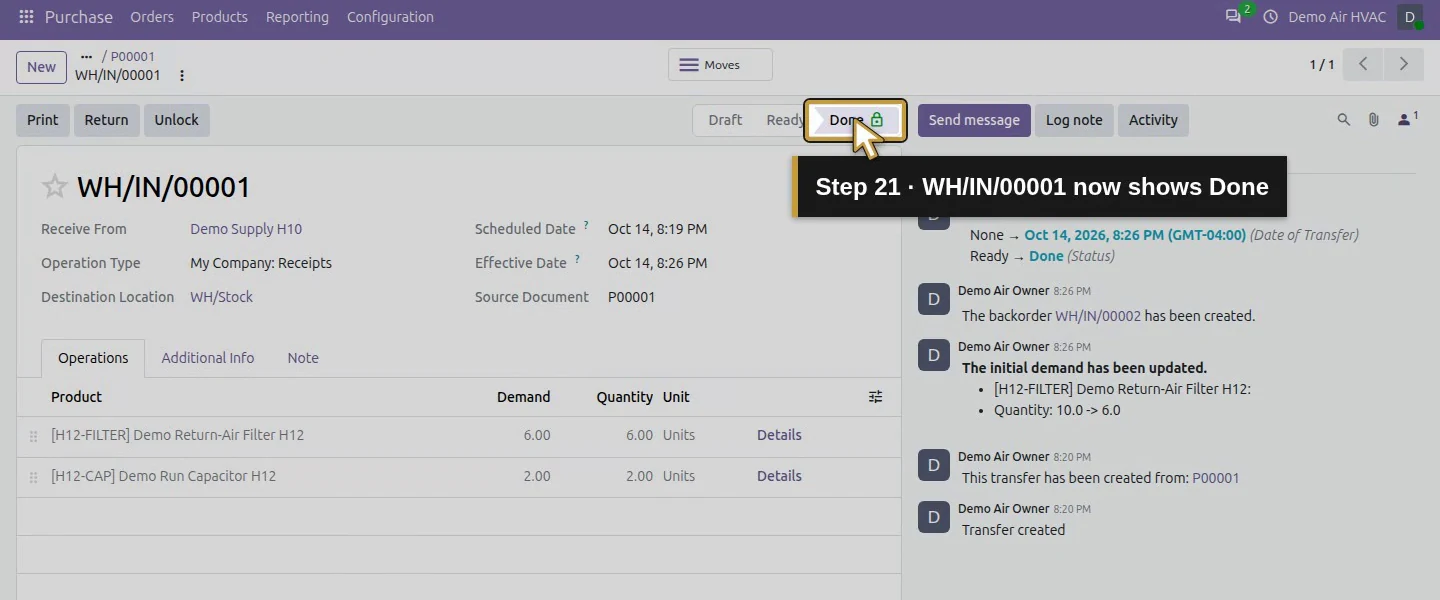
Video action 21: WH/IN/00001 now shows Done. The actual target is highlighted in gold.
WH/IN/00001 now shows Done.
Video action 22: The same completed receipt retains six filters and two capacitors. The actual target is highlighted in gold.
The same completed receipt retains six filters and two capacitors.
Video action 23: Open the native WH/IN/00002 backorder link in chatter. The actual target is highlighted in gold.
Open the native WH/IN/00002 backorder link in chatter.
Video action 24: Check the linked WH/IN/00002 receipt. The actual target is highlighted in gold.
Check the linked WH/IN/00002 receipt.
Video action 25: The remaining receipt stays Ready. The actual target is highlighted in gold.
The remaining receipt stays Ready.
Video action 26: Back Order of identifies WH/IN/00001. The actual target is highlighted in gold.
Back Order of identifies WH/IN/00001.
Video action 27: Four expected filters remain; a prefilled Quantity is not receipt proof. The actual target is highlighted in gold.
Four expected filters remain; a prefilled Quantity is not receipt proof.
Video action 28: Leave this backorder Validate button unexecuted. The actual target is highlighted in gold.
Leave this backorder Validate button unexecuted.
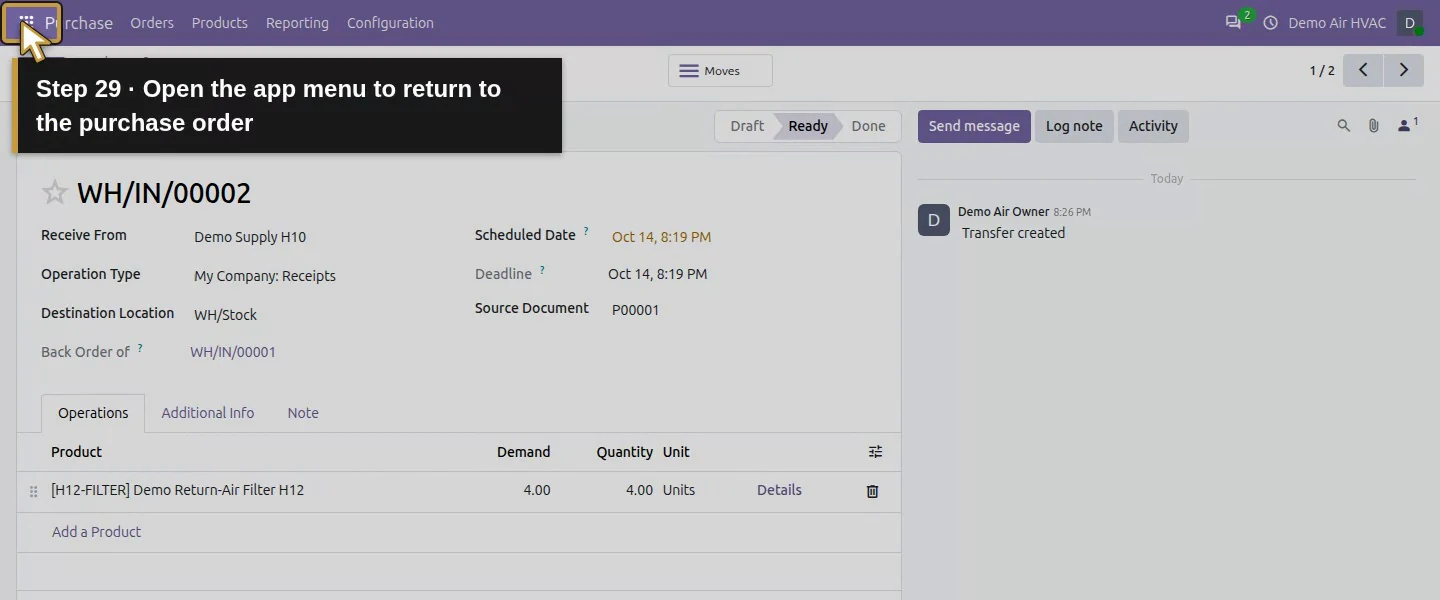
Video action 29: Open the app menu to return to the purchase order. The actual target is highlighted in gold.
Open the app menu to return to the purchase order.
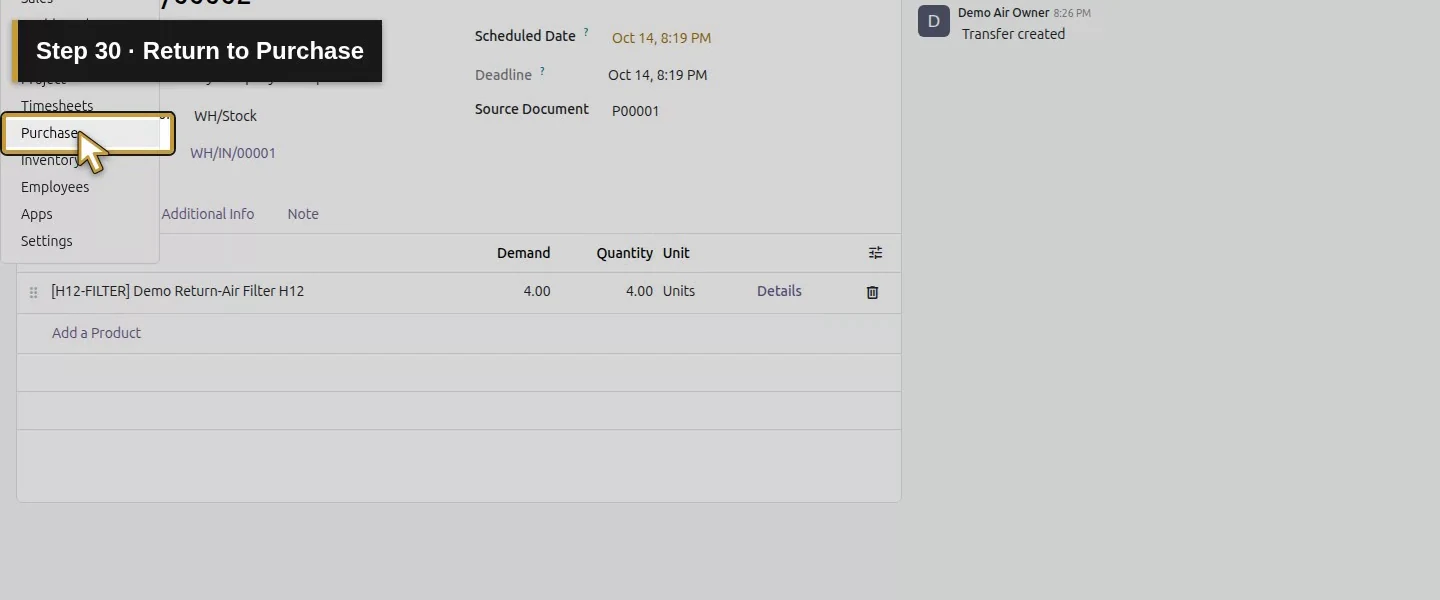
Video action 30: Return to Purchase. The actual target is highlighted in gold.
Return to Purchase.
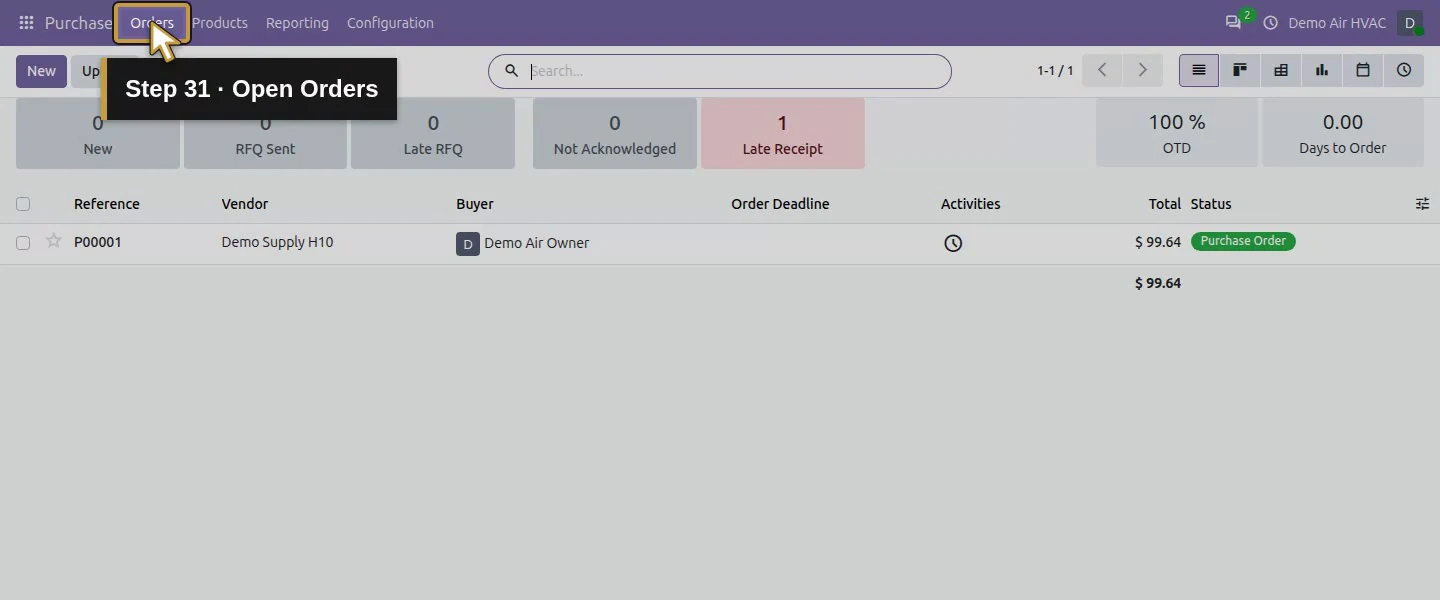
Video action 31: Open Orders. The actual target is highlighted in gold.
Open Orders.
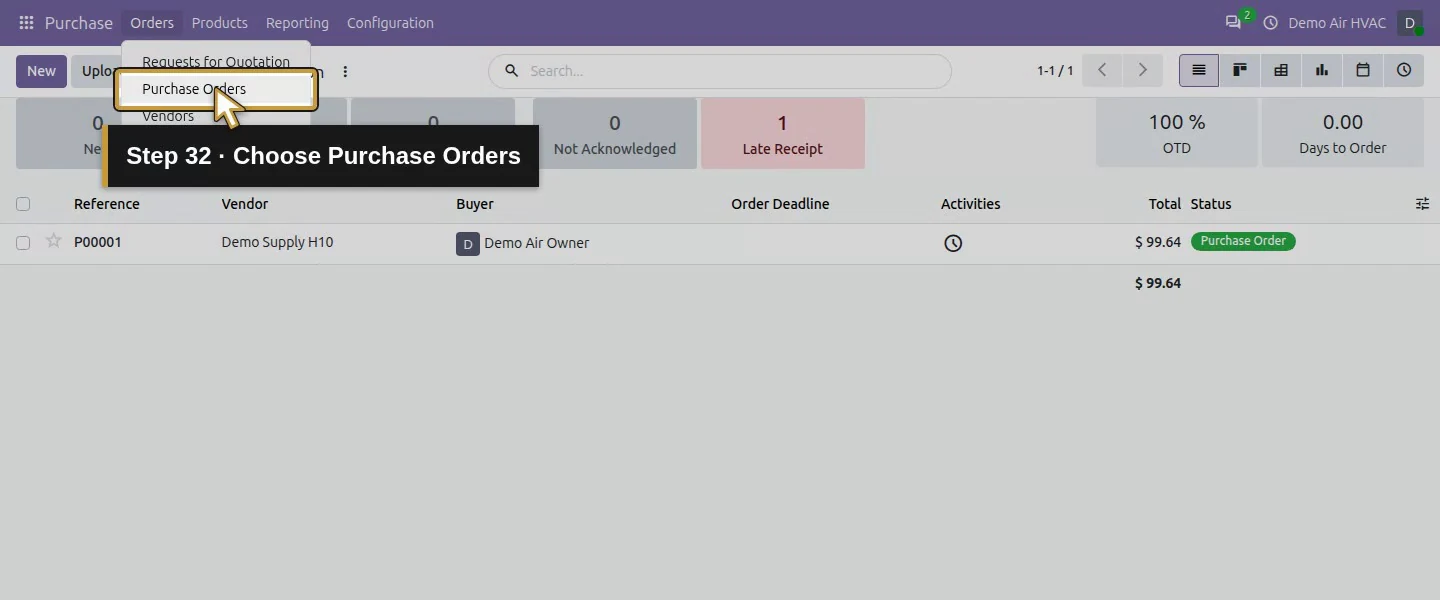
Video action 32: Choose Purchase Orders. The actual target is highlighted in gold.
Choose Purchase Orders.
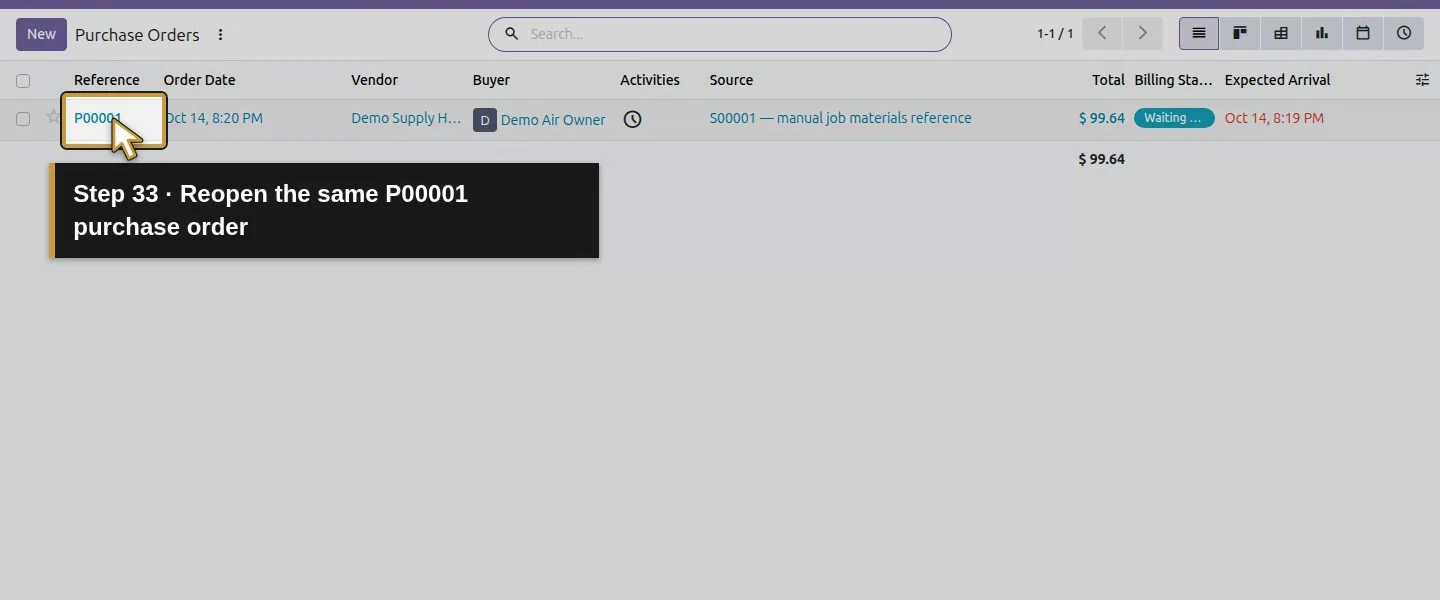
Video action 33: Reopen the same P00001 purchase order. The actual target is highlighted in gold.
Reopen the same P00001 purchase order.
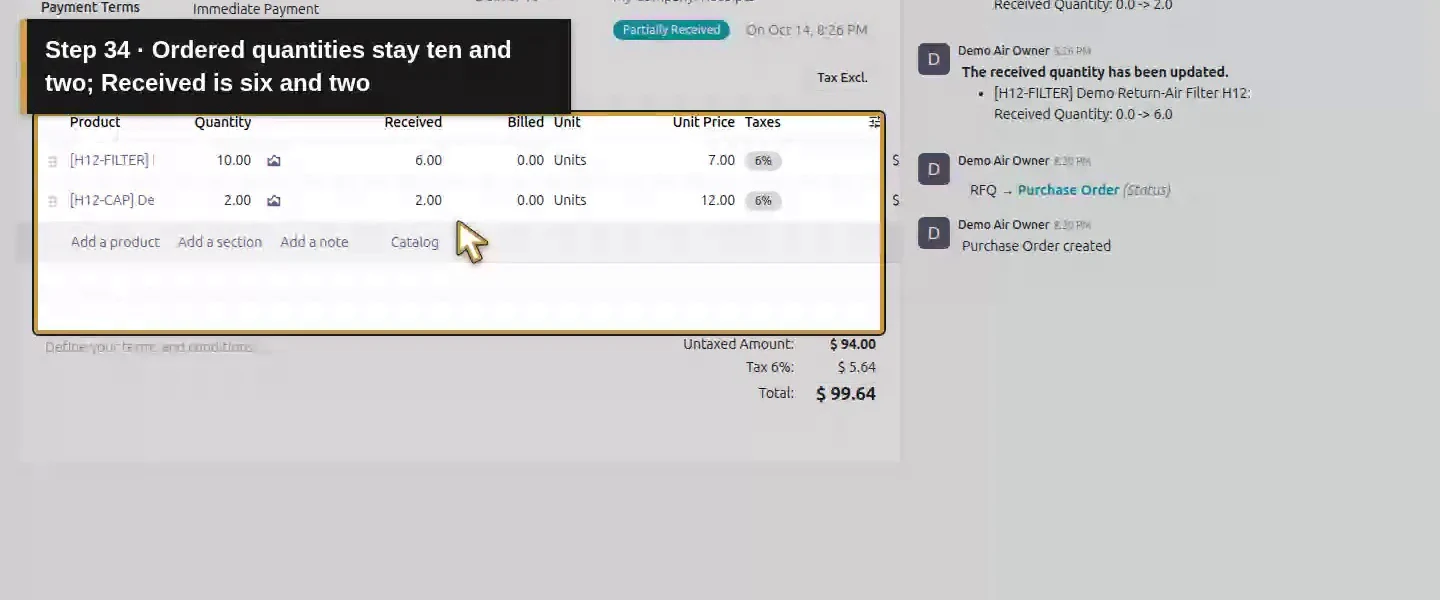
Video action 34: Ordered quantities stay ten and two; Received is six and two. The actual target is highlighted in gold.
Ordered quantities stay ten and two; Received is six and two.

Check the result

WH/IN/00001 is Done for six filters and two capacitors into WH/Stock. WH/IN/00002 is the linked Ready backorder for four filters. The purchase quantities remain ten and two; received quantities are six and two. On hand at this checkpoint is six filters and two capacitors.

If your screen differs

The completed receipt's demand becomes the completed six after Odoo splits off the remaining four. Compare both receipts with the original purchase order. The backorder can also prefill Quantity four while Ready; that is not proof those four arrived. No Backorder was visible but not selected or independently tested.

Frequently asked questions

How do I receive only part of a purchase order in Odoo? On the linked receipt, change Quantity to what actually arrived, then Validate. This example changed ten proposed filters to six and chose Create Backorder for the four still expected.
What happens to the remaining quantity on an Odoo receipt? With Create Backorder selected, Odoo created WH/IN/00002 for four filters and linked it to the completed receipt. No Backorder is a different choice; inspect it before discarding an expected delivery.
Can I correct an Odoo receipt by validating it again? The tested completed receipt was locked and no longer offered Validate. Check the completed moves and backorder before creating or validating another receipt; another receipt can add stock.

Continue building the business

Move company stock to the van with How do I transfer parts from a warehouse to a service van in Odoo?. Customer deliveries remain a separate parts-delivery draft.

Talk to an Odoo partner

Bring your current process and the result you need to Onward to plan your Odoo workflow. Talk to an Odoo partner.