By Nelson Milian, Odoo Expert & Agentic AI Developer
Published
Running an HVAC business with Odoo
How do I create a purchase order for job materials in Odoo?
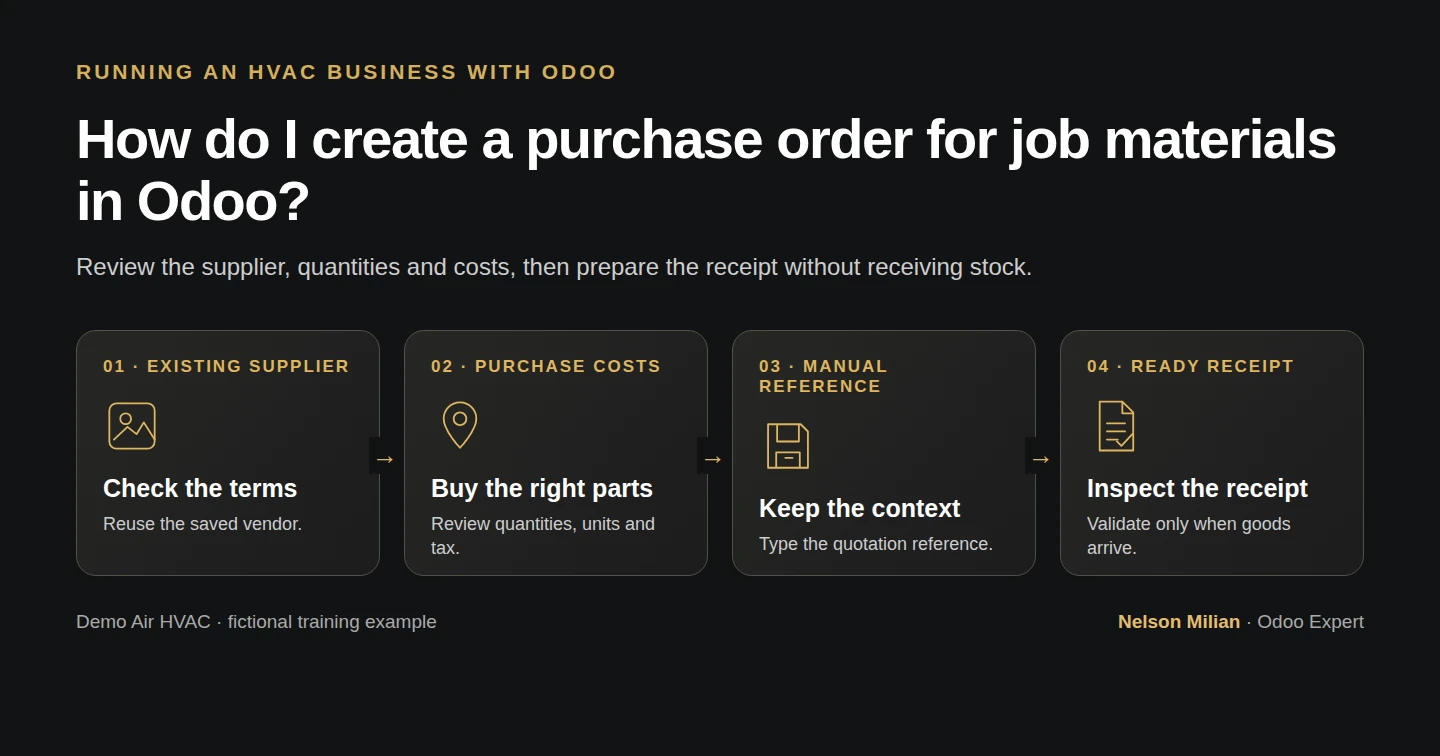
Workflow overview. Instructional screenshots show the actual demo interface.
Create and confirm a materials purchase order in Odoo, then check its linked receipt without changing stock.
Create an Odoo purchase order by reviewing an RFQ and confirming the agreed supplier, quantities and costs. Alex buys ten filters and two capacitors for Demo Air; Odoo prepares the receipt, while the actual delivery is recorded separately.
Alex Rivera and Demo Air HVAC are fictional training examples. Prices, dates, quantities and business situations in this guide are illustrative.
Before you begin
Tested in stock Odoo 20.0-20260926 Community as the demo owner administrator, with official modules and standard configuration. Complete supplier setup, product import and the quotation example. Reuse Demo Supply H10 and the two H12 parts. This example uses fictional agreed costs, USD and the demo's existing 6% purchase tax; it does not establish a real tax treatment.
Step-by-step workflow
47 highlighted video actions with a white pointer, gold border and English captions, without narration. Each written step groups its smaller video actions. Stock Odoo 20 Community, owner role. Existing Demo Supply H10 and two H12 goods, fictional agreed purchase costs and existing 6% demo purchase tax. One RFQ is saved and confirmed, preparing one Ready receipt with zero goods received or on hand. Source is a typed cross-reference, not automatic procurement or job costing. No supplier message, receipt validation, vendor bill or payment.
Step 1. Create the request for quotation
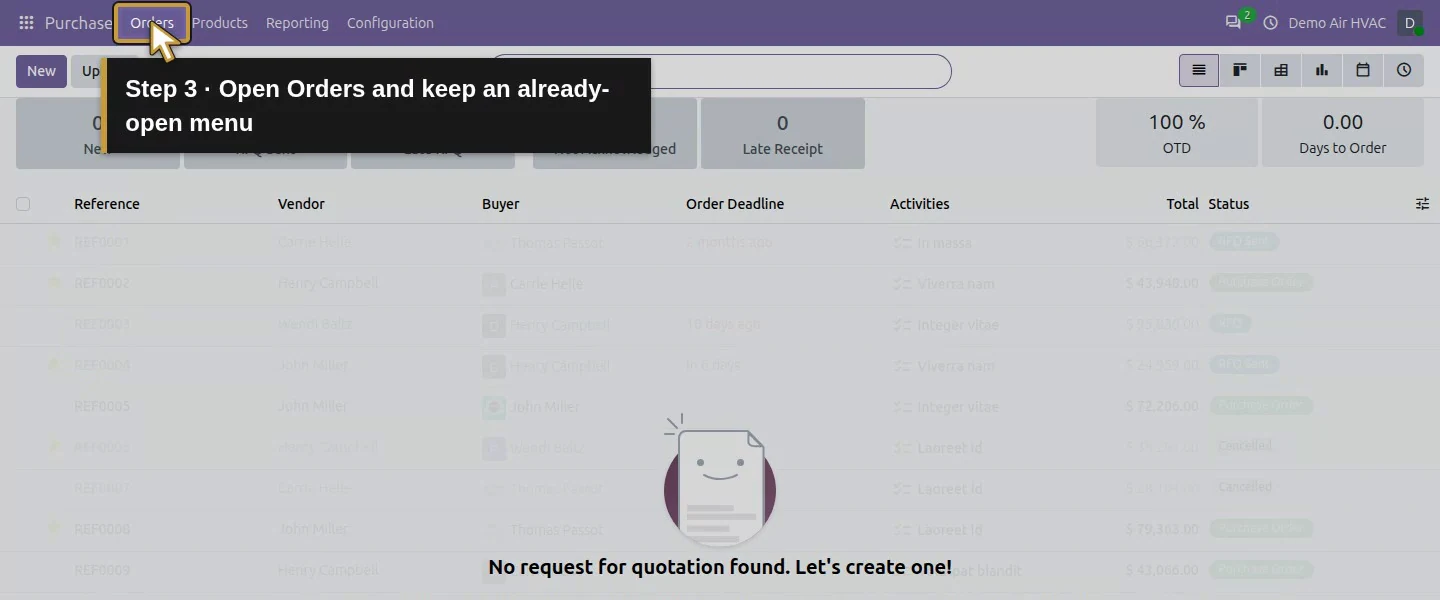
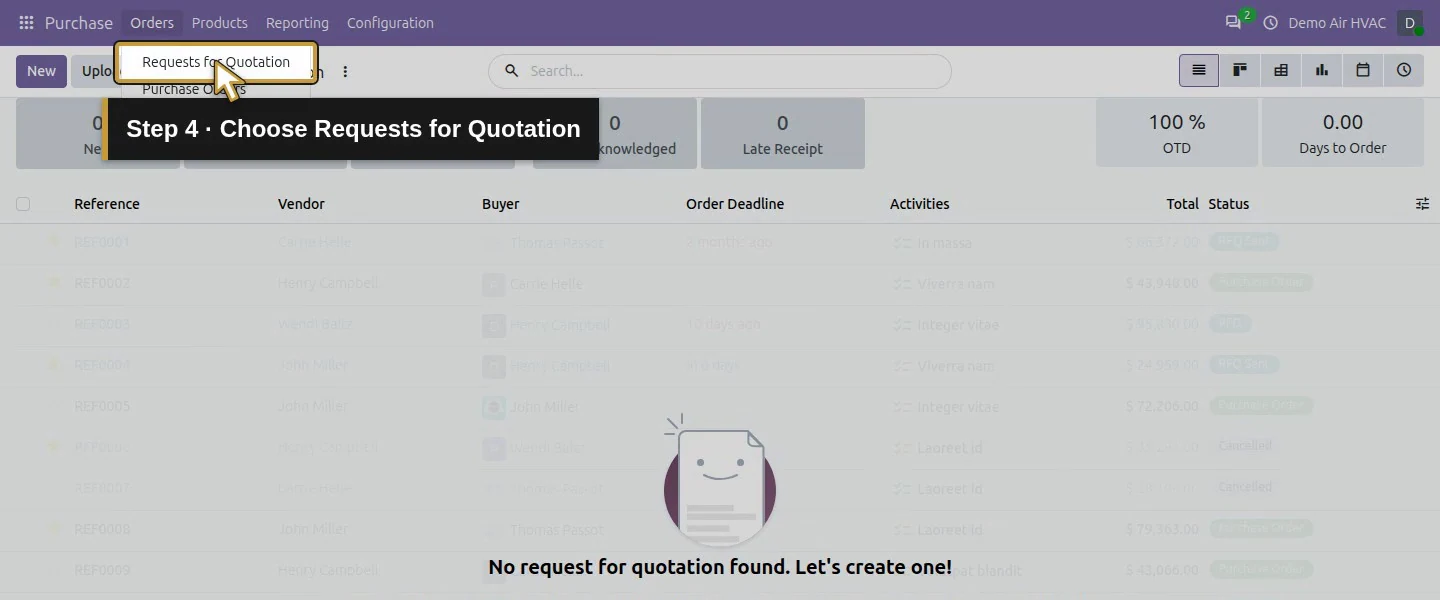
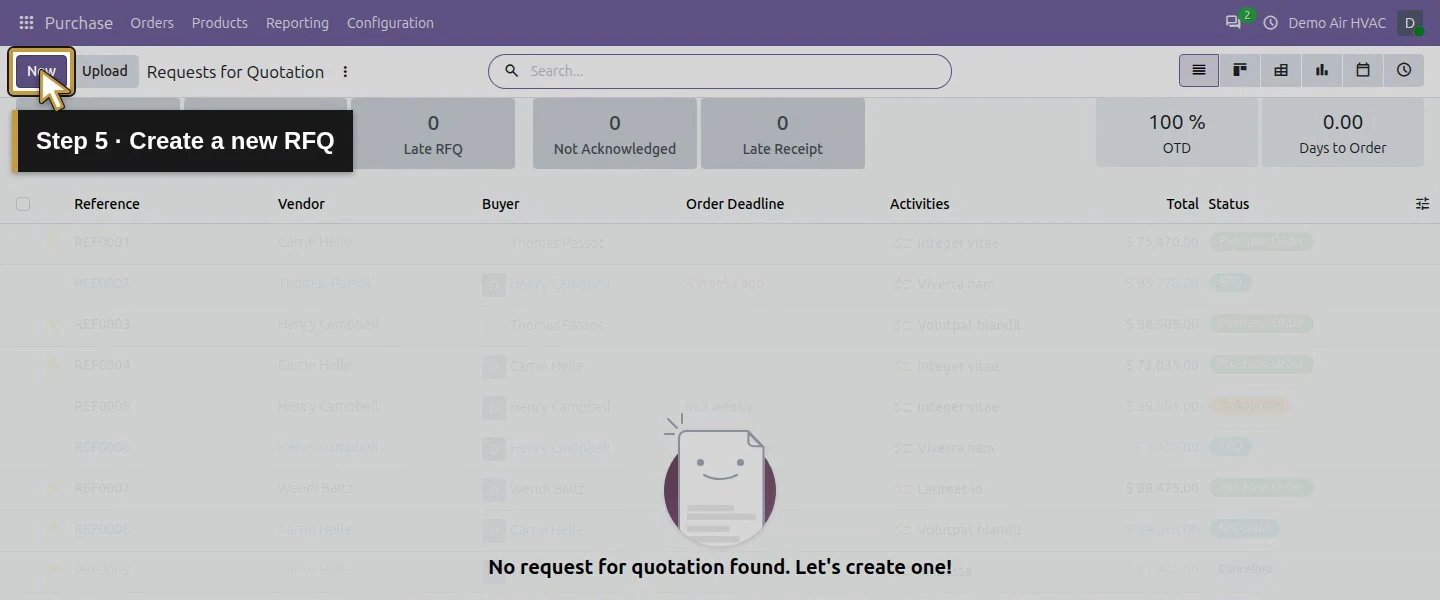
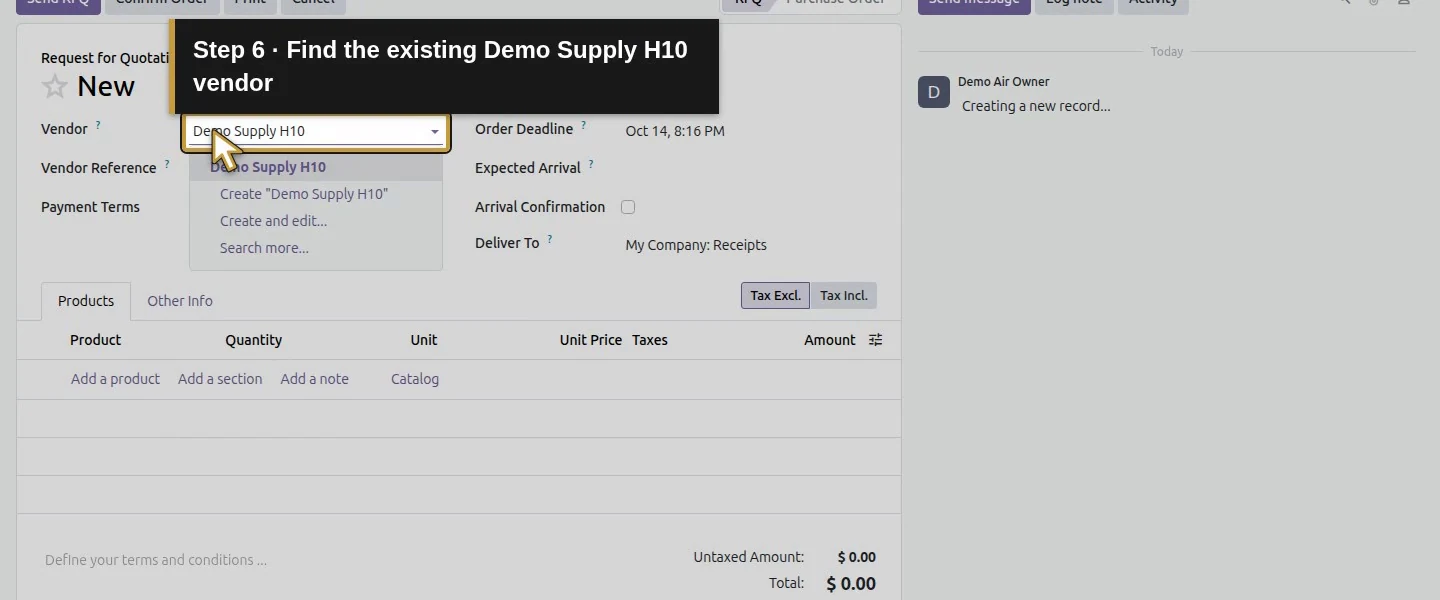
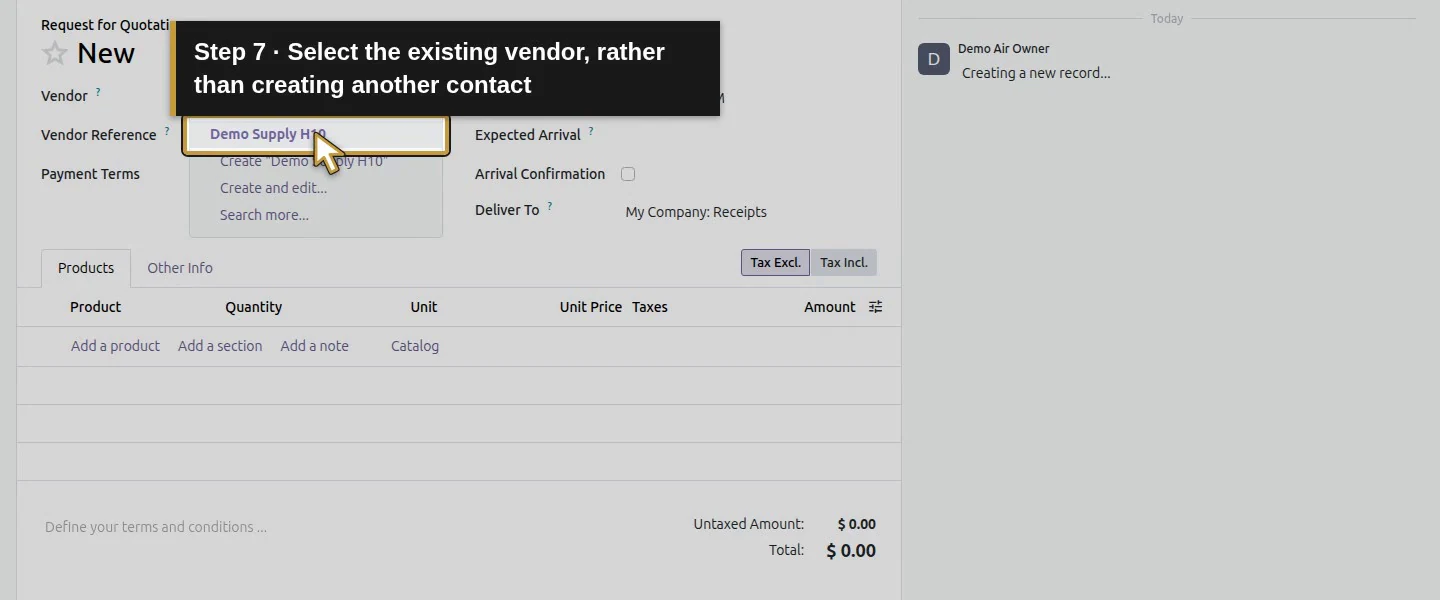
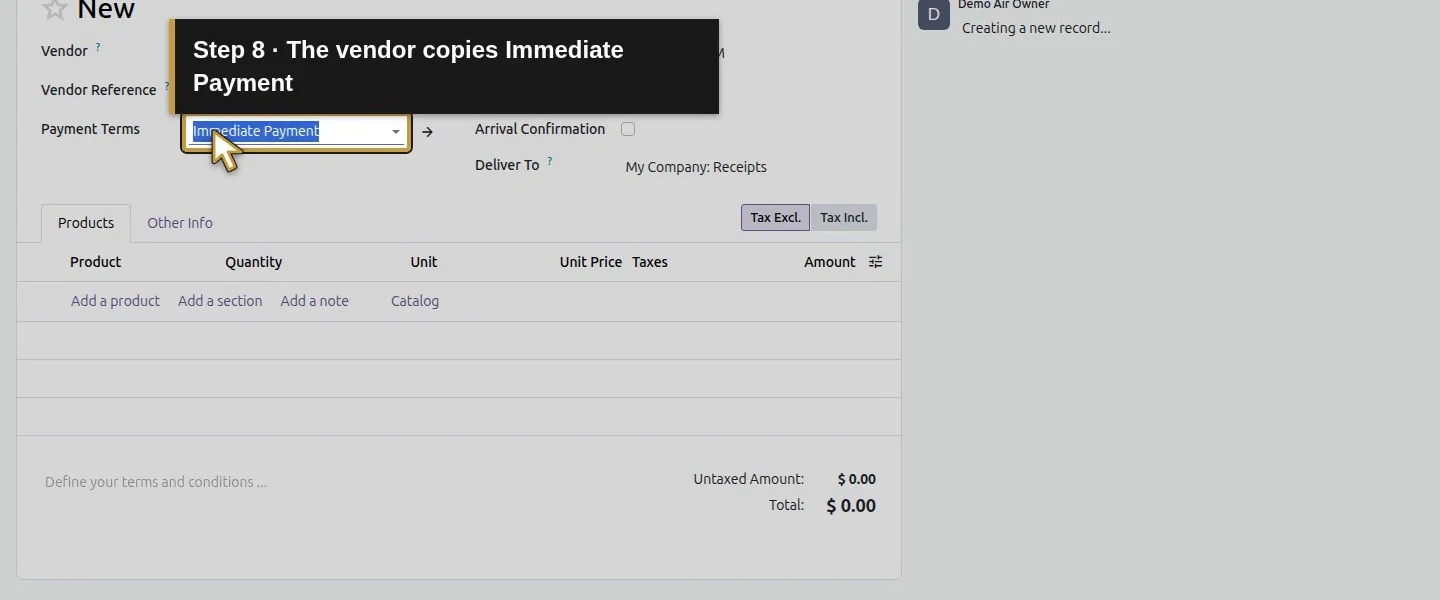
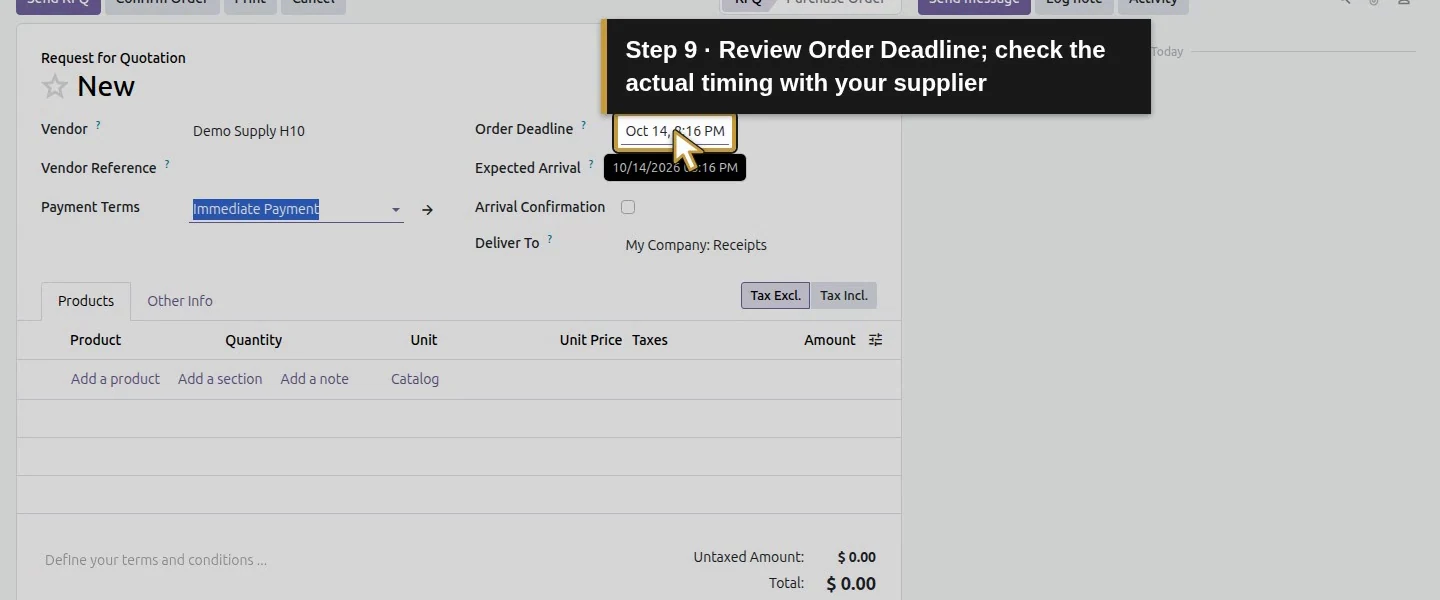
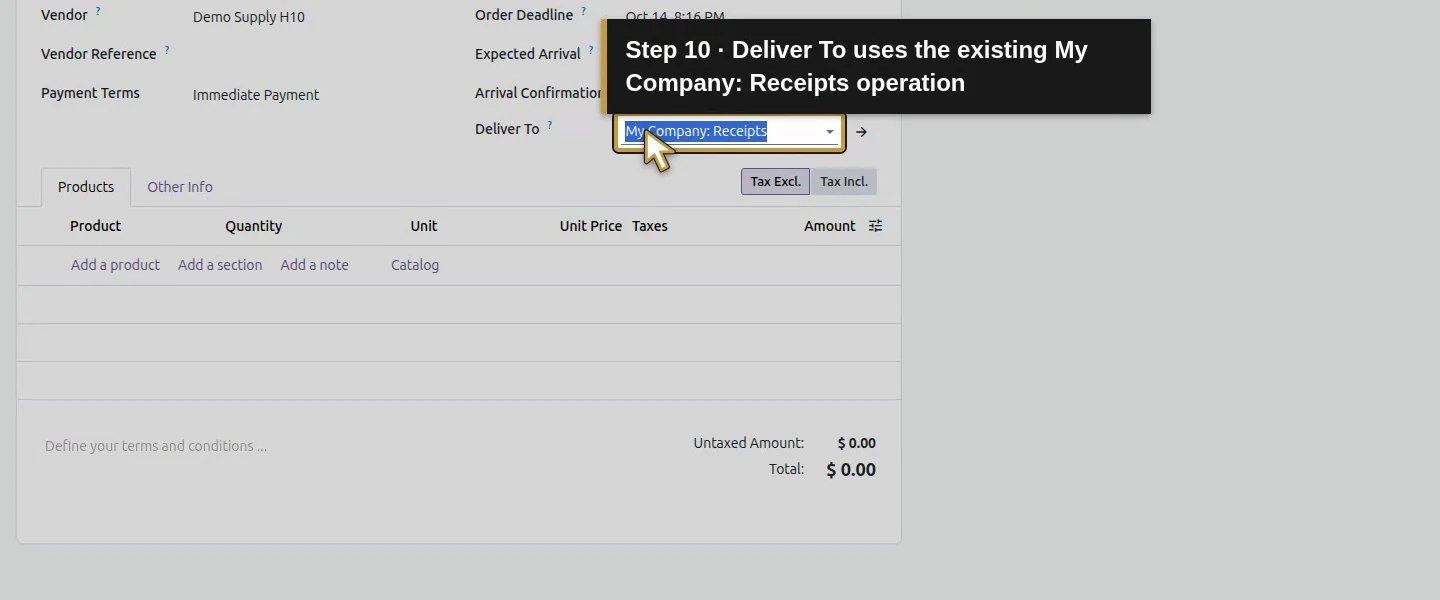
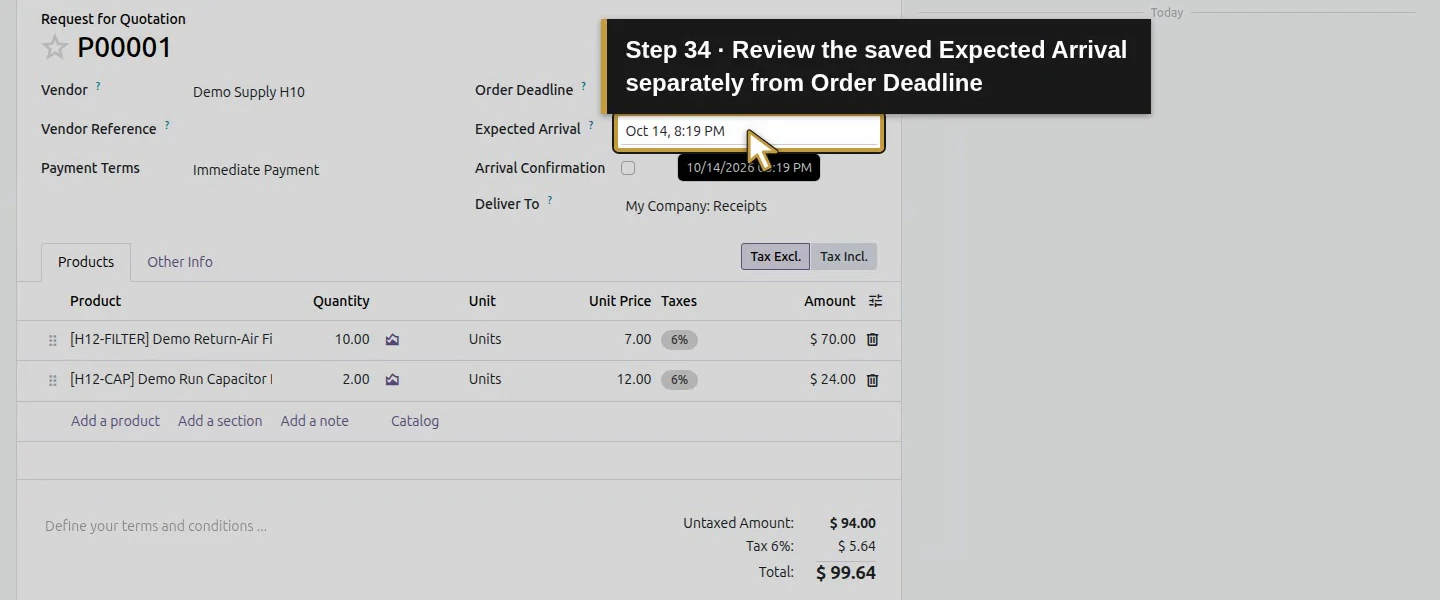
Open Purchase → Orders → Requests for Quotation → New. Select the existing Demo Supply H10 vendor. The tested form copies Immediate Payment and uses USD. Review Order Deadline, Expected Arrival and Deliver To; the receipt operation is My Company: Receipts in this database.
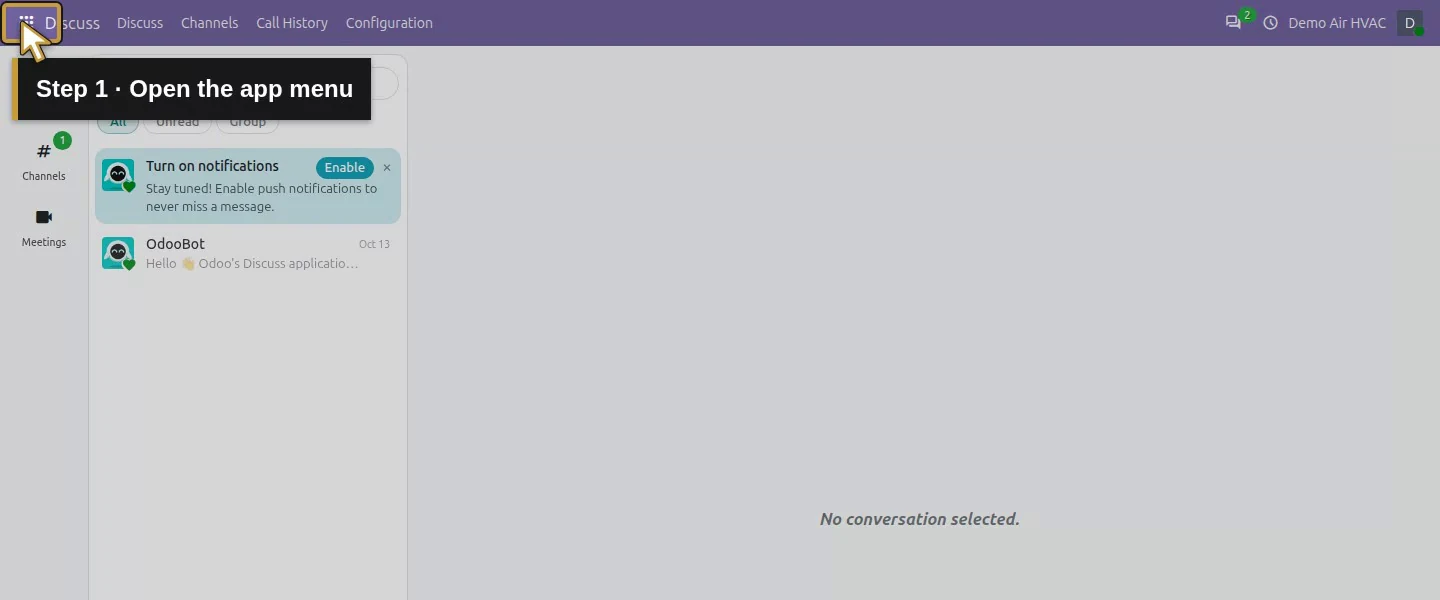
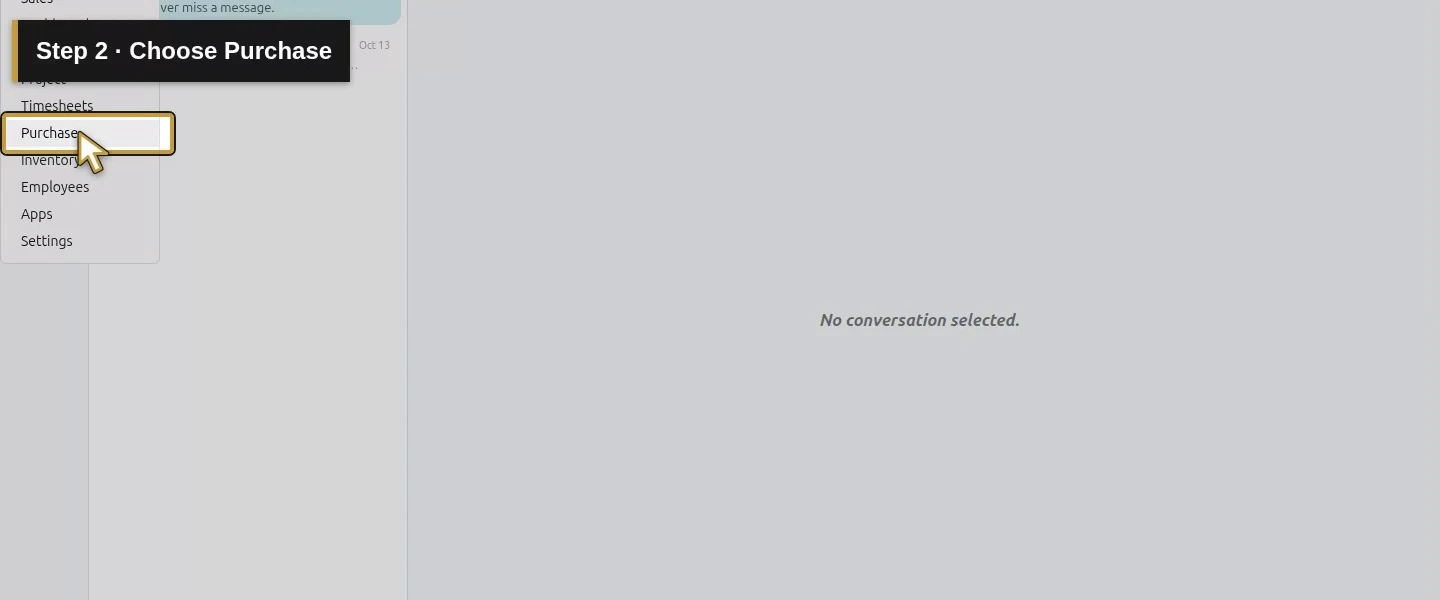
Open the app menu.Choose Purchase.Open Orders and keep an already-open menu.Choose Requests for Quotation.Create a new RFQ.Find the existing Demo Supply H10 vendor.Select the existing vendor, rather than creating another contact.The vendor copies Immediate Payment.Review Order Deadline; check the actual timing with your supplier.Deliver To uses the existing My Company: Receipts operation.
Step 2. Enter quantities and supplier costs
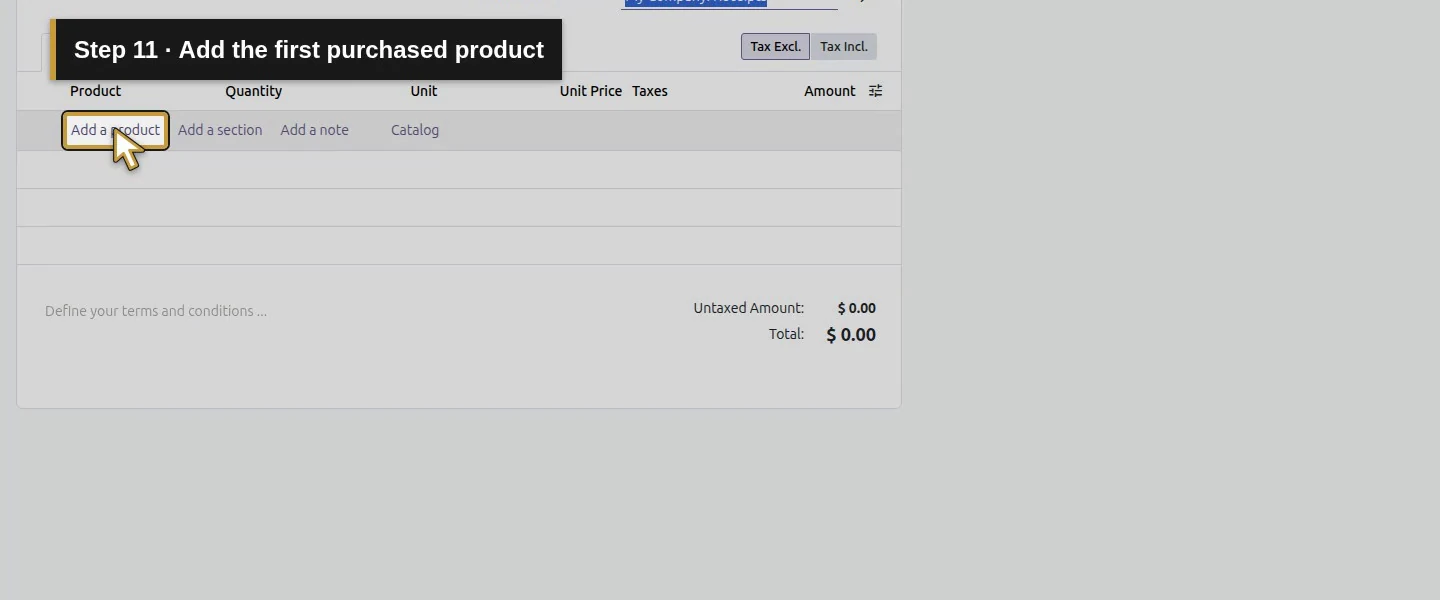
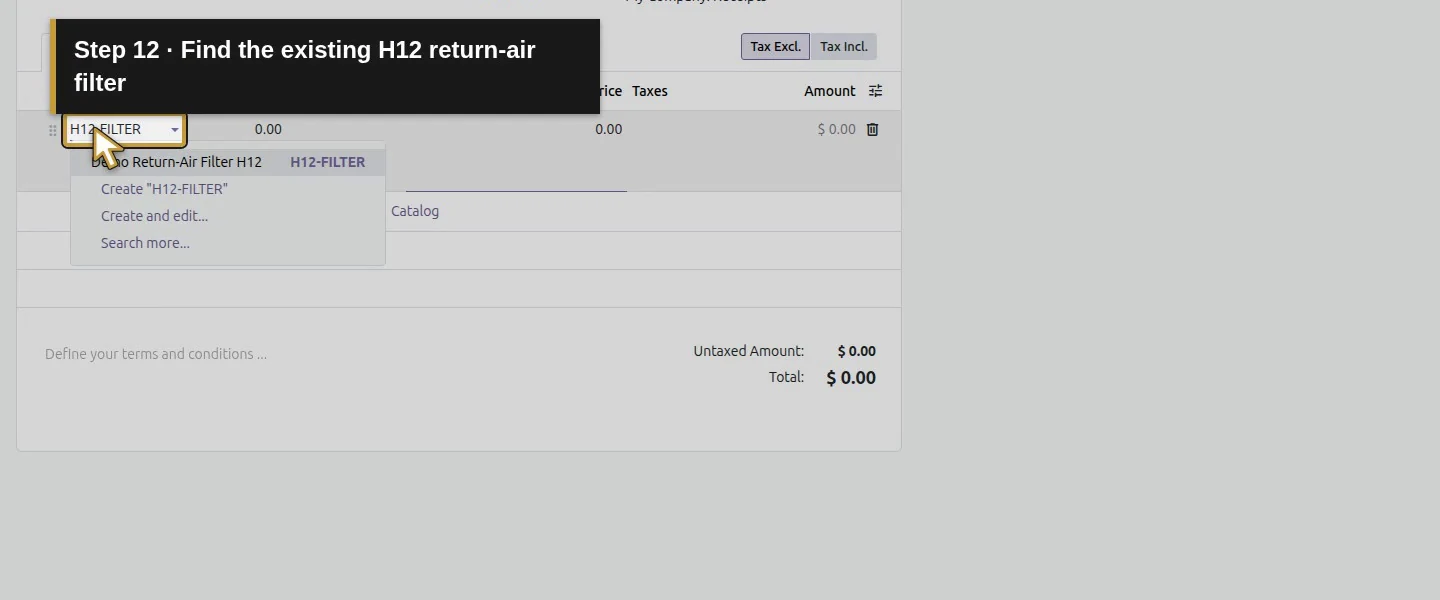
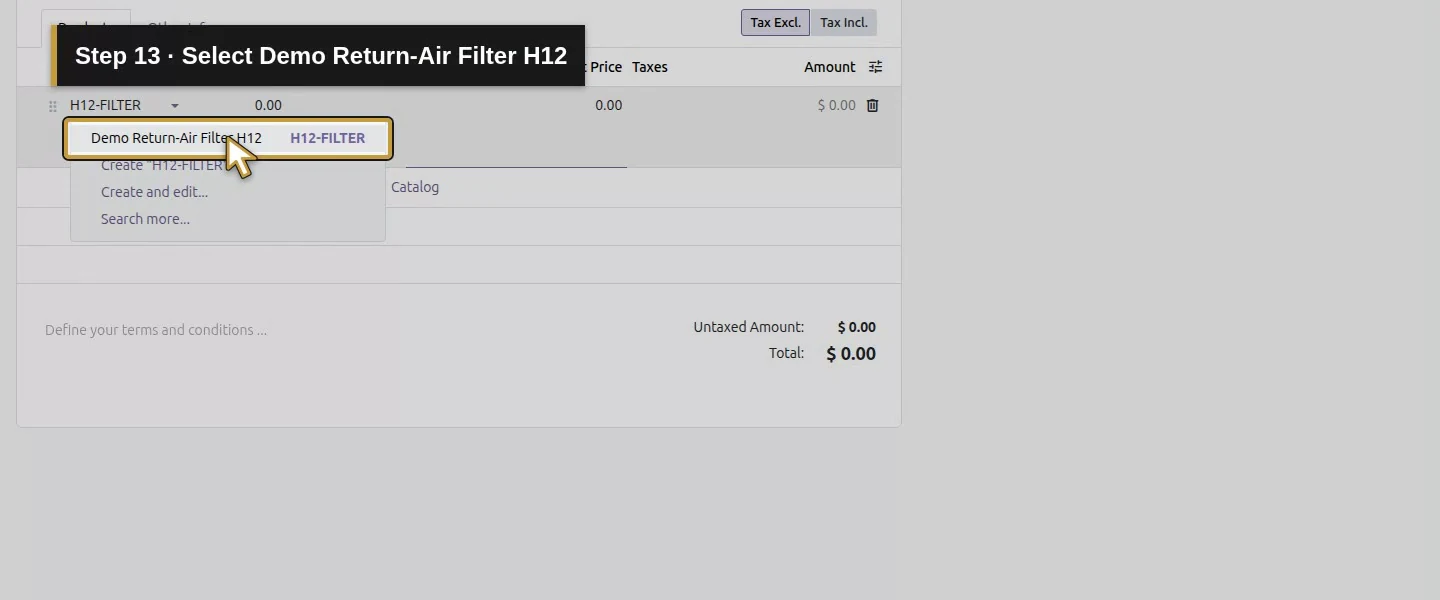
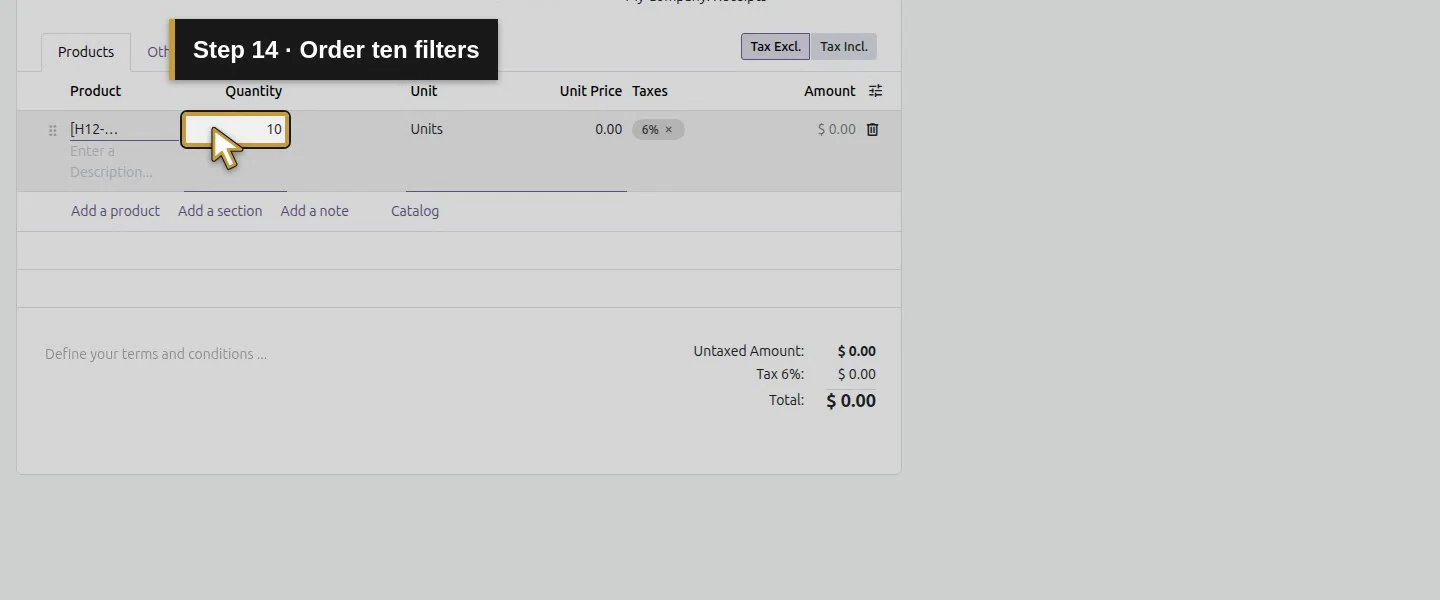
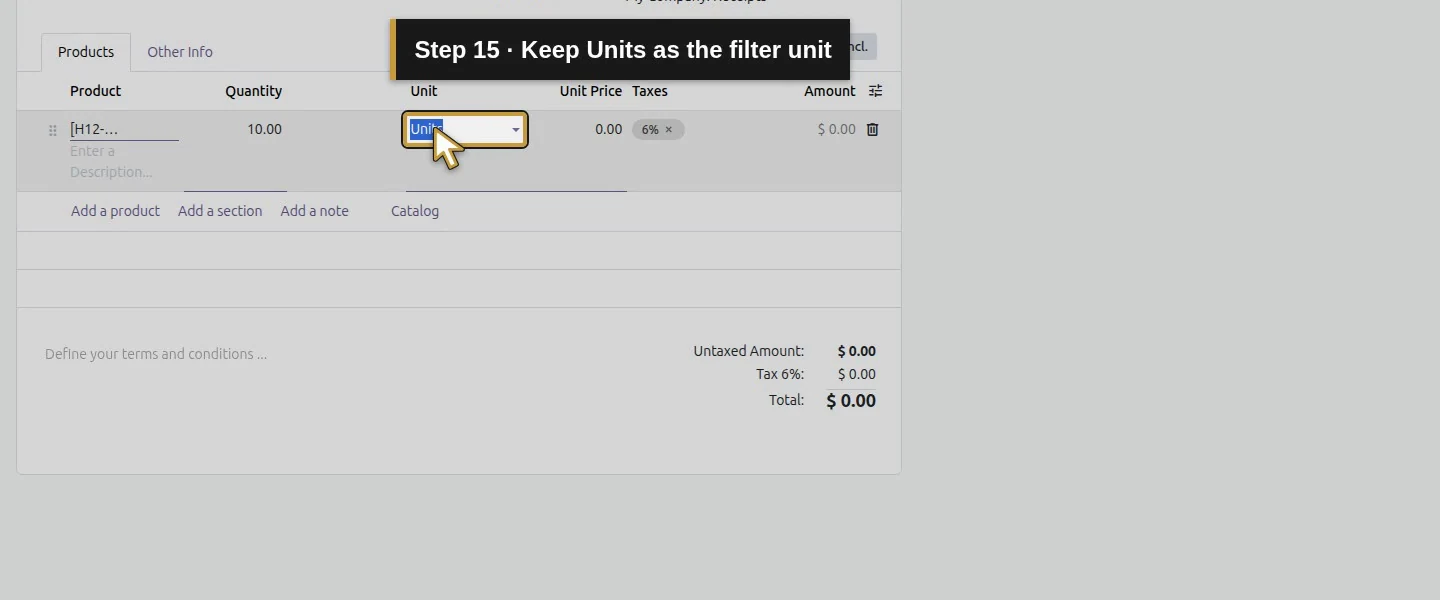
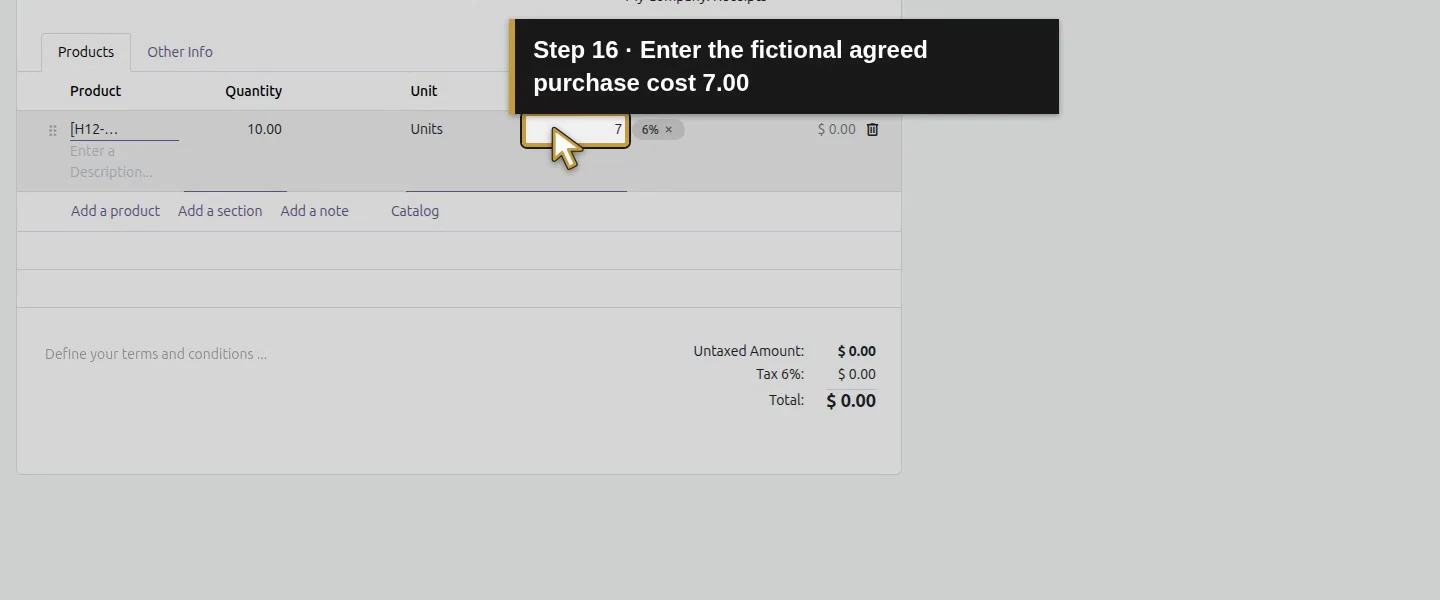
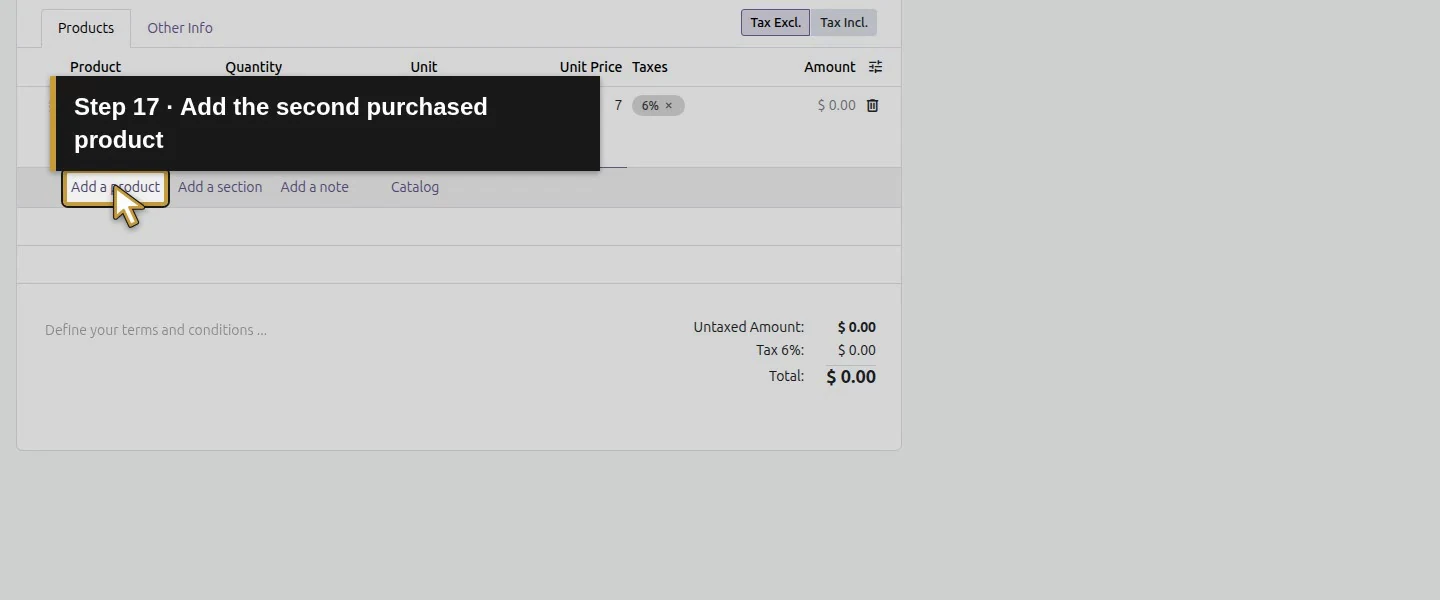
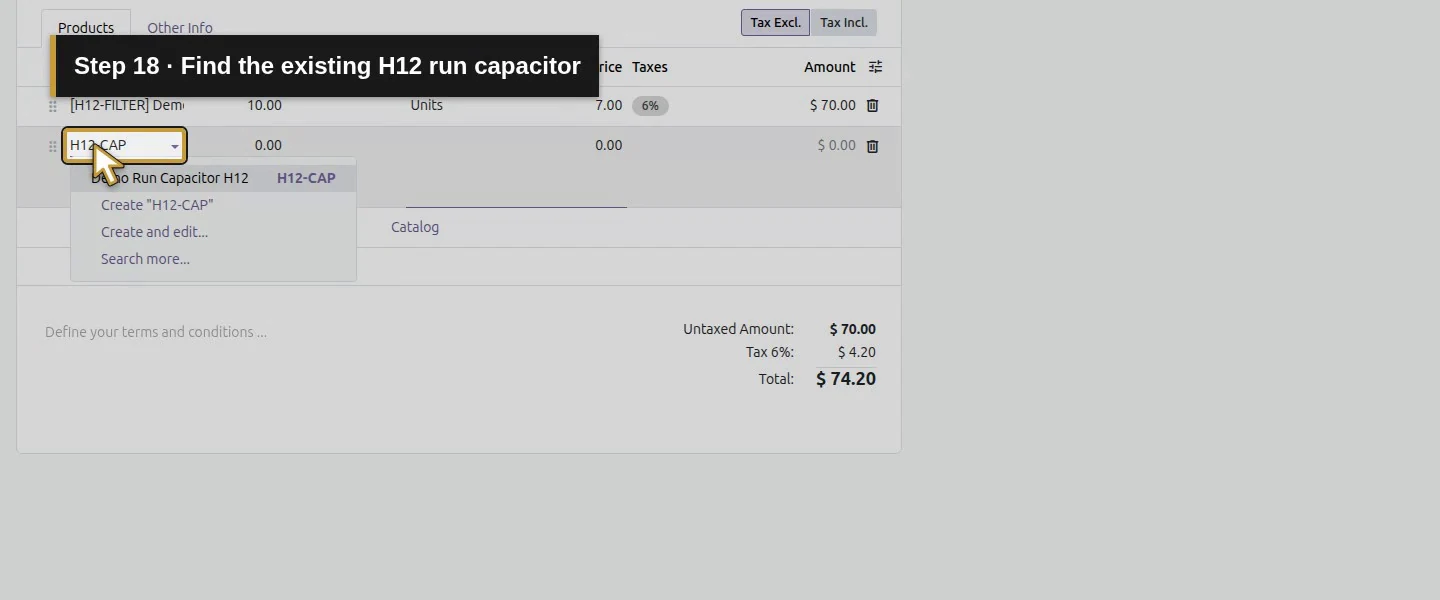
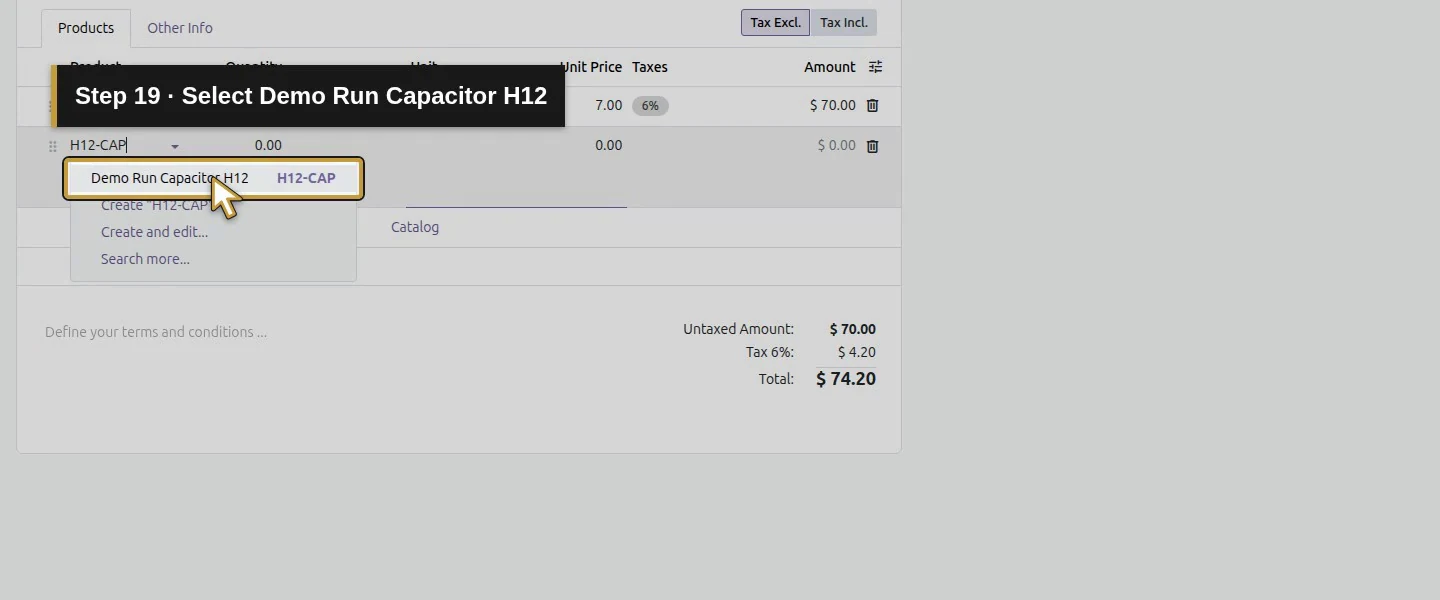
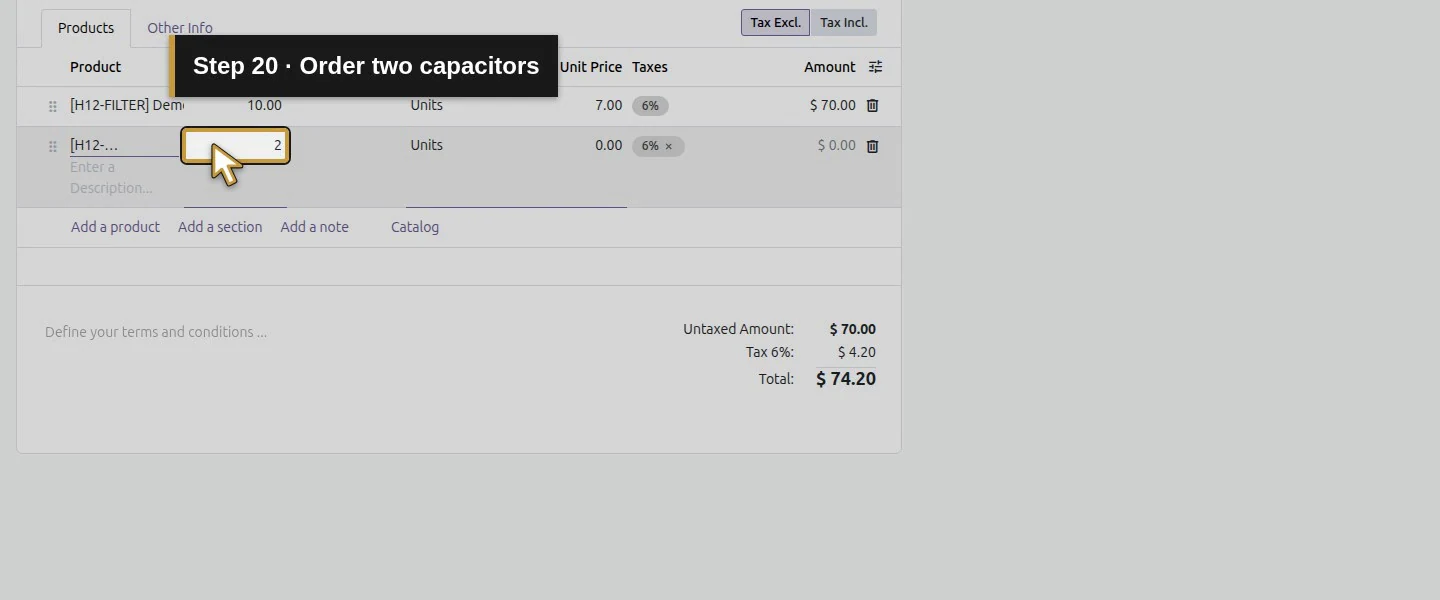
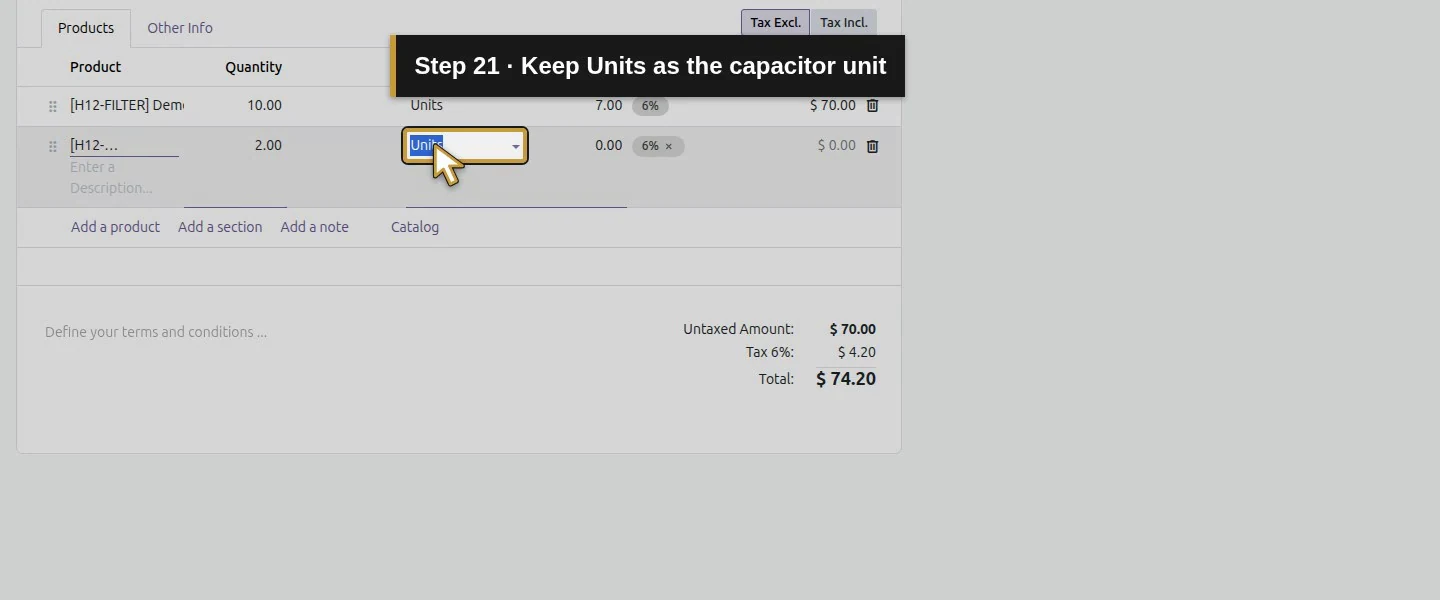
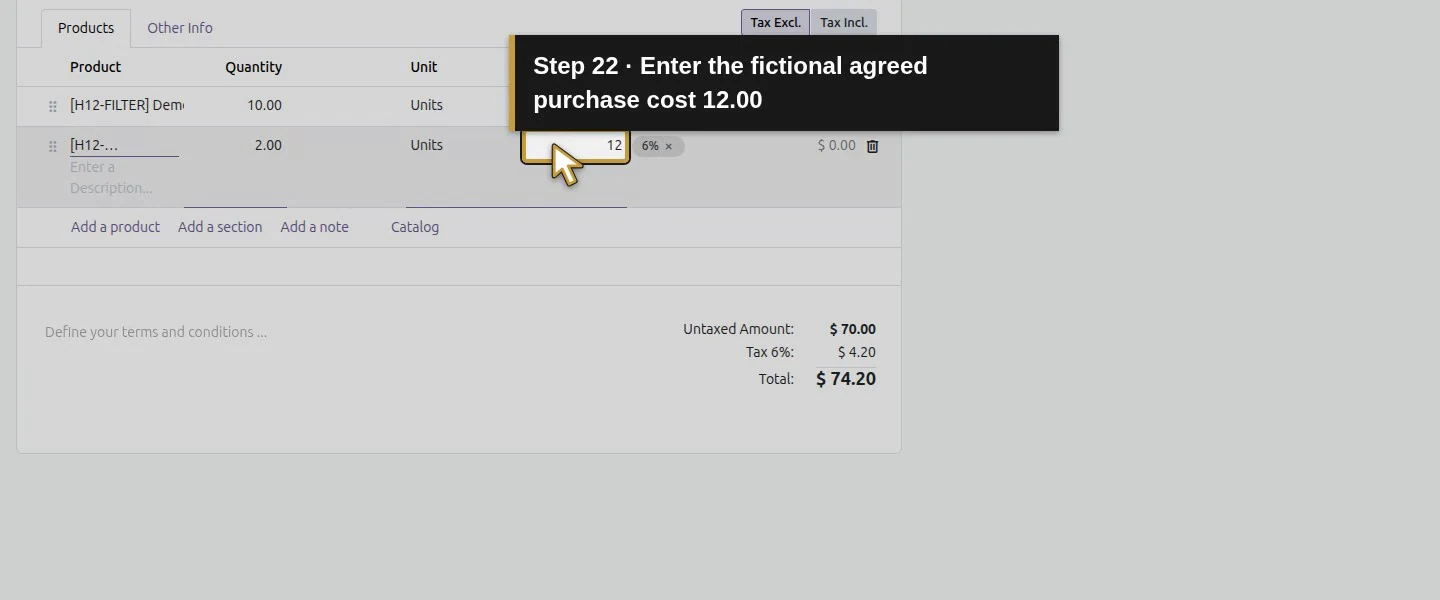
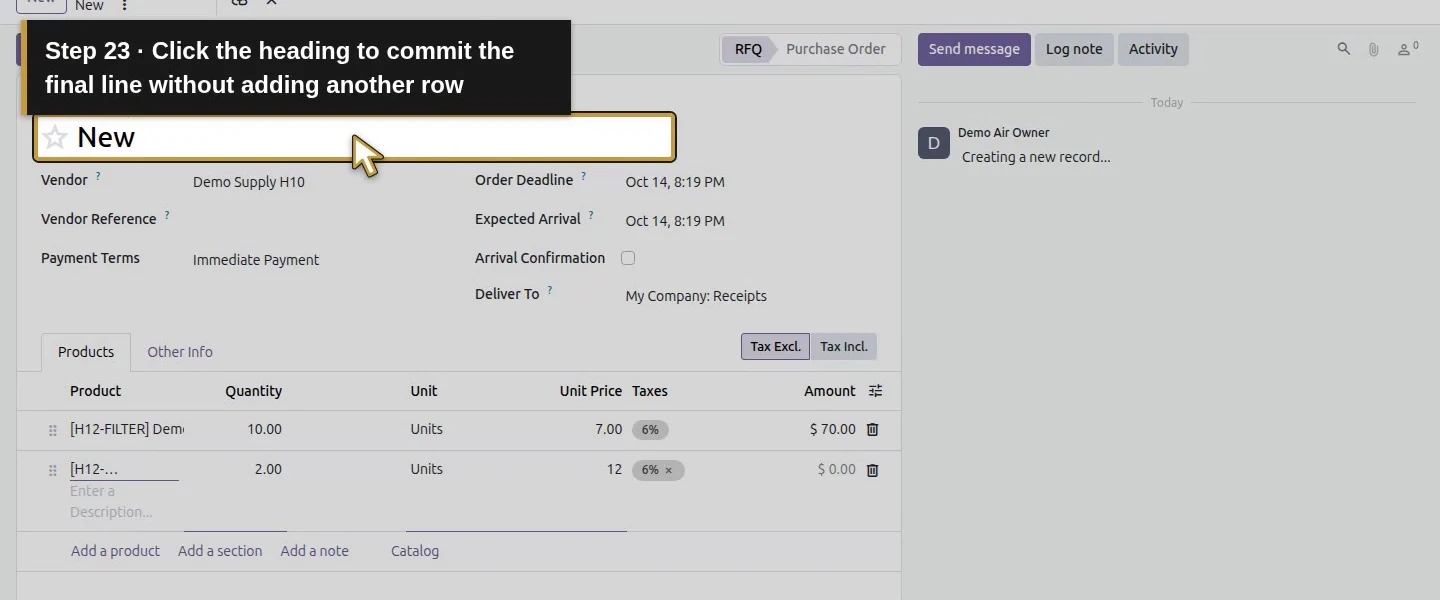
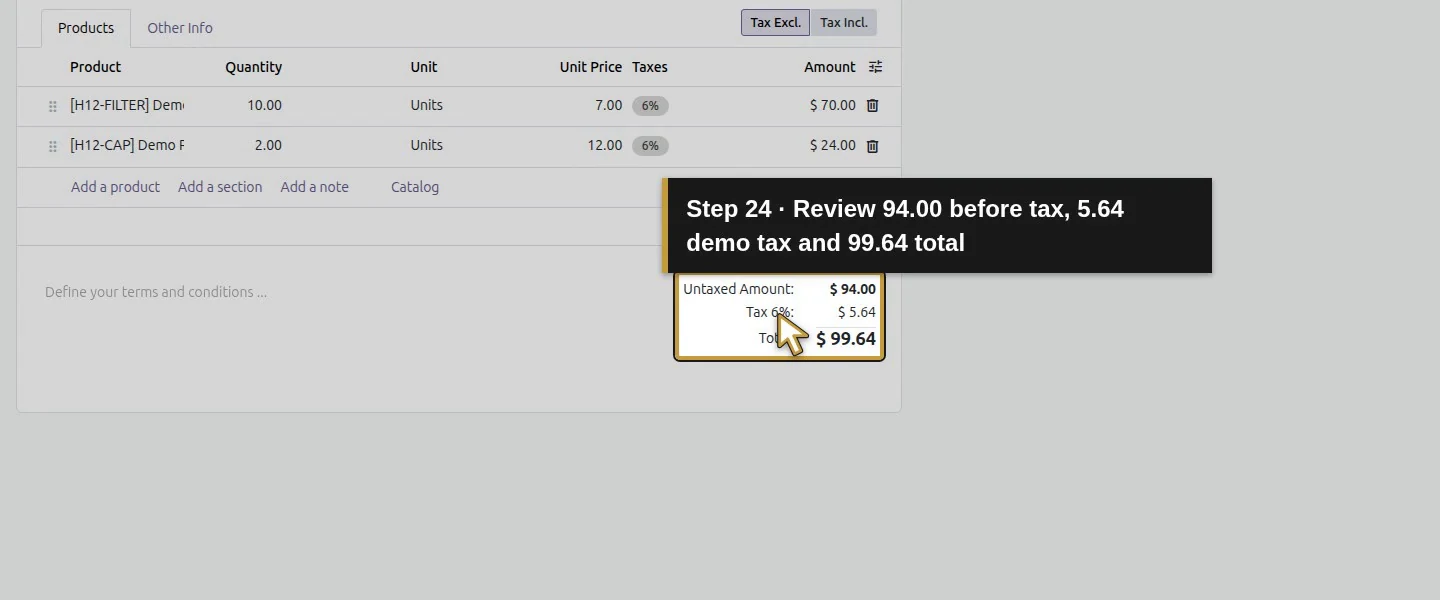
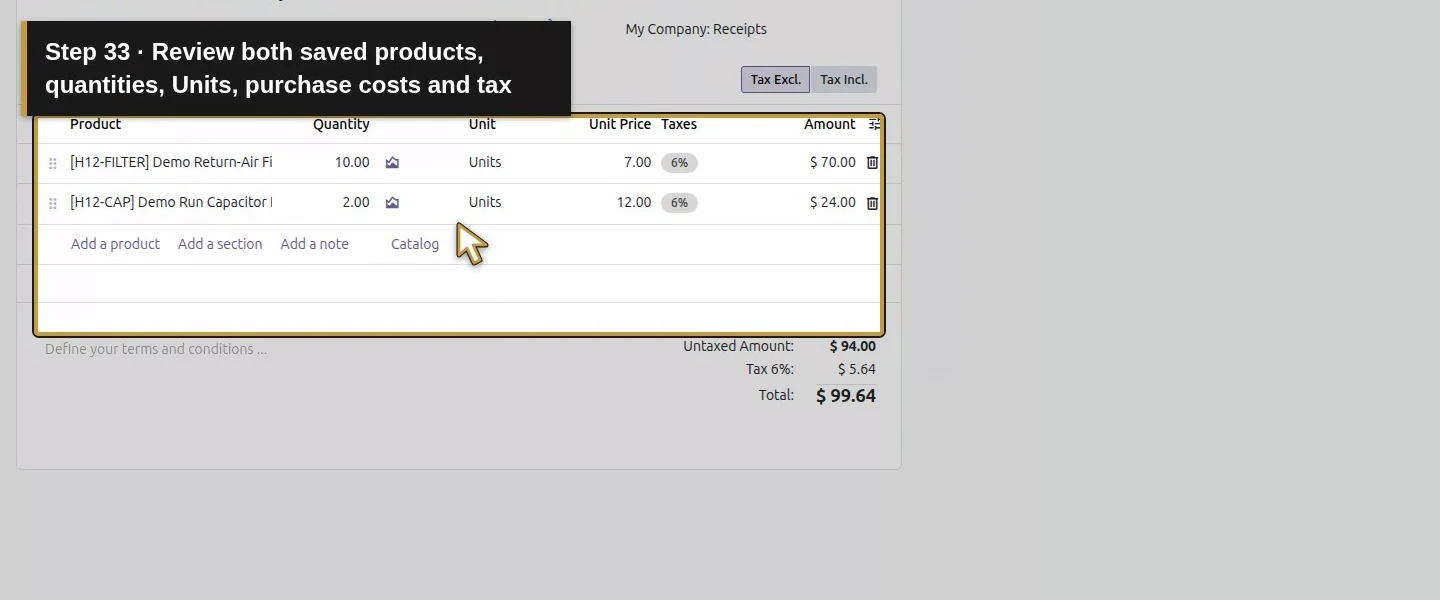
On Products, choose Add a product, select Demo Return-Air Filter H12, and enter Quantity 10, Unit Units, Unit Price 7. Add Demo Run Capacitor H12 with Quantity 2, Units and Unit Price 12. These are purchase costs; H12's selling prices are different.
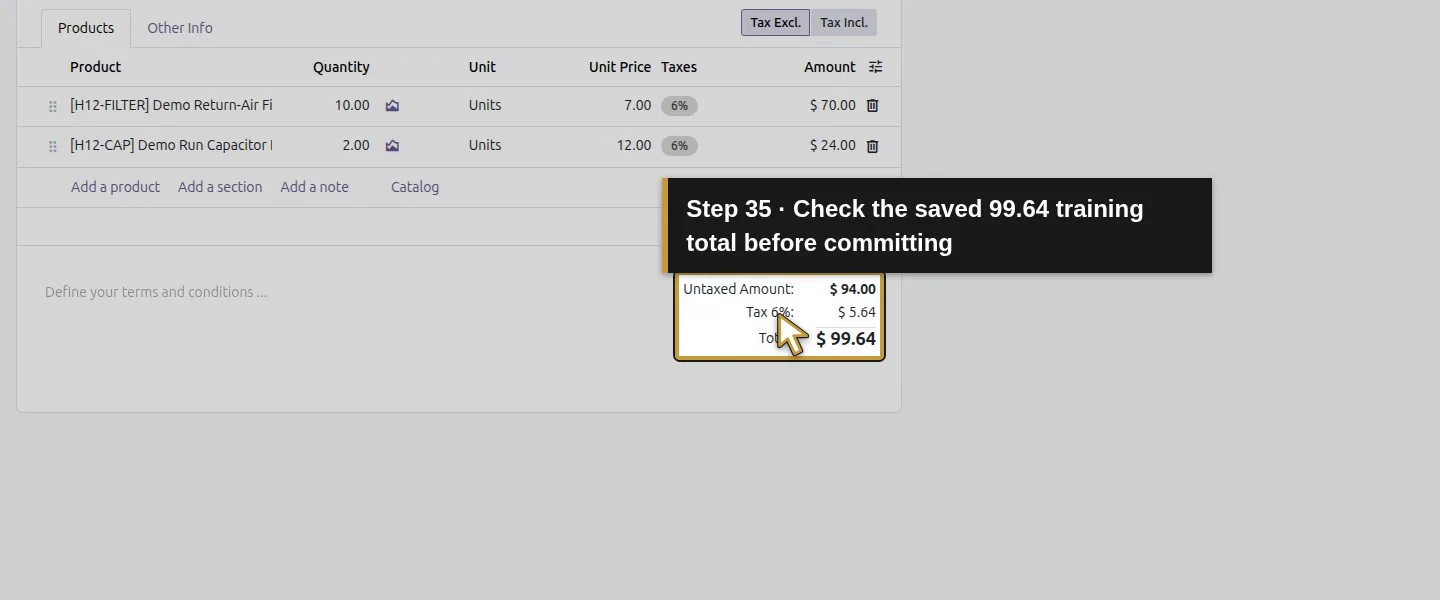
Add the first purchased product.Find the existing H12 return-air filter.Select Demo Return-Air Filter H12.Order ten filters.Keep Units as the filter unit.Enter the fictional agreed purchase cost 7.00.Add the second purchased product.Find the existing H12 run capacitor.Select Demo Run Capacitor H12.Order two capacitors.Keep Units as the capacitor unit.Enter the fictional agreed purchase cost 12.00.Click the heading to commit the final line without adding another row.Review 94.00 before tax, 5.64 demo tax and 99.64 total.
Step 3. Add the manual business reference
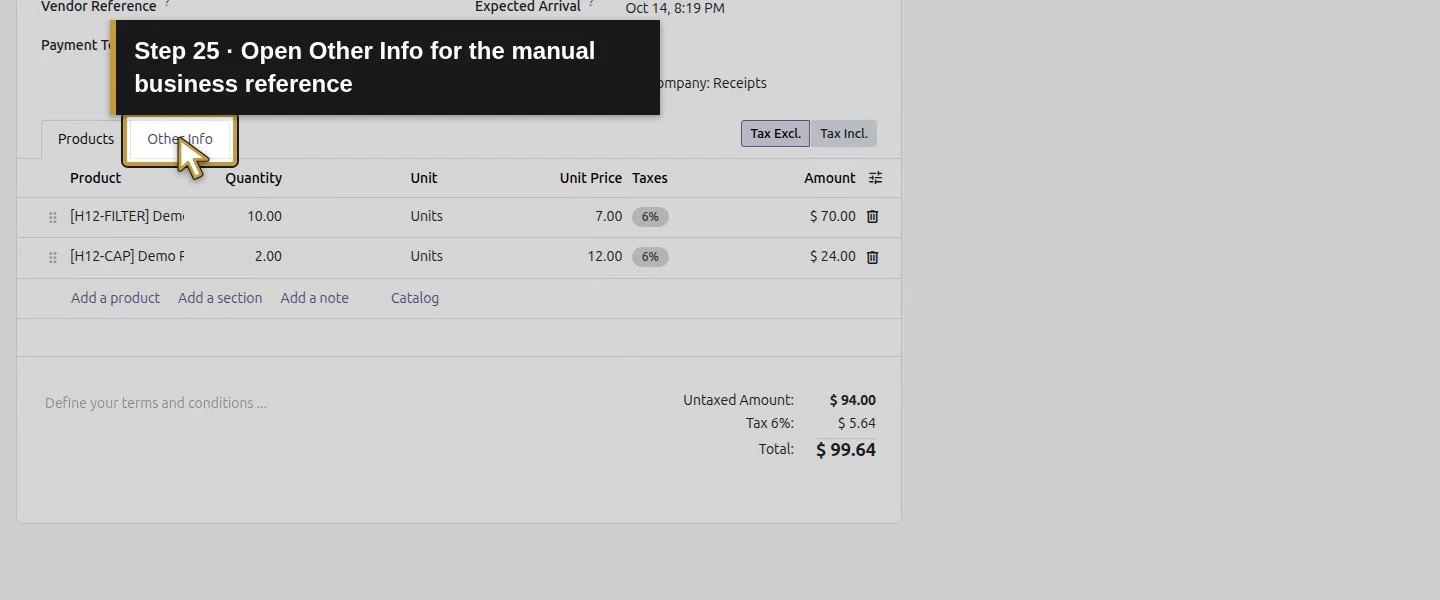
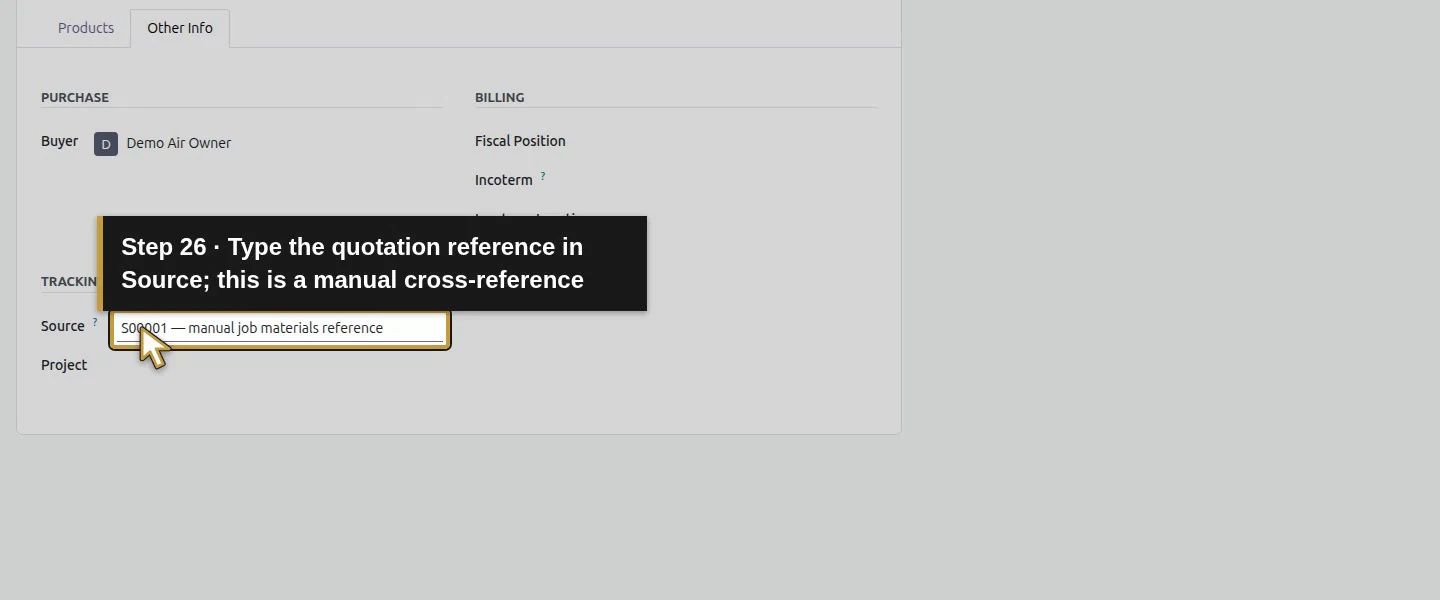
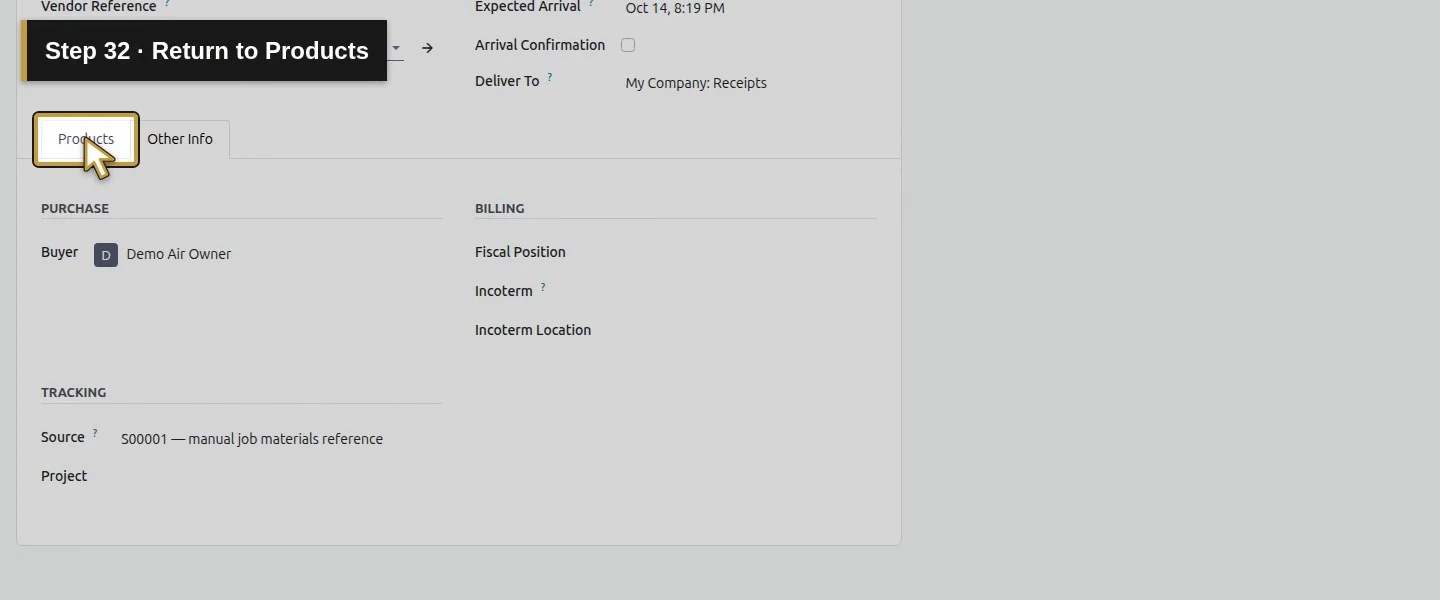
Open Other Info and enter S00001 — manual job materials reference in Source. This is a typed cross-reference to the quotation, not an automated procurement or job-cost link. Use Vendor Reference only for the supplier's own reference.
Open Other Info for the manual business reference.Type the quotation reference in Source; this is a manual cross-reference.
Step 4. Save and review the RFQ
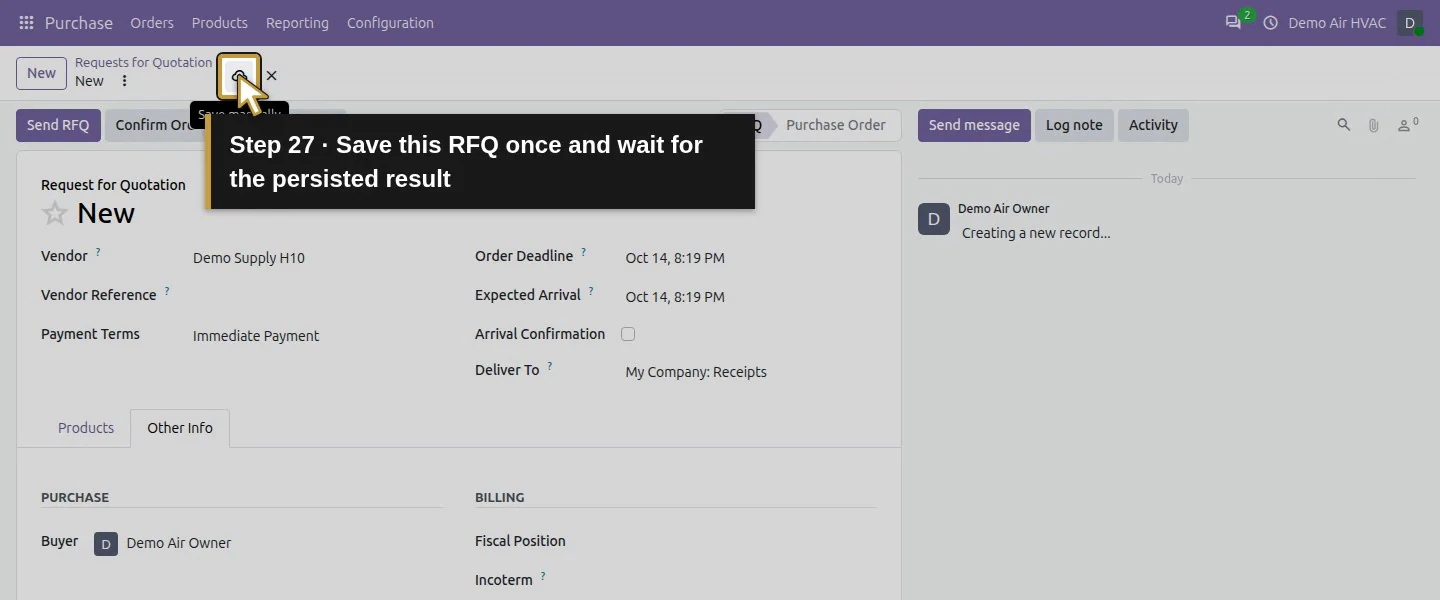
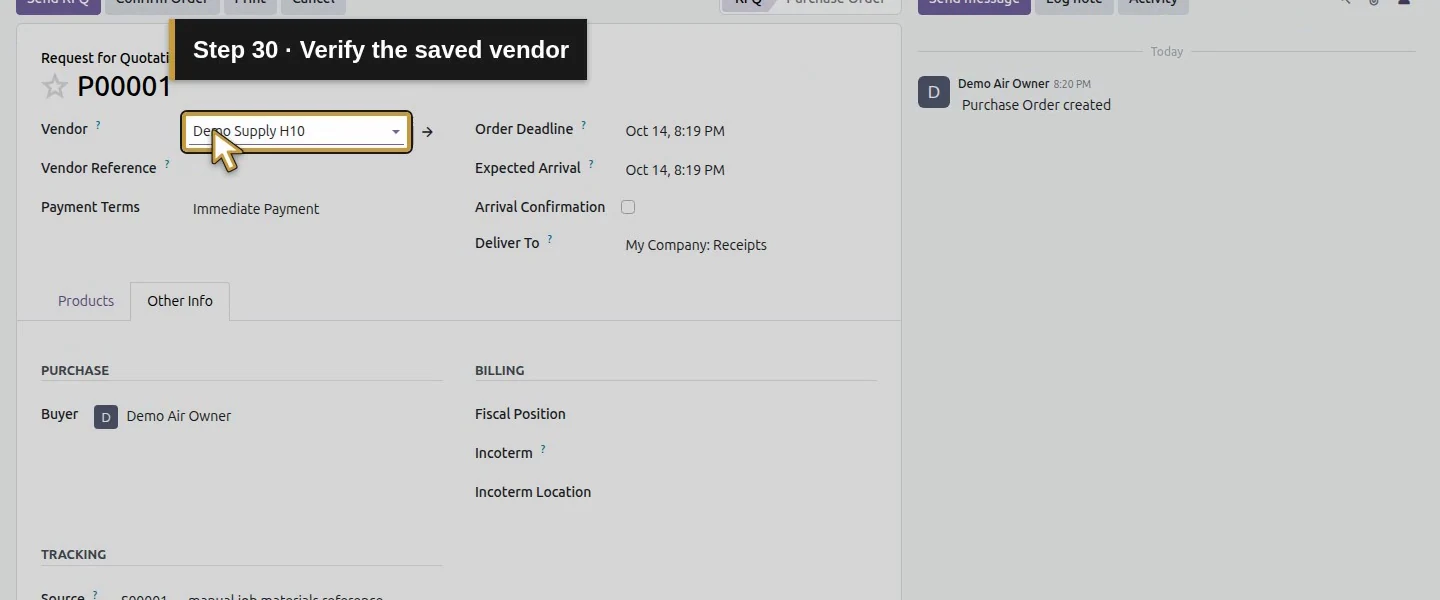
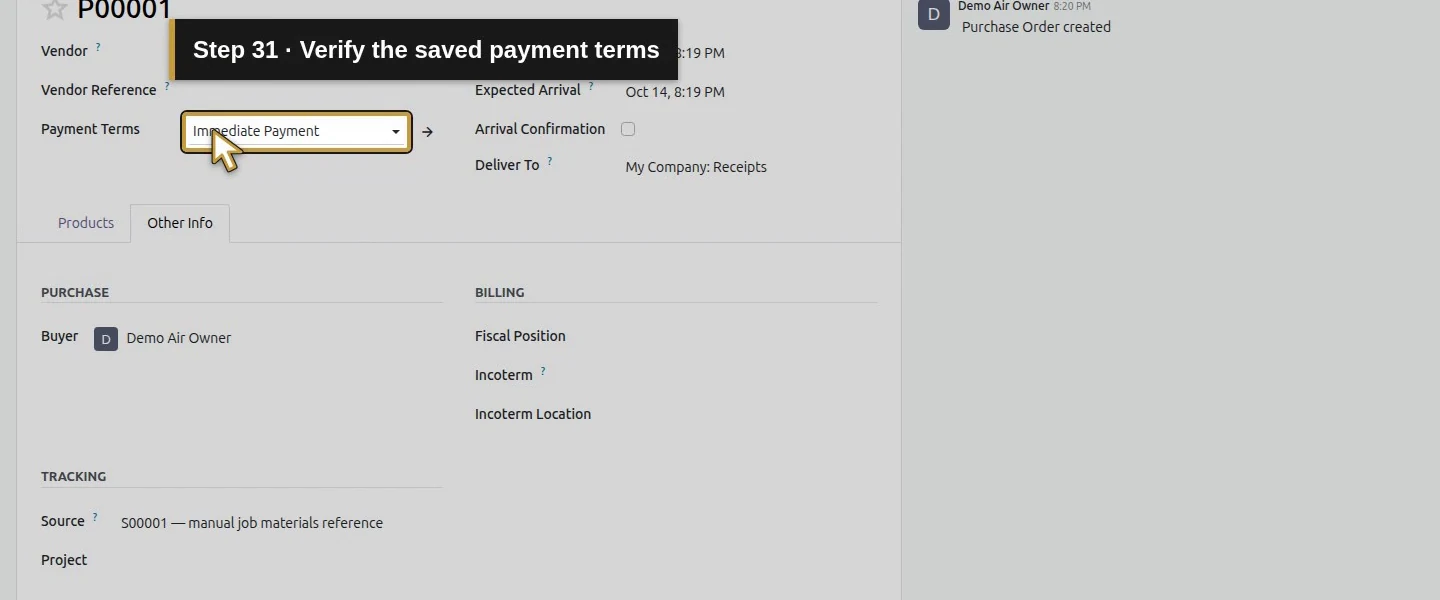
Choose Save manually. Reopen P00001 and review vendor, terms, quantities, units, costs, tax, dates and receipt destination. The tested totals are $94 untaxed + $5.64 demo tax = $99.64. No supplier email is required for this example.
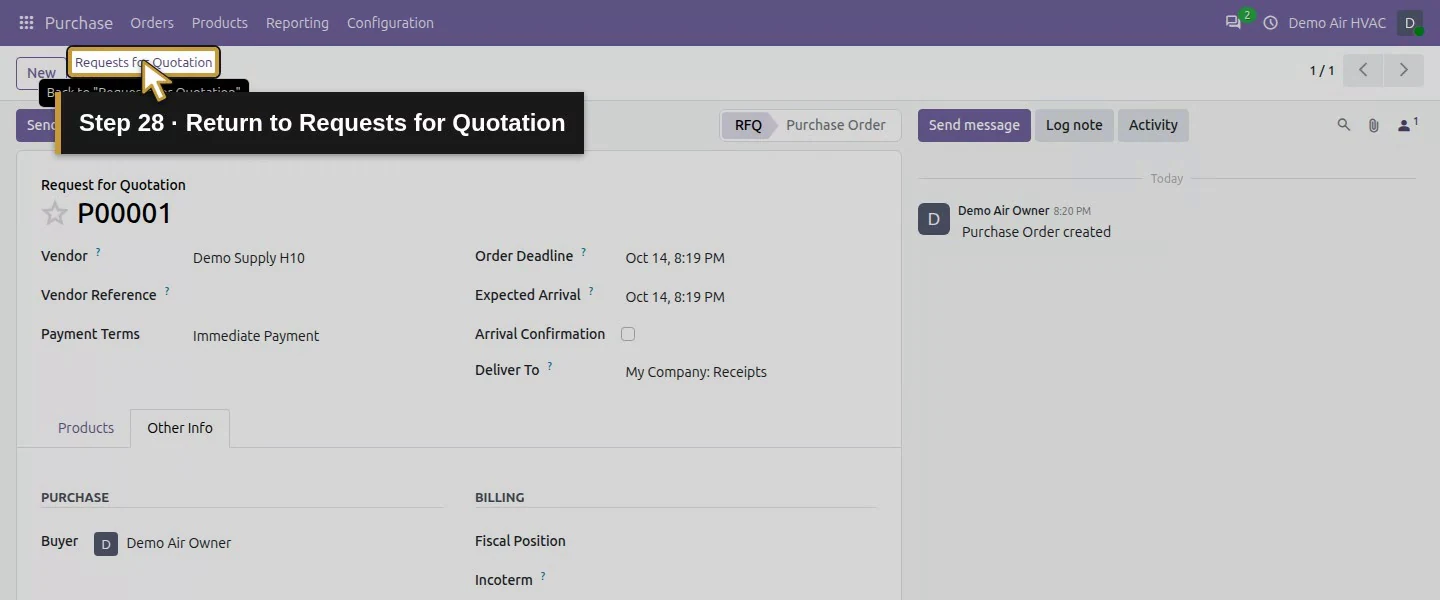
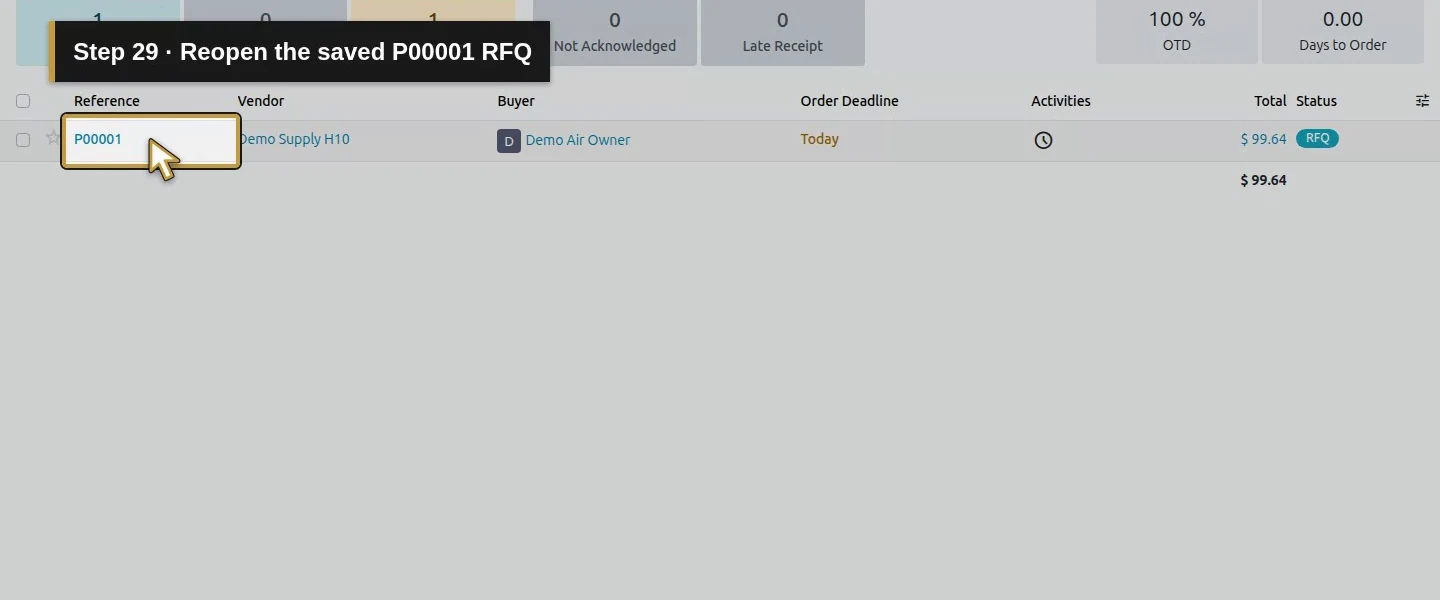
Save this RFQ once and wait for the persisted result.Return to Requests for Quotation.Reopen the saved P00001 RFQ.Verify the saved vendor.Verify the saved payment terms.Return to Products.Review both saved products, quantities, Units, purchase costs and tax.Review the saved Expected Arrival separately from Order Deadline.Check the saved 99.64 training total before committing.
Step 5. Confirm once and inspect the receipt
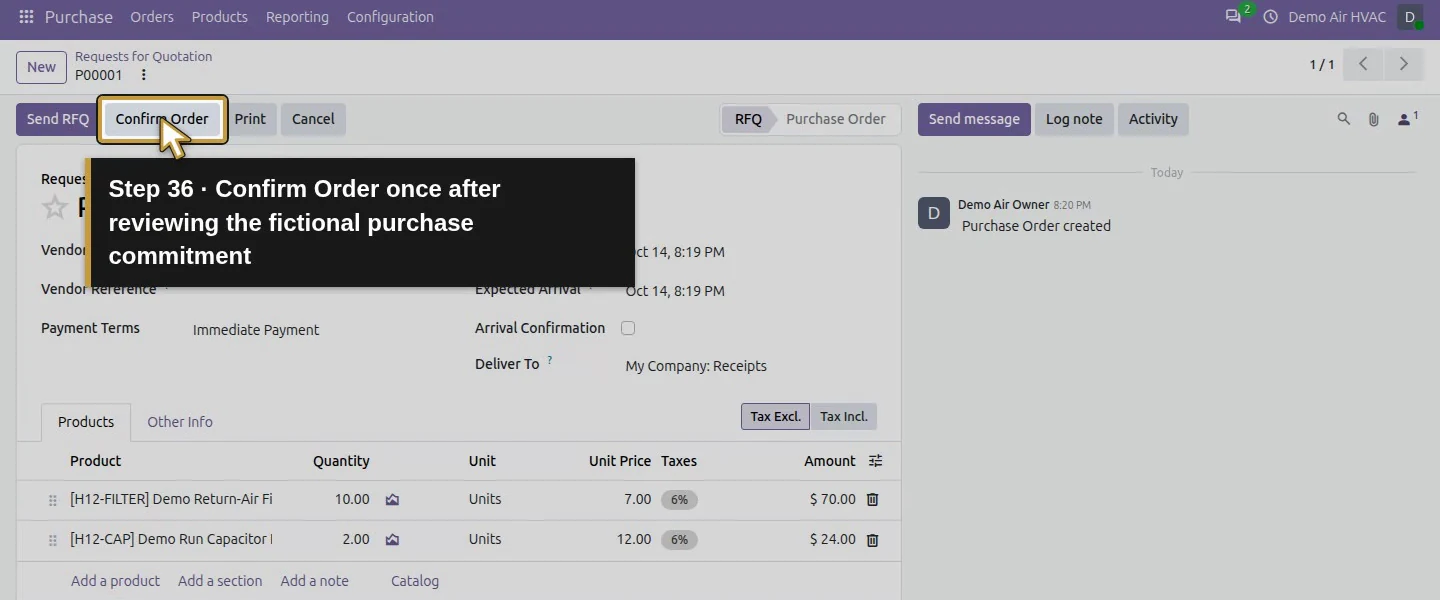
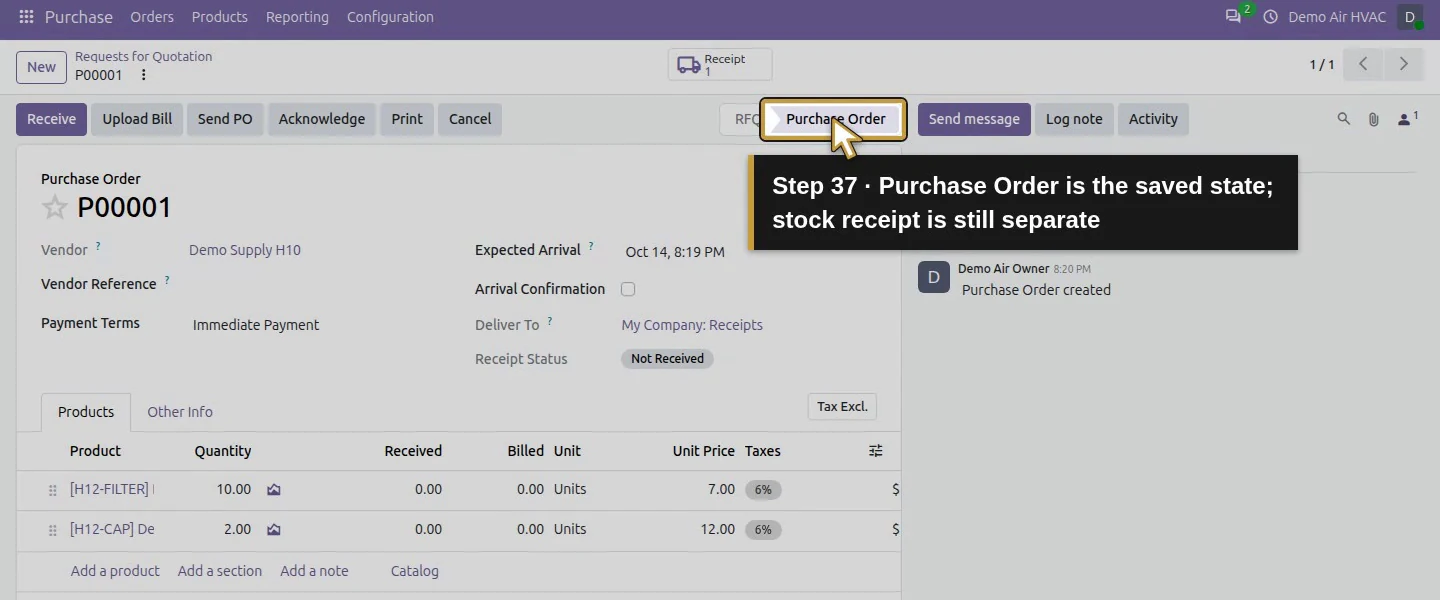
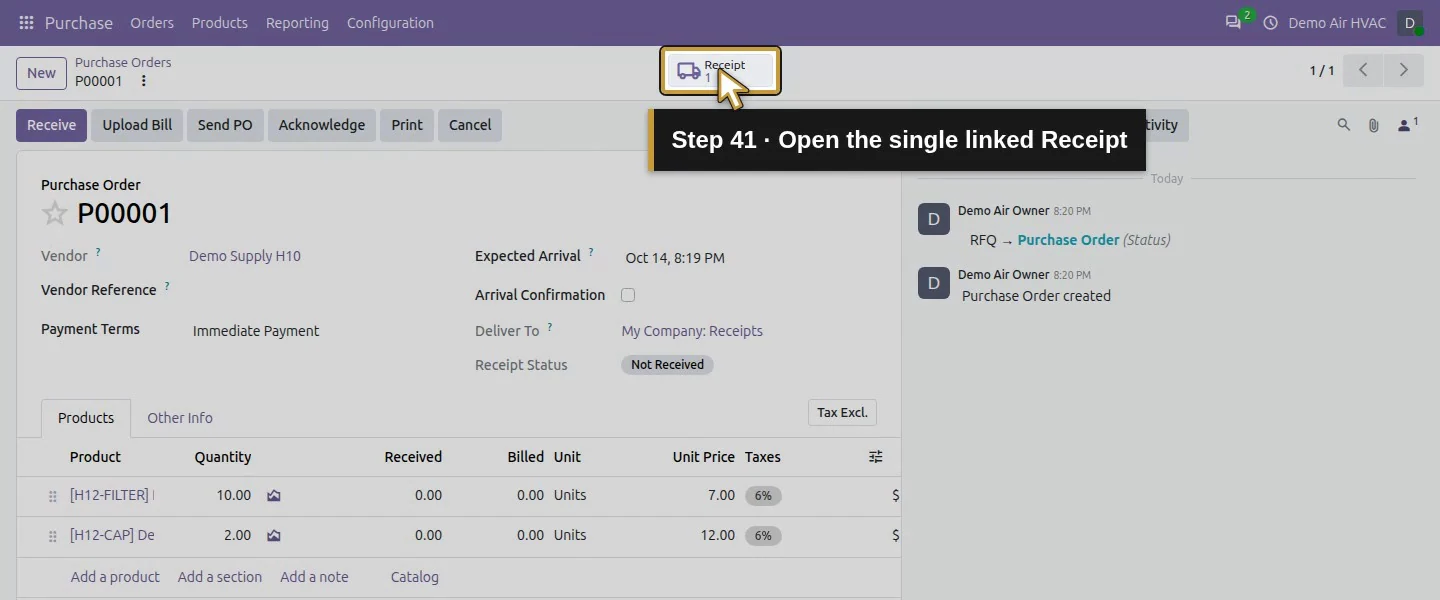
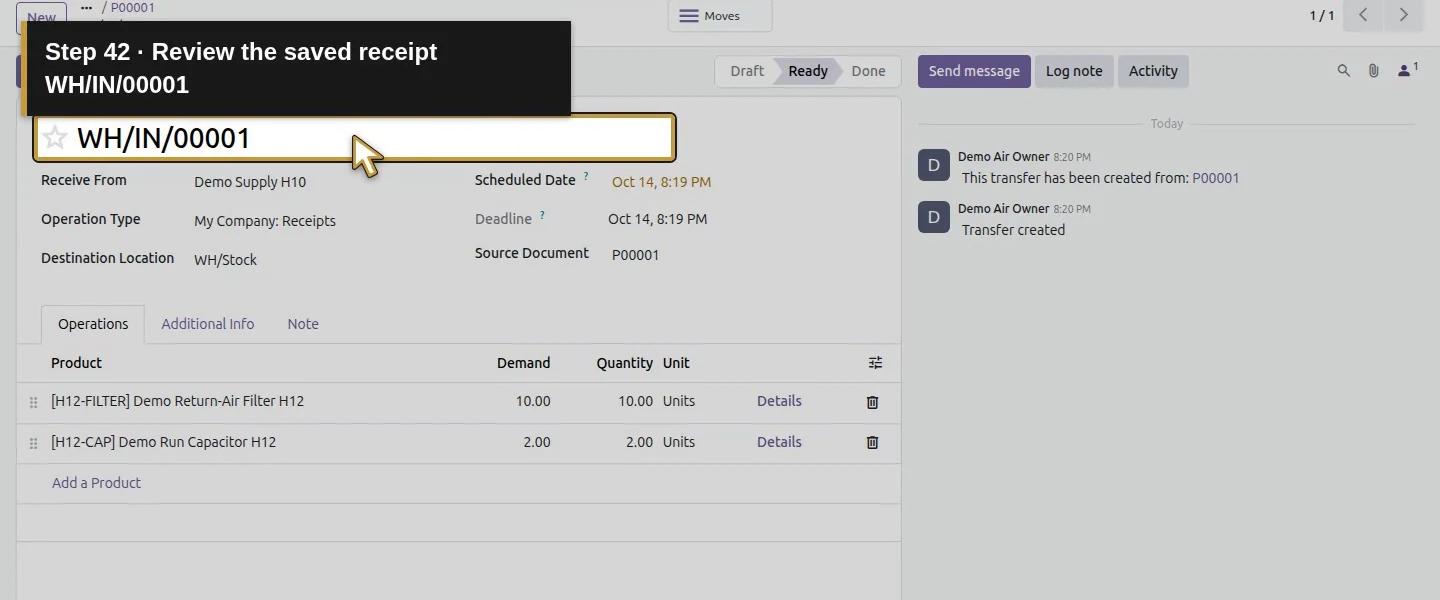
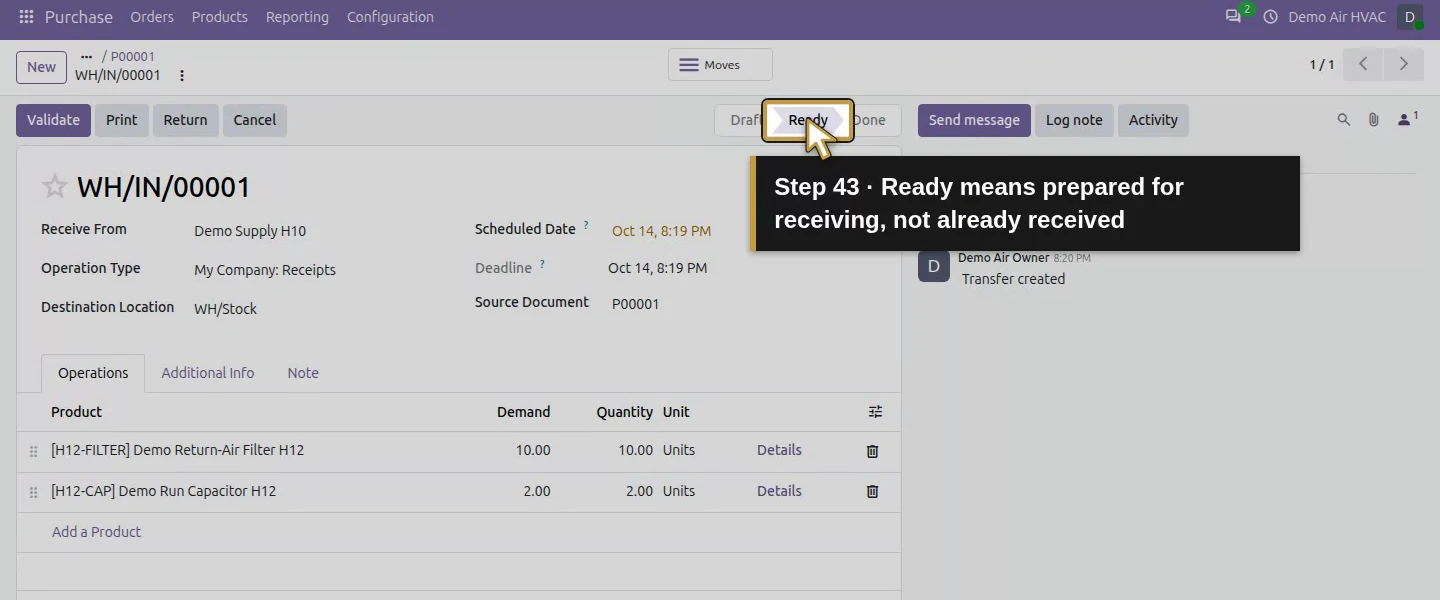
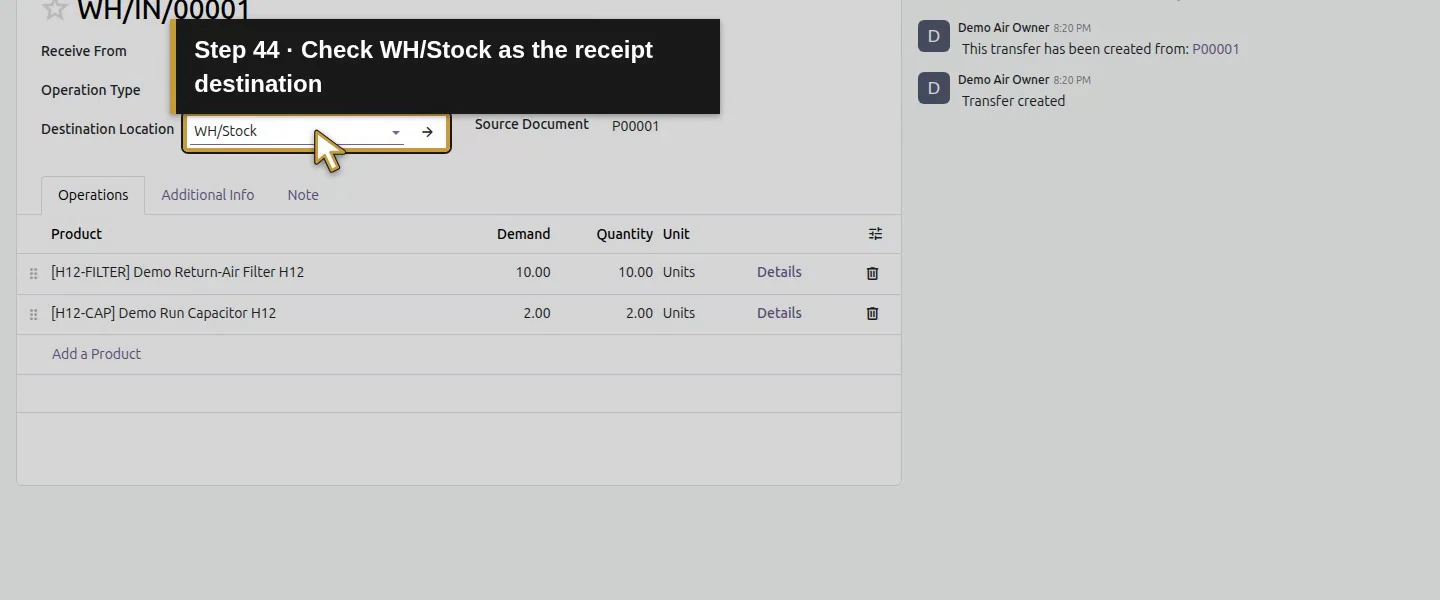
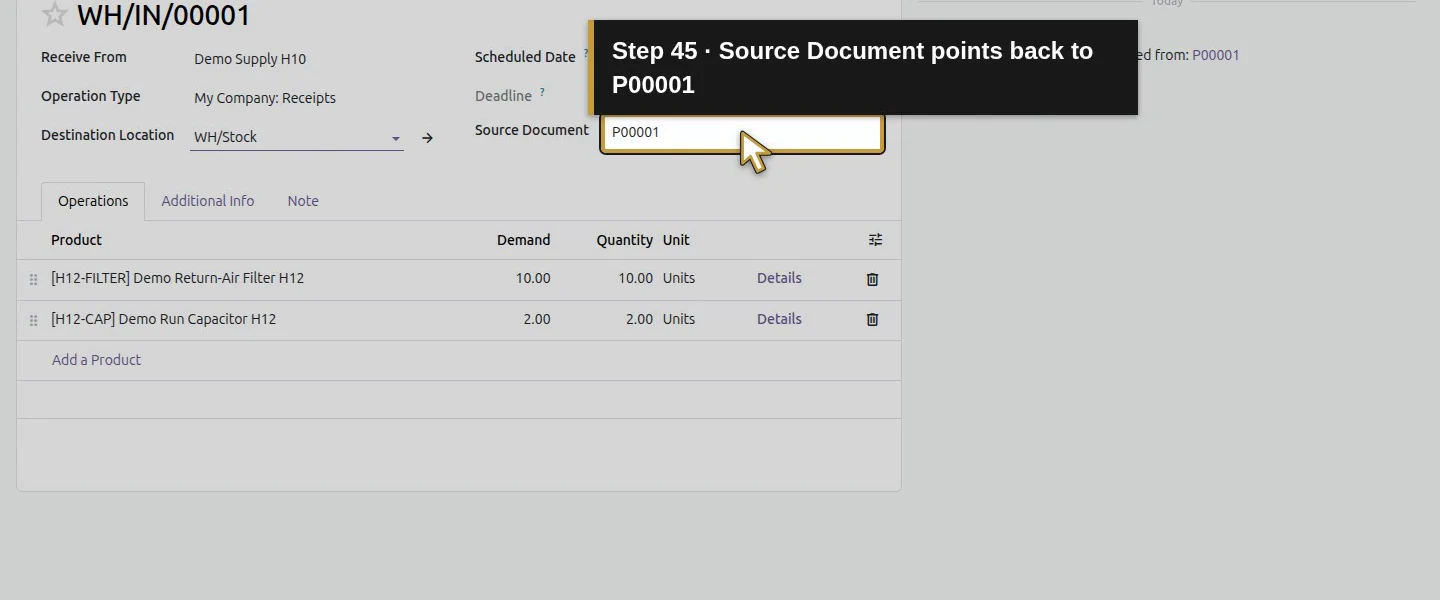
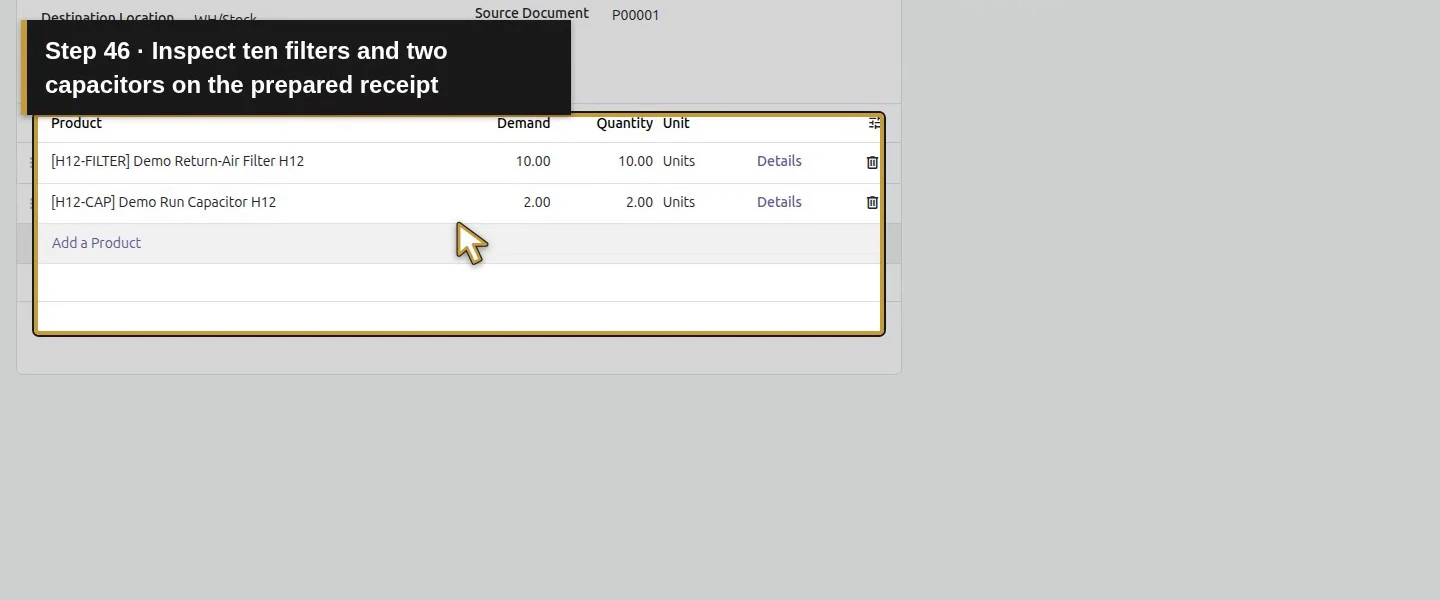
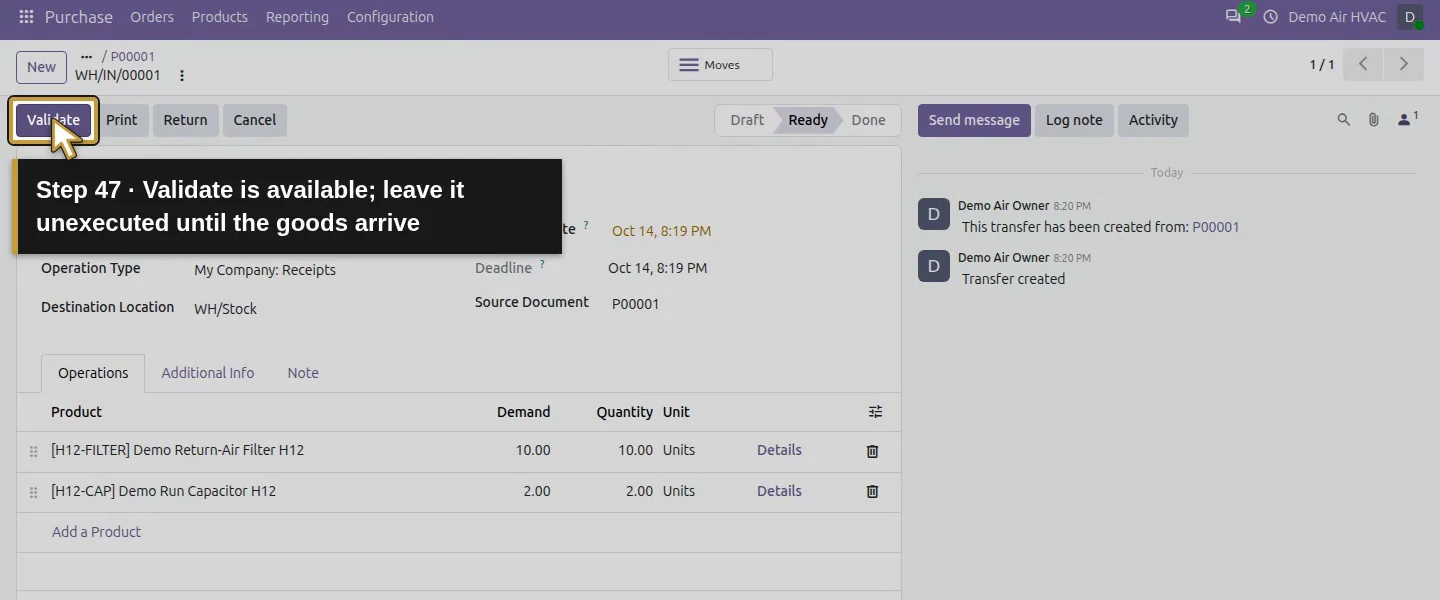
Choose Confirm Order, wait for Purchase Order, and reopen the record. Its 1 Receipt button opens WH/IN/00001, initially Ready, with destination WH/Stock and Source Document P00001. Do not validate it until the goods actually arrive.
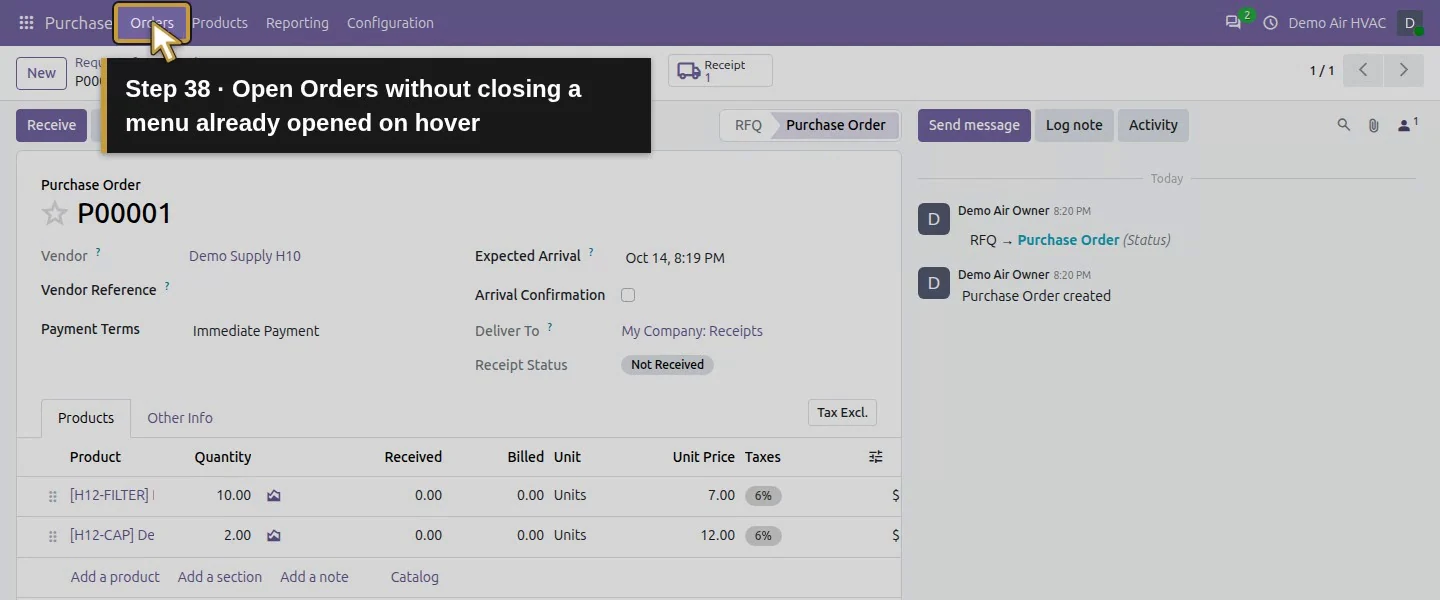
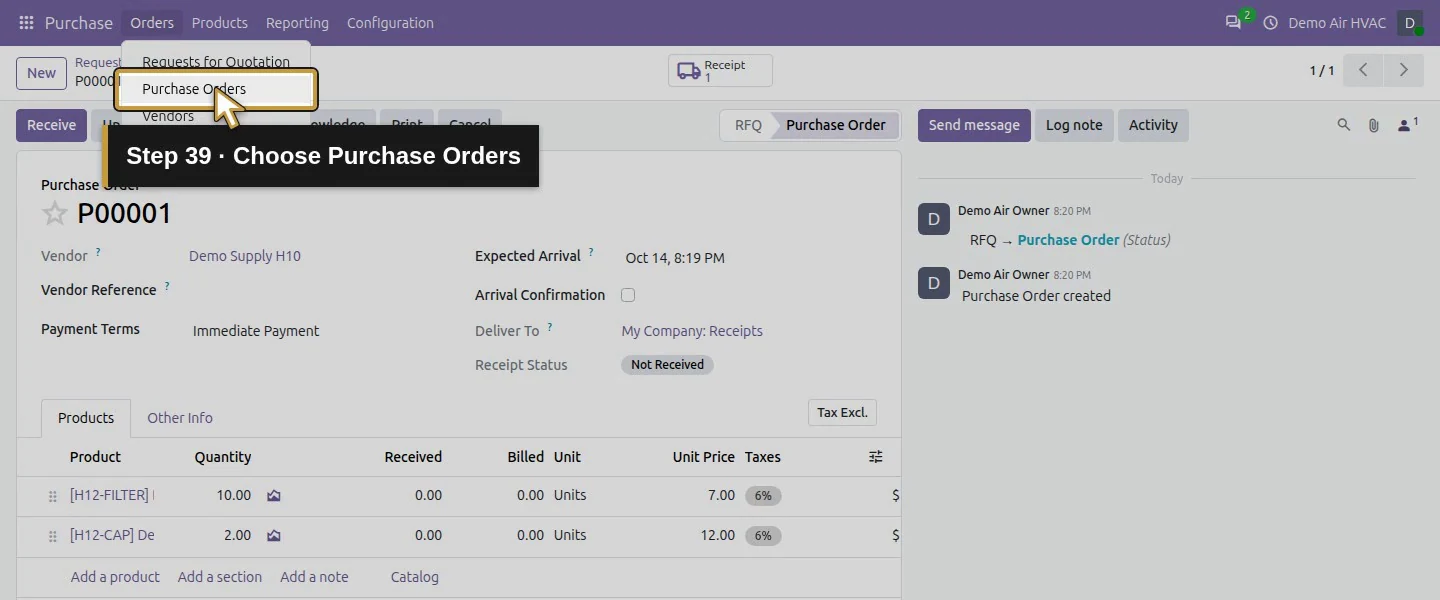
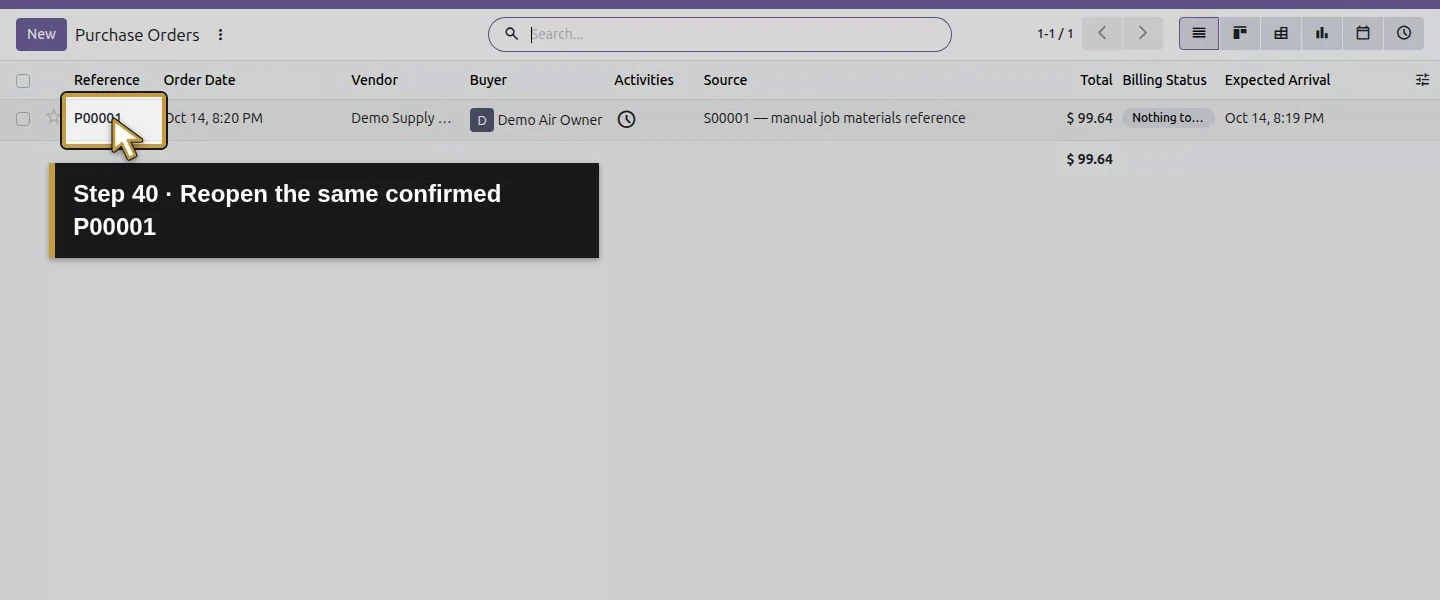
Confirm Order once after reviewing the fictional purchase commitment.Purchase Order is the saved state; stock receipt is still separate.Open Orders without closing a menu already opened on hover.Choose Purchase Orders.Reopen the same confirmed P00001.Open the single linked Receipt.Review the saved receipt WH/IN/00001.Ready means prepared for receiving, not already received.Check WH/Stock as the receipt destination.Source Document points back to P00001.Inspect ten filters and two capacitors on the prepared receipt.Validate is available; leave it unexecuted until the goods arrive.
Check the result
P00001 is a saved, confirmed purchase order with ten filters at $7 and two capacitors at $12. It links one Ready receipt. At this checkpoint, both products still had zero on hand and zero received on the order. Confirmation prepared the receipt; it did not receive the stock.
If your screen differs
The warehouse still displays My Company even though the legal company is Demo Air HVAC. Use the operation and location shown in your database. Review supplier costs and tax instead of copying sale prices. This test covers one owner role, one vendor and ordinary untracked goods; approval thresholds, emails and automatic job procurement are separate workflows.
Frequently asked questions
What is the difference between an RFQ and a purchase order in Odoo?
The RFQ holds the proposed purchase. In this test, Confirm Order changed P00001 to Purchase Order and created its linked receipt. Review the commitment before confirming.
Does confirming an Odoo purchase order increase stock?
In this tested flow, no. The confirmed order created a Ready receipt while on-hand and received quantities stayed at zero. Stock changed when the actual receipt was validated.
How do I link a purchase order to an HVAC job in Odoo?
This example types the quotation reference in Other Info → Source. It is a manual cross-reference; it does not establish automatic procurement, project costing or a relational job link.