
Getting started with Odoo · Lesson 2
Which Odoo apps do I need to run an HVAC business?
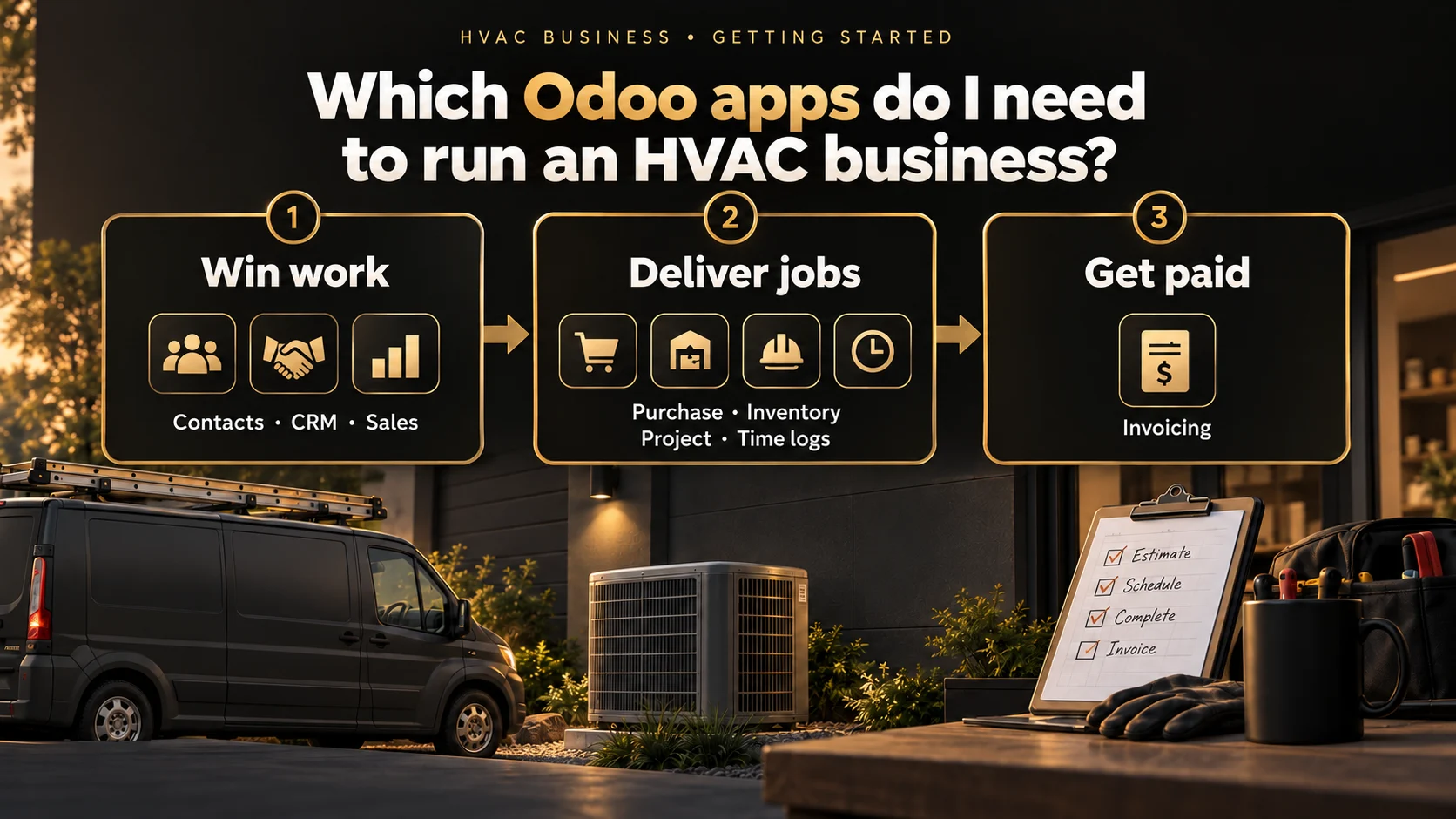
Start with the apps for the work you need to do next. For Demo Air HVAC, that means customer enquiries, quotations and invoicing, then parts and job tracking as the first service visit develops.
A practical app checklist and a verified view of which native apps and modules are already installed.
Alex Rivera runs Demo Air HVAC, a fictional heating and cooling business. He has entered the company details and now needs the apps that support his first complete job.
Follow the 12 checksChoose apps around the work
Use this as the checklist for our worked example. You can add an app when its business task becomes relevant.
| Business task | App or native module | Where it fits in the series |
|---|---|---|
| Keep customer and supplier details | Contacts | Customer intake and service addresses |
| Track enquiries and follow-ups | CRM | The first service request |
| Prepare quotations and sales orders | Sales | Win and agree the work |
| Invoice work and record confirmed payments | Invoicing | Billing the completed job |
| Order parts and equipment | Purchase | Prepare job materials |
| Receive and track parts | Inventory | Workshop and service-van stock |
| Coordinate job tasks | Project | Prepare and complete the service visit |
| Record time on a job | Task Logs, through the native Timesheets menu | Technician time tracking |
| Prepare employee records | Employees | Employee and time-entry prerequisites |
The recording checks this app set in an existing demo. It does not install every catalogue entry. The detailed customer, quotation, stock, job and invoice workflows each have their own lesson.
Before you begin
Complete the company-profile setup lesson and sign in with an administrator account.
This walkthrough uses stock Odoo 20.0-20260926 Community. Its selected native apps are already installed. Your app names and available entries can differ with the release, edition and installed modules.
If Odoo’s onboarding pointer covers a control, hover over its tip and select Stop Tour. That native control dismissed the pointer in our demo.
Check the installed apps
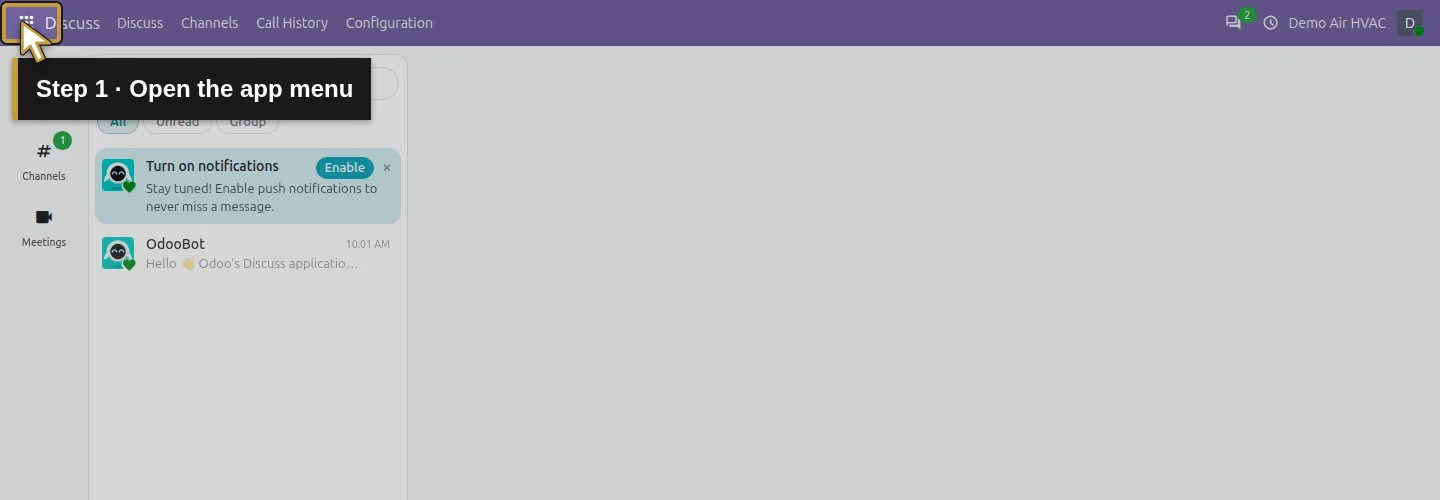
Step 1. Open the app menu
Click the grid-shaped app menu at the top left of Odoo. The menu lists the apps available to your account.
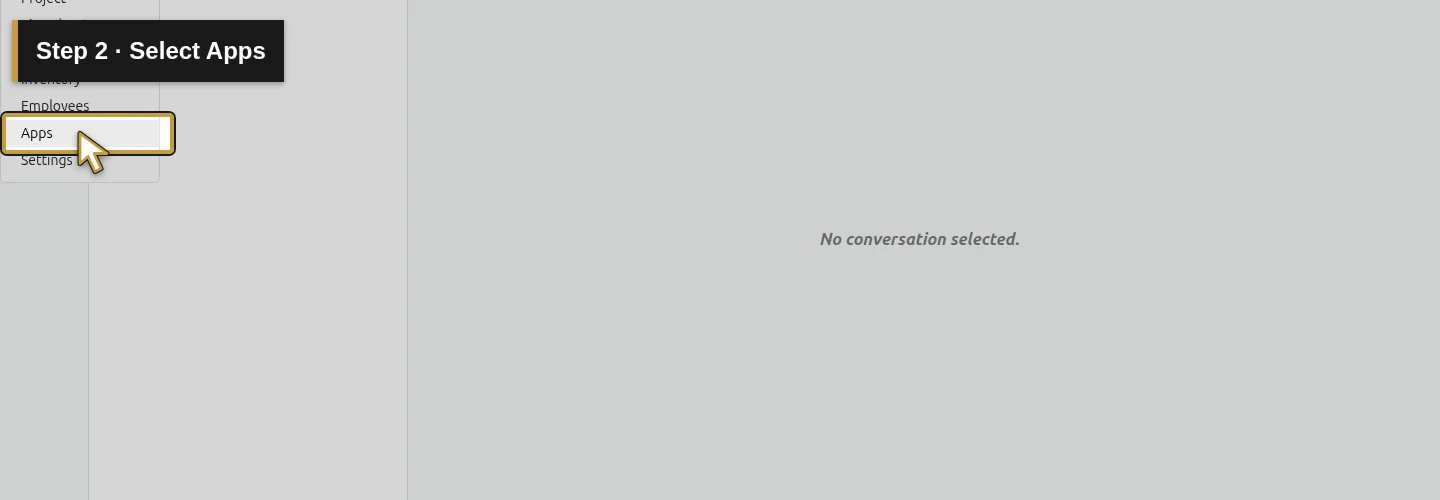
Step 2. Select Apps
Select Apps. You will see the app catalogue, with the Apps search filter applied.
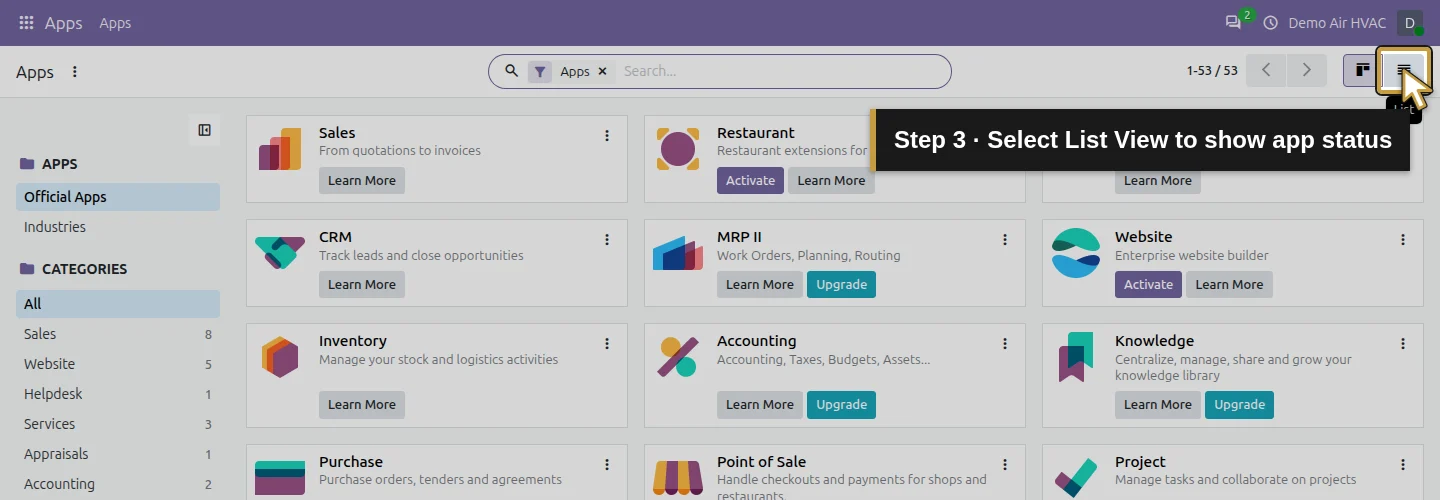
Step 3. Select List View to show app status
Click List View at the top right. Find the Module Name and Status columns so you can check availability directly.
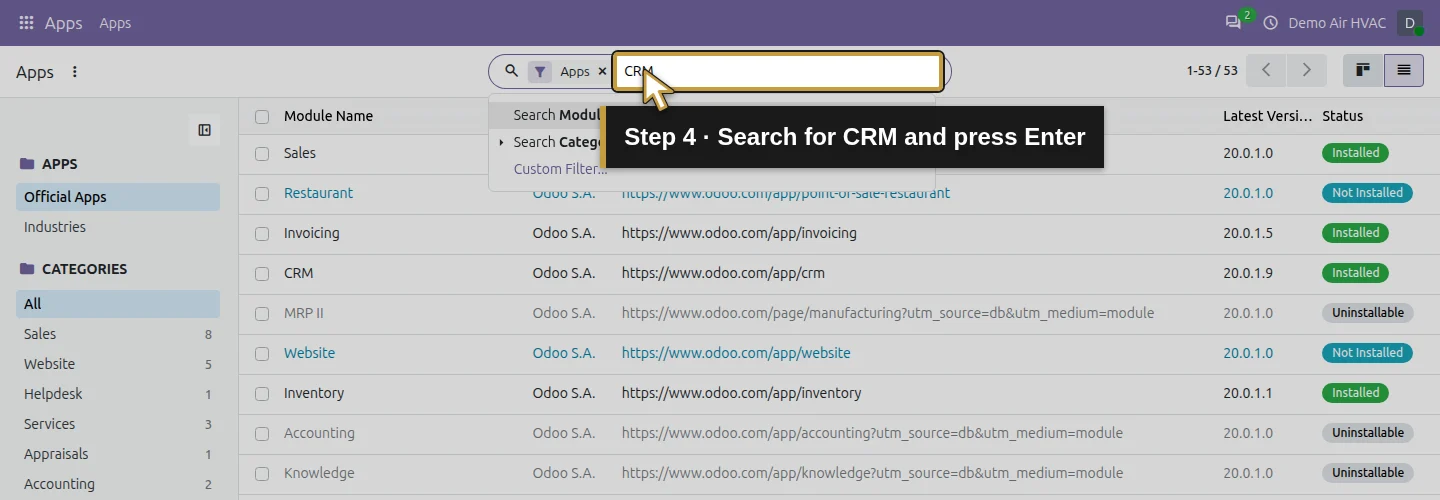
Step 4. Search for CRM and press Enter
Click the search box, type CRM, and press Enter. The list narrows to the CRM entry.
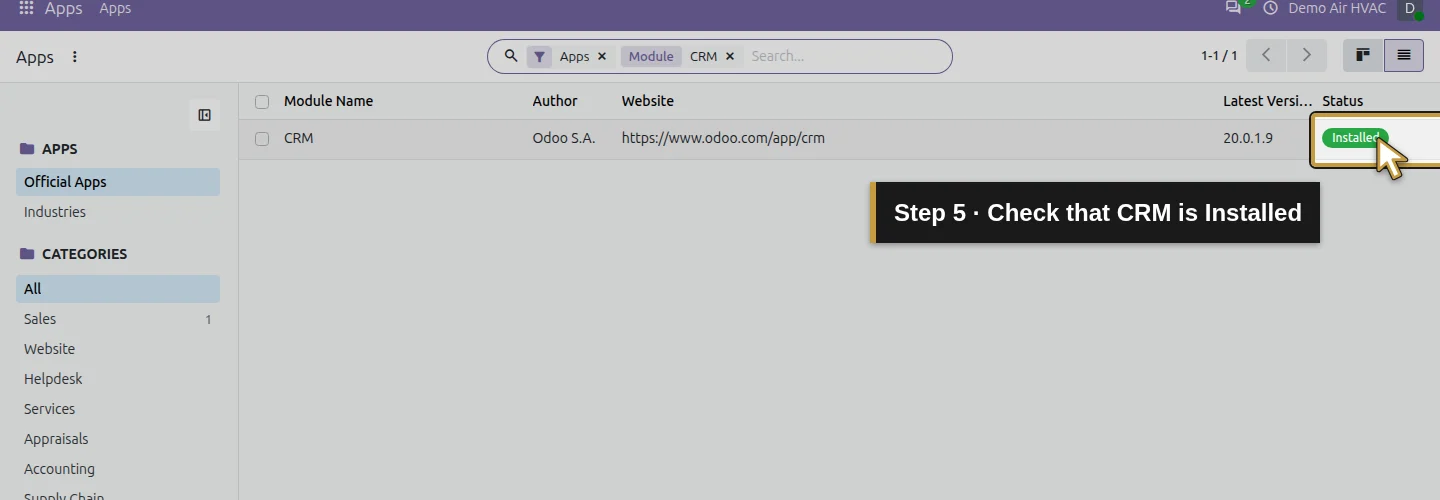
Step 5. Check that CRM is Installed
Read CRM’s Status. In this demo it says Installed. Check the same column for each app in your own checklist.
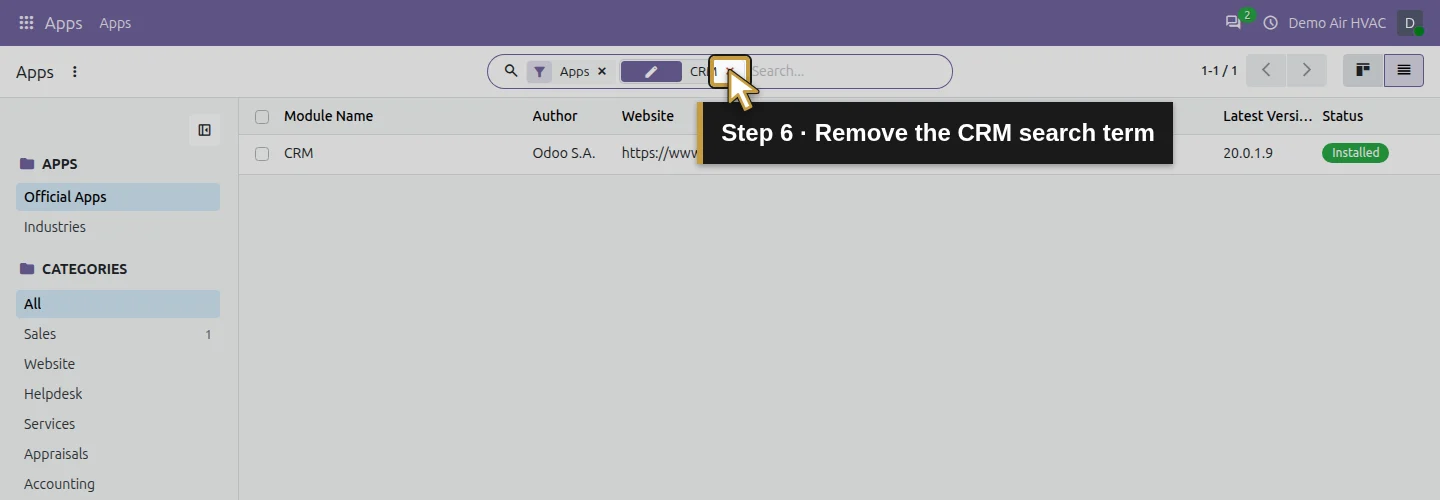
Step 6. Remove the CRM search term
Click the small × beside the CRM search term. Keep the Apps filter for now. The broader app list returns.
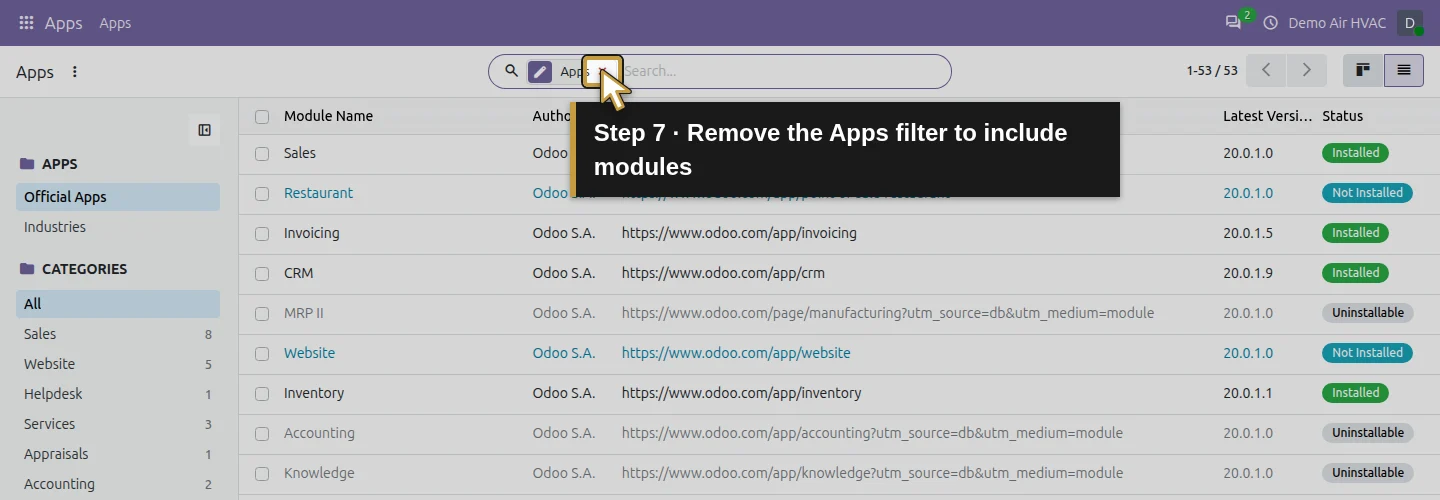
Step 7. Remove the Apps filter to include modules
Click the × beside the Apps filter. This includes supporting modules in the search, which helps you find native time logging.
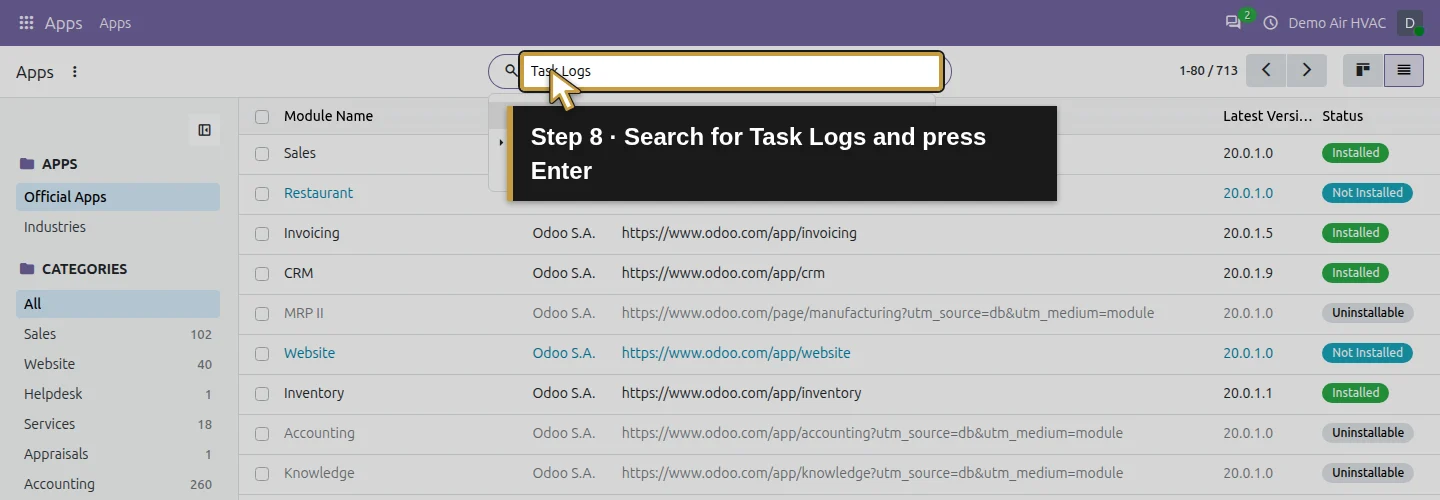
Step 8. Search for Task Logs and press Enter
Type Task Logs into the search box and press Enter. This is the native module name shown in our tested build.
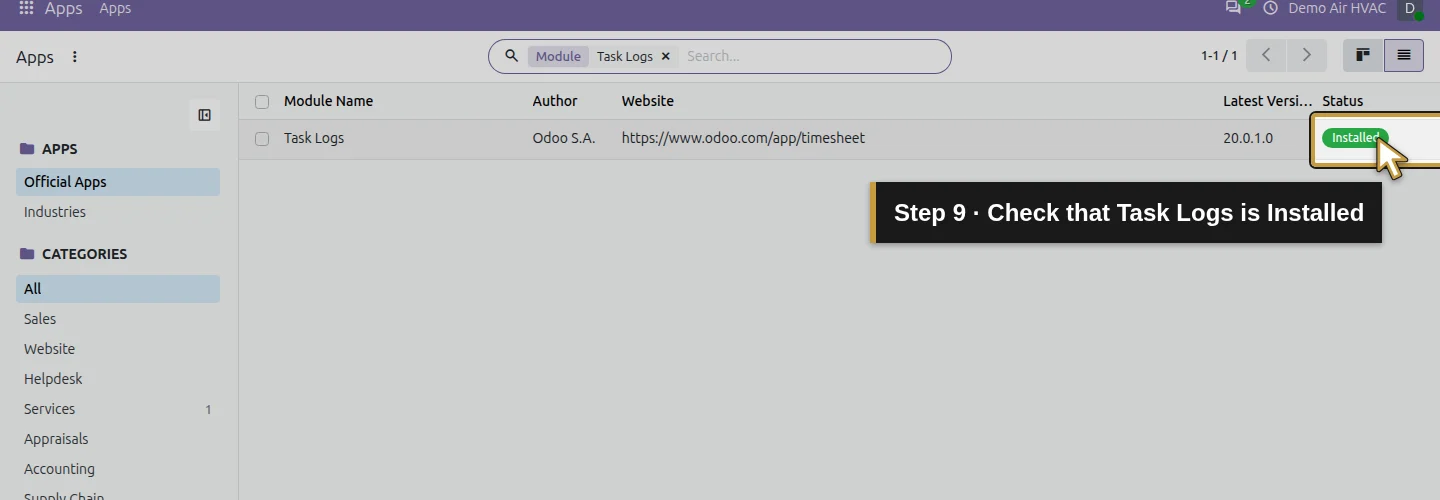
Step 9. Check that Task Logs is Installed
Check that Task Logs says Installed. In this demo, that installed module provides the native Timesheets menu. The separate unavailable Timesheets catalogue entry does not change this result.
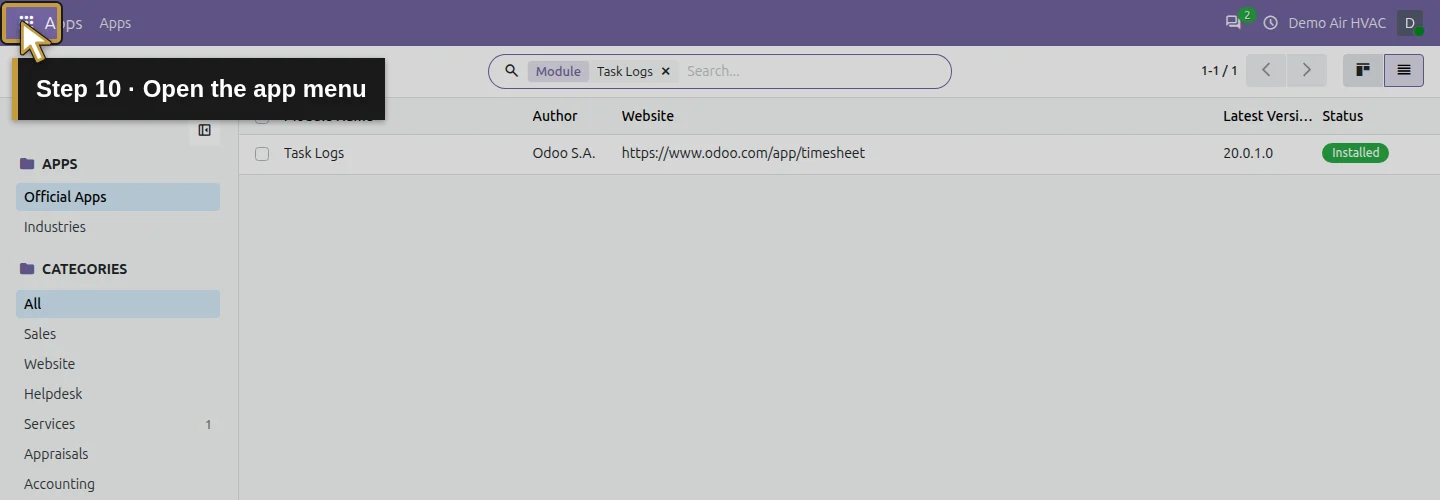
Step 10. Open the app menu
Open the app menu again. Find the Timesheets menu that is already available in this demo.
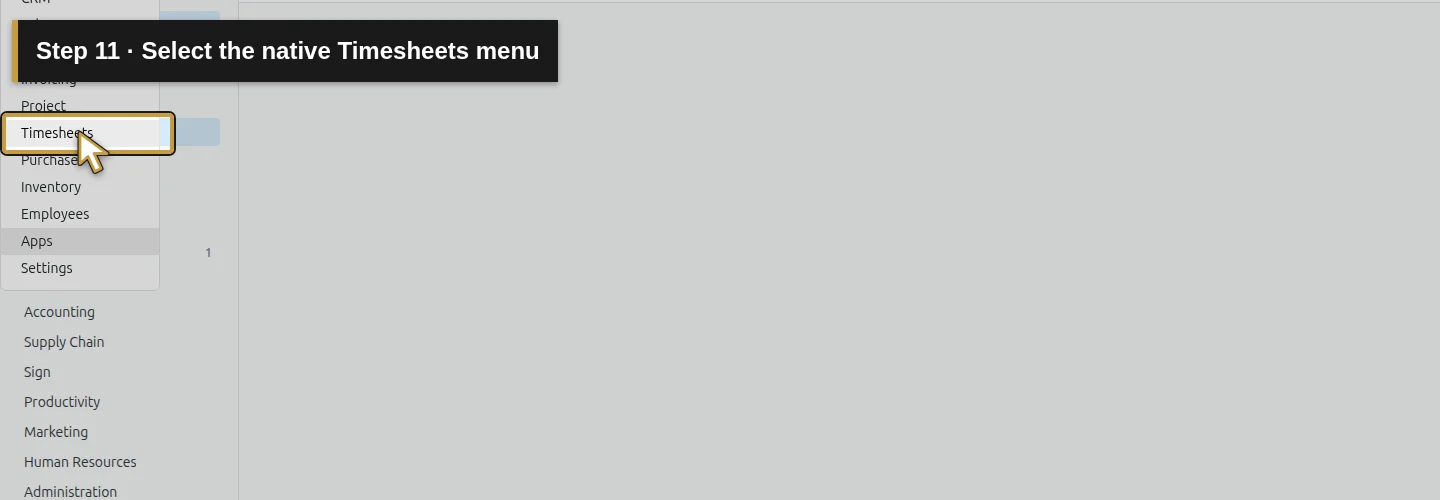
Step 11. Select the native Timesheets menu
Select Timesheets. Odoo opens the native time-entry area.
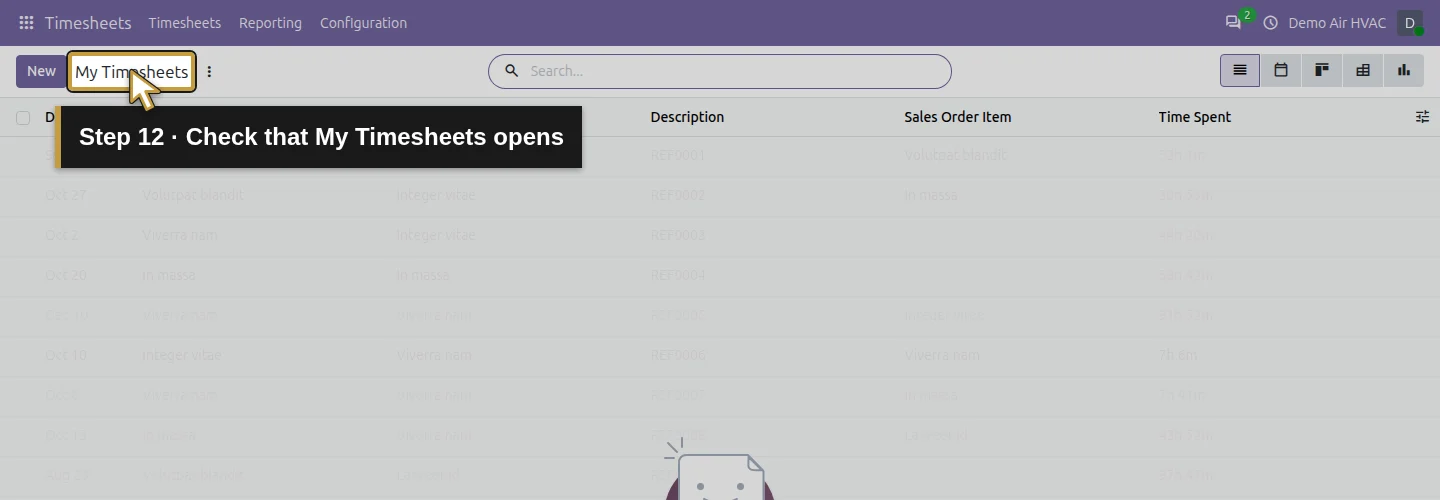
Step 12. Check that My Timesheets opens
Check that the page is My Timesheets, with Date, Project, Task, Description and Time Spent columns. You have verified access; recording a technician’s time comes in a later lesson.
If a required app is not installed
For a stock app marked Not Installed, return to its card in Kanban View and use Activate. Odoo can install supporting modules with it. When the operation finishes, reopen Apps and check the Status column again.
Test an app change on a copy or checkpoint of your database first. If an entry is Uninstallable or offers an upgrade instead of the native activation you need, check its availability for your edition. Select the supported native option for your task.
Our recording verifies apps that are already installed. The activation branch follows Odoo’s version-20 app documentation; a fresh installation is outside this recording.
Check your result
- Compare your selected app checklist with the Installed entries in Apps.
- Open the app you need next from the app menu and confirm its actual screen loads.
- Keep a separate list of any unavailable entries or missing prerequisites before starting a transaction.
In this demo, the eight core app entries and native Task Logs module show Installed, and the native Timesheets menu opens My Timesheets. That verifies availability, not completion of every business workflow.
Questions about choosing Odoo apps
Which Odoo apps should an HVAC business start with?
Choose the next business task first. Our series starts with Contacts, CRM, Sales and Invoicing for customer enquiries, quotations and billing. Purchase, Inventory, Project and native time logs support the first job’s materials and delivery. Employees is introduced for the employee and time-entry prerequisites. This is a worked example; your own sequence can depend on the work you do.
How do I check whether an Odoo app is installed?
Open Apps, select List View, and read the Status column beside the entry. In the tested demo, the selected entries show Installed. Removing the Apps filter includes supporting modules, such as Task Logs, in the search.
How do I install an Odoo app?
For a supported stock app marked Not Installed, use Activate on its card, then check the installed state after the operation completes. Odoo can install dependencies too. Test the change on a database copy or checkpoint first. This recording checks already-installed apps; the linked Odoo documentation explains activation.
Why does Odoo show an unavailable Timesheets app?
The tested Community catalogue contains an unavailable Timesheets entry, while the native Task Logs module is installed. Removing the Apps filter reveals Task Logs, and the existing Timesheets menu opens My Timesheets. Check the actual module and status instead of treating similar names as the same feature.
Do I need every Odoo app to start a business?
Start with the tasks you need to complete and add apps as those tasks require them. The catalogue includes entries for other business types and editions. Our checklist is for Demo Air’s worked example and does not establish a universal minimum.
Your next business step
Alex can now check who should see and change records before adding the rest of the team. The next lesson in the series will cover user access rights.
Need help choosing and setting up Odoo?
Talk through your company’s first workflows with Onward. We can help you assess the next setup step and the scope of an Odoo implementation.
Talk about your Odoo setup