
Running an HVAC business with Odoo
How do I record materials used and returned on an Odoo job?
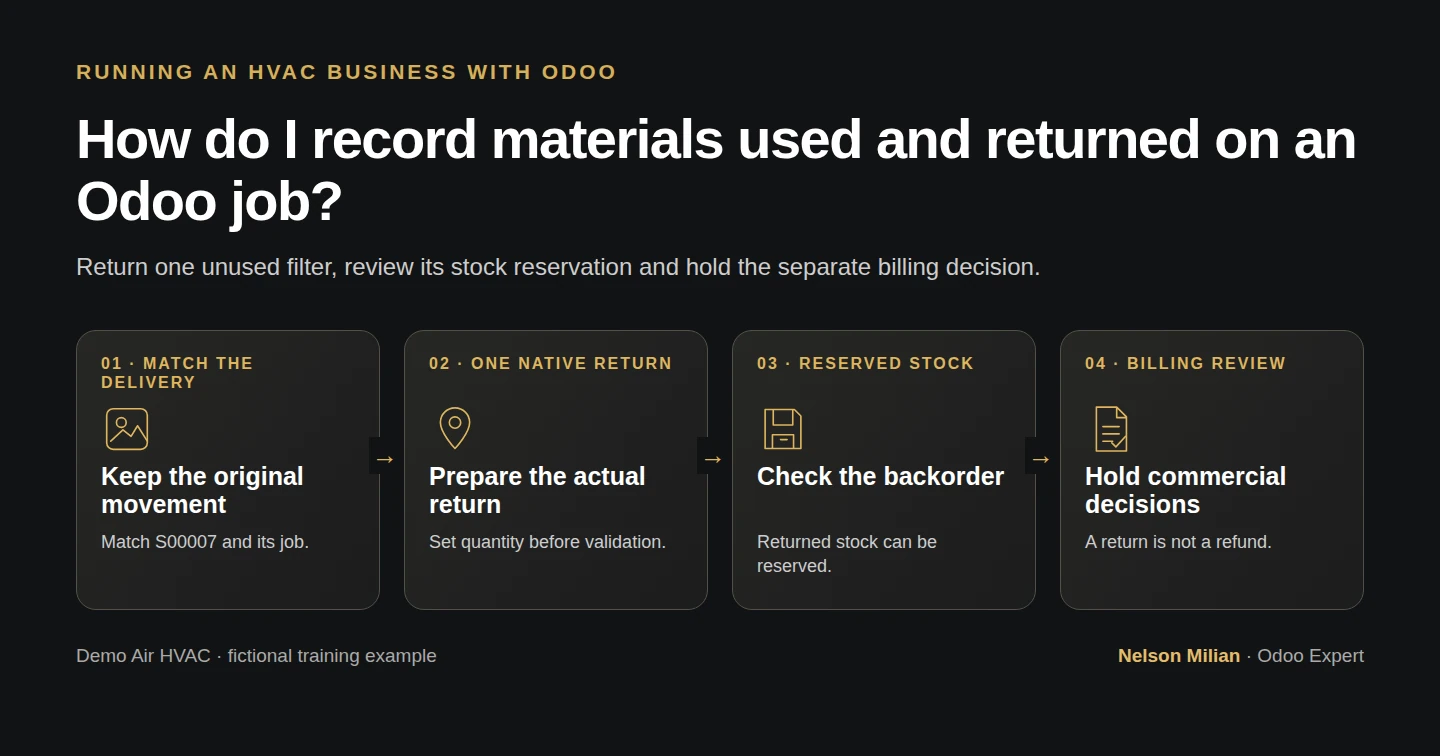
Reconcile Odoo job materials with actual delivery and return records, then check net delivered stock, backorders and ordered-quantity billing.
Alex needs the office’s materials record to agree with physical stock. In this example, the one filter delivered for a training job was unused and comes back to the warehouse. We retain the original delivery, complete its native return and record the remaining backorder and billing exception on the matching job.
Alex Rivera and Demo Air HVAC are fictional training examples. Prices, dates, quantities and business situations in this guide are illustrative.
Before you begin
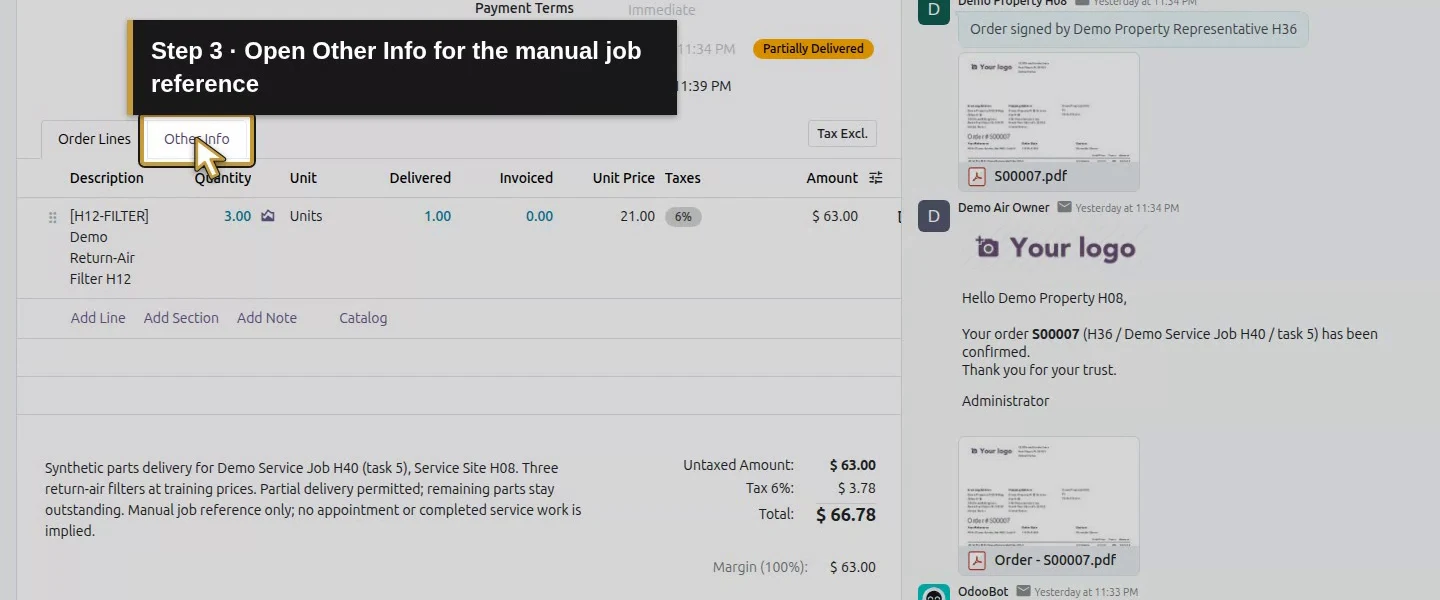
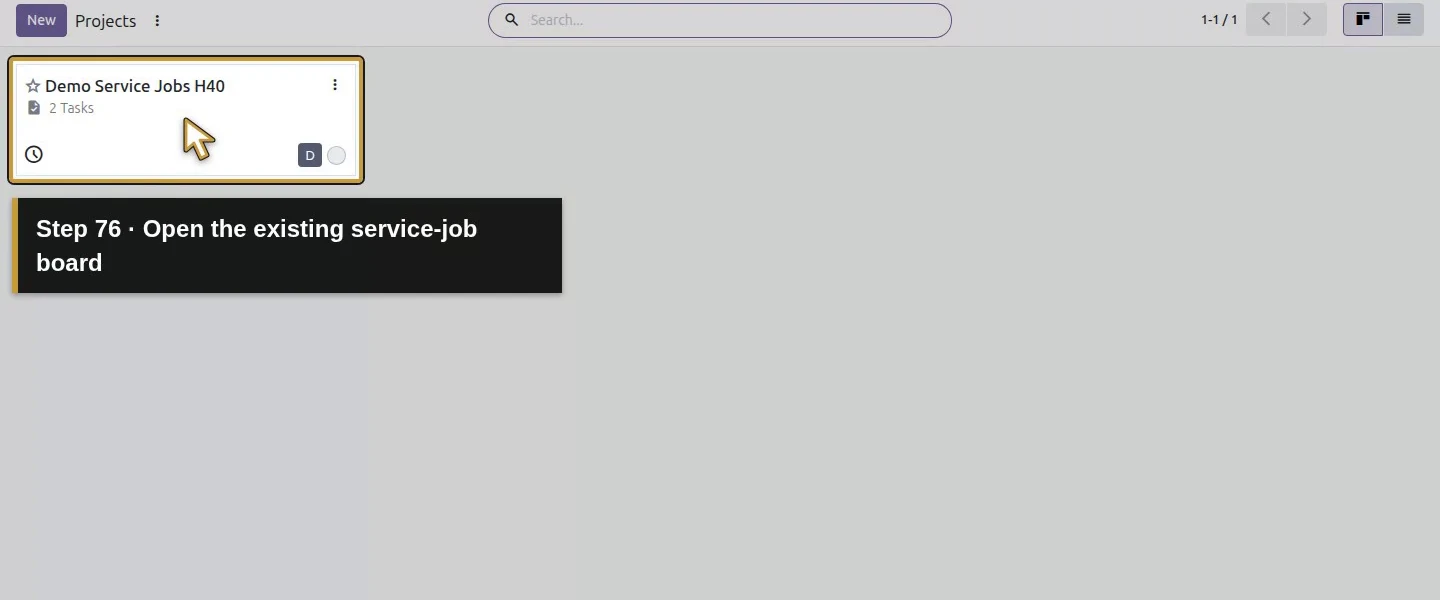
Tested in stock Odoo 20.0-20260926 Community as the demo owner administrator, with official modules and standard configuration. Use the existing parts order/delivery from reserve and deliver parts and its manually referenced job from create a manual service job. S00007’s Customer Reference identifies Demo Service Job H40 / task 5. That is the materials job in this lesson. The separate create a task from a sales order example, S00008 / task 6, remains a time-billed service job and is not silently merged into this order. Work as the owner with stock/sales access. Begin with original delivery WH/OUT/00002 Done for one filter, WH/OUT/00003 Ready for the remaining two, warehouse one reserved one and van two unreserved. Use only genuinely unused, inspected material for a real return; this rehearsal is wholly fictional.
Step-by-step workflow
Return one unused filter, check stock reserved for the open backorder and keep the billing decision under review. This fictional example records no installed material or customer refund.
Step 1. Match the job, parts order and completed delivery
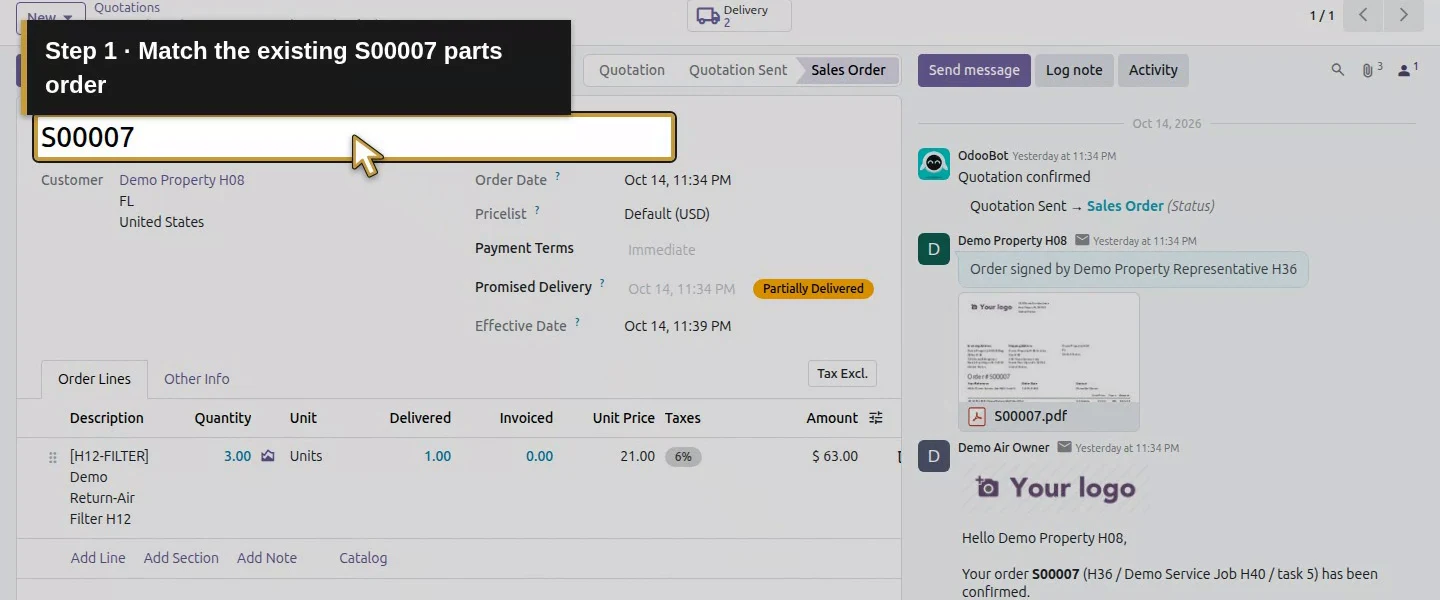
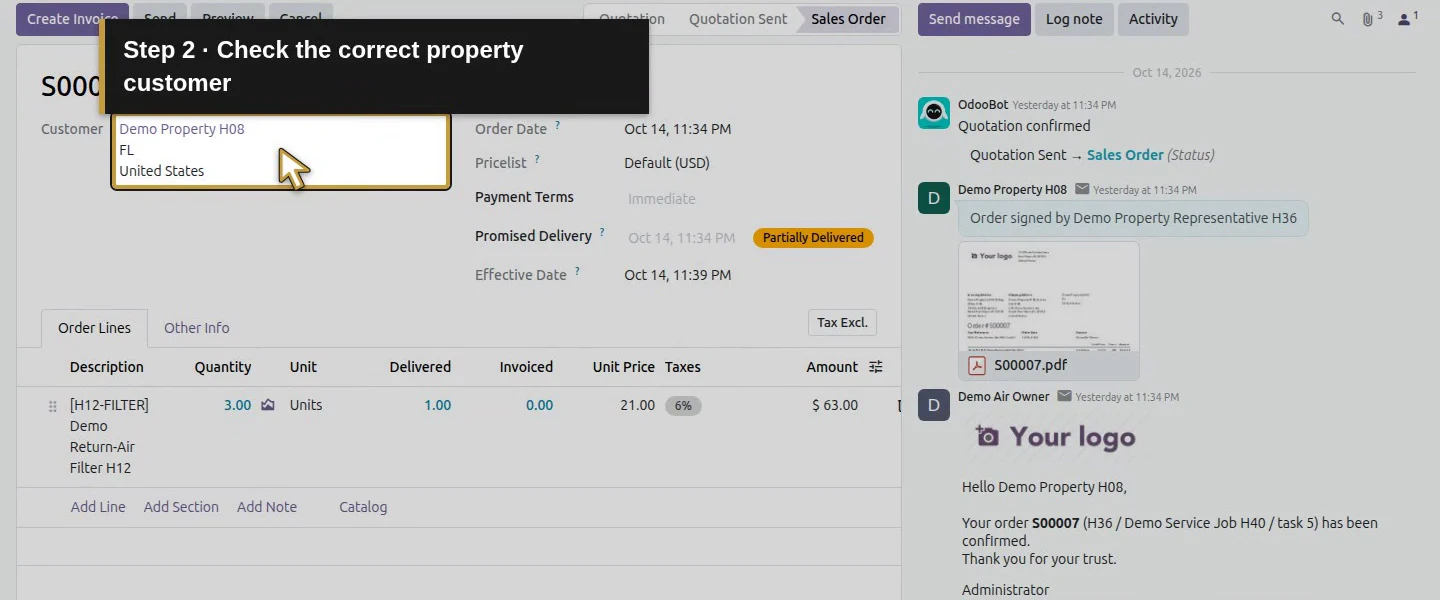
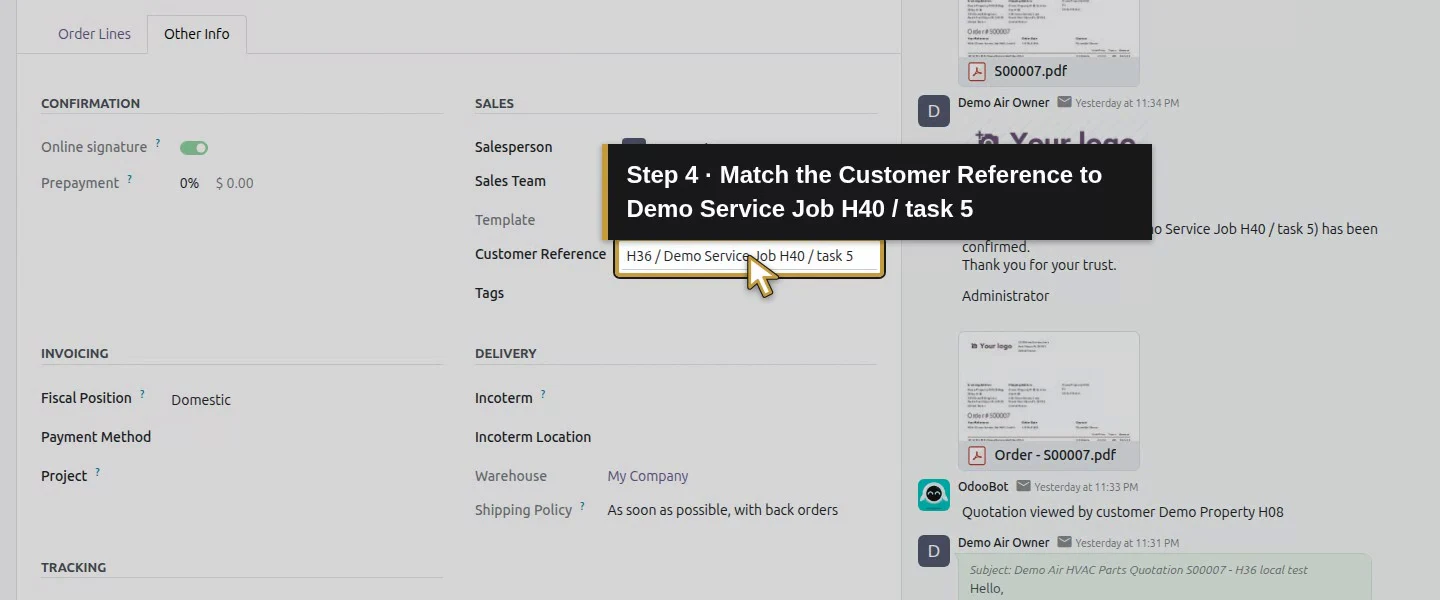
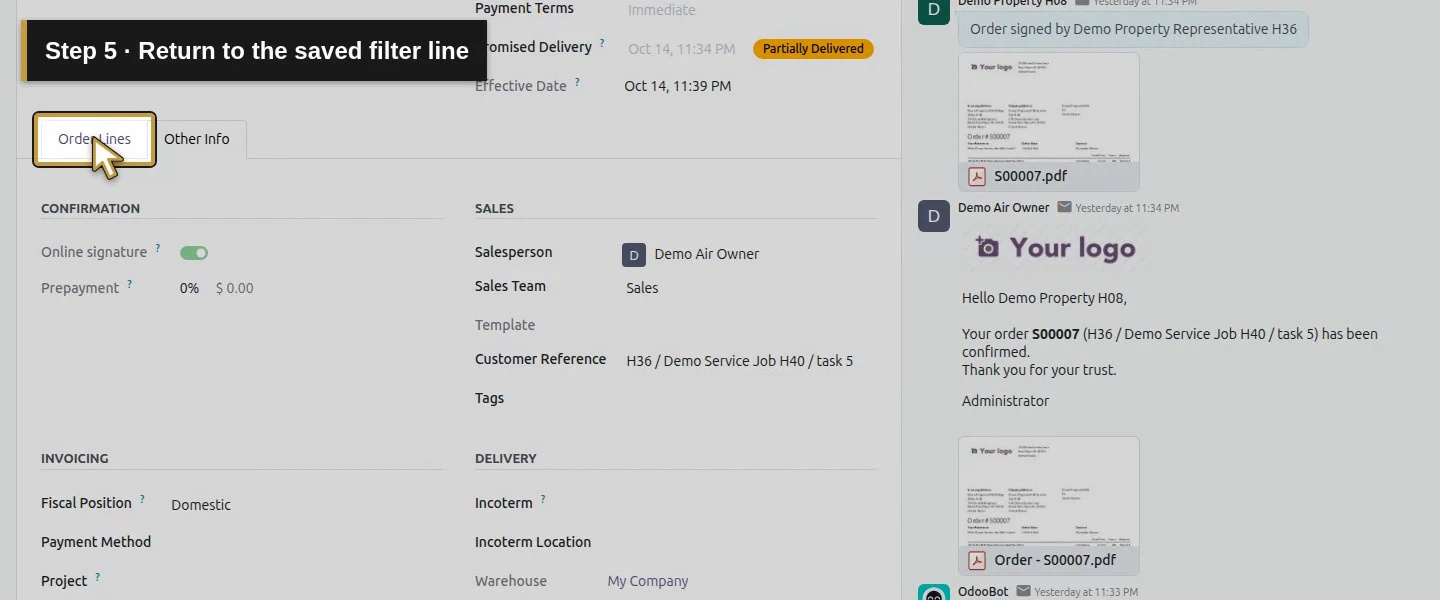
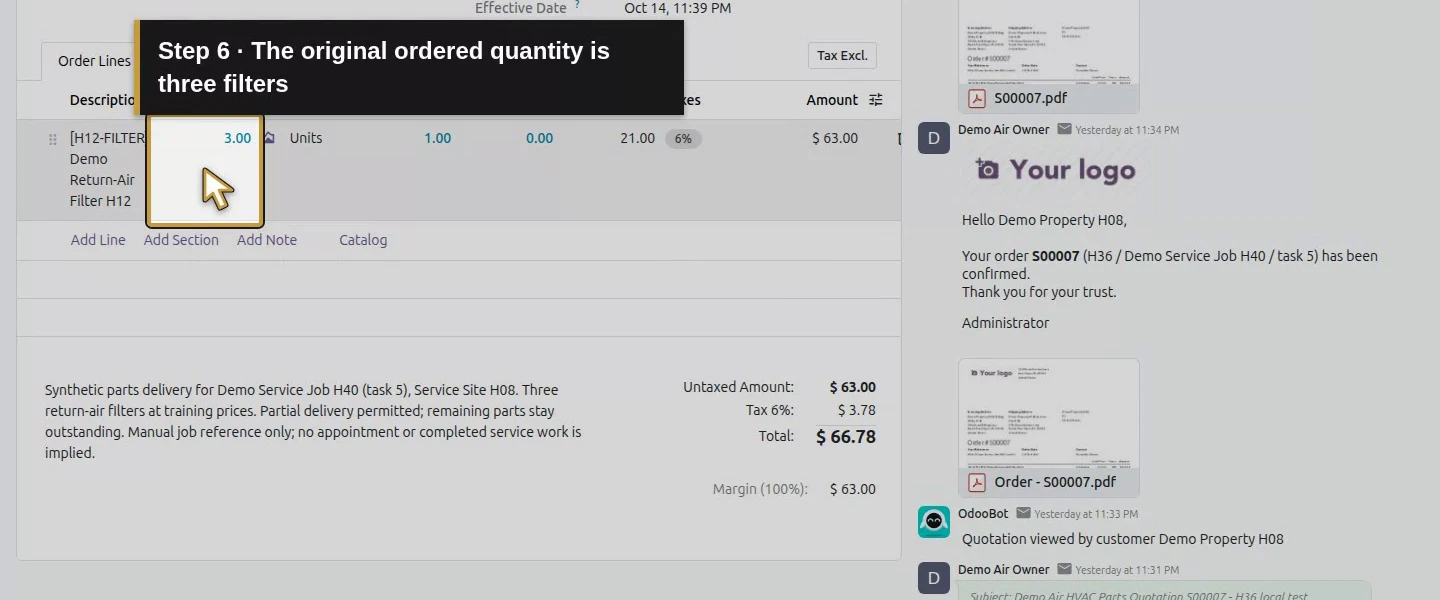
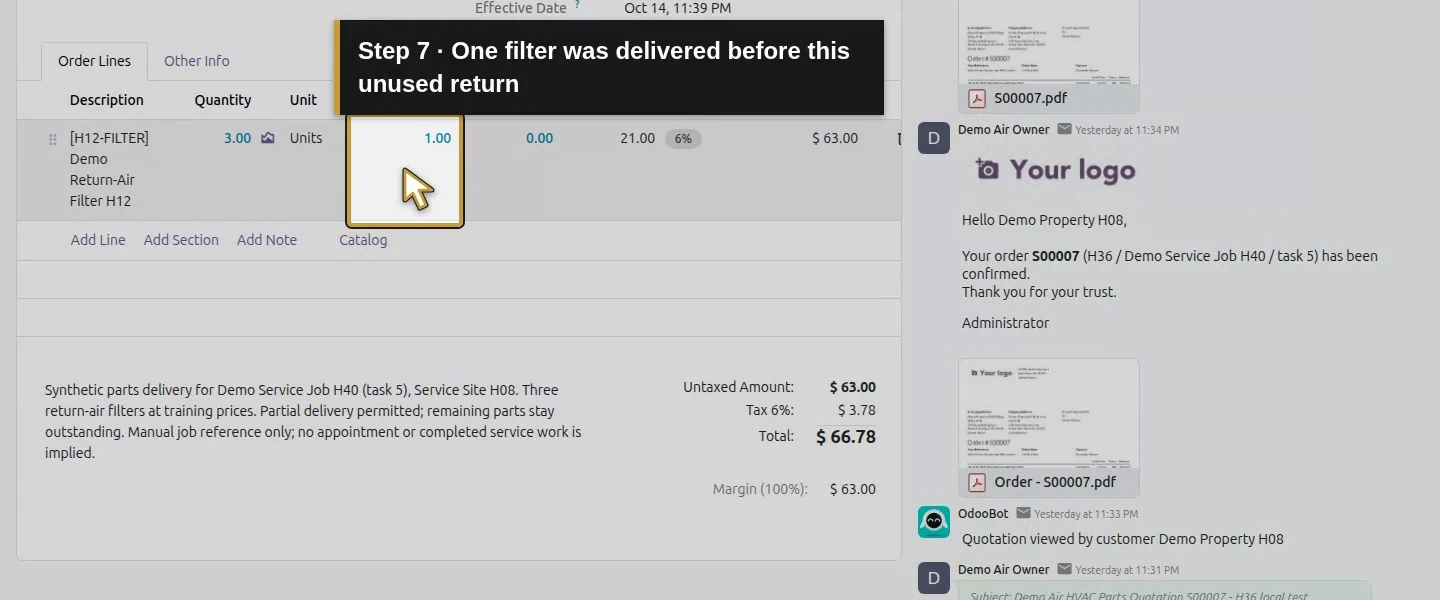
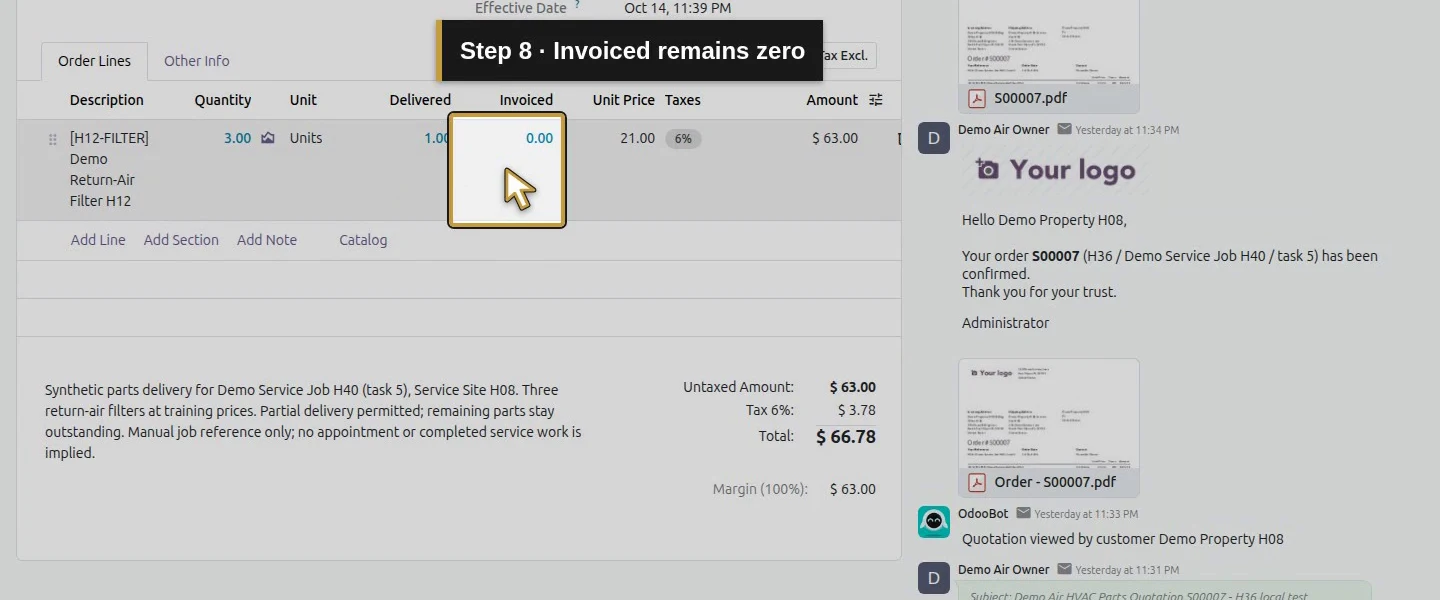
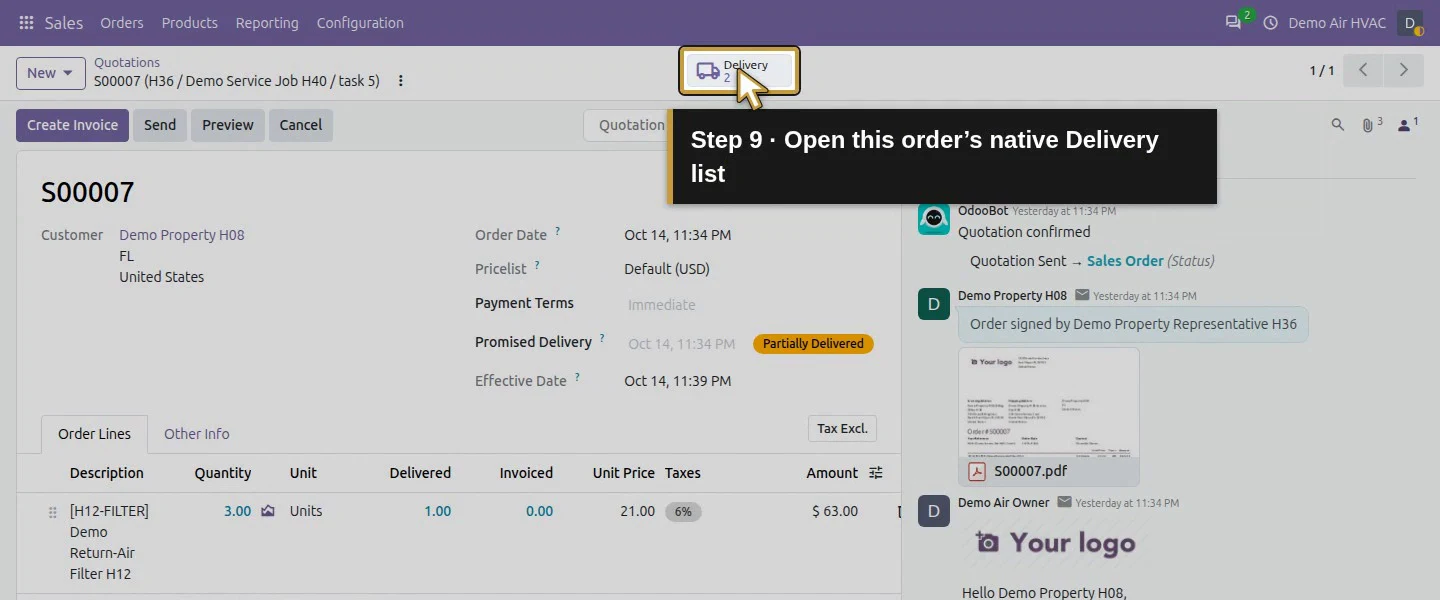
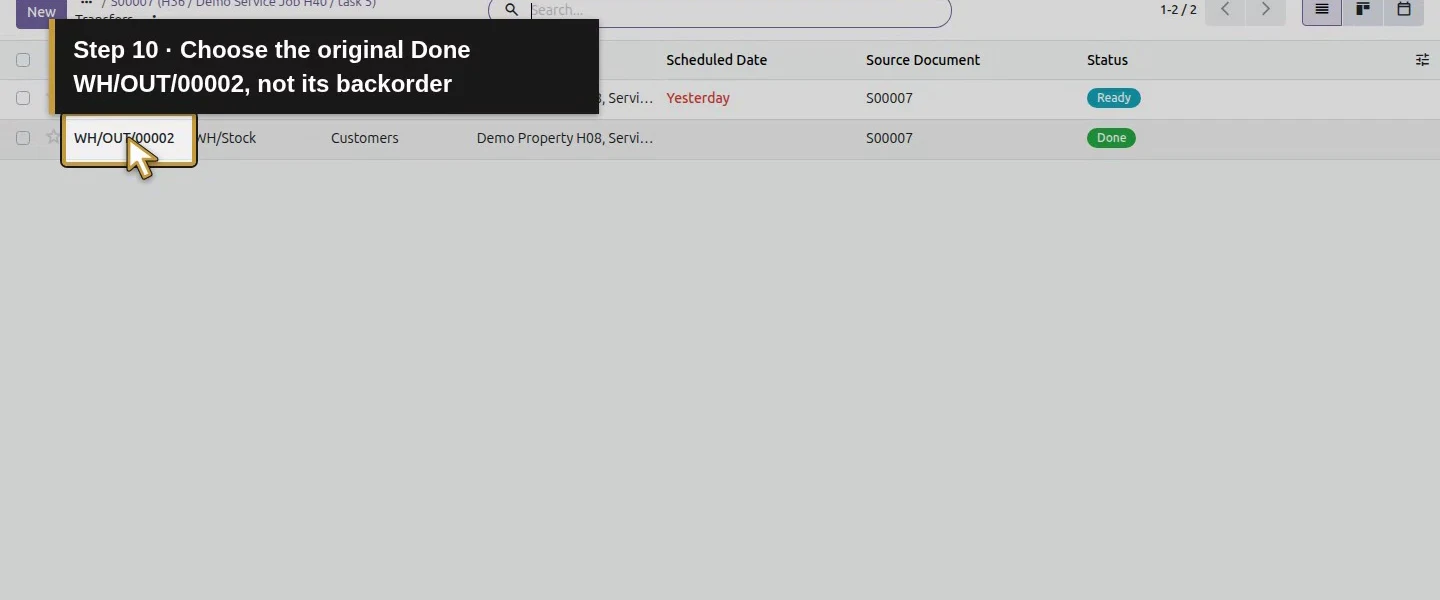
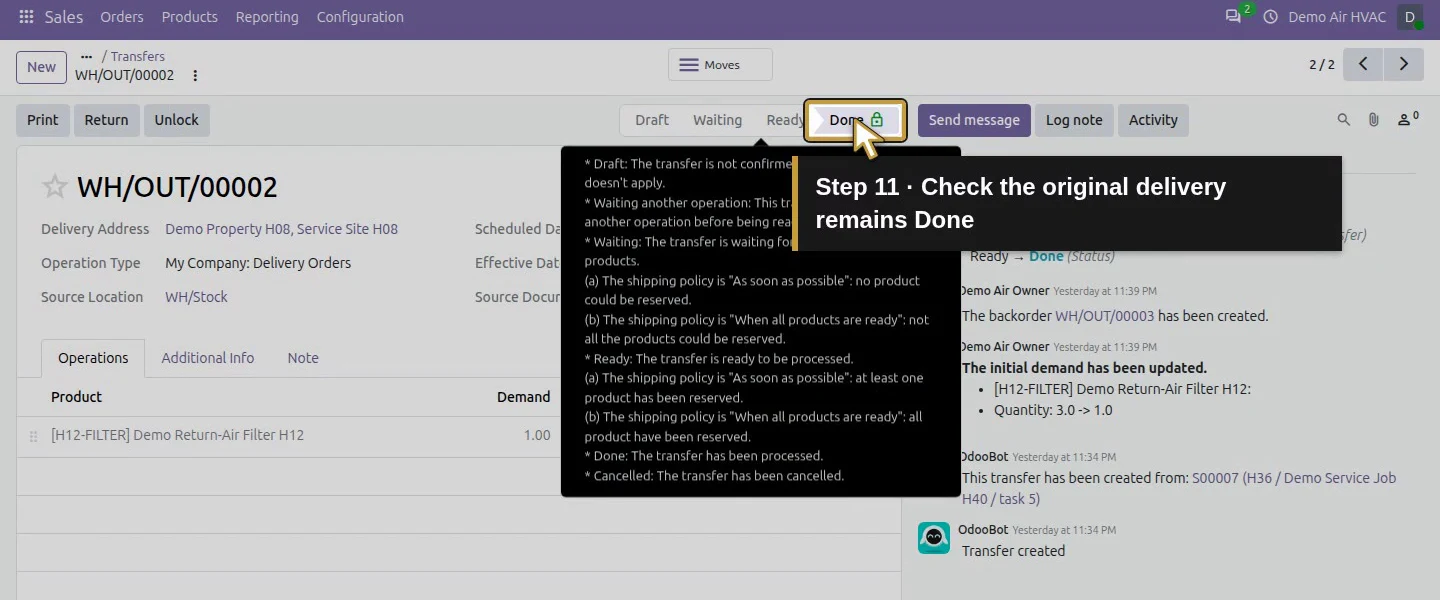
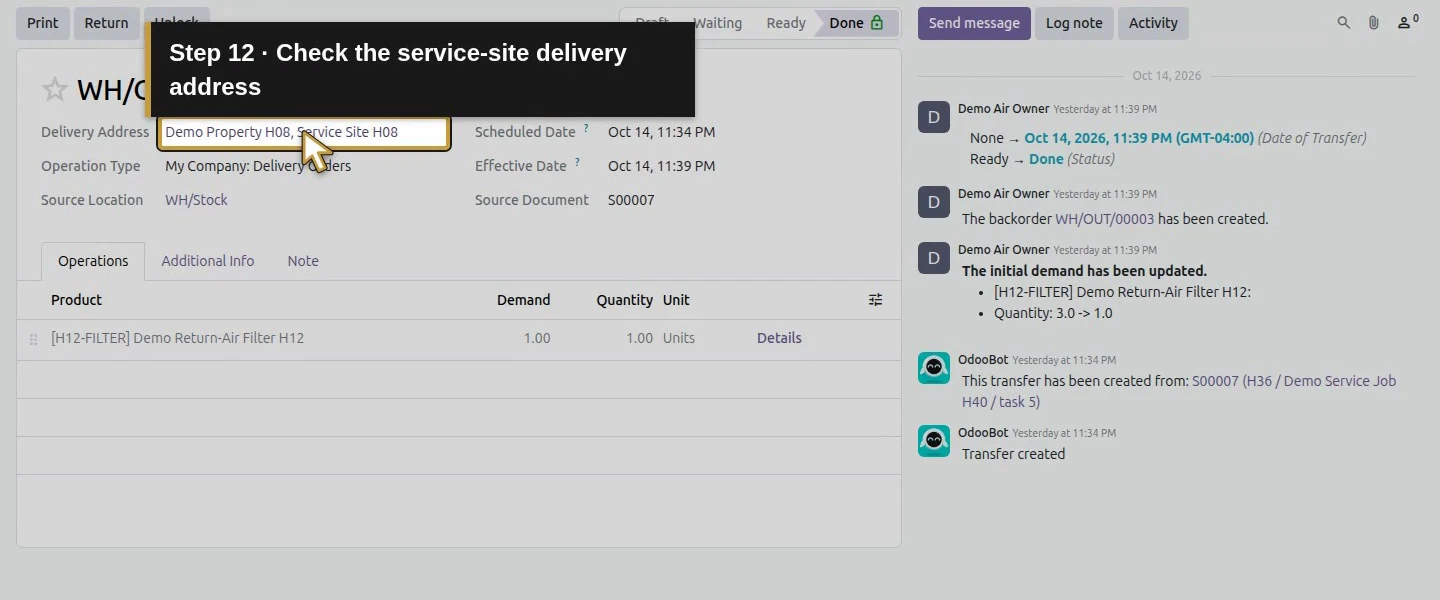
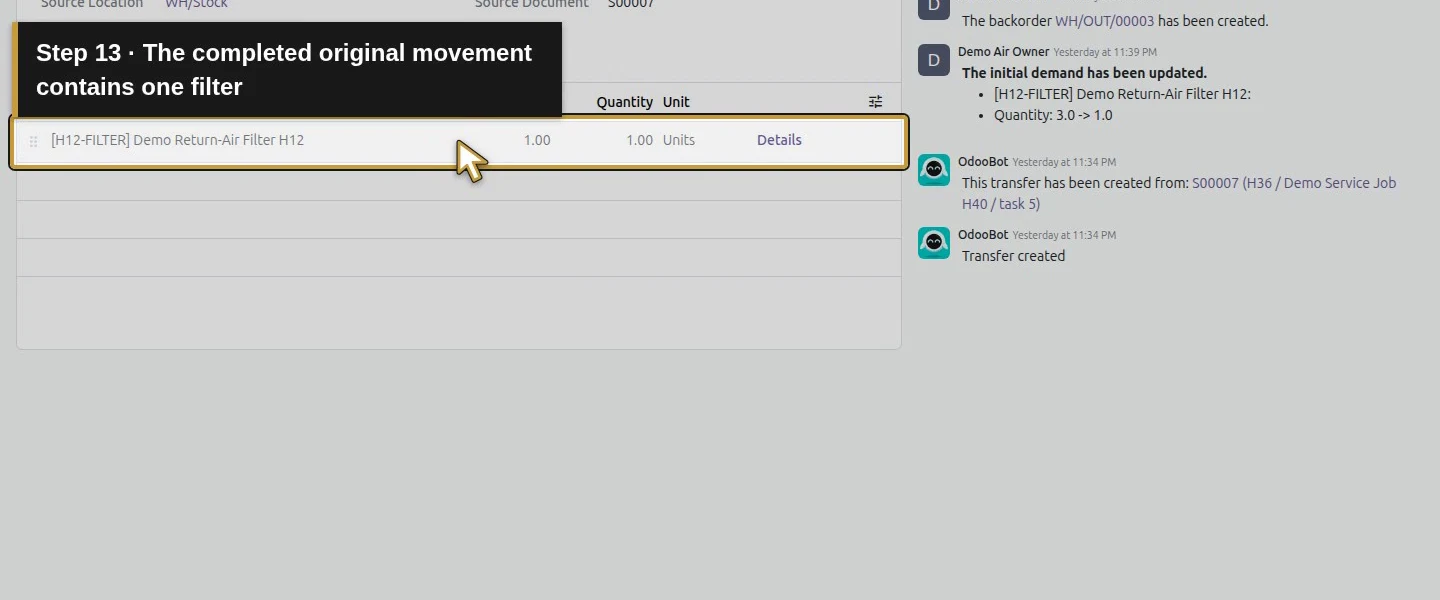
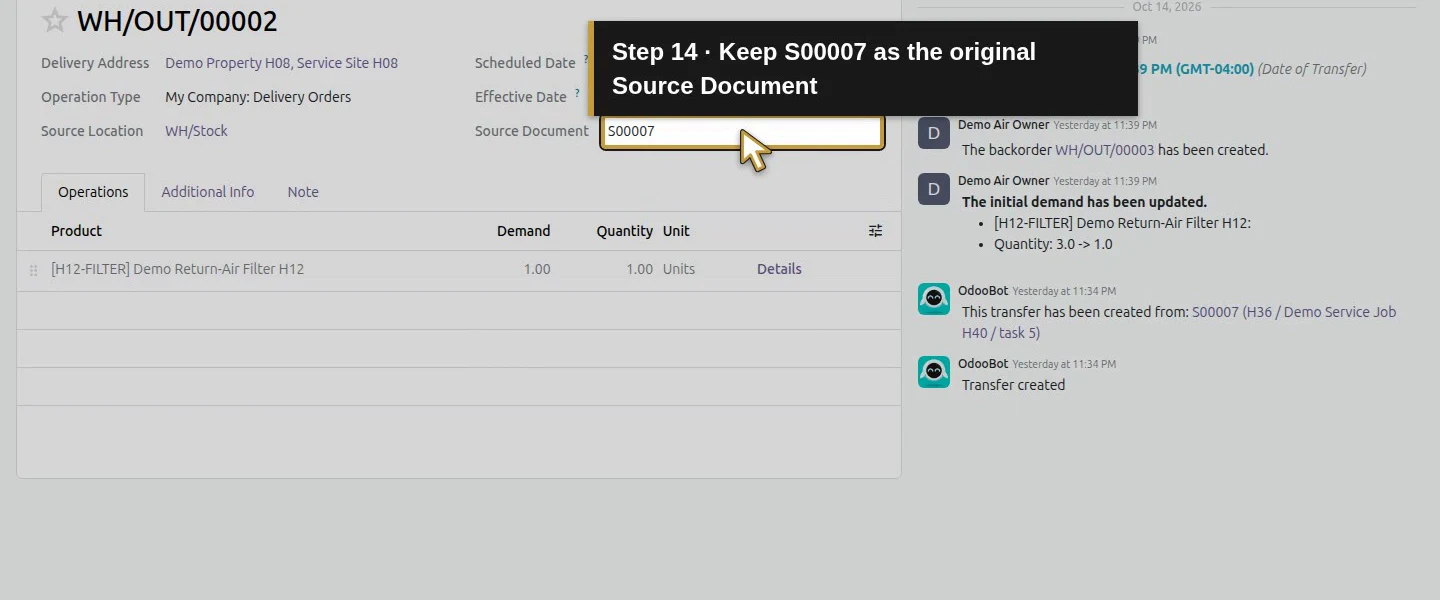
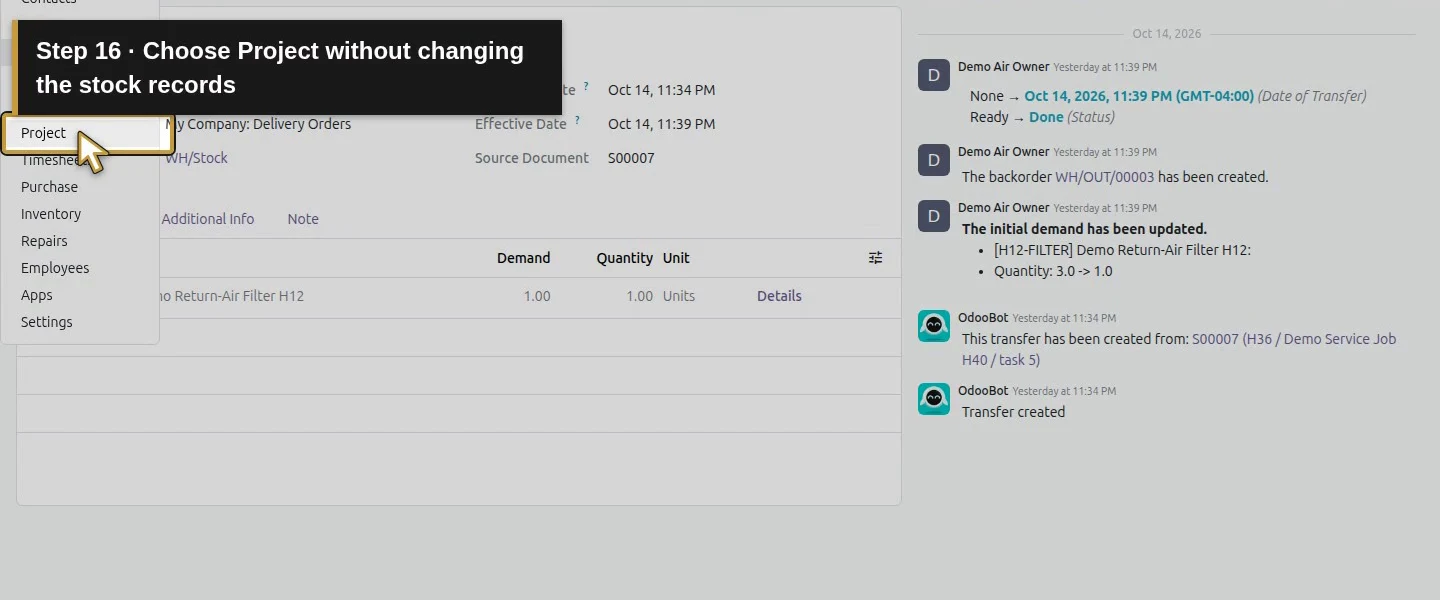
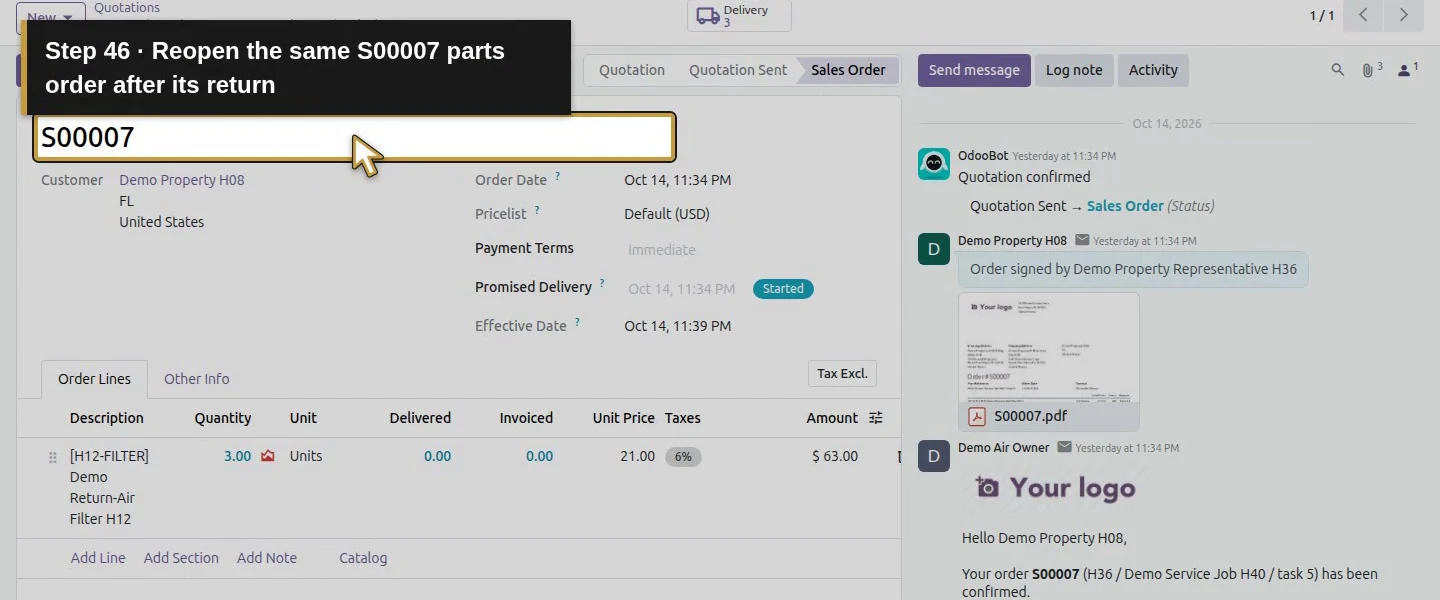
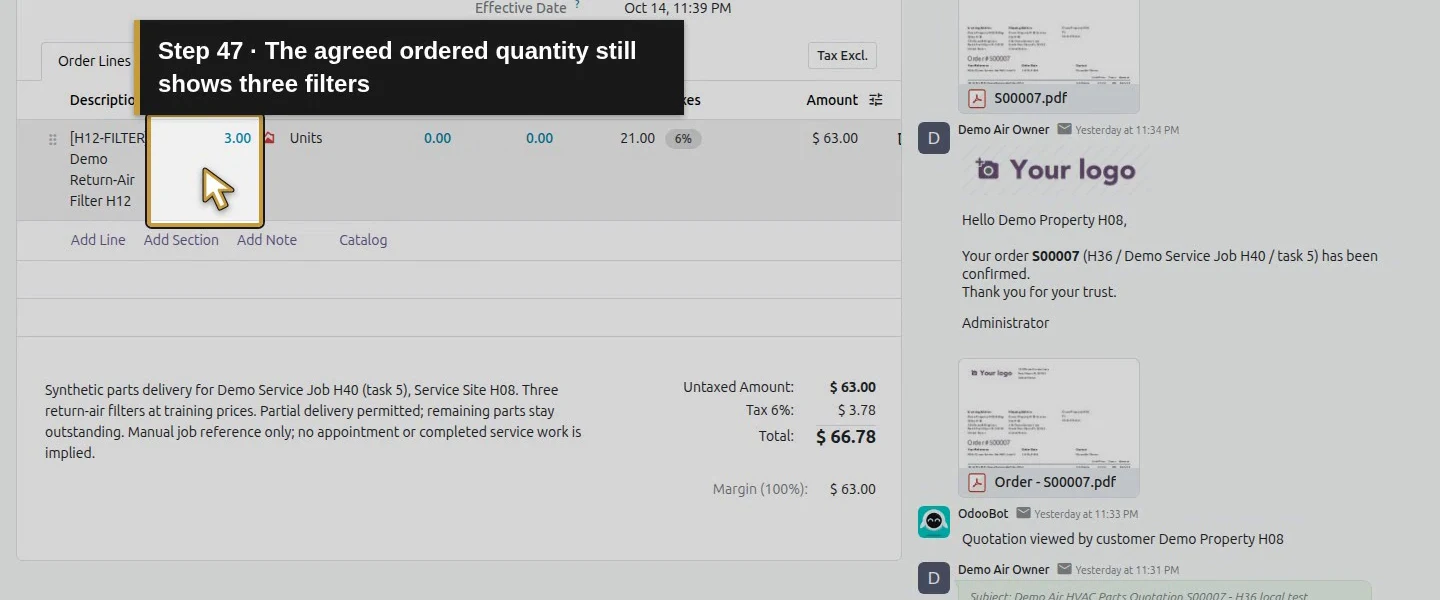
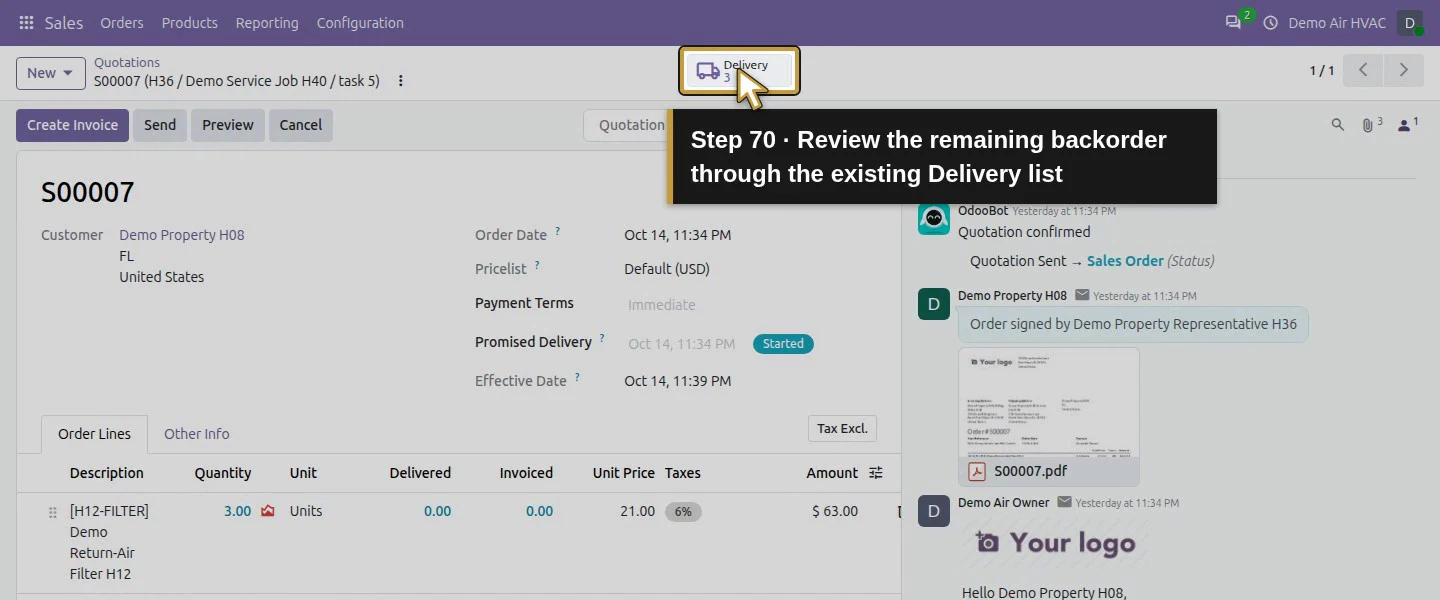
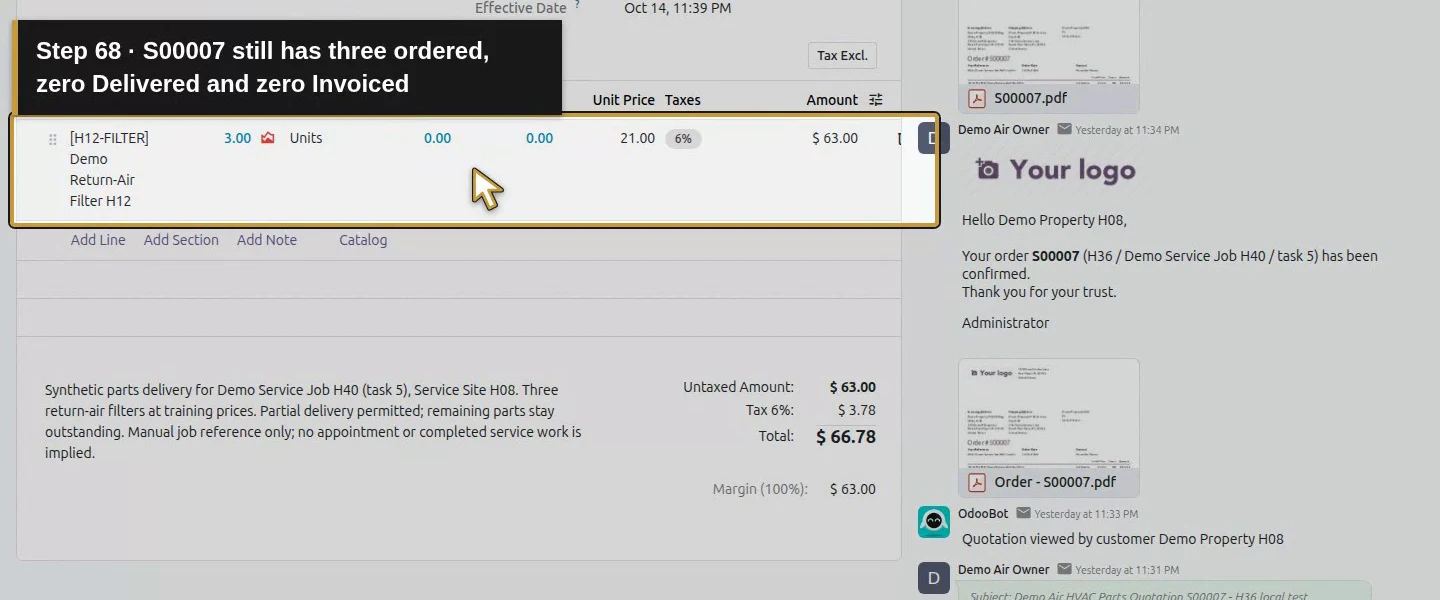
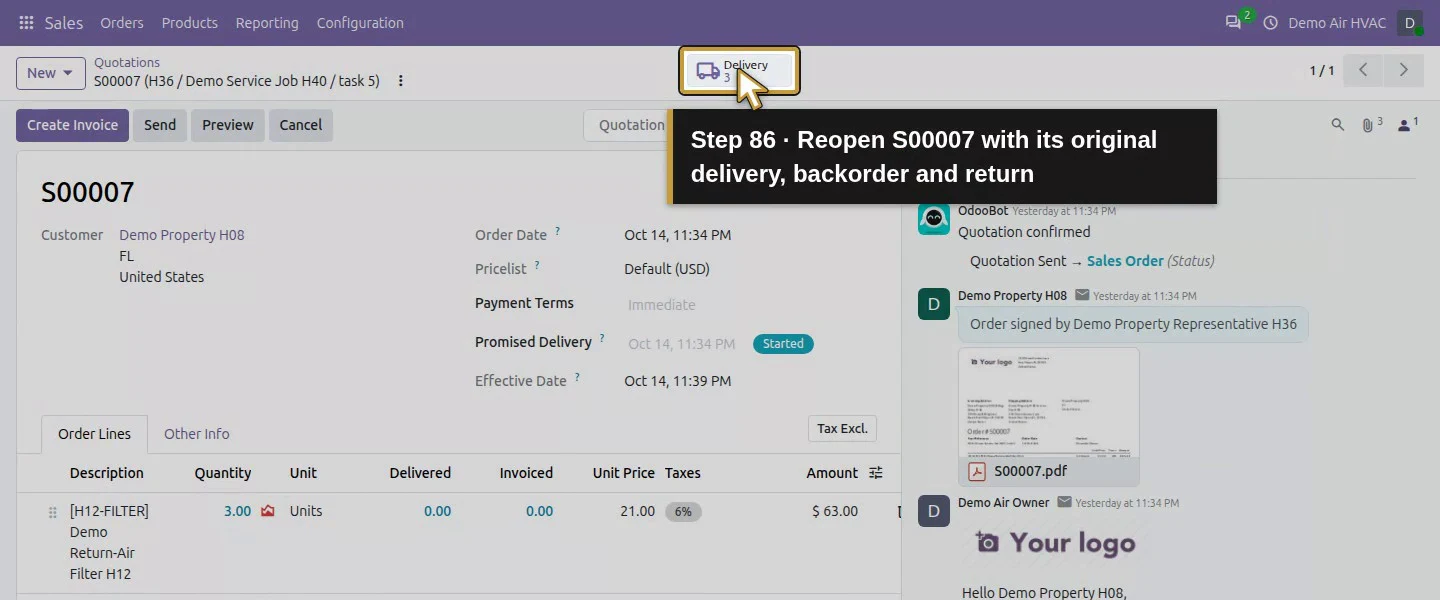
Open S00007 and check its Customer Reference, customer and filter line. Its ordered quantity is 3.00, Delivered 1.00 and Invoiced 0.00. Open Delivery and select the completed WH/OUT/00002, not the outstanding WH/OUT/00003. Check the service-site address and original completed one-filter quantity. Delivery records explain movement to the customer; they do not prove a part was installed or consumed.
Step 2. Record the materials report on the matching task
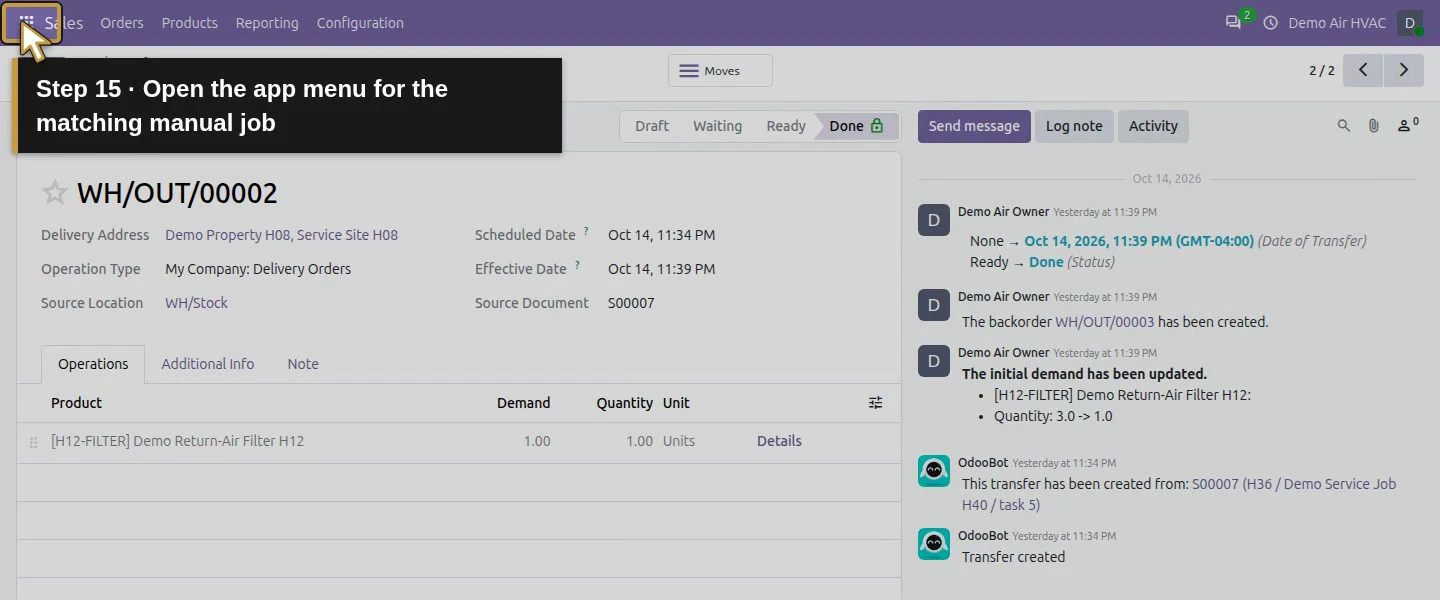
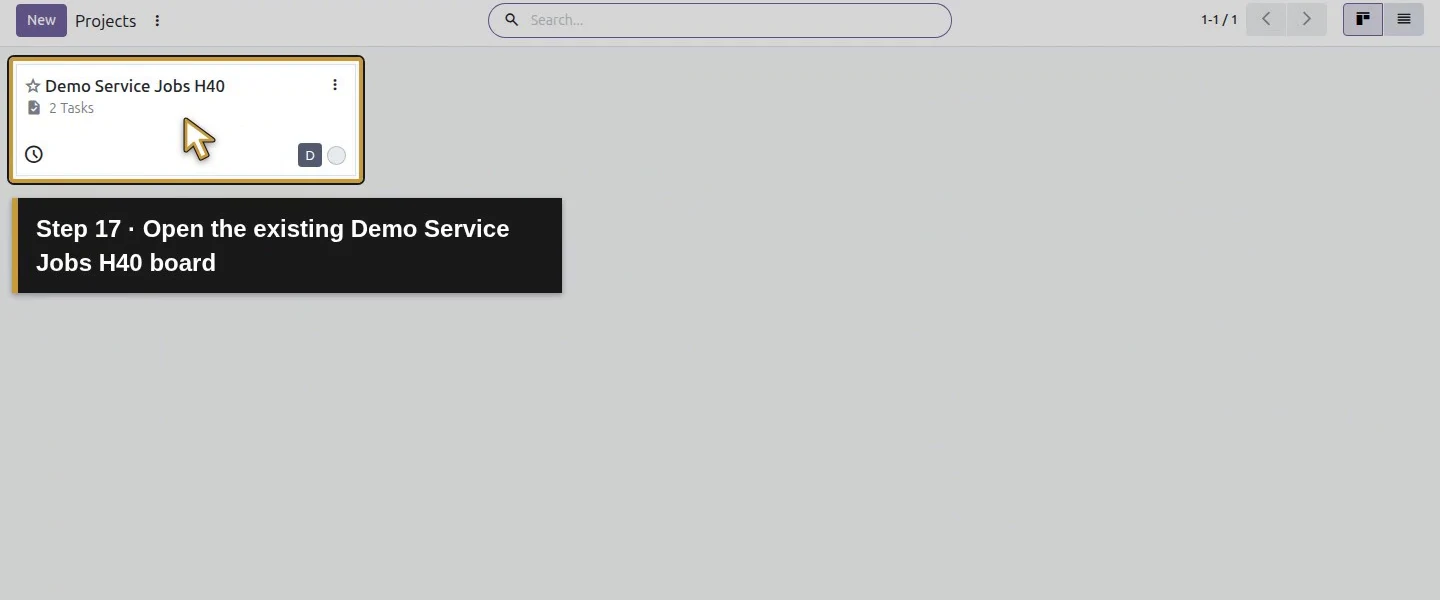
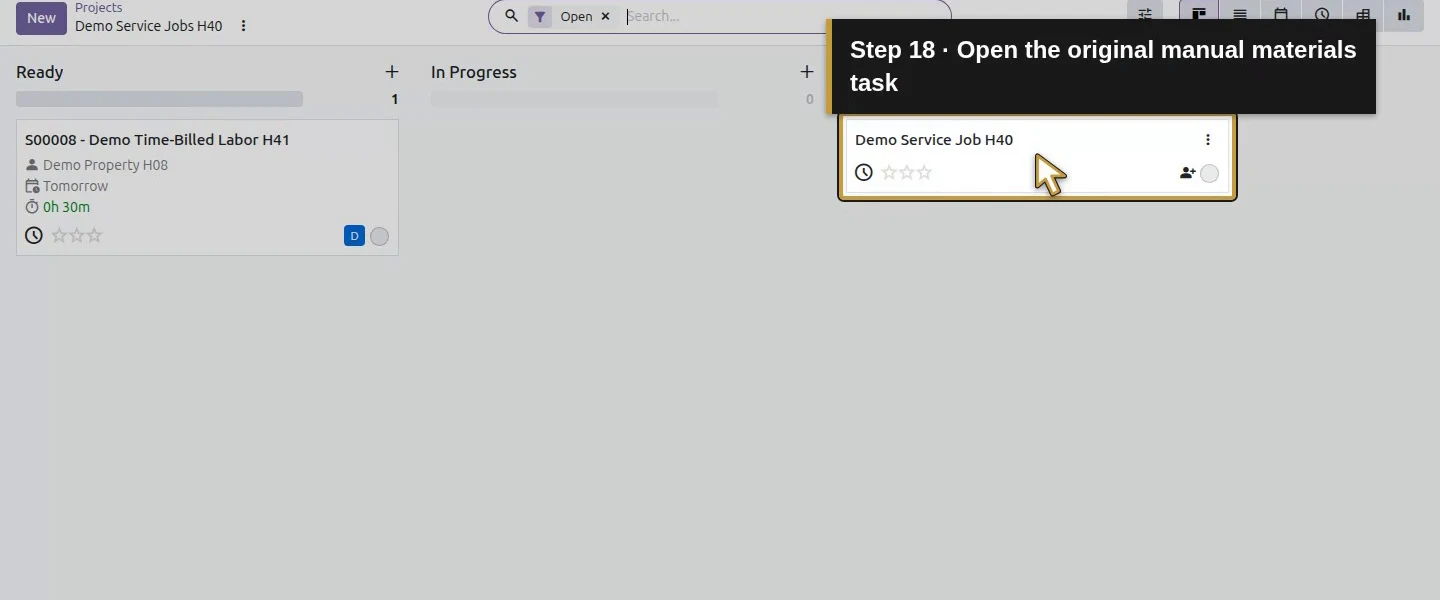
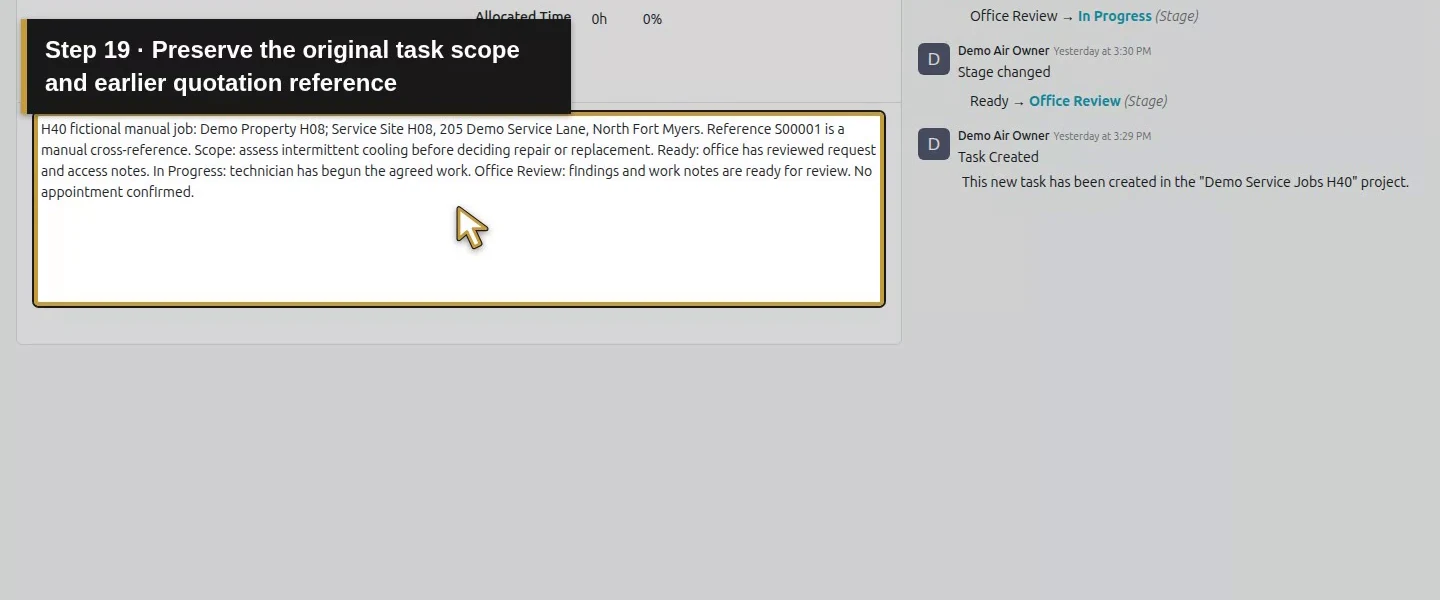
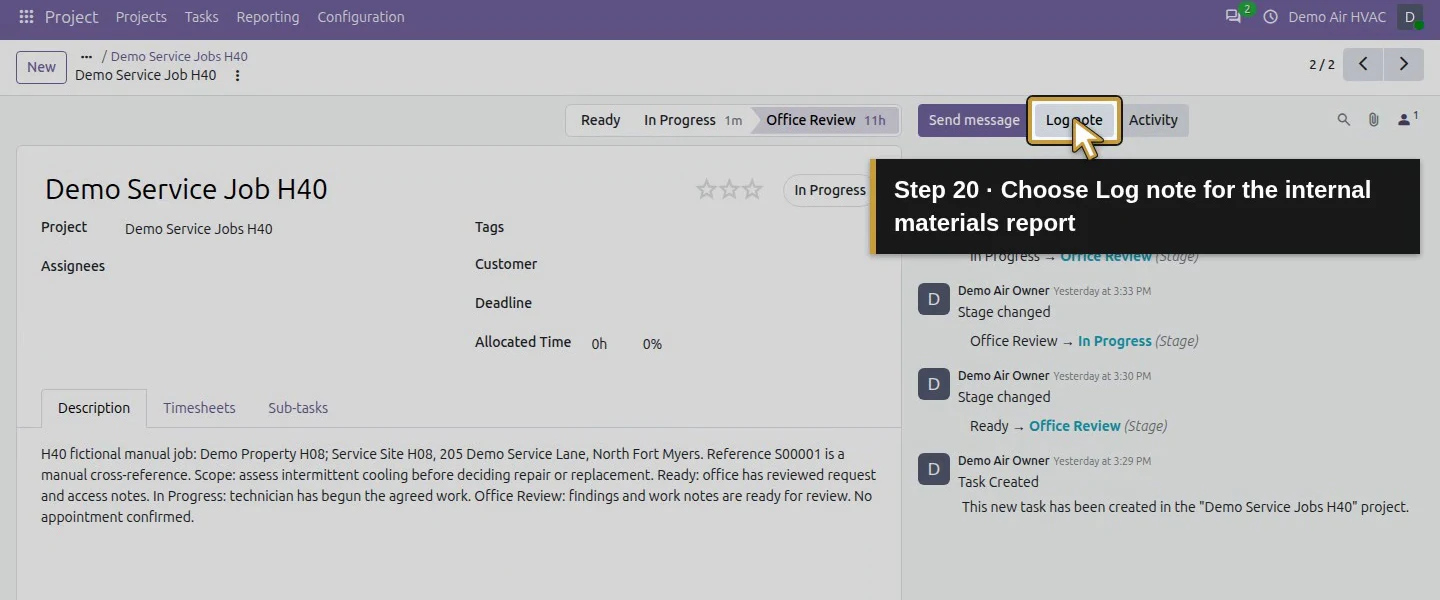
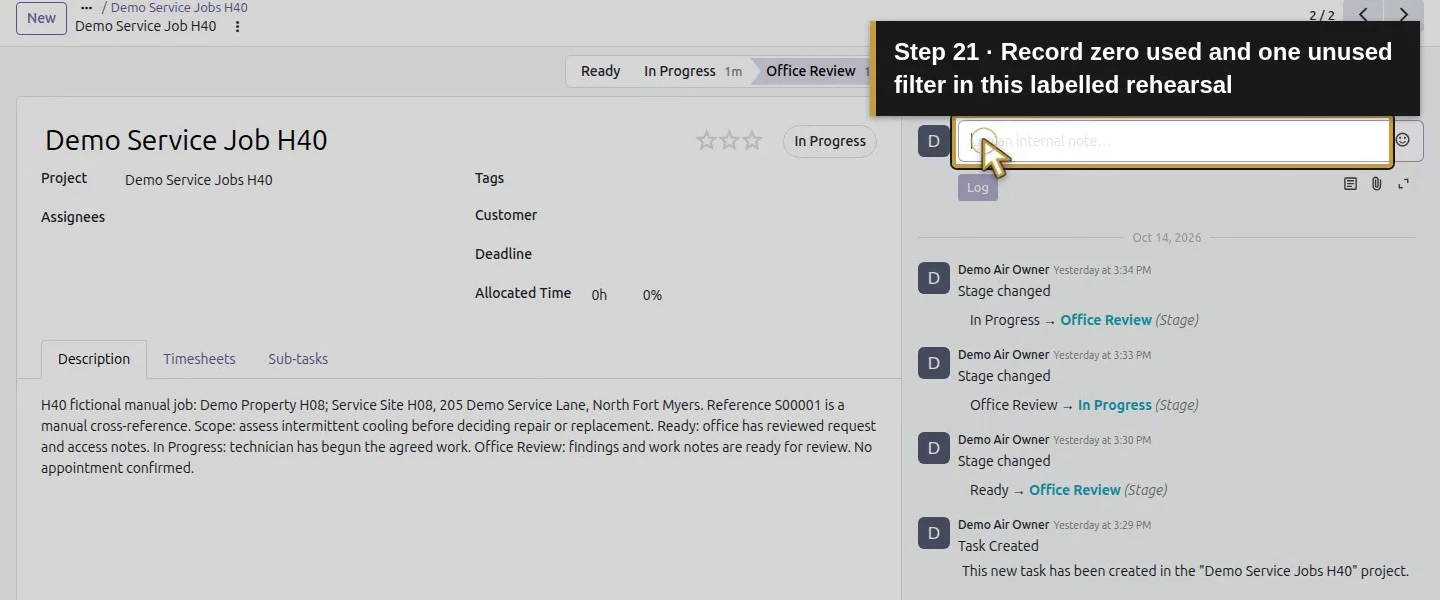
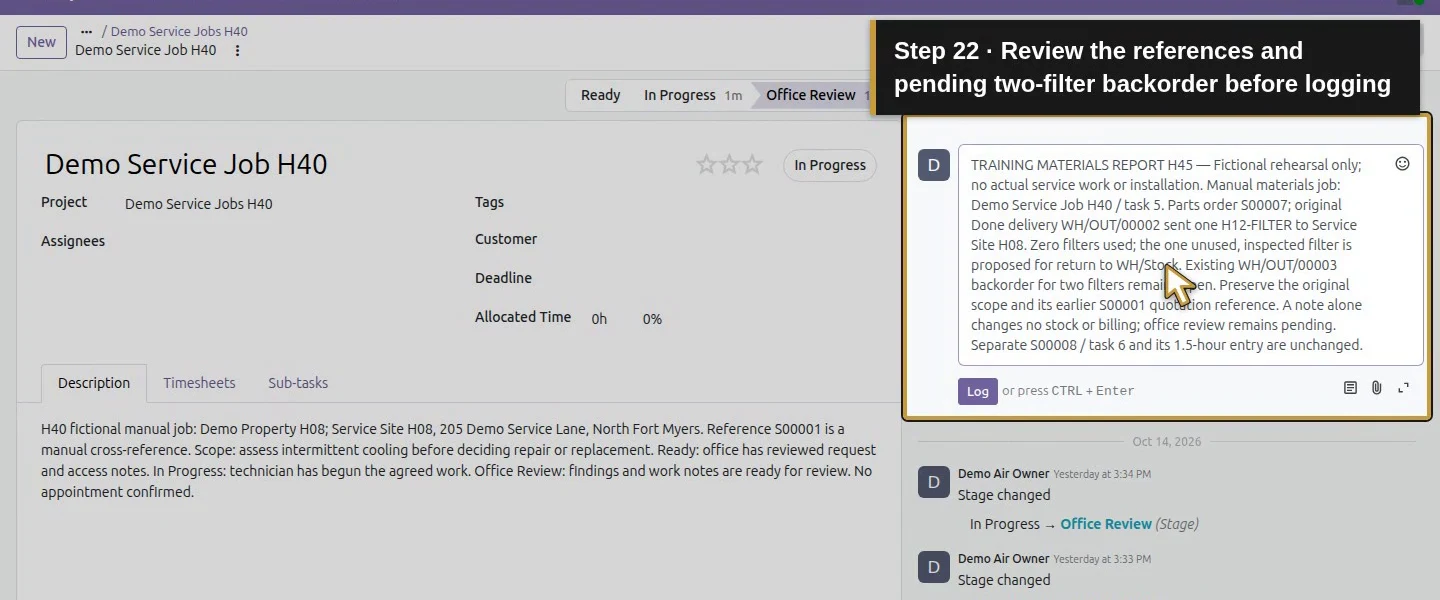
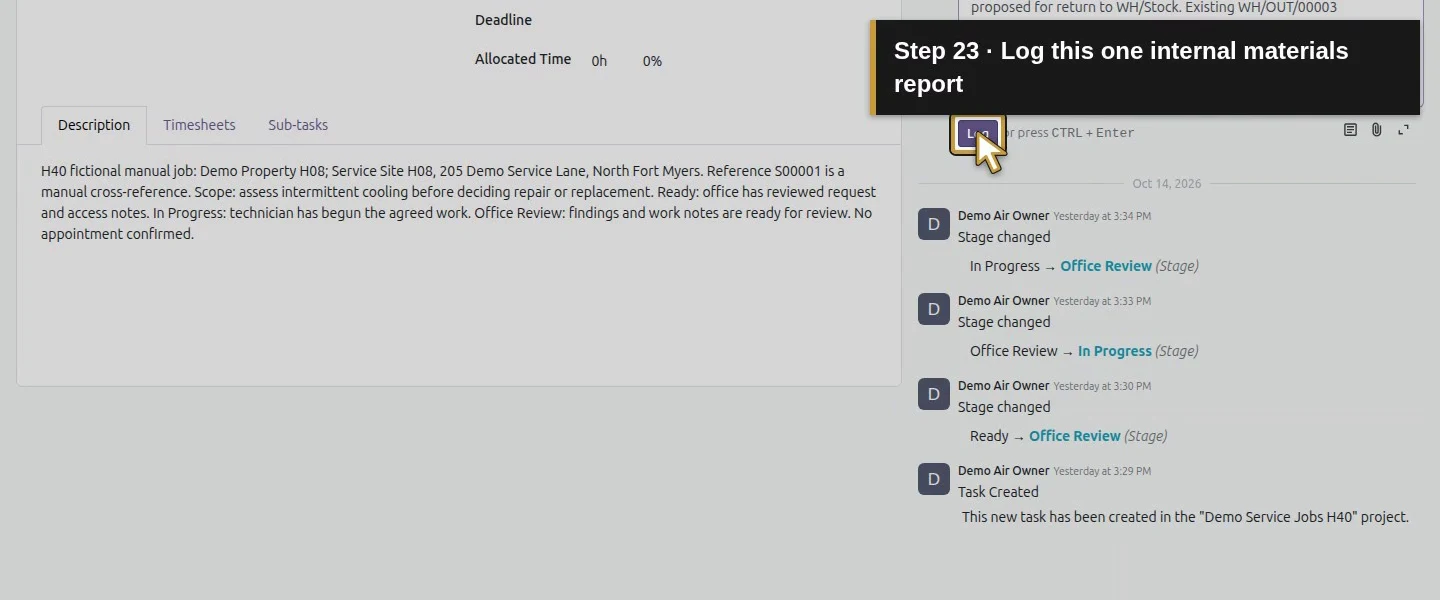
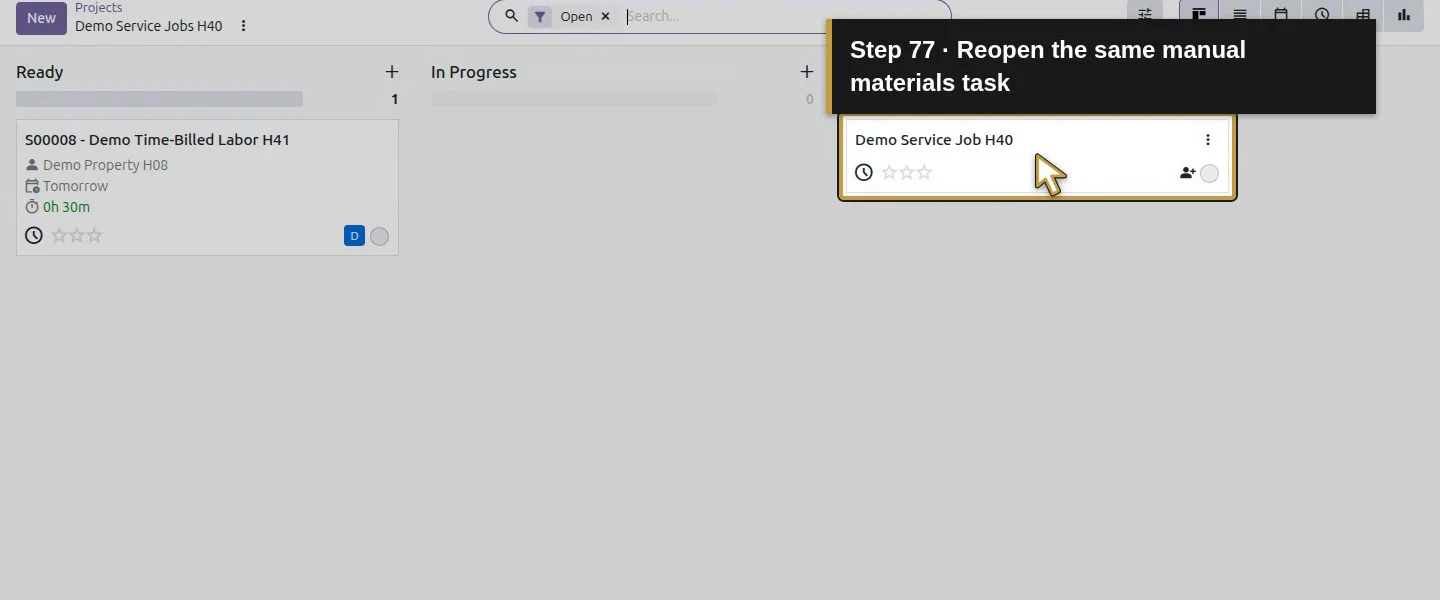
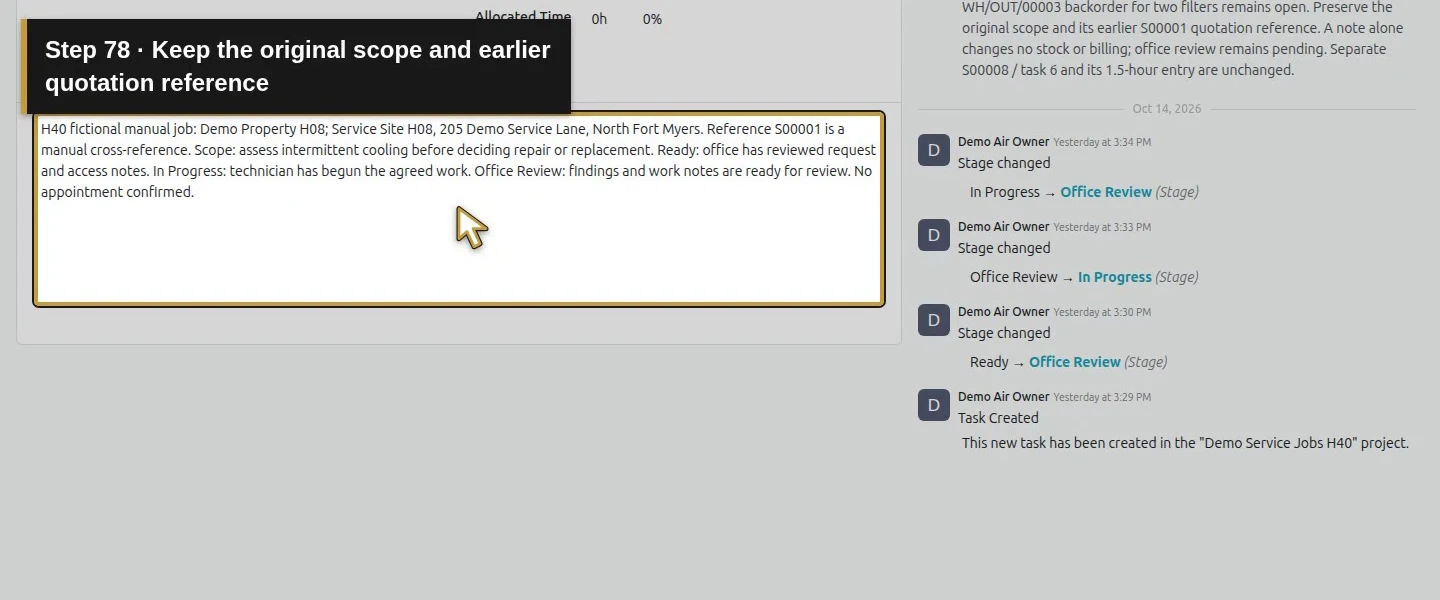
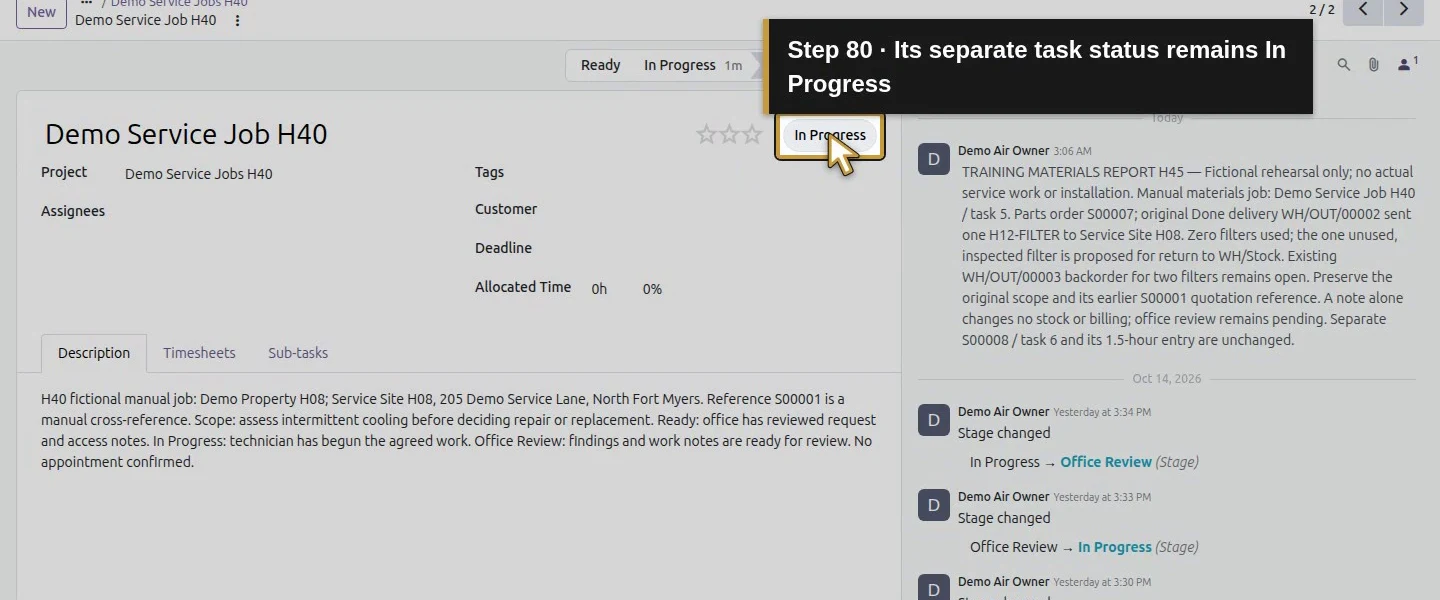
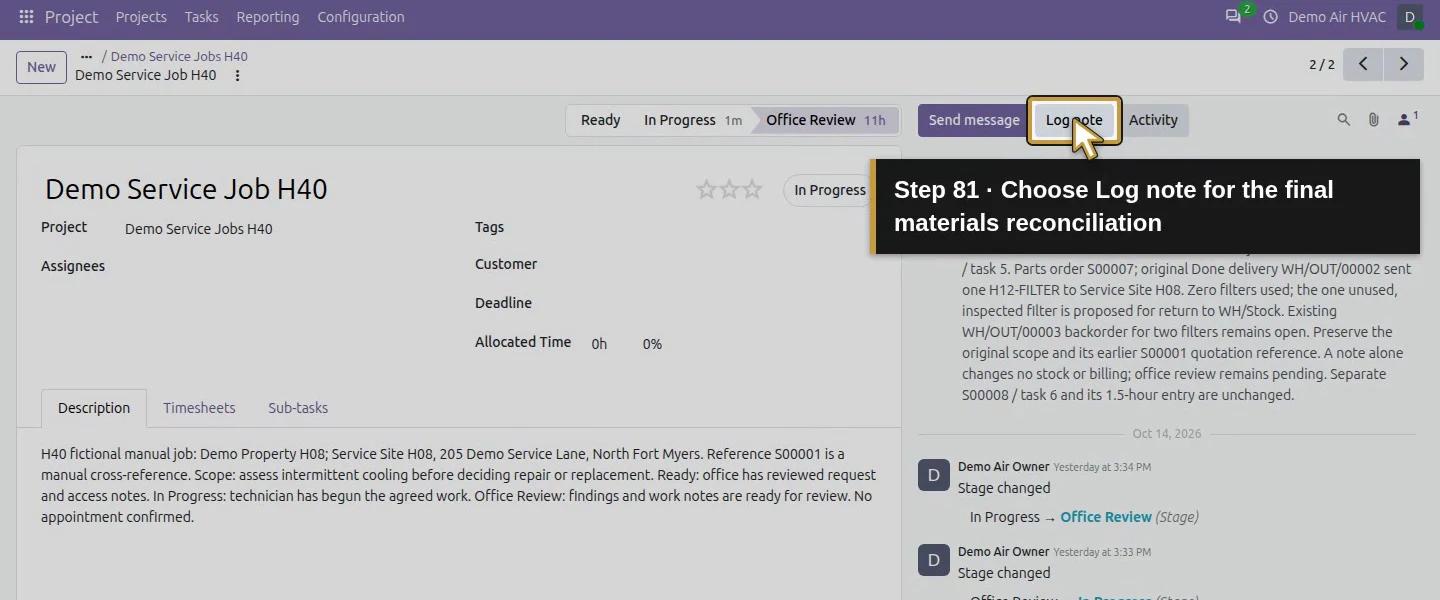
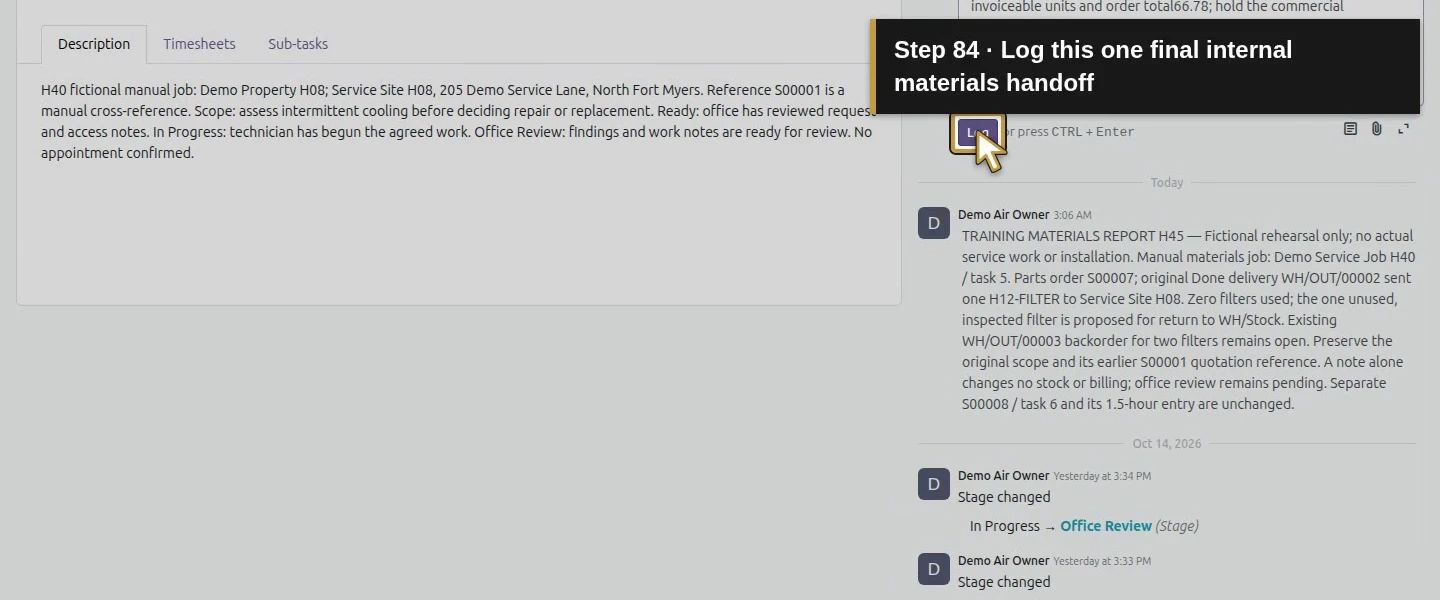
Open Demo Service Job H40, click Log note and record the parts-order/delivery references, one unused filter, zero used in this synthetic example and the open two-filter backorder. Click Log once. Preserve the original scope and earlier quotation reference. Our pre-return note did not change stock, delivery or billing quantities. This task’s stock/order relationship is a manual reference; no Project material-consumption link was created.
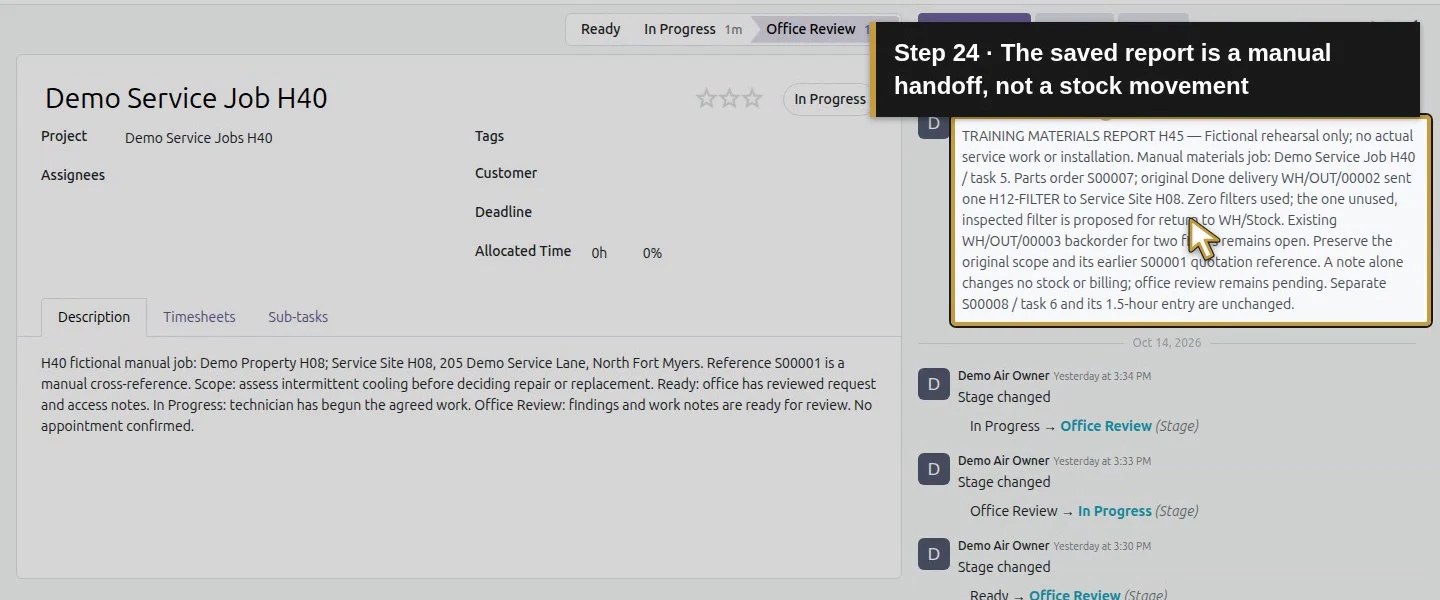
Step 3. Create the return from the completed delivery
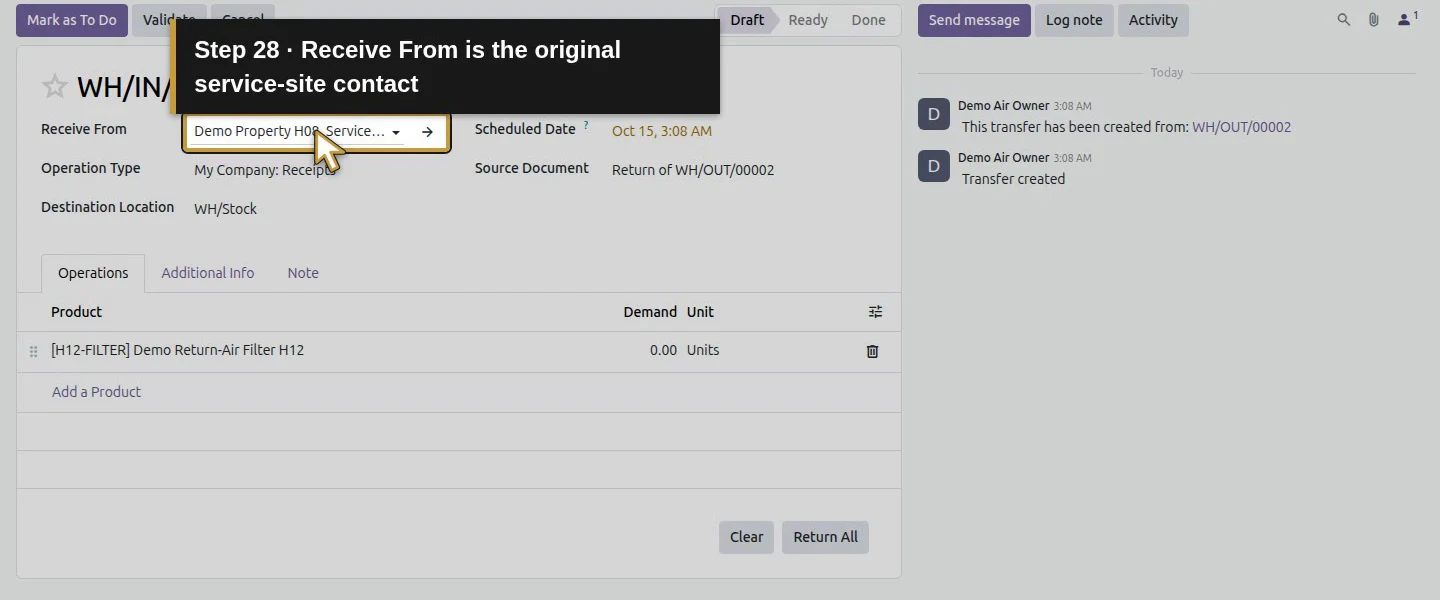
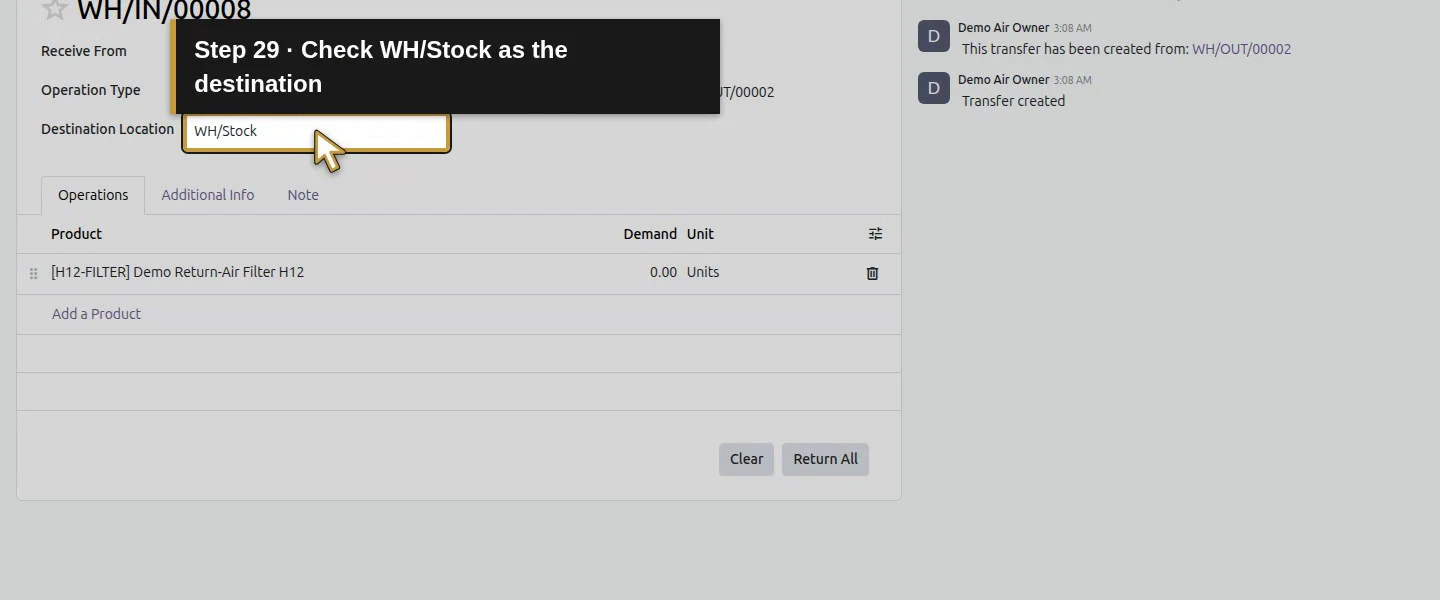
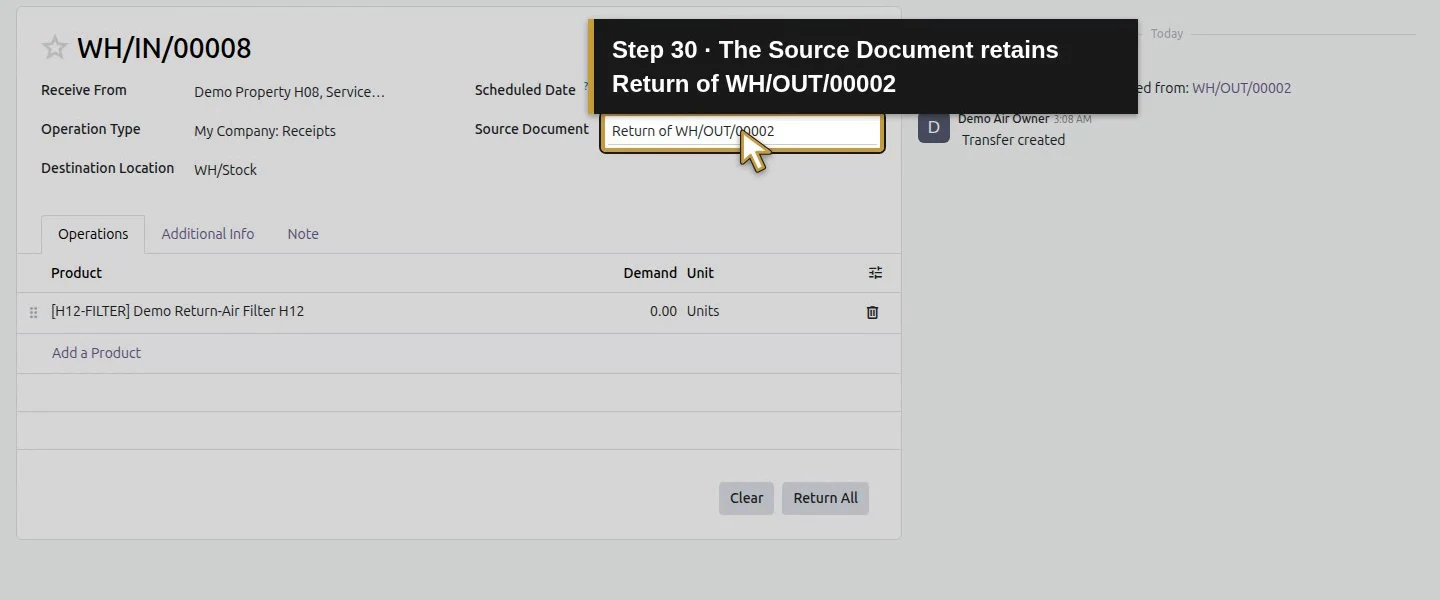
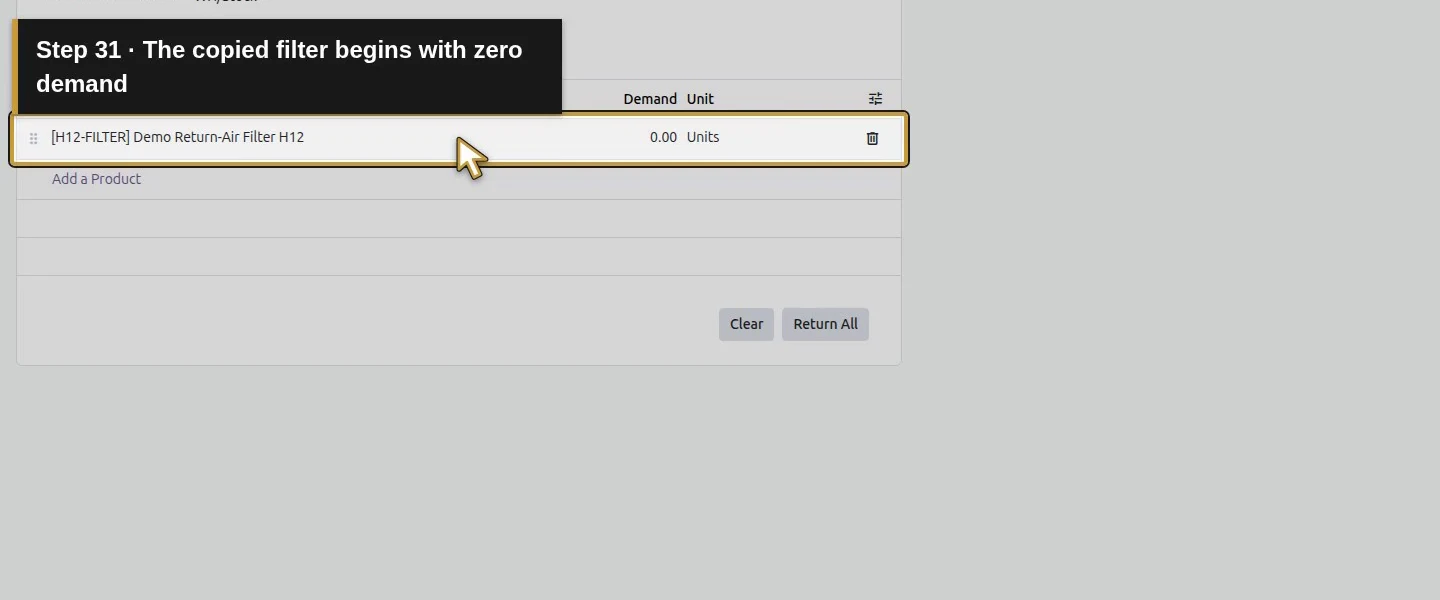
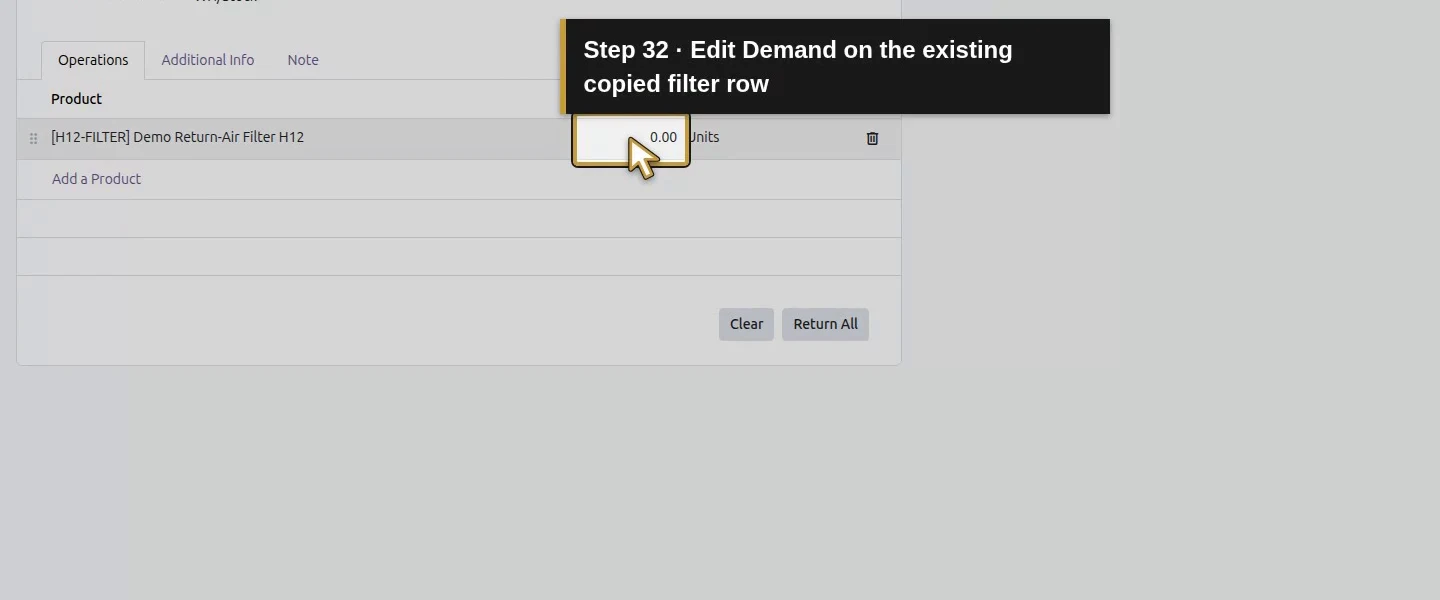
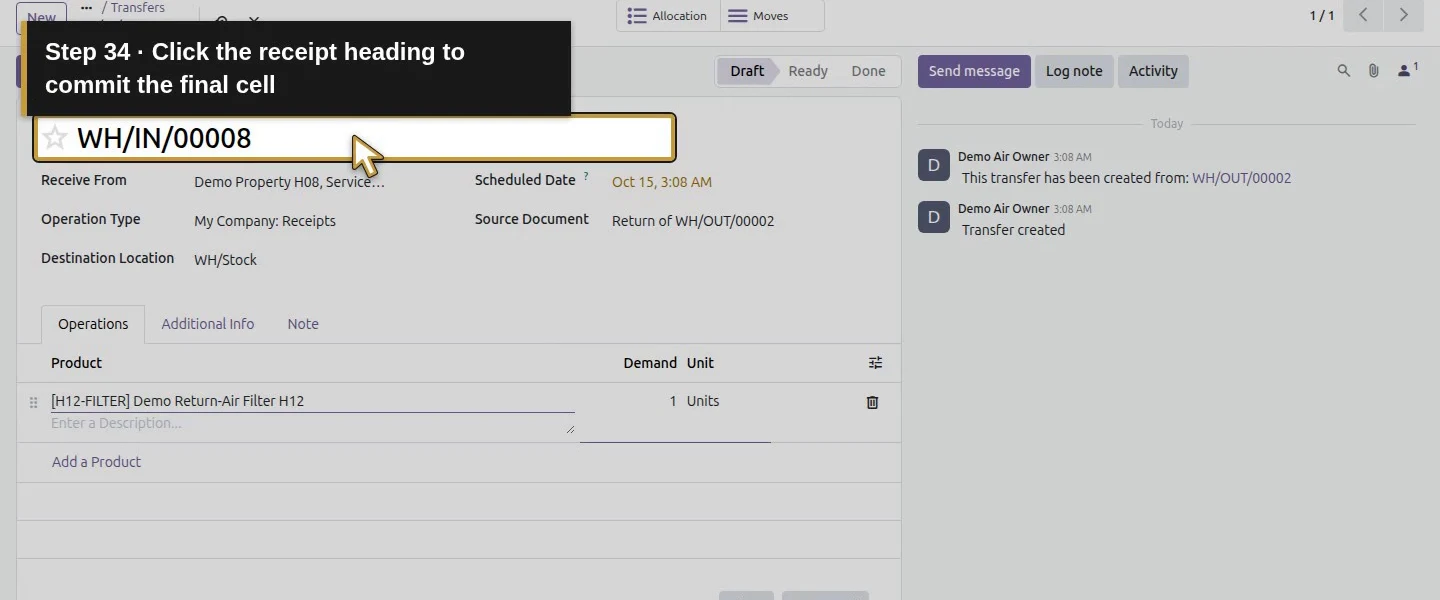
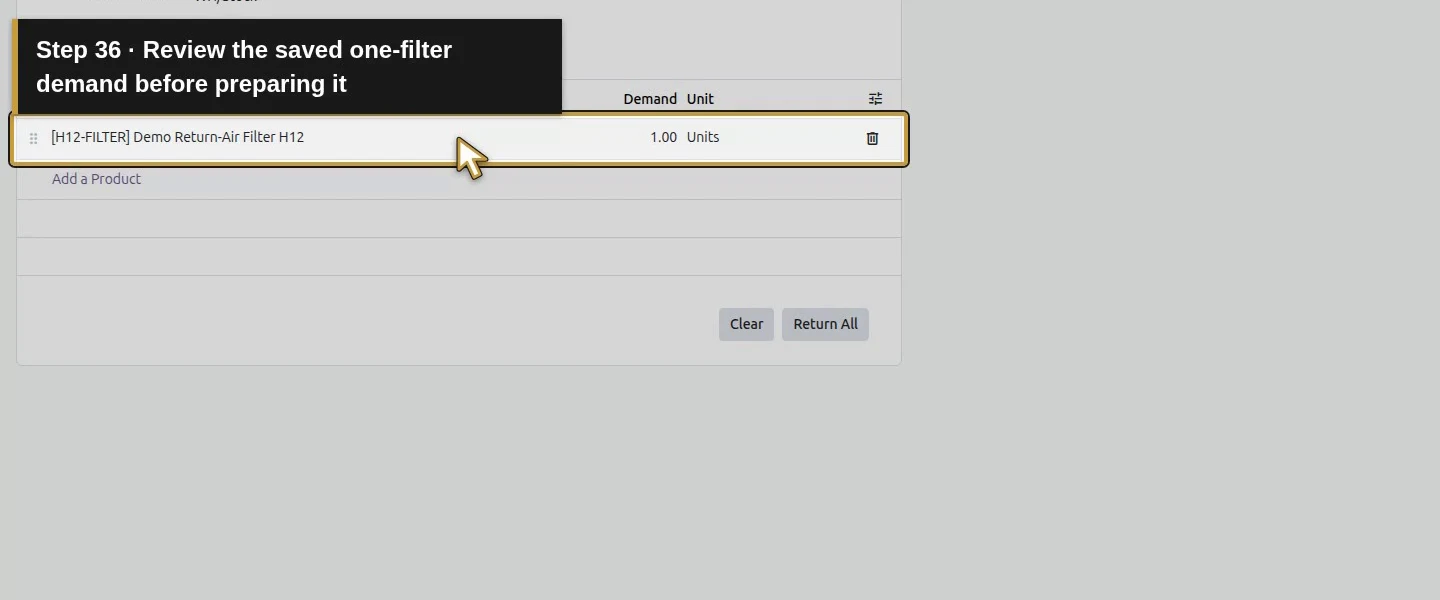
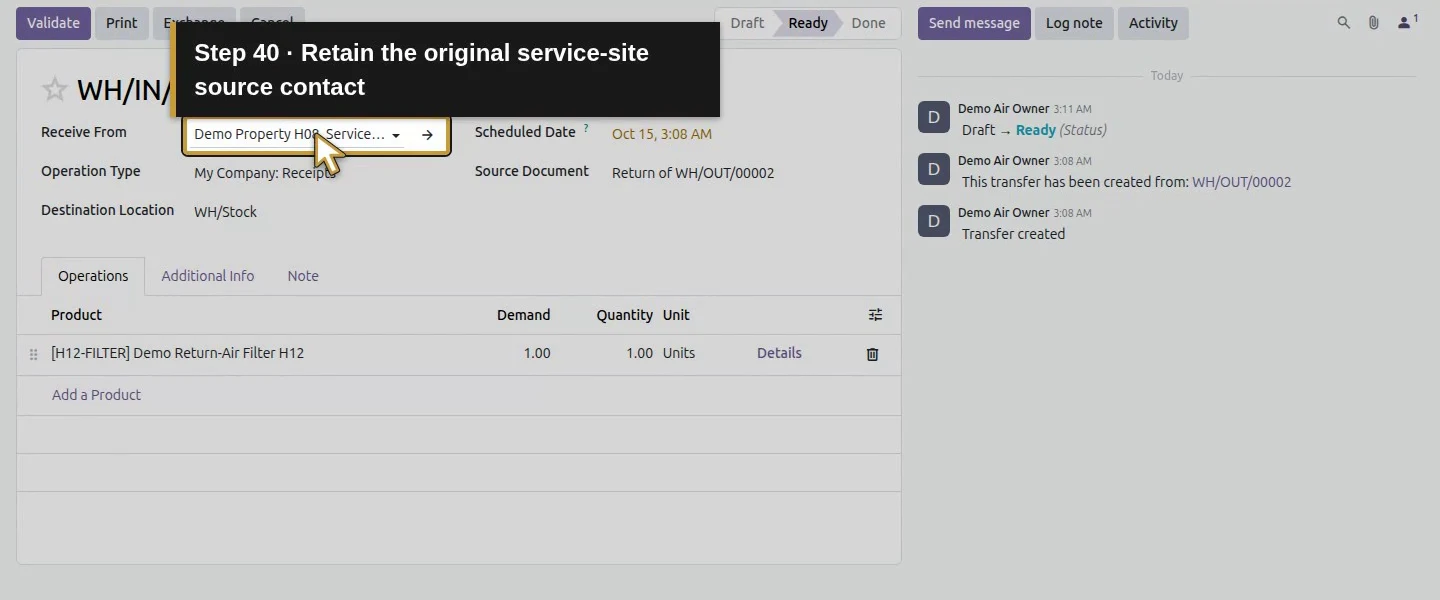
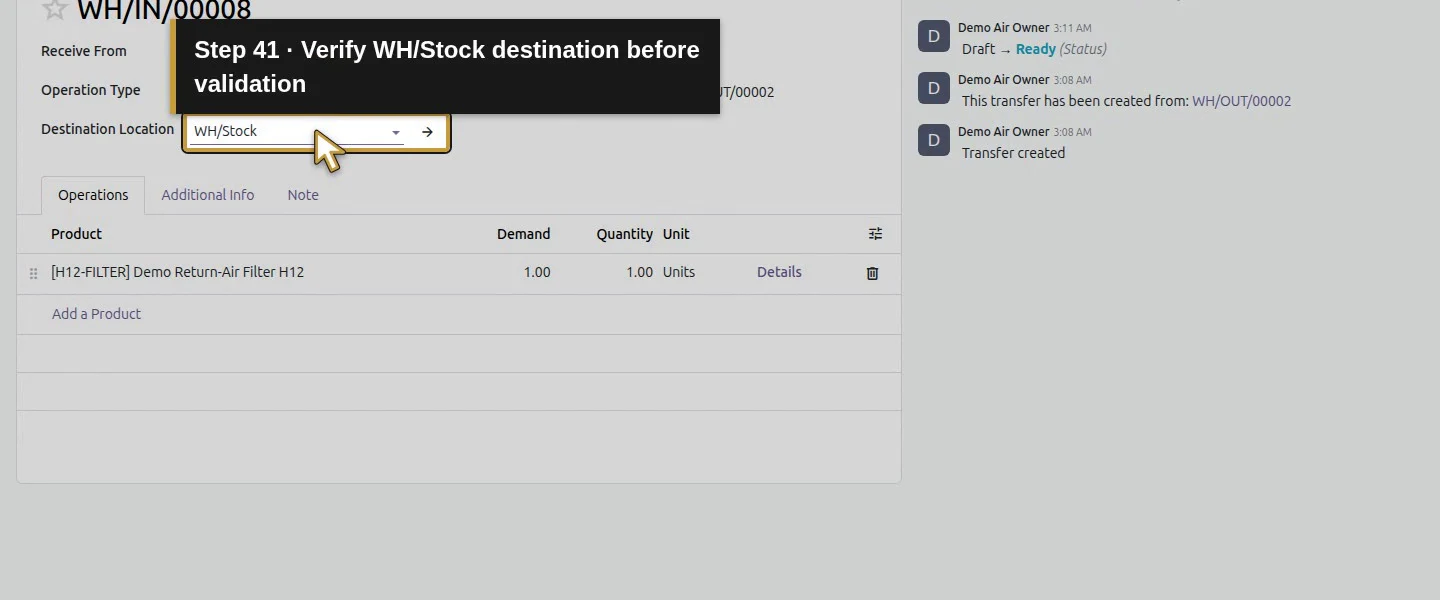
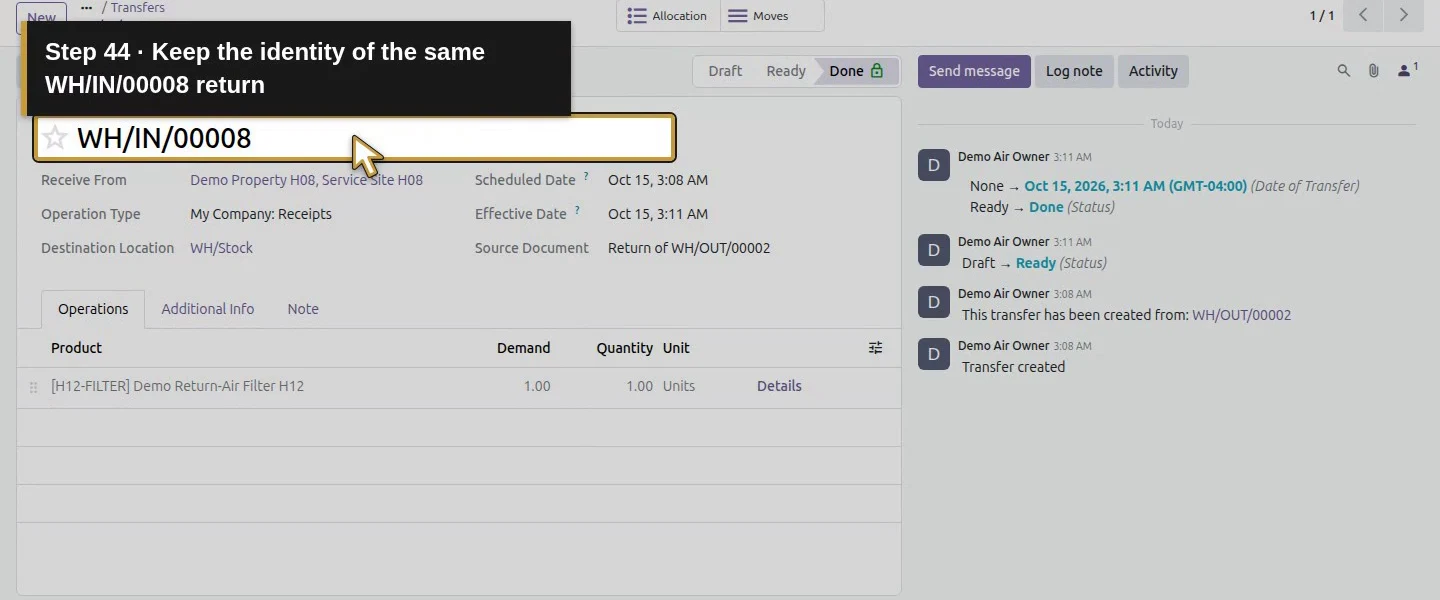
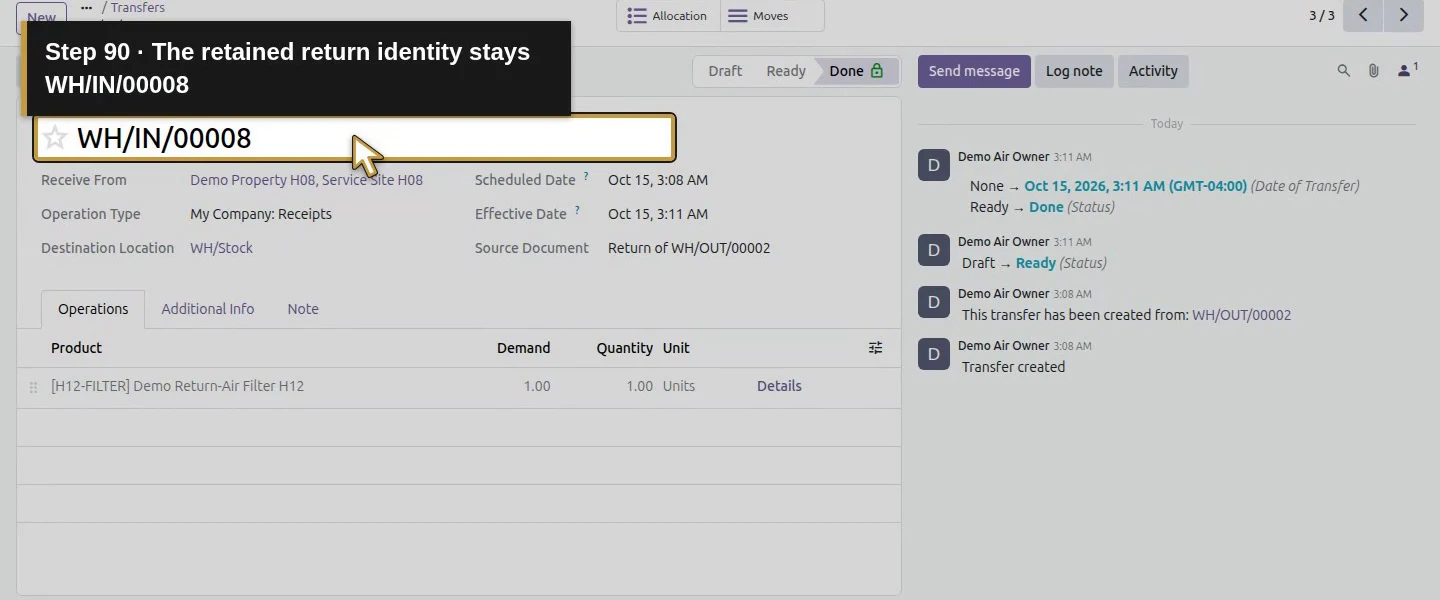
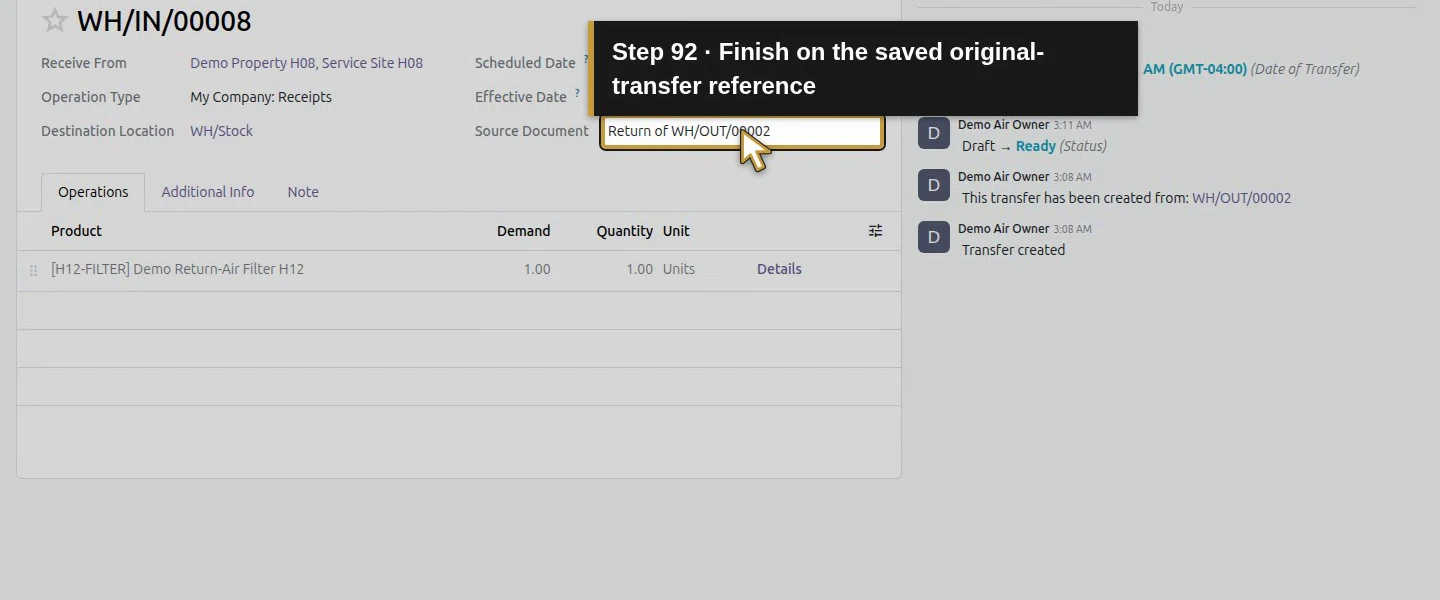
Return to WH/OUT/00002 and click Return once. In this runtime it opens a new Draft receipt, WH/IN/00008, with Source Document: Return of WH/OUT/00002. Receive From is the service-site contact and Destination Location is WH/Stock. The copied filter starts with Demand: 0.00. We did not see the proposed quantity/refund wizard, so do not assume a return has already been received.
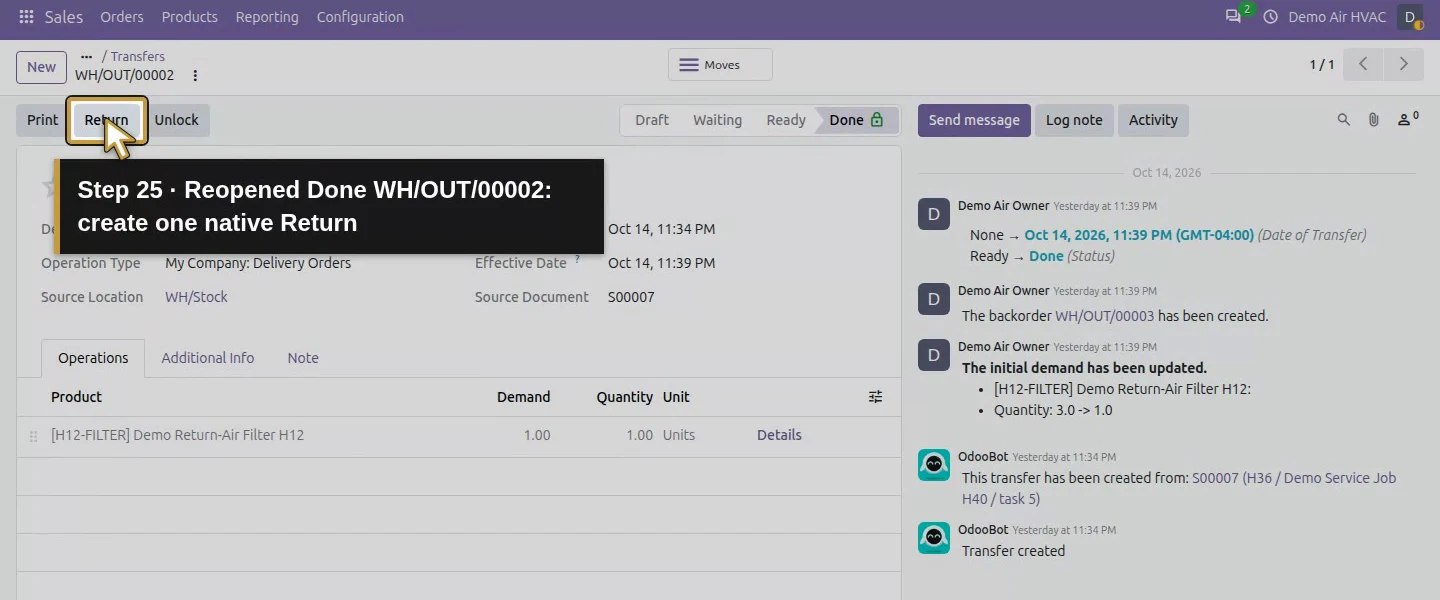
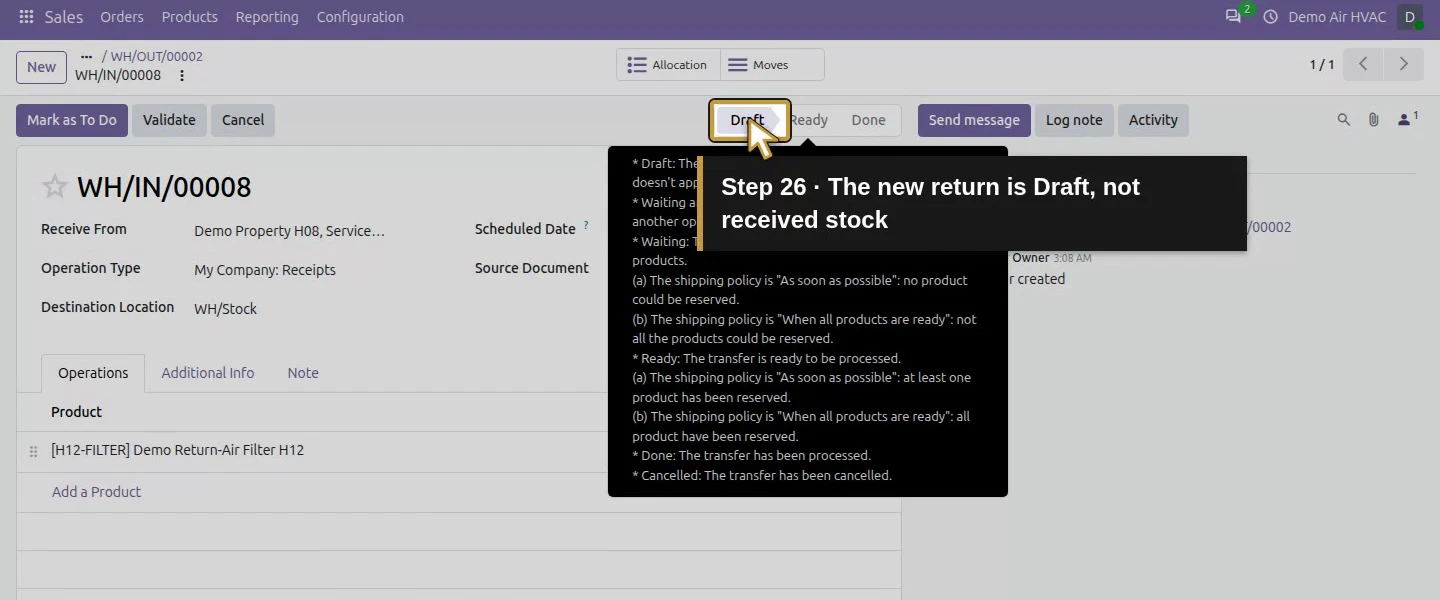
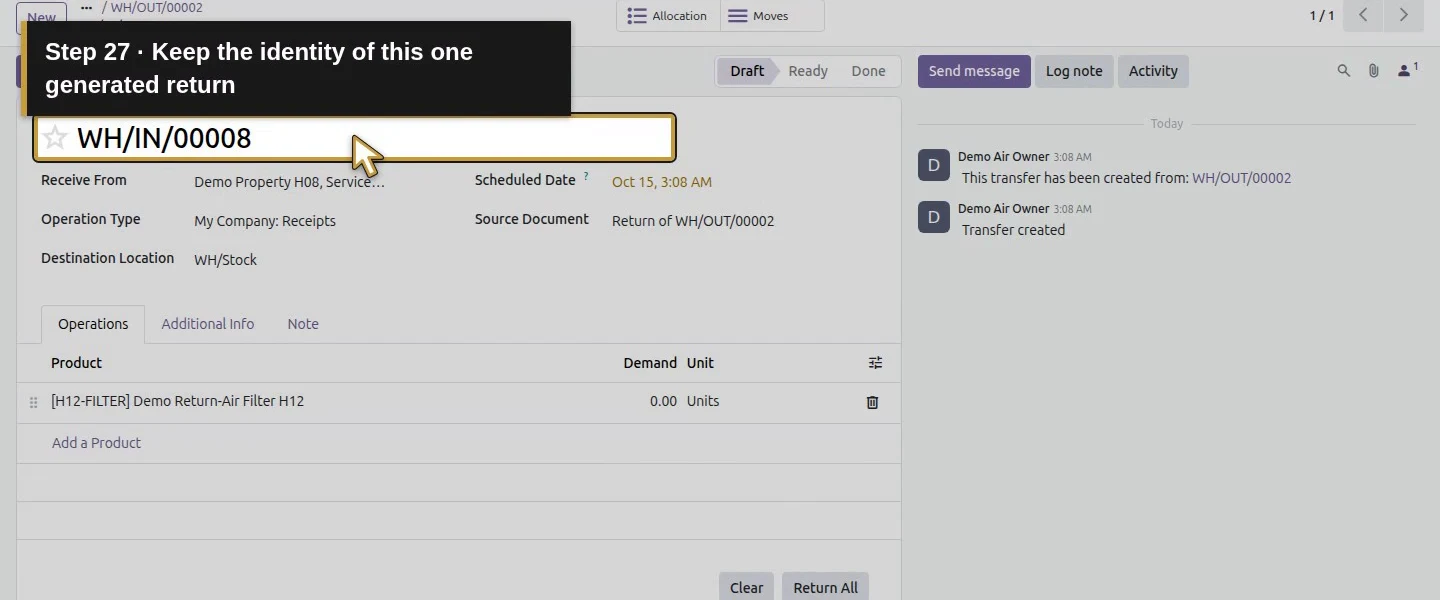
Step 4. Set the actual return quantity and prepare the receipt
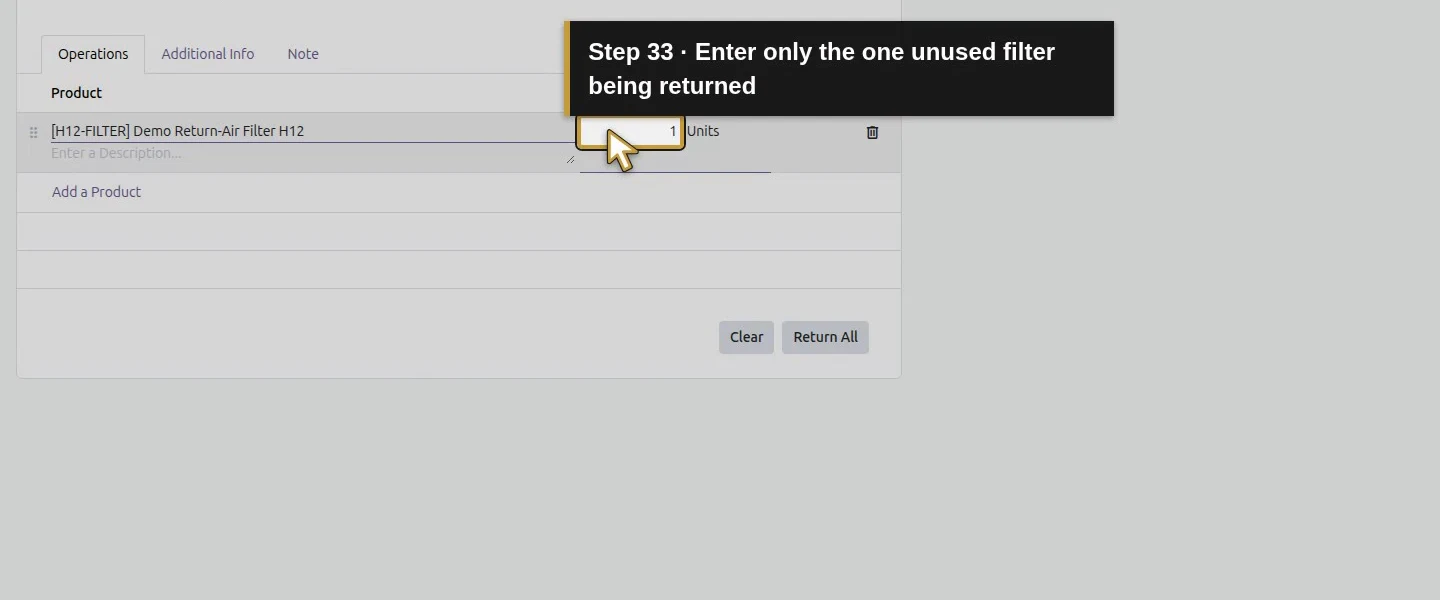
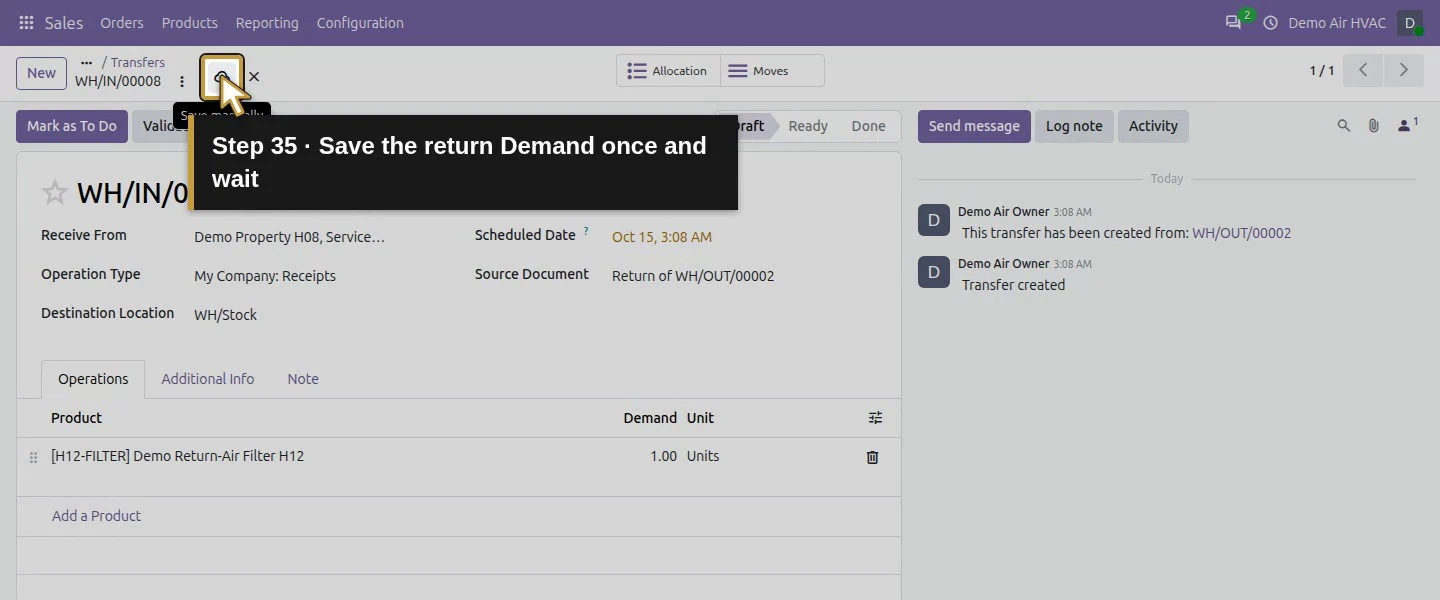
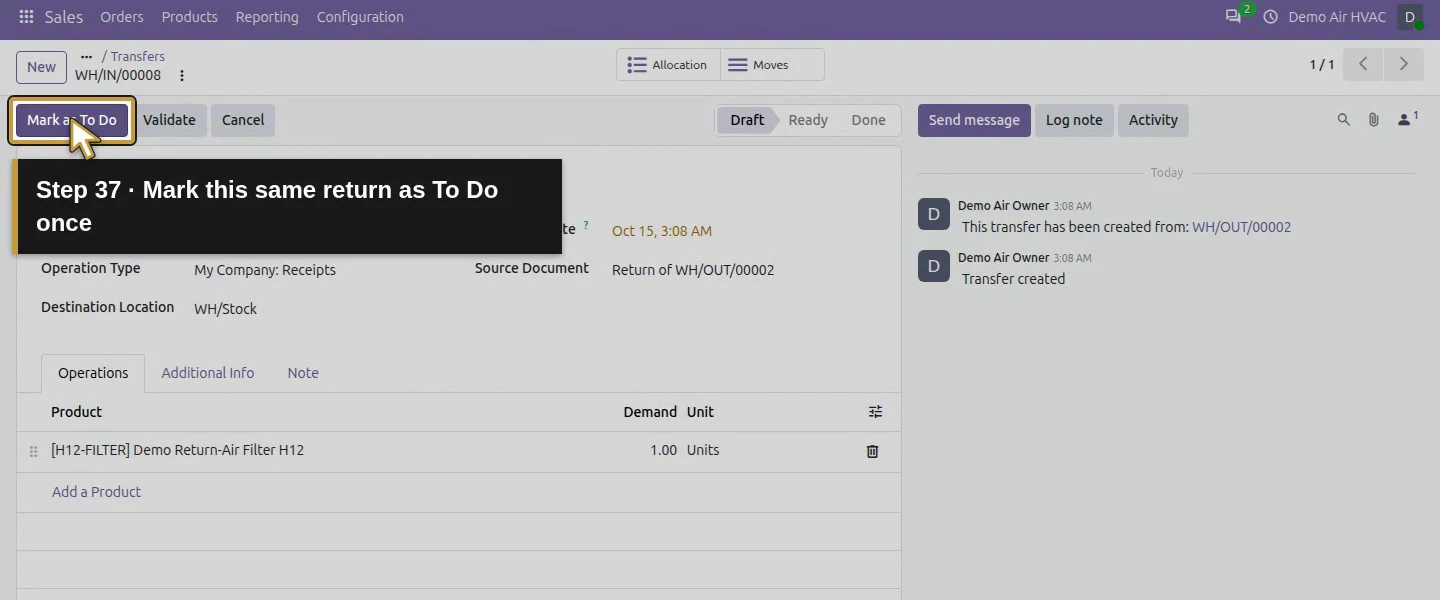
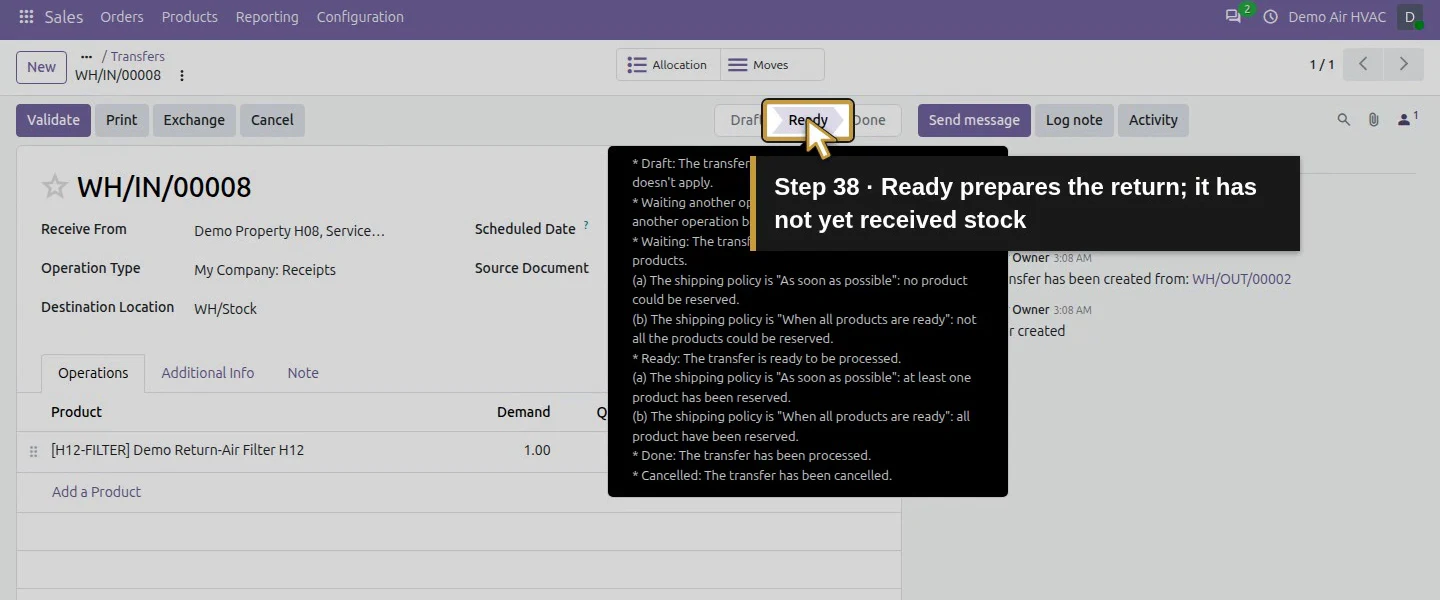
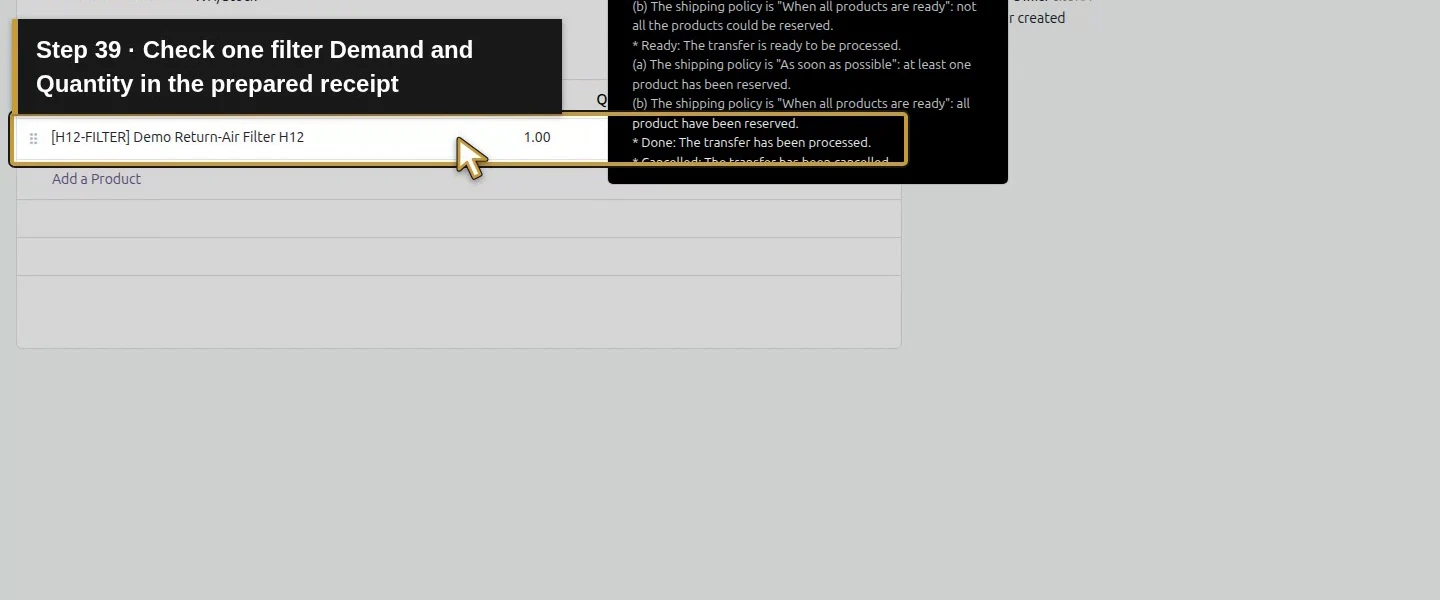
On the copied filter row, set Demand to 1, leave the field by clicking the receipt heading, then Save manually and wait for saving to finish. Click Mark as To Do once. Check Ready, Demand: 1.00 and Quantity: 1.00. This prepares the return; physical internal stock still totals three until validation. Return All and Clear were visible, but this procedure entered only the intended quantity.
Step 5. Validate once and check net delivered quantity
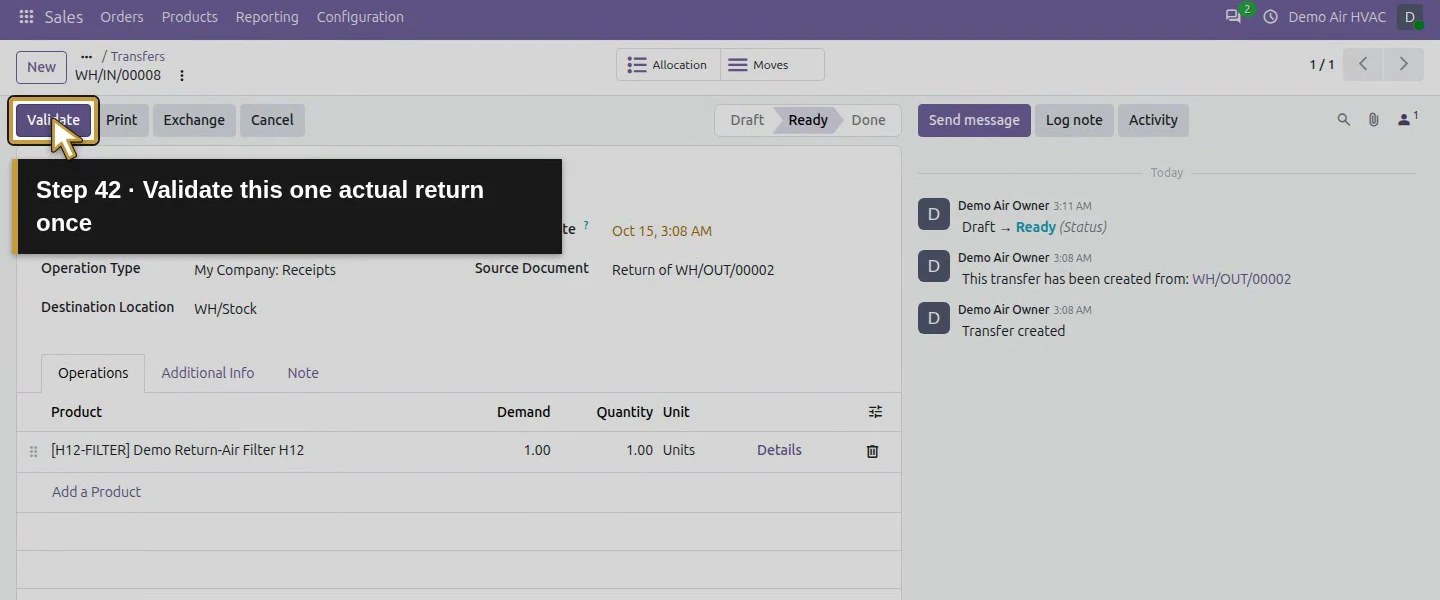
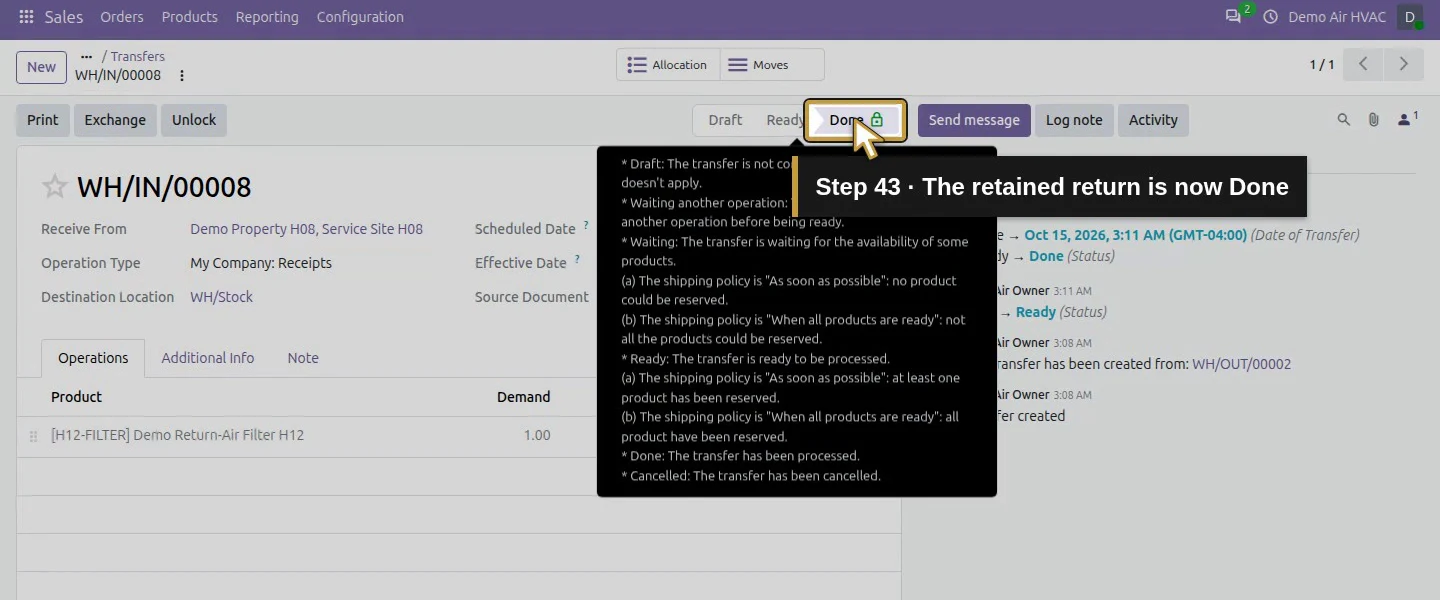
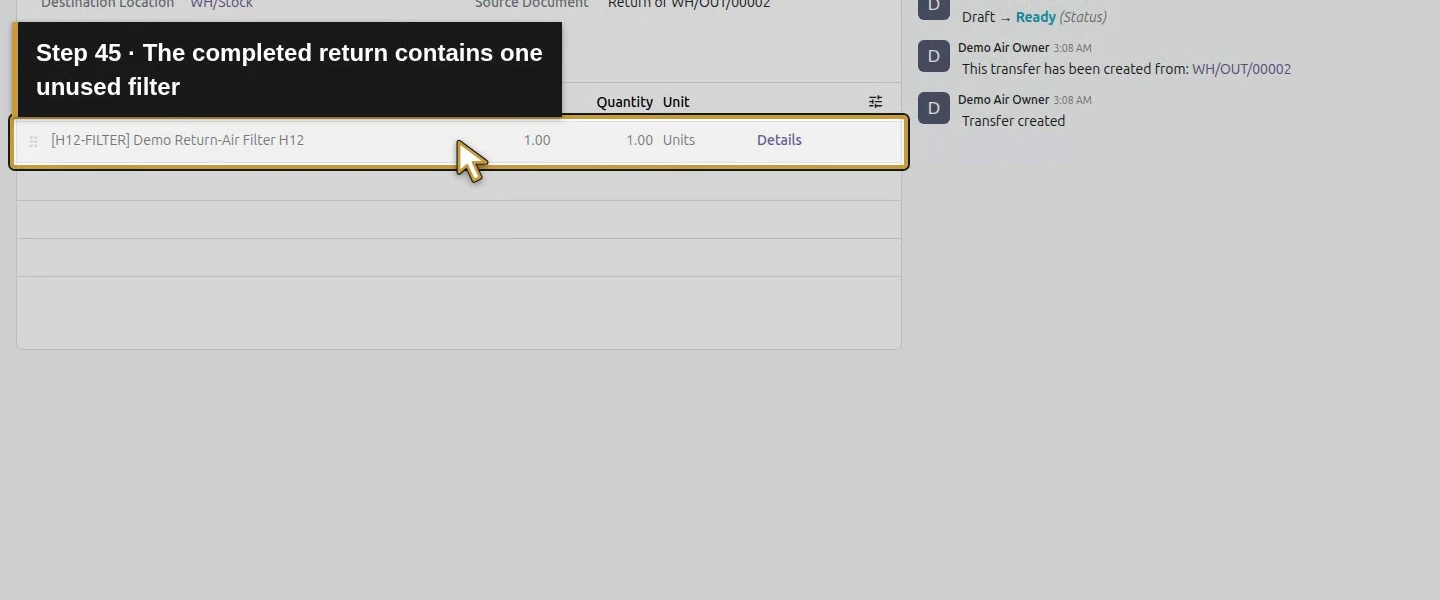
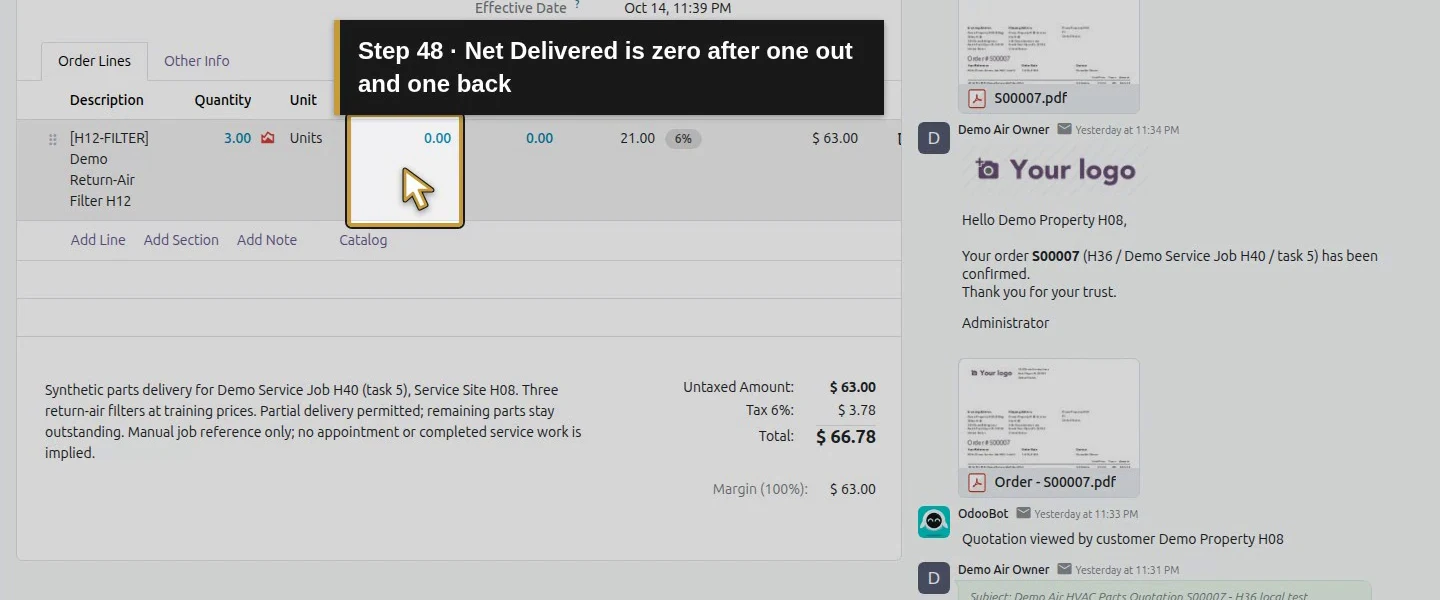
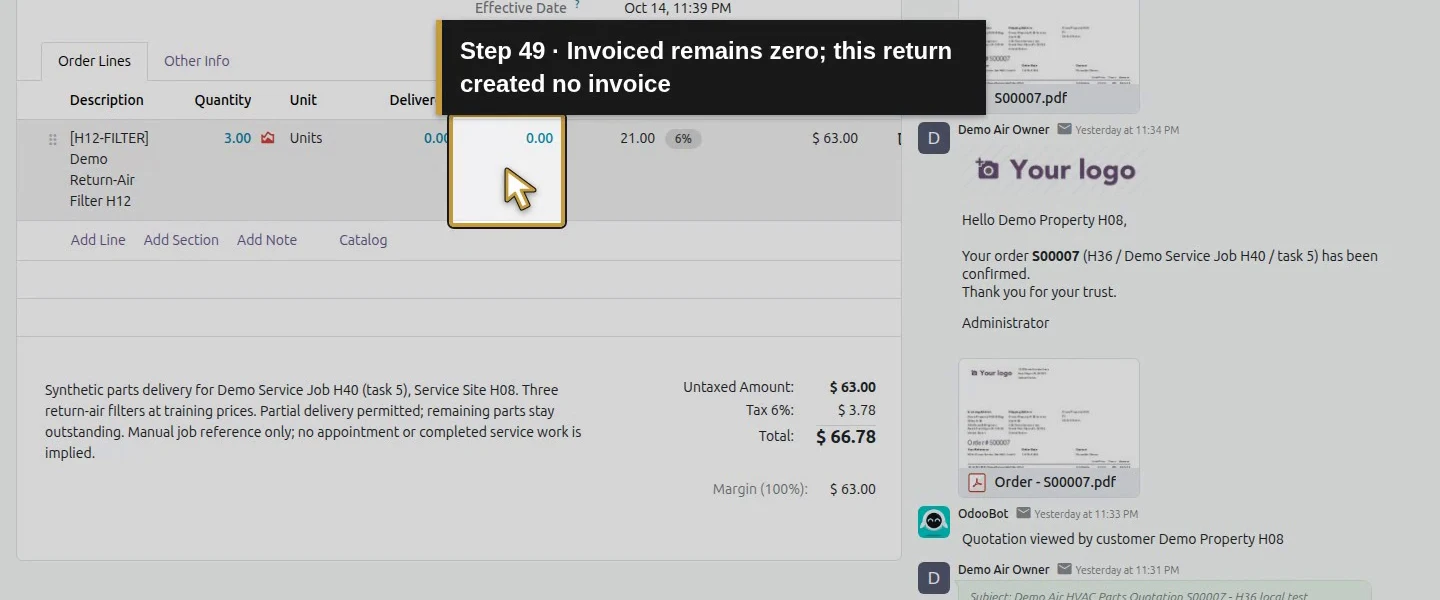
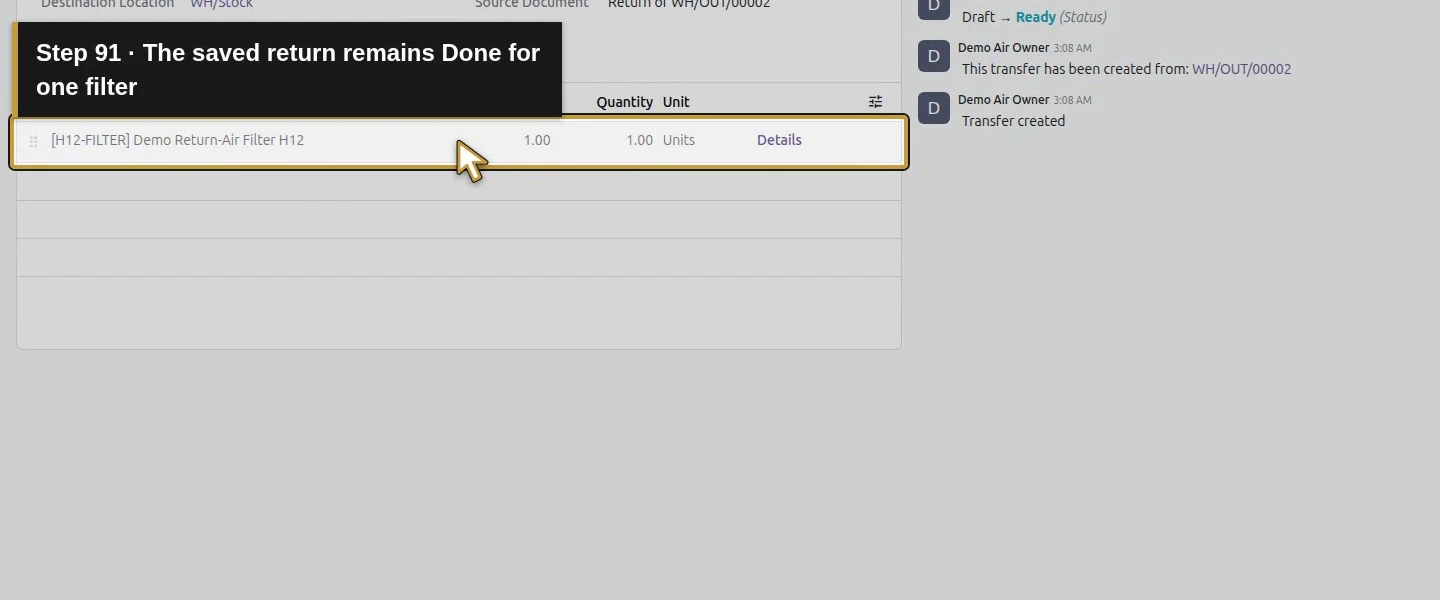
After confirming the product, location and actual returned amount, click Validate once. Wait for Done. The receipt retains one returned filter and the original transfer reference. Reopen S00007: its original ordered quantity stays 3.00, while Delivered is now 0.00 and Invoiced stays 0.00. The original one-filter delivery remains Done alongside the linked return; it was not deleted or rewritten.
Step 6. Check where the returned stock is reserved
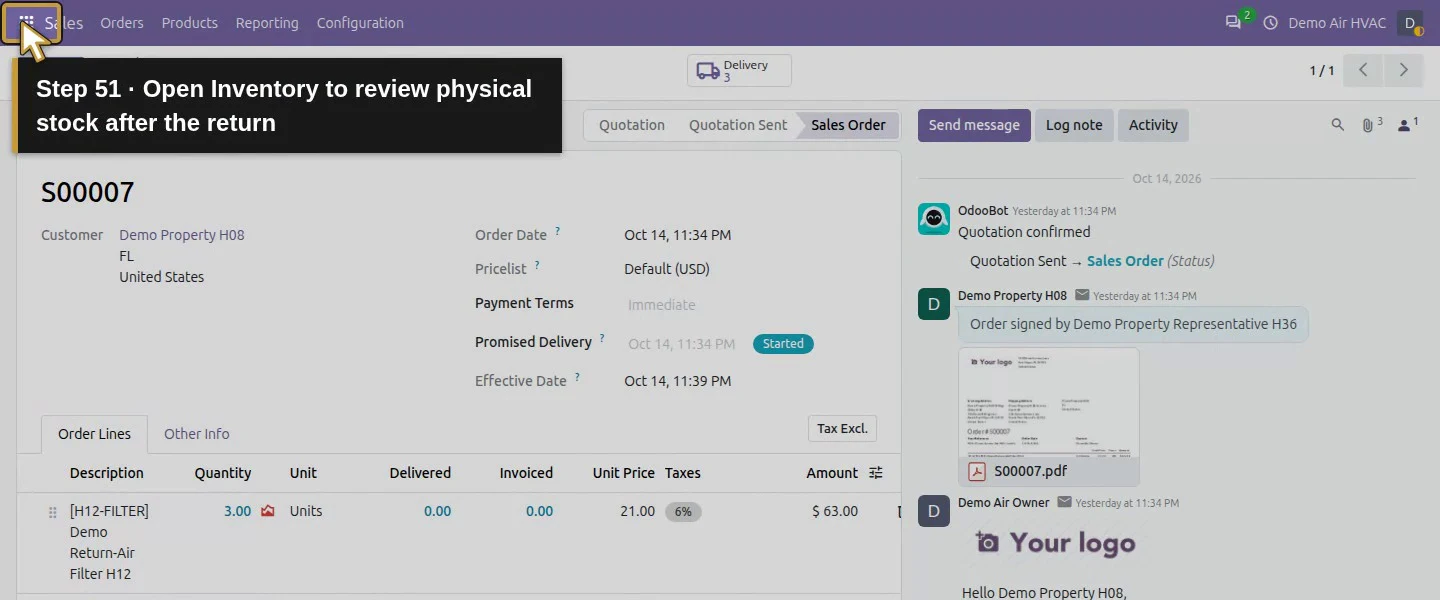
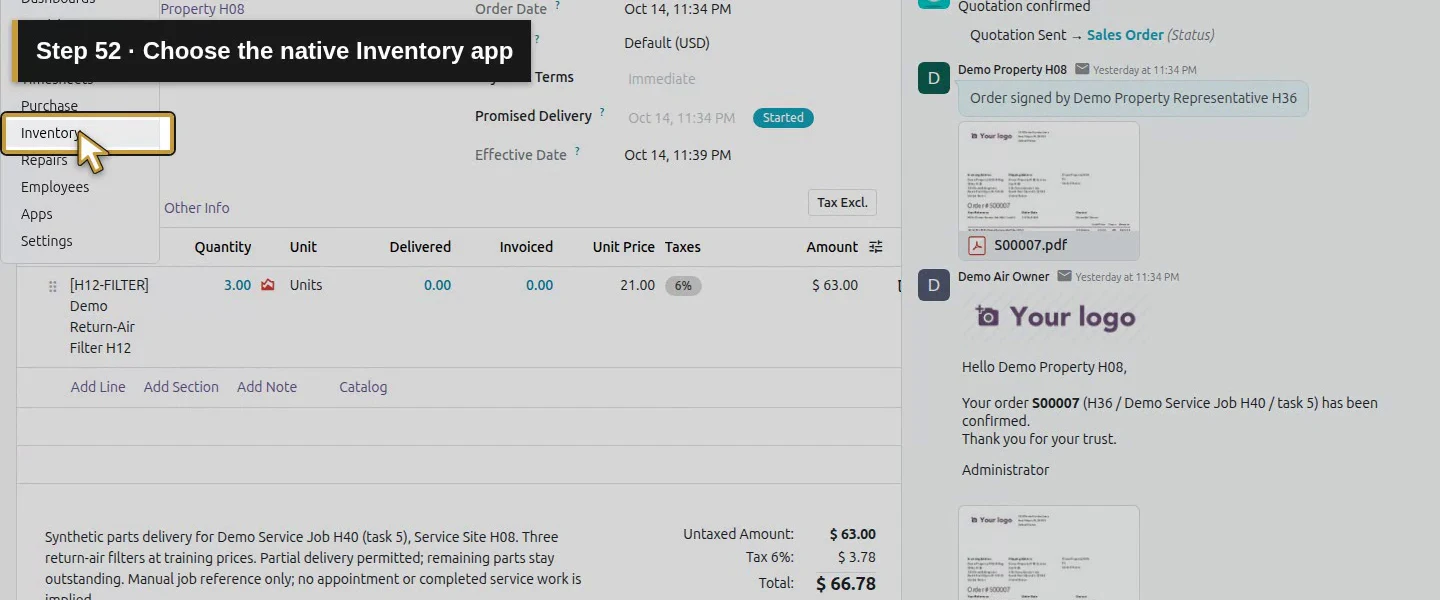
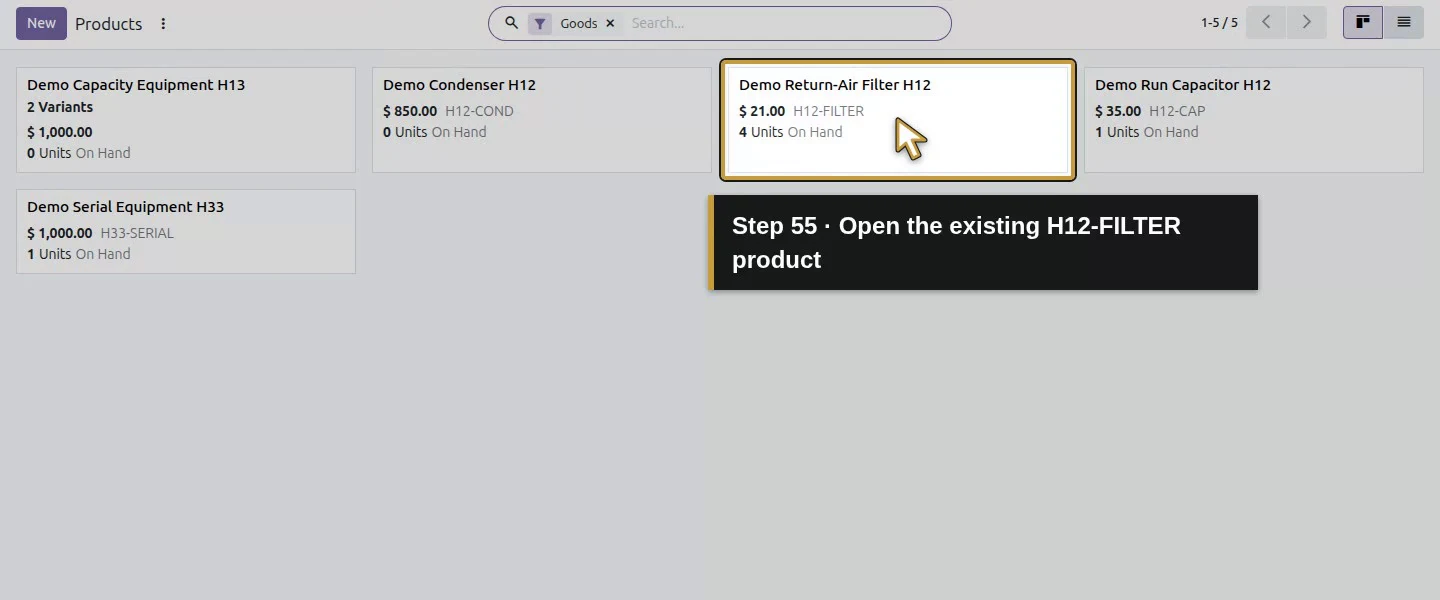
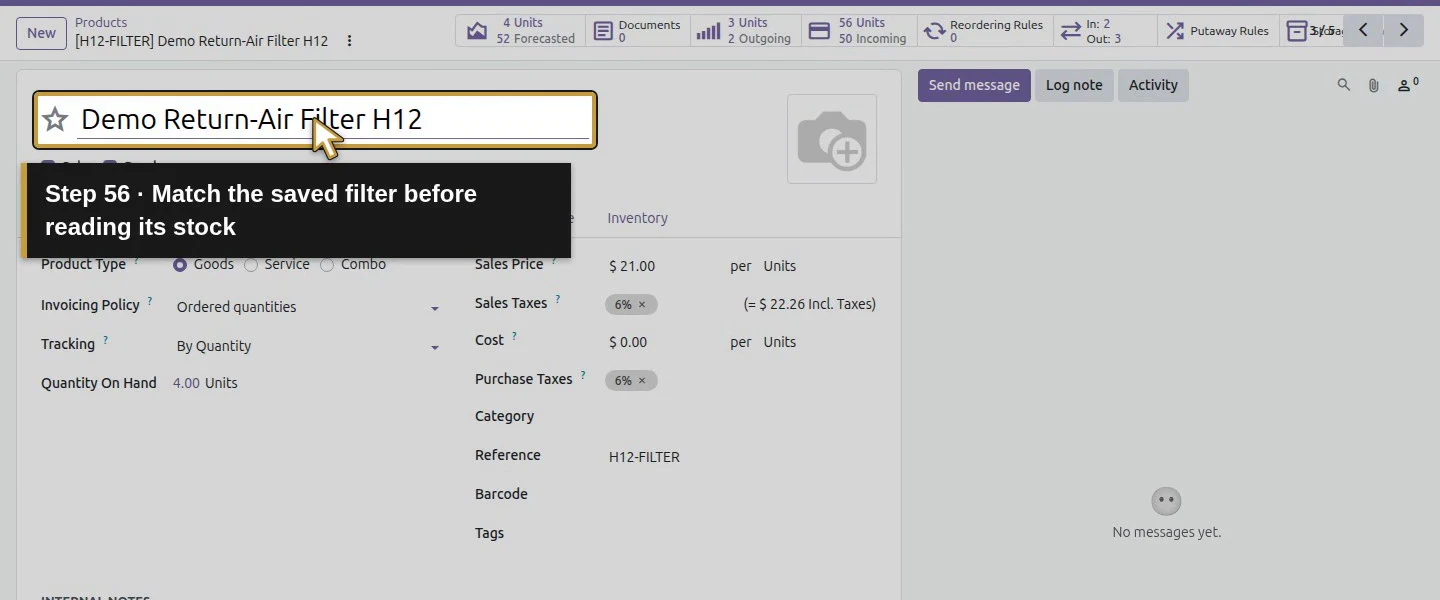
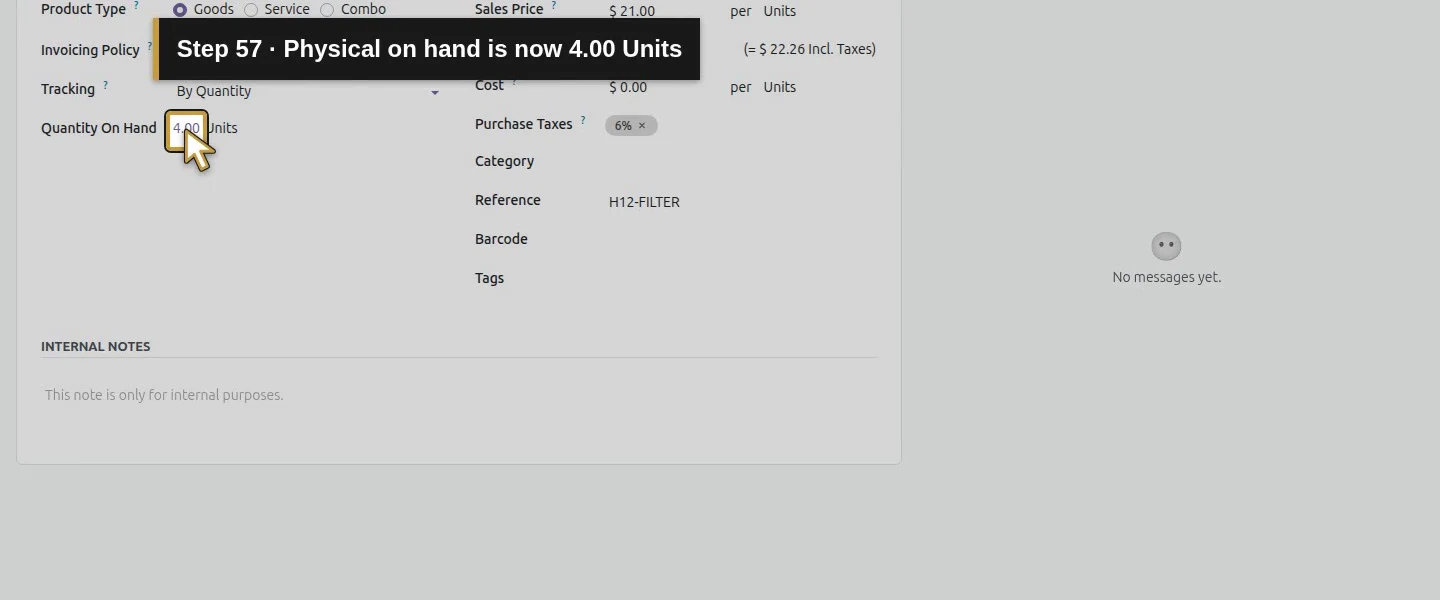
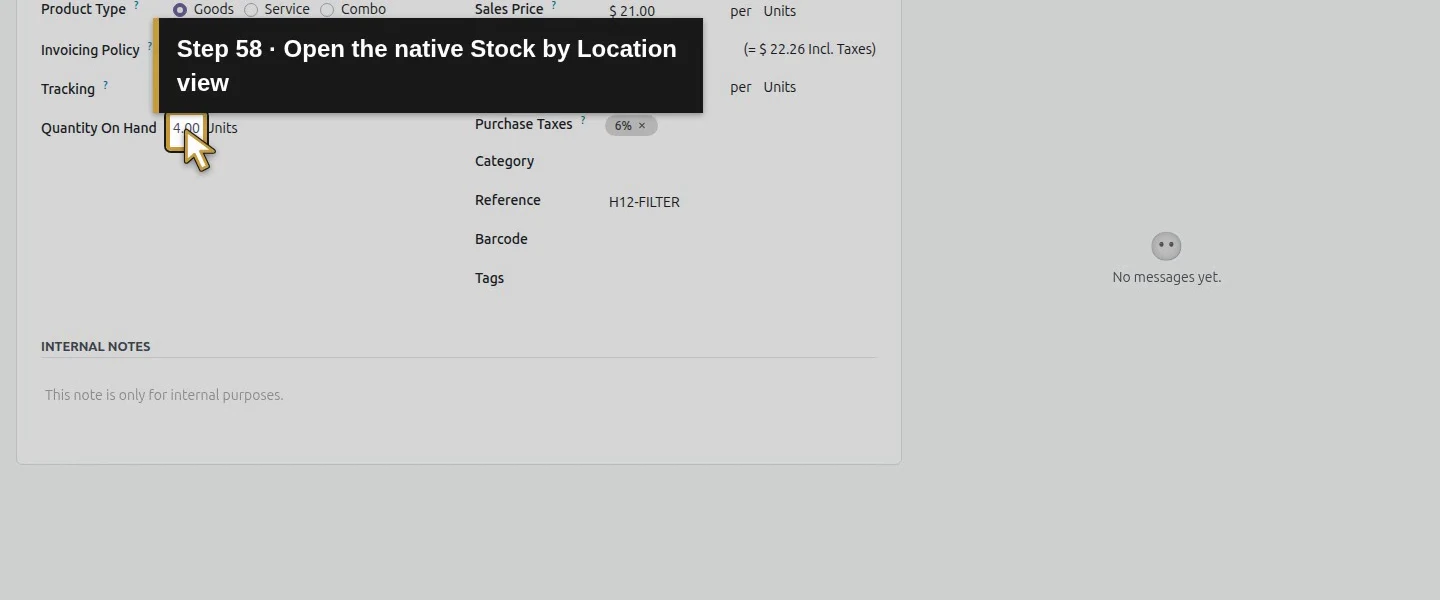
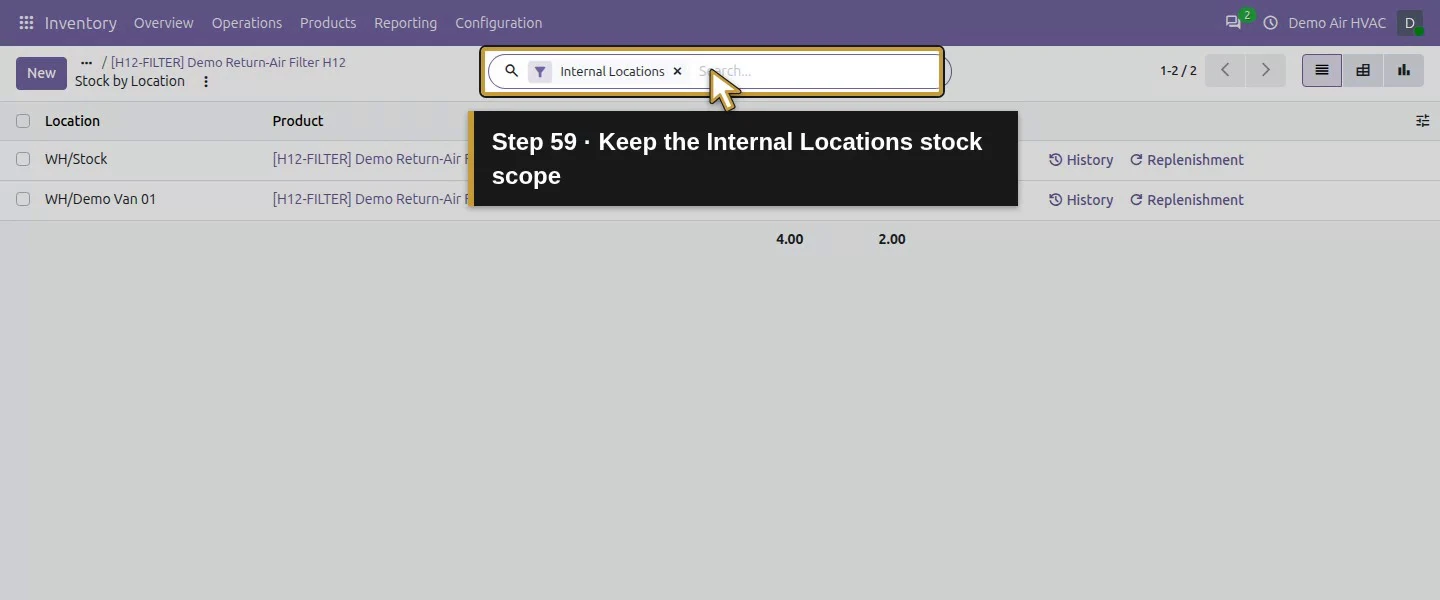
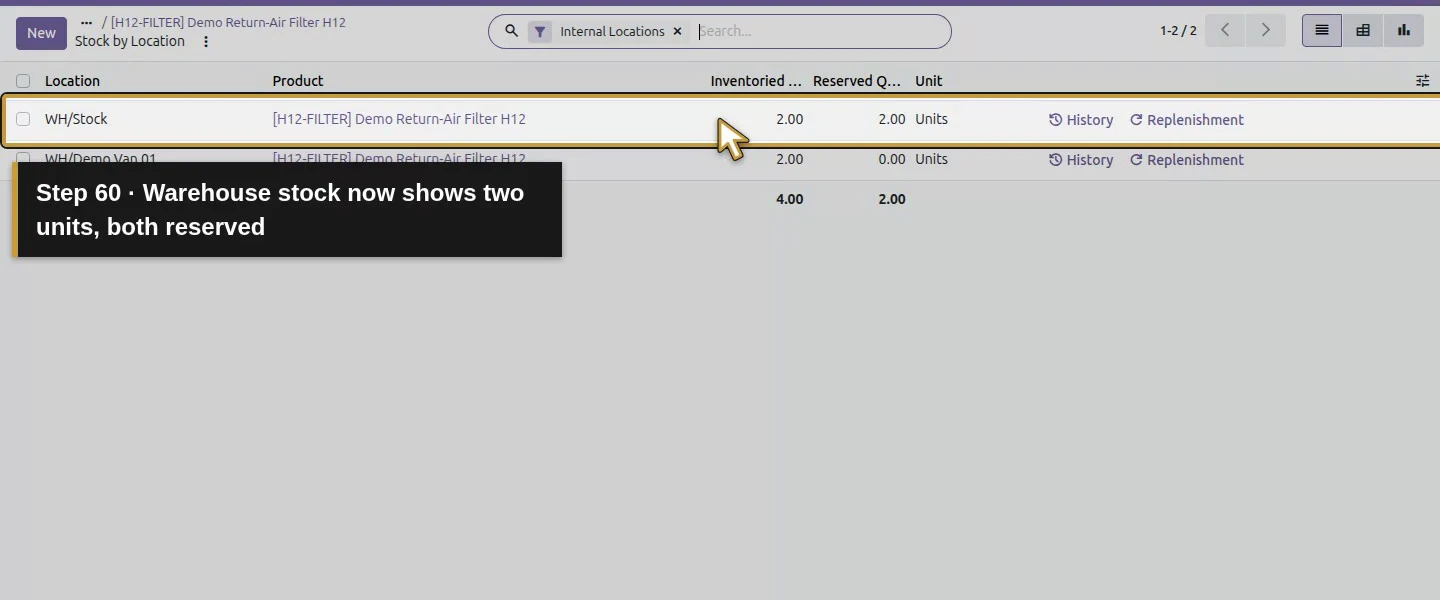
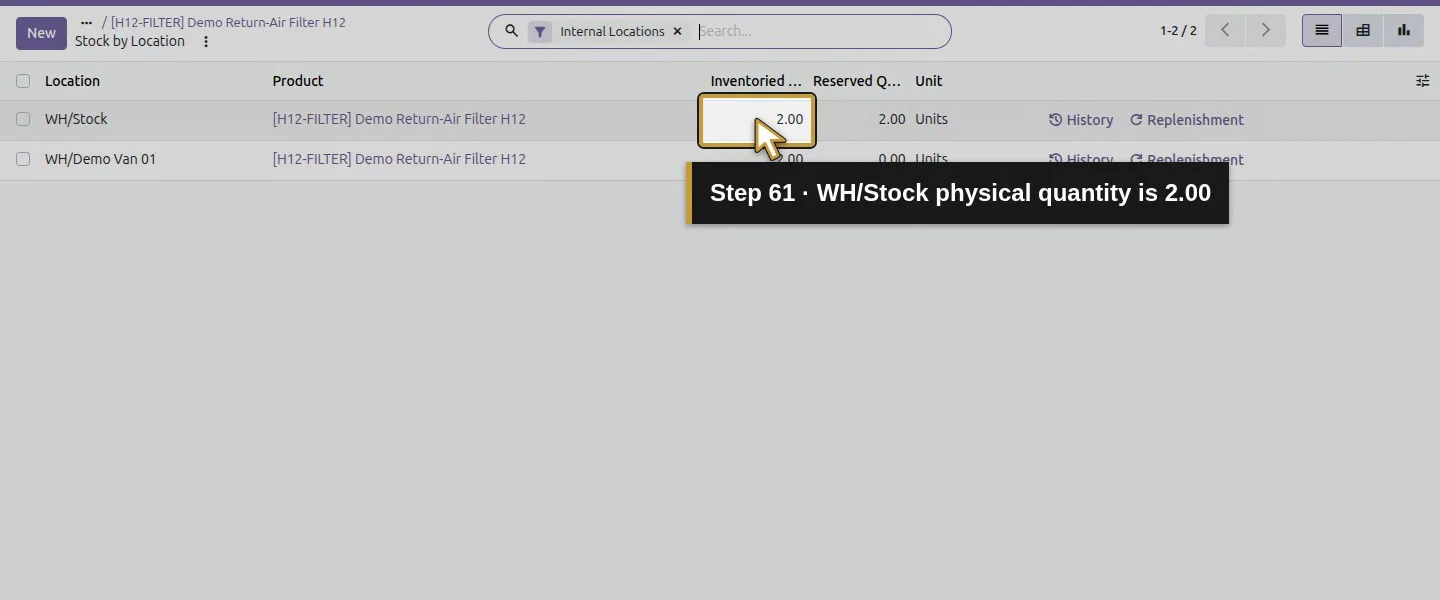
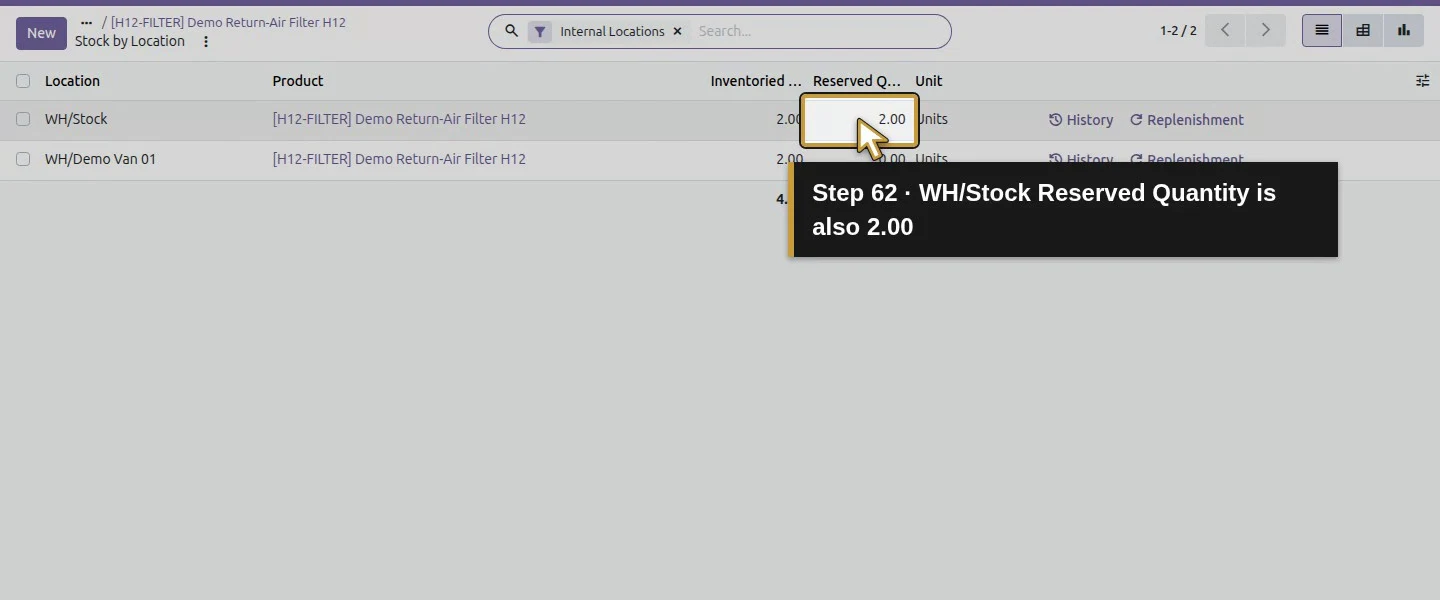
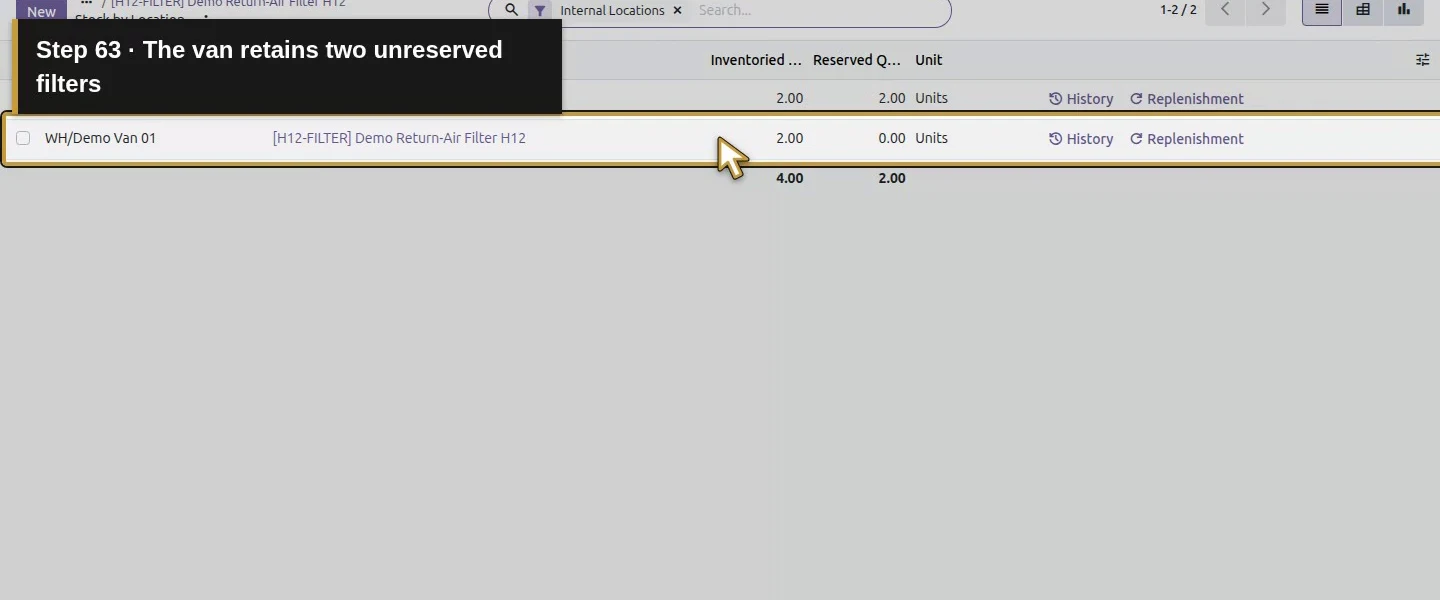
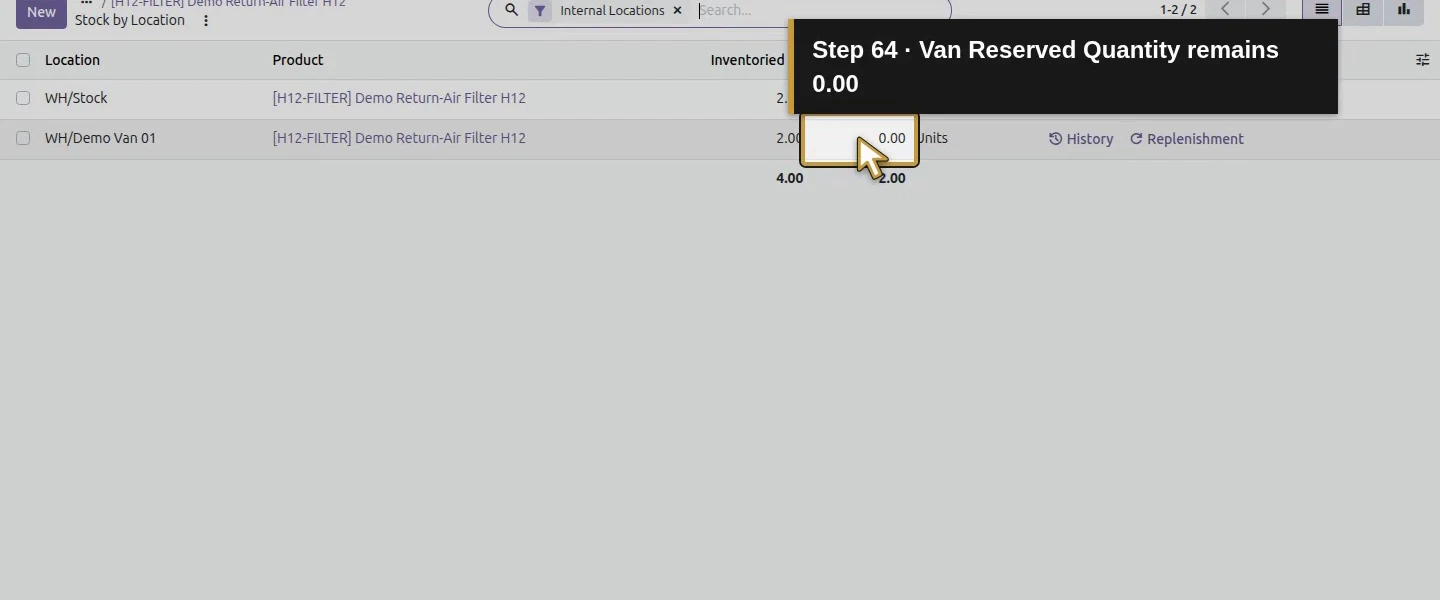
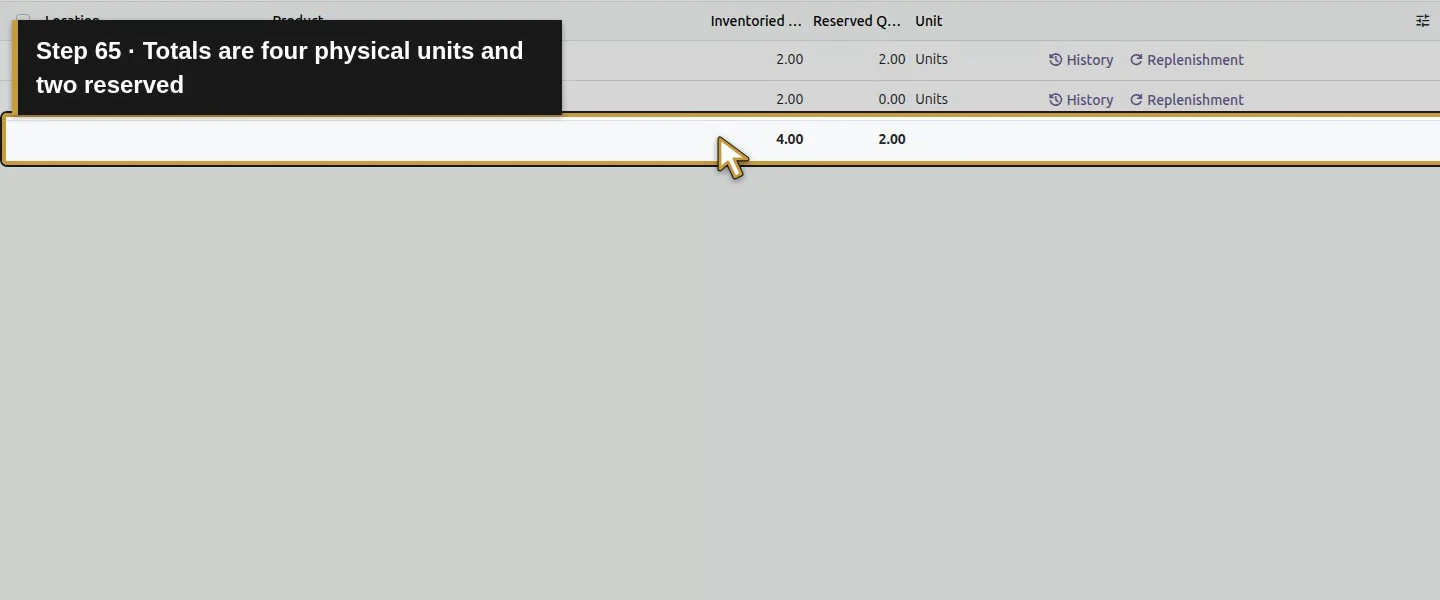
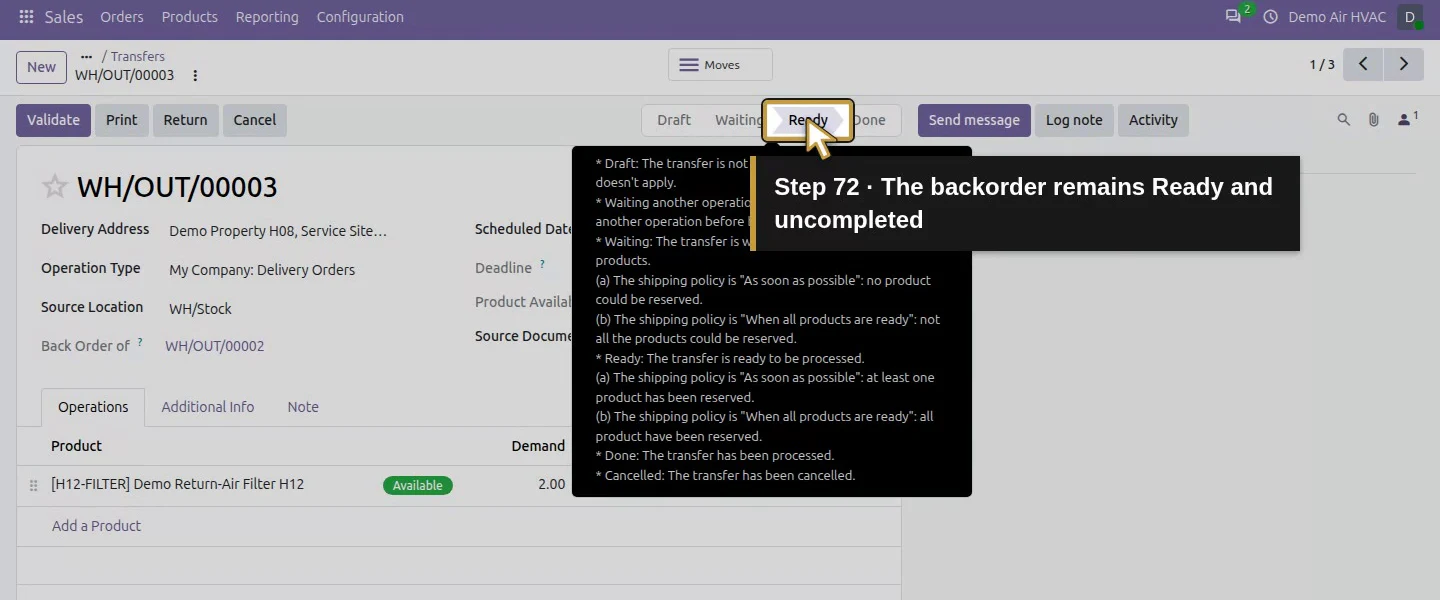
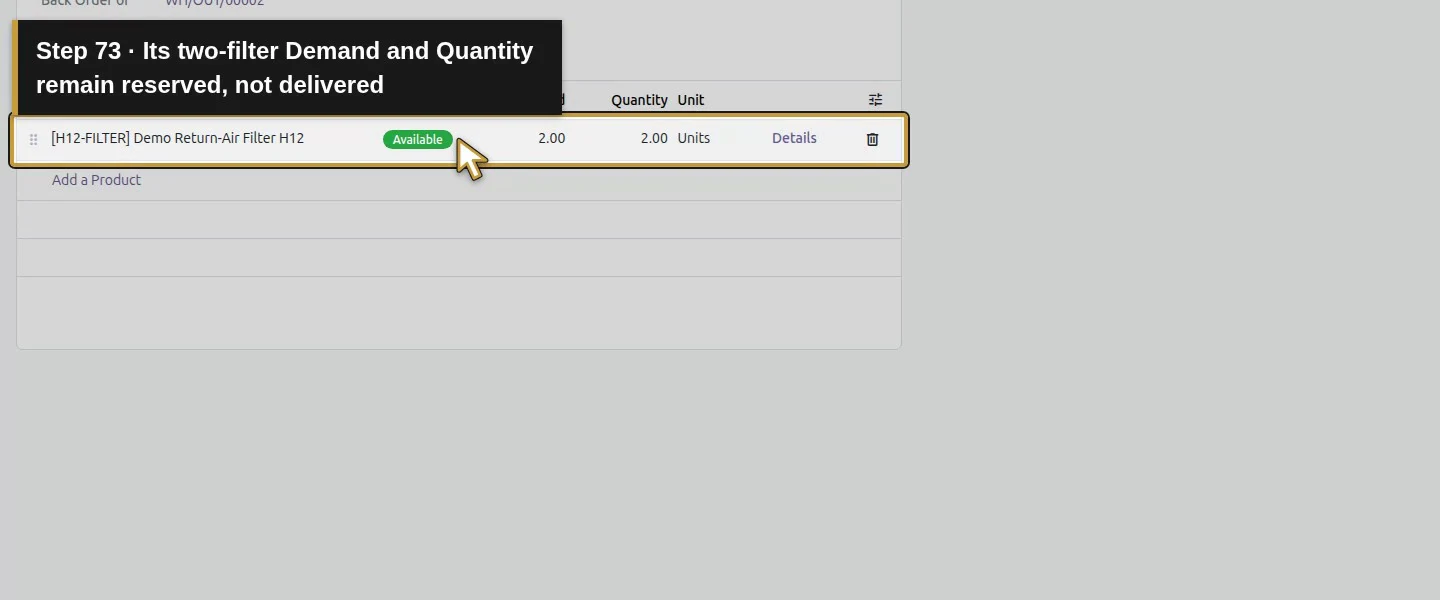
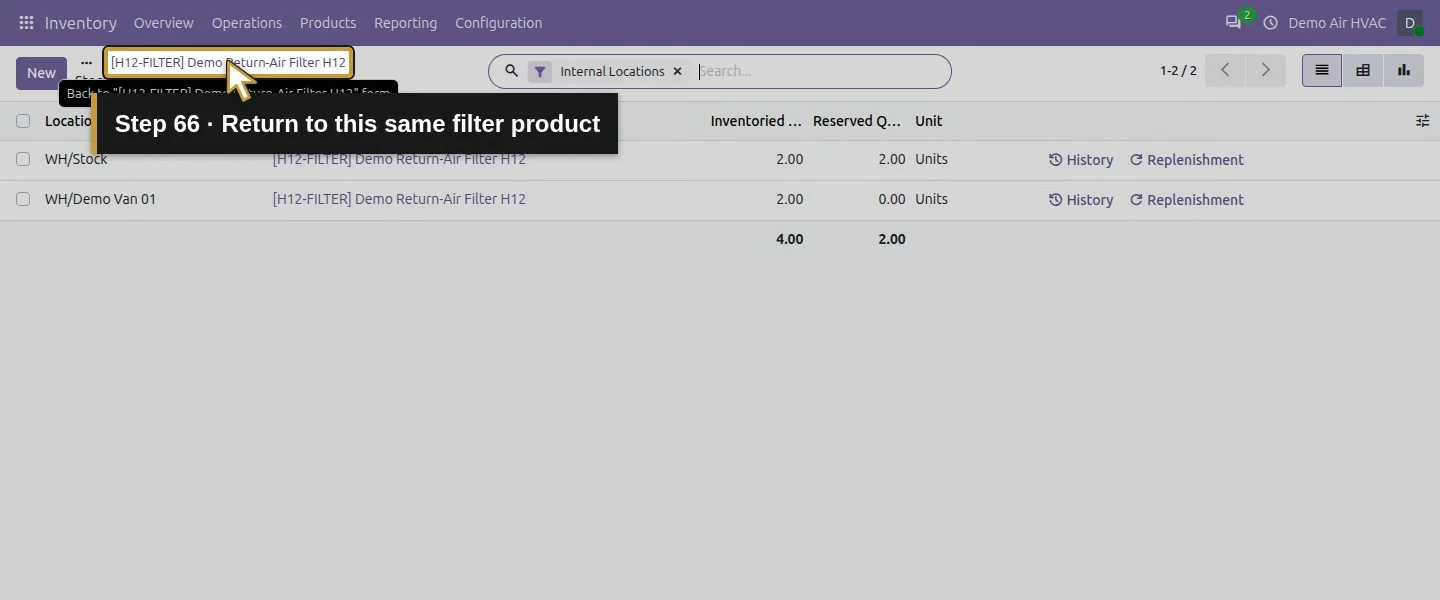
Open the filter product and its 4.00 on-hand link to Stock by Location. Under Internal Locations, the saved rows show WH/Stock: 2.00 / Reserved Quantity: 2.00 and WH/Demo Van 01: 2.00 / Reserved Quantity: 0.00. Total physical stock increased three to four, but free stock stays two. Odoo assigned the returned stock to the existing two-filter backorder, which remains Ready and uncompleted. Do not mistake reserved stock for another customer delivery.
Step 7. Reconcile the order’s billing policy before invoicing
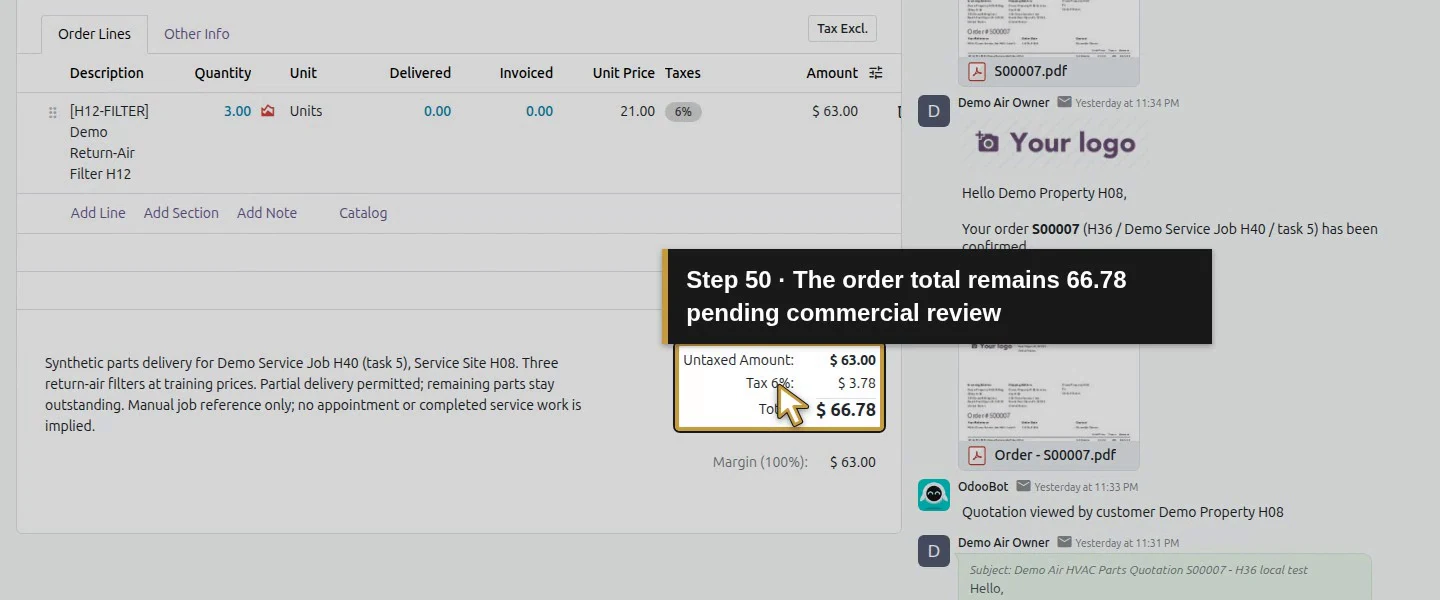
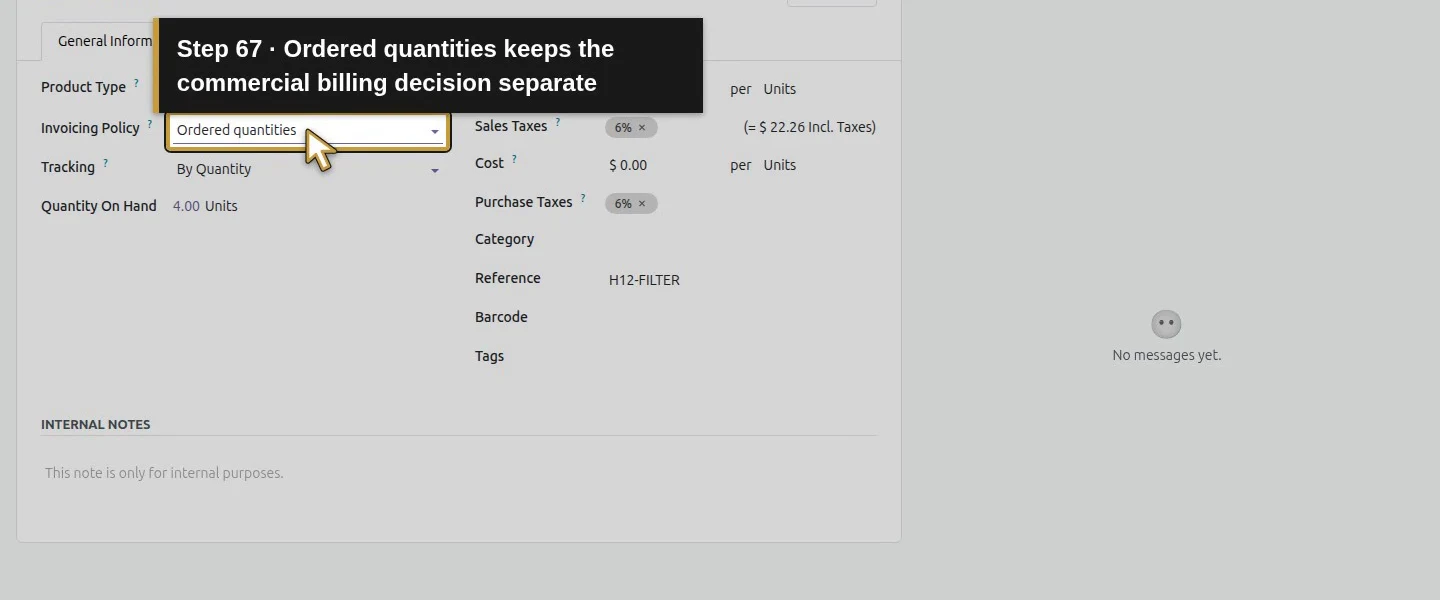
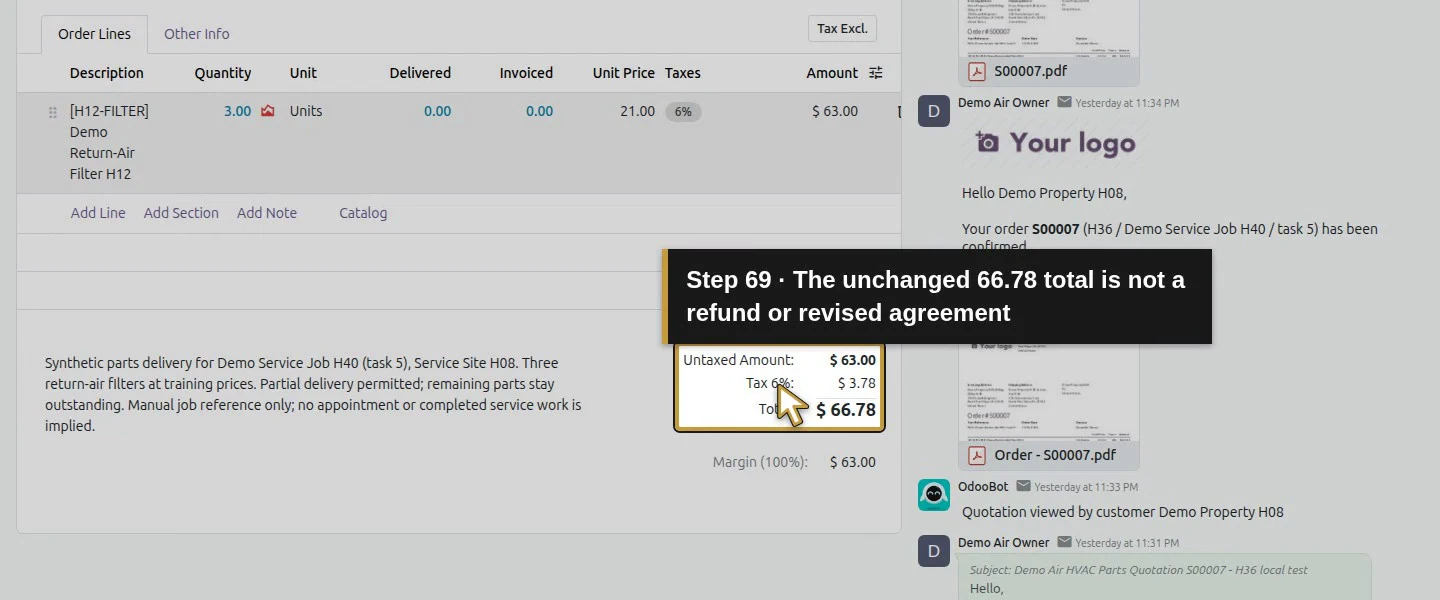
Check the filter’s Invoicing Policy: Ordered quantities. Although net Delivered is zero after the return, this line still has three units to invoice and the order remains $66.78. No customer invoice, credit note or refund was created. A return did not approve changing the ordered quantity or commercial agreement. Hold the materials billing decision for office review and use the separate agreed-order-change workflow if the scope changes.
Step 8. Save the final job handoff and reopen the return
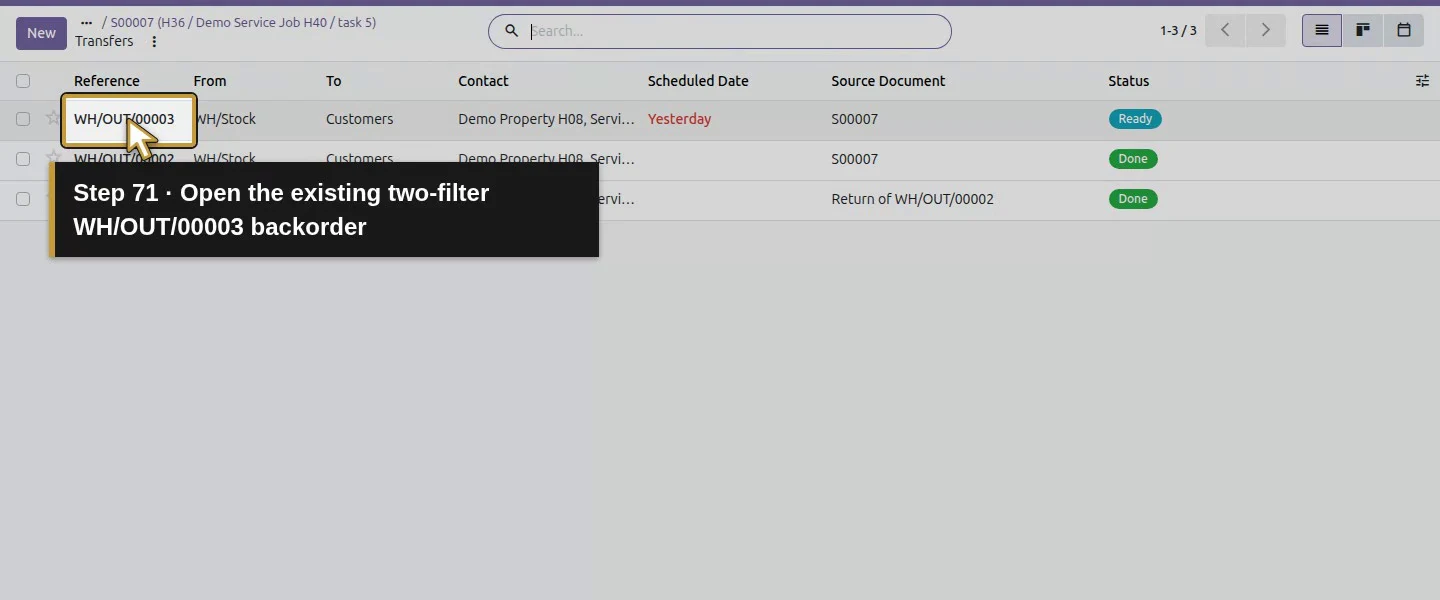
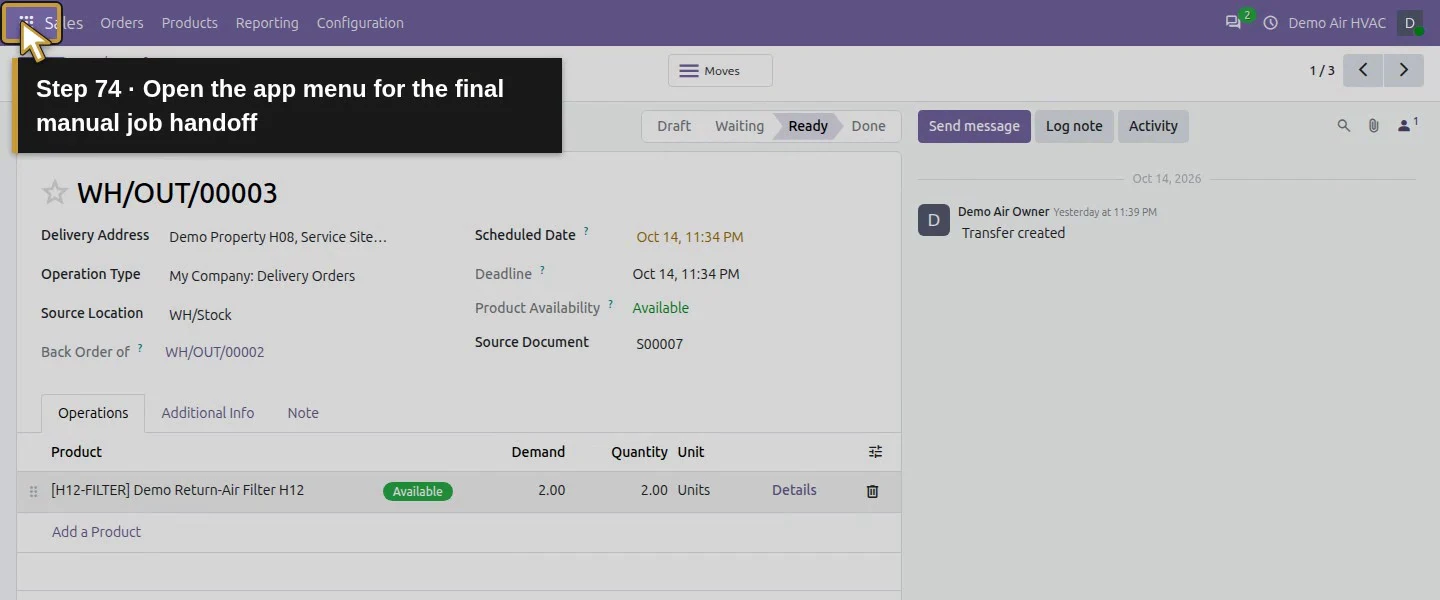
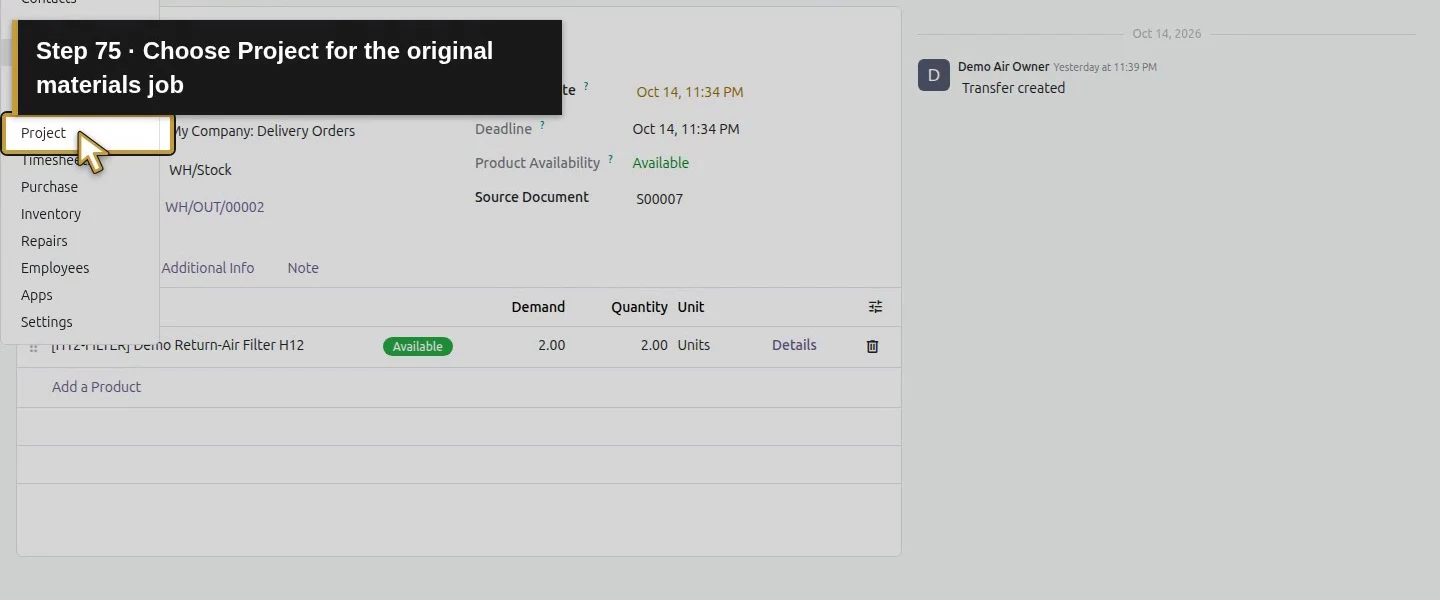
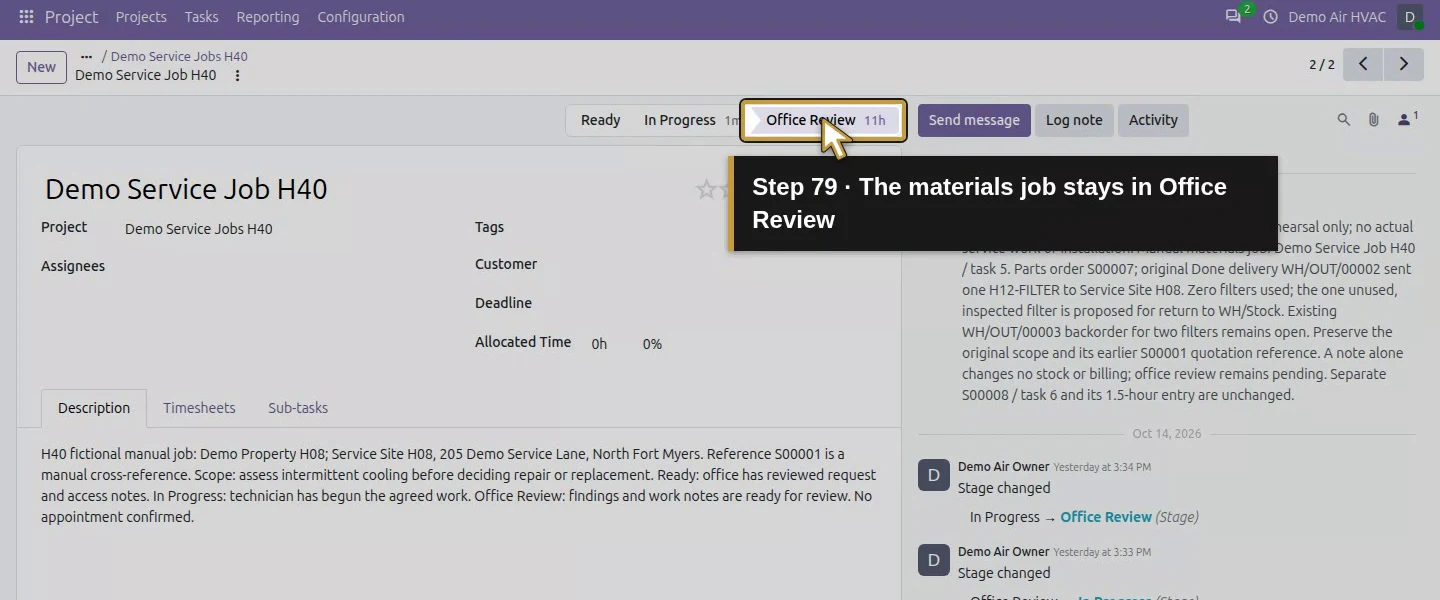
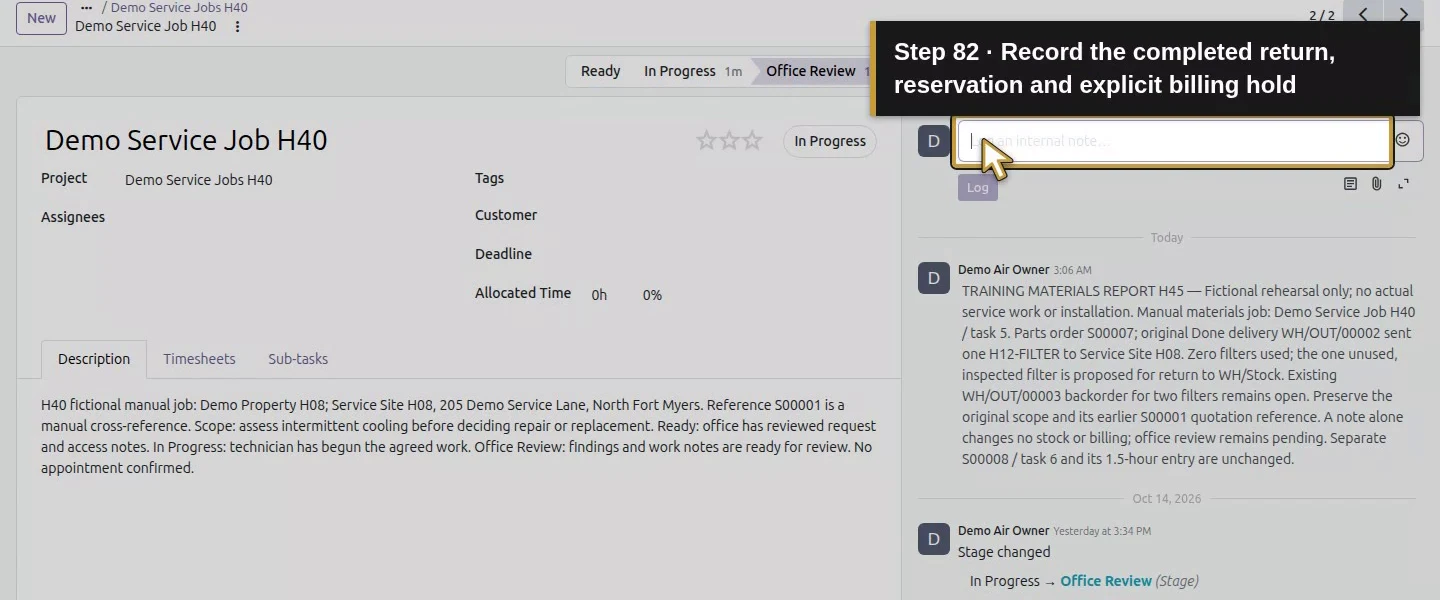
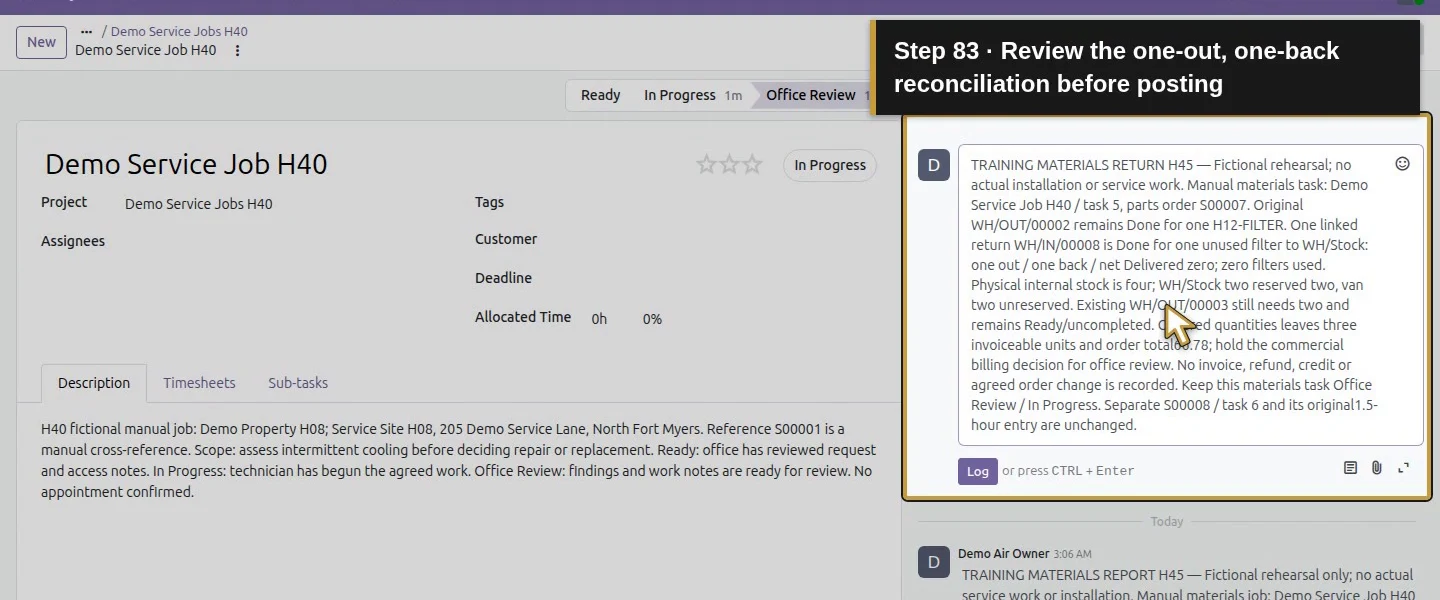
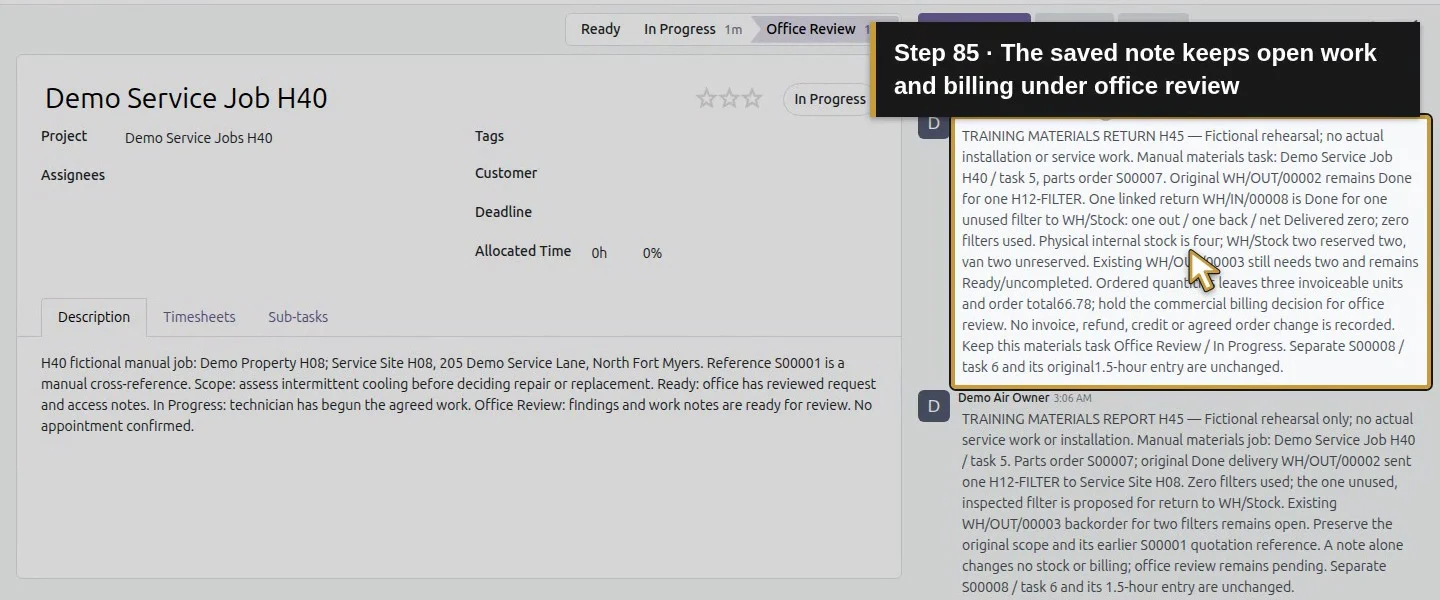
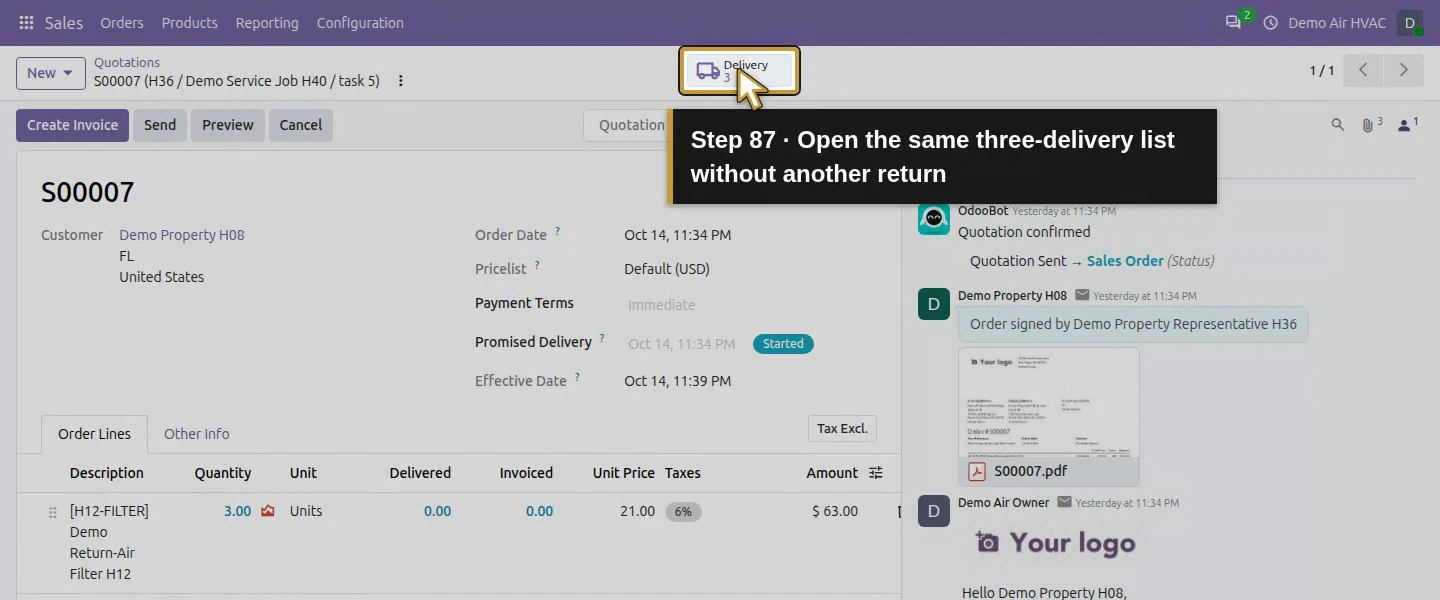
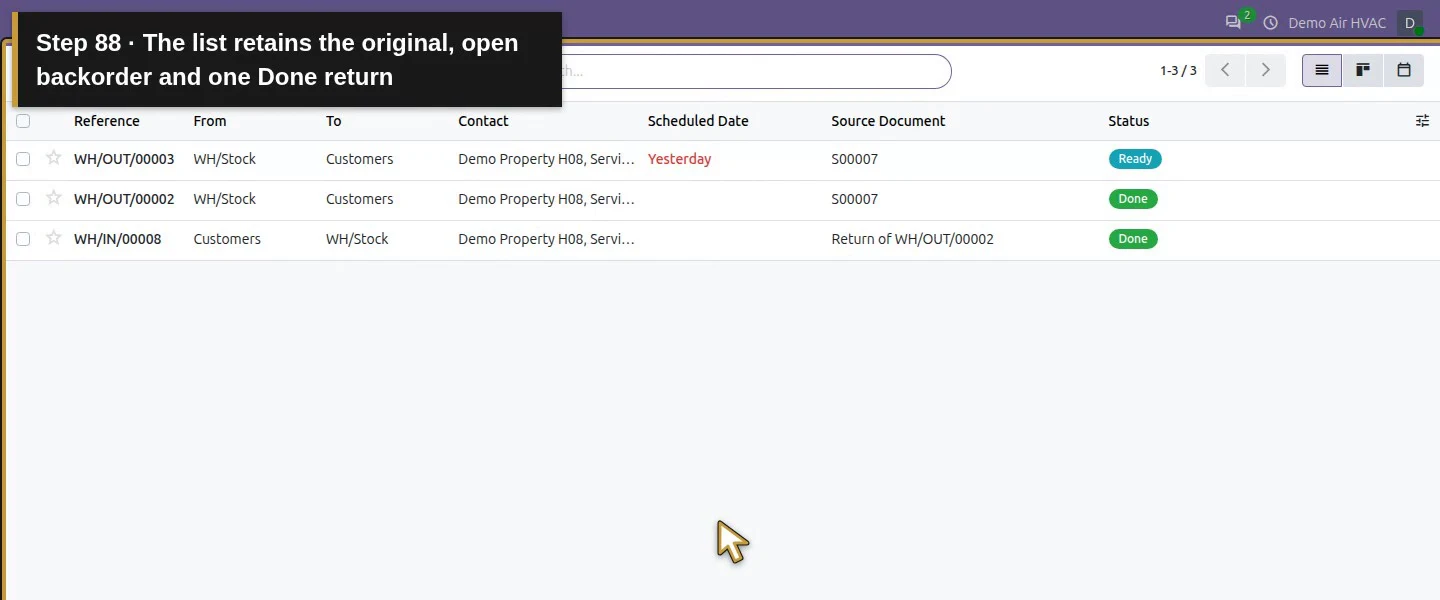
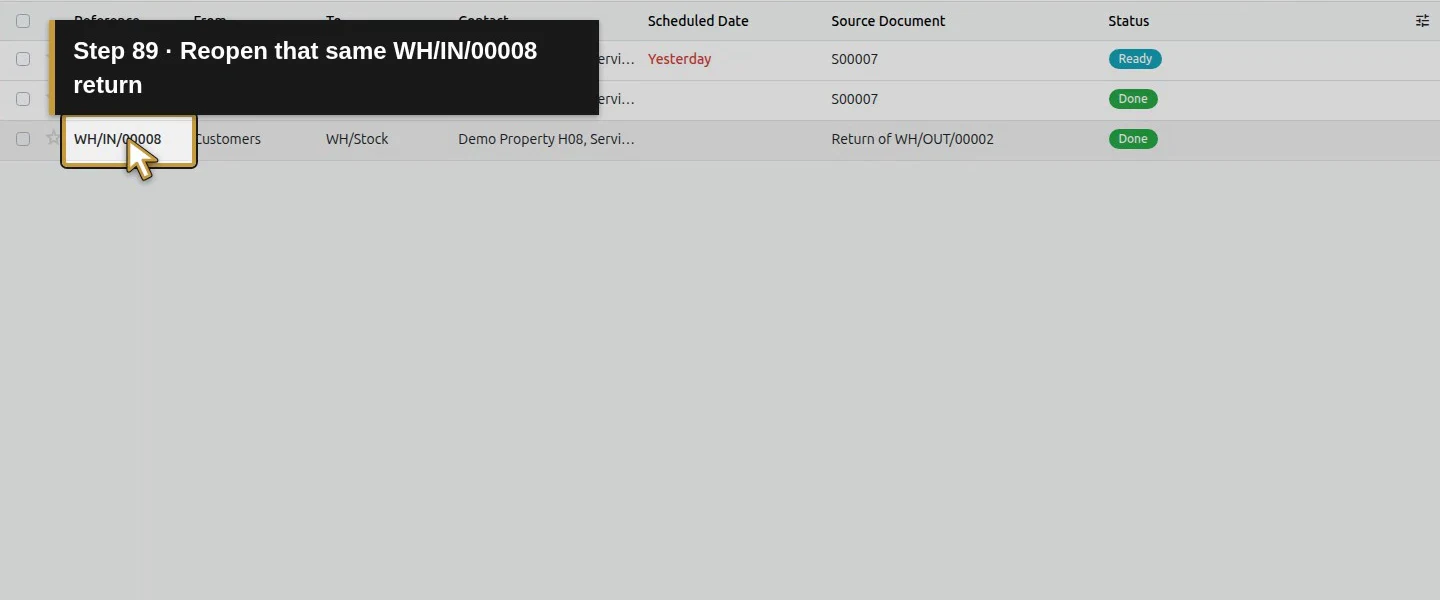
On Demo Service Job H40, use Log note to record the completed return reference, one out/one back/net zero, zero used in this rehearsal, the two-filter backorder and ordered-quantity billing exception. Keep this parts task in Office Review / In Progress. Reopen S00007’s 3 Delivery list and the same Done return; it includes the original delivery, backorder and return. Reopening retained one return, not another movement. The separate hourly task and 1.5-hour entry remain unchanged.
Check the result
One original customer delivery remains Done for one filter, and one linked Done return brings that same unused filter back to WH/Stock. Net Delivered on S00007 is zero; physical internal stock is four, with two warehouse units reserved for the existing two-unit backorder and two unreserved in the van. Two internal task notes preserve the before/final reconciliation. The parts task remains under review, and ordered-quantity billing still exposes three invoiceable units. No invoice, credit, refund, order change or automatic Project consumption was created.
If your screen differs
A usage note, customer delivery, physical return and customer refund are different records. This example returned one unused filter and reports zero installed/used; it does not demonstrate recording actual installed-material consumption. The relationship to the manual task is an explicit reference, and the separate hourly task is preserved. The Return action here opens a zero-demand Draft receipt, not the proposed wizard. Review Demand, Quantity and destination before validating. Returned usable stock can immediately become reserved for an existing backorder. With Ordered quantities, zero net Delivered did not reduce the three-unit invoiceable quantity or cancel the two-unit backorder. Do not treat that quantity as approved billing, or mark outstanding work complete.
Frequently asked questions
How do I record materials used on an Odoo job?
Keep factual job notes and reconcile them with the correct delivery, return and order. Here the owner noted zero used and one unused filter returned, with explicit manual task/order references. The note alone moved no stock, and a delivery did not establish installation. No automatic Project material-consumption feature was demonstrated.How do I return unused job parts to Odoo inventory?
Open the original Done customer delivery and choose Return. Our native action created a zero-demand Draft receipt. Set the actual Demand, save, Mark as To Do, check Quantity and destination, then Validate once. The Done return retained the original movement link and increased physical internal stock by one.
Does returning stock automatically refund the customer?
This return created no customer invoice, credit note or refund. It reduced net Delivered from one to zero, while the Ordered quantities policy left three units invoiceable and the order total unchanged. Review the commercial agreement and accounting documents separately before billing or refunding.Continue building the business
Continue with How do I close an Odoo job and prepare it for invoicing?. Keep this parts job’s open backorder and billing decision visible; the separate hourly job can be reviewed on its own records.
Talk about your Odoo setup
Bring your current process and the result you need to Onward to plan your Odoo workflow. Talk about your Odoo setup.