Running an HVAC business with Odoo

How do I return a faulty part to a supplier in Odoo?
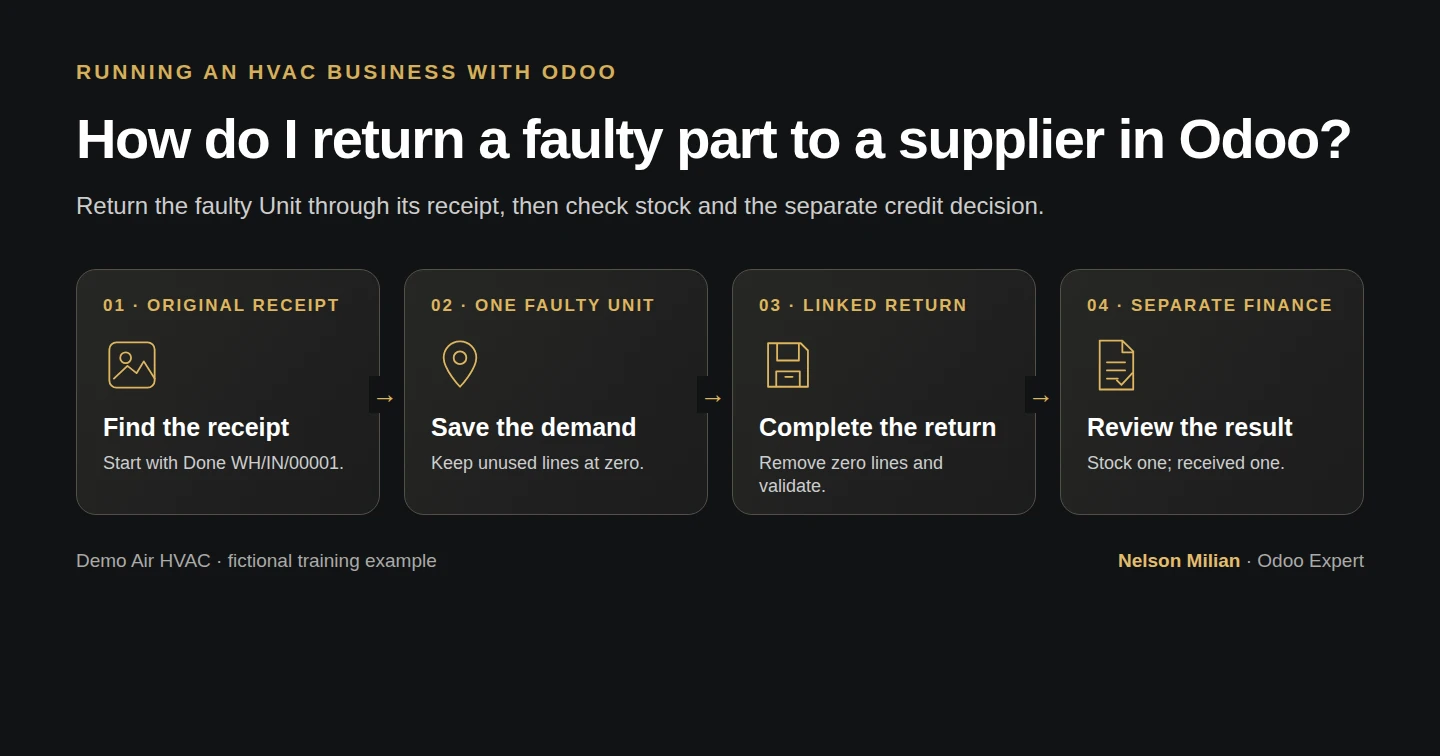
Workflow overview: How do I return a faulty part to a supplier in Odoo?
Workflow overview. Instructional screenshots show the actual demo interface.

Return one capacitor against its original Odoo receipt and inspect stock, purchase quantities and the separate credit-note handoff.

Return a faulty supplier part through its original receipt so the movement stays linked. Alex returns one of the two received capacitors; Odoo reduces stock and the purchase order's received quantity, while supplier credit remains separate.

Alex Rivera and Demo Air HVAC are fictional training examples. Prices, dates, quantities and business situations in this guide are illustrative.

Before you begin

Tested in stock Odoo 20.0-20260926 Community as the demo owner administrator, with official modules and standard configuration. Complete the partial receipt. Use Done receipt WH/IN/00001, with two capacitors received into WH/Stock and both still there. This example returns one untracked Unit; verify actual availability and the supplier's return agreement.

Step-by-step workflow

Stock Odoo 20 Community, owner role. Return one of two untracked capacitors through the original Done receipt WH/IN/00001. Return creates a draft directly. Save one Unit and the fictional reason, remove the unused zero-demand filter line, reserve and validate once. Reopen the same return and check that warehouse capacitors and the purchase received quantity are both one; ordered quantity remains two. Supplier credit and payment stay separate.

Step 1. Open the completed receipt

Open WH/IN/00001 from P00001's receipts. Confirm the capacitor product, two completed Units and warehouse destination. Choose Return.
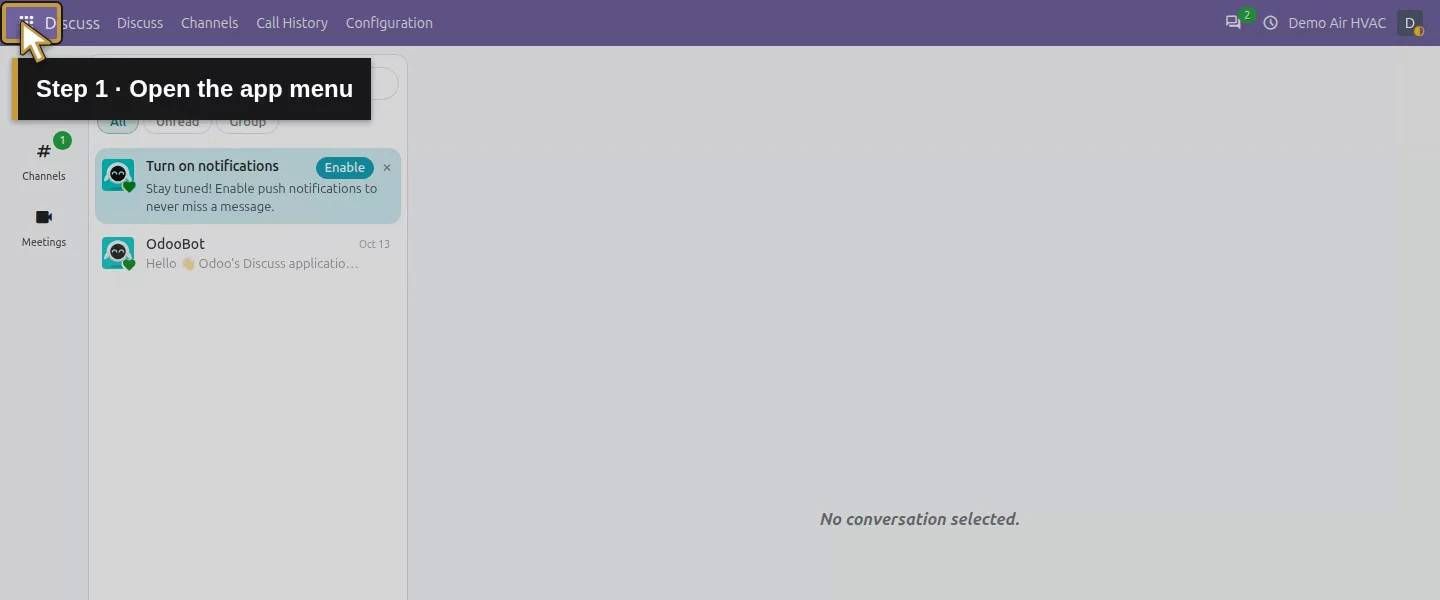
Action 1: Open the app menu. The actual target is highlighted in gold.
Open the app menu.
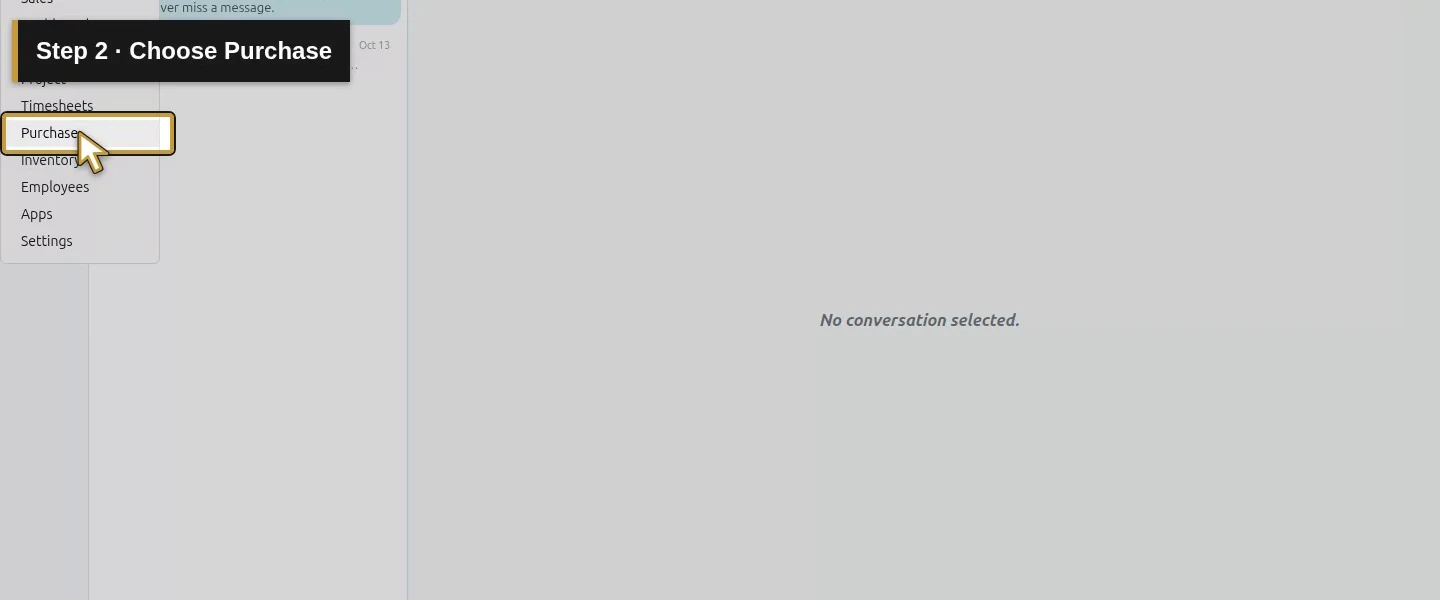
Action 2: Choose Purchase. The actual target is highlighted in gold.
Choose Purchase.
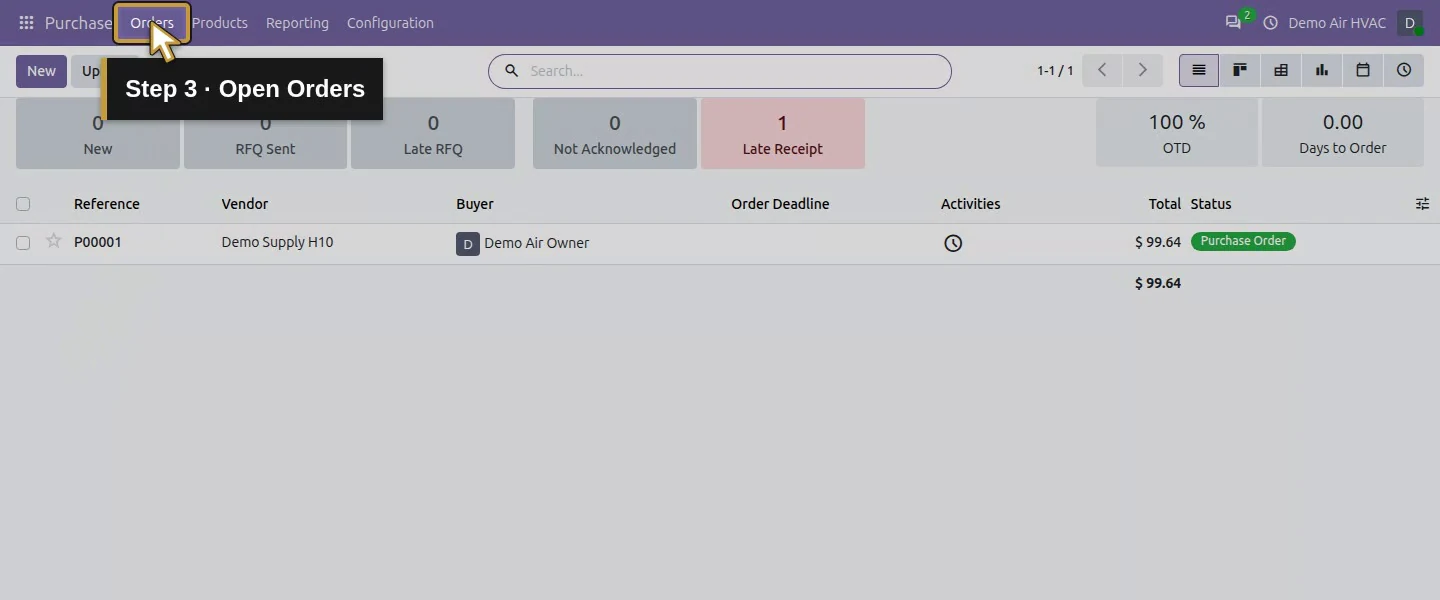
Action 3: Open Orders. The actual target is highlighted in gold.
Open Orders.
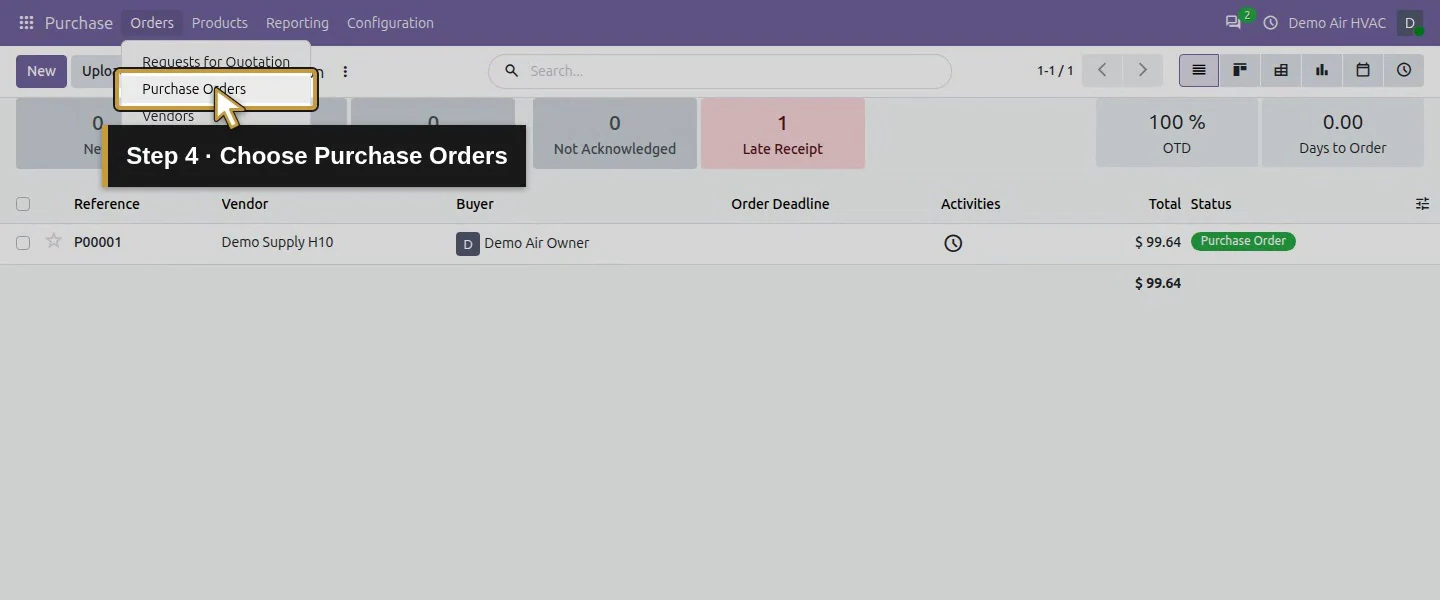
Action 4: Choose Purchase Orders. The actual target is highlighted in gold.
Choose Purchase Orders.
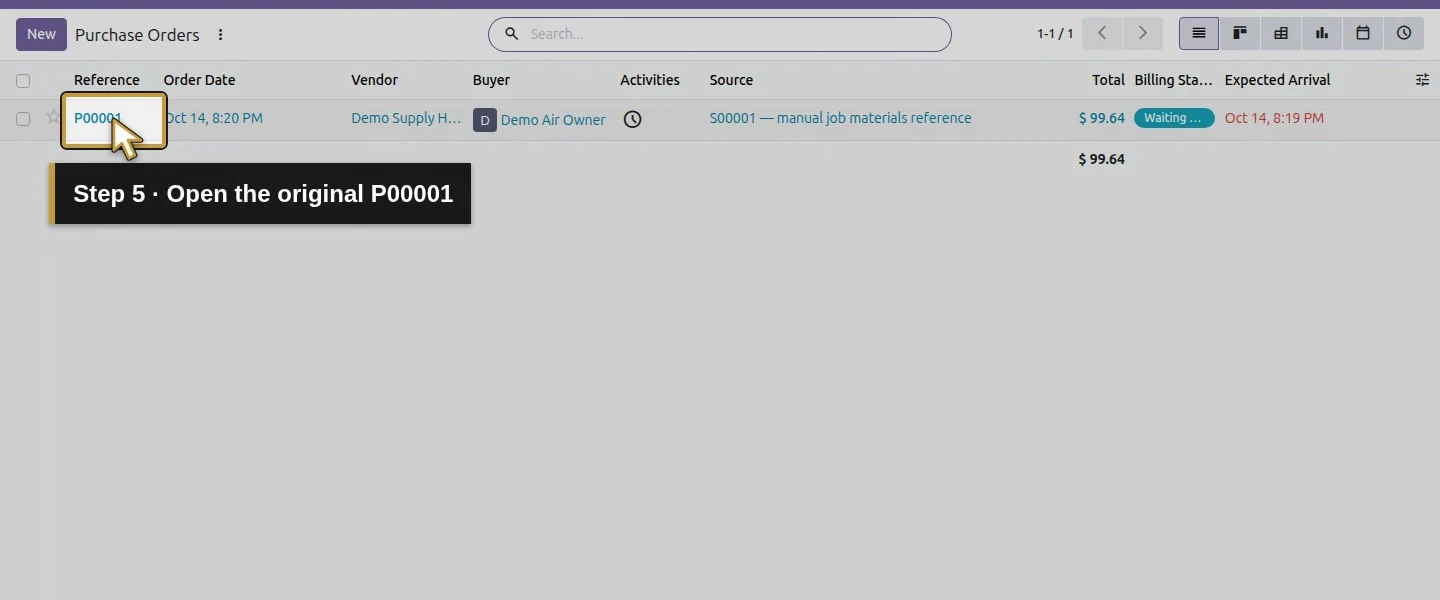
Action 5: Open the original P00001. The actual target is highlighted in gold.
Open the original P00001.
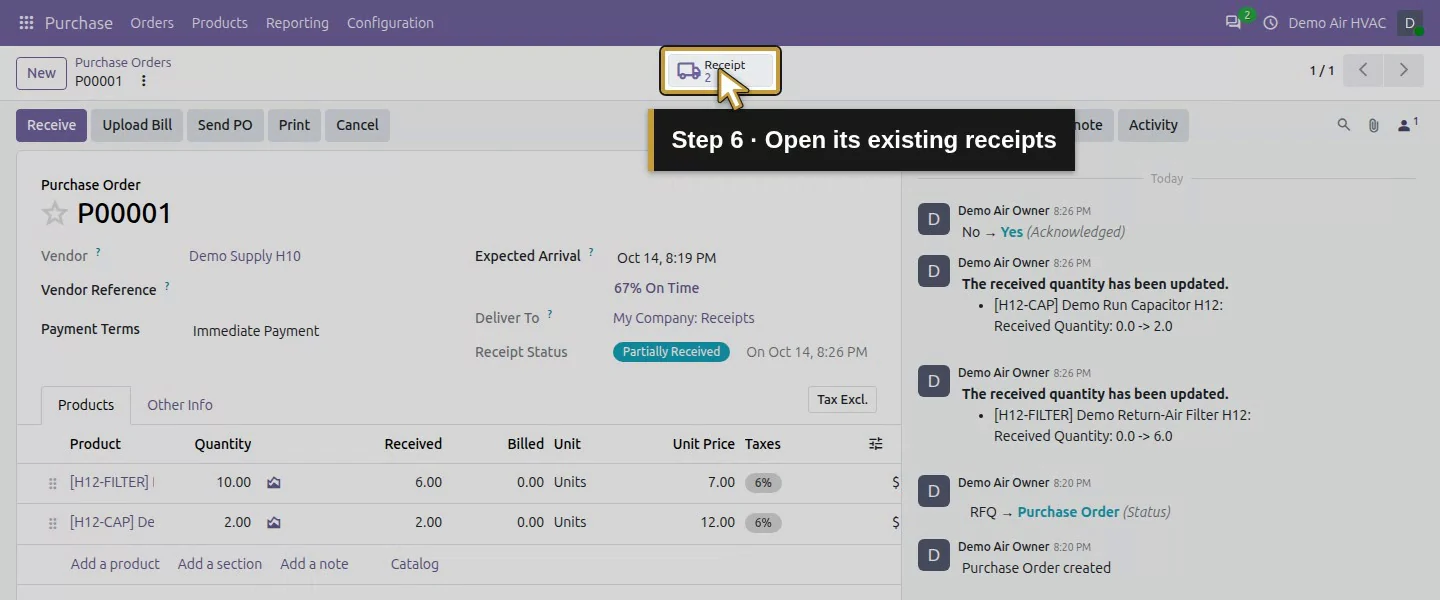
Action 6: Open its existing receipts. The actual target is highlighted in gold.
Open its existing receipts.
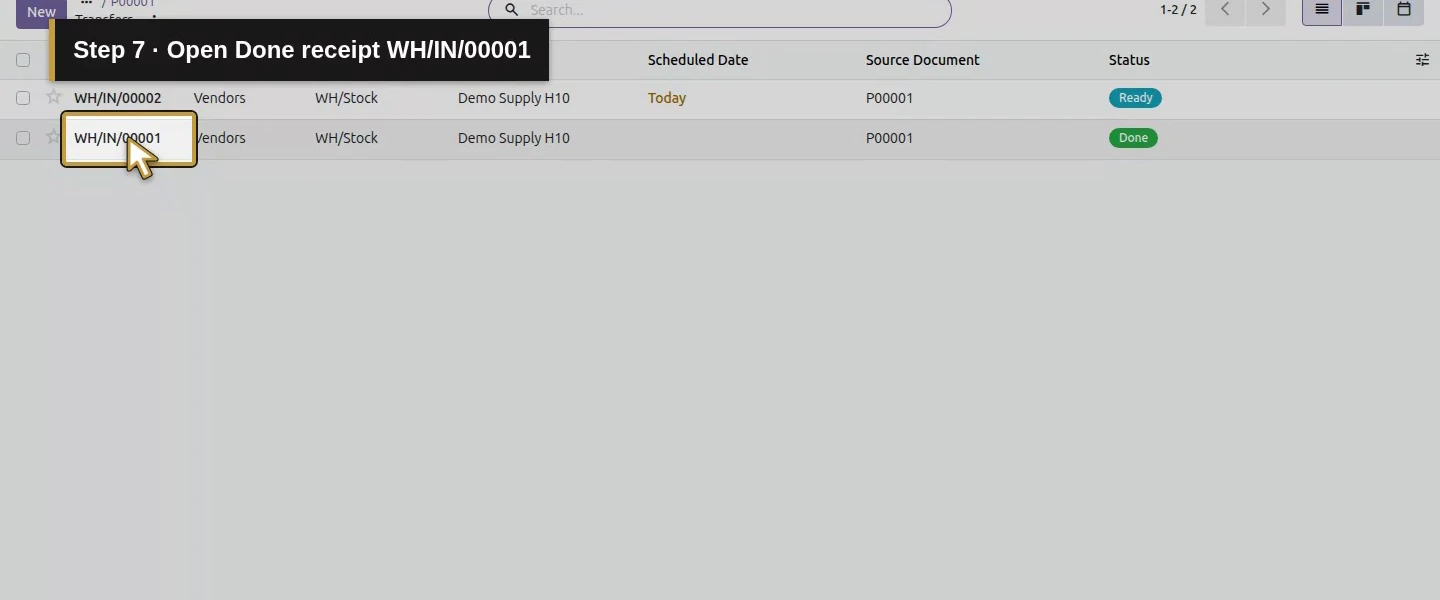
Action 7: Open Done receipt WH/IN/00001. The actual target is highlighted in gold.
Open Done receipt WH/IN/00001.
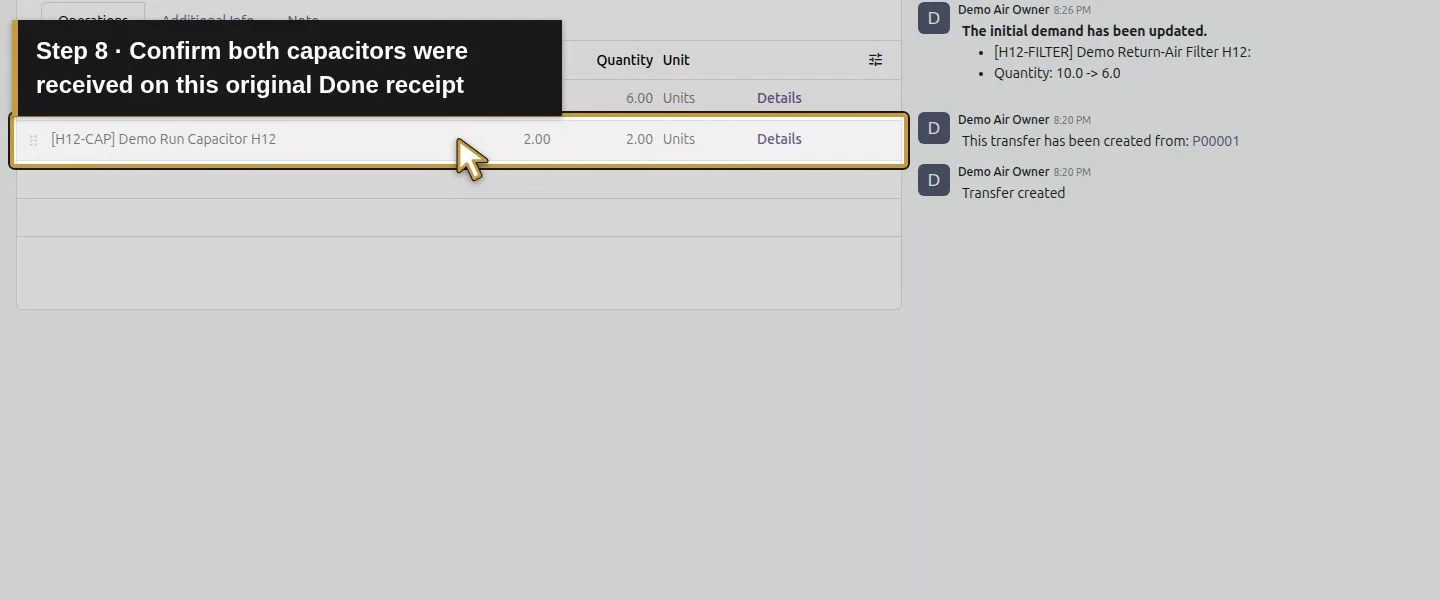
Action 8: Confirm both capacitors were received on this original Done receipt. The actual target is highlighted in gold.
Confirm both capacitors were received on this original Done receipt.
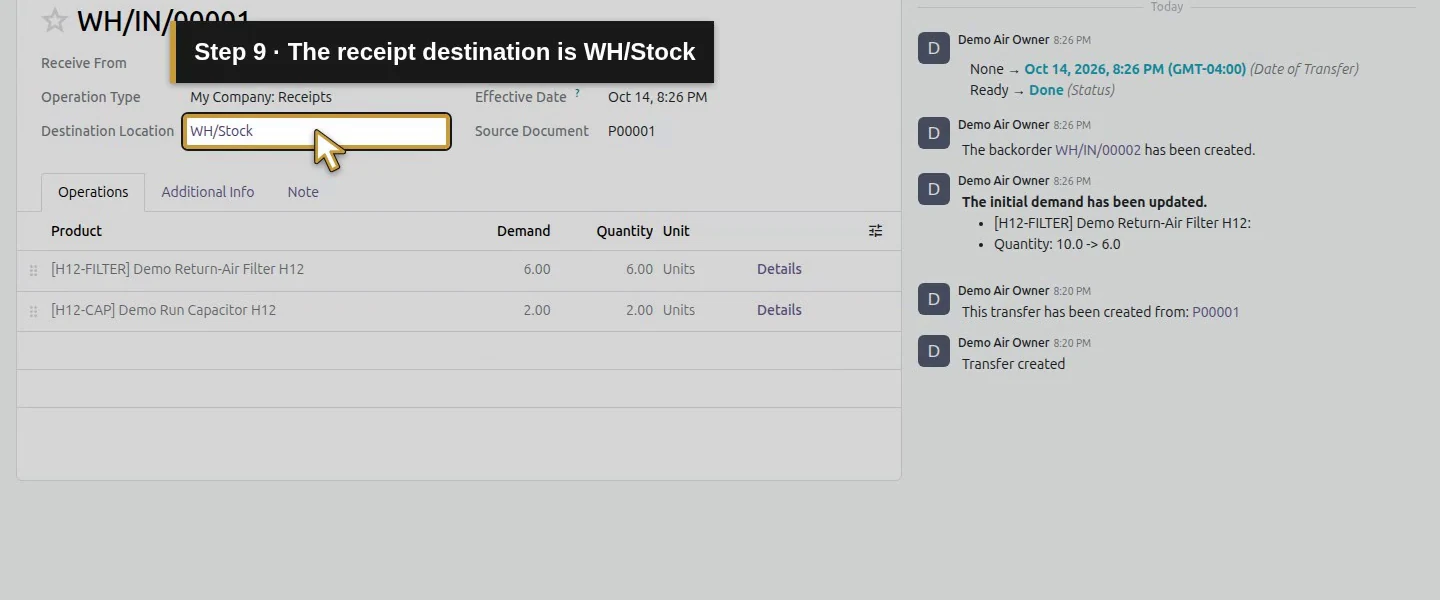
Action 9: The receipt destination is WH/Stock. The actual target is highlighted in gold.
The receipt destination is WH/Stock.

Step 2. Enter the return demand on the draft transfer

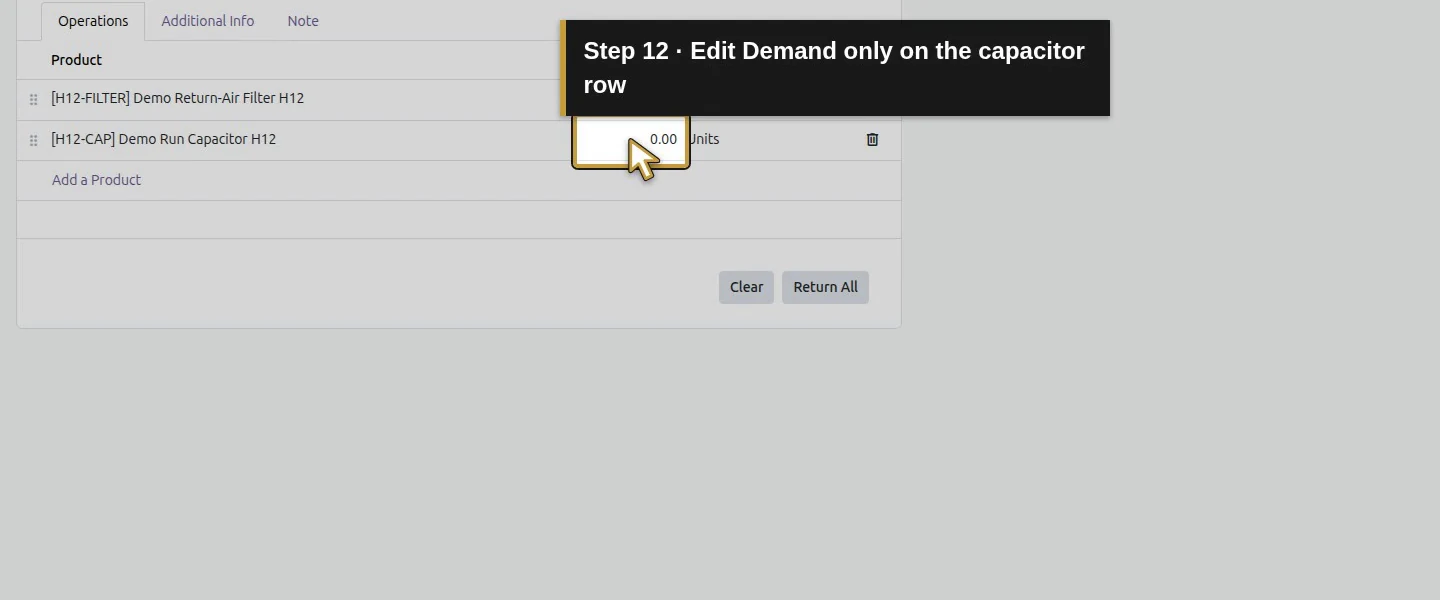
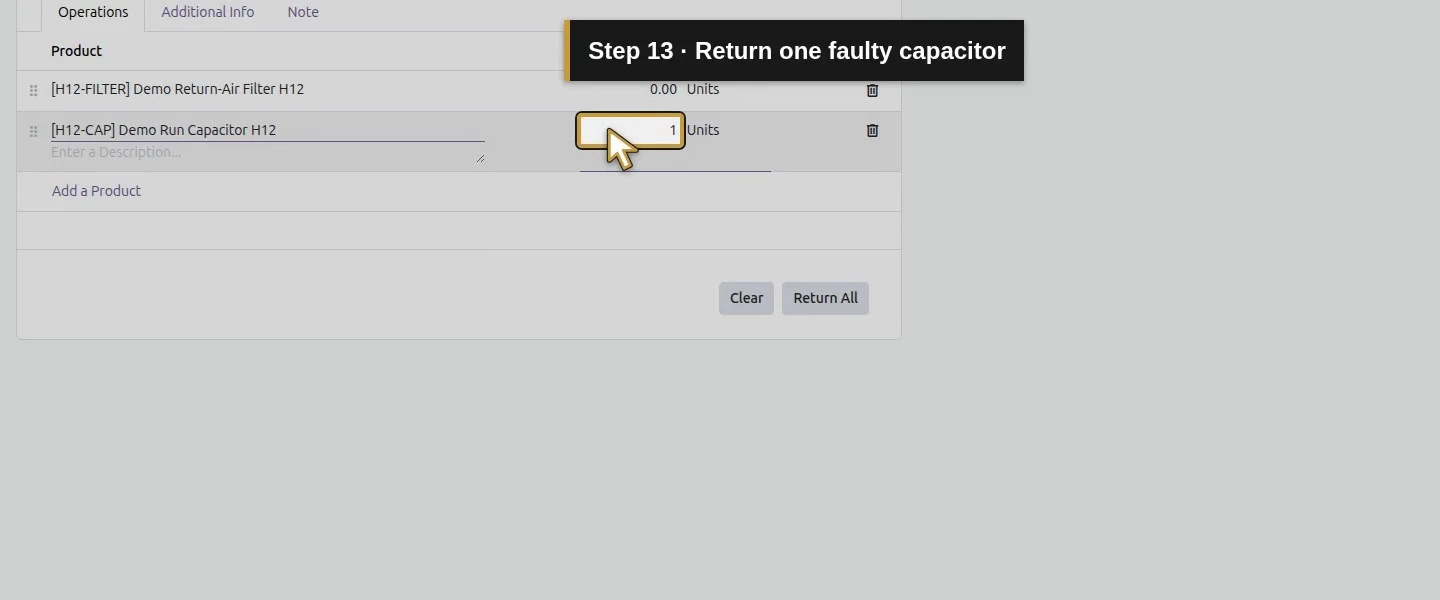
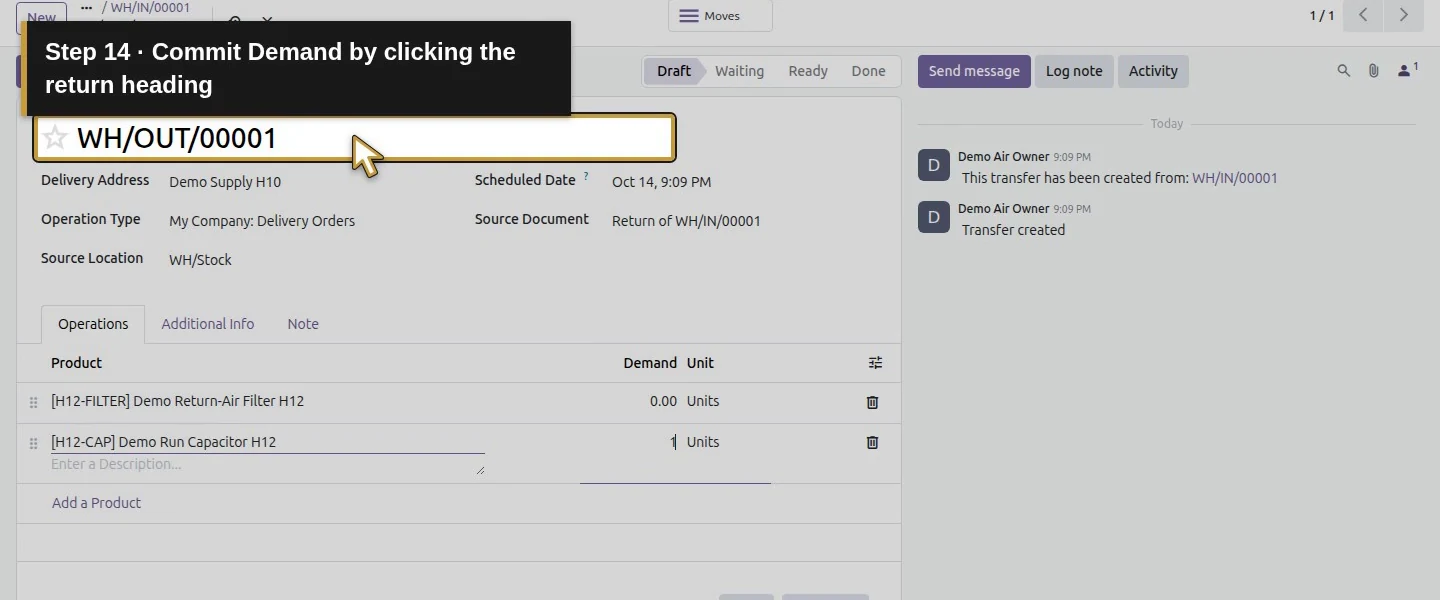
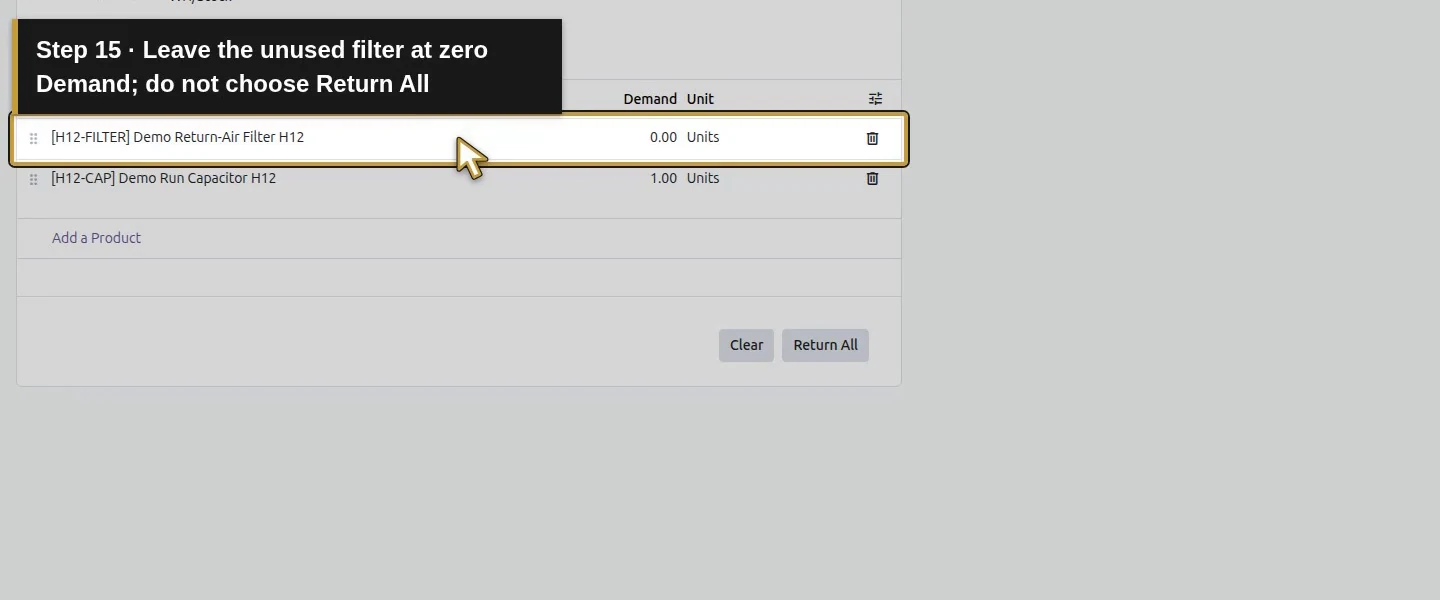
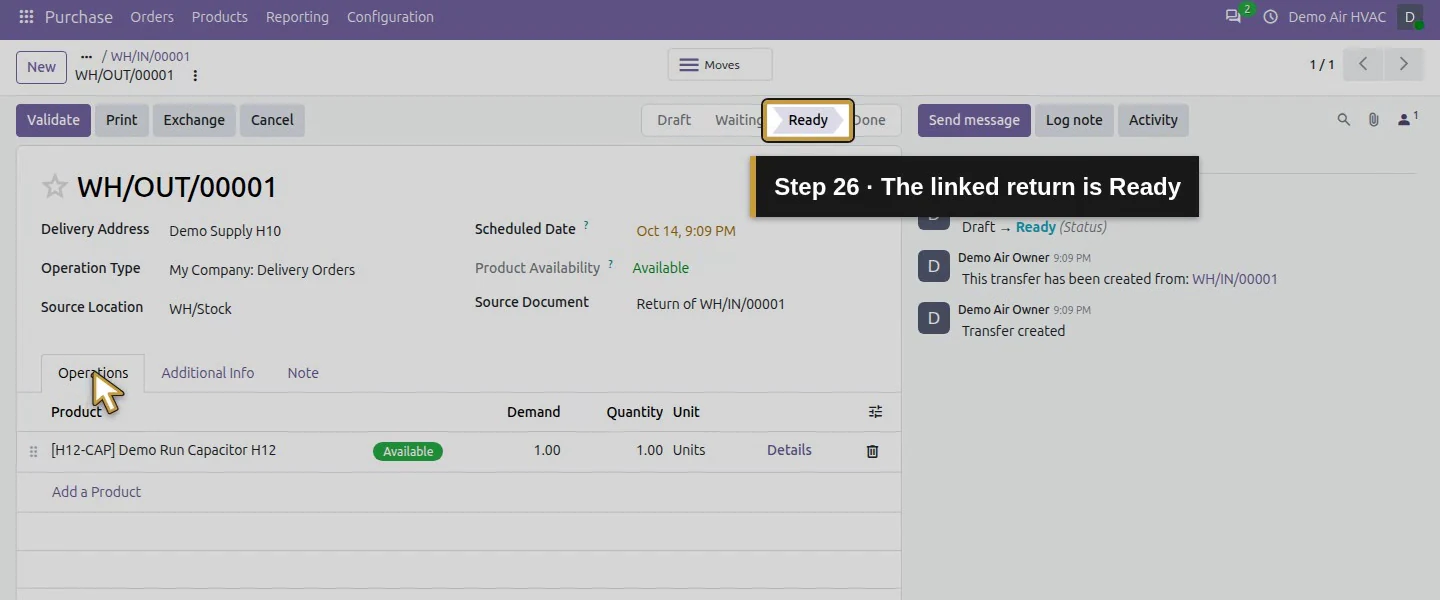
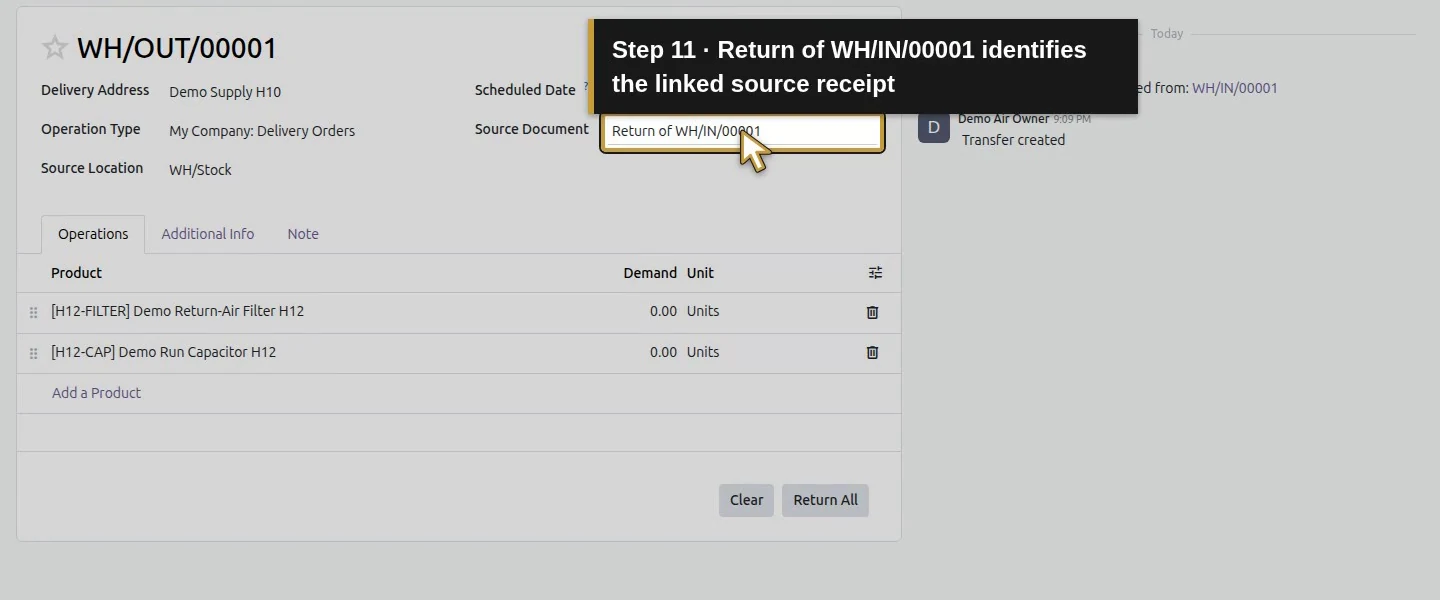
In the tested version Return opens draft transfer WH/OUT/00001 directly, rather than a return wizard. It identifies Return of WH/IN/00001 and initially lists both products with Demand 0. Set the capacitor Demand to 1; leave filters at zero. Do not choose Return All for this one-part return.
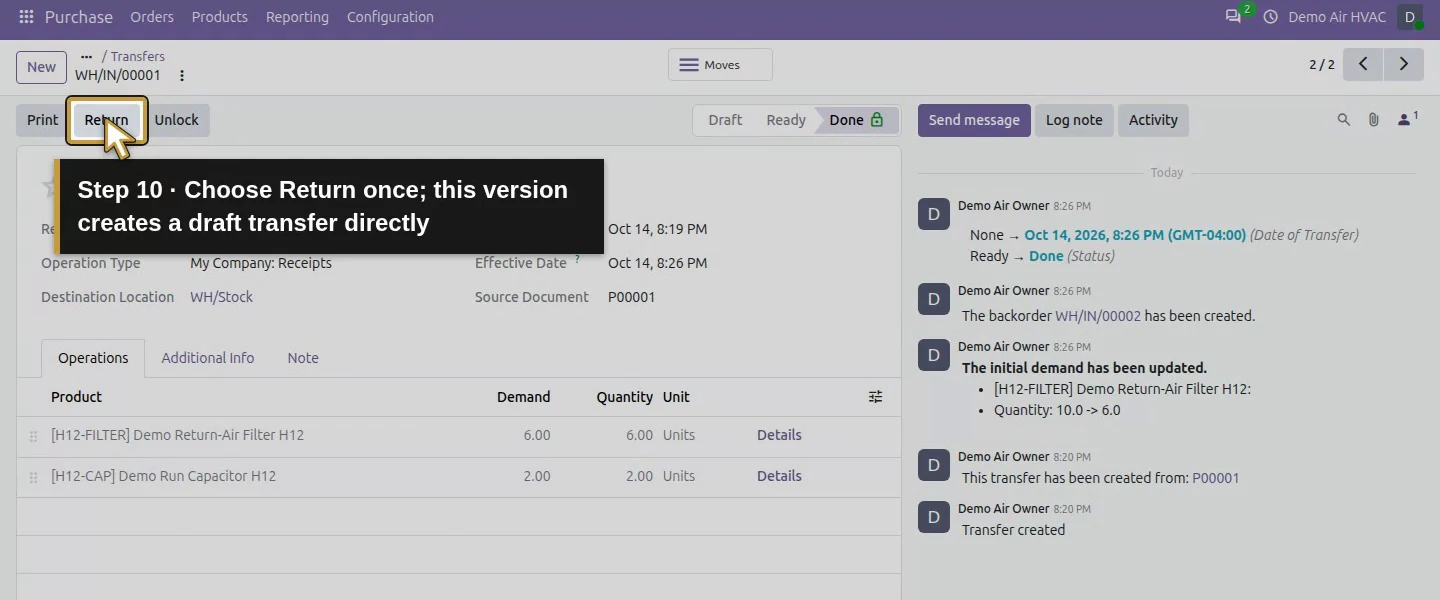
Action 10: Choose Return once; this version creates a draft transfer directly. The actual target is highlighted in gold.
Choose Return once; this version creates a draft transfer directly.
Action 11: Return of WH/IN/00001 identifies the linked source receipt. The actual target is highlighted in gold.
Return of WH/IN/00001 identifies the linked source receipt.
Action 12: Edit Demand only on the capacitor row. The actual target is highlighted in gold.
Edit Demand only on the capacitor row.
Action 13: Return one faulty capacitor. The actual target is highlighted in gold.
Return one faulty capacitor.
Action 14: Commit Demand by clicking the return heading. The actual target is highlighted in gold.
Commit Demand by clicking the return heading.
Action 15: Leave the unused filter at zero Demand; do not choose Return All. The actual target is highlighted in gold.
Leave the unused filter at zero Demand; do not choose Return All.

Step 3. Record the reason and review the source

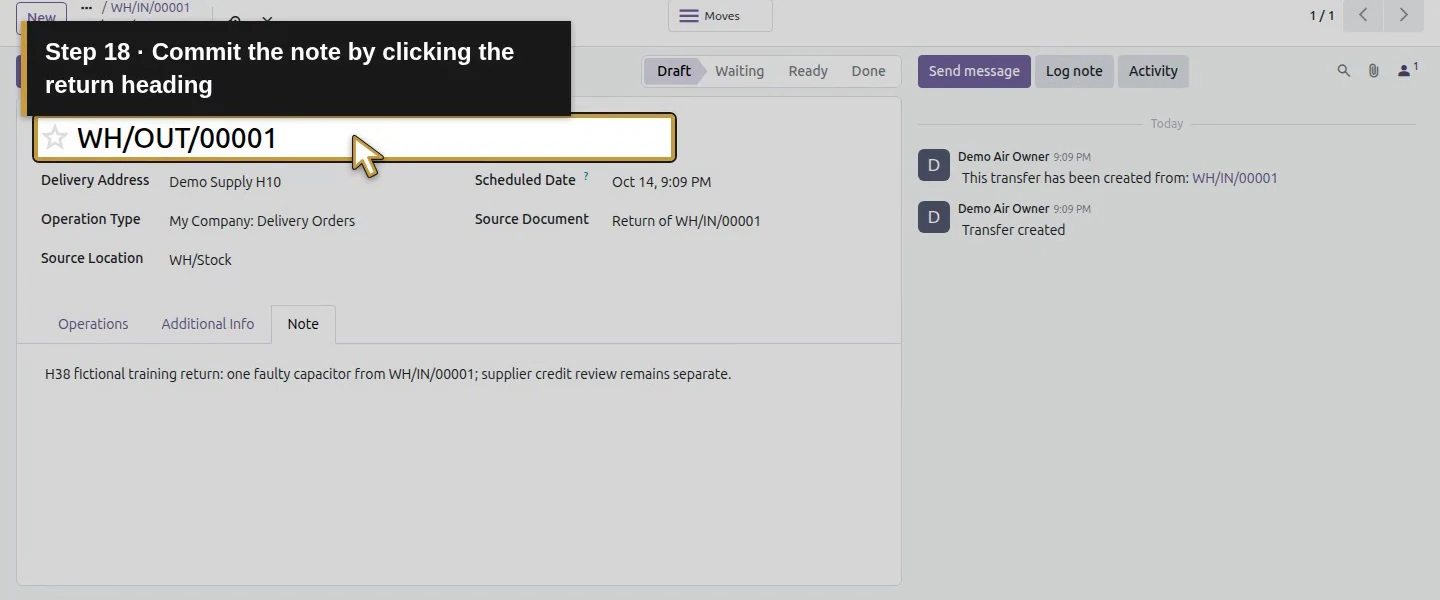
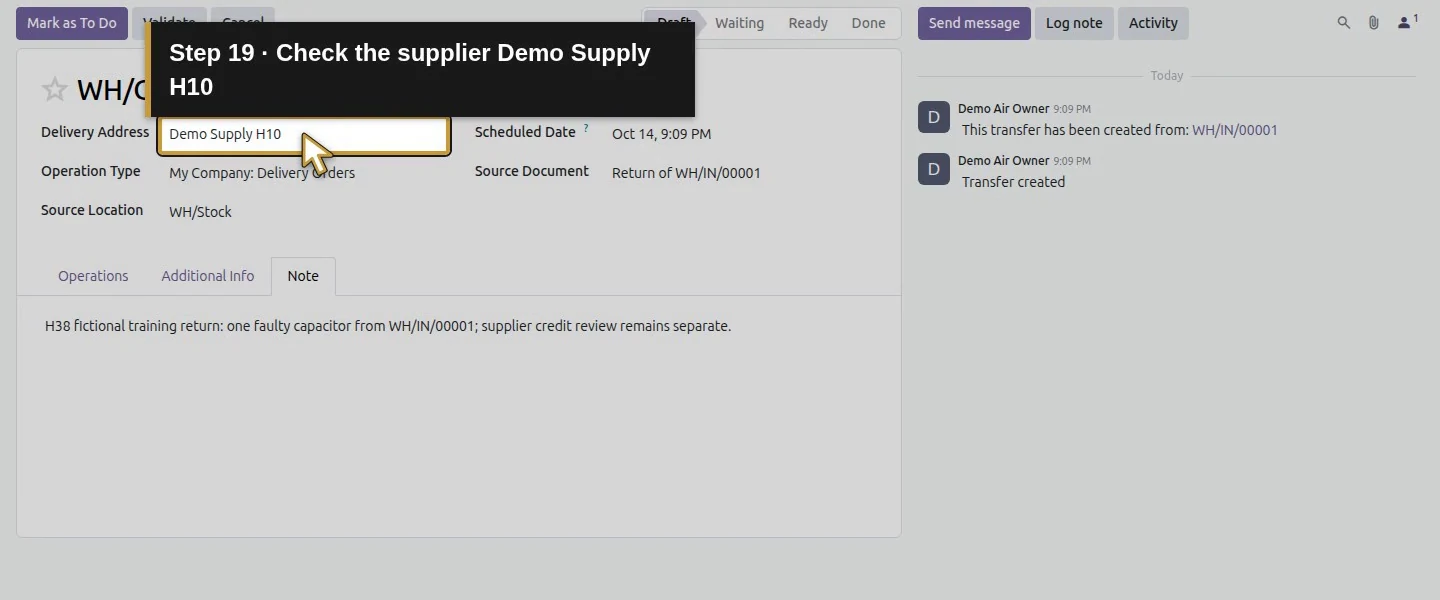
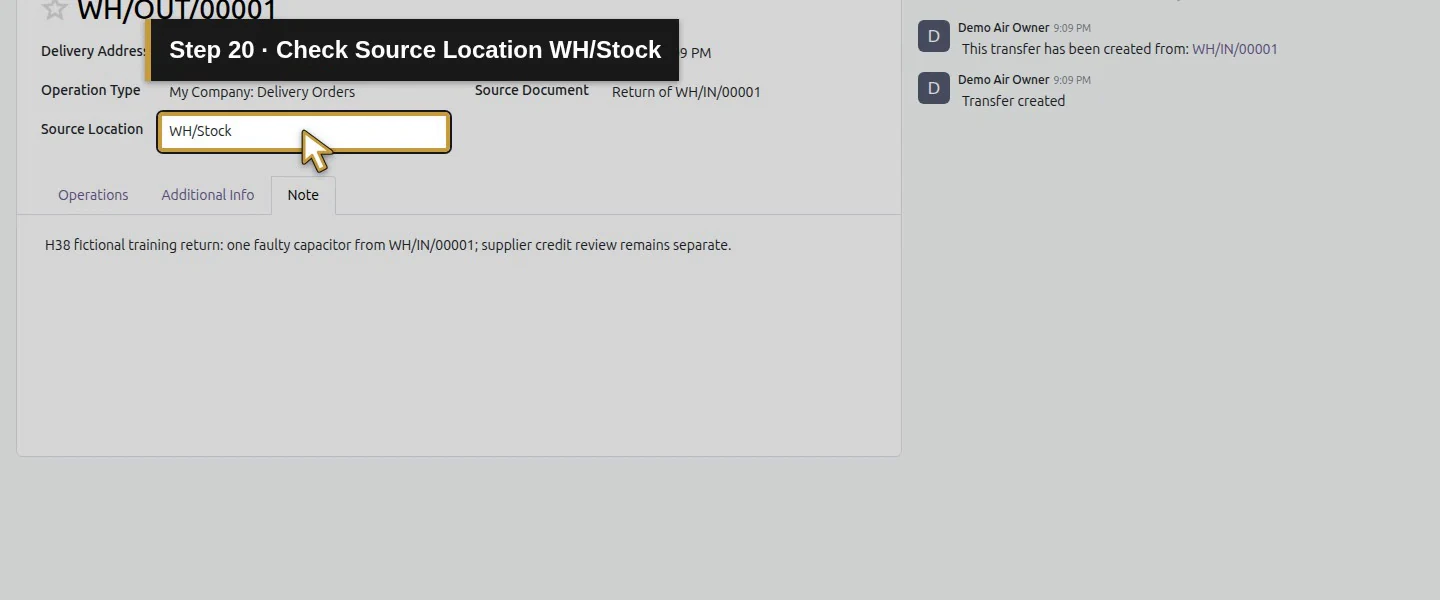
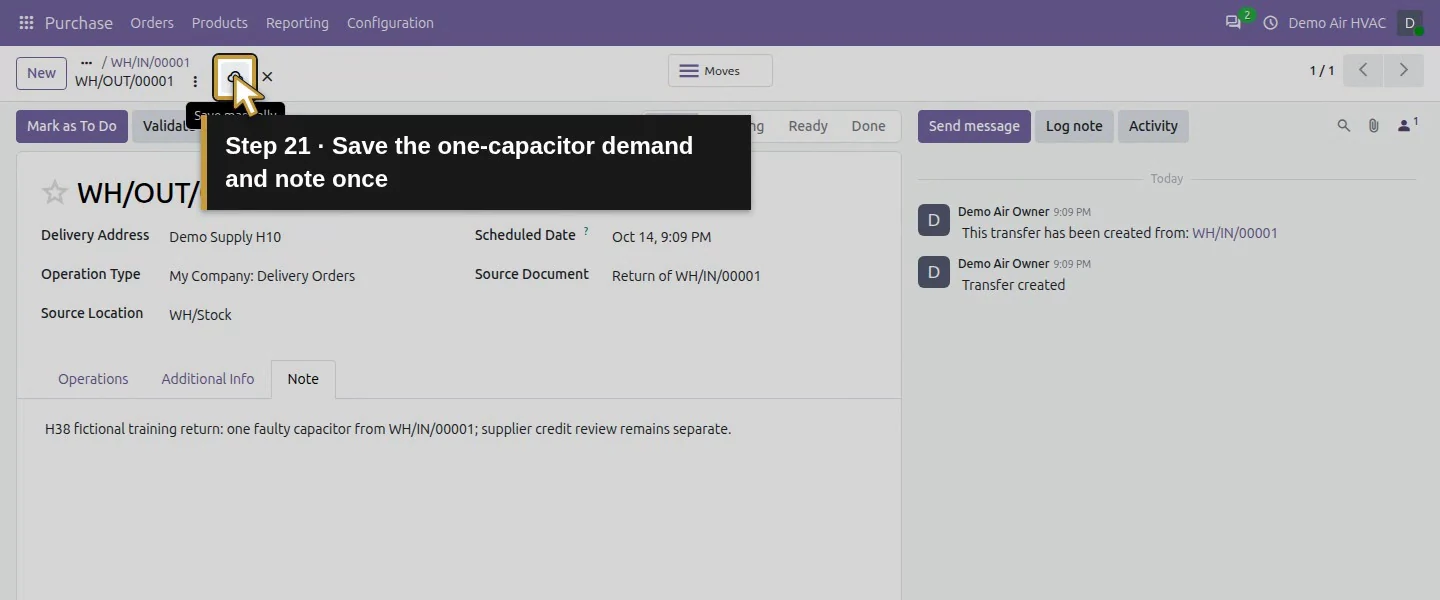
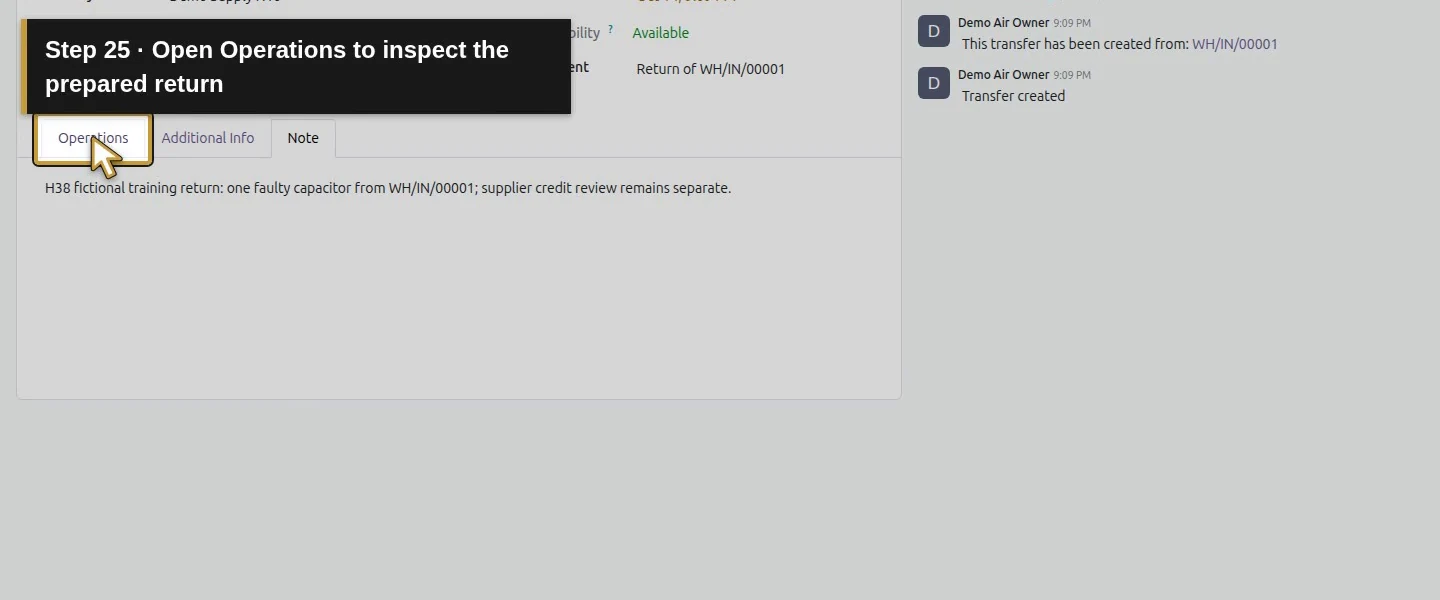
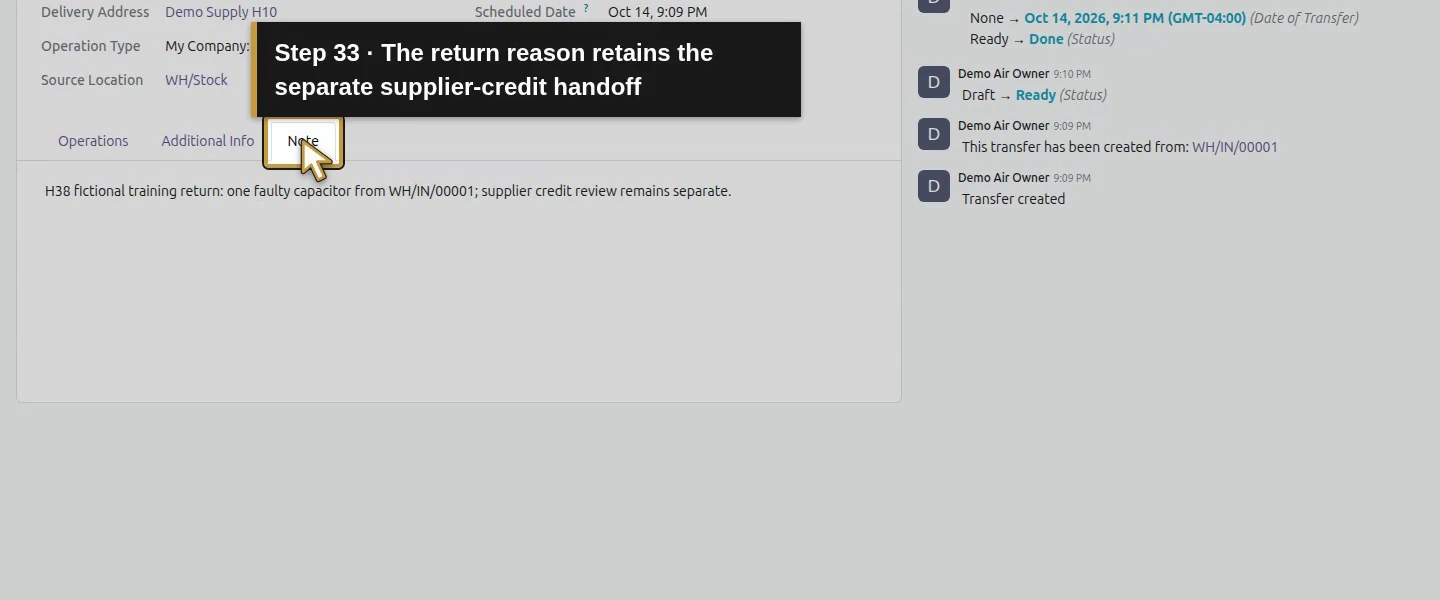
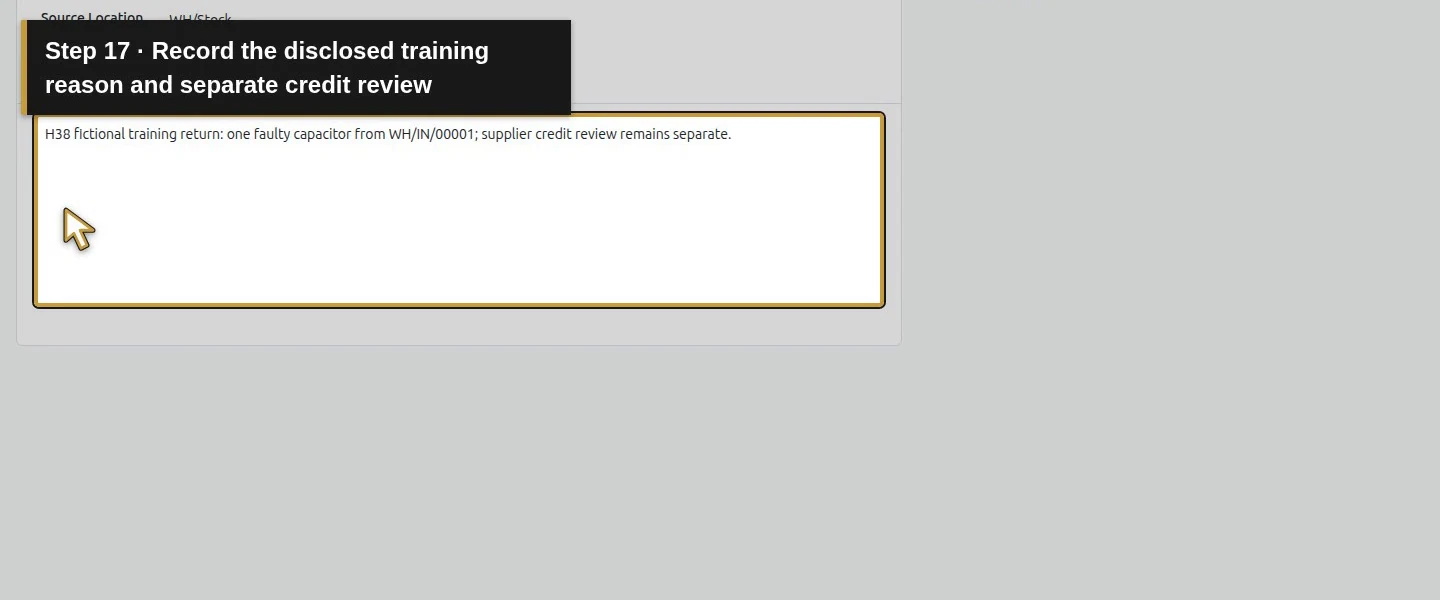
On Note, enter H38 fictional training return: one faulty capacitor from WH/IN/00001; supplier credit review remains separate. Check vendor Demo Supply H10 and Source Location WH/Stock, then choose Save manually.
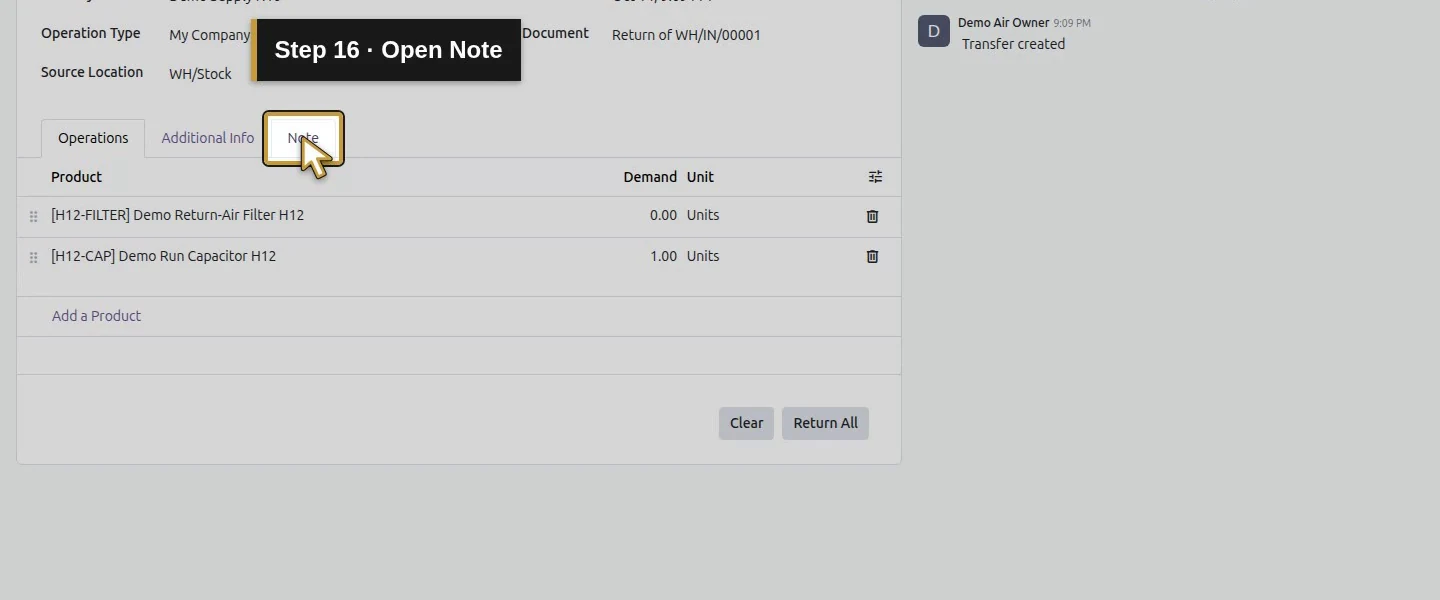
Action 16: Open Note. The actual target is highlighted in gold.
Open Note.
Action 17: Record the disclosed training reason and separate credit review. The actual target is highlighted in gold.
Record the disclosed training reason and separate credit review.
Action 18: Commit the note by clicking the return heading. The actual target is highlighted in gold.
Commit the note by clicking the return heading.
Action 19: Check the supplier Demo Supply H10. The actual target is highlighted in gold.
Check the supplier Demo Supply H10.
Action 20: Check Source Location WH/Stock. The actual target is highlighted in gold.
Check Source Location WH/Stock.
Action 21: Save the one-capacitor demand and note once. The actual target is highlighted in gold.
Save the one-capacitor demand and note once.

Step 4. Remove the unused zero-demand line and complete the move

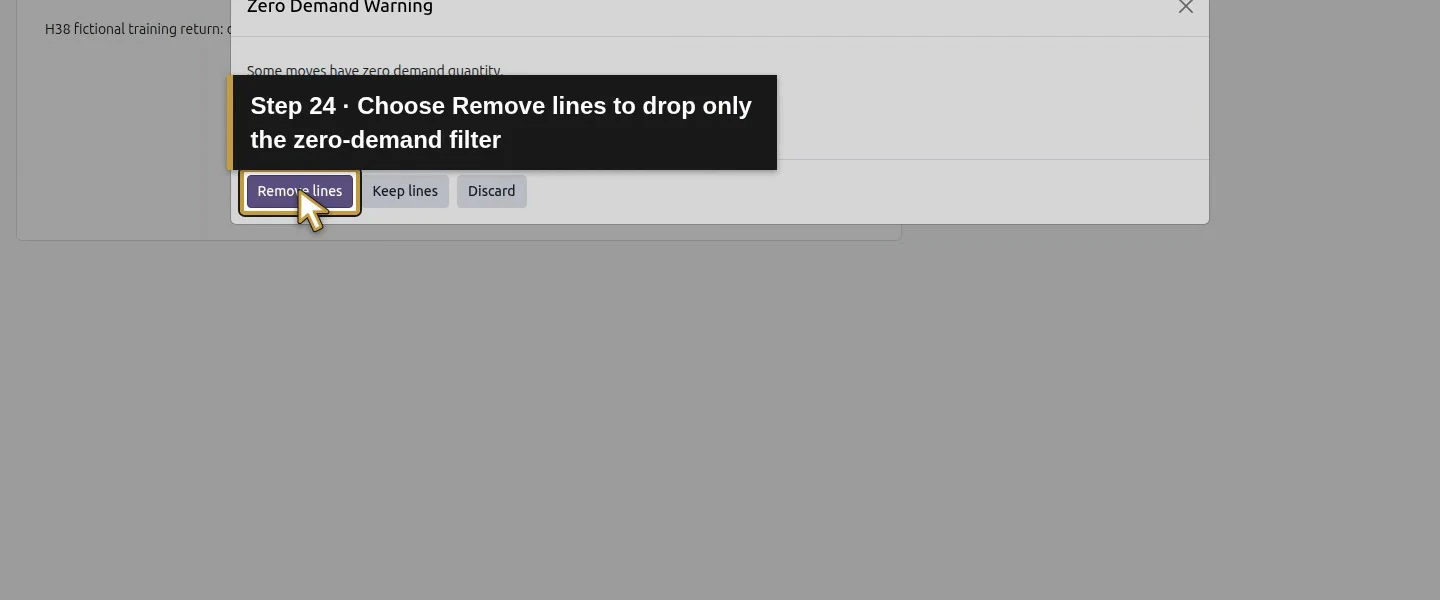
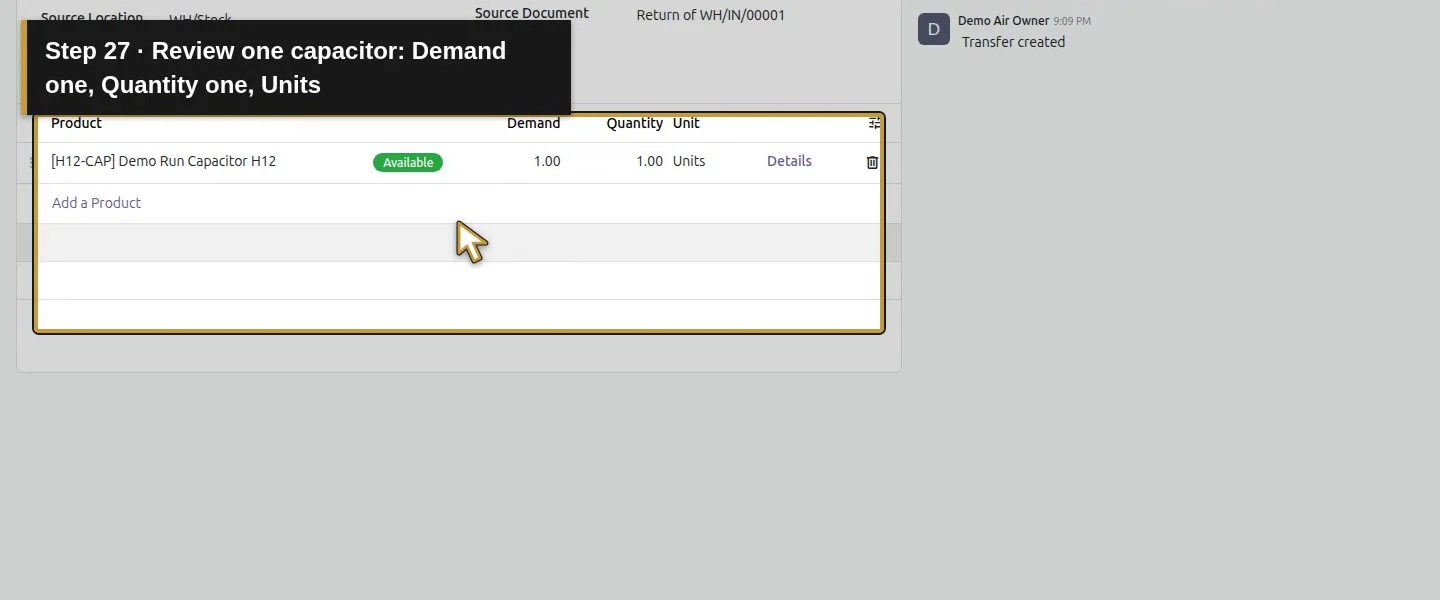
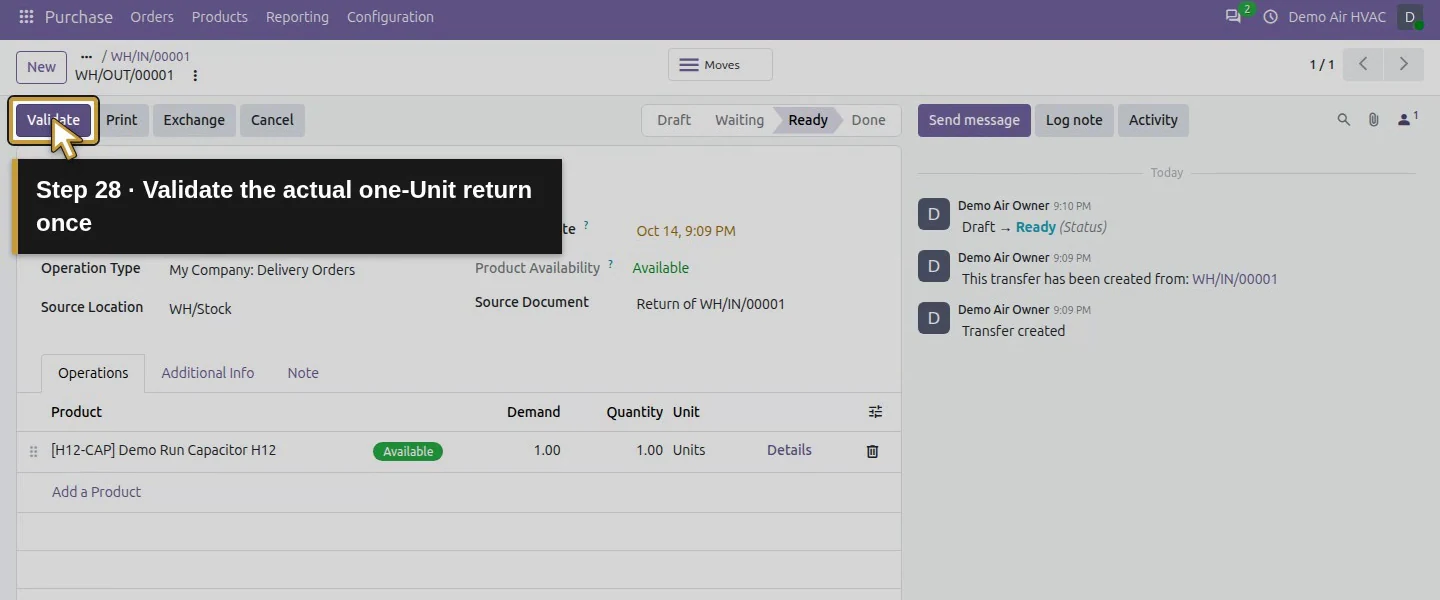
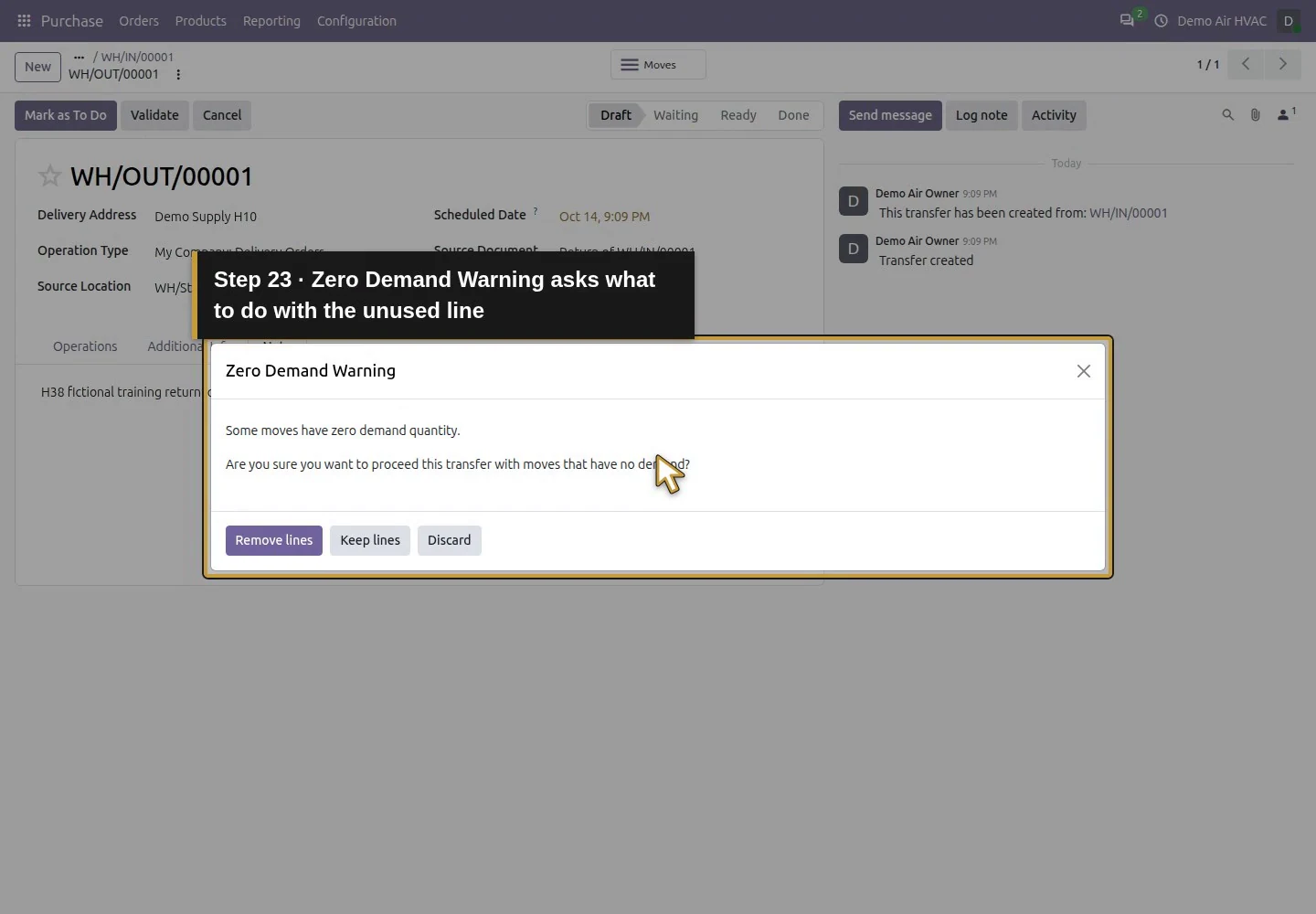
Choose Mark as To Do. The tested Zero Demand Warning offers Remove lines, Keep lines and Discard. Select Remove lines so only the one-capacitor return remains. On Operations, review Quantity one against Demand one and Units, then choose Validate and wait for Done.
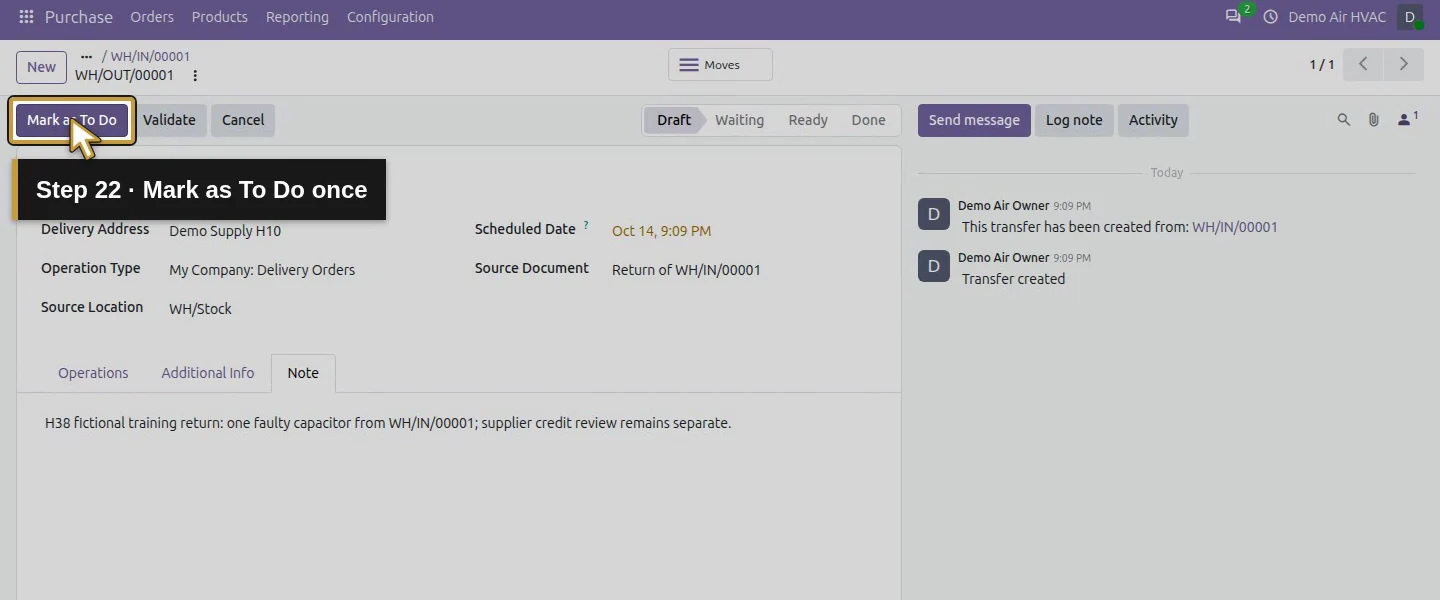
Action 22: Mark as To Do once. The actual target is highlighted in gold.
Mark as To Do once.
Action 23: Zero Demand Warning asks what to do with the unused line. The actual target is highlighted in gold.
Zero Demand Warning asks what to do with the unused line.
Action 24: Choose Remove lines to drop only the zero-demand filter. The actual target is highlighted in gold.
Choose Remove lines to drop only the zero-demand filter.
Action 25: Open Operations to inspect the prepared return. The actual target is highlighted in gold.
Open Operations to inspect the prepared return.
Action 26: The linked return is Ready. The actual target is highlighted in gold.
The linked return is Ready.
Action 27: Review one capacitor: Demand one, Quantity one, Units. The actual target is highlighted in gold.
Review one capacitor: Demand one, Quantity one, Units.
Action 28: Validate the actual one-Unit return once. The actual target is highlighted in gold.
Validate the actual one-Unit return once.
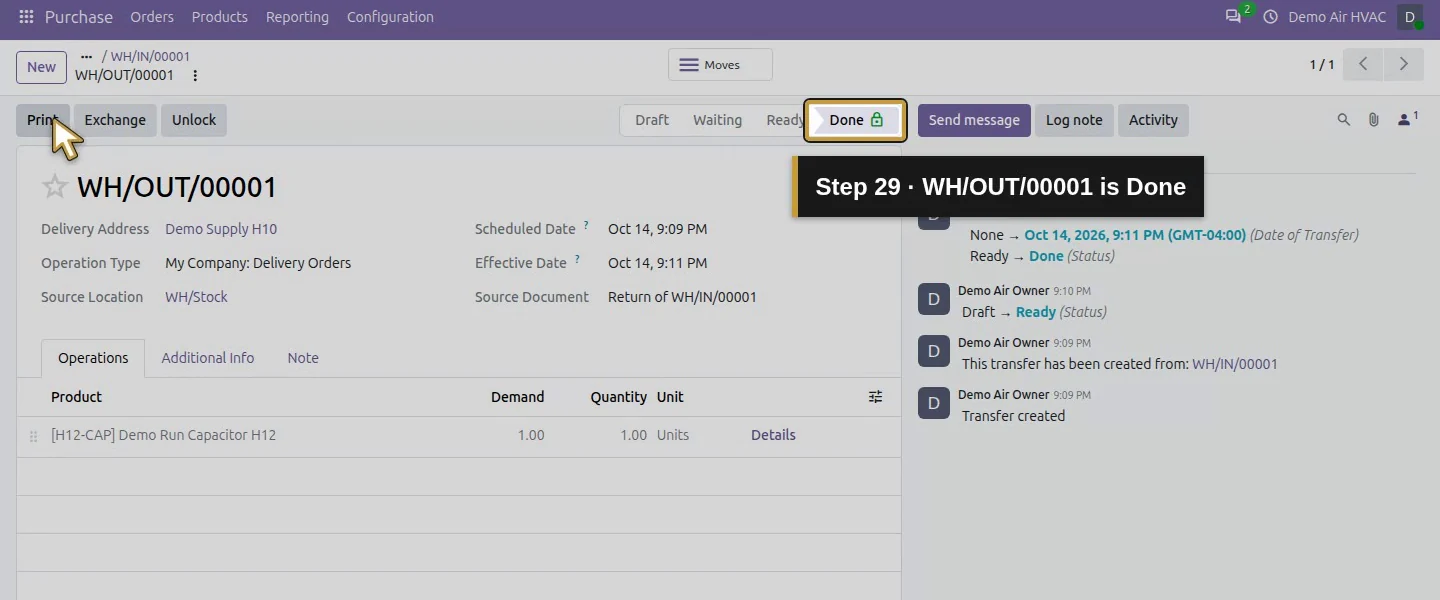
Action 29: WH/OUT/00001 is Done. The actual target is highlighted in gold.
WH/OUT/00001 is Done.

Step 5. Reopen the return and purchase order

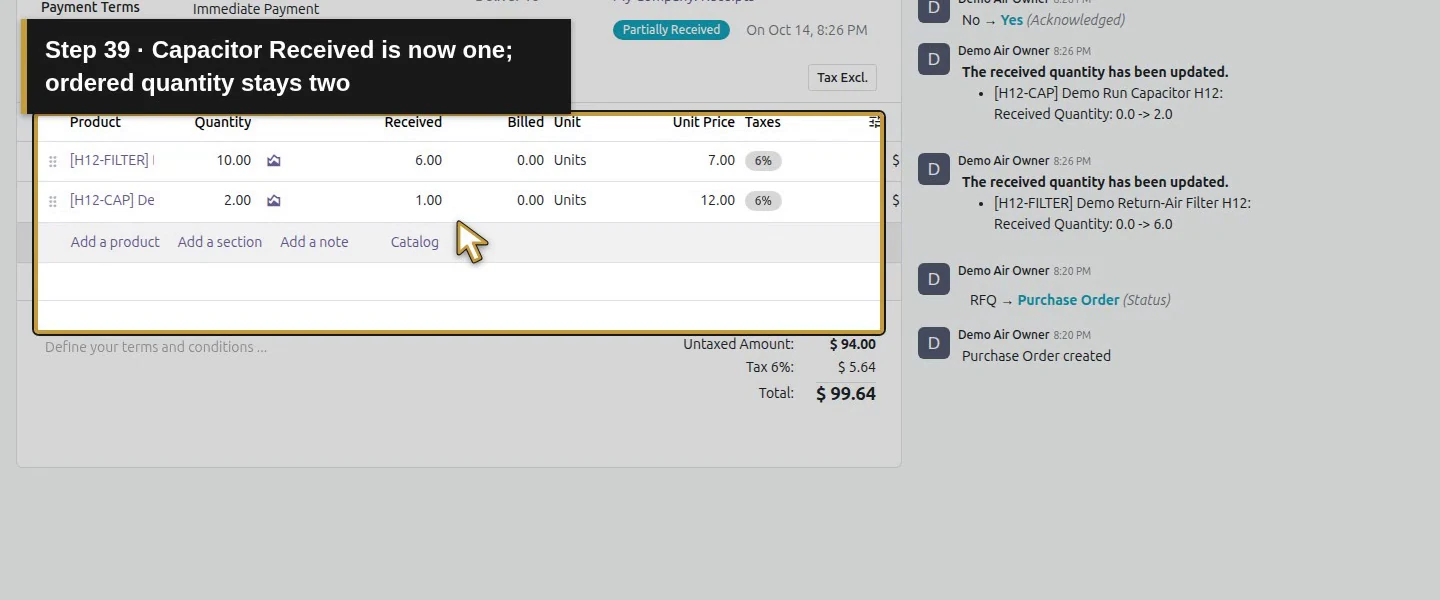
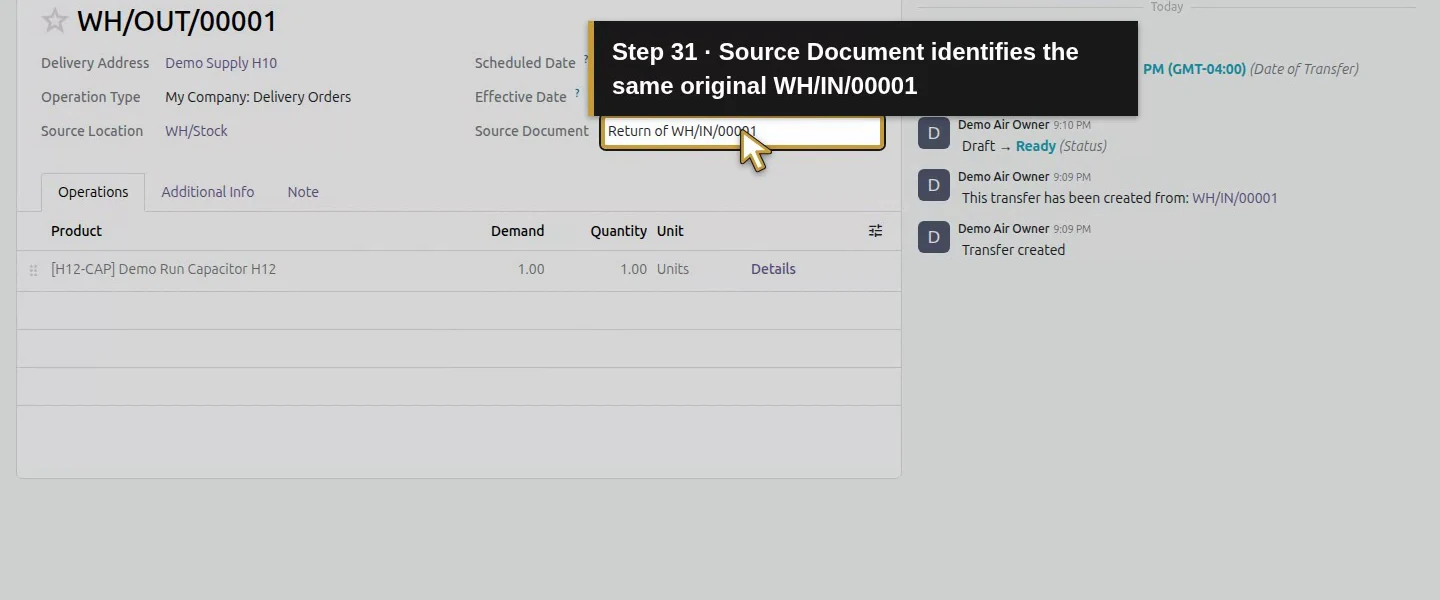
Reopen WH/OUT/00001 and check the one completed capacitor. Its native return link points to WH/IN/00001; the stock movement goes from WH/Stock to Vendors. Reopen P00001: capacitor Received decreased from two to one, while ordered quantity remains two. Check the supplier-credit or bill position separately.
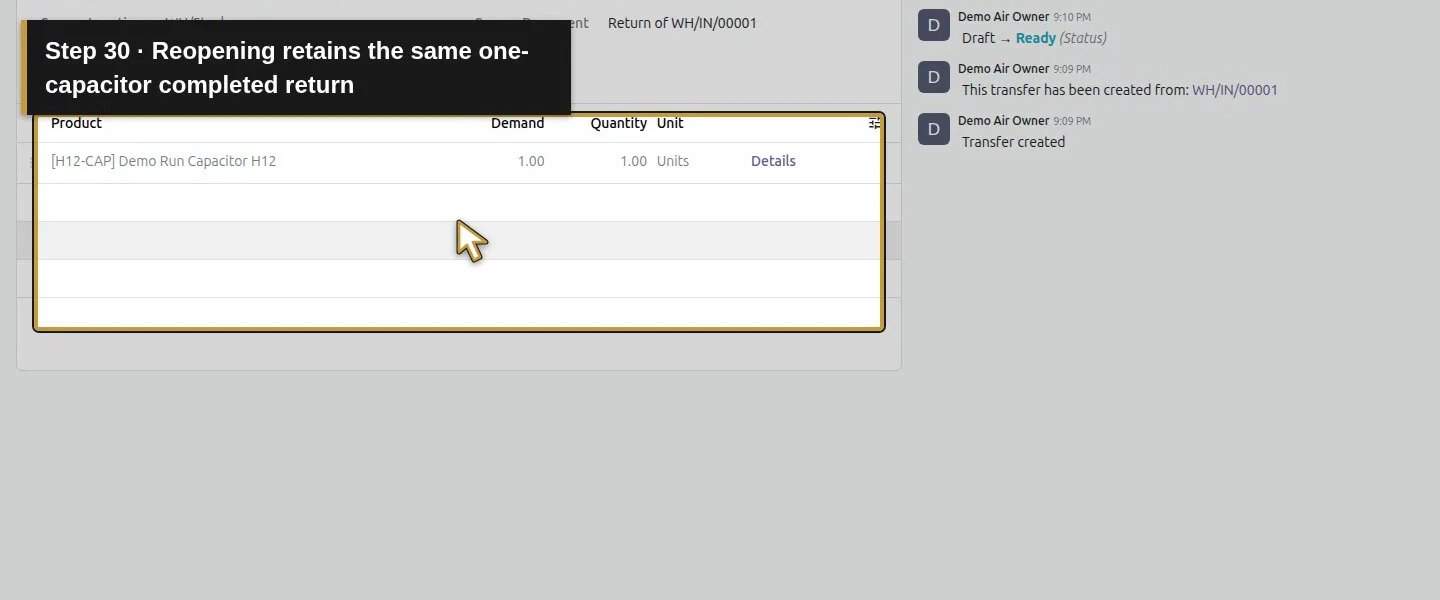
Action 30: Reopening retains the same one-capacitor completed return. The actual target is highlighted in gold.
Reopening retains the same one-capacitor completed return.
Action 31: Source Document identifies the same original WH/IN/00001. The actual target is highlighted in gold.
Source Document identifies the same original WH/IN/00001.
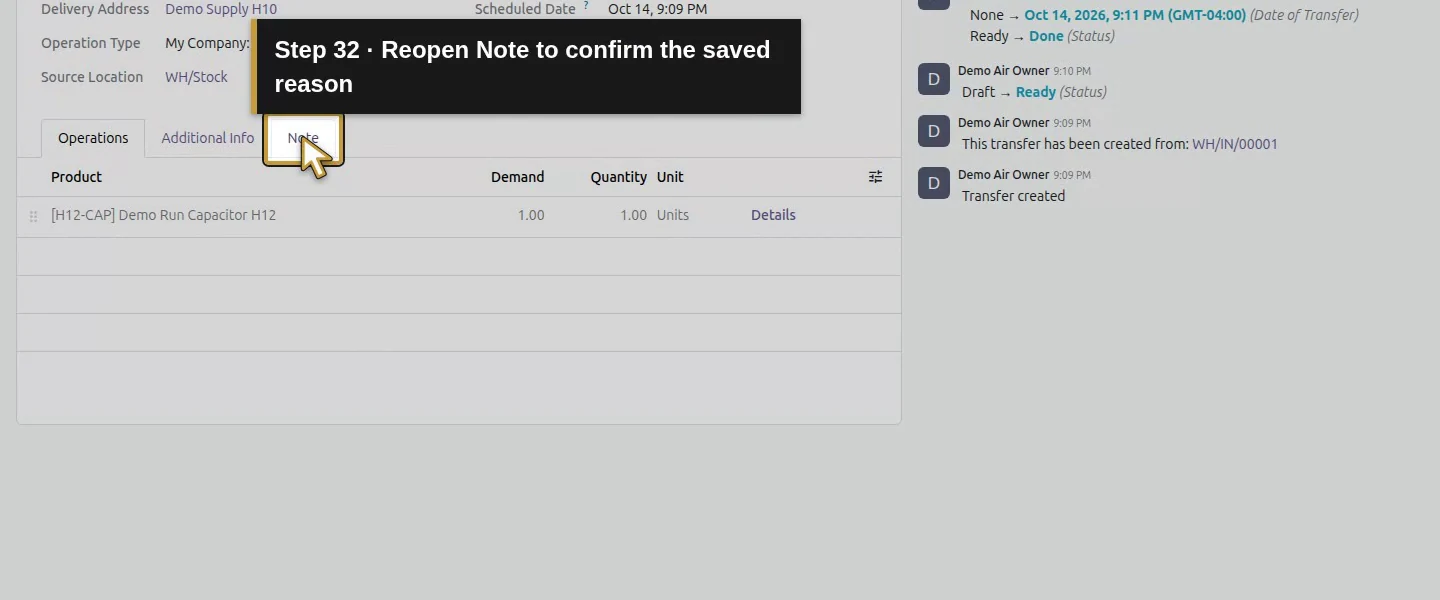
Action 32: Reopen Note to confirm the saved reason. The actual target is highlighted in gold.
Reopen Note to confirm the saved reason.
Action 33: The return reason retains the separate supplier-credit handoff. The actual target is highlighted in gold.
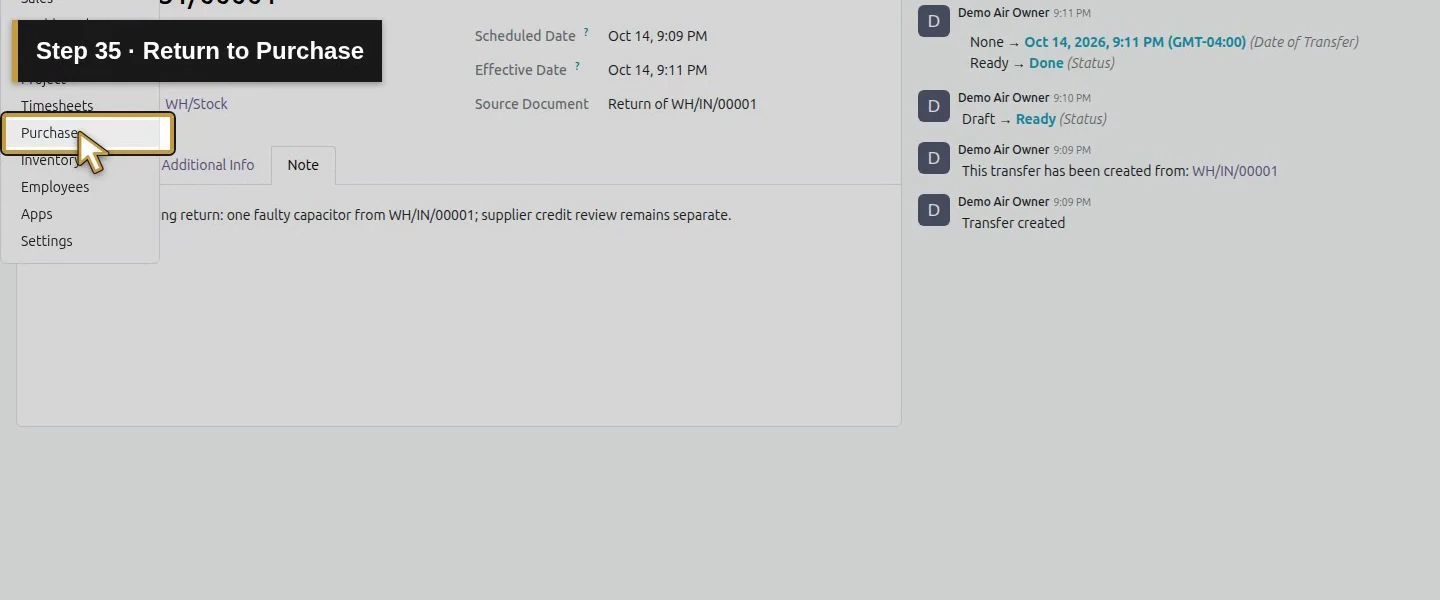
The return reason retains the separate supplier-credit handoff.
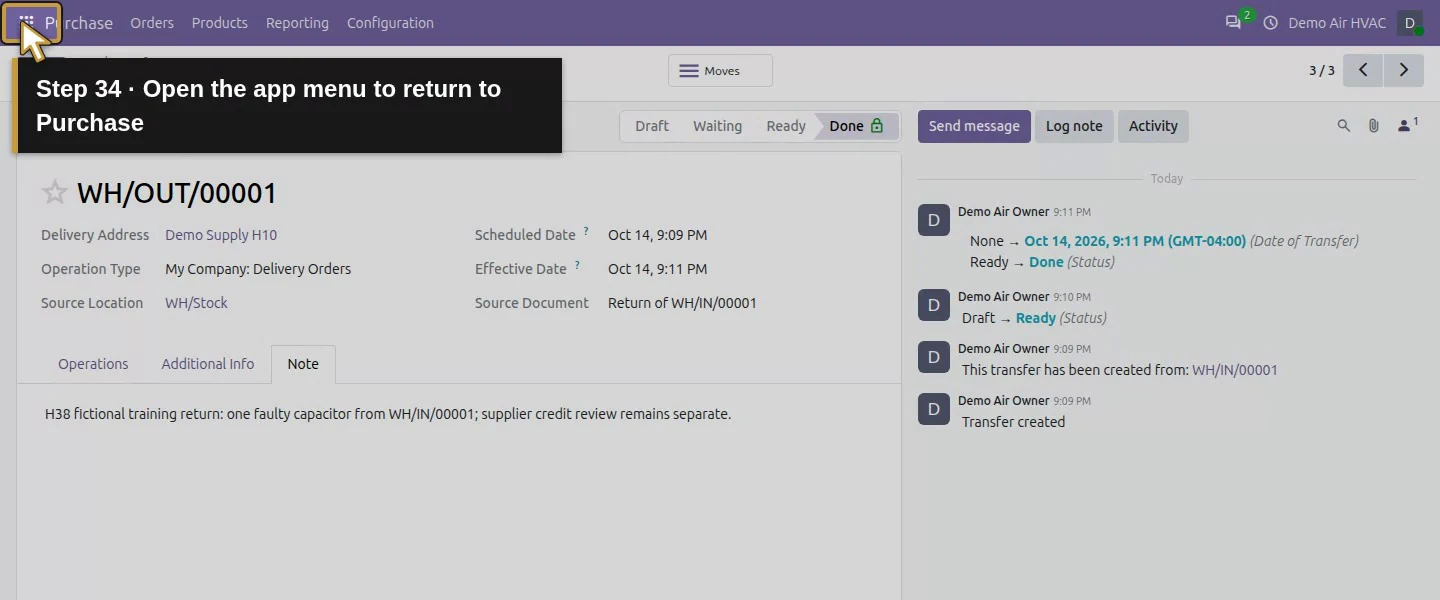
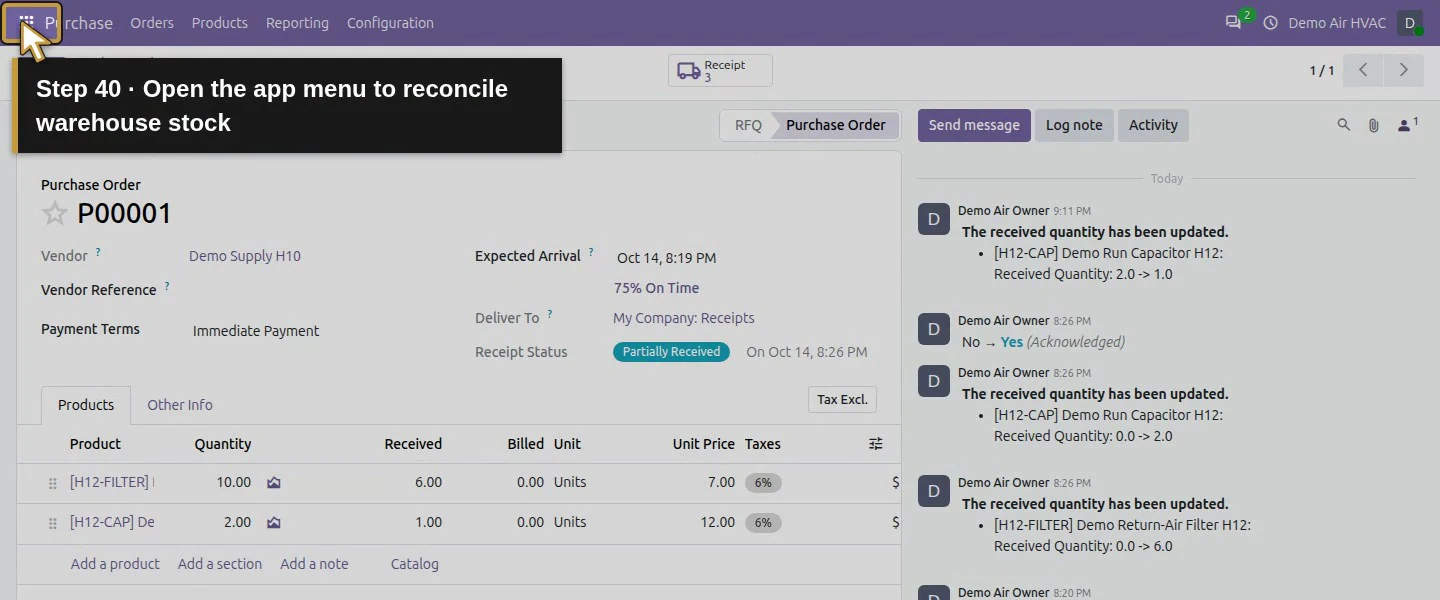
Action 34: Open the app menu to return to Purchase. The actual target is highlighted in gold.
Open the app menu to return to Purchase.
Action 35: Return to Purchase. The actual target is highlighted in gold.
Return to Purchase.
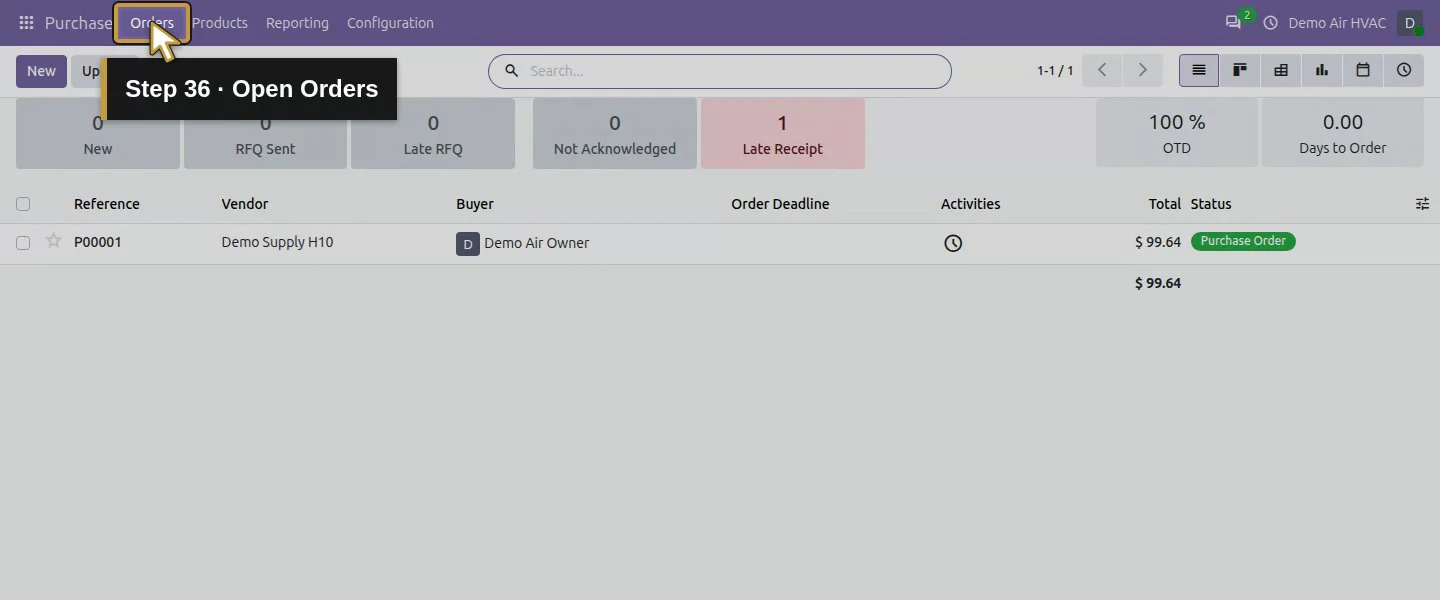
Action 36: Open Orders. The actual target is highlighted in gold.
Open Orders.
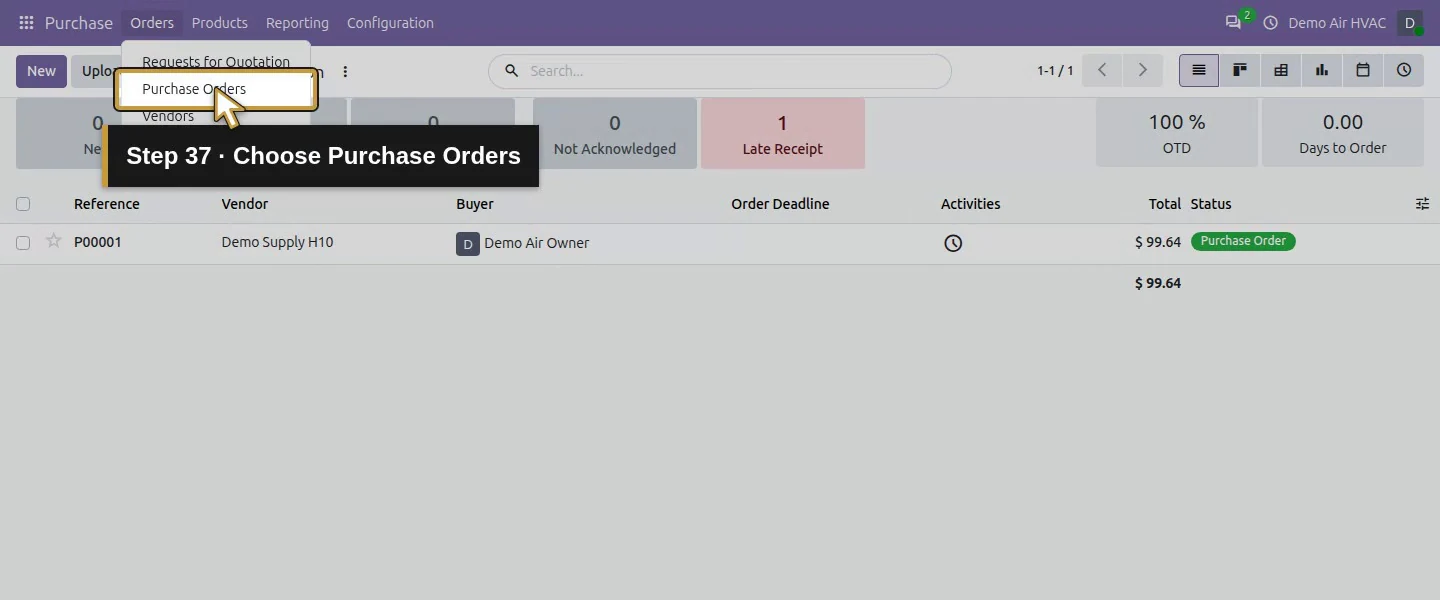
Action 37: Choose Purchase Orders. The actual target is highlighted in gold.
Choose Purchase Orders.
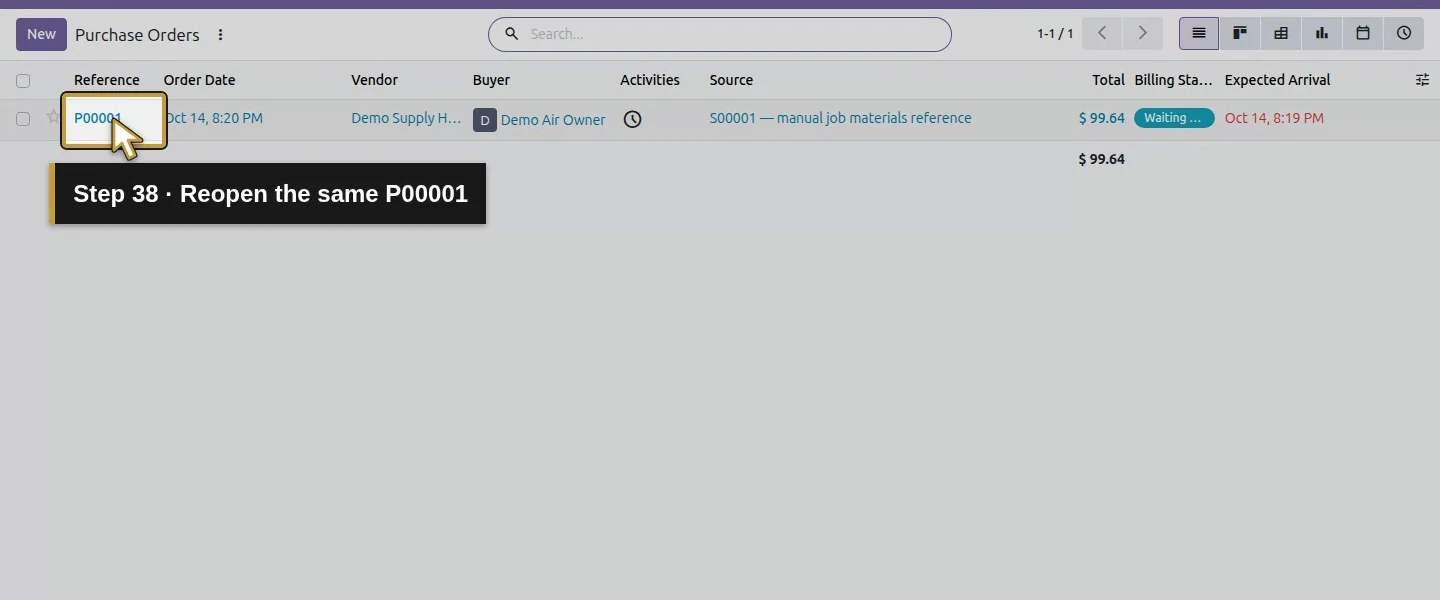
Action 38: Reopen the same P00001. The actual target is highlighted in gold.
Reopen the same P00001.
Action 39: Capacitor Received is now one; ordered quantity stays two. The actual target is highlighted in gold.
Capacitor Received is now one; ordered quantity stays two.
Action 40: Open the app menu to reconcile warehouse stock. The actual target is highlighted in gold.
Open the app menu to reconcile warehouse stock.
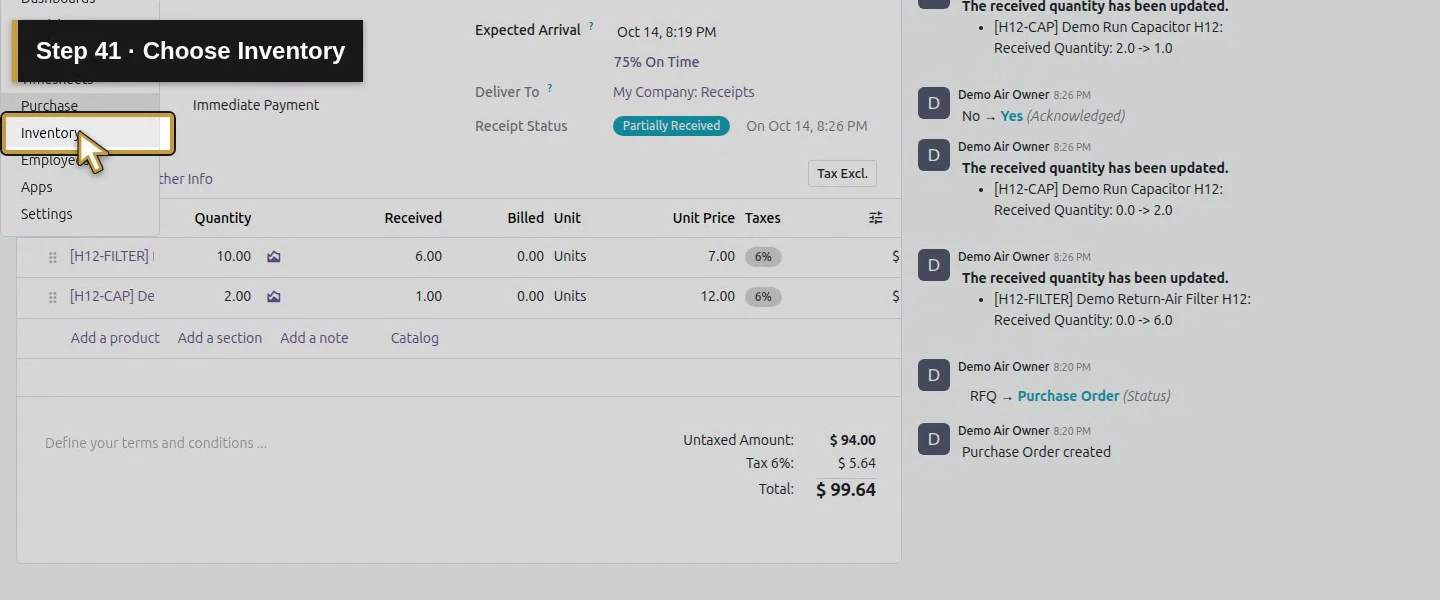
Action 41: Choose Inventory. The actual target is highlighted in gold.
Choose Inventory.
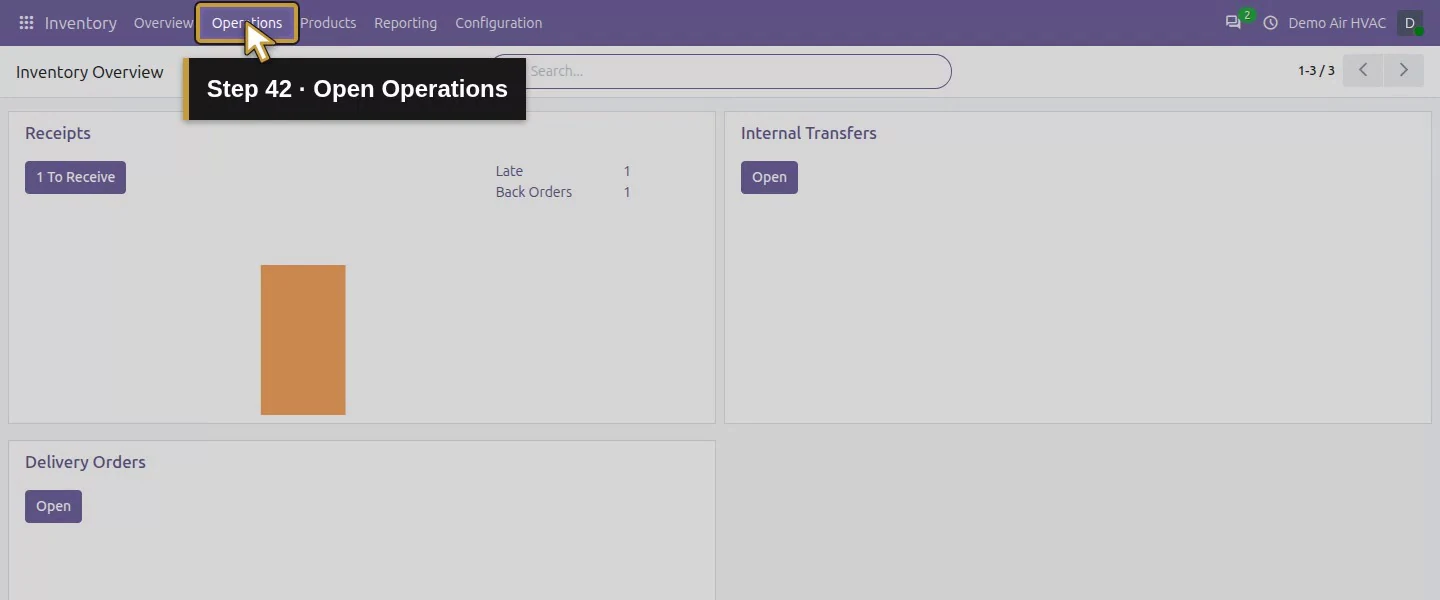
Action 42: Open Operations. The actual target is highlighted in gold.
Open Operations.
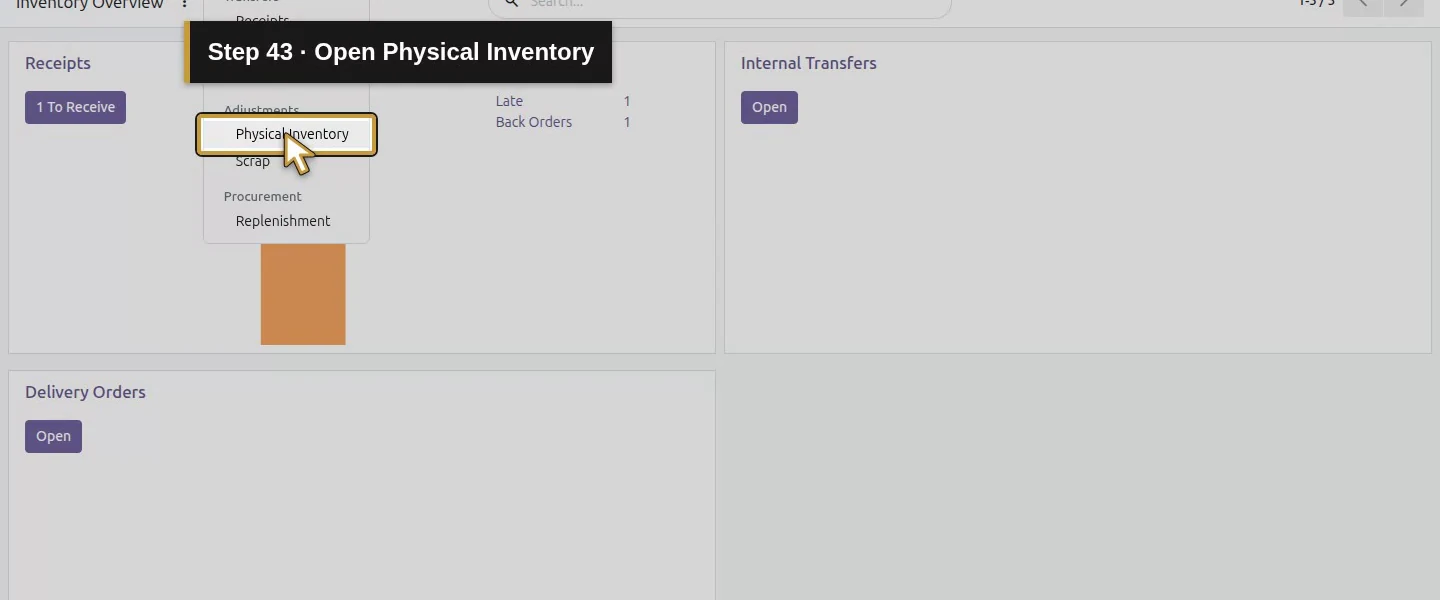
Action 43: Open Physical Inventory. The actual target is highlighted in gold.
Open Physical Inventory.
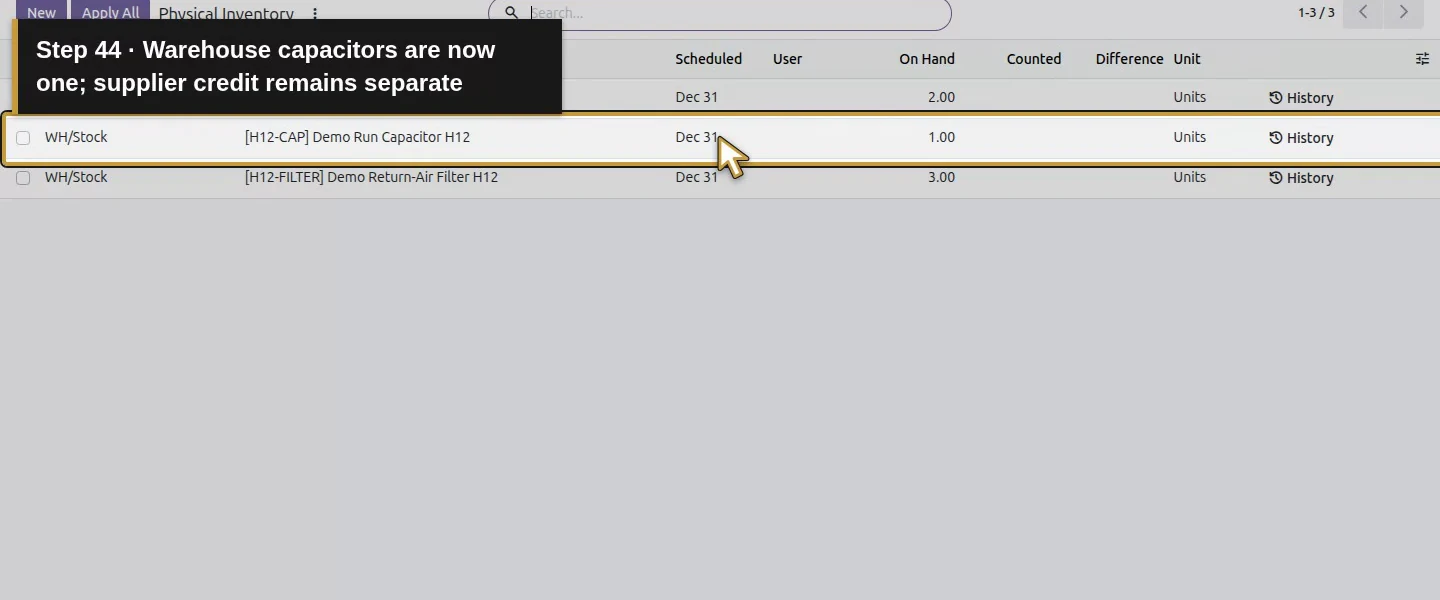
Action 44: Warehouse capacitors are now one; supplier credit remains separate. The actual target is highlighted in gold.
Warehouse capacitors are now one; supplier credit remains separate.

Check the result

WH/OUT/00001 is Done for one capacitor and retains its note and original-receipt link. Warehouse capacitors decreased from two to one. P00001's received capacitor quantity became one. No supplier bill, credit note or refund existed at this return checkpoint.

If your screen differs

The tested form did not show a legacy refund checkbox; the native linked move reduced the purchase received quantity. Do not copy instructions for an older return wizard. A stock return is not evidence of a supplier credit or bank refund. Exchange, multiple returns, serial tracking and other roles were not tested.

Frequently asked questions

How do I return a faulty part to a supplier in Odoo? Open the original Done receipt and choose Return. In this version, enter the faulty quantity on the resulting draft transfer, review unused zero-demand lines, then Mark as To Do and Validate the actual return.
Does an Odoo supplier return create a credit note? This tested stock return created no supplier credit or refund. It reduced warehouse stock and the purchase received quantity; the accounting and supplier-credit decision stayed separate.
Why can't I return the full quantity in Odoo? Check the original receipt, prior returns and availability at the return source. This example used one capacitor still in WH/Stock; shortage and full-return cases were not tested.

Continue building the business

Review billing against the net receipt in How do I match a supplier bill to its purchase order in Odoo?.

Talk to an Odoo partner

Bring your current process and the result you need to Onward to plan your Odoo workflow. Talk to an Odoo partner.