
Running an HVAC business with Odoo
How do I record a supplier payment in Odoo?
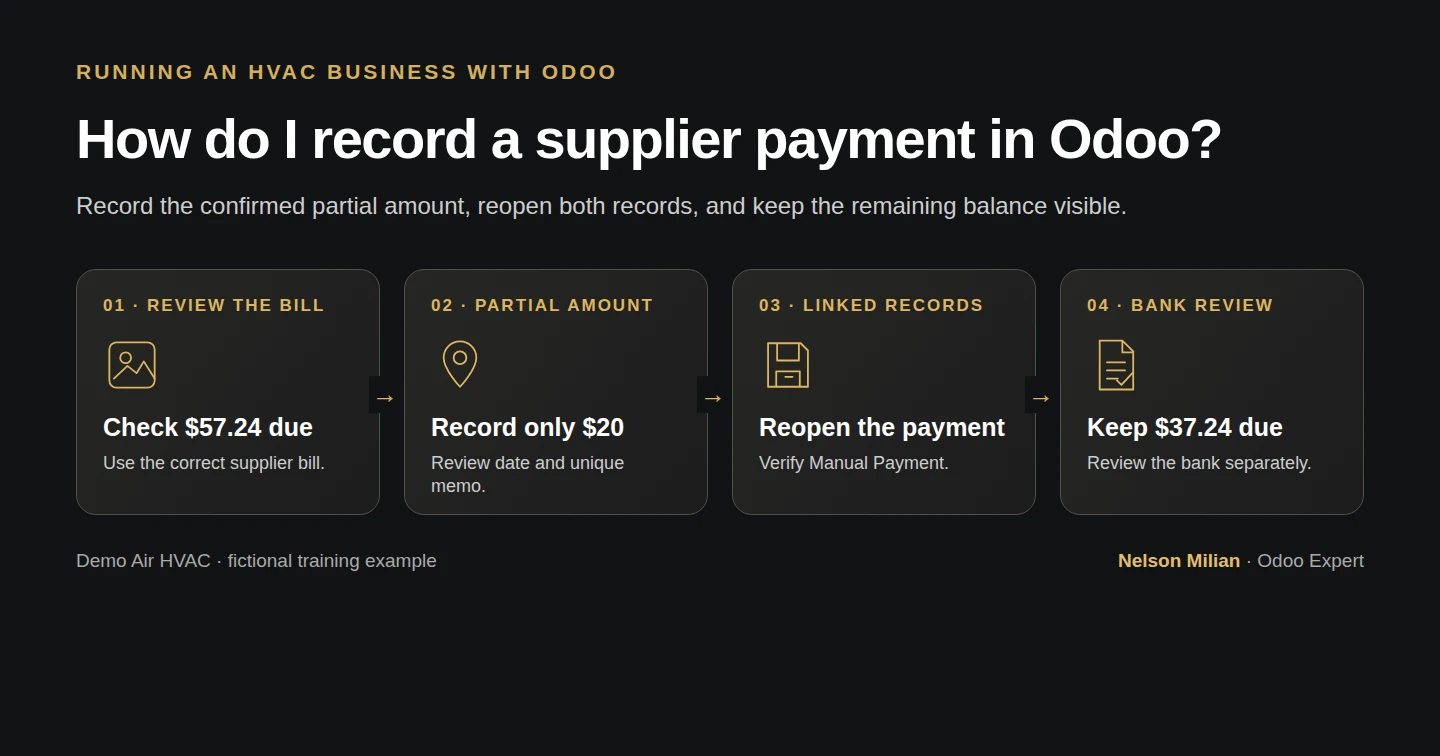
Record a confirmed $20 supplier payment in Odoo and check the linked bill's $37.24 remaining balance.
Record a supplier payment after independently confirming it. Alex's fictional evidence records $20 paid against a $57.24 bill; Odoo links the payment and leaves $37.24 due. The payment record does not initiate a bank transfer.
Alex Rivera and Demo Air HVAC are fictional training examples. Prices, dates, quantities and business situations in this guide are illustrative.
Before you begin
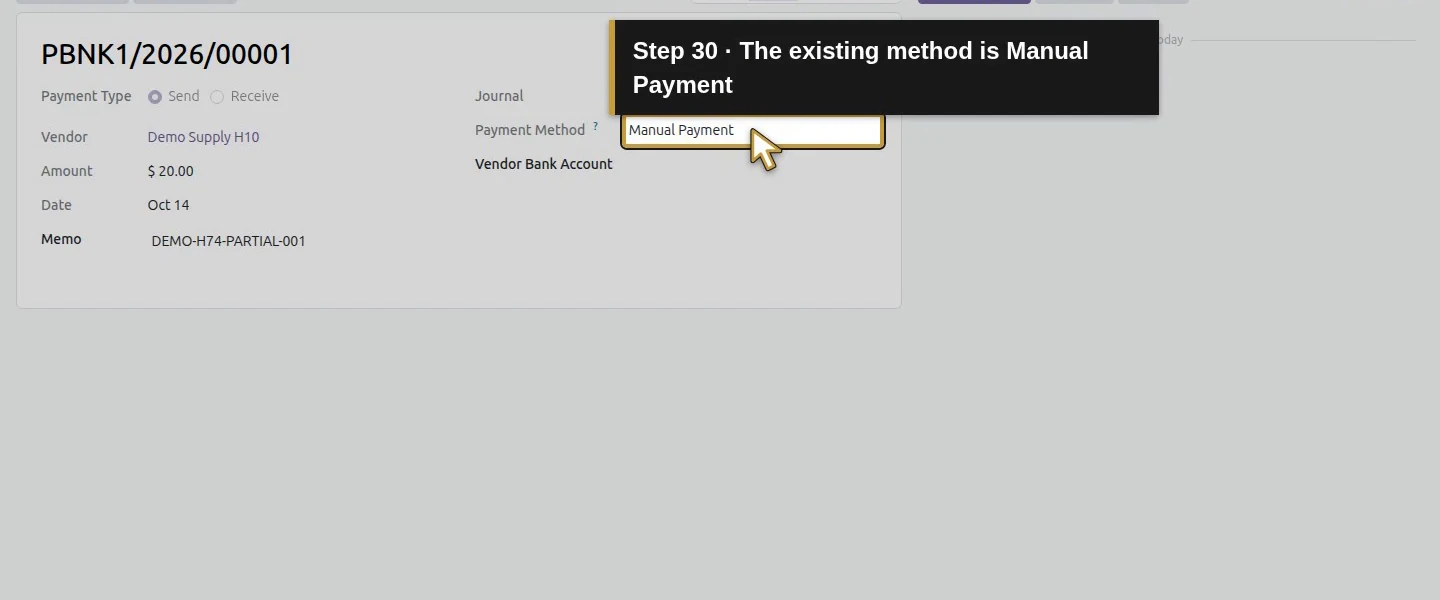
Tested in stock Odoo 20.0-20260926 Community as the demo owner administrator, with official modules and standard configuration. Complete the supplier bill and bank-journal setup. Use posted BILL/2026/10/0001, vendor Demo Supply H10, and Demo Operating Bank H73. The synthetic payment evidence is $20 USD on October 14, 2026, reference DEMO-H74-PARTIAL-001. This test uses the existing native Manual Payment method; no external banking connection is configured.
Step-by-step workflow
Stock Odoo 20 Community, owner role. Record one fictional confirmed $20 manual supplier payment against the posted $57.24 bill. Review the existing operating-bank journal, blank recipient account, date and unique memo. Reopen the linked payment and bill; the remaining bill balance is $37.24. The payable portion is matched, while Outstanding Payments remains unmatched and no bank statement is present. This records training evidence and initiates no real transfer.
Step 1. Check the bill and payment evidence
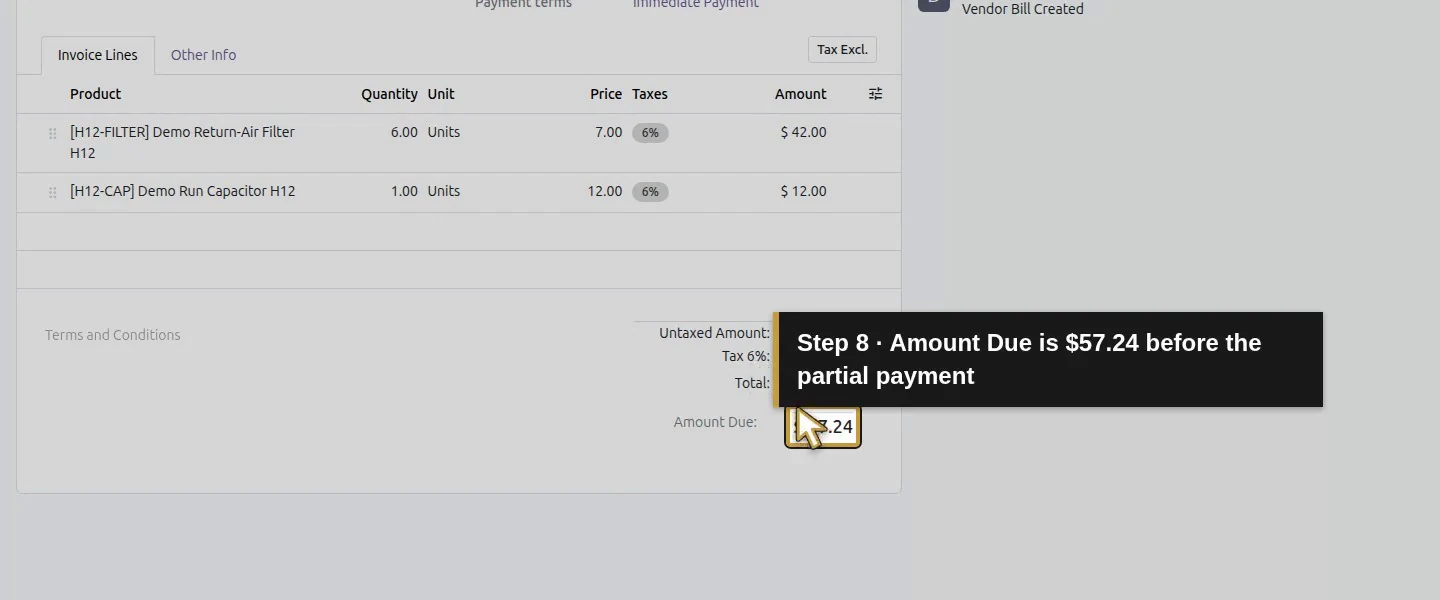
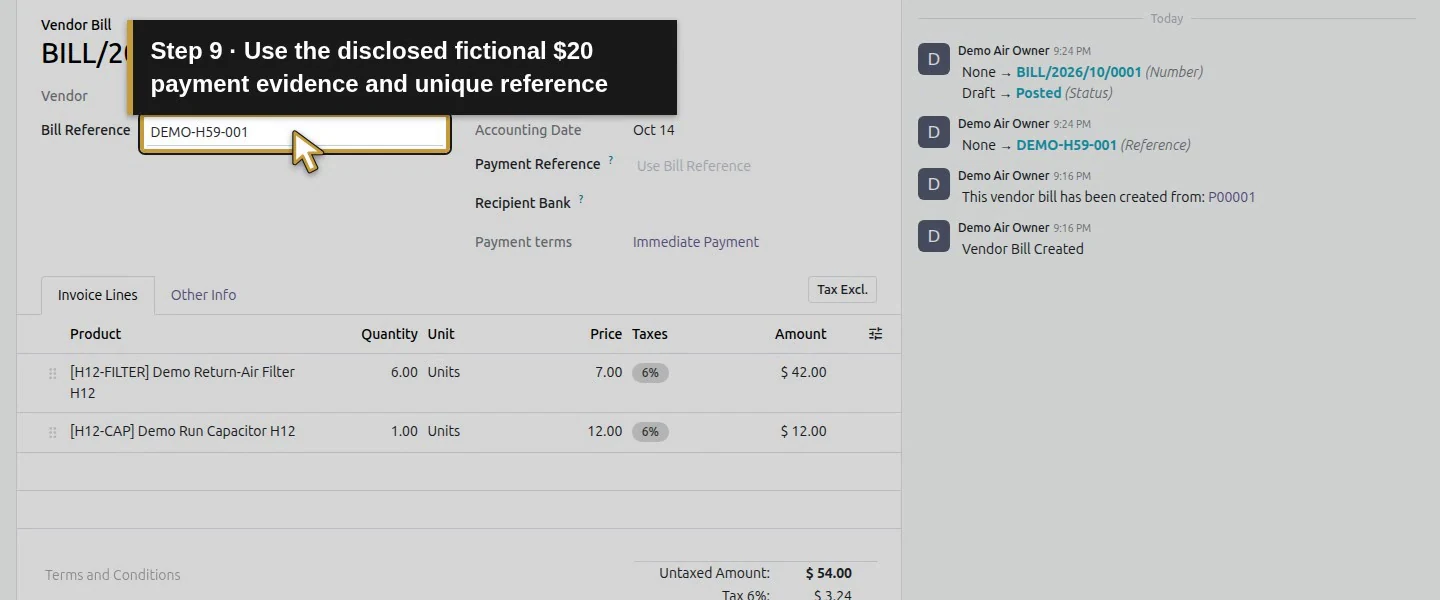
Open BILL/2026/10/0001 and confirm vendor, currency, total $57.24 and Amount Due $57.24. Review any existing payments and the independent payment reference before recording another.
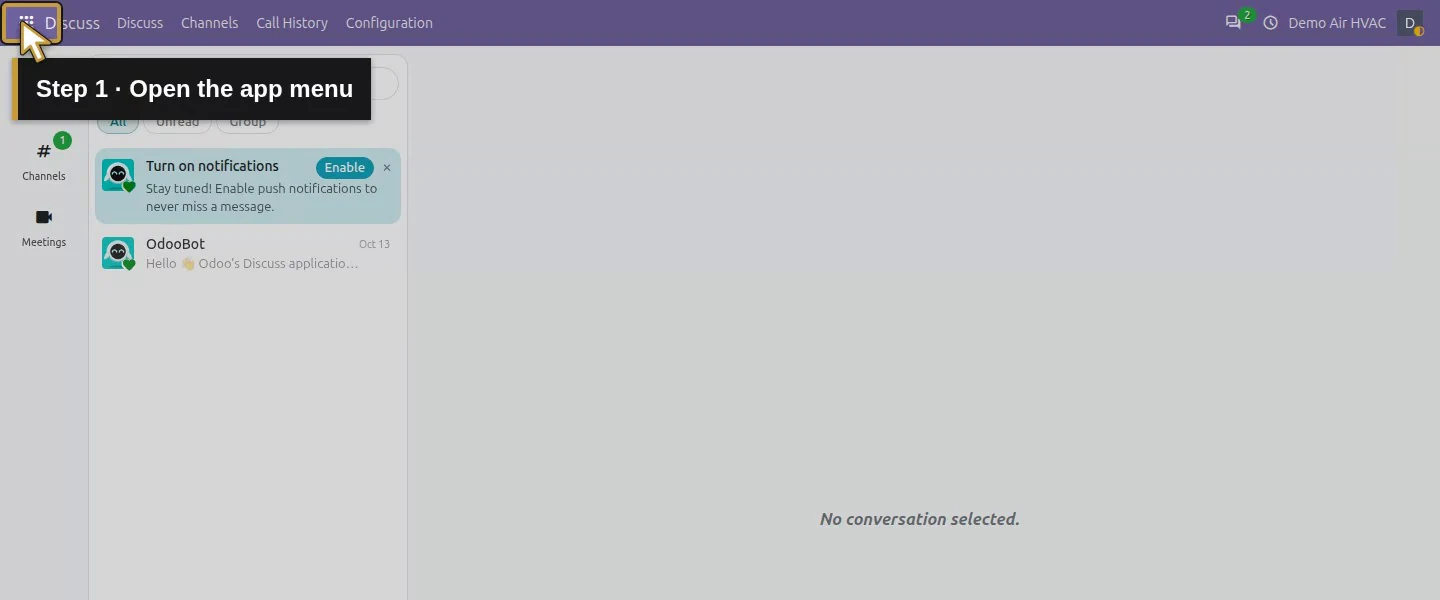
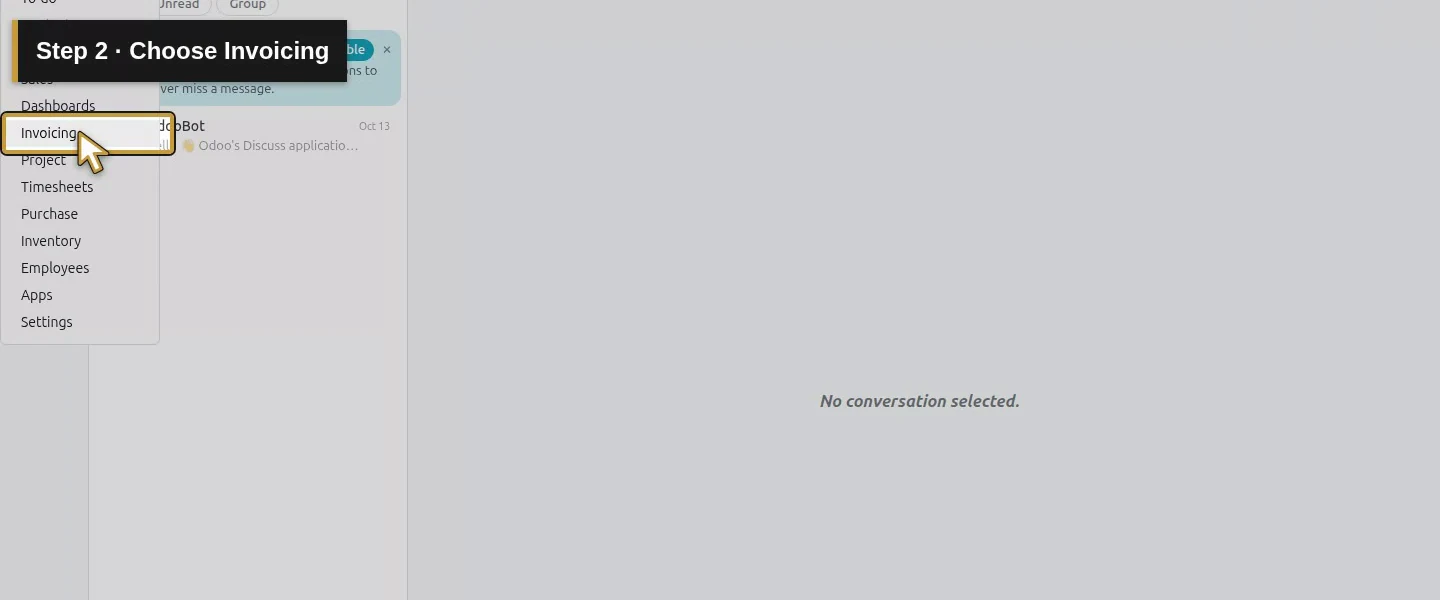
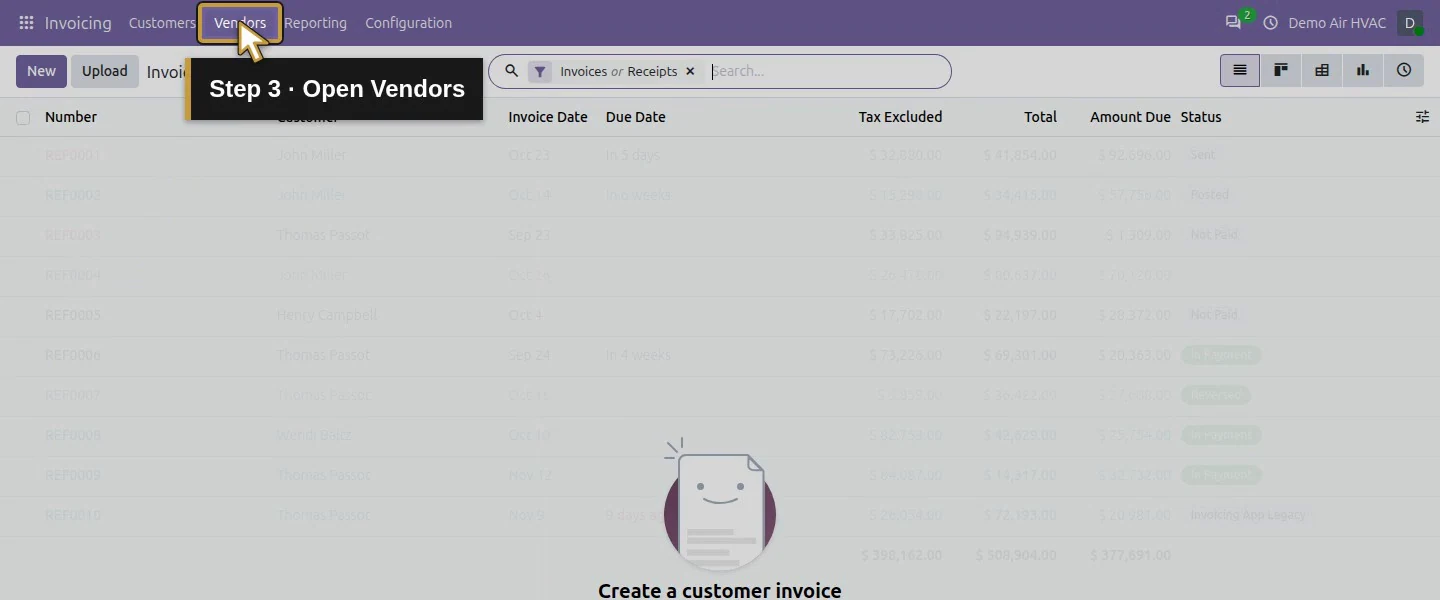
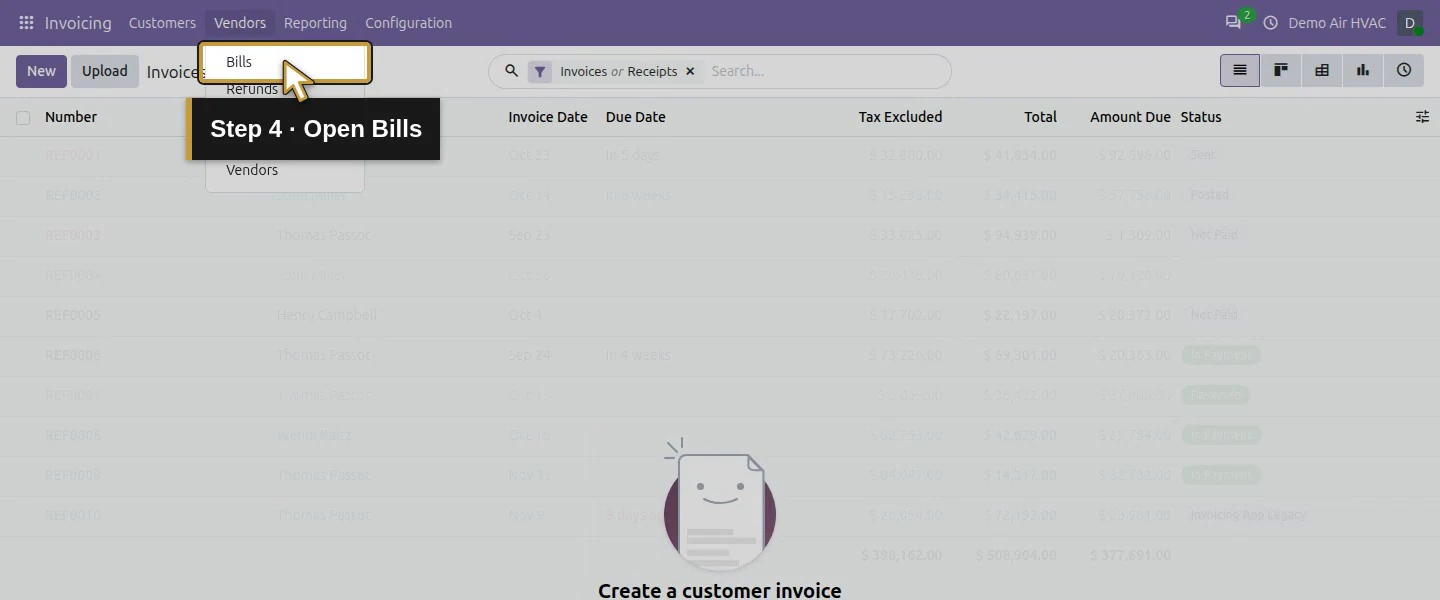
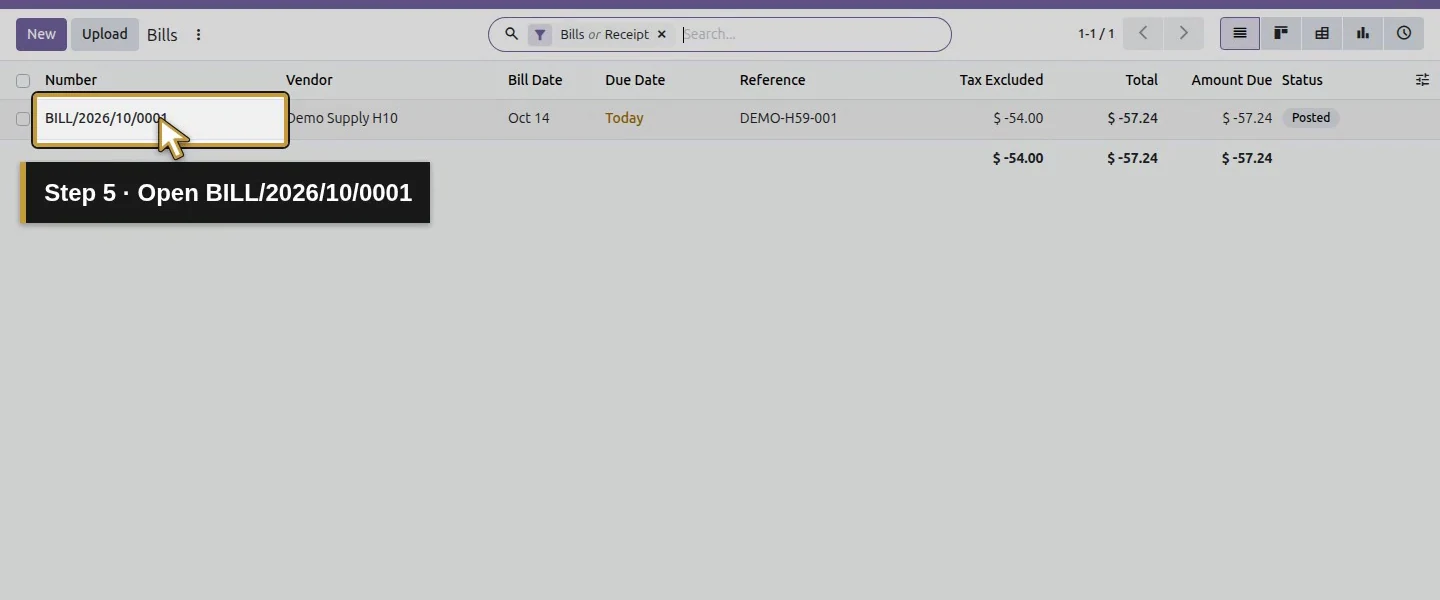
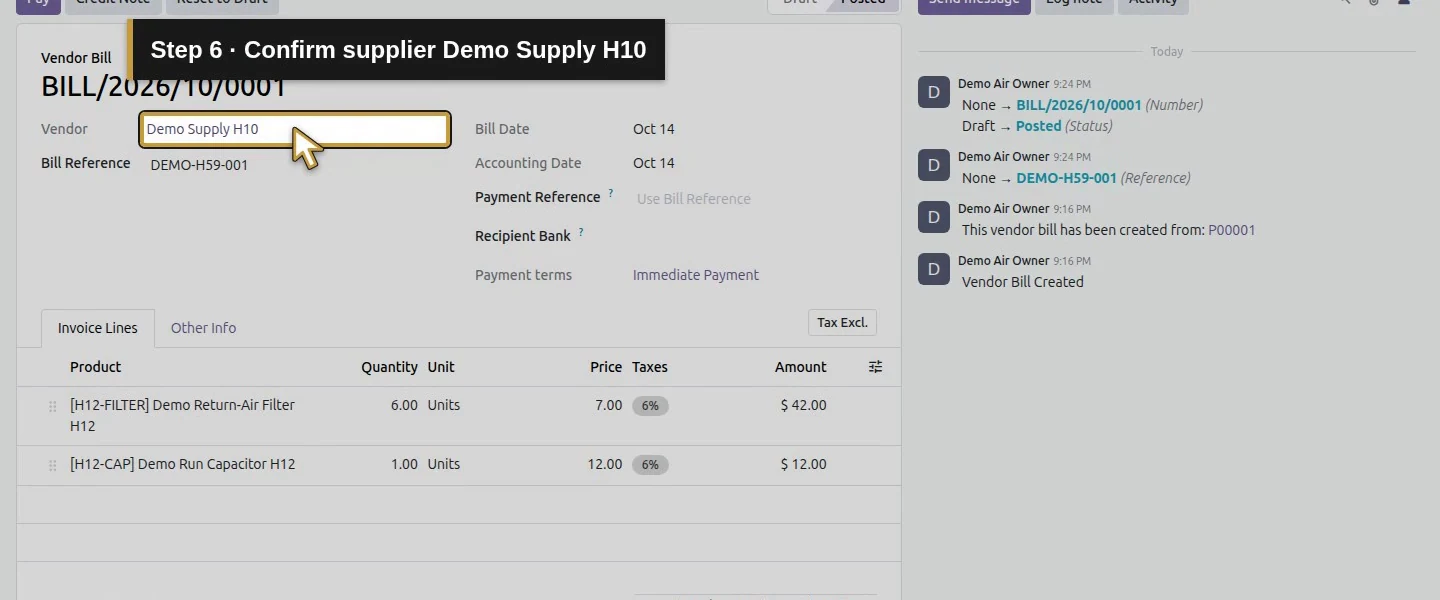
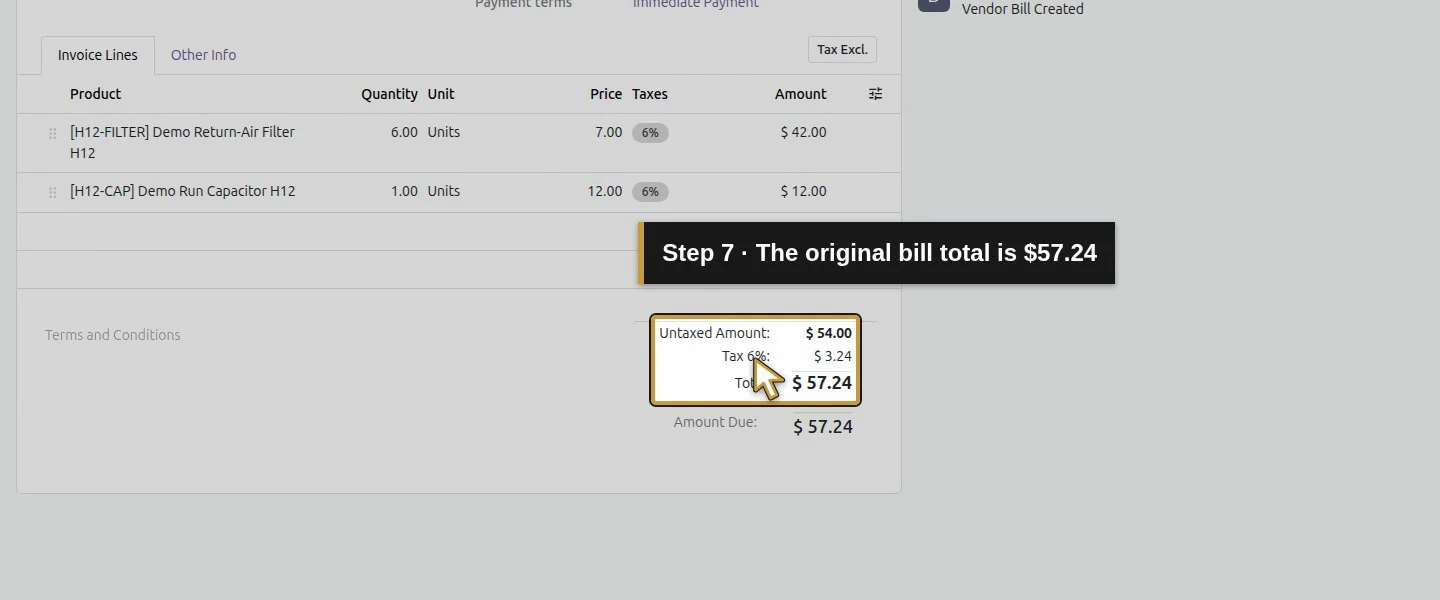
Step 2. Open Pay and review the journal
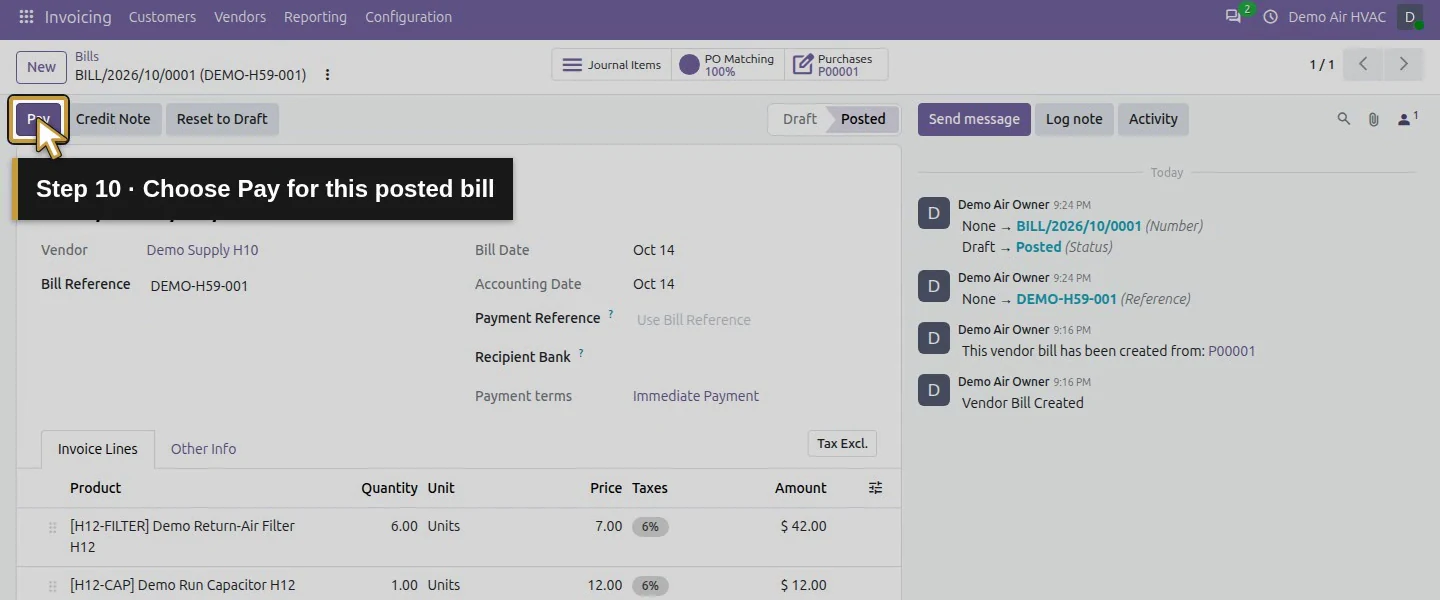
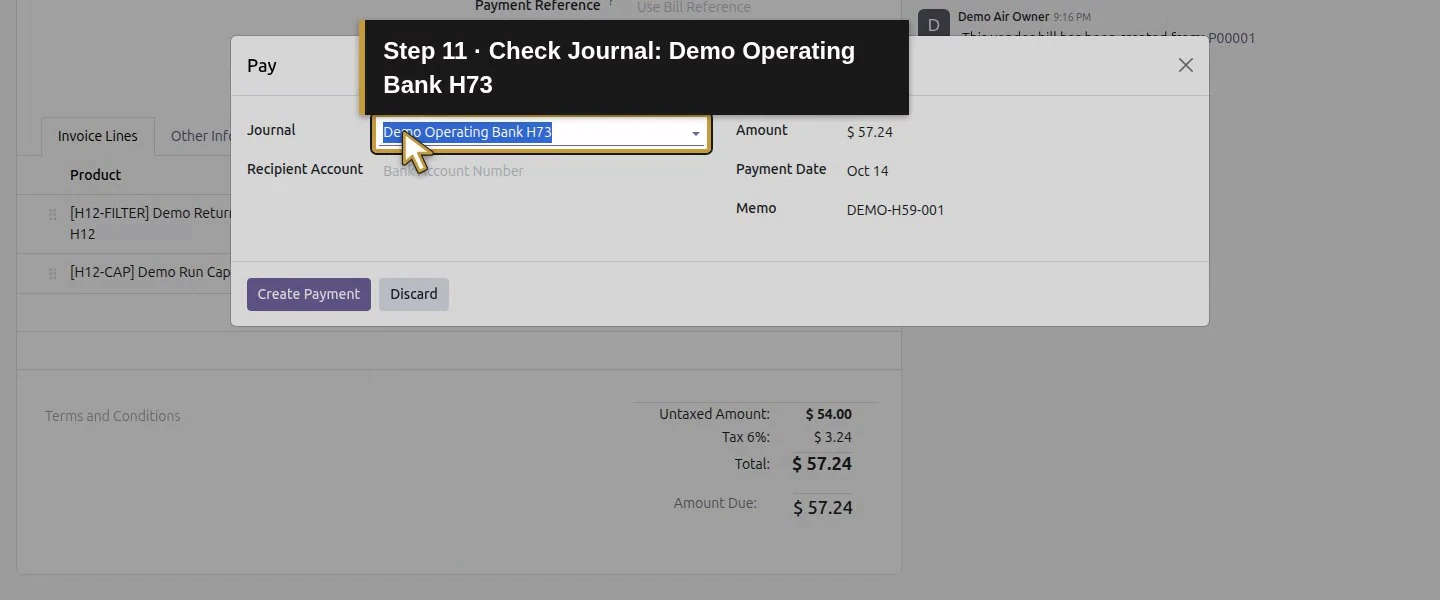
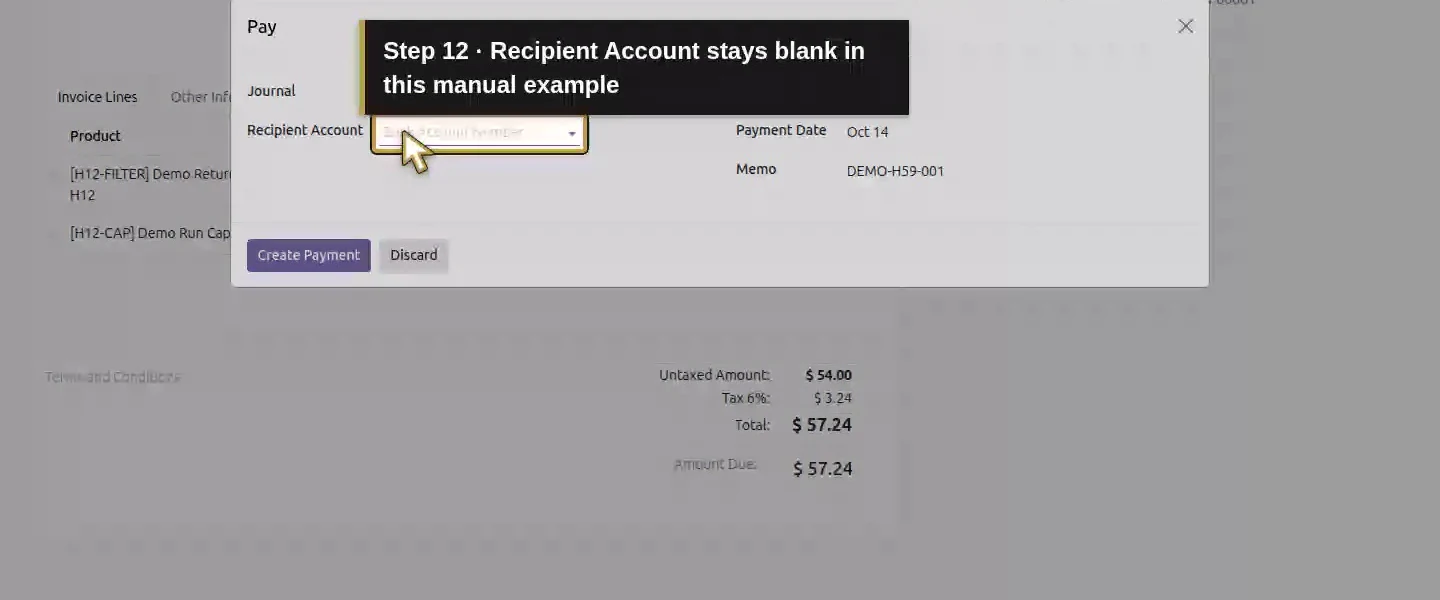
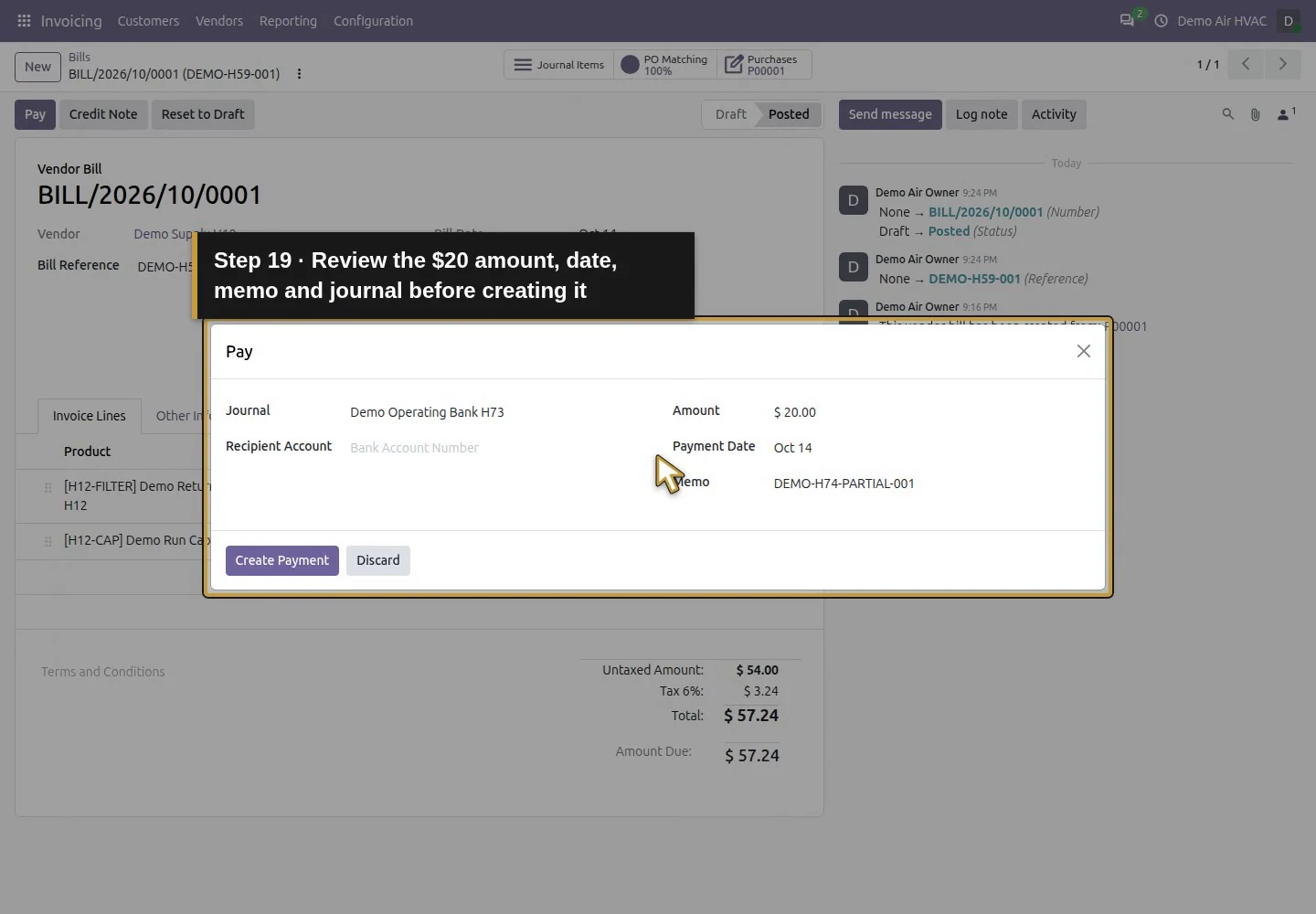
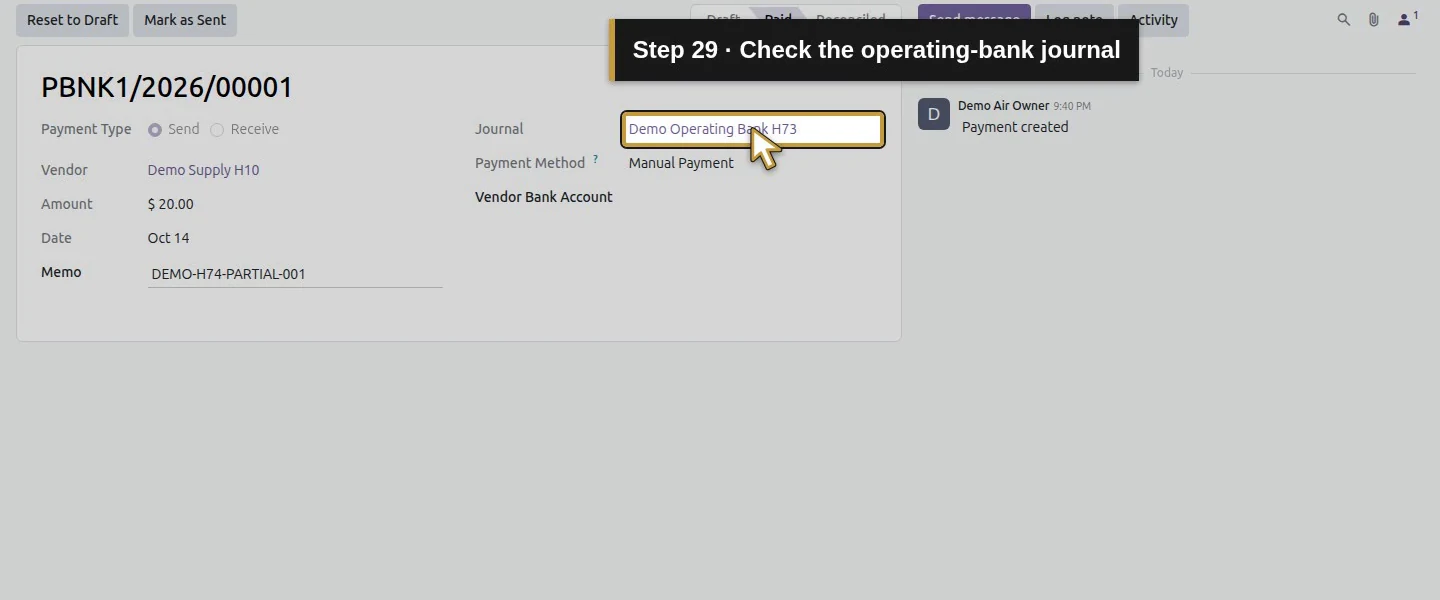
Choose Pay. The tested dialog selects Journal: Demo Operating Bank H73, shows the remaining Amount, Payment Date and Memo, and leaves Recipient Account empty. Review your actual journal and method setup; selecting a journal is not bank-payment authorization.
Step 3. Record only the confirmed partial amount
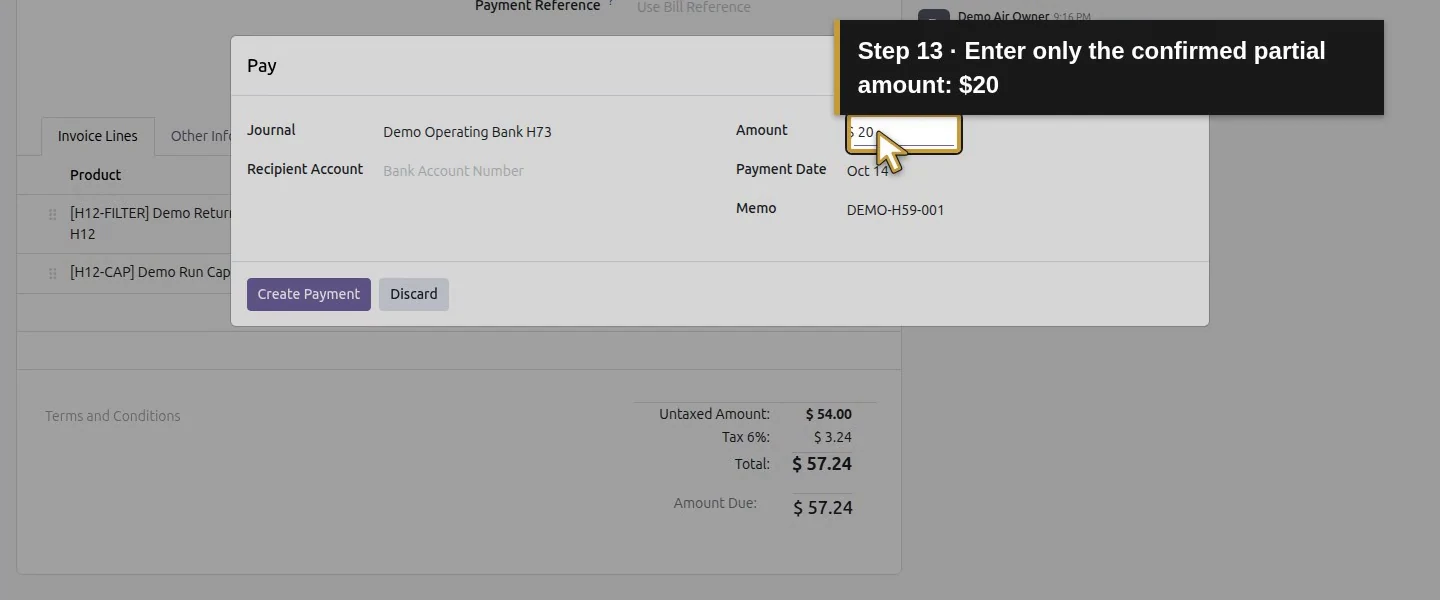
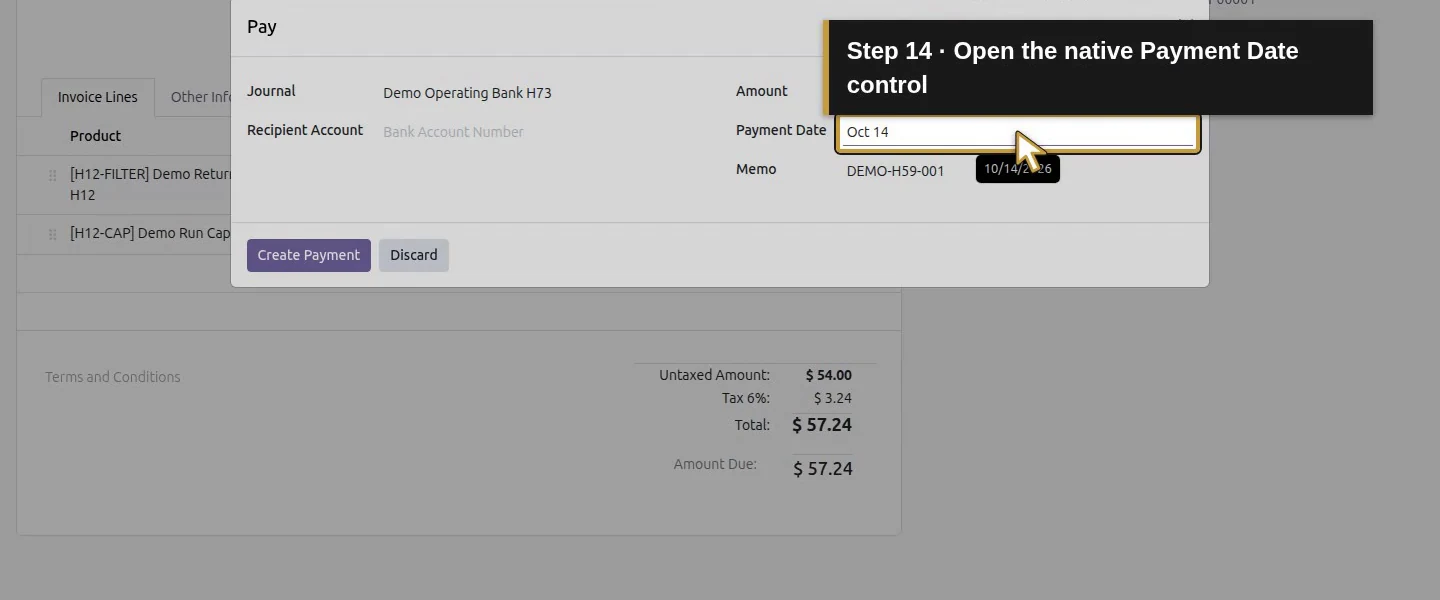
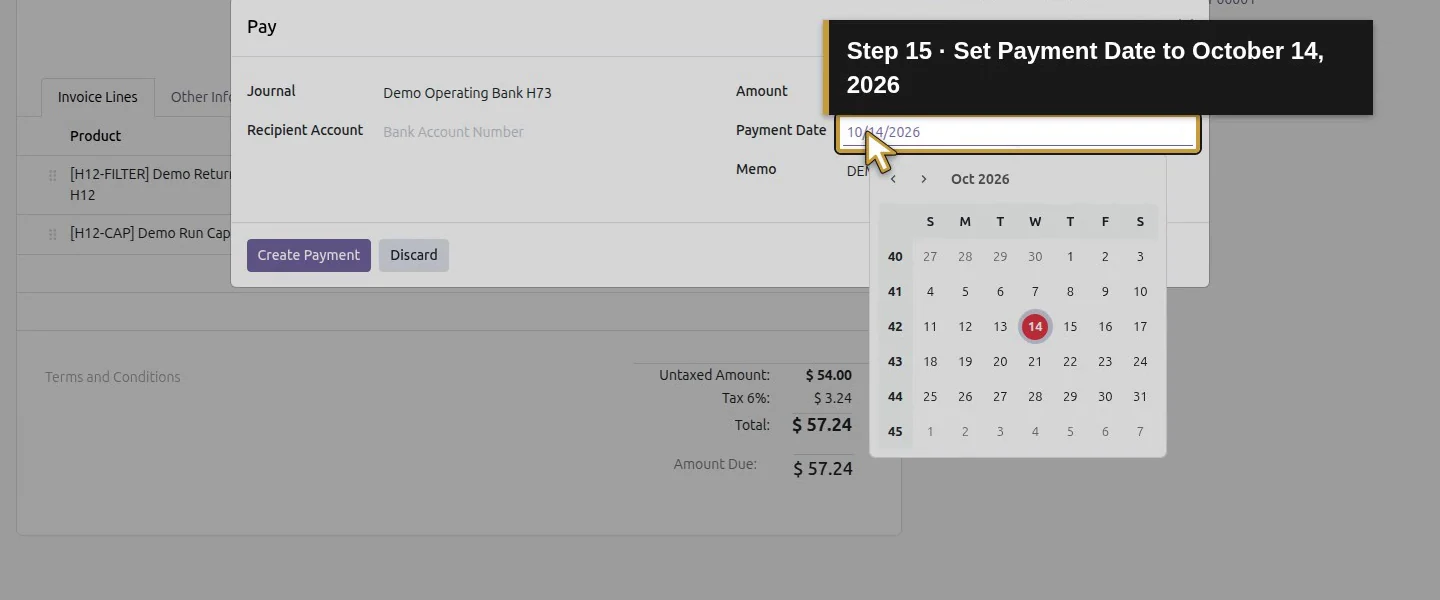
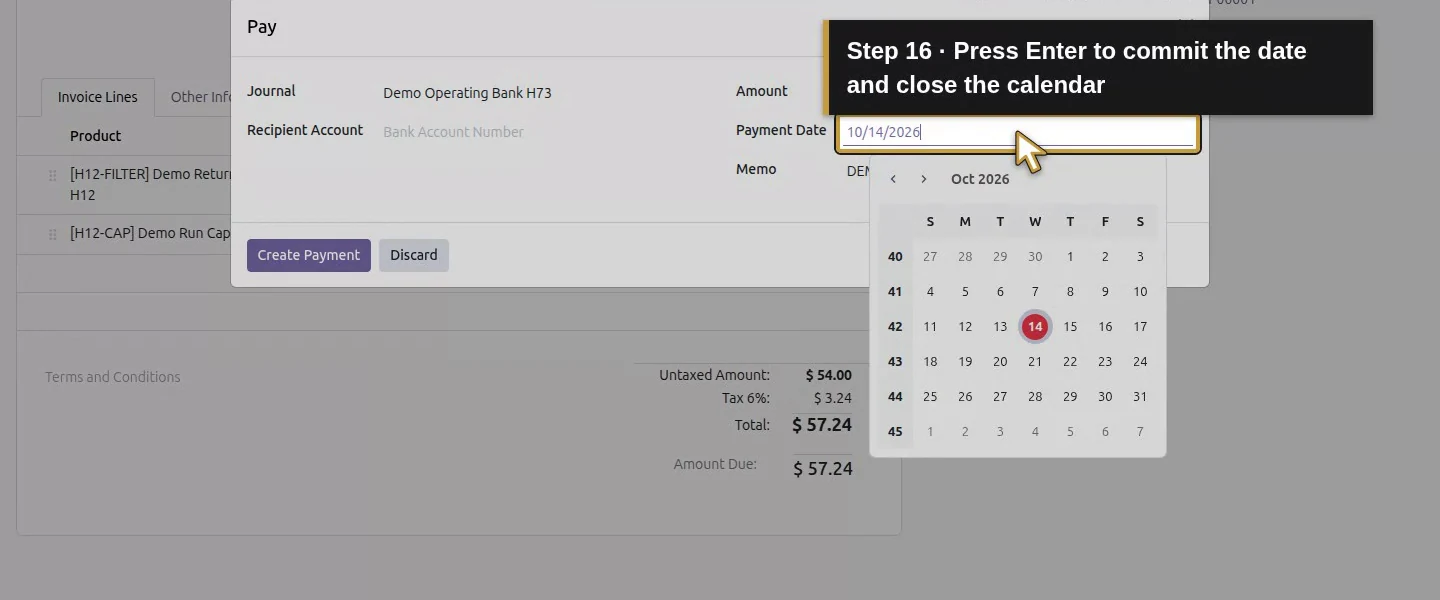
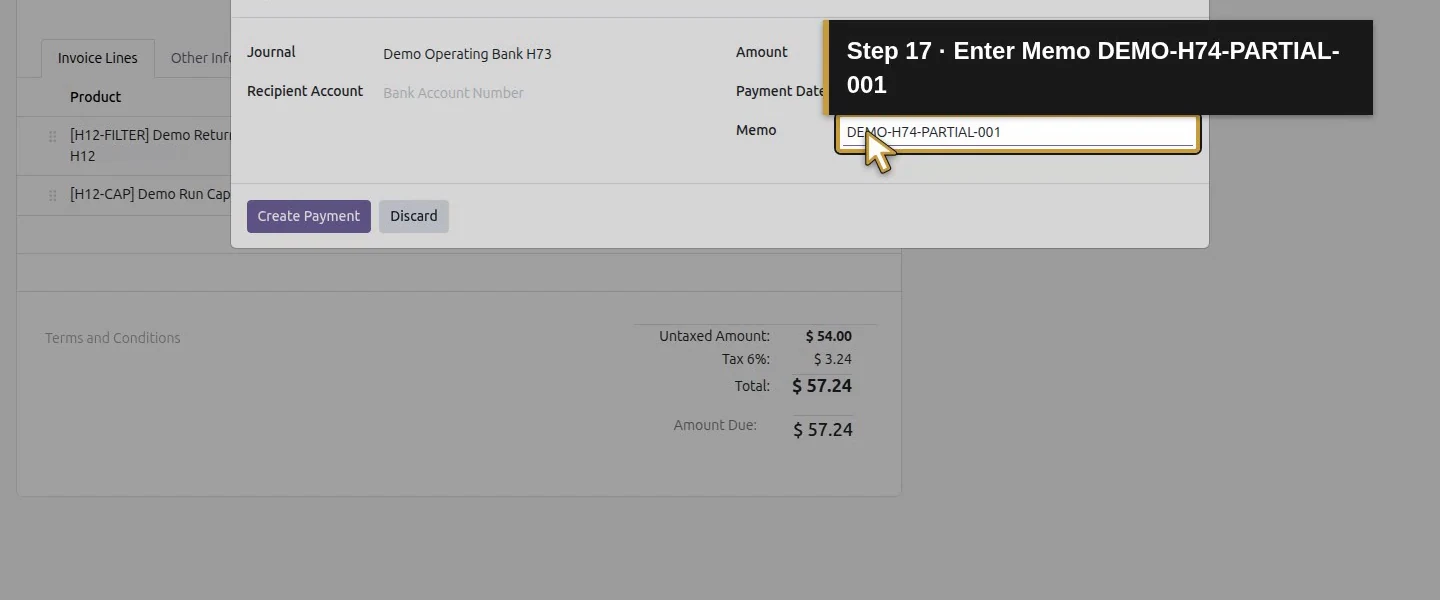
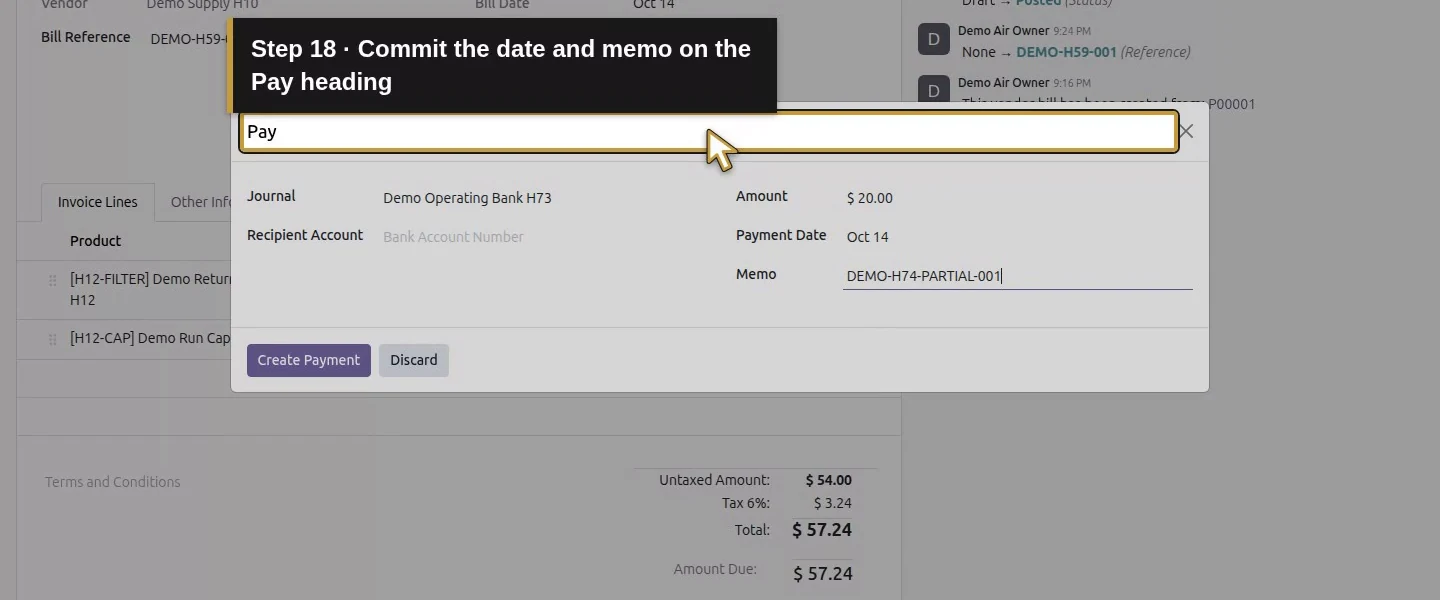
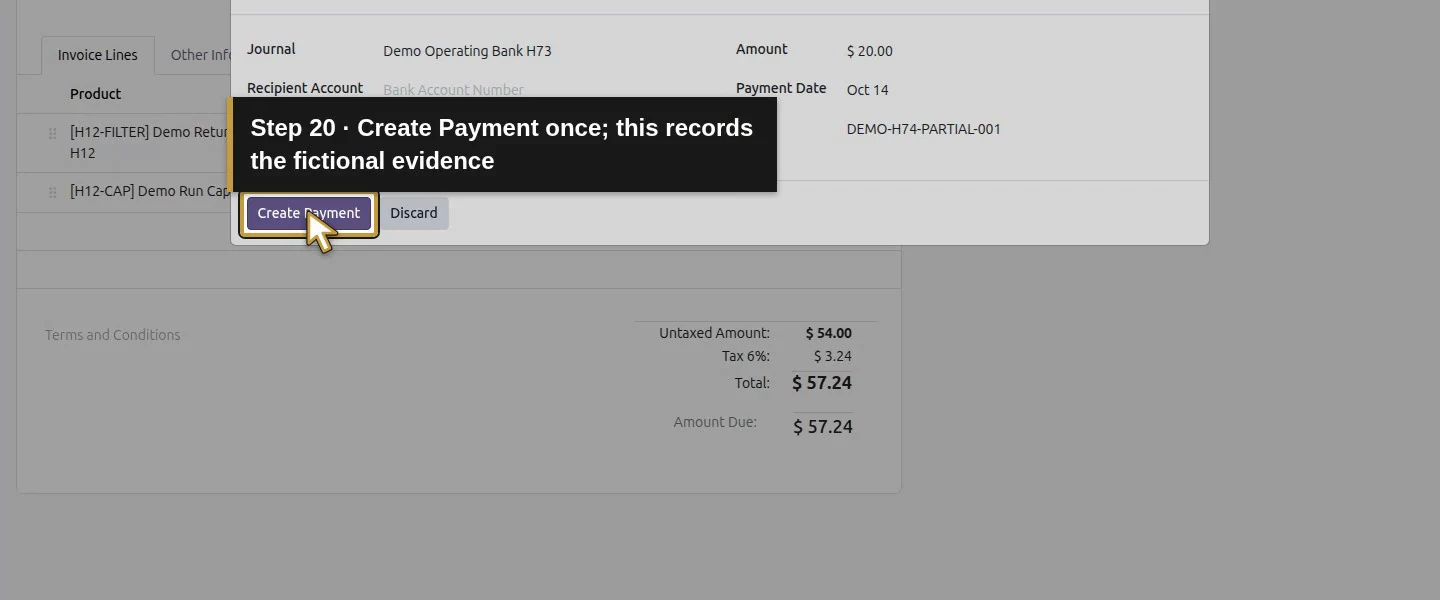
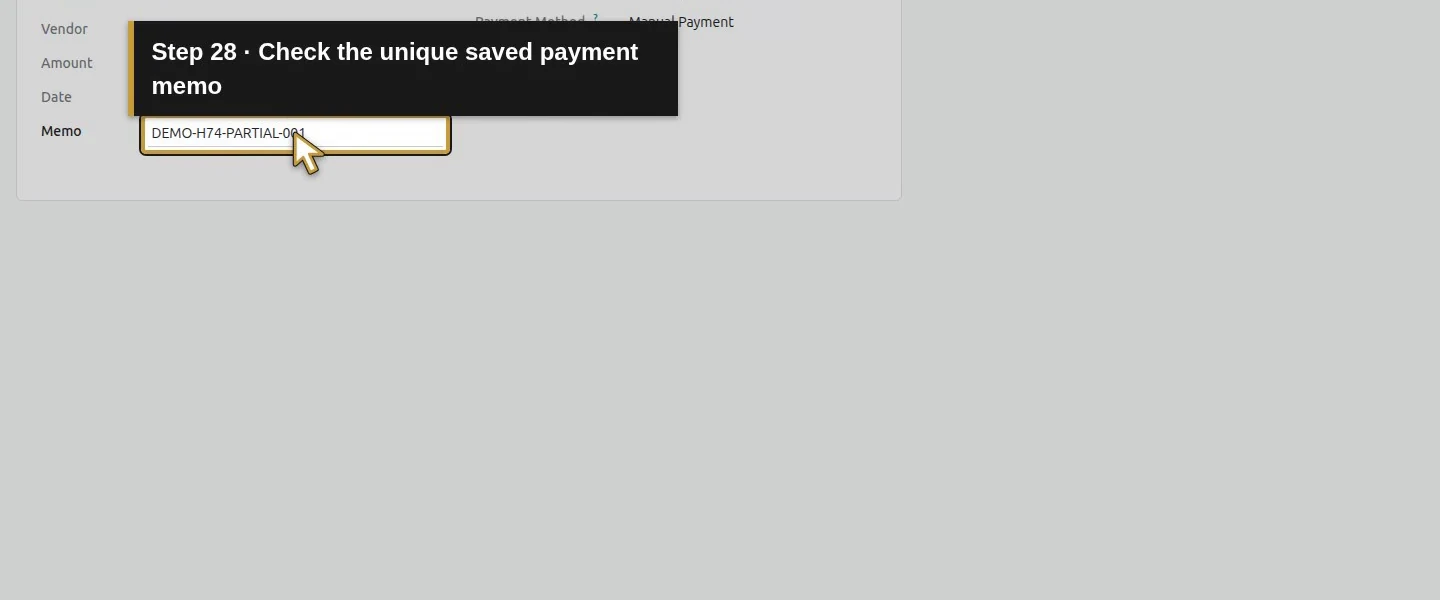
Set Amount 20. Click Payment Date, enter October 14, 2026, then press Enter to commit it and close the calendar before entering Memo DEMO-H74-PARTIAL-001. Choose Create Payment once and wait for the dialog to close. This records the fictional confirmed payment; it does not send funds.
Step 4. Inspect and reopen both linked records
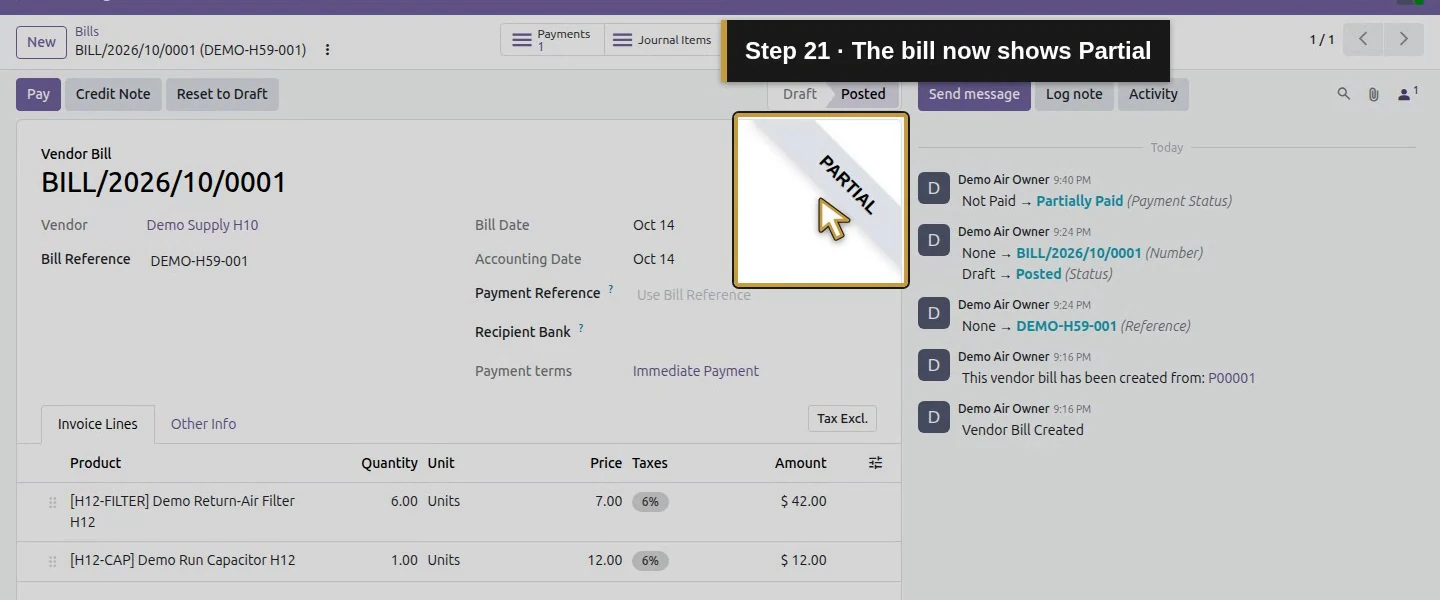
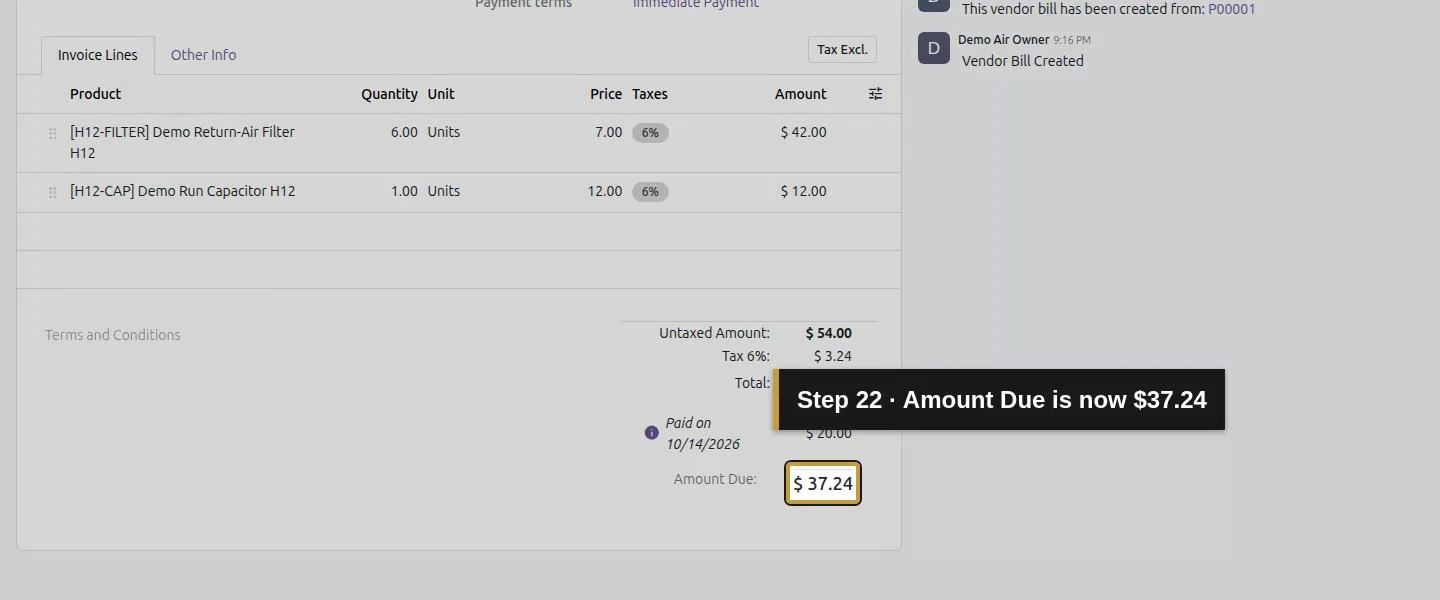
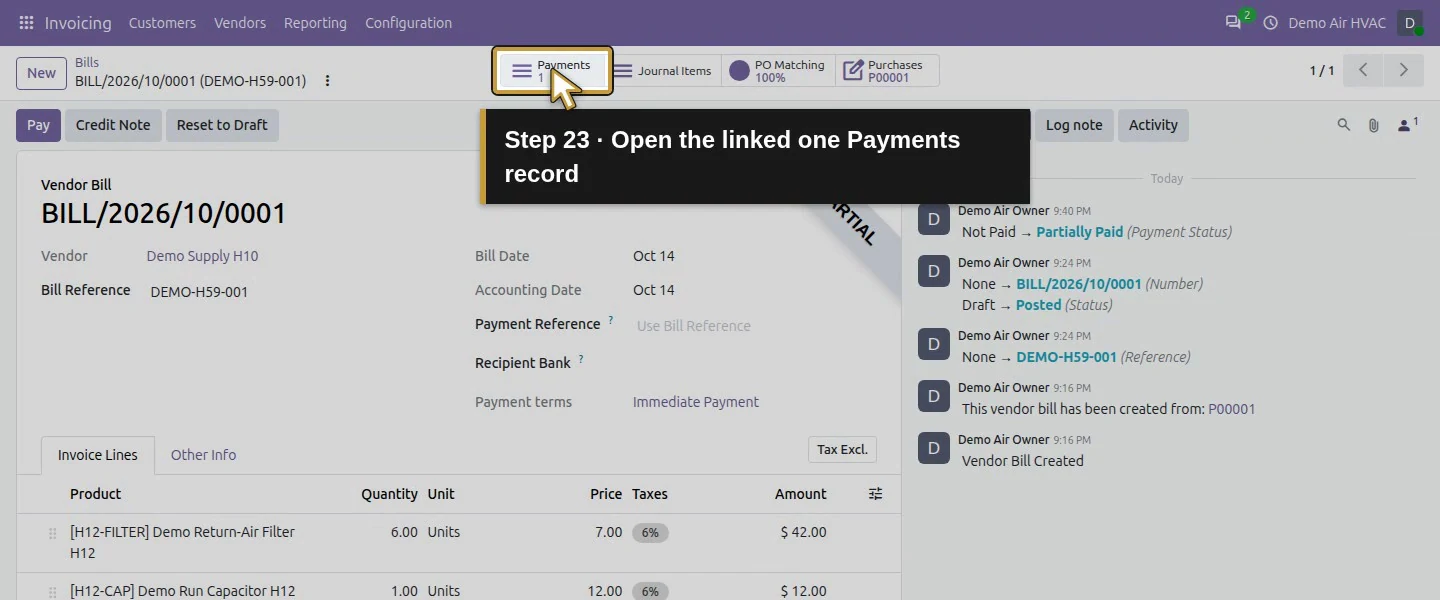
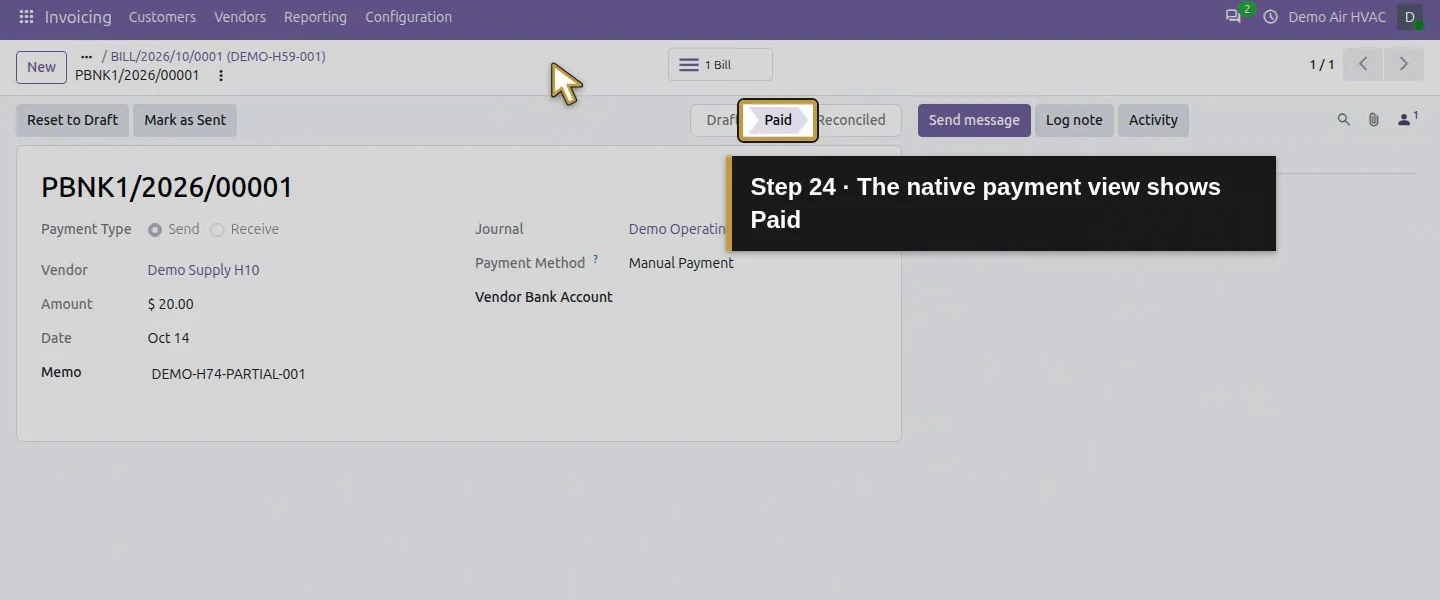
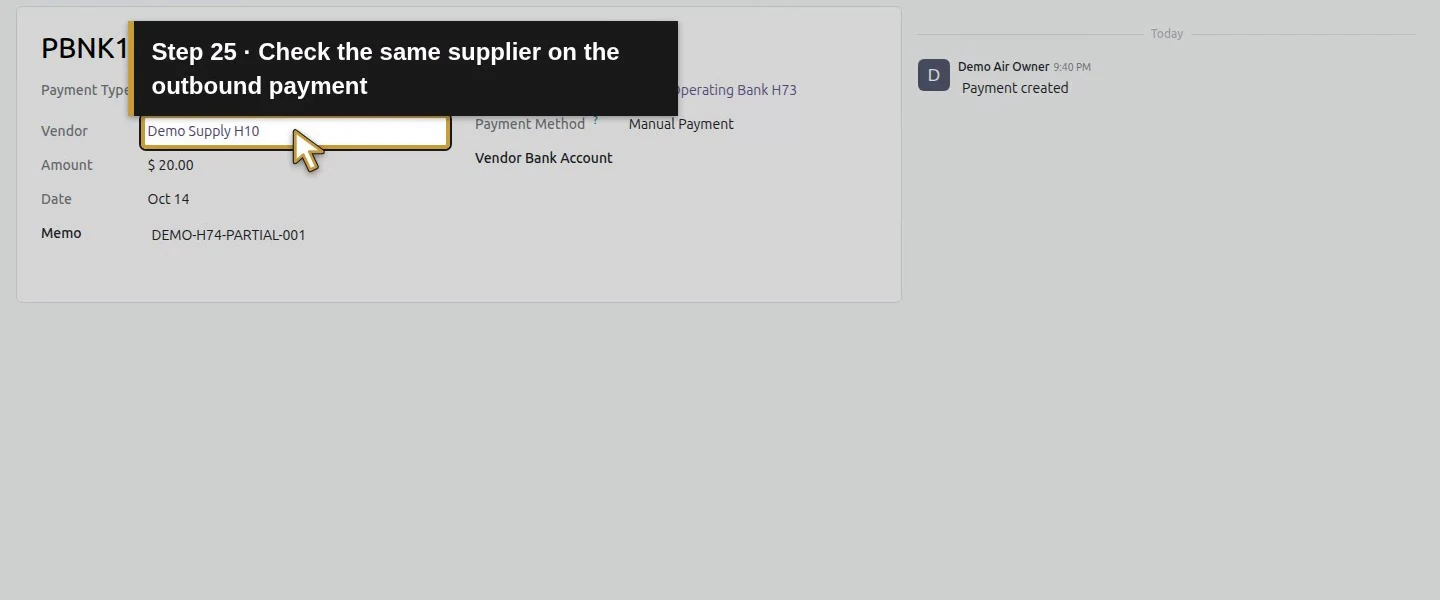
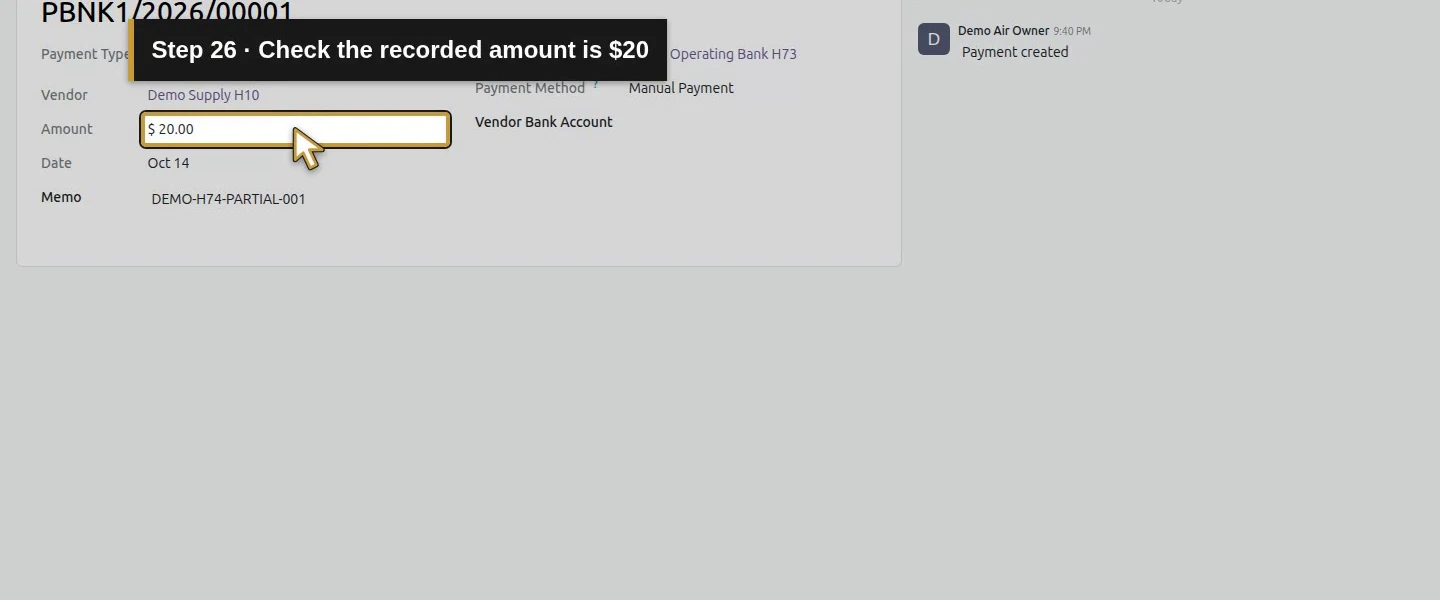
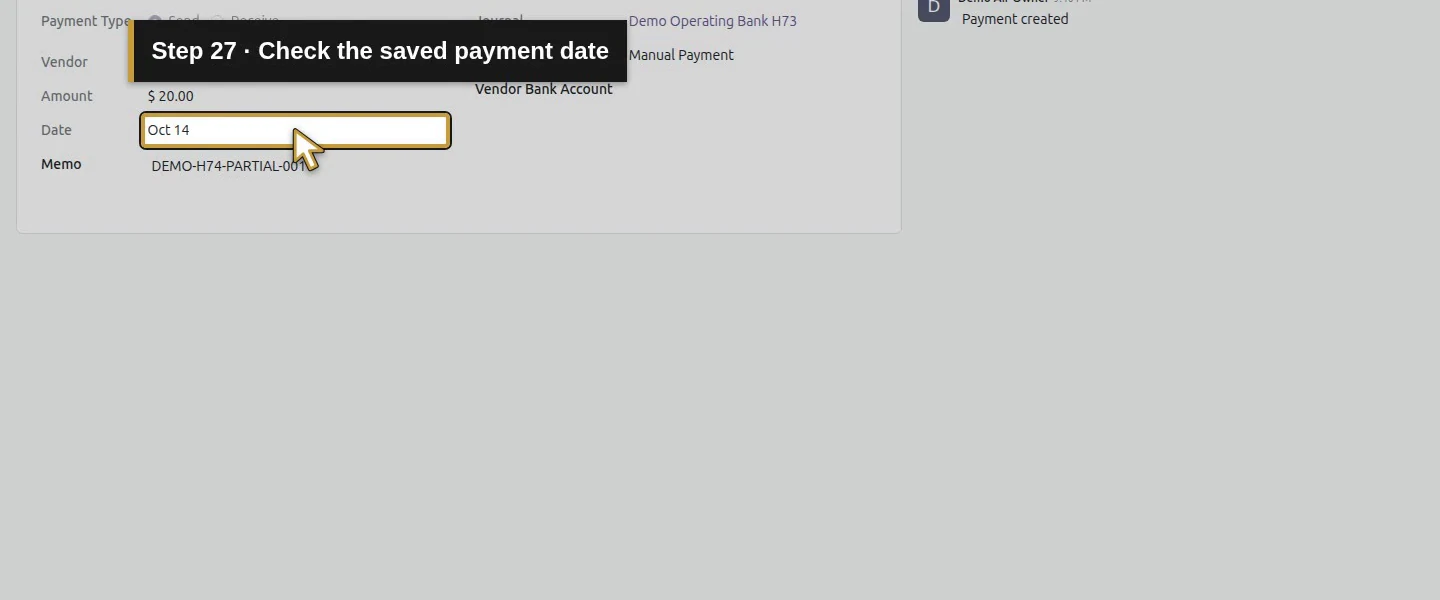
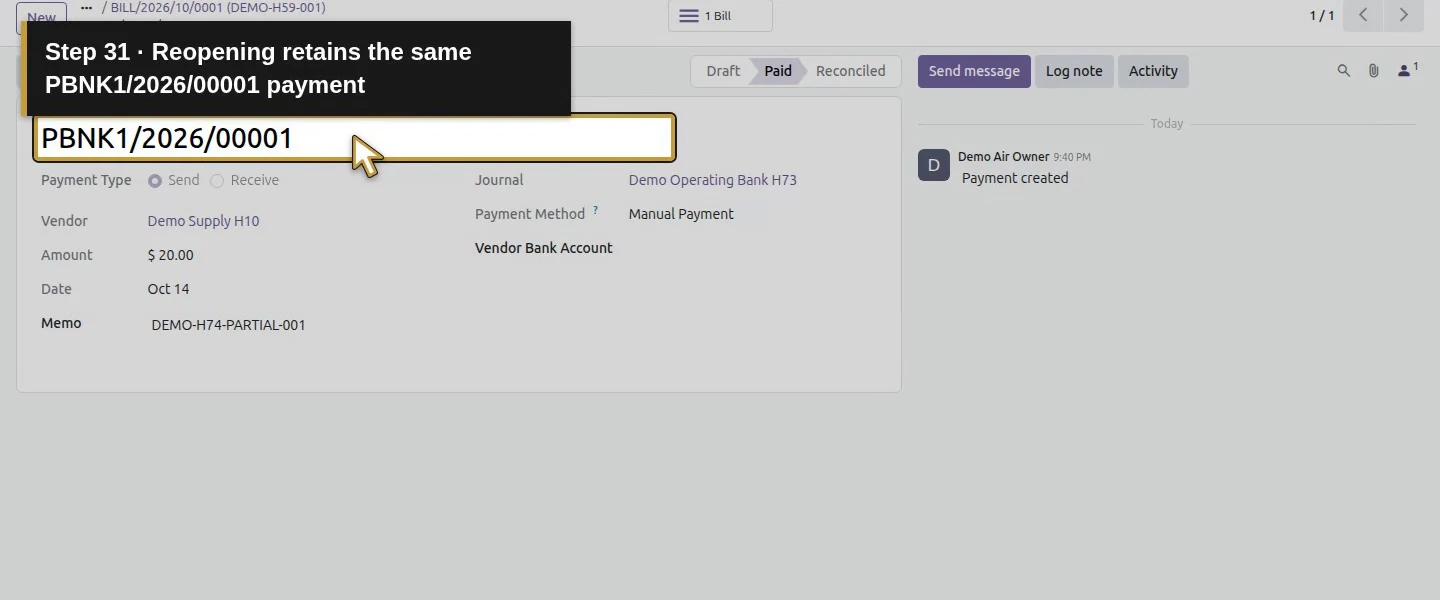
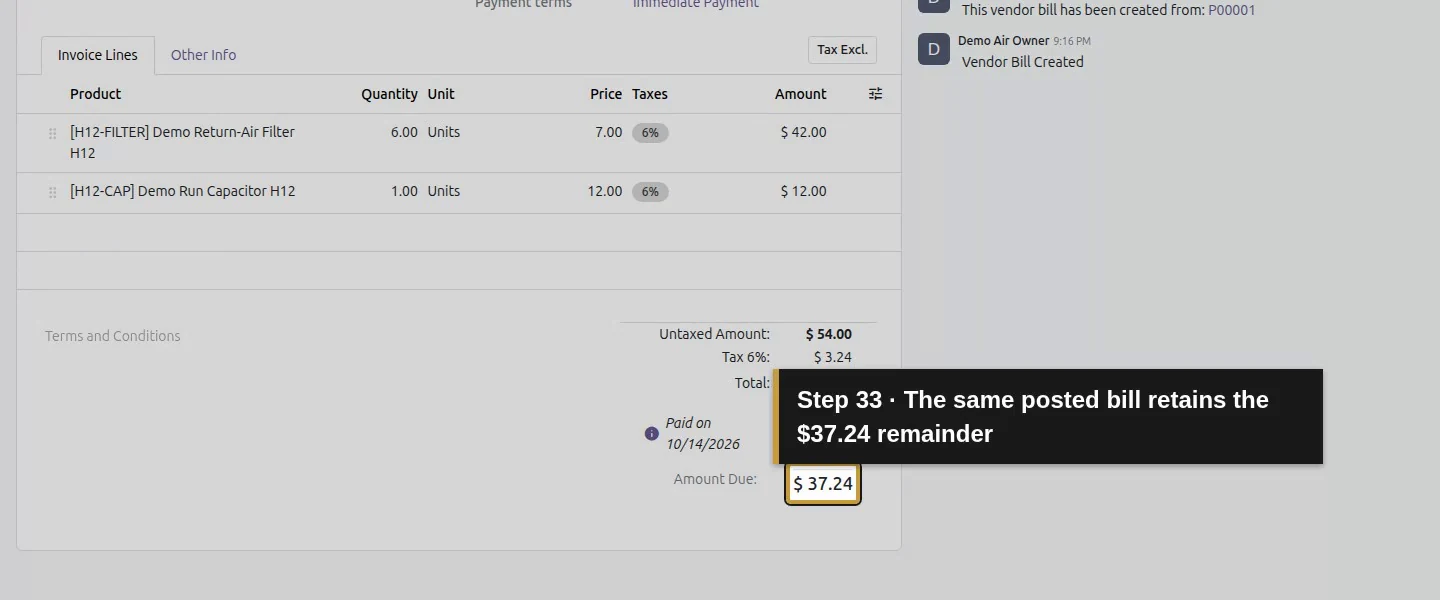
The bill displays Partial, a Paid on line for $20 and Amount Due $37.24. Open 1 Payments to inspect PBNK1/2026/00001: vendor, $20, date, memo, journal and Manual Payment. Reopen it and the bill to confirm the link persists.
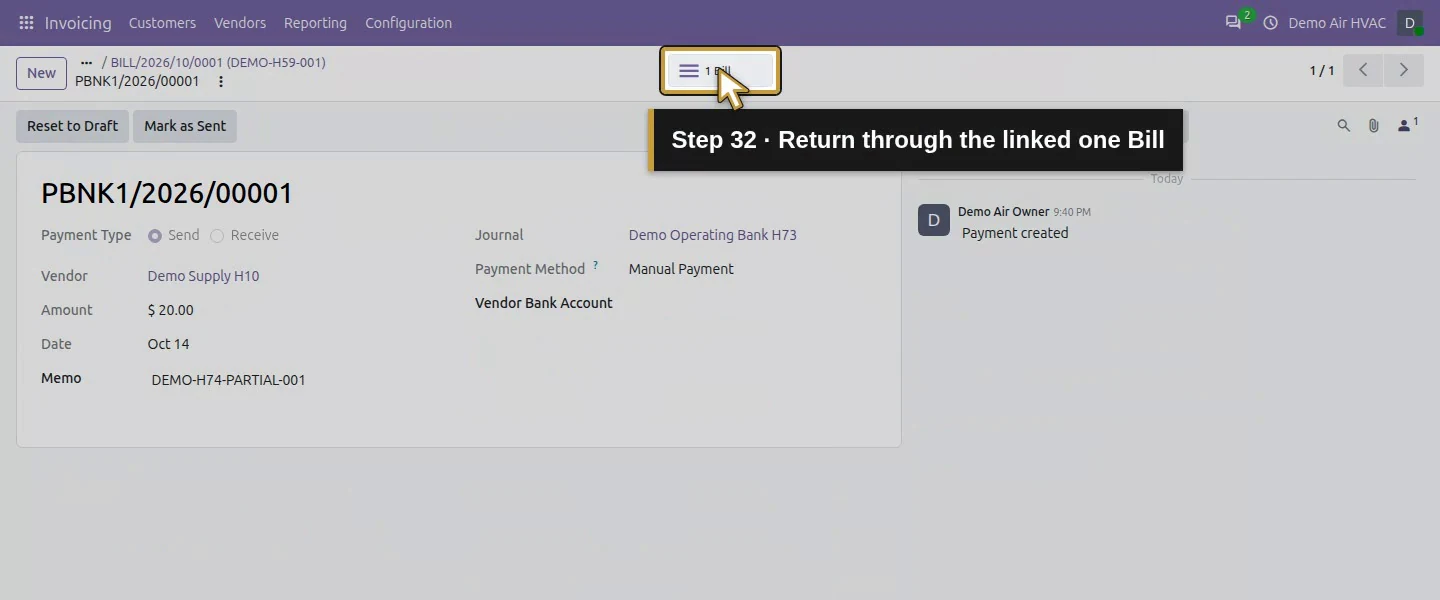
Step 5. Keep bank settlement and the remainder visible
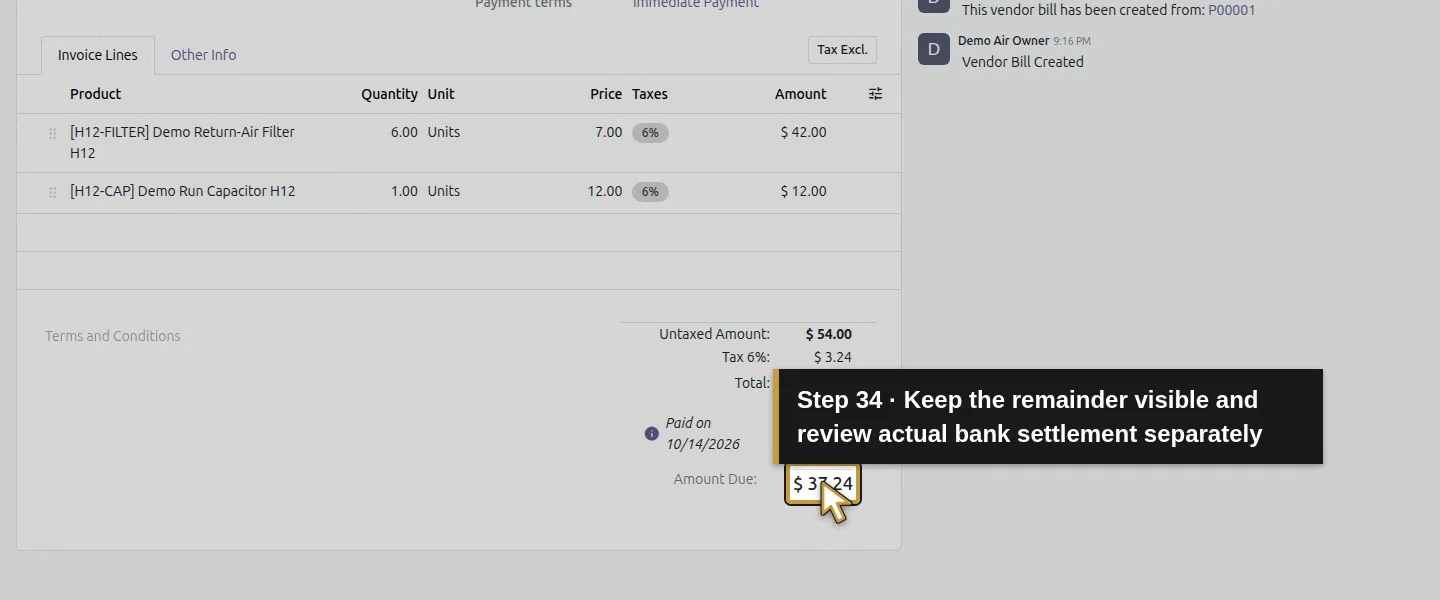
The tested posted payment entry debits Accounts Payable $20 and credits Outstanding Payments $20. The payable portion is matched to the bill; the outstanding entry is still unmatched. Record $37.24 as the bill balance and review actual bank settlement separately. Do not repeat Create Payment to force a bank match.
Check the result
One $20 outbound supplier payment links to BILL/2026/10/0001. The bill remains Posted/Partially Paid with $37.24 residual. The payment is Paid in the native payment view, with a posted entry and a $20 payable match. Outstanding Payments still carries an unmatched $20 credit; no bank statement was imported or reconciled.
If your screen differs
Paid and is_reconciled on the payment did not prove bank-statement reconciliation: the bill-side payable match was complete for $20, while the Outstanding Payments line remained unmatched. The H73 method's explicit payment_account_id was empty; native accounting selected Outstanding Payments. Do not infer no journal entry from an empty method field. This test covers a partial manual payment; full payment, another journal, real transfer and statement settlement remain separate checks.
Frequently asked questions
How do I record a supplier payment in Odoo?
Open the correct posted bill, choose Pay, review Journal, enter the confirmed amount/date/memo and choose Create Payment. Reopen the linked payment and check the bill's actual remaining balance.Does registering an Odoo supplier payment send money?
The tested Manual Payment procedure recorded fictional payment evidence without initiating a transfer. Independently confirm payment before entering it; review bank settlement separately.Why is my Odoo supplier bill still unpaid after payment?
Check the bill link, amount and residual before retrying. This $20 payment correctly left $37.24 due. The bill-side match and unmatched Outstanding Payments line also show why a payment record does not by itself prove bank settlement.Continue building the business
Continue with the verified bank statement review. Its native export, manual comparison and unresolved exceptions are separate from this payment's payable match; Outstanding Payments still needs bank review.
Talk about your Odoo setup
Bring your current process and the result you need to Onward to plan your Odoo workflow. Talk about your Odoo setup.