
Running an HVAC business with Odoo
How do I purchase subcontractor services for an Odoo job?
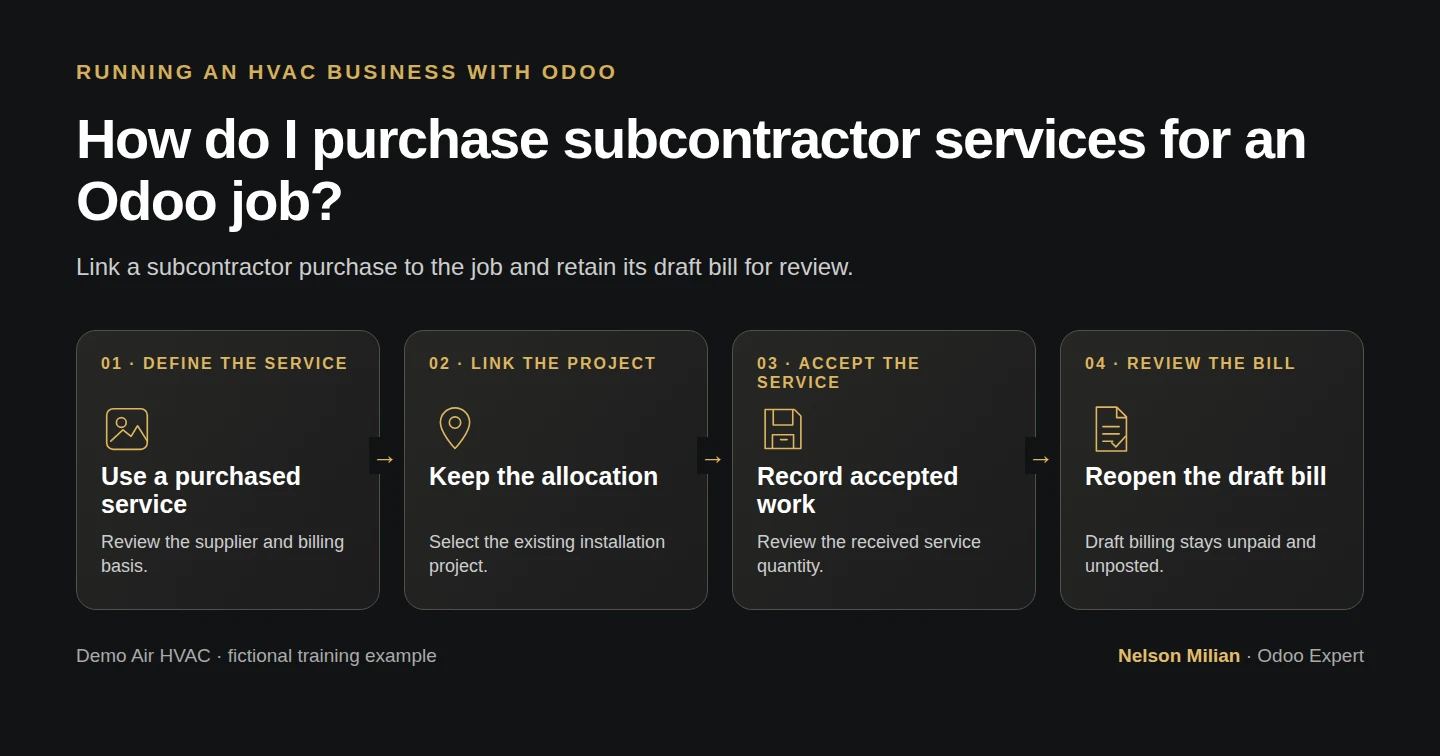
Buy a subcontractor service for an Odoo job, link the purchase to its project, record service acceptance and review the draft vendor bill.
Alex needs a specialist’s site review before the proposed installation. This Odoo subcontractor purchase order keeps the supplier, service scope and job together. We buy one fictional service Unit, select the installation project and test how a manually accepted service becomes a draft bill. The bill remains available for review before any posting or payment decision.
Alex Rivera and Demo Air HVAC are fictional training examples. Prices, dates, quantities and business situations in this guide are illustrative.
Before you begin
Tested in stock Odoo 20.0-20260926 Community as the demo owner administrator, with official modules and standard configuration. Complete H47 installation project setup, H30 purchase orders and H59 supplier bills. Purchase, Project, Invoicing and their official project/purchase integration are installed. Reuse Demo Installation H47 — S00011, its existing Project Account and customer. Keep the three H47 tasks and their states. This example buys a service directly from a supplier; it does not add a customer charge. Use a training company and local mail sink. No real supplier communication, visit, invoice or payment takes place.
Step-by-step workflow
Step 1. Prepare the fictional supplier contact
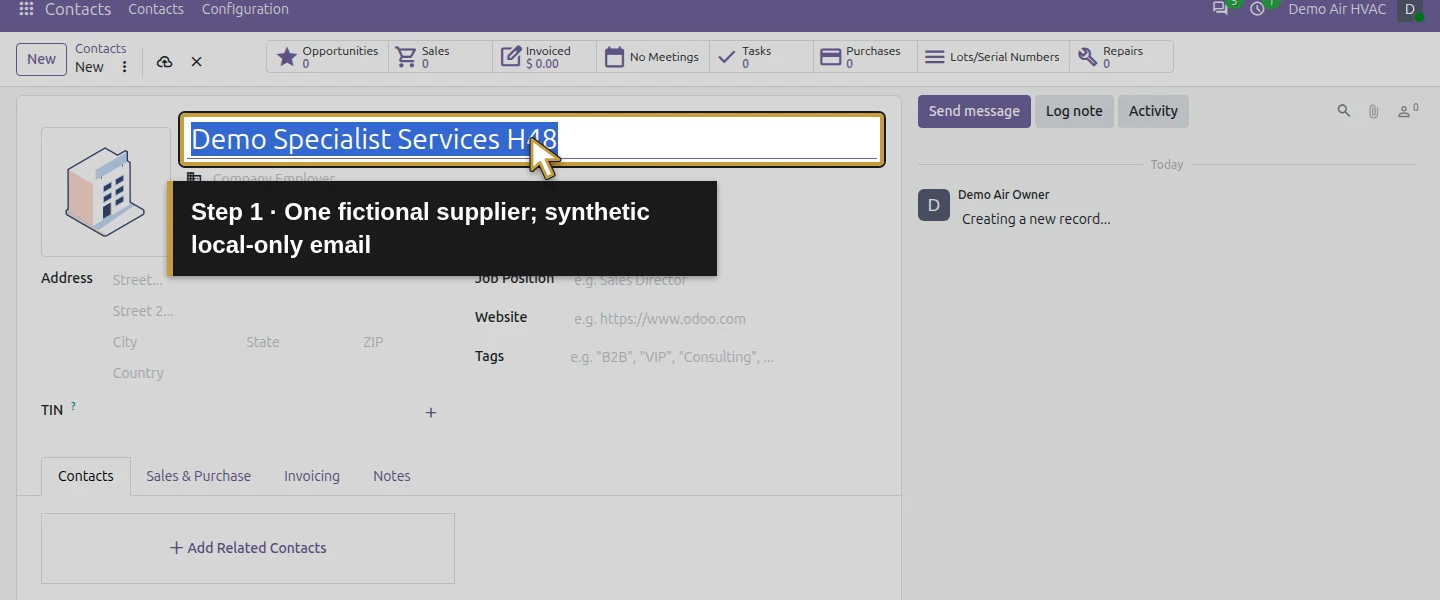
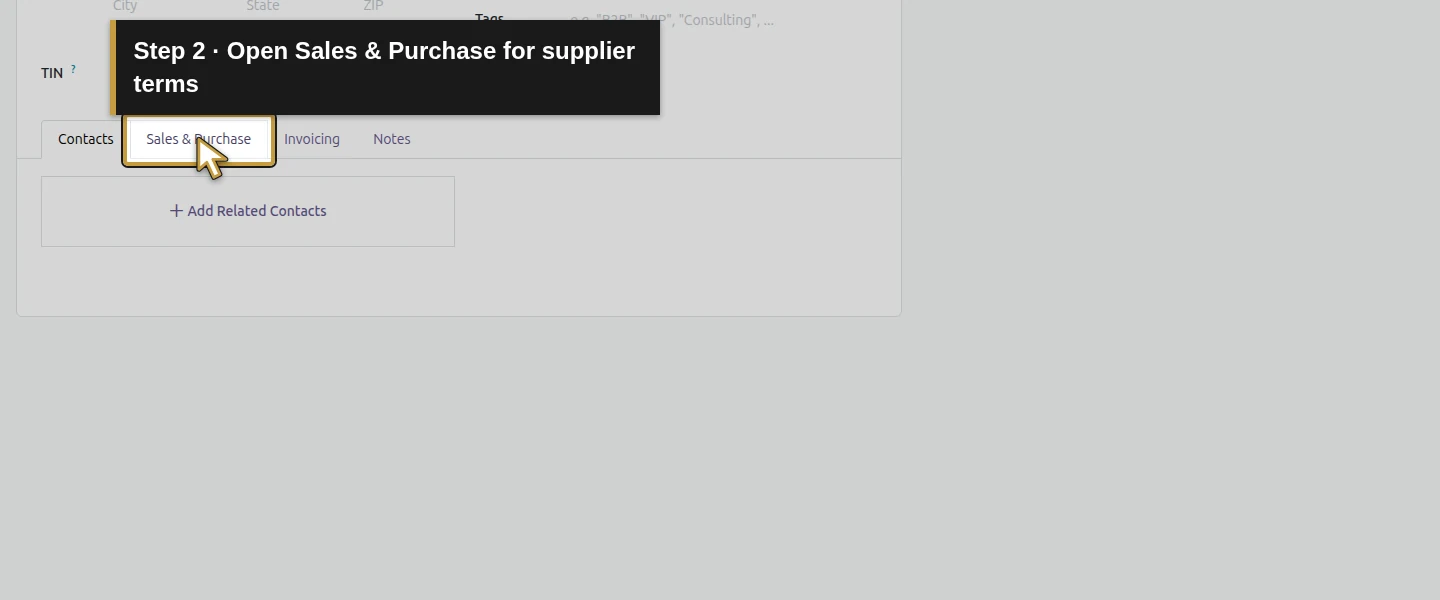
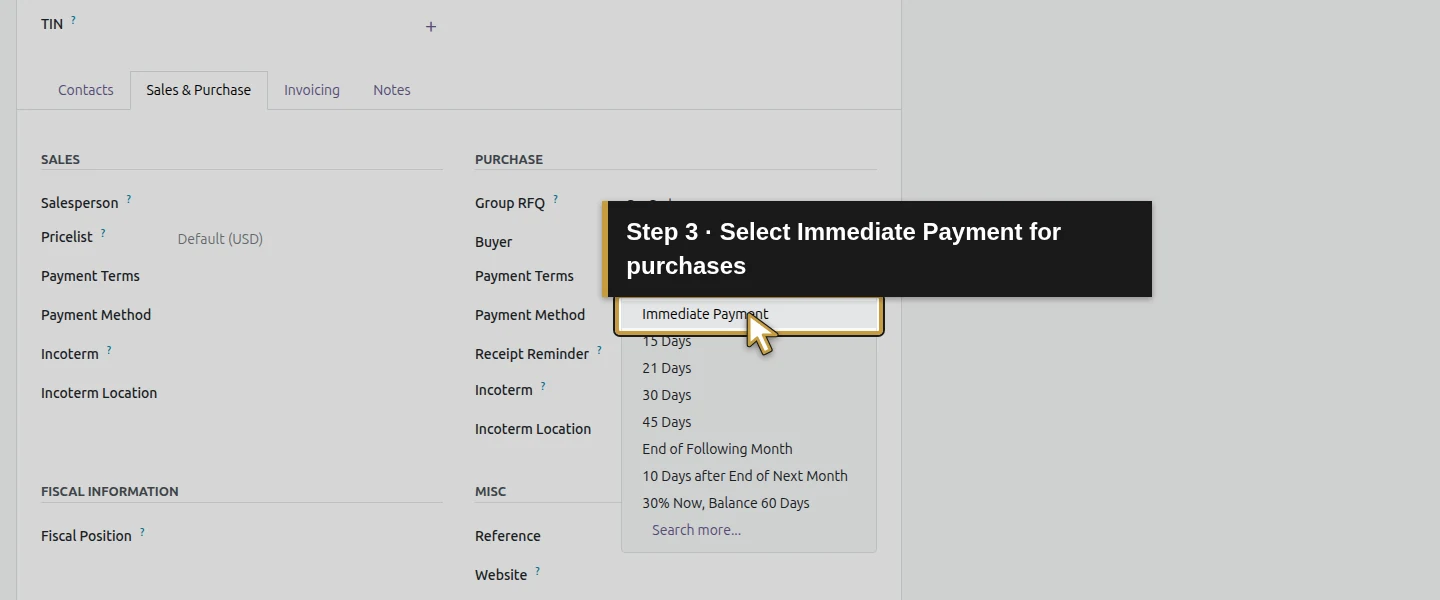
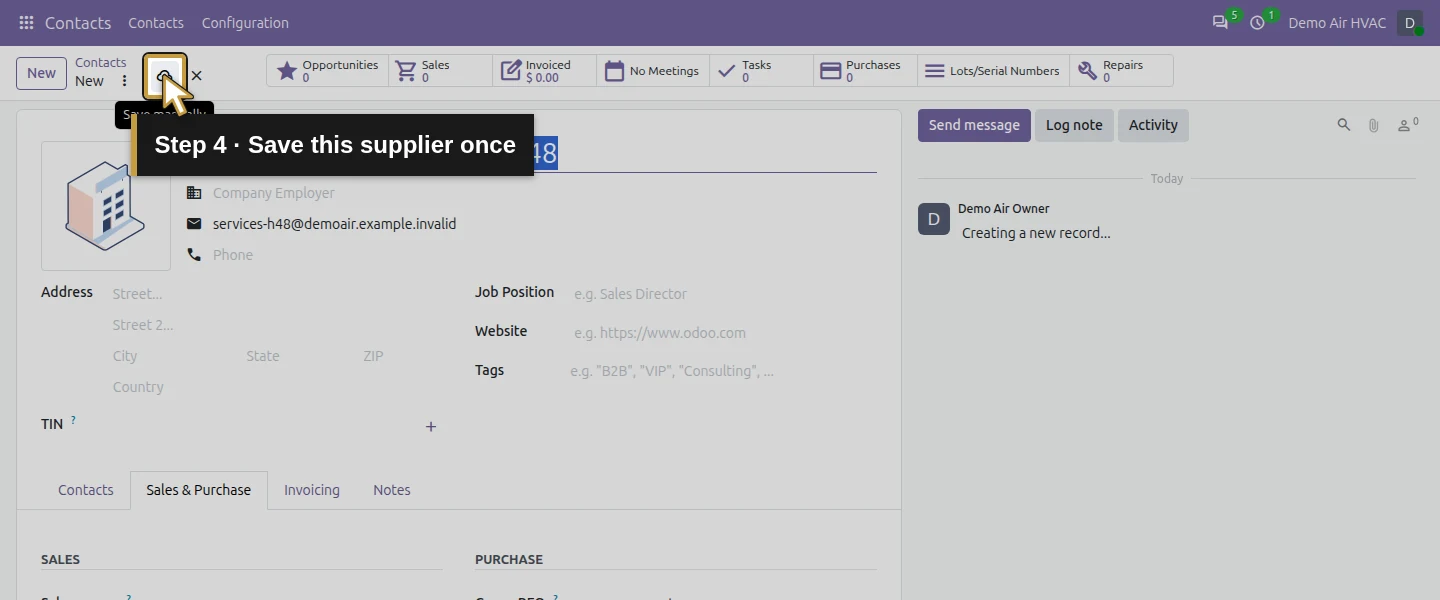
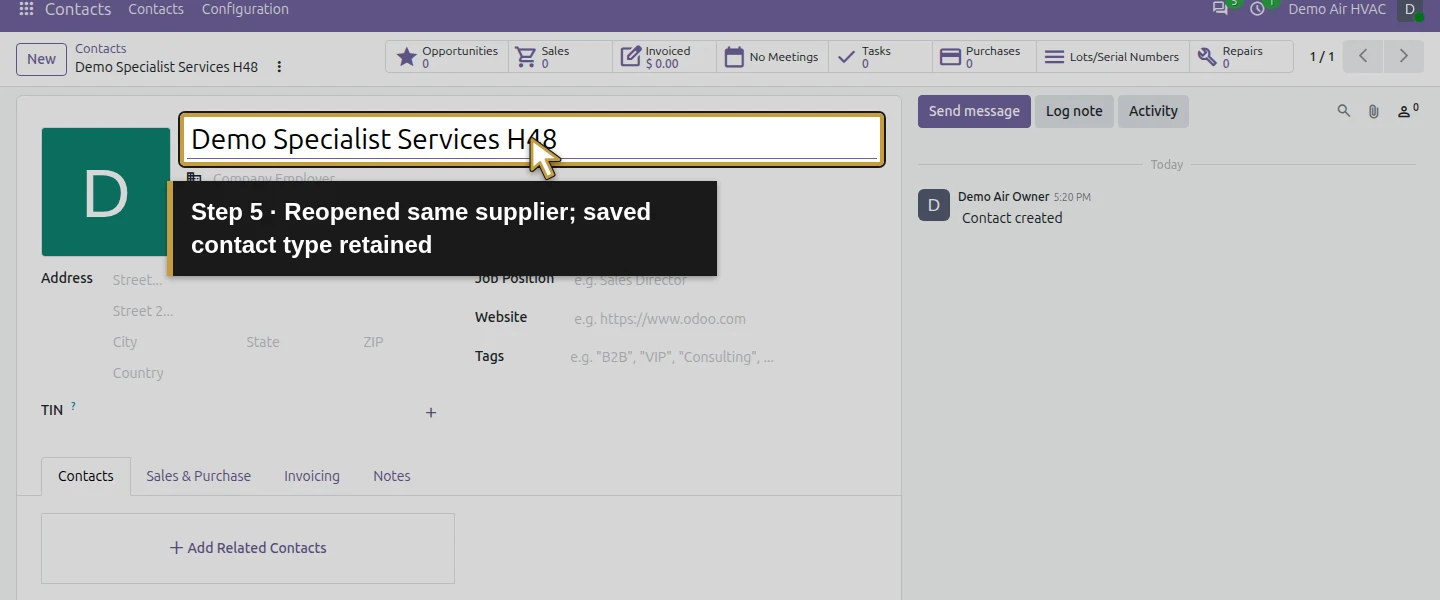
Open Contacts, search for Demo Specialist Services H48 and use New only if it does not already exist. Enter that name and services-h48@demoair.example.invalid. On Sales & Purchase, choose the existing Immediate Payment under the Purchase section’s Payment Terms. Save and reopen. This build’s new-contact screen uses Name (company or person) without a Company/Person radio; the saved example is a contact. Complete and verify the appropriate supplier identity, address, tax and payment details for your business before a real purchase.
Step 2. Create a separate purchased service
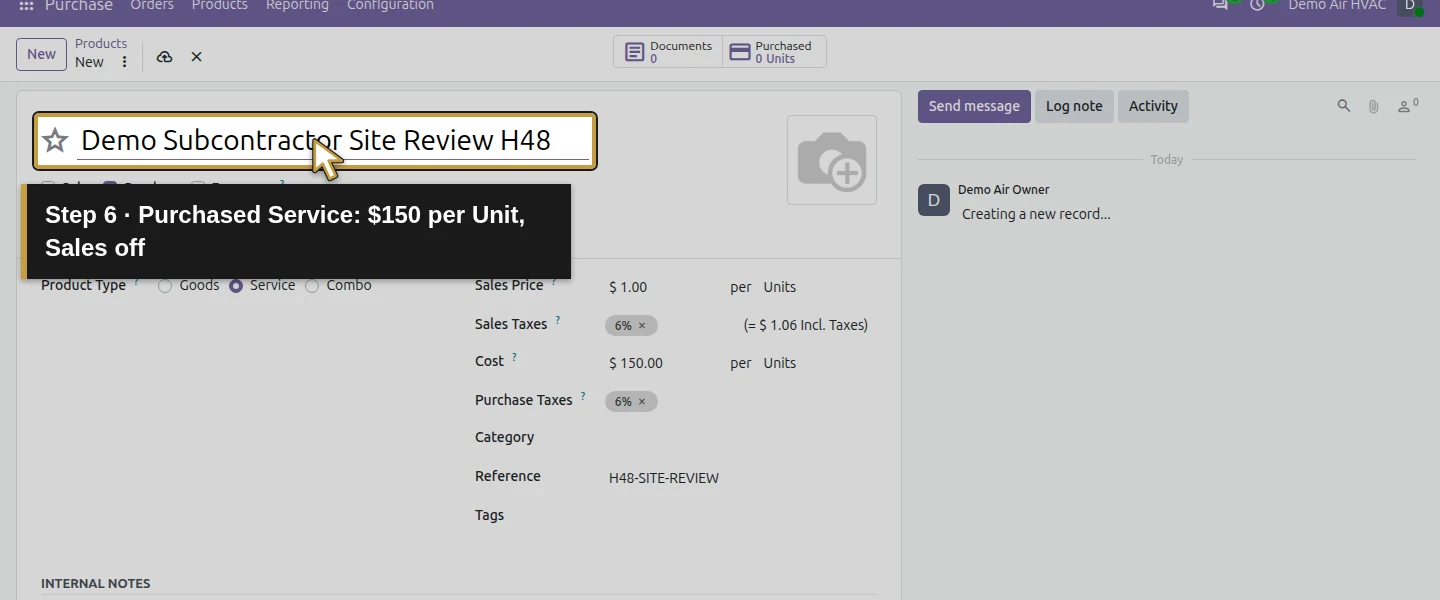
Open Purchase → Products → Products → New. Enter Demo Subcontractor Site Review H48, select Service, keep Purchase checked and clear Sales. Set Reference H48-SITE-REVIEW and Cost $150. Selecting Service initially chooses Hours here, so explicitly select Units beside Cost for this fixed-price review. This is one service Unit, with no stock tracking. Check the actual Purchase Taxes; the training product inherits an illustrative 6%, which is not advice about the tax treatment of subcontractor labor.
Step 3. Choose the service billing basis
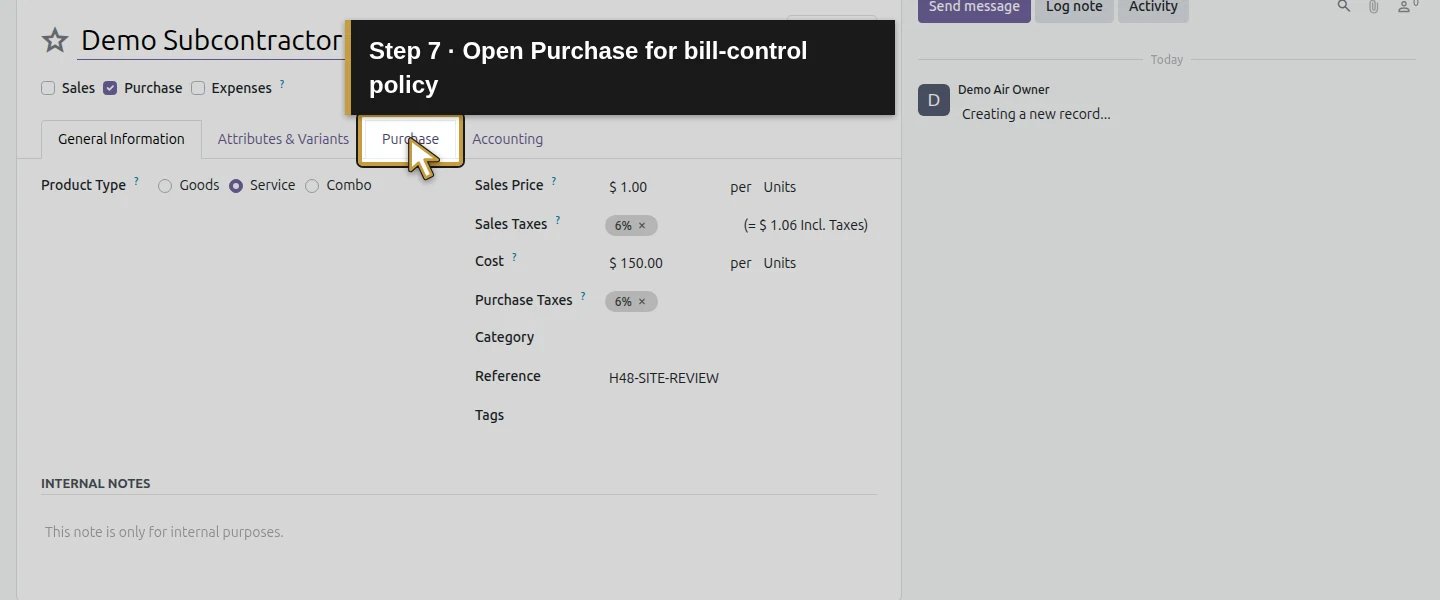
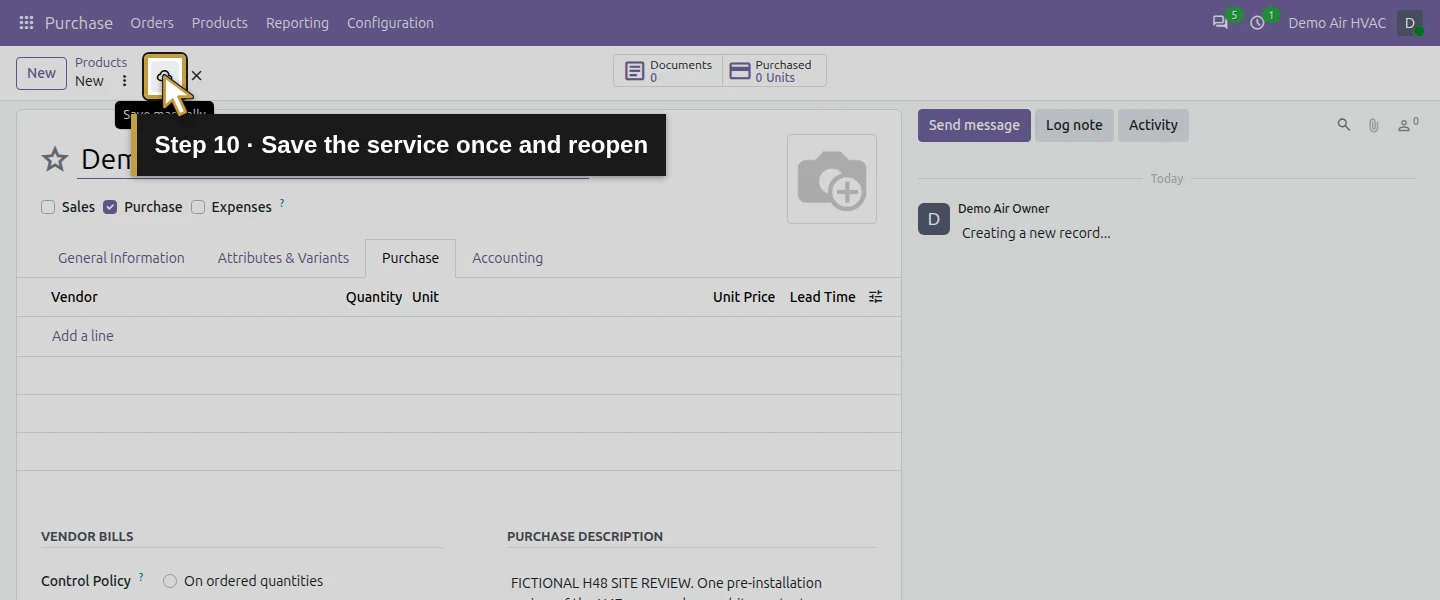
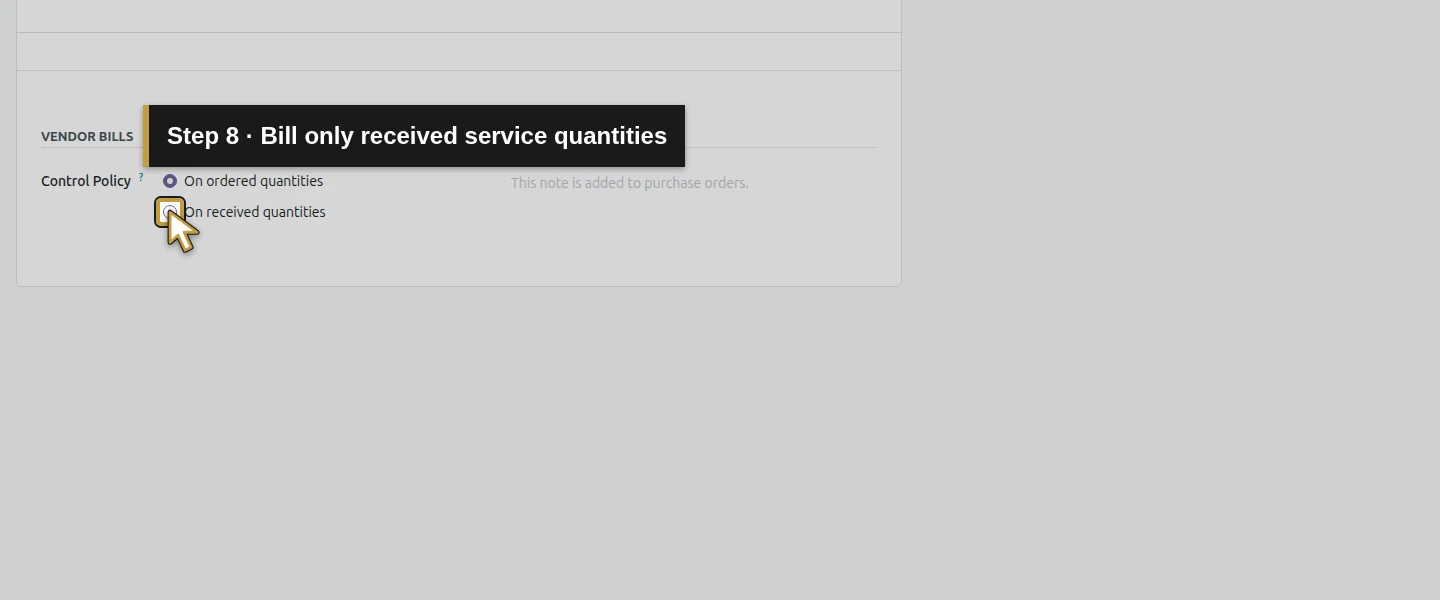
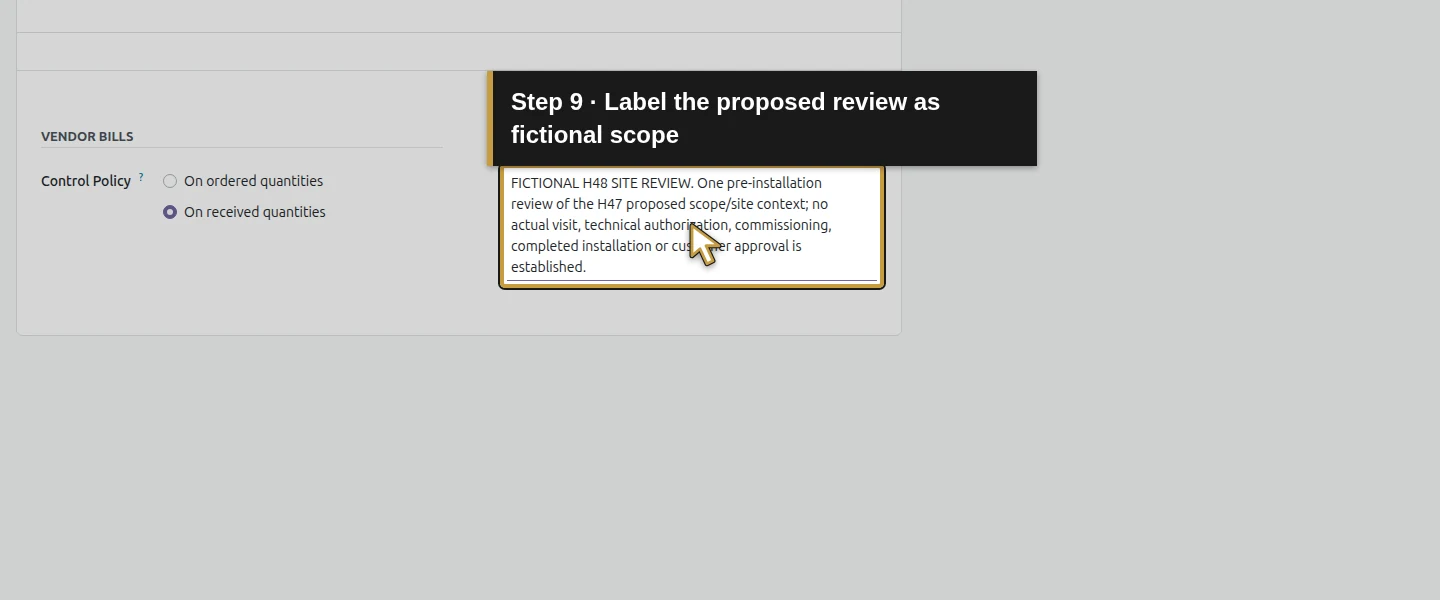
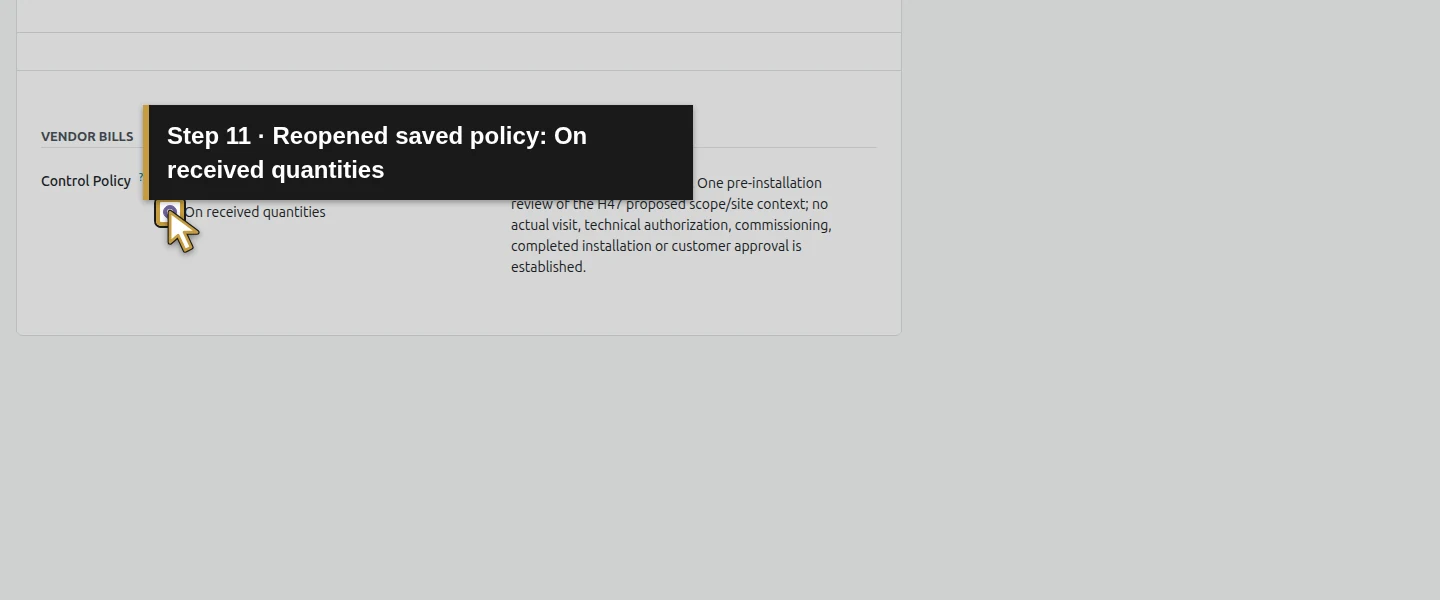
Open the product’s Purchase tab. Change Control Policy from On ordered quantities to On received quantities. In the purchase note, enter the fictional scope: one pre-installation review of the H47 proposed scope/site context; no actual visit, technical authorization, commissioning, completed installation or customer approval is established. Save and reopen. This policy bases the proposed bill quantity on the recorded service acceptance; it does not inspect the work for you.
Step 4. Add the supplier and service to one RFQ
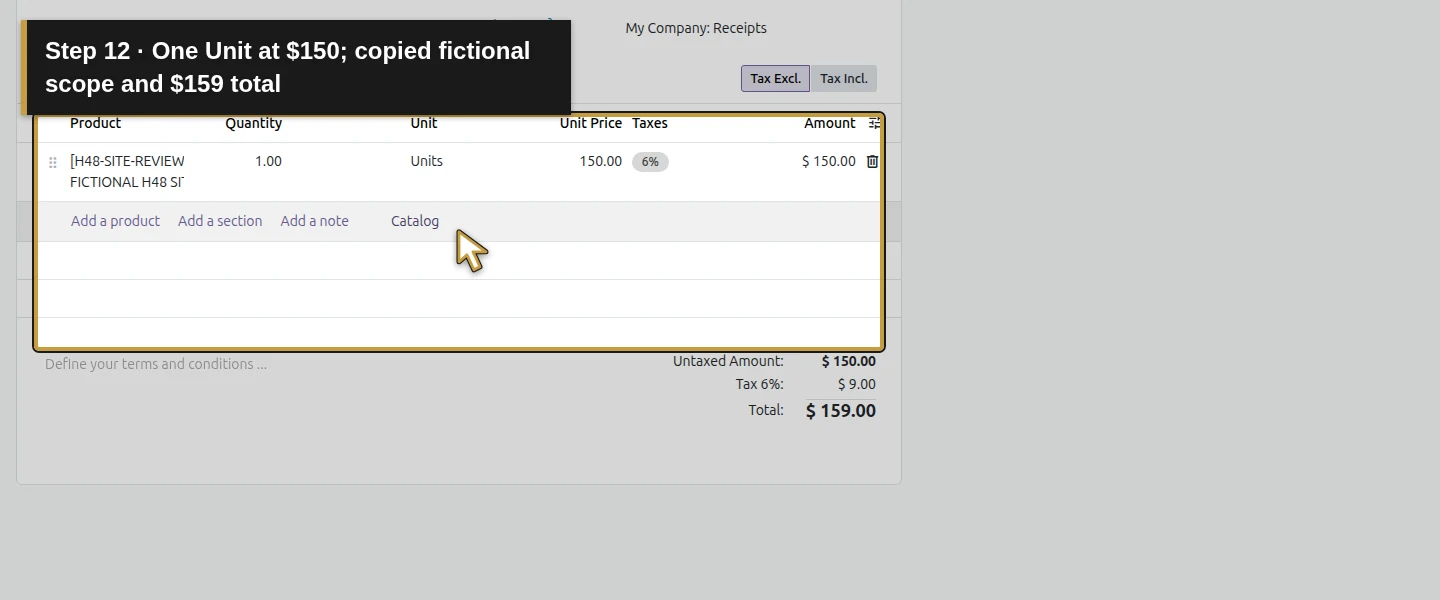
Open Purchase → Orders → Requests for Quotation → New. Select the existing Demo Specialist Services H48 from the Vendor dropdown. Payment Terms should show Immediate Payment. Click Add a product and select H48-SITE-REVIEW. Check 1 Unit at $150 and the copied scope. The tested totals are $150 untaxed + $9 demo tax = $159. Review the agreed supplier price rather than assuming the product’s Cost proves a current supplier agreement.
Step 5. Select the installation project
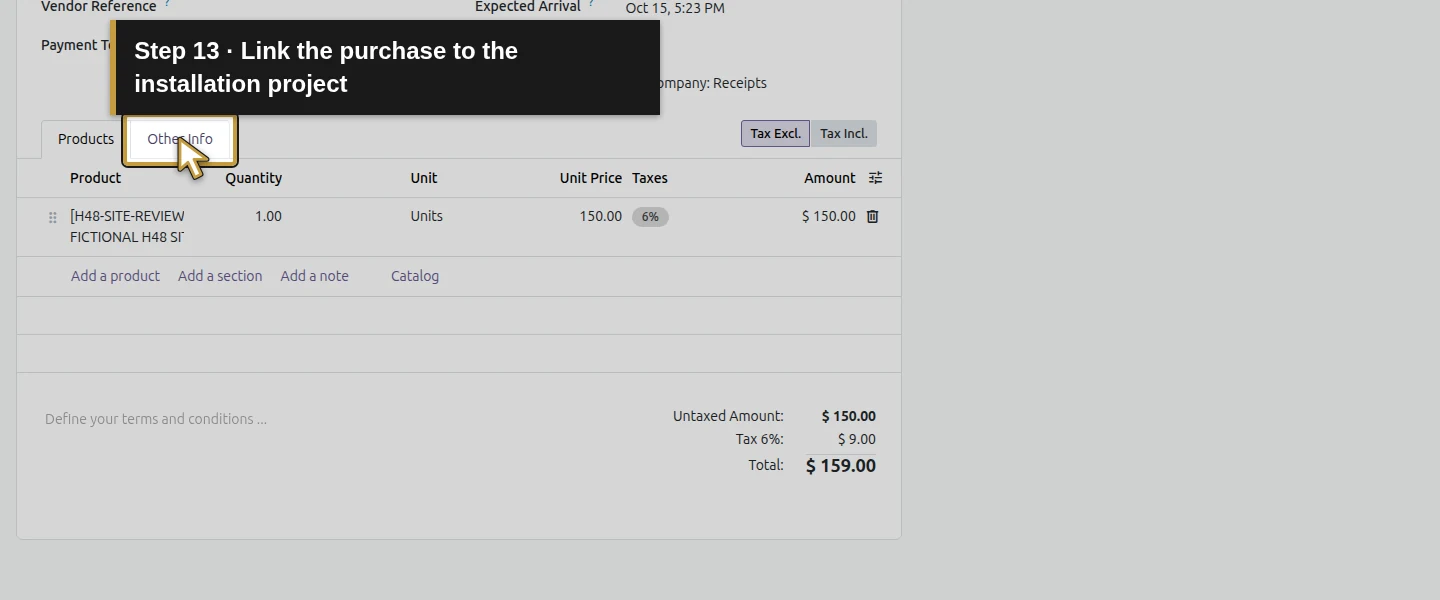
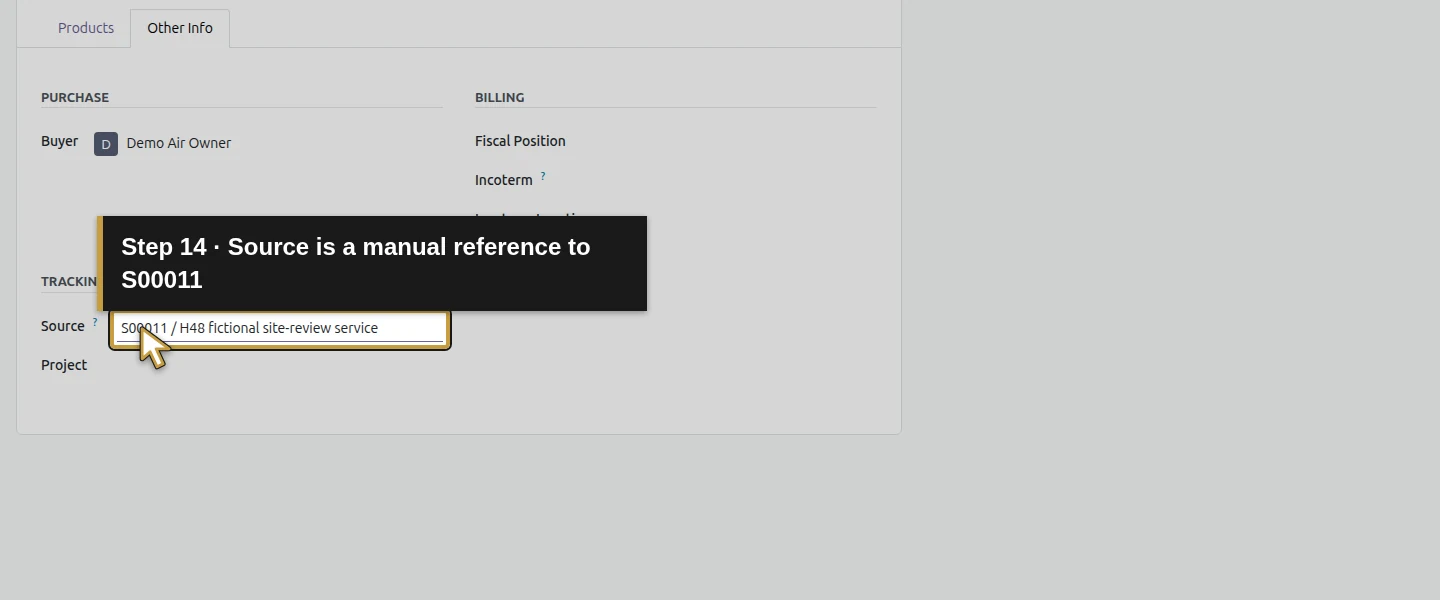
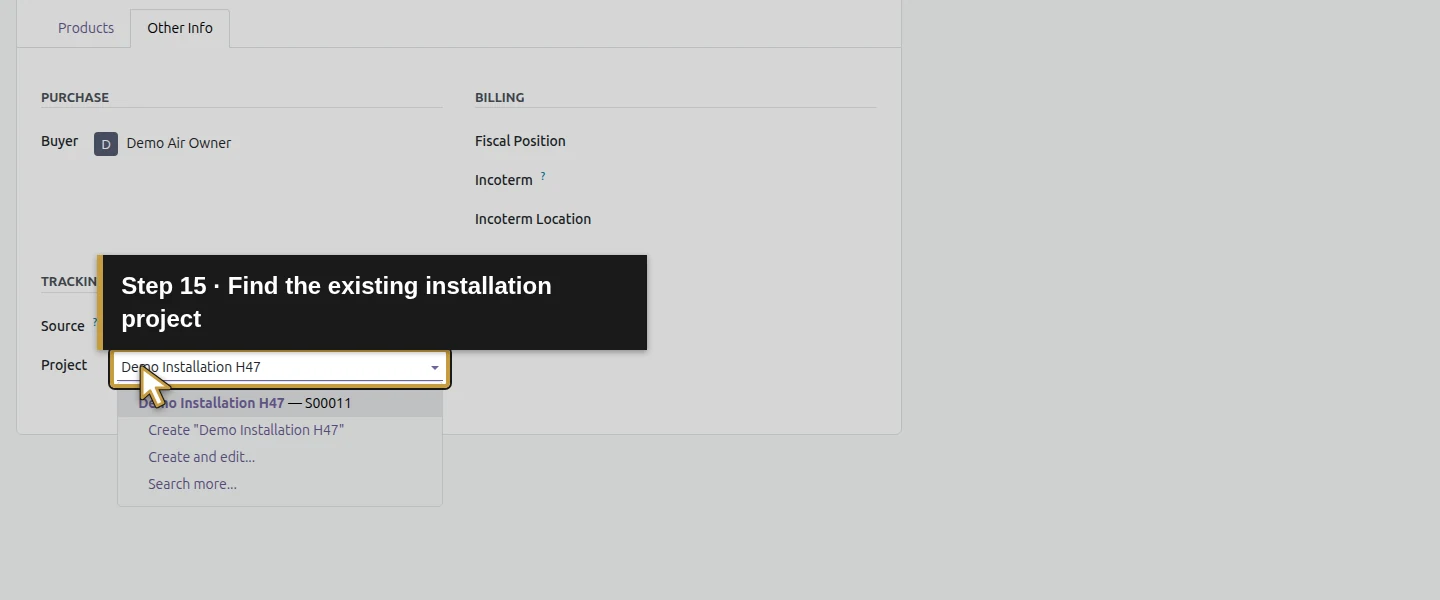
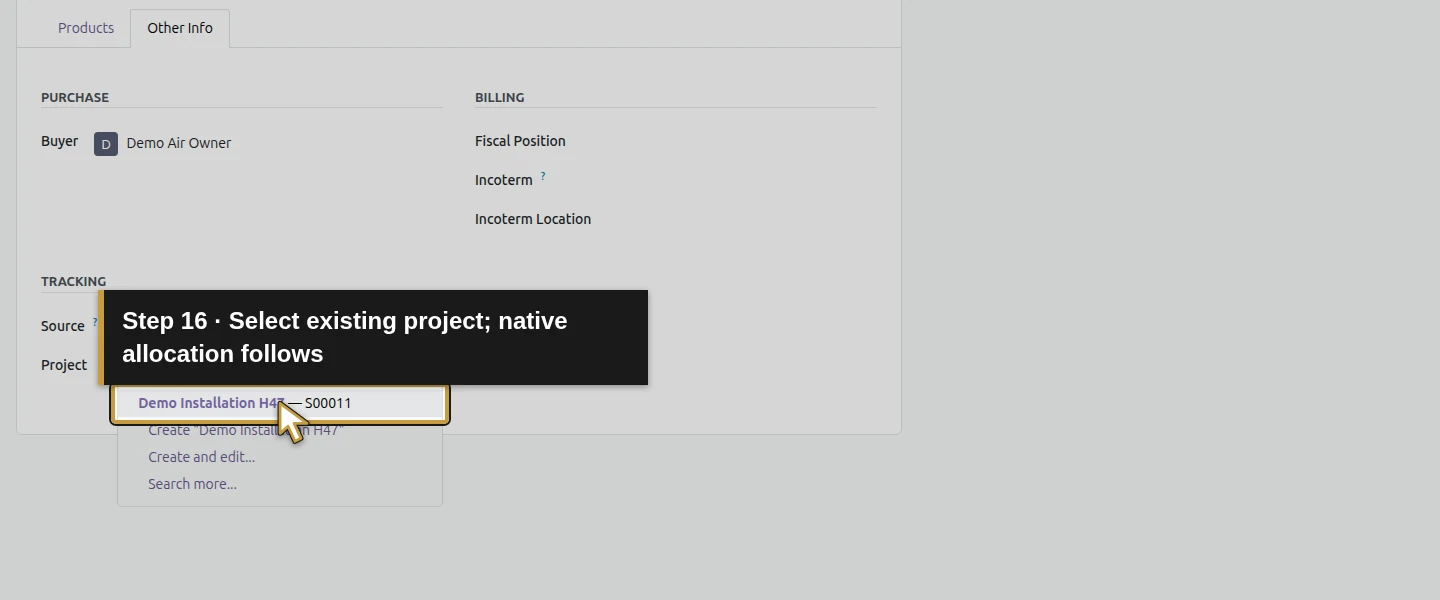
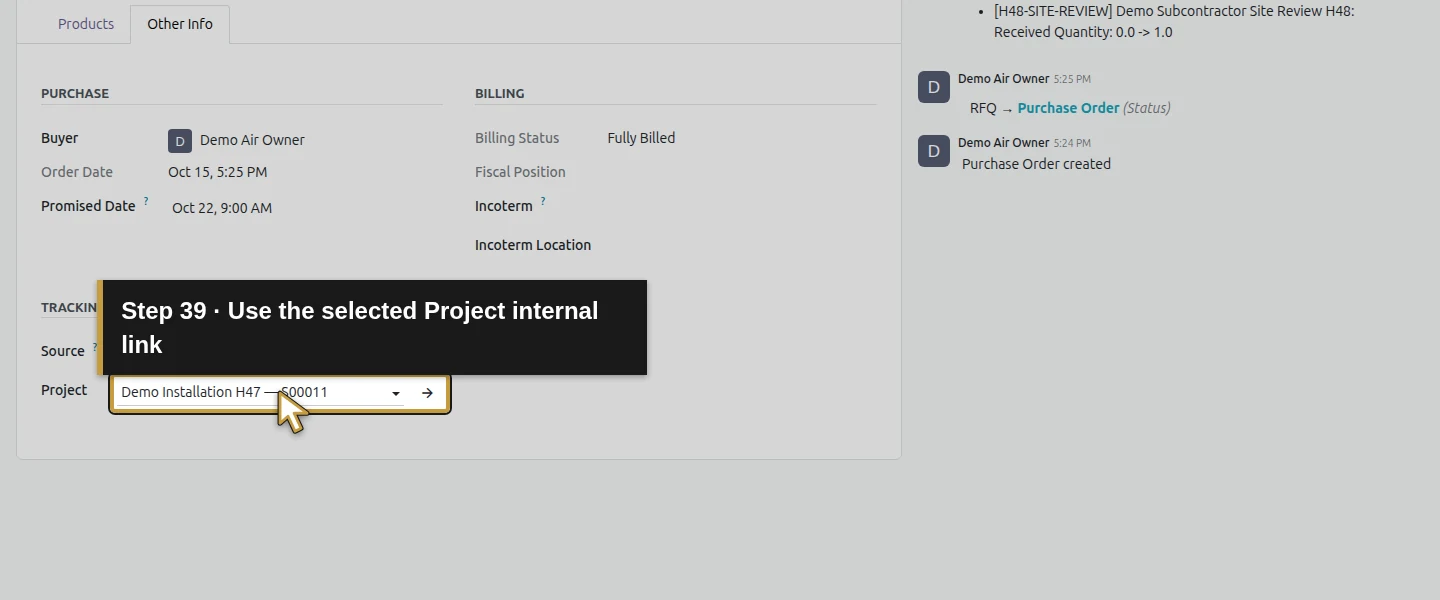
Open Other Info. In Source, enter S00011 / H48 fictional site-review service. In Project, search for and select the existing Demo Installation H47 — S00011; do not create another project from the dropdown. Source is a readable reference. Project is the native link used here to allocate the service line to the installation’s existing Project Account. A typed order number alone would not establish that allocation.
Step 6. Review the planned service date and save
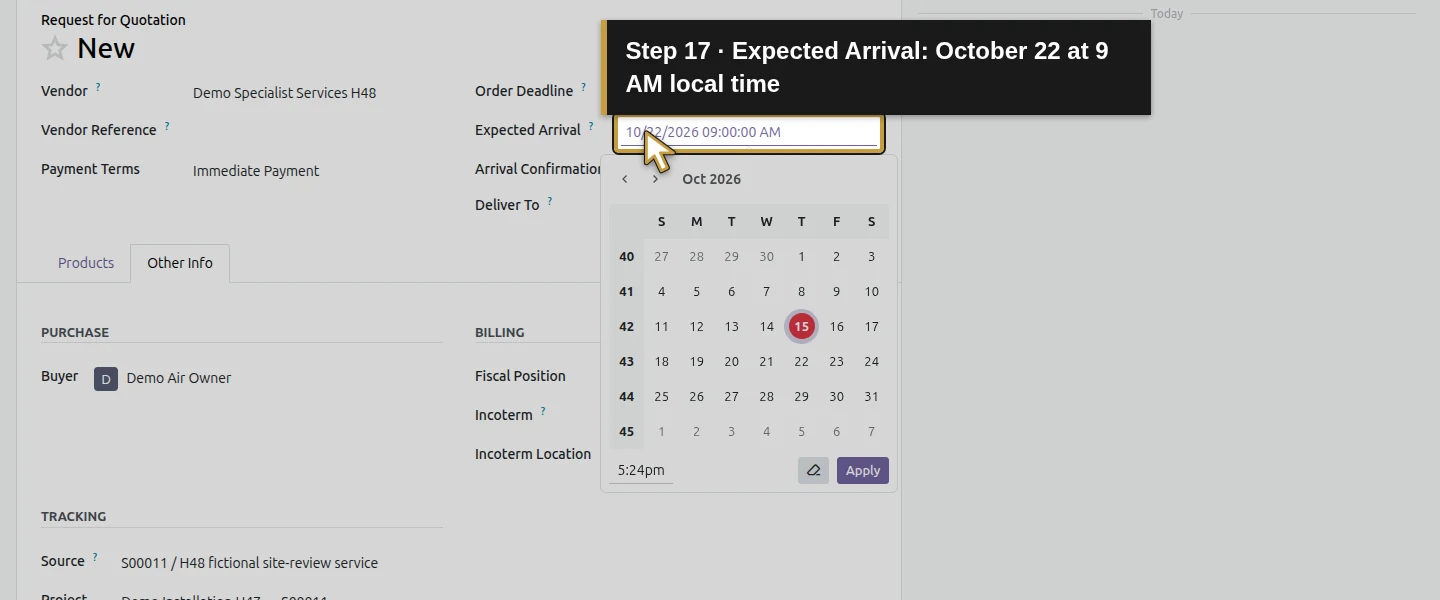
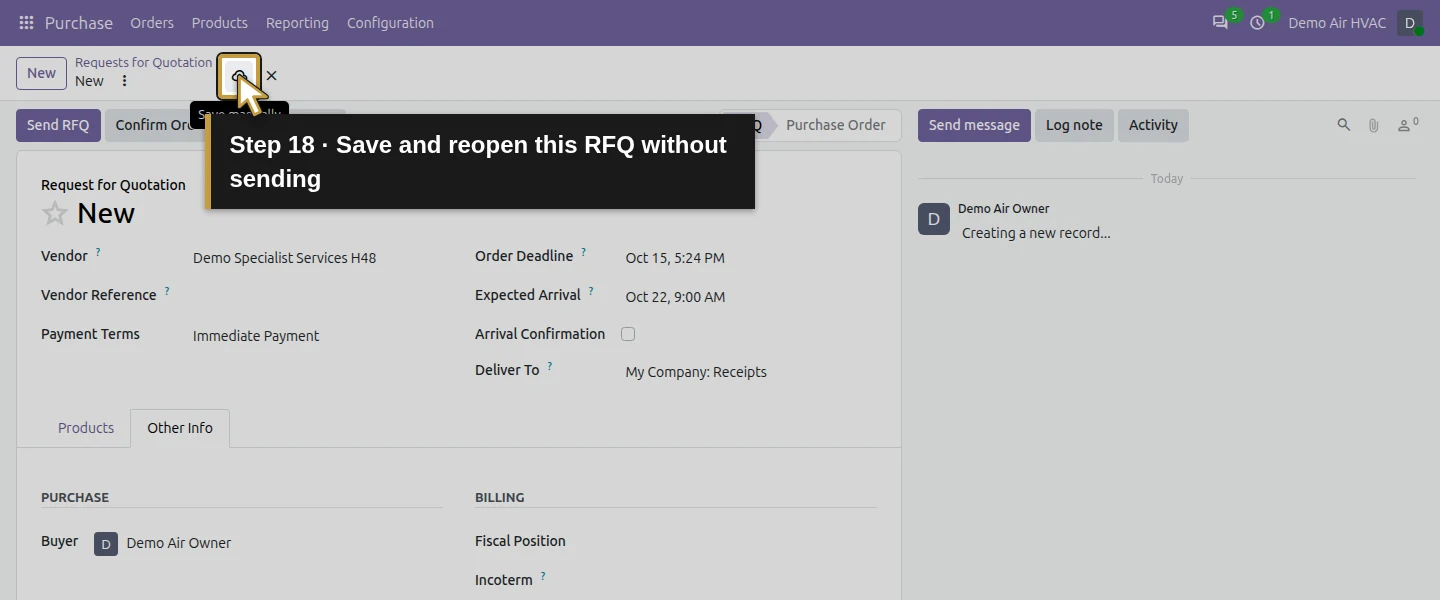
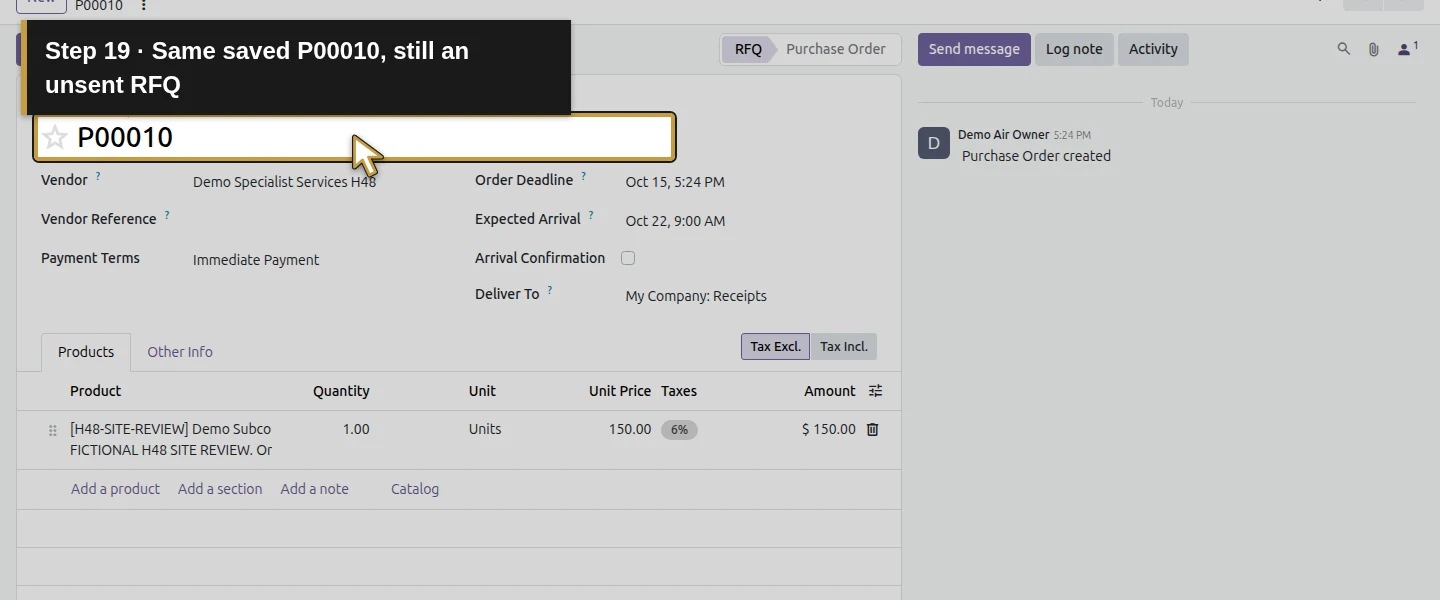
Set Expected Arrival to October 22, 2026 at 9 AM America/New_York, using the native date/time control. For this service it is a proposed supplier planning value, not a booked technician appointment. Review scope, supplier, payment terms, quantity, price, tax and project. Click Save manually, wait for the save and reopen P00010. Confirm that the project and one service line persist. Leave supplier messages unsent in this training exercise.
Step 7. Confirm the purchase and inspect the service line
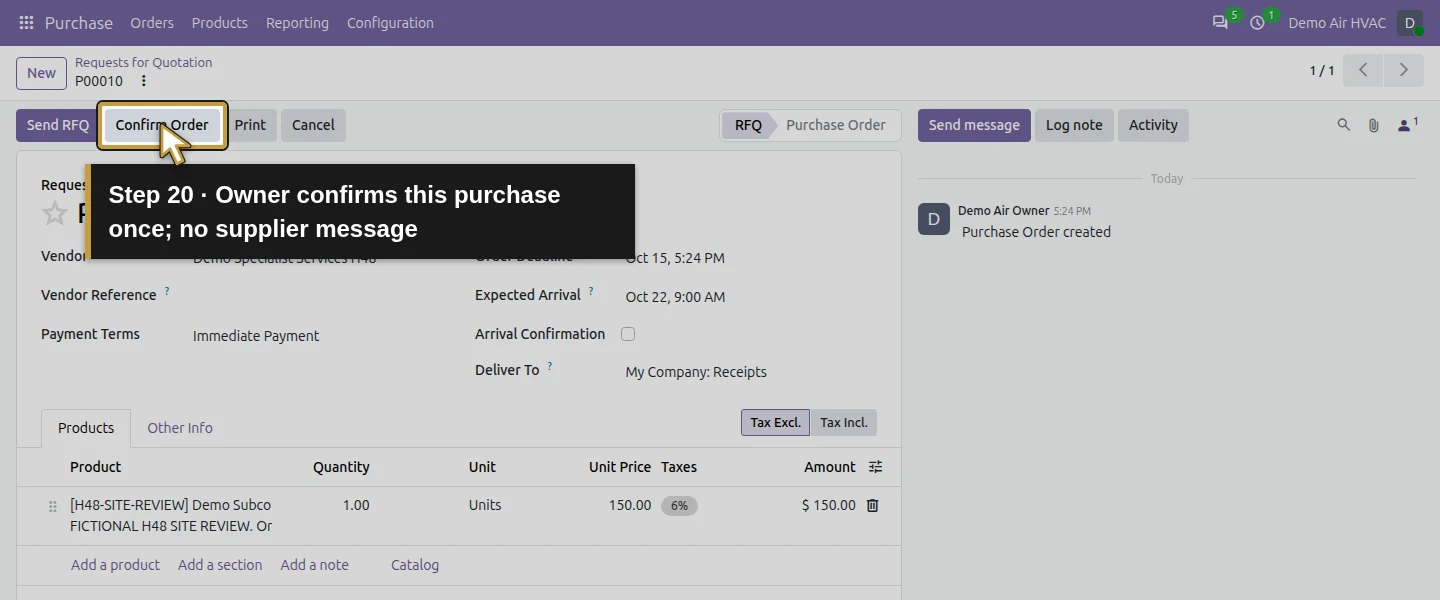
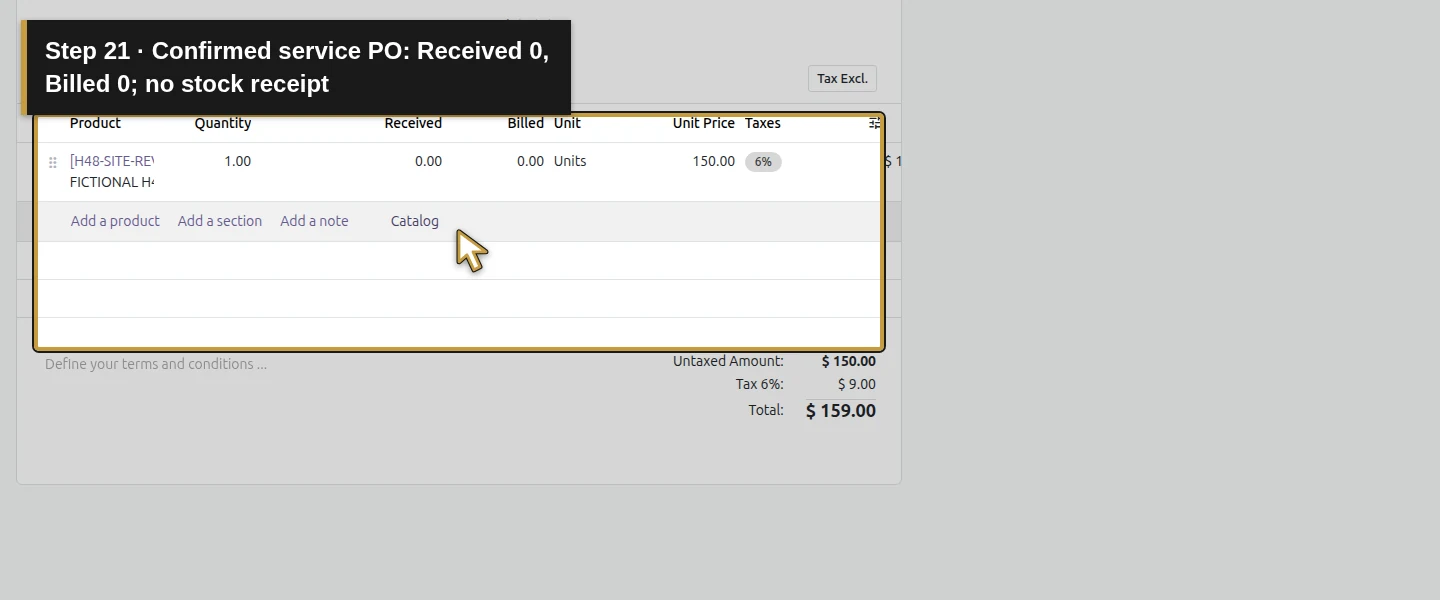
Click Confirm Order once as the owner. Reopen P00010 and check Purchase Order, ordered 1, Received 0 and Billed 0. This owner can confirm directly under the company’s existing purchase-approval configuration; another role must follow the applicable approval process. The service has no warehouse receipt. Its manually recorded Received quantity is the billing input. The form offers Upload Bill; the bill-creation action used below is in the Purchase Orders list.
Step 8. Record the service acceptance deliberately
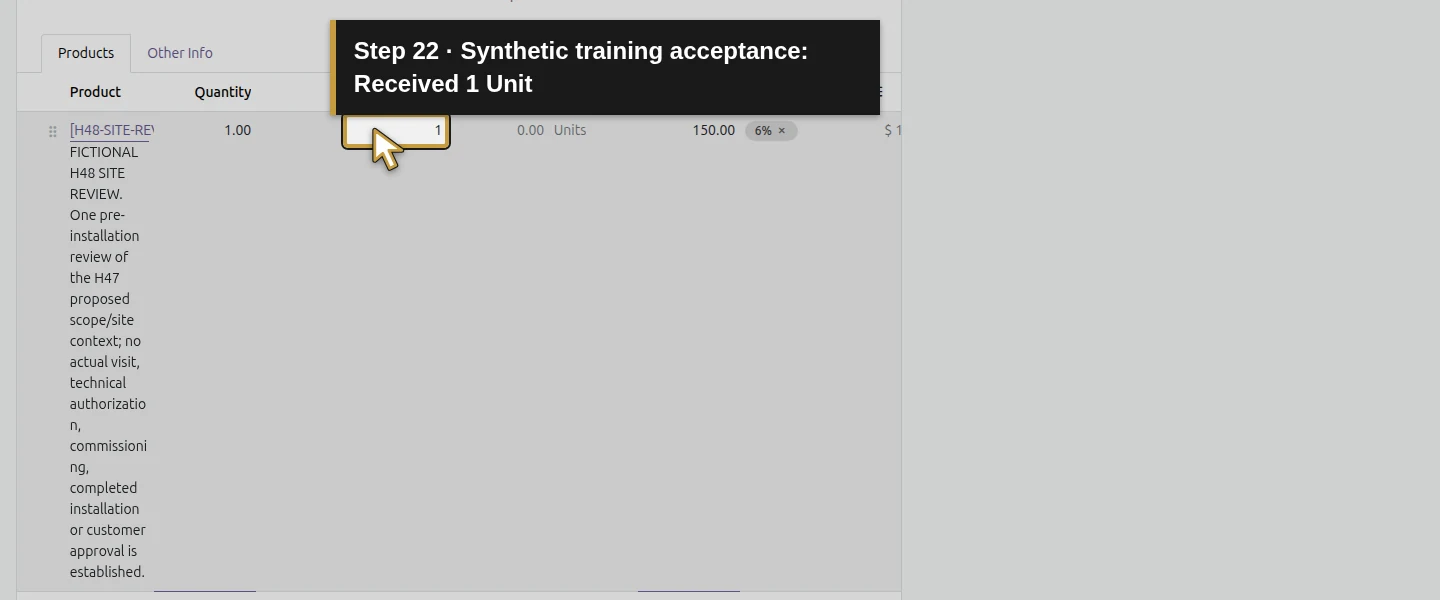
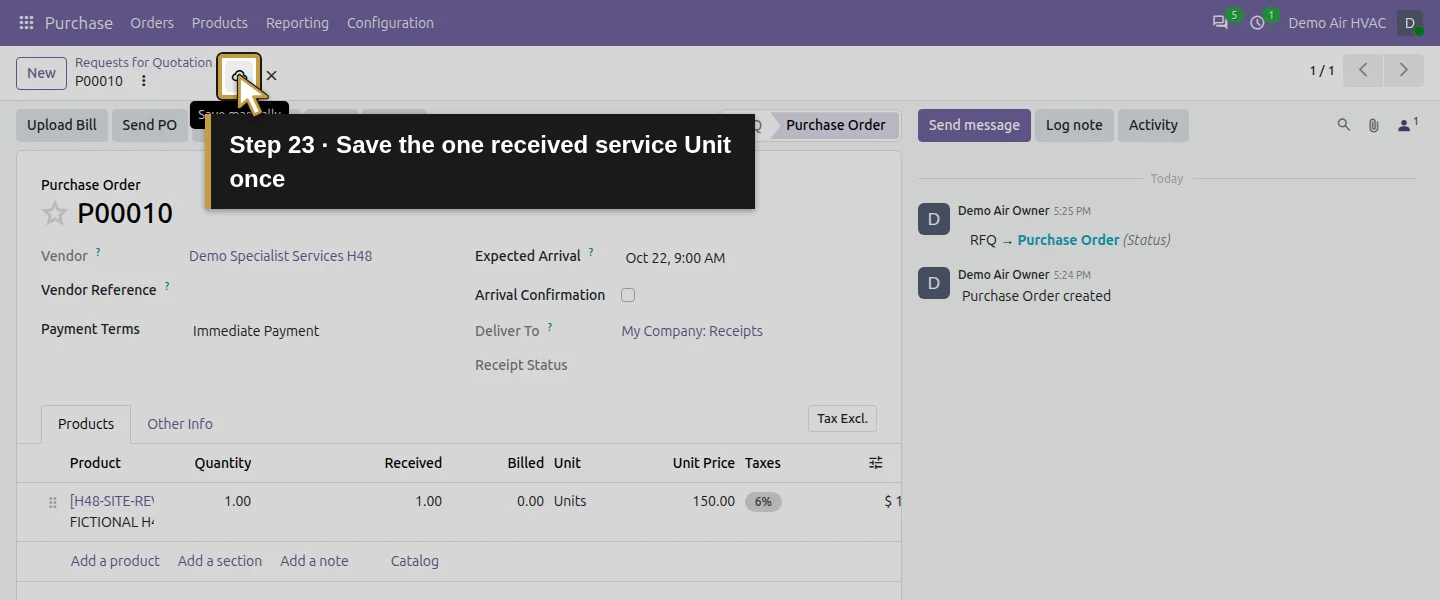
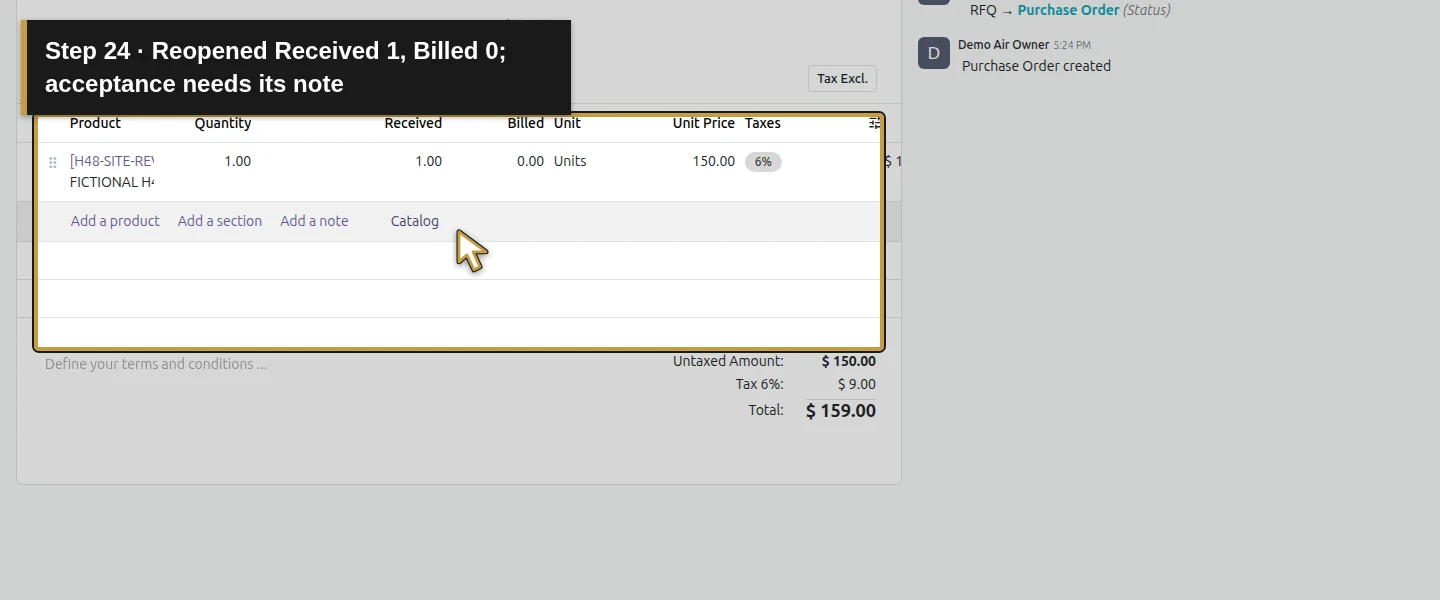
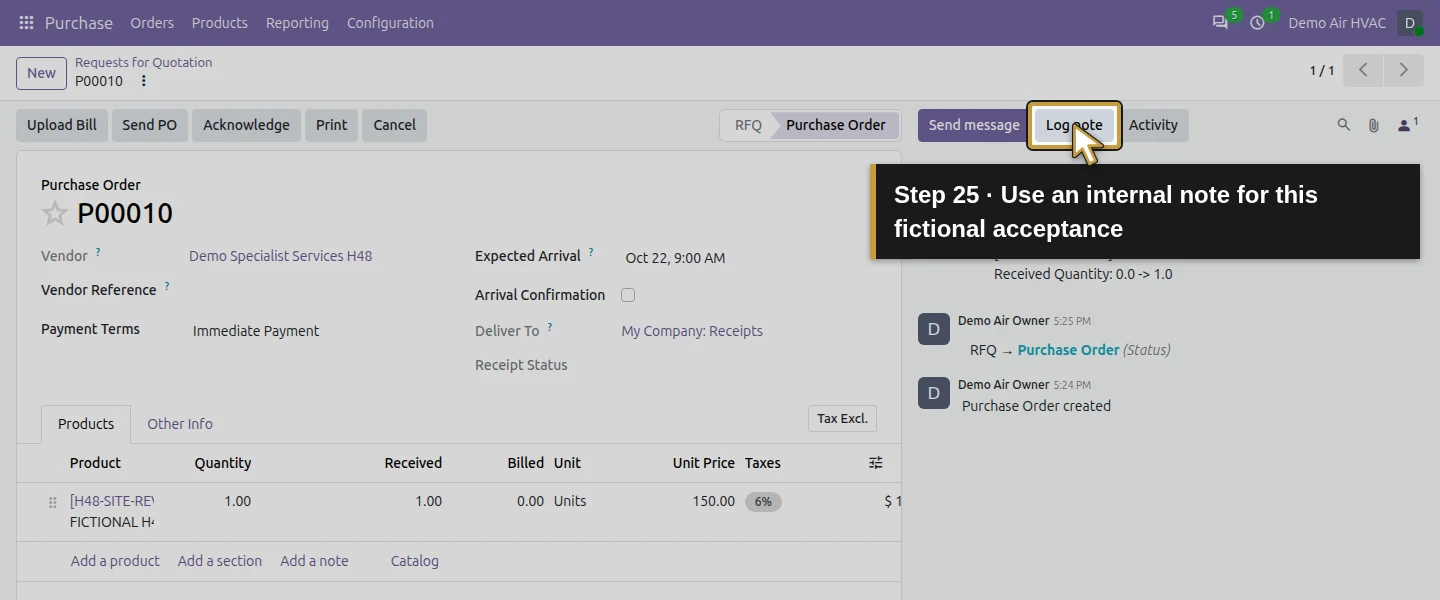
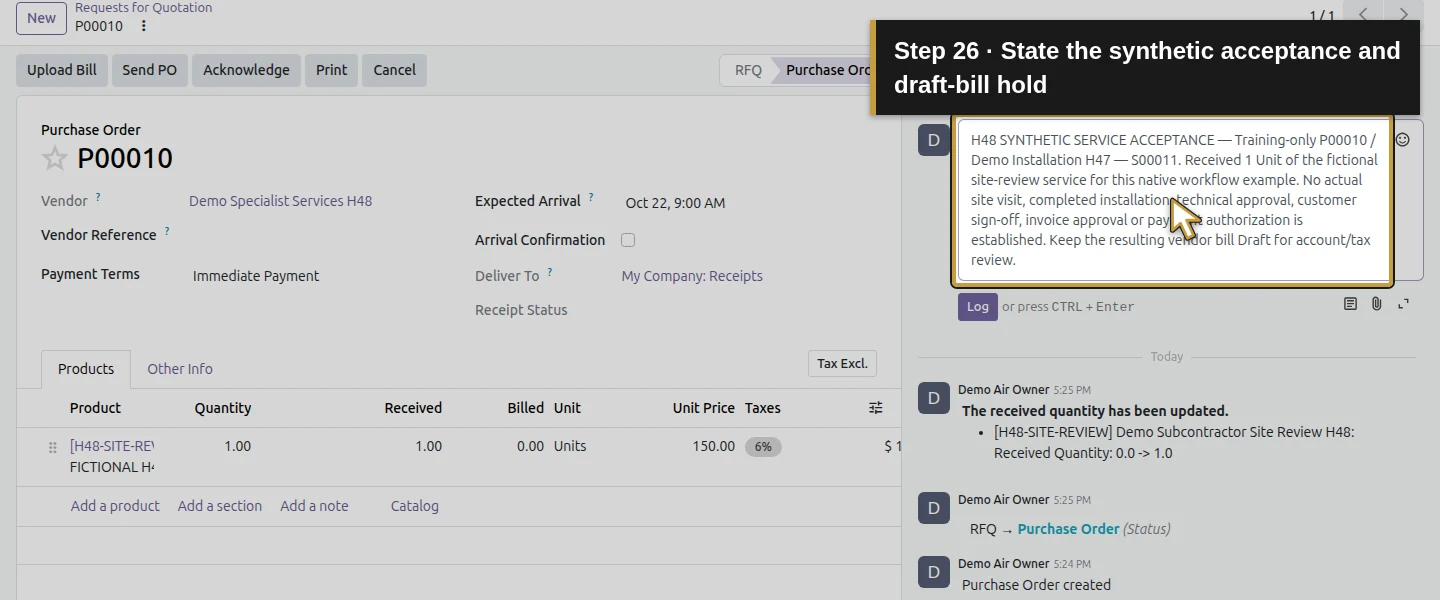
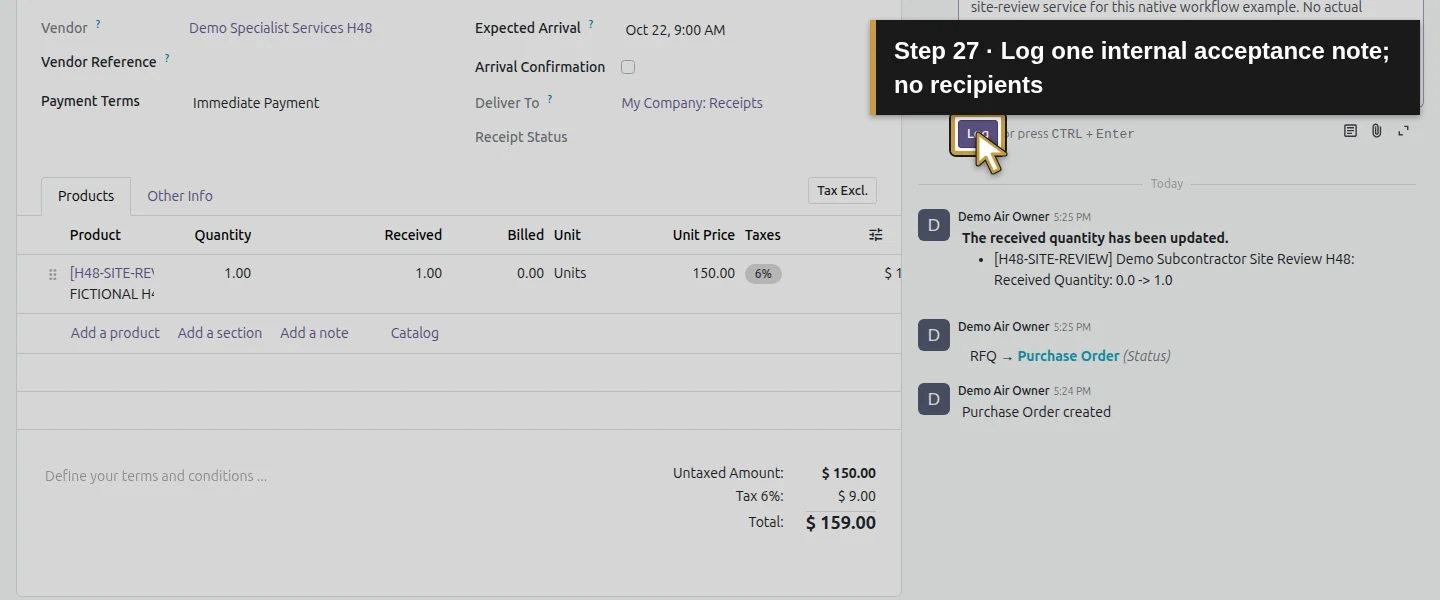
For a real job, review the supplier’s actual work and agreed acceptance basis first. In this isolated training example, simulate acceptance by clicking the service line’s Received cell, entering 1, leaving the cell and saving. Wait and reopen: Received should remain 1. Use Log note to state that this is an H48 synthetic acceptance test, with no real visit, supplier invoice, technical sign-off, completed installation, customer approval or payment; keep the bill in Draft. Click Log. Recording a quantity documents your decision; Odoo has not independently verified that the service occurred.
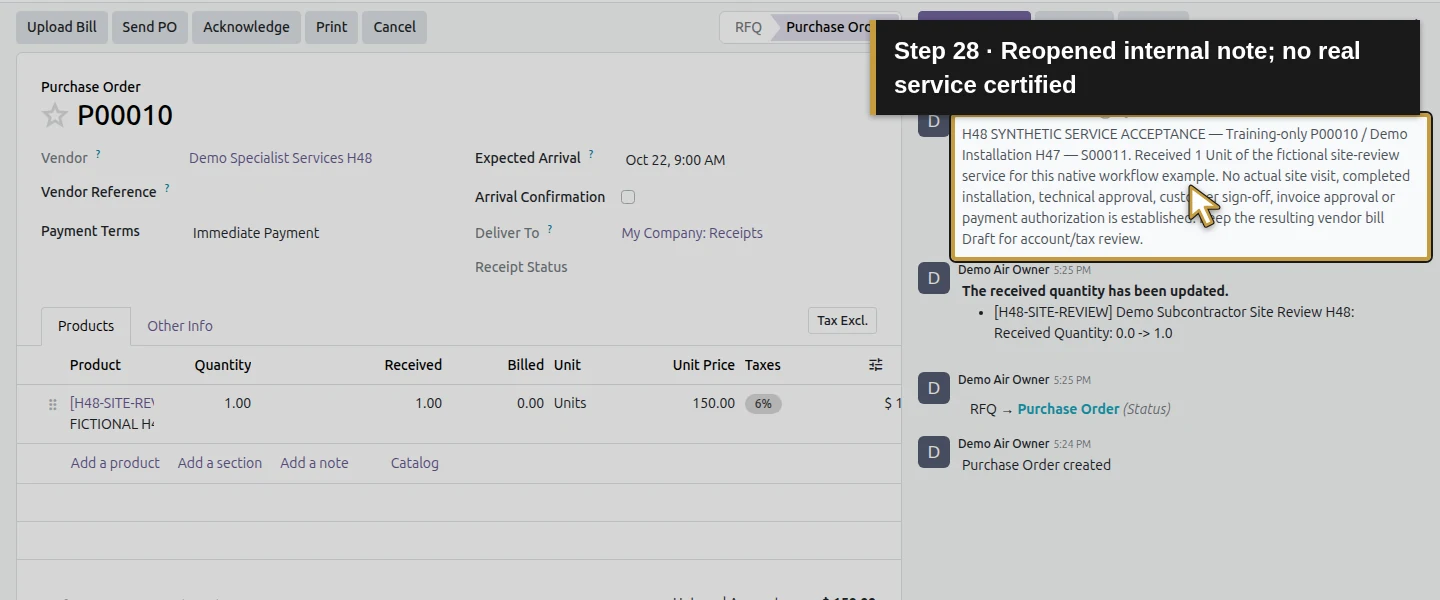
Step 9. Create the draft bill from the selected order
Open Purchase → Orders → Purchase Orders. Check only the P00010 row and choose the toolbar’s Create Bills once. Open the resulting Draft Bill. It proposes the one accepted service Unit, with the purchase reference and copied scope, price and tax. Check existing bills before this action; this guide does not establish a duplicate-invoice prevention rule. Do not create a physical receipt to make a service bill available.
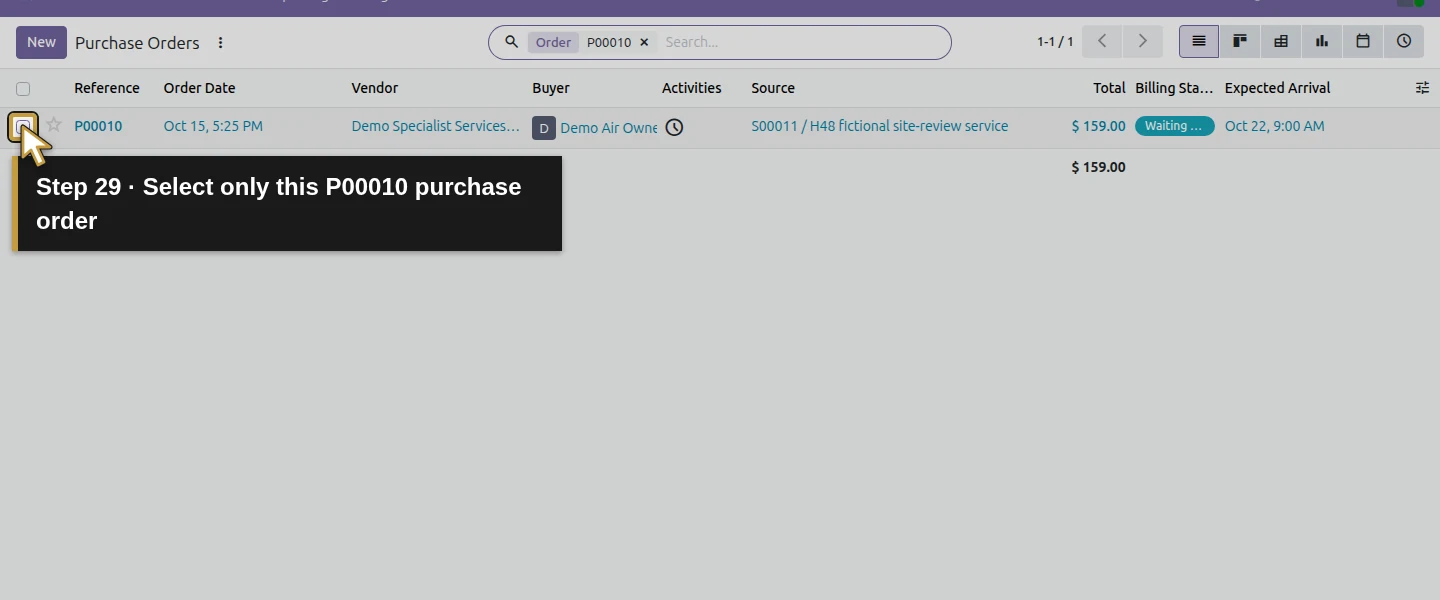
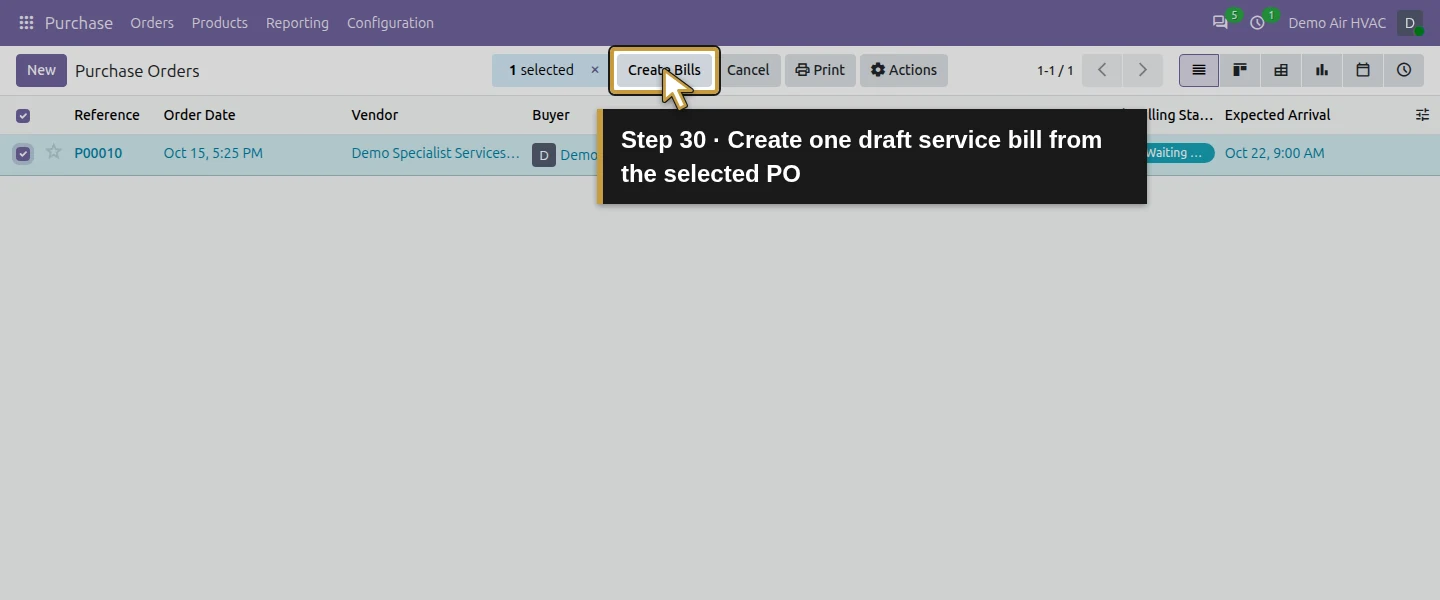
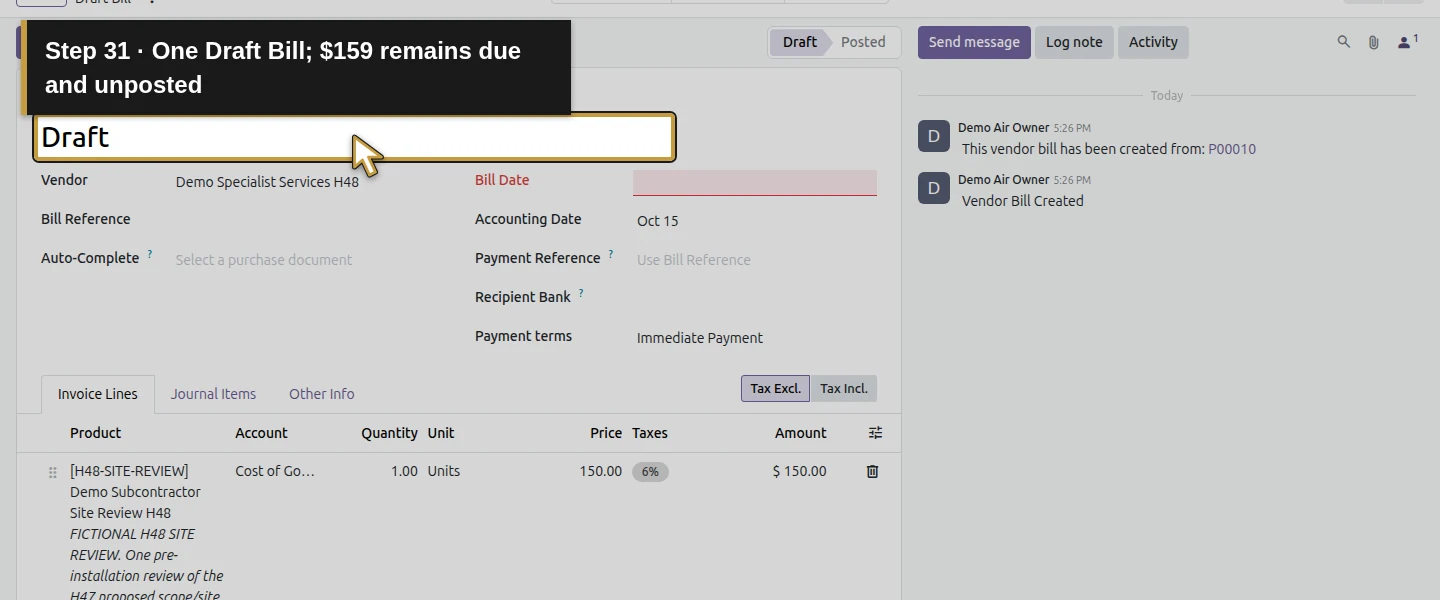
Step 10. Review the bill and leave it in Draft
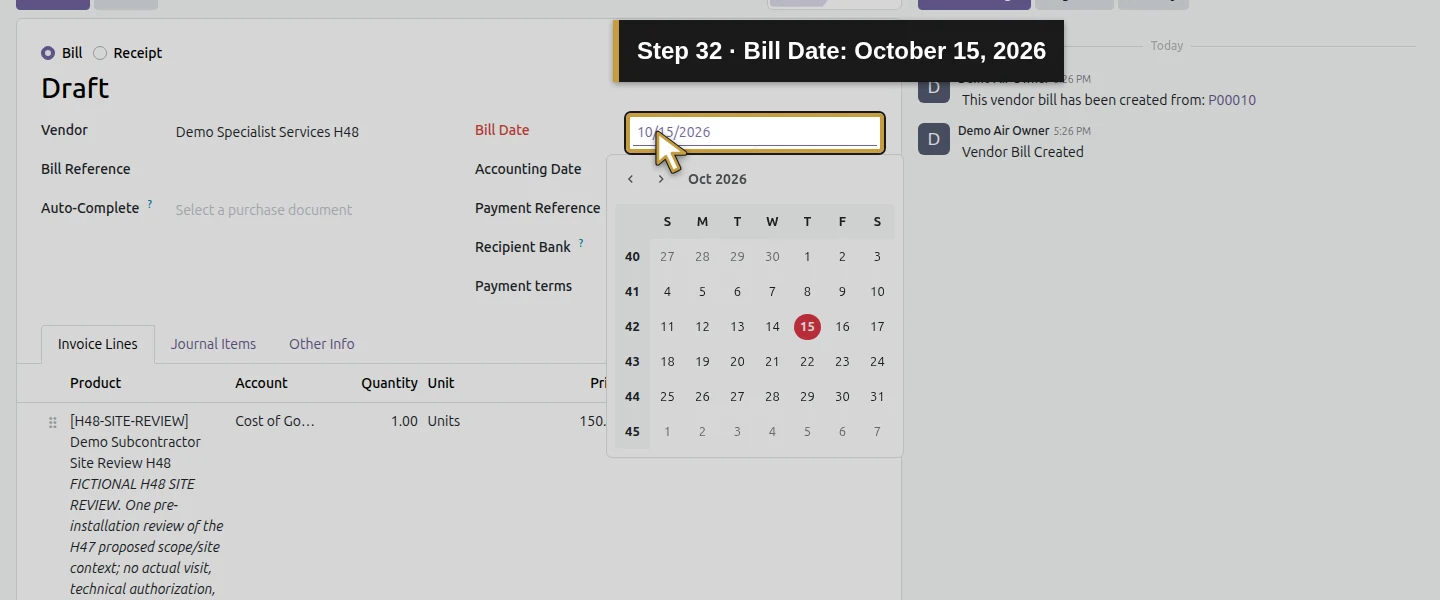
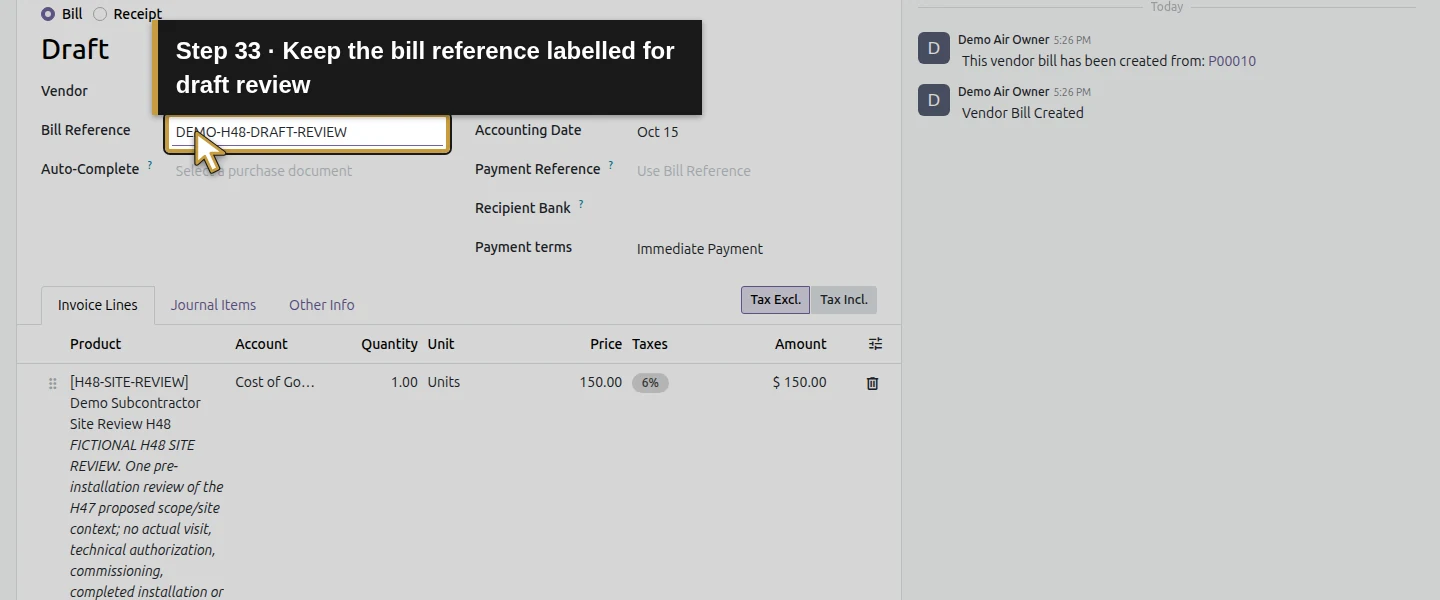
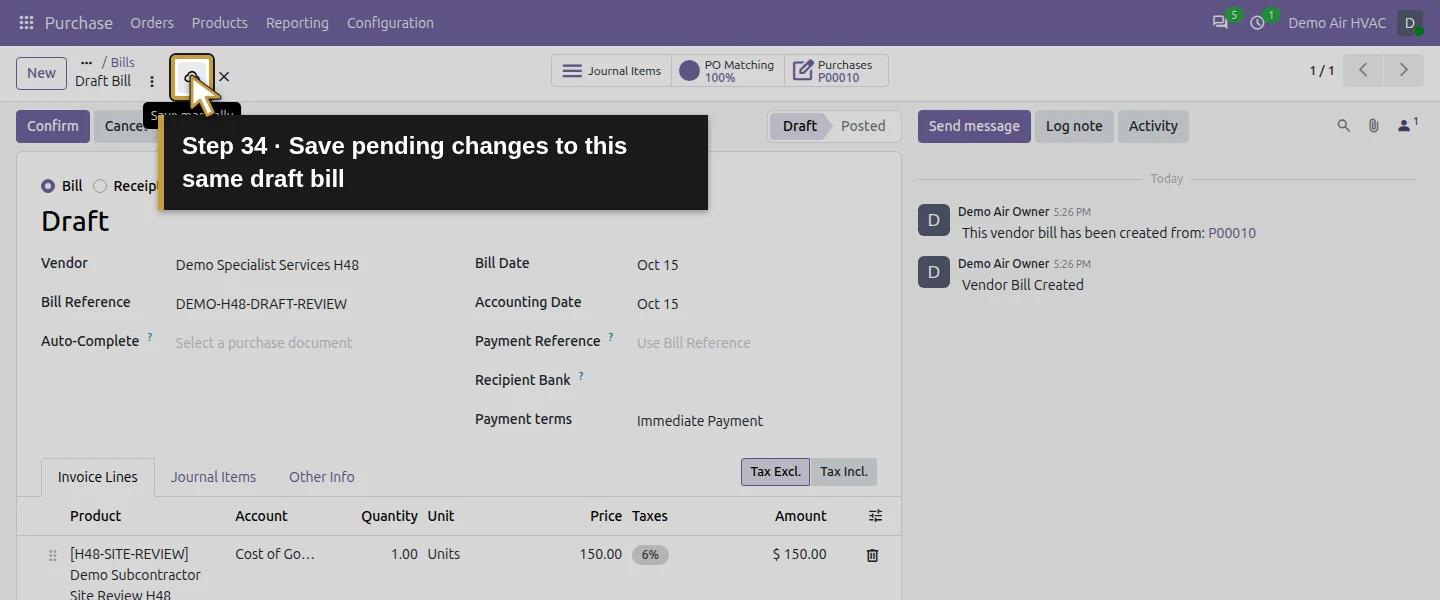
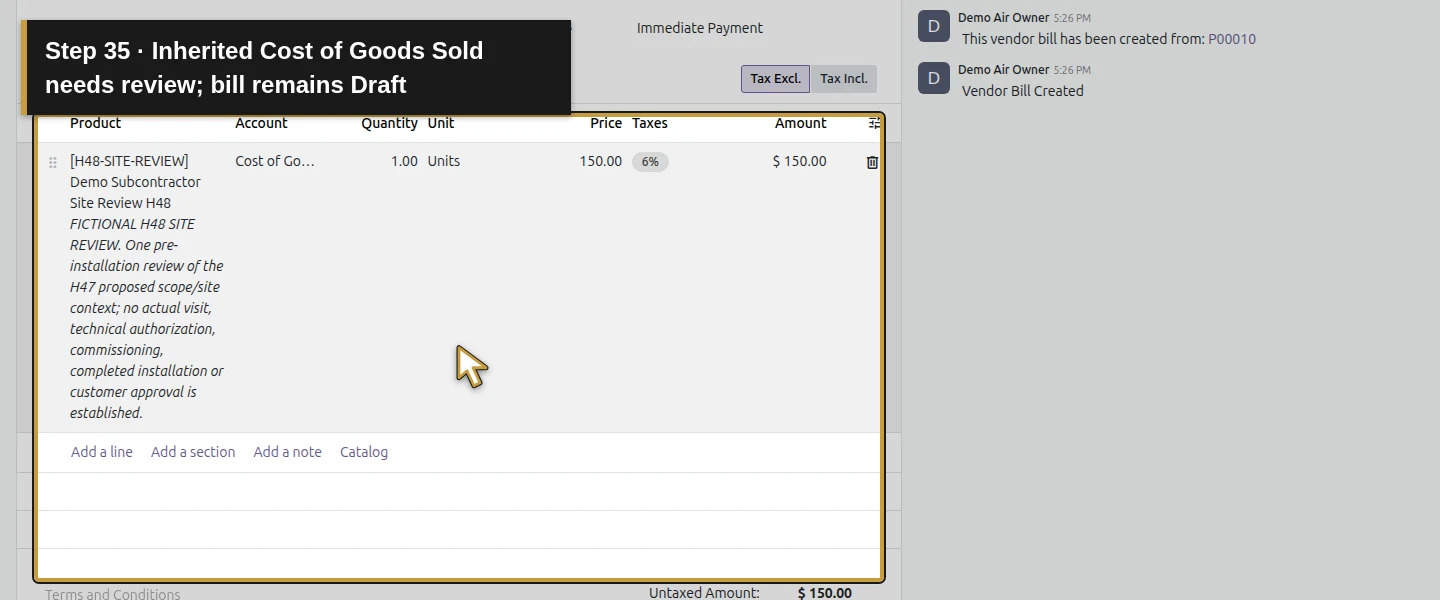
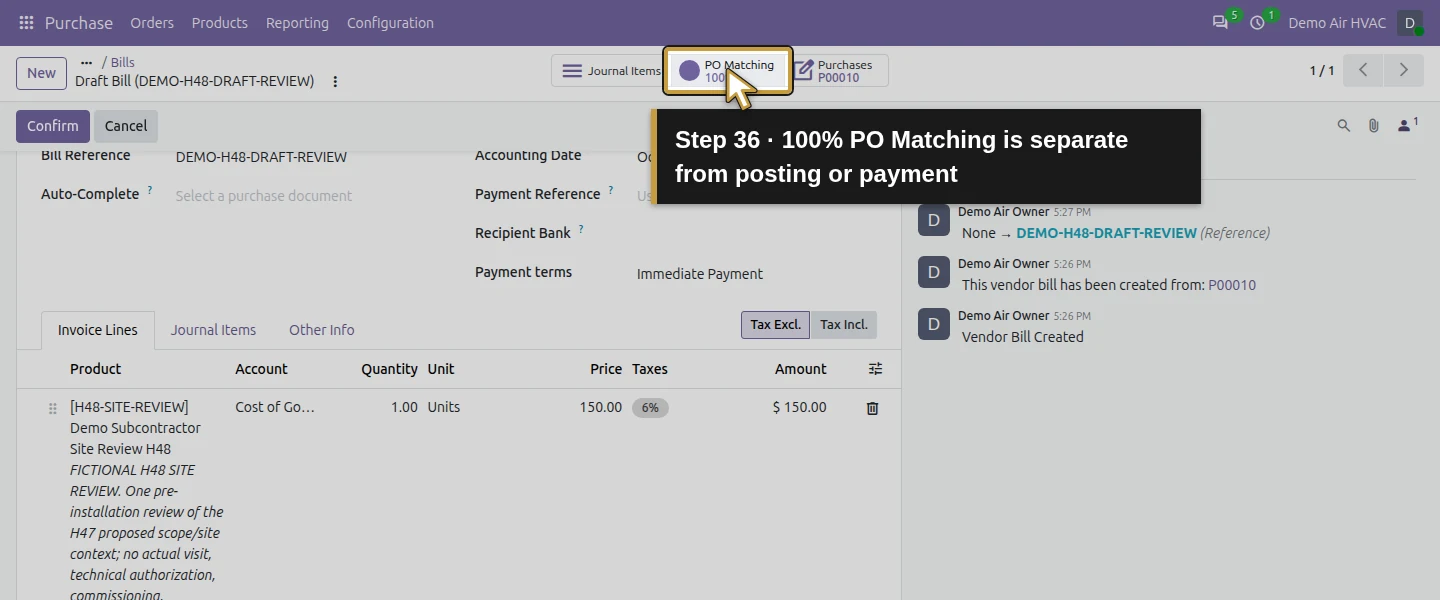
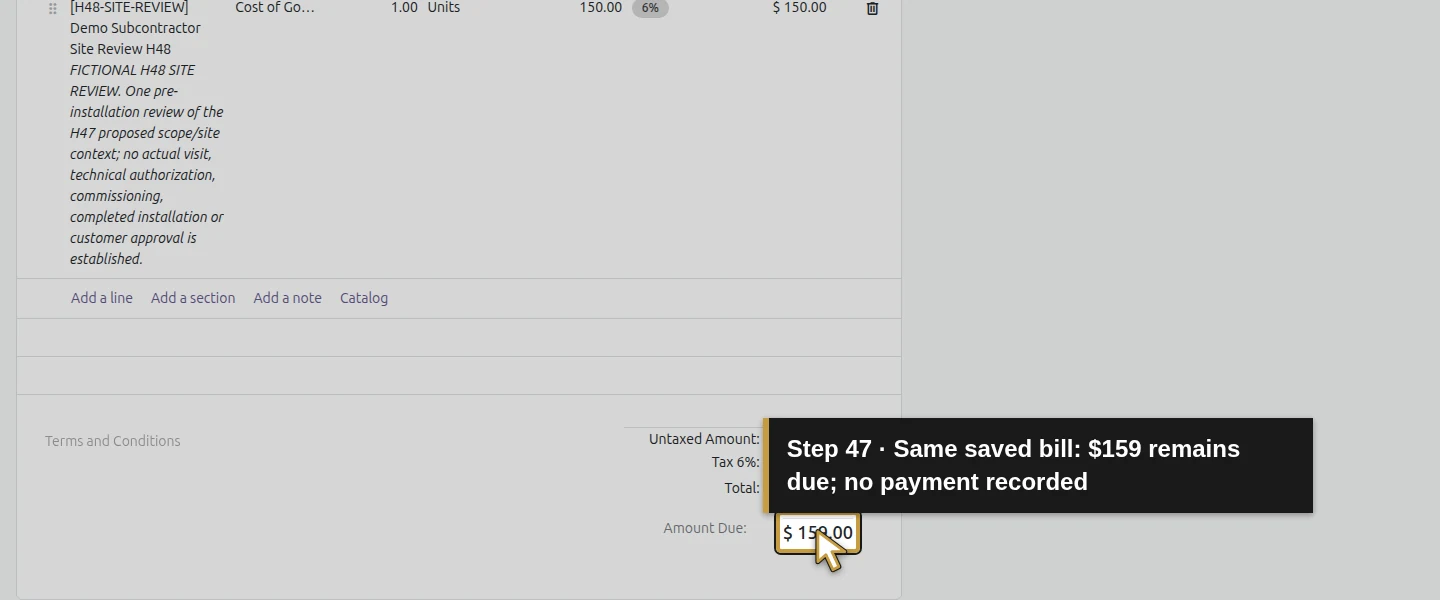
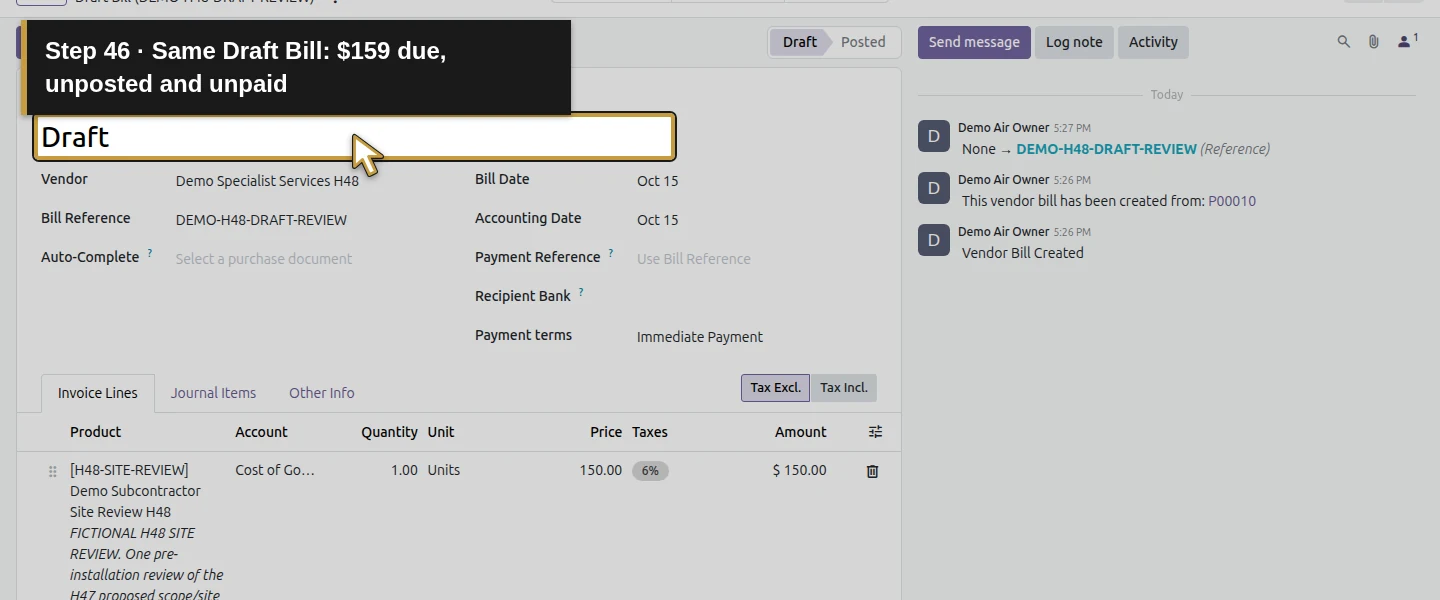
Compare Vendor, P00010 Purchases, quantity 1, Units, $150 price and $159 total. Enter Bill Reference DEMO-H48-DRAFT-REVIEW and Bill Date October 15, 2026 for this synthetic draft. Leave the fields, let the changes save and reopen the same bill. The copied line Account is Cost of Goods Sold in this company; its tax and account still need the appropriate accounting review. Keep the bill Draft and unpaid. The visible Amount Due $159 and 100% PO Matching badge do not establish approval, posting or payment.
Step 11. Find the purchase from the installation project
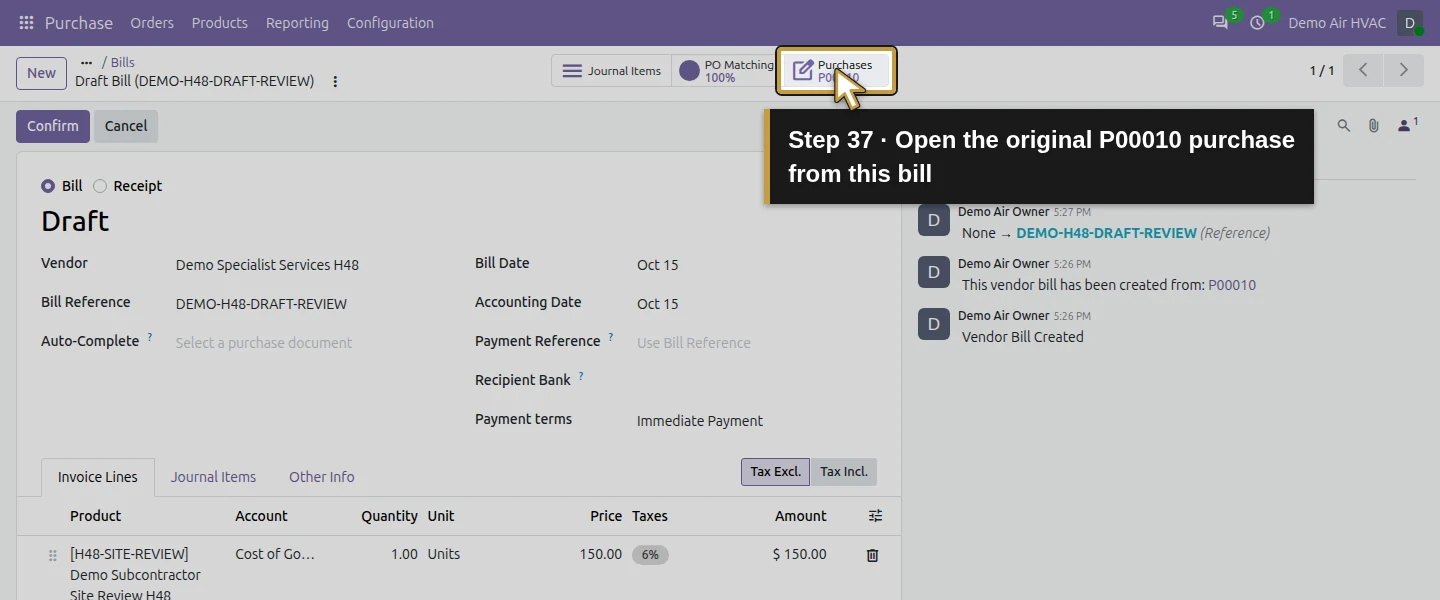
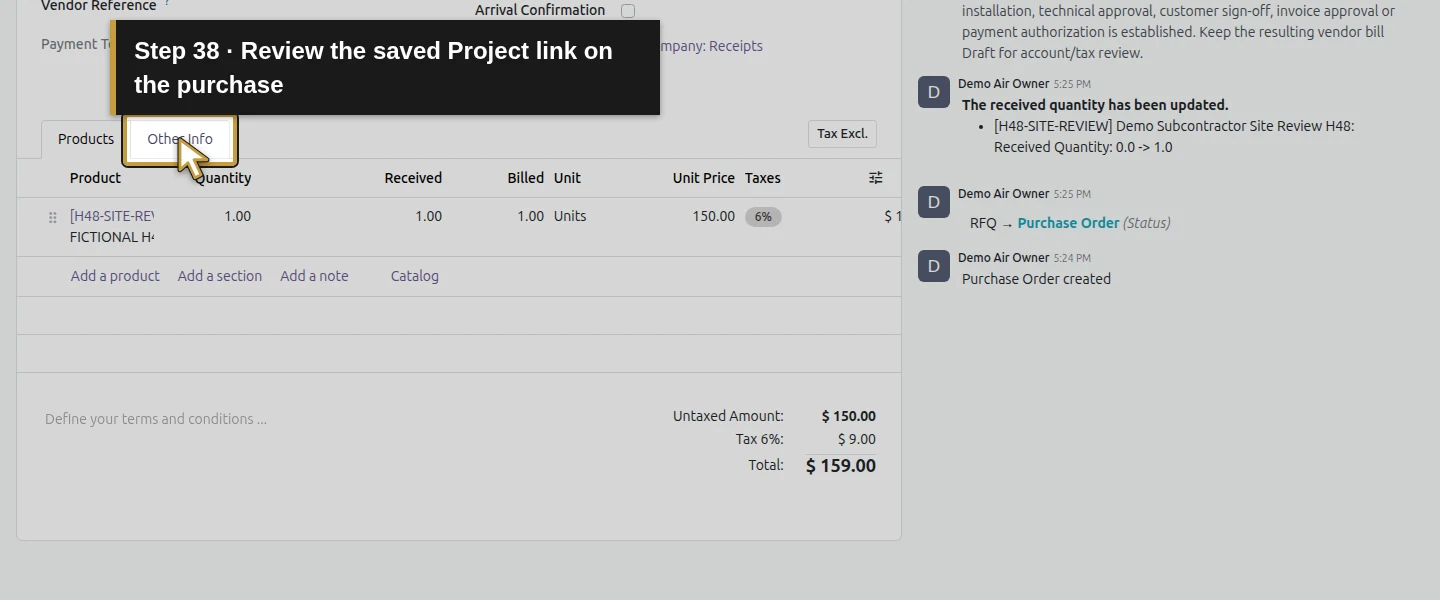
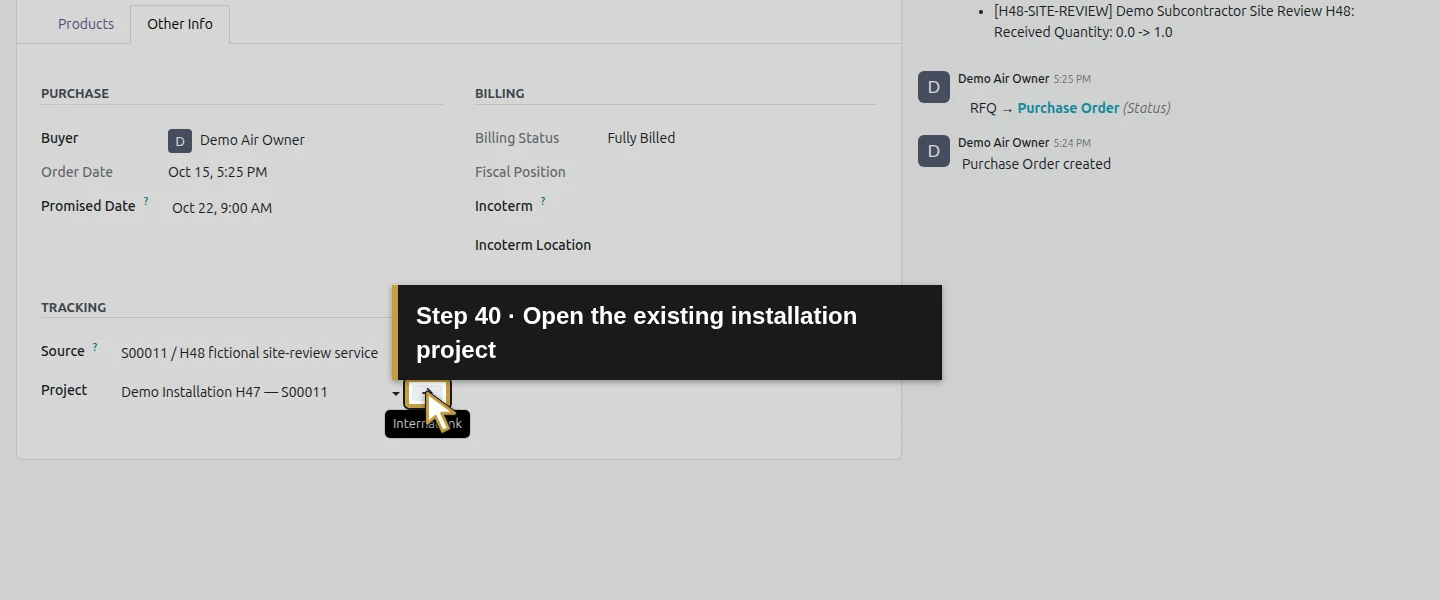
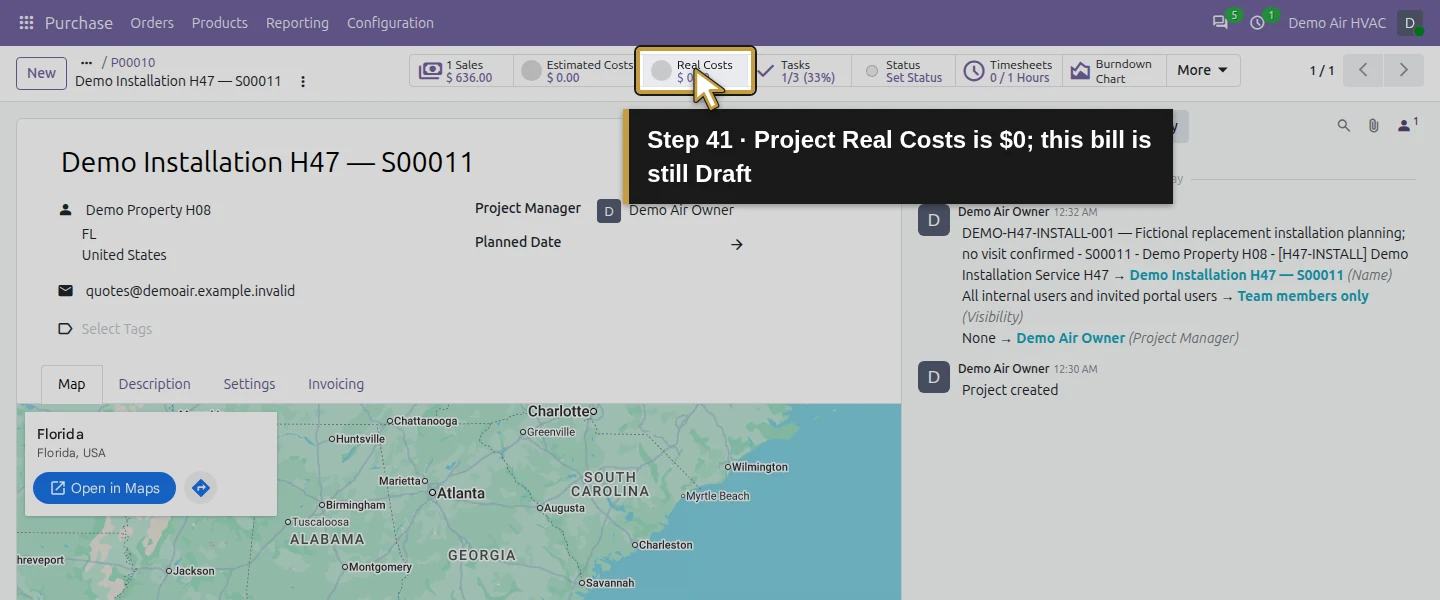
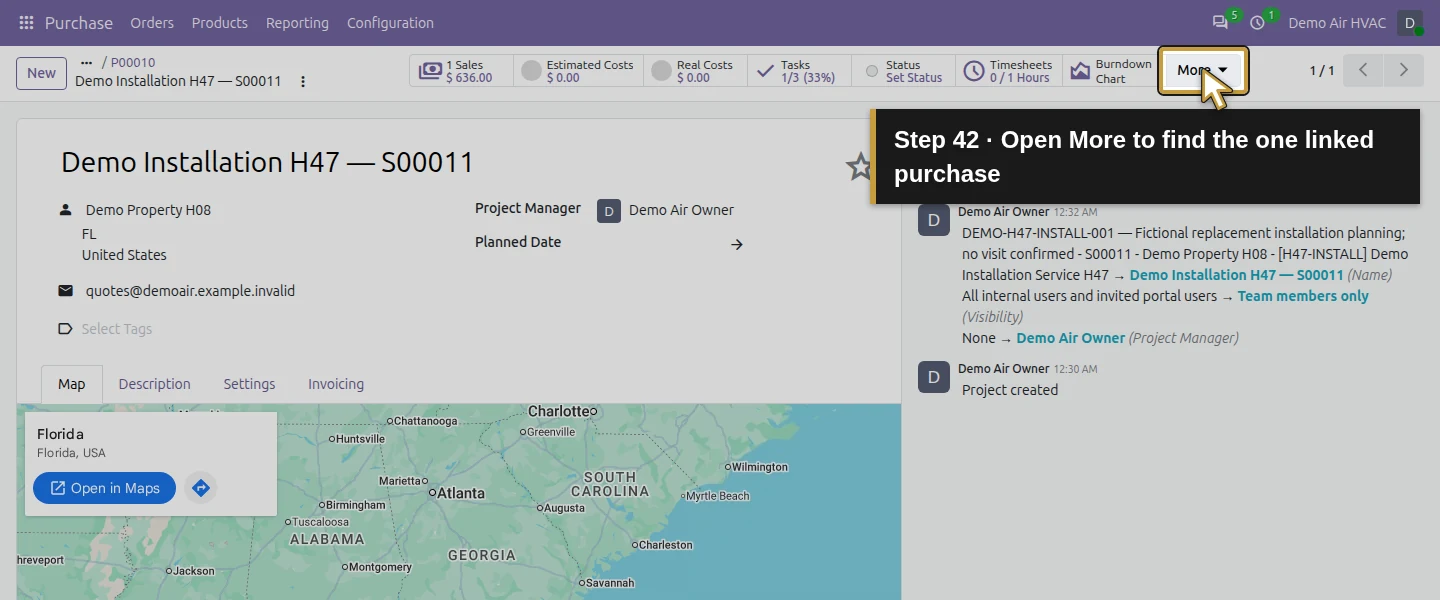
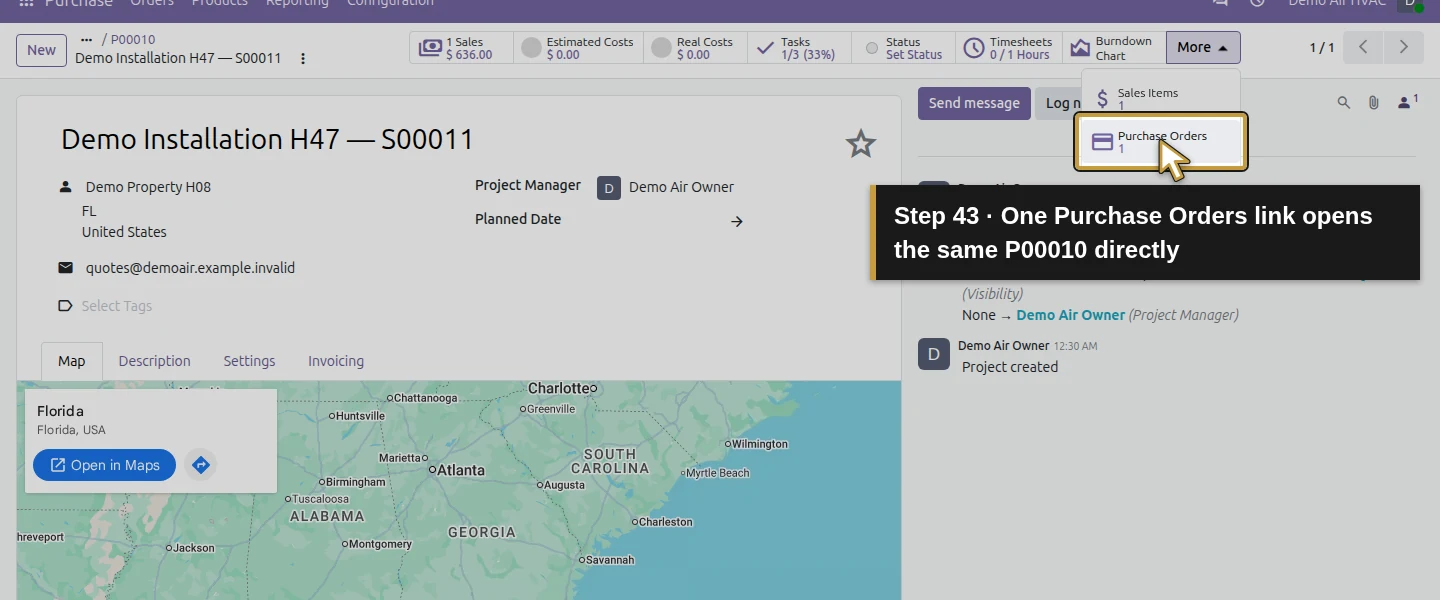
From the bill, click P00010 Purchases. Open Other Info, click the Project field and its Internal link. In the project form, choose More → 1 Purchase Orders. With one linked purchase, this opens P00010 directly in the tested case. The job can find its supplier order through the native link. The project’s Estimated Costs and Real Costs buttons still show $0 here; do not treat those labels as proof that this draft bill has become a posted job cost.
Step 12. Reopen the same bill and check what Billed means
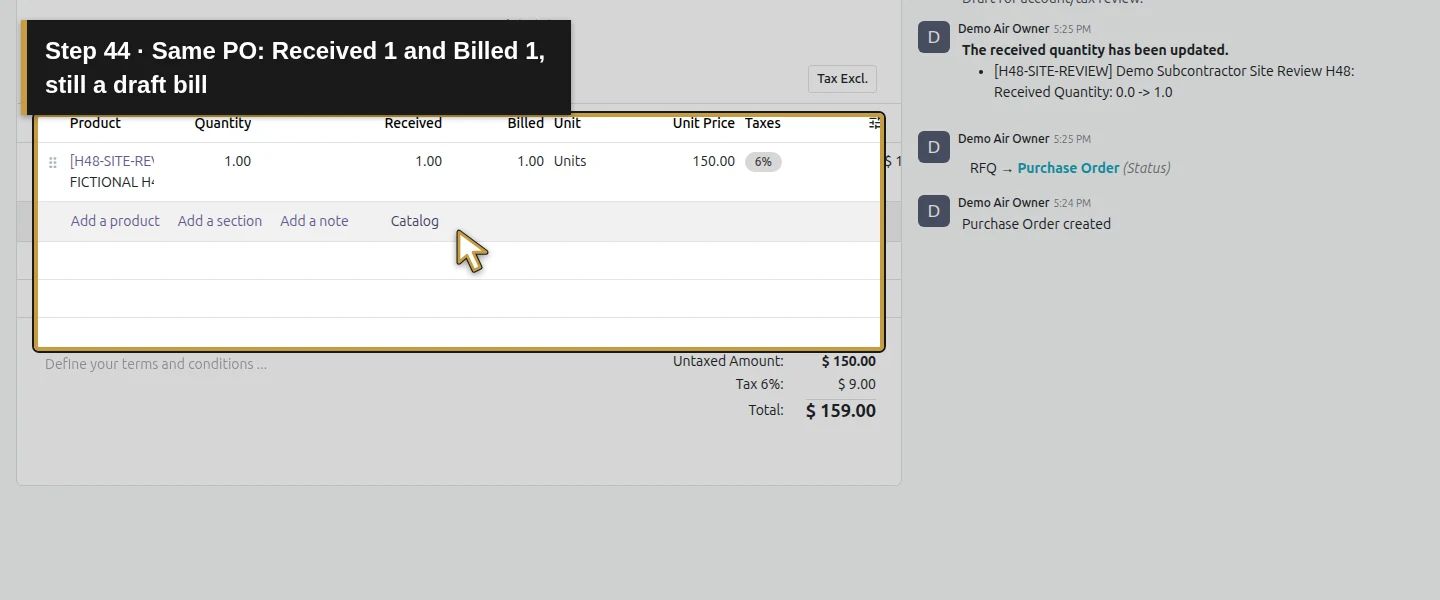
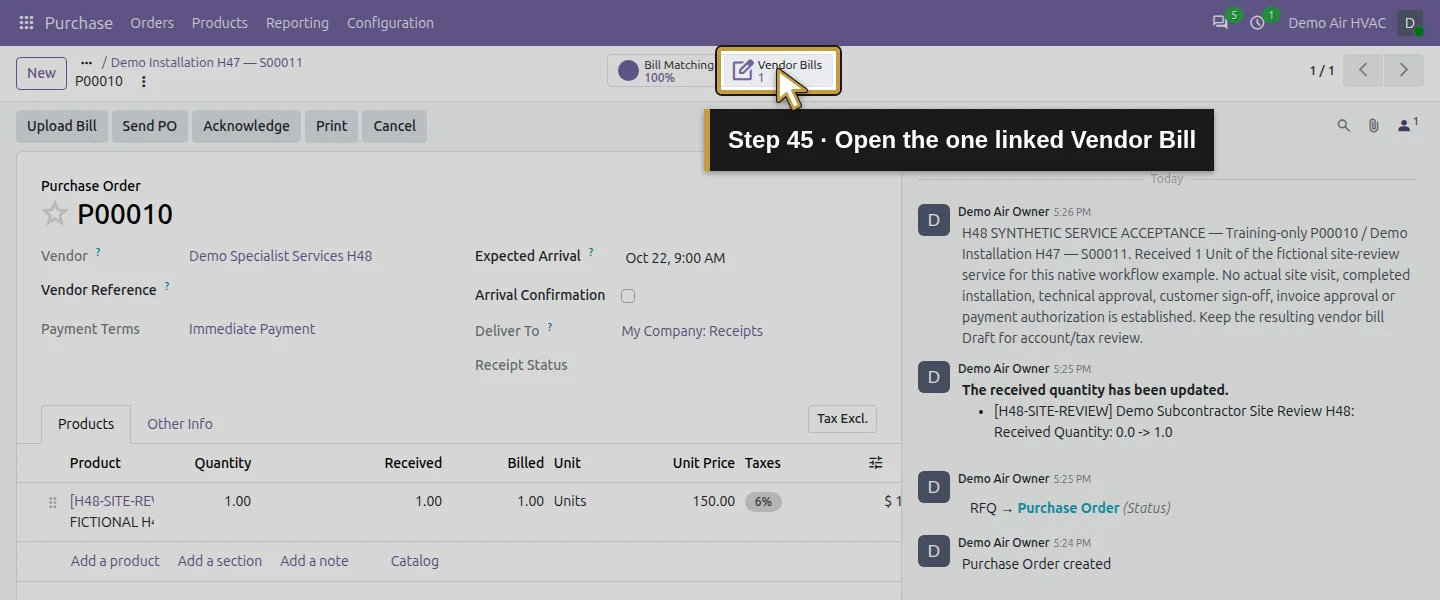
On P00010, click 1 Vendor Bills and reopen Draft Bill (DEMO-H48-DRAFT-REVIEW). The PO now shows Received 1 / Billed 1 and a 100% Bill Matching badge even though this bill is still Draft and unpaid. Verify the actual bill state and reference before deciding what remains to approve, post or pay. This flow creates one supplier bill; it does not invoice the customer, finish the installation task or authorize payment.
Check the result
P00010 is one confirmed $159 subcontractor-service purchase linked to Demo Installation H47 — S00011, with one manually accepted service Unit and no stock receipt. Native Project selection assigns 100% of the purchase line to the existing Project Account, and that allocation and the purchase-line link carry into the single $159 draft bill. The saved bill is DEMO-H48-DRAFT-REVIEW, dated October 15, unpaid and unposted. Its draft already makes the PO show Billed 1/Fully Billed; no posted analytic cost entry exists. The project’s displayed cost buttons remain $0. The native project purchase button and PO Vendor Bills button reopen the same records. Existing installation tasks, sales, stock, prior financial records, CRM, portal access and the open H39 supplier exception are preserved. No new message reaches the local sink.
If your screen differs
The native Project field is present with the official project/purchase integration and an existing Project Account in this runtime. The Analytic Distribution column is not exposed in the tested owner screen; selected read-only results verify the copied 100% allocation. This is evidence for this configuration, not a tested result for every project or analytic plan. Received quantities are manual for this service. Zero-to-one billable quantity was checked, but a premature Create Bills attempt and every possible override were not tested; no hard approval lock is claimed. Review the actual supplier invoice, quantities, account, tax, duplicate risk and approvals before posting. Draft billing and PO matching are not payment or actual job profitability. Only the owner role was exercised here; earlier purchase-approval checks remain in H31. Manufacturing subcontracting, automatic sales-triggered service RFQs, customer recharging and posted project costs require separate verification.
Frequently asked questions
How do I purchase subcontractor services in Odoo?
In this tested stock Odoo 20 Community setup, create a purchased Service product, choose its Control Policy and add it to a supplier RFQ. Select the job’s native Project field, review and confirm the order, then record actual service acceptance and create the draft bill from the selected Purchase Orders row. The guide uses one fictional fixed-price service Unit and keeps the bill unposted for review.How do I record receipt of a purchased service in Odoo?
This Service product uses On received quantities and a manually editable Received cell on its confirmed purchase order. After reviewing actual service acceptance, record the accepted quantity and save. The tested one-Unit entry made one Unit available to bill without a warehouse receipt. It does not independently verify the supplier’s work.Can I link a subcontractor bill to an Odoo project?
Selecting Project on this purchase assigned 100% to its existing Project Account, and the native purchase allocation carried into the draft vendor-bill line. The project’s Purchase Orders button found the order. The bill remains Draft with no posted analytic cost, despite the PO showing Billed 1/Fully Billed. Review the saved bill and actual cost recognition separately.Continue building the business
Continue with H55: How do I invoice an installation milestone in Odoo? for the separate milestone invoicing workflow. Preserve this purchase and unposted supplier bill for the later job-cost review.
Talk about your Odoo setup
Bring your current process and the result you need to Onward to plan your Odoo workflow. Talk about your Odoo setup.