
Running an HVAC business with Odoo
How do I invoice an installation milestone in Odoo?
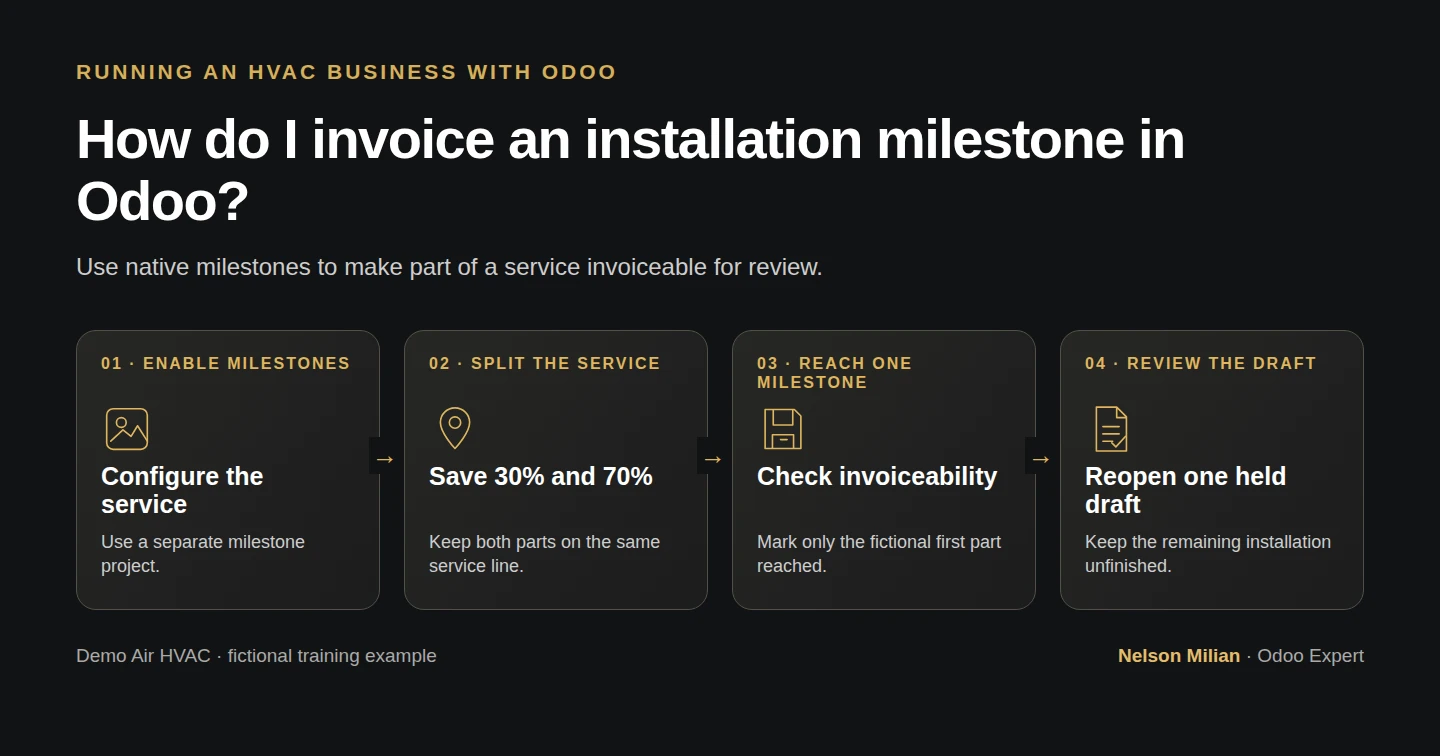
Enable native Odoo milestone invoicing, split an installation service into 30% and 70%, and review the first partial invoice without releasing unfinished work.
Alex wants to bill at agreed installation points. Odoo milestone invoicing is available in this tested build after Milestones is enabled on a project. We use a separate fictional $1,000 installation contract, split its service quantity into 30% and 70%, and prepare a $318 draft for the first billing point. The remaining milestone stays unreached and the installation task stays open.
Alex Rivera and Demo Air HVAC are fictional training examples. Prices, dates, quantities and business situations in this guide are illustrative.
Before you begin
Tested in stock Odoo 20.0-20260926 Community as the demo owner administrator, with official modules and standard configuration. Complete H47 installation projects and H27 deposits and final deductions. Official Project, Sales–Project, Sales, Timesheets and Invoicing modules are installed. Reuse Demo Property H08 and its billing/service addresses. Create a separate training contract and project for this lesson: S00011 and the H48 supplier purchase remain unchanged. This is a demonstration of one milestone’s draft invoice. No real customer agreement, installation, commissioning, acceptance or receipt is established. Keep messages local and the invoice unposted and unsent for review.
Step-by-step workflow
Step 1. Create a separate installation project
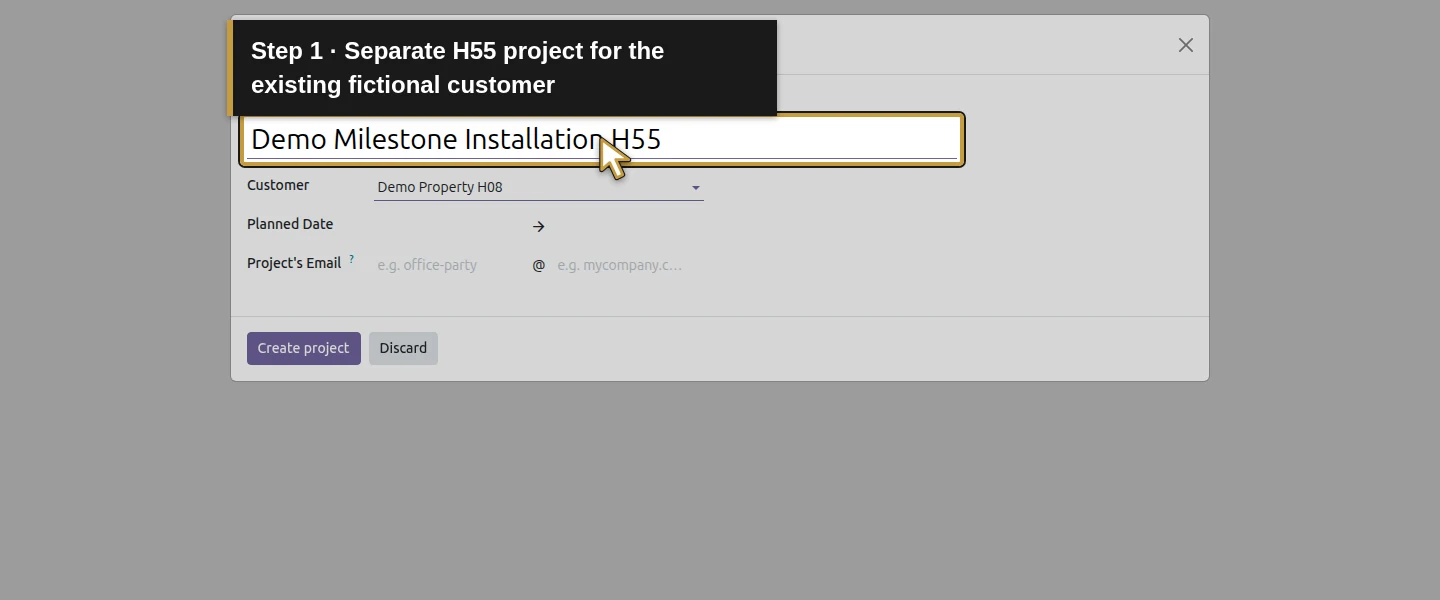
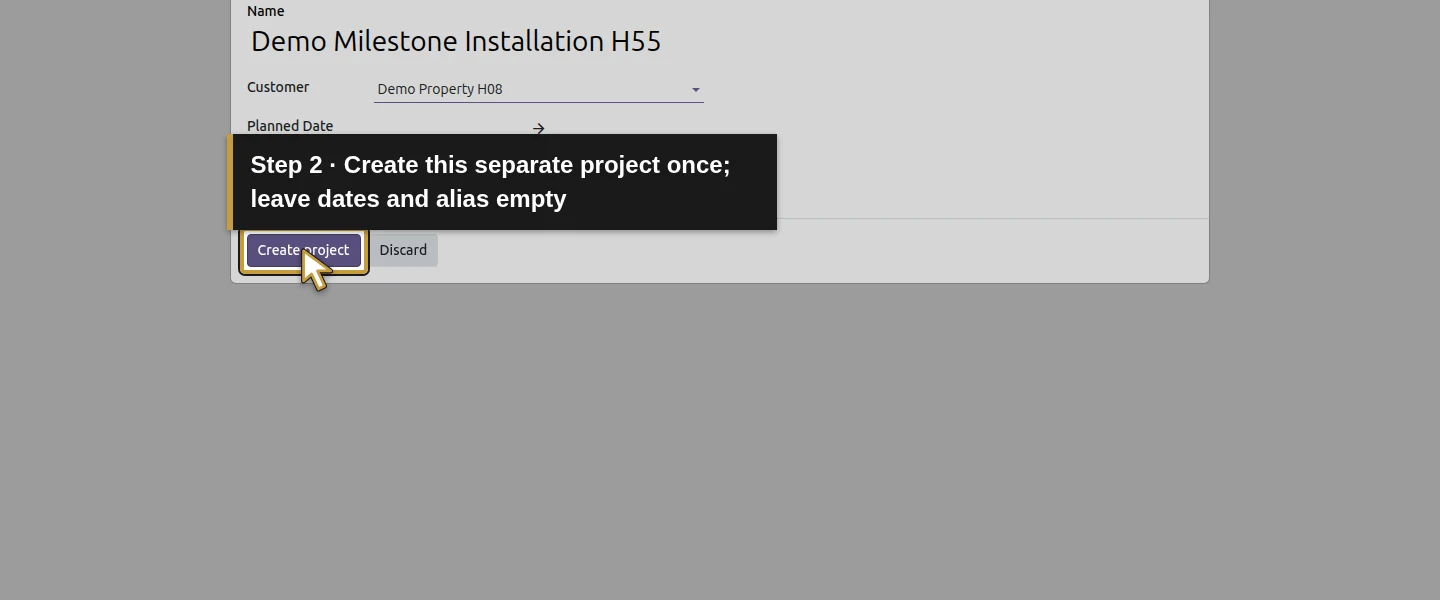
Open Project → Projects → New. Enter Demo Milestone Installation H55, select the existing Demo Property H08 customer and click Create project once. Keep planned dates and email alias empty for this billing demonstration. This creates a separate project; use the H47 setup as your operational reference rather than changing or billing S00011 a second time.
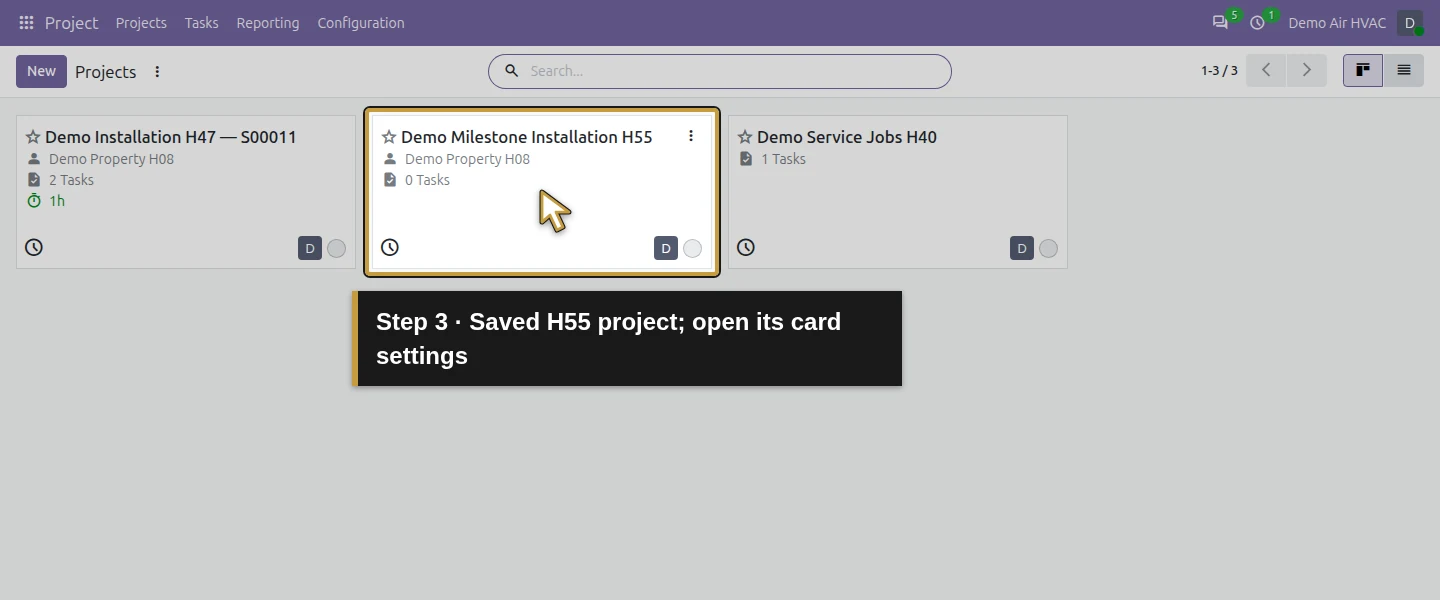
Step 2. Enable Milestones on the project and save
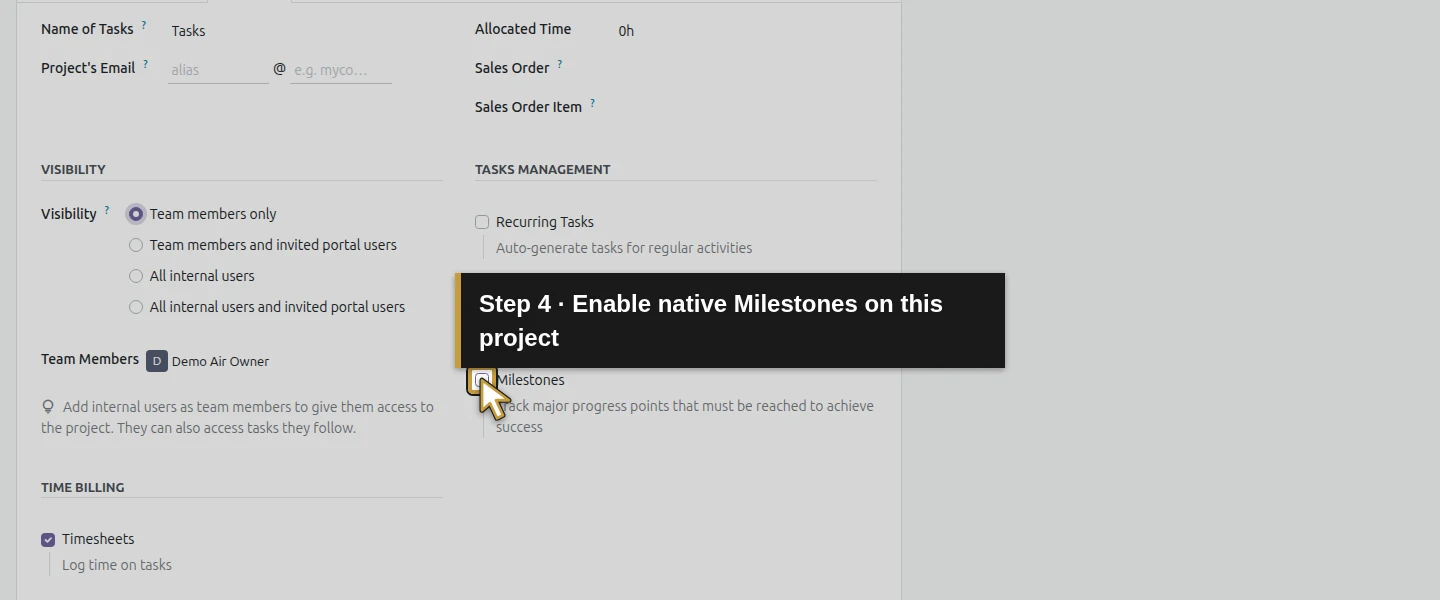
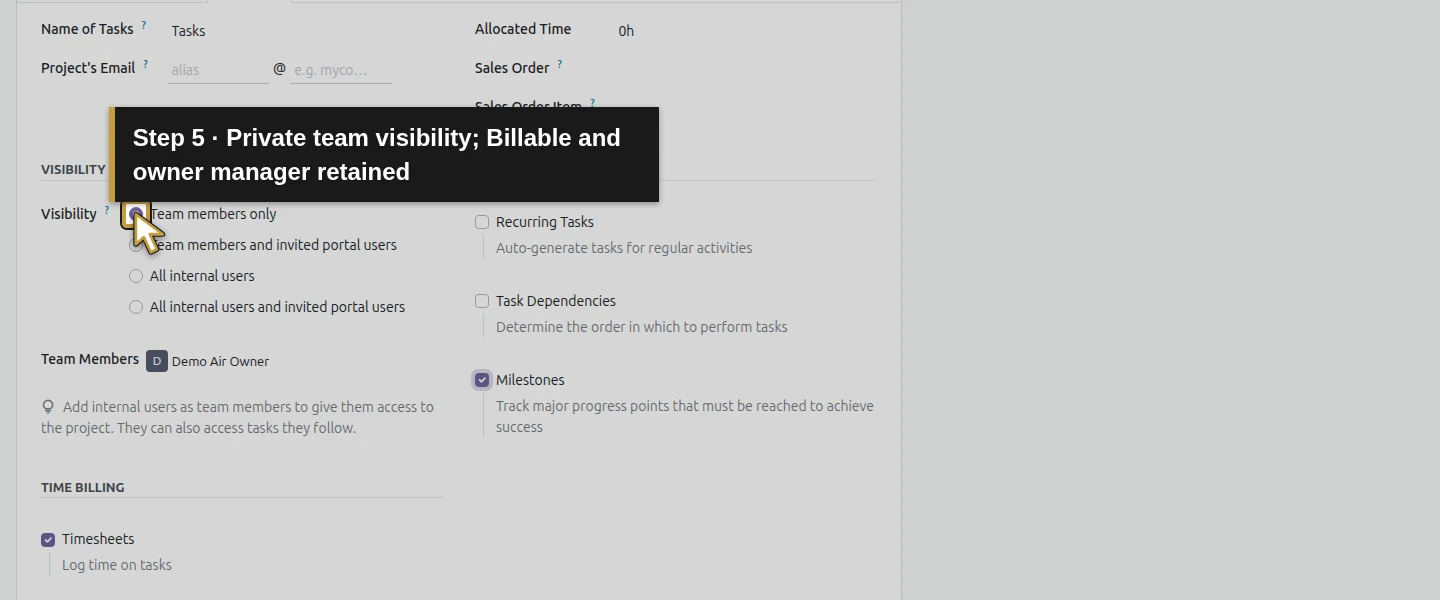
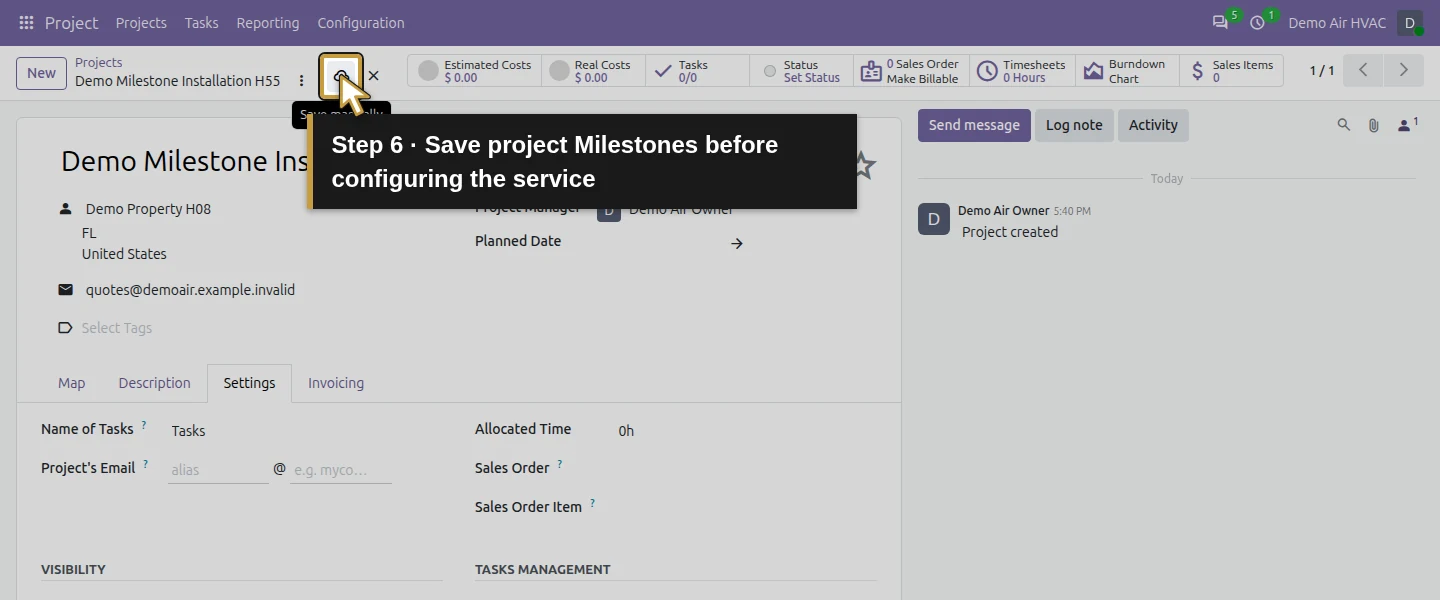
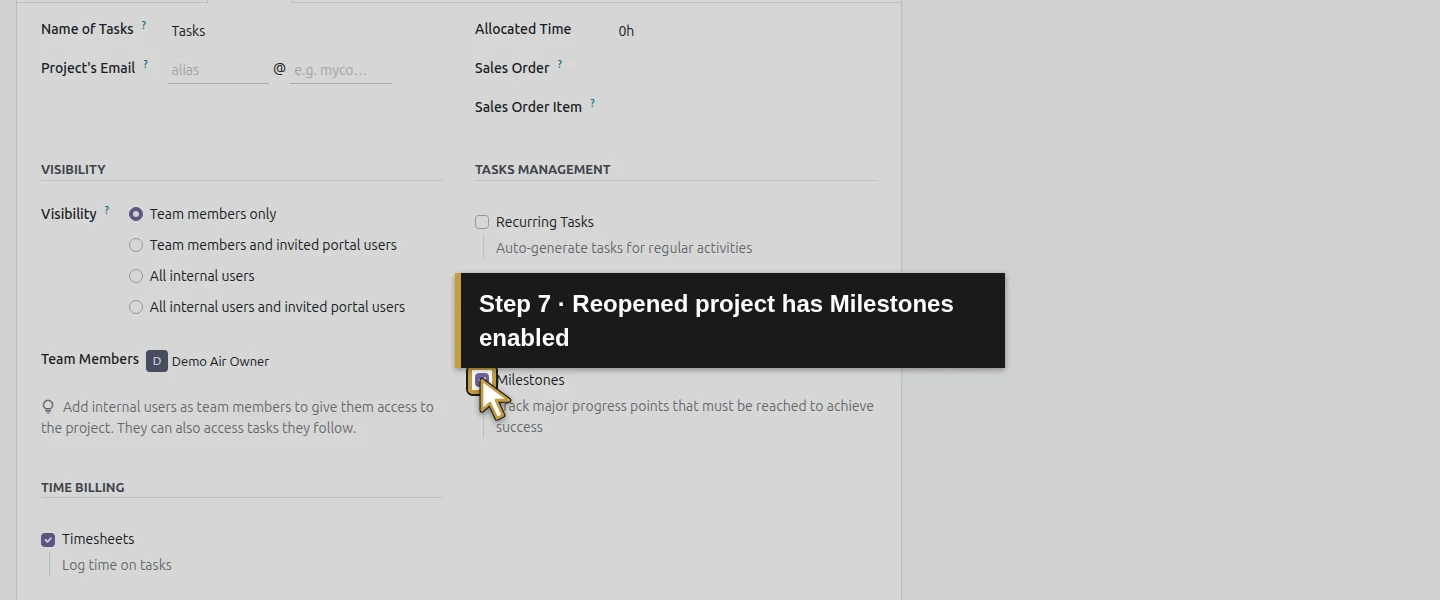
Return to Projects. On the H55 card, open more_vert → Settings, then the Settings tab. Select Team members only, verify Project Manager Demo Air Owner and keep Billable checked. Check Milestones, then click Save manually and wait. The product’s Based on Milestones option becomes available after this native project setting is saved. This build’s general Project settings page has no separate Milestones checkbox; use the project’s own Settings tab.
Step 3. Configure the milestone service product
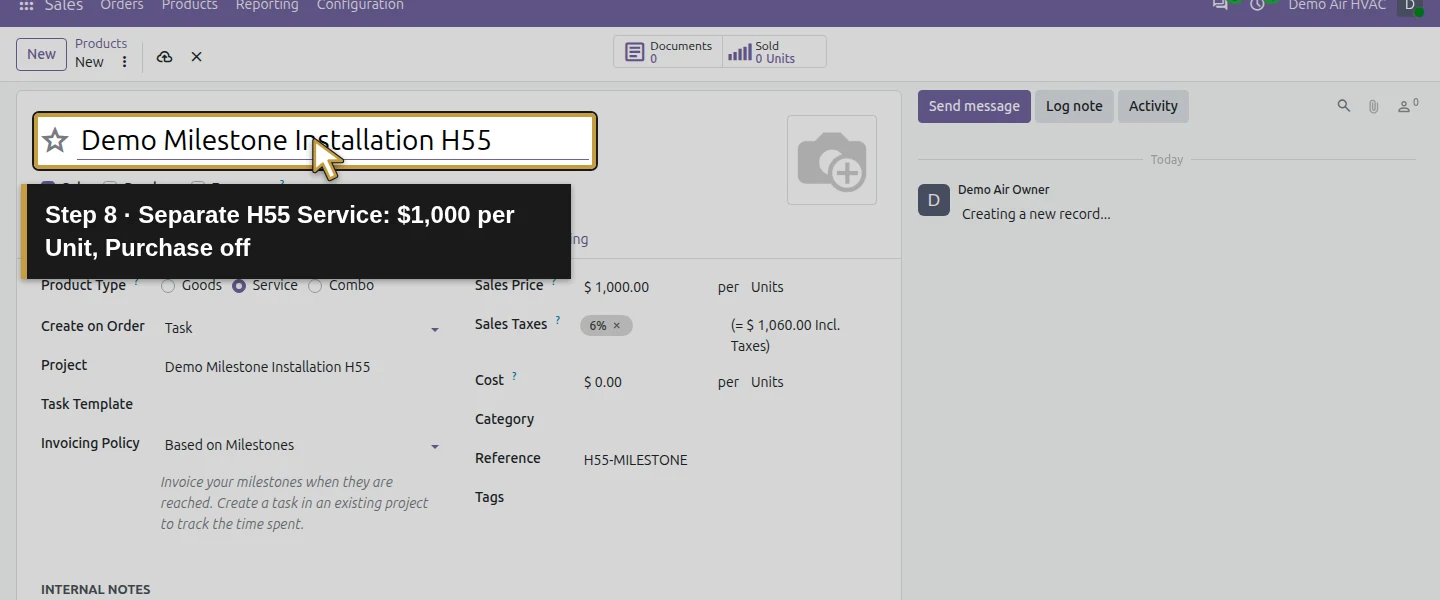
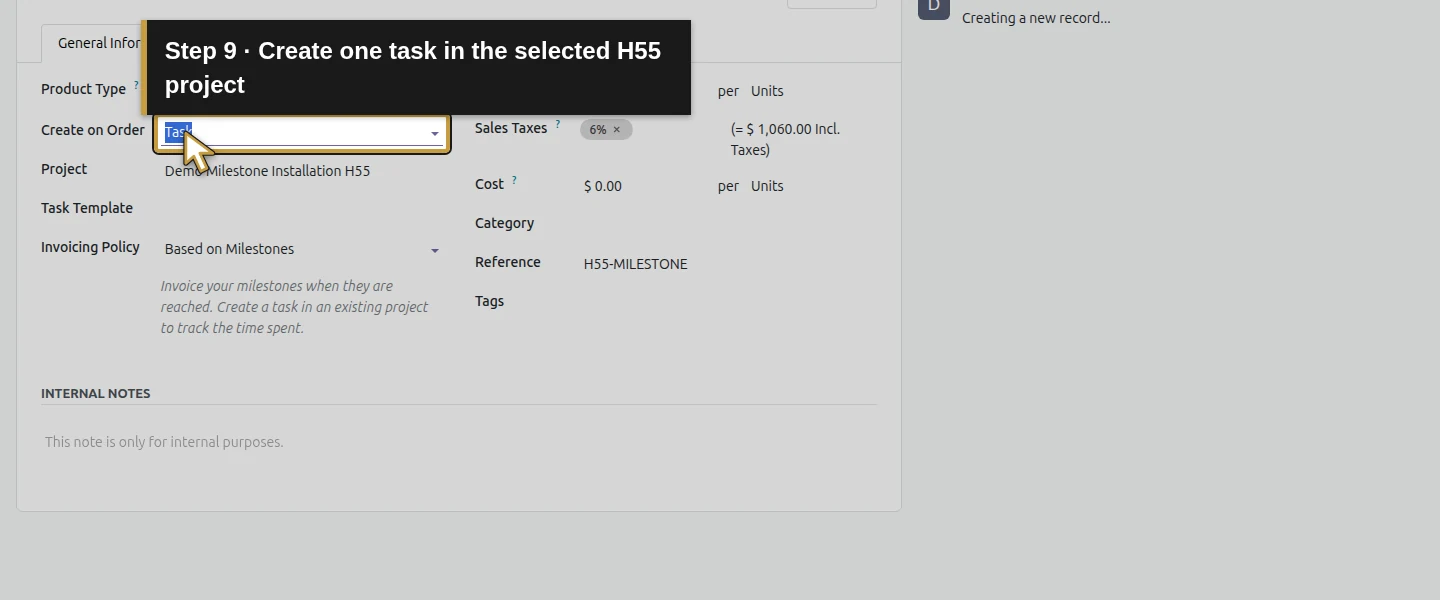
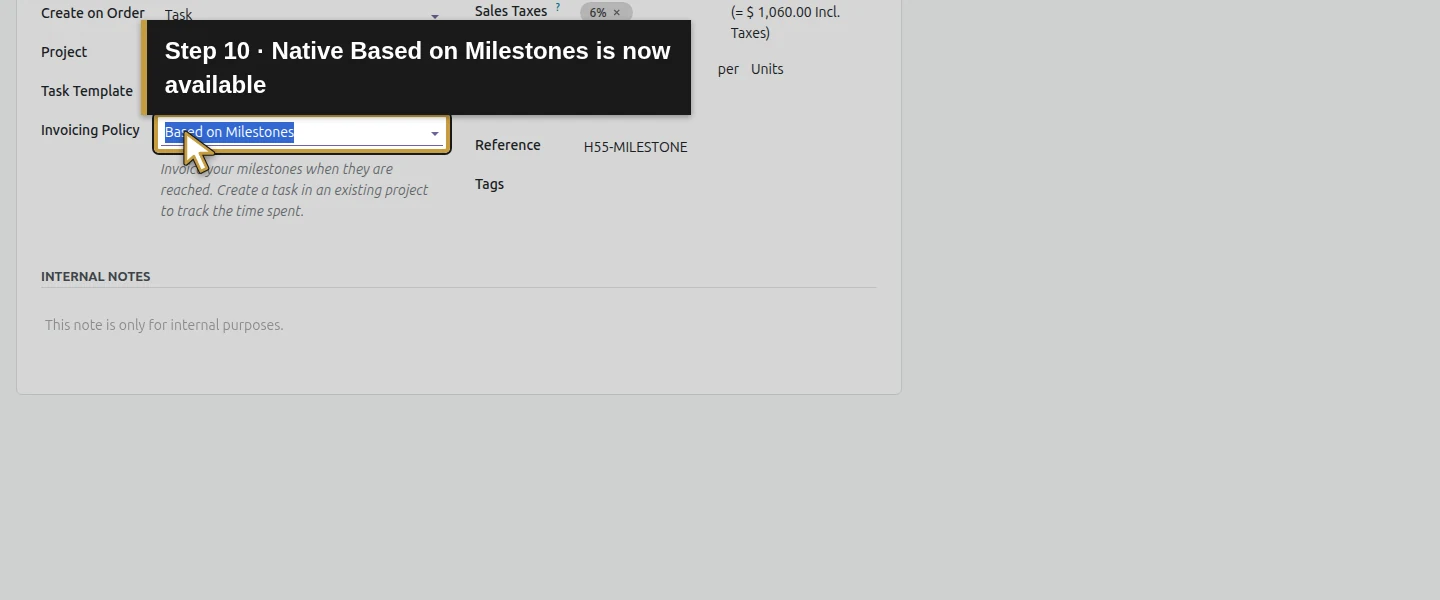
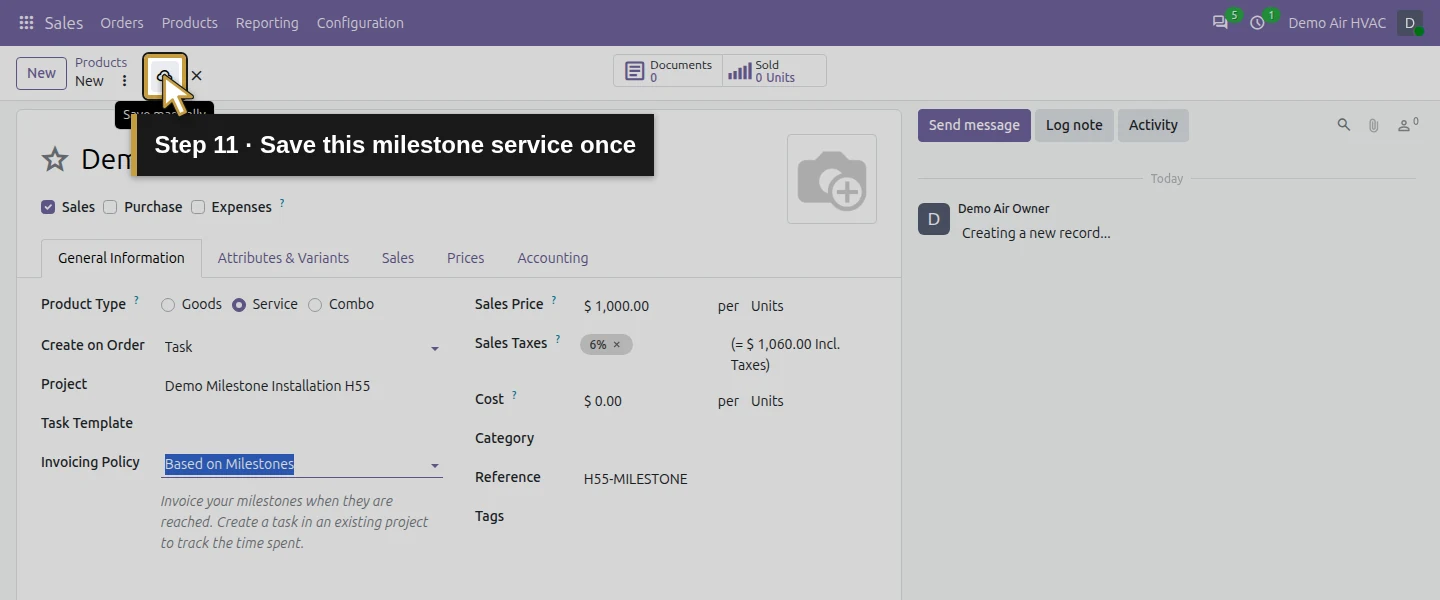
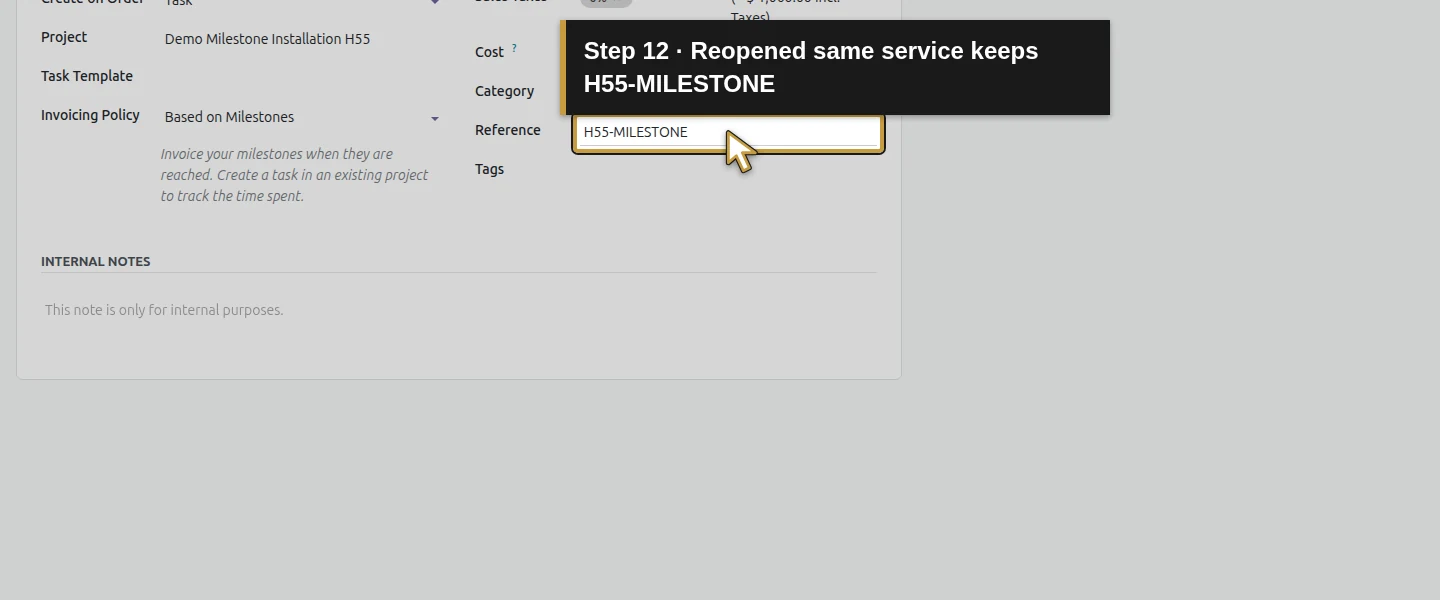
Open Sales → Products → Products → New. Name it Demo Milestone Installation H55, select Service, keep Sales checked and clear Purchase. Set Reference H55-MILESTONE, Sales Price $1,000 and explicitly select Units; Service initially defaults to Hours here. Choose Create on Order → Task, select the existing H55 project, leave Task Template empty and choose Invoicing Policy → Based on Milestones. Save and reopen. Check the illustrative 6% sales tax; confirm the appropriate account and tax treatment for your own business.
Step 4. Prepare one separate milestone quotation
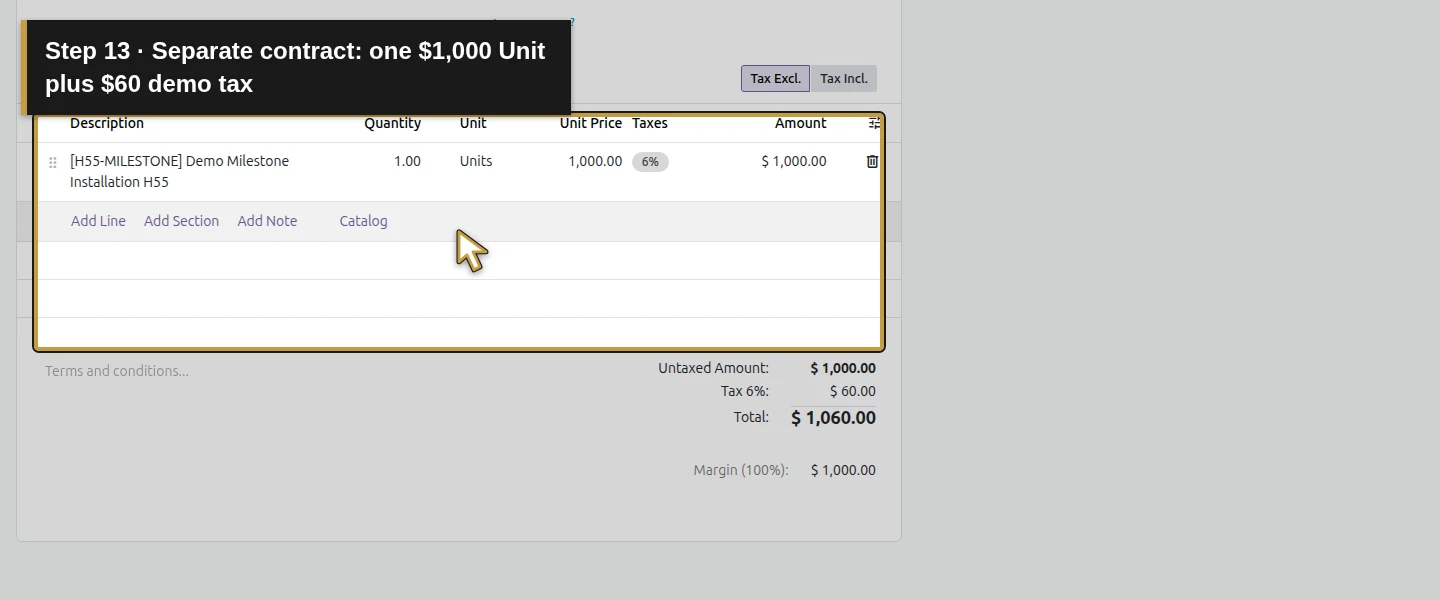
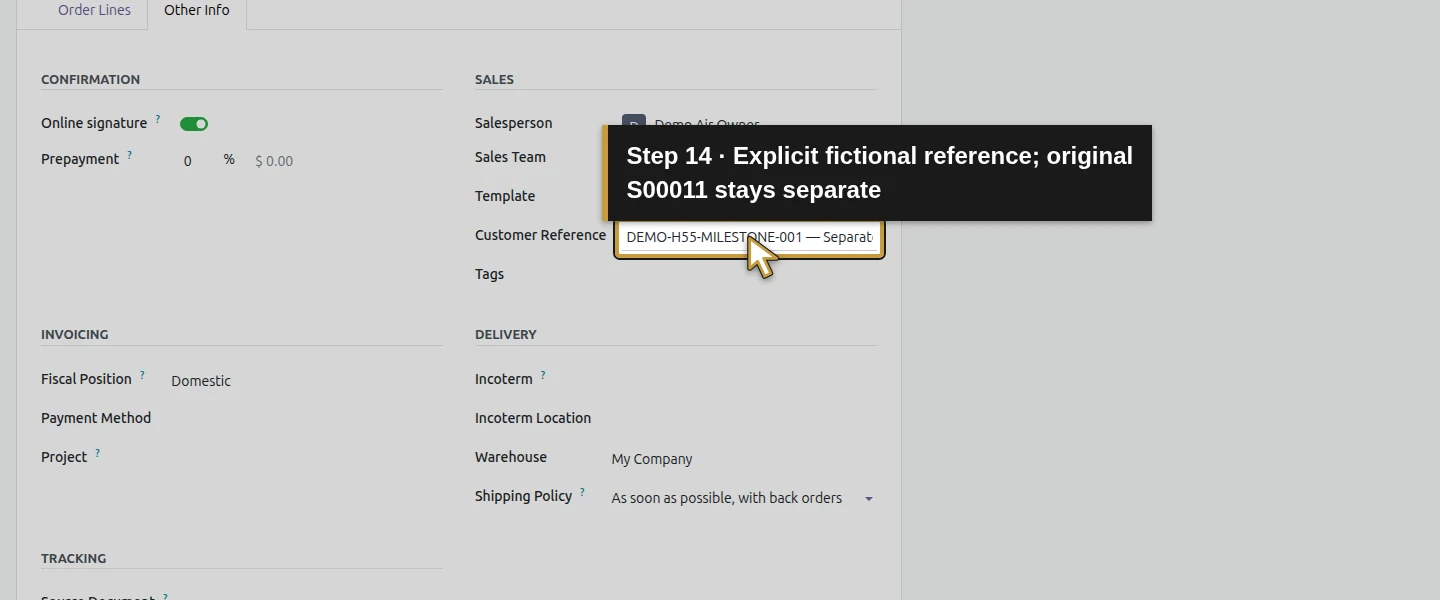
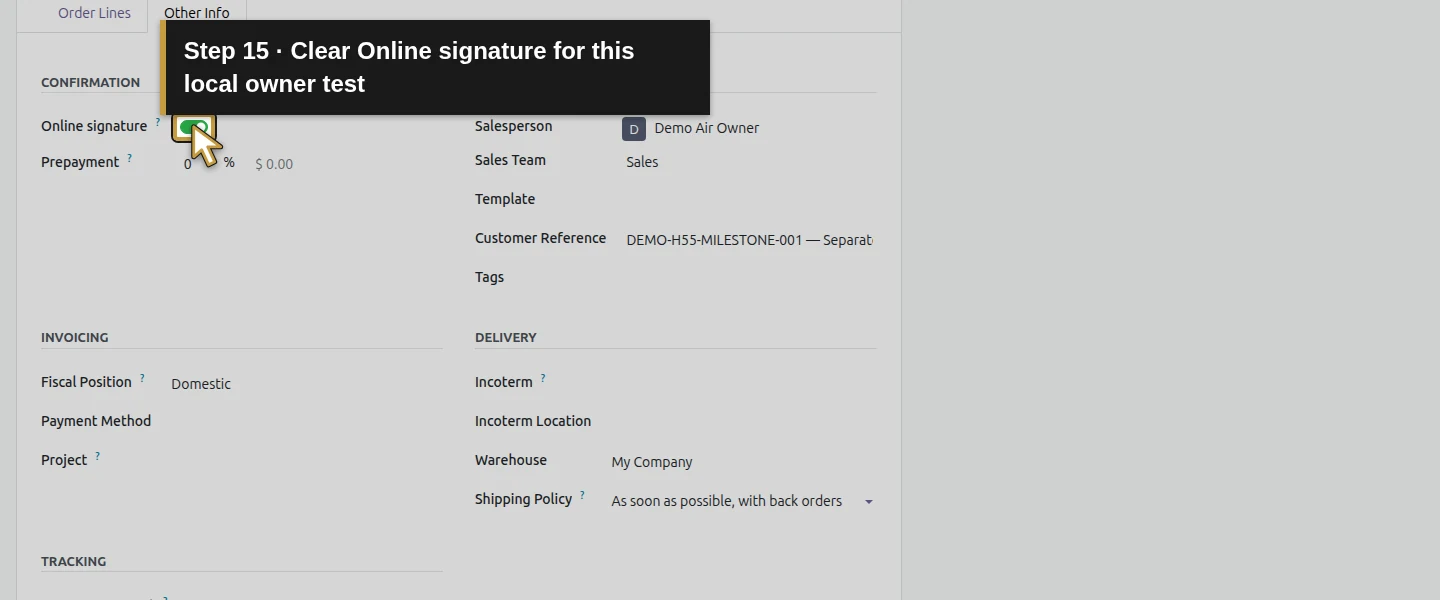
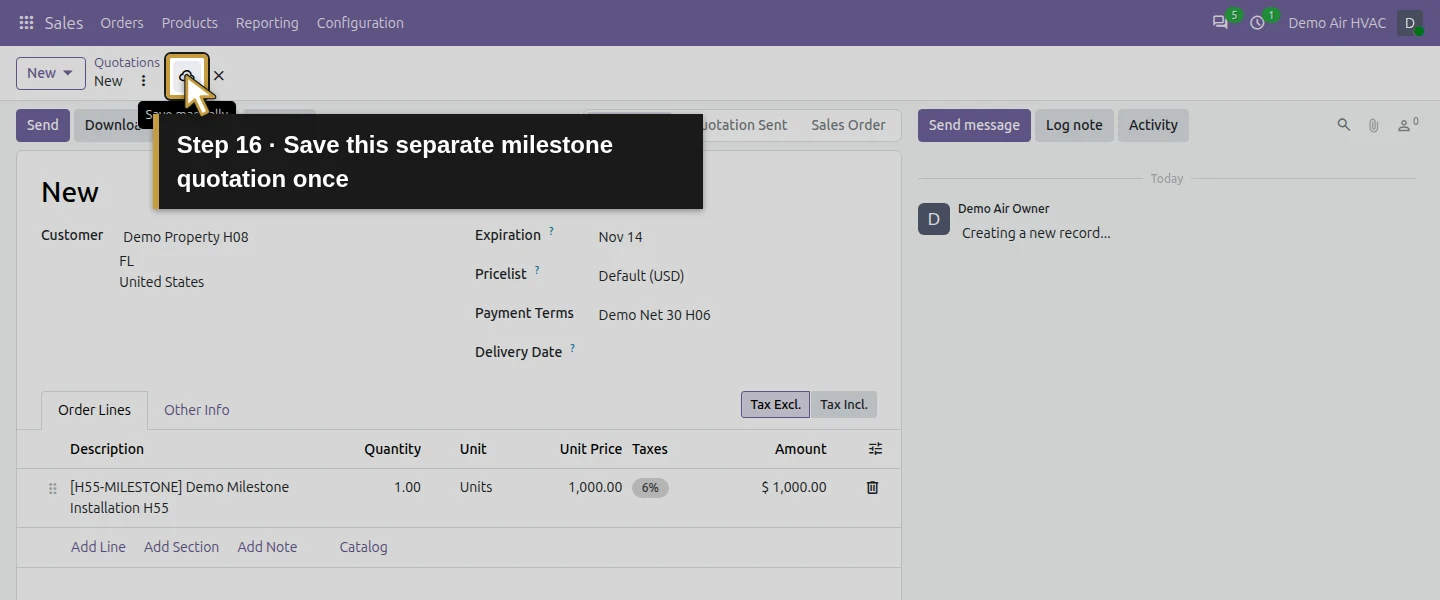
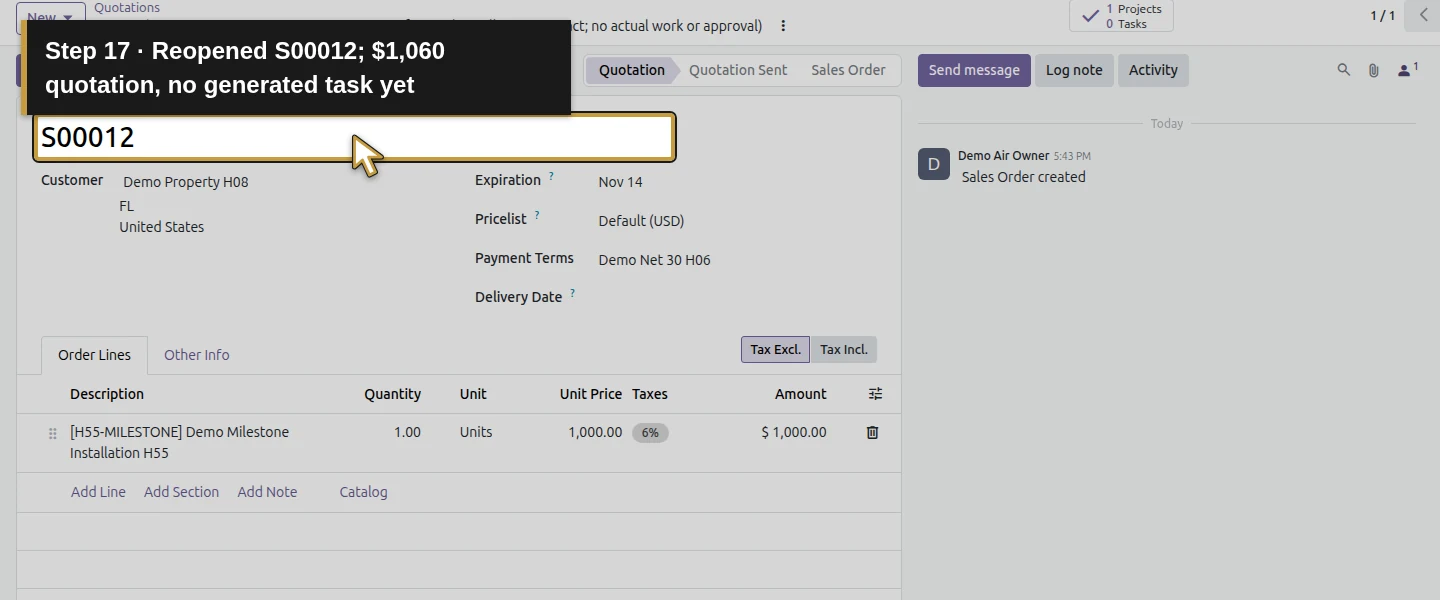
Use Sales → Orders → Quotations → New → New Quotation. Select Demo Property H08 and Demo Net 30 H06. Add H55-MILESTONE, quantity 1 Unit at $1,000. In Other Info, enter Customer Reference DEMO-H55-MILESTONE-001 — Separate fictional installation contract; no actual work or approval. Clear Online signature for this local owner-confirmation test. Save and reopen S00012. Review Billing Office H08, Service Site H08 and $1,000 + $60 demo tax = $1,060 before proceeding.
Step 5. Confirm once and inspect the generated records
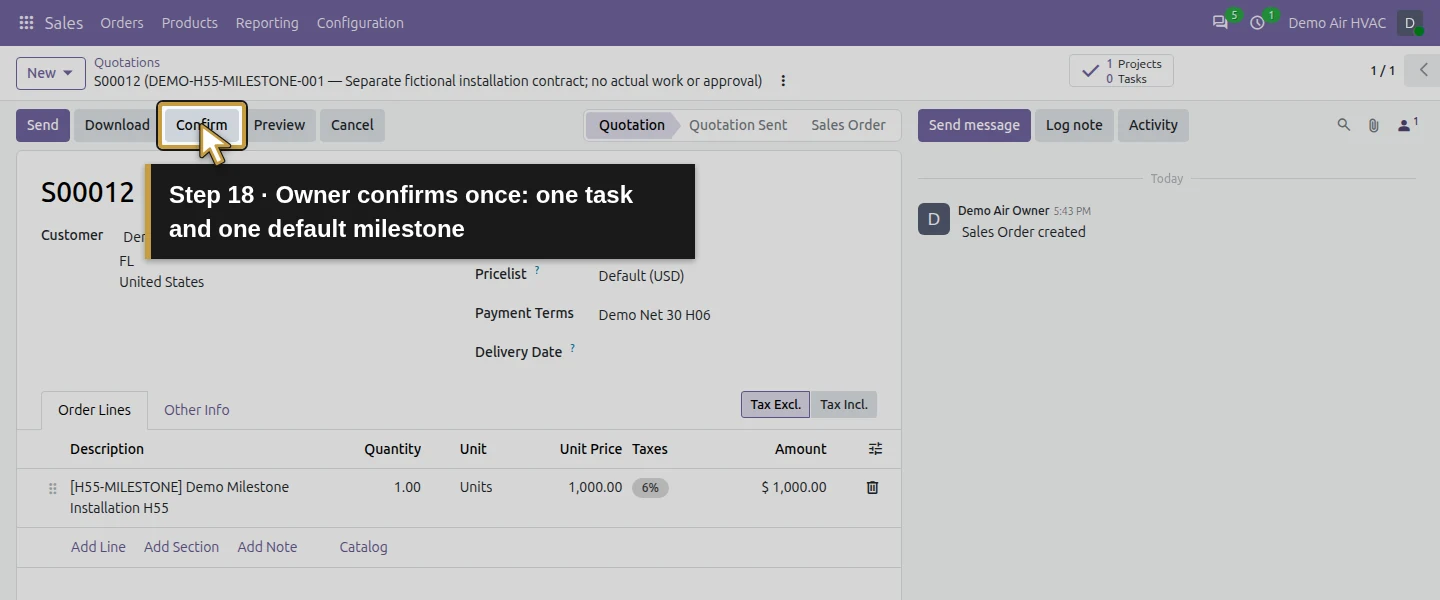
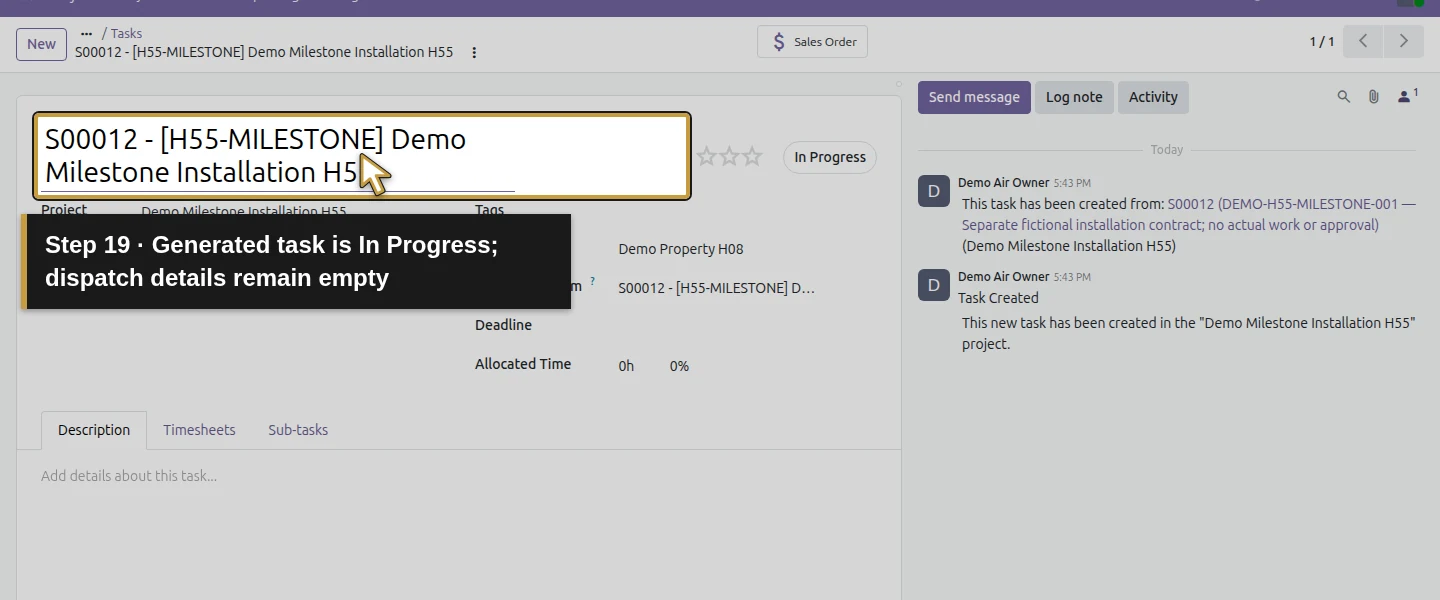
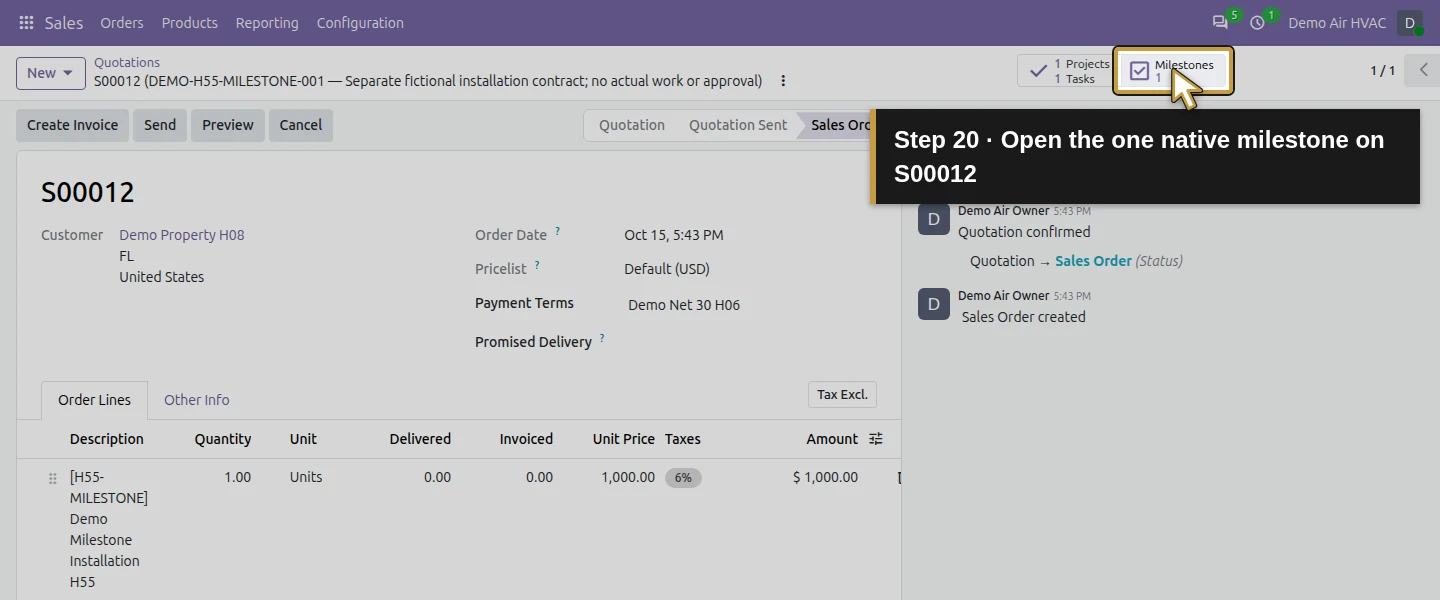
Click Confirm once as the owner. The order gains 1 Projects / 1 Tasks and 1 Milestones. Confirmation creates one task in the project you selected and one native milestone linked to S00012’s service line. The generated task has no stage, assignee, deadline or handoff instructions in this case, with zero allocated time. This billing setup does not make it ready for dispatch; prepare the operational details using the earlier job guides.
Step 6. Inspect the default 100% milestone
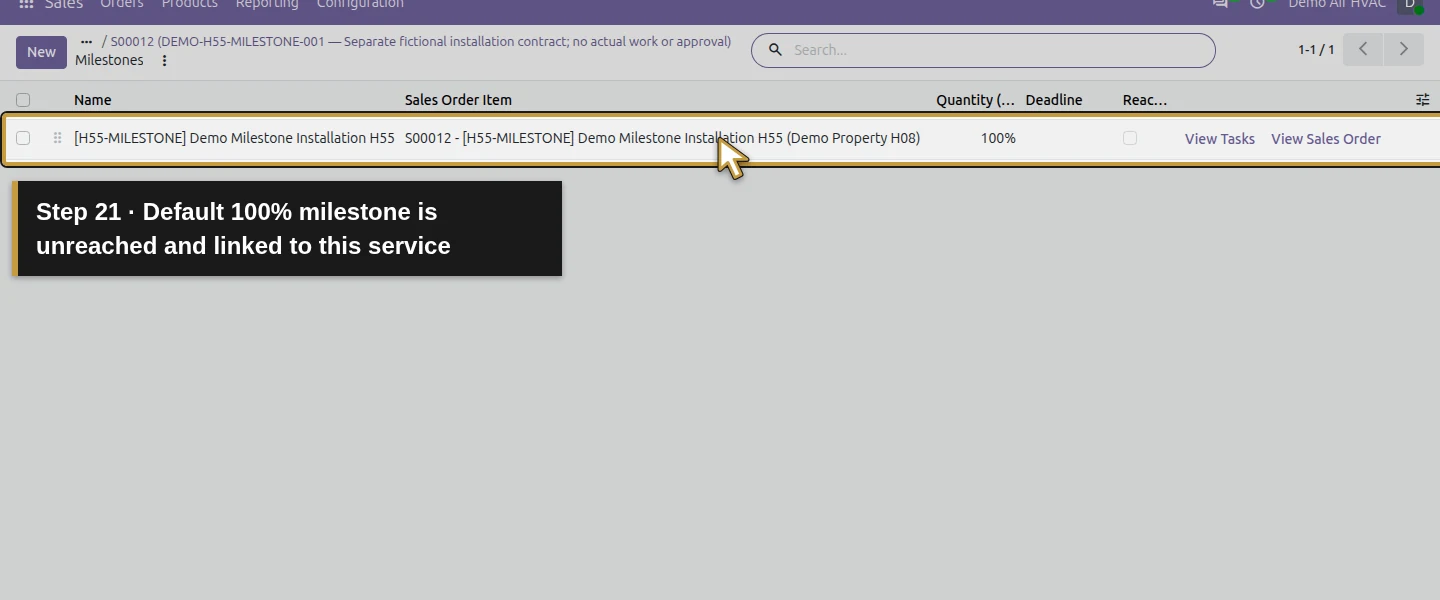
Click 1 Milestones on S00012. The list initially has one row named for the H55 product, with the correct Sales Order Item, Quantity (%) 100% and Reached clear. Its View Tasks action refers to the generated installation task. Review the agreed billing schedule before marking this row reached: leaving the default at 100% would describe the full service quantity, rather than the intended first 30%.
Step 7. Keep the generated installation milestone at 70%
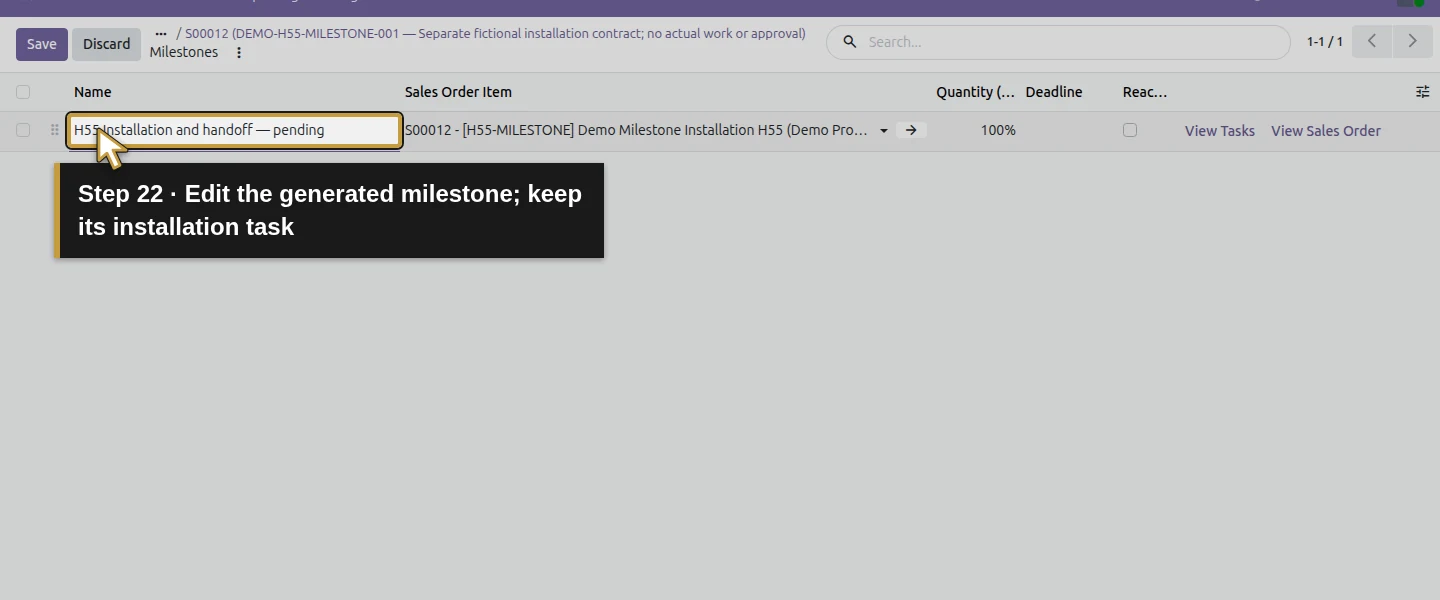
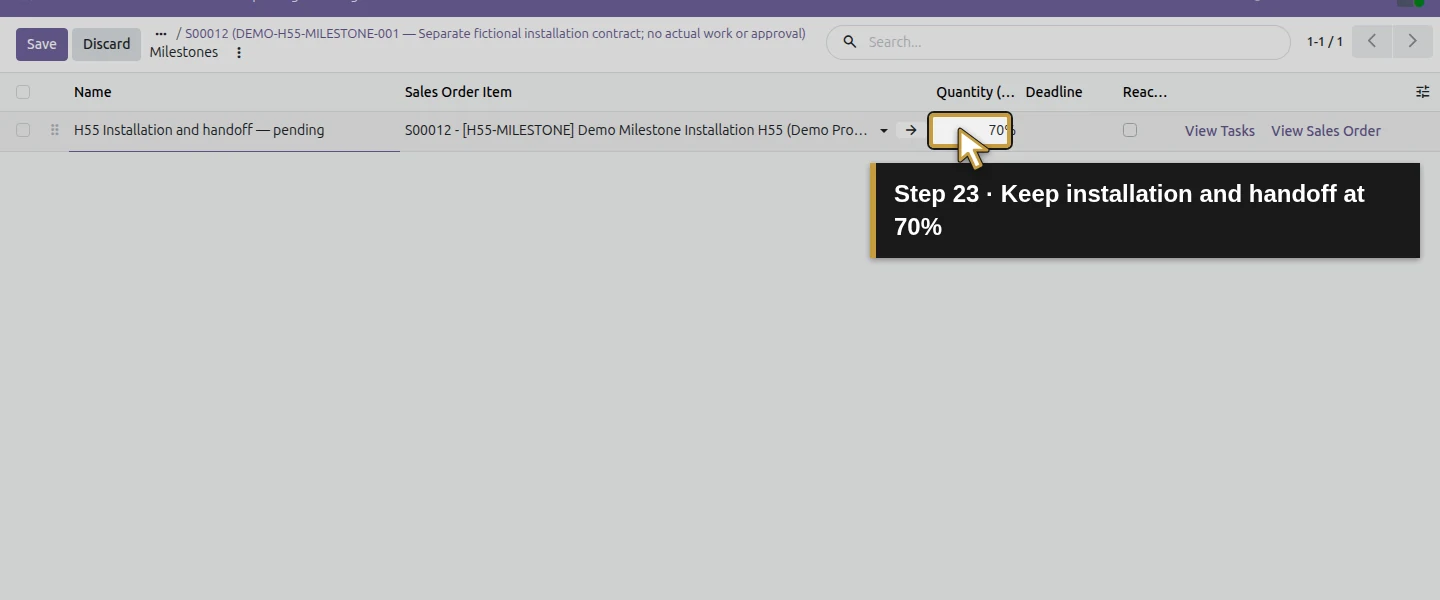
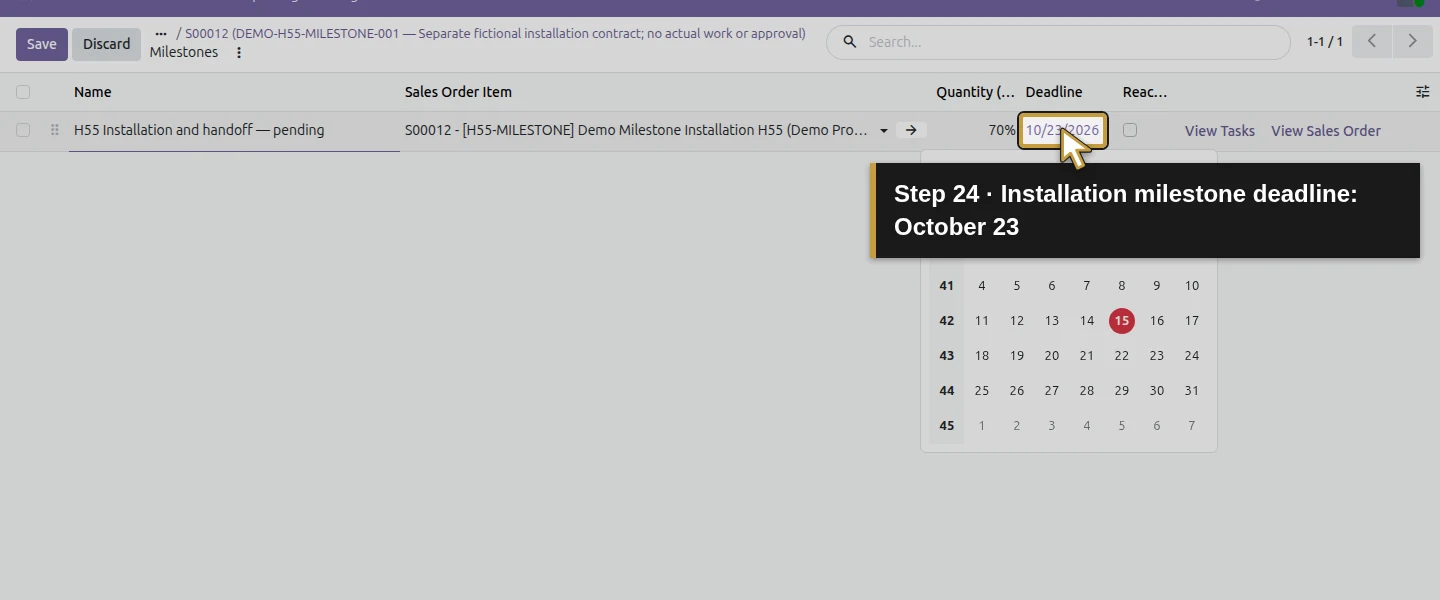
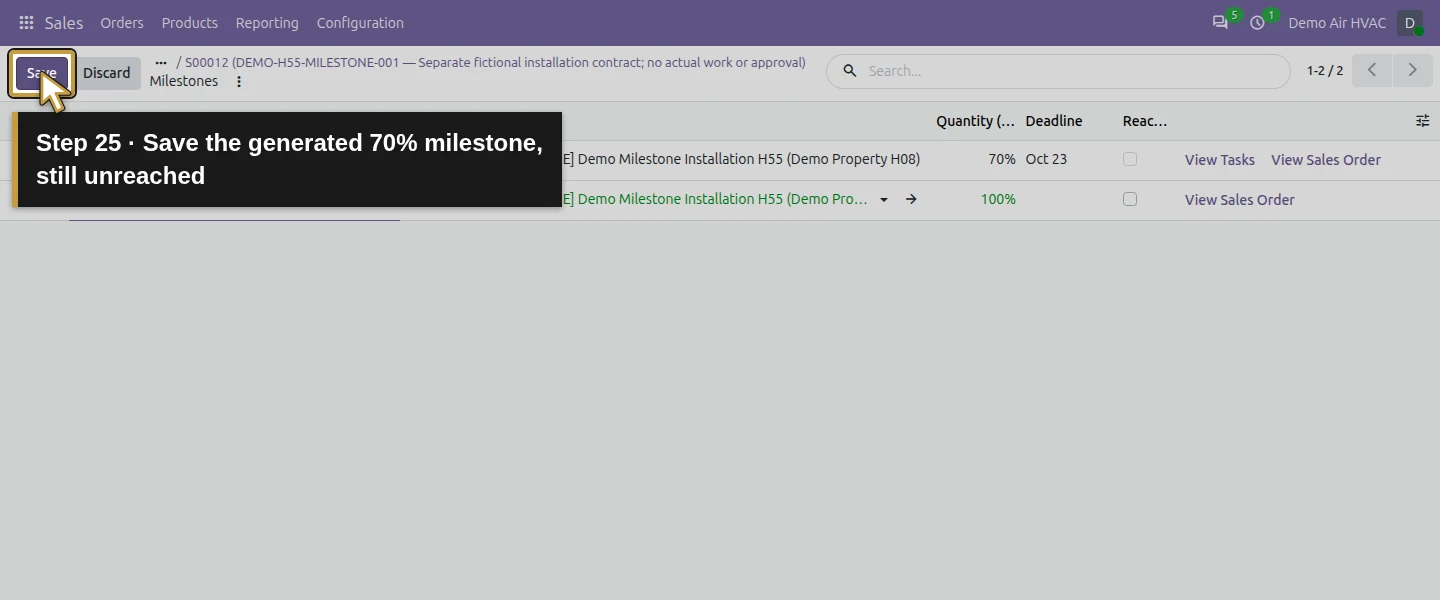
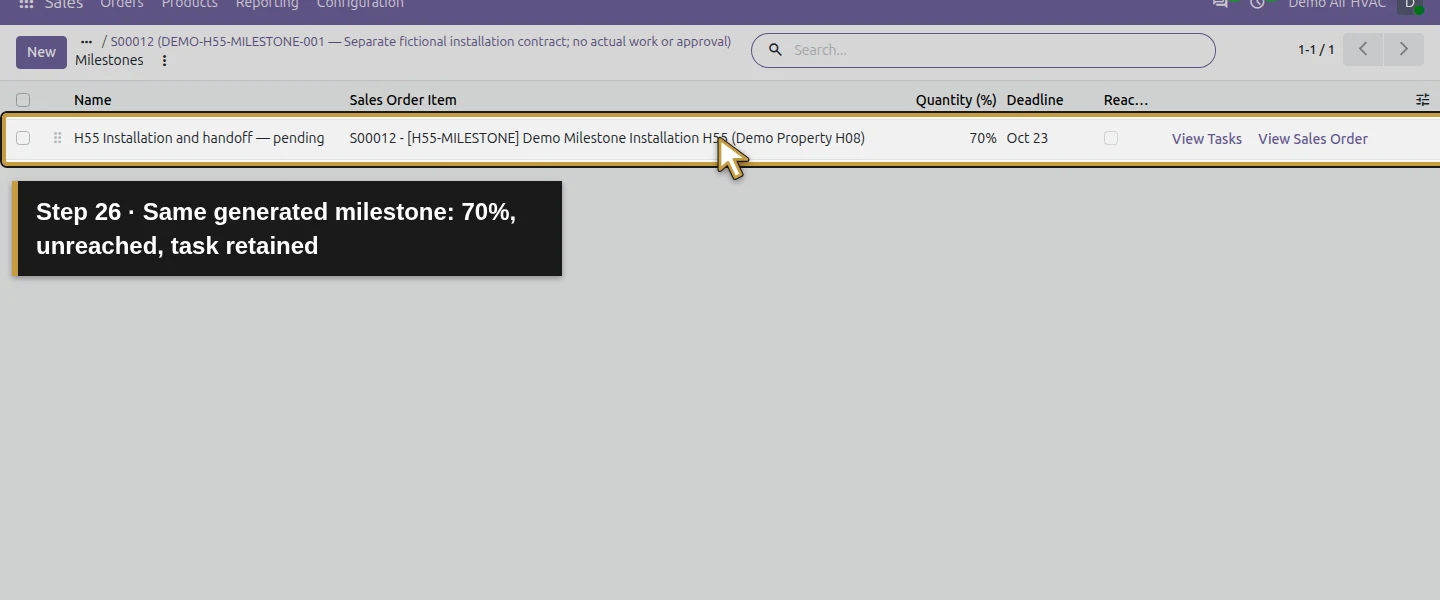
Click the row’s Name cell to enter edit mode. Rename it H55 Installation and handoff — pending, enter 70 under Quantity (%) and set Deadline October 23, 2026. Keep its existing S00012 Sales Order Item and leave Reached clear. Click the list toolbar’s Save and wait. Its generated task remains associated with this installation/handoff milestone.
Step 8. Add the separate 30% billing review
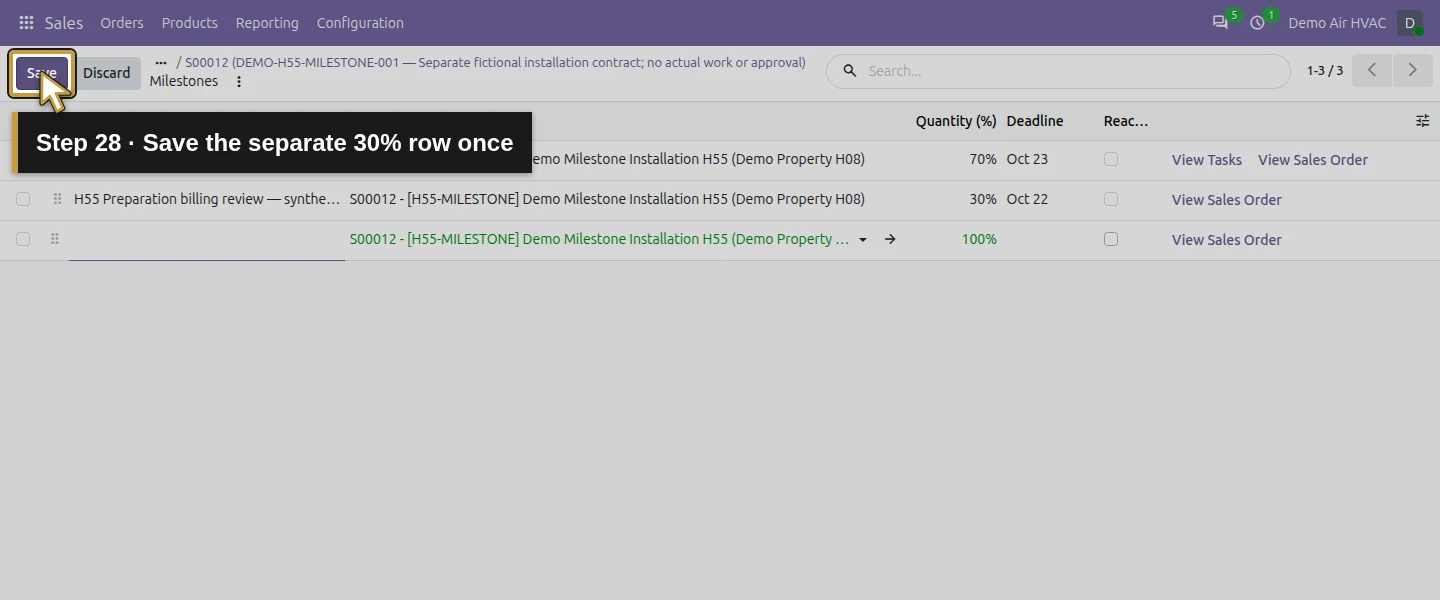
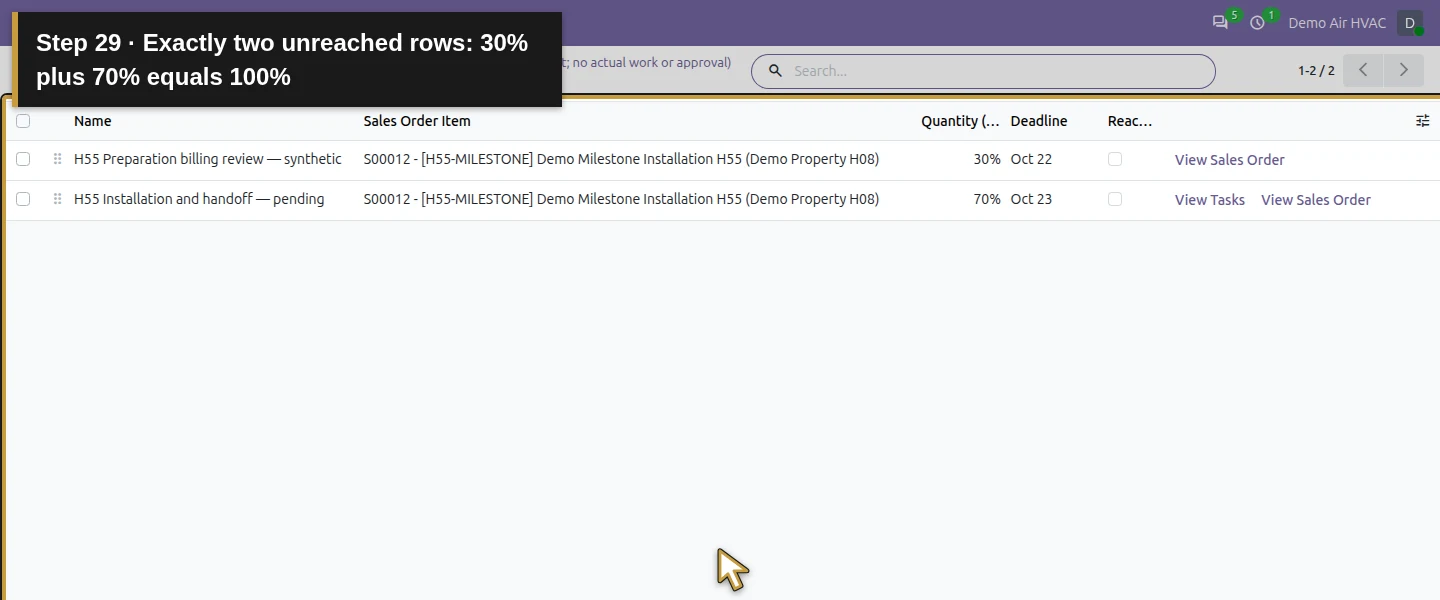
Click New in the milestone list. Enter H55 Preparation billing review — synthetic, keep the selected S00012 – H55-MILESTONE Sales Order Item, enter 30 under Quantity (%) and set Deadline October 22, 2026. Leave Reached clear and click Save. Reload and check exactly two rows totalling 30% + 70% = 100%, both linked to this service line and project. The new 30% row has no task assigned in this example; it represents an explicit owner-reviewed billing point.
Step 9. Record the billing decision and review initial eligibility
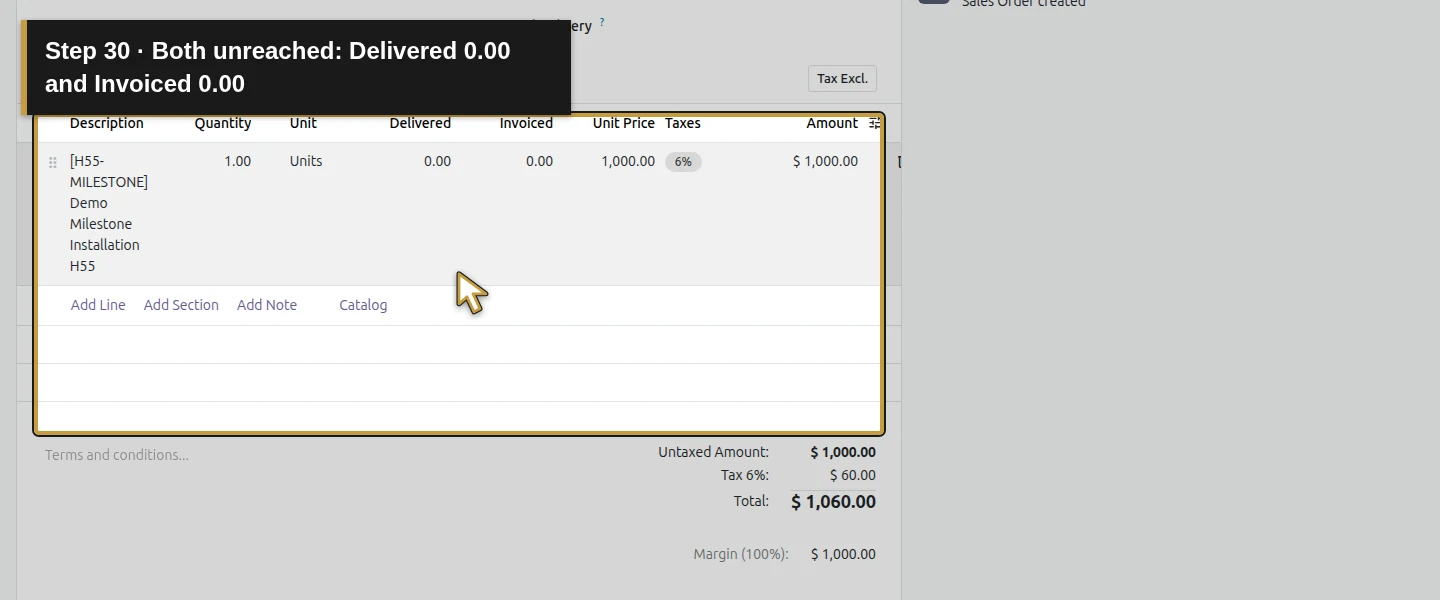
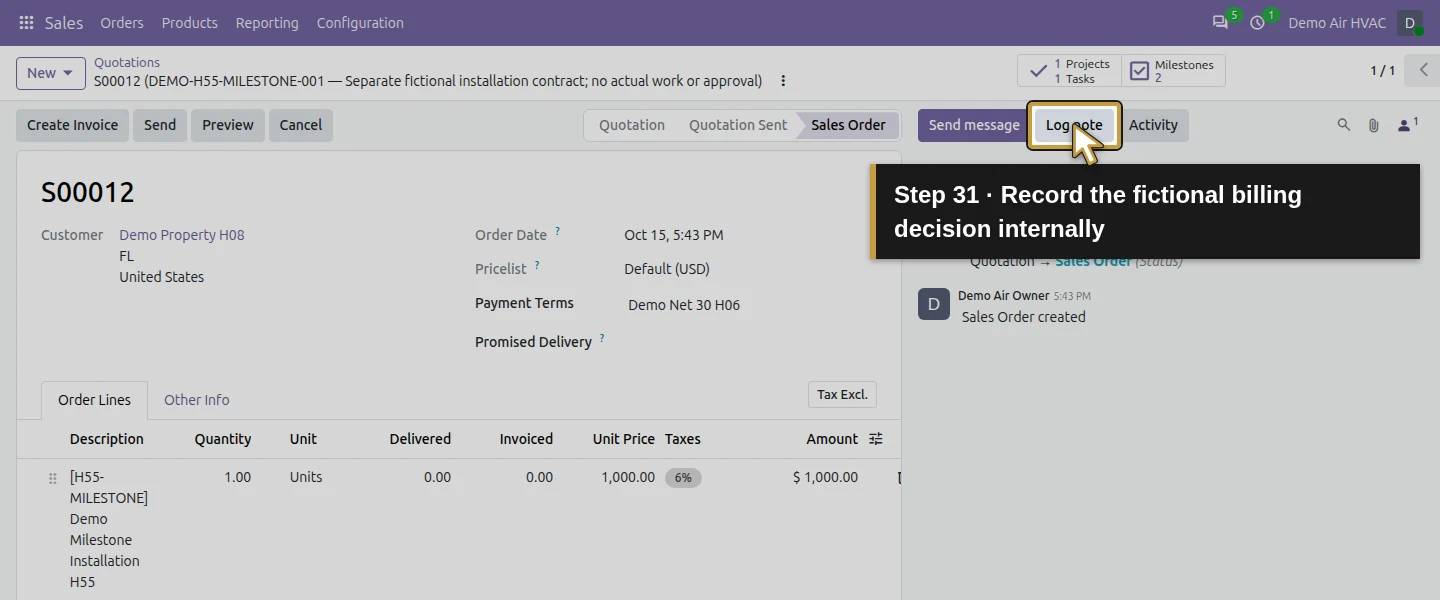
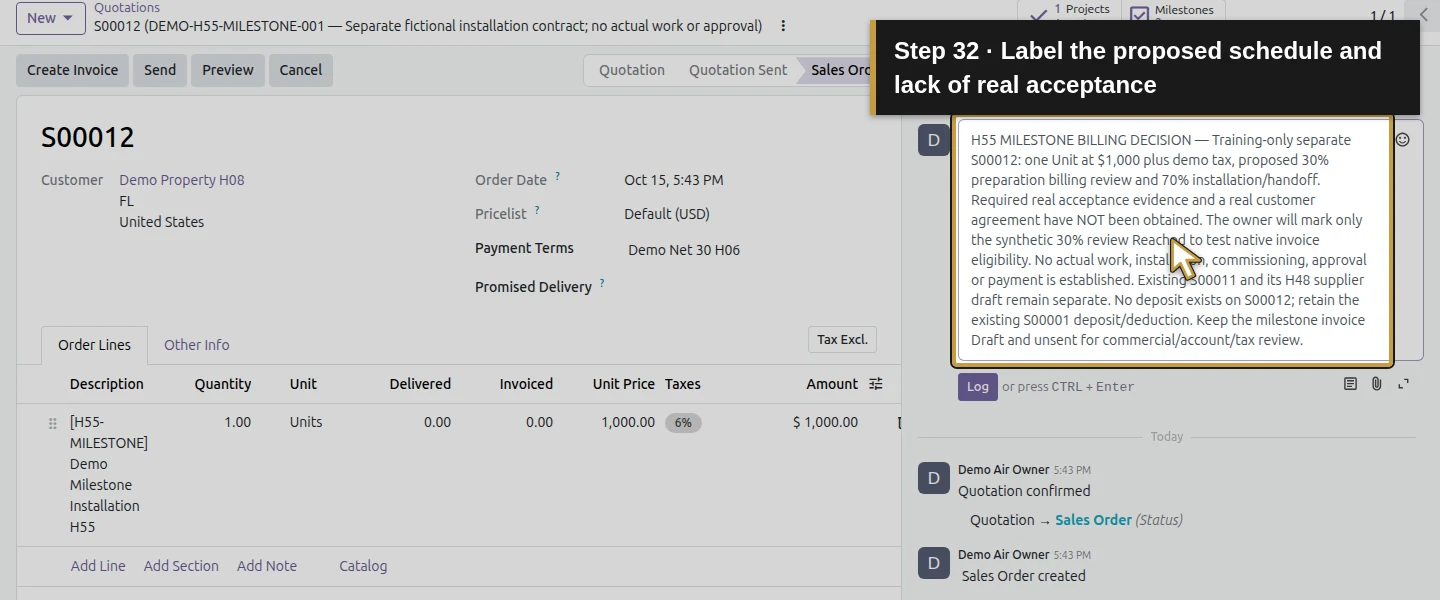
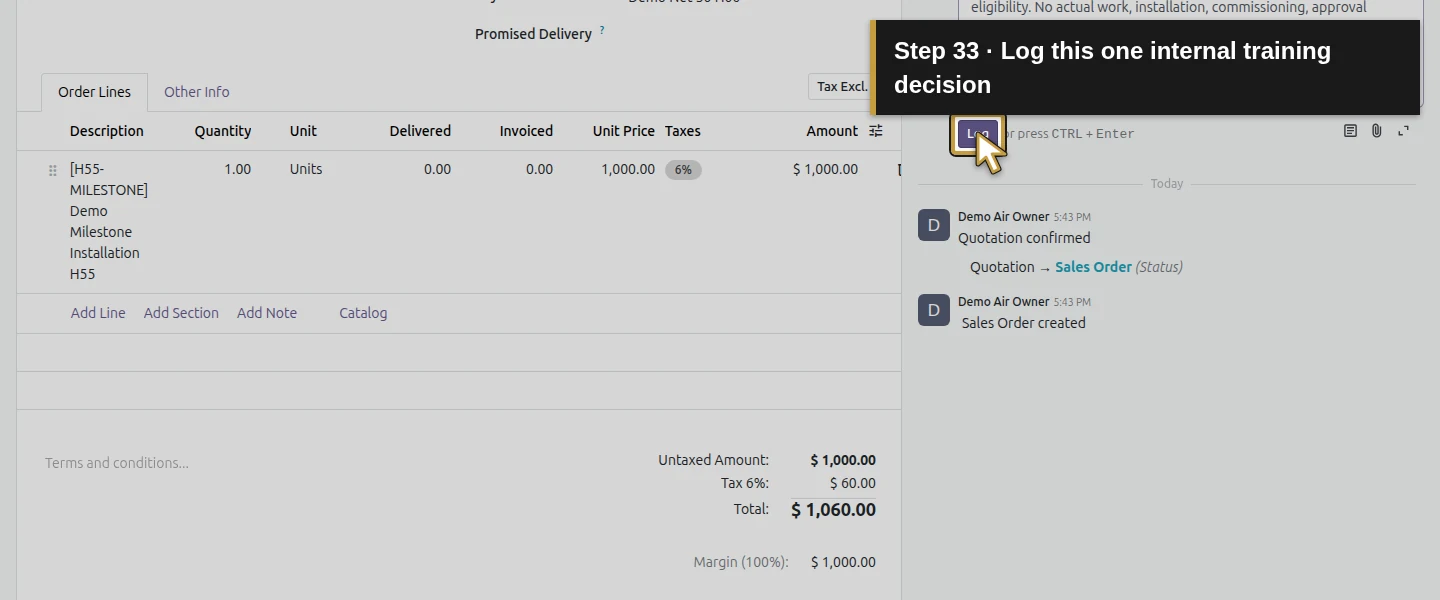
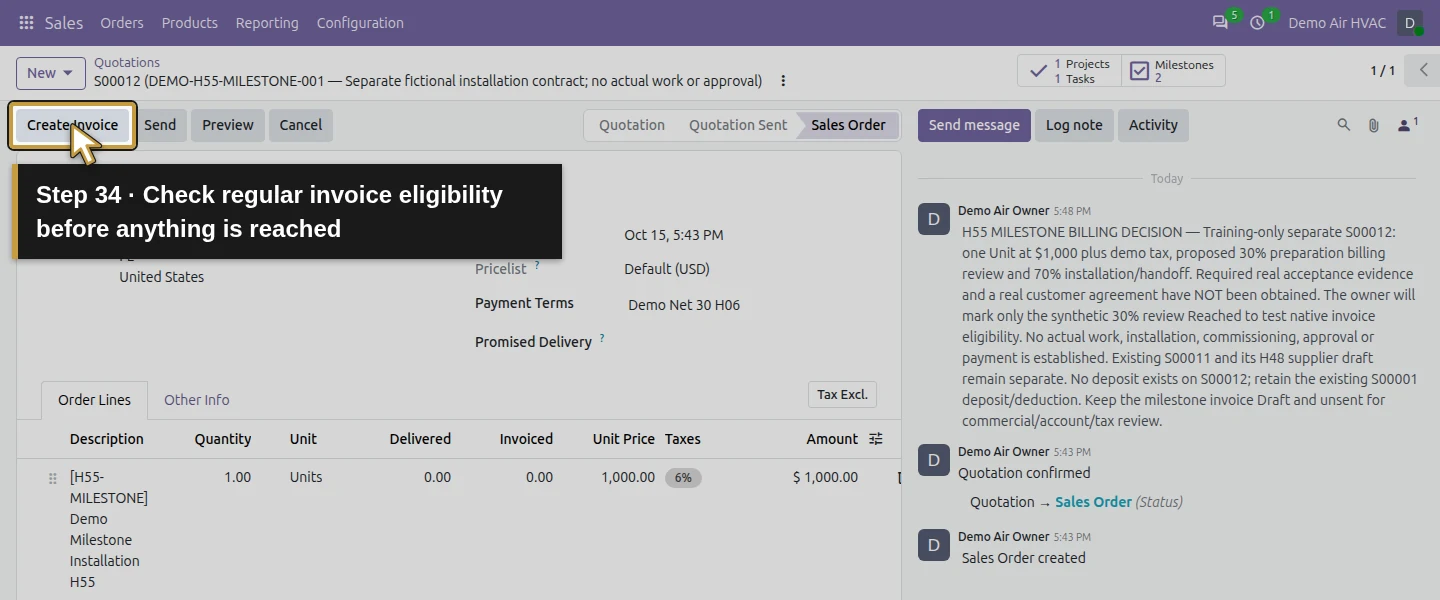
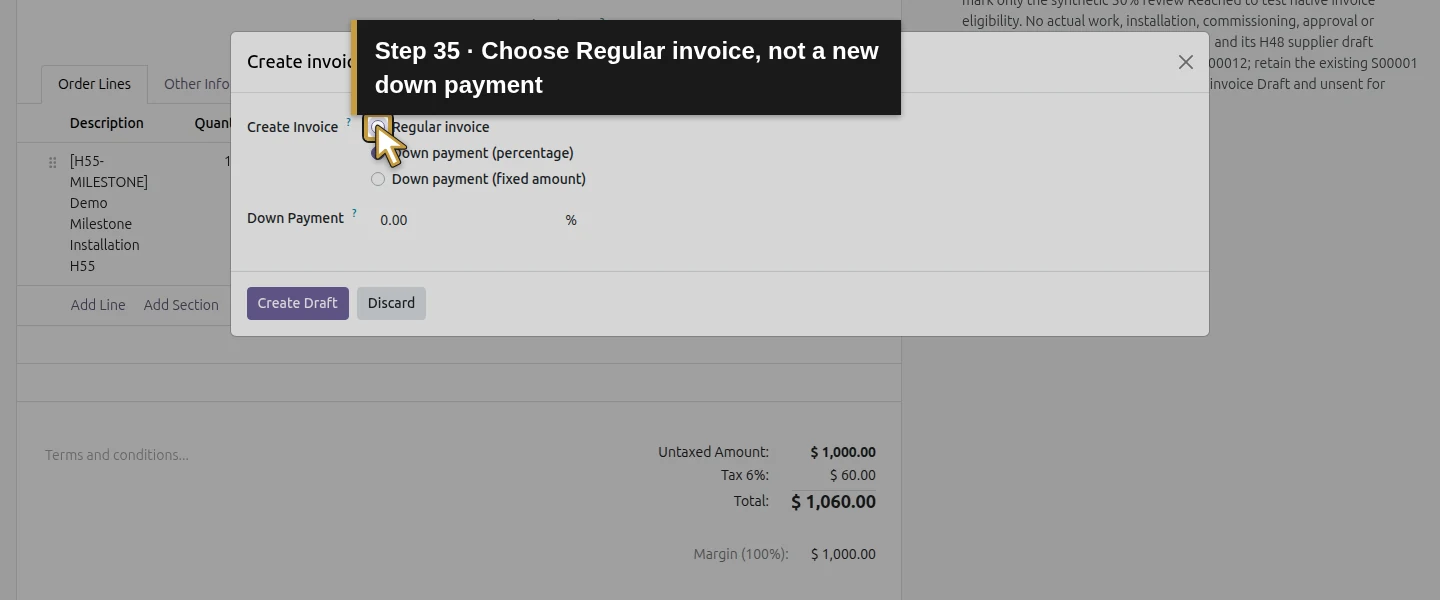
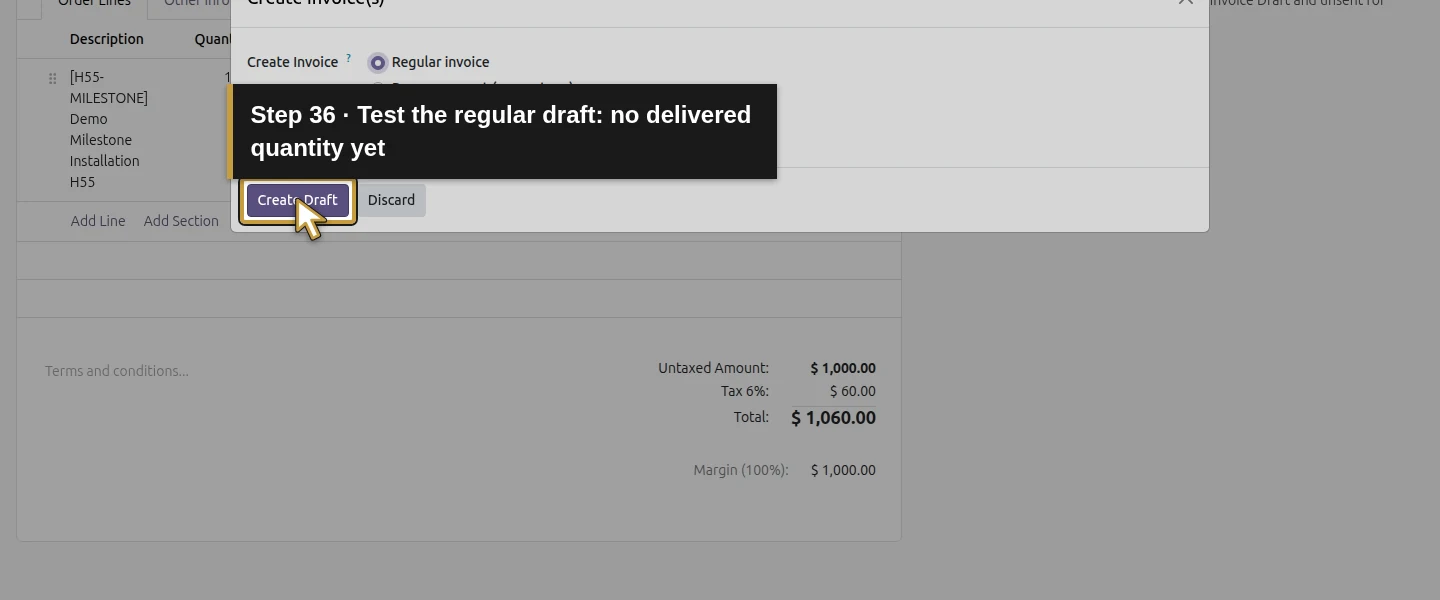
Return to S00012 with its breadcrumb or the row’s View Sales Order. Both unreached milestones leave the service Delivered 0.00 / Invoiced 0.00. Use Log note to record the fictional 30%/70% schedule, required acceptance evidence and training-only decision to test the first billing point. State that no actual agreement, work or payment is established, S00011 is separate, and S00012 has no deposit. Click Log. In the verification, attempting a Regular invoice at this zero-delivery point was refused without creating an invoice.
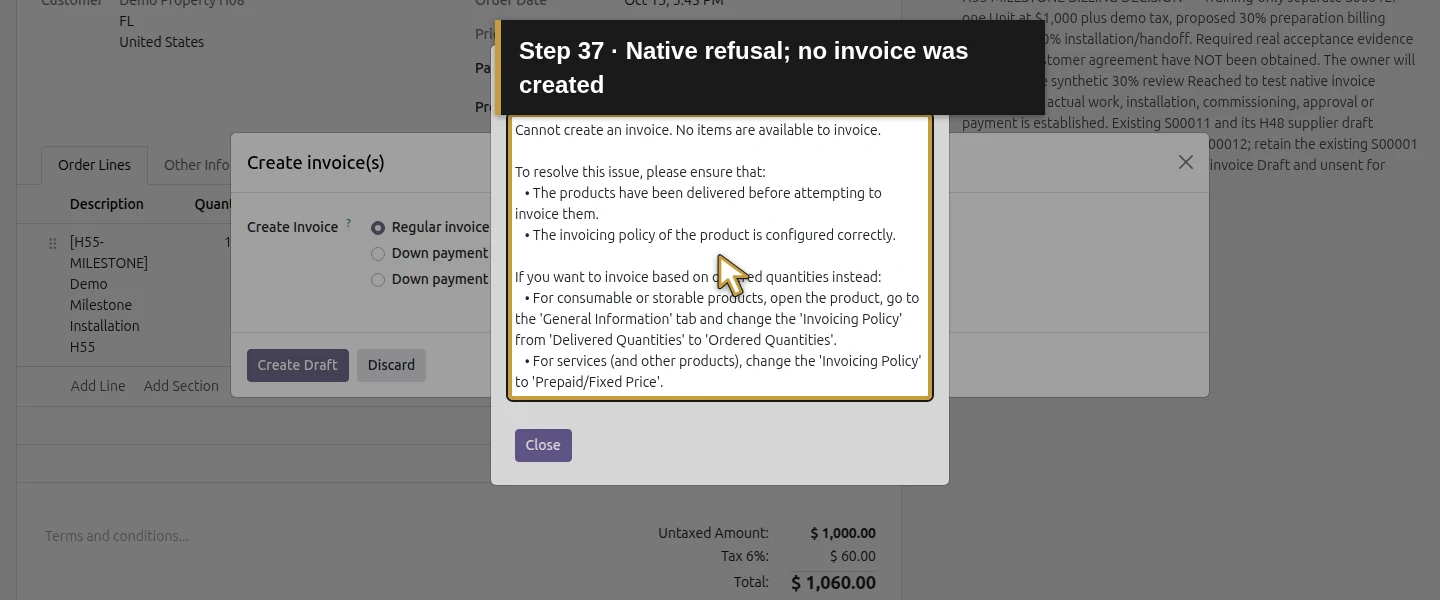
Step 10. Mark only the reviewed first milestone Reached
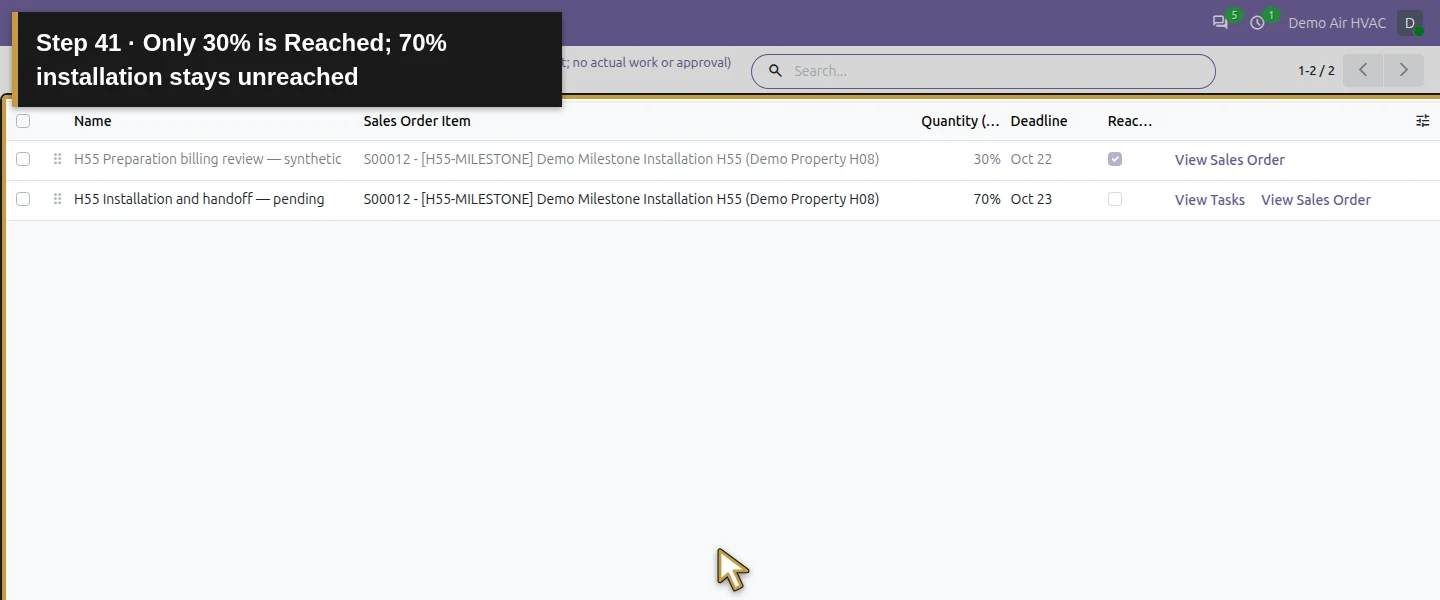
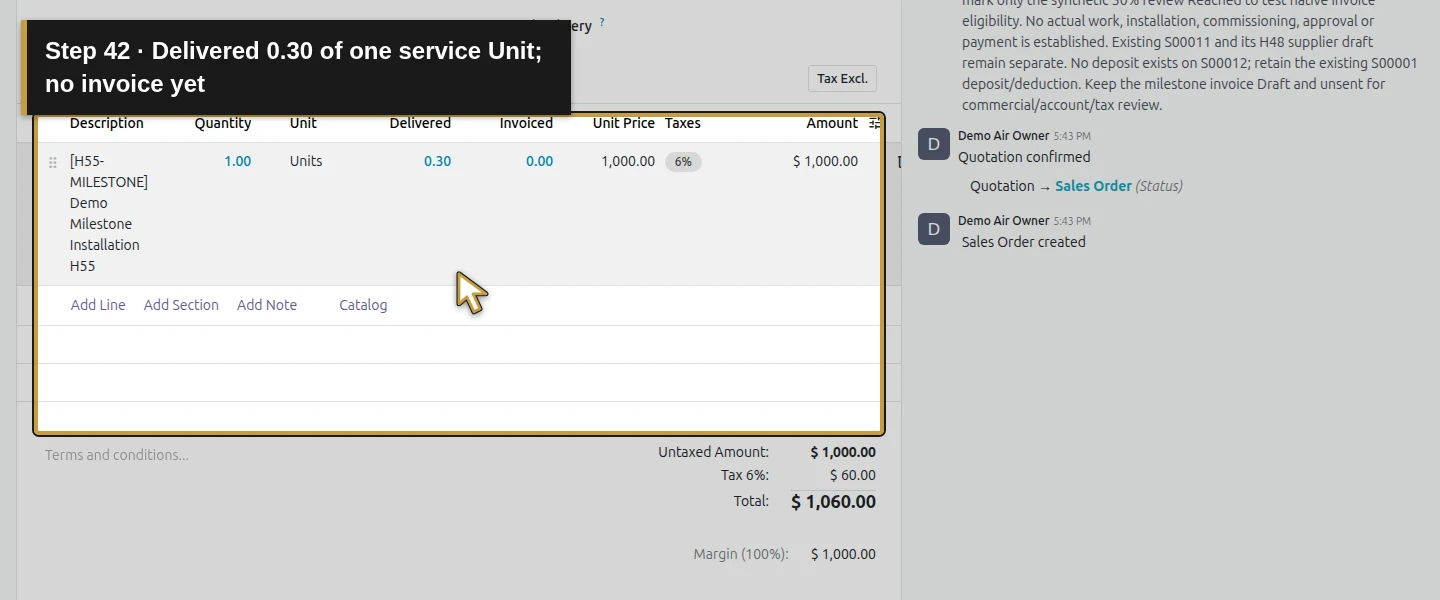
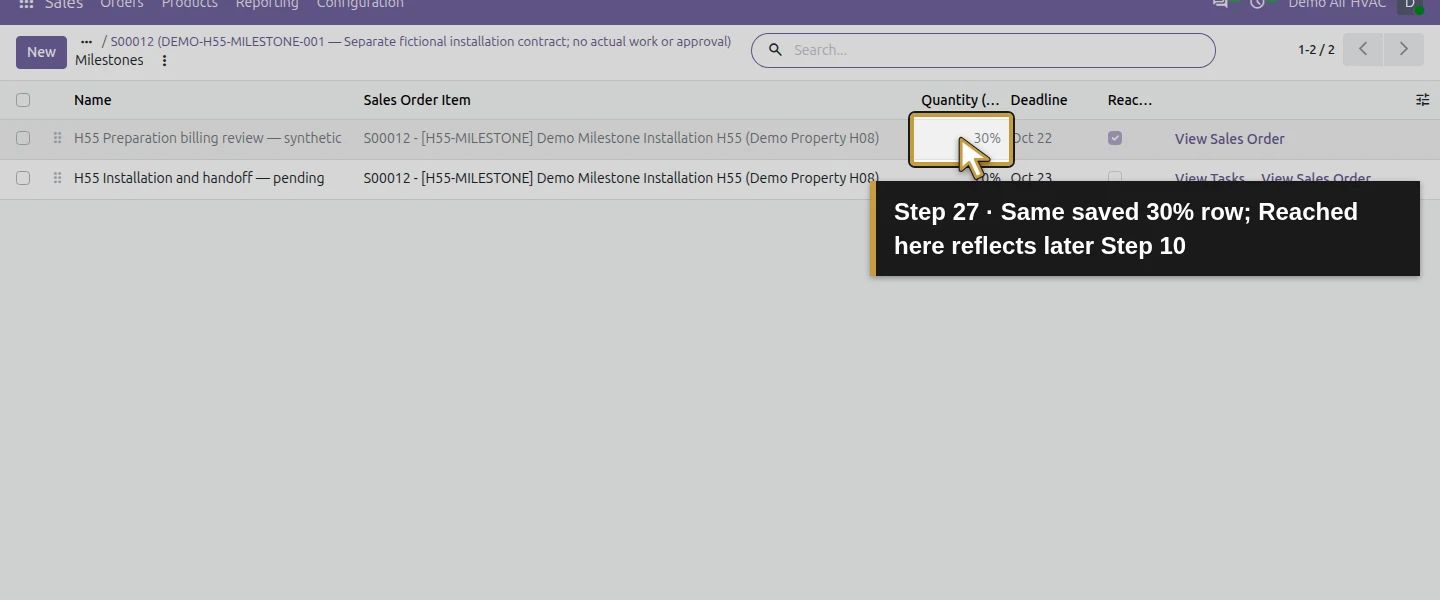
Open 2 Milestones. Click the Name cell of H55 Preparation billing review — synthetic to enter row edit mode, check Reached, then click Save. The display-only checkbox is disabled until the row is being edited in this list. Reload and return to S00012: the service now shows Delivered 0.30. That is 30% of the one service Unit. The 70% row remains unreached and its installation task remains In Progress. A native Reached tick records your decision; it does not independently verify actual preparation, installation or customer acceptance.
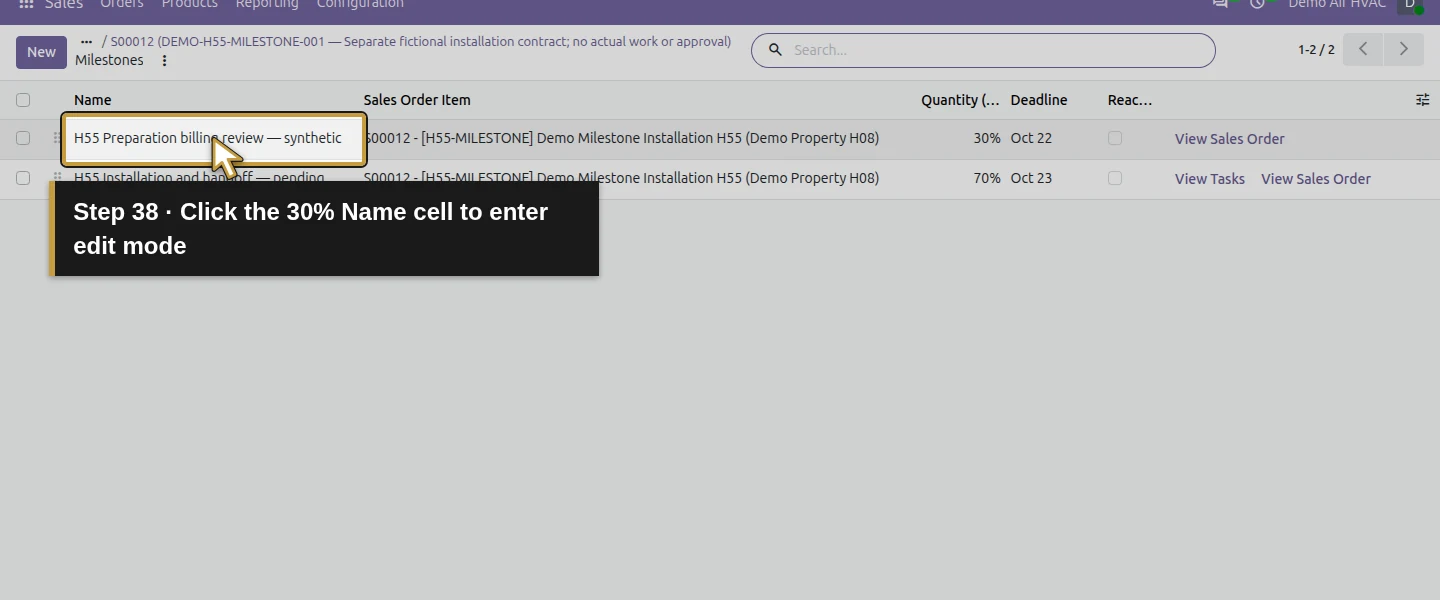
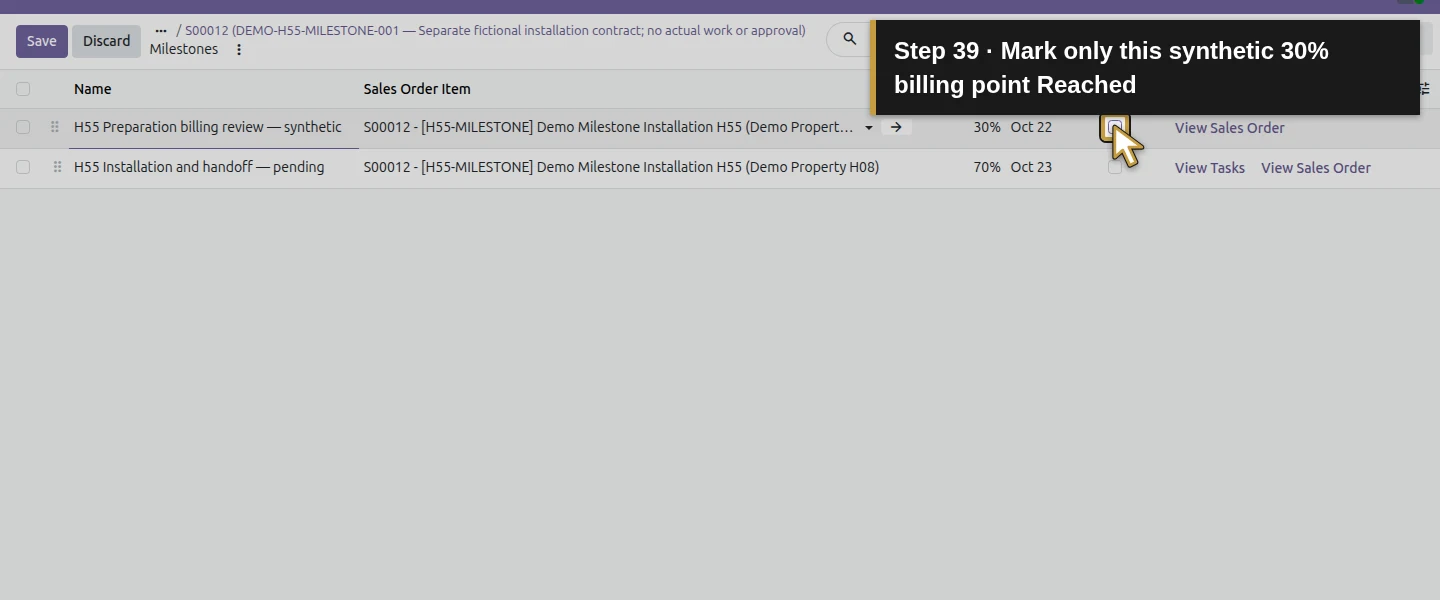
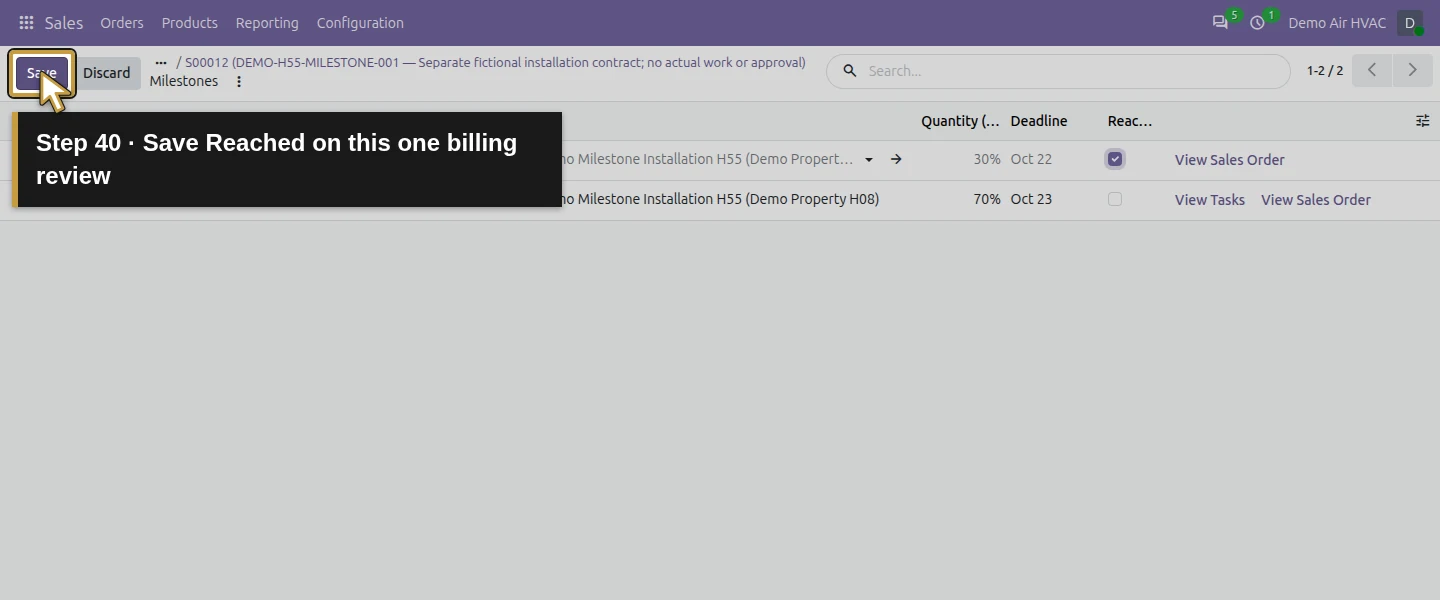
Step 11. Create the first regular milestone draft
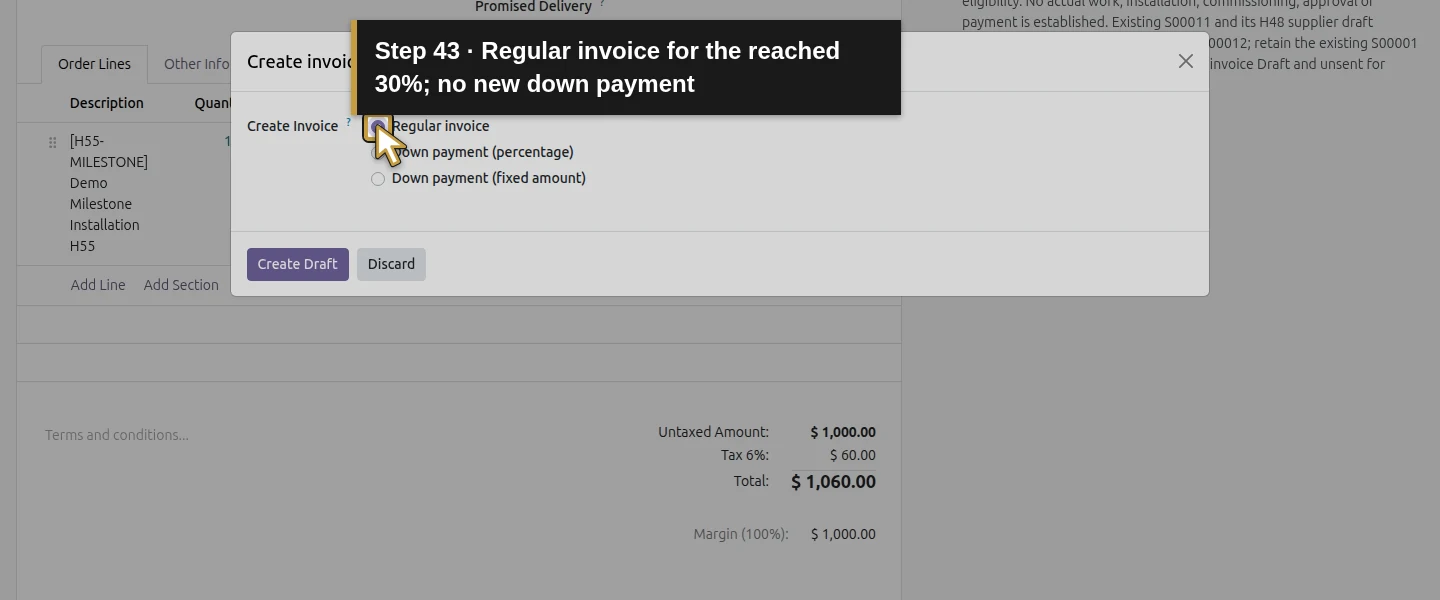
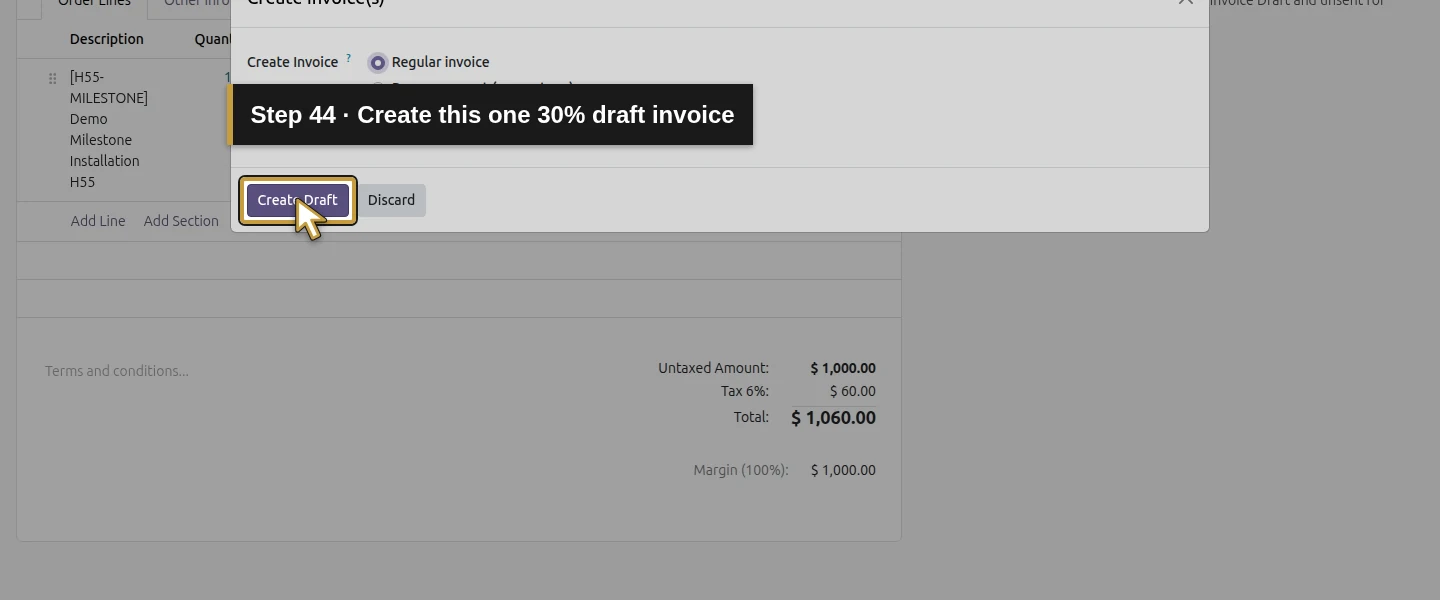
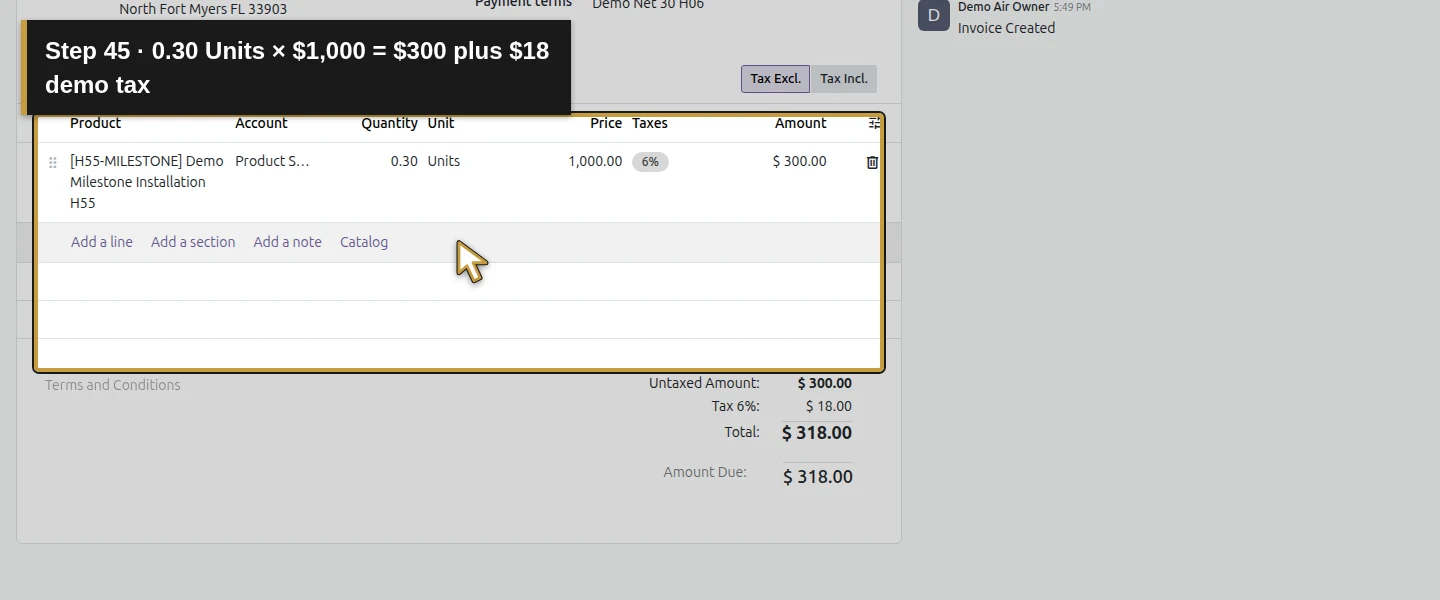
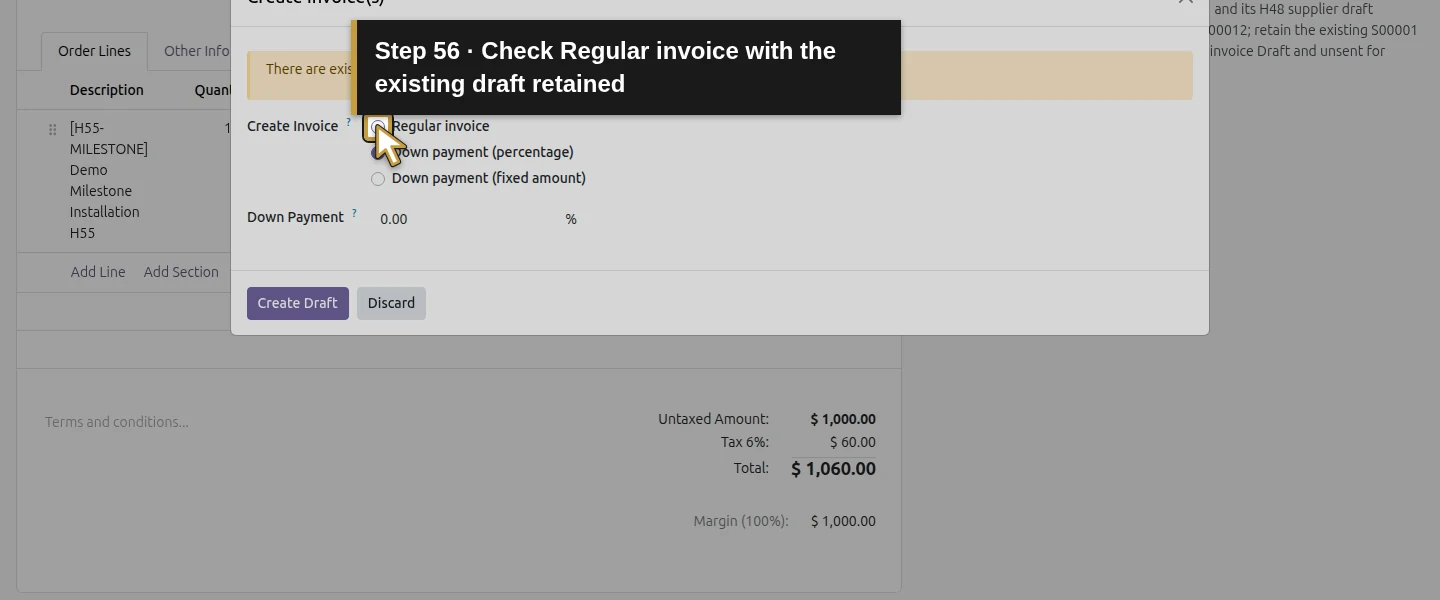
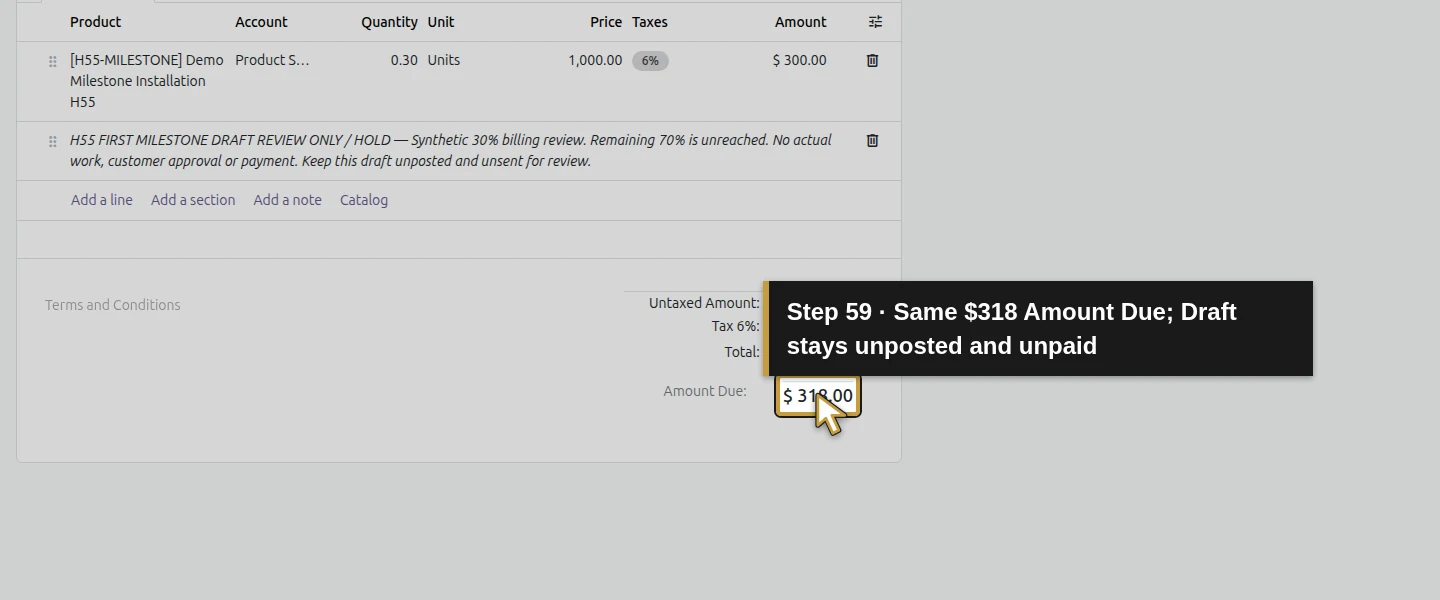
On S00012, choose Create Invoice → Regular invoice → Create Draft once. Check Demo Property H08, Billing Office H08, the S00012 sale link and the H55 service. The proposed quantity is 0.30 Units at $1,000, producing $300 untaxed + $18 demo tax = $318. The milestone changes the invoiceable service quantity; it did not automatically create an invoice when Reached was saved. This regular milestone line is not a new down-payment request.
Step 12. Date and label the draft for review
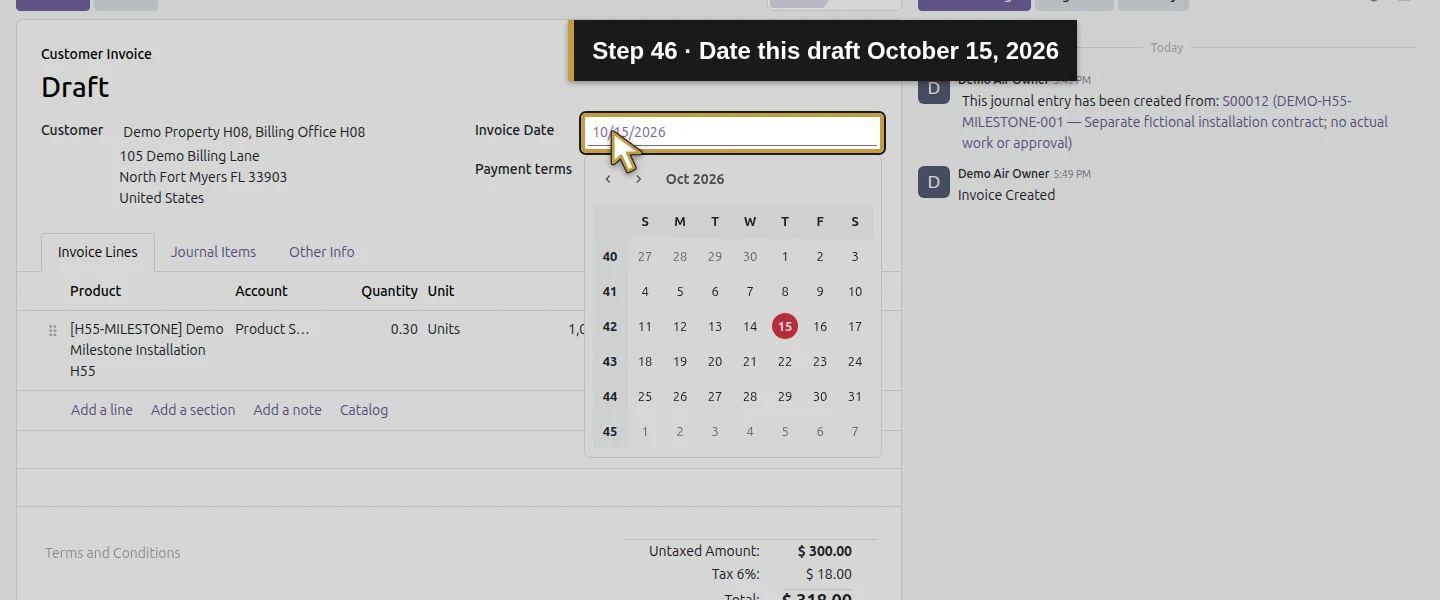
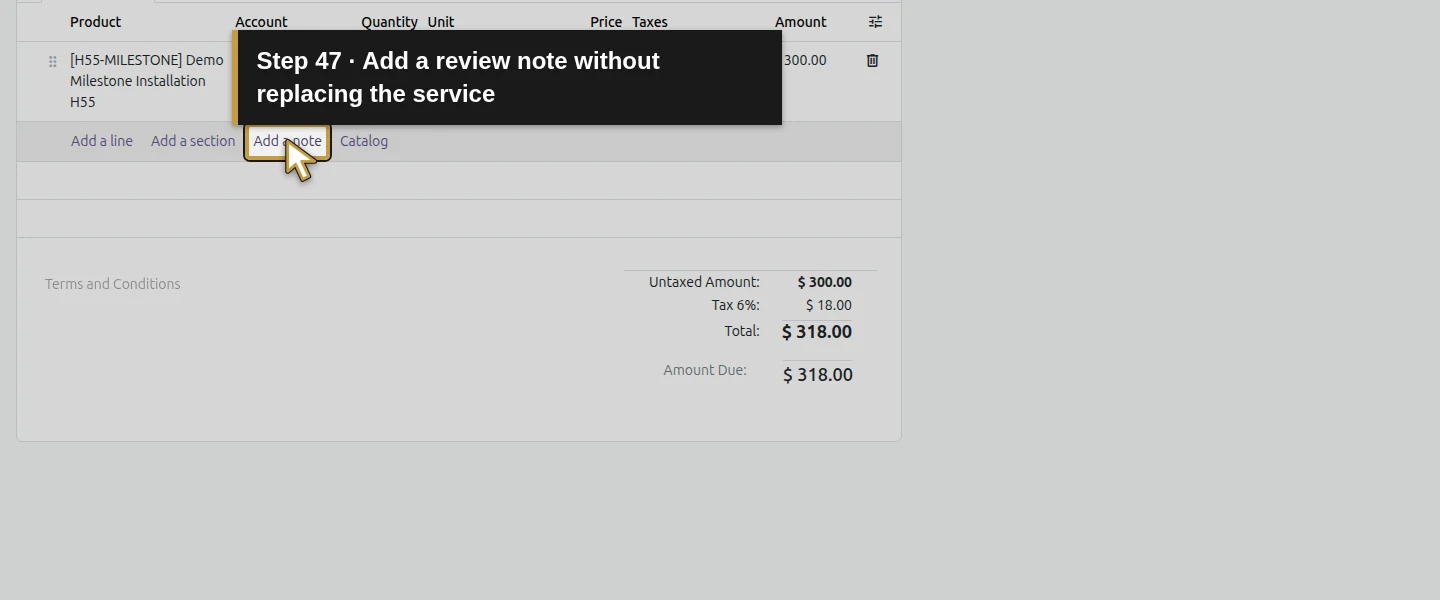
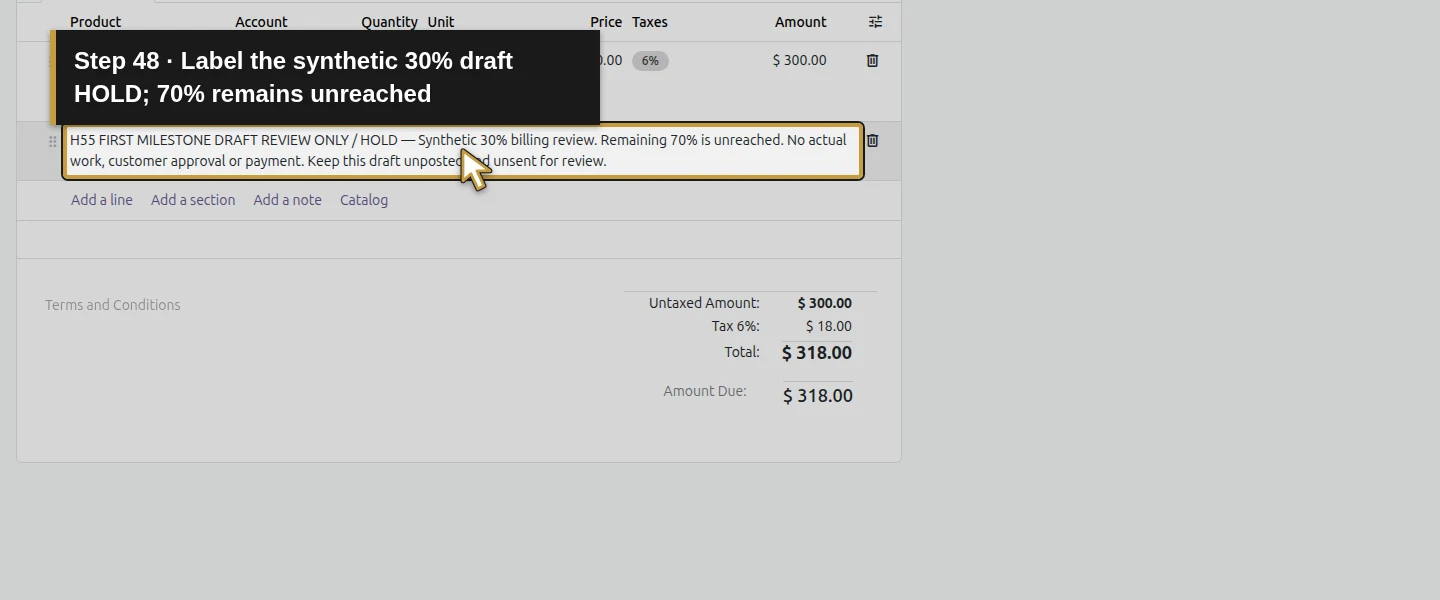
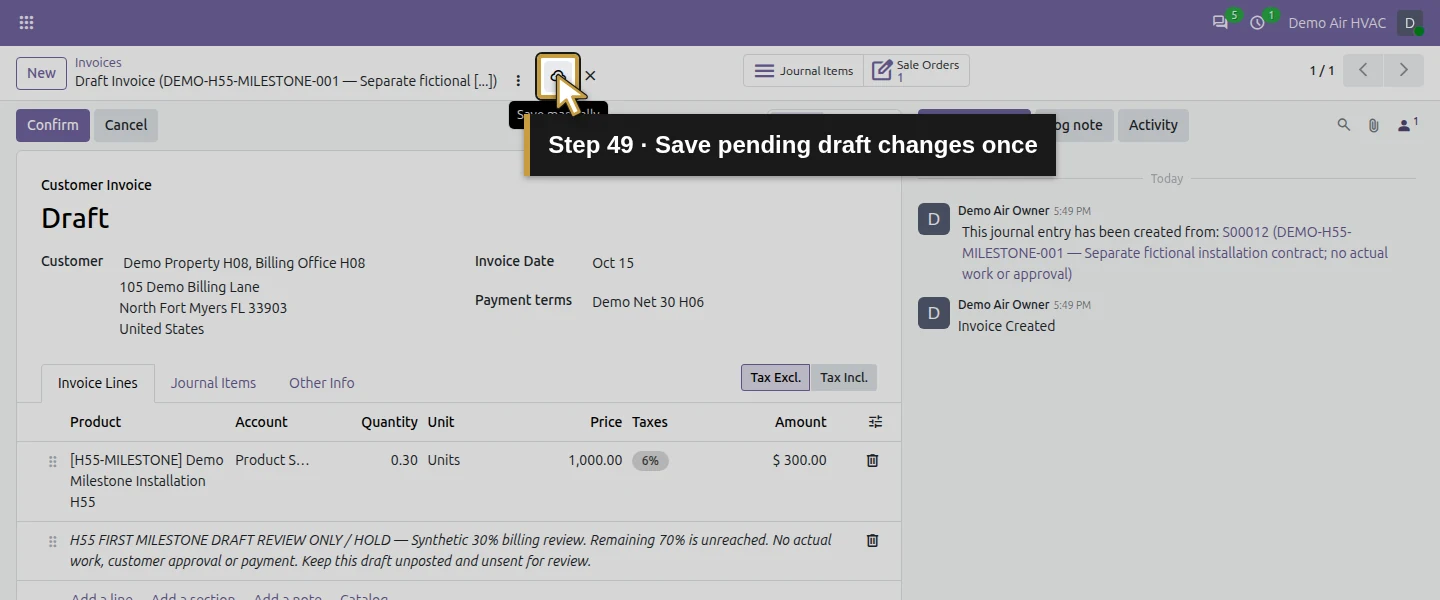
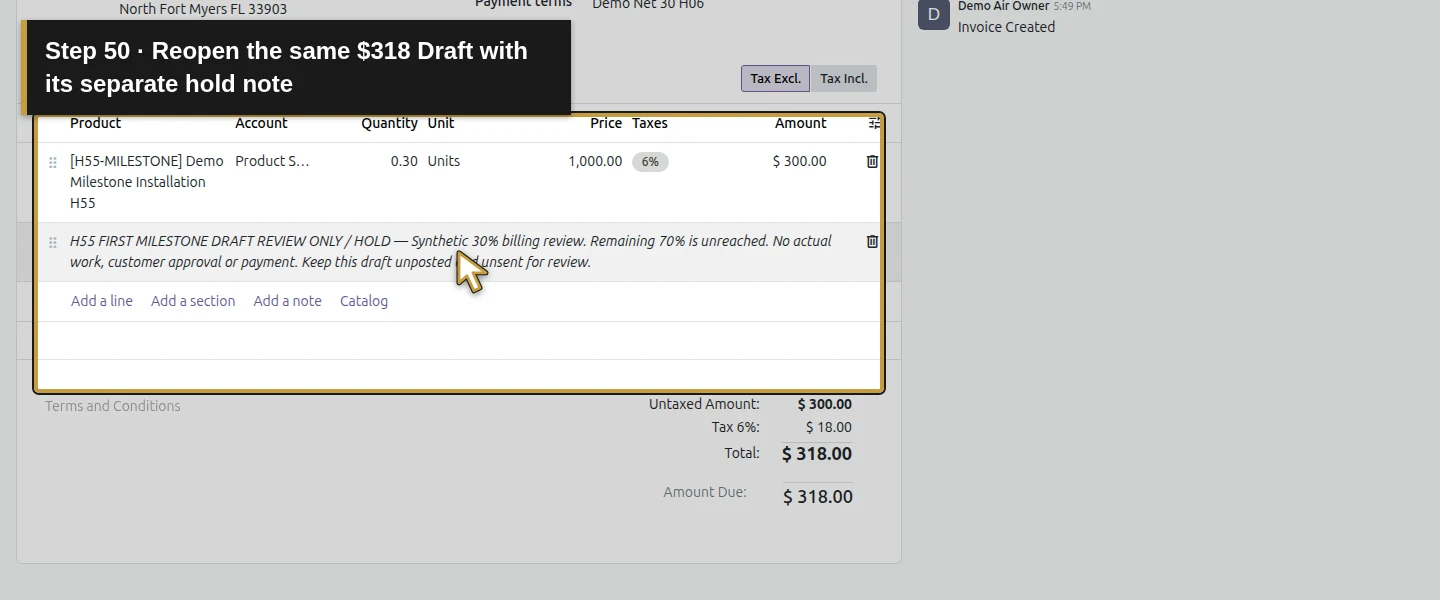
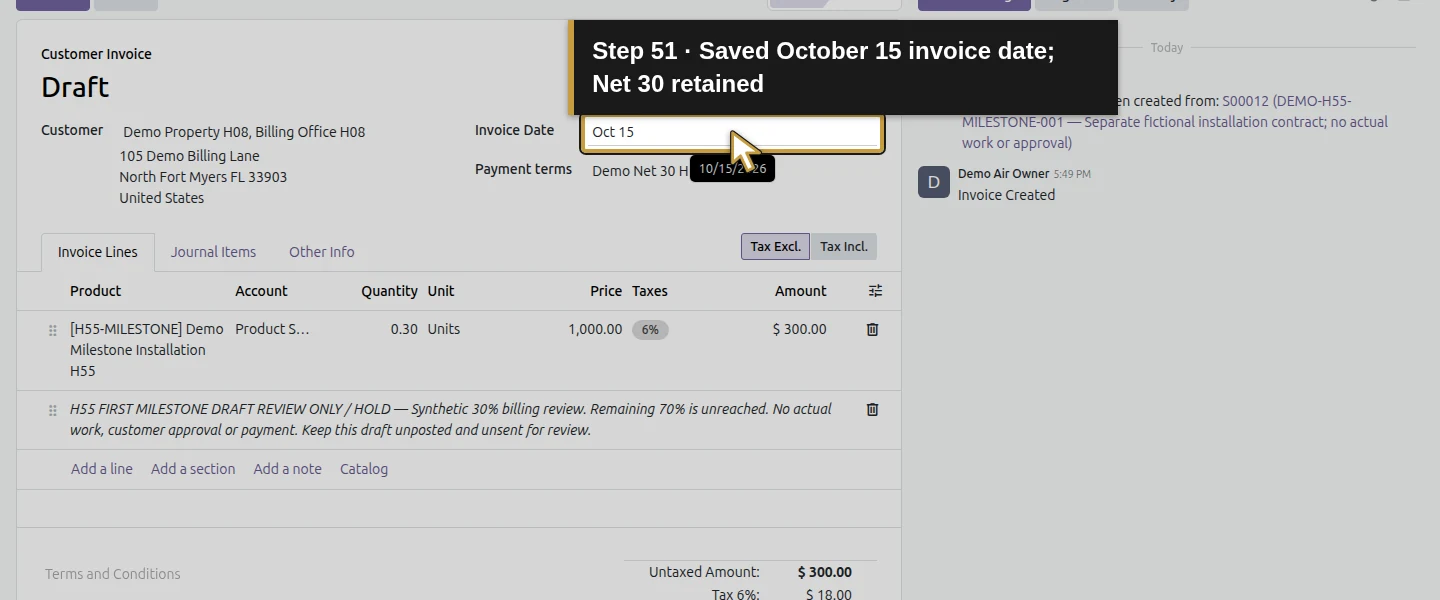
Enter Invoice Date October 15, 2026 and leave the field. Verify Demo Net 30 H06; the saved draft’s due date is November 14, 2026. Under Invoice Lines, use Add a note to add H55 FIRST MILESTONE DRAFT REVIEW ONLY / HOLD, identify the synthetic 30% billing point and state that the remaining 70% is unreached. Preserve the copied product/quantity and review the Product Sales account, tax and prior invoices. Leave the cell, let changes save, and use Save manually only if changes remain pending. Reopen the same draft and check the note and date. Keep it unposted and unsent.
Step 13. Reopen the same invoice from the order
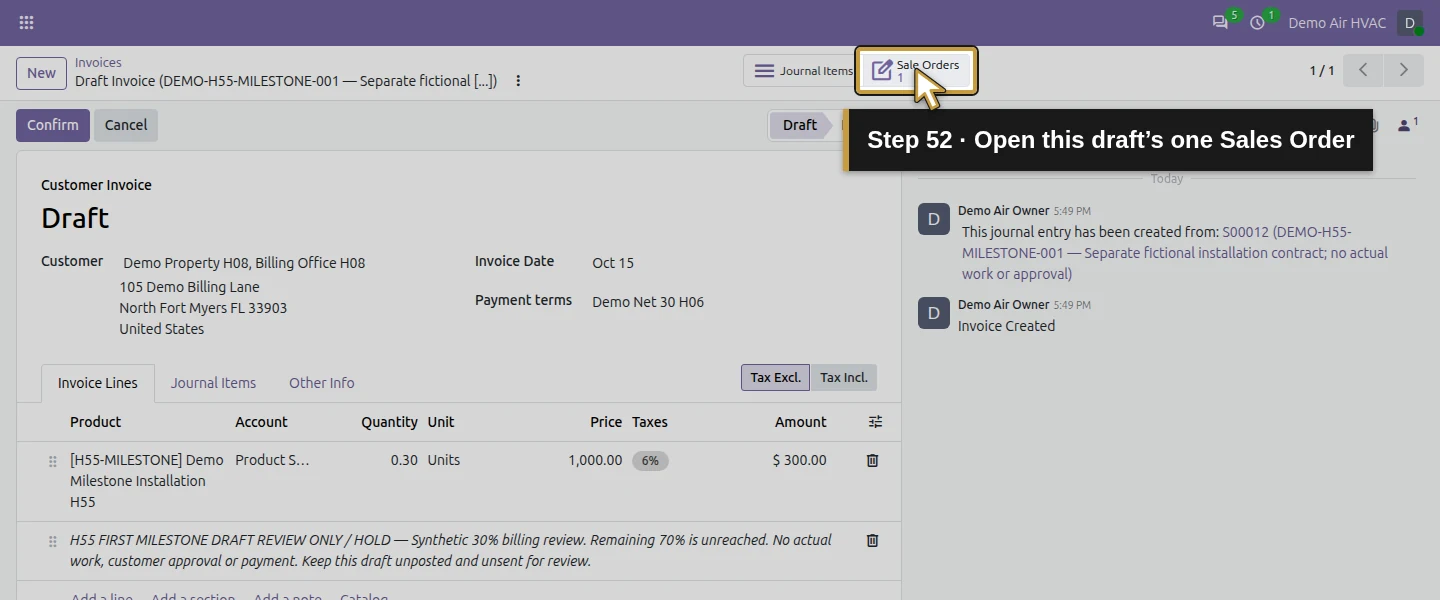
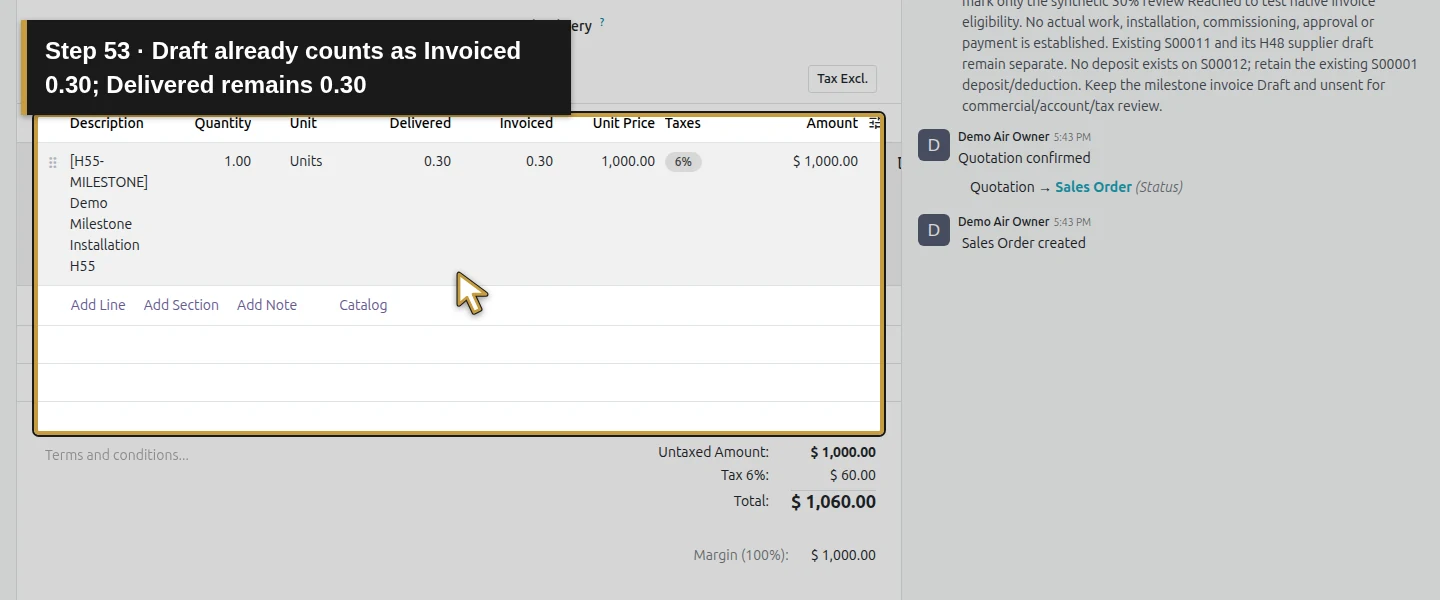
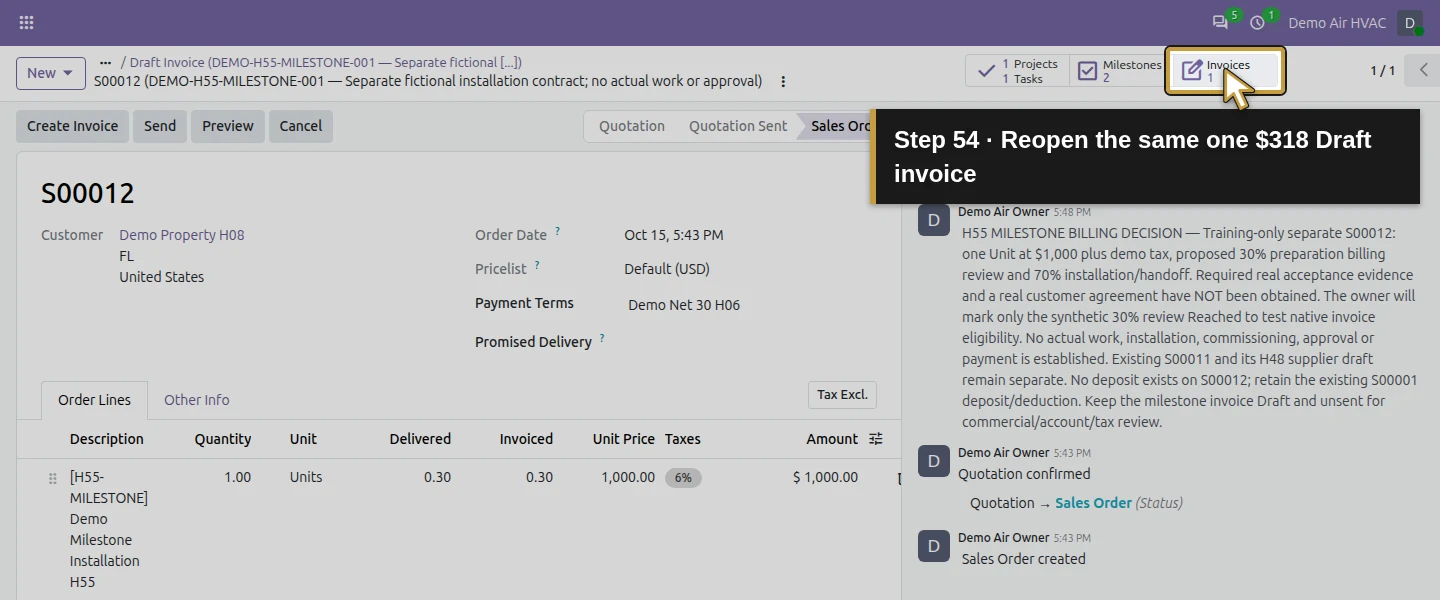
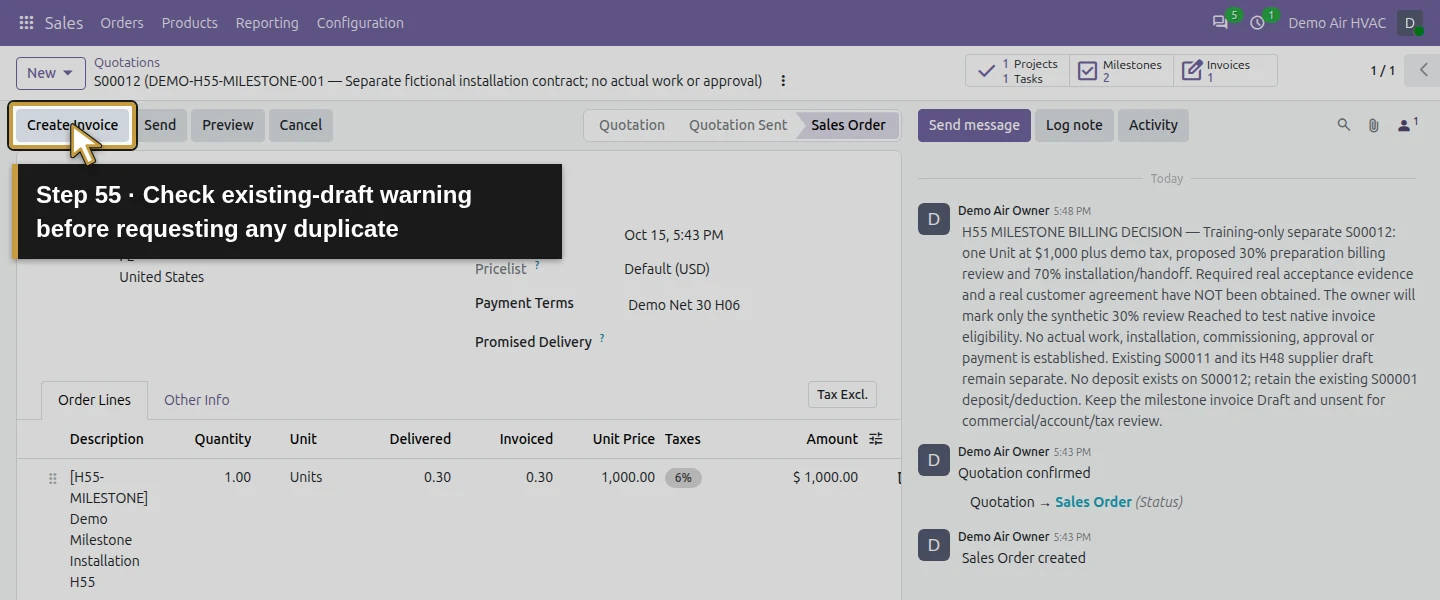
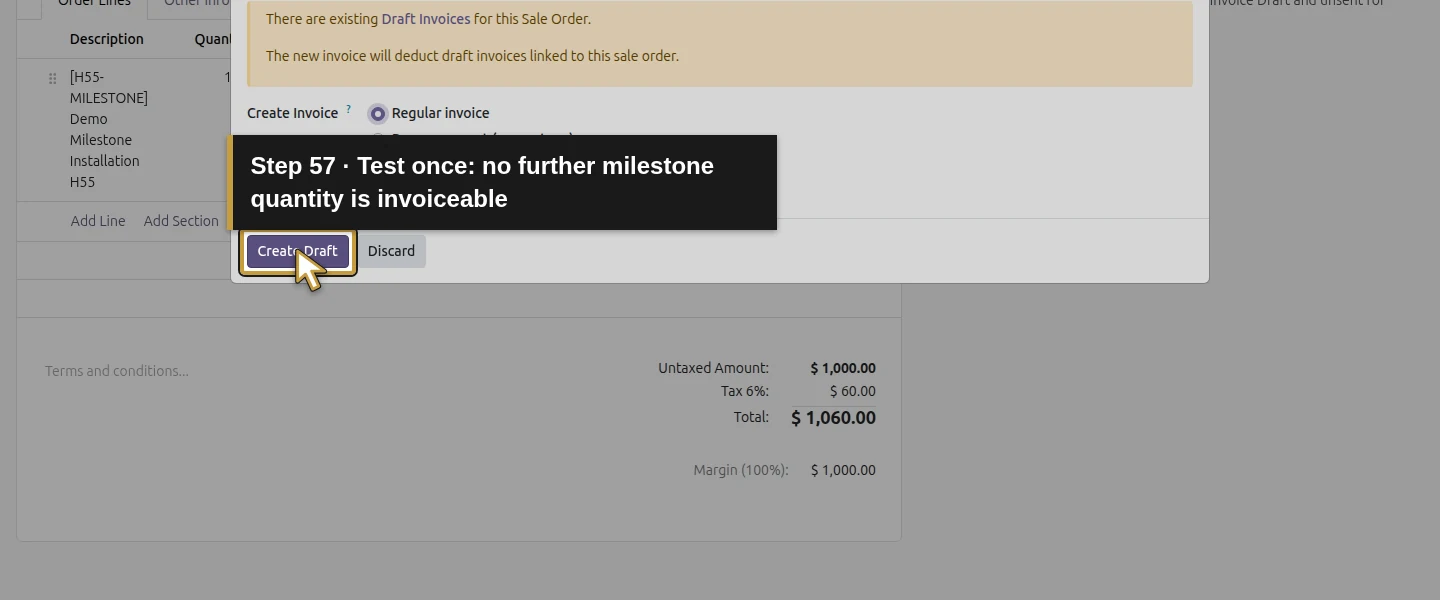
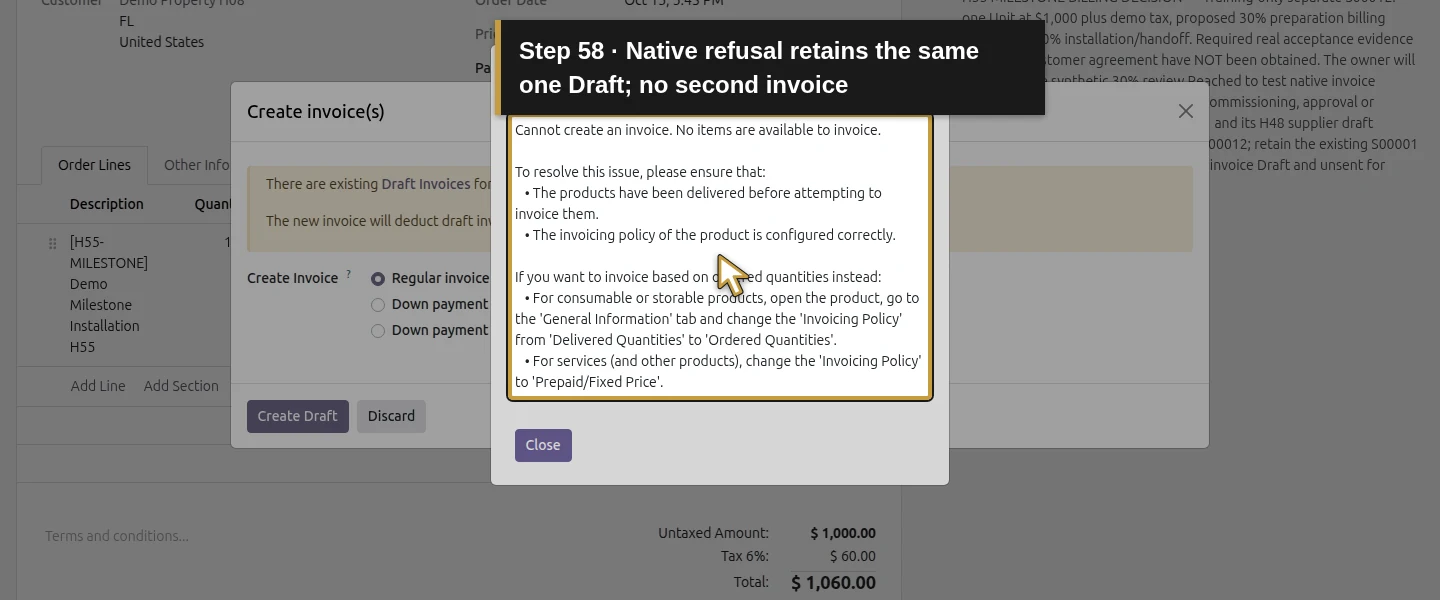
Use 1 Sale Orders, then 1 Invoices, to reopen the same $318 Draft. The order shows Delivered 0.30 / Invoiced 0.30 even while that invoice remains Draft and unpaid. Its current quantity to invoice is zero; the later 70% is still unreached. In the tested retry, Regular invoice → Create Draft was refused with No items are available to invoice, retaining the same one draft. Review that existing draft instead of treating an available Create Invoice button as a new amount due.
Check the result
Native project Milestones makes the product’s Based on Milestones policy available. Confirming separate S00012 creates one task in the selected project and one default 100% milestone for its $1,000 service Unit. Two saved milestone rows divide that same service line into 30% preparation review and 70% installation/handoff. With neither reached, delivery and regular invoiceability are zero and a premature regular invoice is refused. Saving only the synthetic 30% Reached delivers 0.30 Units and makes that amount invoiceable, while the installation task and 70% milestone remain unfinished. One regular draft invoices 0.30 × $1,000 + $18 demo tax = $318, with the native sale-line/project allocation and a saved review hold/date. It stays Draft/unpaid/unposted; it already counts as Invoiced 0.30 on the order. A repeated regular-invoice attempt is refused and creates no duplicate. Reopen retains the same two milestones, task and draft. Original business records, H47 installation, H48 supplier draft, existing deposit/deduction, CRM, portal access, stock, payments and local mail are preserved.
If your screen differs
The product option was absent before a project’s Milestones setting was saved; that initial absence did not establish an edition limitation. Check the native project setting and installed official integrations. Keep the milestone’s actual Sales Order Item and percentages correct. This example manually marks a 30% billing review Reached with no assigned task; it does not establish automatic acceptance or an enforced approval system. The generated task remains linked to the unreached 70% milestone, without a stage or operational handoff. Its Delivered quantity is a service-billing measure, not a physical equipment receipt or commissioning proof. The regular-invoice wizard initially offered a percentage down payment when nothing was delivered; explicitly choose the intended billing path. Existing drafts count toward Invoiced quantities, and the retry dialog warns about linked Draft Invoices before refusing the regular invoice when nothing further is invoiceable. A later 70% invoice, completion/unreaching after billing, altered percentages, other roles and a deposit combined with milestone billing were not exercised here. H27’s separate deposit/deduction evidence remains valid; match a deposit to its own order and invoices before any deduction. The displayed sales margin uses the product’s zero Cost here and is not a job-profit calculation.
Frequently asked questions
How do I enable milestone invoicing in Odoo?
In this tested stock Odoo 20 Community build, enable Milestones on the project’s Settings tab and save. A Service product can then use Based on Milestones, with its Task linked to the selected billable project. Confirming the separate order generated a native milestone; we reviewed its Sales Order Item and split the default 100% into 30% and 70% before recording achievement.Does an Odoo milestone automatically create an invoice?
Saving Reached on the tested 30% milestone updated the service’s Delivered and invoiceable quantity to 0.30 of one Unit. The owner then used Create Invoice → Regular invoice → Create Draft to create the $318 draft. The 70% milestone and installation task stayed unfinished; the tick did not establish actual customer acceptance, create a payment or finish the job.How do I avoid billing an Odoo milestone twice?
Check the same order’s linked invoices and quantities first. The $318 draft already counted as Invoiced 0.30. With only that 30% reached, a repeated regular-invoice attempt was refused and kept one draft. This example has no deposit; H27 verifies a separate deposit deduction on its own order. Combined deposit and milestone deductions still need their own review.Continue building the business
Continue with H50: How do I sell an HVAC maintenance agreement in Odoo? to define its annual scope, price and office handoff. Keep this first milestone draft on hold and the later installation/handoff milestone pending for a real billing decision.
Talk about your Odoo setup
Bring your current process and the result you need to Onward to plan your Odoo workflow. Talk about your Odoo setup.