
Running an HVAC business with Odoo
How do I manage an HVAC installation project in Odoo?
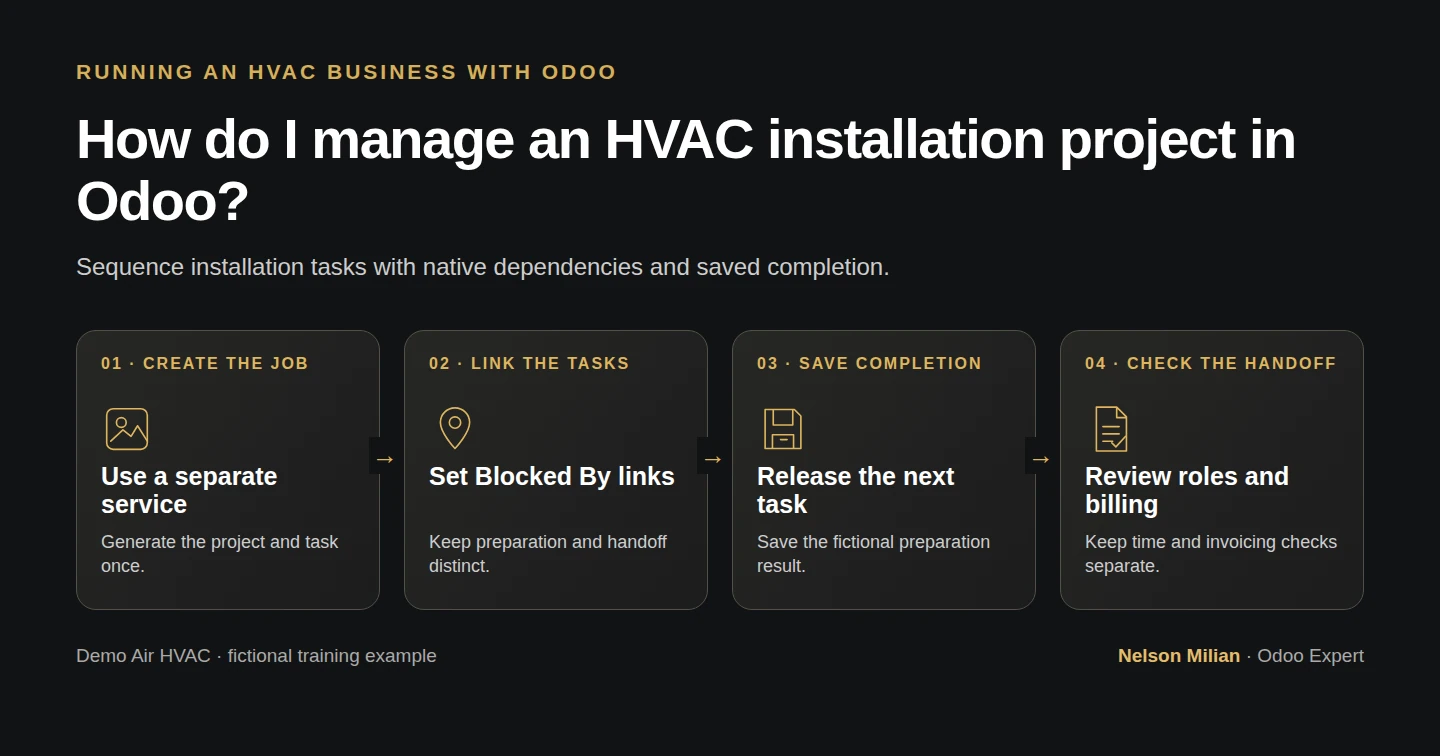
Create a sales-linked HVAC installation project in Odoo, assign the work and verify native task dependencies with the owner and technician.
Alex needs preparation, installation work and office handoff to stay connected to the installation-service sale. We configure Odoo’s native Project & Task option, confirm one fictional service order and build a three-task sequence. The test shows what Waiting means, when a completed predecessor releases work and how private-task access changes what the technician can see.
Alex Rivera and Demo Air HVAC are fictional training examples. Prices, dates, quantities and business situations in this guide are illustrative.
Before you begin
Tested in stock Odoo 20.0-20260926 Community as the demo owner administrator, with official modules and standard configuration. Complete H25 equipment quotation and options and H41 sales-generated tasks. Use the existing Demo Property H08 customer and the technician account prepared in H42. Official Project, Sales–Project, Timesheets and Sales–Timesheets integrations are installed. Preserve H25’s S00006 draft, its equipment and the existing service project/task. This separate sale covers one fictional $600 installation-service Unit. Equipment procurement and commissioning are outside it. The owner’s confirmation and preparation completion are deliberate local test actions; they do not establish actual customer approval, technical readiness or completed installation. Keep messages in the local mail sink.
Step-by-step workflow
Step 1. Configure a separate installation service
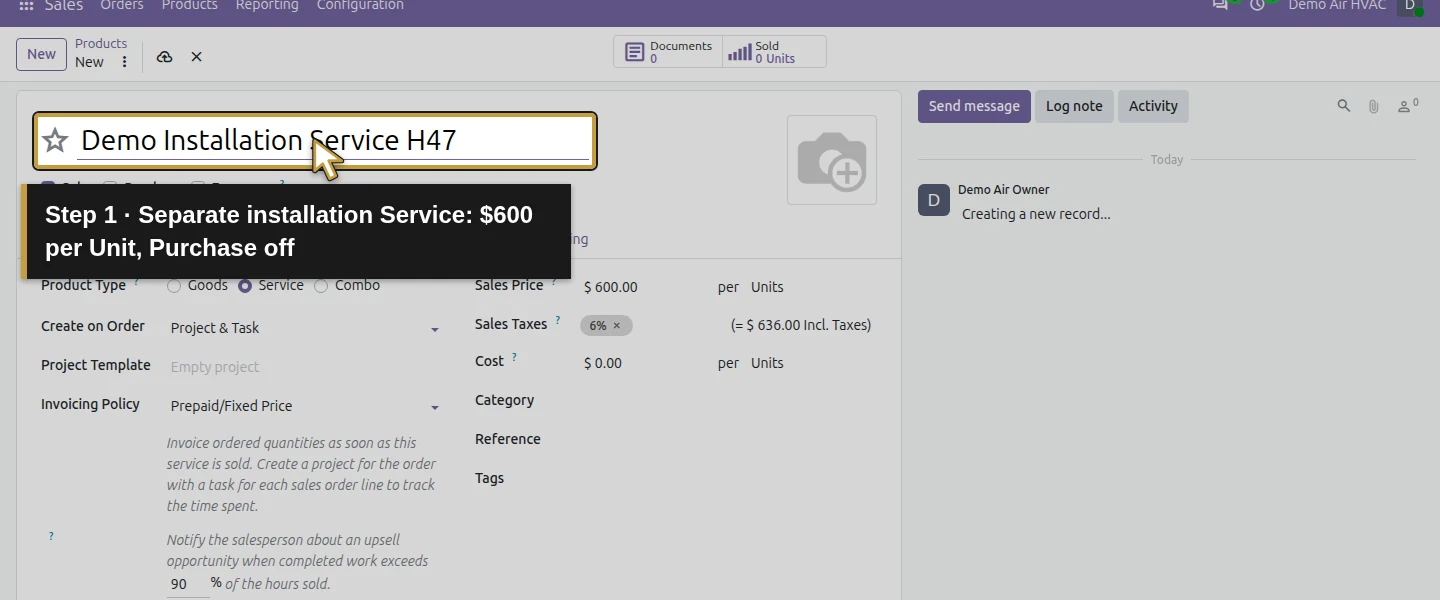
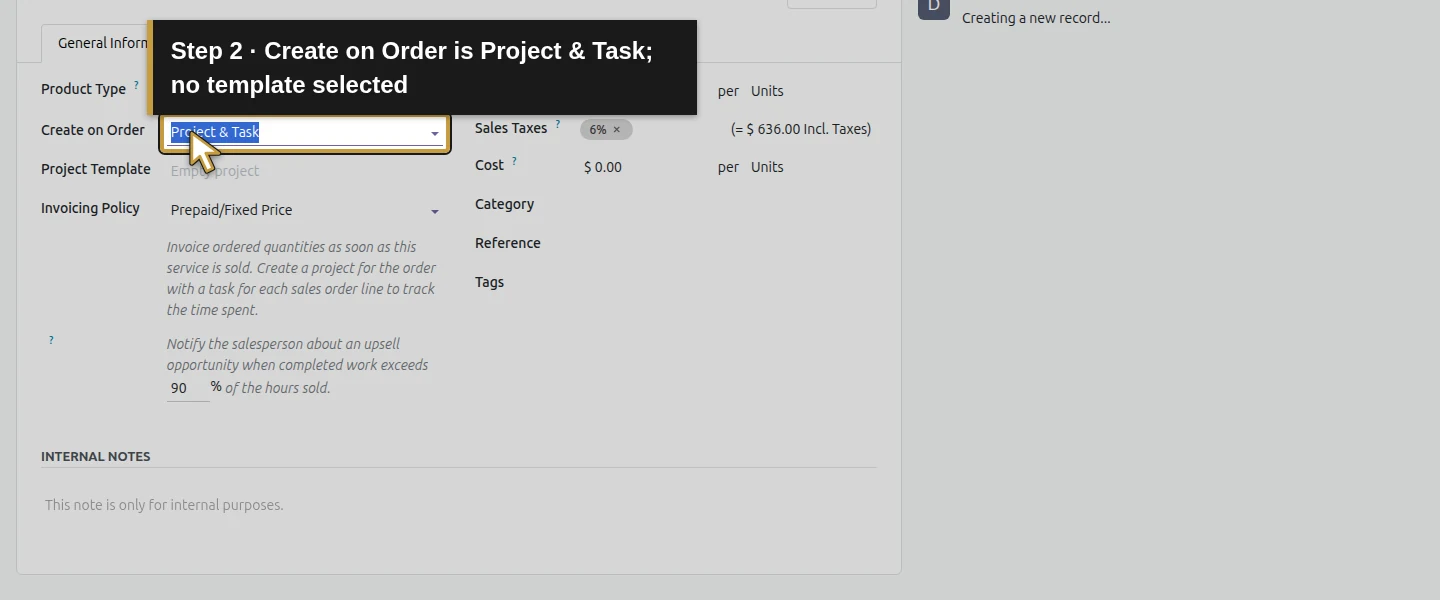
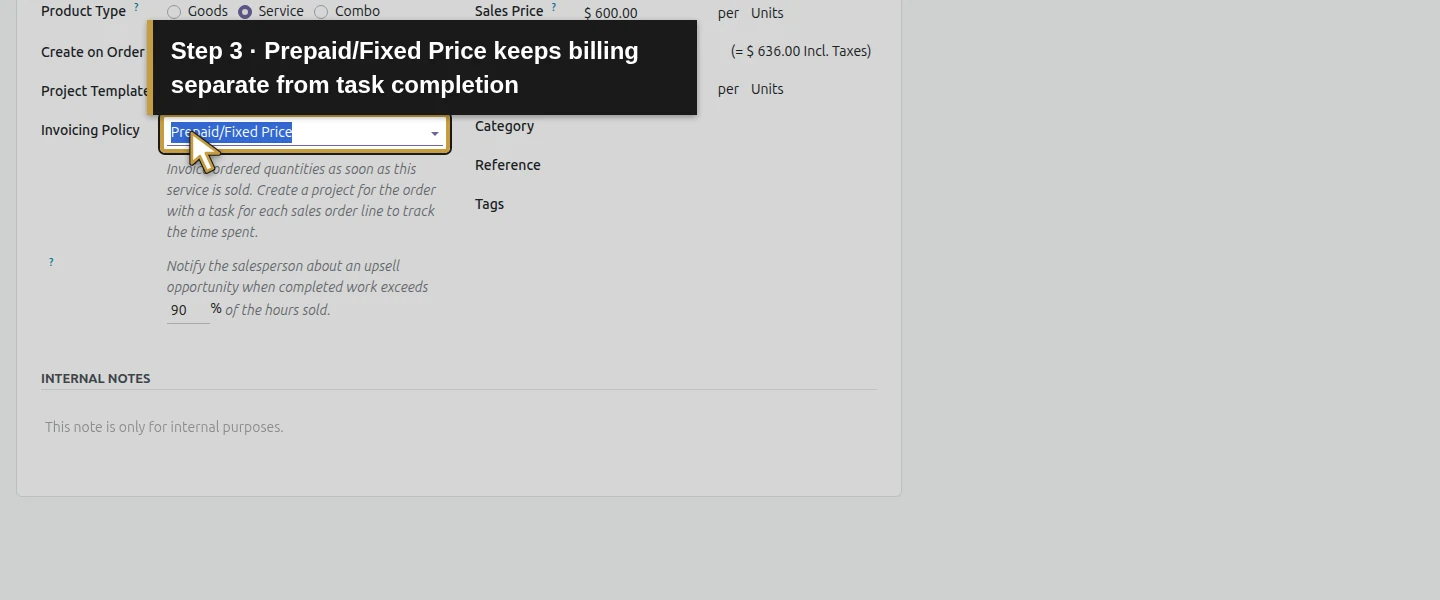
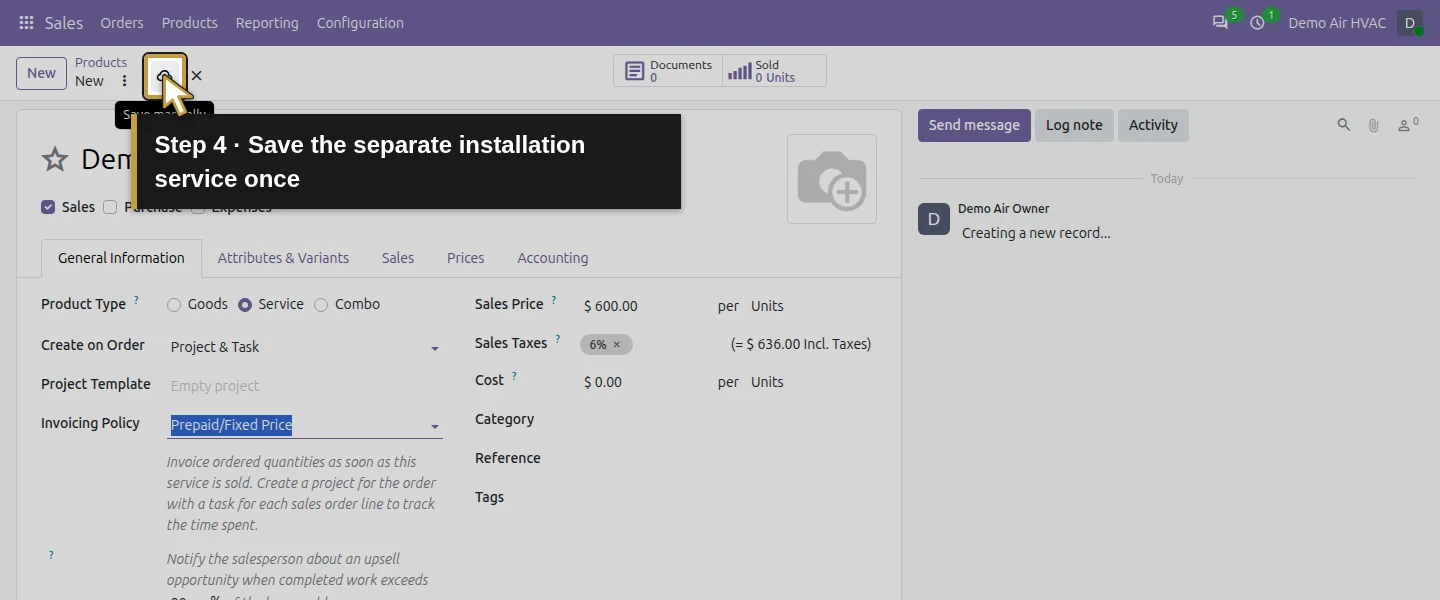
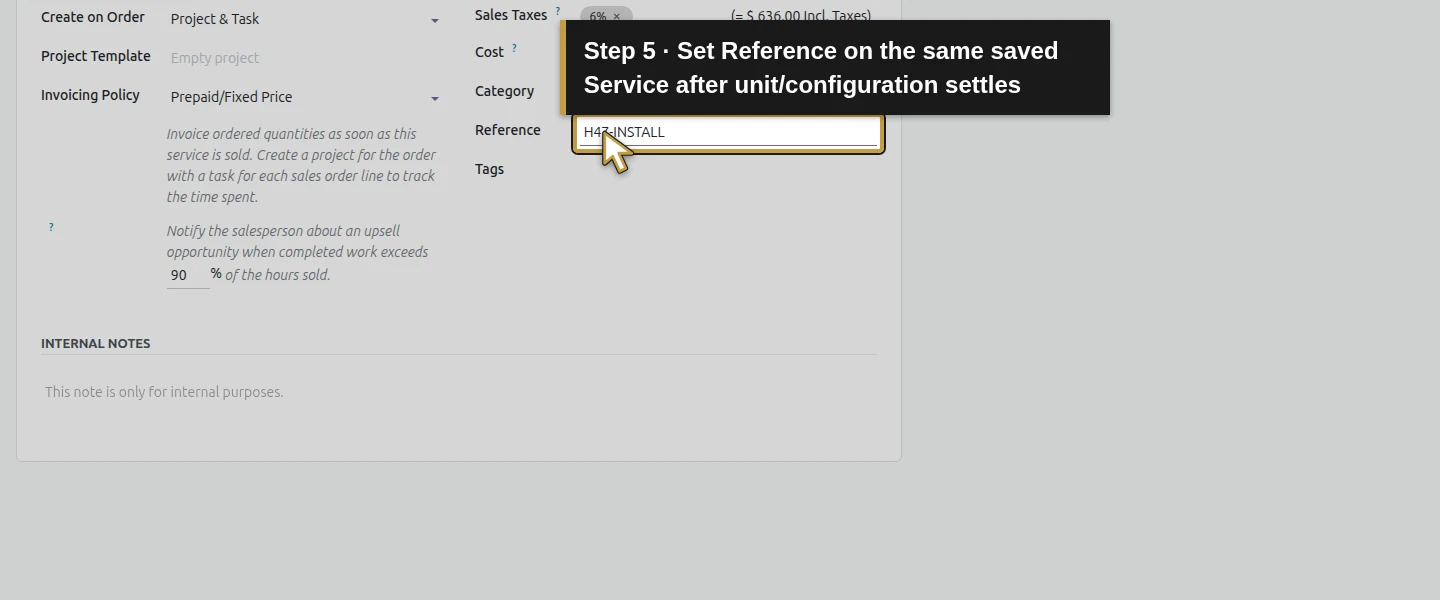
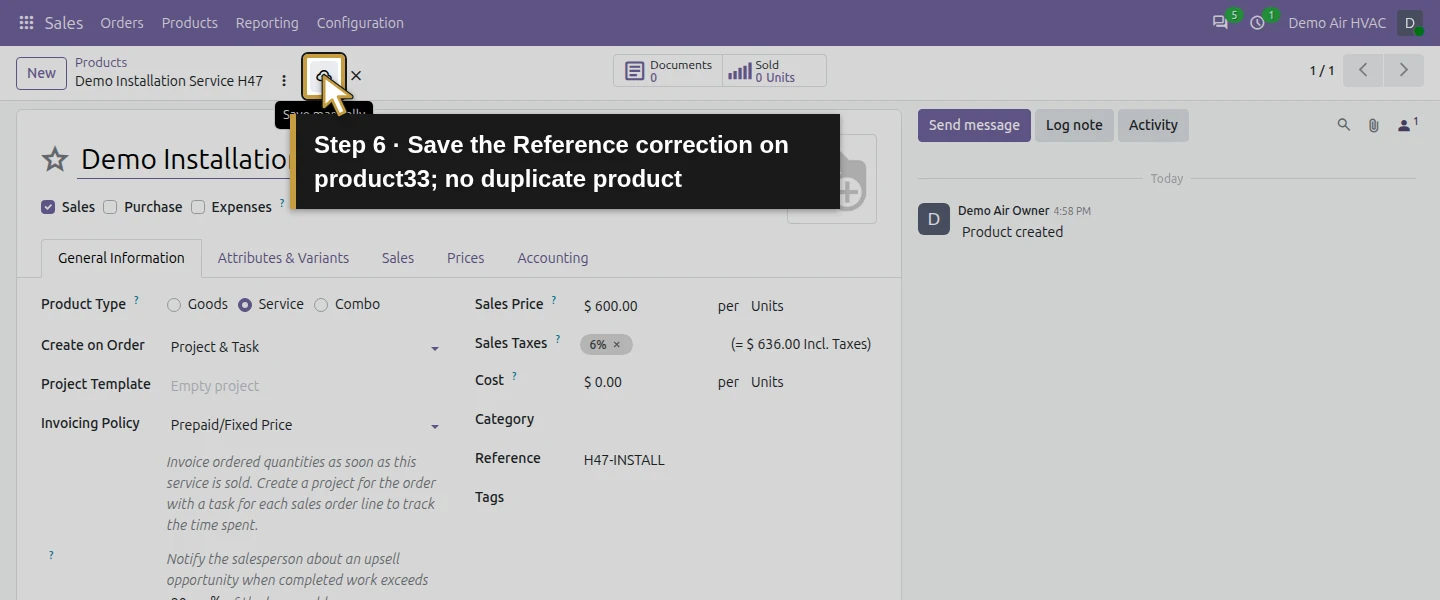
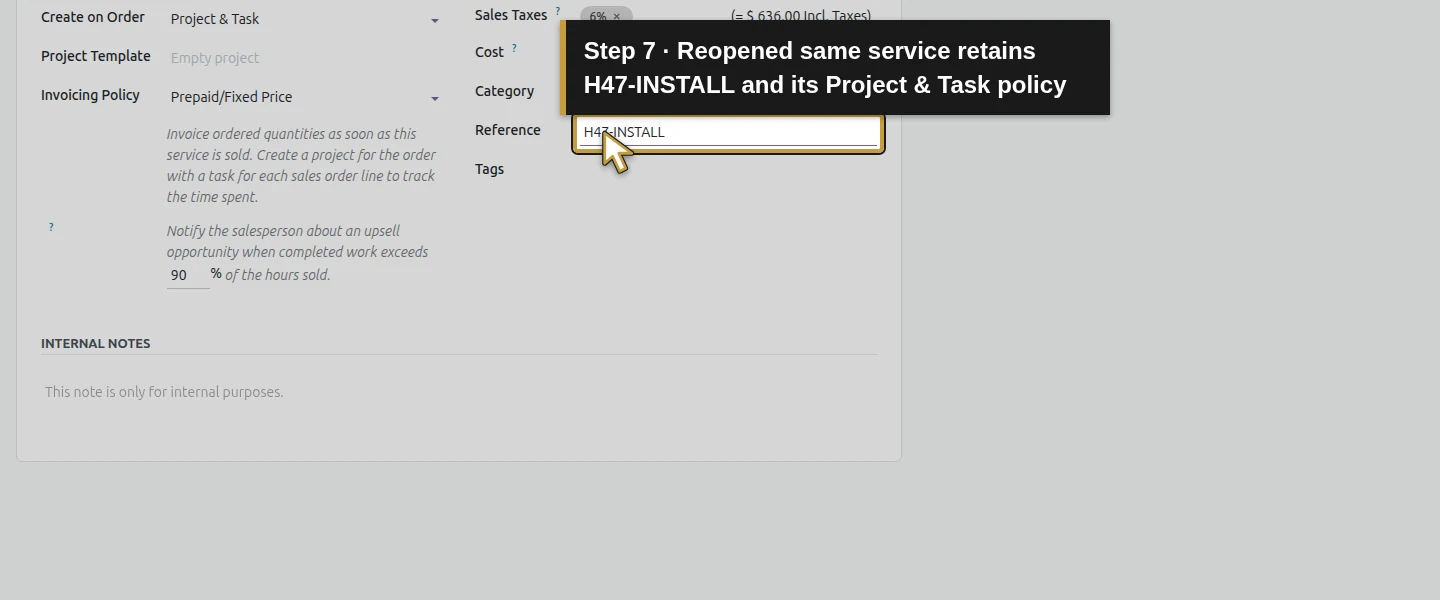
Open Sales → Products → Products → New. Name it Demo Installation Service H47, keep Sales checked, clear Purchase and select Service. Set $600 per Units and Reference H47-INSTALL. Selecting Service initially changed the unit to Hours in this runtime, so explicitly select Units. Choose Create on Order → Project & Task, leave Project Template empty and keep Invoicing Policy → Prepaid/Fixed Price. Save and reopen. This policy makes the ordered service invoiceable independently of task completion; it is not a milestone billing setup.
Step 2. Prepare one separate installation-service quotation
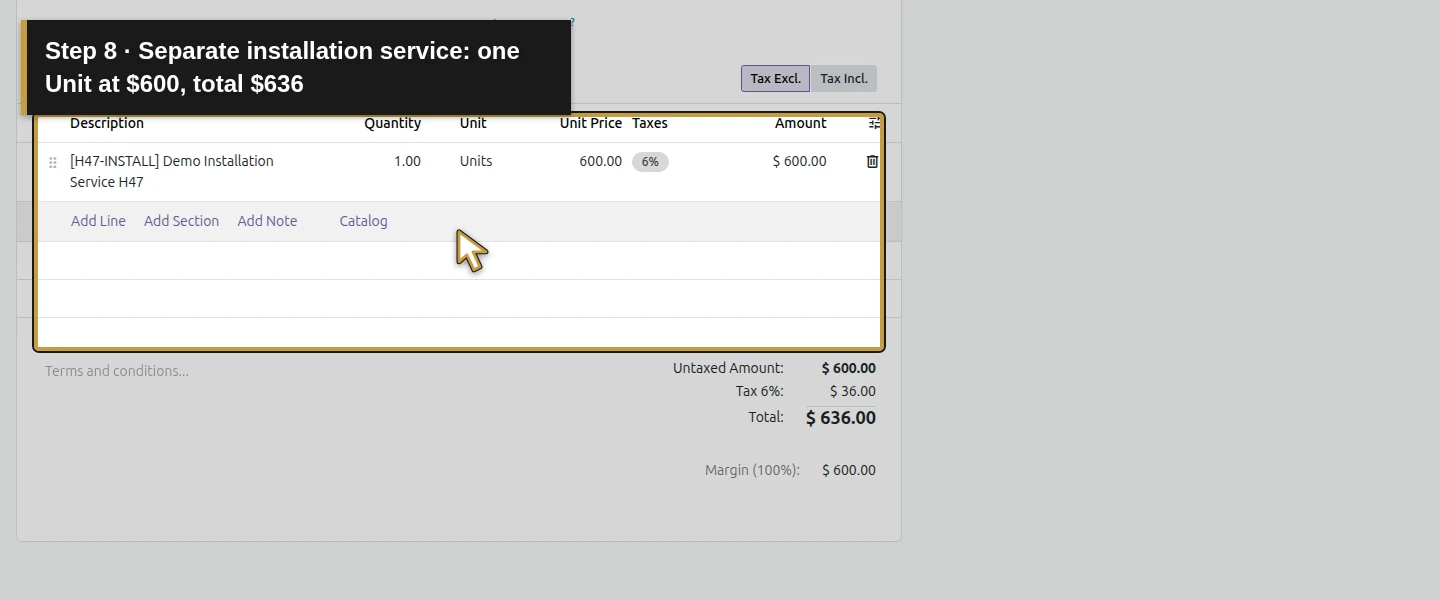
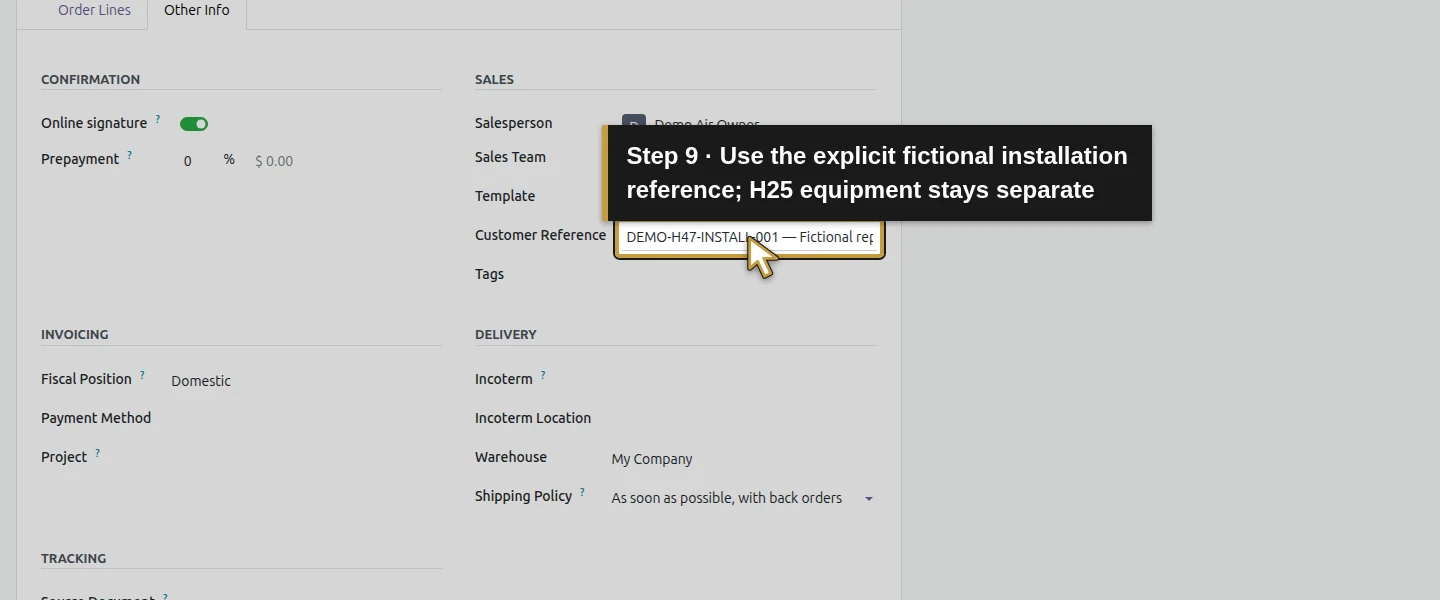
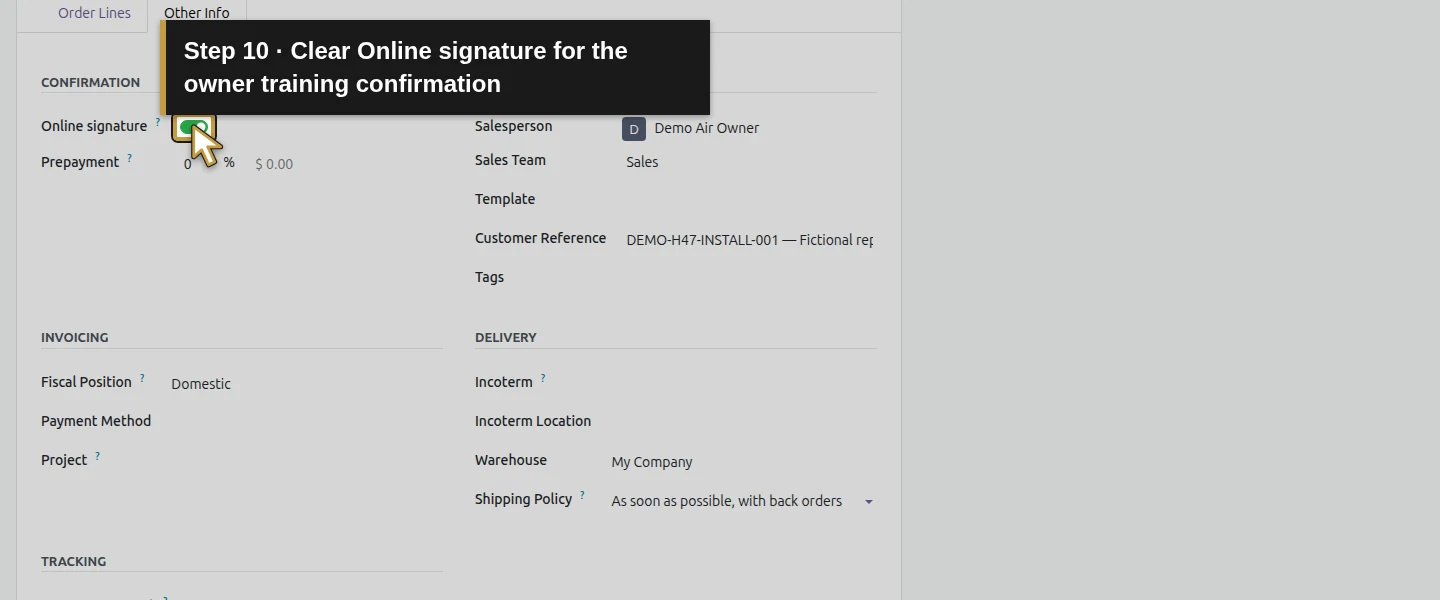
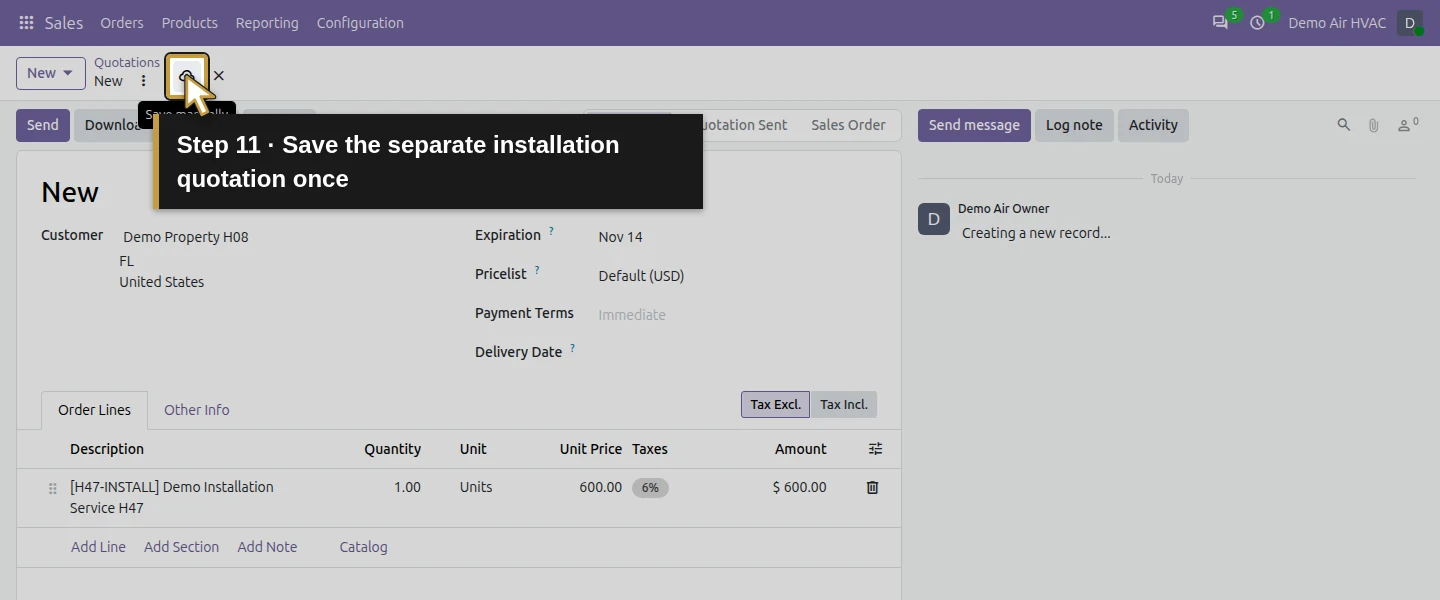
In Sales, use New → New Quotation, select Demo Property H08, then Add Line and select the actual H47 installation service. Keep 1 Unit at $600. The existing billing/service addresses are Billing Office H08 and Service Site H08. In Other Info, set Customer Reference to DEMO-H47-INSTALL-001 — Fictional replacement installation planning; no visit confirmed. Clear Online signature for this owner-confirmed training trigger and save. S00011 totals $600 + $36 illustrative tax = $636. H25’s equipment quotation remains separate; do not imply its equipment was sold or supplied by this service-only order.
Step 3. Confirm once and inspect the generated project and task
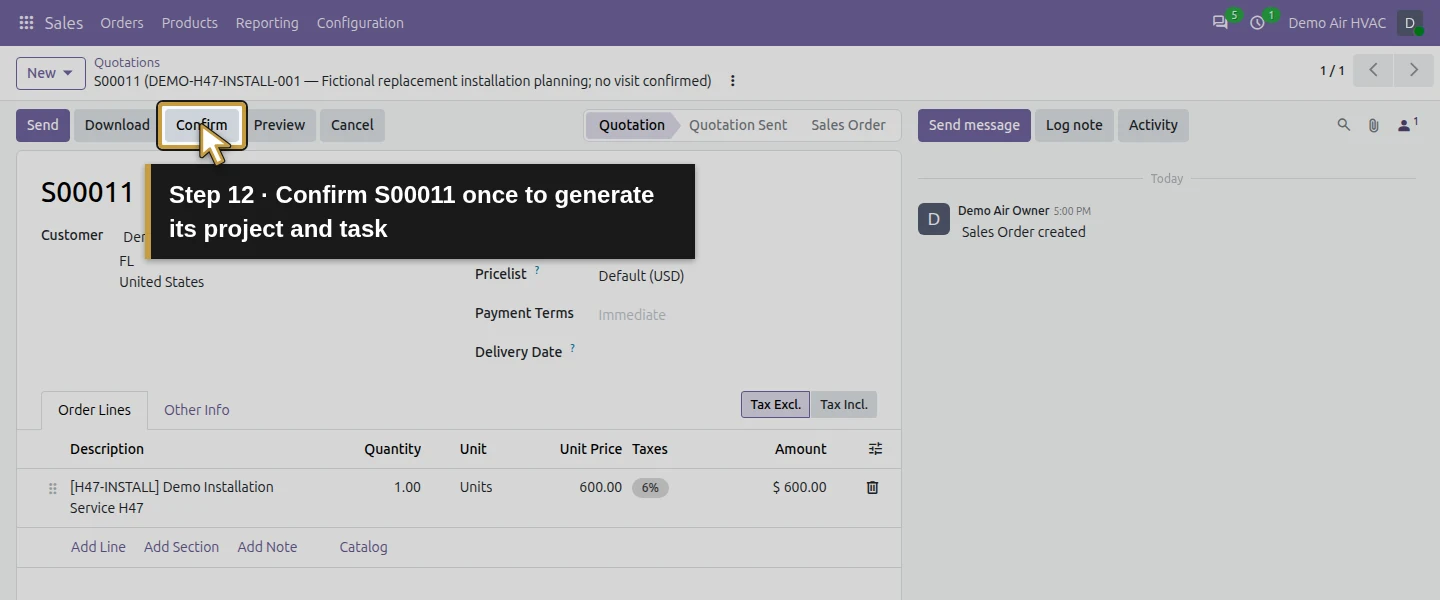
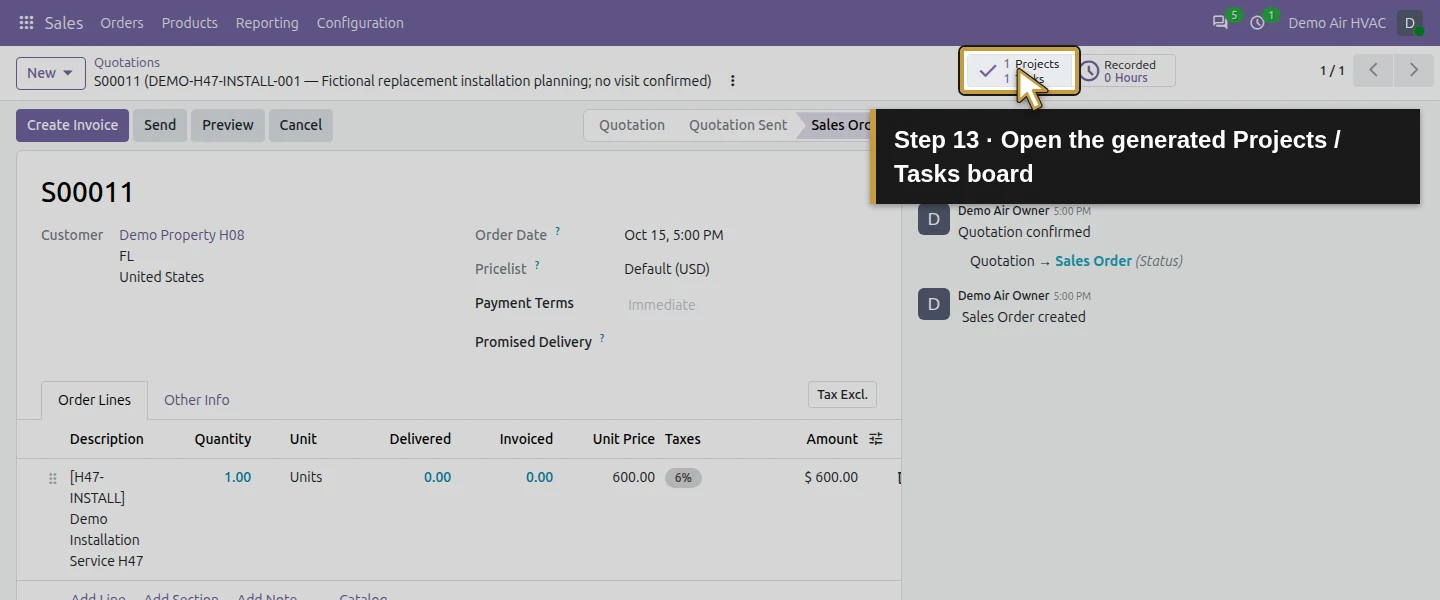
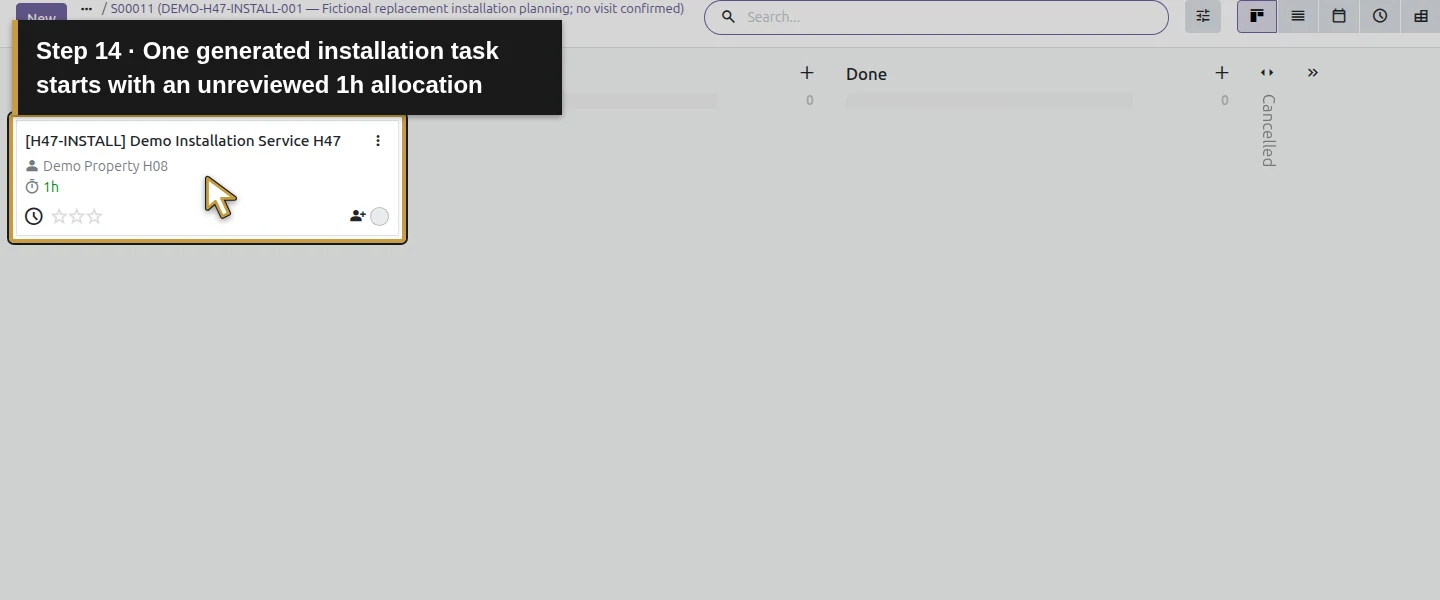
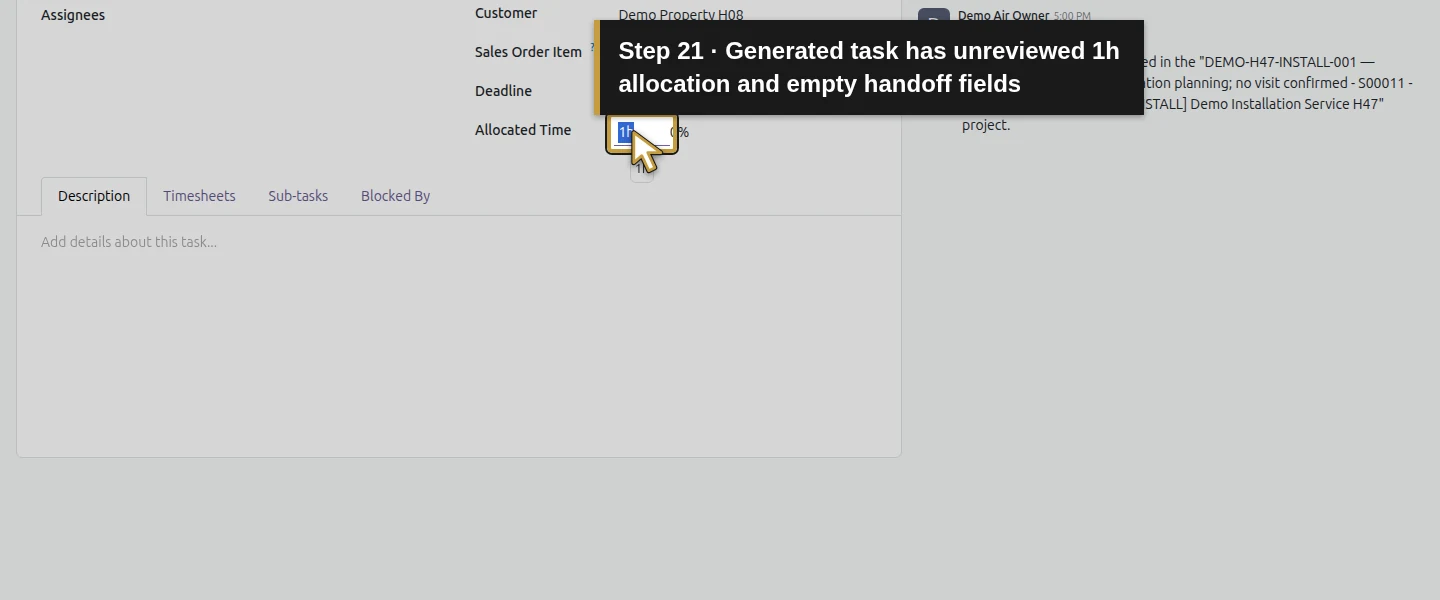
Click Confirm once. The sale gains 1 Projects / 1 Tasks. Click that button to open the new project’s board and its generated [H47-INSTALL] Demo Installation Service H47 task. Confirmation created a new project, rather than adding the job to H40’s service project. The task has the parent customer and S00011 sales-line link, but its Description, Assignees and Deadline are empty. It initially has 1h Allocated Time, even though this sale is one service Unit; that value is not a reviewed installation estimate.
Step 4. Set the generated project’s name, manager and visibility
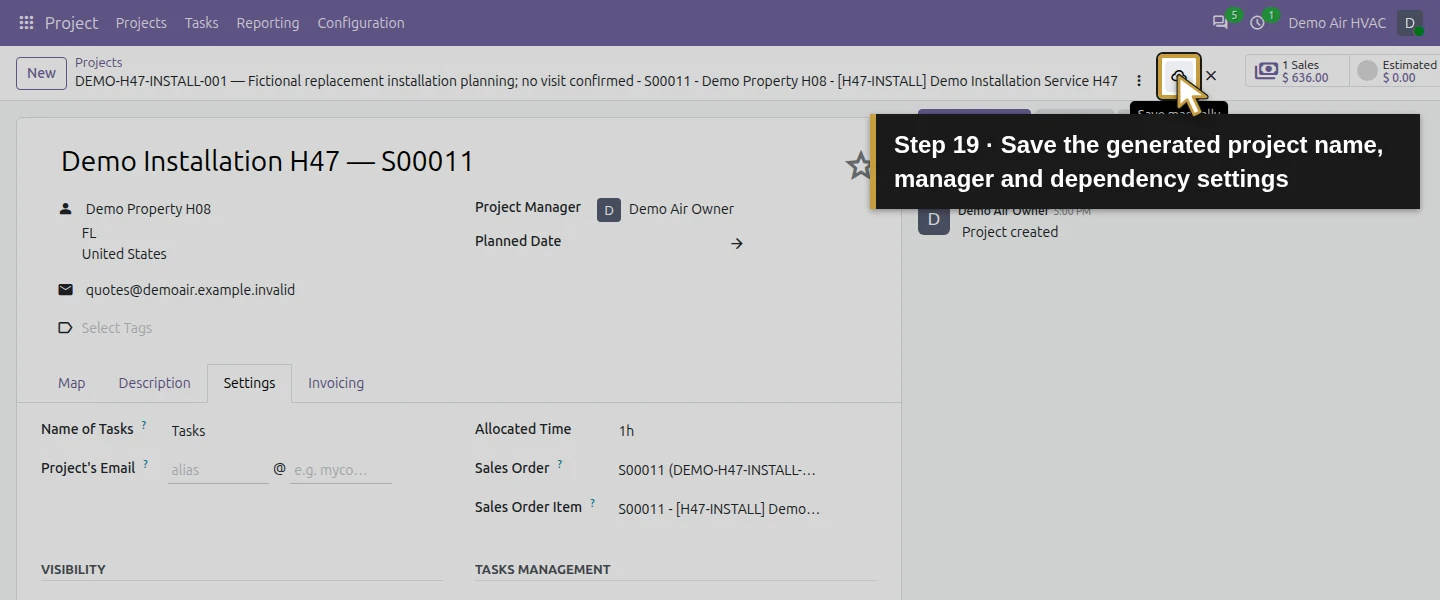
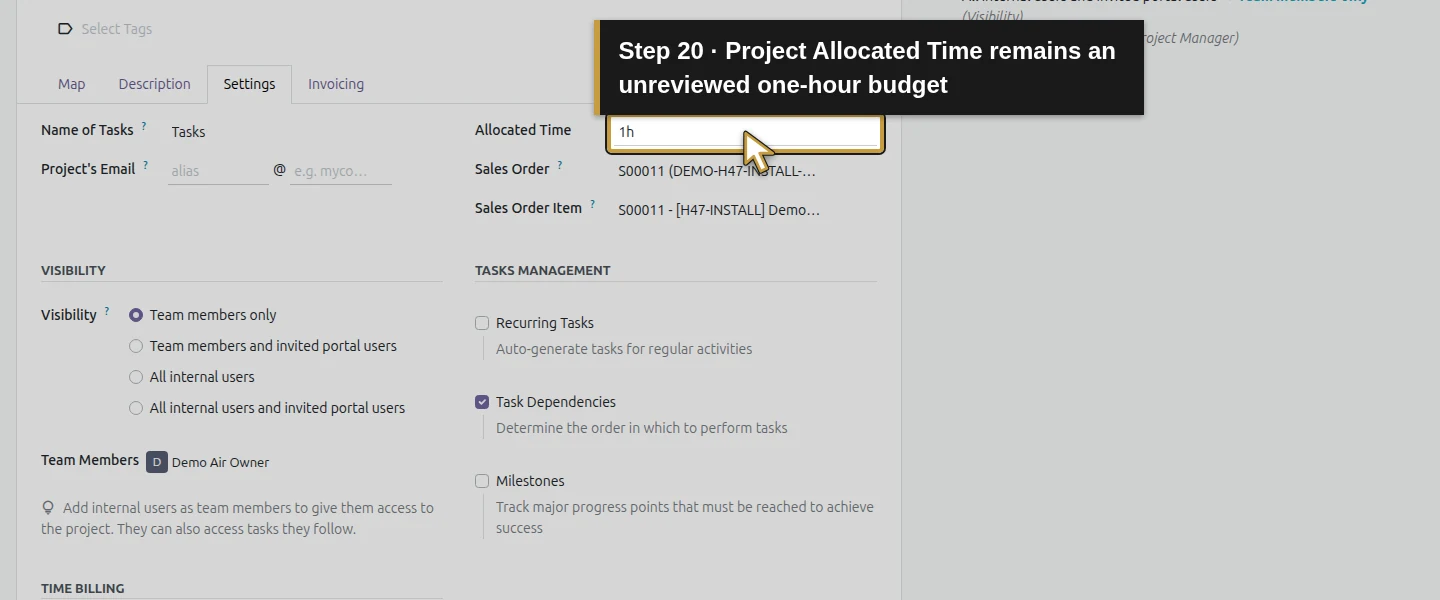
Open Project → Projects. Find the new card by its S00011/H47 reference, open its more_vert → Settings and rename it Demo Installation H47 — S00011. Select the existing Demo Air Owner as Project Manager; choose the existing user, not the Invite option. On the Settings tab, change Visibility from All internal users and invited portal users to Team members only. Enable Task Dependencies, keep the existing Timesheets/Billable settings and click Save manually. No portal invitation or new project template is created.
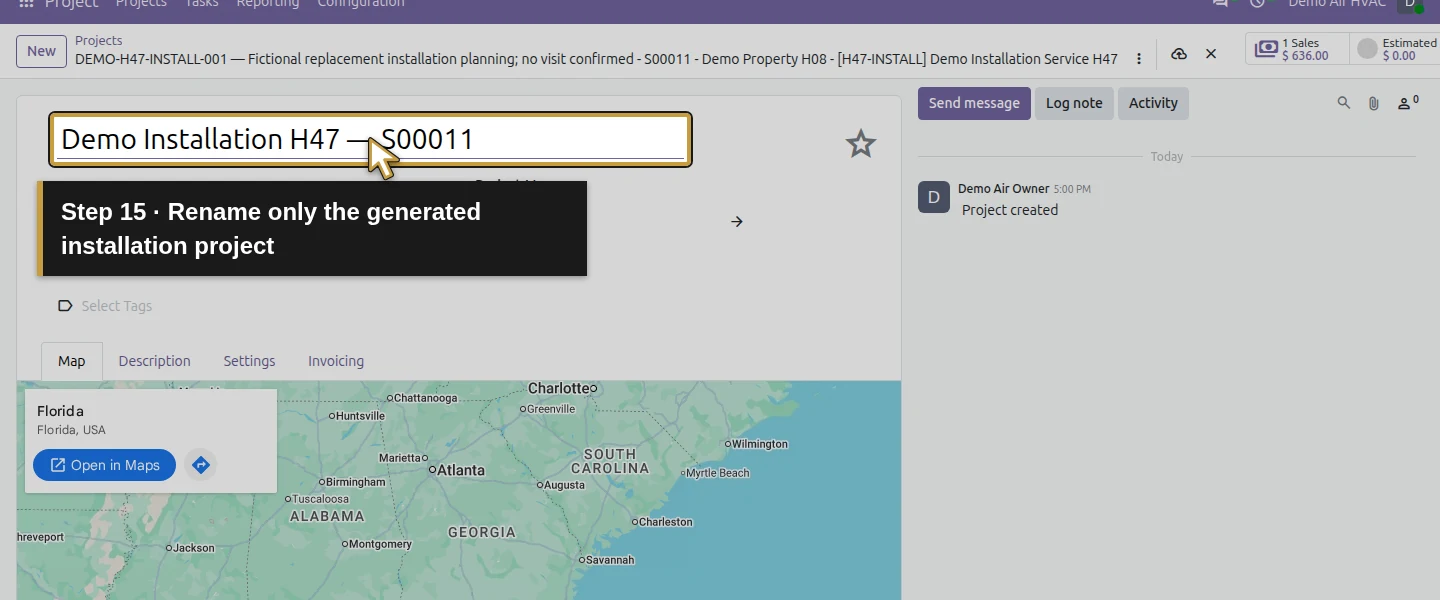
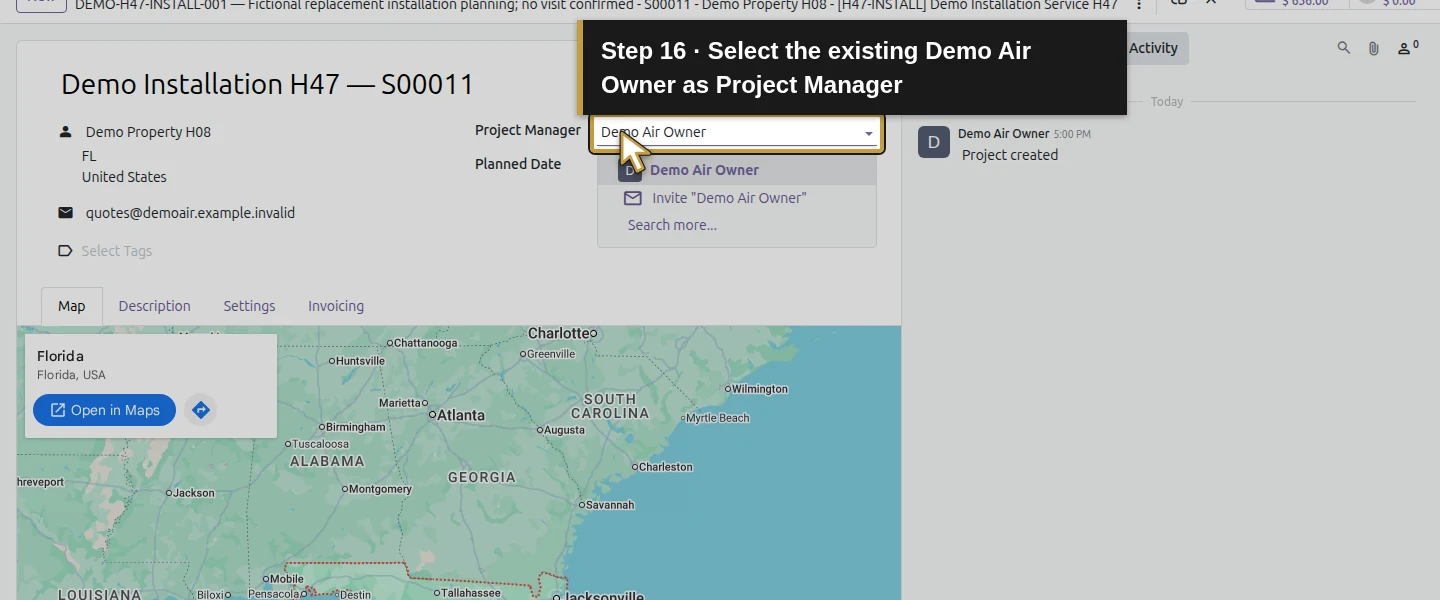
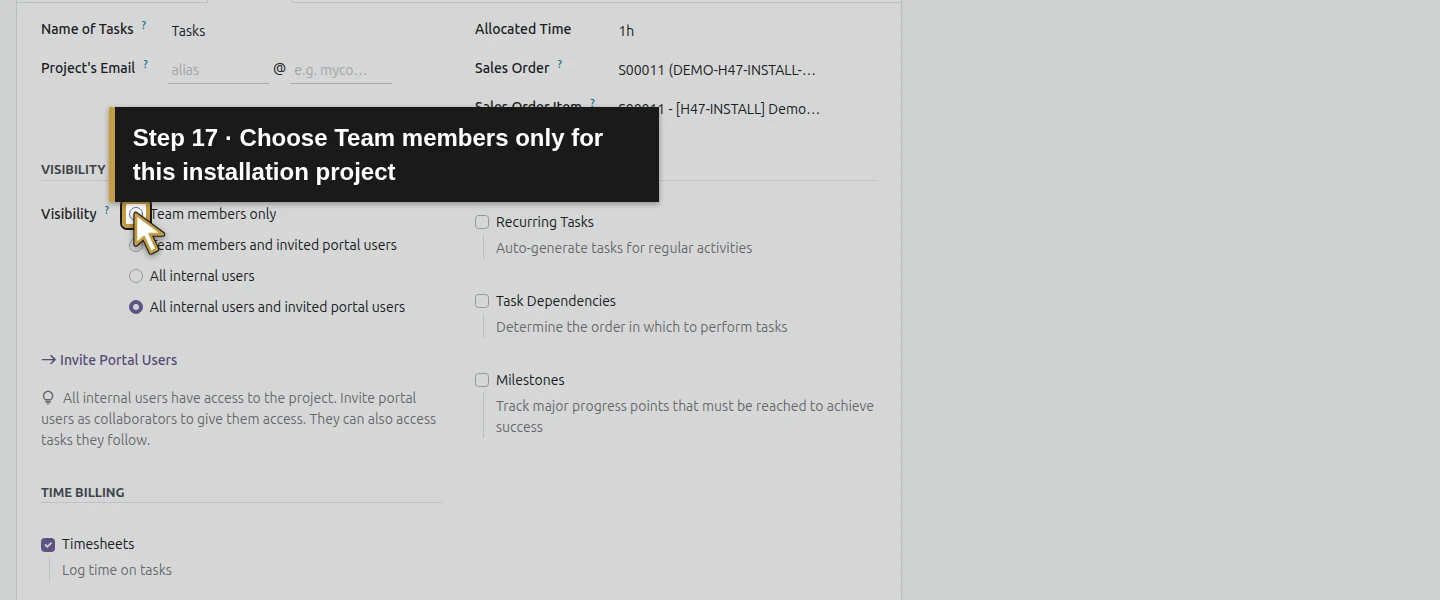
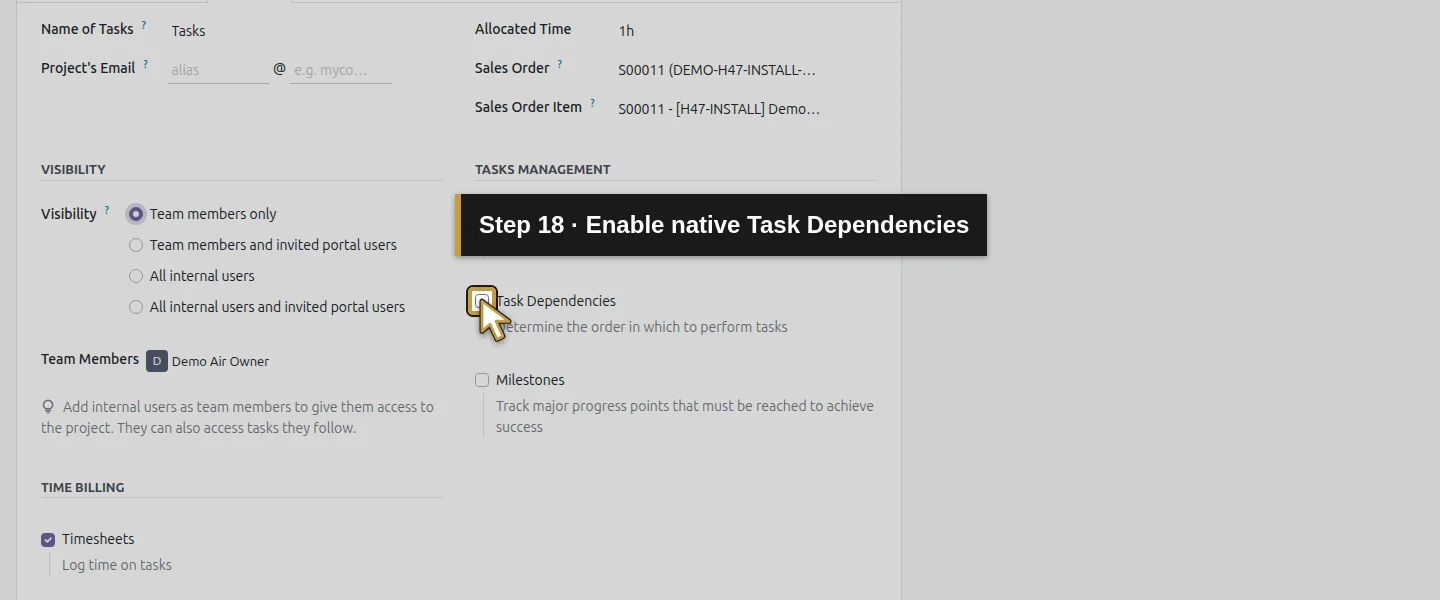
Step 5. Add the installation handoff details
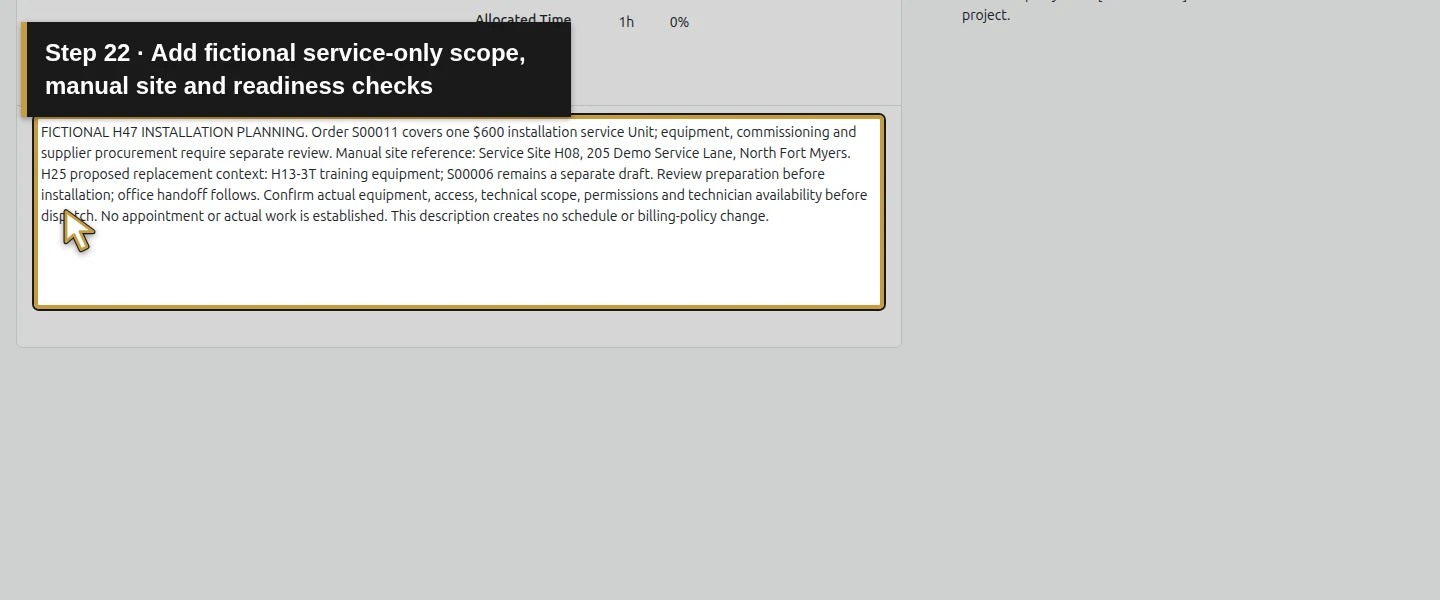
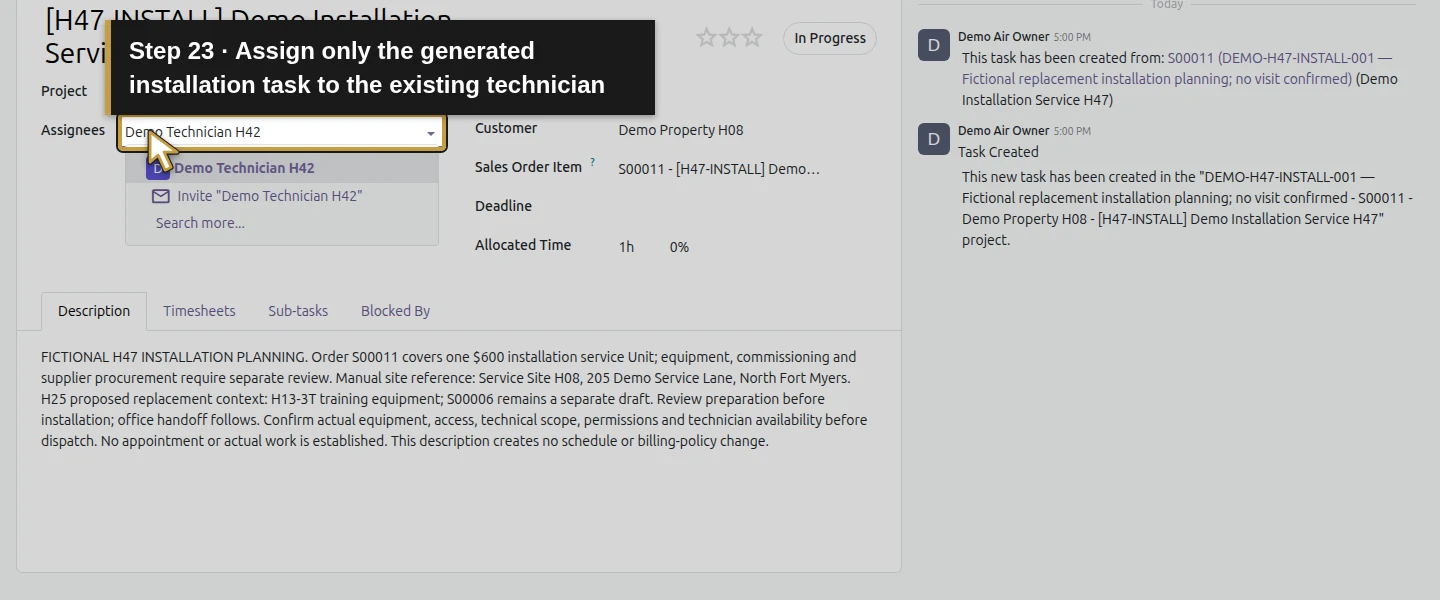
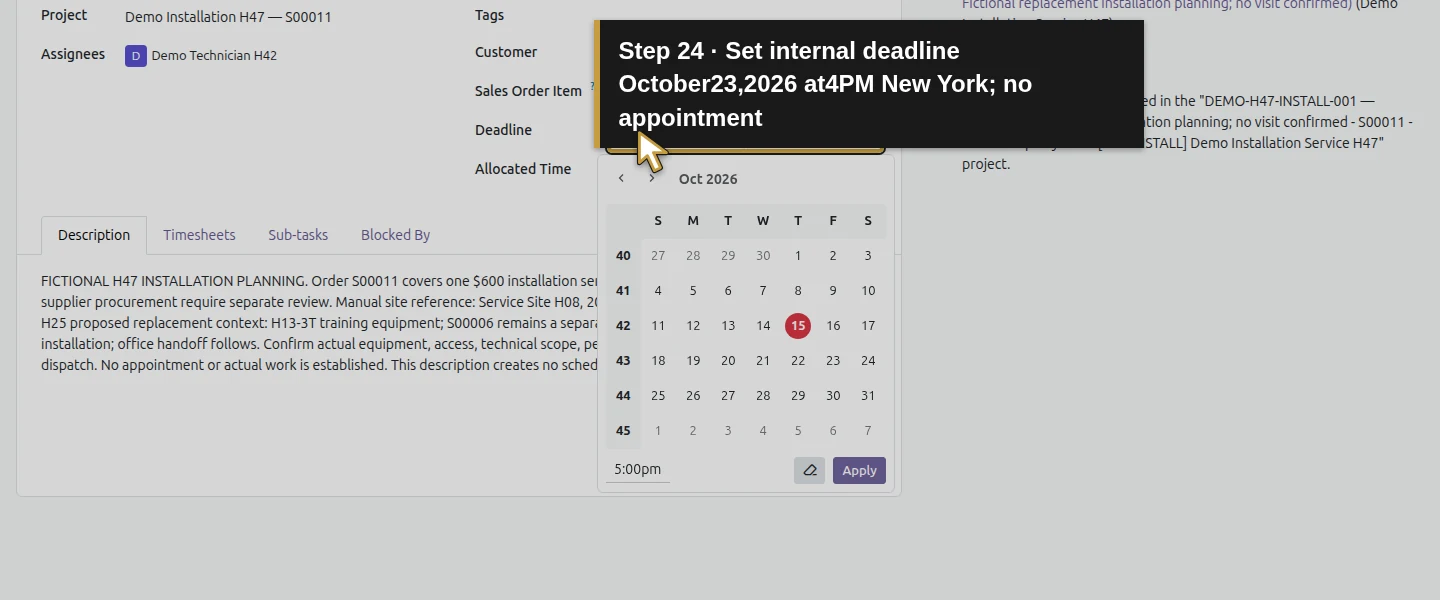
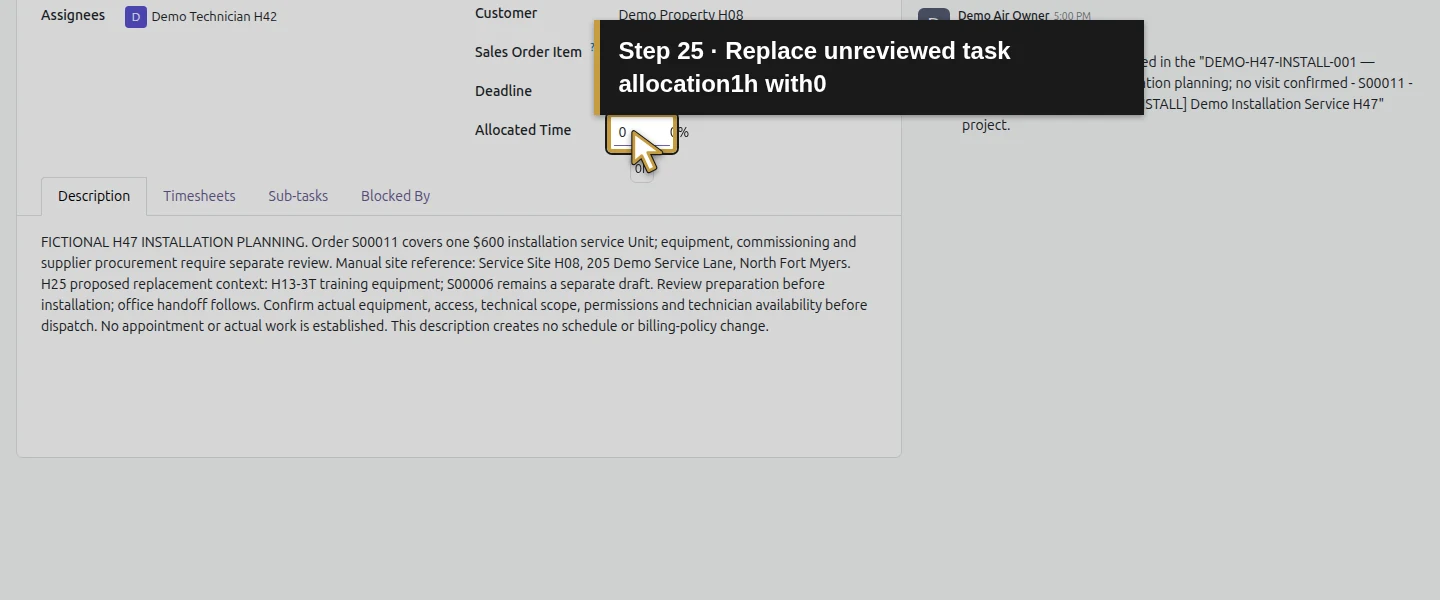
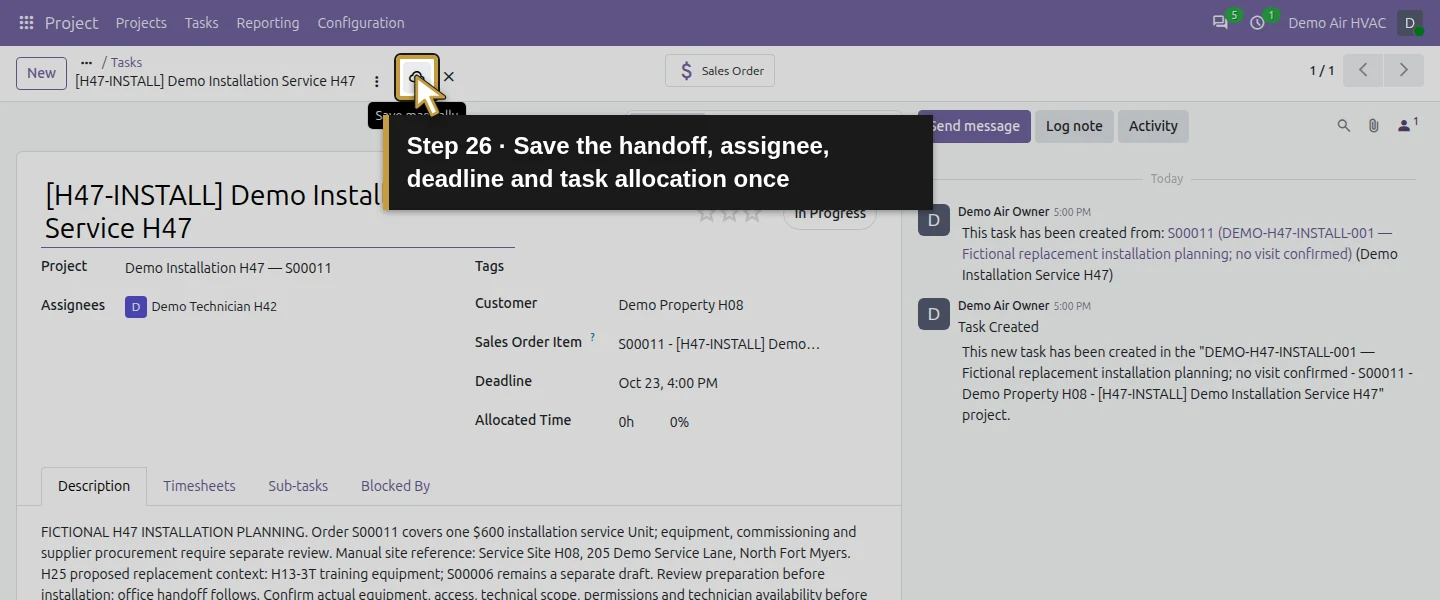
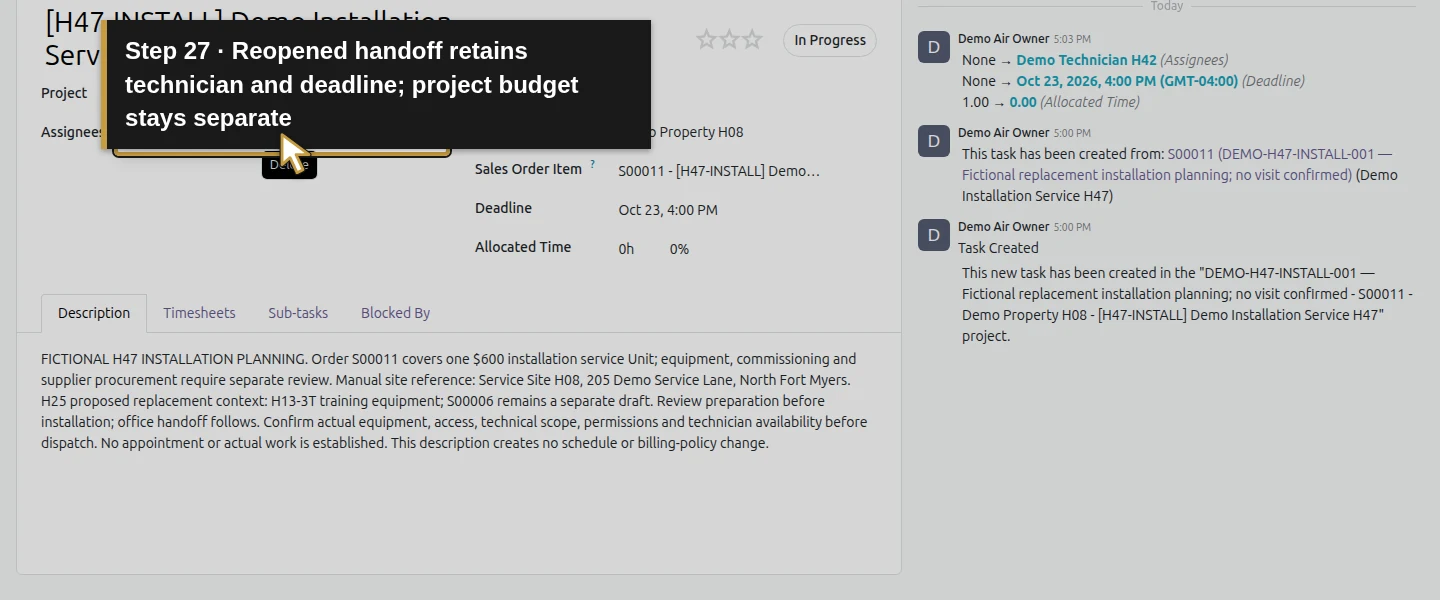
Open the project’s Tasks and the existing generated task. In Description, identify S00011, the service-only scope and manual site reference Service Site H08, 205 Demo Service Lane, North Fort Myers. Note the proposed H13-3T equipment context from H25, that S00006 remains a separate draft, and the checks still needed for scope, equipment, access, permissions and technician availability. State that no appointment or actual work is established. Select Demo Technician H42 in Assignees, set Deadline October 23, 2026 at 4 PM America/New_York, and change the unreviewed task Allocated Time from 1h to 0. Save and wait. This internal deadline does not book a calendar visit.
Step 6. Create the preparation and office-handoff tasks
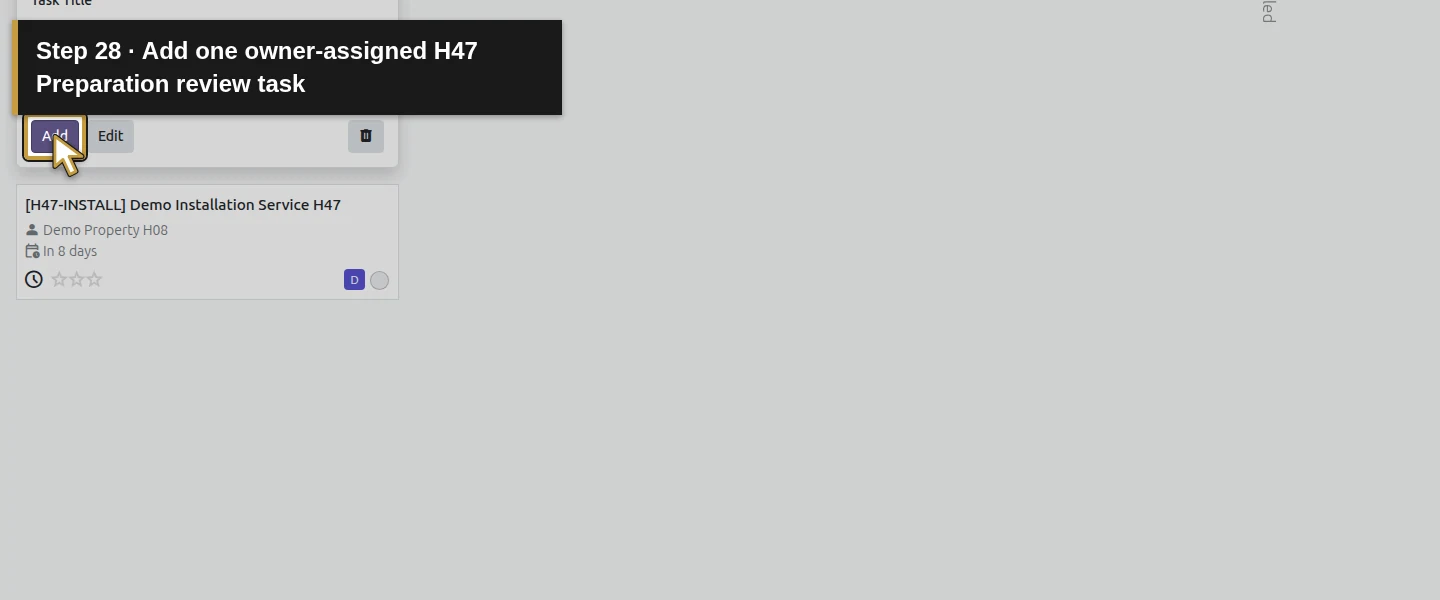
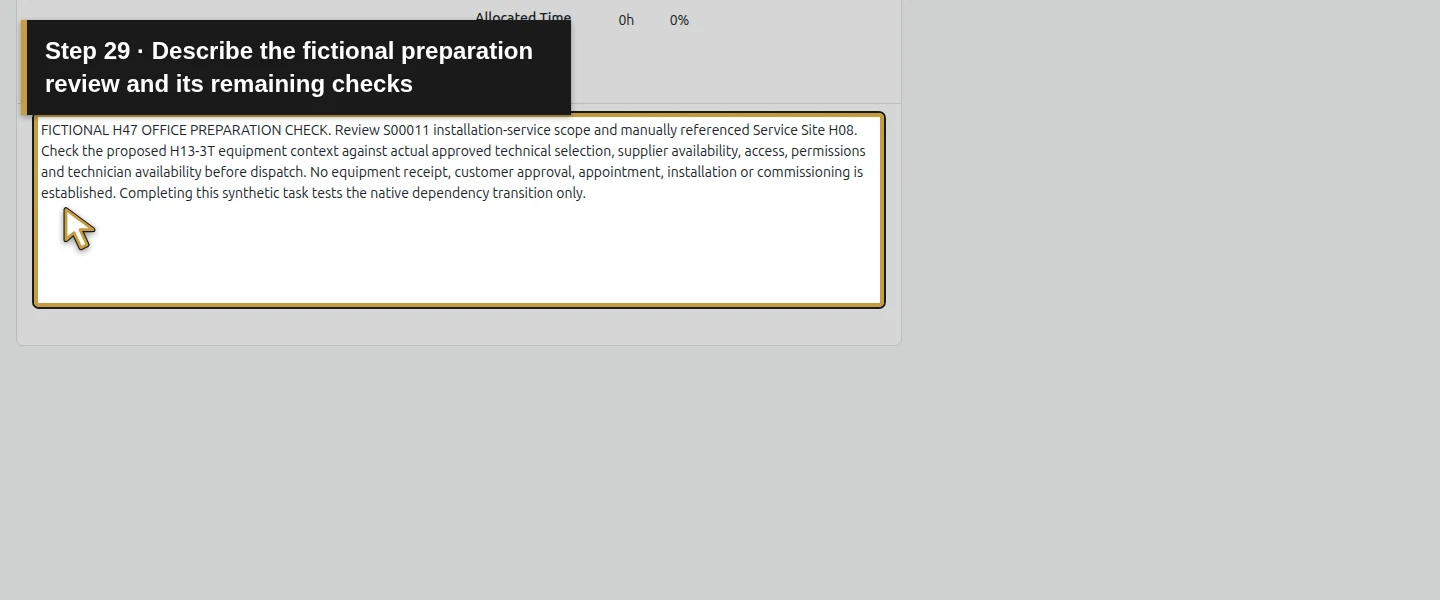
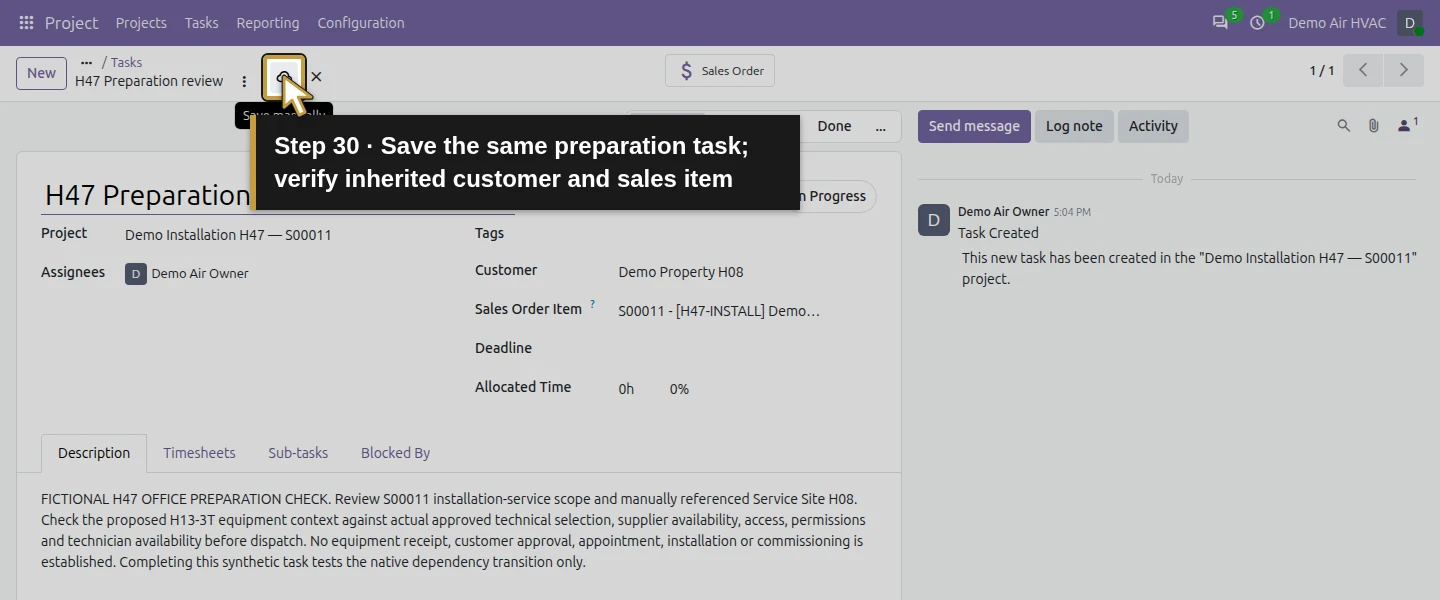
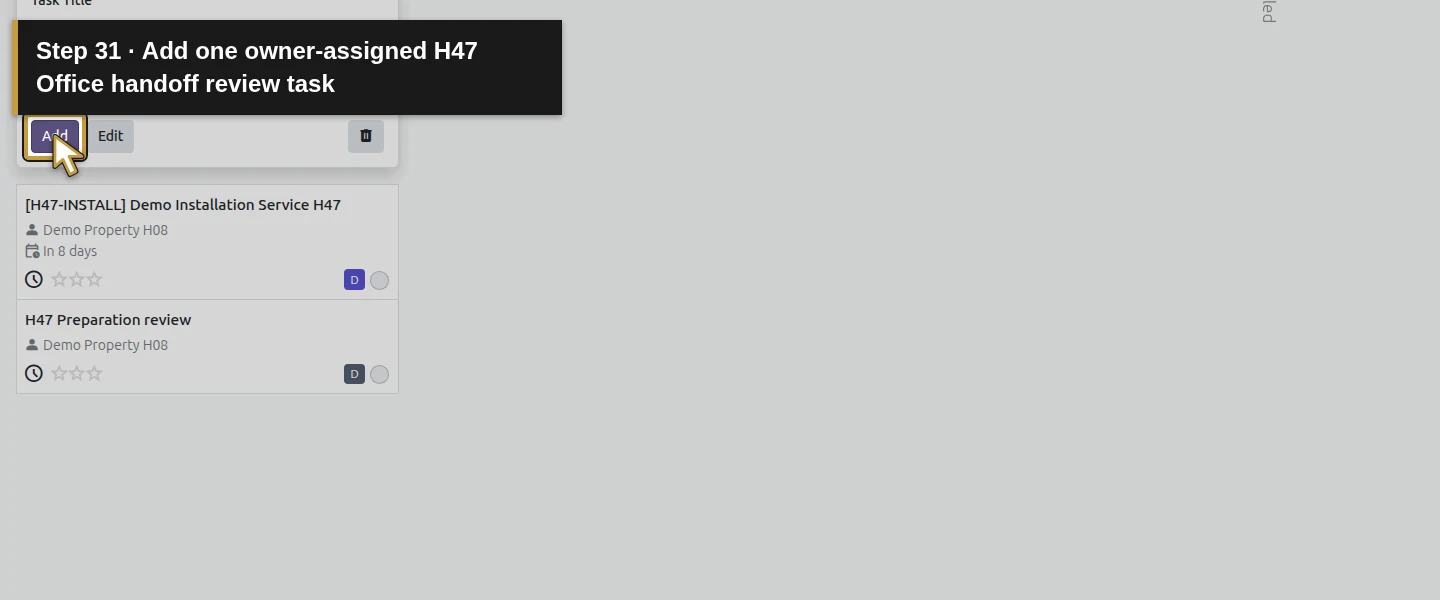
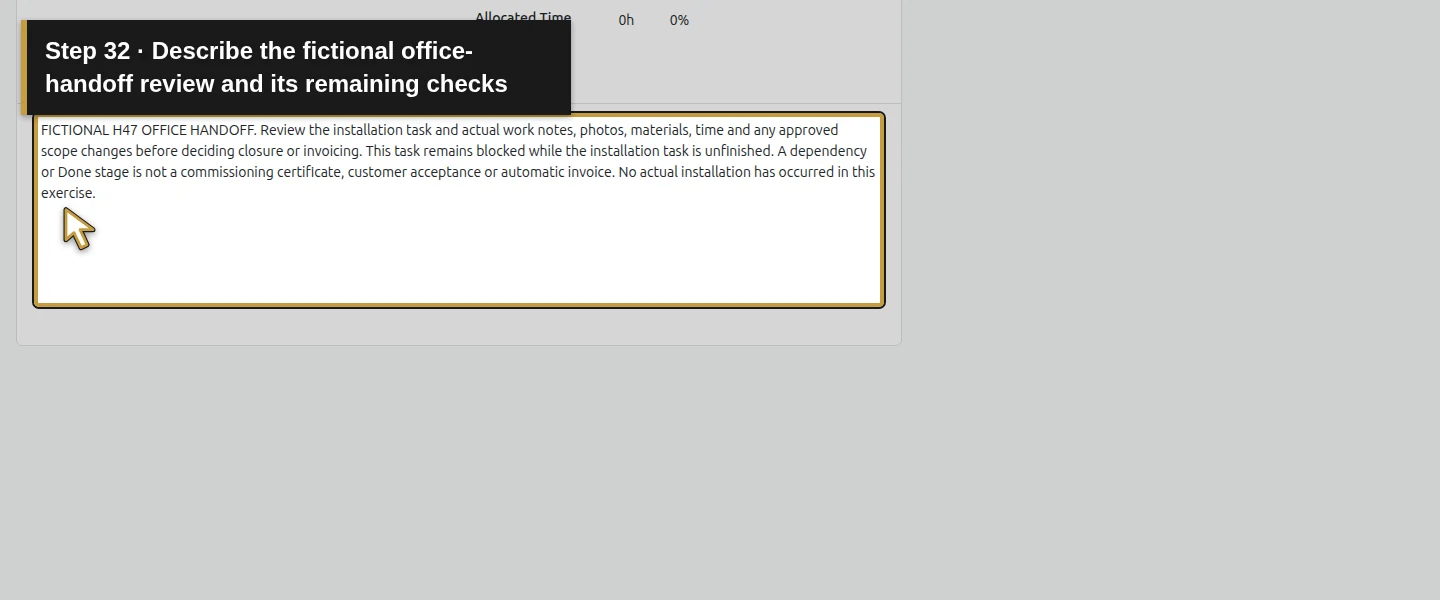
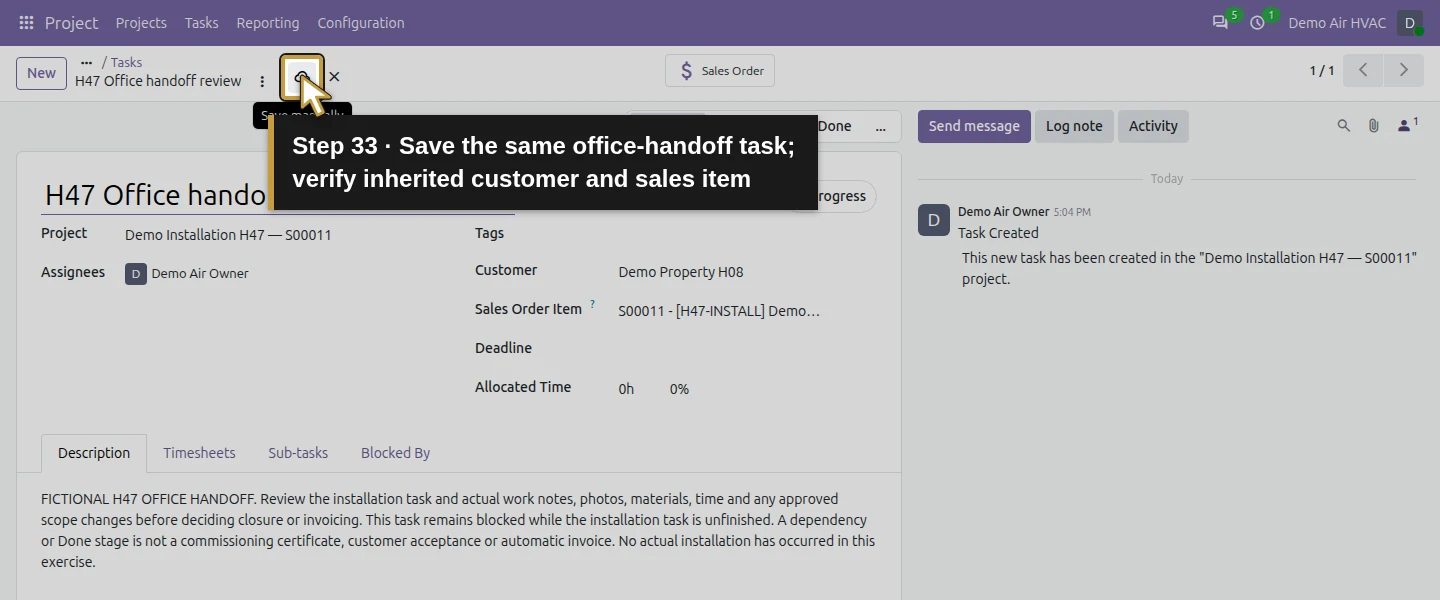
Return to this project’s board. Click New, enter H47 Preparation review, choose Demo Air Owner and click Add. Open it, describe the fictional scope/access/equipment/availability review and save. Repeat for H47 Office handoff review, assigned to the owner, with instructions to review actual work notes, photos, materials, time and scope changes before deciding closure or billing. The tasks inherit the project’s customer and S00011 Sales Order Item in this case; verify those values. These are two manual tasks beside the generated installation task, not two additional sold service units.
Step 7. Make installation depend on preparation
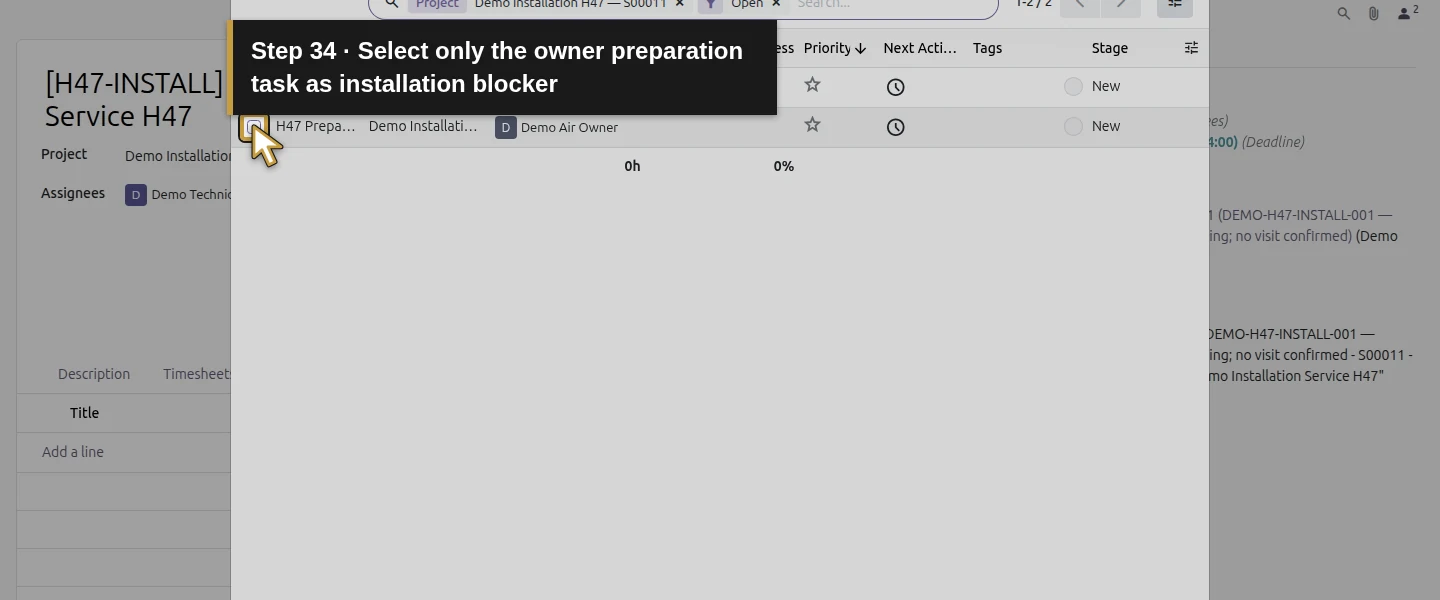
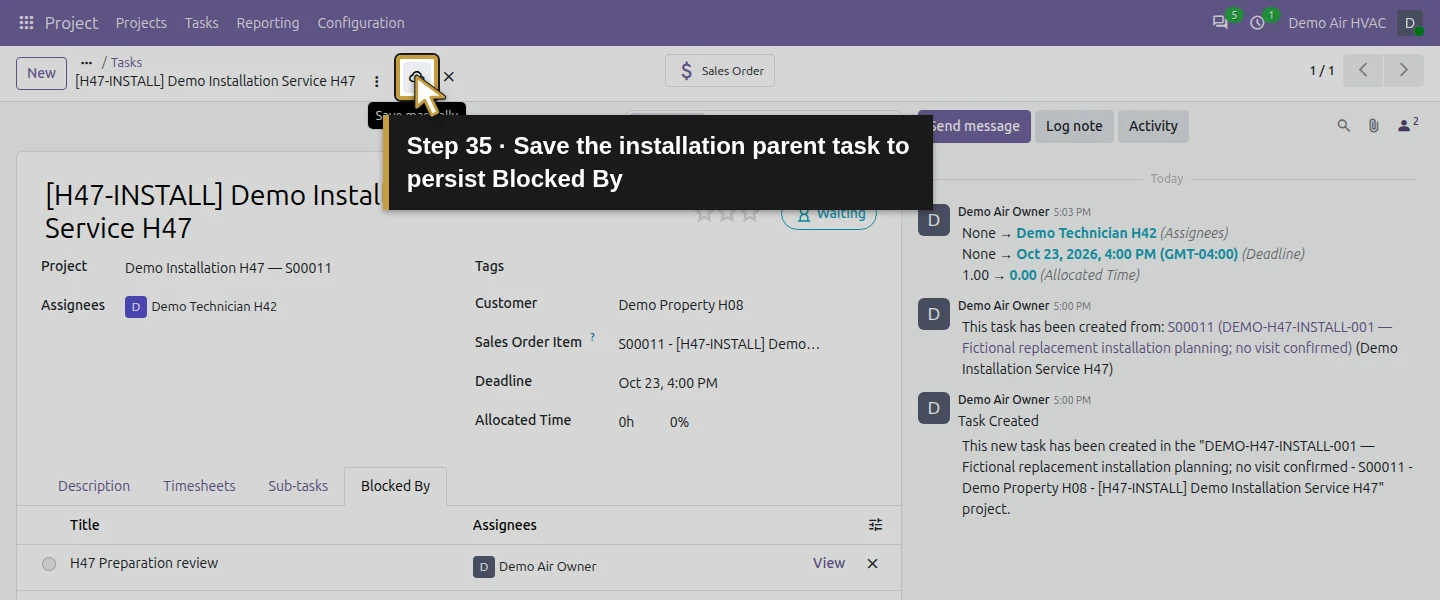
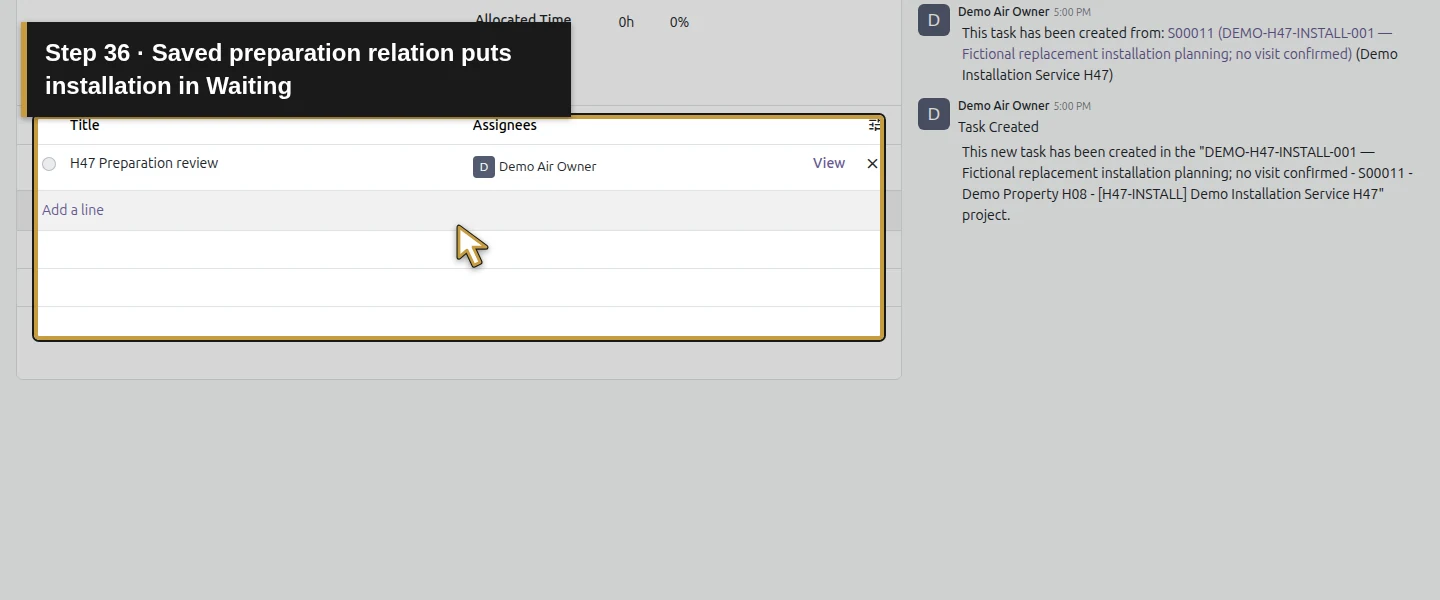
Open the installation task and its Blocked By tab. Click Add a line. In the task-selection dialog, check only H47 Preparation review, then click Select. Click the parent task’s Save manually and wait for it to finish. The saved installation task changes from In Progress to Waiting. The predecessor is a real selected task relation, rather than a sequence typed only in Description.
Step 8. Make office handoff depend on installation
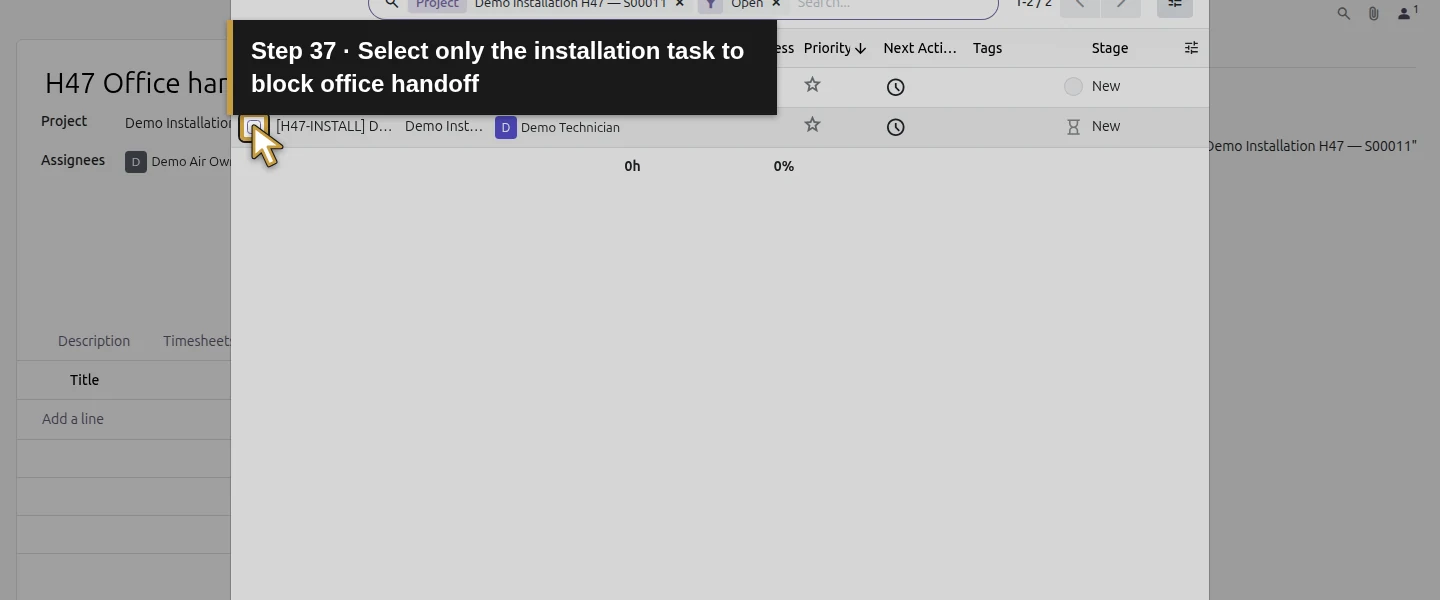
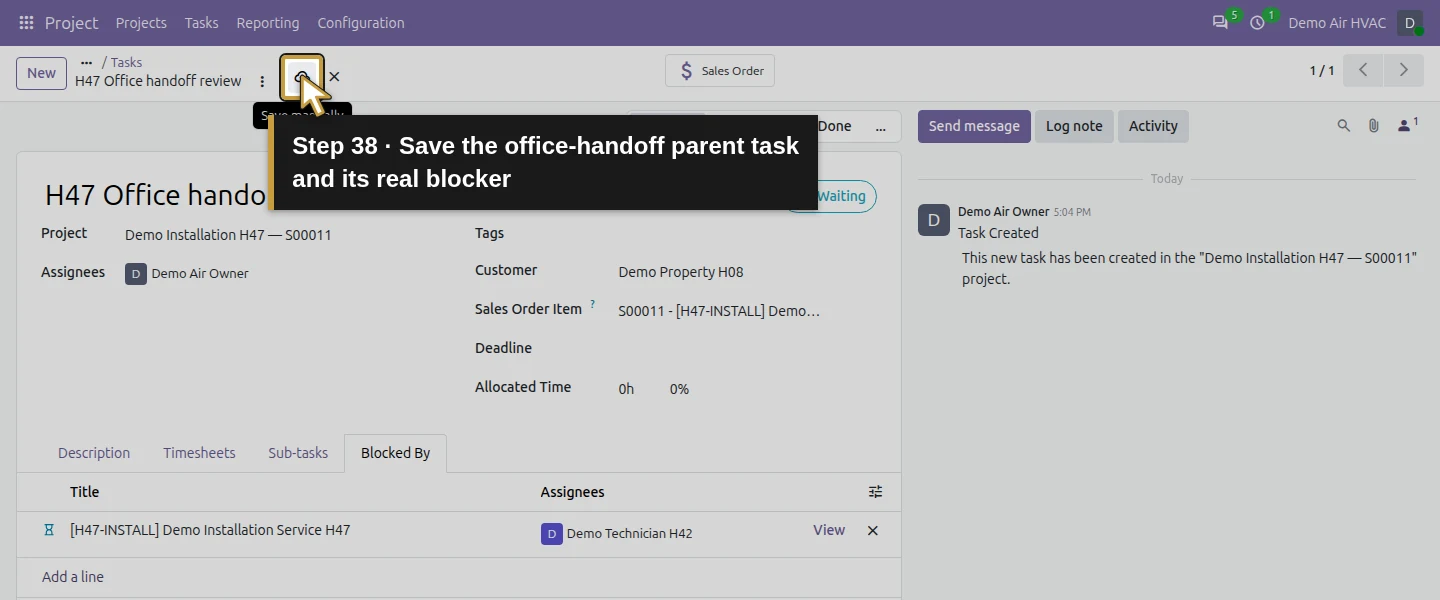
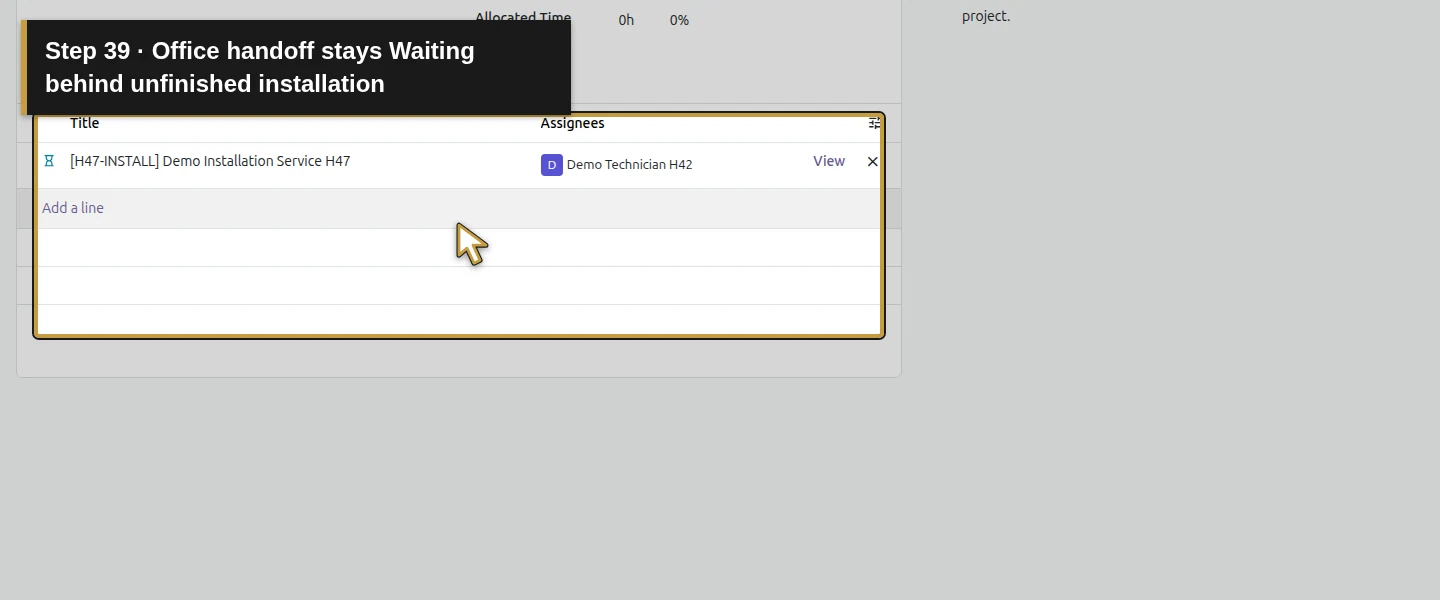
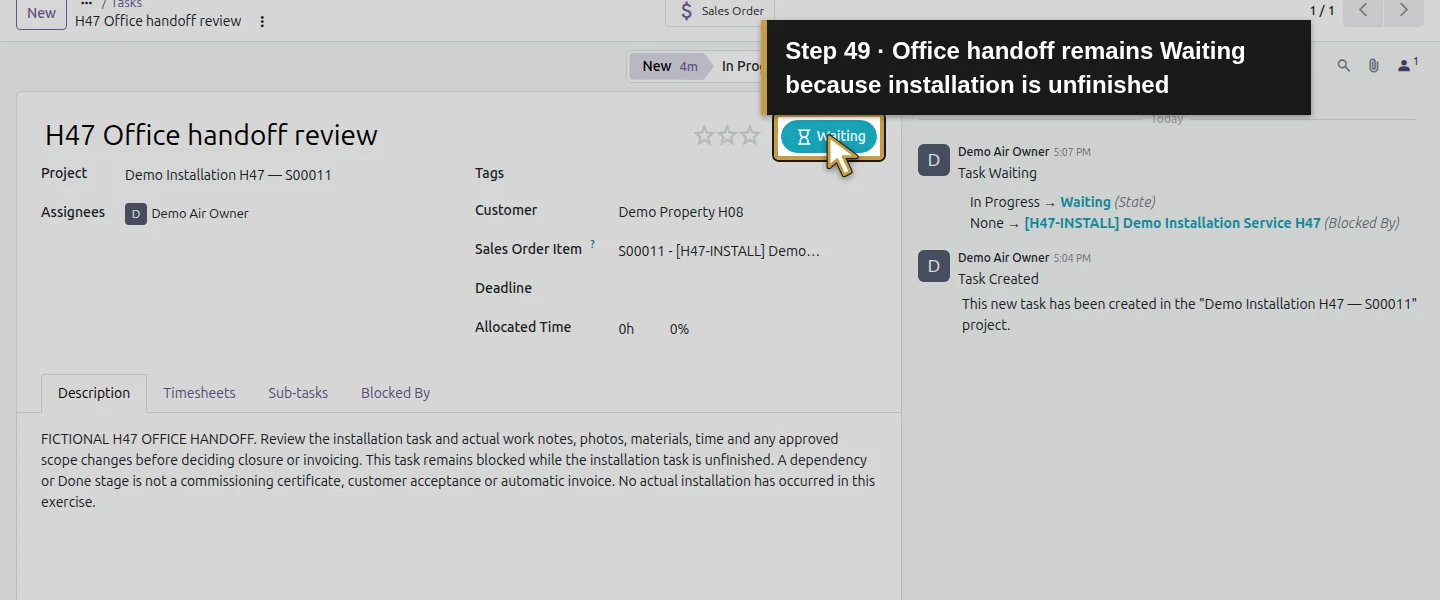
Open H47 Office handoff review → Blocked By → Add a line. Select only [H47-INSTALL] Demo Installation Service H47, click Select and then Save manually on the parent task. Office handoff also becomes Waiting. The saved sequence is preparation → installation → office handoff. Keep all three in their existing New stage while testing the separate task states. Do not mark installation complete to release office review.
Step 9. Check the technician’s actual view
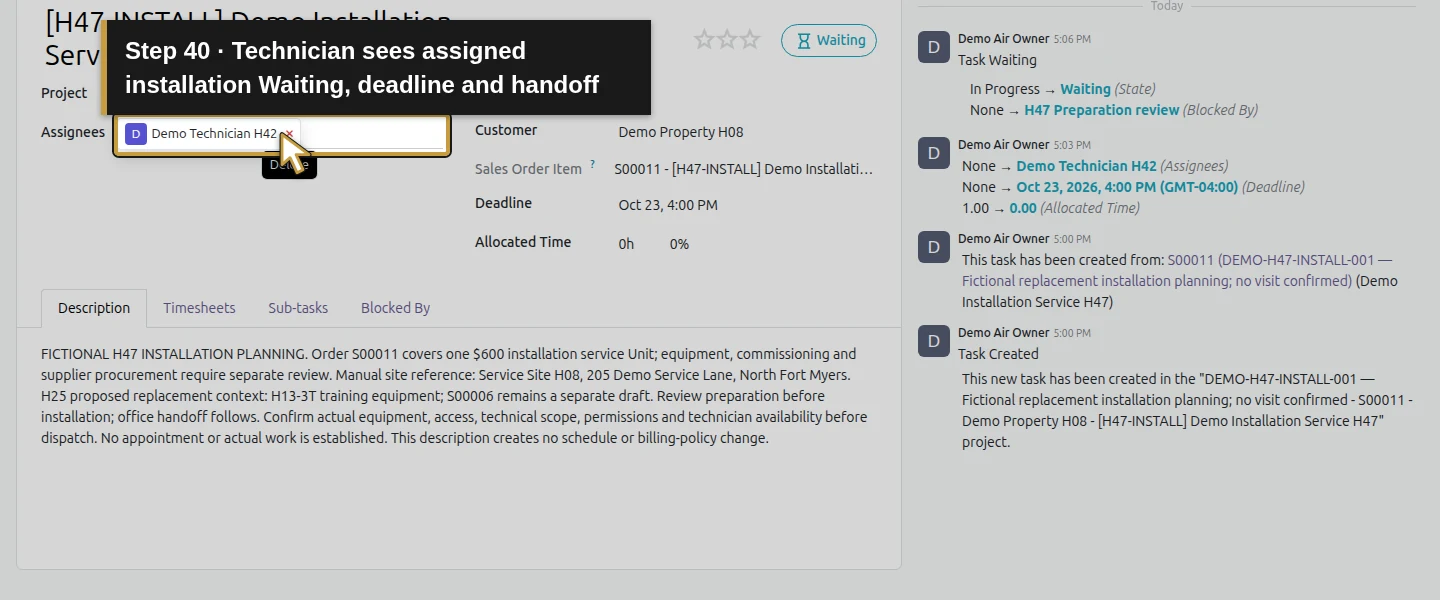
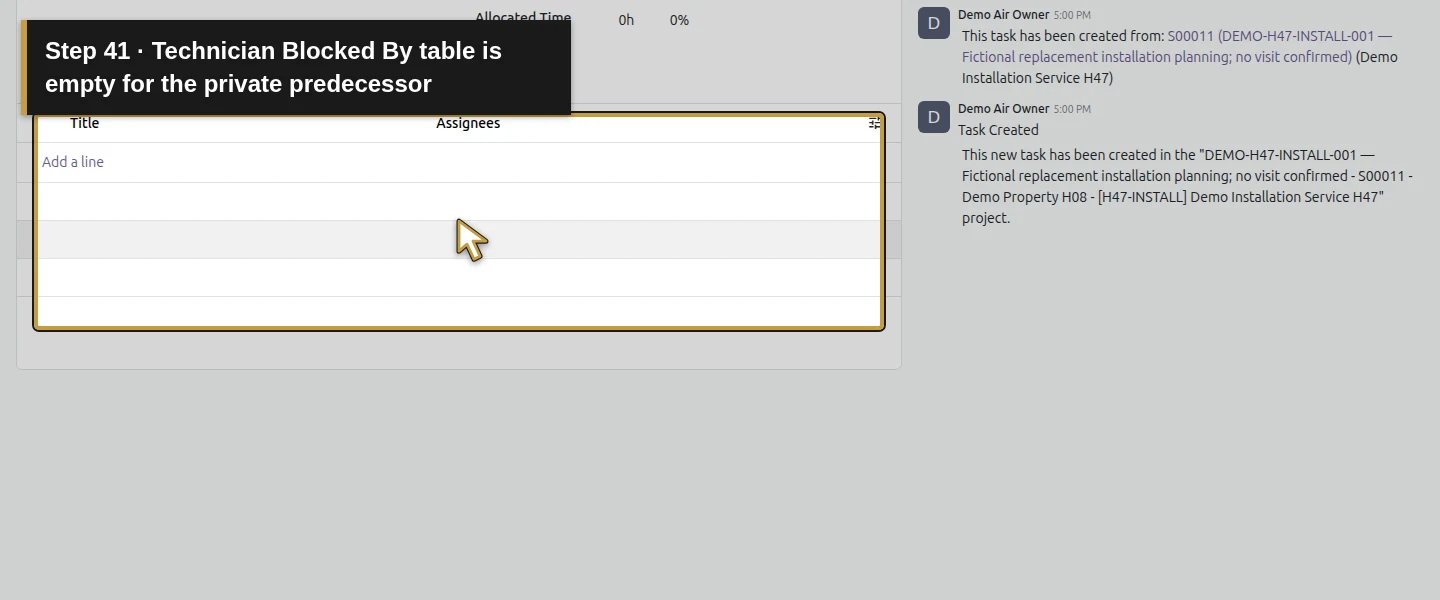
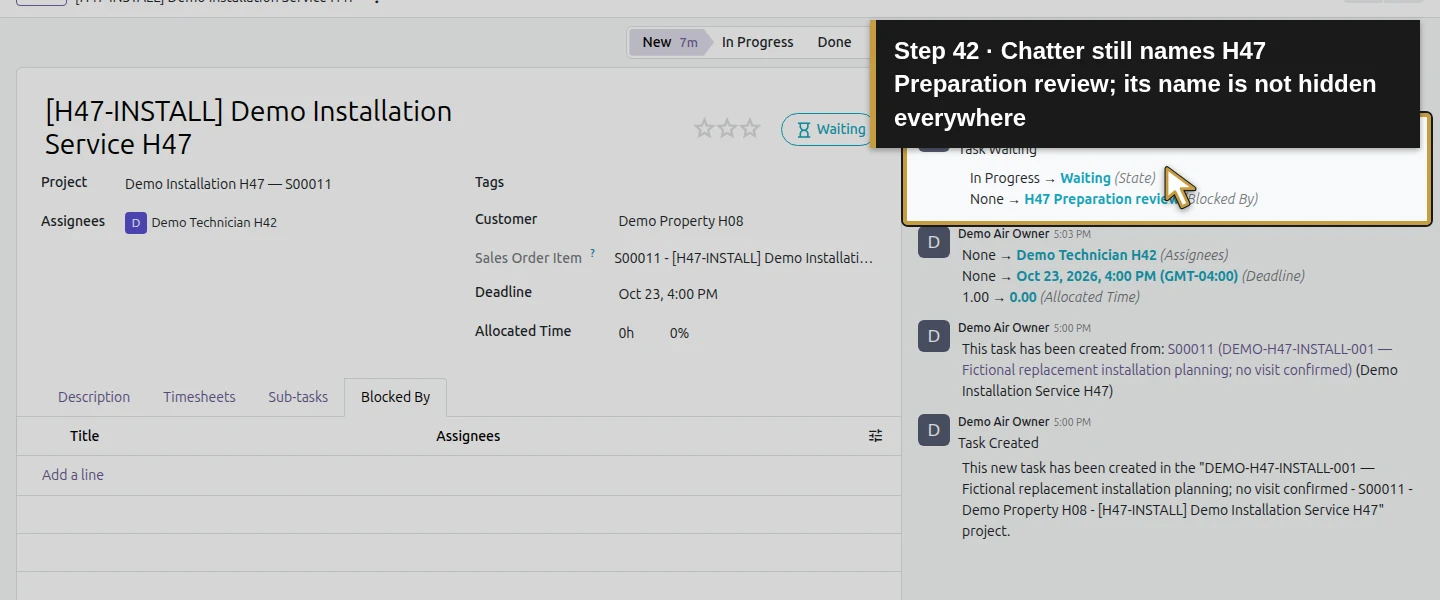
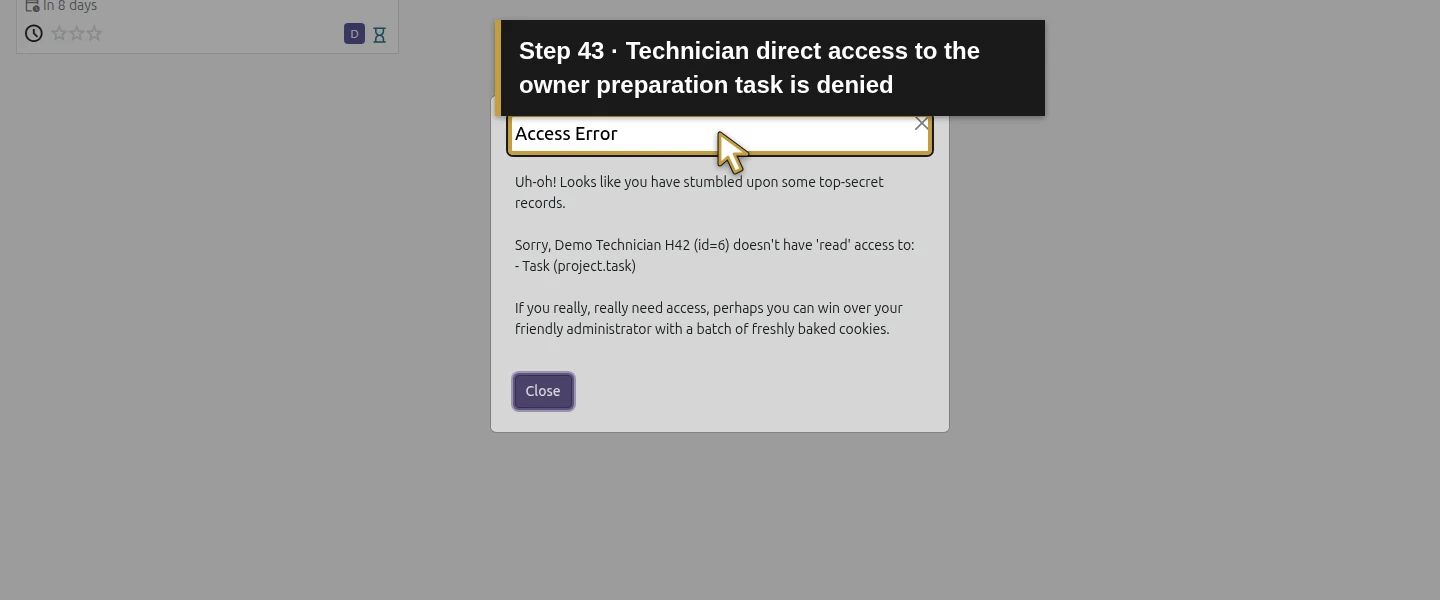
In the existing technician account, open the assigned installation task. The technician can read its Description, internal deadline, assignment and Waiting state. With this Team members only setup, its Blocked By table is empty for the technician, although the task’s chatter names the preparation dependency. A direct attempt to open the owner’s preparation task is denied read access. The owner can see the full dependency relation. Treat this as a role-specific handoff limit, not evidence that the dependency is missing or that blocker names are concealed everywhere.
Step 10. Complete only the fictional preparation task and save
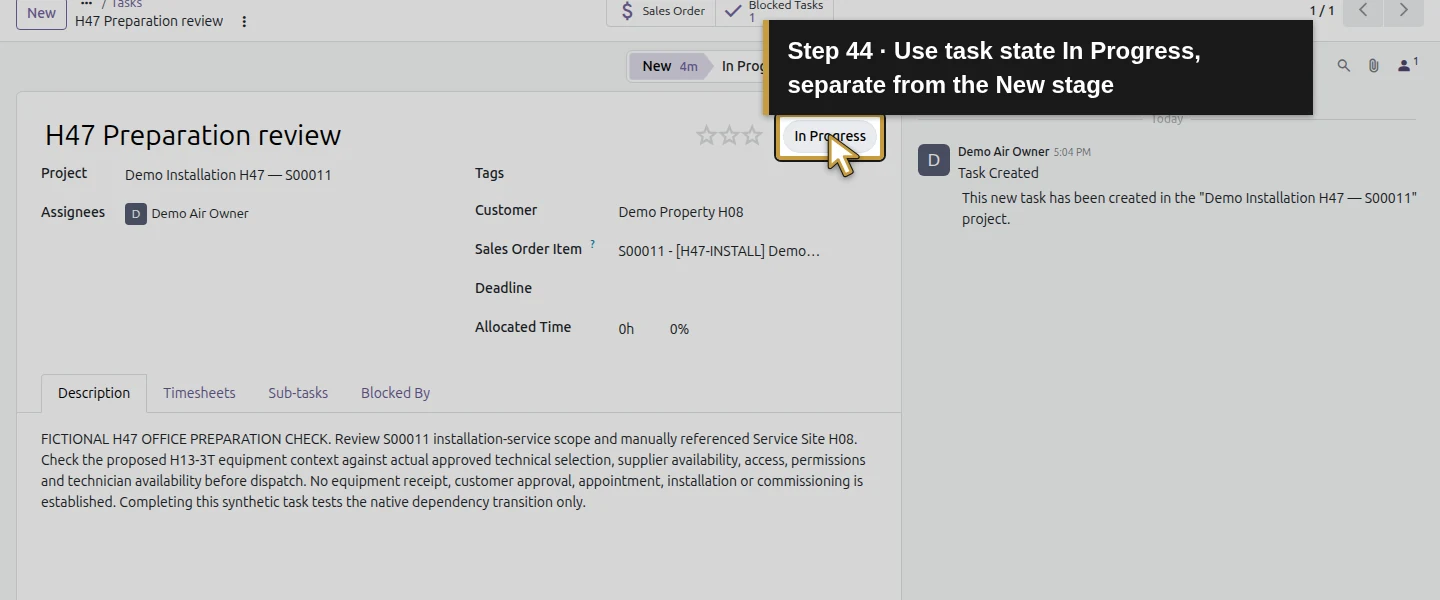
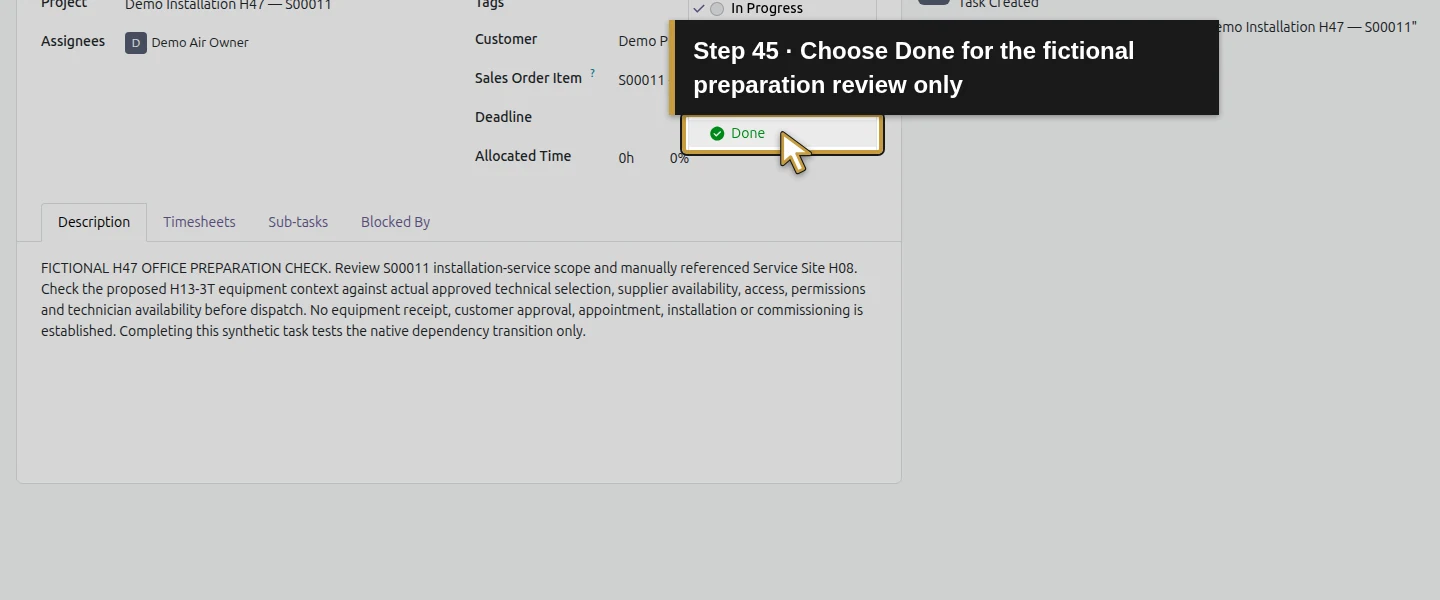
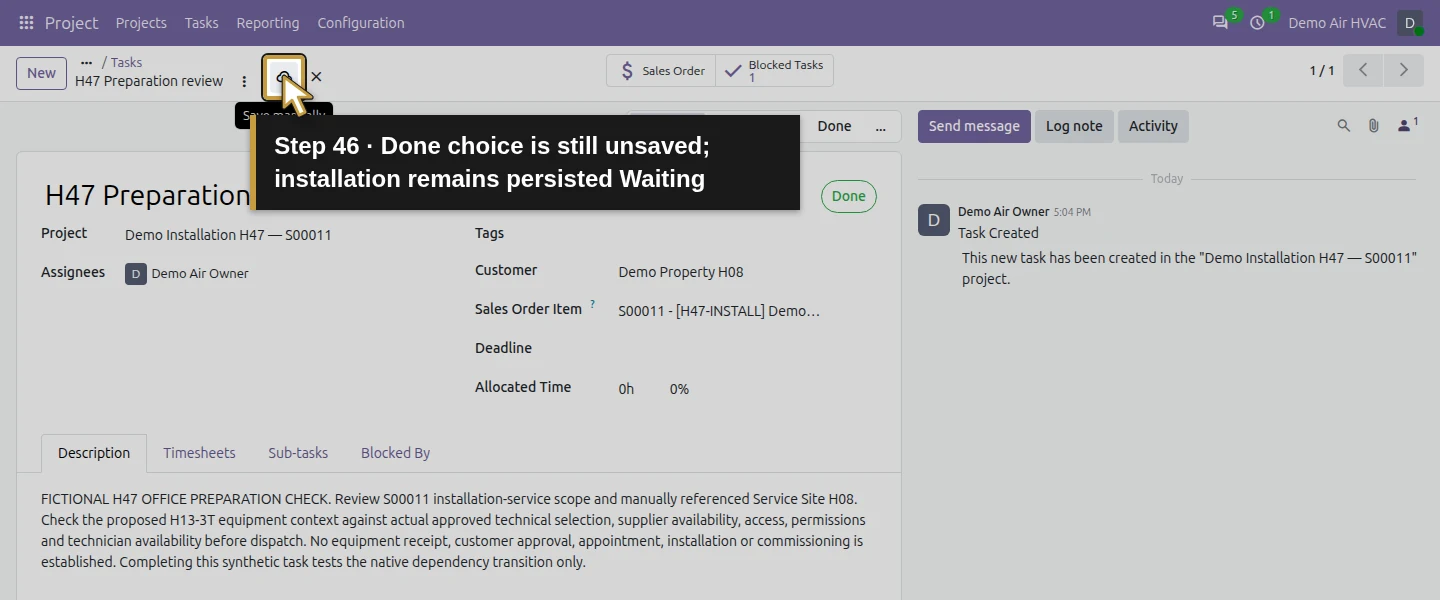
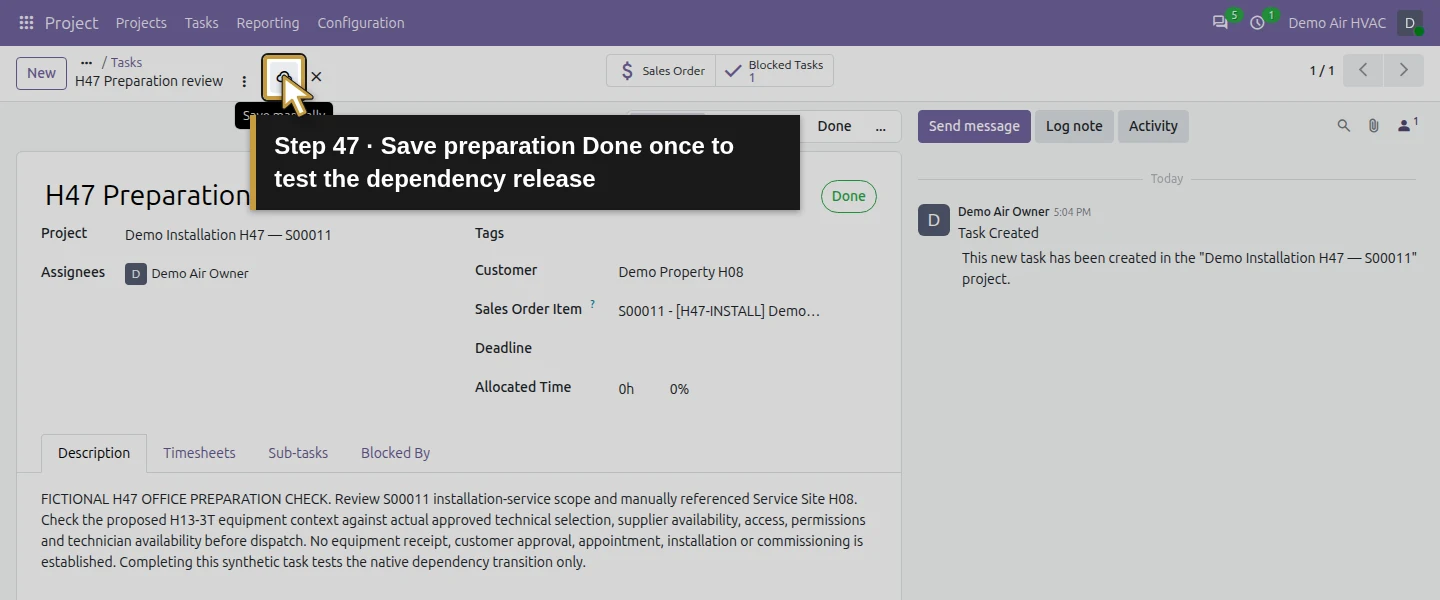
As the owner, open H47 Preparation review. Use the separate task-status dropdown currently showing In Progress, choose Done, then click Save manually. Wait for the save to finish. In the observed check, choosing Done without saving left the persisted preparation In Progress and installation Waiting. The completed synthetic review tests the dependency transition; it does not establish equipment availability, customer authorization or actual readiness to dispatch.
Step 11. Verify which work was released
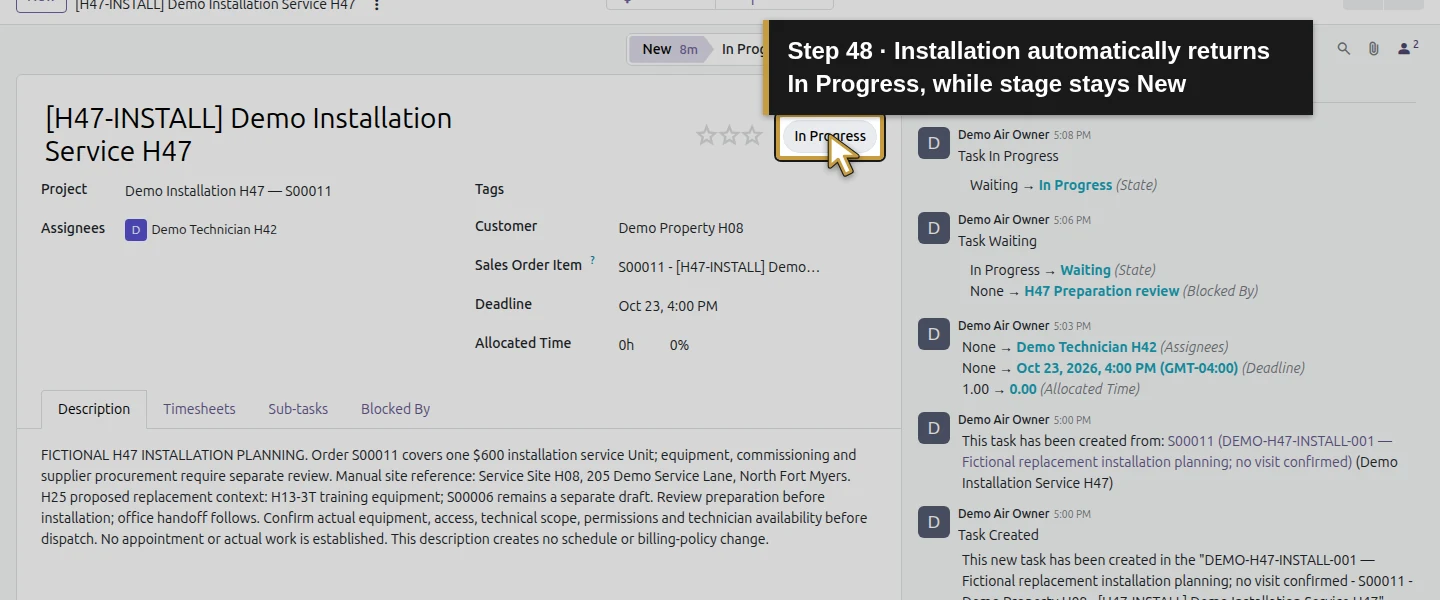
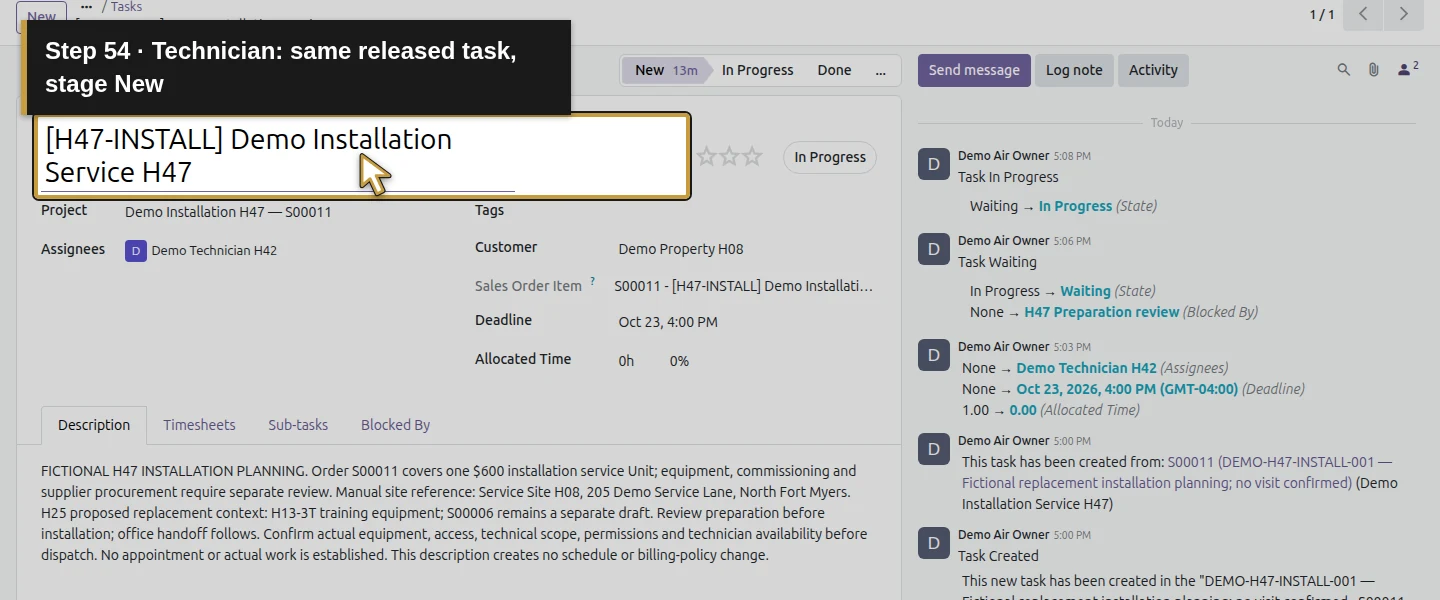
Reopen the installation task as owner and technician. Its separate task state is now In Progress automatically, while its stage still reads New. The dependency on preparation is retained. Office handoff stays Waiting, because installation is unfinished. Preparation is Done but also remains in New stage: stage and task state are different controls. Neither the automatic In Progress state nor a New/Done stage label proves work has started or finished on site.
Step 12. Find all three tasks after completion
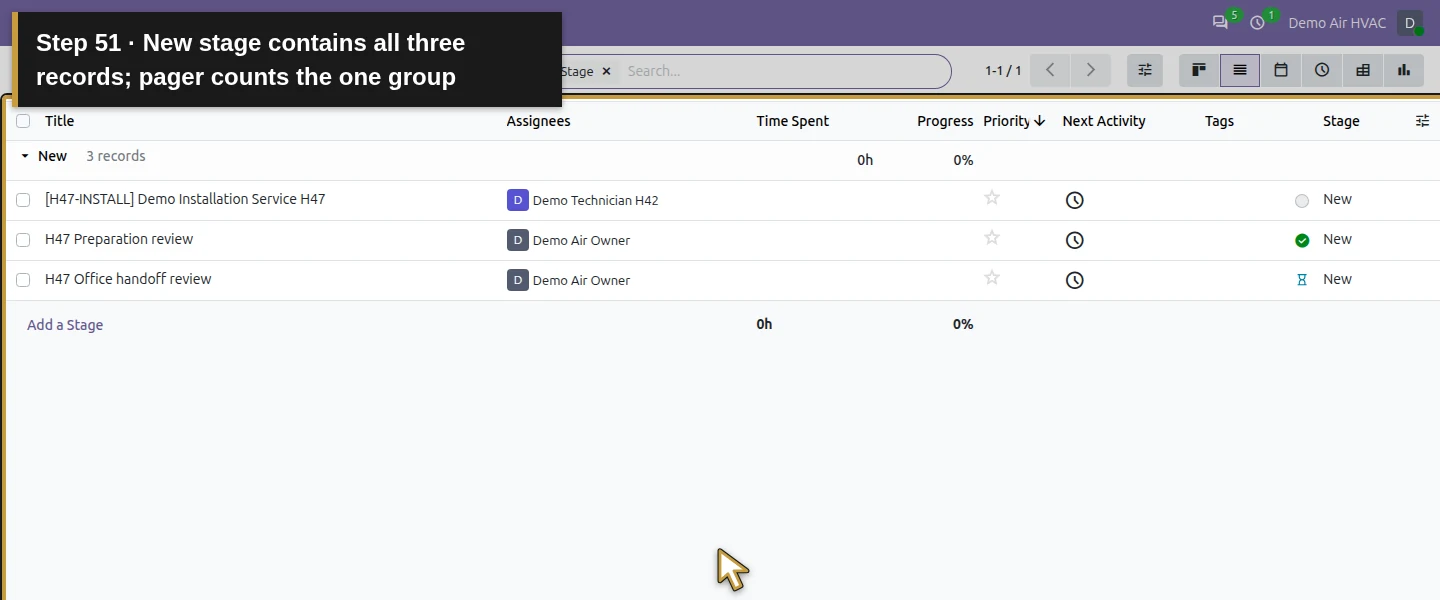
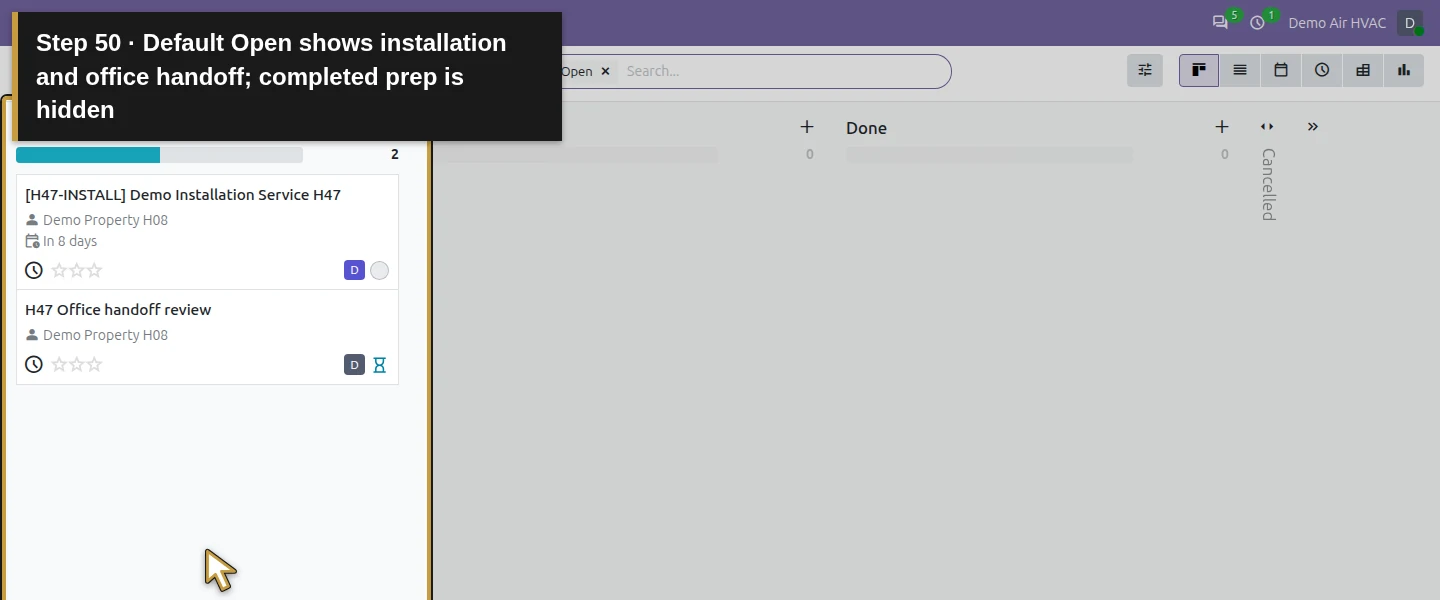
Open the owner’s project board. Its default Open filter now shows only installation and office handoff. Remove Open and choose List View to include the completed preparation task. The list has a New: 3 records group containing all three tasks. Its 1–1 / 1 counter counts the one stage group, not one underlying task. Reload and reopen the same records rather than creating replacements because a closed task disappeared from the Open view.
Step 13. Review time and billing separately from the task sequence
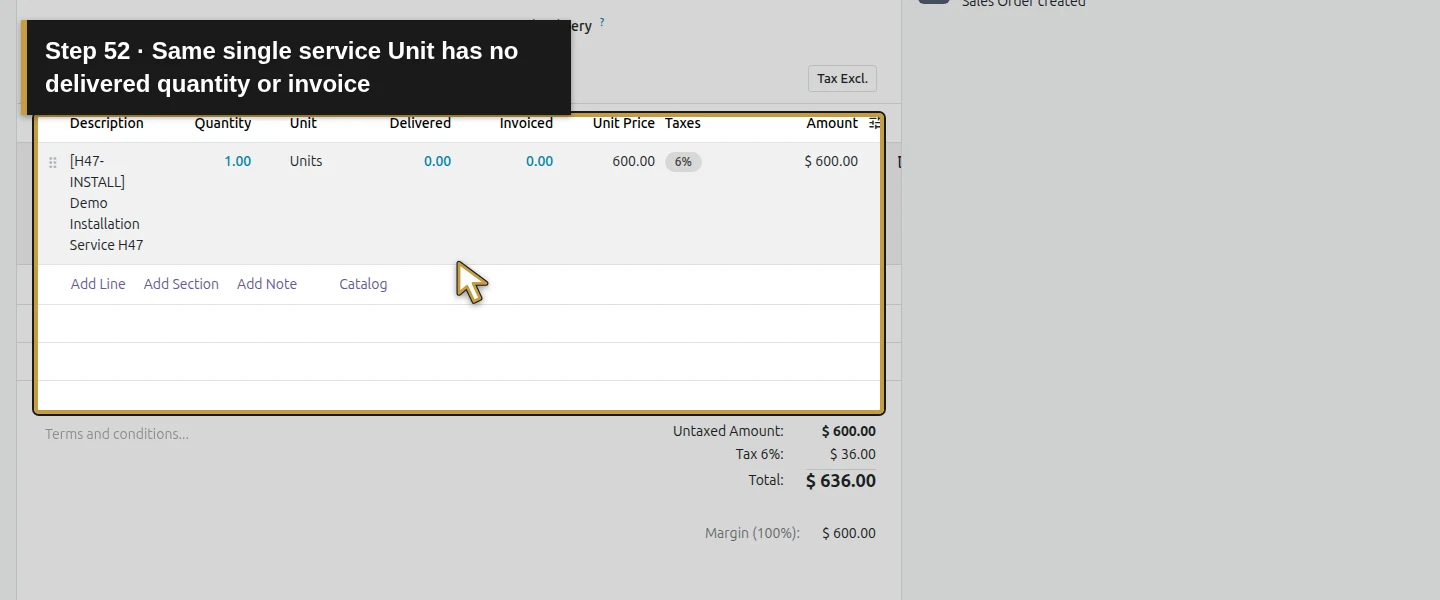
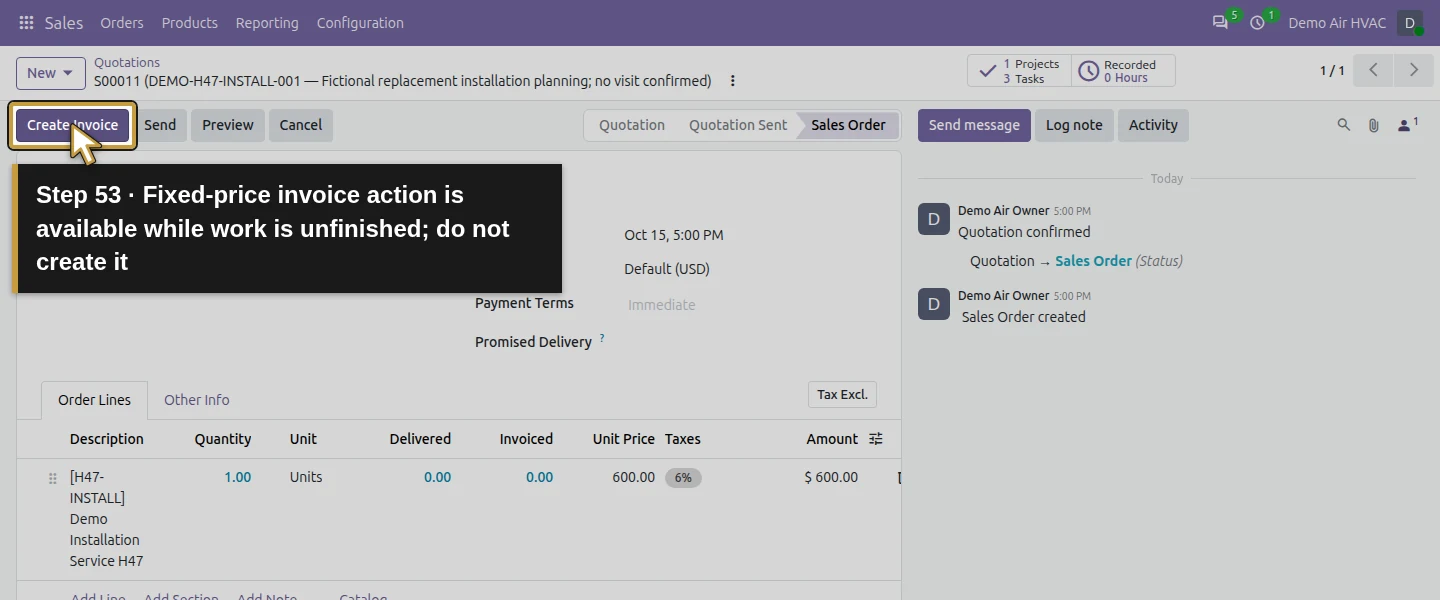
S00011 still has one sold service Unit, zero recorded/delivered/invoiced time or quantity and no invoice. Its fixed-price policy leaves 1 Unit to invoice even while installation is unfinished and office handoff Waiting. The three task links do not multiply the sold quantity. All three task allocations are zero after review; the project’s separate Allocated Time still shows its generated 1h, which remains an unreviewed project budget in this test. Do not interpret it as reserved capacity or an approved time estimate. Keep actual estimates, physical installation, commissioning and billing decisions explicit.
Check the result
One owner confirmation of S00011 generates one project and installation task from the separate H47 service. The owner sets a clear project name, manager, Team members only visibility and native dependencies, then adds the preparation and office-handoff tasks. Saved Blocked By links produce Waiting states. Choosing preparation Done without Save does not release installation; saving does, while handoff stays Waiting. Both roles reopen the assigned installation; the technician cannot read the private predecessor and its relation list is filtered, although its name appears in chatter. All three tasks retain New stage; only preparation is Done/closed. One sold Unit/$636 remains with one Unit invoiceable under the fixed-price policy, no invoice, no recorded time, no new calendar event and no stock movement. The original two projects, six task records, all 73 selected prior business results, CRM/website, prior sales/portal records and H39 supply/Exception remain unchanged. Full before/after archives pass recorded bytes and SHA256 hashes.
If your screen differs
Verify the actual sold service and saved Project & Task setting before confirming a new sale. The generated project started broadly visible, without a manager; the generated task had no operational handoff. Review both task allocation and the separate project budget rather than treating one service Unit as a duration. Native dependencies demonstrated saved Waiting/release behavior, not a tested hard lock on every action. A private predecessor may be absent from the technician’s Blocked By table even though chatter names it; review intended access and office handoff. Save after task-state or stage changes. New stage, In Progress state, an internal deadline, invoicing eligibility and actual site work are separate facts. The only existing calendar event is the earlier Time Off absence. The technician’s assignment email fails with mail_email_invalid and no new message reaches the sink; an in-app view does not prove email delivery. Other roles, project templates, scheduling/capacity, equipment procurement, actual work completion and milestone invoices remain outside this guide.
Frequently asked questions
How do I manage an HVAC installation project in Odoo?
In the tested stock Odoo 20 Community workflow, a Service product configured as Project & Task creates a new sales-linked project and task on confirmation. Review manager/visibility, add real handoff instructions and create preparation/office tasks. The native dependencies connect their sequence. This guide uses a separate installation-service sale; physical equipment, technical commissioning and appointment scheduling require their own work.How do I add task dependencies in Odoo?
Enable Task Dependencies on the project, then open the dependent task’s Blocked By tab, Add a line, select the predecessor, Select and save the parent task. The tested tasks move to Waiting; saving the predecessor as Done releases installation to In Progress while the later handoff stays Waiting. Private-task permissions affect which predecessor rows a technician can see, so verify the intended role as well as the owner’s view.Do Odoo task dependencies schedule technicians or stop invoicing?
Those results are not established by the dependency changes here. The task’s internal deadline did not create a calendar appointment, and its automatic In Progress state does not prove actual work has started. The installation sale uses Prepaid/Fixed Price, leaving one Unit invoiceable while work is unfinished. Review availability, readiness and billing separately from task state or stage.Continue building the business
Continue with H48: How do I purchase subcontractor services for an Odoo job? for the separate subcontractor-service workflow. Preserve this installation project and its separate sales line for later supplier-cost and billing checks.
Talk about your Odoo setup
Bring your current process and the result you need to Onward to plan your Odoo workflow. Talk about your Odoo setup.