
Running an HVAC business with Odoo
How do I check stock availability and replenishment needs in Odoo?
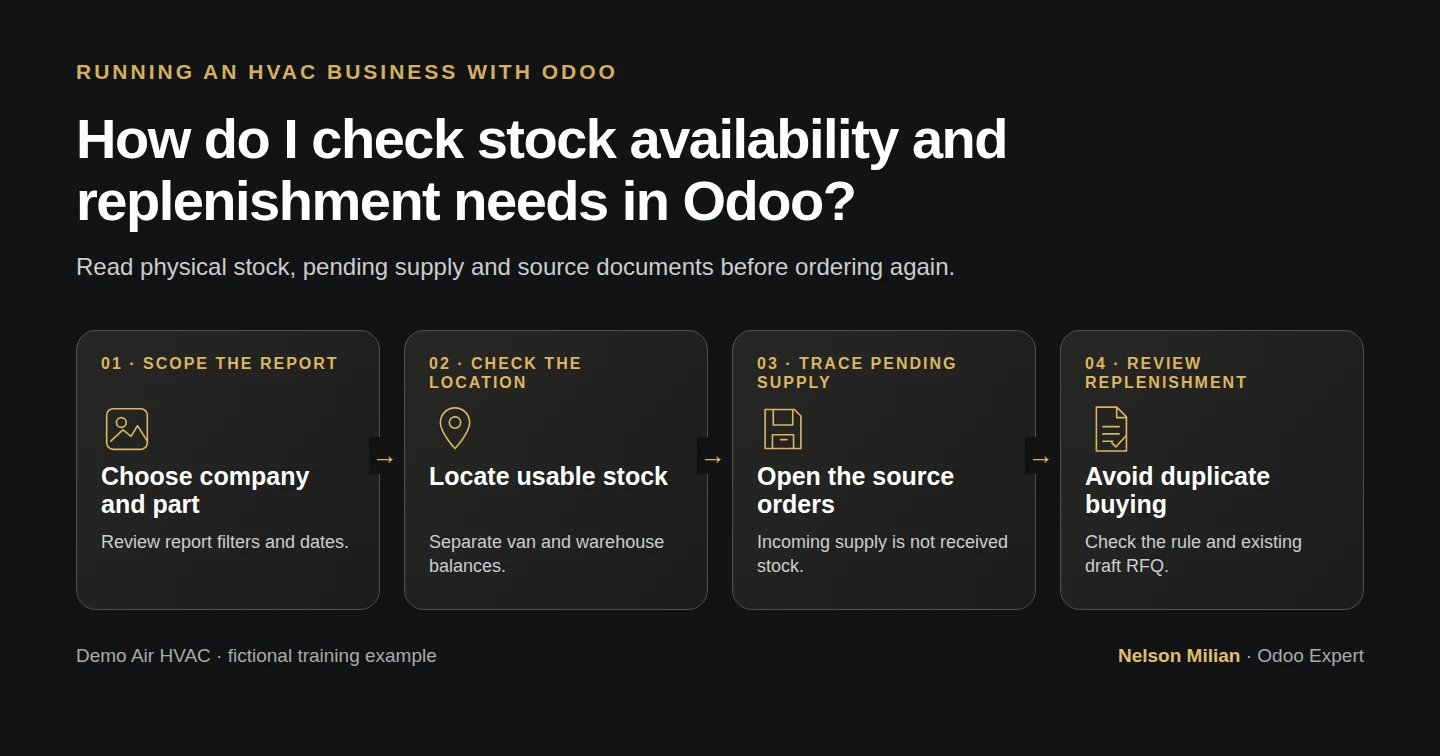
Check Odoo stock by location, trace completed movements and inspect pending receipts and RFQs before ordering HVAC parts again.
Odoo inventory reporting helps Alex answer three different questions: what parts are physically on hand, where they are, and what supply is still pending. In this example, Demo Air has two filters in its van and none in the warehouse. The company forecast shows 52 because 50 more are on open receipts. A separate capacitor rule shows no new quantity to order because an existing draft RFQ already supplies four pending units. This guide follows those numbers to their native source records.
Alex Rivera and Demo Air HVAC are fictional training examples. Prices, dates, quantities and business situations in this guide are illustrative.
Before you begin
Tested in stock Odoo 20.0-20260926 Community as the demo owner administrator, with official modules and standard configuration. Use the existing Inventory setup and owner role. Complete H15 warehouse and van locations, H35 replenishment, H36 parts delivery and H38 supplier return. Keep the established receipts, returns, stock count and later job movements rather than recreating them. The quantities below describe this series checkpoint after later deliveries; your business will have its own quantities and dates. No Enterprise dashboard, additional module or customized report is required for the demonstrated views.
Step-by-step workflow
Step 1. Open the company stock report
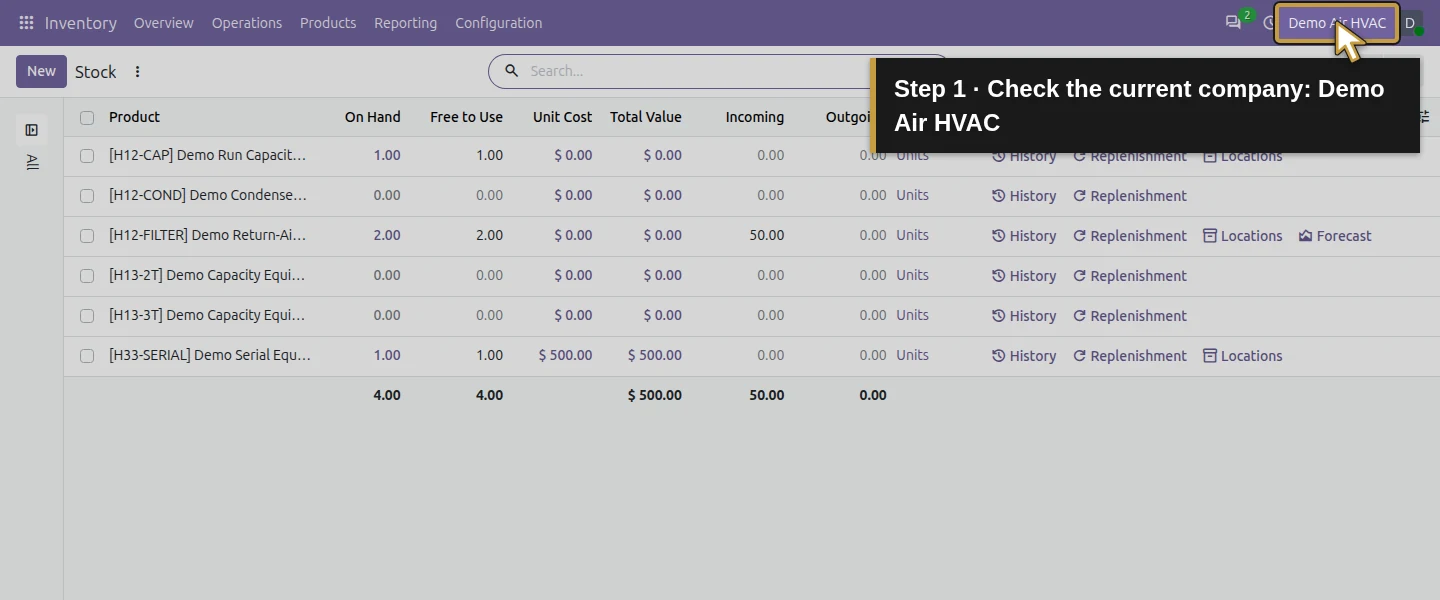
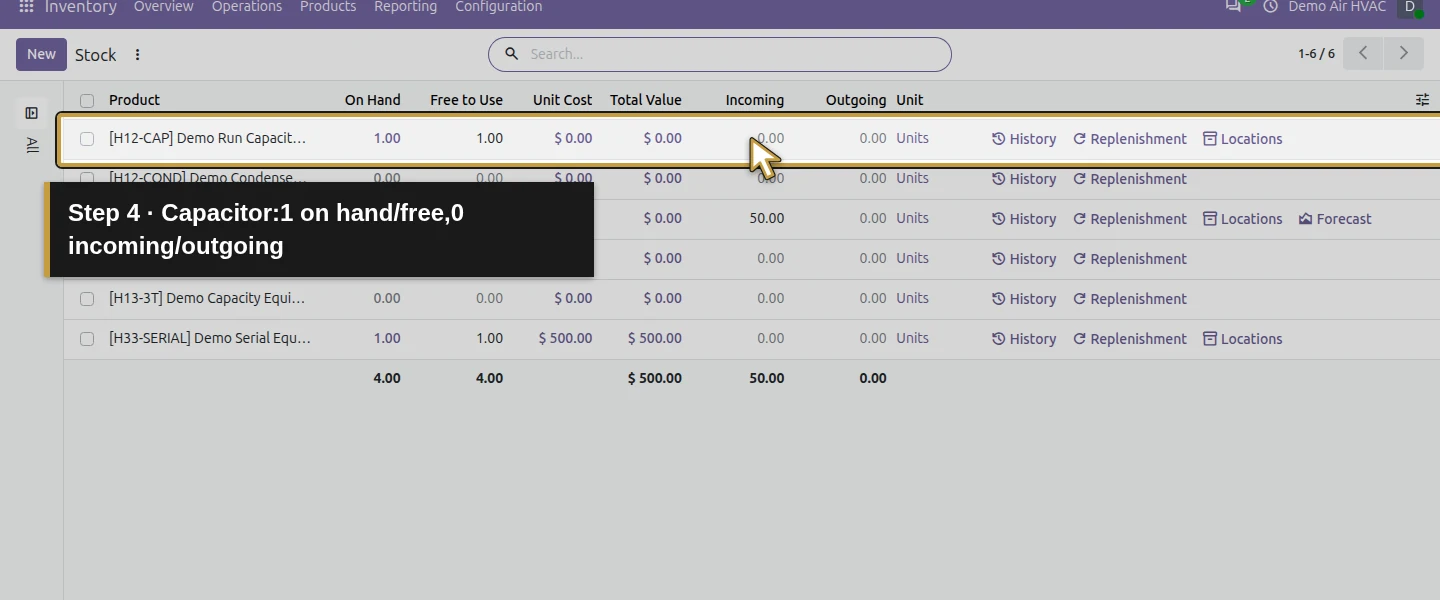
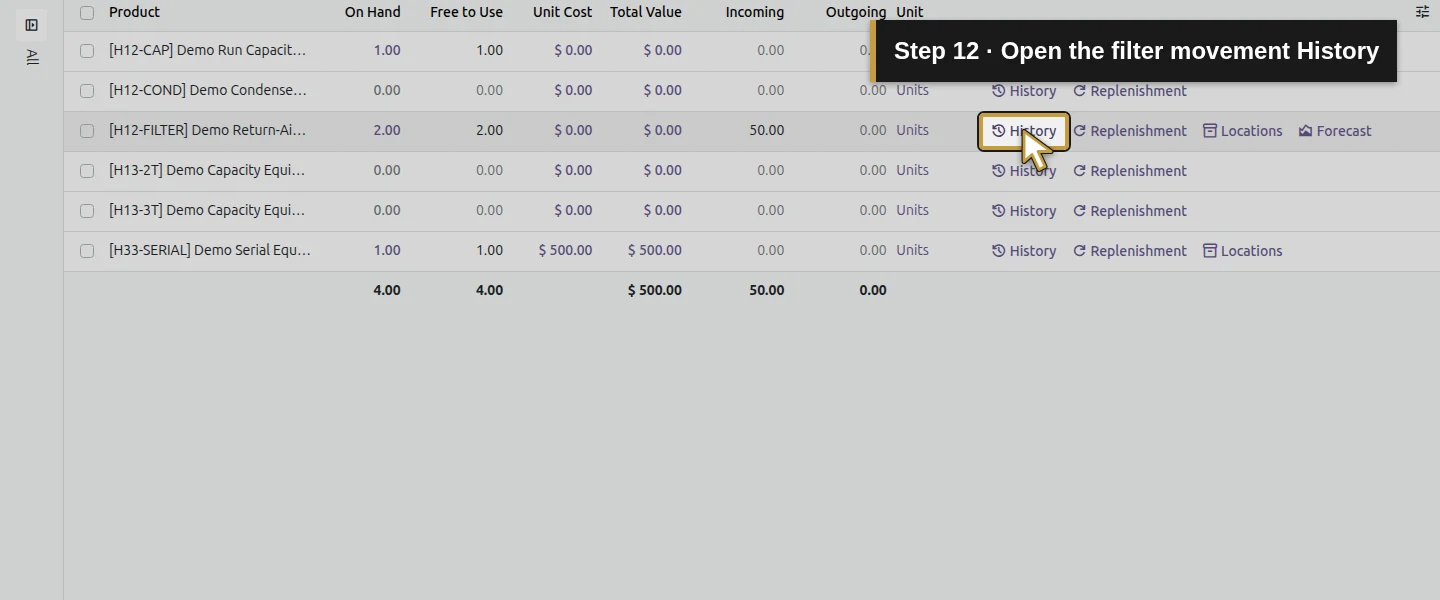
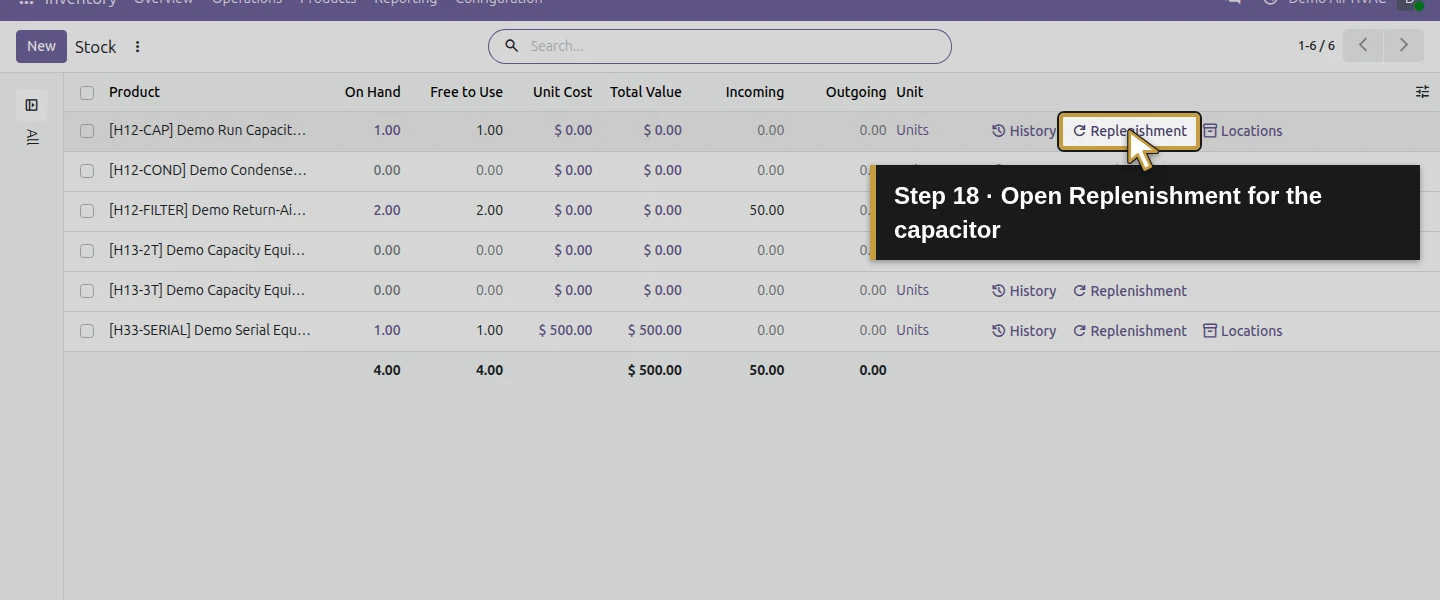
Open Inventory → Reporting → Stock. Check the current company is Demo Air HVAC. The tested list contains six tracked products and columns On Hand, Free to Use, Incoming, Outgoing and Unit. This opening view is the company stock scope, not a promise that every unit is in WH/Stock. Find [H12-FILTER] Demo Return-Air Filter H12 and [H12-CAP] Demo Run Capacitor H12 by their references.
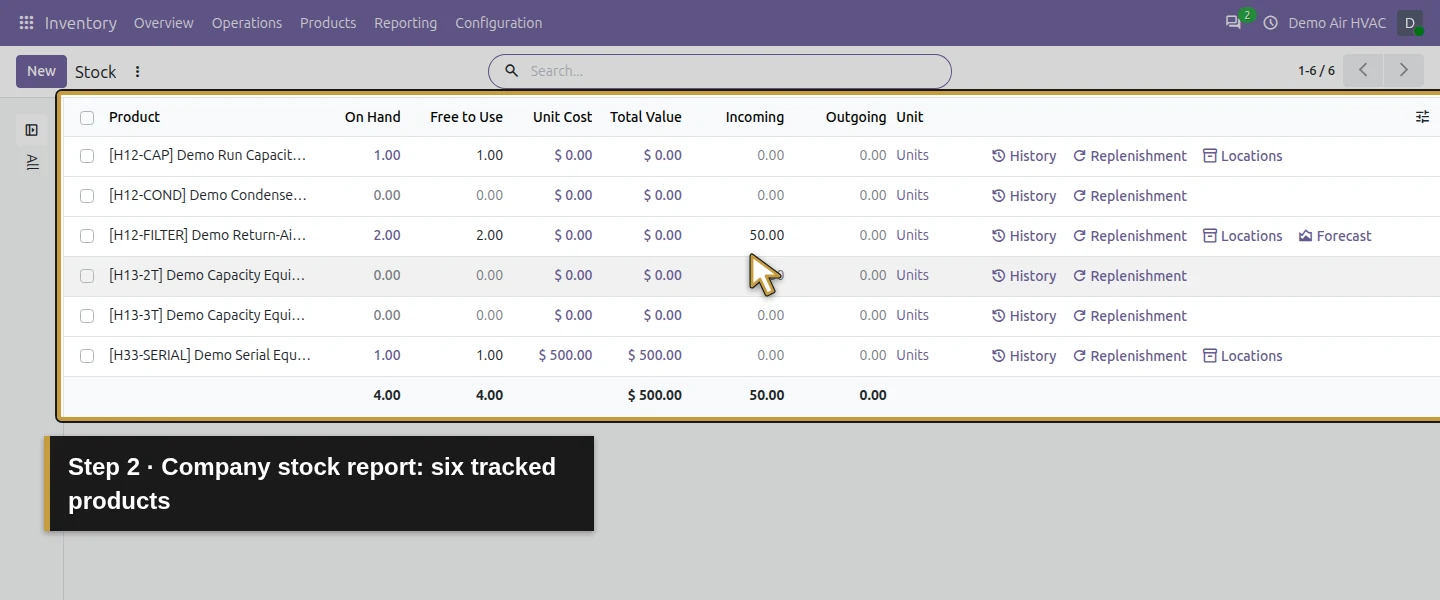
Step 2. Read physical stock and pending supply separately
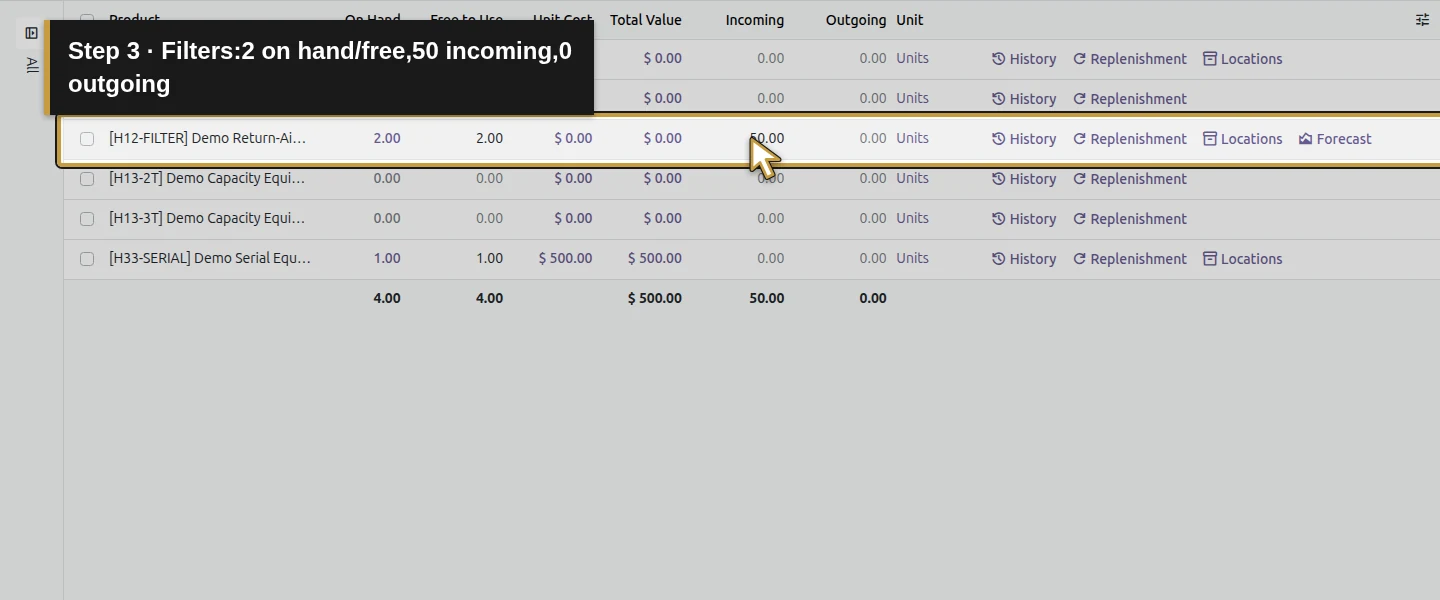
On the filter row, check On Hand 2.00, Free to Use 2.00, Incoming 50.00 and Outgoing 0.00, in Units. The capacitor has one on hand and one free, with zero incoming/outgoing in this report. Free to Use equals On Hand here because none of these units is reserved. Do not add Incoming to physical stock or use a company-wide free quantity as proof that the warehouse has that quantity ready to pick.
Step 3. Locate the two filters
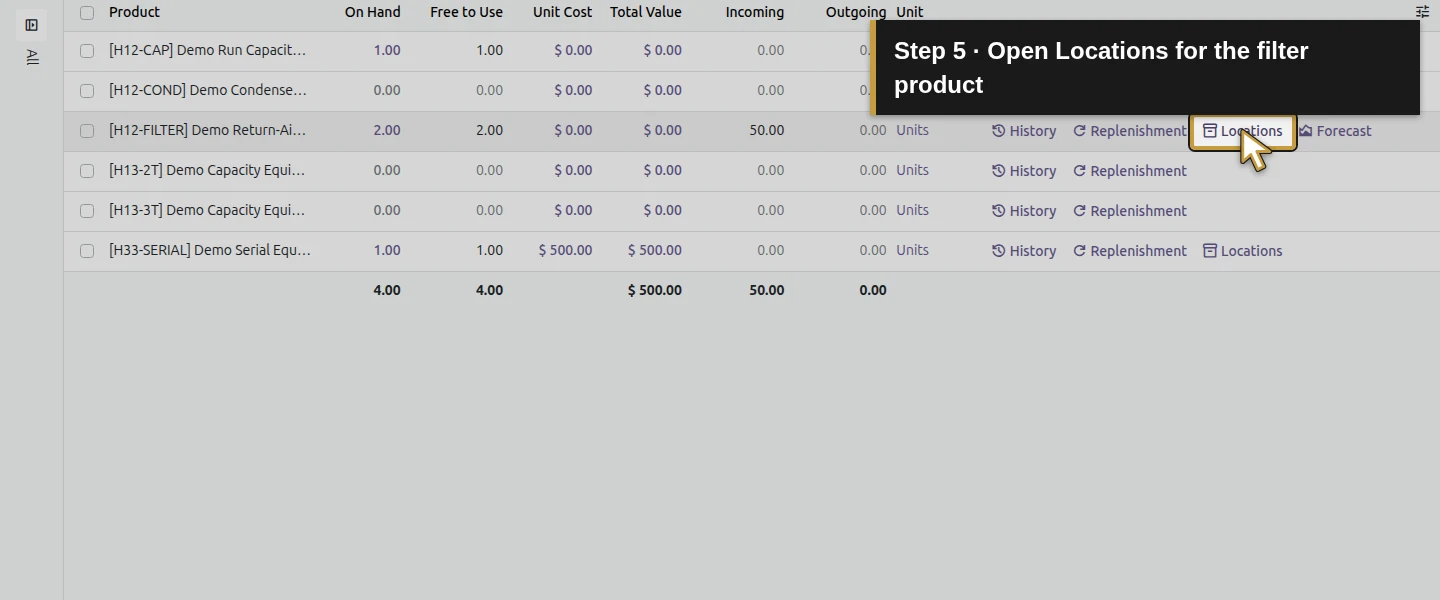
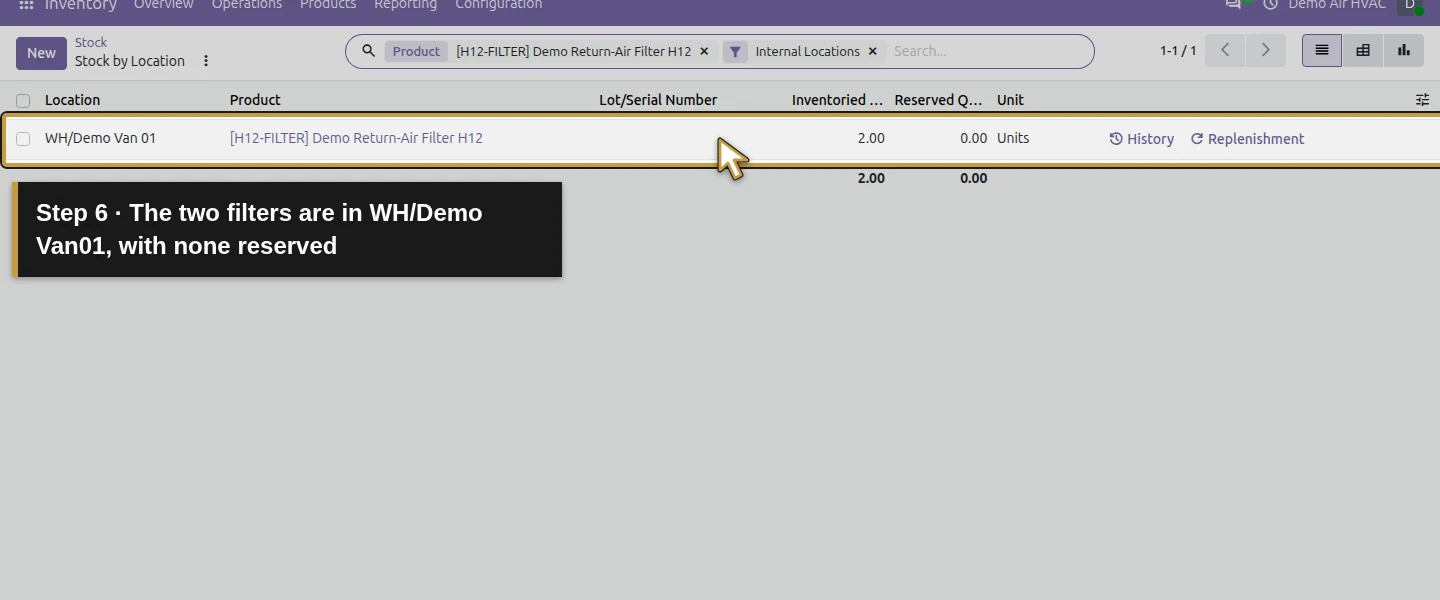
Click Locations on the filter row. The native Stock by Location view retains the Product filter and Internal Locations. It shows WH/Demo Van 01, Inventoried Quantity 2.00, Reserved Quantity 0.00. This is the physical location needed for a warehouse-versus-van decision. The zero-stock warehouse row is omitted in this view; absence of a row is not evidence of a positive quantity elsewhere.
Step 4. Check the warehouse scope explicitly
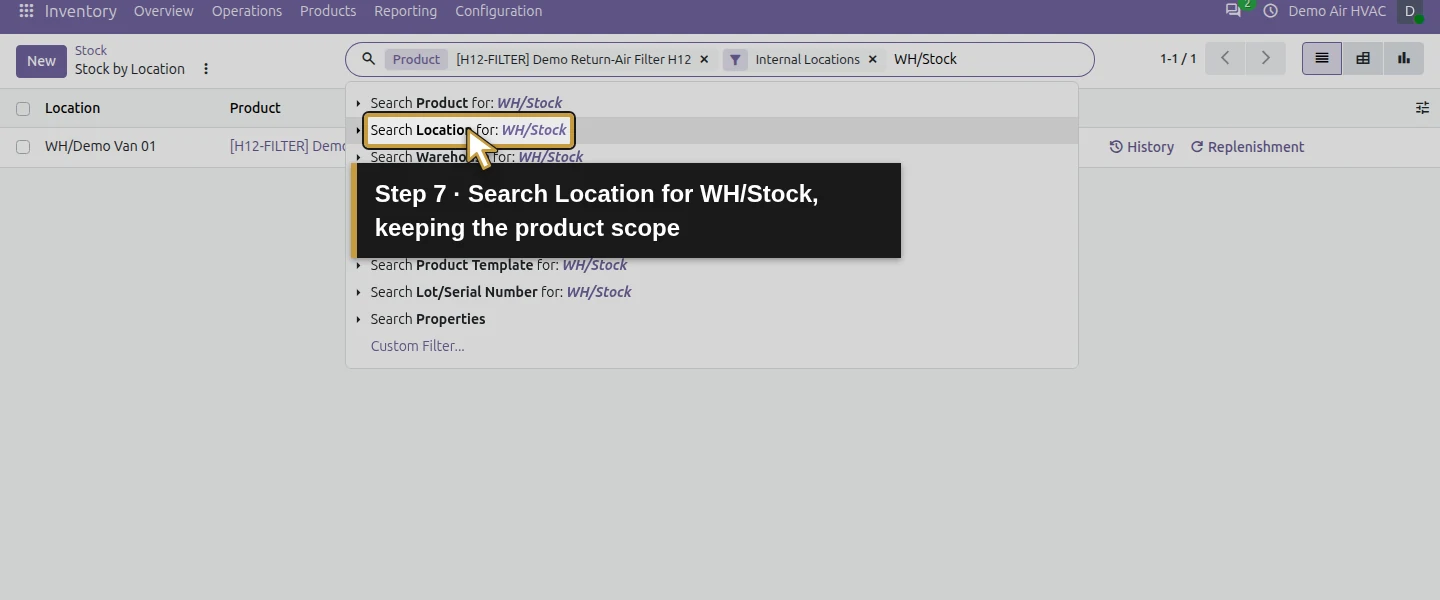
In the same search box, type WH/Stock, then select Search Location for: WH/Stock. Check the resulting Location: WH/Stock search facet. The demonstrated result is No Stock On Hand. Remove only that Location facet with its close control; the Product/Internal Locations filters remain, and the two-unit van row returns. WH/Stock and WH/Demo Van 01 are sibling internal locations under WH in this setup. Verify the actual location hierarchy rather than assuming a warehouse parent and its stock location are interchangeable.
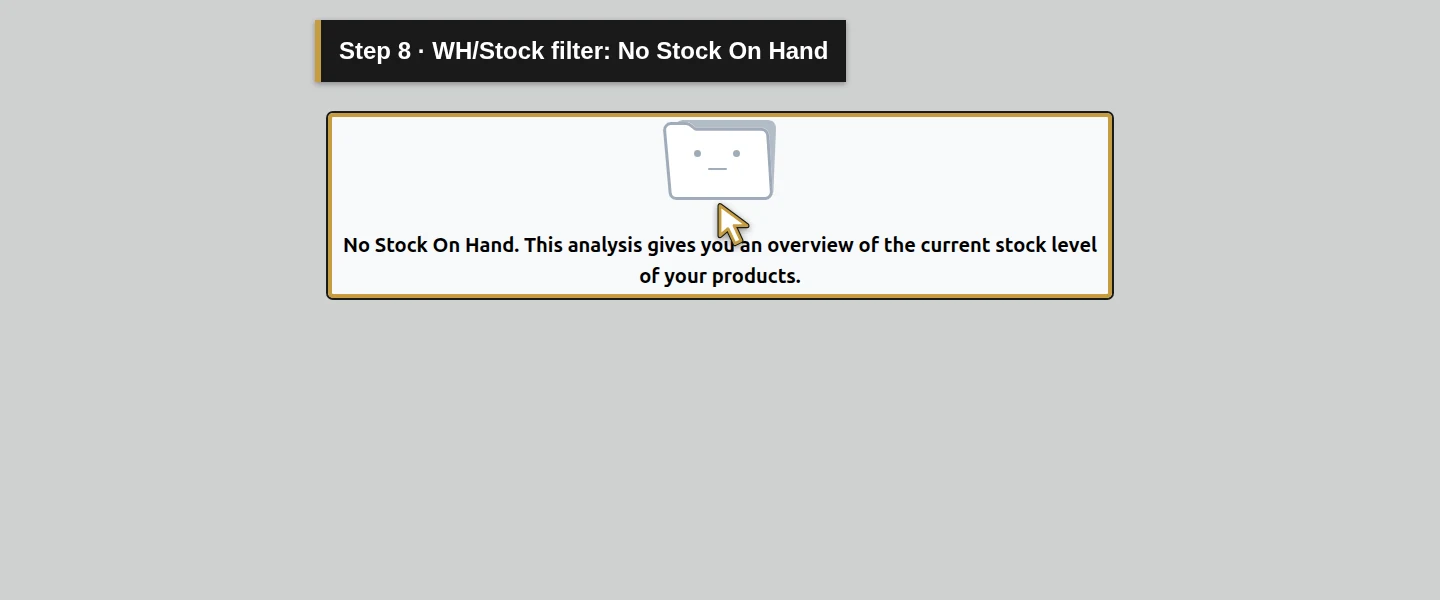
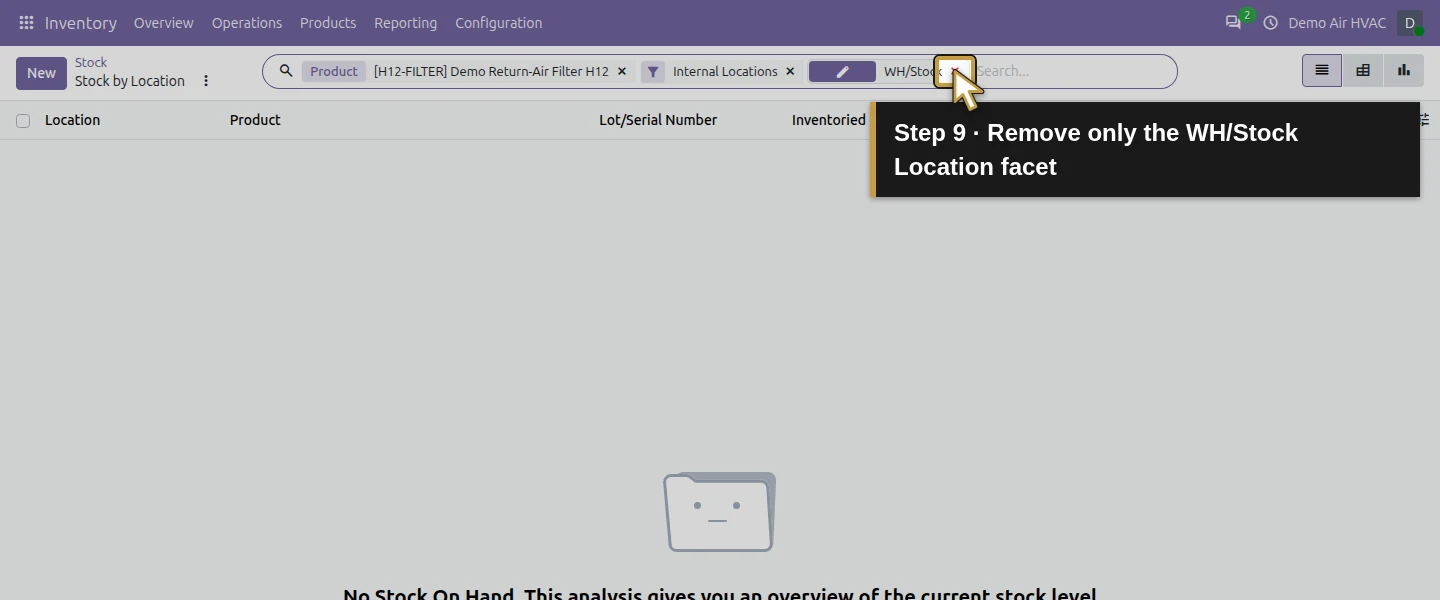
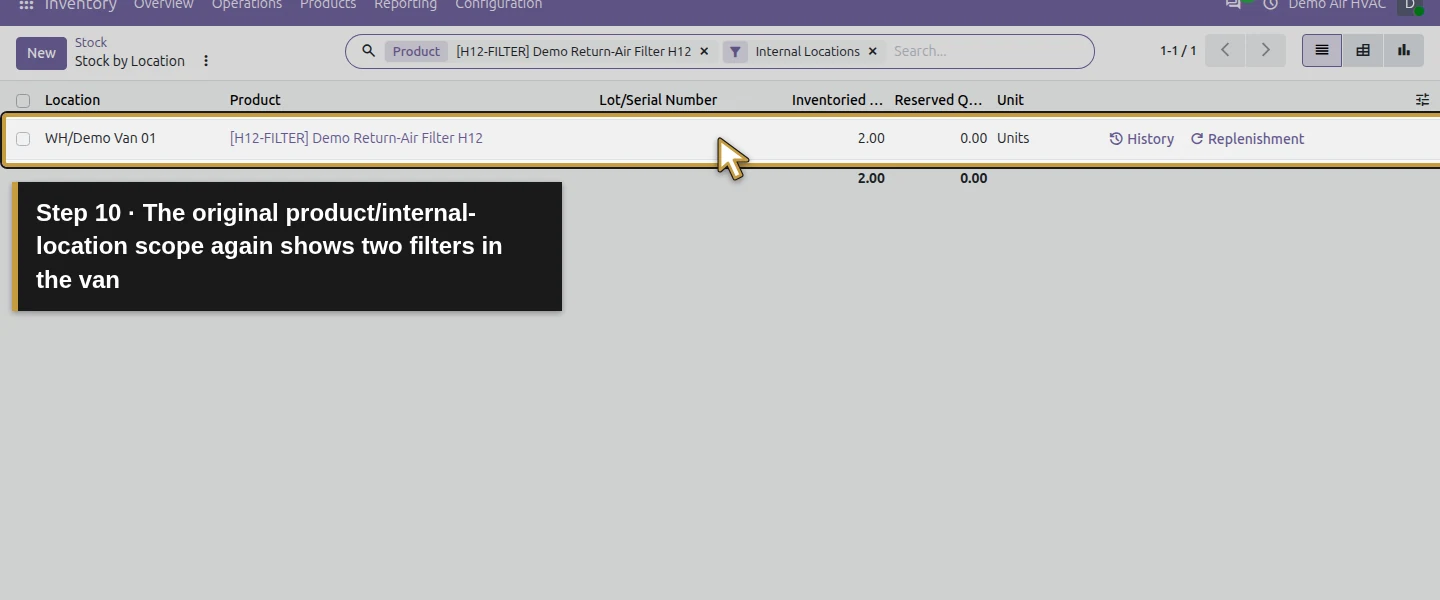
Step 5. Trace the completed filter movements
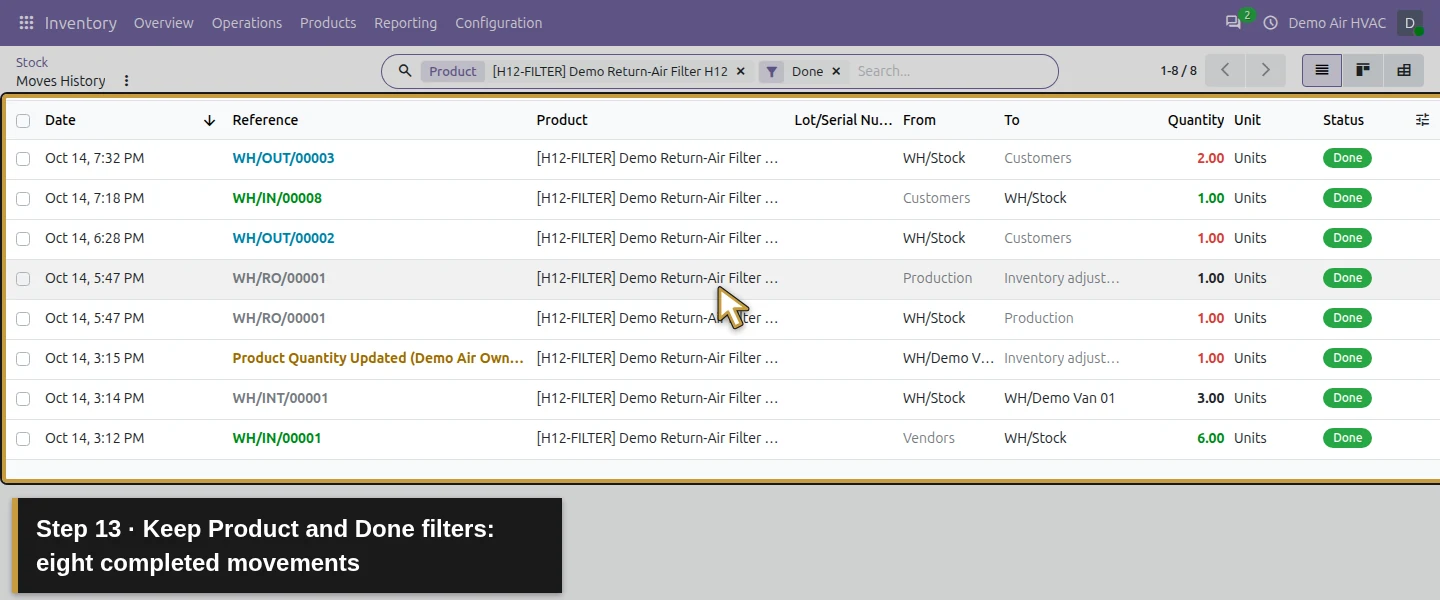
Click the Stock breadcrumb, then History on the filter row. Keep the Product and Done filters. The eight history rows include six received, three transferred to the van, one van count reduction, two repair movements, an initial customer delivery of one, a return of one and a later delivery of two. Reconcile by From/To, not by adding all row quantities: WH/Stock is 6 − 3 − 1 repair issue − 1 first delivery + 1 return − 2 later delivery = 0; the van is 3 − 1 count reduction = 2. The repair’s Production → Inventory adjustment row does not deduct a second unit from WH/Stock.
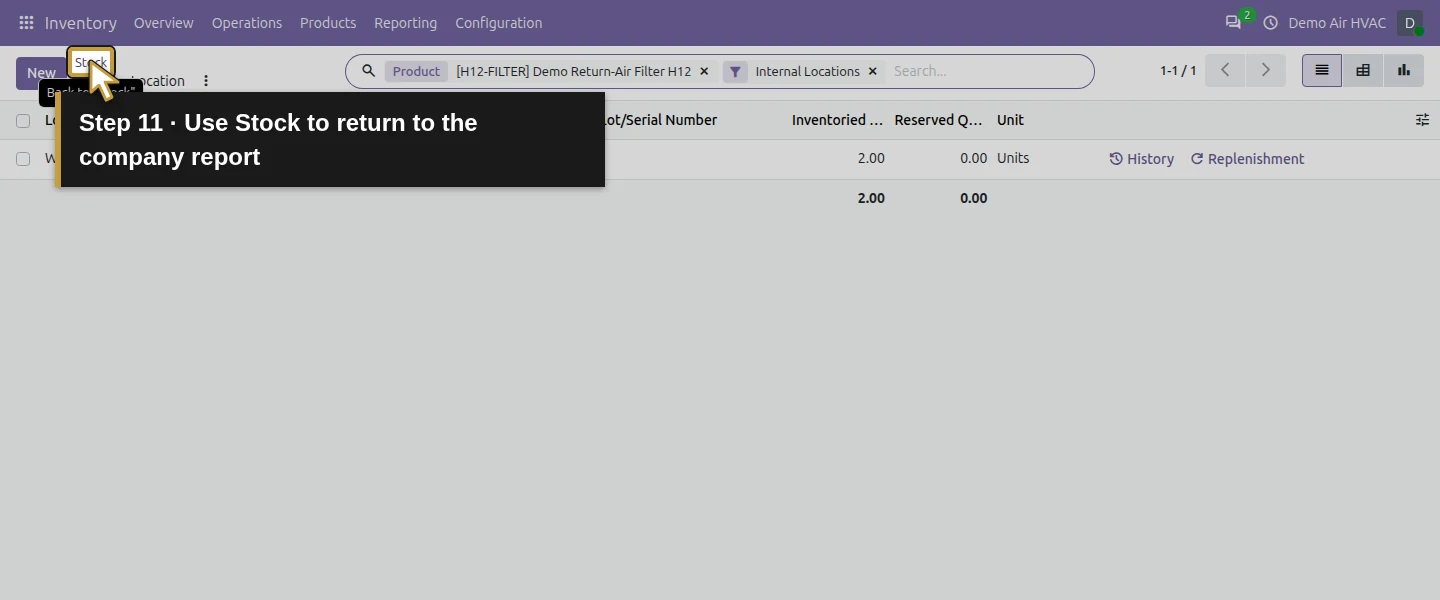
Step 6. Inspect the filter forecast and its source orders
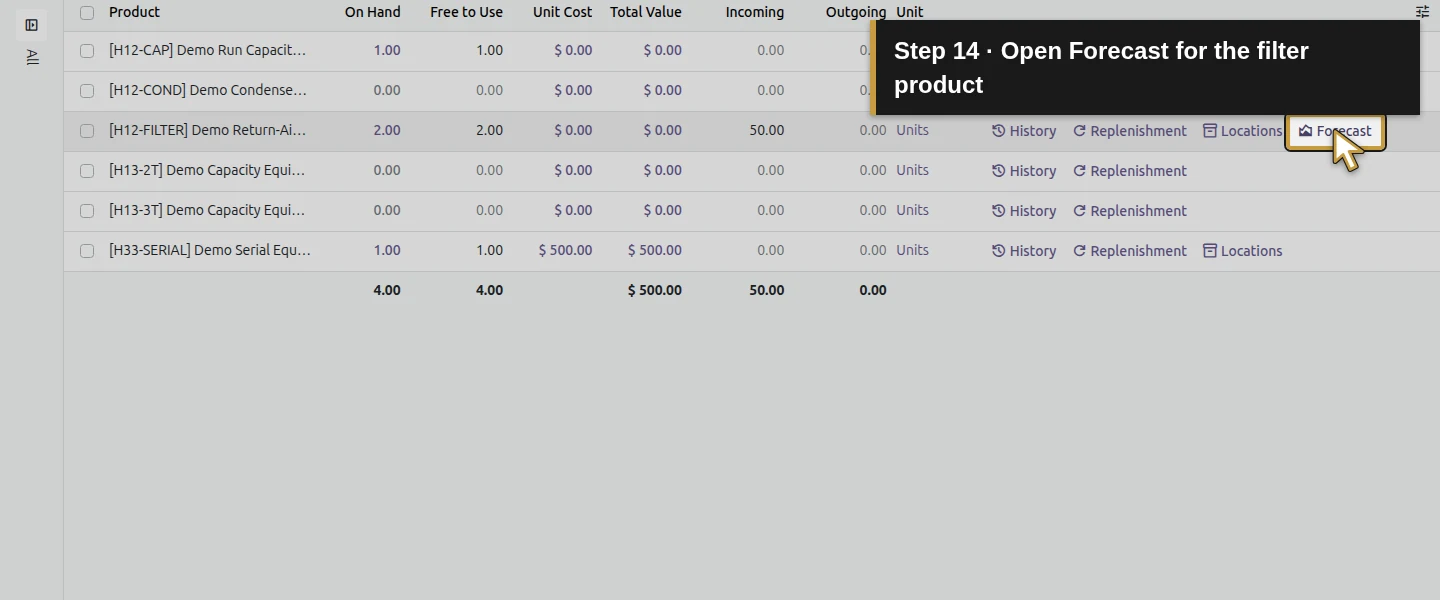
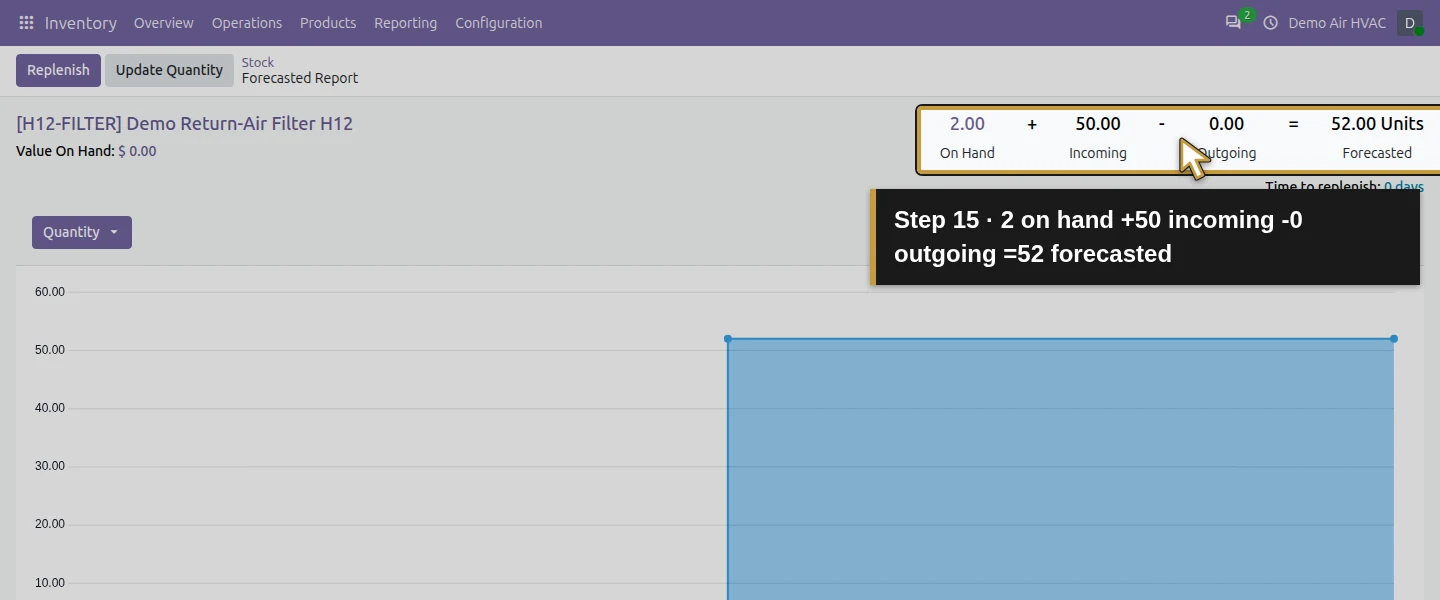
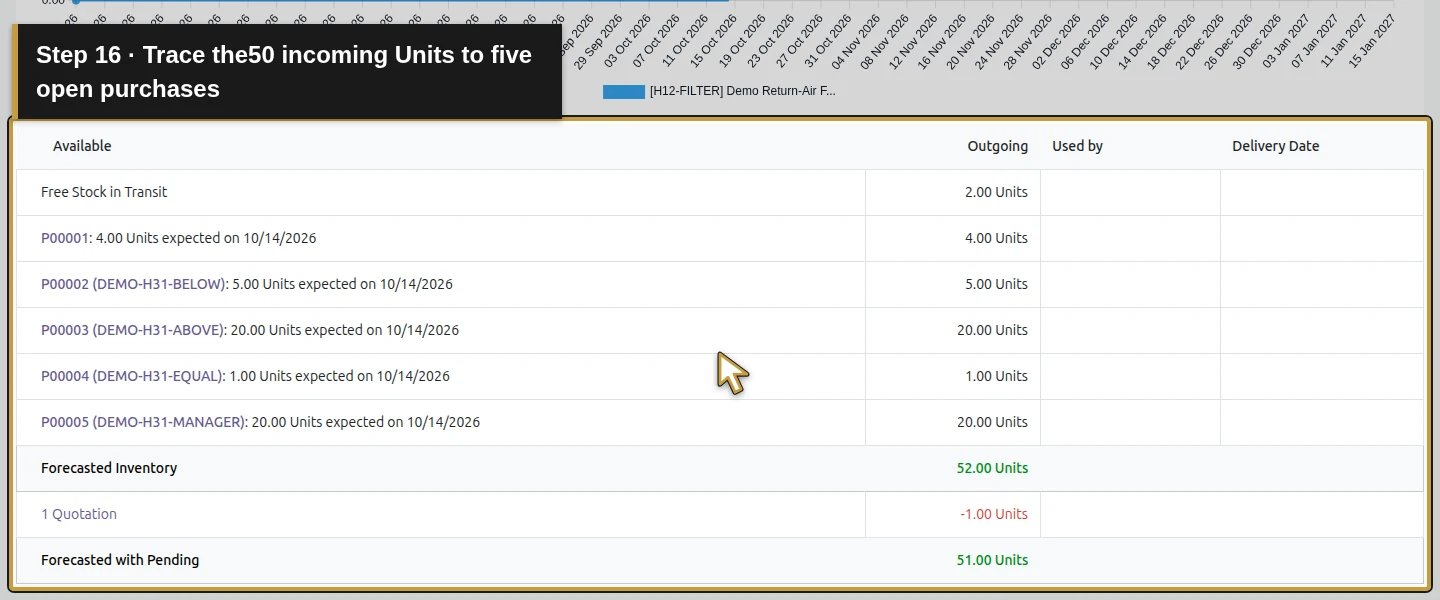
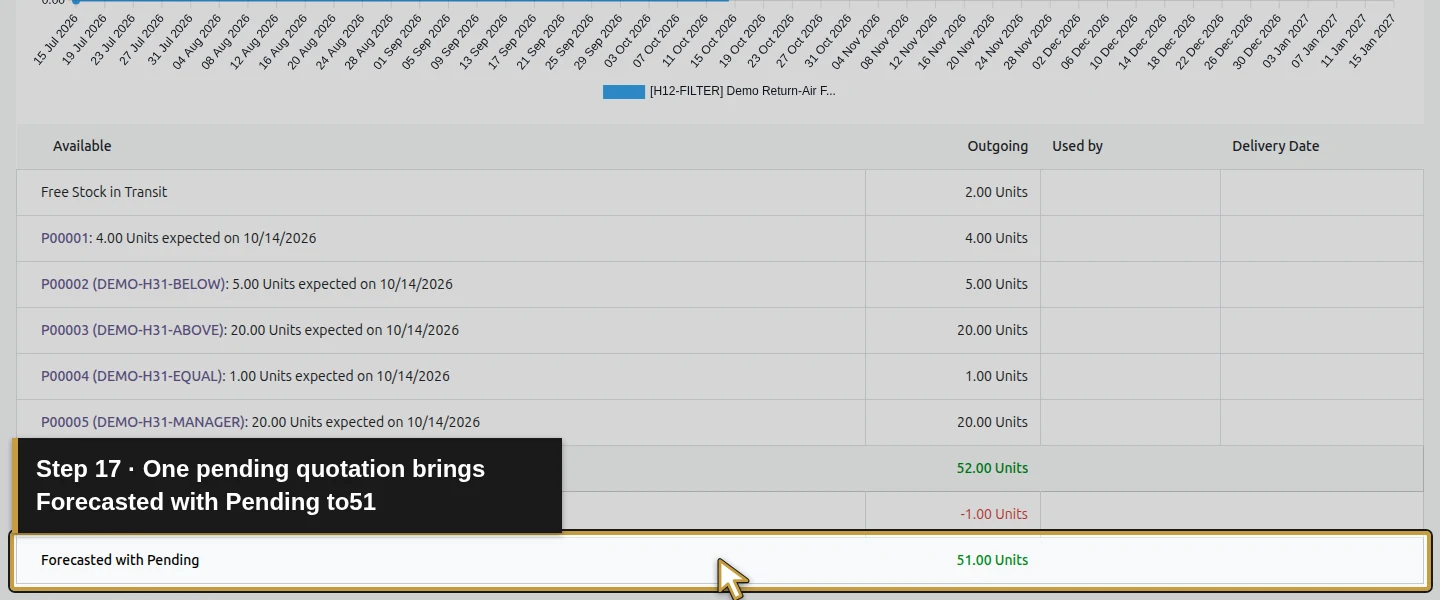
Return through Stock and click Forecast on the filter row. The Forecasted Report displays 2 On Hand + 50 Incoming − 0 Outgoing = 52 Forecasted. Its source rows are P00001: 4, P00002: 5, P00003: 20, P00004: 1 and P00005: 20 expected units. These are open, unreceived training purchases, including the earlier approval examples; a real review must confirm that the orders and expected dates still represent valid supply. A separate 1 Quotation row reduces Forecasted with Pending to 51. That pending quotation does not make the current physical stock 51 or create a completed delivery.
Step 7. Review the capacitor reordering rule
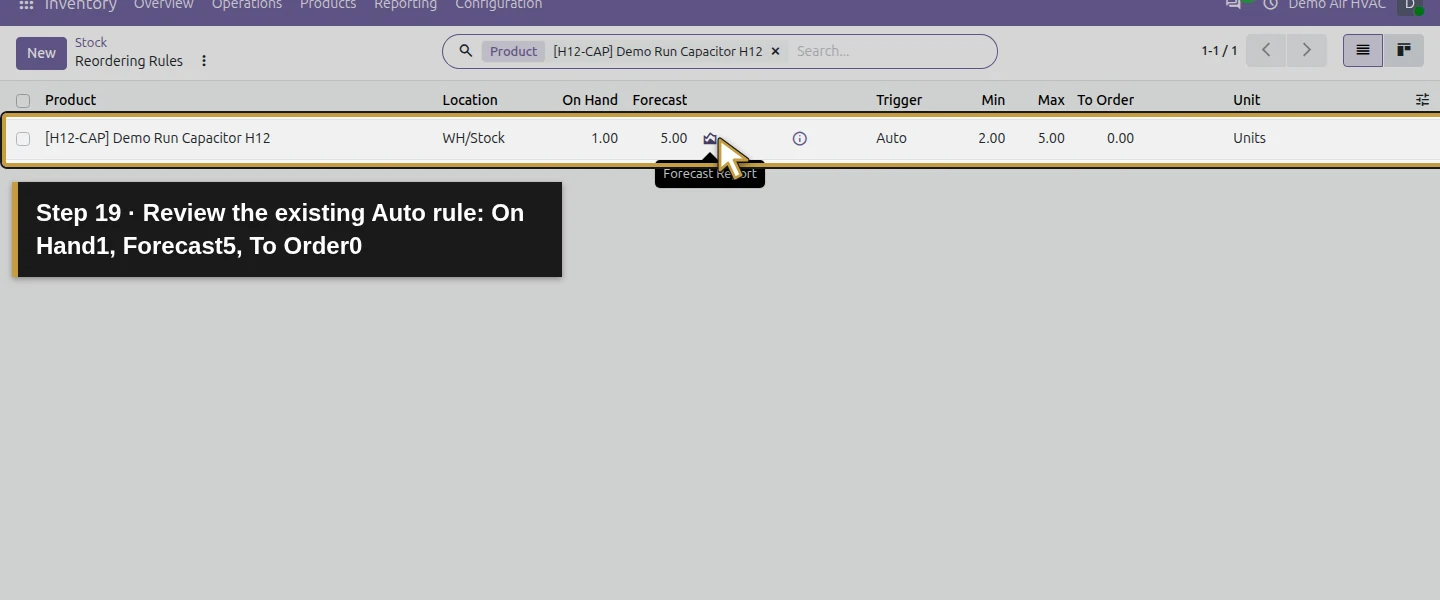
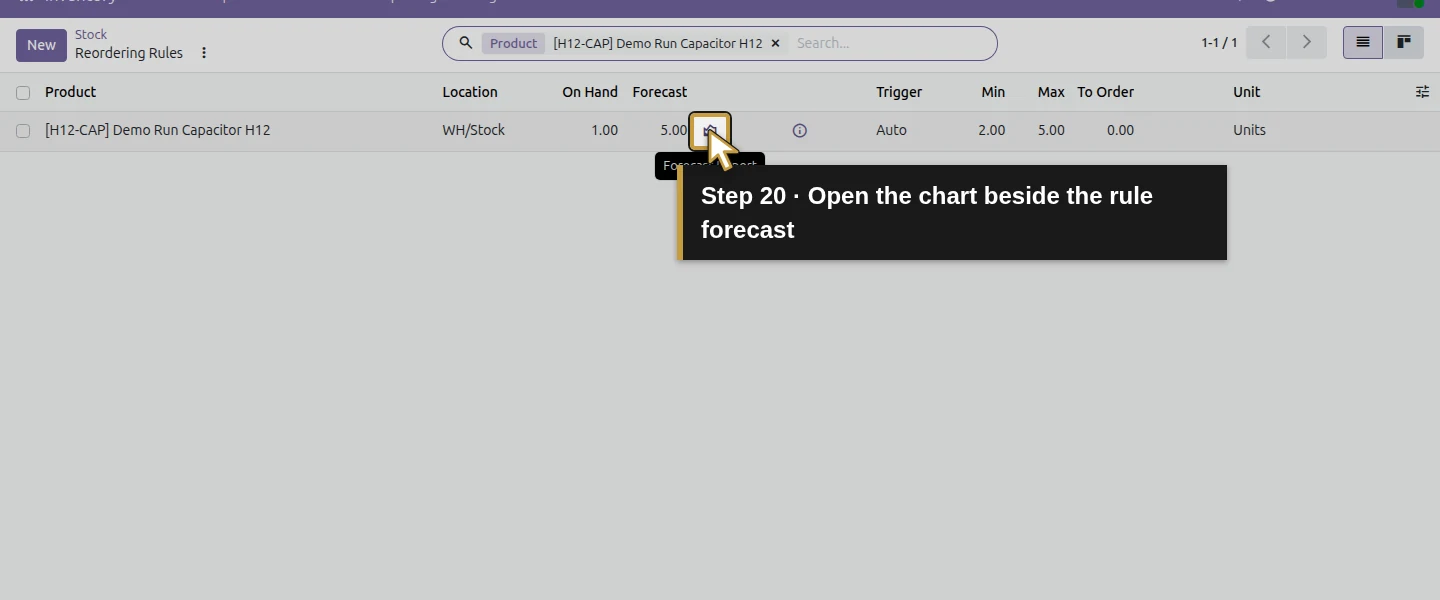
Return to Stock, then click Replenishment on the capacitor row. This opens Reordering Rules, filtered to that product. The existing WH/Stock rule shows On Hand 1.00, Forecast 5.00, Trigger Auto, Min 2.00, Max 5.00 and To Order 0.00. A low physical quantity alone is not a reason to generate another purchase. This is the existing rule from H35; leave its Min, Max, Trigger and order quantity unchanged during the review.
Step 8. Explain the pending RFQ before buying again
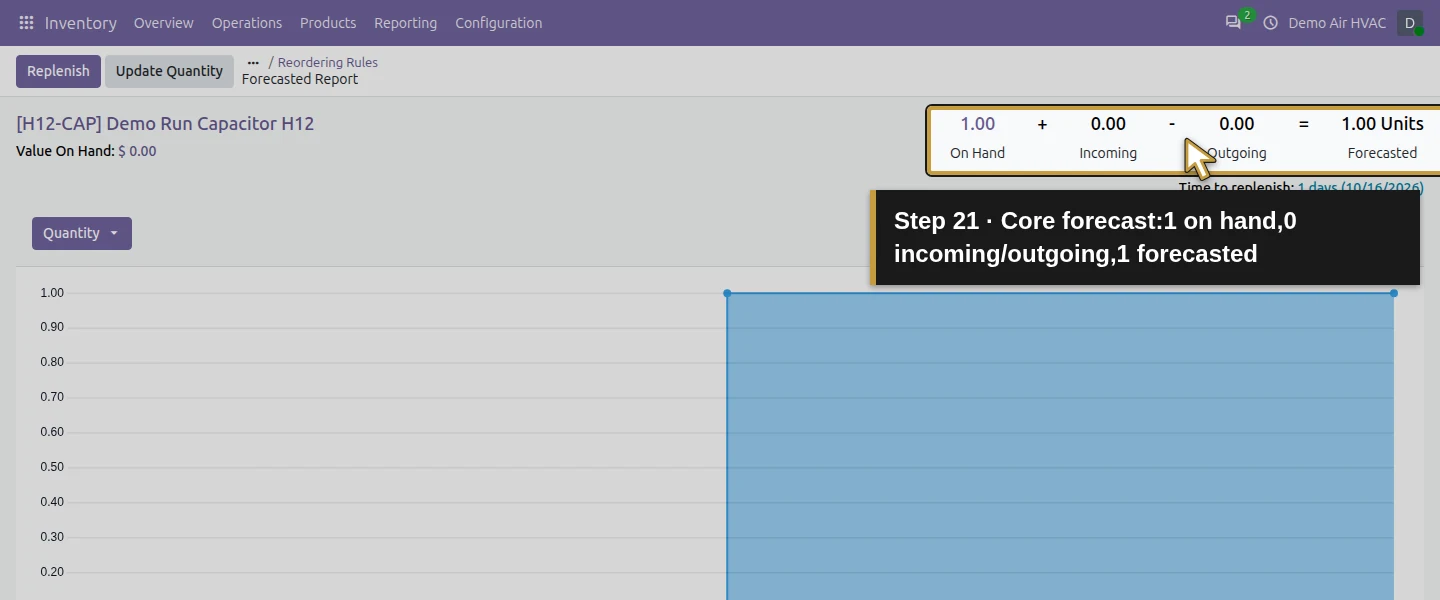
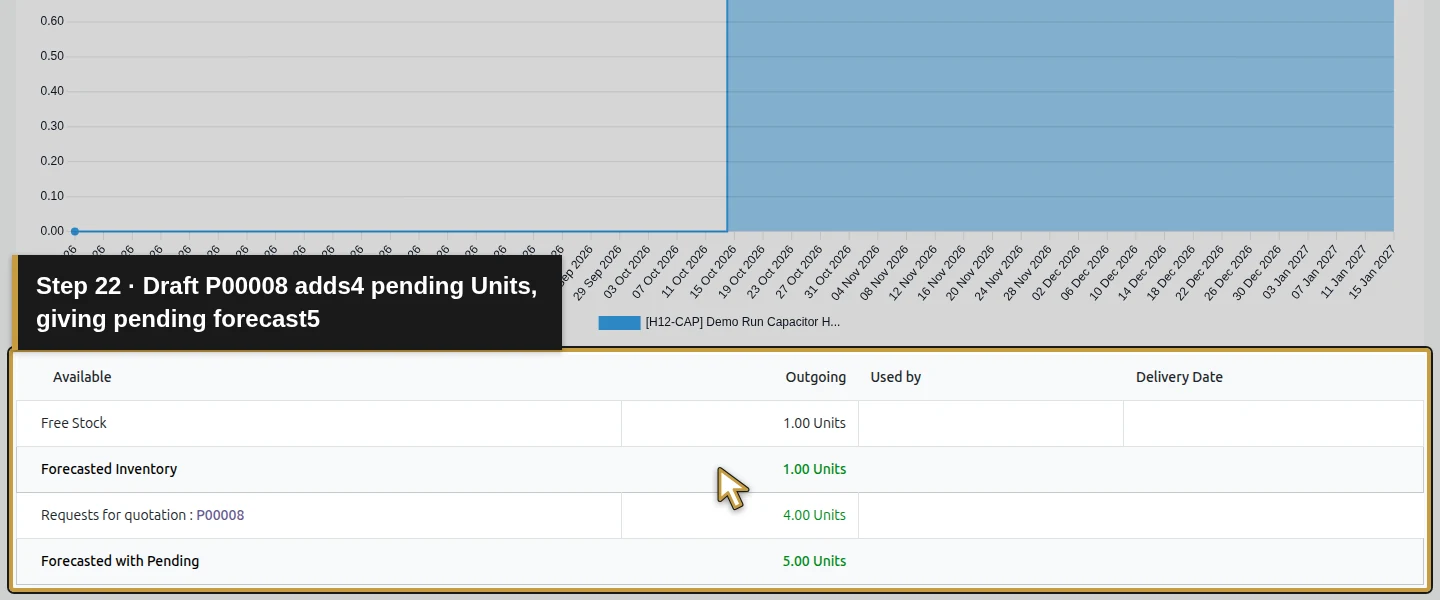
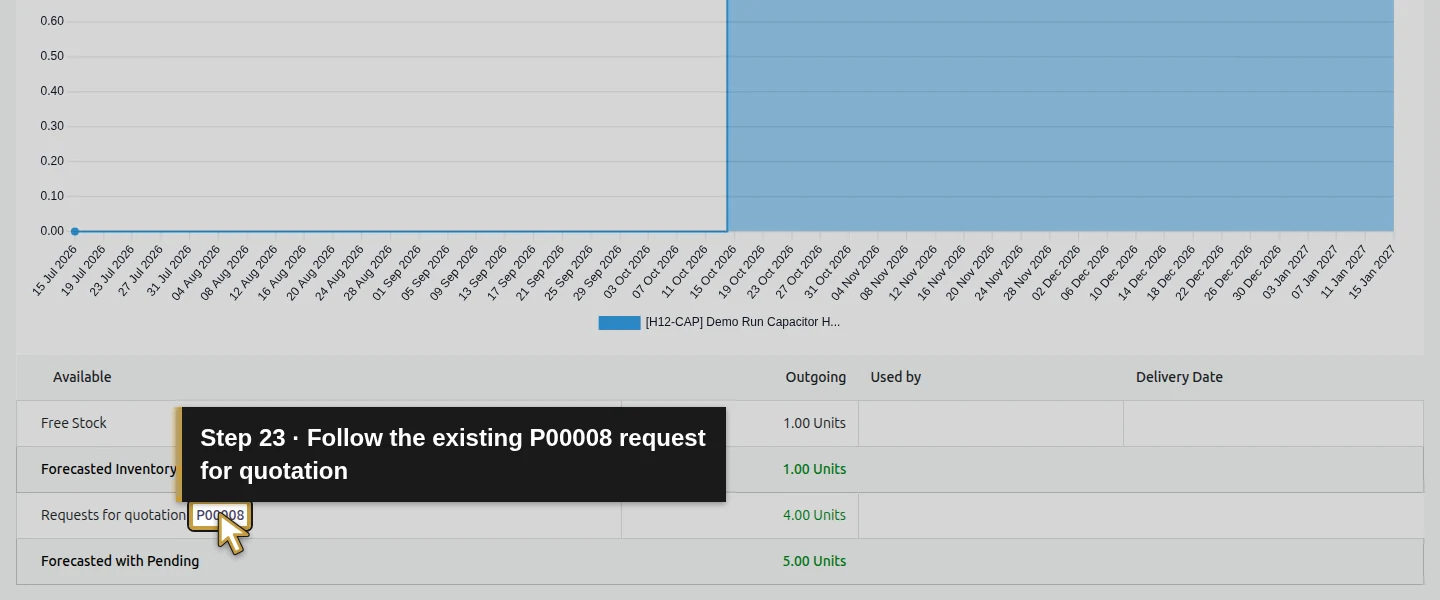
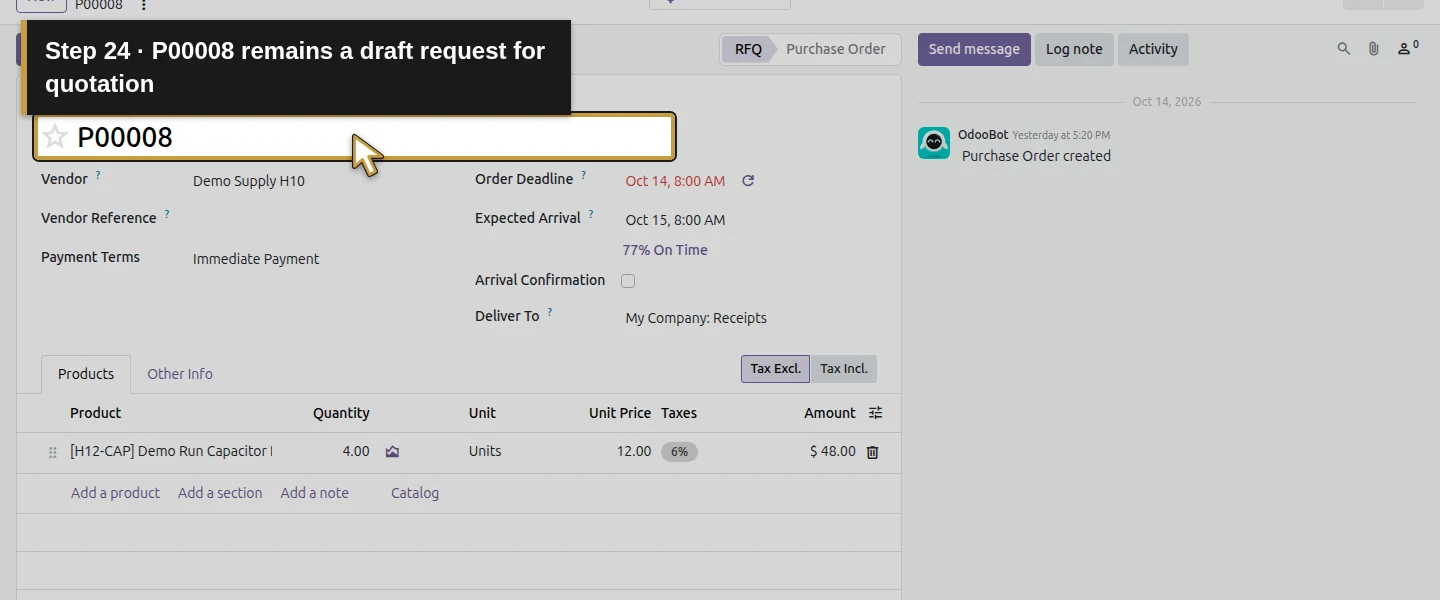
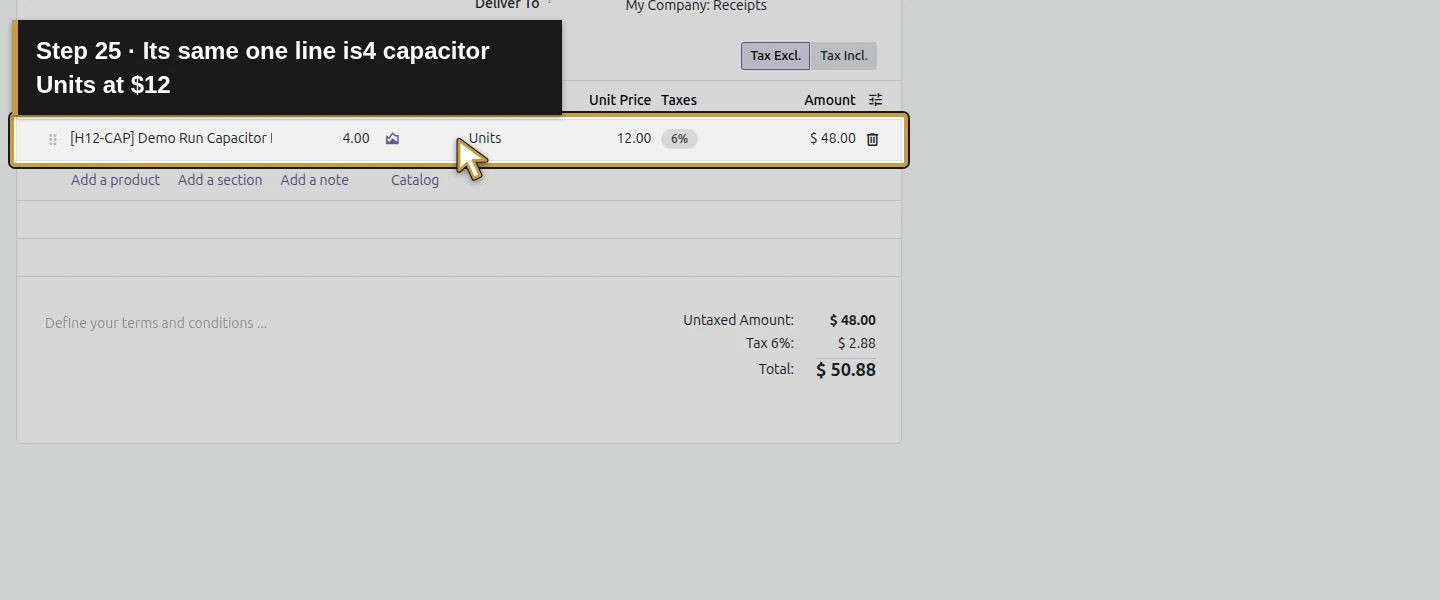
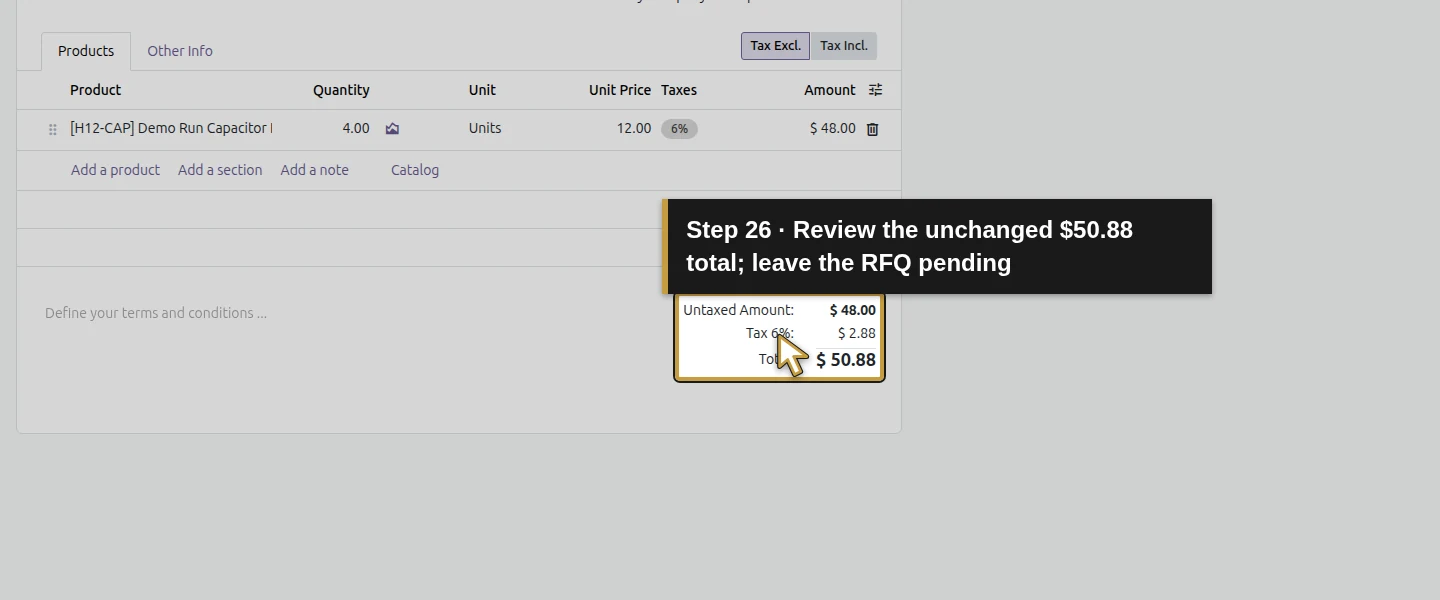
Click the small chart button beside the rule’s Forecast. The capacitor Forecasted Report shows 1 On Hand, 0 Incoming, 0 Outgoing, 1 Forecasted, then Requests for quotation: P00008, 4.00 Units and Forecasted with Pending 5.00. Click P00008. Check Request for Quotation, the one capacitor line of 4 Units at $12, and total $50.88 including the example tax. It is still a draft, with zero received and billed quantities in the saved source record. Review the existing supply before deciding whether to confirm, change or cancel it; this lesson leaves it as an RFQ.
Step 9. Reopen the report and reconcile the result
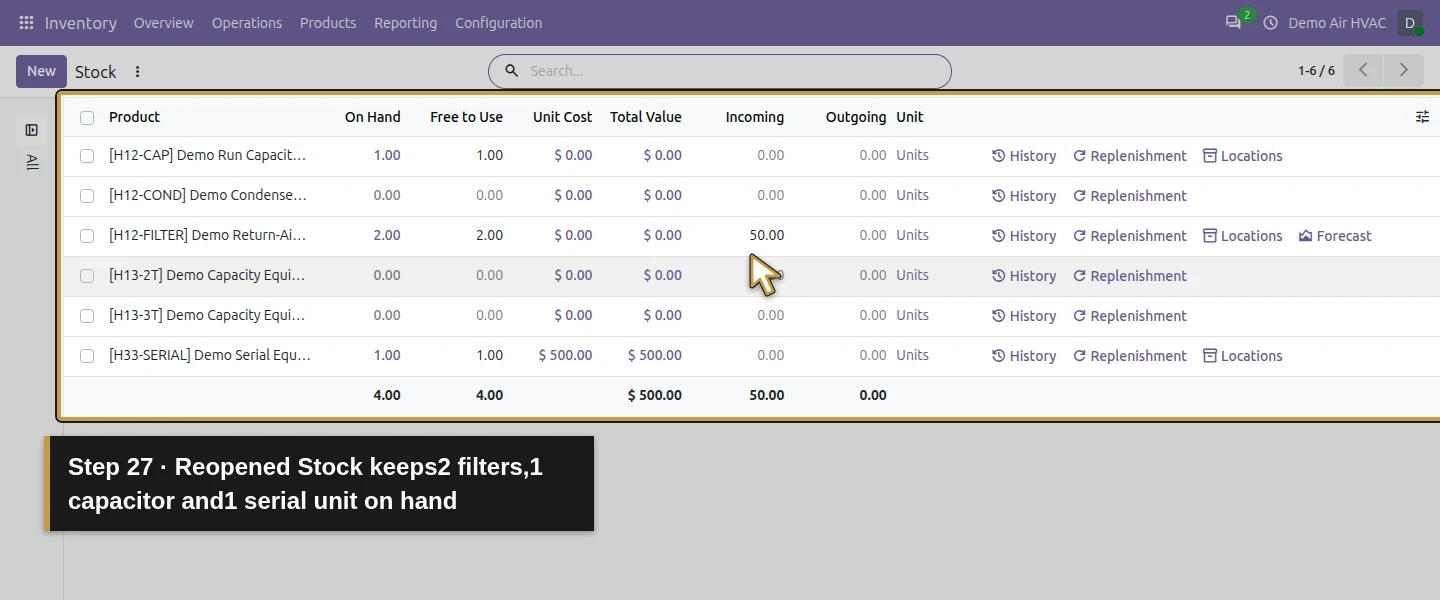
Return to Inventory → Reporting → Stock and reload. The filter remains two on hand/free with 50 incoming; the capacitor and serial-tracked equipment each remain one on hand/free. Existing receipts, deliveries, purchases and the reordering rule retain their quantities/states. This review creates no purchase, transfer, stock count, receipt, invoice or payment. It identifies where stock is held and which pending supply needs an office decision.
Check the result
The native report and location view agree: two filters are in the van, none are in WH/Stock, and none is reserved. Completed history explains that split. Five existing unreceived purchases contribute 50 incoming filters and a forecast of 52. The capacitor has one physically available unit; its reordering rule counts four units on draft RFQ P00008, yielding pending forecast five and To Order zero. Reopening retains the same product quantities, pending movements, purchases and rule. No duplicate procurement or new stock/financial transaction was created.
If your screen differs
Results depend on the company, location, date and search scope. This test covers the owner role and the displayed views, not every stock-report permission or multi-company configuration. On Hand, Free to Use, Incoming, Forecasted and Forecasted with Pending answer different questions. Here the rule’s Forecast includes the draft RFQ while the product’s core Forecasted value is one; follow its source rows before calling this an error or ordering again. The test did not reserve new stock, run the replenishment scheduler, change the rule or save a reusable filter. H35 retains the earlier scheduler/repeat evidence; unattended execution is still disabled in the training runtime. Opening the native location report removed one empty zero-quantity/zero-reservation storage row through shipped housekeeping; physical quantities, reservations and movements did not change. Unit Cost/Total Value were not validated as a financial valuation or job-profit report.
Frequently asked questions
How do I check stock availability in Odoo?
Open Inventory → Reporting → Stock and read On Hand, Free to Use, Incoming and Outgoing for the selected product/company. Use its Locations view before promising stock at a particular warehouse or van. In the verified example, two filters were free at company level but both were in the van; the warehouse had none.Why do Odoo on-hand and forecast quantities differ?
The tested filter report shows two physically on hand plus 50 on existing unreceived purchase receipts, giving 52 forecasted. Pending quotations and RFQs appear separately in Forecasted with Pending. The capacitor rule counted a four-unit draft RFQ and showed five forecast while the product core forecast remained one. Check the source documents and scope before buying again.Can I see warehouse and van stock separately in Odoo?
Yes, the demonstrated stock product row has Locations. Its Internal Locations view showed two filters at WH/Demo Van 01 with none reserved. Adding Location: WH/Stock returned No Stock On Hand; removing only that facet restored the van row. The van and WH/Stock are sibling internal locations here, so review the actual hierarchy and selected location scope.Continue building the business
Continue with H21: How do I record an HVAC site assessment in Odoo?. Use the location and pending-supply checks before promising parts for the next job.
Talk about your Odoo setup
Bring your current process and the result you need to Onward to plan your Odoo workflow. Talk about your Odoo setup.