
Running an HVAC business with Odoo
How do I review sales results in Odoo CRM?
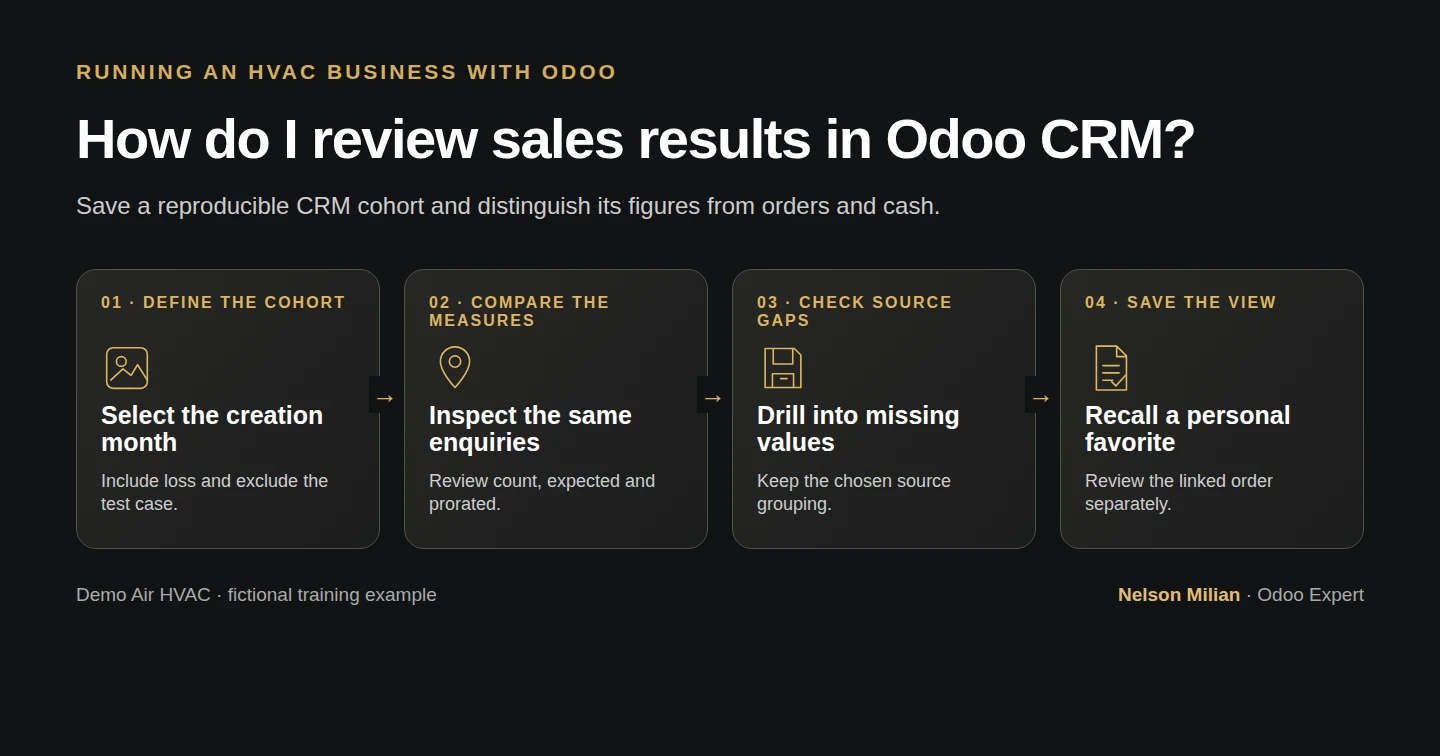
Review a defined Odoo CRM cohort by stage and source, reconcile counts and estimates, and save a personal reporting view.
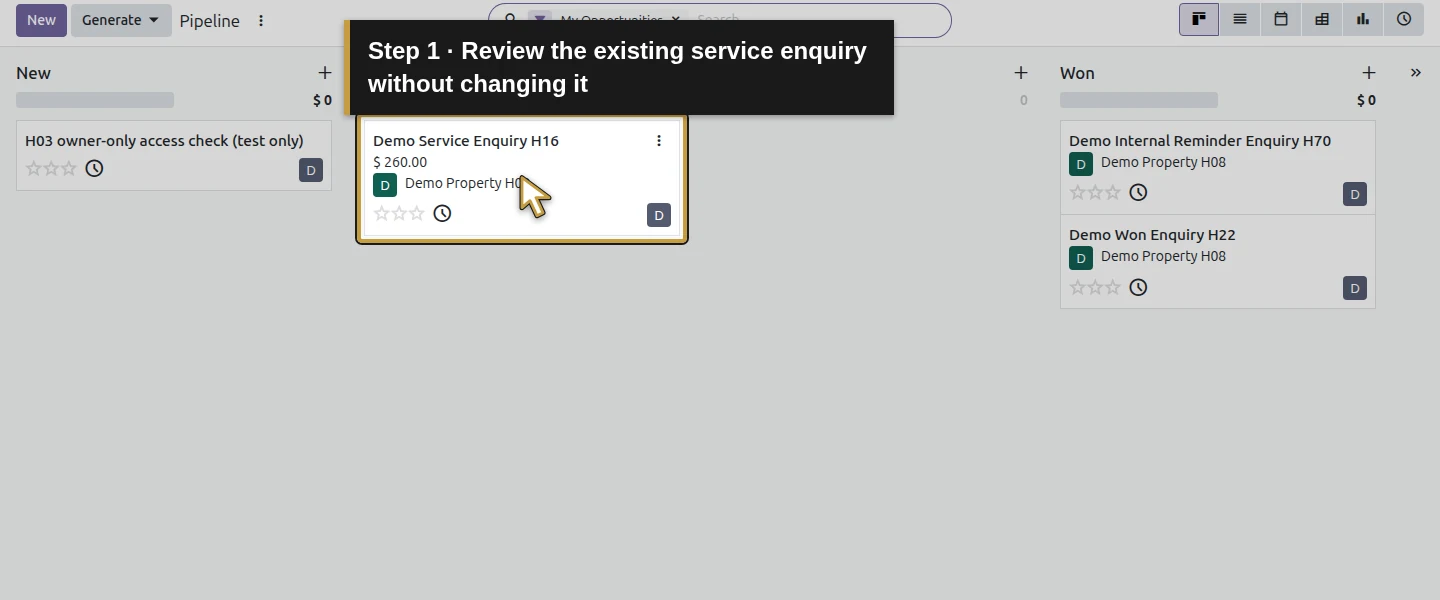
Alex wants to know which enquiries reached an outcome and where they came from. We use the existing Demo Air examples, include the lost enquiry, remove an internal test from the report and check missing sources. The result is a saved personal view of three commercial training opportunities, with counts and CRM estimates kept separate from order totals and receipts.
Alex Rivera and Demo Air HVAC are fictional training examples. Prices, dates, quantities and business situations in this guide are illustrative.
Before you begin
Tested in stock Odoo 20.0-20260926 Community as the demo owner administrator, with official modules and standard configuration. Complete How do I track where my Odoo CRM leads come from?, How do I mark an opportunity as won or lost in Odoo? and How can customers view and accept an Odoo quotation online?. Reuse the existing Demo Service Enquiry H16 and the two H22 outcome examples. The Odoo-authored LGPL-3 CRM module is already installed; no new app, customization or business rule is added. This owner-only review uses the existing October 2026 training records in America/New_York. Other users and date ranges can produce different results. Leave the source records unchanged while checking the report. An internal reminder-test enquiry is present in this saved checkpoint and will be excluded from the commercial cohort, without deleting it.
Step-by-step workflow
Step 1. Define the question before choosing a total
Use this question: What happened to the October Demo commercial enquiries, and which sources are missing? This is a cohort based on Created on, not a report of everything closed or invoiced during October. Keep the H03 access-test records and internal reminder test outside this commercial review. Do not enter expected amounts, change probabilities or mark an opportunity Won to make the report look complete.
Step 2. Open the native Pipeline Analysis pivot
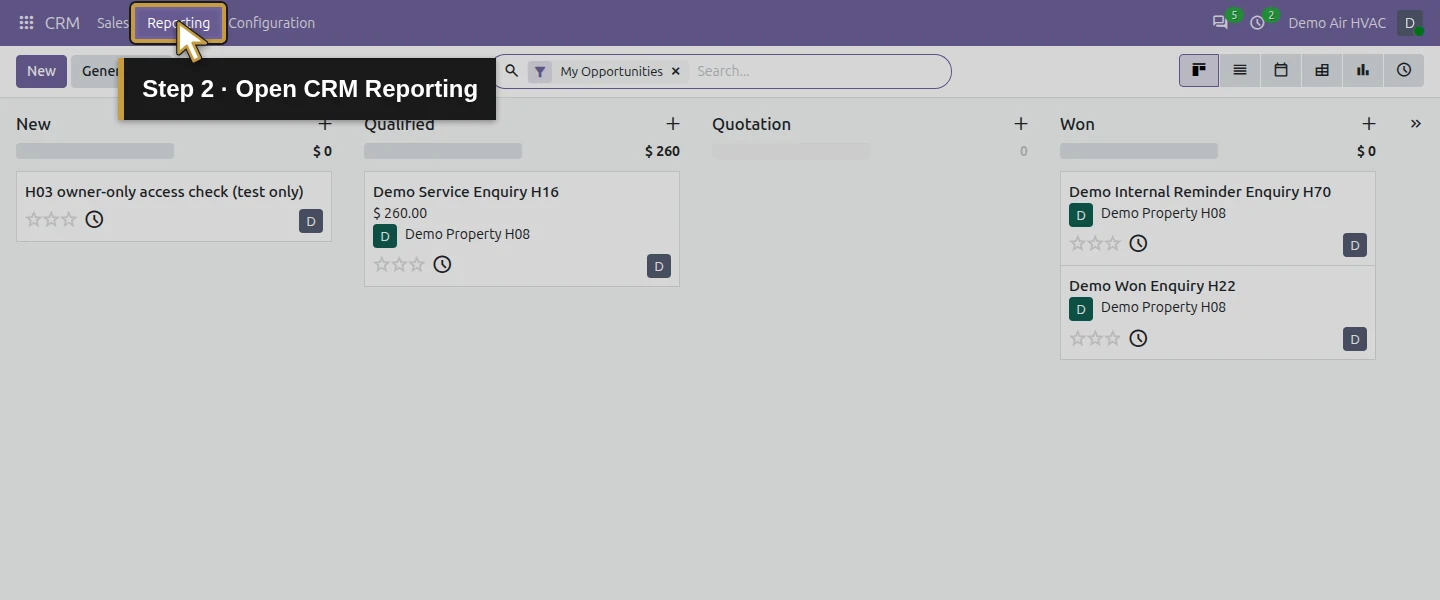
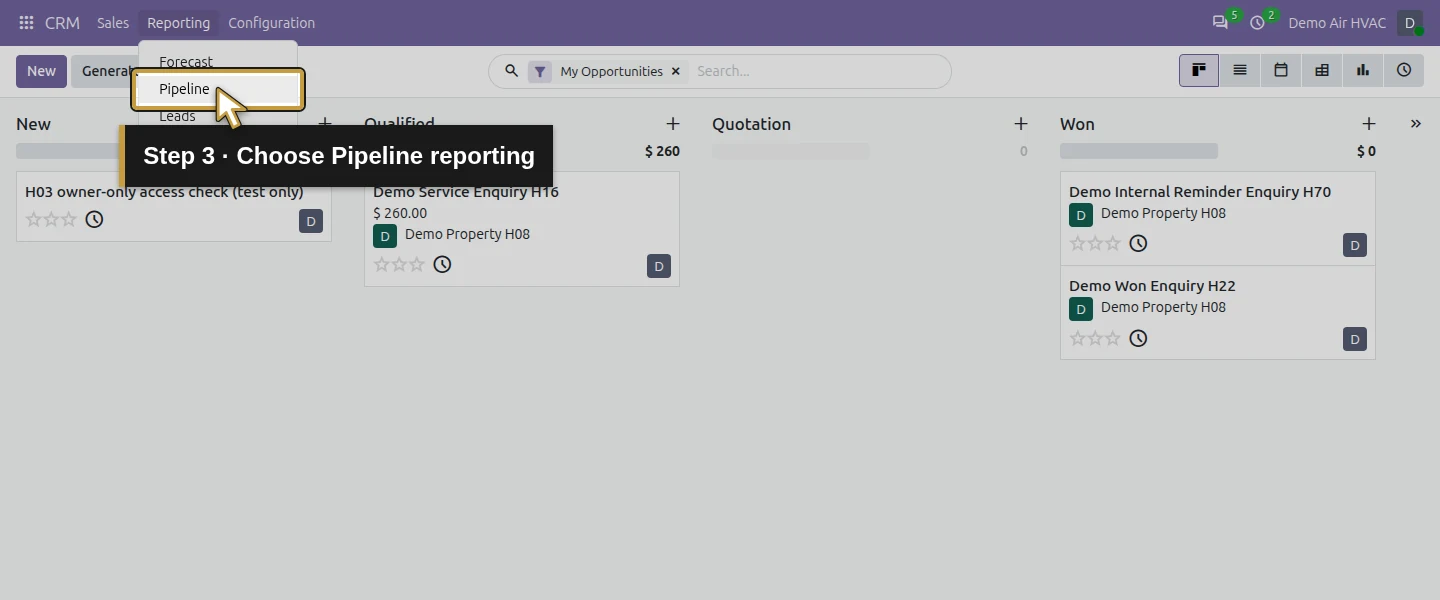
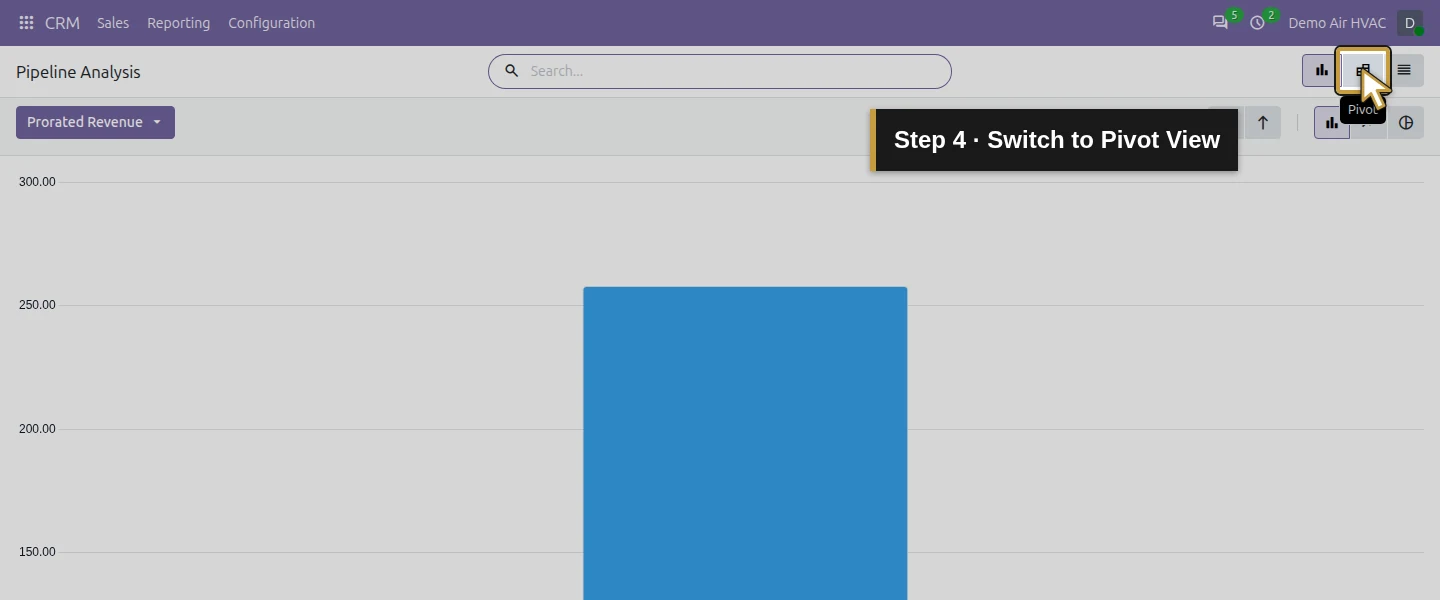
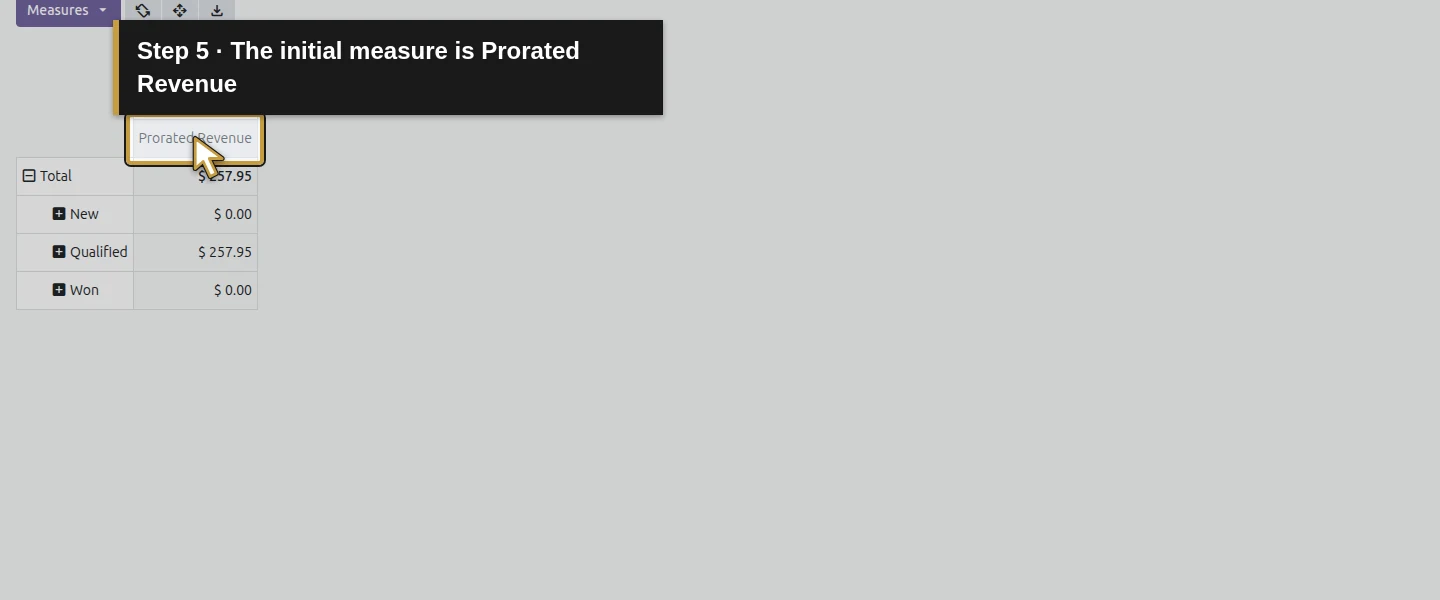
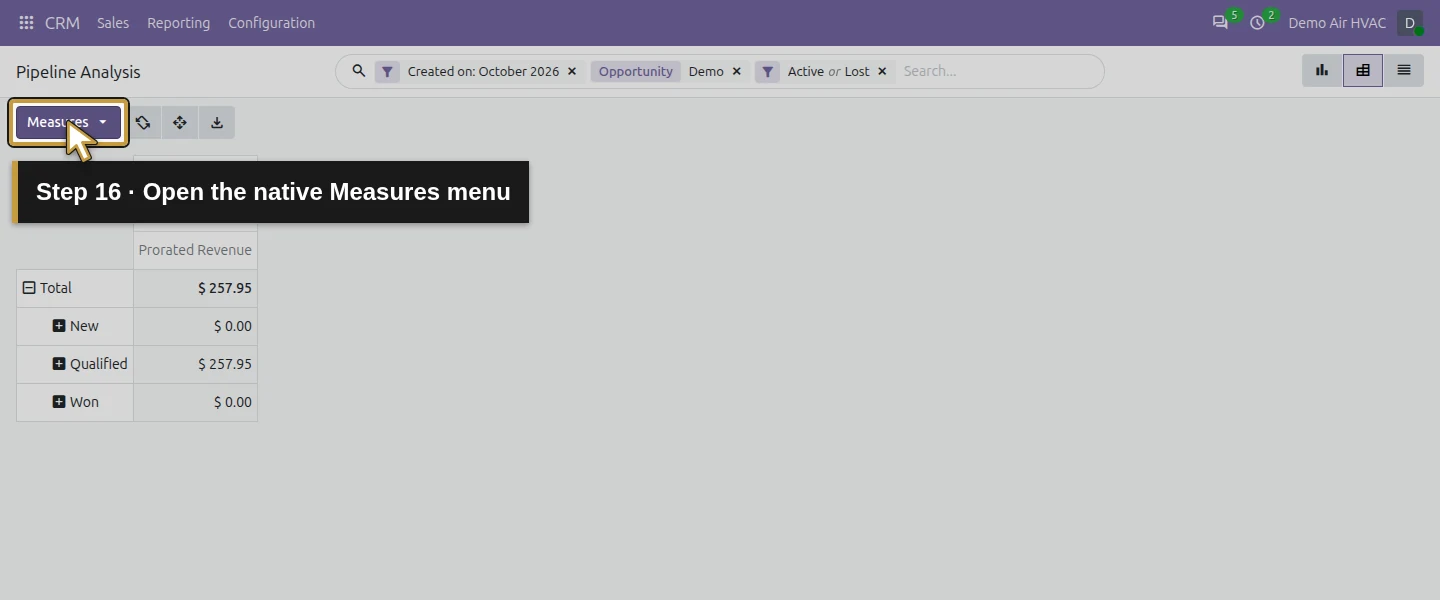
Open CRM → Reporting → Pipeline, then click Pivot View. The page title is Pipeline Analysis. Its initial measure is Prorated Revenue, with Stage rows and creation-month columns in this runtime. This differs from opening the owner’s usual My Pipeline board. Review the report’s own filters before interpreting its totals.
Step 3. Choose the creation month and named cohort
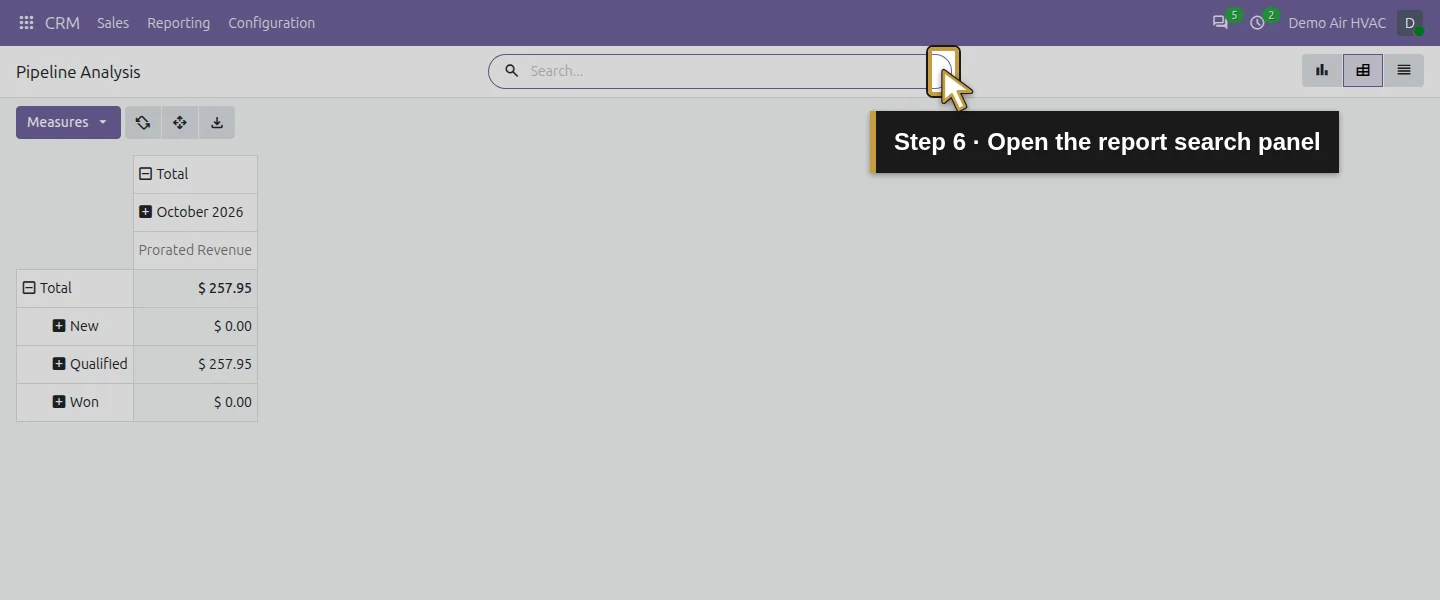
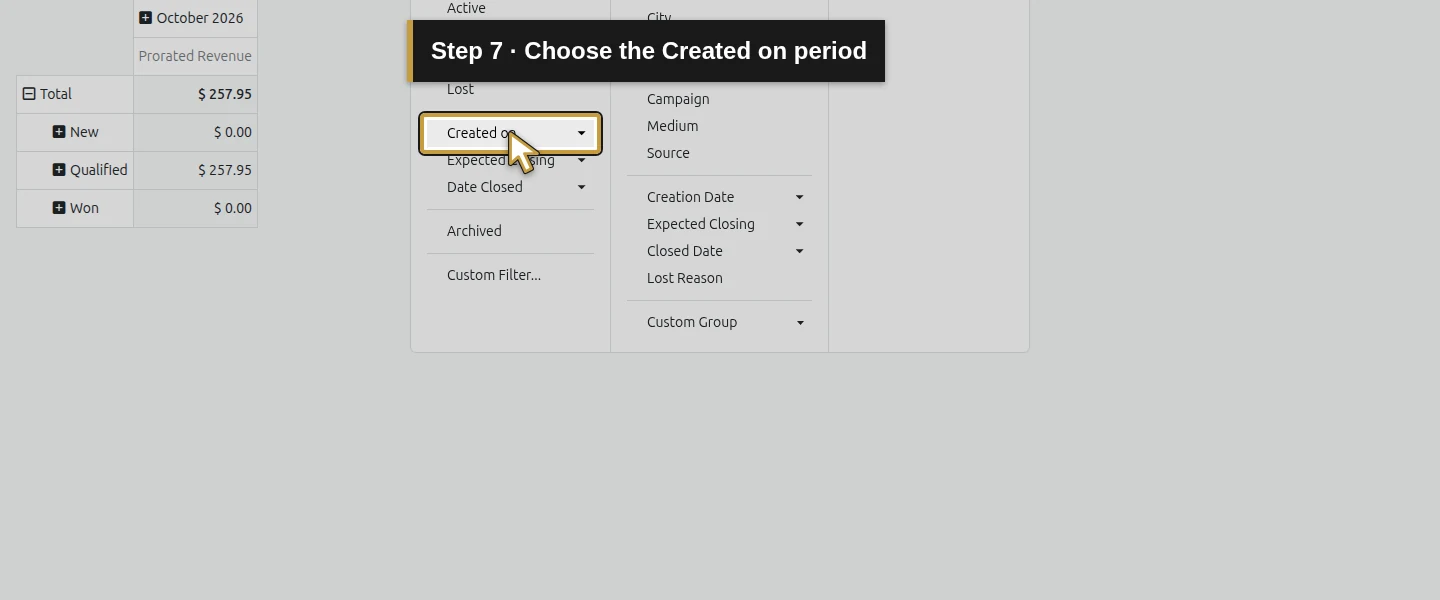
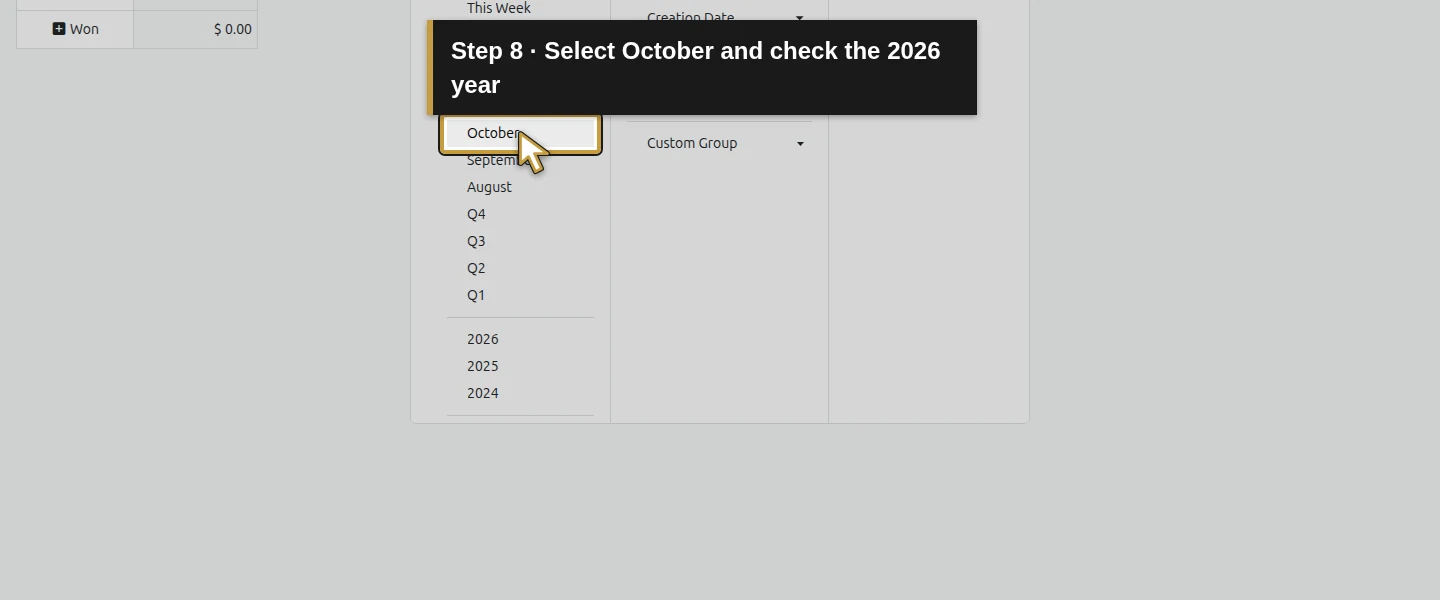
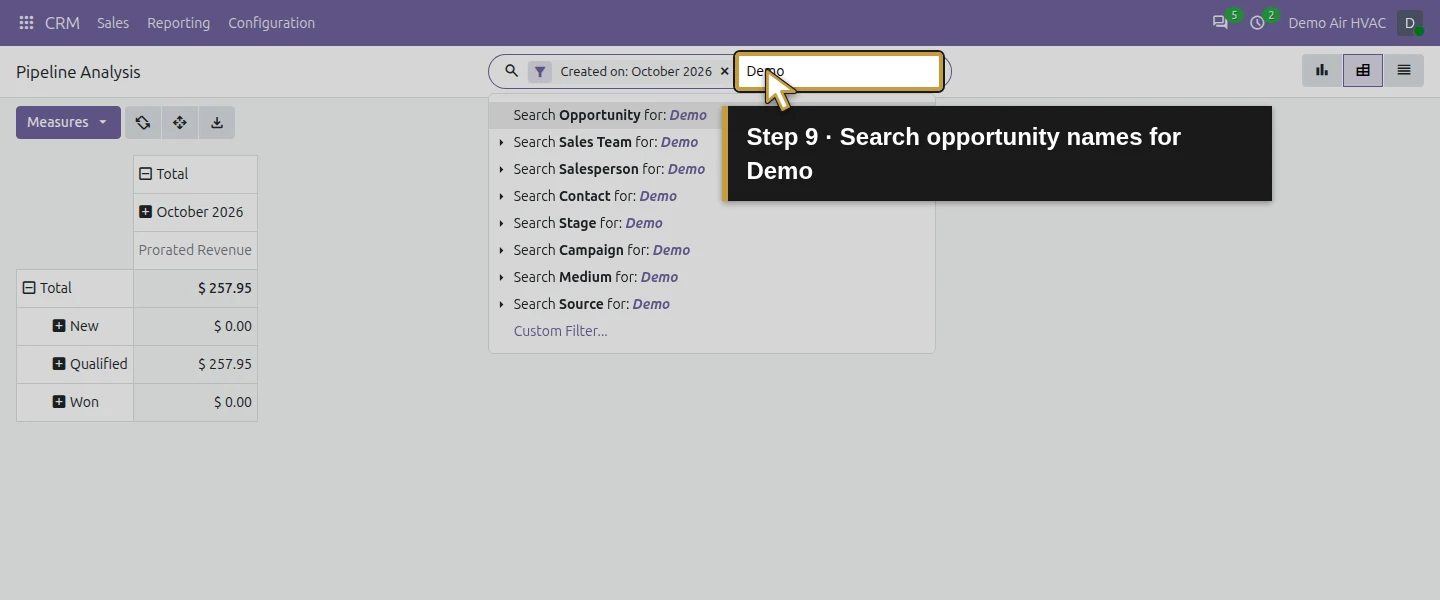
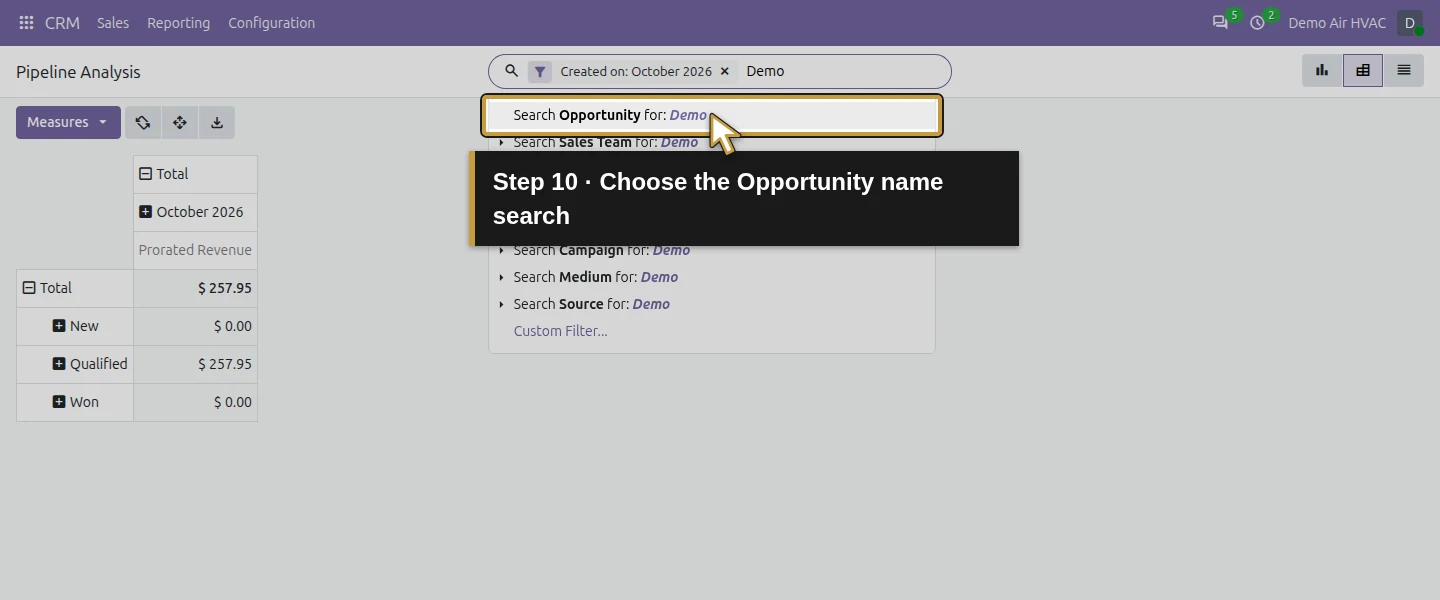
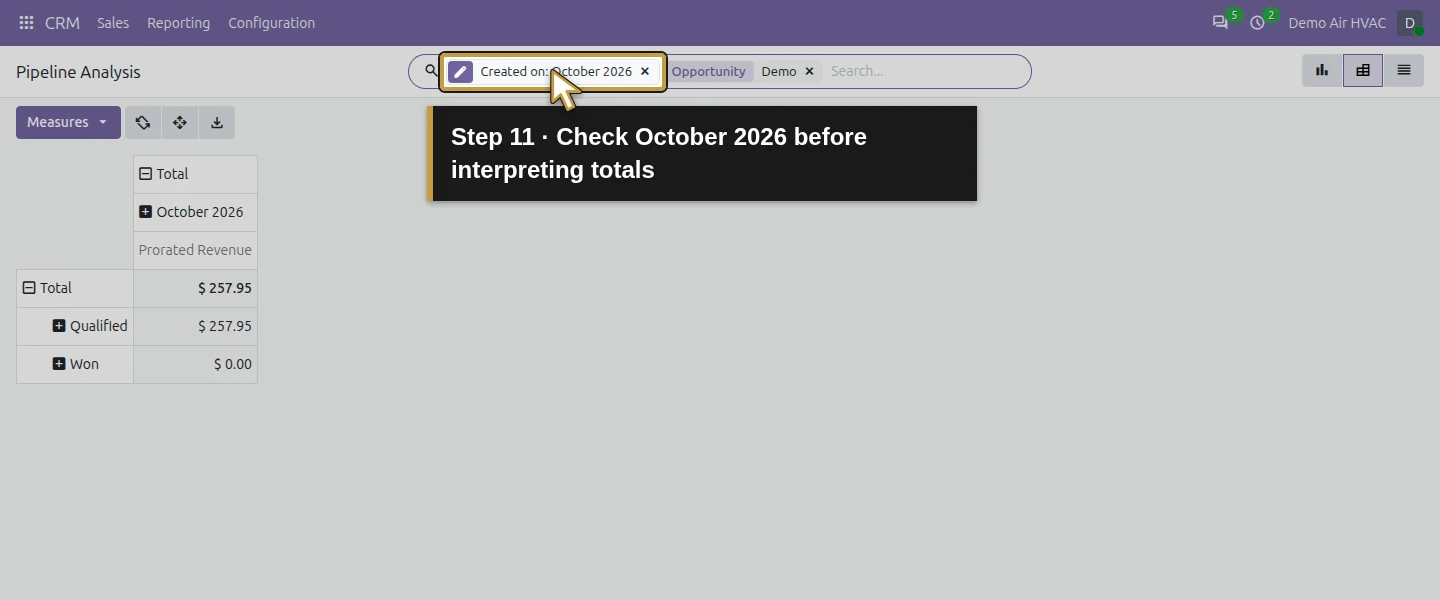
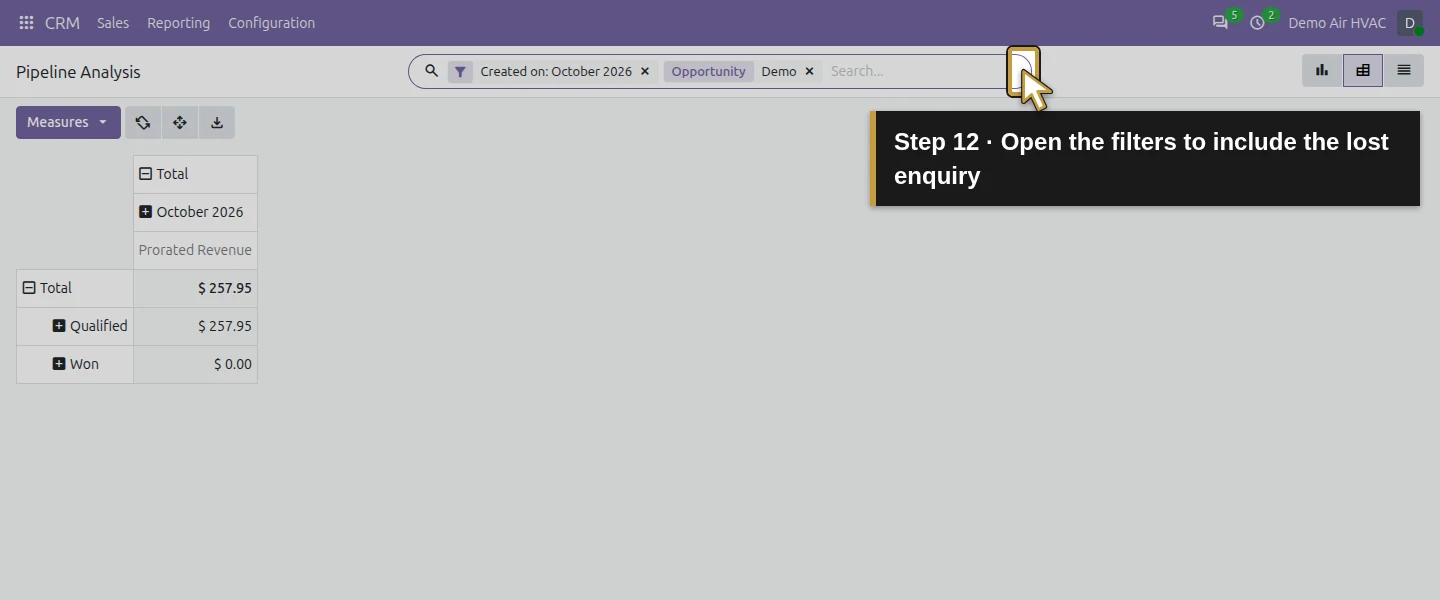
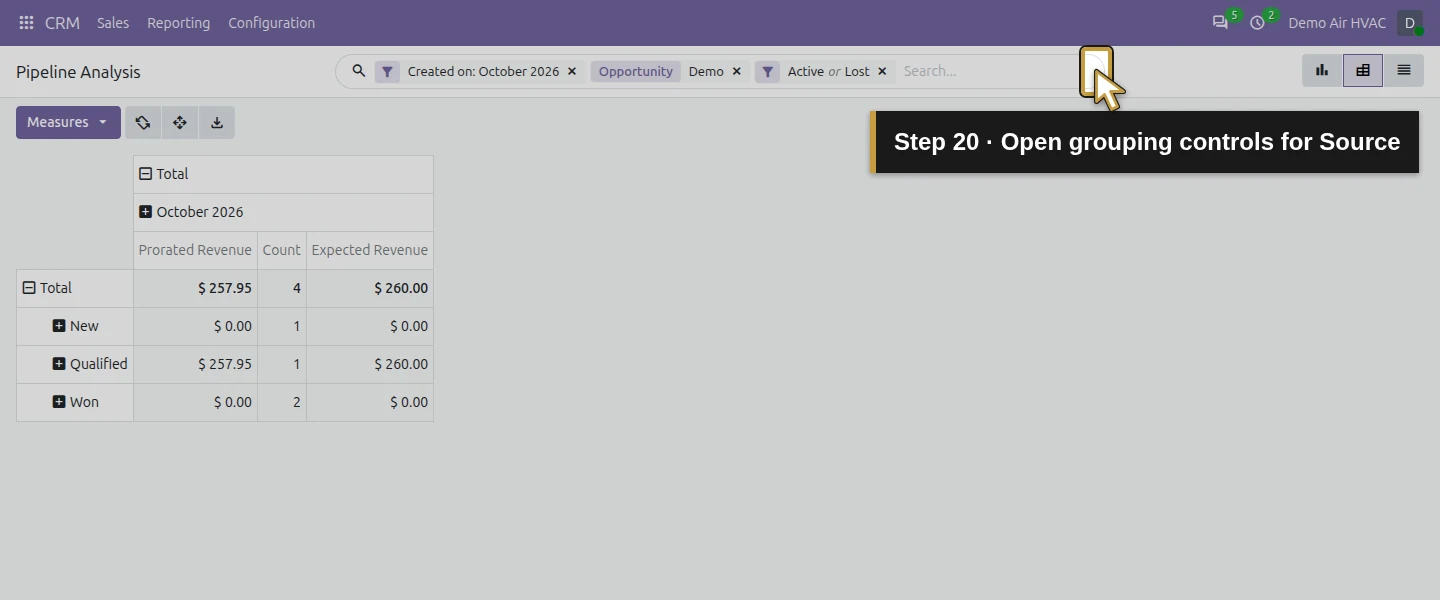
Open Toggle Search Panel → Created on → October. In this test, 2026 is selected automatically; check the visible Created on: October 2026 filter. In the search box, type Demo and choose Search Opportunity for: Demo. This filters the opportunity name, rather than searching a salesperson or customer called Demo. The initial active-only result has three matching records in this checkpoint.
Step 4. Include the lost enquiry explicitly
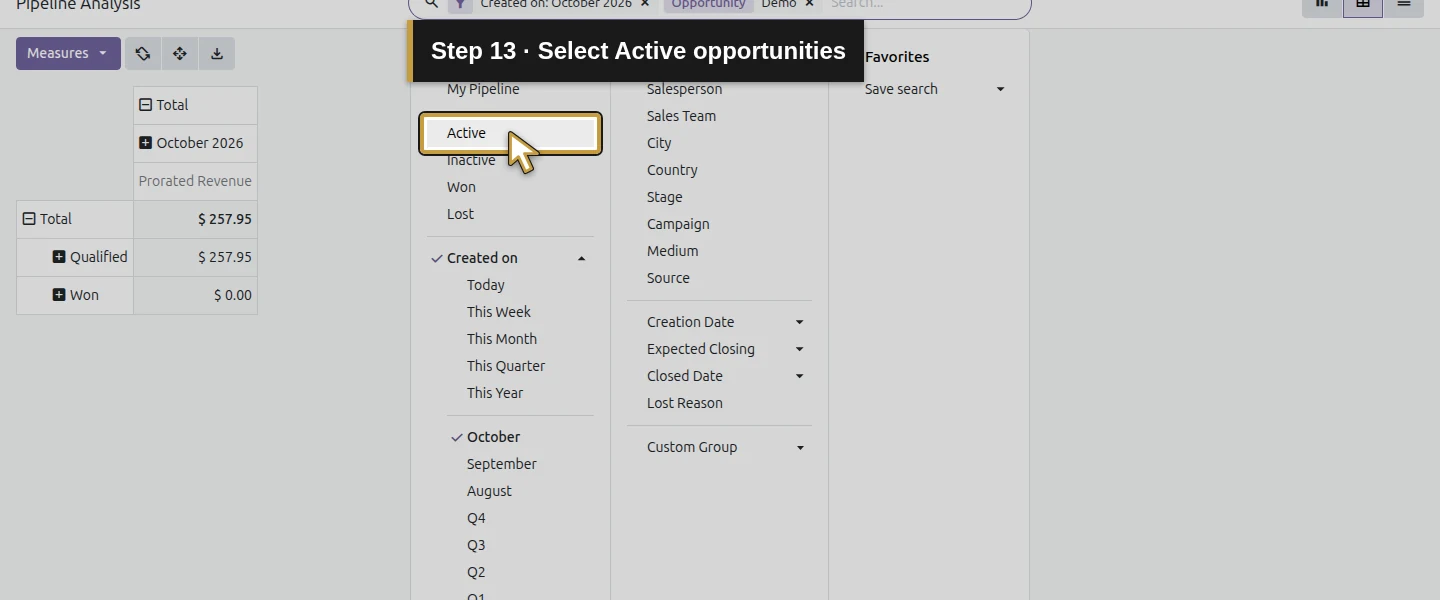
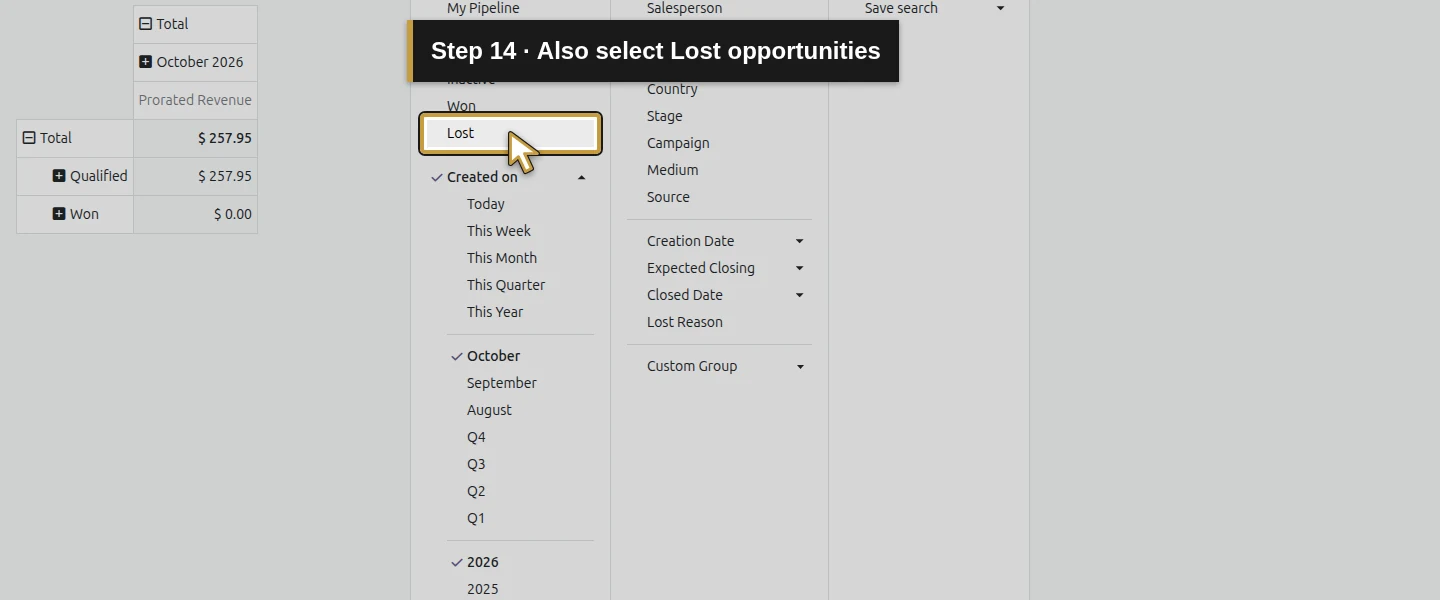
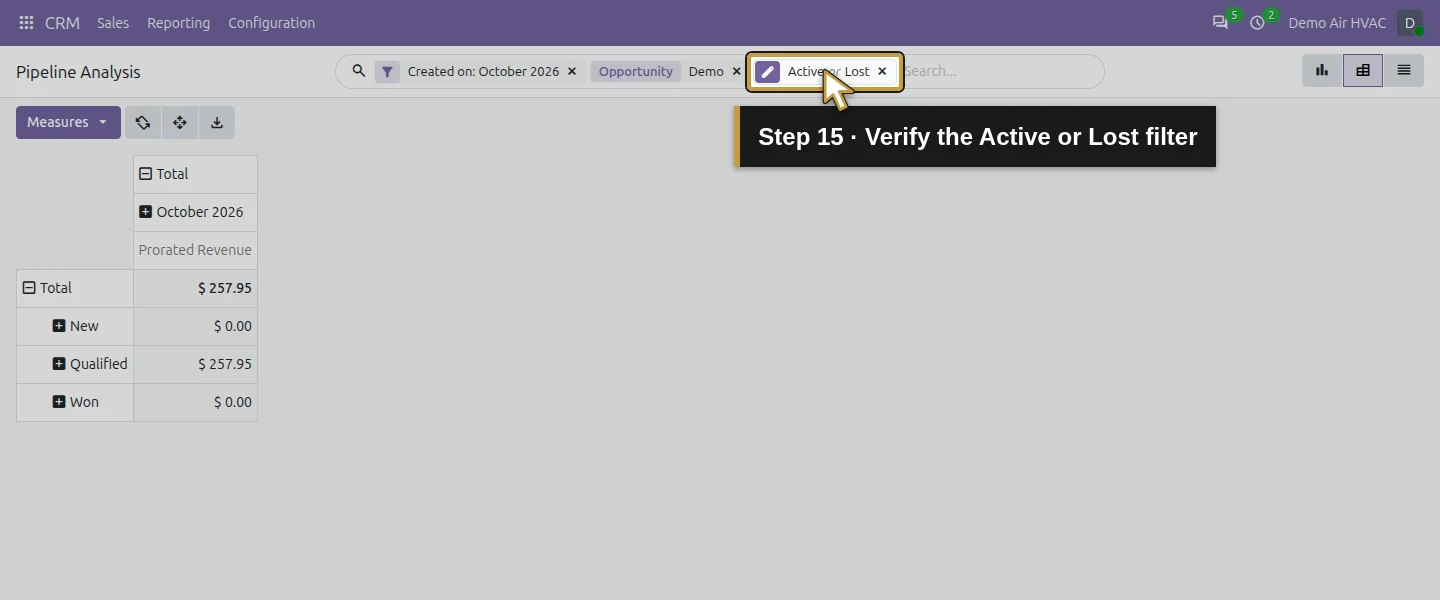
In Toggle Search Panel, select Active and Lost. The visible filter reads Active or Lost. The matching total becomes four, including the archived loss. Review that OR wording rather than assuming two selected filters mean AND. Lost and stage are separate: this loss remains in New stage even though its outcome is Lost. A stage-only review would miss that distinction.
Step 5. Compare Count, Expected Revenue and Prorated Revenue
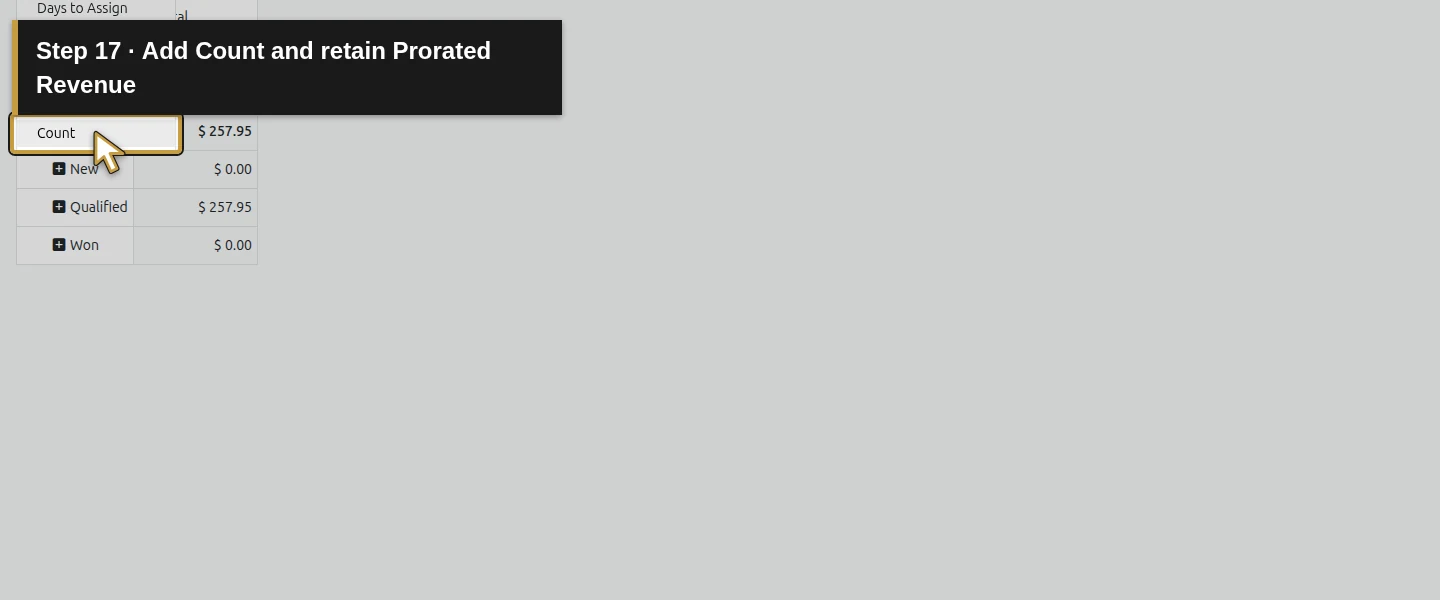
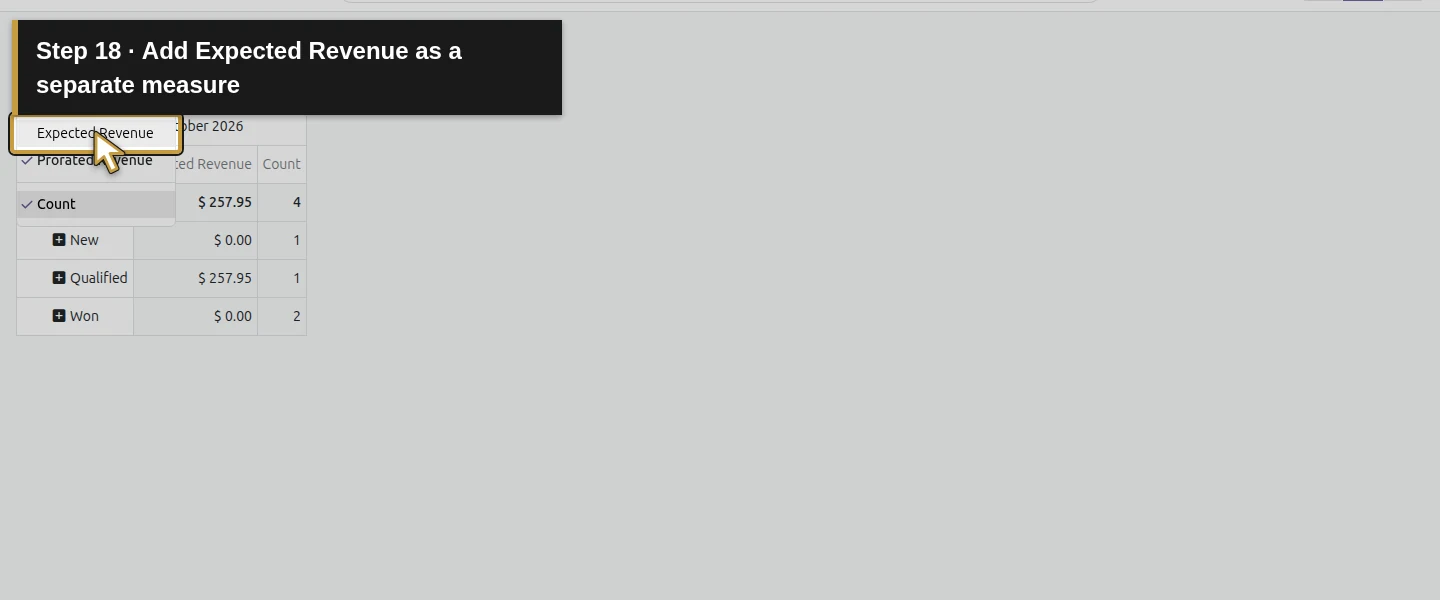
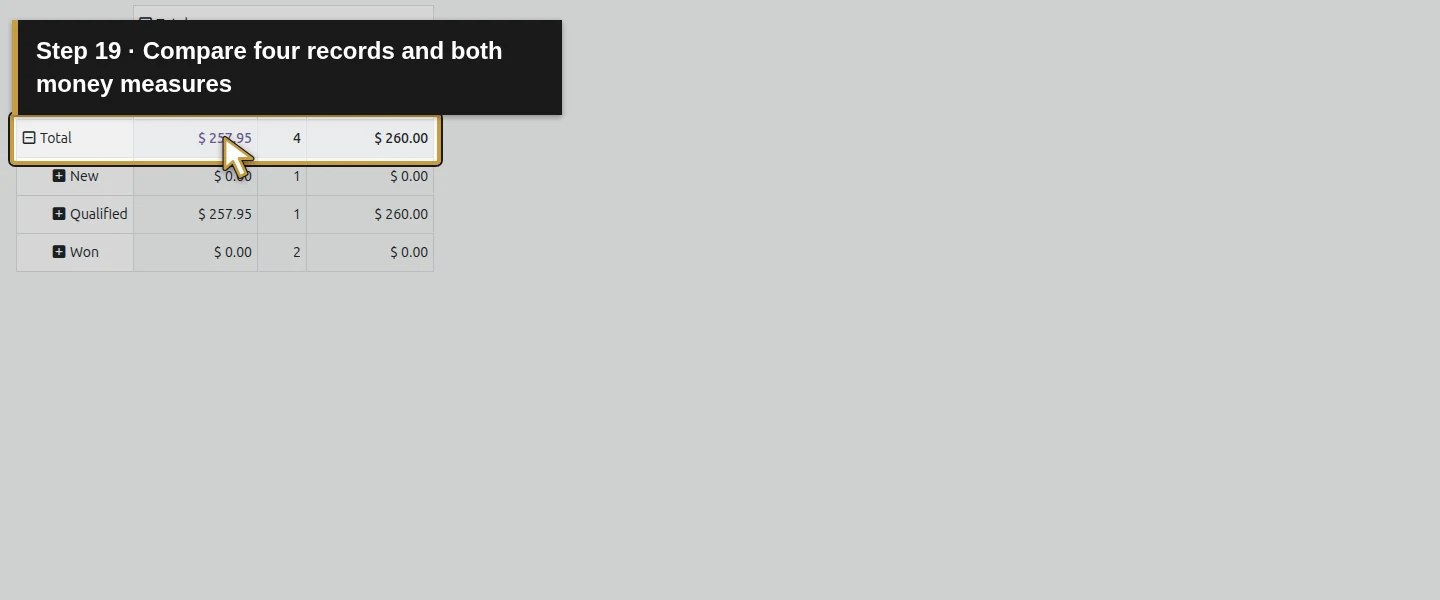
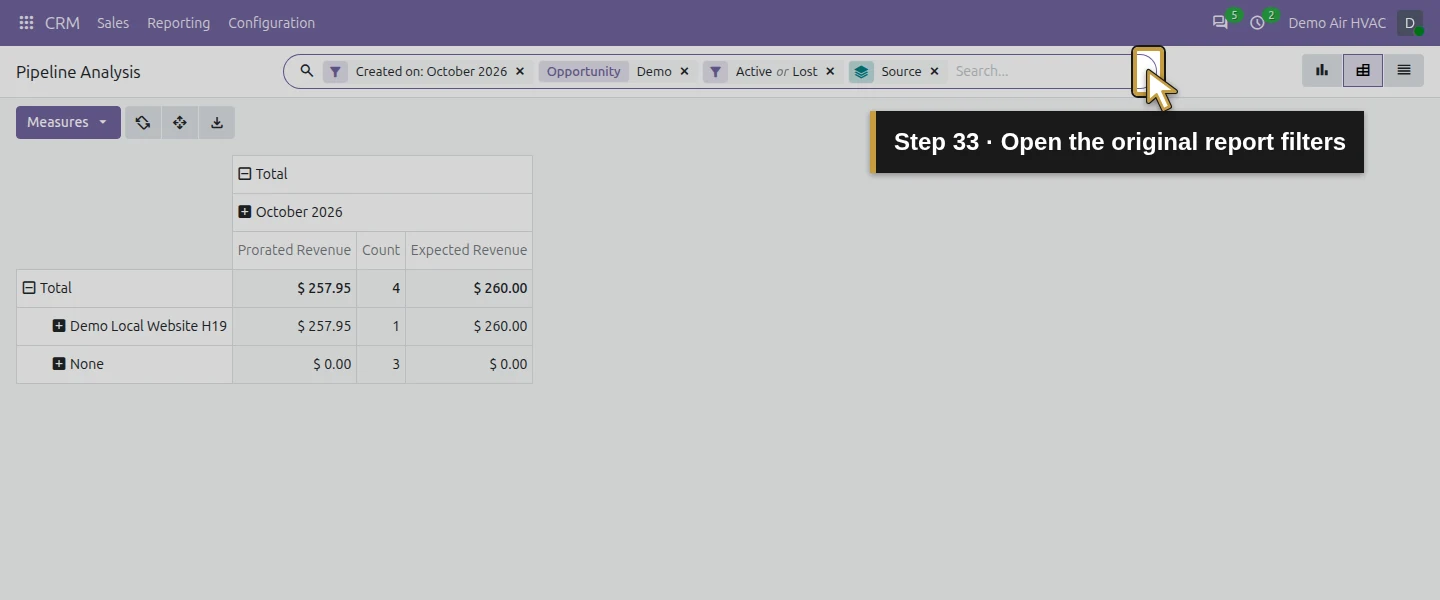
Open Measures, keep Prorated Revenue selected and add Count and Expected Revenue. The stage pivot now shows 4 records, $260 Expected Revenue and $257.95 Prorated Revenue. Its rows are New1, Qualified1 and Won2. The two Won examples have zero entered expected revenue; that does not establish a collected-revenue total. Check both the selected measure names and record count when discussing a number.
Step 6. Inspect the sources and drill into missing values
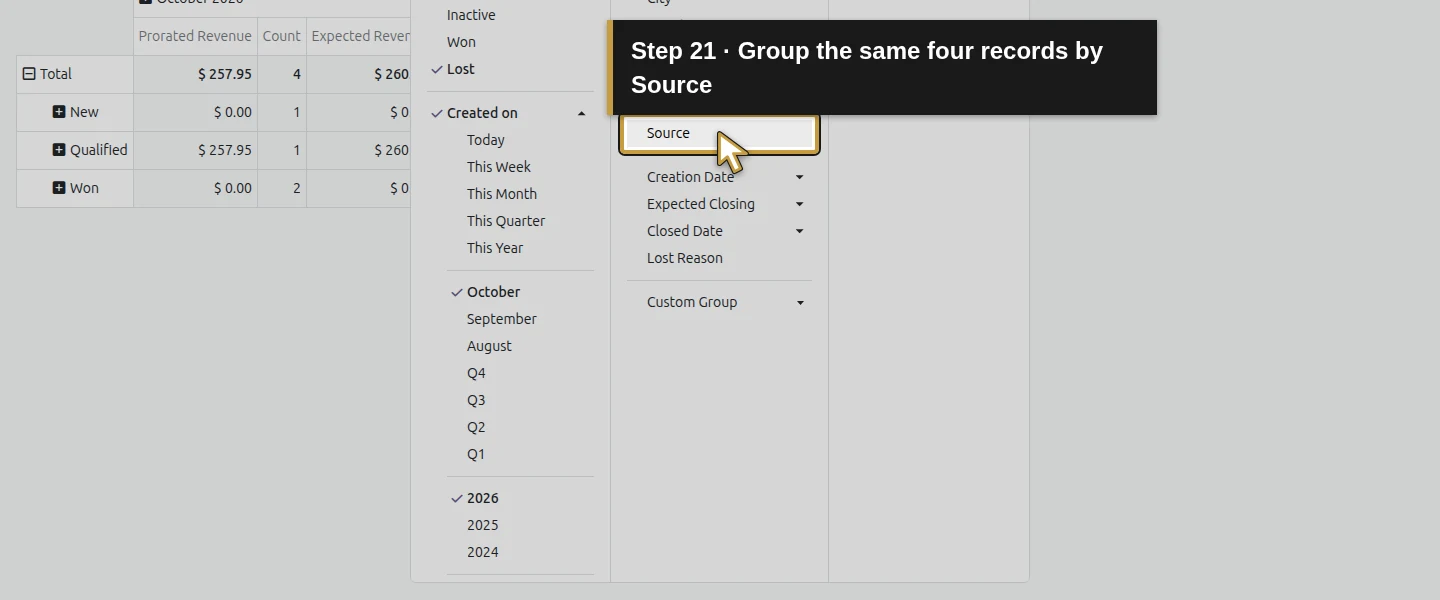
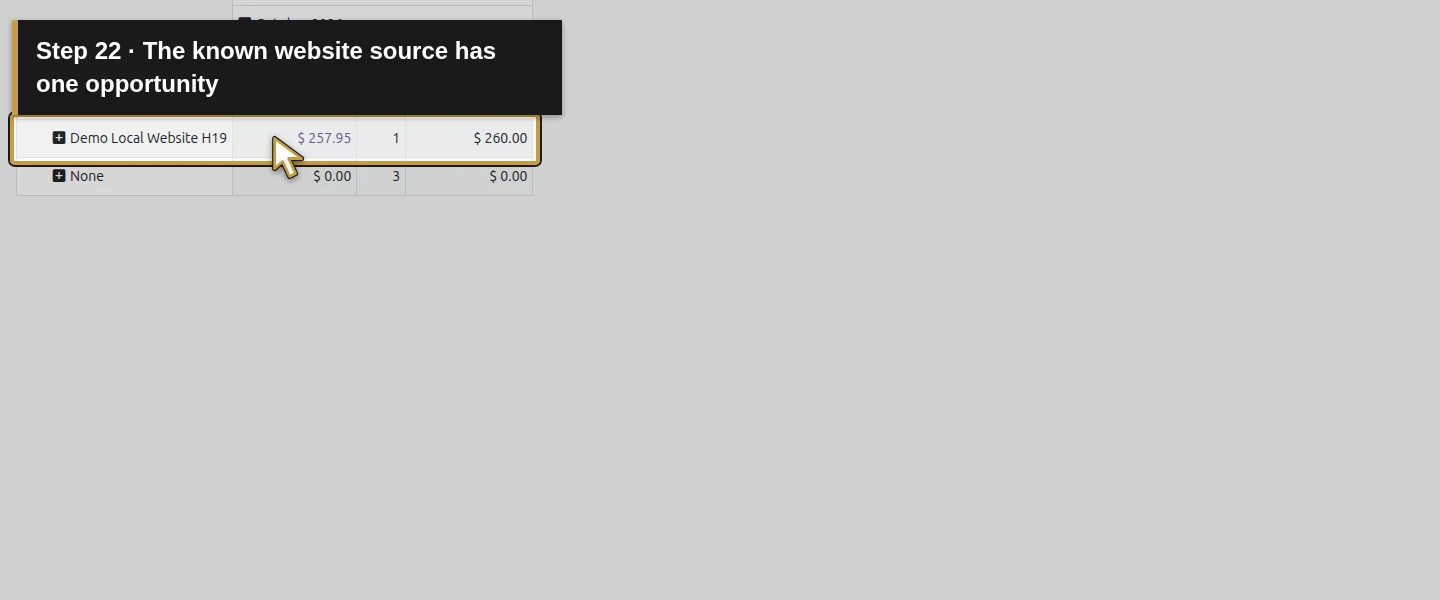
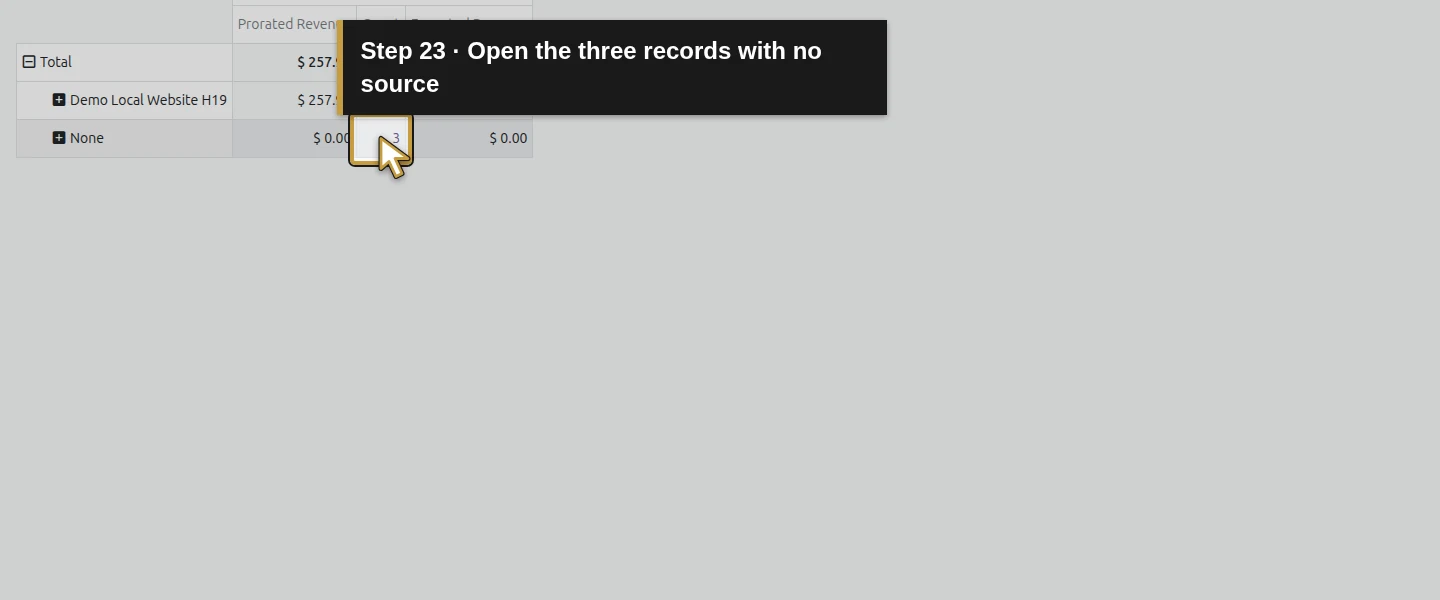
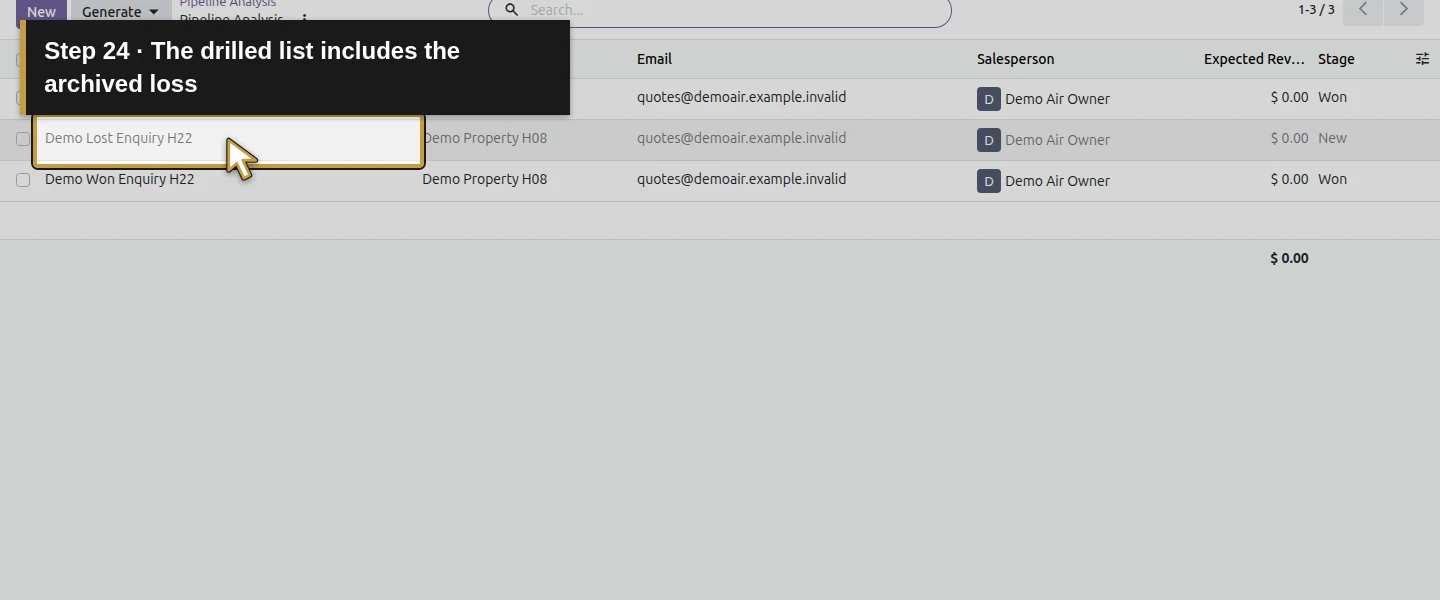
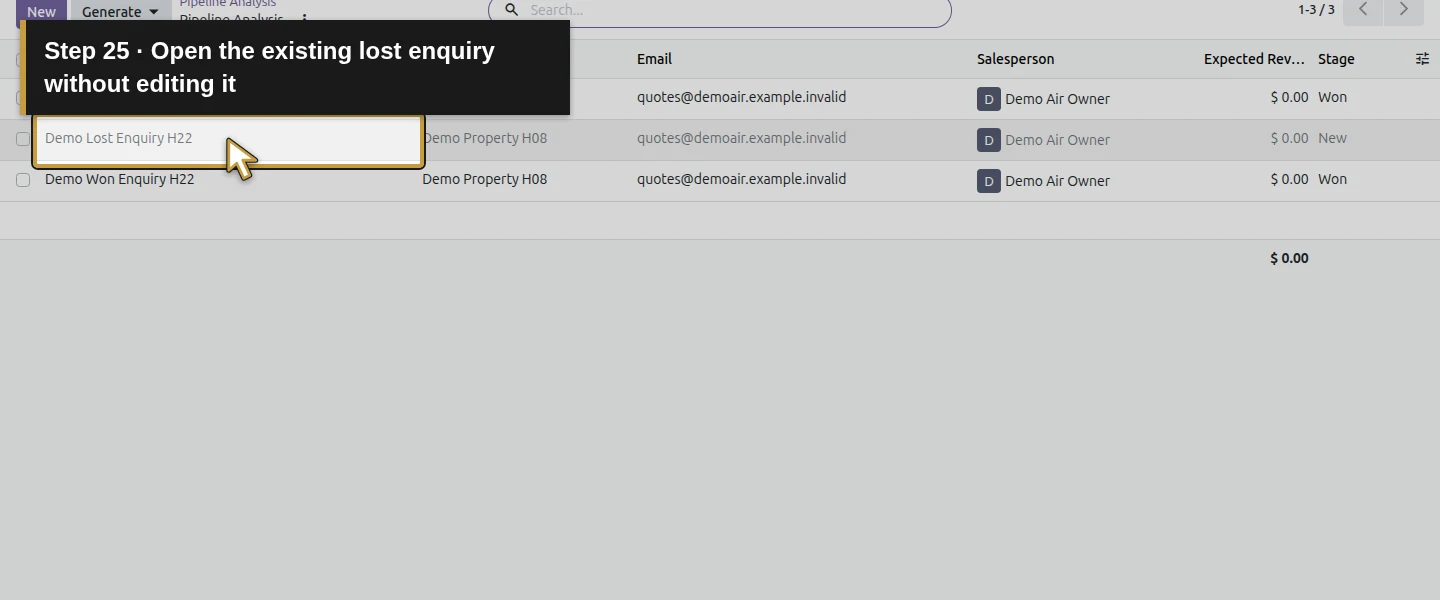
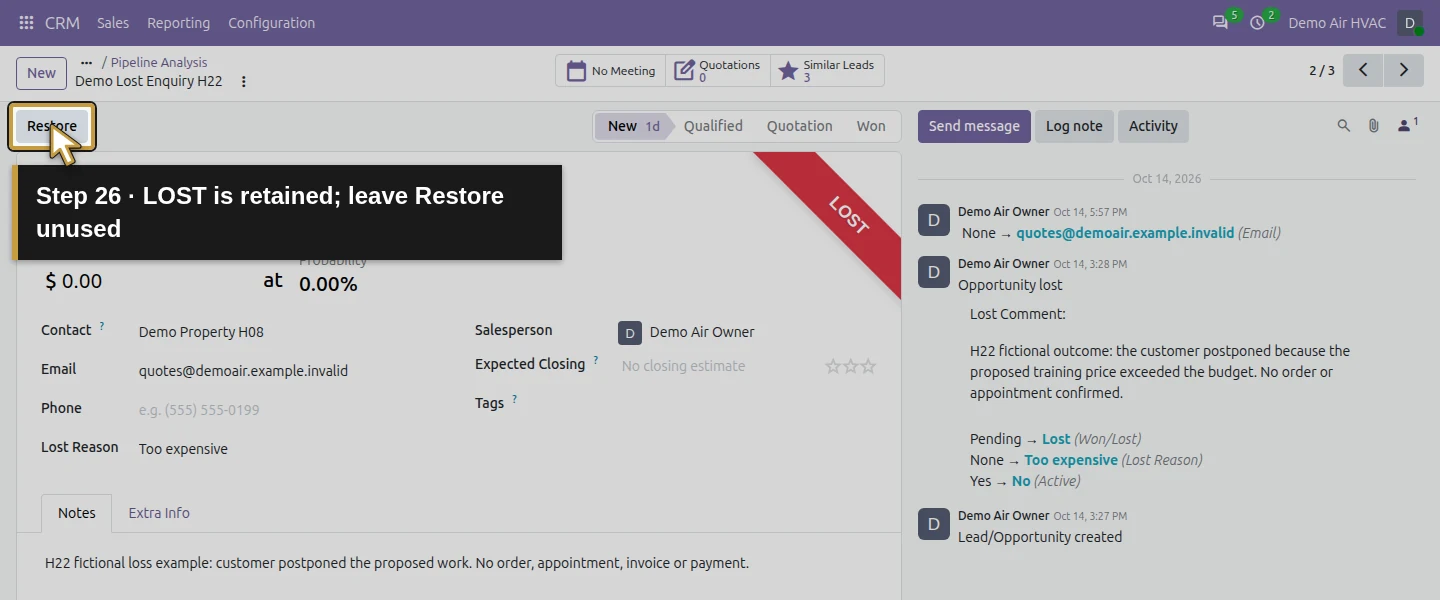
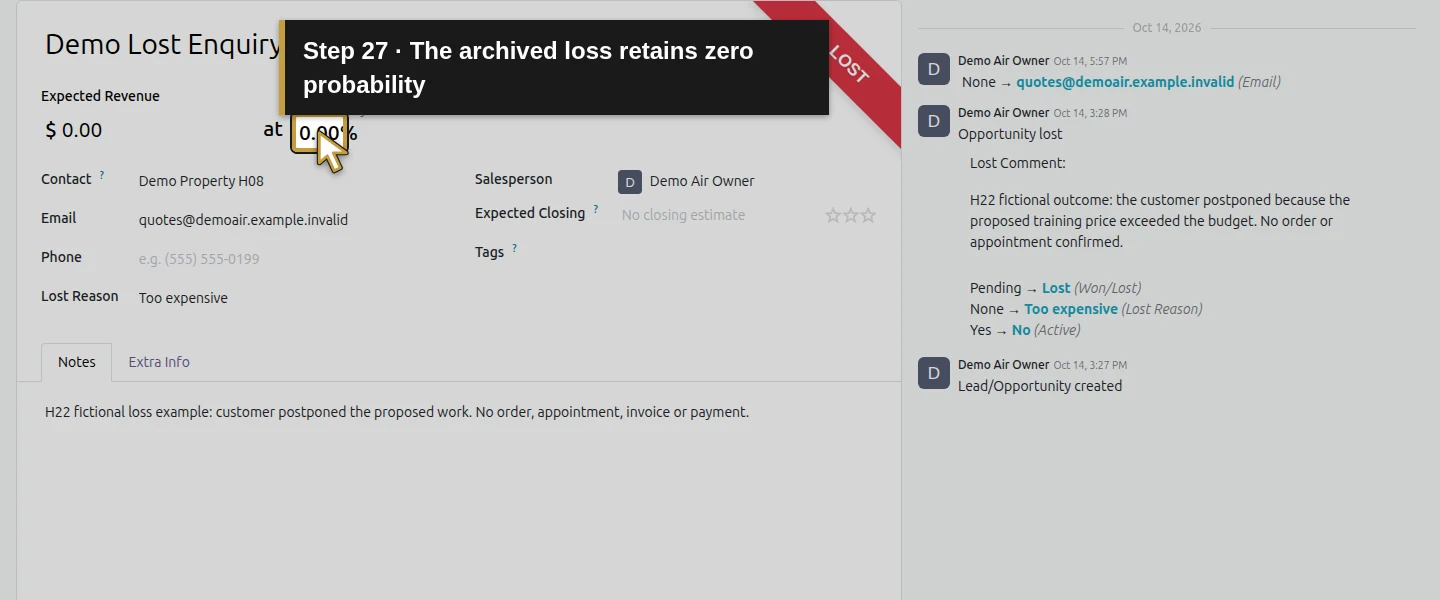
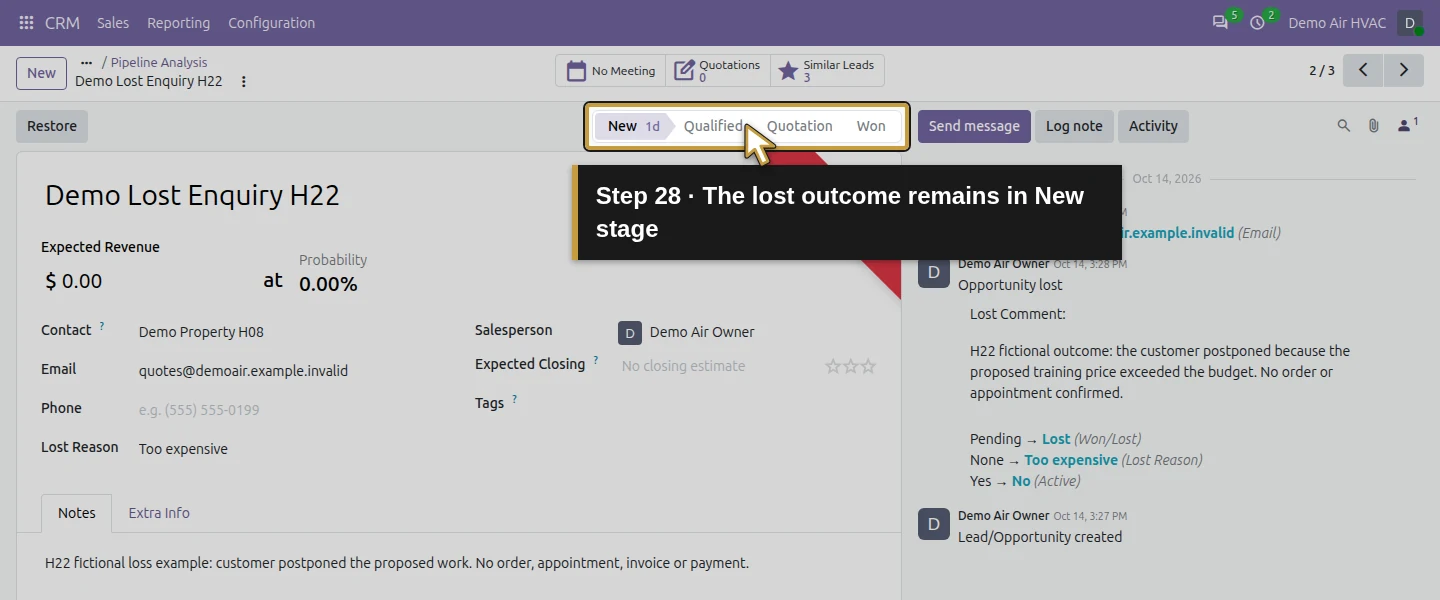
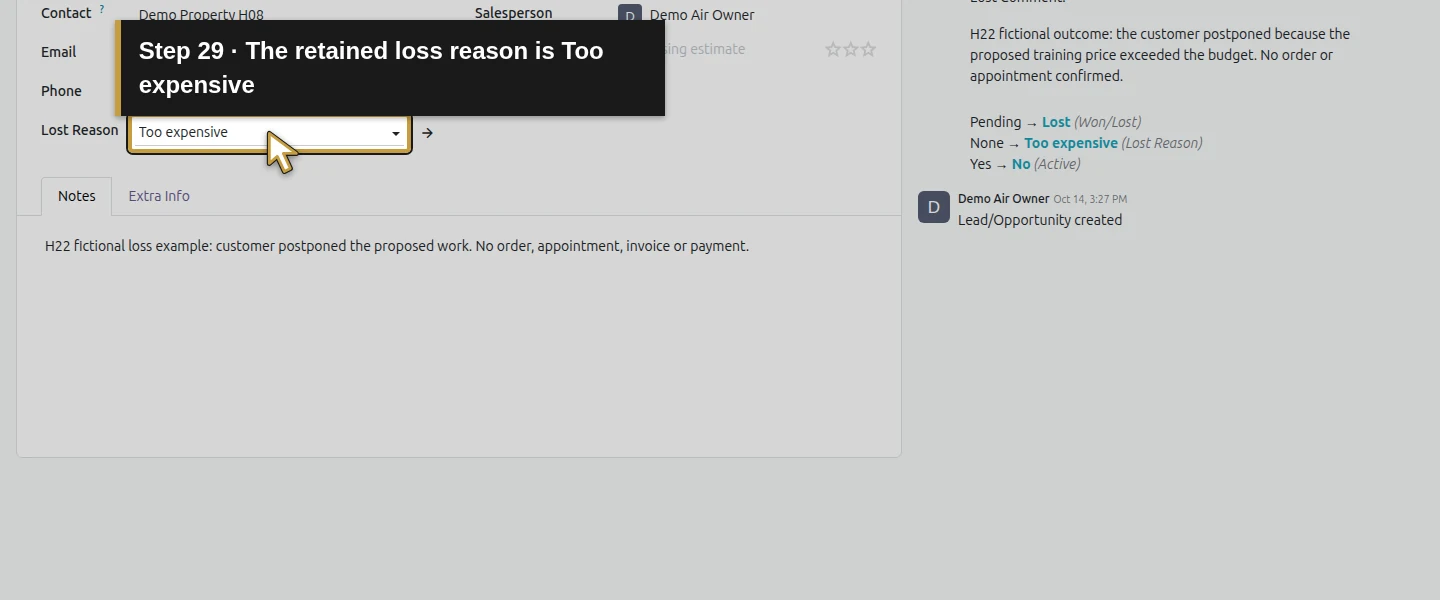
In Toggle Search Panel’s group-by controls, choose Source. The pivot shows Demo Local Website H19: 1 and None: 3. Click the 3 Count cell on None to open its underlying records. They are the two H22 outcomes and the internal reminder test. Open Demo Lost Enquiry H22: the form shows LOST, a Restore button, zero probability and New stage; its retained loss reason is Too expensive. Leave Restore and the stage controls unused. None is a missing source, not another marketing channel.
Step 7. Return to the original report and exclude the internal test
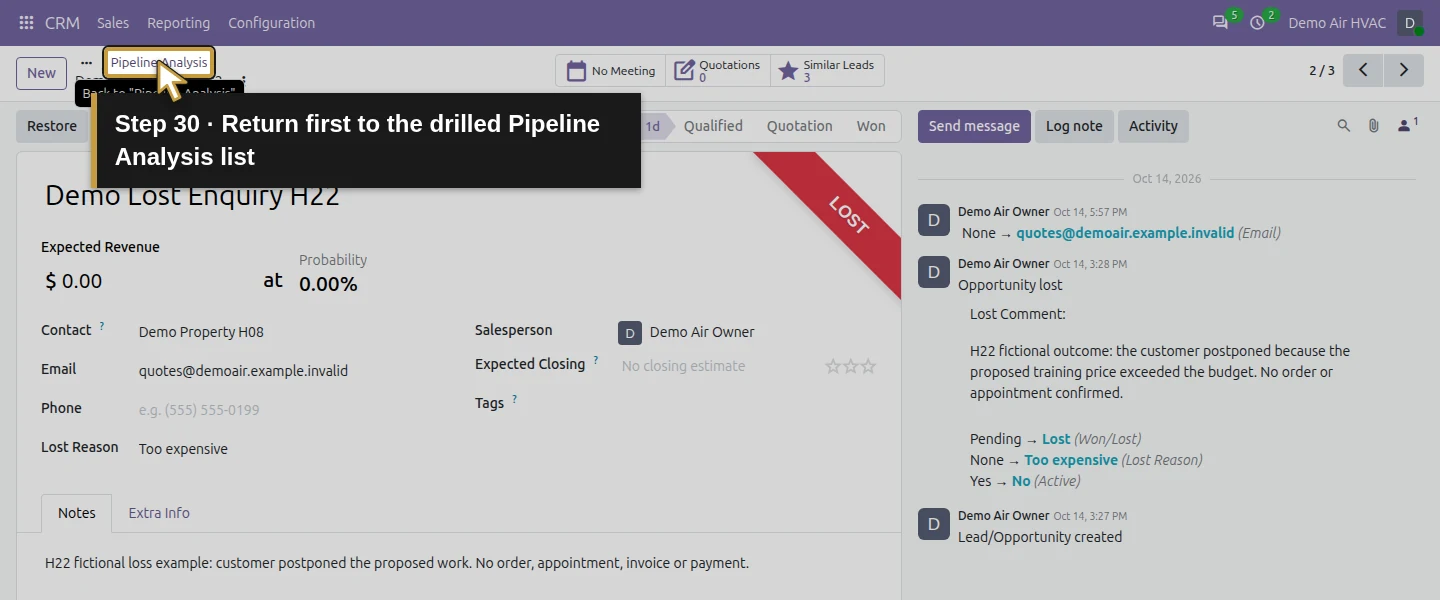
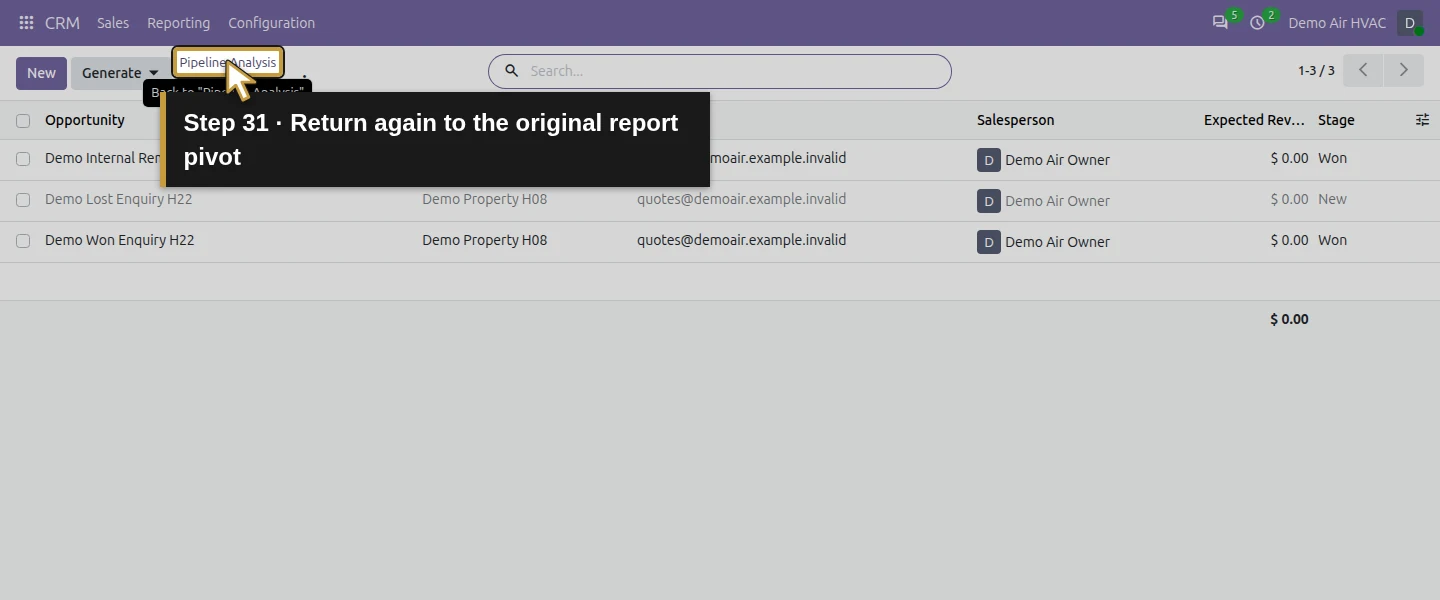
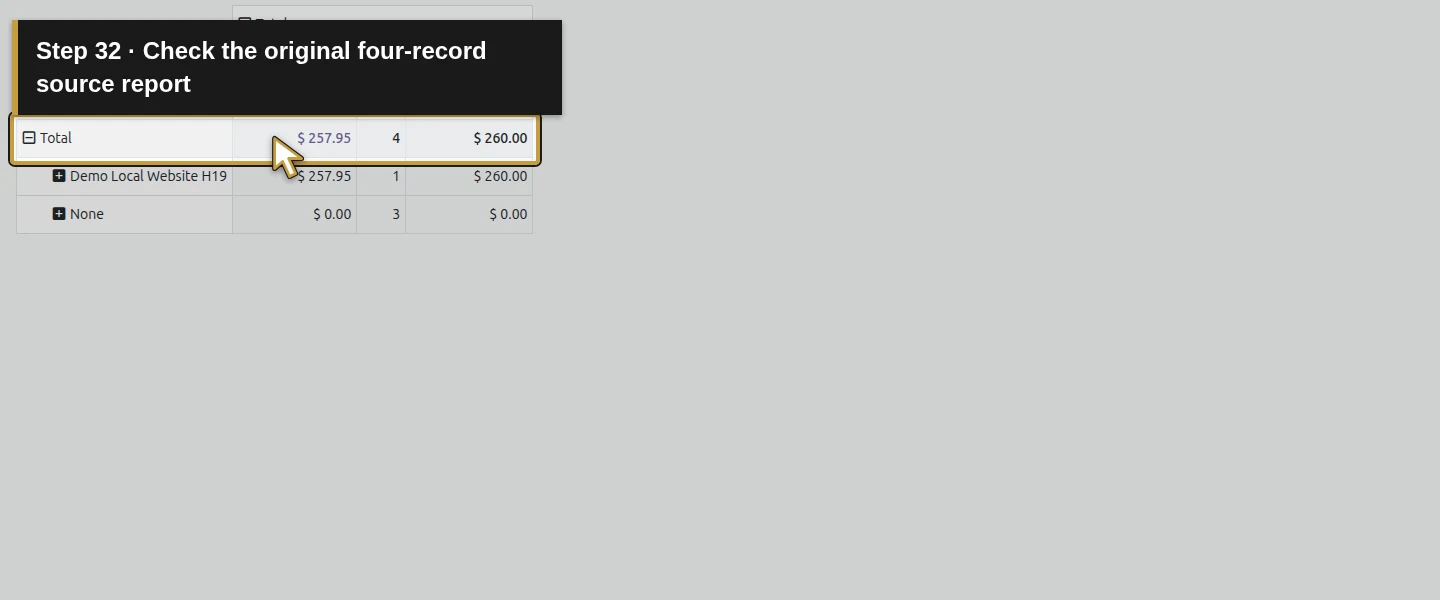
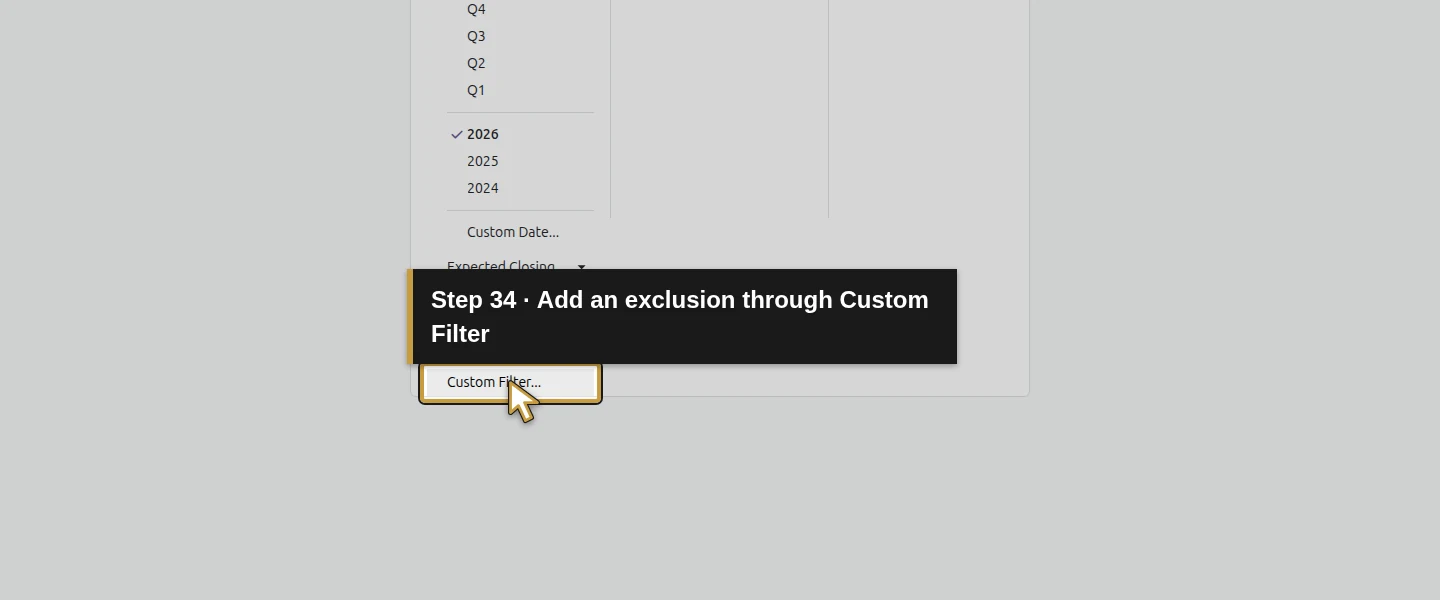
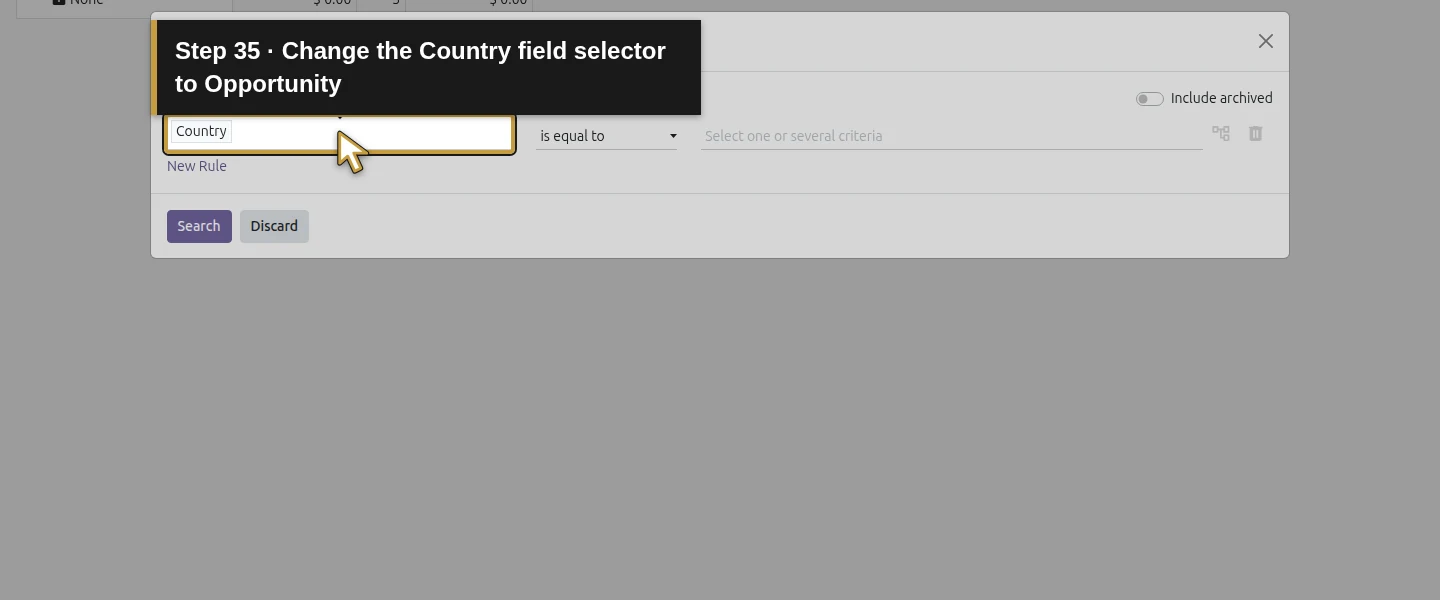
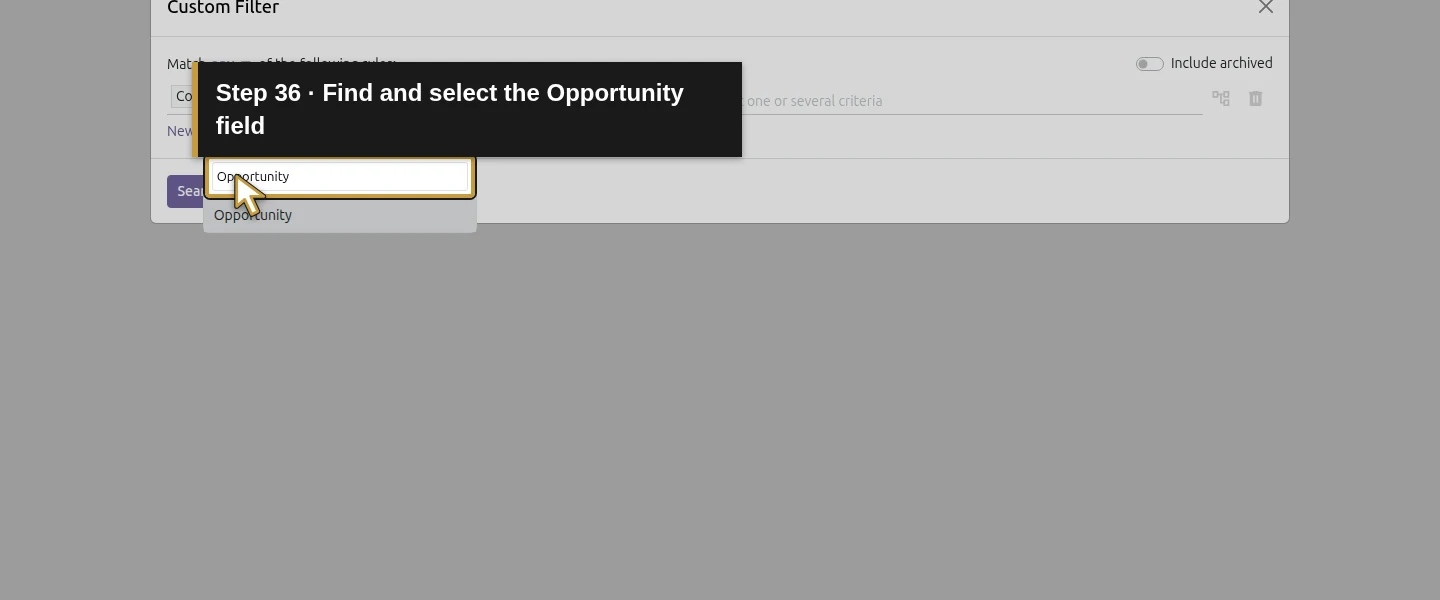
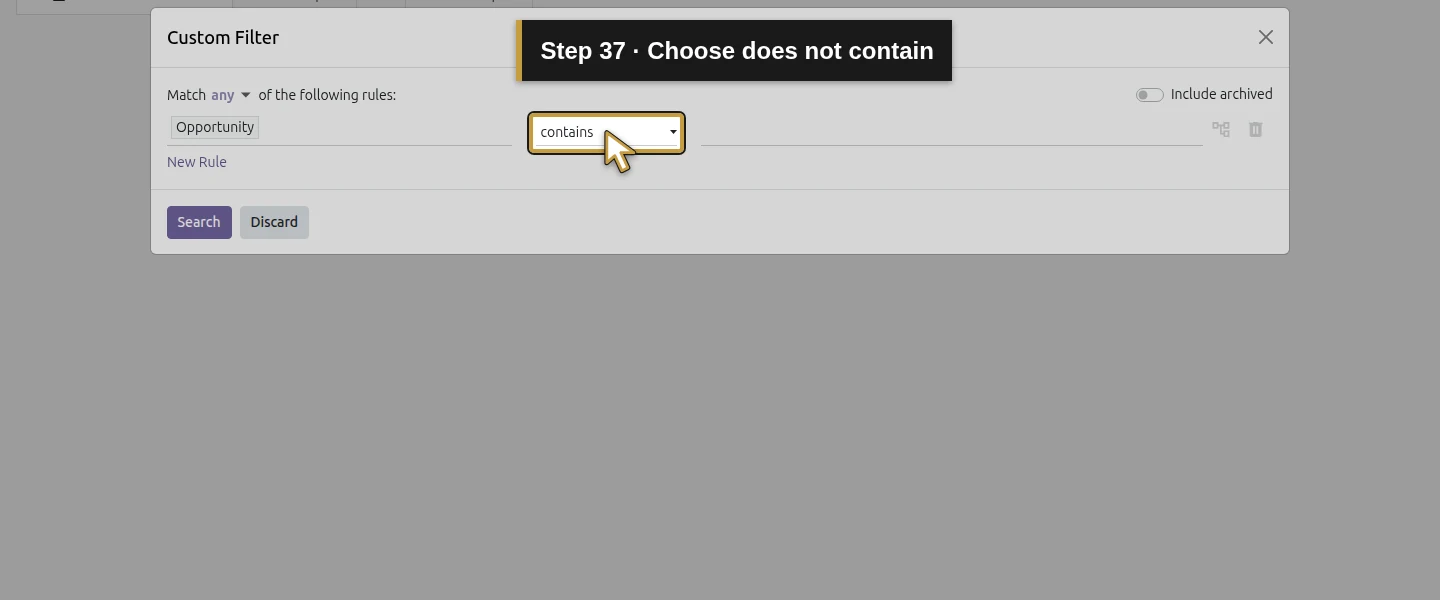
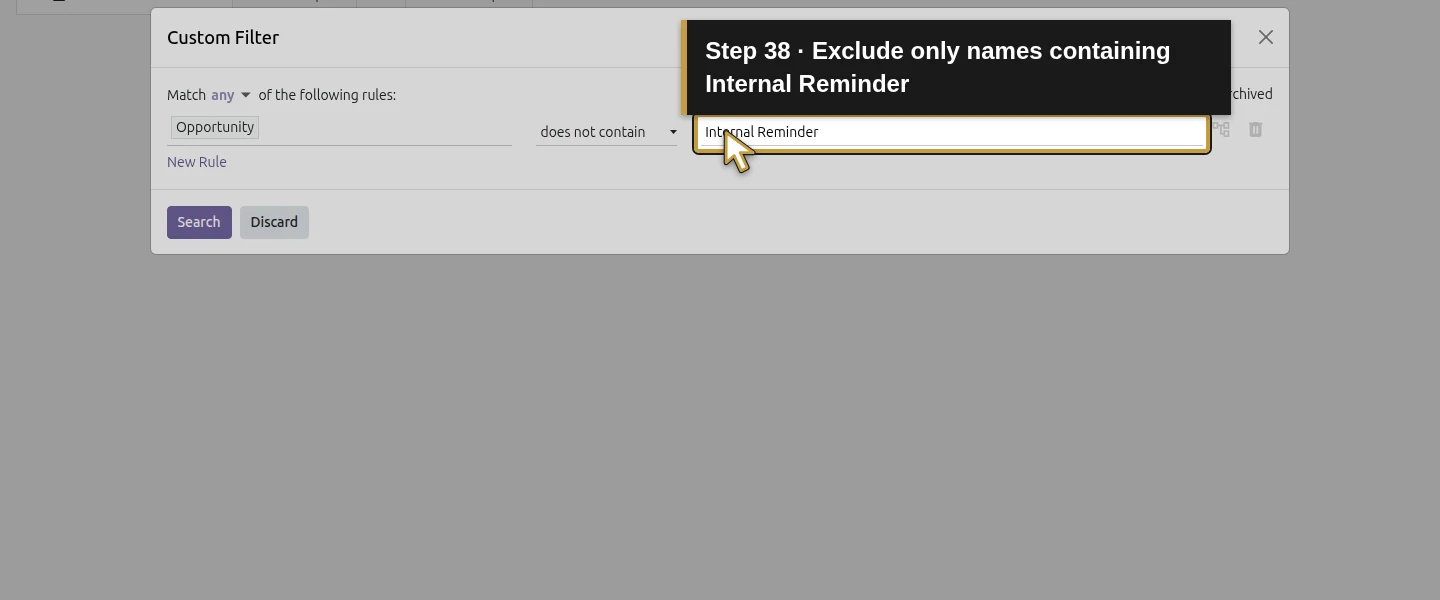
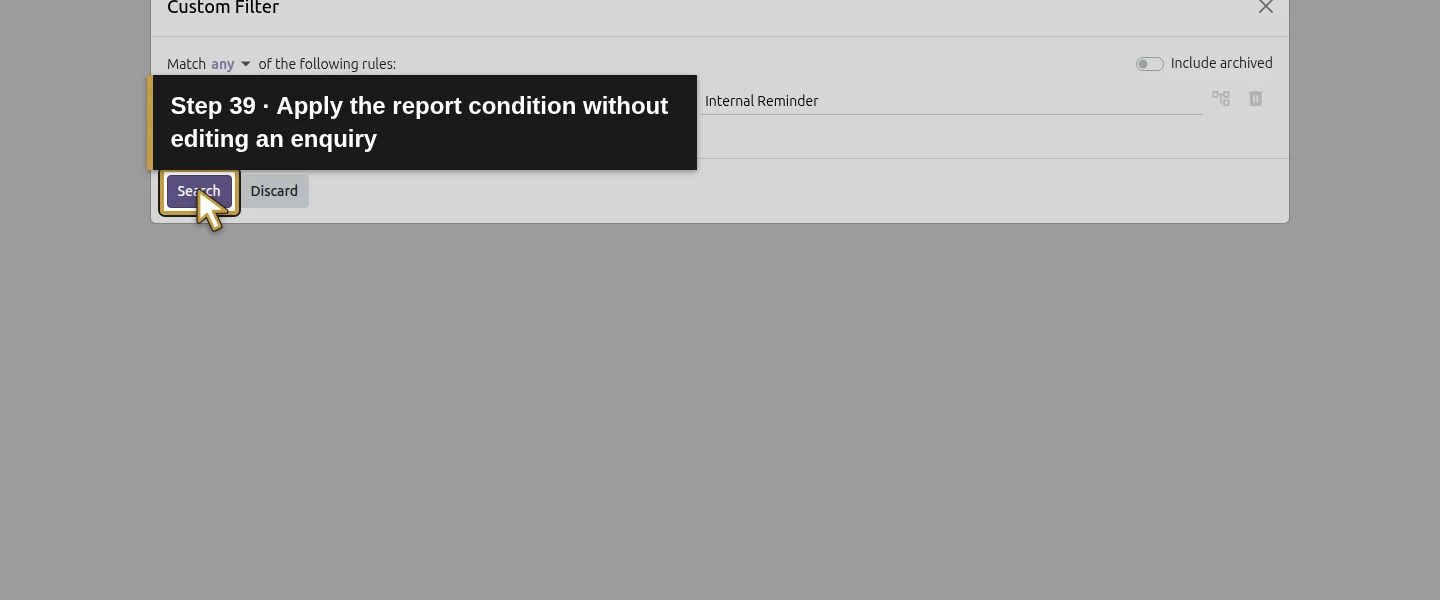
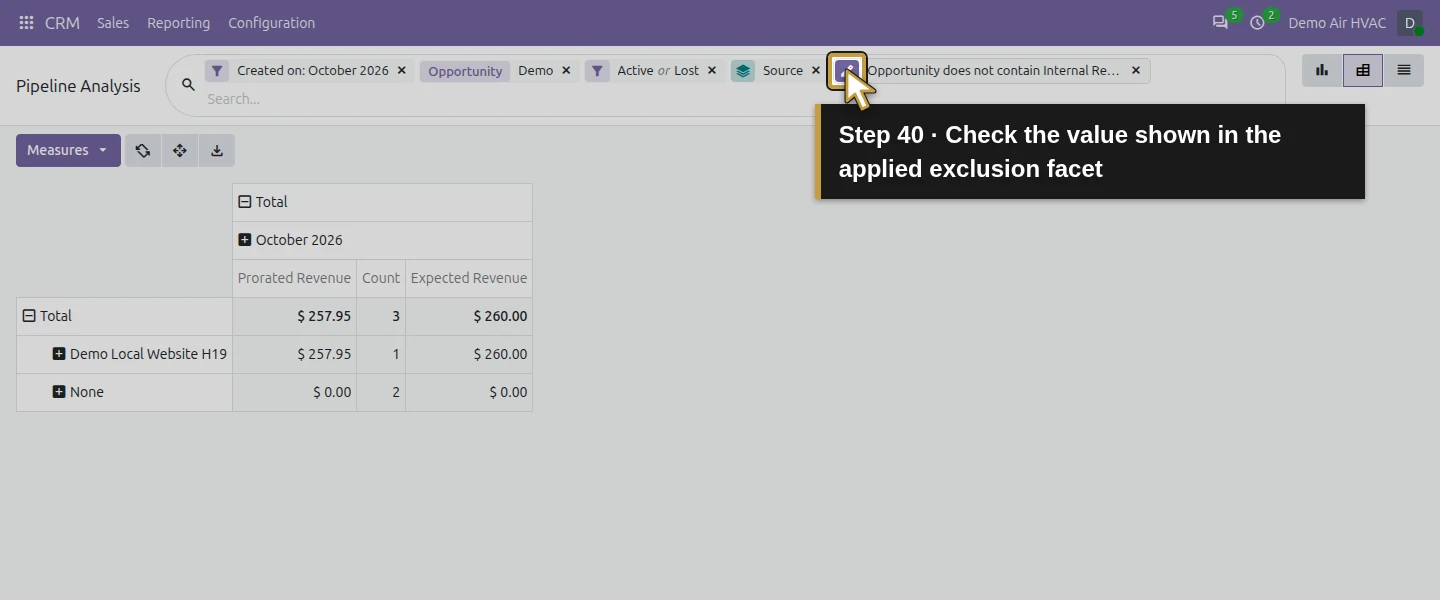
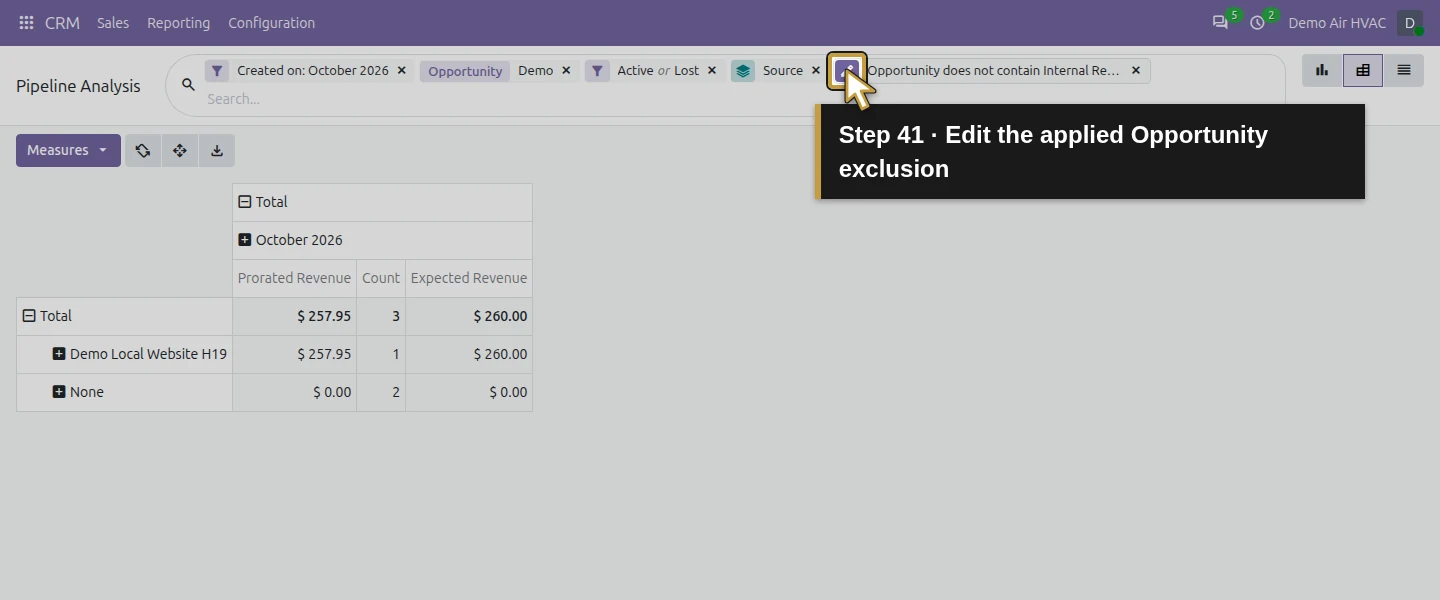
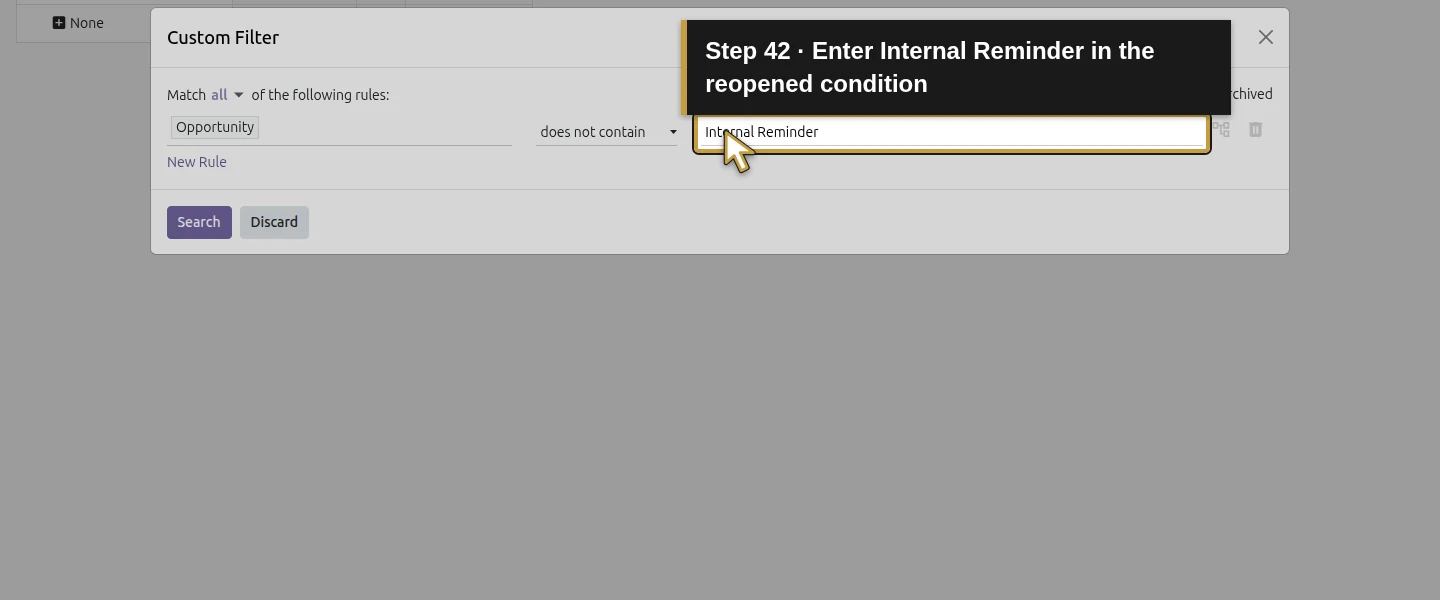
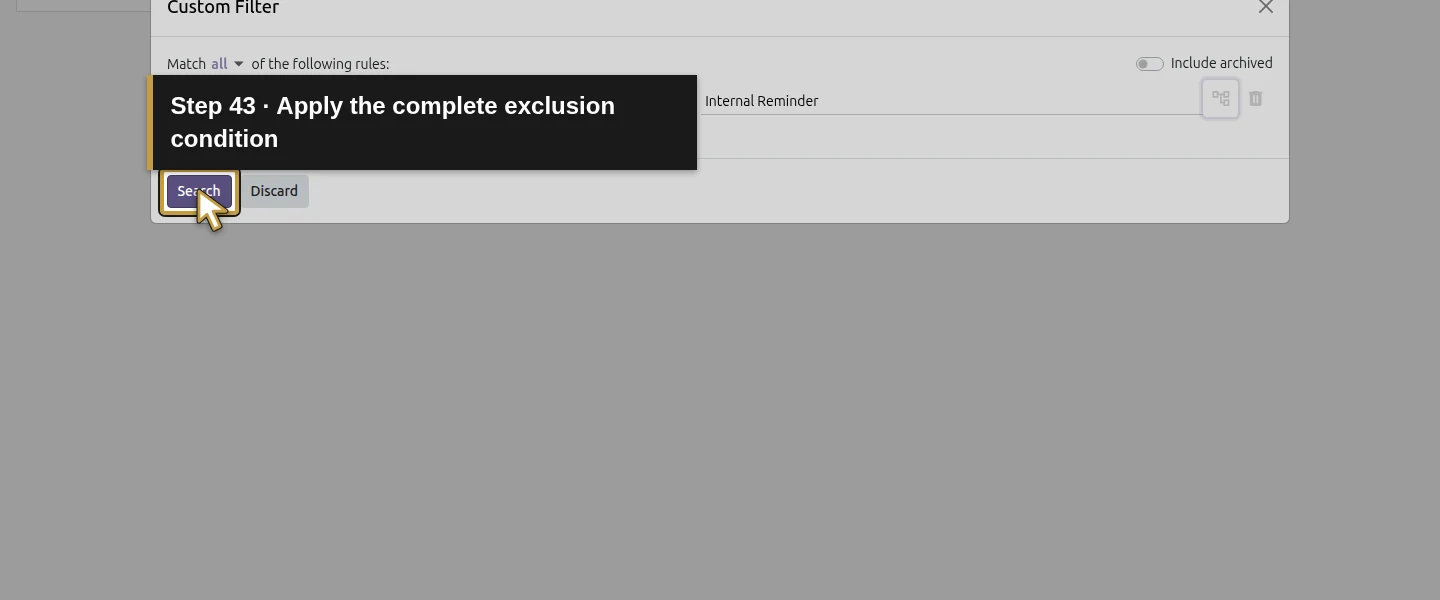
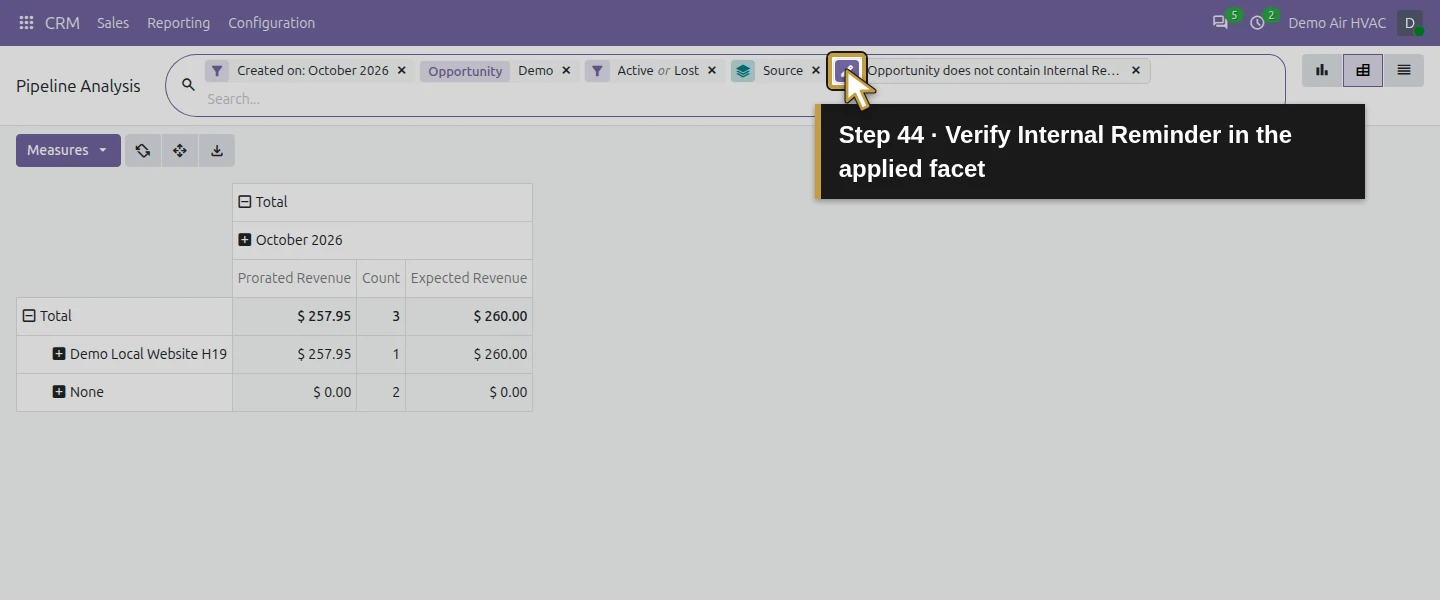
Use the Pipeline Analysis breadcrumbs until the original report and its pivot controls return; the first breadcrumb from a form may return only to the drilled list. Confirm the original four-record source pivot before editing its filters. Open Toggle Search Panel → Custom Filter…. Click the field selector initially showing Country, choose Opportunity, set does not contain and enter Internal Reminder. Leave the value field, then click Search. Check that the applied Opportunity facet includes the full Internal Reminder value before saving a favorite. In this capture, the first apply omitted the value and showed no data despite the visible entry. If that happens, click the existing facet’s edit icon to reopen Custom Filter, re-enter Internal Reminder in its existing Opportunity / does not contain condition, leave the field with Tab, then click Search. Verify the complete applied value and the three-record cohort. This native correction changes the report condition without changing or deleting the internal enquiry; the underlying cause of the omitted value was not established.
Step 8. Reconcile the final cohort and source gaps
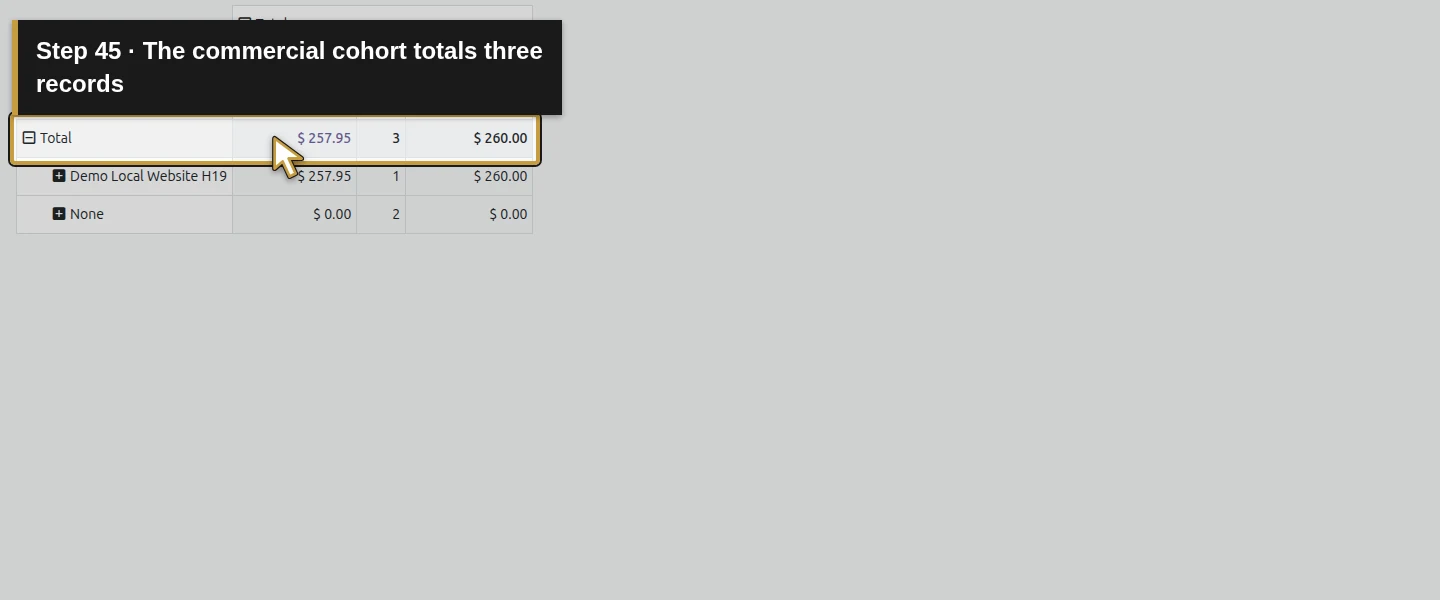
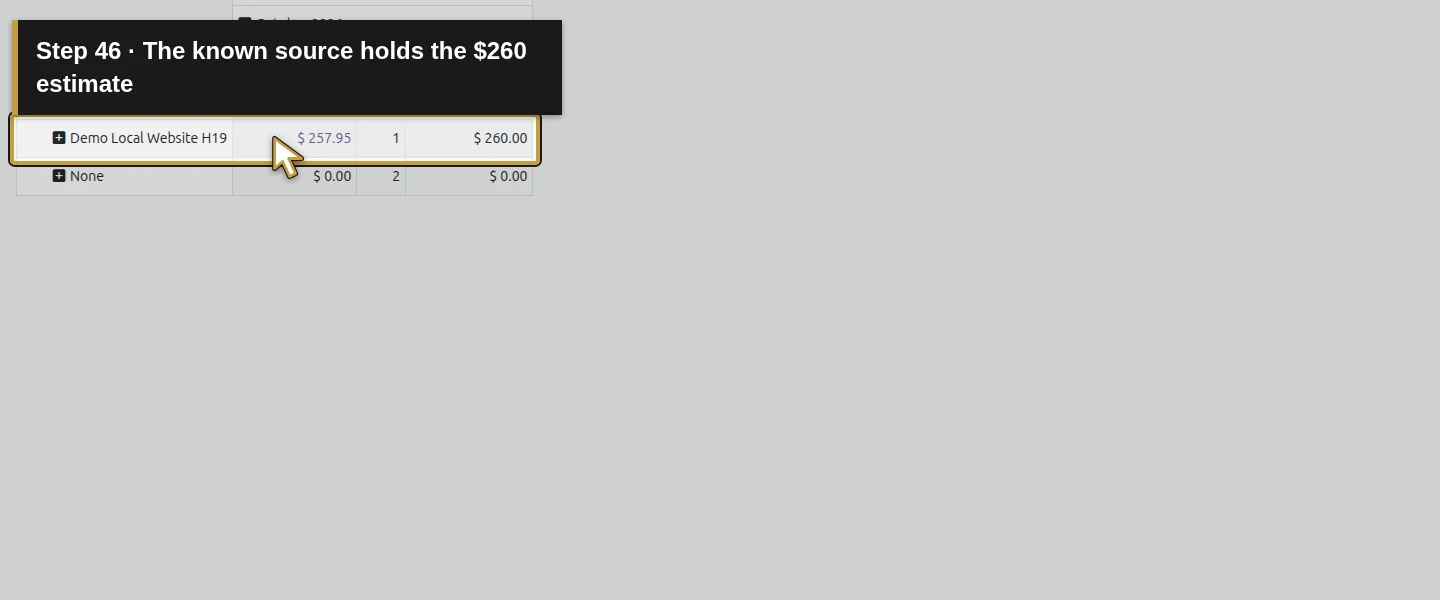
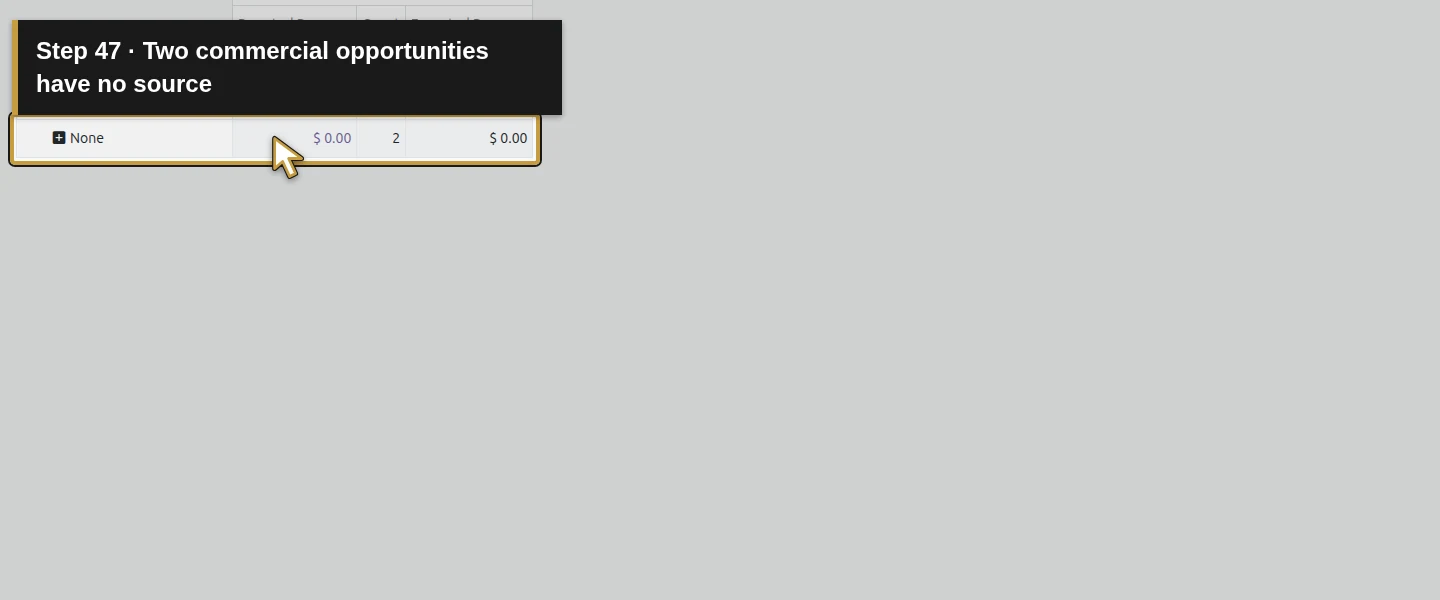
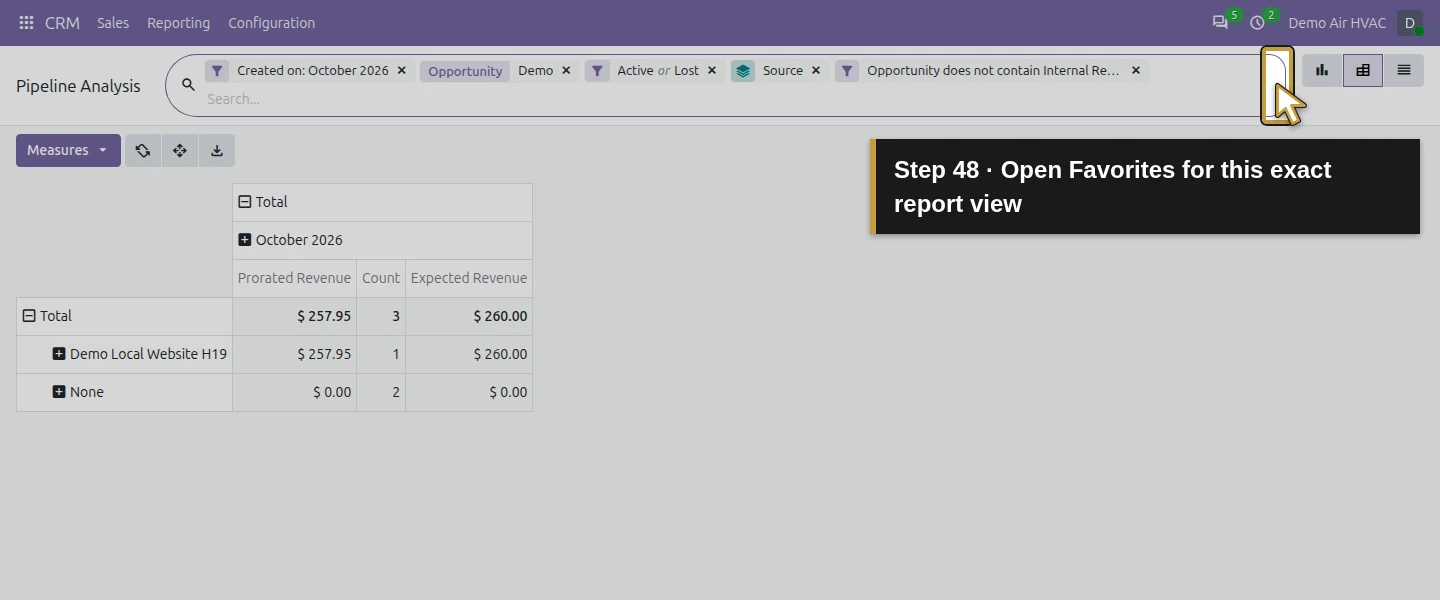
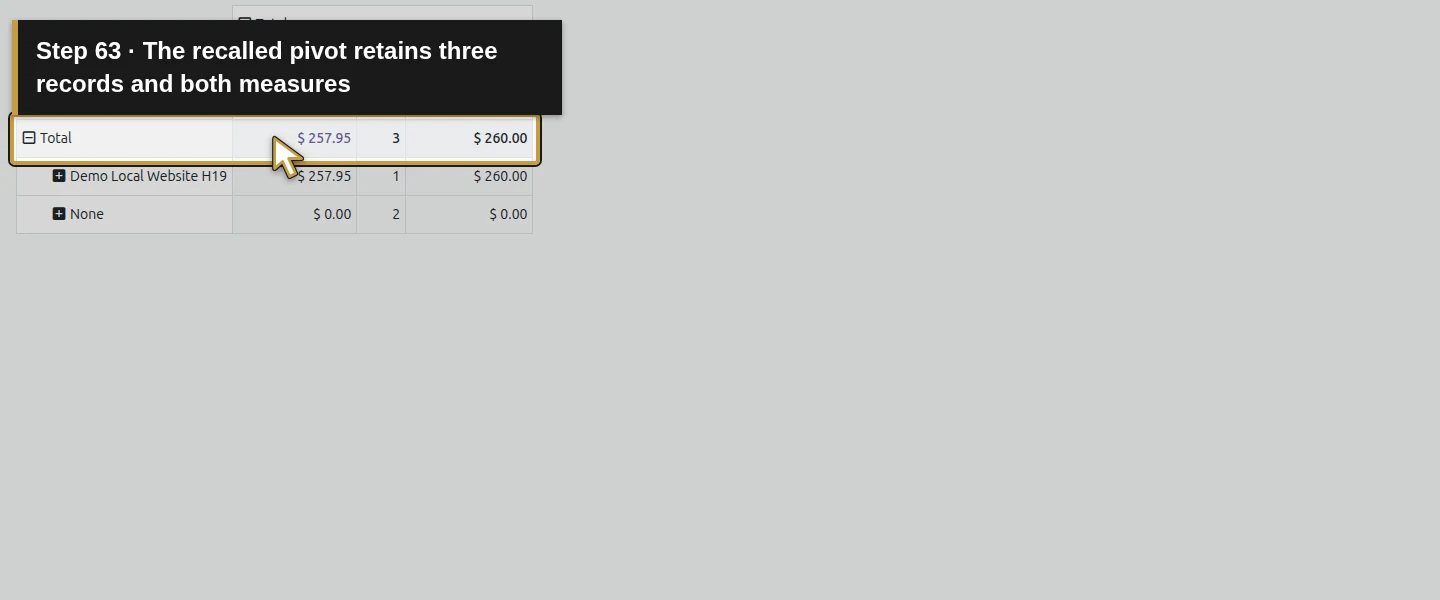
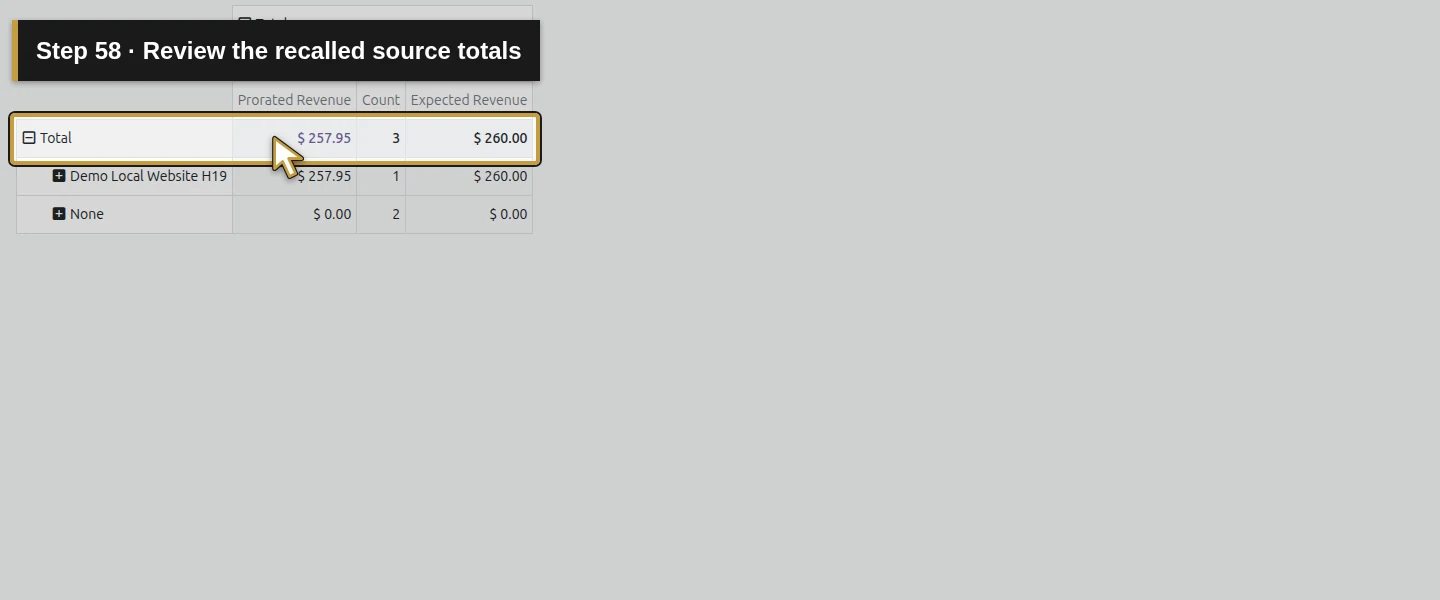
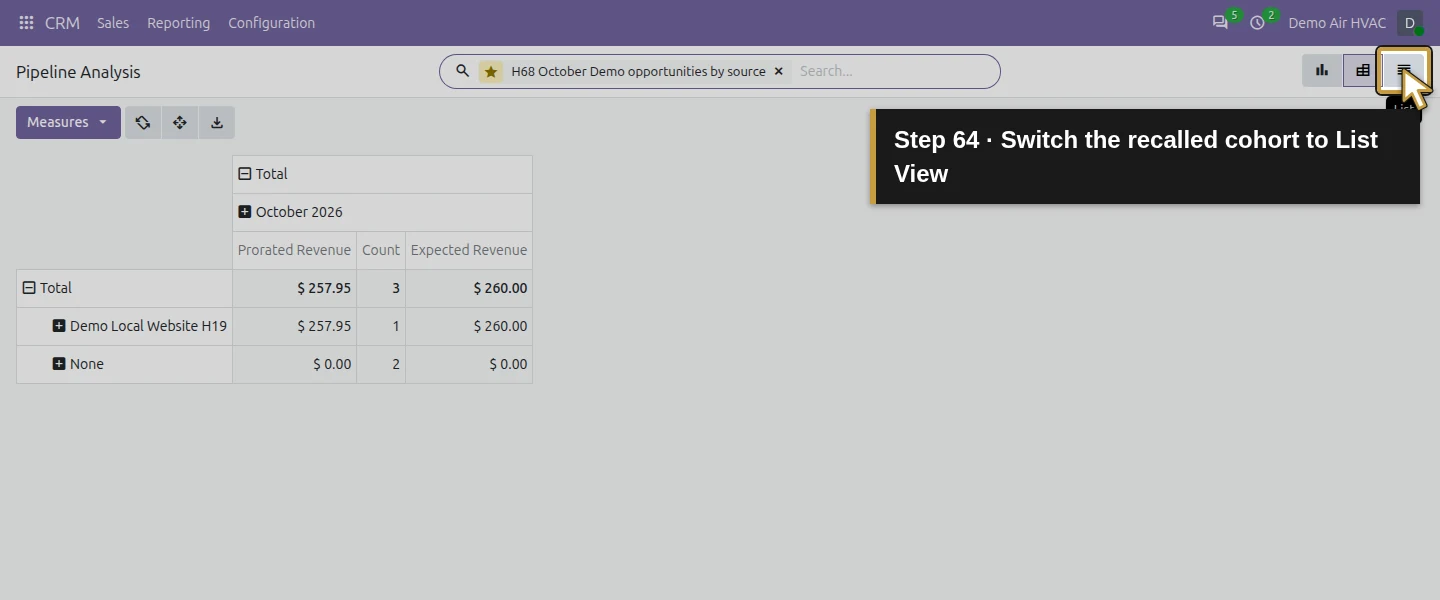
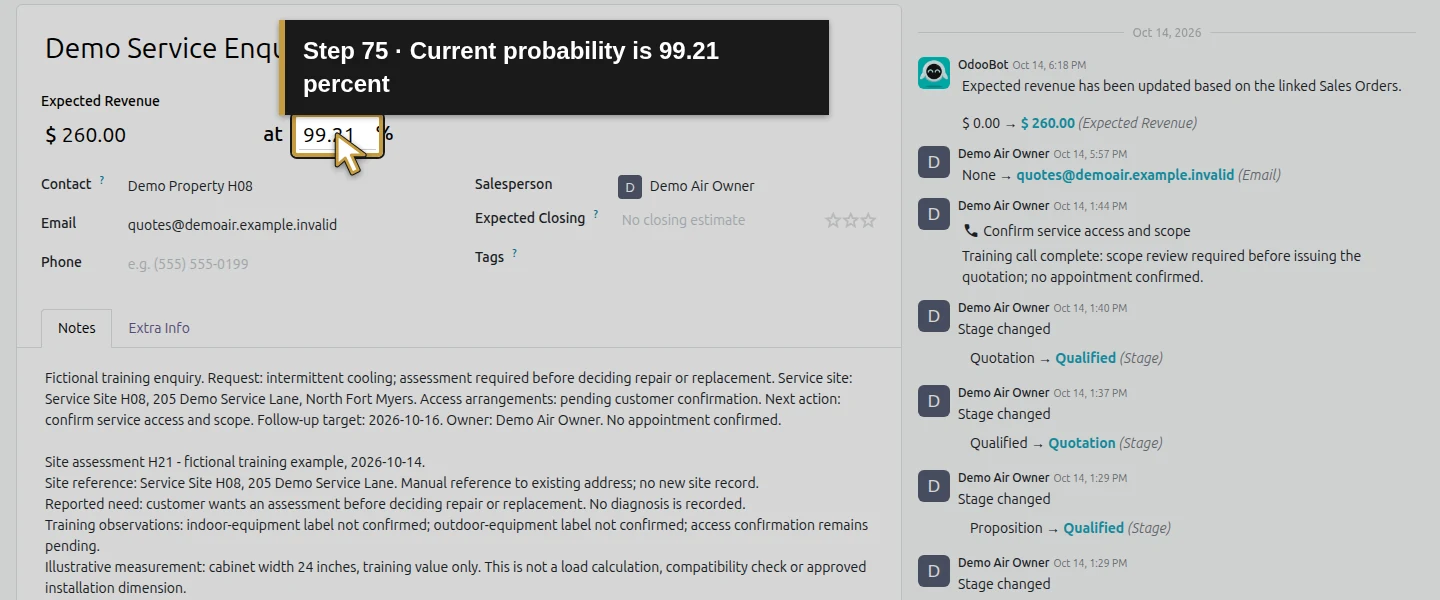
The final Source pivot shows Total3 / Expected Revenue $260 / Prorated Revenue $257.95. Demo Local Website H19 has one record and all $260/$257.95; None has two records and zero entered estimates. The three records are the Qualified service enquiry, the Won example and the archived Lost example. The service enquiry’s displayed probability is 99.21%; $260 weighted by that percentage rounds to $257.95 here. Treat the two missing sources as data to review separately, not as evidence that they arrived through the website.
Step 9. Save one personal search
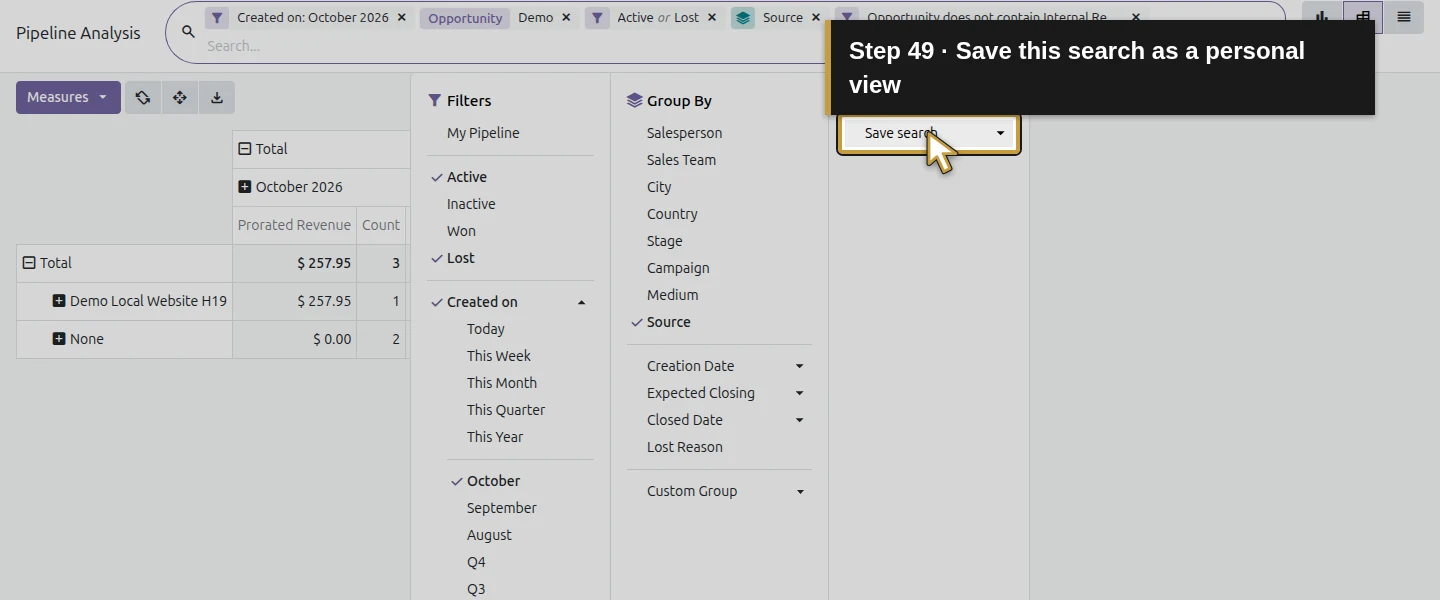
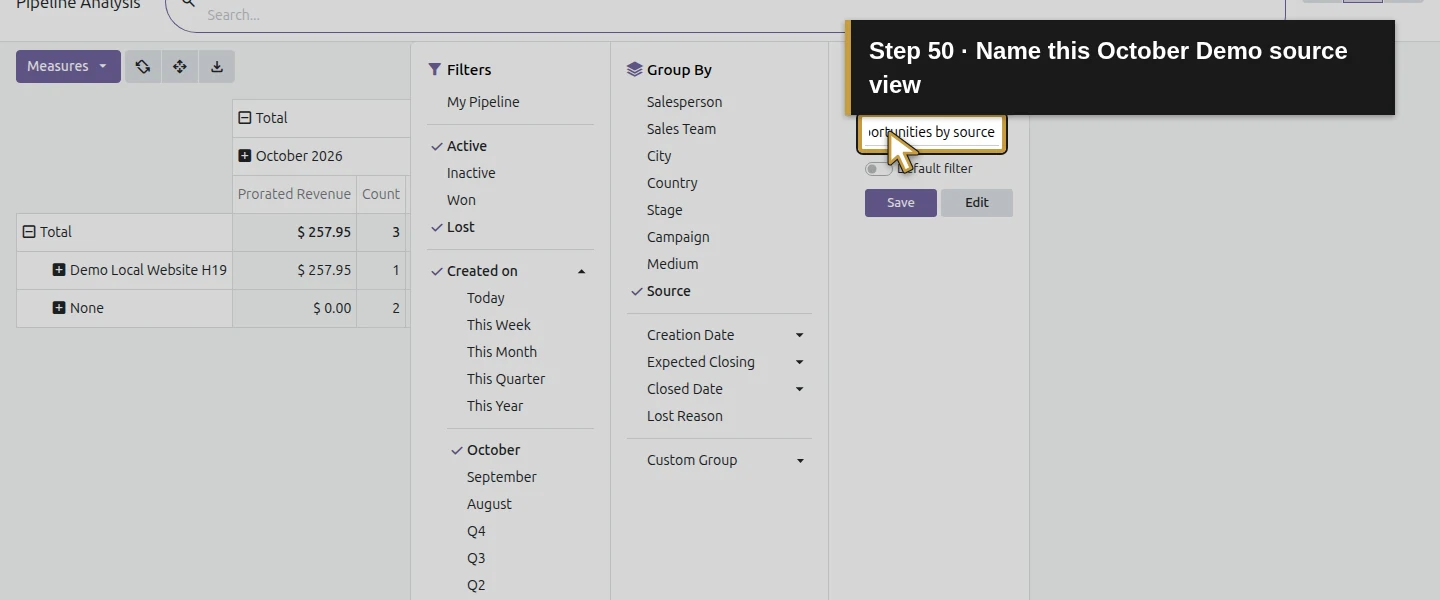
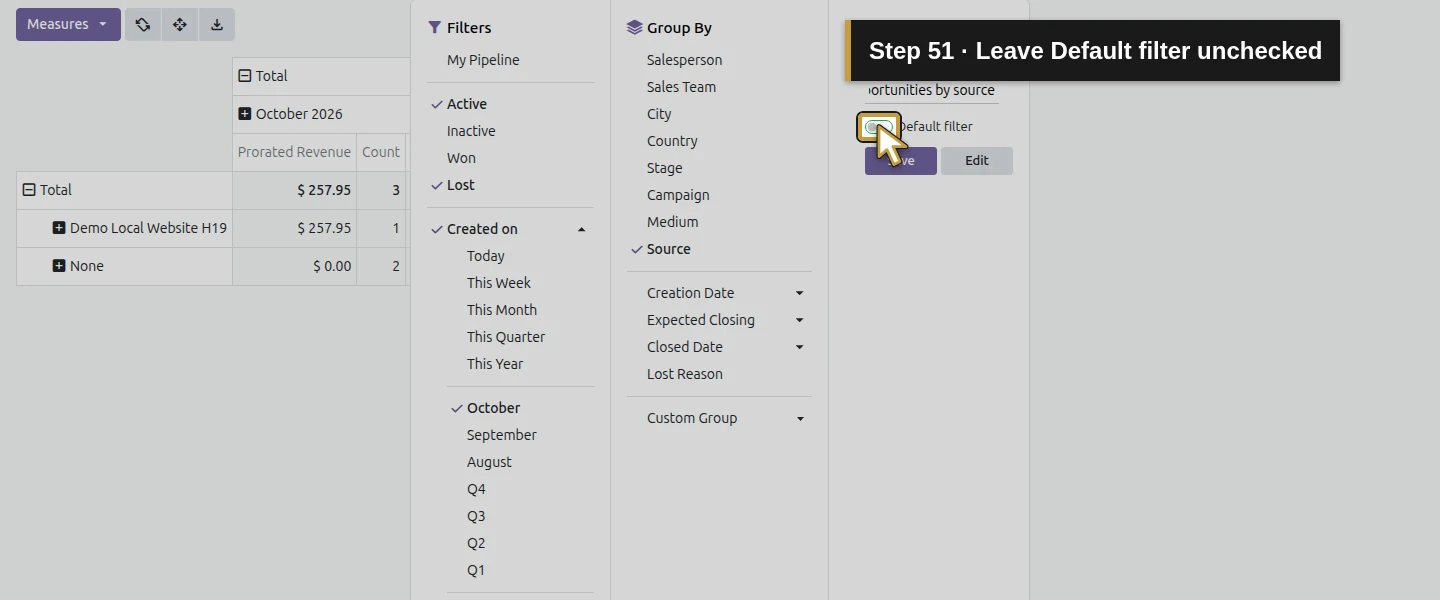
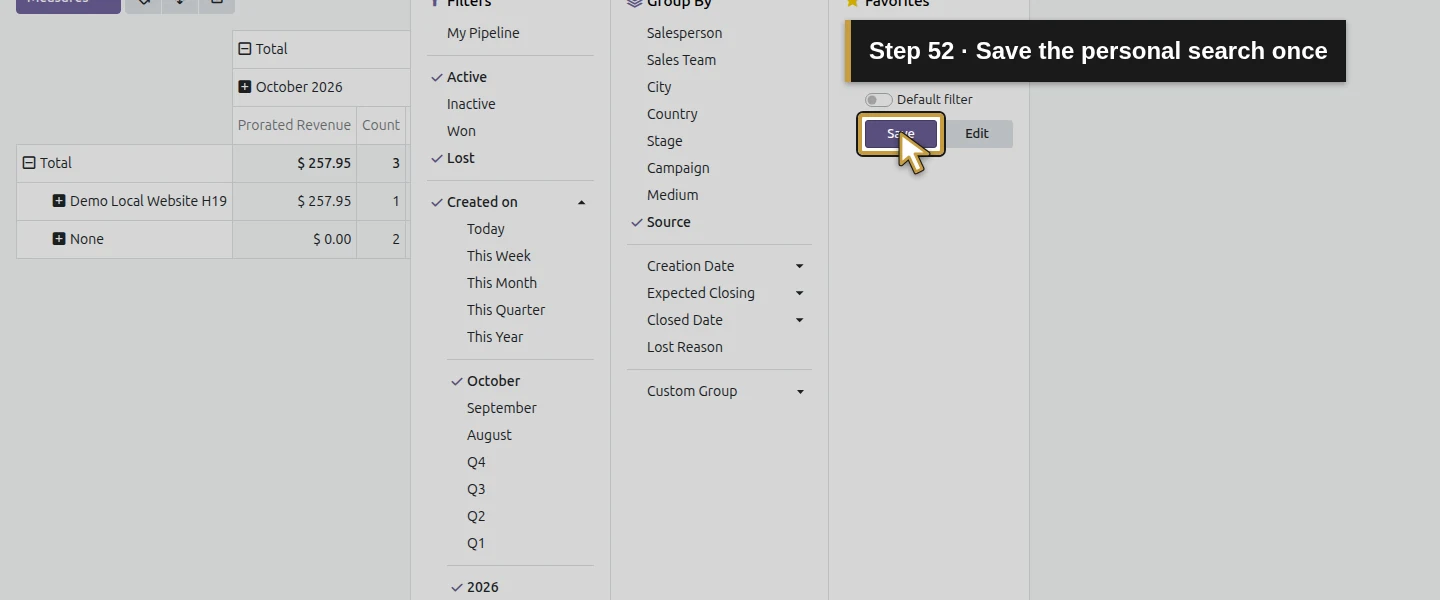
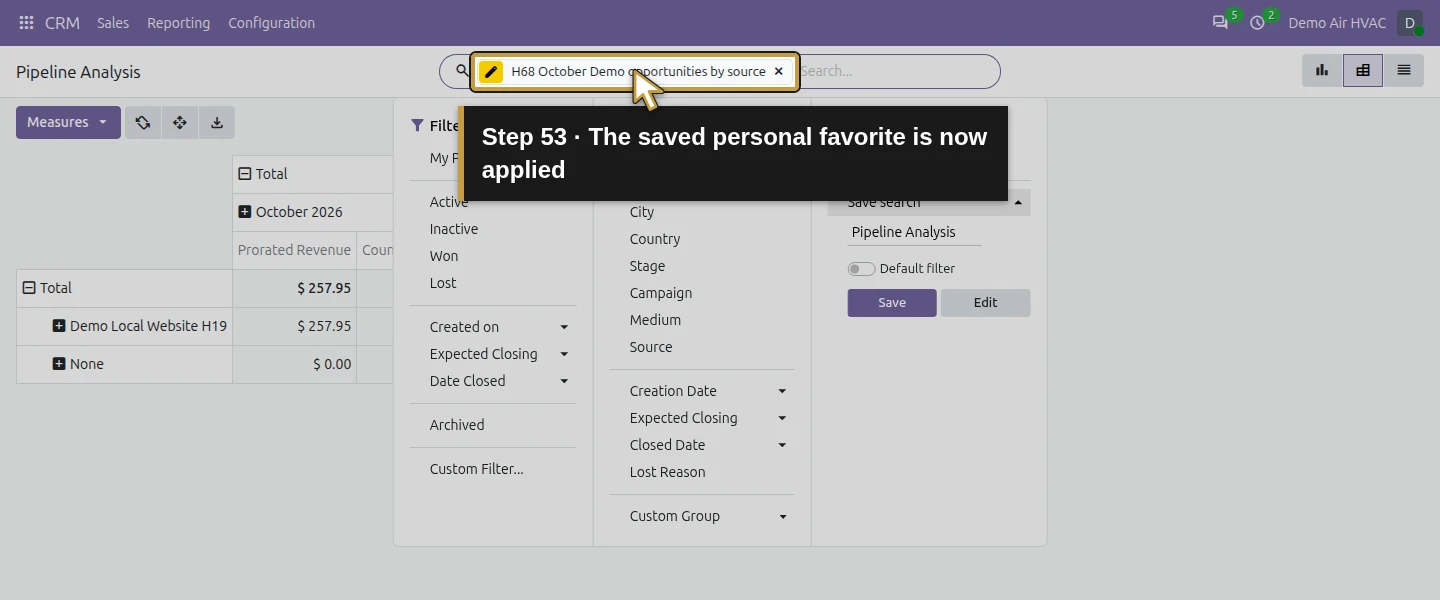
Open Toggle Search Panel → Save search. Enter Filter name H68 October Demo opportunities by source, leave Default filter unchecked and click Save once. The saved search belongs to Demo Air Owner in this test. It retains the source grouping, creation-month columns, three selected measures, October 2026 date boundaries, Active-or-Lost scope and internal-test exclusion. No shared/default report or scheduled delivery is configured.
Step 10. Reload and recall the saved view
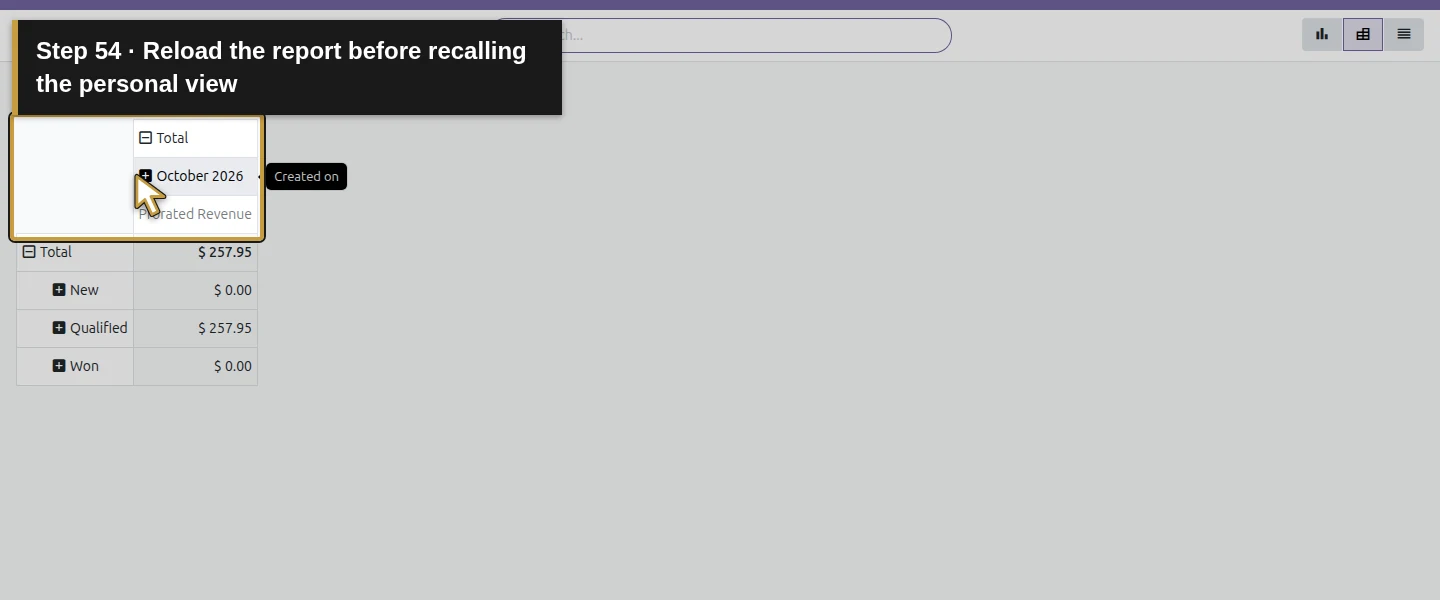
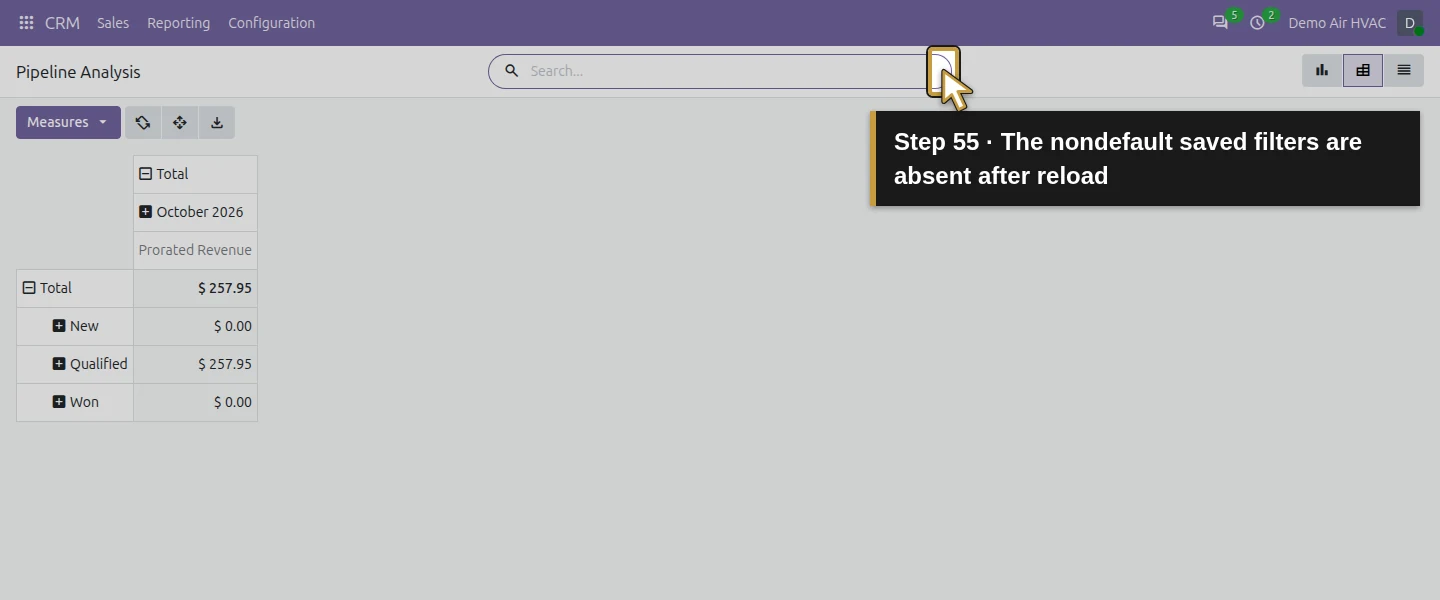
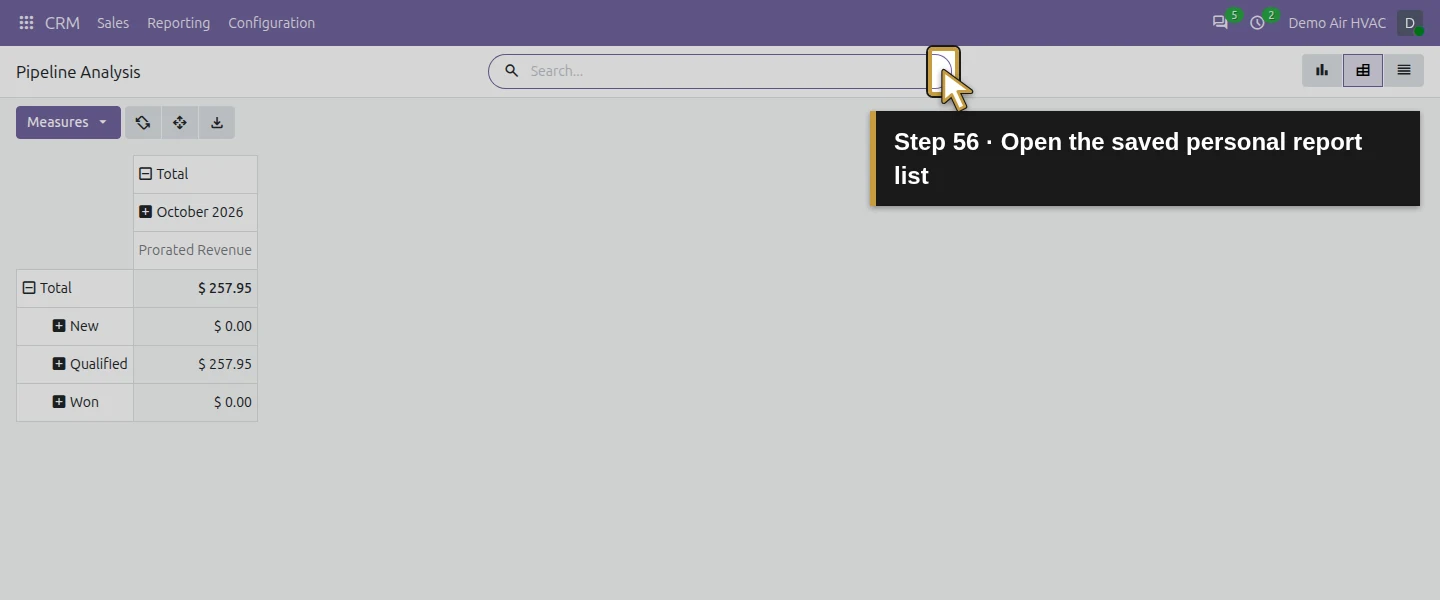
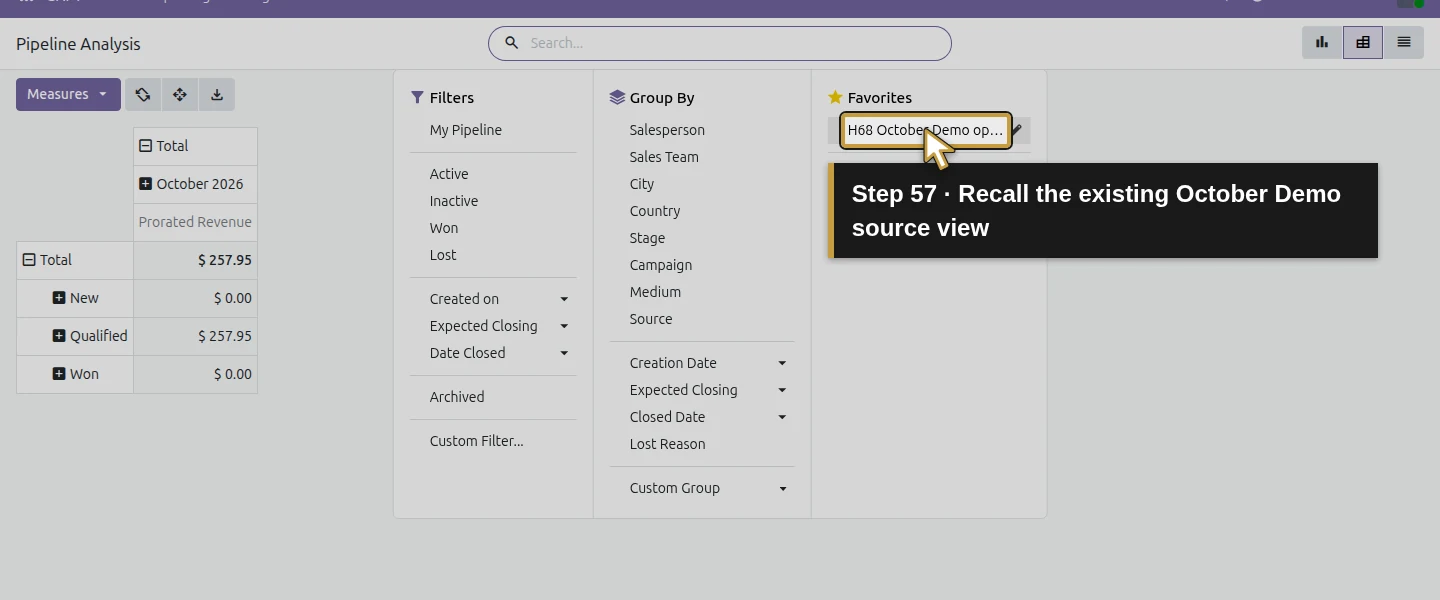
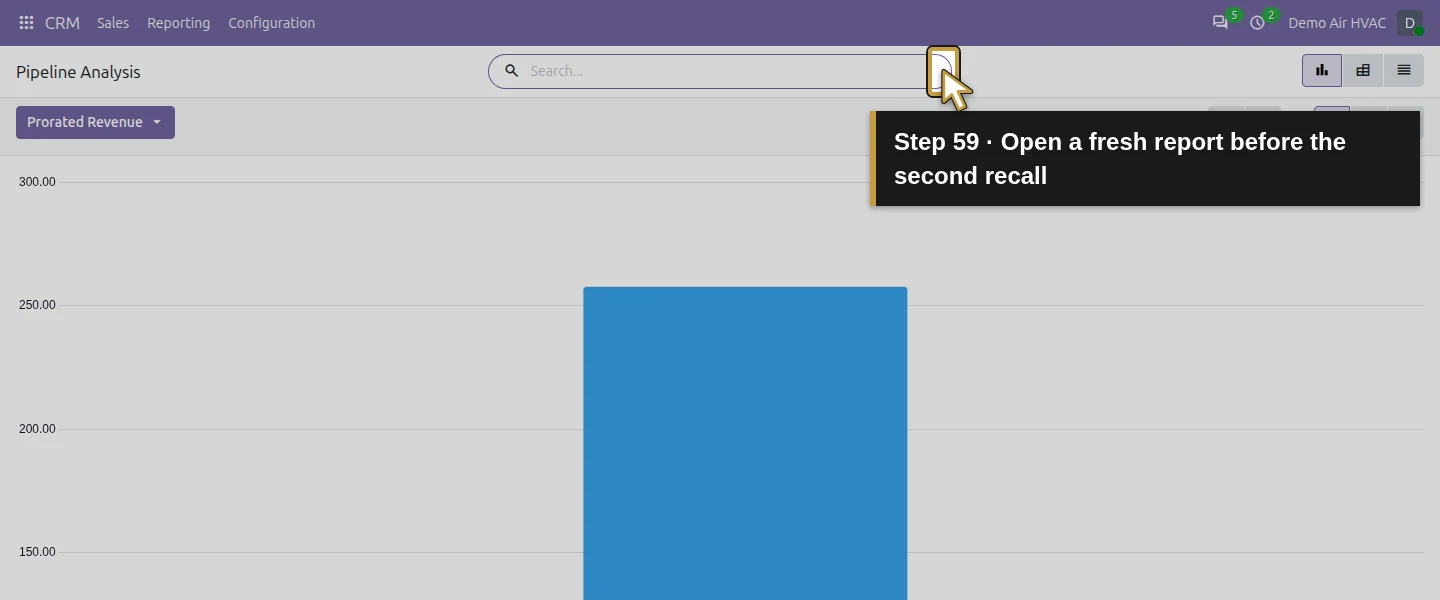
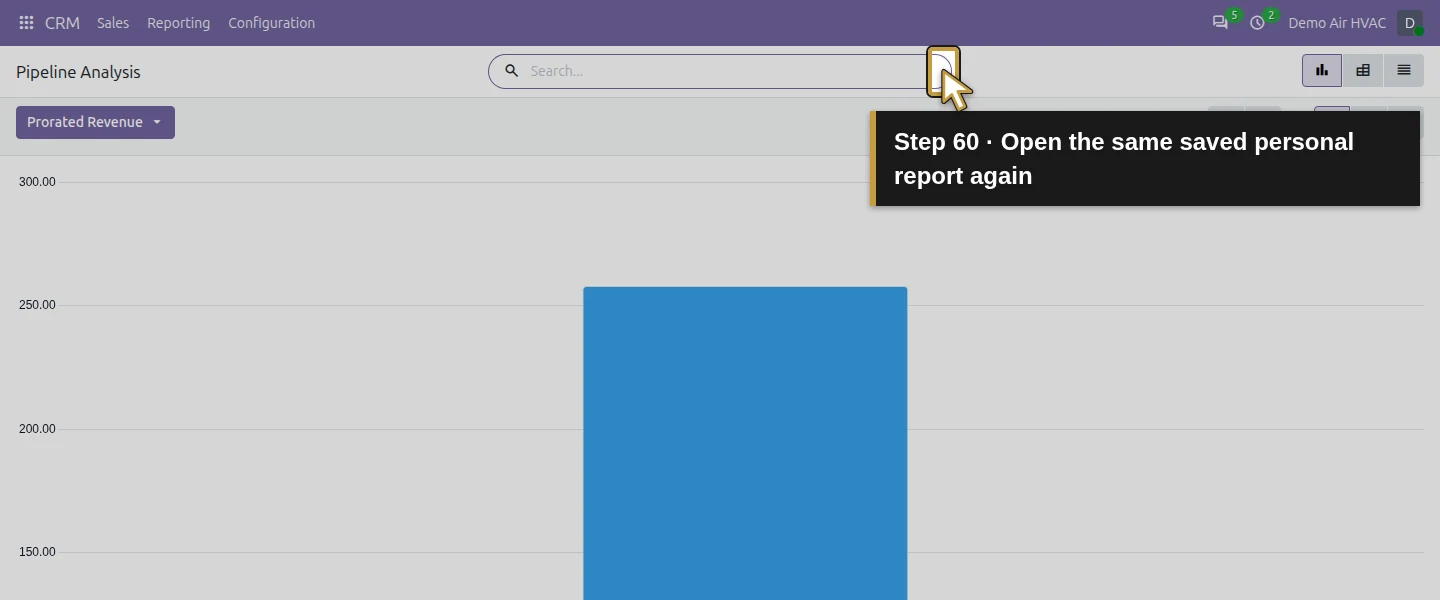
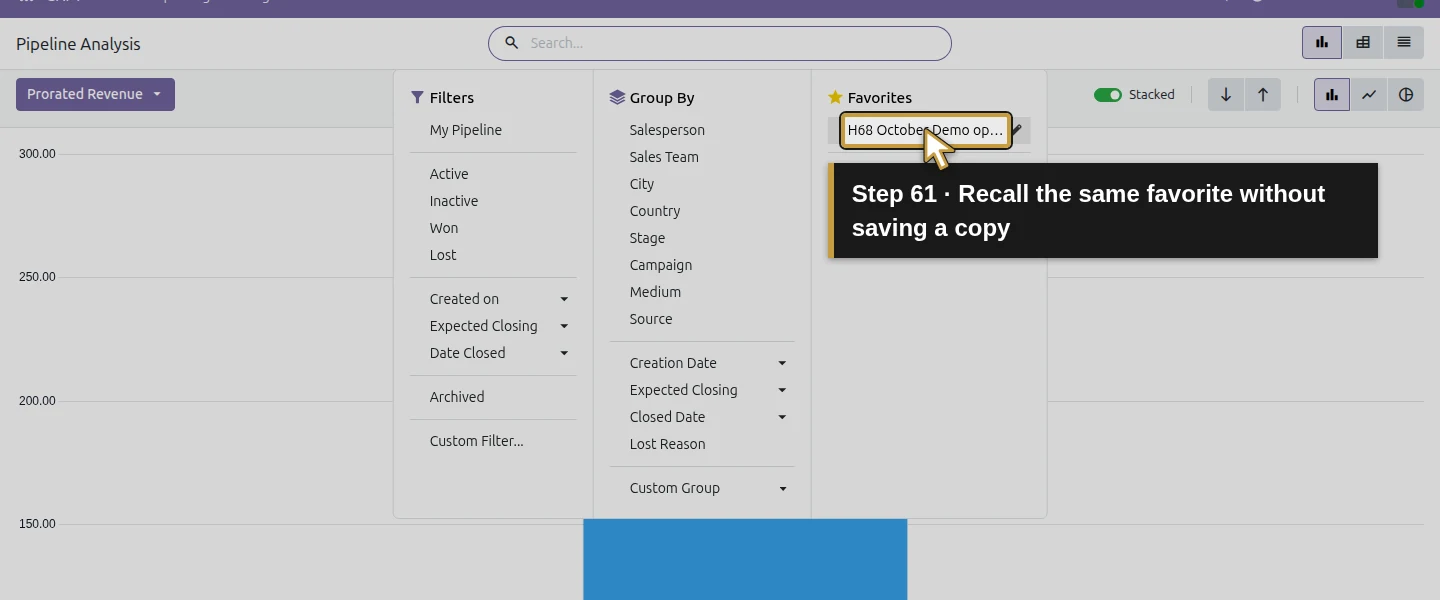
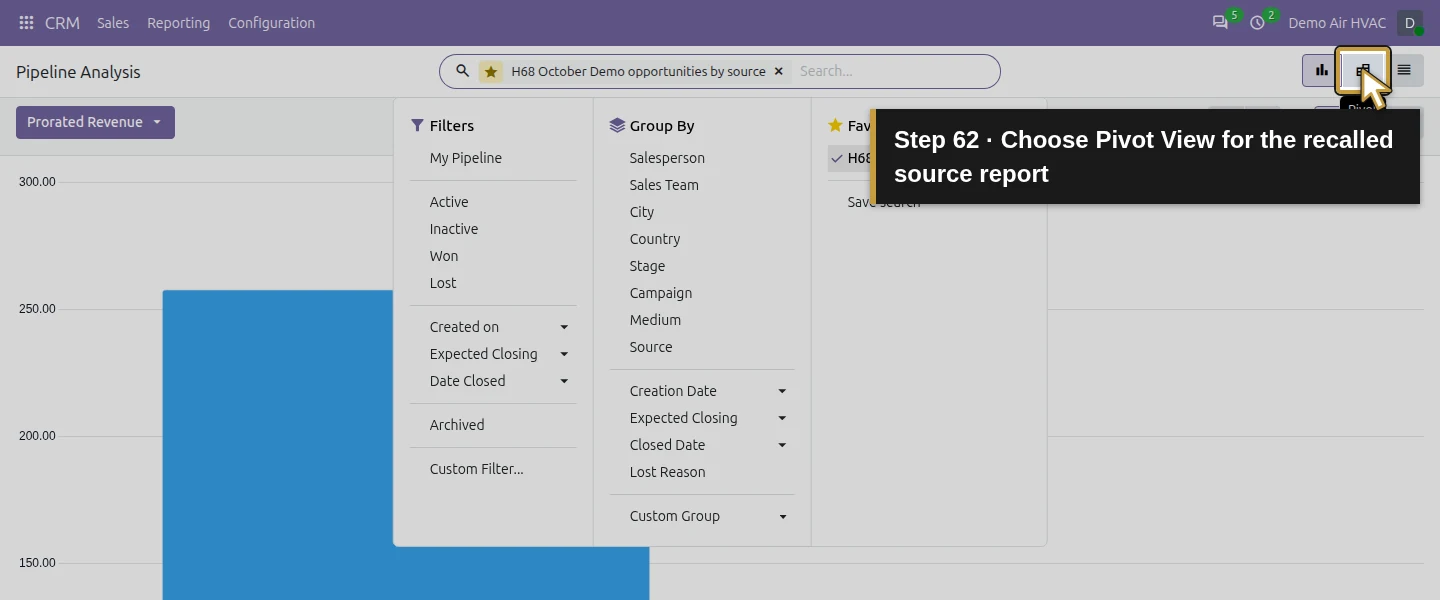
Reload the report. Because the search is not the default, the initial view no longer has the saved cohort filters. Choose Pivot View before expecting pivot rows, then open Toggle Search Panel and select H68 October Demo opportunities by source. Wait for that favorite’s name and the source rows to appear. Count3, the two source groups and both money measures return. On a fresh report visit, select Pivot View and recall the existing favorite again. The saved search retains its filters, grouping and pivot measures; it does not universally switch a fresh Graph view to Pivot. The two checked pivot recalls returned the same totals. A fresh Graph selection exposed the view difference and required selecting Pivot to inspect the rows. Only one favorite was saved. Reuse it instead of saving another copy, and review its October 2026 period before using it for a different month.
Step 11. Open the source enquiry and compare its actual order
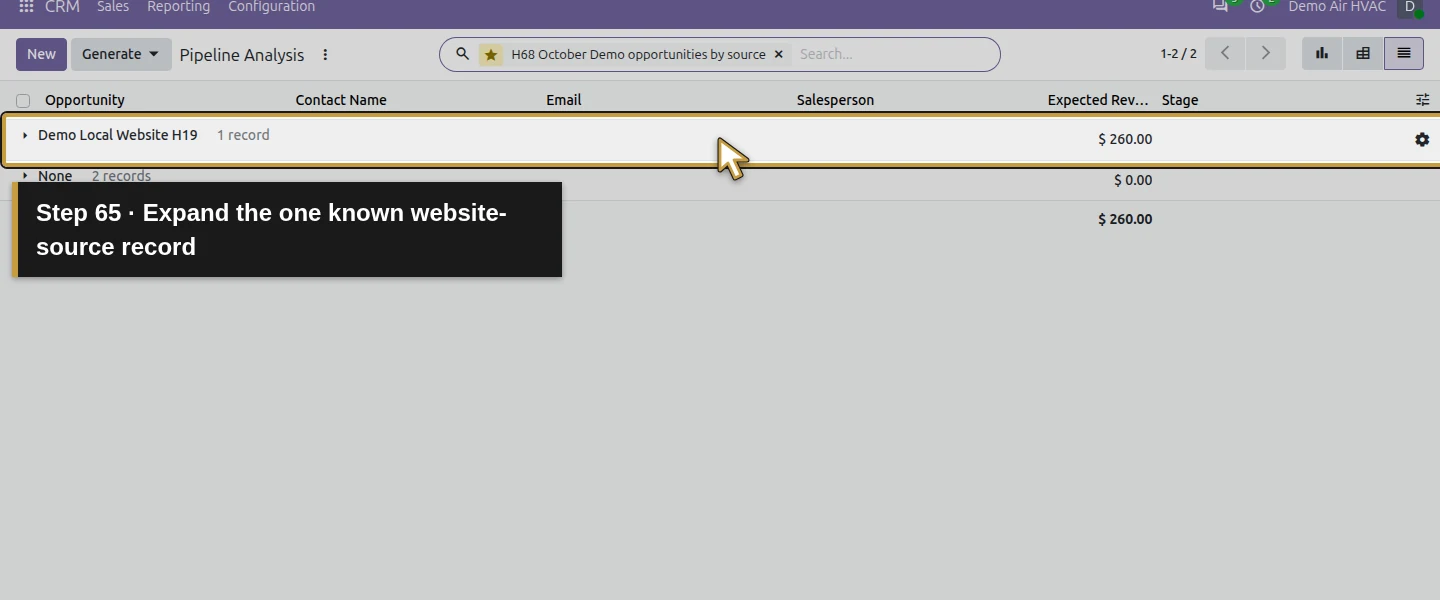
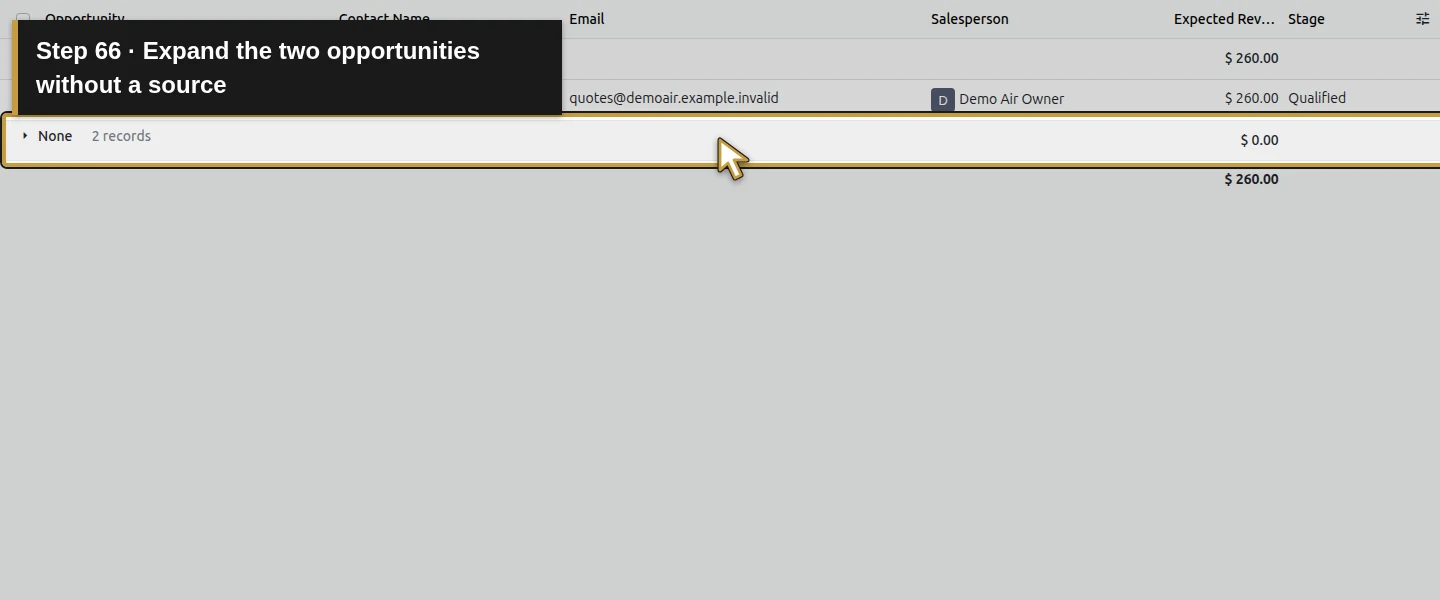
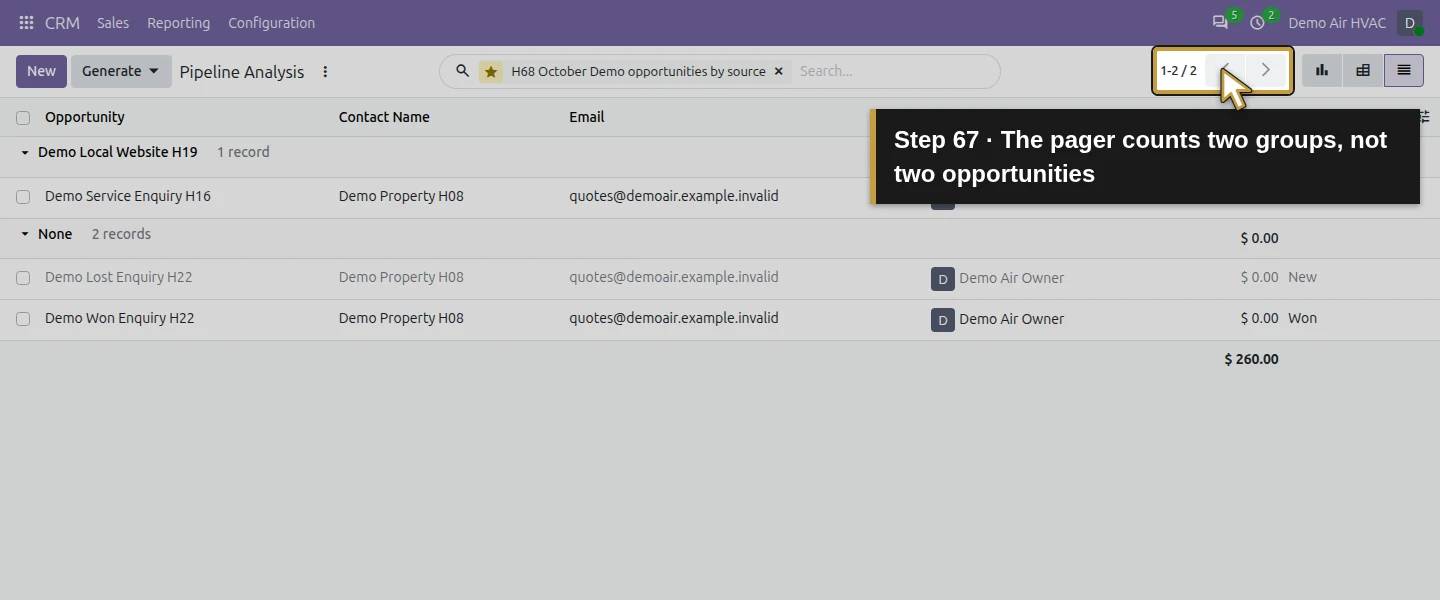
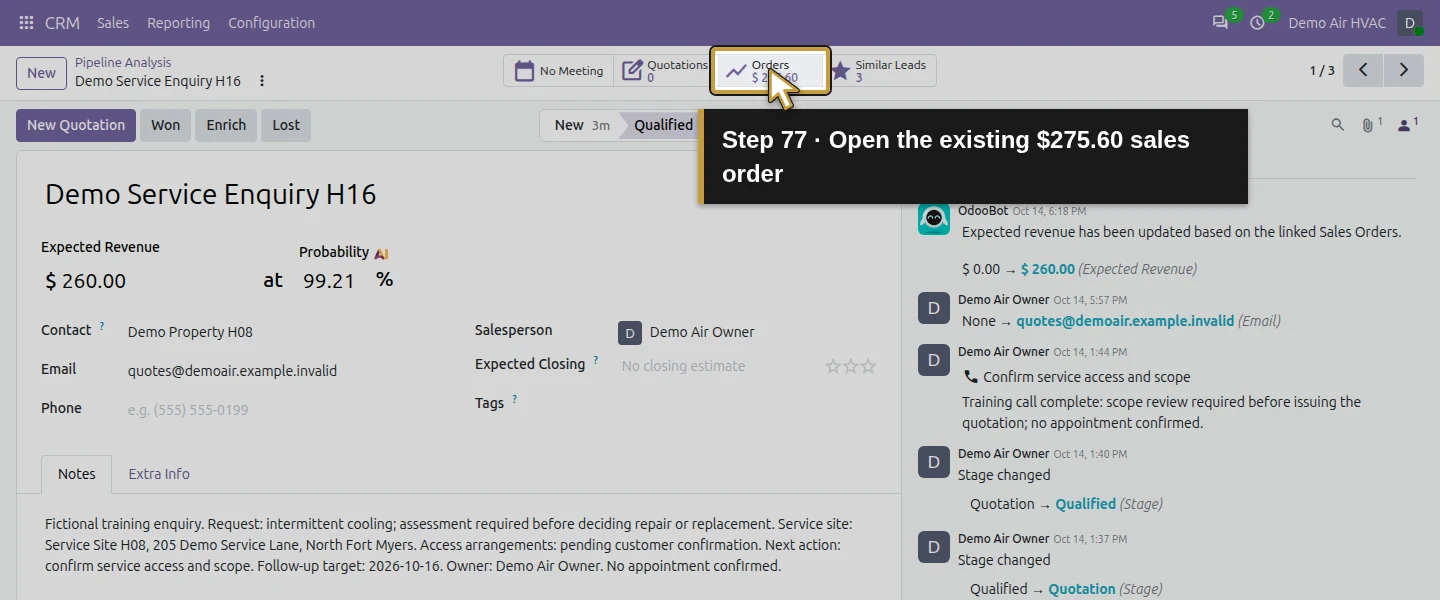
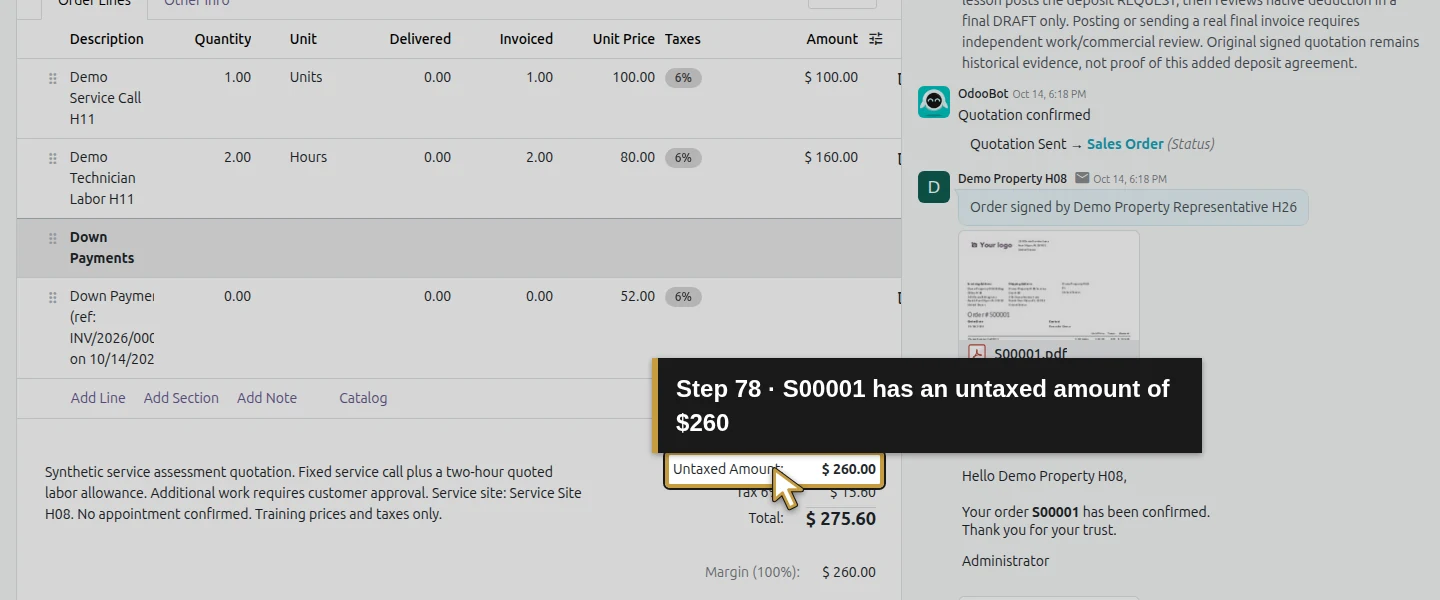
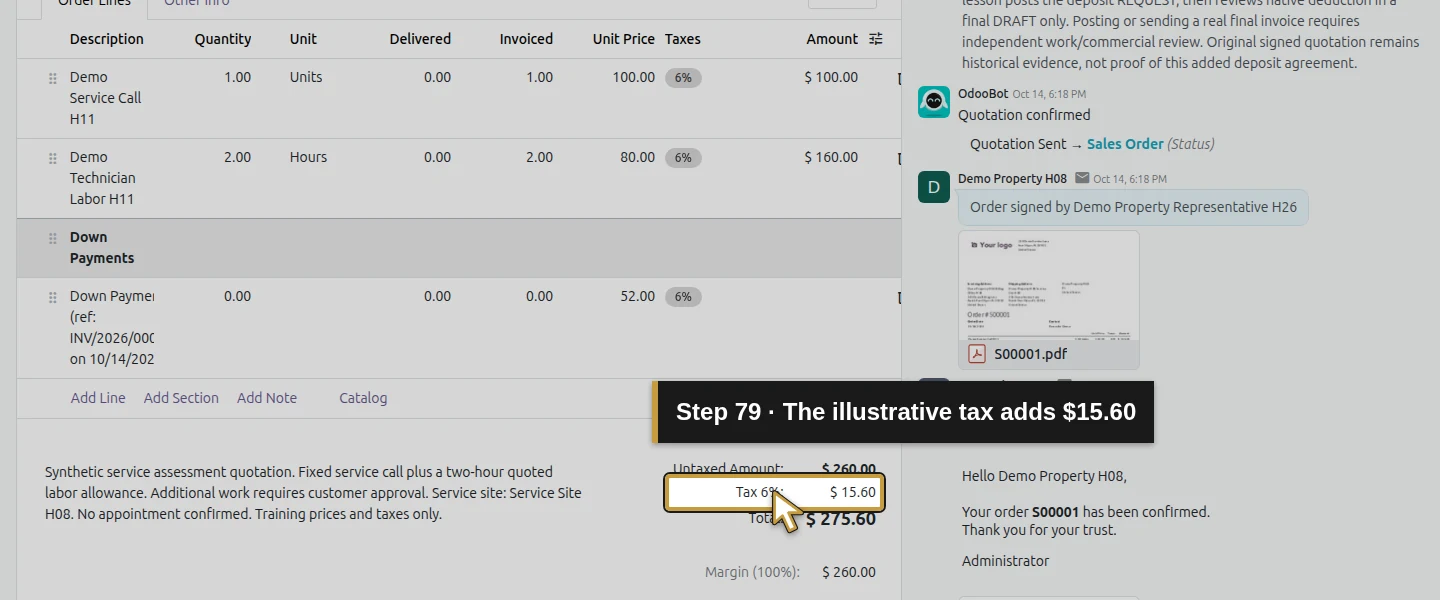
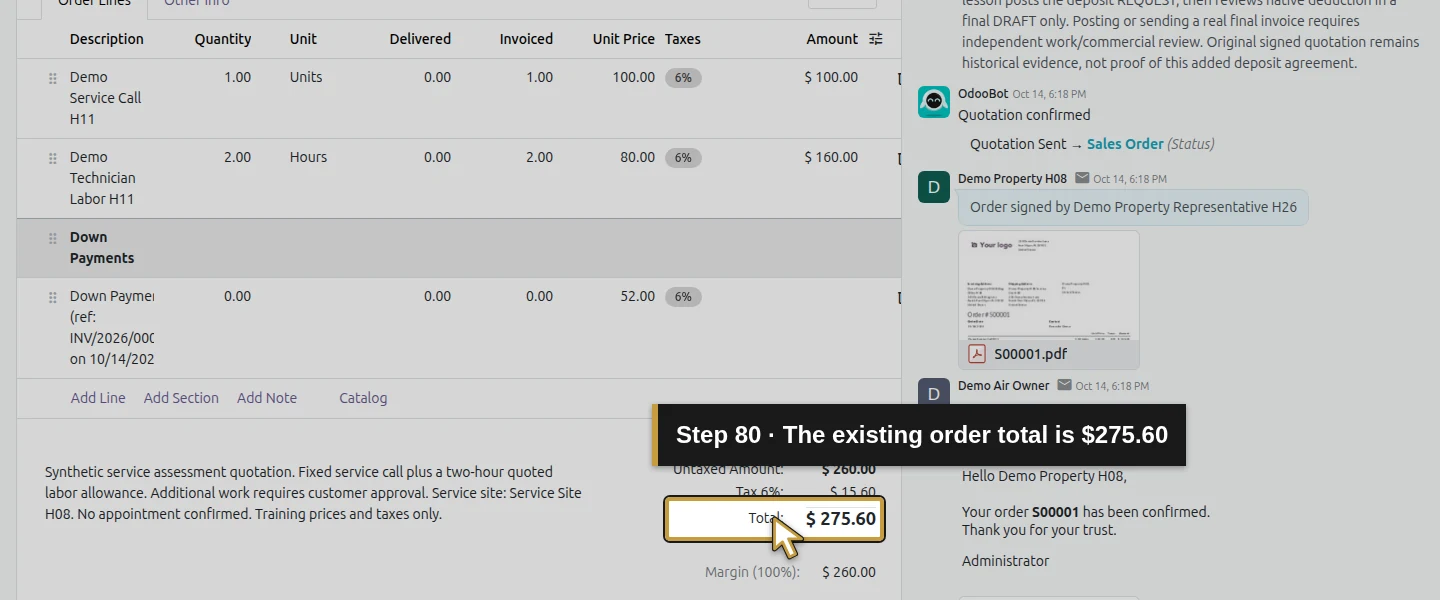
Click List View and expand Demo Local Website H19 and None. The grouped list has two source headers containing one and two records; its two-group counter is not a count of two opportunities. Open Demo Service Enquiry H16. It remains Qualified, with Expected Revenue $260 and Probability 99.21. Its $275.60 Orders smart button opens existing S00001. That sales order shows $260 Untaxed Amount + $15.60 demo tax = $275.60 Total. The CRM estimate and tax-inclusive order total differ for an identifiable reason. Leave the existing order unchanged.
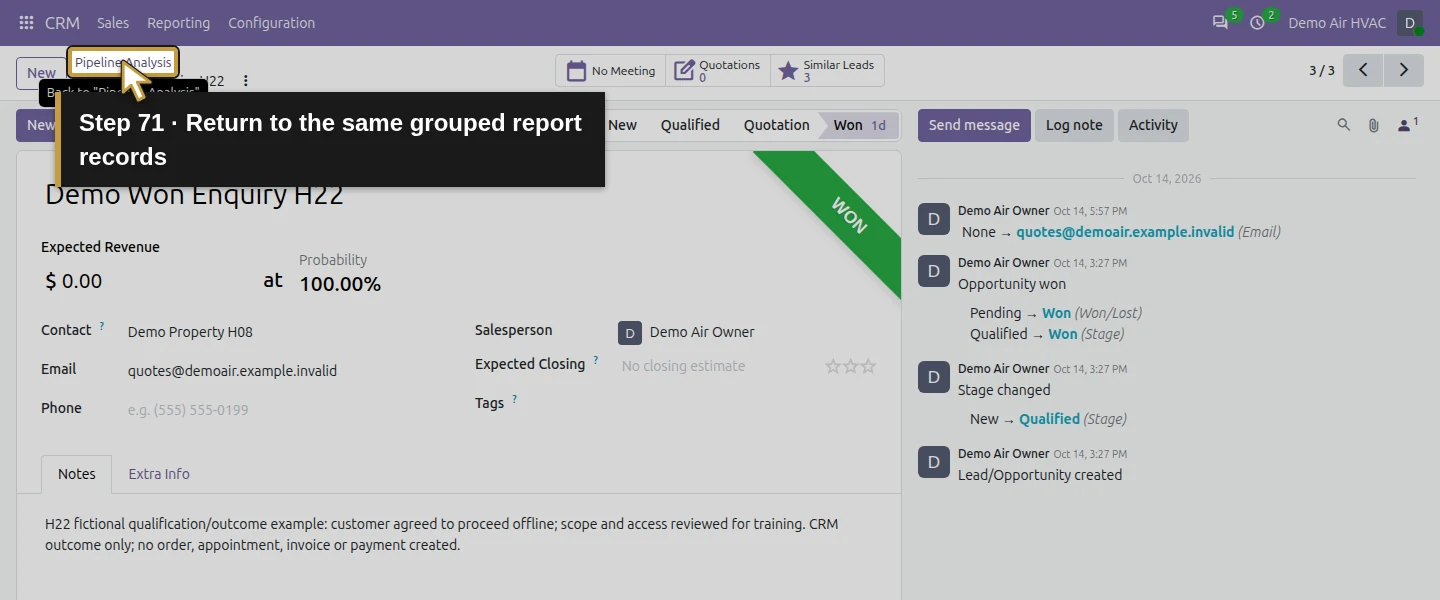
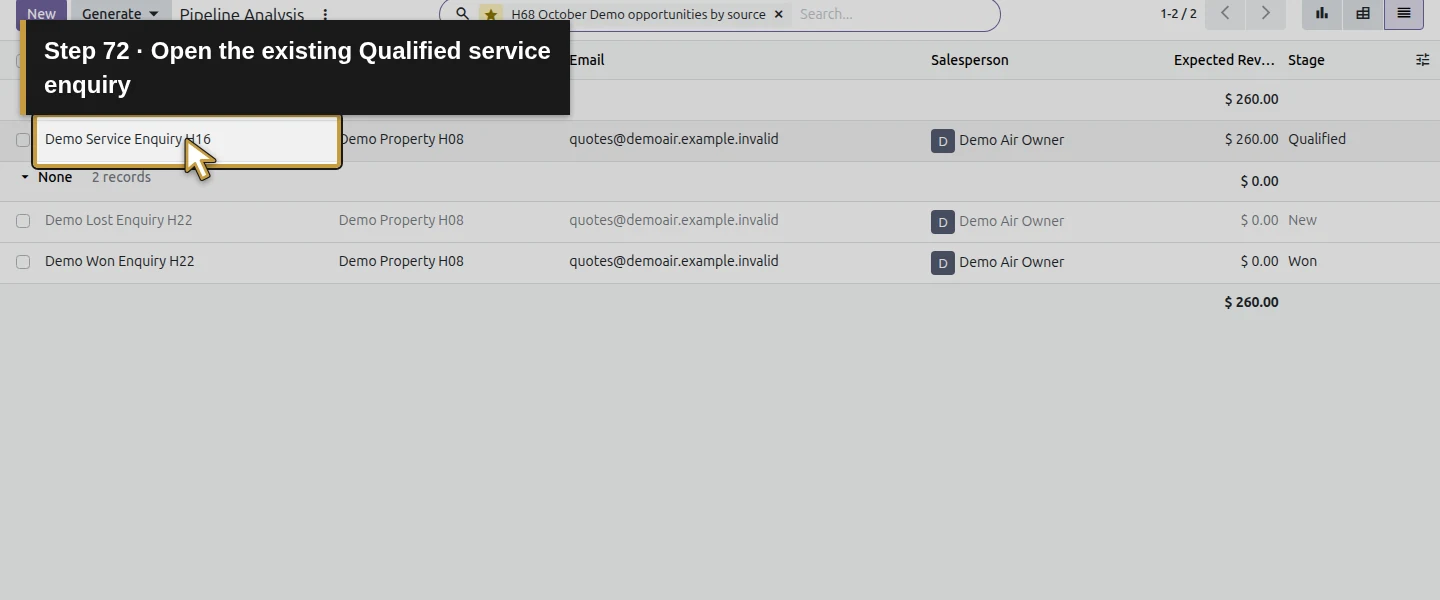
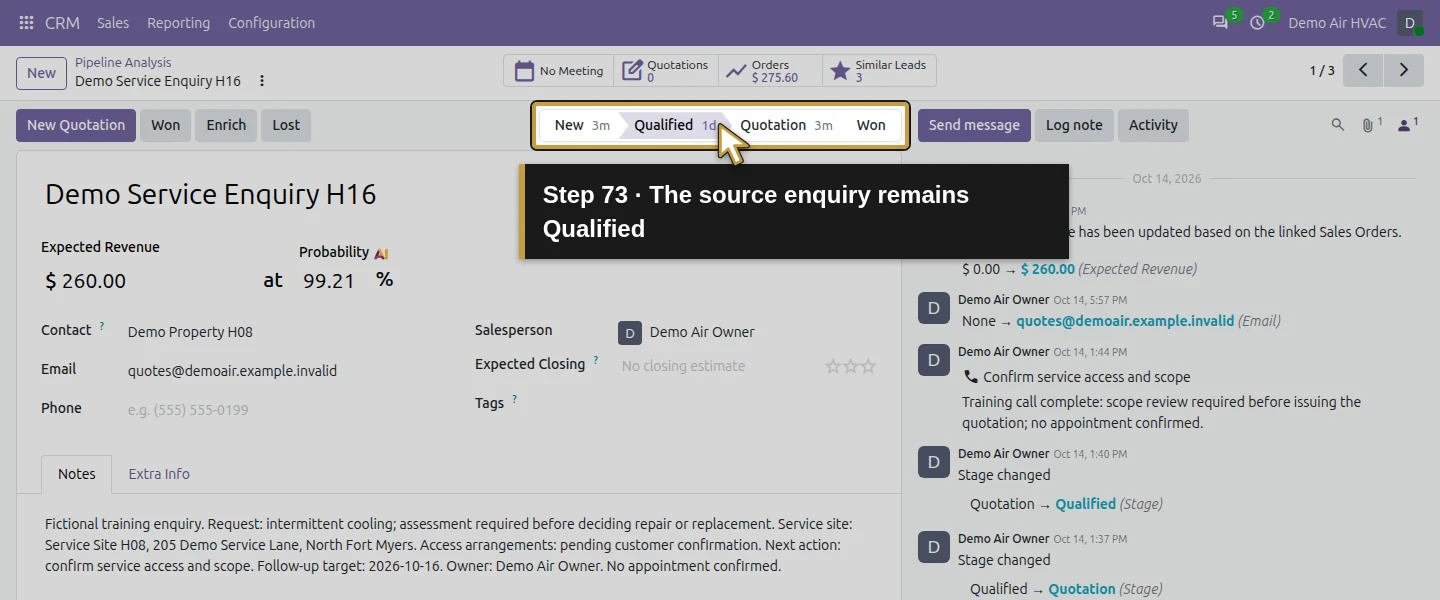
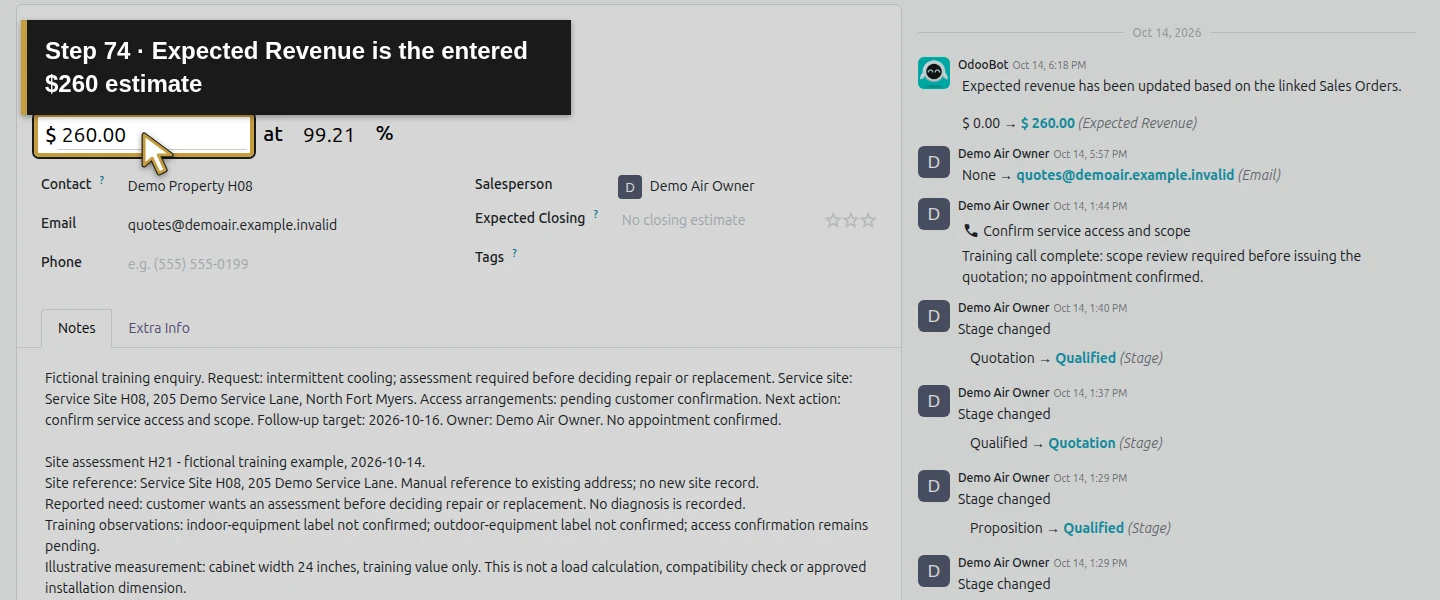
Step 12. Keep outcome, order and cash review separate
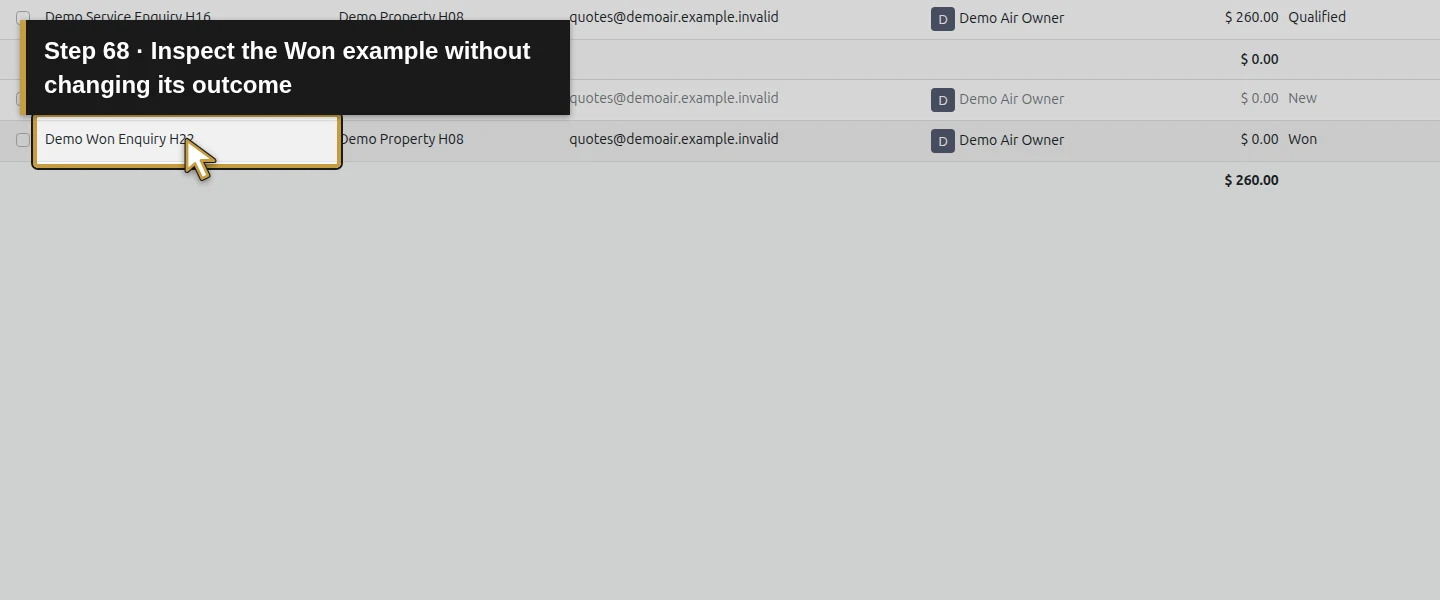
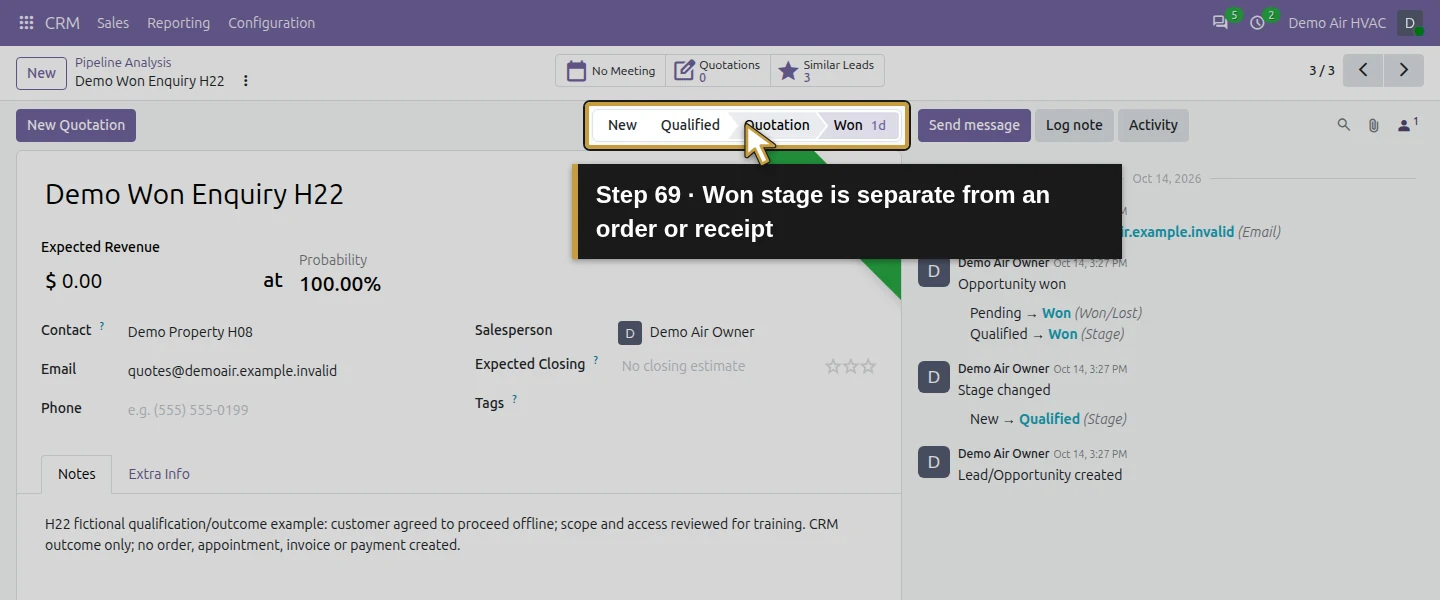
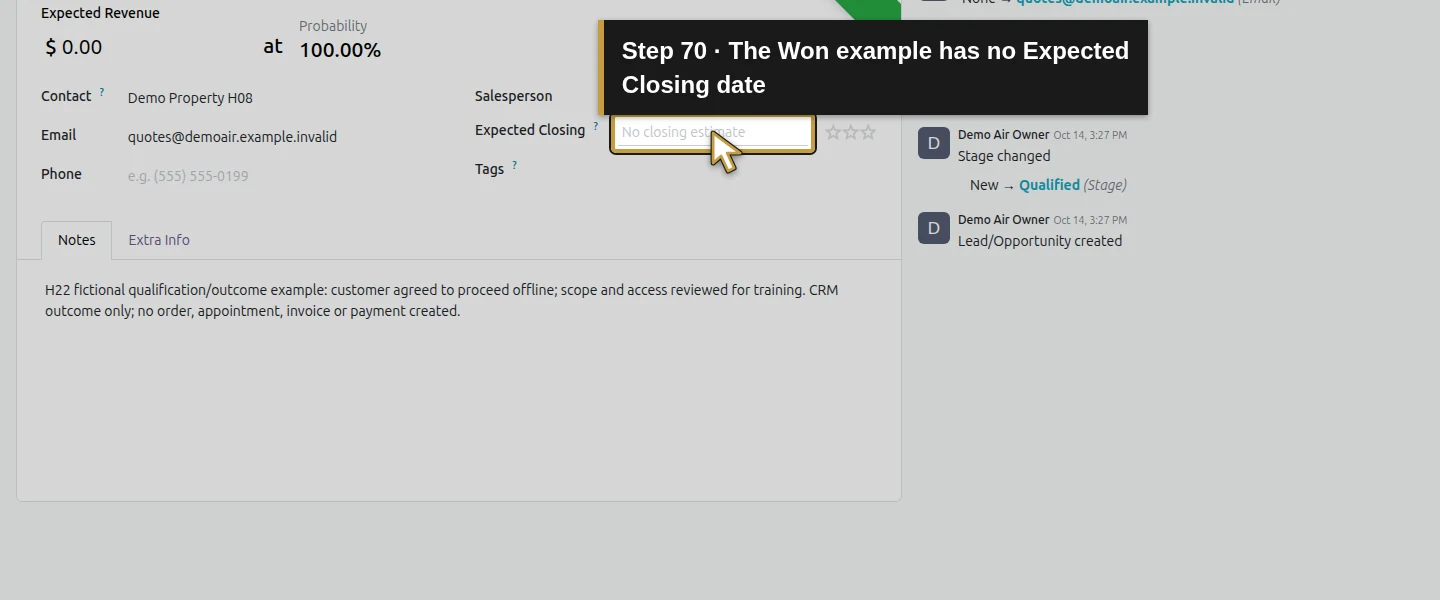
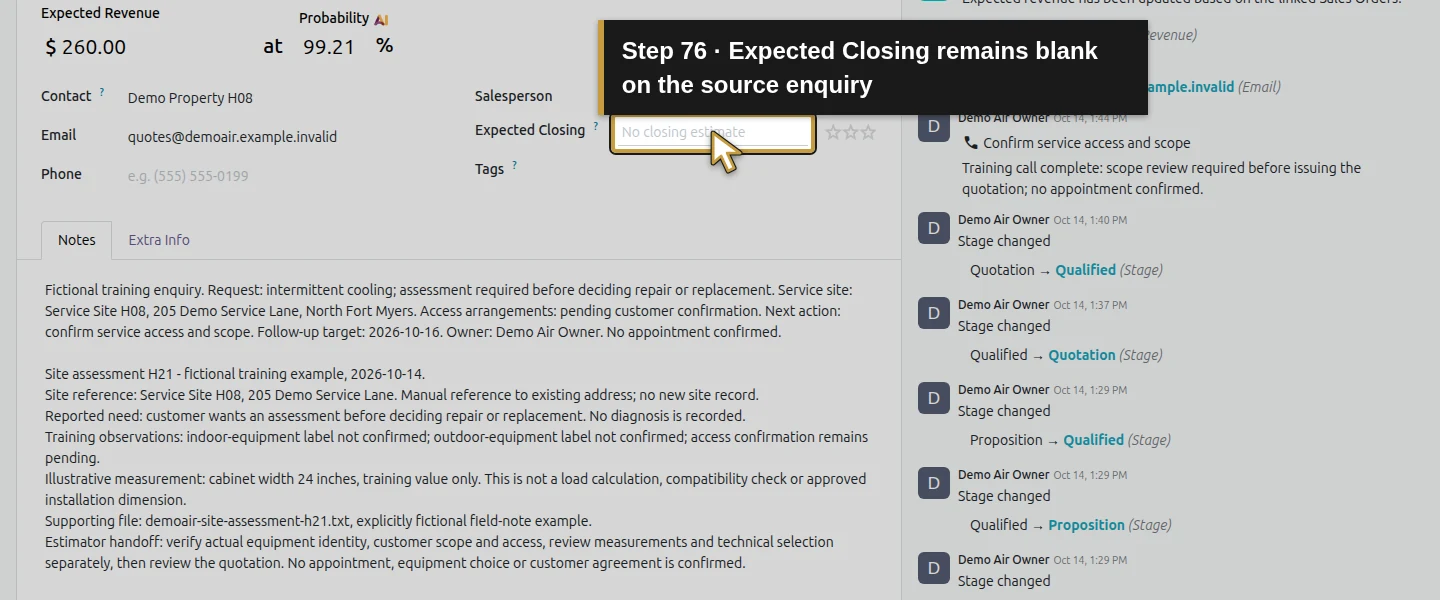
Return to Pipeline Analysis and recall the existing favorite when needed. The Won example has no linked order, while the Qualified service enquiry has confirmed S00001; the stage label and linked order answer different questions. All three reviewed opportunities have no Expected Closing date. This guide has not produced a cash forecast, a business win-rate benchmark or an invoice/payment report. The six opportunities, source/stage labels and reviewed orders, invoices, payments, stock and task/time records retained their existing values. The selected portal-user, role, module and mail-route checks also matched the starting state. Only the personal saved-search record is new; these checks cover the selected records and settings.
Check the result
One native personal, nondefault Pipeline Analysis favorite recalls the same three commercial opportunities after reload. It retains October 2026 creation dates, name contains Demo, Active OR Lost, internal-test exclusion, Source grouping and Count/Expected Revenue/Prorated Revenue. The actual pivot reconciles Total3/$260/$257.95, known website source1/$260/$257.95 and None2/$0/$0. The archived loss remains Lost/New/zero probability; the service opportunity remains Qualified/99.21% with linked S00001. The native Orders handoff shows its $260 untaxed/$15.60 tax/$275.60 total. The six original opportunities and stage/source definitions retained their existing values. The reviewed sales, purchase, finance, payment, stock and task/time records also matched the starting state, as did the selected portal-user, role, module and mail-route checks. Only the new personal, nondefault favorite was saved; no business transaction or amount was changed.
If your screen differs
Use the report’s period, cohort, active/lost scope and selected measures together. Stage New can include a lost record; Won does not establish an order or receipt. None is missing source data. Grouped-list page counters can count groups rather than underlying opportunities. A saved personal search is not a default, shared dashboard, scheduled report or prediction. This guide tests the owner’s October training cohort and two recalls; different roles, dates, grouping, invoices and payments need their own review. All reviewed Expected Closing dates are empty. Wait for visible settled controls and values after navigation: hidden cached views and immediate snapshots can show prior content. Verify the full exclusion value in the applied facet, not only the visible input before Search. If the value is omitted, use the native facet edit and re-entry sequence in Step 7 and check the cohort before saving. Select Pivot View when a fresh report opens Graph; the saved search does not prove an automatic view-type switch. No source records were changed to normalize the report.
Frequently asked questions
How do I review sales results in Odoo CRM?
Open CRM → Reporting → Pipeline and choose a graph, pivot or list for a defined question. In the tested stock Odoo 20 Community workflow, October creation dates, a named commercial cohort and Active-or-Lost scope reconcile three source records. Count, Expected Revenue and Prorated Revenue answer different questions; drill into the underlying opportunities before saving the personal view.Why do Odoo CRM and invoice totals differ?
Compare the actual records, states, dates and amount definitions. This guide’s CRM source has $260 Expected Revenue and $257.95 Prorated Revenue. Its linked S00001 order is $275.60 including $15.60 illustrative tax. That order comparison does not itself reconcile posted invoices, credits, deposits or payments; review those separately rather than treating a pipeline total as accounting revenue.Can an Odoo CRM report predict collected revenue?
No collected-revenue prediction is established here. The demonstrated prorated value uses the opportunity’s amount and current probability, while the reviewed Expected Closing dates are blank. Won, an order total and a recorded payment are separate facts. The saved report supports this cohort review, without proving when or how much cash will be collected.Continue building the business
Continue with How do I set up a no-code reminder rule in Odoo?. Keep report review separate from the reminder rule’s tested trigger, duplicate guard and stopping behavior.
Talk about your Odoo setup
Bring your current process and the result you need to Onward to plan your Odoo workflow. Talk about your Odoo setup.